www.philips.com/welcome
BDL8470EU
V1.00
User Manual (English)
BDL8470EU
ii
Safety Instructions
Safety precautions and maintenance
WARNING: Use of controls, adjustments or procedures other than those specied in this documentation may result in exposure to
shock, electrical hazards and/or mechanical hazards.
Read and follow these instructions when connecting and using your display:
Operation:
• Keep the display out of direct sunlight and away from stoves or any other heat sources.
• Remove any object that could fall into ventilation holes or prevent proper cooling of the display’s electronics.
• Do not block the ventilation holes on the cabinet.
• When positioning the display, make sure the power plug and outlet are easily accessible.
• When turning off the display by detaching the power cord, wait 6 seconds before re-attaching the power cord for normal operation.
• Ensure the use of an approved power cord provided by Philips at all times. If your power cord is missing, please contact your local service center.
• Do not subject the display to severe vibration or high impact conditions during operation.
• Do not knock or drop the display during operation or transportation.
Maintenance:
• To protect your display from possible damage, do not put excessive pressure on the LCD panel. When moving your display, grasp the frame to lift; do
not lift the display by placing your hand or ngers on the LCD panel.
• Unplug the display if you are not going to use it for an extensive period of time.
• Unplug the display if you need to clean it with a slightly damp cloth. The screen may be wiped with a dry cloth when the power is off. However, never
use organic solvent, such as, alcohol, or ammonia-based liquids to clean your display.
• To avoid the risk of shock or permanent damage to the set, do not expose the display to dust, rain, water or an excessively moist environment.
• If your display becomes wet, wipe it with dry cloth as soon as possible.
• If a foreign substance or water gets in your display, turn the power off immediately and disconnect the power cord. Then remove the foreign substance
or water, and send the unit to the maintenance center.
• Do not store or use the display in locations exposed to heat, direct sunlight or extreme cold.
• In order to maintain the best performance of your display and ensure a longer lifetime, we strongly recommend using the display in a location that falls
within the following temperature and humidity ranges.
- Temperature: 0-40°C 32-104°F
- Humidity: 20-80% RH
IMPORTANT: Always activate a moving screen saver program when you leave your display unattended. Always activate a periodic screen refresh
application if the unit will display unchanging static content. Uninterrupted display of still or static images over an extended period may cause “burn in”,
also known as “after-imaging” or “ghost imaging”, on your screen. This is a well-known phenomenon in LCD panel technology. In most cases, the “burned
in” or “after-imaging” or “ghost imaging” will disappear gradually over a period of time after the power has been switched off.
WARNING: Severe “burn-in” or “after-image” or “ghost image” symptoms will not disappear and cannot be repaired. This is also not covered under the
terms of your warranty.
Service:
• The casing cover should be opened only by qualied service personnel.
• If there is any need for repair or integration, please contact your local service center.
• Do not leave your display under direct sunlight.
If your display does not operate normally, having followed the instructions set out in this document, please contact a technician or your
local service center.
BDL8470EU
iii
Read and follow these instructions when connecting and using your display:
• Unplug the display if you are not going to use it for an extensive period of time.
• Unplug the display if you need to clean it with a slightly damp cloth. The screen many be wiped with a dry cloth when the power is
off. However, never use alcohol, solvents or ammonia-based liquids.
• Consult a service technician if the display does not operate normally when you have followed the instructions in this manual.
• The casing cover should be opened only by qualied service personnel.
• Keep the display out of direct sunlight and away from stoves or any other heat sources.
• Remove any object that could fall into the vents or prevent proper cooling of the display’s electronics.
• Do not block the ventilation holes on the cabinet.
• Keep the display dry. To avoid electric shock, do not expose it to rain or excessive moisture.
• When turning off the display by detaching the power cable or DC power cord, wait for 6 seconds before re-attaching the power
cable or DC power cord for normal operation..
• To avoid the risk of shock or permanent damage to the set do not expose the display to rain or excessive moisture.
• When positioning the display, make sure the power plug and outlet are easily accessible.
• IMPORTANT: Always activate a screen saver program during your application. If a still image in high contrast remains on the
screen for an extended period of time, it may leave an ‘after-image’ or ‘ghost image’ on the front of the screen. This is a well-known
phenomenon that is caused by the shortcomings inherent in LCD technology. In most cases the afterimage will disappear gradually
over a period of time after the power has been switched off. Be aware that the after-image symptom cannot be repaired and is not
covered under warranty.
CE Declaration of Conformity
We declare under our responsibility that the product is in conformity with the following standards:
• EN60950-1:2006+A11:2009+A1:2010+A12:2011+A2:2013 (Safety requirement of Information Technology Equipment).
• EN55022:2010 (Radio Disturbance requirement of Information Technology Equipment).
• EN55024:2010 (Immunity requirement of Information Technology Equipment).
• EN61000-3-2:2006 +A1:2009+A2:2009 (Limits for Harmonic Current Emission).
• EN61000-3-3:2013 (Limitation of Voltage Fluctuation and Flicker)
• EN 50581:2012 (Technical documentation for the assessment of electrical and electronic products with respect to the restriction of hazardous
substances)
• 2006/95/EC (Low Voltage Directive).
• 2004/108/EC (EMC Directive).
• 2011/65/EU (RoHS Directive) and is produced by a manufacturing organization on ISO9000 level.
Warning:
This is a class A product. In a domestic environment, this product may cause radio interference, in which case the user may be required to take
appropriate measures.
Federal Communications Commission (FCC) Notice (U.S. Only)
NOTE: This equipment has been tested and found to comply with the limits for a Class A digital device, pursuant to part 15 of the
FCC Rules. These limits are designed to provide reasonable protection against harmful interference when the equipment is operated
in a commercial environment. This equipment generates, uses and can radiate radio frequency energy and, if not installed and used in
accordance with the instruction manual, may cause harmful interference to radio communications. Operation of this equipment in a
residential area is likely to cause harmful interference is which case the user will be required to correct the interference at his own
expense.
Changes or modications not expressly approved by the party responsible for compliance could void the user’s authority to operate the
equipment.
Use only an RF shielded cable that was supplied with the display when connecting this display to a computer device.
To prevent damage which may result in re or shock hazard, do not expose this appliance to rain or excessive moisture.
BDL8470EU
iv
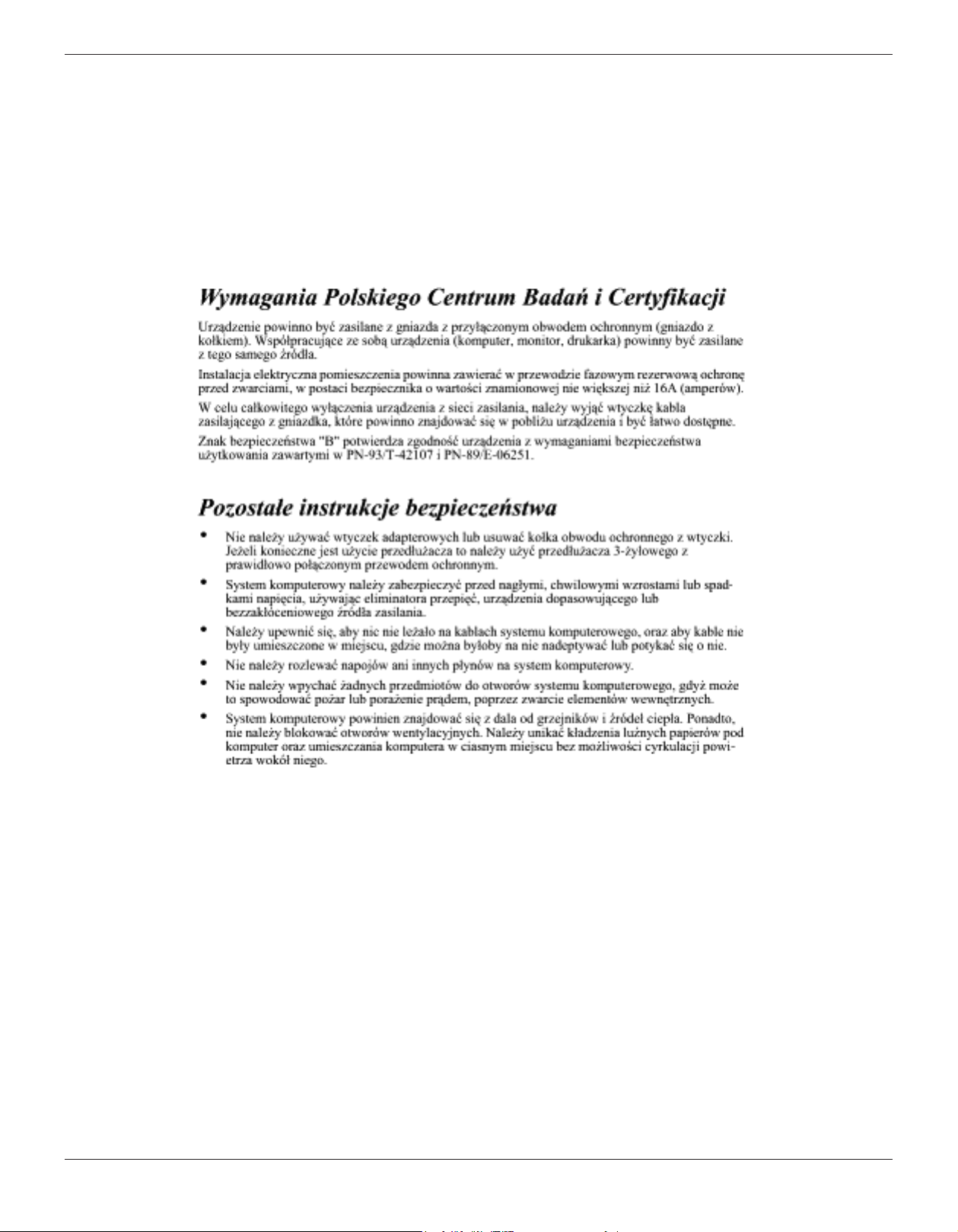
Polish Center for Testing and Certication Notice
The equipment should draw power from a socket with an attached protection circuit (a three-prong socket). All equipment that works together (computer,
display, printer, and so on) should have the same power supply source.
The phasing conductor of the room’s electrical installation should have a reserve short-circuit protection device in the form of a fuse with a nominal value
no larger than 16 amperes (A).
To completely switch off the equipment, the power supply cable must be removed from the power supply socket, which should be located near the
equipment and easily accessible.
A protection mark “B” conrms that the equipment is in compliance with the protection usage requirements of standards PN-93/T-42107 and PN-89/
E-06251.
Electric, Magnetic and Electromagnetic Fields (“EMF”)
1. We manufacture and sell many products targeted at consumers, which, like any electronic apparatus, in general have the ability to emit and receive
electromagnetic signals.
2. One of our leading Business Principles is to take all necessary health and safety measures for our products, to comply with all applicable legal
requirements and to stay well within the EMF standards applicable at the time of producing the products.
3. We are committed to develop, produce and market products that cause no adverse health effects.
4. We conrm that if its products are handled properly for their intended use, they are safe to use according to scientic evidence available today.
5. We play an active role in the development of international EMF and safety standards, enabling us to anticipate further developments in standardization
for early integration in its products.
BDL8470EU
v
Information for U.K. only
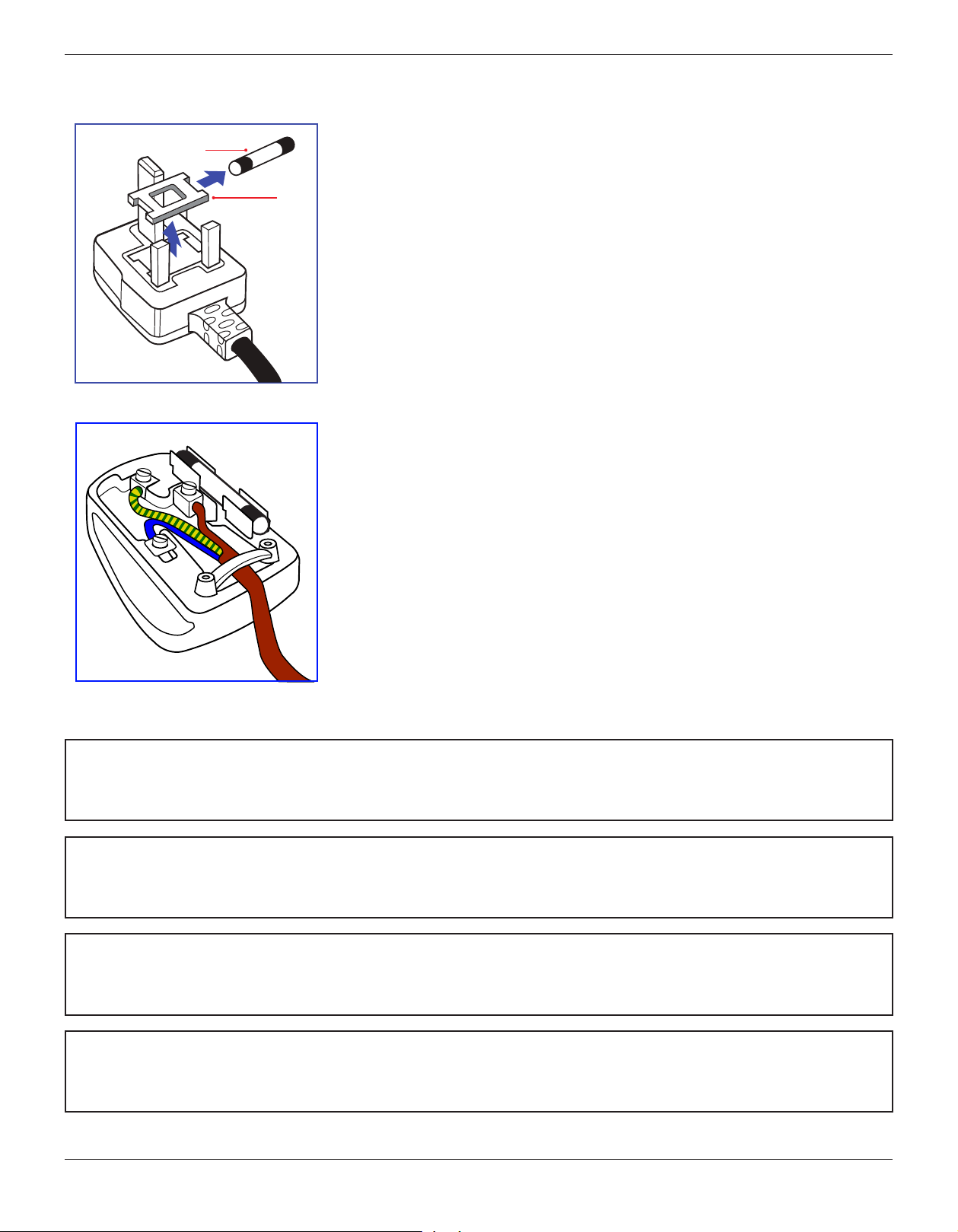
(A)
(B)
WARNING - THIS APPLIANCE MUST BE EARTHED.
Important:
This apparatus is supplied with an approved moulded 13A plug. To change a fuse in this type of plug
proceed as follows:+
1. Remove fuse cover and fuse.
2. Fit new fuse which should be a BS 1362 5A,A.S.T.A. or BSI approved type.
3. Ret the fuse cover.
If the tted plug is not suitable for your socket outlets, it should be cut off and an appropriate 3-pin
plug tted in its place.
If the mains plug contains a fuse, this should have a value of 5A. If a plug without a fuse is used, the
fuse at the distribution board should not be greater than 5A.
NOTE: The severed plug must be destroyed to avoid a possible shock hazard should it be inserted
into a 13A socket elsewhere.
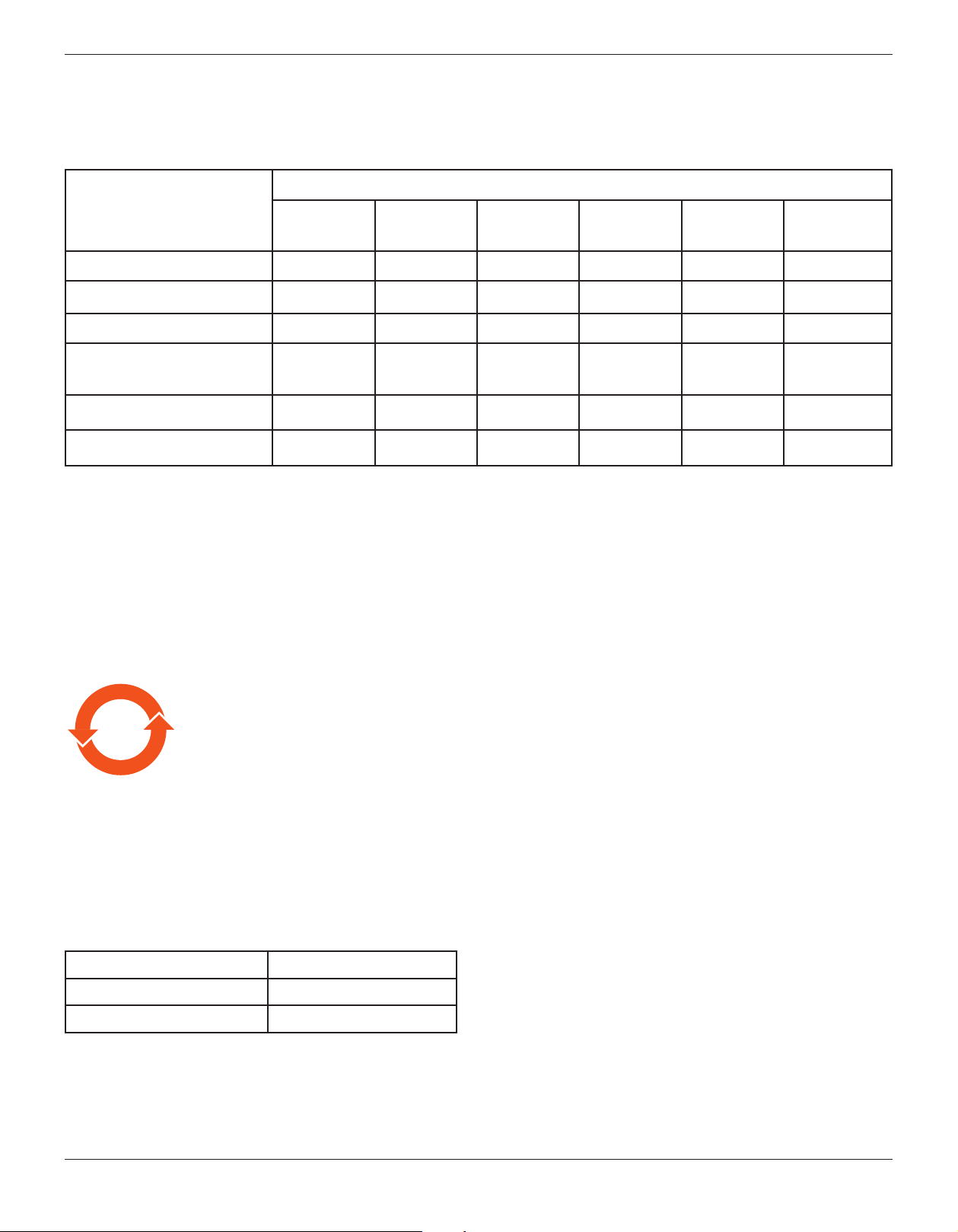
How to connect a plug
The wires in the mains lead are coloured in accordance with the following code:
BLUE - “NEUTRAL” (“N”)
BROWN - “LIVE” (“L”)
GREEN & YELLOW - “EARTH” (“E”)
1. The GREEN & YELLOW wire must be connected to the terminal in the plug which is marked
with the letter “E” or by the Earth symbol or coloured GREEN or GREEN & YELLOW.
2. The BLUE wire must be connected to the terminal which is marked with the letter “N” or
coloured BLACK.
3. The BROWN wire must be connected to the terminal which marked with the letter “L” or
coloured RED.
Before replacing the plug cover, make certain that the cord grip is clamped over the sheath of the lead
- not simply over the three wires.
North Europe (Nordic Countries) Information
Placering/Ventilation
VARNING:
FÖRSÄKRA DIG OM ATT HUVUDBRYTARE OCH UTTAG ÄR LÄTÅTKOMLIGA, NÄR DU STÄLLER DIN UTRUSTNING PÅPLATS.
Placering/Ventilation
ADVARSEL:
SØRG VED PLACERINGEN FOR, AT NETLEDNINGENS STIK OG STIKKONTAKT ER NEMT TILGÆNGELIGE.
Paikka/Ilmankierto
VAROITUS:
SIJOITA LAITE SITEN, ETTÄ VERKKOJOHTO VOIDAAN TARVITTAESSA HELPOSTI IRROTTAA PISTORASIASTA.
Plassering/Ventilasjon
ADVARSEL:
NÅR DETTE UTSTYRET PLASSERES, MÅ DU PASSE PÅ AT KONTAKTENE FOR STØMTILFØRSEL ER LETTE Å NÅ.
BDL8470EU
vi
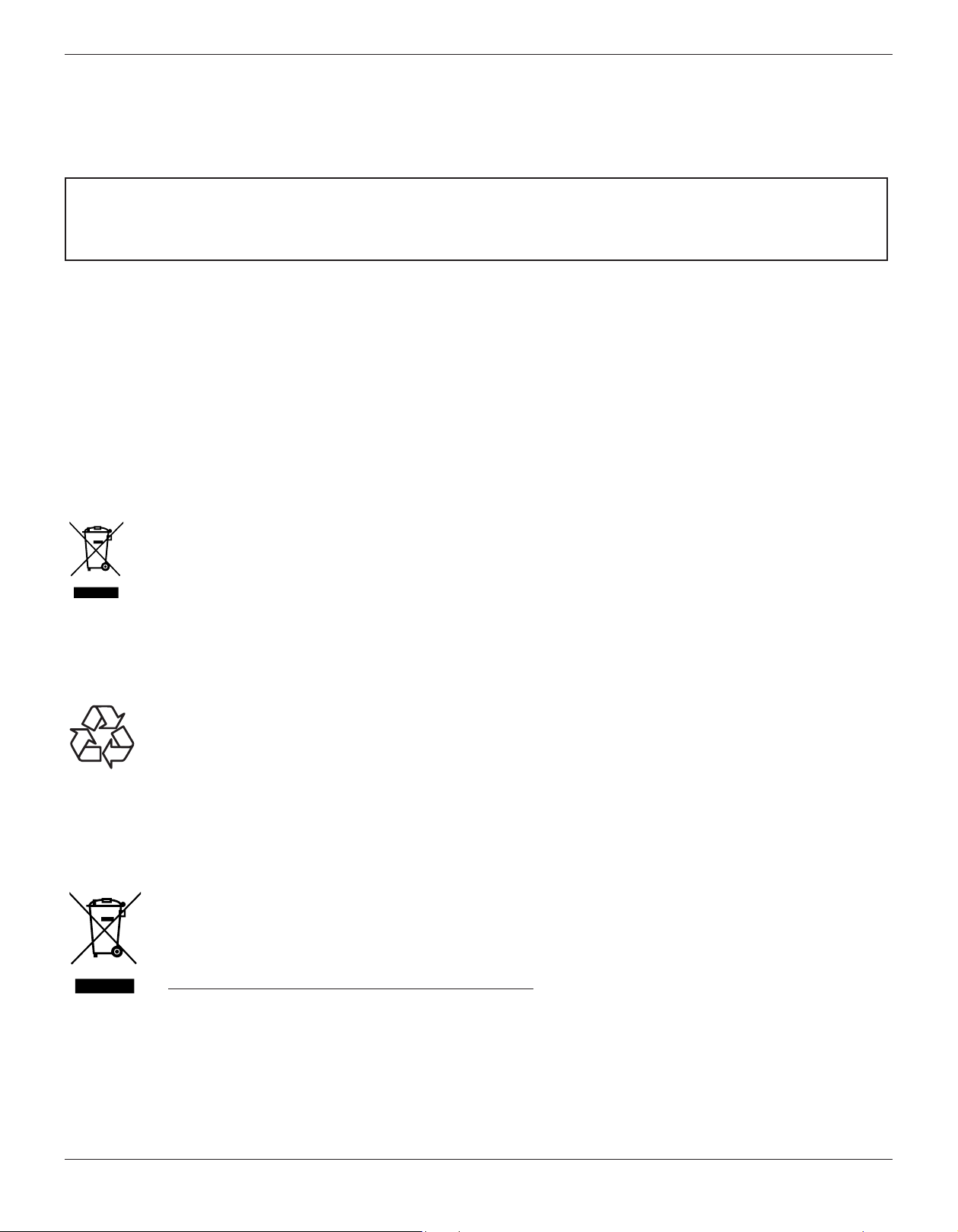
China RoHS
根据中国大陆《电子电气产品有害物质限制使用标识要求》,以下部分列出了本产品中可能包含的有害
物质的名称和含量。
部件名称
有害物质
铅
(Pb)
汞
(Hg)
镉
(Cd)
六价铬
(Cr 6+)
多溴联苯
(PBB)
多溴二苯醚
(PBDE)
外壳 ○ ○ ○ ○ ○ ○
液晶显示屏/灯管 × × ○ ○ ○ ○
电路板组件* × ○ ○ ○ ○ ○
电源适配器 × ○ ○ ○ ○ ○
电源线/连接线 × ○ ○ ○ ○ ○
遥控器 ○ ○ ○ ○ ○ ○
本表格依据SJ/T 11364 的规定编制。
*: 电路板组件包括印刷电路板及其构成的零部件,如电阻、电容、集成电路、连接器等。
O: 表示该有害物质在该部件所有均质材料中的含量均在 GB/T 26572规定的限量要求以下。
X: 表示该有害物质至少在该部件的某一均质材料中的含量超出GB/T 26572规定的限量要求。
上表中打“×”的部件,应功能需要,部分有害物质含量超出GB/T 26572规定的限量要求,但符合欧盟RoHS法
规要求(属于豁免部分)。
10
環保使用期限
此標識指期限(十年),電子信息產品中含有的有毒有害物質或元素在正常使用的條件下不會發生外泄或突變
,電子信息產品用戶使用該電子信息產品不會對環境造成嚴重污染或對其人身、財產造成嚴重損害的期限。
中国能源效率标识
根据中国大陆《能源效率标识管理办法》,本显示器符合以下要求
能源效率(cd/W) >1.05
能效等级 1 级
能效标准 GB 21520-2008
详细有关信息请查阅中国能效标识网: http://www.energylabel.gov.cn/
BDL8470EU
vii
《废弃电器电子产品回收处理管理条例》提示性说明
为了更好地关爱及保护地球,当用户不再需要此产品或产品寿命终止时,请遵守国家废弃电器电子产品
回收处理相关法律法规,将其交给当地具有国家认可的回收处理资质的厂商进行回收处理。
娤⌈
㨢᳸$䵥ᵥ⍿Ʋ◦䏝㯹䉭❁ᳫ濕媣ᵥ⍿⊭侻廞ノ㒞䵽䏳ⴰㄮƲ◦店䢋⾃濕⊭侻斾堿䏦ヵ
⪷ⴰㄮ悅⊔⩜⊭圊䕂㉨㑻Ʋ
End-of-Life Disposal
Your new Public Information Display contains materials that can be recycled and reused. Specialized companies can recycle your product to increase the
amount of reusable materials and to minimize the amount to be disposed of.
Please nd out about the local regulations on how to dispose of your old display from your local Philips dealer.
(For customers in Canada and U.S.A.)
This product may contain lead and/or mercury. Dispose of in accordance to local-state and federal regulations. For additional information on recycling
contact www.eia.org (Consumer Education Initiative)
Waste Electrical and Electronic Equipment-WEEE
Attention users in European Union private households
This marking on the product or on its packaging illustrates that, under European Directive 2012/19/EU governing used electrical and
electronic appliances, this product may not be disposed of with normal household waste. You are responsible for disposal of this
equipment through a designated waste electrical and electronic equipment collection. To determine the locations for dropping off such
waste electrical and electronic, contact your local government ofce, the waste disposal organization that serves your household or the
store at which you purchased the product.
Attention users in United States:
Please dispose of according to all Local, State and Federal Laws. For the disposal or recycling information, contact: www.mygreenelectronics.com or www.
eiae.org.
End of Life Directives-Recycling
Your new Public Information Display contains several materials that can be recycled for new users.
Please dispose of according to all Local, State, and Federal laws.
Restriction on Hazardous Substances statement (India)
This product complies with the “India E-waste Rule 2011” and prohibits use of lead, mercury, hexavalent chromium, polybrominated biphenyls or
polybrominated diphenyl ethers in concentrations exceeding 0.1 weight % and 0.01 weight % for cadmium, except for the exemptions set in Schedule 2
of the Rule.
E-Waste Declaration for India
This symbol on the product or on its packaging indicates that this product must not be disposed of with your other household waste.
Instead it is your responsibility to dispose of your waste equipment by handing it over to a designated collection point for the recycling
of waste electrical and electronic equipment . The separate collection and recycling of your waste equipment at the time of disposal
will help to conserve natural resources and ensure that it is recycled in a manner that protects human health and the environ-ment.
For more information about where you can drop off your waste equipment for recycling in India please visit the below web link.
http://www.india.philips.com/about/sustainability/recycling/index.page
BDL8470EU
viii
Batteries
For EU: The crossed-out wheeled bin implies that used batteries should not be put to the general household waste! There
is a separate collection system for used batteries, to allow proper treatment and recycling in accordance with legislation.
Please contact your local authority for details on the collection and recycling schemes.
For Switzerland: The used battery is to be returned to the selling point.
For other non-EU countries: Please contact your local authority for correct method of disposal of the used battery.
According to EU directive 2006/66/EC, the battery can’t be disposed improperly. The battery shall be
separated to collect by local service.
Após o uso, as pilhas
deverão ser entregues ao
estabelecimento comercial
ou
e/ou baterias
rede de assistência técnica
autorizada.

BDL8470EU
ix
Table Of Contents
1. Unpacking and Installation .......................................................1
1.1. Unpacking .........................................................................................1
1.2. Package Contents ........................................................................ 1
1.3. Installation Notes .........................................................................1
1.4. Mounting on a Wall ....................................................................2
1.4.1. VESA Grid ....................................................................2
1.5. Mounting in Portrait Position ................................................ 3
1.5.1. How to use the logo guider for portrait
position ........................................................................... 3
1.5.2. How to remove the logo .....................................3
2. Parts and Functions ...................................................................4
2.1. Control Panel ................................................................................. 4
2.2. Input/Output Terminals .............................................................5
2.3. Remote Control ........................................................................... 6
2.3.1. General functions .....................................................6
2.3.2. Inserting the batteries in the remote
control.............................................................................7
2.3.3. Handling the remote control .............................7
2.3.4. Operating range of the remote control ......7
3. Connecting External Equipment.............................................8
3.1. Connecting External Equipment
(DVD/VCR/VCD) .......................................................................8
3.1.1. Using COMPONENT video input ................. 8
3.1.2. Using Video Source input .....................................8
3.1.3. Using HDMI video input ......................................8
3.2. Connecting a PC .......................................................................... 9
3.2.1. Using VGA input ........................................................9
3.2.2. Using DVI input .........................................................9
3.2.3. Using HDMI input .................................................... 9
3.2.4. Using DisplayPort input ..................................... 10
3.3. Connecting Audio Equipment ...........................................10
3.3.1. Connecting external speakers........................10
3.3.2. Connecting an external audio device ........10
3.4. Connecting Multiple Displays in a Daisy-chain
Conguration .............................................................................. 11
3.4.1. Display control connection ..............................11
3.4.2. Digital video connection ....................................11
3.5. IR connection .............................................................................. 11
3.6. IR Pass-through Connection ...............................................12
3.7. Wire-connecting to Network ........................................... 12
4. Operation ................................................................................. 13
4.1. Watch the Connected Video Source ............................13
4.2. Play multimedia les from USB device .........................13
4.3. Play options .................................................................................. 13
4.3.1. Playing music les ..................................................13
4.3.2. Playing movie les .................................................13
4.3.3. Playing photo les .................................................13
4.4. How to use Opera browser (HTML5) .......................13
5. OSD Menu ............................................................................... 15
5.1. Navigating the OSD Menu ................................................ 15
5.1.1. Navigating the OSD menu using the
remote control........................................................15
5.1.2. Navigating the OSD menu using the
display’s control buttons .................................... 15
5.2. OSD Menu Overview ........................................................... 15
5.2.1. Picture menu ............................................................ 15
5.2.2. Screen menu ............................................................16
5.2.3. Audio menu ..............................................................17
5.2.4. PIP menu ....................................................................17
5.2.5. Conguration1 menu ..........................................18
5.2.6. Conguration2 menu ..........................................19
5.2.7. Advanced option menu ..................................... 20
5.2.8. Input menu ................................................................ 23
6. USB device compatibility ....................................................... 24
7. Input Mode ............................................................................... 26
8. Pixel Defect Policy .................................................................. 27
8.1. Pixels and Sub-Pixels ...............................................................27
8.2. Types of Pixel Defects + Dot Denition ....................27
8.3. Bright Dot Defects ...................................................................27
8.4. Dark Dot Defects.....................................................................28
8.5. Proximity of Pixel Defects ................................................... 28
8.6. Pixel Defect Tolerances .........................................................28
8.7. MURA .............................................................................................28
9. Cleaning and Troubleshooting .............................................. 29
9.1. Cleaning ..........................................................................................29
9.2. Troubleshooting .........................................................................30
10. Technical Specications ......................................................... 31
BDL8470EU
1
1. Unpacking and Installation
1.1. Unpacking
• This product is packed in a carton, together with the standard accessories.
• Any other optional accessories will be packed separately.
• Due to the size and weight of this display it is recommended for two people to move it.
• After opening the carton, ensure that the contents are complete and in good condition.
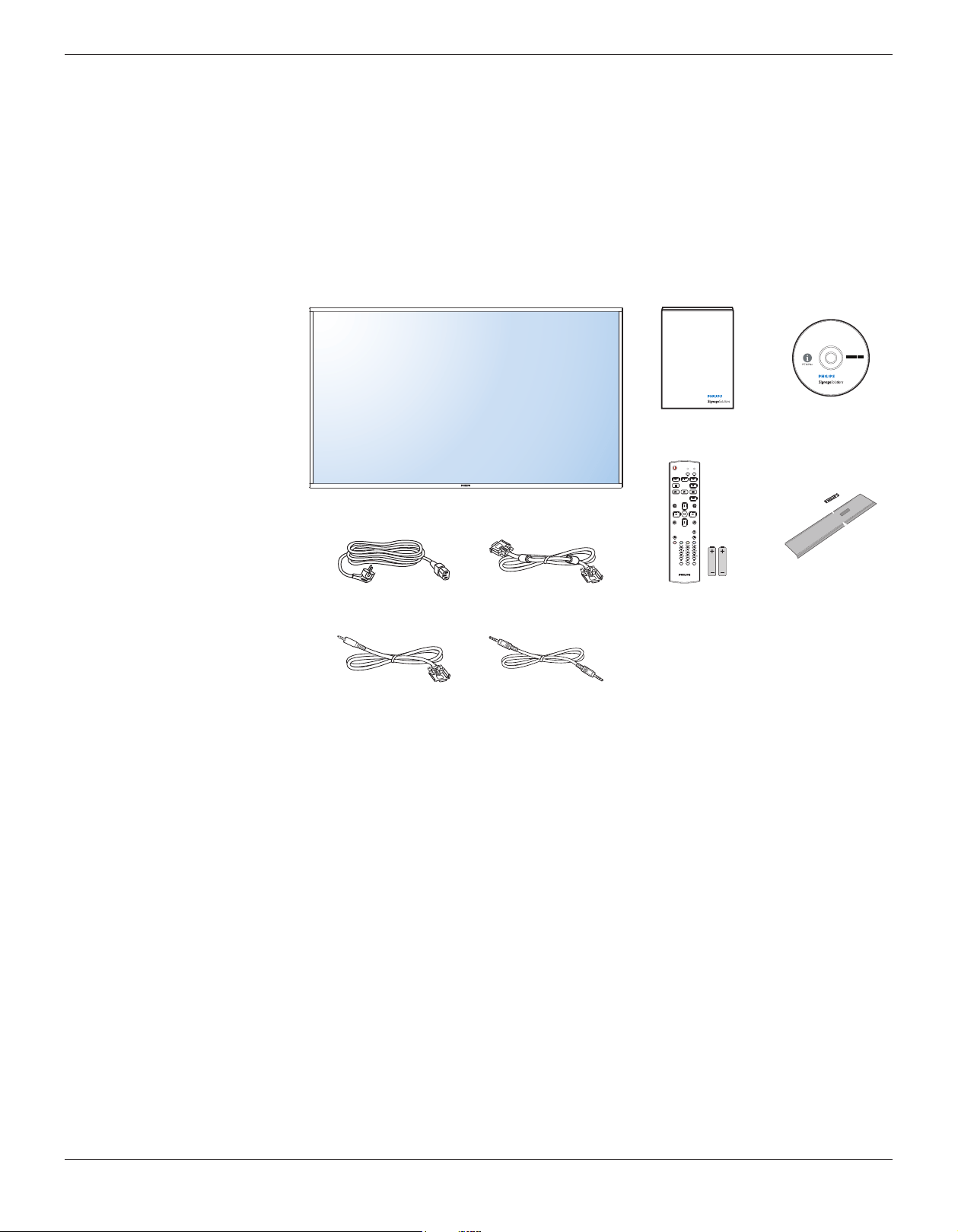
1.2. Package Contents
Please verify that you received the following items with your package content:
• LCD display
• CD ROM
• Quick start guide
• Remote control with AAA batteries
• Power cord (1.8 m)
• VGA cable (1.8 m)
• RS232 cable (3 m)
• RS232 daisy chain cable (3 m)
• Logo guider & Logo
* The supplied power cord varies depending on destination.
Power Cord Logo guider & Logo
CD ROMQuick start guide
Remote Control
and AAA Batteries
RS232 Daisy Chain Cable
VGA Cable
RS232 Cable
FORMAT
SOURCE
INFOLIST
OPTIONSADJUST
VOL
NORMAL
ID
ID SET ENTER
NOTES:
• For all other regions, apply a power cord that conforms to the AC voltage of the power socket and has been approved by and complies with the
safety regulations of the particular country.
• You might like to save the package box and packing material for shipping the display.
1.3. Installation Notes
• Due to the high power consumption, always use the plug exclusively designed for this product. If an extended line is required, please consult your
service agent.
• The product should be installed on a at surface to avoid tipping. The distance between the back of the product and the wall should be maintained
for proper ventilation. Avoid installing the product in the kitchen, bathroom or any other places with high humidity so as not to shorten the service life
of the electronic components.
• The product can normally operate only under 3000m in altitude. In installations at altitudes above 3000m, some abnormalities may be experienced.
BDL8470EU
2
1.4. Mounting on a Wall
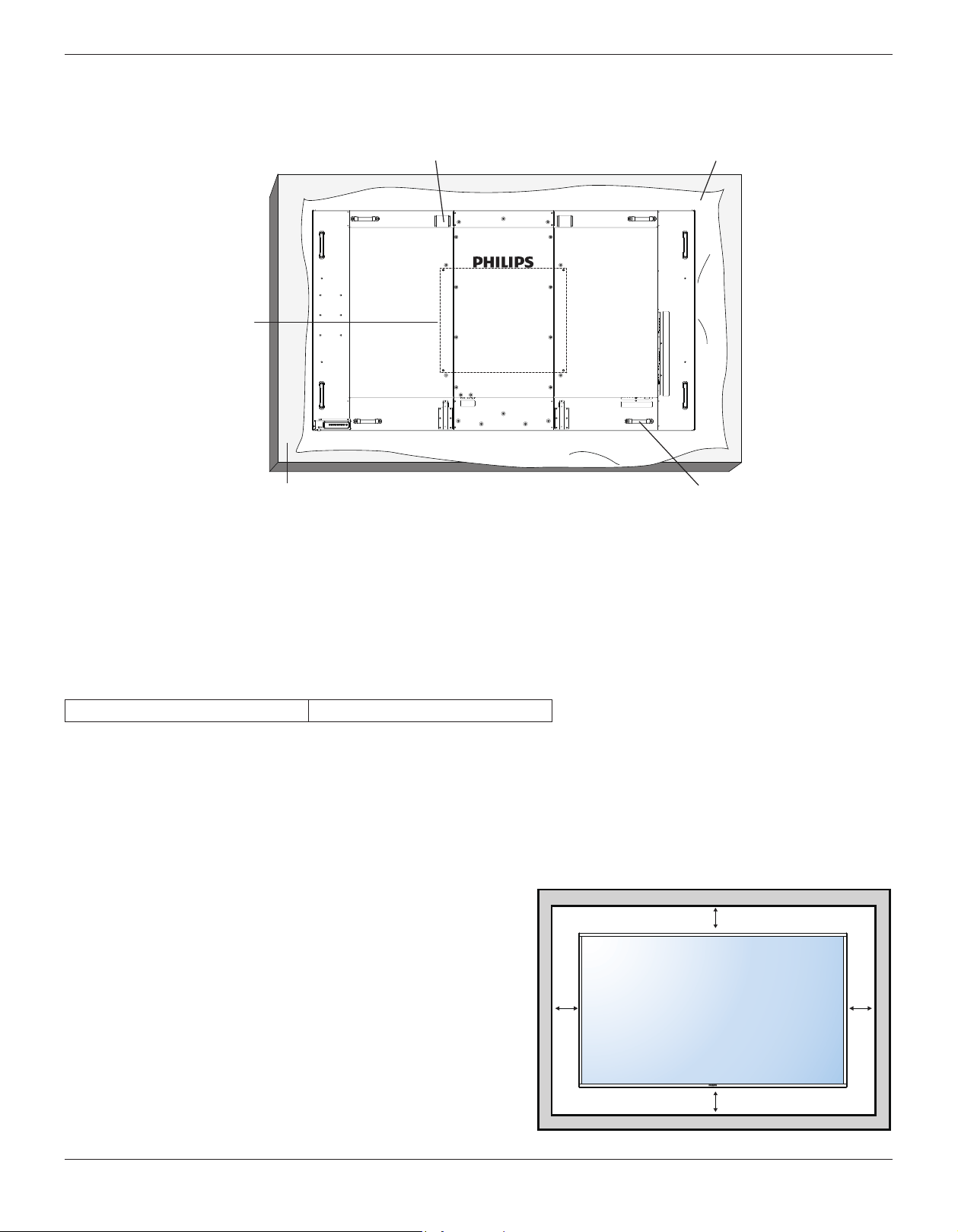
To mount this display to a wall, you will have to obtain a standard wall-mounting kit (commercially available). We recommend using a mounting interface
that complies with TUV-GS and/or UL1678 standard in North America.
Protective Sheet
VESA Grid
Carrying handleTable
Eye bolt
1. Lay a protective sheet on a table, which was wrapped around the display when it was packaged, beneath the screen surface so as not to scratch the
screen face.
2. Ensure you have all accessories for mounting this display (wall mount, ceiling mount, table stand, etc).
3. Follow the instructions that come with the base mounting kit. Failure to follow correct mounting procedures could result in damage to the equipment
or injury to the user or installer. Product warranty does not cover damage caused by improper installation.
4. For the wall-mounting kit, use M8 mounting screws (having a length 10 mm longer than the thickness of the mounting bracket) and tighten them
securely.
1.4.1. VESA Grid
BDL8470EU
600(H) x 500(V) mm
Caution:
To prevent the display from falling:
• For wall or ceiling installation, we recommend installing the display with metal brackets which are commercially available. For detailed installation
instructions, refer to the guide received with the respective bracket.
• To lessen the probability of injury and damage resulting from fall of the display in case of earthquake or other natural disaster, be sure to consult the
bracket manufacturer for installation location.
Ventilation Requirements for enclosure locating
To allow heat to disperse, leave space between surrounding objects as shown in the
diagram below.
100 mm 100 mm
100 mm
100 mm
BDL8470EU
3
1.5. Mounting in Portrait Position
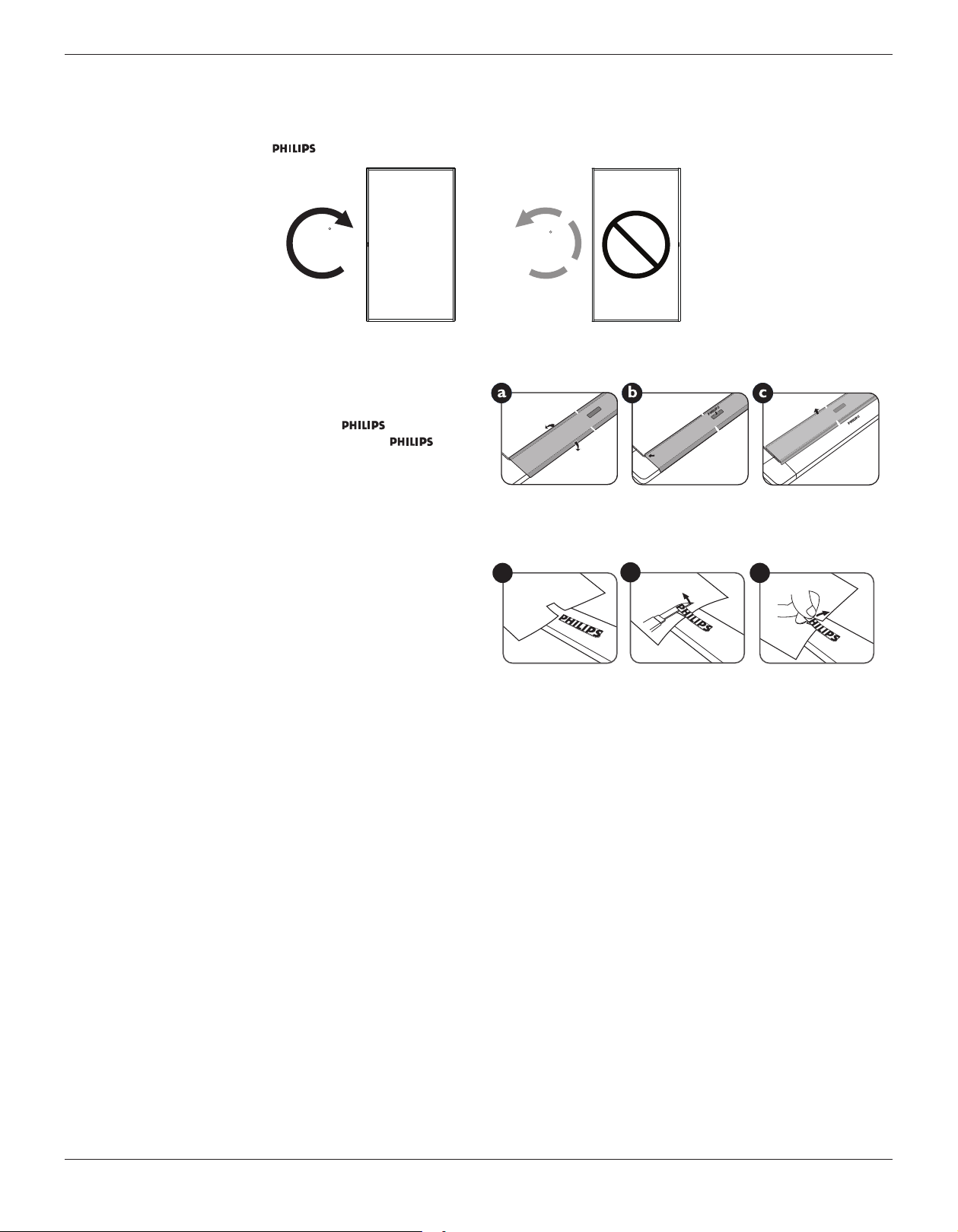
This display can be installed in portrait position.
1. Remove the table stand, if attached.
2. Rotate 90 degrees clockwise. The “ ” logo should be on the LEFT side when facing the display.
90
90
1.5.1. How to use the logo guider for portrait position
1. Put the guider on the lower-left corner of the front bezel of the display.
Fold down both of its edges.
2. Peel off the protective lm at the back of the “ ” logo sticker.
Hold and press the guider with your left hand. Put the “ ” logo
sticker with its adhesive side down into the logo hole with your right
hand, and press to make it stick tightly onto the front bezel.
3. Remove the guider.
1.5.2. How to remove the logo
1. Prepare a piece of paper with a cutting area of logo as a protector to
prevent the front bezel from scratching.
2. Using a knife, carefully remove the logo sticker with the paper placing
beneath.
3. Tear off the logo sticker.
1
2
3
NOTE: When installing the display on a wall, please consult a professional technician for proper installation. We accept no liability for installations not
performed by a professional technician.
BDL8470EU
4
2. Parts and Functions
2.1. Control Panel
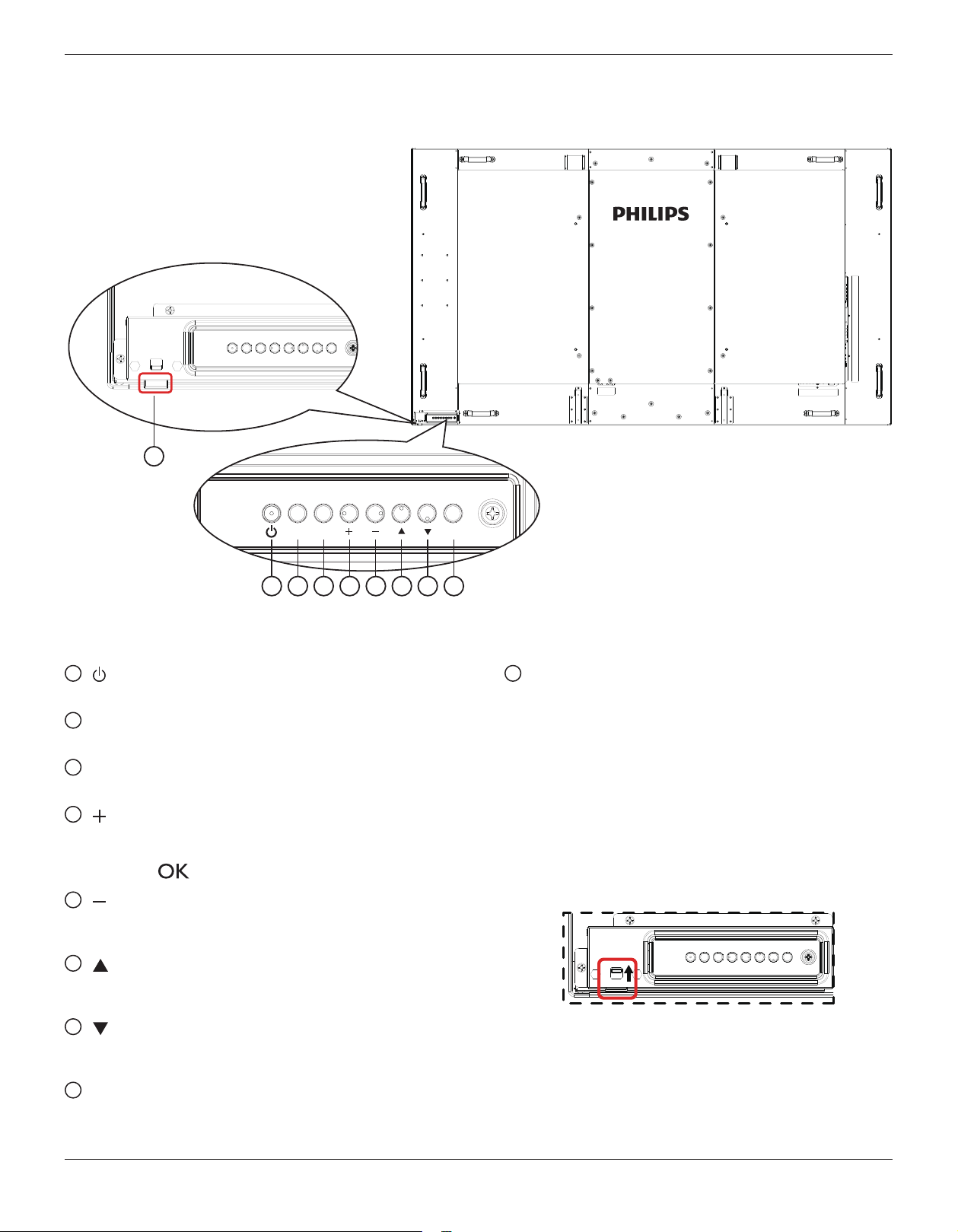
1 2 3 4 5 6 7 8
MUTE INPUT
MENU
9
1
[ ] button
Use this button to turn the display on or put the display to standby.
2
[MUTE] button
Switch the audio mute ON/OFF.
3
[INPUT] button
Use this button to select the input source.
4
[ ] button
Increase the adjustment while OSD menu is on, or increase the
audio output level while OSD menu is off.
• Used as [ ] button in the On-Screen-Display menu.
5
[ ] button
Decrease the adjustment while OSD menu is on, or decrease the
audio output level while OSD menu is off.
6
[ ] button
Move the highlight bar up to adjust the selected item while OSD
menu is on.
7
[ ] button
Move the highlight bar down to adjust the selected item while OSD
menu is on.
8
[MENU] button
Return to previous menu while OSD menu is on, or to activate the
OSD menu when OSD menu is off.
9
Remote control sensor and power status indicator
• Receives command signals from the remote control.
• Indicates the operating status of the display:
- Lights green when the display is turned on.
- Lights red when the display is in standby mode.
- Lights amber when the display enters power save mode or
deep sleep mode.
- When {SCHEDULE} is enabled, the light blinks green and red.
- If the light blinks red, it indicates that a failure has been
detected.
- Lights off when the main power of the display is turned off.
• Push up to hide the lens:
BDL8470EU
5
2.2. Input/Output Terminals
1 32
5
6
17
19
21
7
4
8
9
10
11
12
13
14
15
16
18
20
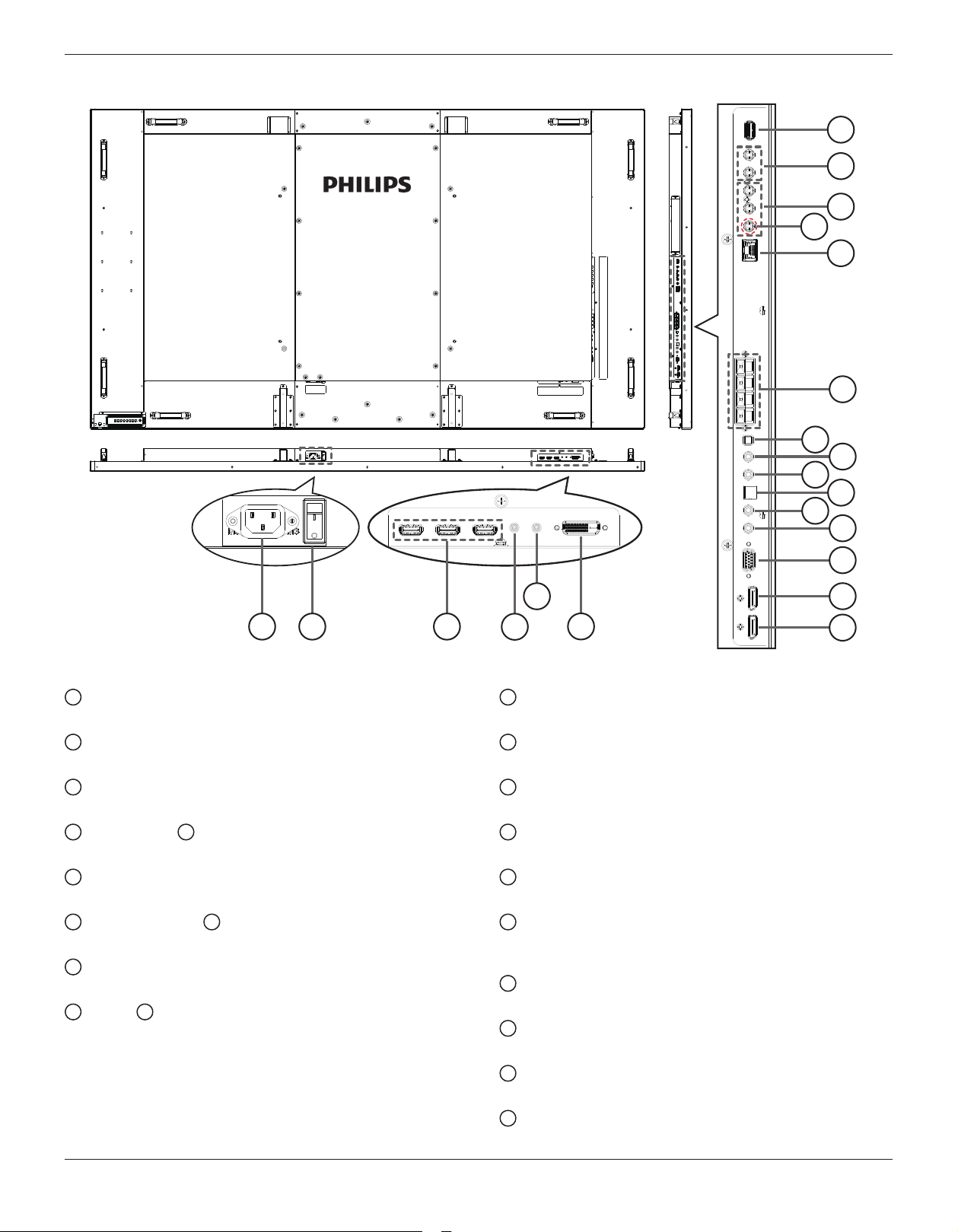
1
AC IN
AC power input from the wall outlet.
2
MAIN POWER SWITCH
Switch the main power on/off.
3
HDMI1 IN / HDMI2 IN / HDMI3 IN
HDMI video/audio input.
4
RS232C IN /
5
RS232C OUT
RS232C network input / output for the loop-through function.
6
DVI IN
DVI-D video input.
7
DisplayPort IN /
8
DisplayPort OUT
DisplayPort video input / output.
9
VGA IN (D-Sub)
VGA video input.
10
IR IN /
11
IR OUT
IR signal input / output for the loop-through function.
NOTES:
• This display’s remote
control sensor will stop working if the jack
[IR IN] is connected.
• To remotely control your A/V device via this display, refer to page
12 for IR Pass Through connection.
12
SPDIF OUT
Digital audio output
13
AUDIO IN
Audio input for VGA source (3.5mm stereo phone).
14
AUDIO OUT
Audio output to external AV device.
15
SPEAKER SWITCH
Internal speaker on/off switch.
16
SPEAKERS OUT
Audio output to external speakers.
17
RJ-45
LAN control function for the use of remote control signal from
control center.
18
Y/CVBS
Video source input.
19
COMPONENT IN
Component YPbPr video source input.
20
AUDIO IN
Audio inpu+t from external AV device (RCA).
21
USB PORT
Connect your USB storage device.
BDL8470EU
6
2.3. Remote Control
2.3.1. General functions
FORMAT
SOURCE
INFOLIST
OPTIONSADJUST
VOL
NORMAL
ID
ID SET ENTER
1
10
11
12
13
14
15
16
17
18
2
3
4
5
6
7
8
9
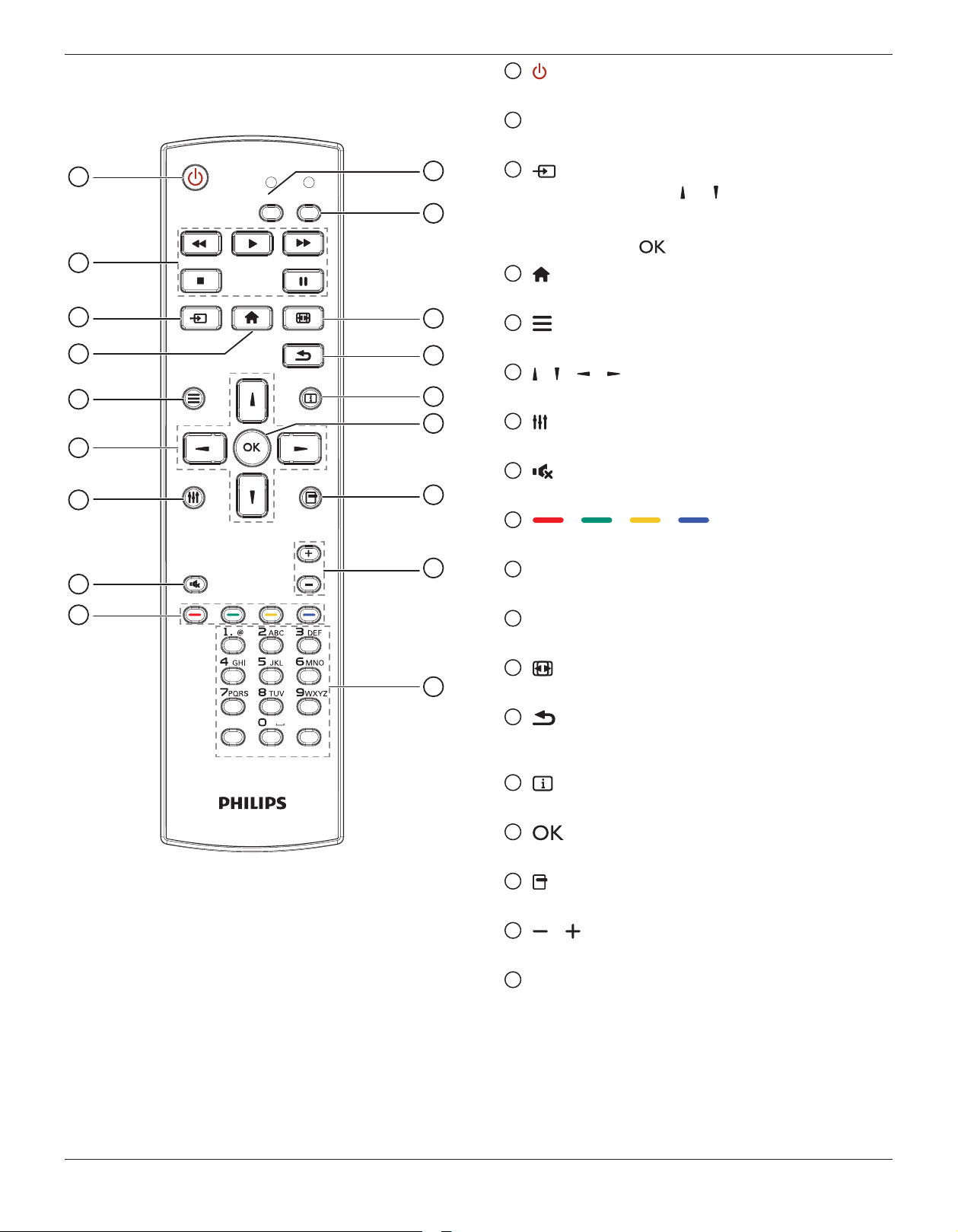
1
[ ] POWER button
Turn the display on or put the display to standby.
2
[PLAY] buttons
Control playback of media les.
3
[ ] SOURCE button
Choose input source. Press [ ] or [ ] button to choose from
DisplayPort
,
DVI-D
,
VGA
.
HDMI 1
,
HDMI 2
,
HDMI 3
,
Component
,
Video
,
USB
,
BROWSER
,
SmartCMS
, or
Card OPS
. Press [ ] button to conrm and exit.
4
[ ] HOME button
Access the OSD menu.
5
[ ] LIST button
No function.
6
[ ] [ ] [ ] [ ] NAVIGATION buttons
Navigate through menus and choose items.
7
[ ] ADJUST button
To auto adjust for VGA input only.
8
[ ] MUTE button
Press to turn the mute function on/off.
9
[ ] [ ] [ ] [ ] COLOR buttons
Choose tasks or options.
10
[NORMAL] buttons
Switch to normal mode.
11
[ID] buttons
Switch to ID mode.
12
[ ] FORMAT button
Change zoom mode.
13
[ ] BACK button
Return to the previous menu page or exit from the previous
function.
14
[ ] INFO button
Display information about current activity.
15
[ ] button
Conrm an entry or selection.
16
[ ] OPTIONS button
Access currently available options, picture and sound menus.
17
[ ] [ ] VOLUME button
Adjust volume.
18
[NUMERIC] buttons
Enter text for network setting, and set up ID for ID mode.
BDL8470EU
7
2.3.2. Inserting the batteries in the remote control
The remote control is powered by two 1.5V AAA batteries.
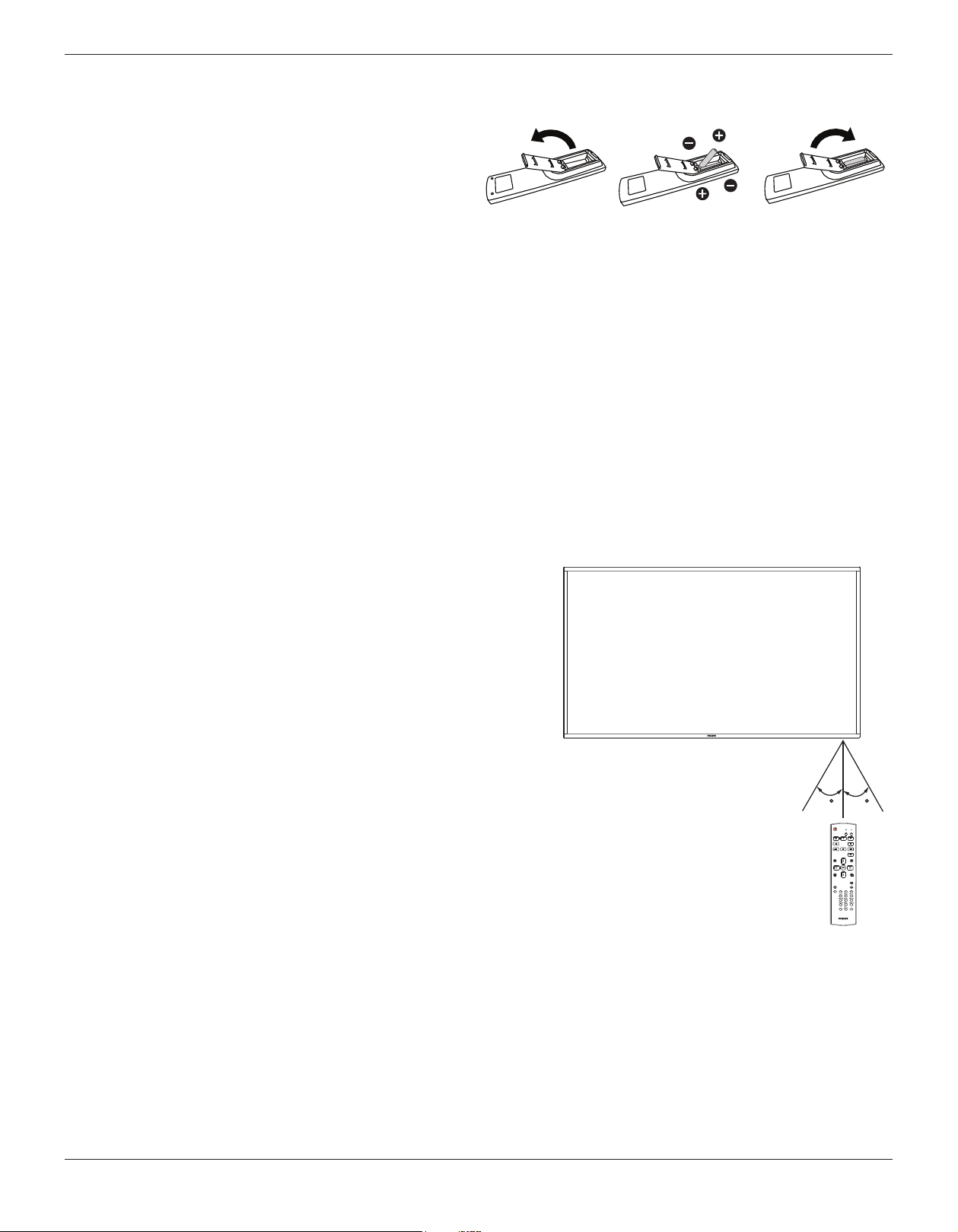
To install or replace batteries:
1. Press and then slide the cover to open it.
2. Align the batteries according to the (+) and (–) indications inside the
battery compartment.
3. Replace the cover.
Caution:
The incorrect use of batteries can result in leaks or bursting. Be sure to follow these instructions:
• Place “AAA” batteries matching the (+) and (–) signs on each battery to the (+) and (–) signs of the battery compartment.
• Do not mix battery types.
• Do not combine new batteries with used ones. It causes shorter life or leakage of batteries.
• Remove the dead batteries immediately to prevent them from liquid leaking in the battery compartment. Don’t touch exposed battery acid, as it can
damage your skin.
NOTE: If you do not intend to use the remote control for a long period, remove the batteries.
2.3.3. Handling the remote control
• Do not subject to strong shock.
• Do not allow water or other liquid to splash the remote control. If the remote control gets wet, wipe it dry immediately.
• Avoid exposure to heat and steam.
• Other than to install the batteries, do not open the remote control.
2.3.4. Operating range of the remote control
Point the top of the remote control toward the display’s remote control sensor when
pressing a button.
Use the remote control within a distance of less than 5m (pull down lens, control from
the front) /26ft from the display’s sensor, and a horizontal and vertical angle of less than
20 degrees.
NOTE: The remote control may not function properly when the remote control
sensor on the display is under direct sunlight or strong illumination, or when
there is an obstacle in the path of signal transmission.
20 20
FORMAT
SOURCE
INFOLIST
OPTIONSADJUST
VOL
NORMAL
ID
ID SET ENTER
BDL8470EU
8
3. Connecting External Equipment
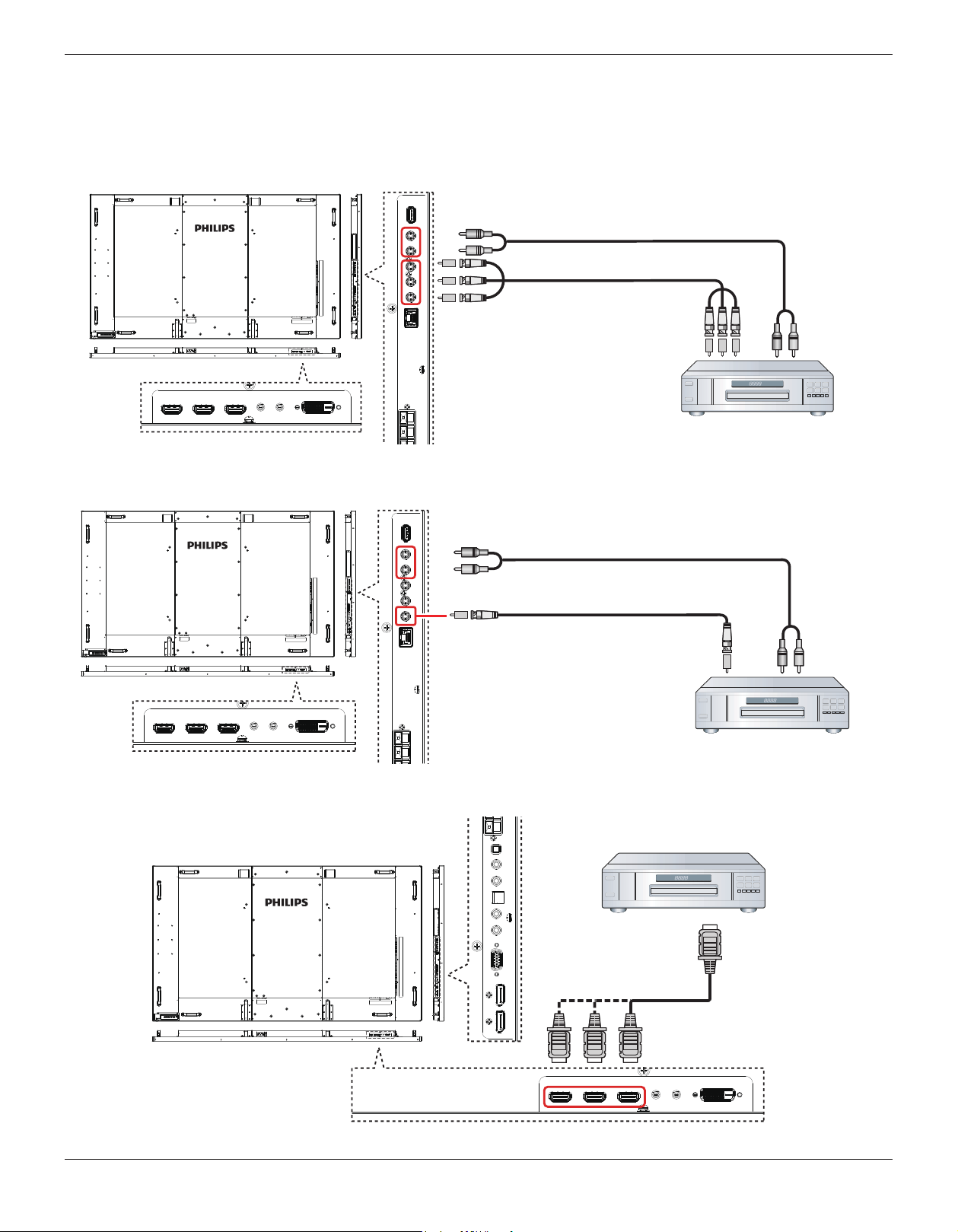
3.1. Connecting External Equipment (DVD/VCR/VCD)
3.1.1. Using COMPONENT video input
DVD / VCR / VCD
[AUDIO IN]
[COMPONENT IN]
(YPbPr)
COMPONENT Out
(YPbPr)
Audio Out
[R]
[L]
3.1.2. Using Video Source input
DVD / VCR / VCD
[AUDIO IN]
Audio Out
[R]
[L]
[Y/CVBS IN]
Y/CVBS Out
3.1.3. Using HDMI video input
DVD / VCR / VCD
HDMI Out
[HDMI IN]

BDL8470EU
9
3.2. Connecting a PC
3.2.1. Using VGA input
PC
[VGA IN]
[VGA AUDIO IN]
VGA Out
D-Sub 15 pin
Audio Out
3.2.2. Using DVI input
PC
DVI Out
[DVI IN]
[VGA AUDIO IN]
Audio Out
3.2.3. Using HDMI input
PC
HDMI Out
[HDMI IN]

BDL8470EU
10
3.2.4. Using DisplayPort input
PC
DisplayPort Out
[DisplayPort IN]
3.3. Connecting Audio Equipment
3.3.1. Connecting external speakers
External speakers
3.3.2. Connecting an external audio device
Stereo Amplifier
[AUDIO OUT]
Audio In
[SPDIF OUT]
BDL8470EU
11
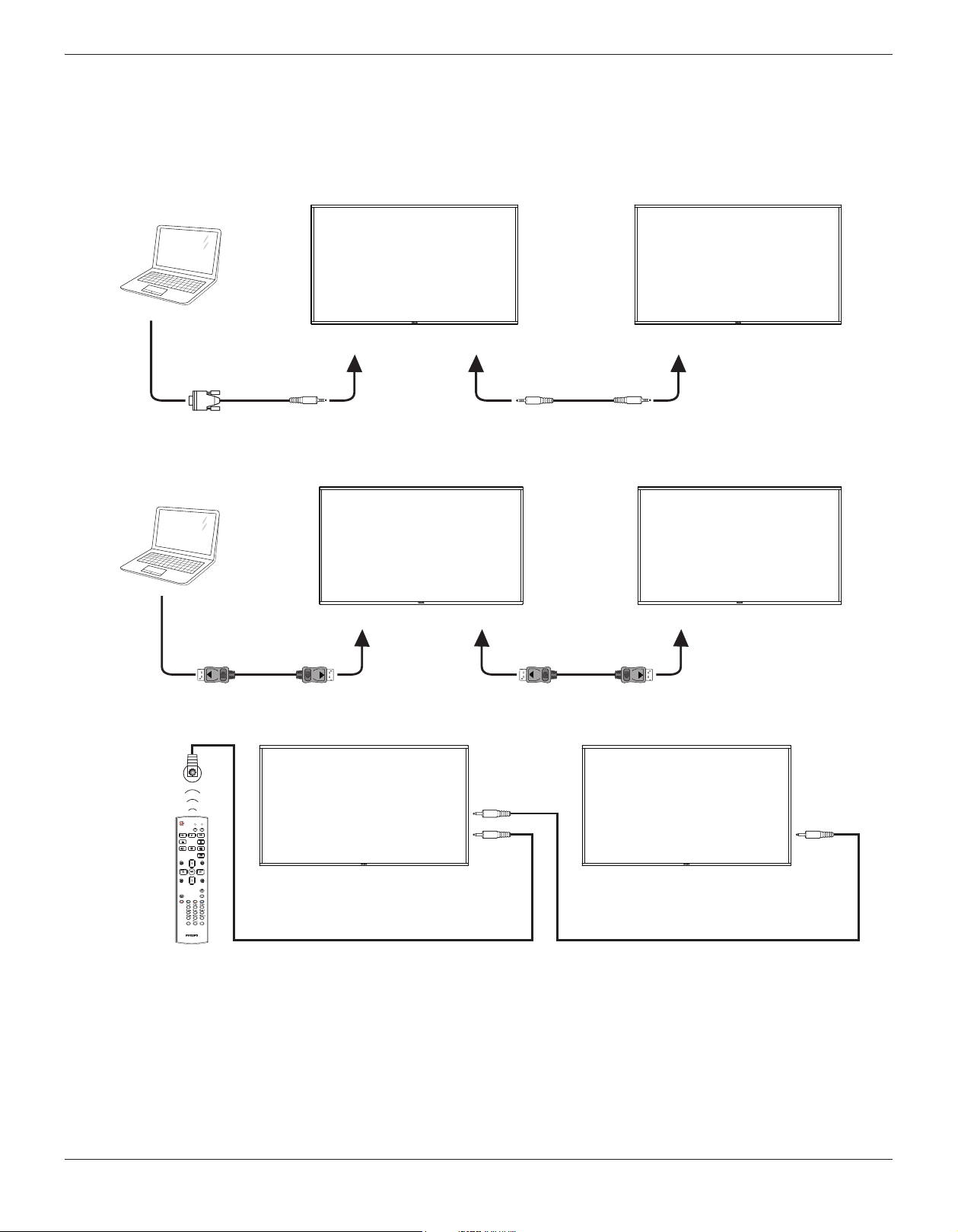
3.4. Connecting Multiple Displays in a Daisy-chain Configuration
You can interconnect multiple displays to create a daisy-chain conguration for applications such as a video wall.
NOTE: Maximum 25 displays (5x5) can be used in a daisy-chain conguration.
3.4.1. Display control connection
Connect the [RS232C OUT] connector of DISPLAY 1 to the [RS232C IN] connector of DISPLAY 2.
DISPLAY 1 DISPLAY 2
PC
[RS-232C IN]
[RS-232C]
[RS-232C OUT] [RS-232C IN]
3.4.2. Digital video connection
Connect the [DP OUT] connector of DISPLAY 1 to the [DP IN] connector of DISPLAY 2.
DISPLAY 1 DISPLAY 2
PC
[DP IN]
[DP]
[DP OUT] [DP IN]
3.5. IR connection
DISPLAY 1 DISPLAY 2
FORMAT
SOURCE
INFOLIST
OPTIONSADJUST
VOL
NORMAL
ID
ID SET ENTER
[IR IN]
[IR OUT]
[IR IN]
External
IR Receiver
NOTE: This display’s remote control sensor will stop working if the [IR IN] is connected.

BDL8470EU
12
3.6. IR Pass-through Connection
DVD / VCR / VCD
(DVD / VCR / VCD)(BDL8470EU)
Remote Control
FORMAT
SOURCE
INFOLIST
OPTIONSADJUST
VOL
NORMAL
ID
ID SET ENTER
[IR OUT]
[IR IN]
3.7. Wire-connecting to Network
PC
[RJ-45]
[RJ-45]
ROUTER
INTERNET
BDL8470EU
13
4. Operation
NOTE: The control button described in this section is mainly on the
remote control unless specied otherwise.
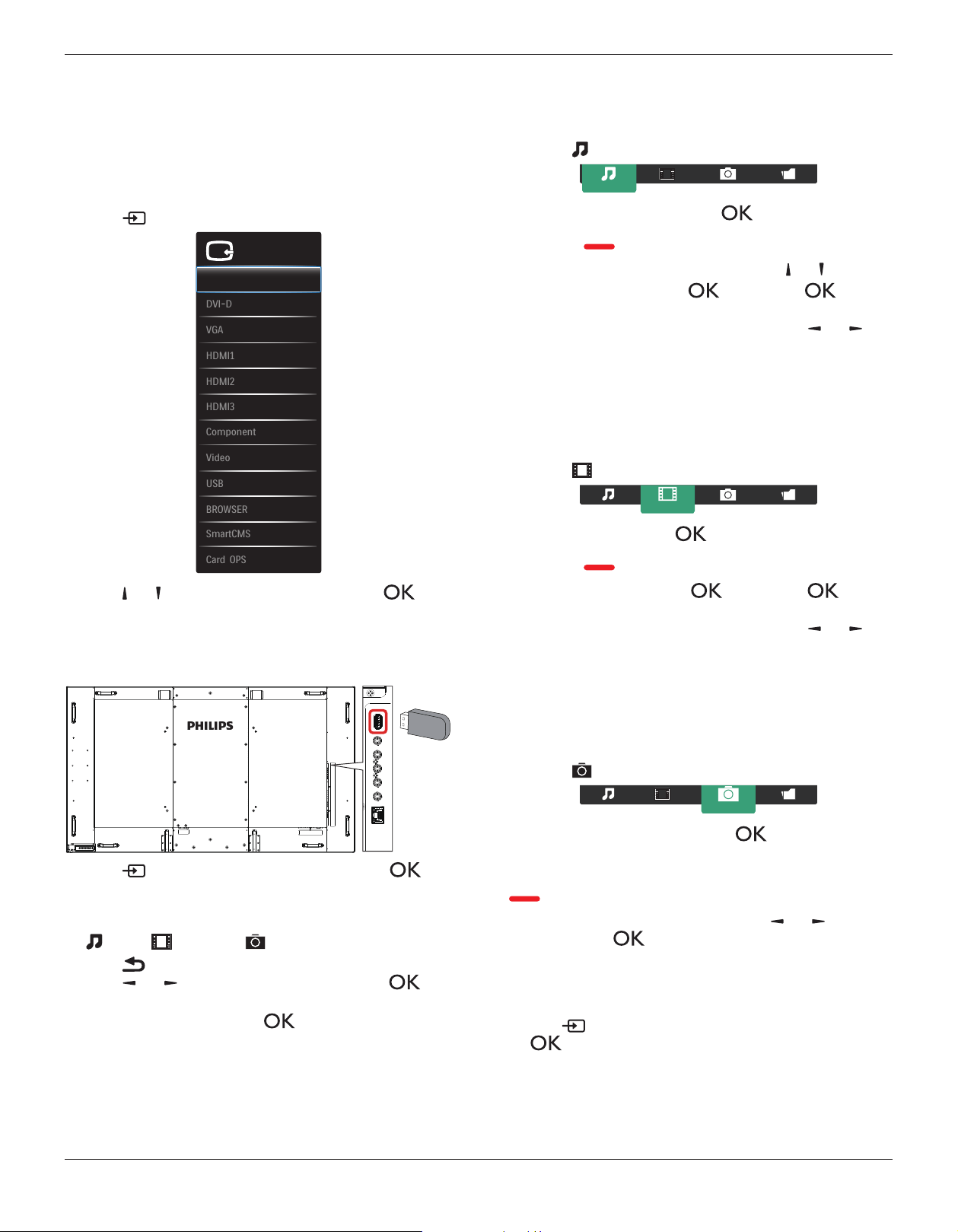
4.1. Watch the Connected Video Source
See page 11 for external equipments connection.
1. Press
[ ] SOURCE button.
VGA
HDMI1
HDMI2
HDMI3
DVI-D
Displayport
Video source
Video
USB
BROWSER
Component
Card OPS
SmartCMS
2. Press [ ]
or [ ] button to choose a device, then press [ ]
button.
4.2. Play multimedia files from USB device
1. Connect your USB device to the USB port on the display.
USB
2. Press [ ] SOURCE button, choose
USB
, and press [ ]
button.
3. The connected USB device is detected automatically for all its
playable les, which will be automatically sorted into 3 types:
Music
,
Movie
, and
Photo
.
4. Press [ ] BACK button to go up to the top layer in the screen.
Press [ ]
or [ ] button to choose the le type. Press [ ]
button to enter its play list.
5. Choose the le you want. Press [ ] button to start playing.
6. Follow the on-screen instruction to control the play option.
7. Press [PLAY] buttons (
H F G I J
) to control playing.
4.3. Play options
4.3.1. Playing music files
1. Choose
Music
in the top bar.
Music
2. Choose one music track, and press [ ] button.
• To play all the tracks in a folder, choose one music le. Then,
press [ ] to
Play All
.
• To skip to the next or previous track, press [ ] or [ ] button.
• To pause the track, press [ ] button. Press [ ] button
again to resume playback.
•
To skip backward or forward 10 seconds, press [ ] or [ ]
button.
• To search backward or forward, press [
G
]
or
[
J
] button,
press repeatedly to toggle between different speeds.
• To stop the music, press [
H
] button.
4.3.2. Playing movie files
1. Choose
Movie
in the top bar.
Movie
2. Choose a video, and press [ ] button.
• To play all the videos in a folder, choose one video le. Then,
press [ ] to
Play All
.
• To pause the video, press [ ] button. Press [ ] button
again to resume playback.
•
To skip backward or forward 10 seconds, press [ ] or [ ]
button.
• To search backward or forward, press [
G
]
or
[
J
] button,
press repeatedly to toggle between different speeds.
• To stop the video, press [
H
] button.
4.3.3. Playing photo files
1. Choose
Photo
in the top bar.
Photo
2. Choose a photo thumbnail, then press ] button.
Start a slideshow
If there are multiple photos in a folder, choose a photo. Then, press
[ ] to
Play All
.
•
To skip to the previous or next photo, press [ ] or [ ] button,
and then press [ ] button.
• To stop the slideshow, press [
H
] button.
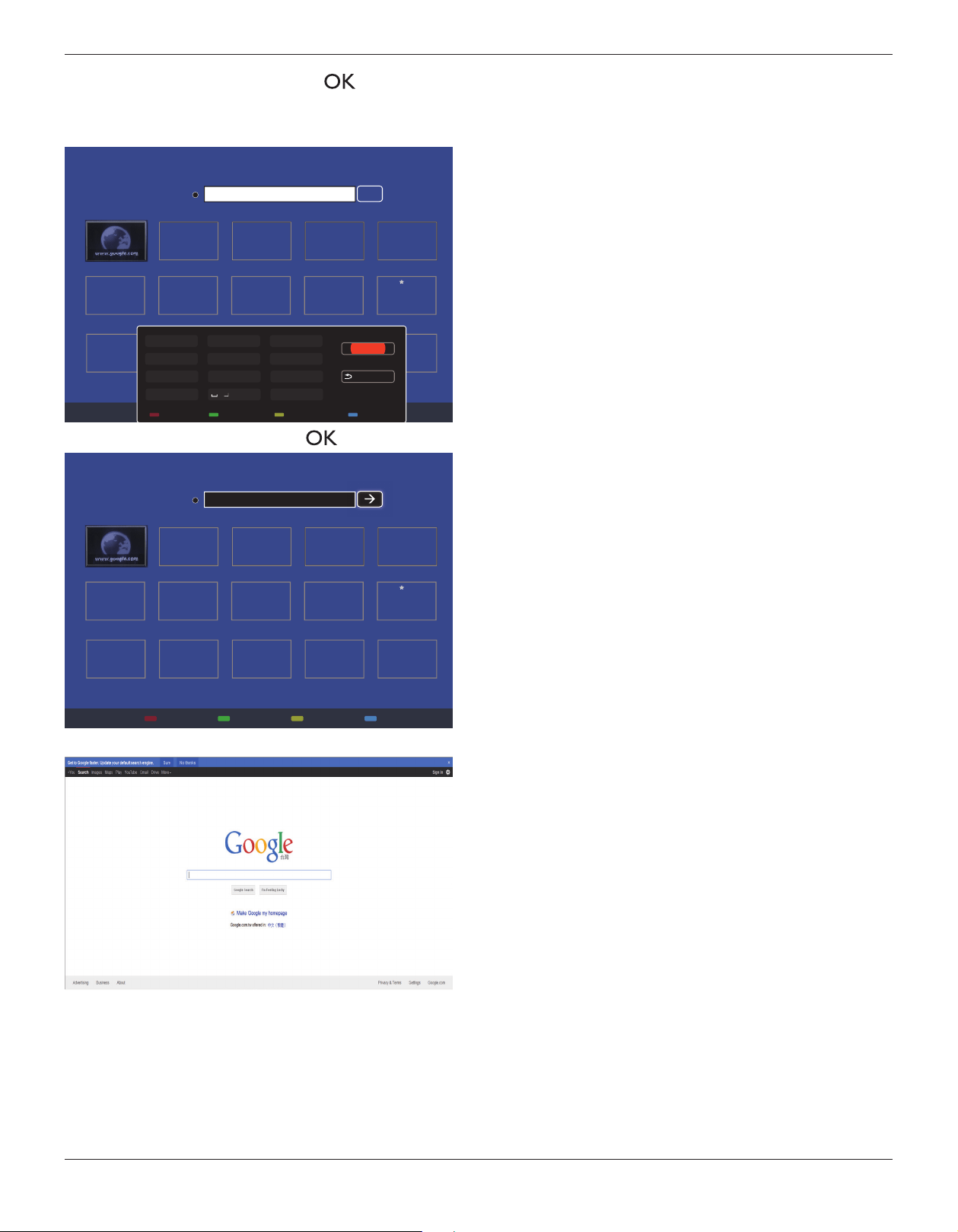
4.4. How to use Opera browser (HTML5)
1. Press [ ] SOURCE button, choose
BROWSER
, and press
[ ] button.
BDL8470EU
14
2. Move the cursor to URL address bar. Press [ ] button and it
will pop out the on-screen keyboard. You can move the cursor to
enter the URL address. After nishing the URL address, choose
Done
.
History
Bookmark
Web Address:
X
Internet
www.google.com
http://
w
w
w
w
w
w
w
w
w
w
w
w
w
w
w
w
w
w
w
w
w
w
w
w
w
w
w
w
w
w
w
w
w
w
w
w
w
w
w
w
w
w
w
w
w
w
w
w
w
w
w
w
w
w
w
w
w
w
w
w
w
w
w
w
w
w
w
w
w
w
w
w
w
w
w
w
w
w
w
w
w
w
w
w
w
w
w
w
w
w
w
w
w
w
w
w
w
w
w
w
w
w
w
w
w
w
w
w
w
w
w
w
w
w
w
w
w
w
w
w
w
w
w
w
w
w
w
w
w
w
w
w
w
w
w
w
w
w
w
w
w
w
w
w
w
w
w
w
w
w
w
w
w
w
w
w
w
w
w
w
w
w
w
w
w
w
w
w
w
w
w
w
w
w
w
w
w
w
w
w
w
w
w
w
w
w
w
w
w
w
w
w
w
w
w
w
w
w
w
w
w
w
w
w
w
w
w
w
w
w
w
w
w
w
w
w
w
w
w
w
w
w
w
w
w
w
w
w
w
w
w
w
w
w
w
w
w
w
w
w
w
w
w
w
w
w
w
w
w
w
w
w
w
w
w
w
w
w
w
w
w
w
w
w
w
w
w
w
w
w
w
w
w
w
w
w
w
w
w
w
w
w
w
w
w
w
w
w
w
w
w
w
w
w
w
w
w
w
w
w
w
w
w
w
w
w
w
w
w
w
w
w
w
w
w
w
w
w
w
w
w
w
w
w
w
w
w
w
w
w
w
w
w
w
w
w
w
w
w
w
w
w
w
w
w
w
w
w
w
w
w
w
w
w
w
w
w
w
w
w
w
w
w
w
w
w
w
w
w
w
w
w
w
w
w
w
w
w
w
w
w
w
w
w
w
w
w
w
w
w
w
w
w
w
w
w
w
w
w
w
w
w
w
w
w
w
w
w
w
w
w
w
w
w
w
w
w
w
w
w
w
w
w
w
w
w
w
w
w
w
w
w
w
w
w
w
w
w
w
w
w
w
w
w
w
w
w
w
w
w
w
w
w
w
w
w
w
w
w
w
w
w
w
w
w
w
w
w
w
w
w
w
w
w
w
w
w
w
w
w
w
w
w
w
w
w
w
w
w
w
w
w
w
w
w
w
w
w
w
w
w
w
w
w
w
w
w
w
w
w
w
w
w
w
w
w
w
.
.
.
.
g
g
g
g
g
g
g
g
g
g
g
g
g
g
g
g
g
g
g
g
g
g
g
g
g
g
g
g
g
g
g
g
g
g
g
g
g
g
g
g
g
g
g
g
g
g
g
g
g
g
g
g
g
g
g
g
g
g
g
g
g
g
g
g
g
g
g
g
g
g
g
g
g
g
g
g
g
g
g
g
g
g
g
g
g
g
g
g
g
g
g
g
g
g
g
g
g
g
g
g
g
g
g
g
g
g
g
g
g
g
g
g
g
g
g
g
g
g
g
g
g
g
g
g
g
g
g
g
g
g
g
g
g
g
o
o
o
o
o
o
o
o
o
o
o
o
o
o
o
o
o
o
o
o
o
o
o
o
o
o
o
o
o
o
o
o
o
o
o
o
o
o
o
o
o
o
o
o
o
o
o
o
o
o
o
o
o
o
o
o
o
o
o
oo
o
o
o
o
o
o
o
o
o
o
o
o
o
o
o
o
o
o
o
o
o
o
o
o
o
o
o
o
o
o
o
o
o
o
o
o
o
o
o
o
o
o
o
o
o
o
o
o
o
o
o
o
o
o
o
o
o
o
o
o
o
o
o
o
o
o
o
o
o
o
o
o
o
o
o
o
o
o
o
o
o
o
o
o
o
o
o
o
o
o
o
o
o
o
o
o
o
o
o
o
o
o
o
o
o
o
o
o
o
o
o
o
o
o
o
o
o
o
o
o
o
o
o
o
o
o
o
o
o
o
o
o
o
o
o
o
o
o
o
o
o
o
o
o
o
o
o
o
o
o
o
o
o
o
o
o
o
o
o
o
o
o
o
o
o
o
o
o
o
o
o
o
o
o
o
o
o
o
o
o
o
o
o
o
o
o
o
o
o
o
o
o
o
o
o
o
o
o
o
o
o
o
o
o
o
o
o
o
o
o
o
o
o
o
o
o
o
o
o
o
o
o
o
o
o
o
o
o
o
o
o
o
o
o
o
o
o
o
o
o
o
o
o
o
o
o
o
o
o
o
o
o
o
g
g
g
g
g
g
g
g
g
g
g
g
g
g
g
g
g
g
g
g
g
g
g
g
g
g
g
g
g
g
g
g
g
g
g
g
g
g
g
g
g
g
g
g
g
g
g
g
g
g
g
g
g
g
g
g
g
g
g
g
g
g
g
g
g
g
g
g
g
g
g
g
g
g
g
g
g
g
g
g
g
g
g
g
g
g
g
g
g
g
g
g
g
g
g
g
g
g
g
g
g
g
g
g
g
g
g
g
g
g
g
g
g
l
l
l
l
l
l
l
l
l
l
l
l
l
l
l
l
l
l
l
l
l
l
l
l
l
l
l
l
l
l
l
l
l
l
l
l
l
l
l
l
l
l
l
l
l
l
l
l
l
l
l
l
l
l
l
l
l
l
l
l
l
l
l
l
l
l
l
l
l
l
l
l
l
l
l
l
l
e
e
e
e
e
e
e
e
e
e
e
e
e
e
e
e
e
e
e
ee
e
e
e
e
e
e
e
e
e
e
e
e
e
e
e
e
e
e
e
e
e
e
e
e
e
e
e
e
e
e
e
e
e
e
e
e
e
e
e
e
e
e
e
e
e
e
e
e
e
e
e
e
e
e
e
e
e
e
e
e
e
e
e
e
e
e
e
e
e
e
e
e
e
e
e
e
e
e
e
e
e
e
e
e
e
e
e
e
e
e
e
e
e
e
e
e
e
e
e
e
e
e
e
e
e
e
e
e
e
e
e
e
e
e
e
e
e
e
e
e
e
e
e
e
e
e
.
.
..
c
c
c
c
c
c
c
c
c
c
c
c
c
c
c
c
c
c
c
c
c
c
c
c
c
c
c
c
c
c
c
c
c
c
c
c
c
c
c
c
c
c
c
c
c
c
c
c
c
c
c
c
c
c
c
c
c
c
c
c
c
c
c
c
c
c
c
c
c
c
c
c
c
c
c
c
c
c
c
c
c
c
c
c
c
c
c
c
c
c
c
c
c
c
c
c
c
c
c
c
c
c
c
c
c
c
o
o
o
o
o
o
o
o
o
o
o
o
o
o
o
o
o
o
o
o
o
o
o
o
o
o
o
o
o
o
o
o
o
o
o
o
o
o
o
o
o
o
o
o
o
o
o
o
o
o
o
o
o
o
o
o
o
o
o
o
o
o
o
o
o
o
o
o
o
o
o
o
o
o
o
o
o
o
o
o
o
o
o
o
o
o
o
o
o
o
m
m
m
m
m
m
m
m
m
m
m
m
m
m
m
m
m
m
m
m
m
m
m
m
m
m
m
m
m
m
m
m
m
m
m
m
m
m
m
m
m
m
m
m
m
m
m
m
m
m
m
m
m
m
m
m
m
m
m
m
m
m
m
m
m
m
m
m
m
m
m
m
m
m
m
m
m
m
m
m
m
m
m
m
m
m
m
m
m
m
m
m
m
m
m
m
m
m
m
m
m
m
m
m
m
m
m
m
m
m
m
m
m
m
m
m
m
m
Done
Hide
. , @ ‘
g h i
p q r s
a b c
j k l
t u v
? ! -
<
d e f
m n o
w x y z
abc ABC 123 www Backspace
3. Move the cursor to “
” icon and press [ ] button.
History
Bookmark
Web Address:
X
Internet
www.google.com
http://www.google.com
w
w
w
w
w
w
w
w
w
w
w
w
w
w
w
w
w
w
w
w
w
w
w
w
w
w
w
w
w
w
w
w
w
w
w
w
w
w
w
w
w
w
w
w
w
w
w
w
w
w
w
w
w
w
w
w
w
w
w
w
w
w
w
w
w
w
w
w
w
w
w
w
w
w
w
w
w
w
w
w
w
w
w
w
w
w
w
w
w
w
w
w
w
w
w
w
w
w
w
w
w
w
w
w
w
w
w
w
w
w
w
w
w
w
w
w
w
w
w
w
w
w
w
w
w
w
w
w
w
w
w
w
w
w
w
w
w
w
w
w
w
w
w
w
w
w
w
w
w
w
w
w
w
w
w
w
w
w
w
w
w
w
w
w
w
w
w
w
w
w
w
w
w
w
w
w
w
w
w
w
w
w
w
w
w
w
w
w
w
w
w
w
w
w
w
w
w
w
w
w
w
w
w
w
w
w
w
w
w
w
w
w
w
w
w
w
w
w
w
w
w
w
w
w
w
w
w
w
w
w
w
w
w
w
w
w
w
w
w
w
w
w
w
w
w
w
w
w
w
w
w
w
w
w
w
w
w
w
w
w
w
w
w
w
w
w
w
w
w
w
w
w
w
w
w
w
w
w
w
w
w
w
w
w
w
w
w
w
w
w
w
w
w
w
w
w
w
w
w
w
w
w
w
w
w
w
w
w
w
w
w
w
w
w
w
w
w
w
w
w
w
w
w
w
w
w
w
w
w
w
w
w
w
w
w
w
w
w
w
w
w
w
w
w
w
w
w
w
w
w
w
w
w
w
w
w
w
w
w
w
w
w
w
w
w
w
w
w
w
w
w
w
w
w
w
w
w
w
w
w
w
w
w
w
w
w
w
w
w
w
w
w
w
w
w
w
w
w
w
w
w
w
w
w
w
w
w
w
w
w
w
w
w
w
w
w
w
w
w
w
w
w
w
w
w
w
w
w
w
w
w
w
w
w
w
w
w
w
w
w
w
w
w
w
w
w
w
w
w
w
w
w
w
w
w
w
w
w
w
w
w
w
w
w
w
w
w
w
w
w
w
w
w
w
w
w
w
w
w
w
w
w
w
w
w
w
w
w
w
w
w
w
w
w
w
w
w
w
w
w
w
w
w
w
w
w
w
w
w
w
w
w
w
w
w
w
w
.
.
.
.
g
g
g
g
g
g
g
g
g
g
g
g
g
g
g
g
g
g
g
g
g
g
g
g
g
g
g
g
g
g
g
g
g
g
g
g
g
g
g
g
g
g
g
g
g
g
g
g
g
g
g
g
g
g
g
g
g
g
g
g
g
g
g
g
g
g
g
g
g
g
g
g
g
g
g
g
g
g
g
g
g
g
g
g
g
g
g
g
g
g
g
g
g
g
g
g
g
g
g
g
g
g
g
g
g
g
g
g
g
g
g
g
g
g
g
g
g
g
g
g
g
g
g
g
g
g
g
g
g
g
g
g
g
g
o
o
o
o
o
o
o
o
o
o
o
o
o
o
o
o
o
o
o
o
o
o
o
o
o
o
o
o
o
o
o
o
o
o
o
o
o
o
o
o
o
o
o
o
o
o
o
o
o
o
o
o
o
o
o
o
o
o
o
oo
o
o
o
o
o
o
o
o
o
o
o
o
o
o
o
o
o
o
o
o
o
o
o
o
o
o
o
o
o
o
o
o
o
o
o
o
o
o
o
o
o
o
o
o
o
o
o
o
o
o
o
o
o
o
o
o
o
o
o
o
o
o
o
o
o
o
o
o
o
o
o
o
o
o
o
o
o
o
o
o
o
o
o
o
o
o
o
o
o
o
o
o
o
o
o
o
o
o
o
o
o
o
o
o
o
o
o
o
o
o
o
o
o
o
o
o
o
o
o
o
o
o
o
o
o
o
o
o
o
o
o
o
o
o
o
o
o
o
o
o
o
o
o
o
o
o
o
o
o
o
o
o
o
o
o
o
o
o
o
o
o
o
o
o
o
o
o
o
o
o
o
o
o
o
o
o
o
o
o
o
o
o
o
o
o
o
o
o
o
o
o
o
o
o
o
o
o
o
o
o
o
o
o
o
o
o
o
o
o
o
o
o
o
o
o
o
o
o
o
o
o
o
o
o
o
o
o
o
o
o
o
o
o
o
o
o
o
o
o
o
o
o
o
o
o
o
o
o
o
o
o
o
o
g
g
g
g
g
g
g
g
g
g
g
g
g
g
g
g
g
g
g
g
g
g
g
g
g
g
g
g
g
g
g
g
g
g
g
g
g
g
g
g
g
g
g
g
g
g
g
g
g
g
g
g
g
g
g
g
g
g
g
g
g
g
g
g
g
g
g
g
g
g
g
g
g
g
g
g
g
g
g
g
g
g
g
g
g
g
g
g
g
g
g
g
g
g
g
g
g
g
g
g
g
g
g
g
g
g
g
g
g
g
g
g
g
l
l
l
l
l
l
l
l
l
l
l
l
l
l
l
l
l
l
l
l
l
l
l
l
l
l
l
l
l
l
l
l
l
l
l
l
l
l
l
l
l
l
l
l
l
l
l
l
l
l
l
l
l
l
l
l
l
l
l
l
l
l
l
l
l
l
l
l
l
l
l
l
l
l
l
l
l
e
e
e
e
e
e
e
e
e
e
e
e
e
e
e
e
e
e
e
ee
e
e
e
e
e
e
e
e
e
e
e
e
e
e
e
e
e
e
e
e
e
e
e
e
e
e
e
e
e
e
e
e
e
e
e
e
e
e
e
e
e
e
e
e
e
e
e
e
e
e
e
e
e
e
e
e
e
e
e
e
e
e
e
e
e
e
e
e
e
e
e
e
e
e
e
e
e
e
e
e
e
e
e
e
e
e
e
e
e
e
e
e
e
e
e
e
e
e
e
e
e
e
e
e
e
e
e
e
e
e
e
e
e
e
e
e
e
e
e
e
e
e
e
e
e
e
.
.
..
c
c
c
c
c
c
c
c
c
c
c
c
c
c
c
c
c
c
c
c
c
c
c
c
c
c
c
c
c
c
c
c
c
c
c
c
c
c
c
c
c
c
c
c
c
c
c
c
c
c
c
c
c
c
c
c
c
c
c
c
c
c
c
c
c
c
c
c
c
c
c
c
c
c
c
c
c
c
c
c
c
c
c
c
c
c
c
c
c
c
c
c
c
c
c
c
c
c
c
c
c
c
c
c
c
c
o
o
o
o
o
o
o
o
o
o
o
o
o
o
o
o
o
o
o
o
o
o
o
o
o
o
o
o
o
o
o
o
o
o
o
o
o
o
o
o
o
o
o
o
o
o
o
o
o
o
o
o
o
o
o
o
o
o
o
o
o
o
o
o
o
o
o
o
o
o
o
o
o
o
o
o
o
o
o
o
o
o
o
o
o
o
o
o
o
o
m
m
m
m
m
m
m
m
m
m
m
m
m
m
m
m
m
m
m
m
m
m
m
m
m
m
m
m
m
m
m
m
m
m
m
m
m
m
m
m
m
m
m
m
m
m
m
m
m
m
m
m
m
m
m
m
m
m
m
m
m
m
m
m
m
m
m
m
m
m
m
m
m
m
m
m
m
m
m
m
m
m
m
m
m
m
m
m
m
m
m
m
m
m
m
m
m
m
m
m
m
m
m
m
m
m
m
m
m
m
m
m
m
m
m
m
m
m
4. Now, you can see the web page.
NOTES:
• The Opera browser does not support FLASH format.
• The browser is not a video source. It will not stay at the browser
screen after you restart the display.
BDL8470EU
15
5. OSD Menu
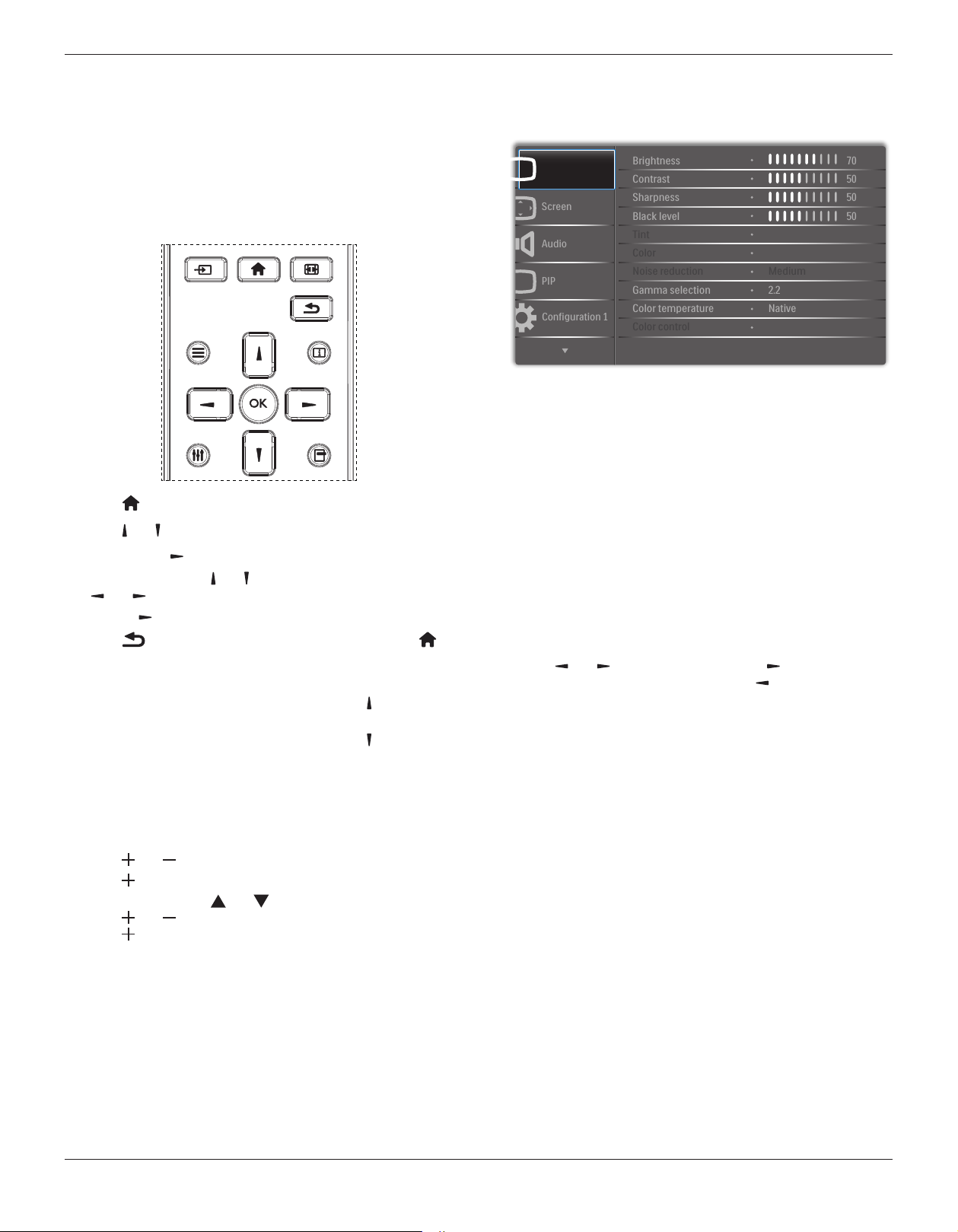
An overall view of the On-Screen Display (OSD) structure is shown
below. You can use it as a reference for further adjusting your display.
5.1. Navigating the OSD Menu
5.1.1. Navigating the OSD menu using the
remote control
FORMAT
SOURCE
INFOLIST
OPTIONSADJUST
1. Press [ ] button on the remote control to display the OSD menu.
2. Press [ ] or [ ] button to choose the item you want to adjust.
3. Press [OK] or [ ] button to enter the submenu.
4. In the submenu, press [ ] or [ ] button to toggle among items, press
[ ]
or [ ] button to adjust settings. If there is a submenu, press
[OK] or [ ] button to enter the submenu.
5. Press [ ] button to return to the previous menu, or press [ ]
button to exit the OSD menu.
NOTES:
• When there is no OSD menu on the screen, press [ ] to display the
menu of {Smart picture}.
• When there is no OSD menu on the screen, press [ ] to display the
menu of {Audio source}.
5.1.2. Navigating the OSD menu using the
display’s control buttons
1. Press [MENU] button to display the OSD menu.
2. Press [ ] or [ ] button to choose the item you want to adjust.
3. Press [ ] button to enter the submenu.
4. In the submenu, press [ ] or [ ] button to toggle among items,
press [ ] or [ ] button to adjust settings. If there is a submenu,
press [ ] button to enter the submenu.
5. Press [MENU] button to return to the previous menu, or press
[MENU] button several times to exit the OSD menu.
5.2. OSD Menu Overview
5.2.1. Picture menu
P
Audio
PIP
Screen
Picture
Configuration 1
Contrast
Sharpness
Tint
Color
Brightness
Black level
Noise reduction
Color temperature
Color control
Gamma selection
50
50
70
50
Medium
Native
2.2
Brightness
Adjust the overall image brightness by changing the intensity of the LCD
panel’s backlight.
Contrast
Adjust to sharpen the picture quality. The black portions of the picture
become richer in darkness and the white become brighter.
Sharpness
Adjust to improve the image detail.
Black level
Video black level is dened as the level of brightness at the darkest
(black) part of a visual image. Adjust to change the image brightness.
Tint
Adjust to change the color tint of the image.
Use the [ ]
or [ ] button to adjust. Press the [ ] button and the
esh tone color turns slightly green. Press the [ ] button and the esh
tone color turns slightly purple.
NOTE: This item functional for Video mode(YUV color space) only.
Color
Adjust to increase or decrease the intensity of colors in the image.
NOTE: This item functional for Video mode(YUV color space) only.
Noise reduction
Adjust to remove the noise in the image. You can select a suitable noise
reduction level.
Choose from: {Off} / {Low} / {Medium} / {High}.
NOTE: This item functional for Video mode(YUV color space) only.
Gamma selection
Gamma is what controls the overall brightness of an image. Images
which are not corrected properly can appear too white or too dark, so
controlling the gamma properly can have a huge inuence on the overall
picture quality of your display.
The options are: {Native} / {2.2} / {2.4} / {S gamma} / {D-image}.
Color temperature
Select a color temperature for the image. A lower color temperature
will have a reddish tint, whilst a higher color temperature gives off a
more bluish tint.
Choose from: {3000K} / {4000K} / {5000K} / {6500K} / {7500K} /
{9300K} / {10000K} / {Native} / {User 1} / {User 2}.
BDL8470EU
16
Color control
You can adjust the color tones of the image precisely by changing the
User-R (Red), User-G (Green) and User-B (Blue) settings independently
when the following condition:
{Picture} - {Color temperature} - {User} setting to [User 1]
Or, you can adjust the color tones per 100K in the range of 2000K to
10000K when the following condition:
{Picture} - {Color temperature} - {User} setting to [User 2]
Smart picture
The following smart picture modes are available for:
• PC mode: {Standard} / {Highbright} / {sRGB}.
• Video mode: {Standard} / {Highbright} / {Cinema}.
Smart contrast
Smart contrast function is to enhance image contrast on darker scenes
when activated. The {Brightness} setting in the Picture menu will be
disabled when Smart Contrast is activated.
Smart power
Set the display to reduce the power consumption automatically.
The options are: {Off} / {Medium} / {High}.
Light sensor
Light sensor function is to adjust brightness automatically when ambient
light changed
Scan mode
Change the display area of the image.
• {Overscan} - Display about 95% of the original size of the image.
The rest of the areas surrounding the image will be cut off.
• {Underscan} - Display the image in its original size.
Picture reset
Reset all settings in the Picture menu.
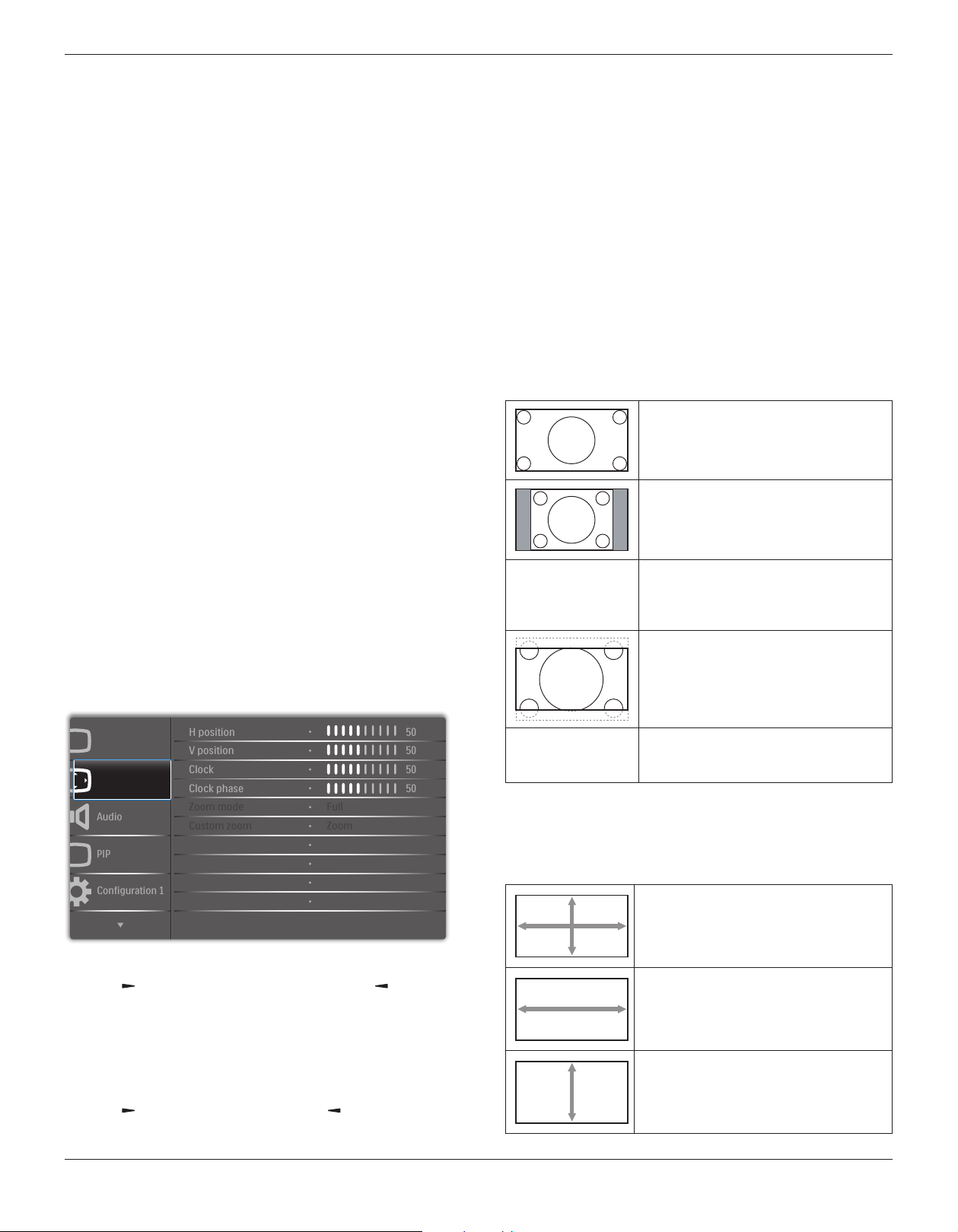
5.2.2. Screen menu
P
Audio
PIP
Screen
Picture
Configuration 1
V position
Clock
Zoom mode
Custom zoom
H position
Clock phase
Screen reset
50
50
50
50
Cancel
Zoom
Full
H position
Press the [ ] button to move the image to the right, or [ ] to move
the image to the left.
NOTES:
• H position adjustment is functional for VGA input only.
• H position cannot be adjusted when {Pixel Shift} is activated.
V position
Press the [ ] button to move the image up, or [ ] to move the image
down.
NOTES:
• V position adjustment is functional for VGA input only.
• V position cannot be adjusted when {Pixel Shift} is activated.
Clock
Adjust the width of the image.
NOTE: This item is functional for VGA input only.
Clock phase
Adjust to improve the focus, clarity and stability of the image.
NOTE: This item is functional for VGA input only.
Zoom mode
The pictures you receive may be transmitted in 16:9 format (wide
screen) or 4:3 format (conventional screen). The 16:9 pictures
sometimes have a black band at the top and bottom of the screen
(letterbox format). Zoom Mode will be deactivated when {Pixel Shift} is
activated or turned on, and when {Tiling} is enabled.
Choose from: {Full} / {Normal} / {Real} / {21:9} / {Custom}.
Full
This mode restores the correct proportions
of pictures transmitted in 16:9 using the full
screen display.
Normal
The picture is reproduced in 4:3 format and
a black band is displayed on either side of
the picture.
Real
This mode displays the image pixel-by-pixel
on screen without scaling the original image
size.
21:9
The picture is enlarged to 16:9 format. This
mode is recommended when displaying
pictures that have black bands at the top and
bottom (letterbox format).
Custom
Choose to apply the custom zoom settings
in the Custom Zoom submenu.
Custom zoom
You can use this function to further customize the zoom settings to suit
the image you want to display.
NOTE: This item is functional only when the {Zoom mode} is set to
{Custom}.
Zoom
Expands the horizontal and vertical sizes of
the image simultaneously.
H zoom
Expands the horizontal size of the image only.
V zoom
Expands the vertical size of the image only.
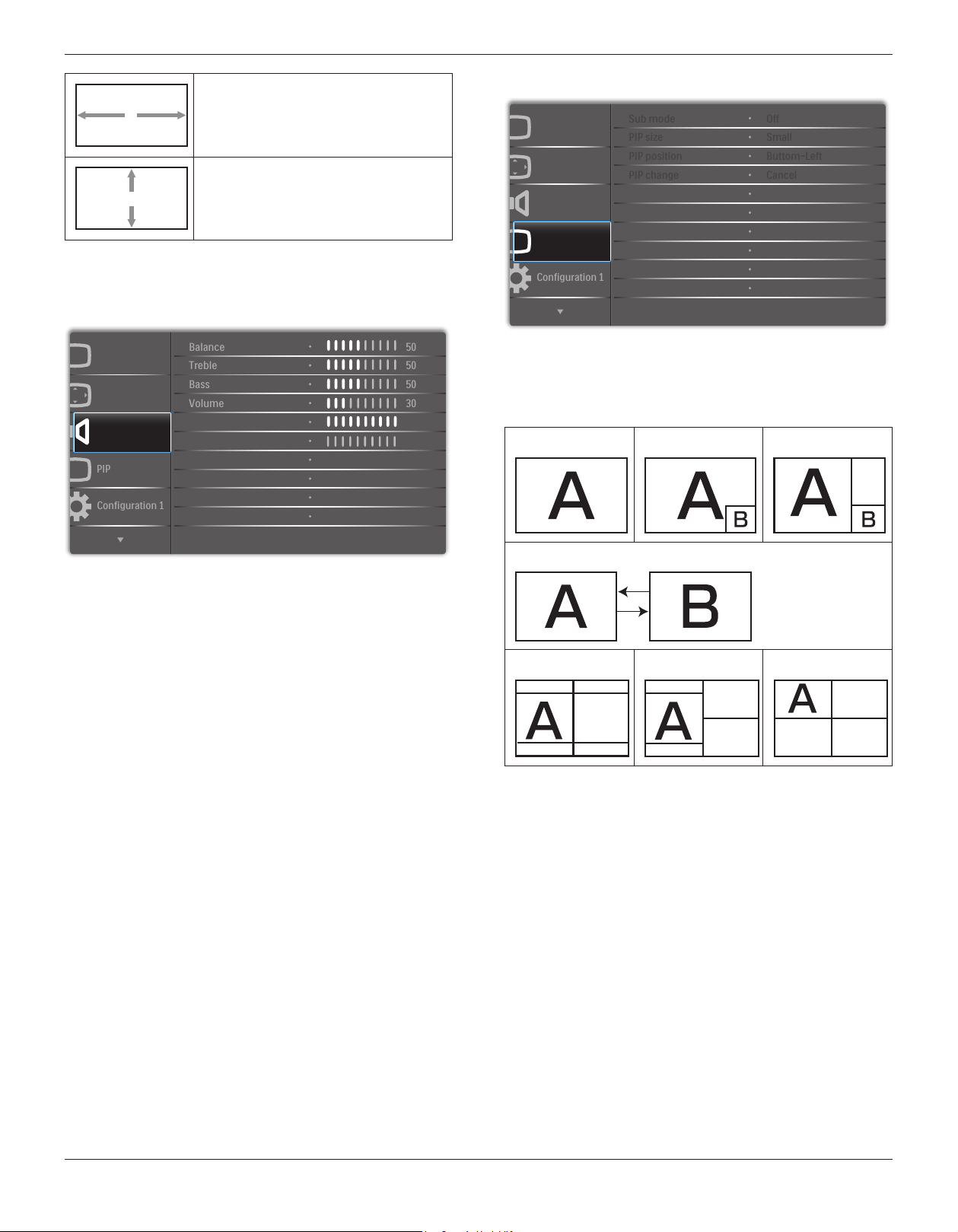
BDL8470EU
17
H position
Moves the horizontal position of the image
left or right.
V position
Moves the vertical position of the image up
or down.
Screen reset
Reset all settings in the Screen menu to factory preset values.
5.2.3. Audio menu
P
Audio
PIP
Screen
Picture
Configuration 1
Treble
Bass
Maximum volume
Minimum volume
Balance
Volume
Mute
50
50
50
30
Off
0
100
Audio reset Cancel
Balance
Adjust to emphasize left or right audio output balance.
Treble
Adjust to increase or decrease higher-pitched sounds.
Bass
Adjust to increase or decrease lower-pitched sounds.
Volume
Adjust to increase or decrease the audio output level.
Maximum volume
Adjust your own limitation for the maximum volume setting. This stops
the volume from being playing at too loud a level.
Minimum volume
Adjust your own limitation for the minimum volume setting.
Mute
Turn the mute function on/off.
Audio reset
Reset all settings in the Audio menu to factory preset values.
5.2.4. PIP menu
P
P
Audio
PIP
Screen
Picture
Configuration 1
PIP size
PIP position
PIP reset
Sub mode
PIP change
Small
Buttom-Left
Off
Cancel
Cancel
Sub mode
Select the PIP (Picture-in-Picture) mode.
Choose from: {Off} / {PIP} / {POP} / {Quick swap} / {PBP 2Win} / {PBP
3Win} / {PBP 4Win}.
Off PIP POP
Quick swap
Switch main on top
or sub on top.
PBP 2Win PBP 3Win PBP 4Win
Sub Win1
Input
Sub Win1
Input
Sub Win2
Input
Sub Win1
Input
Sub Win3
Input
Sub Win2
Input
PIP size
Select the size of the sub picture in the PIP (Picture-in-Picture) mode.
Choose from: {Small} / {Medium} / {Large}.
PIP position
Select the position of the sub picture in the PIP (Picture-in-Picture)
mode.
Choose from: {Bottom-Right} / {Bottom -Left} / {Top-Right} / {Top-
Left}.
PIP change
Exchange input signal of Main and Sub for PIP / POP / Quick swap
mode.
PIP reset
Reset all settings in the PIP menu to factory preset values.
NOTES:
• The PIP function is available only for the following condition:
{Advanced option} - {Tiling} - {Enable} setting to [No].
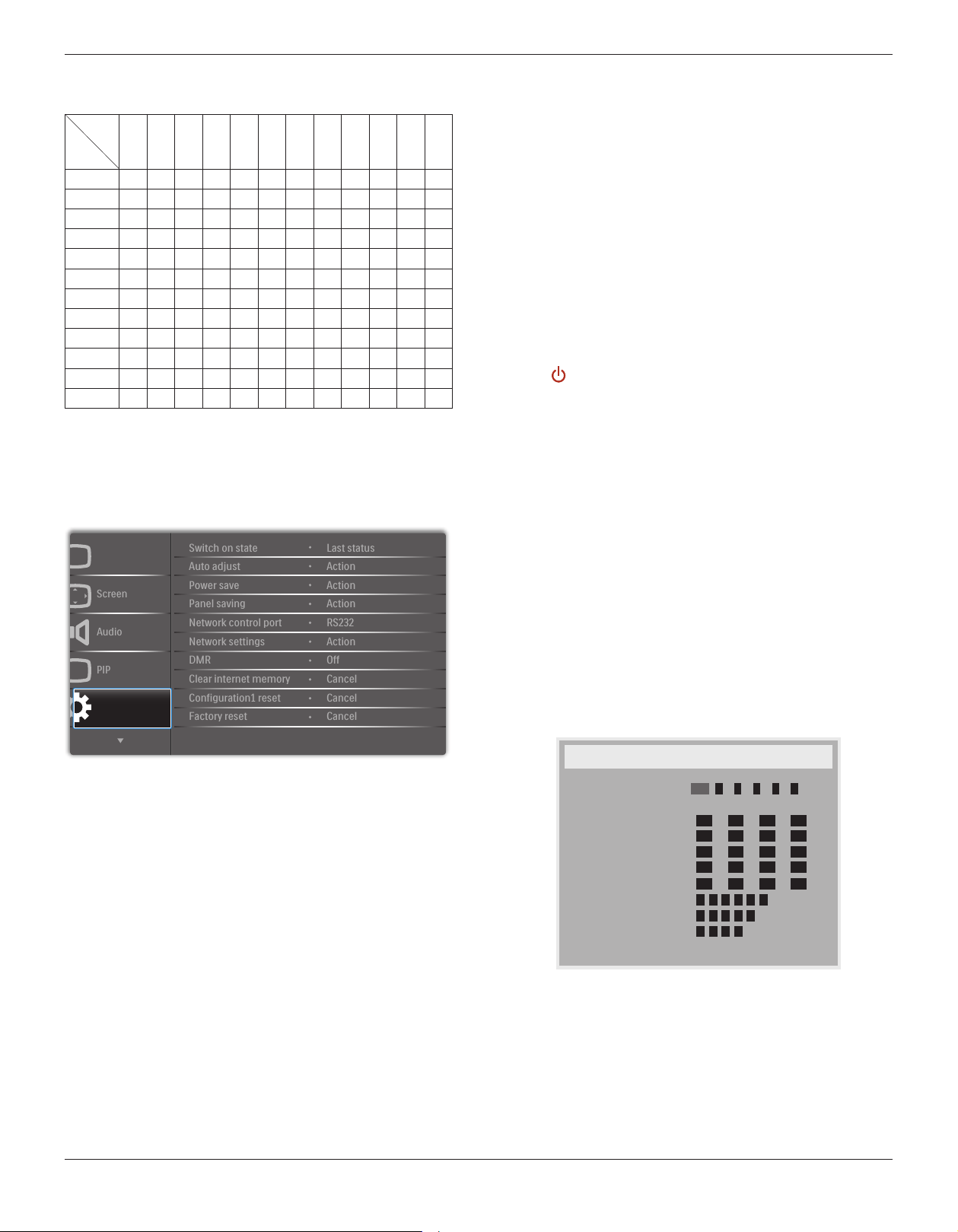
BDL8470EU
18
• The PIP function is available only for certain signal source
combinations as shown in the table below.
Main
Sub
DP
OPS
HDMI1
VGA
HDMI2
HDMI3
COMP
VIDEO
USB
BROWSER
SmartCMS
DVI
DP O O O O O O O O O O O O
OPS O O X O O O O O O O O O
HDMI1 O X O O O O O O O O O O
VGA O O O O O O O O O O O O
HDMI2 O O O O O X O O O O O O
HDMI3 O O O O X O O O O O O O
COMP O O O O O O O X X X X O
VIDEO O O O O O O X O X X X O
USB O O O O O O X X O X X O
BROWSER O O O O O O X X X O X O
SmartCMS O O O O O O X X X X O O
DVI O O O O O O O O O O O O
(O: PIP function available, X: PIP function unavailable)
• The availability of the PIP function will also depend on the resolution
of the input signal being used.
5.2.5. Configuration1 menu
P
Audio
PIP
Screen
Picture
Configuration 1
Auto adjust
Power save
Network control port
Network settings
Switch on state
Panel saving
DMR
Configuration1 reset
Factory reset
Clear internet memory
Action
Action
Last status
Action
Off
Cancel
Cancel
RS232
Cancel
Action
Switch on state
Select the display status used for the next time you connect the power
cord.
• {Power off} - The display will remain off when the power cord is
connected to a wall outlet.
• {Forced on} - The display will turn on when the power cord is
connected to a wall outlet.
• {Last status} - The display will return to the previous power status
(on/off/standby) when removing and replacing the power cord.
Auto adjust
Use this function to automatically optimize the display of VGA input
image.
NOTE: This item is functional for VGA input only.
Power save
Use this setting to reduce the power automatically.
• {RGB} - Select {On} to let the display enter power saving mode
when no signal is detected from the PC mode (RGB color space)
inputs after 10 seconds.
• {Video} - Select {On} to enter power saving mode when no signal
is detected from the VIDEO mode (YUV color space) inputs after
10 seconds.
Panel saving
Choose to enable the panel saving functions and thus reduce the risk of
“image persistence” or “ghost-imaging”.
• {Cooling Fan} - Choose to adjust the cooling fan’s speed of
rotation. Select {Auto} to turn on/off the cooling fan according to
the display’s temperature.
Choose from: {Auto} / {Off} / {Low} / {Medium} / {High}.
NOTES:
• The default {Auto} option will start running the cooling fan if
the temperature of 45°C (113°F) is reached, and stop running
the cooling fan if the temperature of 43°C (109°F).
• A temperature-warning message will be shown on the screen if
the temperature reaches 58°C (136°F). All key functions except
[ ] key will then be disabled.
• Once the temperature reaches 60°C (140°F), the display power
will be shut down automatically.
• {Brightness} - Select {On} and the image brightness will be reduced
to an appropriate level. The Brightness setting in the Picture menu
will be unavailable when selected.
• {Pixel shift} - Select the time interval ({Auto} / {10 ~ 900} Seconds
/ {Off}) for the display to slightly expand the image size and shift
the position of pixels in four directions (up, down, left, or right).
Activating Pixel Shift will disable H Position, V Position and Zoom
Mode in the Screen Menu.
Network control port
Select the network control port.
Choose from: {RS232} / {Card OPS RS232} / {LAN ->RS232}.
NOTE: After connected to your OPS device, the option {Card OPS
RS232} is functional.
Network settings
Assign {IP address}, {Subnet Mask}, and {Default gateway} for the
display.
Network settings
Network host name
DHCP
IP address
Subnet mask
Default gateway
Login user name
Login password
P
172
255
0
0
H
-
-
-
0
[ OK ]
change [OK] in STORE
L
Disable
16
255
0
0
-
-
-
0
0
0
0
1
0
0
-
-
-
DNS1
DNS2
MAC address
0 1
0
-
0
-
0 0
-
0
-
0
-
0 0
-
a d
m
ni
0
• Network host name
• DHCP - Choose to enable or disable the DHCP function. If enabled,
the display will be assigned IP address, Subnet mask and Default
gateway automatically. If disabled, you will be prompted to enter the
following values manually. Press [OK] button to store and save the
chosen values.
• IP address
• Subnet mask
• Default gateway
• DNS1
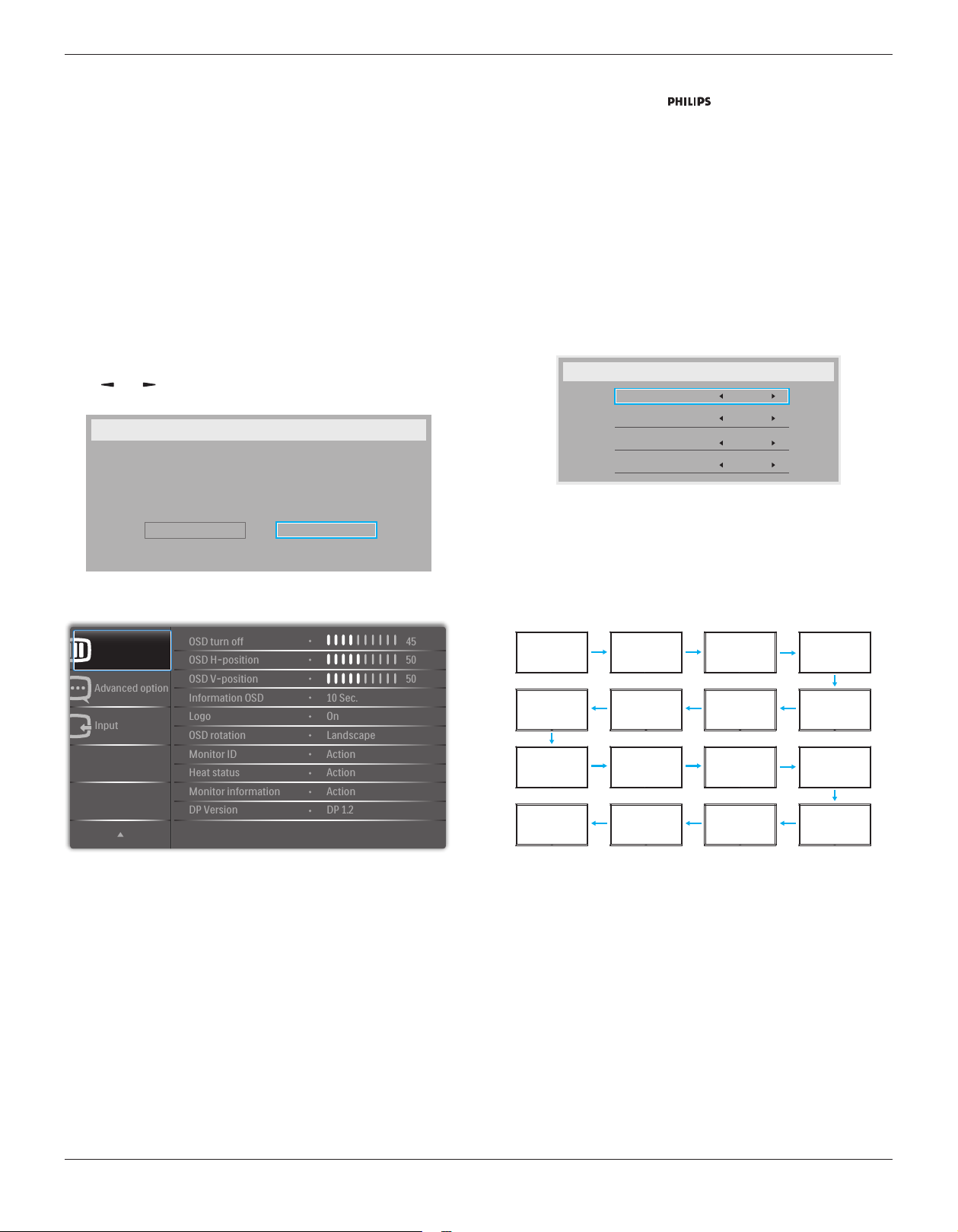
BDL8470EU
19
• DNS2
• MAC address
• Login user name (The default user name is {admin})
• Login password (The default password is {0000})
DMR
Receive multimedia les from the connected device by your network.
Clear internet memory
Clear all the cookies, bookmarks, history list and text used for lling
automatically.
Conguration1 reset
Reset all settings in Conguration1 menu to the factory preset values.
Factory reset
Reset all settings in the OSD menus of {Picture}, {Screen}, {Audio}, {PIP},
{Conguration1}, {Conguration2}, and {Advanced option} to the
factory preset values.
Press [ ]
or [ ] button to select {Reset}, and press [OK] button to
do the reset.
Factory reset
Cancel
Reset
5.2.6. Configuration2 menu
Input
Advanced option
Configuration 2
OSD H-position
OSD V-position
Logo
OSD rotation
OSD turn off
Information OSD
Monitor ID
Monitor information
DP Version
Heat status
50
50
45
10 Sec.
Action
Action
Action
On
Landscape
DP 1.2
OSD turn off
Set the period of time the OSD (on-screen display) menu stays on the
screen.
The options are: {0 ~ 120} seconds.
OSD H-position
Adjust the horizontal position of the OSD menu.
OSD V-position
Adjust the vertical position of the OSD menu.
Information OSD
Set the period of time the information OSD is displayed on the upper
right corner of the screen. The information OSD will display when input
signal is changed.
The information OSD will remain on the screen with {Off} selection.
The options are: {Off, 1 ~ 60} seconds.
Logo
Enable or disable to show the logo when you turn on the
display.
OSD rotation
Rotate the OSD Menu.
The options are:
• {Landscape} (Default)
• {Portrait}
Monitor ID
Set the ID number for controlling the display via the RS232C
connection. Each display must have a unique ID number when multiple
sets of this display are connected. Monitor ID number range is between
1 to 255.
The option are: {Monitor group} / {Tiling matrix} / {Auto ID}
Monitor Id
Monitor Id
Monitor group
Tiling matrix
Auto ID
1
1
1
End
• {Monitor group}
The options are: {1-255}. The default setting is 1.
• {Tiling matrix}
Tiling matrix number range is between 1 to 15. 1 is default setting.
The {Auto ID} setup function enables setting up {Monitor ID} of
connected machine according to {Tiling matrix} settings.
Example: Tiling matrix sets as 4
1 2
5 6
3 4
7 8
9 10 11 12
13 14 15 16
• {Auto ID}
The option are: {Start} / {End}. The default is {End}.
• Switch to Start option to set up IDs of machines backward
from current one.
• Once the setup is completed, the option exits to End
automatically.
• To use this function, serial connect all machines with RS-232
cable and set their Control ports to RS-232, too.
Heat status
This function allows you to check the thermal status of the display at
any time.

BDL8470EU
20
Monitor information
Shows information about your display, including model number, serial
number, operating hours and software version.
Monitor information
Model name
Serial no
Operation hours
SW Version
BDL8470EU
CNCA123456789
46H45M
V0.300
DP Version
The option are: {DP 1.1} / {DP 1.2} / {DP 1.2 multi}. The default is {DP
1.2}.
Human sensor
Set the display to turn on backlight if it does sensor human and turn off
backlight after an amount of time specied
The options are: {Off, 10 ~ 60} minutes.
HDMI edid
The option are: {HDMI 1.4} / {HDMI 2.0}. The default is {HDMI 2.0}.
Conguration2 reset
Reset all settings in Conguration2 menu to the factory preset values.
5.2.7. Advanced option menu
Input
Advanced option
Configuration 2
IR control
Keyboard control
Date and time
Off timer
Input resolution
Tiling
Schedule
HDMI with One Wire
Auto signal detection
DDC/CI
Action
Action
Auto
Action
Action
Off
On
Action
Off
Action
Input resolution
Set the resolution of the VGA input. This is only required when the
display is unable to detect the VGA input resolution correctly.
NOTE: This item is functional for VGA input only.
The options are:
• {1024x768 / 1280x768 / 1360x768 / 1366x768}
• {1400x1050 / 1680x1050}
• {1600x1200 / 1920x1200}
• {Auto}: Determines the resolution automatically.
The selected settings will become effective after turning off the power
and turning it on again.
IR control
Select the operation mode of the remote control when multiple
displays are connected via an RS232C connection.
• {Normal} - All displays can be operated normally by the remote
control unit.
• {Primary} - Designate this display as the primary display for remote
control operation. Only this display can be operated by the remote
control.
• {Secondary} - Designate this display as the secondary display. This
display can not be operated by the remote control, and will only
receive the control signal from the primary display via the RS232C
connection.
• {Lock All} / {Lock all but Volume} / {Lock all but Power} - Lock the
remote control function of this display. To unlock, press and hold the
[ ] INFO button on the remote control for 5 (ve) seconds.
NOTE: After the main OSD menu vanished, the Primary / Secondary
OSD will be displayed for 3 seconds. Or, press [OK] button
to display the Primary / Secondary OSD when no other OSD.
1. During the Primary OSD, press [ ]
or [ ] button to adjust the
value of {Control Monitor ID}, and press [ ] or [ ] button to adjust
the value of {Control Group ID}.
Keyboard control
Choose to enable or disable the display keyboard (control buttons)
function.
• {Unlock} - Enable the keyboard function.
• {Lock All} / {Lock all but Volume} / {Lock all but Power} - Disable
the keyboard function.
NOTE: To enable or disable the keyboard control lock, press both [
] and [ ] buttons and hold down continuously for more than
3 seconds.
Tiling
With this function you can create a single large-screen matrix (video
wall) that consists of up to 150 sets of this display (up to 10-sets on the
vertical and 15-sets on the horizontal sides). This function requires a
daisy-chain connection.
Tiling
H monitors
V monitors
Position
Frame comp.
Enable
Switch on delay
1
1
1
No
No
Off
Example: 2 x 2 screen matrix (4 displays)
H monitors = 2 displays
V monitors = 2 displays
1 2
3 4
H monitors
V monitors
Position

BDL8470EU
21
Example: 5 x 5 screen matrix (25 displays)
H monitors = 5 displays
V monitors = 5 displays
1 2
6 7
3 4
8 9
5
10
11 12 13 14 15
16 17 18 19 20
21 22 23 24 25
H monitors
V monitors
Position
• {H monitors} - Select the number of displays on the horizontal side.
• {V monitors} - Select the number of displays on the vertical side.
• {Position} - Select the position of this display in the screen matrix.
• {Frame comp.} - Choose to turn the frame compensation
function on or off. If selected {Ye s }, the display will adjust the image
to compensate for the width of the display bezels in order to
accurately display the image.
Frame comp. - Yes
Frame comp. - No
• {Enable} - Choose to enable or disable the Tiling function. If enabled,
the display will apply the settings in {H monitors}, {V monitors},
{Position}, and {Frame comp.}.
• {Switch on delay} - Set the power-on delaying time (in seconds).
The default option {Auto} allows a sequential powering-on for each
display by their ID number when multiple displays are connected.
The options are: {Off / Auto / 2 ~ 255}
NOTE: The Tiling function will be disabled during using PIP function.
Date and time
Adjust the current date and time for the display’s internal clock.
Date and time
Year
Month
Day
Hour
Minute
Daylight saving time
Current date time
2014 . 08 . 04 20 : 20 : 17
Press [OK] to set clock
2014
08
04
20
20
1. Press [OK] button to enter the submenu.
2. Press [ ] or [ ] button to toggle between {Year}, {Month}, {Day},
{Hour}, {Minute}, and {Daylight saving time}.
3. Press [ ]
or [ ] button to adjust all settings except {Daylight
saving time}.
4. Press [OK] button to enter the {Daylight saving time} submenu.
Daylight saving time
Daylight saving start date
Daylight saving stop date
Correction time
Daylight saving correction
Sunday of
Jan
0.5 Hour
Off
Sep
1st
1st Sunday of
5. Press [
]
or [ ] button to select item, press [ ] or [ ] button to
adjust.
• {Daylight saving start date} - Select {1st / 2nd / 3rd / 4th / last}
Sunday of the month {Jan ~ Dec}.
• {Daylight saving stop date} - Select {1st / 2nd / 3rd / 4th / last}
Sunday of the month {Jan ~ Dec}.
• {Correction time} - The options are: {0.5 / 1.0 / 1.5 / 2.0}
• {Daylight saving correction} Select {On} to enable this function.
Off Timer
Set the display to turn itself off to standby mode within an amount of
time specied.
The options are: {Off, 1 ~ 24} hours from current time.
NOTE: When the “Off timer” is activated, the “Schedule” settings will
be disabled.
Schedule
This function allows you to program up to 7 (seven) different scheduled
time intervals for the display to activate.
You can select:
• The time for the display to turn on and turn off.
• The days in a week for the display to activate.
• Which input source the display will use for each scheduled
activation period.
NOTE: We recommend you to set up current date and time in the
{Date and time} menu before using this function.

BDL8470EU
22
1. Press [OK] or [ ] button to enter the submenu.
Schedule
Today
1
2
3
4
5
7
6
2014 . 11 . 04 TUE 20 : 19 : 55
On
:
_
:
_ _ _ _
Off
Input
WED
SAT
MON
THU
SUN
TUE
FRI
Every week
USB play list
2. Press [ ] or [ ] button to select a schedule item (item number 1 ~ 7),
and then press [OK] button to mark it the item number.
Schedule
Today
1
2
3
4
5
7
6
2014 . 11 . 04 TUE 20 : 19 : 55
On
:
_
:
_ _ _ _
Off
Input
WED
SAT
MON
THU
SUN
TUE
FRI
Every week
USB play list
4
1
32
5
3. Press [ ]
or [ ] button to select the schedule:
1
Power-on schedule: Press [ ] or [ ] button to set the hour
and minute for the display to turn on.
2
Power-off schedule: Press [ ] or [ ] button to set the hour
and minute for the display to turn off.
Select or leave an empty “__” for both the hour and minute slot if
you do not want to use this power-on or power-off schedule.
3
Input-source selection: Press [ ] or [ ] button to select an
input source. If no input source is selected, the input source
will remain the same as last selected.
4
Date schedule: Press [ ] button to select which day in a
week this schedule item will be take effect, and then press the
[OK] button.
5
When Input-source select to USB, enable to access USB play
list setting:
0001/0002
Options Exit
Photo
Photo
Video
- Press [ ] [ ] buttons to choose les.
- Press [ ] [ ] buttons to switch Playlist and File Manager.
- Press [OK] button to set or clear the playlist.
- To save the playlist, press [ ] and choose Save list.
0004/0004
Options Exit
Photo
Photo
[..]
Movie.avi
\media\photo
Photo1.jpg
Photo2.jpg
Photo3.jpg
Sort
Recursive Parser
Media Type
Save list
4.
For additional schedule settings, press [ ], then repeat the steps
above. A check mark in the box next to the number of the schedule
item indicates that the selected schedule is in effect.
NOTES:
• If the schedules overlap, the scheduled power-on time takes priority
over scheduled power-off time.
• If there are two schedule items programmed for the same time, the
highest numbered schedule takes priority. For example, if schedule
items #1 and #2 both set the display to power on at 7:00 AM and
off at 5:00 PM, then only schedule item # 1 will take effect.
• Each Playlist supports up to 30 les.
• Playlist will not be cleared after {Factory settings}. You have to
manually remove the les or delete usb_schedulinglist.txt in the
USB.
DDC/CI
Choose to turn on or off the DDC/CI communication function. Select
{On} for normal use.
DDC/CI (Command Interface) species a means for a computer to
send commands to the monitor, as well as receive sensor data from the
monitor, over the bidirectional link such as DDC2Ab/Bi/B+.
Specic commands to control monitors are dened in a separate
Monitor Control Command Set (MCCS) standard.
DDC/CI monitors are sometimes supplied with an external color
sensor to allow automatic calibration of the monitor’s color balance.
Some tilting DDC/CI monitors support an auto pivot function, where
a rotation sensor in the monitor enables the operating system to keep
the display upright as the monitor is moved between its portrait and
landscape positions.
The following DDC/CI commands should be supported via command
line:
No. Commands No. Commands
1 Set Brightness 6 Get Brightness
2 set Contrast 7 Get Contrast
3 Set Red Gain 8 Get Red Gain
4 Set Green Gain 9 Get Green Gain
5 Set Blue Gain 10 Get Blue
HDMI with One Wire
CEC control.
• {Off} - Disable CEC.(Default)
• {On} - Enable CEC.
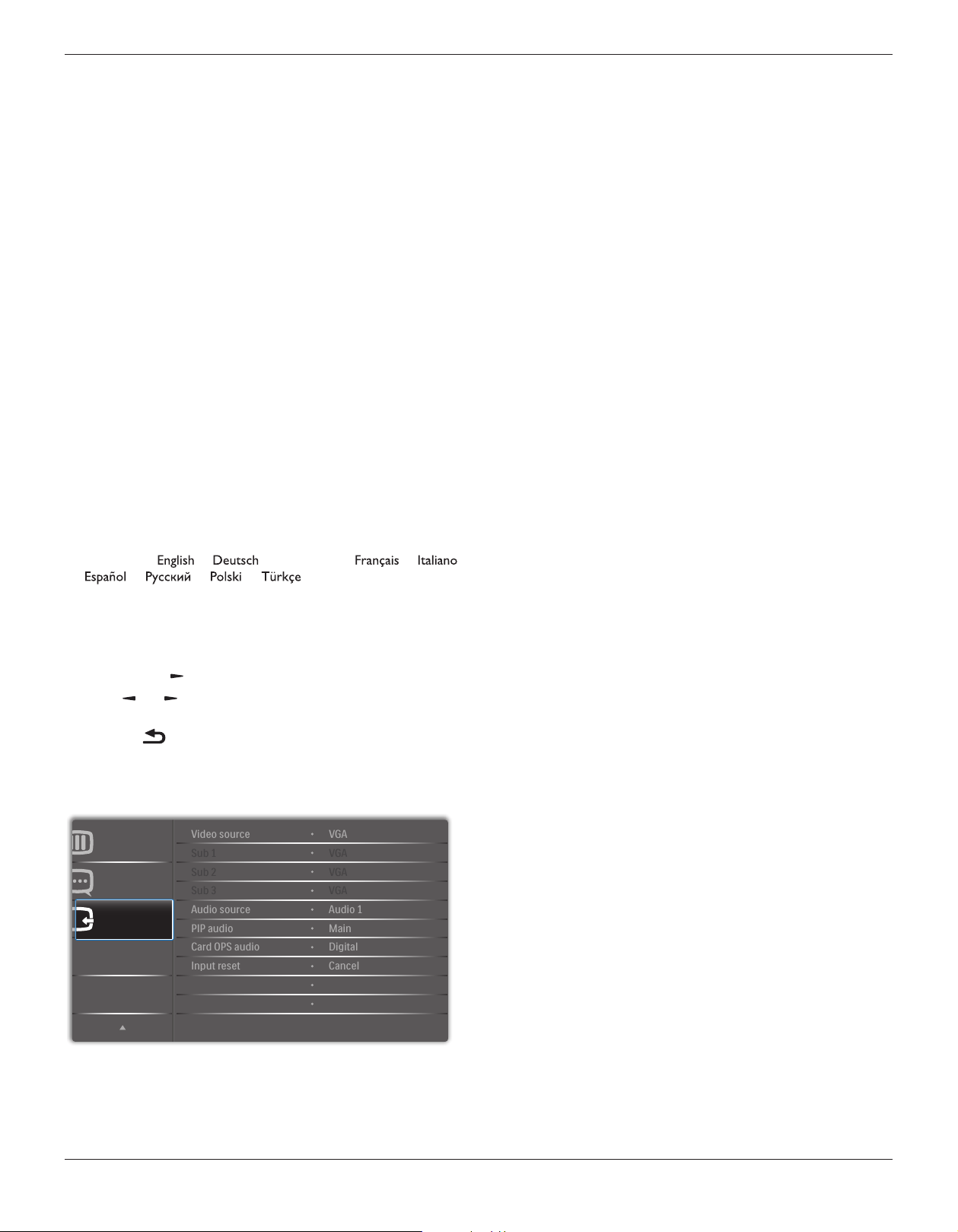
BDL8470EU
23
Auto signal detection
Choose to let the display detect and display available signal sources
automatically.
• {Off} - Once a signal is connected, it can only be selected manually.
No signal, set the display to display the image automatically according to
the search order of each option.
The options are: {All} / {PC source only} / {Video source only} /
{Failover}
• {All}: DP / HDMI1 / HDMI2 / HDMI3 / DVI / VGA / Component /
OPS.
• {PC source only}: DP / DVI / VGA / Card OPS.
• {Video source only}: HDMI1 / HDMI2 / HDMI3 / Component.
• {Failover}
- Failover 1-12: User-dened setting. Default: HDMI.
OPS settings
Set the OPS conguration under each power condition.
• {Auto} - After selecting {Card OPS} for video source input, the OPS
will be set to off when the display power is set to off, or set to on
when the display power is set to on. When set to other video source
inputs, the OPS will always be set to on.
• {Always off} - The OPS will always be set to off.
• {Always on} - The OPS will always be set to on.
Language
Select the language used in the OSD menu.
The options are: { } / { } / {
简体中文
} / { } / {
} / { } / { } / { } / { } / {
繁體中文
} / {
日本語
}
/ {Português}.
Advanced option reset
Reset all settings except {Date and Time} in the Advanced option menu
to factory preset values.
1. Press [OK] or [ ] button to enter the submenu.
2. Press [ ]
or [ ] button to select {Reset} and press the [OK]
button to restore settings to factory preset values.
3.
Press the [ ] button or select {Cancel} and press the [OK] button
to cancel and then return to the previous menu.
5.2.8. Input menu
Input
Advanced option
Configuration 2
Sub 1
Sub 2
Audio source
PIP audio
Video source
Sub 3
Card OPS audio
Input reset
VGA
VGA
VGA
VGA
Digital
Cancel
Audio 1
Main
Video source
Select a video input source.
Choose from: {Displayport} / {DVI-D} / {VGA} / {HDMI1} / {HDMI2} /
{HDMI3} / {Component} / {Video} / {USB} / {BROWSER} / {SmartCMS}
/ {Card OPS}.
Sub 1
Select the input signal for the sub Win1 picture.
Choose from: {Displayport} / {DVI-D} / {VGA} / {HDMI1} / {HDMI2} /
{HDMI3} / {Component} / {Video} / {USB} / {BROWSER} / {SmartCMS}
/ {Card OPS}.
Sub 2
Select the input signal for the sub Win2 picture.
Choose from: {Displayport} / {DVI-D} / {VGA} / {HDMI1} / {HDMI2} /
{HDMI3} / {Component} / {Video} / {USB} / {BROWSER} / {SmartCMS}
/ {Card OPS}.
Sub 3
Select the input signal for the sub Win3 picture.
Choose from: {Displayport} / {DVI-D} / {VGA} / {HDMI1} / {HDMI2} /
{HDMI3} / {Component} / {Video} / {USB} / {BROWSER} / {SmartCMS}
/ {Card OPS}.
Audio source
Select the audio input source according to the audio signal source
connected to the audio input and HDMI sockets on the display.
Choose from: {Analog} / {Displayport} / {Audio1} / {Audio2} / {Media}.
PIP audio
Select the audio source the PIP (Picture-in-Picture) mode.
• {Main} - Select audio from the main picture
• {Sub 1} - Select audio from the sub1 picture.
• {Sub 2} - Select audio from the sub2 picture.
• {Sub 3} - Select audio from the sub3 picture.
Card OPS audio
Select the analog or digital audio mode for card OPS.
Input reset
Reset all settings in the Input menu to factory preset values.
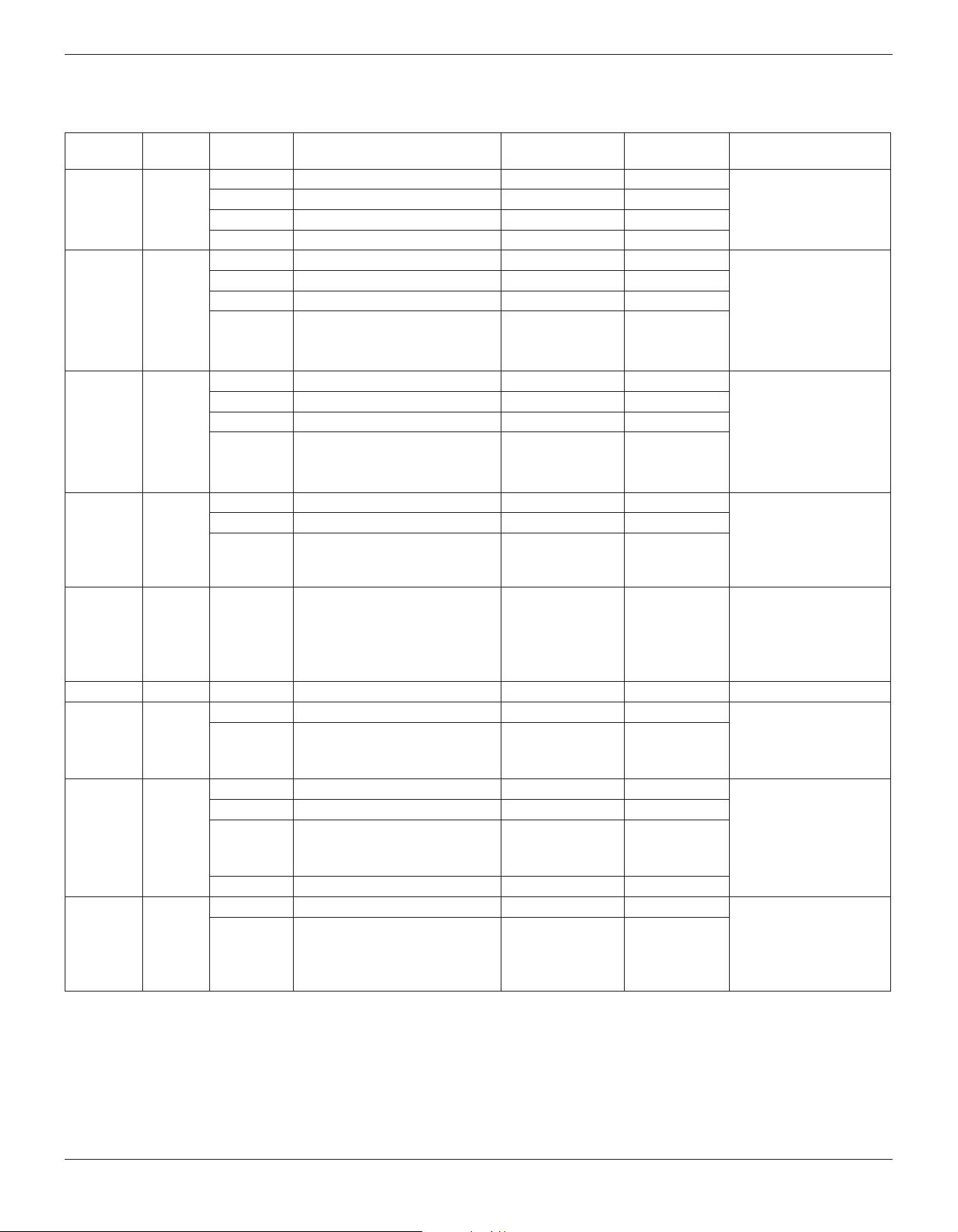
BDL8470EU
24
6. USB device compatibility
USB Video Subtitle Formats (for language subtitles, etc.)
File
Extensions
Container Video codec Maximum resolution
Max. Frame Rate
(fps)
Max. Bit Rate
(Mbps)
Audio codec
.mpg
mpeg
.vob
PS
MPEG-1 1920x1088 25p,30p,50i,60i 30
MPEG-1(L1&L2),
MPEG-1,2,2.5 L3,
AAC/HE-AAC(v1&v2),
DVD-PCM,AC3
MPEG-2 1920x1088 25p,30p,50i,60i 30
MPEG-4 ASP 1920x1088 25p,30p,50i,60i 30
H.264 1920x1088 25p,30p,50p,60p,60i 30
.ts TS
MPEG-2 1920x1088 25p,30p,50i,60i 30
MPEG-1(L1&L2),
MPEG-1,2,2.5 L3,
AAC/HE-AAC (v1&v2),
AC3,E-AC3,
Dolby Pulse
MPEG-4 ASP 1920x1088 25p,30p,50i,60i 30
H.264 1920x1088 25p,30p,50p,60p,60i 30
MVC
1920x1080i@eld rate=50, 60Hz
1920x1080p@frame rate=24, 25,30Hz
1280x720p@frame rate=50, 60Hz
- 30
.ts
.m2ts
.mts
.mt2
MaTS
TTS
MPEG-2 1920x1088 25p,30p,50i,60i 30
MPEG-1(L1&L2),
MPEG-1,2,2.5 L3,
AAC/HE-AAC (v1&v2),
AC3,E-AC3,
Dolby Pulse
MPEG-4 ASP 1920x1088 25p,30p,50i,60i 30
H.264 1920x1088 25p,30p,50p,60p,60i 30
MVC
1920x1080i @ eld rate=50, 60Hz
1920x1080p @ frame rate=24, 25,30Hz
1280x720p @ frame rate=50, 60Hz
- 30
.ts
.m2ts
.mts
AVCHD
MPEG-2 1920x1088 25p,30p,50i,60i 30
MPEG-1(L1&L2),
MPEG-1,2,2.5 L3,
AAC/HE-AAC (v1&v2),
AC3,E-AC3,
Dolby Pulse
MPEG-4 ASP 1920x1088 25p,30p,50i,60i 30
H.264 1920x1088 25p,30p,50p,60p,60i 30
.ts
.m2ts
.mts
AVCHD MVC
1920x1080i@eld rate=50, 60Hz
1920x1080p@frame rate=24, 25,30Hz
1280x720p @ frame rate=50, 60Hz
- 30
MPEG-1(L1&L2),
MPEG-1,2,2.5 L3,
AAC/HE-AAC (v1&v2),
AC3,E-AC3,
Dolby Pulse
.m4v M4V H.264 1920x1088 25p,30p,50p,60p,60i 30 AAC
.ism/
Manifest
.mpd
frag MP4
H.264 1920x1088 25p,30p,50p,60p,60i 30
AAC/HE-AAC(v1&v2),
AC3,E-AC3,WMA,
WMA-PRO
MVC
1920x1080i@eld rate=50, 60Hz
1920x1080p@frame rate=24, 25,30Hz
1280x720p @ frame rate=50, 60Hz
- 30
.mp4 MP4
MPEG-4 ASP 1920x1088 25p,30p,50i,60i 30
AAC/HE-AAC(v1&v2),
AC3,E-AC3,WMA,
WMA-PRO
H.264 1920x1088 30
MVC
1920x1080i@eld rate=50, 60Hz
1920x1080p@frame rate=24, 25,30Hz
1280x720p @ frame rate=50, 60Hz
- 30
WMV9/VC1 1920x1088 30p,60i 30
.mkv
.mk3d
MKV
MPEG-4 ASP 1920x1088 25p,30p,50i,60i 30
MPEG-1(L1&L2),
MPEG-1,2,2.5 L3,
AAC/HE-AAC (v1&v2),
AC3,E-AC3, WMA,
WMA-PRO
H.264 1920x1088 30
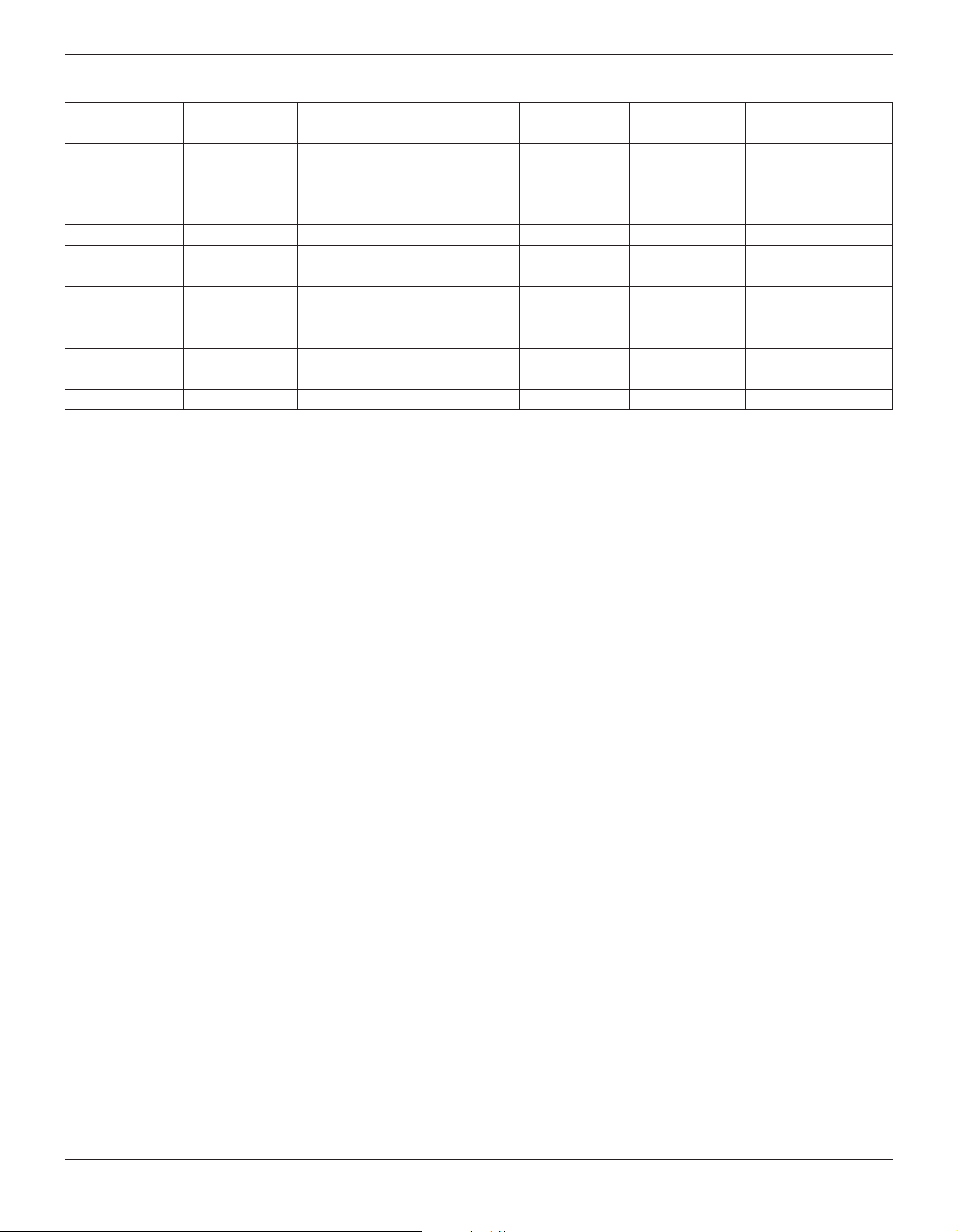
BDL8470EU
25
USB Multimedia Formats
File Extensions Container Video codec
Maximum
resolution
Frequency
(kHz)
Max.Bit Rate
(Mbps)
Audio codec
.mp3 MP3 - - 48 384 MPEG-1,2,2.5 L3
.wma
.asf
WMA
(V2 up to V9.2)
- - 48 192 WMA
.wma WMA Pro - - 96 768 WMA,WMA Pro
.wav(PC) LPCM - - 192 768 LPCM
.aif(mac)
.aiff(mac)
LPCM - - 192 768 LPCM
.aac
.mp4
.m4a
AAC - - 48 1024 AAC,HE-AAC(v1&v2)
.pls
.m3u
Playlists - - - - -
.m4a M4A - - 48 1024 AAC,HE-AAC(v1&v2)
USB Photo le format type: JPEG, BMP, PNG, GIF
NOTES:
• Sound or video may not work if the contents have a standard bit rate/frame rate above the compatible Frame/sec listed in the table above.
• Video content with a Bit rate or Frame rate larger than the rate specied in the table above can cause choppy video during playback.
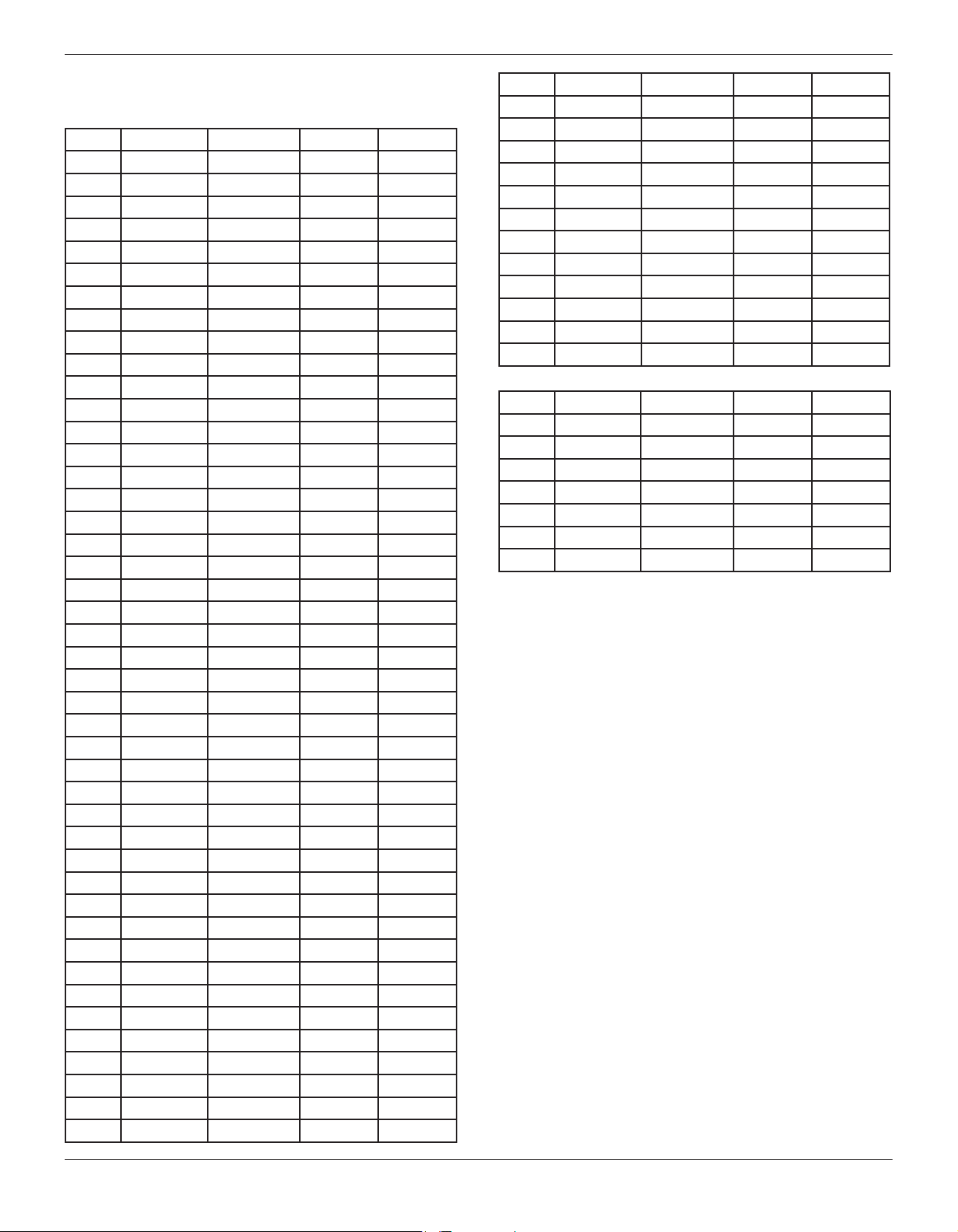
BDL8470EU
26
7. Input Mode
FHD Prensent Mode (VGA/DVI timing support):
Item Resolution H.Freq. (KHz) V.Freq. (Hz) BW(MHz)
1 640x350 31.469 70.086 25.175
2 640x480 31.469 59.94 25.175
3 640x480 35 66.67 30.240
4 640x480 37.861 72.809 31.500
5 640x480 37.5 75 31.500
6 720x400 31.469 70.087 28.322
7 800x600 35.156 56.25 36.000
8 800x600 37.879 60.317 40.000
9 800x600 48.077 72.188 50.000
10 800x600 46.875 75.000 49.500
11 832x624 49.726 74.551 57.284
12 848x480 31 60.000 33.750
13 960x720 56.4 75.000 72.420
14 960x720 44.74 59.973 57.580
15 1024x768 48.363 60.004 65.000
16 1024x768 56.476 70.069 75.000
17 1024x768 60.023 75.029 78.750
18 1024x768 61.08 75.781 86.000
19 1024x768 35.5 43.000 44.900
20 1152x864 53.986 59.985 79.900
21 1152x864 53.783 59.959 81.750
22 1152x864 63.851 70.012 94.499
23 1152x864 67.5 75.000 108.000
24 1152x870 68.681 75.062 100.000
25 1152x900 61.846 66.004 94.500
26 1152x900 71.809 76.149 108.000
27 1280x720 44.772 60.000 74.500
28 1280x720 52.5 70.000 89.040
29 1280 x768 47.776 59.870 79.500
30 1280 x768 60.289 74.893 102.250
31 1280x800 49.7 59.810 83.500
32 1280x800 62.8 74.930 106.500
33 1280x960 60 60.000 108.000
34 1280x960 75.171 75.021 129.895
35 1280x1024 63.981 60.020 108.000
36 1280x1024 71.691 67.189 117.000
37 1280x1024 76.02 71.448 130.223
38 1280x1024 79.976 75.025 135.000
39 1280x1024 81.13 76.110 135.000
40 1360x768 47.712 60.015 85.500
41 1366x768 47.712 59.790 85.500
42 1440x900 55.469 59.901 88.750
43 1440x900 55.935 59.887 106.500
44 1440x900 70.635 74.984 136.750
Item Resolution H.Freq. (KHz) V.Freq. (Hz) BW(MHz)
45 1400x1050 64.744 59.948 101
46 1440x1050 65.3 60.000 121.750
47 1400x1050 82.278 74.867 156
48 1600x900 55.54 60.000 97.750
49 1600x1200 75 60 162
50 1680x1050 65.29 59.954 146.250
51 1680x1050 64.674 59.883 119.000
52 1920x1080 66.587 59.934 138.500
53 1920x1080 67.5 60.000 148.500
54 1920x1080 67.1584 59.963 173.000
55 1920x1080 67.08 60 172.798
56 1920x1200 74.038 59.950 154.000
UHD Present Mode (DP/HDMI timing support):
Item Resolution H.Freq. (KHz) V.Freq. (Hz) BW(MHz)
1 3840x2160 53.946 23.900 296.703
2 3840x2160 54 24.000 297.000
3 3840x2160 56.25 25.000 297.000
4 3840x2160 67.432 29.900 296.703
5 3840x2160 67.5 30.000 297.000
6 4096x2160 54 24.000 297.000
7 3840x2160 135 60.000 594.000
Video timing support (HDMI/DVD HD/DVI):
480i, 480p, 576i, 576p, 720p, 1080i, 1080p, 4Kx2K (except DVI).
NOTES:
• The PC text quality is optimum in HD 1080 mode (1920 x 1080,
60Hz).
• Your PC display screen might appear different depending on the
manufacturer (and your particular version of Windows).
• Check your PC instruction book for information about connecting
your PC to a display.
• If a vertical and horizontal frequency-select mode exists, select 60Hz
(vertical) and 31.5KHz (horizontal). In some cases, abnormal signals
(such as stripes) might appear on the screen when the PC power
is turned off (or if the PC is disconnected). If so, press the [INPUT]
button to enter the video mode. Also, make sure that the PC is
connected.
• When horizontal synchronous signals seem irregular in RGB mode,
check PC power saving mode or cable connections.
• The display settings table complies to the IBM/VESA standards, and
based on the analog input.
• The DVI support mode is regarded as same to the PC support
mode.
• The best timing for the vertical frequency to each mode is 60Hz.
• When the input source is Component or Video, the Information
OSD will be displayed slowly than other input sources.
• No matter the resolution of Component source or Video source
input, the result of Zoom mode setting is the same as 1080P
resolution.

BDL8470EU
27
8. Pixel Defect Policy
We strive to deliver the highest quality products and use some of the industry’s most advanced manufacturing processes whilst practicing stringent quality
control. However, pixel or sub-pixel defects on the PDP / TFT panels used in Plasma- & LCD- displays are sometimes unavoidable. No manufacturer can
guarantee that all panels will be free from pixel defects, but Philips guarantees that any Plasma- & LCD- displays with an unacceptable number of defects
will be repaired during the warranty period in line with your local guarantee conditions.
This notice explains the different types of pixel defects and denes the acceptable defect level for the LCD screen. In order to qualify for repair under
warranty, the number of pixel defects must exceed a certain level as shown in the reference table. If the LCD screen is within specication a warranty
exchange / claim back will be refused. Additionally, because some types or combinations of pixel defects are more noticeable than others, Philips sets even
higher quality standards for those.
8.1. Pixels and Sub-Pixels
subpixel
pixel
A pixel, or picture element, is composed of three sub-pixels in the primary colors of red, green and
blue. Many pixels together form an image. When all sub-pixels of a pixel are lit, the three colored
sub-pixels together appear as a single white pixel. When all are dark, the three colored sub-pixels
together appear as a single black pixel. Other combinations of lit and dark sub-pixels appear as
single pixels of other colors.
8.2. Types of Pixel Defects + Dot Definition
Pixel and sub-pixel defects appear on the screen in different ways. There are three categories of pixel defects and several types of sub-pixel defects within
each category.
Dot denition = What is a defective “Dot”? :
One or more defective, adjacent sub-pixel are dened as one “dot”. The no. of defective sub-pixels are not relevant to dene a defective dot. This means
that a defective dot can consist of one, two or three defective sub-pixels which can be dark or lit.
RR G B
One dot = One Pixel; consists of three sub-pixels of Red, Green, and Blue.
8.3. Bright Dot Defects
Bright dot defects appear as pixels or sub-pixels that are always lit or “on”. These are the examples of bright dot defects:
One lit red, green or blue sub pixel Two adjacent lit sub pixels:
Red + Blue = Purple
Red + Green = Yellow
Green + Blue = Cyan (Light Blue)
Three adjacent lit sub pixels (one white pixel)
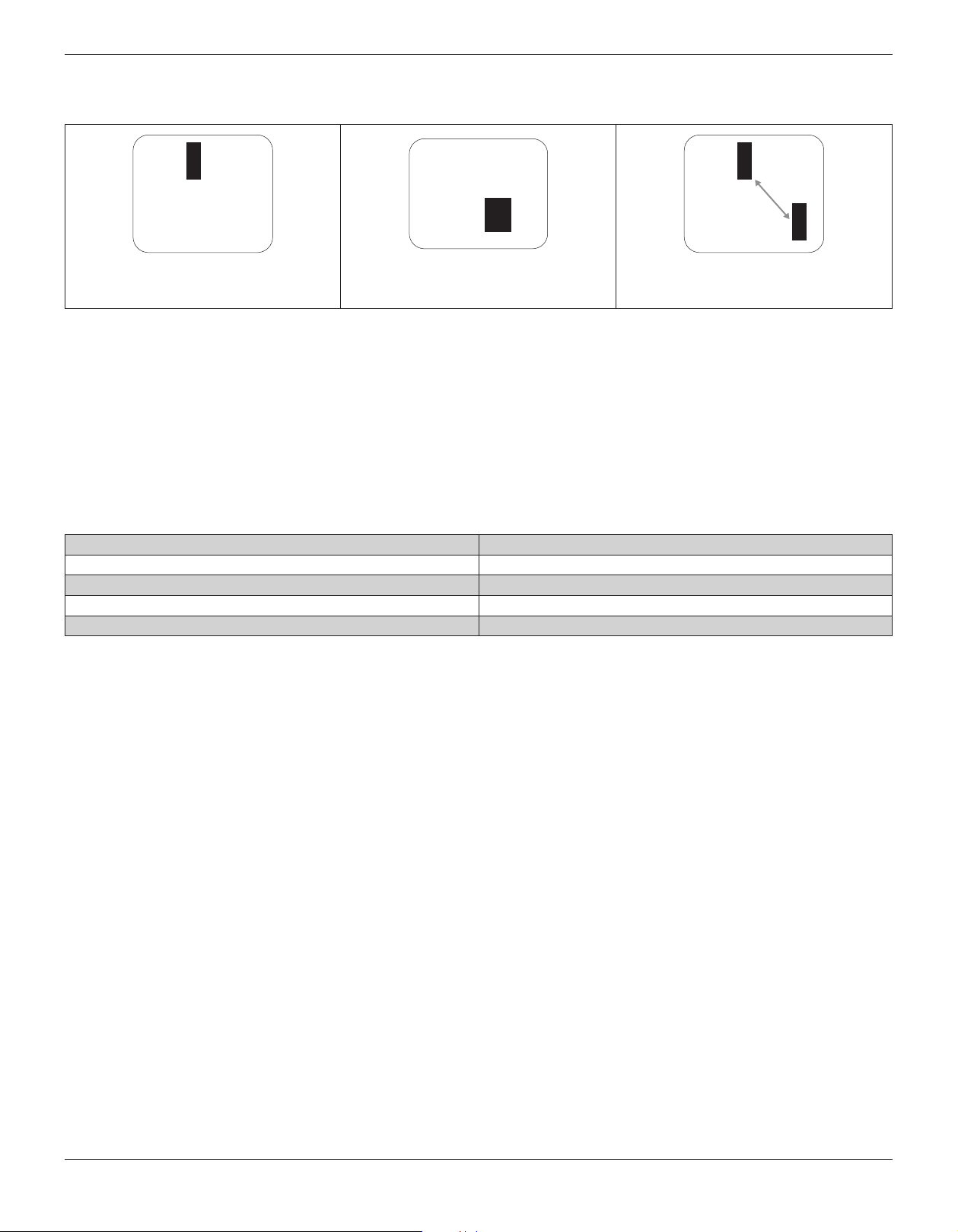
BDL8470EU
28
8.4. Dark Dot Defects
Black dot defects appear as pixels or sub-pixels that are always dark or “off”. These are the examples of black dot defects:
One dark dot Two adjacent dark dots = 1 pair of dark dots Two dark dots, specications denes the
minimum distance between dark dots
8.5. Proximity of Pixel Defects
Because pixel and sub-pixels defects of the same type that are nearby one another may be more noticeable, Philips also species tolerances for the
proximity of pixel defects. In the table below you can nd specications about:
• Allowed amount of adjacent dark dots = (adjacent dark dots =1 pair of dark dots)
• Minimum distance between dark dots
• Total no. of all defective dots
8.6. Pixel Defect Tolerances
In order to qualify for repair due to pixel defects during the warranty period, a PDP / TFT panel in a Philips Plasma / LCD- display must have pixel or sub-
pixel defects exceeding the tolerances listed in the following table.
BRIGHT DOT EFFECT ACCEPTABLE LEVEL
1 lit sub pixel 2
BLACK DOT EFFECT ACCEPTABLE LEVEL
1 dark sub pixel 10
TOTAL DOT DEFECTS OF ALL TYPES 12
NOTE: * 1 or 2 adjacent sub pixel defects = 1 dot defect
8.7. MURA
Dark spots or patches may occasionally appear on some liquid crystal display (LCD) panels. This is known within the industry as Mura, which is a Japanese
term for “unevenness.” It is used to describe an irregular pattern or area in which uneven screen uniformity appears under certain conditions. Mura is a
result of the deterioration of the liquid crystal alignment layer and is most commonly caused by long-term operation under high ambient temperatures. It
is an industry- wide phenomenon and Mura is not repairable. It is also not covered by our warranty terms.
Mura has been around since the introduction of LCD technology and with screens getting bigger and in operation 24/7, many displays are running in low
light conditions. This all adds to the possibility of Mura affecting displays.
HOW TO SPOT MURA
There are many symptoms of Mura and also multiple causes. Several of these are listed below:
• Impurities or foreign particles in the crystal matrix
• Uneven distribution of LCD matrix during manufacturing
• Non-uniform luminance distribution of the backlight
• Panel assembly induced stress
• Flaws within the LCD cells
• Thermal induced stress - high temperature operation over long periods of time
HOW TO AVOID MURA
Although we can not guarantee the complete eradication of Mura every time, in general the appearance of Mura can be minimized by these methods:
• Lower the backlight brightness
• Use a screen saver
• Reduce the ambient temperature around the unit

BDL8470EU
29
9. Cleaning and Troubleshooting
9.1. Cleaning
Caution When Using the Display
• Do not bring your hands, face or objects close to the ventilation holes of the display. The top of the display is usually very hot due to the high
temperature of exhaust air being released through the ventilation holes. Burns or personal injuries may occur if any body parts are brought too
close. Placing any object near the top of the display could also result in heat related damage to the object as well as the display itself.
• Be sure to disconnect all cables before moving the display. Moving the display with its cables attached may damage the cables and thus cause re
or electric shock.
• Disconnect the power plug from the wall outlet as a safety precaution before carrying out any type of cleaning or maintenance procedure.
Front Panel Cleaning Instructions
• The front of the display has been specially treated. Wipe the surface gently using only a cleaning cloth or a soft, lint-free cloth.
• If the surface becomes dirty, soak a soft, lint-free cloth in a mild detergent solution. Wring the cloth to remove excess liquid. Wipe the surface of
the display to remove dirt. Then use a dry cloth of the same type to dry.
• Do not scratch or hit the surface of the panel with ngers or hard objects of any kind.
• Do not use volatile substances such as insert sprays, solvents and thinners.
Cabinet Cleaning Instructions
• If the cabinet becomes dirty, wipe the cabinet with a soft, dry cloth.
• If the cabinet is extremely dirty, soak a lint-free cloth in a mild detergent solution. Wring the cloth to remove as much moisture as possible. Wipe
the cabinet. Use another dry cloth to wipe over until the surface is dry.
• Do not allow any water or detergent to come into contact with the surface of the display. If water or moisture gets inside the unit, operating
problems, electrical and shock hazards may result.
• Do not scratch or hit the cabinet with ngers or hard objects of any kind.
• Do not use volatile substances such as insert sprays, solvents and thinners on the cabinet.
• Do not place anything made from rubber or PVC near the cabinet for any extended periods of time.
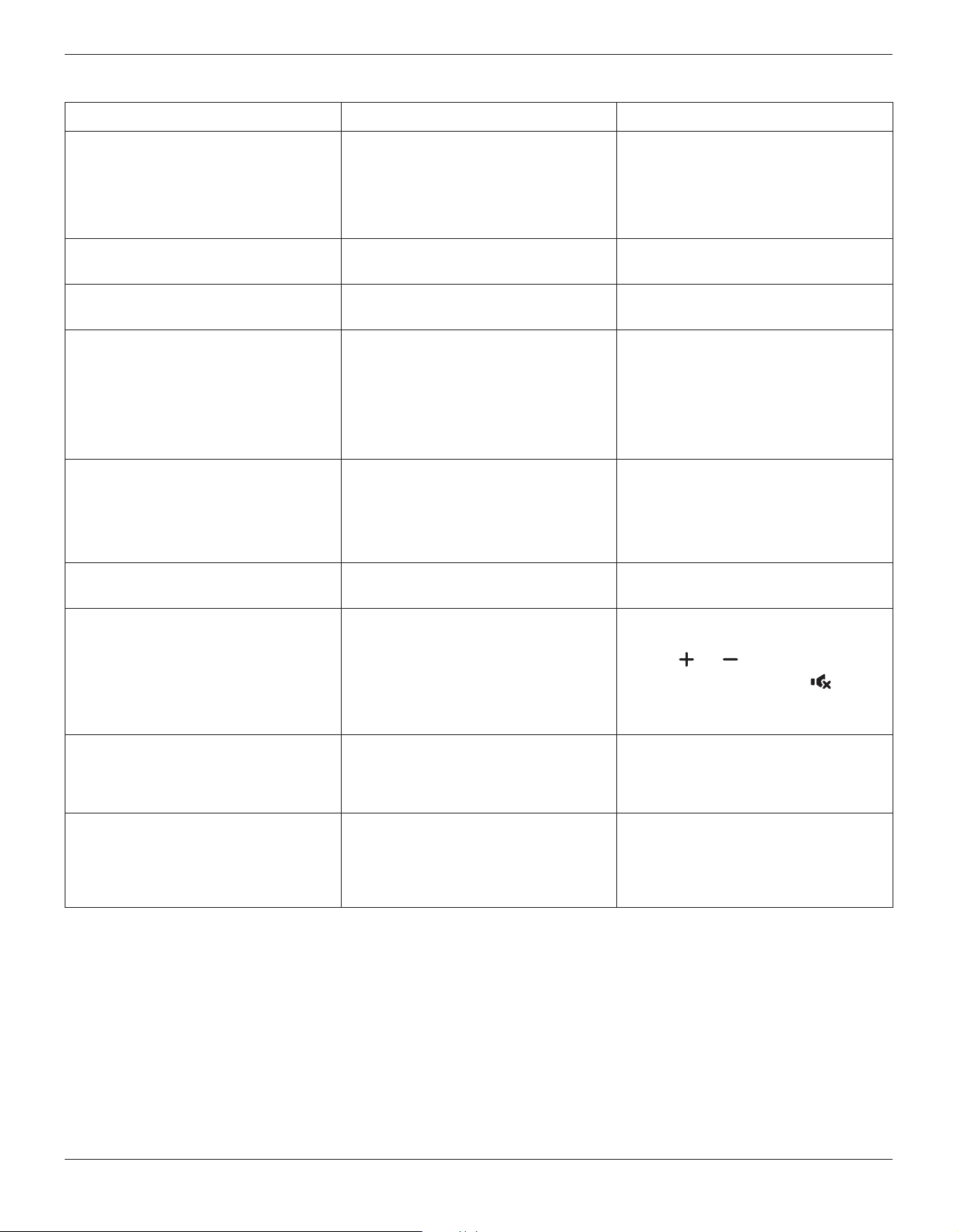
BDL8470EU
30
9.2. Troubleshooting
Symptom Possible Cause Remedy
No picture is displayed 1. The power cord is disconnected.
2. The main power switch on the back of the
display is not switched on.
3. The selected input has no connection.
4. The display is in standby mode.
1. Plug in the power cord.
2. Make sure the power switch is switched on.
3. Connect a signal connection to the display.
Interference displayed on the display or audible
noise is heard
Caused by surrounding electrical appliances or
uorescent lights.
Move the display to another location to see is the
interference is reduced.
Color is abnormal The signal cable is not connected properly. Make sure that the signal cable is attached rmly
to the back of the display.
Picture is distorted with abnormal patterns 1. The signal cable is not connected properly.
2. The input signal is beyond the capabilities of
the display.
1. Make sure that the signal cable is attached
rmly.
2. Check the video signal source to see if it
is beyond the range of the display. Please
verify its specications with this display’s
specication section.
Display image doesn’t ll up the full size of the
screen
1. The zoom mode is not set correctly.
2. Scan Mode may be set incorrectly to
underscan.
3. If the image exceeds the screen size, Scan
Mode may need to be set to Underscan.
Use the Zoom mode or Custom zoom function
in the Screen menu to ne tune display geometry
and time frequency parameter.
Can hear sound, but no picture Improperly connected source signal cable. Make sure that both video inputs and sound
inputs are correctly connected.
Can see picture but no sound is heard 1. Improperly connected source signal cable.
2. Volume is turned all the way down.
3. {Mute} is turned on.
4. No external speaker connected.
1. Make sure that both video inputs and sound
inputs are correctly connected.
2. Press [ ] or [ ] button to hear sound.
3. Switch MUTE off by using the [ ] button.
4. Connect external speakers and adjust the
volume to a suitable level.
Some picture elements do not light up Some pixels of the display may not turn on. This display is manufactured using an extremely
high level of precision technology: however,
sometimes some pixels of the display may not
display. This is not a malfunction.
After-Images can still be seen on the display
after the display is powered off. (Examples
of still pictures include logos, video games,
computer images, and images displayed in 4:3
normal mode)
A still picture is displayed for an over extended
period of time
Do not allow a still image to be displayed for
an extended period of time as this can cause a
permanent after-image to remain on the display.
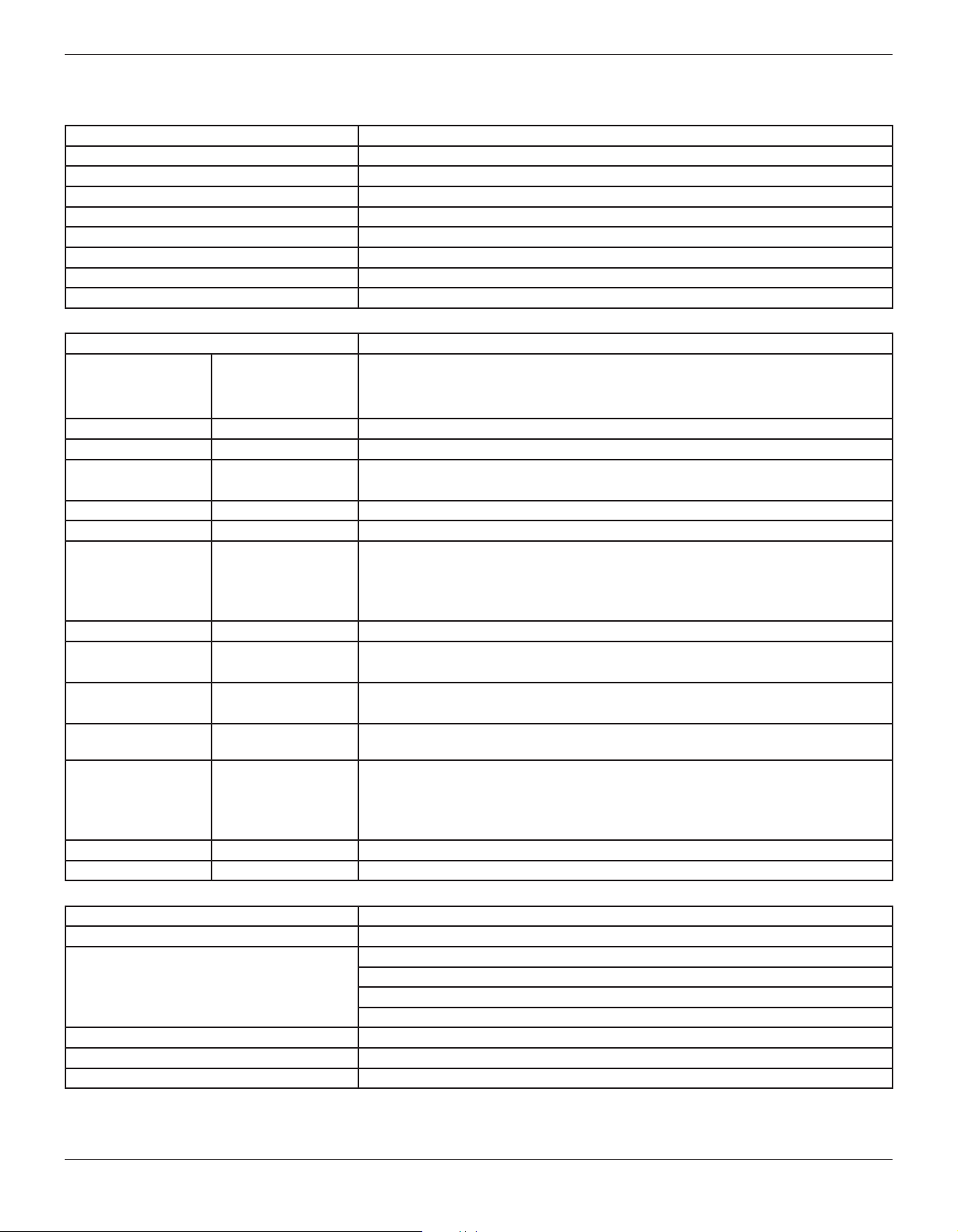
BDL8470EU
31
10. Technical Specifications
Display:
Item Specications
Screen Size (Active Area) 84” (213.5 cm) LCD
Aspect Ratio 16:9
Number of pixels 3840 (H) x 2160 (V)
Pixel pitch 0.4845 x 0.4845 mm
Color depth 1073.7M colors
Brightness 500 nits (typ)
Contrast ratio 1400:1 (typ)
Viewing angle 89 degrees
In/Out Terminals:
Item Specications
Speaker Output Internal Speakers
External Speakers
10W (L) + 10W (R) [RMS]/8Ω
1 Way 1 Speaker System
82 dB/W/M/160 Hz ~ 13 KHz
SPDIF Output SPDIF Port Serial digital audio output when input is HDMI
Audio Output 3.5 mm Stereo x 1 0.5V [rms] (Normal) / 2 Channel (L+R)
Audio Input RCA Jack x 2
3.5 mm Stereo x 1
0.5V [rms] (Normal) / 2 Channel (L+R)
RS232C
2.5mm Phone jack x 2 RS232C in/RS232C out
RJ-45 RJ-45 Jack x 1 (8 pin)
10/100 LAN Port
HDMI Input HDMI Jack x 3
(Type A) (19 pin)
Digital RGB: TMDS (Video + Audio)
MAX:
Video - 720p, 1080p, 1920 x 1080/60 Hz (WUXGA), 4K/2K 30/60Hz
Audio - 48 KHz/ 2 Channel (L+R)
Supports LPCM only
DVI-D Input DVI-D jack Digital RGB: TMDS (Video)
VGA Input D-Sub Jack x 1 (15 pin) Analog RGB: 0.7V [p-p] (75Ω), H/CS/V: TTL (2.2kΩ), SOG: 1V [p-p] (75Ω)
MAX: 720p, 1080p, 1920 x 1080/60 Hz (WUXGA)
Component Input RCA Jack x 3 Y: 1V [p-p] (75Ω), Pb: 0.7V [p-p] (75Ω), Pr: 0.7V [p-p] (75Ω)
MAX: 480i, 576i, 480p, 576p, 720p, 1080i, 1080p
Video Input RCA x 1 (Share with
Component_Y)
Composite 1V [p-p] (75Ω)
Displayport in/out Displayport Jack x 2
(20 pin)
Digital RGB: TMDS (Video + Audio)
MAX:
Video - 3840×2160@60Hz
Audio - 48 KHz/ 2 Channel (L+R)
Supports LPCM only
IR Input/Output 3.5 mm × 2 IR pass through or IR daisy chain
USB Input USB × 1 (Type A) USB 2.0, Multimedia play only
General:
Item Specications
Power Supply AC 100 - 240V, 50 - 60Hz
Power Consumption
600 W (max)
400 W (typ)
NA (EPA 6.0)
<0.5W (standby mode)
Dimensions (Without Stand) 1910.0(W) x 1102.0(H) x 77.8(D) mm
Weight (Without Stand) 70.0 Kg
Gross Weight (Without Stand) 92.5 Kg
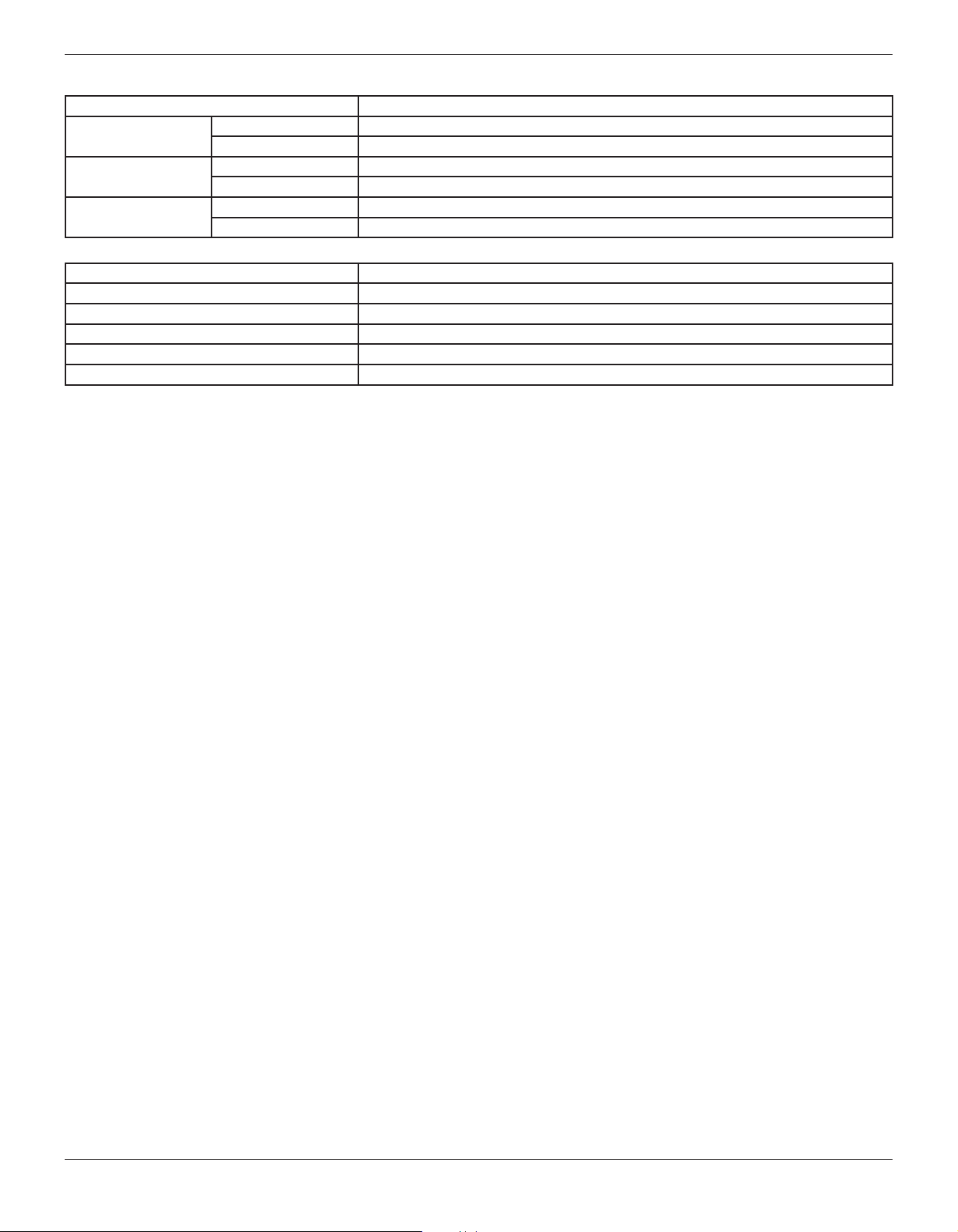
BDL8470EU
32
Environmental Condition:
Item Specications
Temperature Operational 0 ~ 40°C
Storage -20 ~ 60°C
Humidity Operational 20 ~ 80% (without condensation)
Storage 5 ~ 95% (without condensation)
Altitude Operational 0 ~ 3,000 m
Storage / Shipment 0 ~ 9,000 m
Internal Speaker:
Item Specications
Type 1 Way 1 Speaker
Input 10 W (RMS)
Impedance 8Ω
Output Sound Pressure 82 dB/W/M
Frequency Response 160 Hz ~ 13 KHz

2015 © Koninklijke Philips N.V. All rights reserved.
Philips and the Philips Shield Emblem are registered trademarks of
Koninklijke Philips N.V. and are used under license from
Koninklijke Philips N.V.
Specications are subject to change without notice.