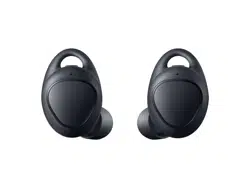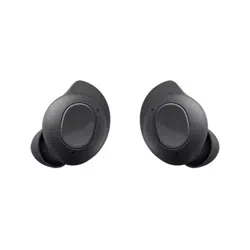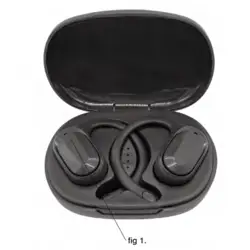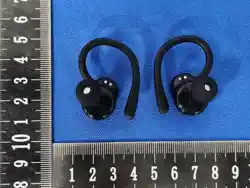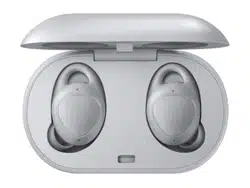
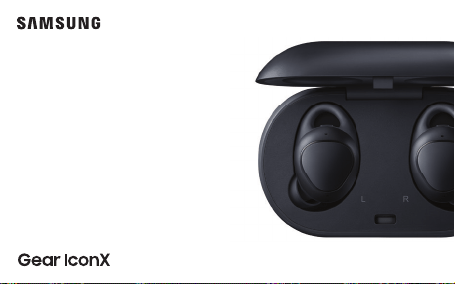
©2017 Samsung Electronics America, Inc. Samsung and Gear IconX are both
trademarks of Samsung Electronics Co., Ltd. Other company and product names
mentioned herein may be trademarks of their respective owners. Appearance of
device may vary.
Quick start
guide
GH68-48589B
Printed in Korea
2018
SM-R140_Gear IconX(2018)_IBG Cover 80x50.indd All Pages 9/8/17 3:44 PM

2
Legal
READ THIS INFORMATION BEFORE USING YOUR MOBILE DEVICE.
Arbitration Agreement - This Product is subject to a binding arbitration
agreement between you and SAMSUNG ELECTRONICS AMERICA, INC.
(“Samsung”). You can opt out of the agreement within 30 calendar days
of the first consumer purchase by emailing [email protected]
or calling 1-800-SAMSUNG (726-7864) and providing the applicable
information. For complete terms and conditions that bind you and
Samsung, refer to the “Arbitration Agreement” section of the Terms &
Conditions, included with the Product.

3
Find Legal Information Online
The full Arbitration Agreement, Standard Limited Warranty, and
Health & Safety Information for your device are available online:
https://www.samsung.com/us/Legal/Gear-HSGuide/
The full End User License Agreement (EULA) for your device can be found
in the Gear Manager application, which is required for operation of your
device, and online:
• Online: www.samsung.com/us/Legal/SamsungLegal-EULA-GEAR
• Gear Manager application: Options > User manual

4
Intellectual Property
All Intellectual Property, as dened below, owned by or which is otherwise
the property of Samsung or its respective suppliers relating to the
Product, including but not limited to, accessories, parts, or software
relating thereto, is proprietary to Samsung and protected under federal
laws, state laws, and international treaty provisions. Intellectual Property
includes, but is not limited to, inventions (patentable or unpatentable),
patents, trade secrets, copyrights, software, computer programs, and
related documentation and other works of authorship.

5
You may not infringe or otherwise violate the rights secured by the
Intellectual Property. Moreover, you agree that you will not (and will
not attempt to) modify, prepare derivative works of, reverse engineer,
decompile, disassemble, or otherwise attempt to create source code
from the software. No title to or ownership in the Intellectual Property is
transferred to you. All applicable rights of the Intellectual Property shall
remain with Samsung and its suppliers.

6
Disclaimer of Warranties; Exclusion of Liability
The information below explains that a user accepts this Product as
sold, including the hardware and software components as created and
packaged for sale. If the user changes these parameters through a unique
modification, Samsung will not be held responsible for damages or issues
that result from these end-user changes.

7
Except as set forth in the Standard Limited Warranty that accompanies
the Product, the purchaser takes the product “as is”, and Samsung makes
no express or implied warranty of any kind whatsoever with respect to the
product, including but not limited to the:
• merchantability of the product or its fitness for any particular purpose
or use;
• design, condition or quality of the product;
• performance of the product;
• workmanship of the product or the components contained therein; or
• compliance of the product with the requirements of any law, rule,
specification or contract pertaining thereto.

8
Nothing contained in the User Manual shall be construed to create an
express or implied warranty of any kind whatsoever with respect to
the Product. In addition, Samsung shall not be liable for any damages
of any kind resulting from the purchase or use of the product or arising
from the breach of the express warranty, including incidental, special or
consequential damages, or loss of anticipated profits or benefits.
Caution! To avoid electric shock and damage to your device, do not
charge device while it is wet or in an area where it could get wet.
Do not handle device, charger or cords with wet hands while
charging.

9
Restricting Children’s Access to Your Mobile Device
Your device is not a toy. Do not allow children to play with it because they
could hurt themselves and others, damage the device, or make calls that
increase your device bill. Keep the device and all its parts and accessories
out of the reach of small children.
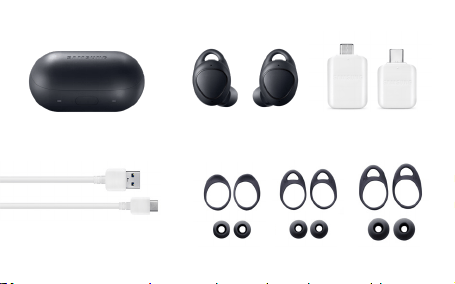
10
Unboxing
Charging Case Earbuds USB connection
(Type B & Type C)
Wingtips & Eartips (S, M, L)USB cable
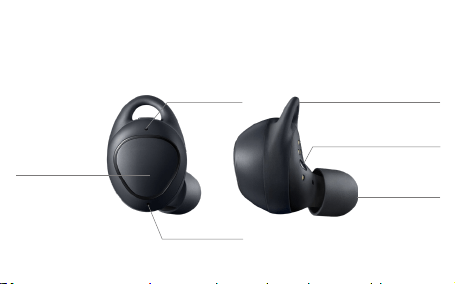
11
Know your device
Microphone
Microphone
Touchpad
Wingtip
Eartip
Touch sensitive sensor
Earbuds
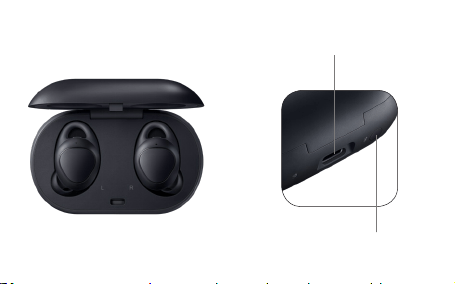
12
Charging Case Backside of Case
Pairing button
USB/Charging port

13
Earbud Indicators
Flashing Red
Charging disabled due to low charging
case battery, abnormal temperatures,
or an error connecting to charging
contacts.
Green
Fully Charged
Red
Charging
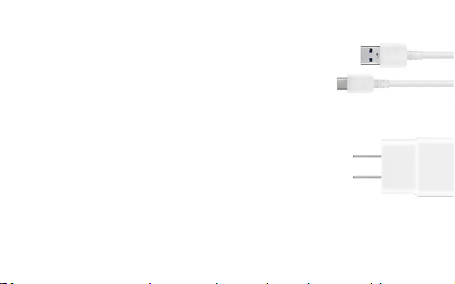
14
Charge Your Gear IconX
1. Wipe any sweat from the earbuds and open the
charging case.
2. Insert the earbuds into the charging case and close.
3. Connect the USB cable to a USB power adapter
(sold separately), and the USB/Charging port on the
back of the charging case.
Note: The earbuds and the charging case charge
simultaneously. The charging case can be used as
a standalone charger.
USB cable
USB power adapter
15
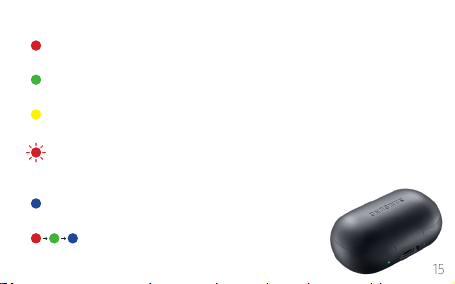
Charger Case Indicators
Flashing Red
Charging disabled or error due to abnormal
temperatures or low charging case battery
Green
Fully Charged or above 60% battery
Blue
Updating rmware
Between 30% and 60% battery
Yellow
Red
Charging or below 30% battery
Alternates
In pairing mode

16
Connections
Compatible with Android 4.4 and later with at least 1.5GB RAM or more.
For best compatibility, connect with Samsung Galaxy devices.
To initiate Bluetooth pairing, open the charging case.
17
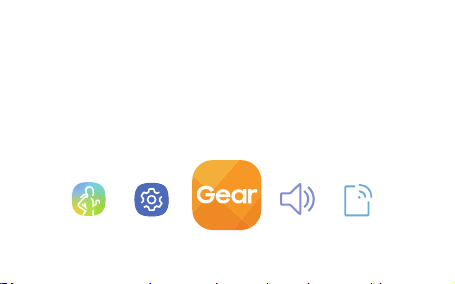
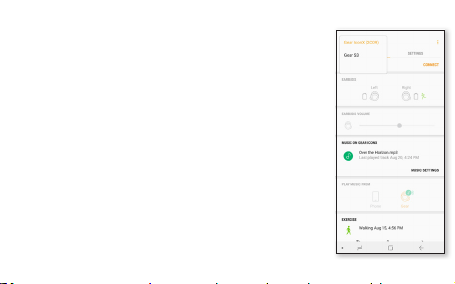
Gear Manager
To connect your Gear and smartphone, install the Samsung Gear app.
Download the Samsung Gear app from Galaxy Apps or Playstore. With
Gear Manager view the earbud status which includes connection, battery,
volume, exercise information, music le information, memory, and various
setting options.

18
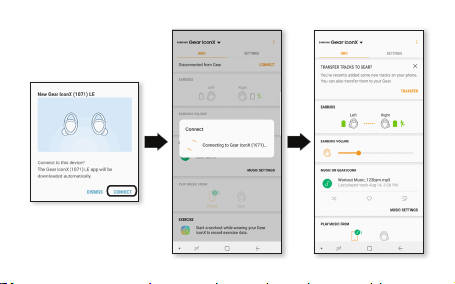
Pair your device
1. Open the charging case to initiate pairing.
Note: If pairing doesn’t start automatically, close the charging case
and press and hold the pairing button on the back of the case for
3 to 5 seconds.
2. From your smartphone, tap CONNECT to initiate pairing.
3. The Samsung Gear app will launch automatically.
19
20
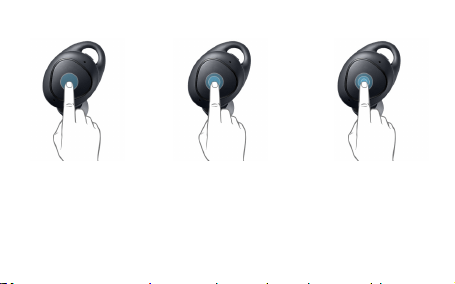
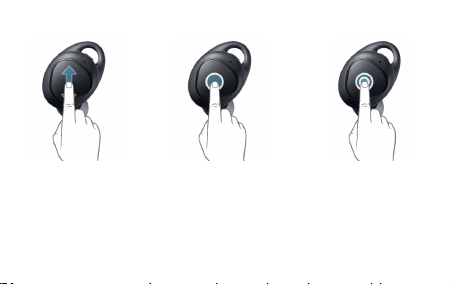
Touchpad
Play/Pause music Next track
Answer/End call
Previous track
Double Tap Triple TapSingle Tap
21
Volume Up/Down Launch your default
Voice Command setting
(Bixby, Google Voice, S Voice)
Ambient Sound mode,
Reject a call
Next playlist
Tap & Hold Double Tap & HoldSwipe

22
Listening Safety
Ambient Sound
In an environment where ambient noise can keep you
more aware, use the Gear Manager app to turn on
Ambient sound. This permits outside sound for a safe
listening experience.
Note: Ambient sound can also be turned on/off
through the readout menu – tap and hold the
touchpad to open.
23
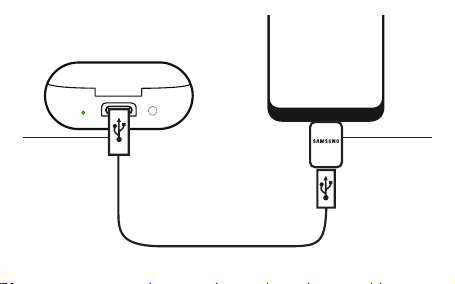
Transfer Music Files From Phone
1. Insert earbuds into the charging case and close
the cover.
2. Connect the charging case to your phone using the
USB to Micro USB cable and adapter.
3. Open the Gear Manager app and select Gear IconX.
4. Tap Settings > Music > Transfer tracks to Gear
5. Tap ADD or DELETE to manage the tracks.
Note: IconX has 3.4GB of usable memory.
For information about compatible audio file types,
visit samsung.com/us/support/owners/product/
gear-iconx-2018
24
USB Cable
Case Phone
USB Connector

25
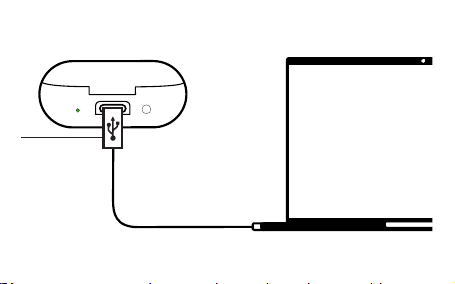
Transfer Music Files From PC
1. Insert earbuds into the charging case and close the cover.
2. Connect the charging case to the computer using the USB cable.
3. On your computer’s desktop, click COMPUTER.
4. Open ICONX_R or ICONX_L > TOOLS, double-click the Gear IconX PC
Manager installation file and follow the prompts to complete installation.
5. Transfer your music files using Gear IconX PC Manager.
Note: Music files not transferred using the Gear IconX PC Manager may
not play or be visible on the device.
26
PC
Case
USB Cable

27
Software Updates
The Samsung Gear app will mediate software updates. If updates are
available, reminders will be displayed in Gear Manager and notication
panel of the connected smartphone.
Note: Software updates can also be performed using the
IconX PC Manager. For more information, visit
samsung.com/us/support/owners/product/gear-iconx-2018

28
Samsung Electronics America, Inc.
85 Challenger Road
Ridgeeld Park, New Jersey 07660
Phone: 1-800-SAMSUNG (726-7864)
Internet: www.samsung.com
©2017 Samsung Electronics America, Inc.
Samsung, Samsung Galaxy, Samsung Health, and Samsung Gear
are all trademarks of Samsung Electronics Co., Ltd.
Other marks are the property of their respective owners.
Screen images are simulated. Appearance of device may vary.