Cyber-shot User Guide
PrintSearch
Before Use
Confirming the operation
method
Shooting
Viewing
Useful shooting functions
Useful viewing functions
Changing settings
Viewing images on a TV
Using with your computer
Printing
Troubleshooting
Precautions / About this
camera
Contents list
Top page
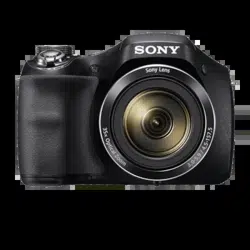
DSC-H300
User Guide
Use this manual if you encounter any problems, or have any questions about the
camera.
Back to top
Copyright 2013 Sony Corporation

Table Of Contents
User Guide DSC-H300 i....................................................................................................................
Before Use 1......................................................................................................................................
How to use this User Guide 19....................................................................................................
Names of parts 22.......................................................................................................................
List of icons displayed on the screen 24......................................................................................
Using the shoulder strap 28.........................................................................................................
Using the internal memory 29......................................................................................................
Confirming the operation method 2...................................................................................................
Using the control button 30..........................................................................................................
Using MENU items (Shooting) 31................................................................................................
Using MENU items (Viewing) 32.................................................................................................
Changing camera settings 33......................................................................................................
Shooting 3.........................................................................................................................................
Shooting still images 34...............................................................................................................
Zoom 36......................................................................................................................................
Shooting movies 37.....................................................................................................................
List of mode dial functions 38......................................................................................................
Intelligent Auto 39........................................................................................................................
Program Auto 40.........................................................................................................................
Picture Effect 41..........................................................................................................................
Scene Selection 43......................................................................................................................
Shooting panoramic images 46...................................................................................................
Manual Exposure Shooting 49....................................................................................................
Viewing 4...........................................................................................................................................
Viewing still images 51................................................................................................................
Playback zoom 52.......................................................................................................................
Image Index 53............................................................................................................................
Deleting images 55......................................................................................................................
Viewing movies 56.......................................................................................................................
Scrolling panoramic images for display 57..................................................................................
Useful shooting functions 5...............................................................................................................
Functions available for each shooting mode 58..........................................................................
MENU items available for each shooting mode 60......................................................................
Tracking focus 63........................................................................................................................
DISP (Display Setting) 64............................................................................................................
Flash 66.......................................................................................................................................
Self-Timer 68...............................................................................................................................
Smile Shutter 70..........................................................................................................................
TOC-1

Movie shooting scene 72.............................................................................................................
Panorama Shooting Scene 73.....................................................................................................
Easy Mode 74..............................................................................................................................
Color hue 76................................................................................................................................
Extracted Color 77.......................................................................................................................
Soft Skin Effect 78.......................................................................................................................
Still Image Size / Panorama Image Size / MovieSize 79.............................................................
Exposure Compensation 82........................................................................................................
ISO 83.........................................................................................................................................
White Balance 85........................................................................................................................
Focus 88......................................................................................................................................
Metering Mode 90........................................................................................................................
Cont. Shooting Settings 91..........................................................................................................
Bracket Setting 92.......................................................................................................................
Smile Detection Sensitivity 93.....................................................................................................
Face Detection 94.......................................................................................................................
DRO 95........................................................................................................................................
Useful viewing functions 6.................................................................................................................
MENU items available for each view mode 96............................................................................
Beauty Effect 97..........................................................................................................................
Delete 98.....................................................................................................................................
Slideshow 99...............................................................................................................................
View Mode 102............................................................................................................................
Protect 103..................................................................................................................................
Print (DPOF) 104.........................................................................................................................
Rotate 105...................................................................................................................................
Changing settings 7...........................................................................................................................
AF Illuminator 106.......................................................................................................................
Grid Line 107...............................................................................................................................
Disp. Resolution 108...................................................................................................................
Red Eye Reduction 110...............................................................................................................
Write Date 112.............................................................................................................................
Beep 113.....................................................................................................................................
Monitor Brightness 114................................................................................................................
Language Setting 115.................................................................................................................
Initialize 116.................................................................................................................................
Function Guide 117.....................................................................................................................
Video Out 118..............................................................................................................................
USB Connect Setting 119............................................................................................................
LUN Setting 120..........................................................................................................................
TOC-2

Download Music 121...................................................................................................................
Empty Music 122.........................................................................................................................
Eye-Fi 123...................................................................................................................................
Power Save 125..........................................................................................................................
Format 126..................................................................................................................................
Create REC.Folder 127...............................................................................................................
Change REC.Folder 128.............................................................................................................
Delete REC.Folder 129...............................................................................................................
Copy 130.....................................................................................................................................
File Number 131..........................................................................................................................
Area Setting 132..........................................................................................................................
Date & Time Setting 133.............................................................................................................
Viewing images on a TV 8.................................................................................................................
Viewing an image on a Standard Definition (SD) TV 134............................................................
Using with your computer 9...............................................................................................................
Recommended computer environment 135................................................................................
“PlayMemories Home” 136.........................................................................................................
Installing “PlayMemories Home” 137..........................................................................................
“Music Transfer” 138..................................................................................................................
Software for Mac 139..................................................................................................................
Importing images to a computer 140...........................................................................................
Disconnecting the camera from the computer 141......................................................................
Printing 10.........................................................................................................................................
Printing still images 142...............................................................................................................
Troubleshooting 11............................................................................................................................
If you have problems 143............................................................................................................
Batteries and power 144..............................................................................................................
Shooting still images/movies 146................................................................................................
Viewing images 149....................................................................................................................
Computers 150............................................................................................................................
Memory card 152.........................................................................................................................
Internal memory 153....................................................................................................................
Printing 154.................................................................................................................................
Others 155...................................................................................................................................
Messages 156.............................................................................................................................
Situations this camera has difficulty handling 160.......................................................................
Precautions / About this camera 12...................................................................................................
Precautions 161...........................................................................................................................
On the internal rechargeable backup battery 163.......................................................................
Batteries 164...............................................................................................................................
TOC-3

Memory card 167.........................................................................................................................
On cleaning 170..........................................................................................................................
Number of still images 171..........................................................................................................
Recordable time of movies 172...................................................................................................
On TV color systems 173............................................................................................................
License 174.................................................................................................................................
Trademarks 175..........................................................................................................................
TOC-4
Cyber-shot User Guide
PrintSearch
Before Use
Confirming the operation
method
Shooting
Viewing
Useful shooting functions
Useful viewing functions
Changing settings
Viewing images on a TV
Using with your computer
Printing
Troubleshooting
Precautions / About this
camera
Contents list
Top page > Before Use
Before Use
How to use this User Guide
How to use this User Guide
Names of parts and list of icons displayed on the screen
Names of parts
List of icons displayed on the screen
Using the shoulder strap
Using the shoulder strap
Using the internal memory
Using the internal memory
Back to top
Copyright 2013 Sony Corporation
1
Cyber-shot User Guide
PrintSearch
Before Use
Confirming the operation
method
Shooting
Viewing
Useful shooting functions
Useful viewing functions
Changing settings
Viewing images on a TV
Using with your computer
Printing
Troubleshooting
Precautions / About this
camera
Contents list
Top page > Confirming the operation method
Confirming the operation method
Confirming the operation method
Using the control button
Using MENU items (Shooting)
Using MENU items (Viewing)
Changing camera settings
Back to top
Copyright 2013 Sony Corporation
2
Cyber-shot User Guide
PrintSearch
Before Use
Confirming the operation
method
Shooting
Viewing
Useful shooting functions
Useful viewing functions
Changing settings
Viewing images on a TV
Using with your computer
Printing
Troubleshooting
Precautions / About this
camera
Contents list
Top page > Shooting
Shooting
Shooting still images
Shooting still images
Zoom
Shooting movies
Shooting movies
Selecting the shooting mode based on the subject
List of mode dial functions
Intelligent Auto
Program Auto
Picture Effect
Scene Selection
Shooting panoramic images
Manual Exposure Shooting
Back to top
Copyright 2013 Sony Corporation
3
Cyber-shot User Guide
PrintSearch
Before Use
Confirming the operation
method
Shooting
Viewing
Useful shooting functions
Useful viewing functions
Changing settings
Viewing images on a TV
Using with your computer
Printing
Troubleshooting
Precautions / About this
camera
Contents list
Top page > Viewing
Viewing
Viewing still images
Viewing still images
Playback zoom
Image Index
Deleting images
Deleting images
Viewing movies
Viewing movies
Viewing panoramic images
Scrolling panoramic images for display
Back to top
Copyright 2013 Sony Corporation
4
Cyber-shot User Guide
PrintSearch
Before Use
Confirming the operation
method
Shooting
Viewing
Useful shooting functions
Useful viewing functions
Changing settings
Viewing images on a TV
Using with your computer
Printing
Troubleshooting
Precautions / About this
camera
Contents list
Top page > Useful shooting functions
Useful shooting functions
Functions available for each shooting mode
Functions available for each shooting mode
MENU items available for each shooting mode
Using shooting functions
Tracking focus
DISP (Display Setting)
Flash
Self-Timer
Smile Shutter
Movie shooting scene
Panorama Shooting Scene
Easy Mode
Color hue
Extracted Color
Soft Skin Effect
Still Image Size / Panorama Image Size / Movie Size
Exposure Compensation
ISO
White Balance
Focus
Metering Mode
Cont. Shooting Settings
Bracket Setting
Smile Detection Sensitivity
Face Detection
DRO
Back to top
Copyright 2013 Sony Corporation
5
Cyber-shot User Guide
PrintSearch
Before Use
Confirming the operation
method
Shooting
Viewing
Useful shooting functions
Useful viewing functions
Changing settings
Viewing images on a TV
Using with your computer
Printing
Troubleshooting
Precautions / About this
camera
Contents list
Top page > Useful viewing functions
Useful viewing functions
Functions available for each view mode
MENU items available for each view mode
MENU items (Viewing)
Beauty Effect
Delete
Slideshow
View Mode
Protect
Print (DPOF)
Rotate
Back to top
Copyright 2013 Sony Corporation
6
Cyber-shot User Guide
PrintSearch
Before Use
Confirming the operation
method
Shooting
Viewing
Useful shooting functions
Useful viewing functions
Changing settings
Viewing images on a TV
Using with your computer
Printing
Troubleshooting
Precautions / About this
camera
Contents list
Top page > Changing settings
Changing settings
Shooting Settings
AF Illuminator
Grid Line
Disp. Resolution
Digital Zoom
Red Eye Reduction
Write Date
Main Settings
Beep
Monitor Brightness
Language Setting
Initialize
Function Guide
Video Out
USB Connect Setting
LUN Setting
Download Music
Empty Music
Eye-Fi
Power Save
Memory Card Tool/Internal Memory Tool
Format
Create REC.Folder
Change REC.Folder
Delete REC.Folder
Copy
File Number
Clock Settings
Area Setting
Date & Time Setting
7
Cyber-shot User Guide
PrintSearch
Before Use
Confirming the operation
method
Shooting
Viewing
Useful shooting functions
Useful viewing functions
Changing settings
Viewing images on a TV
Using with your computer
Printing
Troubleshooting
Precautions / About this
camera
Contents list
Top page > Viewing images on a TV
Viewing images on a TV
Viewing an image on a Standard Definition (SD) TV
Viewing an image on a Standard Definition (SD) TV
Back to top
Copyright 2013 Sony Corporation
8
Cyber-shot User Guide
PrintSearch
Before Use
Confirming the operation
method
Shooting
Viewing
Useful shooting functions
Useful viewing functions
Changing settings
Viewing images on a TV
Using with your computer
Printing
Troubleshooting
Precautions / About this
camera
Contents list
Top page > Using with your computer
Using with your computer
Recommended computer environment
Recommended computer environment
Using the software
“PlayMemories Home”
Installing “PlayMemories Home”
“Music Transfer”
Software for Mac
Connecting the camera to a computer
Importing images to a computer
Disconnecting the camera from the computer
Back to top
Copyright 2013 Sony Corporation
9
Cyber-shot User Guide
PrintSearch
Before Use
Confirming the operation
method
Shooting
Viewing
Useful shooting functions
Useful viewing functions
Changing settings
Viewing images on a TV
Using with your computer
Printing
Troubleshooting
Precautions / About this
camera
Contents list
Top page > Printing
Printing
Printing still images
Printing still images
Back to top
Copyright 2013 Sony Corporation
10
Cyber-shot User Guide
PrintSearch
Before Use
Confirming the operation
method
Shooting
Viewing
Useful shooting functions
Useful viewing functions
Changing settings
Viewing images on a TV
Using with your computer
Printing
Troubleshooting
Precautions / About this
camera
Contents list
Top page > Troubleshooting
Troubleshooting
If you have problems
If you have problems
Troubleshooting
Batteries and power
Shooting still images/movies
Viewing images
Computers
Memory card
Internal memory
Printing
Others
Warning indicators and messages
Messages
Situations this camera has difficulty handling
Situations this camera has difficulty handling
Back to top
Copyright 2013 Sony Corporation
11
Cyber-shot User Guide
PrintSearch
Before Use
Confirming the operation
method
Shooting
Viewing
Useful shooting functions
Useful viewing functions
Changing settings
Viewing images on a TV
Using with your computer
Printing
Troubleshooting
Precautions / About this
camera
Contents list
Top page > Precautions / About this camera
Precautions / About this camera
Precautions
Precautions
On the internal rechargeable backup battery
Batteries
Memory card
On cleaning
On cleaning
Number of still images and recordable time of movies
Number of still images
Recordable time of movies
Using the camera abroad
On TV color systems
About this camera
License
Trademarks
Trademarks
Back to top
Copyright 2013 Sony Corporation
12
Cyber-shot User Guide
PrintSearch
Before Use
Confirming the operation
method
Shooting
Viewing
Useful shooting functions
Useful viewing functions
Changing settings
Viewing images on a TV
Using with your computer
Printing
Troubleshooting
Precautions / About this
camera
Contents list
Top page > Contents list
Contents list
Before Use
How to use this User Guide
How to use this User Guide
Names of parts and list of icons displayed on the screen
Names of parts
List of icons displayed on the screen
Using the shoulder strap
Using the shoulder strap
Using the internal memory
Using the internal memory
Back to top
Confirming the operation method
Confirming the operation method
Using the control button
Using MENU items (Shooting)
Using MENU items (Viewing)
Changing camera settings
Back to top
Shooting
Shooting still images
Shooting still images
Zoom
Shooting movies
Shooting movies
Selecting the shooting mode based on the subject
List of mode dial functions
Intelligent Auto
13

Program Auto
Picture Effect
Scene Selection
Shooting panoramic images
Manual Exposure Shooting
Back to top
Viewing
Viewing still images
Viewing still images
Playback zoom
Image Index
Deleting images
Deleting images
Viewing movies
Viewing movies
Viewing panoramic images
Scrolling panoramic images for display
Back to top
Useful shooting functions
Functions available for each shooting mode
Functions available for each shooting mode
MENU items available for each shooting mode
Using shooting functions
Tracking focus
DISP (Display Setting)
Flash
Self-Timer
Smile Shutter
Movie shooting scene
Panorama Shooting Scene
Easy Mode
Color hue
Extracted Color
Soft Skin Effect
14

Still Image Size / Panorama Image Size / Movie Size
Exposure Compensation
ISO
White Balance
Focus
Metering Mode
Cont. Shooting Settings
Bracket Setting
Smile Detection Sensitivity
Face Detection
DRO
Back to top
Useful viewing functions
Functions available for each view mode
MENU items available for each view mode
MENU items (Viewing)
Beauty Effect
Delete
Slideshow
View Mode
Protect
Print (DPOF)
Rotate
Back to top
Changing settings
Shooting Settings
AF Illuminator
Grid Line
Disp. Resolution
Digital Zoom
Red Eye Reduction
Write Date
Main Settings
Beep
Monitor Brightness
15

Language Setting
Initialize
Function Guide
Video Out
USB Connect Setting
LUN Setting
Download Music
Empty Music
Eye-Fi
Power Save
Memory Card Tool/Internal Memory Tool
Format
Create REC.Folder
Change REC.Folder
Delete REC.Folder
Copy
File Number
Clock Settings
Area Setting
Date & Time Setting
Back to top
Viewing images on a TV
Viewing an image on a Standard Definition (SD) TV
Viewing an image on a Standard Definition (SD) TV
Back to top
Using with your computer
Recommended computer environment
Recommended computer environment
Using the software
“PlayMemories Home”
Installing “PlayMemories Home”
“Music Transfer”
Software for Mac
Connecting the camera to a computer
16

Importing images to a computer
Disconnecting the camera from the computer
Back to top
Printing
Printing still images
Printing still images
Back to top
Troubleshooting
If you have problems
If you have problems
Troubleshooting
Batteries and power
Shooting still images/movies
Viewing images
Computers
Memory card
Internal memory
Printing
Others
Warning indicators and messages
Messages
Situations this camera has difficulty handling
Situations this camera has difficulty handling
Back to top
Precautions / About this camera
Precautions
Precautions
On the internal rechargeable backup battery
Batteries
Memory card
On cleaning
On cleaning
Number of still images and recordable time of movies
17

Cyber-shot User Guide
PrintSearch
Before Use
Confirming the operation
method
Shooting
Viewing
Useful shooting functions
Useful viewing functions
Changing settings
Viewing images on a TV
Using with your computer
Printing
Troubleshooting
Precautions / About this
camera
Contents list
Top page > Before Use > How to use this User Guide > How to use this User
Guide
How to use this User Guide
Selecting a topic to display
Searching a topic by keyword
Returning to a previous page
Printing out a page
Marks and notations used in this User Guide
Selecting a topic to display
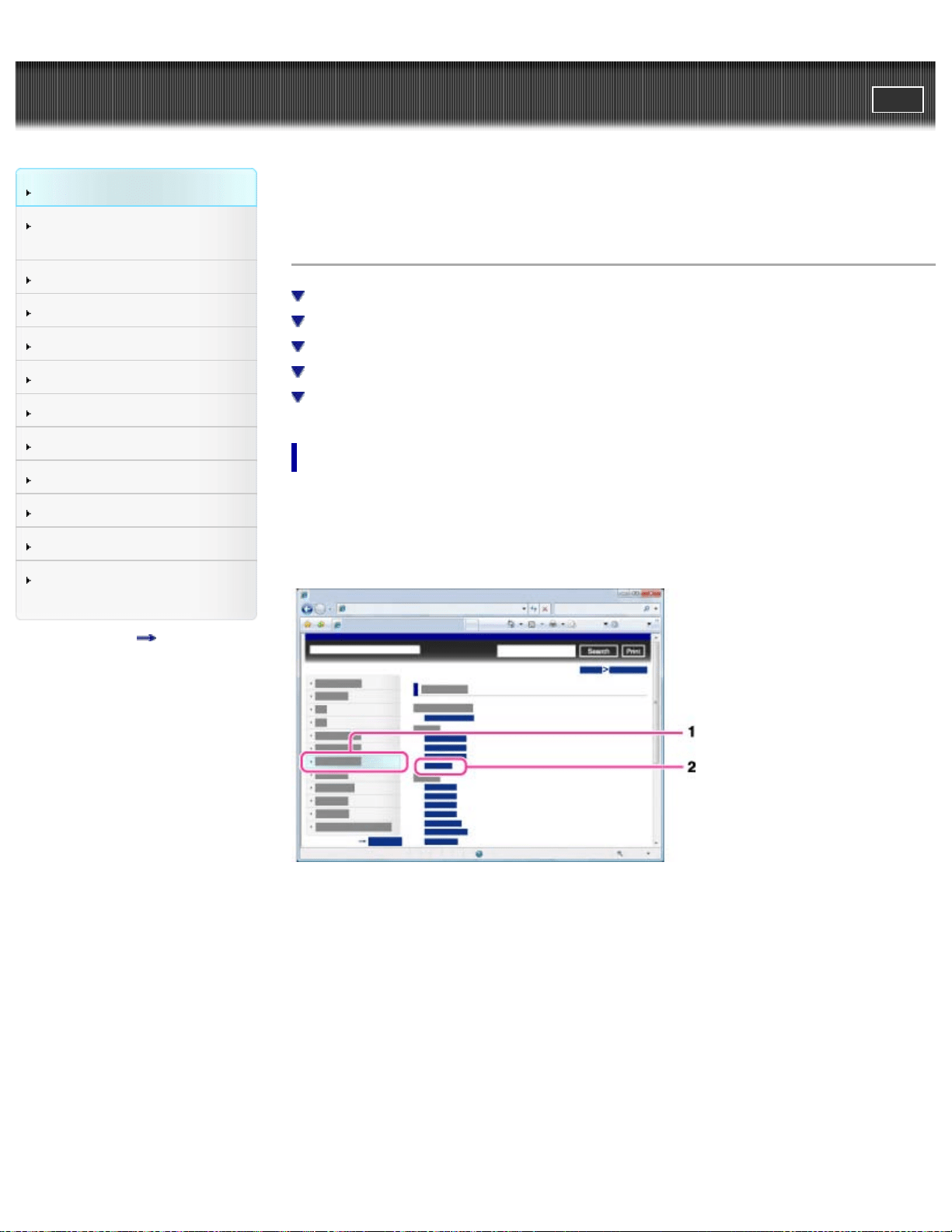
The following illustrations take Internet Explorer 7 as an example.
1. Click a title in the side bar on the left of the browser window.
The title’s topic list appears in the right pane.
2. Click a topic title in the list.
Descriptions appear in the right pane.
19
Changing the font size
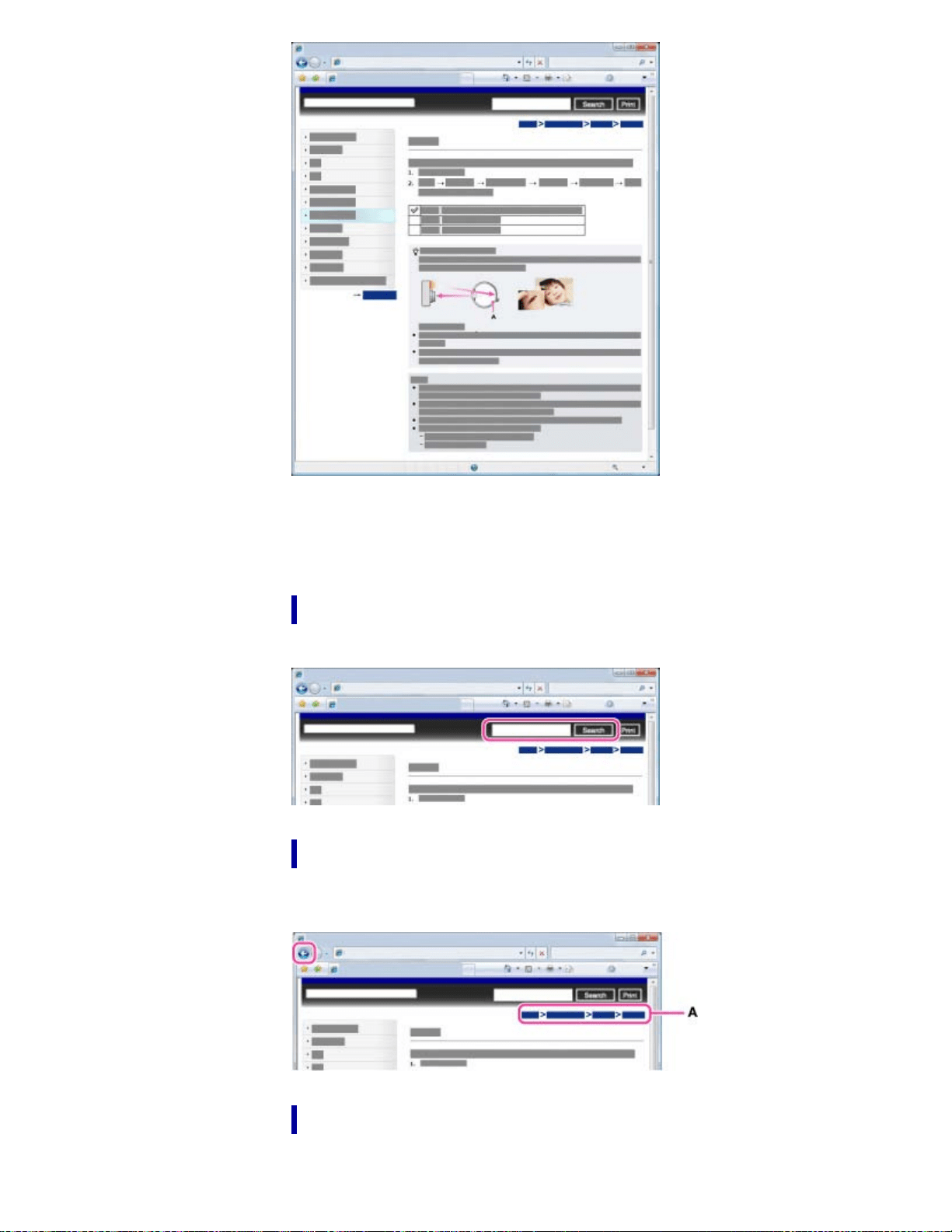
Change the font size by changing the setting of your web browser. For how to
change the font size setting, refer to the Help of your web browser.
Searching a topic by keyword
Enter the keyword in the search window, then click the [Search] button.
Returning to a previous page
Use the browser’s back button to return to a previously viewed page, or use the
breadcrumb trail navigation (A) to display the desired page.
Printing out a page
Click the [Print] button to print out the page you are viewing.
20
Marks and notations used in this User Guide
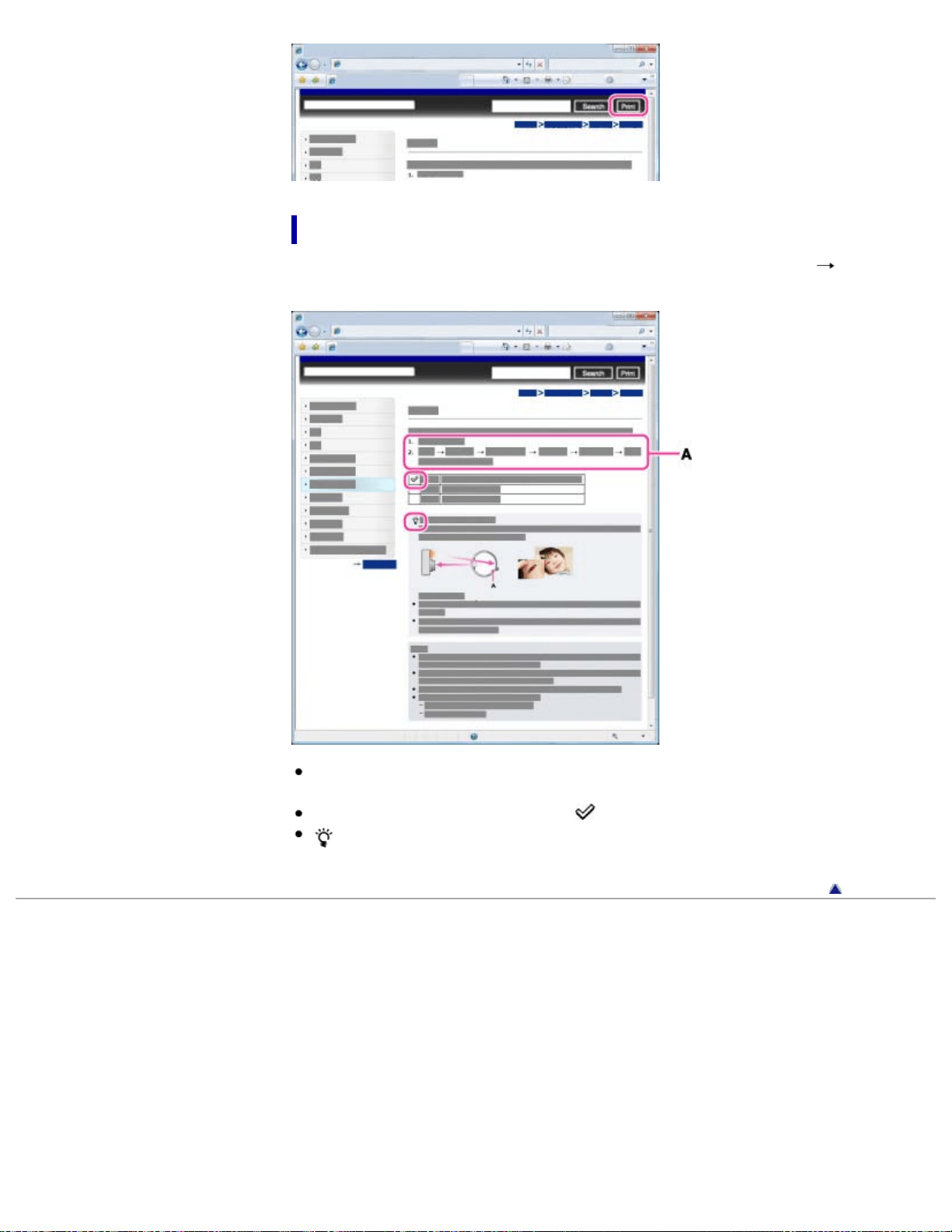
In this User Guide, the sequence of operations is shown by arrows ( ) (A).
Operate the camera in the order indicated.
Icons in the operating procedure sentences appear when the camera is in its
default settings.
The default setting is indicated by
.
indicates information that is useful to know.
Back to top
Copyright 2013 Sony Corporation
21
Cyber-shot User Guide
PrintSearch
Before Use
Confirming the operation
method
Shooting
Viewing
Useful shooting functions
Useful viewing functions
Changing settings
Viewing images on a TV
Using with your computer
Printing
Troubleshooting
Precautions / About this
camera
Contents list
Top page > Before Use > Names of parts and list of icons displayed on the
screen > Names of parts
Names of parts
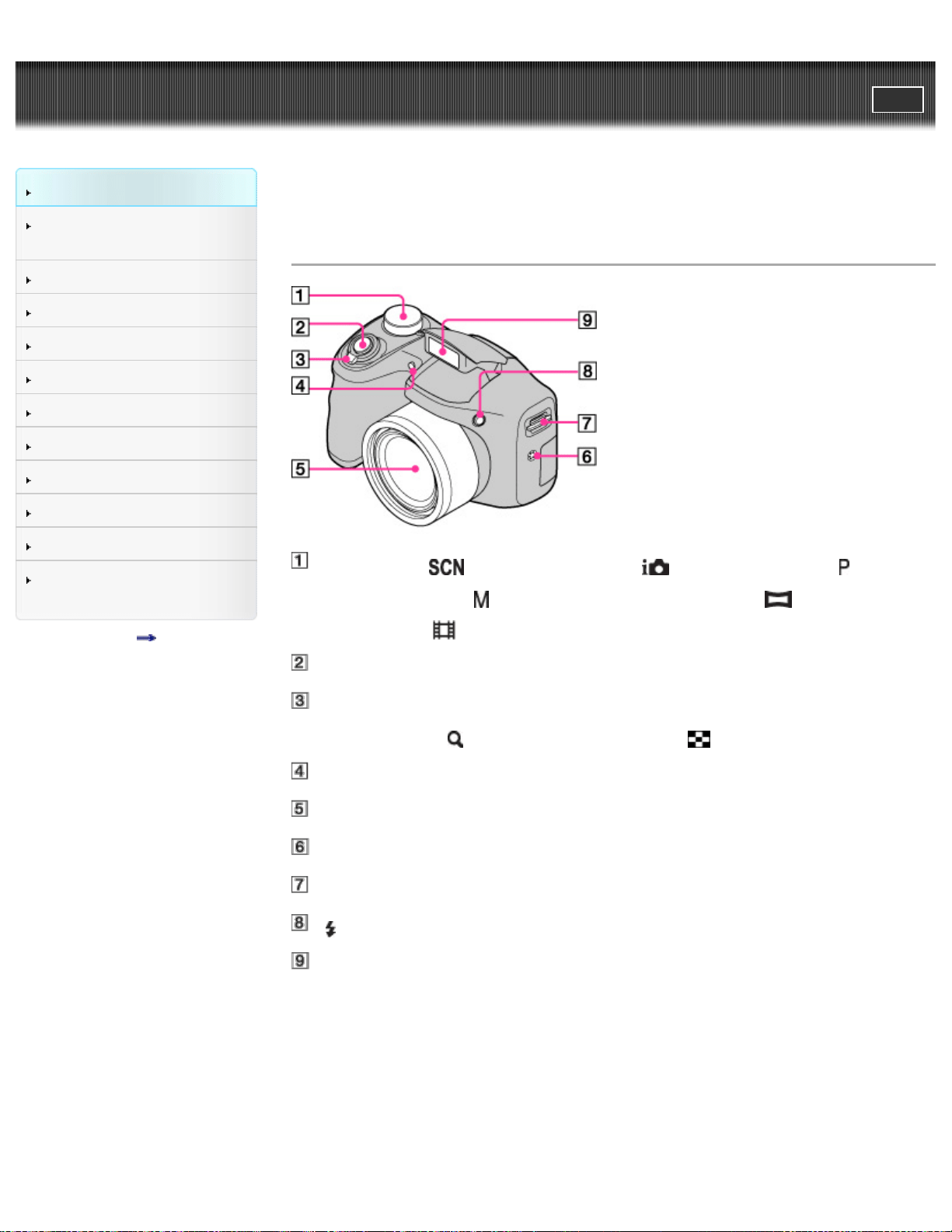
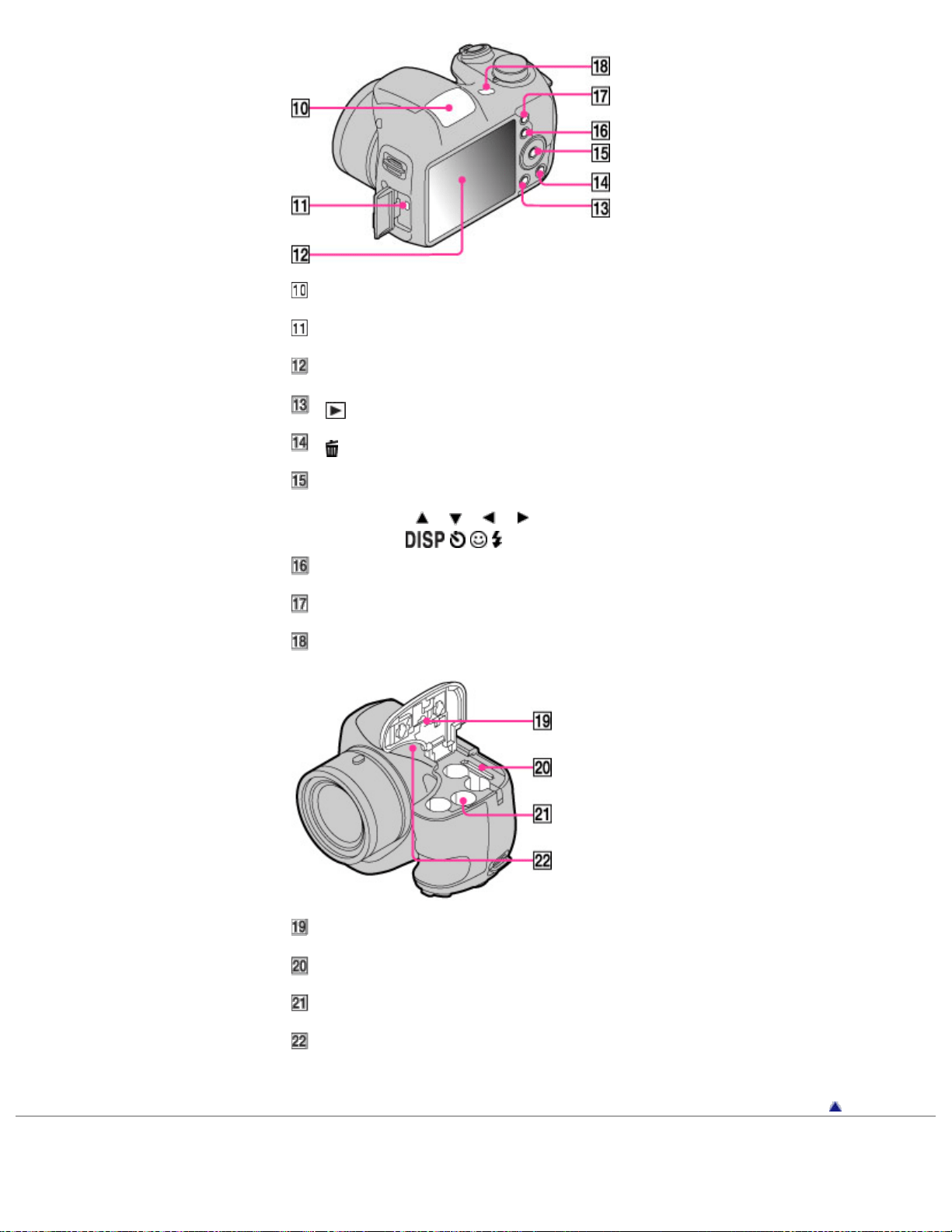
Mode dial: (Scene Selection)/ (Intelligent Auto)/
(Program Auto)/ (Manual Exposure Shooting)/ (Sweep
Panorama)/
(Movie Mode)
Shutter button
For shooting: W/T (zoom) lever
For viewing:
(Playback zoom) lever/ (Index) lever
Self-timer lamp/Smile Shutter lamp/AF illuminator
Lens
Speaker
Hook for shoulder strap
(flash pop-up) button
Flash
22
Cyber-shot User Guide
PrintSearch
Before Use
Confirming the operation
method
Shooting
Viewing
Useful shooting functions
Useful viewing functions
Changing settings
Viewing images on a TV
Using with your computer
Printing
Troubleshooting
Precautions / About this
camera
Contents list
Top page > Before Use > Names of parts and list of icons displayed on the
screen > List of icons displayed on the screen
List of icons displayed on the screen
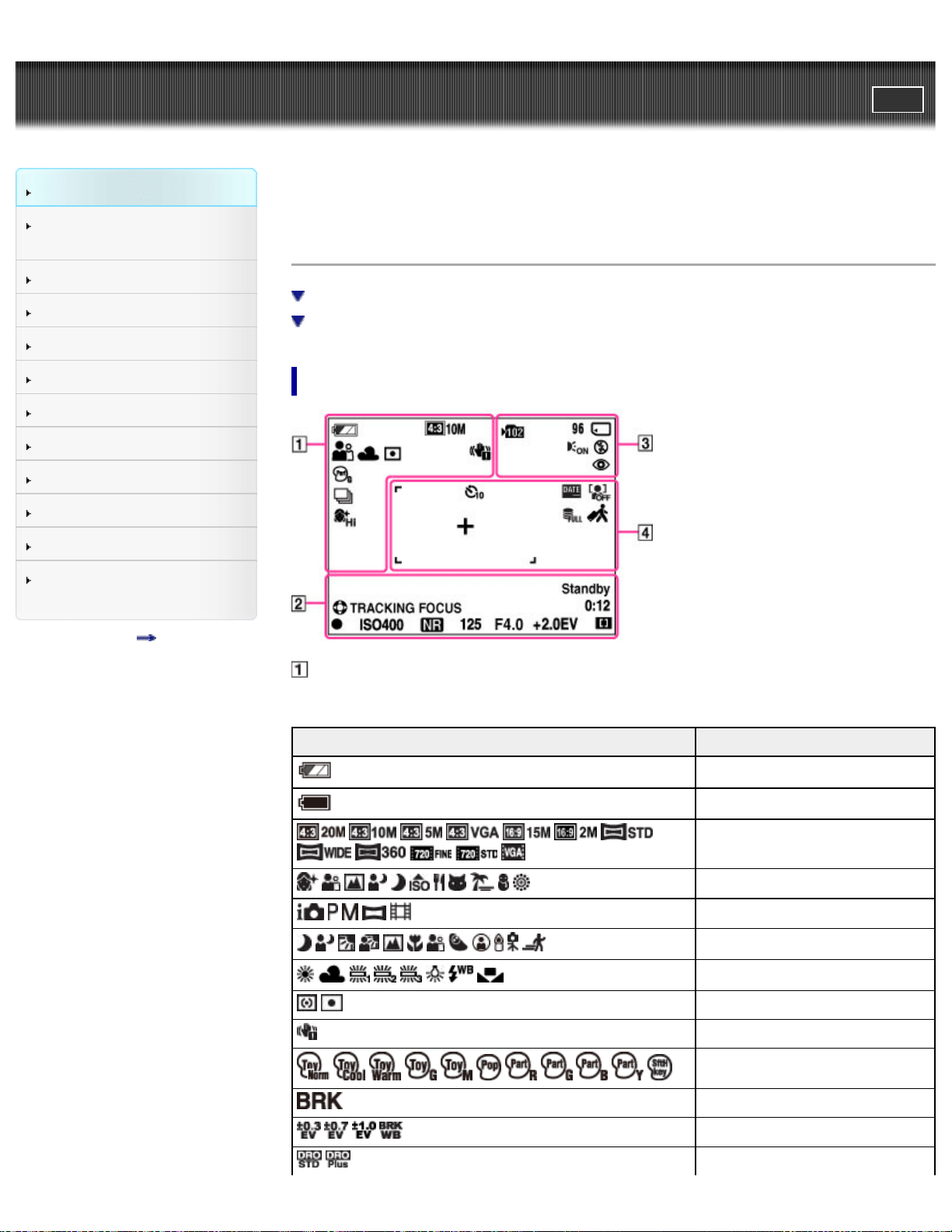
List of shooting mode icons
List of viewing mode icons
List of shooting mode icons
Display Indication
Battery charge remaining
Low battery warning
Image size/Panorama image
size/Movie size
Scene Selection
Shooting mode
Scene Recognition icon
White Balance
Metering Mode
Vibration warning
Picture Effect
Bracket Shooting
Bracket Setting
DRO
24
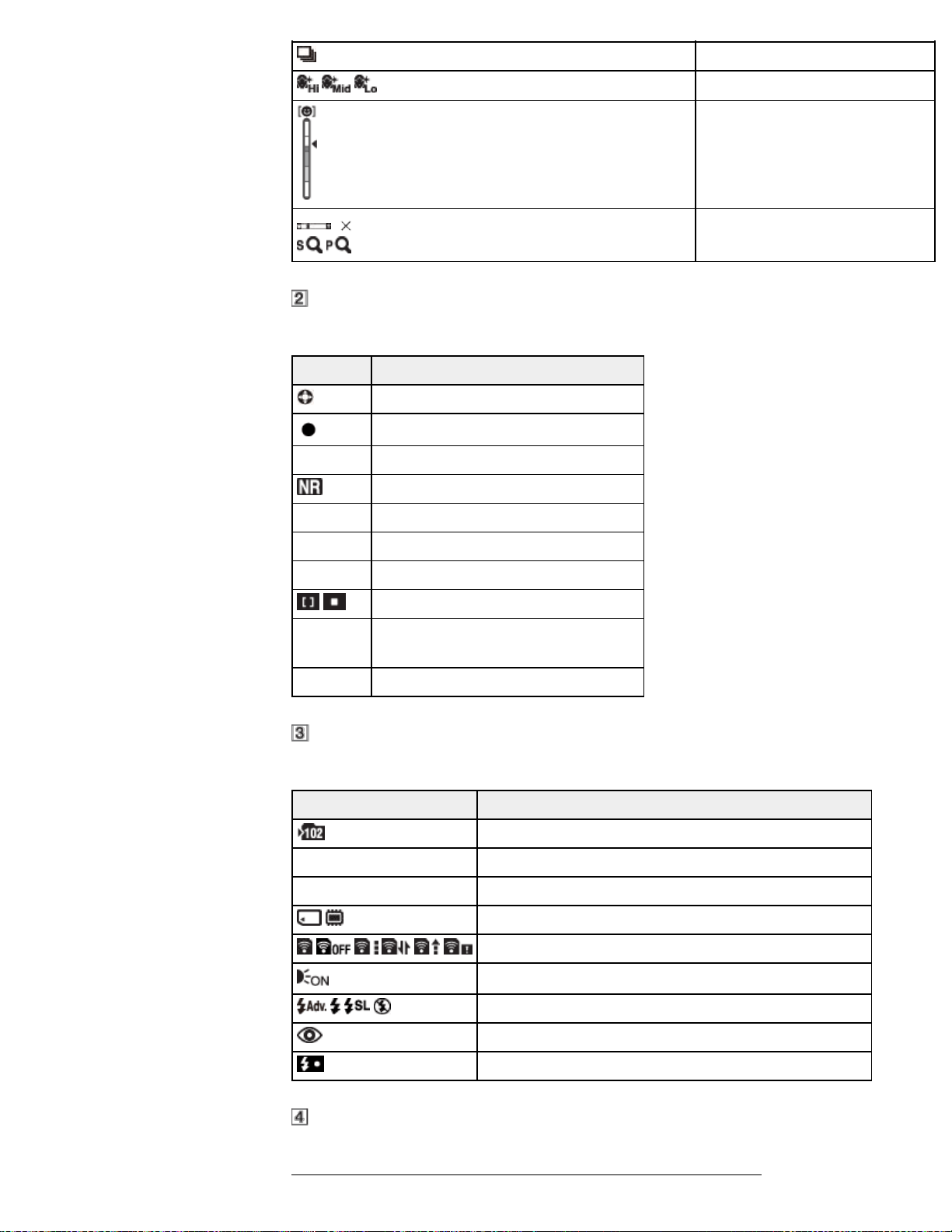
Cont. Shooting Settings
Soft Skin Effect
Smile Detection Sensitivity
indicator
1.4
Zoom scaling
Display Indication
Tracking focus
AE/AF lock
ISO400 ISO number
NR slow shutter
125 Shutter speed
F4.0 Aperture value
+2.0EV Exposure Compensation
AF range finder frame indicator
REC
Standby
Recording a movie/Movie standby
0:12 Recording time (m:s)
Display Indication
Recording folder
96 Number of recordable images
100Min Recordable time
Recording media (Memory card, internal memory)
Eye-Fi mode display
AF Illuminator
Flash mode
Red-eye reduction
Flash charging
25
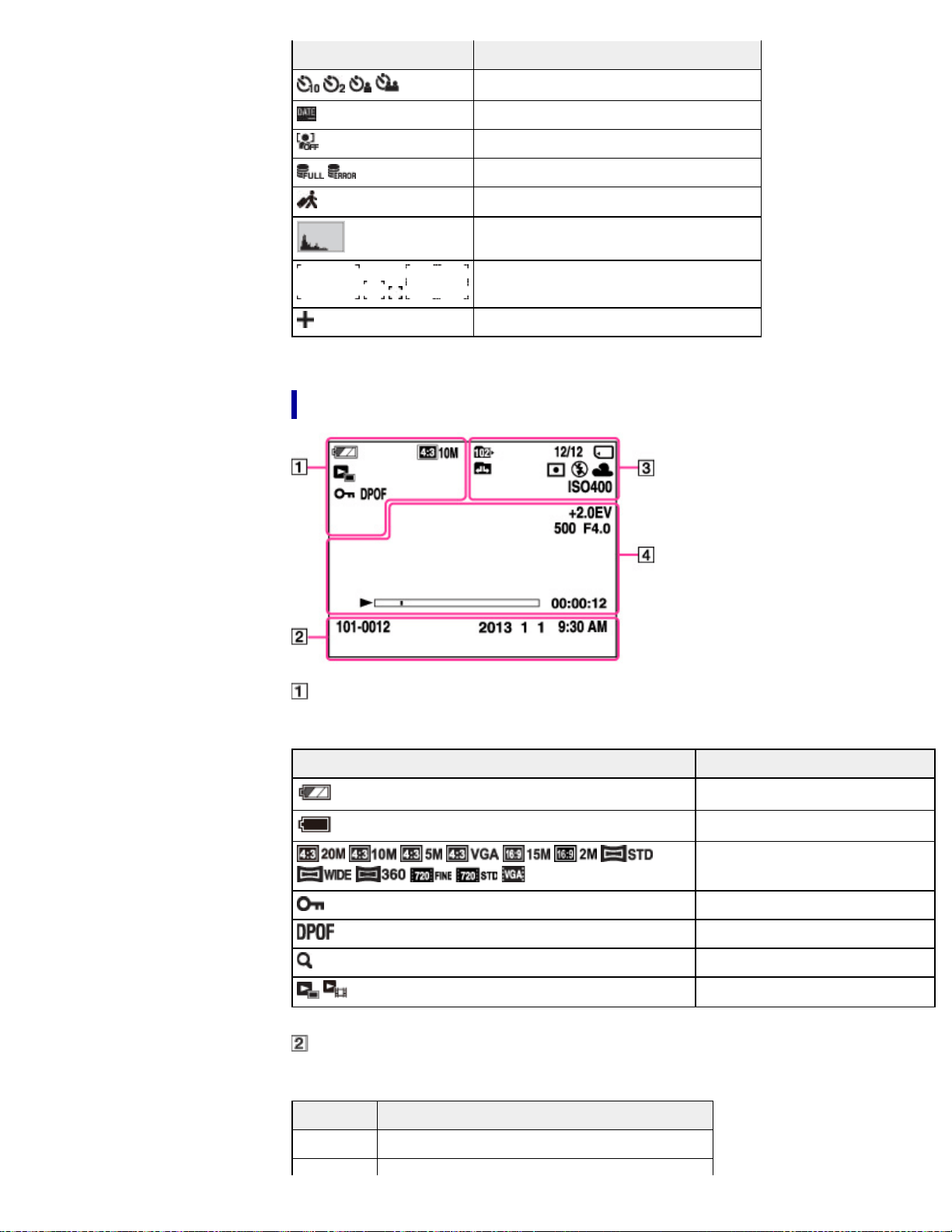
Display Indication
Self-timer
Write Date
Face detection
Database file full/Database file error
Destination
Histogram
AF range finder frame
Spot metering cross-hairs
List of viewing mode icons
Display Indication
Battery charge remaining
Low battery warning
Image size/Panorama image
size/Movie size
Protect
Print order (DPOF)
×2.0 Playback zoom
View mode
Display Indication
101-0012 Folder-file number
26
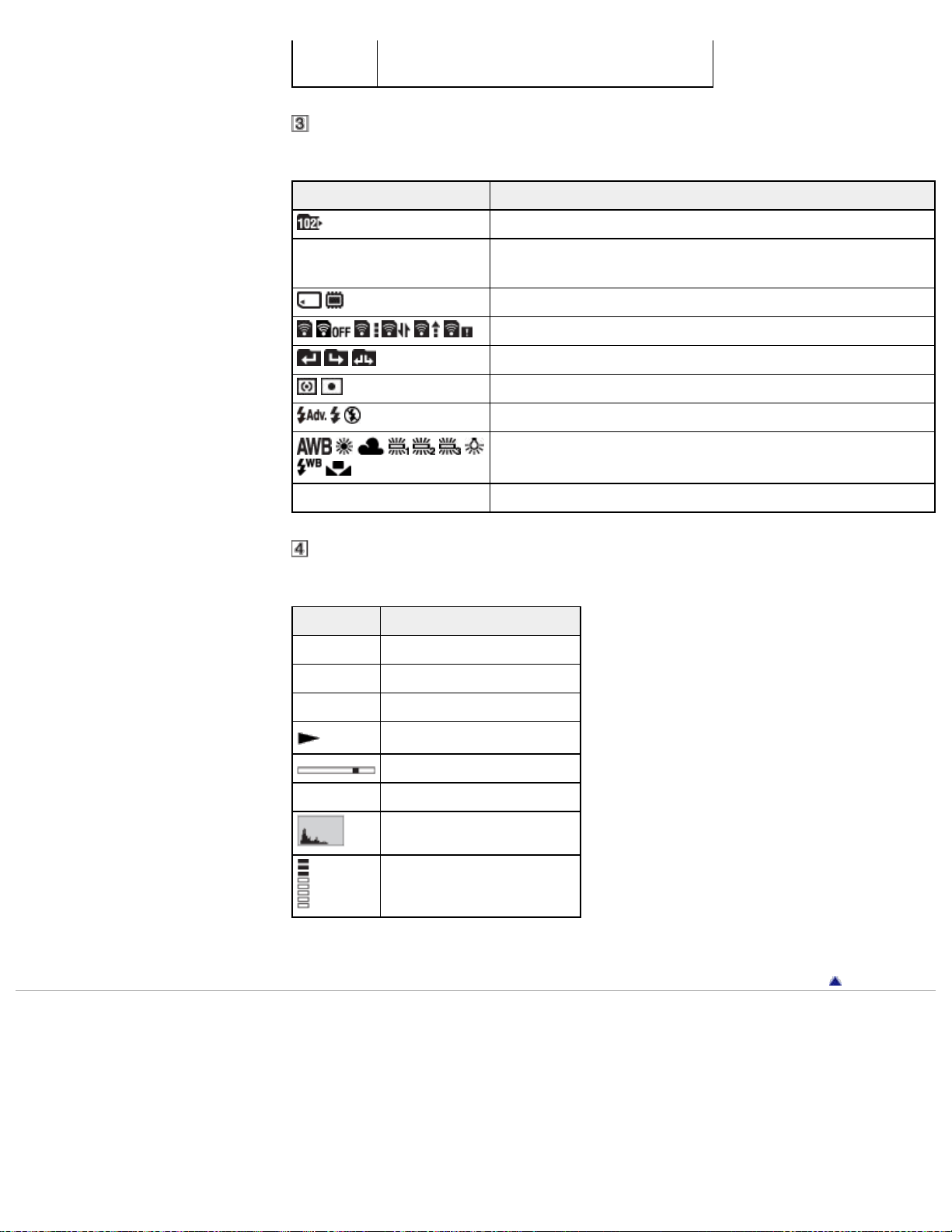
2013-1-1
9:30 AM
Recorded date/time of the playback image
Display Indication
Playback folder
12/12
Image number/Number of images recorded in selected
date range, folder
Playback media (Memory card, internal memory)
Eye-Fi mode display
Changing folders
Metering Mode
Flash mode
White Balance
ISO400 ISO number
Display Indication
+2.0EV Exposure Compensation
500 Shutter speed
F4.0 Aperture value
Playback
Playback bar
00:00:12 Counter
Histogram
Volume
Back to top
Copyright 2013 Sony Corporation
27
Cyber-shot User Guide
PrintSearch
Before Use
Confirming the operation
method
Shooting
Viewing
Useful shooting functions
Useful viewing functions
Changing settings
Viewing images on a TV
Using with your computer
Printing
Troubleshooting
Precautions / About this
camera
Contents list
Top page > Before Use > Using the shoulder strap > Using the shoulder strap
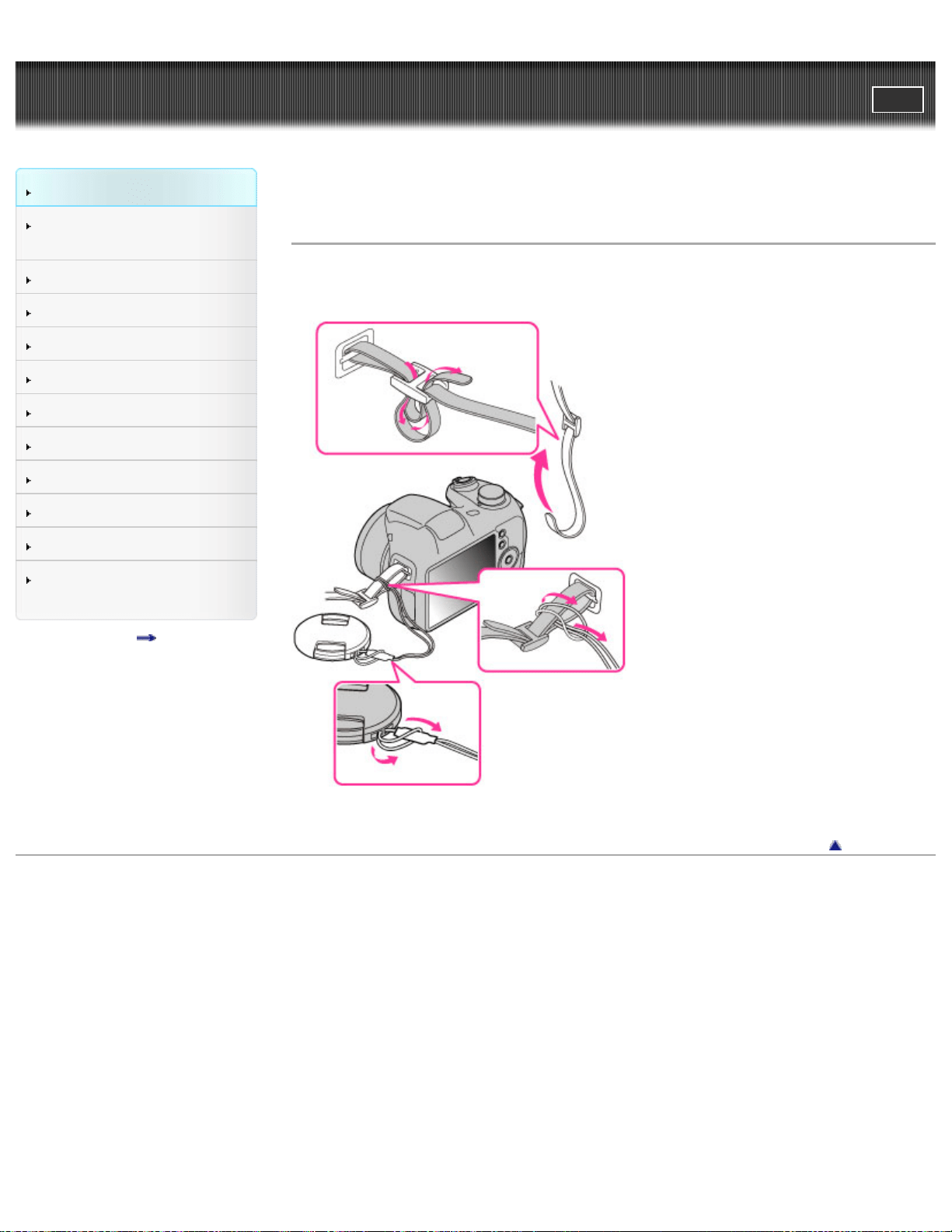
Using the shoulder strap
Attach the shoulder strap and lens cap strap to prevent the camera from damage
by being dropped.
Back to top
Copyright 2013 Sony Corporation
28
Cyber-shot User Guide
PrintSearch
Before Use
Confirming the operation
method
Shooting
Viewing
Useful shooting functions
Useful viewing functions
Changing settings
Viewing images on a TV
Using with your computer
Printing
Troubleshooting
Precautions / About this
camera
Contents list
Top page > Before Use > Using the internal memory > Using the internal memory
Using the internal memory
On image data stored in the internal memory
The camera has approximately 55 MB of internal memory. You can record images
on the internal memory when there is no memory card inserted in the camera.
When a memory card is inserted
[Recording]: Images are recorded on the memory card.
[Playback]: Images on the memory card are played back.
[Menu, Settings, etc.]: Various functions can be performed on images on the
memory card.
When there is no memory card inserted
[Recording]: Images are recorded using the internal memory.
You cannot record movies to the internal memory when the movie image size is
[1280x720(Fine)] or [1280x720(Standard)].
[Playback]: Images stored in the internal memory are played back.
[Menu, Settings, etc.]: Various functions can be performed on images in the internal
memory.
On image data stored in the internal memory
We recommend that you copy (back up) data using one of the following methods.
To copy (back up) data on a hard disk of your computer
Without a memory card inserted in the camera, import the images into a computer.
[Details]
To copy (back up) data on a memory card
Prepare a memory card with sufficient free capacity, then copy the images in the
internal memory to the memory card. [Details]
Notes
You cannot transfer image data on a memory card to the internal memory.
By making a USB connection between the camera and a computer with a USB
cable, you can transfer data stored in the internal memory to a computer.
However you cannot transfer data on a computer to the internal memory.
Back to top
Copyright 2013 Sony Corporation
29
Cyber-shot User Guide
PrintSearch
Before Use
Confirming the operation
method
Shooting
Viewing
Useful shooting functions
Useful viewing functions
Changing settings
Viewing images on a TV
Using with your computer
Printing
Troubleshooting
Precautions / About this
camera
Contents list
Top page > Confirming the operation method > Confirming the operation
method > Using the control button
Using the control button
Moving the selection frame on the MENU screen, etc.
Selecting an image to be played back
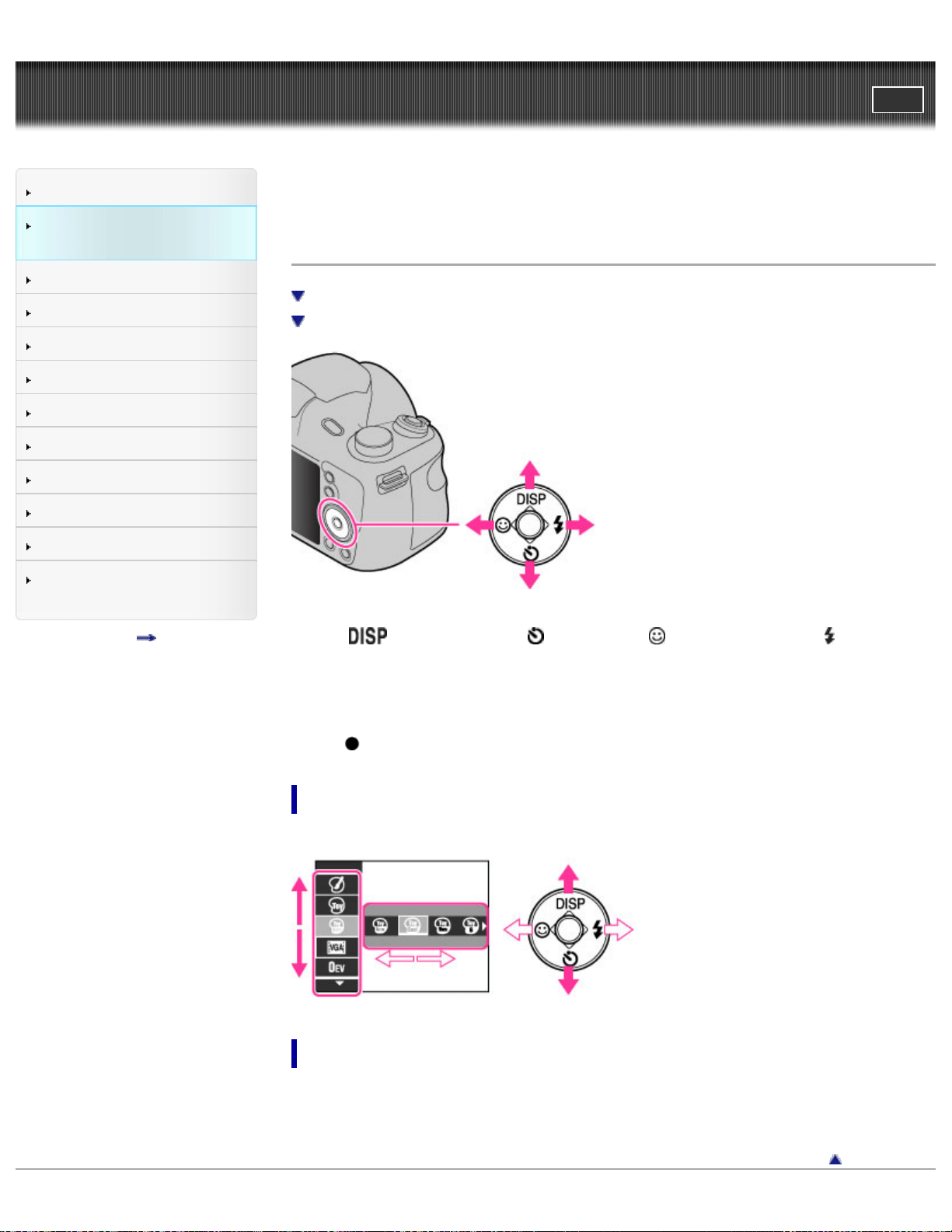
The following functions are located on the up/down/right/left side of the control
button:
(Display Setting), (Self-Timer), (Smile Shutter) and (Flash).
Press the control button toward each icon to enter the setup screen for each
function.
Press the up/down/right/left side of the control button following the screen to move
the selection frame.
Press in the center of the control button to set the selected item.
Moving the selection frame on the MENU screen, etc.
Press the up/down/right/left side of the control button to move the selection frame.
Selecting an image to be played back
Press the right or left side of the control button to play back the next/previous
image.
Back to top
30
Cyber-shot User Guide
PrintSearch
Before Use
Confirming the operation
method
Shooting
Viewing
Useful shooting functions
Useful viewing functions
Changing settings
Viewing images on a TV
Using with your computer
Printing
Troubleshooting
Precautions / About this
camera
Contents list
Top page > Confirming the operation method > Confirming the operation
method > Using MENU items (Shooting)
Using MENU items (Shooting)
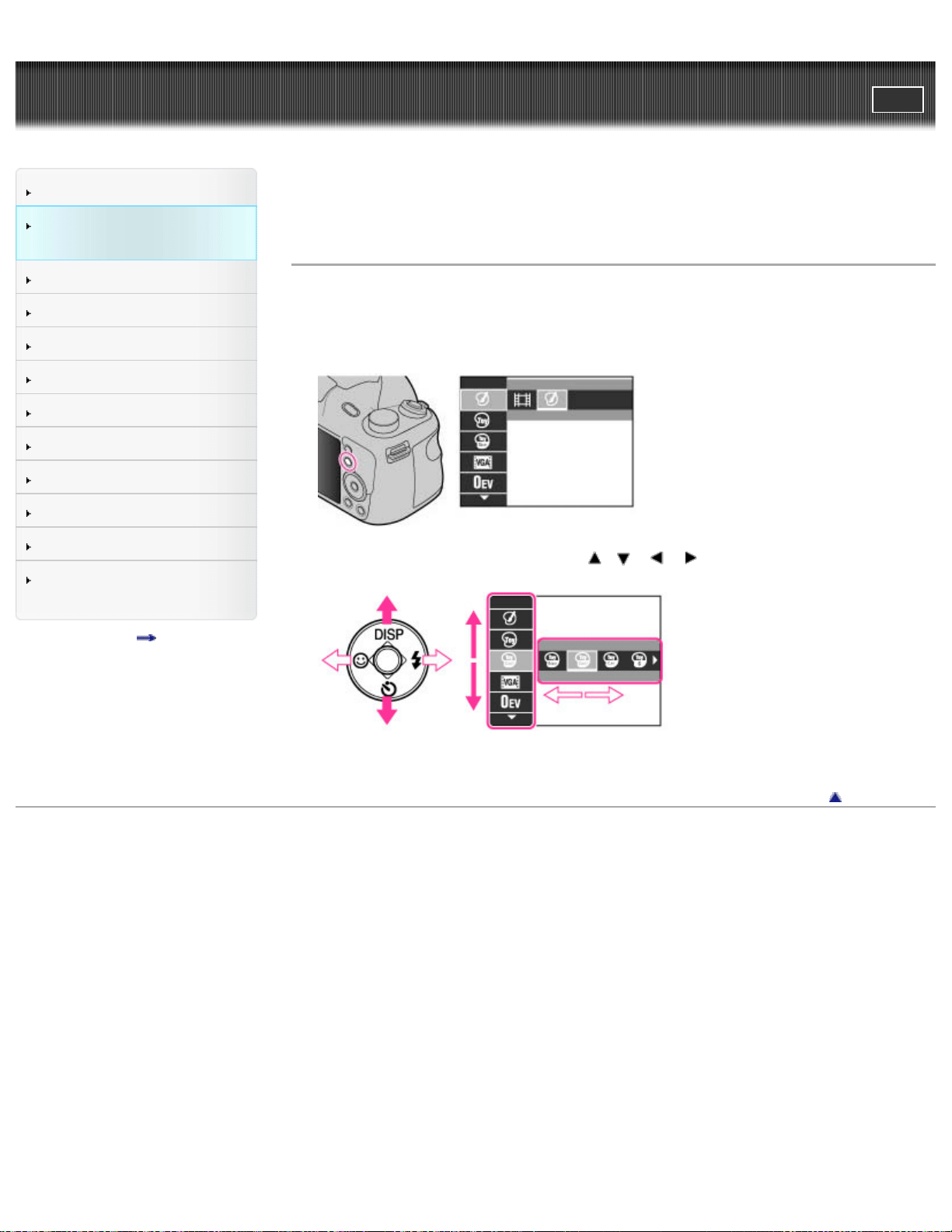
You can select the various shooting functions easily from the MENU button.
1. Press the ON/OFF (Power) button and set the camera to shooting mode.
2. Press the MENU button to display the Menu screen.
3. Select the desired menu item with / / / on the control button.
4. Press the MENU button to close the Menu screen.
Back to top
Copyright 2013 Sony Corporation
31
Cyber-shot User Guide
PrintSearch
Before Use
Confirming the operation
method
Shooting
Viewing
Useful shooting functions
Useful viewing functions
Changing settings
Viewing images on a TV
Using with your computer
Printing
Troubleshooting
Precautions / About this
camera
Contents list
Top page > Confirming the operation method > Confirming the operation
method > Using MENU items (Viewing)
Using MENU items (Viewing)
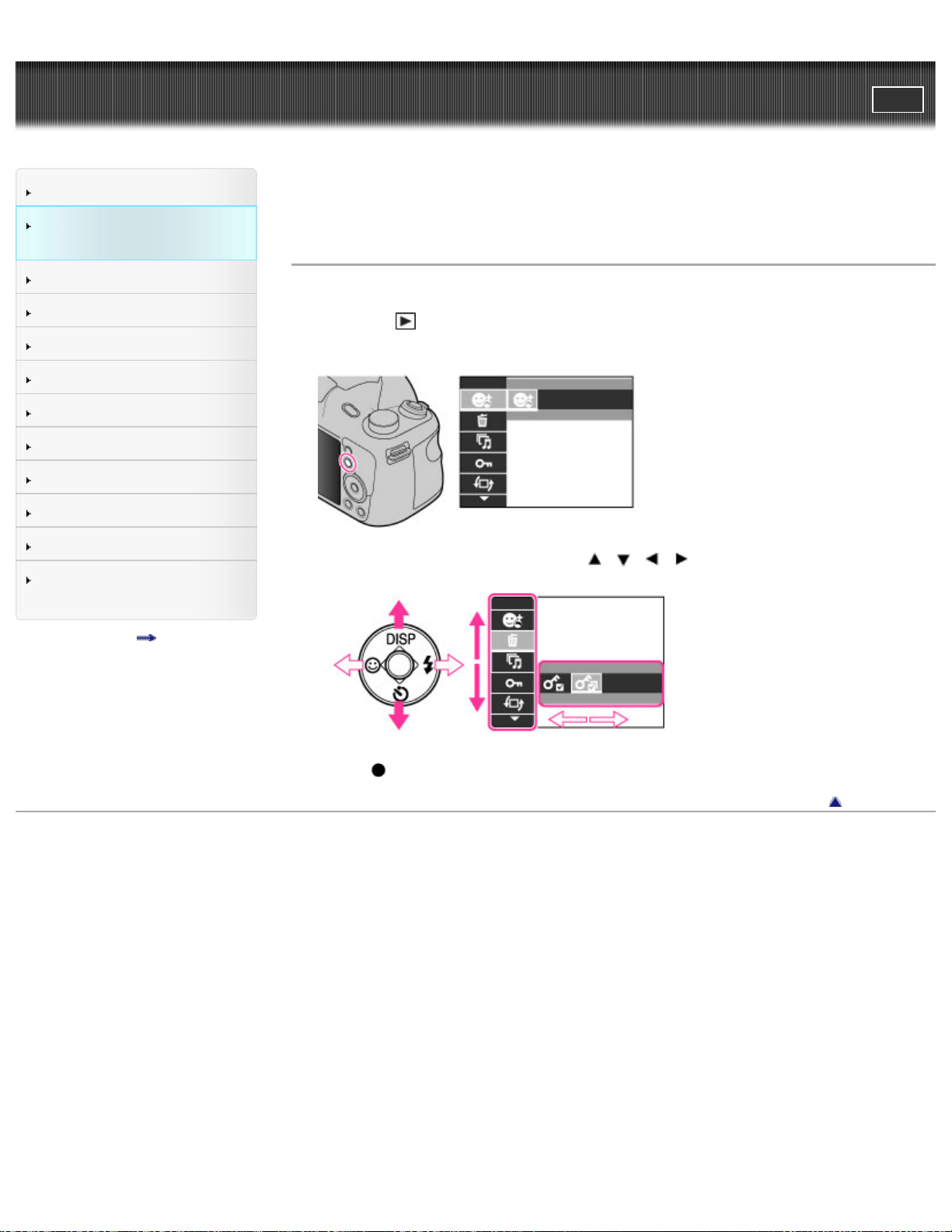
You can select the various viewing functions easily from the MENU button.
1. Press the
(Playback) button to switch to playback mode.
2. Press the MENU button to display the Menu screen.
3. Select the desired menu item with / / / on the control button.
4. Press on the control button.
Back to top
Copyright 2013 Sony Corporation
32
Cyber-shot User Guide
PrintSearch
Before Use
Confirming the operation
method
Shooting
Viewing
Useful shooting functions
Useful viewing functions
Changing settings
Viewing images on a TV
Using with your computer
Printing
Troubleshooting
Precautions / About this
camera
Contents list
Top page > Confirming the operation method > Confirming the operation
method > Changing camera settings
Changing camera settings
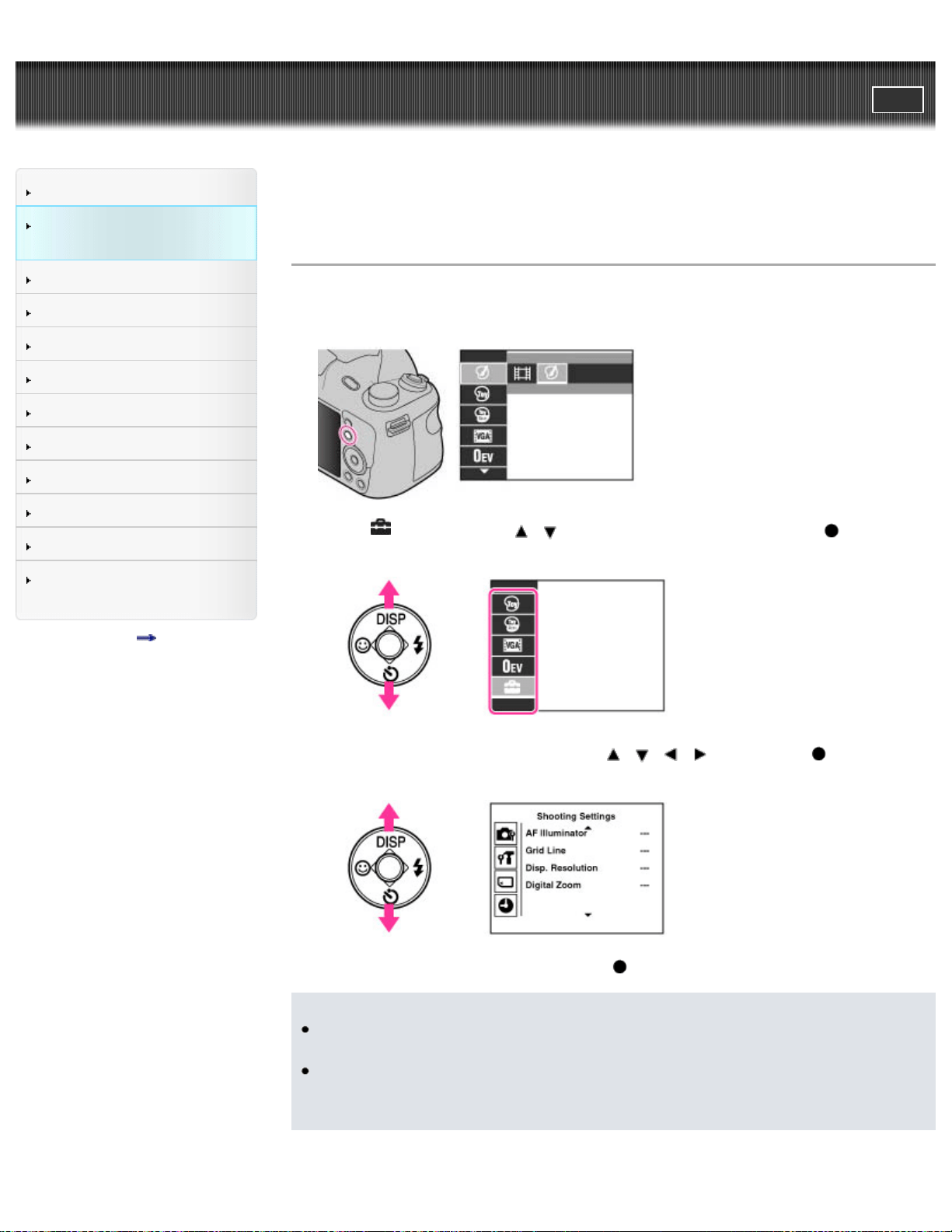
You can change the settings on the [Settings] screen.
1. Press the MENU button to display the Menu screen.
2. Select (Settings) with / on the control button, then press to display
the setup screen.
3. Select the desired category by using / / / , then press to display
the setup screen.
4. Select the desired setting, then press .
Notes
[Shooting Settings] appears only when settings have been entered from
shooting mode.
[Memory Card Tool] appears only when a memory card is inserted in the
camera, while [Internal Memory Tool] appears only when a memory card is not
inserted.
33
Cyber-shot User Guide
PrintSearch
Before Use
Confirming the operation
method
Shooting
Viewing
Useful shooting functions
Useful viewing functions
Changing settings
Viewing images on a TV
Using with your computer
Printing
Troubleshooting
Precautions / About this
camera
Contents list
Top page > Shooting > Shooting still images > Shooting still images
Shooting still images
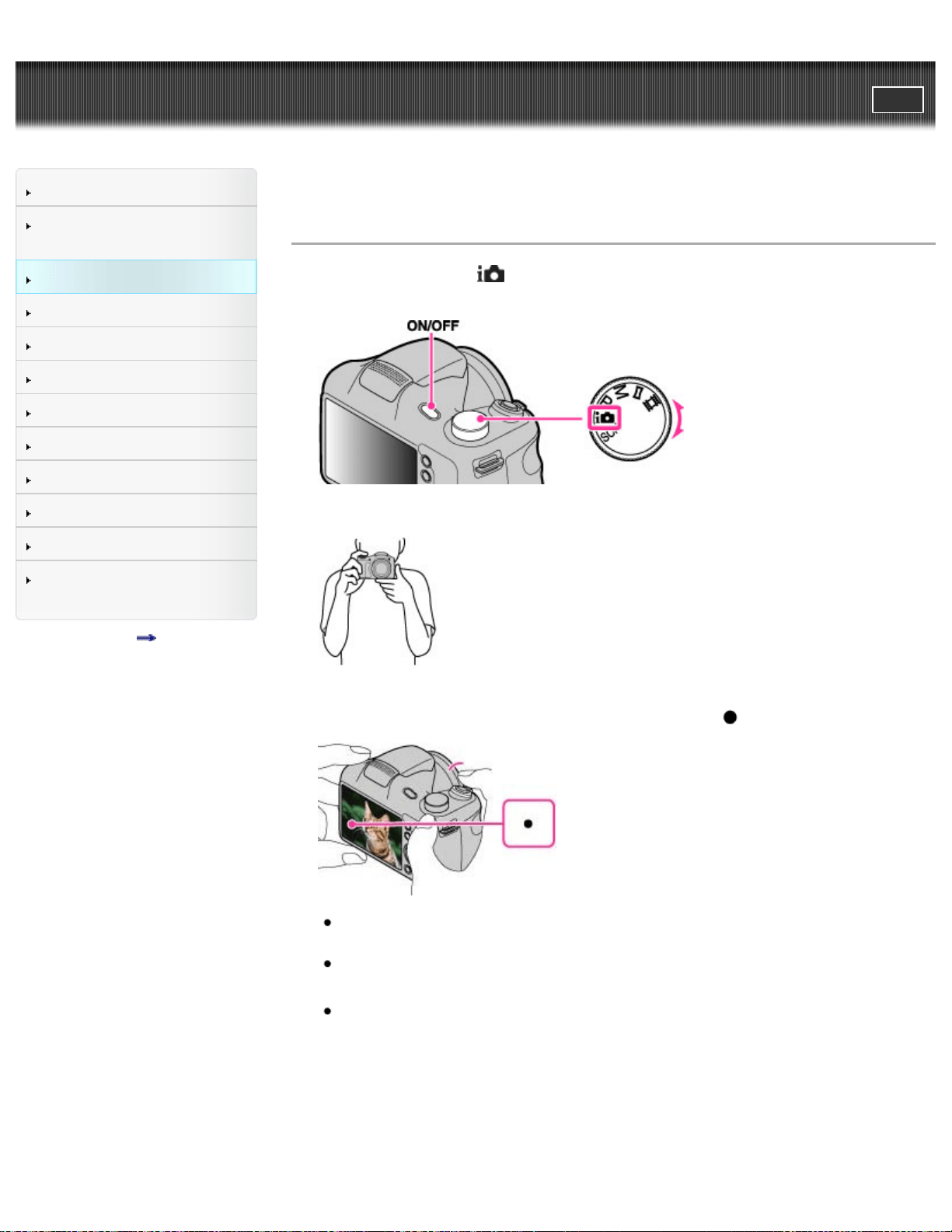
1. Set the mode dial to (Intelligent Auto), then press the ON/OFF (Power)
button.
2. Hold the camera steady as illustrated.
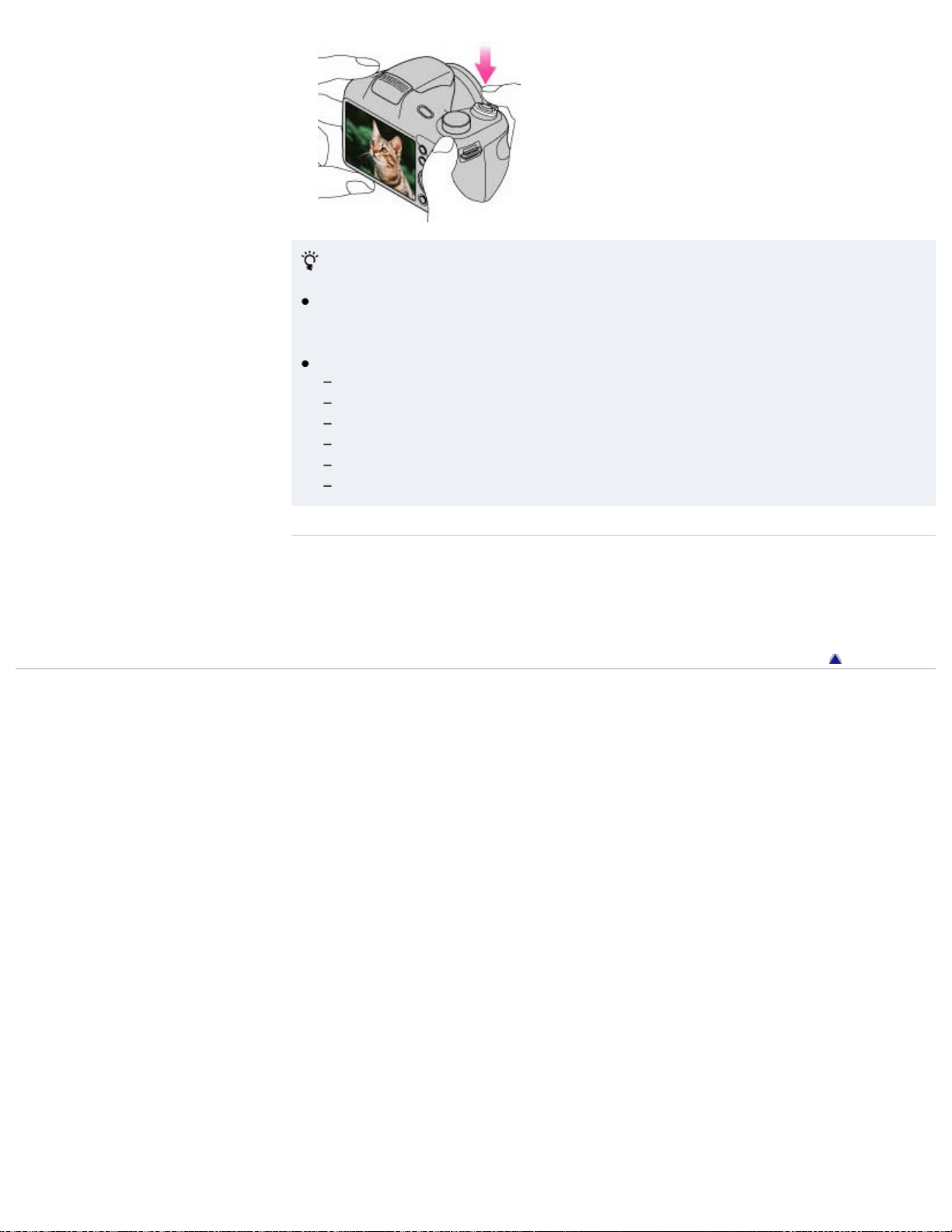
3. Press the shutter button halfway down to focus.
When the image is in focus, a beep sounds and the
indicator lights.
The shortest shooting distance is approximately 1 cm (0.03 ft.) (W), 150 cm
(4.92 ft.) (T) (from the lens).
Macro mode may be automatically set for some shooting conditions.
4. Press the shutter button fully down.
Do not put your fingers on the flash or lens when shooting.
34
If you shoot a still image of a subject that is difficult to focus
on
When the camera cannot focus on the subject automatically, the AE/AF lock
indicator changes to slowly flashing and the beep does not sound. Either
recompose the shot or change the focus setting. [Details]
Focusing may be difficult in the following situations:
It is dark and the subject is distant.
The contrast between the subject and the background is poor.
The subject is seen through glass.
The subject is moving quickly.
There is reflective light or shiny surfaces.
The subject is backlit or there is a flashing light.
Related Topic
Viewing still images
Still Image Size / Panorama Image Size / Movie Size
Back to top
Copyright 2013 Sony Corporation
35
Cyber-shot User Guide
PrintSearch
Before Use
Confirming the operation
method
Shooting
Viewing
Useful shooting functions
Useful viewing functions
Changing settings
Viewing images on a TV
Using with your computer
Printing
Troubleshooting
Precautions / About this
camera
Contents list
Top page > Shooting > Shooting still images > Zoom
Zoom
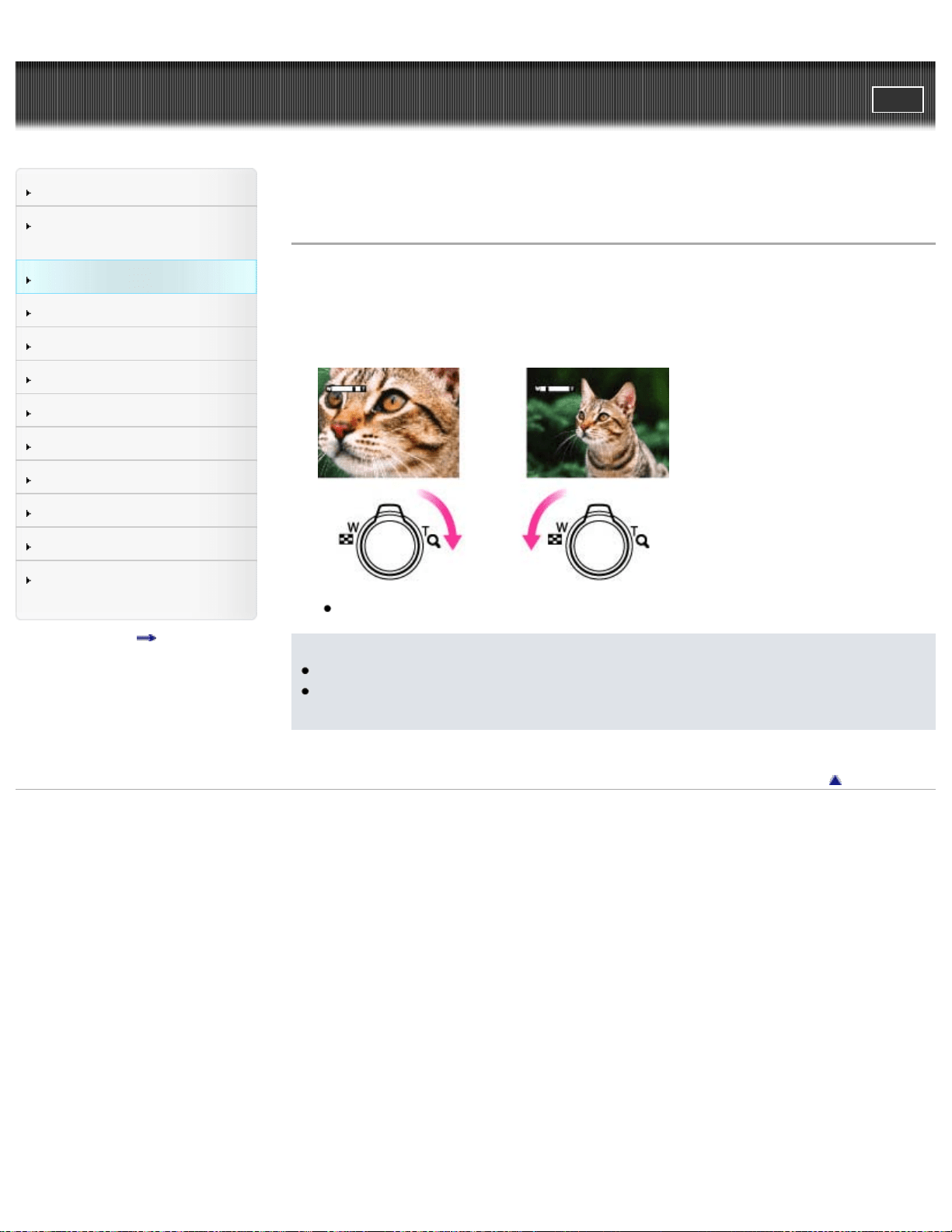
You can enlarge the image when shooting. The camera’s optical zoom function can
enlarge images up to 35×.
1. Turn the W/T (zoom) lever.
Turn the W/T (zoom) lever to the T side to zoom in, W side to zoom out.
When the zoom scale exceeds 35×, set [Digital Zoom]. [Details]
Notes
Zoom is locked to the W side in Sweep Panorama mode.
The operating sound of the lens may be recorded when the zoom function
operates while shooting a movie.
Back to top
Copyright 2013 Sony Corporation
36
Cyber-shot User Guide
PrintSearch
Before Use
Confirming the operation
method
Shooting
Viewing
Useful shooting functions
Useful viewing functions
Changing settings
Viewing images on a TV
Using with your computer
Printing
Troubleshooting
Precautions / About this
camera
Contents list
Top page > Shooting > Shooting movies > Shooting movies
Shooting movies
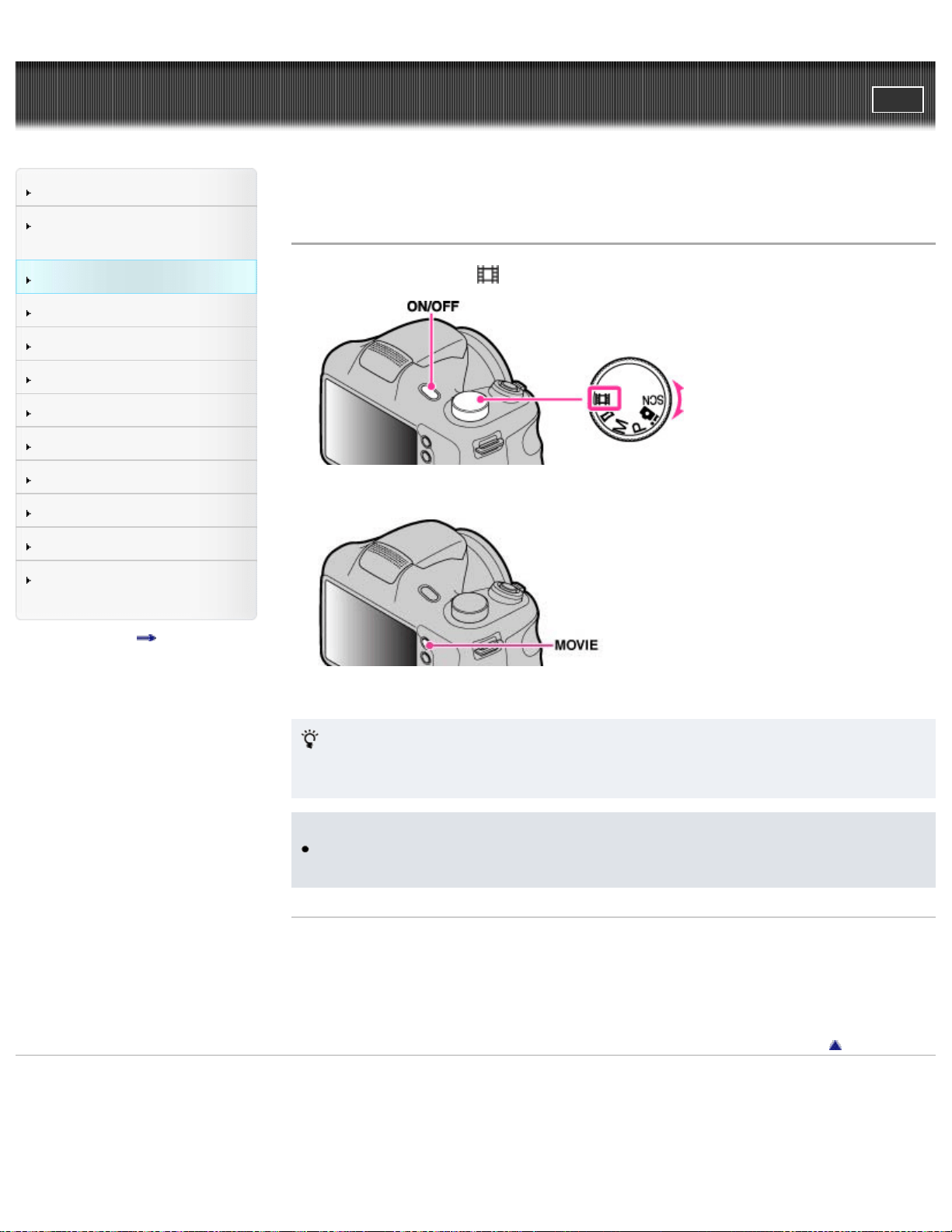
1. Set the mode dial to (Movie Mode), then press the ON/OFF (Power) button.
2. Press the MOVIE (Movie) button to start recording.
3. Press the MOVIE button again to stop recording.
MOVIE (Movie) button
You can start recording a movie by pressing the MOVIE button, regardless of the
position of the mode dial.
Notes
The operating sound of the lens may be recorded when the zoom function
operates while shooting a movie.
Related Topic
Zoom
Movie shooting scene
Picture Effect
Back to top
Copyright 2013 Sony Corporation
37
Cyber-shot User Guide
PrintSearch
Before Use
Confirming the operation
method
Shooting
Viewing
Useful shooting functions
Useful viewing functions
Changing settings
Viewing images on a TV
Using with your computer
Printing
Troubleshooting
Precautions / About this
camera
Contents list
Top page > Shooting > Selecting the shooting mode based on the subject > List of
mode dial functions
List of mode dial functions
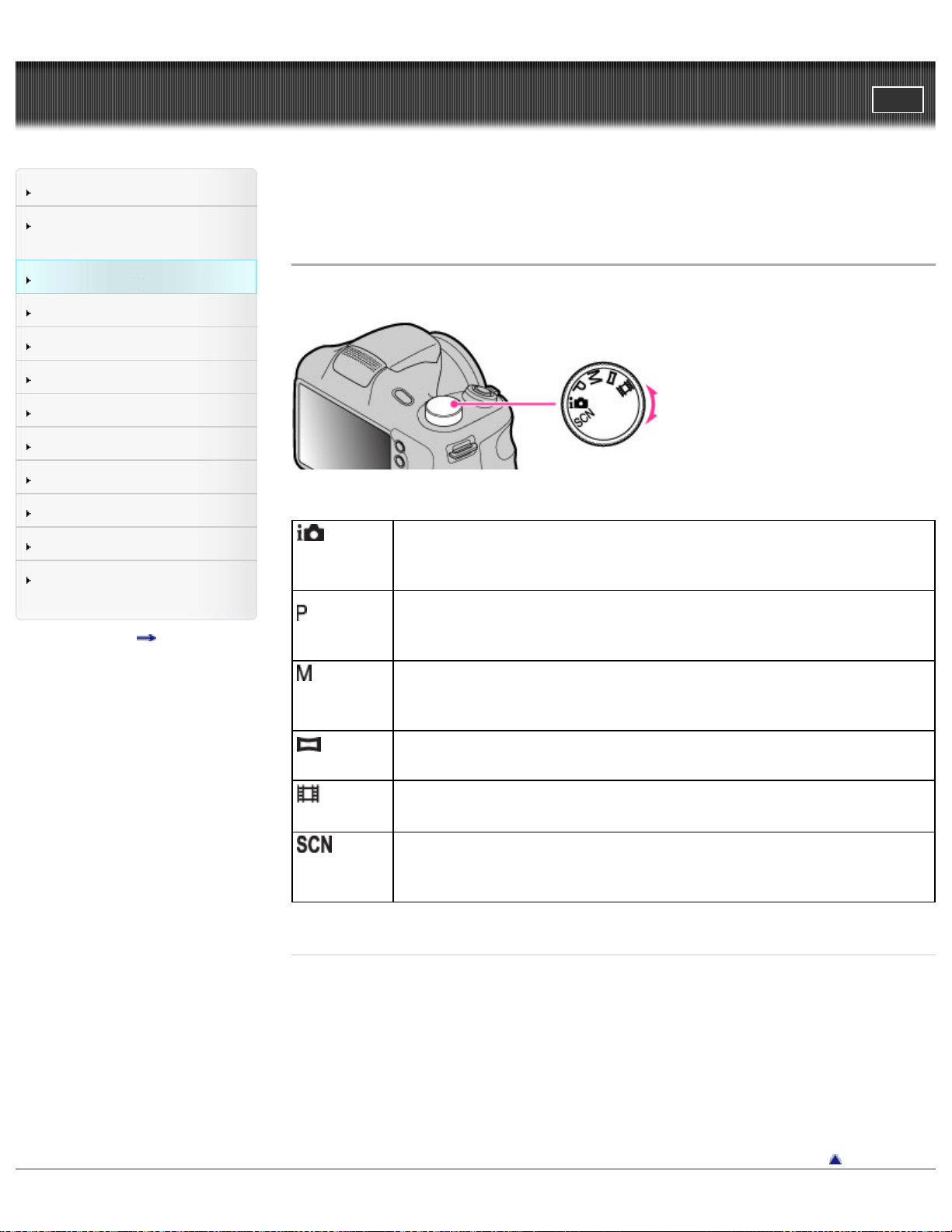
Set the mode dial to the desired function.
(Intelligent
Auto)
Allows you to shoot still images with the settings adjusted
automatically.
(Program
Auto)
Allows you to shoot with the exposure adjusted automatically (both
the shutter speed and the aperture value (F value)). Also you can
select various settings using the menu.
(Manual
Exposure
Shooting)
Allows you to shoot after adjusting the exposure manually (both the
shutter speed and the aperture (F value)).
(Sweep
Panorama)
Allows you to shoot a panorama image after composing images.
(Movie
Mode)
Allows you to change the setting for movie recording.
(Scene
Selection)
Allows you to shoot with preset settings according to the scene.
Related Topic
Intelligent Auto
Program Auto
Scene Selection
Manual Exposure Shooting
Shooting panoramic images
Shooting movies
Back to top
38
Cyber-shot User Guide
PrintSearch
Before Use
Confirming the operation
method
Shooting
Viewing
Useful shooting functions
Useful viewing functions
Changing settings
Viewing images on a TV
Using with your computer
Printing
Troubleshooting
Precautions / About this
camera
Contents list
Top page > Shooting > Selecting the shooting mode based on the
subject > Intelligent Auto
Intelligent Auto
Allows you to shoot still images with the settings adjusted automatically.
1. Set the mode dial to
(Intelligent Auto).
2. Shoot with the shutter button.
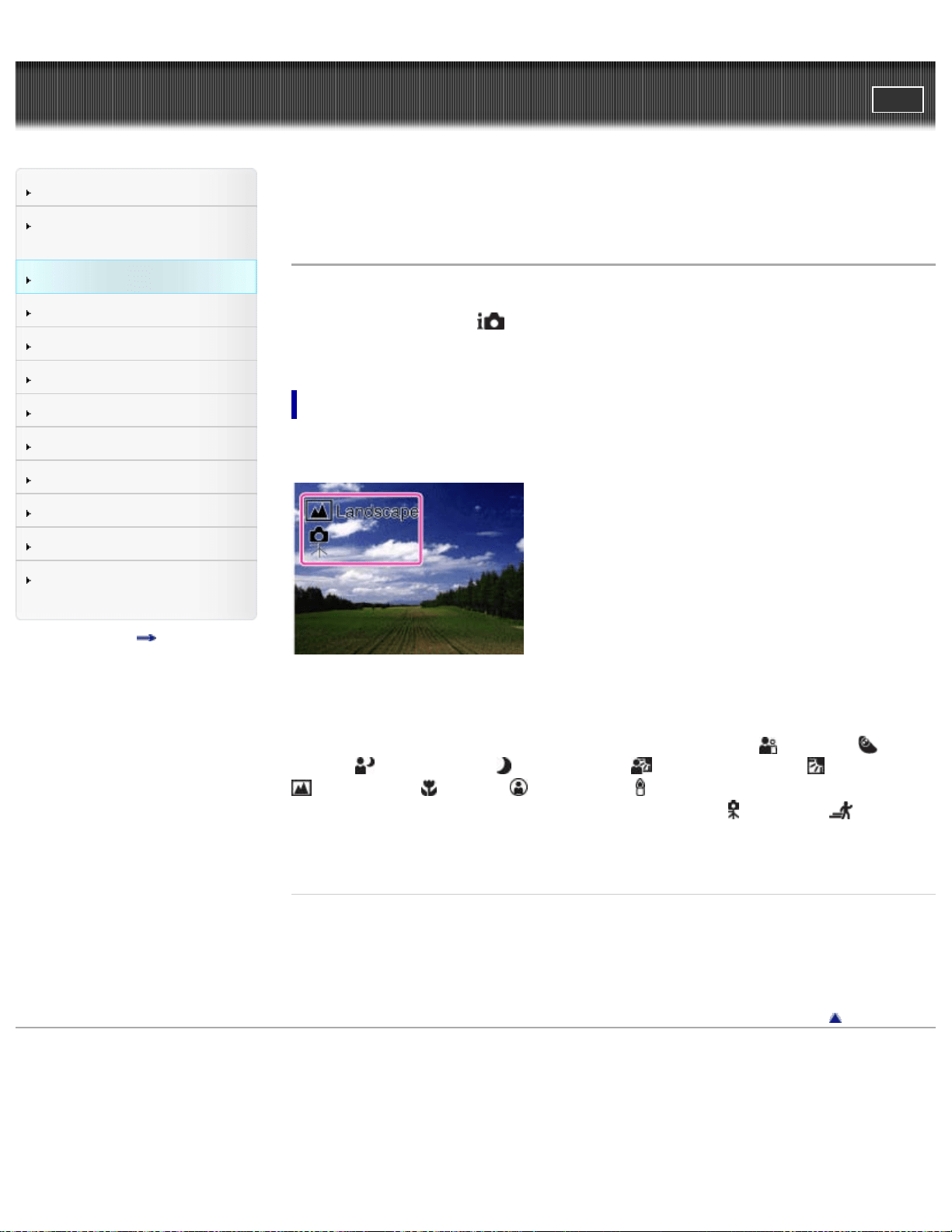
Scene Recognition
Scene Recognition operates in Intelligent Auto mode. This function lets the camera
automatically recognize the shooting conditions and shoot the image.
In Scene Recognition, the position of an icon displayed on the LCD screen is
different depending on the circumstances. It depends on whether the camera
recognizes a scene or condition.
If the camera recognizes a scene, icons and guides such as
(Portrait),
(Infant), (Night Portrait), (Night Scene), (Backlight Portrait), (Backlight),
(Landscape), (Macro), (Spotlight) or (Low Light), are displayed on the first
line. If the camera recognizes a condition, icons such as
(Tripod) or (Move)
are displayed on the second line. The camera may recognize both the scene and
condition, or just one.
Related Topic
Functions available for each shooting mode
MENU items available for each shooting mode
Back to top
Copyright 2013 Sony Corporation
39
Cyber-shot User Guide
PrintSearch
Before Use
Confirming the operation
method
Shooting
Viewing
Useful shooting functions
Useful viewing functions
Changing settings
Viewing images on a TV
Using with your computer
Printing
Troubleshooting
Precautions / About this
camera
Contents list
Top page > Shooting > Selecting the shooting mode based on the
subject > Program Auto
Program Auto
Allows you to shoot with the exposure adjusted automatically (both the shutter
speed and the aperture value). Also you can select various settings using the
menu.
1. Set the mode dial to
(Program Auto).
2. Shoot with the shutter button.
Related Topic
Functions available for each shooting mode
MENU items available for each shooting mode
Back to top
Copyright 2013 Sony Corporation
40
Cyber-shot User Guide
PrintSearch
Before Use
Confirming the operation
method
Shooting
Viewing
Useful shooting functions
Useful viewing functions
Changing settings
Viewing images on a TV
Using with your computer
Printing
Troubleshooting
Precautions / About this
camera
Contents list
Top page > Shooting > Selecting the shooting mode based on the subject > Picture
Effect
Picture Effect
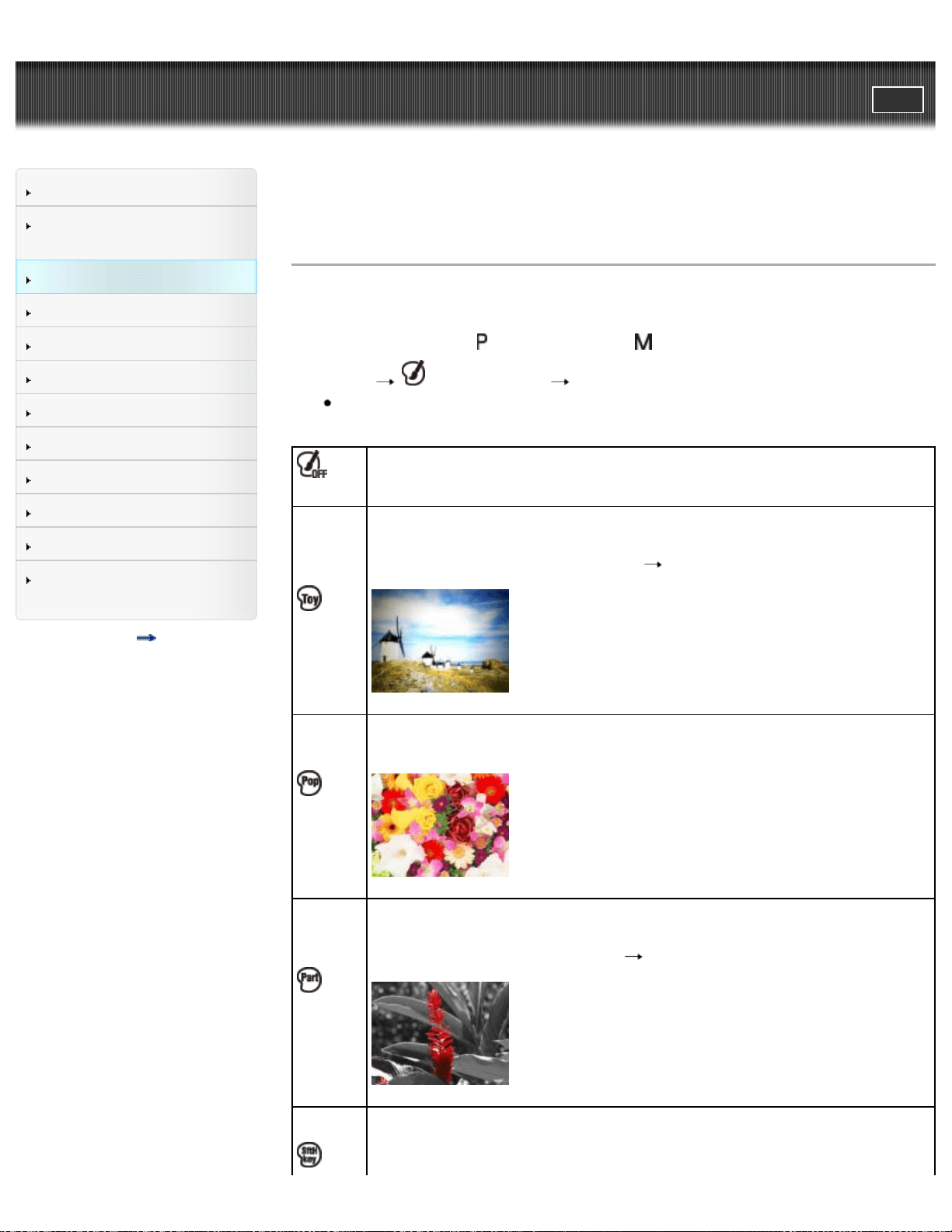
Allows you to shoot a still image with original texture, according to the desired
effect.
1. Set the mode dial to
(Program Auto) or (Manual Exposure Shooting).
2. MENU
(Picture Effect) desired mode
If you want to select another Picture Effect mode, select from MENU.
(Off)
Does not use the Picture Effect.
(Toy
camera)
Allows you to shoot images with effects such as tunnel effect, high
contrast, or color cast as if they were shot with a toy camera. You can
change the color hue using MENU
[Color hue].
(Pop
Color)
Allows you to shoot a pop art-like colorful image with emphasis on the
color tone.
(Partial
Color)
Allows you to shoot an image that makes a strong impression by leaving
a specified color on portions of a monochrome image. You can select
the color to extract using MENU
[Extracted Color].
Allows you to shoot soft, clear images with an emphasis on brightness.
41
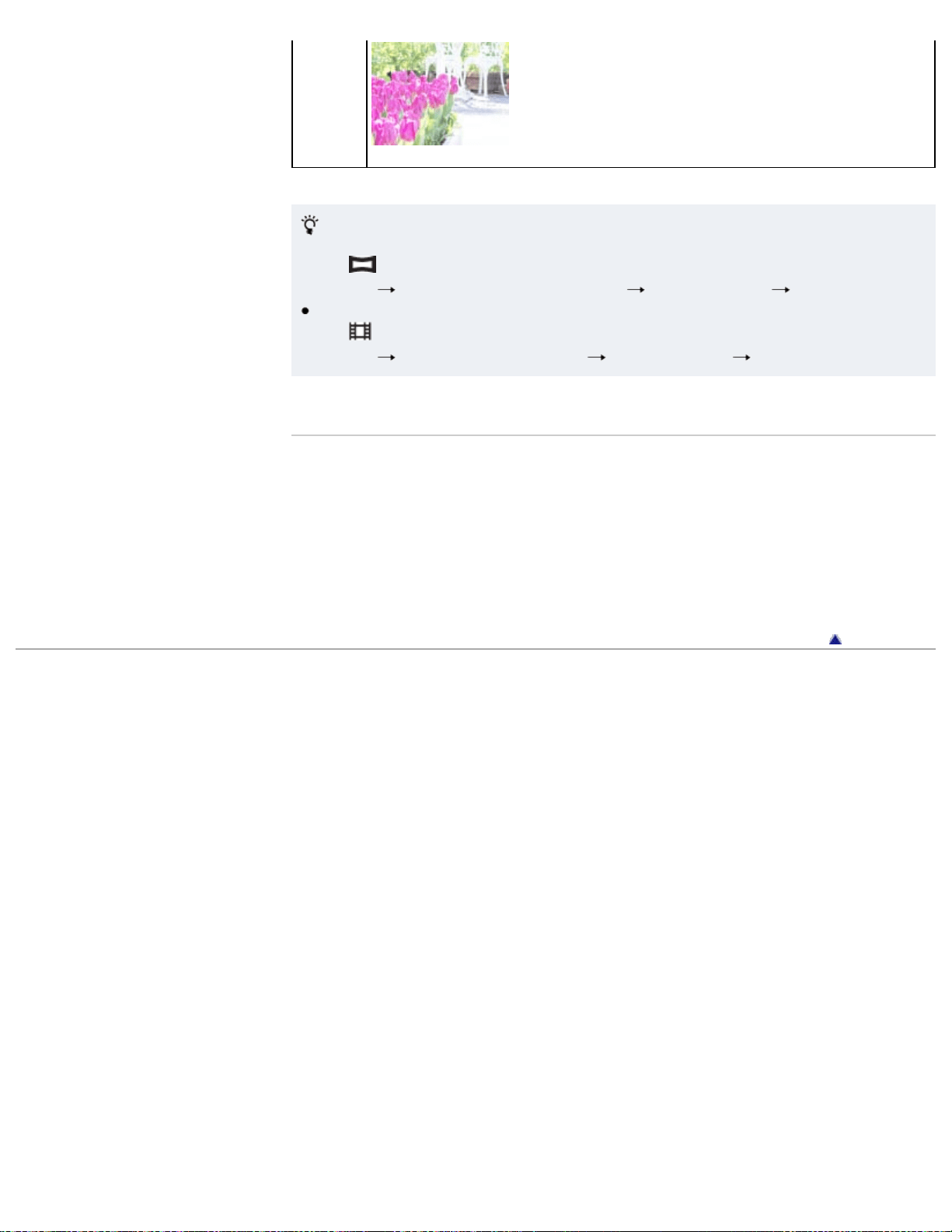
(Soft
High-
key)
Use the following procedures to add effects to panoramic
images and movies.
When
(Sweep Panorama) mode is selected:
MENU
[Panorama Shooting Scene] [Picture Effect] desired mode
[Toy camera] cannot be used for [Panorama Shooting Scene].
When
(Movie Mode) is selected:
MENU
[Movie shooting scene] [Picture Effect] desired mode
Related Topic
Color hue
Extracted Color
Functions available for each shooting mode
MENU items available for each shooting mode
Panorama Shooting Scene
Movie shooting scene
Back to top
Copyright 2013 Sony Corporation
42
Cyber-shot User Guide
PrintSearch
Before Use
Confirming the operation
method
Shooting
Viewing
Useful shooting functions
Useful viewing functions
Changing settings
Viewing images on a TV
Using with your computer
Printing
Troubleshooting
Precautions / About this
camera
Contents list
Top page > Shooting > Selecting the shooting mode based on the subject > Scene
Selection
Scene Selection
Allows you to shoot with preset settings according to the scene.
1. Set the mode dial to
(Scene Selection).
2. Select the desired mode
on the control button.
If you want to select another Scene Selection mode, select from MENU.
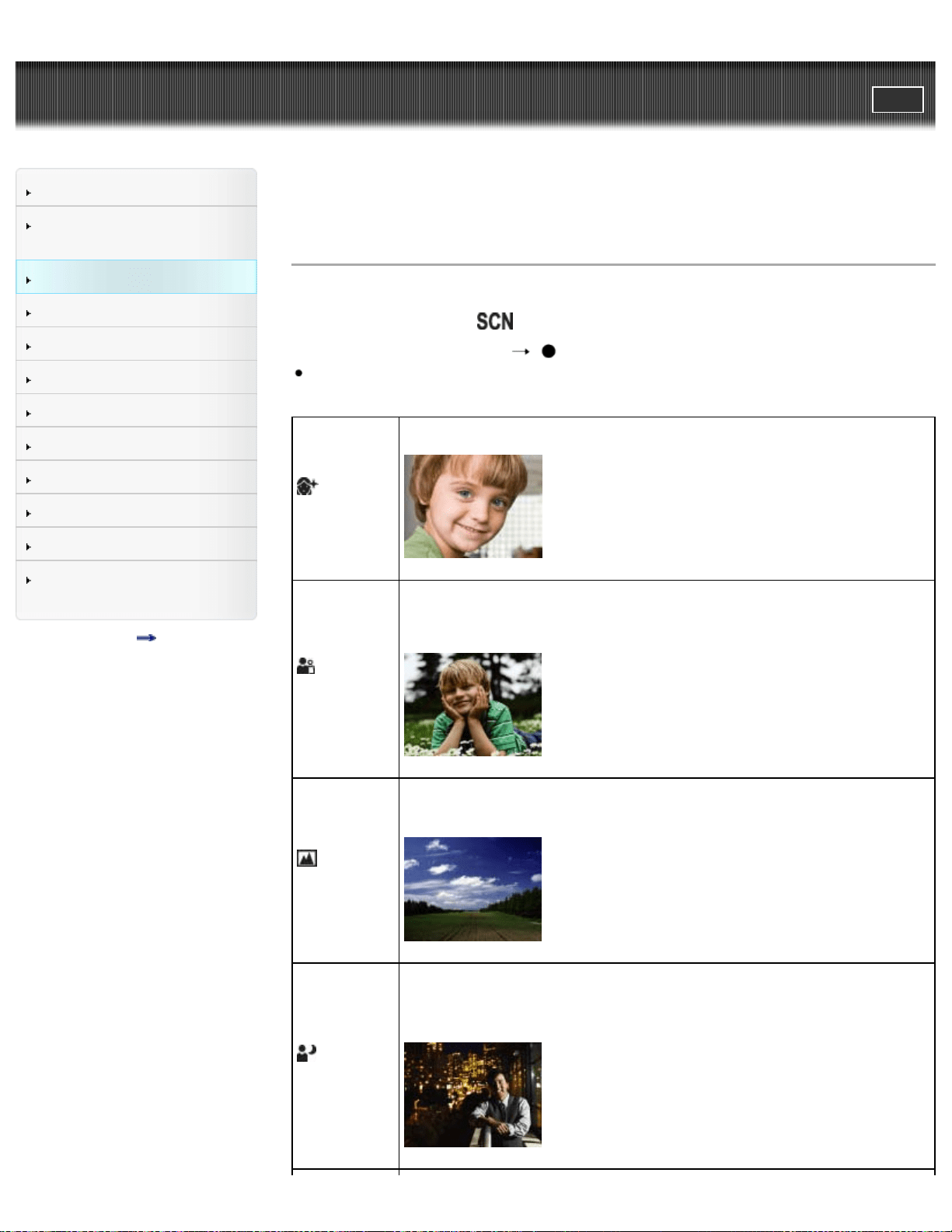
(Soft
Skin)
Allows you to shoot faces for smoothness.
(Soft
Snap)
Allows you to shoot images with a softer atmosphere for portraits
and flowers, etc.
(Landscape)
Allows easy shooting of distant scenes by focusing in the distance.
Shoots a clear sky, trees and flowers in vivid colors.
(Night
Portrait)
Allows you to shoot sharp images of people with a night view in the
background, without compromising the atmosphere. Pop up the
flash to use this mode.
43
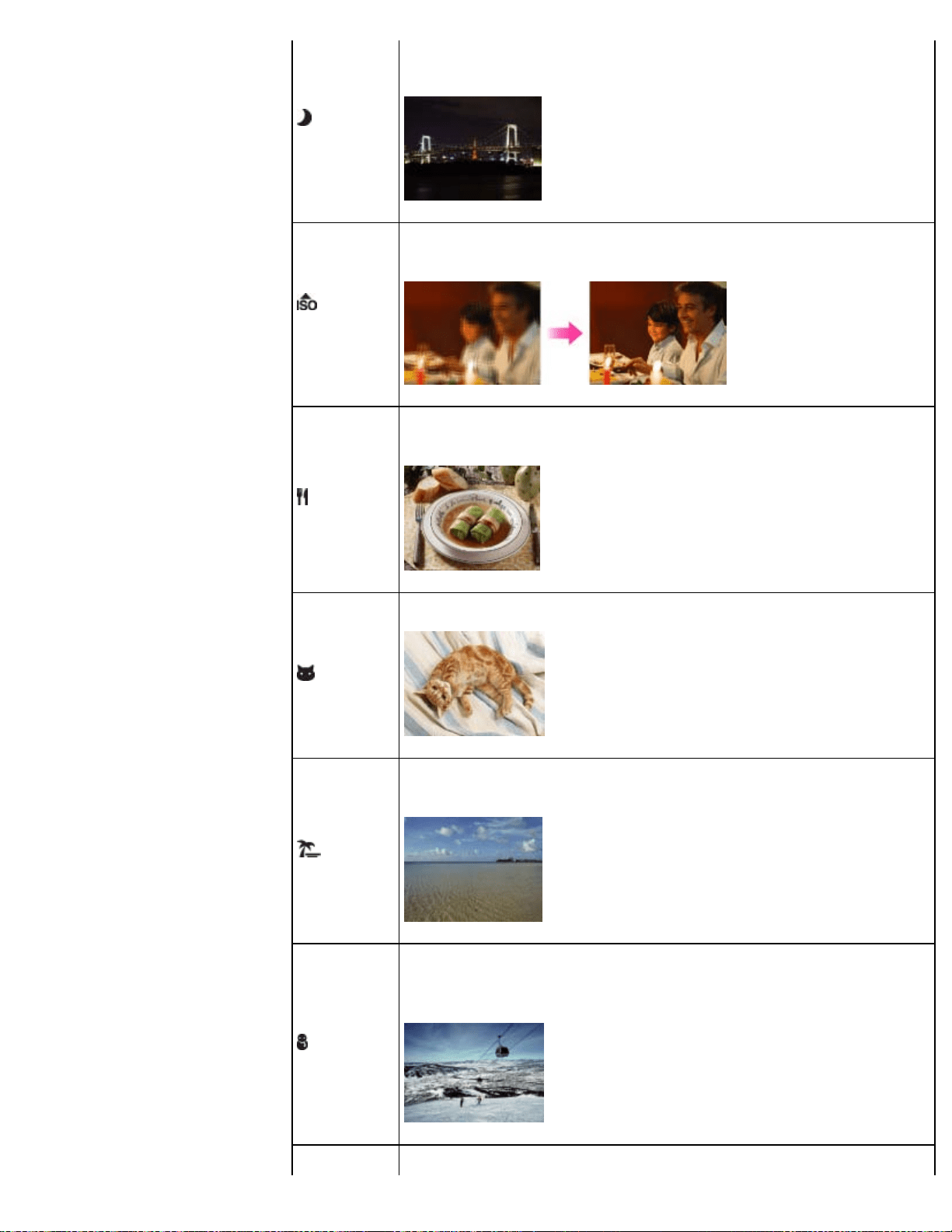
(Night
Scene)
Allows you to shoot night scenes at far distance without losing the
dark atmosphere of the surroundings.
(High
Sensitivity)
Allows you to shoot images without a flash under low light
conditions, reducing blur.
(Gourmet)
Allows you to shoot food arrangements in delicious and bright
colors.
(Pet)
Allows you to shoot images of your pet with the best settings.
(Beach)
Allows you to shoot scenes on the beach in bright and vivid colors
even under the sunlight.
(Snow)
Allows you to record clear images preventing sunken colors in
snowy scenes or other places where the whole screen appears
white.
Allows you to record fireworks in all their splendor.
44
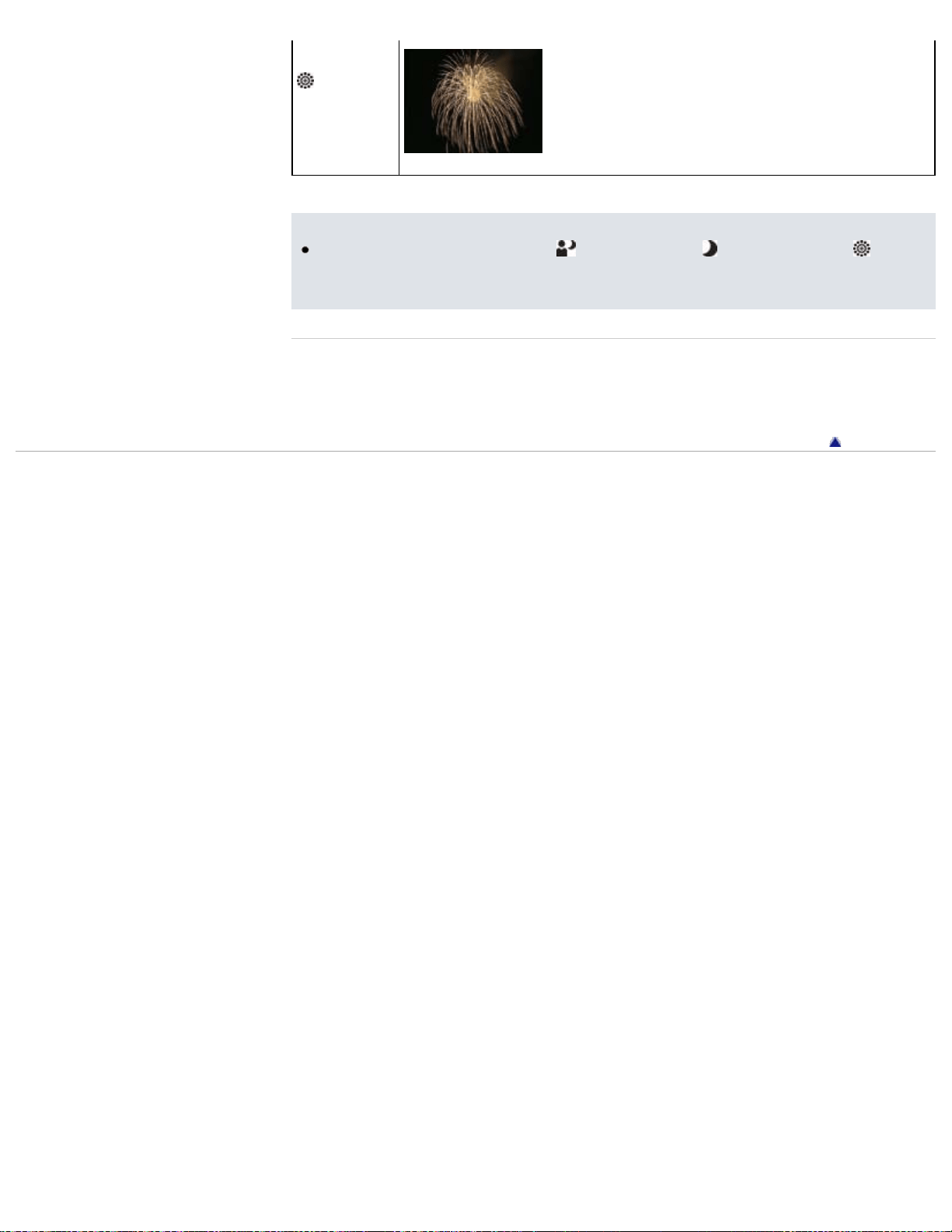
(Fireworks)
Notes
When you shoot images using
(Night Portrait), (Night Scene) or
(Fireworks) modes, the shutter speed is slower and the images tend to blur. To
prevent blurring, the use of a tripod is recommended.
Related Topic
Functions available for each shooting mode
MENU items available for each shooting mode
Back to top
Copyright 2013 Sony Corporation
45

Cyber-shot User Guide
PrintSearch
Before Use
Confirming the operation
method
Shooting
Viewing
Useful shooting functions
Useful viewing functions
Changing settings
Viewing images on a TV
Using with your computer
Printing
Troubleshooting
Precautions / About this
camera
Contents list
Top page > Shooting > Selecting the shooting mode based on the
subject > Shooting panoramic images
Shooting panoramic images
Allows you to create a panoramic image from composite images.
1. Set the mode dial to (Sweep Panorama).
2. Select a shooting direction using
/ / / (up/down/left/right) of the control
button.
3. Align the camera with the end of the subject and press the shutter button fully.
4. Pan the camera to the end of the guide (A), following the indicator on the
screen.
Tips for shooting a panoramic image
Pan the camera in an arc at a constant velocity in the direction indicated on the
screen. Subjects at rest are more suited for panoramic shots than moving
subjects.
Radius as short as possible.
46
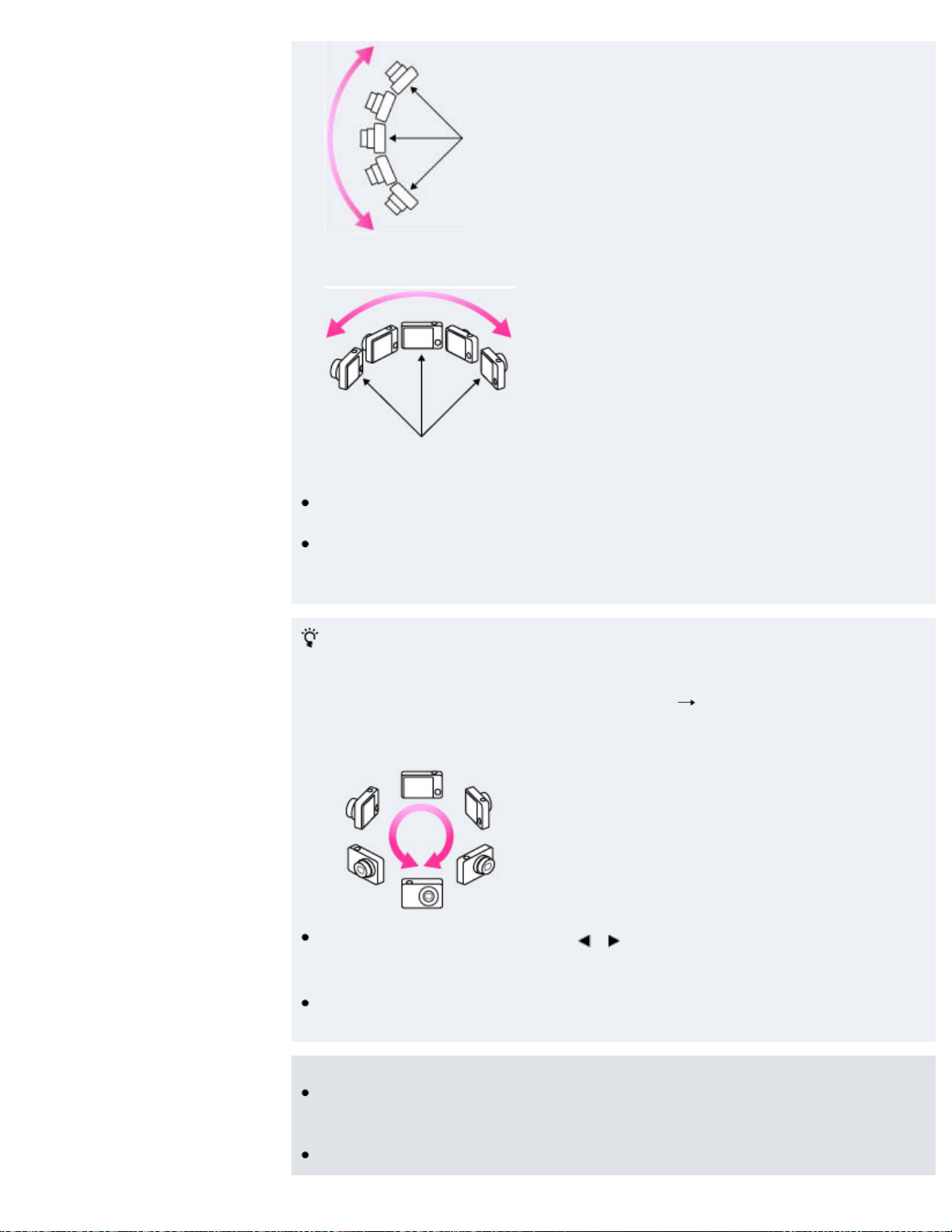
Vertical direction
Horizontal direction
First press the shutter button halfway so that you can lock the focus and
exposure. Then press the shutter button fully down and pan or tilt the camera.
If a section with greatly varied shapes or scenery is concentrated along a
screen edge, the image composition may fail. In such a case, adjust the frame
composition so that the section is in the center of the image, then shoot again.
To shoot a 360 degree panoramic image
This camera is equipped with a panorama shooting function, capable of
shooting a nearly 360 degree panoramic image.
Shoot a panoramic image by selecting MENU
set [Panorama Image Size] to
[360°]. Recorded panoramic images can be scrolled normally when played on
the camera.
Select a shooting direction using / on the control button. You cannot shoot
a panoramic image in a vertical direction with [Panorama Image Size] set to
[360°].
The image actually recorded may not cover 360 degrees, depending on the
subject or the way it is shot.
Notes
If you cannot pan the camera across the entire subject within the given time, a
gray area occurs in the composite image. If this happens, move the camera
faster to record a full panoramic image.
Since several images are stitched together, the stitched part will not be
47

recorded smoothly.
When the whole angle of panoramic shooting and the AE/AF locked angle are
very different in brightness, color and focus, the shooting will not be successful.
If this happens, change the AE/AF locked angle and shoot again.
You cannot create panoramic images in the following situations:
You pan the camera too quickly or too slowly.
There is too much camera shake.
Related Topic
Scrolling panoramic images for display
Still Image Size / Panorama Image Size / Movie Size
Functions available for each shooting mode
MENU items available for each shooting mode
Panorama Shooting Scene
Picture Effect
Back to top
Copyright 2013 Sony Corporation
48
Cyber-shot User Guide
PrintSearch
Before Use
Confirming the operation
method
Shooting
Viewing
Useful shooting functions
Useful viewing functions
Changing settings
Viewing images on a TV
Using with your computer
Printing
Troubleshooting
Precautions / About this
camera
Contents list
Top page > Shooting > Selecting the shooting mode based on the subject > Manual
Exposure Shooting
Manual Exposure Shooting
You can shoot at your favorite exposure by manually setting the shutter speed and
aperture value.
1. Set the mode dial to
(Manual Exposure Shooting).
2. Press
on the control button.
3. Press
/ to select the desired shutter speed, and press / to select the
aperture (F value).
Select a shutter speed from 30 seconds to 1/1500 seconds.
When zoom is set fully to W, you can select an aperture of F3.0 or F7.7 (when
used with the Internal ND (Neutral Density) Filter).
When zoom is set fully to T, you can select an aperture of F5.9 or F15.3 (when
used with the Internal ND (Neutral Density) Filter).
4. Shoot with the shutter button.
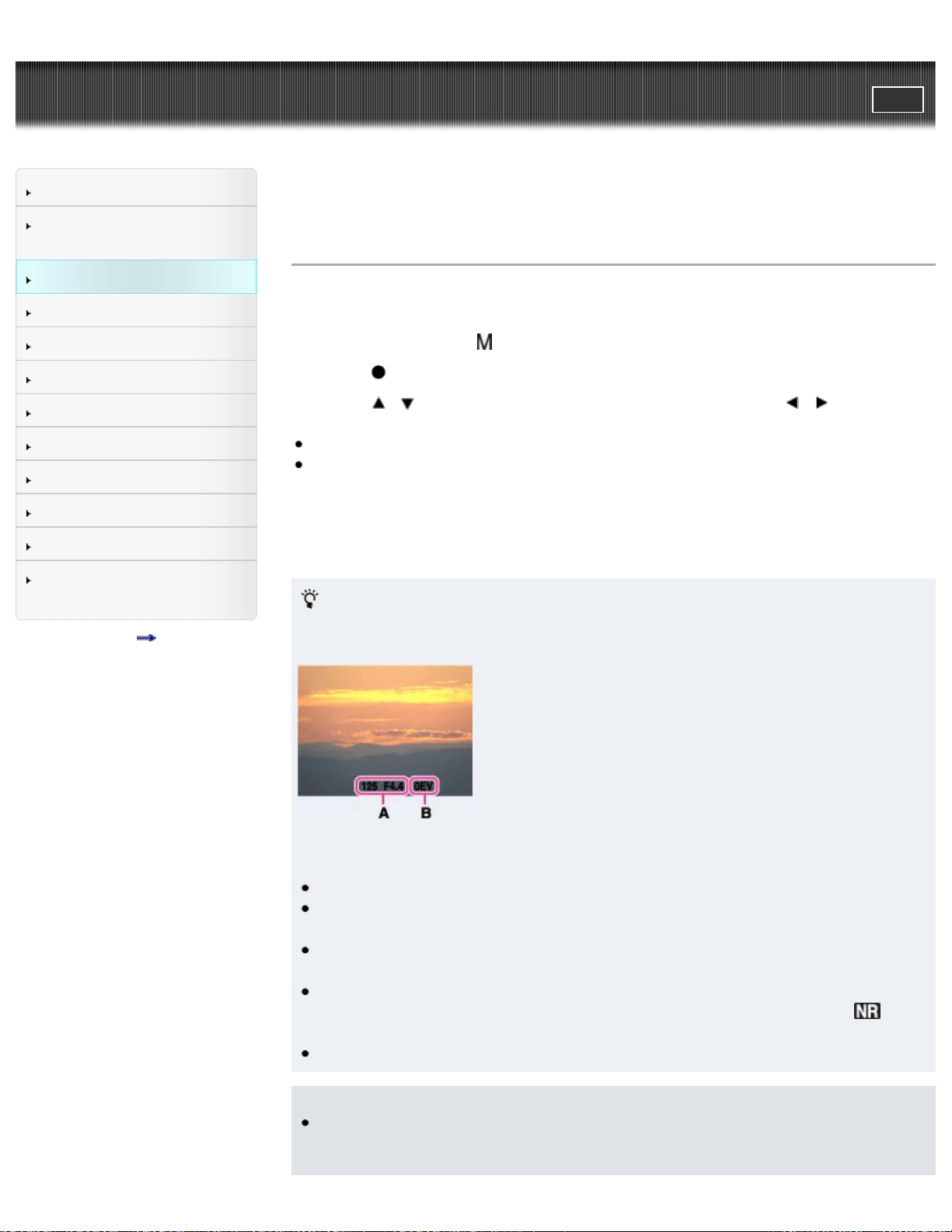
Setting the shutter speed and aperture (F value)
The difference between the settings and the proper exposure as judged by the
camera appears as an Exposure Compensation value on screen.
A: Shutter speed/aperture (F value)
B: Exposure Compensation value
0EV is the value judged as the most suitable by the camera.
When the shutter speed is one second or slower, the shutter speed is indicated
by [”], for example, [1”].
When you set the shutter speed slower, using a tripod is recommended to
prevent the effects of vibration.
When the shutter speed becomes slower than a certain speed, the NR slow
shutter function is activated automatically to reduce image noise, and
appears on the screen.
If you select slow shutter speeds, it takes time to process the data.
Notes
If proper exposure is not obtained by your settings, the setting value indicators
on the screen will flash when the shutter button is pressed halfway down. You
can shoot in this condition, but exposure readjustment is recommended.
49

Cyber-shot User Guide
PrintSearch
Before Use
Confirming the operation
method
Shooting
Viewing
Useful shooting functions
Useful viewing functions
Changing settings
Viewing images on a TV
Using with your computer
Printing
Troubleshooting
Precautions / About this
camera
Contents list
Top page > Viewing > Viewing still images > Viewing still images
Viewing still images
1. Set the camera to playback mode.
2. Select an image with the control button.
Viewing images taken with a different camera
If the camera detects images not registered in the Image Database File on the
memory card, a registration screen with the message “Files found which were not
recognized Import files” will be displayed. To view unregistered images, register
them by selecting [OK].
Back to top
Copyright 2013 Sony Corporation
51
Cyber-shot User Guide
PrintSearch
Before Use
Confirming the operation
method
Shooting
Viewing
Useful shooting functions
Useful viewing functions
Changing settings
Viewing images on a TV
Using with your computer
Printing
Troubleshooting
Precautions / About this
camera
Contents list
Top page > Viewing > Viewing still images > Playback zoom
Playback zoom
Enlarges the image being played back.
1. Set the camera to playback mode.
2. Turn the W/T (zoom) lever to the T side (
) during still image playback.
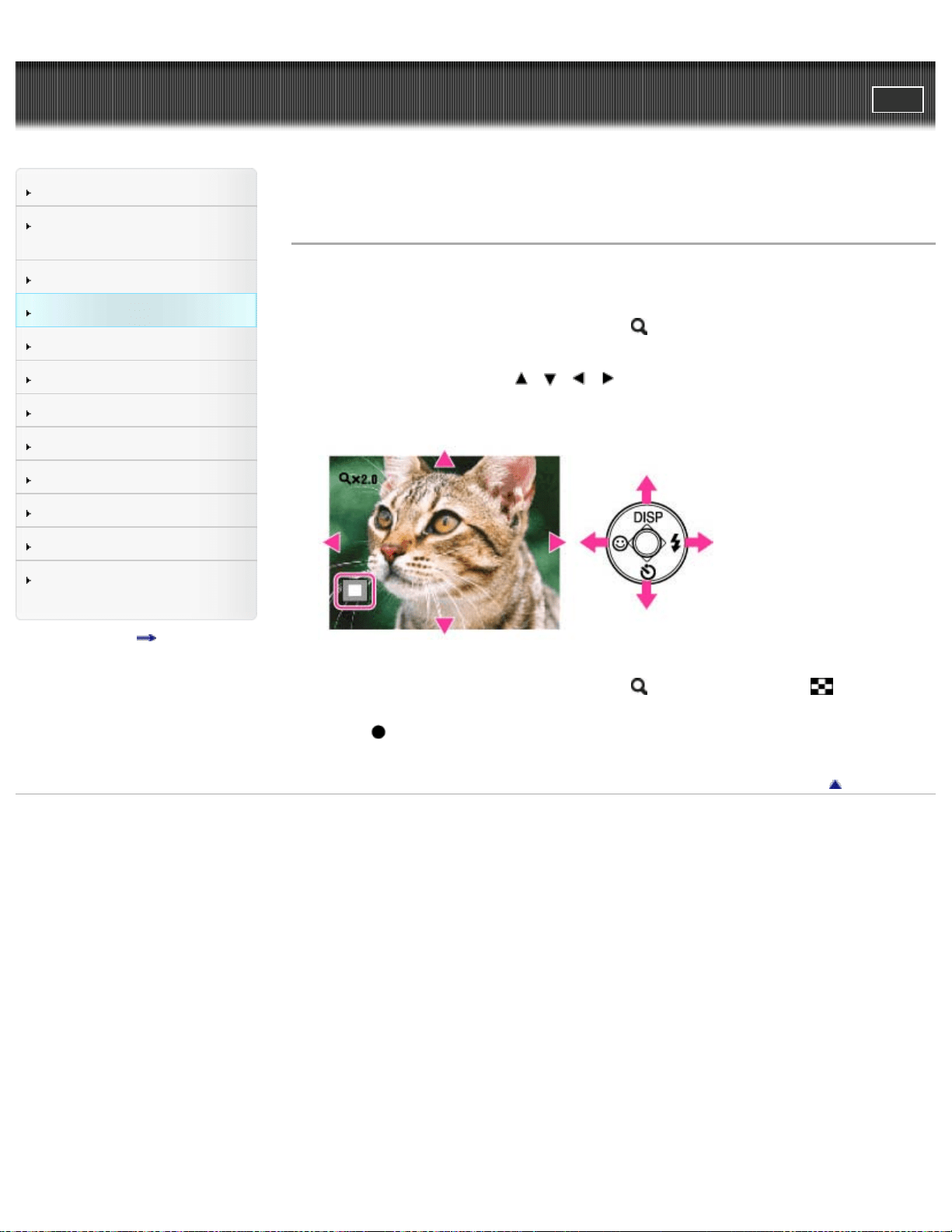
The image is enlarged to twice the previous size, at the center of the image.
3. Adjust the position using
/ / / on the control button.
The frame in the lower left of the image shows which part of the total image is
being displayed.
4. Change the zoom scale with the W/T (zoom) lever.
Turn the W/T (zoom) lever to the T side (
) to zoom in, W side ( ) to zoom
out.
Press
on the control button to cancel playback zoom.
Back to top
Copyright 2013 Sony Corporation
52
Cyber-shot User Guide
PrintSearch
Before Use
Confirming the operation
method
Shooting
Viewing
Useful shooting functions
Useful viewing functions
Changing settings
Viewing images on a TV
Using with your computer
Printing
Troubleshooting
Precautions / About this
camera
Contents list
Top page > Viewing > Viewing still images > Image Index
Image Index
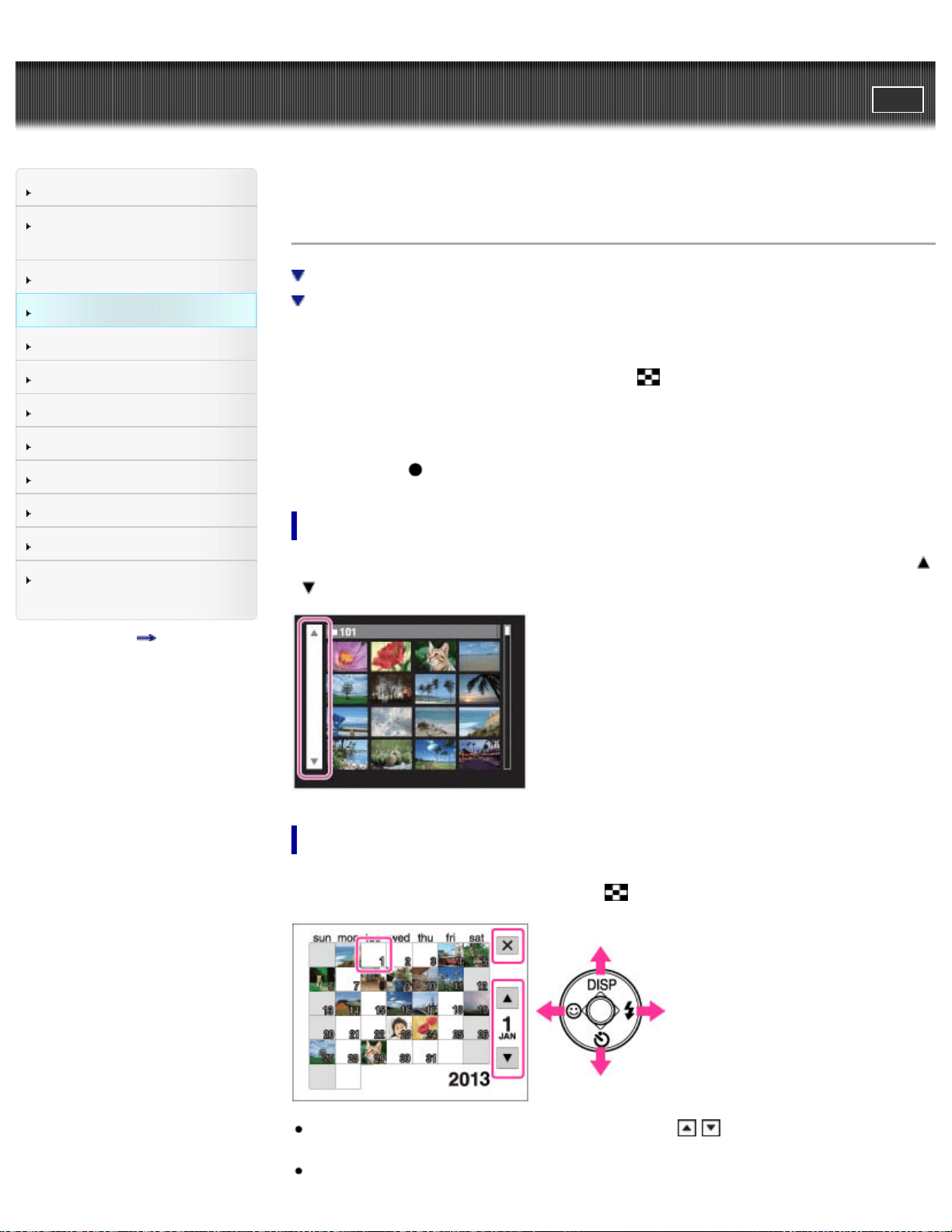
Displaying images of the desired folder
Viewing images with the Calendar
Displays multiple images at the same time.
1. Set the camera to playback mode.
2. Turn the W/T (zoom) lever to the W side (
) to display the image index screen.
Turn the lever again to display an index screen with more images. Turn the lever
yet again to view images with the Calendar while playing back in [Date View].
3. To return to the single-image screen, select an image with the control button,
then press
.
Displaying images of the desired folder
Select the left side bar with the control button, then select the desired folder with
/ .
Viewing images with the Calendar
When [View Mode] is set to [Date View] and the screen display is in index mode,
turn the W/T (zoom) lever to the W side (
) to view images in the Calendar.
To select the month you want to display, select / with the control button,
then the desired month.
53

Cyber-shot User Guide
PrintSearch
Before Use
Confirming the operation
method
Shooting
Viewing
Useful shooting functions
Useful viewing functions
Changing settings
Viewing images on a TV
Using with your computer
Printing
Troubleshooting
Precautions / About this
camera
Contents list
Top page > Viewing > Deleting images > Deleting images
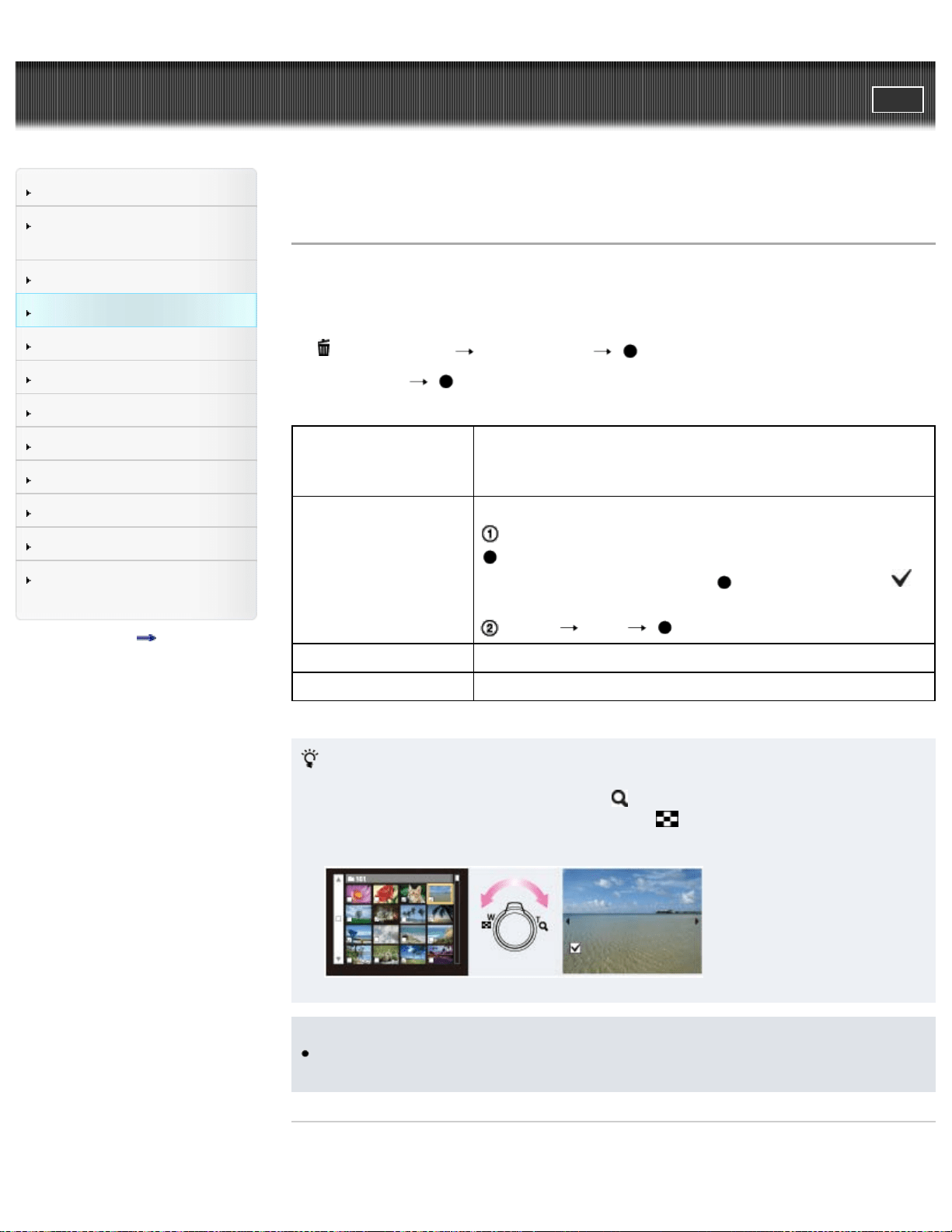
Deleting images
Allows you to select unwanted images for deletion.
You can also delete images from the MENU button. [Details]
1. Set the camera to playback mode.
2.
(Delete) button desired mode on the control button
3. Press [OK]
.
All in This Folder
All Images on This
Date
Deletes all images in the selected date range or folder at
once.
Multiple Images
Allows you to select and delete multiple images.
After step 2, select an image to be deleted, then press
.
To cancel the selection, press
again to cancel the
mark.
MENU [OK]
This Image Deletes the currently displayed image.
Cancel Cancels the deletion.
You can switch between index and single-image mode when
selecting images
Turn the W/T (zoom) lever to the T side (
) in index mode to return to single-
image mode, and turn the lever to the W side (
) in single-image mode to return
to index mode.
Notes
When the internal memory is used to record images, View Mode is set to Folder
View and still images and movies are displayed in the same folder.
Related Topic
Delete
55
Cyber-shot User Guide
PrintSearch
Before Use
Confirming the operation
method
Shooting
Viewing
Useful shooting functions
Useful viewing functions
Changing settings
Viewing images on a TV
Using with your computer
Printing
Troubleshooting
Precautions / About this
camera
Contents list
Top page > Viewing > Viewing movies > Viewing movies
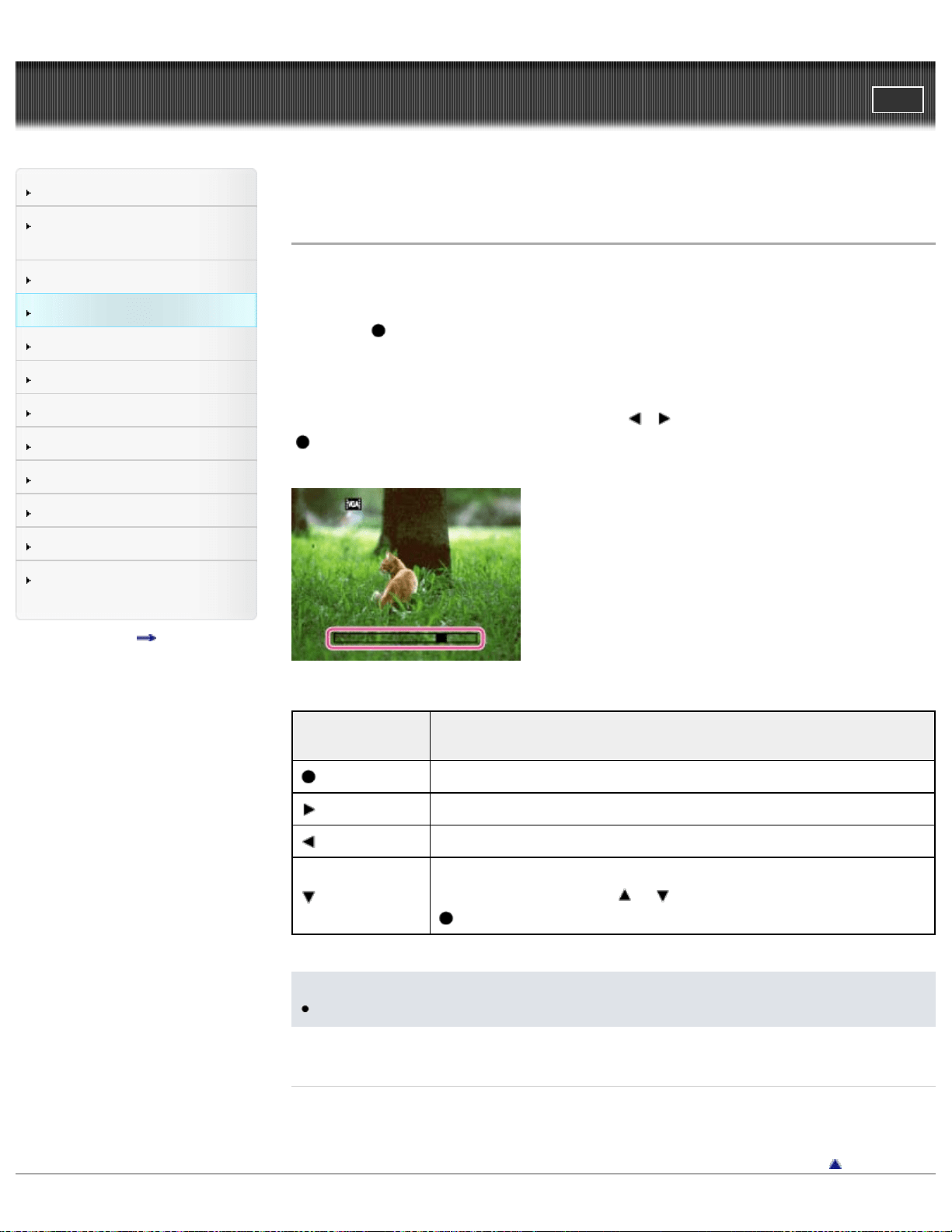
Viewing movies
1. Set the camera to playback mode.
2. Select a movie with the control button.
3. Press
.
The playback bar appears, and a movie playback starts.
On the movie viewing screen
Select the image you want to display using / on the control button, and press
.
The Playback bar appears, you can check a playback position of a movie.
Control
button
Action during playback
Play/Pause
Fast forward
Fast rewind
Displays the control screen.
Adjust the volume with
/ on the control button, then press
.
Notes
You may not be able to play back some images shot using other cameras.
Related Topic
View Mode
Back to top
56
Cyber-shot User Guide
PrintSearch
Before Use
Confirming the operation
method
Shooting
Viewing
Useful shooting functions
Useful viewing functions
Changing settings
Viewing images on a TV
Using with your computer
Printing
Troubleshooting
Precautions / About this
camera
Contents list
Top page > Viewing > Viewing panoramic images > Scrolling panoramic images for
display
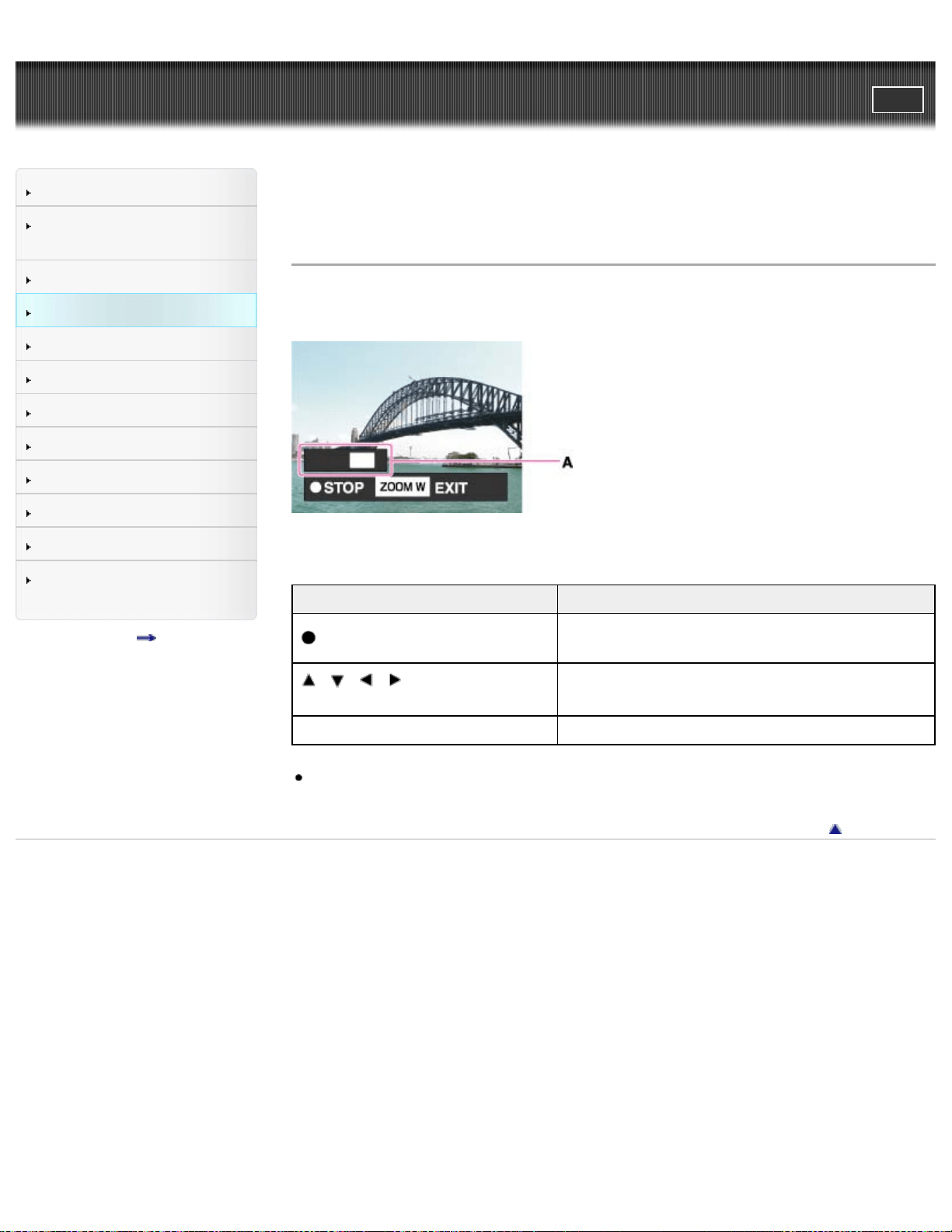
Scrolling panoramic images for display
You can scroll panoramic images by pressing the center button on the control
button while panoramic images are being displayed.
A: Shows the displayed area of the whole panoramic image
Control button Action
on the control button
Starts scrolling playback/pauses scrolling
playback
/ / / on the control
button
Scrolls images
W side of W/T (zoom) lever Displays the whole image
Panorama images recorded using another camera may not scroll correctly when
played.
Back to top
Copyright 2013 Sony Corporation
57
Cyber-shot User Guide
PrintSearch
Before Use
Confirming the operation
method
Shooting
Viewing
Useful shooting functions
Useful viewing functions
Changing settings
Viewing images on a TV
Using with your computer
Printing
Troubleshooting
Precautions / About this
camera
Contents list
Top page > Useful shooting functions > Functions available for each shooting
mode > Functions available for each shooting mode
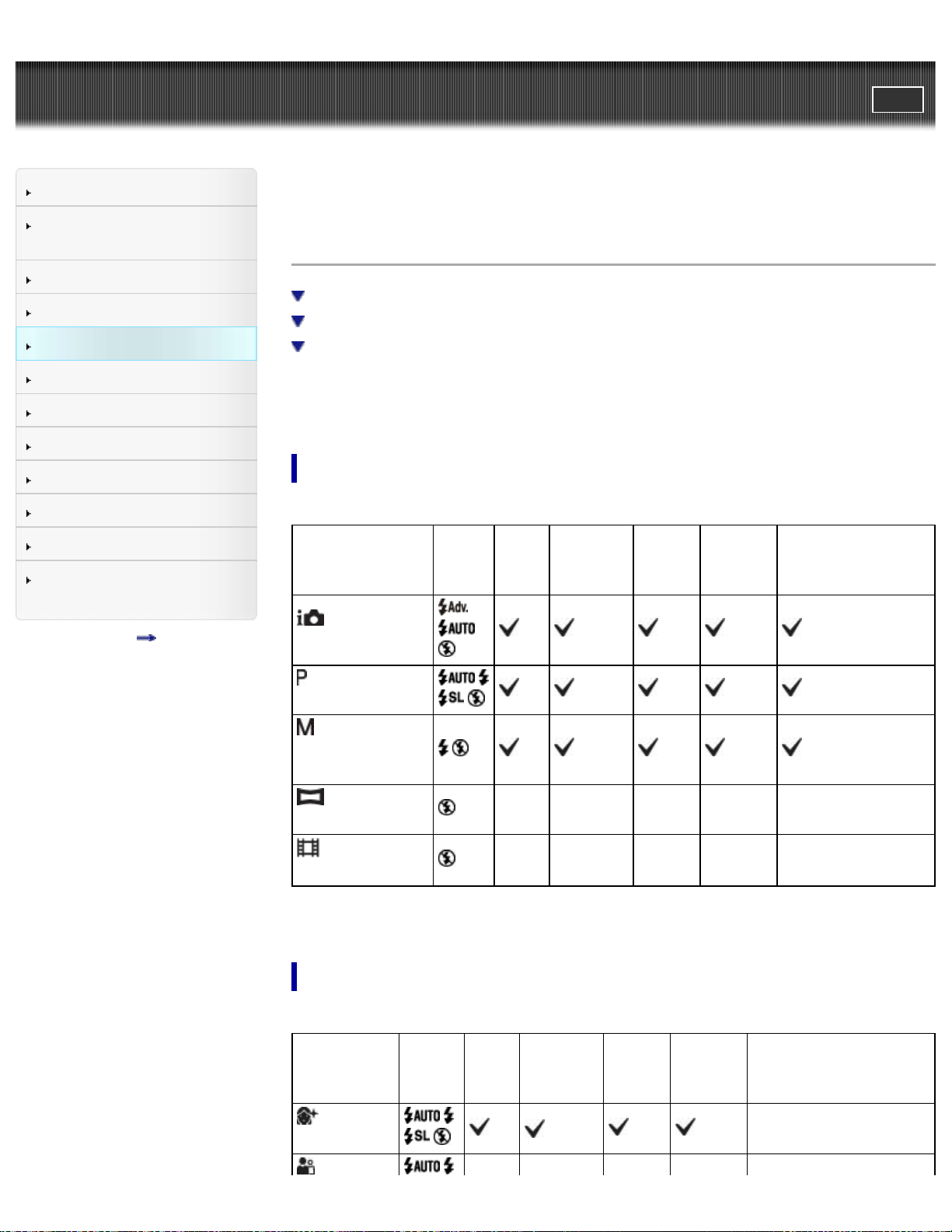
Functions available for each shooting mode
Functions available in REC modes
Functions available in Scene Selection
Functions available in Picture Effect
In the table below, a check mark indicates a function that can be changed, while —
indicates function that cannot be changed. The icons below [Flash] and [Self-
Timer] indicate the available modes.
Functions available in REC modes
Flash
Self-
Timer
Face
Detection
Smile
Shutter
Tracking
focus
Cont. Shooting
Settings / Bracket
Setting
(Intelligent
Auto)
*
(Program
Auto)
(Manual
Exposure
Shooting)
(Sweep
Panorama)
— — — — —
(Movie
Mode)
— — — — —
* [Bracket Setting] cannot be selected.
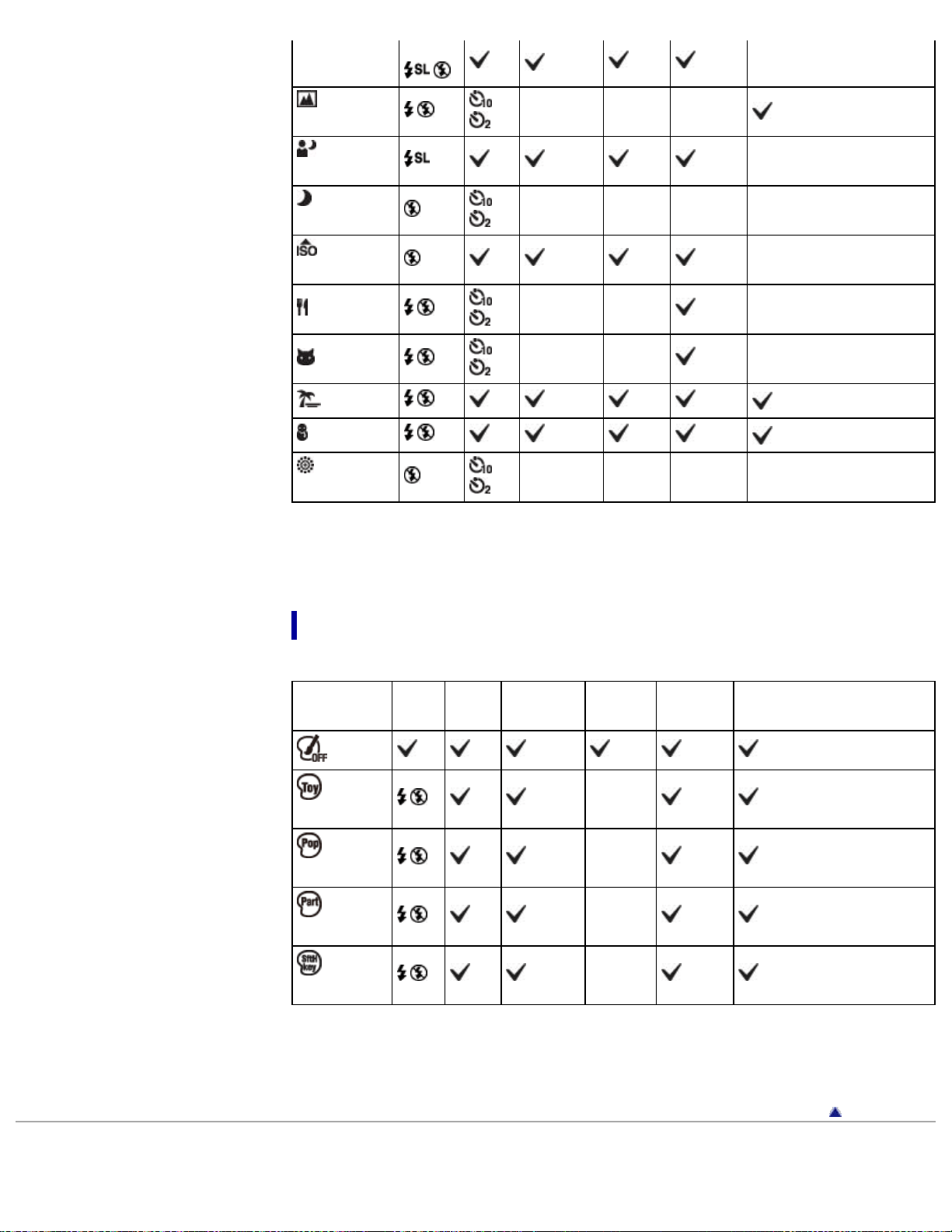
Functions available in Scene Selection
Flash
Self-
Timer
Face
Detection
Smile
Shutter
Tracking
focus
Cont. Shooting
Settings / Bracket
Setting
(Soft
Skin)
*1
—
58
(Soft
Snap)
*1
—
(Landscape)
— — —
*2
(Night
Portrait)
—
(Night
Scene)
— — — —
(High
Sensitivity)
—
(Gourmet)
— — —
(Pet)
— — —
(Beach)
*2
(Snow)
*2
(Fireworks)
— — — —
*
1
[Off] cannot be selected for [Face Detection].
*
2
[White Balance] for [Bracket Setting] cannot be selected.
Functions available in Picture Effect
Flash
Self-
Timer
Face
Detection
Smile
Shutter
Tracking
focus
Cont. Shooting Settings
/ Bracket Setting
(Off)
(Toy
camera)
— *
(Pop
Color)
— *
(Partial
Color)
— *
(Soft
High-key)
— *
* [Bracket Setting] cannot be selected.
Back to top
Copyright 2013 Sony Corporation
59
Cyber-shot User Guide
PrintSearch
Before Use
Confirming the operation
method
Shooting
Viewing
Useful shooting functions
Useful viewing functions
Changing settings
Viewing images on a TV
Using with your computer
Printing
Troubleshooting
Precautions / About this
camera
Contents list
Top page > Useful shooting functions > Functions available for each shooting
mode > MENU items available for each shooting mode
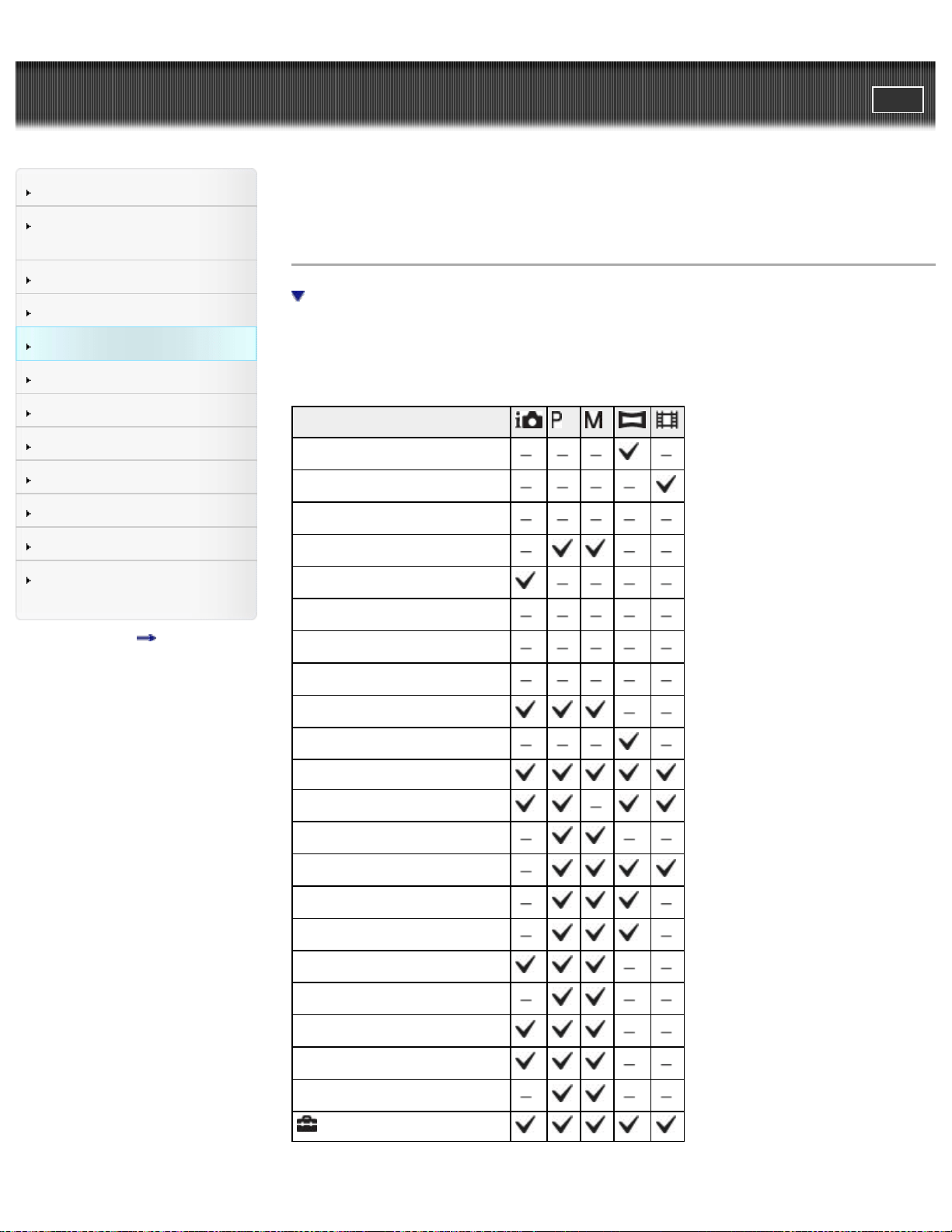
MENU items available for each shooting mode
MENU items available in Scene Selection/Picture Effect mode
In the table below, a check mark indicates settings that can be changed, while –
indicates settings that cannot be changed. A setting may be fixed or restricted
depending on the shooting mode. For details, see each topic.
Menu items
Panorama Shooting Scene
Movie shooting scene
Scene Selection
Picture Effect
Easy Mode
Color hue
Extracted Color
Soft Skin Effect
Still Image Size *
Panorama Image Size
Movie Size
Exposure Compensation
ISO
White Balance
Focus
Metering Mode
Cont. Shooting Settings
Bracket Setting
Smile Detection Sensitivity
Face Detection
DRO
(Settings)
60
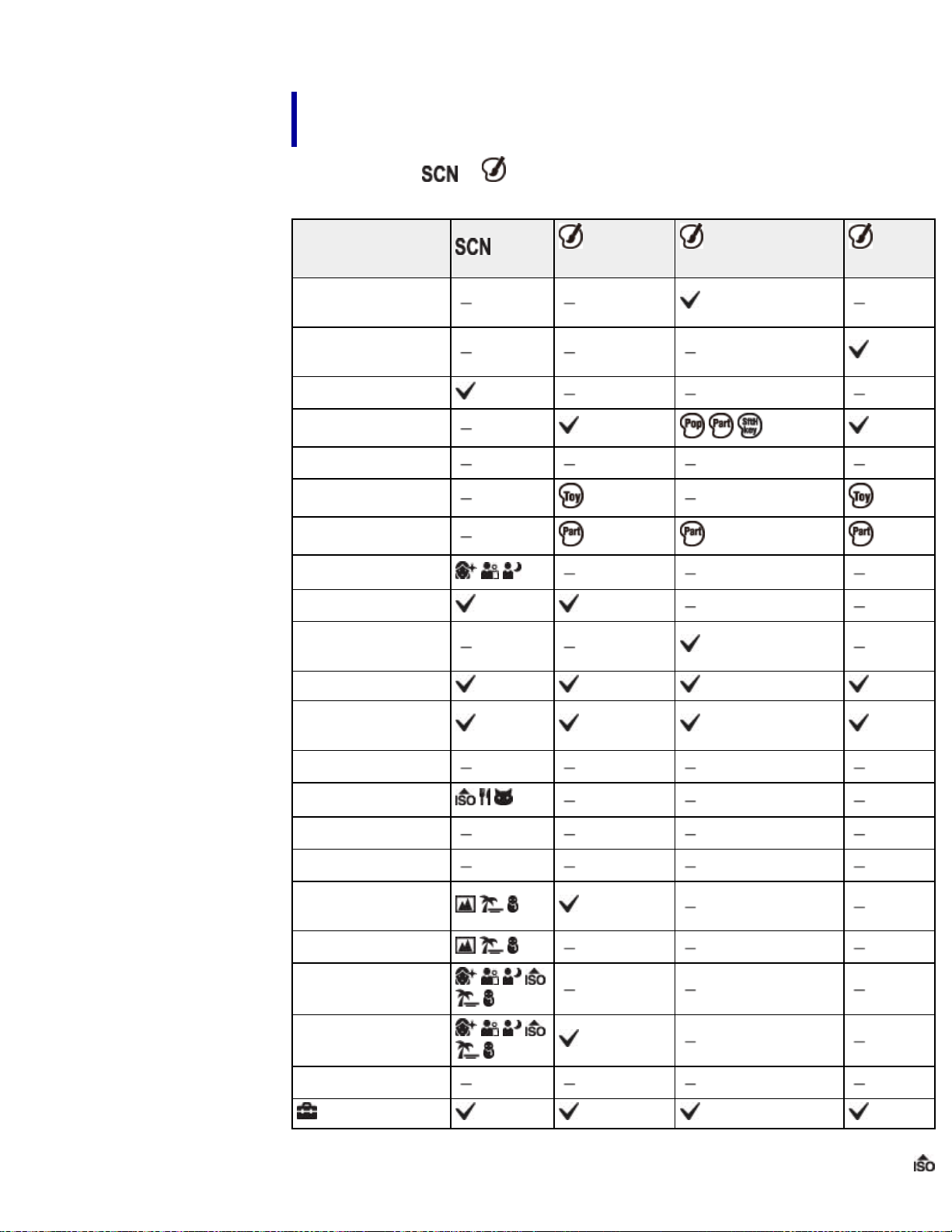
* In [Advanced Flash] mode, the maximum still image size you can select is [5M].
MENU items available in Scene Selection/Picture Effect
mode
The icons below or indicate the available modes.
Menu items
(Still
images)
(Panoramic
images)
(Movies)
Panorama
Shooting Scene
Movie shooting
scene
Scene Selection
Picture Effect
Easy Mode
Color hue
Extracted Color
Soft Skin Effect*
2
Still Image Size
Panorama Image
Size
Movie Size
Exposure
Compensation
ISO
White Balance*
1
Focus
Metering Mode
Cont. Shooting
Settings
Bracket Setting
Smile Detection
Sensitivity
Face Detection*
3
DRO
(Settings)
*1 [Flash] cannot be selected for [White Balance] when Scene Selection is set to
61

Cyber-shot User Guide
PrintSearch
Before Use
Confirming the operation
method
Shooting
Viewing
Useful shooting functions
Useful viewing functions
Changing settings
Viewing images on a TV
Using with your computer
Printing
Troubleshooting
Precautions / About this
camera
Contents list
Top page > Useful shooting functions > Using shooting functions > Tracking focus
Tracking focus
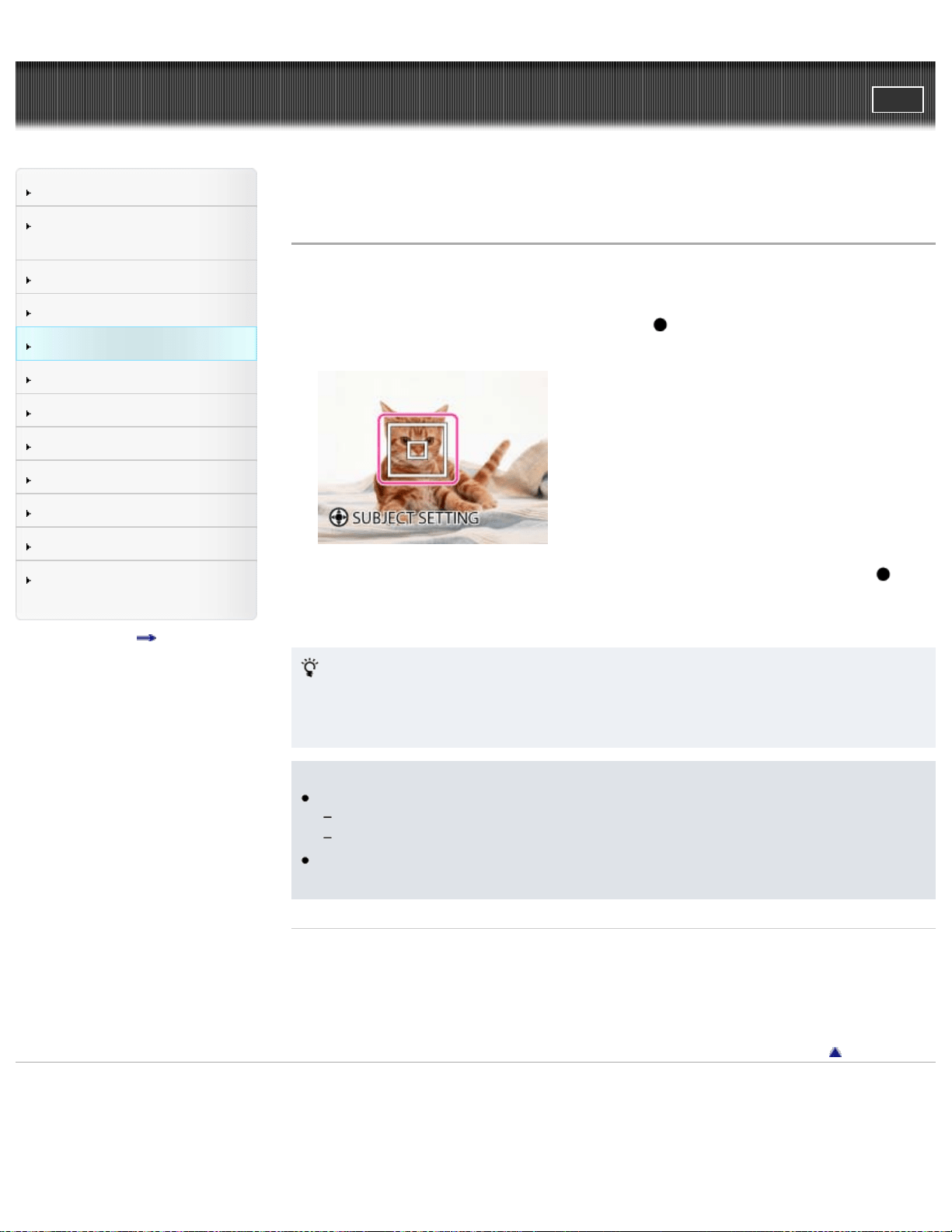
The camera tracks the subject and adjusts the focus automatically even when the
subject is moving.
1. Point the camera at the subject, and press
on the control button.
The target frame appears.
2. Place the target frame over the subject you want to focus on, and press .
Tracking begins.
3. Shoot with the shutter button.
Tracking a face
If you use the tracking focus function while the Face Detection function is
activated, you can select a face to be given priority and register that face with the
camera.
Notes
[Tracking focus] is not available in the following situations:
When shooting using any zoom other than the optical zoom.
When shooting in [Manual Exposure Shooting] mode.
Tracking focus will automatically be canceled when the subject disappears from
the screen or has failed to be tracked.
Related Topic
Face Detection
Functions available for each shooting mode
Back to top
Copyright 2013 Sony Corporation
63
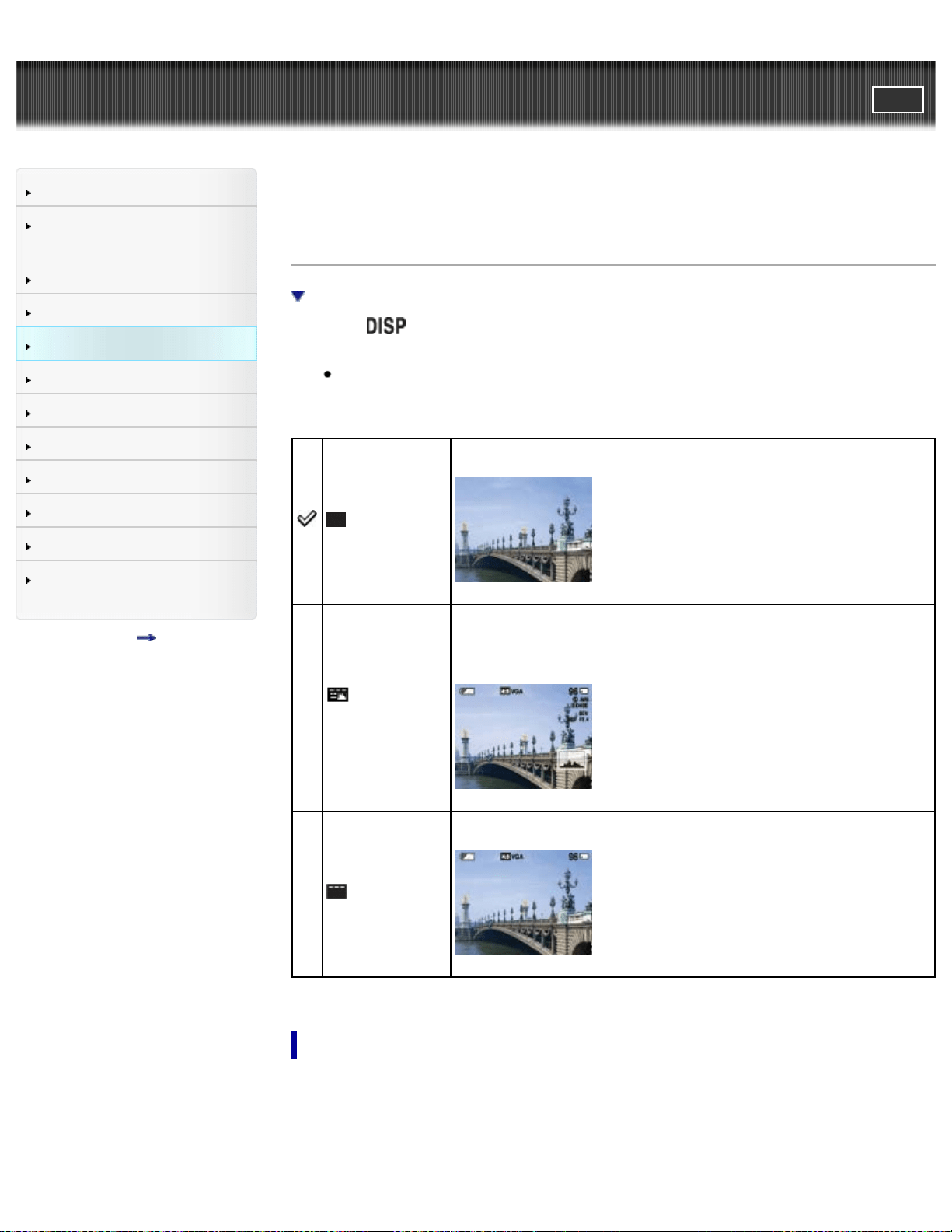
Cyber-shot User Guide
PrintSearch
Before Use
Confirming the operation
method
Shooting
Viewing
Useful shooting functions
Useful viewing functions
Changing settings
Viewing images on a TV
Using with your computer
Printing
Troubleshooting
Precautions / About this
camera
Contents list
Top page > Useful shooting functions > Using shooting functions > DISP (Display
Setting)
DISP (Display Setting)
Histogram
1. Press
(Display Setting) on the control button.
2. Select the desired mode with the control button.
This setting is also applied when an image is displayed immediately after
shooting it.
(OFF)
Displays only images.
(Detailed
Info)
Displays the information.
Exif data for the recorded image and the histogram are also
displayed.
(ON)
Displays the information.
Histogram
A histogram is a graph showing the brightness of an image. The graph display
indicates a bright image when skewed to the right side (A), and a dark image when
skewed to the left side (B).
64
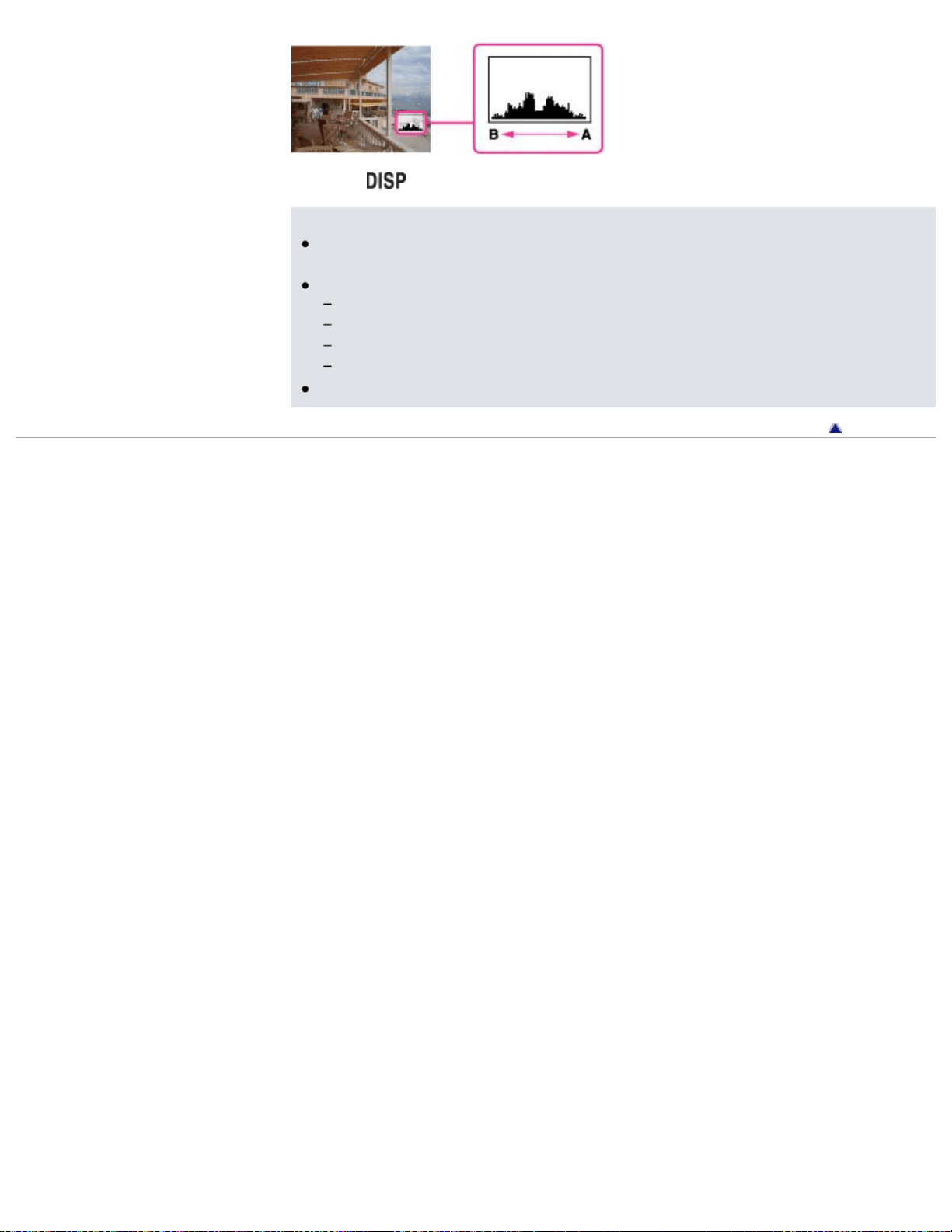
1. Press (Display Setting) on the control button, then select [Detailed Info].
Notes
The histogram also appears when playing back a single image, but you cannot
adjust the exposure.
The histogram does not appear in the following situations:
When recording/playing back movies
When viewing vertical orientation images
When rotating still images
When shooting/viewing panoramic images
The histogram may not appear for images recorded using other cameras.
Back to top
Copyright 2013 Sony Corporation
65
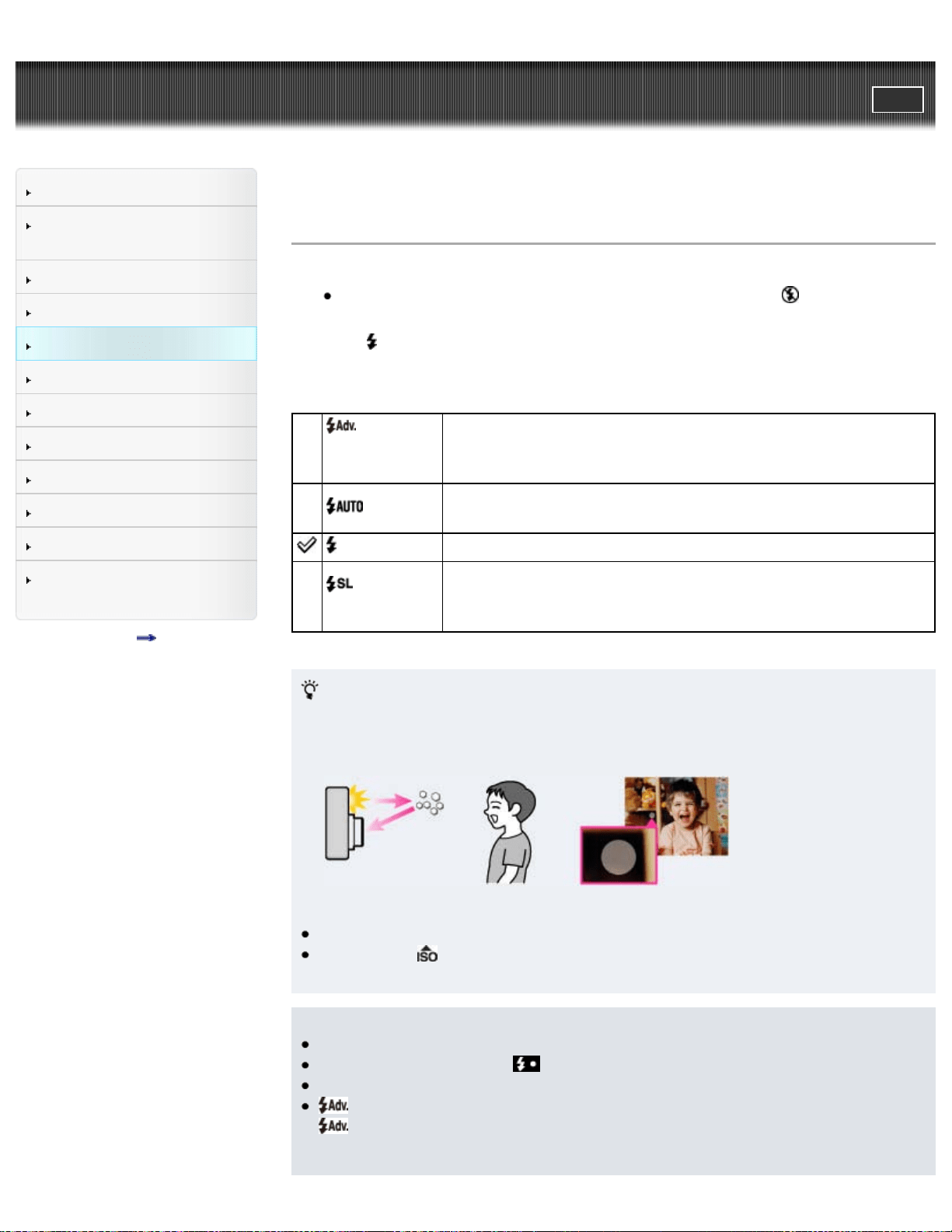
Cyber-shot User Guide
PrintSearch
Before Use
Confirming the operation
method
Shooting
Viewing
Useful shooting functions
Useful viewing functions
Changing settings
Viewing images on a TV
Using with your computer
Printing
Troubleshooting
Precautions / About this
camera
Contents list
Top page > Useful shooting functions > Using shooting functions > Flash
Flash
1. Press the flash unit pop-up button to raise the flash.
When the flash unit is not raised, the flash mode is set to
(Off)
automatically. You cannot change the setting.
2. Press
(Flash) on the control button.
3. Select the desired mode with the control button.
(Advanced
Flash)
Flash to a farther distance by increasing the upper limit value
of ISO sensitivity.
(Auto)
Flash automatically operates in dark locations or when there is
a backlight.
(On) Flash always operates.
(Slow
Synchro)
Flash always operates.
The shutter speed is slow in a dark place to clearly shoot
background that is out of flash light.
When “White circular spots” appears in flash photos
These spots are caused by particles (dust, pollen, etc.) floating close to the
lens. When they are accentuated by the camera’s flash, they appear as white
circular spots.
How can the “White circular spots” be reduced?
Light the room and shoot the subject without flash.
If you select
(High Sensitivity) mode in Scene Selection, [Flash] is
automatically set to [Off].
Notes
The flash strobes twice. The first flash adjusts the light quantity.
While charging the flash,
is displayed.
You cannot use the flash during burst shooting.
(Advanced Flash) can be selected only in [Intelligent Auto] mode. When
(Advanced Flash) is selected, the maximum size of [Still Image Size] is
[5M]. If [Still Image Size] is set to larger than [5M], [Still Image Size] is set to
66

[5M] automatically.
When shooting with the flash and the zoom is set to W, the shadow of the lens
may appear on the screen, depending on the shooting conditions. If this
happens, set the zoom to T and shoot with the flash again.
When not using the flash, keep the flash down.
Related Topic
Functions available for each shooting mode
Back to top
Copyright 2013 Sony Corporation
67
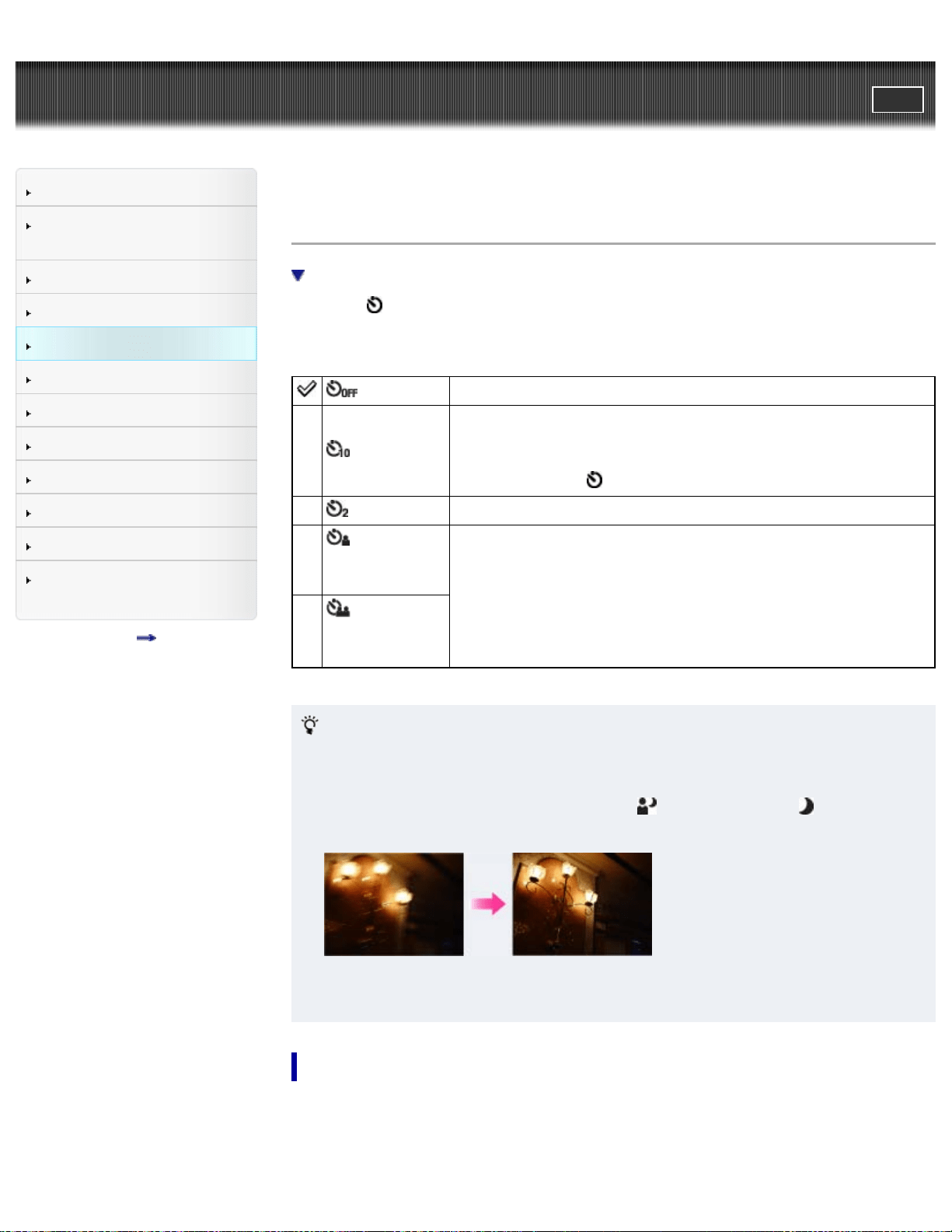
Cyber-shot User Guide
PrintSearch
Before Use
Confirming the operation
method
Shooting
Viewing
Useful shooting functions
Useful viewing functions
Changing settings
Viewing images on a TV
Using with your computer
Printing
Troubleshooting
Precautions / About this
camera
Contents list
Top page > Useful shooting functions > Using shooting functions > Self-Timer
Self-Timer
Automatic shooting with Self-portrait timer
1. Press
(Self-Timer) on the control button.
2. Select the desired mode with the control button.
(Off) Does not use the self-timer.
(10sec)
Sets the self-timer to a 10-second delay.
When you press the shutter button, the self-timer lamp
flashes and a beep sounds until the shutter operates.
To cancel, press
again.
(2sec) Sets the self-timer to a 2-second delay.
(Self-
portrait One
Person)
Sets the self-timer to Self-portrait timer.
When the camera detects the specified number of faces, a
beep sounds, and the shutter operates 2 seconds later.
(Self-
portrait Two
People)
Tips for preventing blur
If your hands or body move while holding the camera and pressing the shutter
button, “Camera shake” occurs.
Camera shake occurs frequently under low-light or slow shutter speed
conditions, such as those encountered in (Night Portrait) or (Night Scene)
mode.
To reduce camera shake, set the self-timer to a 2-second delay and brace your
arms against your sides after pressing the shutter button.
Automatic shooting with Self-portrait timer
Point the lens at yourself so that the selected number of faces is reflected in the
screen. The shutter operates automatically. Do not move your camera after the
beep sounds.
68

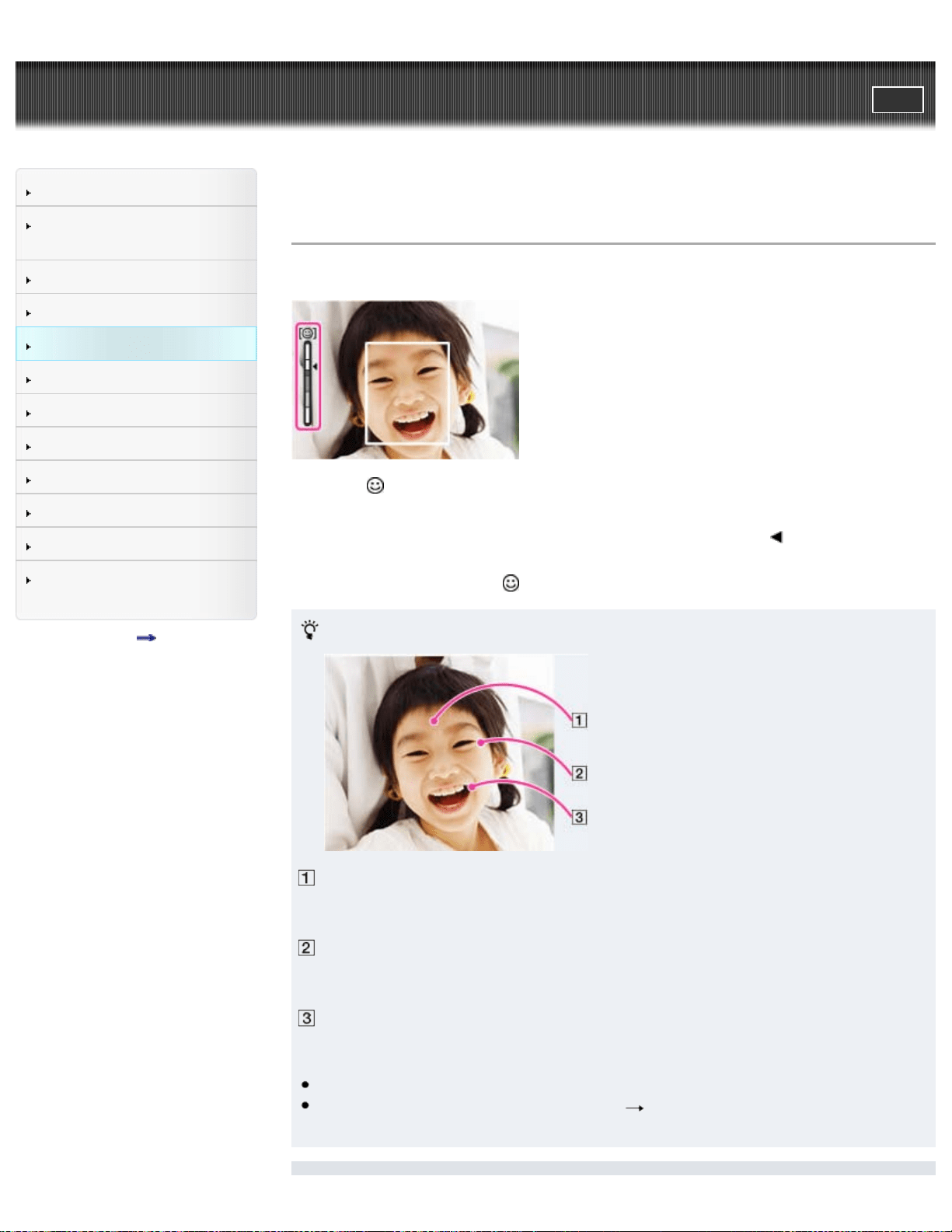
Cyber-shot User Guide
PrintSearch
Before Use
Confirming the operation
method
Shooting
Viewing
Useful shooting functions
Useful viewing functions
Changing settings
Viewing images on a TV
Using with your computer
Printing
Troubleshooting
Precautions / About this
camera
Contents list
Top page > Useful shooting functions > Using shooting functions > Smile Shutter
Smile Shutter
When the camera detects a smile, the shutter is released automatically.
1. Press (Smile Shutter) on the control button.
2. Wait for a smile to be detected.
When a smile is detected and the smile level exceeds the
point on the
indicator, the camera records images automatically.
3. To stop shooting, press
(Smile Shutter) again.
Tips for better capturing of smiles
Do not cover the eyes with bangs. Do not obscure the face by
hat, mask, sunglasses, etc.
Try to orient the face in front of the camera and be as level as
possible. Keep the eyes narrowed.
Give a clear smile with an open mouth. The smile is easier to
detect when the teeth are showing.
The shutter operates when any person whose face is being detected smiles.
If a smile is not detected, select MENU
[Smile Detection Sensitivity], then
set the value to [Slight Smile].
70

Notes
Shooting using the Smile Shutter ends automatically when either the memory
card or internal memory becomes full.
Smiles may not be detected correctly depending on the conditions.
You cannot use the digital zoom function.
Related Topic
Smile Detection Sensitivity
Functions available for each shooting mode
MENU items available for each shooting mode
Back to top
Copyright 2013 Sony Corporation
71
Cyber-shot User Guide
PrintSearch
Before Use
Confirming the operation
method
Shooting
Viewing
Useful shooting functions
Useful viewing functions
Changing settings
Viewing images on a TV
Using with your computer
Printing
Troubleshooting
Precautions / About this
camera
Contents list
Top page > Useful shooting functions > Using shooting functions > Movie shooting
scene
Movie shooting scene
You can select the movie shooting mode when the camera is set to [Movie Mode].
1. MENU
(Movie shooting scene) desired mode
(Auto)
Allows you to shoot movies with the settings adjusted
automatically. [Details]
(Picture
Effect)
Allows you to shoot movies with an original texture according
to the desired effect.
Related Topic
Picture Effect
Back to top
Copyright 2013 Sony Corporation
72
Cyber-shot User Guide
PrintSearch
Before Use
Confirming the operation
method
Shooting
Viewing
Useful shooting functions
Useful viewing functions
Changing settings
Viewing images on a TV
Using with your computer
Printing
Troubleshooting
Precautions / About this
camera
Contents list
Top page > Useful shooting functions > Using shooting functions > Panorama
Shooting Scene
Panorama Shooting Scene
Allows you to shoot with preset settings according to the scene when the camera is
in [Sweep Panorama] mode.
1. MENU
(Panorama Shooting Scene) desired mode
(Sweep
Panorama)
Shoots a regular panoramic image.
(Picture
Effect)
Allows you to shoot a panoramic image with an original
texture according to the desired effect.
Related Topic
Picture Effect
Back to top
Copyright 2013 Sony Corporation
73
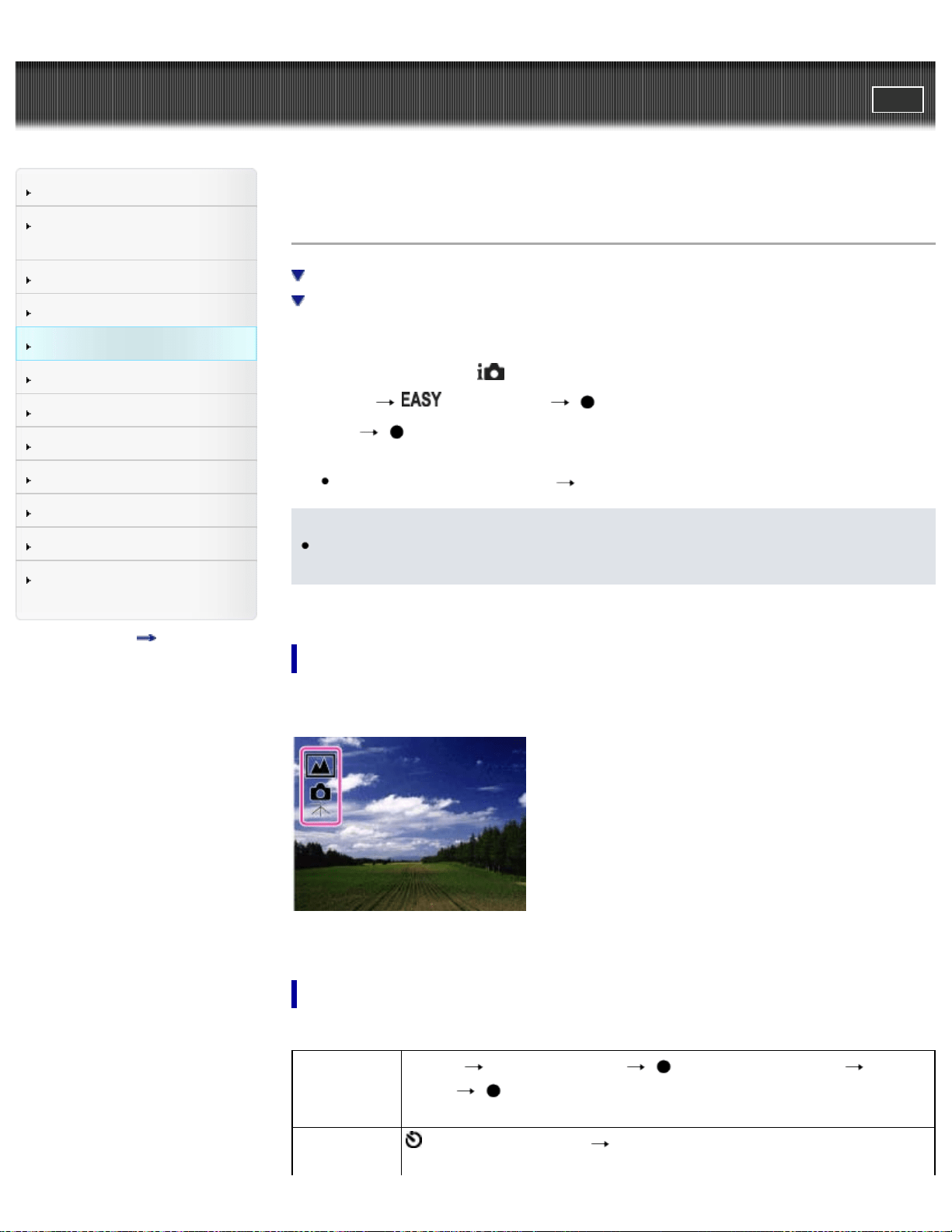
Cyber-shot User Guide
PrintSearch
Before Use
Confirming the operation
method
Shooting
Viewing
Useful shooting functions
Useful viewing functions
Changing settings
Viewing images on a TV
Using with your computer
Printing
Troubleshooting
Precautions / About this
camera
Contents list
Top page > Useful shooting functions > Using shooting functions > Easy Mode
Easy Mode
Scene Recognition
Shooting functions available in Easy Mode (Shooting)
Allows you to shoot still images using the minimum necessary functions.
The text size increases and indicators become easier to see.
1. Set the mode dial to
(Intelligent Auto).
2. MENU
(Easy Mode) on the control button.
3. [OK]
4. Shoot with the shutter button.
To end Easy Mode, MENU [Exit Easy Mode]
Notes
The battery power may decrease faster because the screen brightness
increases automatically.
Scene Recognition
Scene Recognition operates in Easy Mode. This function lets the camera
automatically recognize the shooting conditions and shoot an image.
For details, see “Scene Recognition”. [Details]
Shooting functions available in Easy Mode (Shooting)
Still Image
Size
MENU
[Still Image Size] on the control button desired
mode
Select between [Large] or [Small] size.
Self-Timer
on the control button desired mode
Select between [10sec] or [Off] mode.
74

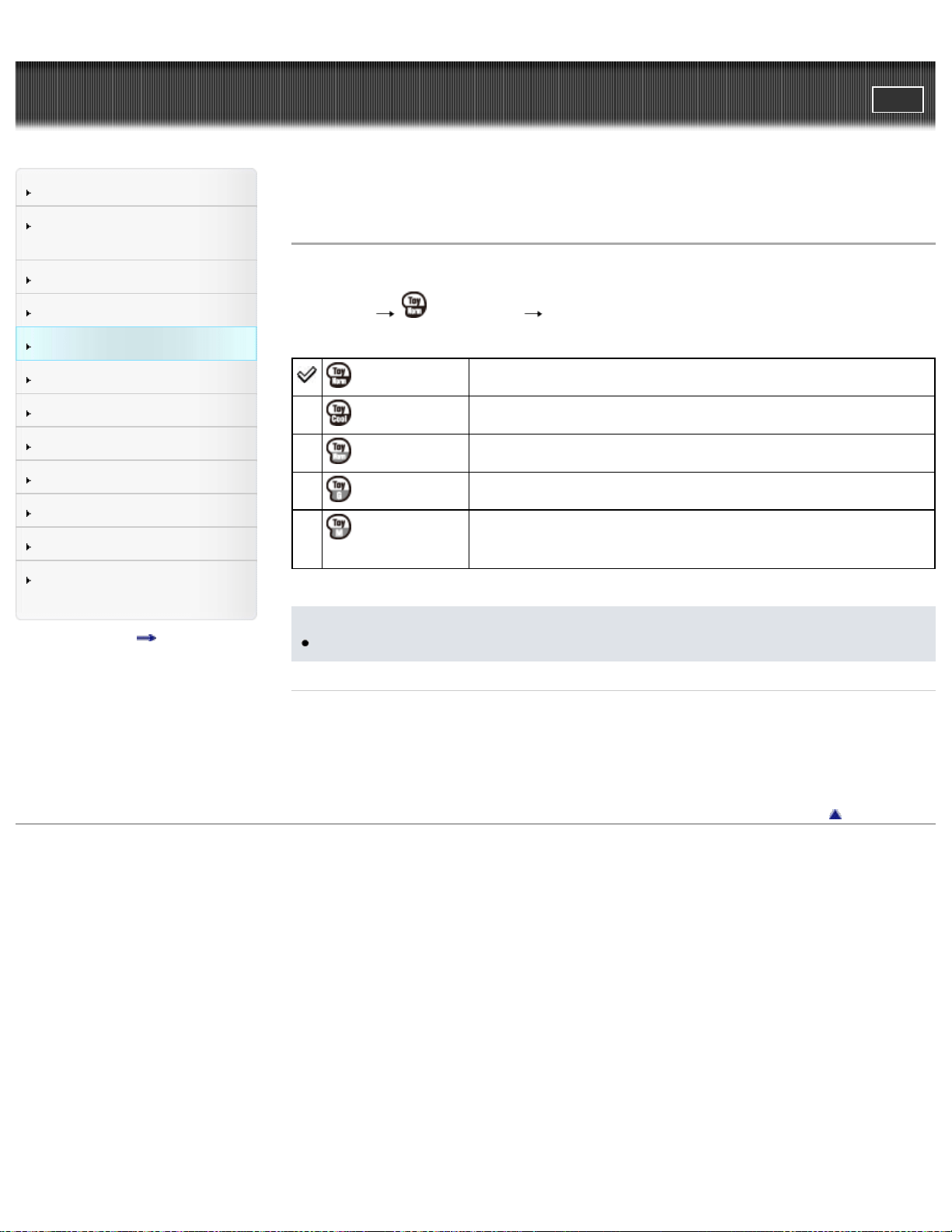
Cyber-shot User Guide
PrintSearch
Before Use
Confirming the operation
method
Shooting
Viewing
Useful shooting functions
Useful viewing functions
Changing settings
Viewing images on a TV
Using with your computer
Printing
Troubleshooting
Precautions / About this
camera
Contents list
Top page > Useful shooting functions > Using shooting functions > Color hue
Color hue
When you select [Toy camera] in Picture Effect, adjust the color hue.
1. MENU
(Color hue) desired mode
(Normal)
Adds a normal hue and darkens the surroundings.
(Cool hue)
Adds a cool bluish hue and darkens the surroundings.
(Warm hue)
Adds a warm reddish hue and darkens the surroundings.
(Green hue)
Adds a green filter-like hue and darkens the surroundings.
(Magenta
hue)
Adds a magenta filter-like hue and darkens the
surroundings.
Notes
It is recommended that you shoot a test image in advance for some subjects.
Related Topic
Picture Effect
MENU items available for each shooting mode
Back to top
Copyright 2013 Sony Corporation
76
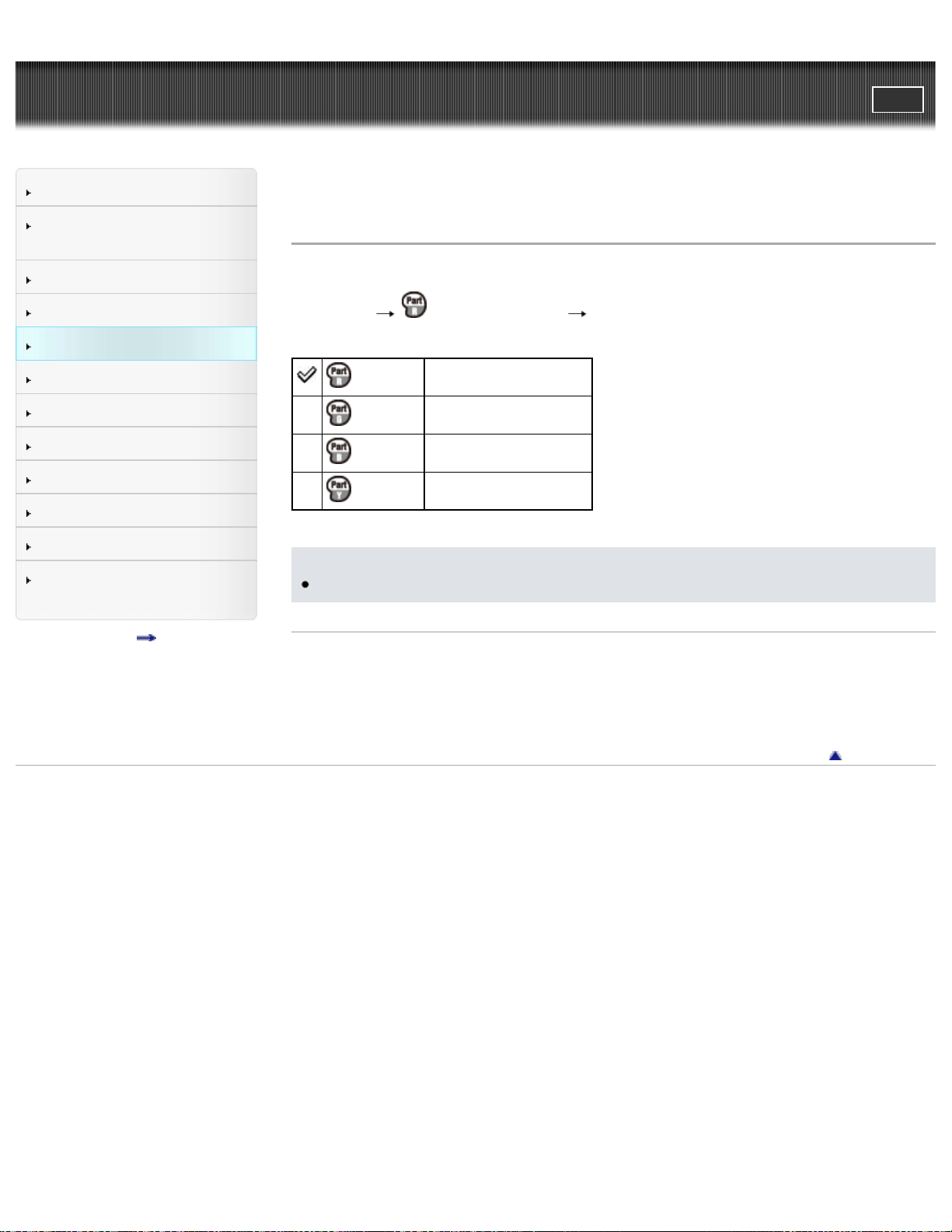
Cyber-shot User Guide
PrintSearch
Before Use
Confirming the operation
method
Shooting
Viewing
Useful shooting functions
Useful viewing functions
Changing settings
Viewing images on a TV
Using with your computer
Printing
Troubleshooting
Precautions / About this
camera
Contents list
Top page > Useful shooting functions > Using shooting functions > Extracted Color
Extracted Color
When you select [Partial Color] in Picture Effect, select the color to extract.
1. MENU
(Extracted Color) desired mode
(Red)
Extracts red only.
(Green)
Extracts green only.
(Blue)
Extracts blue only.
(Yellow)
Extracts yellow only.
Notes
Images may not retain the selected color, depending on the subject.
Related Topic
Picture Effect
MENU items available for each shooting mode
Back to top
Copyright 2013 Sony Corporation
77
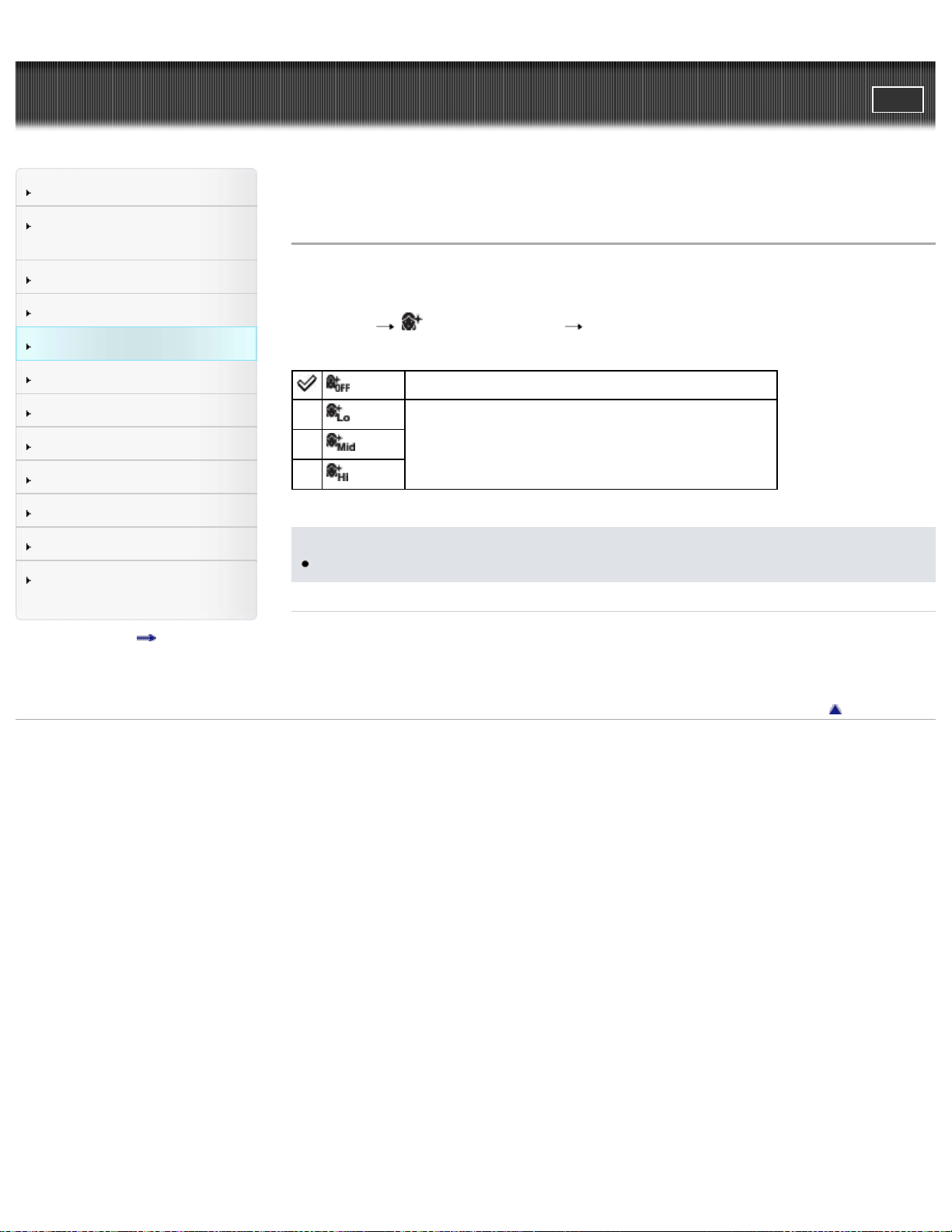
Cyber-shot User Guide
PrintSearch
Before Use
Confirming the operation
method
Shooting
Viewing
Useful shooting functions
Useful viewing functions
Changing settings
Viewing images on a TV
Using with your computer
Printing
Troubleshooting
Precautions / About this
camera
Contents list
Top page > Useful shooting functions > Using shooting functions > Soft Skin Effect
Soft Skin Effect
When the Face Detection function is activated, sets whether to use the Soft Skin
Effect, and the effect level.
1. MENU
(Soft Skin Effect) desired mode
(Off) Does not use the Soft Skin Effect.
(Low)
Adds light, moderate or strong Soft Skin Effect.
(Mid)
(High)
Notes
The [Soft Skin Effect] may not be visible depending on the subject.
Related Topic
MENU items available for each shooting mode
Back to top
Copyright 2013 Sony Corporation
78
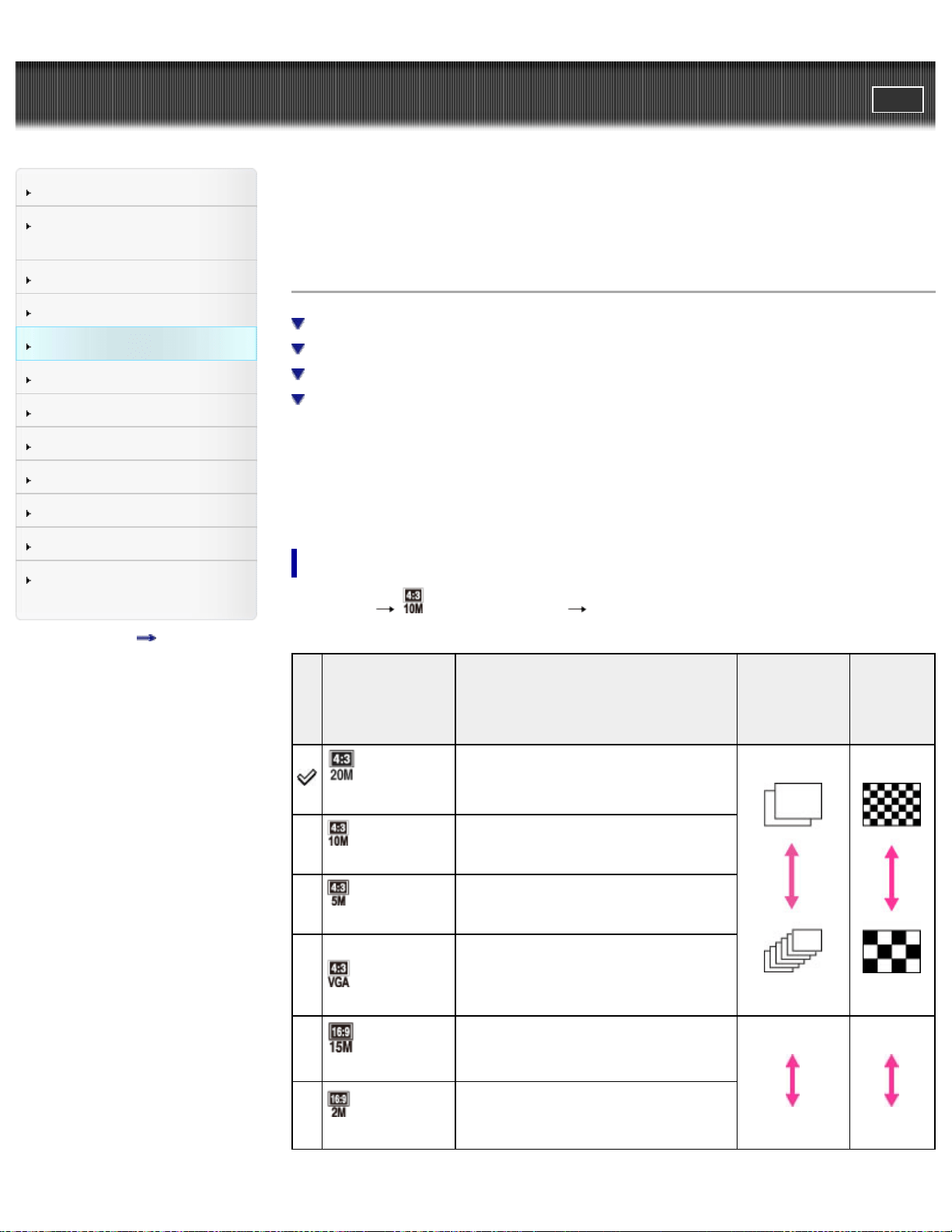
Cyber-shot User Guide
PrintSearch
Before Use
Confirming the operation
method
Shooting
Viewing
Useful shooting functions
Useful viewing functions
Changing settings
Viewing images on a TV
Using with your computer
Printing
Troubleshooting
Precautions / About this
camera
Contents list
Top page > Useful shooting functions > Using shooting functions > Still Image Size
/ Panorama Image Size / Movie Size
Still Image Size / Panorama Image Size / Movie
Size
Image size when shooting still images
Image size in Easy Mode
Image size when shooting Sweep Panorama
Image size when shooting movies
The image size determines the size of the image file that is recorded when you take
an image.
The larger the image size, the more detail will be reproduced when the image is
printed on large-format paper. The smaller the image size, the more images can be
recorded.
Image size when shooting still images
1. MENU (Still Image Size) desired size
Still Image
Size
(Horizontal ×
Vertical)
Usage guidelines
Number of
images
Printing
(5152 ×
3864)
For prints up to A3+ size
Less
More
Fine
Rough
(3648×2736)
For prints up to A3 size
(2592×1944)
For prints from 10×15 cm up to A4
size
(640×480)
For e-mail attachments
(5152×2896)
For viewing on a high-definition TV
and printing up to A3 size
Less
More
Fine
Rough
(1920×1080)
For viewing on a high-definition TV
79
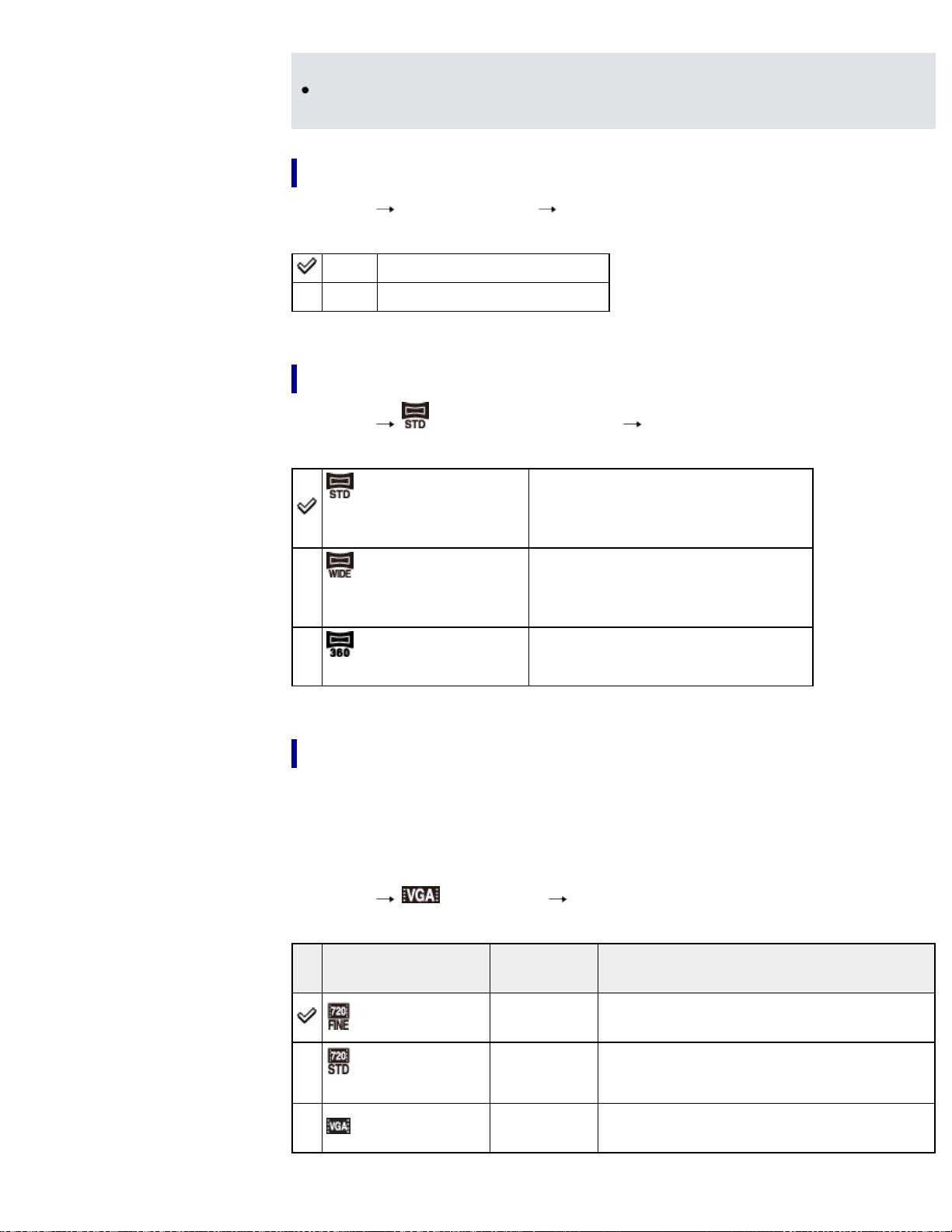
Notes
When you print still images recorded at a 16:9 aspect ratio or panoramic
images, both edges may be cut off.
Image size in Easy Mode
1. MENU [Still Image Size] desired size
Large Shoots images in [20M] size.
Small Shoots images in [5M] size.
Image size when shooting Sweep Panorama
1. MENU (Panorama Image Size) desired size
(Standard)
(Horizontal: 4912 × 1080)
(Vertical: 3424 × 1920)
Shoots images using standard size.
(Wide)
(Horizontal: 7152 × 1080)
(Vertical: 4912 × 1920)
Shoots images using wide size.
(360°)
Horizontal: 11520 × 1080
Shoots 360-degree images.
Image size when shooting movies
The larger the size of the movie image, the higher the image quality. The higher the
amount of data used per second (average bit-rate), the smoother the playback
image.
Movies shot with this camera are recorded in MPEG-4 format, at approximately 30
frames/sec, in progressive mode, with AAC audio, mp4 format.
1. MENU
(Movie Size) desired size
Movie Size
Average
bit-rate
Usage guidelines
1280x720(Fine)
9 Mbps
Shoots highest quality movies for display
on High Definition TV.
1280x720(Standard)
6 Mbps
Shoots standard quality movies for display
on High Definition TV.
VGA 3 Mbps
Shoots an image size suitable for WEB
upload.
80

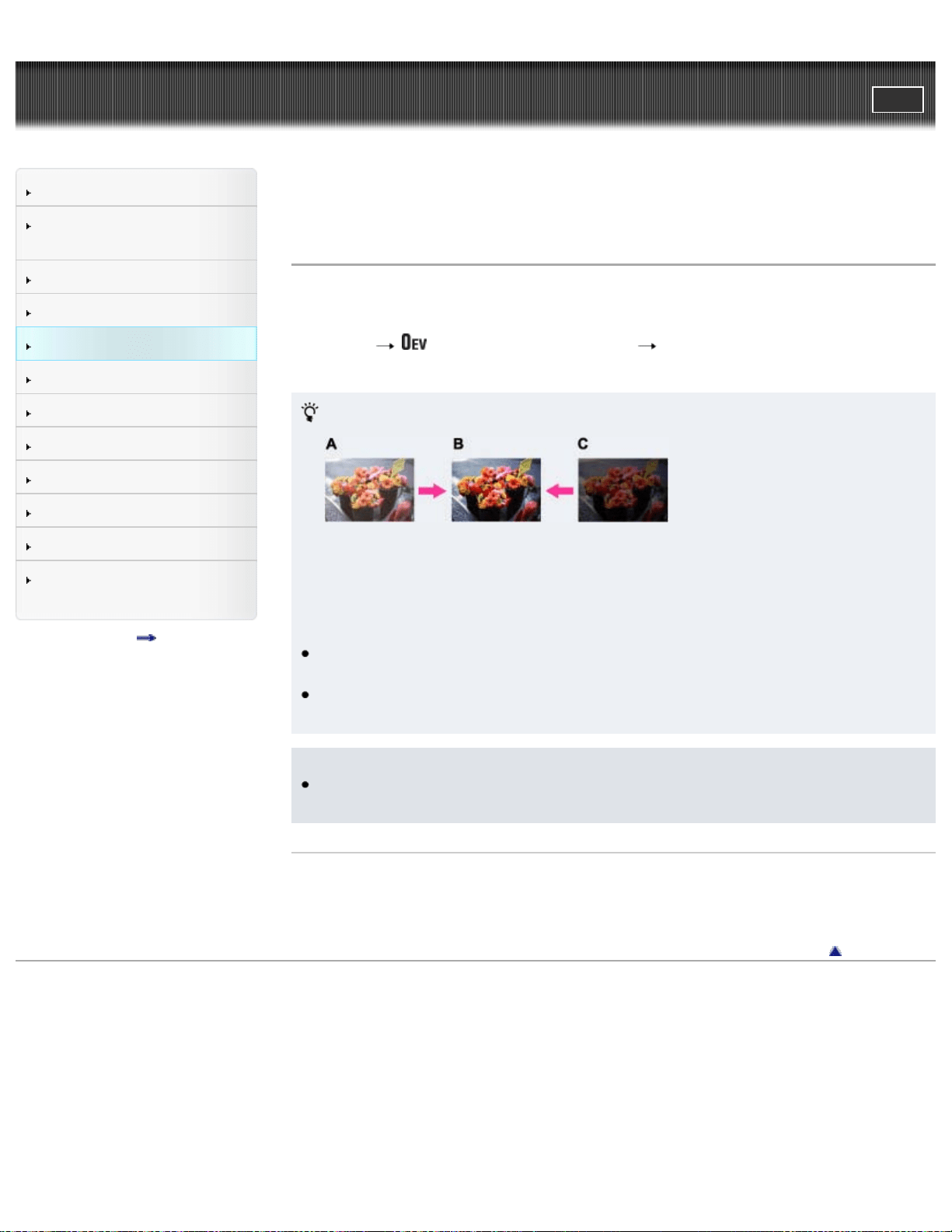
Cyber-shot User Guide
PrintSearch
Before Use
Confirming the operation
method
Shooting
Viewing
Useful shooting functions
Useful viewing functions
Changing settings
Viewing images on a TV
Using with your computer
Printing
Troubleshooting
Precautions / About this
camera
Contents list
Top page > Useful shooting functions > Using shooting functions > Exposure
Compensation
Exposure Compensation
You can adjust the exposure manually in 1/3 EV steps in a range of –2.0 EV to
+2.0 EV.
1. MENU
(Exposure Compensation) desired Exposure Compensation
setting
Adjusting the exposure for better looking images
A: Overexposure (too much light)
B: Correct exposure
C: Underexposure (too little light)
When the image shot is overexposed, adjust [Exposure Compensation] to the
minus side.
When the image shot is underexposed, adjust [Exposure Compensation] to the
plus side.
Notes
If you shoot a subject in extremely bright or dark conditions, or when you use
the flash, the exposure adjustment may not be effective.
Related Topic
MENU items available for each shooting mode
Back to top
Copyright 2013 Sony Corporation
82
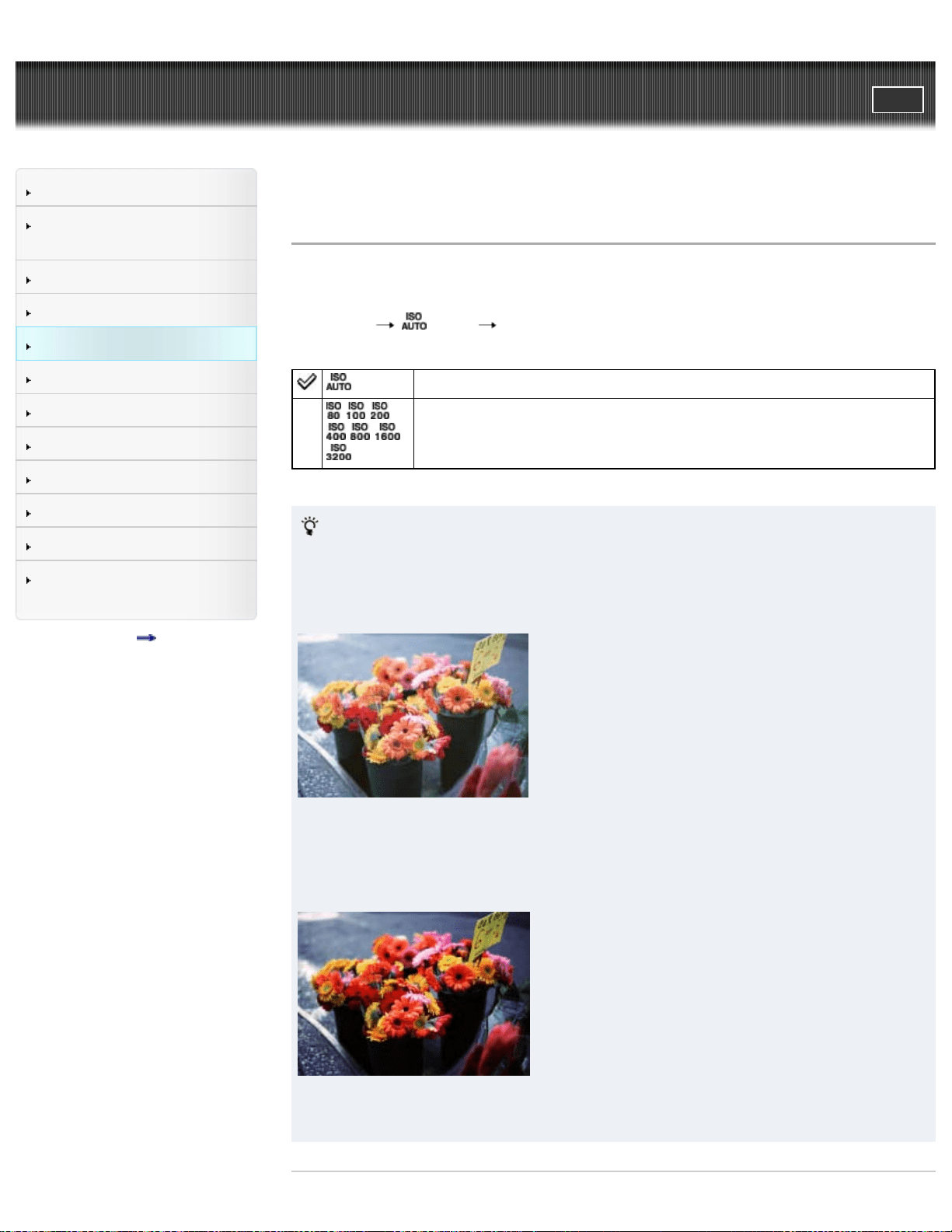
Cyber-shot User Guide
PrintSearch
Before Use
Confirming the operation
method
Shooting
Viewing
Useful shooting functions
Useful viewing functions
Changing settings
Viewing images on a TV
Using with your computer
Printing
Troubleshooting
Precautions / About this
camera
Contents list
Top page > Useful shooting functions > Using shooting functions > ISO
ISO
Adjusts the luminous sensitivity when the camera is set to Program Auto. In Movie
mode, [ISO] is fixed to [Auto].
1. MENU
(ISO) desired mode
(Auto) Sets the ISO sensitivity automatically.
/ / /
/ / /
You can reduce image blurring in dark locations or with moving
subjects by increasing the ISO sensitivity (select a larger number).
Adjusting ISO Sensitivity (Recommended Exposure Index)
ISO sensitivity is a speed rating for recording media that incorporates an image
sensor that receives light. Even when the exposure is the same, images differ
depending on the ISO sensitivity.
High ISO sensitivity
Records a bright image even in dark locations while increasing shutter speed to
reduce blur.
However, the image tends to be noisy.
Low ISO sensitivity
Records a smoother image.
However, when the exposure is insufficient, the image may be darker.
83

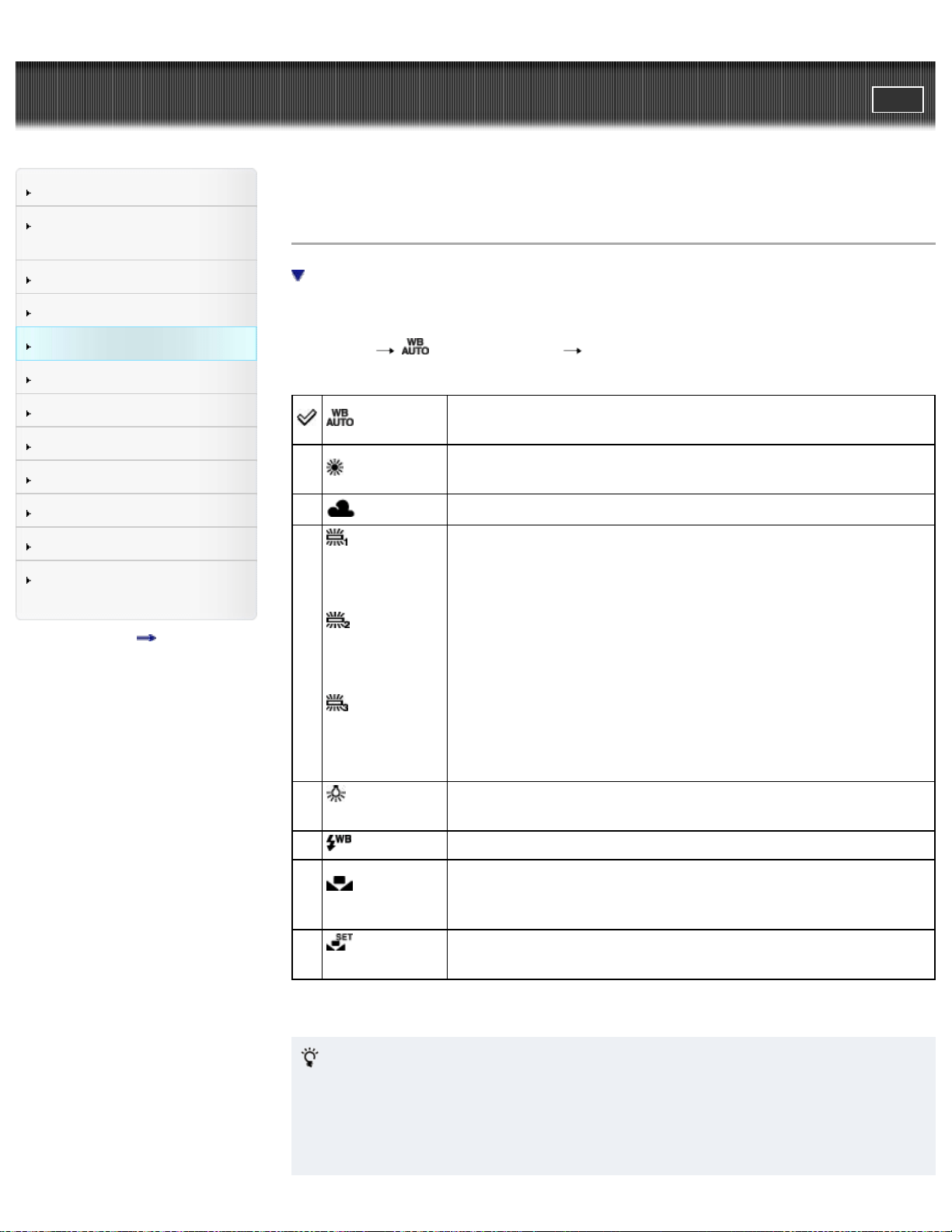
Cyber-shot User Guide
PrintSearch
Before Use
Confirming the operation
method
Shooting
Viewing
Useful shooting functions
Useful viewing functions
Changing settings
Viewing images on a TV
Using with your computer
Printing
Troubleshooting
Precautions / About this
camera
Contents list
Top page > Useful shooting functions > Using shooting functions > White Balance
White Balance
To capture a basic white color in [One Push Set] mode
Adjusts color tones according to the surrounding light conditions. Use this function if
the image color appears unnatural.
1. MENU
(White Balance) desired mode
(Auto)
Adjusts the white balance automatically so that the colors
appear natural.
(Daylight)
Adjusts for outdoors conditions on a fine day, evening views,
night scenes, neon signs, fireworks, etc.
(Cloudy)
Adjusts for a cloudy sky or a shady location.
(Fluorescent
White Balance
1)
(Fluorescent
White Balance
2)
(Fluorescent
White Balance
3)
[Fluorescent White Balance 1]: Adjusts for white fluorescent
lighting.
[Fluorescent White Balance 2]: Adjusts for natural white
fluorescent lighting.
[Fluorescent White Balance 3]: Adjusts for daylight
fluorescent lighting.
(Incandescent)
Adjusts for places under incandescent lamp, or under bright
lighting, such as in a photo studio.
(Flash) Adjusts for flash conditions.
(One
Push)
Adjusts the white balance depending on the light source. Use
this mode when [Auto] and other settings do not provide
accurate colors.
(One Push
Set)
Memorizes the basic white color which will be used in [One
Push] mode. [Details]
Effects of lighting conditions
The apparent color of the subject is affected by the lighting conditions.
The color tones are adjusted automatically, but you can adjust color tones
manually using the White Balance function.
85
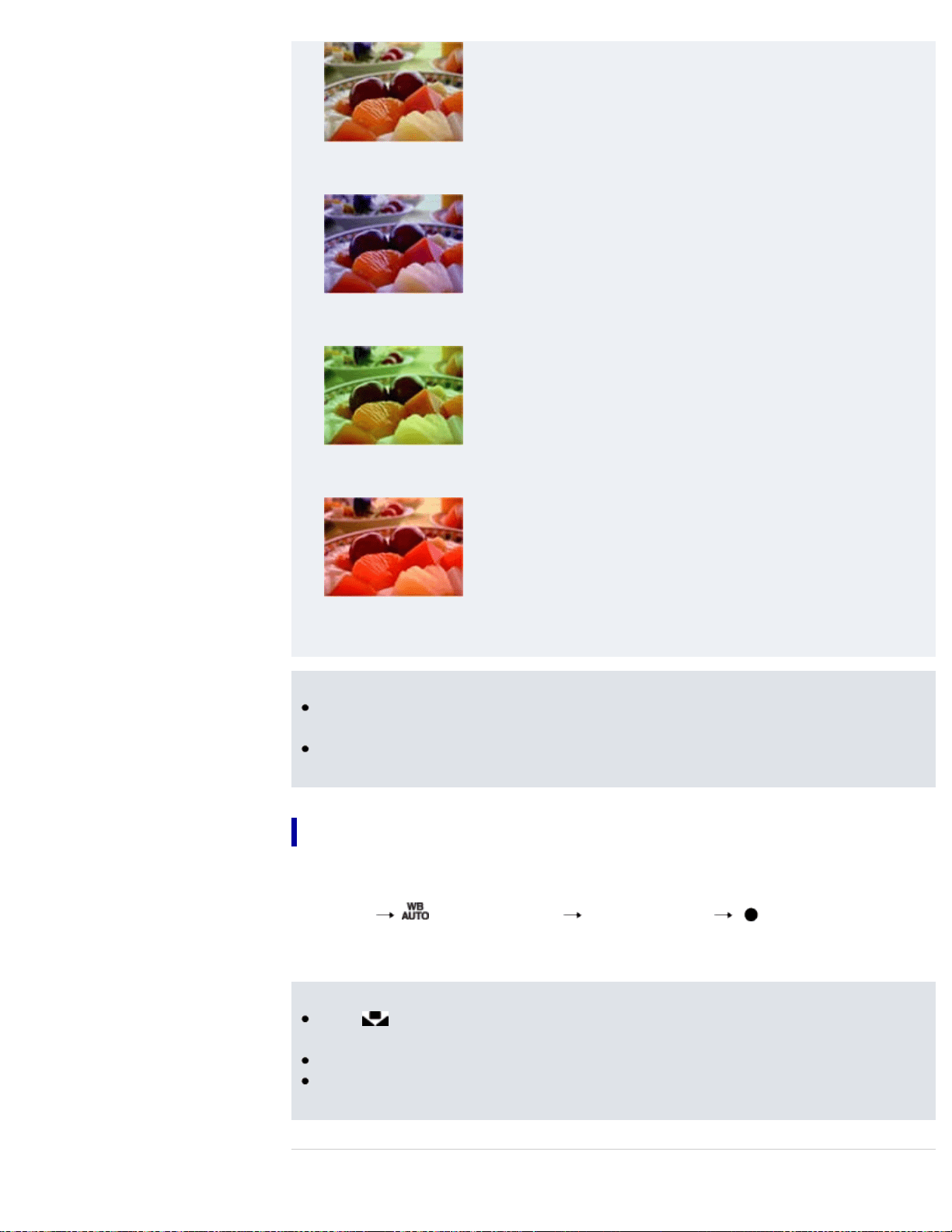
Daylight (White as Standard)
Cloudy (Bluish)
Fluorescent (Green-tinged)
Incandescent (Reddish)
Notes
When shooting with a flash in other than [Flash] mode, [White Balance] is set to
[Auto].
When [Flash] is [On] or [Slow Synchro], the white balance can only be adjusted
to [Auto], [Flash], [One Push] or [One Push Set].
To capture a basic white color in [One Push Set] mode
1. Frame a white object such as a piece of paper filling the screen under the same
lighting conditions as you will shoot the subject.
2. MENU
(White Balance) [One Push Set] on the control button
The screen momentarily turns black, and when the white balance has been
adjusted and stored in the memory, the recording screen is displayed again.
Notes
If the
indicator flashes while shooting, the white balance is either not set or
cannot be set. Use automatic white balance.
Do not shake or strike the camera while [One Push Set] is in progress.
When flash mode is set to [On] or [Slow Synchro], the white balance is adjusted
to the condition with the flash emitting.
Related Topic
86

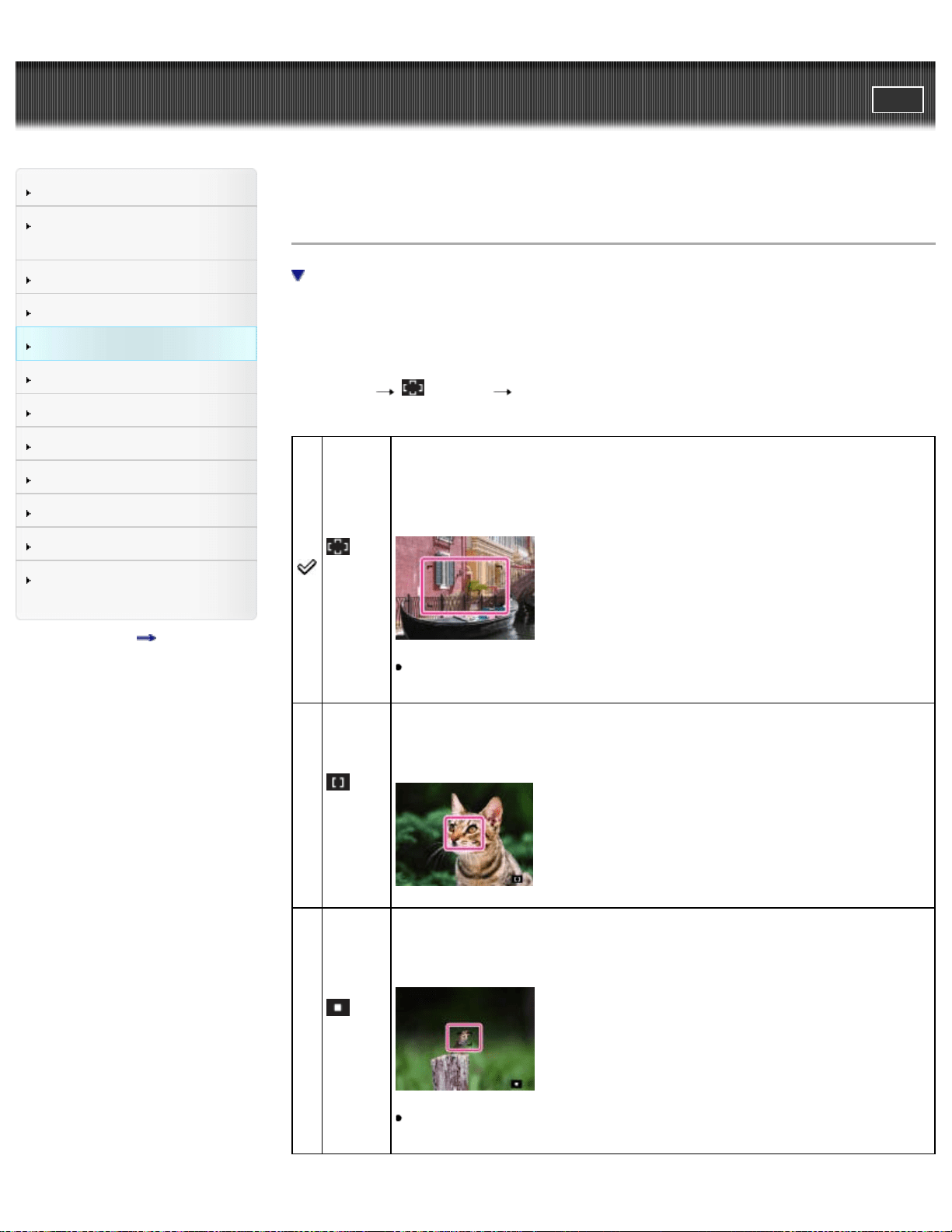
Cyber-shot User Guide
PrintSearch
Before Use
Confirming the operation
method
Shooting
Viewing
Useful shooting functions
Useful viewing functions
Changing settings
Viewing images on a TV
Using with your computer
Printing
Troubleshooting
Precautions / About this
camera
Contents list
Top page > Useful shooting functions > Using shooting functions > Focus
Focus
Focusing on subjects near the edge of the screen
You can change the focus method. Use the menu when it is difficult to get the
proper focus in auto focus mode.
AF stands for “Auto Focus,” a function that adjusts the focus automatically.
The selected AF range finder frame appears on the screen.
1. MENU
(Focus) desired mode
(Multi
AF)
Focuses on a subject in all ranges of the finder frame automatically.
When you press the shutter button halfway down in still image
shooting mode, a green frame is displayed around the area that is in
focus.
When the Face Detection function is active, AF operates with
priority on faces.
(Center
AF)
Focuses on a subject in the center of the finder frame automatically.
Using the AF lock function together, you can compose the image the
way you want.
(Spot
AF)
Focuses on an extremely small subject or a narrow area
automatically. Using the AF lock function together, you can compose
the image the way you want.
Hold the camera steady so as not to misalign the subject and the
AF range finder frame.
88
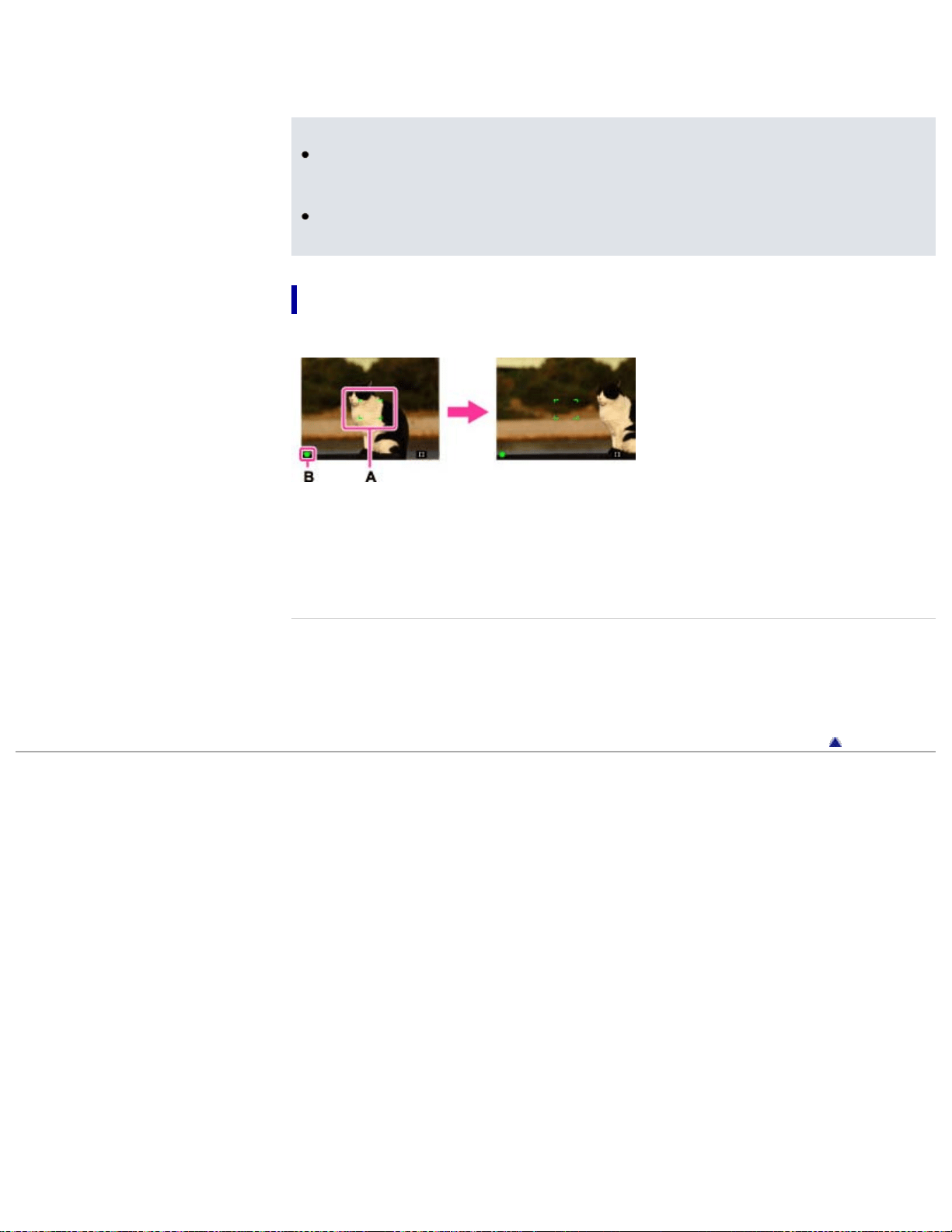
Notes
When you use [Digital Zoom] or [AF Illuminator], the AF range finder frame is
disabled and appears in a dotted line. In this case, the camera works to focus
on the subjects at the center of the screen.
If the tracking focus is activated, the camera focuses with priority on the subject
to be tracked.
Focusing on subjects near the edge of the screen
If the subject is out of focus, do as follows:
1. Recompose the shot so that the subject is centered in the AF range finder (A),
and press the shutter button halfway to focus on the subject (AF lock).
2. When the AE/AF lock indicator (B) stops flashing and remains on, return to the
fully composed shot, and press the shutter button fully down.
Related Topic
Tracking focus
MENU items available for each shooting mode
Back to top
Copyright 2013 Sony Corporation
89
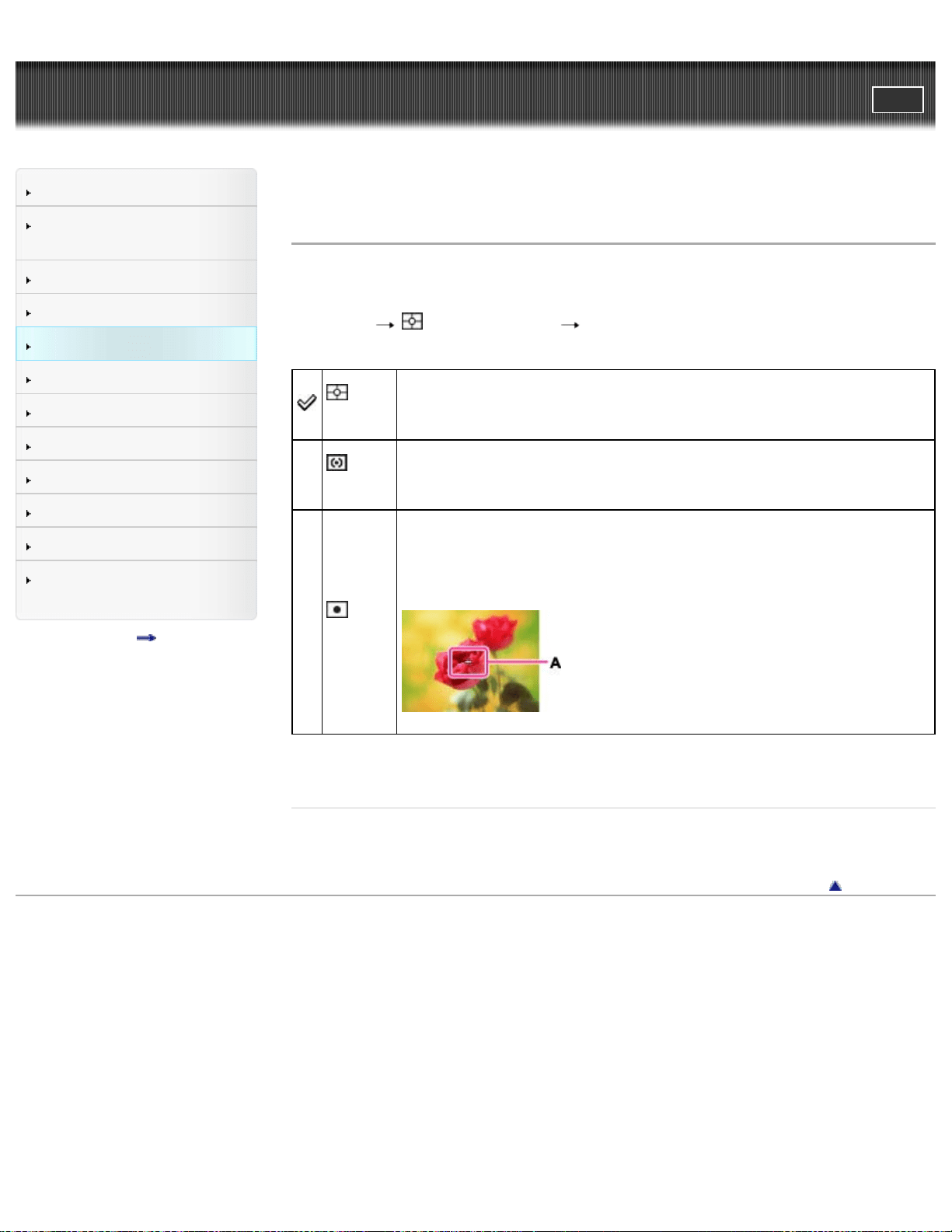
Cyber-shot User Guide
PrintSearch
Before Use
Confirming the operation
method
Shooting
Viewing
Useful shooting functions
Useful viewing functions
Changing settings
Viewing images on a TV
Using with your computer
Printing
Troubleshooting
Precautions / About this
camera
Contents list
Top page > Useful shooting functions > Using shooting functions > Metering Mode
Metering Mode
Selects the metering mode that sets which part of the subject to measure to
determine the exposure.
1. MENU
(Metering Mode) desired mode
(Multi)
Divides into multiple regions and measures each region. The
camera determines a well-balanced exposure (Multi-pattern
metering).
(Center)
Measures the center of the image, and determines the exposure
based on the brightness of the subject there (Center-weighted
metering).
(Spot)
Align the spot metering cross hairs (A) on the subject to meter one
part of the subject (Spot metering). This function is useful when the
subject is backlit or when there is strong contrast between the
subject and the background.
Related Topic
MENU items available for each shooting mode
Back to top
Copyright 2013 Sony Corporation
90
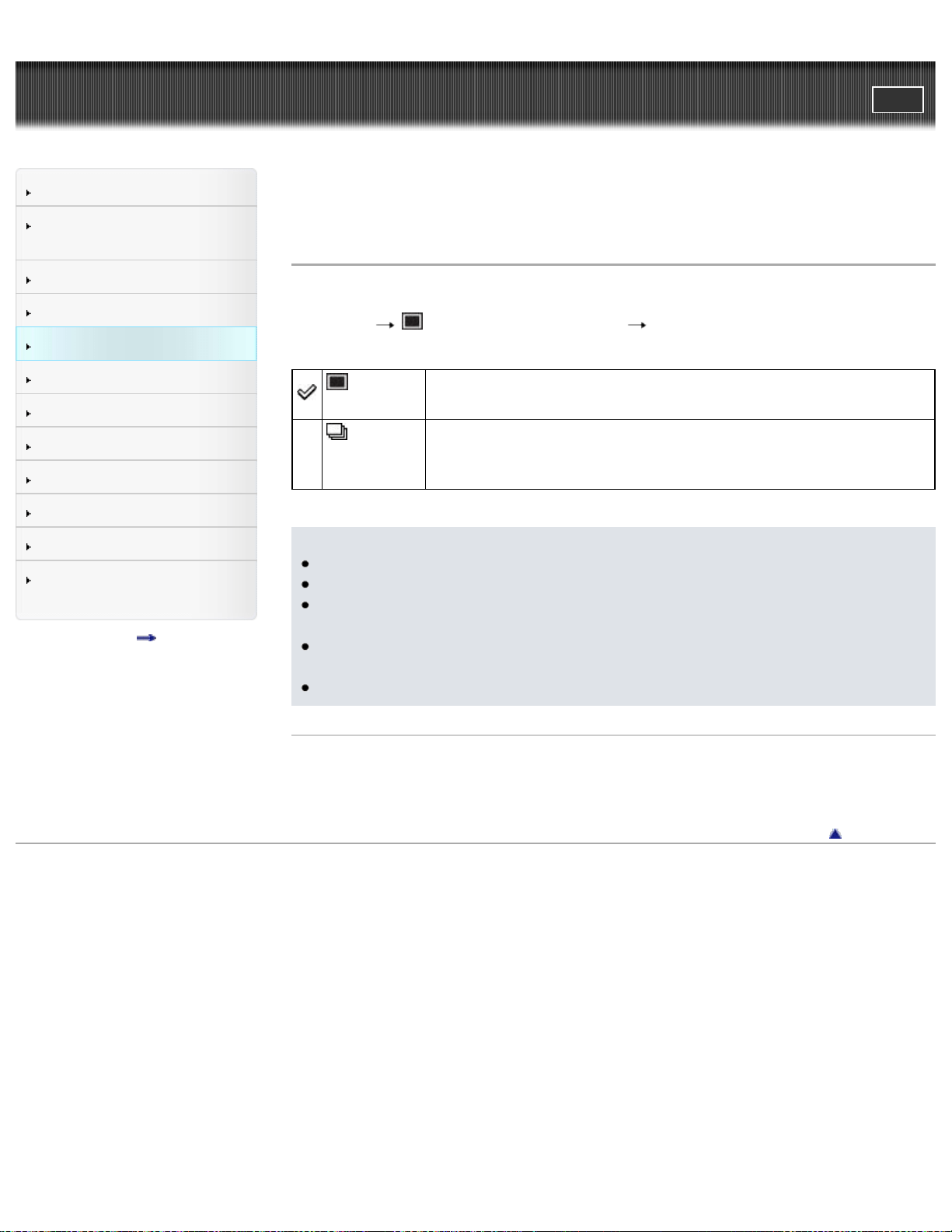
Cyber-shot User Guide
PrintSearch
Before Use
Confirming the operation
method
Shooting
Viewing
Useful shooting functions
Useful viewing functions
Changing settings
Viewing images on a TV
Using with your computer
Printing
Troubleshooting
Precautions / About this
camera
Contents list
Top page > Useful shooting functions > Using shooting functions > Cont. Shooting
Settings
Cont. Shooting Settings
You can select Single Shooting or Continuous Shooting as the shooting mode.
1. MENU
(Cont. Shooting Settings) desired mode
(Single
Shooting)
The camera shoots a single image.
(Continuous
Shooting)
The camera shoots up to 100 frames and up to approximately
0.8 frames per second when you continue to hold down the
shutter button.
Notes
[Flash] is set to [Off].
When recording with the self-timer, a series of up to 5 images is recorded.
The recording interval becomes longer, depending on the setting for the image
size.
[Focus], [White Balance], and [Exposure Compensation] are adjusted for the
first image, and these settings are also used for the other images.
When the internal memory or a memory card is full, the burst stops.
Related Topic
MENU items available for each shooting mode
Back to top
Copyright 2013 Sony Corporation
91
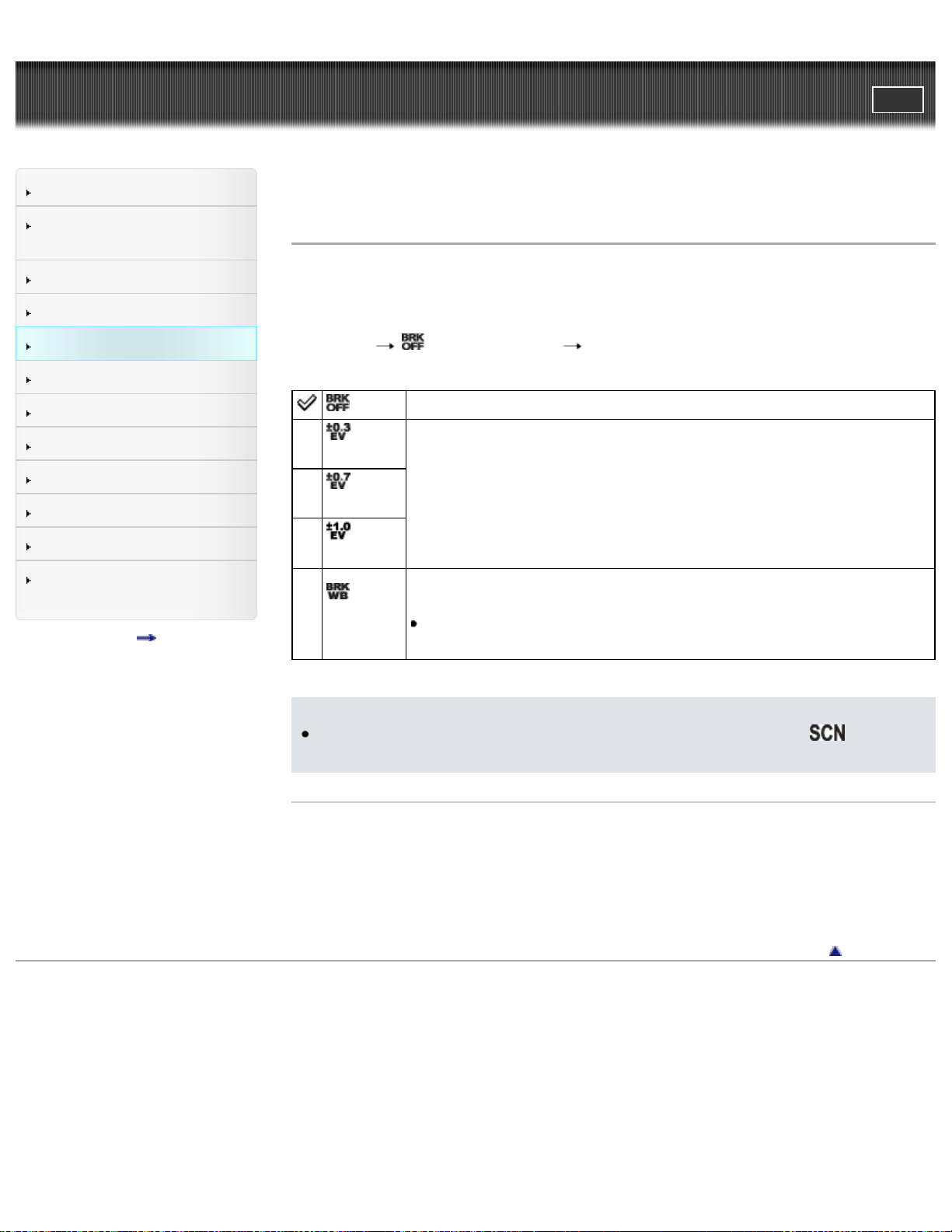
Cyber-shot User Guide
PrintSearch
Before Use
Confirming the operation
method
Shooting
Viewing
Useful shooting functions
Useful viewing functions
Changing settings
Viewing images on a TV
Using with your computer
Printing
Troubleshooting
Precautions / About this
camera
Contents list
Top page > Useful shooting functions > Using shooting functions > Bracket Setting
Bracket Setting
You can set the type of the bracket shooting. In bracket shooting mode, you can
record a series of 3 images with the setting changed. You can select the most
suitable image afterwards.
1. MENU
(Bracket Setting) desired mode
(Off) Does not use the bracket shooting.
(EXP
±0.3)
Records a series of 3 images with the exposure shifted in the
following order: standard, dark, and bright.
The larger the bracket step value, the larger the shift of the
exposure value.
(EXP
±0.7)
(EXP
±1.0)
(White
Balance)
Records a series of 3 images with the white balance shifted in the
following order: current color tone, toward blue, and toward red.
When you set [White Balance] to other than [Auto], the color
tone is shifted based on the selected white balance.
Notes
You cannot select [White Balance] when the mode dial is set to
(Scene
Selection).
Related Topics
Functions available for each shooting mode
MENU items available for each shooting mode
Back to top
Copyright 2013 Sony Corporation
92
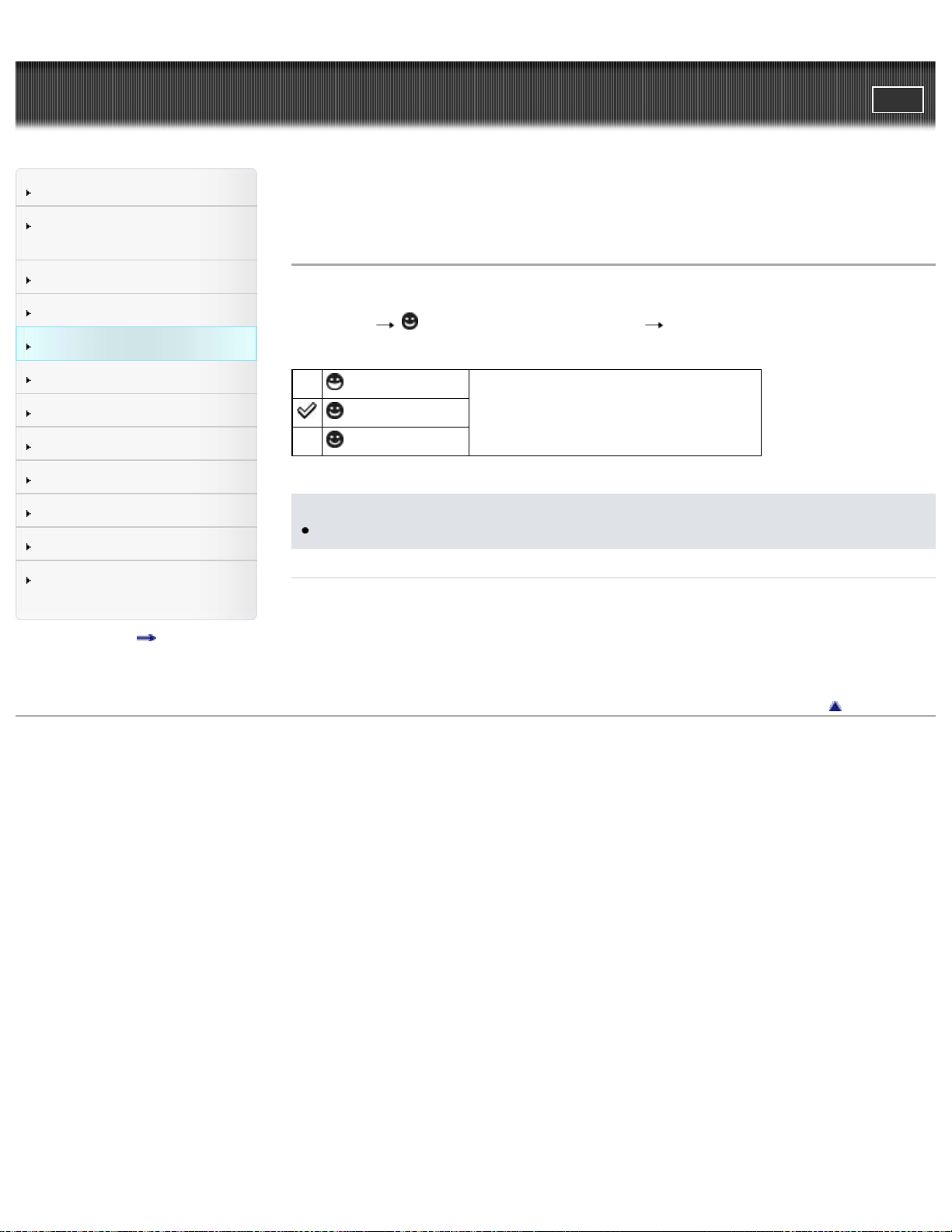
Cyber-shot User Guide
PrintSearch
Before Use
Confirming the operation
method
Shooting
Viewing
Useful shooting functions
Useful viewing functions
Changing settings
Viewing images on a TV
Using with your computer
Printing
Troubleshooting
Precautions / About this
camera
Contents list
Top page > Useful shooting functions > Using shooting functions > Smile Detection
Sensitivity
Smile Detection Sensitivity
Sets the sensitivity of the Smile Shutter function for detecting smiles.
1. MENU
(Smile Detection Sensitivity) desired mode
(Big Smile)
Detects a big, normal or slight smile.
(Normal Smile)
(Slight Smile)
Notes
Smiles may not be detected correctly depending on the conditions.
Related Topic
Smile Shutter
MENU items available for each shooting mode
Back to top
Copyright 2013 Sony Corporation
93
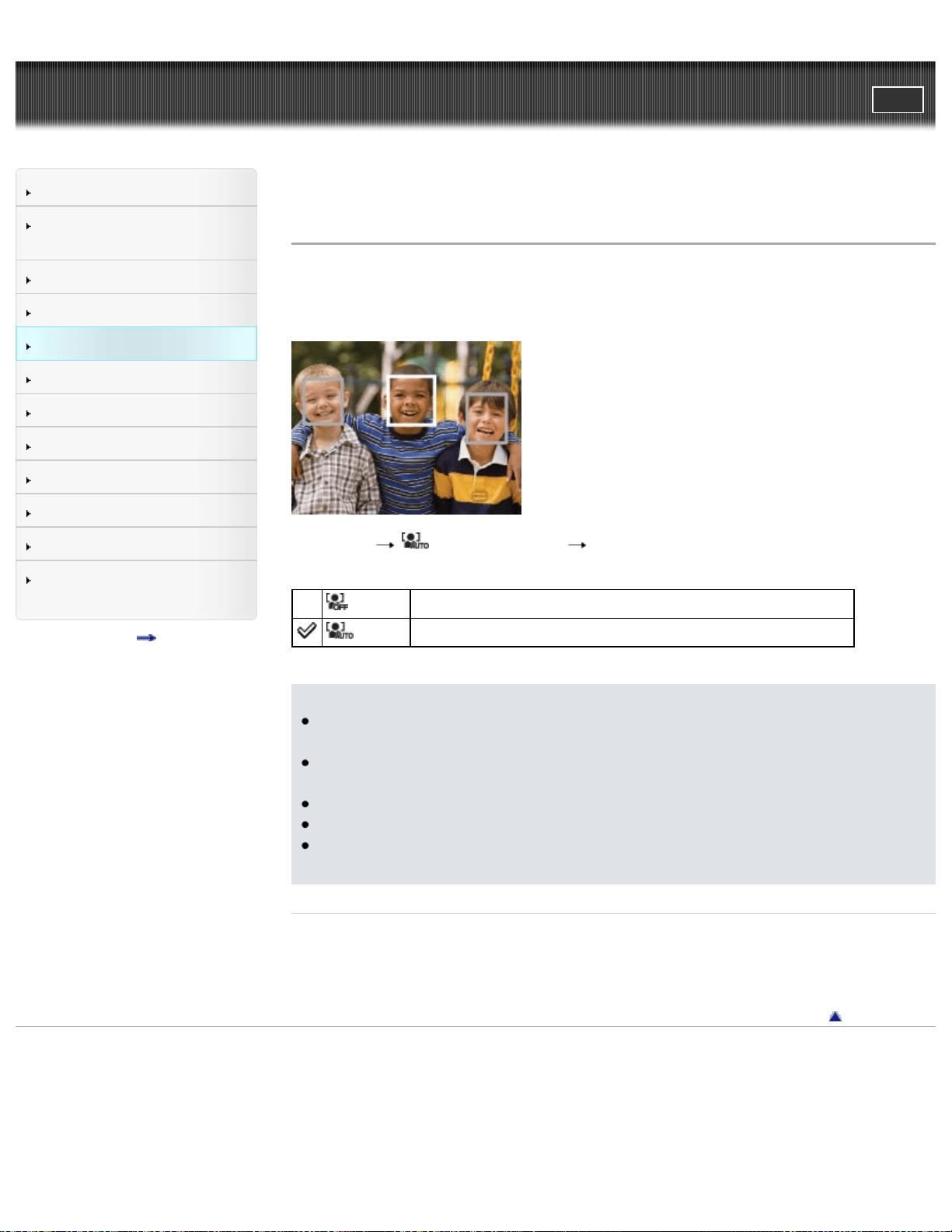
Cyber-shot User Guide
PrintSearch
Before Use
Confirming the operation
method
Shooting
Viewing
Useful shooting functions
Useful viewing functions
Changing settings
Viewing images on a TV
Using with your computer
Printing
Troubleshooting
Precautions / About this
camera
Contents list
Top page > Useful shooting functions > Using shooting functions > Face Detection
Face Detection
When the Face Detection function is used, the camera detects the faces of your
subjects and adjusts the focus, flash, exposure, white balance and red-eye
reduction settings automatically.
1. MENU (Face Detection) desired mode
(Off) Cannot use Face Detection.
(Auto) Selects the face the camera is to automatically focus on.
Notes
[Off] is not available when [Self-Timer] is set to [Self-portrait One Person] or
[Self-portrait Two People].
You can select [Face Detection] only when the focus mode is set to [Multi AF]
and the metering mode is set to [Multi].
The Face Detection function does not operate when you use the digital zoom.
Up to 8 faces of your subjects can be detected.
During Smile Shutter shooting, [Face Detection] is automatically set to [Auto]
even if it is set to [Off].
Related Topic
Tracking focus
MENU items available for each shooting mode
Back to top
Copyright 2013 Sony Corporation
94
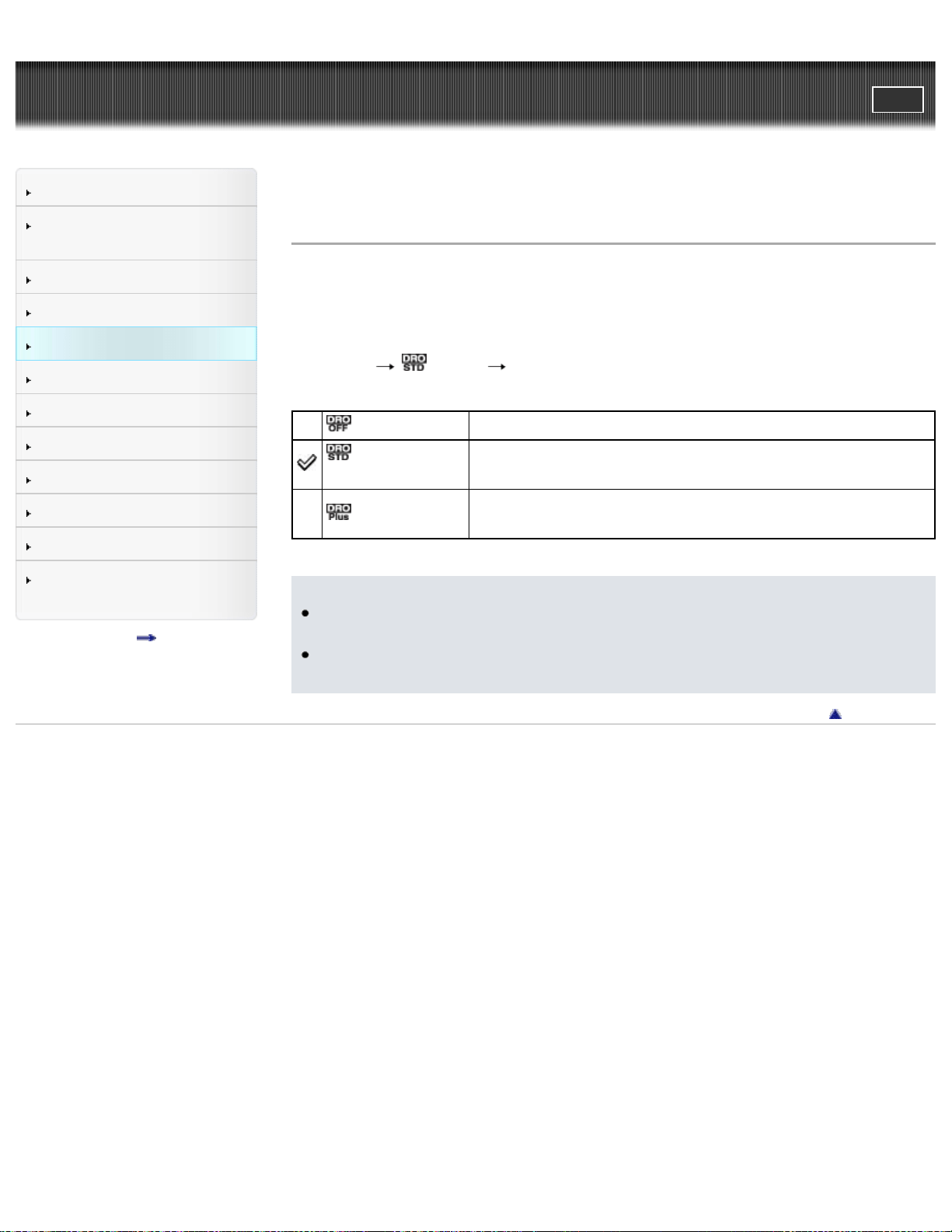
Cyber-shot User Guide
PrintSearch
Before Use
Confirming the operation
method
Shooting
Viewing
Useful shooting functions
Useful viewing functions
Changing settings
Viewing images on a TV
Using with your computer
Printing
Troubleshooting
Precautions / About this
camera
Contents list
Top page > Useful shooting functions > Using shooting functions > DRO
DRO
The camera analyzes the shooting scene and automatically corrects the brightness
and contrast to improve the image quality.
DRO stands for “Dynamic Range Optimizer,” a function that automatically optimizes
the difference between light and dark parts of an image.
1. MENU
(DRO) desired mode
(Off) Does not adjust.
(DRO
Standard)
Adjusts the brightness and contrast of the images
automatically.
(DRO plus)
Adjusts image brightness and contrast automatically and
strongly.
Notes
Depending on shooting conditions, it may not be possible to obtain correction
effects.
Only [ISO AUTO] or values from [ISO 80] to [ISO 800] can be set for the ISO
value when [DRO plus] is set.
Back to top
Copyright 2013 Sony Corporation
95
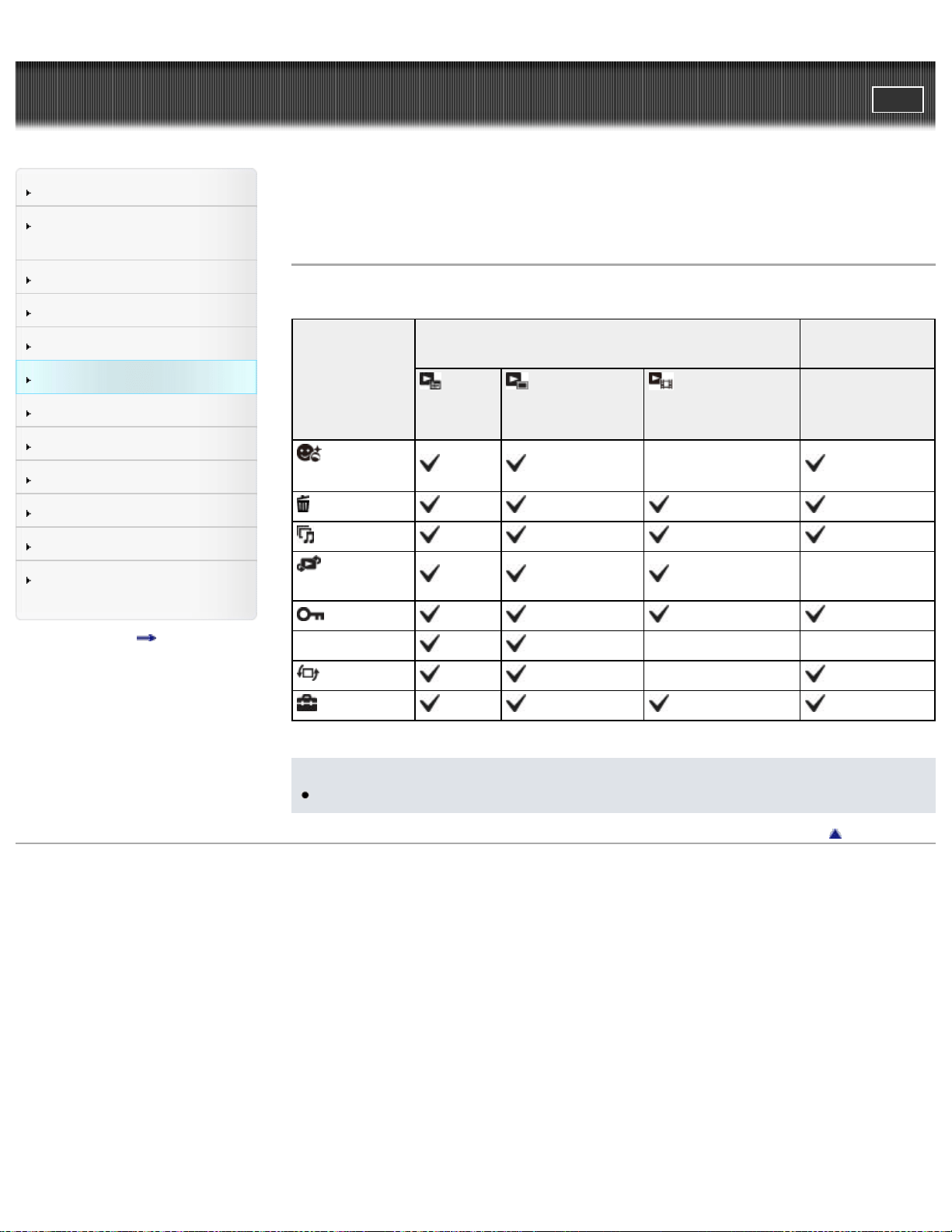
Cyber-shot User Guide
PrintSearch
Before Use
Confirming the operation
method
Shooting
Viewing
Useful shooting functions
Useful viewing functions
Changing settings
Viewing images on a TV
Using with your computer
Printing
Troubleshooting
Precautions / About this
camera
Contents list
Top page > Useful viewing functions > Functions available for each view
mode > MENU items available for each view mode
MENU items available for each view mode
Menu items
Memory card
Internal
Memory
Date
View
Folder view
(Still)
Folder view
(Movie)
Folder View
(Beauty
Effect)
—
(Delete)
(Slideshow)
(View
Mode)
—
(Protect)
Print (DPOF) — —
(Rotate) —
(Settings)
Notes
Only the items that are available for each mode are displayed on the screen.
Back to top
Copyright 2013 Sony Corporation
96
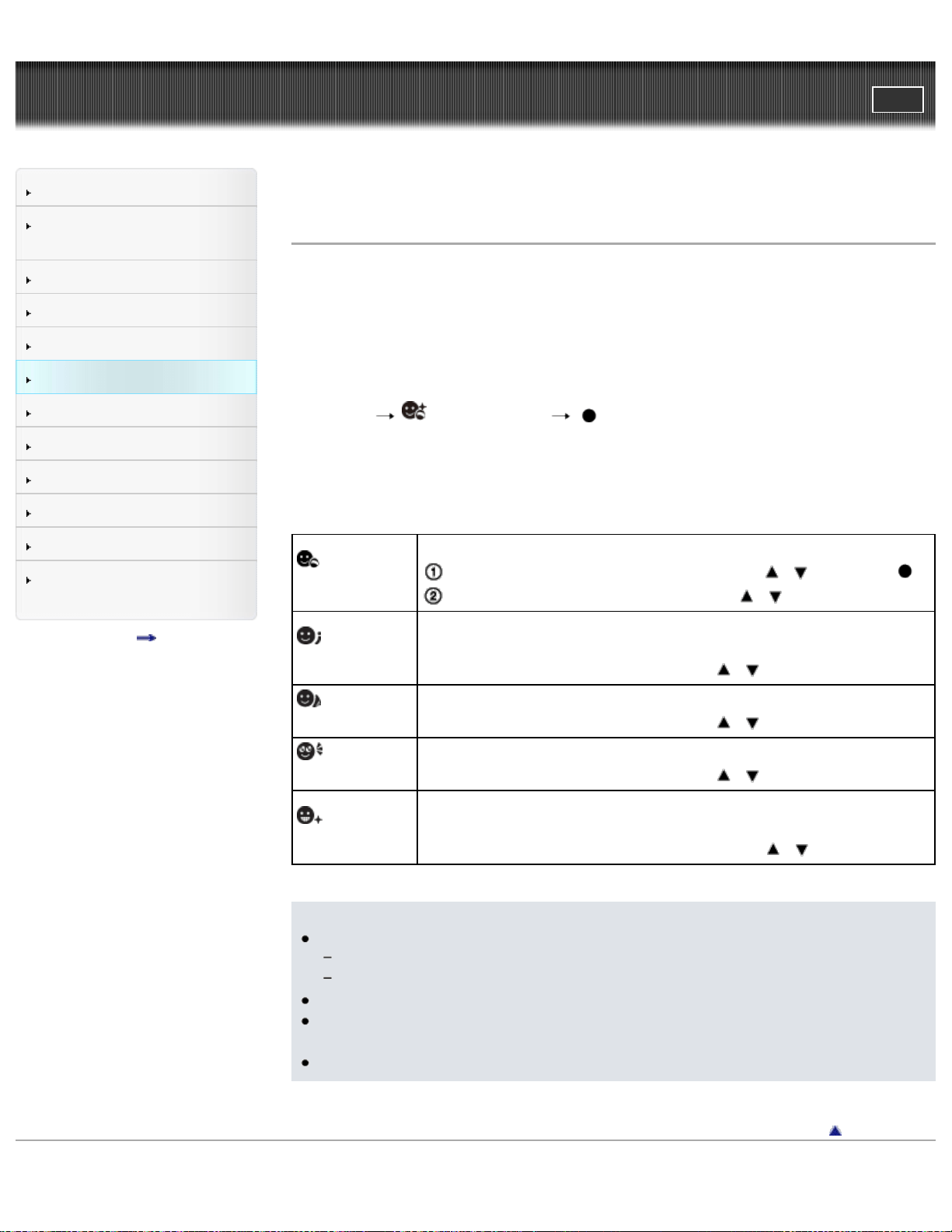
Cyber-shot User Guide
PrintSearch
Before Use
Confirming the operation
method
Shooting
Viewing
Useful shooting functions
Useful viewing functions
Changing settings
Viewing images on a TV
Using with your computer
Printing
Troubleshooting
Precautions / About this
camera
Contents list
Top page > Useful viewing functions > MENU items (Viewing) > Beauty Effect
Beauty Effect
Allows you to apply the Beauty Effect to retouch the still image of a person and
make it look better, for example, retouching for smoother skin, larger eyes, and
whiter teeth.
You can set the effects from level 1 to 5. An image on which the Beauty Effect is
used is saved as a new file. The original image is retained as is.
1. Set the camera to playback mode.
2. MENU
(Beauty Effect) on the control button
3. Select a face you want to use the Beauty Effect for.
4. Select the desired effect and perform retouching according to the operation
method in each mode.
(Skin
Toning)
Retouch the image to change the skin color to the desired effect.
Select the desired base skin color using / and press .
Increase or decrease the color using / .
(Skin
Smoothing)
Retouch the image to remove age spots and wrinkles from the
skin.
Increase or decrease the effect using
/ .
(Shine
Removal)
Retouch the image to suppress the oily skin look.
Increase or decrease the effect using
/ .
(Eye
Widening)
Retouch the image to enlarge the eyes.
Increase or decrease the effect using
/ .
(Teeth
Whitening)
Retouch the image to whiten the teeth. You may not be able to
whiten teeth for some images.
Increase or decrease teeth whiteness using
/ .
Notes
You cannot use [Beauty Effect] for the following images:
Panoramic images
Movies
You cannot use the Beauty Effect on an extremely small facial image.
To use the Beauty Effect on two or more faces, select the same image again
after the effect has been applied once and then use the effect on another face.
The Beauty Effect may not work properly for some images.
Back to top
Copyright 2013 Sony Corporation
97
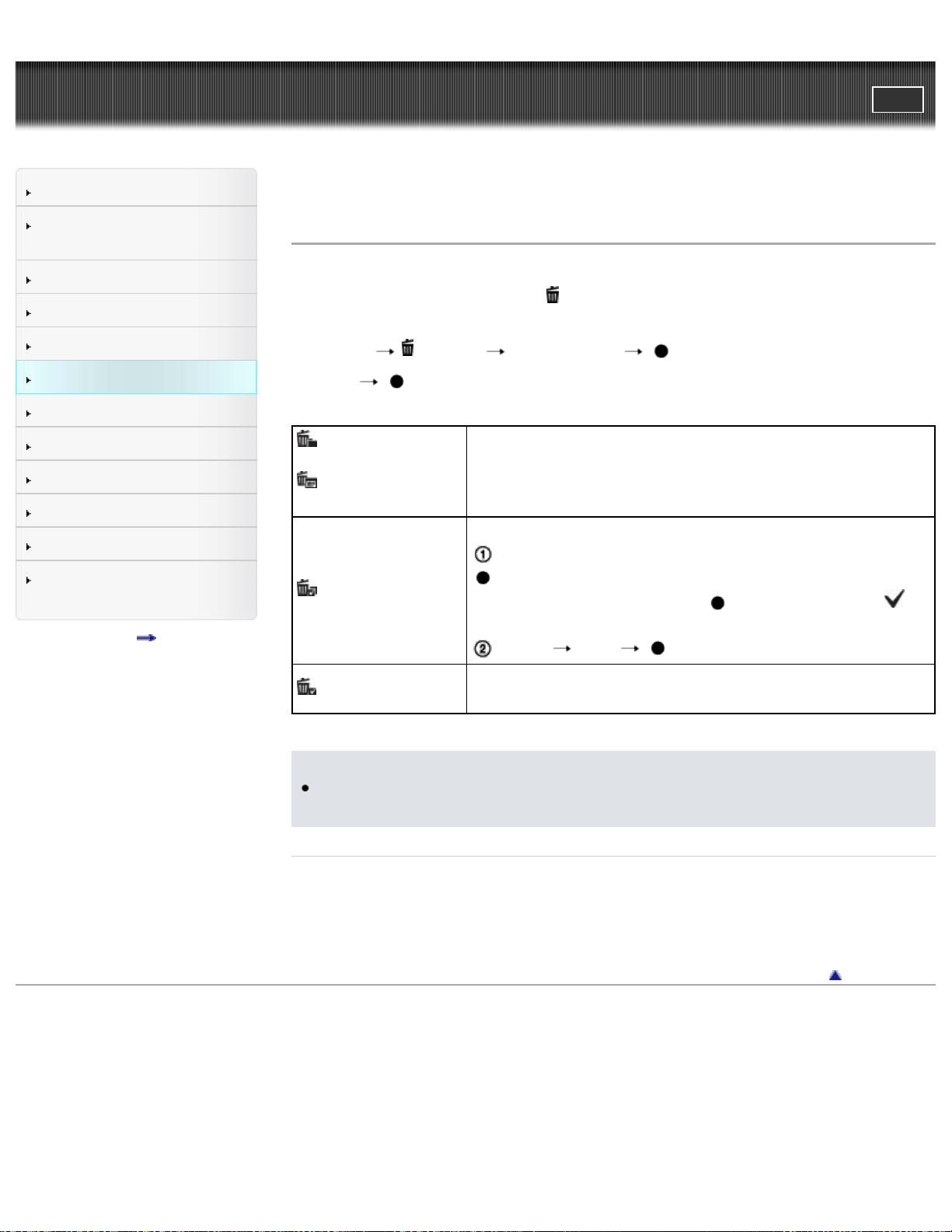
Cyber-shot User Guide
PrintSearch
Before Use
Confirming the operation
method
Shooting
Viewing
Useful shooting functions
Useful viewing functions
Changing settings
Viewing images on a TV
Using with your computer
Printing
Troubleshooting
Precautions / About this
camera
Contents list
Top page > Useful viewing functions > MENU items (Viewing) > Delete
Delete
Allows you to select unwanted images for deletion.
You can also delete image using
(Delete) button [Details].
1. Set the camera to playback mode.
2. MENU
(Delete) desired mode on the control button
3. [OK]
(All in This
Folder)
(All Images on
This Date)
Deletes all still images and movies in the selected date
range or folder at once.
(Multiple Images)
Allows you to select and delete multiple images.
After step 2, select an image to be deleted, then press
.
To cancel the selection, press
again to cancel the
mark.
MENU [OK]
(This Image)
Deletes the currently displayed image in single-image
mode.
Notes
When the internal memory is used to record images, View Mode is set to Folder
View and still images and movies are displayed in the same folder.
Related Topics
Deleting images
Back to top
Copyright 2013 Sony Corporation
98
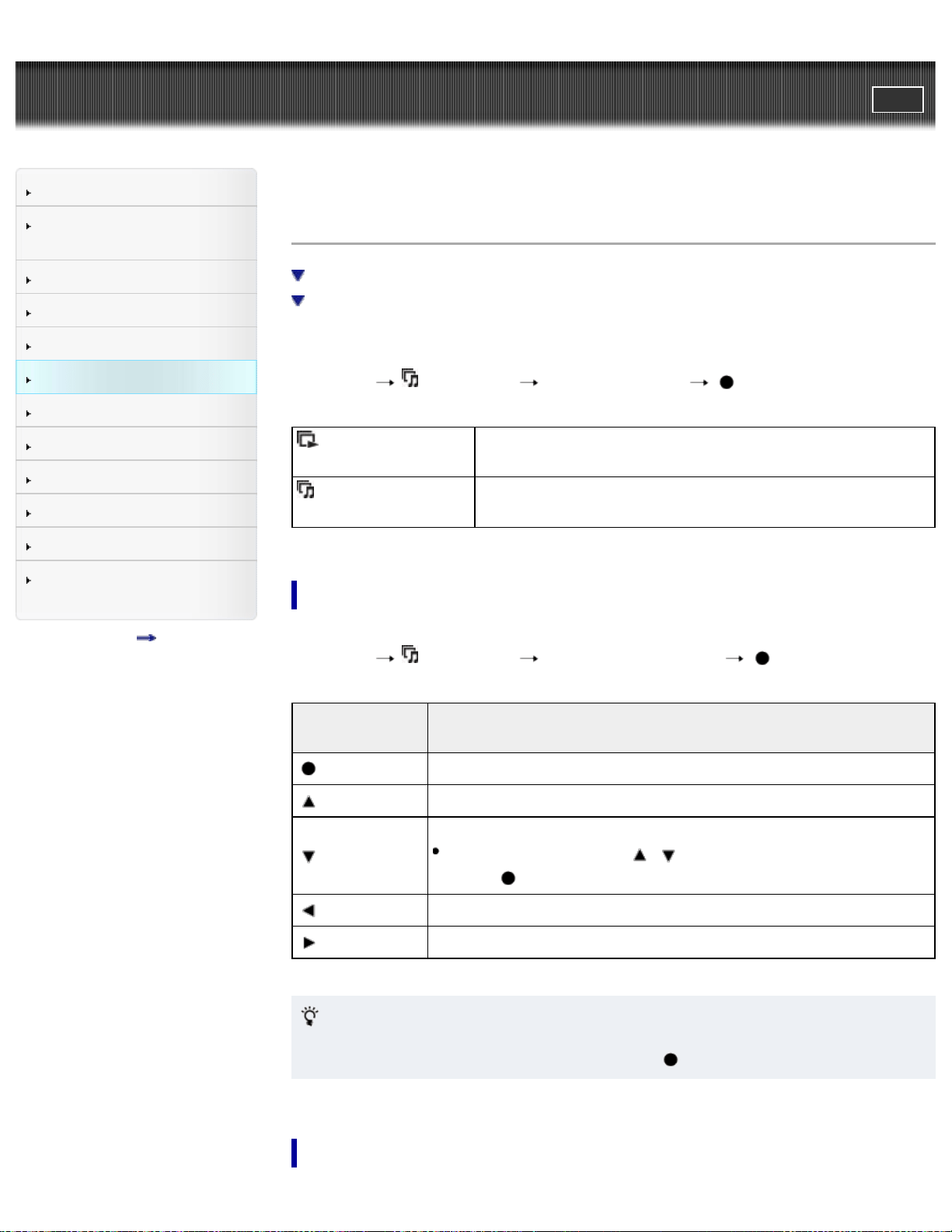
Cyber-shot User Guide
PrintSearch
Before Use
Confirming the operation
method
Shooting
Viewing
Useful shooting functions
Useful viewing functions
Changing settings
Viewing images on a TV
Using with your computer
Printing
Troubleshooting
Precautions / About this
camera
Contents list
Top page > Useful viewing functions > MENU items (Viewing) > Slideshow
Slideshow
Continuous Playback
Slideshow with music
Images are automatically played back in succession.
1. Set the camera to playback mode.
2. MENU
(Slideshow) desired slideshow on the control button
(Continuous
Playback)
Starts playback from the currently displayed image.
(Slideshow with
music)
Plays back still images in succession along with effects
and music.
Continuous Playback
1. Select the desired image for playing with the control button.
2. MENU
(Slideshow) [Continuous Playback]
Control
button
Action
Stop
Sets the display settings.
Displays the volume control screen.
Adjust the volume with
/ on the control button, then
press
.
Rewinds image.
Forwards image.
Viewing panoramic images during continuous playback
The whole panoramic image is displayed for 3 seconds.
You can scroll a panoramic image by pressing
.
Slideshow with music
99
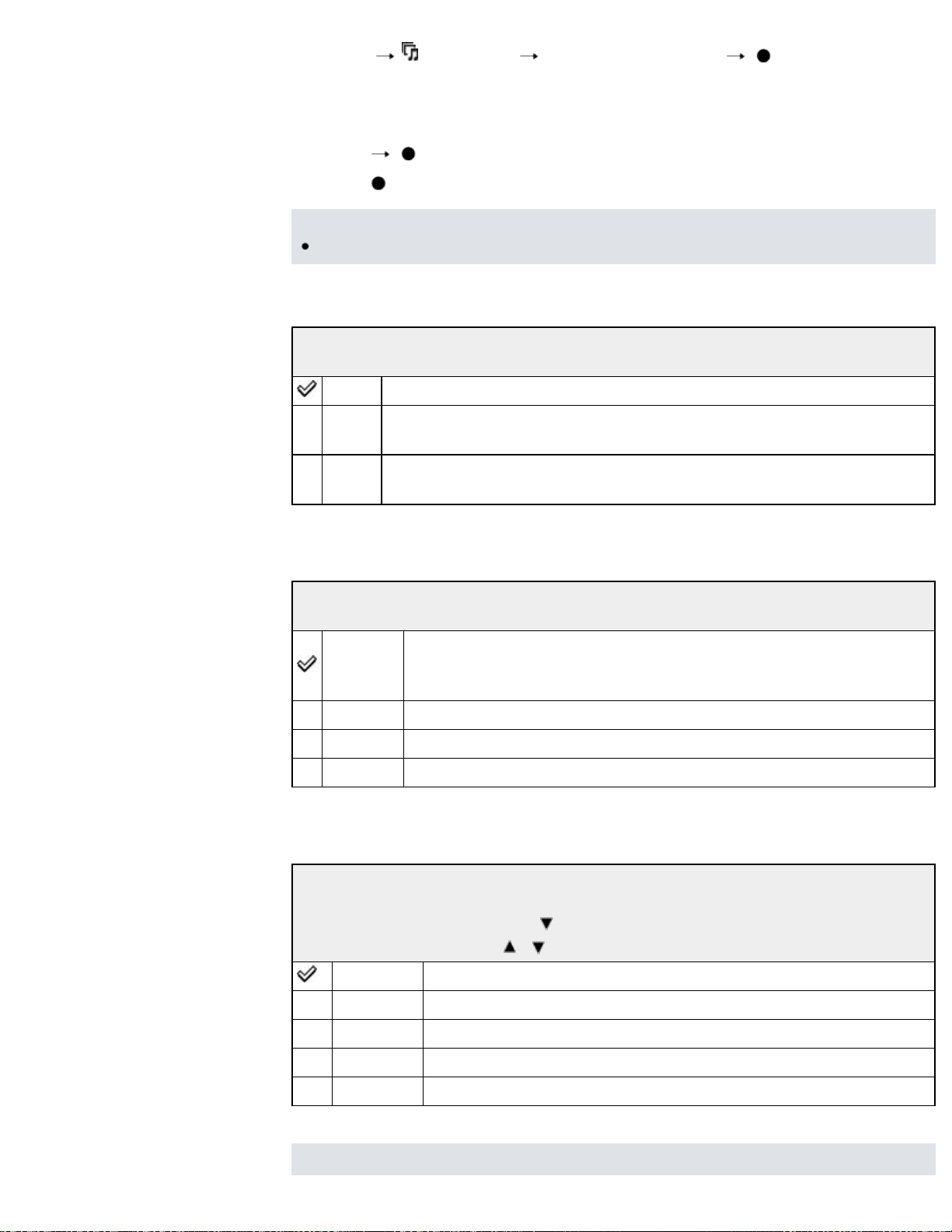
1. MENU (Slideshow) [Slideshow with music] on the control
button
Displays the setting screen.
2. Select a desired setting.
3. [Start]
4. Press to end the slideshow.
Notes
[Slideshow with music] is not available for panoramic images.
Playback Selection
Selects the group of images to be shown.
All Plays a slideshow of all the images in order.
This
Date
Plays a slideshow of images with the currently selected date range
when [View Mode] is [Date View].
Folder
Plays a slideshow of images in the currently selected folder in Folder
View.
Effects
Selects the playback speed and mood for slideshows.
Simple
A simple slideshow switching images at a preset interval.
The playback interval is adjustable in [Interval] and you can
thoroughly enjoy your images.
Nostalgic A moody slideshow reproducing the atmosphere of a movie scene.
Stylish A stylish slideshow proceeding at middle tempo.
Active A high-tempo slideshow suitable for active scene.
Music
Specifies the music to be played during slideshows. You can select more than one
background music track. Press
on the control button to display the volume
control screen, then press
/ to adjust the volume.
Music1 The default setting for a [Simple] slideshow.
Music2 The default setting for a [Nostalgic] slideshow.
Music3 The default setting for a [Stylish] slideshow.
Music4 The default setting for a [Active] slideshow.
Muting Does not use music.
Notes
100
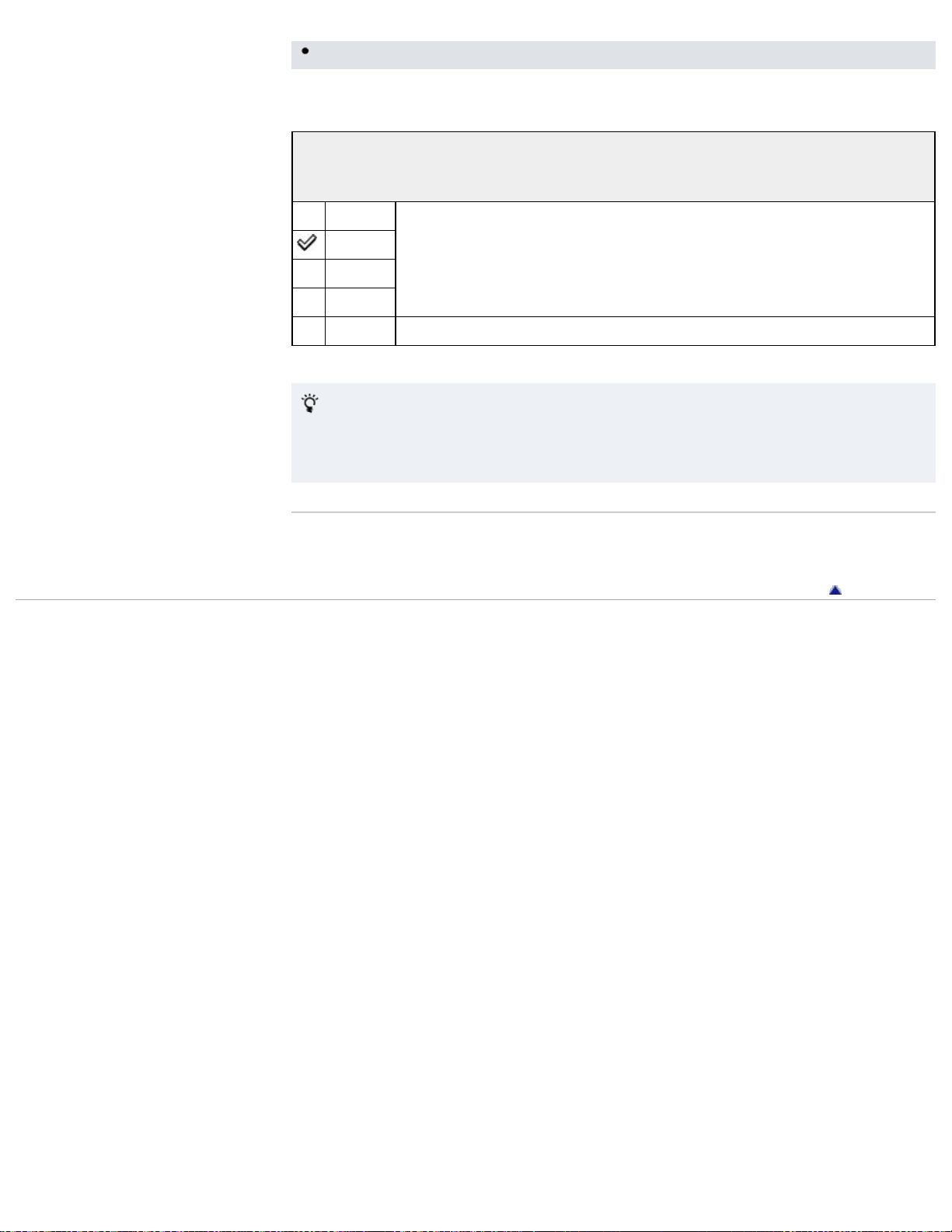
The movies are played back without their audio.
Interval
Sets the screen switching interval. The setting is fixed to [Auto] when [Simple] is
not selected as the [Effects].
1 sec
Sets the display interval of images for a [Simple] slideshow.
3 sec
5 sec
10 sec
Auto The interval is set to suit the selected [Effects] item.
Selecting background music
You can transfer a desired music file from your CDs or MP3 files to the camera to
play back during a slideshow. To transfer music, install the “Music Transfer”
software to your computer. [Details]
Related Topic
“Music Transfer”
Back to top
Copyright 2013 Sony Corporation
101
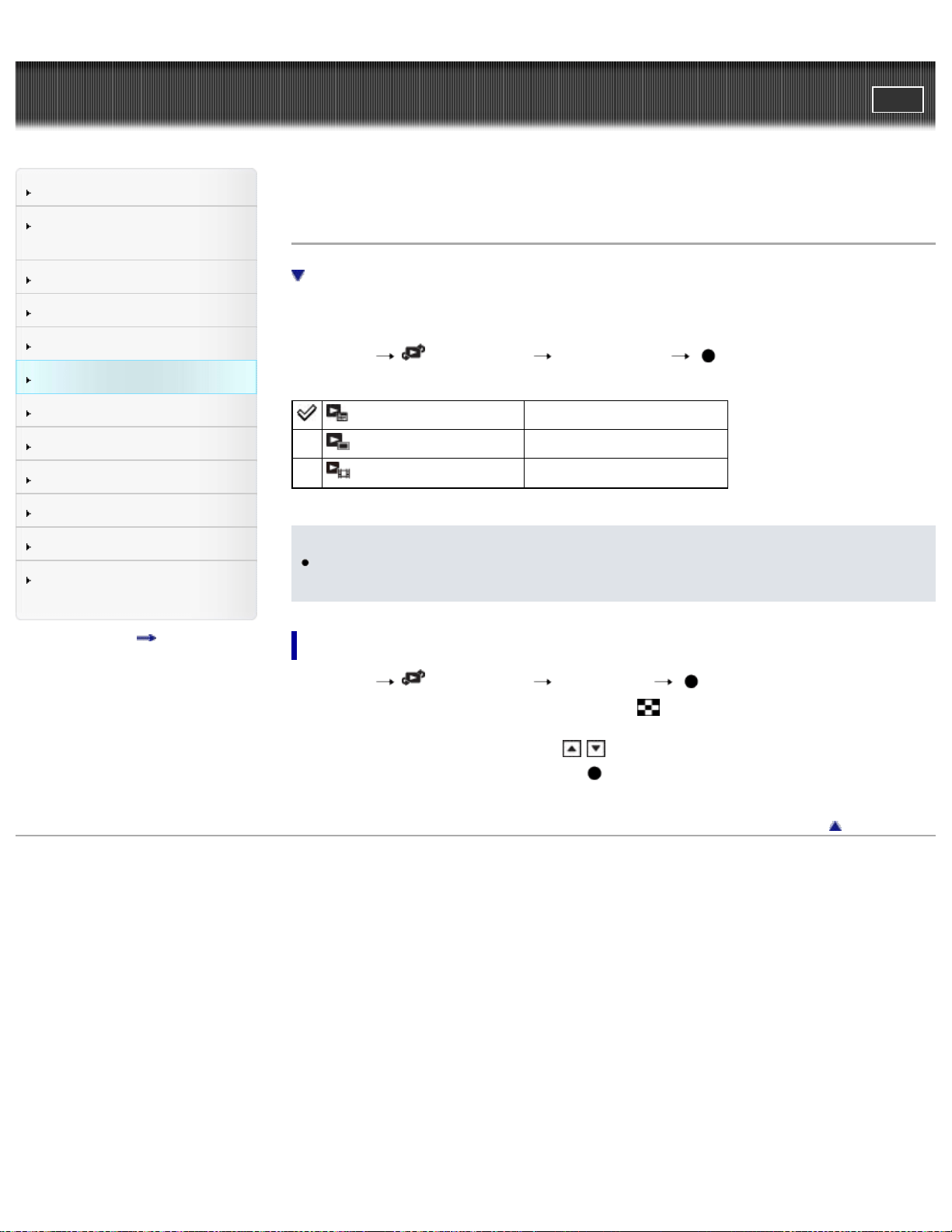
Cyber-shot User Guide
PrintSearch
Before Use
Confirming the operation
method
Shooting
Viewing
Useful shooting functions
Useful viewing functions
Changing settings
Viewing images on a TV
Using with your computer
Printing
Troubleshooting
Precautions / About this
camera
Contents list
Top page > Useful viewing functions > MENU items (Viewing) > View Mode
View Mode
Displaying the Calendar
Allows you to select the display format for images.
1. Set the camera to playback mode.
2. MENU
(View Mode) desired mode on the control button
(Date View) Displays images by date.
(Folder view (Still)) Displays still images.
(Folder view (Movie))
Displays movies.
Notes
When the internal memory is used to record images, View Mode is set to Folder
View and still images and movies are displayed in the same folder.
Displaying the Calendar
1. MENU (View Mode) [Date View] on the control button
2. Turn the W/T (zoom) lever to the W side (
) repeatedly until the Calendar is
displayed.
Use the control button to select
/ , then select the month you want to
display. Select the date and press
to view images of the selected date in
index mode.
Back to top
Copyright 2013 Sony Corporation
102
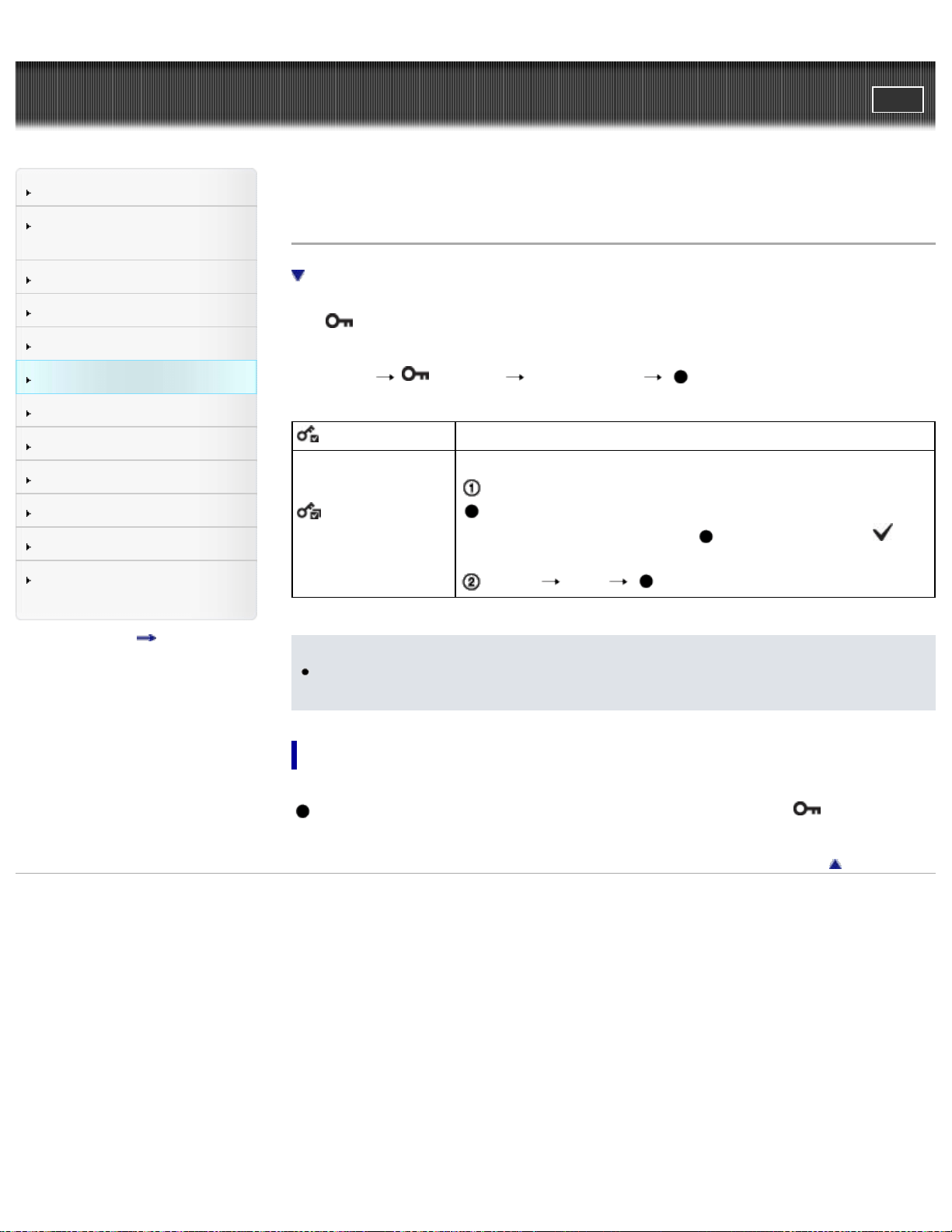
Cyber-shot User Guide
PrintSearch
Before Use
Confirming the operation
method
Shooting
Viewing
Useful shooting functions
Useful viewing functions
Changing settings
Viewing images on a TV
Using with your computer
Printing
Troubleshooting
Precautions / About this
camera
Contents list
Top page > Useful viewing functions > MENU items (Viewing) > Protect
Protect
To cancel protection
Protects recorded images against accidental erasure.
The
mark is displayed for registered images.
1. Set the camera to playback mode.
2. MENU
(Protect) desired mode on the control button
(This Image) Protects the currently displayed image in single-image mode.
(Multiple
Images)
You can select and protect multiple images.
After step 2, select an image to be protected, then press
.
To cancel the selection, press
again to cancel the
mark.
MENU [OK]
Notes
When the internal memory is used to record images, View Mode is set to Folder
View and still images and movies are displayed in the same folder.
To cancel protection
Select the image for which you want to cancel protection, and unlock it by pressing
on the control button as the same procedure to protect it. The indicator
disappears, and the protection is released.
Back to top
Copyright 2013 Sony Corporation
103
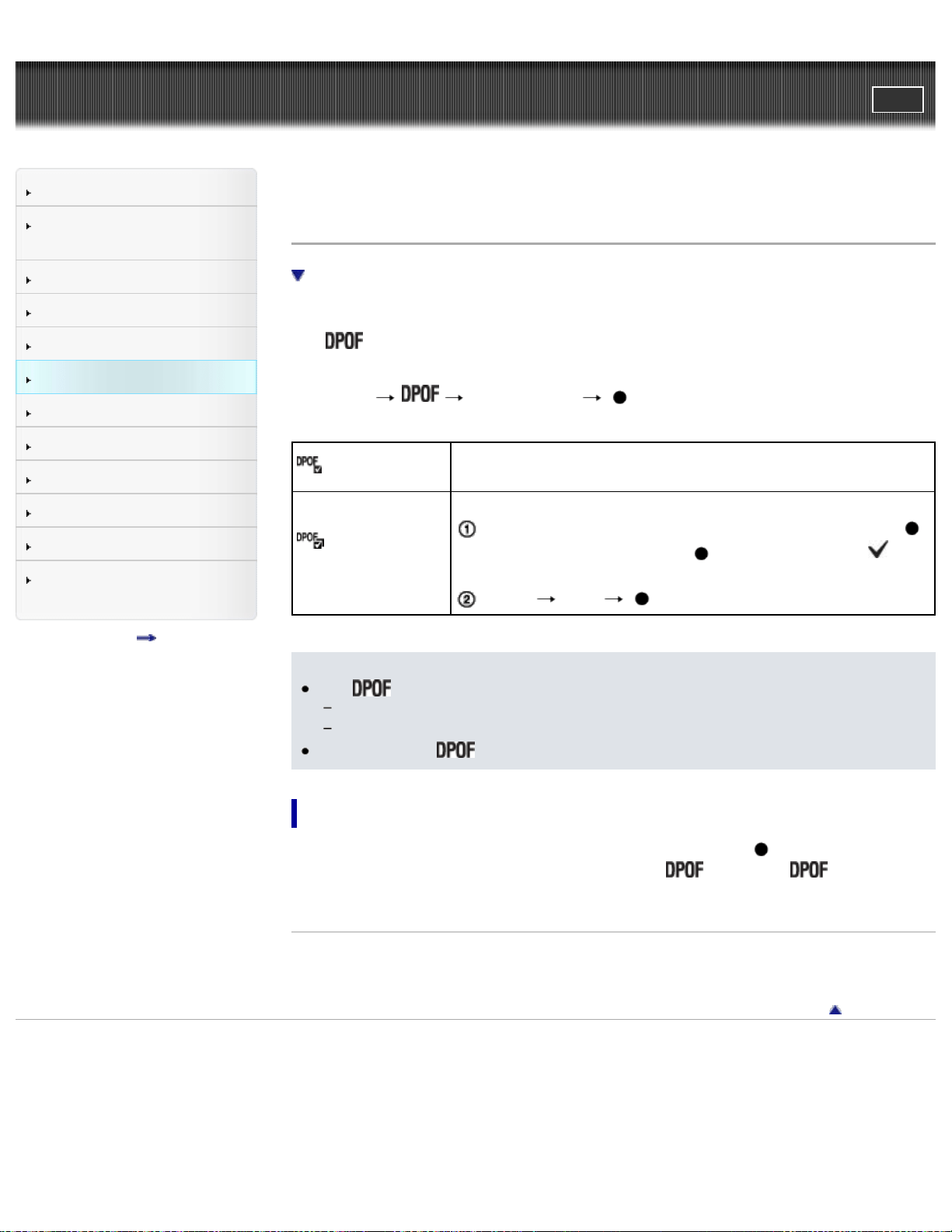
Cyber-shot User Guide
PrintSearch
Before Use
Confirming the operation
method
Shooting
Viewing
Useful shooting functions
Useful viewing functions
Changing settings
Viewing images on a TV
Using with your computer
Printing
Troubleshooting
Precautions / About this
camera
Contents list
Top page > Useful viewing functions > MENU items (Viewing) > Print (DPOF)
Print (DPOF)
Clearing the DPOF mark
DPOF (Digital Print Order Format) is a function that allows you to specify the
images of the memory card that you want to print out later.
The
(Print order) mark is displayed for registered images.
1. Set the camera to playback mode.
2. MENU
desired mode on the control button
(This Image)
Orders printing the currently displayed image in single-image
mode.
(Multiple
Images)
You can select and order multiple images to be printed.
After step 2, select an image to be printed, then press .
To cancel the selection, press
again to cancel the
mark.
MENU [OK]
Notes
The
(Print order) mark cannot be added to the following images:
Movies
Images in the internal memory
You can add a
(Print order) mark to a maximum 999 images.
Clearing the DPOF mark
Select the image to clear the DPOF registration, then press on the control
button in the same procedure as when making a
mark. The mark
disappears and the DPOF registration is cleared.
Related Topic
Printing still images
Back to top
Copyright 2013 Sony Corporation
104
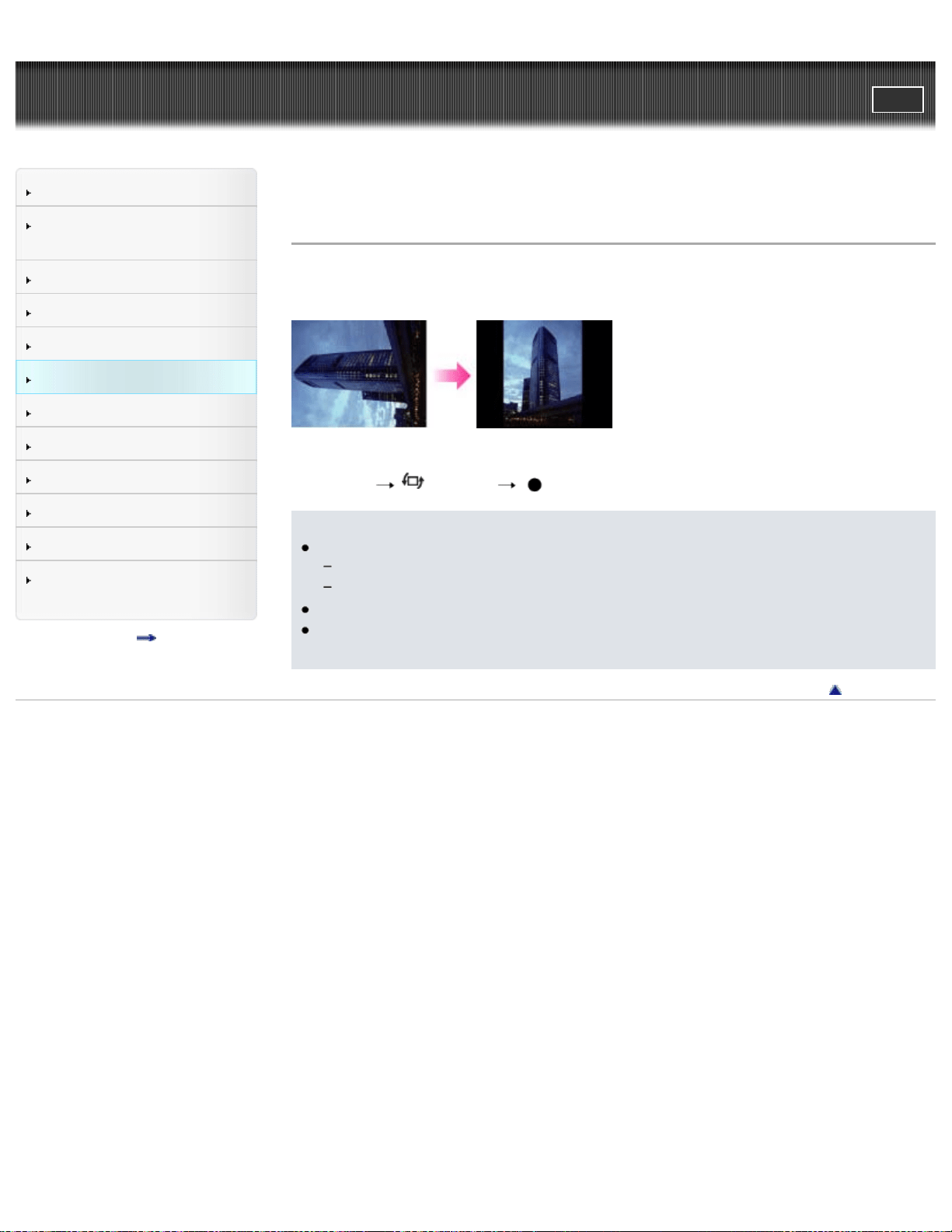
Cyber-shot User Guide
PrintSearch
Before Use
Confirming the operation
method
Shooting
Viewing
Useful shooting functions
Useful viewing functions
Changing settings
Viewing images on a TV
Using with your computer
Printing
Troubleshooting
Precautions / About this
camera
Contents list
Top page > Useful viewing functions > MENU items (Viewing) > Rotate
Rotate
Rotates a still image. Use this to display a horizontal orientation image in vertical
orientation.
1. Set the camera to playback mode.
2. MENU
(Rotate) on the control button
Notes
You cannot rotate the following images:
Movies
Protected still images
You may not be able to rotate images shot with other cameras.
When viewing images on a computer, the image rotation information may not
be reflected, depending on the software.
Back to top
Copyright 2013 Sony Corporation
105
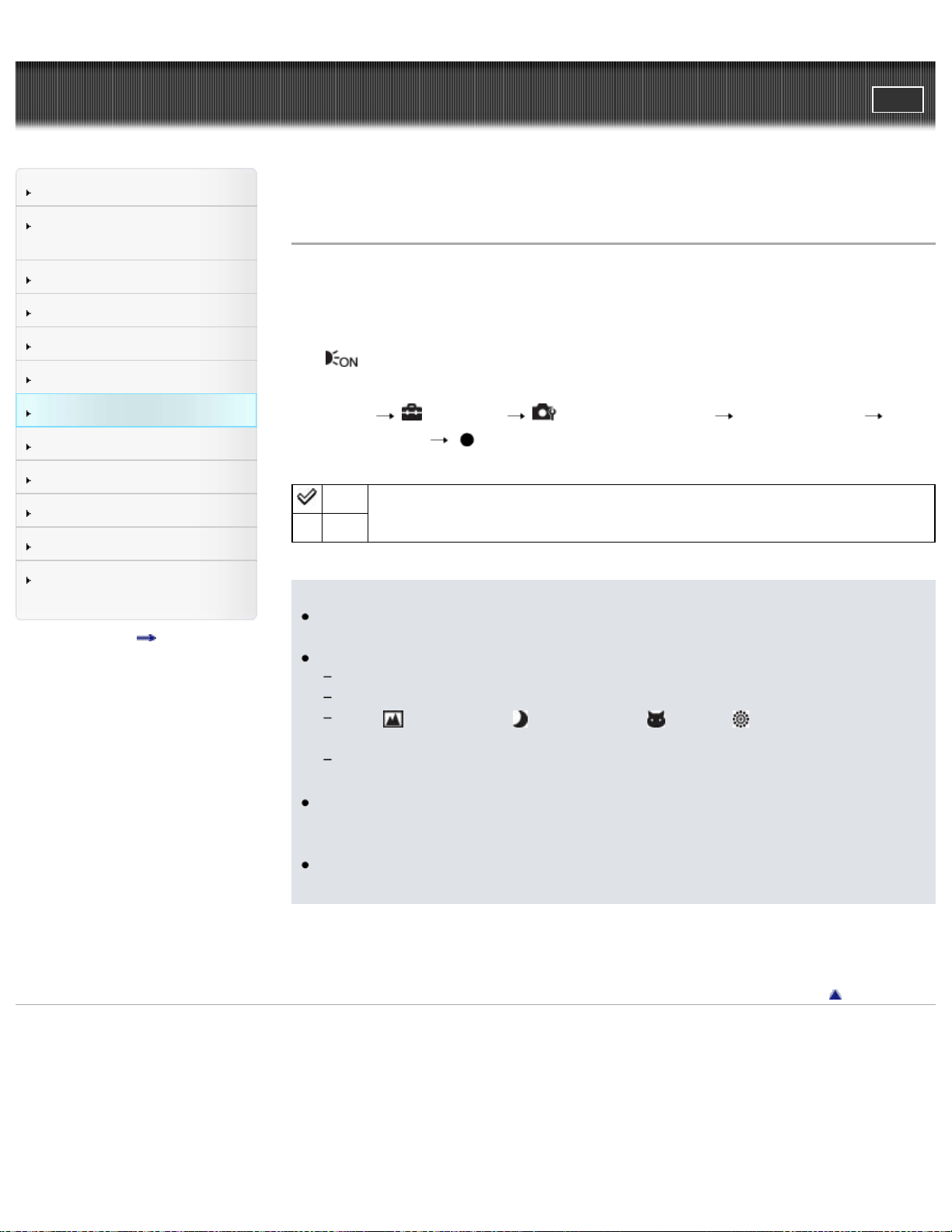
Cyber-shot User Guide
PrintSearch
Before Use
Confirming the operation
method
Shooting
Viewing
Useful shooting functions
Useful viewing functions
Changing settings
Viewing images on a TV
Using with your computer
Printing
Troubleshooting
Precautions / About this
camera
Contents list
Top page > Changing settings > Shooting Settings > AF Illuminator
AF Illuminator
The AF illuminator supplies fill light to focus more easily on a subject in dark
surroundings.
The AF illuminator emits red light allowing the camera to focus easily when the
shutter button is pressed halfway, until the focus is locked.
The
indicator appears at this time.
1. Set the camera to shooting mode.
2. MENU
(Settings) (Shooting Settings) [AF Illuminator]
desired mode
Auto
Sets whether to use the AF illuminator automatically in dark
surroundings.
Off
Notes
Focus is achieved as long as the AF illuminator light reaches the subject,
regardless of whether light fails to reach the center of the subject.
You cannot use the AF illuminator in the following situations:
In movie mode
In [Sweep Panorama] mode
When
(Landscape), (Night Scene), (Pet) or (Fireworks) mode is
selected in Scene Selection.
When [Self-Timer] is set to [Self-portrait One Person] or [Self-portrait Two
People].
When you use the AF illuminator, the normal AF range finder frame is disabled
and a new AF range finder frame is displayed by a dotted line. AF operates
with priority on subjects located near the center of the frame.
The AF illuminator emits very bright light. Although there is no health hazard, do
not look directly into the AF illuminator emitter at close range.
Back to top
Copyright 2013 Sony Corporation
106
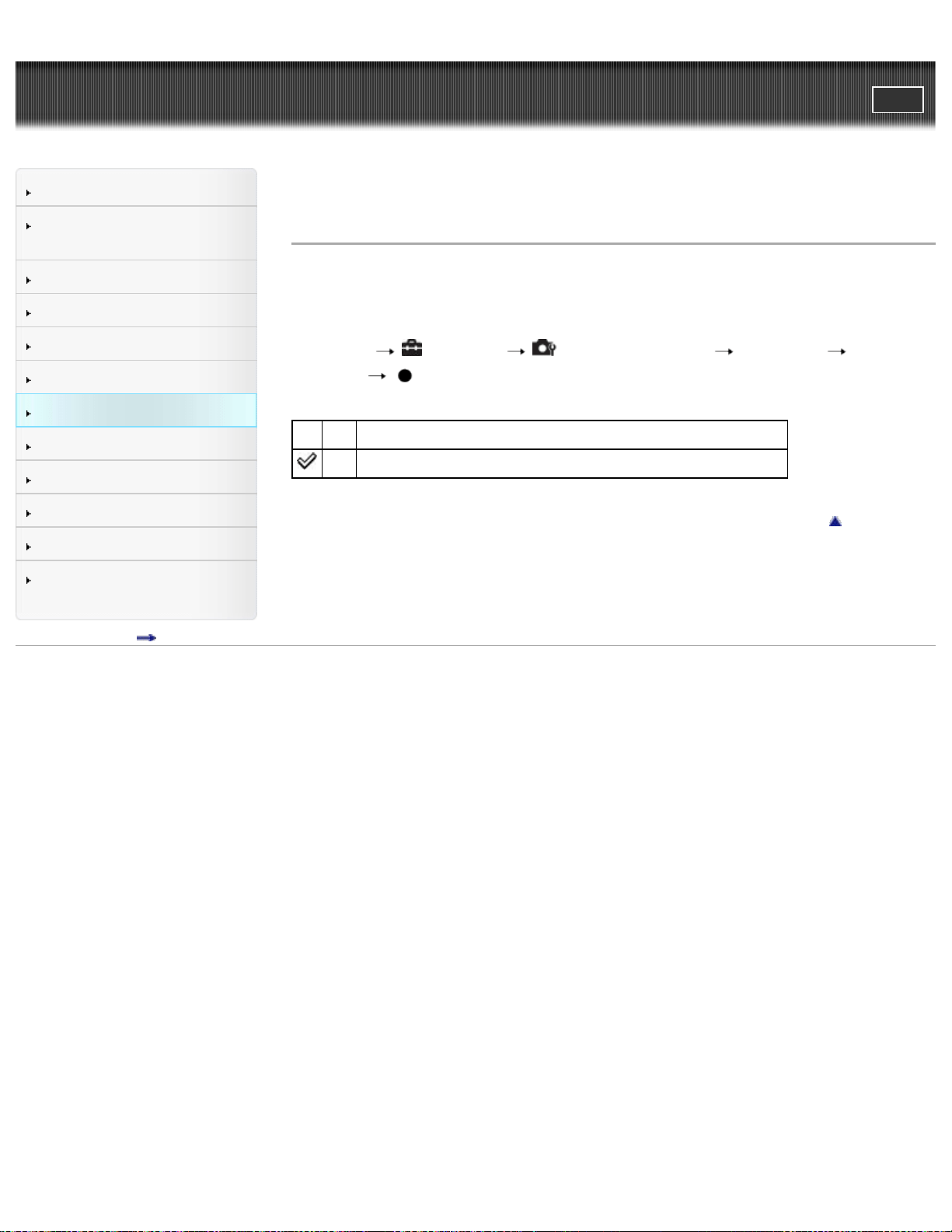
Cyber-shot User Guide
PrintSearch
Before Use
Confirming the operation
method
Shooting
Viewing
Useful shooting functions
Useful viewing functions
Changing settings
Viewing images on a TV
Using with your computer
Printing
Troubleshooting
Precautions / About this
camera
Contents list
Top page > Changing settings > Shooting Settings > Grid Line
Grid Line
With reference to the grid lines, you can easily set a subject in a horizontal/vertical
position.
1. Set the camera to shooting mode.
2. MENU
(Settings) (Shooting Settings) [Grid Line] desired
mode
On Displays the grid lines. The grid lines are not recorded.
Off Does not display the grid lines.
Back to top
Copyright 2013 Sony Corporation
107
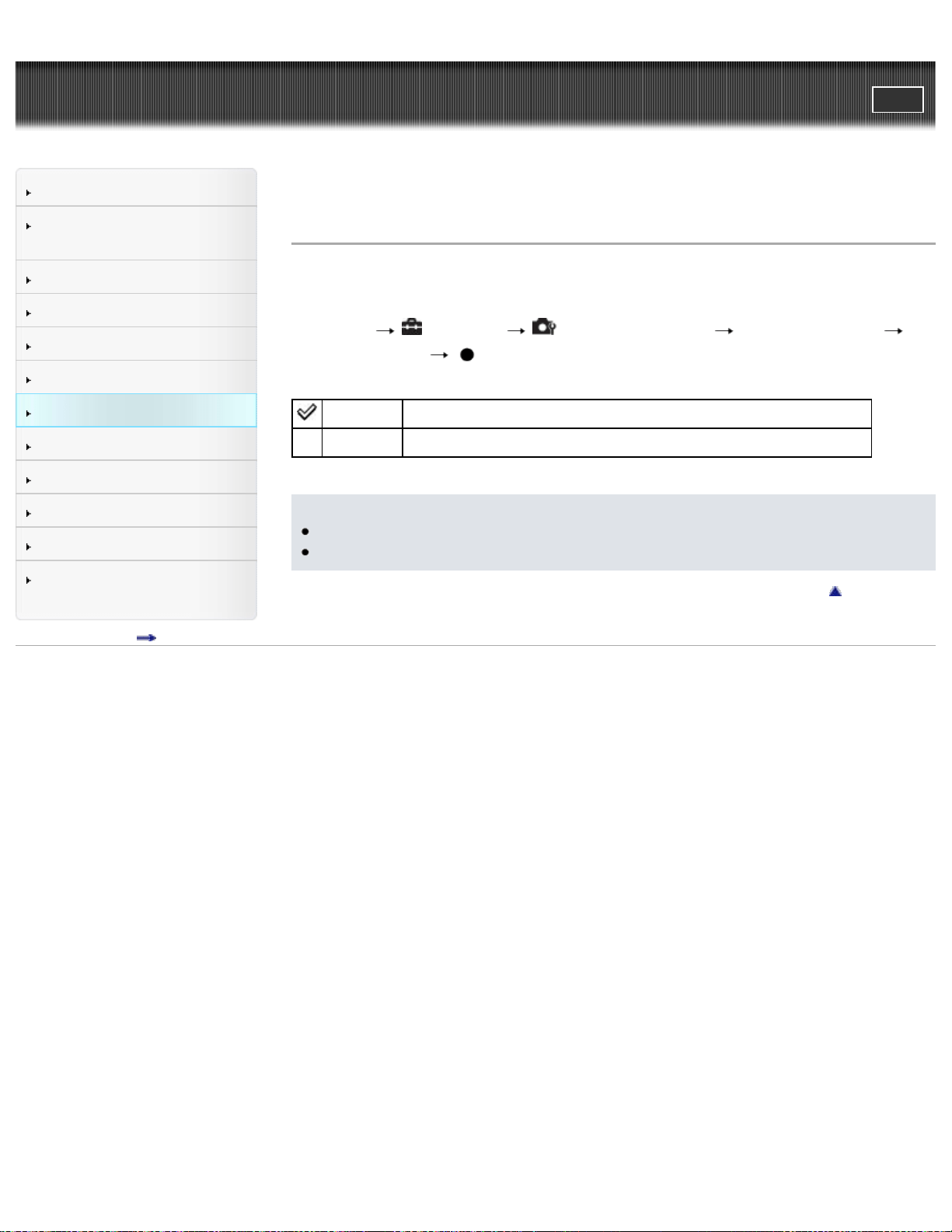
Cyber-shot User Guide
PrintSearch
Before Use
Confirming the operation
method
Shooting
Viewing
Useful shooting functions
Useful viewing functions
Changing settings
Viewing images on a TV
Using with your computer
Printing
Troubleshooting
Precautions / About this
camera
Contents list
Top page > Changing settings > Shooting Settings > Disp. Resolution
Disp. Resolution
Adjusts the image quality on the screen for shooting.
1. Set the camera to shooting mode.
2. MENU
(Settings) (Shooting Settings) [Disp. Resolution]
desired mode
High Displays the image on the screen in high image quality.
Standard Displays the image on the screen in standard image quality.
Notes
The battery power may decrease faster when [Disp. Resolution] is set to [High].
In Sweep Panorama and Movie Mode, [Disp. Resolution] is set to [High].
Back to top
Copyright 2013 Sony Corporation
108
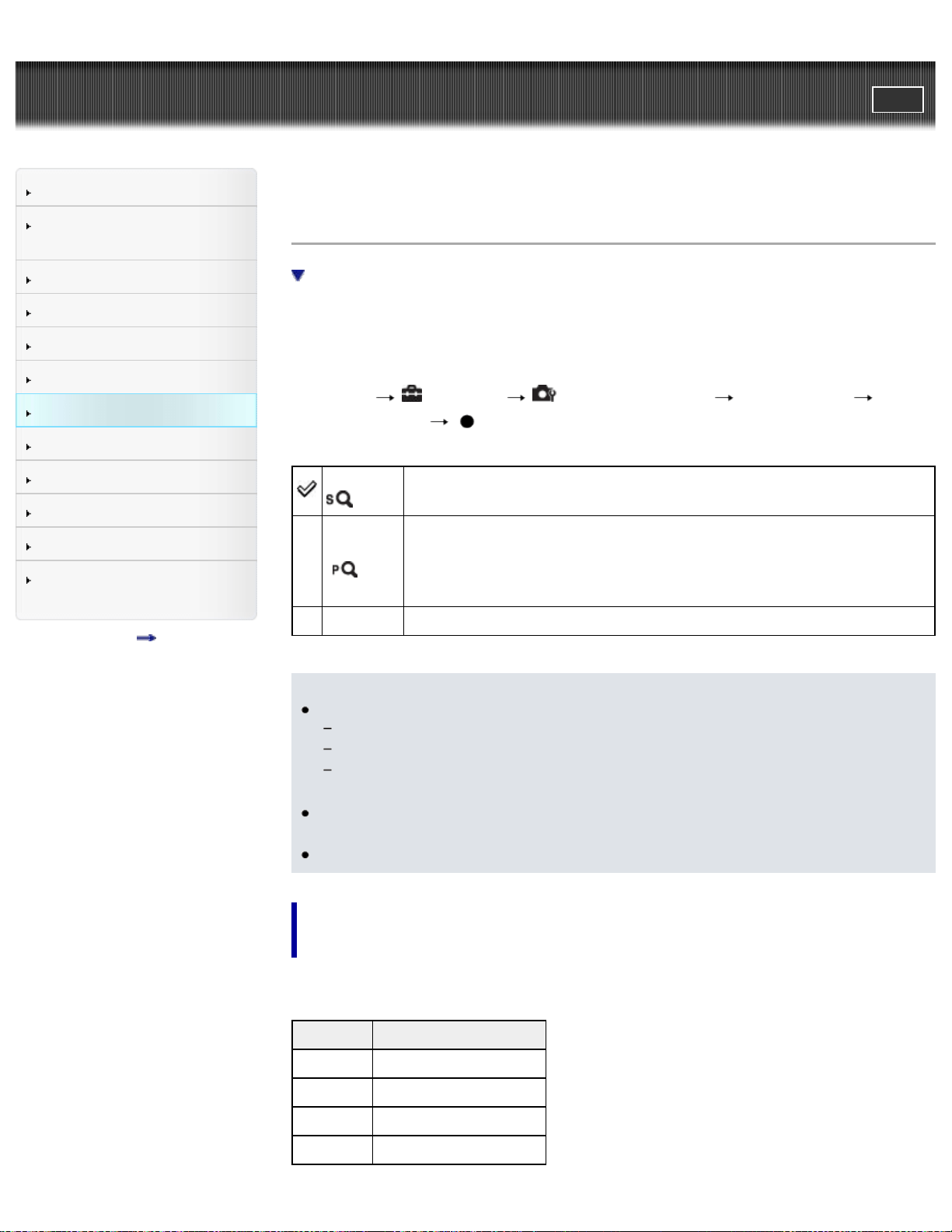
Cyber-shot User Guide
PrintSearch
Before Use
Confirming the operation
method
Shooting
Viewing
Useful shooting functions
Useful viewing functions
Changing settings
Viewing images on a TV
Using with your computer
Printing
Troubleshooting
Precautions / About this
camera
Contents list
Top page > Changing settings > Shooting Settings > Digital Zoom
Digital Zoom
Total zoom scale when using Smart zoom (including optical zoom 35×)
Selects the digital zoom mode. The camera enlarges the image using optical zoom
(up to 35×). When the zoom scale is exceeded, the camera uses either smart or
precision digital zoom.
1. Set the camera to shooting mode.
2. MENU
(Settings) (Shooting Settings) [Digital Zoom]
desired mode
Smart (
)
Enlarges the image digitally within the range where the image will
not be distorted, according to the image size (Smart zoom).
Precision
(
)
Enlarges all image sizes by the total zoom scale of approximately
70×, including the optical zoom 35×. However, note that the image
quality deteriorates when the optical zoom scale is exceeded
(Precision digital zoom).
Off Does not use the digital zoom.
Notes
[Digital Zoom] is not available in the following situations:
In [Sweep Panorama] mode
When the Smile Shutter function is activated.
When [Self-Timer] is set to [Self-portrait One Person] or [Self-portrait Two
People].
The smart zoom is not available when you record movies or the image size is
set to [20M] or [16:9(15M)].
The Face Detection function does not operate in the range of [Digital Zoom].
Total zoom scale when using Smart zoom (including
optical zoom 35×)
The supported zoom ratio differs depending on the image size.
Size Total zoom scale
10M Approx. 49×
5M Approx. 69×
VGA Approx. 280×
16:9(2M) Approx. 93×
109
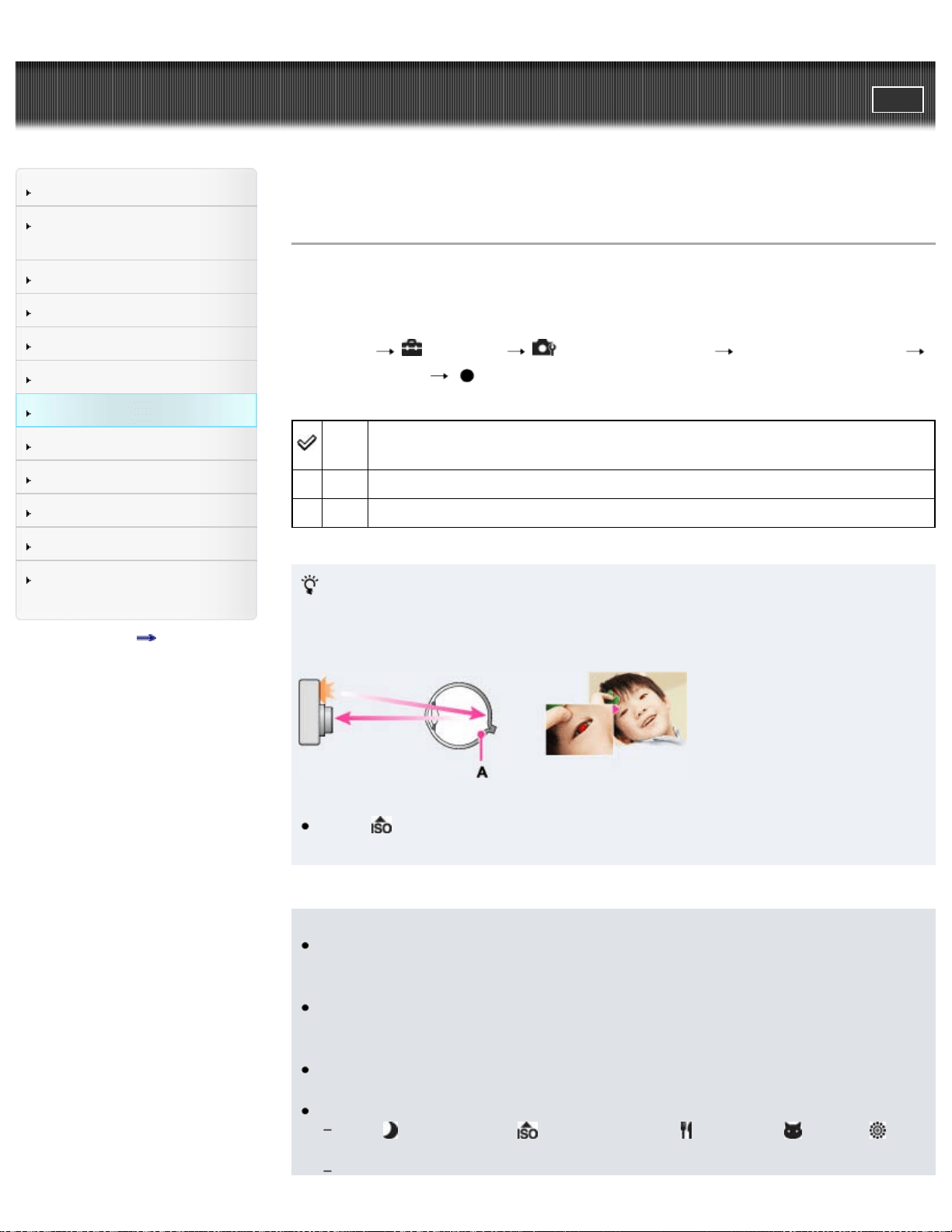
Cyber-shot User Guide
PrintSearch
Before Use
Confirming the operation
method
Shooting
Viewing
Useful shooting functions
Useful viewing functions
Changing settings
Viewing images on a TV
Using with your computer
Printing
Troubleshooting
Precautions / About this
camera
Contents list
Top page > Changing settings > Shooting Settings > Red Eye Reduction
Red Eye Reduction
The flash strobes two or more times before shooting to reduce the red-eye
phenomenon when using flash.
1. Set the camera to shooting mode.
2. MENU
(Settings) (Shooting Settings) [Red Eye Reduction]
desired mode
Auto
When the Face Detection function is activated, the flash strobes
automatically to reduce the red-eye phenomenon.
On The flash always strobes to reduce the red-eye phenomenon.
Off Does not use Red Eye Reduction.
What causes the red-eye phenomenon?
Pupils become dilated in dark environments. The flash light is reflected off the
blood vessels at the back of the eye (retina) (A), causing the “red-eye”
phenomenon.
Other ways to reduce red-eye
Select
(High Sensitivity) mode in Scene Selection. (The flash is set to [Off]
automatically.)
Notes
To avoid blurring of images, hold the camera firmly until the shutter is released.
It usually takes a second until the shutter is released, and also be sure not to
allow the subject to move during this period.
Red Eye Reduction may not produce the desired effects. It depends on
individual differences and conditions, such as the distance to the subject or if
the subject looked away from the pre-strobe.
If you do not use the Face Detection function, Red Eye Reduction does not
work, even when you select [Auto].
[Red Eye Reduction] is set to [Off] in the following situations:
When
(Night Scene), (High Sensitivity), (Gourmet), (Pet) or
(Fireworks) mode is selected in Scene Selection.
110

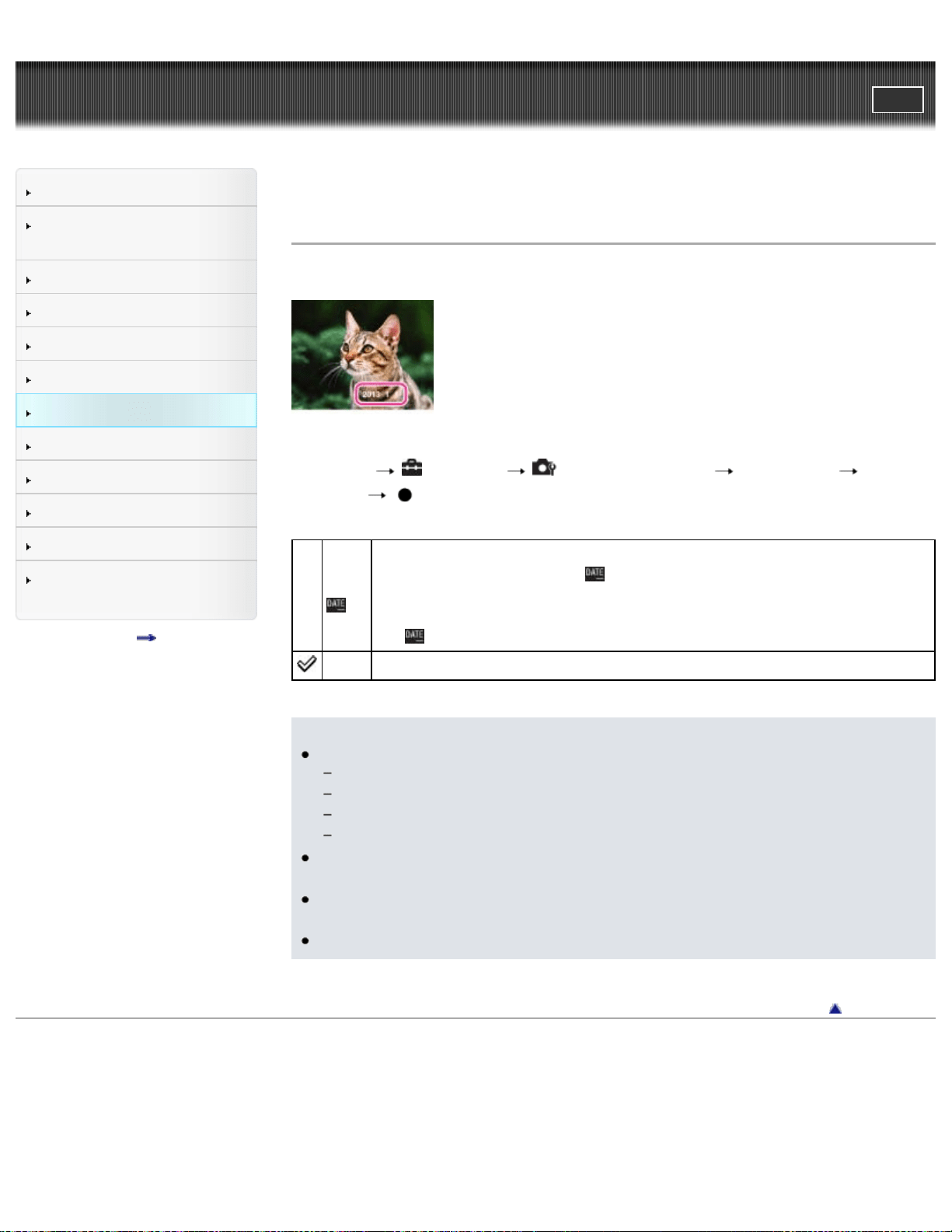
Cyber-shot User Guide
PrintSearch
Before Use
Confirming the operation
method
Shooting
Viewing
Useful shooting functions
Useful viewing functions
Changing settings
Viewing images on a TV
Using with your computer
Printing
Troubleshooting
Precautions / About this
camera
Contents list
Top page > Changing settings > Shooting Settings > Write Date
Write Date
Sets whether to record a shooting date on the still image.
1. Set the camera to shooting mode.
2. MENU
(Settings) (Shooting Settings) [Write Date] desired
mode
On (
)
Records a shooting date.
When [On] is selected, the
mark will appear on the screen while
shooting.
However, in some shooting modes that cannot record dates on images,
the
mark will disappear.
Off Does not record a shooting date.
Notes
You cannot record dates in the following situations:
In movie mode
When shooting panoramic images
In burst shooting mode
In [Easy Mode]
If you shot images with the date once, you cannot delete the date from the
images later.
The dates are doubly printed, if you set the camera to superimpose the dates
when printing.
The recorded time of the image cannot be superimposed on the image.
Back to top
Copyright 2013 Sony Corporation
112
Cyber-shot User Guide
PrintSearch
Before Use
Confirming the operation
method
Shooting
Viewing
Useful shooting functions
Useful viewing functions
Changing settings
Viewing images on a TV
Using with your computer
Printing
Troubleshooting
Precautions / About this
camera
Contents list
Top page > Changing settings > Main Settings > Beep
Beep
Selects the sound produced when you operate the camera.
1. MENU
(Settings) (Main Settings) [Beep] desired mode
Shutter Turns on the shutter sound when you press the shutter button.
On
Turns on the beep/shutter sound when you press the control
button/shutter button.
Off Turns off the beep/shutter sound.
Back to top
Copyright 2013 Sony Corporation
113
Cyber-shot User Guide
PrintSearch
Before Use
Confirming the operation
method
Shooting
Viewing
Useful shooting functions
Useful viewing functions
Changing settings
Viewing images on a TV
Using with your computer
Printing
Troubleshooting
Precautions / About this
camera
Contents list
Top page > Changing settings > Main Settings > Monitor Brightness
Monitor Brightness
You can select the screen brightness from level 1 to 5. The screen becomes
brighter as the number rises.
When you use the camera in bright outside light, select a higher number to see the
screen easier.
1. MENU
(Settings) (Main Settings) [Monitor Brightness]
desired mode
Notes
The brighter the screen, the faster the battery runs out.
The screen grows dark if you do not operate the camera while the power is on.
Back to top
Copyright 2013 Sony Corporation
114
Cyber-shot User Guide
PrintSearch
Before Use
Confirming the operation
method
Shooting
Viewing
Useful shooting functions
Useful viewing functions
Changing settings
Viewing images on a TV
Using with your computer
Printing
Troubleshooting
Precautions / About this
camera
Contents list
Top page > Changing settings > Main Settings > Language Setting
Language Setting
Selects the language to be used in the menu items, warnings and messages.
1. MENU
(Settings) (Main Settings) [Language Setting]
desired mode
Back to top
Copyright 2013 Sony Corporation
115
Cyber-shot User Guide
PrintSearch
Before Use
Confirming the operation
method
Shooting
Viewing
Useful shooting functions
Useful viewing functions
Changing settings
Viewing images on a TV
Using with your computer
Printing
Troubleshooting
Precautions / About this
camera
Contents list
Top page > Changing settings > Main Settings > Initialize
Initialize
Initializes the settings to the default setting.
Even if you execute this function, the images are retained.
1. MENU
(Settings) (Main Settings) [Initialize] [OK]
Notes
Be sure not to remove the batteries while initializing.
Back to top
Copyright 2013 Sony Corporation
116
Cyber-shot User Guide
PrintSearch
Before Use
Confirming the operation
method
Shooting
Viewing
Useful shooting functions
Useful viewing functions
Changing settings
Viewing images on a TV
Using with your computer
Printing
Troubleshooting
Precautions / About this
camera
Contents list
Top page > Changing settings > Main Settings > Function Guide
Function Guide
You can select whether or not the function guide is displayed when you operate the
camera.
1. MENU
(Settings) (Main Settings) [Function Guide] desired
mode
On
Sets whether to display the function guide.
Off
Back to top
Copyright 2013 Sony Corporation
117
Cyber-shot User Guide
PrintSearch
Before Use
Confirming the operation
method
Shooting
Viewing
Useful shooting functions
Useful viewing functions
Changing settings
Viewing images on a TV
Using with your computer
Printing
Troubleshooting
Precautions / About this
camera
Contents list
Top page > Changing settings > Main Settings > Video Out
Video Out
Sets the video signal output according to the TV color system of the connected
video equipment. The TV color systems differ depending on the country and region.
To view images on a TV screen, check the TV color system of the country or region
of use. [Details]
1. MENU
(Settings) (Main Settings) [Video Out] desired mode
NTSC Sets the video output signal to NTSC mode (e.g., for the USA, Japan).
PAL Sets the video output signal to PAL mode (e.g., for Europe, China).
Back to top
Copyright 2013 Sony Corporation
118
Cyber-shot User Guide
PrintSearch
Before Use
Confirming the operation
method
Shooting
Viewing
Useful shooting functions
Useful viewing functions
Changing settings
Viewing images on a TV
Using with your computer
Printing
Troubleshooting
Precautions / About this
camera
Contents list
Top page > Changing settings > Main Settings > USB Connect Setting
USB Connect Setting
Sets how to make a USB connection when connecting the camera to a computer,
etc.
1. MENU
(Settings) (Main Settings) [USB Connect Setting]
desired mode
Mass
Storage
Establishes a Mass Storage connection between the camera and a
computer or other USB device.
PTP/MTP
When you connect the camera to a computer, the AutoPlay Wizard
appears, and the still images in the recording folder on the camera
are imported to the computer. (with Windows 7, Windows 8,
Windows Vista, Windows XP, Mac OS X)
Notes
When [USB Connect Setting] is set to [PTP/MTP], you cannot export movies to
a computer. To export movies to a computer, set [USB Connect Setting] to
[Mass Storage].
Back to top
Copyright 2013 Sony Corporation
119
Cyber-shot User Guide
PrintSearch
Before Use
Confirming the operation
method
Shooting
Viewing
Useful shooting functions
Useful viewing functions
Changing settings
Viewing images on a TV
Using with your computer
Printing
Troubleshooting
Precautions / About this
camera
Contents list
Top page > Changing settings > Main Settings > LUN Setting
LUN Setting
Sets USB connection mode when connecting the camera to a computer, etc.
1. MENU
(Settings) (Main Settings) [LUN Setting] desired
mode
Multi
Images both on the memory card and in the internal memory are
displayed. Select this setting when you connect the camera to a
computer.
Single
When the memory card is inserted into the camera, the images on the
memory card are displayed; when it is not inserted, the images in the
internal memory are displayed. Select this setting in cases where the
images of both the memory card and the internal memory are not
displayed when the camera is connected to a device other than a
computer.
Back to top
Copyright 2013 Sony Corporation
120
Cyber-shot User Guide
PrintSearch
Before Use
Confirming the operation
method
Shooting
Viewing
Useful shooting functions
Useful viewing functions
Changing settings
Viewing images on a TV
Using with your computer
Printing
Troubleshooting
Precautions / About this
camera
Contents list
Top page > Changing settings > Main Settings > Download Music
Download Music
You can change background music tracks using “Music Transfer”.
1. MENU
(Settings) (Main Settings) [Download Music]
The message “Connect to PC” is displayed.
2. Make a USB connection between the camera and a computer, then start “Music
Transfer”.
3. Follow the instructions on the screen to change music files.
Back to top
Copyright 2013 Sony Corporation
121
Cyber-shot User Guide
PrintSearch
Before Use
Confirming the operation
method
Shooting
Viewing
Useful shooting functions
Useful viewing functions
Changing settings
Viewing images on a TV
Using with your computer
Printing
Troubleshooting
Precautions / About this
camera
Contents list
Top page > Changing settings > Main Settings > Empty Music
Empty Music
You can delete all the background music files stored in the camera. It can be used
in cases such as when the background music files are damaged and cannot be
played.
1. MENU
(Settings) (Main Settings) [Empty Music] [OK]
Related Topic
“Music Transfer”
Back to top
Copyright 2013 Sony Corporation
122
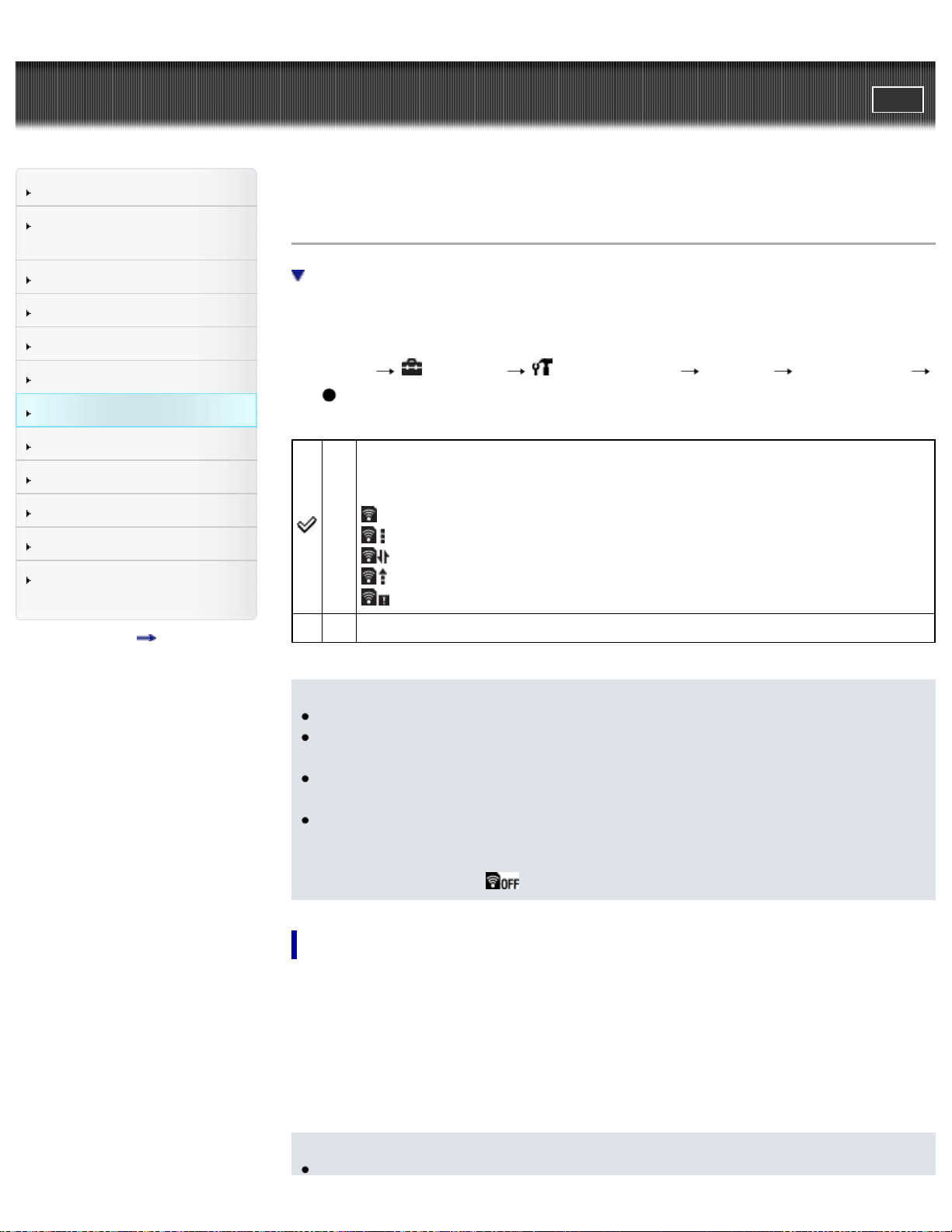
Cyber-shot User Guide
PrintSearch
Before Use
Confirming the operation
method
Shooting
Viewing
Useful shooting functions
Useful viewing functions
Changing settings
Viewing images on a TV
Using with your computer
Printing
Troubleshooting
Precautions / About this
camera
Contents list
Top page > Changing settings > Main Settings > Eye-Fi
Eye-Fi
Transferring image data using the Eye-Fi card
Sets whether to use the upload function of an Eye-Fi card (commercially available),
when you use the Eye-Fi card with this camera.
[Eye-Fi] is displayed only when the Eye-Fi card is inserted in the camera.
1. MENU
(Settings) (Main Settings) [Eye-Fi] desired mode
On
Uses the upload function.
The Eye-Fi mode display icon on the screen will change depending on
the communication mode of the Eye-Fi card.
: Eye-Fi card is in standby mode. There is no image to be sent.
: Eye-Fi card is in upload standby mode.
: Eye-Fi card is in connecting mode.
: Eye-Fi card is uploading images.
: An error has occurred.
Off Does not use the upload function.
Notes
Eye-Fi cards are only sold in certain countries/regions.
For more information on the Eye-Fi card, contact the manufacturer or seller of
Eye-Fi cards directly.
Eye-Fi cards are permitted only in the countries and regions in which they were
purchased. You may be held liable due to local restrictions.
The Eye-Fi card has a wireless LAN function. Do not insert the Eye-Fi card
where wireless LAN is prohibited, such as while aboard an airplane. If the Eye-
Fi card is inserted, set [Eye-Fi] to [Off]. When the uploading function of the Eye-
Fi card is set to [Off],
is displayed on the screen.
Transferring image data using the Eye-Fi card
1. Set the wireless LAN access point settings or the transferring direction settings
of the Eye-Fi card.
For details, refer to the operating instructions supplied with the Eye-Fi card.
2. After the settings are finished, insert the Eye-Fi card into the camera, and shoot
the images.
The recorded images are automatically transferred via wireless LAN to a
computer, etc.
Notes
123

When uploading image data, [Power Save] is not available.
If the (error) icon is displayed, eject and re-insert the Eye-Fi card, or turn
the power of the camera off and on again. If the
(error) icon is still
displayed, the Eye-Fi card may be corrupted. For details, contact Eye-Fi, Inc.
Wireless LAN communication may be interrupted by other communication
devices. If data reception is insufficient, move the camera closer to the access
point.
Some Eye-Fi cards have an “Endless Memory Mode.” This product does not
support “Endless Memory Mode.” Make sure that Eye-Fi cards that you insert
into this product have “Endless Memory Mode” turned off. For details on setting
“Endless Memory Mode”, refer to the operating instructions supplied with the
Eye-Fi card.
Back to top
Copyright 2013 Sony Corporation
124
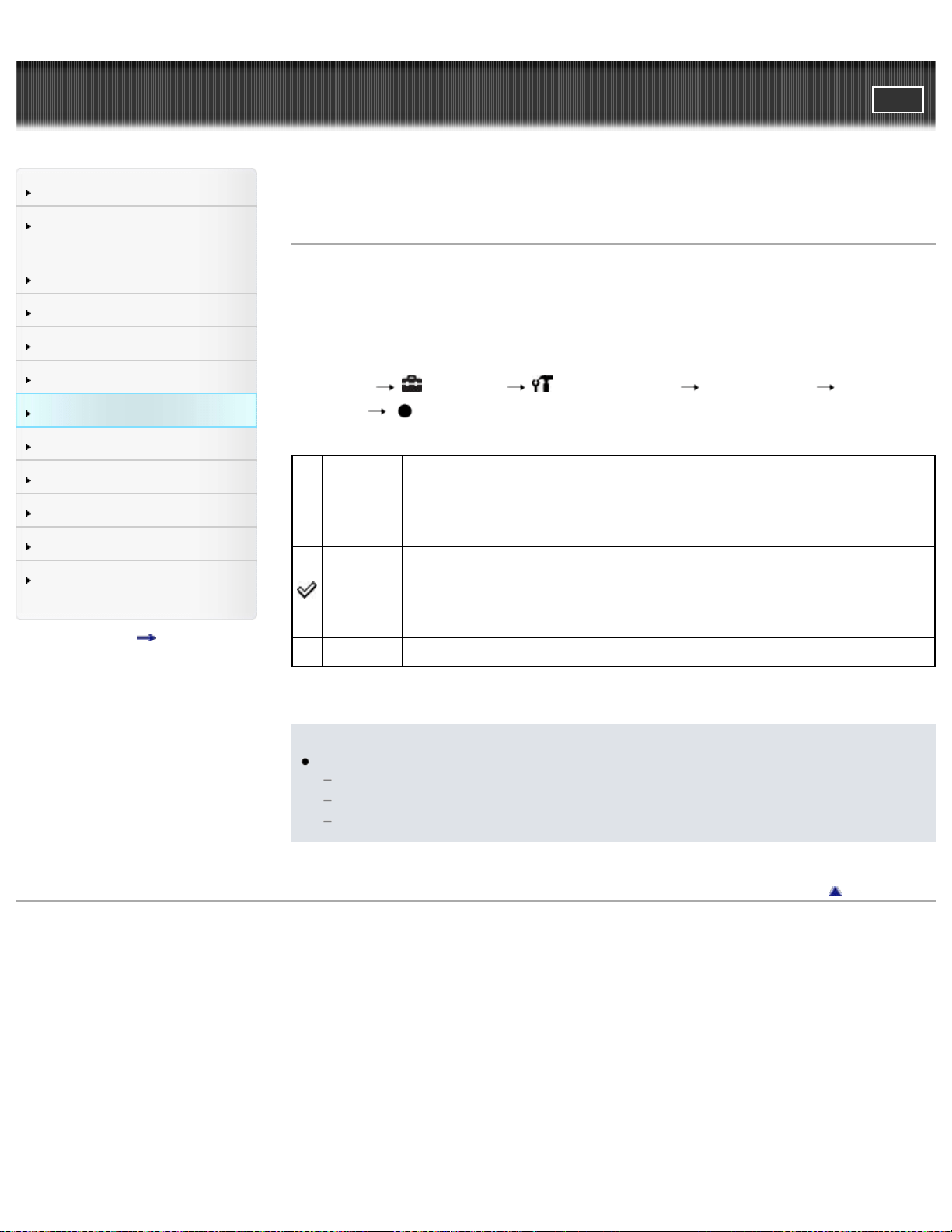
Cyber-shot User Guide
PrintSearch
Before Use
Confirming the operation
method
Shooting
Viewing
Useful shooting functions
Useful viewing functions
Changing settings
Viewing images on a TV
Using with your computer
Printing
Troubleshooting
Precautions / About this
camera
Contents list
Top page > Changing settings > Main Settings > Power Save
Power Save
Sets the length of time until the screen goes dark and the time until the camera
turns off.
If you do not operate the camera for a certain period of time while the power is on,
the screen goes dark and the camera later turns off automatically to prevent
wearing down the batteries (Auto power-off function).
1. MENU
(Settings) (Main Settings) [Power Save] desired
mode
Max
Saves battery power better than when set to [Standard].
If the camera is not operated for a certain period of time, the power
turns off automatically. In shooting mode, the screen automatically
goes dark before the power turns off.
Standard
If the camera is not operated for a certain period of time, the power
turns off automatically. In shooting mode, the screen automatically
goes dark before the power turns off.
It takes longer before the power turns off than when set to [Max].
Off Does not use the Auto power-off function.
Notes
The camera does not turn off automatically in the following situations:
During slideshow
During playing back movies
During Eye-Fi connection
Back to top
Copyright 2013 Sony Corporation
125
Cyber-shot User Guide
PrintSearch
Before Use
Confirming the operation
method
Shooting
Viewing
Useful shooting functions
Useful viewing functions
Changing settings
Viewing images on a TV
Using with your computer
Printing
Troubleshooting
Precautions / About this
camera
Contents list
Top page > Changing settings > Memory Card Tool/Internal Memory Tool > Format
Format
Formats the memory card or the internal memory.
When you use a memory card with this camera for the first time, it is recommended
to format the card using the camera for stable performance of the memory card
before shooting. Note that formatting permanently erases all data on the memory
card, and is unrecoverable. Save precious data on a computer, etc.
1. MENU
(Settings) (Memory Card Tool) or (Internal Memory
Tool)
[Format] [OK]
Notes
Note that formatting permanently erases all data including even protected
images.
Back to top
Copyright 2013 Sony Corporation
126
Cyber-shot User Guide
PrintSearch
Before Use
Confirming the operation
method
Shooting
Viewing
Useful shooting functions
Useful viewing functions
Changing settings
Viewing images on a TV
Using with your computer
Printing
Troubleshooting
Precautions / About this
camera
Contents list
Top page > Changing settings > Memory Card Tool/Internal Memory Tool > Create
REC.Folder
Create REC.Folder
Creates a folder in a memory card for recording images.
Images are recorded in the newly created folder until you create another folder or
select another recording folder.
1. MENU
(Settings) (Memory Card Tool) [Create REC.Folder]
[OK]
On folders
After a new folder is created, you can change the storage destination folder.
[Details]
Notes
This item is not displayed when the internal memory is used to record images.
When you insert a memory card that was used with other equipment into the
camera and shoot images, a new folder may be automatically created.
Up to 4,000 images can be stored in one folder. When the folder capacity is
exceeded, a new folder is automatically created.
Back to top
Copyright 2013 Sony Corporation
127
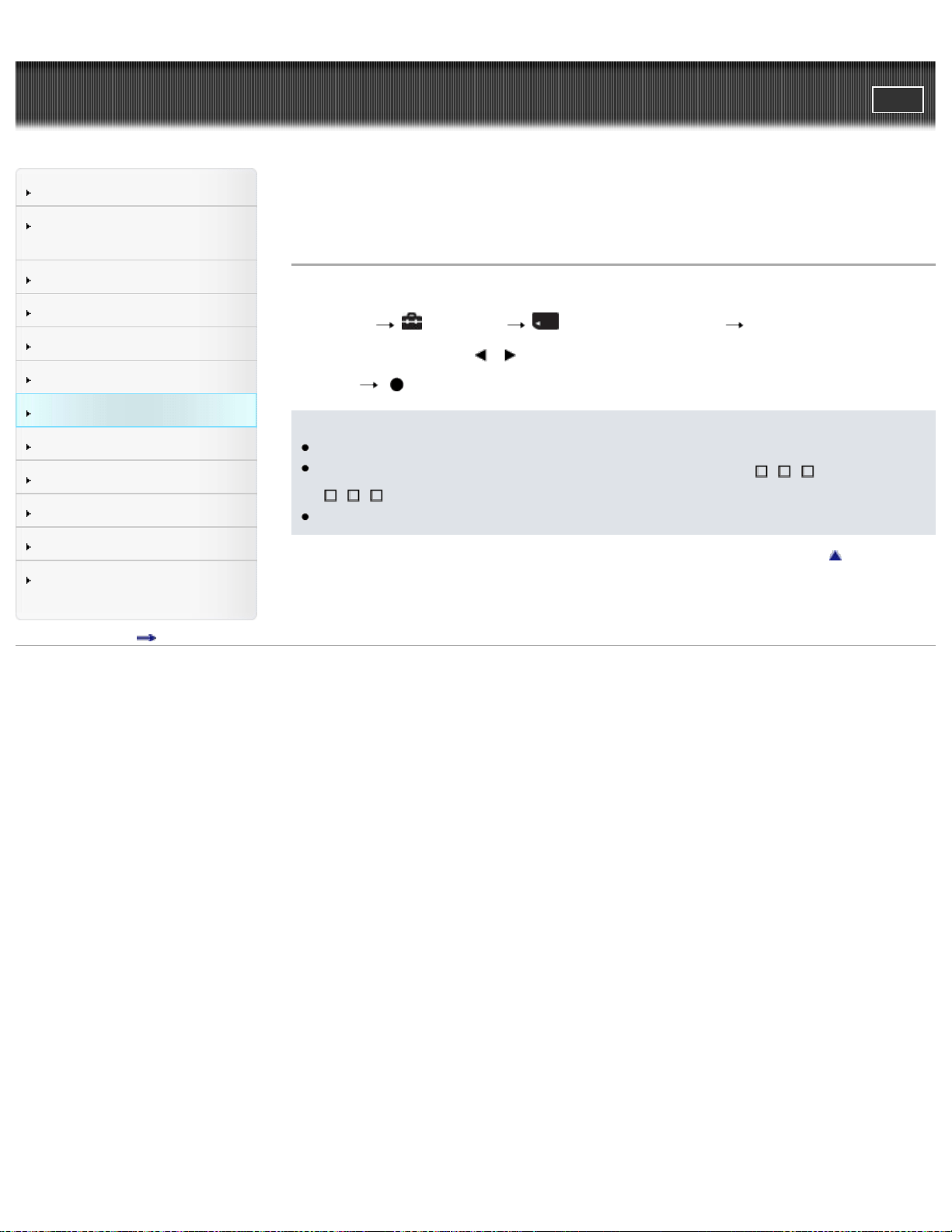
Cyber-shot User Guide
PrintSearch
Before Use
Confirming the operation
method
Shooting
Viewing
Useful shooting functions
Useful viewing functions
Changing settings
Viewing images on a TV
Using with your computer
Printing
Troubleshooting
Precautions / About this
camera
Contents list
Top page > Changing settings > Memory Card Tool/Internal Memory
Tool > Change REC.Folder
Change REC.Folder
Changes the folder in the memory card that is currently used for recording images.
1. MENU
(Settings) (Memory Card Tool) [Change REC.Folder]
2. Select a folder with
/ on the control button.
3. [OK]
Notes
This item is not displayed when the internal memory is used to record images.
You cannot select a folder with a number that has only “
MSDCF” or “
ANV01” as a recording folder.
You cannot move recorded images to another folder.
Back to top
Copyright 2013 Sony Corporation
128
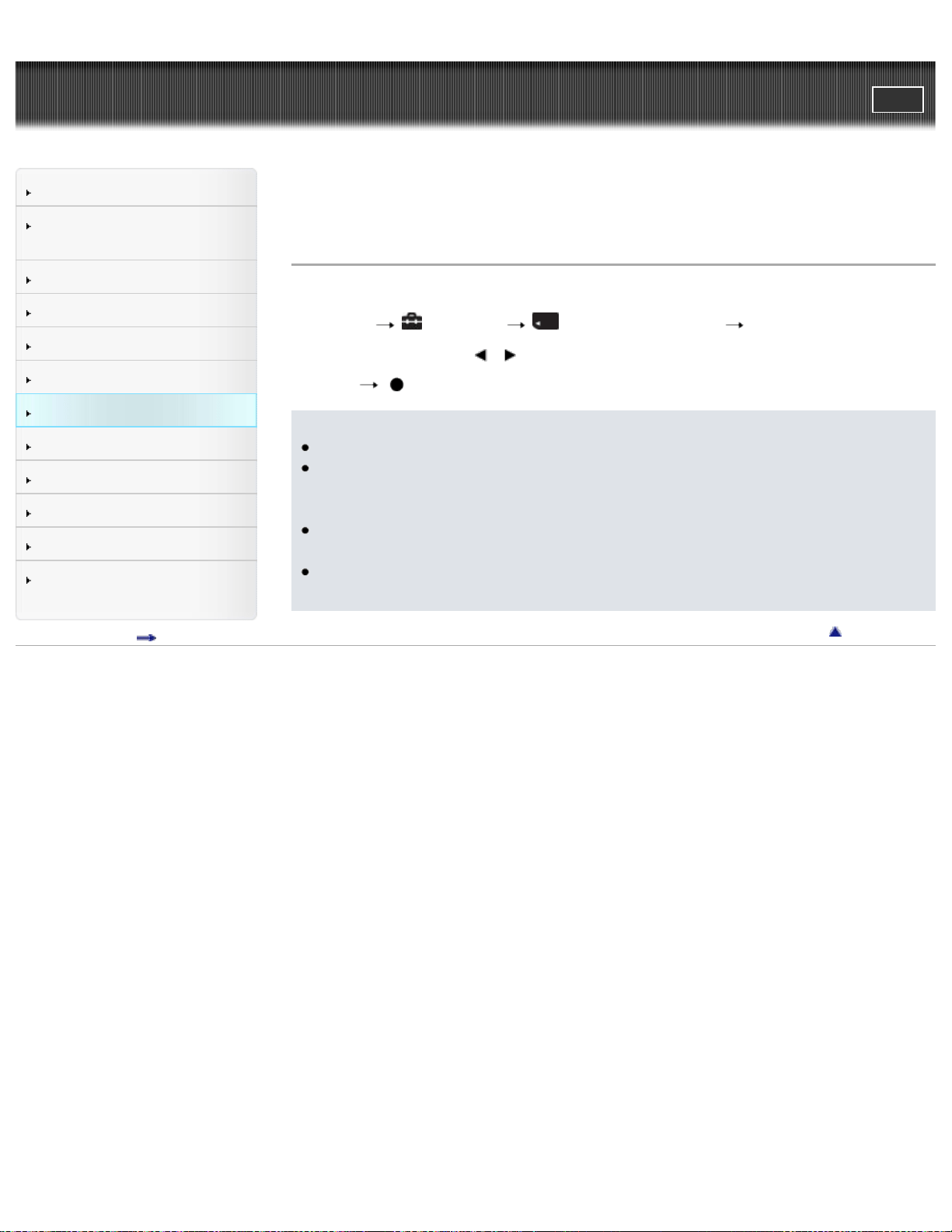
Cyber-shot User Guide
PrintSearch
Before Use
Confirming the operation
method
Shooting
Viewing
Useful shooting functions
Useful viewing functions
Changing settings
Viewing images on a TV
Using with your computer
Printing
Troubleshooting
Precautions / About this
camera
Contents list
Top page > Changing settings > Memory Card Tool/Internal Memory Tool > Delete
REC.Folder
Delete REC.Folder
Deletes a folder for recording images in a memory card.
1. MENU
(Settings) (Memory Card Tool) [Delete REC.Folder]
2. Select a folder with
/ on the control button.
3. [OK]
Notes
This item is not displayed when the internal memory is used to record images.
If you delete the folder set as the recording folder using [Delete REC.Folder],
the folder that has the largest folder number is selected as the next recording
folder.
If a folder contains protected images, images other than protected images are
deleted and the folder will remain.
If a folder contains files that cannot be played back by the camera, you cannot
delete a folder.
Back to top
Copyright 2013 Sony Corporation
129
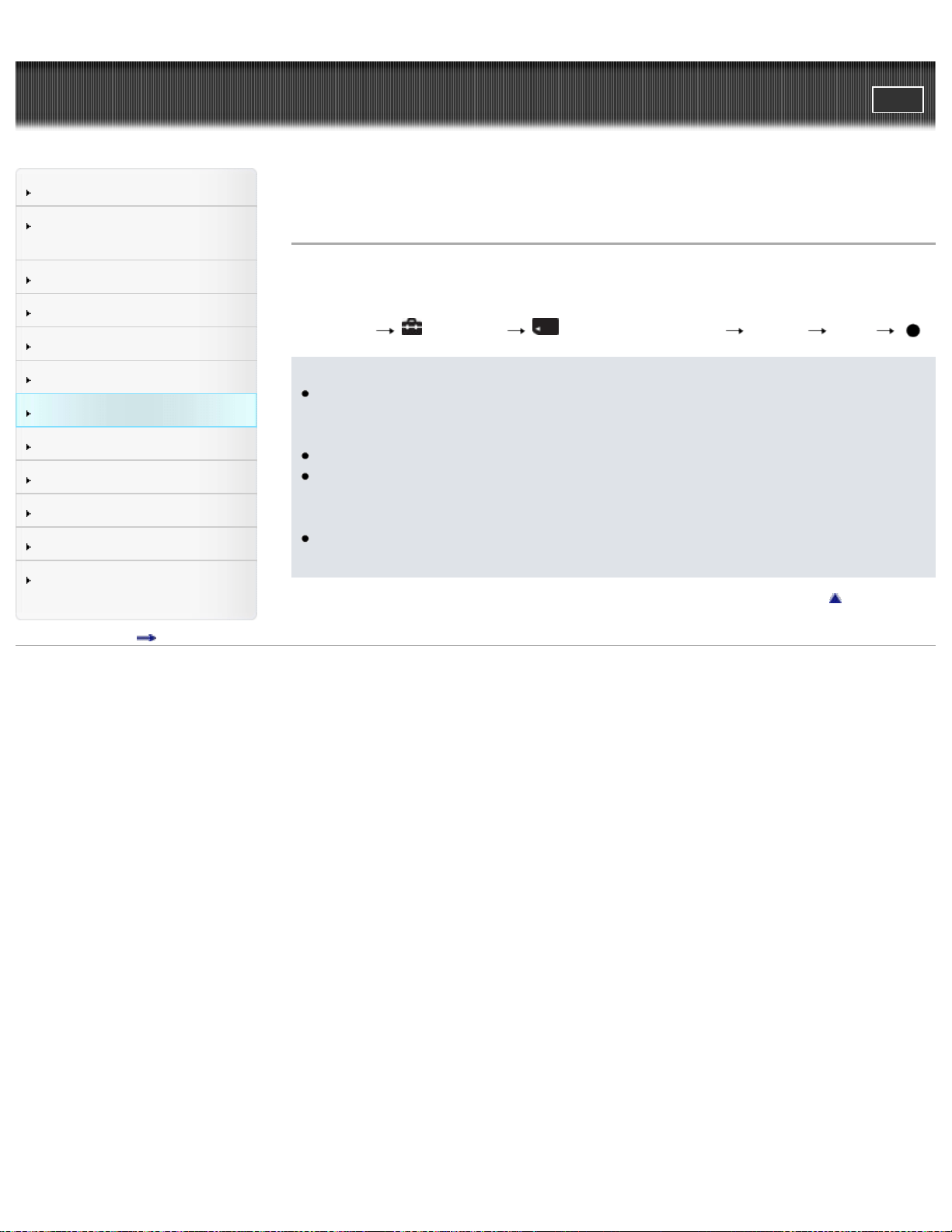
Cyber-shot User Guide
PrintSearch
Before Use
Confirming the operation
method
Shooting
Viewing
Useful shooting functions
Useful viewing functions
Changing settings
Viewing images on a TV
Using with your computer
Printing
Troubleshooting
Precautions / About this
camera
Contents list
Top page > Changing settings > Memory Card Tool/Internal Memory Tool > Copy
Copy
Copies all images in the internal memory to a memory card.
1. Insert a memory card with sufficient free capacity into the camera.
2. MENU
(Settings) (Memory Card Tool) [Copy] [OK]
Notes
Make sure there is sufficient battery power. Otherwise, the battery power may
run out when you attempt to copy image files, causing the copy to fail and
possibly corrupt the data.
Images cannot be copied individually.
The original images in the internal memory are retained even after copying. To
delete the contents of the internal memory, remove the memory card after
copying, then format the internal memory ([Format] in [Internal Memory Tool]).
A new folder is created on the memory card and all the data will be copied to it.
You cannot choose a specific folder and copy images to it.
Back to top
Copyright 2013 Sony Corporation
130
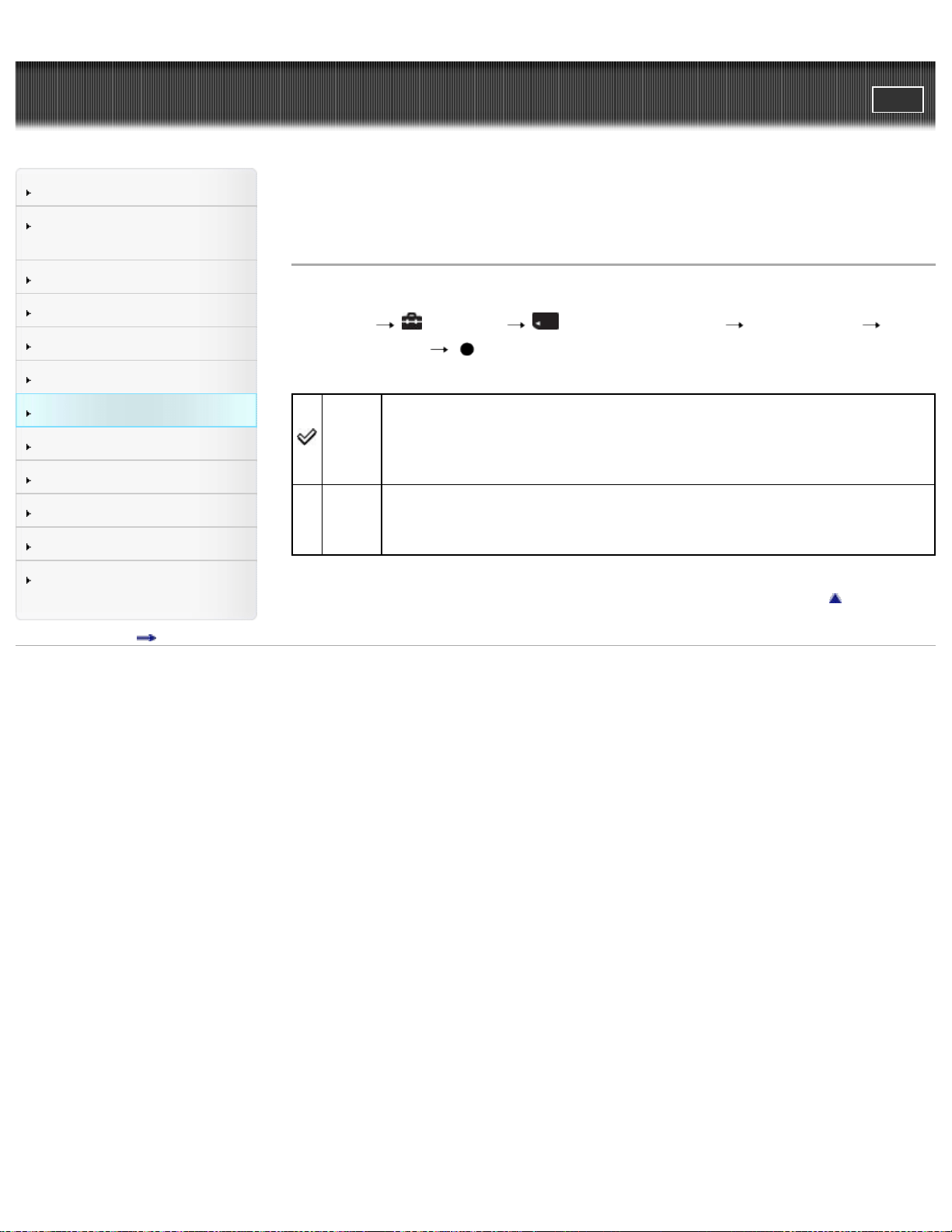
Cyber-shot User Guide
PrintSearch
Before Use
Confirming the operation
method
Shooting
Viewing
Useful shooting functions
Useful viewing functions
Changing settings
Viewing images on a TV
Using with your computer
Printing
Troubleshooting
Precautions / About this
camera
Contents list
Top page > Changing settings > Memory Card Tool/Internal Memory Tool > File
Number
File Number
Selects the method used to assign file numbers to images.
1. MENU
(Settings) (Memory Card Tool) [File Number]
desired mode
Series
Assigns numbers to files in sequence even if the recording folder or
the memory card is changed. (When the replaced memory card
contains a file with a number higher than the last assigned number, a
number one higher than the largest number is assigned.)
Reset
Starts from 0001 each time the folder is changed. (When the recording
folder contains a file, a number one higher than the largest number is
assigned.)
Back to top
Copyright 2013 Sony Corporation
131
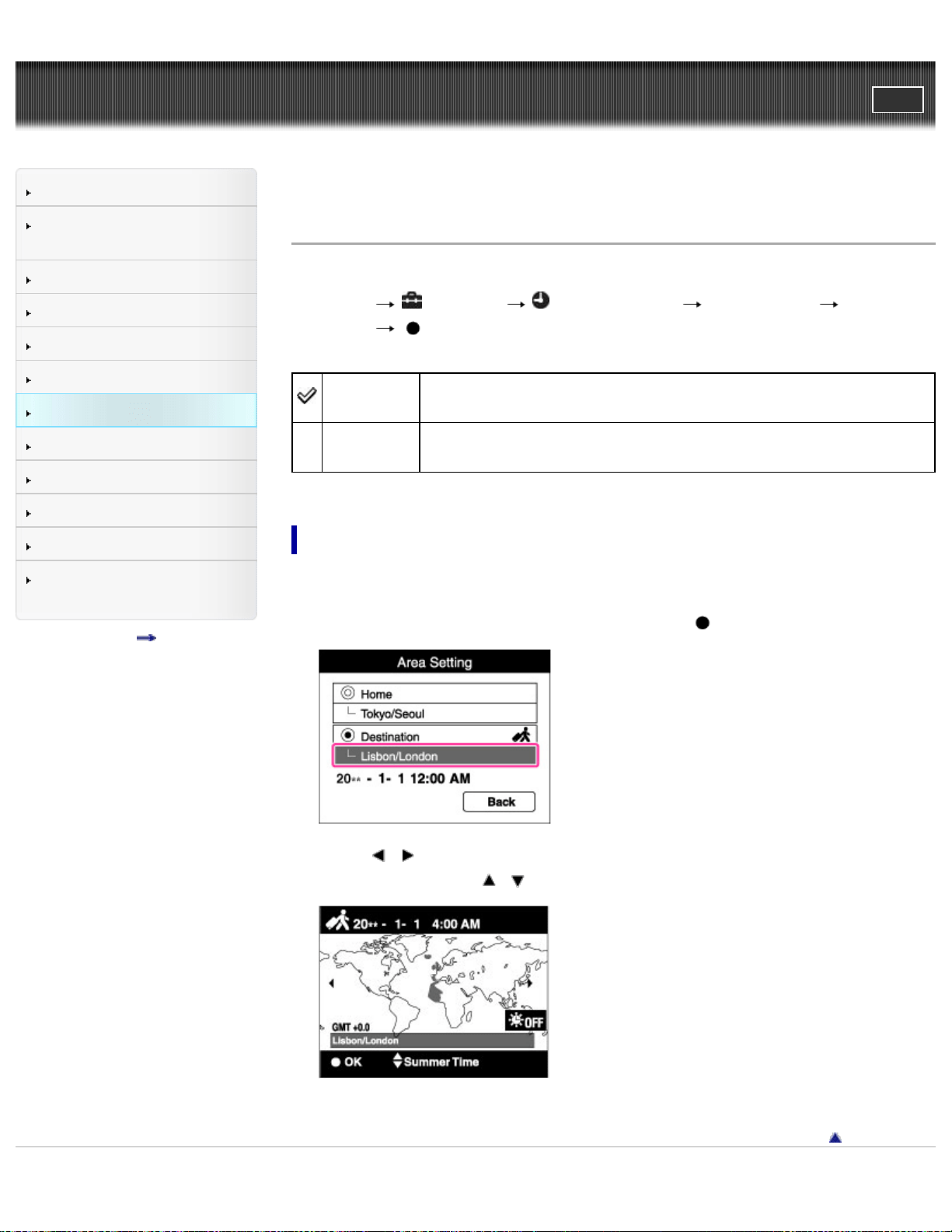
Cyber-shot User Guide
PrintSearch
Before Use
Confirming the operation
method
Shooting
Viewing
Useful shooting functions
Useful viewing functions
Changing settings
Viewing images on a TV
Using with your computer
Printing
Troubleshooting
Precautions / About this
camera
Contents list
Top page > Changing settings > Clock Settings > Area Setting
Area Setting
Adjusts the time to the local time of a selected area.
1. MENU
(Settings) (Clock Settings) [Area Setting] desired
setting
Home
You use the camera in your area. When the currently set area
differs from your home area, you must make the Area Setting.
Destination
You use the camera set to the time at your destination. Set the
destination area.
Changing Area Setting
Setting a frequently visited destination lets you easily adjust the time when you visit
that destination.
1. Select the area part for [Destination], then press
.
2. Press / on the control button to select the desired area, then select
Summer Time using
/ .
Back to top
Copyright 2013 Sony Corporation
132
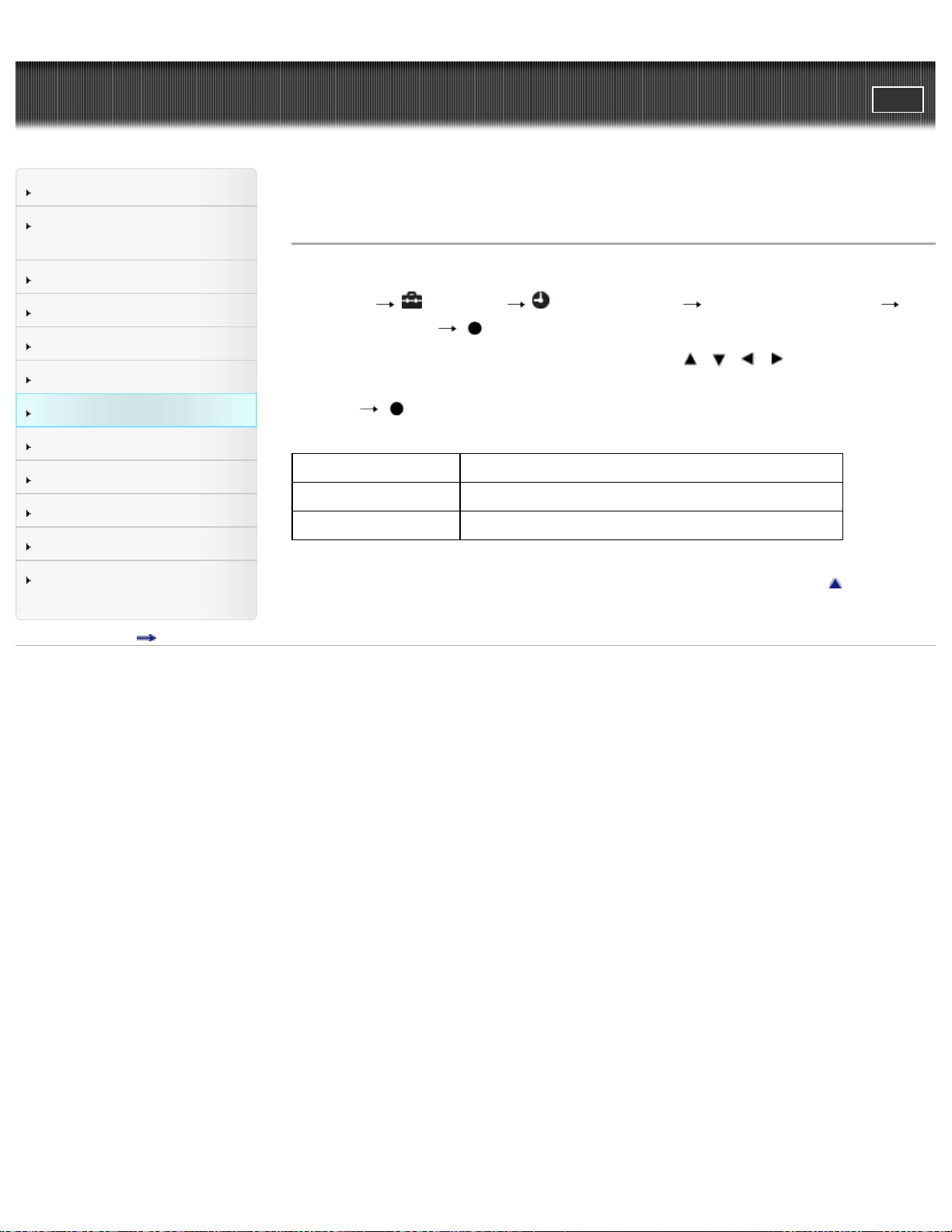
Cyber-shot User Guide
PrintSearch
Before Use
Confirming the operation
method
Shooting
Viewing
Useful shooting functions
Useful viewing functions
Changing settings
Viewing images on a TV
Using with your computer
Printing
Troubleshooting
Precautions / About this
camera
Contents list
Top page > Changing settings > Clock Settings > Date & Time Setting
Date & Time Setting
Sets the date and time again.
1. MENU
(Settings) (Clock Settings) [Date & Time Setting]
desired setting
2. Set the numeric value and desired setting with / / / on the control
button.
3. [OK]
Date & Time Format You can select the date and time display format.
Summer Time You can select Summer Time [On]/[Off].
Date & Time You can set the date and time.
Back to top
Copyright 2013 Sony Corporation
133
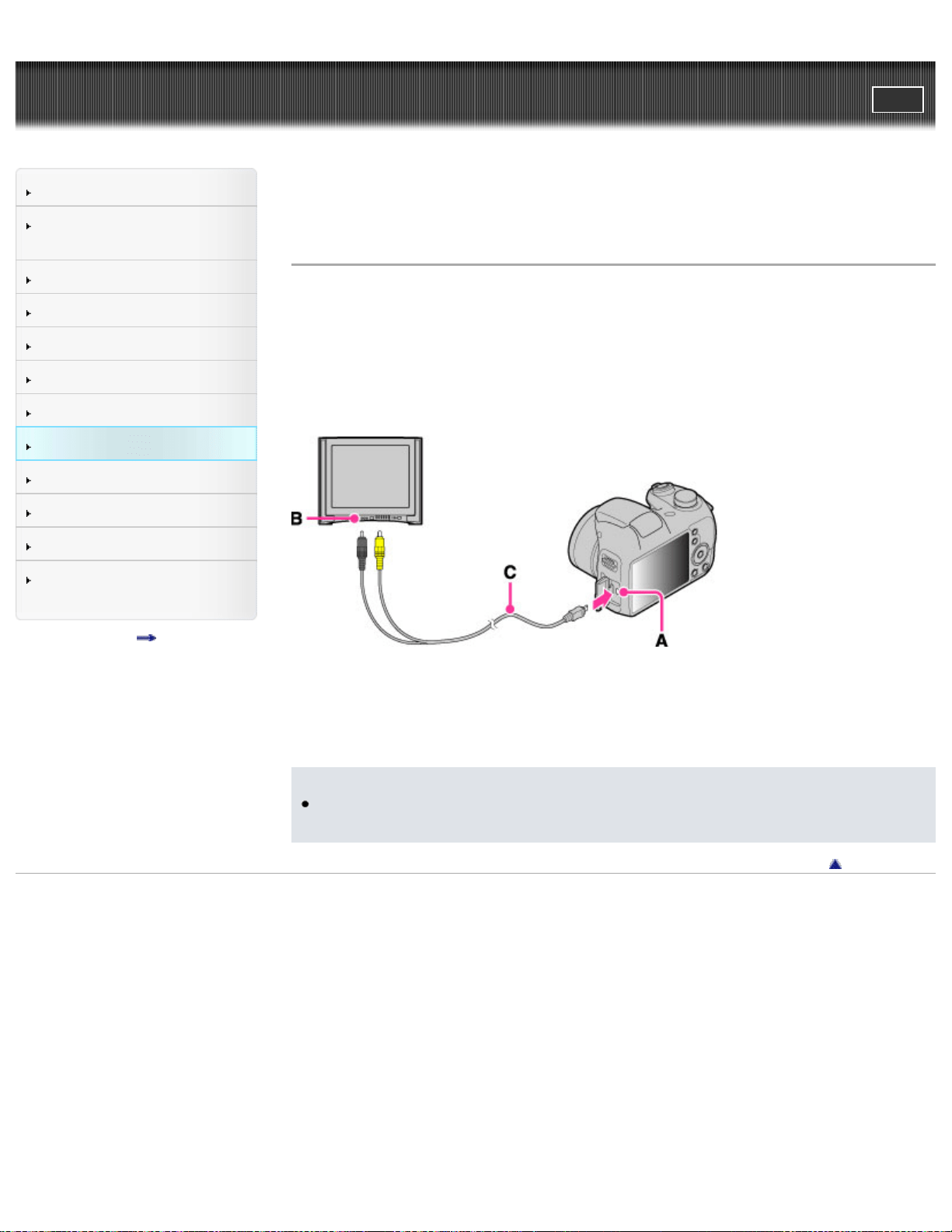
Cyber-shot User Guide
PrintSearch
Before Use
Confirming the operation
method
Shooting
Viewing
Useful shooting functions
Useful viewing functions
Changing settings
Viewing images on a TV
Using with your computer
Printing
Troubleshooting
Precautions / About this
camera
Contents list
Top page > Viewing images on a TV > Viewing an image on a Standard Definition
(SD) TV > Viewing an image on a Standard Definition (SD) TV
Viewing an image on a Standard Definition (SD) TV
You can view images recorded on the camera in standard picture quality by
connecting the camera to a Standard Definition (SD) TV. Refer also to the operating
instructions supplied with the TV.
1. Turn off both the camera and the TV.
2. Connect the USB / A/V OUT terminal (A) and the audio/video input jacks on the
TV (B) using the dedicated A/V cable VMC-15CSR1 (sold separately) (C).
3. Turn on the TV and set the input.
4. Press ON/OFF (Power) button, then set the camera to playback mode.
Images shot with the camera appear on the TV. Select the desired image with
the control button.
Notes
When using the camera abroad, it may be necessary to switch [Video Out].
[Details]
Back to top
Copyright 2013 Sony Corporation
134
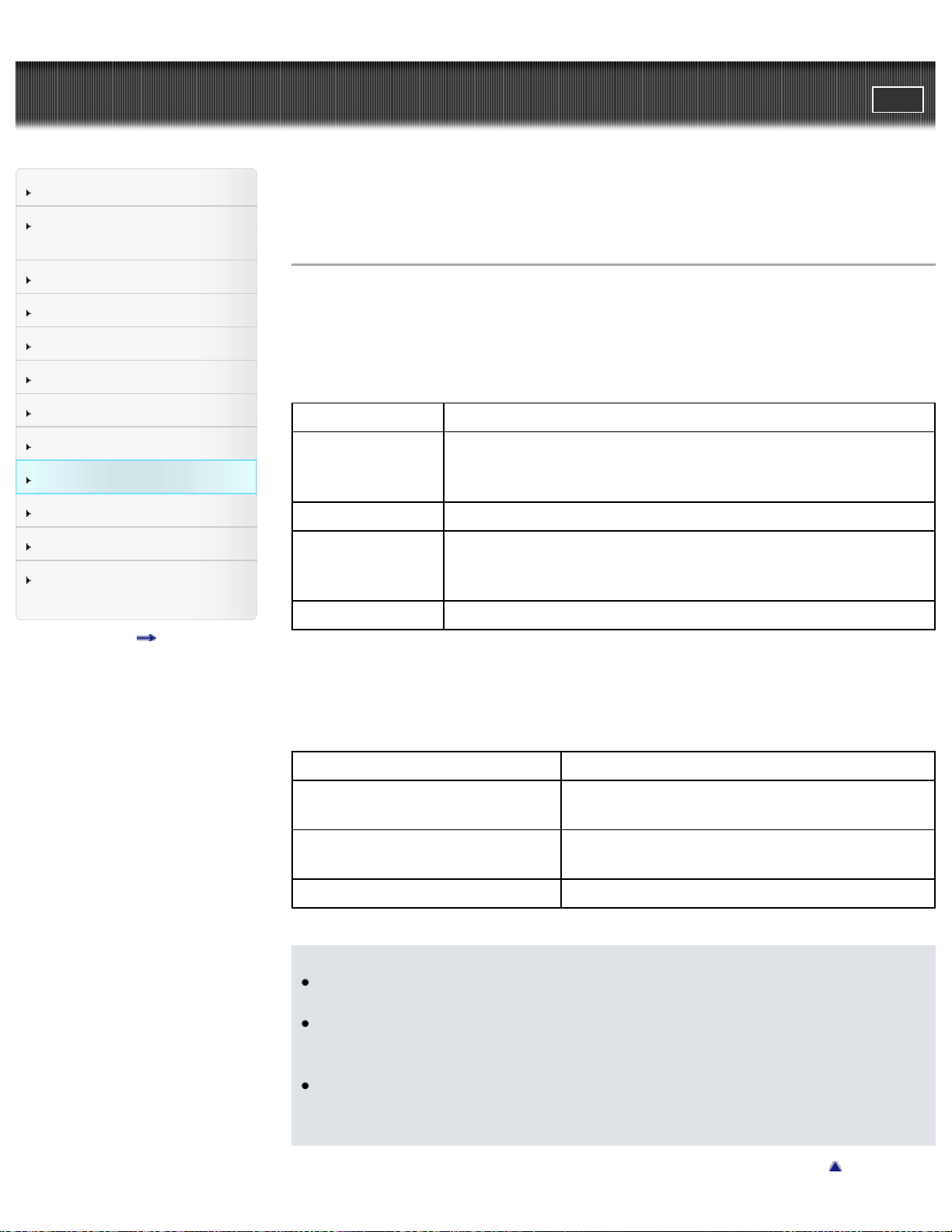
Cyber-shot User Guide
PrintSearch
Before Use
Confirming the operation
method
Shooting
Viewing
Useful shooting functions
Useful viewing functions
Changing settings
Viewing images on a TV
Using with your computer
Printing
Troubleshooting
Precautions / About this
camera
Contents list
Top page > Using with your computer > Recommended computer
environment > Recommended computer environment
Recommended computer environment
The following computer environment is recommended when using the software
“PlayMemories Home.”
Windows
OS (pre-installed) Windows Vista* SP2/Windows 7 SP1/Windows 8
CPU
Intel Pentium III 800 MHz or faster (For playing/editing the
High Definition movies: Intel Core Duo 1.66 GHz or faster/Intel
Core 2 Duo 1.66 GHz or faster)
Memory At least 1 GB
Hard Disk (Disk
space required for
installation)
Approximately 600 MB
Display At least 1,024×768 dots
* Starter (Edition) is not supported.
Mac
OS (pre-installed) Mac OS X v10.6 to v10.8
CPU
Intel processor, such as Intel Core solo, Core
Duo or Core 2 Duo
Hard Disk (Disk space required
for installation)
100 MB
Display At least 1,024×768 dots
Notes
Operation is not assured in an environment based on an upgrade of the
operating systems described above or in a multi-boot environment.
If you connect two or more USB devices to a single computer at the same time,
some devices, including the camera, may not operate, depending on the types
of USB devices you are using.
When your computer resumes activity from suspend or sleep mode,
communication between the camera and your computer may not recover at the
same time.
Back to top
135
Cyber-shot User Guide
PrintSearch
Before Use
Confirming the operation
method
Shooting
Viewing
Useful shooting functions
Useful viewing functions
Changing settings
Viewing images on a TV
Using with your computer
Printing
Troubleshooting
Precautions / About this
camera
Contents list
Top page > Using with your computer > Using the software > “PlayMemories
Home”
“PlayMemories Home”
Below are examples of the functions available when using “PlayMemories Home.”
You can import images shot with the camera to a computer.
You can play back images imported to a computer.
You can share images using “PlayMemories Online.”
With Windows, the following functions are also available.
You can display images stored on a computer by shooting date in a calendar
display.
You can edit (trimming, resizing, etc.) and retouch still images.
You can upload images to a network service. (An Internet connection is
required.)
For other details, see Help for “PlayMemories Home.”
Back to top
Copyright 2013 Sony Corporation
136
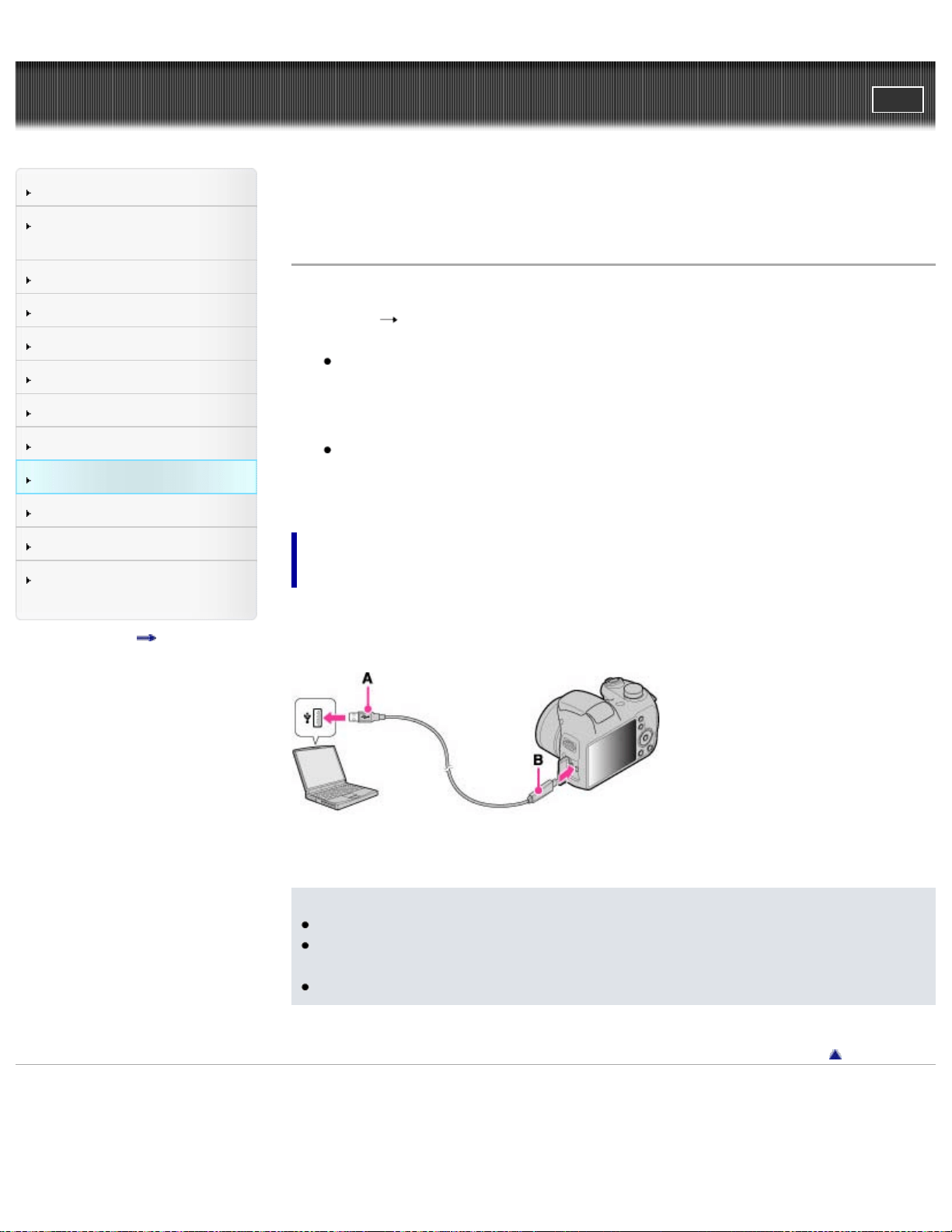
Cyber-shot User Guide
PrintSearch
Before Use
Confirming the operation
method
Shooting
Viewing
Useful shooting functions
Useful viewing functions
Changing settings
Viewing images on a TV
Using with your computer
Printing
Troubleshooting
Precautions / About this
camera
Contents list
Top page > Using with your computer > Using the software > Installing
“PlayMemories Home”
Installing “PlayMemories Home”
1. Using the Internet browser on your computer, go to the following URL, then click
[Install]
[Run].
www.sony.net/pm/
If the software “PMB (Picture Motion Browser)” has already been installed on
your computer, it will be overwritten by “PlayMemories Home” during the
installation. Use “PlayMemories Home,” the successor software of “PMB.”
2. Follow the instructions on the screen to complete the installation.
For details on “PlayMemories Home,” refer to Help for “PlayMemories
Home,” or to the “PlayMemories Home” support page (English only):
http://www.sony.co.jp/pmh-se/
Activating available functions on “PlayMemories
Home”
If “PlayMemories Home” has already been installed on your computer, connect the
camera with the computer and register your camera with “PlayMemories Home.”
The available functions activate.
A: To the USB terminal of a computer
B: To the USB / A/V OUT terminal
Notes
Log on as Administrator.
It may be necessary to restart your computer. When the restart confirmation
message appears, restart the computer following the instructions on the screen.
DirectX may be installed depending on your computer’s system environment.
Back to top
Copyright 2013 Sony Corporation
137
Cyber-shot User Guide
PrintSearch
Before Use
Confirming the operation
method
Shooting
Viewing
Useful shooting functions
Useful viewing functions
Changing settings
Viewing images on a TV
Using with your computer
Printing
Troubleshooting
Precautions / About this
camera
Contents list
Top page > Using with your computer > Using the software > “Music Transfer”
“Music Transfer”
“Music Transfer” allows you to replace the Music files provided in the camera at the
factory with your favorite tracks, and to delete and add Music files.
You can also restore the tracks stored at the factory to your camera.
Download the software from the following URL and install it on your computer.
Windows: http://www.sony.co.jp/imsoft/Win/
Mac: http://www.sony.co.jp/imsoft/Mac/
The following track types can be imported using “Music Transfer”.
MP3 files stored on the hard disk of your computer
Music CD tracks
Preset-music saved on the camera
Before starting up “Music Transfer”, perform MENU
(Settings)
(Main Settings) [Download Music], and connect the camera to the computer.
For other details, see the help in “Music Transfer”.
Related Topic
Download Music
Empty Music
Back to top
Copyright 2013 Sony Corporation
138
Cyber-shot User Guide
PrintSearch
Before Use
Confirming the operation
method
Shooting
Viewing
Useful shooting functions
Useful viewing functions
Changing settings
Viewing images on a TV
Using with your computer
Printing
Troubleshooting
Precautions / About this
camera
Contents list
Top page > Using with your computer > Using the software > Software for Mac
Software for Mac
For details on software for Mac, access the following URL:
http://www.sony.co.jp/imsoft/Mac/
Notes
The available software varies depending on the area.
Back to top
Copyright 2013 Sony Corporation
139
Cyber-shot User Guide
PrintSearch
Before Use
Confirming the operation
method
Shooting
Viewing
Useful shooting functions
Useful viewing functions
Changing settings
Viewing images on a TV
Using with your computer
Printing
Troubleshooting
Precautions / About this
camera
Contents list
Top page > Using with your computer > Connecting the camera to a
computer > Importing images to a computer
Importing images to a computer
“PlayMemories Home” allows you to easily import images.
For details on “PlayMemories Home” functions, see Help for “PlayMemories
Home”.
Importing images to a Windows computer without using
“PlayMemories Home”
When the AutoPlay Wizard appears after making a USB connection between the
camera and a computer, click [Open folder to view files]
[OK] [DCIM] or
[MP_ROOT]. Then copy the desired images to the computer.
If Device Stage appears on a Windows 7 or Windows 8 computer, double-click
[Browse Files]
media icon folder in which the image you want to import is
stored.
Importing images to a Mac computer without using
“PlayMemories Home”
Connect the camera to your Mac computer. Double-click the newly recognized icon
on the desktop
the folder in which the image you want to import is stored. Then
drag and drop the image file on to the hard disk icon.
Back to top
Copyright 2013 Sony Corporation
140
Cyber-shot User Guide
PrintSearch
Before Use
Confirming the operation
method
Shooting
Viewing
Useful shooting functions
Useful viewing functions
Changing settings
Viewing images on a TV
Using with your computer
Printing
Troubleshooting
Precautions / About this
camera
Contents list
Top page > Using with your computer > Connecting the camera to a
computer > Disconnecting the camera from the computer
Disconnecting the camera from the computer
Perform the procedures from step 1 to 2 below before performing the following
operations:
Disconnecting the cable.
Removing a memory card.
Inserting a memory card into the camera after copying images from the internal
memory.
Turning off the camera.
1. Click
in the taskbar, then click (disconnect icon).
With Windows Vista, click
(disconnect icon) in the taskbar.
2. Click the displayed message.
Notes
For Mac computers, drag and drop the icon of the memory card or the drive
icon in the “Trash” icon. The camera is disconnected from the computer.
The disconnect icon may not appear when you use a Windows 7 or Windows 8
computer. In this case, you can disconnect the camera from the computer
without following the above steps.
Back to top
Copyright 2013 Sony Corporation
141
Cyber-shot User Guide
PrintSearch
Before Use
Confirming the operation
method
Shooting
Viewing
Useful shooting functions
Useful viewing functions
Changing settings
Viewing images on a TV
Using with your computer
Printing
Troubleshooting
Precautions / About this
camera
Contents list
Top page > Printing > Printing still images > Printing still images
Printing still images
You can print still images using the following methods.
Printing directly using a printer which supports your memory card type.
For details, see the operating instructions supplied with the printer.
Printing using a computer
You can import images to a computer using the “PlayMemories Home” software
and print the images. You can print images with the date.
For details, see Help for “PlayMemories Home”.
Printing at a shop
You can take a memory card to a photo printing service shop. As long as the
shop supports photo printing services conforming to DPOF, you can make a
(Print order) mark on images in advance in playback mode so that you do
not have to reselect them when you print them out at the shop. Before you take
image data to a shop, always copy (back up) your data.
Notes
When you print still images shot in [16:9] mode, both edges may be cut off.
You cannot print panoramic images, depending on the printer.
Back to top
Copyright 2013 Sony Corporation
142
Cyber-shot User Guide
PrintSearch
Before Use
Confirming the operation
method
Shooting
Viewing
Useful shooting functions
Useful viewing functions
Changing settings
Viewing images on a TV
Using with your computer
Printing
Troubleshooting
Precautions / About this
camera
Contents list
Top page > Troubleshooting > If you have problems > If you have problems
If you have problems
If you experience trouble with the camera, try the following solutions.
1. Check the items under “Troubleshooting”, then check your camera.
2. Remove the batteries for one full minute. Then re-insert the batteries and turn
on the camera.
3. Initialize the settings. [Details]
4. Consult your Sony dealer or local authorized Sony service facility.
Be aware that by sending the camera for repair, you give consent that the
contents of the internal memory, music files may be checked.
Additional information on this product and answers to frequently asked questions
can be found at our Customer Support Website.
http://www.sony.net/
Back to top
Copyright 2013 Sony Corporation
143
Cyber-shot User Guide
PrintSearch
Before Use
Confirming the operation
method
Shooting
Viewing
Useful shooting functions
Useful viewing functions
Changing settings
Viewing images on a TV
Using with your computer
Printing
Troubleshooting
Precautions / About this
camera
Contents list
Top page > Troubleshooting > Troubleshooting > Batteries and power
Batteries and power
The remaining charge indicator is incorrect.
This phenomenon occurs when you use the camera in an extremely hot or cold
location.
When using alkaline batteries (sold separately), the remaining charge indicator
may not be correct.
The batteries are discharged. Insert new batteries or charged Nickel-Metal
Hydride batteries (sold separately).
When using the Nickel-Metal Hydride batteries (sold separately), the remaining
charge indicator may differ from the current one due to the memory effect, etc.
Fully discharge and then charge the batteries to correct the display.
The batteries run down too quickly.
You are using the camera in an extremely cold location.
The batteries are dead. Replace them with new ones.
When using the Nickel-Metal Hydride batteries (sold separately), charge them
sufficiently. If the poles of batteries or the terminals of the camera are dirty, the
batteries may not charge properly. Clean the poles and terminals with a cotton
swab, etc.
Camera power is turned off automatically when you open
the battery/memory card cover.
This is not a malfunction. Turn off the camera before you open the
battery/memory card cover.
Cannot turn on the camera.
Insert the batteries correctly.
The batteries are discharged. Insert new batteries or charged Nickel-Metal
Hydride batteries (sold separately).
The batteries are dead. Replace them with new ones.
The power turns off suddenly.
When [Power Save] is set to [Standard] or [Max], and you do not operate the
camera for a certain period of time while the power is on, the camera turns off
144

Cyber-shot User Guide
PrintSearch
Before Use
Confirming the operation
method
Shooting
Viewing
Useful shooting functions
Useful viewing functions
Changing settings
Viewing images on a TV
Using with your computer
Printing
Troubleshooting
Precautions / About this
camera
Contents list
Top page > Troubleshooting > Troubleshooting > Shooting still images/movies
Shooting still images/movies
Cannot record images.
If images are recorded on the internal memory even when a memory card is
inserted into the camera, make sure that the memory card is fully inserted into
the camera.
Check the free capacity of the internal memory or memory card. If it is full, do
one of the following:
Delete unnecessary images. [Details] [Details]
Change the memory card.
You cannot record images while charging the flash.
When recording movies, it is recommended that you use the following memory
cards:
“Memory Stick PRO Duo” (Mark2) media, “Memory Stick PRO-HG Duo” media,
“Memory Stick XC-HG Duo” media or “Memory Stick Micro” (Mark2) media
SD memory card, SDHC memory card, SDXC memory card, microSD memory
card, microSDHC memory card or microSDXC memory card (Class 4 or faster)
Smile Shutter function does not work.
No image is shot if a smiling face is not detected. [Details]
Anti-blur function does not work.
The anti-blur function may not work properly when shooting night scenes.
Shoot after pressing the shutter button halfway down.
The image is out of focus.
The subject is too close. When shooting, make sure to position the lens farther
away from the subject than the shortest shooting distance (approximately 1 cm
(0.03 ft.) (W)/150 cm (4.92 ft.) (T) from the lens).
(Night Scene), (Landscape) or (Fireworks) mode is selected in Scene
Selection when shooting still images.
Zoom does not work.
You cannot use the optical zoom in Sweep Panorama mode.
You cannot use the smart zoom depending on the image size. [Details]
146

You cannot use the digital zoom in the following situations:
The Smile Shutter is working.
[Self-Timer] is set to [Self-portrait One Person] or [Self-portrait Two People].
Cannot select the Face Detection function.
You can select Face Detection only when the focus mode is set to [Multi AF] and
the metering mode is set to [Multi].
The flash does not work.
You cannot use the flash in the following situations:
[Cont. Shooting Settings]is set to [Continuous Shooting]. [Details]
(Night Scene) mode, (High Sensitivity) mode or (Fireworks) mode is
selected in Scene Selection.
Shooting in [Sweep Panorama]
Shooting in movie mode.
Set the flash to [On] when Scene Selection mode is set to
(Landscape),
(Gourmet), (Pet), (Beach) or (Snow) mode. [Details]
Fuzzy white circular spots appear in images shot using the
flash.
Particles (dust, pollen, etc.) in the air reflected the flash light and appeared in the
image. This is not a malfunction. [Details]
The close-up shoot function (Macro) does not work.
The camera automatically adjusts the focus. Press and hold the shutter button
halfway down. Focus adjustment may take some time when shooting a close
subject.
(Landscape), (Night Scene) or (Fireworks) mode is selected in Scene
Selection.
The date and time are not displayed on the screen.
While shooting, the date and time are not displayed. They are displayed only
during playback.
The F value and shutter speed flash when you press and
hold the shutter button halfway down.
The exposure is incorrect. Correct the exposure. [Details]
The image colors are not correct.
Adjust the White Balance. [Details]
White or purple streaks appear in bright areas of the
subject, or the whole screen of the image becomes
147

reddish.
This phenomenon is called smearing. This is not a malfunction. Smearing is not
recorded on still images, but is recorded as streaks or uneven colors on Sweep
Panorama images or movies. (“Bright areas” refers to the sun or electric lights
which are much brighter than surroundings.)
Noise appears in the image when you view the screen in a
dark place.
The camera is attempting to increase the visibility of the screen by temporarily
brightening the image under conditions of low illumination. There is no effect on
the recorded image.
The eyes of the subject come out red.
Set [Red Eye Reduction] to [Auto] or [On]. [Details]
Shoot the subject at a distance closer than the flash range using the flash.
Light the room and shoot the subject.
Dots appear and remain on the screen.
This is not a malfunction. These dots are not recorded.
Cannot shoot images in succession.
The internal memory or memory card is full. Delete unnecessary images.
[Details] [Details]
The battery level is low. Insert new batteries or charged Nickel-Metal Hydride
batteries (sold separately).
The same image is shot several times.
Set [Cont. Shooting Settings] to [Single Shooting]. [Details]
The camera emits a sound when shaken.
When you shake the camera without the power turned on, you may hear a
sound. This is not a malfunction.
Back to top
Copyright 2013 Sony Corporation
148
Cyber-shot User Guide
PrintSearch
Before Use
Confirming the operation
method
Shooting
Viewing
Useful shooting functions
Useful viewing functions
Changing settings
Viewing images on a TV
Using with your computer
Printing
Troubleshooting
Precautions / About this
camera
Contents list
Top page > Troubleshooting > Troubleshooting > Viewing images
Viewing images
Cannot play back images.
Make sure that the memory card is fully inserted into the camera.
The folder/file name has been changed on your computer.
No guarantees are made for playing back, on this camera, files containing
images which were processed on a computer or images which were shot using
other cameras.
The camera is in USB mode. Disconnect the USB connection. [Details]
Use “PlayMemories Home” to play images stored on a computer with this
camera.
The date and time are not displayed.
The screen display is set to display images only. Press (Display Setting) on
the control button to display information. [Details]
Cannot hear music during slideshow.
Slideshow is played back with [Continuous Playback]. Select [Slideshow with
music] and play back.
Transfer music files to the camera with “Music Transfer”.[Details]
The image does not appear on the TV.
Check [Video Out] to see if the video output signal of the camera is set to the
color system of your TV. [Details]
Check whether the connection is correct. [Details]
Back to top
Copyright 2013 Sony Corporation
149
Cyber-shot User Guide
PrintSearch
Before Use
Confirming the operation
method
Shooting
Viewing
Useful shooting functions
Useful viewing functions
Changing settings
Viewing images on a TV
Using with your computer
Printing
Troubleshooting
Precautions / About this
camera
Contents list
Top page > Troubleshooting > Troubleshooting > Computers
Computers
Your computer does not recognize the camera.
When the battery level is low, insert new batteries or charged Nickel-Metal
Hydride batteries (sold separately).
Set [USB Connect Setting] to [Mass Storage]. [Details]
Use the dedicated USB cable (supplied).
Disconnect the dedicated USB cable from both the computer and the camera,
and connect it again firmly.
Disconnect all equipment other than the camera, the keyboard and the mouse
from the USB connectors of your computer.
Connect the camera directly to your computer without passing through a USB
hub or other device.
Cannot import images.
Connect the camera and your computer correctly making a USB connection.
When you shoot images with a memory card formatted by a computer, you may
not be able to import the images to a computer. Shoot using a memory card
formatted by the camera. [Details]
After making a USB connection, “PlayMemories Home”
does not start automatically.
Make the USB connection after the computer is turned on.
Cannot play back images on your computer.
If you are using “PlayMemories Home”, refer to Help for “PlayMemories Home.”
[Details]
Consult the computer or software manufacturer.
The image and sound are interrupted by noise when you
view a movie on a computer.
You are playing back the movie directly from the internal memory or the memory
card. Import the movie to your computer using “PlayMemories Home” and play it
back. [Details]
150

Images once exported to a computer cannot be viewed on
the camera.
Export them to a folder recognized by the camera, such as “101MSDCF”, then
play back in Folder view. [Details]
Register the image in the Image Database File and play in [Date View]. [Details]
Back to top
Copyright 2013 Sony Corporation
151
Cyber-shot User Guide
PrintSearch
Before Use
Confirming the operation
method
Shooting
Viewing
Useful shooting functions
Useful viewing functions
Changing settings
Viewing images on a TV
Using with your computer
Printing
Troubleshooting
Precautions / About this
camera
Contents list
Top page > Troubleshooting > Troubleshooting > Memory card
Memory card
Cannot insert a memory card.
Insert the memory card in the correct direction.
You have formatted a memory card by mistake.
All the data on the memory card is deleted by formatting. You cannot restore it.
Images are recorded on the internal memory even when a
memory card is inserted into the camera.
Make sure that the memory card is fully inserted into the camera.
Back to top
Copyright 2013 Sony Corporation
152
Cyber-shot User Guide
PrintSearch
Before Use
Confirming the operation
method
Shooting
Viewing
Useful shooting functions
Useful viewing functions
Changing settings
Viewing images on a TV
Using with your computer
Printing
Troubleshooting
Precautions / About this
camera
Contents list
Top page > Troubleshooting > Troubleshooting > Internal memory
Internal memory
Cannot play back or record images using the internal
memory.
There is a memory card inserted in the camera. Remove it.
Cannot copy the data stored in the internal memory to a
memory card.
The memory card is full. Copy to a memory card with sufficient capacity.
Cannot copy the data on the memory card or the computer
to the internal memory.
This feature is not available.
Back to top
Copyright 2013 Sony Corporation
153
Cyber-shot User Guide
PrintSearch
Before Use
Confirming the operation
method
Shooting
Viewing
Useful shooting functions
Useful viewing functions
Changing settings
Viewing images on a TV
Using with your computer
Printing
Troubleshooting
Precautions / About this
camera
Contents list
Top page > Troubleshooting > Troubleshooting > Printing
Printing
Images are printed with both edges cut off.
Depending on your printer, all the edges of the image may be cut off. Especially
when you print an image shot with the image size set to [16:9], the lateral end of
the image may be cut off.
When printing images using your printer, cancel the trimming or borderless
settings. Consult the printer manufacturer as to whether the printer provides
these functions or not.
When having images printed at a digital print shop, ask the shop whether they
can print the images without cutting off both edges.
Cannot print images with the date.
Select MENU (Settings) (Shooting Settings) [Write Date]
[On] to insert a date on the image. Make sure that once the date is inserted, you
cannot remove that date from the image.
Using “PlayMemories Home”, you can insert the date on still images that have
been recorded without a date. [Details]
Back to top
Copyright 2013 Sony Corporation
154
Cyber-shot User Guide
PrintSearch
Before Use
Confirming the operation
method
Shooting
Viewing
Useful shooting functions
Useful viewing functions
Changing settings
Viewing images on a TV
Using with your computer
Printing
Troubleshooting
Precautions / About this
camera
Contents list
Top page > Troubleshooting > Troubleshooting > Others
Others
The lens gets fogged.
Moisture condensation has occurred. Turn off the camera and leave it for about
an hour before using it.
The camera turns off with the lens portion extended.
Insert new batteries or charged Nickel-Metal Hydride batteries (sold separately),
then turn on the camera again.
Do not attempt to force lens that has stopped moving.
The camera becomes warm when you use it for a long
time.
This is not a malfunction.
The Clock Set screen appears when you turn on the
camera.
Set the date and time again. [Details]
The internal rechargeable backup battery has discharged. Insert batteries with
enough power remaining, and set aside for 24 hours or more with the power left
off.
The date or time is incorrect.
The Area Setting is set to a different location than your current location. Change
the setting by MENU
(Settings) [Clock Settings] [Area Setting].
[Details]
Back to top
Copyright 2013 Sony Corporation
155
Cyber-shot User Guide
PrintSearch
Before Use
Confirming the operation
method
Shooting
Viewing
Useful shooting functions
Useful viewing functions
Changing settings
Viewing images on a TV
Using with your computer
Printing
Troubleshooting
Precautions / About this
camera
Contents list
Top page > Troubleshooting > Warning indicators and messages > Messages
Messages
If the following messages appear, follow the instructions.
The battery level is low. Insert new batteries or charged Nickel-Metal Hydride
batteries (sold separately). Depending on the conditions of use or the type of
battery, the indicator may flash even though there are still 5 minutes to 10
minutes of remaining battery time left.
System error. Turn on the device again.
Turn the power off and then on again.
Internal memory error
Turn the power off and then on again.
Reinsert the memory card.
The inserted memory card cannot be used in the camera. [Details]
The terminal section of the memory card is dirty.
The memory card is damaged.
Incompatible type of memory card.
The inserted memory card cannot be used in the camera. [Details]
Buffer overflow. Writing to the media was not completed in
time.
If you use a memory card that has been recorded and erased repeatedly, or that
was formatted on a different camera, the data writing speed may be too slow.
First back up any data on the card to a computer, and then reformat the card
before using it. [Details]
The writing speed of the memory card you are using is not sufficient for movie
recordings. Use one of the memory cards listed below.
“Memory Stick PRO Duo” (Mark2) media, “Memory Stick PRO-HG Duo” media,
“Memory Stick XC-HG Duo” media or “Memory Stick Micro” (Mark2) media
SD memory card, SDHC memory card, SDXC memory card, microSD memory
card, microSDHC memory card or microSDXC memory card (Class 4 or
156

faster).
Cannot recognize the internal memory. Format and use
again.
Cannot recognize this memory card. Format and use again.
Format the media again. [Details]
The memory card is locked. Check the tab.
You are using the memory card with the write-protect switch, and the switch is
set to the LOCK position. Set the switch to the recording position.
This is a read- only memory card.
The camera cannot record or delete images on this memory card.
No images
No images that can be played back have been recorded in the internal memory.
No images that can be played back have been recorded in this folder of the
memory card.
No still images
The selected folder or date does not contain a file that can be played back in a
slideshow.
File found which was not recognized
You tried to delete a folder containing a file that cannot be played on this
camera. Delete the file on a computer and then delete the folder.
Folder error. Cannot record to the selected folder. Please
select a different folder.
A folder with the same first three digit number already exists on the memory card
(for example: 123MSDCF and 123ABCDE). Select another folder [Details], or
create a new folder [Details].
Cannot create more folders
A folder with a name beginning with “999” exists on the memory card. You
cannot create any folders if this is the case.
Folder protected
You tried to delete a folder that is protected as read-only on a computer.
157
Cannot display file
An error occurred while the image was playing back.
No guarantees are made for playing back, on this camera, files containing
images which were processed on a computer or images which were shot using
other cameras.
Read only folder
You have selected a folder that cannot be set as a recording folder on the
camera. Select another folder. [Details]
File protected
Release the protection. [Details]
Image size over limit
You are playing back an image with size that cannot be played back on the
camera.
(Vibration warning indicator)
Camera shake may occur due to insufficient light. Use the flash, or mount the
camera on a tripod to secure the camera.
1280x720 (Fine) is not supported with this memory card.
1280x720 (Standard) is not supported with this memory
card.
For recording movies, it is recommended that you use a memory card of 1 GB or
larger.
Turn the power off and on again
The lens malfunction.
Maximum number of images already selected.
Up to 100 files can be selected when using [Multiple Images].
You can add
(Print order) marks to up to 999 files.
Operation cannot be executed in unsupported files.
Processing and other editing functions of the camera cannot be performed on
image files that have been processed using a computer or images that were
recorded with other cameras.
Preparing image database file. Please wait.
The camera restores the date information, etc., in cases where images have
158

been deleted on a computer, etc.
The necessary Image Database File is created after the memory card is
formatted.
The number of images exceeds that for which date management in a database
file by the camera is possible. To register additional images in the Image
Database File, delete images in [Date View].
It is not possible to record to the camera’s Image Database File or play back
using [Date View]. Import all of the images to the computer using “PlayMemories
Home”, and format the memory card.
Image Database File error. Cannot recover data.
Import all of the images to the computer using “PlayMemories Home”, and
format the memory card. [Details]
To view the images again with the camera, export the imported images to the
camera with “PlayMemories Home”.
Back to top
Copyright 2013 Sony Corporation
159
Cyber-shot User Guide
PrintSearch
Before Use
Confirming the operation
method
Shooting
Viewing
Useful shooting functions
Useful viewing functions
Changing settings
Viewing images on a TV
Using with your computer
Printing
Troubleshooting
Precautions / About this
camera
Contents list
Top page > Troubleshooting > Situations this camera has difficulty
handling > Situations this camera has difficulty handling
Situations this camera has difficulty handling
The camera cannot take full advantage of some features under certain
circumstances.
When shooting under the following conditions, either recompose the shot or change
the shooting mode, then shoot the images again.
Low light conditions
Shooting panoramic images
Tracking focus
Overly bright conditions
Tracking focus
Varying levels of brightness
Tracking focus
Flickering lights
Shooting panoramic images
Subjects too close to the camera
Shooting panoramic images
Subjects too far from the camera
Shooting panoramic images
Large moving subjects or subjects that move too
quickly
Shooting panoramic images
Tracking focus
Subjects too small or too large
Tracking focus
Background the same color as the subject
Tracking focus
Scenes with little contrast, such as the sky or a sandy
beach
Shooting panoramic images
Scenes changing constantly, such as a waterfall
Shooting panoramic images
160
Cyber-shot User Guide
PrintSearch
Before Use
Confirming the operation
method
Shooting
Viewing
Useful shooting functions
Useful viewing functions
Changing settings
Viewing images on a TV
Using with your computer
Printing
Troubleshooting
Precautions / About this
camera
Contents list
Top page > Precautions / About this camera > Precautions > Precautions
Precautions
Internal memory and memory card back up
On database files
Do not use/store the camera in the following places
On operating temperatures
On moisture condensation
On image data compatibility
Notes on the screen and lens
Internal memory and memory card back up
Do not turn off the camera, remove the batteries, or remove the memory card while
the access lamp is lit. Otherwise, the internal memory data or the memory card may
be damaged. Be sure to make a backup copy to protect your data.
On database files
When you insert a memory card without a database file into the camera and turn
on the power, part of the memory card capacity is used to automatically create a
database file. It may take some time until you can perform the next operation.
If a database file error occurs, export all images to your computer using
“PlayMemories Home,” and then format the memory card using the camera.
Do not use/store the camera in the following places
In an extremely hot, cold or humid place
In places such as in a car parked in the sun, the camera body may become
deformed and this may cause a malfunction.
Storing under direct sunlight or near a heater
The camera body may become discolored or deformed, and this may cause a
malfunction.
In a location subject to rocking vibration
Near strongly magnetic place
In sandy or dusty places
Be careful not to let sand or dust get into the camera. This may cause the
camera to malfunction, and in some cases this malfunction cannot be repaired.
On operating temperatures
Your camera is designed for use under the temperatures between 0°C and 40°C
(32°F and 104°F). Shooting in extremely cold or hot places that exceed this
range is not recommended.
161

On moisture condensation
If the camera is brought directly from a cold to a warm location, moisture may
condense inside or outside the camera. This moisture condensation may cause
a malfunction of the camera.
If moisture condensation occurs, turn off the camera and wait about an hour for
the moisture to evaporate. Note that if you attempt to shoot with moisture
remaining inside the lens, you will be unable to record clear images.
On image data compatibility
The camera conforms with DCF (Design rule for Camera File system) universal
standards established by JEITA (Japan Electronics and Information Technology
Industries Association).
Sony does not guarantee that the camera will play back images recorded or
edited with other equipment, or that other equipment will play back images
recorded with the camera.
Notes on the screen and lens
The screen is manufactured using extremely high-precision technology so over
99.99% of the pixels are operational for effective use. However, some tiny black
and/or bright dots (white, red, blue or green) may appear on the screen. These
dots are a normal result of the manufacturing process and do not affect the
recording.
Exposing the screen or the lens to direct sunlight for long periods may cause
malfunctions. Be careful when placing the camera near a window or outdoors.
Do not press against the screen. The screen may be discolored and that may
cause a malfunction.
Images may trail across on the screen in a cold location. This is not a
malfunction.
Be careful not to bump the movable lens, and be careful not to apply force to it.
Back to top
Copyright 2013 Sony Corporation
162
Cyber-shot User Guide
PrintSearch
Before Use
Confirming the operation
method
Shooting
Viewing
Useful shooting functions
Useful viewing functions
Changing settings
Viewing images on a TV
Using with your computer
Printing
Troubleshooting
Precautions / About this
camera
Contents list
Top page > Precautions / About this camera > Precautions > On the internal
rechargeable backup battery
On the internal rechargeable backup battery
This camera has an internal rechargeable battery for maintaining the date and time
and other settings regardless of whether the power is on or off.
This rechargeable battery is continually charged as long as you are using the
camera. However, if you use the camera for only short periods, it discharges
gradually, and if you do not use the camera at all for about one month it becomes
completely discharged. In this case, be sure to charge this rechargeable battery
before using the camera.
However, even if this rechargeable battery is not charged, you can still use the
camera, but the date and time will not be indicated.
Charging method of the internal rechargeable backup
battery
Insert the batteries with enough power remaining in the camera, and then leave the
camera for 24 hours or more with the power off.
Back to top
Copyright 2013 Sony Corporation
163
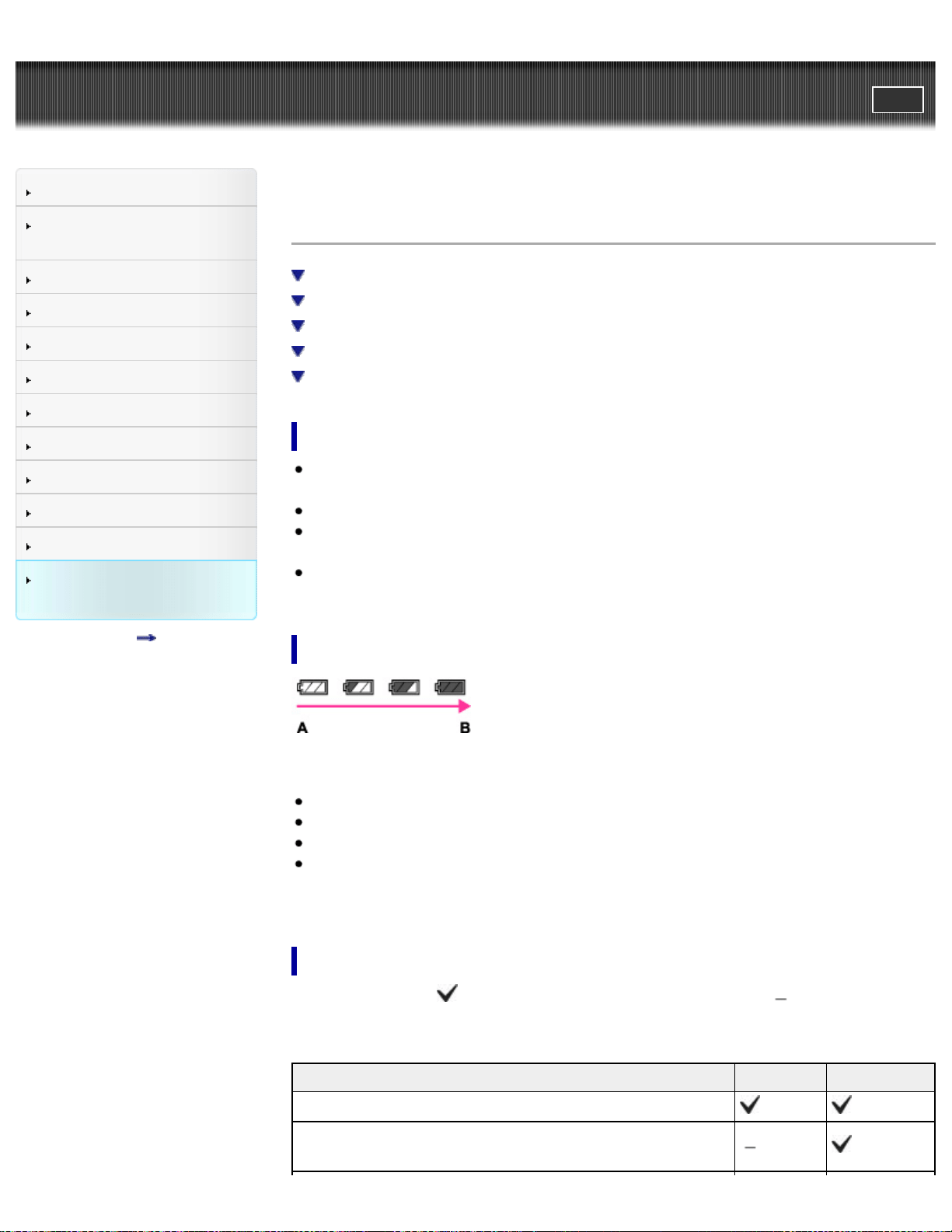
Cyber-shot User Guide
PrintSearch
Before Use
Confirming the operation
method
Shooting
Viewing
Useful shooting functions
Useful viewing functions
Changing settings
Viewing images on a TV
Using with your computer
Printing
Troubleshooting
Precautions / About this
camera
Contents list
Top page > Precautions / About this camera > Precautions > Batteries
Batteries
On the battery
About the remaining battery charge
Batteries you can and cannot use with your camera
On alkaline batteries (supplied)
On Nickel-Metal Hydride batteries (sold separately)
On the battery
Avoid rough handling, disassembling, modifying, physical shock, or impact such
as hammering, dropping or stepping on the battery.
Do not use a deformed or damaged battery.
Do not mix a used battery together with a new battery or different types of
batteries.
Remove the batteries from the camera when you do not operate the camera for
long periods, or when the batteries are dead.
About the remaining battery charge
A: High
B: Low
A remaining charge indicator appears on the screen.
It takes about one minute until the correct remaining charge indicator appears.
The remaining charge indicator may not be correct under certain circumstances.
When [Power Save] is set to [Standard] or [Max], if you do not operate the
camera for a certain period of time while the power is on, the screen becomes
dark, then the camera turns off automatically. (Auto power-off function)
Batteries you can and cannot use with your camera
In the table below, indicates the battery can be used, while indicates that the
battery cannot be used.
Battery type Supplied Supported
LR6 (size AA) alkaline batteries*
HR 15/51: HR6 (size AA) Nickel-Metal Hydride
batteries*
164

Lithium batteries
Manganese batteries
Ni-Cd batteries
* Before using batteries, read the following precaution for each type of battery.
Nickel-Metal Hydride batteries can be charged using a battery charger (sold
separately).
As for unsupported batteries, operating performance cannot be ensured if
voltage drops or other problems are caused by the nature of the battery.
On alkaline batteries (supplied)
Alkaline batteries cannot be recharged.
Alkaline batteries have a shorter life compared to the Nickel-Metal Hydride
batteries. For this reason, the power may turn off even though the remaining
charge indicator shows sufficient battery life remaining.
Battery performance differs greatly depending on the manufacturer and the type
of battery, and in some cases the battery life may be significantly shorter. This is
especially true at low temperatures, and you may not be able to shoot at
temperatures below 5°C (41°F).
Do not mix new and old batteries.
The remaining charge indicator may not display the correct information when
using alkaline batteries.
Due to characteristics of alkaline batteries, there is a large difference between
the available shooting time and the available playback time. For this reason, the
camera may turn off with the lens portion extended when you change the
shooting mode. In this case, replace the batteries with new ones. Using the
Nickel-Metal Hydride batteries allows you to shoot for longer periods of time.
On Nickel-Metal Hydride batteries (sold separately)
Do not peel off the external seals or damage the batteries. Never use batteries
from which the seals have been partially or completely removed, or batteries that
have been split in any way. These may cause leakage, explosion, or heat-up of
the battery, and personal scald or injury may be caused. These may cause a
malfunction of the battery charger.
Do not carry or store the Nickel-Metal Hydride batteries with metallic objects.
Metallic objects may short the + and – ends, resulting in the risk of heating or
fire.
If the poles of the Nickel-Metal Hydride batteries are dirty, the batteries may not
charge properly. Wipe them with a dry cloth, etc.
At the time of purchase, or when the Nickel-Metal Hydride batteries have not
been used for a long time, they may not charge fully. This is typical of this type of
battery, and is not a malfunction. If this happens, repeatedly using up the
batteries fully, and then recharging them should correct the problem.
If you recharge Nickel-Metal Hydride batteries before fully using up the existing
charge, the low battery warning may be displayed sooner than expected. This is
called the “memory effect.”* If this problem occurs, charging the batteries only
after using up the existing charge will correct it.
* The “memory effect” – the situation in which the capacity of the battery is
temporarily lowered.
165

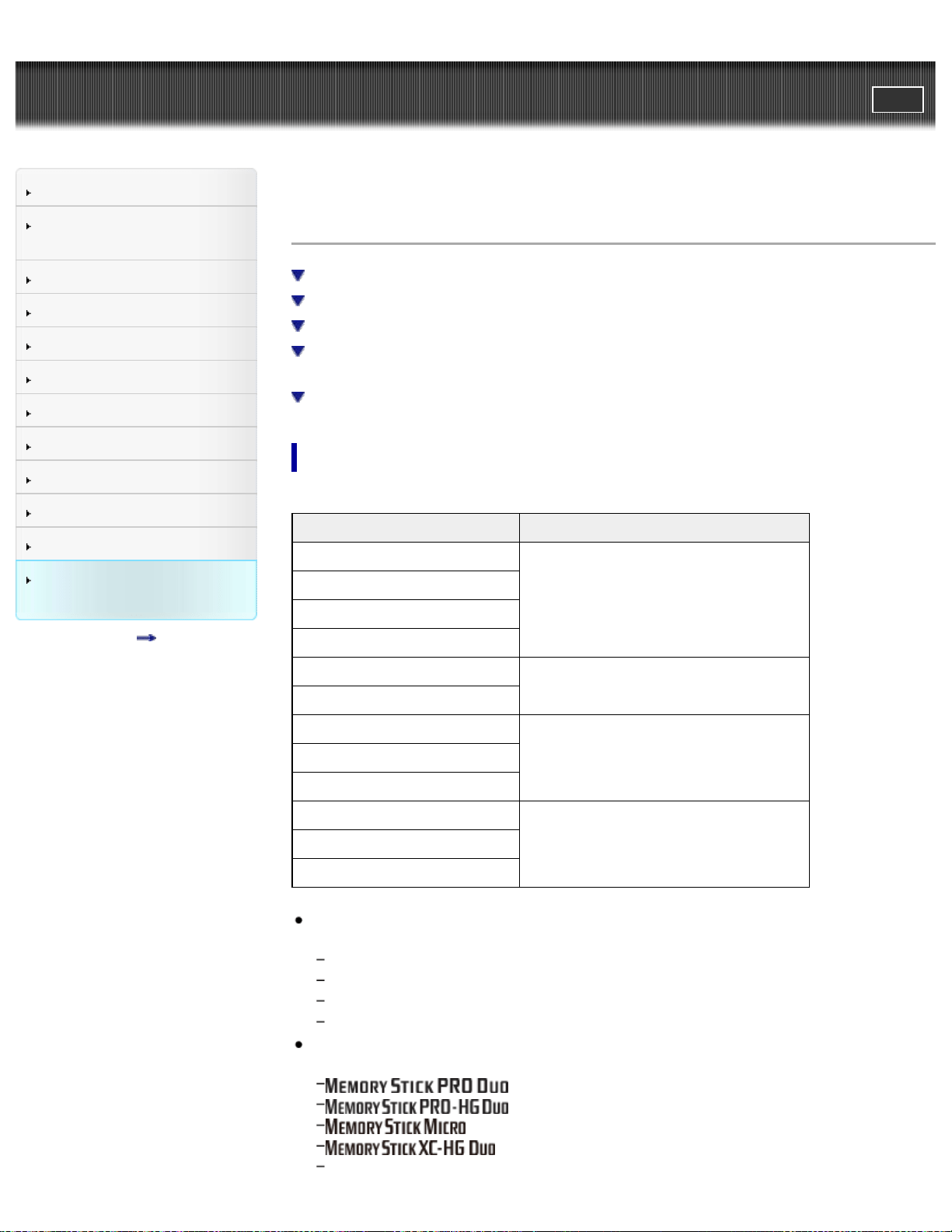
Cyber-shot User Guide
PrintSearch
Before Use
Confirming the operation
method
Shooting
Viewing
Useful shooting functions
Useful viewing functions
Changing settings
Viewing images on a TV
Using with your computer
Printing
Troubleshooting
Precautions / About this
camera
Contents list
Top page > Precautions / About this camera > Precautions > Memory card
Memory card
Memory card
Note on using the memory card adaptor (sold separately)
“Memory Stick” media
When using “Memory Stick Duo” media with standard sized “Memory Stick”
media slot
Notes on using “Memory Stick Micro” media (sold separately)
Memory card
Memory card Representation in User Guide
Memory Stick XC-HG Duo
“Memory Stick Duo” media
Memory Stick PRO Duo
Memory Stick PRO-HG Duo
Memory Stick Duo
Memory Stick Micro (M2)
“Memory Stick Micro” media
Memory Stick Micro (Mark2)
SD memory card
SD cardSDHC memory card
SDXC memory card
microSD memory card
microSD memory cardmicroSDHC memory card
microSDXC memory card
The following products have been tested and proven to operate with your
camera.
“Memory Stick Duo” media: up to 64 GB
“Memory Stick Micro” media: up to 16 GB
SD card: up to 64 GB
microSD memory card: up to 64 GB
When recording movies, it is recommended that you use the following memory
cards:
(Mark2) (“Memory Stick PRO Duo” media)
(“Memory Stick PRO-HG Duo” media)
(Mark2) (“Memory Stick Micro” media)
(“Memory Stick XC-HG Duo” media)
167

SD card (Class 4 or faster)
microSD memory card (Class 4 or faster)
Notes
To ensure stable operation of the memory card, we recommend that you use
this camera to format any memory card being used with this camera for the first
time. Note that formatting will erase all data recorded on the memory card. This
data cannot be restored. Be sure to back up any important data to a computer
or other storage location.
A memory card formatted with a computer is not guaranteed to operate with the
camera.
Data read/write speeds differ depending on the combination of the memory card
and the equipment used.
Data may be corrupted in the following cases:
When the memory card is removed or the camera is turned off during a read
or write operations
When the memory card is used in locations subject to static electricity or
electrical noise
We recommend backing up important data.
Do not attach a label on the memory card itself nor on a memory card adaptor.
Do not touch the terminal section of the memory card with your hand or a metal
object.
Do not strike, bend or drop the memory card.
Do not disassemble or modify the memory card.
Do not expose the memory card to water.
Do not leave the memory card within the reach of small children. They might
accidentally swallow it.
Insert a memory card that fits the memory card slot size. Otherwise, it will
cause a malfunction.
Do not use or store the memory card under the following conditions:
High temperature locations such as the hot interior of a car parked in direct
sunlight
Locations exposed to direct sunlight
Humid locations or locations with corrosive substances present
Note on using the memory card adaptor (sold
separately)
When inserting a memory card into a memory card adaptor, make sure the
memory card is inserted facing in the correct direction, then insert it all the way
in. Incorrect insertion may result in a malfunction.
When using “Memory Stick Micro” media or a microSD memory card, be sure to
insert into the dedicated memory card adaptor.
“Memory Stick” media
The types of “Memory Stick Duo” media that can be used with the camera are listed
in the table below. However, proper operation cannot be guaranteed for all
“Memory Stick Duo” media functions.
“Memory Stick” media type Recording / Playback
Memory Stick XC-HG Duo
*2*3*4
168
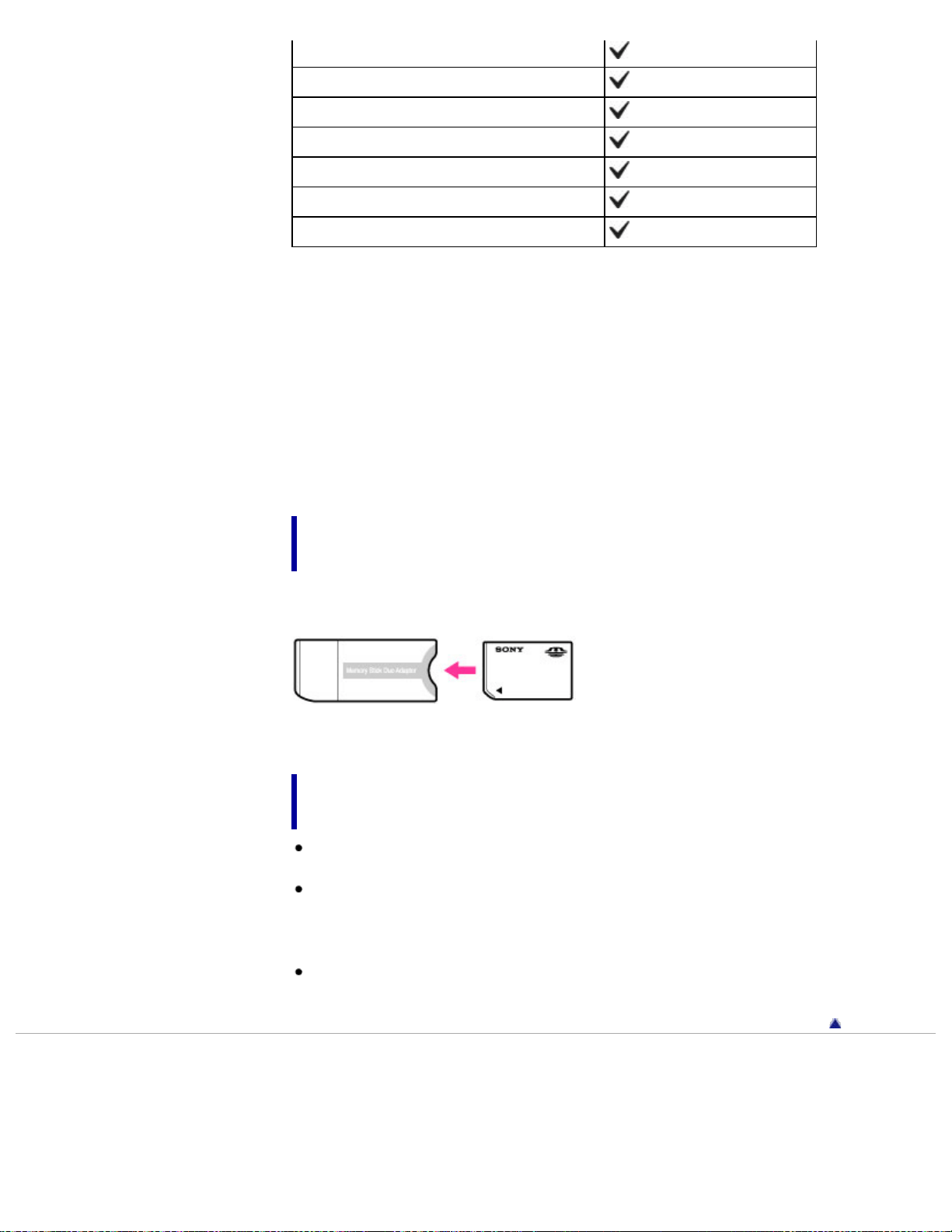
Memory Stick Duo (without MagicGate)
*1
Memory Stick Duo (with MagicGate)
*2
MagicGate Memory Stick Duo
*1*2
Memory Stick PRO Duo
*2*3
Memory Stick PRO-HG Duo
*2*3*4
Memory Stick Micro (M2)
*2
Memory Stick Micro (Mark2)
*2*3
*1 High-speed data transfer using a parallel interface is not supported.
*2 “Memory Stick Duo” media, “MagicGate Memory Stick Duo” media, “Memory
Stick PRO Duo” media, “Memory Stick PRO-HG Duo” media, “Memory Stick
XC-HG Duo” media, “Memory Stick Micro” media and “Memory Stick Micro”
(Mark2) media are equipped with MagicGate functions. MagicGate is copyright
protection technology that uses encryption technology. Data recording/playback
that requires MagicGate functions cannot be performed with the camera.
*3 [1280x720] size movies can be recorded.
*4 This camera does not support 8-bit parallel data transfer. It performs the same
4-bit parallel data transfer as the “Memory Stick PRO Duo” media.
When using “Memory Stick Duo” media with standard
sized “Memory Stick” media slot
You can use the “Memory Stick Duo” media by inserting it into the “Memory Stick
Duo” media Adaptor (sold separately).
“Memory Stick Duo” media Adaptor
Notes on using “Memory Stick Micro” media (sold
separately)
This product is compatible with “Memory Stick Micro” media (“M2”). “M2” is an
abbreviation for “Memory Stick Micro” media.
To use a “Memory Stick Micro” media with the camera, be sure to insert the
“Memory Stick Micro” media into an “M2” Adaptor as large as of Duo size. If you
insert a “Memory Stick Micro” media into the camera without an “M2” Adaptor as
large as of Duo size, you might not be able to remove it from the camera.
Do not leave the “Memory Stick Micro” media within the reach of small children.
They might accidentally swallow it.
Back to top
Copyright 2013 Sony Corporation
169
Cyber-shot User Guide
PrintSearch
Before Use
Confirming the operation
method
Shooting
Viewing
Useful shooting functions
Useful viewing functions
Changing settings
Viewing images on a TV
Using with your computer
Printing
Troubleshooting
Precautions / About this
camera
Contents list
Top page > Precautions / About this camera > On cleaning > On cleaning
On cleaning
Cleaning the lens and flash
Wipe the lens and flash with a soft cloth to remove fingerprints, dust, etc.
Cleaning the flash
Clean the flash surface before use. The heat of the flash emission may cause dirt
on the flash surface to start smoking or burning. Wipe the flash surface with a soft
cloth to remove dirt or dust, etc.
Cleaning the camera surface
Clean the camera surface with a soft cloth slightly moistened with water, then wipe
the surface with a dry cloth. To prevent damage to the finish or casing:
Do not expose the camera to chemical products such as thinner, benzine,
alcohol, disposable cloths, insect repellent, sunscreen or insecticide.
Do not touch the camera with any of the above on your hand.
Do not leave the camera in contact with rubber or vinyl for a long time.
Back to top
Copyright 2013 Sony Corporation
170
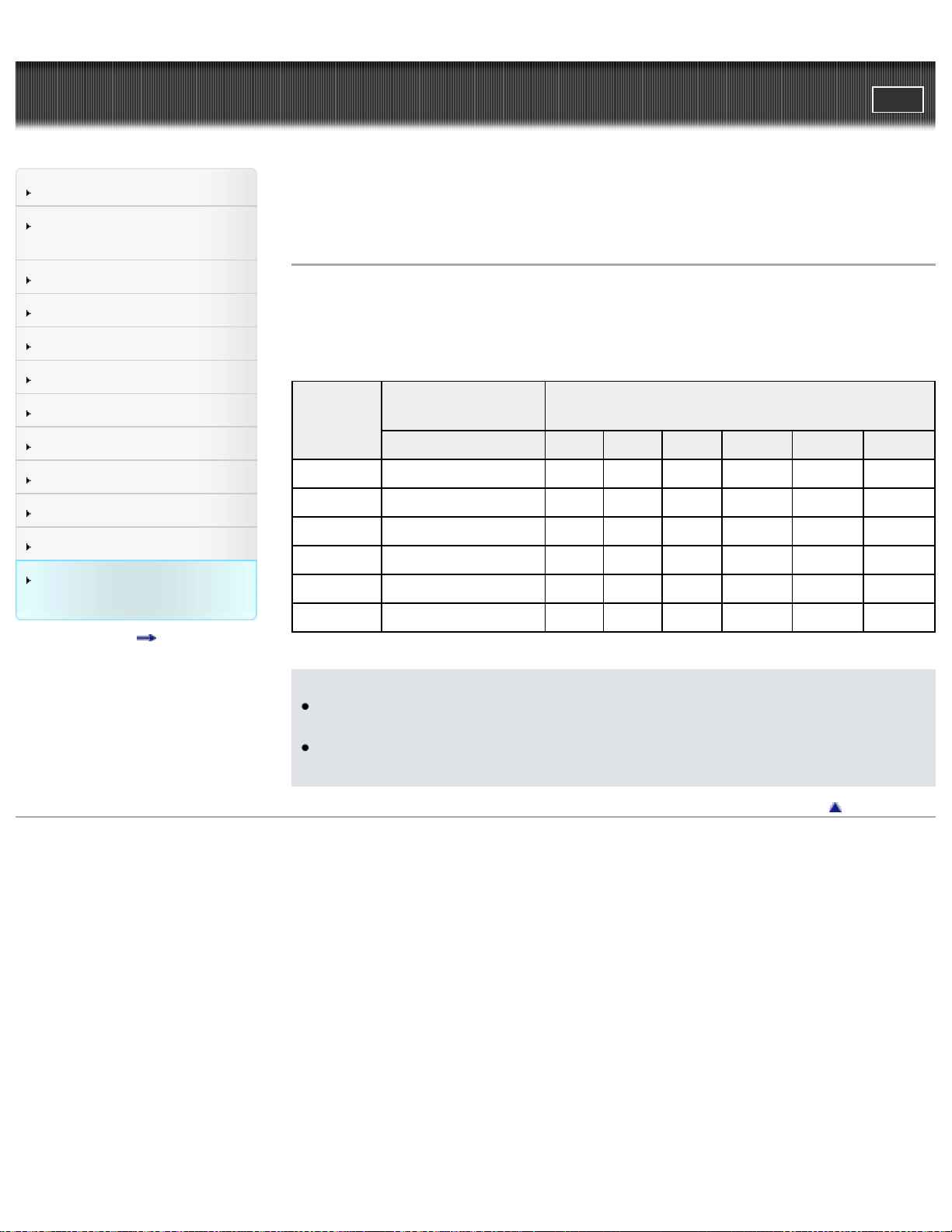
Cyber-shot User Guide
PrintSearch
Before Use
Confirming the operation
method
Shooting
Viewing
Useful shooting functions
Useful viewing functions
Changing settings
Viewing images on a TV
Using with your computer
Printing
Troubleshooting
Precautions / About this
camera
Contents list
Top page > Precautions / About this camera > Number of still images and
recordable time of movies > Number of still images
Number of still images
The number of still images may vary depending on the shooting conditions and the
memory card.
(Units: Images)
Size
Internal
memory
Memory card formatted with this
camera
Approx. 55 MB 2 GB 4 GB 8 GB 16 GB 32 GB 64 GB
20M 5 265 530 1050 2100 4300 8500
10M 12 400 800 1600 3200 6400 12000
5M 17 580 1150 2300 4650 9300 18600
VGA 350 11500 23500 47000 94000 185000 370000
16:9(15M) 7 330 660 1300 2600 5250 10000
16:9(2M) 54 1800 3650 7300 14500 29000 58000
Notes
When the number of remaining shootable images is greater than 99,999, the
“>99999” indicator appears.
When an image shot with other cameras is played back on this camera, the
image may not appear in the actual image size.
Back to top
Copyright 2013 Sony Corporation
171
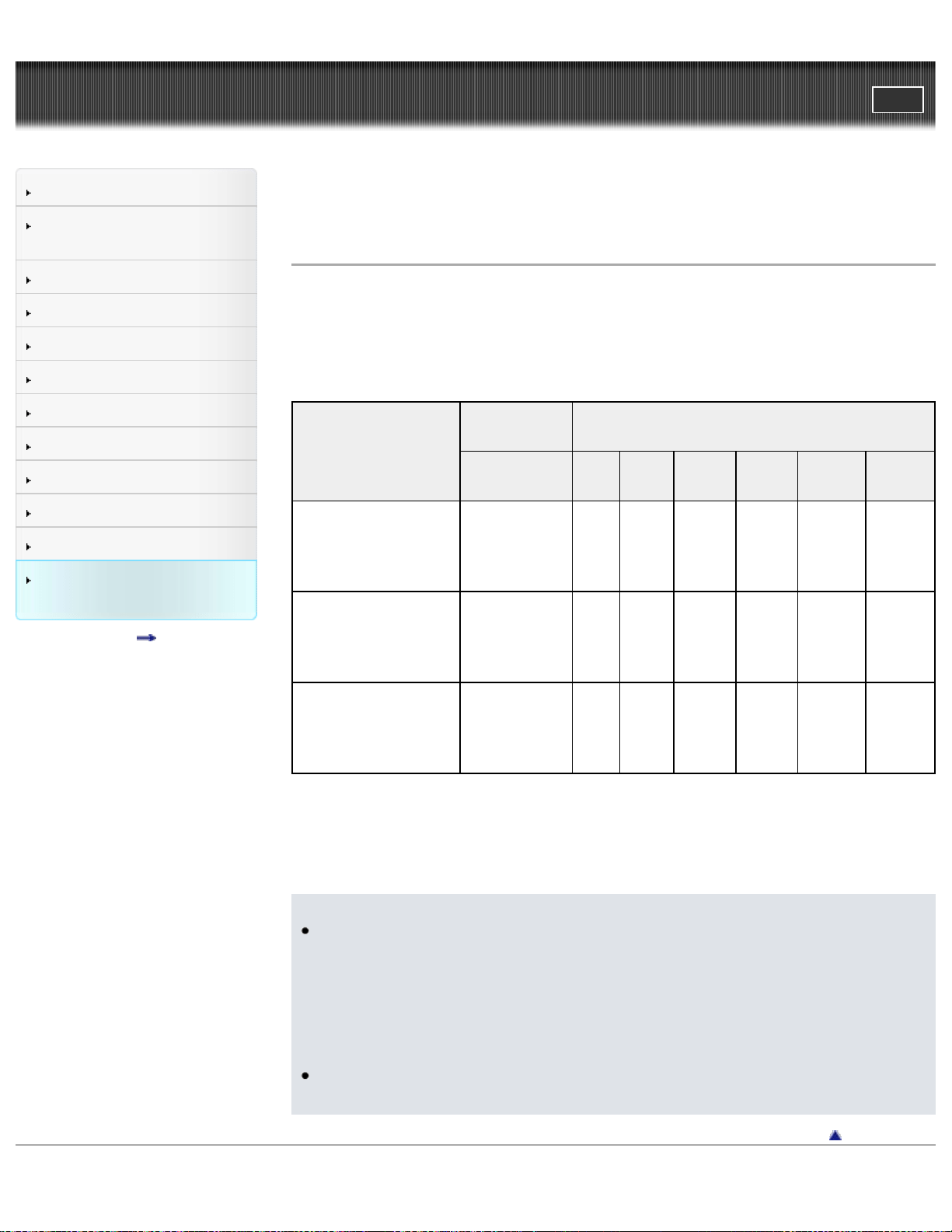
Cyber-shot User Guide
PrintSearch
Before Use
Confirming the operation
method
Shooting
Viewing
Useful shooting functions
Useful viewing functions
Changing settings
Viewing images on a TV
Using with your computer
Printing
Troubleshooting
Precautions / About this
camera
Contents list
Top page > Precautions / About this camera > Number of still images and
recordable time of movies > Recordable time of movies
Recordable time of movies
The table below shows the approximate maximum recording times. These are the
total times for all movie files. The recordable time may vary depending on the
shooting conditions and the memory card.
(h (hour), m (minute), s (second))
Quality/Size
Internal
memory
Memory card formatted with this
camera
Approx.
55 MB
2
GB
4
GB
8 GB
16
GB
32
GB
64 GB
1280x720(Fine) —
25
m
(15
m)
50 m
(30
m)
1 h 45
m
(1 h
15 m)
3 h 40
m
(2 h
35 m)
7 h 20
m
(5 h 15
m)
14 h 40
m
(10 h
35 m)
1280x720(Standard) —
35
m
(30
m)
1 h
10 m
(1 h)
2 h 20
m
(2 h)
4 h 40
m
(4 h 5
m)
9 h 25
m
(8 h 10
m)
18 h 50
m
(16 h
20 m)
VGA
2 m
(1 m 30 s)
1 h
5 m
(1 h)
2 h
15 m
(2 h)
4 h 40
m
(4 h 5
m)
9 h 20
m
(8 h
10 m)
18 h
45 m
(16 h
20 m)
37 h 30
m
(32 h
45 m)
The number in ( ) is the minimum recordable time.
Continuous shooting is possible for approximately 29 minutes (limited by product
specifications). For [1280x720(Fine)] size movies, continuous shooting is possible
for approximately 15 minutes (limited by 2 GB file size).
Notes
The recordable time of movies varies because the camera is equipped with
VBR (Variable Bit Rate), which automatically adjusts image quality depending
on the shooting scene.
When you record a fast-moving subject, the image is clearer but the recordable
time is shorter because more memory is required for recording.
The recordable time also varies depending on the shooting conditions, the
subject or the image quality/size settings.
You cannot record movies to the internal memory when the movie image size is
[1280x720(Fine)] or [1280x720(Standard)].
Back to top
Copyright 2013 Sony Corporation
172
Cyber-shot User Guide
PrintSearch
Before Use
Confirming the operation
method
Shooting
Viewing
Useful shooting functions
Useful viewing functions
Changing settings
Viewing images on a TV
Using with your computer
Printing
Troubleshooting
Precautions / About this
camera
Contents list
Top page > Precautions / About this camera > Using the camera abroad > On TV
color systems
On TV color systems
To view movies shot using this camera on a television, the camera and television
must use the same color television system. Check the color TV system for the
country or region where you are using the camera.
NTSC system
Bahama Islands, Bolivia, Canada, Central America, Chile, Colombia, Ecuador,
Jamaica, Japan, Korea, Mexico, Peru, Surinam, Taiwan, the Philippines, the
U.S.A., Venezuela, etc.
PAL system
Australia, Austria, Belgium, China, Croatia, Czech Republic, Denmark, Finland,
Germany, Holland, Hong Kong, Hungary, Indonesia, Italy, Kuwait, Malaysia, New
Zealand, Norway, Poland, Portugal, Romania, Singapore, Slovak Republic, Spain,
Sweden, Switzerland, Thailand, Turkey, United Kingdom, Viet Nam, etc.
PAL-M system
Brazil
PAL-N system
Argentina, Paraguay, Uruguay
SECAM system
Bulgaria, France, Greece, Guiana, Iran, Iraq, Monaco, Russia, Ukraine, etc.
Back to top
Copyright 2013 Sony Corporation
173
Cyber-shot User Guide
PrintSearch
Before Use
Confirming the operation
method
Shooting
Viewing
Useful shooting functions
Useful viewing functions
Changing settings
Viewing images on a TV
Using with your computer
Printing
Troubleshooting
Precautions / About this
camera
Contents list
Top page > Precautions / About this camera > About this camera > License
License
Notes on the License
This camera comes with software that are used based on licensing agreements
with the owners of that software. Based on requests by the owners of copyright of
these software applications, we have an obligation to inform you of the following.
Please read the following sections.
Licenses (in English) are recorded in the internal memory of your camera. Establish
a Mass Storage connection between the camera and a computer to read licenses
in the “PMHOME” - “LICENSE” folder.
THIS PRODUCT IS LICENSED UNDER THE AVC PATENT PORTFOLIO
LICENSE FOR THE PERSONAL USE OF A CONSUMER OR OTHER USES IN
WHICH IT DOES NOT RECEIVE REMUNERATION TO
(i) ENCODE VIDEO IN COMPLIANCE WITH THE AVC STANDARD (“AVC
VIDEO”)
AND/OR
(ii) DECODE AVC VIDEO THAT WAS ENCODED BY A CONSUMER ENGAGED
IN A PERSONAL ACTIVITY AND/OR WAS OBTAINED FROM A VIDEO
PROVIDER LICENSED TO PROVIDE AVC VIDEO.
NO LICENSE IS GRANTED OR SHALL BE IMPLIED FOR ANY OTHER USE.
ADDITIONAL INFORMATION MAY BE OBTAINED FROM MPEG LA, L.L.C. SEE
HTTP://WWW.MPEGLA.COM
On GNU GPL/LGPL applied software
The software that is eligible for the following GNU General Public License
(hereinafter referred to as “GPL”) or GNU Lesser General Public License
(hereinafter referred to as “LGPL”) are included in the camera.
This informs you that you have a right to have access to, modify, and redistribute
source code for these software programs under the conditions of the supplied
GPL/LGPL.
Source code is provided on the web. Use the following URL to download it.
http://www.sony.net/Products/Linux/
We would prefer you do not contact us about the contents of source code.
Licenses (in English) are recorded in the internal memory of your camera. Establish
a Mass Storage connection between the camera and a computer to read licenses
in the “PMHOME” - “LICENSE” folder.
On the license of “Music Transfer”
MPEG Layer-3 audio coding technology and patents licensed from Fraunhofer IIS
and Thomson.
Back to top
Copyright 2013 Sony Corporation
174
Cyber-shot User Guide
PrintSearch
Before Use
Confirming the operation
method
Shooting
Viewing
Useful shooting functions
Useful viewing functions
Changing settings
Viewing images on a TV
Using with your computer
Printing
Troubleshooting
Precautions / About this
camera
Contents list
Top page > Precautions / About this camera > Trademarks > Trademarks
Trademarks
The following marks are trademarks of Sony Corporation.
, “Cyber-shot,” “Memory Stick,” , “Memory Stick PRO,”
, “Memory Stick Duo,” , “Memory Stick
PRO Duo,”
, “Memory Stick PRO-HG Duo,”
, “Memory Stick XC-HG Duo,” ,
“Memory Stick Micro,” “MagicGate,”
, “PlayMemories Home,”
“PlayMemories Online”
Microsoft, Windows, DirectX and Windows Vista are either registered trademarks
or trademarks of Microsoft Corporation in the United States and/or other
countries.
Mac and Mac OS are trademarks or registered trademarks of Apple Inc.
Intel, Pentium and Intel Core are trademarks or registered trademarks of Intel
Corporation.
SDXC logo is a trademark of SD-3C, LLC.
Eye-Fi is a trademark of Eye-Fi, Inc.
In addition, system and product names used in this manual are, in general,
trademarks or registered trademarks of their respective developers or
manufacturers. However, the ™ or ® marks are not used in all cases in this
manual.
Back to top
Copyright 2013 Sony Corporation
175