
STOP
PLEASE FOLLOW
THE INSTRUCTIONS IN YOUR QUICK
START GUIDE BEFORE PLUGGING IN
YOUR NEW PC
If a Quick Start Guide was not included with your PC,
please go to www.skytechgaming.com/starting-guide
to view the appropriate guide. If you cannot find your
specific guide, you can also view a basic setup guide.
.
Frequently
SKEDA
UESTIONSQ
QUICK START
GUIDE
Design
Assembly
Support
Repair
READ THIS FIRST
www.skytechgaming.com
USA (888) 370-8882
Monday - Friday 9:00am - 6:00pm PST
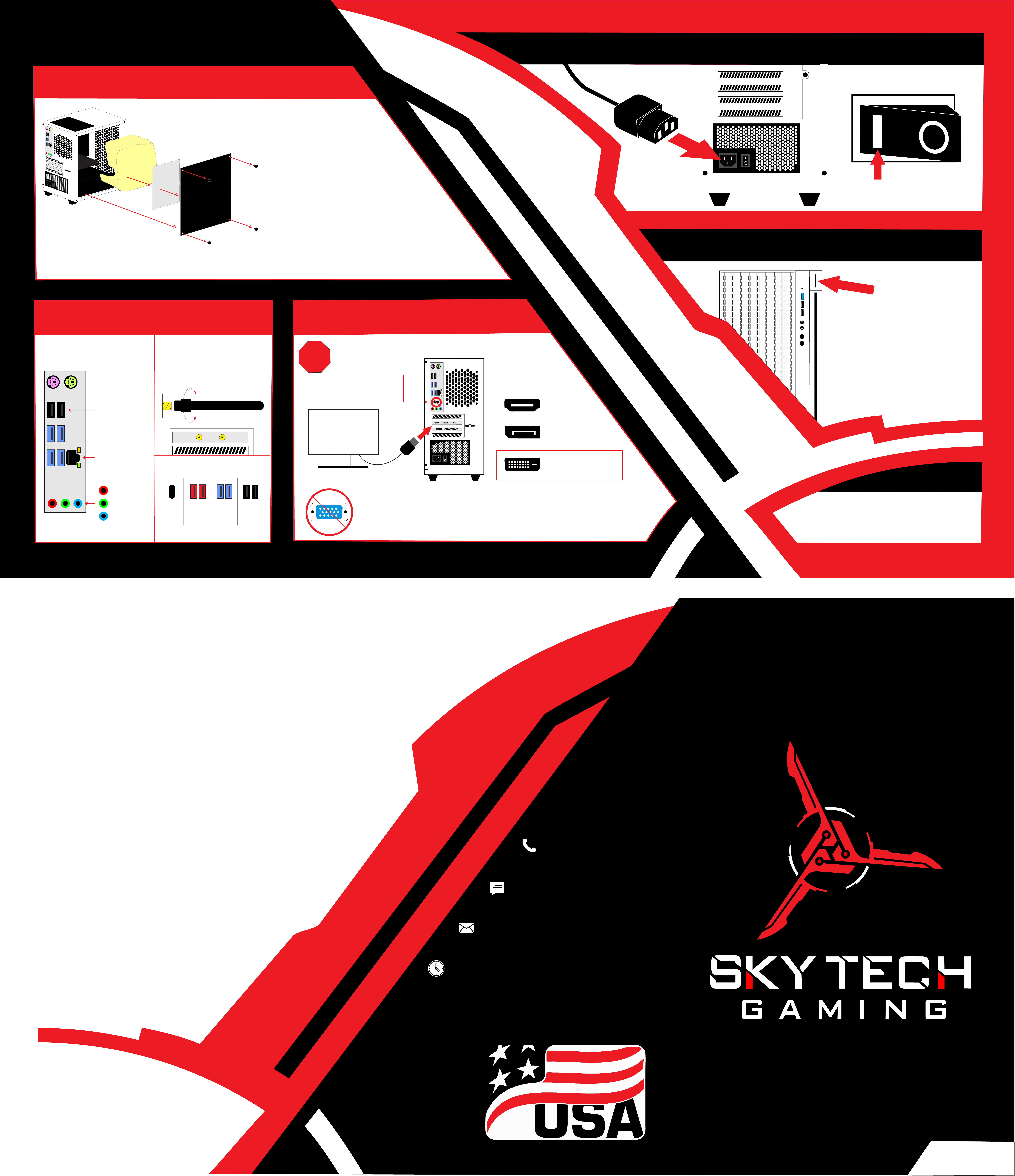
1. Unpack Your New PC
3. Connect Your Monitor
H18
2.
Let’s Get Started
2. Connect Peripherals
4. Connect The Power Cable
Please be aware that with newer graphics cards VGA is
not supported. If your monitor is VGA, you will need to
purchase a “ACTIVE VGA TO HDMI ADAPTER”.
6.
Follow the on-screen instruction to
complete your installation, setup your
login, and configure your privacy settings.
HDMI
DVI
Display Port
Supported
Connections
Keyboard
Mouse
Internet
Mic In
Audio Out
Line In
Only one Is needed.
Placement may differ.
Some of our PCs Have WiFi cards.
If you see two gold connectors on
the back of your PC, please attach
the two included antennas.
USB
3.0
USB
2.0
USB
C
USB
3.1
USB Port Types
Do not plug your monitor
into the onboard graphics
port, It is disabled when
a graphics card is Installed.
USB ports may differ by model
A.
B.
C.
D.
A.
SWITCH POWER SUPPLY
TO THE ON POSITION
6. Finish!
PRESS THE
POWER BUTTON
5. Power On Your New PC
WAIT FOR WINDOWS TO LOAD
Please do not power off your PC
during the initial setup process.
not available
on all cards.
STOP
PLUG POWER
CABLE IN
Connect Antennas
Remove the thumb screws
holding the glass panel on.
Remove the glass panel.
Remove the info sheet covering
the protective foam.
Remove the protective foam from
the inside of the PC (carefully as to not
dislodge any wires).
C.
D.
B.
Do your computers come fully built?
Your PC comes fully assembled and ready to use. Just follow the
instructions in this guide to get up and running.
What is included with my PC?
Every PC comes with a Quick Start Guide, Maintenance Guide,
Quality Certificate, Troubleshooting Guide, Power Cable, Mouse,
Keyboard, and any system specific accessories provided by the manufacturer.
Where can I find my Windows Activation Key?
Microsoft no longer provides stickers with your product key to system
integrators. Your PC comes fully activated and the product key is
registered to your PC’s motherboard. If your PC is for some reason not
showing that it is activated please contact our Customer Support Team
and we will be happy to get your activation key for you.
My order has the wrong / missing component / accessory.
Please contact our Customer Support Team and we will be happy to
get your issue resolved.
What is the bundle of unplugged cables inside my PC?
You do not need to touch those as they are extra cables. We try to
bundle them away as neatly as possible. These cables are not
necessary for the PC to work properly.
How do I change the color of the RGBs on my fans / case?
If your PC comes with RGB Lighting / RGB fans, please refer to the
RGB guide at www.skytechgaming.com/rgb for the proper way to
adjust them. If you still need assistance, please contact our Customer
Support Team.
Can I Overclock my PC?
While we offer factory overclocking services, we do not support
any overclocking done by our customers. Issues that may
arise or damage explicitly caused to components by
customer overclocking may not be covered under
your warranty. Overclock at your own risk.
Se
a
l
o
f
A
p
p
rov
a
l
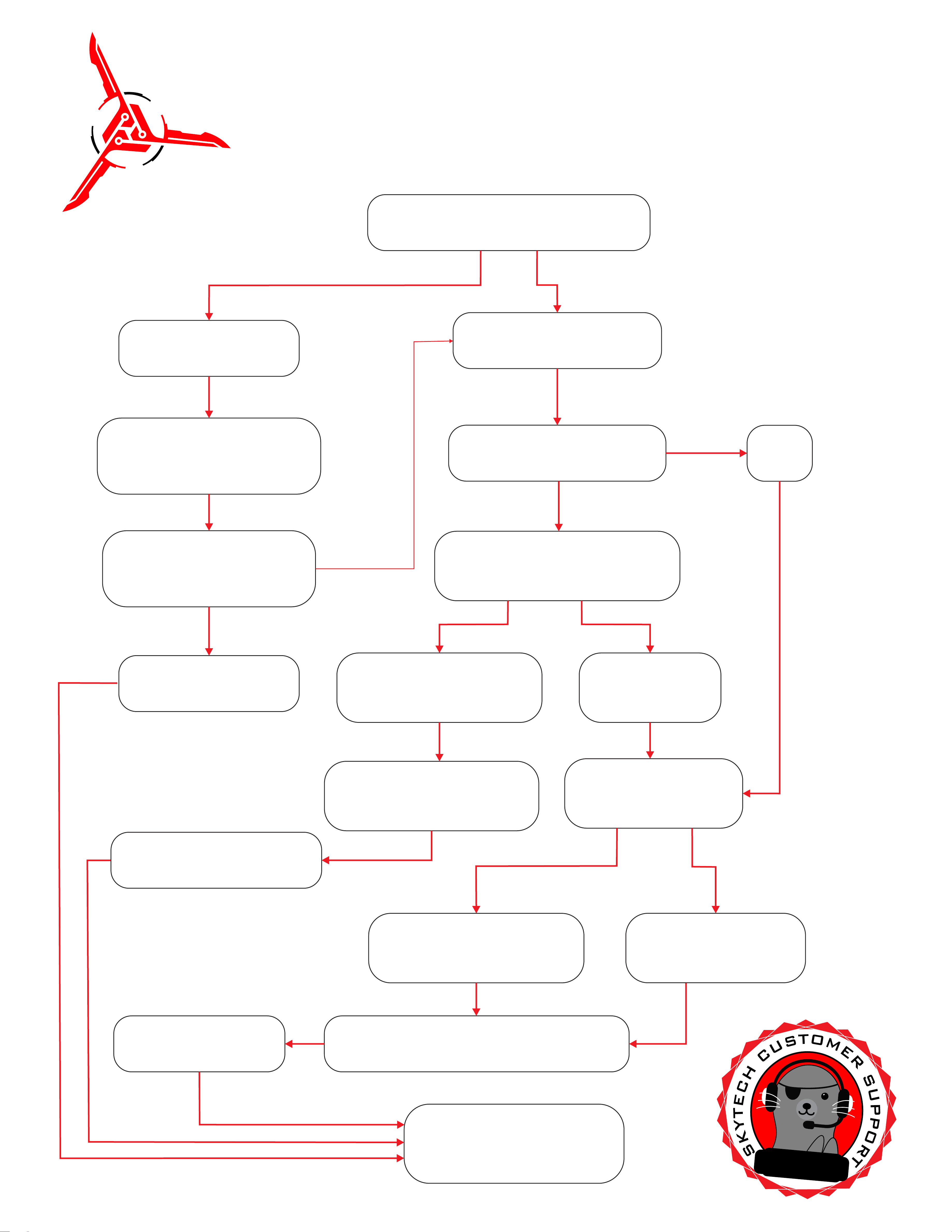
Troubleshooting Guide
Please follow these steps if your PC is not turning on
after following the steps in our Quick Start Guide
Is the PC powering on?
No, I do not hear anything
or see any lights.
Please be sure the Power Cable
is plugged in firmly and that the
Power Switch is set to the ON
position (the line side depressed).
Please press the Power Button
on the top or front of the Case.
Did your PC turn on?
No, It is still not powering on.
They are properly connected, but
I am still getting the same errors.
Please Contact
Customer Support
Yes, I hear it and see lights but
nothing is showing on the screen.
Is your monitor cable connected
to the graphics card and not the
motherboard?
Yes, it is.
It was plugged into the Motherboard.
I moved it to the Graphics Card.
Did it boot to Windows?
No, it shows “Reboot and select
proper boot device”, a bunch of
White Text, or the System BIOS.
No, nothing is coming
up on the screen.
Is your Monitor’s input set
to the correct input type?
Please check that the power and
data cables are connected to the
SSD / Hard Drive.
Yes it is, but I still do not
see anything on the screen.
No it was set to the wrong input.
I switched the input, but I still do
not see anything on the screen.
They are properly seated
now, but I still do not see
anything on the screen.
Please press firmly on the Memory Sticks and
Graphics Card to be sure they are fully seated.
If needed, you can remove and reinsert them.