&DPHUD3UHSDUDWLRQV
3UpSDUDWLIVGHODSSDUHLOSKRWR
%DVLF2SHUDWLRQV
)RQFWLRQQHPHQWGHEDVH
7HFKQLTXHVIRU7DNLQJ3LFWXUHV
7HFKQLTXHVGHSULVHGHYXHV
0RGH
C
0RGH
N
0RG H
M
0RGH
C
0RGH
N
0RG H
M
3OD\EDFN0RGH
P
0RGHGHOHFWXUH
P
6(7830RGH
G
0RGH352*5$00(5
G
$SSHQGL[
$QQH[H
,QWURGXFWLRQ
,QWURGXFWLRQ
(1*/,6+
)5$1d$,6
Finecam Cover1_E,F.fm Page 1 Thursday, August 28, 2003 12:25 PM

2
FCC COMPLIANCE STATEMENT FOR AMERICAN USERS
KYOCERA DIGITAL STILL CAMERA
Tested To Comply With FCC Standards
FOR HOME OR OFFICE USE
FCC Statement
This device complies with Part 15 of the FCC Rules. Operation is subject to the
following two conditions:
(1) This device may not cause harmful interference, and (2) this device must accept
any interference received, including interference that may cause undesired operation.
NOTE
This equipment has been tested and found to comply with the limits for a Class B
digital device, pursuant to Part 15 of the FCC Rules. These limits are designed to
provide reasonable protection against harmful interference in a residential installation.
This equipment generates, uses and can radiate radio frequency energy and, if not
installed and used in accordance with the instructions, may cause harmful
interference to radio communications. However, there is no guarantee that
interference will not occur in a particular installation. If this equipment does cause
harmful interference to radio or television reception, which can be determined by
turning the equipment off and on, the user is encouraged to try to correct the
interference by one or more of the following measures:
• Change the direction of the radio or TV antenna. Move the equipment or the radio or
TV. For example, if the equipment is to the right of the TV, move it to the left of the
TV. Or, move the equipment farther away from the radio or TV.
• Plug the equipment into a different outlet. Do not plug your radio or TV into the same
circuit as your equipment.
• Ensure that all expansion slots (on the back or side of the equipment) are covered.
Also, ensure that all metal retaining brackets are tightly attached to the equipment.
• If these suggestions do not help, consult your equipment dealer or experienced
radio/TV technician for help.
CAUTION
If you modify the camera in any way, without getting approval from KYOCERA
CORPORATION, your camera may violate FCC regulations. Violation of FCC
regulations may cause the FCC to void your right to use the modified camera.
Shielded cables must be used for this equipment to comply with the relevant FCC
regulation.
For customers in Canada CAUTION
This Class B digital apparatus complies with Canadian ICES-003.
Cet appareil numérique de la classe B est conforme à la norme NMB-003 du Canada.
Finecam_E.book Page 2 Thursday, August 28, 2003 6:21 PM

3
Introduction
Thank you for purchasing this Kyocera product.
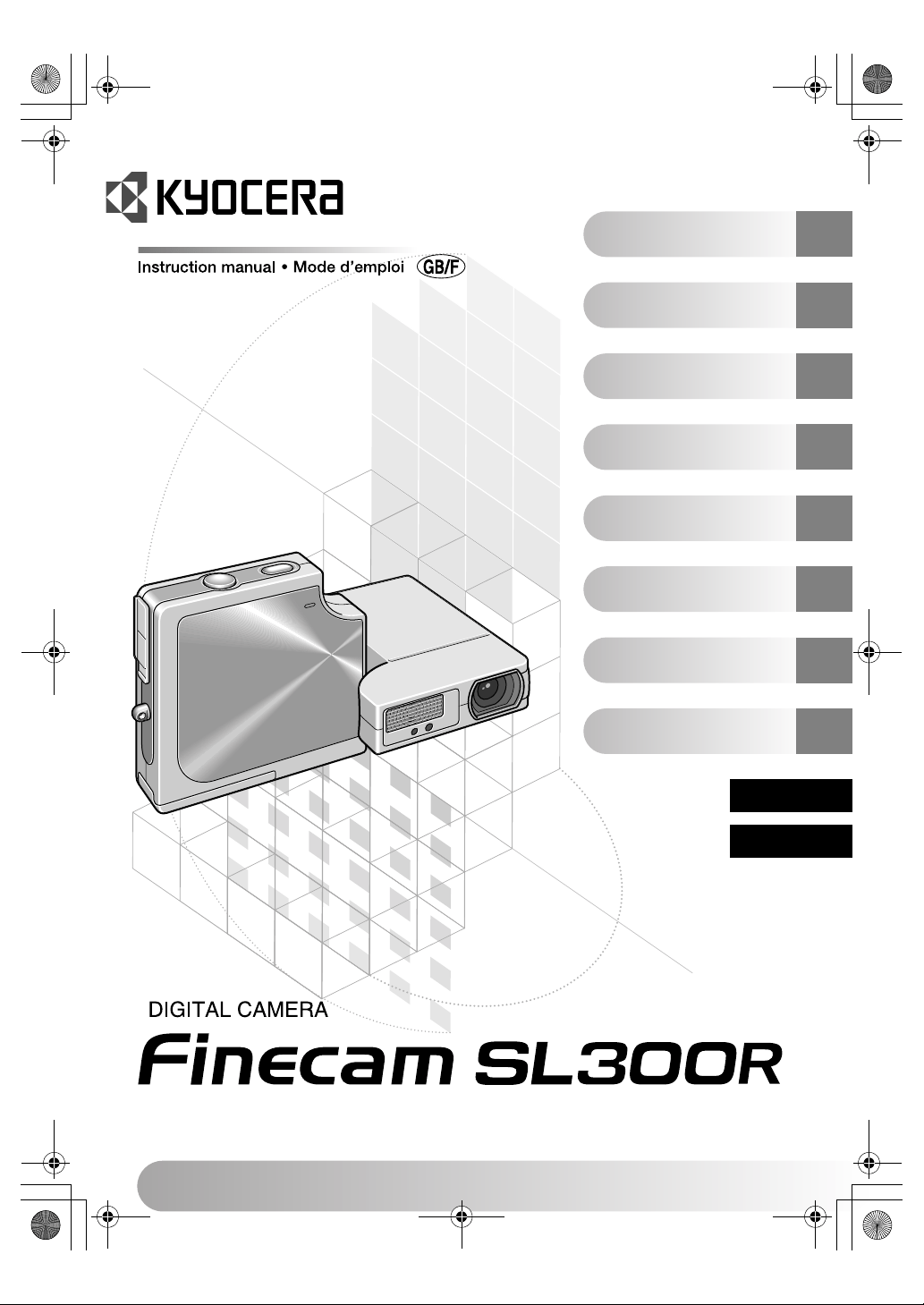
The KYOCERA Finecam SL300R is a powerful, high-resolution digital camera featuring an
ultra-slim body and 3✕ optical zoom lens.
Before using the camera, please read this Instruction Manual carefully to ensure that you
use the camera correctly and continue to enjoy this Kyocera product for many years to
come.
Make it a practice to take test shots before beginning any important photography session, in
order to confirm that images are being recorded properly. Kyocera will not be held
responsible for failure of photographs to be recorded or transmitted to a computer as the
result of any defects in recording media (SD memory card or Multi-Media Card (MMC)).
Photographs taken of professional performances, exhibitions, displays, or copyrighted
materials may be used only for your own personal enjoyment, and only with the consent of
the copyright holders. Other use may constitute violation of applicable copyright laws. Be
aware that some performances, exhibitions, or displays may impose restrictions on
photographic or other recording even when the purpose of such recordings are personal
enjoyment.
• The SD logo is a registered trademark.
• MultiMediaCard
™
is a registered trademark of Infineon Technologies AG (Germany),
licensed to MMCA (MultiMediaCard Association).
• Microsoft and Windows are registered trademarks of Microsoft Corporation in the United
States and/or other countries.
• Macintosh, Mac OS, QuickTime
™
, and the QuickTime logo are registered trademarks of
Apple Computer, Inc.
• PRINT Image Matching is trademark of Seiko Epson Corporation. The PRINT Image
Matching logo is a trademark of Seiko Epson Corporation.
• All other corporate and brand names are the registered trademarks or trademarks of their
respective owners.
PRINT Image Matching
* This product supports PRINT Image Matching II. When used in combination, PRINT
Image Matching II enabled digital still cameras, printers and software help photographers
to produce images more faithful to their intentions.
Introduction
Test Photos and Warranties
Notes on Copyright
Finecam_E.book Page 3 Thursday, August 28, 2003 6:21 PM
4
Introduction
Introduction.............................................................................................................. 3
Test Photos and Warranties........................................................................... 3
Notes on Copyright......................................................................................... 3
How to Use this Instruction Manual................................................................ 7
Caution and Warning Symbols....................................................................... 8
Handling Precautions ..................................................................................... 8
Nomenclature Names of camera controls and reference pages .............. 12
A World of Possibilities................................................................................. 13
1 Camera Preparations........................................................................ 1-1
Inserting the Battery Pack ...................................................................................1-2
Removing the Battery Pack .................................................................................1-2
Charging the Battery ............................................................................................1-3
Loading the Memory Card ...................................................................................1-3
Removing the Memory Card ................................................................................1-4
Switching the Camera On ....................................................................................1-5
Setting the Date and Time....................................................................................1-6
Using the Accessories .........................................................................................1-7
2 Basic Operations .............................................................................. 2-1
Taking Pictures – Shooting Still Images ............................................................2-2
Shooting Movies ...................................................................................................2-4
Viewing Images – Still Image Playback ..............................................................2-6
Viewing Images – Movie Playback ......................................................................2-6
Displaying Information for Playback Images – INFORMATION........................2-7
Checking Photography Data and Erasing Images – Manual REC Review ......2-8
Deleting Unwanted Images – Erasing Images ...................................................2-8
When the Memory Card is Full... .......................................................................2-10
Connecting the Camera to a Computer ............................................................2-11
Computer hardware and software requirements .......................................2-11
Connecting to a Windows PC............................................................................2-12
Installing the USB drivers (Windows 98 and Windows 98SE only) ...........2-12
Viewing images on a Windows PC............................................................2-13
Disconnecting the USB cable from a Windows PC ...................................2-16
Uninstalling the driver software (Windows 98 and Windows 98SE only) .. 2-18
Connecting to a Macintosh................................................................................2-20
Viewing images on a Macintosh computer ................................................2-20
Disconnecting the USB cable from a Macintosh computer .......................2-22
Digital Printing on a Printer ...............................................................................2-23
3 Techniques for Taking Pictures ...................................................... 3-1
Using Focus Lock to Take Pictures ....................................................................3-2
Using the Zoom Button – Optical Zoom and Digital Zoom...............................3-3
Setting the Best Camera Mode for the Scene Shot – SCENE Button I.......3-4
Displaying the Scene Mode menu...............................................................3-4
Shooting modes ..........................................................................................3-5
Using Continuous Shooting Mode......................................................................3-7
Contents
Finecam_E.book Page 4 Thursday, August 28, 2003 6:21 PM

5
Introduction
Switching the LCD Monitor Icon Display and Backlight On and Off ...............3-8
Specifying the settings ................................................................................3-8
Conserving Battery Power...................................................................................3-9
4 Using C Camera Mode, N Continuous Shooting Mode and
M Movie Mode ................................................................................ 4-1
Using the Flash .....................................................................................................4-2
Flash modes................................................................................................4-2
Setting the flash mode.................................................................................4-3
[t] Taking Pictures Using the Self-Timer...........................................................4-4
[ ] Selecting the Number of Pixels (Image Size) ..............................................4-5
[ ] Selecting the Quality (Compression Ratio) .................................................4-6
[ ] Using Exposure Compensation....................................................................4-8
[ ] Determining the White Balance ...................................................................4-9
[ ] Setting the Frame Rate ..............................................................................4-10
[ ]/[ ] Setting Detailed Functions in the SET DETAILES ...........................4-11
[SOUND] Shooting Movies with Sound (or without Sound) ...........................4-11
[COLOR MODE] Selecting Color, Black & White or Sepia ..............................4-13
[CHROMA] Changing the color intensity..........................................................4-14
[SHARPNESS] Enhancing the image outlines .................................................4-15
[WB PRESET] Setting Your Own Value for White............................................4-16
[AE MODE] Selecting the Exposure Setting Method.......................................4-17
[FOCUSING] Selecting the focusing method ...................................................4-19
Setting the focusing method......................................................................4-19
Determining the shooting distance with manual focusing (MF) .................4-20
[LONG EXP.] Using Slow Shutter Speeds ........................................................4-21
[ISO] Changing the Sensitivity to Photograph Fast Moving Subjects...........4-22
[METERING] Selecting the Area Used for Setting the Exposure ...................4-23
[DIGITAL ZOOM] Switching the Digital Zoom ON and OFF ............................4-24
5 Using the P Playback Mode Functions........................................ 5-1
[PLAYBACK ZOOM] Viewing Your Images Enlarged ........................................5-2
Playing Back Movies ............................................................................................5-2
[MULTI] Viewing Multiple Images........................................................................5-3
Using MULTI playback ................................................................................5-3
Erasing images in the MULTI playback screen ...........................................5-4
Reverting to normal playback (SINGLE playback) ......................................5-5
[POSTRECORDING] Adding Voice Messages to Images..................................5-5
Recording a message .................................................................................5-5
Erasing voice messages .............................................................................5-7
Playing back a recorded message ..............................................................5-7
[PROTECT] Protecting Images from Accidental Erasing..................................5-8
Protecting an image ....................................................................................5-8
Unprotecting images ...................................................................................5-9
[ERASE] Erasing Individual Images....................................................................5-9
[ERASE ALL] Erasing All Images......................................................................5-10
[RESIZE] Resizing and Trimming Images ........................................................5-11
Resizing an image.....................................................................................5-11
Checking and erasing resized images ......................................................5-13
Resizing all the images .............................................................................5-14
Finecam_E.book Page 5 Thursday, August 28, 2003 6:21 PM
6
Introduction
Erasing all resized images ........................................................................5-14
[ROTATE] Rotating an Image ............................................................................5-15
[AUTO PLAY] Displaying Images Automatically as a Slideshow...................5-16
Setting AUTO PLAY ..................................................................................5-16
Starting and ending an AUTO PLAY slideshow ........................................5-18
PRINT SETTINGS Specifying DPOF Print Settings ........................................5-19
Specifying DPOF settings .........................................................................5-19
Specifying index print settings...................................................................5-21
Deleting all the DPOF print settings ..........................................................5-22
6 G Using the SET UP Mode Functions ............................................ 6-1
[AF MODE] Setting AF mode ...............................................................................6-2
[AF METHOD] Setting AF method .......................................................................6-2
[BRIGHT CNTRL] Adjusting the LCD Monitor Brightness ................................6-3
[BACKLIGHT] Changing the Monitor Backlighting Brightness........................6-4
[DATE] Setting the Camera’s Date and Time ....................................................6-4
[INSERT DATE] Writing the Date onto Image Files ...........................................6-4
[FORMAT] Initializing Memory Cards .................................................................6-5
[POWER SAVE] Switching the Camera Off Automatically to Save Power ......6-6
[MODE LOCK] Preserving Your Function Settings ...........................................6-7
[BEEP] Adjusting the Volume of the Camera Button Beep ..............................6-8
[SHUTTER VOL] Adjusting the Volume of the Shutter Sound .........................6-9
[COLOR SELECT] Selecting the Menu Color .....................................................6-9
[START SCREEN] Selecting the Startup Screen .............................................6-10
[REC REVIEW] Checking Images Right After You Shoot Them .....................6-11
[ LANGUAGE] Selecting the Menu Language ............................................6-12
[FILE NO.] Starting Image File Numbers from 0001 ........................................6-13
[MODE RESET] Resetting Function Settings...................................................6-14
7 Appendix............................................................................................ 7-1
Troubleshooting ...................................................................................................7-2
Problems and Solutions ..............................................................................7-2
Messages and Responses ..........................................................................7-3
Mode-locked Menu Options and Default Settings .............................................7-4
LCD Monitor Information and Names of Icons ..................................................7-5
Display when the Camera C, Continuous Shooting N or
Movie M mode is selected ....................................................................7-5
Display when Playback P mode is selected.............................................7-6
Image Information Display...........................................................................7-6
LED indicators ......................................................................................................7-7
Self-timer LED (red) ....................................................................................7-7
Card access LED (orange)..........................................................................7-7
Caution LED (red) .......................................................................................7-8
Basic Glossary of Digital Camera Terms ...........................................................7-9
Finecam_E.book Page 6 Thursday, August 28, 2003 6:21 PM

7
Introduction
Camera Preparations: This chapter tells you what you have to do to get the camera ready
for taking pictures and covers topics such as inserting and charging the battery pack,
loading memory cards, and switching the camera on.
Basic Operations: This chapter covers the basics of using your digital camera, including
taking pictures, viewing your pictures, erasing images and connecting the camera to a
computer. If you use a digital camera for the first time, read these sections carefully in order
to learn how to use it properly.
Techniques for Taking Pictures: This chapter describes some more advanced
photography techniques, including photographing subjects that are difficult for the camera to
focus on, using the zoom to compose shots, selecting the best shooting mode for the
subject, and using continuous shooting. This section is intended for those who have
understood the basic operations of the camera and have become used to camera
operations.
Using “C
” Camera Mode, “
N
” Continuous Shooting Mode and “
M
” Movie Mode:
This chapter describes various aspects of photography using a digital camera, such as
using the flash, setting the number of pixels and image quality, and setting white balance.
Using the “
P
” Playback Mode Functions: This chapter describes the camera’s
Playback mode, in which you can check images you have shot on the LCD monitor.
In Playback mode, you can also record sound onto your images, and resize, trim and rotate
photographed images in 90°increments.
“
G
” Using the SET UP Mode Functions: This chapter describes how to set up some of
the camera's more advanced functions, such as specifying the AF (Auto Focus) settings,
adjusting the LCD monitor brightness, and initializing memory cards.
Appendix: This chapter provides a range of technical information, including measures for
dealing with camera problems, the names of the icons displayed on the LCD monitor, the
operation of the LEDs and a glossary of digital camera terms.
• The digital camera is referred to in this Instruction Manual as “camera”.
• In this manual, SD Memory Cards and Multimedia cards are referred to generically as
“memory cards”.
• These provide important cautionary information that should be observed when using
this product. Always read these.
• These provide additional explanations or references to assist in the use of this product.
How to Use this Instruction Manual
Finecam_E.book Page 7 Thursday, August 28, 2003 6:21 PM

8
Introduction
Caution and Warning Symbols
These Operating Instructions feature the following caution and warning symbols to indicate
items of special importance. Be sure to read the contents of these warnings carefully, and
use the features correctly.
Handling Precautions
<Precautions for Operating the Camera>
• This camera is not designed to be waterproof, and cannot be used in the rain or under
water. If the camera should inadvertently be exposed to water, it should be taken quickly
to a Kyocera/Yashica Service Center for inspection.
• Take great care to keep the photography lens and light sensor clean since soiling such as
fingerprints can affect the accuracy of the camera’s metering and focusing functions. If
these areas become soiled and require cleaning, wipe them gently with a third-party lens
cleaning cloth. Any dust should be removed using a blower or lens brush.
a
DANGER
This symbol indicates procedures which have a high likelihood of resulting in
death or serious personal injury if not followed properly.
a
WARNING
This symbol indicates handling procedures which may result in death or
personal injury if not followed properly.
a
CAUTION
This symbol indicates procedures which may result in injury to the user, or
physical damage to the product if not followed properly.
a
WARNING
•
If camera or batteries become hot, emit smoke or a burning smell, or display other
abnormal symptoms, remove them from the camera immediately to prevent fire.
When handling the batteries, take precautions to avoid being burned.
•
Never attempt to disassemble or modify the camera, since you may receive a
severe electric shock.
•
Do not operate the electronic flash at close proximity to a person’s eyes
(especially those of an infant), since eye damage may result.
•
Do not attempt to take pictures while driving or walking since you may cause an
accident.
• When taking pictures, remain aware of your surroundings and what is
happening around you.
a
CAUTION
• Clean the camera well after using it at the beach or other locations subject to
large concentrations of sand or dust. Salt air may promote corrosion of metal
components and damage or short circuits in electronic parts, causing the
camera to emit smoke or catch fire. Sand inside the camera may result in
internal damage and operating malfunctions.
•
If the camera is brought quickly from a cold place to a warm room, condensation
may form on the lens and internal parts. Such condensation may result in damage
or short circuits in electronic parts, causing the camera to emit smoke or catch
fire. Whenever possible, avoid subjecting the camera to sudden changes in
temperature, and if condensation occurs, turn off the camera power quickly and
leave it off until all condensation is gone.
•
This camera is a precision electronic instrument, and should be protected from
impacts and falls that might cause damage to internal parts or the shorting of
circuitry.
•
This camera is an electronic device which uses a high-performance IC. The heat
emitted from IC may make the camera hot during use. It is not a failure.
•
When taking the camera overseas or using it to record important events,
check its operating condition and take test pictures beforehand to confirm
proper operation.
Finecam_E.book Page 8 Thursday, August 28, 2003 6:21 PM

9
Introduction
• Clean the camera body by wiping with soft cloth. Never use benzene, thinner, or other
volatile solvents or cleansers, since such substances will damage the body materials.
• Do not remove the SD memory card or Multi-Media Card (MMC) while the card access
LED is flashing.
• Interference may occur in recorded or played back images when the camera is used in
areas subject to strong electromagnetic interference (e.g., near a television set or stereo
speakers).
• Do not direct the camera lens directly toward the sun when shooting, since the CCD
element may be damaged.
• If the camera is dropped, it may be damaged internally or parts may have been dislodged
even when there is no visible external damage. The camera must be taken to a Kyocera/
Yashica Service Center for checking.
• Do not attempt to touch the insides of the memory card slot, since damage or malfunction
may result.
<Microcomputer Protection Circuit>
<Storing the Camera>
• Do not place the camera in places that may be exposed to high temperatures for extended
periods of time (the beach in summer, a closed car under bright sun, etc.). Such high
temperatures may cause adverse affects or damage to the camera, batteries, or memory cards.
• Remove the battery pack before storing the camera for extended periods of time, to prevent
battery leakage and resulting damage.
<LCD Monitor>
• Due to the innate characteristics of LCD panels, a few pixels may appear permanently lighted or
may not light at all. This is not a malfunction, and does not affect the recorded image in any way.
• The LCD monitor may appear difficult to see in some outdoor lighting situations.
This camera incorporates a safety circuit to protect its microcomputer against strong external static
electricity. Though rarely, it may fail to function because this safety circuit has come into action.
In this case, turn off the camera’s power, remove the batteries, reload them and use the camera
again.
For best performance, we recommend the use of genuine Kyocera accessories. Kyocera is not
responsible for any accidents or damage caused by the use of accessories made by other
manufacturers or fashioned by the user.
a
CAUTION
• Store the camera in a well-ventilated location, avoiding damp or dusty areas,
drawers or boxes containing mothballs, or in laboratories or other locations
where chemicals are handled. Exposure to such chemical fumes can result in
damage to the camera’s circuitry, resulting in short circuits and causing the
camera to emit smoke or catch fire.
a
CAUTION
• Rubbing or pressing strongly on the LCD monitor screen can result in
damage or malfunctions. If there is dust or dirt on the LCD monitor, blow it off
with a blower brush. Heavy soiling should be wiped off using soft cloth.
•
If the LCD monitor should become broken, take precautions to prevent personal
injury from glass fragments.
•
If the LCD monitor breaks and its liquid contacts your skin, quickly wipe away any
remaining liquid and wash the skin with soap and water. If the liquid should enter
the eyes, wash with clean running water for at least 15 minutes, then seek
medical attention immediately.
Finecam_E.book Page 9 Thursday, August 28, 2003 6:21 PM

10
Introduction
<Precautions for Handling Rechargeable Lithium Ion Battery Pack BP-780S>
Lithium-Ion Battery Pack.
Please recycle after its service life has finished.
a
DANGER
• Do not recharge or place batteries near sources of high heat (near flames,
heaters, or in direct sunlight, etc.), or in places exposed to flammable gasses,
since the batteries may generate heat, emit smoke, or rupture.
• Do not allow the positive (+) and negative (–) terminals of batteries to be
shortcircuited by metallic wires or object, since batteries may generate heat
or emit smoke or flames.
• Do not store batteries together with keys, necklaces, coins or other metallic
objects, since the objects may contact the battery terminals, causing short-
circuits.
• Do not try to heat batteries, or dispose of them in fire, since they may
generate heat, emit smoke or flame, or rupture.
• Do not attempt to disassemble or modify batteries, since they may generate
heat, emit smoke or flame, or the internal battery liquid may enter your eyes,
causing blindness or other personal injury. If battery liquid should enter the
eyes, wash the eyes with clear running water and seek medical attention
immediately.
• This battery pack has been designed for exclusive use with this camera.
Always use the camera to recharge the battery pack. Do not use the battery
pack in any device other than this camera and do not attempt to recharge it
using a third-party charger as the battery pack may generate heat or smoke,
catch fire or explode.
a
WARNING
• Never place batteries in a microwave oven or other container exposed to
high-voltage, since battery liquid may leak, or the battery pack may generate
heat, emit smoke or flame, or rupture.
• Do not use leaking batteries. Battery liquid may contact your skin, causing
personal injury. In the event battery liquid does contact skin, wash
immediately with clean water.
• Do not use broken or ruptured batteries, since they may generate heat, emit
smoke or flame, or cause electrical shock.
a
CAUTION
• Do not place batteries in water of any kind, or allow them to become wet,
since the batteries may generate heat, emit smoke or flame, or cause
electrical shock.
• Do not use or attempt to recharge wet batteries, since they may generate
heat, emit smoke or flame, or cause electrical shock.
• Do not store batteries in locations accessible to small children, since injury
could result.
• Do not throw batteries or subject them to strong impacts, since they may be
damaged and leak battery fluid.
• Whenever possible, use batteries at room temperature (20°C ± 5°C). The
battery capacity and usable time between recharging may be reduced in
situations of extreme heat or cold, such as during mid-summer or deep winter
weather, or when batteries are left in a hot location (e.g., inside a closed car
exposed to sun). Such conditions may also shorten the usable service life of
the battery.
• When not using batteries, store them in a cool, dry location.
Finecam_E.book Page 10 Thursday, August 28, 2003 6:21 PM

11
Introduction
<Precautions for Using the AC Adapter>
• Prolonged use may cause the AC adapter to feel warm; this is a normal phenomenon and not a
malfunction.
• When not using the AC adapter for an extended period of time, first remove the plug from the
camera body, then disconnect the adapter from its AC outlet.
• If you wish to use the AC adapter while batteries are loaded in the camera, first set the camera’s
power switch to OFF, then connect the AC adapter before turning on the camera again.
a
WARNING
• Be sure that AC adapter plugs are connected securely before use. Loose
plugs and poor contacts can cause generation of heat, fire, and electrical
shock.
• Do not attempt to modify the AC adapter’s cords, or subject them to
unreasonable force. Damage to the cords can cause fires and electrical
shock. If cords become so damaged that their wire cores are exposed,
discontinue use and consult your dealer or Kyocera/Yashica Service Center.
• Do not attempt to remove covers, disassemble, repair or modify AC adapter,
since dangerous electrical shock could result.
• AC adapter plugs that have become laden with dirt or household dust should
not be used or approached with metal objects, since electricity might be
transmitted through the metal, causing fire or personal electrical shock. In the
event of heavy soiling of a plug, remove it from its outlet and clean away the
dirt before reusing.
• In the event that AC adapter plug emits smoke or unusual smell or sound, or
if it is damaged by impact or falling, cease use immediately. Continuing to use
a damaged plug could result in fire danger. In the event of damage to a plug,
consult your dealer or Kyocera/Yashica Service Center.
• Do not connect the AC adapter to any sources of power other than a
household AC outlet (AC 100V to 240V; 50/60Hz). Using the adapter with
other voltages or ratings may cause the hazard of fire or electrical shock.
a
CAUTION
• Use only the dedicated AC adapter supplied with the digital camera. Using
other adapters may result in accidents and fire danger.
• Never attempt to splice the AC adapter cord, or subject it to severe twisting,
bending, or stretching.
• Do not connect or disconnect the AC adapter with wet hands, since personal
electrical shock could result.
• Always grasp the plug body (not cord) when removing the AC adapter plugs
from camera and power outlet. Pulling on the cords could cause breakage or
other damage to the wires, resulting in danger of fire or electrical shock.
• The AC adapter has been designed for exclusive use with this camera. To
prevent the danger of fire and electrical shock, do not use the adapter with
products other than the specific digital camera for which it was designed.
• If you notice any damage to the AC adapter, including broken wires or faulty
plug connections, stop using the AC adapter and consult your dealer or
Kyocera/Yashica Service Center as soon as possible.
Finecam_E.book Page 11 Thursday, August 28, 2003 6:21 PM

12
Introduction
Nomenclature
Names of camera controls and reference pages
USB socket p.2-13
Power input socket p.1-3
Connector cover
Strap lug
Microphone
Flash unit
Self-timer LED
Light sensor
Lens/Cover glass
POWER button
0
p.1-5
Shutter release button p.2-3
DISPLAY button
J
p.3-8
SCENE button
I
p.3-4
Zoom button
W
(wide-angle)
p.3-3
Zoom button
T
(telephoto)
p.3-3
MENU button
K
Speaker
4-way button
U
D
L
R
OK button
E
Card access LED
LCD monitor
Card/battery cover
p.1-2
Mode buttons
O
Q
Mode select LED
Caution LED
Finecam_E.book Page 12 Thursday, August 28, 2003 6:21 PM

13
Introduction
This digital camera, with its slimline body and rotatable lens and LCD monitor units, can be
used in various ways not possible with conventional digital cameras.
●
Stylish Slimline Body
●
Rotating lens unit and LCD monitor
●
Flat body makes it easy to put down
A World of Possibilities
The ultra-slim body of the FineCam SL300R is only
15 mm (0.6") thick. You can slip it into your pocket so
it’s ready to use anytime, anywhere.
You can rotate the lens unit and LCD monitor unit to any
position through 120° in either direction.
By pointing the lens unit at yourself, you can take your
own picture (self portrait) while watching the image on
the LCD monitor.
By changing the angle of the lens unit, you can use the
camera like a periscope to take pictures over the heads
of a crowd while you view the image on the LCD
monitor.
If you rotate the lens unit and LCD monitor back to their
original positions, the flat camera body offers superb
stability.
This is really useful when you need the camera to be
stable so you can take pictures using the self-timer or
the macro function while you check the image by
looking at the LCD monitor from above.
When the
inspiration hits!
Snap!
Finecam_E.book Page 13 Thursday, August 28, 2003 6:21 PM
14
Introduction
●
Camera Functions
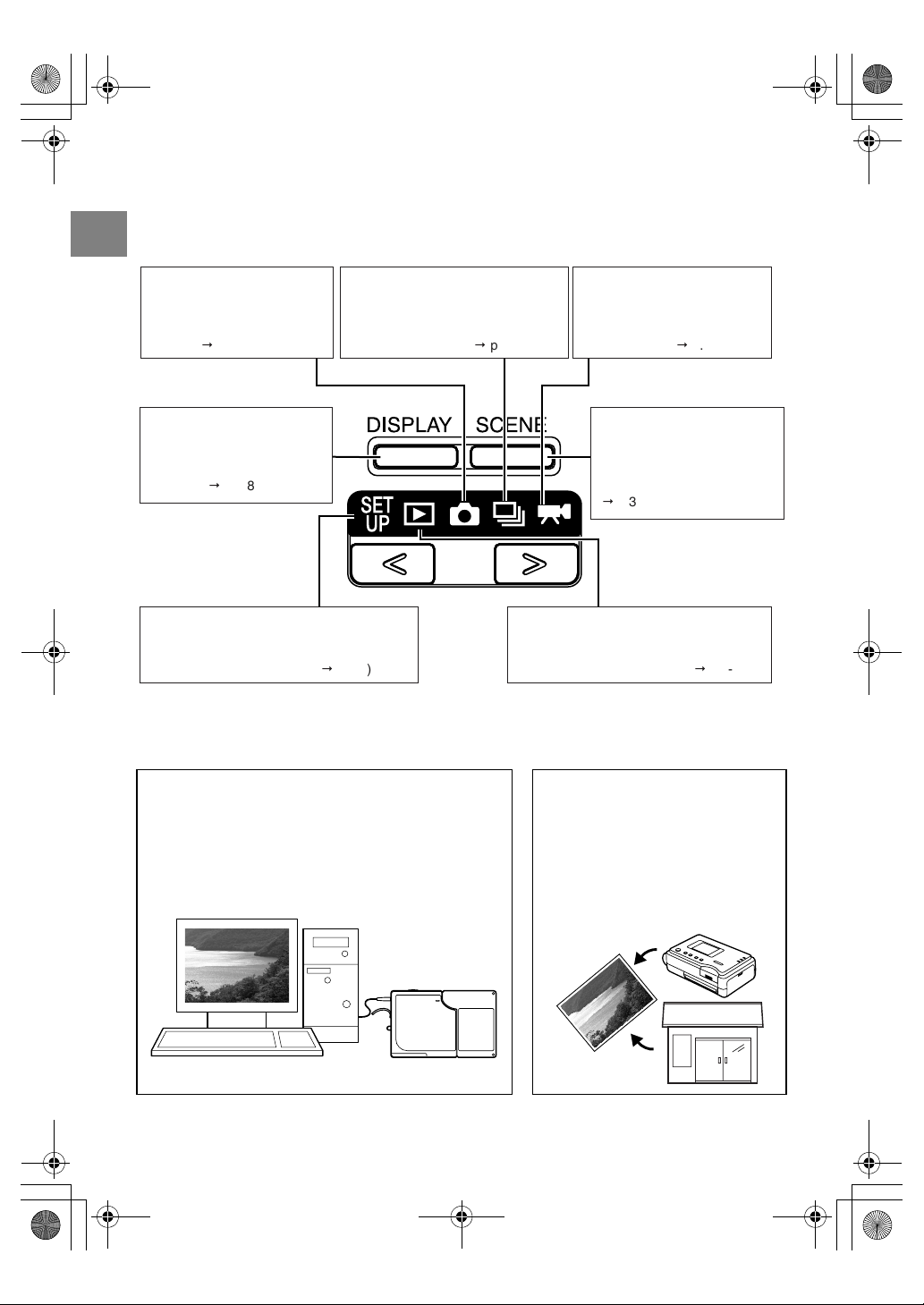
You can access the wide selection of camera functions by pressing the mode buttons above
the LCD monitor to switch between modes.
There is also a SCENE button that lets you take pictures using camera settings tailored to a
range of different scenes.
Digital cameras also offer the user a range of other options, including connecting to a
computer, sending images directly to a printer and getting your images printed at a print
processing store.
Connecting to a computer
Connecting your camera to a computer using the dedicated
USB cable gives you access to a wide range of uses for your
images, including using image retouching software to edit
your images on the computer and sending them as
attachments via e-mail. ( p.2-11)
* Windows 98 and Windows 98SE users must install the USB
driver from the CD-ROM provided with the camera.
Digital printing
You can either print out your images
directly on a printer or download them
onto a memory card and take them to
your local print processing store for
printing.
* Consult your local print processing
store for details of the print services
offered. ( p.5-19)
Shooting (still images)
The 3.2 megapixel high-
performance CCD enables
you to shoot high-quality still
images. (
p.2-2)
Shooting (continuous shooting)
Allows you to take continuous shots
at a rate of 3.5 frames per second.
This mode captures all the action at
sporting events, etc. (
p.3-7)
Shooting (movies)
Shoot a movie to capture the
true feeling of being there. You
can also record sound along
with the movie. (
p.2-4)
SCENE button
Provides a range of camera
settings optimized for
particular scenes, such as
portraits or nighttime scenery.
(
p.3-4)
Playback
Displays the images you have shot on the
LCD monitor. You can also use this mode
to resize or trim your images. (
p.2-6)
DISPLAY button
Alternately displays or hides
the icons on the LCD monitor
or switches the backlight ON
and OFF. (
p.3-8)
SET UP
Allows you to specify the settings for various
functions including the AF (Auto Focus) and
the LCD monitor brightness. (
p.6-1)
Finecam_E.book Page 14 Thursday, August 28, 2003 6:21 PM

15
Introduction
●
System Around the Camera
E-mail
PC
Printer
Notebook
Card reader
USB cable (supplied)
Card reader
Memory card
AC adapter (supplied)
Digital camera
Finecam SL300R
Photo lab
Digital print
DPOF-compatible
printer (third-party)
E-mail
Finecam_E.book Page 15 Thursday, August 28, 2003 6:21 PM
Finecam_E.book Page 16 Thursday, August 28, 2003 6:21 PM

Camera Preparations
This chapter tells you what you have to do to get the camera ready for taking
pictures and covers topics such as inserting and charging the battery, loading
memory cards, and switching the camera on.
Finecam_E.book Page 1 Thursday, August 28, 2003 6:21 PM
1-2
1
Camera Preparations
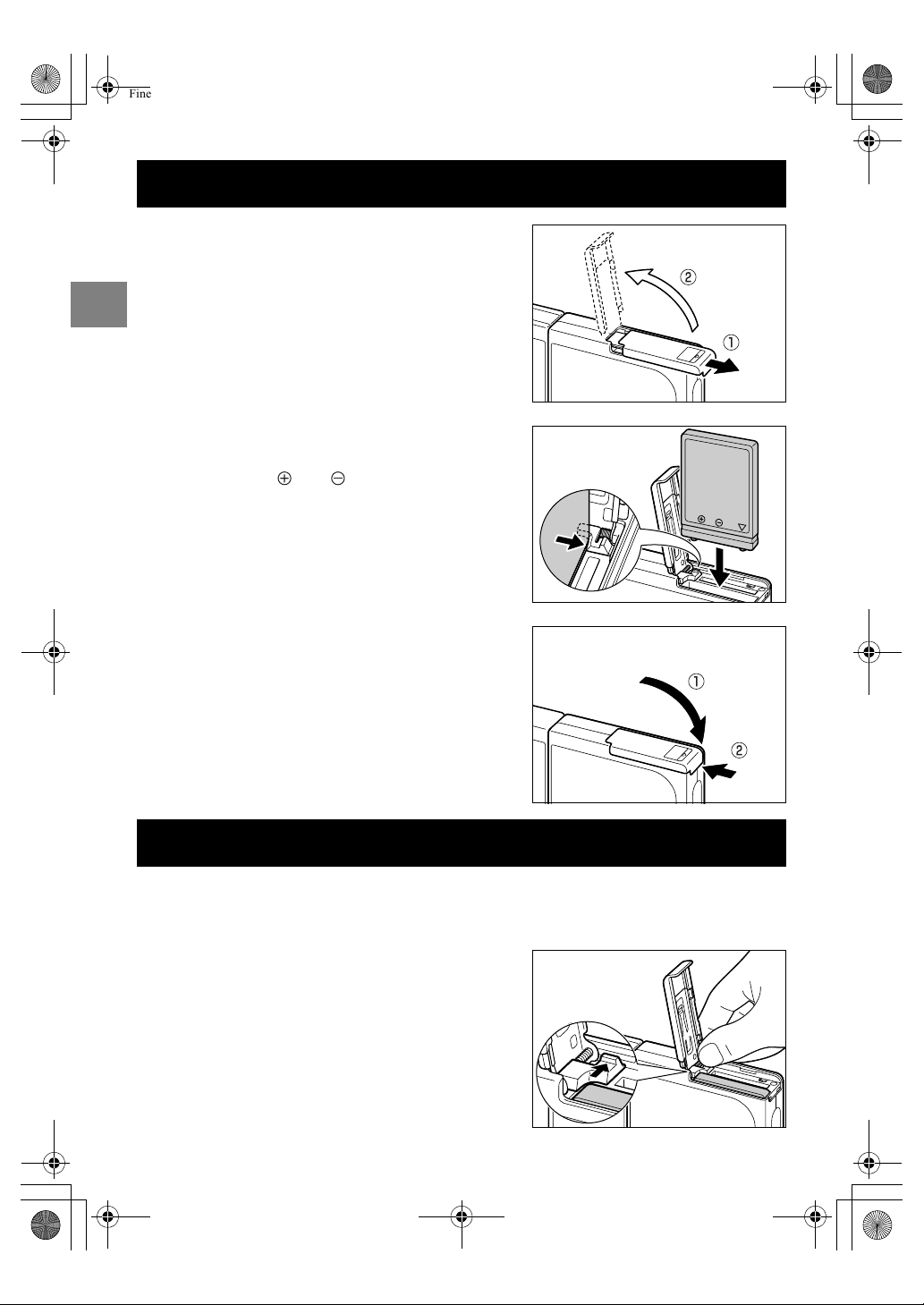
Inserting the Battery Pack
1 Open the card/battery cover.
Slide the card/battery cover in the direction of the
arrow (U) to open it.
2 Insert the battery pack (BP-780S)
supplied with the camera.
Check that the and markings are oriented
correctly.
3 Close the card/battery cover.
Close the cover and slide it in the opposite
direction to the arrow (U) to lock it.
Removing the Battery Pack
1 Check that the camera is switched off and then open the card/
battery cover.
2 Use your fingertip to slide the catch
retaining the battery pack sideways
and release the catch.
M
G
M
G
Finecam_E.book Page 2 Thursday, August 28, 2003 6:21 PM

1-3
1
Camera Preparations
• Before charging, check that the battery pack is in the camera.
• When you first purchase the camera, you need to charge the battery fully.
• Leaving or repeatedly charging the battery pack or the camera with the battery pack
installed in a hot location may impair battery pack performance and reduce the number of
shots that can be taken. When this occurs, purchase a new battery pack.
• You can check the battery level by switching the camera on. (
p.1-6)
3 Grip the battery pack and pull it out
of the camera.
• Take care not to drop the battery pack. Strong
impacts caused by being dropped can cause the
battery pack to leak fluid.
• If you do not intend to use the battery pack for a long
period, store it in a cool, dark place.
Charging the Battery
Connect the AC adapter to the camera
to charge the battery pack.
Full charging takes around 3 hours.
Turn the camera off during charging.
The caution LED (red) lights during charging and goes
off after roughly 2 hours, at which point the battery
pack is 90% charged. Leaving the AC adapter
connected for another hour charges the battery pack
fully.
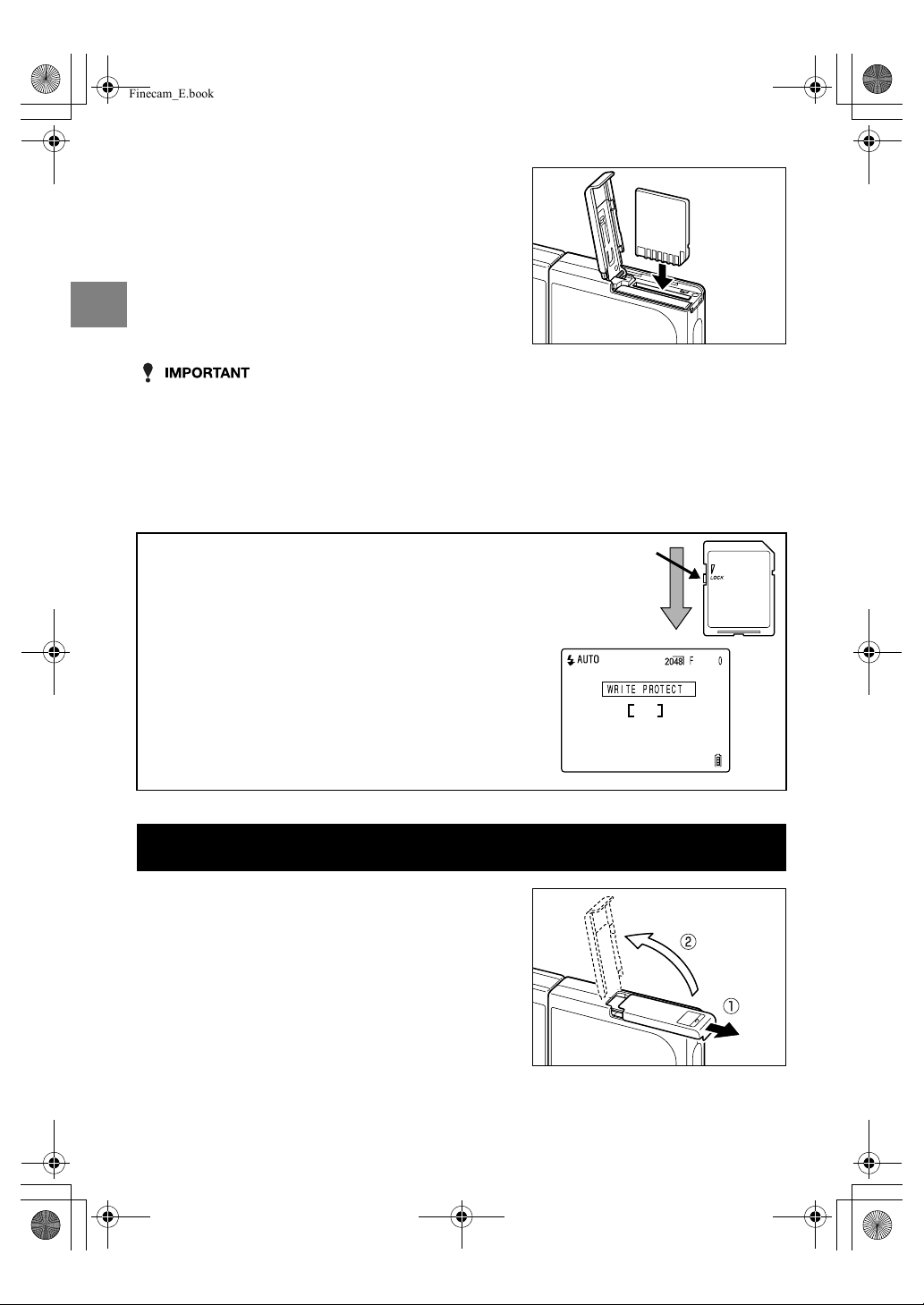
Loading the Memory Card
1 Check that the camera is switched
off and then open the card/battery
cover.
Slide the card/battery cover in the direction of the
arrow (U) to open it.
Caution LED
M
G
Finecam_E.book Page 3 Thursday, August 28, 2003 6:21 PM
1-4
1
Camera Preparations
• If the card does not slide in smoothly, you may be loading the card upside down. Check
that the card is the right way up and do not try to force it into the slot.
• Do not attach stickers of any sort to the memory card as this may jam the card in the slot
so that you cannot remove it.
2 Load the memory card.
Make sure the side with the label attached is
facing the LCD monitor.
To load the card, push it into the slot until it makes
a clicking sound and stops.
3 Close the card/battery cover.
Close the cover and slide it in the opposite direction to the arrow (U) to lock it.
■
Write protect switch
(SD Memory Cards only)
SD Memory Cards are provided with a write
protect switch.
Sliding this switch downward prevents any more
data from being recorded onto the card and
protects the images and data already stored on the
card.
When you load a write-protected card into the
camera in “
C
”, “
M
” or “
N
” mode, the “WRITE
PROTECT” message appears the LCD monitor.
You cannot use a write-protected card to take
pictures. You cannot erase images on a write-
protected card either.
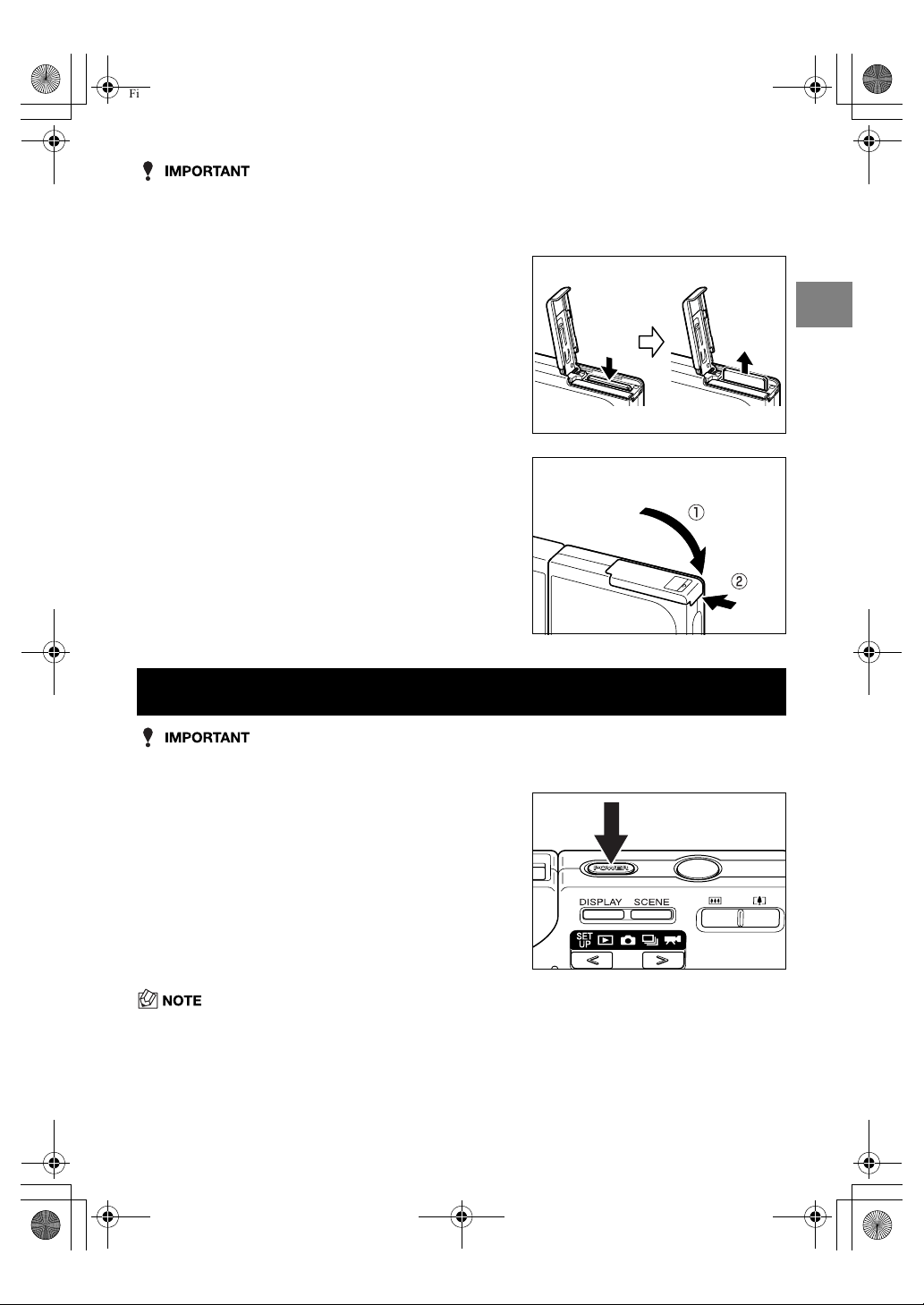
Removing the Memory Card
1 Check that the camera is switched
off and then open the card/battery
cover.
Slide the card/battery cover in the direction of the
arrow (U) to open it.
Write-protect switch
Slide this switch down to
write-protect the card.
M
G
Finecam_E.book Page 4 Thursday, August 28, 2003 6:21 PM
1-5
1
Camera Preparations
• When the card access LED is flashing, images are being recorded onto the memory card.
Do not open the card/battery cover or remove the memory card while the LED is flashing
as this could cause data corruption or, in some cases, camera damage.
• Check that a memory card is loaded in the camera before switching the camera on.
• While the camera is switched on, pressing the POWER button
H
switches the camera off.
2 Push the memory card in gently
with your fingertip.
If you push the memory card in slightly, it pops
back out and you can then pull it out completely.
3 Close the card/battery cover.
Close the cover and slide it in the opposite
direction to the arrow (U) to lock it.
Switching the Camera On
Press the POWER button
H
.
The startup screen is displayed for a few seconds and
then the normal shooting mode screen appears.
M
G
Finecam_E.book Page 5 Thursday, August 28, 2003 6:21 PM
1-6
1
Camera Preparations
The first time you use your digital camera, you must set the date and time.
The date and time settings may also be cleared when you remove the battery pack or if you
leave the camera unused for a long period. If this happens, reset the date and time.
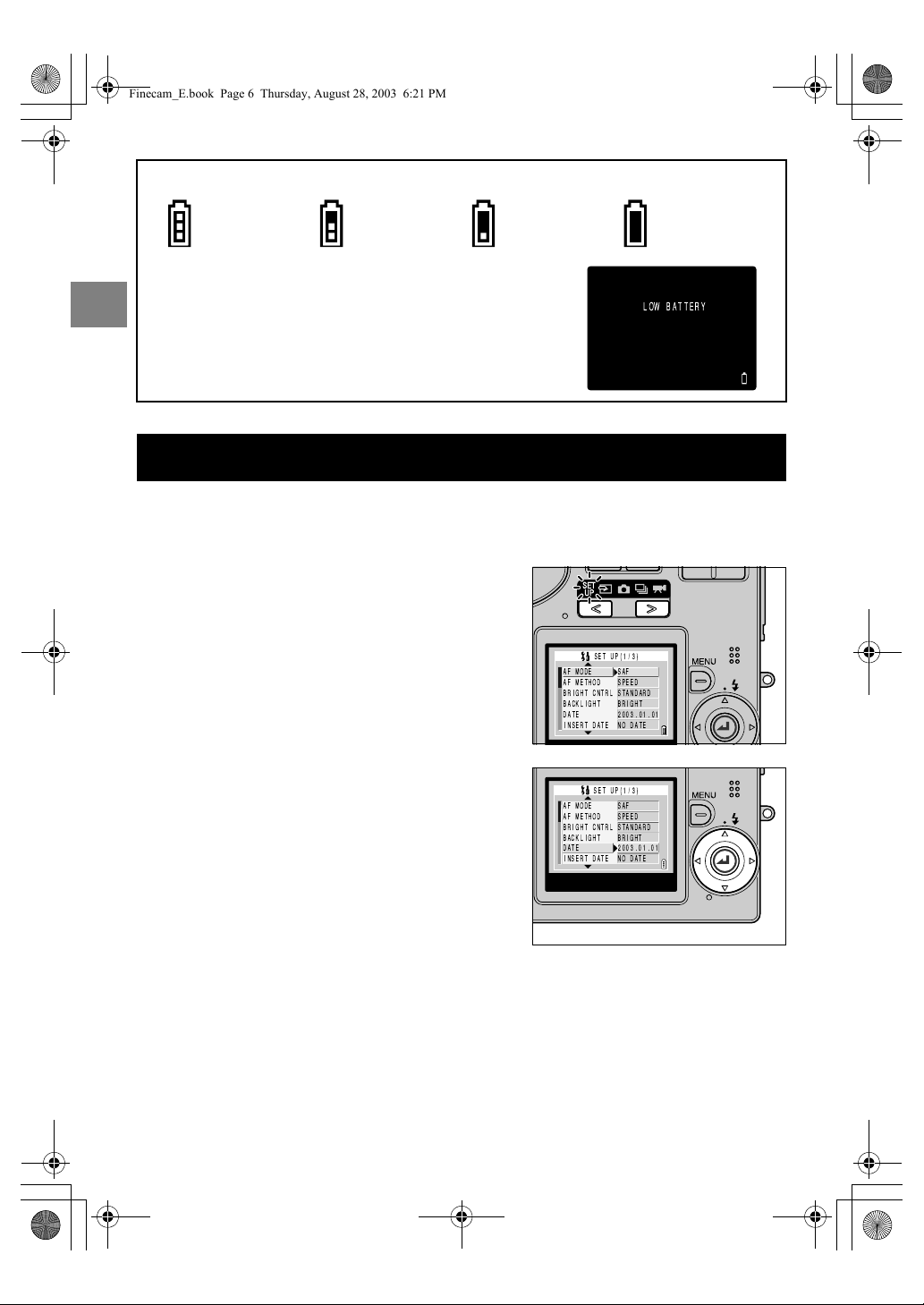
■
Viewing the battery level and charging guide
Setting the Date and Time
1 Press the
O
or
Q
on the mode
button until the “
G
” icon lights on
the mode select LED.
The setup menu appears.
2 Press
U
or
D
on the 4-way button
to select [DATE] and then press
R
.
Fully charged At least
half used.
Charge low.
Charge
the battery soon.
Camera will not
function.
Charge the
battery.
When the battery charge is completely depleted, the
“LOW BATTERY” message appears on the LCD monitor.
Depending on the environment in which the digital camera is
being used, the amount of power consumed may increase.
Even if the battery level icon is displayed, the camera may
switch itself off in some camera operating conditions.
When this occurs, charge the battery.
LOW BATTERY
AF MODE
AF METHOD
BRIGHT CNTRL
BACKLIGHT
DATE
SAF
SPEED
STANDARD
BRIGHT
2003.01.01
INSERT DATE NO DATE
SET UP(1/3)
AF MODE
AF METHOD
BRIGHT CNTRL
BACKLIGHT
DATE
SAF
SPEED
STANDARD
BRIGHT
2003.01.01
INSERT DATE NO DATE
SET UP(1/3)
Finecam_E.book Page 6 Thursday, August 28, 2003 6:21 PM

1-7
1
Camera Preparations
●
Attaching the Hand Strap
Attach the supplied hand strap as shown.
3 You can use
L
and
R
on the 4way
button to cycle through the options
as follows: Year Q Month Q Day Q
Hour Q Minute Q Date display
format.
Use
U
and
D
to change the values set and select
the display format.
■
Date display format
This refers to the order in which the year, month
and day are shown. The 3 available formats are
shown on the right.
Choose your preferred display format.
Dates inserted on prints of your images are
inserted in the format selected here. ( p.6-4)
4 When you have completed all the
settings, press the OK button
E
to
exit the settings.
■
The date and time must be set.
On a digital camera, the date and time of shooting
are stored on the memory card along with the
image data. This information is useful for
organizing your images into albums for viewing on
a computer.
Using the Accessories
Order Sample display
Y.M.D
2003.08.21
M.D.Y
08.21.2003
D.M.Y
21.08.2003
AF MODE
AF METHOD
BRIGHT CNTRL
BACKLIGHT
DATE
SAF
SPEED
STANDARD
BRIGHT
2003.07.15
INSERT DATE NO DATE
SET UP(1/3)
100KCBOX
KIF_0001.jpg 2003.9.2
KIF_0002.jpg 2003.9.2
KIF_0003.jpg 2003.9.7
KIF_0004.jpg 2003.9.15
•
•
Finecam_E.book Page 7 Thursday, August 28, 2003 6:21 PM
1-8
1
Camera Preparations
●
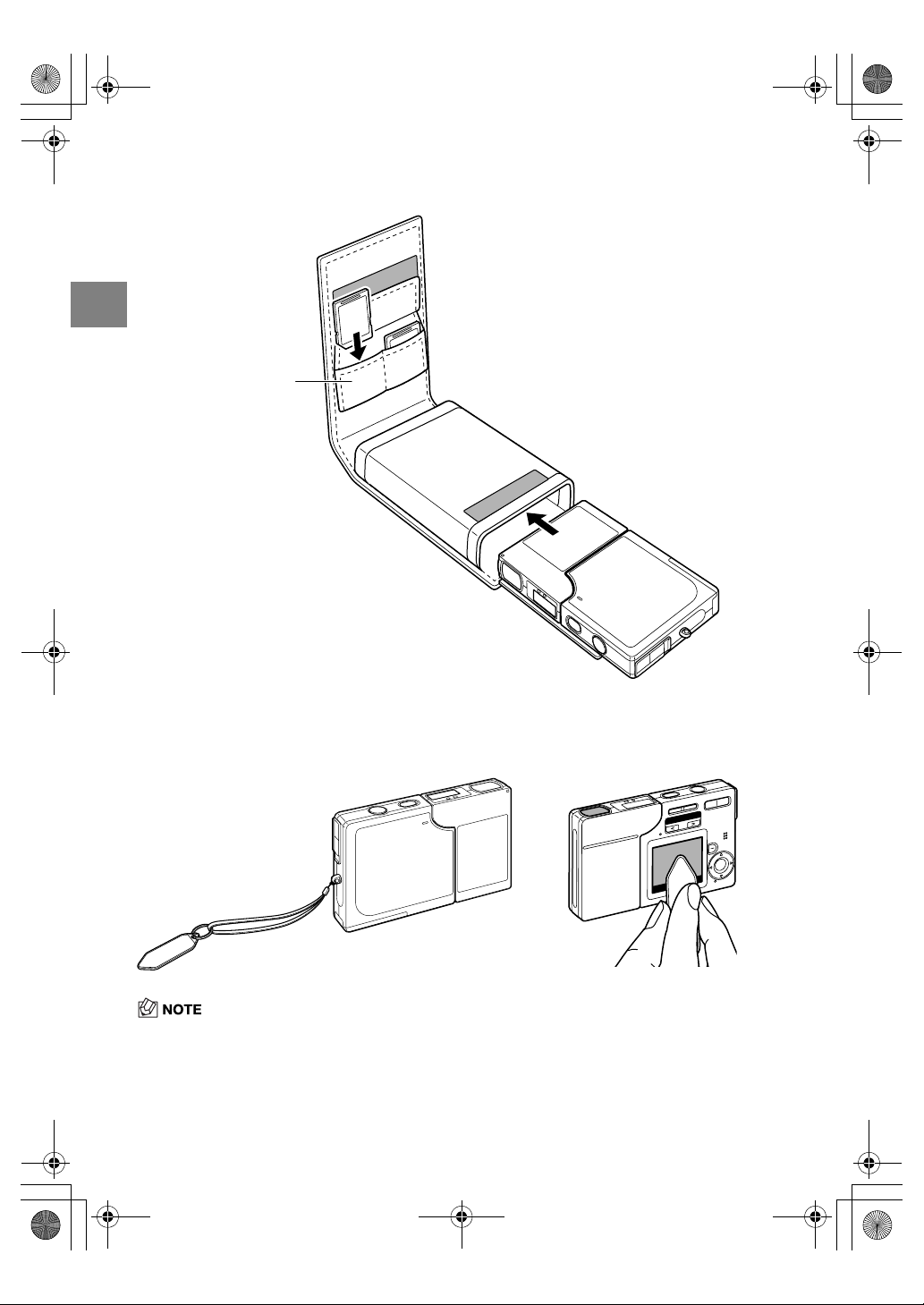
Using the Camera Case
Use the camera case as shown in the illustration.
●
Using the Cleaning Pad
Attach the cleaning pad to the hand strap as shown in the illustration.
Clean the lens and LCD monitor with the side to which the cleaning cloth is attached.
• Wipe the lens with the cleaning pad if it becomes dirty.
Memory cards
go in here.
Finecam_E.book Page 8 Thursday, August 28, 2003 6:21 PM
Basic Operations
This chapter covers the basics of using your digital camera, including taking
pictures, viewing your pictures, erasing images and connecting the camera to a
computer.
Finecam_E.book Page 1 Thursday, August 28, 2003 6:21 PM

2-2
2
Basic Operations
Taking Pictures
—
Shooting Still Images
1 Take the camera out of the case.
2 Hold the camera in both hands.
3 Press the POWER button
H
to
switch the camera on and then
press
O
or
Q
on the mode
button until the “
C
” icon lights on
the mode select LED.
After the startup screen, the date is displayed for
roughly 3 seconds. Check that the date is correct.
4 With the LCD monitor facing
towards you, gently turn the left
side of the camera (lens unit).
Holding the LCD monitor at a good angle for
viewing, twist the lens unit until the lens points at
the subject.
5 Use the LCD monitor to compose
your shot.
Finecam_E.book Page 2 Thursday, August 28, 2003 6:21 PM

2-3
2
Basic Operations
• Take care to avoid camera shake. (
p.4-4)
• Press the
T
side of the zoom button to enlarge the image and the
W
side to return the enlarged
image to its original size. ( p.3-3)
• A flashing shooting mark “
B
” indicates that the camera cannot set the exposure and focus. Press
the shutter release button half way again until the shooting mark “
B
” stays lit and the focus is set.
■
Holding the camera
With the LCD monitor facing towards you, hold the lens unit with your left hand and the
section with the LCD monitor in your right hand. Take care that your fingers do not obstruct
the lens, flash or light sensor. The camera is easier to hold if the lens unit and LCD monitor
unit are at an angle of between 30° and 45° to each other.
6 Press the shutter release button
down half way to set exposure and
focus.
The camera gives a short beep and the green
shooting mark “
B
” lights on the LCD monitor to
indicate that the exposure and focus have been
set.
■
Pressing the shutter release button half way
When you press the shutter release button, it stops
at a point on the way down to the fully pressed
position. At this point, it is said to be pressed half
way and the camera determines the exposure and
focus in readiness for taking a picture. If you then
continue pressing the shutter release button the
rest of the way down, the camera takes the picture.
Relax your shoulders.
Brace your elbows lightly
against your body.
Hold the camera
in both hands.
30˚ to 45˚
“Beep”
Not pressed
Pressed half way
Pressed fully
(starts picture
shooting)
Finecam_E.book Page 3 Thursday, August 28, 2003 6:21 PM
2-4
2
Basic Operations
• Press the shutter release button lightly with the soft pad of your fingertip. Pressing the
button roughly will result in camera shake. (See “Avoiding camera shake”
p.4-4.)
• When the caution LED flashes rapidly before the picture is taken, this indicates that there
is a risk of camera shake occurring. Place the camera on a steady surface (table, etc.) and
use the self-timer or, depending on the subject, use the flash. (See “Avoiding camera
shake” on p.4-4 and “Using the Flash” on p.4-2.)
• When the caution LED flashes relatively slowly after the shot is taken, this indicates that
the flash is charging. Wait until the LED goes off before taking the next shot. (See “Using
the Flash”
p.4-2.)
• When the card access LED is flashing, this indicates that the image is being recorded onto
the memory card. Do not open the card/battery cover or remove the memory card while
the LED is flashing as this could cause data corruption or, in some cases, camera damage.
• You can take pictures while the card access LED is flashing.
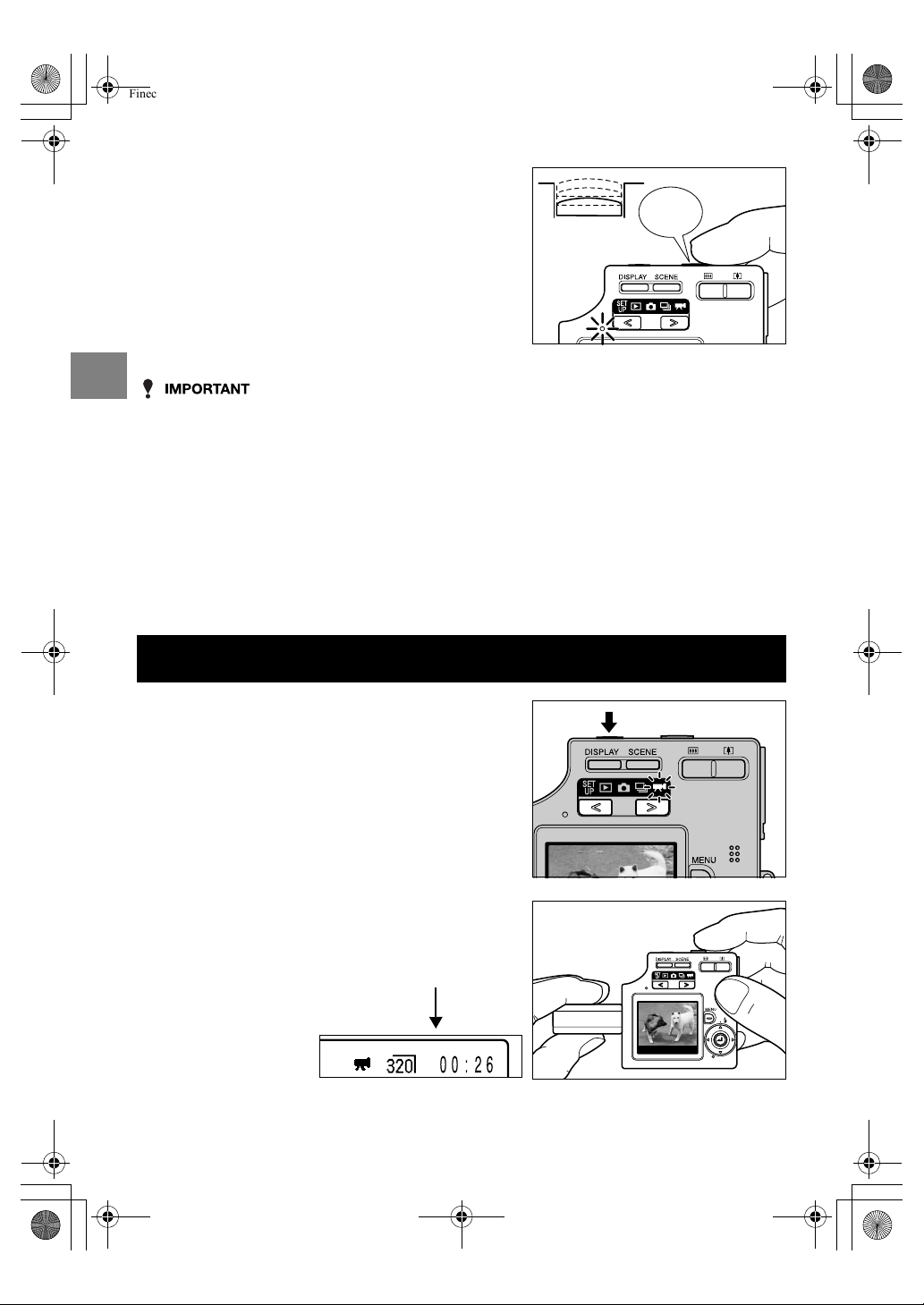
7 When you press the shutter release
button down fully, the camera emits
the shutter sound and takes a
picture.
Shooting Movies
1 Press the POWER button
H
to
switch the camera on and then
press
O
or
Q
on the mode
button until the “
M
” icon lights on
the mode select LED.
2 Use the LCD monitor to compose
your shot.
The remaining number of seconds of movie
shooting is shown in the top-right corner of the
LCD monitor.
“Click”
00:26
Finecam_E.book Page 4 Thursday, August 28, 2003 6:21 PM
2-5
2
Basic Operations
• Movie shooting can continue until the memory card is full.
• For more information on the number of seconds of movie shooting that are available for each
image size, see the “Accessories and Specifications” provided separately.
• If you do not press the shutter release button half way, shooting continues until the
memory card is full.
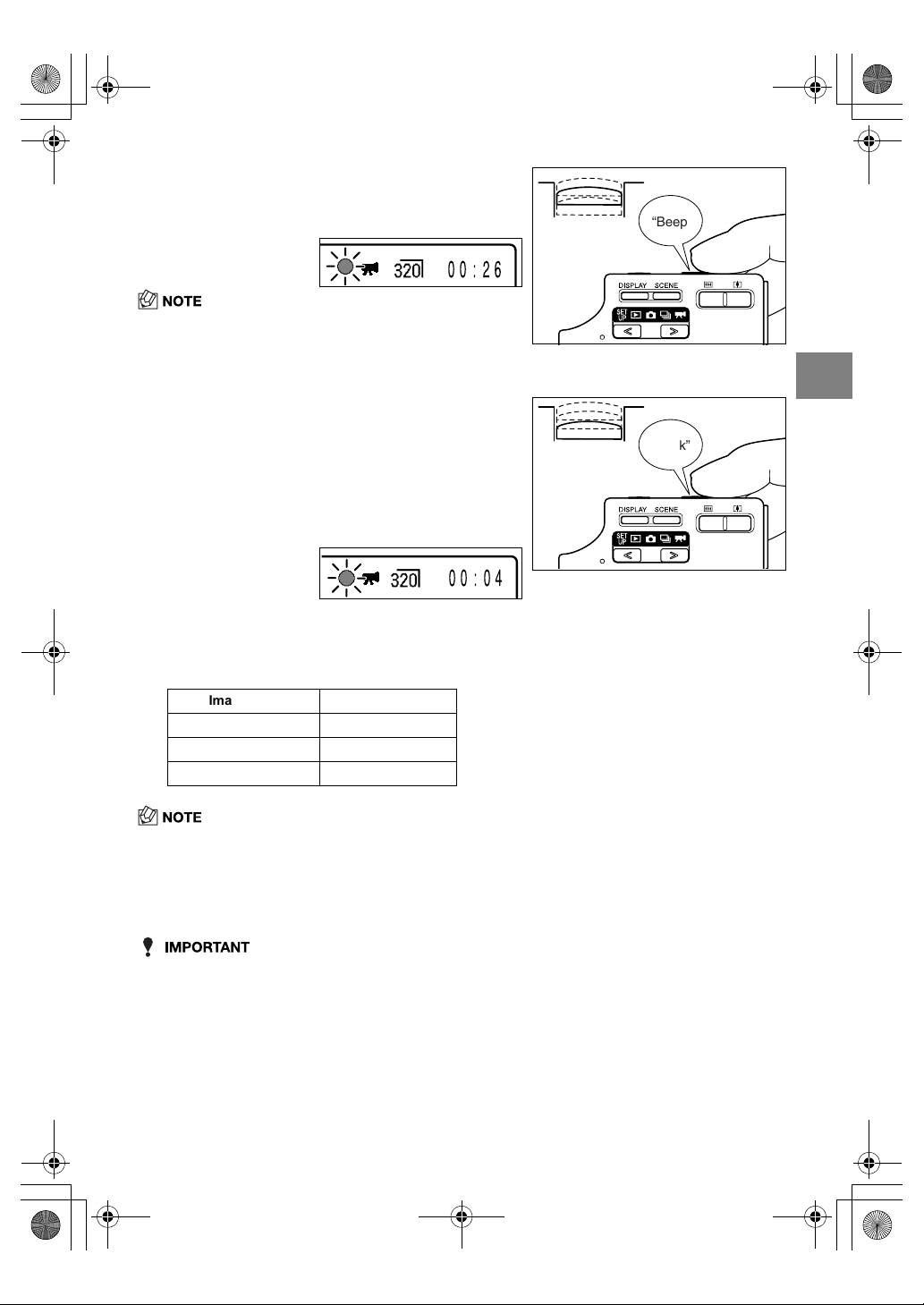
3 Press the shutter release button half
way to set the exposure and focus
for the subject.
• During movie shooting, the exposure is adjusted
according to the ambient conditions, but the focus does
not change. The movie is shot using the focus set just
before shooting started.
4 When you press the shutter release
button down further, the camera
makes a clicking sound and
shooting begins.
Pressing the shutter release button displays the
seconds counter. The red shooting mark “
B
” also
lights during movie shooting.
The table below shows the number of seconds that can be shot for each image size
when a 16MB memory card is used to record a movie with sound.
(Frame rate: 30 fps; new or formatted memory card used)
5 Press the shutter release button half way to finish shooting.
00:26
“Beep”
00:04
“Click”
Image Size Seconds Counter
640 ✕ 480 0 to 6 (sec.)
320 ✕ 240 0 to 26 (sec.)
160 ✕ 120 0 to 104 (sec.)
Finecam_E.book Page 5 Thursday, August 28, 2003 6:21 PM

2-6
2
Basic Operations
Viewing Images –
Still Image Playback
1 Press
O
or
Q
on the mode
button until the “
P
” icon lights on
the mode select LED.
The photographed image appears on the LCD
monitor.
2 Press
R
on the 4-way button to scan
forward through the photographed
images. Press
L
to scan backward
through the images.
3 Press the
T
side of the zoom
button to enlarge the image and the
W
side to return the enlarged
image to its original size.
After zooming in, you can use the 4-way button to
select the area displayed.
• Revert the image back to its original size before you
scan fowards or backword through your images.
Viewing Images –
Movie Playback
1 Press
O
or
Q
on the mode
button until the “
P
” icon lights on
the mode select LED.
Finecam_E.book Page 6 Thursday, August 28, 2003 6:21 PM
2-7
2
Basic Operations
• See p.5-2 for more information on playing back movies.
This feature allows you to check information such as the aperture and shutter speed
settings for the image (still image) being played back.
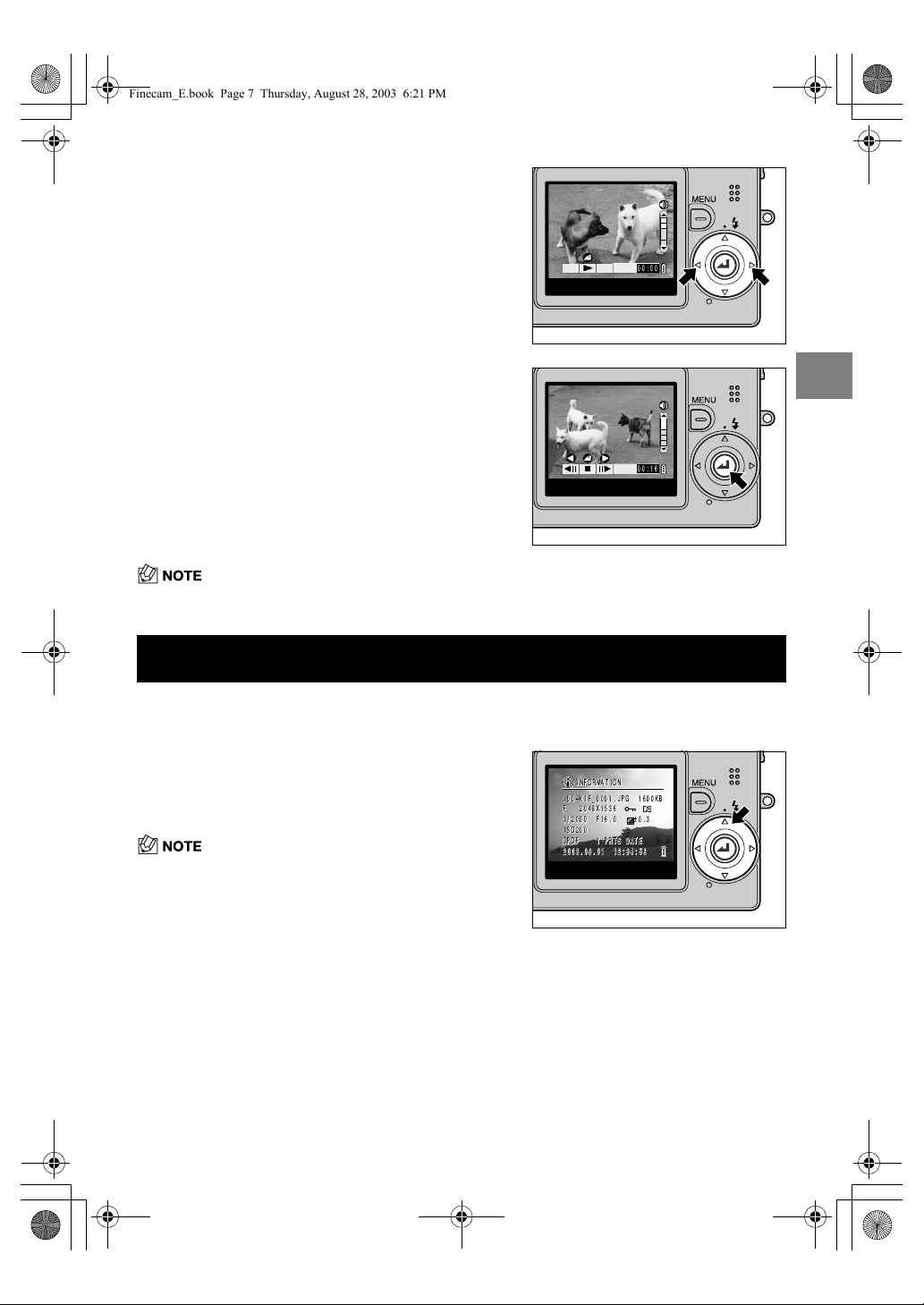
2 Press
L
or
R
on the 4-way button to
select the movie to be viewed.
3 Press the OK button
E
to begin
playback.
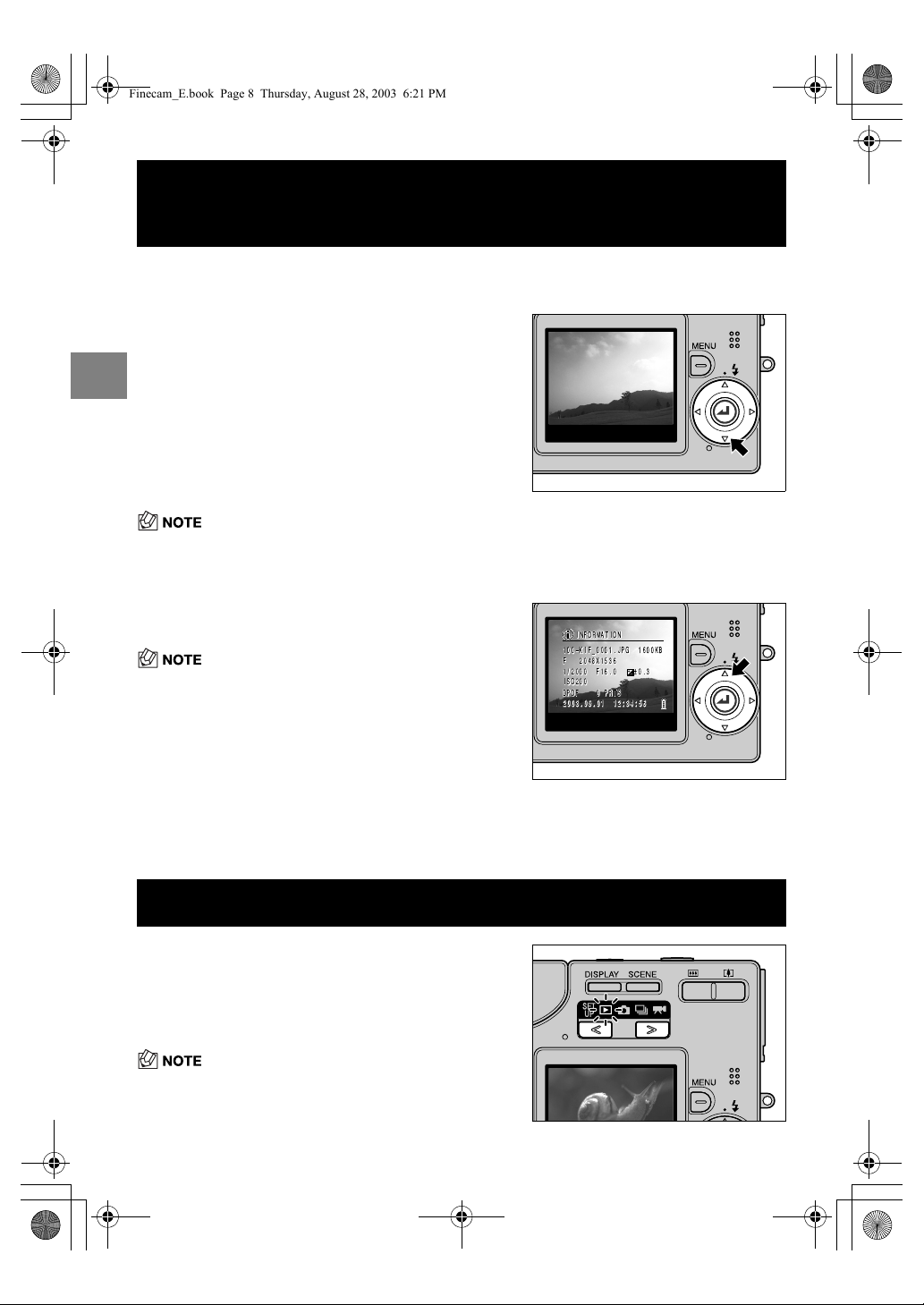
Displaying Information for Playback Images –
INFORMATION
1 Press
D
on the 4-way button during
image playback.
The information for the currently displayed image
appears.
• See p.7-6 for detailed information on the screen
displayed.
2 Press
D
again to clear the information display screen and
return to the original display.
00:00
00:16
Finecam_E.book Page 7 Thursday, August 28, 2003 6:21 PM
2-8
2
Basic Operations
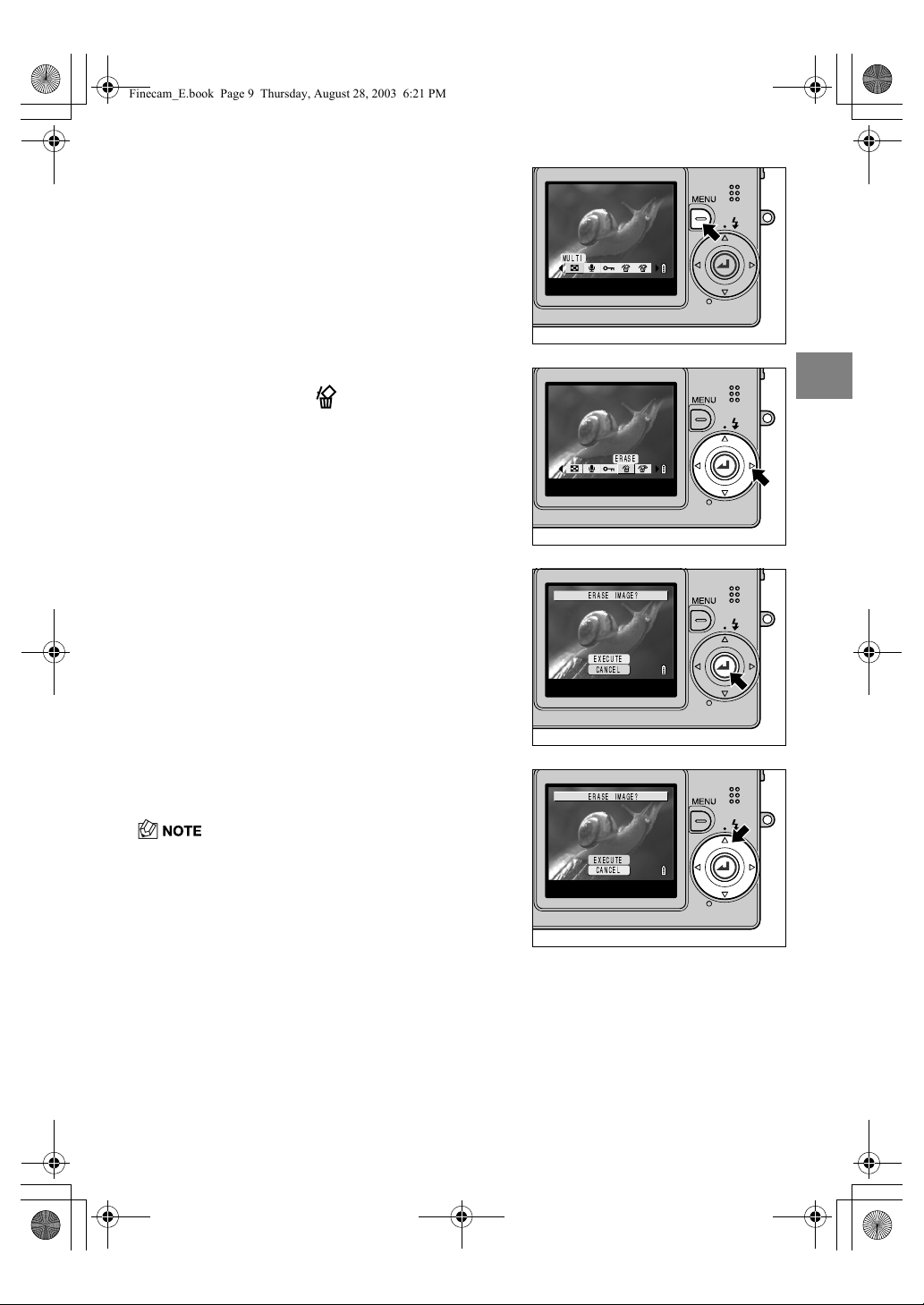
This feature allows you to check data such as the aperture and shutter speed settings for an
image you have just shot and to erase the image.
• If you press
D
again while a photographed image is displayed, a message screen appears
asking you to confirm whether you want to erase the image. To erase the image, use
U
to select
[EXECUTE] and then press the OK button
E
.
Checking Photography Data and
Erasing Images
–
Manual REC Review
1 Immediately after taking a picture in
“
C
” mode, press
D
on the 4-way
button.
The last image you shot appears on the LCD
monitor.
2 Press
U
on the 4-way button.
The photography data is displayed.
• See p.7-6 for detailed information on the screen
displayed.
3 Press the shutter release button half way to return the camera
to the original shooting mode.
Deleting Unwanted Images –
Erasing Images
1 Press
O
or
Q
on the mode
button until the “
P
” icon lights on
the mode select LED.
The last image you shot appears on the LCD
monitor.
•Press
L
or
R
on the 4-way button to select the image to
be erased.
Finecam_E.book Page 8 Thursday, August 28, 2003 6:21 PM
2-9
2
Basic Operations
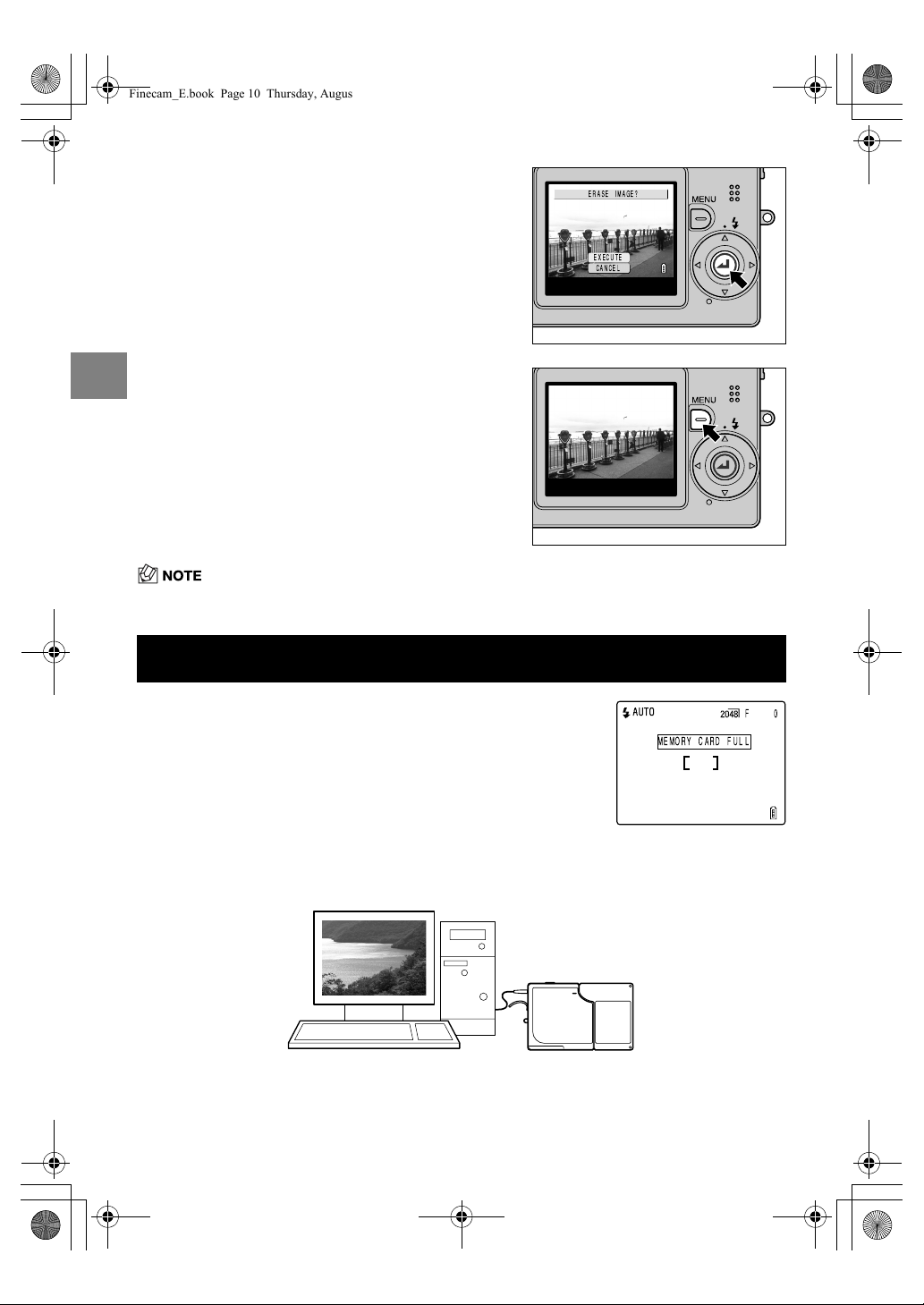
2 Press the MENU button
K
.
The menu icons appear.
3 Press
R
on the 4-way button to
select ERASE [ ].
4 Press the OK button
E
.
The erase confirmation message screen appears.
5 Press
U
on the 4-way button to
select [EXECUTE].
•Use
L
and
R
on the 4-way button to select the image
to be erased.
MULTI
-4)5-
ERASE_IMAGE?
EXECUTE
CANCEL
Finecam_E.book Page 9 Thursday, August 28, 2003 6:21 PM
2-10
2
Basic Operations
• The image erasing procedure is the same for still images and movies.
To save images to a computer, use the exclusive USB cable supplied with the camera. See
p.2-11 for details. To erase all the images on a memory card, you can select either ERASE
ALL or FORMAT. For more information, see p.5-10 for ERASE ALL and p.6-5 for FORMAT.
6 Press the OK button
E
to erase the
image.
The saved image that follows the erased image
appears on the LCD monitor.
To erase another image, repeat the procedure
from step 5.
If there are no further images, the “NO IMAGE”
message appears.
7 Press the MENU button
K
to finish
the erase procedure.
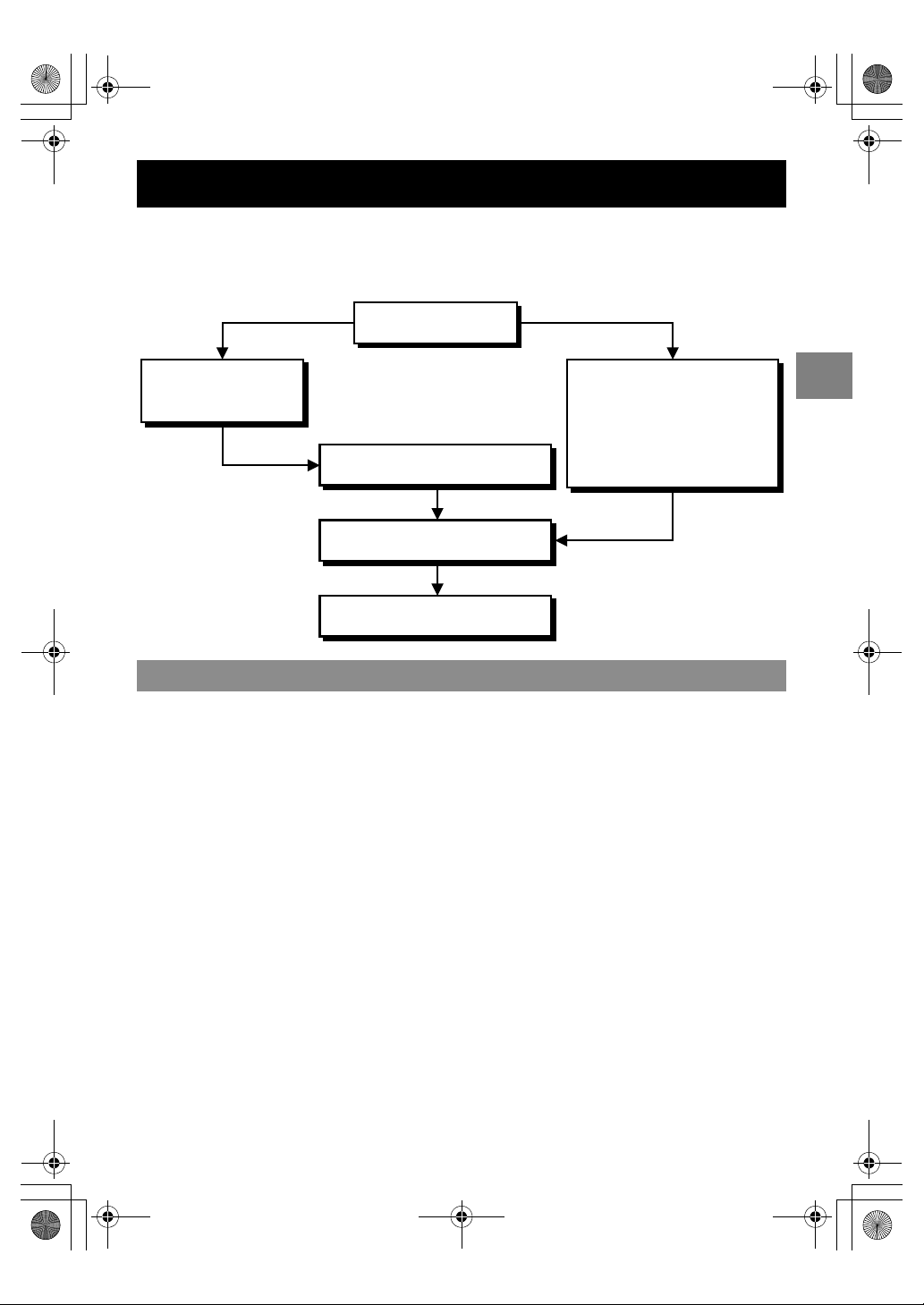
When the Memory Card is Full...
When you cannot record any more images on a memory card, the
“MEMORY CARD FULL” message appears on the LCD monitor.
When this happens, insert a new card or save the images on the
card to your computer and then erase the images on the card.
ERASE IMAGE?
EXECUTE
CANCEL
Finecam_E.book Page 10 Thursday, August 28, 2003 6:21 PM
2-11
2
Basic Operations
You can view images you have shot with this camera on a computer, copy the images to a
computer and edit them, and then send them from the computer via e-mail.
First check the operating system software on your computer and then read the relevant
sections for your software.
• Must be equipped with a USB port as standard (required for camera connection)
• Must be equipped with a CD-ROM drive (required for installation)
●
Windows computers
Must have Windows 98, Windows 98SE, Windows Me, Windows 2000 Professional,
Windows XP (Home Edition or Professional) pre-installed.
●
Macintosh computers
Must have Mac OS 9.0 to 9.2.x or Mac OS 10.0 to 10.2.x (excludes OS X server)
pre-installed.
* Successful operation is not guaranteed on systems where the software has been
upgraded to the versions listed above.
Connecting the Camera to a Computer
Computer hardware and software requirements
Computer operating system
Windows Me
Windows 2000
Windows XP
Mac OS 9.0 to 9.2.x
Mac OS 10.0 to 10.2.x
Windows 98 or 98SE
Install the USB drivers.
Connect the USB cable.
View the images on the computer.
Finecam_E.book Page 11 Thursday, August 28, 2003 6:21 PM
2-12
2
Basic Operations
If you are using Windows 98 or Windows 98SE, you will need to install the USB drivers,
which are included on the CD-ROM bundled with the camera.
• Do not connect the USB cable until USB driver installation is completed. Connecting the
USB cable prior to installation will prevent successful USB driver installation. If you have
mistakenly connected the USB cable, see “Uninstalling the driver software” on p.2-18.
• If installation fails, uninstall the software as described in “Uninstalling the driver
software” on p.2-18 and then re-install the drivers.
Connecting to a Windows PC
Installing the USB drivers
(Windows 98 and Windows 98SE only)
1 Switch the PC on and start up Windows.
2 Load the bundled CD-ROM into the CD-ROM drive.
3 Double-click [My Computer] and then the [CD-ROM icon] to
open the CD-ROM window.
4 Double-click the [SETUP.exe] icon to
begin the installation. Proceed with
the installation as directed by the
on-screen instructions.
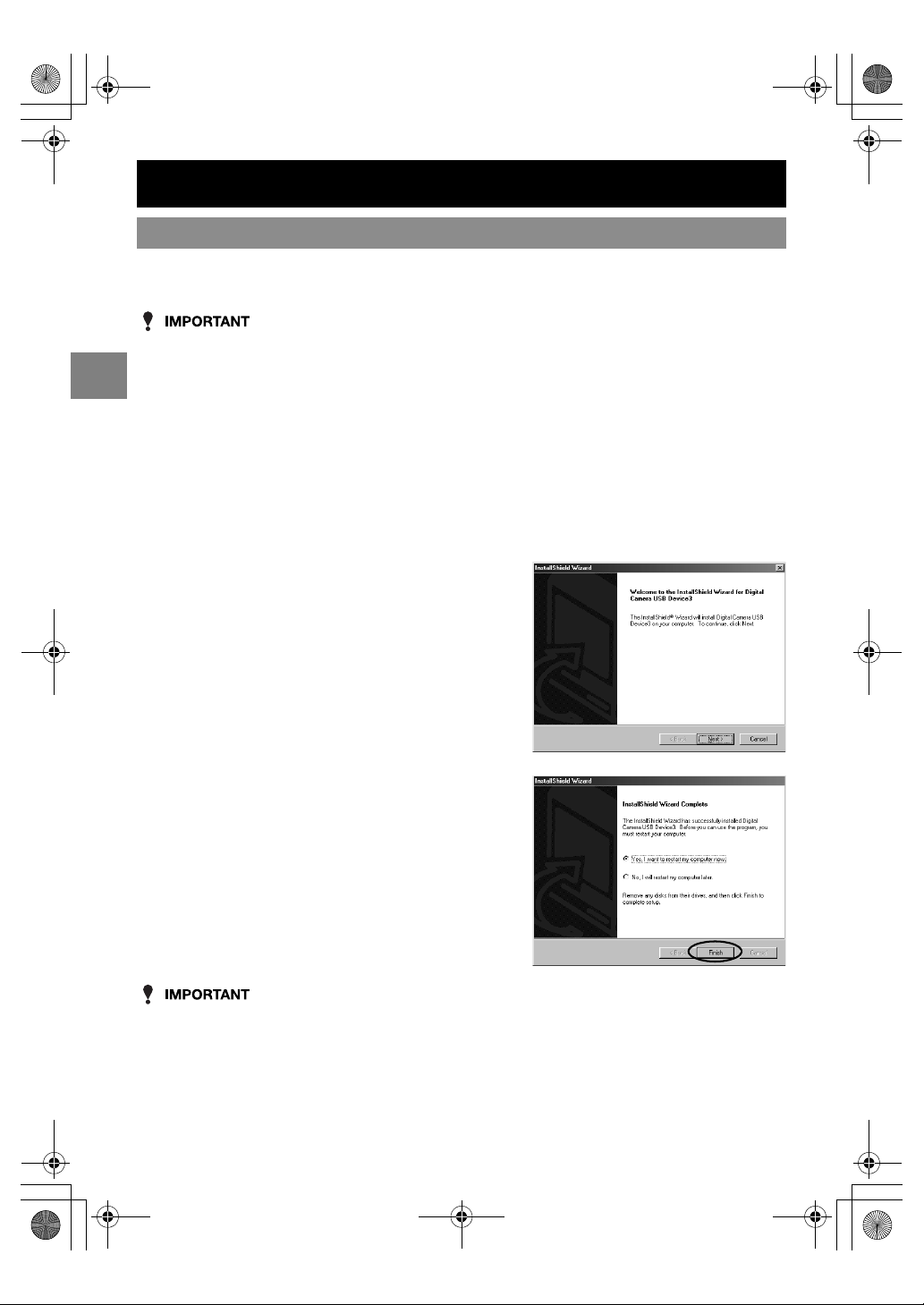
5 When the “InstallShield Wizard
Complete” message appears, check
that the “Yes, I want to restart my
computer now” option is selected
and then click [Finish].
Installation ends and the PC restarts.
Finecam_E.book Page 12 Thursday, August 28, 2003 6:21 PM

2-13
2
Basic Operations
• If you are using Windows 98 or Windows 98SE, install the USB drivers before connecting
the USB cable. (
p.2-12)
• If you are using Windows Me, Windows 2000 or Windows XP, no driver installation is
needed. Connect the USB cable without installing the drivers.
• To view images on your PC, you must have image-viewing software already installed. (To
play movies, QuickTime 4.1 or later must be installed.)
• You cannot check images on your PC unless there is a memory card in the camera.
Viewing images on a Windows PC
1 Load the memory card into the
camera. ( p.1-3)
2 Connect the AC adapter to the
camera.
3 Connect the camera to your PC
using the dedicated USB cable and
then start up the PC.
• Check the size of the USB connectors. The small
connector plugs into the camera and the large
connector plugs into the USB port on your PC.
Finecam_E.book Page 13 Thursday, August 28, 2003 6:21 PM
2-14
2
Basic Operations
• In Windows XP, the Scanner and Camera Wizard window may appear. If it does, click the
Cancel button to close the window.
• When the camera is connected to a computer and you are viewing or copying images, the
card access LED flashes. Do not disconnect the USB cable or switch the computer off
while viewing or copying images.
• When the camera is connected to the PC and the two are communicating so that data can be
exchanged, the self-timer LED lights.
• The procedure for disconnecting the USB cable once the camera and PC are communicating
differs according to the version of Windows you are using. ( p.2-16)
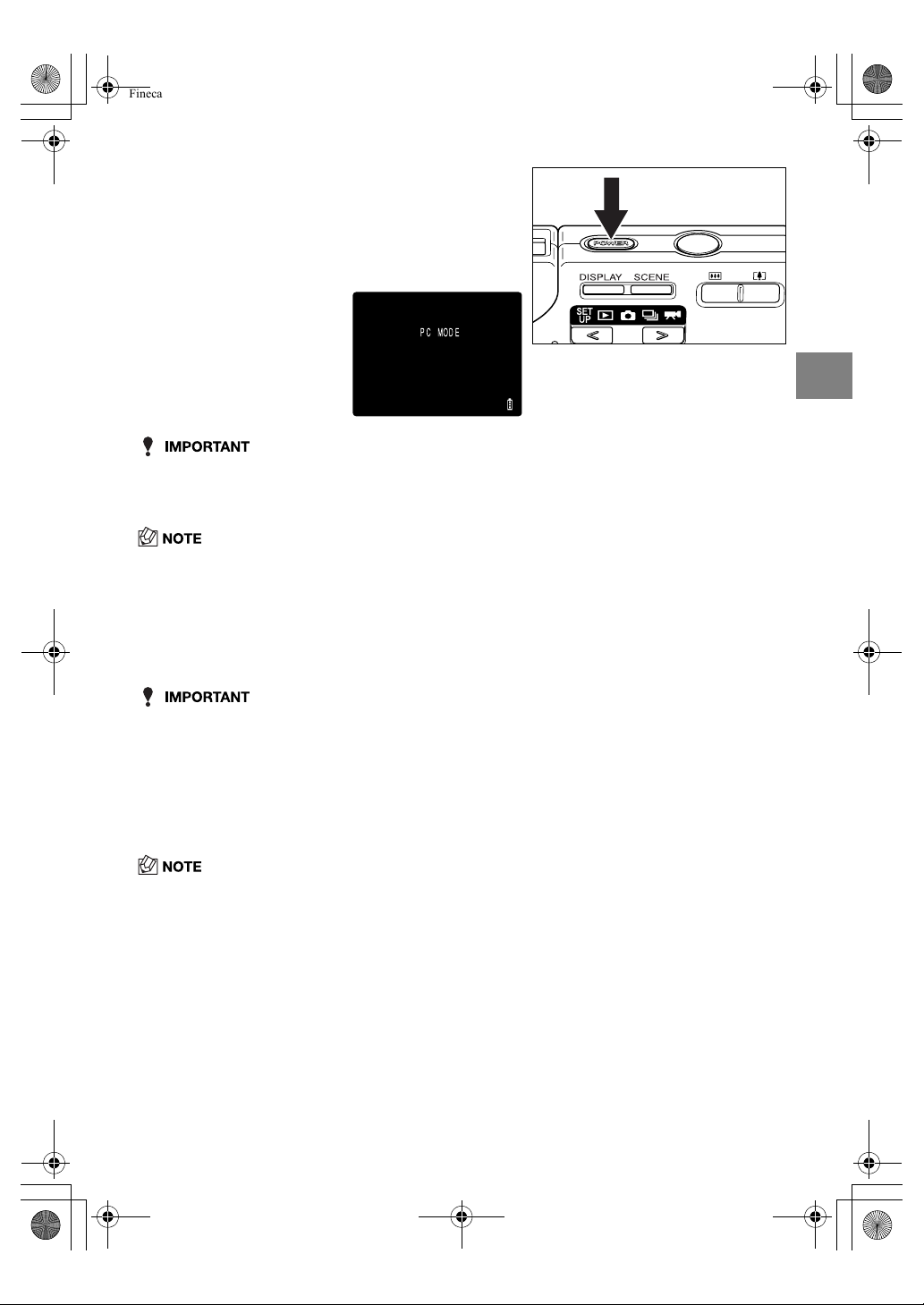
• If [PC MODE] is displayed on the LCD monitor but no [Removable Disk] icon appears in
the [My Computer] window, check that the USB cable is securely connected.
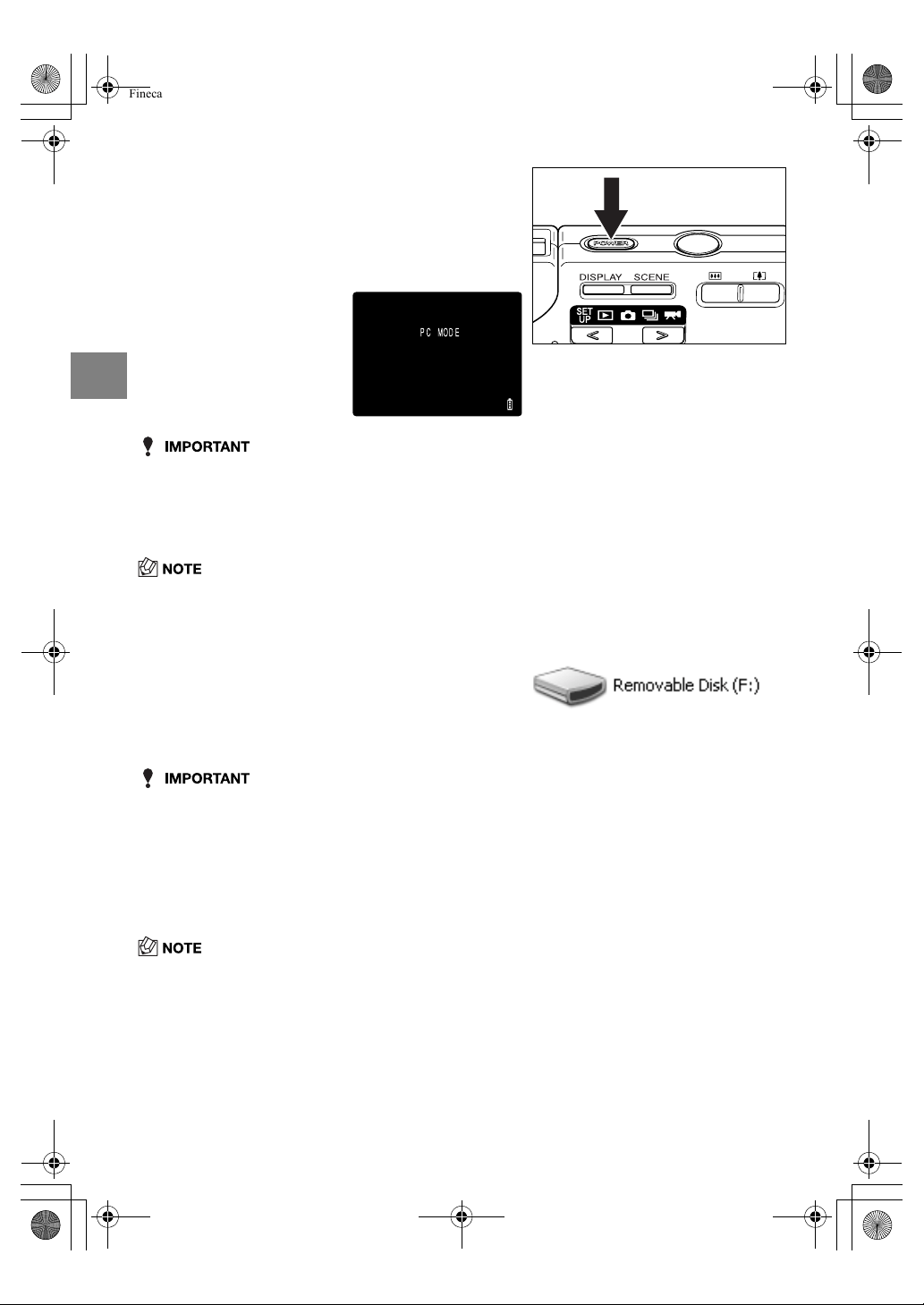
4 Press the POWER button
H
to
switch the camera on.
[PC MODE] is displayed on the LCD monitor and
you can check the images stored on the camera’s
memory card on your PC and copy the images to
your PC.
5 A [Removable Disk] icon appears in
the [My Computer] window. Double-
click the icon to open the disk
window.
6 Open the [100KCBOX] or [RESIZE] folder in DCIM folder and
then select the image you want to view from the files and
double-click the image.
• A number between 100 and 999 is substituted for "100" in the [100KCBOX] folder name.
( p.6-13)
PC MODE
Finecam_E.book Page 14 Thursday, August 28, 2003 6:21 PM
2-15
2
Basic Operations
• Do not delete image data on a memory card on your PC. Erace images on the camera.
• The same file name cannot be used in the same folder. If one of the images is erased on
the camera, that file name is skipped.
• If you use the Suspend-Resume function or wake your PC up from sleep mode, it may not
be possible to resume communication.
• When you want to edit an image (resizing, rotating, etc.), do not forget to copy the image
to your PC beforehand. If you directly edit the image on the memory card, the image will
no longer be viewable in the camera.
• Do not format memory cards in your PC as this may result in you being unable to use the
memory card on the camera.
■
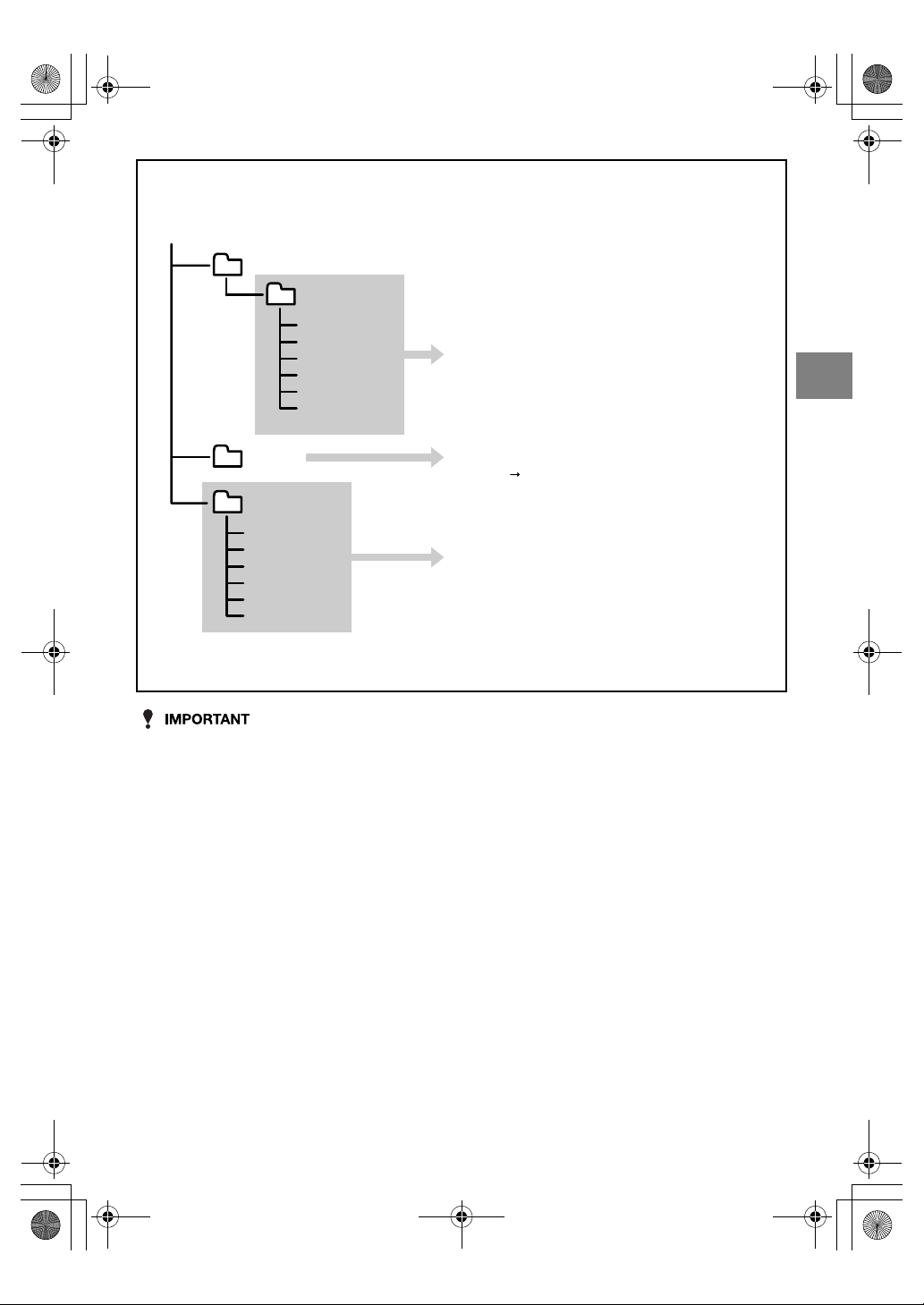
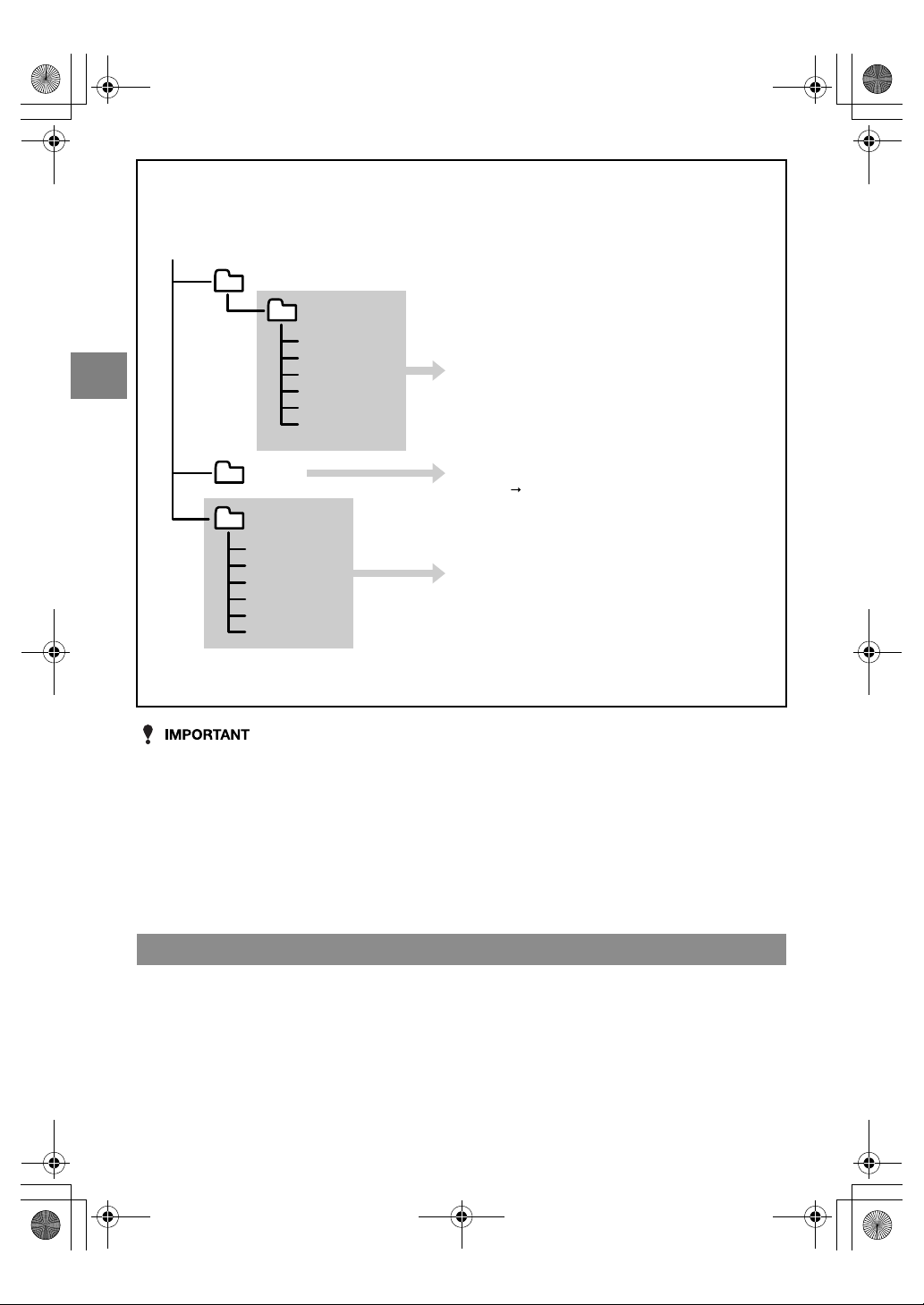
Memory card folder configuration
On Windows PCs, the folders for camera memory cards are configured as shown below.
Removable disk
Still image/Movie
The same file name cannot be used in the same
folder. If one of the images is erased on the camera,
that file name is skipped.
MISC*
2
DCIM*
1
100KCBOX
KIF_0001.jpg
KIF_0002.jpg
KIF_0003.avi
KIF_0004.jpg
KIF_0005.jpg
•
•
RESIZE
R00_0001.jpg
R00_0002.jpg
•
•
•
R00_9999.jpg
Resized images are recorded
here.
This folder is created when DPOF print settings are
specified (
p.5-19).
*1 DCIM: Digital Camera IMage
*2 MISC: Miscellaneous
Finecam_E.book Page 15 Thursday, August 28, 2003 6:21 PM
2-16
2
Basic Operations
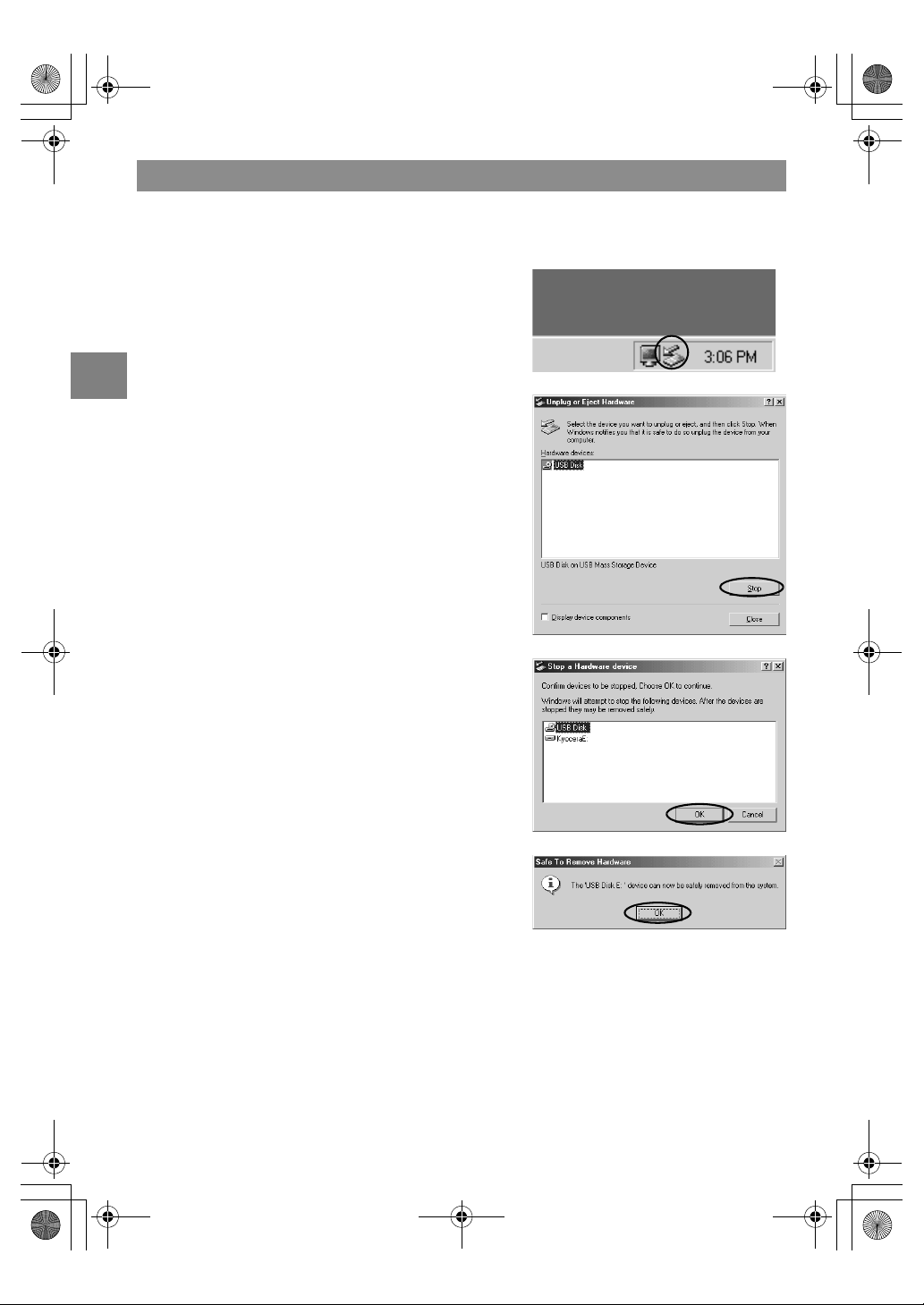
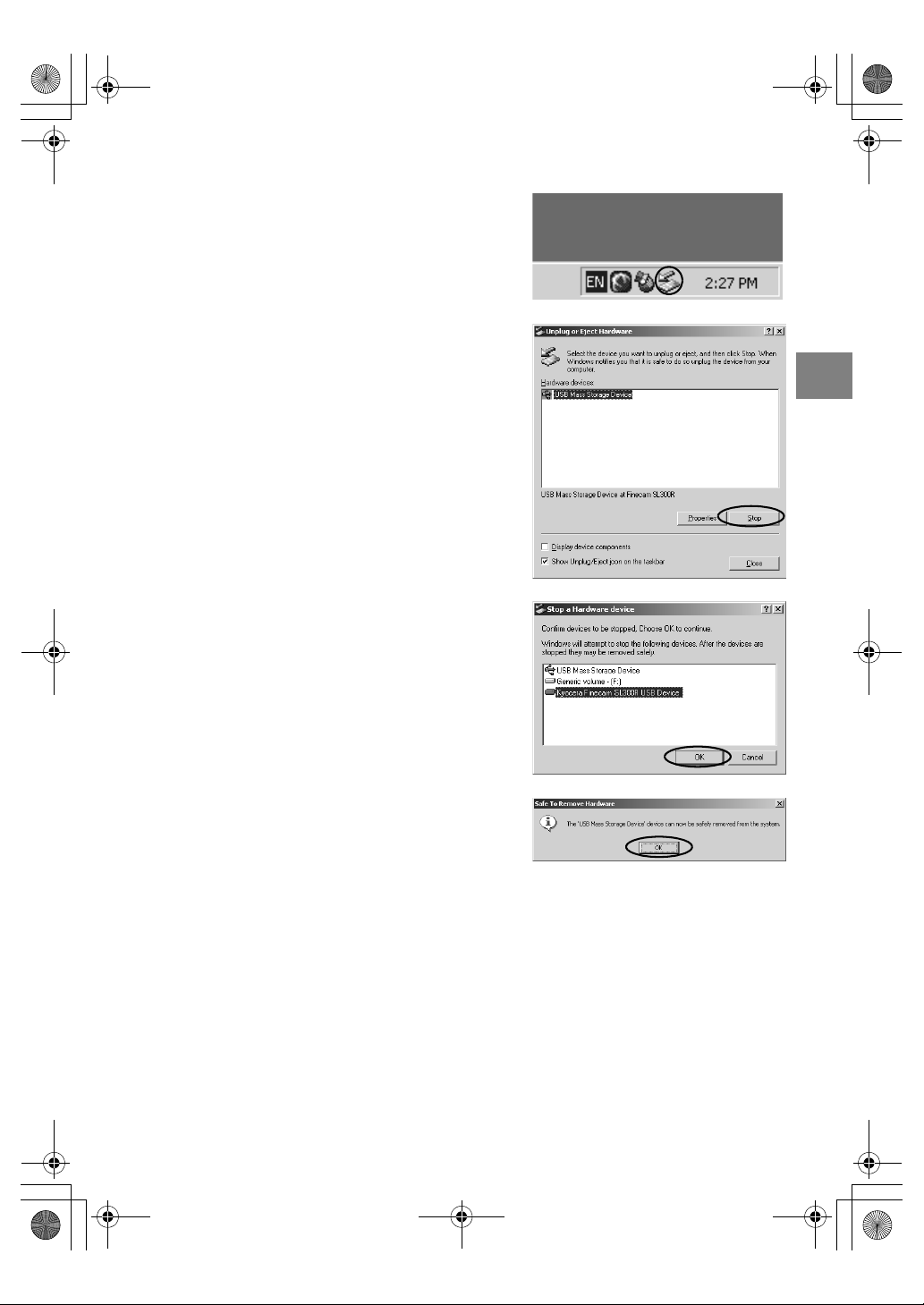
Use the procedure below when disconnecting the USB cable from a Windows PC.
●
Windows Me users
Disconnecting the USB cable from a Windows PC
1 Double-click the [Unplug or Eject
Hardware] icon in the task bar in the
lower-right corner of the desktop.
2 Select [USB Disk] and then click
[Stop].
3 Select [USB Disk] and then click
[OK].
4 When the “The ‘USB Disk E:’ device
can now be safely removed from the
system” message appears, click
[OK].
5 Disconnect the USB cable from PC and camera.
Finecam_E.book Page 16 Thursday, August 28, 2003 6:21 PM
2-17
2
Basic Operations
●
Windows 2000 or Window XP users
●
Windows 98 or Windows 98SE users
Switch off the camera and then disconnect the USB cable.
1
Double-click the [Unplug or Eject
Hardware] icon in the task bar in the
lower-right corner of the desktop.
2 Select [USB Mass Storage Device]
and then click [Stop].
3 Select [Kyocera Finecam SL300R
USB Device] and then click [OK].
4 When the “The ‘USB Mass Storage
Device’ can now be safely removed
from the system” message appears,
click [OK].
5 Disconnect the USB cable from PC and camera.
Finecam_E.book Page 17 Thursday, August 28, 2003 6:21 PM
2-18
2
Basic Operations
If the driver software is not installed successfully, the PC will be unable to recognize the
camera. If this occurs, use the procedure below to uninstall the drivers. Then use the
procedure on p.2-12 to re-install the drivers.
* Note that this procedure is only required for Windows 98 and Windows 98SE.
Uninstalling the driver software
(Windows 98 and Windows 98SE only)
1 Load the memory card into the camera. ( p.1-3)
2 Connect the AC adapter to the camera.
3 Connect the camera to your PC using the dedicated USB cable
and then start up the PC.
4 Press the POWER button
H
to switch the camera on.
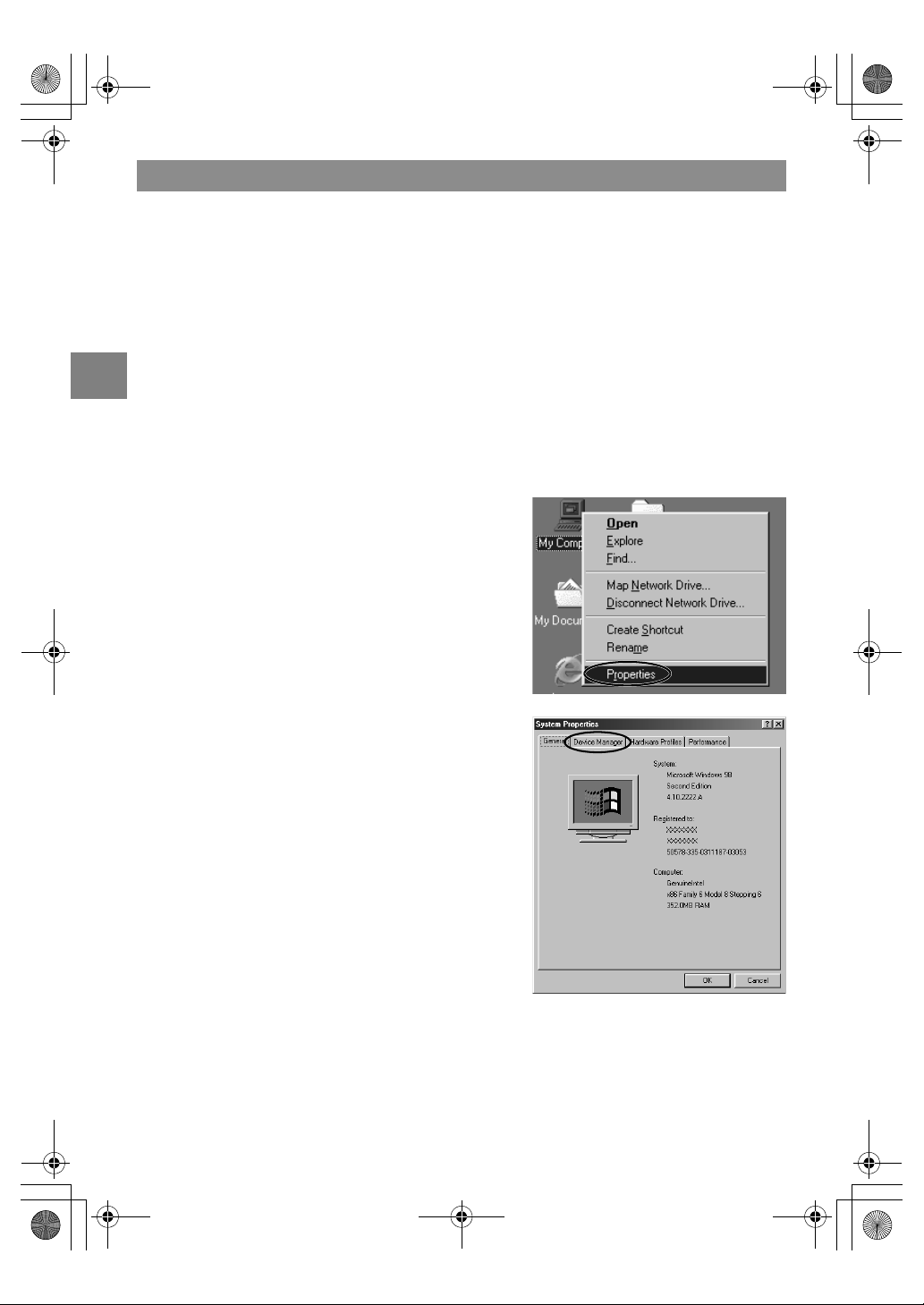
5 Right-click [My Computer] and
select [Properties].
6 When the System Properties
window opens, click the [Device
Manager] tab.
Finecam_E.book Page 18 Thursday, August 28, 2003 6:21 PM

2-19
2
Basic Operations
7 Select “Finecam SL300R” marked
with a question mark in [Other
devices] and then click [Remove].
8 When the device deletion confirmation message appears, click
[OK].
9 Switch the camera off, disconnect the USB cable and then
restart your PC.
Finecam_E.book Page 19 Thursday, August 28, 2003 6:21 PM

2-20
2
Basic Operations
• You do not need to install the USB drivers on a Macintosh computer. Connect the USB
cable without installing any drivers.
• To view images on your Macintosh, you must have image-viewing software already
installed. (To play movies, QuickTime 4.1 or later must be installed.)
• You cannot check images on your Macintosh unless there is a memory card in the camera.
Connecting to a Macintosh
Viewing images on a Macintosh computer
1 Load the memory card into the
camera. ( p.1-3)
2 Connect the AC adapter to the
camera.
3 Connect the camera to your
Macintosh using the dedicated USB
cable and then start up the
Macintosh.
• Check the size of the USB connectors. The small
connector plugs into the camera and the large
connector plugs into the USB port on your
Macintosh.
Finecam_E.book Page 20 Thursday, August 28, 2003 6:21 PM
2-21
2
Basic Operations
• When the camera is connected to a computer and you are viewing or copying images, the
card access LED flashes. Do not disconnect the USB cable or switch the computer off
while viewing or copying images.
• When the camera is connected to the Macintosh and the two are communicating so that data can
be exchanged, the self-timer LED lights.
• If [PC MODE] is displayed on the LCD monitor but no [untitled] or [NO_NAME] icon
appears, check that the USB cable is securely connected.
4 Press the POWER button
H
to
switch the camera on.
[PC MODE] is displayed on the LCD monitor and
you can check the images stored on the camera’s
memory card on your Macintosh and copy the
images to your Macintosh.
5 An [untitled] disk icon appears on the desktop. Double-click
the icon to open the disk window.
* Displayed as [NO_NAME] in Mac OS 10.0 to 10.2.x.
6 Open the [100KCBOX] or [RESIZE] folder in DCIM folder and
then select the image you want to view from the files and
double-click the image.
• A number between 100 and 999 is substituted for "100" in the [100KCBOX] folder name.
( p.6-13)
PC MODE
Finecam_E.book Page 21 Thursday, August 28, 2003 6:21 PM
2-22
2
Basic Operations
• Do not delete image data on a memory card on your Macintosh. Erase images on the
camera.
• The same file name cannot be used in the same folder. If one of the images is erased on
the camera, that file name is skipped.
• If you use the Energy Saver function and wake your Macintosh up from sleep mode, it may
not be possible to resume communication.
• When you want to edit an image (resizing, rotating, etc.), do not forget to copy the image
to your Macintosh beforehand. If you directly edit the image on the memory card, the
image will no longer be viewable in the camera.
• Do not format memory cards on your Macintosh as this may result in you being unable to
use the memory card on the camera.
Drag the [untitled] (Mac OS 9) or [NO_NAME] (Mac OS X) folder on the desktop to the
Trash. Check that the “It is now safe to disconnect the device” message is displayed or that
the [untitled] (Mac OS 9) or [NO_NAME] (Mac OS X) icon is no longer displayed on the
desktop before disconnecting the USB cable.
■
Memory card folder configuration
On Macintosh computers, the folders on camera memory cards are configured as shown
below.
Disconnecting the USB cable from a Macintosh computer
untitled
Still image/Movie
The same file name cannot be used in the same
folder. If one of the images is erased on the camera,
that file name is skipped.
Resized images are recorded
here.
MISC*
2
DCIM*
1
100KCBOX
KIF_0001.jpg
KIF_0002.jpg
KIF_0003.avi
KIF_0004.jpg
KIF_0005.jpg
•
•
RESIZE
R00_0001.jpg
R00_0002.jpg
•
•
•
R00_9999.jpg
This folder is created when DPOF print settings are
specified (
p.5-19).
*1 DCIM: Digital Camera IMage
*2 MISC: Miscellaneous
Finecam_E.book Page 22 Thursday, August 28, 2003 6:21 PM
2-23
2
Basic Operations
You can print out your images as specified in the DPOF settings ( p.5-19).
• This feature can only be used with DPOF-compatible printers (third-party).
Refer to the instructions provided with your DPOF-compatible printer for details of the printing
procedure.
• Where date insertion is specified in the DPOF settings, the date may not be printed on some
printer models.
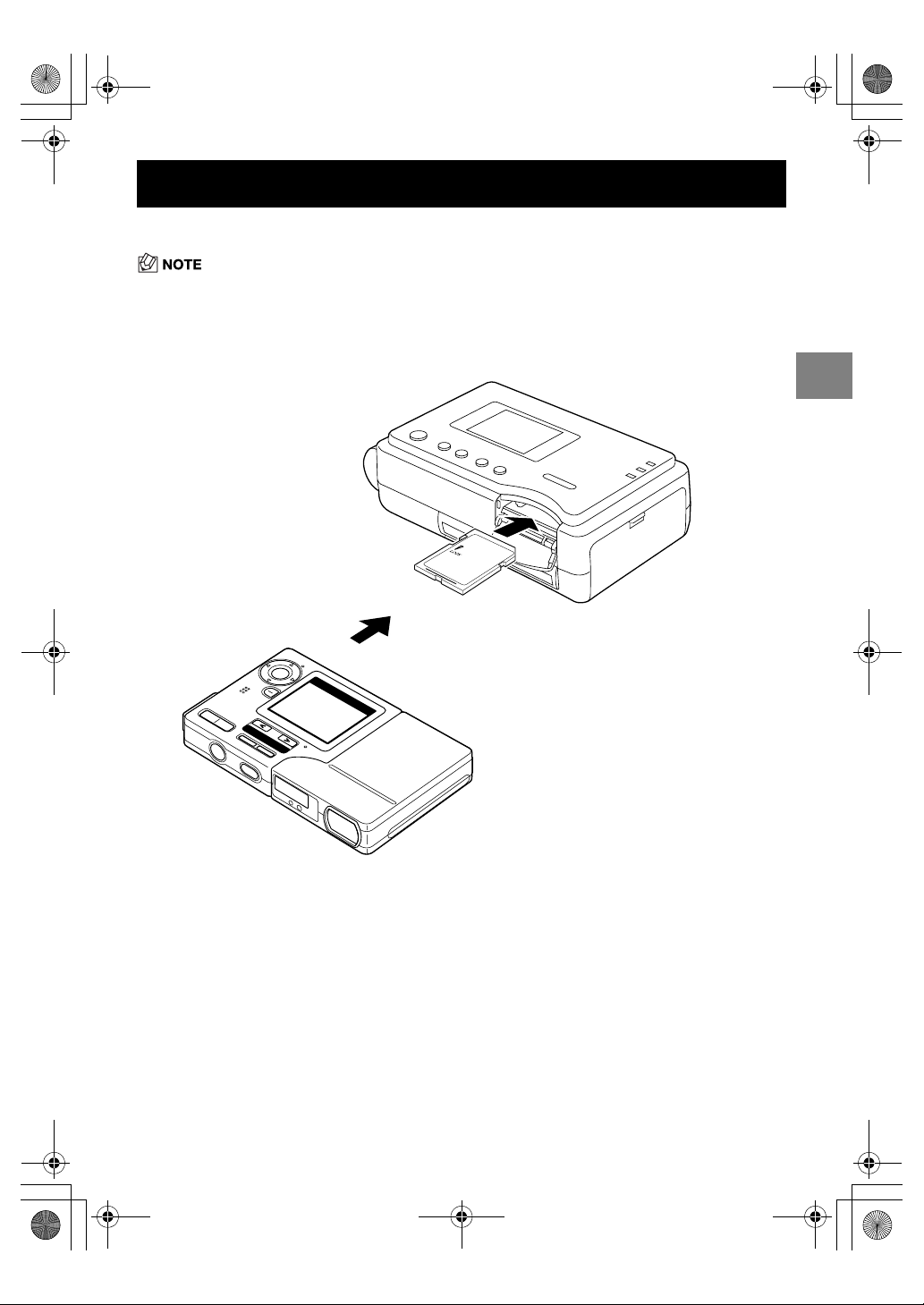
Digital Printing on a Printer
Insert into the printer.
Remove the memory card
from the camera.
DPOF-compatible printer
(third-party)
Finecam_E.book Page 23 Thursday, August 28, 2003 6:21 PM

Finecam_E.book Page 24 Thursday, August 28, 2003 6:21 PM
Techniques for Taking
Pictures
This chapter describes some more advanced photography techniques, including
photographic subjects that are difficult for the camera to focus on, using the zoom
to compose shots, selecting the best shooting mode for the subject, and using
continuous shooting.
Finecam_E.book Page 1 Thursday, August 28, 2003 6:21 PM
3-2
3
Techniques for Taking Pictures
Use Focus Lock in situations where the subject you want to focus on is not in the center of
the LCD monitor, or when you want to compose a shot where the focal point is not in the
center of the shot.
• A flashing shooting mark “
B
” indicates that the camera cannot set the exposure and focus and
that Focus Lock cannot be used. Press the shutter release button half way again until the
shooting mark “
B
” stays lit and the focus is set, or use a different subject to set the focus.
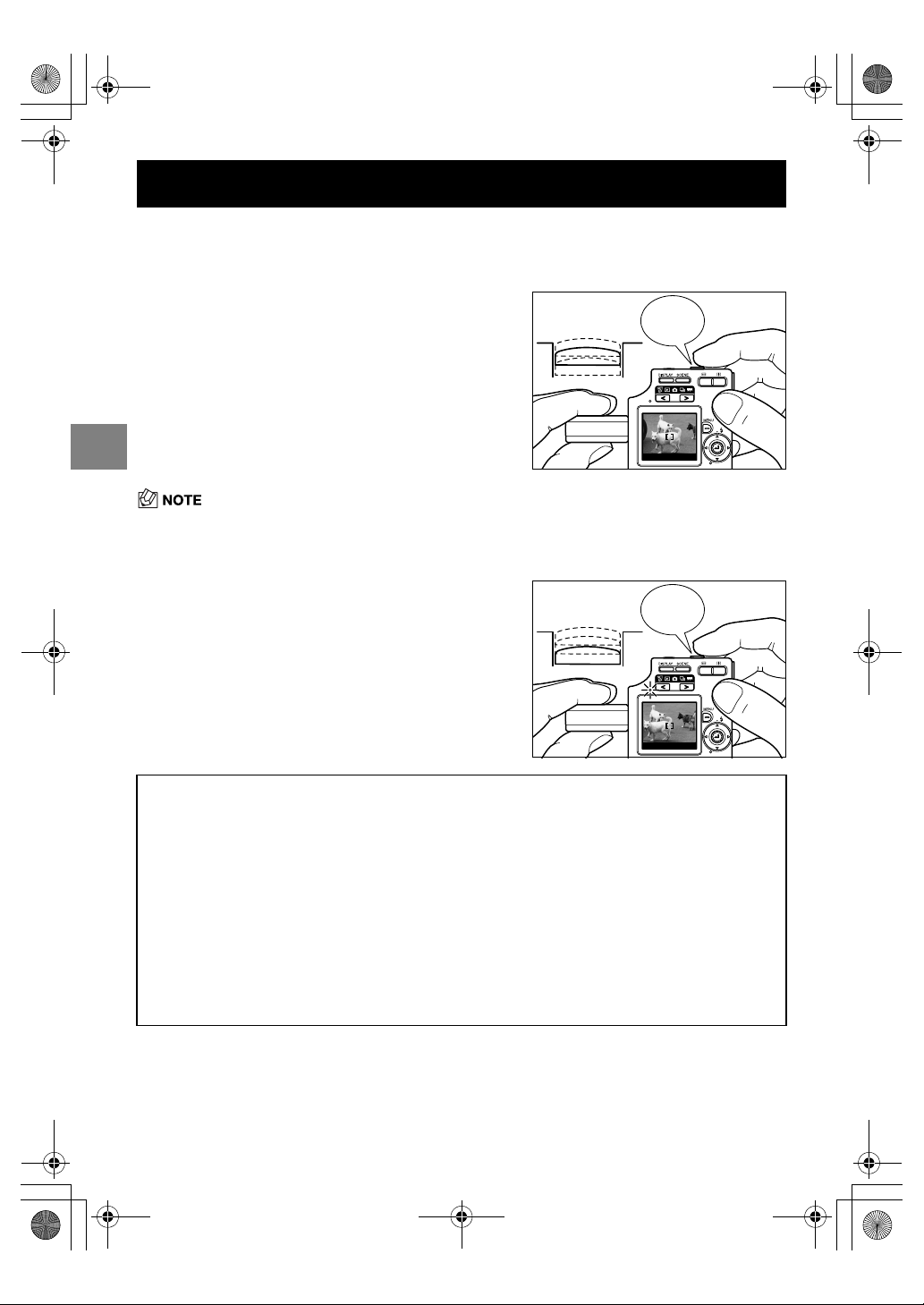
Using Focus Lock to Take Pictures
1
Position the focusing frame in the
center of the screen over the subject
you want to focus on and press the
shutter release button half way.
When the camera gives a short beep and the
green shooting mark “
B
” lights on the LCD
monitor, exposure and focus setting is completed.
The focus and exposure are then locked (Focus
Lock, AE Lock).
2 With the shutter release button still
half-pressed, move the camera until
the shot is composed as you want it
and then press the shutter release
button down fully to take the shot.
Removing your finger from the shutter release
button releases the Focus Lock and AE Lock.
■
Subjects that are difficult to focus on
The camera has difficulty focusing on the following types of subject. Lock the focus on
another object at the same distance from the camera as the desired subject and then take
the picture.
• Low contrast subjects
• Objects that consist of the same pattern repeated
• Dark subjects
• Subjects made up only of horizontal lines
• Extremely bright or glossy subjects
• Subjects where there is a strong light source in or near the field of view, or when there is
strong light such as sunlight in the LCD monitor image
• Two or more subjects in or near the center of the field of view that are at different distances
from the camera
• Moving subjects
“Beep”
“Click”
Finecam_E.book Page 2 Thursday, August 28, 2003 6:21 PM
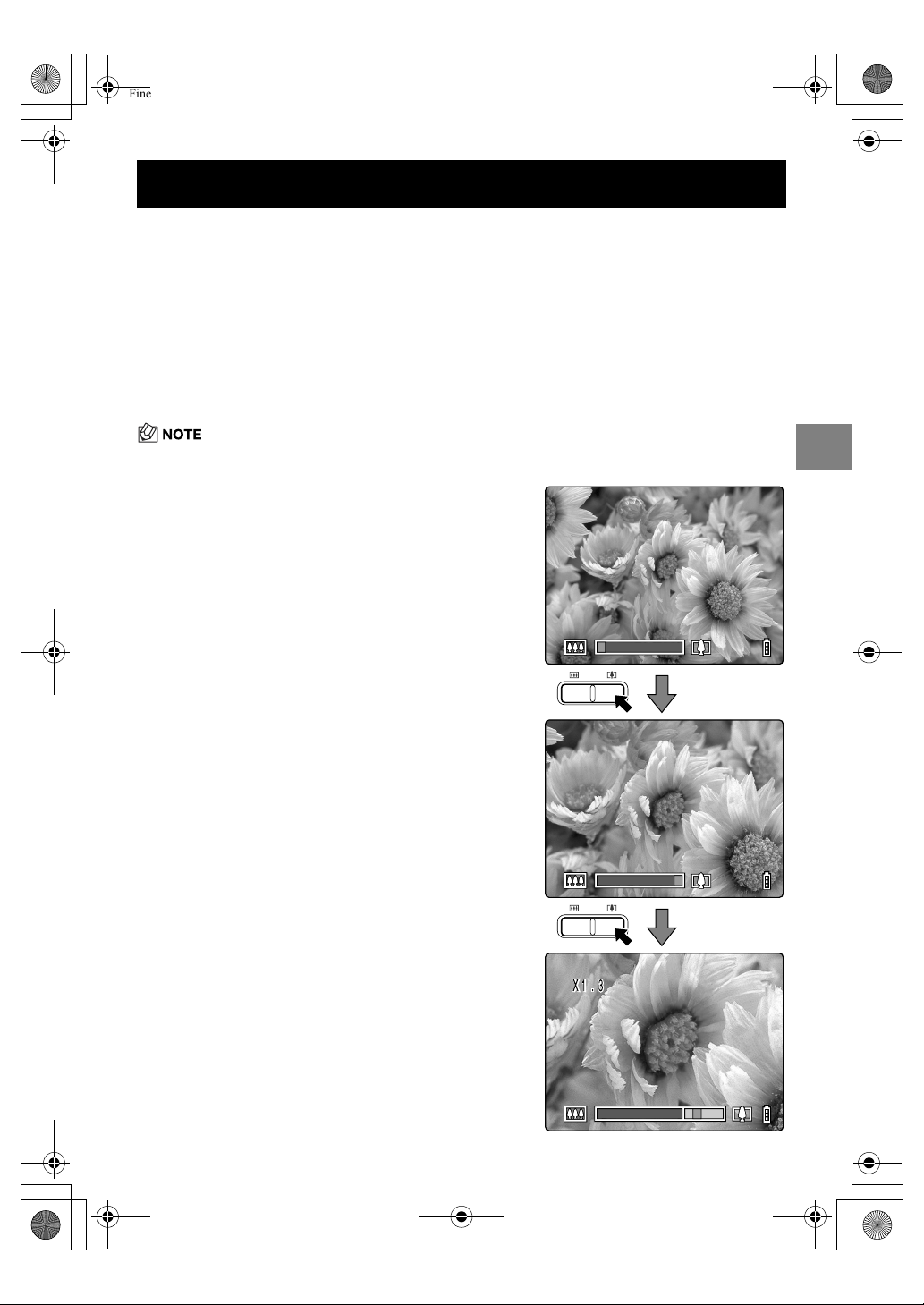
3-3
3
Techniques for Taking Pictures
Use the zoom button to take pictures when you are at events such as sports meets or talks
where you cannot get close to your subject, or when you want to compose a wide-angle
shot of distant scenery.
Pressing the
T
side of the zoom button enlarges the image (telephoto).
Pressing the
W
side returns the zoomed image to its original size and lets you include a
larger area in the shot (wide angle).
As well as an optical zoom that changes the image magnification using the lens, this
camera also features a digital zoom that uses electronic control to enlarge the image. While
digital zooming degrades image quality, when combined with the optical zoom it allows
image magnifications up to 6✕.
To use the digital zoom, press the
T
side of the zoom button to zoom in fully on the subject,
then briefly release the zoom button and press it again.
• You can also disable the digital zoom so that it is not used. ( p.4-24)
Using the Zoom Button –
Optical Zoom and Digital Zoom
1 Press the
T
side of the zoom button
until the image is fully zoomed.
When you press the zoom button, the zoom bar
appears at the bottom of the screen.
The indicator in the zoom bar moves right as you
zoom in and left as you zoom out.
The zoom bar remains on the screen for roughly 2
seconds after you stop pressing the zoom button.
2 Briefly release the zoom button and
then press the
T
side of the zoom
button again.
The image is enlarged sequentially by ✕1.3, ✕1.6
and ✕2.0.
While you are using the digital zoom, a dedicated
zoom bar for the digital zoom is displayed to the
right of the optical zoom bar.
X1.3
Finecam_E.book Page 3 Thursday, August 28, 2003 6:21 PM

3-4
3
Techniques for Taking Pictures
This camera features a SCENE button
I
that allows you to set the optimum shooting
mode for the subject.
• With the camera switched on, check that “
C
”, “
N
” or “
M
” is displayed on the mode select LED.
( p.2-2)
Setting the Best Camera Mode for the Scene Shot
— SCENE Button
I
Displaying the Scene Mode menu
1 With the camera in shooting mode,
press the SCENE button
I
.
2 The Scene Mode menu appears on
the LCD monitor.
3 Press
U
or
D
on the 4-way button
to select the best shooting mode for
the subject.
4 Press the OK button
E
.
The Scene Mode menu disappears and you can
take the picture using the selected shooting
mode.
STANDARD
LANDSCAPELANDSCAPE
Finecam_E.book Page 4 Thursday, August 28, 2003 6:21 PM
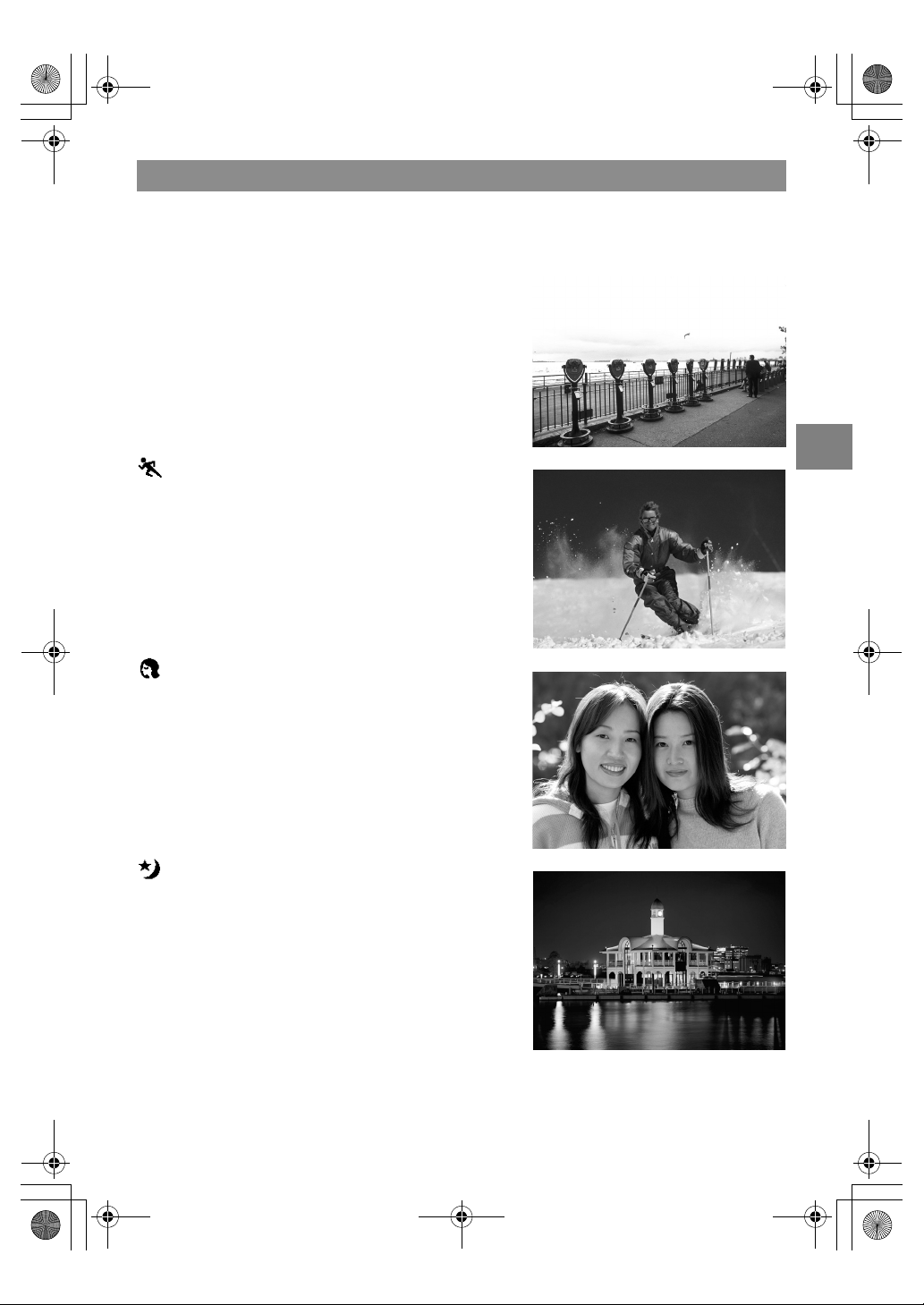
3-5
3
Techniques for Taking Pictures
This camera features 7 shooting modes to suit different subjects. All 7 modes are available
in “
C
” mode and “
N
” mode. In “
M
” mode, only Standard, Macro and Landscape modes
can be selected.
Shooting modes
C
/
M
Standard
(Applicable mode:
C
/
N
/
M
)
Use this mode for normal photography.
In “
N
” Continuous Shooting mode, the flash is set to
Flash Off mode.
Sports Action
(Applicable mode:
C
/
N
)
This is the best shooting mode for scenes with a lot of
movement, such as sporting events.
The focus is set to [CAF] ( p.6-2) mode in which the
camera adjusts the focus continuously so that the
image remains focused while you track moving
subjects.
Portrait
(Applicable mode:
C
/
N
)
Use this shooting mode for photographs of people.
In this mode, the white balance is optimized to give
exquisite skin tones, and the ISO sensitivity ( p.4-22)
is set to 100 to allow you to capture fine details.
Night View
(Applicable mode:
C
/
N
)
This is the best shooting mode for shots of scenery at
night.
The camera is set not to use the flash and the focus is
fixed at infinity. Full opened operture is set so that the
fastest possible shutter speed can be used in dark
locations.
Finecam_E.book Page 5 Thursday, August 28, 2003 6:21 PM
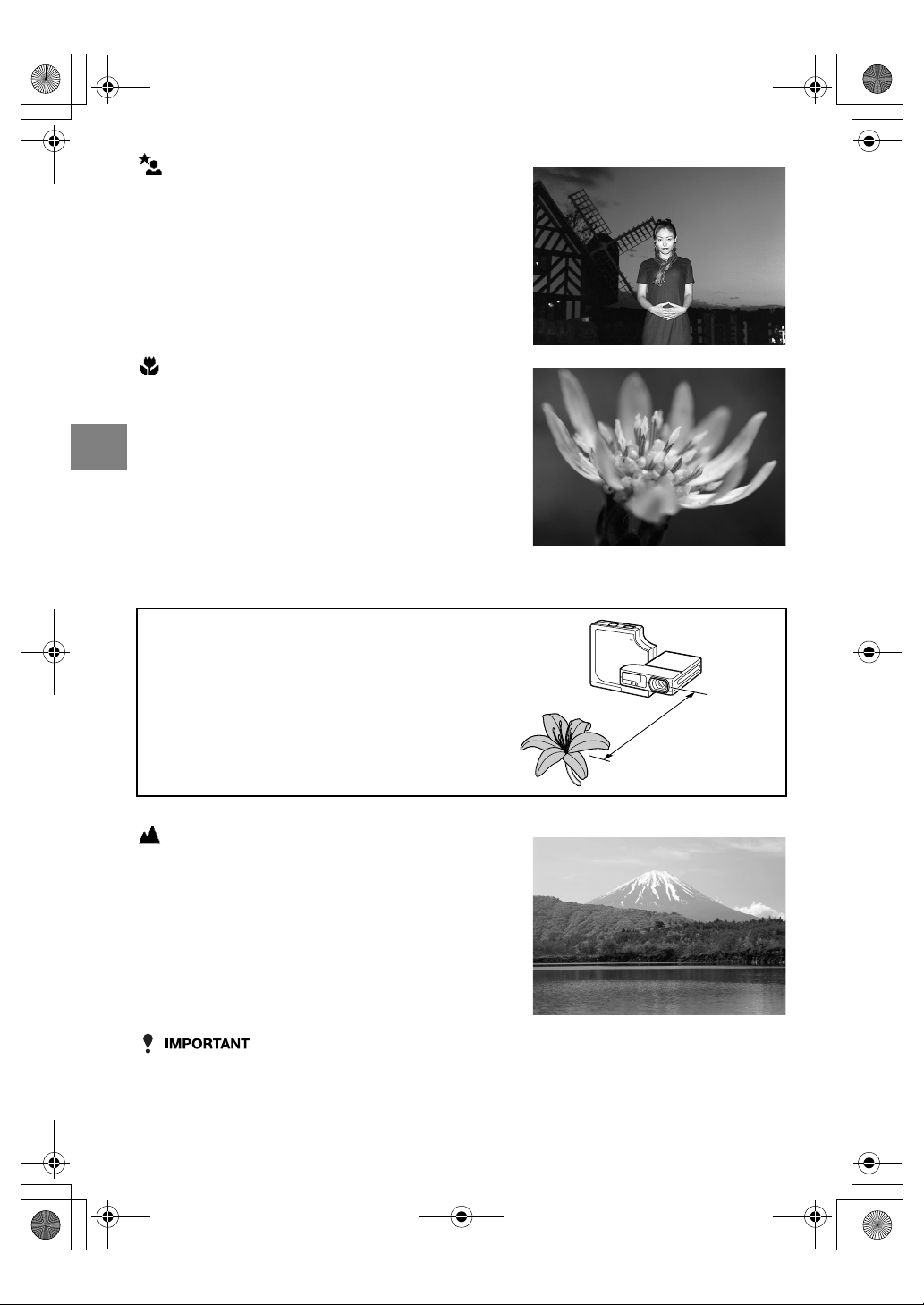
3-6
3
Techniques for Taking Pictures
• Because slow shutter speeds are used in Night View and Night Portrait modes, you should
place the camera on a stable surface and use the self-timer to take pictures. (
p.4-4)
• To prevent camera shake in Macro mode where high magnifications are used, you should
place the camera on a stable surface and use the self-timer to take pictures.
• Take care to avoid camera shake in other modes also.
Night Portrait
(Applicable mode:
C
/
N
)
This shooting mode is set up particularly for shots of
people taken against nighttime scenery. The flash fires
automatically according to the ambient light levels,
and the [Red-eye Reduction Auto mode] setting
( p.4-2) can also be used to prevent the subject’s
eyes from appearing red.
Macro
(Applicable mode:
C
/
N
/
M
)
Macro mode allows you to take close-up pictures at
distances as close as approx. 20 cm (7.9")
*1
from the
subject. Because the focal length of the lens is locked
in the wide-angle position (shortest focal length), the
zoom does not function.
*2
As flash mode, you can select either Fill-in Flash
mode, in which the flash fires for every shot, or Flash
Off mode, in which the flash never fires. (See “Using
the Flash” on p.4-2.)
*1
Distance measured from the glass cover plate on the
lens to the subject.
*2
Only the digital zoom can be used.
■
Using macro mode
Compose the shot and press the shutter release
button half way.
When the camera gives a short beep and the
green shooting mark “
B
” lights on the LCD
monitor, the exposure and focus are set. Then,
taking care not to move the camera, release the
shutter to take the picture.
Landscape
(Applicable mode:
C
/
N
/
M
)
This shooting mode is ideal for shots of scenery where
the main subjects of the picture are in the far distance.
The flash is set not to fire and focus is fixed at infinity.
Approx. 20cm (7.9")
Finecam_E.book Page 6 Thursday, August 28, 2003 6:21 PM
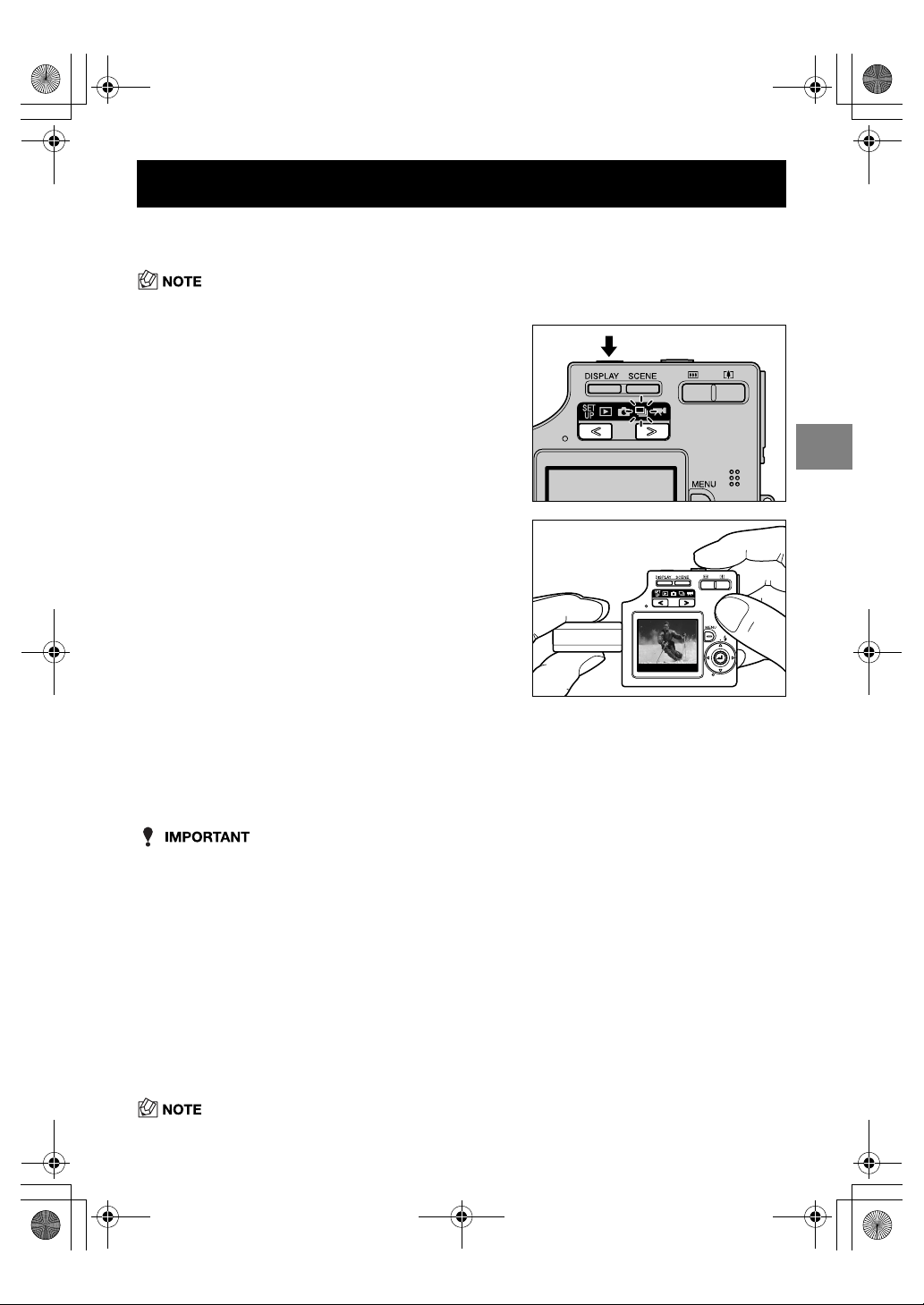
3-7
3
Techniques for Taking Pictures
This camera is capable of taking continuous shots at up to approx. 3.5 frames per second.
This feature is useful for photographing moving subjects and for situations where you do not
want to miss a snapshot opportunity.
• For self-portrait shooting, the shooting speed is set to approx. 2 frames per second.
• The number of continuous shots that can be taken varies depending on the capacity of the
memory card in the camera.
• Continuous shooting stops when the memory card is full of recorded images.
•
The exposure and focus are not reset during continuous shooting. The continuous shots are
all taken using the exposure and focus set immediately before continuous shooting began.
•
The speed at which data is written to a memory card varies according to the type of card used.
•
If you use an SD memory card that is intended for high-speed recording, you can use
continuous shooting to shoot at approx. 3.5 frames per second until the memory card is full.
• To ensure that you obtain true approx. 3.5 frame per second performance, format the SD
memory card on the camera (
p.6-5) beforehand.
• If you repeatedly shoot and erase frames, the continuous shooting speed may drop. If this
occurs, save the images on your PC and then format the memory card on the camera
before continuing.
• If the subject is dark so that slower shutter speeds are used, the continuous shooting
speed may be slower than approx. 3.5 frames per second.
• If you use the flash, you can only shoot one frame.
• If you use the self-timer with continuous shooting, 3 pictures are taken at one-second intervals
after the specified time has elapsed. (See “Taking Pictures Using the Self-Timer” on p.4-4.)
Using Continuous Shooting Mode
1
Press the POWER button
H
to
switch the camera on and then
press
O
or
Q
on the mode
button until the “
N
” icon lights on
the mode select LED.
2 Use the LCD monitor to compose
your shot.
3
Press the shutter release button half way to set exposure and focus.
4
Press the shutter release button down further to begin continuous
shooting.
The camera shoots continuously until the shutter release button is released.
Finecam_E.book Page 7 Thursday, August 28, 2003 6:21 PM
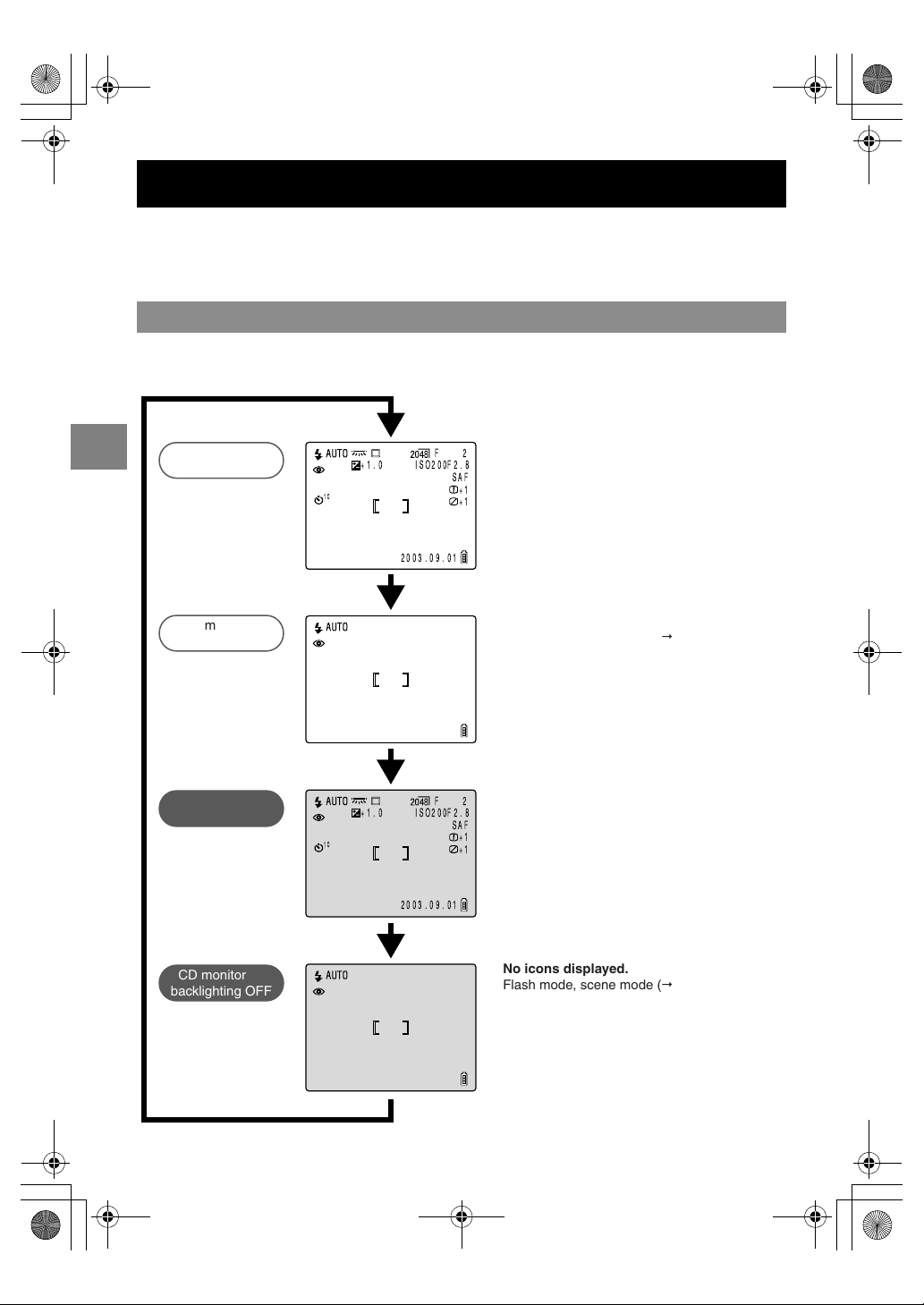
3-8
3
Techniques for Taking Pictures
In “
C
” mode, “
N
” mode and “
M
” mode, a large number of icons are displayed on the
LCD monitor. If the icons are an annoyance when you are taking pictures, or if you want to
conserve power, you can use the DISPLAY button
J
to turn the icon display and the LCD
monitor backlighting on and off as required.
With “
C
”, “
N
” or “
M
” selected and the camera ready to shoot, press the DISPLAY button
J
to cycle through the LCD monitor display modes, as shown below.
Switching the LCD Monitor Icon Display and Backlight On and Off
Specifying the settings
LCD monitor
backlighting OFF
Icons displayed.
No icons displayed.
Flash mode, scene mode (
p.3-4)
and the focusing gauge (when MF is selected)
are displayed.
Icons displayed.
F2.8ISO200
10
2003.09.01
+1.0
2F
SAF
+1
+1
F2.8ISO200
2003.09.01
+1.0
2F
SAF
+1
+1
10
LCD monitor
backlighting OFF
No icons displayed.
Flash mode, scene mode (
p.3-4)
and the focusing gauge (when MF is selected)
are displayed.
LCD monitor
backlighting ON
LCD monitor
backlighting ON
Finecam_E.book Page 8 Thursday, August 28, 2003 6:21 PM

3-9
3
Techniques for Taking Pictures
There are several ways to limit the amount of power the camera uses when you are
traveling or you are in a location where you cannot readily recharge the camera battery. As
well as switching the camera off promptly after you finish using it, you can turn off the LCD
monitor backlighting, set the Power Save function, and select SAF as the AF mode.
• Even when backlighting is switched off, the image from the camera lens is displayed on the LCD
monitor and can be used to compose shots and take pictures in well-lit locations.
●
Setting the Power Save function
This camera has a Power Save function that you can set so that it automatically switches
the camera off if none of the camera’s controls are used for a set period of time. ( p.6-6)
You can select 1, 3 or 6 minutes as the delay before camera switches to sleep mode after it
was last used. After 2 minutes in sleep mode, the camera is switched off.
●
Setting the AF mode to SAF
CAF mode, in which the camera continually resets the focus, is suitable for subjects
involving a lot of movement, such as sporting events, but this mode also consumes more
power. If you are shooting subjects with little or no movement, you should select SAF mode,
which consumes very little power. ( p.6-2)
• This camera uses a dedicated battery pack (BP-780S). Commercially available batteries
cannot be used in this camera. Ensure that the battery is fully charged before going out.
• Take care to check the battery level indicator on the LCD monitor while you are taking
pictures. (
p.1-6)
Conserving Battery Power
●
Switching the camera off promptly
Digital cameras consume battery power simply by
being switched on. Switch the camera off as soon as
you finish taking pictures.
●
Switching the LCD monitor backlighting
off
The LCD monitor is normally backlit. You can greatly
reduce the camera’s power consumption simply by
switching this backlighting off. To switch the
backlighting off, press the DISPLAY button
J
twice
while LCD monitor backlighting is switched on.
( p.3-8)
Finecam_E.book Page 9 Thursday, August 28, 2003 6:21 PM
Finecam_E.book Page 10 Thursday, August 28, 2003 6:21 PM

Using
C
Camera Mode,
N
Continuous
Shooting Mode and
M
Movie Mode
This chapter describes various aspects of photography using a digital camera,
such as using the flash, setting the number of pixels and image quality, and setting
white balance.
The icons below each of the function headings in this chapter provide a quick reference
guide to the modes in which that function can be used. The meanings of the icons are
shown below.
• Applicable mode:
C
Can be used in
C
camera mode.
• Applicable mode:
M
Can be used in
M
movie mode.
• Applicable mode:
N
Can be used in
N
continuous shooting mode.
Finecam_E.book Page 1 Thursday, August 28, 2003 6:21 PM
4-2
4
Using C Camera Mode, N Continuous Shooting Mode and M Movie Mode
Applicable mode:
C
/
N
This camera features an Automatic Flash function that determines whether or not the flash
is needed based on the ambient light level.
There are also ways of using the flash to good effect even in bright conditions. This section
describes how to use the flash in situations such as those where conditions are bright but
you still want to use the flash or where you don’t want to use the flash even though it’s dark.
• When using the flash for close-up shots, you should set the ISO sensitivity to 200 or less.
If you set the sensitivity to a high ISO setting and then take close-up shots, the image will
be overexposed.
Auto Flash mode
*
C
: default
The camera detects the ambient light level and determines whether flash is required.
Red-eye Reduction Auto mode
When people’s eyes appear red in a photograph, this is referred to as the ‘red-eye effect’
( p.4-3). In this mode, the flash reduces the red-eye effect by firing twice: once just before
the picture is taken and again when the picture is taken.
• The shot is taken the second time the flash fires, not the first time. Take care to ensure that
neither the camera nor the subject moves after the flash fires for the first time.
Flash Off mode
*
N
: default
In this mode, the flash never fires, regardless of the ambient light levels. This mode is best
for shots of sunsets or shots where you want to retain an indoor ambiance. Because the
shutter speed used may be slow, depending on the light levels, you should place the
camera on a stable surface and use the self-timer ( p.4-4) to prevent camera shake when
the shot is taken.
• If the photographed image is too dark, use the exposure compensation (
p.4-8) or ISO
sensitivity (
p.4-22) settings to adjust the brightness.
F
Fill-in Flash mode
In this mode, the flash fires regardless of the ambient light conditions. When you take a
picture in strong sunlight or when the subject is backlit, the subject tends to be dark. In such
situations, this mode allows you to take a picture that clearly shows both the subject and the
background.
Fill-Flash with Red-eye Reduction mode
* Only when a long exposure is set.
This mode can only be set for long-exposure shots ( p.4-21) and should only be used
when long-exposure shots are always taken using the flash. To reduce red-eye, the flash
fires once just before shooting and a second time when the shot is taken.
Using the Flash
Flash modes
Finecam_E.book Page 2 Thursday, August 28, 2003 6:21 PM

4-3
4
Using C Camera Mode, N Continuous Shooting Mode and M Movie Mode
• For long-exposure shots, always place the camera on a stable surface to take the shot.
• The shot is taken the second time the flash fires, not the first time. Take care to ensure that
neither the camera nor the subject moves after the flash fires for the first time.
• Exposure compensation (
p.4-8) when the flash is used is limited to between -1.0 and
+1.0 EV.
• If the flash is used in Continuous Shooting mode, only one photograph can be taken.
• This setting reverts to the default when the camera is switched off. To retain the setting,
set Mode Lock (
p.6-7) to ON.
■
Red-eye effect
Red-eye is an effect whereby the subject’s pupils appear red in a photograph because the
light entering the eye is reflected off the retina.
Setting the flash mode
1 Switch the camera on and press
O
or
Q
on the mode
button until the “
C
” or “
N
” icon lights on the mode select
LED.
2 Press
U
on the 4-way button until the icon
for the desired mode appears on the LCD
monitor.
The flash mode icon changes through the cycle shown below each time
U
on the 4-
way button is pressed.
Finecam_E.book Page 3 Thursday, August 28, 2003 6:21 PM

4-4
4
Using C Camera Mode, N Continuous Shooting Mode and M Movie Mode
●
Flash settings in each mode using the scene button
I
Some restrictions apply to the flash modes that are available in the shooting modes selected using
the scene button
I
( p.3-4).
Applicable mode:
C
/
N
/
M
The self-timer is used for shots such as those where the photographer is included in the
shot. In this mode, the shutter releases either 2 seconds or 10 seconds after the shutter
release button is pressed. A self-timer delay of 2 seconds is useful for preventing camera
shake when you are using Macro or Night View mode.
Scene Mode Available flash modes
Standard
Auto Flash mode, Red-eye Reduction Auto mode, Flash Off mode,
F Fill-in Flash mode
Sports Action
Portrait
Night View Flash Off mode only
Night Portrait Auto Flash mode, Red-eye Reduction Auto mode
Macro Flash Off mode, F Fill-in Flash mode
Landscape Flash Off mode only
■
Effective flash range
The effective flash range varies depending on
parameters such as the zoom, ISO sensitivity and
AE mode settings.
When taking pictures, refer to the distances shown
in the figure at right.
* For more details, see the “Accessories and
Specifications” provided separately.
(See p.4-22 for information on the ISO settings.)
■
Avoiding camera shake
Camera shake refers to the effect of images appearing blurred or out of focus because the
camera moved when the picture was taken. This is particularly likely to occur at slow
shutter speeds and in macro shots. This applies particularly to macro shots with high
magnifications, where the subject’s depth of field is extremely shallow and even slight
camera movements when the shutter release button is pressed can have a large impact on
the image.
In situations of this sort, place the camera on a stable surface to take the shot. Using the
self-timer ( p.4-4) also is effective in preventing camera movement when the shutter
release button is pressed.
[
t
]
Taking Pictures Using the Self-Timer
1 Switch the camera on and press
O
or
Q
on the mode
button until the “
C
”, “
N
” or “
M
” icon lights on the mode
select LED.
2 Press the MENU button
K
to display the menu icons.
Wide-angle: Up to approx. 2.5 m
Telephoto: Up to approx. 1.8 m
ISO: AUTO
Finecam_E.book Page 4 Thursday, August 28, 2003 6:21 PM

4-5
4
Using C Camera Mode, N Continuous Shooting Mode and M Movie Mode
• This mode is cancelled after you take the picture. To continue using the self-timer, select
self-timer mode again.
• Place the camera on a stable surface.
• To interrupt the self-timer once it has started running, press the shutter release button.
Applicable mode:
C
/
N
/
M
The number of pixels refers to the number of individual dots used to make up the image.
The larger this number, the better the image quality. However, this also increases the size of
the image file so that fewer pictures can be taken. Choose the number of pixels that best
suit the intended use of the shot. ( p.4-7)
3 Use
L
or
R
on the 4-way button to select
SELF TIMER [t] and then press the OK
button
E
.
4 Press
U
or
D
on the 4-way button to select
the desired delay time and then press the OK
button
E
.
[ ]: Sets a self-timer delay of 10 seconds.
[ ]: Sets a self-timer delay of 2 seconds.
OFF: Normal photography (default)
5 The [ ] or [ ] icon appears on the LCD
monitor to show the selected delay.
• Press the MENU button K to clear the menu icons and make picture
taking easier.
6 Press the shutter release button.
The self-timer runs for the selected delay time and then releases the shutter.
[]
Selecting the Number of Pixels (Image Size)
1 Switch the camera on and press
O
or
Q
on the mode
button until the “
C
”, “
N
” or “
M
” icon lights on the mode
select LED.
2 Press the MENU button
K
to display the menu icons.
SELF TIMER
10
2
OFF
Finecam_E.book Page 5 Thursday, August 28, 2003 6:21 PM

4-6
4
Using C Camera Mode, N Continuous Shooting Mode and M Movie Mode
• Because this setting is retained even when the camera is switched off, you need to restore
the original setting or otherwise modify the setting to suit the scene or subject being shot.
Applicable mode:
C
/
N
You can select Normal (high compression) or Fine (low compression) as the Quality
(compression ratio) setting. While lower compression ratios give better image quality, they
also increase the file size so that fewer images can be recorded. As with the image size,
you should choose the quality that best suits the intended use of the shot. ( p.4-7)
3 Use
L
or
R
on the 4-way button to select
PIXELS [ ] and then press the OK button
E
.
4 Press
U
or
D
on the 4-way button to select
the desired image size and then press the
OK button
E
.
5 The selected number of pixels ([ ], etc.)
appears on the LCD monitor.
• Press the MENU button K to clear the menu icons and make picture
taking easier.
[]
Selecting the Quality (Compression Ratio)
1 Switch the camera on and press
O
or
Q
on the mode
button until the “
C
” or “
N
” icon lights on the mode select
LED.
2 Press the MENU button
K
to display the menu icons.
PIXELS
<Still Image> <Movie>
2048 ✕ 1536 (default) 640 ✕ 480
1600 ✕ 1200 320 ✕ 240 (default)
1280 ✕ 960 160 ✕ 120
640 ✕ 480
$":"&
&:'$
$:
"&:#!$
Finecam_E.book Page 6 Thursday, August 28, 2003 6:21 PM
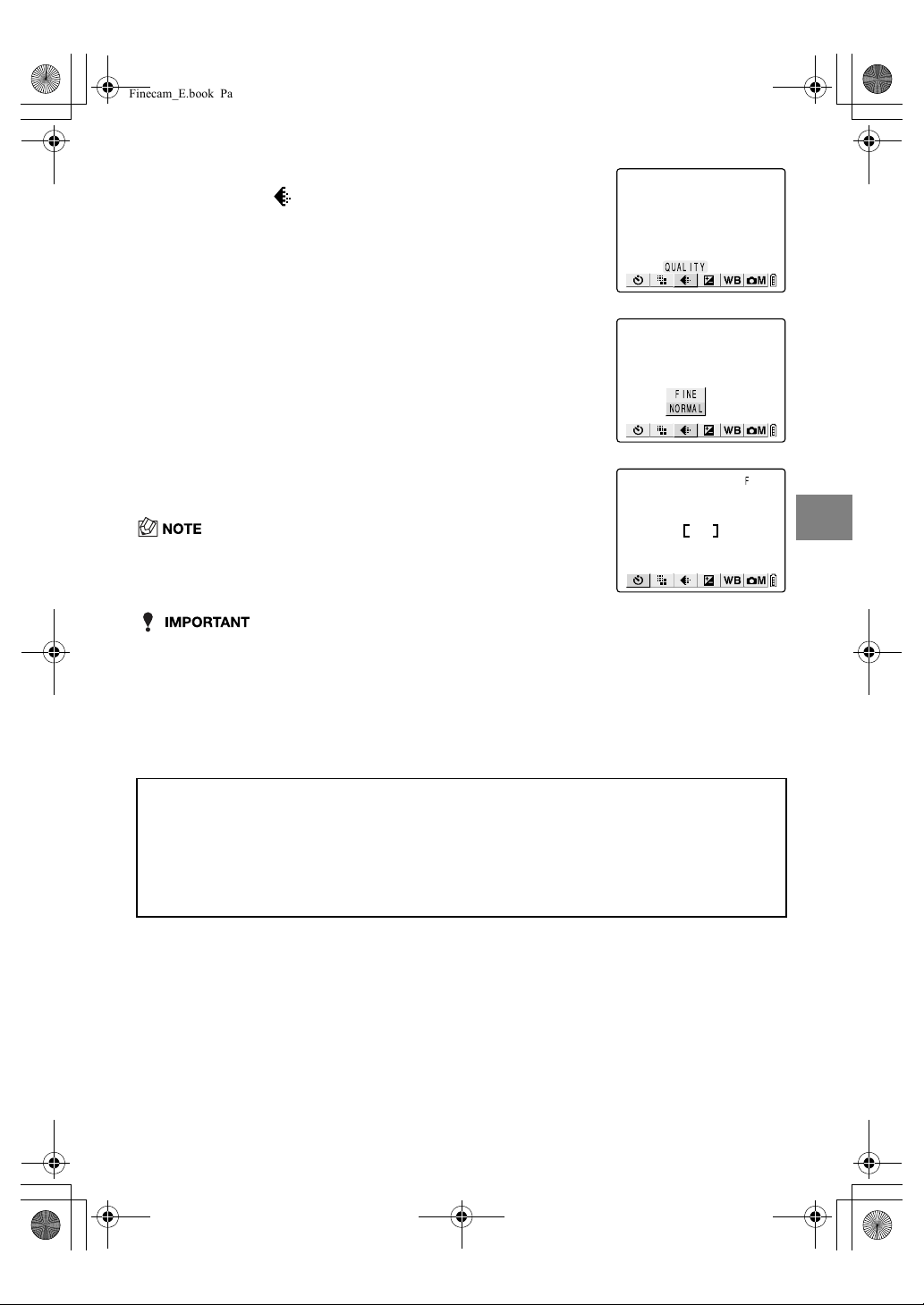
4-7
4
Using C Camera Mode, N Continuous Shooting Mode and M Movie Mode
• Because this setting is retained even when the camera is switched off, you need to restore
the original setting or otherwise modify the setting to suit the scene or subject being shot.
●
Available shots and capacities for different image size/quality
(compression ratio) combinations
Refer to the separate information sheet “Accessories and Specifications” for the
available shots and capacities.
3 Use
L
or
R
on the 4-way button to select
QUALITY [ ] and then press the OK button
E
.
4 Press
U
or
D
on the 4-way button to select
the desired image quality and then press the
OK button
E
.
[F] (Fine): Shoots images at a low compression ratio.
[N] (Normal): Shoots images at a high compression ratio.
(default)
5 The selected image compression ratio ([F] or
[N]) appears on the LCD monitor.
• Press the MENU button K to clear the menu icons and make picture
taking easier.
■
Guide to choosing image size and image quality
For high-quality printing or to give priority to image quality, choose a large image size. For
files you want to send as e-mail attachments, choose a small image size to keep the file
size small.
When image quality is particularly important, select [F] (Fine) as the Quality setting.
Otherwise, choosing the [N] (Normal) setting will give smaller file sizes and increase the
number of pictures you can shoot.
QUALITY
NORMAL
FINE
.
Finecam_E.book Page 7 Thursday, August 28, 2003 6:21 PM
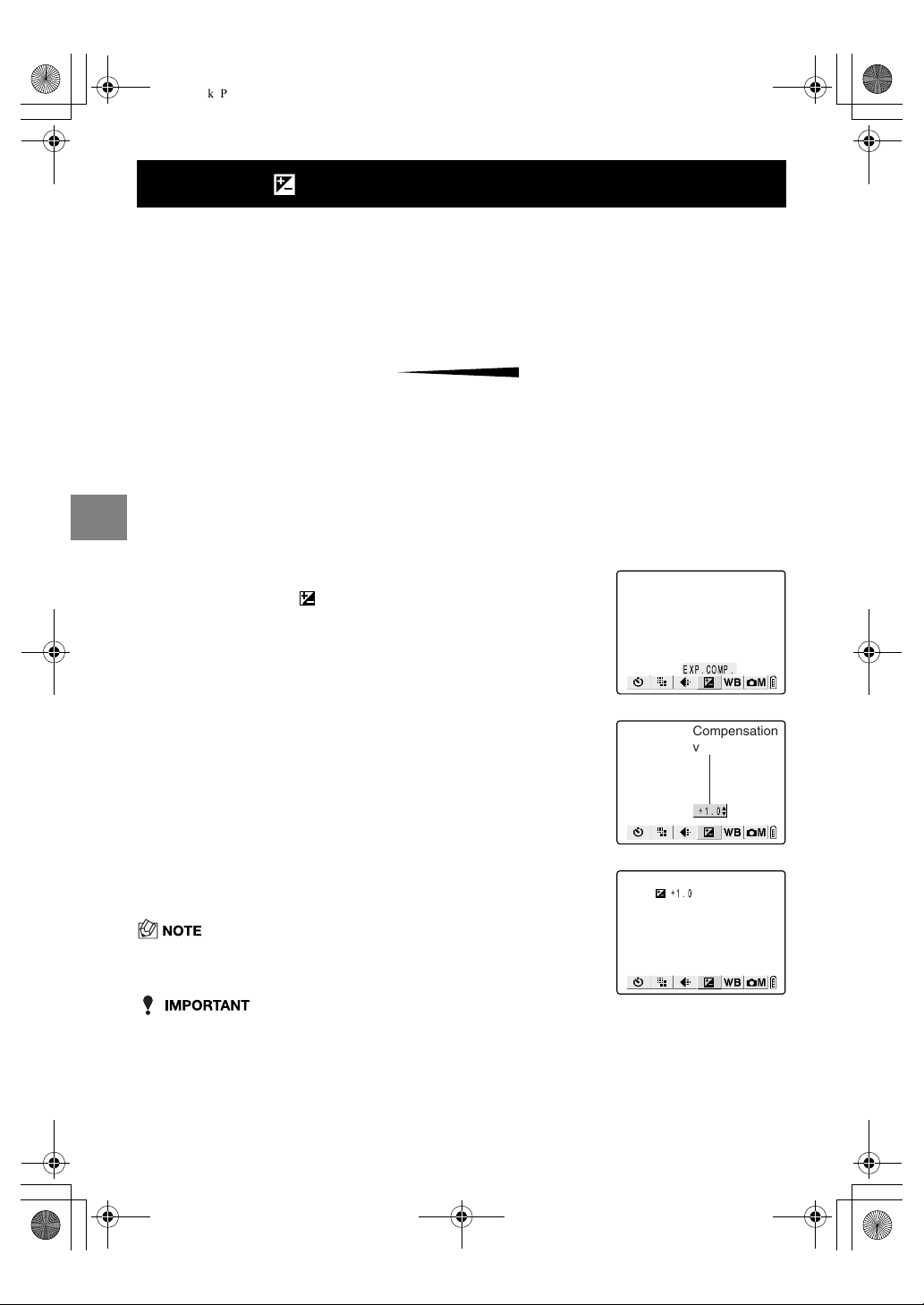
4-8
4
Using C Camera Mode, N Continuous Shooting Mode and M Movie Mode
Applicable mode:
C
/
N
/
M
Use exposure compensation to adjust the brightness of your images. This function is
especially useful for shots where you did not get the ideal exposure because subject and
background brightness differed a lot, and for images that you deliberately want to shoot
under- or overexposured.
This camera allows you to adjust the brightness up to plus or minus 2.0 EV in 1/3 EV
increments.
• The exposure compensation setting does not change after a shot is taken. (For example, if
compensation of +0.3 is set, all images shot subsequently will have an exposure
compensation of +0.3.)
• This setting reverts to the default value (±0.0) when the camera is switched off. To retain
the setting, set Mode Lock (
p.6-7) to ON.
• Exposure compensation when the flash is used is limited to between -1.0 and +1.0 EV.
• When the EVALUATION metering mode (
p.4-23) is used, the exposure compensation
may differ from the specified setting for some subjects.
[]
Using Exposure Compensation
1 Switch the camera on and press
O
or
Q
on the mode
button until the “
C
”, “
N
” or “
M
” icon lights on the mode
select LED.
2 Press the MENU button
K
to display the menu icons.
3 Use
L
or
R
on the 4-way button to select
EXP. COMP. [ ] and then press the OK
button
E
.
4 Press
U
or
D
on the 4-way button to select
the desired compensation setting and then
press the OK button
E
.
–2.0 EV to +2.0 EV
(13 levels in 1/3-EV increments)
5 The compensation setting ([+1.0], etc.)
appears on the LCD monitor.
• Press the MENU button K to clear the menu icons and make picture
taking easier.
BrighterDarker
–2.0 ±0.0
(Default)
+2.0
EXP.COMP.
+
1.0
Compensation
value
+
1.0
Finecam_E.book Page 8 Thursday, August 28, 2003 6:21 PM
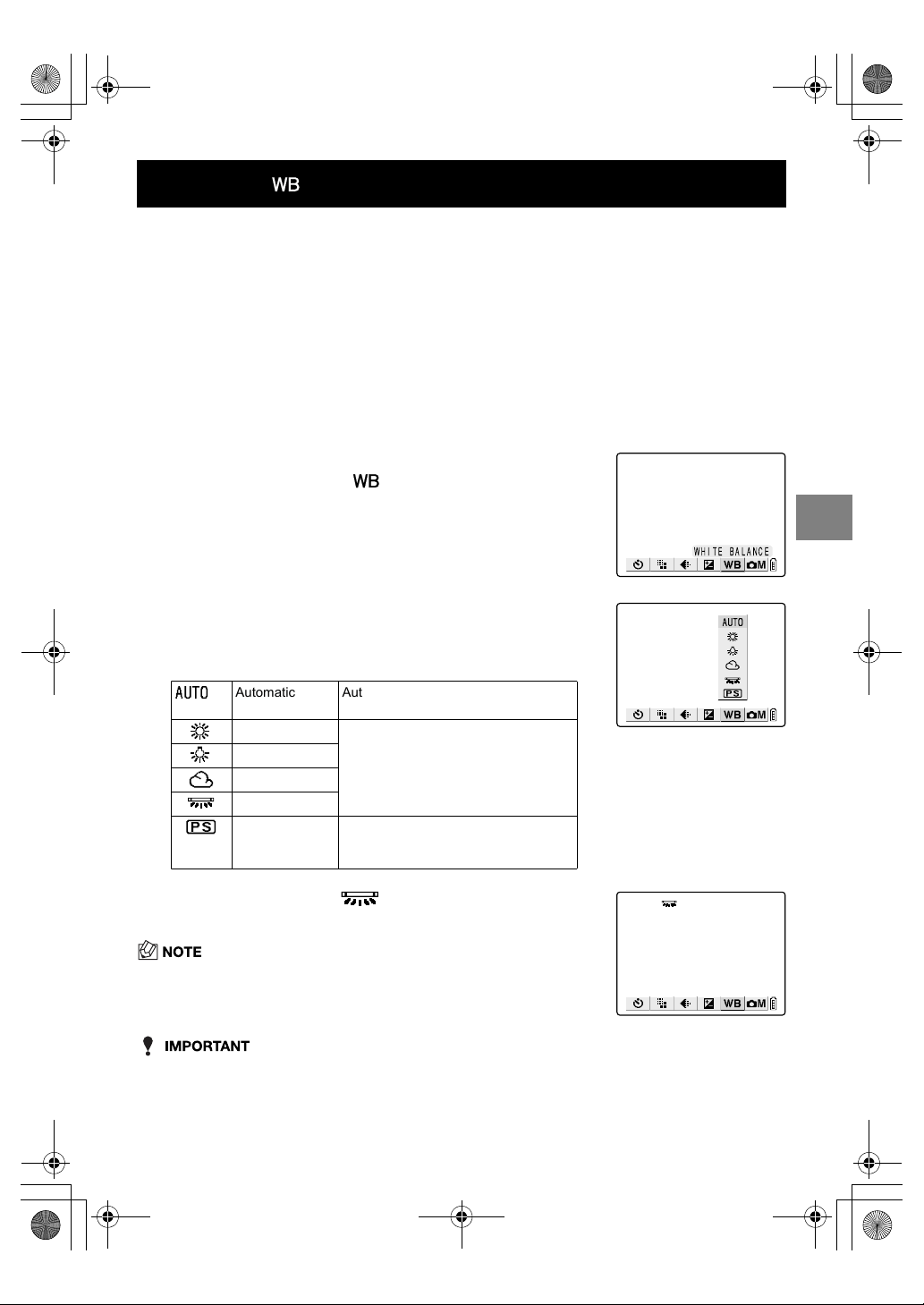
4-9
4
Using C Camera Mode, N Continuous Shooting Mode and M Movie Mode
Applicable mode:
C
/
N
/
M
The color of a subject varies depending on the light source used. This applies particularly to
white. White balance is the process of ensuring that a white object actually appears white
under a given light source.
• This setting reverts to the default (AUTO) when the camera is switched off. To retain the
setting, set Mode Lock (
p.6-7) to ON.
[]
Determining the White Balance
1 Switch the camera on and press
O
or
Q
on the mode
button until the “
C
”, “
N
” or “
M
” icon lights on the mode
select LED.
2 Press the MENU button
K
to display the menu icons.
3 Use
L
or
R
on the 4-way button to select
WHITE BALANCE [ ] and then press the
OK button
E
.
4 Press
U
or
D
on the 4-way button to select
the desired function and then press the OK
button
E
.
5 An icon such as [ ] appears on the LCD
monitor.
• Press the MENU button K to clear the menu icons and make picture
taking easier.
Automatic Automatically sets the white balance to
suit the ambient conditions. (default)
Daylight
Specifies the light source.
Incandescent
Cloudy
Fluorescent
Preset Uses the white balance specified in
SET DETAILS. This value must be set
beforehand. ( p.4-16)
Finecam_E.book Page 9 Thursday, August 28, 2003 6:21 PM

4-10
4
Using C Camera Mode, N Continuous Shooting Mode and M Movie Mode
Applicable mode:
M
The frame rate refers to the number of frames shot per second in a movie. The available
frame rate settings are 30 frames per second (30fps) and 15 frames per second (15fps).
Movement in movies with a frame rate of 30 fps is smooth, but the large image file sizes
mean that they cannot be as long as movies shot at 15 fps.
• Because this setting is retained even when the camera is switched off, you need to restore
the original setting or otherwise modify the setting to suit the scene or subject being shot.
[]
Setting the Frame Rate
1 Switch the camera on and press
O
or
Q
on the mode
button until the “
M
” icon lights on the mode select LED.
2 Press the MENU button
K
to display the menu icons.
3 Use
L
or
R
on the 4-way button to select
FRAME/SEC [ ] and then press the OK
button
E
.
4 Press
U
or
D
on the 4-way button to select
the desired frame rate and then press the OK
button
E
.
[15fps] Shoots at 15 fps
[30fps] Shoots at 30 fps (default)
5 The selected frame rate ([30fps], etc.)
appears on the LCD monitor.
• Press the MENU button K to clear the menu icons and make picture
taking easier.
FRAME/SEC
!BFI
#BFI
!BFI
Finecam_E.book Page 10 Thursday, August 28, 2003 6:21 PM

4-11
4
Using C Camera Mode, N Continuous Shooting Mode and M Movie Mode
Applicable mode:
C
/
N
/
M
The detailed settings discussed here can be used to set functions similar to those found on
conventional cameras, such as AE and long exposure settings, as well as settings specific
to digital cameras such as color and chroma.
Applicable mode:
M
You can choose whether to shoot your movies with sound or without sound.
• To prevent the sound of the zoom operating being recorded, the specifications for this
camera are such that zooming is disabled when a movie with sound is being shot.
Compose the shot with the zoom before you start shooting or use the digital zoom
(
p.3-3). To use the digital zoom, zoom in fully with the optical zoom before taking the
picture. If the movie is shot without sound, the optical zoom can be used during shooting.
[]/[]
Setting Detailed Functions in the SET
DETAILES
Detail menu Details and Usage Mode Page
SOUND Used to specify whether or not movies are shot with sound. M 4-11
COLOR MODE Can be set to COLOR, B/W or SEPIA. C/N/M 4-13
CHROMA Can be set to +, STANDARD or -. + gives more intense colors
while - gives paler colors.
C/N 4-14
SHARPNESS Can be set to +3, +2, +1, STANDARD or -1. Positive values
give sharper outlines around the subject.
C/N 4-15
WB PRESET Allows you to set your own reference value for white using a
sheet of white paper, etc.
C/N/M 4-16
AE MODE The available settings are aperture values of F2.8 and F7.5
and PROGRAM. When the aperture is set, the camera auto-
matically selects the shutter speed.
C/N 4-17
FOCUSING Can be set to auto focus settings of WIDE AF and SPOT AF
and to manual focusing MF.
C/N/M 4-19
LONG EXP. Can be set to shutter speeds of 8SEC, 4SEC or 2SEC or to
OFF.
C/N 4-21
ISO The available settings are AUTO, 100, 200, 400 and 800. For
fast moving subjects, select 400. For better image quality,
select 200 or 100.
C/N 4-22
METERING Allows you to select EVALUATION, CENTER or SPOT AREA
as the method used by the camera to set the exposure.
C/N 4-23
DIGITAL ZOOM Select ON to use the digital zoom or OFF to disable digital
zooming.
C/N/M 4-24
[SOUND]
Shooting Movies with Sound (or without Sound)
1 Switch the camera on and press
O
or
Q
on the mode
button until the “
M
” icon lights on the mode select LED.
Finecam_E.book Page 11 Thursday, August 28, 2003 6:21 PM

4-12
4
Using C Camera Mode, N Continuous Shooting Mode and M Movie Mode
• Because this setting is retained even when the camera is switched off, you need to restore
the original setting or otherwise modify the setting to suit the scene or subject being shot.
2 Press the MENU button
K
to display the menu icons.
3 Use
L
or
R
on the 4-way button to select
SET DETAILS [ ] and then press the OK
button
E
.
4 Press
U
or
D
on the 4-way button to select
[SOUND] and then press
R
.
5 Press
U
or
D
on the 4-way button to select
the desired setting and then press the OK
button
E
.
[ ] ON: Shoots movies with sound. (default)
[ ] OFF: Shoots movies without sound.
6 Press the MENU button
K
to clear the menu.
7 An icon such as [ ] appears on the LCD
monitor.
SET DETAILS
COLOR MODE
WB PRESET
FOCUSING
DIGITAL ZOOM
SET
SPOT AF
COLOR
ON
SOUND ON
SETTINGS
COLOR MODE
WB PRESET
FOCUSING
DIGITAL ZOOM
SET
SPOT AF
OFF
ON
SOUND ON
SETTINGS
Finecam_E.book Page 12 Thursday, August 28, 2003 6:21 PM

4-13
4
Using C Camera Mode, N Continuous Shooting Mode and M Movie Mode
Applicable mode:
C
/
N
/
M
This feature allows you select colors so that your images resemble photos taken using
sepia tone or monochrome film.
• The color mode reverts to the default setting of COLOR when the camera is switched off.
[COLOR MODE]
Selecting Color, Black & White or Sepia
1 Switch the camera on and press
O
or
Q
on the mode
button until the “
C
”, “
N
” or “
M
” icon lights on the mode
select LED.
2 Press the MENU button
K
to display the menu icons.
3 Use
L
or
R
on the 4-way button to select
SET DETAILS [ ] and then press the OK
button
E
.
If you selected “
M
” in step 1, select [ ] here.
4 Press
U
or
D
on the 4-way button to select
[COLOR MODE] and then press
R
.
5 Press
U
or
D
on the 4-way button to select
the desired color mode and then press the
OK button
E
.
[No icon] COLOR (default)
[B/W] B/W
[SEPIA] SEPIA
6 Press the MENU button
K
to clear the menu.
7 The selected setting ( , etc.) appears on
the LCD monitor.
SET DETAILS
Finecam_E.book Page 13 Thursday, August 28, 2003 6:21 PM
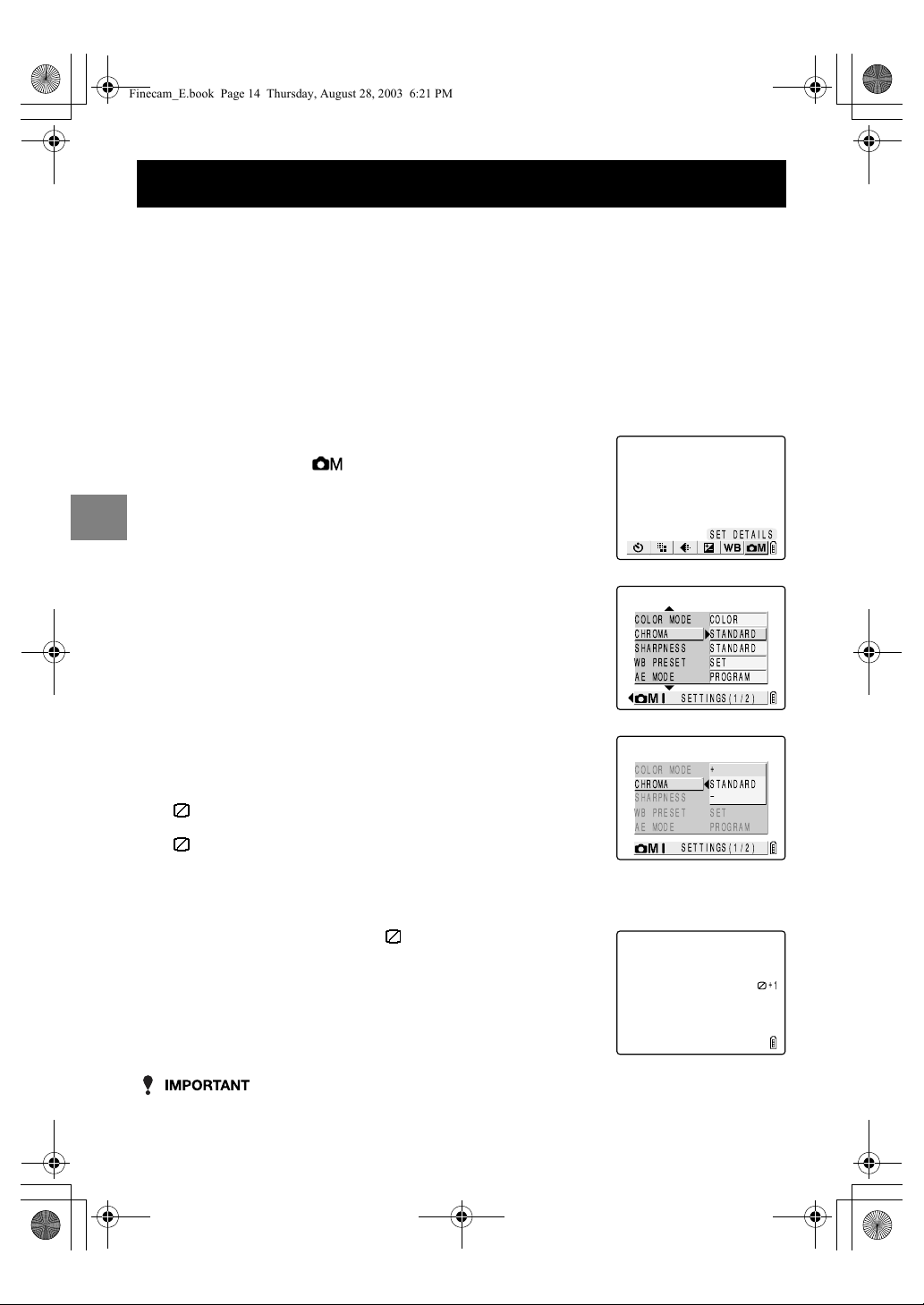
4-14
4
Using C Camera Mode, N Continuous Shooting Mode and M Movie Mode
Applicable mode:
C
/
N
The CHROMA setting lets you take pictures in which the intensity of the colors is increased
(brighter colors) or decreased (paler colors).
• Because this setting is retained even when the camera is switched off, you need to restore
the original setting or otherwise modify the setting to suit the scene or subject being shot.
[CHROMA]
Changing the color intensity
1 Switch the camera on and press
O
or
Q
on the mode
button until the “
C
” or “
N
” icon lights on the mode select
LED.
2 Press the MENU button
K
to display the menu icons.
3 Use
L
or
R
on the 4-way button to select
SET DETAILS [ ] and then press the OK
button
E
.
4 Press
U
or
D
on the 4-way button to select
[CHROMA] and then press
R
.
5 Press
U
or
D
on the 4-way button to select
the desired chroma and then press the OK
button
E
.
[ +1] + : Increases the color intensity.
[No icon] STANDARD : Default setting.
[ –1] – : Decreases the color intensity.
6 Press the MENU button
K
to clear the menu.
7 The selected setting ([ +1], etc.) appears on
the LCD monitor.
SET DETAILS
+
1
Finecam_E.book Page 14 Thursday, August 28, 2003 6:21 PM
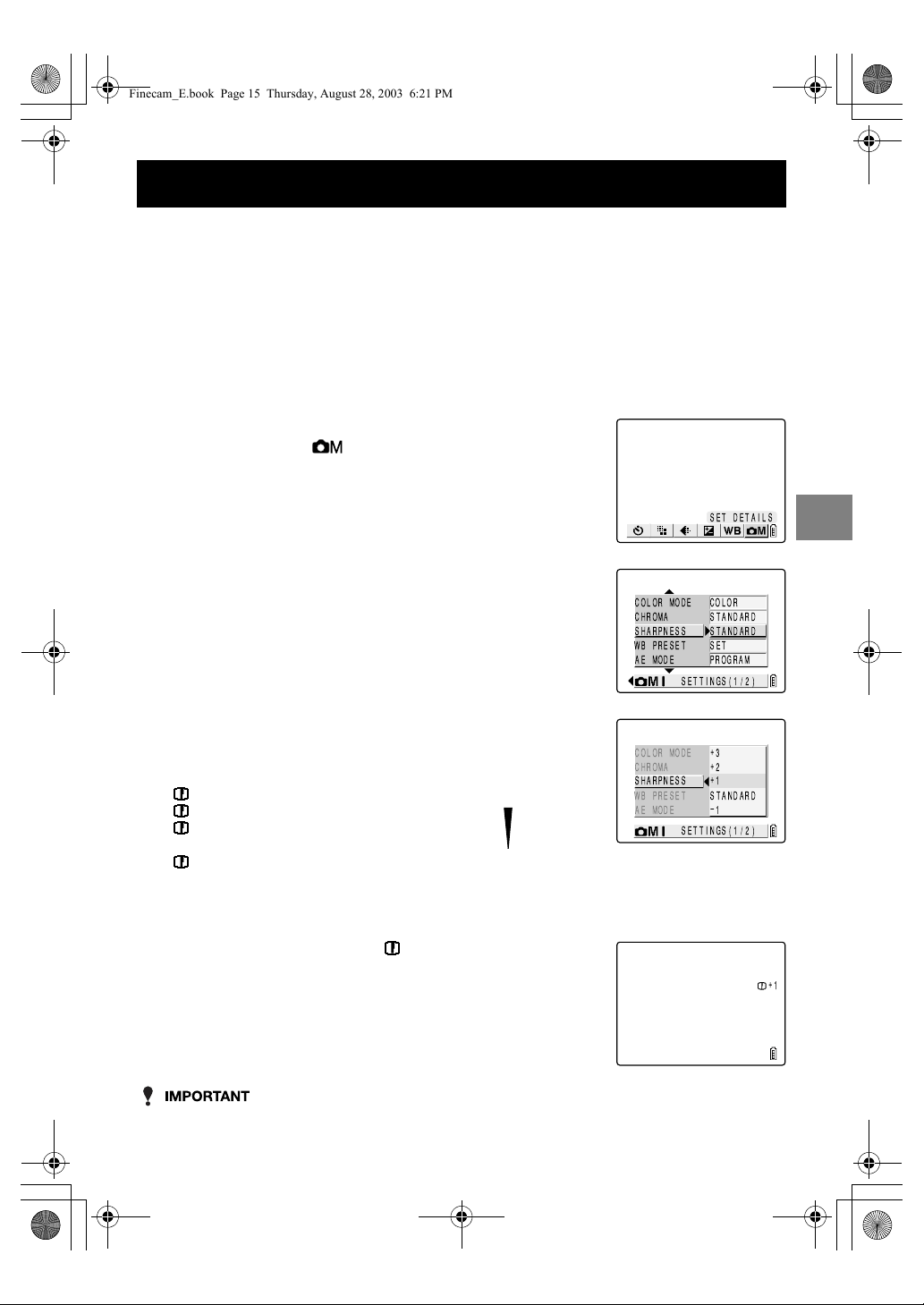
4-15
4
Using C Camera Mode, N Continuous Shooting Mode and M Movie Mode
Applicable mode:
C
/
N
This setting enables you to take pictures in which the subject’s outline is sharpened or softened.
• Because this setting is retained even when the camera is switched off, you need to restore
the original setting or otherwise modify the setting to suit the scene or subject being shot.
[SHARPNESS]
Enhancing the image outlines
1 Switch the camera on and press
O
or
Q
on the mode
button until the “
C
” or “
N
” icon lights on the mode select
LED.
2 Press the MENU button
K
to display the menu icons.
3 Use
L
or
R
on the 4-way button to select
SET DETAILS [ ] and then press the OK
button
E
.
4 Press
U
or
D
on the 4-way button to select
[SHARPNESS] and then press
R
.
5 Press
U
or
D
on the 4-way button to select
the desired sharpness and then press the
OK button
E
.
[ +3] +3 Sharper outlines
[+2] +2
[+1] +1
[No icon] STANDARD (default)
[ –1] –1 Softer outlines
6 Press the MENU button
K
to clear the menu.
7 The selected setting ([ +1], etc.) appears on
the LCD monitor.
SET DETAILS
WB PRESET
AE MODE
+
1
STANDARD
1
COLOR MODE
+
3
SETTINGS(1/2)
CHROMA
+
2
SHARPNESS
+
1
Finecam_E.book Page 15 Thursday, August 28, 2003 6:21 PM

4-16
4
Using C Camera Mode, N Continuous Shooting Mode and M Movie Mode
Applicable mode:
C
/
N
/
M
Use this mode when there are multiple light sources or when you want to set the white value
very precisely.
[WB PRESET]
Setting Your Own Value for White
1 Switch the camera on and press
O
or
Q
on the mode
button until the “
C
”, “
N
” or “
M
” icon lights on the mode
select LED.
2 Press the MENU button
K
to display the menu icons.
3 Use
L
or
R
on the 4-way button to select
SET DETAILS [ ] and then press the OK
button
E
.
If you selected “
M
” in step 1, select [ ] here.
4 Press
U
or
D
on the 4-way button to select
[WB PRESET] and then press
R
.
5 Position your prepared white sample so that
it fills the frame on the screen and then press
U
or
D
on the 4-way button to select [SET].
Then press the OK button
E
.
6 Press the MENU button
K
to clear the menu.
SET DETAILS
White subject such as
a sheet of paper
Position the subject
so that it fills this frame.
Finecam_E.book Page 16 Thursday, August 28, 2003 6:21 PM
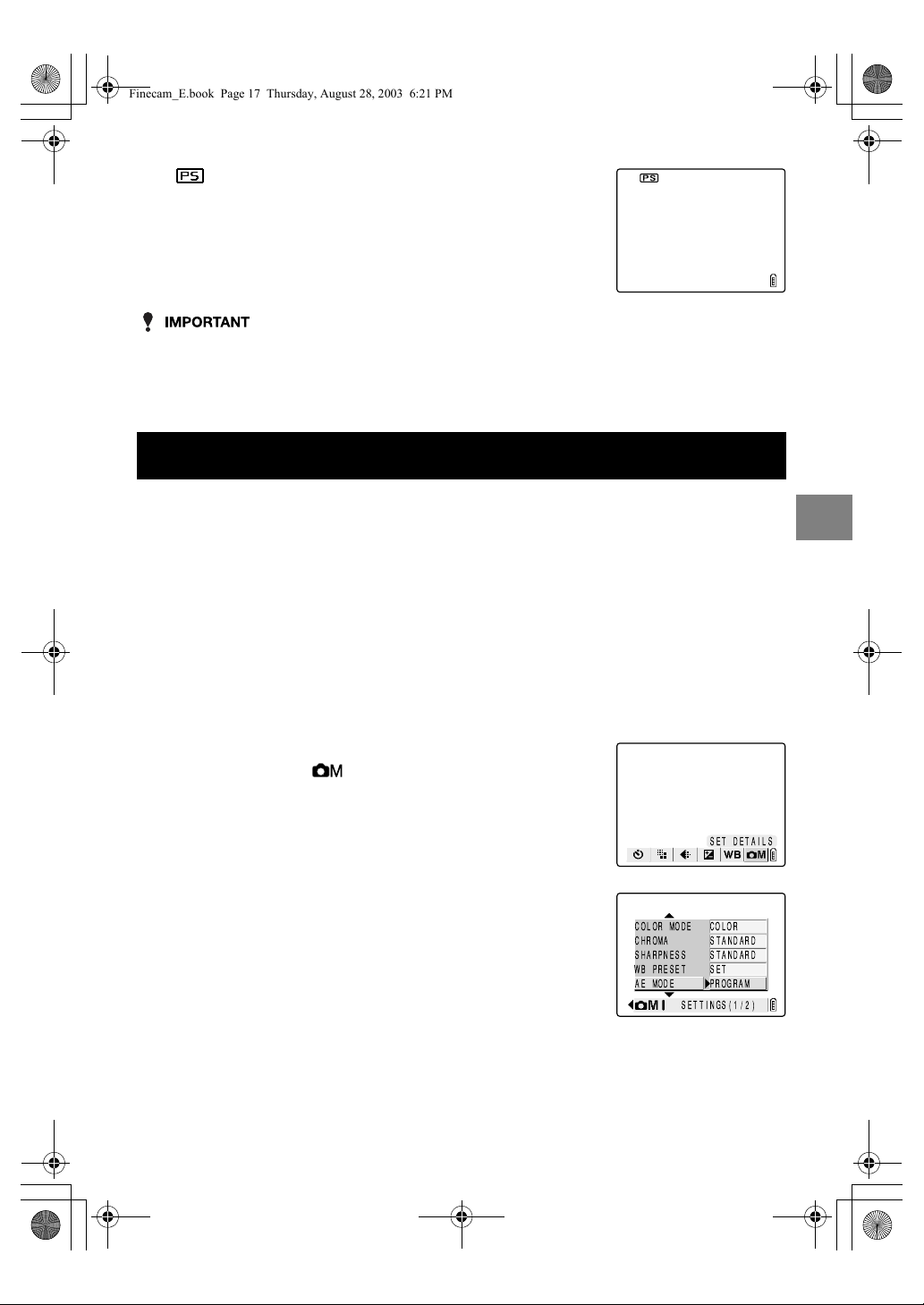
4-17
4
Using C Camera Mode, N Continuous Shooting Mode and M Movie Mode
• Because this setting is retained even when the camera is switched off, you need to restore
the original setting or otherwise modify the setting to suit the scene or subject being shot.
• Specify this setting for “
C
” camera mode, “
N
” Continuous Shooting mode and “
M
”
Movie mode.
Applicable mode:
C
/
N
The available AE mode settings are [PROGRAM], in which the camera automatically sets
aperture and shutter speed, and [F2.8] or [F7.5], in which the aperture is fixed and the
camera sets the optimum shutter speed. The higher the aperture, the greater the area
centered on the subject that is sharply focused (depth of field).
7 [ ] appears on the LCD monitor.
[AE MODE]
Selecting the Exposure Setting Method
1 Switch the camera on and press
O
or
Q
on the mode
button until the “
C
” or “
N
” icon lights on the mode select
LED.
2 Press the MENU button
K
to display the menu icons.
3 Use
L
or
R
on the 4-way button to select
SET DETAILS [ ] and then press the OK
button
E
.
4 Press
U
or
D
on the 4-way button to select
[AE MODE] and then press
R
.
SET DETAILS
Finecam_E.book Page 17 Thursday, August 28, 2003 6:21 PM
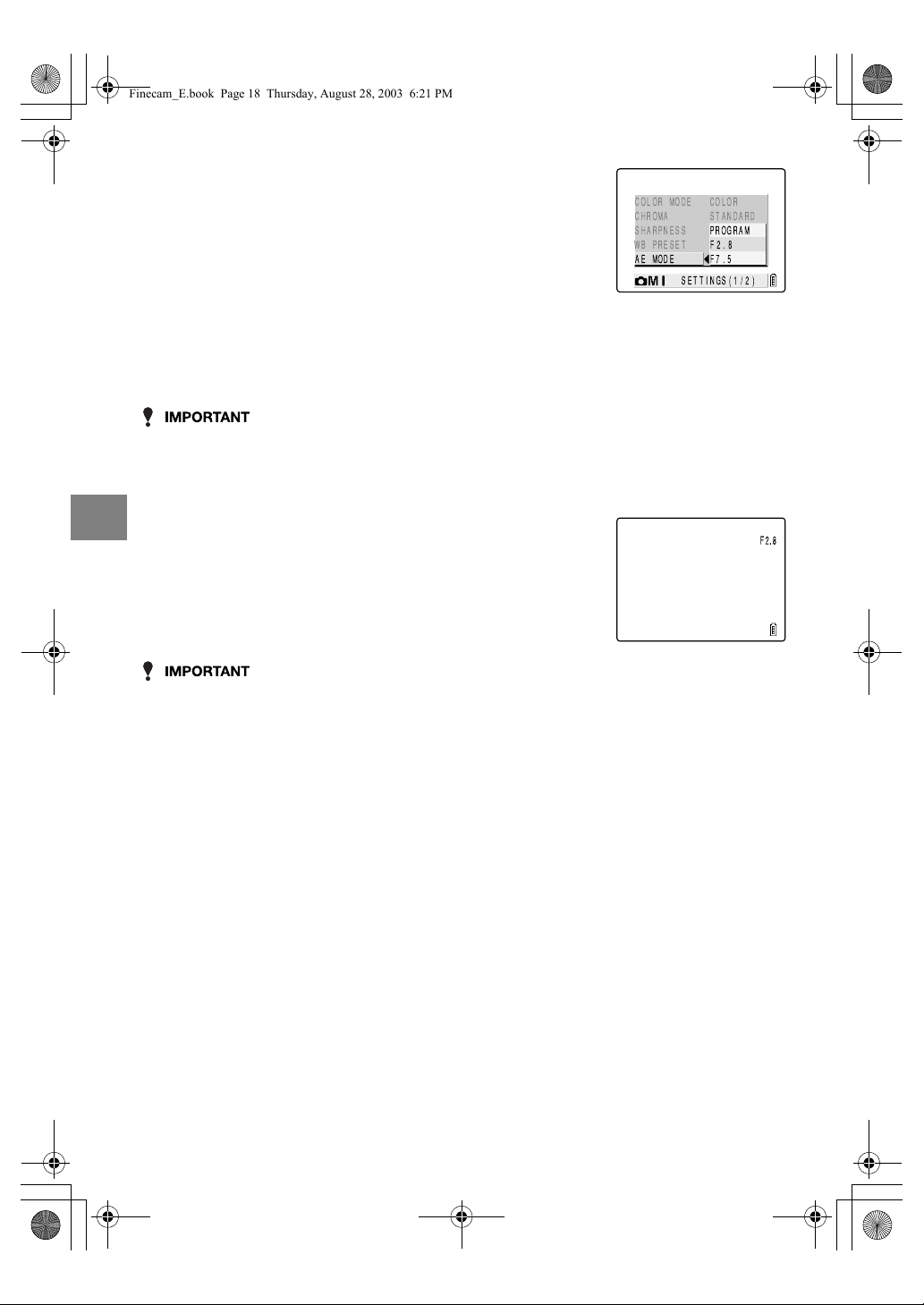
4-18
4
Using C Camera Mode, N Continuous Shooting Mode and M Movie Mode
• Because this setting is retained even when the camera is switched off, you need to restore
the original setting or otherwise modify the setting to suit the scene or subject being shot.
5 Press
U
or
D
on the 4-way button to select
the desired setting and then press the OK
button
E
.
[No icon]
PROGRAM
: The camera sets the optimum shutter
speed and aperture settings for the
subject. (default)
[F2.8] F2.8 : The area in sharp focus (depth of field)
is shallow so that the subject stands out
clearly from the background.
[F7.5] F7.5 : The area in sharp focus (depth of field)
is deep so that both the subject and
background (or foreground) are sharp.
• When [F7.5] is selected, take care to avoid camera shake.
6 Press the MENU button
K
to clear the menu.
7 The selected setting ([F2.8], etc.) appears on
the LCD monitor.
WB PRESET
PROGRAM
F2.8
F7.5
COLOR MODE COLOR
SETTINGS(1/2)
CHROMA STANDARD
SHARPNESS
AE MODE
Finecam_E.book Page 18 Thursday, August 28, 2003 6:21 PM

4-19
4
Using C Camera Mode, N Continuous Shooting Mode and M Movie Mode
Applicable mode:
C
/
N
/
M
This mode allows you to specify the camera’s focusing method.
There are 2 automatic focusing modes (WIDE AF* and SPOT AF*), and a manual focus
mode (MF) that allows you to set the shooting distance yourself.
* AF: Auto Focus
WIDE AF: Uses a wide focusing frame.
SPOT AF: Uses a narrow focusing frame. (default)
MF: The photographer decides the shooting distance and sets the focus.
[FOCUSING]
Selecting the focusing method
Setting the focusing method
1 Switch the camera on and press
O
or
Q
on the mode
button until the “
C
”, “
N
” or “
M
” icon lights on the mode
select LED.
2 Press the MENU button
K
to display the menu icons.
3 Use
L
or
R
on the 4-way button to select
SET DETAILS [ ] and then press the OK
button
E
.
If you selected “
M
” in step 1, select [ ] here.
4 Press
U
or
D
on the 4-way button to select
[FOCUSING] and then press
R
.
SET DETAILS
LONG EXP.
ISO
METERING
DIGITAL ZOOM
AUTO
EVALUATION
OFF
ON
FOCUSING SPOT AF
SETTINGS(2/2)
Finecam_E.book Page 19 Thursday, August 28, 2003 6:21 PM
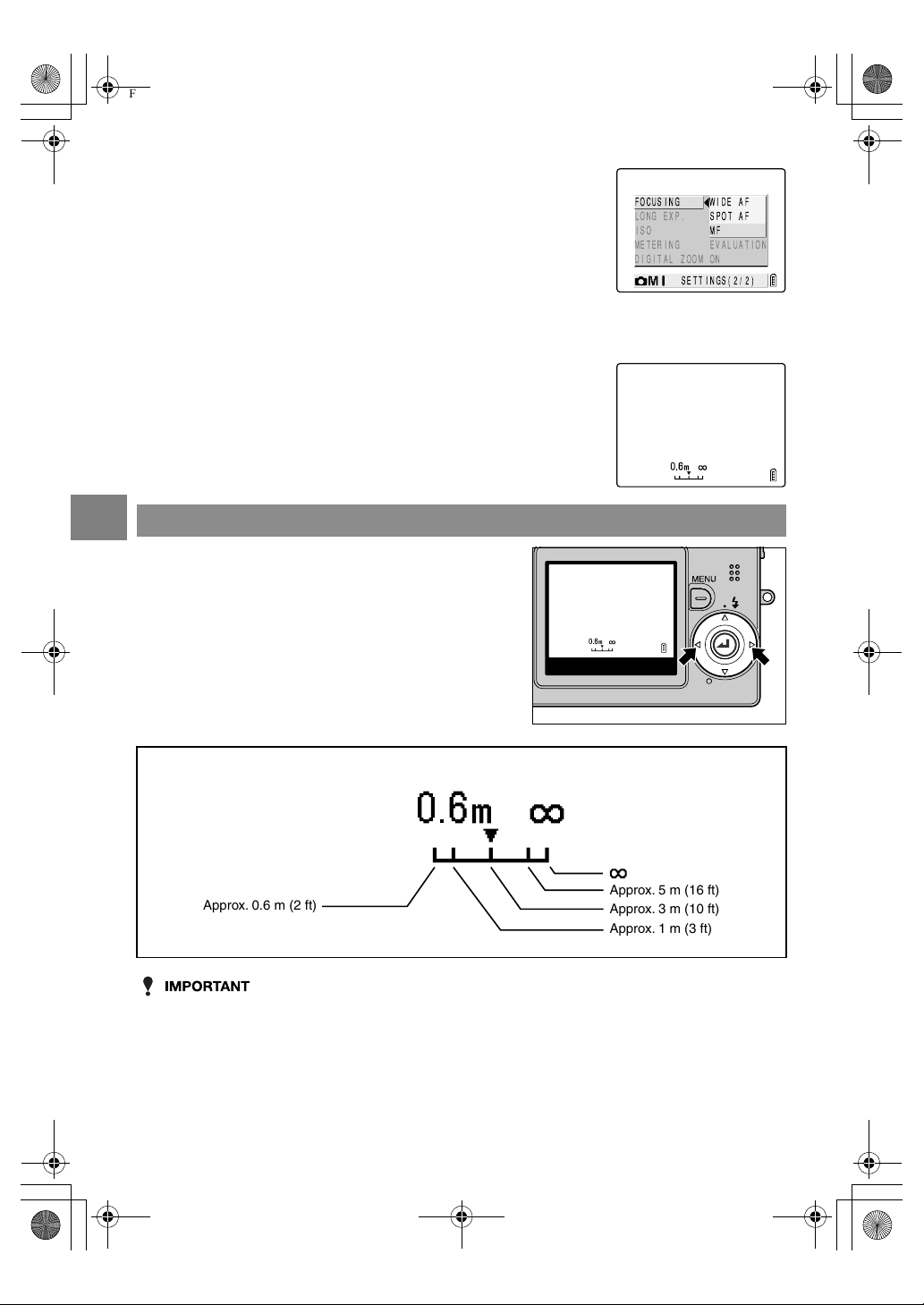
4-20
4
Using C Camera Mode, N Continuous Shooting Mode and M Movie Mode
• Because this setting is retained even when the camera is switched off, you need to restore
the original setting or otherwise modify the setting to suit the scene or subject being shot.
5 Press
U
or
D
on the 4-way button to select
the desired setting and then press the OK
button
E
.
6 Press the MENU button
K
to clear the menu.
7 The focusing frame (for WIDE AF and SPOT
AF) or focusing gauge (for manual focusing)
appears on the LCD monitor.
Determining the shooting distance with manual focusing (MF)
Use
L
or
R
on the 4-way button to set
the distance.
If the shooting mark “
B
” appears when you press the
shutter release button half way, you can take pictures
at the specified distance.
■
Approximate shooting distances using the focusing gauge
Approx. 1 m (3 ft)
Approx. 3 m (10 ft)
Approx. 5 m (16 ft)
Approx. 0.6 m (2 ft)
Finecam_E.book Page 20 Thursday, August 28, 2003 6:21 PM

4-21
4
Using C Camera Mode, N Continuous Shooting Mode and M Movie Mode
Applicable mode:
C
/
N
When you take pictures of subjects such as stars at night or weak lights in a dark situation
(e.g. candles), a slow shutter speed is used. The shutter speed refers to the length of time
the shutter stays open. The longer this time, the longer the subject’s image is exposed.
• For long-exposure shots, always place the camera on a stable surface to take the shot.
• The time that should be set differs depending on the subject. Check this by taking a few trial
shots.
[LONG EXP.]
Using Slow Shutter Speeds
1 Switch the camera on and press
O
or
Q
on the mode
button until the “
C
” or “
N
” icon lights on the mode select
LED.
2 Press the MENU button
K
to display the menu icons.
3 Use
L
or
R
on the 4-way button to select
SET DETAILS [ ] and then press the OK
button
E
.
4 Press
U
or
D
on the 4-way button to select
[LONG EXP.] and then press
R
.
5 Press
U
or
D
on the 4-way button to select
the desired exposure time and then press
the OK button
E
.
[No icon] OFF: Normal photography (between 1 sec. and
1/2000 sec.) (default)
[LT2S] 2SEC: Shutter speed of 2 seconds
[LT4S] 4SEC: Shutter speed of 4 seconds
[LT8S] 8SEC: Shutter speed of 8 seconds
6 Press the MENU button
K
to clear the menu.
SET DETAILS
LONG EXP.
ISO
METERING
DIGITAL ZOOM
AUTO
EVALUATION
OFF
ON
FOCUSING SPOT AF
SETTINGS(2/2)
Finecam_E.book Page 21 Thursday, August 28, 2003 6:21 PM
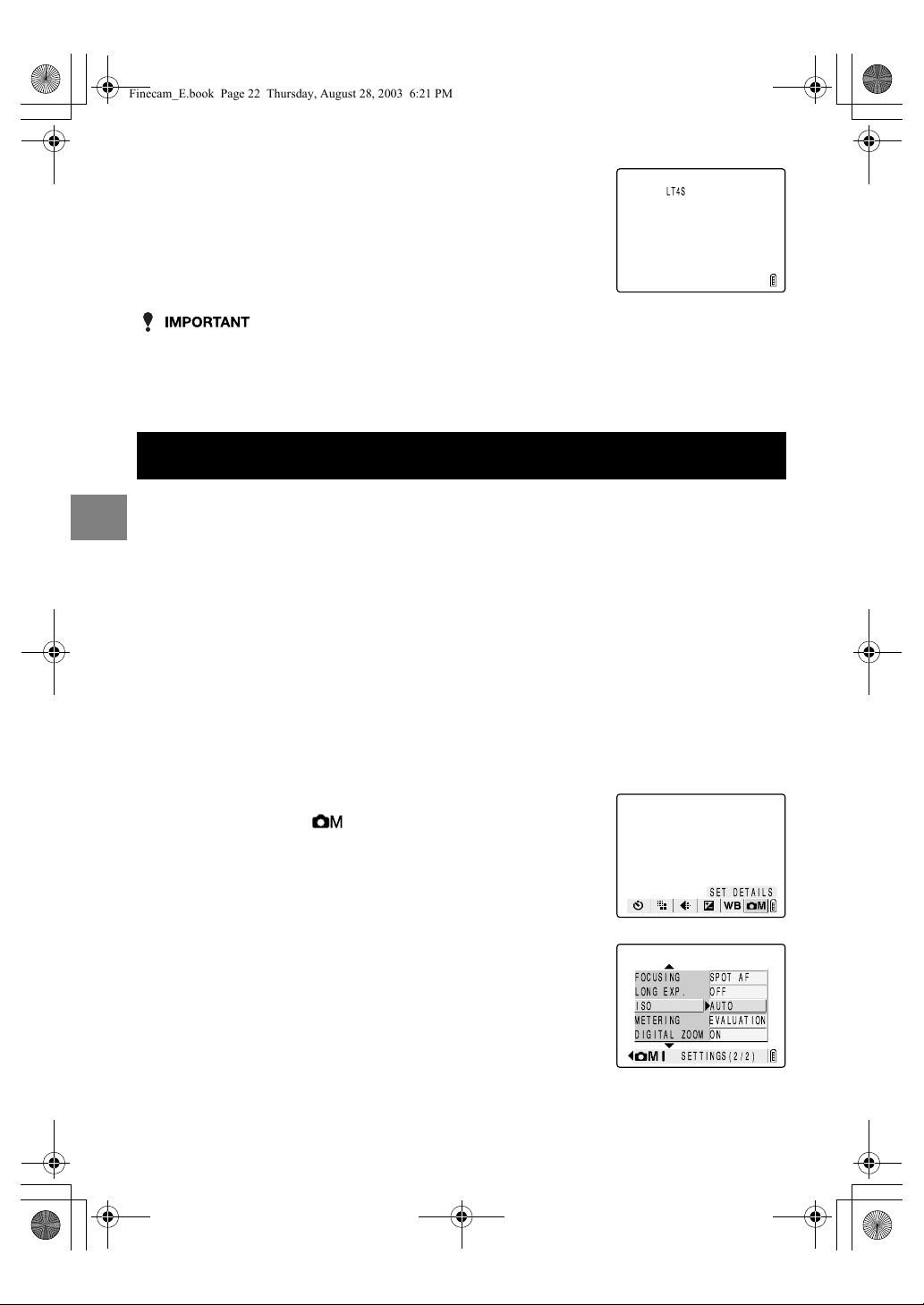
4-22
4
Using C Camera Mode, N Continuous Shooting Mode and M Movie Mode
• Setting a slow shutter speed may result in ‘noise’ in the image.
• When you switch the camera off, the long exposure setting is cancelled and the camera
reverts to normal shooting (default).
• Take care to avoid camera shake. (
p.4-4)
Applicable mode:
C
/
N
The ISO setting corresponds to the ISO value of conventional film and indicates sensitivity
to light.
The ISO can be set to AUTO, 100, 200, 400 or 800, with the image quality deteriorating as
the number increases. Increasing the camera’s sensitivity to light allows you to take pictures
in dark locations or use fast shutter speeds. It also slightly increases the effective range of
the flash. The default ISO setting is AUTO, in which case the camera sets the ISO
sensitivity to suit the ambient conditions.
7 The selected setting ([LT4S], etc.) appears on
the LCD monitor.
[ISO]
Changing the ISO Sensitivity to Photograph Fast Moving Subjects
1 Switch the camera on and press
O
or
Q
on the mode
button until the “
C
” or “
N
” icon lights on the mode select
LED.
2 Press the MENU button
K
to display the menu icons.
3 Use
L
or
R
on the 4-way button to select
SET DETAILS [ ] and then press the OK
button
E
.
4 Press
U
or
D
on the 4-way button to select
[ISO] and then press
R
.
SET DETAILS
LONG EXP.
ISO
METERING
DIGITAL ZOOM
AUTO
EVALUATION
OFF
ON
FOCUSING SPOT AF
SETTINGS(2/2)
Finecam_E.book Page 22 Thursday, August 28, 2003 6:21 PM
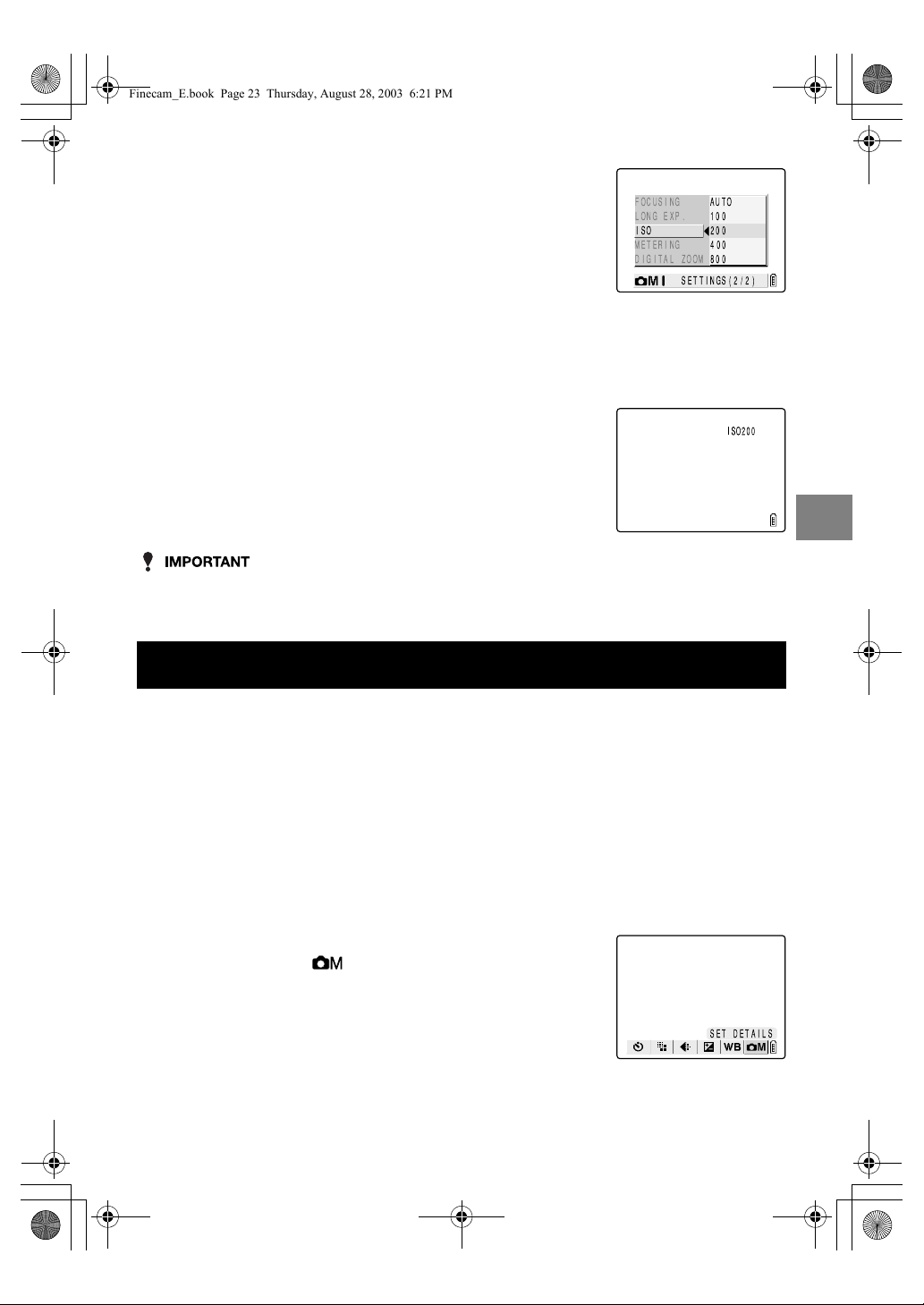
4-23
4
Using C Camera Mode, N Continuous Shooting Mode and M Movie Mode
• Because this setting is retained even when the camera is switched off, you need to restore
the original setting or otherwise modify the setting to suit the scene or subject being shot.
Applicable mode:
C
/
N
This setting allows you to select the area that the camera uses when setting the exposure.
The available settings are [EVALUATION], [CENTER] and [SPOT AREA]. Use the setting
that best suits your subject.
5 Press
U
or
D
on the 4-way button to select
the desired ISO setting and then press the
OK button
E
.
[No icon] AUTO: The camera sets the ISO sensitivity to suit
the ambient conditions. (default)
[ISO100] 100: Fixed at ISO 100
[ISO200] 200: Fixed at ISO 200
[ISO400] 400: Fixed at ISO 400
[ISO800] 800: Fixed at ISO 800
6 Press the MENU button
K
to clear the menu.
7 The selected setting ([ISO200], etc.) appears
on the LCD monitor.
[METERING]
Selecting the Area Used for Setting the Exposure
1 Switch the camera on and press
O
or
Q
on the mode
button until the “
C
” or “
N
” icon lights on the mode select
LED.
2 Press the MENU button
K
to display the menu icons.
3 Use
L
or
R
on the 4-way button to select
SET DETAILS [ ] and then press the OK
button
E
.
SET DETAILS
Finecam_E.book Page 23 Thursday, August 28, 2003 6:21 PM

4-24
4
Using C Camera Mode, N Continuous Shooting Mode and M Movie Mode
• Because this setting is retained even when the camera is switched off, you need to restore
the original setting or otherwise modify the setting to suit the scene or subject being shot.
Applicable mode:
C
/
N
/
M
When you are composing a shot, if you press the
T
side of the zoom button until the
maximum zoom is reached and then press the
T
side of the zoom button again, digital
zooming begins ( p.3-3). To disable digital zooming, use the procedure below to set digital
zooming to OFF.
4 Press
U
or
D
on the 4-way button to select
[METERING] and then press
R
.
5 Press
U
or
D
on the 4-way button to select
the desired metering mode and then press
the OK button
E
.
[No icon] EVALUATION:The entire screen is partitioned into
64 zones and the light in each zone is
measured to determine the optimum
exposure for the subject. (default)
CENTER: Light is measured with greater weight
given to the central part of the screen
(an area larger than that used for
spot metering).
SPOT AREA: Light is measured at the center of the
screen.
6 Press the MENU button
K
to clear the menu.
7 The icon for the selected exposure mode
appears on the LCD monitor.
[DIGITAL ZOOM]
Switching the Digital Zoom ON and OFF
1 Switch the camera on and press
O
or
Q
on the mode
button until the “
C
”, “
N
” or “
M
” icon lights on the mode
select LED.
LONG EXP.
ISO
METERING
DIGITAL ZOOM
AUTO
EVALUATION
OFF
ON
FOCUSING SPOT AF
SETTINGS(2/2)
Finecam_E.book Page 24 Thursday, August 28, 2003 6:21 PM
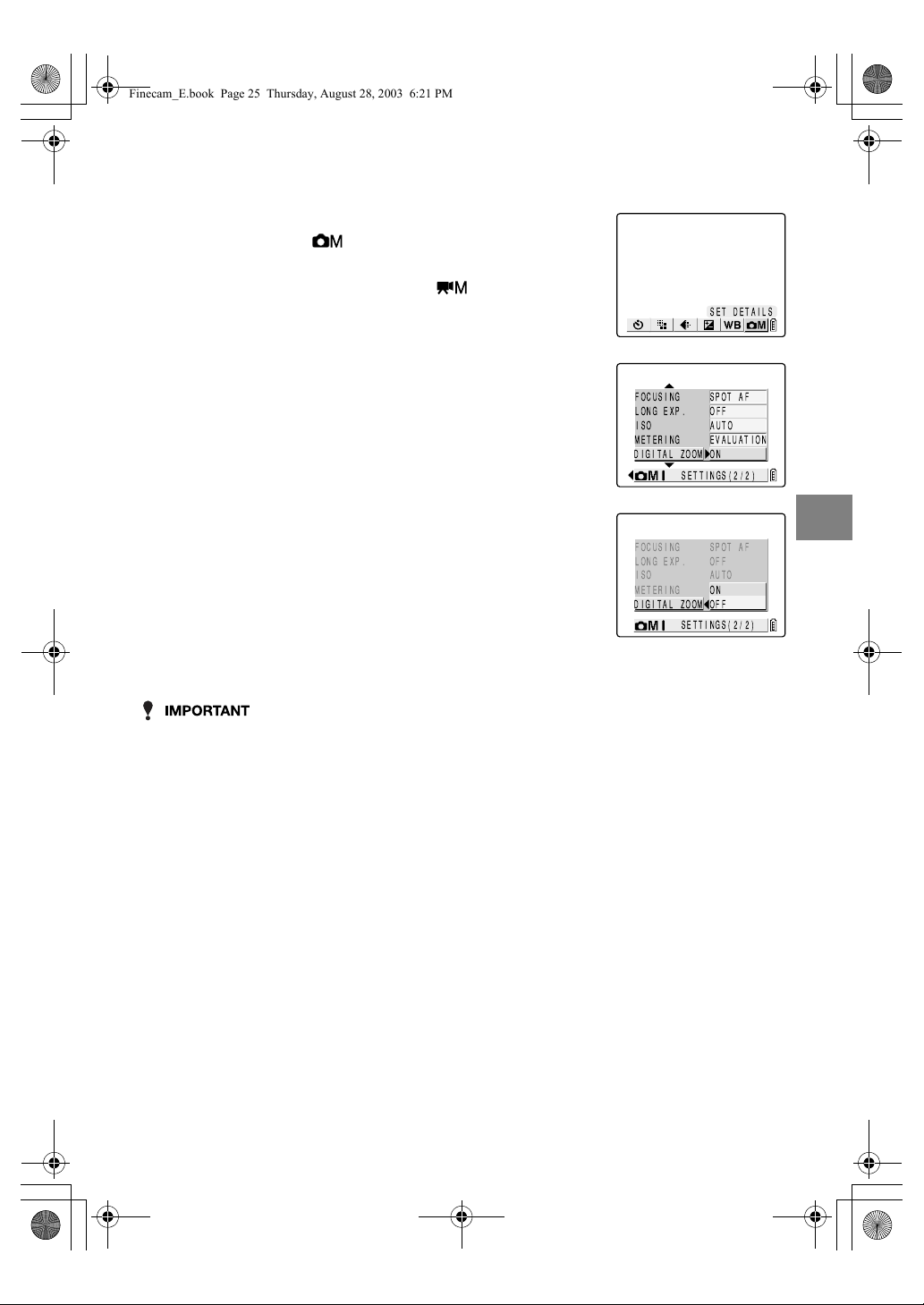
4-25
4
Using C Camera Mode, N Continuous Shooting Mode and M Movie Mode
• Because this setting is retained even when the camera is switched off, you need to restore
the original setting or otherwise modify the setting to suit the scene or subject being shot.
• Using the digital zoom to take pictures lowers the quality of the images slightly.
2 Press the MENU button
K
to display the menu icons.
3 Use
L
or
R
on the 4-way button to select
SET DETAILS [ ] and then press the OK
button
E
.
If you selected “
M
” in step 1, select [ ] here.
4 Press
U
or
D
on the 4-way button to select
[DIGITAL ZOOM] and then press
R
.
5 Press
U
or
D
on the 4-way button to select
the desired setting and then press the OK
button
E
.
ON: Digital zooming can be used. (default)
OFF: Digital zooming is disabled.
6 Press the MENU button
K
to clear the menu.
SET DETAILS
LONG EXP.
ISO
METERING
DIGITAL ZOOM
AUTO
EVALUATION
OFF
ON
FOCUSING SPOT AF
SETTINGS(2/2)
Finecam_E.book Page 25 Thursday, August 28, 2003 6:21 PM
Finecam_E.book Page 26 Thursday, August 28, 2003 6:21 PM
Using the
P
Playback Mode
Functions
This chapter describes the camera’s Playback mode, in which you can check
images you have shot on the LCD monitor.
In Playback mode, you can also record sound onto your images, and resize, trim
and rotate photographed images in 90° increments.
Finecam_E.book Page 1 Thursday, August 28, 2003 6:21 PM
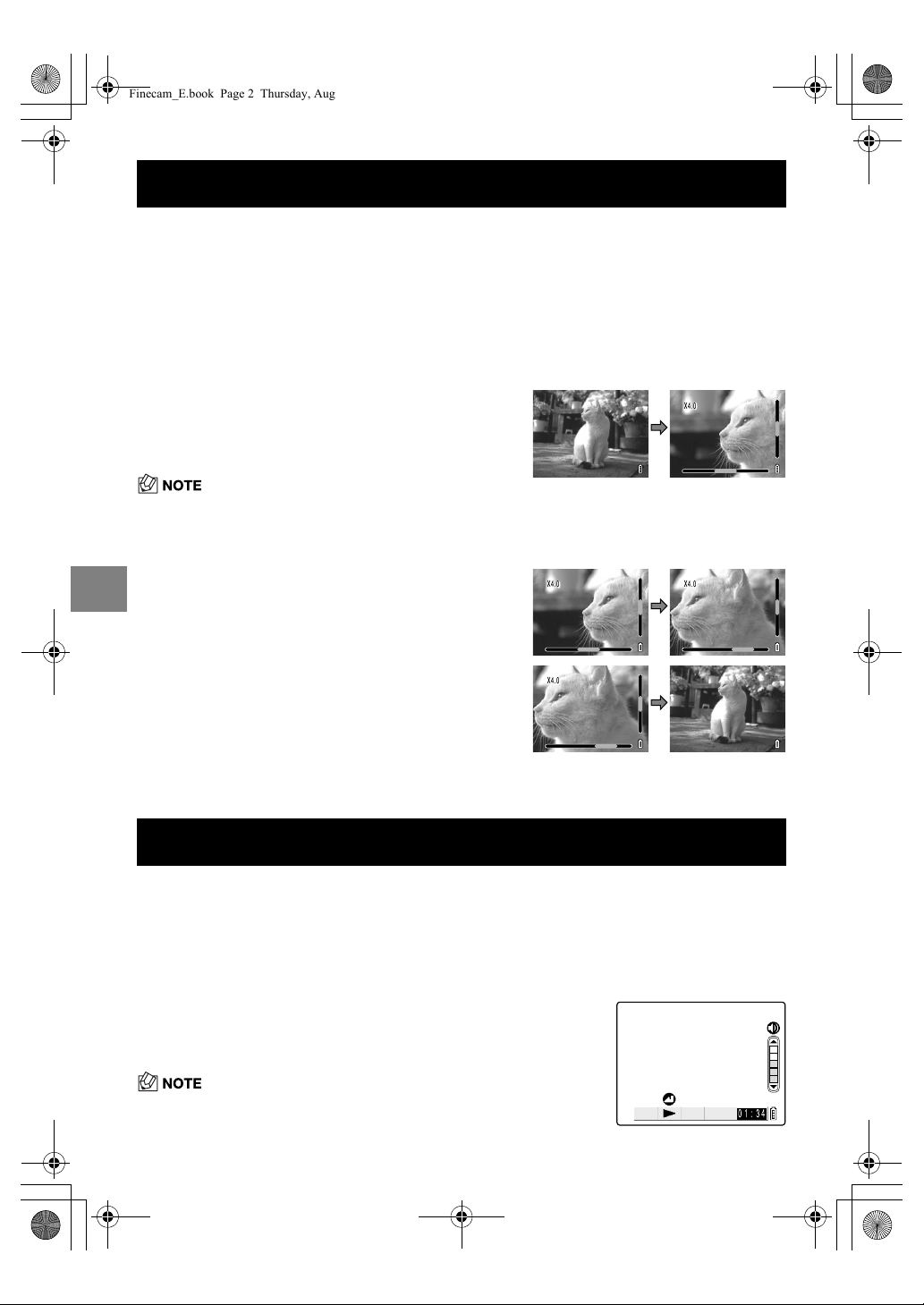
5-2
5
Using the P Playback Mode Functions
You can use the zoom buttons to enlarge an image during playback. (Still images only)
While playing movies, you can pause normal playback, frame advance and adjust the
volume.
[PLAYBACK ZOOM]
Viewing Your Images Enlarged
1 Switch the camera on and press
O
or
Q
on the mode
button until the “
P
” icon lights on the mode select LED.
2 Use
L
or
R
on the 4-way button to select the image to be
played back.
3 Press the
T
side of the zoom
button to enlarge the image.
The image is enlarged as follows each time you
press the T
button: 2✕ 4✕ 8✕.
• During zoomed playback, scroll bars appear at the
bottom and on the right side of the screen. The scroll
bars act as a guide to which part of the original image is
currently displayed.
T
4 With the image enlarged, use
U
D
L
R
on the 4-way button to scroll
the screen up, down, left or right in
the image.
4
5 Press the
W
side of the zoom
button to retrun the enlarged image
to its original size.
The image reverts to the original size each time
you press the W
button, as follows: 4✕ 2✕
Original size.
W
Playing Back Movies
1 Switch the camera on and press
O
or
Q
on the mode
button until the “
P
” icon lights on the mode select LED.
2 Use
L
or
R
on the 4-way button to select the
movie to be played back and use
U
or
D
to
adjust the volume.
• The volume can be adjusted during movie playback.
X4.0X4 .0
X4.0X4 .0
X4.0X4 .0
X4.0X4 .0
01:34
Finecam_E.book Page 2 Thursday, August 28, 2003 6:21 PM

5-3
5
Using the P Playback Mode Functions
Supported images: Still images/movies
MULTI playback allows you to view 6 thumbnail images on the LCD monitor at once. This is
useful when you want to compare images side by side or locate a particular image.
• The postrecording, protect, erase, erase all, resize, slide show and DPOF settings can all be
specified from the MULTI display screen.
3 Press the OK button
E
to begin playback.
The table below shows the operations that can be performed
during playback.
4 Press the OK button
E
to stop movie playback.
[MULTI]
Viewing Multiple Images
Using MULTI playback
1 Switch the camera on and press
O
or
Q
on the mode
button until the “
P
” icon lights on the mode select LED.
2 Press the MENU button
K
to display the menu icons.
3 Use
L
or
R
on the 4-way button to select
MULTI [ ] and then press the OK button
E
.
The MULTI playback screen appears.
Button Description
U
Increases the volume.
D
Decreases the volume.
L
Press once to stop the movie and begin scanning back-
wards through the movie frame by frame. After that, scan-
ning moves one frame back each time you press the
button.
R
Press once to stop the movie and begin scanning forwards
through the movie frame by frame. After that, scanning
moves one frame forward each time you press the button.
00:16
MULTI
1/18
Finecam_E.book Page 3 Thursday, August 28, 2003 6:21 PM

5-4
5
Using the P Playback Mode Functions
●
Using the MULTI playback screen
Erasing images in the MULTI playback screen
1 Press the MENU button
K
to display the
menu icons.
2 Use
L
or
R
on the 4-way button to select
ERASE [ ] and then press the OK button
E
.
3 Use
L
or
R
on the 4-way button to position
the cursor on the image to be erased.
3/18
DPOF icon:
Indicates that print settings
have been specified for the
image.
Current frame/Total frames:
Shows the position of the
selected image relative to the
total number of photographed
images.
Cursor
Movie icon
To next image
(forwards)
Press
L
on the 4-way button
to move back and
R
to move
forward. Use
U
or
D
to move
up and down a row
respectively.
Postrecording icon:
Indicates that sound has
been postrecorded onto the
image.
Protection icon:
Displayed for images that
have been protected.
To previous image
(backwards)
23
456
1
1/18
SINGLE
1/18
123
456
ERASE
Finecam_E.book Page 4 Thursday, August 28, 2003 6:21 PM

5-5
5
Using the P Playback Mode Functions
• To continue erasing images, repeat steps 3 and 4.
Supported images: Still images only
This feature allows you to add or remove recorded voice in photographed images (still
images only).
4 Use
U
on the 4-way button to select
[EXECUTE] and then press the OK button
E
.
The image is erased.
5 Press the MENU button
K
to return to the
MULTI playback screen.
Reverting to normal playback (SINGLE playback)
1 Use
U
D
L
R
on the 4-way button to
position the cursor on the image you want to
view in normal playback mode.
2 Press the OK button
E
to change to normal
playback.
[POSTRECORDING]
Adding Voice Messages to Images
Recording a message
1 Switch the camera on and press
O
or
Q
on the mode
button until the “
P
” lights on the mode select LED.
2 Press the MENU button
K
to display the menu icons.
1/18
134
567
ABC
DEF
4/18
D FRAME
Finecam_E.book Page 5 Thursday, August 28, 2003 6:21 PM

5-6
5
Using the P Playback Mode Functions
• It may not be possible to record a voice message if there is insufficient space available on
the memory card.
• Postrecording cannot be used for movies.
3 Use
L
or
R
on the 4-way button to select
POSTRECORDING [ ] and then press the
OK button
E
.
4 Use
L
or
R
on the 4-way button to select the image to which
you want to add a voice message.
5 Use
U
on the 4-way button to select
[EXECUTE] and then press the OK button
E
to begin voice recording.
6 Dictate your message into the camera’s
microphone.
7 To stop a recording mid way through, press the OK button
E
.
The screen in step 3 reappears.
8 Press the MENU button
K
to clear the menu icons and return
to the normal playback screen.
POSTRECORDING
STOP
00:05
RECORDING
A countdown timer shows
the seconds remaining during
recording.
Messages up to 30 seconds
long can be recorded.
Finecam_E.book Page 6 Thursday, August 28, 2003 6:21 PM

5-7
5
Using the P Playback Mode Functions
Use the procedure below to erase a postrecorded voice message.
Proceed carefully since erased messages cannot be recovered.
Use the following procedure to play back an image with a postrecorded message.
Erasing voice messages
From step 3 in “Recording a message” on p.5-5:
4 Use
L
or
R
on the 4-way button to select the
image from which you want to erase the
voice message.
5 Use
U
on the 4-way button to select
[EXECUTE] and then press the OK button
E
.
The voice message is erased and the “RECORD SOUND?”
message appears.
6 Press the MENU button
K
to return to the normal playback
screen.
Playing back a recorded message
1 Switch the camera on and press
O
or
Q
on the mode
button until the “
P
” icon lights on the mode select LED.
2 Use
L
or
R
on the 4-way button to select the
image with the message to be played back.
Finecam_E.book Page 7 Thursday, August 28, 2003 6:21 PM

5-8
5
Using the P Playback Mode Functions
Supported images: Still images/movies
This feature allows you to protect your images to ensure that they are not inadvertently
erased.
3 Press the OK button
E
to begin message
playback.
The table below shows the operations that can be performed
during message playback.
4 Press the OK button
E
to stop voice message playback.
[PROTECT]
Protecting Images from Accidental Erasing
Protecting an image
1 Switch the camera on and press
O
or
Q
on the mode
button until the “
P
” icon lights on the mode select LED.
2 Press the MENU button
K
to display the menu icons.
3 Use
L
or
R
on the 4-way button to select
PROTECT [ ] and then press the OK
button
E
.
4 Use
L
or
R
on the 4-way button to select the image to be
protected.
5 Use
U
on the 4-way button to select [SET]
and then press the OK button
E
to set the
image protection.
The [ ] icon appears on protected images.
Button Description
U
Increases the volume.
D
Decreases the volume.
L
Hold down to play back the message at half speed.
Release the button to return to normal playback.
R
Hold down to play back the message at double speed.
Release the button to return to normal playback.
00:12
PROTECT
SET
RETURN
PROTECT?
Finecam_E.book Page 8 Thursday, August 28, 2003 6:21 PM
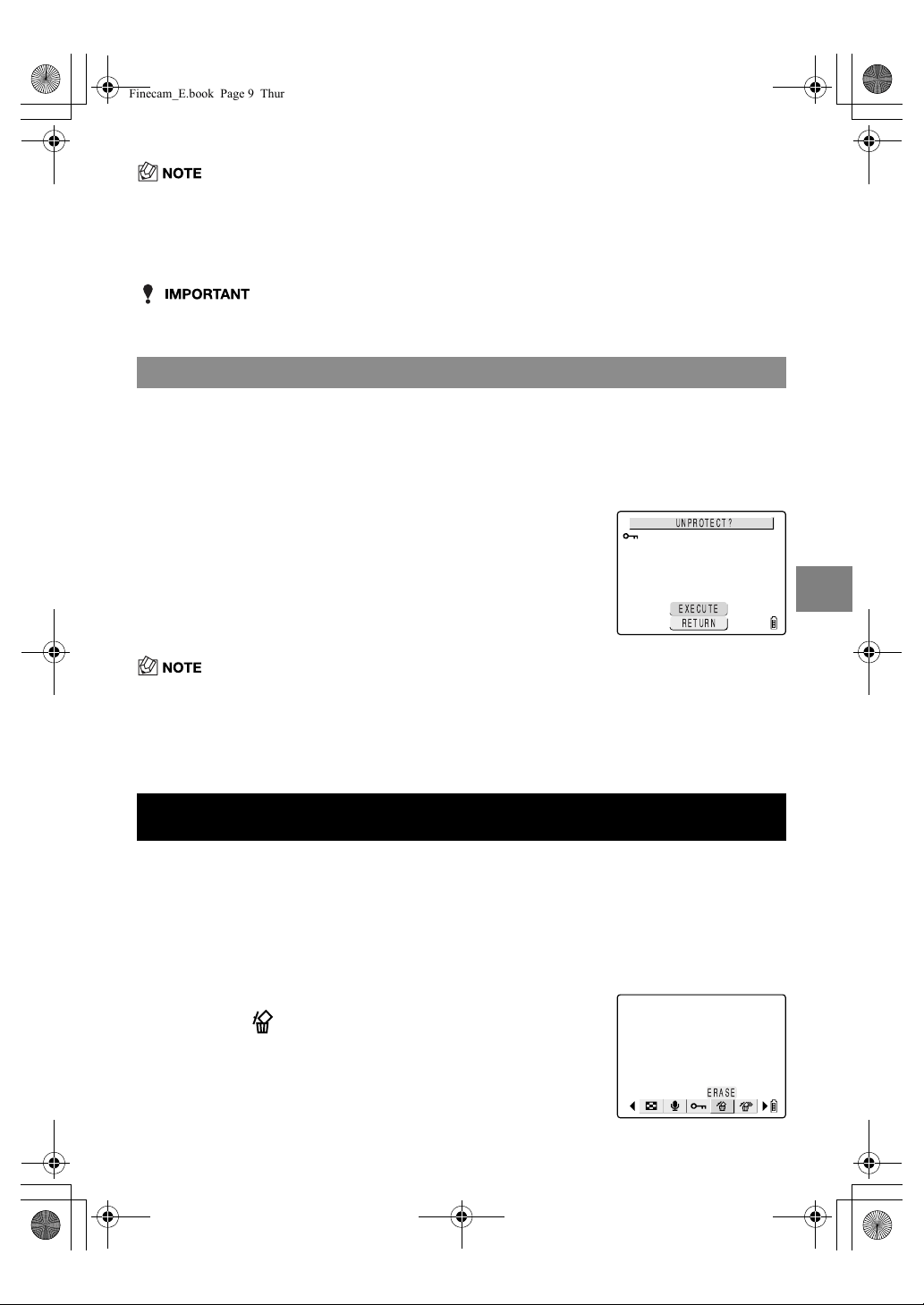
5-9
5
Using the P Playback Mode Functions
• To protect another image, repeat steps 4 and 5.
• The [ERASE ALL] function (
p.5-10) does not erase protected images. However,
[FORMAT] (
p.6-5) erases all the images on the card, including protected images.
• To unprotect another image, repeat steps 4 and 5.
Supported images: Still images/movies
6 Press the MENU button
K
to return to the normal playback
screen.
Unprotecting images
From step 3 in “Protecting an image” on p.5-8:
4 Use
L
or
R
on the 4-way button to select the image you want
to unprotect.
5 Use
U
on the 4-way button to select
[EXECUTE] and then press the OK button
E
to remove the image protection
6 Press the MENU button
K
to return to the normal playback
screen.
[ERASE]
Erasing Individual Images
1 Switch the camera on and press
O
or
Q
on the mode
button until the “
P
” icon lights on the mode select LED.
2 Press the MENU button
K
to display the menu icons.
3 Use
L
or
R
on the 4-way button to select
ERASE [ ] and then press the OK button
E
.
EXECUTE
RETURN
UNPROTECT?
-4)5-
Finecam_E.book Page 9 Thursday, August 28, 2003 6:21 PM

5-10
5
Using the P Playback Mode Functions
• To erase another image, repeat steps 4 and 5.
• When you erase an image with a postrecorded voice message (
p.5-5), the message is
also erased.
• This function cannot be used to erase protected images (
p.5-8).
Supported images: Still images/movies
Use this function to erase all the images recorded on a memory card.
• This function cannot be used to erase protected images (
p.5-8).
4 Use
L
or
R
on the 4-way button to select the image to be
erased.
5 Use
U
on the 4-way button to select
[EXECUTE] and then press the OK button
E
to complete erasing.
6 Press the MENU button
K
to return to the normal playback
screen.
[ERASE ALL]
Erasing All Images
1 Switch the camera on and press
O
or
Q
on the mode
button until the “
P
” icon lights on the mode select LED.
2 Press the MENU button
K
to display the menu icons.
3 Use
L
or
R
on the 4-way button to select
ERASE ALL [ ] and then press the OK
button
E
.
ERASE ALL
Finecam_E.book Page 10 Thursday, August 28, 2003 6:21 PM
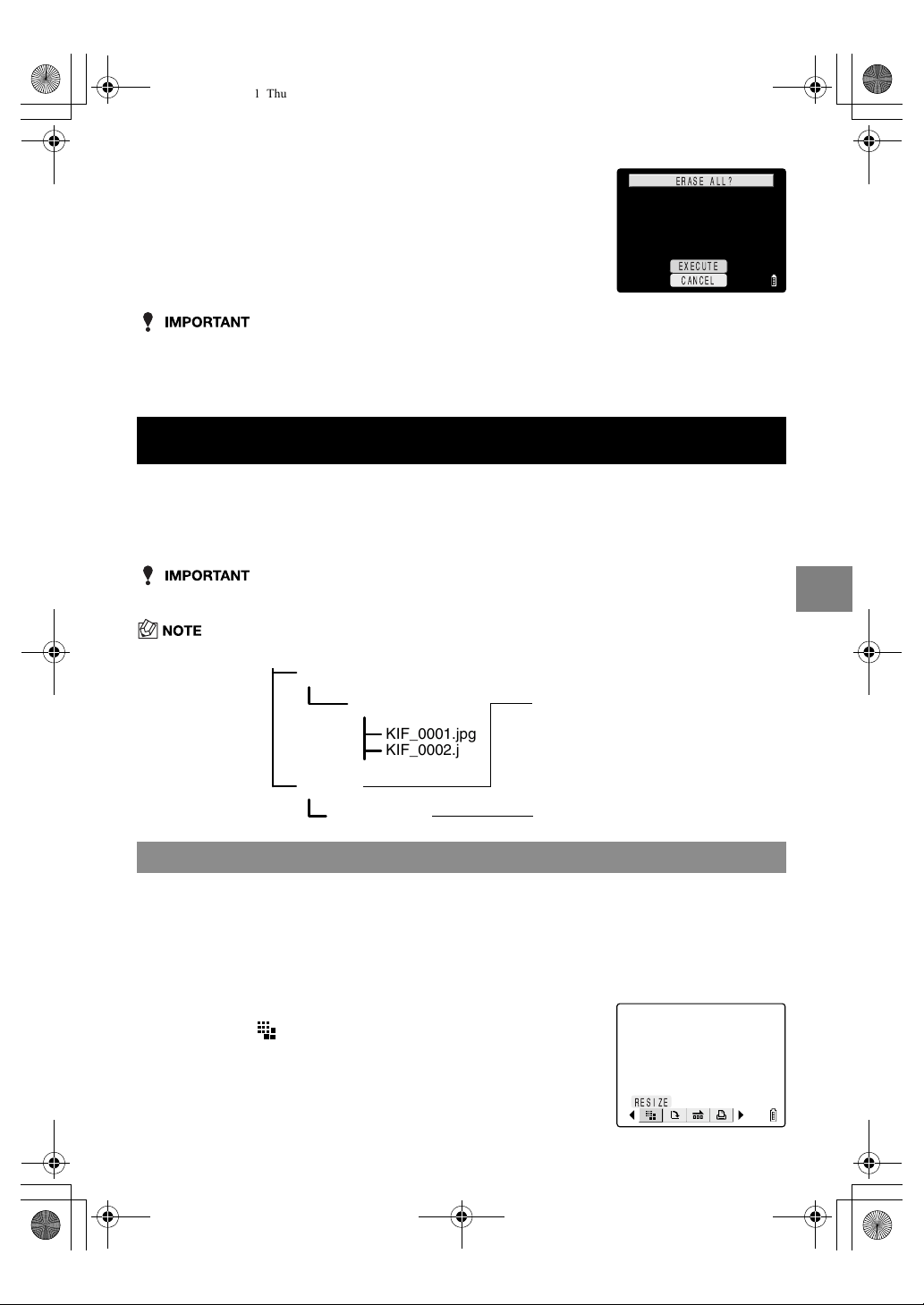
5-11
5
Using the P Playback Mode Functions
• If there are images still shown after you use ERASE ALL, those images may be protected.
To forcibly erase all the images, format the memory card. (
p.6-5)
• Postrecorded voice messages (
p.5-5) are also erased with the corresponding images.
Supported images: Still images only
You can use the procedure described below to change the number of pixels (resize) in
photographed images and trim off any unwanted portions. Resized or trimmed images are
saved as new image files, so the original images are left untouched.
• Image shot on a CONTAX or third-party digital camera cannot be resized.
• Resized images are stored as shown below.
4 Use
U
on the 4-way button to select
[EXECUTE] and then press the OK button
E
.
All the images are erased and the “NO IMAGE” message
appears.
[RESIZE]
Resizing and Trimming Images
Resizing an image
1 Switch the camera on and press
O
or
Q
on the mode
button until the “
P
” icon lights on the mode select LED.
2 Press the MENU button
K
to display the menu icons.
3 Use
L
or
R
on the 4-way button to select
RESIZE [ ] and then press the OK button
E
.
KIF_0001.jpg
KIF_0002.jpg
DCIM
100KCBOX
RESIZE
R00_0001.jpg
New folder created.
Resized image file
RESIZE
Finecam_E.book Page 11 Thursday, August 28, 2003 6:21 PM
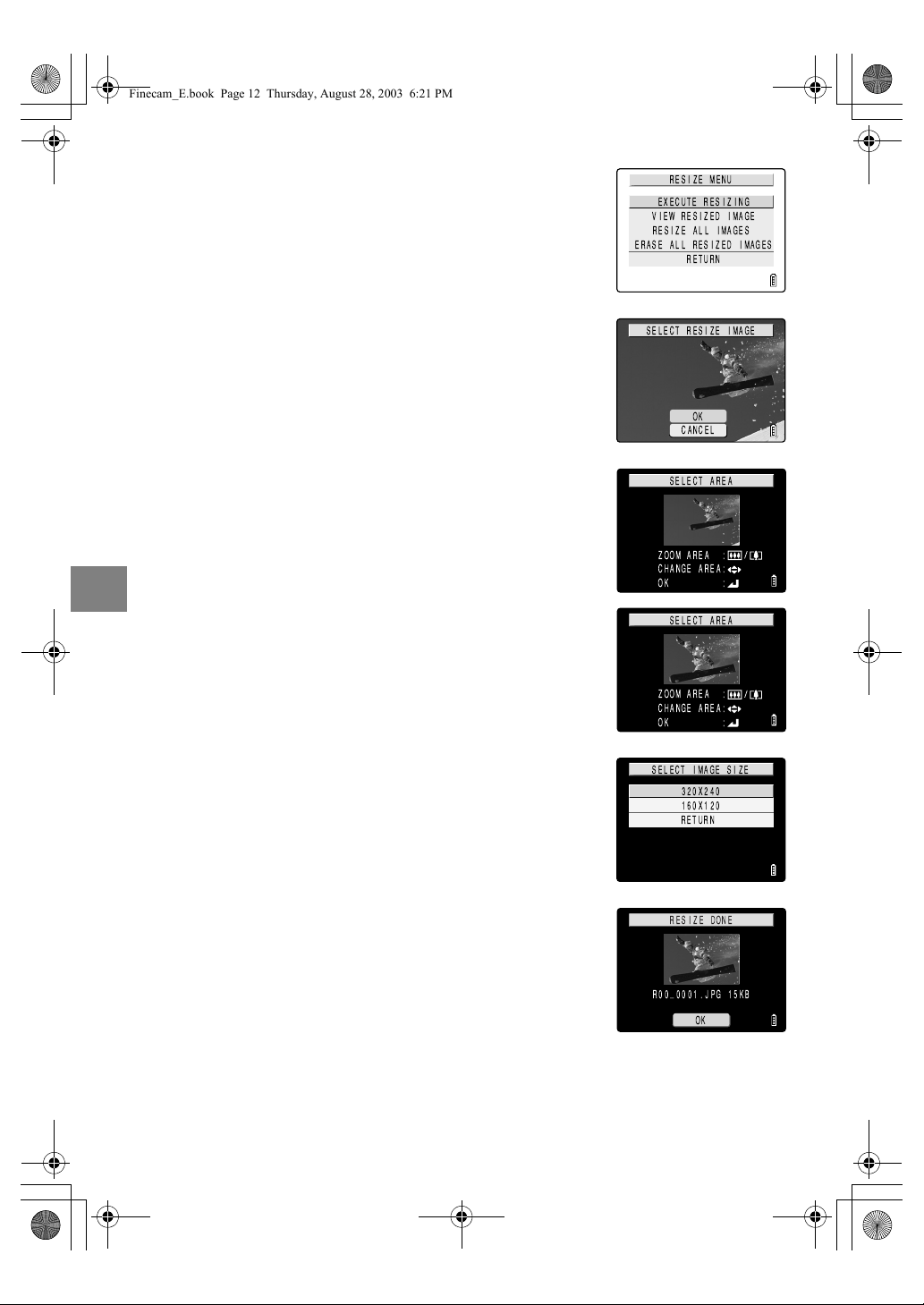
5-12
5
Using the P Playback Mode Functions
4 Use
U
or
D
on the 4-way button to select
[EXECUTE RESIZING] and then press the OK
button
E
.
5 Use
L
or
R
on the 4-way button to select the
image to be resized. When you have selected
the image, press
U
, select [OK] and then
press the OK button
E
.
6 Set the new image size.
To simply change the number of pixels, press the OK button
E
.
To enlarge an area, press the
T
side of the zoom button to
enlarge the image by 2✕ or 4✕ and then use
U
D
L
R
on
the 4-way button to select the area. Then press the OK button
E
.
7 Use
U
or
D
on the 4-way button to select
the image size and then press the OK button
E
.
8 The name of the resized image is displayed.
Check the image and then press the OK
button
E
.
9 Press the MENU button
K
to return to the normal playback
screen.
ZOOM AREA :
CHANGE AREA:
SELECT AREA
OK :
ZOOM AREA :
CHANGE AREA:
SELECT AREA
OK :
Finecam_E.book Page 12 Thursday, August 28, 2003 6:21 PM

5-13
5
Using the P Playback Mode Functions
• Movies cannot be resized.
• Resizing may not be possible if there is too little space available on the memory card.
You cannot use normal image playback to check resized images. Use the following
procedure to view resized images.
• If there are multiple resized images, use
L
and
R
on the 4-way button to switch between images.
• The images cannot be erased if you select [RETURN] and then press the OK button
E
.
• Resized images cannot be protected.
Checking and erasing resized images
From step 3 in “Resizing an image” on p.5-11:
4 Use
U
or
D
on the 4-way button to select
[VIEW RESIZED IMAGE] and then press the
OK button
E
.
The resized image is displayed.
5 To erase the image, press
U
on the 4-way
button to select [ ] and then press the OK
button
E
.
6 Press the MENU button
K
to return to the normal playback
screen.
Finecam_E.book Page 13 Thursday, August 28, 2003 6:21 PM
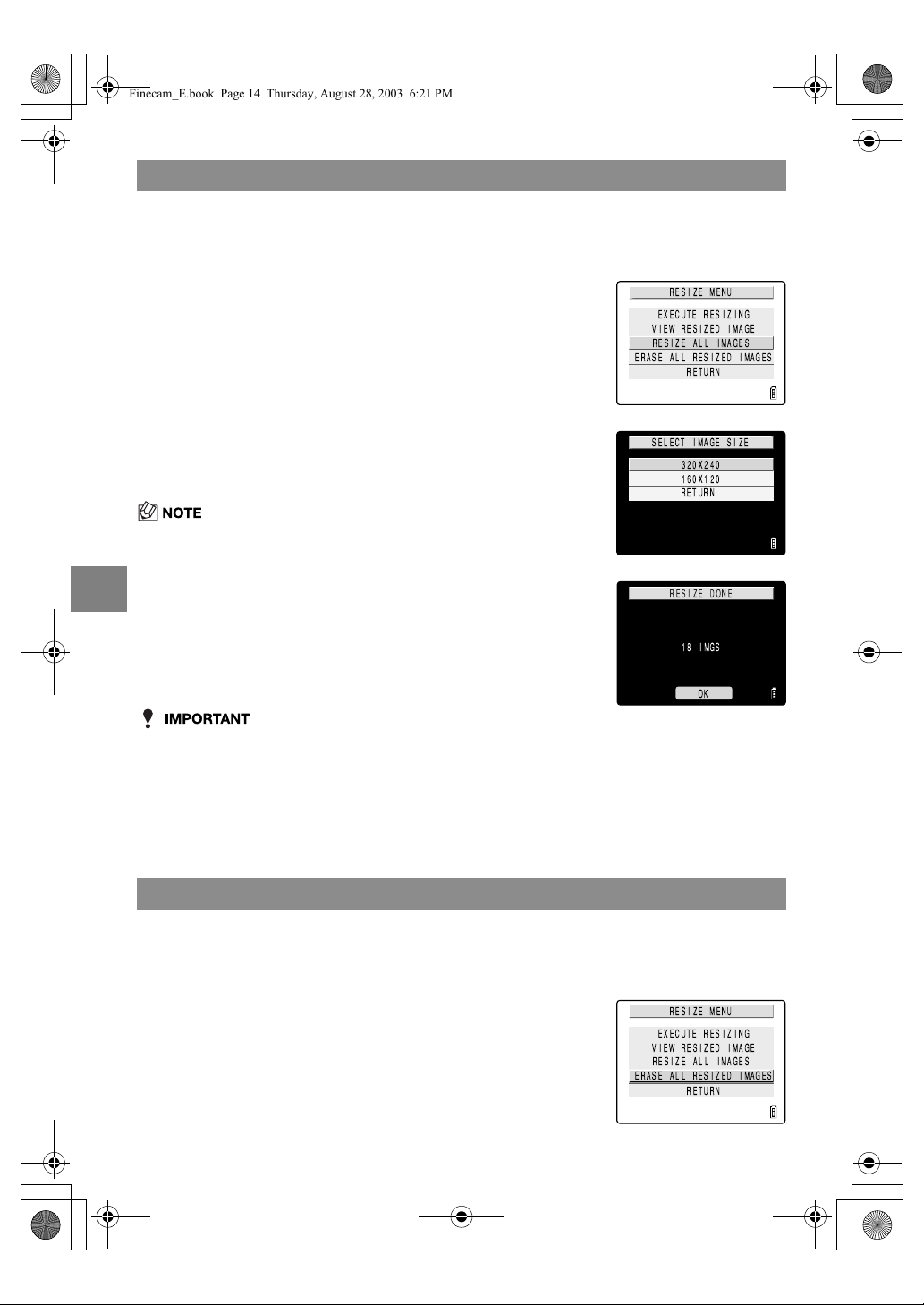
5-14
5
Using the P Playback Mode Functions
You can use this procedure to resize all the images recorded on a memory card.
• If the memory card becomes full during resizing of all the images, resizing stops and only
the images resized up to that point are saved.
• Resizing of a specified area (trimmed images) is not possible.
• Movies are not resized.
This procedure erases all resized images.
Resizing all the images
From step 3 in “Resizing an image” on p.5-11:
4 Use
U
or
D
on the 4-way button to select
[RESIZE ALL IMAGES] and then press the
OK button
E
.
5 Use
U
or
D
on the 4-way button to select
the image size and then press the OK button
E
.
• You can interrupt resizing in progress by pressing the MENU button
K
,
but some of the images will be saved at the new size.
6 The number of resized images are displayed.
Check the images and then press the OK
button
E
.
7 Press the MENU button
K
to return to the normal playback
screen.
Erasing all resized images
From step 3 in “Resizing an image” on p.5-11:
4 Use
U
or
D
on the 4-way button to select
[ERASE ALL RESIZED IMAGES] and then
press the OK button
E
.
Finecam_E.book Page 14 Thursday, August 28, 2003 6:21 PM
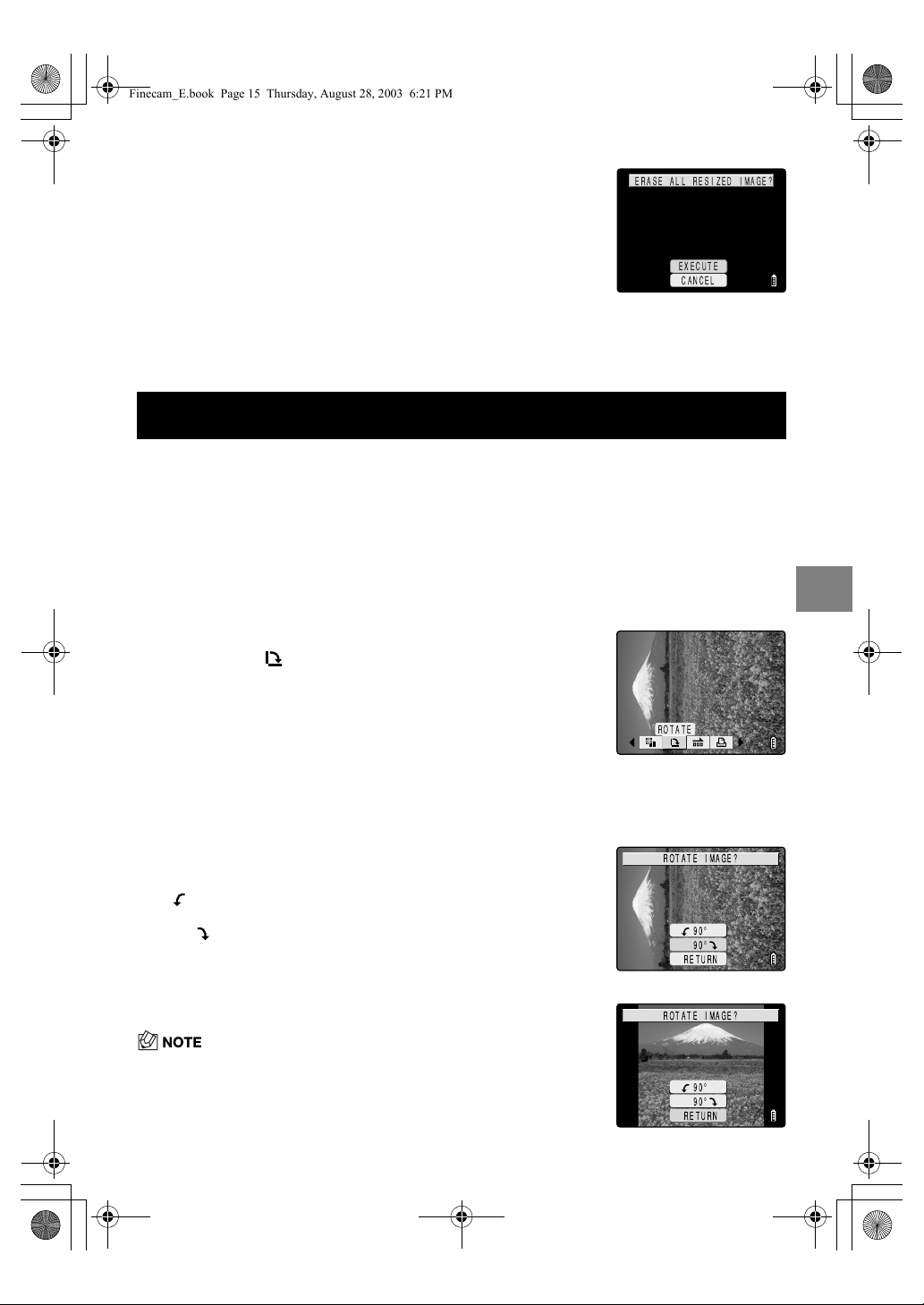
5-15
5
Using the P Playback Mode Functions
Supported images: Still images only
Use the procedure below to rotate an image 90° left or right.
5 Press
U
on the 4-way button to select
[EXECUTE] and then press the OK button
E
.
All resized images are erased.
6 Press the MENU button
K
to return to the normal playback
screen.
[ROTATE]
Rotating an Image
1 Switch the camera on and press
O
or
Q
on the mode
button until the “
P
” icon lights on the mode select LED.
2 Press the MENU button
K
to display the menu icons.
3 Use
L
or
R
on the 4-way button to select
ROTATE [ ] and then press the OK button
E
.
4 Use
L
or
R
on the 4-way button to select the image to be
rotated.
5 Use
U
or
D
on the 4-way button to select a
setting and then press the OK button
E
.
[ 90°]: Rotates the image 90° to the left
(counterclockwise)
[90° ]: Rotates the image 90° to the right (clockwise)
[RETURN]: Cancels the operation and returns you to the
menu icon screen.
6 The rotated image is displayed.
• To rotate another image, repeat steps 4 and 5.
ERASE ALL RESIZED IMAGE?
EXECUTE
CANCEL
ROTATE
Finecam_E.book Page 15 Thursday, August 28, 2003 6:21 PM
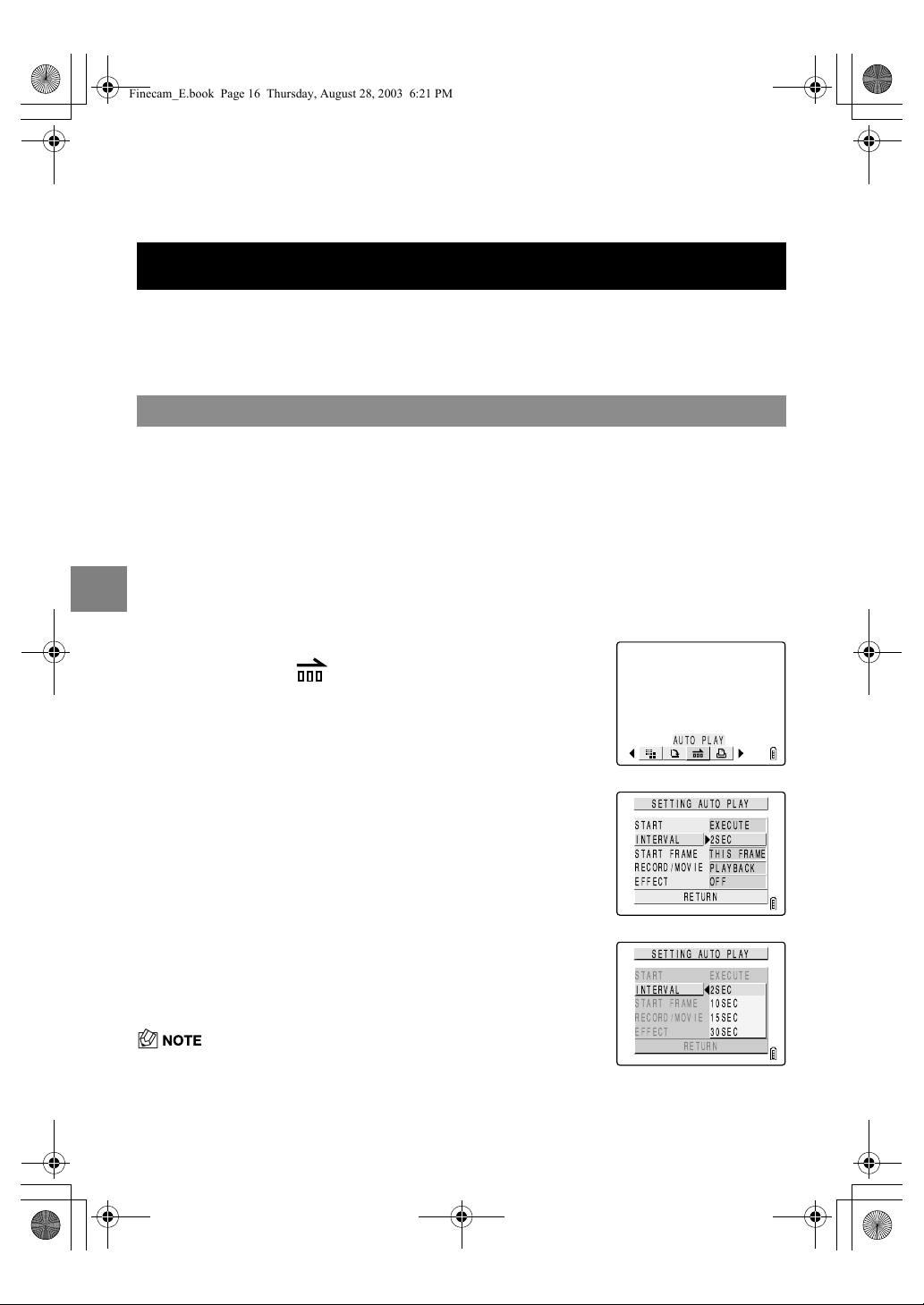
5-16
5
Using the P Playback Mode Functions
Supported images: Still images/movies
This function displays your images at set intervals in the order in which they were
photographed. This can be used to play back both still images and movies and you can
even specify the effect used for the transition between images.
For AUTO PLAY slideshows on this camera, use the procedure below to set the delay
before the next image appears (INTERVAL), select the first image in the slideshow (START
FRAME), choose whether to play postrecorded voice messages and movies, and choose
the effect used for the transition between images.
7 Press the MENU button
K
to return to the normal playback
screen.
[AUTO PLAY]
Displaying Images Automatically as a Slideshow
Setting AUTO PLAY
1 Switch the camera on and press
O
or
Q
on the mode
button until the “
P
” icon lights on the mode select LED.
2 Press the MENU button
K
to display the menu icons.
3 Use
L
or
R
on the 4-way button to select
AUTO PLAY [ ] and then press the OK
button
E
.
4 Use
U
or
D
on the 4-way button to select
[INTERVAL] and then press
R
.
5 Use
U
or
D
on the 4-way button to select
the interval duration and then press the OK
button
E
.
You can choose an interval of 2, 10, 15 or 30 seconds.
• The recording times for movies and postrecording take priority over
this setting.
AUTO PLAY
START FRAME
RECORD/MOVIE
EFFECT
THIS FRAME
2SEC
START
INTERVAL
EXECUTE
PLAYBACK
OFF
SETTING AUTO PLAY
RETURN
START FRAME
RECORD/MOVIE
EFFECT
10SEC
2SEC
START
INTERVAL
EXECUTE
15SEC
30SEC
SETTING AUTO PLAY
RETURN
Finecam_E.book Page 16 Thursday, August 28, 2003 6:21 PM
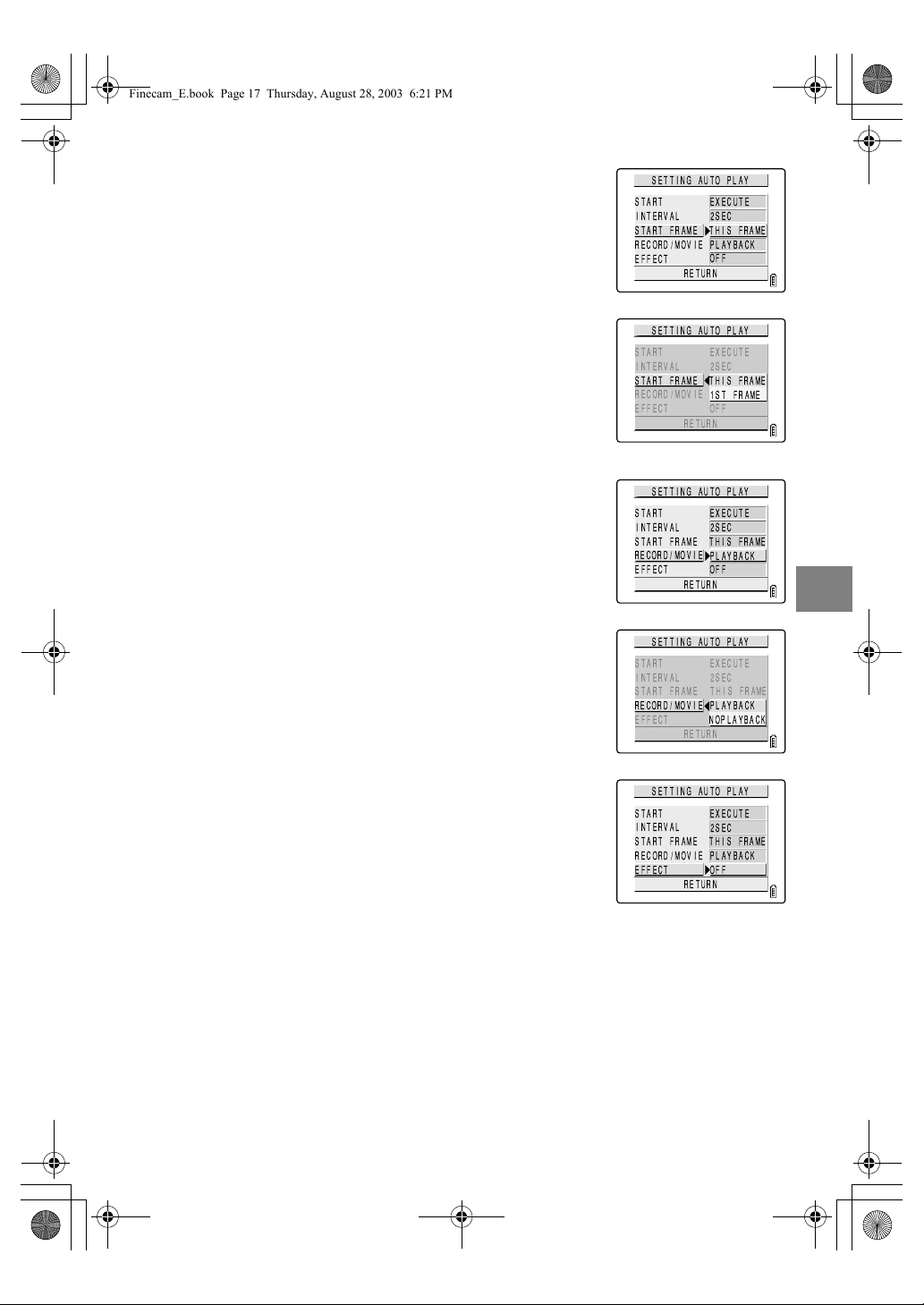
5-17
5
Using the P Playback Mode Functions
6 Use
U
or
D
on the 4-way button to select
the [START FRAME] and then press
R
.
7 Use
U
or
D
on the 4-way button to select
[THIS FRAME] or [1ST FRAME] and then
press the OK button
E
.
If you select [THIS FRAME], the slideshow begins from the
currently displayed frame.
If you select [1ST FRAME], the slideshow begins from the
frame with the lowest number in the file name.
8 Use
U
or
D
on the 4-way button to select
[RECORD/MOVIE] and then press
R
.
9 Use
U
or
D
on the 4-way button to select a
setting and then press the OK button
E
.
[PLAYBACK]: Postrecorded voice messages and movies
are included in the slideshow.
[NOPLAYBACK]: Postrecorded voice messages and movies
are not included in the slideshow.
10
Use
U
or
D
on the 4-way button to select
the [EFFECT] and then press
R
.
START FRAME
RECORD/MOVIE
EFFECT
THIS FRAME
2SEC
START
INTERVAL
EXECUTE
PLAYBACK
OFF
SETTING AUTO PLAY
RETURN
START FRAME
RECORD/MOVIE
EFFECT
THIS FRAME
2SEC
START
INTERVAL
EXECUTE
1ST FRAME
OFF
SETTING AUTO PLAY
RETURN
START FRAME
RECORD/MOVIE
EFFECT
THIS FRAME
2SEC
START
INTERVAL
EXECUTE
PLAYBACK
OFF
SETTING AUTO PLAY
RETURN
START FRAME
RECORD/MOVIE
EFFECT
THIS FRAME
2SEC
START
INTERVAL
EXECUTE
PLAYBACK
NOPLAYBACK
SETTING AUTO PLAY
RETURN
START FRAME
RECORD/MOVIE
EFFECT
THIS FRAME
2SEC
START
INTERVAL
EXECUTE
PLAYBACK
OFF
SETTING AUTO PLAY
RETURN
Finecam_E.book Page 17 Thursday, August 28, 2003 6:21 PM

5-18
5
Using the P Playback Mode Functions
The table below shows the operations that can be performed during an AUTO PLAY
slideshow.
11
Use
U
or
D
on the 4-way button to select a
setting and then press the OK button
E
.
OFF: No effect is set.
FADE: The previous image gradually darkens while the
next image gradually brightens until it is fully
displayed.
OVERLAP: The new image slides over the top of the current
image and replace it.
SHUTTER: Black curtains close from the top and bottom of
the screen to erase the current image, after
which the black curtains open again towards the
top and bottom to reveal the next image.
WIPE: The current image disappears as if wiped away
from the left and is replaced by the new image.
Starting and ending an AUTO PLAY slideshow
From step 3 or step 11 in “Setting AUTO PLAY”: on p.5-16
12
Use
U
or
D
on the 4-way button to select
[START] and then press the OK button
E
to
begin the slideshow.
Button
Description
Movie
Still image with postrecorded message
Still image
U
Increases the volume. Increases the volume. Not applicable.
D
Decreases the volume. Decreases the volume. Not applicable.
L
Press once to stop the movie and
begin scanning backwards through
the movie frame by frame. After that,
scanning moves one frame back each
time you press the button.
Hold down to play back the message
at half speed. Release the button to
return to normal playback.
Not applicable.
R
Press once to stop the movie and
begin scanning forwards through the
movie frame by frame. After that,
scanning moves one frame forward
each time you press the button.
Hold down to play back the message
at double speed. Release the button
to return to normal playback.
Not applicable.
13
To end the slideshow, press the MENU button
K
.
START FRAME
RECORD/MOVIE
EFFECT
OVERLAP
FADE
START
INTERVAL
OFF
SHUTTER
WIPE
SETTING AUTO PLAY
RETURN
START FRAME
RECORD/MOVIE
EFFECT
THIS FRAME
2SEC
START
INTERVAL
EXECUTE
PLAYBACK
OFF
SETTING AUTO PLAY
RETURN
Finecam_E.book Page 18 Thursday, August 28, 2003 6:21 PM

5-19
5
Using the P Playback Mode Functions
Supported images: Still images only
DPOF (Digital Print Order Format) is a printing standard for images shot on digital cameras
that allows the images to be printed on a consumer printer or at a print processing outlet.
The DPOF settings specify which images are to be printed and how many copies of each
image. They also support other basic settings such as date imprinting, etc. Check that your
printer or your local print processing shop provides a DPOF printing service. For more
information on DPOF settings, refer to the instruction manual provided with your DPOF-
compatible printer.
• Select [RETURN] and press the OK button
E
to return to the normal playback screen.
[PRINT SETTINGS]
Specifying DPOF Print Settings
Specifying DPOF settings
1 Switch the camera on and press
O
or
Q
on the mode
button until the “
P
” icon lights on the mode select LED.
2 Press the MENU button
K
to display the menu icons.
3 Use
L
or
R
on the 4-way button to select
PRINT [ ] and then press the OK button
E
.
4 Use
U
or
D
on the 4-way button to select
[PRINT] and then press
R
.
DPOF-compatible printer
(third-party)
Photo lab
PRINT
Finecam_E.book Page 19 Thursday, August 28, 2003 6:21 PM

5-20
5
Using the P Playback Mode Functions
5 Use
L
or
R
on the 4-way button to select the image for which
you want to specify the print settings.
6 Press
U
on the 4-way button, select [OK]
and then press the OK button
E
.
7 Specify the number of prints. Use
U
or
D
on
the 4-way button to select [PRINT QTY.] and
then press
R
.
8 Use
U
or
D
on the 4-way button to set the
number of prints and then press the OK
button
E
.
The number of prints is set.
9 Specify the setting for date imprinting. Use
U
or
D
on the 4-way button to select [DATE]
and then press
R
.
• If you select [PRINT] for [DATE] here for an image for which [WITH DATE] was selected for
[INSERT DATE] (
p.6-4) when the shot was taken, the dates will be printed on top of each
other.
10
Use
U
or
D
on the 4-way button to select
[PRINT] or [NOT PRINT] and then press the
OK button
E
.
Date imprinting is then set.
Finecam_E.book Page 20 Thursday, August 28, 2003 6:21 PM
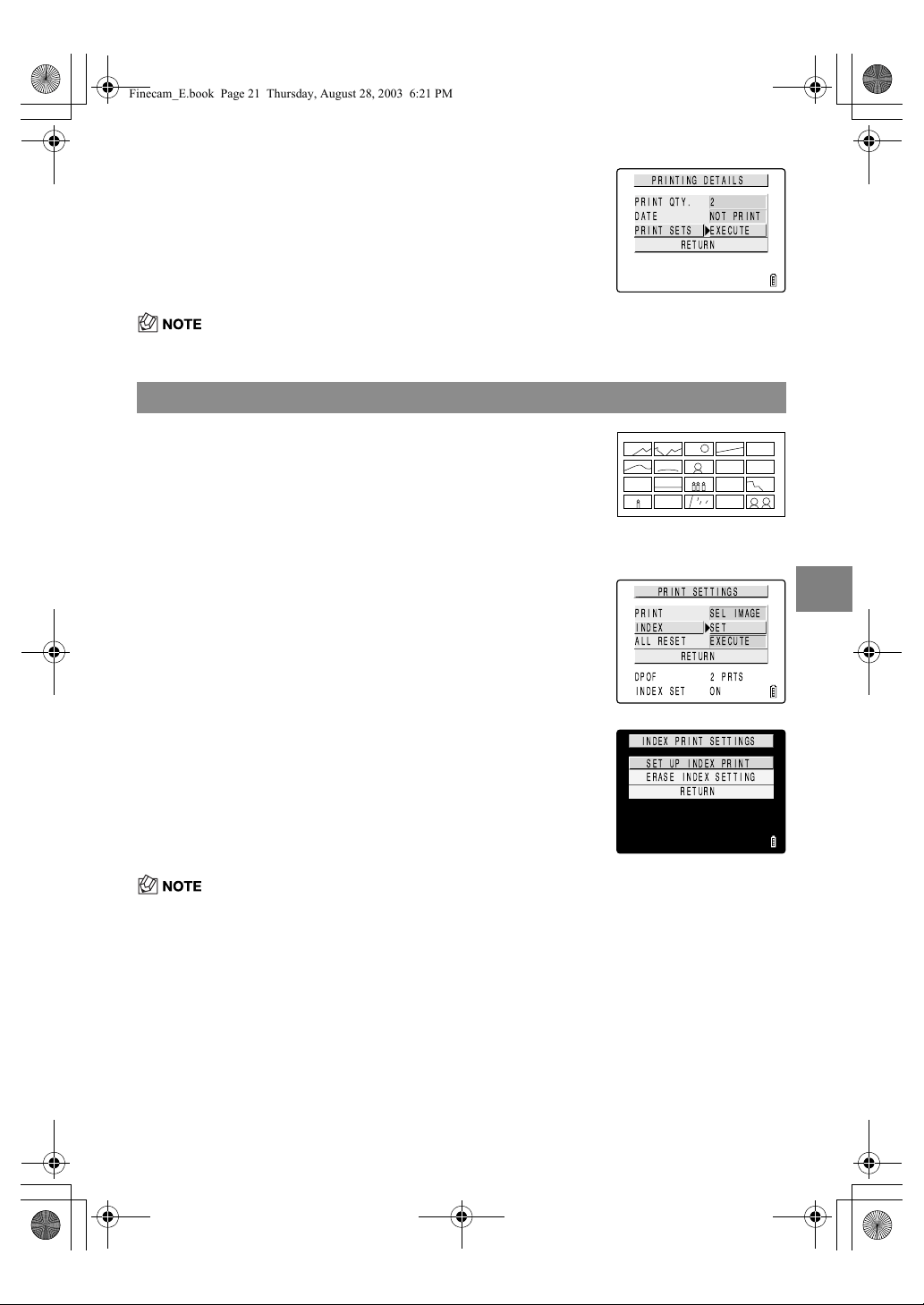
5-21
5
Using the P Playback Mode Functions
• To specify DPOF settings for another image, repeat steps 4-11.
• Selecting [RETURN] cancels the details set up to step 11 and returns you to the step 4 screen.
• Selecting [ERASE INDEX SETTING] and pressing the OK button
E
deletes the index print
settings and returns you to the step 4 screen.
• Select [RETURN] to stop the procedure and return to the step 4 screen.
11
Use
U
or
D
on the 4-way button to select
[PRINT SETS] and then press
R
to apply the
DPOF settings.
The screen in step 4 reappears.
Specifying index print settings
This function produces a single print showing thumbnail versions
of the images recorded on the memory card.
From step 3 in “Specifying DPOF settings” : on p.5-19
4 Use
U
or
D
on the 4-way button to select
[INDEX] and then press
R
.
5 Use
U
or
D
on the 4-way button to select
[SET UP INDEX PRINT] and then press the
OK button
E
.
Index printing is then set and the step 4 screen reappears.
Finecam_E.book Page 21 Thursday, August 28, 2003 6:21 PM
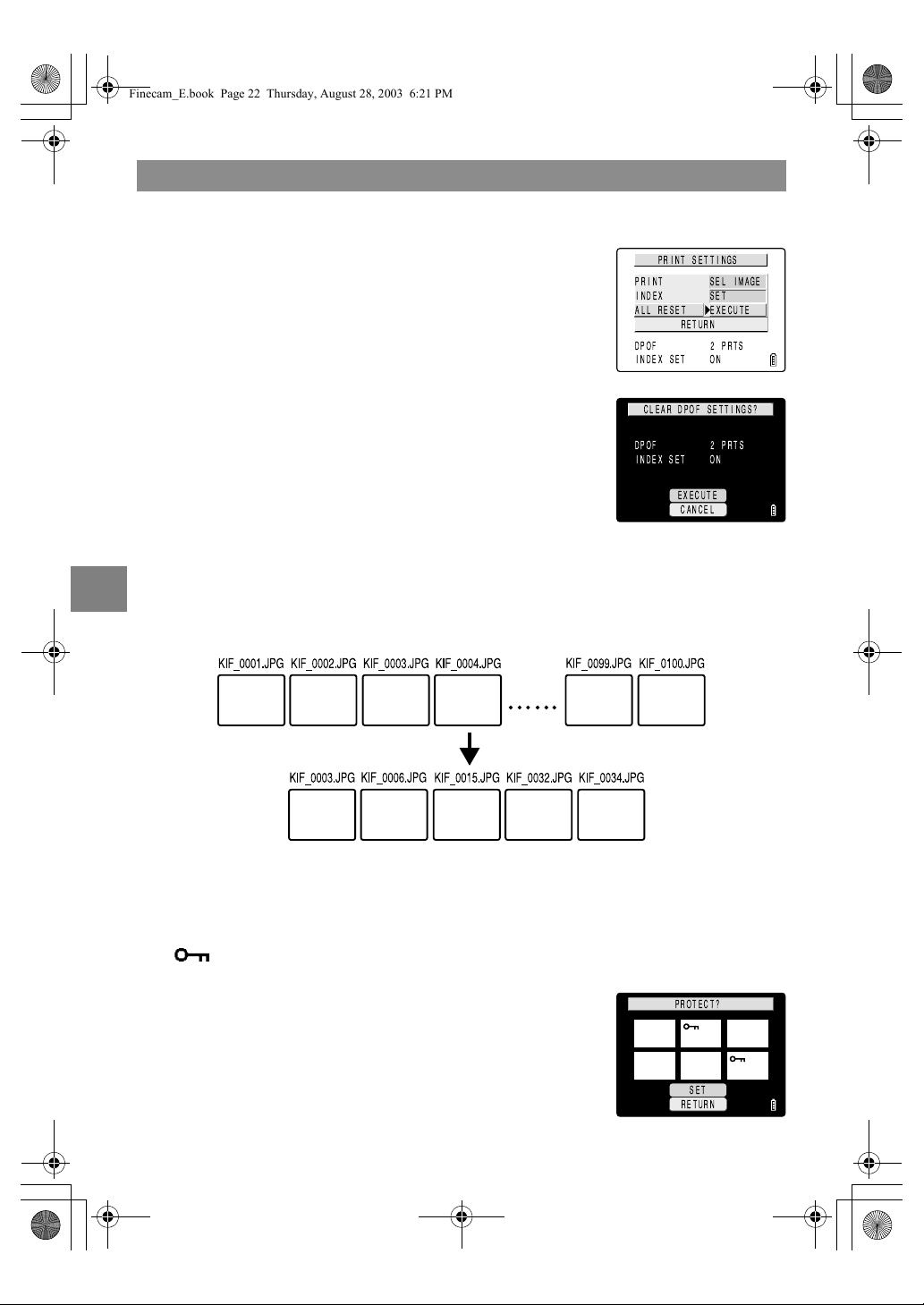
5-22
5
Using the P Playback Mode Functions
● Tips on erasing images using [PROTECT] and [ERASE ALL]
For example, if you have 100 recorded images and you want to keep just 5 or 6 of those, erasing
the images one by one would be very time consuming.
In cases like this where you have a large number of images recorded and only want to keep a few,
[PROTECT] and [ERASE ALL] can be used very effectively to make the process much simpler.
Deleting all the DPOF print settings
From step 3 in “Specifying DPOF settings” : on p.5-19
4 Use
U
or
D
on the 4-way button to select
[ALL RESET] and then press
R
.
5 Use
U
on the 4-way button to select
[EXECUTE] and then press the OK button
E
.
All the print settings are deleted and the step 4 screen
reappears.
Begin by protecting the images you want to keep.
1 In the MULTI playback screen ( p.5-3), press the MENU
button
K
to display the menu icons and then select PROTECT
[ ].
2 Use
L
or
R
on the 4-way button to select an
image you want to keep. Then select [SET]
and press the OK button
E
to protect the
image. Then repeat this step to protect the
other images you want to keep.
SET
RETURN
PROTECT?
Finecam_E.book Page 22 Thursday, August 28, 2003 6:21 PM
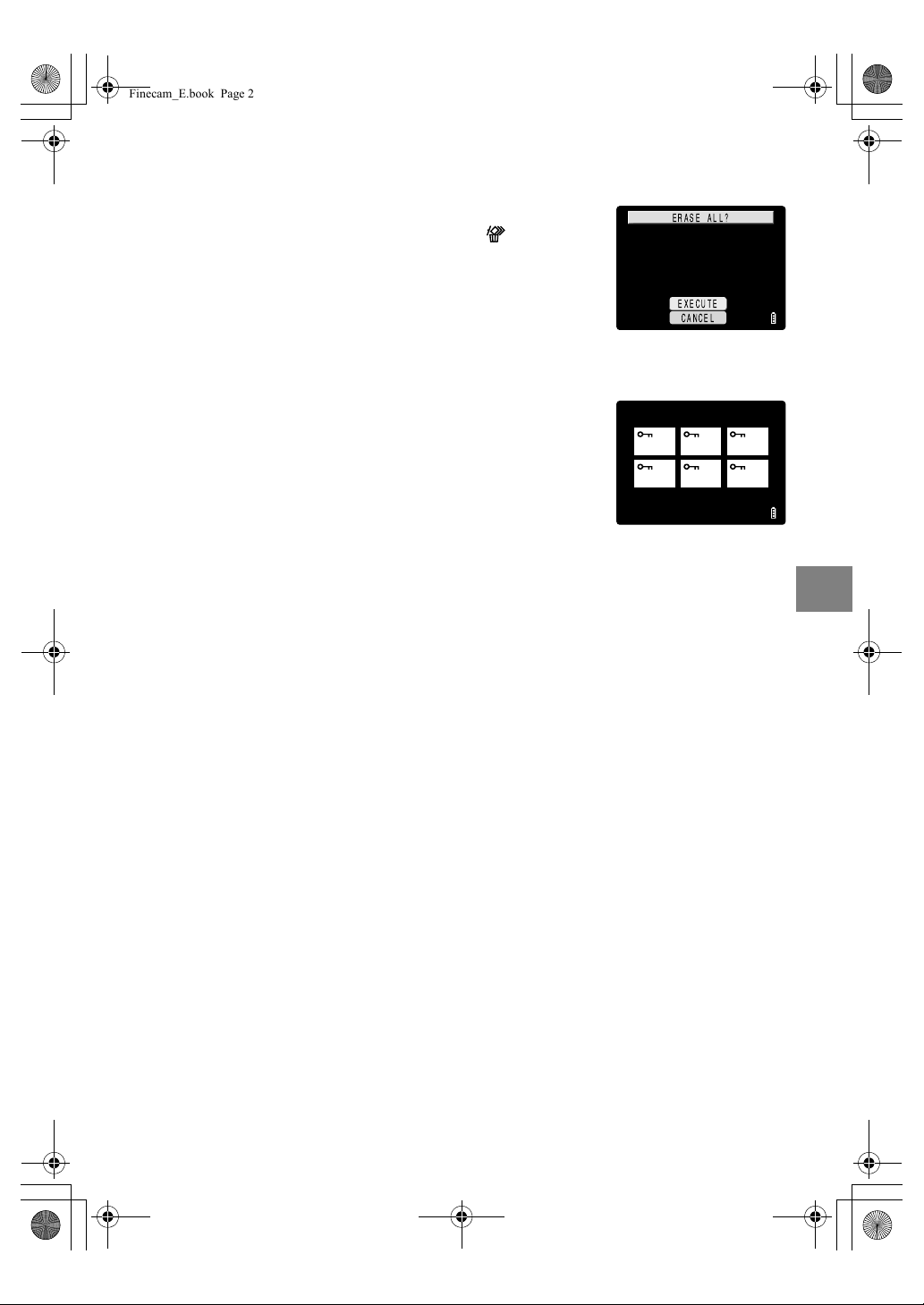
5-23
5
Using the P Playback Mode Functions
Next, use ERASE ALL.
3 Press the MENU button
K
to display the
menu icons. Select ERASE ALL [ ] from the
menu and press the OK button
E
. The
“ERASE ALL?” message appears.
4 Select [EXECUTE] and press the OK button
E
.
5 The protected images are left untouched and
all the other images are erased.
Finecam_E.book Page 23 Thursday, August 28, 2003 6:21 PM
Finecam_E.book Page 24 Thursday, August 28, 2003 6:21 PM
G
Using the SET UP Mode
Functions
This chapter describes how to set up some of the camera's more advanced
functions, such as specifying the AF (Auto Focus) settings, adjusting the LCD
monitor brightness, and initializing memory cards.
Finecam_E.book Page 1 Thursday, August 28, 2003 6:21 PM
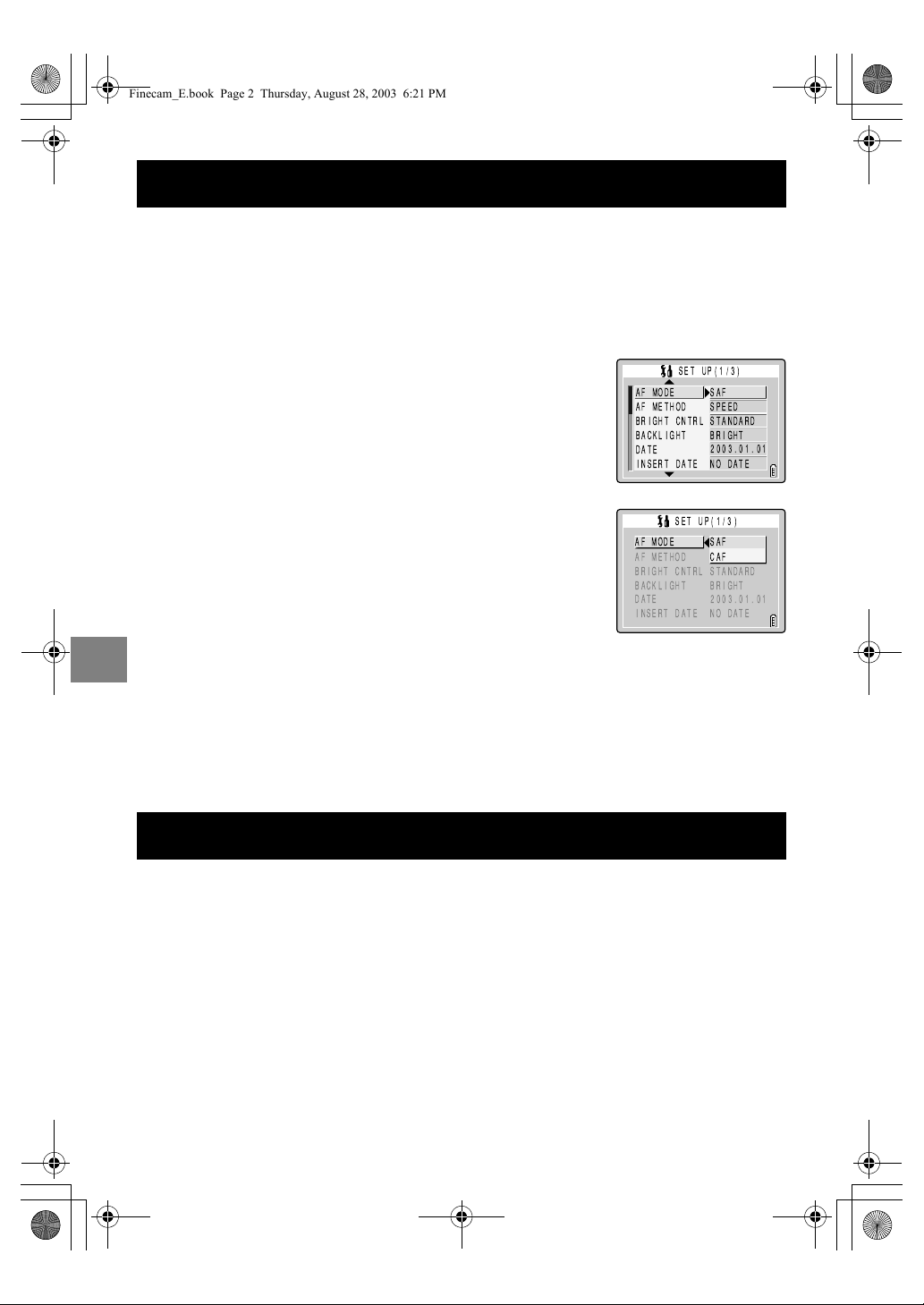
6-2
6
G Using the SET UP Mode Functions
The AF MODE setting allows you to set the camera’s AF (Auto Focus) operating mode to
SAF, which is best for shooting still subjects, or CAF, which is ideal for subjects involving lots
of movement, such as sports events.
This option sets the speed of AF operation. The SPEED setting gives faster focusing, but
the image on the LCD monitor freezes during focusing. With the FRAME setting, focusing is
not as fast as the SPEED setting, but you can continue to check the image on the LCD
monitor during focusing. Choose the setting that best suits the subject of your shot.
[AF MODE]
Setting AF mode
1 Switch the camera on and press
O
or
Q
on the mode
button until the “
G
” icon lights on the mode select LED.
2 Press
U
or
D
on the 4-way button to select
[AF MODE] and then press
R
.
3 Press
U
or
D
on the 4-way button to select
the desired setting and then press the OK
button
E
.
SAF (single auto focus): AF operates just once when you
press the shutter release button half
way. (default)
CAF (continuous auto focus)
:In “
C
” mode and “
N
” mode, auto
focus operates continuously.
In “
M
” mode, auto focus only
operates until just before shooting
starts.
4 The selected AF mode is set and the screen in step 2
reappears.
[AF METHOD]
Setting AF method
1 Switch the camera on and press
O
or
Q
on the mode
button until the “
G
” icon lights on the mode select LED.
AF MODE
AF METHOD
BRIGHT CNTRL
BACKLIGHT
DATE
SAF
SPEED
STANDARD
BRIGHT
2003.01.01
INSERT DATE NO DATE
SET UP(1/3)
AF MODE
AF METHOD
BRIGHT CNTRL
BACKLIGHT
DATE
SAF
CAF
STANDARD
BRIGHT
2003.01.01
INSERT DATE NO DATE
SET UP(1/3)
Finecam_E.book Page 2 Thursday, August 28, 2003 6:21 PM

6-3
6
G Using the SET UP Mode Functions
You can adjust the LCD monitor brightness through 5 levels. Set the brightness to your
preferred level.
2 Press
U
or
D
on the 4-way button to select
[AF METHOD] and then press
R
.
3 Press
U
or
D
on the 4-way button to select
the desired setting and then press the OK
button
E
.
4 The selected AF method is set and the screen in step 2
reappears.
[BRIGHT CNTRL]
Adjusting the LCD Monitor Brightness
1 Switch the camera on and press
O
or
Q
on the mode
button until the “
G
” icon lights on the mode select LED.
2 Press
U
or
D
on the 4-way button to select
[BRIGHT CNTRL] and then press
R
.
3 Press
U
or
D
on the 4-way button to select
the desired setting and then press the OK
button
E
.
+2: Sets the maximum brightness.
+1:
Sets the brightness slightly higher than normal.
STANDARD: Normal level of brightness. (default)
–1: Sets the brightness slightly lower than normal.
–2: Sets the minimum brightness.
4 The selected brightness is set and the screen in step 2
reappears.
AF MODE
AF METHOD
BRIGHT CNTRL
BACKLIGHT
DATE
SAF
SPEED
STANDARD
BRIGHT
2003.01.01
INSERT DATE NO DATE
SET UP(1/3)
AF MODE
AF METHOD
BRIGHT CNTRL
BACKLIGHT
DATE
SAF
SPEED
FRAMES
BRIGHT
2003.01.01
INSERT DATE NO DATE
SET UP(1/3)
AF MODE
AF METHOD
BRIGHT CNTRL
BACKLIGHT
DATE
SAF
SPEED
STANDARD
BRIGHT
2003.01.01
INSERT DATE NO DATE
SET UP(1/3)
AF MODE
AF METHOD
BRIGHT CNTRL
BACKLIGHT
DATE
+
2
+
1
1
2
STANDARD
INSERT DATE NO DATE
SET UP(1/3)
Finecam_E.book Page 3 Thursday, August 28, 2003 6:21 PM

6-4
6
G Using the SET UP Mode Functions
Use this procedure to adjust the brightness of the LCD monitor backlighting.
[BACKLIGHT]
Changing the Monitor Backlighting Brightness
1 Switch the camera on and press
O
or
Q
on the mode
button until the “
G
” icon lights on the mode select LED.
2 Press
U
or
D
on the 4-way button to select
[BACKLIGHT] and then press
R
.
3 Press
U
or
D
on the 4-way button to select
the [BRIGHT] or [LOW POWER] and then
press the OK button
E
.
BRIGHT: Gives brighter backlighting
LOW POWER: Restricts the backlight brightness to save
power.
4 The selected brightness setting is applied and the screen in
step 2 reappears.
[DATE]
Setting the Camera’s Date and Time
See “Setting the Date and Time” ( p.1-6) in Chapter 1.
[INSERT DATE]
Writing the Date onto Image Files
Use this procedure to specify whether the date is inserted on your
images.
• If images that were shot with [INSERT DATE] set to [WITH DATE]
are then printed with [PRINT] selected for [DATE] in [PRINT
SETTINGS] (
p.5-19), the dates will be printed on top of each
other.
• The date is inserted in the lower-right corner of the image. You cannot
erase an inserted date only.
AF MODE
AF METHOD
BRIGHT CNTRL
BACKLIGHT
DATE
SAF
SPEED
STANDARD
BRIGHT
2003.01.01
INSERT DATE NO DATE
SET UP(1/3)
AF MODE
AF METHOD
BRIGHT CNTRL
BACKLIGHT
DATE
SAF
SPEED
STANDARD
BRIGHT
LOW POWER
INSERT DATE NO DATE
SET UP(1/3)
AF MODE
AF METHOD
BRIGHT CNTRL
BACKLIGHT
DATE
SAF
SPEED
STANDARD
BRIGHT
2003.01.01
INSERT DATE NO DATE
SET UP(1/3)
2003.09.01
Finecam_E.book Page 4 Thursday, August 28, 2003 6:21 PM
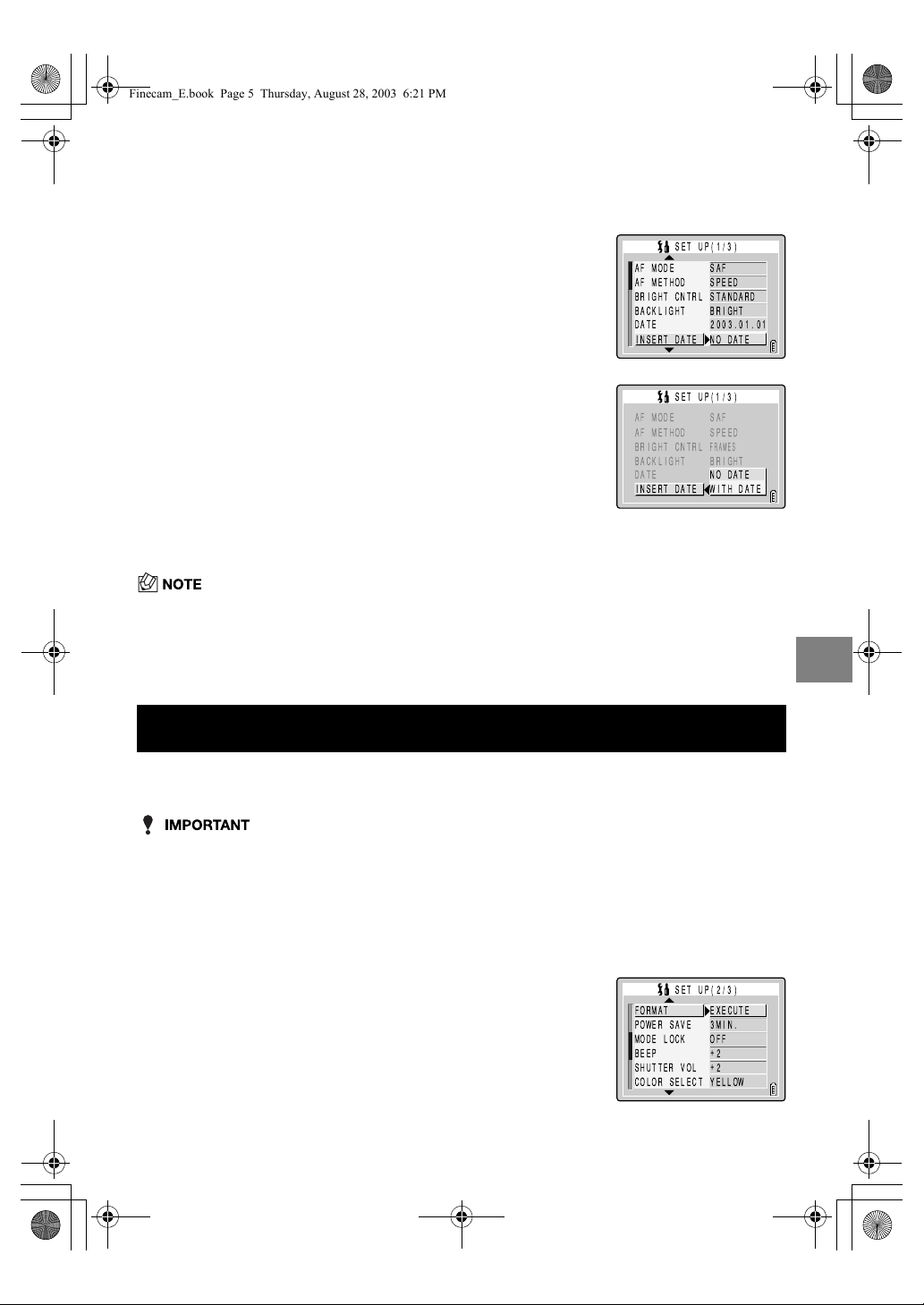
6-5
6
G Using the SET UP Mode Functions
• The default setting for this function is [NO DATE].
• If you set [WITH DATE], the date is permanently displayed in the lower-right corner of the LCD
monitor during shooting.
• If the background where the date is inserted is a bright color such as white or yellow, the numbers
in the date may be difficult to read.
This function should be used to initialize new memory cards before you use them or when
you want to erase all the data (including images) on a card.
• To ensure that you get the best possible performance from this camera, cards should be
formatted on the camera.
• Note that initializing a card also erases protected images.
1 Switch the camera on and press
O
or
Q
on the mode
button until the “
G
” icon lights on the mode select LED.
2 Press
U
or
D
on the 4-way button to select
[INSERT DATE] and then press
R
.
3 Press
U
or
D
on the 4-way button to select
[NO DATE] or [WITH DATE] and then press
the OK button
E
.
4 Date insertion is set and the screen in step 2 reappears.
[FORMAT]
Initializing Memory Cards
1 Switch the camera on and press
O
or
Q
on the mode
button until the “
G
” icon lights on the mode select LED.
2 Press
U
or
D
on the 4-way button to select
[FORMAT] and then press
R
.
AF MODE
AF METHOD
BRIGHT CNTRL
BACKLIGHT
DATE
SAF
SPEED
STANDARD
BRIGHT
2003.01.01
INSERT DATE NO DATE
SET UP(1/3)
AF MODE
AF METHOD
BRIGHT CNTRL
BACKLIGHT
DATE
SAF
SPEED
FRAMES
BRIGHT
NO DATE
INSERT DATE WITH DATE
SET UP(1/3)
Finecam_E.book Page 5 Thursday, August 28, 2003 6:21 PM

6-6
6
G Using the SET UP Mode Functions
Forgetting to switch the camera off can cause the camera’s battery charge to fall to a low
level. For this reason, the camera features a Power Save function that automatically
switches the camera off after several minutes if it is left switched on.
You can specify the delay until the camera is switched off.
3 Press
U
on the 4-way button to select
[EXECUTE] and then press the OK button
E
.
Card initialization begins.
4 When initialization is completed, the screen in step 2
reappears.
[POWER SAVE]
Switching the Camera Off
Automatically to Save Power
1 Switch the camera on and press
O
or
Q
on the mode
button until the “
G
” icon lights on the mode select LED.
2 Press
U
or
D
on the 4-way button to select
[POWER SAVE] and then press
R
.
3 Press
U
or
D
on the 4-way button to select
the delay until the camera switches off and
then press the OK button
E
.
NO PWR OFF: The camera is not automatically switched
off. Take care to remember to switch the
camera off yourself.
1MIN.: The camera switches to sleep mode after 1
minute and switches off 2 minutes later.
3MIN.: The camera switches to sleep mode after 3
minutes and switches off 2 minutes later.
(default)
6MIN.: The camera switches to sleep mode after 6
minutes and switches off 2 minutes later.
4 The delay time is set and the screen in step 2 reappears.
FORMAT?
EXECUTE
CANCEL
Finecam_E.book Page 6 Thursday, August 28, 2003 6:21 PM

6-7
6
G Using the SET UP Mode Functions
Mode Lock is a function which ensures that the settings you have specified in “
C
”, “
N
”,
“
M
” and “
G
” modes are retained when the camera is switched off. ( p.7-4)
■
Notes on using power save in “
C
” mode, “
N
” mode and “
M
” mode
If you set the Power Save function when using the camera in “
C
” mode, “
N
” mode or
“
M
” mode, the camera operates as follows:
When [POWER SAVE] is set to [1MIN.], [3MIN.] or [6MIN.].
If the camera is left switched on for the set delay time or longer, it automatically enters sleep
mode for two minutes.
While the camera is in sleep mode, it can be quickly returned to its original shooting mode
by pressing the shutter release button half way or by pressing any of the other function
buttons. However, after the two minutes have passed, the camera is switched off.
When [POWER SAVE] is set to [NO PWR OFF].
If the camera is left switched on for six minutes or more, it automatically enters sleep mode.
In this case, the camera remains in the sleep mode and is not switched off. To return the
camera to its normal shooting mode, press the shutter release button half way or press any
of the other function buttons.
[MODE LOCK]
Preserving Your Function Settings
1 Switch the camera on and press
O
or
Q
on the mode
button until the “
G
” icon lights on the mode select LED.
2 Press
U
or
D
on the 4-way button to select
[MODE LOCK] and then press
R
.
1MIN.
1 minute
2 minutes
3MIN. 3 minutes 2 minutes
6MIN. 6 minutes 2 minutes
NO PWR OFF 6 minutes
: Shooting mode
: Sleep mode. Pressing the shutter release button half way or pressing any of the other function
buttons returns the camera to shooting mode.
: Camera switched off
* The LCD monitor goes blank while the camera is in sleep mode, but the camera is not switched
off. To reduce power consumption, switch the camera off promptly.
Finecam_E.book Page 7 Thursday, August 28, 2003 6:21 PM
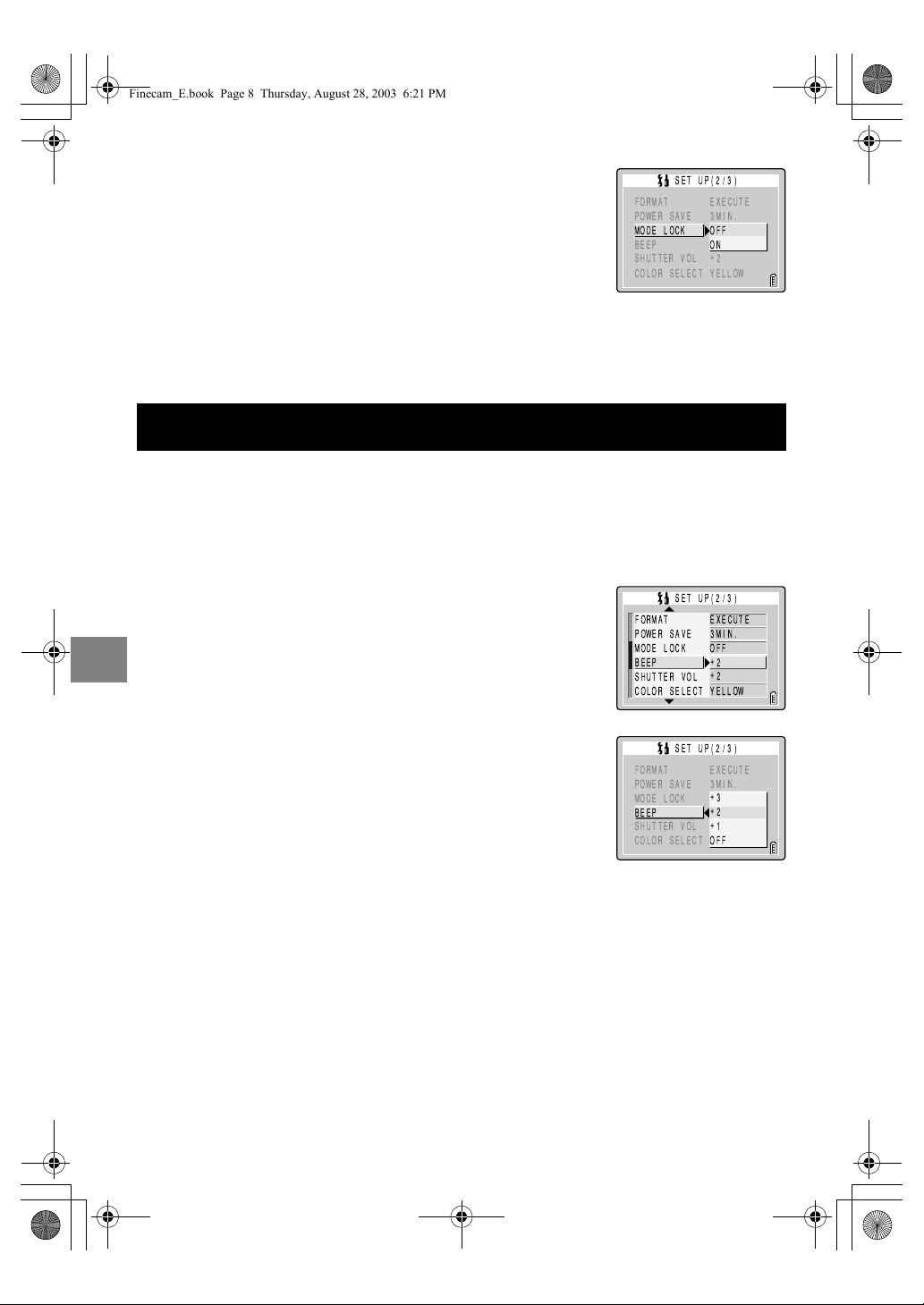
6-8
6
G Using the SET UP Mode Functions
Use this procedure to adjust the volume of the operation beep emitted when a camera
button is pressed or activation beep emitted when the camera is switched on.
3 Press
U
or
D
on the 4-way button to select
[OFF] or [ON] and then press the OK button
E
.
OFF: Settings revert to their default values when the
camera is switched off.
ON: Settings remain valid when the camera is switched
off.
4 The selected settings are applied and the screen in step 2
reappears.
[BEEP]
Adjusting the Volume of the Camera Button Beep
1 Switch the camera on and press
O
or
Q
on the mode
button until the “
G
” icon lights on the mode select LED.
2 Press
U
or
D
on the 4-way button to select
[BEEP] and then press
R
.
3 Press
U
or
D
on the 4-way button to select
the desired button beep volume and then
press the OK button
E
.
+3: Maximum volume
+2: Medium volume (default)
+1: Low volume
OFF: No button beep
4 The selected settings are applied and the screen in step 2
reappears.
Finecam_E.book Page 8 Thursday, August 28, 2003 6:21 PM
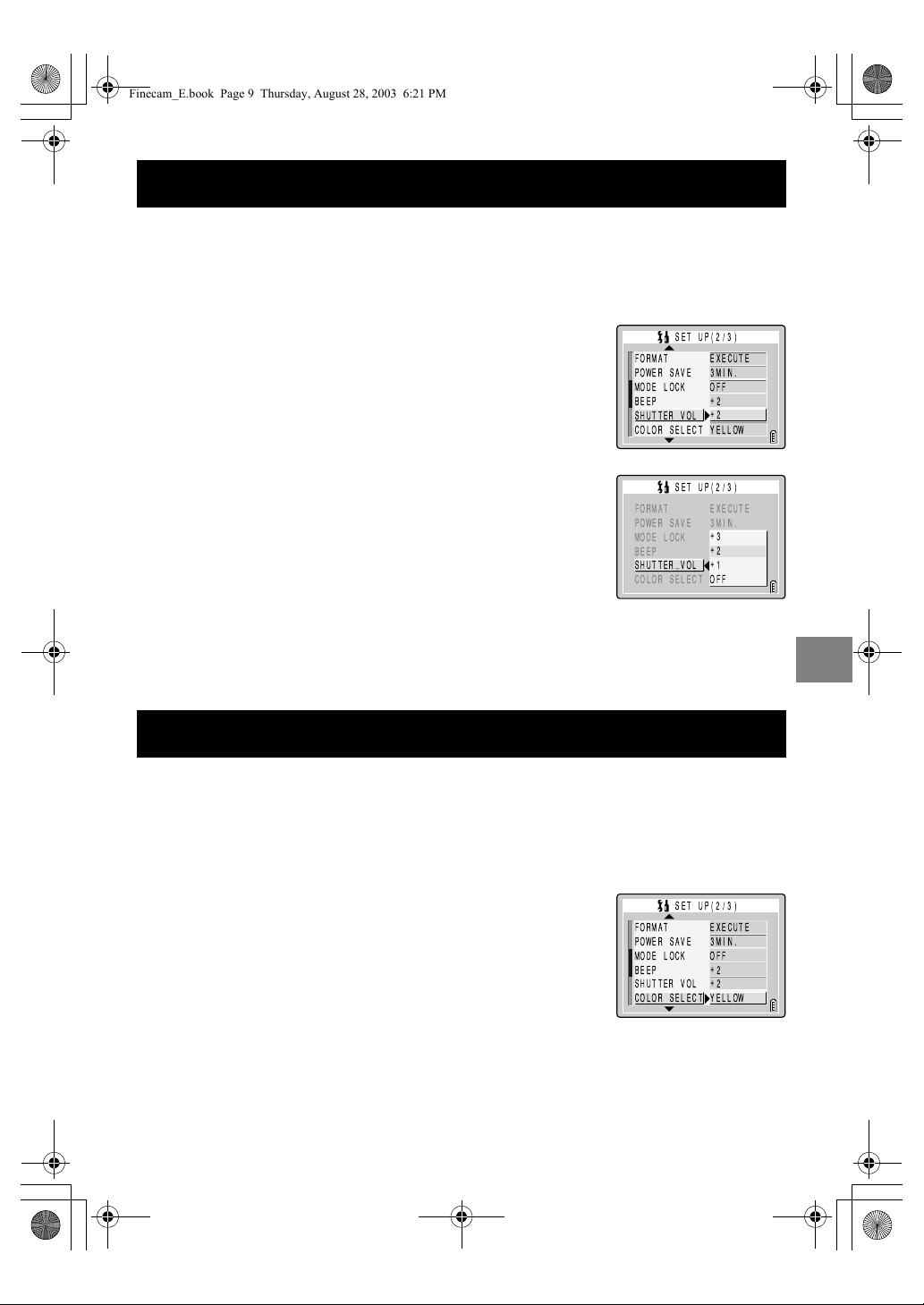
6-9
6
G Using the SET UP Mode Functions
Use this procedure to adjust the volume of shutter sound.
Use this procedure to change the highlight color of a selected menu item. The available
colors are yellow (default), red, purple and blue.
[SHUTTER VOL]
Adjusting the Volume of the Shutter Sound
1 Switch the camera on and press
O
or
Q
on the mode
button until the “
G
” icon lights on the mode select LED.
2 Press
U
or
D
on the 4-way button to select
[SHUTTER VOL] and then press
R
.
3 Press
U
or
D
on the 4-way button to select
the desired shutter sound volume and then
press the OK button
E
.
+3: Maximum volume
+2: Medium volume (default)
+1: Low volume
OFF: No shutter sound
4 The selected settings are applied and the screen in step 2
reappears.
[COLOR SELECT]
Selecting the Menu Color
1 Switch the camera on and press
O
or
Q
on the mode
button until the “
G
” icon lights on the mode select LED.
2 Press
U
or
D
on the 4-way button to select
[COLOR SELECT] and then press
R
.
Finecam_E.book Page 9 Thursday, August 28, 2003 6:21 PM
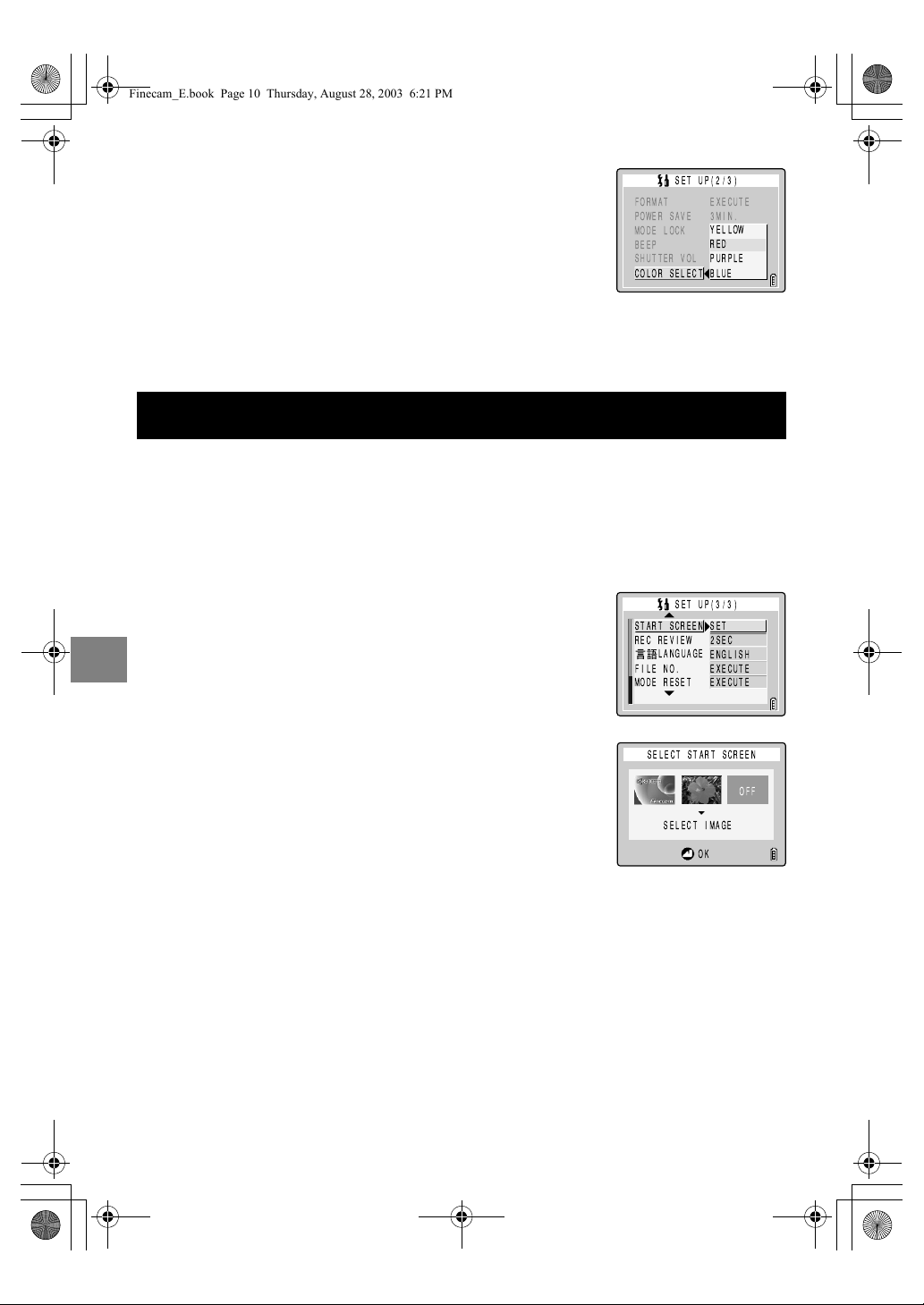
6-10
6
G Using the SET UP Mode Functions
This procedure sets the startup screen displayed when you switch the camera on. In
addition to the default Kyocera logo screen, you can also select a startup screen from the
images saved on a memory card in the camera.
● If either the Kyocera logo screen or OFF screen was selected in step 3
● If a user-defined screen was selected in step 3
3 Press
U
or
D
on the 4-way button to select
the desired color and then press the OK
button
E
.
4 The selected settings are applied and the screen in step 2
reappears.
[START SCREEN]
Selecting the Startup Screen
1 Switch the camera on and press
O
or
Q
on the mode
button until the “
G
” icon lights on the mode select LED.
2 Press
U
or
D
on the 4-way button to select
[START SCREEN] and then press
R
.
3 Press
L
or
R
on the 4-way button to select
the desired screen.
KYOCERA logo screen: Default
User-defined screen: Allows you to set an image stored on
a memory card.
OFF screen: Plain blue background
4 Press the OK button
E
to finish the settings.
4 Press
D
on the 4-way button to switch to the image selection
screen.
The still images recorded on the memory card appear.
START SCREEN
REC REVIEW
FILE NO.
MODE RESET
SET
2SEC
ENGLISH
EXECUTE
EXECUTE
SET UP(3/3)
LANGUAGE
Finecam_E.book Page 10 Thursday, August 28, 2003 6:21 PM
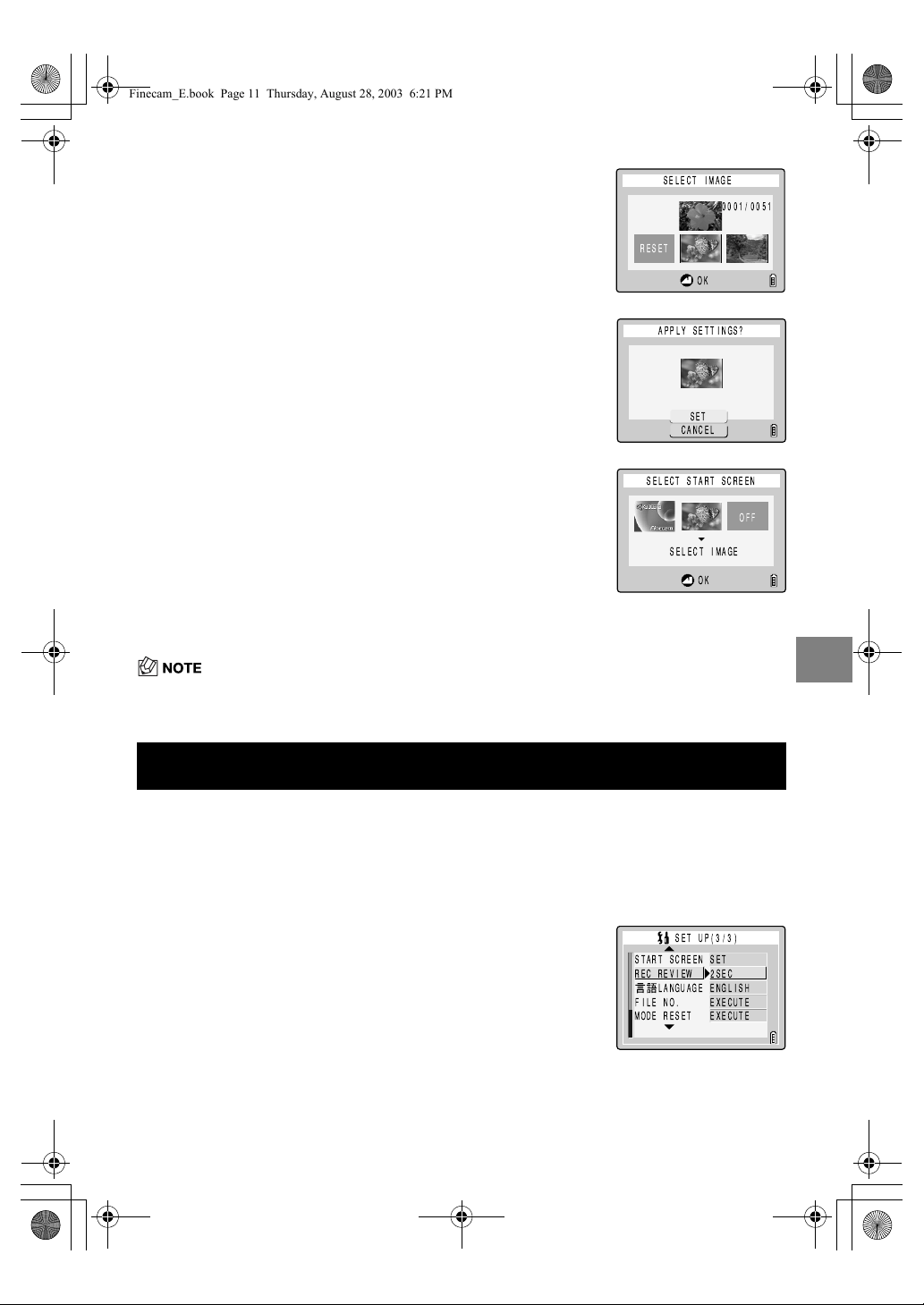
6-11
6
G Using the SET UP Mode Functions
• Because the selected image is stored in the camera’s memory, switching memory cards or
erasing the image from the memory card does not affect the image set in the startup screen.
Use this procedure to have the camera display images for several seconds immediately
after you shoot them.
5 Press
L
or
R
on the 4-way button to select
the desired image and then press the OK
button
E
.
Selecting [RESET] restores the settings in step 3.
6 Use
U
on the 4-way button to select [SET]
and then press the OK button
E
.
7 Press
L
or
R
on the 4-way button to select
the middle image and then press the OK
button
E
.
8 The screen for step 2 reappears.
[REC REVIEW]
Checking Images Right After You Shoot Them
1 Switch the camera on and press
O
or
Q
on the mode
button until the “
G
” icon lights on the mode select LED.
2 Press
U
or
D
on the 4-way button to select
[REC REVIEW] and then press
R
.
APPLY SETTINGS?
SET
CANCEL
START SCREEN
REC REVIEW
LANGUAGE
FILE NO.
MODE RESET
SET
2SEC
ENGLISH
EXECUTE
EXECUTE
SET UP(3/3)
Finecam_E.book Page 11 Thursday, August 28, 2003 6:21 PM
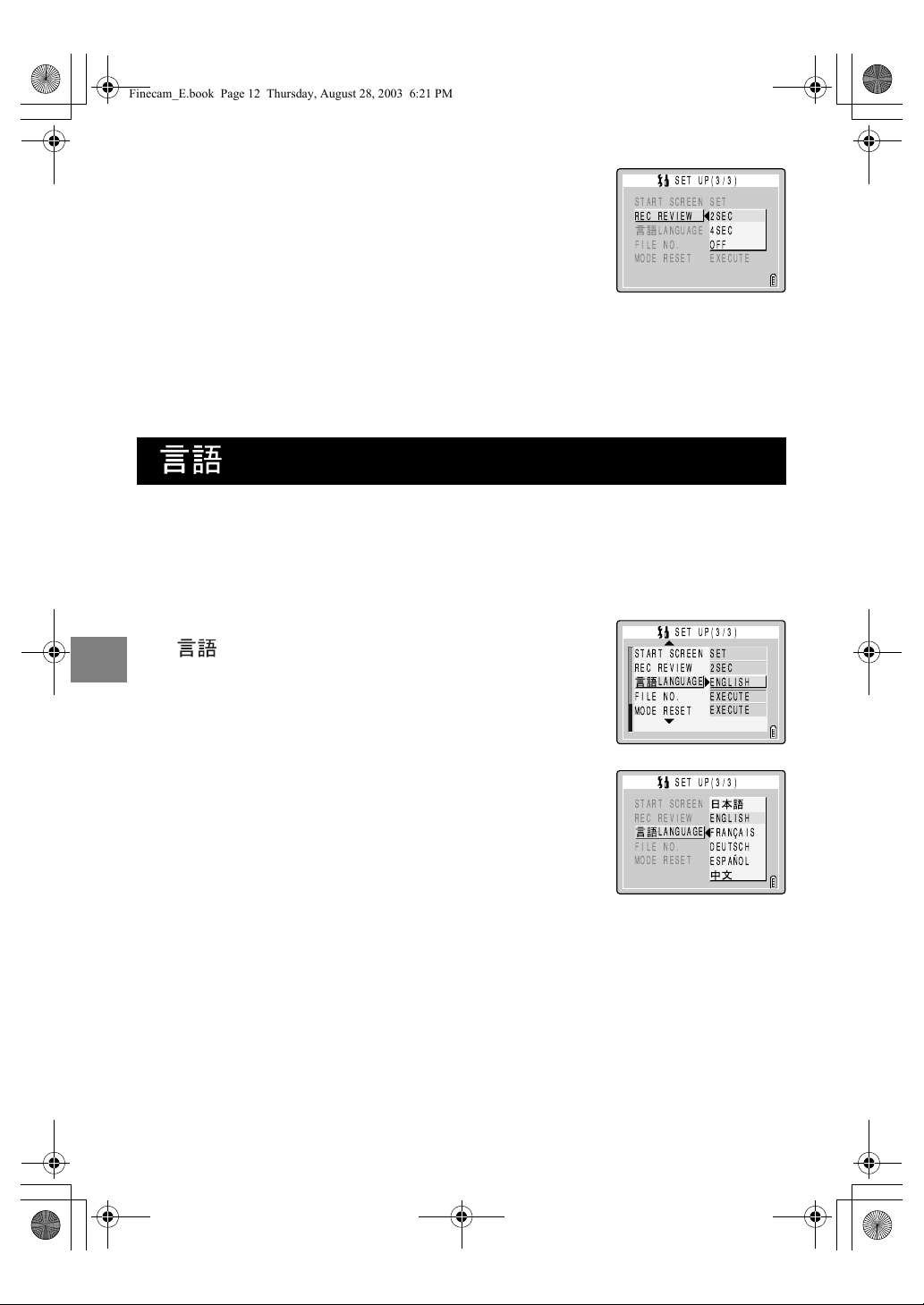
6-12
6
G Using the SET UP Mode Functions
You can choose Japanese, English, French, German, Spanish or Chinese (simplified) as
the displayed language.
3 Press
U
or
D
on the 4-way button to select
the desired setting and then press the OK
button
E
.
2SEC: Images are displayed for 2 seconds right
after shooting.
4SEC: Images are displayed for 4 seconds right
after shooting.
OFF: Images are not displayed right after
shooting. (default)
4 The selected settings are applied and the screen in step 2
reappears.
[LANGUAGE]
Selecting the Menu Language
1 Switch the camera on and press
O
or
Q
on the mode
button until the “
G
” icon lights on the mode select LED.
2 Press
U
or
D
on the 4-way button to select
[ LANGUAGE] and then press
R
.
3 Press
U
or
D
on the 4-way button to select
the desired language and then press the OK
button
E
.
4 The selected settings are applied and the screen in step 2
reappears.
START SCREEN
REC REVIEW
FILE NO.
MODE RESET
SET
2SEC
4SEC
OFF
EXECUTE
SET UP(3/3)
LANGUAGE
START SCREEN
REC REVIEW
FILE NO.
MODE RESET
SET
2SEC
ENGLISH
EXECUTE
EXECUTE
SET UP(3/3)
LANGUAGE
START SCREEN
REC REVIEW
FILE NO.
MODE RESET
ENGLISH
FRANÇAIS
DEUTSCH
ESPAÑOL
SET UP(3/3)
LANGUAGE
Finecam_E.book Page 12 Thursday, August 28, 2003 6:21 PM

6-13
6
G Using the SET UP Mode Functions
Images shot on the camera are assigned file names that consist of sequential numbers
before being saved in a folder called 100KCBOX.
Executing FILE NO. creates a second folder called 101KCBOX and the numbering of the
file names for images shot subsequently starts again from 0001.
Resetting the file number in this way is useful when you want to store shots of a particular
scene in a different folder.
• Folders “100KCBOX” to “999KCBOX” can be created.
• To reset the folder numbers and begin again from “100KCBOX”, reset the file numbers
without inserting the memory card and insert a formatted memory card before shooting.
[FILE NO.]
Starting Image File Numbers from 0001
1 Switch the camera on and press
O
or
Q
on the mode
button until the “
G
” icon lights on the mode select LED.
2 Press
U
or
D
on the 4-way button to select
[FILE NO.] and then press
R
.
3 Press
U
on the 4-way button to select
[EXECUTE] and then press the OK button
E
.
4 The settings are reset and the screen in step 2 reappears.
New folder
100KCBOX
KIF_0001.jpg
KIF_0002.jpg
KIF_0003.avi
•
•
•
•
101KCBOX
KIF_0001.jpg
KIF_0002.jpg
•
•
•
•
•
START SCREEN
REC REVIEW
FILE NO.
MODE RESET
SET
2SEC
ENGLISH
EXECUTE
EXECUTE
SET UP(3/3)
LANGUAGE
RESET NUMBER?
EXECUTE
CANCEL
Finecam_E.book Page 13 Thursday, August 28, 2003 6:21 PM
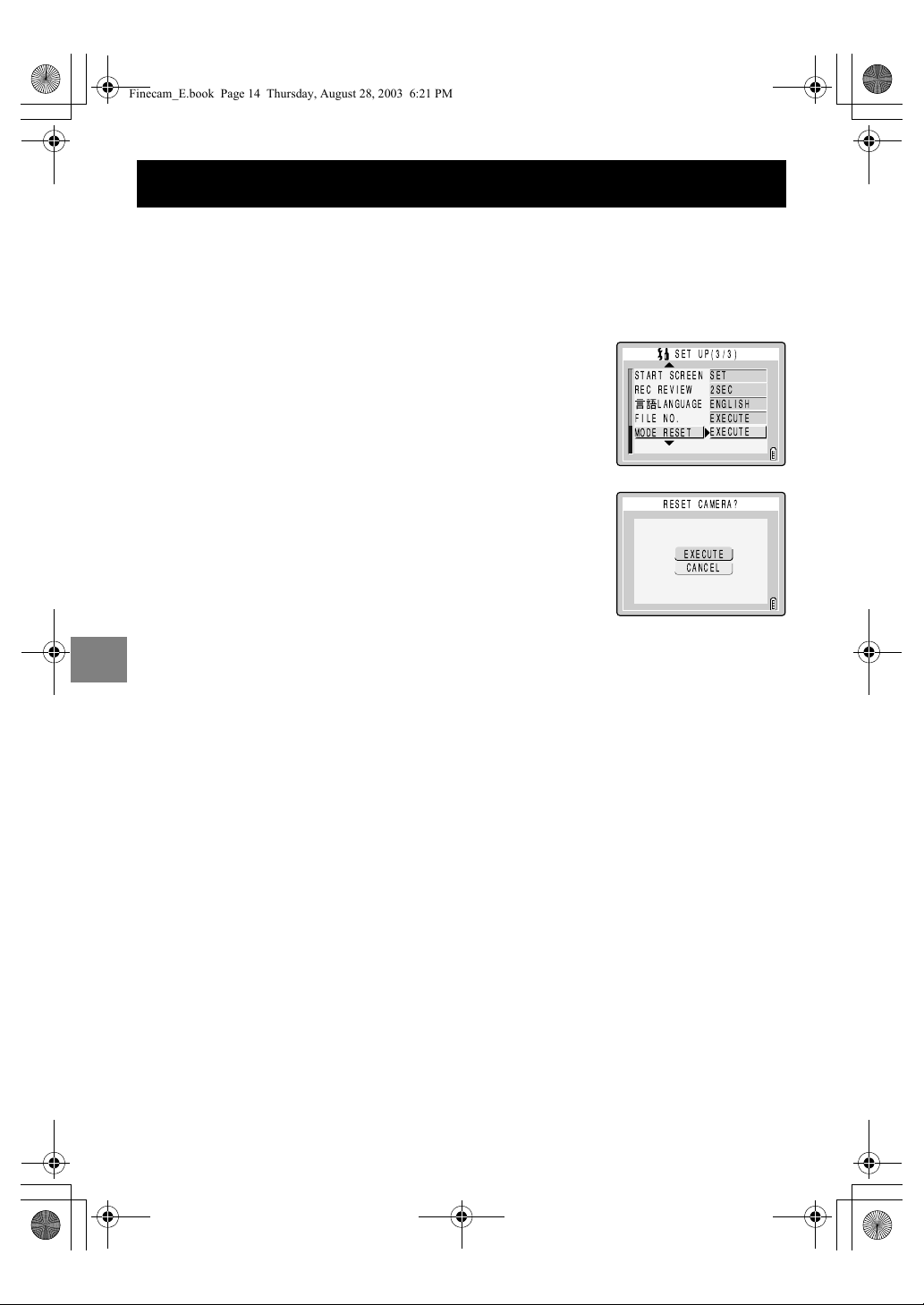
6-14
6
G Using the SET UP Mode Functions
Use this function when you want to reset modes and menu settings that you have specified
back to their default settings.
[MODE RESET]
Resetting Function Settings
1 Switch the camera on and press
O
or
Q
on the mode
button until the “
G
” icon lights on the mode select LED.
2 Press
U
or
D
on the 4-way button to select
[MODE RESET] and then press
R
.
3 Press
U
on the 4-way button to select
[EXECUTE] and then press the OK button
E
.
4 The settings are reset and the screen in step 2 reappears.
START SCREEN
REC REVIEW
FILE NO.
MODE RESET
SET
2SEC
ENGLISH
EXECUTE
EXECUTE
SET UP(3/3)
LANGUAGE
RESET CAMERA?
EXECUTE
CANCEL
Finecam_E.book Page 14 Thursday, August 28, 2003 6:21 PM
Appendix
This chapter provides a range of technical information, including measures for
dealing with camera problems, the names of the icons displayed on the LCD
monitor, the operation of the LEDs and a glossary of digital camera terms.
Finecam_E.book Page 1 Thursday, August 28, 2003 6:21 PM

7-2
7
Appendix
Check the items listed below before deciding that your camera is faulty.
Troubleshooting
Problems and Solutions
Problem Cause Solution
Nothing appears on
the LCD monitor.
The lithium-ion battery pack is flat or is
not inserted.
Load a lithium-ion battery pack into
the camera and re-charge it.
The Power Save function has
switched the camera off. ( p.6-6)
Press the POWER button
H
again
to switch the camera back on.
There is no image on
the LCD monitor.
If you leave the camera for a while
without using it, the camera goes into
Sleep mode.
Press the shutter release button half
way or press any other camera button
to restore the camera to Shooting
mode. The details vary depending on
the Power Save function settings. See
p.6-6 for details.
There is something generating a
magnetic field (such as a magnet or
TV) close to the camera.
Move the camera further away from
the magnetic object.
The number of
available shots did not
change when I took a
picture.
This is because the photographed
image size is small.
This is dependent on factors such as
the quality mode and the subject and
is not a problem.
I cannot erase an
image. The [ ] icon
appears.
The image is protected. Unprotect the image. ( p.5-9)
I cannot erase an
image.
The image file was recorded using a
different device.
The image cannot be erased using
this camera. You can use FORMAT to
erase the image, but this will erase all
the images on the card. ( p.6-5)
The number of
available shots did not
increase after I erased
an image.
This is because the erased image size
is small.
This is dependent on factors such as
the quality mode and the subject and
is not a problem.
I cannot charge the
battery.
There is no lithium-ion battery pack
loaded in the camera.
Load a lithium-ion battery pack into
the camera.
The lithium-ion battery pack poles
(+ and –) are the wrong way round.
Reload the lithium-ion battery pack
correctly.
The AC adapter is not connected
correctly.
Check that the adapter is securely
connected to the camera and the
power socket.
The battery pack terminals are soiled. Wipe the terminals with a soft clean
cloth.
I cannot charge the
battery. Or charging
stops. The caution
LED flashes slowly.
The charging protection circuit was
activated and halted charging
because the ambient temperature is
too high or too low.
Charge the battery when the ambient
temperature is between 10°C and
30°C. (Charging is possible between
5°C and 40°C but will take slightly
longer.)
Finecam_E.book Page 2 Thursday, August 28, 2003 6:21 PM

7-3
7
Appendix
The camera gets hot. A strong current flows through the
camera when the LCD monitor is used
so the camera gets hot if the LCD
monitor is used for an extended
period.
While this is not a fault, you should
leave the camera for a time before
using it again.
The caution LED
flashes slowly.
The flash is charging. Briefly take your finger off the shutter
release button and wait.
The caution LED
flashes quickly.
This is the camera shake warning.
The shutter speed is slow.
Place the camera on a stable surface
to take the picture.
The camera will not
focus. The shooting
mark flashes.
The subject is a type that is not suited
to autofocus. ( p.3-2)
Use focus lock to focus on a strongly
contrasting part of the subject, then
compose the shot and take the
picture. ( p.3-2)
The picture came out
completely white.
The image is overexposed. Set LONG EXP to OFF or reset the
camera settings.
I can’t rotate or protect
the image or specify
DPOF settings.
The SD memory card is write-
protected.
Release the write-protection for the
card. ( p.1-4)
Messages and Responses
Message Cause Response
MEMORY CARD
FULL
There is not enough recording space
available on the memory card.
Insert a new memory card or erase
some unwanted images. Alternatively,
changing the image size or quality
may enable you to take the picture.
NO CARD There is no memory card inserted. Insert a memory card.
WRITE PROTECT The SD memory card is write-
protected.
Release the write-protection for the
card ( p.1-4) or use another memory
card.
CARD ERROR
or
UNSUPPORTED
FORMAT
You are using a card that was
formatted on another device.
Format the memory card in the
camera. ( p.6-5)
The format of the memory card is not
compatible with this camera.
Insert a new memory card or format
this memory card.
The card is not inserted correctly. Re-insert the memory card.
NO IMAGE Nothing is recorded on the memory
card.
Insert a memory card that has been
used to take pictures.
Problem Cause Solution
Finecam_E.book Page 3 Thursday, August 28, 2003 6:21 PM

7-4
7
Appendix
After OFF : Menu setting after the camera is switched off.
Locked : As specified in MODE LOCK.
Default : Reverts to the default setting.
Previous : Saves the setting specified before the camera was switched off.
— : Not applicable.
Mode-locked Menu Options and Default Settings
Mode Menu
Mode lock
After OFF Default Page
C
Camera Mode/
N
Continuous
Shooting Mode/
M
Movie Mode
C
Flash K Locked AUTO 4-2
N
Flash K Locked Flash OFF 4-2
C/N/M Scene mode ✕ Default STANDARD 3-4
C
/
N
/
M
SELF TIMER ✕ Default OFF 4-4
C
/
N
PIXELS ✕ Previous 2048 ✕ 1536 4-5
M PIXELS ✕ Previous 320 ✕ 240 4-5
M
FRAME/SEC ✕ Previous 30 fps 4-10
C
/
N
QUALITY ✕ Previous NORMAL 4-6
C
/
N
/
M
EXP.COMP. K Locked ±0.0 4-8
C
/
N
/
M
WHITE BALANCE K Locked AUTO 4-9
M
SET DETAILS SOUND ✕ Previous ON 4-11
C
/
N
/
M
SET DETAILS COLOR MODE ✕ Default COLOR 4-13
C
/
N
SET DETAILS CHROMA ✕ Previous STANDARD 4-14
C
/
N
SET DETAILS SHARPNESS ✕ Previous STANDARD 4-15
C
/
N
/
M
SET DETAILS WB PRESET ✕ Previous White balance
set by you
4-16
C
/
N
SET DETAILS AE MODE ✕ Previous PROGRAM 4-17
C
/
N
/
M
SET DETAILS FOCUSING ✕ Previous SPOT AF 4-19
C
/
N
SET DETAILS LONG EXP. ✕ Default OFF 4-21
C
/
N
SET DETAILS ISO ✕ Previous AUTO 4-22
C
/
N
SET DETAILS METERING ✕ Previous EVALUATION 4-23
C
/
N
/
M
SET DETAILS DIGITAL ZOOM ✕ Previous ON 4-24
G
Setup Mode
AF MODE ✕ Previous SAF 6-2
AF METHOD ✕ Previous SPEED 6-2
BRIGHT CNTRL ✕ Previous STANDARD 6-3
BACKLIGHT ✕ Previous BRIGHT 6-4
DATE ✕ Previous Date set by you 1-6
INSERT DATE ✕ Previous NO DATE 6-4
FORMAT ✕ ——6-5
POWER SAVE ✕ Previous 3MIN. 6-6
MODE LOCK ✕ Previous OFF 6-7
BEEP ✕ Previous +2 6-8
SHUTTER VOL ✕ Previous +2 6-9
COLOR SELECT ✕ Previous YELLOW 6-9
START SCREEN ✕ Previous Kyocera logo
screen
6-10
REC REVIEW ✕ Previous OFF 6-11
LANGUAGE ✕ Previous
Language set by you
6-12
FILE NO. ✕ — — 6-13
MODE RESET ✕ — — 6-14
Finecam_E.book Page 4 Thursday, August 28, 2003 6:21 PM

7-5
7
Appendix
● Display when the MENU button is pressed
Menu icons are displayed.
LCD Monitor Information and Names of Icons
Display when the Camera
C
, Continuous Shooting
N
or
Movie
M
mode is selected
q
Flash mode (page 4-2)
w
White balance mode/color mode
(page 4-9 /page 4-13)
e
Metering mode (page 4-23)
r
Shooting mark
t
Continuous shooting (page 3-7)
y
ISO Sensitivity (page 4-22)
u
Pixels (page 4-5)
i
Image quality (page 4-6)
o
Number of recordable images
!0
Autoexposure mode (page 4-17)
!1
AF mode (page 6-2)
!2
Sharpness (page 4-15)
!3
Chroma (page 4-14)
!4
Focus frame (wide AF) (page 4-19)
!5
Focus frame (Spot AF) (page 4-19)
!6
Scene mode (page 3-4)
!7
Self-timer (page 4-4)
!8
Digital zoom (page 4-24)
!9
Long Exposure/Exposure compensation
(page 4-21/page 4-8)
@0
Focus gauge (appears when focus mode is
set to [MF]) (page 4-20)
@1
Date
@2
Battery indicator
@3
Audio mode (page 4-11)
@4
Remaining seconds that can be recorded for
movies
@5
Frame rate (page 4-10)
q
SELF TIMER (page 4-4)
w
PIXELS (page 4-5)
e
QUALITY (page 4-6)
r
EXP.COMP. (page 4-8)
t
WHITE BALANCE (page 4-9)
y
SET DETAILS (page 4-11)
q
SELF TIMER (page 4-4)
w
PIXELS (page 4-5)
e
FRAME/SEC (page 4-10)
r
EXP.COMP. (page 4-8)
t
WHITE BALANCE (page 4-9)
y
SET DETAILS (page 4-11)
F2.8X2.0 ISO200
SAF
2003.09.01
+1.0
+1
+1
1234F
10
q e r y i
o
wtu
!8 !9 @0 @1 @2
!0
!1
!2
!3
!4
!5
!6
!7
“
C
” Camera Mode/ “
N
” Continuous Shooting Mode
30fpsX2.0
SAF
2003.09.01
+1.0
00:00
10
(!
(#
("
"
#
H
MK
& ' ( ( (
$
%
“
M
” Movie Mode
SELF TIMER
G M A H J O
“
C
” Camera Mode/ “
N
” Continuous Shooting Mode
SELF TIMER
G M A H J O
“
M
” Movie Mode
Finecam_E.book Page 5 Thursday, August 28, 2003 6:21 PM

7-6
7
Appendix
● Display when the MENU button K is pressed
Menu icons are displayed.
Display when Playback P mode is selected
q
MULTI (page 5-3)
w
POSTRECORDING (page 5-5)
e
PROTECT (page 5-8)
r
ERASE (page 5-9)
t
ERASE ALL (page 5-10)
y
RESIZE (page 5-11)
u
ROTATE (page 5-15)
i
AUTO PLAY (page 5-16)
o
PRINT (page 5-19)
Image Information Display
● INFORMATION display
(Playback mode)
● Manual REC Review display
(Camera mode)
q
Folder name and file name (page 2-15)
w
File size
e
Quality (compression ratio) (page 4-6)
r
Number of pixels (page 4-5)
t
Protection status
y
Whether or not voice is used
u
Shutter speed (page 7-11)
i
Aperture (page 7-9)
o
Exposure compensation setting (page 4-8)
!0
ISO sensitivity (page 4-22)
!1
DPOF settings (page 5-19)
!2
Photography date and time
MULTI
G M A H J
RESIZE
y u i o
w
q
e
u
!0
!2
o
i
!1
r
w
q
e
u
r
!0
!2
!1
o
i
y
t
Finecam_E.book Page 6 Thursday, August 28, 2003 6:21 PM

7-7
7
Appendix
There are 3 LEDs on the camera.
Each LED indicates the status of the camera depending on how it lights or flashes.
LED indicators
Self-timer LED (red)
While using the self-timer
When a movie is being shot
When the shutter operates and shooting ends
When the camera is connected to a PC
Card access LED (orange)
Flashes while the camera is accessing the memory card, such as
recording images to memory card or reading data.
While the LED is flashing, do not open the card/battery cover or
remove the memory card.
Flashes
Lights
Flashes
Finecam_E.book Page 7 Thursday, August 28, 2003 6:21 PM
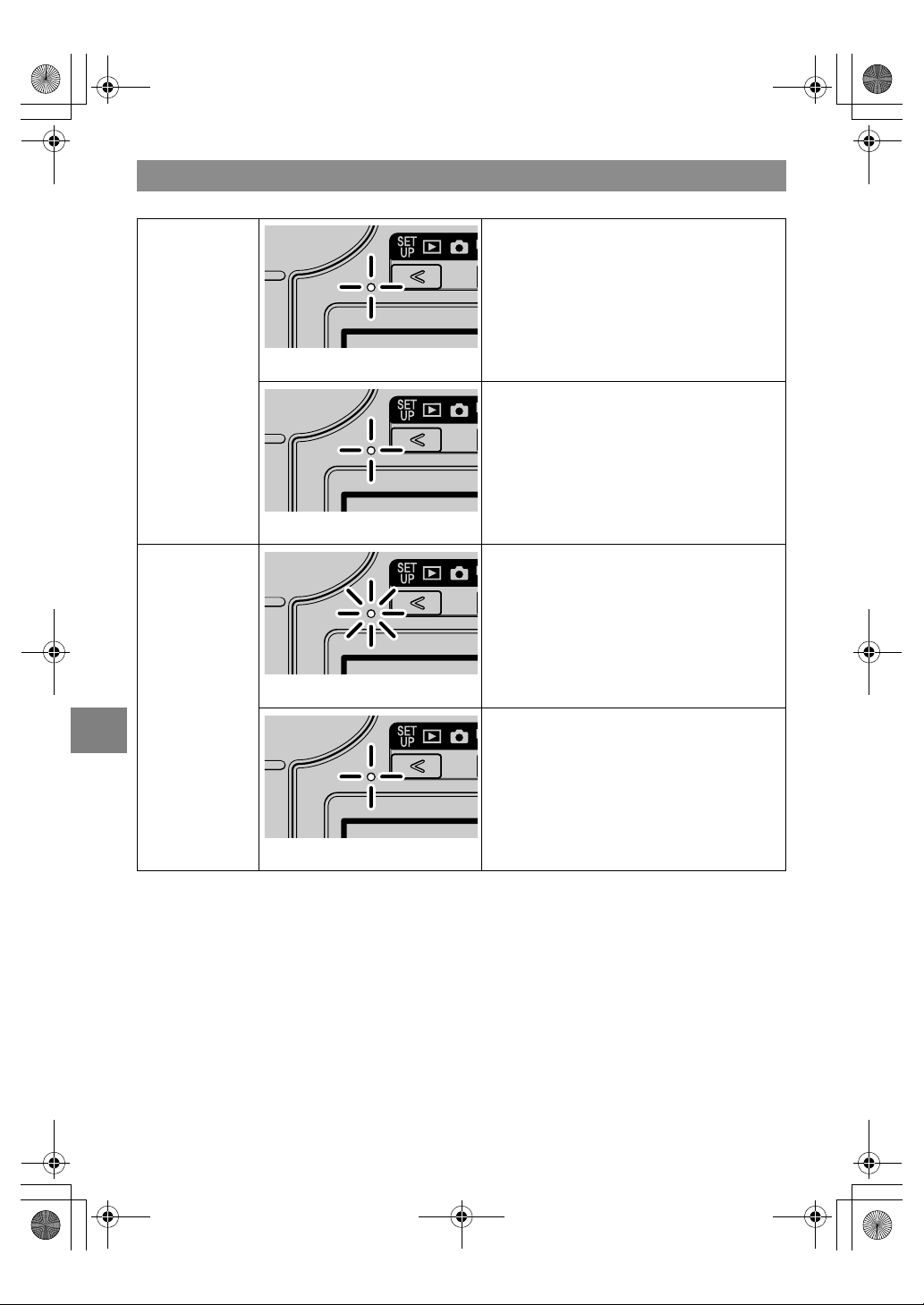
7-8
7
Appendix
Caution LED (red)
C
Camera mode/
N
Continuous
Shooting mode/
M
Movie mode
As the shutter speed is slow, you need to take
care of camera shake.
As the flash is being charged, you need to wait to
take the next picture until the LED stops flashing.
Battery
recharging
Now recharging
There is an error on the battery pack, AC adapter
or camera.
Flashes rapidly
Flashes slowly
Lights
Flashes
Finecam_E.book Page 8 Thursday, August 28, 2003 6:21 PM

7-9
7
Appendix
AE (Auto Exposure)
This refers to automatic exposure, which is the mechanism by which the camera
automatically adjusts the exposure.
AF (Auto Focus)
The mechanism by which the camera automatically focuses images.
Aperture
This is a mechanism inside the camera lens that controls the amount of light passing
through the lens by changing the size of an opening.
Aperture setting
A number that indicates the size of the aperture opening. Settings are displayed as numbers
such as F2.8, and the higher the aperture setting, the smaller the opening and the less light
that passes through the lens.
Aperture-priority AE
This is a type of automatic exposure where the photographer selects the aperture setting
and the camera then automatically sets the optimum shutter speed for the shot. By setting
the aperture, the photographer can control the depth of field in the shot.
CCD (Charge Coupled Device)
This is a device used as the imaging element in a digital camera. Strictly speaking, a CCD is
used for transferring electrical signals and is governed by a semiconductor device called a
phototransistor that converts light into electrical signals. The integrated unit made up of the
phototransistor and the CCD that transfers the electrical signals is called a CCD imaging
element and is the heart of any digital camera.
DCF (Design rule for Camera File system)
This is a standard adopted by the Japan Electronics and Information Technology Industries
Association (JEITA) that stipulates items such as the file formats for digital cameras and
related devices. In principle, digital cameras that conform to the DCF standard can freely
exchange images, even when the images were shot on a different brand of camera. This
camera complies with the DCF standard.
Depth of field
When a subject is in focus, the depth of field refers to the area in front of and behind the
subject that is also in focus. The depth of field increases when the aperture setting is high.
Such shots are said to have a large depth of field. Conversely, lower aperture settings give a
narrow range in which objects are in focus. This is referred to as a small depth of field. The
depth of field becomes smaller when the subject is closer to the camera.
DPOF (Digital Print Order Format)
DPOF is a standard used for printing images photographed using a digital camera on a
home printer or at a commercial print processing store. When the number of prints of
photographed images that are required and the format of those prints are specified in the
DPOF settings on a DPOF-compatible camera, those prints can then be produced as
specified in the DPOF settings using a DPOF-compatible printer or by a commercial print
processing store that provides a DPOF print service. This camera is DPOF compatible.
Basic Glossary of Digital Camera Terms
Finecam_E.book Page 9 Thursday, August 28, 2003 6:21 PM
7-10
7
Appendix
EV (Exposure Value)
An EV is a number that denotes exposure. EV=1 when the aperture setting is F1 and the
shutter speed is 1 second. Each time the exposure then halves, the EV number increases
by 1 (EV=2, EV=3...).
Conversely, when the exposure is double the EV=1 level, the EV becomes -1. When the
exposure is doubled again, EV=-2, and so on.
In general parlance, when we “change the exposure by 1 step” we are in fact referring to
this EV.
Exposure
This refers to the light of the image projected through the lens striking the camera’s CCD or
film for the optimum amount of time only. Generally speaking, exposure refers to the
combination of shutter speed and aperture setting that will give the correct image.
Flash
This is a device that produces a bright flash of light by releasing an internally stored high-
voltage current. Flash units use relatively large amounts of power and tend to deplete the
camera battery if used frequently.
Focal length
This is the distance from the center of the lens (secondary focal point) to the plane onto
which the image is projected (focal plane) when the image of a subject at an infinite distance
from the camera is clearly focused. The focal length of a lens relates to its magnification,
with longer focal lengths giving more enlarged images of distant objects.
Focus
This term refers to the focal point of a lens, but is more broadly used to refer to the condition
whereby the subject of a photograph is seen most clearly. When the focusing is correct and
the subject is clearly visible, the shot is said to be “in focus”. When this is not the case, the
shot is “out of focus”.
Format
The initialization of a memory card.
Infinity
Once the subject of a photograph is further than a set distance away from the camera lens,
moving still further away requires no adjustment to the focus. The distance at which the
subject is so far away that no change in the focus occurs is referred to as “infinity”.
Initialization (formatting)
This is a process that organizes the internal structure of a memory card so that data can be
recorded on the card. Initialization erases all the existing files on a memory card.
ISO (sensitivity)
This is a number that indicates the sensitivity of film to light, with higher values indicating
greater sensitivity. This is generally expressed as “ISO 100”, etc. Film with higher ISO
sensitivity is more sensitive to light and can be used to take pictures in low-light conditions.
Even in digital cameras, which do not use film, sensitivity is still expressed in terms of ISO
numbers.
JPEG (Joint Photographic Experts Group)
This is a file format used for compressing and saving color images. The compression ratio is
variable, with higher compression ratios giving smaller image file sizes but poorer image
quality.
Finecam_E.book Page 10 Thursday, August 28, 2003 6:21 PM

7-11
7
Appendix
Memory card
A recording medium that uses flash memory on which data can be electrically erased
(rewritten). SD memory cards and Multimedia cards can be used with this camera.
MF (Manual Focus)
Focusing performed manually rather than using AF.
Program AE
This is a type of AE in which the camera automatically selects a combination of shutter
speed and aperture setting according to the brightness of the subject.
Shooting mark
The “
B
” mark displayed on the LCD monitor when the camera is ready to take the picture.
Shutter speed
This refers to the time for which the shutter opens and allows the light for the picture to
strike the film or CCD.
Subject
This term refers to the person or object photographed by the camera. In portrait shots, the
subject is the person. In shots of landscapes, the subject is the scenery.
TFT color LCD monitor
Refers to an LCD monitor that uses a thin film transistor (TFT). TFT monitors provide good
resolution and excellent responsiveness.
White balance
To the human eye, the light from a white incandescent light globe or a fluorescent tube does
not appear to differ particularly from sunlight. In fact, however, they are a quite different in
color from the light of the sun. Without some adjustment, shots taken under an
incandescent light globe have an orange cast, while shots taken under fluorescent lights
have a blue or green cast. There is a range of methods for correcting the color casts caused
by different light sources, but on digital cameras a white subject is used as a reference. For
this reason, the function is referred to as “white balance”.
Zoom lens
This is a lens in which the photography scale can be changed gradually. In a zoom lens, the
photography scale is varied by gradually changing the focal length.
Zooming
This refers to the gradual changing of the photography scale. Gradual enlargement of the
subject is called “zooming in”, while gradual reduction of the subject is called “zooming out”.
Finecam_E.book Page 11 Thursday, August 28, 2003 6:21 PM
Finecam_E.book Page 12 Thursday, August 28, 2003 6:21 PM