Operating Instructions
Integrated Remote
Commander
© 2005 Sony Corporation
Getting Started
Operating
Unit Settings
Setting by On-Remote Setup
Additional Information
RM-AX4000A
RM-AX4000
Appendix
This manual explains two models, RM-AX4000A and RM-AX4000.
On the model RM-AX4000A, the supplied software “AX Remote
Editor” is updated.

2
WARNING
To reduce the risk fire or
electric shock, do not
expose this apparatus to
rain or moisture.
To avoid electrical shock, do
not open the cabinet. Refer
servicing to qualified
personnel only.
You are cautioned that any changes or
modifications not expressly approved in
this manual could void your authority to
operate this equipment.
Owner’s Record
The model number is located on the rear
of the unit and the serial number is
located in the battery compartment.
Record the serial number in the space
provided below. Refer to them whenever
you call upon your Sony dealer
regarding this product.
Model No. RM-AX4000
Serial No.
INFORMATION
This equipment has been tested and
found to comply with the limits for a
Class B digital device, pursuant to Part 15
of the FCC Rules. These limits are
designed to provide reasonable
protection against harmful interference in
a residential installation. This equipment
generates, uses, and can radiate radio
frequency energy and, if not installed
and used in accordance with the
instructions, may cause harmful
interference to radio communications.
However, there is no guarantee that
interference will not occur in a particular
installation. If this equipment does cause
harmful interference to radio or
television reception, which can be
determined by turning the equipment off
and on, the user is encouraged to try to
correct the interference by one or more of
the following measures:
– Reorient or relocate the receiving
antenna.
– Increase the separation between the
equipment and receiver.
– Connect the equipment to an outlet on
a circuit different from that to which
the receiver is connected.
– Consult the dealer or an experienced
radio/TV technician for help.
If you have any questions about this
product, you may call; Sony Electronics
Support 1-866-922-7669 or
http://www.sony.com/remotesupport

3
Declaration of Conformity
Trade Name: SONY
Model number: RM-AX4000
Responsible Party:
Sony Electronics Inc.
Address: 16530 Via Esprillo,
San Diego, CA 92127
USA
Telephone number:
858-942-2230
This device complies with Part 15 of
the FCC Rules. Operation is subject to
the following two conditions: (1) This
device may not cause harmful
interference, and (2) this device must
accept any interference received,
including interference that may cause
undesired operation.
Notice for users
On the supplied software
•Copyright laws prohibit reproducing
the software or the manual
accompanying it in whole or in part, or
renting the software without the
permission of the copyright holder.
•In no event will SONY be liable for any
financial damage, or loss of profits,
including claims made by third parties,
arising out of the use of the software
supplied with this unit.
•In the event a problem occurs with this
software as a result of defective
manufacturing, SONY will replace it.
However, SONY bears no other
responsibility.
•The software provided with this unit
cannot be used with equipment other
than that which is so designated.
•Please note that, due to continued
efforts to improve quality, the software
specifications may be changed without
notice.
•Operation of this unit with software
other than that provided is not covered
by the warranty.
Program © 2005, 2006 Sony Corporation
Documentation © 2005, 2006 Sony
Corporation
Microsoft, Windows and Windows
Media are trademarks or registered
trademarks of Microsoft Corporation in
the United States and/or other countries.
All other trademarks and registered
trademarks are trademarks or registered
trademarks of their respective holders.
In this manual, ™ and ® marks are not
specified.
Adobe Reader is a trademark of Adobe
Systems Incorporated.
•Microsoft Windows XP Media Center
Edition, Microsoft Windows XP
Professional and Microsoft Windows
XP Home Edition are mentioned as
Windows XP in this manual.
•Microsoft Windows 2000 Professional is
mentioned as Windows 2000 in this
manual.

4
Features
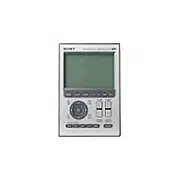
The RM-AX4000 Remote Commander
provides centralized control of all your
AV components from a single remote
control and saves the trouble of operating
different AV components with different
remote control devices. The following are
its main features.
Control up to 16 components
With the Remote Commander, you can
control up to 16 components, including
your TV, VCR, DVD, DVR, CD, RCVR,
etc.
Centralized control of Sony AV
components with this one Remote
Commander
The Remote Commander is preset at the
factory to operate Sony brand
components, so you can use it out of the
box as a control center for your Sony AV
components.
Remote control signals for non-Sony
components are also preset
The Remote Commander also recognizes
the preset codes for most major brands
components, as well as Sony. Just select
the corresponding codes to control all
your AV components.
XPRESS functions for executing a
series of actions to operate several
AV components by pressing just one
key.
Groups of commands from different
components can be set for up to 8
XPRESS functions. For example, when
you watch a DVD using a TV and
amplifier/receiver, you can press just one
key to turn on/off each component, and
select the correct inputs. Available keys
for the XPRESS function appear on the
LCD display.
Also, the XPRESS function can memorize
the status of power on/off, input select
status of each component, and send a
signal to synchronize them to the Remote
Commander, regardless of their current.
Air-Slide executes an XPRESS
function by “sliding your finger”
across the LCD display
You can also perform an XPRESS
function by sliding your finger in a set
pattern across the Remote Commander's
LCD Display. This function is called an
“Air-Slide”, and 6 different patterns are
available.
The AX Remote Editor software allows
you to make advanced settings for the
Remote Commander.
Clock display and Timer function
Up to 8 Timer macros can be
programmed to automatically turn on/
off components and other controls (such
as recording, stopping, etc.).

5
Learning function lets you program
other remote control signals you may
need
The Remote Commander can learn the
remote control infrared signals of non-
preset components. The Remote
Commander can learn remote control
signals (infrared signals only) of other
devices such as air conditioners, lights,
etc. (some specific appliances or
functions may not be available).
System Control function executes a
series of actions (a macro) by
pressing one button/key
In addition to the XPRESS function, more
settings can be programmed to perform a
series of actions (a macro) just by
pressing one button. You can program up
to 8 System Control functions.
Furthermore, you can program a series of
actions (a macro) to other buttons as a
single step of an XPRESS function or
component operation.
KeyMacro function allows you to
select a channel with a single key
The Remote Commander allows you to
program a macro for a key to operate an
AV component. For example, you can
create a macro that enters the numbers 1,
2, and 3, to select channel 123 just by
pressing one key.
The AX Remote Editor software allows
you to make advanced settings for the
Remote Commander.
Easy-to-operate Touch-key LCD with
blue back light
The Remote Commander has a Touch-
key LCD that changes keys and labels
according to the selected component. The
Remote Commander is easy to operate as
only the keys necessary to operate the
selected component are shown. The
display backlight allows operation even
in the dark.
The supplied software “AX Remote
Editor” for easy Remote Commander
setup
By installing the “AX Remote Editor” on
the supplied CD-ROM onto your PC, you
can customize the setting of the Remote
Commander according to your
preferences. You can also program
various advanced settings easily.
The settings programmed on your PC
can be transferred to the Remote
Commander as necessary using the
supplied USB cable.

6
Table of Contents
Getting Started
Unpacking ............................................................................................................................. 8
Location and function of controls ........................................................................................ 8
Installing the batteries ....................................................................................................... 10
When to replace the batteries............................................................................................ 10
Setting the clock ................................................................................................................. 11
Remote Commander settings and operating procedures ................................................... 13
About the factory setting ................................................................................................... 13
How to set up the Remote Commander (On-PC Setup and On-Remote Setup) ...... 13
Setting procedure for On-PC Setup ................................................................................. 14
Setting procedure for On-Remote Setup ......................................................................... 15
Setting up for your PC ........................................................................................................ 16
Installing the “AX Remote Editor” .................................................................................. 16
Installing the USB driver ................................................................................................... 17
Connecting the Remote Commander to your PC .......................................................... 19
Using the “AX Remote Editor” to set up the Remote Commander .................................... 19
Using “AX Remote Editor”– Help ................................................................................... 20
Operating
Operating the Remote Commander.................................................................................... 21
What is the XPRESS function? .......................................................................................... 21
Operating the XPRESS function ....................................................................................... 22
Operating components individually ............................................................................... 25
To control the volume ........................................................................................................ 27
To synchronize with the status of a component ............................................................. 28
To perform an easy action “Air-Slide” for XPRESS function ............................................... 29
Executing a series of actions at a scheduled time ............................................................. 29
To quickly switch the Timer on or off .............................................................................. 30
Executing a series of actions with just one button ............................................................ 31
Other useful functions ........................................................................................................ 32
To operate the Remote Commander in the dark ............................................................ 32
Locking the controls – Hold function .............................................................................. 33
To turn off all the components at one time ..................................................................... 33
Unit Settings
Setting the backlight .......................................................................................................... 34
Setting the LCD display ...................................................................................................... 37
Setting the automatic-off time of the LCD display ........................................................ 37
Calibrating the alignment of the LCD display ............................................................... 39
Setting the contrast of the LCD display .......................................................................... 40
Setting the beep ................................................................................................................. 41
Adjusting the clock .............................................................................................................42
To change the display to the daylight savings time (summer time) indication ........ 43

7
Setting by On-Remote Setup
Setting the preset codes..................................................................................................... 45
Using non-preset remote control operations – Learning function ..................................... 47
To clear the learned signal from a key or button ............................................................................. 49
Learning up to 4 signals to one key ...................................................................................................49
For accurate learning ......................................................................................................... 51
Programming a series of actions with just one button – System Control function ........... 51
To clear programmed series of actions for SYSTEM CONTROL button or
System Control key ......................................................................................................... 54
Setting the XPRESS macro activation ................................................................................. 56
Controlling the volume of visual components connected to an audio component ........... 57
Setting the Timer ................................................................................................................ 59
To program the Timer ........................................................................................................ 59
To clear a Timer macro ....................................................................................................... 64
Changing the names of labels ............................................................................................ 65
Erasing all the settings – Reset .......................................................................................... 68
Additional Information
Precautions ......................................................................................................................... 70
Maintenance ....................................................................................................................... 70
Specifications...................................................................................................................... 70
Troubleshooting .................................................................................................................. 71
Appendix
Table of preset functions .................................................................................................... 76
TV.......................................................................................................................................... 76
A-CBL (Analog Cable box) ................................................................................................ 77
D-SAT (Digital Satellite) .................................................................................................... 78
DVD (DVD player) ............................................................................................................. 79
VCR (Video Cassette Recorder) ........................................................................................ 80
DVR (Digital Video Recorder) .......................................................................................... 81
CD (CD player) ................................................................................................................... 82
RCVR (Receiver/Amplifier) ............................................................................................. 83
DVDVR (DVR/DVD combo)............................................................................................ 84
DVD-R (DVD Recorder) .................................................................................................... 85
D-CBL (Digital Cable box)................................................................................................. 86
DAV (DVD/Receiver combo) ........................................................................................... 87
PJ (Projector) ........................................................................................................................ 88
TAPE (Cassette deck) ......................................................................................................... 89
MD (MD deck) ....................................................................................................................90
LIGHT .................................................................................................................................. 91
Full Display ......................................................................................................................... 92
Index ................................................................................................................................... 93
8
Getting Started
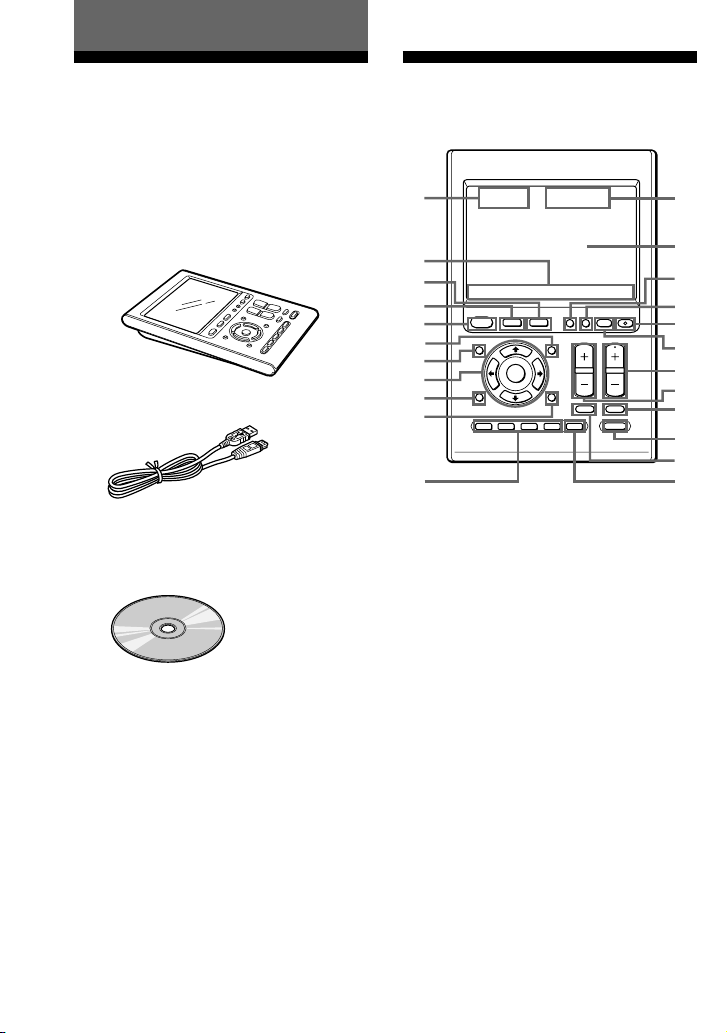
Unpacking
Check the contents of the package before
using the Remote Commander.
•Remote Commander RM-AX4000 (1)
Although the packaging may say RM-
AX4000A, the Remote Commander is
RM-AX4000.
•USB cable (1)
•CD-ROM* (1)
– AX Remote Editor software
– Operating Instructions (PDF file)
•Quick Start Guide (1)
•Preset Code Lists (1)
•Warranty Card (1)
* Do not attempt to play this CD-ROM in an
audio CD player.
Location and function
of controls
EPG
MENU
SYSTEM CONTROL
OK
1 MORE43
COMPONENT
VOLUME
BACK
X PRESS
2
RECALL
OFFLIGHTTIMER
COMMANDER
MUTING
SYNC-UP
CHANNEL
EXIT TOOLS
ALL OFF
qs
wa
wd
ws
qd
qh
qj
ql
qk
w;
qg
qf
1
2
qa
9
0
7
6
5
4
3
8
The CHANNEL + button has a tactile dot.
1 Clock display (pages 11, 42)
Displays the clock, the transmission
mark, the battery mark and the timer
mark.
2 Label keys
Different keys appear depending on
the selected function. The Label keys
are used mainly to choose the XPRESS
function/component/System
Control/Timer/setting items, etc. You
can change the names of the XPRESS
function, components, System Control
key and Timer as the Label keys.
3 COMPONENT button (page 25)
The component names appear as the
Label keys. When you press a
component name, the operating
display for that component appears.
4 BACK button
Used to return to the previous display.

9
Getting Started
5 XPRESS button (page 22)
The XPRESS names appear as the
Label keys. When you press an
XPRESS name, the operating display
for that XPRESS function appears, and
its macro is performed.
6 MENU button
Calls up the menu screen for
components that have menu function.
7 EPG button
8 OK and Cursor Control buttons
9 EXIT button
q; TOOLS button
qa SYSTEM CONTROL buttons
(pages 31, 51)
You can automatically carry out the
entire program by pressing one
button.
qs Display title
Shows the title of the LCD Display. If
a page number such as “/1” appears,
multiple pages are available. If you
press the number, next page displays.
qd Touch-keys
The keys are used for setting the
Remote Commander and operating
each component appear on the LCD
display.
Note
Do not press the touch-keys using sharp
objects such as pins or ball-point pens.
qf SYNC-UP button (page 28)
Used to synchronize the Remote
Commander with the status of a
component .
qg TIMER button (page 29)
Used to set the timer program on/off.
qh COMMANDER OFF button
Turns the power of the Remote
Commander off.
qj LIGHT button (page 32)
Used to brighten the backlight in the
dark. Press the button once to turn
on/off the backlight.
qk CHANNEL +/– buttons
Selects the channel.
ql VOLUME +/– buttons* (page 27)
Adjusts the volume.
w; RECALL button
wa ALL OFF button (page 33)
ws MUTING button* (page 27)
Silences the sound. Press the button to
silence, and again to return to the
previous volume level.
wd MORE button (pages 31, 51)
The System Control keys (SYSTEM5-
8) are displayed as the Label keys.
When you press a System Control key,
its macro is performed.
Note
No default System Control key macros are
set at the factory.
* Note on the VOLUME +/– and
MUTING buttons
When you select a visual component, the
TV’s volume will be controlled; when you
select an audio component, the amplifier’s
volume will be controlled.
Note on the LCD display’s power
on/off
To turn on the LCD display, press any button
except the COMMANDER OFF button.
To turn off the LCD display, press the
COMMANDER OFF button. If you do not use
the Remote Commander within 5 minutes, the
LCD display automatically turns off.
This interval can also be changed (page 37).
10
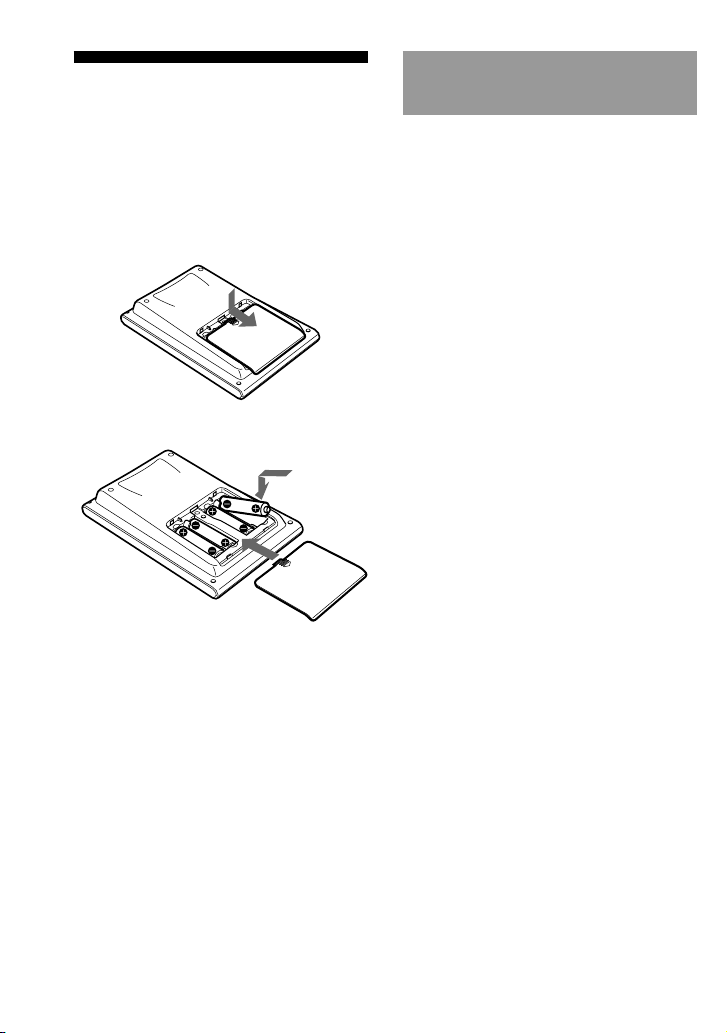
Installing the batteries
Slide and open the battery compartment
lid and insert four size AA (R6) alkaline
batteries (not supplied). Be sure to match
the + and – of the batteries with the +
and – of the battery compartment.
When to replace the
batteries
When replacing the batteries, do it
quickly. Otherwise, the memory
settings for the clock will be erased.
The clock does not work while
replacing the batteries.
Alkaline batteries will last up to 5
months (a Sony TV turned On/Off up to
approx. 300 times per day). If the Remote
Commander does not operate properly,
the batteries are getting weak and E
appears on the LCD display. When the
LCD display dims or the backlight for the
touch keys grows dim, the batteries are
getting weak, and need to be replaced.
Notes on replacing the batteries
• Do not attempt to recharge dry batteries.
• Do not carry dry batteries together with coins
or other metallic objects. This can generate
heat if the positive and negative terminals of
the batteries accidentally come into contact
with metallic objects.
• When you are not going to use the unit for a
long time, remove the batteries to avoid
damage from battery leakage and corrosion.
• Do not use different types of batteries at the
same time.
• When you replace the batteries, replace them
both with new ones.
11
Getting Started
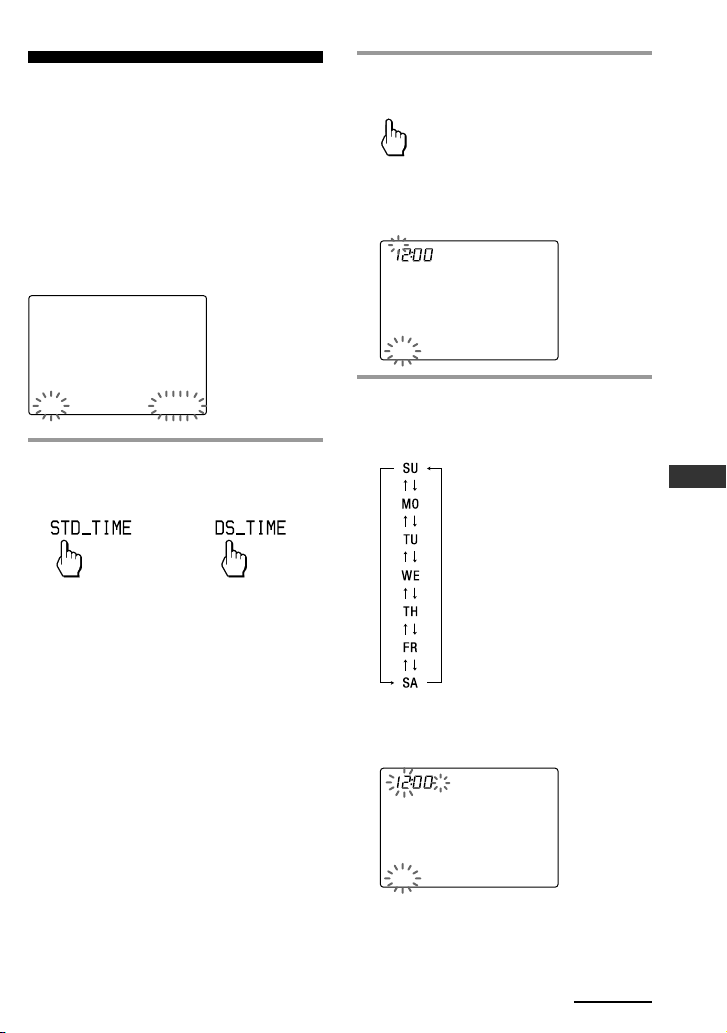
Setting the clock
When you install batteries the first time,
the Remote Commander enters clock
setup mode.
“DS_TIME” appears as the Display title.
“STD_TIME” lights and “SET” and
“DS_TIME” flash on the Label keys.
STD_TIME: standard time
DS_TIME: daylight savings time
DS_TIME
SU
LEARN
NG
SET [STD_TIME] DS_TIME
1
Press “STD_TIME” or
“DS_TIME” on the Label keys.
The current setting is shown inside
the [ ], while the other flashes.
If the summer time (daylight savings
time) is used in your area, press the
DS_TIME key. When the time change
occurs (in spring and autumn), the
Remote Commander will
automatically adjust itself.
If the summer time is not used in your
area, press the STD_TIME key.
2
Press “SET” on the Label keys.
SET
A beep sounds, “SET” and “SU” flash,
and “12:00 AM” lights on the Clock
display.
CLOCK
SU
AM
LEARN
NG
SET STD_TIME
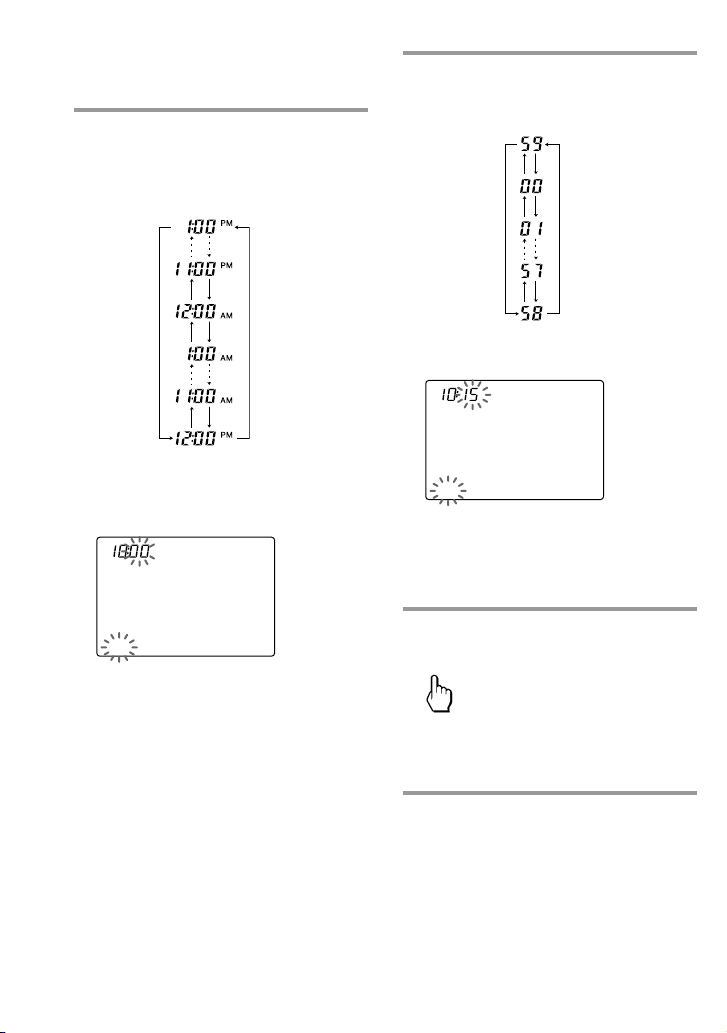
3
Set the day of the week by
pressing the F or f button.
The selected day of the week flashes.
Next, press the g button. The day of
the week is set.
“12” (hour) “AM” and “SET” flash.
CLOCK
SU
AM
LEARN
NG
SET STD_TIME
Note
If you press the G button, the day of the
week is set and setting mode skips to step
5.
or
Continued
SU : Sunday
MO : Monday
TU : Tuesday
WE : Wednesday
TH : Thursday
FR : Friday
SA : Saturday
12
4
Set the hour and AM (or PM) by
pressing the F or f button.
The selected hour and AM (or PM)
flash.
Next, press the g button. The hour
and AM (or PM) are set.
“00” (minute) and “SET” flash.
CLOCK
SU
AM
LEARN
NG
SET STD_TIME
Note
If you press the G button, the hour and AM
(or PM) are set and the setting mode
returns to step 3.
5
Set the minute by pressing the F
or f button.
The selected minute flashes.
If you want to finish the clock setting,
go to step 6.
CLOCK
SU
LEARN
NG
SET STD_TIME
Notes
• If you press the g button, the minute is
set and the setting mode returns to step 3.
• If you press the G button, the minute is
set and the setting mode returns to step 4.
6
Press “SET” on the Label keys.
SET
The beep sounds, and the clock starts
from the 0 second of the current
minute.
Note
If you press the SET key in any step above, the
clock starts from the 0 second of the current
minute.
Setting the clock (continued)
13
Getting Started
Remote Commander
settings and operating
procedures
About the factory setting
The Remote Commander is preset at the
factory to operate most Sony brand AV
components (see the table below).
If you operate a non-Sony AV
component, you need to set the
component’s preset code on the Remote
Commander first.
Default components list
Displays on Component
Remote
Commander
TV TV
A-CBL Analog Cable box
D-SAT Digital Satellite
DVD DVD player
VCR Video Cassette Recorder
DVR DVR (DVR, PVR, DVR/
Satellite Combo, DVR/
Cable Combo)
CD CD player
RCVR Receiver/Amplifier
DVDVR DVR/DVD combo
DVD-R DVD Recorder
D-CBL*
1
Digital Cable box
DAV DVD/Receiver combo
PJ Projector
TAPE*
2
Cassette deck
MD MD deck
LIGHT Light
*
1
If your component has the built-in DVR
function, preset the “Code No.” of DVR.
*
2
Analog audio compact cassette deck
See “Table of preset functions” (page 76) for the
functions of keys and buttons for each
component.
How to set up the Remote
Commander (On-PC Setup
and On-Remote Setup)
There are two ways to make settings for
the Remote Commander, “On-PC Setup”
with the aid of PC software and “On-
Remote Setup” directly on the Remote
Commander.
• On-PC Setup (Recommended)
“On-PC Setup” uses the supplied
software for your PC, “AX Remote
Editor” to set up the Remote
Commander. By following the wizard,
it allows you to easily make all the
necessary settings for the Remote
Commander (components’ preset
codes, etc.,). Furthermore, you can add
and customize a range of settings
which are not available with On-
Remote Setup.
• On-Remote Setup
“On-Remote Setup” is a way of setting
up directly with the Remote
Commander. However, some advanced
settings are not available with On-
Remote setup (see the table on page
14).
See “Setting procedure for On-PC Setup”
(page 14), or “Setting procedure for On-
Remote Setup” (page 15) for each setting
method.
IMPORTANT
You cannot use both methods. Once you
set up the Remote Commander by either
On-PC Setup (recommended) or On-
Remote Setup, you cannot make
additional settings using the other
method. You can only delete the entire
setup and start over using the other setup
method.
Continued

14
Programmable items of On-PC
Setup and On-Remote Setup
*
1
System Control function is used to perform
a programmed series of actions (a macro)
on several AV components by pressing just
one button.
*
2
An XPRESS function is also a macro
function which executes a series of actions
for controlling several AV components by
pressing just one key. The difference is, the
XPRESS display stays available for you to
make additional settings.
*
3
An Air-Slide is a function which executes
an XPRESS function by “sliding your
finger” in a set pattern across the display.
Setting procedure for On-
PC Setup
If you set up the Remote Commander
using On-PC Setup (recommended),
follow the procedures below.
Step1: Installing the “AX Remote
Editor” (page 16).
Step2: Installing the USB driver
(page 17).
Step3: Using the “AX Remote
Editor” to set up the Remote
Commander (page 19).
See the Help file of AX Remote
Editor for setting details.
Step4: Operating an AV
component using the Remote
Commander.
After finishing the setting with AX
Remote Editor, operate the AV
component using the Remote
Commander.
• Operating the XPRESS function
(page 22).
• Operating components
individually (page 27).
Option1: You can also change the
Unit Settings such as the
backlight and beep (pages 34,
41).
Option2: You can also change the
settings of the buttons or keys
on the Remote Commander
with AX Remote Editor.
See the Help of AX Remote Editor for
setting with AX Remote Editor.
Main setting
items
Setting the
preset codes
Learning the
remote control
signals
Editing the label
Setting the
Timer
Programming
the Timer
Setting System
Control
function *
1
Setting XPRESS
function *
2
Setting Air-
Slide function *
3
Unit Settings
Using the AX
Remote Editor
(On-PC Setup)
a
a
a
a
a
a
a
a
a
Using the Remote
Commander
(On-Remote Setup)
a
a
a
a
a
a
×
×
a
Remote Commander settings and
operating procedures (continued)
15
Getting Started
When using On-PC Setup
If you set up the Remote Commander
using On-PC Setup, you do not need to
read this PDF manual “Setting by On-
Remote Setup”.
(pages 45 – 69)
Setting procedure for On-
Remote Setup
If you set the Remote Commander On-
Remote Setup, follow the procedure
below.
Step1: Setting the preset codes
(page 45).
Step2: Operating AV components
using the Remote Commander.
After finishing the setting of the
preset codes, you can use the Remote
Commander to operate your AV
components.
• Operating the XPRESS function
(page 22).
• Operating components
individually (page 27).
Option1: You can also change the
Unit Settings such as backlight
and beep (pages 34, 41).
Option2: You can also change the
settings of the buttons or keys
on the Remote Commander.
• Using non-preset remote control
operations (Learning function)
(page 47).
•Programming a series of actions
with just one button (System
Control function)
(page 51).
• Setting the XPRESS macro
activation (page 56).
• Controlling the volume of visual
components connected to an audio
component (page 57).
• Setting the Timer (page 59).
• Changing the names of labels
(page 65).
When using On-Remote Setup
If you set up the Remote Commander
using On-Remote Setup, you do not need
to install the AX Remote Editor and its
driver, or connect the Remote
Commander to your PC. You also do not
need to read the PDF pages 16 to 20.
16
Setting up for your PC
By installing the “AX Remote Editor” on
the supplied CD-ROM onto your PC, you
can set up the Remote Commander
simply with your PC.
“AX Remote Editor” makes setting up
complex series of operations (a macro)
easy, and also allows various other
convenient functions to be set up. For
details, see the Help menu provided in
“AX Remote Editor.”
“AX Remote Editor” system
requirements
Operating systems (manufacturer
installed):
Windows XP Media Center Edition
2005/Windows XP Media Center
Edition 2004/Windows XP Media
Center Edition/Windows XP
Professional/Windows XP Home
Edition/Windows 2000 Professional
Computer:
IBM PC/AT or compatible (The
software does not run on Macintosh
operating system)
CPU:
Pentium II, 300 MHz or more
Required Hard Drive Capacity:
20 MB or more
RAM:
64 MB or more (128 MB or more for
Windows XP)
Display:
High (16 bits) color or higher,
1024 × 768 dots or better*
Required Peripherals:
CD-ROM Drive, USB port
* Does not operate with a display of under
1024 × 768 dots.
Installing the “AX Remote
Editor”
Follow the instructions below to install.
Notes
• Do not simply copy the “AX Remote Editor”
folder in the supplied CD-ROM to a PC. You
need to install it properly for it to work.
• Administrator privileges are required for
installation on PCs running Windows 2000 or
Windows XP.
1 Close all software running on
Windows.
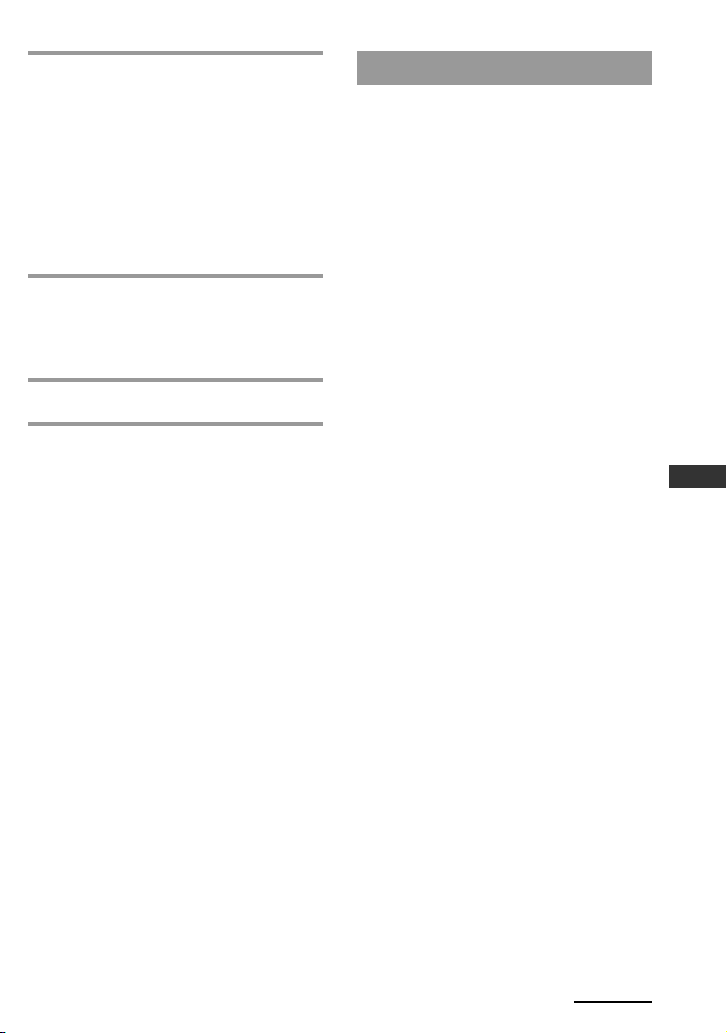
2 Insert the supplied CD-ROM into
the CD-ROM drive of the PC.
After a moment, “RM-AX4000 Install
CD Menu” appears.
3 Click [Install AX Remote Editor].
“AX Remote Editor 1.1 Setup”
appears.
17
Getting Started
4 Click [Next].
Follow the on-screen instructions and
proceed with the installation.
Tip
If the installation screen is hidden behind
other windows
If “AX Remote Editor 1.1 Setup” disappears
behind other screen while installing, press
the [Tab] key several times while pressing
down the [Alt] key to bring up “AX Remote
Editor 1.1 Setup” again.
5 Click [Finish].
The “AX Remote Editor 1.1 Setup”
screen closes and “RM-AX4000 Install
CD Menu” appears.
6 Click [Exit].
Tip
You can read the “Operating Instructions” PDF
file by clicking [Read Operating Instructions] of
“RM-AX4000 Install CD Menu”.
Installing the USB driver
You need to install the USB driver before
connecting the supplied USB cable to
your PC and the Remote Commander.
Follow the instructions below to install.
Notes
•Without batteries in the Remote Commander,
the USB connection cannot be detected by the
PC even if the USB cable is connected.
• Make sure to install the batteries before
installing the USB driver. If the USB driver
installation is interrupted by mistake, install
it again from the beginning.
• Do not simply copy the USB driver in the
supplied CD-ROM to the PC. You need to
install it properly for it to work.
• On Windows 2000 or Windows XP, logon
with an authorized "Administrator" ID when
installing the USB driver.
• Administrator privileges are required for
installation on PCs running Windows 2000 or
Windows XP.
• Depending on the PC, various messages
other than those mentioned in this manual
may appear during the USB driver
installation. Just follow the on-screen
instructions of these messages to install.
Continued
18
For Windows XP users
1 Close all software running on
Windows.
2 Insert the supplied CD-ROM into
the CD-ROM drive of the PC.
After a moment, “RM-AX4000 Install
CD Menu” appears.
3 Click [Exit] to close “RM-AX4000
Install CD Menu.”
4 Connect the PC and the Remote
Commander using the supplied
USB cable (page 19).
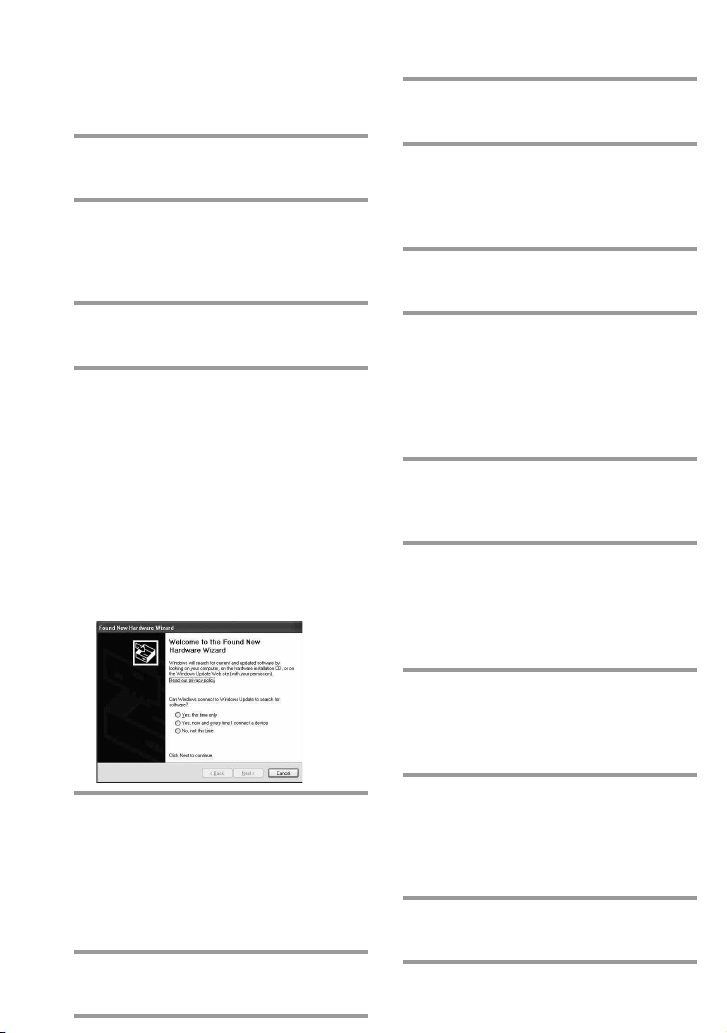
“Found New Hardware” appears in
the Notification Area in the lower
right-hand of the display. After a
moment, “Found New Hardware
Wizard” appears.
Tip
If the following confirmation appears, “Can
Windows connect to Windows Update to
search for software?” appears, select [No, not
this time], then click [Next].
5 Select “Install the software
automatically [Recommended]”,
then click [Next].
Installing of the USB driver starts.
“Completing the Found New
Hardware Wizard” appears when the
installation is complete.
6 Click [Finish].
Installing of the USB driver finishes.
For Windows 2000 users
1 Close all software running on
Windows.
2 Insert the supplied CD-ROM into
the CD-ROM drive of the PC.
After a moment, “RM-AX4000 Install
CD Menu” appears.
3 Click [Exit] to close “RM-AX4000
Install CD Menu.”
4 Connect the PC and the Remote
Commander using the supplied
USB cable (page 19).
“Found New Hardware” appears.
After a moment, “Found New
Hardware Wizard” appears.
5 Click [Next].
“Install Hardware Device Drivers”
appears.
6 Select “Search for a suitable
driver for my device
[recommended]”, then click
[Next].
“Locate Driver Files” appears.
7 Mark only the check box of “CD-
ROM drives”, then click [Next].
“Driver Files Search Results” appears,
and the found driver is displayed.
8 Click [Next].
Installing of the USB driver starts.
“Completing the Found New
Hardware Wizard” appears when the
installation is complete.
9 Click [Finish].
Installing of the USB driver finishes.
Setting up for your PC (continued)
19
Getting Started
Connecting the Remote
Commander to your PC
You can now connect the Remote
Commander to your PC with the supplied
USB cable. Connect whenever you want
to verify correct operation of key/button
commands for an XPRESS function, etc.,
or to exchange setup data between your
PC and the Remote Commander.
IMPORTANT
Do not keep the Remote Commander
connected to the PC when the PC is in
standby/hibernation, otherwise, a
malfunction could occur. Be sure to
disconnect the Remote Commander from the
PC before standby/hibernation begins.
Furthermore, do not connect the Remote
Commander to the PC while it is in standby/
hibernation. Wait until the PC comes out of
standby/hibernation before connecting.
Notes
• The Remote Commander uses the battery
when connected to the PC. When you finish
the setup, unplug from the USB connector.
• If “E” is shown in the display, the Remote
Commander cannot be recognized on your
PC. Before connecting the Remote
Commander to your PC, be sure to install
fresh batteries in the Remote Commander.
• Do not disconnect the USB cable from your
PC while your PC is communicating with
the Remote Commander, as a malfunction
may occur.
• Only connect one Remote Commander to
your PC at a time. Otherwise, you will not
be able to download the settings correctly.
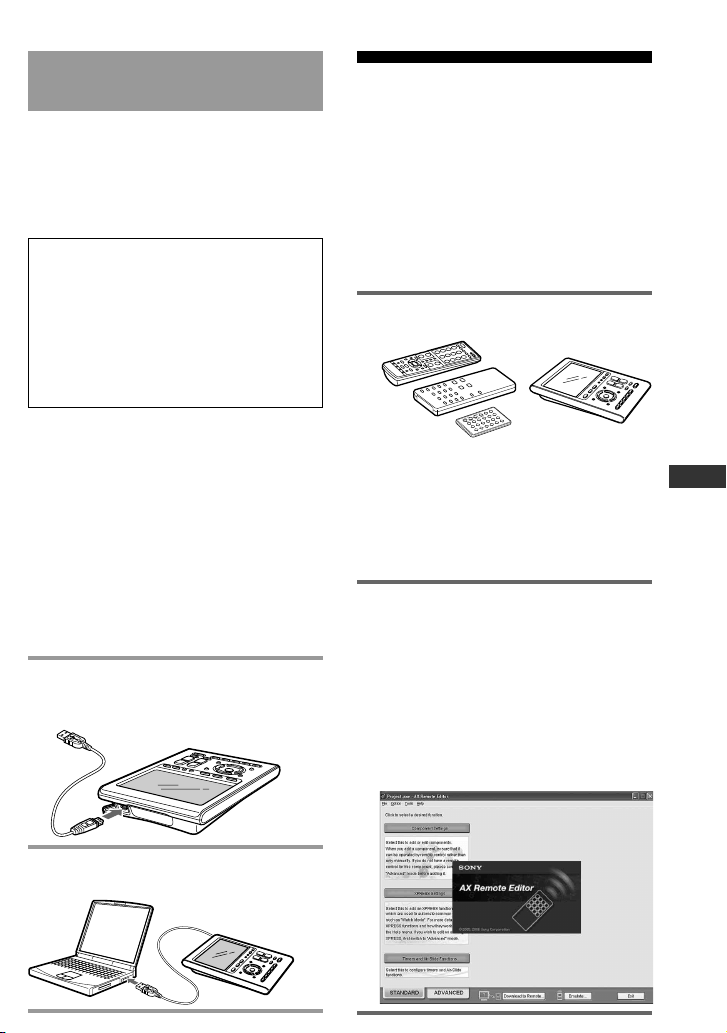
1 Connect the USB cable to the USB
connector of the Remote
Commander.
2 Connect the USB cable to the USB
connector of your PC.
Using the “AX Remote
Editor” to set up the
Remote Commander
You can set the Remote Commander
using the “AX Remote Editor.” Follow
the procedures below.
Note
“AX1400 Remote Editor” does not start up
when you do not log in as Administrator.
1 Gather all your remote controls.
We recommend using the remote
controls which were supplied with
each component, but if you are using
a replacement remote control (due to
loss or damage) or a universal remote
(which controls multiple
components), have it handy as well.
2 On your PC, click the Windows
“Start” button and point to “All
Programs” - “Sony Remote AX,” -
“AX Remote Editor” and click.
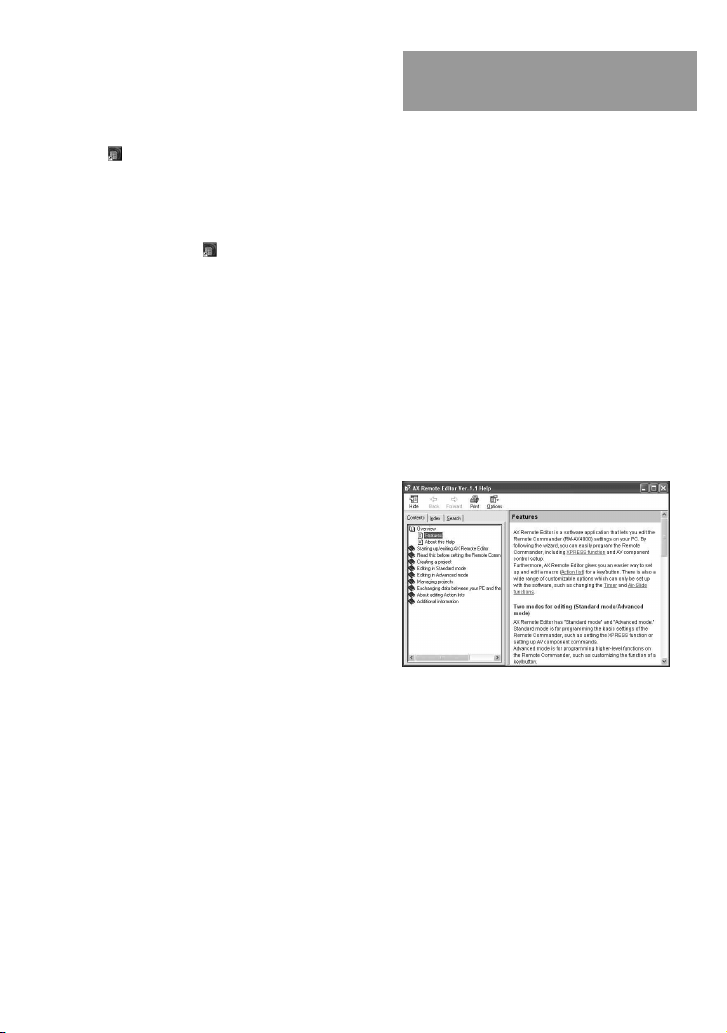
“AX Remote Editor” starts up, and
the last project appears.
The first time “AX Remote Editor”
starts up, “Startup Wizard” appears.
Following the on-screen instructions,
create a project.
20
Tips
• If you are using an operating system other
than Windows XP, click the “Start” button of
Windows and point to “Programs” - “Sony
AX” - “AX Remote Editor” and click to start
up “AX Remote Editor”.
• If “
” (the shortcut icon of “AX Remote
Editor”) appears on the desktop of
Windows, double-click the icon to open it.
(Depending on the setting, Windows XP may
automatically delete icons from the desktop
if they have not been used for a certain
period of time. If “
” does not appear on
the desktop, use the “Start” button.)
Using “AX Remote Editor”
– Help
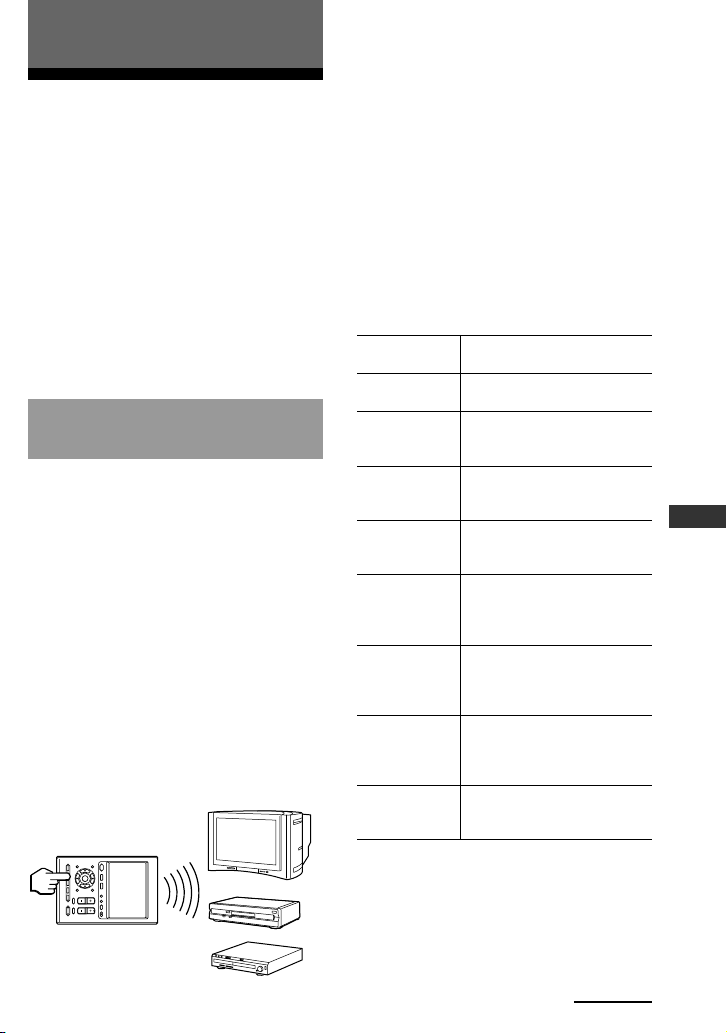
You can set up the Remote Commander
by operating “AX Remote Editor,”
referring to the detailed instructions
provided in Help.
Starting Help
Start up “AX Remote Editor,” then click
“Help” on the menu bar and select “AX
Remote Editor help.”
Help topic for the current edit screen
appears by pressing the “F1” key while
editing. If no Help topic is available for
the screen, the top menu of Help appears.
How to use Help
Click one of the tabs: “Contents,”
“Index” or “Search,” and check the
information you need.
To search by contents (Contents)
You can find information relating to a specific
subject by using the table of contents shown on
the “Contents” tab.
To search indexed information
(Index)
You can find information from a list of
predetermined keywords shown on the
“Index” tab.
To search using keywords (Search)
You can submit a keyword search on the
“Search” tab by typing in your keyword(s).
21
Operating
Operating
Operating the Remote
Commander
There are two ways to operate the
components on the Remote Commander.
• XPRESS operation: You can operate
multiple AV components related to a
specific task, such as “watching a
DVD,” or “watching a digital satellite,”
etc. This is called an “XPRESS
function.”
• Single component operation: You can
operate each AV component
individually (page 27).
What is the XPRESS
function?
An “XPRESS function” is an executable
series of actions that can operate several
AV components by pressing just one key.
For example, you have to perform the
following operations sequentially to
watch a DVD using a TV, receiver/
amplifier, and DVD player.
1. Turn on the DVD player.
2. Turn on the TV.
3. Set the appropriate input mode of
the TV.
4. Turn on the receiver/amplifier.
5. Set the appropriate input selector of
the receiver/amplifier.
6. Start DVD playback.
By setting the above actions as an
XPRESS function, you can watch a DVD
by simply pressing one key.
EPG
MENU
SYSTEM CONTROL
OK
1 MORE43
COMPONENT
VOLUME
BACK
X
PRESS
2
RECALL
LIGHTTIMER
MUTING
SYNC-UP
CHANNEL
EXIT TOOLS
ALL OFF
LEARN
NG
OFF
COMMANDER
Also, the XPRESS function can memorize
the status of power on/off, input selector
for each component, and send a signal to
synchronize the status which you want
without reference to the component's
status.
Some XPRESS functions are preset at the
factory to operate Sony brand
components (see the table below).
However, depending on the factory
preset code, they may not necessarily be
effective.
Default XPRESS function list
How to set up an XPRESS function
For On-PC Setup: See the Help menu
provided in “AX Remote Editor.”
For On-Remote Setup: You cannot set
up an XPRESS function.
Continued
Displays on the
Label keys
TV
A-CBL
D-SAT
DVD
VCR
DVR
CD
RCVR
Programmed commands
Turns on TV, and the display
of XPRESS_TV appears.
Turns on TV and Analog
cable box, and the display of
XPRESS_A-CBL appears.
Turns on TV and Digital
Satellite, and the display of
XPRESS_D-SAT appears.
Turns on TV and DVD player,
and the display of
XPRESS_DVD appears.
Turns on TV and Video
Cassette recorder, and the
display of XPRESS_VCR
appears.
Turns on TV and Digital
Video Recorder, and the
display of XPRESS_DVR
appears.
Turns on CD player and
Receiver (Amplifier), and the
display of XPRESS_CD
appears.
Turns on Receiver
(Amplifier), and the display
of XPRESS_RCVR appears.
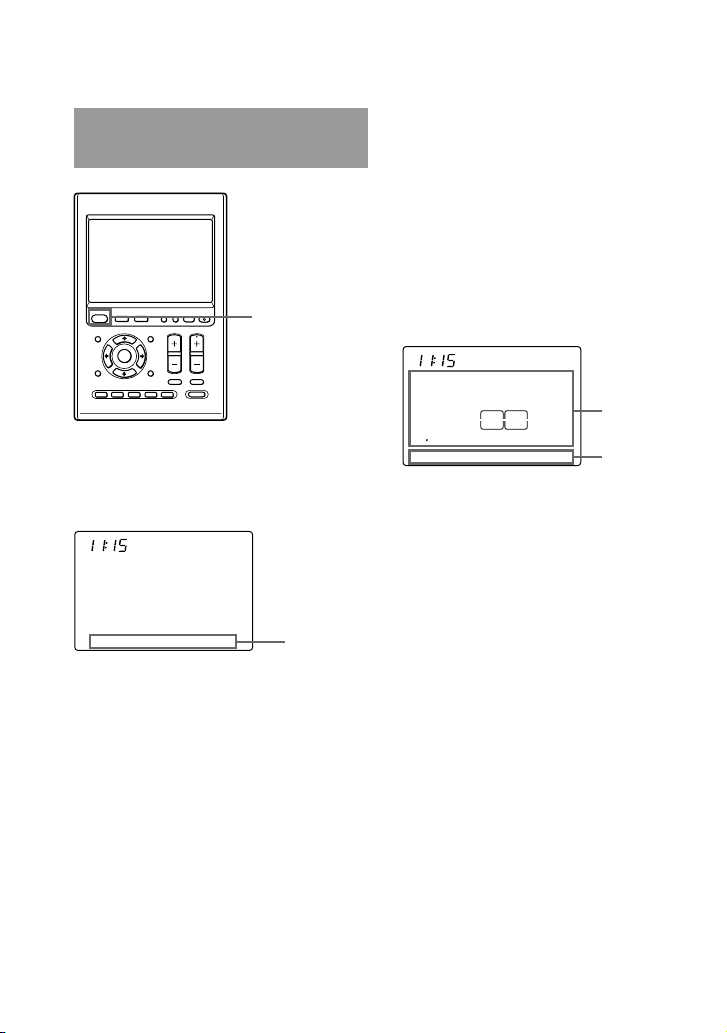
22
Operating the XPRESS
function
EPG
MENU
SYSTEM CONTROL
OK
1 MORE43
COMPONENT
VOLUME
BACK
X
PRESS
2
RECALL
LIGHTTIMER
MUTING
SYNC-UP
CHANNEL
EXIT TOOLS
ALL OFF
LEARN
NG
OFF
COMMANDER
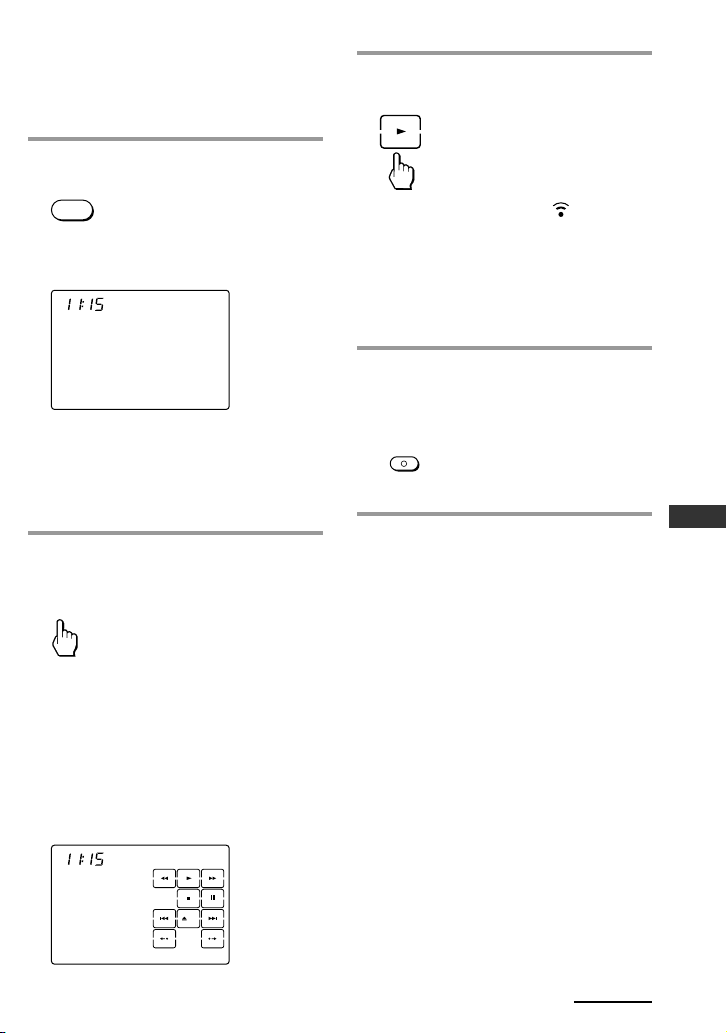
When you press an XPRESS button on
the Remote Commander, the XPRESS
names appear at the bottom of the
display.
XPRESS /1
SU
AM
LEARN
NG
TV A-CBL D-SAT DVD
When you press an XPRESS name you
want to operate, programmed commands
for the key are performed and the
display to operate the XPRESS function
appears. This display is called, “XPRESS
display.” Keys on the XPRESS display are
divided into two types—“Touch-keys”
with preset labels and “Label keys” that
can be customized. Touch-keys are used
to execute an XPRESS function. Label
keys are used to switch to the individual
component displays (page 27) that make
up the XPRESS function.
XPRESS_TV
SU
AM
213
546
ENTER
8
0
7 9
DISPLAY
MAIN/SUB
LEARN
NG
TV
XPRESS button
Touch-keys
Label keys
Operating the Remote Commander
(continued)
XPRESS
names
XPRESS display
23
Operating
Example: To play a DVD player
by XPRESS function (when On-PC
Setup was used to set up the
Remote Commander)
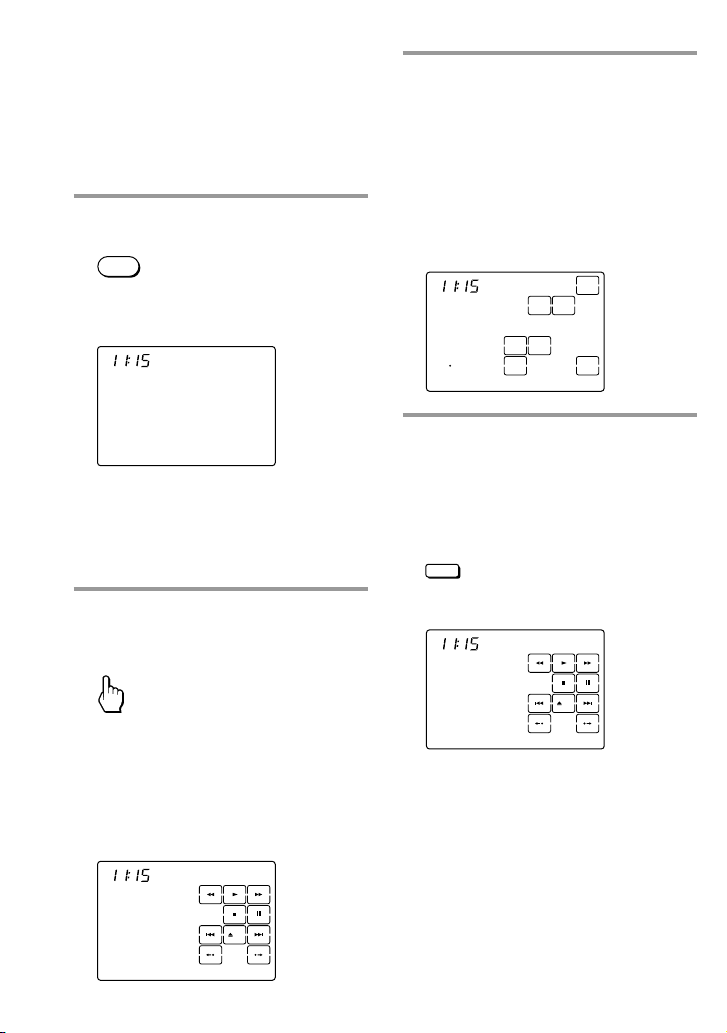
1 Press the XPRESS button.
X
PRESS
“XPRESS” appears as the Display
title.
XPRESS /1
SU
AM
LEARN
NG
TV A-CBL D-SAT DVD
If a page number such as “/1”
appears to the right side of Display
title, multiple pages are available.
Press the number to go to the next
page.
2 Press the XPRESS name you want
to operate (in this case, DVD).
DVD
The TV and DVD turn on and each
component is set to its appropriate
input.
The main keys you use to control the
DVD are displayed as Touch-keys.
The components that make up the
XPRESS function are displayed as
Label keys.
XPRESS_DVD
SU
AM
LEARN
NG
DVD TV
3 Press the key(s) or button(s) for
desired operation.
When the signal is sent, appears.
You can also use other buttons, such
as the VOLUME +/–, CHANNEL +/–,
MUTING, cursor, and MENU buttons.
Also see “Table of preset functions”
(page 76) for the functions of buttons
for each source component.
4 When you are finished using the
Remote Commander, press the
COMMANDER OFF button.
OFF
COMMANDER
The Remote Commander turns off.
If you want to return to the
previous display
Press the BACK button.
Continued
24
Example: To play a DVD player
by XPRESS function (when On-
Remote Setup was used to set up
the Remote Commander)
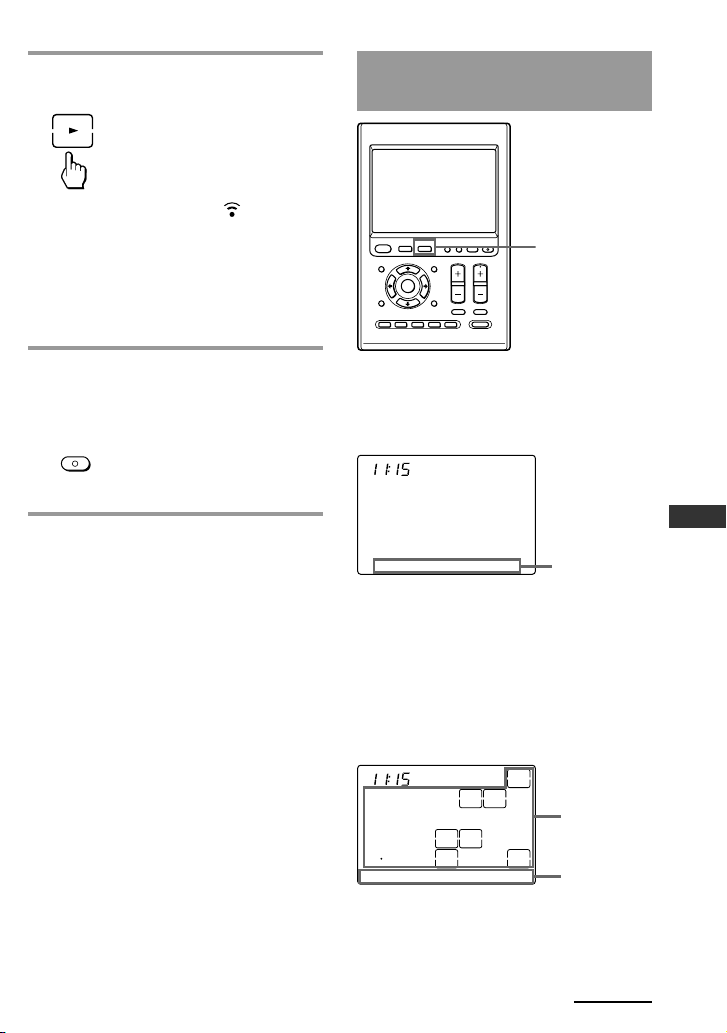
1 Press the XPRESS button.
X
PRESS
“XPRESS” appears as the Display
title.
XPRESS /1
SU
AM
LEARN
NG
TV A-CBL D-SAT DVD
If a page number such as “/1”
appears to the right side of Display
title, multiple pages are available.
Press the number to go to the next
page.
2 Press the XPRESS name you want
to operate (in this case, DVD).
DVD
The TV and DVD turn on. The main
keys you use to control the DVD are
displayed as Touch-keys.
The components that make up the
XPRESS function are displayed as
Label keys.
XPRESS_DVD
SU
AM
LEARN
NG
DVD TV
3 In this step, you need to set the
appropriate input of each
component that makes up this
XPRESS function, e.g., the RCVR,
TV, and DVD player. Press one of
the component's Label keys to
open its display, then press the
INPUT key once or repeatedly
until the correct input is selected.
TV /1
SU
AM
213
546
ENTER
8
0
79
POWER
WIDEINPUT
SWAP
DISPLAY
MAIN/SUB
2PIC
LEARN
NG
TV_TUNER ANT/SW
4 Press the BACK button to return
to the previous display, and
repeat step 3 until all the
necessary components’ inputs are
correctly set.
BACK
The previous LCD display returns.
XPRESS_DVD
SU
AM
LEARN
NG
DVD TV
Note
If you had used On-PC Setup, this
step would be done automatically for
you. That’s why we recommend it.
Operating the Remote Commander
(continued)
25
Operating
5 Press the key(s) or button(s) for
desired operation.
When the signal is sent, appears.
You can also use other buttons, such
as the VOLUME +/–, CHANNEL +/–,
MUTING, cursor, and MENU buttons.
Also see “Table of preset functions”
(page 76) for the functions of buttons
for each source component.
6 When you are finished using the
Remote Commander, press the
COMMANDER OFF button.
OFF
COMMANDER
The Remote Commander turns off.
If you want to return to the
previous display
Press the BACK button.
Continued
Operating components
individually
EPG
MENU
SYSTEM CONTROL
OK
1 MORE43
COMPONENT
VOLUME
BACK
X
PRESS
2
RECALL
LIGHTTIMER
MUTING
SYNC-UP
CHANNEL
EXIT TOOLS
ALL OFF
LEARN
NG
OFF
COMMANDER
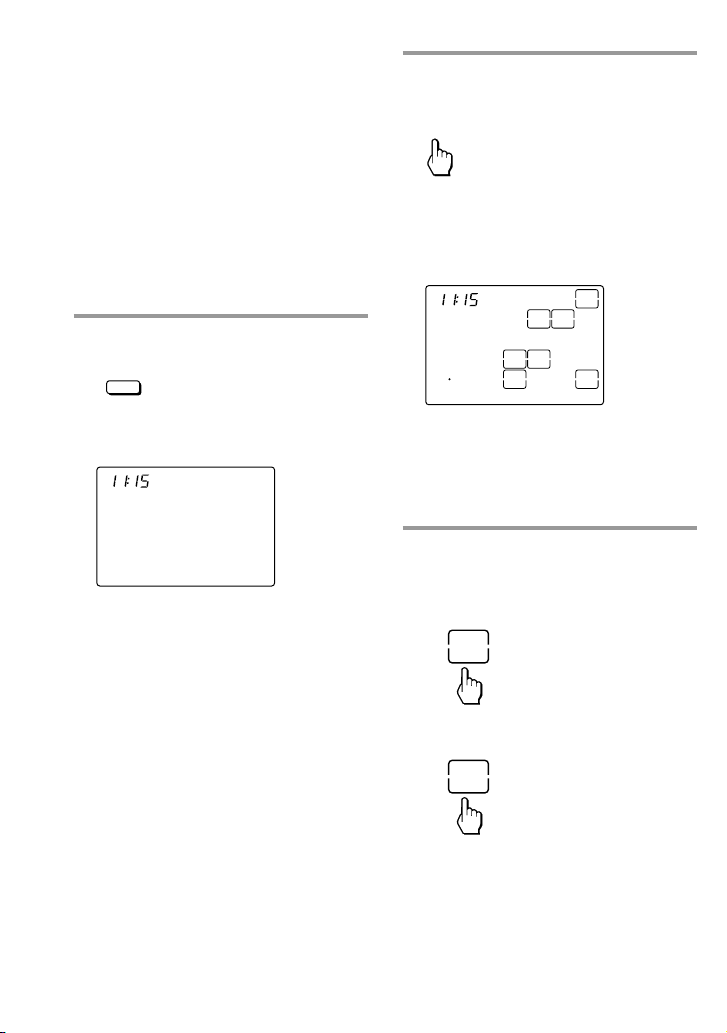
When you press the COMPONENT
button on the Remote Commander, the
component names appear at the bottom
of the display.
COMPONENT /1
SU
AM
LEARN
NG
TV A-CBL D-SAT DVD
When you press a component name you
want to operate, the display to operate
the component appears. This display is
called “Component display.” Keys on the
Component display are divided into two
types—“Touch-keys” with preset labels
and “Label keys” that can be customized.
TV /1
SU
AM
213
546
ENTER
8
0
79
POWER
WIDE
INPUT
SWAP
DISPLAY
MAIN/SUB
2PIC
LEARN
NG
TV_TUNER ANT/SW
See “Table of preset functions” (page 76)
for the functions of keys and buttons for
each component.
COMPONENT
button
Touch-keys
Label keys
Component
names
Component display
26
Operating the Remote Commander
(continued)
2 Press the component name you
want to operate (in this case, TV).
TV
The component name appears as the
Display title.
And the keys you use to control the
TV are displayed as Touch-keys.
TV /1
SU
AM
213
546
ENTER
8
0
79
POWER
WIDE
INPUT
SWAP
DISPLAY
MAIN/SUB
2PIC
LEARN
NG
TV_TUNER ANT/SW
If a page number such as “/1”
appears to the right side of Display
title, multiple pages are available.
Press the number to go to the next
page.
3 Press the key(s) or button(s) for
desired operation.
Example:
1 Press the POWER key.
POWER
2 Press the INPUT key repeatedly
until the desired input is selected.
INPUT
How to register the components
to the Remote Commander
You can register up to 16 components.
For On-PC Setup: See the Help menu
provided in “AX Remote Editor.”
For On-Remote Setup: See “Setting the
preset codes” on page 45.
Example: To change the input
select of the TV
1 Press the COMPONENT button.
COMPONENT
“COMPONENT” appears as the
Display title.
COMPONENT /1
SU
AM
LEARN
NG
TV A-CBL D-SAT DVD
If a page number such as “/1”
appears to the right side of Display
title, multiple pages are available.
Press the number to go to the next
page.
27
Operating
Continued
When the signal is sent,
appears.
You can also use other buttons, such
as the VOLUME +/–, CHANNEL +/–,
MUTING, cursor, and MENU buttons.
Also see “Table of preset functions”
(page 76) for the functions of buttons
for each source component.
4 When you are finished using the
Remote Commander, press the
COMMANDER OFF button.
OFF
COMMANDER
The Remote Commander turns off.
If you want to return to the
previous display
Press the BACK button.
Note
The remote control signals may be different for
some components or functions. In this case,
program the remote control signals with the
Learning function.
For On-PC Setup: See the Help menu provided
in “AX Remote Editor.”
For On-Remote Setup: See “Using non-preset
remote control operations” on page 47.
To control the volume
EPG
MENU
SYSTEM CONTROL
OK
1 MORE43
COMPONENT
VOLUME
BACK
X
PRESS
2
RECALL
LIGHTTIMER
MUTING
SYNC-UP
CHANNEL
EXIT TOOLS
ALL OFF
LEARN
NG
OFF
COMMANDER
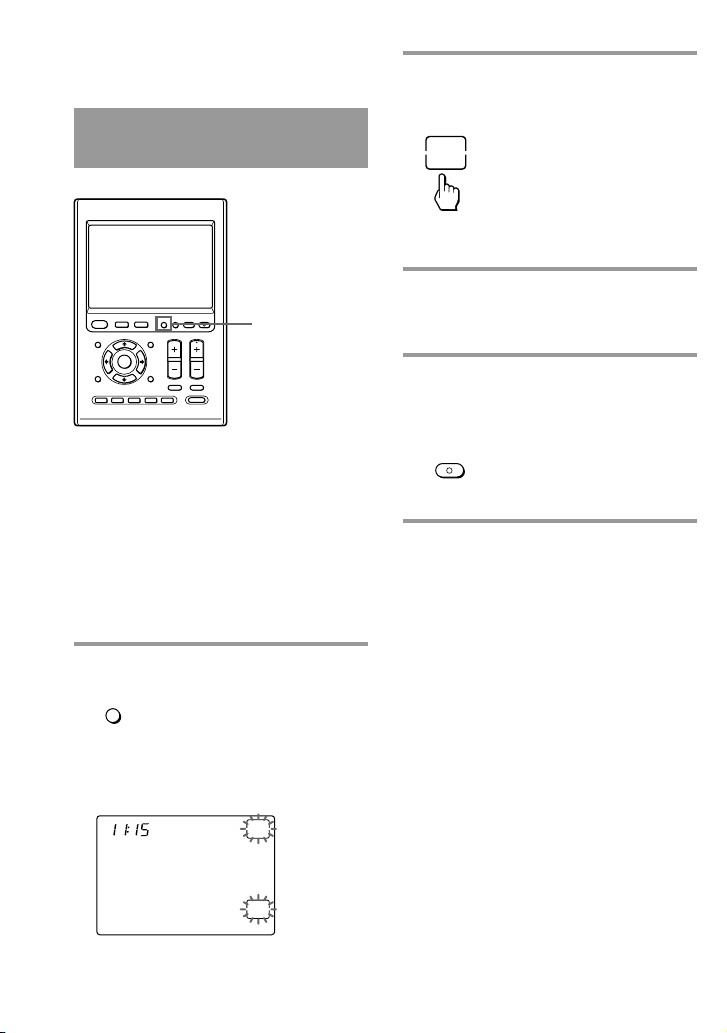
Press the VOLUME +/– buttons to
control the volume, and the MUTING
button for silence. When you select a
visual component, the TV’s volume will
be controlled; when you select an audio
component, the amplifier’s volume will
be controlled.
How to set the volume control of
visual components
For On-PC Setup: See the Help menu
provided in “AX Remote Editor.”
For On-Remote Setup: See “Controlling
the volume of visual components
connected to an audio component” on
page 57.
VOLUME +/–
buttons
MUTING button
28
Operating the Remote Commander
(continued)
2 Press the POWER key repeatedly
until the desired status fixes, then
press the DONE key.
DONE
The screen switches to the next status
to be synchronized.
3 Press the INPUT key repeatedly
until the desired status fixes, then
press the DONE key.
4 When you are finished using the
Remote Commander, press the
COMMANDER OFF button.
OFF
COMMANDER
The Remote Commander turns off.
If you want to return to the
previous display
Press the BACK button.
To synchronize with the
status of a component
EPG
MENU
SYSTEM CONTROL
OK
1 MORE43
COMPONENT
VOLUME
BACK
X
PRESS
2
RECALL
LIGHTTIMER
MUTING
SYNC-UP
CHANNEL
EXIT TOOLS
ALL OFF
LEARN
NG
OFF
COMMANDER
The Remote Commander memorizes the
status of the components’ input selectors,
and power on/off status. However, if
you turn on/off a component manually
or with a different remote control, the
Remote Commander may not recognize
the current component status. In this
case, press the SYNC-UP button to
synchronize with the status of the current
component and the Remote Commander.
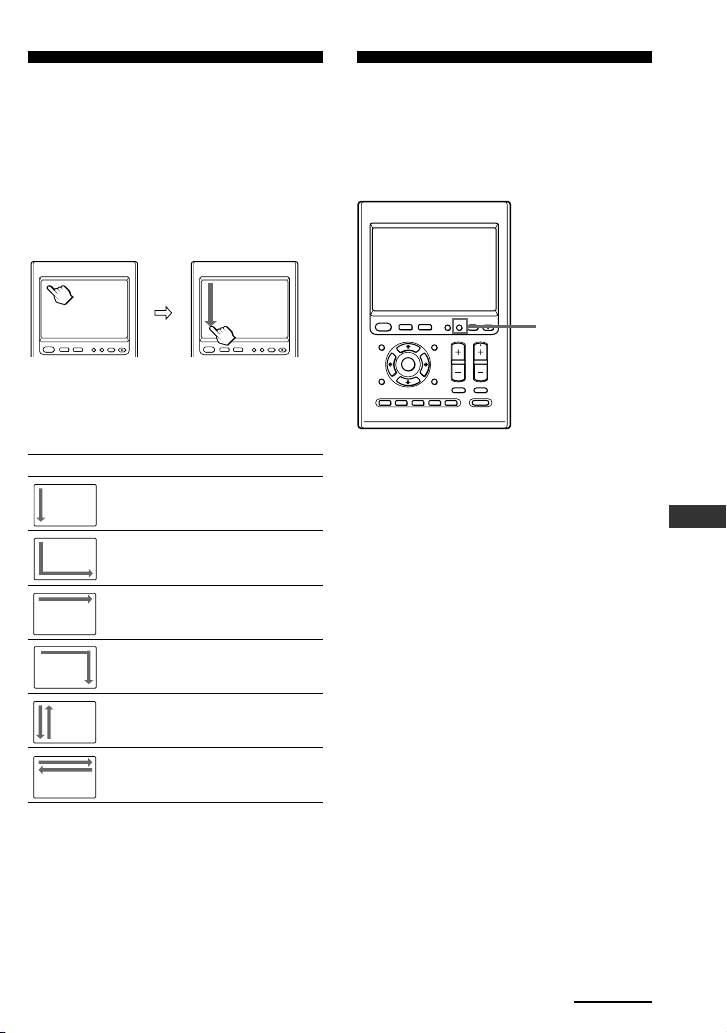
1 Press the SYNC-UP button.
SYNC-UP
The component you want to confirm
the status of appears as the Display
title.
TV
SU
AM
POWER
DONE
LEARN
NG
SET ON FOR POWER OF TV
SYNC-UP button
29
Operating
Executing a series of
actions at a scheduled
time
– Timer function
EPG
MENU
SYSTEM CONTROL
OK
1 MORE43
COMPONENT
VOLUME
BACK
X
PRESS
2
RECALL
LIGHTTIMER
MUTING
SYNC-UP
CHANNEL
EXIT TOOLS
ALL OFF
LEARN
NG
OFF
COMMANDER
The Remote Commander can perform a
programmed commands automatically at
a scheduled time every day or on a
particular day. This function is called
“Timer.”
You can set up to 8 Timer with the
following options.
• Timer ON/OFF
Switches ON/OFF each Timer.
• Key Label
When you press the TIMER button on the
Remote Commander, keys showing a Timer
function appear at the bottom of the display.
The default labels of each Timer are shown as
“PROG1” to “PROG8” and you can change
their labels.
• Commands to be operated
You can program a series of actions (a macro)
to operate at a scheduled time. This is called,
“Timer macro.”
• Time
Sets the operation time (hour, minute, AM/
PM) for a Timer.
• Day
Sets the day(s) for a Timer.
TIMER button
Continued
To perform an easy
action “Air-Slide” for
XPRESS function
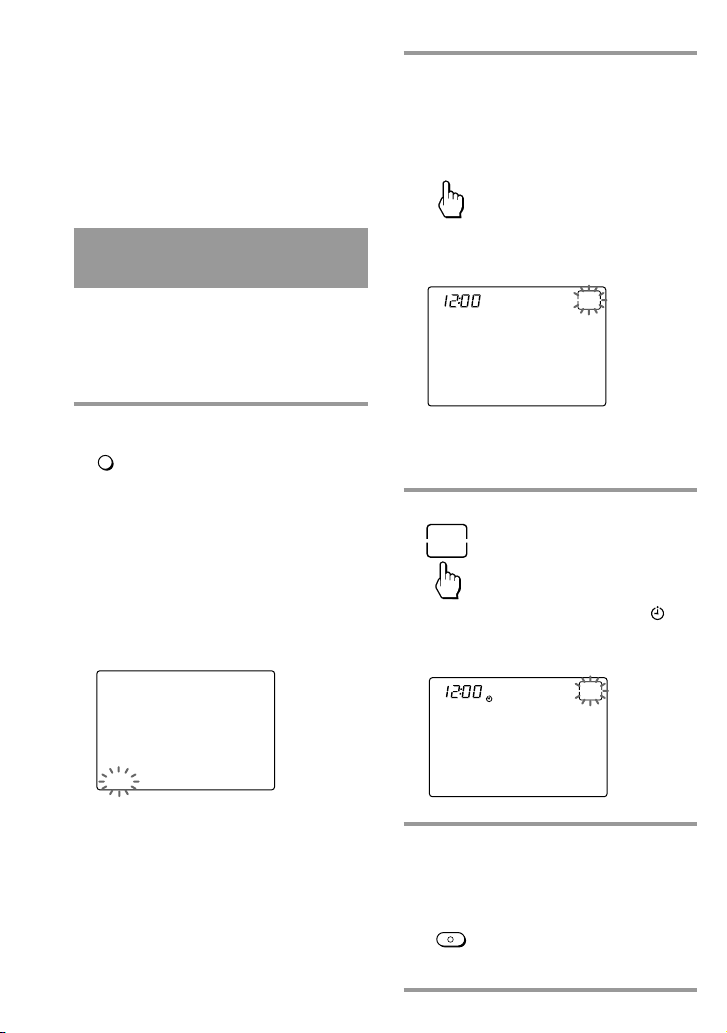
The Remote Commander can perform an
XPRESS function by “sliding your
finger” across its display. This function is
called an “Air-Slide function.”
COMPONENTBACK
X
PRESS
LIGHTTIMERSYNC-UP OFF
COMMANDER
COMPONENTBACK
X
PRESS
LIGHTTIMERSYNC-UP OFF
COMMANDER
The Air-Slide has the following 6
patterns.
Default Air-Slide list
How to set the Air-Slide action
For On-PC Setup: See the Help menu
provided in “AX Remote Editor.” You
can set Air-Slide commands other than
for XPRESS function, using “AX Remote
Editor.”
Pattern Programmed commands
XPRESS_TV is performed,
and the display of XPRESS_TV
appears.
XPRESS_A-CBL is performed,
and the display of XPRESS_ A-
CBL appears.
XPRESS_D-SAT is performed,
and the display of XPRESS_D-
SAT appears.
XPRESS_DVD is performed,
and the display of XPRESS_
DVD appears.
No preset
No preset
30
How to set the Timer function
For On-PC Setup: See the Help menu
provided in “AX Remote Editor.”
For On-Remote Setup: See “Setting the
Timer” on page 59.
To quickly switch the Timer
on or off
With the Remote Commander, you can
quickly switch a Timer function on or off.
The following procedure is based on the
assumption that a series of actions (a
macro) is programmed to the PROG1.
1 Press the TIMER button.
TIMER
The Timer numbers for which a Timer
is already set and is in standby mode,
stay lit. The available program
numbers flash on the Label keys.
If a page number such as “/1”
appears to the right side of Display
title, multiple pages are available.
Press the number to go to the next
page.
TIMER /1
SU
LEARN
NG
PROG1 PROG2 PROG3 PROG4
2 Select a standby timer program
that you want to switch on/off by
pressing the Label keys (in this
case, PROG1).
PROG1
The switching display for Timer of
PROG1 appears.
TIMER
SU
AM
OFF
LEARN
NG
PROG1
If you select a non-timer program, the
“NG” beep is heard and “NG” flashes
twice.
3 Press the ON/OFF key.
OFF
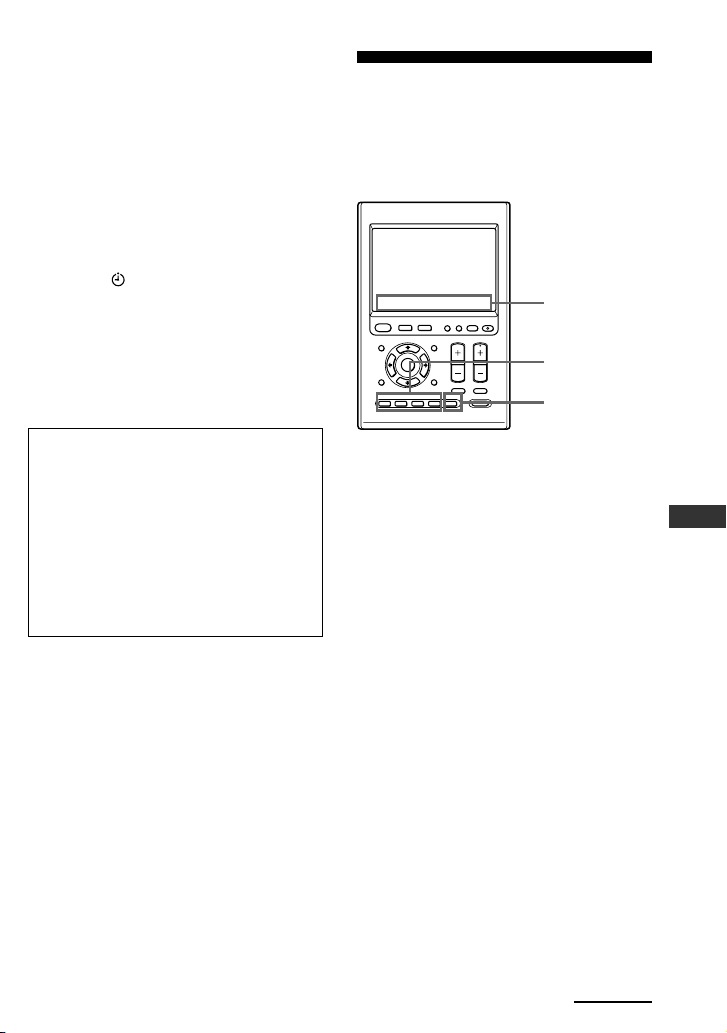
A single beep is heard and the “ ”
mark appears, and the standby mode
of the selected Timer is set to on.
TIMER
SU
AM
ON
LEARN
NG
PROG1
4 Press and hold the
COMMANDER OFF button for
more than 2 seconds.
OFF
COMMANDER
The Remote Commander turns off.
Executing a series of actions at a
scheduled time (continued)
31
Operating
If you want to quit before
finishing
Press and hold the COMMANDER OFF button
for more than 2 seconds. The previous status
returns, and the Remote Commander turns off.
If you want to return to the
previous display
Press the BACK button or the COMMANDER
OFF button.
Notes
• When you finish setting the timer standby
mode, the “
” mark stays lit beside the
clock. This means that one or more Timers
are activated.
• The timer program you set repeats every
week until you set the timer standby mode to
OFF (weekly timer). If you want to execute
the timer program only once, set the timer
standby mode to OFF after the execution of
the timer program.
IMPORTANT
The Timer function of this Remote
Commander is designed for use
with AV components.
Do not use the Timer function with
other components, such as an air-
conditioner or other electrical
appliances. It may cause a fire or a
serious injury.
Executing a series of
actions with just one
button
– System Control function
EPG
MENU
SYSTEM CONTROL
OK
1 MORE43
COMPONENT
VOLUME
BACK
X
PRESS
2
RECALL
LIGHTTIMER
MUTING
SYNC-UP
CHANNEL
EXIT TOOLS
ALL OFF
LEARN
NG
OFF
COMMANDER
The Remote Commander has special
buttons which can be programmed to
perform a series of actions (a macro) by
pressing just one button.
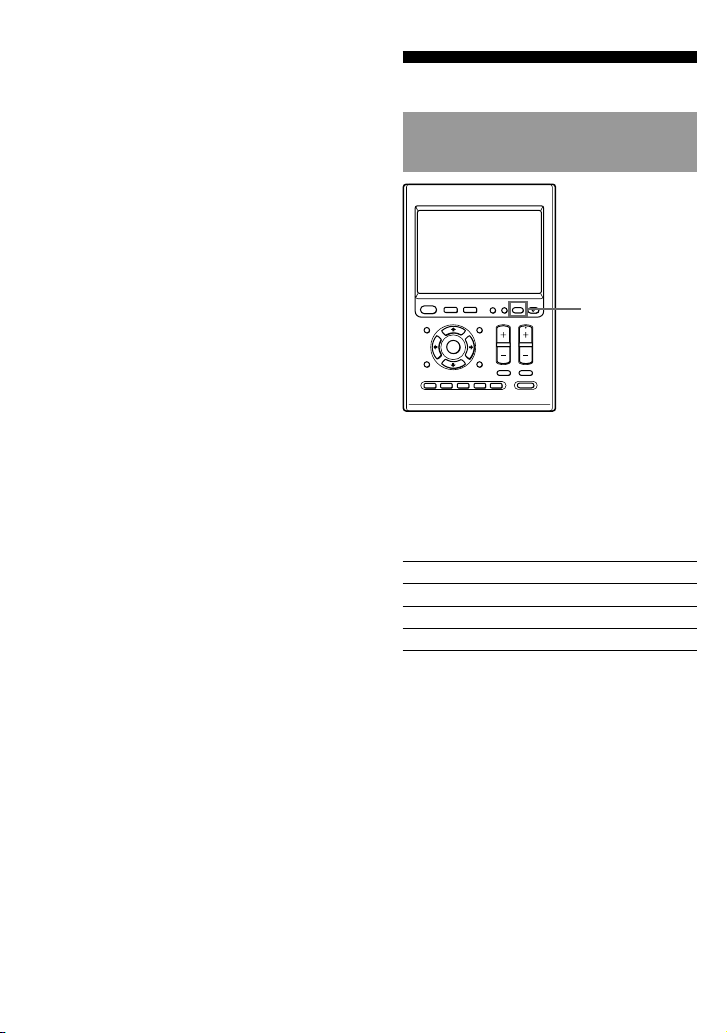
If you press the MORE button (rightmost
SYSTEM CONTROL button), all keys
sharing the same function as that
SYSTEM CONTROL button appear at the
bottom of the display. These keys are
called, “System Control keys.”
You can program a series of actions (a
macro) for each of four SYSTEM
CONTROL buttons and four System
Control keys. This is called “System
Control macro.”
How to set the System Control
function
For On-PC Setup: See the Help menu
provided in “AX Remote Editor.”
For On-Remote Setup: See
“Programming a series of actions with
just one button” on page 51.
System Control
keys
SYSTEM
CONTROL 1-4
buttons
MORE button
Continued
32
Notes
• If the remote control detectors of the
components are too far apart, or if something
is blocking them, some of the components
may not operate in the ordered sequence
when you press a SYSTEM CONTROL
button or System Control key.
• If some of the components did not operate
correctly because of the above or for any
other reason, always set all the components
back to the states they were in before you
pressed the SYSTEM CONTROL button or
the System Control key. Failure to do this can
result in incorrect operation when you press
the SYSTEM CONTROL buttons or the
System Control keys again.
• Some components may not always be
powered-on by the System Control function.
This is because the power of the component
goes on and off alternately when receiving
the power on/off signal. In this case, check
the operating component’s power on/off
state before using the System Control
function.
Other useful functions
To operate the Remote
Commander in the dark
EPG
MENU
SYSTEM CONTROL
OK
1 MORE43
COMPONENT
VOLUME
BACK
X
PRESS
2
RECALL
LIGHTTIMER
MUTING
SYNC-UP
CHANNEL
EXIT TOOLS
ALL OFF
LEARN
NG
OFF
COMMANDER
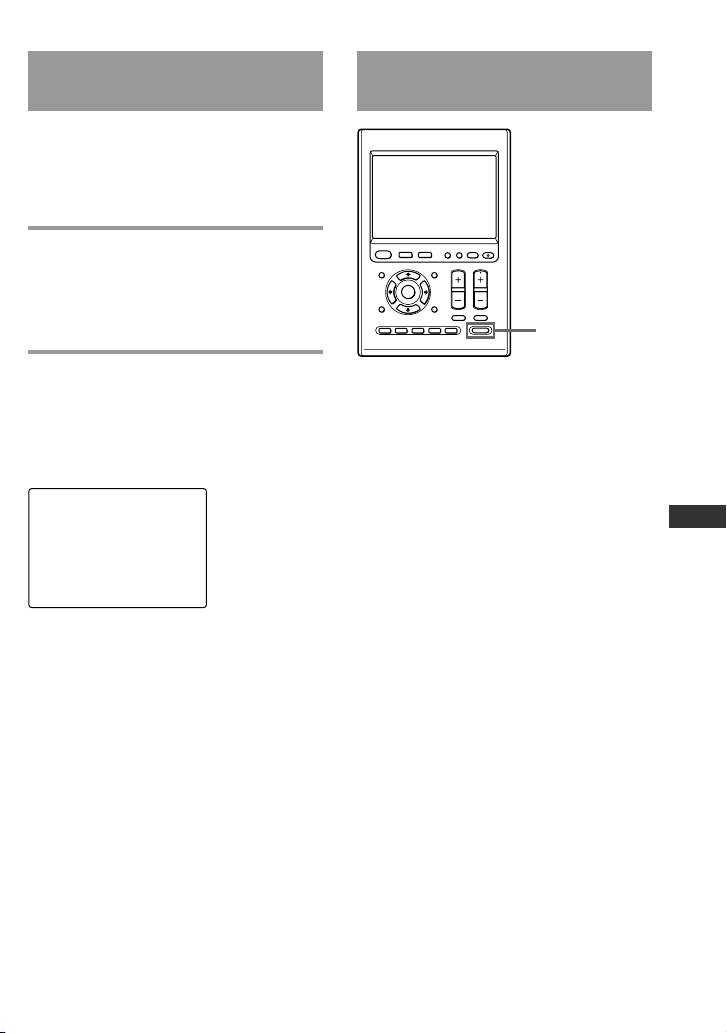
The Remote Commander has a backlight
on the LCD display. Pressing any button
or key also activates this by default. If no
button or key is pushed within a set time,
the backlight automatically turns off.
Default backlight settings
Off-time setting 10 seconds
Brightness Level 15 (Max: 15)
Fade effect On
On-mode setting All keys and buttons
How to set the backlight
For On-PC Setup: See the Help menu
provided in “AX Remote Editor.”
Or see “Setting the backlight” on page 34.
For On-Remote Setup: See “Setting the
backlight” on page 34.
LIGHT button
Executing a series of actions with
just one button (continued)
33
Operating
Locking the controls
– Hold function
To prevent accidental operation, you can
lock all the buttons with the Hold
function. However, any programmed
Timer functions will still be activated
while the controls are locked.
While pressing the COMMANDER
OFF button, press the touch-key.
A message reminding you to release the
Hold function appears for 10 seconds on
the LCD display.
When the controls are locked
If you attempt to operate the Remote
Commander, a message reminding you
to release the Hold function appears for
10 seconds on the LCD display.
SU
LEARN
NG
Press COMMANDER OFF and TAP LCD.
To unlock the controls
While pressing the COMMANDER OFF
button, press the touch-key.
With a beep sounds, the previous status
display returns.
To turn off all the
components at one time
EPG
MENU
SYSTEM CONTROL
OK
1 MORE43
COMPONENT
VOLUME
BACK
X
PRESS
2
RECALL
LIGHTTIMER
MUTING
SYNC-UP
CHANNEL
EXIT TOOLS
ALL OFF
LEARN
NG
OFF
COMMANDER
If you press the ALL OFF button, all
controlling components turn off.
Some components may not turn off by
pressing the button. In this case, press the
SYNC-UP button to synchronize with the
power on/off status of the components.
For details, see “To synchronize with the
status of a component” on page 28.
ALL OFF button
34
Unit Settings
Setting the backlight
The LCD display’s backlight is preset at
the factory to activate whenever the
Remote Commander is operated, and to
switch off automatically if you do not
operate for more than 10 seconds. You
can set the backlight automatic-off time,
brightness, fade effect and which buttons
activate the backlight. To change this
setting, perform the following procedure.
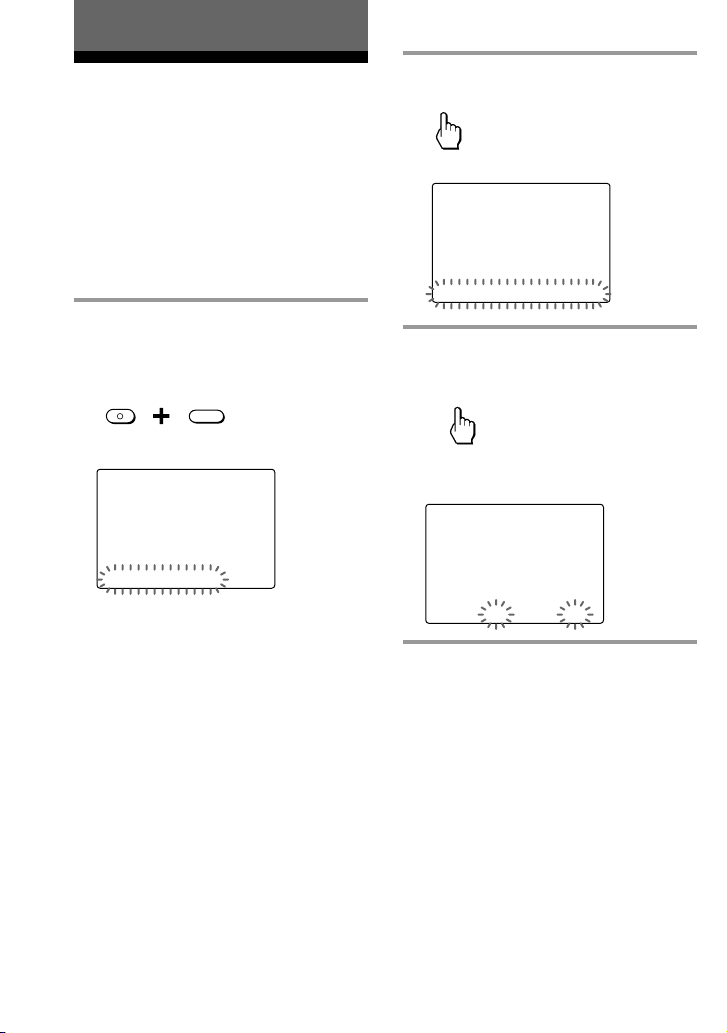
1
While pressing the
COMMANDER OFF button,
press the MUTING button.
OFF
COMMANDER
MUTING
“SET” appears as the Display title.
SET
SU
LEARN
NG
LIGHT DISPLAY OTHER
If “LIGHT” does not flash on the
Label keys, press the Display title
(SET) repeatedly until it appears.
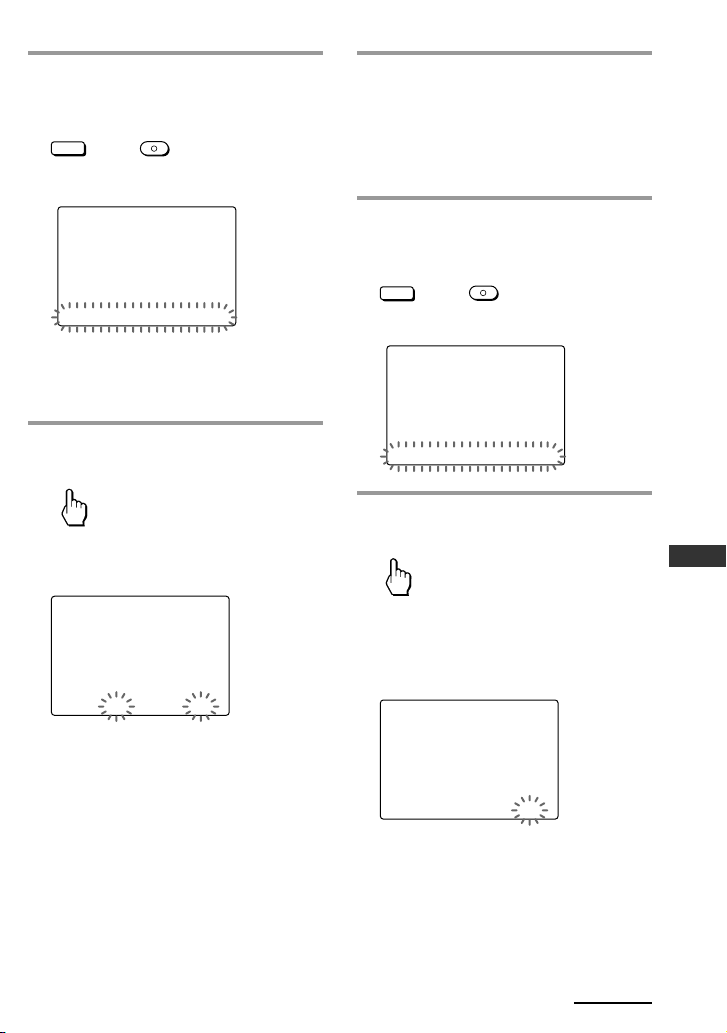
2
Press “LIGHT” on the Label keys.
LIGHT
“LIGHT” appears as the Display title.
LIGHT
SU
LEARN
NG
OFF_TIME LEVEL FADE ON_MODE
3
Press “OFF_TIME” on the Label
keys.
OFF
_
TIME
The setting display for automatic-off
time of the backlight appears.
LIGHT
SU
LEARN
NG
OFF_TIME (-) 10sec (+)
4
Press the (–) or (+) key to change
the automatic-off time of the
backlight.
You can set the automatic-off time
from 1 to 60 seconds. Each time the
(–)/(+) key is pressed, the time
decreases/increases by 1 second. For
example, “20sec” on the Label keys
means 20 seconds.
Unit Settings
35
5
Press the BACK button or the
COMMANDER OFF button.
BACK
or
OFF
COMMANDER
“LIGHT” appears as the Display title.
LIGHT
SU
LEARN
NG
OFF_TIME LEVEL FADE ON_MODE
Note
When you set the automatic-off time to
longer than 10 seconds (factory setting), the
battery life may be shorter.
6
Press “LEVEL” on the Label keys.
LEVEL
The setting display for brightness
appears.
LIGHT
SU
LEARN
NG
LEVEL (-) LEVEL 15 (+)
7
Press the (–) or (+) key to change
the brightness of the backlight.
You can set the brightness from 1 to
15. Each time the (–)/(+) key is
pressed, the level decreases/increases
by 1.
8
Press the BACK button or the
COMMANDER OFF button.
BACK
or
OFF
COMMANDER
“LIGHT” appears as the Display title.
LIGHT
SU
LEARN
NG
OFF_TIME LEVEL FADE ON_MODE
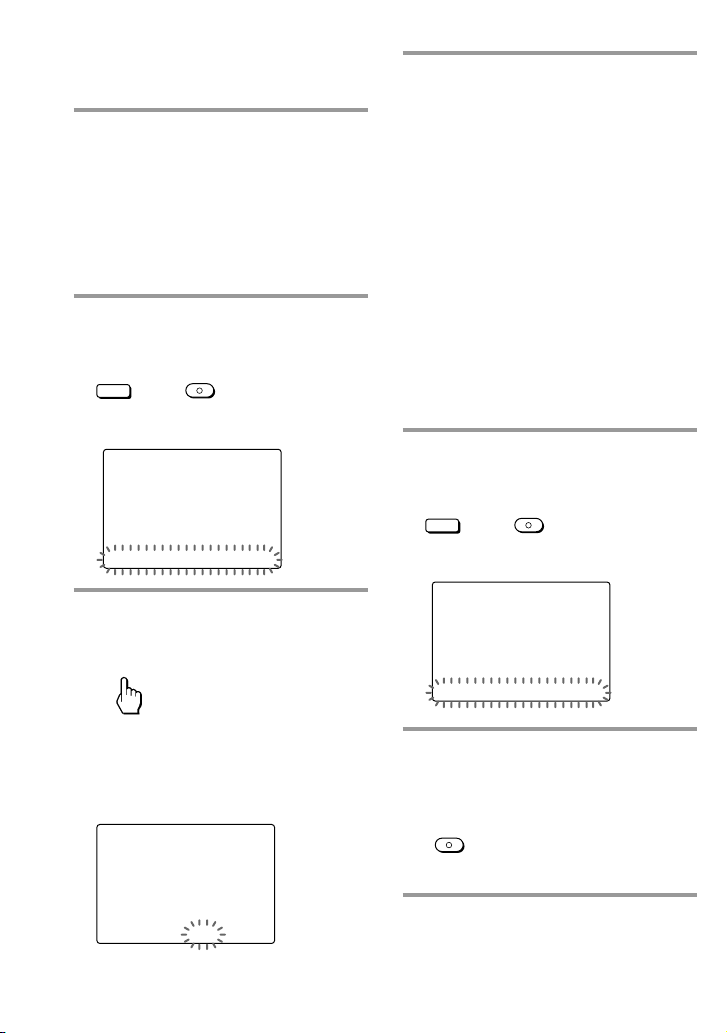
9
Press “FADE” on the Label keys.
FADE
The setting display for fade effect
appears.
The current setting is shown inside
the [ ], while the other flashes.
LIGHT
SU
LEARN
NG
FADE [ ON ] OFF
Continued
36
10
Press the ON or OFF key to
select the fade effect of the
backlight.
ON: fade in/out backlight
OFF: normal backlight
The fade effect of the backlight
changes and a beep sounds each time
you press the keys.
11
Press the BACK button or the
COMMANDER OFF button.
BACK
or
OFF
COMMANDER
“LIGHT” appears as the Display title.
LIGHT
SU
LEARN
NG
OFF_TIME LEVEL FADE ON_MODE
12
Press “ON_MODE” on the Label
keys.
ON
_
MODE
The setting display for buttons to
activate the backlight appears.
The current setting is shown inside
the [ ], while the other flashes.
LIGHT
SU
LEARN
NG
ON_MODE LIGHT [ ALL ]
13
Press the LIGHT or ALL key to
select which buttons activate the
backlight.
LIGHT: The backlight is activated by
pressing the LIGHT button only.
ALL: The backlight is activated by
pressing any button on the Remote
Commander except the VOLUME +/–,
CHANNEL +/– and COMMANDER
OFF buttons.
The buttons to activate backlight
changes and a beep sounds each time
you press the keys.
Note
In the “ALL” position, if you use the
Remote Commander frequently, the battery
life may be shorter. In this case, shorten the
automatic-off time.
14
Press the BACK button or the
COMMANDER OFF button.
BACK
or
OFF
COMMANDER
“LIGHT” appears as the Display title.
LIGHT
SU
LEARN
NG
OFF_TIME LEVEL FADE ON_MODE
15
Press and hold the
COMMANDER OFF button for
more than 2 seconds.
OFF
COMMANDER
The Remote Commander turns off.
Setting the backlight (continued)
Unit Settings
37
If you want to quit before
finishing
Press and hold the COMMANDER OFF button
for more than 2 seconds. The previous status
returns, and the Remote Commander turns off.
If you want to return to the
previous display
Press the BACK button or the COMMANDER
OFF button.
Setting the LCD display
Setting the automatic-off
time of the LCD display
The Remote Commander is preset at the
factory to switch off the LCD display
automatically if you do not operate it for
more than 5 minutes. To change this
setting, perform the following procedure.
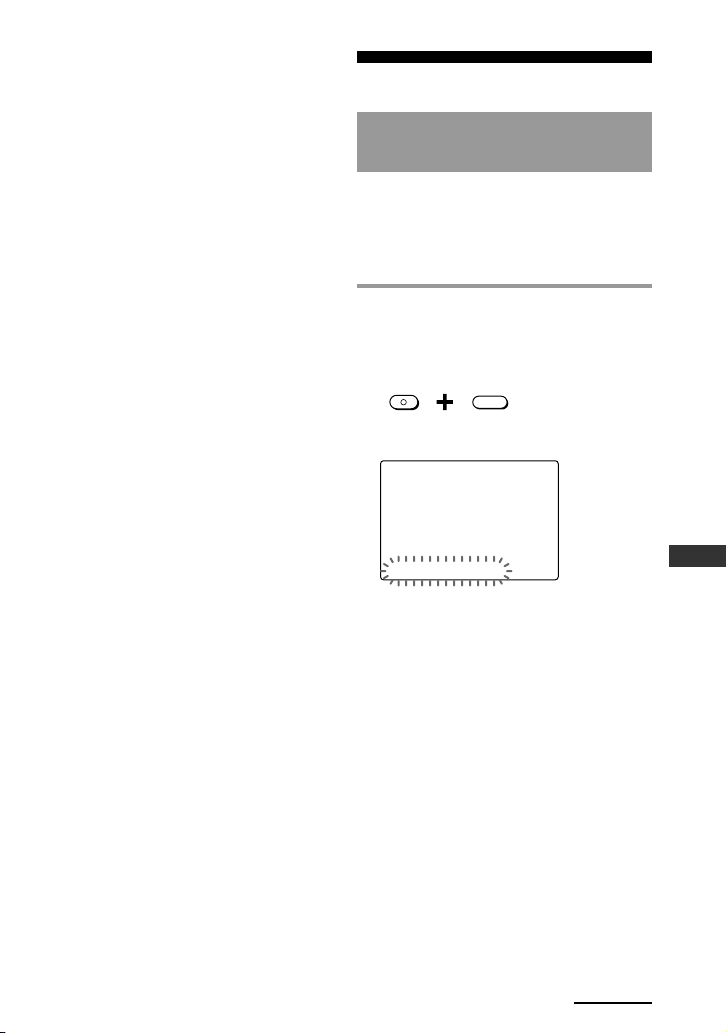
1
While pressing the
COMMANDER OFF button,
press the MUTING button.
MUTING
OFF
COMMANDER
“SET” appears as the Display title.
SET
SU
LEARN
NG
LIGHT DISPLAY OTHER
If “DISPLAY” does not flash on the
Label keys, press the Display title
(SET) repeatedly until it appears.
Continued
38
2 Press “DISPLAY” on the Label
keys.
DISPLAY
“DISPLAY” appears as the Display
title.
DISPLAY
SU
LEARN
NG
DISP-OFF ALIGN CONTRAST
3 Press ”DISP-OFF” on the Label
keys.
DISP
-
OFF
The setting display for automatic-off
time of the LCD display appears.
DISPLAY
SU
LEARN
NG
DISP-OFF (-) 05min (+)
4 Press the (–) or (+) key to change
the automatic-off time of the LCD
display.
You can set the automatic-off time
from 1 to 30 minutes.
Each time the (–)/(+) key is pressed,
the minute decreases/increases by
1 minute. For example, “02min” on
the Label keys means 2 minutes.
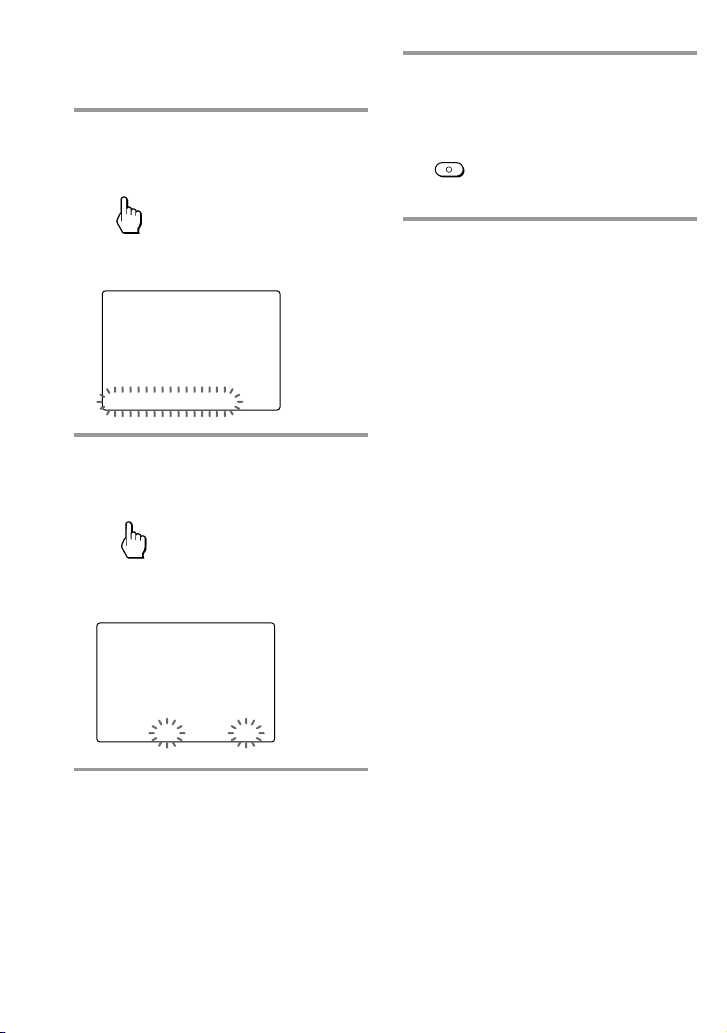
5 Press and hold the
COMMANDER OFF button for
more than 2 seconds.
OFF
COMMANDER
The Remote Commander turns off.
If you want to quit before
finishing
Press and hold the COMMANDER OFF button
for more than 2 seconds. The previous status
returns, and the Remote Commander turns off.
If you want to return to the
previous display
Press the BACK button or the COMMANDER
OFF button.
Setting the LCD display
(continued)
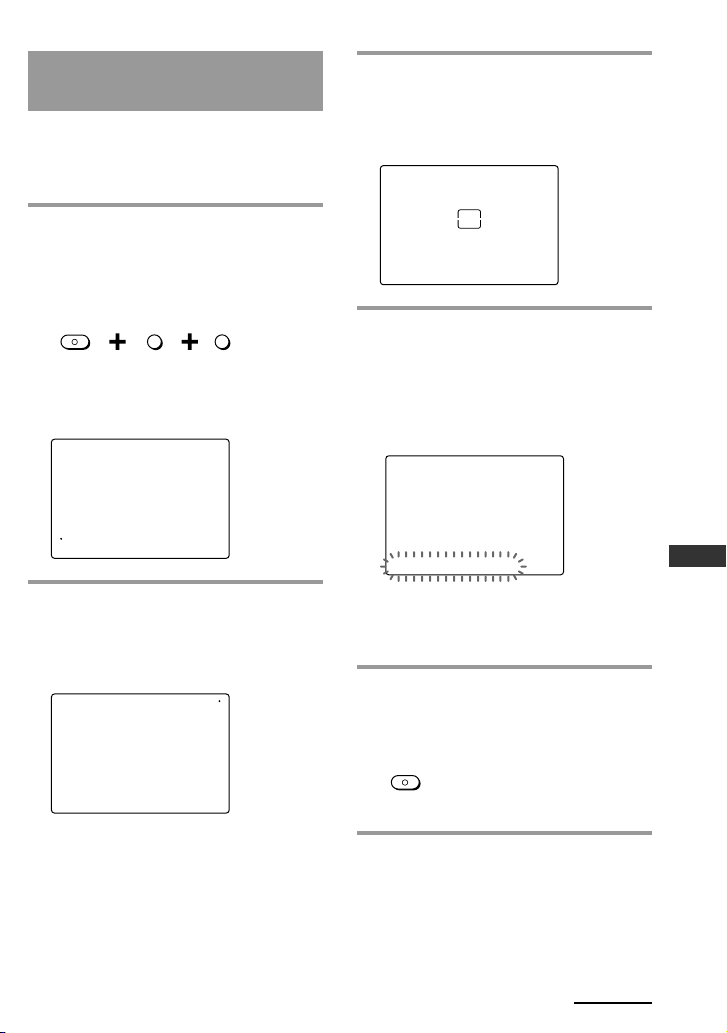
Unit Settings
39
Continued
3
Press the point on the top-right of
the LCD display.
The square appears in the center of
the LCD display.
ALIGNMENT
SU
LEARN
NG
4
Press the square in the center of
the LCD display.
When the calibration is complete, the
beep sounds, and the LCD display
returns to the selecting display of
display setting.
DISPLAY
SU
LEARN
NG
DISP-OFF ALIGN CONTRAST
Note
When calibrating, be sure to press the point
accurately, otherwise the calibration will be
off and you will need to start over.
5
Press and hold the
COMMANDER OFF button for
more than 2 seconds.
OFF
COMMANDER
The Remote Commander turns off.
If you want to quit before
finishing
Press and hold the COMMANDER OFF button
for more than 2 seconds. The Remote
Commander turns off.
Calibrating the alignment
of the LCD display
You can calibrate the alignment of the
LCD display if the Touch-keys are not
working properly. To change this setting,
perform the following procedure.
1
While pressing the
COMMANDER OFF button,
press the MENU button and EXIT
button.
MENU
EXIT
OFF
COMMANDER
The setting display for calibrating the
alignment of the LCD display
appears.
ALIGNMENT
SU
LEARN
NG
2
Press the point on the bottom-left
of the LCD display.
The other point appears on the top-
right of the LCD display.
ALIGNMENT
SU
LEARN
NG
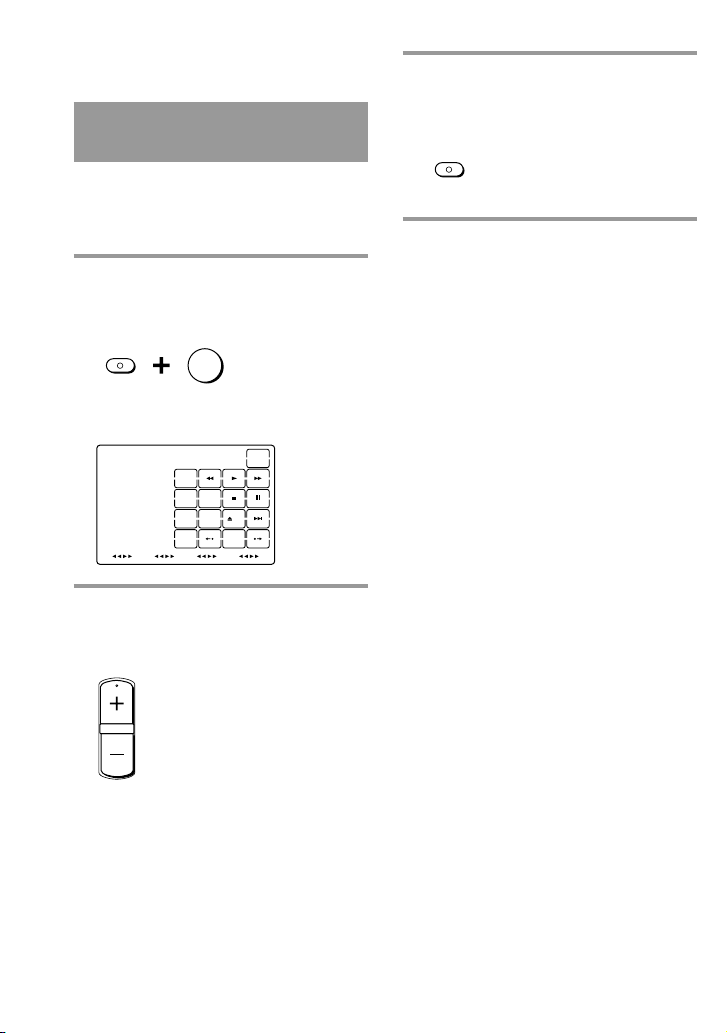
40
3
Press and hold the
COMMANDER OFF button for
more than 2 seconds.
OFF
COMMANDER
The Remote Commander turns off.
If you want to quit before
finishing
Press and hold the COMMANDER OFF button
for more than 2 seconds. The previous status
returns, and the Remote Commander turns off.
Setting the LCD display
(continued)
Setting the contrast of the
LCD display
You can adjust the contrast of the LCD
display if the screen is not viewed
properly. To change this setting, perform
the following procedure.
1
While pressing the
COMMANDER OFF button,
press the OK button.
OK
OFF
COMMANDER
The setting display for contrast
appears.
CONTRAST
SU
213
546
ENTER+10
8
0
79
POWER
REC
INPUT
DISPLAY
MAIN/SUB
LIST
A/B
TOP MENU
LEARN
NG
2
Press the CHANNEL +/– button
to adjust the contrast of the LCD
display.
CHANNEL
You can set the contrast level from 1
to 15.
CHANNEL +: Darker contrast
CHANNEL –: Lighter contrast
Note
If you press the CHANNEL +/– button and
the contrast level is already at the
minimum/maximum level, the beep does
not sound. The level can be set from 1 to 15.
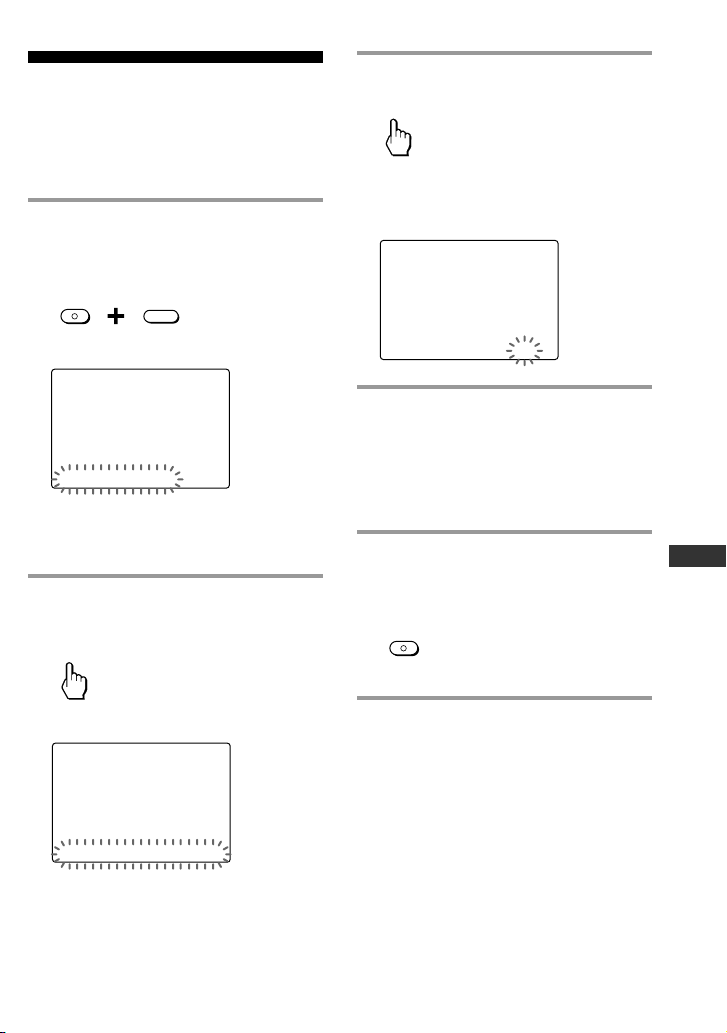
Unit Settings
41
3
Press “BEEP” on the Label keys.
BEEP
The setting display for beep appears.
The current setting is shown inside
the [ ], while the other flashes.
OTHER
SU
LEARN
NG
BEEP [ ON ] OFF
4
Press the ON or OFF key to select
the beep.
ON: Turns on the beep.
OFF: Turns off the beep.
The beep setting changes and a beep
sounds each time you press the key.
5
Press and hold the
COMMANDER OFF button for
more than 2 seconds.
OFF
COMMANDER
The Remote Commander turns off.
If you want to quit before
finishing
Press and hold the COMMANDER OFF button
for more than 2 seconds. The previous status
returns, and the Remote Commander turns off.
If you want to return to the
previous display
Press the BACK button or the COMMANDER
OFF button.
Setting the beep
The Remote Commander is preset at the
factory with the confirmation beep set to
on. To change this setting, perform the
following procedure.
1
While pressing the
COMMANDER OFF button,
press the MUTING button.
MUTING
OFF
COMMANDER
“SET” appears as the Display title.
SET
SU
LEARN
NG
LIGHT DISPLAY OTHER
If “OTHER” does not flash on the
Label keys, press the Display title
(SET) repeatedly until it appears.
2
Press “OTHER” on the Label
keys.
OTHER
“OTHER” appears as the Display title.
OTHER
SU
LEARN
NG
BEEP DS_TIME CLOCK RESET
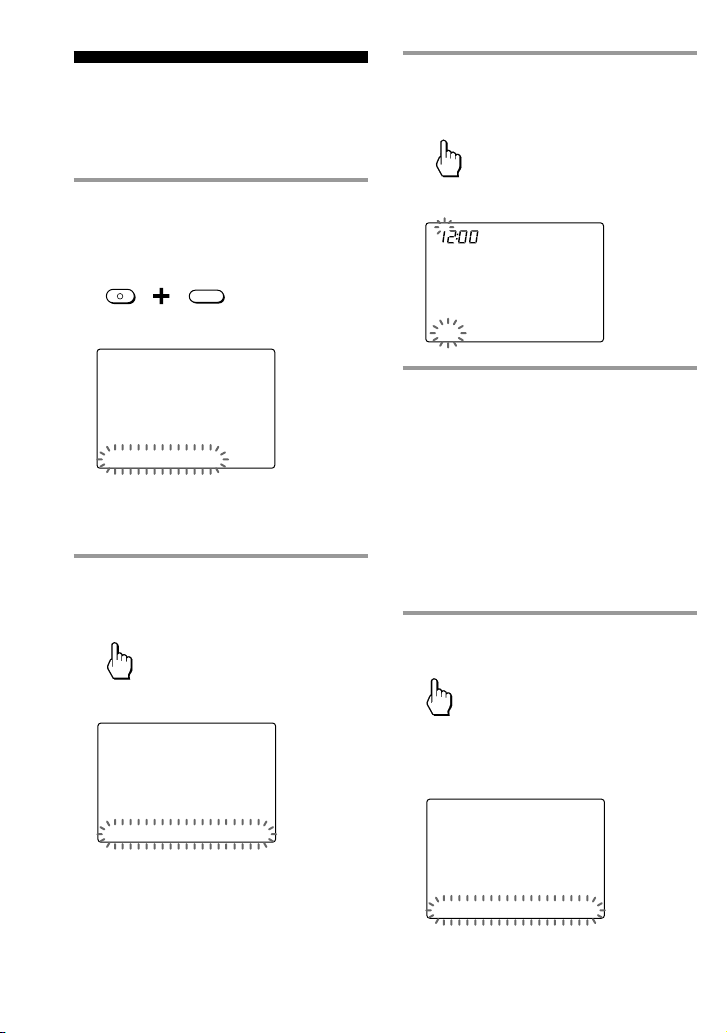
42
Adjusting the clock
You can adjust the clock after setting.
To change this setting, perform the
following procedure.
1
While pressing the
COMMANDER OFF button,
press the MUTING button.
MUTING
OFF
COMMANDER
“SET” appears as the Display title.
SET
SU
LEARN
NG
LIGHT DISPLAY OTHER
If “OTHER” does not flash on the
Label keys, press the Display title
(SET) repeatedly until it appears.
2
Press “OTHER” on the Label
keys.
OTHER
“OTHER” appears as the Display title.
OTHER
SU
LEARN
NG
BEEP DS_TIME CLOCK RESET
3
Press “CLOCK” on the Label
keys.
CLOCK
The setting display for clock appears.
CLOCK
SU
AM
LEARN
NG
SET STD_TIME
4
Press the F/f/g/G buttons to
change the time or day.
Each time the G or g button is
pressed, the Clock display changes in
order (the day y the hour y
the minute y the day).
Each time the F or f button is
pressed, the hour or minute changes
by 1 hour or minute.
Select the hour or minute by pressing
the (G/g) button first.
5
Press “SET” on the Label keys.
SET
With a beep sound, the clock is
started. “OTHER” appears as the
Display title.
OTHER
SU
LEARN
NG
BEEP DS_TIME CLOCK RESET
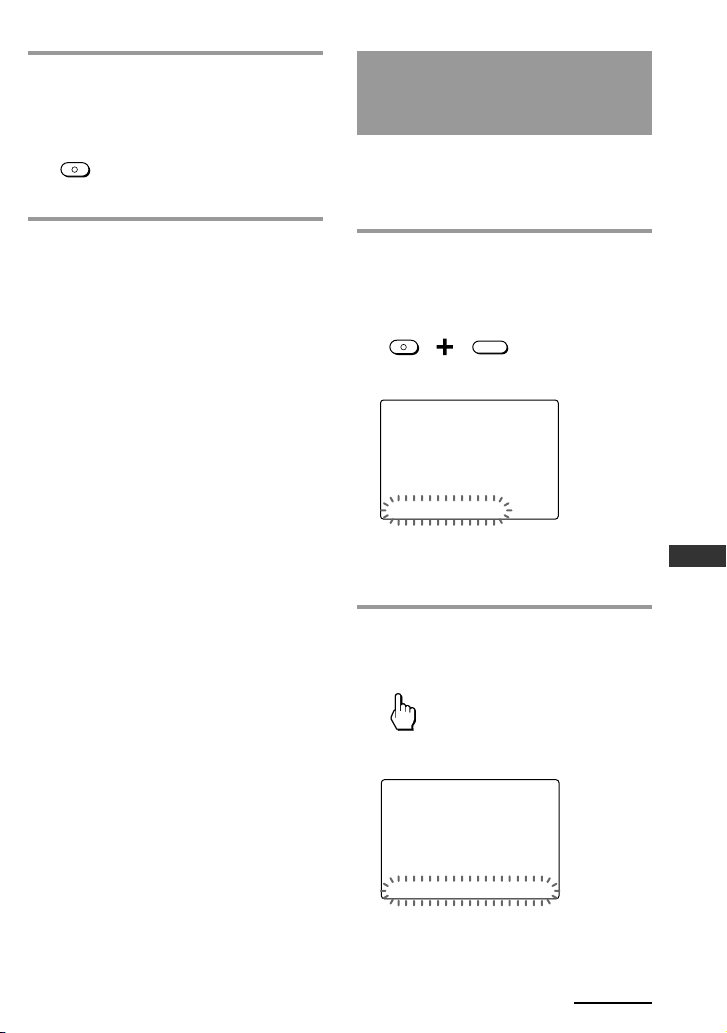
Unit Settings
43
6
Press and hold the
COMMANDER OFF button for
more than 2 seconds.
OFF
COMMANDER
The Remote Commander turns off.
If you want to quit before
finishing
Press and hold the COMMANDER OFF button
for more than 2 seconds. The previous status
returns, and the Remote Commander turns off.
If you want to return to the
previous display
Press the BACK button or the COMMANDER
OFF button.
To change the display to
the daylight savings time
(summer time) indication
You can select the standard time
(STD_TIME) or summer time (DS_TIME).
To change this setting, perform the
following procedure.
1
While pressing the
COMMANDER OFF button,
press the MUTING button.
MUTING
OFF
COMMANDER
“SET” appears as the Display title.
SET
SU
LEARN
NG
LIGHT DISPLAY OTHER
If “OTHER” does not flash on the
Label keys, press the Display title
(SET) repeatedly until it appears.
2
Press “OTHER” on the Label
keys.
OTHER
“OTHER” appears as the Display title.
OTHER
SU
LEARN
NG
BEEP DS_TIME CLOCK RESET
Continued
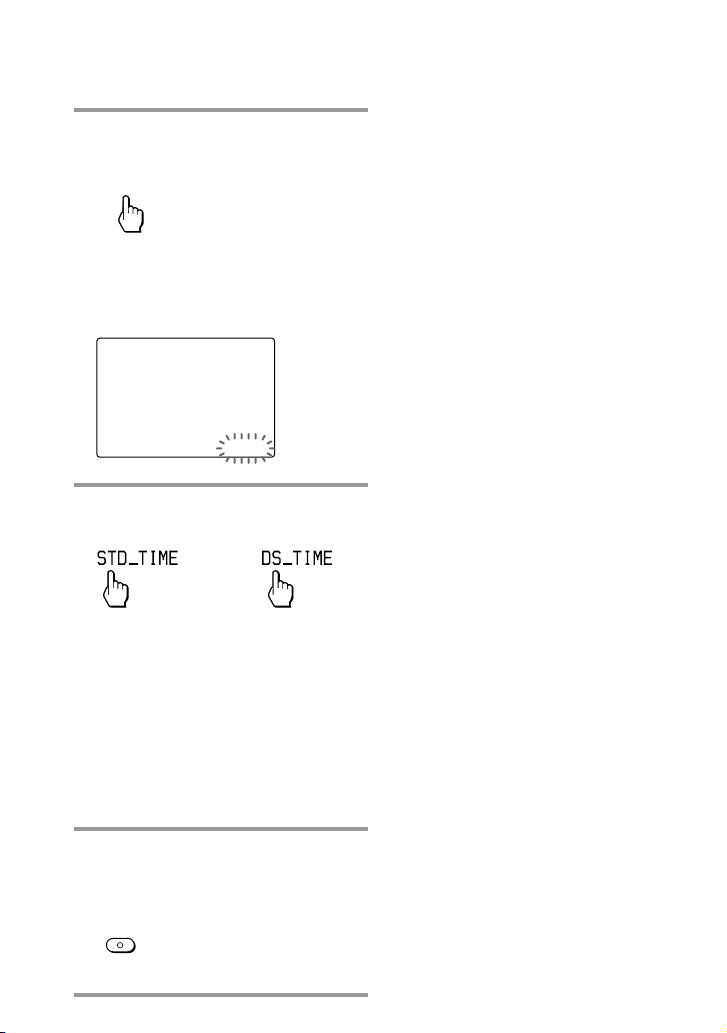
44
3 Press “DS_TIME” on the Label
keys.
DS_TIME
The setting display for daylight
savings time appears.
The current setting is shown inside
the [ ], while the other flashes.
OTHER
SU
LEARN
NG
DS_TIME [STD_TIME] DS_TIME
4
Press the STD_TIME or DS_TIME
key.
STD_TIME is 1 hour behind the
DS_TIME.
DS_TIME is 1 hour ahead of the
STD_TIME.
The setting of the daylight savings
time changes and a beep sounds each
time you press the keys.
Note
In this case, the minute and second are not
changed.
5
Press and hold the
COMMANDER OFF button for
more than 2 seconds.
OFF
COMMANDER
The Remote Commander turns off.
If you want to quit before
finishing
Press and hold the COMMANDER OFF button
for more than 2 seconds. The previous status
returns, and the Remote Commander turns off.
If you want to return to the
previous display
Press the BACK button or the COMMANDER
OFF button.
Adjusting the clock (continued)
or
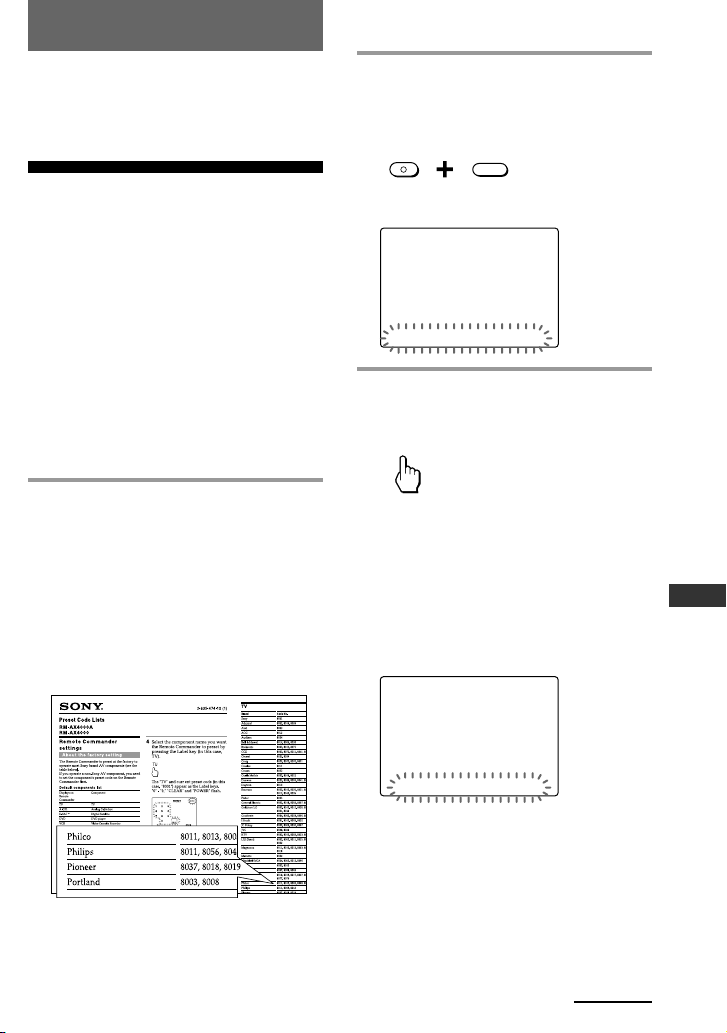
45
Setting by On-Remote Setup
The following section explains On-
Remote Setup. If you set the Remote
Commander by On-PC Setup, these
explanations are not valid.
Setting the preset
codes
You should register components to the
Remote Commander by setting their
preset codes.
Setting of the preset code is required in
the following cases:
–To use a Sony component that is not
registered to the Remote Commander
by the default setting
–To use other brands of components
Example: To set up a Philips TV
1 See the tables in the supplied
“Preset Code Lists,” and find the
four-digit preset code for the
desired component.
If more than one preset code is listed
for the component, use the first
number on the list.
For example, to set up a Philips TV,
you would use the preset code “8011.”
Tip
The first digit of the preset code means the
type of component (TV, VCR, etc.). For
further details, see the tables in the
supplied “Preset Code Lists.”
2 While pressing the
COMMANDER OFF button,
press the MUTING button.
MUTING
OFF
COMMANDER
“SET” appears as the Display title.
SET /1
SU
LEARN
NG
PRESET LEARN MACRO TIMER
3 Press “PRESET” on the Label
keys.
PRESET
“PRESET” appears as the Display
title. The component name flashes on
the Label keys.
If a page number such as “/1”
appears to the right side of Display
title, multiple pages are available.
Press the number to go to the next
page.
PRESET /1
SU
LEARN
NG
TV A-CBL D-SAT DVD
Continued
Setting by On-Remote Setup
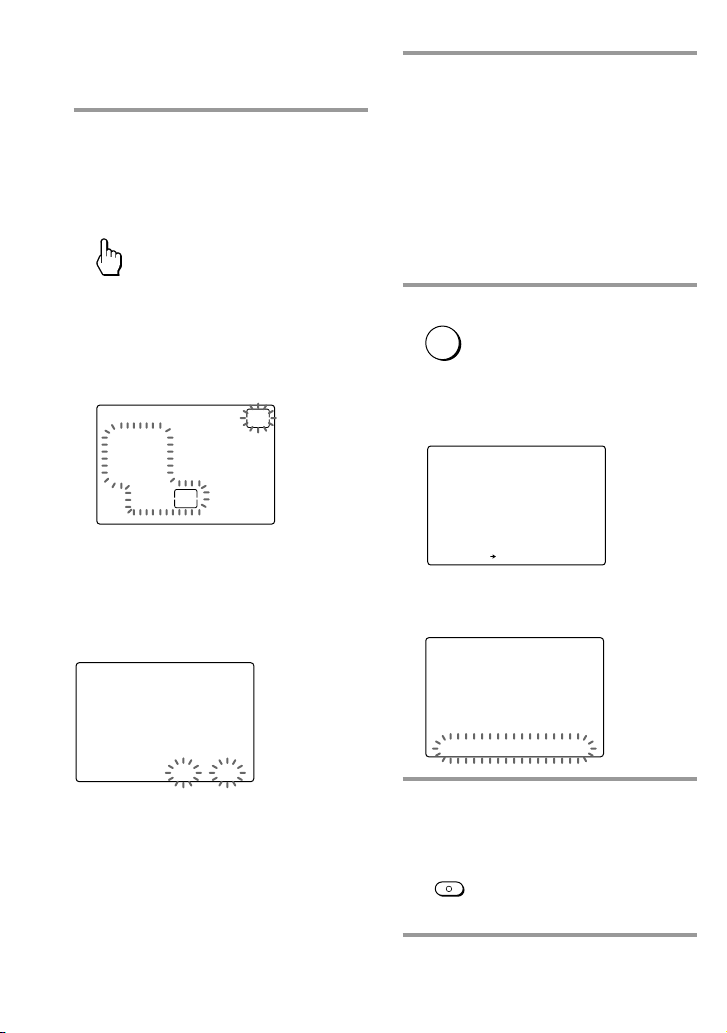
46
4 Select the component name you
want the Remote Commander to
preset by pressing the Label key
(in this case, TV).
TV
The “TV” and current preset code (in
this case, “8001”) appear as the Label
keys.
“0” - “9,” “CLEAR” and “POWER”
flash.
PRESET
213
546
8
0
79
POWER
CLEAR
LEARN
NG
TV
8001
Note
If another remote control signal has already
been learned, the delete confirmation message
appears. Register the components after deleting
the learned signal following the procedure of
the LCD display.
PRESET
SU
LEARN
NG
DELET LEARN? YES NO
5 Press the “8,” “0,” “1,” and “1”
number keys.
Tip
Each time the CHANNEL +/– button is
pressed, the preset code increases/
decreases by 1.
If you make a mistake in
inputting
Press the CLEAR key. The preset code
returns to the previous number.
6 Press the OK button.
OK
A beep sounds and the input preset
code appears on the Label key
momentarily.
PRESET
SU
LEARN
NG
TV TV 8011 OK
“PRESET” appears as the Display
title.
PRESET /1
SU
LEARN
NG
TV A-CBL D-SAT DVD
7 Press and hold the
COMMANDER OFF button for
more than 2 seconds.
OFF
COMMANDER
The Remote Commander turns off.
Setting the preset codes
(continued)
47
Setting by On-Remote Setup
If you want to quit before
finishing
Press and hold the COMMANDER OFF button
for more than 2 seconds. The previous status
returns, and the Remote Commander turns off.
If you want to return to the
previous display
Press the BACK button or the COMMANDER
OFF button.
Notes
• If you enter a preset code that is not on the
table in the supplied “Preset Code Lists,” the
Remote Commander beeps five times. The
digits you input and “NG” appear on the
Label key after you press the OK button. The
previous setting returns. If this happens,
check the preset code, and try setting again.
• If you do not enter any data to the Remote
Commander for over 2 minutes between each
step, the setup procedure will be canceled. To
set the preset code again, press the MUTING
button while pressing the COMMANDER
OFF button.
• The first digit of the preset code means the
type of component (TV, VCR, etc.). The
component corresponding to the four-digit of
the preset code is set in step 5. If you register
a component whose type is different from
that previously preset to the Label keys, you
can, if necessary, change the component
names as the Label keys (page 65).
• If you set a preset code after you input
character contents (names, etc.) to the Label
keys (page 65), they are cleared and return to
the original display. Edit the characters after
you decide the component to be used by
setting a preset code.
• Except the DVD/Receiver combo (DAV), the
components with the built-in amplifier
should be registered as RCVR (Receiver). All
the keys that are inoperative should be
registered by the learning function.
Using non-preset
remote control
operations
– Learning function
To operate non-preset components or
functions, use the following “learning”
procedure to “program” any of the
programmable buttons and keys to
operate the functions of another remote
control. You can also use the Learning
function to change the signal of
individual keys and buttons after setting
the preset code (page 45).
Notes
•You cannot perform this procedure before
setting the preset code. Set the preset code
first.
• Some specific remote control signals may not
be learned.
• The learned signal may not work properly if
a target component’s remote control preset
button has two different functions for a single
press. If this occurs, program the two signals
for a Label key by referring to the “Learning
up to 4 signals to one key” on page 49.
• If you do not perform learning steps within 2
minutes, the learning process is cancelled.
Continued
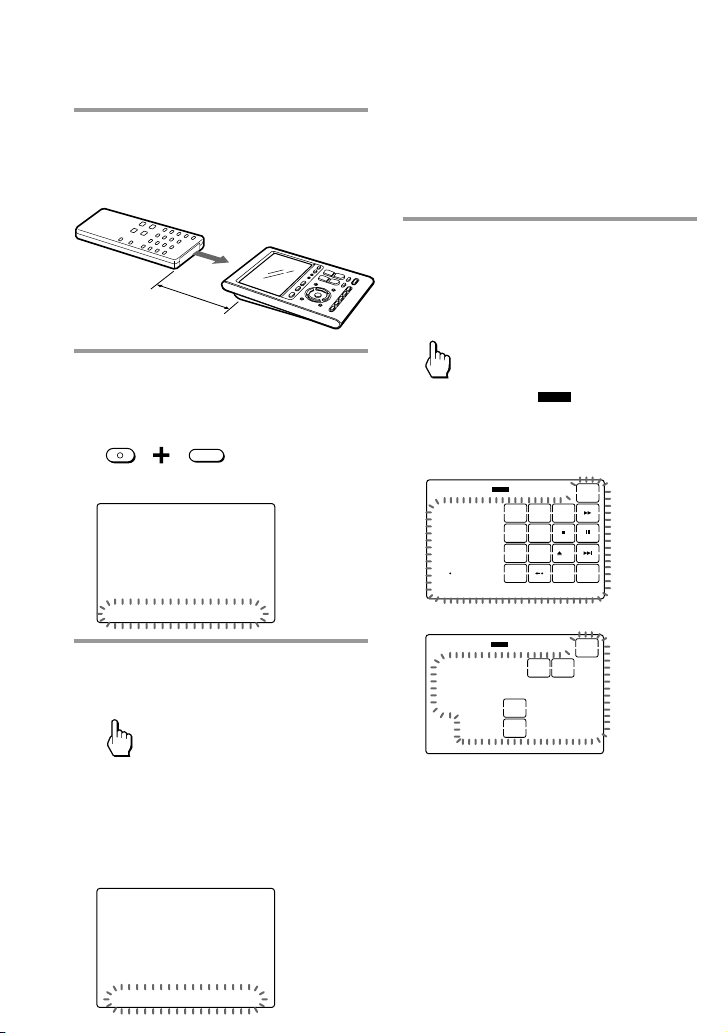
48
1 Place the Remote Commander
head to head with your
component’s remote control.
2 While pressing the
COMMANDER OFF button,
press the MUTING button.
MUTING
OFF
COMMANDER
“SET” appears as the Display title.
SET /1
SU
LEARN
NG
PRESET LEARN MACRO TIMER
3 Press “LEARN” on the Label
keys.
LEARN
“LEARN” appears as the Display title.
The component name flashes on the
Label keys.
If a page number such as “/1”
appears to the right side of Display
title, multiple pages are available. Press
the number to go to the next page.
LEARN /1
SU
LEARN
NG
TV A-CBL D-SAT DVD
Tip
To change the component name of a
Label key
Press and hold the Label key for the
component name for more than 2 seconds.
The Label key flashes and the Remote
Commander enters the component name
changing mode.
See step 6 on page 67 for how to input
characters.
4 Select the component name you
want the Remote Commander to
learn by pressing the Label key
(in this case, TV).
TV
The “TV” and “
LEARNLEARN
” appear on the
Display title.
The learnable keys and the preset key
flash alternately.
TV /1
SU
213
546
ENTER
8
0
79
POWER
WIDE
REC
INPUT
SWAP
DISPLAY
MAIN/SUB
LIST
2PICA/B
TOP MENU
LEARNLEARN
NG
TV_TUNER ANT/SW NEW NEW
Y
213
546
ENTER
8
0
79
POWER
INPUT
SWAP
DISPLAY
2PIC
LEARNLEARN
NG
TV /1
Remote control for your component
about 1 - 3 inches
(3 - 8 cm) away
Using non-preset remote control
operations (continued)
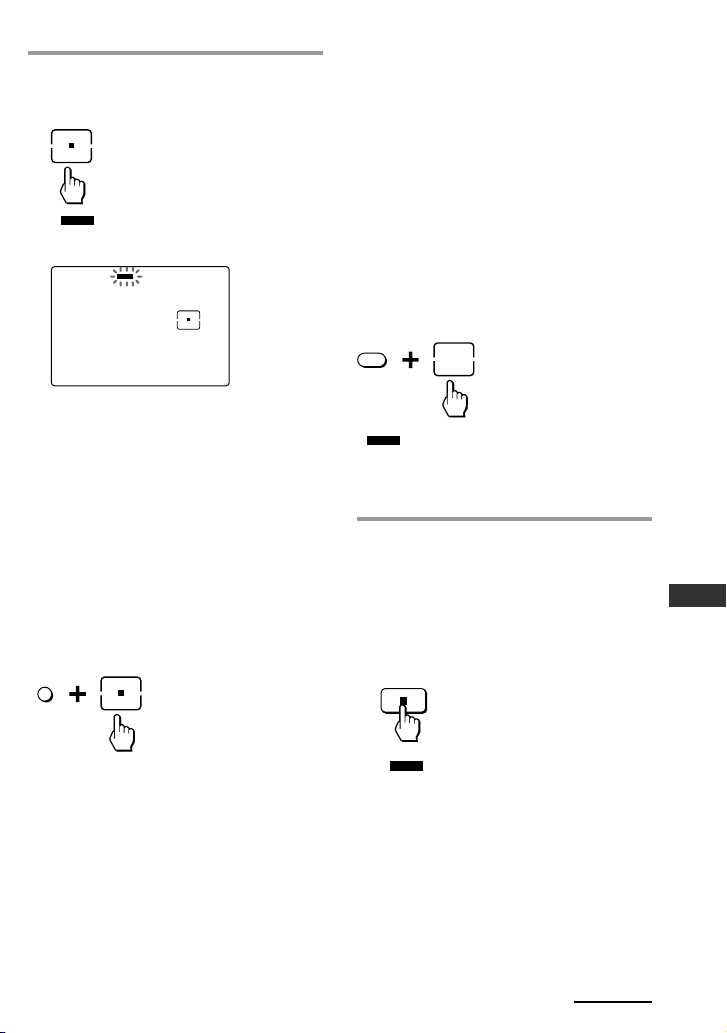
49
Setting by On-Remote Setup
5 Press the key or button on the
Remote Commander you want to
“program” the preset code to.
“
LEARNLEARN
” flashes and only the pressed
key remains on the LCD display.
TV /1
SU
LEARNLEARN
NG
When you have programmed the
buttons on the Remote
Commander
The names of buttons not on the LCD display
(VOLUME +/–, CHANNEL +/–, MUTING,
RECALL, MENU, EPG, TOOLS, EXIT, F, f, g,
G and OK ) appear on the right Label keys.
To clear the learned signal from
a key or button
While pressing the SYNC-UP button,
press the learned key or button you want
to clear.
SYNC-UP
The cleared key flashes together with
other keys that are available for learning.
Learning up to 4 signals to one
key
This is useful when the Remote
Commander is not working properly,
even when the signal is learned for the
Remote Commander using the Learning
function. You can also use this function to
switch the input mode such as TV, etc., or
to switch between DVD player and DVD
recorder operation with one key.
To re-program already learned keys or
buttons, press the key or button while
pressing the LIGHT button.
INPUT
LIGHT
“
LEARNLEARN
” flashes and the only the pressed
key remains on the LCD display.
You can program a maximum of 4
functions to one key or button.
6 Press and hold the button on the
other remote control until you
hear a beep.
(If you release the button before you
hear a beep, the signal may not be
learned correctly.)
“
LEARNLEARN
” stops flashing and stays lit.
When the command has been learned
successfully, the learned keys stay lit
and the other keys available for
learning flash alternately.
Notes
• If “NG” flashes on the LCD display with
5 beep sounds, learning did not succeed.
Try again steps 5 and 6.
• If you touch a wrong key by mistake,
while pressing the SYNC-UP button,
press the incorrect key again.
Continued
Other remote control’s button
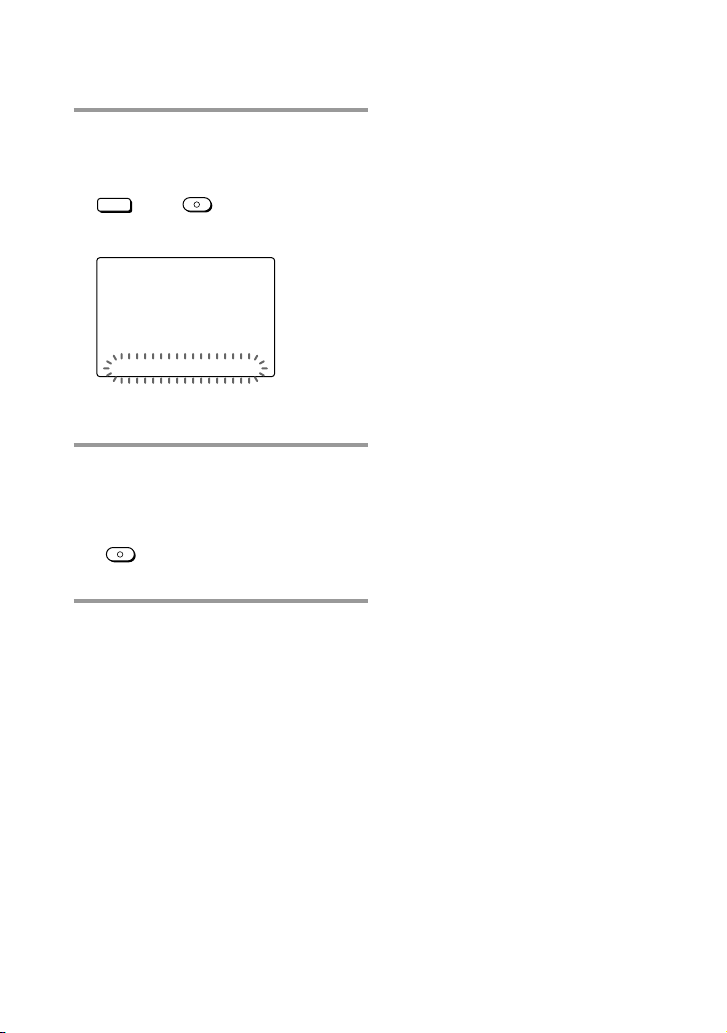
50
7 Press the BACK button or the
COMMANDER OFF button.
BACK
or
OFF
COMMANDER
“LEARN” appears as the Display title.
LEARN /1
SU
LEARN
NG
TV A-CBL D-SAT DVD
If you want to program another
signal, repeat steps 4 - 6.
8 Press and hold the
COMMANDER OFF button for
more than 2 seconds.
OFF
COMMANDER
The Remote Commander turns off.
If you want to quit before
finishing
Press and hold the COMMANDER OFF button
for more than 2 seconds. The previous status
returns, and the Remote Commander turns off.
If you want to return to the
previous display
Press the BACK button or the COMMANDER
OFF button.
If the Remote Commander does
not seem to be working properly,
repeat from step 5.
If the learned key or button does not operate
properly, program once again. (For example, if
the volume becomes very loud after pressing
the VOLUME + button just once, noise may
have interfered during the learning procedure.)
When you program signals to the
VOLUME +/ – or MUTING buttons
• If you have programmed any signal on the
VOLUME +/– or MUTING button for
components other than TV and RCVR
(Receiver/Amplifier) using the learning
function, that signal will be transmitted only
when you select that component.
• If you have programmed any signal for the
VOLUME +/– or MUTING button of TV or
RCVR (Receiver/Amplifier) using the
learning function, that signal will also be
transmitted when you select another
component.
However, if you have programmed any
signal for the VOLUME +/– or MUTING
button of another component, that signal will
be transmitted only after you select that
component.
Using non-preset remote control
operations (continued)
51
Setting by On-Remote Setup
For accurate learning
• Do not move the remote units during
the learning procedure.
• Be sure to press and hold the button of
the other remote control until you hear
the confirmation beep.
• Use fresh batteries in both remote
control units.
•Avoid learning in places under direct
sunlight or strong fluorescent light.
• The remote control signal direction
may differ depending on the remote
control. If learning does not work, try
changing the position of the remote
control.
• When you program a remote control
unit with an interactive signal
exchange system (supplied with some
Sony receivers and amplifiers) to the
Remote Commander, the response
signal of the component may interfere
with the learning of the Remote
Commander. In such a case, move to
another room, etc., where the signals
will not interfere.
IMPORTANT
Be sure to place the Remote Commander
out of the reach of small children or pets.
Also, set the Hold function to lock the all
the buttons on the Remote Commander
(page 33) when it is not used. Devices such
as air conditioners, heaters, electric
appliances, and electric shutters or
curtains receiving an infrared signal can be
dangerous if misused.
Programming a series
of actions with just one
button
–System Control function
With the System Control function, you
can program a series of actions (a macro)
and execute them by pressing just one
button. For example, when you watch a
video, a series of operations like the ones
below are necessary.
Example:
1Turn on the TV.
2Turn on the video (VCR).
3Turn on the amplifier (RCVR).
4 Set the input selector of the
amplifier to VIDEO 1.
5 Set the input mode of the TV to
VIDEO 1.
6 Start video playback.
You can program up to 32 consecutive
operation steps to each of the SYSTEM
CONTROL buttons (1 - 4) or the System
Control keys (SYSTEM 5 - 8).
Continued
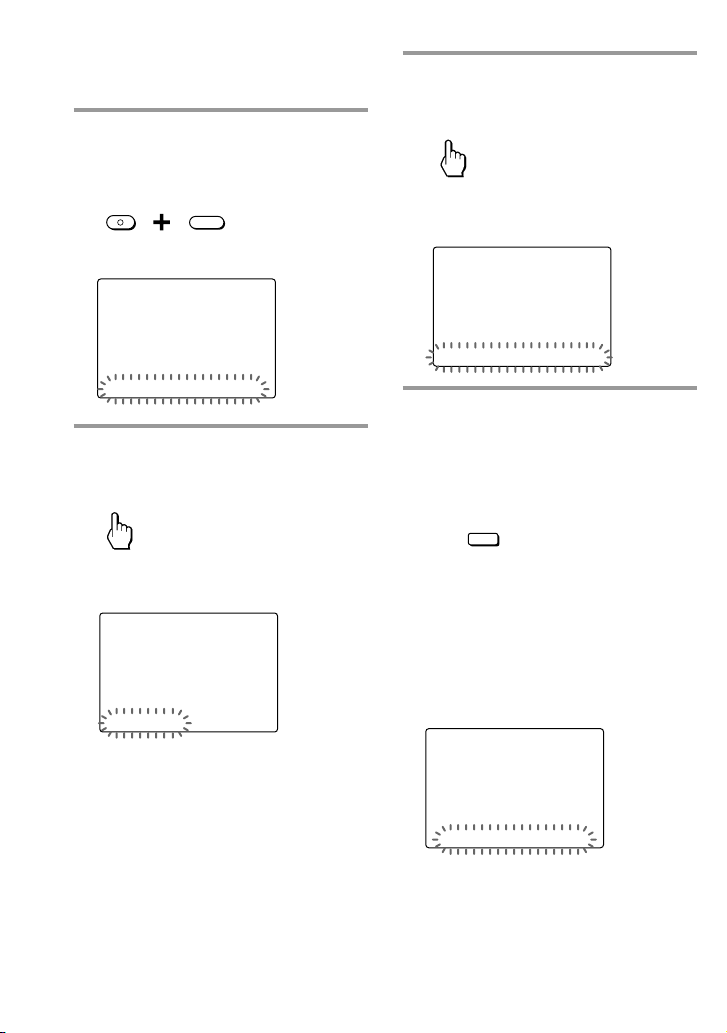
52
1 While pressing the
COMMANDER OFF button,
press the MUTING button.
MUTING
OFF
COMMANDER
“SET” appears as the Display title.
SET /1
SU
LEARN
NG
PRESET LEARN MACRO TIMER
2 Press “MACRO” on the Label
keys.
MACRO
“MACRO” appears as the Display
title.
MACRO
SU
LEARN
NG
SYSTEM XPRESS
3 Press “SYSTEM” on the Label
keys.
SYSTEM
“SYSTEM” appears as the Display
title.
SYSTEM
SU
LEARN
NG
SYSTEM5 SYSTEM6 SYSTEM7 SYSTEM8
4 Select the System Control name
by pressing the SYSTEM
CONTROL button or the System
Control key (in this case, SYSTEM
CONTROL 2 button).
SYSTEM CONTROL
2
“COMPONENT” appears as the
Display title. The component name
flashes on the Label keys.
If a page number such as “/1”
appears to the right side of Display
title, multiple pages are available.
Press the number to go to the next
page.
COMPONENT /1
SU
LEARN
NG
TV A-CBL D-SAT DVD
Programming a series of actions
with just one button (continued)
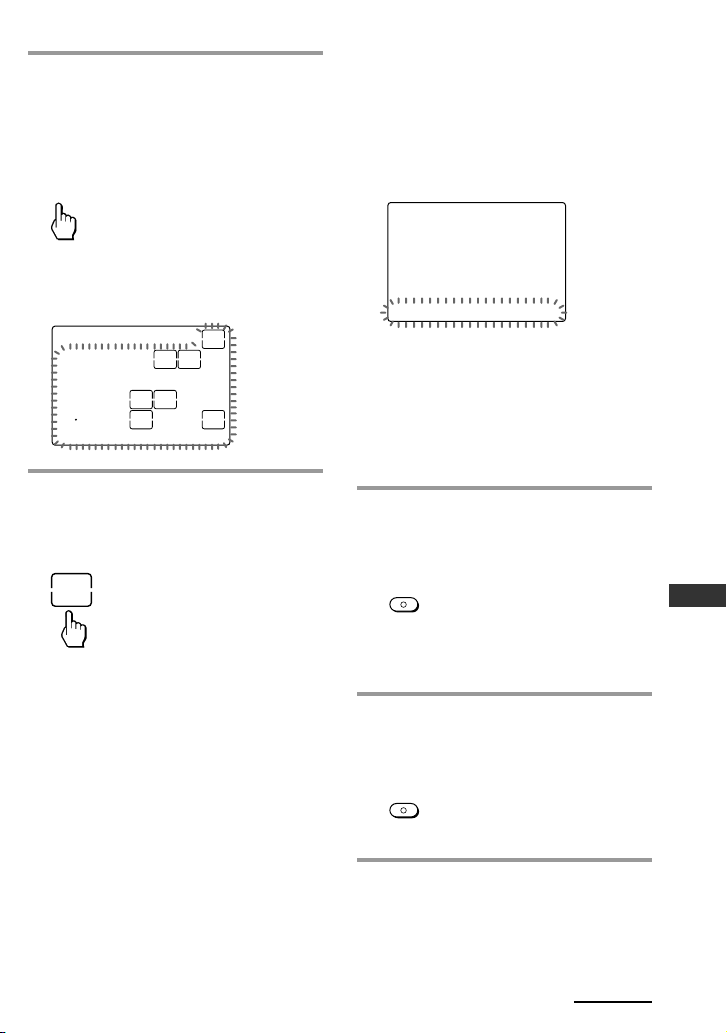
53
Setting by On-Remote Setup
5 Select the component name you
want the Remote Commander to
program the series of actions (a
macro) by pressing the Label key
(in this case, TV).
TV
The “TV” appears as the Display title,
and the programmable keys for the
selected component flash.
TV /1
SU
213
546
ENTER
8
0
79
POWER
WIDE
INPUT
SWAP
DISPLAY
MAIN/SUB
2PIC
LEARN
NG
TV_TUNER ANT/SW
6 Press the key(s) or button(s) for
the desired operation.
If you want to turn on the TV, press
the POWER key.
POWER
If you want to add commands from a
different component, press the
COMPONENT button and then select
the component name from the Label
keys.
When you have programmed the
buttons on the Remote
Commander
The names of buttons not on the LCD display
(VOLUME +/–, CHANNEL +/–, MUTING,
RECALL, MENU, EPG, TOOLS, EXIT, F, f, g,
G and OK ) appear on the right Label keys.
When the maximum of 32 steps are
input, the System Control macro
programming finishes and a beep
sounds, and the System Control
macro displays in order.
“SYSTEM” appears as the Display
title.
SYSTEM
SU
LEARN
NG
SYSTEM5 SYSTEM6 SYSTEM7 SYSTEM8
Notes
•You can input up to 32 steps for one
System Control function.
• If you need a manual delay between two
steps, press the TIMER button to add an
interval of 250 ms. (ms: 1/1000 second)
• The Display title and the LIGHT button
are not counted as steps.
7 When you have programmed all
the keys and buttons, press the
COMMANDER OFF button.
OFF
COMMANDER
A beep sounds, the System Control
macro programming finishes and
displays in order.
8 Press and hold the
COMMANDER OFF button for
more than 2 seconds.
OFF
COMMANDER
The Remote Commander turns off.
Continued
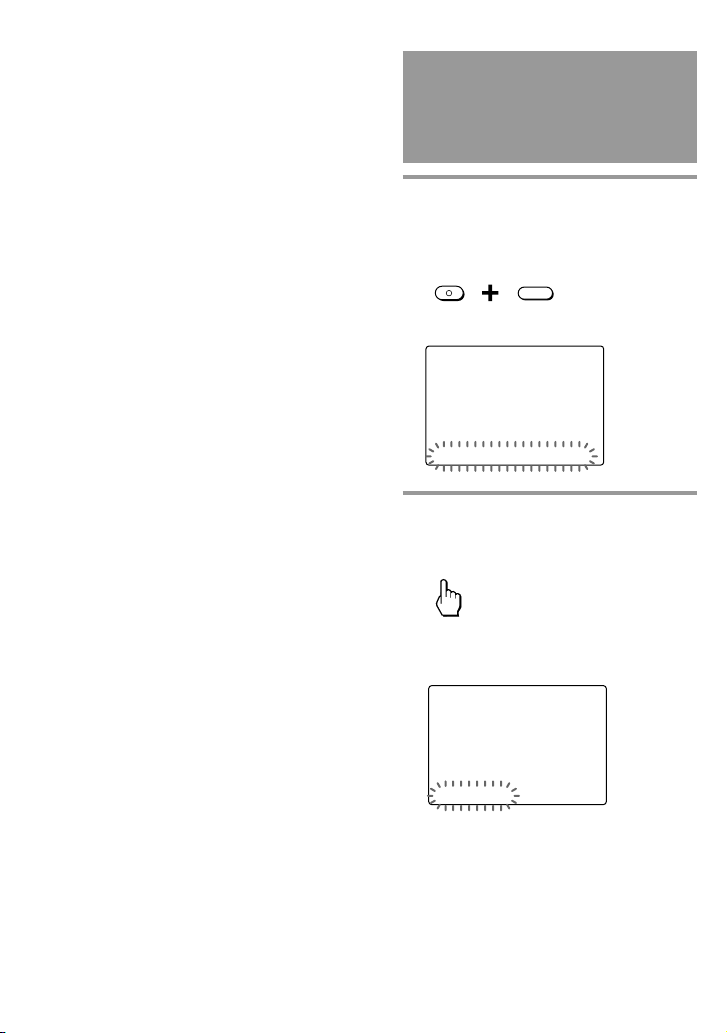
54
If you want to quit before
finishing
Press and hold the COMMANDER OFF button
for more than 2 seconds. The setting is
canceled, and the Remote Commander turns
off.
If you want to return to the
previous display
Press the BACK button or the COMMANDER
OFF button.
Notes
• If you interrupt the procedure at any point
for over 2 minutes, the setting is cancelled
and the series of actions (a macro) will be
programmed to that point. In this case, clear
the program (page 54) and start again from
step 1 to set the entire program from the
beginning. You cannot continue from where
you left off.
• If you set the preset code (page 45) or
program a new signal by learning (page 47)
on a key or button that has been
programmed in the System Control macro,
the new signal will be transmitted when you
press the corresponding SYSTEM CONTROL
button or System Control key.
• If you try to program more than 32 steps, the
System Control macro programming finishes,
and the 32 steps you have programmed are
registered. If you want to program again,
clear the program (page 54) and start again
from step 1.
About the order of operation
steps
Some of the components may not accept
consecutive remote control signals. For
example, a TV generally does not react to the
next signal immediately after the Power-on
signal. So, a series of actions such as TV power-
on and input select may not work properly. In
this case, insert other signals like the example
below;
TV power-on t VCR power-on t VCR
playback t TV input select
To clear programmed series
of actions for SYSTEM
CONTROL button or System
Control key
1 While pressing the
COMMANDER OFF button,
press the MUTING button.
MUTING
OFF
COMMANDER
“SET” appears as the Display title.
SET /1
SU
LEARN
NG
PRESET LEARN MACRO TIMER
2 Press “MACRO” on the Label
keys.
MACRO
“MACRO” appears as the Display
title.
MACRO
SU
LEARN
NG
SYSTEM XPRESS
Programming a series of actions
with just one button (continued)
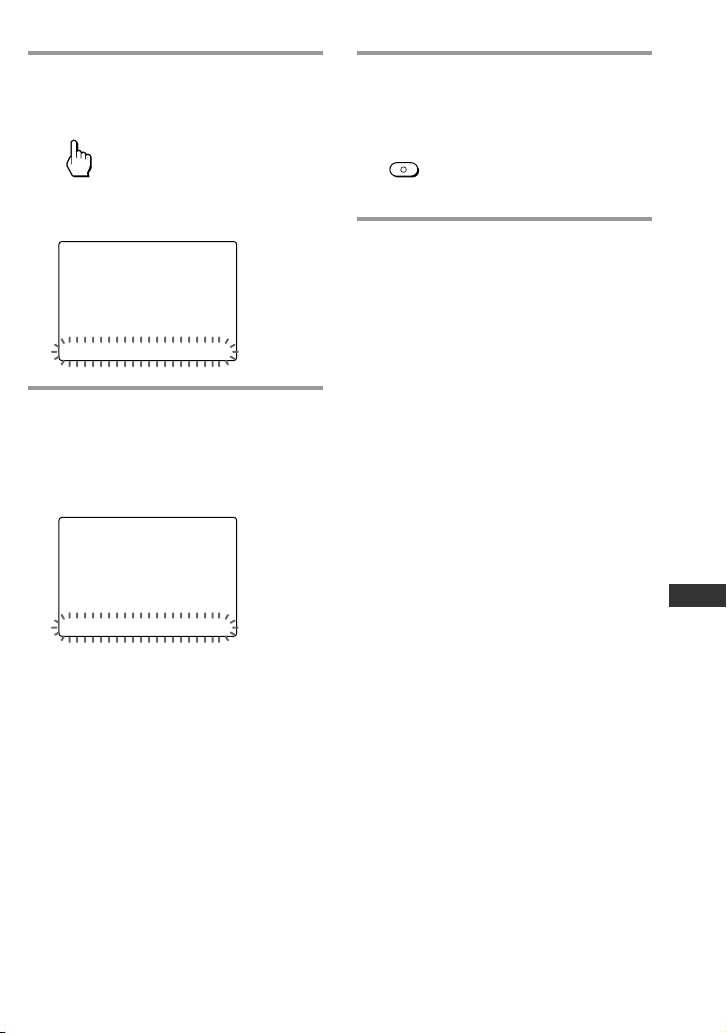
55
Setting by On-Remote Setup
3 Press “SYSTEM” on the Label
keys.
SYSTEM
“SYSTEM” appears as the Display
title.
SYSTEM
SU
LEARN
NG
SYSTEM5 SYSTEM6 SYSTEM7 SYSTEM8
4 While pressing the SYNC-UP
button, press the programmed
key or button you want to clear.
A beep sounds, “SYSTEM” appears as
the Display title.
SYSTEM
SU
LEARN
NG
SYSTEM5 SYSTEM6 SYSTEM7 SYSTEM8
5 Press and hold the
COMMANDER OFF button for
more than 2 seconds.
OFF
COMMANDER
The Remote Commander turns off.
If you want to quit before
finishing
Press and hold the COMMANDER OFF button
for more than 2 seconds. The setting is
canceled, and the Remote Commander turns
off.
If you want to return to the
previous display
Press the BACK button or the COMMANDER
OFF button.
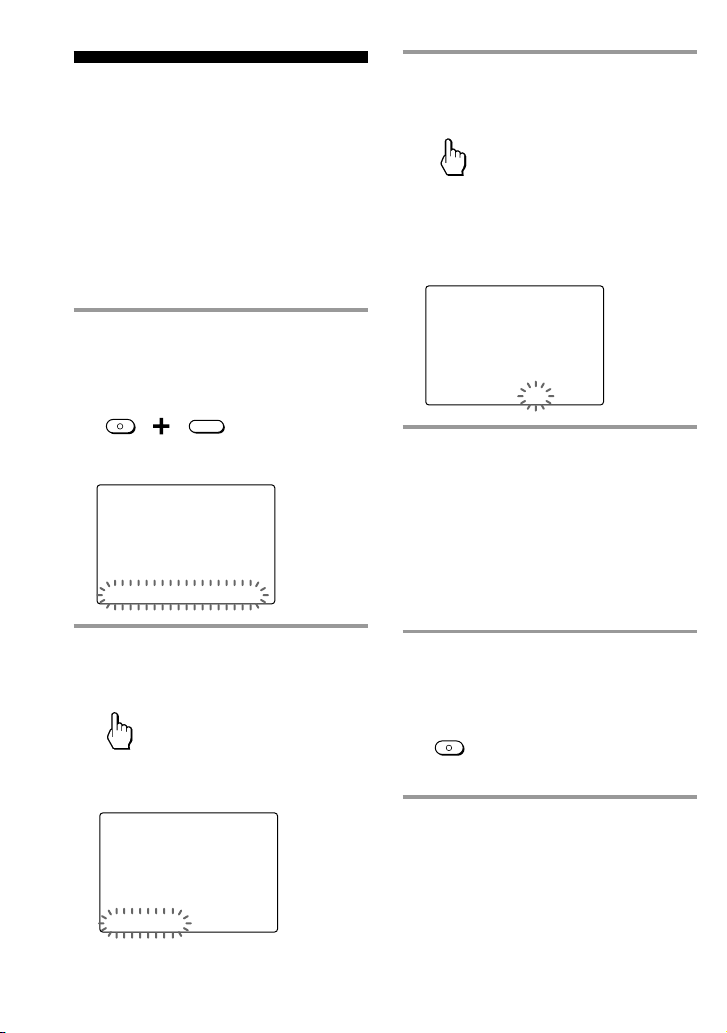
56
3
Press “XPRESS” on the Label
keys.
XPRESS
The setting display for XPRESS macro
activation appears.
The current setting is shown inside
the [ ], while the other flashes.
MACRO
SU
LEARN
NG
XPRESS Macro ON [ OFF ]
4
Press the ON or OFF key to select
the XPRESS macro activation.
ON: Turns on the XPRESS macro
activation.
OFF: Turns off the XPRESS macro
activation.
The setting of the XPRESS macro
activation changes each time you
press the key.
5
Press and hold the
COMMANDER OFF button for
more than 2 seconds.
OFF
COMMANDER
The Remote Commander turns off.
If you want to quit before
finishing
Press and hold the COMMANDER OFF button
for more than 2 seconds. The previous status
returns, and the Remote Commander turns off.
If you want to return to the
previous display
Press the BACK button or the COMMANDER
OFF button, the previous LCD display returns.
Setting the XPRESS
macro activation
You can switch the XPRESS macro
activation to on or off when selecting the
XPRESS function.
If you set to off, the XPRESS display
appears without sending the XPRESS
macro.
To change this setting, perform the
following procedure.
1
While pressing the
COMMANDER OFF button,
press the MUTING button.
MUTING
OFF
COMMANDER
“SET” appears as the Display title.
SET /1
SU
LEARN
NG
PRESET LEARN MACRO TIMER
2
Press “MACRO” on the Label
keys.
MACRO
“MACRO” appears as the Display
title.
MACRO
SU
LEARN
NG
SYSTEM XPRESS
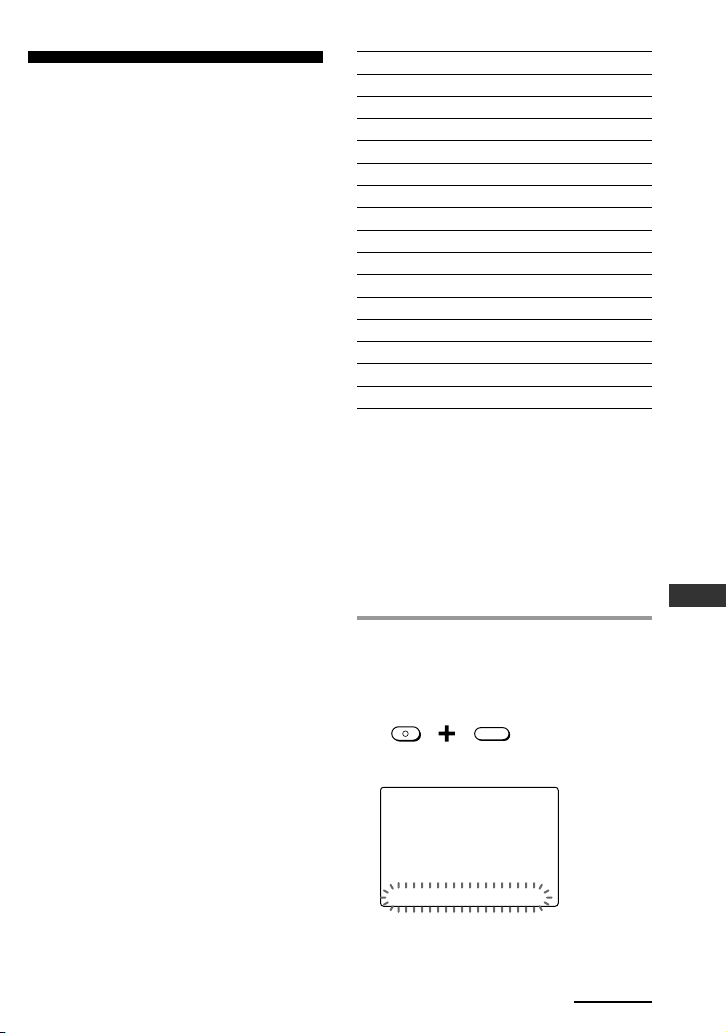
57
Setting by On-Remote Setup
Controlling the volume
of visual components
connected to an audio
component
The Remote Commander is factory preset
based on the assumption that you hear
the sound of your visual components
from your TV speakers, and that you
hear sound of your audio components
from the loudspeakers connected to your
amplifier.
This feature enables you to control the
volume of your TV or amplifier without
selecting TV or RCVR each time to
control the volume.
For example, to control the volume while
using a VCR, you do not need to select
the TV to control the TV volume. With
the Remote Commander, you can switch
the volume of all the visual components
to the amplifier.
The following table shows the factory
setting of component/volume control.
Component Controls the volume of
TV TV
A-CBL TV
D-SAT TV
DVD TV
VCR TV
CD RCVR
RCVR RCVR
DVDVR TV
DVD-R TV
D-CBL TV
DAV DAV
PJ (Projector) PJ
TAPE RCVR
MD RCVR
LIGHT ———
However, if your visual components are
connected to an audio component, you
probably hear TV or VCR sound from the
loudspeakers via your amplifier, not
from your TV speakers. In this case, you
need to change the factory preset so that
you can control the volume of your
visual components without first having
to switch to the amplifier.
1
While pressing the
COMMANDER OFF button,
press the MUTING button.
MUTING
OFF
COMMANDER
“SET” appears as the Display title.
SET /1
SU
LEARN
NG
PRESET LEARN MACRO TIMER
Continued
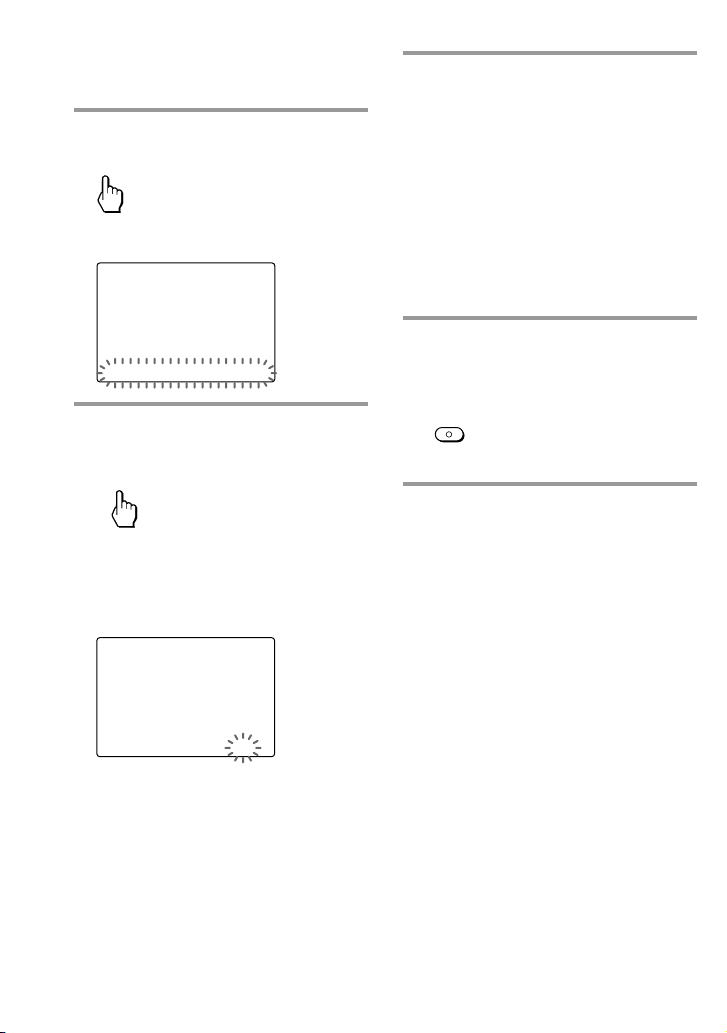
58
2
Press the Display title (SET) once.
SET
“VOLUME” flashes on the Label keys.
SET /2
SU
LEARN
NG
LABEL VOLUME LIGHT DISPLAY
3
Press “VOLUME” on the Label
keys.
VOLUME
The setting display of volume control
appears.
The current setting is shown inside
the [ ], while the other flashes.
VOLUME
SU
LEARN
NG
VISUAL [ TV ] RCVR
4
Press the TV or RCVR key to
select the volume control.
TV: You will hear the sound of your
visual components from your TV
speakers.
RCVR: You will hear the sound of
your visual components from the
loudspeakers connected to your
amplifier.
The volume control setting changes
and a beep sounds each time you
press the keys.
5
Press and hold the
COMMANDER OFF button for
more than 2 seconds.
OFF
COMMANDER
The Remote Commander turns off.
If you want to quit before
finishing
Press and hold the COMMANDER OFF button
for more than 2 seconds. The previous status
returns, and the Remote Commander turns off.
If you want to return to the
previous display
Press the BACK button or the COMMANDER
OFF button.
Notes
• If you have already programmed any signal
for the VOLUME or MUTING button of each
component by “learning,” the procedure
above will not change the function of the
VOLUME and MUTING buttons.
• If you have programmed volume control
signals on the VOLUME or MUTING buttons
of a TV or RCVR, you can only use that
signal when you select TV or RCVR. For
other components, the preset volume control
signals for TV or RCVR (depending on the
above setting procedure) will be transmitted.
To use the new signals, you need to program
each button for each component by the
learning procedure (page 47).
Controlling the volume of visual
components connected to an audio
component (continued)
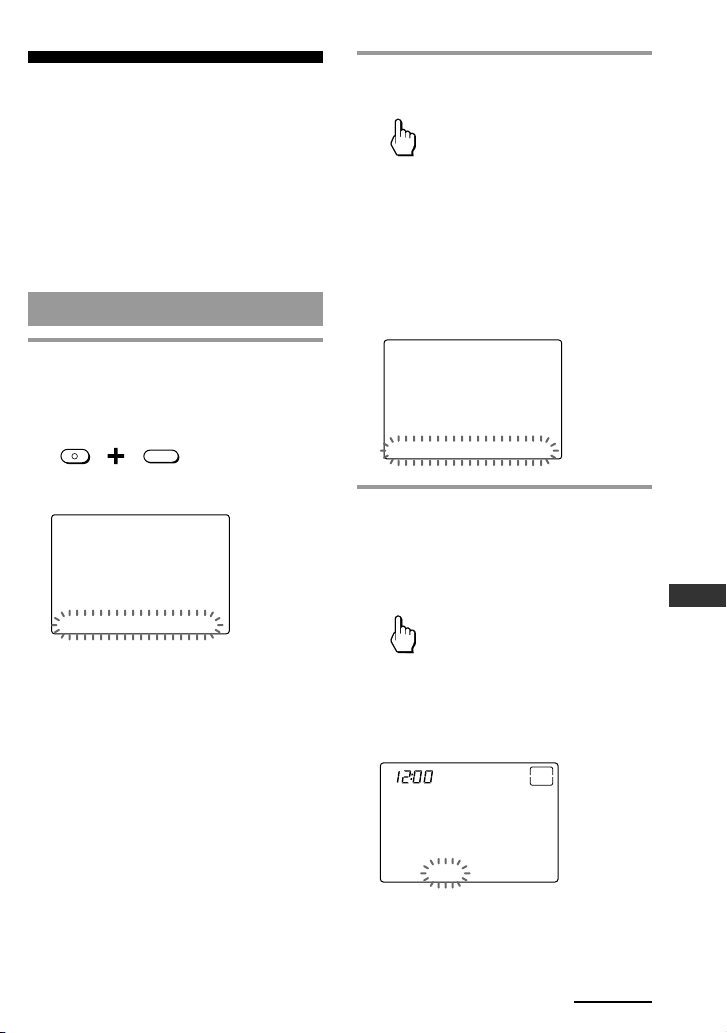
59
Setting by On-Remote Setup
Setting the Timer
Up to 8 Timers can be set on the Remote
Commander. You can program the Timer
for the day of the week, the hour, the
minute and a series of actions (a macro).
You can set each Timer to be executed or
not.
To program the Timer, perform the
following procedure.
To program the Timer
1
While pressing the
COMMANDER OFF button,
press the MUTING button.
MUTING
OFF
COMMANDER
“SET” appears as the Display title.
SET /1
SU
LEARN
NG
PRESET LEARN MACRO TIMER
2
Press “TIMER” on the Label keys.
TIMER
“TIMER” appears as the Display title.
The Timer numbers “PROG1” -
“PROG4” flash on the Label keys.
If a page number such as “/1”
appears to the right side of Display
title, multiple pages are available.
Press the number to go to the next
page.
TIMER /1
SU
LEARN
NG
PROG1 PROG2 PROG3 PROG4
3
Select the Timer number you
want the Remote Commander to
set the Timer by pressing the
Label key (in this case, PROG4).
PROG4
The “PROG4” appears as the Display
title.
“SU” and “12:00 AM” appear on the
Clock display.
PROG4 /1
SU
AM
OFF
LEARN
NG
ON/OFF MACRO TIME TEST
Continued
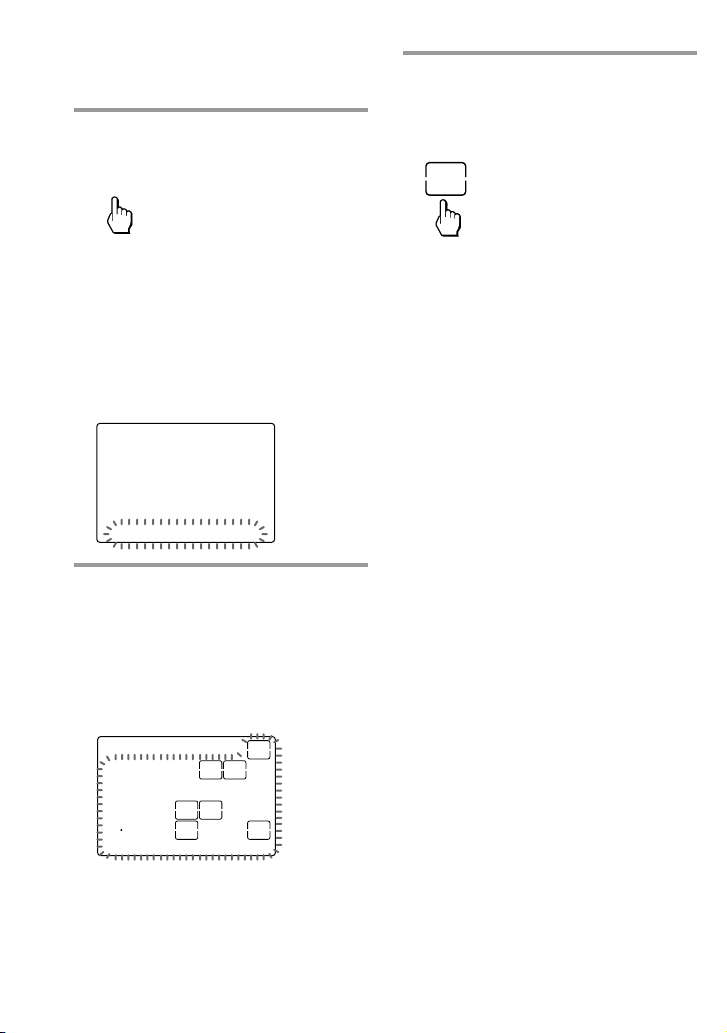
60
4
Press “MACRO” on the Label
keys.
MACRO
“COMPONENT” appears as the
Display title. The component names
flash on the Label keys.
If a page number such as “/1”
appears to the right side of Display
title, multiple pages are available.
Press the number to go to the next
page.
COMPONENT /1
SU
LEARN
NG
TV A-CBL D-SAT DVD
5
Select the component name you
want the Remote Commander to
program the series of actions (a
macro) by pressing the Label key.
The “TV” appears as the Display title,
and the programmable keys for the
selected component flash.
TV /1
SU
213
546
ENTER
8
0
79
POWER
WIDE
INPUT
SWAP
DISPLAY
MAIN/SUB
2PIC
LEARN
NG
TV_TUNER ANT/SW
6
Press the key(s) or button(s) for
the desired operation.
If you want to turn on the TV, press
the POWER key.
POWER
If you want to add commands from a
different component, press the
COMPONENT button and then select
the component name from the Label
keys.
When you have programmed the
buttons on the Remote
Commander
The names of buttons not on the LCD display
(VOLUME +/–, CHANNEL +/–, MUTING,
RECALL, MENU, EPG, TOOLS, EXIT, F, f, g,
G and OK ) appear on the right Label key.
Setting the Timer (continued)
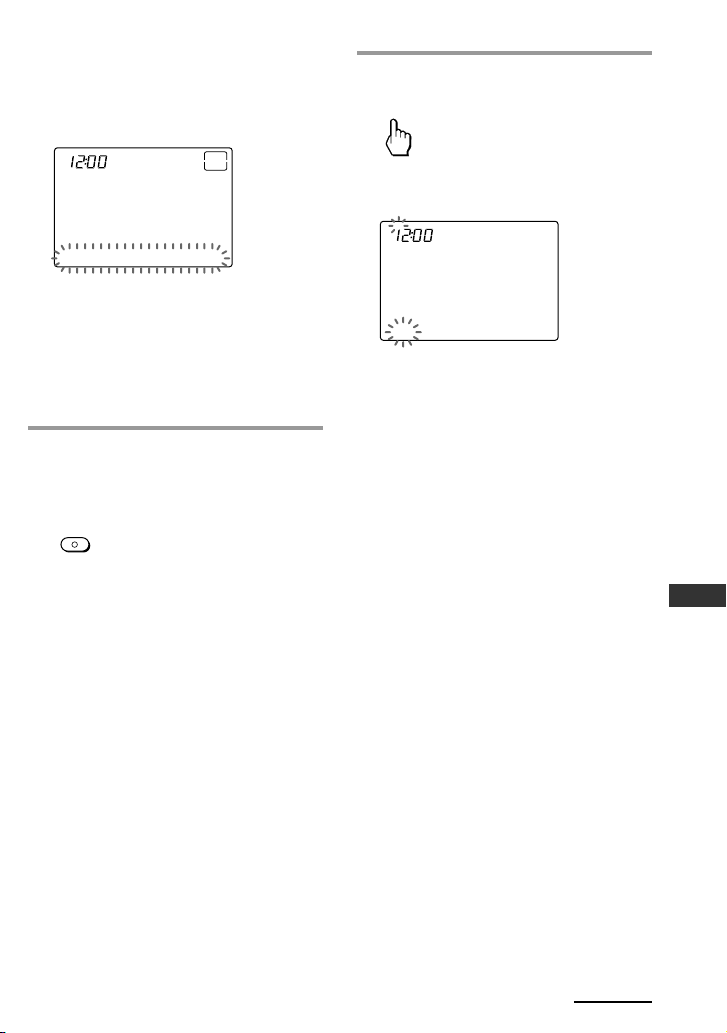
61
Setting by On-Remote Setup
When the maximum of 32 steps are
input, the Timer macro programming
finishes and a beep sounds, and the
Timer macro displays in order.
PROG4
SU
AM
OFF
LEARN
NG
ON/OFF MACRO TIME TEST
Notes
•You can input up to 32 steps for one
Timer.
• If you need a manual delay between two
steps, press the TIMER button to add an
interval of 250 ms. (ms: 1/1000 second)
• The Display title and the LIGHT button
are not counted as steps.
7
When you have programmed all
the keys and buttons, press the
COMMANDER OFF button.
OFF
COMMANDER
A beep sounds, the Timer macro
programming finishes and
programmed contents are displayed
in order.
8
Press “TIME” on the Label keys.
TIME
“SET” and “SU” flash and “12:00 AM”
lights on the Clock display.
PROG4
SU
AM
LEARN
NG
SET TIME
Continued
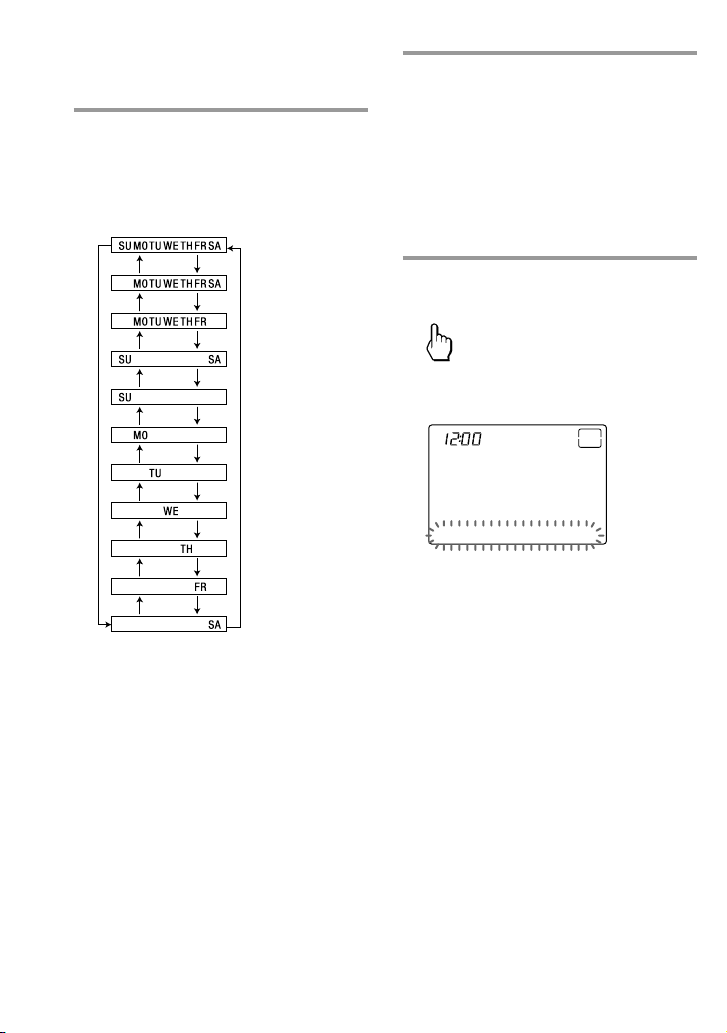
62
9
Press the F or f button to set the
day(s) of the week.
Each time the F or f button is pressed
the day(s) of the week change as
follows.
SU : Sunday
MO : Monday
TU : Tuesday
WE : Wednesday
TH : Thursday
FR : Friday
SA : Saturday
Then, press the g button. The day(s)
of the week is set.
“12” “AM” and “SET” flash.
10
Press the F/f/g/G buttons to
change the time.
Each time the G or g button is
pressed, the Clock display changes in
order (the day(s) y the hour y the
minute y the day(s)).
Each time the F or f button is
pressed, the hour or minute changes
by 1 hour or minute.
11
Press “SET” on the Label keys.
SET
With a beep sound, the timer setting
changes.
PROG4 /1
SU
AM
OFF
LEARN
NG
ON/OFF MACRO TIME TEST
Note
If you press the SET key at any point,
the time setting changes.
Setting the Timer (continued)
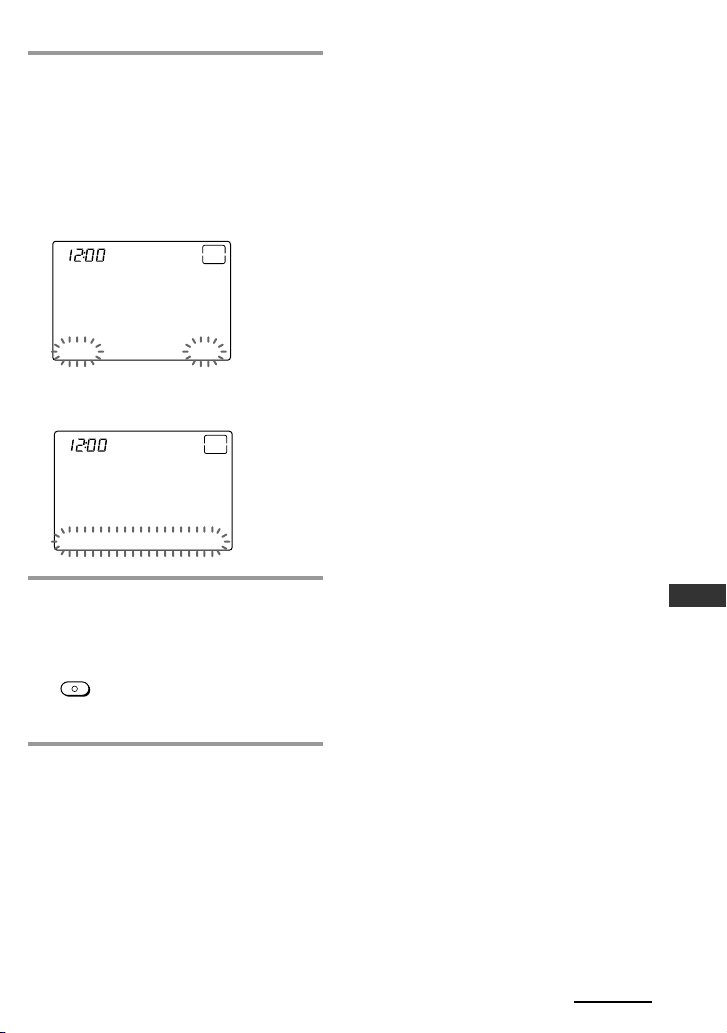
63
Setting by On-Remote Setup
12
Press the ON/OFF or TEST key
to activate the Timer.
ON/OFF: With a beep sound, “ON”
appears on the top-right of the LCD
display, and the Remote Commander
enters the Timer standby mode.
TEST: You can check the Timer macro
by transmitting the signals.
PROG4
SU
AM
ON
LEARN
NG
ON/OFF MACRO TIME TEST
To reset the timer standby mode,
press the ON/OFF key again.
PROG4
SU
AM
OFF
LEARN
NG
ON/OFF MACRO TIME TEST
13
Press and hold the
COMMANDER OFF button for
more than 2 seconds.
OFF
COMMANDER
The Remote Commander turns off.
If you want to quit before
finishing
Press and hold the COMMANDER OFF button
for more than 2 seconds. The previous status
returns, and the Remote Commander turns off.
If you want to return to the
previous display
Press the BACK button or the COMMANDER
OFF button.
Notes
• Some Timer may not be executed at the set
time because of conflicts with other set Timer.
If the execution time arrives while another
Timer is running, the later Timer begins only
after the first one ends.
In this case also, the program may not be
executed at the set time. So, set the Timer
regarding the contents and the duration of
the Timer execution.
• When using the Timer on this Remote
Commander, only one setting can be assigned
to one program. If you want to set the Timer
to turn on at a programmed time, and to set
the Timer to turn off at another time,
program the two settings separately.
• If there are some programs set to be executed
at the same time, they start in order from the
lowest Timer number.
• According to the status of the component
operated by the Timer, the next program
might not function successfully. When setting
a Timer, check carefully the setting of other
programs.
Continued
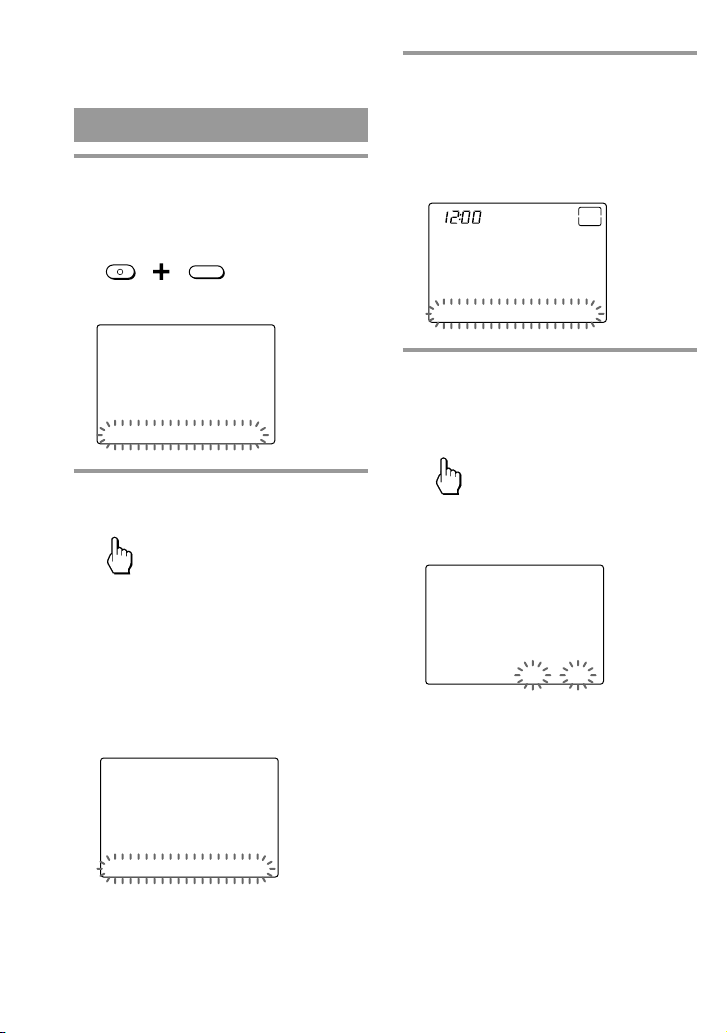
64
To clear a Timer macro
1
While pressing the
COMMANDER OFF button,
press the MUTING button.
MUTING
OFF
COMMANDER
“SET” appears as the Display title.
SET /1
SU
LEARN
NG
PRESET LEARN MACRO TIMER
2
Press “TIMER” on the Label keys.
TIMER
“TIMER” appears as the Display title.
The Timer numbers “PROG1” -
“PROG4” flash on the Label keys.
If a page number such as “/1”
appears to the right side of Display
title, multiple pages are available.
Press the number to go to the next
page.
TIMER /1
SU
LEARN
NG
PROG1 PROG2 PROG3 PROG4
3
Select the Timer number you
want the Remote Commander to
clear the Timer by pressing the
Label key.
The selected Timer number appears as
the Display title.
PROG4 /1
SU
AM
OFF
LEARN
NG
ON/OFF MACRO TIME TEST
4
Press the MACRO key if the
Timer macro has already been
programmed.
MACRO
“DELETE MACRO?” appears on the
Label key and “YES” and “NO” flash.
PROG4 /1
SU
LEARN
NG
DELETE MACRO? YES NO
Setting the Timer (continued)
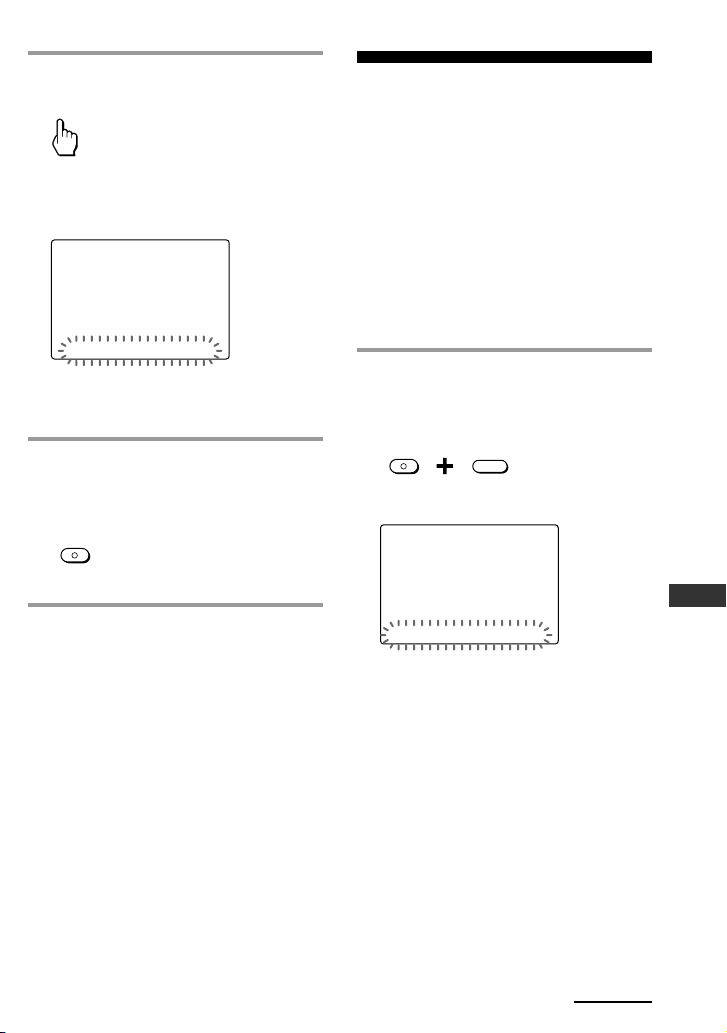
65
Setting by On-Remote Setup
5
Press “YES” on the Label keys.
YES
The Timer macro is cleared, then
“COMPONENT” appears as the
Display title.
COMPONENT /1
SU
LEARN
NG
TV A-CBL D-SAT DVD
If you press the NO key
The Timer macro is not cleared, and the
display returns to step 3.
6
Press and hold the
COMMANDER OFF button for
more than 2 seconds.
OFF
COMMANDER
The Remote Commander turns off.
If you want to quit before
finishing
Press and hold the COMMANDER OFF button
for more than 2 seconds. The previous status
returns, and the Remote Commander turns off.
If you want to return to the
previous display
Press the BACK button or the COMMANDER
OFF button.
Changing the names of
labels
You can change the names of the XPRESS
function, components, System Control
keys and Timer on the Label keys to the
most suitable name using up to 8
characters or digits.
To change the names, perform the
following procedure.
Example: To change the name of
the component(TV).
1
While pressing the
COMMANDER OFF button,
press the MUTING button.
MUTING
OFF
COMMANDER
“SET” appears as the Display title.
SET /1
SU
LEARN
NG
PRESET LEARN MACRO TIMER
Continued
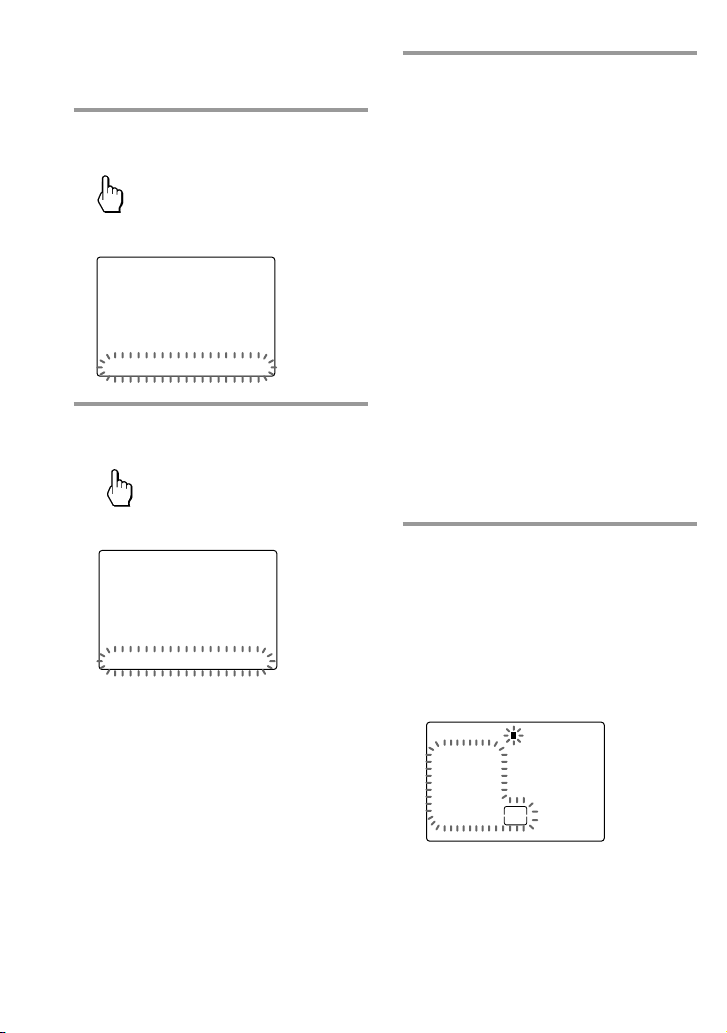
66
2
Press the Display title (SET) once.
SET
“LABEL” flashes on the Label keys.
SET /2
SU
LEARN
NG
LABEL VOLUME LIGHT DISPLAY
3
Press “LABEL” on the Label keys.
LABEL
“LABEL” appears as the Display title.
LABEL
SU
LEARN
NG
XPRESS COMPO SYSTEM TIMER
4
Select the type of Label key you
want the Remote Commander to
change by pressing the Label key
(in this case, COMPO).
XPRESS: Displays XPRESS names. To
change the Label keys, press the
Display title.
COMPO: Displays component names.
To change the Label key, press the
Display title.
SYSTEM: Displays SYSTEM5 - 8. To
change the Label key, press the
Display title.
TIMER: Displays PROG1 - 4. To
change the Label key, press the
Display title.
To change the component
name as the Display title
Press and hold the Display title for the
component name displayed for more than 2
seconds. The Remote Commander enters
the component name changing mode.
5
Press the Label key of the name
you want to change.
The Remote Commander enters the
Label setting mode.
COMPO (Example: TV)
The cursor flashes on the left side of
the Display title.
TV
SU
213
546
JKLGHI MNO
TUVPQRS WXYZ
SYMBOL 2SYMBOL 1
ABC DEF
8
0
79
CLEAR
LEARN
NG
Changing the names of labels
(continued)
67
Setting by On-Remote Setup
6
Input digits or characters for the
Label key by pressing the number
keys (0 -9), SYMBOL 1 key or
SYMBOL 2 key on the Touch-key.
Begin inputting digits or characters
from the left. Press the number key
repeatedly until you obtain the
desired digit or character.
The digits or characters are assigned
to the keys as follows.
1: 1
2: A c B c C c a c b c c c 2
3: D c E c F c d c e c f c 3
4: G c H c I c g c h c i c 4
5: J c K c L c j c k c l c 5
6: M c N c O c m c n c o c 6
7: P c Q c R c S c p c q c r c s c 7
8: T c U c V c t c u c v c 8
9: W c X c Y c Z c w c x c y c z c 9
0: 0
SYMBOL 1: ! c & c / c ? c $ c % c *
c # c + c - c : c , c . c | c space
SYMBOL 2: space c ( c ) c < c > c
t c T c R c r c b c B c ” c ’ c ~
c _
If you make a mistake, move the
cursor to the desired position by
pressing the G or g button, and input
again.
If you press the CLEAR key, the Label
key returns to the previous display.
7
Press the OK button to decide the
name.
OK
8
Press and hold the
COMMANDER OFF button for
more than 2 seconds.
OFF
COMMANDER
The Remote Commander turns off.
If you want to quit before
finishing
Press and hold the COMMANDER OFF button
for more than 2 seconds. The previous status
returns, and the Remote Commander turns off.
If you want to return to the
previous display
Press the BACK button or the COMMANDER
OFF button.
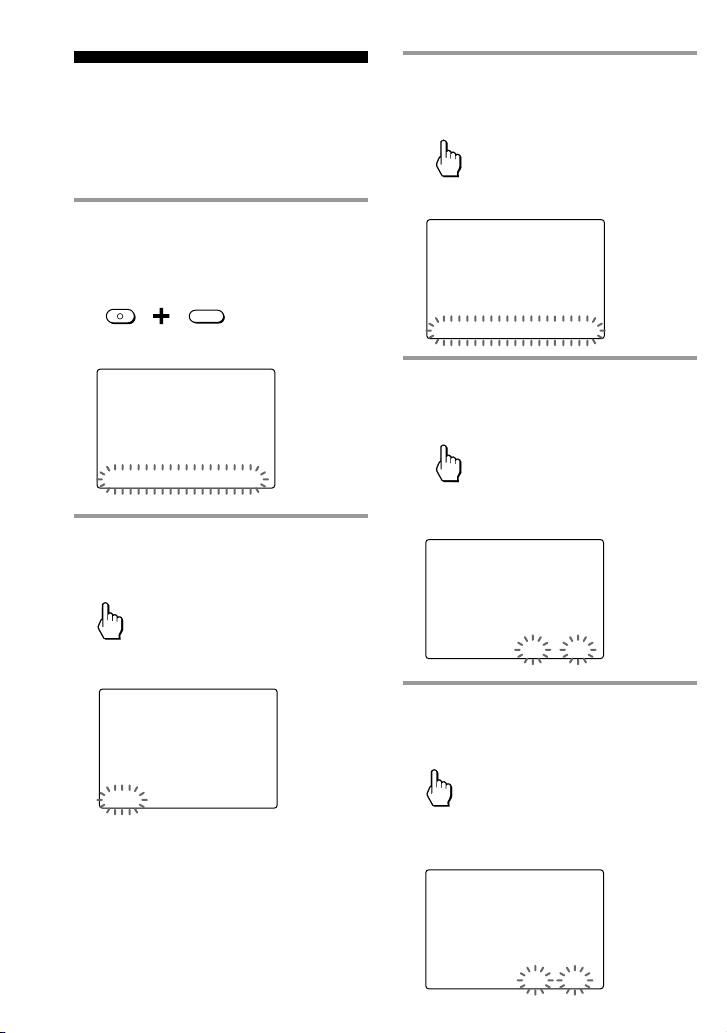
68
Erasing all the settings
– Reset
You can clear all the settings to reset the
Remote Commander to its factory
settings.
1
While pressing the
COMMANDER OFF button,
press the MUTING button.
MUTING
OFF
COMMANDER
“SET” appears as the Display title.
SET /1
SU
LEARN
NG
PRESET LEARN MACRO TIMER
2
Press the Display title (SET)
twice.
SET
“OTHER” flashes on the Label keys.
SET /3
SU
LEARN
NG
OTHER
3
Press “OTHER” on the Label
keys.
OTHER
“RESET” flashes on the Label key.
OTHER
SU
LEARN
NG
BEEP DS_TIME CLOCK RESET
4
Press the “RESET” on the Label
keys.
RESET
“YES” and “NO” flash on the Label
key.
RESET
SU
LEARN
NG
ALL RESET? YES NO
5
Press the “YES” on the Label
keys.
YES
“REALLY?” appears and “NO” and
“YES” flash on the LCD display.
RESET
SU
LEARN
NG
REALLY? NO YES
69
Setting by On-Remote Setup
6
Press the “YES” on the Label
keys.
With a beep sound, the all settings are
cleared.
7
Press and hold the
COMMANDER OFF button for
more than 2 seconds.
OFF
COMMANDER
The Remote Commander turns off.
If you want to quit before
finishing
Press and hold the COMMANDER OFF button
for more than 2 seconds. The previous status
returns, and the Remote Commander turns off.
If you want to return to the
previous display
Press the BACK button or the COMMANDER
OFF button.

70
Specifications
Operating distance
Approx. 32.8 ft. (10 meters) (varies depending
on components of different manufacturers)
Power requirements
Remote control and backlight: Four size AA
(R6) batteries
Battery life
Approx. 5 months (a Sony TV turned on/off
up to approx. 300 times per day)
Dimensions
Approx. 4
3
/4 × 1
1
/4 × 7 in. (w × h × d)
(118 × 31.2 × 175 mm)
Mass
12 oz. (320 g) (not including batteries)
Learnable signals*
Capacity per signal: up to 300 bits
Signal frequency range: 455 kHz and up to
300 kHz
Signal interval: up to 1 second
* Some signals cannot be learned by the
Remote Commander, even though the signals
comply with these specifications.
Design and specifications are subject to change
without notice.
Additional Information
Precautions
•Do not drop the unit or give a shock to
the unit, or it may cause a malfunction.
•Do not leave the unit in a location near
heat sources, or in a place subject to
direct sunlight, excessive dust or sand,
moisture, rain or mechanical shock.
•Do not put foreign objects into the unit.
Should any liquid or solid object fall
into the unit, have it checked by
qualified personnel before operating
the unit any further.
•Do not expose the remote control
detectors of your components to direct
sunlight or other strong illumination.
Too much light there can interfere with
remote control operations.
•Be sure to place the Remote
Commander out of the reach of small
children or pets. Component such as air
conditioners, heaters, electric
appliances, and electric shutters or
curtains receiving an infrared signal can
be dangerous if misused.
Maintenance
Clean the surface with a soft cloth
slightly moistened with water or a mild
detergent solution. Do not use any type
of solvent such as alcohol, benzine or
thinner as they may damage the finish of
the surface.
71
Additional Information
Troubleshooting
If you have problems setting up or using the Remote Commander, first check the batteries
(page 10), then check the items below. Refer also to Help of “AX Remote Editor.”
Continued
Trouble with the Remote Commander's basic settings
Problem
The Remote Commander
does not turn on.
The LCD display turns off
automatically.
The beep does not sound.
The Timer function has
stopped working.
The touch-keys do not
work properly.
The LCD display does not
light up even though the
Remote Commander is
turned on.
XPRESS function does not
perform On-Remote Setup.
Trouble with operation mode
Problem
Even if you press the keys/
buttons on the Remote
Commander, the
component does not work
properly.
Even though you hold
down a key/button, it does
not work as intended.
The backlight setting is
unintentionally changed.
Solution
• Get closer to the component. The maximum operating distance is
approximately 32.8 ft. (10 m).
• Check that you are aiming the Remote Commander directly at the
component, and that there are no obstructions between the
Remote Commander and the component.
• Turn on the components first, if necessary.
• Check that the component has infrared remote capability. For
example, if your component did not come with the Remote
Commander, it probably is not capable of being controlled by a
Remote Commander.
• The volume buttons and cursor buttons, and some others,
continue to work when they are pressed and held. If you program
the signals of such buttons, RM-AX4000 Remote Commander may
not learn the signals accurately. Reprogram the signals by
continuing to hold down the desired button of the other remote
control until “Learning is complete.” appears in the “AX4000
Remote Editor” screen.
• The batteries of the other remote control are weak. Replace with
new ones and reprogram the signals.
Unit Setting of the project set up on your PC is activated if you
download data changed on your PC with the “Download the Unit
Setting data together with the project data” box checked.
Solution
Check the remaining battery level. If low, replace with new ones.
The Remote Commander is preset at the factory to turn the display
off automatically if you do not operate for more than 5 minutes. You
can reset the automatic-off time to 1-30 minutes (page 37).
The beep is turned off. Turn the beep on (page 41).
Check the Timer setting (page 29). When the battery power is weak
or empty, or if the battery is removed for a long time, the Timer
setting may be cleared.
Calibrate the alignment of the LCD display (page 39).
The contrast level is too low. Set the contrast of the LCD display
higher. While pressing the COMMANDER OFF button, press the
OK button. And then press the CHANNEL + button a few times to
increase the contrast.
In case of On-Remote Setup, XPRESS function controls only the
power on/off of the component. If you want to control the input
selector of the TV, etc., follow the procedure for On-PC Setup.

72
Problem
“RECOVERY” appears on
the screen and all the
buttons are disabled.
The component does not
work when checking the
code setting on the
Emulator.
The visual/audio
component's volume
cannot be controlled by the
Remote Commander.
A System Control function
does not work properly.
Even if you set the Timer
macro, the component
does not work properly.
Even if you operate an
XPRESS function, the TV
does not turn on, or it
turns off.
Solution
Error might has occurred in the firmware of the Remote
Commander. Update the firmware using “AX Remote Editor.”
• Get closer to the component. The maximum operating distance is
approximately 32.8 ft. (10 m).
• Check that you are aiming the Remote Commander directly at the
component, and that there are no obstructions between the
Remote Commander and the component.
• Turn on the components first, if necessary.
• Check that the component has infrared remote capability. For
example, if your component did not come with the Remote
Commander, it probably is not capable of being controlled by a
Remote Commander.
The VOLUME button may be assigned to a different component
than the one you want it to control.
For On-PC Setup: Make sure to set “Action List” of the VOLUME
button correctly after selecting the component to control the volume
in Advanced mode.
For On-Remote Setup: See “Controlling the volume of visual
components connected to an audio component” on page 57.
The VOLUME button of most components is already assigned to
control the TV (or RCVR for audio components). Do not program
any other function to the VOLUME button of the TV or RCVR.
• Make sure that you have programmed the commands in the
correct order (page 51).
• Try changing the orientation of the Remote Commander. If that
does not help, try placing the components as close to each other as
possible.
• Check the status of the components and make sure that you have
set the components properly to receive commands.
• The preset codes are changed or new signals have been learned
for a key or button that has been programmed with a series of
actions. In this case, the new signals are transmitted when the
series of actions is executed.
• The component could not receive the signal from the Remote
Commander successfully. When using the Timer, check the
following.
– Check that the Timer macro functions correctly by pressing the
TEST key, after setting the Timer macro (page 59).
– Check the location of the Remote Commander.
• The status of the component is not suitable for operation (for
example, you programmed the power-on setting, assuming that
power of the component is off when the Timer turns on.
However, if the power of the component is on when the
component receives the signal from the Remote Commander, the
component will turn off).
• The Remote Commander memorizes the status of the component's
input selector and power on/off. However, if you turn on/off the
component with the remote control or operate the component
directly, it will not recognize the current component status. In this
case, press the SYNC-UP button to synchronize with the status of
the current component and the Remote Commander.
• If the TV turns off by its own Sleep function, the Remote
Commander does not recognize its status. Turn off the TV with
the Remote Commander. You can also turn off the TV at the
scheduled time with the Timer on the Remote Commander.
Troubleshooting (continued)

73
Additional Information
Problem
Even if you operate an
XPRESS function, the
Source component does
not turn on, or it turns off.
Even if you operate an
XPRESS function, the input
selector of the TV or RCVR
(Receiver/Amplifier) does
not achieve the correct
status.
Air-Slide does not work
properly.
Trouble with setting mode
Solution
• The Remote Commander memorizes the status of the
component's input selector and power on/off. However, if you
turn on/off the component with the remote control or operate the
component directly, it will not recognize the current component
status. In this case, press SYNC-UP button to synchronize the
status of the current component and the Remote Commander.
• If the TV turns off by its own Sleep function, the Remote
Commander does not recognize its status. Turn off the TV with
the Remote Commander. You can also turn off the TV at the
scheduled time with the Timer on the Remote Commander.
• The Remote Commander memorizes the status of the
component's input selector and power on/off. However, if you
turn on/off the component with the remote control or operate the
component directly, it will not recognize the current component
status. In this case, press the SYNC-UP button to synchronize the
status of the current component and the Remote Commander.
• If the TV turns off by its own Sleep function, the Remote
Commander does not recognize its status. Turn off the TV with
the Remote Commander. You can also turn off the TV at the
scheduled time with the Timer on the Remote Commander.
Make sure to slide your finger from the top-left on the LCD display.
If you slide other than from the top-left, Air-Slide cannot recognize
the action.
Continued
Problem
You cannot operate the
component even after you
programmed a preset code.
You cannot operate a
component even after you
programmed remote
control signals with the
“learning” function.
“NG” flashes 5 times when
learning.
Solution
• Set the preset code correctly. If the preset code that is listed first
for your component does not work, try all the preset codes for
your component in the order listed in the supplied “Preset Code
Lists.”
• Some features may not be preset. If some or all of the keys do not
function correctly even after you have set the preset codes, use the
learning function to program the remote control signals for the
component (page 47).
• If you set a component code after changing the label of a
component, they are cleared and return to the original label.
Change the label of a component after you decide the component
to be used by presetting a code.
Make sure that the Remote Commander has learned the correct
signals. See “For accurate learning” (page 51) and try the learning
procedure again (page 48).
• Leaning has not succeeded. After checking the following, try the
learning procedure again (page 48).
– Change the distance between the Remote Commander and
remote control.
– See “For accurate learning” (page 51).
• The preset codes cannot be set. See the supplied “Preset Code
Lists” and try setting the preset codes again (page 45).

74
Problem
Learning fails.
“NG” flashes twice when
learning.
The Remote Commander
does not memorize the
radio band change (AM/
FM) or frequency.
The setting display does
not appear.
The setting mode
unintentionally quits while
setting up.
“PRESET”, “LEARN”,
“MACRO”, ”TIMER”, and
”LABEL” do not appear on
the LCD display.
Troubleshooting (continued)
Solution
• When you make the Remote Commander learn the remote control
signals, be sure to keep about 1 to 3 inches (3 to 8 cm) between the
remote control of the components and the Remote Commander.
• Check the remaining battery level of the remote control of the
components. If low, replace with new ones.
• Avoid learning in places under direct sunlight or strong
fluorescent light. The Remote Commander may fail to learn
remote control signals under strong light.
• When you program signals of an interactive signal exchange
system remote control unit (supplied with some of Sony’s
receivers and amplifiers) to the Remote Commander, the response
signal of the main unit may interfere with the learning of the
Remote Commander. In such a case, move to a place where the
signals will not reach the main unit (e.g. other rooms, etc.).
• Perform the Learning procedure after turning off any nearby
apparatus, such as an air-conditioner or infrared headphones.
• The Remote Commander may fail to learn remote control signals
near plasma TVs. Avoid learning near plasma TVs or turn off the
plasma TV when learning
• Learned signals have been programmed for the button or key to
which you want to set the learning, System Control function.
Clear the learned signals (page 54) and try setting again.
• Learn the signal within 10 sec after selecting a key/button you
want to program.
The Remote Commander cannot learn them. If you want to adjust
the radio band or frequency, operate it manually.
The batteries are weak. Replace with new ones.
• If you do not operate for more than 120 seconds during setting
mode, the Remote Commander automatically exits the setting
mode and turns off. Perform the next operation step within 120
seconds.
• The batteries are weak. Replace with new ones.
These setting only appear with On-PC setup. To see these items, use
the AX Remote Editor software.
75
Additional Information
Customer Support Information
After you have read through this manual, if you still cannot get the Remote Commander to work
properly, call the Sony Customer Support Helpline at 1-800-822-2217.
Problem
I want to restore all the
settings.
I want to use multiple
components (VCR+DVD,
TV+VCR, DVD+RCVR
(receiver), etc.) with
XPRESS function.
You want to set a DVD
player for both XPRESS
DVD and XPRESS CD.
If the batteries die, are the
learned signals lost ?
Your PC cannot recognize
the USB connection.
Solution
For On-PC Setup: In “AX Remote Editor,” click “Tools” on the menu
bar, then select “Update Firmware for Remote” to update the
firmware of the Remote Commander. If the firmware is updated, all
the settings or learned data of the Remote Commander are deleted
and the Remote Commander is set back to the factory setting.
For On-Remote Setup: See “Erasing all the settings” (page 68).
When you have a multiple components (such as a DVD/VCR
combo), select only one of either component type. For example, in
the case of a DVD/VCR combo, select “DVD” or ”VCR”. If you
select both components, the XPRESS function will not work
properly.
For On-PC Setup: You can set multiple XPRESS functions for one
component. For example, when you watch a DVD, you can set the
sound to output from the TV. Or, when you listen to a CD, you can
set the sound to output from the RCVR (Receiver/Amplifier).
For On-Remote Setup: You can set an XPRESS function for only one
component. Choose either XPRESS_DVD or XPRESS_CD.
No. The signals are not deleted because they are stored in the
nonvolatile memory.
• Make sure to install the USB driver properly (page 17). Otherwise,
you will have to reinstall the USB driver.
• The batteries may be weak. Replace with new ones if the battery
icon appears.
• If the connection goes thorough the HUB, some PCs do not
recognize it. In this case, connect it directly to the USB port of
your PC.
• The Remote Commander does not work by the bus power. If you
use it in the USB mode, make sure to install new batteries.
• Reconnect the USB mini cable to your PC.
• Restart your PC.
Others
76
KEY DISPLAY
POWER
1 – 9, 0, ENTER
•
2PIC
SWAP
DISPLAY
MAIN/SUB
INPUT
WIDE
F
f
g
G
OK
EPG
MENU
TV
FUNCTION
To turn the power on/off
To change the channel (To
change to channel 5, for
example, press 0 and 5, or
press 5 and ENTER.)
To enter the subchannel
number
To turn on/off the twin
pictures
To swap the main picture and
the sub picture
To display the current
channel on TV
To switch the sound of the
duplex broadcast
To change the input mode
To switch to the WIDE mode
To move the cursor upward
To move the cursor
downward
To move the cursor to the
right
To move the cursor to the left
To enter the selection of the
MENU display
To use the program guide
To call up the MENU
Appendix
Table of preset functions
Note
There may be some components or functions that cannot be operated.
KEY DISPLAY
EXIT
TOOLS
VOLUME +
VOLUME –
CHANNEL +
CHANNEL –
MUTING
RECALL
TV_TUNER
ANT/SW
NORMAL
SOUND
PICTURE
SLEEP
FUNCTION
To exit the MENU
To go into the OPTION
setting mode
Volume up (TV)
Volume down (TV)
Channel up
Channel down
To mute the volume on the
TV. Press again to turn
muting off.
To select the channel
previously selected
To return to the TV (to reset
the external input)
To switch the multiplex
antenna input
To return the picture and
sound quality to the standard
status
To select the sound adjusting
mode
To select the picture adjusting
mode
To operate SLEEP function on
the TV (works only for a TV
with SLEEP function)
77
Appendix
Continued
KEY DISPLAY
POWER
1 – 9, 0, ENTER
+100
DISPLAY
VOLUME +
VOLUME –
CHANNEL +
CHANNEL –
MUTING
RECALL
A-CBL (Analog Cable box)
FUNCTION
To turn the power on/off
To change the channel (To
change to channel 5, for
example, press 0 and 5, or
press 5 and ENTER.)
To select numbers 100 and
above
To turn on the display
Volume up (TV)
Volume down (TV)
Channel up
Channel down
To mute the volume on the
TV. Press again to turn
muting off.
To select the channel
previously selected

78
Table of preset functions
(continued)
KEY DISPLAY
POWER
1 – 9, 0, ENTER
•
INFO
S.INDEX
DISPLAY
FAVORITE
INPUT
F
f
g
G
OK
EPG
MENU
EXIT
TOOLS
VOLUME +
VOLUME –
CHANNEL +
CHANNEL –
MUTING
D-SAT (Digital Satellite)
FUNCTION
To turn the power on/off
To change the channel (To
change to channel 5, for
example, press 0 and 5, or
press 5 and ENTER.)
To enter the subchannel
number
To display program
information
To bring up the Station Index
To turn on the display
To use the “FAVORITE”
function
To switch the output of the
SAT receiver to the TV (When
connecting a TV cable or
antenna to the receiver, the
output switches between a
TV and SAT program)
To move the cursor upward
To move the cursor
downward
To move the cursor to the
right
To move the cursor to the left
To enter the selection of the
MENU display
To use the program guide
To call up the MENU
To exit the MENU
To go into the OPTION
setting mode
Volume up (TV)
Volume down (TV)
Channel up
Channel down
To mute the volume on the
TV. Press again to turn
muting off.
KEY DISPLAY
RECALL
CATEGORY
ANT/SW
OUTPUT
FUNCTION
To select the channel
previously selected
Category guide
To switch the antenna input
in order
Cyclic HDTV output
resolution
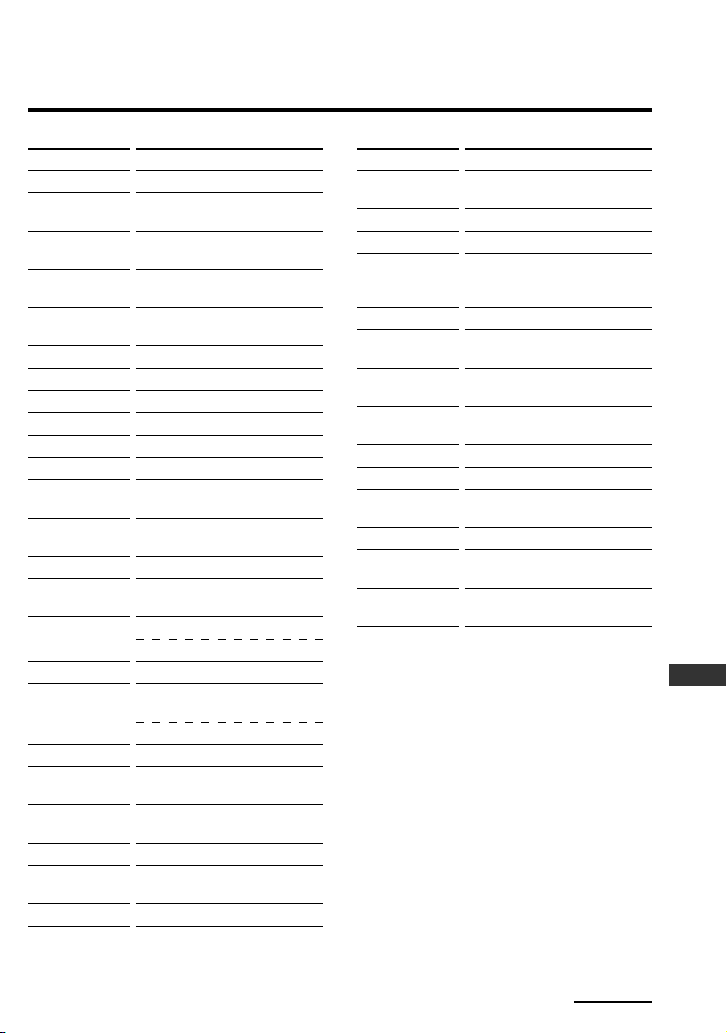
79
Appendix
Continued
KEY DISPLAY
POWER
1 – 9, 0
+10
ENTER
A/B
m
N
M
TOP_MENU
x
X
DISPLAY
.
Z*
>
T
•
SUBTITLE
•
t
F
f
g
G
OK
MENU
DVD (DVD player)
FUNCTION
To turn to the power on/off
Number buttons: To set items
selected from the screen
To select numbers 10 and
above
To enter a setting or to set
items selected from the screen
To decide the distance
between A and B
To rewind
To play
To fast-forward
To display the TOP Menu
To stop
To pause
To show the current play
status on the screen
To proceed to the previous
location or song
To open or close the tray
To proceed to the next
location or song
To briefly replay the scene
To go to the previous frame
To switch the subtitle
To briefly fast-forward the
scene
To go to the next frame
To move the cursor upward
To move the cursor
downward
To move the cursor to the
right
To move the cursor to the left
To enter the selection of the
MENU display
To call up the MENU
KEY DISPLAY
EXIT
VOLUME +
VOLUME –
MUTING
TIME
SET_UP
TSLOW
SLOWt
REPEAT
PLAYMODE
EDIT
DISC
TSEARCH
SEARCHt
FUNCTION
To return to the previous
display on the MENU
Volume up (TV)
Volume down (TV)
To mute the volume on the
TV. Press again to turn
muting off.
To change the time display
To call up the setting up
menu
Slow playback in the reverse
direction
Slow playback in the forward
direction
To go into the repeat mode
To change the playback mode
To switch the edit mode to
on/off
To change a disc
To search in the reverse
direction
To search in the forward
direction
* The Z key does not work unless pressed for
more than 2 seconds (factory setting).
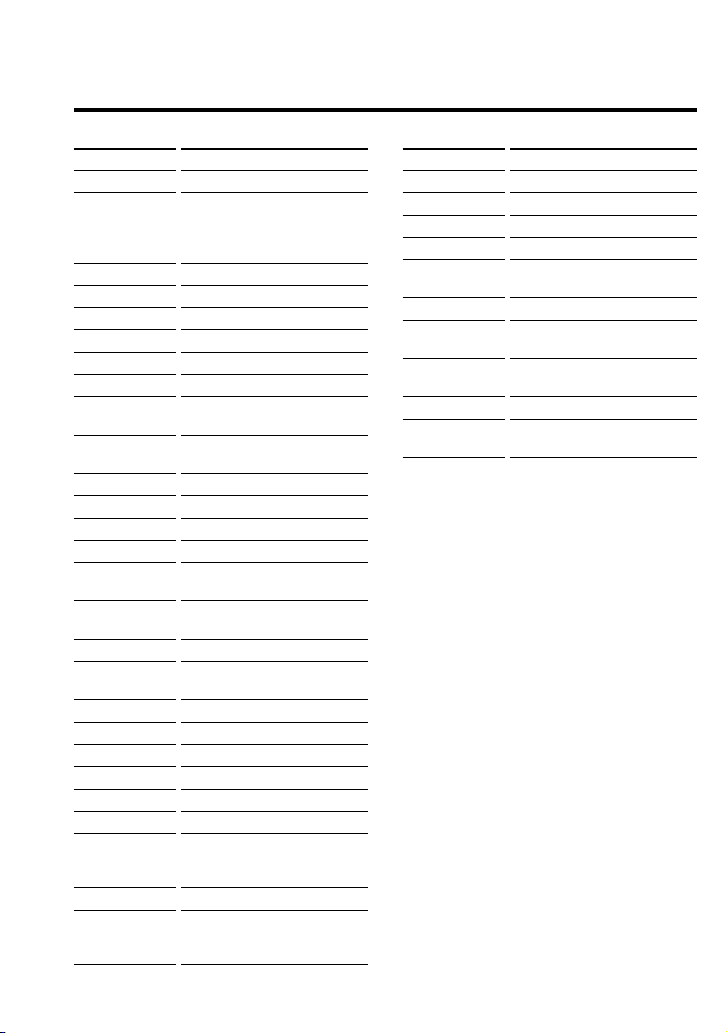
80
Table of preset functions
(continued)
KEY DISPLAY
POWER
1 – 9, 0, ENTER
m
N
M
REC*
1
x
X
DISPLAY
MAIN/SUB
Z*
2
INPUT
•
t
F
f
g
G
OK
MENU
EXIT
VOLUME +
VOLUME –
CHANNEL +
CHANNEL –
MUTING
PLAY x2
Q.TIMER
VCR (Video Cassette Recorder)
FUNCTION
To turn the power on/off
To change the channel (To
change to channel 5, for
example, press 0 and 5, or
press 5 and ENTER.)
To rewind
To play
To fast-forward
To record
To stop
To pause
To activate the on-screen
display
To switch the sound of the
duplex broadcast
To eject a cassette
To change the input mode
CM skip function
To move the cursor upward
To move the cursor
downward
To move the cursor to the
right
To move the cursor to the left
To enter the selection of the
MENU display
To call up the MENU
To exit the MENU
Volume up (TV)
Volume down (TV)
Channel up
Channel down
To mute the volume on the
TV. Press again to turn
muting off.
To play at double speed
To select the recording time
by 30 minutes and begin
recording
*
1
To avoid accidental recording, the REC key
does not work unless pressed for more than
2 seconds (factory setting).
*
2
The Z key does not work unless pressed for
more than 2 seconds (factory setting).
KEY DISPLAY
SP/LP
H.S.REW
COUNTER
ANT/SW
TSEARCH
SEARCHt
LINE1
LINE2
DV_IN
TV_TUNER
FUNCTION
To switch the tape speed
To rewind at high speed
To change the counter display
To switch the antenna output
REVIEW locked picture
search
CUE locked picture search
To select the input source:
LINE 1
To select the input source:
LINE 2
To select the input source: DV
To return to the TV (to reset
the external input)
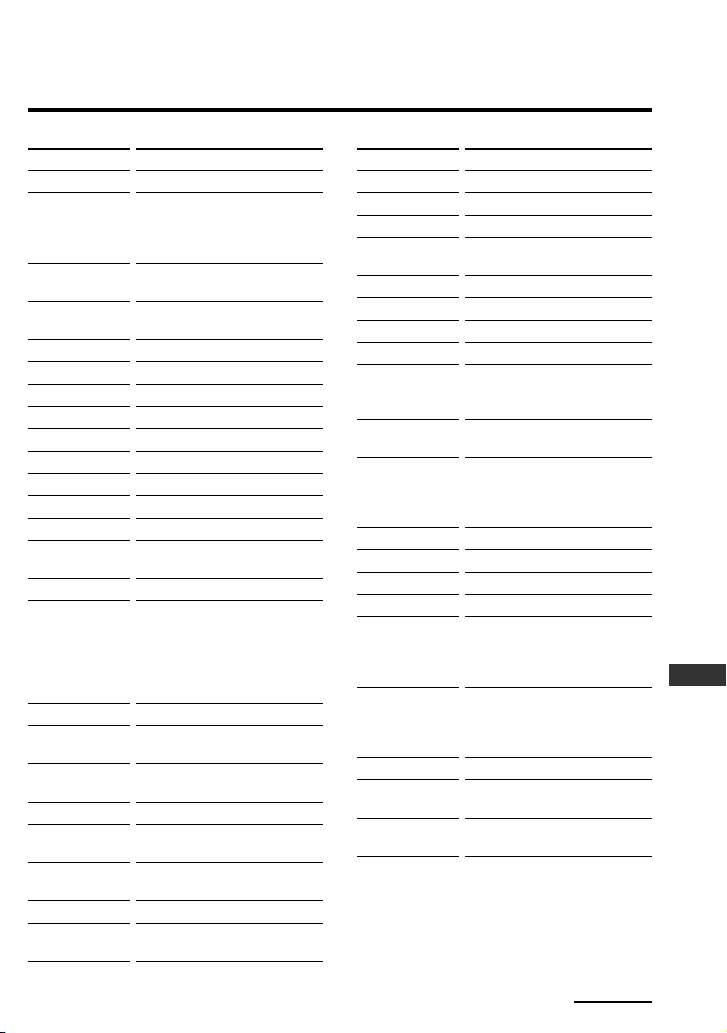
81
Appendix
Continued
KEY DISPLAY
POWER
1 – 9, 0, ENTER
•
INFO
m
N
M
S.INDEX
REC*
2
x
X
DISPLAY
.
FAVORITE
>
INPUT
T
•
LIST*
1
•
t
F
f
g
G
OK
DVR (Digital Video Recorder) – DVR, PVR, DVR/Satellite Combo, DVR/Cable Combo
FUNCTION
To turn the power on/off
To change the channel (To
change to channel 5, for
example, press 0 and 5, or
press 5 and ENTER.)
To enter the subchannel
number
To display program
information
To rewind
To play
To fast-forward
To bring up the Station Index
To record
To stop
To pause
To turn on the display
To select the previous track
To use the "FAVORITE"
function
To select the next track
To switch the output of the
SAT receiver to the TV
(When connecting a TV cable
or antenna to the receiver, the
output switches between a
TV and SAT program)
To briefly replay the scene
To call up the title of the
recorded program
To briefly fast-forward the
scene
To move the cursor upward
To move the cursor
downward
To move the cursor to the
right
To move the cursor to the left
To enter the selection of the
MENU display
KEY DISPLAY
EPG*
1
MENU
EXIT
TOOLS
VOLUME +
VOLUME –
CHANNEL +
CHANNEL –
MUTING
RECALL
REPLAY*
1
LIVE_TV*
1
ANT/SW
– PAGE*
1
PAGE +*
1
– THUMBS*
1
THUMBS +*
1
CATEGORY
HOME
VIEWER
FUNCTION
To use the program guide
To call up the MENU
To exit the MENU
To go into the OPTION
setting mode
Volume up (TV)
Volume down (YV)
Channel up
Channel down
To mute the volume on the
TV. Press again to turn
muting off.
To select the channel
previously selected
To replay, or to go into REC/
REVIEW mode during play
(After about 5-second rewind,
replay begins.)
To bring up Master Guide
To switch the antenna output
Page down
Page up
To select the desired recorded
program (It is necessary to
have recorded the desired
program.)
To select the desired recorded
program (It is necessary to
have recorded the desired
program.)
Category guide
To return to the home display
from any display
To display a drop menu and
toggle to change the user
*
1
This key corresponds to Tivo service or the replay
service. Refer to its instruction manual for details.
*
2
To avoid accidental recording, the REC key
does not work unless pressed for more than
2 seconds (factory setting).
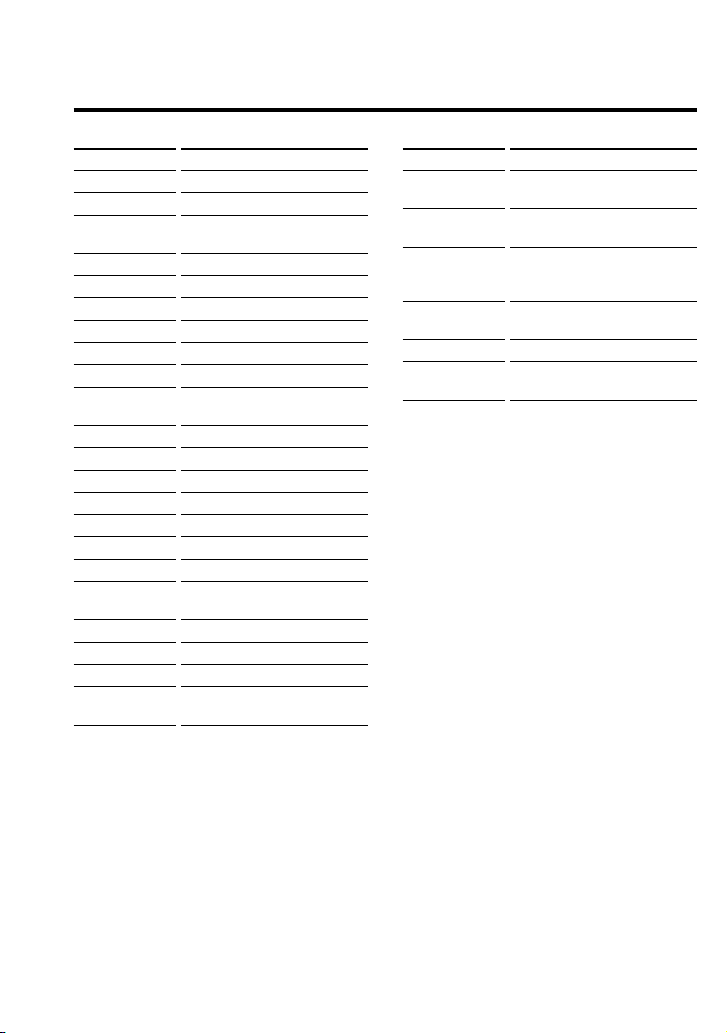
82
Table of preset functions
(continued)
KEY DISPLAY
POWER
1 – 9, 0
+10
ENTER
m
N
M
x
X
DISPLAY
.
Z*
>
CLEAR
D.SKIP
VOLUME +
VOLUME –
MUTING
REPEAT
SHUFFLE
PROGRAM
CONTINUE
CD (CD player)
FUNCTION
To turn the power on/off
To select the track number
To select numbers 10 and
above
To enter the setting
To rewind
To play
To fast-forward
To stop
To pause
To switch the display of the
CD player to turn on/off
To select the previous track
To open/close
To select the next track
To clear the setting
To select the next disc
Volume up (RCVR)
Volume down (RCVR)
To mute the volume. Press
again to turn muting off.
To select repeat play mode
To play in random order
To use for program play
To select continuous play
mode
KEY DISPLAY
DISC
TRACK
EDIT
DSP_MODE
PLAYMODE
FADER
FUNCTION
To decide the numeric key
operation
To decide the numeric key
operation
To go into the setting mode of
automatic program and time
fade
To toggle the mode of DSP
added to the CD
To change the playback mode
To toggle the fade-in/fade-
out operation
* The Z key does not work unless pressed for
more than 2 seconds (factory setting).
83
Appendix
Continued
KEY DISPLAY
EXIT
VOLUME +
VOLUME –
CHANNEL +
CHANNEL –
MUTING
S.FIELD
GENRE
MODE
T.TONE
– CENTER
CENTER +
– REAR
REAR +
– SUB_WOOFER
SUB_WOOFER +
TD.INPUT
D.INPUTt
FUNCTION
To exit the MENU
Volume up (RCVR)
Volume down (RCVR)
Presetting or turning frequency
to a higher: +
Presetting or turning frequency
to a lower: -
To mute the volume. Press
again to turn muting off.
To turn on/off the sound field
To select a sound field genre
To select a sound field mode
To output a test tone
To adjust the center speaker
level
To adjust the center speaker
level
To adjust the rear speaker level
To adjust the rear speaker level
To adjust the subwoofer level
To adjust the subwoofer level
To switch the digital input
To switch the digital input
KEY DISPLAY
POWER
1 - 9, 0
+10
ENTER
TUNER
VIDEO 1
VIDEO 2
VIDEO 3
CD
DVD
AUX
TAPE
PHONO
TV
BAND
SHIFT
INPUT
MD
5.1 INPUT
F
f
g
G
OK
MENU
RCVR (Receiver/Amplifier)
FUNCTION
To turn the power on/off
Keys to use the tuner directly
To select numbers 10 and above
To enter the setting
To select the input source:
TUNER
To select the input source:
VIDEO 1
To select the input source:
VIDEO 2
To select the input source:
VIDEO 3
To select the input source: CD
To select the input source: DVD
To select the input source:
AUX
To select the input source:
TAPE
To select the input source:
PHONO
To select the input source: TV
To select the tuner band
To shift band or preset select
To change the input mode
To select the input source: MD
To change the multi-channel of
5.1ch and above
To move the cursor upward
To move the cursor downward
To move the cursor to the right
To move the cursor to the left
To enter the selection of the
MENU display
To call up the MENU

84
Table of preset functions
(continued)
KEY DISPLAY
POWER
1 – 9, 0
+10
ENTER
INFO
m
N
M
TOP MENU
REC*
1
x
X
DISPLAY
.
Z*
2
>
INPUT
T
•
LIST
•
t
F
f
g
G
OK
DVDVR (DVR/DVD combo)
FUNCTION
To turn the power on/off
Number buttons: To set items
selected on the screen
To select numbers 10 and
above
To enter a setting or to set
items selected on the screen
To display program
information
To rewind
To play
To fast-forward
To display the Top Menu
To record
To stop
To pause
To show the current play
status on the screen
To proceed to the previous
location or song
To open or close the tray
To proceed to the next
location or song
To change the input mode
To briefly replay the scene
To call up the title of the
recorded program
To briefly fast-forward the
scene
To move the cursor upward
To move the cursor
downward
To move the cursor to the
right
To move the cursor to the left
To enter the selection of the
MENU display
KEY DISPLAY
EPG
MENU
EXIT
TOOLS
VOLUME +
VOLUME –
CHANNEL +
CHANNEL –
MUTING
RECALL
HDD
DVD
TIMER
SYS_MENU
RECMODE
RECSTOP
RECPAUSE
SUBTITLE
AUDIO
FUNCTION
To use the program guide
To call up the MENU
To return to the previous
display on the MENU
To go into the OPTION
setting mode
Volume up (TV)
Volume down (TV)
Channel up
Channel down
To mute the volume. Press
again to turn muting off.
To select a drive
To select HDD
To select DVD
To go into the timer setting
mode
To call up the SYSTEM
MENU
To select the recording mode
To stop the recording
To pause the recording
To switch the subtitle
To change the sound
*
1
To avoid accidental recording, the REC key
does not work unless pressed for more than
2 seconds (factory setting).
*
2
The Z key does not work unless pressed for
more than 2 seconds (factory setting).
85
Appendix
Continued
KEY DISPLAY
POWER
1 – 9, 0
+10
ENTER
A/B
m
N
M
TOP MENU
REC*
1
x
X
DISPLAY
.
Z*
2
>
INPUT
T
•
SUBTITLE
•
t
F
f
g
G
OK
MENU
EXIT
DVD-R (DVD Recorder)
FUNCTION
To turn the power on/off
Number buttons: To set items
selected on the screen
To select numbers 10 and
above
To enter a setting or to set
items selected on the screen
To decide the distance
between A and B
To rewind
To play
To fast-forward
To display the Top Menu
To record
To stop
To pause
To show the current play
status on the screen
To proceed to the previous
location or song
To open or close the tray
To proceed to the next
location or song
To change the input mode
To briefly replay the scene
To switch the subtitle
To briefly fast-forward the
scene
To move the cursor upward
To move the cursor
downward
To move the cursor to the
right
To move the cursor to the left
To enter the selection of the
MENU display
To call up the MENU
To return to the previous
display on the MENU
KEY DISPLAY
VOLUME +
VOLUME –
CHANNEL +
CHANNEL –
MUTING
RECALL
TIME
SET_UP
TSLOW
SLOWt
REPEAT
PLAYMODE
EDIT
REC_ MODE
DISC
TSEARCH
SEARCHt
FUNCTION
Volume up (TV)
Volume down (TV)
Channel up
Channel down
To mute the volume. Press
again to turn muting off.
To select a drive
To change the time display
To call up the setting up
menu
Slow playback in the reverse
direction
Slow playback in the forward
direction
To go into the repeat mode
To change the playback mode
To switch the edit mode to
on/off
To change the recording
mode
To change a disc
To search in the reverse
direction
To search in the forward
direction
*
1
To avoid accidental recording, the REC key
does not work unless pressed for more than
2 seconds (factory setting).
*
2
The Z key does not work unless pressed for
more than 2 seconds (factory setting).
86
Table of preset functions
(continued)
KEY DISPLAY
POWER
1 – 9, 0, ENTER
INFO
DISPLAY
FAVORITE
INPUT
F
f
g
G
OK
EPG
MENU
EXIT
TOOLS
VOLUME +
VOLUME –
CHANNEL +
CHANNEL –
MUTING
RECALL
D-CBL (Digital Cable box)
FUNCTION
To turn the power on/off
To change the channel (To
change to channel 5, for
example, press 0 and 5, or
press 5 and ENTER.)
To display program
information
To turn on the display
To use the “FAVORITE”
function
To switch the output of the
SAT receiver to the TV (When
connecting a TV cable or
antenna to the receiver, the
output switches between a
TV and SAT program)
To move the cursor upward
To move the cursor
downward
To move the cursor to the
right
To move the cursor to the left
To enter the selection of the
MENU display
To use the program guide
To call up the MENU
To exit the MENU
To go into the OPTION
setting mode
Volume up (TV)
Volume down (TV)
Channel up
Channel down
To mute the volume. Press
again to turn muting off.
To select the channel
previously selected
KEY DISPLAY
HOME
VIEWER
ANT/SW
– PAGE
PAGE +
FUNCTION
To return to the home display
from any display
To display a drop menu and
toggle to change the user
To switch the antenna input
Page up: +
Page down: –
87
Appendix
Continued
KEY DISPLAY
POWER
1 – 9, 0
+10
ENTER
TUNER
m
N
M
TOP MENU
REC*
x
X
DISPLAY
.
BAND
>
INPUT
T
•
SUBTITLE
•
t
F
f
g
G
OK
MENU
EXIT
DAV (DVD/Receiver combo)
FUNCTION
To turn the power on/off
Number buttons: To set items
selected on the screen
To select numbers 10 and
above
To enter the setting
To select the tuner band
To rewind
To play
To fast-forward
To display the Top Menu
To record
To stop
To pause
To show the current play
status on the screen
To proceed to the previous
location or song
To select the band
To proceed to the next
location or song
To change the input mode
To briefly replay the scene
To switch the subtitle
To briefly fast-forward the
scene
To move the cursor upward
To move the cursor
downward
To move the cursor to the
right
To move the cursor to the left
To enter the selection of the
MENU display
To call up the MENU
To return to the previous
display on the MENU
KEY DISPLAY
VOLUME +
VOLUME –
CHANNEL +
CHANNEL –
MUTING
D.SKIP
S.FIELD
EJECT
AMP_MENU
MEMORY
FM_MODE
SLEEP
REPEAT
PLAYMODE
AUDIO
FUNCTION
Volume up (DAV)
Volume down (DAV)
Presetting or turning
frequency to a higher: +
Presetting or turning
frequency to a lower: -
To mute the volume. Press
again to turn muting off.
To select next disc
To turn on/off the sound
field
To open or close the tray
To go to the AMP MENU
To preset radio stations
To set the FM mode
To set the sleep timer
To go into the repeat mode
To change the playback mode
To change the sound
* To avoid accidental recording, the REC key
does not work unless pressed for more than
2 seconds (factory setting).

88
Table of preset functions
(continued)
KEY DISPLAY
POWER
DISPLAY
INPUT
WIDE
F
f
g
G
OK
VOLUME +
VOLUME –
MUTING
RESET
PJ (Projector)
FUNCTION
To turn the power on/off
To show the current play
status on the screen
To change the input mode
To switch to the WIDE mode
To move the cursor upward
To move the cursor
downward
To move the cursor to the
right
To move the cursor to the left
To enter the selection of the
MENU display
Volume up (PJ)
Volume down (PJ)
To mute the volume. Press
again to turn muting off.
To reset
89
Appendix
Continued
KEY DISPLAY
POWER
1 – 9, 0
ENTER
A/B
m
N
M
REC*
x
X
DISPLAY
.
n
>
VOLUME +
VOLUME –
MUTING
REC_REV
REC_FWD
FADER
TAPE (Cassette deck)
FUNCTION
To turn the power on/off
To select the track number
To enter the setting
To select a tape deck: Deck A
or B (Dual cassette deck only
To rewind
To play
To fast-forward
To record
To stop
To pause
To show the current play
status on the display
To search the beginning of a
track in the rewind direction
To reverse
To search the beginning of a
track in the fast-forward
direction
Volume up (RCVR)
Volume down (RCVR)
To mute the volume. Press
again to turn muting off.
To record in the reverse
direction
To record in the forward
direction
To stop after fading out and
fade in after starting
KEY DISPLAY
REC_MUTE
– REC_LEVEL
REC_LEVEL +
C.RESET
DOLBY_NR
PROGRAM
C.MEMORY
FUNCTION
Record muting
To make the recording level
lower
To make the recording level
higher
To reset the tape counter
To toggle the Dolby Noise
Reduction
To go into the program mode
by first pressing, and start
program play by second
pressing
To switch the position
memory operation according
to the tape counter to on/off
* To avoid accidental recording, the REC key
does not work unless pressed for more than
2 seconds (factory setting).

90
KEY DISPLAY
POWER
1 – 9, 0
+10
ENTER
m
N
M
REC*
1
x
X
DISPLAY
.
Z*
2
>
CLEAR
D.SKIP
MD (MD deck)
FUNCTION
To turn the power on/off
To select the track number (0
for the track 10)
To select numbers 10 and
above
To enter the setting
To rewind
To play
To fast-forward
To record
To stop
To pause
To show the current play
status on the display
To select the previous track
To eject the disc
To select the next track
To clear the setting
To select the next disc
KEY DISPLAY
VOLUME +
VOLUME –
MUTING
REPEAT
SHUFFLE
PROGRAM
CONTINUE
FADER
CD-SYNC
REC_MODE
FUNCTION
Volume up (RCVR)
Volume down (RCVR)
To mute the volume. Press
again to turn muting off.
To go into the repeat mode
To play in random order
To use for program play
To select continuous play
mode
To select the fade-in/fade-out
To start synchronizing with
the CD
To toggle the recording mode
*
1
To avoid accidental recording, the REC key
does not work unless pressed for more than
2 seconds (factory setting).
*
2
The Z key does not work unless pressed
for more than 2 seconds (factory setting).
Table of preset functions
(continued)

91
Appendix
KEY
DISPLAY
OFF
1
2
3
4
5
6
7
8
9
10
11
12
SCENE13
SCENE14
SCENE15
SCENE16
ALL ON
ALL OFF
ON
OFF
CHANNEL +
CHANNEL –
RECALL
LIGHT
Spacer
Raise
Lower
Toggle
Spacer
System
OFF
SCENE1
SCENE2
SCENE3
SCENE4
FULL ON
Raise
Lower
Grafik
Eye
OFF
SCENE1
SCENE2
SCENE3
SCENE4
SCENE5
SCENE6
SCENE7
SCENE8
SCENE9
SCENE10
SCENE11
SCENE12
SCENE13
SCENE14
SCENE15
SCENE16
Raise
Lower
RadioRA
ALL OFF
SCENE1
SCENE2
SCENE3
SCENE4
SCENE5
SCENE6
SCENE7
SCENE8
SCENE9
SCENE10
SCENE11
SCENE12
SCENE13
SCENE14
SCENE15
ALL ON
ALL OFF
Raise
Lower
Home-
Works
Interac-
tive
MACRO1
MACRO2
MACRO3
MACRO4
MACRO5
MACRO6
MACRO7
MACRO8
MACRO9
MACRO10
MACRO11
MACRO12
MACRO13
MACRO14
MACRO15
MACRO16
X10
OFF
SCENE1
SCENE2
SCENE3
SCENE4
SCENE5
SCENE6
SCENE7
SCENE8
SCENE9
SCENE10
SCENE11
SCENE12
SCENE13
SCENE14
SCENE15
SCENE16
ALL ON
ALL OFF
ON
OFF
Raise
Lower
Lutron
FUNCTION (Key display of other remote controls)
Sivoia
Shades
POSITION1
POSITION2
POSITION3
Open
Close
Raise
Lower
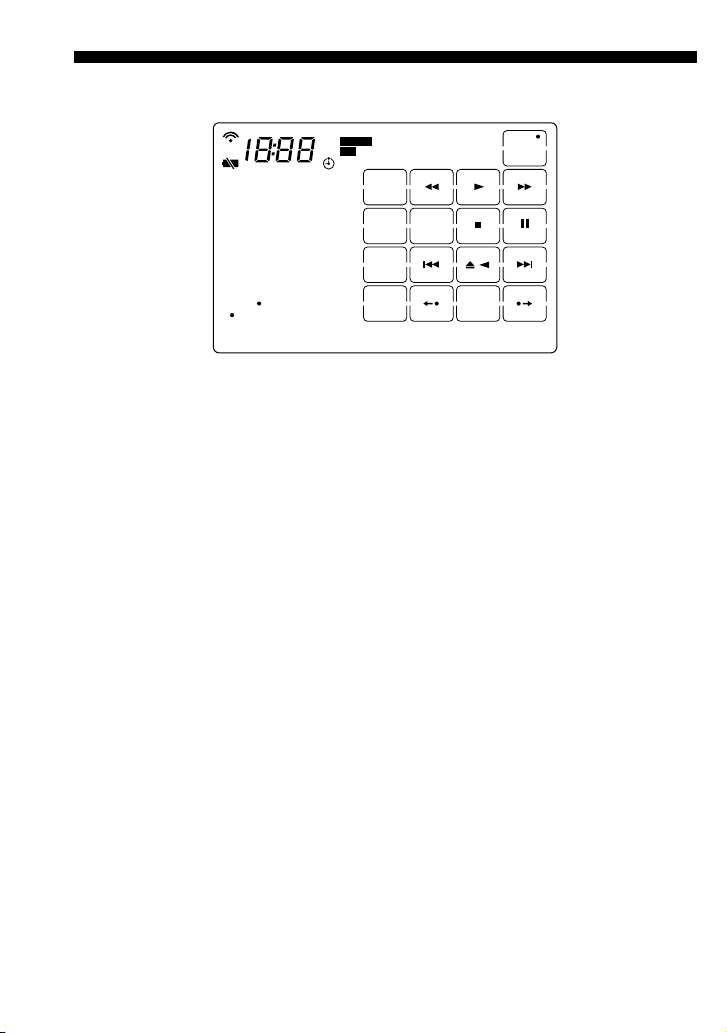
92
Full Display
0123456789ABCDEFGHIJKLMNOPQRSTUV
0123456789AB
SU
PM
AM
213
546
JKLGHI MNO
TUVPQRS WXYZ
ENTER
12
SYMBOL 2
+100
10 11
SYMBOL 1
ABC DEF
8
0
79
MO TU WE THFRSA
ON OFF
POWER
LOCK
VIDEO 3
TAPE
SHIFTTV
DONE
WIDE
MD
DVD
REC
D.SKIP
CLEAR
INPUT
SWAP
VIDEO 2
AUX
BAND
FAVORITE
PHONO
DISPLAY
MAIN/SUB
SUB TITLE
5.1 INPUT
LIST
2PIC
VIDEO 1
A/B
INFO
TUNER
TOP MENU
S.INDEX
CD
LEARNLEARN
NGNG
93
Appendix
Index
A
Adjusting
the backlight 34
the calibration of the LCD display 39
the clock 11, 42
the contrast of the LCD display 40
the volume 27
Air-Slide 29
Alignment 39
Audio component 57
Automatic-off time
of the backlight 34
of the LCD display 37
AX Remote Editor
installing 16
starting up 19
using Help 20
B
Backlight 9, 32, 34
Battery 10, 70
Beep 41
C
Calibrating the alignment of the
LCD display 39
CD-ROM 8, 16
Changing
the automatic-off time of the
backlight 34
the automatic-off time of the
LCD display 37
the backlight settings 34
the beep setting 41
the clock setting 42
the contrast of the LCD display 40
the names of the labels 65
the preset codes 45
the Timer setting 59
the volume 27
the volume control setting of
visual components 57
the XPRESS macro activation 56
Clearing
all the settings (RESET) 68
the learned function from a key
or button 49
the macro (programmed series of
actions) 54
the Timer macro 64
Clock 11, 42, 59
Code list 45
COMMANDER OFF button 9
Component
changing the name of a
component 65
default components list 13
operating non-preset
components (Learn) 47
operating the components 21
preset functions of each
components 76
setting the preset codes for
your components 45
setting the volume control of
visual components 57
synchronizing the status of the
component 28
COMPONENT button 8, 25
Connecting the Remote
Commander to your PC 19
Contrast 40
D
Default settings
Air-Slide list 29
Backlight 32
Components list 13
Controlling the volume of visual
components 57
Erasing all the settings (Reset) 68
Preset functions of each components 76
XPRESS list 21
DS_TIME (Daylight savings time) 11, 43
Continued
94
Index (continued)
E
Erasing
all the settings (RESET) 68
the learned function from a key
or button 49
the macro (programmed series of
actions) 54
the Timer macro 64
F
Factory settings
Air-Slide list 27
Backlight 32
Components list 13
Controlling the volume of visual
components 57
Erasing all the settings (Reset) 68
Preset functions of each components 76
XPRESS list 21
H
Help 20
Hold function 33
I
Installing
the AX Remote Editor 16
the batteries 10
the USB driver 17
L
Label 65
LCD display
calibrating the alignment 39
default backlight settings 32
full display 92
setting the automatic-off time 37
setting the backlight 34
setting the contrast 40
Learning function 47
LIGHT button 9, 32
Location and function of controls 8
Locking the controls (Hold function) 33
M
Macro
System Control macro 31, 51
Timer macro 29, 59
XPRESS macro activation 56
MORE button 9, 31
MUTING button 9, 27
O
On-PC Setup
connecting the Remote Commander 19
installing the AX Remote Editor 16
installing the USB driver 17
operating the XPRESS function 23
setting procedure 14
starting up AX Remote Editor 19
using AX Remote Editor Help 20
ways to make settings for the Remote
Commander 13
On-Remote Setup
operating the XPRESS function 24
setting by On-Remote Setup 45
setting procedure 15
ways to make settings for the Remote
Commander 13
P, R
PC
connecting the Remote Commander 19
installing the AX Remote Editor 16
installing the USB driver 17
On-PC Setup 14
starting up AX Remote Editor 19
using AX Remote Editor Help 20
Preset codes 45
Preset functions 76
Programming a series of actions (macro)
System Control macro 51
Timer macro 59
Reset 68
95
Appendix
S
Setting
the automatic-off time of the
backlight 34
the automatic-off time of the
LCD display 37
the backlight 34
the beep 41
the calibration of the LCD display 39
the clock 11, 42
the contrast of the LCD display 40
the names of the labels 65
the preset codes 45
the System Control macro 51
the Timer 59
the volume 27
the volume control of visual
components 57
the XPRESS macro activation 56
Specifications 70
Starting up AX Remote Editor 19
STD_TIME (Standard time) 11, 43
SYNC-UP button 9, 28
SYSTEM CONTROL buttons 9, 31, 51
System Control function
clearing the System Control macro 54
executing the System Control macro 31
programming the System Control
macro 51
System Control keys 9, 31, 51
System requirements 16
T
TIMER button 9, 29
Timer function
clearing the Timer macro 64
executing the Timer 29
setting the Timer 59
Troubleshooting 71
U
Unit Settings 34
USB driver 17
USB cable 8, 18, 19
V
Visual components 57
Volume 27, 57
VOLUME +/– buttons 9, 27
X
XPRESS button 9, 22
XPRESS function
changing the name of the XPRESS
function 65
default XPRESS list 21
operating the XPRESS function 22
overview 21
perform an easy action “Air-Slide” for
XPRESS function 29
setting the XPRESS macro activation 56

A-C8A-100-14(1)