
© 2008 Sony Corporation
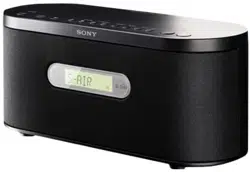
AIR-SA20PK
Wireless
Audio System
AIR-SA20PK.GB.4-117-793-12(1)
Operating Instructions
4-117-793-12(1)
AIR-SA20PK.GB.4-117-793-11(1)
2
GB
WARNING
To reduce the risk of re or
electric shock, do not expose
this apparatus to rain or
moisture.
To reduce the risk of re, do not cover the
ventilation opening of the apparatus with
newspapers, tablecloths, curtains, etc. Do
not place the naked ame sources such as
lighted candles on the apparatus.
To reduce the risk of re or electric shock,
do not expose this apparatus to dripping
or splashing, and do not place objects
lled with liquids, such as vases, on the
apparatus.
As the main plug is used to disconnect
the unit from the mains, connect the unit
to an easily accessible AC outlet. Should
you notice an abnormality in the unit,
disconnect the main plug from the AC
outlet immediately.
e unit is not disconnected from the
mains as long as it is connected to the
AC outlet, even if the unit itself has been
turned o.
Do not install the appliance in a conned
space, such as a bookcase or built-in
cabinet.
Do not expose batteries or apparatus with
battery-installed to excessive heat such as
sunshine, re or the like.
e nameplate is located on the bottom
exterior.
Notice for the customers in the
U.S.A.
is symbol is intended
to alert the user to the
presence of uninsulated
“dangerous voltage”
within the product’s
enclosure that may be
of sucient magnitude
to constitute a risk
of electric shock to
persons.
is symbol is intended
to alert the user to the
presence of important
operating and
maintenance (servicing)
instructions in the
literature accompanying
the appliance.
AIR-SA15Ti:
e following indications are located on
the AC power supply unit.
AIR-SA15R:
e following indications are located on
the bottom exterior.

AIR-SA20PK.GB.4-117-793-11(1)
3
GB
Owner’s Record
e model and serial numbers are located
on the bottom of the unit. Record these
numbers in the space provided below.
Refer to them whenever you call upon
your Sony dealer regarding this product.
Model No.
Serial No.
Important Safety Instructions
1) Read these instructions.
2) Keep these instructions.
3) Heed all warnings.
4) Follow all instructions.
5) Do not use this apparatus near water.
6) Clean only with dry cloth.
7) Do not block any ventilation openings.
Install in accordance with the
manufacturer’s instructions.
8) Do not install near any heat sources
such as radiators, heat registers,
stoves, or other apparatus (including
ampliers) that produce heat.
9) Do not defeat the safety purpose of
the polarized or grounding-type plug.
A polarized plug has two blades with
one wider than the other. A grounding
type plug has two blades and a third
grounding prong. e wide blade or
the third prong are provided for your
safety. If the provided plug does not t
into your outlet, consult an electrician
for replacement of the obsolete outlet.
10) Protect the power cord from being
walked on or pinched particularly at
plugs, convenience receptacles, and
the point where they exit from the
apparatus.
11) Only use attachments/accessories
specied by the manufacturer.
12) Use only with the cart,
stand, tripod, bracket,
or table specied by
the manufacturer,
or sold with the
apparatus. When
a cart is used, use
caution when moving
the cart/apparatus
combination to avoid
injury from tip-over.
13) Unplug this apparatus during lightning
storms or when unused for long
periods of time.
14) Refer all servicing to qualied service
personnel. Servicing is required when
the apparatus has been damaged in any
way, such as power-supply cord or plug
is damaged, liquid has been spilled or
objects have fallen into the apparatus,
the apparatus has been exposed to
rain or moisture, does not operate
normally, or has been dropped.
Continued

AIR-SA20PK.GB.4-117-793-12(1)
4
GB
The following FCC statement applies
only to the version of this model
manufactured for sale in the U.S.A.
Other versions may not comply with
FCC technical regulations.
NOTE:
is equipment has been tested and found
to comply with the limits for a Class B
digital device, pursuant to Part 15 of the
FCC Rules. ese limits are designed to
provide reasonable protection against
harmful interference in a residential
installation. is equipment generates,
uses and can radiate radio frequency
energy and, if not installed and used
in accordance with the instructions,
may cause harmful interference to
radio communications. However, there
is no guarantee that interference will
not occur in a particular installation.
If this equipment does cause harmful
interference to radio or television
reception, which can be determined
by turning the equipment o and on,
the user is encouraged to try to correct
the interference by one or more of the
following measures:
Reorient or relocate the receiving
antenna.
Increase the separation between the
equipment and receiver.
Connect the equipment into an outlet
on a circuit dierent from that to which
the receiver is connected.
Consult the dealer or an experienced
radio/TV technician for help.
CAUTION
You are cautioned that any changes or
modications not expressly approved in
this manual could void your authority to
operate this equipment.
For the wireless transceiver (EZW-RT10/
EZW-RT10A)
is device complies with Part 15 of
the FCC Rules. Operation is subject
to the following two conditions: (1)
this device may not cause harmful
interference, and (2) this device must
accept any interference received, including
interference that may cause undesired
operation.
is equipment must not be co-located or
operated in conjunction with any other
antenna or transmitter.
is equipment complies with FCC
radiation exposure limits set forth for
uncontrolled equipment and meets the
FCC radio frequency (RF) Exposure
Guidelines in Supplement C to OET65.
is equipment should be installed and
operated with at least 20cm and more
between the radiator and person’s body
(excluding extremities: hands, wrists, feet
and ankles).

AIR-SA20PK.GB.4-117-793-12(1)
5
GB
Notice for the customers in Canada
For the wireless transceiver (EZW-RT10/
EZW-RT10A)
is device complies with RSS-Gen of IC
Rules.
Operation is subject to the following
two conditions: (1) this device may not
cause interference, and (2) this device
must accept any interference, including
interference that may cause undesired
operation of the device.
is equipment complies with IC radiation
exposure limits set forth for uncontrolled
equipment and meets the RSS-102 of the
IC radio frequency (RF) Exposure rules.
is equipment should be installed and
operated with at least 20cm and more
between the radiator and person’s body
(excluding extremities: hands, wrists, feet
and ankles).
“S-AIR” and its logo are trademarks of
Sony Corporation.
iPod is a trademark of Apple Inc.,
registered in the U.S. and other
countries.
e Bluetooth word mark and logos
are owned by the Bluetooth SIG, Inc.
and any use of such marks by Sony
Corporation is under license. Other
trademarks and trade names are those
of their respective owners.
All other trademarks and registered
trademarks are of their respective
holders. In this manual,
™
and
®
marks
are not specied.

AIR-SA20PK.GB.4-117-793-11(1)
6
GB

AIR-SA20PK.GB.4-117-793-11(1)
7
GB
Table of Contents
Others
Troubleshooting .................................34
Messages ...............................................38
Precautions ...........................................38
Specications ......................................40
Compatible iPod models
.................42
Index .......................................................43
Features ................................................... 8
Unpacking .............................................. 9
Guide to parts and controls
...........10
Getting Started
Hooking up the system....................18
Establishing the S-AIR
connection ...........................................20
Setting the clock of the sub
units ........................................................23
Operations
Selecting the S-AIR mode ...............24
Listening to iPod music using the
S-AIR connection
................................25
Listening to the radio using the
S-AIR connection
................................27
Presetting radio stations
.................28
Using an optional AV system
.........29
Changing the display
.......................30
Using the Timers
.................................31
Turning o the remote control
function of the sub units
.................33
Changing the illumination
brightness of the main unit
............33
AIR-SA20PK.GB.4-117-793-12(1)
8
GB
Features
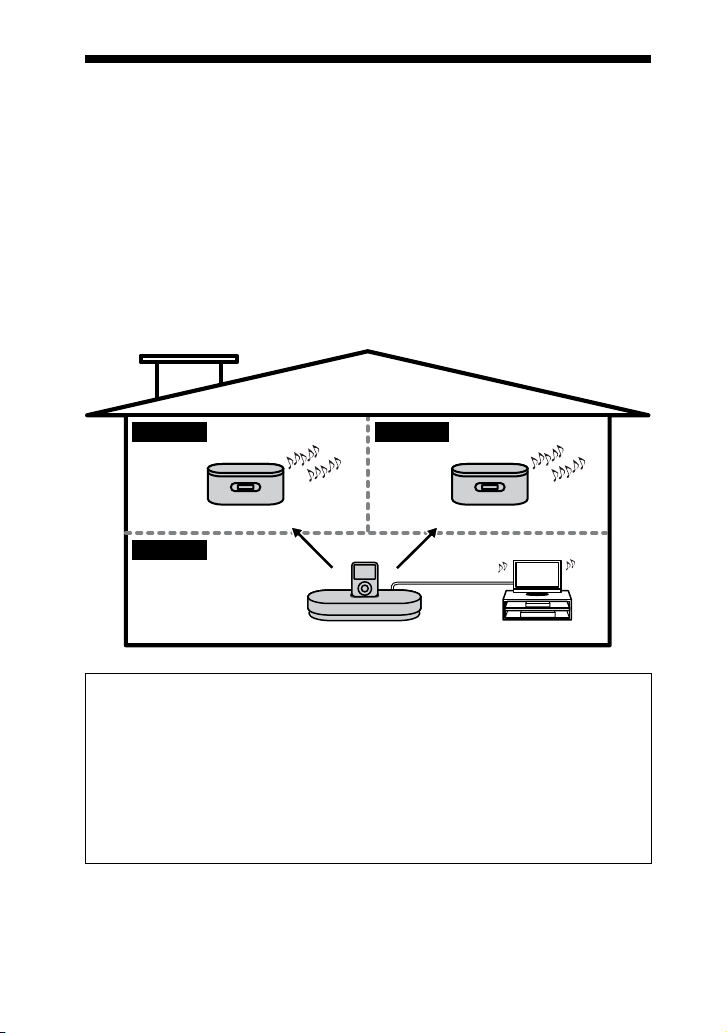
e AIR-SA20PK is an “S-AIR” compatible packaged product that consists of one S-AIR
main unit AIR-SA15Ti and two S-AIR sub units AIR-SA15R.
Connecting the S-AIR main unit (hereaer called “Main unit”) with the S-AIR sub
units (hereaer called “Sub units”) using “S-AIR” technology, you can use each unit in a
remote location.
For example, you can install the sub units, one in the study room and the other in the
bedroom, and then install the main unit in the living room. You can then listen to the
music from the main unit located in the living room by controlling the sub units.
You can also connect the main unit to an optional AV system (such as a TV), and on this
optional AV system you can enjoy audio, video and photo contents of an iPod which is
connected to the main unit.
Main unit and iPod
Bedroom
Sub unit
Study room
Sub unit
Living room
AV system
S-AIR (Sony Audio Interactive Radio frequency)
Recent times have seen the rapid spread of DVD media, Digital Broadcasting, and
other high-quality media.
To ensure that the subtle nuances of these high-quality media are transmitted with
no deterioration, Sony has developed a technology called “S-AIR” for the radio
transmission of digital audio signals with no compression, and has incorporated this
technology into the EZW-RT10/EZW-RT10A.
is technology transfers digital audio signals with no compression using the 2.4 GHz
band range of ISM band (Industrial, Scientic, and Medical band), such as wireless
LANs and Bluetooth applications.
AIR-SA20PK.GB.4-117-793-12(1)
9
GB
Unpacking
Check that you have all the following
items.
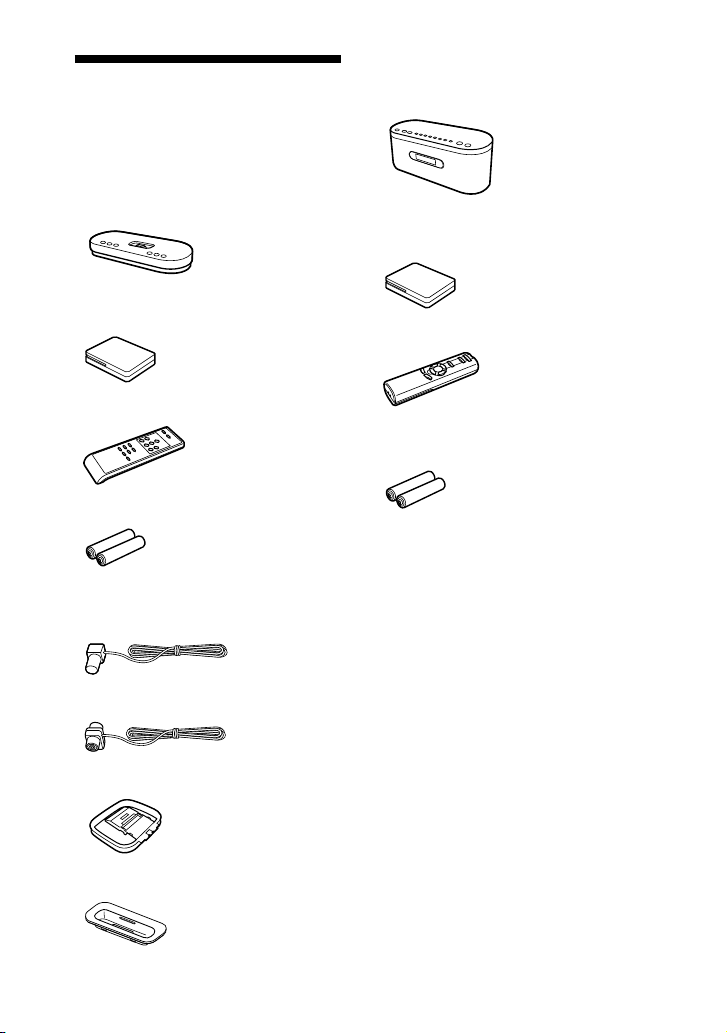
Main unit
Main unit (AIR-SA15Ti) (1)
Wireless transceiver (EZW-RT10 or
EZW-RT10A) (1)*
Remote (RM-ANU045) (1)
R03 (size AAA) batteries (2)*
FM lead antenna (1)
One of the following two antennas is
supplied.
or
AM loop antenna (1)
iPod Dock Adapters (1 set)
Sub unit
Sub unit (AIR-SA15R) (2)
Wireless transceiver (EZW-RT10 or
EZW-RT10A) (2)*
Remote (RM-ANU046) (2)
R03 (size AAA) batteries (4)*
Others
Operating Instructions (this
manual) (provided in each
language)
Warranty (1 for customers in the
USA, 1 for customers in Canada)
For customers in the USA
Use “LIMITED WARRANTY” card
warranted by Sony Electronics Inc.
For customers in Canada
Use “Consumer 1 Year Warranty” card
warranted by Sony of Canada Ltd.
* e same type of wireless transceivers and
batteries are used for the main unit and the
sub units.
AIR-SA20PK.GB.4-117-793-11(1)
10
GB
Guide to parts and controls
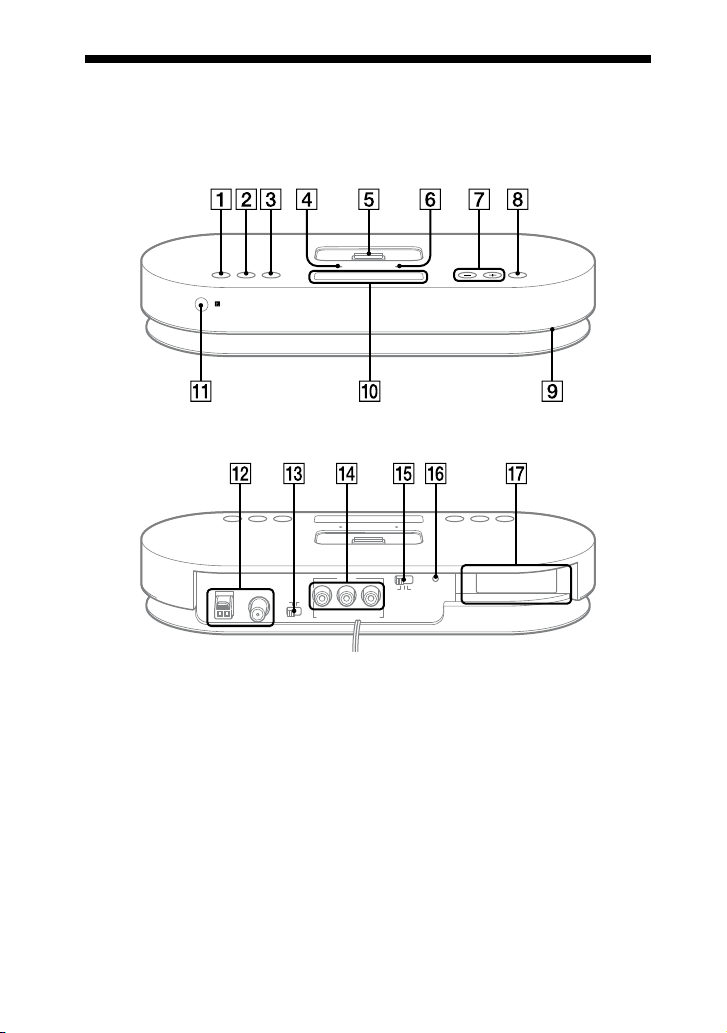
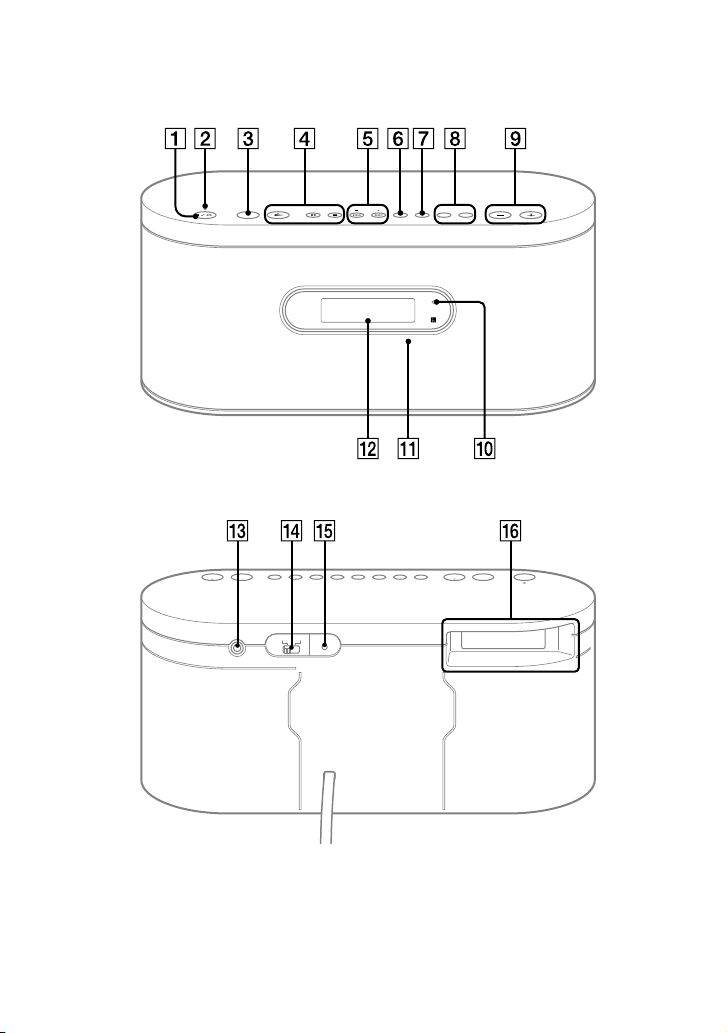
Main unit (AIR-SA15Ti/Wireless Audio Transmitter)
Front panel
Rear panel
AIR-SA20PK.GB.4-117-793-11(1)
11
GB
Guide to parts and controls
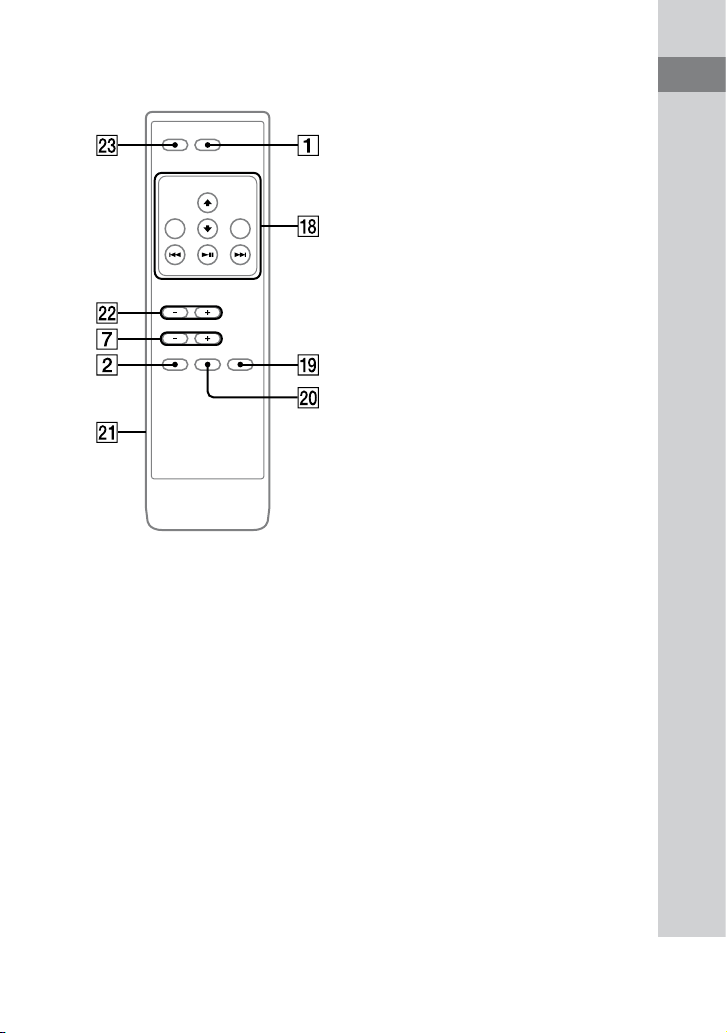
Remote for the main unit
(RM-ANU045)
ILLUMINATION (33)
Press to change the illumination
brightness.
BAND (27)
Press to select FM or AM reception
mode.
SYSTEM MENU (22, 25, 28, 37)
Press to enter the system menu.
POWER indicator (20)
Lights up when the main unit is turned
on.
iPod connector (19, 25, 29)
Place an iPod on the connector to listen
to audio contents stored in the iPod.
You need to connect the supplied iPod
Dock Adapter rst to use an iPod.
For details on the supplied iPod Dock
Adapters, refer to the instructions
supplied with the iPod Dock Adapters.
S-AIR indicator
Lights up when the main unit is turned
on with the supplied wireless transceiver
inserted.
Unit: TUNING/SELECT +/ (22,
25, 27, 28, 37)
Press to tune in the desired station.
Press to select a menu item.
Remote: TUNING +/ (27, 28)
Press to tune in the desired station.
ENTER (22, 25, 28, 37)
Press to enter the settings.
Illumination (33)
You can change the brightness using
ILLUMINATION
.
Continued

AIR-SA20PK.GB.4-117-793-11(1)
12
GB
Display (13)
Remote sensor
ANTENNA jacks (18, 19)
Connect the supplied FM lead antenna
and AM loop antenna.
POWER switch (20, 34)
Switch for turning the main unit on or
o.
iPod AUDIO OUT L/R jacks (29)
iPod VIDEO OUT jack (29)
Connect an optional AV system, such as
a TV, etc.
S-AIR ID selector (19, 20)
Select the S-AIR ID to connect with the
sub units.
PAIRING button (22)
Press to perform pairing.
EZW-RT10 slot (19)
Insert the supplied wireless transceiver.
Buttons for controlling an iPod
(play/pause) (26)
Press to start or pause playback.
/ (26)
Press to skip to the previous/next track.
Hold down to nd a point in a track.
MENU (26)
Press to return to the previous menu.
Works much like the Menu button on
the iPod.
/ (26)
Press to select a menu item or track for
playback.
ENTER (26)
Press to execute the selected item or play
the selected track.
PARTY CH (25, 27, 29)
Press to select the sound source when the
S-AIR mode is set to “PARTY.”
S-AIR MODE (25)
Press to select the S-AIR mode.
Battery compartment lid (20)
AIR-SA20PK.GB.4-117-793-11(1)
13
GB
Guide to parts and controls
PRESET +/ (29)
Press to select a preset station.
DISPLAY (25, 30)
Press to view the information on the
display.
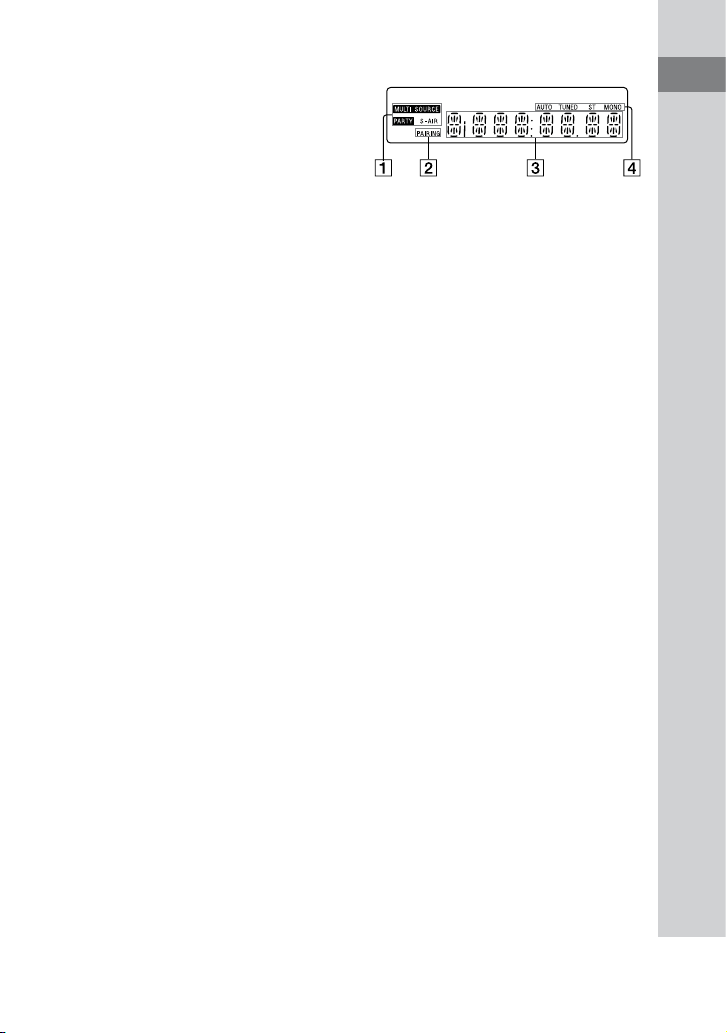
Display
S-AIR mode indicator (25)
PAIRING indicator (21)
Text information
Tuner reception mode (27)
Tuner reception (27)
Continued
AIR-SA20PK.GB.4-117-793-11(1)
14
GB
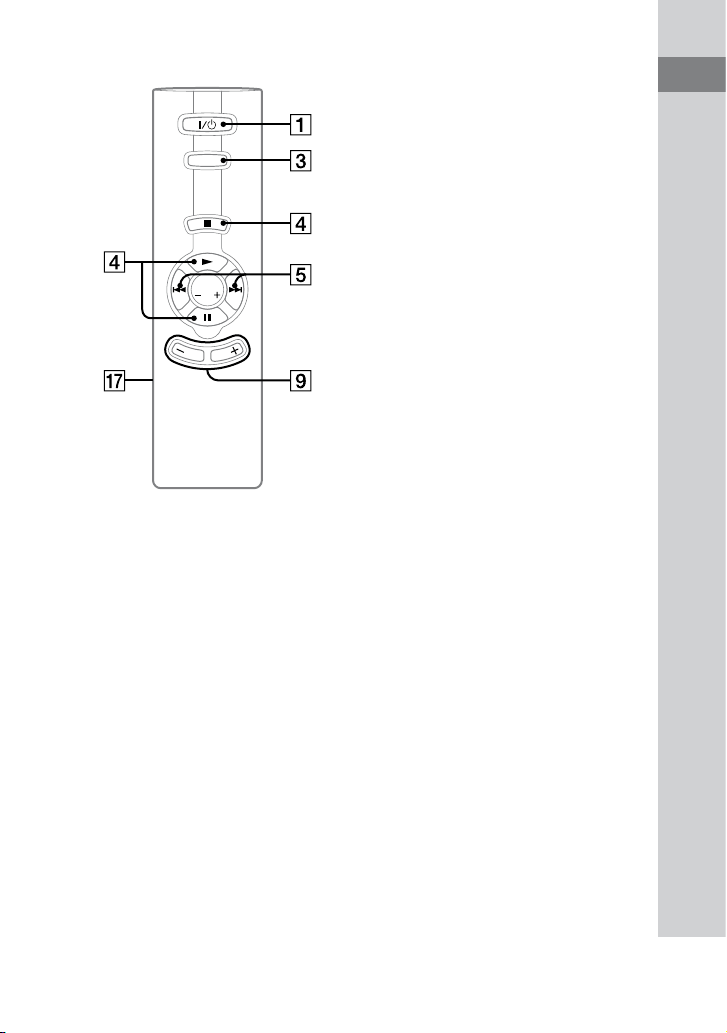
Sub unit (AIR-SA15R/Wireless Speaker System)
Front panel
Rear Panel
AIR-SA20PK.GB.4-117-793-11(1)
15
GB
Guide to parts and controls
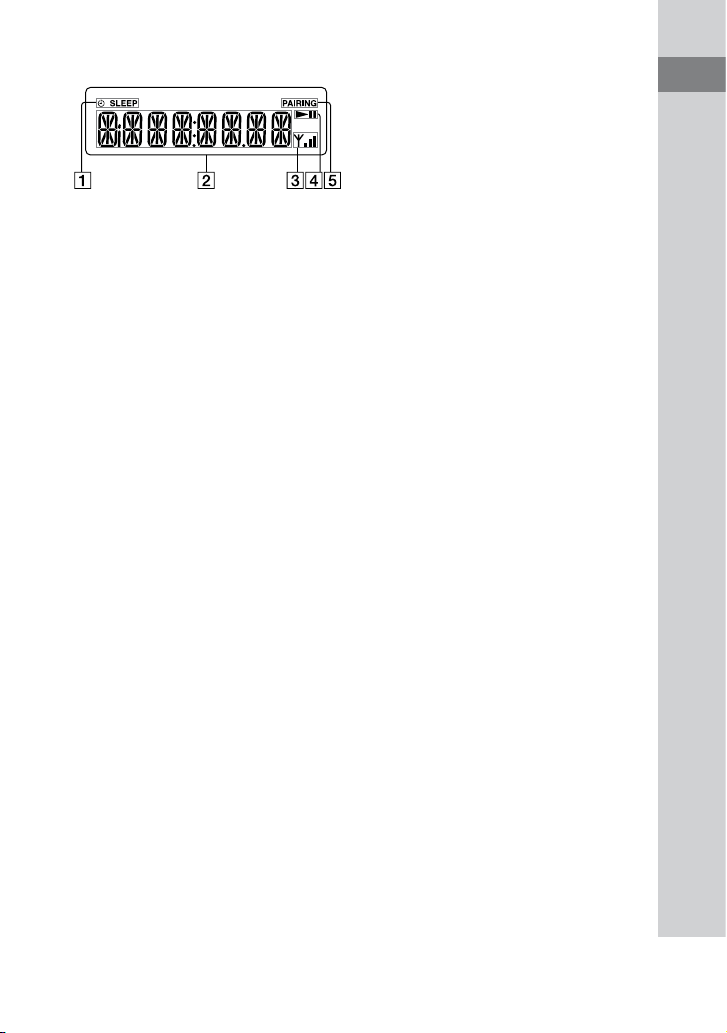
Remote for the sub unit (RM-ANU046)
(power) (20, 32, 37)
Press to turn on or o the sub unit.
STANDBY indicator (34)
Lights up when the sub unit is turned
o .
S-AIR CH (26, 28, 29)
Press to select the S-AIR channel of the
connected main unit.
(play) (26, 32)
Press to start or pause playback of an
iPod connected to the main unit.
(pause) (26)
Press to pause or start playback of an
iPod connected to the main unit.
/CANCEL (stop/cancel) (26, 37)
Press to pause playback of an iPod
connected to the main unit.
/ (23, 26, 31)
Press to skip to the previous/next track of
an iPod connected to the main unit.
Hold down to nd a point in a track of an
iPod connected to the main unit.
PRESET +/ (29)
Press to select a preset station.
DISPLAY (30, 33, 37)
Press to display the information of the
connected main unit or clock in the
display.
SLEEP (31)
Press to set the Sleep Timer.
Continued

AIR-SA20PK.GB.4-117-793-11(1)
16
GB
CLOCK TIMER/MENU (23, 31)
CLOCK TIMER/ENTER (23, 31, 33)
Press to set the clock and the Daily
Timer.
VOLUME +/ (26, 31, 33)
Press to adjust the volume.
S-AIR indicator (21)
Lights up while the sub unit is connected
to the main unit.
Flashes when the sub unit is not
connected to the main unit.
Remote sensor
Display (17)
(headphones) jack
Connect optional headphones.
S-AIR ID selector (19, 20)
Select the same S-AIR ID as the main
unit.
PAIRING button (22)
Press to perform pairing.
EZW-RT10 slot (19)
Insert the supplied wireless transceiver.
Battery compartment lid (20)
AIR-SA20PK.GB.4-117-793-11(1)
17
GB
Guide to parts and controls
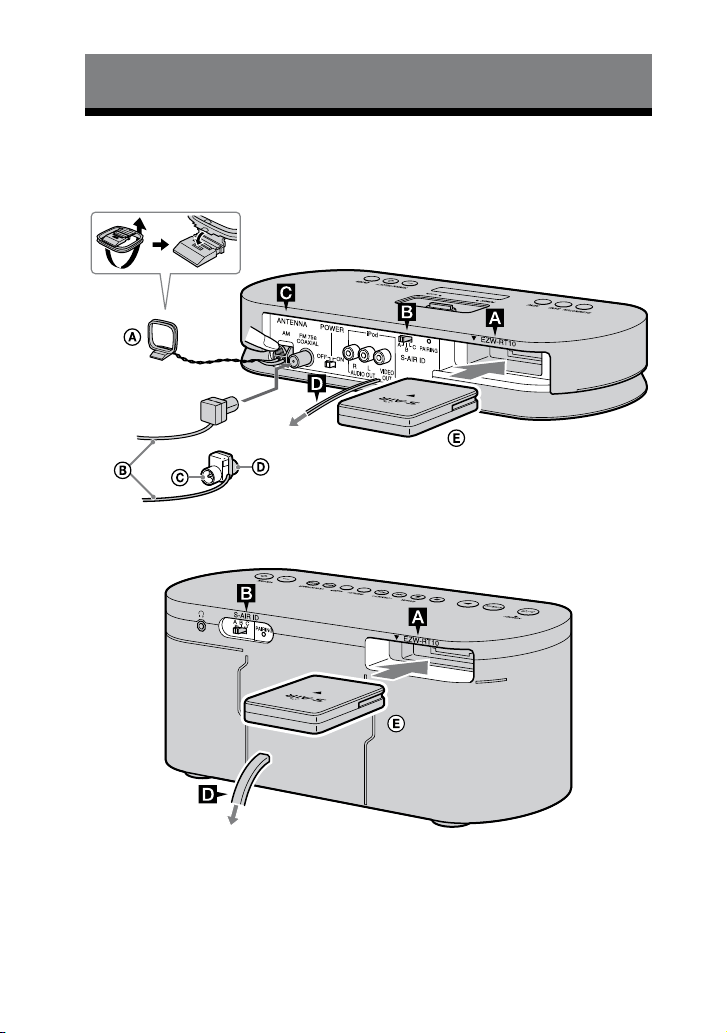
Display
Timer indicator (31)
Text information
Wireless strength
Indicates the S-AIR signal strength.
Play/Pause
PAIRING indicator (21)
AIR-SA20PK.GB.4-117-793-11(1)
18
GB
Getting Started
Hooking up the system
Main unit
Sub unit
AM loop antenna
FM lead antenna (Extend it horizontally.)
White side for North American model
Brown side for other models
Wireless transceiver
Wall socket
Wall socket
or
AIR-SA20PK.GB.4-117-793-12(1)
19
GB
Getting Started
Continued
Wireless transceiver
Insert the supplied wireless transceiver
(EZW-RT10 or EZW-RT10A) securely
into the EZW-RT10 slot on the rear panel
of each unit.
Check the orientation of the mark
when inserting the supplied wireless
transceivers (EZW-RT10 or EZW-
RT10A). Failure to do so may result in
damage to the unit.
Notes
Make sure to turn o the main unit and the
sub units when inserting or removing the
supplied wireless transceivers (EZW-RT10 or
EZW-RT10A). Failure to do so may result in
damage to the unit.
Do not touch the terminals of the supplied
wireless transceivers (EZW-RT10 or EZW-
RT10A).
Do not insert any device other than the
supplied wireless transceivers (EZW-RT10 or
EZW-RT10A) into the EZW-RT10 slot.
S-AIR ID selector
Set the same S-AIR ID for the main unit
and the sub units. For details on setting
the S-AIR ID, see “Establishing the S-AIR
connection” (page 20).
FM/AM antennas
Find a location and an orientation that
provide good reception, and then set up
the antenna.
Keep the antennas away from the power
supply cord to avoid picking up noise.
Power
Connect the power supply cord and the
power cord to a wall socket.
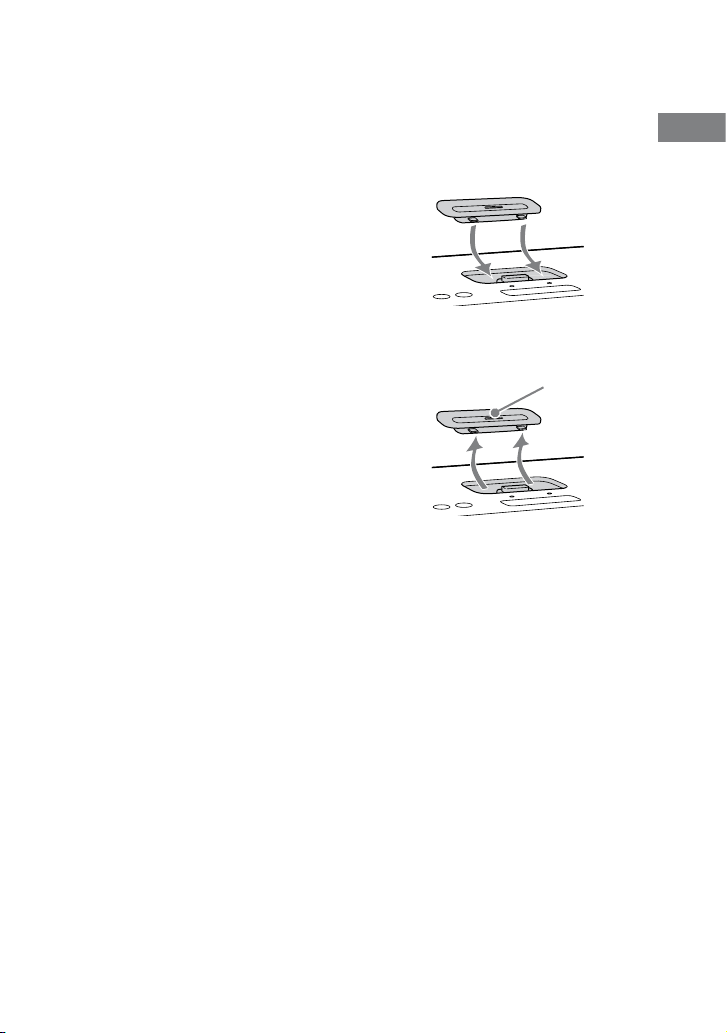
To use the iPod
Insert an iPod Dock Adapter into the
iPod connector on the main unit before
use.
For details on the supplied iPod Dock
Adapters, refer to the instructions
supplied with the Dock Adapters.
To remove the iPod Dock Adapter, pull
it up with your ngernail or a at object
using the slot inside the adapter.
Slot
AIR-SA20PK.GB.4-117-793-11(1)
20
GB
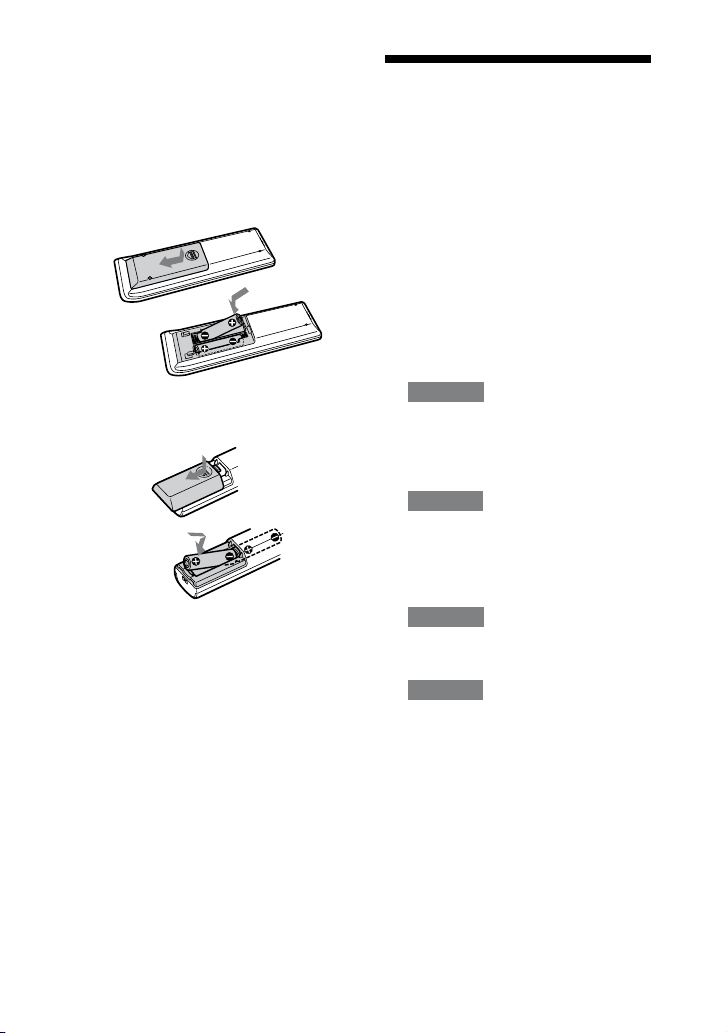
To use the remote
Slide and remove the battery
compartment lid, and insert the two
supplied R03 (size AAA) batteries,
side rst, matching the polarities shown
below.
Remote for the main unit
(RM-ANU045)
Remote for the sub unit
(RM-ANU046)
Notes on using the remote
With normal use, the batteries should last for
about six months.
Do not mix an old battery with a new one or
mix dierent types of batteries.
If you do not use the remote for a long period
of time, remove the batteries to avoid damage
from battery leakage and corrosion.
Establishing the S-AIR
connection
You can easily establish the connection
by setting the same S-AIR ID for the
main unit and the sub units.
1
Check that the wireless
transceivers are inserted
securely to the main unit and
the sub units (page 19).
2
Turn on the main unit and the
sub units.
Main unit
Set the POWER switch on the rear
panel to “ON.”
e POWER indicator on the unit
lights up.
Sub units
Press .
3
Set the same S-AIR ID for the
main unit and the sub units.
Main unit
Set the S-AIR ID selector on the rear
panel to the desired S-AIR ID.
Sub units
Set the S-AIR ID selector on the rear
panel to the same S-AIR ID as the
main unit.
Tip
e S-AIR ID is set at the factory to “A.”
AIR-SA20PK.GB.4-117-793-11(1)
21
GB
Getting Started
Continued
4
Conrm the connection status.
Once the connection between
the main unit and the sub units is
established, the S-AIR indicators on
the sub units light up and “LINKED”
appears in the displays of the sub
units for about 2 seconds.
Tip
Up to 10 sub units (sold separately) can be
connected with the main unit.
Identifying the main unit with
a specic sub unit (Pairing
operation)
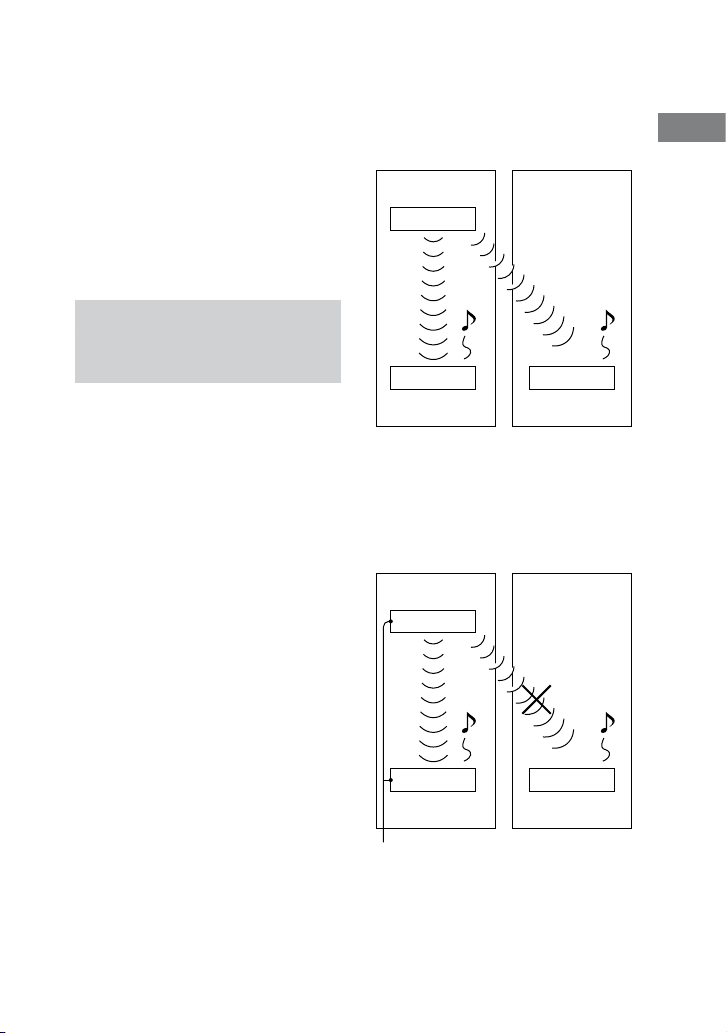
It is easy to set the same S-AIR ID for the
main unit and the sub units to establish
the connection.
However, if a neighbor has an S-AIR
main unit with the same S-AIR ID as
your S-AIR main unit, you may be able
to hear the audio transmitted from your
neighbor’s S-AIR main unit on your
system. To prevent this, you can identify
the main unit with a specic sub unit by
performing the pairing operation.
Before pairing
e connection is established by the S-
AIR ID (example).
Your system Neighboring
system
ID A
Main unit
ID A
Sub unit
ID A
Sub unit
After pairing
e connection is established between
the paired main unit and sub unit.
Your system Neighboring
system
Pairing
ID A
Main unit
ID A
Sub unit
ID A
Sub unit

AIR-SA20PK.GB.4-117-793-11(1)
22
GB
1
Place the sub unit to be paired
near the main unit.
Pair the main unit with the sub units
one at a time.
2
Check that the power of the
main unit and the sub unit are
turned on.
3
Check that the S-AIR ID of the
main unit is the same as the S-
AIR ID of the sub unit.
4
Press the PAIRING buttons on
the rear panel of the main unit
and the sub unit using a pointed
object.
When pairing is performed, the
displays on both the main unit and
the sub unit change as follows:
“PAIRING” “COMPLETE”
To cancel pairing
Change the S-AIR IDs of the main unit
and the sub unit to dierent S-AIR IDs.
To stop the pairing operation midway
Press the PAIRING button again.
To pair the main unit with multiple
sub units
Repeat steps 1 through 4.
If the S-AIR connection is
unstable
Since the S-AIR product uses radio waves
that share the same frequency (2.4 GHz)
as other wireless systems, such as wireless
LAN or Bluetooth devices, interference
or poor transmission may result if you
use other wireless systems near the main
unit and/or the sub units.
In this case, the connection may be
improved by changing the RF CHANGE
(Radio Frequency Change) setting on the
main unit.
1
Press SYSTEM MENU on the unit.
2
Press TUNING/SELECT +/ on
the unit repeatedly until “RF
CHG” appears, then press ENTER
on the unit.
3
Press TUNING/SELECT +/ on
the unit repeatedly to select the
desired setting.
e default setting is underlined.
AUTO:
Normally select this setting. e main
unit changes the RF CHANGE setting
to “ON” or “OFF” automatically.
ON:
e main unit transmits sound by
searching for the best channel for
transmission.
OFF:
e main unit transmits sound using
a xed channel for transmission.
When you select this setting, select
the S-AIR ID that provides the best
connection.

AIR-SA20PK.GB.4-117-793-11(1)
23
GB
Getting Started
4
Press ENTER on the unit to exit
the system menu.
Setting the clock of the
sub units
Use buttons on the unit to set the clock.
1
Press / to turn on the unit.
2
Select the clock set mode.
Press CLOCK/TIMER MENU. If the
current mode appears on the display,
press / repeatedly to select
“CLOCK,” and then press CLOCK/
TIMER ENTER.
3
Set the time.
Press / repeatedly to set the
hour, and then press CLOCK/TIMER
ENTER. Use the same procedure to
set the minute.
Note
e clock settings are canceled when you
disconnect the power cord or if a power failure
occurs.
AIR-SA20PK.GB.4-117-793-11(1)
24
GB
Operations
Selecting the S-AIR mode
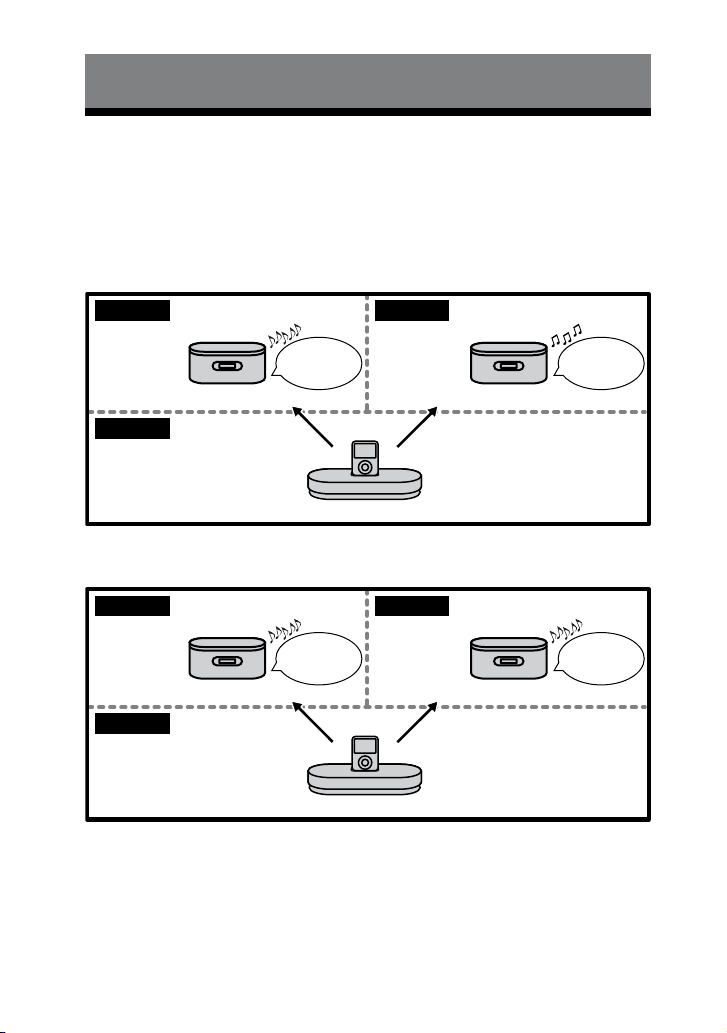
When connecting to multiple sub units, you can listen to dierent sound sources on
each sub unit (MULTI SOURCE mode) or to the same sound source on both sub units
(PARTY mode) by selecting the S-AIR mode accordingly.
Use the main unit to set the S-AIR mode.
MULTI SOURCE mode
Main unit and iPod
Bedroom
Sub unit
Study room
Sub unit
Living room
iPod Tuner
PARTY mode
Main unit and iPod
Bedroom
Sub unit
Study room
Sub unit
Living room
iPod iPod
AIR-SA20PK.GB.4-117-793-11(1)
25
GB
Operations
Press S-AIR MODE on the remote
repeatedly until the desired S-AIR
mode indicator lights up in the
display.
e default setting is underlined.
MULTI SOURCE:
Select this setting to listen to dierent
sound sources on each sub unit.
PARTY:
Select this setting to listen to the same
sound source on multiple sub units.
To select the S-AIR mode from the
system menu
1
Press SYSTEM MENU on the unit.
2
Press TUNING/SELECT +/ on the
unit repeatedly until “MODE” appears,
then press ENTER on the unit.
3
Press TUNING/SELECT +/ on the
unit repeatedly to select “MULTI” or
“PARTY,” then press ENTER on the
unit.
e selected S-AIR mode appears on
the display.
To check the S-AIR mode when the
display of the main unit is turned o
Press DISPLAY on the remote.
Notes
When you change the S-AIR mode, the iPod
channel is automatically selected for the
connected sub units.
When connecting the main unit to an S-AIR
sub unit (such as the AIR-SA10) which is not
compatible with the MULTI SOURCE mode,
set the main unit to the PARTY mode. You
can then select the S-AIR channel from the
S-AIR sub unit.
Listening to iPod
music using the S-AIR
connection
Use the sub units to listen to the music of
an iPod connected to the main unit.
You can control the connected iPod from
either the main unit or the sub units.
To use an iPod, refer to the user’s guide
of your iPod.
Using the main unit
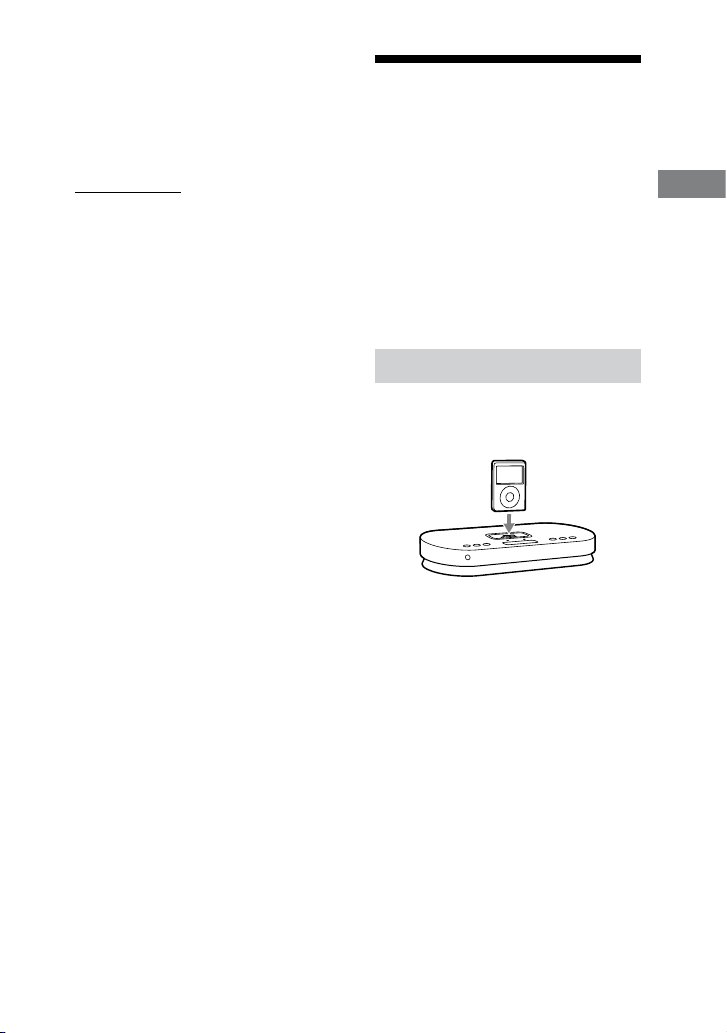
1
Place an iPod on the iPod
connector as shown below.
Now, you are ready to listen to the
connected iPod using the sub units.
2
Select the iPod channel.
When the S-AIR mode is set to
“PARTY”:
Press PARTY CH on the remote
repeatedly until “iPod” appears in the
display.
When the S-AIR mode is set to
“MULTI SOURCE”:
e iPod channel is internally
activated. Go to step 3.
Continued

AIR-SA20PK.GB.4-117-793-11(1)
26
GB
3
Start playback.
Operate the iPod to start playing the
music. You can also operate the iPod
using the remote (see “To control the
iPod using the main unit”).
Using the sub units
1
Place an iPod on the iPod
connector on the main unit.
2
Select the iPod channel.
Press S-AIR CH repeatedly until
“iPod” appears in the display.
3
Start playback.
Operate the iPod to start playing the
music. You can also operate the iPod
using the remote (see “To control the
iPod using the sub units”).
To control the iPod using the main unit
You can control your iPod with the
following buttons on the remote.
To Press
Start
playback
.
Pause
playback
.
To resume playback, press
again.
Select a
menu or
track for
playback
/
. You can scroll up or
down the iPod menus.
Skip a track
/
.
Find a point
in a track
Hold down
/
during playback, and
release the button at the
desired point.
To Press
Choose the
selected
item
ENTER. You can choose
the selected item much
like the center button on
the iPod.
Return to
the previous
menu
MENU. You can return to
the previous menu much
like the Menu button on
the iPod.
To control the iPod using the sub units
You can control your iPod with the
following buttons on the remote or unit.
To Press
Start
playback
.
Pause
playback
, or /CANCEL.
To resume playback, press
or .
Skip a track
/
.
Find a point
in a track
Hold down
/
during playback, and
release the button at the
desired point.
Adjust the
volume
VOLUME +/.
AIR-SA20PK.GB.4-117-793-11(1)
27
GB
Operations
To use the main unit as a battery
charger
You can use the main unit as a battery
charger for the iPod when the main unit
is on.
e charging begins when the iPod
is placed on the iPod connector. e
charging status appears in the iPod
display. For details, refer to the user’s
guide of your iPod.
To stop charging the iPod, remove the
iPod or turn o the main unit.
Notes
When placing or removing the iPod, handle
the iPod in the same angle as that of the
iPod connector on the main unit and do not
twist or sway the iPod to prevent connector
damage.
Do not carry the main unit with an iPod
set on the connector. Doing so may cause a
malfunction.
When placing or removing the iPod, brace
the main unit with one hand and take care
not to press the controls of the iPod by
mistake.
Before disconnecting the iPod, pause
playback.
You cannot adjust the volume using the main
unit.
e volume level does not change even if
adjusted on the iPod.
e main unit is designed for iPod only. You
cannot connect any other portable audio
players.
Depending on the iPod model you are using
and its status, operations using the main unit
and the sub units may not be accepted or the
wrong operations may be performed.
Sony cannot accept responsibility in the
event that data recorded to iPod is lost or
damaged when using an iPod with this S-AIR
product.
Listening to the
radio using the S-AIR
connection
Using the main unit
1
Select the tuner channel.
When the S-AIR mode is set to
“PARTY”:
Press PARTY CH on the remote
repeatedly until “FM” or “AM”
appears in the display.
When the S-AIR mode is set to
“MULTI SOURCE”:
e tuner channel is internally
activated. Go to step 2.
2
Select “FM” or “AM.”
Press BAND repeatedly.
3
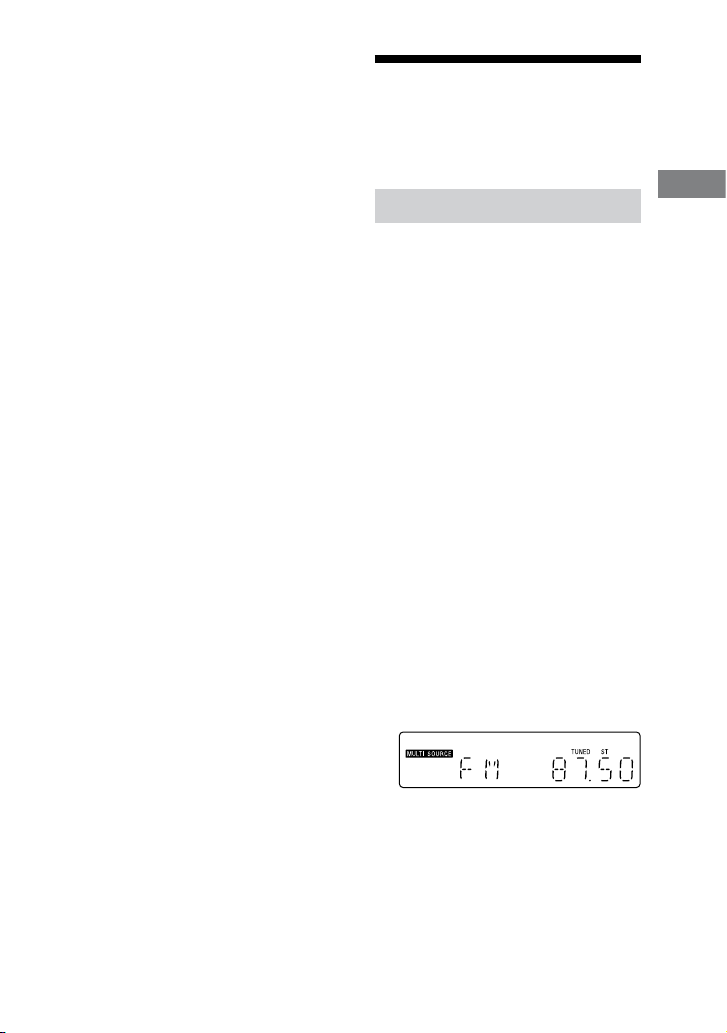
Perform automatic tuning.
Press and hold TUNING +/ on
the remote (or TUNING/SELECT
+/ on the unit) until the frequency
indication changes and then release.
“AUTO” lights up in the display.
Scanning stops automatically when
a station is tuned in, and then
“TUNED” and “ST” (for FM stereo
programs only) appear.
Continued
AIR-SA20PK.GB.4-117-793-11(1)
28
GB
Using the sub units
When a radio station is tuned on the
main unit, you can listen to that station
by following the steps below.
To tune in a radio station using the sub
units, that station needs to be preset
beforehand (see “To call up a preset radio
station using the sub units” (page 29)).
1
Select the tuner channel.
Press S-AIR CH repeatedly until
“TUNER” appears in the display.
2
Select “FM” or “AM.”
Press and hold S-AIR CH until “FM”
changes to “AM” or vice versa.
To tune in a station with a weak signal
using the main unit
If “TUNED” does not appear and the
scanning does not stop, press TUNING
+/ on the remote (or TUNING/
SELECT +/ on the unit) repeatedly to
tune in the desired station.
To reduce static noise on a weak FM
stereo station using the main unit
1
Press SYSTEM MENU on the unit.
2
Press TUNING/SELECT +/ on the
unit repeatedly until “FM MODE”
appears, then press ENTER on the
unit.
3
Press TUNING/SELECT +/ on
the unit repeatedly until “MONO”
appears, then press ENTER on the
unit.
ere will be no stereo eect, but the
reception will improve.
Presetting radio
stations
You can preset your favorite radio
stations and tune them in instantly
by selecting the corresponding preset
number.
Use the main unit to preset the radio
stations.
1
Tune in the desired station.
See “Listening to the radio using the
S-AIR connection” (page 27).
2
Press SYSTEM MENU on the unit.
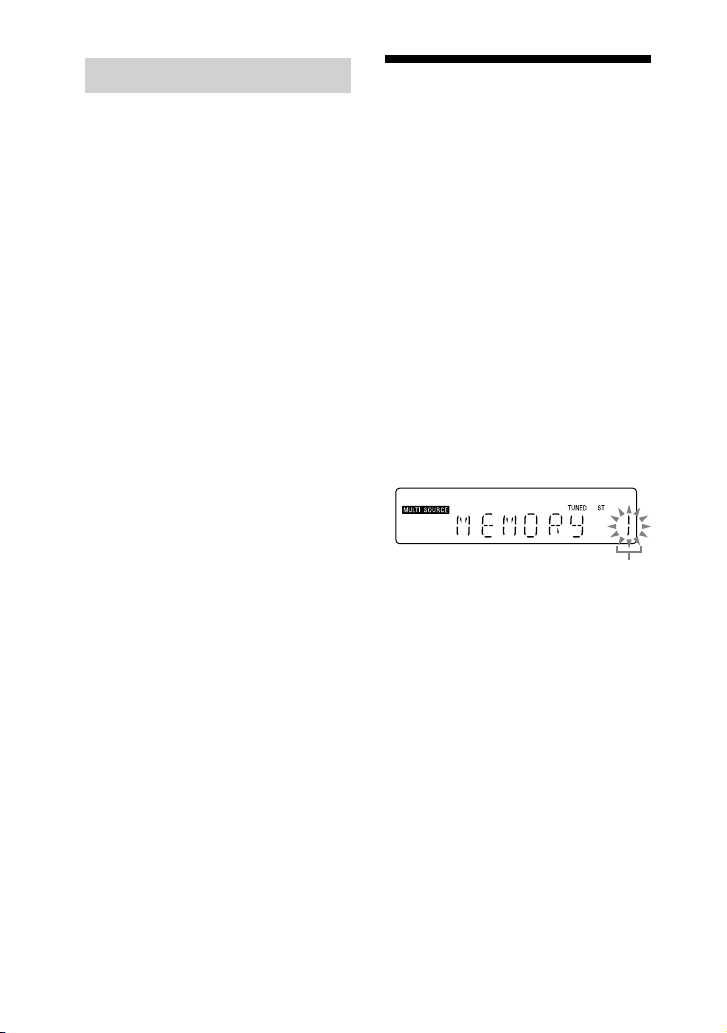
3
Press TUNING/SELECT +/
on the unit repeatedly until
“MEMORY” appears, then press
ENTER on the unit.
Preset number
4
Press TUNING/SELECT +/ on
the unit repeatedly to select
your desired preset number.
If another station is already assigned
to the selected preset number,
the station is replaced by the new
stations.

AIR-SA20PK.GB.4-117-793-11(1)
29
GB
Operations
5
Press ENTER on the unit.
6
Repeat steps 1 through 5 to
store other stations.
You can preset up to 20 FM and 10
AM stations. e preset stations are
retained for about half a day even if
you disconnect the power supply cord
or if a power failure occurs.
To call up a preset radio station using
the main unit
Press PRESET +/ repeatedly.
To call up a preset radio station using
the sub units
1
Preset radio stations on the main unit
(see “Presetting radio stations” (page
28)).
2
Select the tuner channel.
Press S-AIR CH repeatedly until
“TUNER” appears in the display.
3
Select “FM” or “AM.”
Press and hold S-AIR CH until “FM”
changes to “AM” or vice versa.
4
Press PRESET +/ repeatedly to
select a preset station.
Using an optional AV
system
You can enjoy audio and video of the
connected iPod with an optional AV
system.
1
Connect an optional AV system
(such as a TV, etc.) to the iPod
AUDIO OUT L/R jacks and/or
the iPod VIDEO OUT jack of the
main unit using an optional
audio cord and/or video cable.
2
Place an iPod on the iPod
connector on the main unit.
3
Start playback of the iPod.
See “Listening to iPod music using
the S-AIR connection” (page 25).
Note
e tuner’s sound cannot be output through
the iPod AUDIO OUT L/R jacks.
Before enjoying video, adjust the video
settings on the iPod to the appropriate
settings according to your situation.
Tip
Even if you change the S-AIR mode or the
S-AIR channel using PARTY CH, audio and/or
video from the connected iPod will continue
to be output from the iPod AUDIO L/R jacks
and/or the iPod VIDEO OUT jack.

AIR-SA20PK.GB.4-117-793-11(1)
30
GB
Changing the display
Using the main unit
To view the information on the display
Press DISPLAY on the remote.
Using the sub units
To change the information on the
display while the sub unit is on
Press DISPLAY on the unit. Each time
you press the button, the display changes
as follows:
When the sub unit is connected to
the main unit:
Information of the connected main unit
1)
Model name of the connected main
unit
2)
Clock
2)
...
When the sub unit is not connected
to the main unit:
“S-AIR” “UNLINKED”
2)
Clock
2)
...
1)
Depending on the iPod model you are
using, up to 16 characters of the following
information can be viewed, for example,
while playing the iPod.
Track name
Artist name
Album name
Elapsed playing time of the track
Characters that cannot be displayed appear
as “_”.
When listening to the radio, the frequency is
displayed.
2)
Displayed for about 8 seconds.
To turn o the display of the sub unit
When the sub unit is turned o, the clock
is displayed. You can turn o the clock
display to minimize the amount of power
consumed (Power Saving Mode).
Press DISPLAY on the unit when the
clock is displayed.
Press the button again to display the
clock.
Note
Regardless of the selected S-AIR mode, when
the same S-AIR channel is selected on multiple
sub units and you change the display of any one
of them, the display on all sub units will change
(only when the information of the connected
main unit is displayed).

AIR-SA20PK.GB.4-117-793-11(1)
31
GB
Operations
Using the Timers
e sub units oer two timer functions.
If you use the Daily Timer with the Sleep
Timer, the Sleep Timer has priority.
Use buttons on the unit to set the timers.
Sleep Timer:
You can fall asleep to music. is
function works even if the clock is not
set.
Press SLEEP repeatedly.
Note
Even if you set the timer, no sound is output
from the sub units if playback on the connected
main unit ends within the set time period or if
communication with the main unit is cut o.
Daily Timer:
You can wake up to the sound of the
connected main unit at a preset time.
Make sure you have set the clock.
1
Press VOLUME +/ repeatedly
to adjust the volume level
while viewing the volume level
indication on the display.
2
Press CLOCK/TIMER MENU.
3
Press / repeatedly
to select “TIMER,” then press
CLOCK/TIMER ENTER.
“ON TIME” appears, and the hour
indication ashes.
4
Set the time to start playing.
Press / repeatedly to set the
hour, and then press CLOCK/TIMER
ENTER.
e minute indication ashes. Use the
procedure above to set the minute.
5
Use the same procedure as in
step 4 to set the time to stop
playing.
6
Press / repeatedly to
select the desired option.
e default setting is underlined.
ALARM:
An alarm is output.
AUTO:
Sound from the connected main unit
is output. However, an alarm sounds
in the following cases.
When communication with the
main unit is cut o.
When no sound is output from the
main unit or the audio signal level
is too low.
When the main unit is not ready
for playback at the set start time.
Note that the alarm continues
to sound even if the main unit
becomes ready aer the start time
has passed.
7
Press CLOCK/TIMER ENTER.
e display shows the timer settings.
Continued

AIR-SA20PK.GB.4-117-793-11(1)
32
GB
8
If you selected “ALARM” in step
6, go to step 9.
If you selected “AUTO” in step
6, prepare the sound source on
the main unit.
iPod:
Select the track to be played back
by the timer, and set the iPod to the
pause mode.
Tuner:
Tune in the desired station (see
“Listening to the radio using the
S-AIR connection” (page 27) and
“Presetting radio stations” (page 28)).
9
Press to turn o the unit.
e sub unit turns on about 45
seconds before the preset time.
If the sub unit is on at the preset time,
the Daily Timer will not play.
To stop the alarm
Press any button.
To activate or check the timer again
1
Press CLOCK/TIMER MENU.
“SELECT” ashes in the display.
2
Press CLOCK/TIMER ENTER.
3
Press / repeatedly to select
“TIMER.”
4
Press CLOCK/TIMER ENTER.
To cancel the timer
1
Press CLOCK/TIMER MENU.
“SELECT” ashes in the display.
2
Press CLOCK/TIMER ENTER.
3
Press / repeatedly to select
“OFF.”
4
Press CLOCK/TIMER ENTER.
To change the setting
Start over from step 1.
Note
Even when “AUTO” is selected in step 6 and
the iPod is to be played using the timer, timer
playback may not start and the iPod may be
set to the pause mode if the iPod was being
played by another sub unit when the timer
started operating. In this case, press on the
sub unit.
Tip
e Daily Timer setting remains as long as the
setting is not canceled manually.

AIR-SA20PK.GB.4-117-793-11(1)
33
GB
Operations
Turning o the remote
control function of the
sub units
When using the multiple sub units near
each other, all the sub units may receive
the same signal from the remote and the
main unit may not function properly. To
prevent this, you can turn o the remote
control function of the sub units.
Use buttons on the sub unit whose
remote control function you want to
turn o.
1
Press to turn o the unit.
2
Press DISPLAY repeatedly until
the clock is displayed.
3
Press while holding down
CLOCK/TIMER ENTER.
“RMT OFF” appears in the display
and the sub unit is turned on. If you
try controlling the sub unit using
the remote, “RMT OFF” appears in
the display and the sub unit will not
accept the signal from the remote.
To turn on the remote control function
Perform steps 1 and 3 above and check
that “RMT ON” appears in the display.
Note
Even when the remote control function is
turned o, and VOLUME +/ on the
remote will continue to function.
Changing the
illumination
brightness of the main
unit
Press ILLUMINATION repeatedly.
Each time you press the button, the
illumination brightness changes as
follows:
Bright Darkened O

AIR-SA20PK.GB.4-117-793-11(1)
34
GB
Others
Troubleshooting
1
Make sure the power supply
cord and the power cord are
correctly and rmly connected.
2
Find your problem in the
checklist below, and take the
indicated corrective action.
If the issue persists, contact your
nearest Sony dealer.
When bringing the product in for
repairs, be sure to bring in the entire
system (the main unit, the sub units
and wireless transceivers).
is product is a system product,
and the entire system is needed to
determine the location requiring
repair.
If “PROTECT” appears on the display of
the main unit
Set the POWER switch on the rear panel
to “OFF” to turn o the unit, and then
unplug the power supply cord. Aer
checking that there is no indication on
the display, reconnect the power supply
cord and set the POWER switch to “ON”
to turn on the unit. If the issue persists,
contact your nearest Sony dealer.
If the STANDBY indicator on the sub
unit ashes
Immediately unplug the power cord,
and check if anything is blocking the
ventilation holes on the rear panel of the
unit.
Aer the STANDBY indicator stops
ashing, reconnect the power cord, and
turn on the unit. If the issue persists,
contact your nearest Sony dealer.
General
The remote does not function.
Remove any obstacles between the
remote and the remote sensor, and
position the main unit and the sub
units away from uorescent lights.
Point the remote at the remote sensor.
Move the remote closer to the main
unit or the sub units.
e remote control function of the sub
unit is o. Turn on the remote control
function (page 33).
Check whether you are using the
remote for the main unit to operate the
main unit and the remote for the sub
unit to operate the sub unit.
The S-AIR indicators on the main unit
and the sub units are turned o.
Check that the power supply cord and
the power cord are connected securely
and the main unit and the sub units are
turned on.
Check that the supplied wireless
transceivers are inserted securely to the
main unit and the sub units (page 19).
Connecting the main unit and the
sub units is not possible. (The S-AIR
indicator on the main unit is turned
o and/or the S-AIR indicator on the
sub unit ashes.)
Check that the supplied wireless
transceivers are inserted securely to the
main unit and the sub units (page 19).
If you use another S-AIR main unit,
place it more than 8 m away from the
main unit.
Conrm the S-AIR IDs of the main
unit and the sub units.
e main unit is paired with another
S-AIR sub unit. Pair the main unit with
the sub unit you are using.

AIR-SA20PK.GB.4-117-793-11(1)
35
GB
Others
e main unit is paired with another
S-AIR sub unit. Cancel pairing.
Place so that the main unit and the sub
units are separated from other wireless
devices.
Stop using any other wireless devices.
e main unit or the sub unit is turned
o. Make sure the power supply cord
and the power cord are connected
and turn on the main unit and the sub
units.
The S-AIR channel fails to change.
Check that the main unit and the sub
units are connected properly.
If you are using an optional S-AIR sub
unit (such as the AIR-SA10) which
is not compatible with the MULTI
SOURCE mode, set the main unit to
the PARTY mode.
There is no sound.
If you use another S-AIR main unit,
place it more than 8 m away from the
main unit.
Conrm the S-AIR IDs of the main
unit and the sub units.
Check the pairing setting.
Place so that the main unit and the sub
units are closer.
Stop using any equipment that
generates electromagnetic energy such
as a microwave oven.
Place so that the main unit and the sub
units are separated from other wireless
devices.
Stop using any other wireless devices.
Change the S-AIR ID settings of the
main unit and the sub units.
Turn o the main unit and the sub
units and then turn them on again.
Check that the power supply cord and
the power cord are connected securely
and the main unit and the sub units are
turned on.
Increase the volume of the sub units.
Check that headphones are not
connected to the (headphones) jack
on the rear panel of the sub units.
Change the RF CHANGE setting on
the main unit (page 22).
There is noise or the sound skips.
If you use another S-AIR main unit,
place it more than 8 m away from the
main unit.
Place so that the main unit and the sub
units are closer.
Stop using any equipment that
generates electromagnetic energy such
as a microwave oven.
Place so that the main unit and the sub
units are separated from other wireless
devices.
Stop using any other wireless devices.
Change the S-AIR ID settings of the
main unit and the sub units.
Do not place a mobile phone near the
main unit and the sub units, as this
may result in noise.
Change the RF CHANGE setting on
the main unit (page 22).
Continued

AIR-SA20PK.GB.4-117-793-11(1)
36
GB
iPod
There is no sound.
Make sure the iPod is connected
securely.
Make sure the iPod is playing music.
Adjust the volume of the sub units.
Update your iPod to use the latest
soware.
The iPod cannot be operated by the
main unit or the sub units.
Check that the iPod and the main
unit are connected properly and that
the main unit and the sub units are
connected properly.
Depending on the iPod model you
are using and its status, it may not be
possible to operate the iPod using the
main unit or the sub units.
Update your iPod to use the latest
soware.
The sound is distorted.
Turn down the volume of the sub units.
Set the “EQ” setting of the iPod to
“O ” or “Flat.”
The iPod cannot be charged.
Make sure the iPod is connected
securely.
Check that the power supply cord is
connected securely and the main unit
is turned on.
The iPod track information cannot be
obtained.
Depending on the iPod model
you are using and its status, it may
not be possible to obtain the track
information properly during playback.
Up to 16 characters can be displayed
on the displays of the sub units.
Check that the track information has
been entered into the iPod.
Video/Photo image from the
connected iPod does not appear on
the TV screen.
Make the connection according to your
AV system.
Switch the TV input to the video input
connected to the main unit.
Check that the TV output setting on
the iPod is on (Refer to the user’s guide
of your iPod).
Check that the iPod is compatible with
video output (Refer to the user’s guide
of your iPod).
Tuner
Severe hum or noise, or stations
cannot be received. (“TUNED” or “ST”
ashes on the display of the main
unit.)
Connect the antennas properly.
Find a location and an orientation that
provide good reception, and then set
up the antennas again.
Keep the antennas away from the
power supply cord to avoid picking up
noise.
Connect a commercially available
external antenna.
Consult your nearest Sony dealer if the
supplied AM antenna has come o the
plastic stand.
Turn o nearby electrical equipment.

AIR-SA20PK.GB.4-117-793-11(1)
37
GB
Others
To change the AM tuning interval
e AM tuning interval is factory-preset
to 10 kHz.
Use the main unit to change the AM
tuning interval.
1
Tune in any AM station.
2
Press SYSTEM MENU on the unit.
3
Press TUNING/SELECT +/ on the
unit repeatedly until “AM STEP”
appears, then press ENTER on the
unit.
4
Press TUNING/SELECT +/ on the
unit repeatedly to select “9K” or “10K,”
then press ENTER on the unit.
“OK” appears.
5
Press ENTER on the unit again to
conrm the setting.
When you change the interval, all
the AM preset stations are erased. To
reset the interval to the factory preset,
repeat the procedure.
To reset the main unit to factory
settings
If the main unit still does not operate
properly, reset the main unit to factory
settings.
1
Disconnect and reconnect the power
supply cord, and then turn on the
unit.
2
Press SYSTEM MENU on the unit.
3
Press TUNING/SELECT +/ on the
unit repeatedly until “RESET” appears,
then press ENTER on the unit.
“RESET OK” appears.
4
Press ENTER on the unit again to
conrm the setting.
All user-congured settings are
deleted, such as preset radio stations.
To reset the sub unit to factory
settings
If the sub unit still does not operate
properly, reset the sub unit to factory
settings.
1
Disconnect and reconnect the power
cord, and then turn on the unit.
2
Press /CANCEL, DISPLAY and
on the unit at the same time.
All user-congured settings, such as
timer, clock, etc. are deleted.

AIR-SA20PK.GB.4-117-793-11(1)
38
GB
Messages
CANCEL : Time out without pairing.
COMPLETE : Pairing is completed.
ID A : Sets the S-AIR ID to “A.”
ID B : Sets the S-AIR ID to “B.”
ID C : Sets the S-AIR ID to “C.”
LINKED* : e sub unit is connected to
the main unit.
PAIRING : Pairing is in progress.
RMT OFF* : e sub units are not
accepting signals from the remote
because the remote control function is
set to “RMT OFF.”
S-AIR* : Displayed from the point
power of the sub unit is turned on
until connection with the main unit is
established.
TIME NG* : e Daily Timer start and
end times are set to the same time.
UNLINKED* : e connection with the
main unit is cut o.
* Displayed on the sub units only.
Precautions
Notes on use of the S-AIR product
As the S-AIR product transmits sound
by radio waves, sound may skip when
radio waves are obstructed. is is a
characteristic of radio waves and is not
a malfunction.
As the S-AIR product transmits
sound by radio waves, equipment that
generates electromagnetic energy, such
as a microwave oven, may interfere
with sound transmission.
As the S-AIR product uses the radio
waves that share the same frequency as
other wireless systems, such as wireless
LAN or Bluetooth devices, interference
or poor transmission may result. In
this case, take the following steps:
Do not install the S-AIR product
near other wireless systems.
Do not use the S-AIR product and
the other wireless systems at the same
time.
e transmission distance diers
depending on the usage environment.
Find a location where transmission
between the main unit and the sub
units is most eective, and install the
main unit and the sub units there.

AIR-SA20PK.GB.4-117-793-11(1)
39
GB
Others
On safety
Completely disconnect the power
supply cord and the power cord from
the wall socket (mains) if the main unit
and the sub units are not going to be
used for an extended period of time.
When unplugging the units, always
grip the plug. Never pull the cord itself.
Should any solid object or liquid get
into the main unit and the sub units,
unplug the units, and have them
checked by qualied personnel before
operating them again.
e power supply cord and the power
cord can be changed only by a qualied
service facility.
On placement
Do not place the main unit and the
sub units in an inclined position or
in locations that are extremely hot,
cold, dusty, dirty, or humid or lacking
adequate ventilation, or subject to
vibration, direct sunlight or a bright
light.
Be careful when placing the main unit
and the sub units on surfaces that have
been specially treated (for example,
with wax, oil, polish) as staining or
discoloration of the surface may result.
On heat buildup
Heat buildup on the main unit and the
sub units during operation is normal
and is not cause for alarm.
Do not touch the cabinet if it has been
used continuously at a high volume
because the cabinet may have become
hot.*
Do not obstruct the ventilation holes.*
* e sub units only.
On the speaker system*
is speaker system is not magnetically
shielded, and the picture on nearby TV
sets may become magnetically distorted.
In this situation, turn o the TV, wait
about 15 to 30 minutes, and turn it back
on.
If there is no improvement, move the
unit far away from the TV.
* e sub units only.
Cleaning the cabinet
Clean the cabinet with a so dry cloth.
Do not use any type of abrasive pad,
scouring powder, or solvent, such as
thinner, benzine, or alcohol.

AIR-SA20PK.GB.4-117-793-12(1)
40
GB
Specications
Main unit (AIR-SA15Ti)
Output
AUDIO OUT:
voltage 775 mV, impedance
47 kilohms
VIDEO OUT:
Max. output level 1 Vp-p, unbalanced,
Sync. negative, load impedance
75 ohms (Composite Video Out)
Wireless transceiver (EZW-RT10/EZW-
RT10A)
Communication System:
S-AIR Specication version 1.0
Frequency band:
2.4000 GHz 2.4835 GHz
Modulation method:
DSSS
Power requirements:
DC 3.3 V, 350 mA
Dimensions (w/h/d):
50 × 13 × 60 mm
Mass:
24 g
Tuner section
FM stereo, FM/AM superheterodyne tuner
FM tuner section:
Tuning range:
87.5 108.0 MHz (100 kHz step)
Antenna:
FM lead antenna
Antenna terminals:
75 ohms unbalanced
Intermediate frequency:
10.7 MHz
AM tuner section:
Tuning range:
530 1,710 kHz (with 10 kHz tuning
interval)
531 1,710 kHz (with 9 kHz tuning
interval)
Antenna:
AM loop antenna, external antenna
terminal
Intermediate frequency:
450 kHz
General
Power requirements:
120 V AC, 60 Hz
Power consumption:
15 watts
Dimensions (w/h/d) (excluding the AC
power supply unit):
Approx. 295 × 43 × 110 mm
Mass (including the AC power supply unit):
Approx. 1.1 kg
AIR-SA20PK.GB.4-117-793-12(1)
41
GB
Others
Sub unit (AIR-SA15R)
Amplier section
U.S.A. model:
AUDIO POWER SPECIFICATIONS
POWER OUTPUT AND TOTAL
HARMONIC DISTORTION:
With 3 ohms loads, both channels driven,
from 300
20,000Hz; rated 4 watts per
channel minimum RMS power, with no
more than 10% total harmonic distortion
from 250 milliwatts to rated output.
Other models:
Continuous RMS power output (reference):
4 + 4 watts (3 ohms at 1 kHz, 10%
THD)
Output
(stereo mini jack):
Accepts headphones with an
impedance of 8 ohms or more
Speaker section
Speaker system:
Full range, bass-reex type
Speaker units:
65 mm, cone type (2)
Nominal impedance:
3 ohms
Wireless transceiver (EZW-RT10/EZW-
RT10A)
Communication System:
S-AIR Specication version 1.0
Frequency band:
2.4000 GHz 2.4835 GHz
Modulation method:
DSSS
Power requirements:
DC 3.3 V, 350 mA
Dimensions (w/h/d):
50 × 13 × 60 mm
Mass:
24 g
General
Power requirements:
120 V AC, 60 Hz
Power consumption:
15 watts
Dimensions (w/h/d):
Approx. 300 × 136 × 115 mm
Mass:
Approx. 2.2 kg
Design and specications are subject to
change without notice.
Halogenated ame retardants are not used
in the certain printed wiring boards.
AIR-SA20PK.GB.4-117-793-11(1)
42
GB
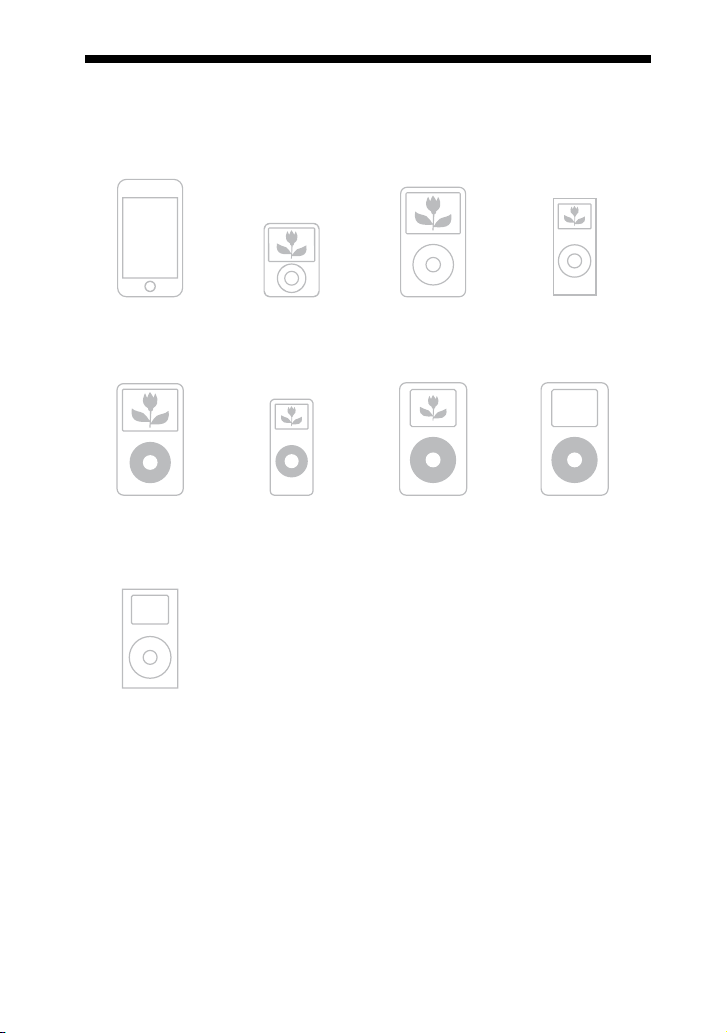
Compatible iPod models
You can use the following iPod models on the main unit. Update your iPod with the
latest soware before using it.
iPod touch iPod nano 3rd
generation (video)
iPod classic iPod nano 2nd
generation
(aluminum)
iPod 5th generation
(video)
iPod nano 1st
generation
iPod 4th generation
(color display)
iPod 4th generation
iPod mini

AIR-SA20PK.GB.4-117-793-11(1)
Others
43
GB
Index
A
Alarm 31
AM tuning interval 37
Antennas 19
Automatic tuning 27
B
Batteries 20
C
Clock 23
Compatible iPod 42
I
Illumination 33
Installation 8
iPod
Charging 27
Controlling 26
Listening 25
iPod AUDIO OUT L/R 29
iPod Dock Adapters 19
iPod VIDEO OUT 29
M
Main unit 10
MULTI SOURCE mode 24
O
Other component hookup 29
P
Pairing 21
PARTY mode 24
Power Saving Mode 30
Presetting radio stations 28
R
Radio 27
Remote 11, 15, 33
Reset 37
RF CHANGE 22
S
S-AIR 8
S-AIR connection 20
S-AIR ID 19, 20
S-AIR mode 24
Sub unit 14
T
Timer
Daily Timer 31
Sleep Timer 31
Troubleshooting 34
W
Wireless transceiver 19

AIR-SA20PK.GB.4-117-793-11(1)
Printed in China