Issue 10/2020 Art. No. 7001-0383
Operating Manual
Translation of the original operating manual
VD (E3.1)
Vacuum Drying Oven
Standard: with RD4 microprocessor program controller
Optional: with MB2 microprocessor program controller
Model Model version Art. No.
VD 23 VD023-230V 9630-0001
VD 23-UL VD023UL-120V 9630-0005
VD 56 VD056-230V 9630-0002
VD 56-UL VD056UL-120V 9630-0006
VD 115 VD115-230V 9630-0003
VD 115-UL VD115UL-120V 9630-0007
BINDER GmbH
Address: Post office box 102, 78502 Tuttlingen, Germany Phone: +49 7462 2005 0
Fax: +49 7462 2005 100 Internet: http://www.binder-world.com
E-mail: info@binder-world.com Service Hotline: +49 7462 2005 555
Service Fax: +49 7462 2005 93 555 Service E-Mail: customerservice@binder-world.com
Service Hotline USA: +1 866 885 9794 or +1 631 224 4340 x3
Service Hotline Asia Pacific: +852 390 705 04 or +852 390 705 03
Service Hotline Russia and CIS: +7 495 988 15 16

VD (E3.1) 10/2020 page 2/179
Contents
1. SAFETY .................................................................................................................. 8
1.1 Personnel Qualification ....................................................................................................................... 8
1.2 Operating manual ................................................................................................................................ 8
1.3 Legal considerations ........................................................................................................................... 8
1.4 Structure of the safety instructions ...................................................................................................... 9
1.4.1 Signal word panel ..................................................................................................................... 9
1.4.2 Safety alert symbol ................................................................................................................... 9
1.4.3 Pictograms .............................................................................................................................. 10
1.4.4 Word message panel structure ............................................................................................... 10
1.5 Localization / position of safety labels on the chamber .................................................................... 11
1.6 Type plate.......................................................................................................................................... 11
1.7 General safety instructions on installing and operating the chamber ............................................... 12
1.8 Intended use ..................................................................................................................................... 14
1.9 Foreseeable Misuse .......................................................................................................................... 16
1.10 Residual Risks .................................................................................................................................. 16
1.11 Operating instructions ....................................................................................................................... 18
1.12 Measures to prevent accidents ......................................................................................................... 18
2. DESCRIPTION OF THE EQUIPMENT ................................................................. 19
2.1 Chamber overview ............................................................................................................................ 20
2.2 Instrument panel with regular RD4 controller.................................................................................... 21
2.3 Instrument panel with optional MB2 controller .................................................................................. 21
2.4 Connections on the rear of the chamber ........................................................................................... 21
3. COMPLETENESS OF DELIVERY, TRANSPORTATION, STORAGE, AND
INSTALLATION .................................................................................................... 23
3.1 Unpacking, and checking equipment and completeness of delivery ................................................ 23
3.2 Guidelines for safe lifting and transportation ..................................................................................... 24
3.3 Storage .............................................................................................................................................. 24
3.4 Location of installation and ambient conditions ................................................................................ 24
4. INSTALLATION AND CONNECTIONS ............................................................... 26
4.1 Vacuum expansion racks and rack holders ...................................................................................... 26
4.2 Mounting the tilt protection holders ................................................................................................... 27
4.3 Pump module (option) ....................................................................................................................... 28
4.3.1 Pump module without pump (option) ...................................................................................... 29
4.3.2 Pump module with pump stand (option) ................................................................................. 29
4.4 Vacuum connection ........................................................................................................................... 31
4.4.1 VD connection kit for VAP1-VAP2 (option) ............................................................................. 31
4.5 Connecting inert gas supply .............................................................................................................. 32
4.6 Electrical connection ......................................................................................................................... 33
5. FUNCTIONAL OVERVIEW AND MENU STRUCTURE OF THE CONTROLLER 34
5.1 RD4 controller ................................................................................................................................... 34
5.1.1 Menu structure of the controller and access levels ................................................................ 35
5.2 MB2 controller ................................................................................................................................... 36
5.2.1 Operating functions in normal display ..................................................................................... 37
5.2.2 Display views: Normal display, program display, chart-recorder display ............................... 38
5.2.3 MB2 controller icons overview ................................................................................................ 39
5.2.4 MB2 controller operating modes ............................................................................................. 41
5.2.5 MB2 controller menu structure ................................................................................................ 41
5.2.5.1 Main menu ....................................................................................................................... 42
5.2.5.2 “Settings” submenu ......................................................................................................... 43
5.2.5.3 “Service” submenu .......................................................................................................... 43
5.2.6 Principle of controller entries .................................................................................................. 44

VD (E3.1) 10/2020 page 3/179
5.3
Performance during and after power failures .................................................................................... 44
5.3.1 RD4 controller ......................................................................................................................... 44
5.3.2 MB2 controller ......................................................................................................................... 45
6. START UP ............................................................................................................ 45
6.1 Condition after establishing the power connection ........................................................................... 45
6.2 Standby mode: Turning on and off the vacuum drying oven ............................................................ 46
6.2.1 RD4 controller ......................................................................................................................... 46
6.2.2 MB2 controller ......................................................................................................................... 47
6.3 Controller settings upon start up ....................................................................................................... 48
6.3.1 RD4 controller ......................................................................................................................... 48
6.3.2 MB2 controller ......................................................................................................................... 48
6.4 Vacuum system ................................................................................................................................. 49
6.4.1 Evacuation .............................................................................................................................. 49
6.4.2 Ventilation after completing the drying procedure (flooding with ambient air or inert gas) ..... 50
6.4.3 Ventilation / breaking the vacuum in case of a power failure ................................................. 50
6.4.4 Operation with inert gas .......................................................................................................... 50
7. SET-POINT ENTRY .............................................................................................. 51
7.1 RD4 controller ................................................................................................................................... 51
7.1.1 Temperature set-point entry ................................................................................................... 51
7.1.2 Pressure set-point entry .......................................................................................................... 52
7.2 MB2 controller ................................................................................................................................... 52
7.2.1 Set-point entry through the “Setpoints” menu ......................................................................... 52
7.2.2 Direct setpoint entry via Normal display ................................................................................. 53
8. SETTING SPECIAL CONTROLLER FUNCTIONS .............................................. 54
8.1 Menu structure .................................................................................................................................. 54
8.1.1 RD4 controller ......................................................................................................................... 54
8.1.1.1 “Functions on/off” menu................................................................................................... 54
8.1.1.2 Quick Access menu ......................................................................................................... 55
8.1.2 MB2 controller ......................................................................................................................... 55
8.1.2.1 “Functions on/off” menu................................................................................................... 55
8.1.2.2 “Control on/off” menu ....................................................................................................... 57
8.2 Turning off the vacuum pump via the socket on the pump module .................................................. 57
8.2.1 RD4 controller ......................................................................................................................... 57
8.2.2 MB2 controller ......................................................................................................................... 58
8.3 Using the optional universal connection “GAS/AIR 2” for ventilation ................................................ 58
8.3.1 RD4 controller ......................................................................................................................... 59
8.3.2 MB2 controller ......................................................................................................................... 59
8.4 Close all valves ................................................................................................................................. 60
8.4.1 RD4 controller ......................................................................................................................... 60
8.4.2 MB2 controller ......................................................................................................................... 60
8.5 Activating / deactivating temperature control .................................................................................... 61
8.5.1 RD4 controller ......................................................................................................................... 61
8.5.2 MB2 controller ......................................................................................................................... 61
8.6 Activating / deactivating pressure control ......................................................................................... 62
8.6.1 RD4 controller ......................................................................................................................... 62
8.6.2 MB2 controller ......................................................................................................................... 63
8.7 Drying monitoring .............................................................................................................................. 64
8.7.1 RD4 controller ......................................................................................................................... 65
8.7.2 MB2 controller ......................................................................................................................... 65
9. AUTHORIZATION LEVELS AND PASSWORD PROTECTION .......................... 66
9.1 RD4 controller ................................................................................................................................... 66
9.1.1 Password request ................................................................................................................... 66
9.1.2 Assign and modify a password ............................................................................................... 66
9.1.2.1 Assign and modify the User password ............................................................................ 66
9.1.2.2 Assign and modify the Admin password ......................................................................... 67

VD (E3.1) 10/2020 page 4/179
9.2
MB2 controller ................................................................................................................................... 68
9.2.1 User management, authorization levels and password protection ......................................... 68
9.2.2 Log in ...................................................................................................................................... 71
9.2.3 Log out .................................................................................................................................... 72
9.2.4 User change ............................................................................................................................ 72
9.2.5 Password assignment and password change ........................................................................ 73
9.2.5.1 Password change ............................................................................................................ 73
9.2.5.2 Deleting the password for an individual authorization level ............................................ 75
9.2.5.3 New password assignment for “service” or “admin” authorization level when the
password function was deactivated .................................................................................................. 76
9.2.6 Activation code ........................................................................................................................ 77
10. GENERAL CONTROLLER SETTINGS AND INFORMATION ............................. 78
10.1 RD4 controller ................................................................................................................................... 78
10.1.1 Selecting the controller’s menu language ............................................................................... 78
10.1.2 Selecting the temperature unit ................................................................................................ 78
10.1.3 Setting the current date........................................................................................................... 79
10.1.4 Setting the current time ........................................................................................................... 80
10.1.5 Function “Language selection at restart” ................................................................................ 80
10.1.6 Setting the chamber address .................................................................................................. 81
10.1.7 Display brightness ................................................................................................................... 81
10.1.8 Display of the inner chamber temperature and the heating temperature ............................... 81
10.2 MB2 controller ................................................................................................................................... 82
10.2.1 Selecting the controller’s menu language ............................................................................... 82
10.2.2 Setting date and time .............................................................................................................. 82
10.2.3 Selecting the temperature unit ................................................................................................ 84
10.2.4 Display configuration............................................................................................................... 84
10.2.4.1 Adapting the display parameters ..................................................................................... 84
10.2.4.2 Touchscreen calibration .................................................................................................. 85
10.2.5 Event list ................................................................................................................................. 86
10.2.6 Service contact page .............................................................................................................. 86
10.2.7 Current operating parameters ................................................................................................. 87
10.2.8 Technical chamber information ............................................................................................... 87
11. TEMPERATURE SAFETY DEVICES ................................................................... 88
11.1 Over temperature protective device class 2 (thermal switch) ........................................................... 88
11.2 Overtemperature safety controller class 2 ........................................................................................ 88
11.2.1 Safety controller mode ............................................................................................................ 88
11.2.2 Setting the safety controller .................................................................................................... 89
11.2.2.1 RD4 controller: Setting the safety controller mode .......................................................... 89
11.2.2.2 RD4 controller: Setting the safety controller value .......................................................... 89
11.2.2.3 MB2 controller ................................................................................................................. 90
11.2.3 Message and measures in the state of alarm ......................................................................... 91
11.2.3.1 RD4 controller .................................................................................................................. 91
11.2.3.2 MB2 controller ................................................................................................................. 91
11.2.4 Function check ........................................................................................................................ 92
12. TOLERANCE RANGE SETTINGS ....................................................................... 92
12.1 RD4 controller ................................................................................................................................... 92
12.1.1 Setting the delay time for temperature tolerance range alarm ............................................... 92
12.1.2 Setting the temperature tolerance range ................................................................................ 92
12.1.3 Setting the delay time for pressure tolerance range alarm ..................................................... 93
12.1.4 Setting the pressure tolerance range ...................................................................................... 93
12.1.5 State of alarm .......................................................................................................................... 93
12.2 MB2 controller ................................................................................................................................... 94
12.2.1 Setting the alarm delay times and the tolerance ranges ........................................................ 94
12.2.2 Alarm condition ....................................................................................................................... 94

VD (E3.1) 10/2020 page 5/179
13. NOTIFICATION AND ALARM FUNCTIONS ........................................................ 95
13.1 Information messages ....................................................................................................................... 95
13.1.1 RD4 controller ......................................................................................................................... 95
13.1.2 MB2 controller ......................................................................................................................... 96
13.2 Alarm messages ............................................................................................................................... 97
13.2.1 RD4 controller ......................................................................................................................... 97
13.2.2 MB2 controller ......................................................................................................................... 98
13.3 Resetting an alarm ............................................................................................................................ 99
13.3.1 RD4 controller ......................................................................................................................... 99
13.3.2 MB2 controller ......................................................................................................................... 99
13.4 Activating / deactivating the audible alarm (buzzer) ....................................................................... 100
13.4.1 RD4 controller ....................................................................................................................... 100
13.4.2 MB2 controller ....................................................................................................................... 100
14. RD4 CONTROLLER: PROGRAM START / STOP FUNCTION ......................... 101
14.1 Start time program .......................................................................................................................... 101
14.2 Start week program ......................................................................................................................... 101
14.3 Stop program .................................................................................................................................. 102
15. MB2 CONTROLLER: TIMER PROGRAM (STOPWATCH FUNCTION) ............ 103
15.1 Starting a timer program ................................................................................................................. 103
15.1.1 Performance during program delay time .............................................................................. 103
15.2 Stopping a running timer program .................................................................................................. 104
15.2.1 Pausing a running timer program ......................................................................................... 104
15.2.2 Cancelling a running timer program ...................................................................................... 104
15.3 Performance after the end of the program ...................................................................................... 104
16. MB2 CONTROLLER: TIME PROGRAMS .......................................................... 105
16.1 Starting an existing time program ................................................................................................... 105
16.1.1 Performance during program delay time .............................................................................. 106
16.2 Stopping a running time program .................................................................................................... 106
16.2.1 Pausing a running time program ........................................................................................... 106
16.2.2 Cancelling a running time program ....................................................................................... 106
16.3 Performance after the end of the program ...................................................................................... 106
16.4 Creating a new time program .......................................................................................................... 107
16.5 Program editor: program management ........................................................................................... 107
16.5.1 Deleting a time program........................................................................................................ 108
16.6 Section editor: section management ............................................................................................... 109
16.6.1 Add a new program section .................................................................................................. 110
16.6.2 Copy and insert or replace a program section ...................................................................... 110
16.6.3 Deleting a program section ................................................................................................... 111
16.7 Value entry for a program section ................................................................................................... 112
16.7.1 Section duration .................................................................................................................... 112
16.7.2 Set-point ramp and set-point step ......................................................................................... 113
16.7.3 Special controller functions ................................................................................................... 114
16.7.4 Setpoint entry ........................................................................................................................ 115
16.7.5 Tolerance range .................................................................................................................... 115
16.7.6 Repeating one or several sections within a time program .................................................... 116
16.7.7 Saving the time program ....................................................................................................... 117
17. MB2 CONTROLLER: WEEK PROGRAMS........................................................ 118
17.1 Starting an existing week program .................................................................................................. 118
17.2 Cancelling a running week program ............................................................................................... 118
17.3 Creating a new week program ........................................................................................................ 119
17.4 Program editor: program management ........................................................................................... 120
17.4.1 Deleting a week program ...................................................................................................... 121
17.5 Section editor: section management ............................................................................................... 122
17.5.1 Add a new program section .................................................................................................. 123
17.5.2 Copy and insert or replace a program section ...................................................................... 123
17.5.3 Deleting a program section ................................................................................................... 124

VD (E3.1) 10/2020 page 6/179
17.6
Value entry for a program section in the Section view .................................................................... 124
17.6.1 Set-point ramp and set-point step modes ............................................................................. 124
17.6.2 Weekday ............................................................................................................................... 125
17.6.3 Start time ............................................................................................................................... 125
17.6.4 Setpoint entry ........................................................................................................................ 125
17.6.5 Special controller functions ................................................................................................... 126
18. NETWORK AND COMMUNICATION ................................................................ 126
18.1 RD4 controller: Ethernet network settings ...................................................................................... 126
18.1.1 Showing the network settings ............................................................................................... 126
18.1.1.1 Showing the chamber’s MAC address .......................................................................... 126
18.1.1.2 Showing the IP address................................................................................................. 127
18.1.1.3 Showing the subnet mask ............................................................................................. 127
18.1.1.4 Showing the standard gateway ..................................................................................... 127
18.1.1.5 Showing the DNS server address ................................................................................. 128
18.1.1.6 Showing the DNS chamber name ................................................................................. 128
18.1.2 Changing the configuration of the network settings .............................................................. 128
18.1.2.1 Selecting the type of IP address assignment (automatic / manual) .............................. 129
18.1.2.2 Selecting the type of assignment of the DNS server address (automatic / manual) ..... 129
18.1.2.3 Assigning the IP address ............................................................................................... 129
18.1.2.4 Setting the subnet mask ................................................................................................ 130
18.1.2.5 Setting the standard gateway ........................................................................................ 131
18.1.2.6 Assigning the DNS server address ............................................................................... 131
18.2 MB2 controller ................................................................................................................................. 132
18.2.1 Ethernet ................................................................................................................................ 132
18.2.1.1 Configuration ................................................................................................................. 132
18.2.1.2 Display of MAC address ................................................................................................ 133
18.2.2 Web server ............................................................................................................................ 133
18.2.3 E-Mail .................................................................................................................................... 134
19. RD4 CONTROLLER: DATA RECORDER ......................................................... 135
19.1 Recorded data ................................................................................................................................. 135
19.2 Storage capacity ............................................................................................................................. 135
19.3 Setting the storage rate for the “DL1” recorder data ....................................................................... 136
19.4 Deleting the data recorder............................................................................................................... 136
20. USB MENU: DATA TRANSFER VIA USB INTERFACE ................................... 136
20.1 RD4 controller ................................................................................................................................. 136
20.1.1 Connecting the USB stick ..................................................................................................... 137
20.1.2 Import function ...................................................................................................................... 137
20.1.3 Export functions .................................................................................................................... 137
20.1.4 Ongoing data transfer ........................................................................................................... 138
20.1.5 Error during data transmission .............................................................................................. 138
20.1.6 Removing the USB stick ....................................................................................................... 138
20.2 MB2 controller ................................................................................................................................. 138
21. MB2 CONTROLLER: CHART RECORDER DISPLAY ...................................... 140
21.1 Views ............................................................................................................................................... 140
21.1.1 Show and hide legend .......................................................................................................... 140
21.1.2 History display ....................................................................................................................... 140
21.2 Setting the parameters .................................................................................................................... 143
22. REFERENCE MEASUREMENTS ...................................................................... 144
22.1 Checking the temperature in the inner chamber ............................................................................. 144
22.1.1 Checking the controller display ............................................................................................. 144
22.1.2 Checking the spatial temperature exactitude ....................................................................... 144
23. OPTIONS ............................................................................................................ 145
23.1 APT-COM™ 4 Multi Management software (Option) ..................................................................... 145

VD (E3.1) 10/2020 page 7/179
23.2
Analog outputs for temperature and pressure (option) ................................................................... 145
23.3 Measuring access port for vacuum, 9 poles (option) ...................................................................... 145
23.4 Object temperature display with flexible Pt 100 temperature sensor (option) ................................ 146
23.4.1 Connection of the object temperature sensor ....................................................................... 146
23.4.2 Display on the RD4 controller ............................................................................................... 147
23.4.3 Display on the MB2 controller ............................................................................................... 147
23.5 LED interior lighting ......................................................................................................................... 147
24. CLEANING AND DECONTAMINATION ............................................................ 148
24.1 Cleaning .......................................................................................................................................... 148
24.2 Decontamination / chemical disinfection ......................................................................................... 149
25. MAINTENANCE AND SERVICE, TROUBLESHOOTING, REPAIR, TESTING . 151
25.1 General information, personnel qualification................................................................................... 151
25.2 Simple troubleshooting .................................................................................................................... 151
25.3 Maintenance intervals, service ........................................................................................................ 154
25.4 Service Reminder ............................................................................................................................ 154
25.4.1 RD4 controller ....................................................................................................................... 154
25.4.2 MB2 controller ....................................................................................................................... 155
25.5 Sending the chamber back to BINDER GmbH ............................................................................... 155
26. DISPOSAL.......................................................................................................... 156
26.1 Disposal of the transport packing .................................................................................................... 156
26.2 Decommissioning ............................................................................................................................ 156
26.3 Disposal of the chamber in the Federal Republic of Germany ....................................................... 157
26.4 Disposal of the chamber in the member states of the EU except for the Federal Republic of
Germany.......................................................................................................................................... 158
26.5 Disposal of the chamber in non-member states of the EU ............................................................. 159
27. TECHNICAL DESCRIPTION .............................................................................. 160
27.1 Factory calibration and adjustment ................................................................................................. 160
27.2 Over current protection ................................................................................................................... 160
27.3 VD / VD-UL technical data .............................................................................................................. 160
27.4 Equipment and options (extract) ..................................................................................................... 162
27.5 Accessories and spare parts (extract) ............................................................................................ 163
27.6 Dimensions...................................................................................................................................... 165
27.6.1 VD 23 .................................................................................................................................... 165
27.6.2 VD 56 .................................................................................................................................... 166
27.6.3 VD 115 .................................................................................................................................. 167
28. CERTIFICATES AND DECLARATIONS OF CONFORMITY ............................. 168
28.1 EU Declaration of Conformity.......................................................................................................... 168
28.2 Certificate for the GS mark of conformity of the “Deutsche Gesetzliche Unfallversicherung e.V.”
(German Social Accident Insurance) DGUV ................................................................................... 171
29. PRODUCT REGISTRATION .............................................................................. 173
30. CONTAMINATION CLEARANCE CERTIFICATE ............................................. 174
30.1 For chambers located outside USA and Canada ........................................................................... 174
30.2 For chambers located in USA and Canada .................................................................................... 177

VD (E3.1) 10/2020 page 8/179
Dear customer,
For the correct operation of the chamber, it is important that you read this operating manual completely
and carefully and observe all instructions as indicated. Failure to read, understand and follow the
instructions may result in personal injury. It can also lead to damage to the chamber and/or poor
equipment performance.
1. Safety
1.1 Personnel Qualification
The chamber must only be installed, tested, and started up by personnel qualified for assembly, startup,
and operation of the chamber. Qualified personnel are persons whose professional education,
knowledge, experience and knowledge of relevant standards allow them to assess, carry out, and identify
any potential hazards in the work assigned to them. They must have been trained and instructed, and be
authorized, to work on the chamber.
The chamber should only be operated by laboratory personnel especially trained for this purpose and
familiar with all precautionary measures required for working in a laboratory. Observe the national
regulations on minimum age of laboratory personnel.
1.2 Operating manual
This operating manual is part of the components of delivery. Always keep it handy for reference in the
vicinity of the chamber. If selling the unit, hand over the operating manual to the purchaser.
To avoid injuries and damage observe the safety instructions of the operating manual. Failure to follow
instructions and safety precautions can lead to significant risks.
DANGER
Dangers due to failure to observe the instructions and safety precautions.
Serious injuries and chamber damage. Risk of death.
Observe the safety instructions in this Operating Manual.
Follow the operating procedures in this Operating Manual.
Carefully read the complete operating instructions of the chamber prior to installing and
using the chamber.
Keep the operating manual for future reference
Make sure that all persons who use the chamber and its associated work equipment have
read and understood the Operating Manual.
This Operating Manual is supplemented and updated as needed. Always use the most recent version of
the Operating Manual. When in doubt, call the BINDER Service Hotline for information on the up-to-
dateness and validity of this Operating Manual.
1.3 Legal considerations
This operating manual is for informational purposes only. It contains information for correct and safe
installing, start-up, operation, decommissioning, cleaning and maintenance of the product. Note: the
contents and the product described are subject to change without notice.
Understanding and observing the instructions in this operating manual are prerequisites for hazard-free
use and safety during operation and maintenance. Images are to provide basic understanding. They may
deviate from the actual version of the chamber. The actual scope of delivery can, due to optional or
special design, or due to recent technical changes, deviate from the information and illustrations in these
instructions this operating manual. In no event shall BINDER be held liable for any damages, direct or
incidental arising out of or related to the use of this manual.

VD (E3.1) 10/2020 page 9/179
This operating manual cannot cover all conceivable applications. If you would like additional information,
or if special problems arise that are not sufficiently addressed in this manual, please ask your dealer or
contact us directly by phone at the number located on page one of this manual
Furthermore, we emphasize that the contents of this operating manual are not part of an earlier or
existing agreement, description, or legal relationship, nor do they modify such a relationship. All
obligations on the part of BINDER derive from the respective purchase contract, which also contains the
entire and exclusively valid statement of warranty administration and the general terms and conditions, as
well as the legal regulations valid at the time the contract is concluded. The statements in this manual
neither augment nor restrict the contractual warranty provisions.
1.4 Structure of the safety instructions
In this operating manual, the following safety definitions and symbols indicate dangerous situations
following the harmonization of ISO 3864-2 and ANSI Z535.6.
1.4.1 Signal word panel
Depending on the probability of serious consequences, potential dangers are identified with a signal
word, the corresponding safety color, and if appropriate, the safety alert symbol.
DANGER
Indicates an imminently hazardous situation that, if not avoided, will result in death or serious
(irreversible) injury.
WARNING
Indicates a potentially hazardous situation which, if not avoided, could result in death or serious
(irreversible) injury.
CAUTION
Indicates a potentially hazardous situation which, if not avoided, may result in moderate or minor
(reversible) injury.
NOTICE
Indicates a potentially hazardous situation which, if not avoided, may result in damage to the product
and/or its functions or of a property in its proximity.
1.4.2 Safety alert symbol
Use of the safety alert symbol indicates a risk of injury.
Observe all measures that are marked with the safety alert symbol in order to avoid death or
injury.

VD (E3.1) 10/2020 page 10/179
1.4.3 Pictograms
Warning signs
Electrical hazard
Hot surface
Explosive atmosphere
Stability hazard
Lifting hazard
Inhalation hazard
Suffocation hazard
Harmful substances
Biohazard
Risk of corrosion and /
or chemical burns
Pollution Hazard
Mandatory action signs
Mandatory regulation
Read operating
instructions
Disconnect the power
plug
Lift with several persons
Environment protection
Wear protective gloves
Wear safety goggles
Prohibition signs
Do NOT touch
Do NOT spray with
water
Information to be observed in order to ensure optimum function of the product.
1.4.4 Word message panel structure
Type / cause of hazard.
Possible consequences.
∅ Instruction how to avoid the hazard: prohibition
Instruction how to avoid the hazard: mandatory action
Observe all other notes and information not necessarily emphasized in the same way, in order to avoid
disruptions that could result in direct or indirect injury or property damage.

VD (E3.1) 10/2020 page 11/179
1.5 Localization / position of safety labels on the chamber
The following labels are located on the chamber:
Pictograms (Warning signs)
Figure 1: Position of labels on the chamber (example:
regular chamber with RD4 controller)
Hot surface
(on the outer chamber door)
Service label
Keep safety labels complete and
legible.
Replace
safety labels that are no longer
legible. Contact BINDER Service for these
replacements.
1.6 Type plate
The type plate sticks to the left side of the chamber, bottom right-hand.
Figure 2: Type plate (example of VD 115)
Indications of the type plate (example)
Information
BINDER
Manufacturer: BINDER GmbH
VD 115
Model designation
Vacuum Drying Oven
Device name
Serial No.
000000000000
Serial no. of the chamber
Built
2020
Year of construction
Nominal temperature
220 °C
428 °F
Nominal temperature
IP protection
20
IP type of protection acc. to standard EN 60529
Nominal temp.
220 °C
1,60 kW / 7,0 A
428 °F
230 V / 50 Hz
IP protection
20
230 V / 60 Hz
Safety device
DIN 12880
1 N ~
Class
2.0
Art. No.
9630-0003
Project No.
Built
2020
Vacuum Drying Oven
BINDER GmbH
Im Mittleren Ösch 5
78532 Tuttlingen / Germany
www.binder-world.com
VD 115
E3.1
Serial No. 00000000000000
Made in Germany

VD (E3.1) 10/2020 page 12/179
Indications of the type plate (example)
Information
Temp. safety device
DIN 12880
Temperature safety device acc. to standard DIN
12880:2007
Class
2.0
Class of temperature safety device
Art. No.
9630-0003
Art. no. of the chamber
Project No.
---
Optional: Special application acc. to project no.
1,60 kW
Nominal power
7,0 A
Nominal current
230 V / 50 Hz
Nominal voltage +/- 10% at the indicated power frequency
230 V / 60 Hz
1 N ~
Current type
Symbol on the type plate
Information
CE conformity marking
Electrical and electronic equipment manufactured / placed on the
market in the EC after 13 August 2005 and to be disposed of in a
separate collection according to Directive 2012/19/EU on waste
electrical and electronic equipment (WEEE).
GS mark of conformity of the “Deutsche Gesetzliche
Unfallversicherung e.V. (DGUV), Prüf- und Zertifizierungsstelle
Nahrungsmittel und Verpackung im DGUV Test” (German Social
Accident Insurance (DGUV), Testing and Certification Body for
Foodstuffs and Packaging Industry in DGUV Test).
(Not valid for UL chambers)
The chamber is certified according to Customs Union Technical
Regulation (CU TR) for the Eurasian Economic Union (Russia,
Belarus, Armenia, Kazakhstan Kyrgyzstan).
1.7 General safety instructions on installing and operating the chamber
With regard to operating the chamber and to the installation location, please observe the DGUV
guidelines 213-850 on safe working in laboratories, issued by the employers’ liability insurance
association (for Germany).
BINDER GmbH is only responsible for the safety features of the chamber provided skilled electricians or
qualified personnel authorized by BINDER perform all maintenance and repair, and if components
relating to chamber safety are replaced in the event of failure with original spare parts.
To operate the chamber, use only original BINDER accessories or accessories from third-party suppliers
authorized by BINDER. The user is responsible for any risk caused by using unauthorized accessories.
NOTICE
Danger of overheating due to lack of ventilation.
Damage to the chamber.
∅ Do NOT install the chamber in unventilated recesses.
Ensure sufficient ventilation for dispersal of the heat.
Observe the prescribed minimum distances when installing the chamber (chap. 3.4)

VD (E3.1) 10/2020 page 13/179
Do not install or operate the vacuum drying oven VD in potentially explosive areas.
DANGER
Danger of explosion due to combustible dusts or explosive mixtures in the vicinity
of the equipment.
Serious injury or death from burns and / or explosion pressure.
Do NOT operate the equipment in potentially explosive areas.
KEEP combustible dust or air-solvent mixtures AWAY from the equipment.
The chamber does not dispose of any measures of explosion protection.
DANGER
Danger of explosion due to introduction of flammable or explosive substances in
the chamber.
Serious injury or death from burns and / or explosion pressure.
∅ Do NOT introduce any substance into the chamber which is combustible or explosive at
working temperature.
∅ Do NOT introduce any combustible dust or air-solvent mixture in the inner chamber.
∅ Do NOT use the vacuum drying oven for drying or heat treatments leading to release of
combustible vapors able to form an explosive mixture with air.
Any solvent contained in the charging material must not be explosive or inflammable. I.e., irrespective of
the solvent concentration in the steam room, NO explosive mixture with air must form. The drying
temperature must lie below the flash point or below the sublimation point of the charging material.
Familiarize yourself with the physical and chemical properties of the charging material, as well as the
contained moisture constituent and its behavior with the addition of heat energy and changes in pressure.
Familiarize yourself with any potential health risks caused by the charging material, the contained
moisture constituent or by reaction products that may arise during the drying process. Take adequate
measures to exclude such risks prior to putting the chamber into operation.
DANGER
Electrical hazard by water entering the chamber.
Deadly electric shock.
∅ The chamber must NOT become wet during operation, cleaning, or maintenance.
∅ Do NOT install the chamber in damp areas or in puddles.
Set up the chamber in a splash-proof manner.
The chambers were produced in accordance with the relevant VDE regulations and were routinely tested
in accordance to VDE 0411-1 (IEC 61010-1).
During and shortly after operation, the temperature of the inner surfaces almost equals the set-point. The
inner chamber will become hot during operation.
CAUTION
Danger of burning when touching the inner surfaces during operation.
Burns.
∅ Do NOT touch the inner surfaces or the charging material during and after operation.

VD (E3.1) 10/2020 page 14/179
In the case of operation with inert gas, the chamber is supplied with an oxygen-displacing gas (e.g. N
2
).
The gas emerging from the system must therefore be removed from the installation area by means of a
suitable extraction system (see technical ventilation measures in the DGUV guidelines 213-850 on safe
working in laboratories, issued by the employers’ liability insurance association (for Germany).
With use of a vacuum system or a vacuum pump, observe the permitted gas inlet
temperature. Observe the safety instructions of the pump manufacturer.
1.8 Intended use
Observing the instructions in this operating manual and conducting regular maintenance work
(chap. 24) is part of the intended use.
Any use of the chambers that does not comply with the requirements specified in this Operating
Manual shall be considered improper use.
Other applications than those described in this chapter are not approved.
Use
The VD vacuum drying ovens are suitable for drying and heat treatment of solid or pulverized charging
material, as well as bulk material, using the supply of heat under vacuum.
Requirements for the chamber load
Any solvent content must not be explosive or flammable. A mixture of any component of the charging
material with air must NOT be explosive. The drying temperature must lie below the flash point or below
the sublimation point of the charging material. Any component of the charging material must NOT be able
to release toxic gases.
The loading material shall not contain any corrosive ingredients that may damage the machine
components made of stainless steel and aluminum. Such ingredients include in particular acids and
halides. Any corrosive damage caused by such ingredients is excluded from liability by BINDER GmbH.
The chamber does not dispose of any measures of explosion protection.
DANGER
Explosion or implosion hazard and danger of poisoning through the introduction of
unsuitable loading material.
Poisoning. Serious injury or death from burns and / or explosion pressure.
∅ Do NOT introduce any substance combustible or explosive at working temperature into
the chamber, in particular no energy sources such as batteries or lithium-ion batteries.
∅ Do NOT introduce explosive dust or air-solvent mixture into the inner chamber.
∅ Do NOT introduce any substance which could lead to release of toxic gases.

VD (E3.1) 10/2020 page 15/179
Contamination of the chamber by toxic, infectious or radioactive substances must be prevented
WARNING
Danger of intoxication and infection through contamination of the chamber with
toxic, infectious or radioactive substances.
Damages to health.
Protect the interior of the chamber from contamination by toxic, infectious or radioactive
substances.
Take suitable protective measures when introducing and removing toxic, infectious or
radioactive material
In case of foreseeable use of the chamber there is no risk for the user through the integration of the
chamber into systems or by special environmental or operating conditions in the sense of EN 61010-
1:2010. For this, the intended use of the chamber and all its connections must be observed.
Medical devices
The chambers are not classified as medical devices as defined by the Medical Device Directive
93/42/EEC.
Due to the special demands of the Medical Device Directive (MDD), these chambers are not
qualified for sterilization of medical devices as defined by the directive 93/42/EWG.
Personnel Requirements
Only trained personnel with knowledge of the Operating Manual can set up and install the chamber, start
it up, operate, clean, and take it out of operation. Service and repairs call for further technical
requirements (e.g. electrical know-how), as well as knowledge of the service manual.
Installation site requirements
The chambers are designed for setting up inside a building (indoor use).
The requirements described in the Operating Manual for installation site and ambient conditions (Chap.
3.4) must be met.

VD (E3.1) 10/2020 page 16/179
1.9 Foreseeable Misuse
Other applications than those described in chap. 1.8 are not approved.
This expressly includes the following misuses (the list is not exhaustive), which pose risks despite the
inherently safe construction and existing technical safety equipment:
• Non-observance of Operating Manual
• Non-observance of information and warnings on the chamber (e.g. control unit messages, safety
identifiers, warning signals)
• Installation, startup, operation, maintenance and repair by untrained, insufficiently qualified, or
unauthorized personnel
• Missed or delayed maintenance and testing
• Non-observance of traces of wear and tear
• Insertion of materials excluded or not permitted by this Operating Manual.
• Non-compliance with the admissible parameters for processing the respective material.
• Installation, testing, service or repair in the presence of solvents
• Installation of replacement parts and use of accessories and operating resources not specified and
authorized by the manufacturer
• Installation, startup, operation, maintenance or repair of the chamber in absence of operating
instructions by the operator
• Bypassing or changing protective systems, operation of the chamber without the designated protective
systems
• Non-observance of messages regarding cleaning and disinfection of the chamber.
• Spilling water or cleaning agent on the chamber, water penetrating into the chamber during operation,
cleaning or maintenance.
• Cleaning activity while the chamber is turned on.
• Operation of the chamber with a damaged housing or damaged power cord
• Continued operation of the chamber during an obvious malfunction
• Insertion of objects, particularly metallic objects, in louvers or other openings or slots on the chamber
• Human error (e.g. insufficient experience, qualification, stress, exhaustion, laziness)
To prevent these and other risks from incorrect operation, the operator shall issue operating instructions.
Standard operating procedures (SOPs) are recommended.
1.10 Residual Risks
The unavoidable design features of a chamber, as well as its proper field of application, can also pose
risks, even during correct operation. These residual risks include hazards which, despite the inherently
safe design, existing technical protective equipment, safety precautions and supplementary protective
measures, cannot be ruled out.
Messages on the chamber and in the Operating Manual warn of residual risks. The consequences of
these residual risks and the measures required to prevent them are listed in the Operating Manual.
Moreover, the operator must take measures to minimize hazards from unavoidable residual risks. This
includes, in particular, issuing operating instructions.
The following list summarizes the hazards against which this Operating Manual and the Service Manual
warn, and specifies protective measures at the appropriate spots:

VD (E3.1) 10/2020 page 17/179
Unpacking, Transport, Installation
• Sliding or tilting the chamber
• Setup of the chamber in unauthorized areas
• Installation of a damaged chamber
• Installation of a chamber with damaged power cord
• Inappropriate site of installation
• Missing protective conductor connection
Normal operation
• Assembly errors
• Contact with hot surfaces on the housing
• Contact with hot surfaces in the interior and inside of doors
• Emission of non-ionizing radiation from electrical operating resources
• Contact with live parts in normal state
Cleaning and Decontamination
• Penetration of water into the chamber
• Inappropriate cleaning and decontamination agents
• Enclosure of persons in the interior
Malfunction and Damage
• Continued operation of the chamber during an obvious malfunction or outage of the heating or the
vacuum system
• Contact with live parts during error status
• Operation of a unit with damaged power cord
Maintenance
• Maintenance work on live parts.
• Execution of maintenance work by untrained/insufficiently qualified personnel
• Electrical safety analysis during annual maintenance not performed
Trouble-shooting and Repairs
• Non-observance of warning messages in the Service Manual
• Trouble-shooting of live parts without specified safety measures
• Absence of a plausibility check to rule out erroneous inscription of electrical components
• Performance of repair work by untrained/insufficiently qualified personnel
• Inappropriate repairs which do not meet the quality standard specified by BINDER
• Use of replacement parts other than BINDER original replacement parts
• Electrical safety analysis not performed after repairs

VD (E3.1) 10/2020 page 18/179
1.11 Operating instructions
Depending on the application and location of the chamber, the operator of the chamber must provide the
relevant information for safe operation of the chamber in a set of operating instructions.
Keep these operating instructions with the chamber at all times in a place where they are
clearly visible. They must be comprehensible and written in the language of the employees.
1.12 Measures to prevent accidents
The manufacturer took the following measures to prevent ignition and explosions:
• Indications on the type plate
See operating manual chap. 1.6.
• Operating manual
An operating manual is available for each chamber.
• Overtemperature monitoring
The chamber is equipped with a temperature display, which can be read from outside.
The chamber is equipped with an additional safety controller (temperature safety device class 2 acc. to
DIN 12880:2007). Visual and audible (buzzer) signals indicate temperature exceeding.
• Safety, measurement, and control equipment
The safety, measuring, and control equipment is easily accessible.
• Electrostatic charge
The interior parts are grounded.
• Non-ionizing radiation
Non-ionizing radiation is not intentionally produced, but released only for technical reasons by
electrical equipment (e.g. electric motors, power cables, solenoids). The machine has no permanent
magnets. If persons with active implants (e.g. pacemakers, defibrillators) keep a safe distance
(distance of field source to implant) of 30 cm, an influence of these implants can be excluded with high
probability.
• Protection against touchable surfaces
Tested according to EN ISO 13732-1:2008.
• Floors
See operating manual chap. 3.4 for correct installation
• Cleaning
See operating manual chap. 24.
• Examinations
The chamber has been inspected by the “Deutsche Gesetzliche Unfallversicherung e.V. (DGUV)
(German Social Accident Insurance (DGUV)” (German Social Accident Insurance (DGUV), Testing
and Certification Body for Foodstuffs and Packaging Industry in DGUV Test) and bears the GS mark.
(Not valid for UL chambers)

VD (E3.1) 10/2020 page 19/179
2. Description of the equipment
Vacuum drying is used for special drying problems, for which conventional drying methods cannot offer a
solution due to physical limitations.
Controller
The chambers are equipped with a multifunctional microprocessor display controller with 2-channel
technology for temperature and pressure. Temperature is indicated accurate to one-tenth of a degree, the
pressure inside the chamber accurate to one 1 mbar. Pressure is measured by a firmly installed pressure
sensor.
Standard RD4 controller: The chamber is regularly equipped with the RD4 controller. This efficient
chamber controller is equipped with a multitude of operating functions, in addition to recorder and alarm
functions. Set-point entry is easily accomplished directly via the chamber controller and is also possible
directly with a computer via Intranet in connection with the optional APT-COM™ 4 Multi Management
Software (option, chap. 23.1).
Option MB2 controller: The chamber is optionally available with the MB2 display program controller.
This efficient program controller is equipped with a multitude of operating functions, in addition to recorder
and alarm functions. Programming of test cycles is easily accomplished via the modern MB2 touch
screen controller and is also possible directly with a computer via Intranet in connection with the APT-
COM™ 4 Multi Management Software (option, chap. 23.1).
The chamber comes equipped with an Ethernet serial interface for computer communication and with a
USB interface. In addition, the BINDER APT-COM™ 4 Multi Management Software permits networking
up to 100 chambers and connecting them to a PC for controlling and programming, as well as recording
and representing temperature and pressure data. For further options, see chap. 23.
Material
The inner chamber is made of especially corrosion resistant stainless steel V4A (German material no.
1.4404, US equivalent AISI 316L) micro-polished. The rack holder and all of the chamber's vacuum
connections and valves are made of especially corrosion resistant stainless steel V4A (German material
no. 1.4571, US equivalent AISI 316Ti). The housing is RAL 7035 powder-coated. All corners and edges
are also completely coated. When operating the chamber at temperatures above 150 °C / 302 °F, the
impact of the oxygen in the air may cause discoloration of the metallic surfaces (yellowish-brown or blue)
by natural oxidation processes. These colorations are harmless and will in no way impair the function or
quality of the chamber.
The chambers are jacket-heated. The preheating chamber technique ensures a completely
homogeneous jacket temperature, ensuring uniform heat transfer into the inner chamber. The low-loss
heat transfer to the material uses the aluminum vacuum expansion racks (or optionally available in
stainless steel). The elastic-mounted safety glass window reliably compensates any overpressure or
explosions that may occur. The additional laminated safety glass pane ensures proven and effective
splinter protection in the event of an implosion.
The chambers provide a universal connection for inert gas / ambient air and a measuring connection
serving to connect a measuring access port.
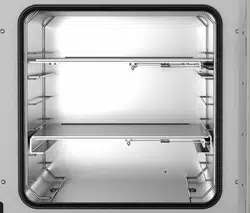
All installable items, such as racks and rack holders, can be easily removed. The completely smooth
inner chamber with its rounded corners and internally welded seams is easy to clean.
The minimum working temperature of the vacuum drying oven is approx. 10 °C / 18 °F above room
temperature. The maximum temperature is 220 °C / 428 °F.
Vacuum pumps with a suction capacity of 1 m
3
/h to 30 m
3
/h are suitable for the VD vacuum drying oven.

VD (E3.1) 10/2020 page 20/179
2.1 Chamber overview
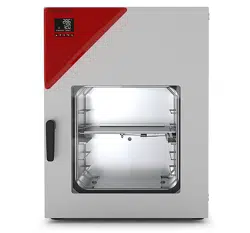
Figure 3: VD 115 with RD4 controller
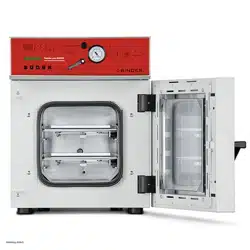
Figure 4: VD 115 with optional MB2 controller
(A) Triangular instrument panel with chamber controller
(B) Chamber door
(C) Door handle
(D) Elastic-mounted safety glass window
(A)
(B)
(C)
(D)
(A)
(B)
(C)
(D)

VD (E3.1) 10/2020 page 21/179
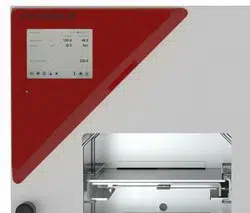
2.2 Instrument panel with regular RD4 controller
RD4 controller display
Switch for LED interior lighting (option)
USB interface
Figure 5: Instrument panel with RD4 controller and USB interface
2.3 Instrument panel with optional MB2 controller
5,7" controller display with touchscreen
USB interface
Pilot lamp
Switch for LED interior lighting (option)
Figure 6: Instrument panel with MB2 program controller and USB interface
2.4 Connections on the rear of the chamber
Rear control panel
Mounting holes for fixing the tilt protection holders
(1a) Strain relief for IEC connector plug
(12) Measuring connection with small flange DN16
Figure 7: Chamber rear (example: VD 115)

VD (E3.1) 10/2020 page 22/179
(1) (2) (3) (5) (8) (9) (10) (11)
VD 23
(6) (4) (7)
(1) (2) (3) (5) (8) (9) (10) (11)
VD 56
(4) (6) (7)
(1) (2) (3) (5) (8) (9) (10) (11)
VD 115
(4) (6) (7)
Figure 8: Rear control panel VD (230 V) with options
(1) Connection for IEC connector plug 230 V AC for VD
Connection for IEC connector plug 100-120 V AC for VD -UL
(2) Miniature fuses 250 V AC (T): 2x 6,3 A for VD 23, 2x 8 A for VD 56, 2x 10 A for VD 115, 1x 10 A for
VD 23-UL, 2x 16 A for VD 56-UL, 2x 20 A for VD 115-UL
(3) Ethernet interface for computer communication
(4) Universal connection for inert gas / ambient air “GAS/AIR”, adapter with hose olive ∅ 8 mm / 0.31
in
(5) Additional universal connection for inert gas / ambient air “GAS/AIR 2” (option), adapter with hose
olive ∅ 8 mm / 0.31 in
(6) Vacuum connection with small flange DN16
(7) Plug “Manual ventilation” for emergency ventilation in case of power failure
(8) SUB-D socket “Pump module” for control line to turn on/off the vacuum pump via the socket on the
pump module
(9) SUB-D socket “Object temperature input” (option) for optional object temperature display
(10) SUB-D socket “Analog output” (option) for optional analog outputs for temperature and pressure

VD (E3.1) 10/2020 page 23/179
3. Completeness of delivery, transportation, storage, and
installation
3.1 Unpacking, and checking equipment and completeness of delivery
After unpacking, please check the chamber and its optional accessories, if any, based on the delivery
receipt for completeness and for transportation damage. Inform the carrier immediately if transportation
damage has occurred.
The final tests of the manufacturer may have caused traces of the shelves on the inner surfaces. This has
no impact on the function and performance of the chamber.
Please remove any transportation protection devices and adhesives in/on the chamber and on the doors
and remove the operating manuals and accessory equipment.
Due to different installation heights above sea level, a slight negative pressure in the inner chamber may
prevent the door from being opened. Therefore, after unpacking the chamber, remove the plug “Manual
ventilation” (5) for emergency ventilation from the tube to ensure pressure equalization. After this,
thoroughly reinstall the plug.
CAUTION
Risk of injury and damages by lifting heavy loads and by sliding or tilting of the
chamber due to improper lifting.
Injuries, damage to the chamber.
∅ Do NOT lift the chamber using the door handle or the door.
Lift chambers size 23 and 56 from the pallet at the four lower corners with the aid of 4
people.
Lift chambers size 115 from the pallet with the aid of 6 people.
If you need to return the chamber, please use the original packing and observe the guidelines for safe
lifting and transportation (chap. 3.2).
For disposal of the transport packing, see chap. 26.1.
If you ordered the optional pump module with a chemical membrane pump, the pump will be delivered in
a separate box and must be fitted into the pump module and connected at the place of installation (see
chap. 4.3.2).
Note on second-hand chambers (Ex-Demo-Units):
Second-hand chambers are chambers that were used for a short time for tests or exhibitions. They are
thoroughly tested before resale. BINDER ensures that the chamber is technically sound and will work
flawlessly.
Second-hand chambers are marked with a sticker on the chamber door. Please remove the sticker before
commissioning the chamber.

VD (E3.1) 10/2020 page 24/179
3.2 Guidelines for safe lifting and transportation
After operation, please observe the guidelines for temporarily decommissioning the chamber (chap. 26.2).
CAUTION
Risk of injury and damages by lifting heavy loads and by sliding or tilting of the
chamber due to improper transportation.
Injuries, damage to the chamber.
Transport the chamber in its original packaging only.
For moving or shipping, secure the chamber with transport straps.
∅ Do NOT lift or transport the chamber using the door or handle.
Lift chambers size 23 and 56 at the four lower corners with the aid of 4 people.
Lift chambers size 115 with the aid of 6 people.
• Permissible ambient temperature range during transport: -10 °C / 14°F to +60 °C / 140°F.
You can order transport packing for moving or shipping purposes from BINDER Service.
3.3 Storage
Intermediate storage of the chamber in a closed and dry room. Observe the guidelines for temporary
decommissioning (chap. 26.2).
• Permissible ambient temperature range during storage: -10 °C / 14°F to +60 °C / 140°F.
• Permissible ambient humidity: max. 70 % r.h., non-condensing
When after storage in a cold location you transfer the chamber to its warmer installation site,
condensation may form. Before start-up, wait at least one hour until the chamber has attained ambient
temperature and is completely dry.
3.4 Location of installation and ambient conditions
Set up the VD vacuum drying oven on a flat, even, and non-flammable surface, free from vibration, in a
well-ventilated, dry location. Align it using a spirit level. The site of installation must be capable of
supporting the chamber’s weight (see technical data, chap. 27.3). The chambers are designed for setting
up inside a building (indoor use).
NOTICE
Danger of overheating due to lack of aeration.
Damage to the chamber.
∅ Do NOT install the chamber in unventilated recesses.
Ensure sufficient ventilation for dispersal of the heat.
Observe the prescribed minimum distances when installing the chamber.

VD (E3.1) 10/2020 page 25/179
Do not install or operate the chamber in potentially explosive areas.
DANGER
Danger of explosion due to combustible dusts or explosive mixtures in the vicinity
of the chamber.
Serious injury or death from burns and / or explosion pressure.
∅ Do NOT operate the chamber in potentially explosive areas.
KEEP explosive dust or air-solvent mixtures AWAY from the vicinity of the chamber.
Ambient conditions
• Permissible ambient temperature range during operation: +18 °C / 64°F to +32 °C / 90°F.
The ambient temperature should not be substantially higher than the indicated ambient
temperature of 22 °C +/- 3 °C to which the specified technical data relate. Deviations from the
indicated data are possible for other ambient conditions.
• Permissible ambient humidity: 70 % r.h. max., non-condensing.
• Installation height: max. 2000 m / 6562 ft above sea level.
Minimum distances
• Distance between several chambers of the same size: 250 mm / 9.8 in
• Wall distances to rear: 100 mm / 3.9 in
• Lateral wall distances: 70 mm / 2.76 in
• Spacing above and behind the chamber: 100 mm / 3.9 in.
NOTICE
Danger by stacking.
Damage to the chambers.
∅ Do NOT place the chambers on top of each other.
Other requirements
To completely separate the chamber from the power supply, you must disconnect the power plug. Install
the chamber in a way that the power plug is easily accessible and can be easily pulled in case of danger
or to turn off the chamber.
The maximum permissible ambient temperature of the vacuum pumps supplied by BINDER is 40 °C /
104 °F.
Notes when using inert gas:
When operating the VD vacuum drying oven with inert gas, correctly follow the technical ventilation
measures, as described in the DGUV guidelines 213-850 on safe working in laboratories, issued by the
employers’ liability insurance association (for Germany).
For operation with inert gas, the chamber is supplied with an oxygen-displacing gas, e.g. N
2
. Inert gases
in high concentrations are hazardous to health. They are colorless and almost odorless and therefore
practically imperceptible. Inhalation of inert gases can cause drowsiness up to respiratory arrest. When
the O
2
content of the air decreases below 18%, there is risk of death from lack of oxygen. Any gas that
might escape has to be led out via good room ventilation or a suitable exhaust system.

VD (E3.1) 10/2020 page 26/179
DANGER
Suffocation hazard due to high concentration of inert gas.
Death by suffocation.
∅ Do NOT set up chambers in non-ventilated recesses.
Make sure that technical ventilation measures are active.
Respect the relevant regulations for handling inert gases.
When decommissioning the vacuum drying oven, shut off the inert gas supply.
4. Installation and connections
4.1 Vacuum expansion racks and rack holders
Vacuum expansion racks and rack holders can easily be removed from the chamber. This offers the
advantage of an inner chamber with smooth walls, which is easy to clean.
The rack holders can only be removed from the chamber after removing the expansion racks.
Rack holder installation: Align the rack holders to the cams in the bottom of the inner chamber and insert
them.
The low-loss heat transfer to the material occurs via the
aluminum vacuum expansion racks (also avail
able in
stainless steel as an option). The strong tension causes the
racks to fit tightly against the interior wall and their large-
surface contact area ensures rapid and effective heat
transfer.
The removable rack holders allow for easy positioning.
You can also remove the expansion racks for easy cleaning.
Do not remove them too often in order to prevent wear.
Figure 9: Using the expansion racks
• Pushing the locking lever: The expansion rack is released and can be removed.
• Pulling the locking lever: The expansion rack is pressed against the inner chamber walls.
Following each new tightening of an expansion rack, check that the lateral parts of the rack fit
closely over their whole surface to the inner chamber wall. This is necessary in order to ensure
the specified temperature exactitude.
NOTICE
Danger of invalid calibration caused by modified thermal conductivity when
changing between aluminum and stainless-steel racks.
Undefined heating performance.
∅ Do NOT change between aluminum and stainless-steel racks.
Operate the chamber with the supplied expansion racks only.

VD (E3.1) 10/2020 page 27/179
4.2 Mounting the tilt protection holders
For chambers placed on the optional pump module it is recommended to install the supplied tilt
protection.
Scope of delivery of tilt protection kit (Art.no. 8009-0870):
• 2 screws
• 2 tilt protection holders
Preparing the tilt protection holders
• Depending on the desired wall distance, you can bend the tilt protection holders accordingly.
Figure 10: Variable length of the tilt protection holder depending on the bend
Installation on the chamber
• Plug the two tilt protection holders each with the tab into the mounting holes and push them upward
over the rear panel. The screw holes in the rear wall and in the tilt protection holders must align.
• Fix the tilt protection holders each with one of the supplied screws on the chamber rear wall.
Wall mounting
• Then fix both tilt protection holders on the wall, each with 2 screws Ø 6mm suitable for the wall (B)

VD (E3.1) 10/2020 page 28/179
4.3 Pump module (option)
The mounting instructions Art. no. 7001-0137 supplied with the pump module describe
how to mount the VD vacuum drying oven onto the pump module and installing the
suction line into the pump module.
Front view
Rear view
Figure 11: VD mounted on pump module (example: size 115)
Figure 12: Pump module, rear view with connection panel (example: size 115)
(13)
(14)
(15)
(16)
(13)

VD (E3.1) 10/2020 page 29/179
(13) Connection for extraction
(14) SUB-D socket to turn on/off the vacuum
pump
(15) Miniature fuse 8,0 A 250 V AC (T) 5x20mm
for vacuum pump 230 V or 120 V
(16) Connection socket 230 V / 16 A for IEC
connector plug 230 V AC to vacuum pump
230 V
Connection socket 125 V / 15 A for IEC
connector plug 100-120 V AC to vacuum
pump 120 V
(17) Electrical connection socket for the vacuum
pump
Figure 13: Pump module, interior view with socket for the vacuum pump
Maximum admissible load of the socket:
Standard 230 V / 50 Hz - 16 Amp
cUL-version 120 V / 60 Hz - 13 Amp
With CUL-version, connect only a UL listed vacuum pump with ratings of 120 V AC, 60 Hz,
and less or equal 12 Amp, 0.5 HP.
Mounting the VD on the pump module is described in detail in the mounting instructions Art. No. 7001-
0137. Proceed accordingly.
4.3.1 Pump module without pump (option)
Connection to a vacuum source
Connect the vacuum connection (6) (small flange DN 16) at the rear of the chamber at the top to a
vacuum pump or to a domestic vacuum system via a vacuum hose or a fixed vacuum pipe.
When using a vacuum hose, we recommend using the BINDER VD connection kit (Art. no. 8012-1995)
(chap. 4.4.1). The pump module has an appropriate hose outlet at the back.
WARNING
Danger of health damage due to the release of extracted vapors.
Corrosion on the VD and pump. Damage to health.
Remove the extracted vapors from the pump module via a suitable hose into e.g., a
fume extractor facility.
Connect the hose to the vacuum pump outlet.
4.3.2 Pump module with pump stand (option)
The VAP 1 / VAP 2 pump stand is located in a separate transport packaging. With this option, the
mounted system, consisting of VD and pump module, has a total of two power supply leads.
The connection of the control line for switching on/off the vacuum pump via the pump module socket is
realized as 9-poles SUB-D socket “Pump module” (8) located in the VD rear control panel.
(17)

VD (E3.1) 10/2020 page 30/179
The connection is established via PIN 6 and PIN 7.
A 1.2 m cable with fitting plugs is enclosed.
Figure 14: Pin configuration of the SUB-D socket “Pump module” (8) to switch on/off the pump module
socket
Installation of the supplied vacuum pump
• The vacuum drying oven is mounted onto the pump module as described in the mounting instructions
Art. No. 7001-0137.
• The suction line to the pump module is installed as described in the mounting instructions Art. No.
7001-0137.
• When the pump is removed from the original packaging, place it in the pump module.
• Push the pre-installed suction line onto the opening of the vacuum pump (hose olive above the
suction-side condensate piston).
• Insert the shockproof plug of the vacuum pump into the permanently installed socket (17) in the pump
module.
• Push a suitable hose for removing the extracted vapors from the pump module onto the pressure-side
connection of the vacuum pump (hose olive at the back of the emission condenser at the top).
• Lead the hose end into an exhaust air unit.
• Connect SUB-D socket (14) at the pump module to SUB-D socket (8) in the VD rear control panel via
the supplied 1.2 m cable.
Extracted vapors and the inert gas used if necessary can have a health-endangering and / or corrosive
effect on the chamber and the pump.
WARNING
Danger of injury by release of extracted vapors.
Corrosion on the chamber and the pump. Damage to health.
Remove the extracted vapors from the pump module via a suitable hose into e.g., a
fume extractor facility.
Connect the hose directly to the vacuum pump outlet.
You can connect a laboratory cooling system to the emission condenser of the vacuum pumps
VAP 1 / VAP 2.
For operating the vacuum pumps VAP 1 / VAP 2, please refer to the enclosed pump
operating manual.

VD (E3.1) 10/2020 page 31/179
BINDER vacuum pumps are designed for a gas inlet temperature of von max. 40 °C / 104°F.
Observe the permitted gas inlet temperature. The following values refer to the maximum ambient
temperature of the pump of 40 °C / 104 °F.
Operation condition
Inlet pressure
Permitted gas temperature
Continuous operation
> 100 mbar / 2.95 inHg (high gas load)
+10 °C to +40 °C / 50°F to 104°F
Continuous operation
< 100 mbar / 2.95 inHg (low gas load)
0 °C to +60 °C / 32°F to 140°F
Short-time operation (< 5 min.)
< 100 mbar / 2.95 inHg (low gas load)
-10 °C to +80 °C / 50°F to 176°F
Do not exceed the permitted gas inlet temperature. An excessive gas inlet temperature may diminish the
lifetime of the pump.
NOTICE
Danger of damage to the vacuum pump by exceeding the gas inlet temperature.
Impairment of the lifespan of the vacuum pump.
∅ Do NOT exceed the set-point temperature of the permitted gas temperature.
With higher set-point temperature, take appropriate measures to cool down the sucked-
in gas before its entry to the vacuum pump
4.4 Vacuum connection
Always connect the VD vacuum drying oven to a vacuum pump or to a domestic vacuum system. For this
purpose, the vacuum connection (6) with small flange DN16 must be connected to the back of the
chamber at the top with the vacuum pump or domestic vacuum system via a vacuum suction hose. For
connecting to the chamber, BINDER recommends the connection kit VD, Art. no. 8012-1995. The
optional pump module (Chap. 4.3) has a corresponding hose outlet on its rear.
Vacuum pumps with a suction capacity of 1-30 m³/h are suitable for the VD vacuum drying
oven.
4.4.1 VD connection kit for VAP1-VAP2 (option)
The VD connection kit (Art. no. 8012-1995) consists of:
• Aluminum straining ring DN10/16
• Outer centering ring DN10/16
• Small flange with hose tulles DN16/8
• 2.5 m / 98.4 in India rubber hose DN 8
• 2 hose clamps
Figure 15: VD connection kit for VAP1-VAP2

VD (E3.1) 10/2020 page 32/179
4.5 Connecting inert gas supply
When operating the VD vacuum drying oven with inert gas, correctly follow the technical ventilation
measures, as described in the DGUV guidelines 213-850 on safe working in laboratories, issued by the
employers’ liability insurance association (for Germany).
When operating with inert gas, the chamber is supplied with an oxygen displacing gas, e.g., N
2
. Inert
gases in high concentrations are hazardous to health. They are colorless and almost odorless and
therefore practically imperceptible. Inhalation of inert gases can cause drowsiness up to respiratory
arrest. When the O
2
content of the air decreases below 18%, there is risk of death from lack of oxygen.
Any gas that might escape has to be led out via good room ventilation or a suitable exhaust system.
DANGER
Risk of suffocation by inert gas in a high concentration.
Death by suffocation.
∅ Do NOT set up chambers in non-ventilated recesses.
Ensure that technical ventilation measures are activated.
Respect the relevant regulations for handling inert gases.
When decommissioning the vacuum drying oven, turn off the inert gas supply.
Connect the inert gas supply to the universal connection for inert gas / ambient air (adapter with hose
olive diameter 8 mm / 0.31 in) via a pressure reducer. Screw the enclosed adapter with hose olive on the
thread (4) at the chamber rear. Set the pressure reducer to a pressure slightly above ambient pressure.
Ensure that the pressure reducer will certainly open. Do not alter this setting in order to avoid perturbation
inside the oven and release of big quantities of inert gas after flooding the VD.
NOTICE
Danger of perturbations by overpressure in the inner chamber.
Perturbation of the load.
∅ DO NOT change the setting of the atmospheric pressure.

VD (E3.1) 10/2020 page 33/179
4.6 Electrical connection
The chambers are supplied ready for connection. They come with an IEC connector plug.
Model
Power plug of the
power cable
Nominal voltage
±
10% at the
indicated power frequency
Current
type
Chamber
fuse
VD 23
IEC connector plug
(grounded)
230 V at 50 Hz
230 V at 60 Hz
1N~ 2 x 6,3 A
VD 56
IEC connector plug
(grounded)
230 V at 50 Hz
230 V at 60 Hz
1N~ 2 x 8 A
VD 115
IEC connector plug
(grounded)
230 V at 50 Hz
230 V at 60 Hz
1N~ 2 x 10 A
VD 23-UL
NEMA 5-15P 100-120 V at 60 Hz 1N~ 10 A
VD 56-UL
NEMA 5-20P 100-120 V at 60 Hz 1N~ 2 x 16 A
VD 115-UL
NEMA 5-20P 100-120 V at 60 Hz 1N~ 2 x 20 A
• The domestic socket must also provide a protective conductor. Make sure that the connection of the
protective conductor of the domestic installations to the chamber’s protective conductor meets the
latest technology. The protective conductors of the socket and plug must be compatible!
DANGER
Electrical hazard due to missing protective conductor connection.
Deadly electric shock.
Make sure that the chamber’s power plug and the power socket match and
securely connect the electrical protective conductors of the chamber and the house
installation.
• Prior to connection and start-up, check the power supply voltage. Compare the values to the specified
data located on the chamber’s type plate (chamber front behind the door, bottom left-hand, see chap.
1.6).
NOTICE
Danger of incorrect power supply voltage due to improper connection.
Damage to the chamber.
Check the power supply voltage before connection and start-up.
Compare the power supply voltage with the data indicated on the type plate.
• When connecting, please observe the regulations specified by the local electricity supply company and
as well as the VDE directives (for Germany). We recommend the use of a residual current circuit
breaker.
• After connecting the power cable to connection (1), lead it through the strain relief (1a).
• Only use original connection cables from BINDER according to the above specification
• Pollution degree (acc. to IEC 61010-1): 2
• Over-voltage category (acc. to IEC 61010-1): II
See also electrical data (chap. 27.3).
To completely separate the chamber from the power supply, you must disconnect the power
plug. Install the chamber in a way that the power plug is easily accessible and can be easily
pulled in case of danger or to turn off the chamber.

VD (E3.1) 10/2020 page 34/179
5. Functional overview and menu structure of the controller
The available controller functions depend on the current authorization (chap. 9). Unless noted otherwise,
the figure in this manual show the functional range, which is available for the user with “Admin”
authorization level
5.1 RD4 controller
The RD4 chamber controller controls following parameters inside the chamber:
• Temperature in °C or °F
• Pressure in mbar
You can enter the desired set point values in the “Set points” menu directly at the controller or use the
APT-COM™ 4 Multi Management Software (option) specially developed by BINDER.
The controller offers various notifications and alarm messages with visual and audible indication. All
controller settings remain valid until the next manual change. They are stored also after turning off the
chamber.
Status icons
Temperature values
Pressure values
Text information
T / pressure (mbar)
Figure 16: Normal display of the RD4 controller (sample values)
Depending on the configuration, pressure values are shown in mbar or psi.
Status icons in the controller display
Icon
Signification
Icon
Signification
Heating active
Display of activated special controller functions:
1 = Standby mode
2 = Optional universal connection for inert gas /
ambient air “GAS/AIR 2” (5) activated
3 = All valves closed
4 = Vacuum pump switched off
Information
Collective alarm
Functional controller keys
Icon
Signification
Function
Arrow-up button
• Navigate between menus, submenus, other functions
• In the setting menu: change setting, decrease value
Arrow-down
button
• Navigate between menus, submenus, other functions
• In the setting menu: change setting, increase value

VD (E3.1) 10/2020 page 35/179
Icon
Signification
Function
OK button
• Select menu, submenu, function
• In the setting menu: Confirm entry
Back button
• Back to previous menu level.
• Press down 5 seconds to simultaneously display the inner chamber
temperature and the heating element temperature (chap. 10.1.8)
Standby button Turning on 7 off the chamber (chap. 6.2)
5.1.1 Menu structure of the controller and access levels
Starting from Normal display, navigate between the menus with the arrow buttons. With the OK button
you enter the setting of further subordinate menu functions. With the Back button you go back to the
previous function and finally back to Normal display.
Starting from Normal display you can directly access the quick access menu functions with the OK
button.
The available functions depend on the current dependent on the current authorization “User”, “Admin” or
“Service”, for which the entry of a password may be required, depending on the setting.
You can set passwords for different access levels:
• User: The password enables access to the standard operating functions. Factory setting is 00 00 (no
password assigned).
• Admin: The password enables access to advanced controller functions and settings. Factory setting is
00 01.
• Service: The password enables access to all controller functions (for BINDER Service only).
As soon as a password has been assigned, access to the respective functions is blocked and only
available after entering the correct password.
Menu Required access level Functions
Quick access Any user
•
Turning on / off pressure control and temperature
control
• Starting / stopping Drying monitoring
Setpoints “User”
• Temperature and pressure set-point setting
• Setting the safety controller
•
Turning on / off the vacuum pump and the optional
connection “GAS/AIR 2” (5)
• Closing all fine dosing valves
Programs “User”
• Start / Stop function for time and week program
Chamber info Any user
•
Configuration display (setup information, controller
hardware and software, analog inputs)
•
Display of interface configuration (e.g. MAC address,
IP address)
Settings “Admin”
• General controller settings (date, time, menu language,
temperature unit, display brightness…)
• Network settings
• Setting the data logger storage interval
•
Setting the tolerance ranger limits and delay times for
tolerance range alarms
• Password changing for User and Admin
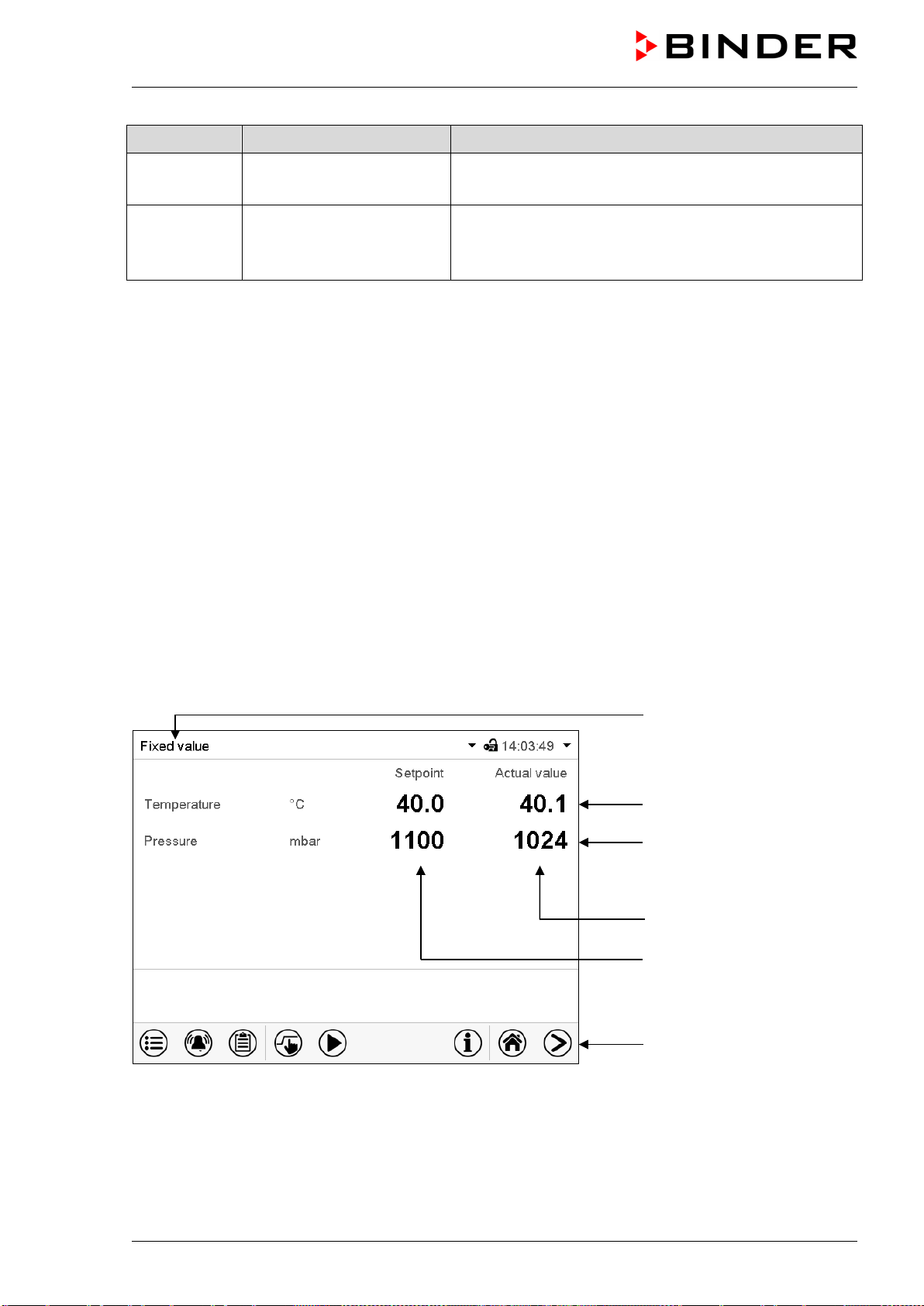
VD (E3.1) 10/2020 page 36/179
Menu Required access level Functions
Service “Service”
• Configuration settings (only for BINDER Service)
• Password changing for User and Admin
USB Export: Any user
Import: “Admin”
• Export of configuration, logger, and service data
• Import of configuration data
Unless noted otherwise, the figure in this manual show the functional range, which is available for the
user with “Admin” authorization level
Note: When specifying the path to the respective function, the possibly required entry of a password is not
listed.
5.2 MB2 controller
The MB2 chamber controller controls following parameters inside the chamber:
• Temperature in °C or °F
• Pressure in mbar
You can enter the desired set point values in fixed value operation mode directly on the display surface or
via the setpoint menu. For program operation the controller offers programming week and time programs.
In addition, there is a timer program available (stopwatch function).
The controller offers various notifications and alarm messages with visual and audible indication and
remote alarms via e-mail, an event list (trace file) and the graphical display of the measuring values in the
chart recorder view. The MB2 program controller permits programming temperature and pressure cycles,
and specifying special controller functions for each program section. You can enter values or programs
directly at the controller or use the APT-COM™ 4 Multi Management Software (option) specially
developed by BINDER.
Operating mode
Temperature values
Pressure values
Actual values
Set-point values
Functional icons
Figure 17: Normal display of the MB2 program controller (sample values)

VD (E3.1) 10/2020 page 37/179
5.2.1 Operating functions in normal display
Current operating mode
Text list for information icons
Date, time, authorization level of
the logged-in user, memory
Quick setpoint entry
Continue to next screen
Back to Normal display
Information
Program start
Setpoint entry
Event list
Display of active alarms
Access to main menu
Figure 18: Operating functions of the MB2 controller in normal display (example values)

VD (E3.1) 10/2020 page 38/179
5.2.2 Display views: Normal display, program display, chart-recorder display
Press the Change view icon to toggle between normal display, program display and chart-
recorder display.
Press the Normal display icon to return from program display and chart recorder display back to
Normal display.
Normal display (actual values / setpoint values)
Program display (example: time program)
Chart recorder display

VD (E3.1) 10/2020 page 39/179
5.2.3 MB2 controller icons overview
Navigation icons in Normal display
Icon
Signification
Function
Main menu Access from Normal display to the main menu
Alarm Access from Normal display to the list of active alarms
Event list Access from Normal display to the event list
Setpoint setting
Access from Normal display to the setpoint entry menu: setpoint
entry for Fixed value operation, turning on/off temperature and/or
pressure control, safety controller settings
Program start
Start a previously entered time or week program,
continue a paused time program
Program pause Pause a running time program
Program cancelling Cancel a running time or week program
Information
Information on program operation, setpoints, actual values, and
the safety controller
Normal display
Return from program display or chart recorder display to Normal
display
Change view
Toggle between Normal display, program display, and chart
recorder display
Functional icons in individual menus
Icon
Signification
Function
Back Return from each menu to Normal display
Update Update the event list and alarm messages
Confirm
Take over the entries and exit the menu / continue menu
sequence.
Close
Exit the menu / cancel menu sequence. Entries are not taken
over. When terminating a menu sequence, an information
window appears, which must be confirmed.
Reset alarm Acknowledge the alarm and mute the buzzer.
Change keyboard
Change between uppercase and lowercase characters, digits
and special characters
Edit Edit settings of time and week programs

VD (E3.1) 10/2020 page 40/179
Functional icons in the chart recorder display
Icon
Signification
Function
Show legend Show legend
Hide legend Hide legend
History display
Pause chart recorder and change to history display. Data recording
continues.
Curve selection Go to “Curve selection” submenu in the history display
Search
Go to “Search” submenu in the history display to select the required
instant
Zoom Go to “Zoom” submenu in the history display to select the zoom factor
Show scroll buttons Show scroll buttons in the history display to scroll to an instant
Hide scroll buttons Hide scroll buttons in the history display to scroll to an instant
Information icons referring to chamber conditions
Icon
Text information
Condition
“Standby” Chamber is in Standby mode
“Heating active” Chamber is heating up
“All valves are closed” All valves are closed
“GAS/AIR” Ventilation via regular connection “GAS/AIR” (4)
“GAS/AIR 2”
Ventilation via optional connection “GAS/AIR2” (5)
Regular connection “GAS/AIR” (4) deactivated.
“Vacuum pump off” Vacuum pump turned off
Information icon for data processing
Icon
Information
Waiting icon: Data processing is running.
Remaining time to touch the display when calibrating the touchscreen.

VD (E3.1) 10/2020 page 41/179
5.2.4 MB2 controller operating modes
The MB2 program controller operates in the following operating modes:
• Fixed value operating mode
The controller operates as a fixed-point controller, i.e., set-points for temperature and pressure can be
defined, which are then maintained until the next manual change (chap. 7.2.1).
• Timer program operation
Stopwatch function: during an entered duration the controller constantly equilibrates to the setpoints
entered in Fixed value operation mode.
• Time program operation
An entered time program for temperature and pressure is running. The controller offers 25 program
memory places with 100 program sections each. The total number of program sections of all programs
is unlimited
• Week program operation
An entered week program for temperature and pressure is running. The controller offers 5 program
memory places with 100 switching points each. The switching points can be distributed over all days of
the week.
5.2.5 MB2 controller menu structure
Use the navigation icons in the screen footer in
Normal display to access the desired controller
functions.
The available functions depend on the current
authorization level “Service”, “Admin” or “User”
(chap. 9.2.1). This is selected either during login or
can be available without password protection.
Main menu: program settings, further information, “Service” submenu.
The “Settings” submenu allows general configuration of the controller.
chap.
5.2.5.1
List of active alarms chap. 13.2
Access to the event list
chap.
10.2.5
Setpoint entry for Fixed value operation, Standby mode, turning on/off
temperature and/or pressure control, safety controller settings
chap. 7.2.1,
8.6.2,
11.2.2.3
Start/ pause/ cancel an already entered, respectively a running time
program or start / cancel an already entered, respectively a running
week program
chap. 16.1,
16.2, 17.1
Unless noted otherwise, the figures show the functional range, which is available for the user with
“Admin” authorization level.
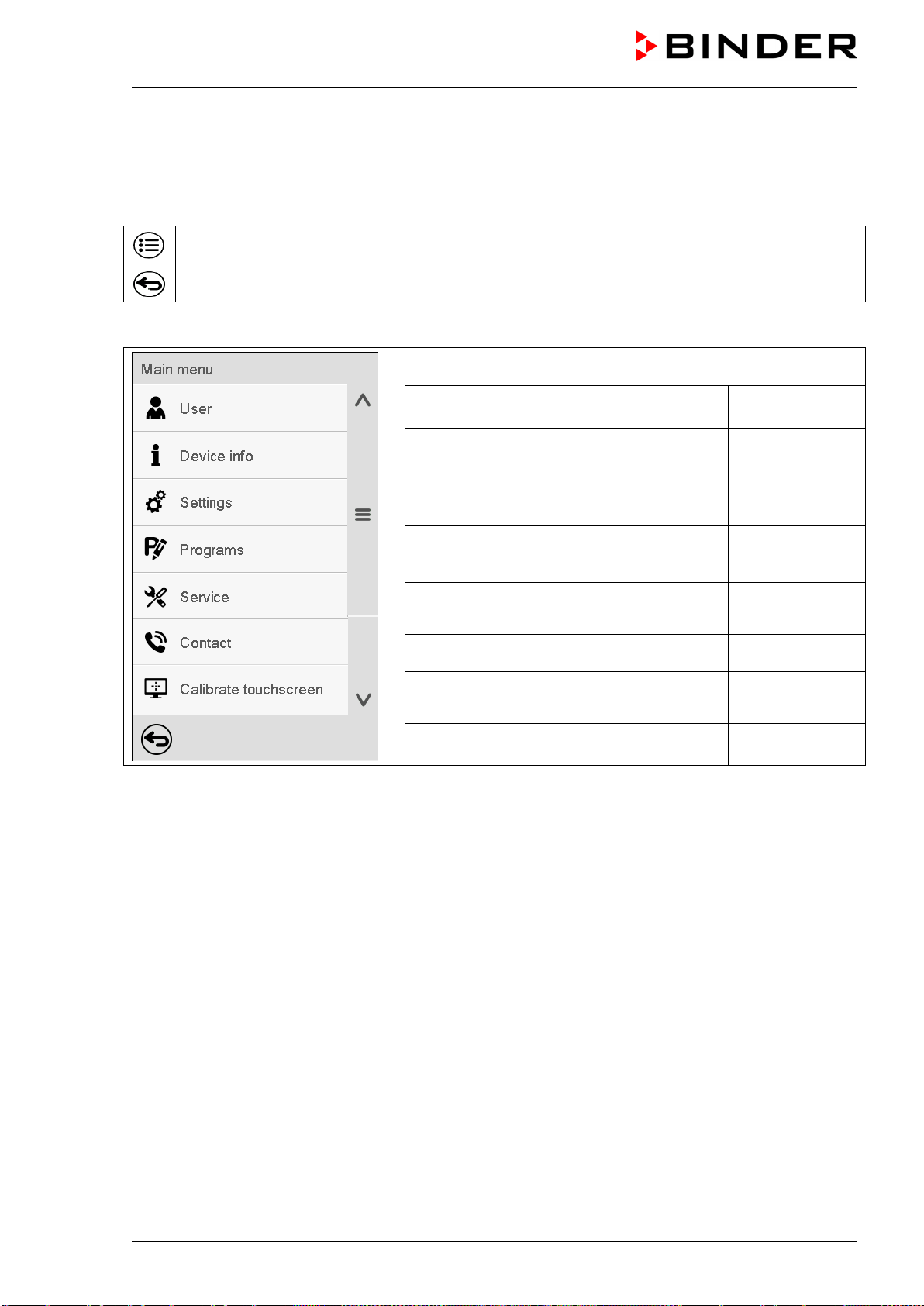
VD (E3.1) 10/2020 page 42/179
5.2.5.1 Main menu
The main menu provides access to the general configuration of the controller as well as to program entry
and the user administration. Additionally, there are support functions like a contact page or the display
calibration depending on the available angle.
Press the Main menu icon to access the main menu from Normal Display.
Press the Back icon to return from each setting menu to Normal Display.
The main menu provides the following functions and submenus.
User management: login and logout,
password management
chap. 9.2.1
Chamber information chap. 10.2.7
“Settings” submenu (not visible for user with
“User” authorization level)
chap. 10
Program start/stop submenu for time and
week programs (not visible for user with
“User” authorization level)
chap. 16 and 17
“Service” submenu chap. 5.2.5.3
BINDER Service contact page chap. 10.2.6
Calibrating the touch screen chap. 10.2.4.2
Back to Normal Display
“Settings” submenu
• Settings of many general controller functions and network settings (chap. 10).
• Available only for users with “Service” and “Admin” authorization level
“Service” submenu
• Access to service data, controller reset to factory settings (chap. 5.2.5.3)
• Available only for users with “Service” and “Admin” authorization level. Full functional range only for
BINDER Service (users with “Service” authorization level).
“Programs” submenu
• Access to the controller’s program functions (chap. 15, 16, 17)
• Available only for users with “Service” and “Admin” authorization level

VD (E3.1) 10/2020 page 43/179
5.2.5.2 “Settings” submenu
The “Settings” submenu is available for users with “Service” or “Admin” authorization level. It serves to
enter date and time, select the language for the controller menus and the desired temperature unit and to
configure the controller’s communication functions.
Path: Main menu > Settings
Setting the temperature unit, menu
language…
chap. 10.1.1,
10.2.2
Setting date and time chap. 10.2.2
Setting the display brightness, continuous
operation and screen saver
chap. 10.2.4
Settings for the measurement chart: storage
interval, storage values, minimum and
maximum values
chap. 21.2
Setting the tolerance range and delay time for
tolerance range alarm
chap. 12
(not used)
Entry of the MAC address and IP address chap. 18.2.1
Password protection for web server access chap. 18.2.2
Configuration of the e-mail server, assignment
of e-mail addresses
chap. 18.2.3
Back to main menu
5.2.5.3 “Service” submenu
The “Service” submenu is available for users with “Service” or “Admin” authorization level. When logged-
in with “Admin” authorization level the user will find information to tell the BINDER Service in service
case.
Path: Main menu > Service
Serial number of the chamber, setup version
of the controller software
chap. 10.2.2
No function
Information for BINDER Service
Reset to factory settings
Back to main menu
(view with “Admin” authorization level)

VD (E3.1) 10/2020 page 44/179
5.2.6 Principle of controller entries
In the selection and entry menus there are icons displayed in the footers which you can use to take over
the entry or cancel it.
Selection menu (example)
Entry menu (example)
After completing the settings there are the following possibilities:
Press the Confirm icon to take over the entries and exit the menu or continue the menu
sequence.
Press the Close icon to exit the menu or cancel the menu sequence without taking over the
entries.
When terminating a menu sequence, an information window appears, which must be confirmed.
5.3 Performance during and after power failures
During a power failure, all controller functions are shut down.
If there is a vacuum and ventilation is required during the duration of the power failure, this is possible via
the emergency ventilation (chap. 6.4.3).
After the power returns, all functions return to the same status the chamber had before power failure.
All settings and set point values remain in the memory during power failure.
• If the Standby mode had been activated prior to the power failure, the chamber remains off after the
power returns. To operate it you must sign in with a higher authorization level and deactivate the
standby mode.
• If the Standby mode had been deactivated prior to the power failure, operation continues after the
power returns with previously entered parameters.
5.3.1 RD4 controller
After the power returns, the set-points are immediately resumed.
If during power failure an alarm has occurred (e.g., tolerance range, safety controller), confirm the alarm.
See chap. 13.3.

VD (E3.1) 10/2020 page 45/179
5.3.2 MB2 controller
After the power returns, the controller continues to function in the original operating mode it was in
previously before the power failure occurred:
• Performance after power failure in Fixed value operation mode
All functions return to the same status the chamber had before power failure. The set-points are
immediately resumed.
• Performance after power failure during Timer operation
The set-points which had been active at the moment of program start are resumed. Program run
continues.
• Performance after power failure during Time program operation
The program is resumed at the point where the interruption occurred with the latest set-points reached
during the program run.
• Performance after power failure during Week program operation
The week program continues with the values corresponding to the current time.
Power failure and power return are noted in the Event list (chap. 10.2.5).
If during power failure an alarm has occurred (e.g., tolerance range, safety controller), confirm the alarm.
See chap. 13.3.
6. Start up
With regard to operating the vacuum drying oven VD and the vacuum pump, please observe the DGUV
guidelines 213-850 on safe working in laboratories, issued by the employers’ liability insurance
association (for Germany).
Note: Warming chambers may release odors in the first few days after commissioning. This is not a
quality defect. To reduce odors quickly we recommend heating up the chamber to its nominal
temperature for one day and in a well-ventilated location.
6.1 Condition after establishing the power connection
Prior to establishing the power connection, the following points must certainly be met:
• Installation of the chamber (chap. 4) performed in compliance with the installation guidelines and
ambient conditions (cap. 3.4)
• Vacuum supply connected (chap. 4.3)
• If required: Inert gas connection established (chap. 4.5)
Establish the power connection: connect the power plug (chap. 4.6). Connect the power supply only when
needed, and disconnect it when the chamber is not in use for an extended period.
MB2 controller: After establishing power supply the pilot lamp in the instrument panel shows readiness
for operation.
The authorization level is “User”. To be able to use the entire functionality of the controller (e.g., Settings
menu functions, program functions, activating / deactivating Standby mode), log in with the desired
authorization level.
All parameters, set-points and settings remain the same as before turning off.
• If the Standby mode had been activated prior to the power failure, the chamber remains off after the
power returns. To operate it you must sign in with a higher authorization level and deactivate the
standby mode.
• If the Standby mode had been deactivated prior to the power failure, operation continues after the
power returns with previously entered parameters.

VD (E3.1) 10/2020 page 46/179
6.2 Standby mode: Turning on and off the vacuum drying oven
Activate the chamber only as required. Switch the chamber to standby mode when it is not in use.
All settings and setpoint values are saved after turning off the chamber.
If a program is running, it will be canceled by activating the standby mode
In Standby mode, the heating and the fan on the chamber rear are off, all valves are closed, and the
socket for the pump in the pump module is de-energized. Heating control and pressure control are off.
To completely separate the chamber from the power supply, you must disconnect the power plug.
For decommissioning observe the guidelines in chap. 26.2.
6.2.1 RD4 controller
Activating / deactivating Standby mode via controller keyboard:
Deactivating Standby mode (turning on the chamber):
After establishing power supply, press down the Standby button for 5 seconds to turn on the chamber.
The controller shows normal display and controls temperature and pressure to the last entered values.
Activating Standby mode (turning off the chamber):
To turn off the chamber press down the Standby button for another 5 seconds.
Activating / deactivating Standby mode via controller menu:
Required access level: “User”.
Path: Normal display Setpoints Functions on/off Standby
Press the OK button to access the function “Standby”.
Function 1 “Standby”.
The current switching state is shown (example).
Standby
Press the OK button to enable the setting.
Setting the function 1 “Standby”.
The current setting flashes. Use the arrow buttons to select between
“0” (Standby mode deactivated) and “1” (Standby mode activated).
Confirm the setting with the OK button.
Standby
With the Back button you can go back to the “Functions on/off” submenu and, repeatedly pressing it, to
Normal display.
With setting “1” (Standby mode), the icon is shown in Normal display.
When the controller display is dark in standby mode, press any button to activate it for 10 seconds.

VD (E3.1) 10/2020 page 47/179
6.2.2 MB2 controller
Required authorization: “Admin”.
Press the Setpoint setting icon to access the “Setpoint” setting menu from Normal display..
Path: Setpoint > Fixed value operation setpoints > Functions on/off
In this menu you can activate and deactivate the Standby mode .
Activating the Standby mode (turning off the chamber):
“Functions on/off” menu
Mark the checkbox of the function “Standby” to activate
it and press the Confirm icon.
In the “Setpoints” menu press again the Confirm icon.
The controller changes to Normal display.
When the function “Standby” is activated, the “Standby” icon is displayed in the screen header in
Normal display. Press the flash icon next to the information icon to display the corresponding text
information “Standby” (information messages, chap. 13.1.2).
When the controller display is dark in standby mode, press on the touchscreen to activate it for 10
seconds.
Deactivating the Standby mode (turning on the chamber
To deactivate the “Standby” function, unmark the checkbox.

VD (E3.1) 10/2020 page 48/179
6.3 Controller settings upon start up
Depending on the functions activated in the controller, various settings can be requested directly after
turning on the chamber.
Then you should assign a password for the operating level (chap. 9).
6.3.1 RD4 controller
If the function “Language selection at restart” has been activated (chap. 10.1.5, factory setting ON), the
following settings are checked upon start up:
• Menu language (chap. 10.1.1):
Use the arrow buttons to select the desired language, confirm with the OK button
• Temperature unit (chap. 10.1.2):
Use the arrow buttons to select the desired temperature unit, confirm with the OK button
• Current date (chap. 10.1.3), format DD MM YYYY:
Use the arrow buttons to set the day, continue with the OK button.
Use the arrow buttons to set the month, continue with the OK button.
Use the arrow buttons to set the year, confirm with the OK button
• Current time (chap. 10.1.4), format HH:MM:
Use the arrow buttons to set the hours, continue with the OK button.
Use the arrow buttons to set the minutes, confirm with the OK button
6.3.2 MB2 controller
The window “Language selection” enables the language selection, in case that it’s activated in the
“Start-up” menu. Afterwards occurs a request of the time zone and the temperature unit.
The controller will function in the operating mode, which was active before the last shut-down. It controls
temperature and pressure in fixed value operating mode to the last entered values and in the program
mode to the set points achieved beforehand.

VD (E3.1) 10/2020 page 49/179
Locked operation
Provided that the user administration has been activated by the assignment of passwords for the different
authorization types, the controller operation is first locked after turning on the unit, recognizable by the
closed lock icon in the header.
In the locked view the controller provides all display functions. No setting functions are available.
The setpoints are shaded (light grey) in normal display. Changing them by direct entry in the fixed value
operating mode is not possible. The functional icons for setpoint entry and program start in the footer are
without function.
After turning on the unit, user log-in is required to operate the controller (chap. 9.2.2)
Operation without user log-in / without password-protection
If the password function has been deactivated, after turning on the unit without user log-in there are those
controller functions available, which correspond to the highest authorization level without a password
protection. There is no lock icon in the header.
6.4 Vacuum system
With regard to operation, please observe the DGUV guidelines 213-850 on safe working in laboratories,
issued by the employers’ liability insurance association (for Germany).
Starting situation: The vacuum source is connected and ready for operation.
For the pump module with chemical membrane pump option, see chap. 4.3.2.
6.4.1 Evacuation
Preparation:
• Make sure that the “Manual ventilation” plug (7) for emergency ventilation in case of a power failure,
which is located on the chamber rear, is closed
• Pressure control must be activated.
• Turn on the vacuum pump. The pump shall continue running during the entire drying procedure.
• Set the desired pressure set-point on the controller (chap. 7).
• Monitor the internal pressure on the controller display
As long as there is a vacuum, never try to open the oven by force.

VD (E3.1) 10/2020 page 50/179
6.4.2 Ventilation after completing the drying procedure (flooding with ambient air or
inert gas)
The duration of the drying procedure can be determined via the pressure display on the controller. When
the decreasing pressure reaches the set-point value, the drying process is completed. If the drying
monitoring (section 8.7) is activated, a corresponding message is displayed.
To break the vacuum (ventilation) after completing the drying procedure, set the desired pressure set-
point to atmospherical pressure (chap. 7). The ventilation valve opens, and ambient air or inert gas flow
into the inner chamber.
Regularly the inert gas connection / ambient air inlet “GAS/AIR” (4) is used for ventilation
Chambers can be equipped as an option with an additional inert gas connection / ambient air inlet
“GAS/AIR2” (5), which can be used alternatively. To do this, the controller function “GAS/AIR 2” serves to
close the valve of the standard connection “GAS/AIR” (4). Then the valve of the optional connection
“GAS/AIR 2” (5) is used for ventilation (chap. 8.3). This allows convenient switching when both
connections are used differently (e.g., for inert gas and ambient air).
Ambient air is sucked in through the inert gas connection / ambient air inlet (4) or (5). The ambient air is
introduced into the lower part of the rear panel of the inner chamber and is evenly distributed in the inner
chamber. This supply of ambient air by under-flooding prevents turbulence of pulverized drying material.
6.4.3 Ventilation / breaking the vacuum in case of a power failure
To be able to open the chamber in case of a power failure, remove the “Manual ventilation” plug (7) for
emergency ventilation, which is located on the chamber rear.
As long as there is a vacuum, never try to open the oven by force.
Make sure that the drying procedure is complete before breaking the vacuum. Otherwise, you
should wait for the power to return to continue the drying procedure
6.4.4 Operation with inert gas
When operating the VD vacuum drying oven with inert gas, correctly follow the technical ventilation
measures, as described in the DGUV guidelines 213-850 on safe working in laboratories, issued by the
employers’ liability insurance association (for Germany).
Inert gases in high concentrations are hazardous to health. They are colorless and almost odorless and
therefore practically imperceptible. Inhalation of inert gases can cause drowsiness up to respiratory
arrest. When the O
2
content of the air decreases below 18%, there is risk of death from lack of oxygen.
Any gas that might escape has to be led out via good room ventilation or a suitable exhaust system.
DANGER
Danger of suffocation by high concentration of inert gas.
Death by suffocation.
∅ Do NOT set up chambers in non-ventilated recesses.
Ensure technical ventilation measures.
Respect the relevant regulations for handling these gases.
When decommissioning the vacuum drying oven, turn off the inert gas supply.

VD (E3.1) 10/2020 page 51/179
Install a pressure reducer for inert gas operation. Set the pressure reducer to a pressure slightly above
ambient pressure. Ensure that the pressure reducer will open. Do not change this setting in order to avoid
perturbation inside the oven and release of big quantities of inert gas after flooding the VD.
For ventilation an inert gas, e.g., nitrogen, is led into the inner chamber via the connection (4) or the
optional connection (5), until pressure compensation with the atmosphere occurs. Depending on the
individual application, you can perform a second evacuation and repeat the inert gas flooding.
When the inert gas fine dosing valve is open, a maximum of approx. 0.6 m³/h gas flows into the inner
chamber. The introduction of inert gas by under-flooding in the lower region of the inner chamber rear
wall and the extraction at the inner chamber ceiling allow an effective inert gas flushing.
If the oven is charged to full capacity, depending on the load, deviations from the specified
heating up times may occur.
7. Set-point entry
Setting ranges Control ranges
Temperature
0.0 °C / 32 °F up to 220.0 °C / 428 °F
10 °C / 18 °F above ambient temperature up to
220 ºC / 428 °F
Pressure 0 mbar up to 1100 mbar 0 mbar up to 1100 mbar
7.1 RD4 controller
7.1.1 Temperature set-point entry
Required access level: “User”.
Path: Normal display Setpoints Temperature
Press the OK button to enable the setting.
Temperature setting.
The current setting flashes. Enter the desired set-point with the arrow
buttons.
Confirm the entry with the OK button.
Temperature
With the arrow-down button you can continue with the pressure set-point entry (chap. 7.1.2).
With the Back button you can go back to the “Setpoints” submenu and, repeatedly pressing it, to
Normal display.
With safety controller mode “Limit”, adapt the safety controller always when you changed the
temperature set-point. Set the safety controller value by approx. 5 °C above the temperature
set-point (chap. 11.2.2).
Recommended setting: safety controller mode “Offset” with safety controller value 5 °C.

VD (E3.1) 10/2020 page 52/179
7.1.2 Pressure set-point entry
Required access level: “User”.
Path: Normal display Setpoints Pressure
Press the OK button to enable the setting.
Pressure setting
The current setting flashes. Enter the desired set-point with the arrow
buttons.
Confirm the entry with the OK button.
Pressure (mbar)
With the arrow-up button you can go back to the temperature set-point entry (chap. 7.1.1).
With the arrow-down button you can now change to the special controller functions setting (chap. 8).
With the Back button you can go back to the “Setpoints” submenu and, repeatedly pressing it, to
Normal display.
7.2 MB2 controller
In Fixed value operating mode, you can enter a temperature set-point, a pressure set-point, and the
switching-state of special controller functions.
All settings made in Fixed value operating mode remain valid until the next manual change. They are
saved also when turning off the chamber or in case of toggling to Program Mode.
The values entered in Fixed value mode become valid again after the end of a program and
will then be targeted and equilibrated.
When operating without a vacuum by setting “Pressure control off” (chap. 8.6.2), the pressure
tolerance range function is automatically deactivated.
7.2.1 Set-point entry through the “Setpoints” menu
Press the Setpoint setting icon to access the “Setpoint” setting menu from Normal display.

VD (E3.1) 10/2020 page 53/179
“Setpoints” menu.
Select “Fixed value operation setpoints” to access the
individual parameters.
• Select the field “Temperature” and enter the desired temperature setpoint.
Confirm entry with Confirm icon.
• Select the field “Pressure” and enter the desired pressure setpoint.
Confirm entry with Confirm icon.
When entering a value outside the setting range, the message: “Value outside of limits! (Min:
xxx, Max: xxx)” appears (xxx is a wildcard for the limits of the respective parameter). Press the
Confirm icon and repeat the entry with a correct value.
After completing the settings, press the Confirm icon to take over the entries and exit the menu, or press
the Close icon to exit the menu without taking over the entries.
With set-point type “Limit”, adapt the safety controller (chap. 11.2) always when you changed
the temperature set-point. Set the safety controller set-point by approx. 5 °C above the
controller temperature set-point.
Recommended setting: Set-point type “Offset” with safety controller set-point 5 °C.
7.2.2 Direct setpoint entry via Normal display
Alternatively you can also enter the setpoints directly via Normal display.
Normal display. Select the setpoint you want
to change.
Example: “Temperature” entry menu. Enter the
desired setpoint and confirm entry with Confirm
icon.

VD (E3.1) 10/2020 page 54/179
8. Setting special controller functions
You can set the following functions via the controller menu:
• Activate / deactivate the Standby mode (chap. 6.2)
• Turning off the vacuum pump via the socket on the pump module (chap. 8.2)
• Use the optional connection “GAS/AIR2” (5) for ventilation (chap. 8.3)
• Close all existing fine dosing valves (chap. 8.4)
• Turning on / off temperature control (chap. 8.5)
• Turning on / off pressure control (chap. 8.6)
• Starting / terminating the drying monitoring (chap. 8.7)
8.1 Menu structure
8.1.1 RD4 controller
Required access level: “User”.
8.1.1.1 “Functions on/off” menu
In the “Functions on/off” menu you can define the switching state of three special controller functions.
Path: Normal display Setpoints Functions on/off
The functions are displayed from left to right.
Example: Function 1 activated = 1000. Function 1 deactivated = 0000.
Submenu “Functions on/off”.
This view shows the switching states four functions.
Functions 1, 2,
and 3 are available with the present chamber type.
“1” = Function activated
“0” = Function deactivated
Functions on/off
Press the OK button to access the first individual function. With the arrow-down button you can
proceed to the subsequent functions.
• Function 1 “Standby” (chap. 6.2)
• Function 2 “GAS/AIR 2” (chap. 8.3)
• Function 3 “Close all valves” (chap. 8.4)
• Function 4 “Vacuum pump off” (chap. 8.2)
Press the OK button to enable the setting of the desired function and select the function’s switching state
“1” (function activated) or “0” (function deactivated).
With the Back button you can go back to the “Setpoints” submenu and, repeatedly pressing it, to
Normal display.
In Normal display the activated functions are indicated by an icon showing the number of the respective
function. If several functions are simultaneously active, the icon displays a combination of the
corresponding numbers, e.g.

VD (E3.1) 10/2020 page 55/179
Example:
Normal display with activated function 2 “GAS/AIR 2”
T / pressure (mbar)
8.1.1.2 Quick Access menu
More functions are available via the Quick Access menu:
Path: Normal display Pressure control
• Function “Temperature control” (chap. 8.5)
• Function “Pressure control” (chap. 8.6)
• Function “Drying monitoring” (chap. 8.7)
When temperature control and / or pressure control are deactivated, the “Info” icon flashes slowly. While it
is lit, the corresponding information is shown in the bottom text line.
T / pressure (mbar)
Pressure control off
If there are several information messages, they are shown one after the other.
8.1.2 MB2 controller
Required authorization: “Admin”.
8.1.2.1 “Functions on/off” menu
This chapter describes the setting with operating mode Fixed value operation. Settings for program
operation are described in chap. 16.7.3 (time programs) and chap. 17.6.5 (week programs).
In the “Functions on/off” menu you can define the switching state of three controller functions.
Press the Setpoint setting icon to access the “Setpoint” setting menu from Normal display.

VD (E3.1) 10/2020 page 56/179
Path: Setpoint > Fixed value operation setpoints > Functions on/off
• Function “Standby” (chap. 6.2)
• Function “GAS/AIR 2” (chap. 8.3)
• Function “Close all valves” (chap. 8.4)
• Function “Vacuum pump off” (chap. 8.2)
“Setpoints” menu.
Select the field “Functions on/off”.
“Functions on/off” entry menu.
Mark / unmark the checkbox to activate /
deactivate the desired function and press the
Confirm icon
The functions are displayed from right to left.
Activated function: switching status “1” (On)
Deactivated function: switching status “0” (Off)
Example:
Activated operation line “Standby” = 000000000000000
1
Deactivated operation line “Standby” = 000000000000000
0

VD (E3.1) 10/2020 page 57/179
8.1.2.2 “Control on/off” menu
More functions are available via the “Control on/off” menu.
Press the Setpoint setting icon to access the “Setpoint” setting menu from Normal display.
Path: Setpoint > Control on/off
• Function “Temperature” (temperature control, chap. 8.5)
• Function “Pressure” (pressure control, chap. 8.6)
“Setpoints” menu.
Select the field “Control on/off”.
Mark / unmark the checkbox to activate / deactivate the
desired function and press the Confirm icon
8.2 Turning off the vacuum pump via the socket on the pump module
Function “Vacuum pump off” serves to turn off the vacuum pump via the socket on the pump module.
8.2.1 RD4 controller
Required access level: “User”.
Path: Normal display Setpoints Functions on/off vacuum pump off
Press the OK button to access the function “Vacuum pump off”.
Function 1 “Vacuum pump off”.
The current switching state is shown (example).
Vacuum pump off
Press the OK button to enable the setting.
Setting the function 1 “Vacuum pump off”.
The current setting flashes. Use the arrow buttons to select between
0 (no shutdown) and 1 (pump deactivated).
Confirm the setting with the OK button.
Vacuum pump off
With the Back button you can go back to the “Functions on/off” submenu and, repeatedly pressing it, to
Normal display.
With setting “1” (pump turned off) the icon is shown in Normal display.

VD (E3.1) 10/2020 page 58/179
8.2.2 MB2 controller
Press the Setpoint setting icon to access the “Setpoint” setting menu from Normal display.
Path: Setpoint > Fixed value operation setpoints > Functions on/off
“Functions on/off” menu.
Mark the checkbox of the function “Vacuum pump off” to
activate it and press the Confirm icon.
In the “Setpoints” menu press again the Confirm icon.
The controller changes to Normal display.
When the function “Vacuum pump off” is activated, the “Vacuum pump off” icon is displayed in
the screen header in Normal display. Press the flash icon next to the information icon to
display the corresponding text information “Vacuum pump off” (information messages, chap.
13.1.2)
8.3 Using the optional universal connection “GAS/AIR 2” for ventilation
Regularly the universal connection for inert gas / ambient air “GAS/AIR” (4) is used for ventilation.
The “GAS/AIR 2” function serves to close the valve of the standard connection “GAS/AIR” (4) and
activate the valve of the optional universal connection “GAS/AIR 2” (5), which is then used for ventilation
This allows convenient switching when both connections are used differently (e.g., for inert gas and
ambient air).
If you activate the “GAS/AIR 2” function on a chamber, which is NOT equipped with the
universal connection for inert gas / ambient air “GAS/AIR 2” (5), ventilation is no longer
possible!

VD (E3.1) 10/2020 page 59/179
8.3.1 RD4 controller
Path: Normal display Setpoints Functions on/off GAS/AIR 2
Press the OK button to access the function “GAS/AIR 2”.
Function 2 “GAS/AIR 2”.
The current switching state is shown (example).
GAS/AIR 2
Press the OK button to enable the setting.
Setting the function 2 “GAS/AIR 2”.
The current setting flashes. Use the arrow buttons to select between
“0” (Use valve for connection “GAS/AIR”) and “1” (Use valve for
connection “GAS/AIR 2”).
Confirm the setting with the OK button.
GAS/AIR 2
With the Back button you can go back to the “Functions on/off” submenu and, repeatedly pressing it, to
Normal display.
With setting “1” (closed valve of the standard connection “GAS/AIR” (4), active valve of the optional
connection “GAS/AIR 2” (5) the icon is shown in Normal display.
8.3.2 MB2 controller
Press the Setpoint setting icon to access the “Setpoint” setting menu from Normal display.
Path: Setpoint > Fixed value operation setpoints > Functions on/off
“Functions on/off” menu.
Mark the checkbox of the function “GAS/AIR 2” to
activate it and press the Confirm icon.
In the “Setpoints” menu press again the Confirm icon.
The controller changes to Normal display.
When the function “GAS/AIR 2” is activated, the “GAS/AIR 2” icon is displayed in the screen
header in Normal display. Press the flash icon next to the information icon to display the
corresponding text information “GAS/AIR 2” (information messages, chap. 13.1.2)

VD (E3.1) 10/2020 page 60/179
8.4 Close all valves
Close all existing fine dosing valves
8.4.1 RD4 controller
Path: Normal display Setpoints Functions on/off Close all valves
Press the OK button to access the function “Close all valves”.
Function 3 “Close all valves”.
The current switching state is shown (example).
Close all valves
Press the OK button to enable the setting.
Setting the function 3 “Close all valves”.
The current setting flashes. Use the arrow buttons to select between
“0” (valves in use) and “1” (valves closed).
Confirm the setting with the OK button.
Close all valves
With the Back button you can go back to the “Functions on/off” submenu and, repeatedly pressing it, to
Normal display.
With setting “1” (all valves closed), the icon is shown in Normal display
8.4.2 MB2 controller
Press the Setpoint setting icon to access the “Setpoint” setting menu from Normal display.
Path: Setpoint > Fixed value operation setpoints > Functions on/off
“Functions on/off” menu.
Mark the checkbox of the function “Close all valves” to
activate it and press the Confirm icon.
In the “Setpoints” menu press again the Confirm icon.
The controller changes to Normal display.
When the function “Close all valves” is activated, the “All valves closed” icon is displayed in
the screen header in Normal display. Press the flash icon next to the information icon to
display the corresponding text information “All valves are closed” (information messages,
chap. 13.1.2)

VD (E3.1) 10/2020 page 61/179
8.5 Activating / deactivating temperature control
8.5.1 RD4 controller
Path: Normal display Temperature control
Press the OK button to enable the setting.
Setting the “Temperature control” function.
Use the arrow buttons to select between “On” (temperature control
active) and “Off” (temperature control deactivated).
Confirm the setting with the OK button.
On
After confirming with the OK button or with the Back button you go back to Normal display.
If the setting “Off” (temperature control deactivated) has been selected, the information message
“Temperature control off” is displayed. The “Info” icon flashes slowly.
The actual temperature value continues to be displayed in Normal display.
8.5.2 MB2 controller
Press the Setpoint setting icon to access the “Setpoint” setting menu from Normal display.
Path: Setpoint > Control on/off
“Setpoints” menu.
Select the field “Control on/off” (example: deactivated
temperature control).
Mark / unmark the “Temperature” checkbox to activate /
deactivate temperature control and press the Confirm
icon.
• Checkbox marked: temperature control active
• Checkbox unmarked: temperature control deactivated

VD (E3.1) 10/2020 page 62/179
The actual temperature value continues to be displayed in Normal display:
Normal display with deactivated temperature control.
8.6 Activating / deactivating pressure control
When operating the chamber without a vacuum connection, you can deactivate pressure control with the
to avoid alarms of the pressure system. No pressure tolerance range alarms and no pressure alarm will
be emitted.
Evacuation and ventilation are then no longer possible.
8.6.1 RD4 controller
Path: Normal display Pressure control
Press the OK button to enable the setting.
Setting the “Pressure control” function.
Use the arrow buttons to select between “On” (pressure control
active) and “Off” (pressure control deactivated).
Confirm the setting with the OK button.
On
After confirming with the OK button or with the Back button you go back to Normal display.
If the setting “Off” (pressure control deactivated) has been selected, the information message “Pressure
control off” is displayed. The “Info” icon flashes slowly.
The actual pressure value continues to be displayed in Normal display.

VD (E3.1) 10/2020 page 63/179
8.6.2 MB2 controller
Press the Setpoint setting icon to access the “Setpoint” setting menu from Normal display.
Path: Setpoint > Control on/off
“Setpoints” menu.
Select the field “Control on/off” (example: deactivated
pressure control).
Mark / unmark the “Pressure” checkbox to activate /
deactivate pressure control and press the Confirm icon
• Checkbox marked: pressure control active
• Checkbox unmarked: pressure control deactivated
The actual pressure value continues to be displayed in Normal display:
Normal display with deactivated pressure control.
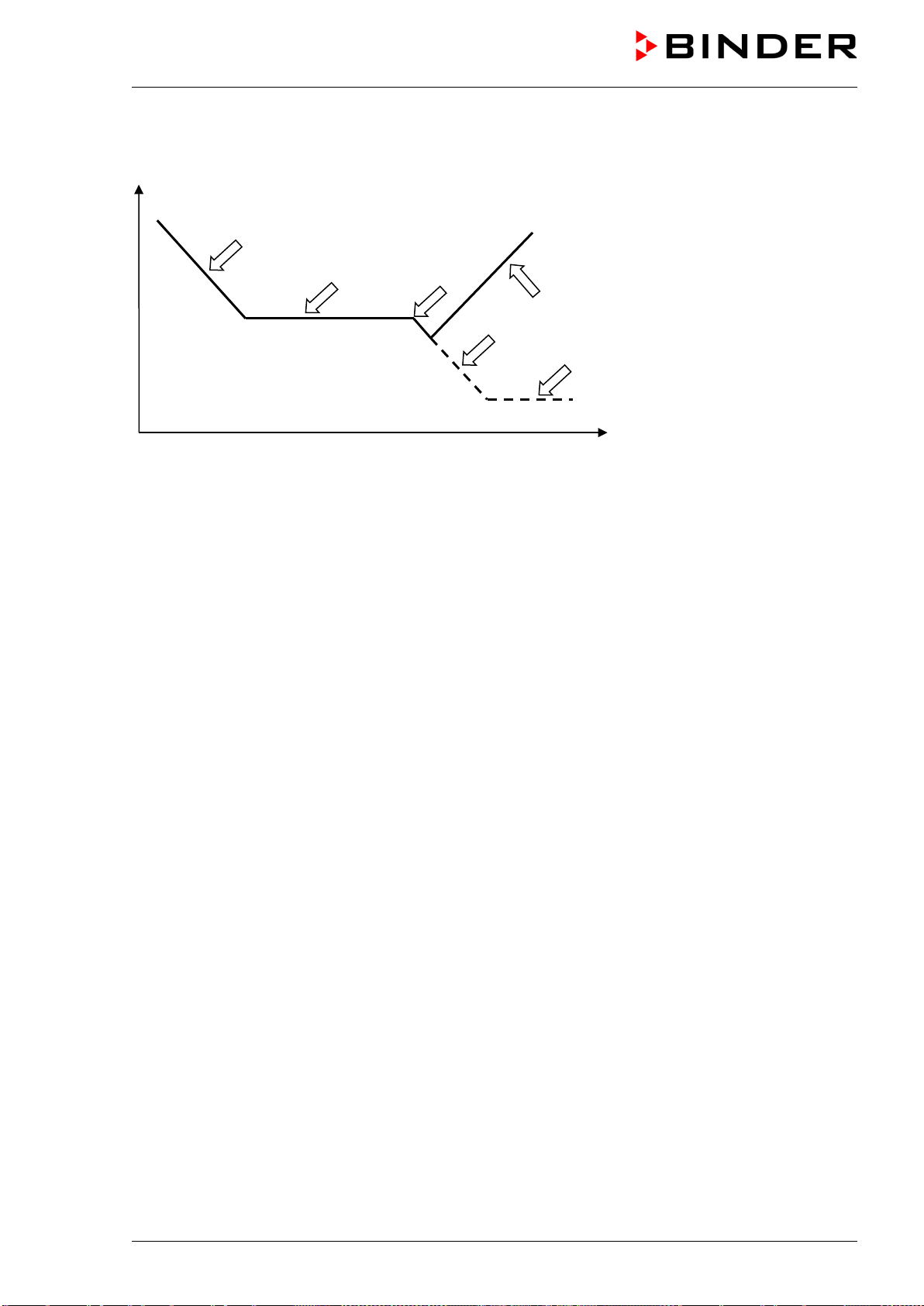
VD (E3.1) 10/2020 page 64/179
8.7 Drying monitoring
Pressure
Time
Figure 19: Schematic timing of the drying process and drying monitoring
Procedure:
• Enter the temperature set-point.
The previously entered pressure setpoint is not used with this function. It remains saved.
The drying monitoring uses a fixed minimum pressure setpoint.
• Start the drying monitoring: the vacuum pump is activated; the evacuation valve opens.
Starting from ambient pressure, the pressure starts to decrease.
• Depending on the vapor pressure of the solvent, a plateau phase is then reached
during which the
solvent vaporizes. The pressure remains almost constant.
• After the solvent is completely evaporated, drying is complete.
The pressure starts to decrease
again
Without drying monitoring the pressure would now continue to decrease
, until the maximum final
vacuum is reached.
• The drying monitoring recognizes this second pressure drop. It turns off the pressure control. The
chamber will then be ventilated automatically
.
Prior to starting a new drying process, the pressure control must be activated again (chap. 8.5).
Notes:
If the drying monitoring is aborted during phase
or , the controller will take the current actual
pressure value as the pressure setpoint. This overwrites the previously entered pressure setpoint. It can
be changed manually at any time.
In processes with low temperatures <40 ° C or thermally poorly coupled items to be dried (e.g. drying of
powders), the drying monitoring may incorrectly identify the relevant parameters. In this case, please
check the process result and, if necessary, use a process not including this program for such processes.

VD (E3.1) 10/2020 page 65/179
8.7.1 RD4 controller
Path: Normal display Drying monitoring
Press the OK button to enable the setting.
Setting the function “Drying monitoring”.
Use the arrow buttons to select between “Start” (start drying
monitoring) and “Cancel” (terminate drying monitoring).
Confirm the setting with the OK button.
Start
After confirming with the OK button or with the Back button you go back to Normal display. The drying
process starts.
8.7.2 MB2 controller
In Normal display press the Program start icon to access the “Program start” menu.
“Program start” menu with the selected Drying
monitoring program.
• In the field “Program” select the setting “Drying monitoring” program.
• Select the field “Program start” and enter the desired program start time in the “Program start” entry
menu. Press the Confirm icon. The program delay time until program start begins. The program end
is calculated automatically.
After completing the settings, press the Confirm icon to take over the entries and exit the menu. The
program starts running.
If instead you press the Close icon to exit the menu without taking over the entries, the program will not
start.
Normal display. Information on the bottom of the
screen indicates the currently running program and the
time already passed. The grey bar shows how much
time of the whole time is elapsed.

VD (E3.1) 10/2020 page 66/179
9. Authorization levels and password protection
9.1 RD4 controller
9.1.1 Password request
To access menus for which access is restricted, you must enter the corresponding password.
After calling the appropriate menu function with the OK button the password request appears.
Password request.
The left two digits are flashing. Enter the desired numbers with the
arrow buttons.
Confirm the setting with the OK button.
Password
Password request.
The right two digits are flashing. Enter the desired numbers with the
arrow buttons.
Confirm the setting with the OK button.
Password
Upon entering an incorrect password, the message “Wrong password” is displayed.
Display “Wrong password”.
After 3 seconds the controller changes again to the password entry.
Enter the correct password.
Wrong password
Following correct password entry, you can access the desired menu function.
9.1.2 Assign and modify a password
In this menu you can assign and modify the passwords of the “User” and “Admin” access levels.
Required access level: “Admin”.
Keep the password well in mind. There is no access to the corresponding menu functions
without the correct password.
9.1.2.1 Assign and modify the User password
Path: Normal display Settings Chamber Password User
Press the OK button to enable the setting.
Setting the User password.
The left two digits are flashing. Enter the desired numbers with the
arrow buttons.
Confirm the setting with the OK button.
Password User

VD (E3.1) 10/2020 page 67/179
Setting the User password.
The right two digits are flashing. Enter the desired numbers with the
arrow buttons.
Confirm the setting with the OK button.
Password User
With the arrow-down button you can now proceed to enter the Admin password.
With the Back button you can go back to the “Chamber” submenu and, repeatedly pressing it, to
Normal display.
9.1.2.2 Assign and modify the Admin password
Path: Normal display Settings Chamber Password Admin
Press the OK button to enable the setting.
Setting the Admin password.
The left two digits are flashing. Enter the desired numbers with the
arrow buttons.
Confirm the setting with the OK button.
Password Admin
Setting the Admin password.
The right two digits are flashing. Enter the desired numbers with the
arrow buttons.
Confirm the setting with the OK button.
Password Admin
With the Back button you can go back to the “Chamber” submenu and, repeatedly pressing it, to
Normal display.

VD (E3.1) 10/2020 page 68/179
9.2 MB2 controller
9.2.1 User management, authorization levels and password protection
The available functions depend on the current authorization level “Master”, “Service”, “Admin” or “User”.
The authorization levels are hierarchical: Every authorization includes all functions of the next lower level.
“Master” authorization level
• Highest authorization level, only for developers
• Extensive authorization for controller operation and configuration, outputs/inputs, alarm settings,
parameter sets and operating ring display
• All passwords can be changed in the “log out” submenu (chap. 9.2.3).
“Service” authorization level
• Authorization level only for BINDER service
• Extensive authorization for controller operation and configuration, access to service data
• The passwords for “Service”, “Admin” and “User” authorization levels can be changed in the “log out”
submenu (chap. 9.2.3).
“Admin” authorization level
• Expert authorization level, for the administrator
• Authorization for controller configuration and network settings and for operating those controller
functions required for operating the chamber. Restricted access to service data.
• Password (factory setting): “2”.
• The passwords for “Admin” and “User” authorization levels can be changed in the “log out” submenu
(chap. 9.2.3).
“User” authorization level
• Standard authorization level for the chamber operator
• Authorization for operating the controller functions required for operating the chamber.
• No authorization for controller configuration and network settings. The “Settings” and “Service”
submenus of the main menu are not available.
• Password (factory setting): “1”
• The password for the “User” authorization level can be changed in the “log out” submenu (chap.
9.2.3).
As soon as a password has been assigned for an authorization level, the access to this level and the
related controller functions are only available after log-in with the appropriate password.
If for an authorization level no password is assigned, the related controller functions of this level are
available for every user without login.
If passwords have been assigned for all authorization levels, access to the controller functions is locked
without login.

VD (E3.1) 10/2020 page 69/179
Operation after user login
At user login, the authorization level is selected
and confirmed by entering the respective
password.
Following user login, controller operation is
available, recognizable by the open-lock icon in
the header. The available controller functions
correspond to the user’s authorization level.
Password protection activated for all levels: operation without user login is locked
If passwords have been assigned for all
authorization levels, the controller is locked without
registration of a user.
As long as no user is registered, controller
operation is locked, recognizable at the closed-lock
icon in the header. This requires that the user
management has been activated by the
assignment of passwords for the individual
authorization levels.
Password protection for at least one level deactivated: operation without user login is possible
If passwords have not been assigned for all
authorization levels, after turning on the chamber
there are those controller functions available, which
correspond to the highest authorization level
without password protection.
No lock icon is shown in the display header.
User login is neither required nor possible.
To activate the password protection and user login,
perform new password assignment (chap. 9.2.5.3).

VD (E3.1) 10/2020 page 70/179
Information window
To check the authorization level of the user currently logged-in, select in Normal display the arrow far
right in the display header.
The information window shows date and time, the controller’s free memory space and under
“Authorization” the authorization level of the current user.
If passwords have been assigned for all authorization levels, a user without login (password entry) has no
authorization. There are only viewing functions available.
Display when all authorization levels are password
protected and no user has logged in:
No authorization level is displayed.
If passwords have been assigned only for some of the authorization levels, a user without login
(password entry) has access to the functions of the highest authorization level without password
protection.
Display when only some of the authorization levels are
password protected (example: no protection for the
“User” and “Admin” levels) and no user has logged in:
The user’s effective authorization (due to lack of
password protection) is shown.
Example: user with “Admin” authorization.
If passwords have been assigned for some or all of the authorization levels, user login (password entry)
provides the authorization for the corresponding password-protected level.
Display when at least some of the authorization levels
are password protected and a user has logged in.
The user’s authorization (by password entry) is shown.
Example: user with “Admin” authorization.

VD (E3.1) 10/2020 page 71/179
9.2.2 Log in
Path: Main menu > User > Log in
Controller
without a user
logged-in
Selection of user type (example) All selection possibilities are password protected
Controller with logged-in user
After completing the settings, press the Confirm icon to take over the entries and exit the menu, or press
the Close icon to exit the menu without taking over the entries.
Controller with
deactivated
password

VD (E3.1) 10/2020 page 72/179
9.2.3 Log out
Path: Main menu > User > Log out
Controller with
logged-in user
(e.g. “Admin”
authorization)
Controller
without a user
logged-in
9.2.4 User change
If the password function has been deactivated (chap.9.2.5.2) this function is not available.
Path: Main menu > User > User change
Controller with
logged-in user
User selection (example) All selection possibilities are password protected
Controller with logged-
in user

VD (E3.1) 10/2020 page 73/179
9.2.5 Password assignment and password change
This function is not available for a user logged-in with “User” authorization.
9.2.5.1 Password change
A logged-in user can change the passwords of his current level and of the next lower level(s).
Example: A user with “Admin” authorization can change the passwords for the “Admin” and “User”
authorization levels.
Path: Main menu > User > Password
User logged-in
with “Service” or
“Admin”
authorization
Selection of the authorization level
(example: view with “Admin” authorization)
Enter desired password. If desired, press the Change
keyboard icon to access other entry windows.

VD (E3.1) 10/2020 page 74/179
In the “Keyboard switch” window you can select different keyboards to enter uppercase and lowercase
letters, digits, and special characters. All types of characters can be combined within one single
password.
Example: access the digit entry window
Entry of digits
To confirm the entry, press the Confirm icon.
Repeat the password entry for confirmation (sample
picture). For each character of the password, the
required keyboard appears automatically.
Then press the Confirm icon.

VD (E3.1) 10/2020 page 75/179
9.2.5.2 Deleting the password for an individual authorization level
A user logged-in with “Service” or “Admin” authorization can delete the passwords of his current level and
of the next lower level(s). To do this no password is entered during a password change.
Path: Main menu > User > Password
Controller with
logged-in user
(e.g. with “Admin”
authorization)
Select the authorization level for which the
password shall be deleted.
Do NOT enter anything in the “Password”
screen. Press the Confirm icon.
Do NOT enter anything in the “Confirm
password” screen. Press the Confirm icon.
The password is deleted.

VD (E3.1) 10/2020 page 76/179
9.2.5.3 New password assignment for “service” or “admin” authorization level when the
password function was deactivated
If the password protection for an authorization level has been deactivated, i.e., no password is assigned,
no login for this level is possible. Therefore, access to this authorization level is available without login.
If the password for the “Service” or “Admin” authorization has been deleted (chap. 9.2.5.2), a new
password can be assigned for the current level and the next lower level(s) without user login.
Example: The password for the “Admin” authorization level was deleted, therefore every user without
login has full access to the functions of the “Admin” authorization level. If access to this level shall
become password protected again, the user can assign a new password for the “Admin” authorization
level with the “Password” function.
Path: Main menu > User > Password
Controller with
deactivated
password for
“Service” or
“Admin”
authorization
Select the authorization level, for which you
want to assign a password.
(Example: “Admin” authorization)
Enter the desired password. If desired, press the
Change keyboard icon to access other entry
windows.
To confirm the entry, press the Confirm icon.
Repeat the password entry for confirmation. For each character of the password, the required keyboard
appears automatically. Then press the Confirm icon.

VD (E3.1) 10/2020 page 77/179
9.2.6 Activation code
Certain functions of the controller can be unlocked with a previously generated activation code.
The activation code enables access to functions available only in the “Service” authorization level by
users without a “Service” authorization. Such functions include e.g., adjustment or extended
configurations.
The activation code is available in authorization levels.
Path: Main menu > User> Activation code
Controller
with logged-
in user
Activation code menu.
Select the first of the four entry fields.
Activation code entry window.
Enter the first four characters of the activation
code and press the Confirm icon.
Select the next of the four entry fields and proceed accordingly until the entire code has been entered.
“Activation code” menu with entered code
(sample view). Press OK to take over the entry
The available functions are indicated by
marked checkboxes.
Example: Extended configurations available.
Under “Expiration date” the date of expiry of
the code is displayed.

VD (E3.1) 10/2020 page 78/179
10. General controller settings and information
10.1 RD4 controller
The general settings can be accessed in the “Settings” submenu, which is available for users with
“Service” or “Admin” authorization level. It serves to enter date and time, select the language for the
controller menus and the desired temperature unit and to configure the controller’s communication
functions.
The display of some network settings is available for all users in the “Chamber info” menu.
10.1.1 Selecting the controller’s menu language
The RD4 controller communicates by a menu guide using real words in German, English, French,
Spanish, and Italian languages.
Required access level: “Admin”. Following start-up of the chamber (chap. 6.3.1), it is “User”.
Path: Normal display Settings Chamber Language*
* Following start-up of the chamber: Sprache / Language / Langue / Idioma / Lingua, depending on the
language selected before turning off the chamber
Press the OK button to enable the setting.
Setting the menu language (example: English).
The current setting flashes. Use the arrow buttons
to select the
desired language.
Confirm the entry with the OK button.
Language
With the arrow-down button (twice) you can now change to the temperature unit setting.
With the Back button you can go back to the “Chamber” submenu and, repeatedly pressing it, to
Normal display.
10.1.2 Selecting the temperature unit
Required access level: “Admin”. Following start-up of the chamber (chap. 6.3.1), it is “User”.
Path: Normal display Settings Chamber Temperature unit
Press the OK button to enable the setting.
Setting the temperature unit
The current setting flashes. Use the arrow buttons to select between
°C (degrees Celsius) and °F (degrees Fahrenheit).
Confirm the entry with the OK button.
Temperature unit
You can change the temperature unit between °C and °F.
If the unit is changed, all values are converted accordingly
C = degree Celsius
F= degree Fahrenheit
0 °C = 31°F
100 °C = 212°F
Conversion:
[value in °F] = [value in °C] ∗ 1,8 + 32

VD (E3.1) 10/2020 page 79/179
With the Back button you can go back to the “Chamber” submenu and, repeatedly pressing it, to
Normal display.
10.1.3 Setting the current date
Required access level: “Admin”. Following start-up of the chamber (chap. 6.3.1), it is “User”.
Path: Normal display Settings Chamber Date
Press the OK button to enable the setting.
Setting the date: day
The current setting flashes. Enter the current day with the arrow
buttons.
Confirm the entry with the OK button.
Date
Setting the date: month
The current setting flashes. Enter the current month with the arrow
buttons.
Confirm the entry with the OK button.
Date
Setting the date: year
The left two digits are flashing. Enter the first two digits of the current
year with the arrow buttons.
Confirm the entry with the OK button.
Date
Setting the date: year
The right two digits are flashing. Enter the last two digits of the current
year with the arrow buttons.
Confirm the entry with the OK button.
Date
With the arrow-down button you can now change to setting the current time.
With the Back button you can go back to the “Chamber” submenu and, repeatedly pressing it, to
Normal display.

VD (E3.1) 10/2020 page 80/179
10.1.4 Setting the current time
Required access level: “Admin”. Following start-up of the chamber (chap. 6.3.1), it is “User”.
Path: Normal display Settings Chamber Time
Press the OK button to enable the setting.
Setting the time: hours
The current setting flashes. Enter the current hour with the arrow
buttons.
Confirm the entry with the OK button.
Time
Setting the time: minutes
The current setting flashes. Enter the current minutes with the arrow
buttons.
Confirm the entry with the OK button.
Time
With the Back button you can go back to the “Chamber” submenu and, repeatedly pressing it, to
Normal display.
10.1.5 Function “Language selection at restart”
If the function “Language selection at restart” is activated, menu language, date, time, and temperature
unit are checked with every startup of the chamber. At this occasion it is also possible to modify them with
“User” access level.
Required access level: “Admin”.
Path: Normal display Settings Chamber Language selection at
restart
Press the OK button to enable the setting.
Function “Language selection at restart”
The current setting flashes. Use the arrow buttons to select between
ON and OFF.
Confirm the setting with the OK button.
Language sel. at rest
With the arrow-down button you can now change to the next parameter (chamber address).
With the Back button you can go back to the “Chamber” submenu and, repeatedly pressing it, to
Normal display.

VD (E3.1) 10/2020 page 81/179
10.1.6 Setting the chamber address
This setting is required for the communication with the BINDER APT-COM™ 4 Multi Management
Software. The chamber address settings in the chamber controller and in the software must be identical.
Required access level: “Admin”.
Path: Normal display Settings Chamber Chamber address
Press the OK button to enable the setting.
Setting the chamber address
The current setting flashes. Enter the desired address with the arrow
buttons. Setting range: 1 up to 254
Confirm the entry with the OK button.
Chamber address
With the arrow-down button you can now change to the next parameter (display brightness).
With the Back button you can go back to the “Chamber” submenu and, repeatedly pressing it, to
Normal display.
10.1.7 Display brightness
Required access level: “Admin”.
Required access level: “Admin”.
Path: Normal display Settings Chamber Brightness
Press the OK button to enable the setting.
Setting the display brightness
The current setting flashes. Enter the desired value with the arrow
buttons. Setting range: 10% up to 100%
Confirm the entry with the OK button.
Brightness
With the arrow-down button you can now change to the next parameter (audible alarm, chap. 13.4.1).
With the Back button you can go back to the “Chamber” submenu and, repeatedly pressing it, to
Normal display.
10.1.8 Display of the inner chamber temperature and the heating temperature
Path: Normal display keep pressed down for 5 seconds.
The current inner chamber temperature (upper value) and the temperature measured directly on the
heating element (lower value) are displayed.
T / pressure (mbar)
Interior / heating
Press down the Back button again for 5 seconds to terminate the indication.

VD (E3.1) 10/2020 page 82/179
10.2 MB2 controller
Most of the general settings can be accessed in the “Settings” submenu, which is available for users with
“Service” or “Admin” authorization level. It serves to enter date and time, select the language for the
controller menus and the desired temperature unit and to configure the controller’s communication
functions.
10.2.1 Selecting the controller’s menu language
The MB2 program controller communicates by a menu guide using real words in German, English,
French, Spanish, and Italian.
Path: Main menu > Settings > Chamber
“Chamber” submenu.
Select the desired language.
“Chamber” submenu.
Select if there shall be a language query after
restarting the chamber and press the Confirm
icon.
Return to Normal display with the Back icon to take over the entries.
10.2.2 Setting date and time
Following start-up of the chamber after language selection:
Select the time zone and configure the
daylight-saving time switch.

VD (E3.1) 10/2020 page 83/179
Or later:
Path: Main menu > Settings > Date and time
“Date and time” submenu.
Select the field “Date / time”.
“Date / time” entry menu.
Enter date and time and press the Confirm
icon.
“Date and time” submenu.
In the field “Daylight saving time switch” select
the desired setting “Automatic” or “Inactive”.
“Date and time” submenu.
Select the desired time zone and press the
Confirm icon.
“Date and time” submenu.
Select the desired start of the daylight-saving
time.
“Date and time” submenu.
Select the desired end of the daylight-saving
time and press the Confirm icon.
After completing the settings, press the Confirm icon to take over the entries and exit the menu, or press
the Close icon to exit the menu without taking over the entries.

VD (E3.1) 10/2020 page 84/179
10.2.3 Selecting the temperature unit
Following start-up of the chamber:
Or later:
Path: Main menu > Settings > Chamber
Select the desired temperature unit and press
the Confirm icon.
Change of the temperature unit between °C and °F.
If the unit is changed, all values are converted accordingly
C = degree Celsius
F= degree Fahrenheit
0 °C = 31°F
100 °C = 212°F
Conversion:
[value in °F] = [value in °C] ∗ 1,8 + 32
10.2.4 Display configuration
10.2.4.1 Adapting the display parameters
This function serves to configure parameters like display brightness and operating times.
Path: Main menu > Settings > Display > Display
“Display” submenu.

VD (E3.1) 10/2020 page 85/179
• Select the field “Brightness”.
Move the grey slide to the left or right to define the
brightness of the display
• left = darker (minimum value: 0)
• right = brighter (maximum value: 100)
Press the Confirm icon.
• Select the field “Wait time for screen saver” and enter the desired waiting time for the screen saver in
seconds. Setting range: 10 sec up to 32767 sec. During the waiting time the display is off. Confirm
entry with Confirm icon.
• In the field “Activate continuous operation” select the
desired setting “Yes” or “No”.
• Select the field “Begin continuous operation” (possible only if continuous operation is activated) and
enter the time with the arrow keys. Confirm entry with Confirm icon.
• Select the field “End continuous operation. (only possible if continuous operation is activated) and
enter the time with the arrow keys. Confirm entry with Confirm icon.
After completing the settings, press the Confirm icon to take over the entries and exit the menu, or press
the Close icon to exit the menu without taking over the entries.
10.2.4.2 Touchscreen calibration
This function serves to optimize the display for the user’s individual angular perspective.
Path: Main menu > Calibrate touchscreen
Normal display.
Select “Calibrate touchscreen” and follow the instructions on the display.
You need to touch all four corners of the touchscreen to calibrate it. Appropriate boxes appear
successively in each corner.

VD (E3.1) 10/2020 page 86/179
The waiting icon shows how much time there is left to touch the currently activated box. If the
box is not touched withing this period, calibration is aborted and the display changes to
Normal display.
After completing the calibration, i.e., touching all four boxes, the display changes to Normal display.
10.2.5 Event list
The “Event list” displays status information and errors of the current day. It enables to view the last 100
events or defective conditions of the chamber.
Press the Event list icon to access the event list from Normal display.
Event list
Press the Update icon to update the event list.
Attention: Following a modification of the language setting (chap. 10.1.1) or the storage
interval of the chart recorder (chap. 21.2) the Event list is cleared.
10.2.6 Service contact page
Path: Main menu > Contact

VD (E3.1) 10/2020 page 87/179
10.2.7 Current operating parameters
Press the Information icon to access the “Info” menu from Normal display.
“Info” menu.
Select the desired information.
• Select “Program operation” to see information on a currently running program.
• Select “Setpoints” to see information on the entered setpoints and operation lines.
• Select “Actual values” to see information on the current actual values.
• Select “Safety controller” to see information on the safety controller status.
10.2.8 Technical chamber information
Path: Main menu > Device info
Chamber name and setup
Versions of CPU, I/O module and safety
controller
for BINDER
Service
Information on digital and analog inputs and
outputs and phase angle outputs
for BINDER
Service
Information on modbus analog and digital
inputs
for BINDER
Service
Information on Ethernet connection, MAC
address display
chap. 18.2.1
Back to main menu

VD (E3.1) 10/2020 page 88/179
11. Temperature safety devices
11.1 Over temperature protective device class 2 (thermal switch)
The chamber is equipped with an internal temperature safety device class 2.0 acc. to DIN 12880:2007. It
serves to protect the chamber and prevent dangerous conditions caused by major defects of the
chamber. It is electrically independent of the controller (bimetallic switch).
When the fixed temperature of 330 °C is measured at the thermal switch, the overtemperature protective
device turns off the heating. This is the equivalent to an inner chamber temperature of 270 °C uo to
300 °C.
The alarm message “Overtemperature” is displayed on the controller.
If the overtemperature protective device has turned off the heating, proceed as follows:
• Confirm the alarm message on the controller.
• Disconnect the chamber from the power supply (pull the power plug) and let it cool down
• If appropriate, have an expert examine and rectify the cause of the fault.
• Restart the chamber.
As soon as the inner chamber temperature after restart is below the defined cut-off temperature of the
overtemperature protective device of 230 °C, the heating is released again.
11.2 Overtemperature safety controller class 2
The chambers are regularly equipped with an electronic overtemperature safety controller (temperature
safety device class 2 – temperature limiter) acc. to DIN 12880:2007). The safety controller protects the
chamber, its environment and the charging material against exceeding the maximum permissible
temperature. The safety device class 2 is electrically independent of the temperature controller and turns
off the chamber permanently.
In the event of a fault in the temperature controller, the safety controller turns off the vacuum drying oven
permanently, i.e. until manual alarm reset. This condition (state of alarm) is indicated visually and
additionally with an audible alert if the buzzer is enabled (chap. 13.4.1). You can turn off the buzzer with
the OK button / Confirm icon. The alarm persists until the chamber cools down below the configured
safety controller value.
Please observe the DGUV guidelines 213-850 on safe working in laboratories, issued by the employers’
liability insurance association (for Germany).
Check the setting regularly and adjust it following changes of the set-point or charge.
The temperature safety device only activates after the set-point has been reached once.
11.2.1 Safety controller mode
You can set the safety controller mode to “Limit” or “Offset”.
• Limit: Limit value, absolute maximum permitted temperature value
This setting offers high safety as a defined temperature limit will not be exceeded. It is important to
adapt the safety controller value after each modification of the temperature set-point. Otherwise, the
limit could be too high to ensure efficient protection, or, in the opposite case, it could prevent the
controller from reaching an entered set-point outside the limit range.

VD (E3.1) 10/2020 page 89/179
• Offset: Offset value, maximum overtemperature above any active temperature set point. The resulting
maximum temperature changes internally and automatically with every temperature set-point change.
MB2 controller: This setting is recommended for program operation. It is important to check the
safety controller set-point and safety controller mode occasionally, as it does not offer a fix,
independent limit temperature value, which would never be exceeded.
Example:
Desired temperature value: 40 °C, desired safety controller value: 45 °C.
Possible settings for this example:
Temperature set point Safety controller mode Safety controller value
40 °C
Limit Limit value 45 °C
Offset Offset value 5 °C
11.2.2 Setting the safety controller
11.2.2.1 RD4 controller: Setting the safety controller mode
Required access level: “User”.
Path: Normal display Setpoints Safety controller Mode
Press the OK button to enable the setting.
Setting the safety controller mode
The current setting flashes. Use the arrow buttons to select between
LIMI (Limit) and OFFS (Offset).
Confirm the setting with the OK button.
Mode
With the arrow-down button you proceed to setting the safety controller value (chap. 11.2.2.2))
With the Back button you can go back to the “Safety controller” submenu and, repeatedly pressing it, to
Normal display.
11.2.2.2 RD4 controller: Setting the safety controller value
Required access level: “User”.
The desired safety controller mode must be selected first (chap. 11.2.2.1). Depending on the mode
setting, one of the following setting menus will appear.
Path: Normal display Setpoints Safety controller Limit or Offset
Press the OK button to enable the setting.
Setting the safety controller value with “Limit” safety controller mode.
The current value flashes. Enter the desired limit value with the arrow
buttons.
Confirm the entry with the OK button.
Limit

VD (E3.1) 10/2020 page 90/179
or
Setting the safety controller value with “Offset” safety controller mode
The current value flashes. Enter the desired offset value with the arrow
buttons.
Confirm the entry with the OK button.
Offset
With the Back button you can go back to the “Safety controller” submenu and, repeatedly pressing it, to
Normal display.
Regularly check the settings of the safety controller mode and value.
Set the safety controller value by approx. 5 °C above the desired temperature set-point.
11.2.2.3 MB2 controller
Press the Setpoint setting icon to access the “Setpoint” setting menu from Normal display.
“Setpoints” menu.
Select the field “Safety controller” to access the
settings.
• In the field “Mode” select the desired setting
“Limit” or “Offset”.
• Select the corresponding field “Limit” or “Offset” according to the selected mode and enter the desired
safety controller setpoint. Confirm entry with Confirm icon.
Regularly check the safety controller setting for set-point type “Limit” or “Offset”
• in Fixed value operating mode according to the entered set-point temperature value
• in program mode according to the highest temperature value of the selected temperature
program
Set the safety controller set-point by approx. 5 °C above the desired temperature set-point.
After completing the settings, press the Confirm icon to take over the entries and exit the menu, or press
the Close icon to exit the menu without taking over the entries.

VD (E3.1) 10/2020 page 91/179
11.2.3 Message and measures in the state of alarm
11.2.3.1 RD4 controller
The state of alarm is indicated visually in Normal display. If the buzzer is enabled (chap. 13.4.1) there is
an additional audible alert. The heating turns off. As soon as the inner chamber temperature has cooled
down below the safety controller value, the heating can be is released. Only then the temperature control
continues.
In Normal display a text message indicates the alarm cause. The “collective alarm” icon flashes. If the
audible arm is activated, the buzzer sounds. Press the OK button to mute the buzzer.
The alarm message “Safety controller” and the “Collective alarm” icon are displayed on the controller until
you press the OK button on the controller and the inner chamber temperature has cooled down below
the safety controller value.
• If the inner chamber temperature has already cooled down below the safety controller value when
pressing the OK button, the alarm message “Safety controller” and the “Collective alarm” icon are
reset together with the buzzer.
• If the state of alarm is still active when pressing the OK button, i.e. the inner chamber temperature is
still above the safety controller value, first only the buzzer is reset. The alarm message “Safety
controller” and the “Collective alarm” icon will disappear as soon as the inner chamber temperature
falls below the safety controller value.
• The alarm remains active until it is acknowledged on the controller and the inner temperature falls
below the entered safety controller setpoint. Then the heating is released again.
Normal display showing safety controller alarm (sample values)
Safety controller
Note: When the safety controller class 2 had been activated you should disconnect the chamber from the
power supply and have an expert examine and rectify the cause of the fault.
11.2.3.2 MB2 controller
The state of alarm is indicated visually and additionally with an audible alert if the buzzer is enabled
(chap. 13.4).
The alarm remains active until it is acknowledged on the controller and the inner temperature falls below
the set safety controller setpoint. Then the heating is released again.
Normal display with safety controller alarm.
Press the Alarm icon
List of active alarms.
Press the Reset alarm icon.

VD (E3.1) 10/2020 page 92/179
11.2.4 Function check
Check the safety controller at appropriate intervals for its functionality. It is recommended that the
authorized operating personnel should perform such a check, e.g., before starting a longer work
procedure.
12. Tolerance range settings
In this menu you can define for temperature and pressure the deviation between the actual value and
setpoint, which that shall cause a tolerance range alarm. The entered value defines the limit of permitted
deviations from the set-point (exceeding and falling below). Reaching this limit triggers tolerance alarm.
In addition, you can specify delay times for these alarms.
This function only activates after the set-point has been reached once.
12.1 RD4 controller
Required access level: “Admin”.
12.1.1 Setting the delay time for temperature tolerance range alarm
Path: Normal display Settings Various Temp. alarm delay(min)
Press the OK button to enable the setting.
Setting the delay for temperature tolerance range alarm.
The current setting flashes. Use the arrow buttons to enter the
desired time after which the range alarm shall be triggered. Entry
range: 1 up to 120 minutes.
Confirm the entry with the OK button.
Temp. alarm delay(min)
With the arrow-down button you can now change to the temperature tolerance range setting.
With the Back button you can go back to the “Various” submenu and, repeatedly pressing it, to Normal
display.
12.1.2 Setting the temperature tolerance range
Path: Normal display Settings Various Temperature range(°C)
Press the OK button to enable the setting.
Setting the temperature tolerance range
The current setting flashes. Enter the desired temperature range with
the arrow buttons. Entry range: 1.0 °C up to 10.0 °C
Confirm the entry with the OK button.
Temperature range(°C)
With the arrow-up button you can go back to setting the delay for temperature tolerance range alarm.

VD (E3.1) 10/2020 page 93/179
With the arrow-down button you can now change to setting the delay for pressure tolerance range
alarm.
With the Back button you can go back to the “Various” submenu and, repeatedly pressing it, to Normal
display.
12.1.3 Setting the delay time for pressure tolerance range alarm
Path: Normal display Settings Various Press. alarm delay(min)
Press the OK button to enable the setting.
Setting the delay for pressure tolerance range alarm.
The current setting flashes. Use the arrow buttons
to enter the
desired time after which the range alarm shall be triggered. Entry
range: 1 up to 120 minutes.
Confirm the entry with the OK button.
Press. alarm delay(min
With the arrow-up button you can go back to the temperature tolerance range setting.
With the arrow-down button you can now change to the pressure tolerance range setting.
With the Back button you can go back to the “Various” submenu and, repeatedly pressing it, to Normal
display.
12.1.4 Setting the pressure tolerance range
Path: Normal display Settings Various Pressure
range(mbar)
Press the OK button to enable the setting
Setting the pressure tolerance range
The current setting flashes. Enter the desired pressure range with the
arrow buttons. Entry range: 10 mbar up to 200 mbar.
Confirm the entry with the OK button.
Pressure range(mbar)
With the arrow-up button you can go back to setting the delay for pressure tolerance range alarm.
With the Back button you can go back to the “Various” submenu and, repeatedly pressing it, to Normal
display.
12.1.5 State of alarm
If there are any actual values outside the tolerance range, after the configured alarm delay time the alarm
message “Temperature range alarm” and / or “Pressure range alarm” is displayed in Normal display
(chap. 13.1.1). If the alarm buzzer is activated (chap. 13.4.1) there is an audible alert.

VD (E3.1) 10/2020 page 94/179
12.2 MB2 controller
12.2.1 Setting the alarm delay times and the tolerance ranges
Path: Main menu > Settings > Various
Submenu “Various”.
• Select the field “Temp. alarm delay” and enter the time in minutes, after which the temperature range
alarm shall be triggered. Setting range: 1 min to 120 min. Confirm entry with Confirm icon.
• Select the field “Temperature range” and enter the desired value for the temperature range. Setting
range: 1,0 °C to 10,0 °C. Confirm entry with Confirm icon.
• Select the field “Press. alarm delay” and enter the time in minutes, after which the pressure range
alarm shall be triggered. Setting range: 1 min to 120 min. Confirm entry with Confirm icon.
• Select the field “Pressure range” and enter the desired value for the pressure range. Setting range:
10 mbar to 200 mbar. Confirm entry with Confirm icon.
After completing the settings, press the Confirm icon to take over the entries and exit the menu, or press
the Close icon to exit the menu without taking over the entries.
12.2.2 Alarm condition
If there are actual values outside the tolerance range the following information icons for the corresponding
parameter are displayed:
Icon
Signification
Information
“Temperature range” The current actual temperature value is outside the tolerance range
“Pressure range” The current actual pressure value is outside the tolerance range
If the condition persists, an alarm is triggered after the configured interval (“range alarm delay”). It is
visually indicated in Normal display. If the alarm buzzer is activated (chap. 13.4) there is an audible alert.
The alarm is shown in the list of active alarms (chap. 13.3).

VD (E3.1) 10/2020 page 95/179
13. Notification and alarm functions
13.1 Information messages
13.1.1 RD4 controller
Information messages provide information about the settings made or the current controller condition.
In Normal display a text message indicates the condition. The “Information” icon is flashing slowly.
Information message (example:
Pressure control deactivated)
T / pressure (mbar)
Pressure control off
If there are several information messages, they are displayed one after the other.
Information messages overview:
Condition
Information message
Moment of information
message
Standby mode activated “Standby” During Standby mode
Temperature control
deactivated
“Temperature control off”
Following deactivation of temperature
control
Pressure control deactivated “Pressure control off” Following deactivation of pressure control
Recommended maintenance
interval (one year of
operation) is over.
“Service due!” “Service due!”
With activated drying
monitoring: Drying finished
“Drying finished” After the solvent has evaporated
Press the OK button to confirm the information message.
Additionally, the activated functions are indicated by an icon in Normal display showing the number of the
respective function.
Overview of the information icons of the activated controller functions:
Condition
Information icon in
Normal display
Standby mode
Ventilation via optional connection “GAS/AIR 2” (5).
Regular connection “GAS/AIR” (4) deactivated.
All valves closed
Socket of vacuum module turned off
If several functions are simultaneously active, the icon displays a combination of the corresponding
numbers, e.g.

VD (E3.1) 10/2020 page 96/179
13.1.2 MB2 controller
Information messages are indicated by information icons displayed in the screen header in Normal
display
An information icon serves as an indication of a certain condition.
If this condition persists, in some cases an alarm will be triggered after a fix or configurable interval. As
long as the condition persists, the information icon therefore continues to be displayed also in state of
alarm. If during alarm the conditions ends, e.g., if during a tolerance range alarm the actual value returns
to within the tolerance range, the information icon disappears, whereas the alarm will continue until
manual acknowledgement.
Press the flash icon next to the information icon to access the corresponding text information.
Normal display showing the text
information.
The currently valid information texts are
highlighted in black (example: “All valves
are closed” and “GAS/AIR”)
Information messages overview:
Condition
Information
icon
Text information
Start after
condition occurred
Deactivated temperature control
Temperature setpoint
value display shows
“ – – – – ”
immediately
Deactivated pressure control
Pressure setpoint value
display shows
“ – – – – ”
immediately
Chamber is heating up
“Heating active” immediately
All valves are closed
“All valves are closed” immediately
Ventilation via regular connection
“GAS/AIR” (4)
“GAS/AIR” immediately
Ventilation via optional connection
“GAS/AIR 2” (5).
Regular connection “GAS/AIR” (4)
deactivated.
“GAS/AIR 2” immediately
Standby mode activated
“Standby” immediately
Vacuum pump turned off
“Pump off” immediately
Information messages are not shown in the event list.

VD (E3.1) 10/2020 page 97/179
13.2 Alarm messages
13.2.1 RD4 controller
In the event of equipment failures, when the temperature and / or pressure deviates from the set
tolerance range limits, optical and possibly acoustic alarm messages are given out via the controller.
The alarm messages on leaving the tolerance range are emitted after a configurable delay (chap. 12.1.1,
12.1.2), the others immediately when the fault occurs. The tolerance range alarm is suppressed after
turning on the chamber until the setpoint is reached and then for the selected delay time.
In Normal display a text message indicates the alarm cause. The “collective alarm” icon flashes. If
the audible arm is activated, the buzzer sounds.
If more than one alarm signal is sent simultaneously, they are displayed in a cycle.
Press the OK button to confirm the alarm and mute the buzzer. If the alarm cause is still valid, the
“collective alarm” icon is lit.
Alarm indication (example: safety controller alarm)
(sample values)
Safety controller
Alarm messages overview:
Condition Alarm message
Start after
condition occurred
Tolerance range alarm: actual
temperature value exceeding the
tolerance range)
“Temperature range alarm”
after configurable time
(chap. 12.1.1)
Factory setting: 10 minutes
Tolerance range alarm: actual
pressure value exceeding the
tolerance range)
“Pressure range alarm”
after configurable time
(chap. 12.1.2)
Factory setting: 10 minutes
Exceeded setpoint of the safety
controller class 2
“Safety controller” immediately
Overtemperature protective device
class 2 (thermal switch) activated
“Overtemperature” immediately
Temperature sensor defective.
Actual temperature value
display shows
“ – – – – ”
immediately
Failure of pressure sensor
Actual pressure value display
shows
“ – – – – “
immediately
Failure of temperature sensor for
object temperature (option)
(no value shown) immediately
When operating the chamber without vacuum connection, turn off pressure control (chap. 8.6)
in order to avoid alarms of the pressure system.

VD (E3.1) 10/2020 page 98/179
13.2.2 MB2 controller
Alarm messages overview:
Condition Alarm message
Start after
condition occurred
The current actual temperature value
is outside the tolerance range (chap.
12)
“Temperature range”
after configurable time
(chap. 12.2.1)
Factory setting: 10 minutes
The current actual pressure value is
outside the tolerance range (chap. 12)
“Pressure range
after configurable time
(chap. 12.2.1)
Factory setting: 10 minutes
Exceeded setpoint of the safety
controller class 2
“Safety controller immediately
Overtemperature protective device
class 2 (thermal switch) activated
“Overtemperature” immediately
Temperature sensor defective
Actual temperature value
display shows e.g. “- - - - “ or
“<-<-< “ or “>->->”
immediately
Pressure sensor defective
Actual pressure value display
shows e.g. “- - - - “ or
“<-<-< “ or “>->->”
immediately
Failure of temperature sensor for
object temperature (option)
(no value shown) immediately
Alarm messages are displayed in the list of active alarms until acknowledging them. They are also shown
in the event list.
When operating the chamber without vacuum connection, turn off pressure control (chap.
8.6) in order to avoid alarms of the pressure system.
State of alarm
1. Visual indications in Normal display: alarm message, screen header flashing in red color
2. Audible alert, if the buzzer is enabled (chap. 13.4).
Normal display in state of alarm (example).
(a) Screen header flashing in red
color and
showing the alarm message
(b) Alarm
icon on the bottom of the screen:
change to the list of active alarms and
alarm acknowledgement
(a)
(b)

VD (E3.1) 10/2020 page 99/179
13.3 Resetting an alarm
13.3.1 RD4 controller
Press the OK button to confirm the alarm.
• Confirmation while the state of alarm persists: Only the buzzer is muted. The visual alarm message
continues to be displayed until the alarm condition is removed. Then it is reset automatically.
• Confirmation after the alarm has ended: The buzzer and the visual alarm message are rest together.
13.3.2 MB2 controller
Normal display in state of alarm (example).
Press the Alarm icon
List of active alarms.
Press the Reset alarm icon.
Pressing the Reset alarm icon mutes the buzzer for all active alarms. The icon then disappears.
• Acknowledging while the alarm condition persists: Only the buzzer turns off. The visual alarm
indication remains on the controller display. The alarm remains in the list of active alarms.
When the alarm condition has ended, the visual alarm indication is automatically cleared. The alarm is
then no longer in the list of active alarms.
• Acknowledging after the alarm condition has ended: The buzzer and the visual alarm indication are
reset together. The alarm is then no longer in the list of active alarms.

VD (E3.1) 10/2020 page 100/179
13.4 Activating / deactivating the audible alarm (buzzer)
13.4.1 RD4 controller
Path: Normal display Settings Chamber Audible alarm
Press the OK button to enable the setting.
Setting the audible alarm.
The current setting flashes. Use the arrow buttons to select between
ON and OFF.
Confirm the setting with the OK button.
Audible alarm
With the Back button you can go back to the “Chamber” submenu and, repeatedly pressing it, to
Normal display.
13.4.2 MB2 controller
Path: Main menu > Settings > Chamber
“Chamber” submenu (example).
In the field “Audible alarm” select the desired setting
“off” or “on” and press the Confirm icon.

VD (E3.1) 10/2020 page 101/179
14. RD4 controller: Program start / stop function
You can start and stop time or week programs at the RD4 controller. The programming itself has to be
done using the APT-COM™ 4 Multi Management Software from BINDER (chap. 23.1). There you can
create the programs and transfer them to the chamber controller.
Required access level: “User”.
14.1 Start time program
Path: Normal display Programs Time program
Press the OK button to enter the program start submenu.
“Start time program” submenu
The current setting flashes. Select with the arrow buttons between
YES (start time program) and NO (do not start time program).
To start the time program, select “YES” and press the OK button to
confirm.
Start time program
With the Back button you can go back to the “Programs” submenu and, repeatedly pressing it, to
Normal display.
After selecting “NO”: The controller changes back to Normal display.
After selecting “YES”: The time program starts, the controller displays the information “Program started”.
Press the OK button. The controller changes to Normal display. The information “Time program active” is
displayed alternately with “T / pressure (mbar)”.
14.2 Start week program
Path: Normal display Programs Week program
Press the OK button to enter the program start submenu.
“Start week program” submenu
The current setting flashes. Select with the arrow buttons between
YES (start week program) and NO (do not start week program).
To start the week program, select “YES” and press the OK button to
confirm.
Start week program
With the Back button you can go back to the “Programs” submenu and, repeatedly pressing it, to
Normal display.
After selecting “NO”: The controller changes back to Normal display.
After selecting “YES”: The week program starts, the controller displays the information “Program started”.
Press the OK button. The controller changes to Normal display. The information “Weeek program active”
is displayed alternately with “T / pressure (mbar)”.

VD (E3.1) 10/2020 page 102/179
14.3 Stop program
Path: Normal display Programs Stop program
Press the OK button to activate the settings.
“Stop program” submenu
The current setting flashes. Select with the arrow buttons between
YES (stop program) and NO (do not stop program).
To start the week program, select “YES” and press the OK button to
confirm.
Stop program
With the Back button you can go back to the “Programs” submenu and, repeatedly pressing it, to
Normal display.
After selecting “NO”: The controller changes back to Normal display. The program continues.
After selecting “YES”: The program stops. Press the OK button. The controller changes to Normal
display.

VD (E3.1) 10/2020 page 103/179
15. MB2 controller: Timer program (stopwatch function)
During an entered duration the controller constantly equilibrates to the setpoints entered in Fixed value
operation mode (temperature, pressure, configuration of the special controller functions). This duration
can be entered as a “Timer program”. During the program runtime, any setpoint changes do not become
effective; the controller equilibrates to the values which were active during program start.
15.1 Starting a timer program
In Normal display press the Program start icon to access the “Program start” menu.
“Program start” menu
• In the field “Program type” select “Timer program”.
• Select the field “Program duration” and enter the desired program duration. Press the Confirm icon.
• Select the field “Program start” and enter the desired start time of the program in the “Program start”
entry menu. Press the Confirm icon. The program delay time until program start begins.
Normal display.
Information on the bottom of the screen indicates the
currently running program and the time already passed.
The grey bar shows how much time of the whole time is
elapsed.
15.1.1 Performance during program delay time
During the configured program delay time until program start, the controller equilibrates to the current
setpoints of Fixed value operation mode. Modifications of these setpoints are possible but become
effective only after the timer program is finished. When the configured moment for program start is
reached, the program delay time ends and the program starts running. The controller equilibrates to the
values which had been active during program start.

VD (E3.1) 10/2020 page 104/179
15.2 Stopping a running timer program
15.2.1 Pausing a running timer program
Press the Program pause icon to interrupt the program.
The program is paused. The program runtime stops running down, the time display flashes.
There are the following options:
Press the Program start icon to continue the program
Press the Cancelling icon to cancel the program
15.2.2 Cancelling a running timer program
Press the Program cancelling icon to cancel the program.
A confirmation prompt is displayed. Press the Confirm icon to confirm that the program shall really be
cancelled.
After confirming the message the controller changes to Fixed value operation mode. Temperature and
humidity will then equilibrate to the setpoints of Fixed value operation mode.
15.3 Performance after the end of the program
After the end of the program the message “Device
changes to fixed value operation mode” appears on the
screen.
Press the Confirm icon.
After confirming the message, the controller changes to Fixed value operation mode. Temperature and
humidity will then equilibrate to the setpoints of Fixed value operation mode.

VD (E3.1) 10/2020 page 105/179
16. MB2 controller: Time programs
The MB2 program controller permits programming time programs with real-time reference. It offers 25
program memory positions with up to 100 program sections each.
For each program section you can enter a temperature set-point, a pressure set-point, section duration,
type of temperature and pressure transition (ramp or step), the switching states of the special controller
functions and the tolerance ranges.
If the safety controller has been set to “limit” mode, check the setting of the safety controller
when changing the temperature set-point, (chap. 11.2).
Programming remains saved in case of a power failure or after turning off the unit.
Path: Main menu > Programs> Time program
16.1 Starting an existing time program
In Normal display press the Program start icon to access the “Program start” menu.
“Program start” menu
• In the field “Program type” select the setting “Time program”.
• In the field “Program” select the desired program.
• Select the field “Program start” and enter the desired program start time in the “Program start” entry
menu. Press the Confirm icon. The program delay time until program start begins.
The program end is adapted automatically depending on the entered program duration.
After completing the settings, press the Confirm icon to take over the entries and exit the menu. The
program starts running.
If instead you press the Close icon to exit the menu without taking over the entries, the program will not
start.
Normal display. Information on the bottom of the
screen indicates the currently running program and the
time already passed. The grey bar shows how much
time of the whole time is elapsed. If program duration
has been set to infinite, the grey bar is not displayed.

VD (E3.1) 10/2020 page 106/179
16.1.1 Performance during program delay time
During the configured program delay time until program start, the controller equilibrates to the current
setpoints of Fixed value operation mode. Modifications of these setpoints are effective. When the
configured moment for program start is reached, the program delay time ends and the program starts
running.
16.2 Stopping a running time program
16.2.1 Pausing a running time program
Press the Program pause icon to interrupt the program.
The program is paused. The program runtime stops running down, the time display flashes.
There are the following options:
Press the Program start icon to continue the program
Press the Cancelling icon to cancel the program
16.2.2 Cancelling a running time program
Press the Program cancelling icon to cancel the program.
A confirmation prompt is displayed. Press the Confirm icon to confirm that the program shall really be
cancelled.
After confirming the message, the controller changes to Fixed value operation mode. Temperature and
humidity will then equilibrate to the setpoints of Fixed value operation mode.
16.3 Performance after the end of the program
After the end of the program the message
“Device changes to fixed value operation
mode” appears on the screen.
Press the Confirm icon.
As long as the message has not been confirmed, the setpoint of the last program section remains
effective. Program the last section as desired. If e.g. temperature and pressure control shall turn off,
activate the corresponding controller functions (chap. 8.5.2, 8.6.2).
After confirming the message, the controller changes to Fixed value operation mode. Temperature and
humidity will then equilibrate to the setpoints of Fixed value operation mode.

VD (E3.1) 10/2020 page 107/179
16.4 Creating a new time program
Path: Main menu > Programs > Time program
“Time program” menu:
overview of the existing programs.
Select an empty program place.
Enter the program name and, if desired,
additional program information in the
corresponding fields.
Press the Confirm icon.
The program view opens (chap. 16.5).
16.5 Program editor: program management
Path: Main menu > Programs > Time program
“Time program” menu:
overview of the existing programs.
Select an existing program (example: program
3) or create a new program (chap. 16.4).
The program view opens.
Program view (example: program 3).
If a new program has been created, there is
just one program section.
There are the following options:
Select a program section to open the
section editor (chap. 16.6)
Press the Edit icon to open the program
editor

VD (E3.1) 10/2020 page 108/179
Program editor: “Edit program” menu
Select the desired function and press the Confirm
icon.
The program editor offers following options:
• Change the program name
• Copy program
• Replace program: Replacing a new or an existing program with the copied program. This menu point
is visible only after a program has been copied.
• Delete program
• Create new section
.
To add a new section, select “Create new
section” and press the Confirm icon.
The program view opens.
Program view.
A new section is always added at the very
bottom (example: section 2).
16.5.1 Deleting a time program
Path: Main menu > Programs > Time program
In the “Time program” menu select the program to be deleted. The program view opens.
In the program view press the Edit icon to open the program editor
In the program editor select “Delete program” and press the Confirm icon.
The program is deleted. The controller returns to the program view.

VD (E3.1) 10/2020 page 109/179
16.6 Section editor: section management
Path: Main menu > Programs > Time program
Select the desired program.
Program view.
Select the desired program section
(example: section 1)
Section view (example: section 1).
There are the following options:
Select a parameter to enter or modify
the according value (chap.
16.7)
Press the Edit icon to open the program
editor
Section editor: “Edit section” menu
Select the desired function and press the Confirm icon.
The section editor offers following options:
• Copy section
• Replace section: Replacing an existing section with the copied section. This menu point is visible only
after a section has been copied.
• Insert section: Adding the copied section. This menu point is visible only after a section has been
copied.
• Delete section
• Add new section

VD (E3.1) 10/2020 page 110/179
16.6.1 Add a new program section
Section editor: “Edit section” menu.
Select “Create new section” and press the Confirm
icon.
Then select whether to insert the new section
before or after the current section.
Press the Confirm icon. The new section opens.
16.6.2 Copy and insert or replace a program section
Program view.
Select the program section to be copied
(example: section 1)
Section view (example: section 1).
Press the Edit icon to open the section editor.
Section editor: “Edit section” menu
Select “Copy section” and press the Confirm
icon.
The current section (example: section 1) is
copied. The controller returns to the section
view.
Section view (example: section 1).
Press the Close icon to change to the
program view, if you want to select another
section to be replaced or before or after
which the copied section shall be inserted…

VD (E3.1) 10/2020 page 111/179
or
Press the Edit icon to open the section editor
if you want the current section to be replaced
or the copied section to be inserted before or
after it
Program view.
Select the section to be replaced or before or
after which the copied section shall be
inserted (example: section 2) and press the
Confirm icon.
Section view (example: section 1).
Press the Edit icon to open the section editor
Section editor: “Edit section” menu
Select “Replace section” to replace the selected section
with the copied section
or
Select “Insert section” to additionally add the copied
section.
In this case select whether to insert it before or after the
selected section.
Press the Confirm icon
16.6.3 Deleting a program section
In the program view select the program section to be deleted. The section view opens.
In the section view press the Edit icon to open the section editor
In the section editor select “Delete section” and press the Confirm icon.
The section is deleted. The controller returns to the section view.

VD (E3.1) 10/2020 page 112/179
16.7 Value entry for a program section
Path: Main menu > Programs > Time program
Select the desired program and section.
The section view gives access to all parameters of a program section. You can enter or modify the
values.
Program name and section number
Section duration
Type of setpoint transition: ramp or step
Special controller function
Repeating one or several sections within a program
Temperature setpoint
Temperature tolerance range: minimum and maximum
Pressure setpoint
Pressure tolerance range: minimum and maximum
The setting and control ranges for the individual parameters are the same as for “Fixed value” operating
mode.
16.7.1 Section duration
Section view (partial view).
Select the field “Duration” indicating the time.
“Duration” entry menu.
Enter the desired section duration with the arrow keys
and press the Confirm icon.
Setting range: 0 up to 99 hours 59 min 59 sec.

VD (E3.1) 10/2020 page 113/179
16.7.2 Set-point ramp and set-point step
You can define the type of temperature and pressure transitions for each individual program section.
“Ramp” mode: Gradual changes of temperature and pressure
The set-point of a given program section functions as the section’s start temperature. During the section’s
duration, the set-point gradually passes to the set-point of the subsequent program section. The actual
value follows the continually changing set-point.
If the last program section is in “ramp” mode and the setpoint shall change within this section, then you
must program an additional section (with the shortest possible section duration) to provide the target
temperature of the last program section. Otherwise, the setpoint would remain constant during the
section’s duration.
Programming in the “ramp” mode allows all kinds of temperature and humidity transitions:
• Gradual changes of temperature and pressure
The setpoint changes its value gradually during the entered section duration. The actual value follows
the continually moving set-point at any time.
• Program sections with constant temperature and pressure
The setpoints (initial values) of two subsequent program sections are identical; so the temperature and
pressure remain constant during the entire duration of the first program section.
• Sudden changes of temperature and pressure
Steps can be programmed in ramp mode as temperature or humidity changes (ramps) that occur
during a very short interval. If the duration of this transitional program section is very short (minimum
entry 1 sec), the temperature or humidity change will proceed rapidly within the minimum amount of
time.
“Step” mode: Sudden changes of temperature and pressure
The set-point of any program section functions as the section’s target value. At the start of the program
section, the unit heats up and evacuates / ventilates the chamber with the maximum speed to reach the
entered value; and then it holds it for the remaining section time. Therefore the set-point temperature
remains constant for the section’s duration. These changes occur rapidly within the minimum amount of
time (minimum entry: 1 second).
Programming in the “step” mode allows only two kinds of temperature and pressure transitions:
• Programming gradual changes of temperature and humidity (ramps) is impossible in the “step” mode
• Program sections with constant temperature and pressure
The setpoints (target values) of two subsequent program sections are identical; so the temperature
and pressure remain constant during the entire duration of the first program section.
• Sudden changes of temperature and pressure
The entered setpoint of the section is reached as fast as possible and then held constant for the
remaining section duration.
Selecting the setting “Ramp” or “Step”
Section view (partial view).
In the field “Course” select the desired setting
“Ramp” or “Step”.

VD (E3.1) 10/2020 page 114/179
“Ramp” and “Step” mode example (representation of a temperature course)
W/°C
t/min.
0
20
40
60
80
100
10 30 40 60 70 100 130
1
2
3 4 5 6 7
8
Corresponding program table
Section No.
Duration
[hh:mm:ss]
Temperature
[°C]
Pressure
mbar]
Ramp or Step
1
00:10:00
40.0
xxxx
Step
2
00:20:00
60.0
xxxx
Step
3
00:10:00
80.0
xxxx
Step
4
00:20:00
40.0
xxxx
Step
5
00:10:00
40.0
xxxx
Ramp
6
00:30:00
80.0
xxxx
Ramp
7
00:30:00
80.0
xxxx
Ramp
8
00:00:01
20.0
xxxx
Ramp
16.7.3 Special controller functions
In the “Functions on/off” menu you can define the switching state of three controller functions.
• Function “Standby” (chap. 6.2)
• Function “GAS/AIR 2” (chap. 8.3)
• Function “Close all valves” (chap. 8.4)
• Function “Vacuum pump off” (chap. 8.2)
Section view.
Select the field “Functions on/off”.
“Functions on/off” entry menu.
Mark / unmark the checkbox of the desired
function to activate / deactivate it and press
the Confirm icon.
The controller returns to the section view.

VD (E3.1) 10/2020 page 115/179
Section view indicating the controller functions.
The functions are displayed from right to left.
Activated function: switching status “1” (On)
Deactivated function: switching status “0” (Off)
Example:
Activated function “Standby” = 000000000000000
1
Deactivated function “Standby” = 000000000000000
0
16.7.4 Setpoint entry
• Select the field “Temperature” and enter the desired temperature setpoint.
Setting range: 0.0 °C up to 220.0 °C
Confirm entry with Confirm icon. The controller returns to the section view.
• Select the field “Pressure” and enter the desired pressure setpoint.
Setting range: 0 mbar up to 1100 mbar
Confirm entry with Confirm icon. The controller returns to the section view.
16.7.5 Tolerance range
You can specify a temperature and pressure program tolerance range for each program section with
different values for the tolerance minimum and maximum. When the actual value exceeds the given
threshold, the program is interrupted. This is indicated on the display (see below). When the actual
temperature is situated again within the entered tolerance limits, the program automatically continues.
Therefore, the duration of the program may be extended due to the programming of tolerances.
Programming of tolerances may extend program duration.
An entry of “-99999” for the tolerance minimum means “minus infinite” and an entry of “999999” for the
tolerance maximum means “plus infinite”. Entry of these values will never lead to program interruption.
The entry of “0” for the tolerance minimum and/or maximum deactivates the respective tolerance function.
When requesting rapid value transitions, we recommend not programming tolerance values in order to
enable the maximum heating-up speed.

VD (E3.1) 10/2020 page 116/179
Section view, showing the temperature tolerance
range
• Select the field “Tolerance band min” and enter the desired lower tolerance band value. Setting range:
-99999 to 99999. Confirm entry with Confirm icon. The controller returns to the section view.
• Select the field “Tolerance band max” and enter the desired upper tolerance band value. Setting
range: -99999 to 99999. Confirm entry with Confirm icon. The controller returns to the section view.
Set the tolerance ranges for other parameters accordingly, if desired.
If one of the actual values (temperature and/or pressure) is outside the program tolerance range the
whole program course is interrupted. During this program interruption time the controller equilibrates to
the set-points of the current section.
The screen header indicates “Program pause (tolerance band)”. The program runtime indication flashes
and does not proceed any further.
When the temperature or pressure values are back within the entered program tolerance range, the
program continues automatically.
16.7.6 Repeating one or several sections within a time program
You can repeat several subsequent sections together. It is not possible to define the start section the
same time also as the target section, therefore you cannot repeat a single individual section.
Enter the desired number of repetitions in the field “Number of repetitions” and the number of the section
to start the repetition cycle with in the field “Start section for repetition” To have sections repeated
infinitely, enter the number of repetitions as “-1”.
The selected sections are repeated as many times as selected. Then the program continues.
Section view, showing the repetition function

VD (E3.1) 10/2020 page 117/179
• Select the field “Number of repetitions” and enter the desired number of repetitions. Setting range: 1 to
99, and -1 for infinite. Confirm entry with Confirm icon. The controller returns to the section view.
• Select the field “Start section for repetition” and enter the section number, at which the repetition
should start. Setting range: 1 up to the section before the currently selected section. Confirm entry with
Confirm icon. The controller returns to the section view.
16.7.7 Saving the time program
Section view (sample values).
After the all desired values of the program
section have been configured, press the
Confirm icon to take over the programming.
The controller changes to the program view.
Program view (sample program).
Press the Confirm icon to take over the
programming.
The controller changes to the Normal display.
To save the programming it is absolutely required to press the Confirm icon. Otherwise all
settings will be lost! There is no confirmation prompt!

VD (E3.1) 10/2020 page 118/179
17. MB2 controller: Week programs
The MB2 program controller permits programming week programs with real-time reference. It offers 5
week program places in total with up to 100 shift points for each week program.
Path: Main menu > Programs> Week program
For each program section you can enter the moment in time, the temperature set-point, the pressure set-
point, and the switching states of the special controller functions.
17.1 Starting an existing week program
In Normal display press the Program start icon to access the “Program start” menu.
“Program start” menu.
• In the field “Program type” select the setting “Week program”.
• In the field “Program” select the desired program.
• There are no further settings available in the “Program start” menu for week programs, as they are
needed only for time programs.
After completing the settings, press the Confirm icon to take over the entries and exit the menu. The
program starts running.
If instead you press the Close icon to exit the menu without taking over the entries, the program will not
start.
After starting the week program, the previously entered week program setpoints are active and will be
equilibrated according to the current time.
Information on the bottom of the screen indicates the
currently running program.
17.2 Cancelling a running week program
Press the Program cancelling icon to cancel the program.
A confirmation prompt is displayed. Press the Confirm icon to confirm that the program shall really be
cancelled.
After confirming the message, the controller changes to Fixed value operation mode. Temperature and
humidity will then equilibrate to the setpoints of Fixed value operation mode.

VD (E3.1) 10/2020 page 119/179
17.3 Creating a new week program
Path: Main menu > Programs > Week program
“Week program” menu:
overview of the existing programs.
Select an empty program place.
Enter the program name and, if desired,
additional program information in the
corresponding fields.
Select the set-point course “Ramp” or “Step”
(chap. 17.6.1).
Press the Confirm icon. The program view
opens.
Program view.
For the first section no weekday is specified.
Therefore, the section is first marked in red
and cannot be saved.
Error message when attempting to save the
program
To enter the values, select the program section which is marked in red. You will have access to the
Section view where you can enter the values of the selected section (chap. 17.6).

VD (E3.1) 10/2020 page 120/179
17.4 Program editor: program management
Path: Main menu > Programs > Week program
“Week program” menu:
overview of the existing programs.
Select an existing program (example:
program 1).
Program view (example: program 1).
If a new program has been created, there is
just one program section.
There are the following options:
Select a program section to open the
section editor (chap. 17.4.1)
Press the Edit icon to open the program
editor
Program editor: “Edit program” menu.
Select the desired function and press the Confirm icon.
The program editor offers following options:
• Change program name. This menu also offers to configure the ramp / step mode setting (chap.
17.6.1).
• Copy program
• Replace program: Replacing a new or an existing program with the copied program. This menu point
is visible only after a section has been copied.
• Delete program
• Create new section

VD (E3.1) 10/2020 page 121/179
To add a new section, select “Create new
section” and press the Confirm icon.
The program view opens.
Program view.
With a new section no weekday is specified.
Therefore, the section is first marked in red and
cannot be saved.
A new section is always added at the very bottom
(example: section 3). When the section start is
specified the sections are automatically arranged in
the correct chronological order.
17.4.1 Deleting a week program
Path: Main menu > Programs > Week program
In the “Week program” menu select the program to be deleted. The program view opens.
In the program view press the Edit icon to open the program editor
In the program editor select “Delete program” and press the Confirm icon.
The program is deleted. The controller returns to the program view.

VD (E3.1) 10/2020 page 122/179
17.5 Section editor: section management
Path: Main menu > Programs > Week program
Select the desired program.
Program view.
Select the desired program section
(example: section 2)
Section view (example: section 2).
There are the following options:
Select a parameter to enter or modify
the according value (chap.
17.6)
Press the Edit icon to open the program
editor
Section editor: “Edit section” menu
Select the desired function and press the Confirm icon.
The section editor offers following options:
• Copy section
• Replace section: Replacing an existing section with the copied section. This menu point is visible only
after a section has been copied.
• Insert section: Adding the copied section. This menu point is visible only after a section has been
copied.
• Delete section
• Create new section

VD (E3.1) 10/2020 page 123/179
17.5.1 Add a new program section
Section editor: “Edit section” menu.
Select “Create new section” and press the
Confirm icon.
Program view.
With a new section no weekday is specified.
Therefore, the section is first marked in red and
cannot be saved.
A new section is always added at the very bottom
(example: section 3). When the section start is
specified the sections are automatically arranged in
the correct chronological order.
17.5.2 Copy and insert or replace a program section
Section editor: “Edit section” menu
Select “Copy section” and press the Confirm
icon.
The current section (example: section 1) is
copied.
The controller returns to the program view.
Program view
Select the section to be replaced or before or
after which the copied section shall be
inserted (example: section 2).
Press the Confirm icon
The controller returns to the section editor

VD (E3.1) 10/2020 page 124/179
Section editor: “Edit section” menu
Select “Replace section” to replace the selected
section with the copied section
or
Select “Insert section” to additionally add the copied
section.
Press the Confirm icon.
If you selected “Insert section” the sections are
automatically arranged in the correct chronological
order.
17.5.3 Deleting a program section
In the program view select the program section to be deleted. The section view opens.
In the section view press the Edit icon to open the section editor
In the section editor select “Delete section” and press the Confirm icon.
The section is deleted. The controller returns to the section view.
17.6 Value entry for a program section in the Section view
Path: Main menu > Programs > Week program
Select the desired program and section.
17.6.1 Set-point ramp and set-point step modes
The explanation of the settings “Ramp” or “Step” is given in chap. 16.7.2.
You can define the type of temperature and pressure transitions for the entire week program.
Select the desired program and press the Edit icon to open the program editor. In the program editor
select the “Change program name” function and press the Confirm icon.
“Change program name” menu.
In the field “Course” select the desired setting “Ramp”
or “Step” and press the Confirm icon.

VD (E3.1) 10/2020 page 125/179
17.6.2 Weekday
Section view.
In the field “Weekday” select the desired weekday.
With “Daily” selected, this section will run every day
at the same time.
17.6.3 Start time
Section view.
Select the field “Moment”.
Entry menu “Moment”.
Select with the arrow keys the desired start
moment of the section and press the Confirm
icon.
17.6.4 Setpoint entry
Section view.
•
Select the field “Temperature” and enter the
desired temperature setpoint.
Setting range: 0.0 °C up to 220.0 °C
Confirm entry with Confirm icon. The controller
returns to the section view.
• Select the field “Pressure” and enter the desired
pressure setpoint.
Setting range: 0 mbar up to 1100 mbar
Confirm entry with Confirm icon. The controller
returns to the section view.

VD (E3.1) 10/2020 page 126/179
17.6.5 Special controller functions
Section view.
In the “Functions on/off” menu you can define the
switching state of three controller functions.
• Function “Standby” (chap. 6.2)
• Function “GAS/AIR 2” (chap. 8.3)
• Function “Close all valves” (chap. 8.4)
• Function “Vacuum pump off” (chap. 8.2)
For details please refer to chap. 16.7.3.
After the all desired values of the program section have been configured, press the Confirm icon. The
controller changes to the program view
18. Network and communication
18.1 RD4 controller: Ethernet network settings
The settings in the Ethernet submenu are used for networking chambers with an Ethernet interface, e.g.
to connect them with BINDER’s APT-COM™ 4 Multi Management Software (option, chap. 23.1).
18.1.1 Showing the network settings
Required access level: “User”.
The “Ethernet” submenu offers to subsequently or individually access the following information:
• MAC address
• IP address
• Subnet mask
• Standard gateway
• DNS server address
• DNS chamber name
18.1.1.1 Showing the chamber’s MAC address
Path: Normal display Chamber info Ethernet MAC address
Display of the MAC address
(example)
Toggle forth and back with the Back
button and the OK button.
MAC address
00:00:00:00:00:00
With the arrow-down button you can now change to the next parameter (IP address).
With the Back button you can go back to the “Ethernet” submenu and, repeatedly pressing it, to Normal
display.

VD (E3.1) 10/2020 page 127/179
18.1.1.2 Showing the IP address
Path: Normal display Chamber info Ethernet IP address
Display of the IP address (example)
Toggle forth and back with the Back
button and the OK button.
IP address
0.0.0.0
With the arrow-down button you can now change to the next parameter (subnet mask).
With the Back button you can go back to the “Ethernet” submenu and, repeatedly pressing it, to Normal
display.
18.1.1.3 Showing the subnet mask
Path: Normal display Chamber info Ethernet Subnet mask
Display of the subnet mask
(example)
Toggle forth and back with the Back
button and the OK button.
Subnet mask
0.0.0.0
With the arrow-down button you can now change to the next parameter (standard gateway).
With the Back button you can go back to the “Ethernet” submenu and, repeatedly pressing it, to Normal
display.
18.1.1.4 Showing the standard gateway
Path: Normal display Chamber info Ethernet Standard
gateway
Display of the standard gateway
(example)
Toggle forth and back with the Back
button and the OK button.
Standard gateway
0.0.0.0
With the arrow-down button you can now change to the next parameter (DNS server address).
With the Back button you can go back to the “Ethernet” submenu and, repeatedly pressing it, to Normal
display.
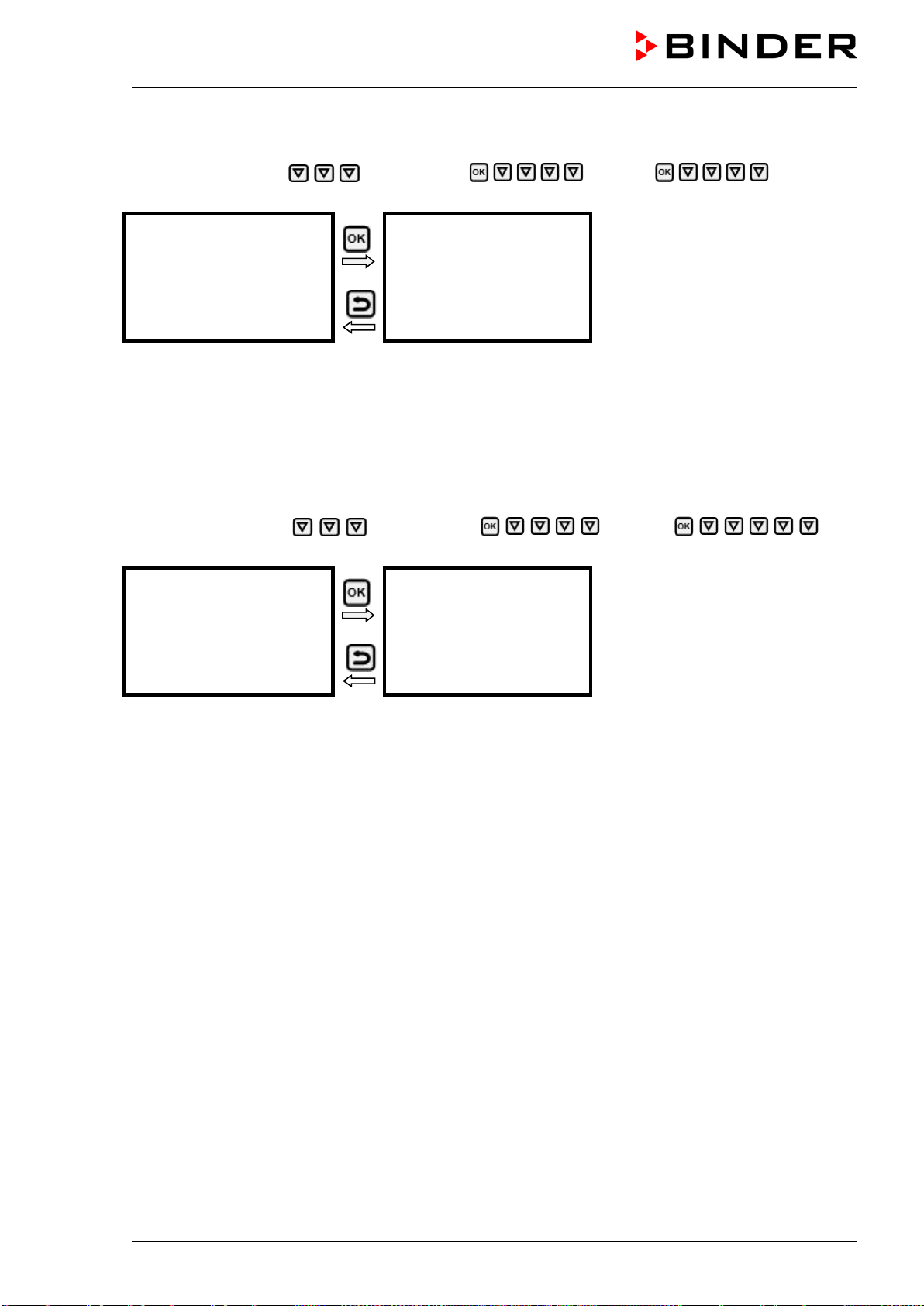
VD (E3.1) 10/2020 page 128/179
18.1.1.5 Showing the DNS server address
Path: Normal display Chamber info Ethernet DNS server
address
Display of the DNS server address
(example)
Toggle forth and back with the Back
button and the OK button.
DNS server address
0.0.0.0
With the arrow-down button you can now change to the next parameter (DNS chamber name).
With the Back button you can go back to the “Ethernet” submenu and, repeatedly pressing it, to Normal
display.
18.1.1.6 Showing the DNS chamber name
Path: Normal display Chamber info Ethernet DNS
chamber name
Display of the DNS chamber name
(example)
Toggle forth and back with the Back
button and the OK button.
DNS chamber name
BinderRD4-000cd80a281
With the Back button you can go back to the “Ethernet” submenu and, repeatedly pressing it, to Normal
display.
18.1.2 Changing the configuration of the network settings
Required access level: “Admin”.
The “Ethernet” submenu offers to subsequently or individually access the following settings:
• Selecting the type of assignment (automatic or manual) of the IP address, chap. 18.1.2.1
If automatic IP address assignment has been selected:
• Selecting the type of assignment (automatic or manual) of the DNS server address, chap. 18.1.2.2.
If manual IP address assignment has been selected:
• Assigning the IP address, chap.18.1.2.3
• Assigning the subnet mask, chap. 18.1.2.4
• Assigning the standard gateway, chap. 18.1.2.5
If manual IP address assignment or manual DNS server address assignment has been selected:
• Assigning the DNS server address, chap. 18.1.2.6

VD (E3.1) 10/2020 page 129/179
18.1.2.1 Selecting the type of IP address assignment (automatic / manual)
Path: Normal display Settings Ethernet IP address assignment
Press the OK button to enable the setting
Selection of the type of assignment of the IP address.
The current setting flashes. Use the arrow buttons to select between
AUTO (automatic) and MANU (manual).
Confirm the setting with the OK button.
IP address assignment
With the arrow-down button you can now change to the next parameter.
• If manual IP address assignment has been selected: assign the IP address (chap.18.1.2.3)
• If automatic IP address assignment has been selected: select the type of assignment of the DNS
server address (chap. 18.1.2.2)
With the Back button you can go back to the “Ethernet” submenu and, repeatedly pressing it, to Normal
display.
18.1.2.2 Selecting the type of assignment of the DNS server address (automatic / manual)
Access to this function is possible only if automatic IP address assignment has been selected (chap.
18.1.2.1)
Path: Normal display Settings Ethernet DNS server
Press the OK button to enable the setting.
Selection of the type of assignment of the DNS server address.
The current setting flashes. Use the arrow buttons to select between
AUTO (automatic) and MANU (manual).
Confirm the setting with the OK button.
DNS server
If manual assignment of the DNS server address has been selected, you can now change with the arrow-
down button to assign the DNS server address (chap. 18.1.2.6)
With the Back button you can go back to the “Ethernet” submenu and, repeatedly pressing it, to Normal
display.
18.1.2.3 Assigning the IP address
Access to this function is possible only if manual IP address assignment has been selected (chap.
18.1.2.1)
Path: Normal display Settings Ethernet IP address
Press the OK button to enable the setting.
The IP address entry is done in four steps, corresponding to the number sections: (1).(2).(3).(4)
Principle of entry:
• Use the OK button to select the desired section of the IP address 1/4, 2/4, 3/4, 4/4 in the upper
display line
• Use the Arrow buttons to enter the value for the selected section of the IP address

VD (E3.1) 10/2020 page 130/179
IP address assignment (sample values).
The first section of the IP address is shown. Enter the desired value
with the arrow buttons.
Use the OK button to confirm the entry and proceed to the second
section of the IP address.
IP address
IP address assignment (sample values).
The second section of the IP address is shown. Enter the desired value
with the arrow buttons.
Use the OK button
to confirm the entry and proceed to the third
section of the IP address.
IP address
IP address assignment (sample values).
The third section of the IP address is shown. Enter the desired value
with the arrow buttons.
Use the OK button to confirm the entry and proceed to the last section
of the IP address.
IP address
IP address assignment (sample values).
The forth section of the IP address is shown. Enter the desired value
with the arrow buttons.
Confirm the setting with the OK button.
IP address
With the arrow-down button you can now change to the enter the subnet mask.
With the Back button you can go back to the “Ethernet” submenu and, repeatedly pressing it, to Normal
display.
18.1.2.4 Setting the subnet mask
Access to this function is possible only if manual IP address assignment has been selected (chap.
18.1.2.1)
Path: Normal display Settings Ethernet Subnet mask
Press the OK button to enable the setting.
The subnet mask entry is done in four steps, corresponding to the number sections: (1).(2).(3).(4)
Principle of entry:
• Use the OK button to select the desired section of the subnet mask 1/4, 2/4, 3/4, 4/4 in the upper
display line
• Use the Arrow buttons to enter the value for the selected section of the subnet mask
For details please refer to the description of the similar procedure in chap.18.1.2.3 “Assigning the IP
address”.
With the arrow-down button you can now change to the enter the standard gateway.
With the Back button you can go back to the “Ethernet” submenu and, repeatedly pressing it, to Normal
display.

VD (E3.1) 10/2020 page 131/179
18.1.2.5 Setting the standard gateway
Access to this function is possible only if manual IP address assignment has been selected (chap.
18.1.2.1)
Path: Normal display Settings Ethernet Standard gateway
Press the OK button to enable the setting.
The standard gateway entry is done in four steps, corresponding to the number sections: (1).(2).(3).(4)
Principle of entry:
• Use the OK button to select the desired section of the standard gateway 1/4, 2/4, 3/4, 4/4 in the upper
display line
• Use the Arrow buttons to enter the value for the selected section of the standard gateway
• For details please refer to the description of the similar procedure in chap.18.1.2.3 “Assigning the IP
address”.
With the arrow-down button you can now change to the assign the DNS server address.
With the Back button you can go back to the “Ethernet” submenu and, repeatedly pressing it, to Normal
display.
18.1.2.6 Assigning the DNS server address
Access to this function is possible if manual IP address assignment (chap. 18.1.2.1) or manual DNS
server address assignment (chap. 18.1.2.2) has been selected.
With manual IP address assignment:
Path: Normal display Settings Ethernet DNS server address
With manual DNS server address assignment:
Path: Normal display Settings Ethernet DNS server address
Press the OK button to enable the setting.
The DNS server address entry is done in four steps, corresponding to the number sections: (1).(2).(3).(4)
Principle of entry:
• Use the OK button to select the desired section of the DNS server address 1/4, 2/4, 3/4, 4/4 in the
upper display line
• Use the Arrow buttons to enter the value for the selected section of the DNS server address
• For details please refer to the description of the similar procedure in chap.18.1.2.3 “Assigning the IP
address”.
With the Back button you can go back to the “Ethernet” submenu and, repeatedly pressing it, to Normal
display.

VD (E3.1) 10/2020 page 132/179
18.2 MB2 controller
For the network and communication settings at least the “Admin” authorization level is required.
18.2.1 Ethernet
18.2.1.1 Configuration
Path: Main menu > Settings > Ethernet
“Ethernet” submenu.
•
In the field “IP address assignment” select the
desired setting “Automatic (DHCP)” or “Manual”.
With selection “Manual” you can enter the IP-
address, the subnet mask and the standard
gateway manually.
• Select “DNS device name” and enter the DNS device name. Confirm entry with Confirm icon.
• In the field “DNS server address” select the
desired setting “Automatic” or “Manual”.
With selection “Manual” you can enter the DNS
server address manually.
After completing the settings, press the Confirm icon to take over the entries and exit the menu, or press
the Close icon to exit the menu without taking over the entries.

VD (E3.1) 10/2020 page 133/179
18.2.1.2 Display of MAC address
Path: Main menu > Device info > Ethernet
“Ethernet” submenu (example).
18.2.2 Web server
This controller menu serves to configure the web server. Then you can enter the chamber’s IP-address in
the Internet. The IP address is available via Chamber information > Ethernet. The BINDER web server
opens. Enter the user name and password which have been assigned for the web server in the controller
menu. This enables online access to the controller display, to see e.g., the event list or error messages.
In this view no settings can be changed.
Path: Main menu > Settings > Web server
“Webserver” submenu.
• In the field “Password active” select the desired
setting “Yes” or “No”.
• Select the field “User name” and enter the desired user name. Confirm entry with Confirm icon.
• Select the field “Password” and enter the desired password. Confirm entry with the Confirm icon.
• Select the field “Automatic log out after” and enter the time in minutes after which the webserver shall
log out automatically. Setting range: 0 min to 65535 min. Confirm entry with Confirm icon.
After completing the settings, press the Confirm icon to take over the entries and exit the menu, or press
the Close icon to exit the menu without taking over the entries.

VD (E3.1) 10/2020 page 134/179
18.2.3 E-Mail
As soon as an alarm was triggered, an e-mail is sent to the configured e-mail address.
Path: Main menu > Settings > Email
E-mail address entry:
“Email” submenu.
Select the desired e-mail address field and enter the
e-mail address. You can use the Keyboard change
icon for entry. Confirm entry with Confirm icon.
E-mail server settings:
“Email” submenu.
Select the field “Email server” to access the settings
• In the field “Authentication” select the desired
setting “None” or “SMTP” auth“.
With the setting “SMTP auth”, you can enter a
password under “Email password”.
• Select the field “Email user name” and enter the desired user name. Confirm entry with Confirm icon.
• Select the field “SMTP mail server URL” and enter the SMPT mail server URL. Confirm entry with
Confirm icon.
• Select the field “SMTP port number” and enter the desired port number. Standard setting: “25”.
Confirm entry with Confirm icon.
• Select the field “Email sender” and enter the desired Email sender. Confirm entry with Confirm icon.
After completing the settings, press the Confirm icon to take over the entries and exit the menu, or press
the Close icon to exit the menu without taking over the entries.

VD (E3.1) 10/2020 page 135/179
19. RD4 controller: Data recorder
An internal data recorder saves chamber data and events in three data sets.
With the export function “Export recorder data” (chap. 20.1.3) you can save the three data sets via the
USB interface to USB stick. They are issued in the selected language as a spreadsheet with the file
extension “.csv” and can be further processed in the desired program. The data is unencrypted. Always
the entire data memory is read out.
19.1 Recorded data
All data is given out in tabular form. The headlines of the “number”, “date”, and “time” values are given out
in the selected language, all other information in English.
• Chamber data for the user “DL1”
Tabular representation of the actual temperature and pressure values together with the date and time,
according to the set storage rate (chap. 19.3). Temperature values are always given out in °C.
• Chamber data for BINDER Service “DL2”
This data is intended for use by BINDER Service. It also contains information from the self-test
function. The storage rate is fix (1 minute). Temperature values are always given out in °C.
• Event list
Messages regarding the controller and data memory as well as the alarm messages together with the
date and time:
• Firmware update done
• “New config (USB)”: New configuration uploaded via USB
• “Data recorder cleared”: Data recorder and event list deleted via setup program
• Other event messages according to existing alarms
• The moment of switching the alarm state on and off is indicated under “On/Off”.
19.2 Storage capacity
The storage capacity of the data recorder depends on the number of entries.
• DL1 = 110.000 entries (equaling 76 days with a storage rate of 1 minute, setting see chap. 19.3)
• DL2 = 27.000 entries (equaling 18 days with a fix storage rate of 1 minute)
• Event list: 200 events
The shorter the set storage rate, the closer are the stored measuring points, the more precise, but also
shorter is the documented period.
Once the storage capacity of the data recorder is reached, overwriting of the oldest values begins
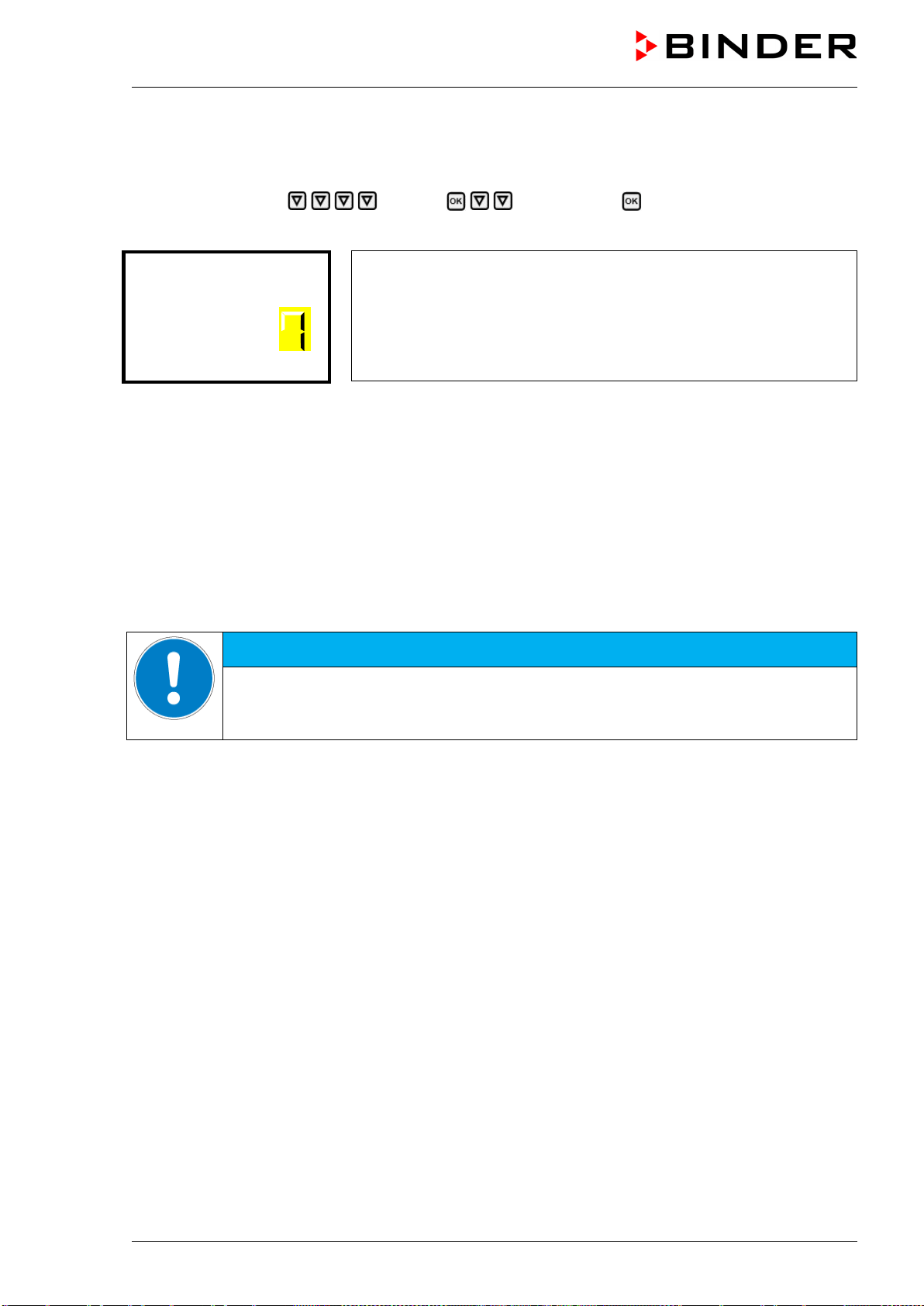
VD (E3.1) 10/2020 page 136/179
19.3 Setting the storage rate for the “DL1” recorder data
Required access level: “Admin”.
Path: Normal display Settings Data recorder Storage interval
Press the OK button to enable the setting.
Function “Storage interval”.
The current setting flashes. Use the arrow buttons to enter the desired
storage interval. Setting range: 1 minute to 60 minutes.
Press the OK button to confirm the setting.
Storage interval
With the Back button you can go back to the “Data recorder” submenu and, repeatedly pressing it, to
Normal display.
19.4 Deleting the data recorder
When importing a configuration via USB stick (chap. 20.1.2) and when loading a new firmware version by
BINDER service, the entire data memory is deleted.
BINDER service can also install the configuration by means of a setup program without deleting the data.
Regardless of this, BINDER Service can delete the data via a setup program.
Loading a new configuration via USB-Stick leads to deleting the data recorder.
NOTICE
Danger of information loss when loading a new configuration.
Data loss.
Backup data on the USB stick prior to loading a new configuration.
20. USB menu: Data transfer via USB interface
20.1 RD4 controller
A USB interface for data transfer via USB stick is located in the instrument panel (the second micro USB
interface is only used by the manufacturer).
The controller offers an import function and three export functions through the USB interface:
Import function (chap. 20.1.2):
• Configuration data in file “KONF380.set”
Export functions (chap. 20.1.3):
• Configuration data in file “KONF380.set”
• Recorder data
- DL1 (chamber data for the user): “DL1_[MAC address of the chamber].csv”
- DL2 (chamber data for BINDER Service): “DL2_[ MAC address of the chamber].csv”
- Event list: “EvList_[MAC address of the chamber].csv”
For detailed information on the file content see chap. 19.1.

VD (E3.1) 10/2020 page 137/179
• Service data
The "Service" folder is created on the USB stick and can be sent to BINDER Service. In addition to the
configuration and recorder data, it contains further service-relevant information.
20.1.1 Connecting the USB stick
Connect the USB stick to the interface located in the triangular instrument panel.
Connect only USB sticks to the USB interface.
After inserting the USB stick, the initial function “Import configuration” is displayed.
As long as the USB stick is connected, only the functions for data transfer are available. Other controller
functions are only available after removing the USB stick.
20.1.2 Import function
Required access level: “Admin”.
Function “Import configuration”.
To import configuration data from the USB stick, press the OK button.
Import configuration
With the arrow-down button you can now change to the setting of the “Export configuration” function.
20.1.3 Export functions
Required access level: any user
Function “Export configuration”.
To write the configuration data from the controller to the USB stick,
press the OK button.
Export configuration
With the arrow-down button you can now change to the next function.
Function “Export recorder data”.
To write the recorder data from the controller to the USB stick, press
the OK button.
Export recorder data
With the arrow-down button you can now change to the next function.

VD (E3.1) 10/2020 page 138/179
Function “Export service data”.
To write the chamber data from the controller to the USB stick, press
the OK button.
Export service data
20.1.4 Ongoing data transfer
A moving arrow symbol indicates the progress of the data transfer.
Example:
Data recording is running.
Export service data
Attention! Danger of data loss! Do not disconnect the USB stick from the device during ongoing data
transfer!
After successful transfer, the controller shows again the initial function “Import configuration”.
20.1.5 Error during data transmission
In the event of an error, the message ERR (error) is displayed.
Read error (example).
Import configuration.
20.1.6 Removing the USB stick
Logging off the USB stick is not possible / required.
Be sure that no data recording is running (chap. 20.1.4).
After removing the USB stick, the controller is back in the same menu as before when connecting the
USB stick.
20.2 MB2 controller
The USB port is located in the instrument panel.
When you insert a USB-stick, the “USB” menu opens.
Depending on the user’s authorization level, different functions (highlighted in black) are available for the
logged-in user.

VD (E3.1) 10/2020 page 139/179
Available functions
with “User” authorization level
Available functions
with “Admin” authorization level
Function Explanation
Log-out USB stick Log-out USB stick bevor pulling it
Export new chart recorder data (*.DAT) Export chart recorder data, which have been added since
last export, in .dat format
Export all chart recorder data (*.DAT) Export all chart recorder data in .dat format
Export all chart recorder data (*.csv) Export all chart recorder data in .csv format
Import configuration and programs Import configuration and timer / time / week programs
Export configuration and programs Export configuration and timer / time / week programs
Import programs Import timer / time / week programs
Export service data Export service data
Software update Controller firmware update

VD (E3.1) 10/2020 page 140/179
21. MB2 controller: Chart recorder display
This view offers graphic representation of the measurement course. Data representation imitates a chart
recorder and allows recalling any set of measured data at any point of time taken from the recorded period.
21.1 Views
Press the Change view icon to access the pen recorder display.
21.1.1 Show and hide legend
Show legend
Hide legend
Press the Show legend icon to display the legend on the right side of the display
Legend shown on the right side of the display
21.1.2 History display
History display
Press the History display icon to change to the history display.
History display with legend shown.
The chart recorder is paused. Data recording
continues in the background.
Move the central red line by tapping and holding to
the desired position.
The legend at the right side shows the values of the
current line position.
Then further icons appear:

VD (E3.1) 10/2020 page 141/179
History display: Curve selection
Curve selection
Press the Curve selection icon to access the “Curve selection” submenu.
“Curve selection” submenu.
Select the curves to be displayed by checking the
checkbox of the corresponding parameter. Press the
Confirm icon
History display: Search the required instant
Search
Press the Search icon to access the “Search” submenu.
“Search” submenu.
Select the required instant by entering its date and
time and press the Confirm icon

VD (E3.1) 10/2020 page 142/179
History display: Zoom function
Zoom
Press the Zoom icon to access the “Zoom” submenu.
“Zoom” submenu.
Select the zoom factor and press the Confirm icon
History display: Show and hide scroll buttons to scroll to an instant
Show scroll buttons
Hide scroll buttons
Press the Show scroll buttons icon to access the “Page selection” submenu.
“Page selection” submenu.
Scroll buttons are shown on the left and on the right.
Use them to move along the timeline.

VD (E3.1) 10/2020 page 143/179
21.2 Setting the parameters
This menu allows setting the storage interval, the type of values to be shown and the scaling of the
temperature and humidity charts.
Path: Main menu > Settings > Measurement chart
“Measurement chart” submenu.
• Select the field “Storage interval” and enter the desired storage interval. Confirm entry with Confirm
icon.
The available presentation depends on the pre-selected storage rate. Factory setting: 60 seconds.
This means the higher the storage rate, the more precisely but shorter the data representation will be.
• In the field “Storage values” select the desired
value type to be displayed.
• For scaling the representation select the desired minimum and maximum temperature or pressure
value and enter the desired values. Temperature display range: 0 °C up to 300 °C. Pressure display
range: 0 mbar up to 1600 mbar. Confirm each entry with Confirm icon.
Setting the storage rate or rescaling (minimum and/or maximum) will clear the measured-value memory
and the event list.
NOTICE
Danger of information loss when setting the storage rate or rescaling.
Data loss of measured-value memory and event list.
Change the storage rate or scaling ONLY if the previously registered data is no longer
needed.
After completing the settings, press the Confirm icon to take over the entries and exit the menu, or press
the Close icon to exit the menu without taking over the entries.

VD (E3.1) 10/2020 page 144/179
22. Reference measurements
22.1 Checking the temperature in the inner chamber
The controller display was adjusted in the factory to the temperature in the center of the usable volume
(chap. 27.1). The sensor probe of the reference measuring device was connected tightly to an expansion
rack positioned in the middle of the chamber.
22.1.1 Checking the controller display
• Conduct the reference sensor into the inner chamber through the measuring port (12). The port must
be largely vacuum tight to enable a typical operation vacuum for the calibration. For a high vacuum,
use a measuring access port. Usually, a silicone plug with a hole for the sensor wire is sufficient.
• Fix the sensor to the center of an expansion rack in the middle of the useable volume with adhesive
aluminum tape or thermal conductive paste to ensure sufficient thermal conductivity.
• Perform the measurement in a thermally stable condition with 3 expansion racks and empty oven.
• Equilibrating time: at least 12 hours.
22.1.2 Checking the spatial temperature exactitude
• Fix at least 9 sensor probes on 3 racks with adhesive aluminum tape or thermal conductive paste to
ensure sufficient thermal conductivity
• The distance of the sensor probes to all inner chamber walls must be at least 10% of the
corresponding inner chamber dimension (see DIN 12880:2007).
• Perform the measurement in a thermally stable condition with 3 expansion racks and empty oven.
• Response time: at least 12 hours.
Do NOT use the temperature probe of the reference measurement device without any contact
to the expansion rack, i.e., do NOT measure vacuum values!
In case the temperature probe is a thermo element, mount it so it is electrically insulated from
the rack.
If you note an excessive divergence between the controller and reference temperatures, please contact
BINDER Service to calibrate the temperature controller.

VD (E3.1) 10/2020 page 145/179
23. Options
23.1 APT-COM™ 4 Multi Management software (Option)
The chamber is regularly equipped with an Ethernet interface (3) that can connect the BINDER APT-
COM™ 4 Multi Management Software.
• RD4 controller: The MAC Address is indicated in the “Ethernet” controller menu (chap. 18.1.1.1).
• MB2 controller: MAC Address is indicated in the “Device info” controller menu (chap. 18.2.1.2).
The actual temperature and pressure values are given at adjustable intervals. Programming can be
performed graphically via PC.
For chambers with RD4 controller, time and week programs can be created and transferred to the
controller, which can then be started and stopped directly from the controller (chap. 14).
Up to 100 chambers can be cross-linked. For further information please refer to the APT-COM™ 4
operating manual.
23.2 Analog outputs for temperature and pressure (option)
With this option, the camber is equipped with analog outputs 4-20 mA for temperature and pressure.
These outputs allow transmitting data to external data registration systems or devices.
The connection is realized as a 9-poles SUB-D socket “Analog output” (10) located in the VD rear control
panel as follows:
ANALOG OUTPUT 4-20 mA DC
PIN 1: Temperature +
PIN 2: Temperature –
PIN 4: Pressure +
PIN 5: Pressure –
Temperature range: 0 °C to +220 °C
Pressure range: 0 mbar to 1100 mbar
A suitable plug is enclosed.
Figure 20: Pin configuration of the SUB-D socket “Analog output” (10) for the analog outputs option
23.3 Measuring access port for vacuum, 9 poles (option)
The measuring access port allows creating electrical connections for low voltages or sensors between the
exterior and interior of the VD vacuum drying oven. A 9 poles plug for the outside is included.
Figure 21: Measuring connection (12) with measuring access
port and supplied plug

VD (E3.1) 10/2020 page 146/179
Connections at the measuring access port
• At the inner side of the measuring access port you can solder up to 9 cables. The inside connections
must be insulated against each other and against ground. Use 300 °C / 572 °F solder.
• The 9 contacts are conducted outside via the measuring access port. You can use them to connect a
device via the delivered plug.
Maximum load capacity of the switching contacts: 42 V AC/DC - 2A
DANGER
Electrical hazard due to exceeding the load capacity of the switching contacts.
Damage to switching contacts and connection socket. Deadly electric shock.
∅ Do NOT exceed the maximum switching load of 42 AC/DC – 2Amp.
∅ Do NOT connect any devices with a higher load capacity.
Insulate the inside connections against each other and against ground. Use 300 °C /
572 °F solder.
23.4 Object temperature display with flexible Pt 100 temperature sensor (option)
The object temperature display permits recording the object temperature directly on or in the drying
material. This enables the determination of the actual temperature of the charging material during the
whole process. The object temperature is measured via a flexible Pt100 sensor inside the inner chamber
and can be viewed on the controller display. The sensor needs to be in thermally conducting contact with
the charging material. It can be plunged into humid charging material up to the length of its protecting
tube.
23.4.1 Connection of the object temperature sensor
• Insert the Pt 100 temperature sensor from the rear through the measuring connection (12) into the
inner chamber.
• The 3 contacts of the Pt 100 sensor are conducted outside via a measuring access port. From there,
establish the connection to the 9-poles SUB-D socket “Object temperature input” (9) in the VD rear
control panel. Connect the supplied cable to the measuring access port and into SUB-D-socket (9).
Figure 22: Measuring connection (12) with
measuring access port
Figure 23: Sub D socket (9) “Object temperature input”
in the VD rear control panel to connect the optional Pt
100 sensor

VD (E3.1) 10/2020 page 147/179
Technical data of the Pt 100 sensor:
• Three-wire technique
• Class B (DIN EN 60751)
• Temperature range up to 320 °C / 608 °F
• Stainless steel protective tube, length 45 mm / 1.77 in, stainless steel material no. 1.4501
23.4.2 Display on the RD4 controller
In Normal display, the current actual values and the measures object temperature values are shown
alternately:
T / Pressure (mbar)
Obj. Temp.
23.4.3 Display on the MB2 controller
Normal display with object temperature display
(sample values)
The object temperature data are put out together with the data of the temperature controller to the
chamber’s interface and can be documented by the APT-COM™ 4 Multi Management Software (option,
chap. 23.1) developed by BINDER.
23.5 LED interior lighting
The LED interior lighting provides optimal illumination of the interior, regardless of the lighting conditions
in the environment.
It is turned on with a switch located in the triangular instrument panel.

VD (E3.1) 10/2020 page 148/179
24. Cleaning and decontamination
Clean the chamber after each use in order to prevent potential corrosion damage by ingredients of the
loading material.
Prior to renewed startup, allow the chamber to completely dry after all cleaning and decontamination
measures.
DANGER
Electrical hazard by water entering the chamber.
Deadly electric shock.
Make sure that the chamber will not become wet during cleaning or decontamination.
∅ Do NOT spill water or cleaning agents over the inner and outer chamber surfaces.
∅ Do NOT put ANY cleaning aids (cloth or brush) into slots or openings on the chamber.
Before cleaning, disconnect the power plug. Let the chamber cool down to ambient
temperature.
Completely dry the chamber before turning it on again.
24.1 Cleaning
Disconnect the oven from the power supply before cleaning. Disconnect the power plug.
The interior of the chamber must be kept clean. Thoroughly remove any residues of the
charging material
Wipe the surfaces with a moistened towel. In addition, you can use the following cleaning agents:
Exterior surfaces,
inner chamber,
door gaskets
Standard commercial cleaning detergents free from acid or halides.
Alcohol based solutions.
We recommend using the neutral cleaning agent Art. No. 1002-0016.
Expansion racks,
rack holders
Standard commercial cleaning detergents free from acid or halides, no salt
solution or chlorinated solvents.
We recommend using the neutral cleaning agent Art. No. 1002-0016.
Controller housing
(instrument panel)
Standard commercial cleaning detergents free from acid or halides.
We recommend using the neutral cleaning agent Art. No. 1002-0016.
Zinc coated hinge parts
rear chamber wall
Standard commercial cleaning detergents free from acid or halides.
Do NOT use a neutral cleaning agent on zinc coated surfaces.
Do not use cleaning agents that may cause a hazard due to reaction with components of the device or
the charging material. If there is doubt regarding the suitability of cleaning products, please contact
BINDER service.
We recommend using the neutral cleaning agent Art. No. Art. 1002-0016 for a thorough
cleaning.
Any corrosive damage that may arise following use of other cleaning agents is excluded from
liability by BINDER GmbH.
Any corrosive damage caused by a lack of cleaning, is excluded from liability by BINDER
GmbH.

VD (E3.1) 10/2020 page 149/179
NOTICE
Danger of corrosion by using unsuitable cleaners.
Damage to the chamber.
∅ Do NOT use acidic or chlorine cleaning detergents.
∅ Do NOT use a neutral cleaning agent on other kind of surfaces e.g., the zinc coated
hinge parts or the rear chamber wall.
For surface protection, perform cleaning as quickly as possible.
After cleaning completely remove cleaning agents from the surfaces with a moistened towel.
Let the chamber dry.
Soapsuds may contain chlorides and must therefore NOT be used for cleaning.
With every cleaning method, always use adequate personal safety controls.
Following cleaning, leave the chamber door open or remove the access port plugs.
The neutral cleaning agent may cause health problems in contact with skin and if ingested.
Follow the operating instructions and safety hints labeled on the bottle of the neutral
cleaning agent.
Recommended precautions: To protect the eyes use sealed protective goggles. Wear gloves. Suitable
protective gloves with full contact: butyl or nitrile rubber, penetration time >480 minutes.
CAUTION
Danger of chemical burns through contact with skin or ingestion of the
neutral cleaning agent.
Skin and eye damage. Environmental damage.
∅ Do not ingest the neutral cleaning agent. Keep it away from food and
beverages.
∅ Do NOT empty the neutral cleaning agent into drains.
Wear protective gloves and goggles.
Avoid skin contact with the neutral cleaning agent.
24.2 Decontamination / chemical disinfection
The operator must ensure that proper decontamination is performed in case a contamination of the
chamber by hazardous substances has occurred.
Disconnect the chamber from the power supply prior to chemical decontamination. Disconnect the power
plug.
Do not use decontamination agents that may cause a hazard due to reaction with components of the
device or the charging material. If there is doubt regarding the suitability of cleaning products, please
contact BINDER service.

VD (E3.1) 10/2020 page 150/179
You can use the following disinfectants:
Inner chamber Standard commercial surface disinfectants free from acid or halides.
Alcohol based solutions.
We recommend using the disinfectant spray Art. No. 1002-0022.
For chemical disinfection, we recommend using the disinfectant spray Art. No. 1002-0022.
Any corrosive damage that may arise following use of other disinfectants is excluded from
liability by BINDER GmbH.
With every decontamination / disinfection method, always use adequate personal safety
controls.
In case of contamination of the interior by biologically or chemically hazardous material, there are two
possible procedures depending on the type of contamination and charging material.
(1) Vacuum drying ovens VD can be sterilized at 190 °C / 374 °F for at least 30 minutes. All inflammable
goods must be removed from the interior before.
(2) Remove the vacuum expansion racks and removable rack holders and spray the inner chamber with
an appropriate disinfectant.
If desired you can sterilize the vacuum expansion racks and removable rack holders in a sterilizer or
autoclave. Before start-up, the chamber must be absolutely dry and ventilated, as explosive gases
may form during the decontamination process.
In case of eye contact, the disinfectant spray may cause eye damage due to chemical
burns. Follow the operating instructions and safety hints labeled on the bottle of the
disinfectant spray.
Recommended precautions: To protect the eyes use sealed protective goggles.
CAUTION
Danger of chemical burns through eye contact with the disinfectant
spray.
Eye damage. Environmental damage
∅ Do NOT empty the disinfectant into drains.
Wear protective goggles.
After using the disinfectant spray, allow the chamber to dry thoroughly, and aerate it
sufficiently.

VD (E3.1) 10/2020 page 151/179
25. Maintenance and service, troubleshooting, repair, testing
25.1 General information, personnel qualification
• Maintenance
See chap. 25.3
• Simple troubleshooting
Chap. 25.2 describes troubleshooting by operating personnel. It does not require technical intervention
into the chamber, nor disassembly of chamber parts.
For personnel requirements please refer to chap. 1.1.
• Detailed troubleshooting
If errors cannot be identified with simple troubleshooting, further troubleshooting must be performed by
BINDER Service or by BINDER qualified service partners or technicians, in accordance with the
description in the Service Manual.
For personnel requirements please refer to the Service Manual.
• Repair
Repair of the chamber can be performed by BINDER Service or by BINDER qualified service partners
or technicians, in accordance with the description in the Service Manual.
After maintenance, the chamber must be tested prior to resuming operation.
• Electrical testing
To prevent the risk of electrical shock from the electrical equipment of the chamber, an annual repeat
inspection as well as a test prior to initial startup and prior to resuming operation after maintenance or
repair, are required. This test must meet the requirements of the competent public authorities. We
recommend testing under DIN VDE 0701-0702:2008 in accordance with the details in the Service
Manual.
For personnel requirements please refer to the Service Manual.
25.2 Simple troubleshooting
Defects and shortcomings can compromise the operational safety of the chamber and can lead to risks
and damage to equipment and persons. If there are is a technical fault or shortcoming, take the chamber
out of operation and inform BINDER Service. If you are not sure whether there is a technical fault,
proceed according to the following list. If you cannot clearly identify an error or there is a technical fault,
please contact BINDER Service.
Only qualified service personnel authorized by BINDER must perform repair.
Repaired chambers must comply with the BINDER quality standards.

VD (E3.1) 10/2020 page 152/179
Fault description
Possible cause
Required measures
General
Chamber permanently turned
off.
No power supply.
Check connection to power supply.
Wrong voltage.
Check power supply for voltage of
115V or 230V.
Chamber fuse has responded.
Check chamber fuse.
Controller defective.
Contact BINDER Service.
Heating
Chamber doesn’t heat up.
Pt 100 sensor defective.
Contact BINDER service.
Heating element defective.
Semiconductor relay defective
Chamber doesn’t heat up.
Alarm message “Safety
controller” on the controller
display
Safety controller has responded:
Inner chamber temperature has
reached the safety controller
value. Safety controller value set
too low or temperature set-point
too high, or error in the heating
system.
Let the chamber cool down.
Acknowledge the alarm on the
controller. Check the settings of the
temperature setpoint and safety
controller value. If appropriate,
select suitable safety controller
value (chap. 11.2).
Safety controller defective.
Contact BINDER service.
Chamber doesn’t heat up.
Alarm message
“Overtemperature” on the
controller display
Overtemperature protective
device class 2 (thermal switch)
activated. Error in the heating
system.
Let the chamber cool down.
Acknowledge the alarm on the
controller and restart the chamber.
If the error repeats, turn off the
chamber and contact BINDER
service.
Set-point temperature is not
reached after specified time.
Chamber door not properly
closed.
Completely close chamber door.
Door gasket defective.
Replace door gasket,
Controller not adjusted.
Calibrate and adjust controller.
Chamber heating permanently,
set-point not maintained.
Controller defective.
Contact BINDER Service.
Pt 100 sensor defective.
Semiconductor relay defective
Controller not adjusted.
Calibrate and adjust controller.
Deviations from the indicated
heating-up times.
Oven fully loaded.
Charge the oven less or consider
longer heating-up times.
Deviations from the
temperature set-point in
equilibrated state.
Invalid calibration
Use the delivered expansion racks
only. Do NOT change between
aluminum and stainless-steel racks
Wrong temperature value
measured during calibration.
Reference temperature sensor
has insufficient contact to
expansion rack.
Fix the reference temperature
sensor with thermal conductive
paste or adhesive aluminum tape.
Leakage current when using a
thermo element not electrically
isolated.
Mount a thermo element electrically
isolated from the rack.
Vacuum
Vacuum not held.
Door gasket defective.
Replace door gasket,
Safety glass panel defective.
Replace safety glass panel.
Gaskets of small flange
connections (universal eccentric
ring) defective.
Replace gaskets of small flange
connections.
Inner tube connection leaky.
Contact BINDER Service.

VD (E3.1) 10/2020 page 153/179
Fault description
Possible cause
Required measures
Controller
No chamber function
(dark display).
Chamber is in standby mode.
Deactivate standby mode (chap.
6.2).
Menu functions not available.
Menu functions not available with
current authorization level.
Log in with the required higher
authorization.
MB2 controller:
Log in with the
required higher authorization. or
contact BINDER service to obtain
an activation code (chap. 9.2.6).
No access to controller
Incorrect password.
Contact BINDER service.
Controller does not equilibrate
to entered setpoints.
Temperature control is turned off
Turn on temperature control (chap.
8.5).
Pressure control is turned off.
Turn on pressure control (chap.
8.6).
MB2 controller: Set-points were
entered in Fixed value operation
mode. Controller is in program
operation mode.
Change to Fixed value operation
mode.
Pressure alarm when operating
without a vacuum connection.
Pressure control turned on.
Turn off pressure control (chap.
8.6).
Acknowledging the alarm does
not cancel the alarm state.
Cause of alarm persists.
Remove cause of alarm. If the
alarm state continues, contact
BINDER service.
Alarm message:
- - - - or <-<-< or >->->
Sensor rupture between sensor
and controller or Pt 100 sensor
defective.
Contact BINDER service.
Short-circuit.
MB2 controller: Measured-value
memory cleared in Chart
recorder function, information
lost.
New setting of storage rate or
scaling (minimum and/or
maximum) (chap. 21.2).
Change the storage rate or scaling
ONLY if the previously registered
data are no longer required.
MB2 controller: Program operation
Controller does not equilibrate
to program set-points.
Controller is not in program
operation mode, or program
delay time is running.
Start the program again. If
appropriate, wait for the program
delay time.
Program duration longer than
programmed.
Tolerances have been
programmed.
For rapid transition phases, do
NOT program tolerance limits in
order to permit maximum heating,
evacuating, or ventilation speed.
Program keeps the last program
setpoint constant while in
setting “ramp”.
Program line with setting “ramp”
is incomplete.
When programming with setting
“ramp”, define the end value of the
desired cycle by adding an
additional section with a section
time of at least one second.
Ramp temperature transitions
are only realized as steps.
Setting “step” has been selected. Select setting “ramp”.

VD (E3.1) 10/2020 page 154/179
25.3 Maintenance intervals, service
DANGER
Electrical hazard during live maintenance work.
Deadly electric shock.
∅ The chamber must NOT become wet during operation or maintenance work.
∅ Do NOT remove the rear panel of the chamber.
Disconnect the power plug before conducting maintenance work.
Ensure all maintenance work is conducted by licensed electricians or experts
authorized by BINDER.
Ensure regular maintenance work is performed at least once a year.
The warranty becomes void if maintenance work is conducted by non-authorized personnel.
Replace the door gasket only when cold. Otherwise, the door gasket may become damaged.
We recommend taking out a maintenance agreement. Please consult BINDER Service.
BINDER telephone hotline: +49 (0) 7462 2005 555
BINDER fax hotline: +49 (0) 7462 2005 93555
BINDER e-mail hotline: service@binder-world.com
BINDER service hotline USA: +1 866 885 9794 or +1 631 224 4340 x3 (toll-free in the USA)
BINDER service hotline Asia Pacific: +852 390 705 04 or +852 390 705 03
BINDER service hotline Russia and CIS +7 495 988 15 16
BINDER Internet website http://www.binder-world.com
BINDER address BINDER GmbH, post office box 102, D-78502 Tuttlingen
International customers, please contact your local BINDER distributor.
25.4 Service Reminder
25.4.1 RD4 controller
You can display the time until the service due in the controller. Keep the OK button pressed down for 5
seconds.
The remaining time in days until maintenance is due is shown in the
text field of the controller display.
Press the OK button to confirm the message.
Service in 364.9 days

VD (E3.1) 10/2020 page 155/179
After the recommended maintenance interval (one year of operation) a message appears on the
controller.
The message “Service due!” is shown in the text field of the controller
display.
Press the OK button to confirm the message.
Service due!
After one week of operation, the message reappears.
25.4.2 MB2 controller
After 8760 operating hours or two years the following message appears:
After confirmation with the Confirm icon, the
message window will pop up again every two
weeks until it is reset by BINDER Service.
25.5 Sending the chamber back to BINDER GmbH
If you return a BINDER product to us for repair or any other reason, we will only accept the product upon
presentation of an authorization number (RMA number) that has previously been issued to you. An
authorization number will be issued after receiving your complaint either in writing or by telephone prior
to your sending the BINDER product back to us. The authorization number will be issued following receipt
of the information below:
• BINDER product type and serial number
• Date of purchase
• Name and address of the dealer from which you bought the BINDER product
• Exact description of the defect or fault
• Complete address, contact person and availability of that person
• Exact location of the BINDER product in your facility
• A contamination clearance certificate (chap. 30) must be faxed in advance
The authorization number must be applied to the packaging in such a way that it can be easily recognized
or be recorded clearly in the delivery documents.
For security reasons we cannot accept a chamber delivery if it does not carry an authorization
number.
Return address:
BINDER GmbH
Abteilung Service
Gänsäcker 16
78502 Tuttlingen, Germany

VD (E3.1) 10/2020 page 156/179
26. Disposal
26.1 Disposal of the transport packing
Packing element
Material
Disposal
Straps to fix packing on pallet
Plastic
Plastic recycling
Wooden transport box (option)
with metal screws
Non-wood (compressed
matchwood, IPPC standard)
Wood recycling
Metal
Metal recycling
Pallet
with foamed plastic stuffing
Solid wood (IPPC standard)
Wood recycling
PE foam
Plastic recycling
Shipping box
with metal clamps
Cardboard
Paper recycling
Metal
Metal recycling
Top cover
Cardboard
Paper recycling
Edge protection
Styropor
®
or PE foam
Plastic recycling
Protection of doors
PE foam
Plastic recycling
Bag for operating manual
PE foil
Plastic recycling
Insulating air cushion foil (packing of
optional accessories)
PE foil Plastic recycling
If recycling is not possible, all packing parts can also be disposed of with normal waste.
26.2 Decommissioning
• Disconnect the oven from the power supply. Disconnect the power plug.
• Turn off the inert gas supply.
Through the open inert gas connection, inert gas can enter the vacuum drying oven and escape into
the ambient air.
DANGER
Risk of suffocation by inert gas in a high concentration.
Death by suffocation.
Respect the relevant regulations for handling inert gases.
When decommissioning the vacuum drying oven, turn off the inert gas supply.
• Turn off the vacuum pump. Ventilate the chamber as described in chap. 6.4.2
• Disconnect the oven from the power supply. Pull the power plug.
• Remove the vacuum connection (chap. 4.3).
• Remove the inert gas connection and the pressure reducer (chap. 4.5).
Temporal decommissioning: See indications for appropriate storage, chap. 3.3.
Final decommissioning: Dispose of the chamber as described in chap. 26.3 to 26.5.

VD (E3.1) 10/2020 page 157/179
26.3 Disposal of the chamber in the Federal Republic of Germany
According to Annex I of Directive 2012/19/EU of the European Parliament and of the Council on waste
electrical and electronic equipment (WEEE), BINDER devices are classified as “monitoring and control
instruments values (category 9) only intended for professional use. They must not be disposed of at
public collecting points.
The chambers bear the symbol for the marking of electrical and electronic equipment
manufactured / placed on the market in the EC after 13 August 2005 and be disposed of in
separate collection according to Directive 2012/19/EU on waste electrical and electronic
equipment (WEEE) and German national law for electr
ical and electronic equipment
(Elektro- und Elektronikgerätegesetz, ElektroG). WEEE marking: crossed-out wheeled bin
with solid bar under. A significant part of the materials must be recycled in order to protect
the environment.
At the end of the device’s service life, have the chamber disposed of according to the German national
law for electrical and electronic equipment (Elektro- und Elektronikgerätegesetz, ElektroG from 20
October 2015, BGBl. I p. 1739) or contact BINDER service who will organize taking back and disposal of
the chamber according to the German national law for electrical and electronic equipment (Elektro- und
Elektronikgerätegesetz, ElektroG from 20 October 2015, BGBl. I p. 1739).
NOTICE
Danger of violation against existing law if not disposed of properly.
∅ Do NOT dispose of BINDER devices at public collecting points.
Have the device disposed of professionally at a recycling company which is certified
according to the German national law for electrical and electronic equipment (Elektro-
und Elektronikgerätegesetz, ElektroG from 20 October 2015, BGBl. I p. 1739).
or
Instruct BINDER Service to dispose of the device. The general terms of payment and
delivery of BINDER GmbH apply, which were valid at the time of purchasing the
chamber.
Certified companies disassemble waste (used) BINDER equipment in primary substances for recycling
according to Directive 2012/19/EU. The devices must be free from toxic, infectious or radioactive
substances in order to eliminate any health hazards to the employees of the recycling companies.
Prior to handing the chamber over to a recycling company, it is the user’s responsibility that it
is free from toxic, infectious or radioactive substances.
• Prior to disposal, clean all introduced or residual toxic substances from the chamber.
• Prior to disposal, disinfect the chamber
from all sources of infection. Be aware that sources
of infection may also be located outside the inner chamber.
• If you cannot s
afely remove all toxic substances and sources of infection from the
chamber, dispose of it as “special” waste according to national law.
• Fill out the contamination clearance certificate (chap. 30) and enclose it with the chamber.

VD (E3.1) 10/2020 page 158/179
WARNING
Danger of intoxication and infection through contamination of the chamber with
toxic, infectious or radioactive substances.
Damages to health.
∅ NEVER take a chamber contaminated with toxic substances or sources of infection for
recycling according to Directive 2012/19/EU.
Prior to disposal, remove all toxic substances and sources of infection from the
chamber.
A chamber from which all toxic substances or sources of infection cannot be safely
removed must be considered as “special” waste according to national law. Dispose of it
accordingly.
26.4 Disposal of the chamber in the member states of the EU except for the
Federal Republic of Germany
According to Annex I of Directive 2012/19/EU of the European Parliament and of the Council on waste
electrical and electronic equipment (WEEE), BINDER devices are classified as “monitoring and control
instruments” (category 9) only intended for professional use. They must not be disposed of at public
collecting points.
The chambers bear the symbol for the marking of electrical and electronic equipment
manufactured / placed on the market in the EC after 13 August 2005 and be disposed of in
separate collection according to the Directive 2012/19/EU on waste electrical and electronic
equipment (WEEE). WEEE marking: crossed-out wheeled bin with solid bar under.
At the end of the device’s service life, notify the distributor who sold you the device, who will take back
and dispose of the chamber according to the Directive 2012/19/EU on waste electrical and electronic
equipment (WEEE).
NOTICE
Danger of violation against existing law if not disposed of properly.
∅ Do NOT dispose of BINDER devices at public collecting points.
Have the device disposed of professionally at a recycling company that is certified
according to conversion of the Directive 2012/19/EU into national law.
or
Instruct the distributor who sold you the device to dispose of it. The agreements apply
that were agreed with the distributor when purchasing the chamber (e.g. his general
terms of payment and delivery).
If your distributor is not able to take back and dispose of the chamber, please contact
BINDER service.
Certified companies disassemble waste (used) BINDER equipment in primary substances for recycling
according to Directive 2012/19/EU. The devices must be free from toxic, infectious or radioactive
substances in order to eliminate any health hazards to the employees of the recycling companies.

VD (E3.1) 10/2020 page 159/179
Prior to handing the chamber over to a recycling company, it is the user’s responsibility that it
is free from toxic, infectious or radioactive substances.
• Prior to disposal, clean all introduced or residual toxic substances from the chamber.
• Prior to disposal, disinfect the chamber
from all sources of infection. Be aware that sources
of infection may also be located outside the inner chamber.
• If you cannot safely rem
ove all sources of infection and toxic substances from the
chamber, dispose of it as “special” waste according to national law.
• Fill out the contamination clearance certificate (chap. 30) and enclose it with the chamber.
WARNING
Danger of intoxication and infection through contamination of the chamber with
toxic, infectious or radioactive substances.
Damages to health.
∅ NEVER take a chamber contaminated with toxic substances or sources of infection for
recycling according to Directive 2012/19/EU.
Prior to disposal, remove all toxic substances and sources of infection from the
chamber.
A chamber from which all toxic substances or sources of infection cannot be safely
removed must be considered as “special” waste according to national law. Dispose of it
accordingly.
26.5 Disposal of the chamber in non-member states of the EU
NOTICE
Danger of violation against existing law if not disposed of properly.
Alteration of the environment.
For final decommissioning and disposal of the vacuum drying oven, please contact
BINDER Service.
Follow the statutory regulations for appropriate, environmentally friendly disposal.
Chamber with MB2 controller: The main board of the vacuum drying oven includes a lithium cell. Please
dispose of it according to national regulations.

VD (E3.1) 10/2020 page 160/179
27. Technical description
27.1 Factory calibration and adjustment
This chamber was calibrated and adjusted in the factory. Calibration and adjustment were performed
using standardized test instructions, according to the QM DIN EN ISO 9001 system applied by BINDER
(certified since December 1996 by TÜV CERT). All test equipment used is subject to the administration of
measurement and test equipment that is also a constituent part of the BINDER QM DIN EN ISO 9001
systems. They are controlled and calibrated to a DKD-Standard at regular intervals.
Factory adjustment was done in the center of the usable volume and under vacuum conditions. the
sensor is fixed in the middle of the expansion rack in a way ensuring good thermal conductivity (heat
conduction). Measuring is performed in equilibrated state.
NOTICE
Danger of invalid calibration caused by modified thermal conductivity when
changing between aluminum and stainless-steel racks.
Undefined heating performance.
∅ Do NOT change between aluminum and stainless-steel racks.
Operate the chamber with the supplied expansion racks only.
27.2 Over current protection
The chambers are protected by one or two miniature fuses against over current, accessible from the
outside. The miniature fuses are located at the rear of the chamber next to the power cable connection.
Each fuse holder is equipped with a fuse clip 5mm x 20 mm (cUL-Version 6,3x32 mm). A fuse may be
replaced only with a substitute of the same ratings. Refer to the technical data of the respective device
type.
27.3 VD / VD-UL technical data
Chamber size
23
56
115
External dimensions
Vacuum oven
Width, net
mm / inch
523 / 20.59
638 / 25.12
743 / 29.25
Height, gross (including feet)
mm / inch
720 / 28.35
837 / 25.08
964 / 37.95
Depth, net
mm / inch
490 / 19.29
540 / 21.26
660 / 25.98
Depth, gross (including door handle,
connections)
mm / inch 596 / 23.46 645 / 25.39 764 / 30.08
Window width
mm / inch
265 / 10.43
380 / 14.96
486 / 19.13
Window height
mm / inch
265 / 10.43
380 / 14.96
486 / 19.13
Pump module (option)
Width, net
mm / inch
523 / 20.59
638 / 25.12
743 / 29.25
Height, net
mm / inch
705 / 27.76
705 / 27.76
705 / 27.76
Depth, net
mm / inch
491 / 19.33
539 / 21.22
659 / 25.94
Depth, gross (including door handle,
connections)
mm / inch 546.5 / 21.52 594.5 / 23.41 714.5 / 28.13
Chamber with optional pump module
Width, net
mm / inch
523 / 20.59
638 / 25.12
743 / 29.25
Height, net
mm / inch
1425 / 56.10
1542 / 60.71
1707 / 67.20
Depth, net
mm / inch
720 / 28.35
837 / 25.08
964 / 37.95
Depth, gross (including door handle,
connections)
mm / inch 596 / 23.46 645 / 25.39 764 / 30.08

VD (E3.1) 10/2020 page 161/179
Chamber size
23
56
115
External dimensions
Wall clearances
Wall clearance, rear (minimum)
mm / inch
100 / 3.94
100 / 3.94
100 / 3.94
Wall clearance, side (minimum)
mm / inch
70 / 2.76
70 / 2.76
70 / 2.76
Internal dimensions
Width
mm / inch
285 /
400 / 15.75
506 / 19.92
Height
mm / inch
285 /
400 / 15.75
506 / 19.92
Depth
mm / inch
295 /
343 /
460 / 18.11
Interior volume
l / cu.ft.
24 /
55 /
119 /
Racks
Number of expansion racks (aluminum), series
1
1
1
Number of expansion racks (aluminum), max.
4
5
6
Permissible load per rack
Kg / lbs
20 / 44
20 / 44
20 / 44
Permissible total load
Kg / lbs
50 /
60 /
70 /
Weight
Weight (empty)
Kg / lbs
64 / 141
96 / 212
146 / 322
Temperature data
Temperature range
degrees above
room temperature
°C / °F 9 / 16.2 9 / 16.2 9 / 16.2
up to
°C / °F
220 / 428
220 / 428
220 / 428
Temperature fluctuation
at 100 °C / 212 °F
± K
0.1
0.1
0.1
at 220 °C / 428 °F
± K
0.1
0.1
0.1
Temperature uniformity
(variation)
at 100 °C / 212 °F
± K
1.0
1.5
2.9
at 220 °C / 428 °F
± K
2.5
5.5
7.5
Heating up time
to 100 °C / 212 °F
min
80
80
130
to 220 °C / 428 °F
min
150
160
260
Vacuum data
Vacuum connection with small flange
DN mm / inch
16 / 0.63
16 / 0.63
16 / 0.63
Measuring access port with small flange
DN mm / inch
16 / 0.63
16 / 0.63
16 / 0.63
Inert gas connection with flow-limiter
Adapter with hose olive
∅ mm / inch
3 /
0.12
8 / 0.31
3 /
0.12
8 / 0.31
3 /
0.12
8 / 0.31
Vacuum range (adjustable)
mbar
10 to 1100
10 to 1100
10 to 1100
End vacuum
mbar / inHg
1x10
-2
/
0.0003
1x10
-2
/
0.0003
1x10
-2
/
0.0003
Leak rate
bar/h
/
inHg
/h
1x10
-2
/ 0.295
1x10
-2
/ 0.295
1x10
-2
/ 0.295
Electrical data (model versions VD023-230V, VD056-230V, VD115-230V)
IP protection type according to EN 60529
IP
20
20
20
Nominal voltage
(+/-10%)
at 50 Hz power frequency
V
200-230
200-230
200-230
at 60 Hz power frequency
V
200-230
200-230
200-230
Current type
1N~
1N~
1N~
Nominal power
kW
0,90
1,40
1,60
Nominal current
A
3,9
6,1
7,0
Chamber fuse 5 x 20 mm / 250V / time-lag T
Amp
2 x 6,3
2 x 8
2 x 10
Power plug
grounded plug
Power plug of pump module (option)
grounded plug
Over-voltage category acc. to IEC 61010-1
II
II
II
Pollution degree acc. to IEC 61010-1
2
2
2

VD (E3.1) 10/2020 page 162/179
Chamber size
23
56
115
Different electrical data for VD-UL constructed for the USA and Canada
(model versions VD023UL-120V, VD056UL-120V, VD115UL-120V)
Nominal voltage
(+/-10%)
at 50 Hz power frequency
V
100-120
100-120
100-120
at 60 Hz power frequency
V
100-120
100-120
100-120
Nominal current
A
7,5
11,7
13,4
Chamber fuse 5 x 20 mm / 250V / time-lag T
A
10
2 x 16
--
Chamber fuse 6.3 x 32 mm / 250V / time-lag
T
A -- -- 2 x 20
Power plug
NEMA
5-15P
5-20P
5-20P
Power plug of pump module (option)
NEMA
5-15P
5-15P
5-15P
Environment-specific data
Noise level VD (mean value)
dB (A)
40
40
40
Energy consumption
at 100 °C / 212 °F
Wh/h
140
180
230
at 220 °C / 428 °F
Wh/h
370
560
750
All technical data is specified for unloaded chambers with standard equipment (with aluminum racks) at
an ambient temperature of +22 °C +/- 3 °C / 71.6 °F +/- 5.4 °F and a power supply voltage fluctuation of
+/- 10 %. Technical data is determined in accordance to BINDER Factory Standard Part 2:2015 and DIN
12880:2007.
All indications are average values, typical for chambers produced in series. We reserve the right
to change technical specifications at any time.
27.4 Equipment and options (extract)
To operate the chamber, use only original BINDER accessories or accessories / components
from third-party suppliers authorized by BINDER. The user is responsible for any risk arising
from using unauthorized accessories.
Regular equipment
RD4 microprocessor program controller with LED display
Ethernet interface for computer communication
USB interface
Safety controller (safety device class 2 according to DIN 12880:2007)
Inert gas connection / ambient air inlet “GAS/AIR”, adapter with hose olive 8 mm, with fine-dosing valve
for aeration / inert gas
Measuring connection (DN 16), rear
Safety glass panel
Options / accessories
Expansion racks, aluminum or stainless steel 1.4571
Microprocessor program controller MB2 with touchscreen
Lockable door
Interior LED light
Analog outputs 4-20mA for temperature and pressure
Additional inert gas connection / ambient air inlet “GAS/AIR 2”, adapter with hose olive 8 mm, with fine-
dosing valve for aeration / inert gas
Additional universal access port 40 mm / 1.57 in
FKM door gasket (temperature resistant up to 150 °C / 302 °F)
Object temperature display with flexible Pt 100 temperature sensor

VD (E3.1) 10/2020 page 163/179
Options / accessories
APT-COM™ 4 Multi Management Software for logging and display of temperature data and networking
up to 100 chambers with PC
Connection kit for vacuum pump with various small flange parts
Measuring access port, vacuum, 9 poles (DN 16)
Pump module
Pump stand VAP 1 with separator and emission condenser, ready for connection
Pump stand VAP 2 with separator and emission condenser, ready for connection
Factory calibration certificate
Extension to factory calibration certificate (additional value)
Factory calibration certificate for object temperature display
Factory calibration certificate for pressure display
Extension to factory calibration certificate for pressure display (additional pressure)
Qualification folder
Evaporating dish with rim, small or large
Stable table on wheels with castors and locking brakes
27.5 Accessories and spare parts (extract)
BINDER GmbH is responsible for the safety features of the chamber only, provided skilled
electricians or qualified personnel authorized by BINDER perform all maintenance and repair,
and if components relating to chamber safety are replaced in the event of failure with original
spare parts. The user is responsible for any risks arising from using unauthorized
accessories/components.
Chamber size
23
56
115
Description
Art. No.
Expansion rack, aluminum
8009-1031
8009-1030
8009-1029
Expansion rack, stainless steel
8009-1093
8009-1092
8009-1091
Exchange of aluminum expansion racks for
stainless steel, calibration included
8012-1957 8012-1956 8012-1955
Silicon door gasket, temperature-resistant up to
200 °C / 392°F
6005-0290 6005-0291 6005-0292
FKM door gasket, temperature-resistant up to
150 °C / 302 °F, acid-resistant, silicon free
8012-0500 8012-0501 8012-0502
Pump module with power socket 230 V
8012-1942
8012-1943
8012-1944
Pump module with power socket 115 V
8012-1945
8012-1946
8012-1947
Chamber fuse 5 x 20 mm / 250V / time lag T for
VD 230 V
5006-0092 5006-0093 5006-0079
Chamber fuse 5 x 20 mm / 250V / time lag T for
VD 23-UL, VD 56-UL
5006-0079 5006-0103 ---
Chamber fuse 6,3 x 32 mm / 250V / time lag T for
VD 115-UL
--- --- 5006-0030
Safety glass panel
6012-0012
6012-0013
6012-0014
Rack holder
6004-0230
6004-0229
6004-0211

VD (E3.1) 10/2020 page 164/179
Chamber size
23
56
115
Description
Art. No.
Pump module (230 V)
8012-1942
8012-1943
8012-1944
Pump module (120 V)
8012-1945
8012-1946
8012-1947
Pump module VD (230V) with VAP 1 pump
8012-1958
8012-1959
8012-1960
Pump module VD (120V) with VAP 1 pump
8012-1961
8012-1962
8012-1963
Pump module VD (230V) with VAP 2 pump
8012-1964
8012-1965
8012-1966
Pump module VD (120V) with VAP 2 pump
8012-1967
8012-1968
8012-1969
Description
Art. No.
Accessory kit, consisting of:
8009-0070
Copper seal ring
6005-0056
Hose olive
6009-0064
Universal centering ring
6009-0048
Straining ring
6009-0009
Blind flange
6009-0010
Door handle, complete
6002-0541
Stable table on wheels with castors and locking brakes
9051-0018
Evaporating dish, small
4022-0125
Evaporating dish, large
4022-0126
Pump stand VAP 1 (230V)
5013-0217
Pump stand VAP 1 (120V)
5013-0223
Pump stand VAP 2 (230V)
5013-0218
Pump stand VAP 2 (120V)
5013-0219
VD connection kit for VAP 1 / VAP 2 vacuum pump
8012-1995
Neutral cleaning agent, 1 kg
1002-0016
Validation service
Art. No.
Qualification folder IQ-OQ (printed version)
7007-0001
Qualification folder IQ-OQ (digital version)
7057-0001
Qualification folder IQ-OQ-PQ (printed version)
7007-0005
Qualification folder IQ-OQ-PQ (digital version)
7057-0005
Execution of IQ-OQ
DL420300
Execution of IQ-OQ-PQ
DL440500
Calibration service
Art. No.
Calibration of temperature including certificate (1 measuring point)
8012-1145
Spatial temperature measurement including certificate (9 measuring points)
8012-0916
Spatial temperature measurement including certificate (15 measuring points)
8012-0919
Calibration of pressure including certificate
8012-0440
For information on components not listed here, please contact BINDER Service.

VD (E3.1) 10/2020 page 165/179
27.6 Dimensions
27.6.1 VD 23
[Dimensions in mm]

VD (E3.1) 10/2020 page 166/179
27.6.2 VD 56
[Dimensions in mm]

VD (E3.1) 10/2020 page 167/179
27.6.3 VD 115
[Dimensions in mm]

VD (E3.1) 10/2020 page 168/179
28. Certificates and declarations of conformity
28.1 EU Declaration of Conformity

VD (E3.1) 10/2020 page 169/179

VD (E3.1) 10/2020 page 170/179

VD (E3.1) 10/2020 page 171/179
28.2 Certificate for the GS mark of conformity of the “Deutsche Gesetzliche
Unfallversicherung e.V.” (German Social Accident Insurance) DGUV

VD (E3.1) 10/2020 page 172/179

VD (E3.1) 10/2020 page 173/179
29. Product registration

VD (E3.1) 10/2020 page 174/179
30. Contamination clearance certificate
30.1 For chambers located outside USA and Canada
Declaration regarding safety and health
Erklärung zur Sicherheit und gesundheitlichen Unbedenklichkeit
The German Ordinance on Hazardous Substances (GefStofV), and the regulations regarding safety at
the workplace, require that this form be filled out for all products that are returned to us, so that the safety
and the health of our employees can be guaranteed.
Die Sicherheit und Gesundheit unserer Mitarbeiter, die Gefahrstoffverordnung GefStofV und die Vorschriften zur
Sicherheit am Arbeitsplatz machen es erforderlich, dass dieses Formblatt für alle Produkte, die an uns
zurückgeschickt wird.
Note: A repair is not possible without a completely filled out form.
Ohne Vorliegen des vollständig ausgefüllten Formblattes ist eine Reparatur nicht möglich.
• A completely filled out form must be transmitted via Fax (+49 (0) 7462 2005 93555) or by letter in
advance, so that this information is available before the equipment/component part arrives. A second
copy of this form must accompany the equipment/component part. In addition, the carrier should be
notified.
Eine vollständig ausgefüllte Kopie dieses Formblattes soll per Telefax (Nr. +49 (0) 7462 2005 93555) oder Brief
vorab an uns gesandt werden, so dass die Information vorliegt, bevor das Gerät/Bauteil eintrifft. Eine weitere
Kopie soll dem Gerät/Bauteil beigefügt sein. Ggf. ist auch die Spedition zu informieren.
• Incomplete information or non-conformity with this procedure will inevitably lead to substantial delays
in processing. Please understand the reason for this measure, which lies outside our area of influence,
and will help us to speed up this procedure.
Unvollständige Angaben oder Nichteinhalten dieses Ablaufs führen zwangsläufig zu beträchtlichen
Verzögerungen in der Abwicklung. Bitte haben Sie Verständnis für Maßnahmen, die außerhalb unserer
Einflussmöglichkeiten liegen und helfen Sie mit, den Ablauf beschleunigen.
• Please print and fill out this form completely.
Bitte unbedingt vollständig ausfüllen!
1. Unit/ component part / type: /
Gerät / Bauteil / Typ:
2. Serial No. /
Serien-Nr.:
3. Details about utilized substances / biological substances /
Einzelheiten über die eingesetzten
Substanzen/biologische Materialien:
3.1 Designations /
Bezeichnungen:
a) ____________________________________________________________________________
b) ____________________________________________________________________________
c) ____________________________________________________________________________
3.2 Safety measures required for handling these substances /
Vorsichtsmaßnahmen beim Umgang
mit diesen Stoffen:
a) ____________________________________________________________________________
b) ____________________________________________________________________________
c) ____________________________________________________________________________

VD (E3.1) 10/2020 page 175/179
3.3 Measures to be taken in case of skin contact or release into the atmosphere /
Maßnahmen
bei Personenkontakt oder Freisetzung:
a) ____________________________________________________________________________
b) ____________________________________________________________________________
c) ____________________________________________________________________________
d) ____________________________________________________________________________
3.4 Other important information that must be taken into account /
Weitere zu beachtende und
wichtige Informationen:
a) ____________________________________________________________________________
b) ____________________________________________________________________________
c) ____________________________________________________________________________
4. Declaration on the risk of these substances (please checkmark the applicable items) /
Erklärung zur Gefährlichkeit der Stoffe (bitte Zutreffendes ankreuzen):
4.1 For non toxic, non radioactive, biologically harmless materials /
für nicht giftige, nicht
radioaktive, biologisch ungefährliche Stoffe:
We hereby guarantee that the above-mentioned unit / component part… / Wir versichern, dass o.g.
Gerät/Bauteil...
Has not been exposed to or contains any toxic or otherwise hazardous substances /
weder giftige noch
sonstige gefährliche Stoffe enthält oder solche anhaften.
That eventually generated reaction products are non-toxic and also do not represent a hazard / auch
evtl. entstandene Reaktionsprodukte weder giftig sind noch sonst eine Gefährdung darstellen.
Eventual residues of hazardous substances have been removed /
evtl. Rückstände von Gefahrstoffen
entfernt wurden.
4.2 For toxic, radioactive, biologically harmful or hazardous substances, or any other
hazardous materials / für giftige, radioaktive, biologisch bedenkliche bzw. gefährliche Stoffe oder
anderweitig gefährliche Stoffe.
We hereby guarantee that … / Wir versichern, dass …
The hazardous substances, which have come into contact with the above-
mentioned
equipment/component part, have been completely listed under item 3.1 and that all information in this
regard is complete / die gefährlichen Stoffe, die mit dem o.g. Gerät/Bauteil in Kontakt kamen
, in 3.1 aufgelistet
sind und alle Angaben vollständig sind.
That the unit /component part has not been in contact with radioactivity /
das Gerät/Bauteil nicht mit
Radioaktivität in Berührung kam
5. Kind of transport / transporter /
Transportweg/Spediteur:
Transport by (means and name of transport company, etc.)
Versendung durch (Name Spediteur o.ä.)
__________________________________________________________________________________
Date of dispatch to BINDER GmbH /
Tag der Absendung an BINDER GmbH:
__________________________________________________________________________________

VD (E3.1) 10/2020 page 176/179
We hereby declare that the following measures have been taken /
Wir erklären, dass folgende Maßnahmen
getroffen wurden:
Hazardous substances were removed from the unit including component parts
, so that no hazard
exists for any person in the handling or repair of these items /
das Gerät/Bauteil wurde von Gefahrstoffen
befreit, so dass bei Handhabung/Reparaturen für die betreffenden Person keinerlei Gefährdung besteht
The unit was securely packaged and properly identified /
das Gerät wurde sicher verpackt und vollständig
gekennzeichnet.
Information about the hazardousness of the shipment (if required) has been provided t
o the
transporter / der Spediteur wurde (falls vorgeschrieben) über die Gefährlichkeit der Sendung informiert.
We hereby commit ourselves and guarantee that we will indemnify BINDER GmbH for all damages that
are a consequence of incomplete or incorrect information provided by us, and that we will exempt
BINDER GmbH from eventual damage claims by third parties. /
Wir versichern, dass wir gegenüber BINDER
für jeden Schaden, der durch unvollständige und unrichtige Angaben entsteht, haften und BINDER gegen eventuell
entstehende Schadenansprüche Dritter freistellen.
We are aware that, in accordance with Article 823 of the German Civil Code (BGB), we are directly liable
with regard to third parties, in this instance especially the employees of BINDER GmbH, who have been
entrusted with the handling / repair of the unit / component. /
Es ist uns bekannt, dass wir gegenüber Dritten –
hier insbesondere mit der Handhabung/Reparatur des Geräts/des Bauteils betraute Mitarbeiter der Firma BINDER -
gemäß §823 BGB direkt haften
Name: _______________________________________________________________________
Position/Title: _______________________________________________________________________
Date /
Datum: _______________________________________________________________________
Signature /
Unterschrift: _______________________________________________________________
Company stamp /
Firmenstempel:
Equipment that is returned to the factory for repair must be accompanied by a completely filled
out contamination clearance certificate. For service and maintenance on site, such a
contamination clearance certificate must be submitted to the service technician before the
start of any work. No repair or maintenance of the equipment is possible, without a properly
filled out contamination clearance certificate.

VD (E3.1) 10/2020 page 177/179
30.2 For chambers located in USA and Canada
Product Return Authorization Request
Please complete this form and the Customer Decontamination Declaration (next 2 pages) and attach the
required pictures. E-mail to: IDL_SalesOrderProcessing_USA@binder-world.com
After we have received and reviewed the complete information we will decide on the issue of a RMA
number. Please be aware that size specifications, voltage specifications as well as performance
specifications are available on the internet at www.binder-world.us
at any time.
Take notice of shipping laws and regulations.
Please fill:
Reason for return request Duplicate order
Duplicate shipment
Demo Page one completed by sales
Power Plug / Voltage 115V / 230 V / 208 V / 240V
Size does not fit space
Transport Damage Shock watch tripped? (pictures)
Other (specify below)
_____________________
Is there a replacement PO? Yes No
If yes -> PO #
If yes -> Date PO placed
Purchase order number
BINDER model number
BINDER serial number
Date unit was received
Was the unit unboxed? Yes No
Was the unit plugged in? Yes No
Was the unit in operation? Yes No
Pictures of unit attached?
Pictures of Packaging
attached?
Yes No
Yes No
Pictures have to be attached!
Customer Contact Information Distributor Contact Information
Name
Company
Address
Phone
E-mail

VD (E3.1) 10/2020 page 178/179
Customer (End User) Decontamination Declaration
Health and Hazard Safety declaration
To protect the health of our employees and the safety at the workplace, we require that this form is
completed by the user for all products and parts that are returned to us. (Distributors or Service
Organizations cannot sign this form)
NO RMA number will be issued without a completed form. Products or parts returned to our
NY warehouse without a RMA number will be refused at the dock.
A second copy of the completed form must be attached to the outside of the shipping box.
1. Unit/ component part / type
:
2. Serial No.
3. List any exposure to hazardous liquids, gasses or substances and radioactive material
3.1 List with MSDS sheets attached where available or needed
(if there is not enough space available below, please attach a page):
a) ____________________________________________________________________________
b) ____________________________________________________________________________
c) ____________________________________________________________________________
3.2 Safety measures required for handling the list under 3.1
a) ____________________________________________________________________________
b) ____________________________________________________________________________
c) ____________________________________________________________________________
3.3 Measures to be taken in case of skin contact or release into the atmosphere
:
a) ____________________________________________________________________________
b) ____________________________________________________________________________
c) ____________________________________________________________________________
d) ____________________________________________________________________________
3.4 Other important information that must be considered
:
a) ____________________________________________________________________________
b) ____________________________________________________________________________
c) ____________________________________________________________________________

VD (E3.1) 10/2020 page 179/179
4. Declaration of Decontamination
For toxic, radioactive, biologically and chemically harmful or hazardous substances, or any other
hazardous materials.
We hereby guarantee that
4.1 Any hazardous substances, which have come into contact with the above-mentioned equipment /
component part, have been completely listed under item 3.1 and that all information in this regard is
complete
.
4.2 That the unit /component part has not been in contact with radioactivity
4.3 Any Hazardous substances were removed from the unit / component part, so that no hazard exists
for a person in the shipping, handling or repair of these returned unit
4.4 The unit was securely packaged in the original undamaged packaging and properly identified on the
outside of the packaging material with the unit designation, the RMA number and a copy of this
declaration.
4.5 Shipping laws and regulations have not been violated.
I hereby commit and guarantee that we will indemnify BINDER Inc. for all damages that are a
consequence of incomplete or incorrect information provided by us, and that we will indemnify
and hold harmless BINDER Inc. from eventual damage claims by third parties.
Name: _______________________________________________________________________
Position: _______________________________________________________________________
Company: _______________________________________________________________________
Address: _______________________________________________________________________
Phone #: _______________________________________________________________________
Email: _______________________________________________________________________
Date: _______________________________________________________________________
Signature: _______________________________________________________________________
Equipment returned to the NY warehouse for repair must be accompanied by a completed
customer decontamination declaration. For service and maintenance works on site, such a
customer decontamination declaration must be submitted to the service technician before the
start of work. No repair or maintenance of the equipment is possible without a completed form.