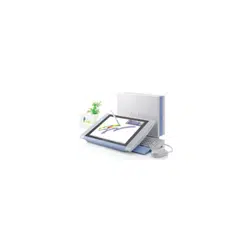

VAIO Slimtop
™
LCD
Computer User Guide
PCV-LX810/PCV-LX910


3
NOTICE
© 2001 Sony Electronics Inc. Reproduction in
whole or in part without written permission is
prohibited. All rights reserved. This manual and
the software described herein, in whole or in
part, may not be reproduced, translated, or
reduced to any machine-readable form without
prior written approval.
SONY ELECTRONICS INC. PROVIDES NO
WARRANTY WITH REGARD TO THIS
MANUAL, THE SOFTWARE, OR OTHER
INFORMATION CONTAINED HEREIN AND
HEREBY EXPRESSLY DISCLAIMS ANY
IMPLIED WARRANTIES OF
MERCHANTABILITY OR FITNESS FOR
ANY PARTICULAR PURPOSE WITH
REGARD TO THIS MANUAL, THE
SOFTWARE, OR SUCH OTHER
INFORMATION. IN NO EVENT SHALL
SONY ELECTRONICS INC. BE LIABLE
FOR ANY INCIDENTAL,
CONSEQUENTIAL, OR SPECIAL
DAMAGES, WHETHER BASED ON TORT,
CONTRACT, OR OTHERWISE, ARISING
OUT OF OR IN CONNECTION WITH THIS
MANUAL, THE SOFTWARE, OR OTHER
INFORMATION CONTAINED HEREIN OR
THE USE THEREOF.
Sony Electronics Inc. reserves the right to make
any modification to this manual or the
information contained herein at any time
without notice. The software described herein is
governed by the terms of a separate user license
agreement.
This product contains software owned by Sony
and licensed by third parties. Use of such
software is subject to the terms and conditions
of license agreements enclosed with this
product. Some of the software may not be
transported or used outside the United States.
Software specifications are subject to change
without notice and may not necessarily be
identical to current retail versions.
Updates and additions to software may require
an additional charge. Subscriptions to online
service providers may require a fee and credit
card information. Financial services may
require prior arrangements with participating
financial institutions.
Sony, VAIO, the VAIO logo, VAIO Smart,
VAIO Slimtop, ImageStation, DVgate, Media
Bar, Handycam, Memory Stick, the Memory
Stick logo, MovieShaker, Smart Capture,
VisualFlow, PictureGear, PictureToy and
i.LINK are trademarks of Sony. Intel and
Pentium are trademarks of the Intel
Corporation. Microsoft, Windows Me,
Windows, and the Windows logo are registered
trademarks of Microsoft Corporation. PS/2 is a
trademark of IBM Corporation.
All other trademarks are trademarks or
registered trademarks of their respective
owners.
Owner’s Record
The model number and serial number are
located on the back of your Sony VAIO
computer. Record the serial number in the space
provided here. Refer to the model and serial
numbers when you call your Sony Service
Center.
Model Number:
PCV-LX810/PCV-LX910
Serial Number:________________________
VAIO Slimtop™ LCD Computer User Guide
4
Safety Information and Caution
CD-RW/DVD Combo drive
Laser Diode Properties
(PCV-LX810/PCV-LX910)
❑
To prevent fire or shock hazard, do not
expose your desktop to rain or
moisture.To avoid electrical shock, do not
open the cabinet. Refer servicing to
qualified personnel only.
❑
Never install modem or telephone wiring
during a lightning storm.
❑
Never install telephone jacks in wet
locations unless the jack is specifically
designed for wet locations.
❑
Never touch uninsulated telephone wire or
terminals unless the telephone line has
been disconnected at the network
interface.
❑
Use caution when installing or modifying
telephone lines.
❑
Avoid using the modem during an
electrical storm.
❑
Do not use the modem or a telephone to
report a gas leak in the vicinity of the leak.
❑
The socket outlet shall be installed near
the equipment and shall be easily
accessible.
❑
Pour prévenir tout risque d’incendie ou
d’électrocution, garder cet appareil à
l’abri de la pluie et de l’humidité.
❑
Pour prévenir tout risque d’électrocution,
ne pas ouvrir le châssis de cet appareil et
ne confier son entretien qu’à une personne
qualifiée.
❑
Ne jamais effectuer l’installation de fil
modem ou téléphone durant un orage
électrique.
Laser Output
(CD-RW)
1.08mW(Read)
35mW (Write)
Laser Output
(DVD-ROM)
0.4mW(Read)
Wave Length
(CD-RW)
780nm
Wave Length
(DVD-ROM)
650nm
To change the backup battery,
please contact your nearest
Sony Service Center.
Caution - The use of optical
instruments with this product
will increase eye hazard. As
the laser beam used in this
product is harmful to the eyes,
do not attempt to disassemble
the drive cabinet. Refer
servicing to qualified
personnel only.
Danger - Visible and invisible
laser radiation when open.
Avoid direct exposure to beam.
For CD-RW/DVD Combo drive:
Danger - Invisible laser
radiation when open. Avoid
direct exposure to beam.
Caution: For ADSL modem
models, to reduce the risk of
fire, use only No. 26 AWG or
larger telecommunication line
cord.

5
❑
Ne jamais effectuer l’installation d’une
prise téléphonique dans un endroit
mouillé à moins que la prise soit conçue à
cet effet.
❑
Ne jamais toucher un fil téléphonique à
découvert ou un terminal à moins que la
ligne téléphonique n’ait été débranché de
l’interface réseau.
❑
Soyez très prudent lorsque vous installez
ou modifiez les lignes téléphoniques.
❑
Évitez d’utiliser le modem durant un
orage électrique.
❑
N'utilisez pas le modem ni le téléphone
pour prévenir d'une fuite de gaz vous êtes
près de la fuite.
❑
L’appareil doit être le plus près possible
d’une prise murale pour en faciliter
l’accès.
For questions regarding your product or for the
Sony Service Center nearest you, call
1-888-476-6972 in the United States or
1-800-961-7669 in Canada.
Sony Customer Support can be reached at
http://www.sony.com/pcsupport.
Pour changer la pile de
rechange, veuillez contacter
votre centre de service Sony le
plus près.
Avertissement - L'utilisation
d'instruments optiques avec ce
produit augmente les risques
pour les yeux. Puisque le
faisceau laser utilisé dans ce
produit est dommageable pour
les yeux, ne tentez pas de
désassembler le boîtier.
Adressez-vous à un agent de
service qualifié.
Danger : Radiation laser
visible et invisible si ouvert.
Évitez l’exposition directe au
faisceau.
Pour les CD-RW/DVD Combo
drive: Danger : Radiation laser
visible et invisible si ouvert.
Évitez l'exposition directe au
faisceau.
Attention : Pour ADSL modele
modem, afin de réduire les
risques d’indendie, n’utilisez
qu’un cordon de
communication NO. 26 AWG
ou plus gros.

VAIO Slimtop™ LCD Computer User Guide
6
Regulatory Information
This equipment has been tested and found to
comply with the limits for a Class B digital
device, pursuant to Part 15 of the Rules. These
limits are designed to provide reasonable
protection against harmful interference in a
residential installation. This equipment
generates, uses, and can radiate radio frequency
energy and, if not installed and used in
accordance with the instructions, may cause
harmful interference to radio communications.
However, there is no guarantee that interference
will not occur in a particular installation. If this
equipment does cause harmful interference to
radio or television reception, which can be
determined by turning the equipment off and
on, the user is encouraged to try to correct the
interference by one or more of the following
measures:
❑
Reorient or relocate the receiving antenna.
❑
Increase the separation between the
equipment and the receiver.
❑
Connect the equipment into an outlet on a
circuit different from that to which the
receiver is connected.
❑
Consult the dealer or an experienced
radio/TV technician for help.
You are cautioned that any changes or
modifications not expressly approved in this
manual could void your authority to operate this
equipment.
Only peripherals (computer input/output
devices, terminals, printers, etc.) that comply
with FCC Class B limits may be attached to this
computer product. Operation with
noncompliant peripherals is likely to result in
interference to radio and television reception.
All cables used to connect peripherals must be
shielded and grounded. Operation with cables,
connected to peripherals, that are not shielded
and grounded, may result in interference to
radio and television reception.
Declaration of Conformity
Trade Name: SONY
Model No.: PCV-LX810/
PCV-LX910
Responsible
Party:
Sony Electronics Inc.
Address: 680 Kinderkamack Rd
Oradell, NJ 07649
Telephone: 201-930-6972
This phone number is for FCC-related
matters only.
This device complies with Part 15 of the
FCC rules. Operation is subject to the
following two conditions:
(1) This device may not cause harmful
interference, and
(2) this device must accept any interference
received, including interference that may
cause undesired operation.

7
FCC Part 68
This equipment complies with Part 68 of the
FCC rules. The FCC Ringer Equivalence
Number (REN) for this equipment is 0.79B. If
requested, this information must be provided to
the telephone company.
This modem uses the USOC RJ-11 telephone
jack.
The REN is used to determine the quantity of
devices which may be connected to the
telephone line. Excessive RENs on the
telephone line may result in the devices not
ringing in response to an incoming call. In
most, but not all areas, the sum of the RENs
should not exceed five (5.0). To be certain of
the number of devices that may be connected to
the line, as determined by the total RENs,
contact the telephone company to determine the
maximum REN for the calling area.
If the terminal equipment causes harm to the
telephone network, the telephone company will
notify you in advance that temporary
discontinuance of service may be required. But
if advance notice is not practical, the telephone
company will notify the customer as soon as
possible. Also, you will be advised of your right
to file a complaint with the FCC if you believe
it is necessary.
The telephone company may make changes in
its facilities, equipment, operations or
procedures that could affect the operations of
the equipment. If this happens, the telephone
company will provide advance notice in order
for you to make the necessary modifications in
order to maintain uninterrupted service.
If trouble is experienced with this modem, for
repair or warranty information, please contact
1-888-4SONY-PC, or write to the Sony
Customer Information Center, 12451 Gateway
Blvd., Fort Myers, FL 33913. If the trouble is
causing harm to the telephone network, the
telephone company may request that you
For the Pen Tablet (TA-15A)
(PCV-LX910 only)
Trade Name: SONY
Model No.: Tablet, model TA-15A
This device complies with Part 15 of the
FCC rules and RSS-210 of the IC standards.
Operation is subject to the following two
conditions:
(1) This device may not cause harmful
interference, and
(2) this device must accept any interference
received, including interference that may
cause undesired operation.
Pour le Tablet de Stylo (TA-15A)
(PCV-LX910 seulement)
Trade Name: SONY
Model No.: TABLET, modèle
TA-15A
Ce dispositif est conforme à la section 15 des
réglementations FCC ainsi qu'au RSS-210
des normes IC.
Son fonctionnement est sujet aux deux
conditions suivantes:
(1) Le dispositif ne peut être à l'origine
d'interférences nocives, et
(2) ce dispositif doit accepter toute réception
d'interférences, y compris les interférences
qui peuvent entraîner un fonctionnement
indésirable.
VAIO Slimtop™ LCD Computer User Guide
8
remove the equipment from the network until
the problem is resolved.
Repair of this equipment should be made only
by a Sony Service Center or Sony authorized
agent. For the Sony Service Center nearest you,
call 1-888-4SONYPC (1-888-476-6972).
This equipment cannot be used on public coin
service provided by the telephone company.
Connection to Party Line Service is subject to
state and possible provincial tariffs. (Contact
the state or provincial utility service
commission, public service commission, or
corporation commission for information.)
Telephone Consumer Protection Act
of 1991 (United States)
The Telephone Consumer Protection Act of
1991 makes it unlawful for any person to use a
computer or other electronic device to send any
message via a telephone facsimile machine
unless such message clearly contains, in a
margin at the top or bottom of each transmitted
page or on the first page of the transmission, the
date and time it is sent and an identification of
the business, other entity, or individual sending
the message, and the telephone number of the
sending machine or such business, other entity,
or individual.
In order to program this information into your
facsimile machine, see your fax software
documentation.
Telephone Consumer Guidelines
(Canada)
Please refer to your telephone directory under
‘Privacy Issues’ and/or ‘Terms of Service.’ For
more detailed information, please contact:
CRTC
Terrasses de la Chaudiére, Tour centrale
1 promenade du Portage, 5 étage Hull PQ K1A
0N2.
This Class B digital apparatus complies with
Canadian ICES-003.
Cet àppareil numérique de la classe B est
conforme à la norme NMB-003 du Canada.
DISPOSAL OF LITHIUM BATTERY
You can return your unwanted lithium batteries
to your nearest Sony Service Center or Factory
Service Center.
For the Sony Service Center nearest you, call
1-888-476-6972 in the United States or
1-800-961-7669 in Canada.
✍
In some areas the disposal of lithium
batteries in household or business
trash may be prohibited.
Do not handle damaged or
leaking lithium batteries.
Danger of explosion if battery
is incorrectly replaced.
Replace only with the same or
equivalent type recommended
by the manufacturer. Discard
used batteries according to the
manufacturer’s instructions.
The battery pack used in this
device may present a fire or
chemical burn hazard if
mistreated. Do not
disassemble, heat above
212
°
F (100
°
C) or incinerate.
Dispose of used battery
promptly. Keep away from
children.
9
INDUSTRY CANADA NOTICE
NOTICE: The Industry Canada label identifies
certified equipment. This certification means
that the equipment meets certain
telecommunications network protective,
operational and safety requirements as
prescribed in the appropriate Terminal
Equipment Technical Requirements
document(s). The Department does not
guarantee the equipment will operate to the
user’s satisfaction.
Before installing this equipment, users should
ensure that it is permissible to be connected to
the facilities of the local telecommunications
company. The equipment must also be installed
using an acceptable method of connection.
The customer should be aware that compliance
with the above conditions may not prevent
degradation of service in some situations.
Repairs to certified equipment should be
coordinated by a representative designated by
the supplier. Equipment malfunctions or any
repairs or alterations made by the user to this
equipment may give the telecommunications
company cause to request that the user
disconnect the equipment.
Users should ensure for their own protection
that the electrical ground connections of the
power utility, telephone lines and internal
metallic water pipe system, if present, are
connected together. This precaution may be
particularly important in rural areas.
CAUTION: Users should not attempt to make
such connections themselves, but should
contact the appropriate electrical inspection
authority, or electrician, as appropriate.
NOTICE: The Ringer Equivalence Number
(REN) assigned to each terminal device
provides an indication of the maximum number
of terminals allowed to be connected to a
telephone interface. The termination on an
interface may consist of any combination of
devices subject only to the requirement that the
sum of the Ringer Equivalence Numbers of all
the devices does not exceed 5. The Ringer
Equivalence Number for this equipment is
0.79B.
AVIS DE L’INDUSTRIE CANADA
AVIS: L’étiquette d’Industrie Canada identifie
le matériel homologué.
Cette étiquette certifie que le matériel est
conforme aux normes de protection,
d’exploitation et de sécurité des réseaux de
télécommunications, comme le prescrivent les
documents concernant les exigences techniques
relatives au matériel terminal. Le Ministère
n’assure toutefois pas que le matériel
fonctionnera à la satisfaction de l’utilisateur.
Ne pas manipuler les batteries
au lithium qui fuient ou sont
endommagées.
Une batterie non conforme
présente un danger
d'explosion. La remplacer
seulement par une batterie
identique ou de type équivalent
recommandé par le fabricant.
Évacuer les batteries usées
selon les directives du
fabricant.
La manutention incorrecte du
module de batterie de cet
appareil présente un risque
d'incendie ou de brûlures
chimiques. Ne pas démonter,
incinérer ou exposer à une
température de plus de 100°C.
Évacuer promptement la
batterie usée. Garder hors de
portée des enfants.

VAIO Slimtop™ LCD Computer User Guide
10
Avant d’installer ce matériel, l’utilisateur doit
s’assurer qu’il est permis de le raccorder aux
installations de l’entreprise locale de
télécommunication. Le matériel doit également
être installé en suivant une méthode acceptée de
raccordement. L’abonné ne doit pas oublier
qu’il est possible que la conformité aux
conditions énoncées ci-dessus n’empêche pas la
dégradation du service dans certaines
situations.
Les réparations de matériel homologué doivent
être coordonnées par un représentant désigné
par le fournisseur. L’entreprise de
télécommunications peut demander à
l’utilisateur de débrancher un appareil à la suite
de réparations ou de modifications effectuées
par l’utilisateur ou à cause de mauvais
fonctionnement.
Pour sa propre protection, l’utilisateur doit
s’assurer que tous les fils de mise à la terre de la
source d’énergie électrique, des lignes
téléphoniques et des canalisations d’eau
métalliques, s’il y en a, sont raccordés
ensemble. Cette précaution est particulièrement
importante dans les régions rurales.
Avertissement: L’utilisateur ne doit pas tenter
de faire ces raccordements lui-même; il doit
avoir recours à un service d’inspection des
installations électriques, ou à un électricien,
selon le cas.
AVIS: L’indice d’équivalence de la sonnerie
(IES) assigné à chaque dispositif terminal
indique le nombre maximal de terminaux qui
peuvent être raccordés à une interface.
La terminaison d’une interface téléphonique
peut consister en une combination de quelques
dispositifs, à la seule condition que la somme
d’indices d’équivalence de la sonnerie de tous
les dispositifs n’excède pas 5. L’indice
d’équivalence de la sonnerie de ce matériel est
de 0.79B.

11
Contents
Welcome...............................................................13
Choosing an Ergonomic Location for Your Computer ....13
Front Panel Overview .......................................................14
Back Panel Overview ........................................................17
Sony Pen Tablet Overview (PCV-LX910) .......................19
Using the VAIO Pen (PCV-LX910) .................................22
Using Memory Stick® Media ..........................................33
Using PC Cards .................................................................35
VAIO® Action Setup ............................................39
Programmable Power Keys ..............................................39
Presetting i.LINK® devices ..............................................41
Changing the Window Design of Sony Software .............42
Changing Designs of VAIO Wallpaper ............................42
AutoAlert™ E-mail Notification System .........................43
Configuring your VAIO Slimtop™
LCD Computer .....................................................45
Hard Disk Drive Partition .................................................45
Defragmenting your Hard Disk Drive ..............................45
i.LINK® (IEEE1394) Compatibility ................................46
Enabling Ethernet .............................................................48
VAIO® AV Applications.......................................49
MovieShaker™ .................................................................51
PictureGear™ ...................................................................55

VAIO Slimtop™ LCD Computer User Guide
12
OpenMG™ Jukebox 2.0 .............................................. 57
Smart Capture .............................................................. 64
VisualFlow™ ............................................................... 75
DVgate™ ..................................................................... 76
System, Application and
Driver Recovery CD(s)........................................ 79
Using the System Recovery CD(s) .............................. 79
Using the Application Recovery CD(s) ....................... 80
Using the Driver Recovery CD .................................... 81
Using the VAIO Support Agent.......................... 83
Using the Quick Fix Wizard ........................................ 84
Using Common Solutions ............................................ 86
About Automatic Updates ........................................... 87
Using Support Central ................................................. 90
Software Applications protected
by VAIO Support Agent .............................................. 94
Troubleshooting ................................................. 95
Topics ........................................................................... 95
Notes on Use .............................................................. 106
For Answers to Your Software Questions ................. 111
Resources ................................................................... 115
Specifications
PCV-LX810/PCV-LX910 .................................... 117

13
1
Welcome
Thank you for purchasing your Sony VAIO Slimtop™ LCD Computer! Your new
computer is a superb blend of high technology and easy-to-use functionality. This
user guide contains information about the applications included with your
system, contact information for software vendors, and the specifications for your
computer.
Choosing an Ergonomic Location for Your
Computer
Before you get started, find the best location for your new computer. Here are
some things to consider when planning your workspace:
❑
Stable work surface —
Use a stable work surface large enough to support
the computer and other peripheral equipment.
❑
Ve nt il at io n —
Leave at least eight inches of space on the left and back sides
of your computer to enable proper ventilation.
❑
Placement of the keyboard, mouse, and other input devices —
Place
your keyboard, mouse, and other input devices so that your arms and hands
are in a relaxed, comfortable position. The keyboard should be directly in
front of you. Adjust the level of the keyboard so that your lower arms are
parallel to the floor. Keep your wrists in a relaxed position when you are
using the keyboard—not angled up or down. Use the palmrest only briefly,
for resting. While typing, never use the palmrest or rest your hands on the
table. Position the mouse at the same level as the keyboard. Hold the mouse
with a relaxed hand, and use your whole arm to move it. Take breaks during
sessions with your computer. Excessive use of the mouse or a joystick may
strain muscles or tendons.
❑
Furniture and posture —
Sit in a chair with good back support and
armrests. Adjust the level of the chair so your feet are flat on the floor. A
footrest may make you more comfortable. Sit with relaxed, upright
posture—avoid slouching forward or leaning far backward.
❑
Viewing angle of the display —
Position the display 18 to 26 inches
directly in front of you, with the top of the screen at or a little below eye
level. Use the display’s tilting feature to find the best position. You can

VAIO Slimtop™ LCD Computer User Guide
14
reduce eye strain and muscle fatigue by placing the display in the proper
position.
❑
Lighting —
Choose a location where windows and lights do not create glare
and reflection on the display. Use indirect lighting to avoid bright spots on
the display. You can also purchase accessories for your display that help
reduce glare. Proper lighting adds to your comfort and work effectiveness.
Front Panel Overview
The front panel of your VAIO Slimtop™ Computer allows for access to the
CD-RW/DVD Combo drive. It also contains Universal Serial Bus (USB) and
i.LINK
®
ports to connect USB devices, digital equipment, or other components.
✍
i.LINK is a trademark of Sony used only to designate that a product contains an
IEEE1394 connection. The i.LINK connection may vary, depending on the software
applications, operating system and i.LINK-compatible devices. All products with an
i.LINK connection may not communicate with each other.
Please refer to the documentation that came with your i.LINK-compatible device for
information on operating conditions and proper connection. Before connecting
i.LINK-compatible PC peripherals to your system, such as a CD-RW or Hard Disk
Drive, confirm their operating system compatibility and required operating conditions.
Welcome
15
Locating Controls and Ports
Front Panel (PCV-LX810/PCV-LX910)
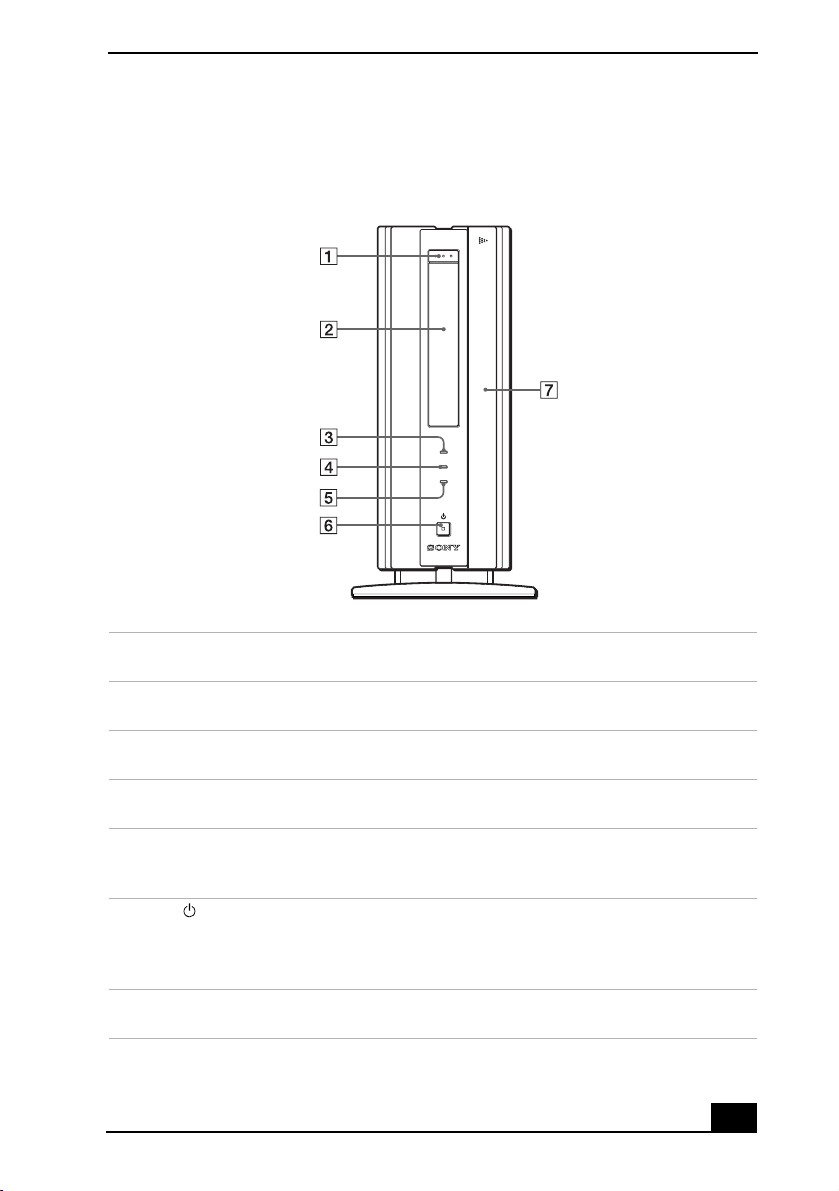
1 CD-RW/DVD Combo drive eject button
Ejects a disc from the CD-RW/DVD combo drive.
2 CD-RW/DVD Combo drive
Reads data from a DVD or CD and writes data to a CD-R or CD-RW disc.
3 Memory Stick® access indicator light
Lights in amber while reading and writing data from and to a Memory Stick media.
4 Hard disk drive access indicator light
Lights in amber while reading and writing data from and to the hard disk.
5 CD-RW/DVD Combo Drive access indicator light
Lights in amber while reading data from a DVD or CD and writing data from and to a
CD-R or CD-RW disc.
6 Power switch and indicator light
Turns on/off the computer and the display.
The indicator light is green while the power is on and amber when the computer is in
standby mode.
7 Front panel cover
A Sliding panel that covers the PC card slot, Memory Stick slot, and connectors.
OP/CLOS
MMOR
STC
D
DSC
VAIO Slimtop™ LCD Computer User Guide
16
Front Panel (PCV-LX810/PCV-LX910) (cont.)
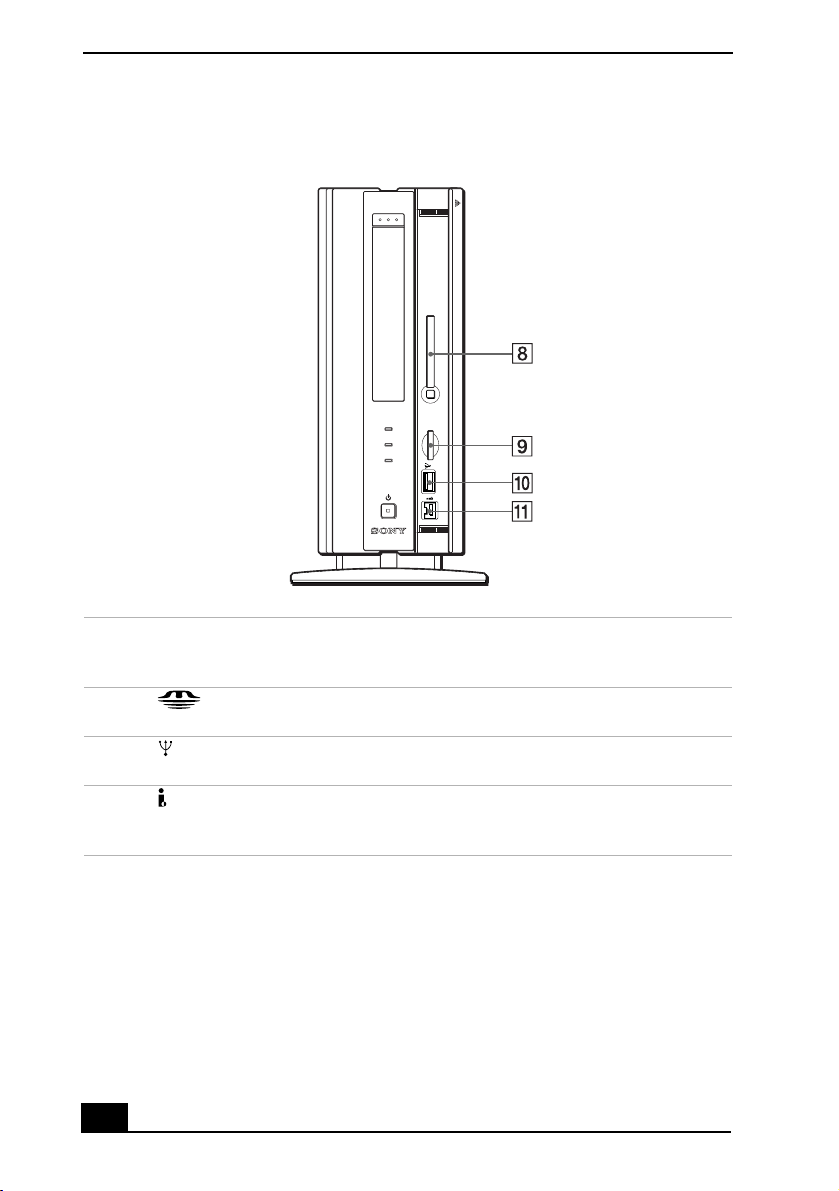
8 PC Card slot
A PC card (also called a PCMCIA card) can be installed in this slot. PC cards enable
you to add functionality to your system.
9 MEMORY STICK® media slot
Insert a Sony MEMORY STICK media into this slot.
10 Universal Serial Bus (USB) port
Connection for a USB device.
11 i.LINK 4-pin port (IEEE1394)
Connection for an i.LINK-compatible digital device, such as a Sony Digital
Handycam® Camcorder.
OP/CLOS
MMOR
STC
MMOR
STC
S
iL S00
D
PC CARD
DSC
Welcome
17
Back Panel Overview
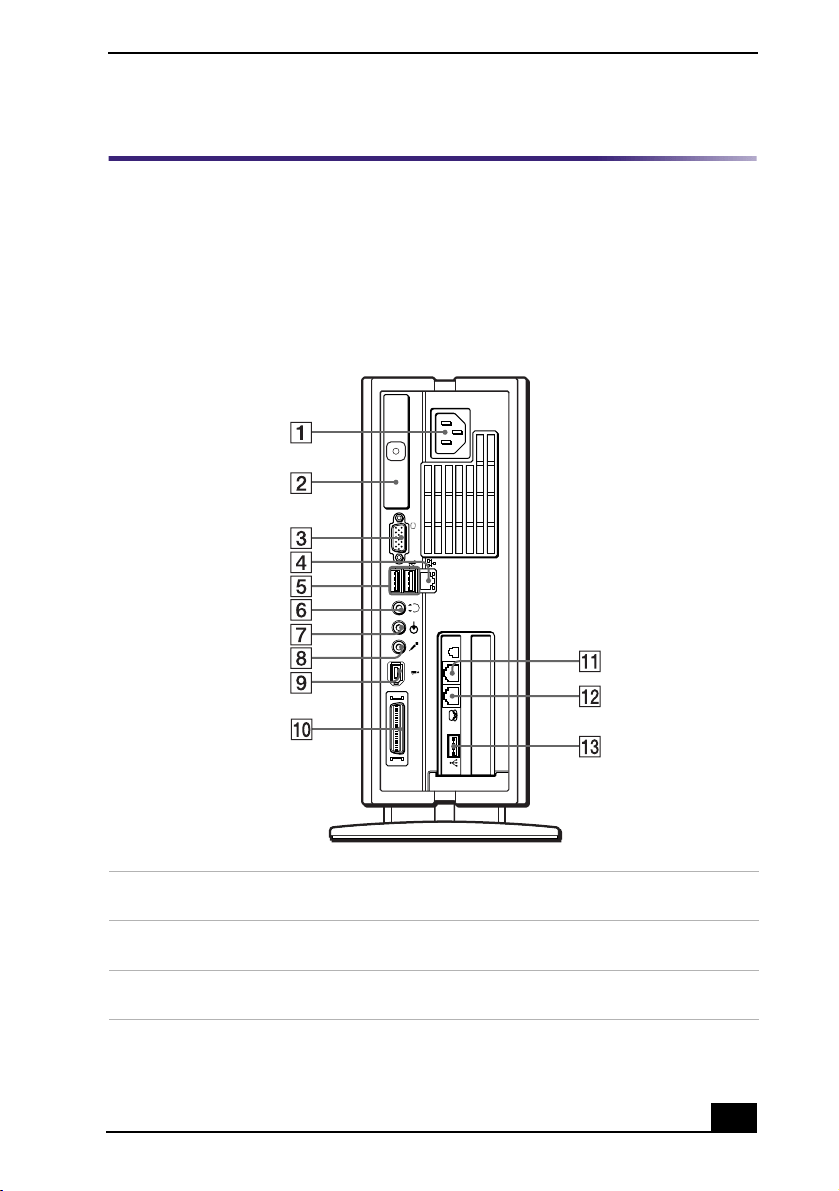
The back panel of your computer contains the ports for supplied and optional
accessories. The icons on the back panel help locate and identify the ports on
your computer.
Locating Ports
Back Panel (PCV-LX810/PCV-LX910)
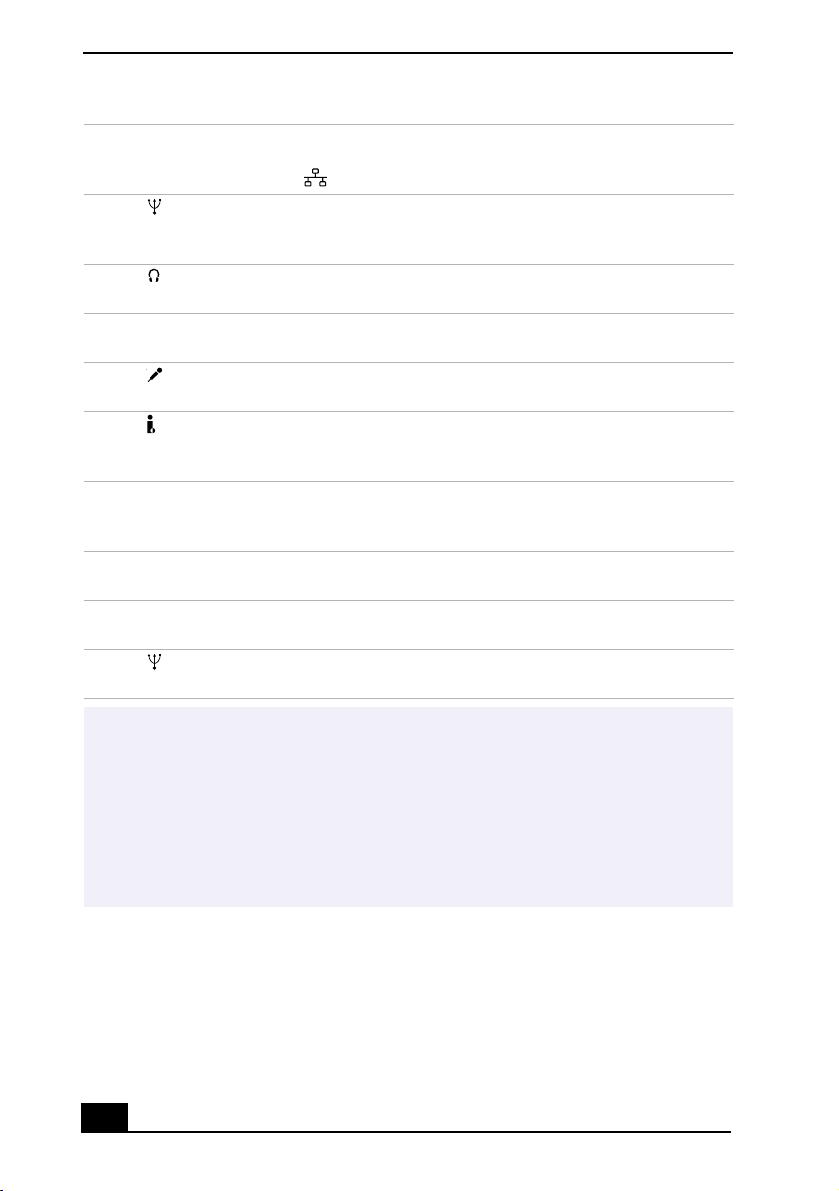
1 AC Input port
Connection for the supplied power cord.
2 T-Lever
A handle that is used to remove the unit’s cover.
3 Monitor port
Connection for a standard computer display.
MOTOR
MC
POS
TWOR/S
L
iL S00
LCD
LINE PHONE
USB
VAIO Slimtop™ LCD Computer User Guide
18
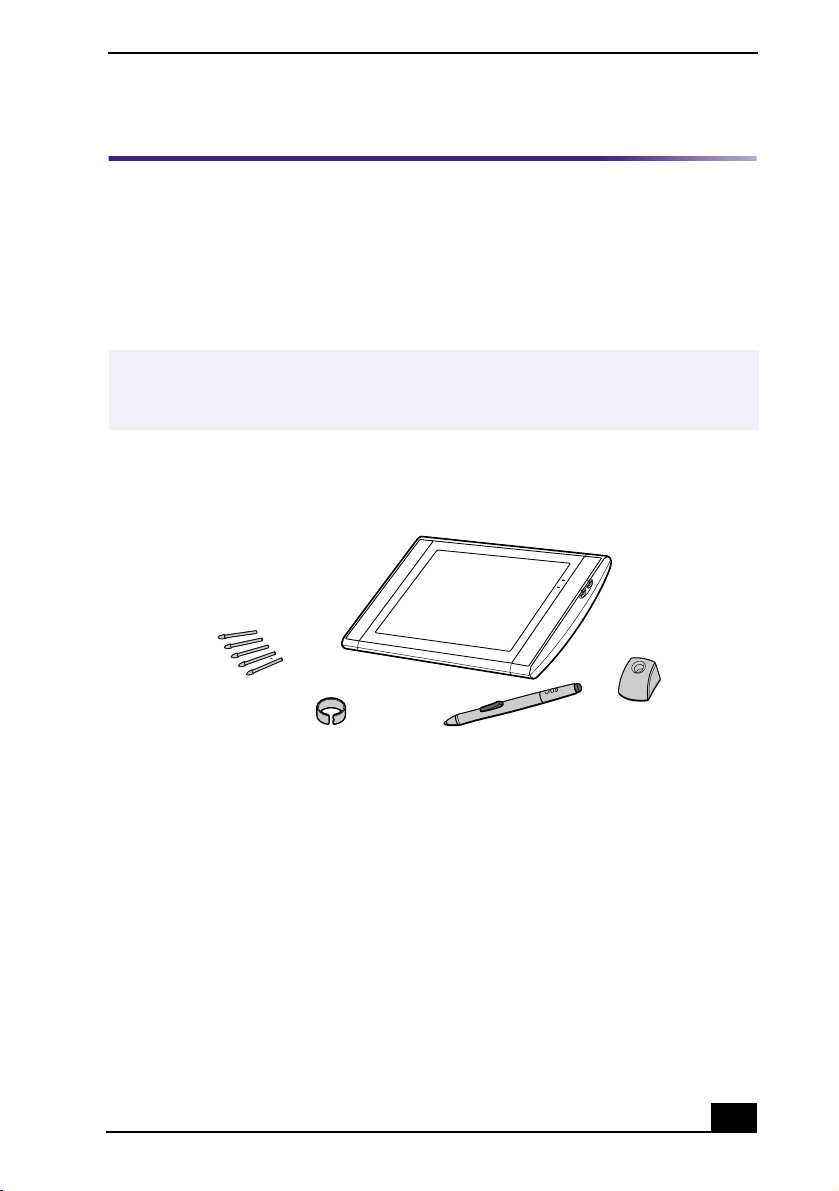
4 ETHERNET port
10Base-T/100Base-TX Fast Ethernet interface.
(The port marked with (Network) is for LAN connections only.)
5 Universal Serial Bus (USB) ports (2)
Connections for USB devices. Two USB ports are located on the back panel and one USB
port is located on the modem card (See #13).
6 Headphones jack
Connection for optional headphones or computer speakers.
7 Line In jack
Connection for an optional audio device.
8 Microphone jack
Connection for an optional microphone.
9 i.LINK® 6-pin port (IEEE1394)
Connection for a compatible digital device such as a Sony Digital Handycam
®
Camcorder.
10 LCD display (monitor) port
Connection for the supplied LCD display (PCV-LX810) or Sony Pen Tablet (PCV-LX910).
Note: Do not connect any other display to this port.
11 Line jack
Connection for the supplied modem cable to the wall jack.
12 Telephone Line jack
Connection for the phone cable to the computer.
13 Universal Serial Bus (USB) port
Connection for a USB device.
✍
i.LINK is a trademark of Sony used only to designate that a product contains an
IEEE1394 connection. The i.LINK connection may vary, depending on the software
applications, operating system, and i.LINK-compatible devices. All products with an
i.LINK connection may not communicate with each other.
Please refer to the documentation that came with your i.LINK-compatible device for
information on operating conditions and proper connection. Before connecting
i.LINK-compatible PC peripherals to your system, such as a CD-RW or Hard Disk
Drive, confirm their operating system compatibility and required operating conditions.
Welcome
19
Sony Pen Tablet Overview (PCV-LX910)
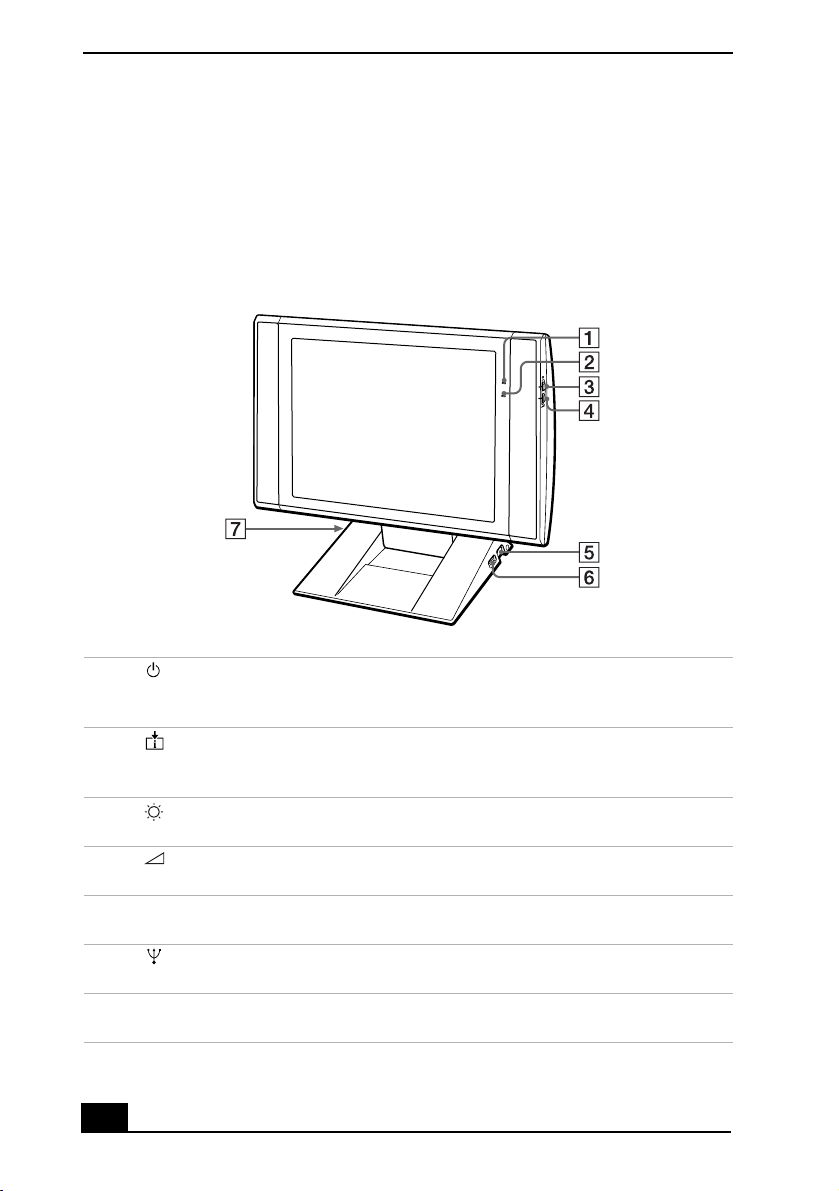
Your VAIO Slimtop™ Computer (PCV-LX910) is supplied with a Sony Pen
Tablet display (TA-15A), a VAIO Pen, and accessories.
The Sony Pen Tablet is a graphic interface that provides a pressure-sensitive work
area. The VAIO Pen is a cordless input device that controls the movement of the
cursor on the surface of the tablet screen. The pen stand, pen tip replacements,
and pen tip removing tool help you protect and care for your VAIO Pen.
✍
Place the VAIO Pen in the supplied pen stand when it is not in use, to maintain the
sensitivity of the pen tip and to avoid interference with other pointing devices, such as
your mouse.
Sony Pen Tablet and accessories (PCV-LX910)
Sony Pen Tablet display
Pen stand
VAIO Pen
Pen tip replacements (5)
Pen tip removing tool
VAIO Slimtop™ LCD Computer User Guide
20
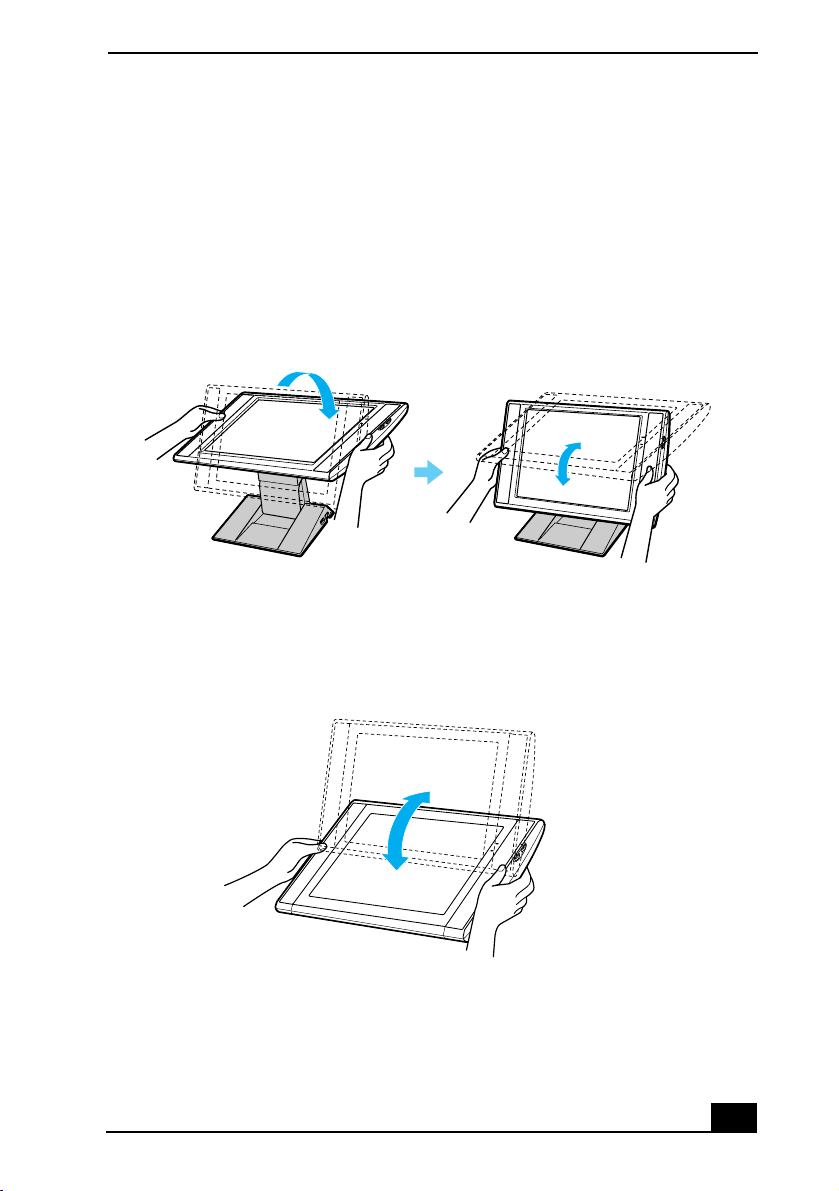
LCD Display/Sony Pen Tablet Display
Your VAIO Slimtop™ Computer is supplied with an LCD display (PCV-LX810)
or a Pen Tablet display (PCV-LX910). This section describes the functions and
connections capabilities of both display models.
LCD display/Sony Pen Tablet display (Shown in an upright position)
1 Power indicator light
Light is green while the power is on. When the computer enters standby mode, this
indicator light turns amber.
2 Information LED light
Light turns red to alert the user to activities, such as the arrival of e-mail. See “AutoAlert
E-mail Notification System.”
3 Brightness control
Adjusts the brightness of the screen.
4 Volume control
Adjusts the volume of the integrated speakers on the LCD display.
5 PS/2® mouse port
Connection for a mouse.
6 Universal Serial Bus (USB) port
Connection for a USB device.
7 PS/2
®
keyboard port
Connection for a VAIO Convertible Keyboard.
S
MOS
Welcome
21
Adjusting the LCD display/Sony Pen Tablet display
Follow these steps to adjust your LCD display (PCV-LX810), or your Pen Tablet
display (PCV-LX910):
1
Holding both sides of the display, push the display panel out and up.
❑
For the LCD display, set the display height to an angle that allows you to
view the display comfortably.
❑
For the Pen Tablet Display, set the display height so that it covers the
keyboard, and adjust the screen for a viewing angle that allows you to
work with the tablet and VAIO pen comfortably.
Adjusting the viewing angle for the LCD display (PCV-LX810)
Adjusting viewing angle for the Pen Tablet display (PCV-LX910)
VAIO Slimtop™ LCD Computer User Guide
22
Using the VAIO Pen (PCV-LX910)
The VAIO Pen controls the cursor movements on the Sony Pen Tablet screen.
Hold the pen in the same manner as a pen or pencil, making sure that the rocker
switch on the side is within reach of your thumb or forefinger, but cannot be
accidentally pressed while drawing or writing.
The VAIO Pen is activated when it is held within close proximity to the pen tablet
screen. You can position the cursor on the pen tablet screen or use the rocker
switch, without touching the pen tip to the tablet surface. The eraser, upper and
lower switch positions can be programmed to perform different functions. See
the Sony Pen Tablet online help for more information on VAIO Pen settings.
The Sony Pen Tablet (PCV-LX910) operates with radio-frequency energy. This
may cause interference with radio and television reception, if the display is not
installed and used correctly. If your tablet is interfering in this manner, move
the equipment away from the radio or television.
VAIO Pen
Rocker Switch

Welcome
23
Your VAIO Pen, eraser, and the upper/lower switch positions are programmable.
By default, the basic functions performed by the VAIO Pen are:
❑
Pointing —
Place the tip of the pen anywhere on the pen tablet screen and
the screen cursor will automatically correspond to that point.
❑
Clicking —
Tap the pen tablet screen once with the tip of the pen, or press
the pen tip against the screen with enough pressure to register a single click.
❑
Double clicking —
Quickly tap the pen tablet screen twice in the same place
with the tip of the pen. You can also register a double click by pressing the
upper switch position of the pen’s rocker switch.
❑
Dragging —
Point to and select an object by pressing the pen to the pen
tablet screen. Slide the pen tip across the tablet to move the object to the
desired location. To select text, point to the beginning of the text, and then
drag the pen across the tablet until all of the desired text is highlighted.
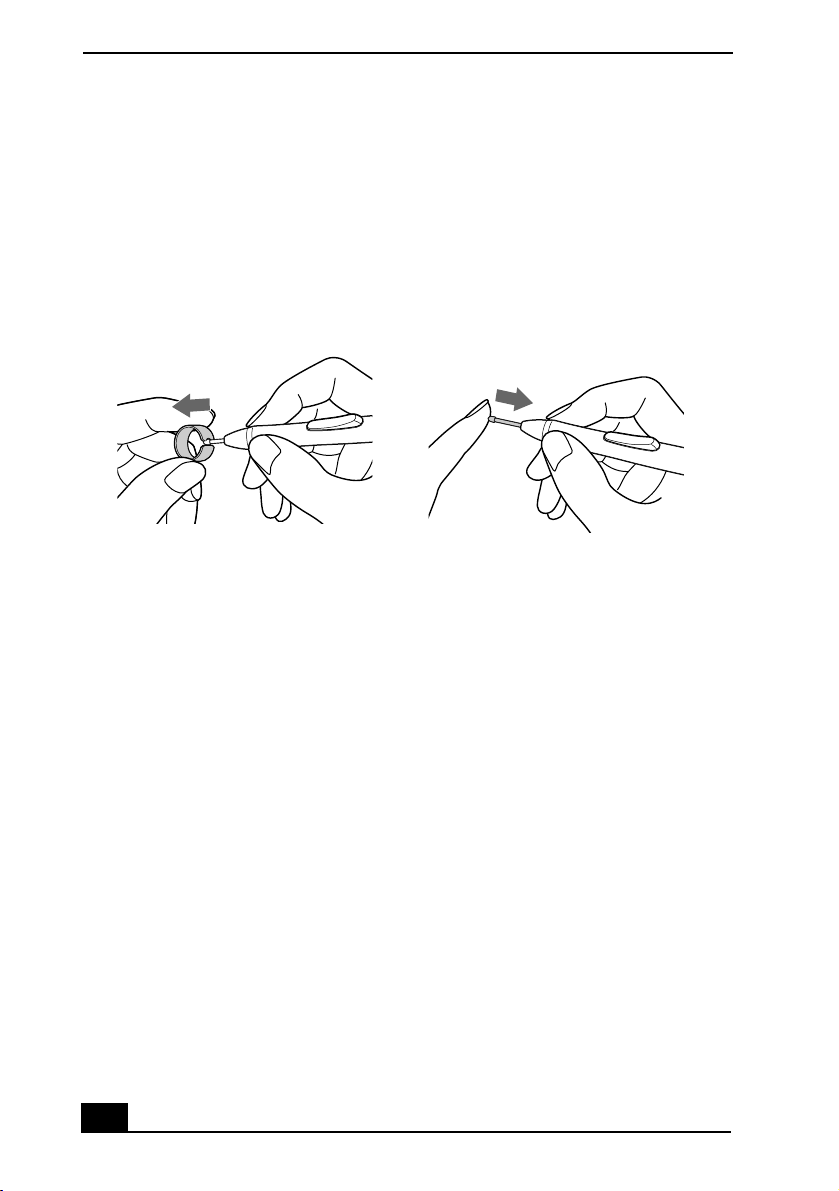
To replace the Pen tip
Your VAIO Pen is supplied with pen tip replacements. The pen tip wears with
normal use and must be replaced when the tip becomes too short or develops a
flat point. Follow these steps to replace the pen tip:
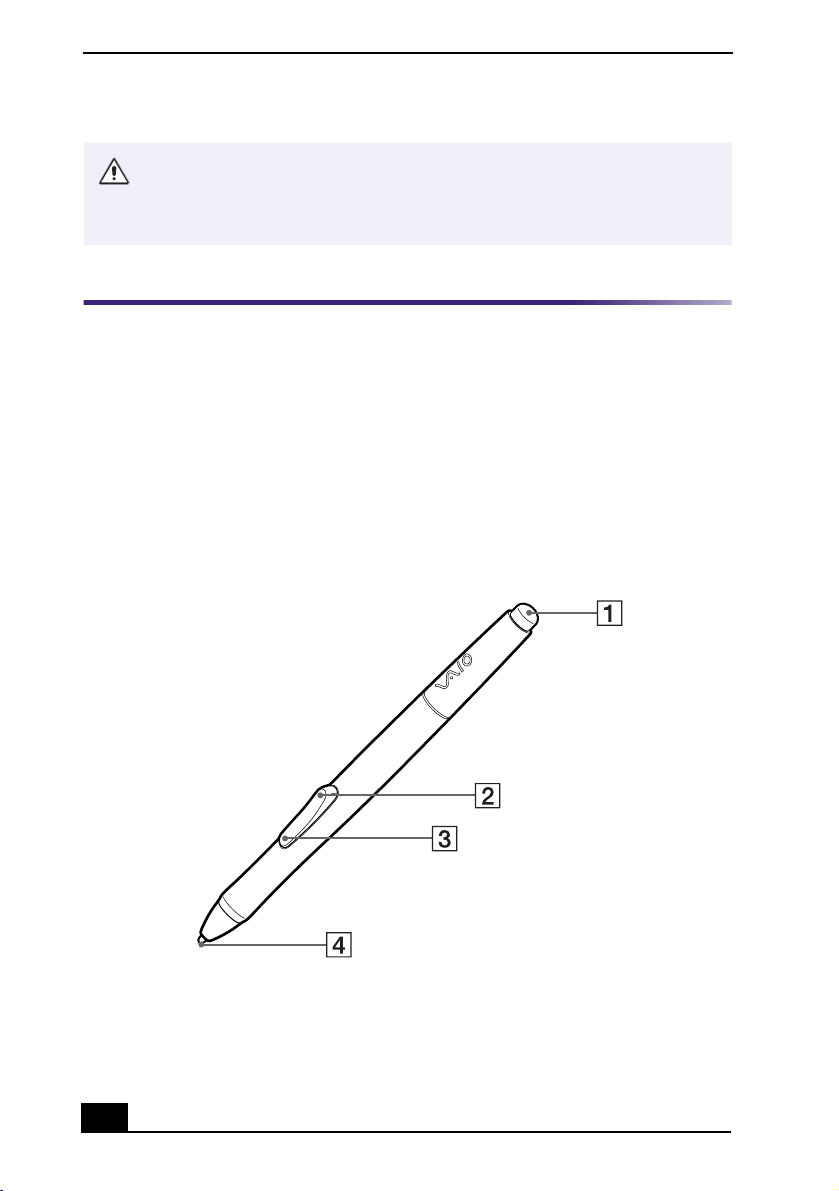
1Eraser
Delete unwanted portions of your work, depending on the application in use.
2 Upper switch position
The upper side of the rocker switch is set to deliver a double left click by default.
3 Lower switch position
The lower side of the rocker switch is set to deliver a right click by default.
4 Pen tip
You can use the pen tip to draw or write. Tapping the pen tip against the tablet screen
delivers a click in the same manner as the left button on a mouse.
VAIO Slimtop™ LCD Computer User Guide
24
1
Clasp the worn pen tip with the pen tip removing tool and pull it straight out
of the VAIO Pen barrel.
2
Slide the flat end of a new pen tip straight into the barrel, pushing the tip
firmly until it stops.
Configuring the VAIO Pen
To change the pen tip, eraser and upper/lower switch functions
1
From the Start menu, point to Settings, and then click on Control Panel.
2
Click on Sony Tablet. The Sony Tablet Properties window appears.
Replacing the pen tip (PCV-LX910)
Step One
Step Two
Welcome
25
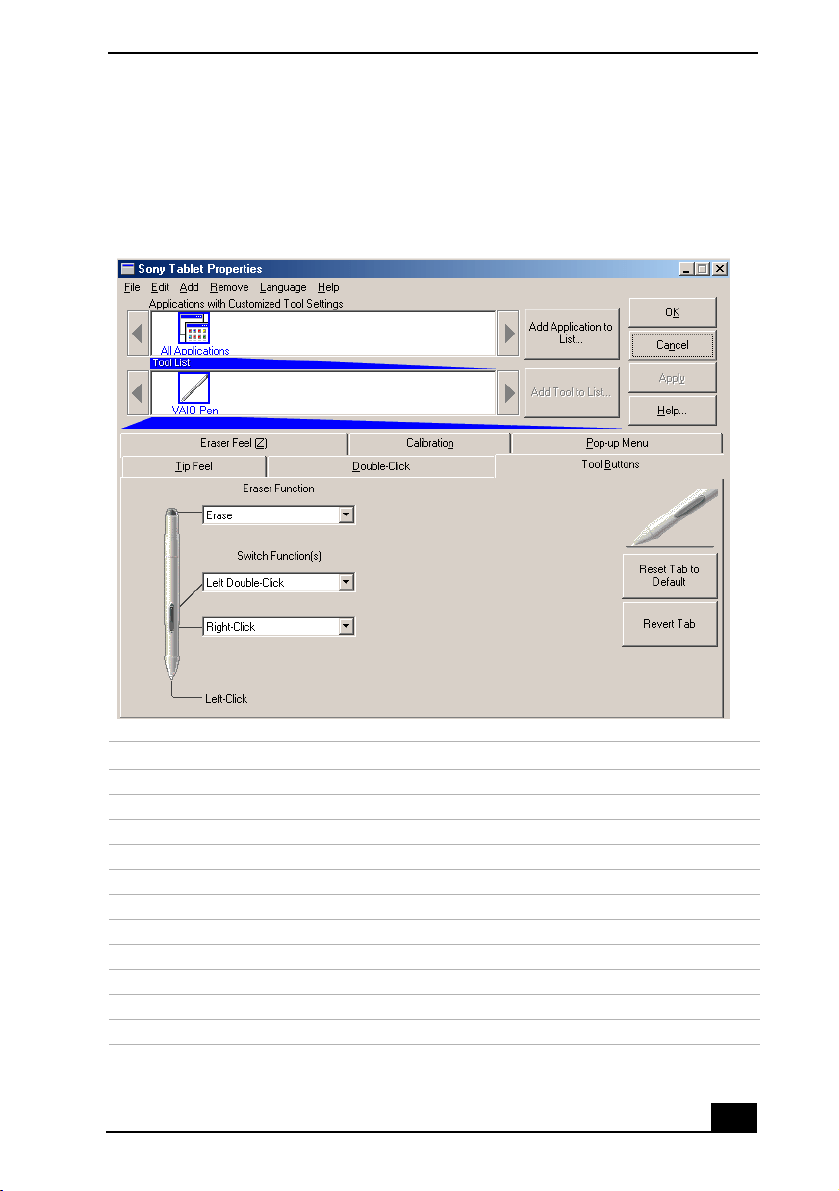
3
From the Tool Buttons tab, click the drop-down list for the pen function you
wish to change. Select the desired function for the pen tip, eraser, or the
upper/lower switch positions.
Sony Tablet Properties main window (PCV-LX910)
Function Description
Left-Click
Single click of the left mouse button.
Left Double-Click
Double-click of the left mouse button.
Right-Click
Single click of the right mouse button.
Middle-Click
Clicking the center wheel button of a wheel mouse.
Left-Click Lock
Holds down the left mouse button.
Pressure Hold
Keeps the pen tip pressure constant.
Pop-up Menu
Displays a pop-up menu at the cursor position.
Erase
Operates as an eraser.
Keystroke
Performs a programmed keystroke.
Modifier
Operates as the Shift, Alt, or Ctrl key (as programmed).
Ignored
No function is assigned.

VAIO Slimtop™ LCD Computer User Guide
26
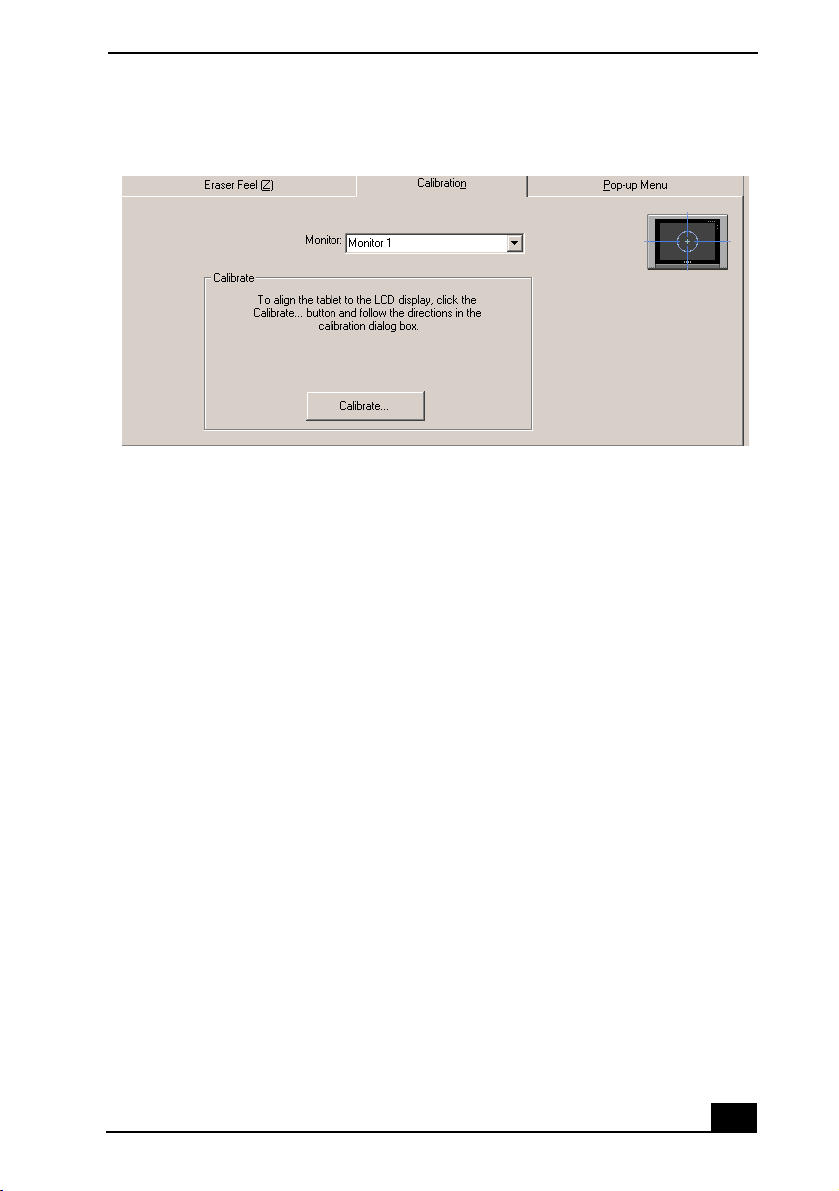
To calibrate your pen to your tablet screen
1
From the Sony Tablet Properties screen, click on the Calibration tab.
2
Click on the “Calibrate...” button. Follow the onscreen instructions to align
your pen’s cursor positioning to the tablet screen coordinates.
✍
The Left-Click function is assigned by default to the pen tip. Before you change the
pen tip setting to perform a different function, assign the Left-Click function to another
switch. Sony suggests assigning the Left-Click function to the pen tip when using the
pen with drawing applications.
✍
You can reset your VAIO Pen functions to the factory default settings by using the
“Reset Tab to Default” button. You can revert to a previously saved setting by using
the “Revert tab.”
Welcome
27
3
Click Apply. The onscreen cursor location is adjusted to correspond to the
pen tip.
To adjust the pen tip pressure and feel
1
From the Sony Tablet Properties screen, click on the Tip Feel tab.
2
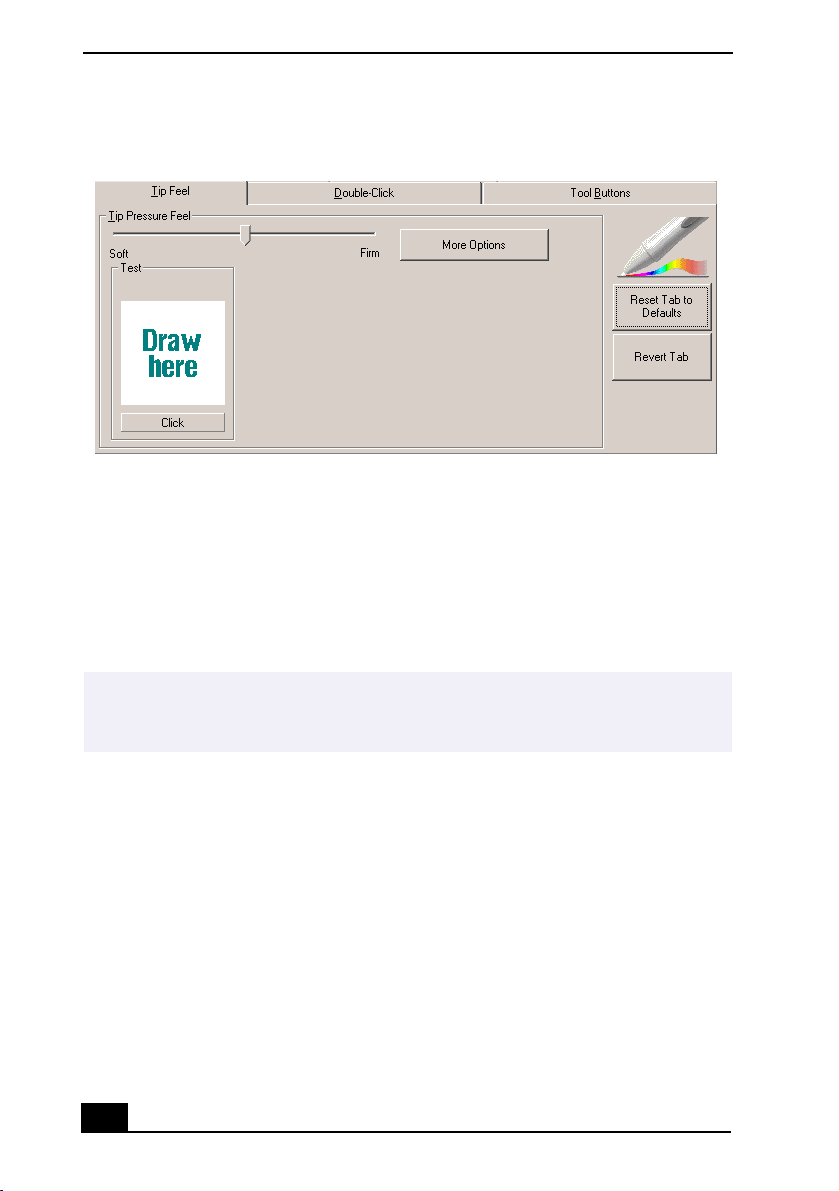
Test the pen tip feel by drawing lines in the “Draw here” Test area. The lines
are drawn with the current pen pressure settings.
3
Check the pen’s clicking pressure by tapping on the Click button in the Test
area. If you tap more forcefully than the pen’s current settings, the Click
button changes color.
Calibration Tab (PCV-LX910)
VAIO Slimtop™ LCD Computer User Guide
28
4
Adjust the pen tip pressure feel by sliding the measurement to a desired
level. The pressure settings range from Soft, which requires light pressure, to
Firm, which requires more forceful pressure.
5
Click on the More Options button if you wish to make a more in-depth
adjustment to the pen tip pressure feel.
6
Click Apply. The new tip pressure feel settings are applied to the pen.
Tip Feel Tab (PCV-LX910)
✍
You can reset your pen tip pressure feel to the factory default settings by using the
“Reset Tab to Default” button. You can revert to previously saved pen tip pressure feel
settings by using the “Revert tab.”
Welcome
29
To adjust the pen’s double-click speed and distance
1
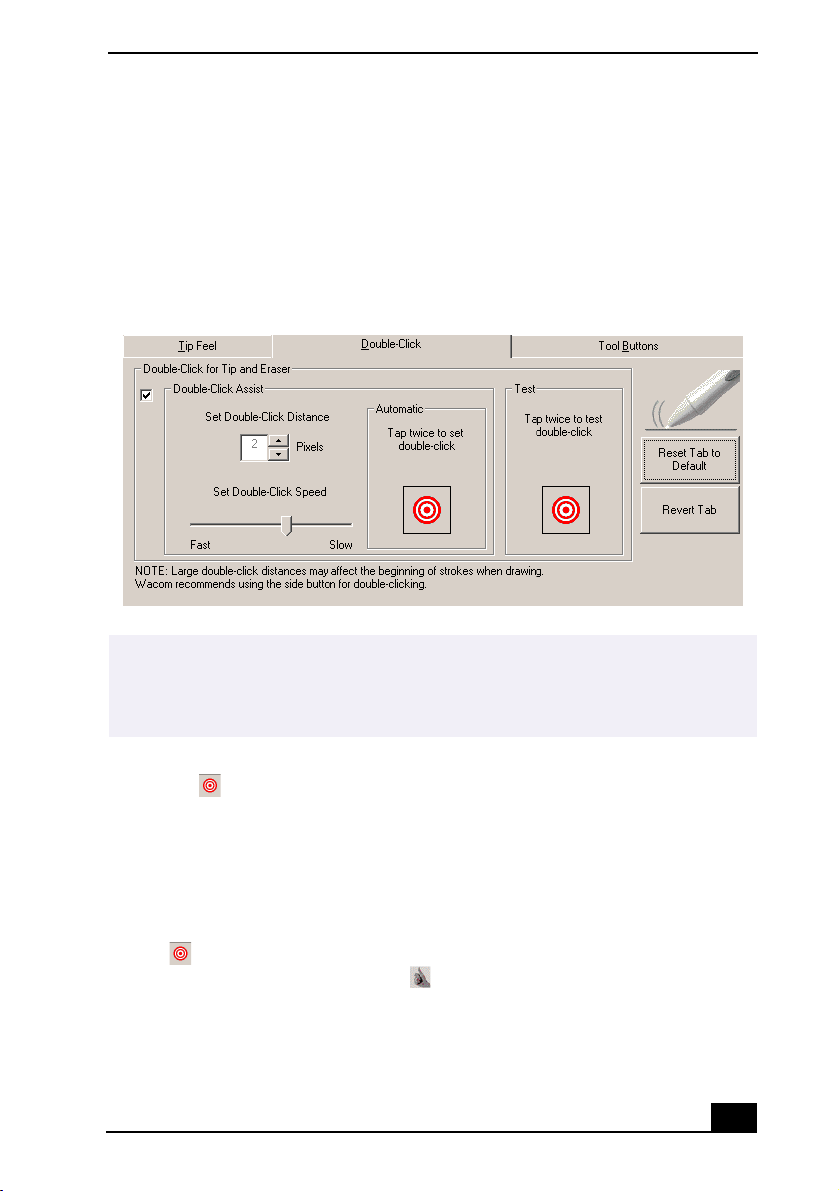
From the Sony Tablet Properties screen, click on the Double-Click tab.
2
To allow the Sony Tablet software to automatically adjust the
double-click speed and distance, place a check mark in the box
located next to Double-Click Assist.
3
Automatically set both the double-click speed and distance by tapping twice
on the in the “Automatic” area.
4
You can manually change “Set Double-Click Distance” to a distance
between 1-25 pixels by clicking on the up/down arrows. You can also
manually change “Set Double-Click Speed” by moving the measurement to
a desired speed.
5
You may test your double-click speed and distance settings by tapping twice
on in the Test area. If your tapping matches the current double-click
settings, the button icon changes to indicate a successful test. If the icon
does not change after several tests, review your double-click speed and
distance settings.
Double-click Tab (PCV-LX910)
✍
You can disable the Double-Click Assist for specific applications. When Double-Click
Assist is disabled, you can only double-click by using the upper switch position. For
more information about disabling the settings for specific applications, see
“Customizing the pen settings for specific software applications.”
VAIO Slimtop™ LCD Computer User Guide
30
6
Click Apply. The new double-click speed and distance settings are applied to
the pen.
To adjust the eraser pressure and feel
1
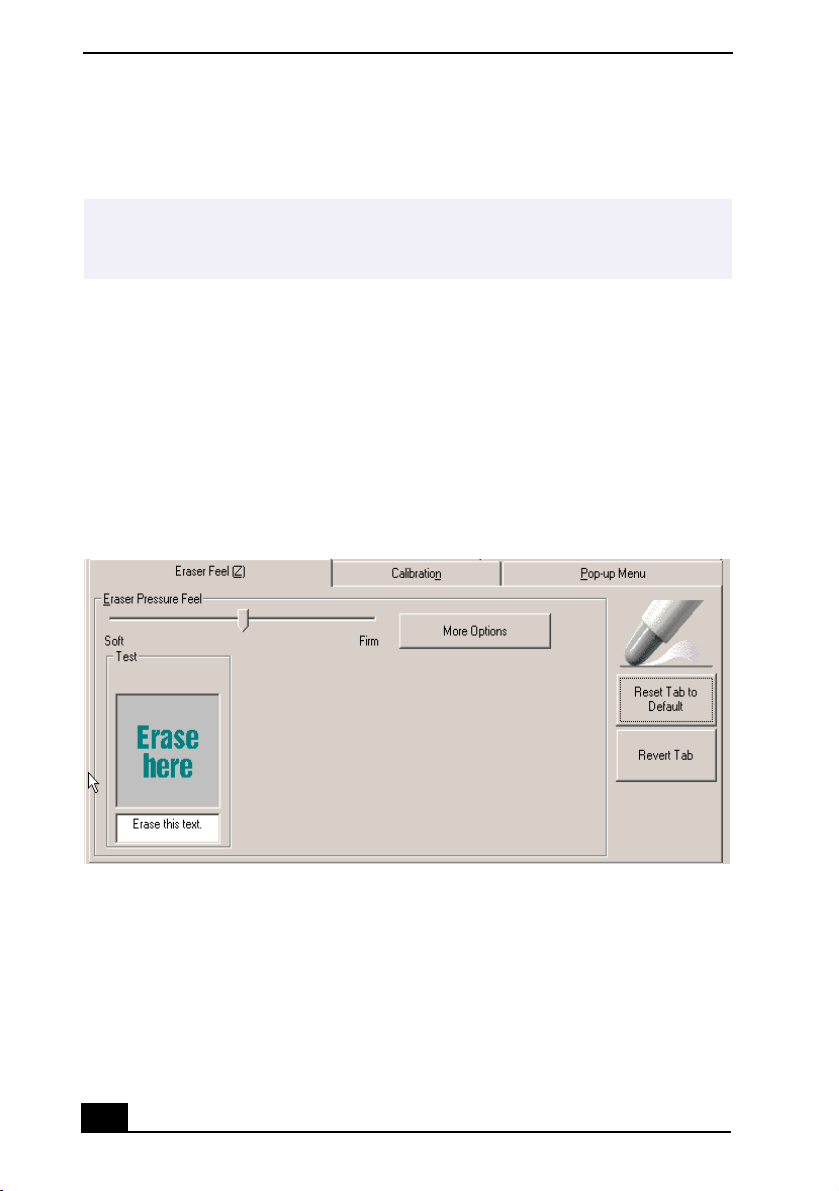
From the Sony Table Properties screen, click on the Eraser Feel tab.
2
To check the current erase pressure feel, erase the phrase “Erase this text” in
the Test area. The text disappears when you are erasing more forcefully than
the current setting.
3
Test the eraser feel by erasing in the “Erase here” Test area. The erased area
changes color when you are erasing more forcefully than the current setting.
4
Adjust the eraser pressure feel by sliding the measurement to a desired
position. The pressure settings range from Soft, which requires light
pressure, to Firm, which requires more forceful pressure.
5
Click on the More Options button if you wish to make a more in-depth
adjustment to the eraser pressure feel.
6
Click Apply. The new eraser pressure feel settings are applied to the pen.
✍
You can reset your double-click speed and distance to the factory default settings by
using the “Reset Tab to Default” button. You can revert to previously saved double-
click settings by using the “Revert tab.”
Eraser Feel Tab (PCV-LX910)
Welcome
31
Configuring the Pop-up menu
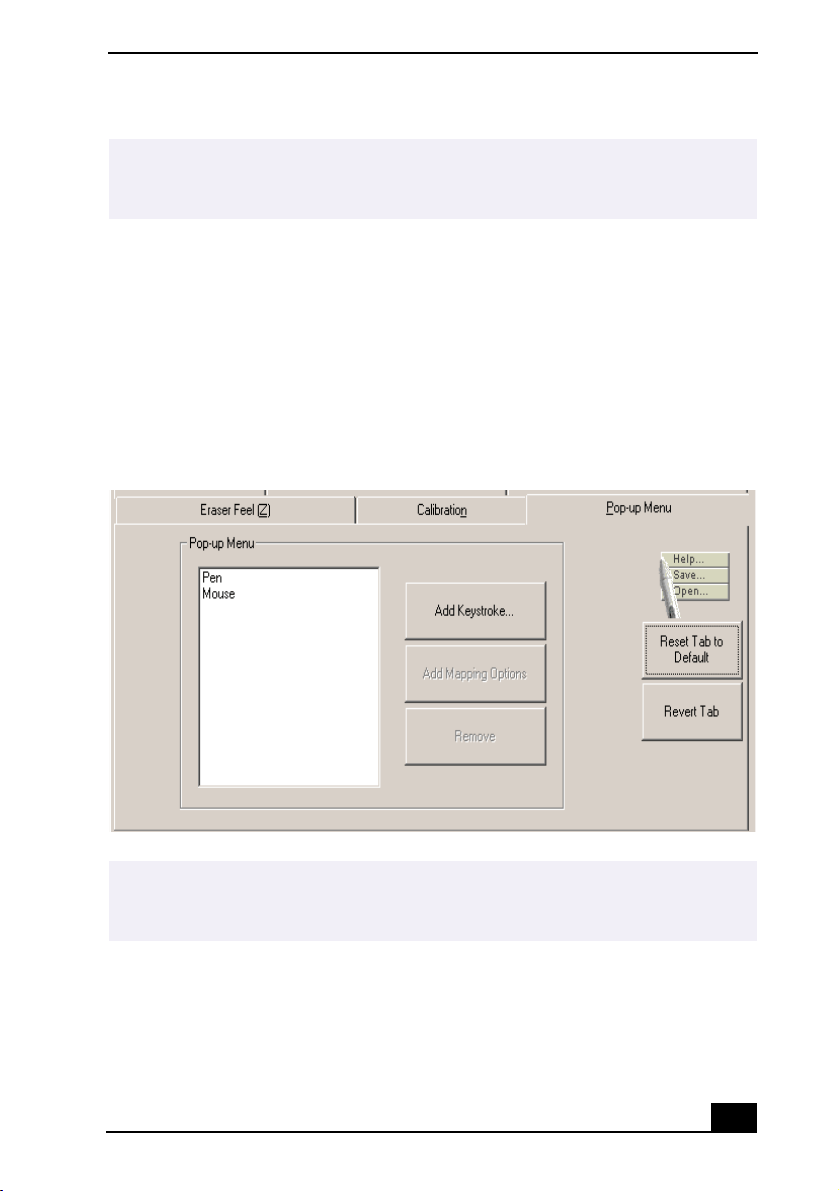
The Sony Tablet Properties window has a Pop-up Menu tab that can be used to
configure onscreen pop-up menus. (The Pop-up Menu function can be assigned
to the VAIO Pen.) If you press a pen switch position that is assigned to the Pop-
up Menu function, a small pop-up menu appears at the onscreen cursor position.
You can execute a predetermined operation by selecting settings from the pop-up
menu. For more information on configuring Pop-up menus, see the Sony Tablet
online help.
✍
You can reset your eraser pressure feel to the factory default settings by using the
“Reset Tab to Default” button. You can revert to previously saved eraser pressure feel
levels by using the “Revert tab.”
Pop-up Menu Tab (PCV-LX910)
✍
You can reset the Pop-up menu function to the factory default settings by using the
“Reset Tab to Default” button. You can revert to previously saved Pop-up menu
settings by using the “Revert Tab.”

VAIO Slimtop™ LCD Computer User Guide
32
Customizing the pen settings for specific software
applications
You can customize your pen settings for a specific software application. When
you use different software, the associated pen settings are applied automatically,
enabling you to take full advantage of each software application’s features.
To add an application to the custom settings list
1
From the Sony Tablet Properties window, click on the “Add Application to
List...” button. The “Add Application for Custom Settings” dialog box
appears.
2
Click OK.
To create custom settings for an application
1
Select a software application from the “Applications with Customized Tool
Settings” list.
2
Customize the pen settings for each software application according to the
software’s features. The settings apply only to the selected application.
3
Click Apply.
To remove an application from the custom settings list
1
Click on the Remove menu, click on “Custom Settings for Application”, and
then select the application(s) to be removed.
2
Click OK.
✍
If you have pen settings that you want all software applications to share, select “All
Other Apps” before changing the setting.
Welcome
33
Using Memory Stick® Media
Your VAIO Slimtop™ Computer is designed to support the new MemoryStick
storage media. The MemoryStick media is a compact, portable, and versatile
device designed for exchanging and sharing digital data with compatible
products.
You can use VAIO Action Setup to preset your computer to automatically launch
an application when you insert a MemoryStick media.
To protect data on MemoryStick media from accidental changes
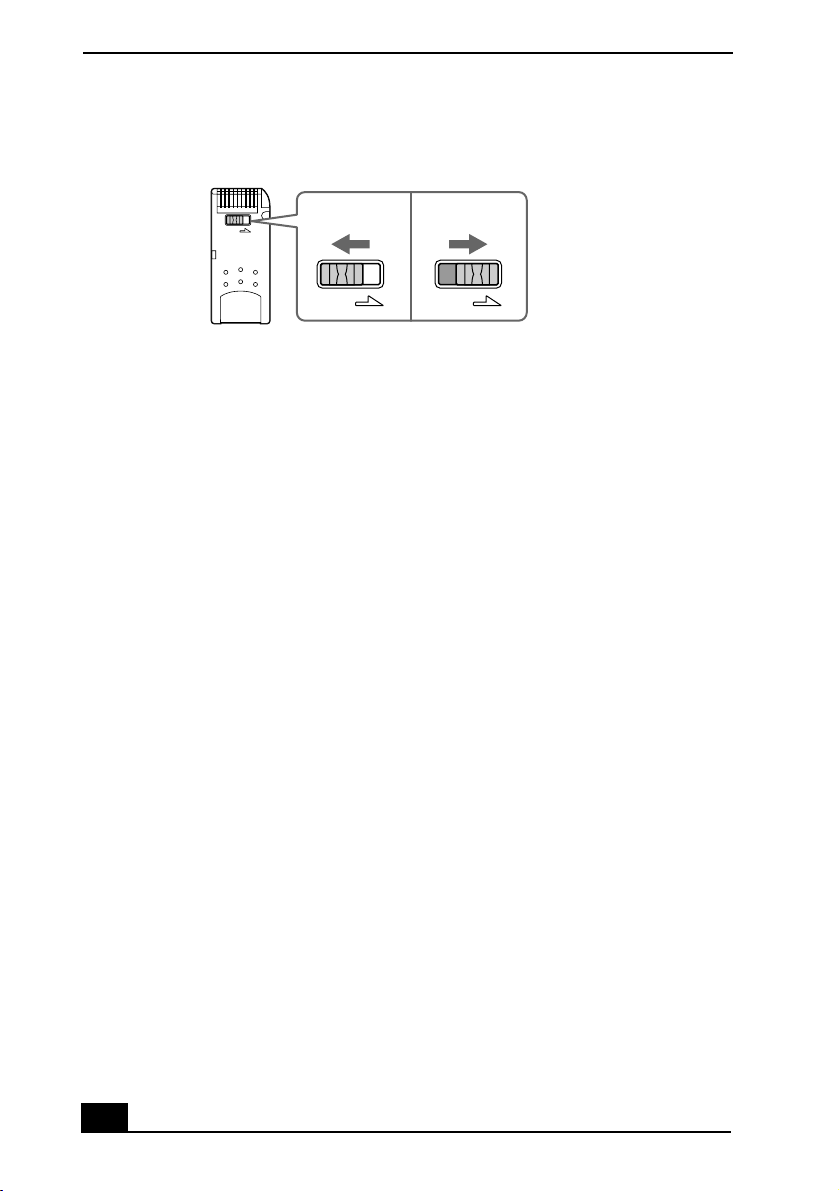
MemoryStick media contains a write-protect tab. The write-protect tab prevents
accidental changes to information recorded on your MemoryStick
media. When
you slide the write-protect tab to the LOCK position, your MemoryStick media is
write-protected. This means that you cannot delete, copy, or save information on
the media. When you slide the tab to the un-LOCK position, you can write to or
modify your MemoryStick media’s contents.
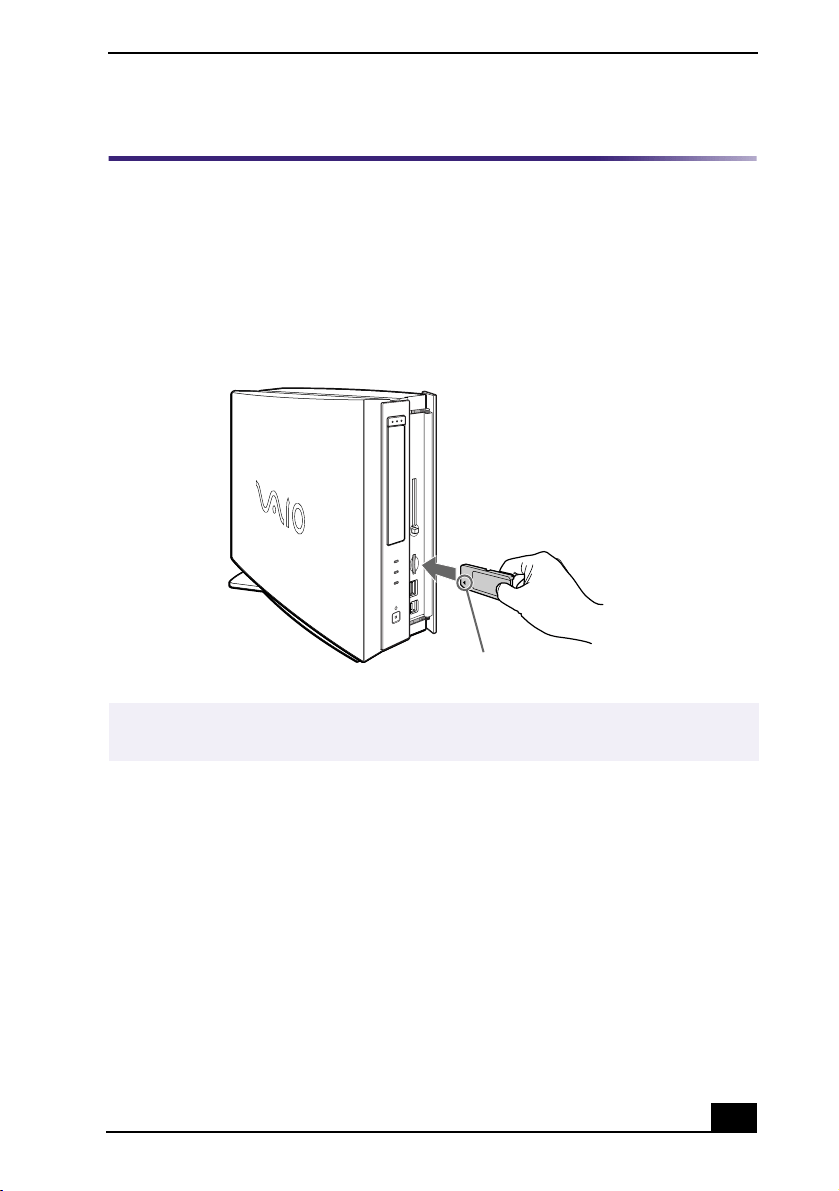
Inserting the MemoryStick Media (PCV-LX810/PCV-LX910)
✍
When you use a Memory Stick media, your computer automatically launches the
VisualFlow™ browser to allow you to view the contents of the media.
Insert Memory Stick media facing this direction
VAIO Slimtop™ LCD Computer User Guide
34
To change the way the computer responds when a MemoryStick media is
inserted
You can change the way your system responds by changing the options on the
MemoryStick tab in the PPK Setup utility.
Locking the MemoryStick Media
LOCK
LOCK LOCK
To u n l o c k
To l o c k
Welcome
35
Using PC Cards
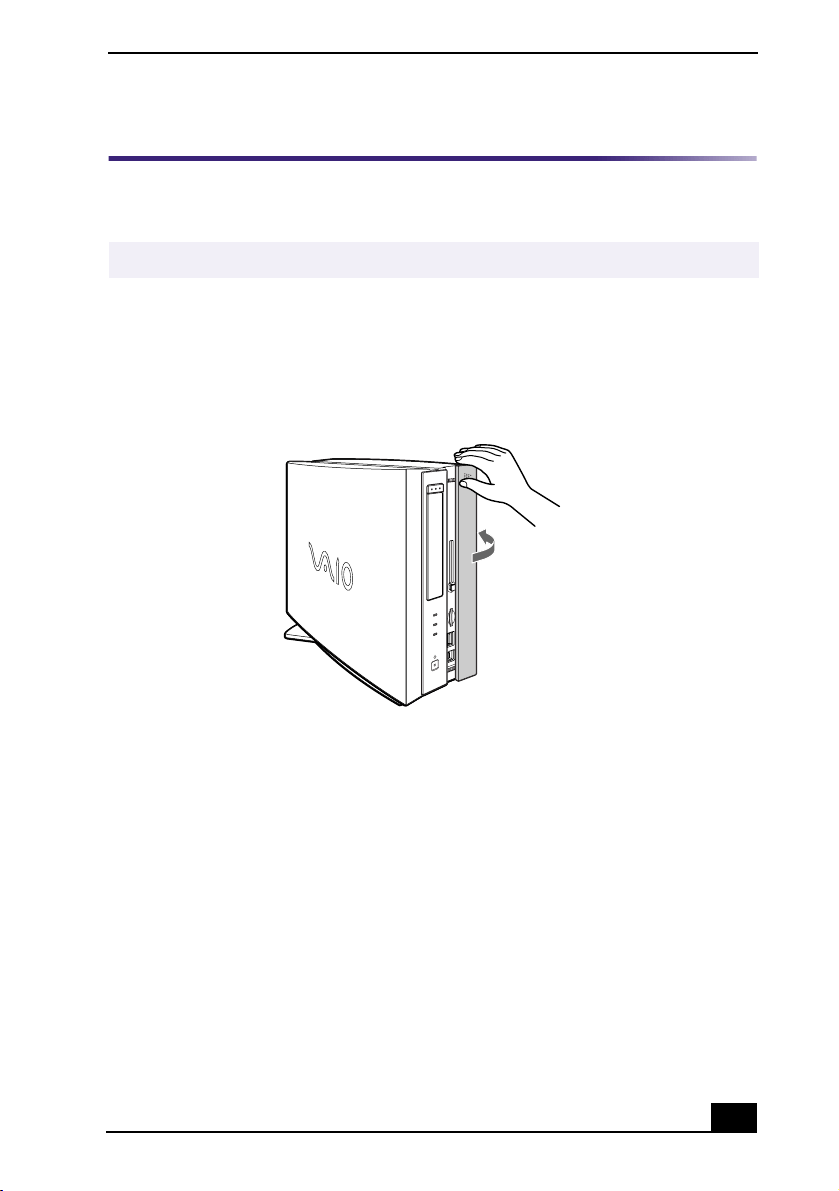
Your computer has a card bus PC card slot that supports Type I or Type II PC
cards.
To insert a PC card
1
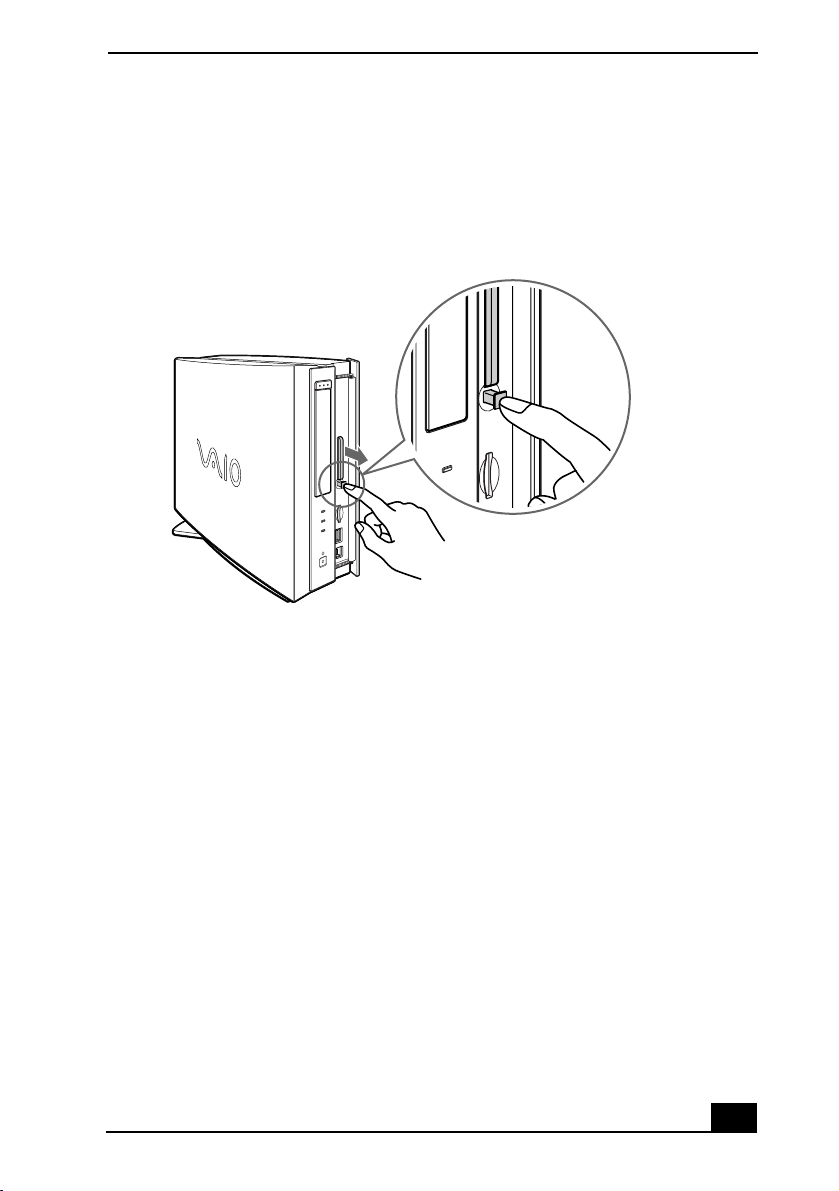
Slide front panel cover in the direction of arrow as shown in picture, to
open the front panel.
✍
You do not need to shut down your computer when inserting a PC card.
Opening the front panel (PCV-LX810/PCV-LX910)
VAIO Slimtop™ LCD Computer User Guide
36
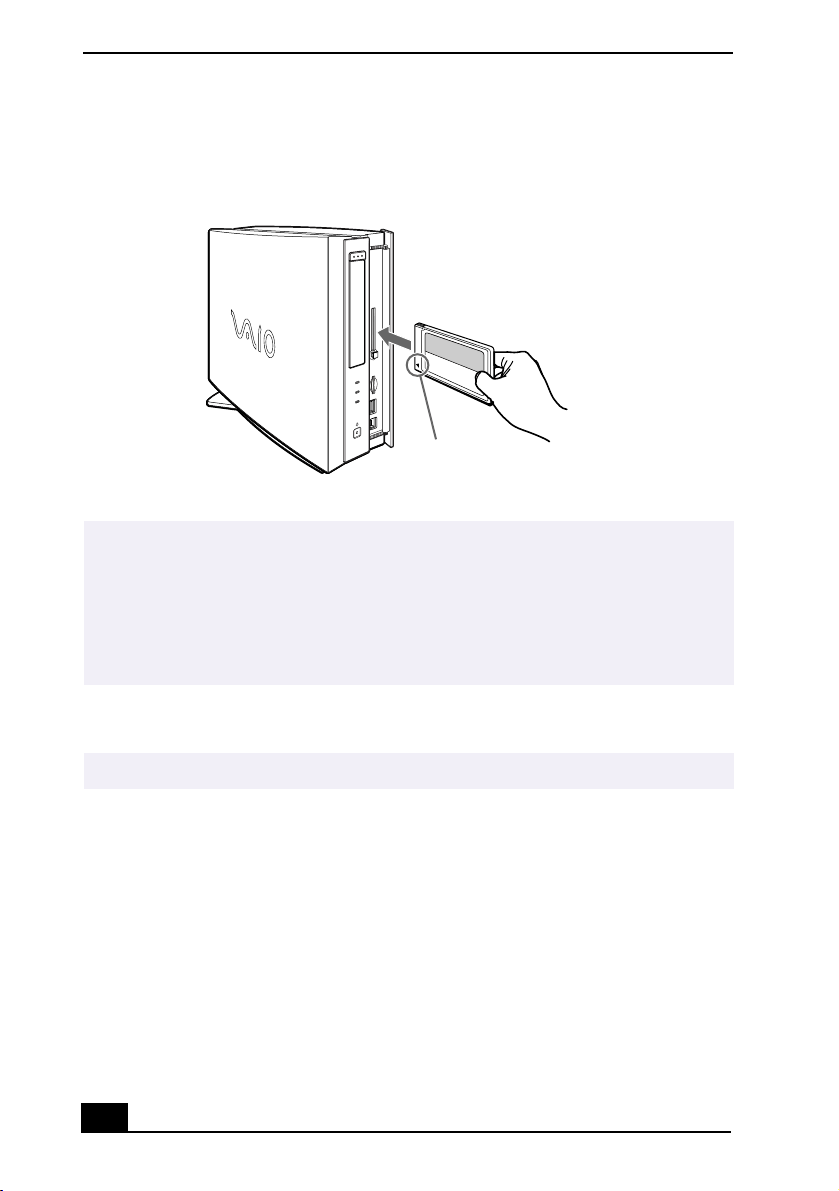
2
Insert the PC card into the PC card slot until it clicks into position.
To eject a PC card
1
From the Start menu, point to Settings, point to Control Panel, and then click
on the PC card icon.
2
Click the name of the card that you want to eject, and then click Stop.
3
When the message “You may safely remove this device” appears, click OK.
Inserting a PC card (PCV-LX810/PCV-LX910)
✍
When the PC card is inserted correctly, the eject button pops out. If the card does not
insert easily, make sure the card is not being inserted upside-down or backwards.
Carefully reinsert the card into the slot, but do not force it in.
See the manual that came with the PC card for details on using it.
If the eject button is extended, fold the button down onto the computer before closing
the front panel.
✍
If you eject the PC card incorrectly, the system may not work correctly.
Insert with card facing this direction
Welcome
37
4
Push the PC card eject button on the front panel of the system unit. You may
need to extend the eject button out from the computer before you can eject
the card.
5
When the PC card ejects from the PC card slot, remove it by holding the
edges and pulling it out carefully.
Ejecting a PC card (PCV-LX810/PCV-LX910)

VAIO Slimtop™ LCD Computer User Guide
38

VAIO® Action Setup
39
VAIO® Action Setup
VAIO Action Setup manages the settings for your computer's Programmable
Power Keys (PPK), internal timer, i.LINK® interface, and
Memory Stick
®
media. For more information on changing these settings using VAIO Action
Setup, see the online VAIO Action Setup Help.
To access VAIO Action Setup Help:
1
Click Start, point to Programs, and then point to VAIO Action Setup.
2
Click VAIO Action Setup Help.
Programmable Power Keys
Your Sony computer is equipped with technology that allows you to access your
favorite applications quickly. Each Programmable Power Key (PPK) on your
VAIO Convertible keyboard is programmed to launch a preset application with a
single press of the key. If you wish, you can use VAIO Action Setup to change
the PPK functions.
The Programmable Power Keys are located at the right side of your keyboard,
and are numbered P1 through P4. The keys work even when the computer is
turned off. Pressing one of the PPK buttons turns on the computer and launches
the preset application.
The four Programmable Power Keys are preprogrammed to perform the
following functions.
Key Function
P1 (MAIL) Starts Microsoft® Outlook® Express.
P2 (INTERNET) Starts Microsoft® Internet Explorer for Windows Me™.
P3 (PICTURE) Starts Sony’s PictureGear™.
P4 (HELP) Starts VAIO® Demo/Help.

VAIO Slimtop™ LCD Computer User Guide
40
To change the settings of the PPKs
1
From the Start menu, point to Programs, point to VAIO Action Setup, and
then click VAIO Action Setup.
2
Click the PPK you want to change.
3
From the Select Application dialog box, click the option for the desired
function. The corresponding applications appear in the list box on the right.
4
The Confirmation Application Name window appears and displays the
application you have selected. Click Next.
5
The Input Application Name window appears. You can type a new name and
description, if desired. Click Finish.
Internal Timer
The VAIO Action Setup software allows you to set your computer’s internal
timer to launch certain applications automatically.
✍
You can also double-click in the Windows taskbar to open VAIO Action Setup.
✍
You may also use the drag-and-drop feature to place any application into the list box.
✍
Some software applications take longer than others to launch. It is advisable to
confirm in advance the amount of time your selected application takes to start.

VAIO® Action Setup
41
Presetting i.LINK® devices
You can preset your i.LINK-equipped devices to perform desired functions, such
as automatically starting DVgate™ software or connecting two VAIO®
computers.
To preset your i.LINK device to perform a desired function
1
From the Start menu, point to Programs, point to VAIO Action Setup, and
then click on VAIO Action Setup.
The VAIO Action Setup windows appears.
2
Click i.LINK.
3
Click the Advanced Setting tab.
4
Click the Enable i.LINK launcher function checkbox and click Apply.
5
Connect the device to your computer with your i.LINK cable.
6
Turn on the device.
The VAIO Action Setup dialog box appears.
7
Click OK.
8
To modify the device name, click the current device name in the list box and
click Modify device name.
9
Type the desired name and click Apply.
10
To assign an application, click Modify.
The Select Application dialog box appears.
11
Select the desired application and click Next.
✍
i.LINK is a trademark of Sony used only to designate that a product contains an
IEEE1394 connection. The i.LINK connection may vary, depending on the software
applications, operating system and i.LINK-compatible devices. All products with an
i.LINK connection may not communicate with each other.
Please refer to the documentation that came with your i.LINK-compatible device for
information on operating conditions and proper connection. Before connecting
i.LINK-compatible PC peripherals to your system, such as a CD-RW or Hard Disk
Drive, confirm their operating system compatibility and required operating conditions.

VAIO Slimtop™ LCD Computer User Guide
42
12
Click Next to confirm the application name.
The Input Application Name dialog box appears. You may change the name
and description of the application you want to launch.
13
Click Finish to complete this step.
The next time the device is connected and turned on, the assigned application will
launch automatically.
Changing the Window Design of Sony Software
To change the window design
1
From the Start menu, point to Settings, and then click on Control Panel.
2
Click UI Design Selector.
3
Click << or >> and select the desired design.
4
Click Apply.
5
The “UI Design Selector” window design changes. The window design for
your Sony software will match the “UI Design Selector” window.
6
To try another selection, click << or >> and then click OK.
7
The UI Design Selector closes and the Sony software window design
displays.
Changing Designs of VAIO Wallpaper
The background image for your VAIO computer’s operating system changes
automatically, based on the time of day and the season of the year.
The default wallpaper setting for your system consists of three different
wallpaper images. The image changes three times daily, based on your local
computer time. A new background design appears at:
❑
0300
❑
1100
✍
You may use the feature with UI Design Selector-compatible software only.

VAIO® Action Setup
43
❑
1900
The VAIO wallpaper design sets also change at seasonal intervals:
❑
March 1st (Spring)
❑
June 1st (Summer)
❑
September 1st (Fall)
❑
December 1st (Winter)
AutoAlert™ E-mail Notification System
The VAIO® Action Setup utility enables you to program your computer to notify
you when new mail arrives in your e-mail mailbox. The
Information LED
turns red to indicate that new e-mail has arrived. For the AutoAlert E-mail
Notification System to work, you must use Microsoft® Outlook® Express as
your default e-mail software, and have an Internet Service Provider (ISP) with
dial-up capabilities set up.
As an alternative, you can program your AutoAlert E-mail Notification System to
have the Information LED indicate when it has successfully completed the task
of dialing up and connecting to receive e-mail. In this case, the Information LED
lights to indicate that your e-mail account has been successfully accessed,
regardless of whether or not you have e-mail. This feature is supported by the
preconfigured e-mail applications listed in the VAIO Action Setup utility.
AutoAlert E-mail Notification System Software Restrictions
If you use software that requires use of a phone line
❑
The computer may not be able to disconnect the phone line due to
communication and server conditions.
❑
Monitor the status of the software when running the AutoAlert E-mail
Notification System, and manually disconnect the phone line if you notice a
malfunction. When using the timer to start the software, set the computer to
shut down or enter system standby mode after a certain length of time. This
✍
The e-mail software you choose to use with the PPK must be set as your default e-mail
software.

VAIO Slimtop™ LCD Computer User Guide
44
allows the computer to disconnect the phone line if the computer does not
disconnect the line normally.
If you are using the timer to download e-mail automatically
❑
Set up your e-mail software to redial automatically if it does not connect the
first time.
❑
Set up your e-mail software to disconnect the phone line automatically when
all mail has been downloaded.
If you are using Microsoft
®
Outlook
®
Express
When using the AutoAlert E-mail Notification System with Microsoft Outlook
Express, select the “Dial automatically” setting in your Microsoft Outlook
Express software. To adjust this setting:
1
Start Outlook Express.
2
Click Tools, and then select Options.
3
From the drop-down box, select “Connect even when working offline.”
4
Click OK.
5
Click Send/Receive.
A dial-up connection window appears. Select the desired ISP, and then click
Connect Automatically.

Configuring your VAIO Slimtop™ LCD Computer
45
Configuring your VAIO
Slimtop™ LCD Computer
Hard Disk Drive Partition
In order to improve the performance of the DVgate™ software, the hard disk
drive on your computer has been formatted with two partitions, C and D. The
DVgate™ software saves files to the D partition. This prevents large video
captures from consuming the available space on your C partition. To maintain
optimum DVgate™ performance, you should defragment your D partition
regularly.
Defragmenting your Hard Disk Drive
If you encounter frame dropping while recording digital video onto your hard
disk drive, defragmentation may be necessary.
To defragment your hard disk drive
1
Deactivate your screen saver, if applicable.
2
From the Start menu, point to Programs, point to Accessories, point to
System Tools, and then click on Disk Defragmenter.
3
Run Disk Defragmenter.
✍
It may take more than a couple of hours to complete defragmentation, depending on
the data capacity and utilization of your computer’s hard disk drive(s).
VAIO Slimtop™ LCD Computer User Guide
46
i.LINK®
(IEEE1394) Compatibility
Your VAIO computer includes a 4-pin i.LINK port on the front of the system and
a 6-pin i.LINK port on the back of the system.
A 4-pin i.LINK port cannot supply power to a connected device.
A 6-pin i.LINK port can:
❑
supply power from the computer to the connected device if the device is
equipped with a 6-pin connector, and
❑
supply 10V to 12V.
The following Sony i.LINK 400 Mbps cables are available and recommended for
use with your computer: VMC-IL4415, VMC-IL4435, VMC-IL4615,
VMC-IL4635, VMC-IL6615, and VMC-IL6635. Sony computer supplies,
accessories, and peripherals can be purchased from your local retailer or by
contacting Sony VAIO® Direct Web site (http://vaio.sonystyle.com), or by
calling 1-888-315-7669 (toll free).
✍
i.LINK is a trademark of Sony used only to designate that a product contains an
IEEE1394 connection. The i.LINK connection may vary, depending on the software
applications, operating system and i.LINK-compatible devices. All products with an
i.LINK connection may not communicate with each other.
Please refer to the documentation that came with your i.LINK-compatible device for
information on operating conditions and proper connection. Before connecting
i.LINK-compatible PC peripherals to your system, such as a CD-RW or Hard Disk
Drive, confirm their operating system compatibility and required operating conditions.
The total power supplied by the 6-pin i.LINK port cannot exceed 6 watts.
Configuring your VAIO Slimtop™ LCD Computer
47
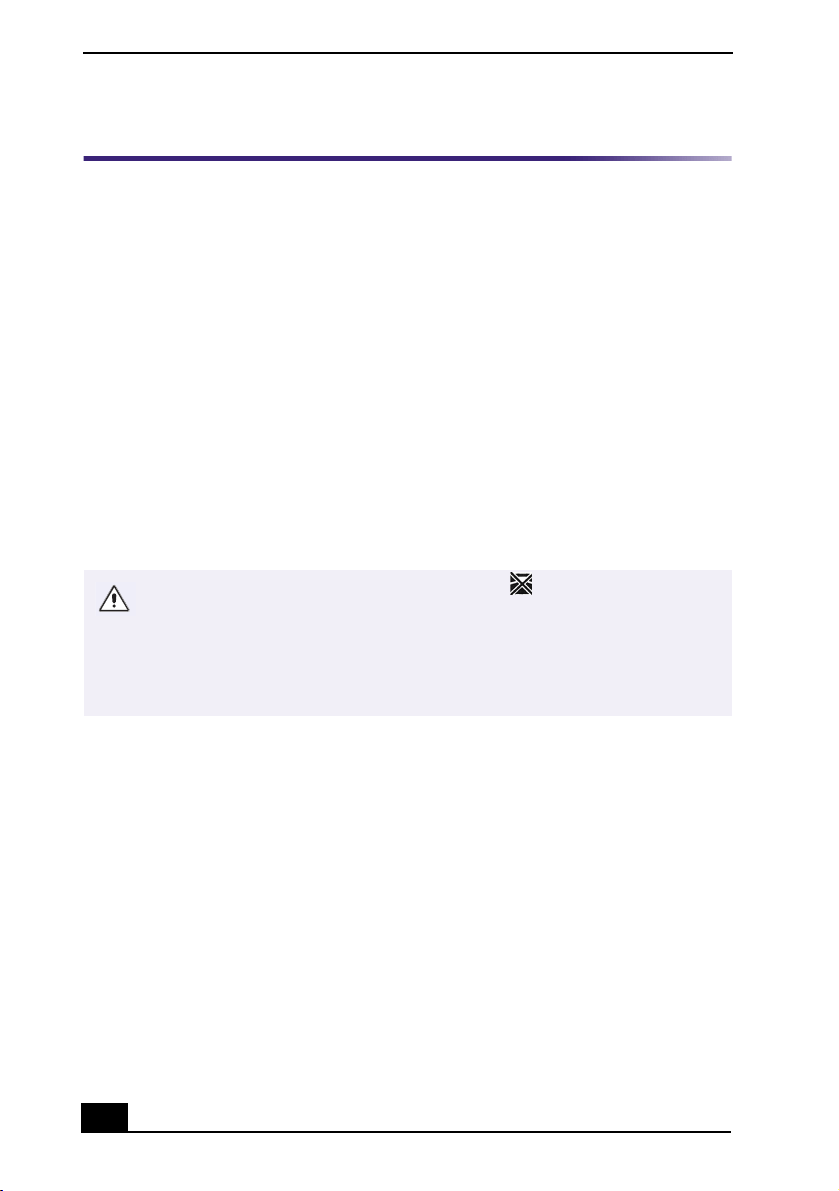
To connect an i.LINK (IEEE1394) device
❑
Use the symbol to locate the i.LINK port. Plug the i.LINK cable into this
port.
Connecting an i.LINK (IEEE1394) device (PCV-LX810/PCV-LX910)
✍
The i.LINK communication standard that is available in the Windows Me™ operating
system is not compatible with the Sony VX1000 camcorder. See the manual that came
with your i.LINK-equipped device for more information on installation and use.
i.LINK cable (optional)
VAIO Slimtop™ LCD Computer User Guide
48
Enabling Ethernet
Your computer comes with a preinstalled Ethernet interface. Your computer may
ship with the Ethernet function disabled. You can enable Ethernet connectivity by
following the instructions below.
To enable the Ethernet connection
1
Right-click My Computer on the desktop and select Properties.
2
Click the Device Manager tab.
3
Select “SiS 900 PCI Fast Ethernet Adapter” under the Network Adapters
category.
4
Click Properties.
5
Click Enable Device and then click OK.
6
Click Close.
Warning: Your computer has a protective sticker next to the Ethernet port
located on the rear panel. Connect only 10Base-T and 100Base-TX cables to
the Ethernet port. Using other cables or a telephone cable may result in an
electric current overload and can cause a malfunction, excessive heat or fire
in the port. For help on connecting to a network, see your network
administrator.

VAIO® AV Applications
49
VAIO® AV Applications
Your VAIO computer comes with a collection of audio and video (AV)
applications that make it easy to use advanced multimedia formats. This section
describes these VAIO AV applications.
DVgate™
Sony Electronics, Inc.
DVgate software makes it easy to edit digital videos. You can grab and edit digital video
clips and then assemble them into a polished home video that everyone can enjoy. You can
also use DVgate software to capture individual frames from digital video clips, and then
save them as graphic files. Enhance your Web page, send family and friends your favorite
stills, create your own wallpaper—the possibilities are endless.
Media Bar™ DVD Player
Sony Electronics, Inc.
Media Bar DVD Player software delivers high quality video playback of your favorite
DVDs.
MovieShaker™
Sony Electronics, Inc.
Sony’s original MovieShaker software creates personal movies that have transitions,
background music, and text. Just import your video clips and “shake” with a click of the
mouse. Your personal movies are easy to create and fun to share with family and friends.
OpenMG™ Jukebox
Sony Electronics, Inc.
OpenMG Jukebox software enables you to import digital audio files by downloading from
Electronic Music Distribution (EMD) services over digital networks, such as the Internet.
You can record audio CDs onto your hard drive in a variety of formats.
PictureGear™
Sony Electronics, Inc.
PictureGear software is a digital image management application that allows you to see all
the images stored in any directory on your computer. Thumbnail views provide quick
reminders of your pictures. Brighten, contrast, enhance, resize, crop, and color-correct
your pictures. Create panoramic views, animations, screen savers, wallpaper, and even
HTML photo albums.

VAIO Slimtop™ LCD Computer User Guide
50
Smart Capture
Sony Electronics, Inc.
Smart Capture software is a fun new way to send multimedia messages via e-mail. Smart
Capture manages the i.LINK® connection between your computer and a Sony Digital
Handycam Camcorder, or other cameras that support the i.LINK interface. Smart Capture
allows you to capture and compress video or still images that you can save or share via e-
mail. Captures are low resolution, making it ideal for e-mail. For high-quality captures,
use DVgate.
VisualFlow™
Sony Electronics, Inc.
VisualFlow software is a state-of-the-art Sony multimedia browser designed specifically
for Memory Stick® media. It displays any still picture, movie or sound files stored in a
Memory Stick media in a visually pleasing, artistic manner. VisualFlow software not only
plays a selected movie or sound file, but also enables playback of files by other
applications like PictureGear, Memory Stick Slideshow and Windows Explorer.
✍
i.LINK is a trademark of Sony used only to designate that a product contains an
IEEE1394 connection. The i.LINK connection may vary, depending on the software
applications, operating system and compatible i.LINK devices. All products with an
i.LINK connection may not communicate with each other.
Please refer to the documentation that came with your compatible i.LINK device for
information on operating conditions and proper connection. Before connecting
compatible i.LINK PC peripherals to your system, such as a CD-RW or Hard Disk
Drive, confirm their operating system compatibility and required operating conditions.
VAIO® AV Applications
51
MovieShaker™
This application can be used to create fun and innovative movies without any
knowledge of film editing. In a few simple steps, motion pictures can be
combined with special effects, still images, and music files, and then saved in a
format compatible with most computers.
Importing Images and Sound Clips
1
Click (File Import) or (DV Import).
2
Find the file you want to add.
3
Select the file.
4
Click Open. The file is added to the Clip tray.
Create a Movie using Shaker
After adding clip(s) to the Clip tray, you can create a short movie using the
Shaker feature. Shaker randomly selects clips from the Clip tray to create a
30-second scene.
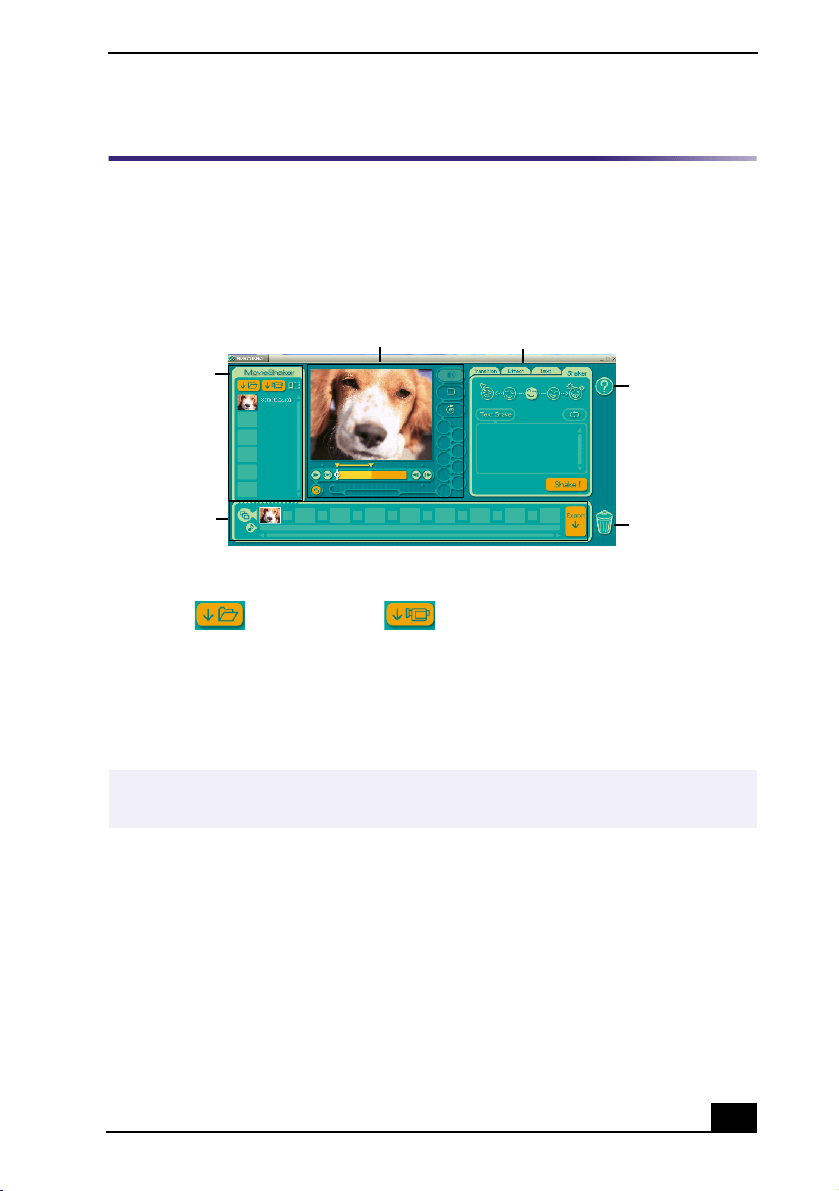
Main Window
✍
Importing lengthy image or sound files may cause the MovieShaker software to stop
responding.
Clip tray
Working Panel
Product tray
Editing trays
Help
Tras h
VAIO Slimtop™ LCD Computer User Guide
52
1
Click the Shaker tab.
2
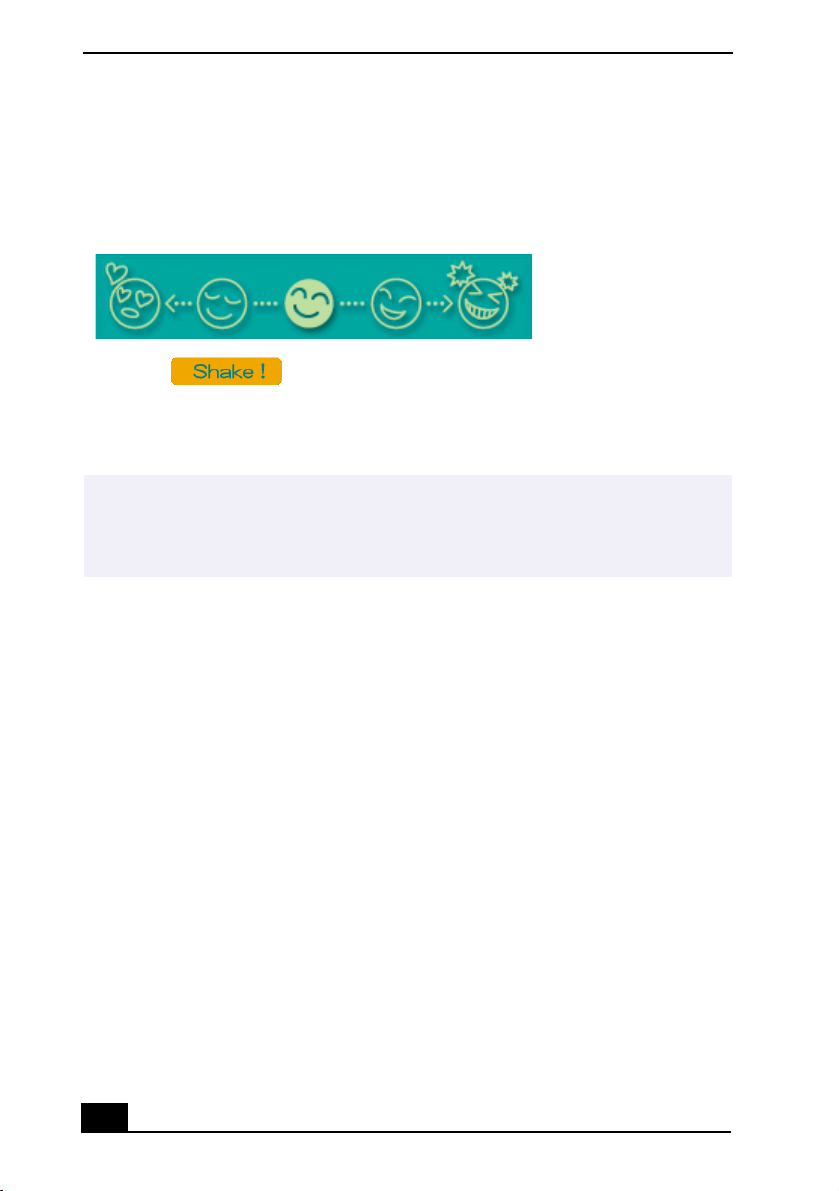
Select a mood by clicking a face in the Shaker tray.
3
Click . A 30-second scene is automatically generated and
saved to the Product tray.
4
To preview, switch the Work Panel to Product tray mode and press play.
Shaker tray
✍
Scenes created with Shaker begin with a black frame and after processing are placed
in the first available slot on the Product tray. Limit the number of scenes placed on the
Product tray to 5 or less. MovieShaker software may stop responding if too many
scenes are placed on the Product tray.
VAIO® AV Applications
53
Editing Clips and Scenes
You can edit your movie by adding effects and text, adjusting the color and
contrast, and modifying the length of clips.
Adding effects to a scene or a clip
1
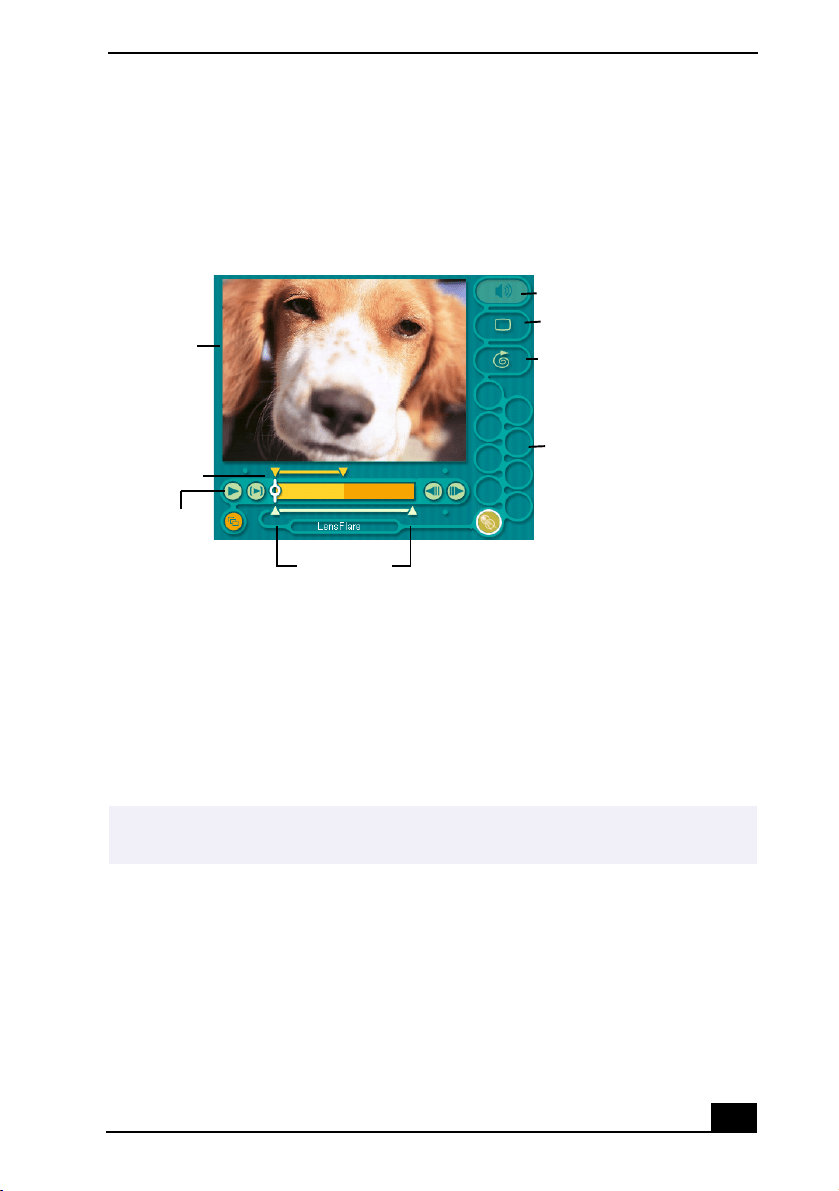
Double-click the clip or scene to move it to the Working Panel.
2
Select the Effects tab from the Editing tray.
3
Drag the Effect you want to add from the Effects tray to the Effects palette
on the Working Panel.
4
See Help for instructions on adjusting effect duration and replaying clips and
scenes.
Working Panel
✍
To preview an Effect, click the Play button on the Working panel window. Your clip
plays the new effect on the Effect tray monitor.
Sound
Color
Speed
Effect Palette
Trim Palette
Monitor
Effect Knobs
Play
VAIO Slimtop™ LCD Computer User Guide
54
Saving a Movie
1
Verify that the clip(s) you want to save is on the Product tray. See Help for
more details on saving movies.
2
Click Export.
3
Select the format in which you want the document to be saved.
4
Click Next.
5
Locate the folder to which you want the file saved.
6
Name the file.
7
Click Save.
Exporting movies may take a long time to complete—“Save movie as DV”
(Digital Video) takes the longest and Quick-Save is the fastest. MovieShaker
software can play AVI files up to 65 MB in length.

VAIO® AV Applications
55
PictureGear™
PictureGear is a digital image management application that allows you to see all
the images stored in any directory on your computer. Thumbnail views provide
quick reminders of your pictures. Brighten, contrast, enhance, resize, crop, and
color-correct your pictures. Create panoramic views, animations, screen savers,
wallpaper, still pictures from MPEG, and even HTML photo albums.
Managing Your Pictures
Use the collection feature to manage your pictures.
1
Click the Folder tab and browse to locate your pictures.
2
Select the pictures you want to have in a collection.
3
From Collection menu, select Create New Collection.
4
Enter a name for the collection and then click OK.
Creating a Photo Album
1
Select the pictures you want to use to make an album.
2
From the Utilities menu, select Album Maker.
3
Choose the type of Album you want and click OK.
4
Now add more pictures, frames, text, and effects.
5
When you are finished, select Create Album in File menu or click the Create
Album icon on the toolbar.
6
Designate the folder where you want to save the Album.
7
Enter the Target Album name, select Thumbnails and click OK.
8
The new album can be viewed using most Internet browsers.

VAIO Slimtop™ LCD Computer User Guide
56
Using Panorama Maker
Panorama Maker stitches a group of still images into a 360 degree panoramic
picture. The source images should be the same size and have a 20 percent
overlap.
How to stitch a panoramic picture:
1
Gather the source images into the same folder or collection.
2
Select the images you want to use.
3
From the Utilities menu select Panorama Maker.
4
Select the correct lens and click OK. (If 35mm lens is selected, the prompt
does not appear. To select a different lens, click on the lens icon.)
5
Click the panoramic icon, near the bottom of the window.
6
Click Full Stitch.
Making Still and Panoramic Images from MPEG
1
Select the MPEG file.
2
From the Movie/Sound menu, select Scene Break Down.
3
Then select Movie Stitch, to create a panoramic picture.
✍
Sony recommends creating your panoramic picture with 12 landscaped or 16 portrait
pictures.

VAIO® AV Applications
57
OpenMG™ Jukebox 2.0
OpenMG Jukebox is a software application that utilizes Sony Corporation’s
copyright protection technology. OpenMG Jukebox maintains the holder’s
copyrights by preventing unauthorized distribution of digital audio files.
OpenMG Jukebox software lets you play and record audio CDs and import
digital audio files while maintaining the copyright information of the contents.
When you record an audio CD with OpenMG Jukebox, it is encoded in ATRAC3
format onto your computer’s hard drive. You can download digital audio files
from Electronic Music Distribution (EMD) services. The imported data can be
played on your computer or transferred to external devices or media. OpenMG
Jukebox converts your existing MP3 and WAV format audio files into OpenMG
format (WAV format audio files are converted into ATRAC3 format or changed
into OpenMG MP3 format).
Electronic Music Distribution (EMD) Services
EMD allows you to download music files via the Internet. To use Internet
services that are compatible with OpenMG Jukebox, you need:
❑
Access to the Internet from your computer. Sign up with an Internet Service
Provider (ISP) and configure your computer for Internet access before using
EMD services.
❑
An EMD service provider. Consult the provider for information about
service.
Your VAIO computer ships with OpenMG Jukebox 2.0 installed. Portable
players that are compatible with OpenMG Jukebox may contain an earlier
version of the software (Version 1.0, 1.1, or 1.2). Do not install an earlier
version of OpenMG Jukebox on your computer, as this may cause the software
to work improperly or damage your audio files. For more information on
connecting your compatible portable player to your computer, go to the Sony
Walkman® Product Support Web site at:
http://www.sony.com/walkmanproductsupport.

VAIO Slimtop™ LCD Computer User Guide
58
Starting OpenMG Jukebox 2.0
1
From the Start button on the Windows taskbar, point to Programs, point to
OpenMG Jukebox, and then click on OpenMG Jukebox.
The CDDB® Music Recognition Service Registration wizard appears.
Follow the onscreen instructions to complete registration.
2
When you have registered with CDDB, the “Set OpenMG Jukebox as the
Application for playing Audio CD” dialog box appears. You can set
OpenMG Jukebox as the default application for playing audio CDs by
selecting the appropriate checkbox.
3
Click OK. The OpenMG Jukebox window appears.
✍
To protect your personal data, Sony uses Secure Sockets Layer (SSL), an encryption
protocol for communication between your browser and Sony’s World Wide Web
(WWW) server. If you are accessing the Internet from an enterprise Local Area
Network (LAN), you may not be able to use SSL due to the proxy server of the LAN.
Contact your network administrator for more information.
✍
To register with CDDB, you need Internet access from your computer. For more
information regarding CDDB registration, click on the Help button.
VAIO® AV Applications
59
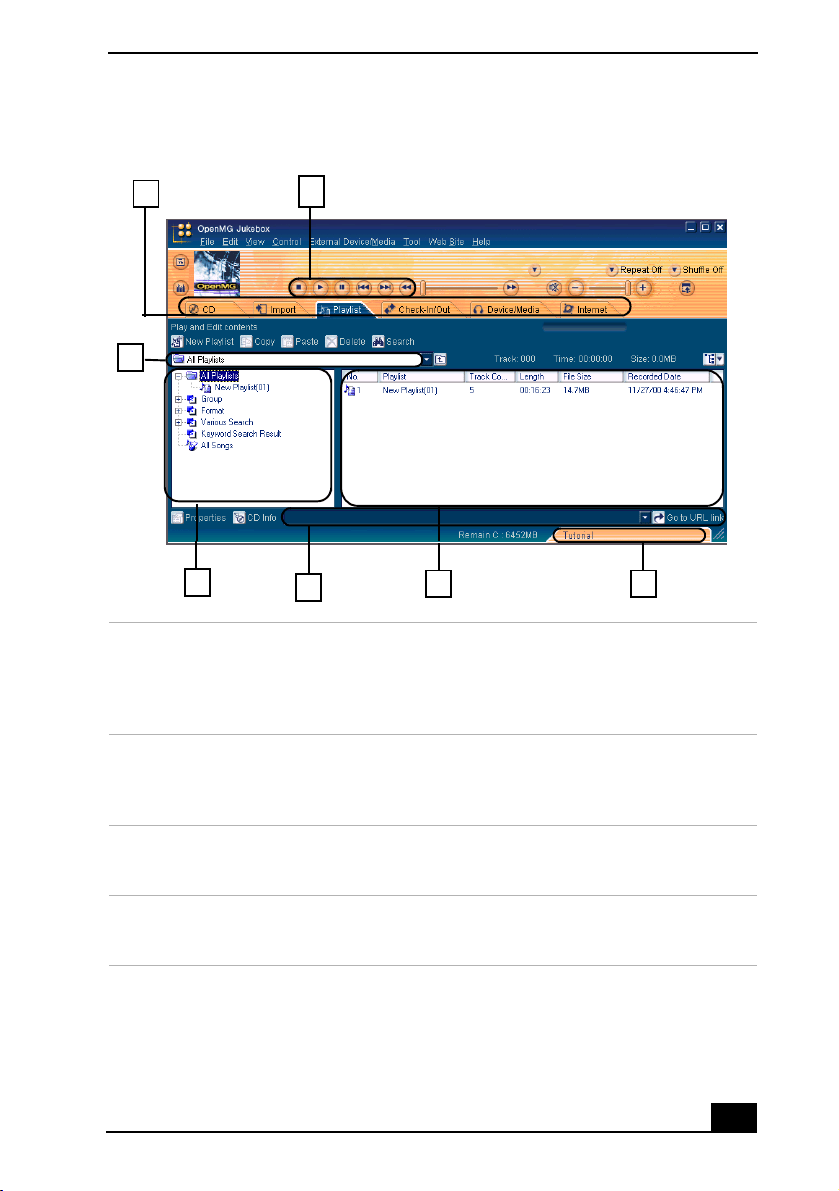
OpenMG Jukebox main window
1 Feature tabs
Changes the screen view according to
the selected feature.
5 Internet address drop-down list
Displays Internet addresses, if available.
You can click on the “Go to URL link”
button to immediately connect to Web
sites.
2 Player control buttons
Controls playback functions, such as
play, pause, stop, fast forward and
reverse.
6 File list view
Displays the contents of the folder
selected in the file tree view.
3 Playlist drop-down list
Displays available playlists and audio
files of the current feature tab.
7 Tutorial tab
Opens and closes the Tutorial feature.
4 File tree view
Displays the folders available on your
computer.
2
3
6
5
7
4
1
http://www.cddb.com
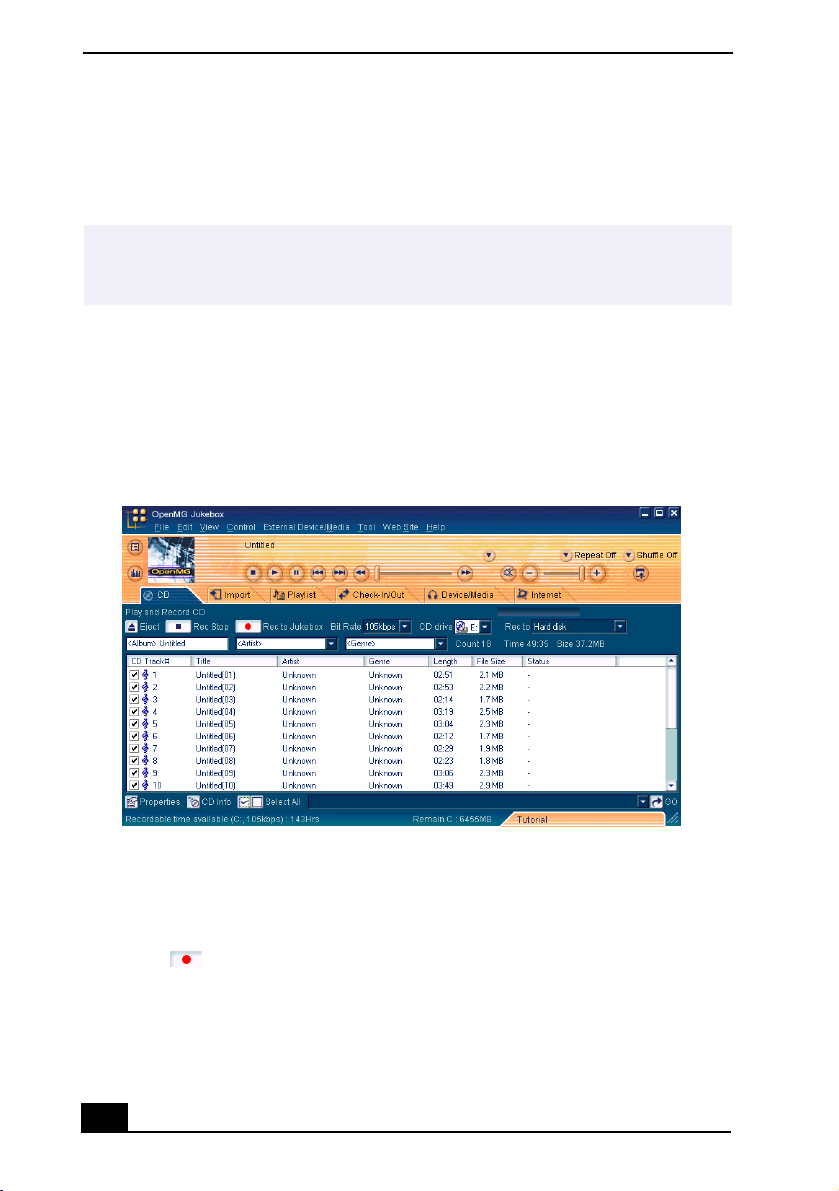
VAIO Slimtop™ LCD Computer User Guide
60
Recording a CD
You can record songs from audio CDs and import them to playlists in OpenMG
Jukebox.
1
Insert an audio CD into your system’s CD-RW/DVD-ROM drive.
2
Click the CD tab.
3
Use the drop-down lists to select the Bit Rate, CD drive, and Record To
destination.
4
You can select specific tracks on your CD by removing the checkmark from
the tracks you don’t want to record. You can clear all selected tracks by
clicking in the empty checkbox next to Select All, and then select the tracks
you want to record.
5
Click
Rec to Jukebox to begin recording. When the recording is
finished, the new playlist appears in the File tree view of the Playlist
window. You can change to this feature view by clicking on the
Playlist tab.
✍
When you record from an audio CD on your CD-RW/DVD-ROM drive for the first time,
the “CD Drive Optimization” dialog box appears. Click Start to verify your CD-RW/
DVD-ROM drive. After the verification is performed, recording begins.
CD tab window
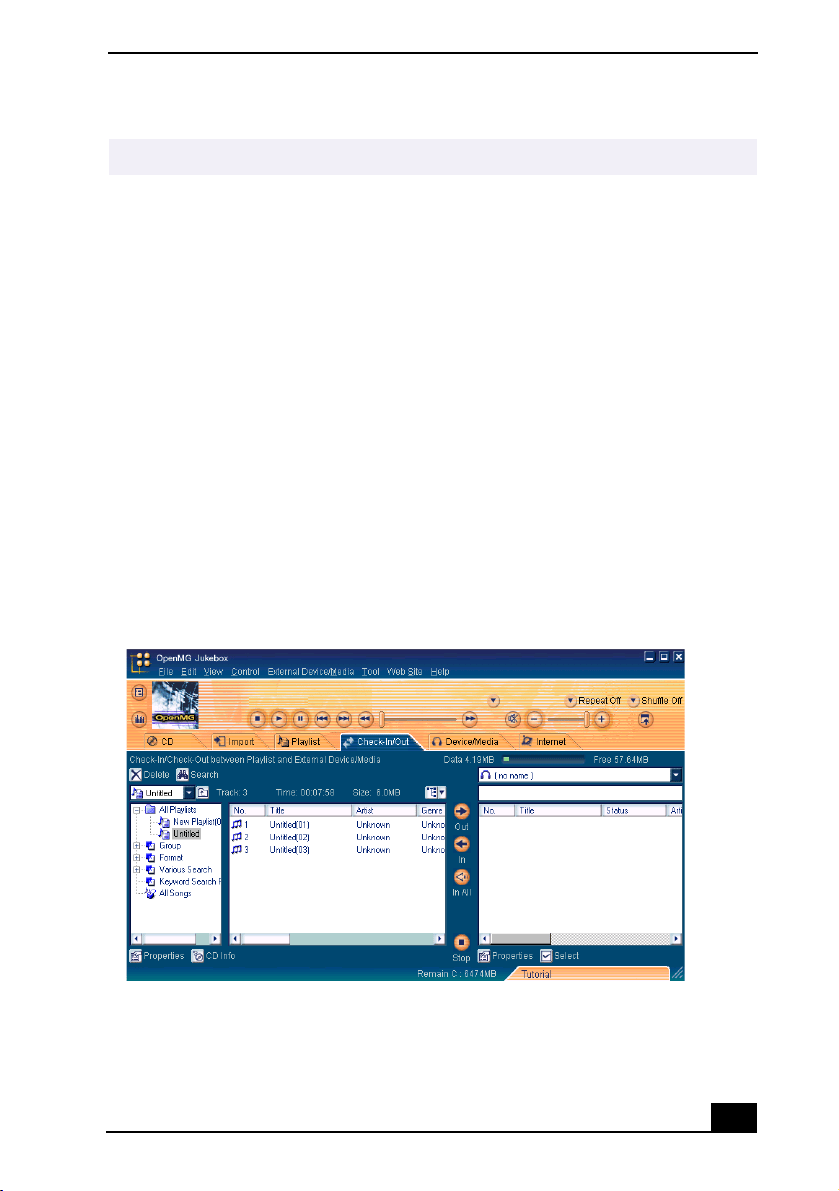
VAIO® AV Applications
61
Transferring Songs (Check-in/Check-out)
You can transfer songs between the playlists of your OpenMG Jukebox and
external devices or media. For more information on using your external devices
or media, see the documentation that came with the product.
These instructions are for using the Check-in/Check-out 1 step mode. For
information on using 2 step mode, see “Changing the check-in/check-out
settings” in the OpenMG Jukebox Help menu.
Check-out
1
Connect the external device or insert the media into your computer.
2
Click on the Check-in/Out tab to display the Check-in/Out tab window. Your
computer automatically recognizes the connected external device or media
and lists the content information in a new panel on the right side of the
Check-in/Out tab window.
✍
You can display the name of the CD and its songs by clicking on the CD Info button.
Check-In/Out tab window
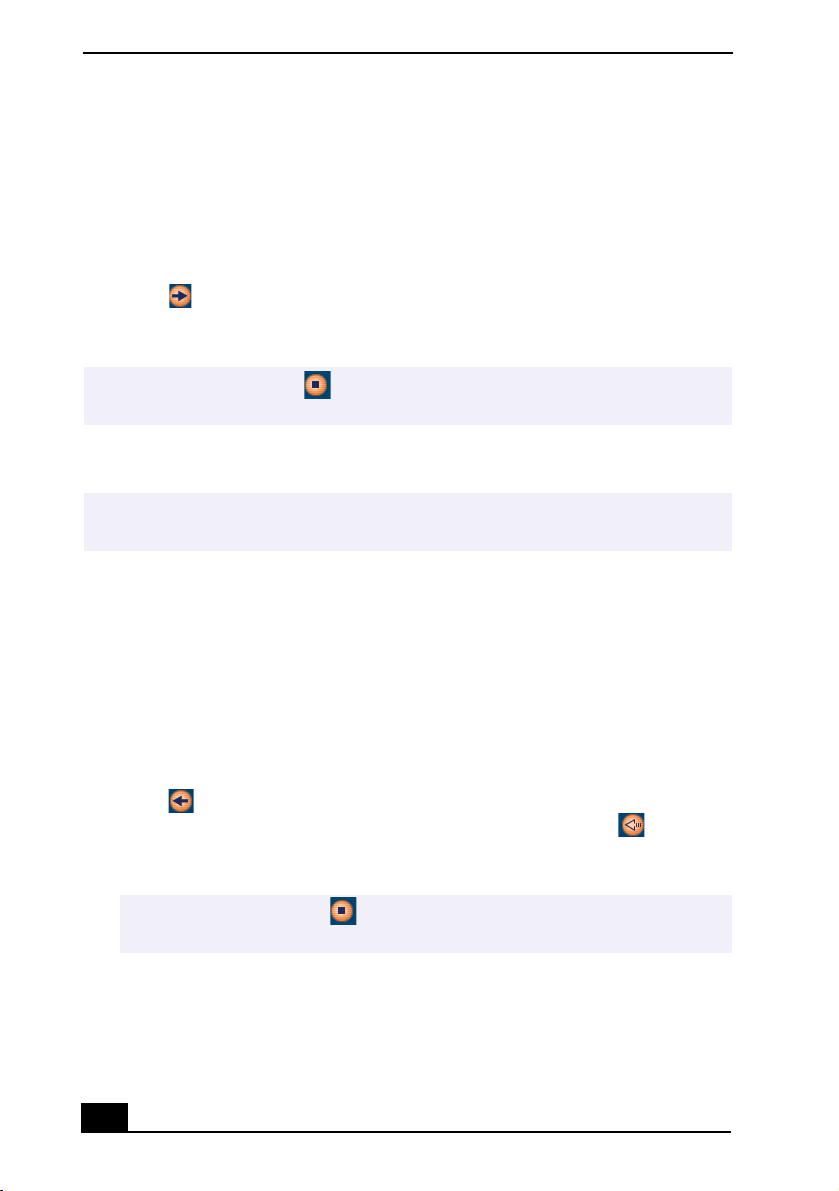
VAIO Slimtop™ LCD Computer User Guide
62
3
Select the playlist that has the song that you want to check out. The songs in
the playlist are shown in the Playlist view panel located in the center of the
Check-In/Out tab window.
4
From the Playlist view panel, select the song to be checked out. To check out
more than one song at a time, hold down the Ctrl key and click on the
additional songs.
5
Click (Out), or drag the song to the desired position in the song list of the
external device or media. Check-out begins.
Check-in
1
Connect the external device or insert the media into your computer
2
Click on the Check-in/Out tab to display the Check-in/Out tab window. Your
computer automatically recognizes the connected external device or media
and lists the content information in a new panel on the right side of the
Check-in/Out tab window.
3
Select the song to be checked in from the song list of the external device or
media. To check in more than one song at a time, hold down the Ctrl key and
click on the additional songs.
4
Click (In), or drag the song(s) to the Playlist view panel. If you want to
check in all of the songs in the external device or media, click (In All).
Check-in begins.
✍
To cancel Check-out, click
(Stop), or click Cancel in the Processing dialog box that
is displayed during the Check-out process.
✍
The songs that you transfer to external devices or media can only be checked in to the
hard drive of the same computer from which the songs were checked out.
✍
To cancel check-in, click
(Stop), or click Cancel in the Processing dialog box
that is displayed during the Check-out process.

VAIO® AV Applications
63
For more information about using OpenMG Jukebox 2.0 software, go to the
online OpenMG Jukebox Help. You can access the online help file using either
of the following instructions:
❑
Click the Start button on the Windows taskbar, point to Programs, point to
OpenMG Jukebox, and then click on OpenMG Jukebox Help.
❑
From the OpenMG Jukebox Help menu, select OpenMG Jukebox Help.
Additional Features
❑
OpenMG Jukebox Tutorial —
The features of OpenMG Jukebox 2.0 are
described in the Tutorial. The user-friendly interface guides you directly to
the OpenMG Jukebox 2.0 features.
❑
OpenMG Jukebox Backup Tool —
You can back up and restore all of the
music, graphics and information data managed by OpenMG Jukebox. You
must be connected to the Internet to use the OpenMG Jukebox Backup Tool.
❑
Import audio files in various formats —
You can import audio files with
various formats, such as MP3 or WAV standards. You can also import audio
files that comply with the Microsoft® Windows Media™ Technologies
(WMT) standard, identified by .asf or .wma extensions. Manage your audio
files through the Playlist feature of OpenMG Jukebox 2.0.
❑
Manage imported songs on the Playlist —
Additional features are
available when you register your imported songs through the Playlist feature
of OpenMG Jukebox. You can manage your music by creating your own list
of songs categorized by genre or artist, displaying your song list in the
Playlist feature, and arranging your songs in a customized order using the
Playlist folders. Edit your music by combining multiple songs into a single
song, or divide one song into two, by using the Combine and Divide features.
❑ Simple mode —
The main OpenMG Jukebox window in simple mode is a
smaller, compact version of the full mode view. This can be useful when you
want to listen to songs with OpenMG Jukebox while using other software, or
whenever you feel that full mode view is intrusive. The design of the main
OpenMG Jukebox window in simple mode can be changed by adding a new
“skin,” which enhances the window’s appearance. The Simple mode feature
allows you to perform playback operations only.
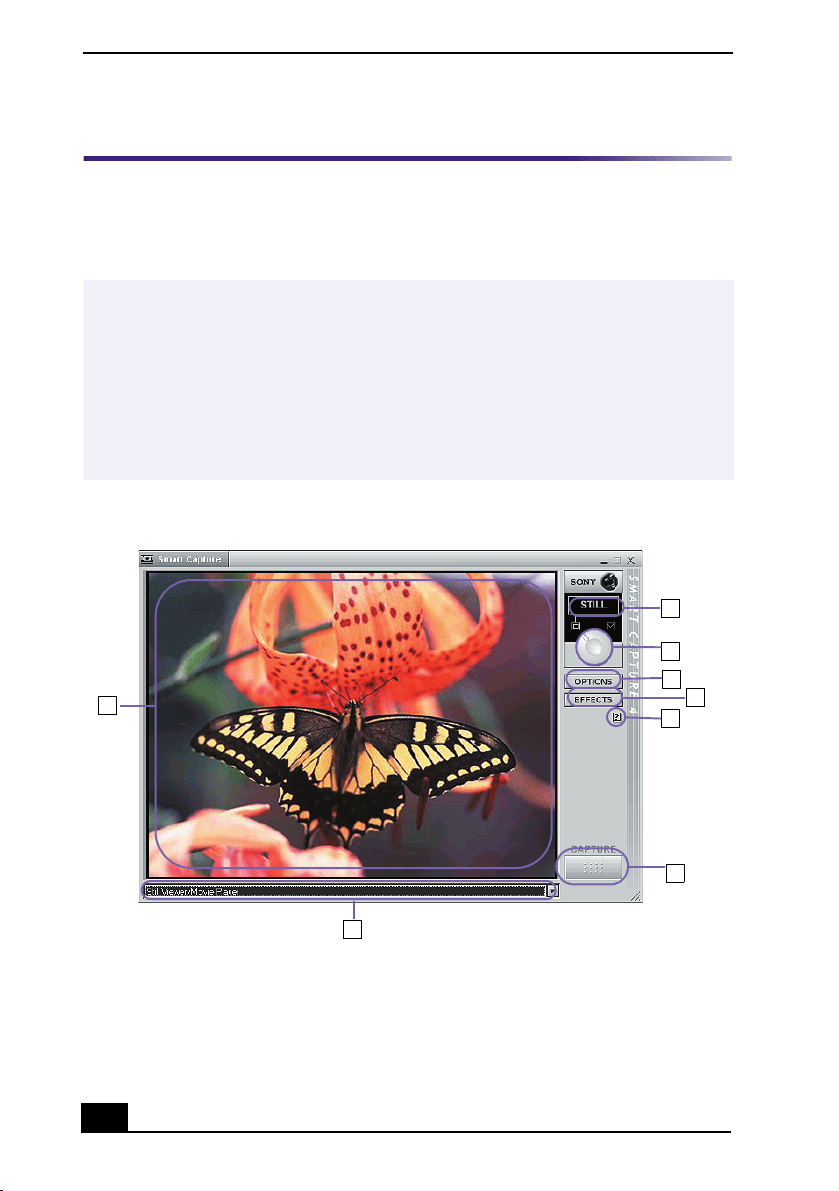
VAIO Slimtop™ LCD Computer User Guide
64
Smart Capture
Smart Capture is a Sony-designed application that manages the i.LINK
connection between your computer and a compatible i.LINK digital camera or
camcorder. You can capture and enhance video or still images to share with your
family and friends over the Internet or through e-mail.
✍
i.LINK is a trademark of Sony used only to designate that a product contains an
IEEE1394 connection. The i.LINK connection may vary, depending on the software
applications, operating system and compatible i.LINK devices. All products with an
i.LINK connection may not communicate with each other.
Please refer to the documentation that came with your compatible i.LINK device for
information on operating conditions and proper connection. Before connecting
compatible i.LINK PC peripherals to your system, such as a CD-RW or Hard Disk
Drive, confirm their operating system compatibility and required operating conditions.
Smart Capture main window
1
2
3
4
5
6
7
8

VAIO® AV Applications
65
Using Still mode
1
From the Start button, point to Programs, point to Smart Capture, and then
click on Smart Capture. The Smart Capture main window appears.
2
Connect your compatible i.LINK digital camera or camcorder to your
computer with an i.LINK cable. An image appears in the Smart Capture
main window.
3
Check that the Mode dial is set to Still. Click on the Mode dial to switch
between Still mode and Net Movie mode.
1 Mode indicator
Displays the current mode (Still or Net
Movie).
5 Help button
Connects you directly to the online Smart
Capture help.
2 Mode dial
Switches Smart Capture from Still mode to
Net Movie mode with a single click of your
mouse.
6 Capture button
Captures your individual still images in the
same manner as a camera. You can select
different characteristics for the Capture
button when capturing a Net Movie.
3 Options button
Displays the configuration options
available for either Still or Net Movie mode.
7 Application Switch drop-down list
Switches between the Still image and Net
movie modes, using a drop-down list.
4 Effects button
Displays the special effects that you can
apply to your pictures or video clips.
8 Image window
Displays the still or video image from your
digital camera or camcorder.
✍
The Smart Capture main window opens with a blue screen image, indicating that there
is no data input from a digital camera or camcorder. When you connect your digital
camera or camcorder to your system with an i.LINK cable and turn it on, an image
appears in the main window. Some cameras and camcorders need to have a recording
media inserted before an image can be displayed in the Smart Capture window.
Consult the manual that came with your digital camera or camcorder for more
information.
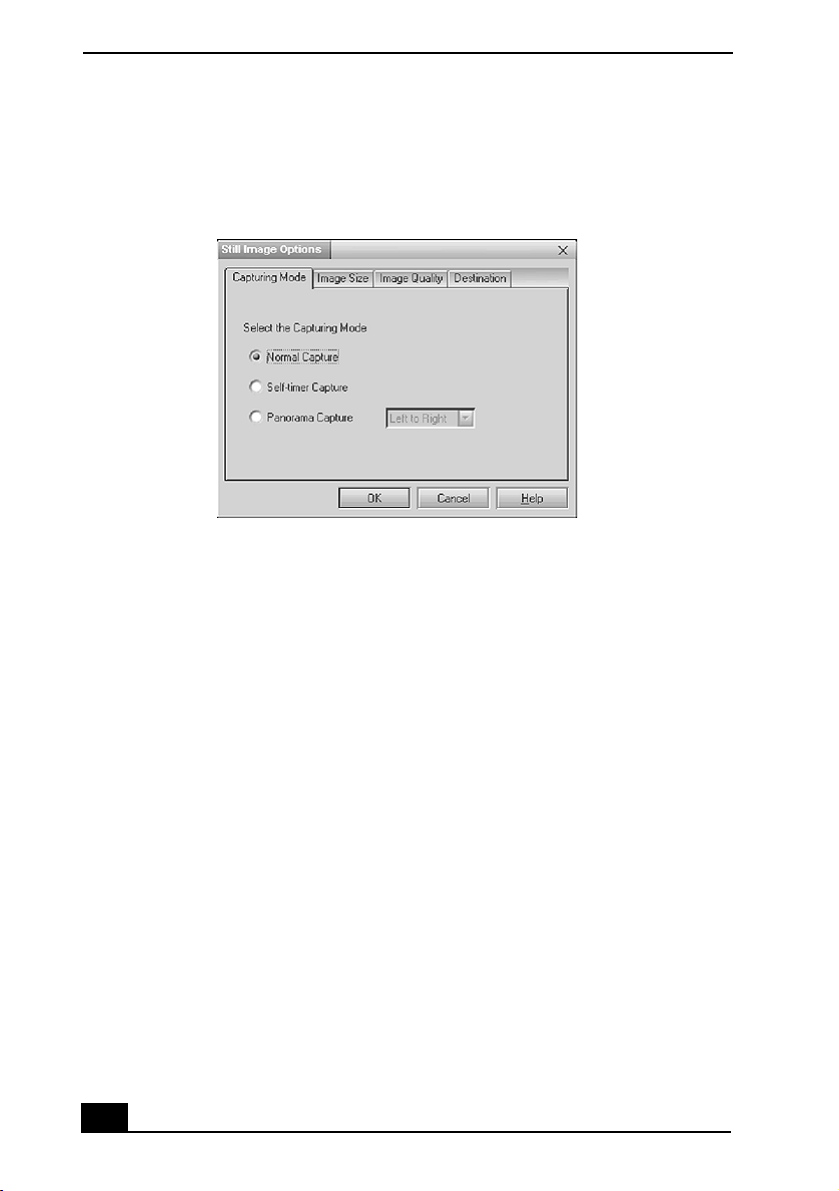
VAIO Slimtop™ LCD Computer User Guide
66
4
Click on the Options button to view the available options for your still image
capture. The Still Image Options window appears.
The Still Image Options window has four tabs:
❑
Capturing Mode —
You can choose between Normal, Self-timer or
Panorama Capture modes.
❑
Image Size —
Select the image size, horizontal by vertical in pixels.
❑
Image Quality —
Set the quality of your pictures as they are being
saved by selecting Fine, Standard or Economy image quality.
❑
Destination —
Select a file destination for your pictures.
5
Click on the Effects button to select a special image effect. The Effect
Setting window appears. Use the drop-down list to view and customize the
available effects.
Still Image Options window
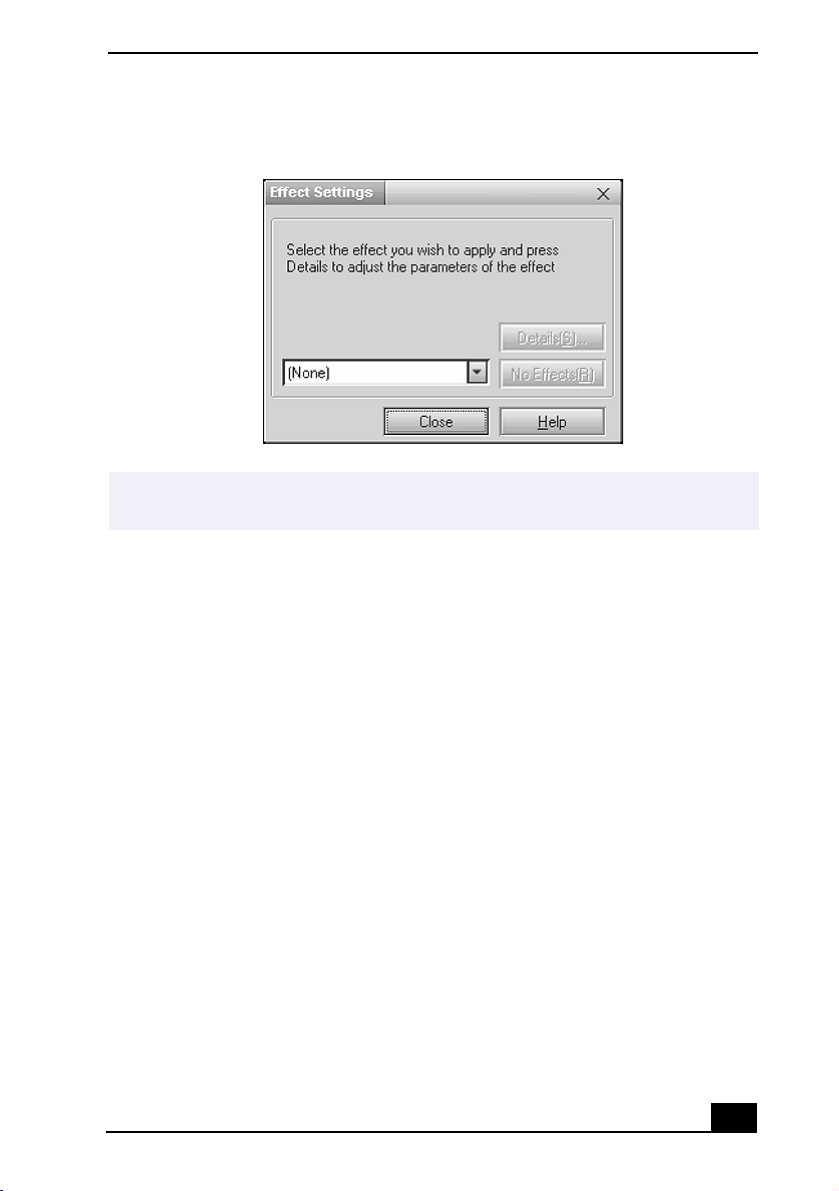
VAIO® AV Applications
67
Effect Setting window
✍
You can use a different special effect for each picture, or you can remove all special
effects by clicking on the No Effects button.
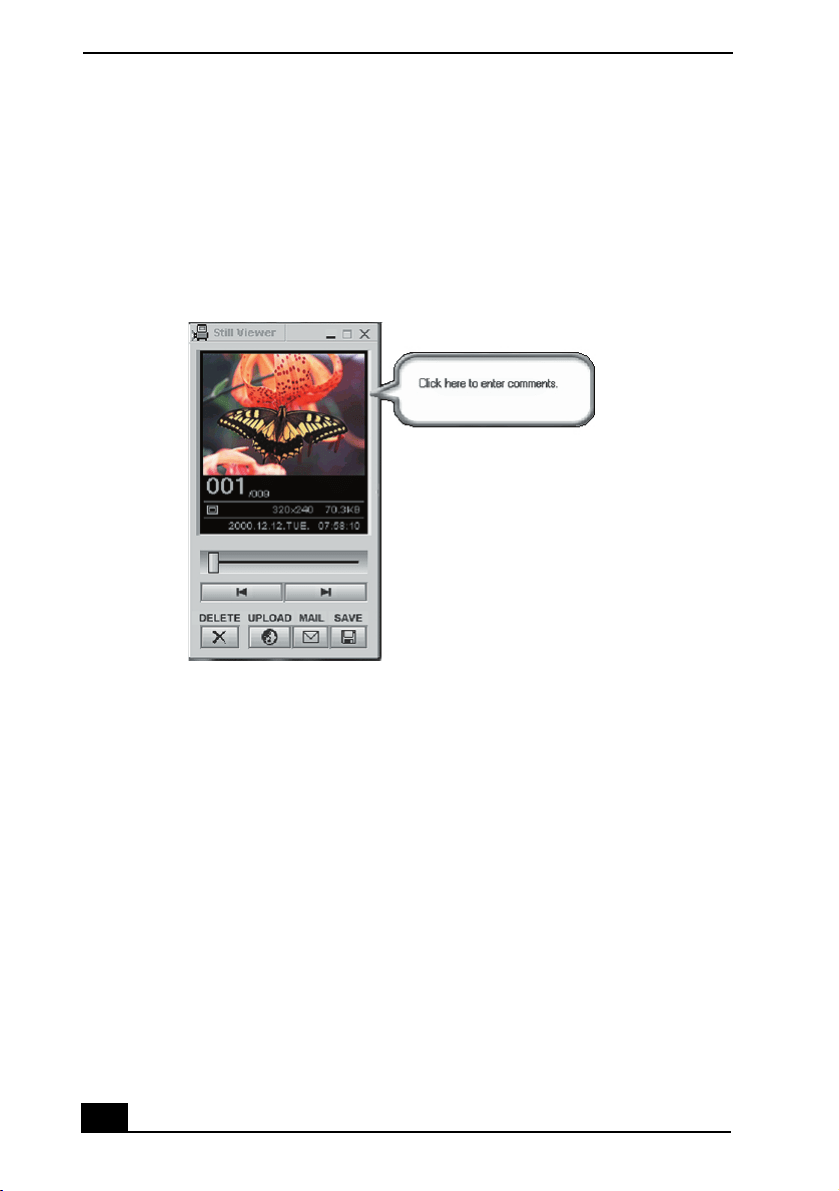
VAIO Slimtop™ LCD Computer User Guide
68
Capturing a picture in Still mode
1
Use your digital camera or camcorder to locate the image you want to
capture. When you see the desired image in the Smart Capture window, click
on the Capture button. The Still Viewer window appears. You can capture
one picture or several pictures at a time.
2
Click on the arrows or drag the scroll bar to view the pictures. As each image
is captured, it displays in the Still Viewer window with a balloon for your
comments and an identifying number in the viewer’s queue.
Managing pictures in Still mode
From the Still Viewer window, you can perform various functions using the task
buttons:
❑
Delete —
Discard any or all of your still images by clicking on the Delete
button. Select a single image or all and the image(s) is “torn” and removed
from the Still Viewer window.
❑
Upload —
Send your still images online to the ImageStation Web site to
share with your family and friends. ImageStation stores your still images
online when you register for this free service. See “Using ImageStationSM.”
Still Viewer window

VAIO® AV Applications
69
❑
Mail —
E-mail your still images to your family and friends. Click on the
Mail button and your e-mail application launches with a new message
window containing the still image.
❑
Save —
Click on the Save button to save your still image in a variety of
formats, to a location of your choice.
Using Net Movie mode
1
From the Start button on the Windows taskbar, point to Programs, point to
Smart Capture, and then click on Smart Capture. The Smart Capture main
window appears.
2
Connect your compatible i.LINK digital camcorder to your computer with
an i.LINK cable. An image appears in the Smart Capture main window.
3
Verify that the Mode dial is set to Net Movie. Click on the Mode dial to
switch between Still mode and Net Movie mode.
✍
You must be connected to the Internet before attempting to upload or e-mail your still
images or videos.
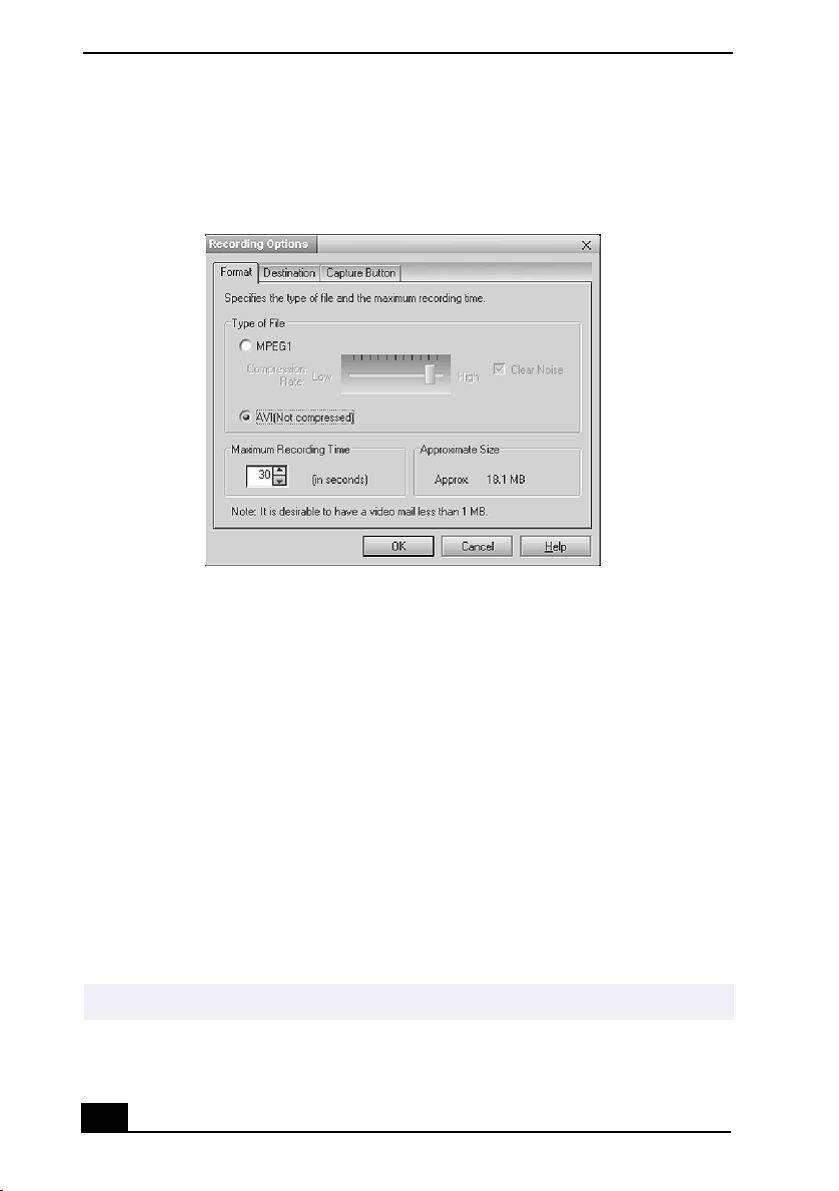
VAIO Slimtop™ LCD Computer User Guide
70
4
Click on the Options button to view the available options for your movie
capture. The Recording Options window appears.
The Recording Options window has three tabs:
❑
Format —
You can adjust the compression rate for your movies in
MPEG1 format or choose the AVI option for no compression. You can
also set the maximum recording time for your movie capture.
❑
Destination —
Select a file destination for your movies when recording
video clips.
❑
Capture Button —
Set the characteristics of the Capture button. You
can start and stop recording by pressing the Capture button (this is the
default characteristic). You can select Anti-Ground Shooting, which
allows recording to occur only while the Capture button is pressed.
Recording will stop when you release the button.
5
Click on the Effects button to select a special image effect. The Effect
Setting window appears. Use the drop-down list to view and customize the
available effects.
Recording Options window
✍
You can remove all special effects by clicking on the No Effects button.
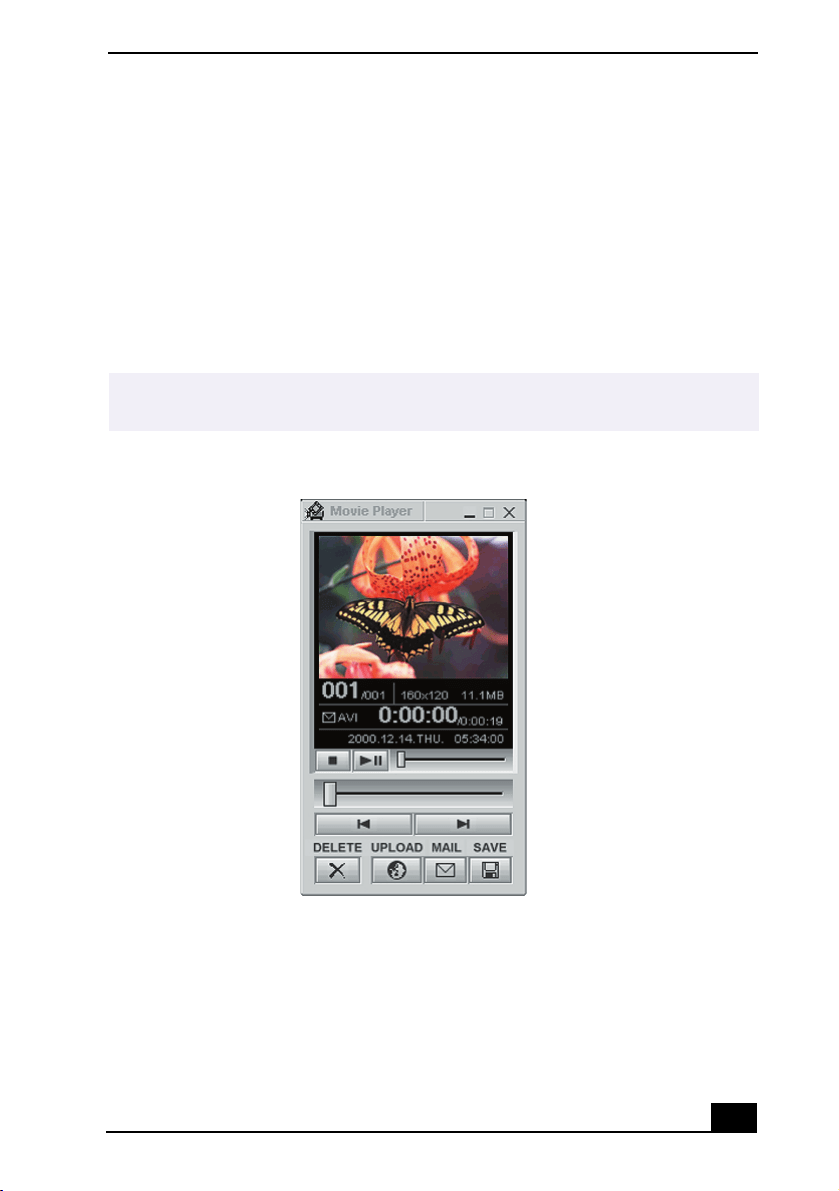
VAIO® AV Applications
71
Capturing a movie in Net Movie mode
1
Use your digital camcorder to locate the view(s) you want to capture. When
you see the desired view in either the Smart Capture window or your
camcorder’s viewfinder, press the Capture button to begin recording your
movie. The Movie Player window appears.
2
Click on the Capture button when you have finished recording your movie
and the first frame of your movie appears in the Movie Player window. You
can record a movie for approximately 30 seconds. The Movie Player feature
will automatically stop recording when this time limit is reached.
3
You can review your movie from the Movie Player window by using the
play, pause and stop buttons. Click on the arrows or drag the scroll bar to
view your movie. Each frame is displayed with an identifying number in the
queue.
✍
If you have set the Capture button to use the Anti-Ground setting, you must press and
hold the Capture button to continue recording.
Movie Player window

VAIO Slimtop™ LCD Computer User Guide
72
Managing your movie in Net Movie mode
From the Movie Player window, you can perform various functions using the task
buttons:
❑
Delete —
Discard any frame or the entire movie by clicking on the Delete
button. The frame or movie is removed from the Movie Player window.
❑
Upload —
Compress and send your movies online to the ImageStation Web
site to share with your family and friends. ImageStation stores your movies
online when you register for this free service. See “Using ImageStationSM.”
❑
Mail —
E-mail your movies to family and friends. Click on the Mail button
and your e-mail application launches with a new message window
containing the movie.
❑
Save —
Click on the Save button to compress and save your movie in a
variety of formats, to a location of your choice.
Using ImageStation
SM
ImageStation is a free online service that allows you to store your pictures and
movies on the Internet to share with family and friends. ImageStation requires an
Internet connection and registration for the Web-based service. You must be
connected to the Internet before uploading your pictures or movies with Smart
Capture and ImageStation.
Uploading with Movie Player
1
Click on the Upload Button in Movie Player. The Compression Settings
when Uploading window appears.
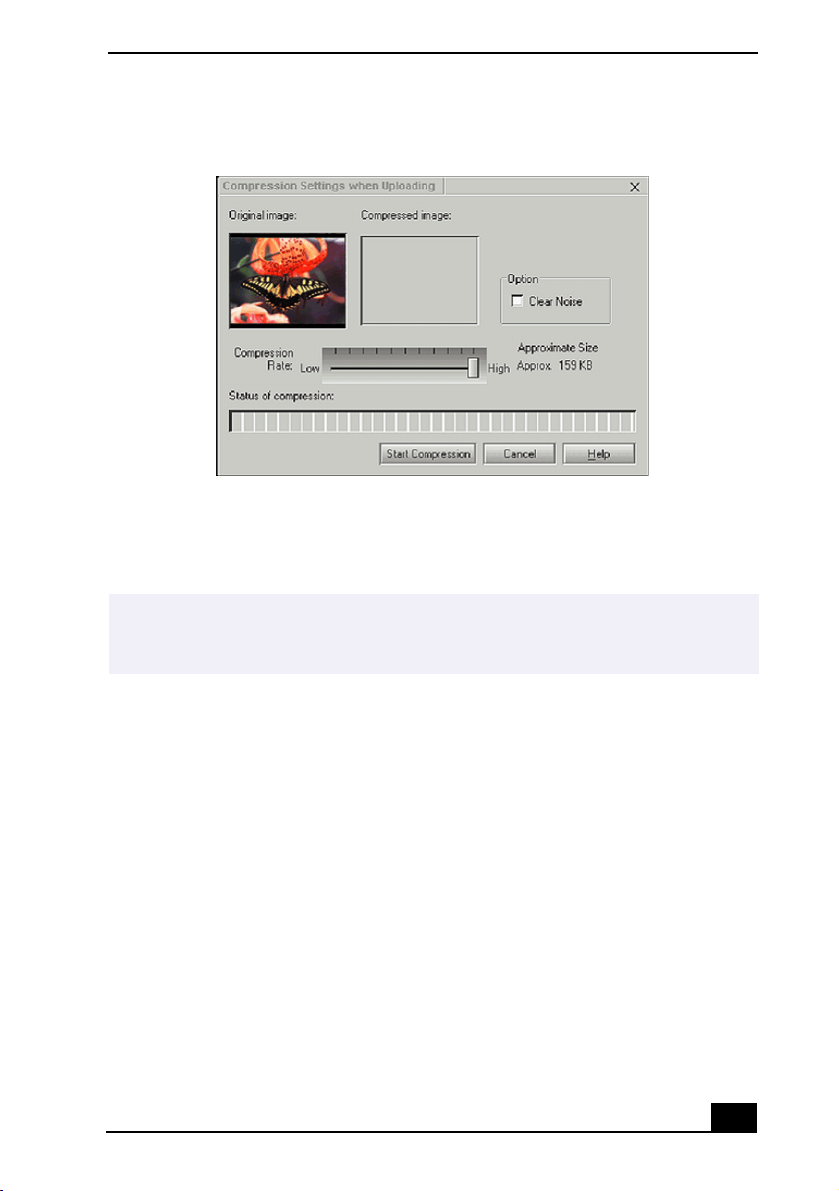
VAIO® AV Applications
73
2
Select the compression rate and press the Start Compression button. The
ImageStation Login window appears. See steps 2 - 4 in the next section,
“Uploading with Still Viewer,” for further uploading information.
Uploading with Still Viewer
1
Click on the Upload button in Still Viewer. The ImageStation Login window
appears.
Compression Settings when Uploading window
✍
Sony recommends that your movie file size not exceed 254 MB if compressed, or 2 GB
if not compressed. Large movie files take longer to upload to the ImageStation Web
site.
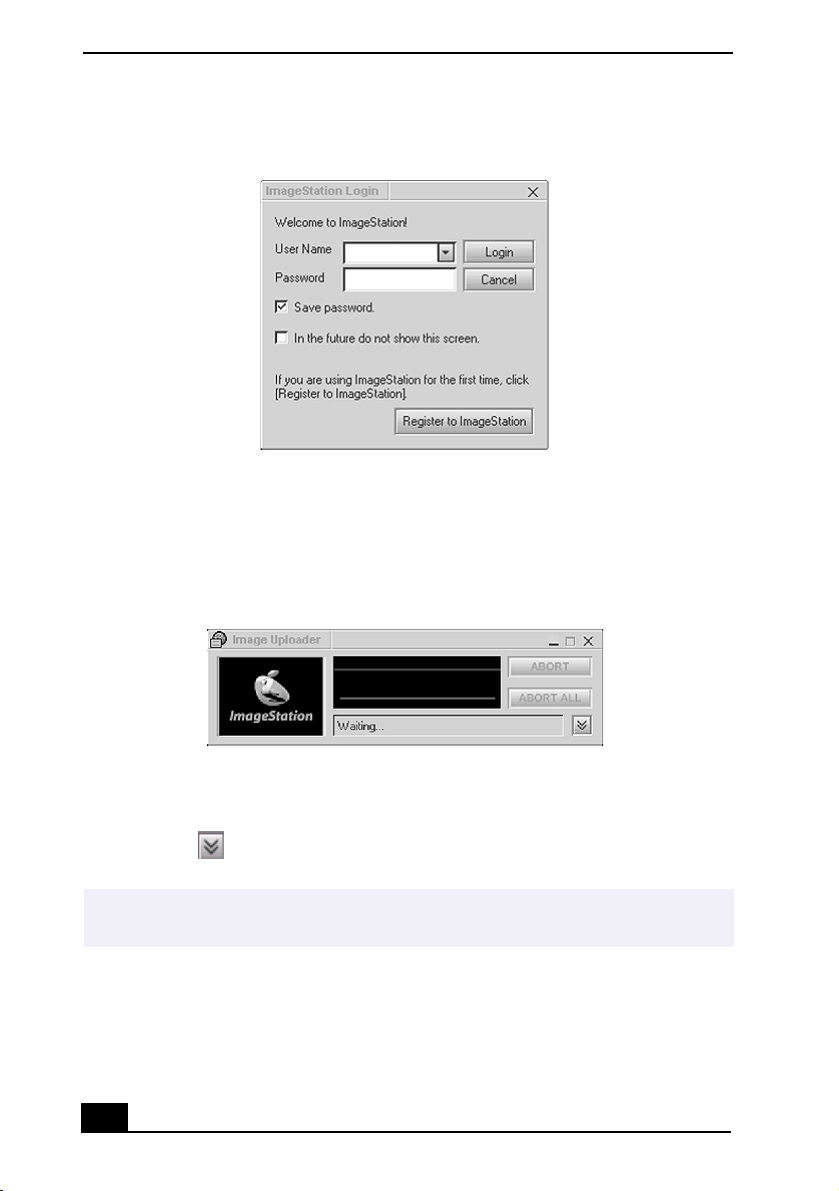
VAIO Slimtop™ LCD Computer User Guide
74
2
For first time users, the ImageStation registration wizard guides you through
the initial registration process. Follow the onscreen instructions. If you are
already a registered member, provide your login name and password. The
Image Uploader window appears.
3
From the Still Viewer or Movie Player window, click on the Upload button
to transfer your pictures or movies to the ImageStation Web site. The Image
Uploader windows displays your Internet connection and upload status.
Click on to see thumbnail previews of your pictures or movies.
4
Go to http://www.imagestation.com to view your uploaded pictures or
movies. Follow the onscreen instructions to access your ImageStation
account. The ImageStation Web site may ask you to complete a full login
again, if your current session is not active.
ImageStation Login window
Image Uploader window
✍
The ImageStation preview feature is available when you upload two or more pictures
or a movie. No preview is shown if a single picture is being uploaded.

VAIO® AV Applications
75
VisualFlow™
VisualFlow software is a Sony state-of-the-art multimedia browser designed
specifically for Memory Stick media. It displays any still picture, movie or sound
files stored in a Memory Stick media in a visually pleasing, artistic manner.
VisualFlow software plays a selected movie or sound file, and enables playback
of files by other applications like PictureGear™, PictureToy™, Memory Stick
Slideshow and Windows® Explorer.
To use VisualFlow
1
From the Start menu, point to Programs, point to VisualFlow, and then click
on VisualFlow.
2
Click on an icon in the View section on the main toolbar to select a display
layout.
3
Click on an icon in the Sort section on the main toolbar to select a sorting
method.
4
Placing your cursor on the left end of the main toolbar activates the current
Memory Stick properties.
5
Placing your cursor on the right end of the main toolbar activates a
secondary toolbar with more functions.
6
Click on an image to show a normal view centered on the screen.
Double-clicking an image shows an enlarged view.
7
The movie file starts playback when the view is enlarged. Click again on the
movie files to restore the view to normal.
✍
If your system is Memory Stick-compatible, the VAIO Action Setup may be configured
to launch the VisualFlow browser upon insertion of a Memory Stick media. In this
case, VisualFlow starts automatically when a Memory Stick media is inserted.
✍
While an image is enlarged, the Launch toolbar appears at the bottom of the window.
Any associated application can be activated from this point.

VAIO Slimtop™ LCD Computer User Guide
76
DVgate™
Connecting a digital video camera recorder
Before connecting a digital video camera recorder to your computer, turn off the
power to the camera. After connecting the camera, turn the power back on. You
do not need to turn off the computer when connecting a camera.
Using DVgate software with a digital video camera recorder
❑
Do not use DVgate software when the connected digital video device is in
Timer Recording mode, as this could produce a malfunction in the device.
❑
Captures larger than 2 GB (9 minutes and 30 seconds) are automatically
continued in a second file.
❑
You can record stereo audio (stereo 1) while capturing video or you can add
audio on the stereo 2 track after capturing the video data.
❑
You cannot use different audio modes on the same tape. You should perform
a separate capture for each audio mode you wish to use.
❑
DVgate software does not support hard disk compression. You should not
use disk compression if you are planning to work with DVgate.
❑
Title data is saved in the flash memory of a digital video camera and is not
transferred to tape by DVgate software.
❑
To avoid interruption of capture sessions, you should disable the screen
saver.
❑
The drop frame compensation feature does not provide accurate
compensation adjustments for tapes recorded in LP mode.
❑
For tapes that include a mixture of both SP and LP mode, the information
displayed by the capture progress indicator may not be accurate.
❑
Make sure the video head of your digital video device is properly cleaned.
Anomalies that you see in captured data could be due to dust or other
particles on the video head.
❑
The last frame captured is one frame before your selected [OUT] point. The
frame you see immediately after clicking the [OUT] button is not captured.

VAIO® AV Applications
77
Using DVgate to record AVI files to tape
❑
Do not use DVgate software when the connected digital video device is in
Timer Recording mode, as this could produce a malfunction in the device.
❑
To avoid recording problems, such as a single frame appearing in multiple
frames, close other applications on your system while recording.
❑
You cannot use different audio modes on the same tape. If you have AVI files
that use different audio modes, they cannot be recorded at the same time, but
must be recorded separately.
❑
Do not attempt to work with AVI files that are smaller than 4 MB.
❑
DVgate software does not support hard disk compression. Do not use disk
compression if you are planning to work with DVgate.
❑
In order to maximize recording capabilities, video and audio data are not
available while you are recording.
❑
If DVgate software indicates that frames have been dropped, close all open
applications, or defragment your hard drive.
DVgate plug-in for Adobe Premiere® software
Your VAIO® Computer may not have Adobe Premiere software preinstalled. If
you subsequently purchase and install this software on your computer, you must
install a plug-in to ensure compatibility with DVgate™ version 2.3.
Installing the DVgate plug-in
Install the plug-in for Adobe Premiere® 5.1 and 5.1LE by following these steps:
1
Click Start in the Windows taskbar and select Run.
2
Click Browse to navigate to your C: drive.
3
Select Program Files, select Sony, select Dvgate, select Premiere Plug-in,
and then select 5.1.
4
Select Setup.exe and click OK. The installation wizard dialog box appears.
Follow the on-screen instructions to install the plug-in.
To install the plug-in for Adobe Premiere® 6.0, proceed as follows:
✍
You can record only AVI files. MPEG files cannot be recorded.

VAIO Slimtop™ LCD Computer User Guide
78
1
Click Start in the Windows taskbar and select Run.
2
Click Browse to navigate to your C: drive.
3
Select Program Files, select Sony, select Dvgate, select Premiere Plug-in,
and then select 6.0.
4
Select Setup.exe and click OK. The installation wizard dialog box appears.
Follow the on-screen instructions to install the plug-in.

System, Application and Driver Recovery CD(s)
79
System, Application and
Driver Recovery CD(s)
System Recovery CD(s)
Sony Electronics, Inc.
The System Recovery CD program enables you to restore the software titles that shipped
with your computer if they become corrupted or are erased. It can be used only to restore
the hard disk of the Sony computer you purchased.
Application Recovery CD(s)
Sony Electronics, Inc.
The Application Recovery CD program enables you to reinstall individual applications.
Use it to restore corrupted or erased files.
Driver Recovery CD
Sony Electronics, Inc.
The Driver Recovery CD program enables you to reinstall individual device drivers. Use it
to restore corrupted or erased files.
Using the System Recovery CD(s)
You can reinstall software titles that shipped with your computer if they become
corrupted or are erased. You may not need to recover the entire contents of your
hard drive. If you experience a problem with your computer, reinstalling a
software title may correct the problem.
Full Restore with Format
The System Recovery utility formats your hard disk drive and then restores all
the original software.
✍
Use the Application Recovery CD program to reinstall individual applications.
You will lose any software you have installed and any other files you have
created since you started to use your computer. You must reinstall any
applications that were not included with the computer when you purchased it.

VAIO Slimtop™ LCD Computer User Guide
80
To use the System Recovery CD(s)
1
Insert the Sony System Recovery CD in the CD-RW/DVD Combo drive.
2
Shut down your computer.
3
Wait 30 seconds and turn on your computer.
4
Type the letter “O” to signify you have read and accepted the Microsoft End-
User License Agreement.
5
When the System Recovery menu appears, follow the on-screen instructions
to complete the recovery process.
Using the Application Recovery CD(s)
The Application Recovery CD utility enables you to reinstall individual
applications if they become corrupted or are erased. Reinstalling an individual
software title may correct a problem that you are experiencing with your
computer or software application. You may not need to reinstall the entire
contents of your hard drive.
✍
You need to complete the Windows registration process when you use the System
Recovery CD(s).
✍
The System Recovery utility boots from the CD-RW/DVD Combo drive. It must be in
the drive when you turn on the computer.
✍
Your system may include one or more System Recovery CDs. If you have more than
one System Recovery CD, insert the first CD to run the System Recovery program.
You are prompted to insert the next CD(s) once the information from the first CD has
been installed.
The recovery process takes 30 to 60 minutes to complete.
After recovering your system using the System Recovery CD(s), you may be prompted
to insert your Application Recovery CD(s) after restarting Windows. Use the
Application Recovery CD(s) to complete the full recovery of your system.

System, Application and Driver Recovery CD(s)
81
You must be in Windows to run the Application Recovery CD utility. If you have
any questions on using the Application Recovery CD(s), contact Sony Customer
Support.
To use the Application Recovery CD(s)
1
Turn on your computer. If your computer is already on, close all
applications.
2
When the Windows desktop appears, insert the Application Recovery CD in
the CD-RW/DVD Combo drive. The Application Recovery utility loads
automatically.
3
When the Application Recovery menu appears, follow the on-screen
instructions to complete the recovery process.
Using the Driver Recovery CD
The Driver Recovery CD utility enables you to reinstall individual drivers and
repair software applications if they become corrupted or are erased. You can
reinstall an individual driver to correct a problem that you are experiencing with
your computer, hardware, or software application. VAIO Support Agent, an
application repair utility, uses a vault feature on the Driver Recovery CD during
its software healing process.
You must be in Windows to run the Driver Recovery CD utility.
✍
If you need to reinstall all the software titles that shipped with your computer, use the
System Recovery CD(s).
✍
Your system may include one or more Application Recovery CDs. If you have more
than one Application Recovery CD, insert the first CD to run the Application Recovery
utility. You may be prompted to insert the next CD(s), depending on the application
you wish to restore.
✍
A list of software titles that are protected by VAIO Support Agent can be located in the
section, “VAIO Support Agent
.
” If you need to reinstall all of the software titles that
shipped with your computer, use the System Recovery CD.

VAIO Slimtop™ LCD Computer User Guide
82
To reinstall drivers with the Driver Recovery CD
1
Turn on your computer. If your computer is already on, close all
applications.
2
When the Windows desktop appears, insert the Driver Recovery CD in the
CD-RW/DVD Combo drive. Use My Computer or Windows Explorer to
view the contents of the Driver Recovery CD. Select the appropriate driver.
To repair software applications using VAIO Support Agent
The Driver Recovery CD utility has an information vault that contains the
original characteristics for the preinstalled software applications that are
protected by VAIO Support Agent. See the section, “VAIO Support Agent” for
instructions on how to fix your software problems.
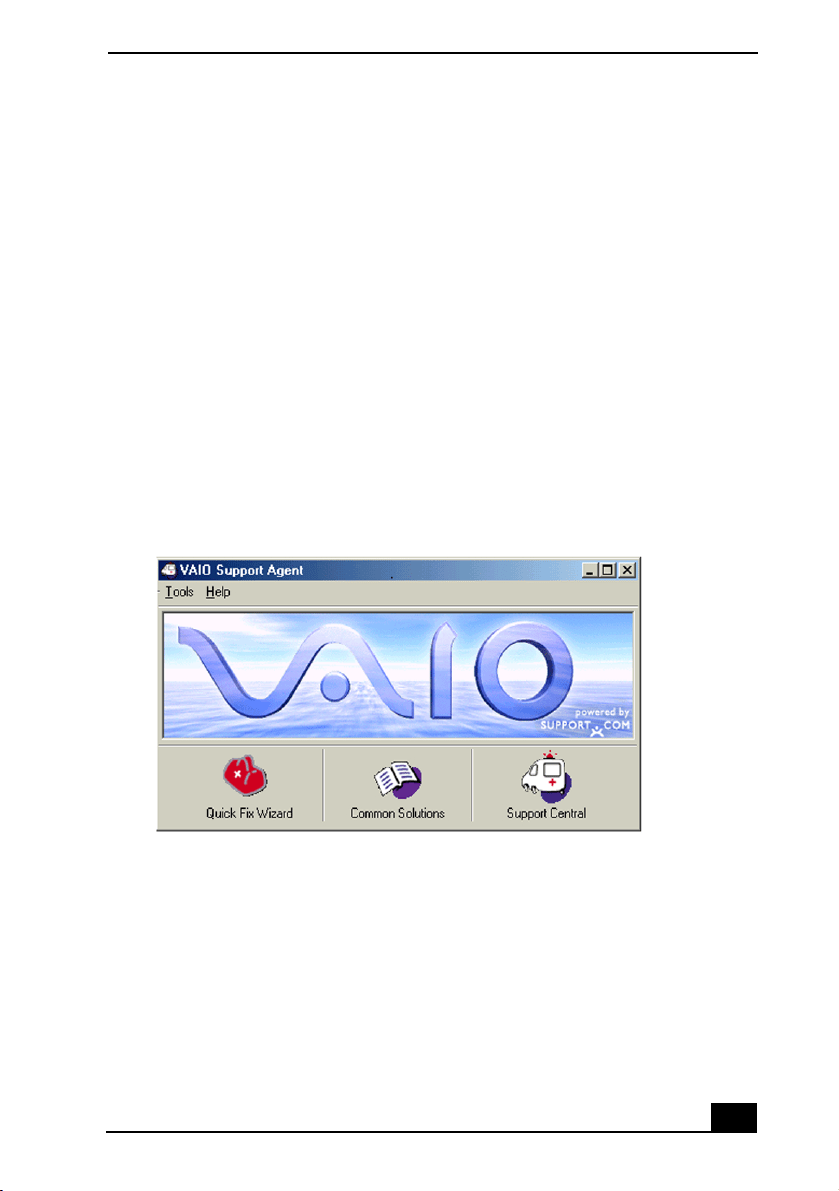
Using the VAIO Support Agent
83
Using the VAIO Support
Agent
VAIO Support Agent helps you repair your own software problems without the
assistance of a support analyst. VAIO Support Agent's advanced diagnostic
technology identifies and tracks characteristics of your software applications and
basic network settings. These diagnostics protect and store information in a
retrievable format that enables you to restore your software to a previous working
state. Sony has identified the software items that are protected by the VAIO
Support Agent utility.
VAIO Support Agent has three features to help you fix your software problems:
Quick Fix Wizard, Common Solutions, and Support Central. This section briefly
describes these three features.
VAIO Support Agent main window

VAIO Slimtop™ LCD Computer User Guide
84
Using the Quick Fix Wizard
The Quick Fix Wizard records and maintains a history of the VAIO Support
Agent protected applications by taking a “snapshot” of the application at regular,
timed intervals and storing it for future use. If you develop a problem with one of
the protected applications, you can use the Quick Fix Wizard feature to retrieve
the date/time (snapshot) that was recorded when the application worked properly.
The Quick Fix Wizard repairs the protected application files without altering the
data files you have created using the application.
To use the Quick Fix Wizard, follow these steps:
1
From the VAIO Support Agent main window, click the Quick Fix Wizard
button.
2
The Welcome window appears. Click Next.
The “Quick Fix Wizard: Begin VAIO Support Agent Diagnostics” dialog
box appears.
3
Select the “Diagnose and fix my software” option and select the item you
want VAIO Support Agent to examine.
4
Select the affected software title from the drop-down list and then select the
date/time that identifies when your software was working properly.
✍
To view a list of software applications protected by VAIO Support Agent, click on the
“Pick the software:” drop-down list
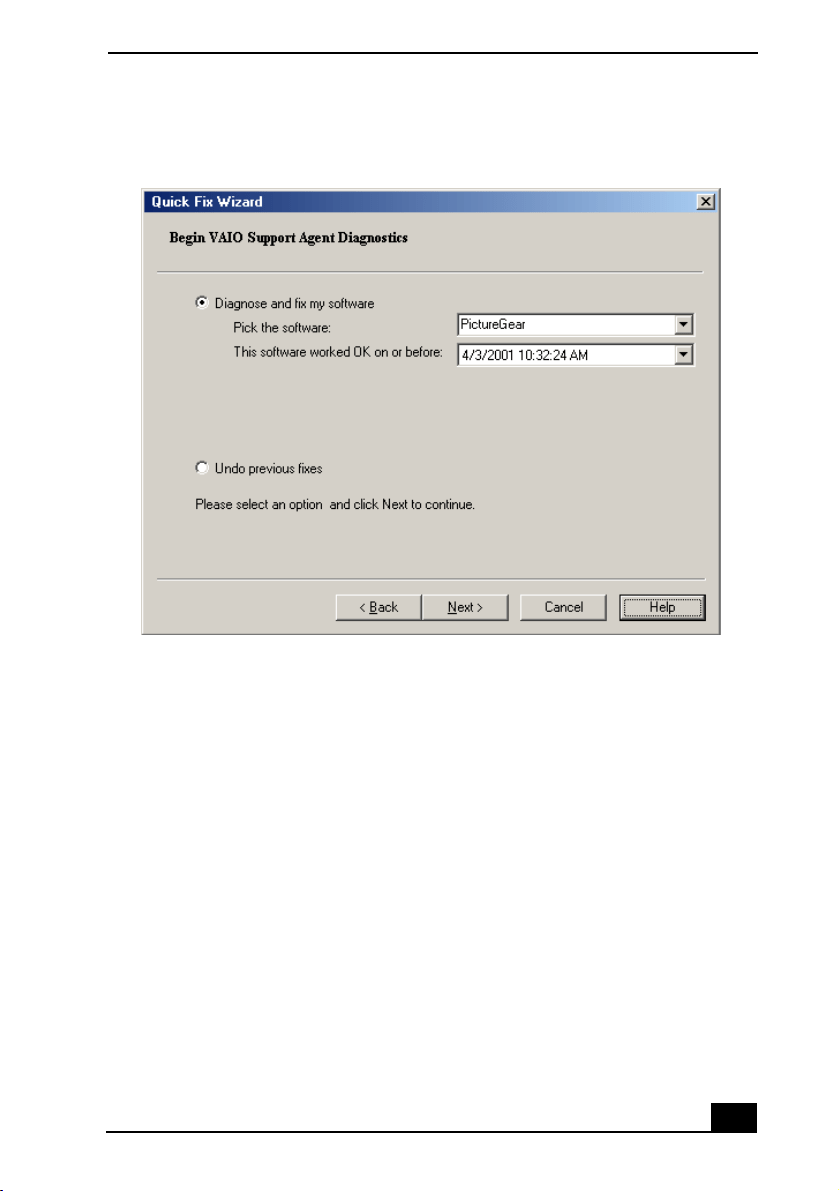
Using the VAIO Support Agent
85
5
Click Next to continue. Follow the instructions on the screen.
Quick Fix Wizard: Begin VAIO Support Agent Diagnostics dialog box
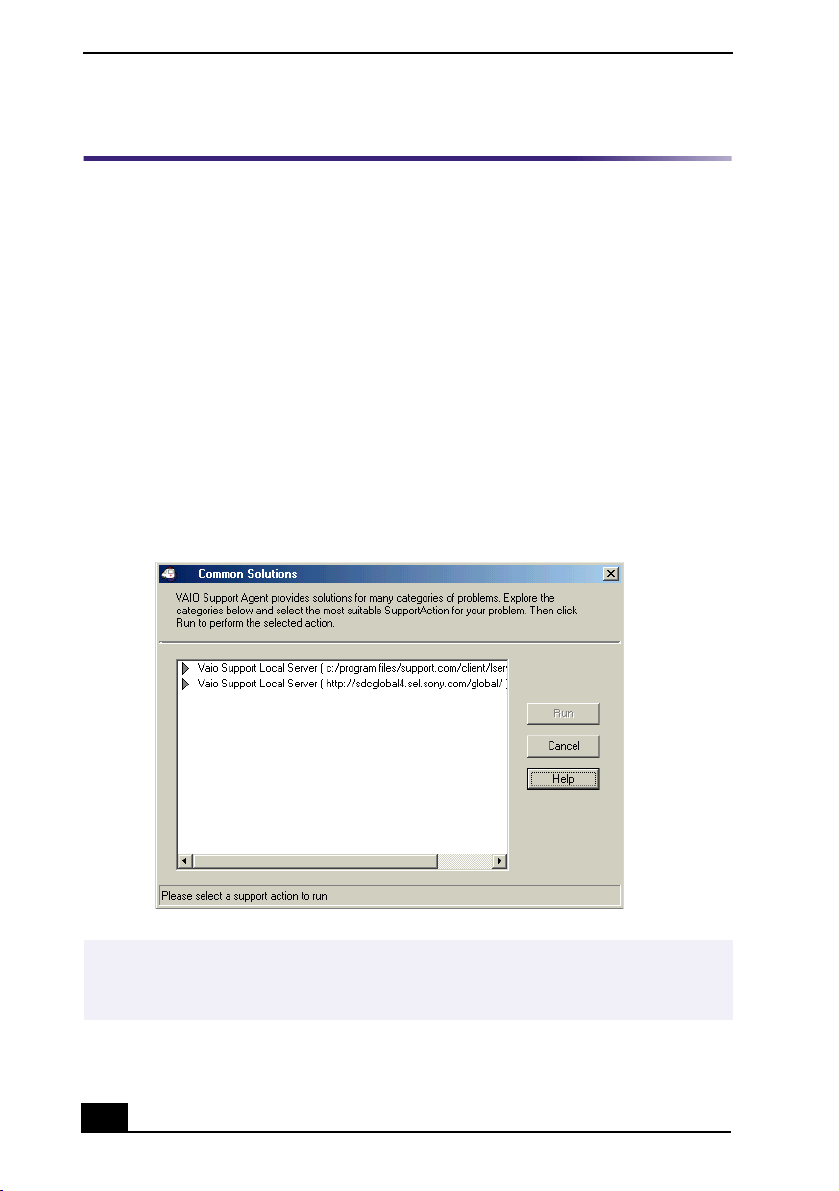
VAIO Slimtop™ LCD Computer User Guide
86
Using Common Solutions
Common Solutions offers automated, One-Click Fixes to repair common
software problems. These solutions can integrate information such as knowledge
base articles and Frequently Asked Questions (FAQs). You can run One-Click
Fixes directly from VAIO Support Agent or from a Web browser.
1
Click the Common Solutions button. The Common Solutions dialog box
appears.
2
Double-click on the desired category to expand and view available
SupportActions.
❑
VAIO Support Local Server (c:/program files/support.com...) provides a
list of SupportActions available on your computer’s hard disk drive.
❑
VAIO Support Local Server (http://sdcglobal4.sel.sony.com...) provides
a list of SupportActions available from the Internet.
Common Solutions dialog box (1st level)
✍
Connect to the Internet before attempting to view the category, “Vaio Support Local
Server (http://sdcglobal4.sel.sony.com...).” The category is unavailable without an
Internet connection.
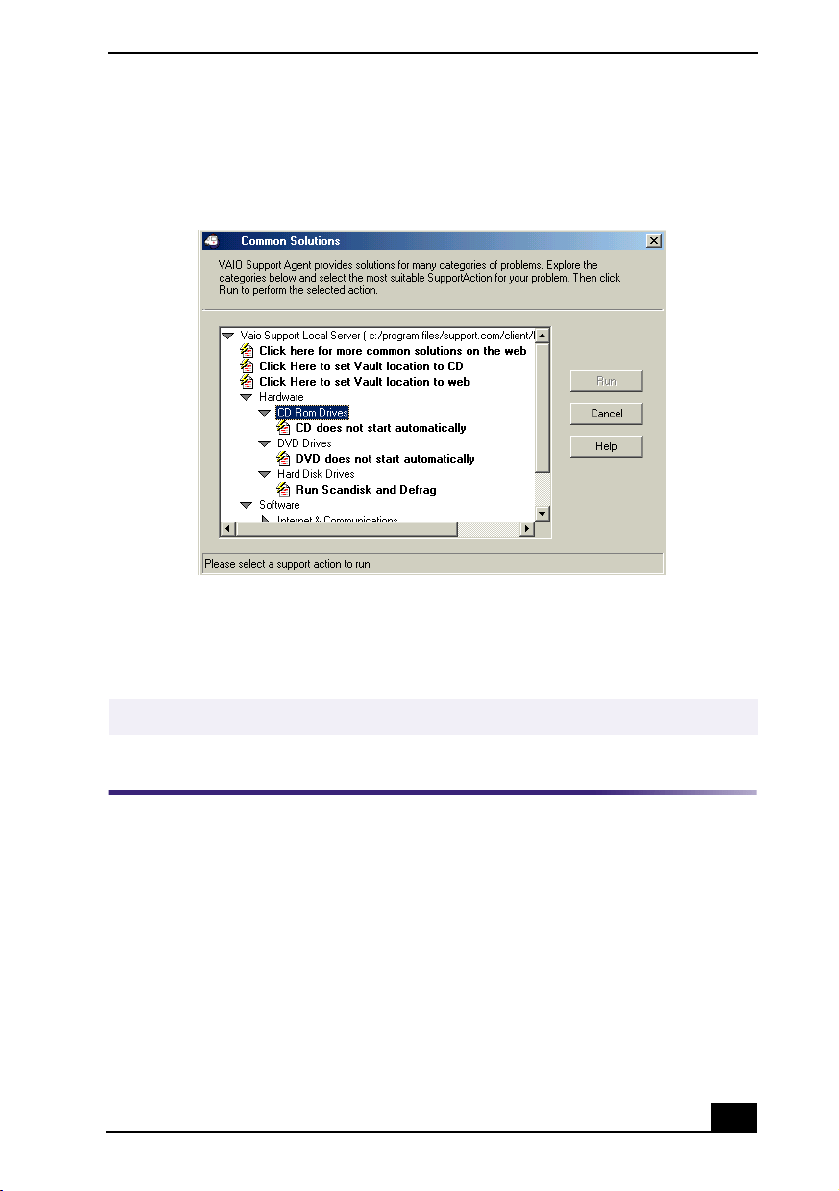
Using the VAIO Support Agent
87
3
Click the resize arrows next to the SupportAction categories to expand or
collapse the categories.
4
Select the appropriate SupportAction from the list.
5
Click Run or double-click the desired SupportAction. The available
SupportActions are shown in bold type.
About Automatic Updates
The VAIO Support Agent utility is dormant as a background process. Every 24
hours, the Agent self-activates to contact the Sony Support Server to check for
new updates or fixes needed for your system. This updating action only occurs
while you are connected to the Internet and when more than 24 hours has passed
since the last update.
Every time VAIO Support Agent prepares to update, the Agent Status Update
dialog box appears and asks you to respond.
Common Solutions dialog box (2nd level)
✍
You cannot undo One-Click Fixes.
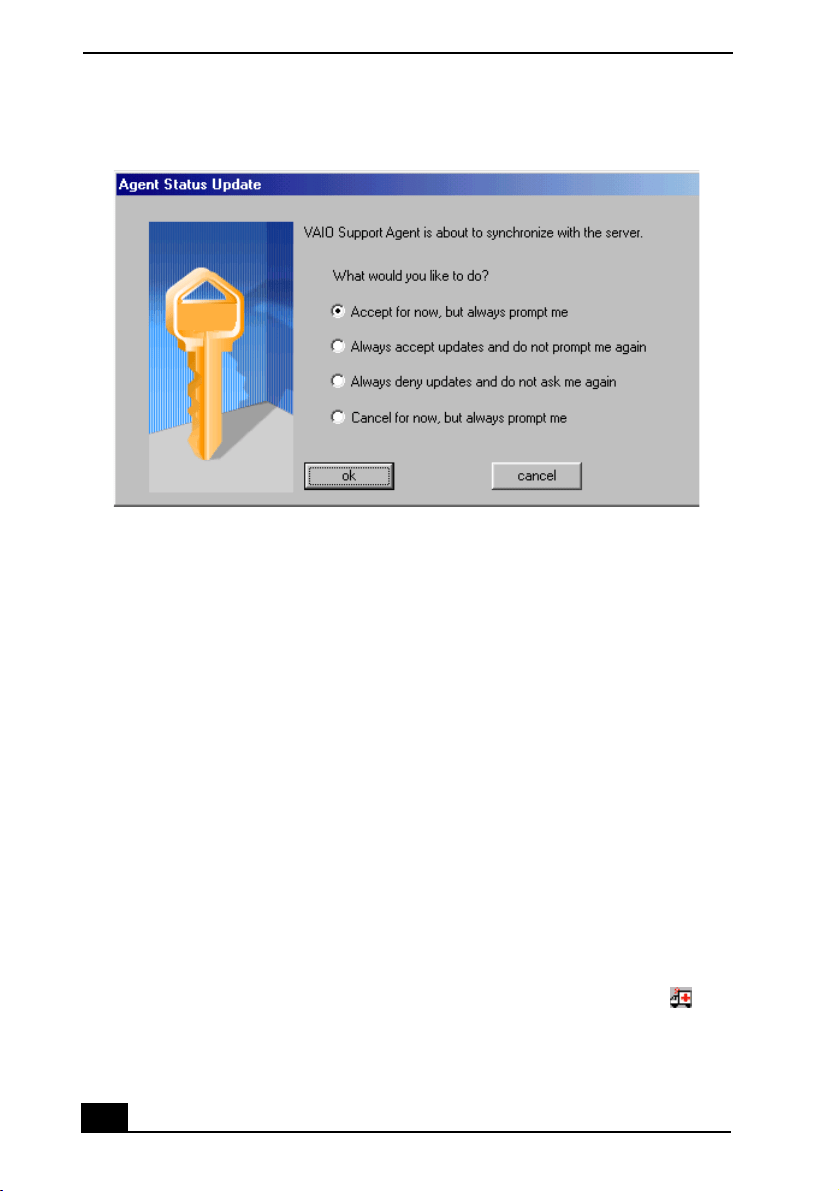
VAIO Slimtop™ LCD Computer User Guide
88
You can choose from four response options:
❑
Give the Agent your permission to contact the Sony Support Server for any
updates or fixes that are available specifically for your computer. The Agent
continues to prompt you for your permission to retrieve updates.
❑
Give the Agent your permission to contact the Sony Support Server for any
updates or fixes that are available specifically for your computer. The Agent
automatically retrieves updates without further prompting.
❑
Deny the Agent your permission to contact the Sony Support Server for any
updates or fixes. The Agent discontinues any update retrieval and does not
prompt again for your permission to update.
❑
Deny the Agent your permission to contact the Sony Support Server for the
current update or fix. The Agent discontinues the current update retrieval but
prompts again for your permission for the next scheduled update.
Update Notification
Once you have given permission to update, the Agent contacts the Sony Support
Server. The ambulance icon on your task tray blinks when the Agent finds an
update or fix for your computer model. Double-click the ambulance icon to
view the update.
Agent Status Update
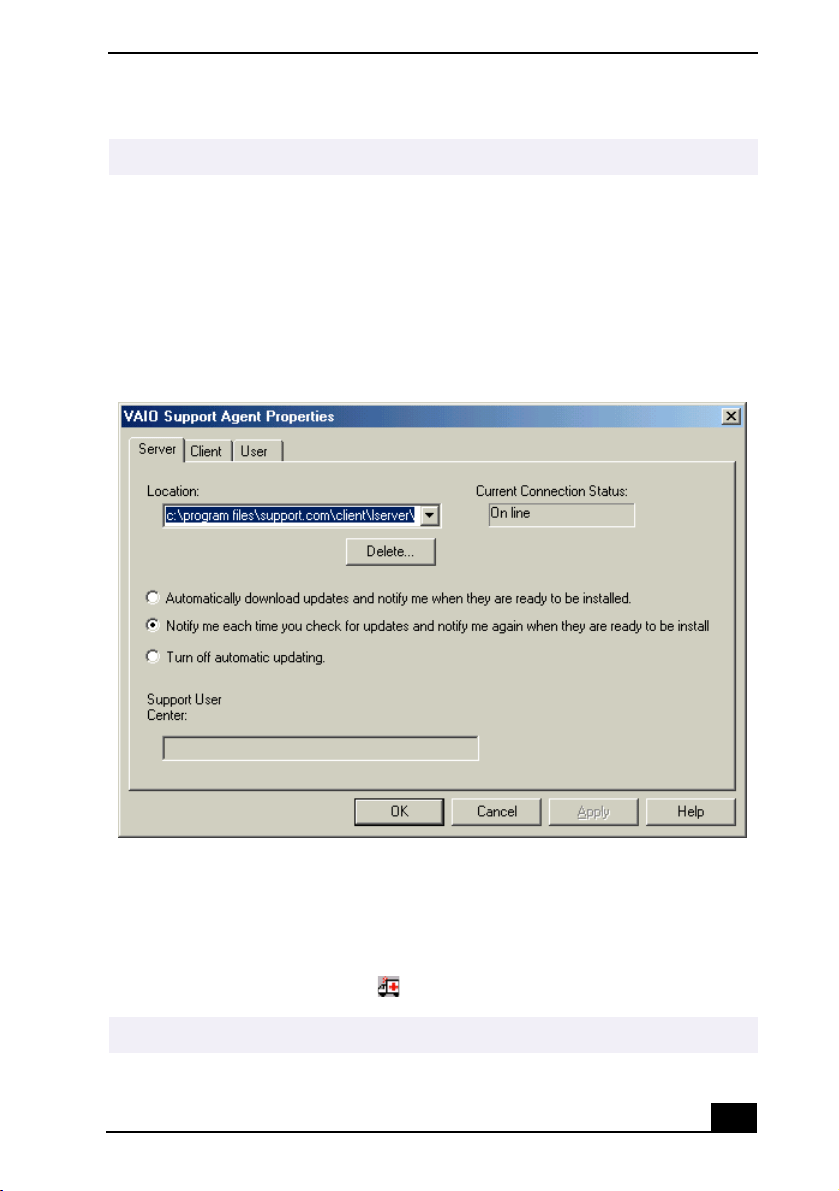
Using the VAIO Support Agent
89
You can control the VAIO Support Agent automatic update feature.
1
From the VAIO Support Agent main screen, select Tools and then select
Properties. The VAIO Support Agent Properties dialog box appears.
2
Select one of three options to customize the automatic update feature.
3
Click OK.
Event Notification
At times, Sony initiates an event by sending support information for your specific
computer model directly to you over the Internet. If you are connected to the
Internet when these events occur, the ambulance icon on your task tray blinks.
Double-click the ambulance icon to view the event.
✍
You must be connected to the Internet to receive an update.
VAIO Support Agent Properties
✍
You must be connected to the Internet to receive an event notification.
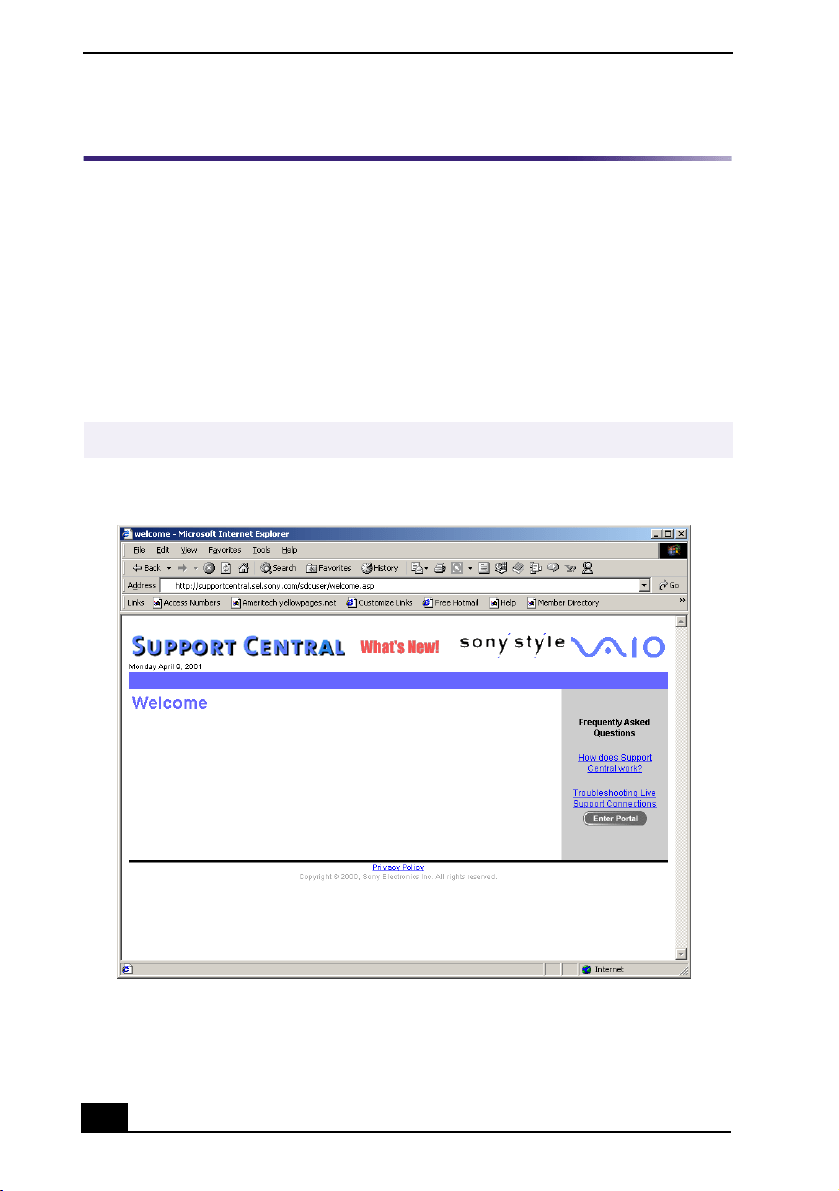
VAIO Slimtop™ LCD Computer User Guide
90
Using Support Central
The Support Central feature uses Internet resources to help you fix your software.
Support Central searches the Internet for answers to your questions, additional
information from knowledge base systems, and the latest software updates for
your protected software. Support Central also lets you contact live support agents
for additional help.
1
Connect to the Internet.
2
From the VAIO Support Agent main window, click Support Central. The
Support Central Welcome page appears.
3
Click Enter Portal to begin using Support Central. First-time users will be
asked to register with Support Central.
✍
You must have Internet access to use Support Central.
Support Central: Welcome page
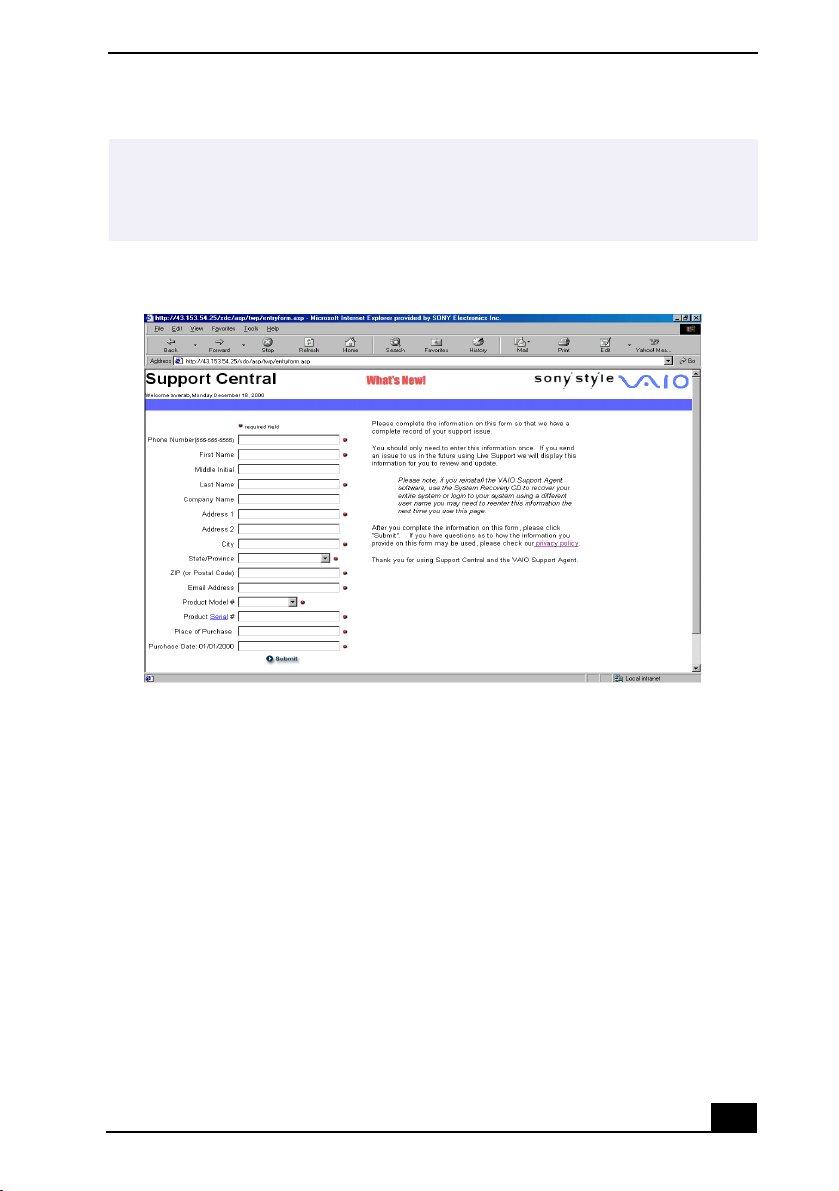
Using the VAIO Support Agent
91
✍
Support Central retains your registration information, so you are only required to
register once. If you log on to your computer with a different user name or have
recovered your system using the System Recovery CDs, Support Central may require
you to register again.
Support Central: Registration page
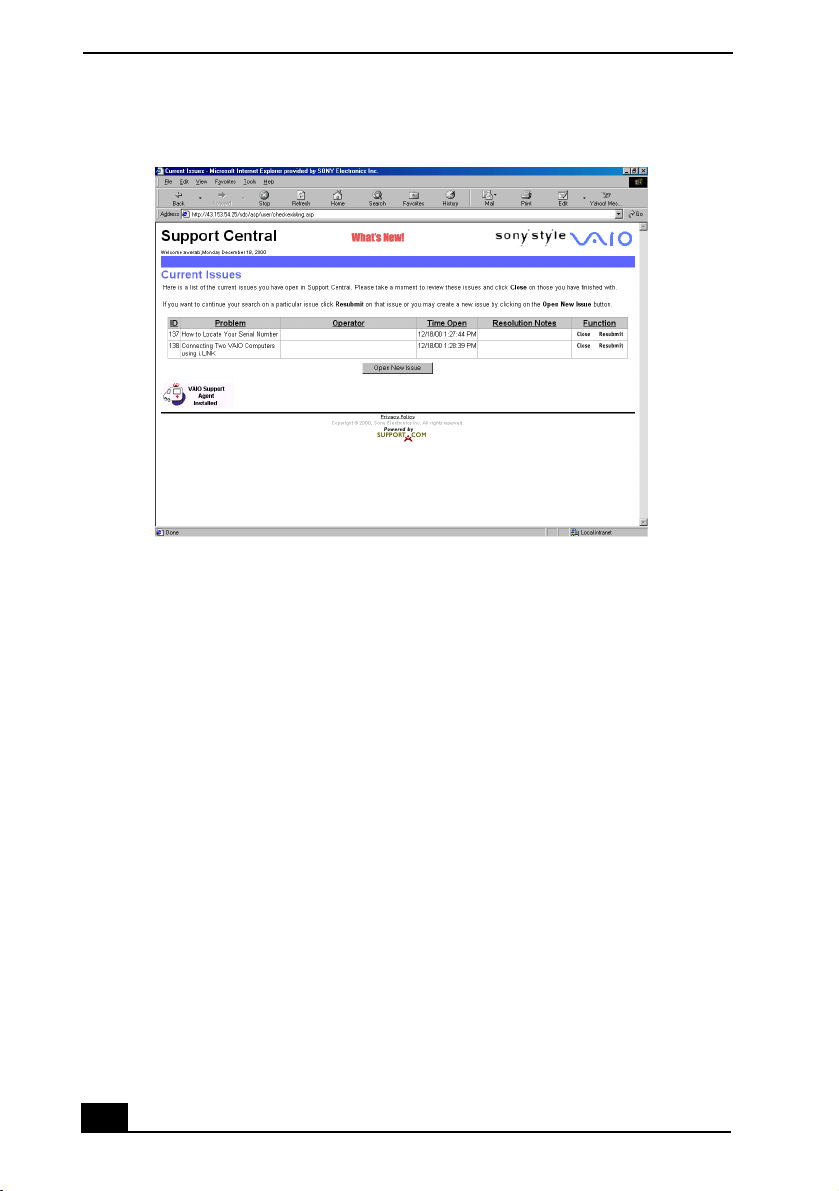
VAIO Slimtop™ LCD Computer User Guide
92
When you log on to Support Central, the Current Issues page displays, enabling
you to continue working on your open issues or to close them if you are finished.
Support Central has a tracking feature that stores your current issues, enabling
you to return and work on them later.
Support Central: Current Issues page
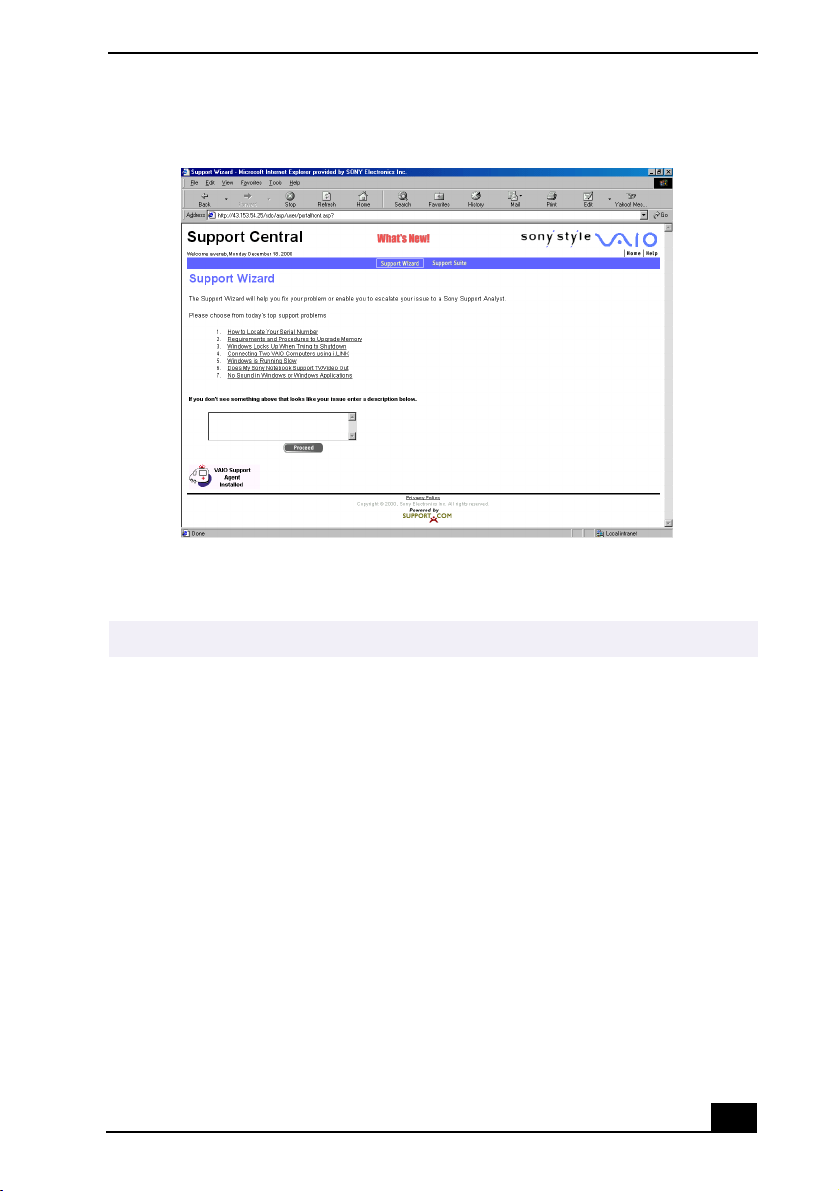
Using the VAIO Support Agent
93
If you log on to Support Central with a new issue, or if you do not have any open
issues, the Support Wizard appears. You can begin searching on the new issues.
Support Central: Support Wizard page
✍
You must have Internet access to use Support Central.

VAIO Slimtop™ LCD Computer User Guide
94
Software Applications protected by VAIO
Support Agent
In addition to the software listed below, your system’s drivers, basic network
settings and modem settings are protected by the VAIO Support Agent utility.
Utilities
❑
VA IO A c t i o n S e t u p
Applications
❑
Adobe® Premiere® LE
❑
DVgate™
❑
PictureGear™
❑
MovieShaker™
❑
Media Bar™
❑
OpenMG™ Jukebox
❑
Sound Forge® XP
❑
Direct CD™
❑
Easy CD Creator™
✍
The VAIO Support Agent utility may ask you to use the Driver Recovery CD during the
healing process.

95
2
Troubleshooting
This section describes how to solve common problems you may encounter when
using your computer. Many problems have simple solutions, so try these
suggestions before you call Sony Customer Support.
Topics
Topic: My computer does not start.
❑
Check that the computer is plugged into a power source and that it is turned
on. Check that the power light is lit on the front panel of the computer.
❑
Confirm that a diskette is not in the diskette drive (unless you are using a
bootable diskette).
❑
Confirm that the power cord and all cables are connected firmly.
❑
If you plugged the computer into a power strip or Uninterruptible Power
Supply (UPS), make sure the power strip or UPS is turned on and working.
❑
Check that the display is plugged into a power source and turned on. Check
that the brightness and contrast controls are adjusted correctly. See the
manual that came with your display for details.
❑
Check that the computer is not in standby mode.
Topic: My files are corrupted or deleted. I want to recover applications that
came with my computer.
See “Using the Application Recovery CD(s)” in this manual.
Topic: My drivers are corrupted or deleted. I want to recover drivers that came
with my computer.
See “Using the Driver Recovery CD” in this manual.

VAIO Slimtop™ LCD Computer User Guide
96
Topic: My computer or software program stops responding.
1
Press Ctrl+Alt+Delete to close the application that has stopped responding
2
In the Close Program dialog box, scroll down until you locate the message
“Not responding” next to an application.
3
Select this application and click End Task. Windows attempts to close the
application. If the attempt is unsuccessful, a second dialog box appears.
4
Select End Task again.
❑
If you are unable to “unlock” the application, repeat the above steps but
select Shut Down when the Close Program dialog box appears.
❑
If the above steps fail to “unlock” your computer, try the following steps:
1 Save any unsaved work, if possible.
2 Press Alt+F4.
3 Select Restart.
4 Click OK.
❑
If you cannot restart as described in the preceding steps, you can restart the
computer by pressing Ctrl+Alt+Delete or by pressing the power switch for
more than six seconds.
❑
Contact the software publisher or designated provider for technical support.
See the contact information in this manual.
Topic: Why does Windows® operating system stop responding during
shutdown?
The Windows® operating system may not shut down properly for many reasons,
including incompatible or conflicting drivers, damaged files, or non-responsive
hardware. For troubleshooting information, you can search Windows Help.
1
From the Start menu, select Help. Microsoft Help and Support appears.
2
Click on Troubleshooting and navigate to the subject(s) for which you want
information.
✍
Pressing Ctrl+Alt+Delete twice consecutively may result in the loss of changes made
to files that are currently open.

Troubleshooting
97
3
When you find the appropriate information, close the Help and Support.
Topic: My CD-RW/DVD Combo drive tray does not open.
❑
Use the eject button
1 Make sure the computer is turned on.
2 Press the Eject button on the drive.
❑
Use the My Computer icon
1 Click the My Computer icon on the Windows® desktop.
2 Right-click the CD-RW/DVD Combo drive icon.
3 Select the Eject option from the pop-up menu.
Topic: I cannot play a DVD or CD.
❑
After inserting your DVD or CD, wait a few seconds for it to be detected
before trying to access it.
❑
Verify that the disc is in the tray with the label side facing up.
❑
Install your DVD/CD software according to the manufacturer’s instructions.
❑
If your drive reads some DVDs or CDs, but not others, check the shiny side
of the disc for dirt or scratches. You may also need to clean the disc drive
lens with an appropriate cleaner.
Topic: When I click an application icon, the message “You must insert the
application CD into your drive” appears and the software does not start.
❑
Some titles require specific files that are located on the application’s CD.
Insert the disc and try starting the program again.
❑
Check to make sure you inserted the CD with the label side facing up.
Topic: Why doesn't my CD-RW/DVD Combo drive record at the highest speed?
You must use 8x CD-R or 4x CD-RW media to achieve optimum performance.
✍
To recover CD/DVD software applications that are preinstalled on your computer, see
“Using the Application Recovery CD(s)” in this manual.

VAIO Slimtop™ LCD Computer User Guide
98
If you must use other media and are having difficulty formatting non-4x CD-RW
media, change the write speed from 4x to a lower setting.
Follow these steps to switch the write speed to a lower setting.
1
From the Start menu, select Programs, select Adaptec Easy CD Creator 4,
and then click Create CD.
2
Click Audio, then click Audio CD.
3
From the Tools menu, click CD Drive Properties. The CD Drive Properties
dialog box appears.
4
From the Write Speed drop-down list, select a lower setting.
5
Click Close.
Topic: How do I change the video resolution of my display?
1
From the Start menu, select Settings and then select Control Panel.
2
Click the Display icon and select the Settings tab.
3
Move the Display area slider to change the resolution.
4
Click OK.
Topic: The cursor on my Sony Pen Tablet display does not move or moves in an
unpredictable manner when I use the VAIO pen. (PCV-LX910)
You may need to configure your VAIO pen’s switch function.
Topic: Why doesn’t my mouse resume operation as my input device when I stop
using the VAIO pen? (PCV-LX910)
A conflict occurs between the pen and another input device while the pen is in
contact with the Sony Pen Tablet display screen. When you are finished using
your VAIO pen, do not leave it on the tablet screen. Place the pen in the supplied
pen stand when it is not in use.
✍
The VAIO Slimtop™ Computer has a maximum record rate of 8x for CD-R and 4x for
CD-RW media.
✍
Your CD-RW/DVD Combo drive is assigned drive E: as its default.

Troubleshooting
99
Topic: I cannot draw or erase on the Sony Pen Tablet display with my
VAIO pen. (PCV-LX910)
This may occur when you move to different applications or windows where the
Sony Tablet Set Up program is not loaded. The application or window will return
to its normal state when the pen tip is removed from the tablet screen.
Topic: My VAIO Pen does not respond correctly when my computer returns to
normal mode from standby or suspend modes. (PCV-LX910)
When the VAIO Pen is left too close to the tablet and your system is returning
from standby or suspend modes, your VAIO Pen or Sony Pen Tablet settings may
change. These symptoms and their solutions are listed as follows:
❑
If the VAIO Pen does not move the cursor or the Rocker switch does not
work, you must restart your computer. Save all open documents and close all
open applications with your mouse, before you restart your computer.
❑
If the tablet mouse (UD cursor) appears to be the default setting in the Sony
Tablet software, you can go to the Sony Tablet Property window and select
Edit-Reset Settings to cancel this registration.
Topic: Why is there no sound in any application?
There are independent controls for your system volume.
❑
Check that the speakers are plugged correctly into the HEADPHONES jack.
❑
If the speakers have a mute button, make sure it is off.
❑
If the speakers are powered by batteries, check that the batteries are inserted
properly and that they are charged.
❑
If the speakers use an external power source, make sure that the power cord
is plugged into a grounded wall outlet or power strip.
❑
If the speakers have their own volume control, check the volume level.
❑
If the program you are using has its own volume control, check that the
volume is turned up.
❑
Check the volume controls in the application, in the audio mixer, and in
Windows. There is a volume control on the Windows
®
taskbar. Click the
icon and slide the level bar up to increase the volume.
❑
Check that the Mute check box is not selected in the Windows volume
control .

VAIO Slimtop™ LCD Computer User Guide
100
❑
If you connected headphones to the computer, you will not hear sound from
the speakers.
Topic: My modem connection is slow.
The computer’s modem uses Lucent technology/V.90. Many factors influence
modem connection speed, including telephone line noise or compatibility with
telephone equipment (such as fax machines or other modems). If you think your
modem is not connecting properly to other PC-based modems, fax machines, or
your Internet Service Provider, check the following:
❑
Have your phone company check that your phone line is free from any line
noise.
❑
If your problem is fax-related, check that there are no problems with the fax
machine you are calling and that it is compatible with fax modems.
❑
For optimum performance, ensure you are calling an Internet Service
Provider number that is V.90-compliant.
❑
If you are having a problem connecting with your Internet Service Provider,
check that the ISP is not experiencing technical problems.
❑
If you have a second phone line available, try connecting the modem to this
line.
Topic: My modem does not work.
Your modem may stop working due to many possible factors, including
equipment or software conflicts. If your modem is not functioning properly,
check the following:
❑
Check that the phone line is plugged into the LINE jack.
❑
Check that the phone line is working. You can check the line by plugging in
an ordinary phone and listening for a dial tone.
❑
Check that the phone number the program is dialing is correct.
❑
Verify that the software you are using is appropriately configured to
recognize and interact with the Sony computer modem. Call the software
publisher if you do not know how to configure the software to recognize the
modem. All programs preinstalled by Sony are compatible.
✍
You may need to reinstall the sound drivers. See “Using the Driver Recovery CD” in
this manual.

Troubleshooting
101
❑
If your modem is not functioning properly, you can perform a simple
diagnostic test to try and determine the cause.
1 Click the My Computer icon on your desktop.
2 Click Control Panel.
3Click Modems.
4 Click the Diagnostics tab.
5 Select COM3.
6 Click More Info.
If your modem is functioning, a More Info dialog box will display. If your
modem is still not functioning properly, an error message will appear.
Topic: How do I change my modem to rotary or Touch-Tone dialing?
1
Click My Computer on your desktop.
2
Click Control Panel and then click Modems.
3
Click Dialing Properties.
4
Select the Tone dial or Pulse dial option next to “Dial using.”
5
Click OK.
Topic: My microphone does not work.
Check that the microphone is plugged into the MIC jack.
Topic: My microphone is too sensitive to background noise.
If you find there is too much background noise when you record sound, you
should adjust the microphone gain by following these steps:
1
Right-click the speaker icon (Volume) in the lower-right Windows® task
tray.
2
Click Open Volume Controls.
The Volume Control screen appears.
✍
You may need to reinstall the modem drivers. See “Using the Driver Recovery CD” in
this manual.

VAIO Slimtop™ LCD Computer User Guide
102
3
In the Options menu, select Properties.
The Properties screen appears.
4
Change the setting for “Adjust volume for” from Playback to Recording,
then click OK.
5
Decrease the microphone level.
6
If available, click the Advanced button under Microphone Balance.
The Advanced Controls for Microphone screen appears.
7
Deselect the check box for 1 Microphone Boost, then click the Close button.
8
Close the Recording Control window.
Topic: My mouse does not work.
❑
Check that the mouse is plugged into the MOUSE port on the Sony Pen
Tablet.
❑
There may be dust or dirt inside the mouse mechanism. To clean the mouse,
follow these steps:
1 Turn off your computer and turn the mouse upside down.
2 Remove the mouse ball cover on the back of the mouse by turning
clockwise the ring that covers the mouse ball.
3 Turn the mouse upright, and drop the mouse ball into your hand.
4 Using a piece of tape, remove any dust or dirt on the mouse ball and
inside the mouse ball socket.
5 Return the mouse ball to the socket, and replace the mouse ball cover.
Secure the cover by turning the ring counter-clockwise.
❑
Close all applications and turn off your computer. Restart your computer.
Topic: My mouse needs to be set up for left-hand use.
1
Click My Computer on your desktop.
2
Click Control Panel and then click Mouse.
✍
You may need to reinstall the mouse drivers. See “Using the Driver Recovery CD” in
this manual.

Troubleshooting
103
3
From the Buttons tab, select Left-handed under the Button Configuration
options.
4
Click Apply and then click OK
Topic: My keyboard does not work.
❑
Check that the keyboard is plugged into the KEYBOARD port.
❑
Close all applications and turn off your computer. Restart your computer.
Topic: I cannot find the Windows
®
taskbar.
The Windows taskbar may be hidden or minimized.
❑
Use the mouse to locate a hidden taskbar by pointing to the left, right, top,
and bottom edges of the screen. The taskbar appears when the cursor is
placed over its location.
1 Right-click on the taskbar and select Properties from the shortcut menu.
2 Clear the checkbox for Autohide and then click OK.
❑
Use the mouse to locate a minimized taskbar by pointing to the left, right,
top and bottom edges of the display screen. The taskbar has been located
when the cursor changes into a double arrow cursor.
❑
Left-click and drag away from the edge of the display screen. The
minimized taskbar resizes and becomes visible.
Topic: Why is my system running slowly?
❑
The system responsiveness varies with the number of applications that are
open and running. Close any applications that you are not currently using.
❑
Increasing the system memory may also help. The computer has two
memory slots. For memory upgrades, use only 3.3V 64-bit PC-133 SDRAM
DIMMs. For information on installing memory, please see the online
manual,
“Upgrading and Maintaining Your VAIO Slimtop™ LCD Computer
(PCV-LX810/PCV-LX910)”
.
Top i c: My i .L INK
®
device does not appear on the device manager.
1
Turn off and disconnect your device.
2
Reconnect your device.

VAIO Slimtop™ LCD Computer User Guide
104
3
Turn on your device.
Topic: My connected printer doesn't function after the computer resumes from
a power saving mode.
When this occurs, follow the procedures below to reset the printer connection:
1
Right-click the My Computer icon on the desktop, and then select
Properties.
2
Click the Device Manager tab.
3
Select Refresh, and then click OK.
4
The printer should now function properly.
Topic: How do I enable my Ethernet interface?
1
Click on My Computer icon on the desktop.
2
Click on Control Panel, and then click on System.
3
Click the Device Manager tab.
4
Click on the Network Adapters category, and then select “SiS 900 PCI Fast
Ethernet”.
5
Click the Properties button.
6
Remove the check mark from the option “Disable in this hardware profile.”
7
Click OK.
8
Close the Control Panel window.
Topic: How do I install a printer?
1
From the Start menu, select Settings and then select Printers.
2
Click Add Printer.
3
Click Next.
✍
If the printer has a USB connection, do not follow the steps below. Contact the
manufacturer of your printer for updates or other information that will resolve the
problem.

Troubleshooting
105
4
Select Local Printer and click Next.
5
Select the appropriate manufacturer and model and click Next.
6
Select the appropriate port, and then click Next.
7
Click Yes to have Windows-based programs use this as the default printer.
8
Click Next.
9
Click No and then click Finish.
To Reach Sony
For Sony PC Support, call 1-888-4SONYPC (1-888-476-6972) or access the
Web site at: http://www.sony.com/pcsupport.
✍
If the printer is not included in the list and the printer manufacturer included a disk
with a Windows Me Printer driver, choose Have Disk, enter the appropriate path for
the disk or CD and click OK.
If the printer is not included on the list and no drivers are included with the printer,
choose a driver for a printer that the printer emulates (acts like). Refer to the manual
that came with your printer for specific emulation information.
✍
If prompted for a path to the windows files, use C:\Windows\Options\Cabs.
✍
Check the printer manufacturer's website for the latest drivers for Windows Me™
before proceeding. Some printers do not function properly without updated drivers
for Windows Me.

VAIO Slimtop™ LCD Computer User Guide
106
Notes on Use
On the Power Source
❑
Your computer operates on 100–120 V AC 50/60 Hz only.
❑
Plug all the power cords for your computer and its peripheral equipment into
the same AC supply line. AC derived from different supply lines may result
in voltage differences that can cause unstable operation or unwanted weak
currents at the time of connection.
❑
Do not share the AC outlet with any other power-consuming equipment,
such as copying machines or shredders.
❑
You can purchase a power strip with a surge protector. This device prevents
damage to your computer caused by sudden power surges such as those that
may occur during an electrical storm.
❑
If you live in an area that experiences frequent power fluctuations, you may
want to purchase a UPS (Uninterruptible Power Supply). This device
contains both a surge protector and a battery backup. The surge protector
prevents damage to your computer caused by power surges. The battery
backup safeguards your data during a brief period of power loss.
❑
The power control button on the front panel does not turn off the system AC
power. To remove power from the system, you must shut down the computer
as described in the user guide and then unplug the AC power cord from the
wall outlet or power strip.
❑
Do not place heavy objects on the power cord.
❑
Do not operate the system with the cover removed. Always reinstall the
cover before turning on the system.
❑
To disconnect the cord, pull it out by the plug. Never pull the cord itself.
❑
Unplug your computer from the wall outlet if you will not be using the
computer for a long time.
❑
Before touching anything inside the computer, turn the system off and let it
cool for ten minutes. This will ensure that the processor heat sink will not be
hot.
❑
Do not attempt to open the power supply. There are no user-serviceable parts
in the power supply. To avoid personal injury or damage to your equipment,
Troubleshooting
107
refer the repair or replacement of the power supply to qualified personnel
only.
On Disposal of the Lithium Battery
Dispose of the lithium battery properly. In some areas, the disposal of lithium
batteries in household or business trash may be prohibited. You can return your
unwanted lithium batteries to your nearest Sony Service Center or Factory
Service Center. For the Sony Service Center nearest you, call 1-888-4SONY-PC
(1-888-476-6972).
On Handling the Computer System
❑
Do not place your Sony computer in a location subject to:
❑
Heat sources, such as radiators or air ducts
❑
Direct sunlight
❑
Excessive dust
❑
Mechanical vibration or shock
❑
Strong magnets or speakers that are not magnetically shielded
❑
Ambient temperature of more than 95ºF (35ºC) or less than 50ºF (10ºC)
❑
High humidity, moisture, or rain
❑
Do not place electronic equipment near your computer. The computer’s
electromagnetic field may cause a malfunction.
❑
Provide adequate air circulation to prevent internal heat build-up. Attach the
stand to your system to prevent overheating. Do not place your computer on
loose surfaces (such as rugs or blankets) or near materials (such as curtains
or draperies) that may block its ventilation slots. Leave a space of at least 8
inches from the back panel of your computer. Overheating of your computer
may permanently damage your system.
Do not handle damaged or leaking lithium batteries.
The lithium battery may explode if mistreated. Do not disassemble it or
dispose of it in fire.
Replace the battery with a Sony CR2032 lithium battery. Using any battery
other than a CR2032 may present a risk of fire or explosion.

VAIO Slimtop™ LCD Computer User Guide
108
❑
Clean your computer’s cabinet with a soft, dry cloth or a soft cloth lightly
moistened with a mild detergent solution. Do not use any type of abrasive
pad, scouring powder, or solvent such as alcohol or benzine, as it may
damage the finish of your Sony computer.
❑
Should any solid object or liquid fall into the cabinet, keyboard, or mouse,
shut down your computer and then unplug it. You may want to have the
computer checked by qualified personnel before operating it any further.
❑
The computer uses high-frequency radio signals and may cause interference
to radio or TV reception. Should this occur, relocate the computer a suitable
distance away from the set.
❑
Use only specified peripheral equipment and interface cables; otherwise,
problems may result.
❑
Do not use cut or damaged connection cables.
❑
Always switch the power off before connecting your computer to peripheral
equipment; otherwise, damage may occur to the integrated circuits in your
computer.
❑
Your computer, keyboard, and mouse consist of high-precision electronic
parts. Do not drop them or bump them against other objects.
❑
Your Sony computer will not work with party lines, cannot be connected to a
coin-operated telephone, and may not work with multiple phone lines or a
private branch exchange (PBX).
❑
If the telephone company makes a service call to your home or office and
determines that your computer is responsible for the problem, the telephone
company may bill you for the service call. Also, if you do not disconnect
your computer when it is adversely affecting the telephone line, the
telephone company has the right to disconnect your service until you correct
the problem.

Troubleshooting
109
On Moisture Condensation
If your computer is brought directly from a cold location to a warm one, moisture
may condense inside your computer. In this case, allow at least an hour before
turning on your computer. If any problem occurs, unplug your computer, and
contact your Sony Service Center.
On Upgrading the System
❑
The procedures described in the online manual,
“Upgrading and
Maintaining Your VAIO Slimtop™ LCD Computer (PCV-LX810/PCV-
LX910)”
assume familiarity with the general terminology associated with
personal computers and with the safety practices and regulatory compliance
required for using and modifying electronic equipment.
❑
Disconnect the system from its power source and from any networks,
modems, or telecommunications links before you open the system or follow
any of the procedures described in the online manual,
“Upgrading and
Maintaining Your VAIO Slimtop™ LCD Computer (PCV-LX810/PCV-
LX910)”
. Failure to do so may result in personal injury or equipment
damage.
❑
Electrostatic discharge (ESD) can damage disk drives, add-in cards, and
other components. Follow the procedures described in the online manual,
“Upgrading and Maintaining Your VAIO Slimtop™ LCD Computer (PCV-
LX810/PCV-LX910)”
, only at an ESD workstation. If such a station is not
available, do not work in a carpeted area, and do not handle materials that
produce or hold static electricity (cellophane wrappers, for example).
Ground yourself by maintaining contact with an unpainted metal portion of
the chassis while performing the procedure.
❑
When removing a slot cover, be careful not to damage components on the
system board or add-in cards. You may need to temporarily remove add-in
cards that are next to the slot cover you want to remove.
On Handling the Sony Pen Tablet (PCV-LX910)
❑
Do not leave the Sony Pen Tablet directly facing the sun for a long period of
time as it can damage the LCD screen.
❑
Do not scratch the LCD screen or exert pressure on it. This may cause
damage to the screen or cause a malfunction.

VAIO Slimtop™ LCD Computer User Guide
110
❑
Using the computer in low temperature conditions may produce a residual
image on the screen. This is not a malfunction. When the computer returns to
normal temperature, the screen returns to normal.
❑
A residual image may appear on the screen if the same image is displayed
for a lengthy period of time. The image disappears after a period of time.
You can use a screen saver to prevent residual images.
❑
The screen becomes warm during operation. This is normal and does not
indicate a malfunction.
❑
Your Sony Pen Tablet consists of high-precision electronic parts. Do not
drop or bump it against other objects.
❑
The Sony Pen Tablet display uses high-frequency radio signals and may
cause interference to radio or TV reception. Should this occur, relocate the
computer a suitable distance away from the radio or TV.
On Handling a CRT Display
❑
Do not place the display near a strong magnetic force.
❑
Do not block the ventilation slots on the display.
On Using the Hard Disk Drive
❑
Do not place the computer in a location that is subject to vibration or shock.
❑
Do not move the computer during operation.
❑
Do not subject the computer to sudden changes in temperature.
❑
Do not turn off the power while the computer is accessing the hard disk
drive.
On Handling Diskettes
❑
Do not open the shutter manually and touch the surface of the diskette.
❑
Keep diskettes away from magnets.
❑
Keep diskettes away from direct sunlight and other heat sources.

Troubleshooting
111
On Handling DVD/CD Media
❑
Do not touch the surface of the disc.
❑
Do not drop or bend the disc.
❑
Do not use adhesive labels to identify the disc. The label may come off while
the disc is in use in the optical drive.
On Cleaning DVD/CD Media
❑
Fingerprints and dust on the surface of a disc may cause read errors. Proper
care of the disc is essential to maintain its reliability. Do not use solvents
such as benzine, thinner, commercially available cleaners or anti-static spray,
as they may cause damage to the disc.
❑
For normal cleaning, hold the disc by its edge and use a soft cloth to wipe the
surface from the center out.
❑
If the disc is badly soiled, moisten a soft cloth with water, wring it out well,
and use it to wipe the surface of the disc from the center out. Wipe off any
remaining moisture with a dry, soft cloth.
For Answers to Your Software Questions
Sony Service Center
For the Sony Service Center nearest you, call 1-888-4SONYPC
(1-888-476-6972). This service is free of charge for 90 days after the original
date of purchase.
Acrobat®
Reader, Adobe GoLive™, Adobe LiveMotion™,
Adobe Photoshop® Elements, Adobe Premiere® LE (Adobe Systems, Inc.)
Web site http://www.adobe.com/
phone 206-675-6126 (fee-based support)
fax
206-628-5737
e-mail techdocs@adobe.com
hours M - F, 6 AM - 5 PM PT

VAIO Slimtop™ LCD Computer User Guide
112
America Online® (America Online, Inc.)
CompuServe® 2000 (CompuServe Interactive Services, Inc.)
DirectCD, Easy CD Creator™ (Roxio, Inc.)
EarthLink TotalAccess™(EarthLink Network, Inc.)
Norton AntiVirus™ (Symantec Corporation)
Netscape Communicator® (Netscape Communications Corporation)
Web site http://www.aol.com/
phone 800-827-3338
hours 7 days a week, 8 AM - 2 AM ET
Web site http://www.compuserve.com/
phone 800-848-8990
hours M - F, 8 AM - 1 AM, Sat - Sun, 10 AM - 10 PM
Web site http://www.roxio.com.com
phone 408-945-8600
hours M - F, 8AM - 5 PM PT
Web site http://help.earthlink.net/techsupport/
phone 800-890-5128
e-mail support@earthlink.net
hours 7 days a week, 24 hours a day
Web site http://www.symantec.com/techsupp/
phone 800-927-3991; 900-646-0007
*
* Support from 1-800-927-3991 is fee-based per incident. Support from 1-900-646-007 is fee-based
per minute. The on-line support is free of charge.
hours M - F, 6 AM - 5 PM PT
Web site http://help.netscape.com
phone 888-4SONYPC (888-476-6972)
*
* Support from 1-888-4SONYPC is free of charge for 90 days after the original date of purchase.
hours 7 days a week, 24 hours a day

Troubleshooting
113
PhotoPrinter™ 2000 Pro (ArcSoft, Inc.)
Quicken® 2001 Basic (Intuit, Inc.)
QuickTime™ (Apple Computer, Inc.)
RealJukebox
®
, RealPlayer
®
(RealNetworks, Inc.)
Sony Applications (Sony Electronics, Inc.)
Web site http://www.arcsoft.com
http://www.photoisland.com
phone 510-440-9901
e-mail techsupport@arcsoft.com
hours M - F, 8:30 AM - 5:30 PM PT
Web site http://www.intuit.com/support/
phone 900-555-4932; 800-644-3193
*
* Support from 1-900-555-4932 is fee-based. Support from 1-800-644-3193 is automated and free of
charge.
hours M - F, 5 AM - 5 PM PT
Web site http://www.apple.com/
phone 512-674-8700
*
* Support is for 90 days after the original date of purchase for most Apple products.
hours 7 days a week, 6 AM - 6 PM PT
Web site http://www.realnetworks.com/
phone 206-674-2681
fax 206-674-3586
e-mail http://service.real.com (online form)
hours M - F, 8 AM - 5 PM PT
Web site http://www.sony.com/pcsupport
phone 888-4SONYPC (888-476-6972)
*
* Support from 1-888-4SONYPC is free of charge for 90 days after the original date of purchase.
hours 7 days a week, 24 hours a day

VAIO Slimtop™ LCD Computer User Guide
114
Sound Forge® XP (Sonic Foundry, Inc.)
Windows® Millennium Edition Operating System, Word
(Microsoft Corporation)
Web site http://www.sonicfoundry.com/support
phone 608-256-5555
fax 608-256-7300
e-mail support@sonicfoundry.com
hours M - F, 8 AM - 7 PM CT
Web site http://www.sony.com/pcsupport
phone 888-4SONYPC (888-476-6972)
*
* Support from 1-888-4SONYPC is free of charge for 90 days after the original date of purchase.
hours 7 days a week, 24 hours a day

Troubleshooting
115
Resources
Sony provides several support options for your Sony computer. When you have
questions about your computer and the preinstalled software, check these sources
for answers, in the following sequence:
Quick Start
Contains information on how to set up your computer quickly
and easily.
VAIO Computer
User Guide
The user guide contains information on your system’s
specifications, features and provides solutions to common
problems.
Online (Electronic)
Documentation
The user guide is available electronically on your hard drive.
Two additional guides,
“Upgrading and Maintaining Your VAIO
Slimtop™ LCD Computer (PCV-LX810/PCV-LX910)”
and the
“Troubleshooting”
Help are also available online. To access
online documentation, click the Start button, point to Help
Center, and then point to the desired document.
Manuals and online
help files that may
accompany your
preinstalled
software
Most manuals for preinstalled software are located on your
hard disk drive as online help files. You can access online help
files from the Help menu in a specific application. A printed
manual is available for some applications.
VAIO Support Agent
VAIO Support Agent can be accessed from the Windows
desktop. Using advanced diagnostic technology, Sony’s VAIO
Support Agent runs scheduled protections of your applications,
network settings, and other important software settings. When
your software is protected, you can use VAIO Support Agent to
repair software problems by restoring your software to any of
the previously protected states.
Knowledge Database
Provides instant access to information on commonly
encountered problems. Enter a description of your problem and
the Knowledge Database searches for the corresponding
solutions online. You can access the Sony Knowledge Database
at http://www.sony.com/pcsupport

VAIO Slimtop™ LCD Computer User Guide
116
Sony Fax-on-Demand
This service provides you with answers to commonly asked
questions. You can use this automated service to request a list
of available topics and then select the topics that you want to
receive. To contact the Sony fax-on-demand service, call 1-
888-4SONYPC (1-888-476-6972). (Requires a fax machine or
fax software.)
Software Updates
You can download the latest software updates and software
patches for your Sony computer by selecting Software Updates
on the Sony PC Support web page at
http://www.sony.com/pcsupport
VAIO System
Reference Manual
Provides detailed technical information about your computer's
hardware. This document is available from Sony's website at
http://www.sony.com/pcsupport

117
Specifications
PCV-LX810/PCV-LX910
Model PCV-LX810 PCV-LX910
Processor
1B GHz
*
Intel® Pentium® III 1.13 GHz
†
Intel® Pentium® III
Hard Disk Drive
C / D Partition
40 GB ATA-66
C = 16GB / D = 24GB
60 GB ATA-66
C = 16GB/D = 44GB
Standard SDRAM
128
‡
MB PC-133 SDRAM, expandable to 512MB
Video RAM
Shared with system memory
Graphics
SiS 630 graphics hardware acceleration
Sound Capabilities
SiS 630 (AC97 Compliance)
CD-RW/DVD
Combo drive
32X max. CD-ROM reading,
8X max. CD-R writing,
32X max. CD-R reading,
4X max. CD-RW writing,
24X max. CD-RW reading
**
,
8X max. DVD-ROM reading
Modem
Lucent 1648 technology/V.90 compatible data/fax modem
(REN 0.79
B
)
††
Expansion
Capabilities
PCI slots (2)
Connection
Capabilities
(Front)
PC card slot (Card bus support)
USB port
Memory Stick® media slot
i.LINK® (4-pin) port
Connection
Capabilities (Rear)
USB ports (3)
Modem line jack (RJ-11)
Phone line jack (RJ-11)
CRT display
Sony Pen Tablet display
Line In jack
i.LINK (6-pin) port
10Base-T/100Base-TX Fast Ethernet LAN jack (RJ-45)
Headphone jack
Microphone jack

VAIO Slimtop™ LCD Computer User Guide
118
Connection
Capabilities
(Display)
PS/2® mouse port
PS/2® keyboard port
USB port
Supplied
Accessories
LCD Display
Wheel Mouse
VAIO Convertible Keyboard and
palmrest
Power cord
Modem cable
Sony Pen Tablet display (TA-15A)
VAIO Pen and pen stand
Pen tip replacements (5)
Pen tip removing tool
Wheel Mouse
VAIO Convertible Keyboard and
palmrest
Power cord
Modem cable
Service
90-day limited service. See Warranty Card.
‡‡
Limited Warranty
90-day parts/labor standard. See Warranty Card.
‡‡
5
Power
Requirements
170 watts maximum
Power Rating
AC120V 2.4A 60Hz
Dimensions
CPU: 4.2" (w) x 14.5" (h) x 11" (d)
(107 mm x 370 mm x 280 mm)
Keyboard with palmrest: 17.1” (w) x 2” (h) x 8” (d)
(435 mm x 51 mm x 205 mm)
LCD display: 17.1” (w) x 14” (h) x 6.4” (d)
(435 mm x 357 mm x 163 mm)
Weight
CPU: 14.5 lbs. (6.6 kg)
Display: 12.1 lbs. (5.5 kg)
Keyboard: 2.2 lbs. (1.0 kg)
Operating
Temperature
50
º
F to 95
º
F (+10
º
C to 35
º
C)
* GHz denotes microprocessor internal clock speed; other factors may affect application
performance.
† GHz denotes microprocessor internal clock speed; other factors may affect application
performance.
‡ 128 MB available. 16 MB allocated to video RAM.
Model PCV-LX810 PCV-LX910

Specifications PCV-LX810/PCV-LX910
119
Specifications are subject to change without notice.
**The CD-RW/CD-R/CD-ROM data transfer standard 1X rate is 150 kbytes/s.
Data on a CD-RW is read at a variable transfer rate, ranging from 10X at the innermost track to 24X
at the outermost track. The average data transfer rate is 17X(2550 kbytes/s).
Data on a CD-R/CD-ROM is read at a variable transfer rate, ranging from 13X at the innermost
track to 32X at the outermost track. The average data transfer rate is 22.5X (3375 kbytes/s).
Data on a CD-RW is written at a constant transfer rate of 2x or 4x. Data on a CD-R is written at a
constant transfer rate of 1x, 2x, 4x, or 8x depending on the speed you select.
††Maximum speed for faxing is 14.4 kbytes/s. Your modem is capable of downloading at
56 kbytes/s using K56flex technology or V.90. Your phone service, online service, or Internet
Service Provider may not support this technology or operate at this speed.
‡‡Certain restrictions apply.

VAIO Slimtop™ LCD Computer User Guide
120

121
Index
A
AC input port 17
adding additional hardware
precaution 106
adjusting voltage settings 106
air circulation 107
Application Recovery CD 79,
80
applications
launching
problems with 97
AutoAlert™ 43
B
battery
disposing 107
brightness control, on LCD 20
C
cables 108
CD tray
opening
problems with 97
CD-RW drive 15
CD-RW drive, troubleshooting
97
cleaning
computer 107
mouse 102
computer
adjusting voltage settings
106
cleaning 107
condensation and 109
disposing of battery 107
lithium battery 8
removing cover 106
starting
problems with 95
turning off your computer
106
upgrading 109
connectors
power cords 106
precautions 108
customer assistance
support options 115
D
digital video camera recorder
using 76
disconnecting power cords 106
diskettes
handling 110
displaying the taskbar
problems with 103
displays

Change to Current Document Title
122
problems with 95
setting up 13
disposal of lithium battery 8
Driver Recovery CD 81
DVgate software 49
using 76
E
electronic
documentation 115
equipment 107
Eraser, on VAIO Pen 23
ETHERNET port 18
G
glare 14
H
handling diskettes 110
hard disk 110
defragmenting 45
partition 45
hardware
adding additional
precaution 106
troubleshooting 95, 103
headphones jack 18
help 115
I
i.LINK devices, connecting 46
i.LINK port 16, 18
Information LED, on LCD 20
input devices
setting up 13
installing additional hardware
precaution 106
interference 108, 110
K
keyboard 13
troubleshooting 103
L
launching applications
problems with 97
LCD
adjusting 21
port 18
line jack 18
lithium battery
disposal 8
safety precautions 8
locations, choosing 13
losing power 106
lower switch position, on VAIO
Pen 23
M
Media Bar 49
Memory Stick media
slot 16
using 33
microphone jack 18
microphones
troubleshooting 101
minimizing glare 14
modem
troubleshooting 100
monitor port 17
mouse 13
cleaning 102
troubleshooting 102

123
MovieShaker 49
O
online
help 115
support options 115
opening
applications
problems with 97
CD tray
problems with 97
OpenMG Jukebox 49
P
palmrest 13
PC (PCMCIA) card, using 35
PC card slot 16
pen tip
on VAIO pen 23
removing tool 19
replacements 19
phones
service precautions 108
PictureGear 49
port
AC input 17
ETHERNET 18
i.LINK 16, 18
LCD 18
monitor 17
printer 18
PS/2 keyboard 20
PS/2 mouse 20
Universal Serial Bus (USB)
16, 18, 20
ports
locating 17
power cords 106
disconnecting 106
power fluctuations or loss 106
power indicator
on LCD 20
power source, precautions 106–
107
printer port 18
problem solving 95
Programmable Power Keys
(PPK), using 39
PS/2 keyboard port 20
PS/2 mouse port 20
R
radio interference 108, 110
reducing glare 14
removing computer cover 106
rocker switch 22
S
screens
reducing glare 14
selecting
locations 13
setting up your computer
ergonomic location 13
Smart Capture 50
Sony 19
Sony Fax-on-Demand service
116
Sony Multimedia Computer
Display

Change to Current Document Title
124
problems with 95
Sony Online Support
options 115
speakers
precaution 107
starting your computer
problems with 95
surge protectors 106
system
troubleshooting 95
System Recovery CD 79
T
taskbar
problems viewing 103
technical support
support options 115
telephone cable jack 18
telephone jack 18
troubleshooting 95
turning on your computer
problems with 95
TV interference 108, 110
U
Universal Serial Bus (USB) port
16, 18, 20
upgrading your computer 109
upper switch position, on VAIO
Pen 23
UPS (Uninterrupted Power
Supply) 106
V
VAIO Action Setup 39
VAIO AV Applications 49
VAIO Pen 22
VAIO Support Agent 83
ventilation 13, 107
viewing the taskbar
problems with 103
VisualFlow 50
voltage settings 106
volume control, on LCD 20
W
window design 42
Windows taskbar
problems viewing 103
work surfaces 13