
Installation
and
Operating
Guide
|
Warranty
Model
Number
|
ZPA-314
|Portable
DVD
Player
ⓒ
Copyright
2005,
LG
Electronics
U.S.A.,
Inc.
For
service/
support
Call:
Toll
Free
Number
1-800-243-0000

Safety
Precautions
This
lightning
flash
with
arrowhead
symbol
within
an
equilateral
triangle
is
intended
to
alert
the
user
to
the
presence
of
uninsulated
dangerous
voltage
within
the
product's
enclosure
that
may
be
of
sufficient
magnitude
to
constitute
a
risk
of
electric
shock
to
persons.
The
exclamation
point
within
an
equilateral
triangle
is
intended
to
alert
the
user
to
the
presence
of
important
operating
and
maintenance
(servicing)
instructions
in
the
literature
accompanying
the
product.
WARNING:
Do
not
install
this
equipment
in
a
confined
space
such
as
a
bookcase
or
similar
unit.
CAUTION:
This
product
employs
a
Laser
System.
To
ensure
proper
use
of
this
product,
please
read
this
owner's
manual
carefully
and
retain
it
for
future
reference.
Should
the
unit
require
maintenance,
contact
an
authorized
service
center.
Performing
controls,
adjustments,
or
carrying
out
procedures
other
than
those
specified
herein
may
result
in
hazardous
radiation
exposure.
To
prevent
direct
exposure
to
laser
beam,
do
not
try
to
open
the
enclosure.
Visible
laser
radiation
when
open.
DO
NOT
STARE
INTO
BEAM.
CAUTION:
The
apparatus
should
not
be
exposed
to
water
(dripping
or
splashing)
and
no
objects
filled
with
liquids,
such
as
vases,
should
be
placed
on
the
apparatus.
CAUTION:
VISIBLE
AND
INVISIBLE
LASER
RADIATION
WHEN
OPEN
AND
INTERLOCKS
DEFEATED.
NOTES
ON
COPYRIGHTS:
It
is
forbidden
by
law
to
copy,
broadcast,
show,
broadcast
via
cable,
play
in
public,
or
rent
copyrighted
material
without
permission.
This
product
features
the
copy
protection
function
developed
by
Macrovision.
Copy
protection
signals
are
recorded
on
some
discs.
When
recording
and
playing
the
pictures
of
these
discs
on
a
VCR,
picture
noise
will
appear.
This
product
incorporates
copyright
protection
technology
that
is
protected
by
method
claims
of
certain
U.S.
patents
and
other
intel-
lectual
property
rights
owned
by
Macrovision
Corporation
and
other
rights
owners.
Use
of
this
copyright
protection
technology
must
be
authorized
by
Macrovision
Corporation,
and
is
intended
for
home
and
other
limited
viewing
uses
only
unless
otherwise
authorized
by
Macrovision
Corporation.
Reverse
engineering
or
disassembly
is
prohibited.
Introduction
2
CAUTION
:
TO
REDUCE
THE
RISK
OF
ELECTRIC
SHOCK
DO
NOT
REMOVE
COVER
(OR
BACK)
NO
USER-SERVICEABLE
PARTS
INSIDE
REFER
SERVICING
TO
QUALIFIED
SERVICE
PERSONNEL.
CAUTION
RISK
OF
ELECTRIC
SHOCK
DO
NOT
OPEN
WARNING:
TO
PREVENT
FIRE
OR
ELECTRIC
SHOCK
HAZARD,
DO
NOT
EXPOSE
THIS
PRODUCT
TO
RAIN
OR
MOISTURE.

Introduction
3
Safety
Precautions
(Continued)
CAUTION
concerning
the
Power
Cord
Most
appliances
recommend
they
be
placed
upon
a
dedicated
circuit;
That
is,
a
single
outlet
circuit
which
powers
only
that
appliance
and
has
no
additional
outlets
or
branch
circuits.
Check
the
specification
page
of
this
owner's
manual
to
be
certain.
Do
not
overload
wall
outlets.
Overloaded
wall
outlets,
loose
or
dam-
aged
wall
outlets,
extension
cords,
frayed
power
cords,
or
damaged
or
cracked
wire
insulation
are
dangerous.
Any
of
these
conditions
could
result
in
electric
shock
or
fire.
Periodically
examine
the
cord
of
your
appliance,
and
if
its
appearance
indicates
damage
or
deteriora-
tion,
unplug
it,
discontinue
use
of
the
appliance,
and
have
the
cord
replaced
with
an
exact
replacement
part
by
an
authorized
servicer.
Protect
the
power
cord
from
physical
or
mechanical
abuse,
such
as
being
twisted,
kinked,
pinched,
closed
in
a
door,
or
walked
upon.
Pay
particular
attention
to
plugs,
wall
outlets,
and
the
point
where
the
cord
exits
the
appliance.
CAUTION:
The
apparatus
should
not
be
exposed
to
water
(dripping
or
splashing)
and
no
objects
filled
with
liquids,
such
as
vases,
should
be
placed
on
the
apparatus.
FCC
WARNING:
This
equipment
may
generate
or
use
radio
frequency
energy.
Changes
or
modifications
to
this
equipment
may
cause
harmful
interference
unless
the
modifications
are
expressly
approved
in
the
instruction
manual.
The
user
could
lose
the
authority
to
operate
this
equipment
if
an
unauthorized
change
or
modification
is
made.
REGULATORY
INFORMATION:
FCC
Part
15
This
product
has
been
tested
and
found
to
comply
with
the
limits
for
a
Class
B
digital
device,
pursuant
to
Part
15
of
the
FCC
Rules.
These
limits
are
designed
to
provide
reasonable
protection
against
harmful
interference
when
the
product
is
operated
in
a
residential
installation.
This
product
generates,
uses,
and
can
radiate
radio
fre-
quency
energy
and,
if
not
installed
and
used
in
accordance
with
the
instruction
manual,
may
cause
harmful
interference
to
radio
commu-
nications.
However,
there
is
no
guarantee
that
interference
will
not
occur
in
a
particular
installation.
If
this
product
does
cause
harmful
interference
to
radio
or
television
reception,
which
can
be
deter-
mined
by
turning
the
product
off
and
on,
the
user
is
encouraged
to
try
to
correct
the
interference
by
one
or
more
of
the
following
measures:
?
Reorient
or
relocate
the
receiving
antenna.
?Increase
the
separation
between
the
product
and
receiver.
?
Connect
the
product
into
an
outlet
on
a
circuit
different
from
that
to
which
the
receiver
is
connected.
?
Consult
the
dealer
or
an
experienced
radio/TV
technician
for
help.
FCC
COMPLIANCE:
The
responsible
party
for
this
product's
compliance
is:
LG
Electronics
U.S.A.,
Inc.,
1000
Sylvan
Avenue,
Englewood
Cliffs,
NJ
07632
Phone:
1-201-816-2000
SERIAL
NUMBER:
The
serial
number
is
found
on
the
back
of
this
unit.
This
number
is
for
this
unit
only.
You
should
record
the
serial
number
in
the
space
provided
and
retain
this
guide
as
a
permanent
record
of
your
purchase.
Model
No.
Serial
No.

Important
Safety
Instructions
CAUTION:
PLEASE
READ
AND
OBSERVE
ALL
WARNINGS
AND
INSTRUCTIONS
IN
THIS
OWNER'S
MANUAL
AND
THOSE
MARKED
ON
THE
PRODUCT.
RETAIN
THIS
MANUAL
FOR
FUTURE
REFERENCE.
This
product
has
been
designed
and
manufactured
to
assure
personal
safety.
Improper
use
can
result
in
electric
shock
or
fire
hazard.
The
safeguards
incorporated
in
this
product
will
protect
you
if
you
observe
the
following
procedures
for
installation,
use,
and
servicing.
This
product
does
not
contain
any
parts
that
can
be
repaired
by
the
user.
DO
NOT
REMOVE
THE
CABINET
COVER,
OR
YOU
MAY
BE
EXPOSED
TO
DANGEROUS
VOLTAGE.
REFER
SERVICING
TO
QUALIFIED
SERVICE
PERSONNEL
ONLY.
1.
Read
these
instructions.
-
All
these
safety
and
operating
instructions
should
be
read
before
the
product
is
operated.
2.
Keep
these
instructions.
-
The
safety,
operating
and
use
instructions
should
be
retained
for
future
reference.
3.
Heed
all
warnings.
-
All
warnings
on
the
product
and
in
the
operating
instructions
should
be
adhered
to.
4.
Follow
all
instructions.
-
All
operating
and
use
instruc-
tions
should
be
followed.
5.
Do
not
use
this
product
near
water.
--
For
example:
near
a
bath
tub,
wash
bowl,
kitchen
sink,
laundry
tub,
in
a
wet
basement;
or
near
a
swimming
pool;
and
other
areas
located
near
water.
6.
Clean
only
with
dry
cloth.
--
Unplug
this
product
from
the
wall
power
before
cleaning.
Do
not
use
liquid
cleaners.
Introduction
4

Before
Use
Introduction
6
To
ensure
proper
use
of
this
product,
please
read
this
owner's
manual
carefully
and
retain
for
future
reference.
This
manual
provides
information
on
the
operation
and
main-
tenance
of
your
DVD
player.
Should
the
unit
require
service,
contact
an
authorized
service
location.
Symbol
Used
in
this
Manual
NOTE
Indicates
special
notes
and
operating
features.
TIP
Indicates
tips
and
hints
for
making
the
task
easier.
A
section
whose
title
has
one
of
the
following
symbols
is
applicable
only
to
the
disc
represented
by
the
symbol.
DVD
discs
Video
CDs
Audio
CDs
MP3
discs
WMA
discs
JPEG
discs
About
the
Symbol
Display
" "
may
appear
on
your
LCD
display
during
operation
and
indicates
that
the
function
explained
in
this
owner's
manual
is
not
available
on
that
specific
DVD
video
disc.
Notes
on
Discs
Handling
Discs
Do
not
touch
the
playback
side
of
the
disc.
Hold
the
disc
by
the
edges
so
that
fingerprints
do
not
get
on
the
surface.
Never
stick
paper
or
tape
on
the
disc.
Storing
Discs
After
playing,
store
the
disc
in
its
case.
Do
not
expose
the
disc
to
direct
sunlight
or
sources
of
heat
and
never
leave
it
in
a
parked
car
exposed
to
direct
sunlight.
Cleaning
Discs
Fingerprints
and
dust
on
the
disc
can
cause
poor
picture
qual-
ity
and
sound
distortion.
Before
playing,
clean
the
disc
with
a
clean
cloth.
Wipe
the
disc
from
the
center
out.
JPEG
WMA
MP3
CD
VCD
DVD

Introduction
7
Before
Use
Types
of
Playable
Discs
DVD
(8cm/12cmdisc)
Audio
CD
(8cm/12cmdisc)
In
addition,
this
unit
plays
DVD±R,
DVD±RW,
VCD,
SVCD,
and
CD-R
or
CD-RW
that
contains
audio
titles,
MP3,
WMA
or
JPEG
files.
Manufactured
under
license
from
Dolby
Laboratories.
"Dolby",
"Pro
Logic",
and
the
double-D
symbol
are
trade-
marks
of
Dolby
Laboratories.
NOTES
?
Depending
on
the
conditions
of
the
recording
equipment
or
the
CD-R/RW
(or
DVD±R/±RW)
disc
itself,
some
CD-R/RW
(or
DVD±R/±RW)
discs
cannot
be
played
on
the
unit.
?
Do
not
attach
any
seal
or
label
to
either
side
(the
labeled
side
or
the
recorded
side)
of
a
disc.
?
Do
not
use
irregularly
shaped
CDs
(e.g.,
heart-shaped
or
octagonal).
It
may
result
in
malfunctions.
Notes
on
DVDs
and
Video
CDs
Some
playback
operations
of
DVDs
and
Video
CDs
may
be
intentionally
programmed
by
software
manufacturers.
This
unit
plays
DVDs
and
Video
CDs
according
to
disc
content
designed
by
the
software
manufacturer,
therefore
some
play-
back
features
may
not
be
available
or
other
functions
may
be
added.
Regional
code
This
DVD
player
is
designed
and
manufactured
for
playback
of
region
"1"
encoded
DVD
software.
This
unit
can
play
only
DVD
discs
labeled
"1"
or
"ALL".
Notes
on
Regional
Codes
?
Most
DVD
discs
have
a
globe
with
one
or
more
numbers
in
it
clearly
visible
on
the
cover.
This
number
must
match
your
DVD
player's
regional
code
or
the
disc
cannot
play.
?
If
you
try
to
play
a
DVD
with
a
different
region
code from
your
player,
the
message
"Check
Regional
Code"
appears
on
the
screen.
1

Table
of
Contents
Introduction
8
Introduction
SafetyPrecautions.........................2-3
ImportantSafetyPrecautions..................4-5
BeforeUse..............................6-7
SymbolusedinthisManual..................6
AbouttheSymbolDisplay................6
NotesonDiscs..........................6
TypesofPlayableDiscs.....................7
TableofContents...........................8
IdentificationofControls...................9-12
MainUnit............................9-10
RemoteControl.......................11-12
Before
Use
PowerConnection.......................13-16
ACAdapter............................13
AutomotiveAdapter.......................14
BatteryPack.........................15-16
Audio/videoConnection....................17-18
InitialSettings.........................19-24
GeneralOperation.......................19
LANGUAGE............................19
DISPLAY..............................20
AUDIO...............................21
LOCK(ParentalControl)..................22-23
OTHERS..............................24
Operation
GeneralFeature.........................25-27
On-ScreenDisplay.......................25
?Moving
to
another
CHAPTER/TRACK
. . . . . . . .
.25
?SlowMotion........................25
?TitleMenu..........................25
?DiscMenu..........................25
?ChangingtheAudioLanguage
. . . . . . . . . . . .
.25
?Search............................26
?
Still
Picture
and
Frame-by-Frame
Playback
. . . .
.26
?MarkerSearch.......................26
?Repeat...........................26
?RepeatA-B.........................27
?Zoom............................27
?CameraAngle.......................27
?Subtitles..........................27
?ChangingtheAudiochannel.
. . . . . . . . . . . .
.27
?LastSceneMemory....................27
?ScreenSaver........................27
Playing
an
Audio
CD
and
MP3/WMA
Disc
. . . . . . .
.28-29
AudioCDandMP3/WMADiscFeatures
. . . . . . . . .
.29
?Pause............................29
?MovingtoanotherTrack................29
?RepeatTrack/All/Normal...............29
?RepeatA-B.........................29
?Search............................29
ViewingaJPEGdisc.......................30
Using
this
DVD
Player
you
can
view
discs
with
JPEG
files.
........................30
?MovingtoanotherFile.................30
?Torotatepicture.....................30
?StillPicture........................30
?Zoom............................30
JPEG
compatibility
with
this
player
is
limitedasfollows.......................30
ProgrammedPlayback.......................31
?ErasingaTrackfromprogramlist
. . . . . . . . .
.31
Reference
MaintenanceandService.....................32
LanguageCodeList........................33
AreaCodeList............................34
Troubleshooting...........................35
Specifications............................36

Introduction
9
Identification
of
Controls
1.
LCD
screen
2.
Speaker
3.
?
MODE
button:
Selects
the
mode
of
LCD
adjustment
Brightness
→
Color
→
OFF
?
-
and
+
buttons
:
Adjusts
the
selected
mode.
4.
?
ANGLE
:
Selects
a
DVD
camera
angle
if
available
?
SETUP
:
Accesses
or
removes
setup
menu.
?
TITLE
:
Displays
title
menu,
if
available.
?
MENU
:
Accesses
menu
on
a
DVD
disc.
5.
?
bBvV(left/right/up/down)
Selects
an
item
in
the
menu.
?
ENTER
Confirms
menu
selection.
6.
?
PLAY
(
N
):
Starts
playback.
?
PAUSE
(
X
):
Pauses
playback
temporarily/
press
repeatedly
for
frame-by-frame
playback.
?
STOP
(
x
)
:
Stops
playback.
7.
Disc
Lid
8.
OPEN
button
Push
this
button
to
open
the
Disc
lid.
NOTE
Place
a
disc
with
the
playback
side
down
on
the
spindle,
and
push
gently
on
the
center
of
the
disc
so
it
goes
into
position.
1
2
3
4
8
5
6
7
Main
Unit

Identification
of
Controls
(Continued)
Introduction
10
1.
Volume
Control
2.
Earphone
jack
3.
AUDIO
In/Out
jack
(OPTICAL
OUT)
4.
VIDEO
In/Out
jack
5.
AV
IN/DVD
:
Switch
to
AV
IN
to
input
the
external
AV
sources;
switch
to
DVD
to
play
the
disc.
NOTE
If
the
VIDEO
IN
signal
is
not
connected
in
AV
IN
mode,
this
unit
will
automatically
power
off
in
10
minutes
to
prevent
battery
discharge.
6.
DC
9.5V
IN
Connect
the
AC
adapter.
7.
Power
ON/OFF
:
Switches
the
power
on
or
off.
-
If
the
POWER
switch
on
the
main
unit
is
off,
the
remote
control
is
not
available.
8.
Remote
sensor
Receive
the
signal
from
the
remote
control
for
operation.
9.
Battery
charge
indicator
Light
turns
red
when
the
battery
is
in
charging;
turns
green
when
the
battery
is
fully
charged.
10.Main
unit
Power
indicator
Light
turns
green
when
the
unit
is
under
operation.
1
23456
7
8
910
Main
Unit

Introduction
11
Identification
of
Controls
(Continued)
1.
AUDIO
Selects
an
audio
language
(DVD).
2.
POWER
Switches
DVD
Player
ON
and
OFF.
3.
?
Reverse
SKIP/SEARCH
(
S
)
Search
backward*/
go
to
beginning
of
current
chapter
or
track
or
go
to
previous
chapter
or
track.
?
Forward
SKIP/SEARCH
(
T
)
Search
forward*/
go
to
next
chapter
or
track.
*
Press
and
hold
button
for
about
two
seconds.
4.
PLAY
Starts
playback.
5.
PAUSE
Pauses
playback
temporarily/
press
repeatedly
for
frame-by-frame
play-
back.
6.
MENU
Accesses
menu
on
a
DVD
disc.
7.
?
bBvV(left/right/up/down)
Selects
an
item
in
the
menu.
?
ENTER
Confirms
menu
selection.
8.
SETUP
Accesses
or
removes
setup
menu.
9.
0-9
number
buttons
Selects
numbered
items
in
a
menu.
10.SUBTITLE
Selects
a
subtitle
language.
11.A-B
Repeat
sequence.
12.SLOW(,
/.)
Reverse/
Forward
slow
playback.
13.STOP
(
x
)
Stops
playback.
14.ZOOM
Enlarges
video
image.
15.TITLE
Displays
title
menu,
if
available.
16.DISPLAY
Accesses
On-Screen
display.
17.?
MARKER
Marks
any
point
during
playback.
?
SEARCH
Displays
MARKER
SEARCH
menu.
18.REPEAT
Repeat
chapter,
track,
title
all.
19.RETURN
Removes
the
setup
menu,
displays
the
video
CD
with
PBC.
20.PROG.
Places
a
track
on
the
program
list.
21.CLEAR
Removes
a
track
number
on
the
program
list
or
a
mark
on
the
MARKER
SEARCH
menu.
PLAY
POWER
STOP
SKIP/SEARCH
MARKER
SEARCH
123
456
789
0
RETURN
PROG
TITLE
MENU
CLEAR
AUDIO
SUBTITLE
REPEAT
A-B
ZOOM
SLOW
PAUSE
ENTER
SETUP
DISPLAY
1
2
3
45
6
7
8
9
10
11
12
14
13
15
16
17
18
19
20
21
Remote
Control

Identification
of
Controls
(Continued)
Introduction
12
Insert
the
battery
(Lithium
battery)
NOTES
?
Do
not
expose
the
remote
control
sensor
to
bright
light.
?
Do
not
place
obstacles
between
the
remote
control
sensor
and
the
remote
control.
V
Replacing
the
button-type
battery
The
battery
normally
lasts
for
about
a
year.
Replace
the
bat-
tery
if
the
remote
control
fails
to
operate
the
unit
when
used
within
the
operation
range.
Button-type
battery
(Lithium
battery)
1.
Pinch
the
battery
holder
clip
together
then
pull
the
tab
to
remove
the
battery
holder.
2.
Insert
the
battery
with
the
+
facing
in
the
same
direction
as
the
+
on
the
battery
holder.
3.
Replace
the
battery
holder
with
battery
into
the
remote
control
unit
making
sure
that
it
is
fully
inserted.
?
Replace
remote
control
unit
battery
with
3V
micro
lithium
cells
such
as
CR.
2025
or
its
equivalent.
?
Dispose
of
battery
safety
in
accordance
with
local
laws.
Do
not
dispose
of
in
fire.
Warning
:
The
battery
used
in
this
device
may
present
a
fire
or
chemical
burn
hazard
if
mistreated.
Do
not
recharge,
dis-
assemble,
incinerate,
or
heat
above
100
°C
(212
°F).
Replace
the
battery
with
Matsushita
Elec.
Ind.
Co.,
Ltd.
(Panasonic),
part
no.
CR.
2025
only.
Use
of
another
battery
may
present
a
risk
of
fire
or
explo-
sion.
Dispose
of
used
batteries.
Keep
batteries
away
from
children.
Do
not
disassemble
or
dispose
of
in
fire.

Before Use
13
Power
Connection
Caution
?
Do
not
connect
the
power
plug
to
a
power
outlet
other
than
that
indicated
on
the
label,
as
this
can
result
in
a
risk
of
fire
or
electric
shock.
?
Do
not
connect
or
disconnect
the
power
plug
with
wet
hands.
Doing
so
may
cause
electric
shock.
?
Do
not
use
an
AC
adapter
other
than
one
specified,
as
it
can
cause
a
fire
or
damage
to
the
player.
AC
adapter
?
This
AC
adapter
operates
on
100-240V~
1.5A 50-60Hz.
?M
ODEL
NO.
:
DP-AC90
?M
anufactured
by
WANLIDA
Digital
Technology
Co.,
Ltd.
?
Contact
an
electrical
parts
distributor
for
assistance
in
selecting
a
suitable
AC
plug
adapter
or
AC
cord
set.
Follow
steps
1
to
3 to
connect.
When
disconnecting,
reverse
the
order.
AC
Adapter

Power
Connection
(Continued)
Before Use
14
Caution
?T
o
prevent
electrical
shock
and
possible
damage
to
your
DVD
player
or
vehicle,
always
unplug
the
automotive
adapter
from
the
cigarette
lighter
socket
before
you
remove
the
plug
from
your
DVD
player.
?A
4
amp.
250V
fuse
for
protection
is
installed
in
the
automotive
adapter.
?
While
the
engine
is
being
started,
disconnect
the
automotive
adapter
from
the
car's
cigarette
lighter
socket.
?
Do
not
operate
your
DVD
player
when
the
car
battery
is
discharged.
Peak
current
from
the
car
generator
may
cause
the
DC
fuse
to
blow.
?
If
the
vehicle's
supply
voltage
drops
below
approximately
10
volts,
your
DVD
player
may
not
work
properly.
?
Do
not
leave
your
DVD
player
in
a
place
where
the
temper-
ature
exceeds
70°C
(158°F),
or
the
pick-up
device
may
be
damaged.
Examples
include:
-
Inside
a
car
with
the
windows
closed
and
in
direct
sunshine.
-
Near
a
heating
appliance.
Automotive
adapter
?
This
automotive
adapter
operates
on
DC
12V.
?M
ODEL
NO.
:
DPB-C90
?M
anufactured
by
WANLIDA
Digital
Technology
Co.,
Ltd.
?
Contact
an
electrical
parts
distributor
for
assistance
in
selecting
a
suitable
automotive
adapter.
1
2
This
DVD
player
and
its
automotive
adapter
are
designed
for
use
in
vehicles
that
have
12
volt,
negative
ground
electrical
systems.
(This
is
standard
for
most
vehicles.)
If
your
vehicle
has
a
different
type
of
electrical
system,
the
DC
power
system
cannot
be
used.
Cigarette
lighter
socket
Follow
steps
1
to
2
to
connect.
When
disconnecting,
reverse
the
order.
Automotive
Adapter

Before Use
15
Power
Connection
(Continued)
You
can
use
the
DPB-BS930
rechargeable
battery
pack
(supplied)
to
enjoy
the
player
when
an
AC
outlet
is
not
available.
?
Charge
the
battery
pack
before
using
it
for
the
first
time.
A
Attaching
the
battery
pack
(supplied)
1.
Match
the
hooks
of
the
battery
pack
into
the
holes
on
the
bottom
of
the
player.
2.
Press
and
slide
the
battery
pack
to
the
left
until
the
hooks
click.
NOTES:
?
Do
not
detach
the
battery
pack
during
playback.
?
Be
careful
not
to
drop
the
battery
pack.
A
Detaching
the
battery
pack
1.
Press
the
RELEASE
knob.
2.
Slide
the
battery
pack
to
the
right
until
the
hooks
click.
ATTENTION
The
product
that
you
have
purchased
contains
a
rechargeable
battery.
The
battery
is
recyclable.
At
the
end
of
it's
useful
life,
under
various
state
and
local
laws,
it
may
be
illegal
to
dispose
of
this
battery
into
the
municipal
waste
stream.
Check
with
your
local
solid
waste/officials
for
details
in
your
area
for
recycling
options
or
proper
disposal.
1
2
Hooks
1
2
RELEASE
knob
Battery
Pack

Power
Connection
(Continued)
Before Use
16
A
Charging
the
battery
pack
1.
Attach
the
battery
pack
to
the
player.
2.
Connect
the
AC
adapter
to
the
player
and
then
plug
into
an
AC
outlet.
When
charging
starts,
the
charge
indicator
lights
up
in
red.
3.
When
recharging
is
complete,
the
indicator
turns
up
in
green.
4.
Disconnect
the
AC
adapter
from
the
player
and
pull
out
the
plug
from
the
AC
outlet
after
charging.
A
If
there
is
not
enough
battery,
""
flashes
on
the
LCD
screen
A
Recharging
and
play
times
*
When
Brightness
control
is
set
to
minimum.
-
using
the
headphones.
-
at
room
temperature
(25°C)
NOTES:
?
Recharging
times
shown
above
depend
on
operating
con-
ditions.
?When
the
power
is
ON,
you
cannot
charge
the
battery.
?
Charge
the
battery
at
a
temperature
of
+5°C
(+41°F)
to
+35°C
(+95°F).
The
charging
time
may
vary,
depending
on
the
surrounding
temperature.
?The
battery
will
not
be
charged
when
it
is
naturally
or
purposely
discharged.
Because
the
unit
cannot
perceive
battery
voltage,
even
if
you
attached
the
battery.
When
you
are
in
this
situation,
power
on
the
unit
and
then
power
off
again.
Then
battery
charging
will
proceed.
Player
AC
adapter
cord
insert
jack
(DC
IN
9.5V)
Recharging
Play
time
(DVD-VIDEO)
with
player
LCD
On
Approx. Approx.
3.5
hours
3.5
hours*
Charge
indicator
Battery
Pack

Before Use
17
Audio/Video
Connection
The
picture
and
sound
of
a
nearby
TV,
VCR,
or
radio
may
be
distorted
during
playback.
If
this
occurs,
position
the
player
away
from
the
TV,
VCR,
or
radio,
or
turn
off
the
unit
after
removing
the
disc.
DVD
Player
Connections
Depending
on
your
TV
and
other
equipment
there
are
various
ways
you
can
connect
the
player.
Please
refer
to
the
manuals
of
your
TV,
stereo
system
or
other
devices
as
necessary
for
additional
connection
information.
Video
and
Audio
Connections
to
Your
TV
Make
sure
the
DVD
player
is
connected
directly
to
the
TV
and
not
to
a
VCR,
otherwise
the
DVD
image
could
be
distorted
by
the
copy
protection
system.
Video:
Connect
the
VIDEO
jack
on
the
DVD
player
to
the
video
in
jack
on
the
TV
using
the
video
cable.
Audio
Connection
to
Your
TV:
Connect
the
AUDIO
jacks
of
the
DVD
Player
to
the
audio
left
and
right
IN
jacks
on
the
TV
using
the
audio
cables.
Do
not
connect
the
DVD
Player's
AUDIO
OUT
jack
to
the
phone
in
jack
(record
deck)
of
your
audio
system.
You
must
set
the
AV
IN/DVD
switch
to
the
"DVD"
mode

Audio/Video
Connection
Before Use
18
Audio
Connection
to
Optional
Equipment
Connect
the
DVD
player
to
your
optional
equipment
for
audio
output.
You
must
set
the
AV
IN/DVD
switch
to
the
"DVD"
mode
Amplifier
equipped
with
2-channel
analog
stereo
or
Dolby
Pro
Logic
ll
/
Pro
Logic:
Connect
the
AUDIO OUT
jacks
on
the
DVD
player
to
the
audio
left
and
right
IN
jacks
on
your
amplifier,
receiver,
or
stereo
system,
using
the
audio
cables.
Amplifier
equipped
with
2-channel
digital
stereo
(PCM)
or
audio
/
video
receiver
equipped
with
a
multi-channel
decoder
(Dolby
DigitalTM,
MPEG
2,
or
DTS):
Connect
one
of
the
DVD
Player's
DIGITAL
AUDIO OUT
jack
to
the
corresponding
in
jack
on
your
amplifier.
Use
an
optional
digital
audio
cable.
Digital
Multi-channel
sound
A
digital
multi-channel
connection
provides
the
best
sound
quality.
For
this
you
need
a
multi-channel
audio
/
video
receiver
that
supports
one
or
more
of
the
audio
formats
sup-
ported
by
your
DVD
player
such
as
MPEG
2,
Dolby
Digital
and
DTS.
Check
the
receiver
manual
and
the
logos
on
the
front
of
the
receiver.
NOTES
?
If
the audio
format
of
the
digital
output
does
not
match
the
capabilities
of
your
receiver,
the
receiver
produces
a
strong,
distorted
sound
or
no
sound
at
all.
?
Six
Channel
Digital
Surround
Sound
via
a
digital
connection
can
only
be
obtained
if
your
receiver
is
equipped
with
a
Digital
Multi-channel
decoder.
?To
see
the
audio
format
of
the
current
DVD
in
the
on-screen
display,
press
AUDIO.
R
L
AUDIO
INPUT
DIGITAL
INPUT
OPTICAL
OR

Before Use
19
Initial
Setting
By
using
the
Setup
menu,
you
can
make
various
adjustments
to
items
such
as
picture
and
sound.
You
can
also
set
a
language
for
the
subtitles
and
the
Setup
menu,
among
other
things.
For
details
on
each
Setup
menu
item,
see
pages
19
to
24.
To
display
and
exit
the
Menu:
Press
SETUP
to
display
the
menu.
A
second
press
of
SETUP
will
take
you
back
to
initial
screen.
To
go
to
the
next
level:
Press
B
on
the
remote
control.
To
go
back
to
the
previous
level:
Press
b
on
the
remote
control.
General
Operation
1.
Press
SETUP.
The
Setup
menu
appears.
2.
Use
b
/
B
to
select
the
desired
option
then
press
V
or
ENTER
to
move
to
the
second
level.
The
screen
shows
the
current
setting
for
the
selected
item,
as
well
as
alternate
setting(s).
3.
Use
v
/
V
to
select
the
second
desired
option
then
press
B
to
move
to
the
third
level.
4.
Use
v
/
V
to
select
the
desired
setting
then
press
ENTER
to
confirm
your
selection.
Some
items
require
additional
steps.
5.
Press
SETUP,
RETURN
or
PLAY
to
exit
the
Setup
menu.
LANGUAGE
Menu
Language
Select
a
language
for
the
Setup
menu
and
on-screen
display.
Disc
Audio
/
Subtitle
/
Menu
Select
the
language
you
prefer
for
the
audio
track
(disc
audio),
subtitles,
and
the
disc
menu.
Original:
Refers
to
the
original
language
in
which
the
disc
was
recorded.
Other:
To
select
another
language,
press
number
buttons
then
Press
ENTER
to
enter
the
corresponding
4-digit
number
according
to
the
language
code
list
in
the
reference
chapter.
If
you
enter
the
wrong
language
code,
press
CLEAR.
DVD
Menu
Language
English
Original
Off
Original
Disc
Audio
Disc
Subtitle
Disc
Menu
Move
Select
Exit
LANGUAGE

Initial
Setting
(Continued)
Before Use
20
DISPLAY
TV
Aspect
4:3:
Select
when
a
standard
4:3
TV
is
connected.
16:9:
Select
when
a
16:9
wide
TV
is
connected.
Display
Mode
Display
Mode
setting
works
only
when
the
TV
Aspect
mode
is
set
to
"4:3".
LetterBox:
Displays
a
wide
picture
with
bands
on
the
upper
and
lower
portions
of
the
screen.
Panscan:
Automatically
displays
the
wide
picture
on
the
entire
screen
and
cuts
off
the
portions
that
do
not
fit.
DVD
DVD
TV
Aspect
4:3
Letterbox
Display
Mode
DISPLAY
Move
Select
Exit

Initial
Setting
(Continued)
Before Use
22
LOCK
(Parental
Control)
Rating
Some
movies
contain
scenes
that
may
not
be
suitable
for
children
to
view.
Many
of
these
discs
contain
parental
control
information
that
applies
to
the
complete
disc
or
to
certain
scenes
on
the
disc.
Movies
and
scenes
are
rated
from
1
to
8,
depending
on
the
country.
Some
discs
offer
more
suitable
scenes
as
an
alternative.
The
parental
control
feature allows
you
to
block
access
to
scenes
below
the
rating
you
input,
thereby
preventing
your
chil-
dren
from
being
able
to
view
material
you
believe
is
unsuitable.
Rating
1-8:
Rating
one
(1)
has
the
most
restrictions
and
rating
eight
(8)
is
the
least
restrictive.
Unlock:
If
you
select
unlock,
parental
control
is
not
active
and
the
disc
plays
in
full.
NOTE
If
you
set
a
rating
for
the
player,
all
disc
scenes
with
the
same
rating
or
lower
are
played.
Higher
rated
scenes
are
not
played
unless
an
alternate
scene
is
available
on
the
disc.
The
alternative
must
have
the
same
rating
or
a
lower
one.
If
no
suitable
alternative
is
found,
playback
stops.
You
must
enter
the
4-digit
password
or
change
the
rating
level
in
order
to
play
the
disc.
1.
Select
Rating
on
the
LOCK
menu
then
press
B.
2.
Select
a
rating
from
1
to
8
using
the
v
/
V
buttons
and
press
ENTER.
The
password
widow
will
appear.
3.
If
you
have
not
entered
password
yet:
When
the
"New
Password"
section
is
highlighted,
enter
a
4-digit
password
using
the
numbered
buttons
then
press
ENTER.
Enter
the
4-digit
security
password
again
to
verify
when
the
"Confirm
Password"
section
is
highlighted.
The
"OK"
will
be
highlighted.
If
you
have
entered
password
already:
Enter
a
4-digit
password
you
have
entered
using
the
num-
bered
buttons.
The
"OK"
will
be
highlighted.
4.
Press
ENTER
to
confirm
your
rating
selection,
then
press
SETUP
to
exit
the
menu.
TIPS
?
If
you
make
a
mistake
before
pressing
ENTER
in
each
section,
press
CLEAR
to
enter
again
or
b
repeatedly
to
delete
password
numbers
one
by
one
then
correct
it.
?
If
you
enter
the
wrong
password,
you
can
not
proceed
to
the
next
step.
DVD
Rating
Unlock
Password
NEW
Area
code
LOCK
Move
Select
Exit
US

23
Initial
Setting
(Continued)
Password
(Security
Code)
You
can
create
or
change
password.
1.
Select
Password
on
the
LOCK
menu
then
press
B.
The
"Change"
is
highlighted
2.
Press
ENTER
then
the
password
window
will
appear.
3.
To
make
a
new
password:
When
the
"New
Password"
section
is
highlighted,
enter
a
4-digit
password
using
the
numbered
buttons
then
press
ENTER.
Enter
the
4-digit
password
again
to
verify
when
the
"Confirm
Password"
section
is
highlighted,
then.
The
"OK"
will
be
highlighted.
To
change
the
password:
When
the
"Old
Password"
section
is
highlighted,
enter
the
4-digit
password
you
have
created
then
press
ENTER.
The"New
Password"
section
will
be
highlighted.
Enter
a
new
4-digit
password
using
the
numbered
buttons
then
press
ENTER.
Enter
the
new
4-digit
security
password
again
to
verify
when
the
"Confirm
Password"
section
is
highlighted.
The
"OK"
will
be
highlighted.
4.
Press
SETUP
to
exit
the
menu.
If
you
forget
your
Security
Code
If
you
forget
your
security
code
you
can
clear
it
using
the
fol-
lowing
steps:
1.
Remove
any
disc
from
the
unit
and
close
the
disc
tray.
2.
Press
SETUP
and
setup
menu
appears
on
the
TV
screen.
Use
the
numbered
buttons
to
enter
the
6-digit
number
"210499".
3.
Enter
a
new
password
as
described
above.
Area
Code
Enter
the
code
of
the
area
whose
standards
were
used
to
rate
the
DVD
video
disc,
based
on
the
list
in
the
reference
chapter.
1.
Select
"Area
Code"
on
the
LOCK
menu
then
press
B.
2.
Select
the
first
character
using
v
/
V
buttons.
3.
Shift
the
cursor
using
B
button
and
select
the
second
character
using
v
/
V
buttons
then
press
ENTER,
the
pass-
word
window
will
appear
4.
Press
ENTER,
the
password
window
will
appear.
5. If
you
have
not
entered
password
yet:
When
the
"New
Password"
section
is
highlighted,
enter
a
4-digit
password
using
the
numbered
buttons
then
press
ENTER.
Enter
the
4-digit
security
password
again
to
verify
when
the
"Confirm
Password"
section
is
highlighted.
The
"OK"
will
be
highlighted.
If
you
have
entered
password
already:
Enter
a
4-digit
password
you
have
entered
using
the
num-
bered
buttons.
The
"OK"
will
be
highlighted.
6.
Press
ENTER
to
confirm
your
Area
Code
selection,
then
press
SETUP
to
exit
the
menu.

Initial
Setting
(Continued)
Before Use
24
OTHERS
The
PBC,
Auto
Play
and
B.L.E.
settings
can
be
changed.
PBC
Set
Playback
Control
(PBC)
to
On
or
Off.
On:
Video
CDs
with
PBC
are
played
according
to
the
PBC.
Off:
Video
CDs
with
PBC
are
played
the
same
way
as
Audio
CDs.
NOTES
?
PBC:
Playback
Control
(Video
CD
only)
Playback
control
is
available
for
Video
CD
(VCD)
version
2.0
disc
formats.
PBC
allows
you
to
interact
with
the
system
via
menus,
search
functions,
or
other
typical
computer-like
operations.
Moreover,
still
pictures
of
high
resolution
can
be
played
if
they
are
included
in
the
disc.
Video
CDs
not
equipped
with
PBC
(Version
1.1)
operate
in
the
same
way
as
audio
CDs.
?
Use
the
number
buttons
to
select
the
track
you
want
to
view
and
press
RETURN
to
return
to
the
menu
screen.
Menu
settings
and
operating
procedures
may
differ.
Follow
the
instructions
on
the
each
menu
screen.
You
also
may
set
PBC
to
Off.
Auto
Play
You
can
set
up
the
DVD
Player
so
a
DVD
disc
automatically
starts
playing
whenever
the
DVD
is
inserted.
If
Auto
Play
mode
is
set to
On,
this
DVD
player
will
search
for
title
that
has
the
longest
playback
time
and
then
play
back
the
title
automatically.
On:
Auto
Play
function
is
activated.
Off:
Auto
Play
function
is
not
activated.
NOTE
The
Auto
Play
function
may
not
work
for
some
DVDs.
B.L.E.
(Black
Level
Expansion)
To
select
the
black
level
of
playback
pictures.
Set
your
preference
and
monitor's
ability.
On:
Expanded
grey
scale.
(0
IRE
cut
off)
Off:
Standard
grey
scale.
(7.5
IRE
cut
off)
DVD
VCD
PBC
On
Off
Auto
Play
On
B.L.E.
OTHERS
Move
Select
Exit

25
General
Feature
On-Screen
Display
Some
items
can
be
changed
using
the
menu.
1.
Press
DISPLAY
during
playback.
2.
Press
b
/B
to
select
an
item.
The
selected
item
is
highlighted.
3.
Press
v
/
V
to
change
the
setting.
Press
ENTER.
You
can
also
use
the
number
buttons
if
appropriate
(e.g.
inputting
the
title
number).
:
Title(Track)
Number,
:
Time
search
:
Chapter
Number
(DVD
disc
only)
Moving
to
another
CHAPTER/TRACK
When
a
title
on
a
disc
has
more
than
one
chapter
or
a
disc
has
more
than
one
track,
you
can
move
to
another
chapter/track
as
follows:
Press
SKIP
.
or
>
briefly
during
playback
to
select
the
next
chapter/track
or
to return
to
the
beginning
of
the
current
chapter/track.
Press
SKIP
.
twice
briefly
to
step
back
to
the
previous
chapter/track.
Slow
Motion
1.
Press
SLOW
t
or
T
during
playback.
The
player
will
enter
SLOW
mode.
2.
Use
the
SLOW
t
or
T
to
select
the
required
speed:
t
1/16,
t
1/8,
t
1/4
or
t
1/2
(backward),
or
T
1/16,
T
1/8,
T
1/4
or
T
1/2
(forward).
3.
To
exit
slow
motion
mode,
press
PLAY.
NOTE
Slow
motion
playback
in
reverse
is
not
applicable
for
Video
CD.
Title
Menu
Checking
the
contents
of
DVD
discs:
Menus
DVDs
may
offer
menus
that
allow
you
to
access
special
fea-
tures.
To
use
the
disc
menu,
press
TITLE.
Input
the
corresponding
number
or
use
the
b B
v
V
buttons
to
highlight
your
selection.
Then
press
ENTER.
Disc
Menu
Press
MENU
and
the
disc
menu
is
displayed.
Press
MENU
again
to
exit.
Changing
the
Audio
Language
Press
AUDIO
repeatedly
during
playback
to
hear
a
different
audio
language
or
audio
track.
02/04
0:08:20
02/04

General
Feature
26
Search
1.
Press
and
hold
SKIP/SEARCH
.
or
>
for
about
two
seconds
during
playback.
The
player
will
now
go
into
SEARCH
mode.
2.
Press
and
hold
SKIP/SEARCH
.
or
>
repeatedly
to
select
the
required
speed:
mX2,
mX4,
mX16,
mX100
(backward)
or
MX2,
MX4,
MX16,
MX100
(forward).
With
a
Video
CD,
the
Search
speed
changes:
mX2,
mX4, mX8,
(backward)
or
MX2, MX4, MX8,
(forward).
3.
To
exit
SEARCH
mode,
press
PLAY.
Still
Picture
and
Frame-by-Frame
Playback
Press
PAUSE
on
the
remote
control
during
playback.
Advance
the
picture
frame-by-frame
by
pressing
PAUSE
repeatedly.
Press
PLAY
to
exit
still
motion
mode.
Marker
Search
Storing
a
MARKER
in
the
DVD
memory
is
similar
to
marking
your page
in
a
book.
It
allows
you
to
quickly
return
to
any
point
on
the
disc.
Storing
a
marker
in
the
memory
1.
Press
MARKER/SEARCH
during
play.
The
MARKER
SEARCH
menu
appears
on
the
screen.
2.
During
playback,
press
ENTER
when
playback
reaches
the
spot
that
you
want
to
memorize.
3.Repeat
step
2
to
enter
up
to
nine
Marker
points
on
a
disc.
4.To
remove
the
MARKER
SEARCH
menu,
press
MARKER/SEARCH.
To
Recall
or
Clear
a
Marked
Scene
1.
Press
MARKER/SEARCH
during
playback.
The
MARKER
SEARCH
menu
will
appear
on
the
screen.
2.
Press
F/G
to
select
the
marker
to
be
recalled/
cleared.
3.
Press
ENTER
to
recall
a
marker.
Press
CLEAR
to
clear
a
marker.
Play
resumes
from
the
point
corresponding
to
the
selected
marker,
or
the
selected
marker
is
cleared.
Repeat
Press
REPEAT
during
playback
to
select
a
desired
repeat
mode.
DVD
Video
Discs
?
Chapter:
repeats
the
current
chapter.
?
Title:
repeats
the
current
title.
?
Off:
does
not
play
repeatedly.
Video
CDs
?
Track:
repeats
the
current
track
?
All:
repeats
all
the
tracks
on
a
disc.
?
Off:
does
not
play
repeatedly.
NOTES
?
On
a
Video
CD
with
PBC,
you
must
set
PBC
to
Off
on
the
setup
menu
to
use
the
repeat
function
(See
"PBC"
on
page
24).
?
If
you
press
SKIP
(>)
once
during
Repeat
Chapter
(Track)
playback,
the
repeat
playback
cancels.

27
General
Feature
Repeat
A-B
To
repeat
a
sequence.
1.
Press
A-B
at
your
chosen
starting
point.
"A
"
appears
briefly
on
the
TV
screen.
2.
Press
A-B
again
at
your
chosen
end
point.
"A
B"
appears
briefly
on
the
TV
screen
and
the
repeat
sequence
begins.
3.
Press
A-B
again
to
cancel.
Zoom
Use
zoom
to
enlarge
the
video
image.
1.
Press
ZOOM
during
playback
to
activate
the
Zoom
function.
2.
Each
press
of
the
ZOOM
button
changes
the
screen
in
the
sequence:
200%
→
300%
→
400%
→
Normal
(4
steps).
3U
se
the
b
B
v
V
buttons
to
move
through
the
zoomed
picture.
4.
To
resume
normal
playback,
press
CLEAR.
NOTE
Zoom
may
not
work
on
some
DVDs.
Camera
Angle
If
the
disc
contains
scenes
recorded
at
different
camera
angles,
you
can
change
to
a
different
camera
angle
during
playback.
Press
ANGLE
repeatedly
during
playback
to
select
a
desired
angle.
Note
that
the
number
of
the
current
angle
appears
on
the
display.
Subtitles
Press
SUBTITLE
repeatedly
during
playback
to
display
the
different
subtitle
languages.
Changing
the
Audio
Channel
Press
AUDIO
repeatedly
during
playback
to
hear
a
different
audio
channel
(Stereo,
LEFT
or
RIGHT).
Last
Scene
Memory
This
player
memorizes
last
scene
from
the
last
disc
that
is
viewed.
The
last
scene
remains
in
memory
even
if
you
remove
the
disc
from
the
player
or
switch
off
the
player.
If
you
load
a
disc
that
has the
scene
memorized,
the
scene
is
automatically
recalled.
NOTE
This
player
does
not
memorize
the
scene
of
a
disc
if
you
switch
off
the
player
before
commencing
to
play
the
disc.
Screen
Saver
The
screen
saver
appears
when
you
leave
the
DVD
player
in
Stop
mode
for
about
five
minutes.
If
the
Screen
Saver
is
dis-
played
for
five
minutes,
the
DVD
Player
automatically
turns
itself
off.

Playing
an
Audio
CD
or
MP3/WMA
Disc
Operation
28
Audio
CD
Once
you
insert
an
audio
CD
a
menu
appears
on
the
TV
screen.
Press
v
/
V
to
select
a
track
then
press
PLAY
or
ENTER
to
play-
back
starts.
MP3
/
WMA
1.
Press
v
/
V
to
select
a
folder,
and
press
PLAY
or
ENTER
to
see
the
folder
contents.
2.
Press
v
/
V
to
select
a
track
then
press
PLAY
or
ENTER.
Playback
starts.
TIPS
?
If
you
are
in
a
file
list
on
the
MUSIC
menu
and
want
to return
to
the
Folder
list,
use
the
v
/
V
to
highlight
and
press
PLAY
or
ENTER.
?Pr
ess
DVD
MENU
to
move
to
the
next
page.
Press
TITLE
to
move
to
the
previous
page.
?
On
a
CD
with
MP3/WMA
and
JPEG
you
can
switch
MP3/WMA
and
JPEG.
Press
v
/
V
to
select
a
folder,
and
press
ENTER
to
see
the
folder
contents.
MP3
/
WMA
disc
compatibility
with
this
player
is
limited
as
follows:
?
Sampling
frequency:
within
8
-
48
kHz
(MP3),
within
32
-
48kHz
(WMA)
?Bit
rate:
within
8
-
320kbps
(MP3),
32
-
192kbps
(WMA)
?The
player
cannot
read
an
MP3/WMA
file
that
has
a
file
exten-
sion
other
than
".mp3"
/
".wma".
?CD-R
physical
format
should
be
ISO
9660
?
If
you
record
MP3
/
WMA
files
using
software that
cannot
create
a
file
system
(eg.
Direct-CD)
it is
impossible
to
playback
MP3
/
WMA
files.
We
recommend
that
you
use
Easy-CD
Creator,
which
creates
an
ISO
9660
file
system.
?
File
names
should
have
a
maximum
of
8
letters
and
must
incor-
porate
an
.mp3
or
.wma
extension.
?They
should
not
contain
special
letters
such
as
/
?
*
:
"
<
>
l
etc.
?
The
total
number
of
files
on
the
disc
should
be
less
than
648.
This
DVD
player
requires
discs
and
recordings
to
meet
certain
tech-
nical
standards
in
order
to
achieve
optimal
playback
quality.
Pre-recorded
DVDs
are
automatically
set
to
these
standards.
There
are
many
dif-
ferent
types
of
recordable
disc
formats
(including
CD-R
containing
MP3
or
WMA
files)
and
these
require
certain
pre-existing
conditions
(see
above)
to
ensure
compatible
playback.
Customers
should
note
that
permission
is
required
in
order
to
download
MP3
/
WMA
files
and
music
from
the
Internet.
Our
company
has
no
right
to
grant
such
permission.
Permission
should
always
be
sought
from
the
copyright
owner.
TRACK
02
TRACK
03
TRACK
01
TRACK
04
TRACK
05
TRACK
06
Normal
CD
001
/
022
00:00
/00:00
Add
DISPLAY PROGRAM
Program
List
Music
01
Music
02
Music
03
Music
04
Music
05
Normal
003
/
036
00:00
/00:00
Program
List
Add
DISPLAY
PROGRAM

29
Playing
an
Audio
CD
or
MP3/WMA
Disc
Audio
CD
and
MP3
/
WMA
Disc
Features
Pause
1.
Press
PAUSE
during
playback.
2.
To
return
to
playback,
press
PLAY,
ENTER
or
press
PAUSE
again.
Moving
to
another
Track
1.
Press
SKIP
(.
or
>)
briefly
during
playback
to
go
to
the
next
track
or
to
return
to
the
beginning
of
the
current
track.
2.
Press
SKIP
.
twice
briefly
to
go
back
to
the
previous
track.
3.
You
can
play
any
track
by
inputting
its
number.
Repeat
Track/All/Normal
You
can
play
a
track/all
on
a
disc.
1.
Press
REPEAT
when
playing
a
disc.
The
repeat
icon
appears.
2.
Press
REPEAT
to
select
a
desired
repeat
mode.
?
Track:
repeats
the
current
track
?
All:
repeats
all
the
tracks
on
a
disc.
?
Normal:
does
not
play
repeatedly.
NOTE
If
you
press
SKIP
(>)
once
during
Repeat
Track
playback,
the
repeat
playback
cancels.
Repeat
A-B
1.
To
repeat
a
sequence
during
disc
playback
press
A-B
at
your
chosen
starting
point.
The
Repeat
icon
and
"A"
appear
on
the
menu
screen.
2.
Press
A-B
again
at
your
chosen
end
point.
The
Repeat
icon
and
"A B"
appear
on
the
menu
screen,
and
the
sequence
begins
to
play
repeatedly.
3.
To
exit
the
sequence
and
return
to
normal
play,
press
A-B
again.
Search
1.
Press
and
hold
SKIP/SEARCH
(.
or
>)
for
about
two
seconds
during
playback.
The
player
will
now
go
into
SEARCH
mode.
2.
Press
and
hold
SKIP/SEARCH
(.
or
>)repeatedly
to
select
the
required
speed:
mX2, mX4,
mX8
(backward)
or
MX2,
MX4,
MX8
(forward).
Search
speed
and
direction
are
indicated
on
the
menu
screen.
3.
To
exit
SEARCH
mode,
press
PLAY.

Viewing
a
JPEG
Disc
Operation
30
Using
this
DVD
Player
you
can
view
discs
with
JPEG
files.
1.
Insert
a
disc
and
close
the
tray.
The
PHOTO
menu
appears
on
the
TV
screen.
2.
Press
v
/
V
to
select
a
folder,
and
press
ENTER
or
PLAY.
A
list
of
files
in
the
folder
appears.
If
you
are
in
a
file
list
and
want
to
return
to
the
previous
Folder
list,
use
the
v
/
V
buttons
on
the
remote
to
highlight
and
press
ENTER
or
PLAY.
3.
If
you
want
to
view
a
particular
file,
press
v
/
V
to
highlight
a
file
and
press
ENTER
or
PLAY.
Viewing
the
file
pro-
ceeding
starts.
While
viewing
a
picture,
you
can
press
STOP
to
move
to
the
previous
menu
(PHOTO
menu).
TIPS
?Pr
ess
DVD
MENU
to
move
to
the
next
page.
Press
TITLE
to
move
to
the
previous
page.
?
On
a
CD
with
MP3/WMA
and
JPEG
you
can
switch
MP3/WMA
and
JPEG.
Press
v
/
V
to
select
a
folder,
and
press
ENTER
to
see
the
folder
contents.
Moving
to
another
File
Press
SKIP
(.
or
>)
once
while
viewing
a
picture
to
advance
to
the
next
or
previous
file.
To
rotate
picture
Press
b
/
B
during
showing
a
picture
to rotate
the
picture
clockwise
or
counter
clockwise.
Still
Picture
1.
Press
PAUSE
during
slide
show.
The
player
will
now
go
into
PAUSE
mode.
2.
To
return
to
the
slide
show,
press
PLAY,
ENTER
or
press
PAUSE
again.
Zoom
Use
zoom
to
enlarge
the
video
image.
1.
Press
ZOOM
during
playback
to
activate
the
Zoom
function.
2.
Each
press
of
the
ZOOM
button
changes
the
screen
in
the
sequence:
100%
→
150%
→
200%
→
100%
3U
se
the
b
B
v
V
buttons
to
move
through
the
zoomed
picture.
4.
To
resume
normal
playback,
press
CLEAR
or
press
ZOOM
repeatedly
to
select
the
100%.
JPEG
disc
compatibility
with
this
player
is
limited
as
follows:
?
Depending
upon
the
size
and
number
of
JPEG
files,
it
could
take
a
long
time
for
the
DVD
player
to
read
the
disc's
contents.
If
you
don't
see
an
on-screen
display
after
several
minutes,
some
of
the
files
may
be
too
large
---
reduce the
resolution
of
the
JPEG
files
to
less
than
2M
pixels
as
2760
x
2048
pixels
and
burn
another
disc.
?The
total
number
of
files
and
folders
on
the
disc
should
be
less
than
648.
?En
sure
that
all
the
selected
files
have
the
".jpg"
extensions
when
copying
into
the
CD
layout.
?
If
the
files
have
".jpe"
or
".jpeg"
extensions,
please
rename
them
as
".jpg"
file.
?
File
names
without
".jpg"
extension
will
not
be
able
to
be
read
by
this
DVD
player.
Even
though
the
files
are
shown
as
JPEG
image
files
in
Windows
Explorer.
JPEG
JPEG
JPEG
File
01
File
02
File
03
File
04
File
05
Normal
001
/
052
00:00
/00:00
Program
List
Add
DISPLAY
PROGRAM

Operation
31
Programmed
playback
WMA
MP3
CD
The
program
function
enables
you
to
store
your
favorite
tracks
from
any
disc
in
the
player
memory.
A
program
can
contain
30
tracks
(Audio
CD,
MP3/WMA).
1.
Insert
a
disc.
(Audio
CD,
MP3
or
WMA.)
2.
Press
v
/
V
to
select
the
desired
file.
3.
Press
PROGRAM
during
playback
or
in
the
stop
mode.
Repeat
press
PROGRAM
to
place
additional
tracks
on
the
program
list.
4.
Press
DISPLAY.
Program
List
menu
appear.
Press
v
/
V
to
select
the
track
you
want
to
start
playing.
Press
DVD
MENU
to
move
to
the
next
page.
Press
TITLE
to
move
to
the
previous
page.
Audio
CD
Menu
MP3/WMA
Menu
5.
Press
PLAY
or
ENTER
to
start.
6.
To
resume
normal
playback
from
programmed
playback.
Press
DISPLAY
then
select
a
track
of
list
and
then
press
PLAY
or
ENTER.
Erasing
a
Track
from
program
list
1.
Use
v
/
V
to
select
the
track
that
you
wish
to
erase
from
the
program
list.
2.
Press
CLEAR.
Repeat
to
erase
additional
tracks
on
the
list.
For
details
on
each
operation
item,
refer
to
relevant
page.
TRACK
02
TRACK
03
TRACK
01
TRACK
04
TRACK
05
TRACK
06
Normal
CD
001
/
022
00:00
/00:00
DISPLAY
Return
Delete
CLEAR
Program
List
Music
02
Music
03
Music
04
Music
05
Music
06
Normal
003
/
036
00:00
/00:00
Return
Program
List
Delete
DISPLAY
CLEAR
Music
01

Maintenance
and
Service
32
Refer
to
the
information
in
this
chapter
before
contacting
a
service
technician.
Handling
the
Unit
When
shipping
the
unit
Please
save
the
original
shipping
carton
and
packing
materials.
If
you
need
to
ship
the
unit,
for
maximum
protection,
re-pack
the
unit
as
it
was
originally
packed
at
the
factory.
Keeping
the
exterior
surfaces
clean
?
Do
not
use
volatile
liquids
such
as
insecticide
spray
near
the
unit.
?
Do
not
leave
rubber
or
plastic
products
in
contact
with
the
unit
for
a
long
period
of
time. since
they
leave
marks
on
the
surface.
Cleaning
the
unit
To
clean
the
player,
use
a
soft,
dry
cloth.
If
the
surfaces
are
extremely
dirty,
use
a
soft
cloth
lightly
moistened
with
a
mild
detergent
solution.
Do
not
use
strong
solvents
such
as
alcohol,
benzine,
or
thinner,
as
these
might
damage
the
surface
of
the
unit.
Maintaining
the
Unit
The
DVD
player
is
a
high-tech,
precision
device.
If
the
optical
pick-up
lens
and
disc
drive
parts
are
dirty
or
worn,
the
picture
quality
could
be
diminished.
Depending
on
the
operating
environment,
regular
inspection
and
maintenance
are
recommended
after
every
1,000
hours
of
use.
For
details,
please
contact
your
nearest
authorized
service
center.

33
Language
Code
List
Language
Code
Abkhazian
6566
Afar
6565
Afrikaans
6570
Albanian
8381
Ameharic
6577
Arabic
6582
Armenian
7289
Assamese
6583
Aymara
6588
Azerbaijani
6590
Bashkir
6665
Basque
6985
Bengali;
Bangla
6678
Bhutani
6890
Bihari
6672
Breton
6682
Bulgarian
6671
Burmese
7789
Byelorussian
6669
Cambodian
7577
Catalan
6765
Chinese
9072
Corsican
6779
Croatian
7282
Czech
6783
Danish
6865
Dutch
7876
English
6978
Esperanto
6979
Estonian
6984
Faroese
7079
Language
Code
Fiji
7074
Finnish
7073
French
7082
Frisian
7089
Galician
7176
Georgian
7565
German
6869
Greek
6976
Greenlandic
7576
Guarani
7178
Gujarati
7185
Hausa
7265
Hebrew
7387
Hindi
7273
Hungarian
7285
Icelandic
7383
Indonesian
7378
Interlingua
7365
Irish
7165
Italian
7384
Japanese
7465
Javanese
7487
Kannada
7578
Kashmiri
7583
Kazakh
7575
Kirghiz
7589
Korean
7579
Kurdish
7585
Laothian
7679
Latin
7665
Latvian,
Lettish
7686
Language
Code
Lingala
7678
Lithuanian
7684
Macedonian
7775
Malagasy
7771
Malay
7783
Malayalam
7776
Maltese
7784
Maori
7773
Marathi
7782
Moldavian
7779
Mongolian
7778
Nauru
7865
Nepali
7869
Norwegian
7879
Oriya
7982
Panjabi
8065
Pashto,
Pushto
8083
Persian
7065
Polish
8076
Portuguese
8084
Quechua
8185
Rhaeto-Romance
8277
Rumanian
8279
Russian
8285
Samoan
8377
Sanskrit
8365
Scots
Gaelic
7168
Serbian
8382
Serbo-Croatian
8372
Shona
8378
Sindhi
8368
Language
Code
Singhalese
8373
Slovak
8375
Slovenian
8376
Somali
8379
Spanish
6983
Sudanese
8385
Swahili
8387
Swedish
8386
Tagalog
8476
Tajik
8471
Tamil
8465
Tatar
8484
Telugu
8469
Thai
8472
Tibetan
6679
Tigrinya
8473
To
nga
8479
Turkish
8482
Turkmen
8475
Twi
8487
Ukrainian
8575
Urdu
8582
Uzbek
8590
Vietnamese
8673
Volapuk
8679
Welsh
6789
Wolof
8779
Xhosa
8872
Yiddish
7473
Yoruba
8979
Zulu
9085

Area
Code
List
34
Area
Code
Afghanistan
AF
Argentina
AR
Australia
AU
Austria
AT
Belgium
BE
Bhutan
BT
Bolivia
BO
Brazil
BR
Cambodia
KH
Canada
CA
Chile
CL
China
CN
Colombia
CO
Congo
CG
Costa
Rica
CR
Croatia
HR
Czech
Republic
CZ
Denmark
DK
Ecuador
EC
Egypt
EG
El
Salvador
SV
Area
Code
Ethiopia
ET
Fiji
FJ
Finland
FI
France
FR
Germany
DE
Great
Britain
GB
Greece
GR
Greenland
GL
Heard
and
McDonald
Islands
HM
Hong
Kong
HK
Hungary
HU
India
IN
Indonesia
ID
Israel
IL
Italy
IT
Jamaica
JM
Japan
JP
Kenya
KE
Kuwait
KW
Libya
LY
Luxembourg
LU
Area
Code
Malaysia
MY
Maldives
MV
Mexico
MX
Monaco
MC
Mongolia
MN
Morocco
MA
Nepal
NP
Netherlands
NL
Netherlands
Antilles
AN
New
Zealand
NZ
Nigeria
NG
Norway
NO
Oman
OM
Pakistan
PK
Panama
PA
Paraguay
PY
Philippines
PH
Poland
PL
Portugal
PT
Romania
RO
Russian
Federation
RU
Area
Code
Saudi
Arabia
SA
Senegal
SN
Singapore
SG
Slovak
Republic
SK
Slovenia
SI
South
Africa
ZA
South
Korea
KR
Spain
ES
Sri
Lanka
LK
Sweden
SE
Switzerland
CH
Taiwan
TW
Thailand
TH
Turkey
TR
Uganda
UG
Ukraine
UA
United
States
US
Uruguay
UY
Uzbekistan
UZ
Vietnam
VN
Zimbabwe
ZW
Choose
an
area
code
from
this
list.

35
Troubleshooting
Symptom
No
power.
No
picture
on
the
LCD
or
TV
(including
video
from
another
unit).
No
sound.
The
DVD
player
does
not
start
playback.
No
response
when
buttons
are
pressed.
The
remote
control
does
not
work
properly.
Correction
?
Plug
the
power
cord
into
the
wall
outlet
securely.
?
Recharge
the
battery.
?
Connect
the
video
cable
into
the
jacks
securely.
?
Set
the
AV
IN/DVD
switch
correctly.
-
While
you
are
playing
a
disc,
set
the
AV
IN/DVD
switch
to
DVD
mode
-
While
you
are
viewing
video
from
other
equipment,
set
the
AV
IN/DVD
switch
to
AV
IN
mode.
?
Select
a
LCD
mode
other
than
OFF.
?Adjust
the
brightness.
?
Select
the
appropriate
video
input
mode
on
the
TV
so
the
picture
from
the
DVD
player
appears
on
the
screen.
?
Select
the
correct
input
mode
of
the
audio
receiver
so
you
can
listen
to
the
sound
from
the
DVD
player.
?
Connect
the
audio
cable
into
the
jacks
securely.
?In
sert
a
playable
disc.
(Check
the
disc
type,
color
system
and
Regional
code.)
?
Cancel the
Rating
function
or
change
the
rating
level.
?"
"
may
appear
on
the
screen
during
operation.
?
Operate
the
remote
control
within
about
23
ft
(7
m).
Cause
?The
power
cord
is
disconnected.
?The
battery
is
discharged.
?The
video
cable
is
not
connected
securely.
?The
AV
IN/DVD
switch
is
not
set
correctly.
?
LCD
mode
is
set
to
OFF.
?Check
that
Brightness
control
is
set
to
"--".
?The
TV
is
not
set
to
receive
DVD
signal
output.
?
The
equipment
connected
with
the
audio
cable
is
not
set
to
receive
DVD
signal
output.
?The
audio
cables
are
not
connected
securely.
?
An
unplayable
disc
is
inserted.
?The
Rating
level
is
set.
?
Some
discs
prohibit
certain
operations.
?The
remote
control
is
too
far
from
the
DVD
player.

Specifications
36
DVD
Player
Power
supply:
DC
9.5V
(AC
adapter
terminal),
DC
7.4V
(Battery)
Power
consumption:
12W
with
battery
Weight:
1.9
lbs
(0.86
kg)
(without
battery
pack)
External
dimensions
(W
x
H
x
D):
7.6x1.5x5.7inches(194x38x145mm)
Signal
system:
NTSC
Laser:
DVD
Laser
wavelength
662+25
/
662-15
nm
CD
Laser
wavelength
785+25
/
785-15
nm
Frequency
range
(audio):
DVD
linear
sound:
48kHz
sampling
8
Hz
to
20
kHz
96kHz
sampling
8
Hz
to
44
kHz
Signal-to-noise
ratio
(audio):
More
than
85
dB
Dynamic
range
(audio):
More
than
95
dB
Harmonic
distortion
(audio):
0.008
%
Operating
conditions:
Temperature:
5°C
to
35°C,
Operation
status:
Horizontal
Connectors
Video
input/output
(VIDEO
In/Out):
1.0
V
(p-p),
75
Ω,
negative
sync.,
ø3.5mm
mini
jack
x
1
Audio
input/output
(AUDIO
In/Out,
analog
audio):
2.0
Vrms(1
KHz,
0
dB),
ø3.5mm
mini
jack
x
1
Earphone
terminal:
ø3.5mm
stereo
mini
jack
x
2
Liquid
Crystal
Display
Panel
size:
7
inches
wide
(diagonal)
Projection
system:
Y/C
stripe
Driving
system:
TFT
active
matrix
Resolution:
234
x
480
x
3
(effective
pixel
rate:
more
than
99.99%)
Supplied
Accessories
?
RCA
Audio/Video
cable
..................................................1
?AC
Adapter
(DP-AC90)
...................................................1
?Automotive
Adapter
(DPB-C90).......................................1
?
Battery
Pack
(DPB-BS930)
.............................................1
?
Remote
control
............................................................1
?
Battery
for
Remote
control
(Lithium
Battery)
...................1
z
Design
and
specifications
are
subject
to
change
without
notice.
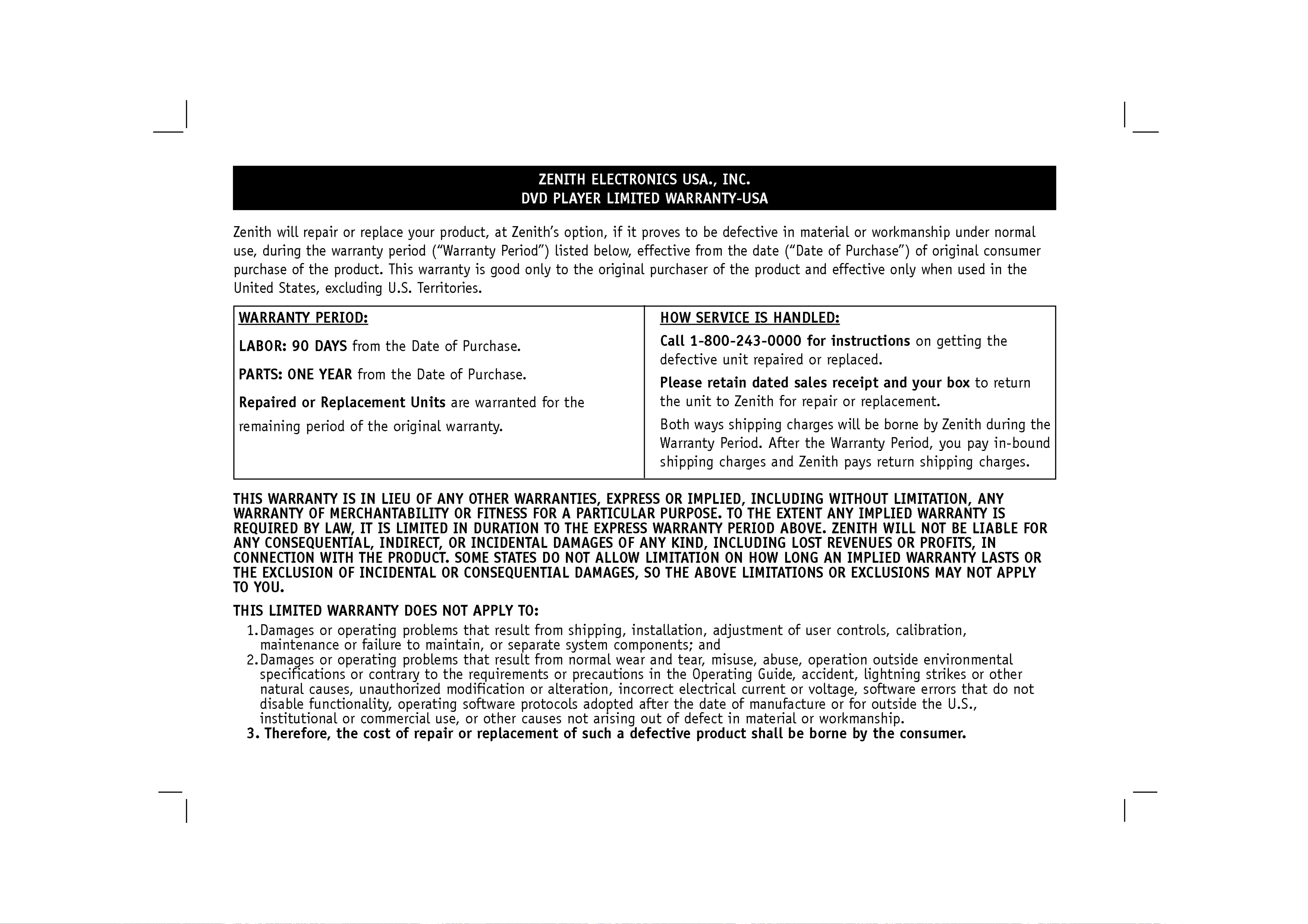
Zenith
will
repair
or
replace
your
product,
at
Zenith's
option,
if
it
proves
to
be
defective
in
material
or
workmanship
under
normal
use,
during
the
warranty
period
("Warranty
Period")
listed
below,
effective
from
the
date
("Date
of
Purchase")
of
original
consumer
purchase
of
the
product.
This
warranty
is
good
only
to
the
original
purchaser
of
the
product
and
effective
only
when
used
in
the
United
States,
excluding
U.S.
Territories.
THIS
WARRANTY
IS
IN
LIEU
OF
ANY
OTHER
WARRANTIES,
EXPRESS
OR
IMPLIED,
INCLUDING
WITHOUT
LIMITATION,
ANY
WARRANTY
OF
MERCHANTABILITY
OR
FITNESS
FOR
A
PARTICULAR
PURPOSE.
TO
THE
EXTENT
ANY
IMPLIED
WARRANTY
IS
REQUIRED
BY
LAW,
IT
IS
LIMITED
IN
DURATION
TO
THE
EXPRESS
WARRANTY
PERIOD ABOVE.
ZENITH
WILL
NOT
BE
LIABLE
FOR
ANY
CONSEQUENTIAL,
INDIRECT,
OR
INCIDENTAL
DAMAGES
OF
ANY
KIND,
INCLUDING
LOST
REVENUES
OR
PROFITS,
IN
CONNECTION
WITH
THE
PRODUCT.
SOME
STATES
DO
NOT
ALLOW
LIMITATION
ON
HOW
LONG
AN
IMPLIED
WARRANTY
LASTS
OR
THE
EXCLUSION
OF
INCIDENTAL
OR
CONSEQUENTIAL
DAMAGES,
SO
THE
ABOVE
LIMITATIONS
OR
EXCLUSIONS
MAY
NOT
APPLY
TO
YOU.
THIS
LIMITED
WARRANTY
DOES
NOT
APPLY
TO:
1.Damages
or
operating
problems
that
result
from
shipping,
installation,
adjustment
of
user
controls,
calibration,
maintenance
or
failure
to
maintain,
or
separate
system
components;
and
2.Damages
or
operating
problems
that
result
from
normal
wear
and
tear,
misuse, abuse,
operation
outside
environmental
specifications
or
contrary
to
the
requirements
or
precautions
in
the
Operating
Guide,
accident,
lightning
strikes
or
other
natural
causes,
unauthorized
modification
or
alteration,
incorrect
electrical
current
or
voltage,
software
errors
that
do
not
disable
functionality,
operating
software
protocols
adopted
after
the
date
of
manufacture
or
for
outside
the
U.S.,
institutional
or
commercial
use,
or
other
causes
not
arising
out
of
defect
in
material
or
workmanship.
3.
Therefore,
the
cost
of
repair
or
replacement
of
such
a
defective
product
shall
be
borne
by
the
consumer.
WARRANTY
PERIOD:
LABOR:
90
DAYS
from
the
Date
of
Purchase.
PARTS:
ONE
YEAR
from
the
Date
of
Purchase.
Repaired
or
Replacement
Units
are
warranted
for
the
remaining
period
of
the
original
warranty.
HOW
SERVICE
IS
HANDLED:
Call
1-800-243-0000
for
instructions
on
getting
the
defective
unit
repaired
or
replaced.
Please
retain
dated
sales
receipt
and
your
box
to
return
the
unit
to
Zenith
for
repair
or
replacement.
Both
ways
shipping
charges
will
be borne
by
Zenith
during
the
Warranty
Period.
After
the
Warranty
Period,
you
pay
in-bound
shipping
charges
and
Zenith
pays
return
shipping
charges.
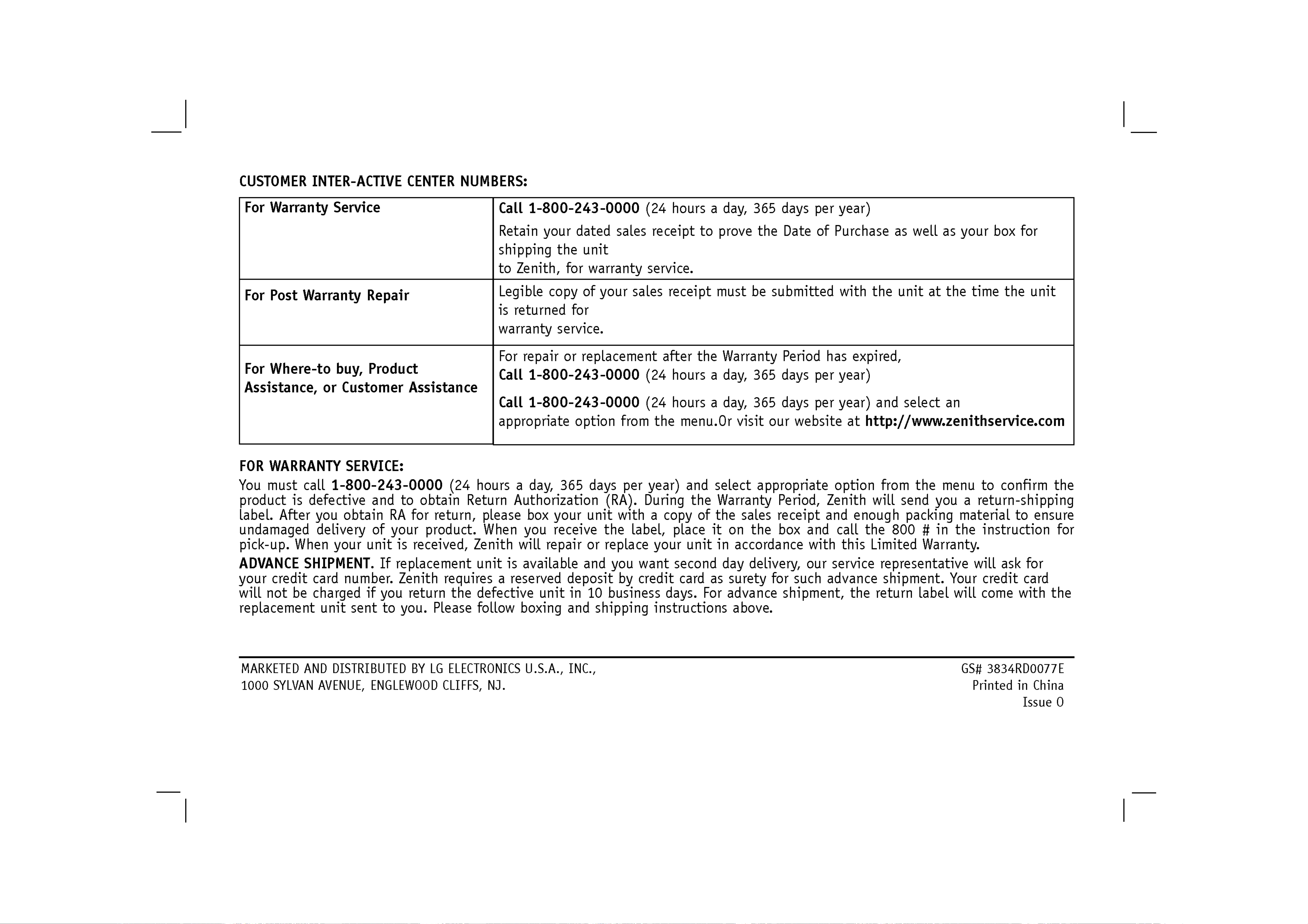
CUSTOMER
INTER-ACTIVE
CENTER
NUMBERS:
FOR
WARRANTY
SERVICE:
You
must
call
1-800-243-0000
(24
hours
a
day,
365
days
per
year)
and
select
appropriate
option
from
the
menu
to
confirm
the
product
is
defective
and
to
obtain
Return
Authorization
(RA).
During
the
Warranty
Period,
Zenith
will
send
you
a
return-shipping
label.
After
you
obtain
RA
for
return,
please
box
your
unit
with
a
copy
of
the
sales
receipt
and
enough
packing
material
to
ensure
undamaged
delivery
of
your
product.
When
you
receive
the
label,
place
it
on
the
box and
call
the
800
#
in
the
instruction
for
pick-up.
When
your
unit
is
received,
Zenith
will
repair
or
replace
your
unit
in
accordance
with
this
Limited
Warranty.
ADVANCE
SHIPMENT.
If
replacement
unit
is
available
and
you
want
second
day
delivery,
our
service
representative
will
ask
for
your
credit
card
number.
Zenith
requires
a
reserved
deposit
by
credit
card
as
surety
for
such
advance
shipment.
Your
credit
card
will
not
be
charged
if
you
return
the
defective
unit
in
10
business
days.
For
advance
shipment,
the
return
label
will
come
with
the
replacement
unit
sent
to
you.
Please follow
boxing
and
shipping
instructions
above.
MARKETED
AND
DISTRIBUTED
BY
LG
ELECTRONICS
U.S.A.,
INC.,
GS#
3834RD0077E
1000
SYLVAN
AVENUE,
ENGLEWOOD
CLIFFS,
NJ.
Printed
in
China
Issue
O
For
Warranty
Service
For
Post
Warranty
Repair
For
Where-to
buy,
Product
Assistance,
or
Customer
Assistance
Call
1-800-243-0000
(24
hours
a
day,
365
days
per
year)
Retain
your
dated
sales
receipt
to
prove
the
Date
of
Purchase
as
well
as
your
box
for
shipping
the
unit
to
Zenith,
for
warranty
service.
Legible
copy
of
your
sales
receipt
must
be
submitted
with
the
unit
at
the
time
the
unit
is
returned
for
warranty
service.
For
repair
or
replacement
after
the
Warranty
Period
has
expired,
Call
1-800-243-0000
(24
hours
a
day,
365
days
per
year)
Call
1-800-243-0000
(24
hours
a
day,
365
days
per
year)
and
select
an
appropriate
option
from
the
menu.Or
visit
our
website
at
http://www.zenithservice.com






