
2
ENGLISH
TABLE OF CONTENTS
SAFETY PRECAUTIONS ................3
- Precautions for the AC Adapter and Power ......4
- Precautions for Moving the Product ...................... 6
- Precautions for Installing the Product ..................7
- Precautions for Cleaning the Product ................... 9
- Precautions for Using the Product.......................10
- Precautions for Using the Remote control ......12
- Precautions for Experiencing Image
Retention ...........................................................................13
- Product Disposal ............................................................13
ASSEMBLY AND PREPARATION 14
- Precaution When Using the Touch Pen .............14
- Parts and Buttons .........................................................15
- Installing on a Wall ........................................................16
REMOTE CONTROL .................... 18
MAKING CONNECTIONS ........... 20
- Connecting to a PC.......................................................20
- External Device Connection .....................................20
- Using the Input List ......................................................22
TROUBLESHOOTING .................. 23
PRODUCT SPECIFICATIONS ...... 27
LICENSES .................................... 31
3
ENGLISH
Warning: This equipment is compliant with Class A of CISPR 32. In a residential environment this equipment may cause
radio interference.
SAFETY PRECAUTIONS
The safety precautions are intended to prevent unexpected danger or harm by helping the user to use the product
safely and for its intended purpose.
WARNING
If you ignore the warning message, you may be seriously injured or there is a possibility of accident or death.
CAUTION
If you ignore the caution message, you may be slightly injured or the product may be damaged.
WARNING
Indoor Use Only.

4
ENGLISH
Precautions for the AC Adapter and Power
WARNING
• Use only the power cord or AC adapter provided or approved by LG Electronics, Inc. If you use another power cord,
make sure that it is certified by the national standards. If the power cable is faulty in any way, please contact the
manufacturer or the nearest authorized service center for a replacement.
• Operate the display only from a power source(i.e. voltage) indicated in the product specification.
- Otherwise the product can be damaged, fire can occur or you may be electrocuted. If you are not sure what type of
power supply you have, consult a certified installation company.
• Make sure the power cord connect to a properly grounded outlet.
- If you do not you may be electrocuted or injured or the product can be damaged.
• Insert the power plug or AC adapter firmly so it cannot come loose.
- Poor connection may cause a fire or electric shock.
• In the presence of thunder and lightning, never touch the power cord and signal cable because it can be very
dangerous.
- It can cause electric shock.
• Be careful not to step or place heavy objects (electronic appliances, clothing, etc.) on the power cord or AC adapter.
Additionally, do not bend or pull out the power cord or AC adapter with excessive force.
- Damaged power cords may cause a fire or electric shock.
• Do not connect power cord or AC adapter damaged with sharp objects to power outlet.
- You may be electrocuted.
• Do not insert a conductor (like a metal chopstick) into one end of the power cord while the other end is connected to
the input terminal on the wall. Additionally, do not touch the power cord right after it is unplugged.
- You may be electrocuted.
• Do not use with a multi-outlet connected by many electrical product and heating devices. Use an exclusive multi-
outlet with a grounding terminal.
- A fire can break out due to overheating.

5
ENGLISH
• If water or any foreign substance goes inside the product, disconnect the power cord immediately and contact the
service center.
- Otherwise, this may cause a fire or electric shock due to damage to the product.
• Keep the power cord or AC adapter away from any heating devices.
- The cord coating may melt and cause fire or electric shock.
• Never disassemble, repair or modify the power cord or AC adapter.
- This may cause a fire or electric shock.
• The main cutoff device is the power cord. Please make sure the product is installed near the wall outlet and that it is
easily accessible.
• As long as this unit is connected to the AC wall outlet, it is not disconnected from the AC power source even if the
unit is turned off.
• Power consumption will be ‘0’ only when the power plug is unplugged.
• Use the appliance coupler as the disconnect device.
CAUTION
• If the outlet pins of the power plug or AC adapter is covered with dust, be sure to wipe them and keep them clean.
- Overheating due to layers of dust may cause a fire or electric shock.
• If the outlet pins of the power plug or AC adapter is covered with water be sure to wipe them and keep them clean.
Additionally, Do not touch the power plug or AC adapter with wet hands.
- This may cause an electric shock.
• Do not turn the product on or off by plugging in or unplugging the power plug from the power outlet. Do not use the
power socket as a switch.
- This may cause an electric shock or product malfunction.
• Do not unplug the power cord while the product is in use.
- Electrical shock can damage the product.
6
ENGLISH
Precautions for Moving the Product
WARNING
• Contact the service center before moving the product.
- It may cause electric shock and damage the product.
• Make sure the product is turned off, unplugged, and all cables have been removed before the product is moved.
- You may be electrocuted or the product can be damaged.
• When moving the product, do not shock or cause an impact on the front panel.
- You may be electrocuted or the product can be damaged.
• Use the correct number of people according to the weight of the product. (Under 25 Kg (55.1 lbs) per person use
lifting equipment when exceeding 100 Kg (220.4 lbs))
- If use the damaged product again, contact the service center because it can cause electric shock or fire.
• Do not hold it upside down while holding only the stand. (It is for stand supported models only.)
- This may cause stand warping, panel damage and other types of product damage.
CAUTION
• Do not dispose of the product-packing box. Use it when moving by putting the product in the box to carry it.

7
ENGLISH
Precautions for Installing the Product
WARNING
• Contact the service center before installing the product.
- It can cause electric shock and damage the product.
• Do not drop an object on or impact on the product. Keep out of reach of children and do not place toys or objects
near the product to prevent throwing things on the product screen.
- It can cause injury to human, problem to product and damage the display.
• Do not put heavy objects on, or hang from, the product.
- If the product collapses or is dropped, you may be injured.
• Do not touch the surface of the product if it overheats.
- It can cause injury to human.
• Install the product firmly fixed on a floor, wall, etc. to prepare against external impact such as wind and earthquake.
- You must refer to the manual provided.
• Prevent Children from climbing or hanging on the product.
- If the product collapses or is dropped, you may be injured.
• Do not install it where there are heating devices such as electrical heaters or lighting equipment.
- Fire, electrical shock, malfunction may occur.
• Do not install this product by yourself as you may injure yourself or cause damage to the product. Please contact
service engineer authorized by service center.
• Do not install this product on a wall if it could be exposed to oil or oil mist.
- This may damage the product and cause it to fall.
• Do not leave the power or signal cable, etc. on the pathway.
- This could cause a trip or fall, which could cause an electrical shock, fire, product breakdown, or injury.
• Do not let the product drop when connecting it to an external device connected with a short cable.
- This may cause injury and damage to the product.
• If you drop the product or the case is broken, turn off the product and unplug the power cord and contact the service
center.
- If you continue to use without taking proper measures, electrical shock or fire can occur.
• Install the product in a dry place where it is not near dust and water. Avoid high temperatures and humidity.
- This may cause electrical shock, fire or product damage.
• Safely install the product in a place that can hold the weight of the product.
- A lack of strength may cause the product to fall.
• Take a comfortable and natural position to relax the muscles when working with a product.

8
ENGLISH
CAUTION
• Install the product where no Electromagnetic Interference occurs.
• If you install the product in a place that does not meet the recommended conditions, this may cause serious damage
to the product’s picture quality, life cycle, and appearance. Please check with service engineer before installing. Please
do not install the product in places such as where there is an abundance of fine dust or oil mist, chemical substances
are used, exposed to direct sunlight, the temperature is very high or low, the humidity is very high.
• Make sure the product is well ventilated by Installing at a distance (100mm (3.9 inches) or more) from the wall.
- If you install the product too close to the wall, it may be deformed or fire can break out due to internal heat buildup.
• Do not cover the product with a tablecloth or a curtain or other materials (e.g. plastic) while plugged in. Do not block
the ventilation hole of the product.
- The product can be deformed or fire can break out due to overheating inside the product.
• Do not install the product in an area with poor ventilation (e.g. on a bookshelf, in a closet) or outside and avoid placing
on cushions or carpets.
- The product could catch fire due to overheating inside the product.
• Install the product on a flat and stable place that is large enough to support the product.
- If the product is dropped, you may be injured or the product may be broken.
• When installing the product on a shelf or cabinet, make sure that the bottom end of the product is not protruding
forward.
- The product may fall due to unbalanced center of gravity, which may cause personal injury or damage to the
product. Be sure to use cabinets or shelves that fit your product.

9
ENGLISH
Precautions for Cleaning the Product
WARNING
• Keep the product clean at all times.
- If you don’t clean the unit for a long time and it becomes covered in dust, it can cause fire or product damage.
• When you need to clean the inside of the product, you must contact the service center.
- Otherwise, cleaning without support may cause a fire, electric shock, or damage to the product.
• When cleaning the product, unplug the power cord and wipe gently with a soft cloth to prevent scratching.
- An electric shock may occur or damage to the screen if its scratched.
• When you want to clean the front frame, spray water onto a soft cloth 2 to 4 times and wipe in one direction only.
- Too much moisture may cause staining.
CAUTION
• When cleaning the product or the screen, unplug the power cord and wipe it gently with a soft cloth. Do not spray
water or other liquids directly on the product. Especially, do not clean your product with chemicals including glass
cleaner, any type of air freshener, insecticide, lubricants, wax (car, industrial), abrasive, thinner, benzene, alcohol, etc.,
which can damage the product or its panel.
- This may result in fire, electric shock or product damage (deformation, corrosion or breakage).

10
ENGLISH
Precautions for Using the Product
WARNING
• Do not use the product in any environment with excessively high temperatures or humidity.
- It may cause electrical shock or damage the product.
• If you use the product for a long period of time, take a rest from time to time to protect your vision.
- Extended viewing could result in impaired vision.
• Listening at high volume or using for a long time can cause damage to your hearing.
• In the event that liquid or a foreign object falls into the product, please switch it off and unplug it from the wall outlet
and contact the service center.
- Otherwise, the product may cause fire or electric shock.
• In the event that no image appears on the screen or no sound is heard, stop using the product. Switch it off
immediately, unplug it from the power outlet and contact the service center.
- Otherwise, the product may cause fire or electric shock.
• Do not drop an object or impact on the product or screen.
- It can cause injury to human, problem to product and damage the screen.
• If you can smell smoke or other odors or hear a strange sound, unplug the power cord and contact the service center.
- If you continue to use the product without taking proper measures, it may cause electrical shock or fire.
• Do not attempt to disassemble, repair or modify the product yourself. Please contact service center if you need to
repair it.
- Fire or electric shock can occur.
• Do not place objects filled with liquids such as vases, cups etc. on or over the product to prevent liquid from entering
the product.
- Failure to do so may result in fire, electric shock, malfunction or deformation.
• Do not push hard on or scratch the product’s surface with your hands or sharp objects, such as nails, pencils or pens.
Do not shock or scratch the front and sides of the screen with metallic objects.
- This may damage the products and cause it to malfunction.
• Do not touch the product if it has been exposed to sunlight or an intense light because it could be hot.

11
ENGLISH
• Do not use high voltage electrical goods near the product (e.g., a bug zapper).
- This may result in product malfunction if it receives an electrical shock.
• If there is a gas leak, do not touch the outlet, and open the windows for ventilation.
- Otherwise, the product may cause fire or electric shock.
• If you drop the product or the case is broken, turn off the product and unplug the power cord.
- If you continue to use without taking proper measures, electrical shock or fire can occur. Contact the service center.
• Keep small accessories out of the reach of children.
- If a child swallows it, consult a doctor immediately.
• Keep out of reach of children from the product. Also, do not throw toys or objects at the product or screen.
- It can cause injury to human, problem to product and damage the screen.
• All the power sources must be disconnected by removing the power cables to remove all power from the unit.
CAUTION
• This panel is an advanced product that contains millions of pixels. You may occasionally see pixel spots when viewing
the screen. Since these deactivated pixels are not a defect, the performance and reliability of the product is not
affected.
• Do not put or store inflammable substances near the product.
- There is a danger of explosion or fire.
• Keep the proper distance from the product.
- It can cause damage to your vision if you look at the product too closely.
• Set the appropriate resolution and frequency by products.
- It can cause damage to your vision.
• Take a regular break when working with the product for a long time.
12
ENGLISH
Precautions for Using the Remote control
WARNING
• Avoid places with high humidity.
- It may cause electrical shock or damage the product.
• Do not expose batteries to excessive heat, such as direct sunlight, open fireplace, and electric heaters.
- It may cause fire and you may be injured.
• Make sure that children do not swallow the remote control batteries when you replace them. Keep batteries out of
reach of children.
- If a child swallows a battery, consult a doctor immediately.
• Do not dispose of batteries in a fire.
- Please dispose batteries at a local recycling center or a retail store that handles batteries.
• Used batteries, which include rechargeable batteries, should be recycled separately from waste.
- Please dispose used batteries and rechargeable batteries at a local recycling center or a retail store that handles
batteries.
CAUTION
• Do not short circuit and disassemble of batteries.
- It may cause electrical shock or fire.
• The remote control may not function properly in sunlight or under a strong lamp. Move the product if it is being used
in these conditions.
• Check if there is any obstacle between the product and the remote control.
• Do not mix new batteries with old batteries.
- Overheating or leaking batteries may cause fire or electric shock.
• Only use the specified type of battery. Do not insert batteries that are not rechargeable into the charger.
- Overheating or leaking batteries may cause fire or electric shock.

13
ENGLISH
Precautions for Experiencing Image Retention
• Displaying a still image for a prolonged period of time may cause damage to the screen, resulting in image retention.
Most third-party products have the same issue. The resulting damage is not covered by the product warranty.
- Use a screen saver when using the monitor for a prolonged period of time.
Product Disposal
• Do not dispose of this product with general household waste.
• Disposal of this product must be carried out in accordance to the regulations of your local authority.
14
ENGLISH
ASSEMBLY AND PREPARATION
CAUTION
• Always use genuine components to ensure safety and product performance.
• The product warranty will not cover damage or injury caused by the use of counterfeit components.
NOTE
• The accessories provided with your product may vary depending on the model or region.
• Product specifications or contents in this manual may be changed without prior notice due to upgrade of product
functions.
• The warranty will not cover any damage caused by using the product in an excessively dusty environment.
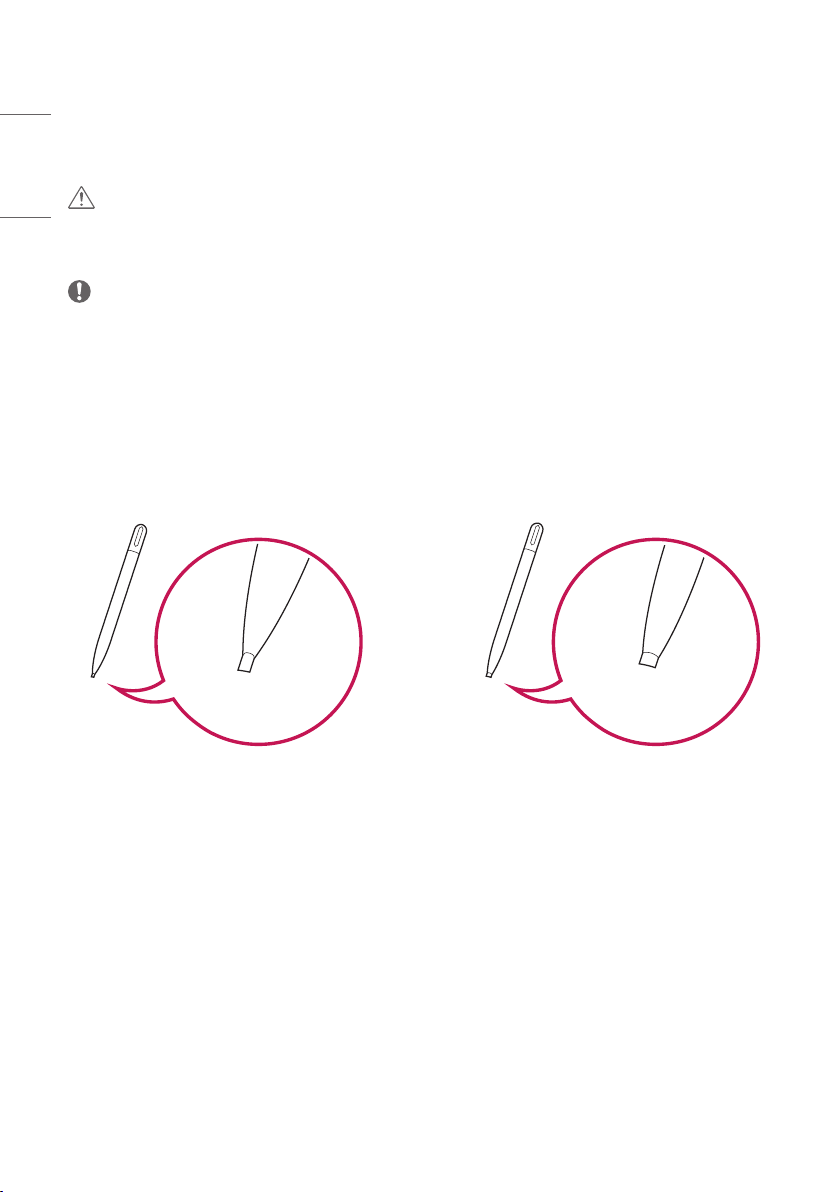
Precaution When Using the Touch Pen
When the touch pen is worn as shown in the figure, replace it.
15
ENGLISH
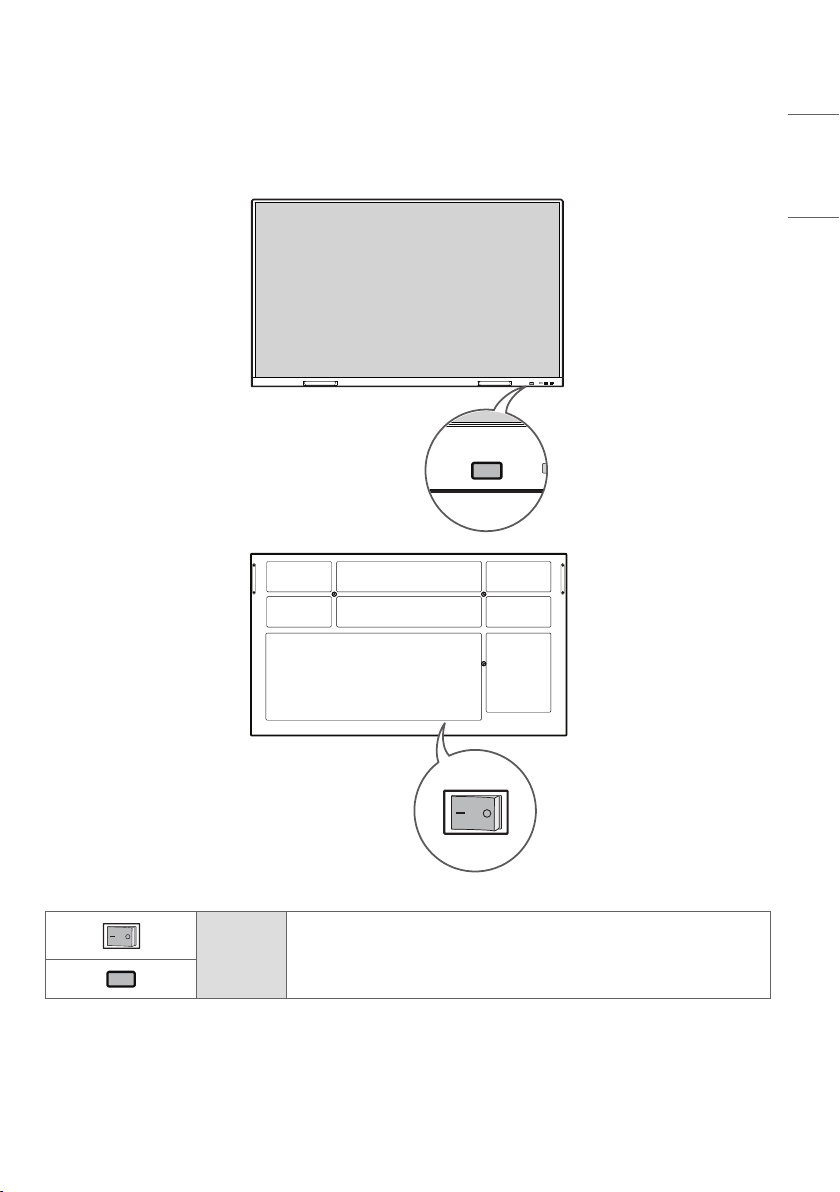
Parts and Buttons
The image may be different according to the model.
Power Turns the power on or off.
16
ENGLISH
Installing on a Wall
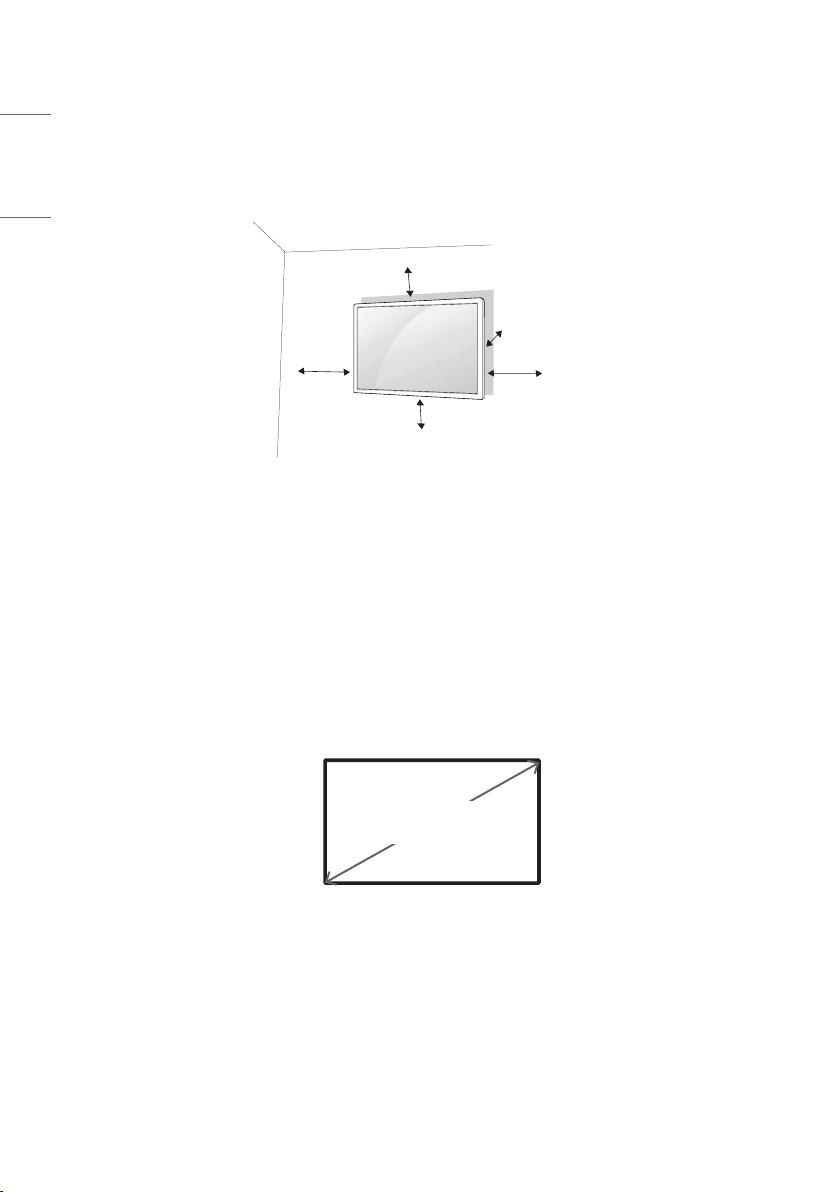
For proper ventilation, allow a clearance of 100 mm (3.9 inches) on each side and from the wall. Detailed installation
instructions are available from your dealer, see the optional Tilt Wall Mounting Bracket Installation and Setup Guide.
100 mm (3.9 inches)
100 mm
100 mm
100 mm
100 mm
To install your monitor on a wall, attach a wall mounting bracket (optional part) to the back of the monitor.
Make sure that the wall mounting bracket is securely fixed to the monitor and to the wall.
1 Use only screws and wall mounting brackets that conform to VESA standards.
2 Screws which are longer than standard length may damage the inside of the monitor.
3 A non-VESA standard screw may damage the product and cause the monitor to fall. LG Electronics is not liable for
any accidents related to the use of non-standard screws.
4 Please use VESA standard as below.
• 785 mm (30.9 inches) and above
* Fixing screws: Diameter 8.0 mm x Pitch 1.25 mm x Length 14 mm
(Diameter 0.3 inches x Pitch 0.04 inches x Length 0.5 inches)
785 mm
(30.9 inches)

17
ENGLISH
CAUTION
• Disconnect the power cord before moving or installing the monitor to avoid risk of electric shock.
• If you install the monitor on a ceiling or slanted wall, it may fall and result in injury. Use an authorized LG wall mount
and contact your local dealer or qualified personnel to assist with the installation.
• Do not over tighten the screws as this may damage the monitor and void your warranty.
• Use only screws and wall mounting brackets that meet the VESA standard. Any damage or injuries caused by misuse
or use of improper accessories are not covered by the warranty.
NOTE
• The wall mount kit includes the installation guide and all necessary parts.
• The wall mounting bracket is optional. You can obtain additional accessories from your local dealer.
• The length of screws required may differ depending on the wall mount. Be sure to use the correct length.
• For more information, please refer to the guide provided with the wall mount.
18
ENGLISH
REMOTE CONTROL
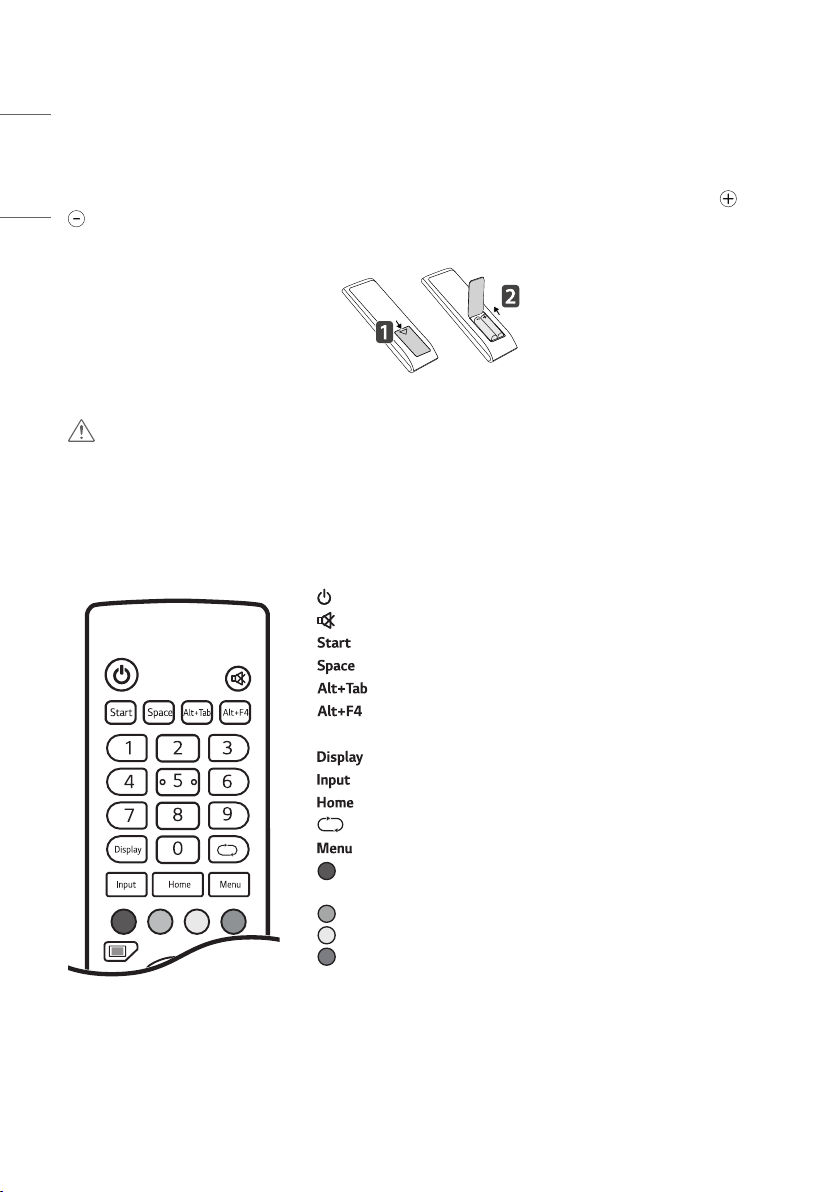
The descriptions in this manual are based on the buttons on the remote control. Please read this manual carefully to
use the monitor correctly. To install batteries, open the battery cover, place batteries (1.5VAAA) matching and
terminals to the labels inside the compartment, and close the battery cover. To remove the batteries, perform the
installation actions in reverse. The illustrations may differ from the actual accessories.
CAUTION
• Do not mix old and new batteries, as this may damage the remote control.
• Be sure to point the remote control toward the remote control sensor on the monitor.
• Some features of the remote control may not be supported in certain models.
• The product’s internal and external batteries should not be exposed to excessive heat such as direct sunlight, fire, or
the like.
(POWER) Turns the monitor on or off.
(MUTE) Mutes all sounds.
(Built-in computer) Works the same way as the Window key.
(Built-in computer) Works the same way as the Space key.
(Built-in computer) Works the same way as the Alt+Tab key.
(Built-in computer) Works the same way as the Alt+F4 key.
Number buttons Enters numerical characters depending upon the setting.
Displays the currently applied external input on the screen.
Displays the external input settings window.
Returns to the default screen.
The function is not supported in this model.
Displays the general settings window.
Enables or disables the power button or touch function of the front of the
product.
Enables or disables the power button on the front of the product.
Enables or disables the touch function.
Turns on or off the function to pause the screen.
19
ENGLISH
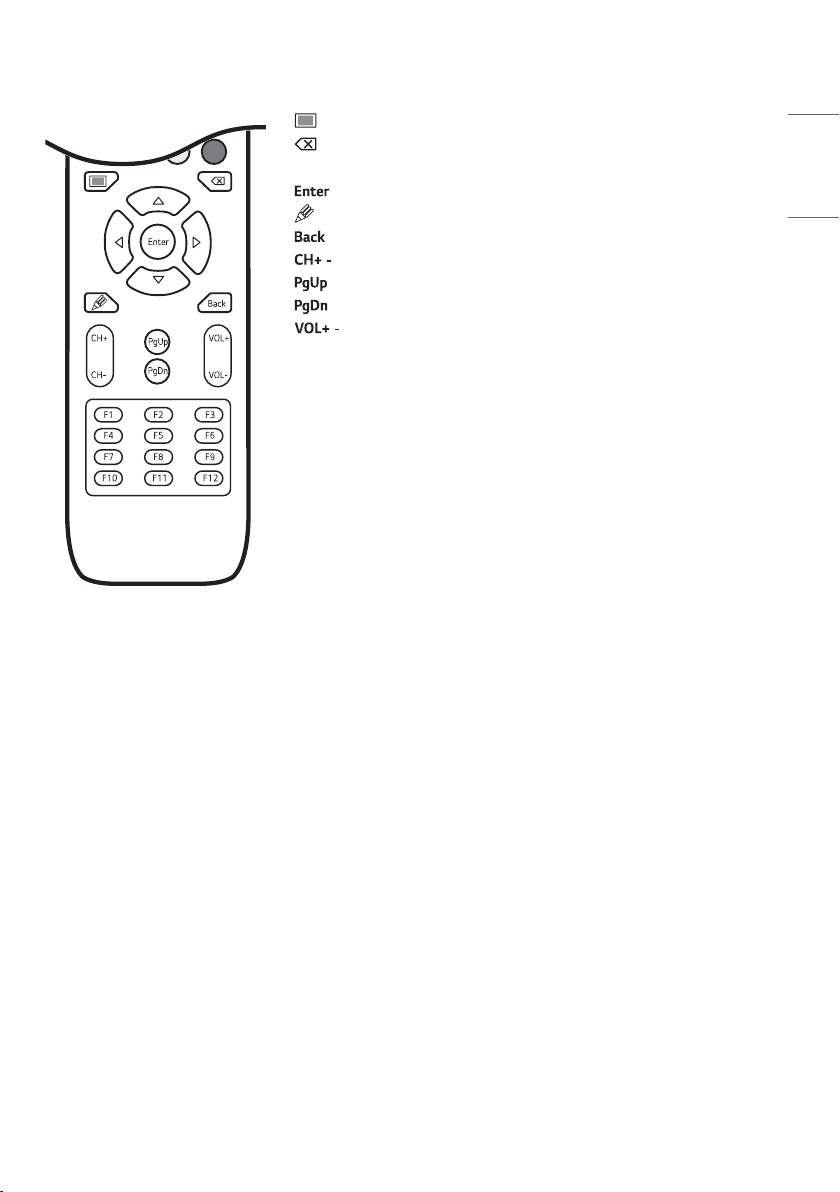
Turns on or off the whole screen.
(Built-in computer) Works the same way as the Backspace key.
Navigation Buttons Scrolls through menus or options.
Selects menus or options and confirms your input.
Turns the note feature on.
Allows you to move back one step in the user interaction function.
/ Scrolls through the saved programmes/channels.
Moves to the top of the screen.
Moves to the bottom of the screen.
/ Adjusts the volume.
Function Keys (Built-in computer) Works the same way as the Function key.
20
ENGLISH
MAKING CONNECTIONS
You can connect various external devices to your monitor. Change the input mode and select the external device you
want to connect. For more information about external device connections, see the user manual provided with each
device.
Connecting to a PC
Some of the cables are not provided. This monitor supports the * feature.
* : a feature that enables a PC to recognize devices attached by the user without device configuration or
user intervention when powering up.
External Device Connection
Some of the cables are not provided. Connect a HD receiver, DVD, or VCR player to the monitor and select an
appropriate input mode.
For the best picture and sound quality, connecting external devices to your monitor using HDMI cables is recommended.
21
ENGLISH
NOTE
• For the best image quality, using the monitor with HDMI connection is recommended.
• To comply with the specifications of the product, use a shielded interface cable with ferrite core, such as a HDMI
cable.
• If you turn the monitor on when the set is cold, the screen may flicker. This is normal.
• Sometimes red, green, or blue spots may appear on the screen. This is normal.
• Use a High Speed HDMI
®
/™ cable (shorter than 3 m (9.8 ft)).
• Use a certified cable with the HDMI logo attached. If you do not use a certified HDMI cable, the screen may not
display or a connection error may occur.
• Recommended HDMI Cable Types
- High Speed HDMI
®
/™ Cable
- High Speed HDMI
®
/™ Cable with Ethernet
A
B
A
B
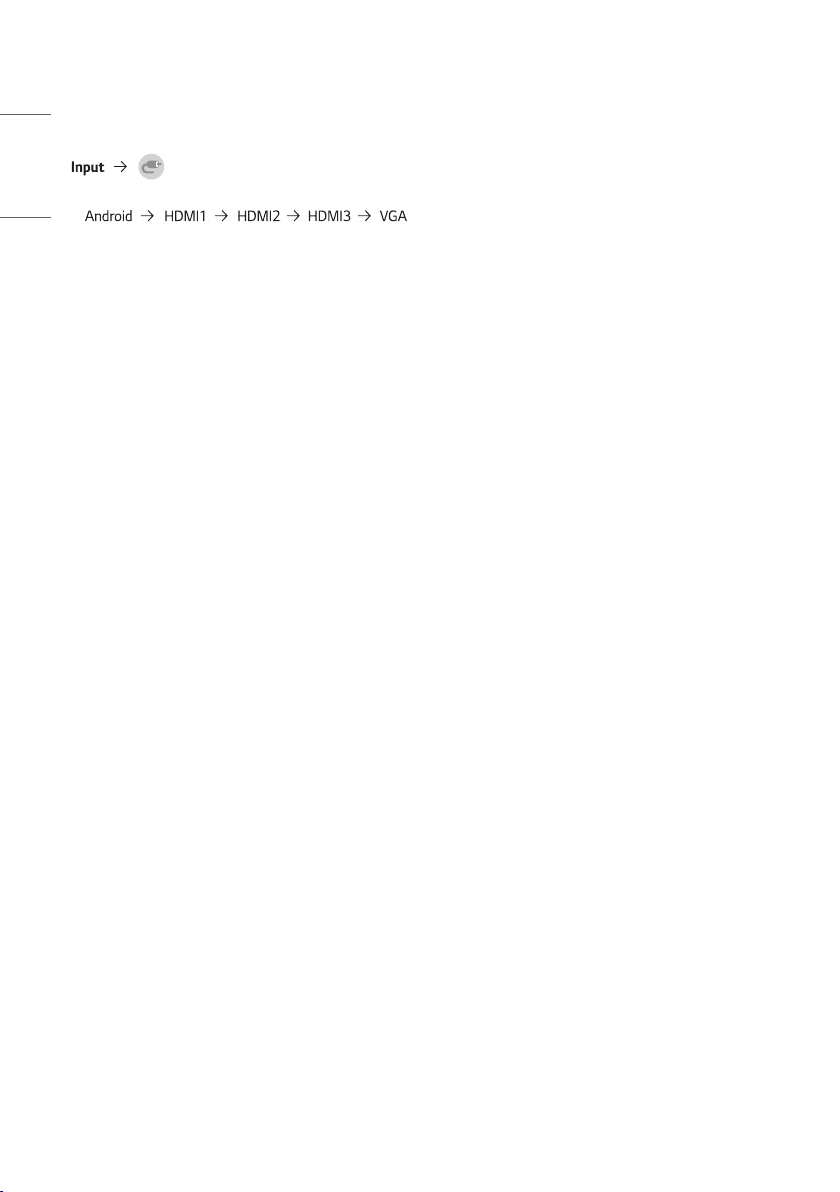
HDMI: A 11.65 mm (0.4 inches) ; B 20.65 mm (0.8 inches)
USB: A 8.3 mm (0.3 inches) ; B 16 mm (0.6 inches)
• If you cannot hear any sound in HDMI mode please check your PC settings. Some PCs require you to manually change
the default audio output to HDMI.
• You may experience compatibility issues if you use HDMI-PC mode.
• Make sure the power cable is disconnected.
• If you connect a gaming device to the monitor, use the cable provided with the gaming device.
CAUTION
• Connect the signal input cable and tighten it by turning the screws clockwise.
• Do not press the screen with your finger for a prolonged period as this may result in temporary distortion on the
screen.
• Avoid placing a reflective object in front of the set at a distance of 50 cm (19.6 inches) or less.
• Avoid displaying static images on the screen for a long period of time to prevent image retention. Use a screensaver
if possible.
• A wireless communication device near your monitor can affect the image.
22
ENGLISH
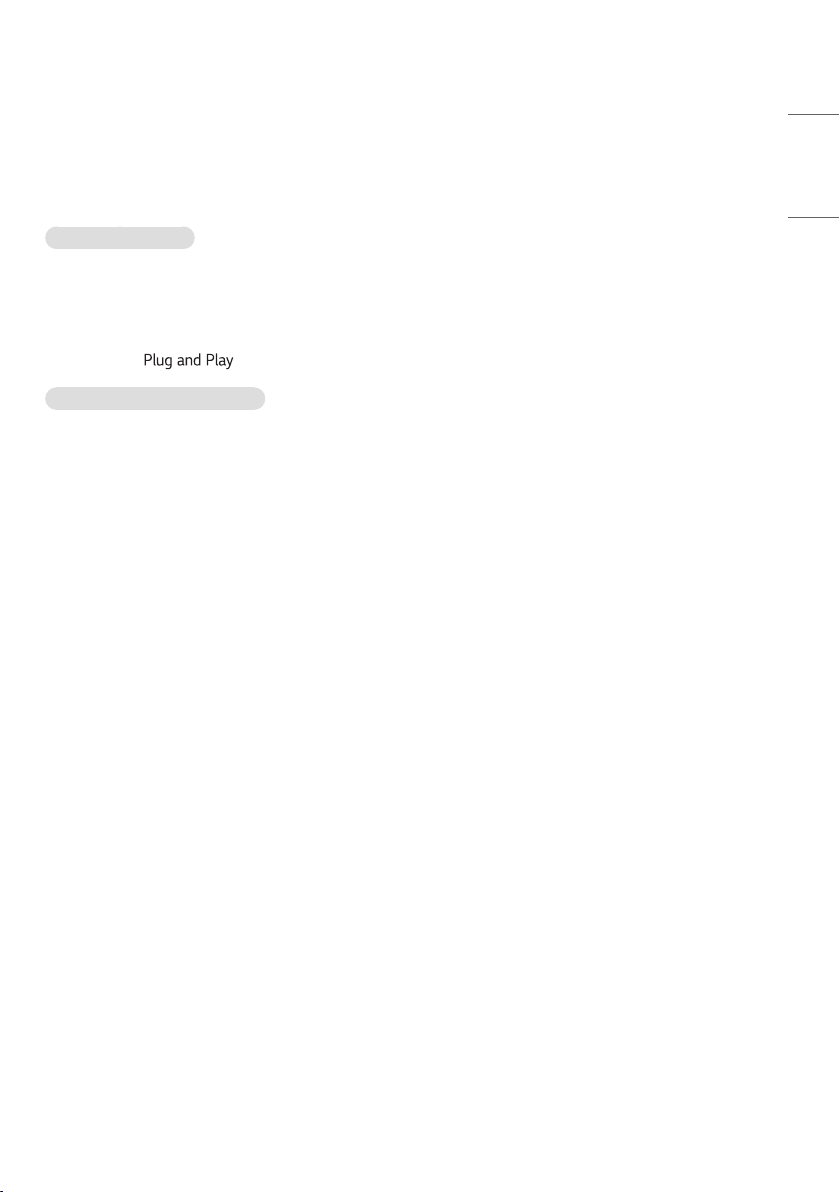
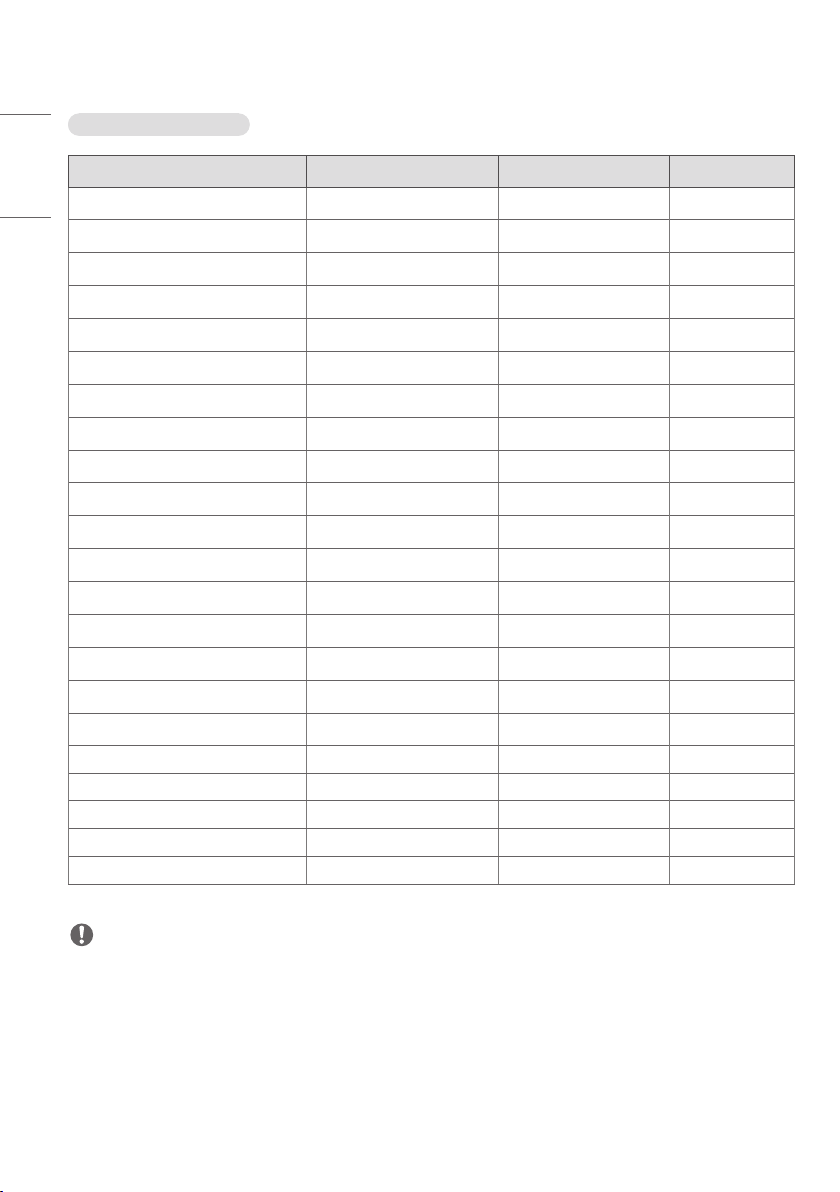
Using the Input List
•
* The PC input is only enabled when a computer is connected.
23
ENGLISH
TROUBLESHOOTING
» Each model may have different points to check.
» For information on your PC settings, refer to the Windows Help.
Issues Related to Use
• The power won’t turn on.
- Check if the power cord is correctly plugged into the power outlet.
• The ‘Unknown Product’ message appears when the product is connected.
- Check if the driver for the graphics card is installed.
- Check if the function is supported by referring to the graphics card user manual.
Issues Related to Screen (Video)
• A message saying ‘No signal’ or ‘Invalid Format’ appears.
- The signal cable is not connected between the PC and the product, or the cable connection status is unstable.
Check the signal cable.
- Access the input menu to check the input signal.
- The signal from the PC (Graphics card) is out of the vertical or horizontal frequency range of the product. Adjust
the frequency range by referring to the Specifications in this manual.
• The position of the screen is incorrect.
- Check if the graphics card resolution and frequency are supported by the product. If the frequency exceeds the
supported range, use PC settings to set the resolution to the recommended value.
• The screen is displayed abnormally.
- Connect the signal cable that matches with the source input signal.
• Images are flickering or fluttering on the screen.
- If you turn the monitor on when it is cold, the screen may flicker. This is normal.
- Make sure that the current resolution and frequency settings of the graphics card are supported by the monitor.

24
ENGLISH
Issues Related to Screen (Color)
• Screen has poor color resolution (16 colors).
- Use PC settings to set the color to 24 bits (True Color) or above.
• Screen color is unstable or mono-colored.
- Check the connection status of the signal cable. Or, re-insert the PC graphics card.
• I see dark or bright spots on the screen.
- Some pixels (red, green, blue, black) are visible on the screen due to the unique characteristics of the display panel.
This is not a malfunction of the product.
Issues Related to Sound
• The audio doesn’t work.
- See if the audio cable is connected properly.
- Adjust the volume of the product or external device.
- See if the sound is set properly.
• Sound is too dull.
- Select the appropriate equalizer sound.
• Sound is too low.
- Adjust the volume of the external device.
• For some models, you will need to purchase external speakers separately since they do not have speakers built-in.
Other Issues
• The power suddenly turned off.
- Check if the ‘Power Off Time’ is set.
- Power interrupted. See if the product power cord is connected properly.
- check the power control settings.

25
ENGLISH
I have a problem with touch response.
• Touch does not respond.
- This may occur when the USB cable between PC and monitor is not connected. Remove the USB cable and connect
it again in 10 seconds.
- Make sure that your PC’s power cord is firmly plugged into a power outlet and restart your PC.
- Touch may not respond when the system is down due to the unstable network. Reconnect the LAN cable or restart
your PC.
- If your PC and monitor are not connected using a signal cable, touch does not respond. Check the signal cable
connection.
- Touch may not respond when the monitor is powered off. Check the monitor power.
- If you do not use a grounded outlet, it may cause a break or touch error. Always connect the power cord to a
grounded outlet.
- Check if the screen is currently on.
- A break or touch error may occur as below case.
> If touching the screen only with nail or fingertip
> If holding the touch pen or near the tip of the touch pen
> If using the touch pen while pressing it with strong force on the screen
• The location of a touch does not correspond to the touch coordinates.
- This may occur when the touch screen is not calibrated properly. Change your tablet PC settings.
• A touch is applied to a monitor other than the one I intended.
- This may occur if the monitor is not set as the default monitor when you are using multiple monitors. Set the
monitor as the default monitor.
- This may occur when the touch screen is not calibrated properly. Change your tablet PC settings.
• Multi-touch does not respond.
- The content played (e.g. Flash Player, Paint, etc.) may not support Multi-touch points. Make sure that you use a
content that supports Multi-touch point.
- Remove the USB cable and connect it again in 10 seconds.
- Run the content (e.g. Flash Player, Paint, etc.) again.
- Restart your PC.
- On the edge of the touch screen, multi-touch may work unstably.
- If the gap between two touch points is 20 mm (0.7 inches) or less, the touch error may occur.
26
ENGLISH
Image sticking
• After-image appears when the product is turned off.
- If you use a fixed image for a long time, the pixels may be damaged. Use the screen-saver function.
- When a dark image is displayed on the screen after an image with high contrast (black and white or gray), this may
cause image sticking. This is normal for display products.
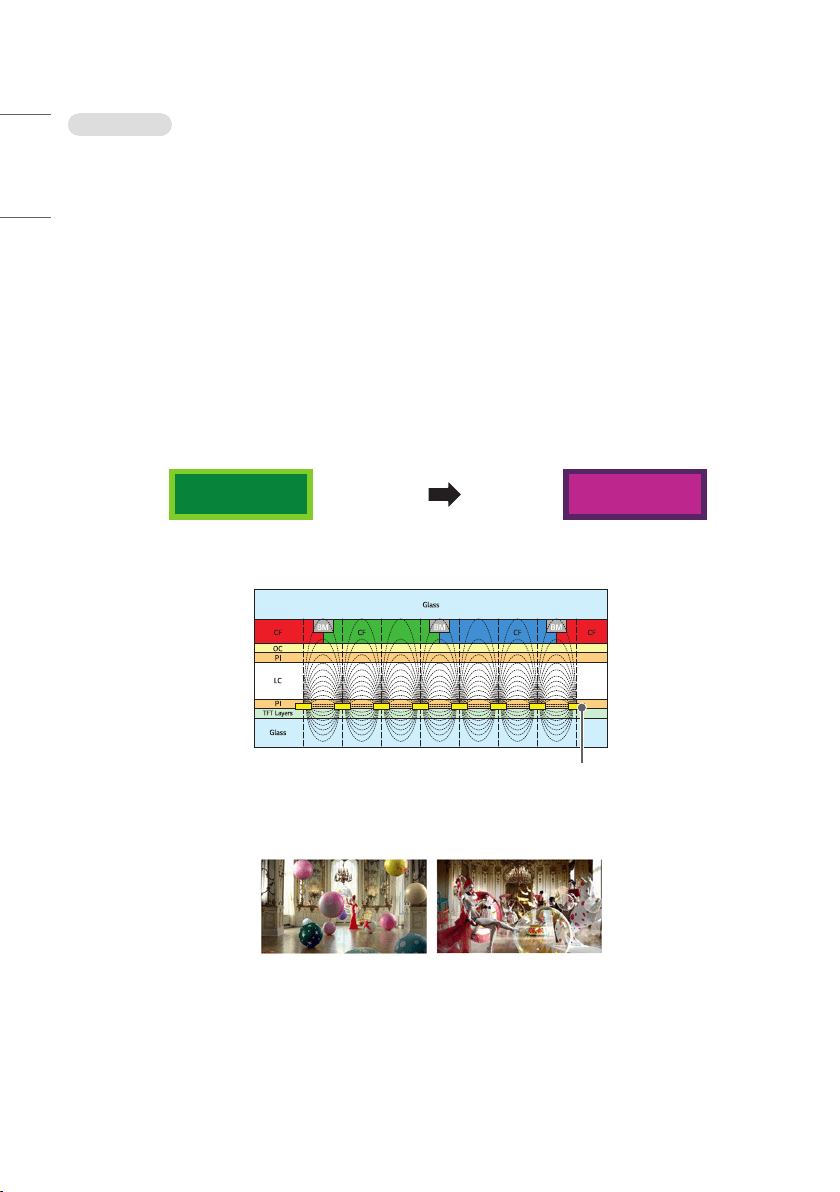
• When the LCD panel displays a static image for an extended period of time, it can cause a voltage difference between
the electrodes that operate the liquid crystals. When the voltage difference between the electrodes builds up over
time, liquid crystals have a tendency to remain aligned in one direction. During this process, a previously displayed
image remains visible. This phenomenon is referred to as image sticking.
• Image sticking does not occur when using constantly changing images but may occur when using a fixed image for an
extended period of time. Therefore, it is recommended that you use the instructions below to decrease the likelihood
of image sticking occurring when using a fixed image. It is recommended that you change the screen at least once
every 12 hours at the very minimum; if done more frequently, the prevention of image sticking is more effective.
• Recommended operating conditions
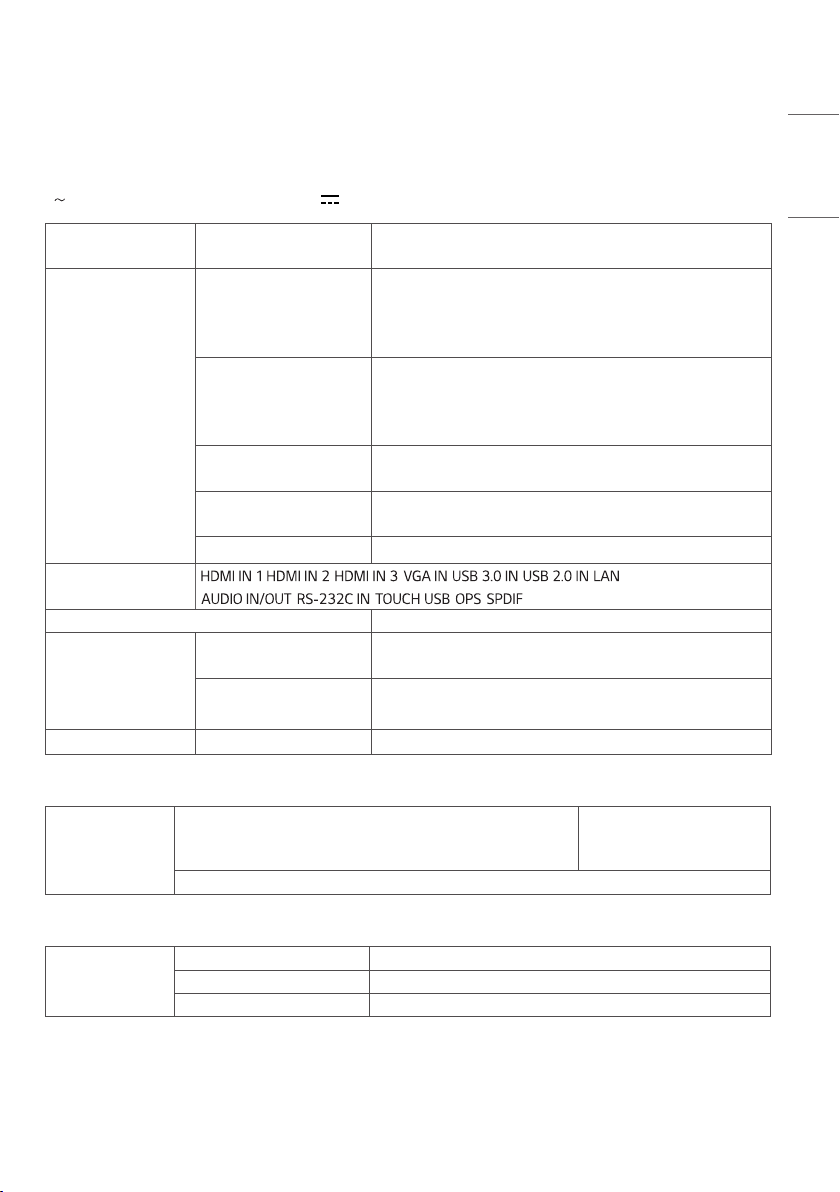
1 Change the background and the character colors using the same time interval.
A A
- When changing colors, using complementary colors helps to prevent image sticking.
ITO or MoTi Pixel Layer
2 Change the image using the same time interval.
Make sure that the characters or images before changing the image remain in the same location after changing the
image.
27
ENGLISH
PRODUCT SPECIFICATIONS
The product specifications below may be changed without prior notice due to upgrade of product functions.
“ ” refers to alternating current (AC), and “ ” refers to direct current (DC).
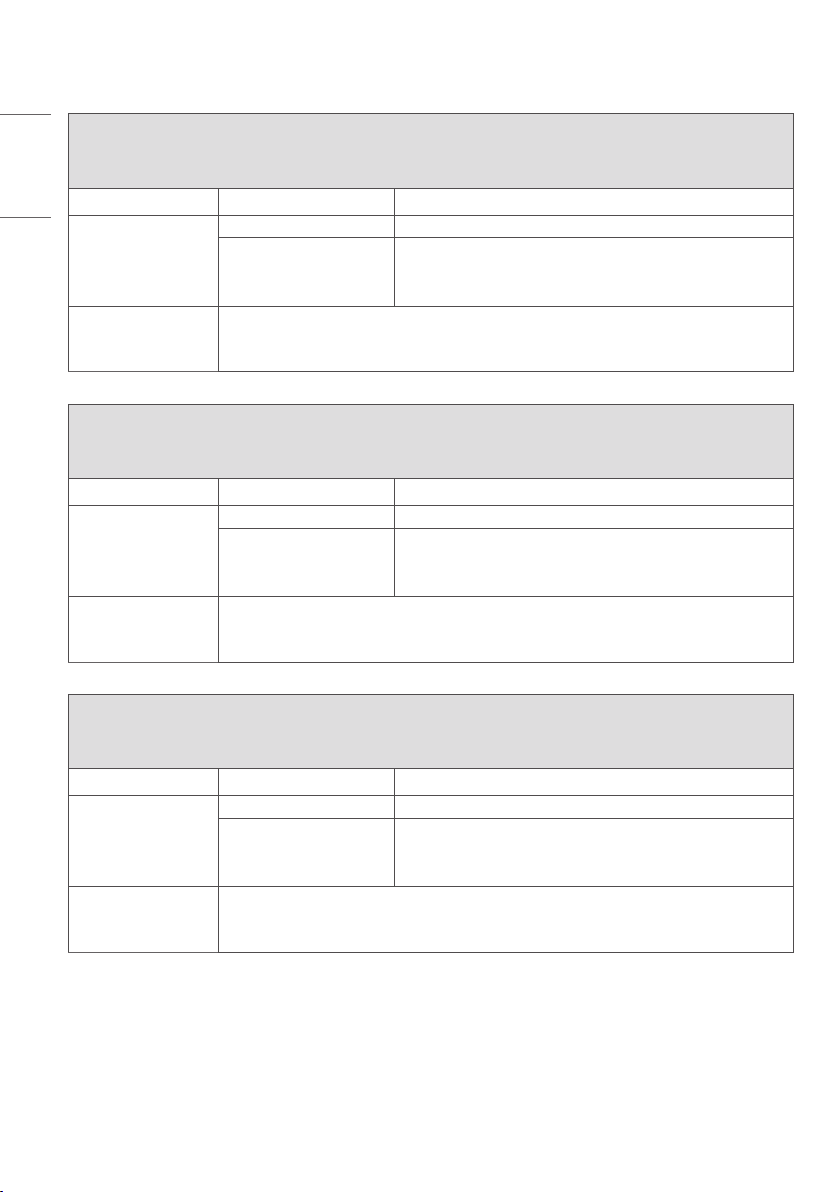
LCD screen Screen type Thin Film Transistor (TFT)
Liquid Crystal Display (LCD) Screen
Video signal Maximum resolution VGA: 1920 x 1080 @ 60 Hz
HDMI1/ HDMI2/ HDMI3: 3840 x 2160 @ 60 Hz
- This may not be supported on some OS or graphic card
types.
Recommended resolution VGA: 1920 x 1080 @ 60 Hz
HDMI1/ HDMI2/ HDMI3: 3840 x 2160 @ 60 Hz
- This may not be supported on some OS or graphic card
types.
Horizontal frequency HDMI1/ HDMI2/ HDMI3: 30 kHz ~ 135 kHz
VGA: 30 kHz ~ 80 kHz
Vertical frequency HDMI1/ HDMI2/ HDMI3: 30 Hz ~ 76 Hz
VGA: 50 Hz ~ 76 Hz
Synchronization Separate Sync/ Digital
Input/ Output ports , , , , , , ,
, , , ,
Embedded battery Applied
Environmental
Conditions
Operating Temperature 0 °C to 40 °C (32 °F to 104 °F)
Operating Humidity 10 % to 90 %
Storage Temperature -20 °C to 60 °C (-4 °F to 140 °F)
Storage Humidity 10 % to 90 %
Audio Input Sensitivity 0.5 Vrms
* Touch Screen
OS (Operating
System)
Windows 7/ 8/ 10/ WindowsXP/ Linux/ Mac/ Android/ Chrome
(WindowsXP/ Linux/ Mac are supported with the 1 Point touch
function.)
20 Points
Space between touches: at least 20 mm (0.7 inches) or more
* Applicable only for models that support the speakers
Audio RMS Audio Output
10 W + 10 W (R + L)
Input Sensitivity
0.5 Vrms
Speaker Impedance
8 Ω
28
ENGLISH
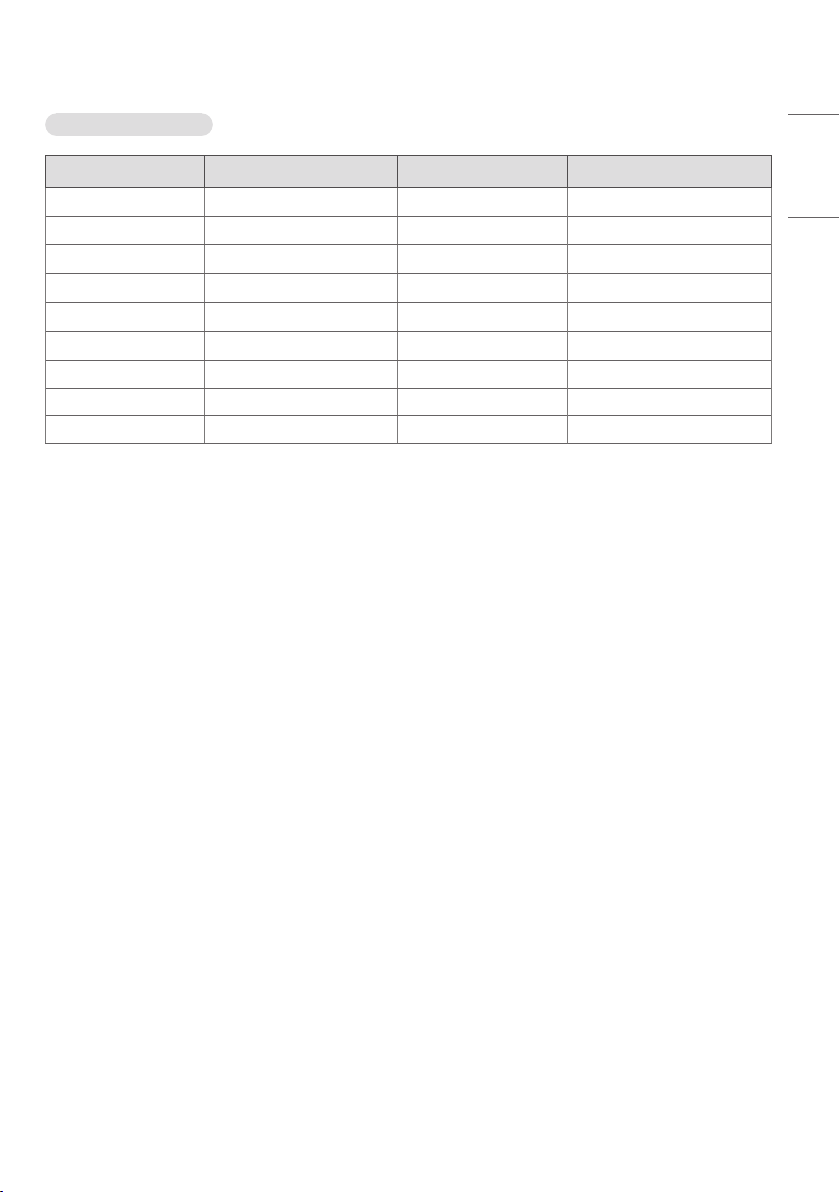
65TR3DJ-B
65TR3DJ-I
65TR3DJ-E
LCD Panel Pixel Pitch 0.372 mm (H) x 0.372 mm (V)
Power Rated Voltage AC 100-240 V~ 50/60 Hz 3.0 A
Power Consumption On Mode: 300 W (Max)
Stand By Mode: ≤ 0.5 W
Dimensions (Width x
Height x Depth)/
Weight
1489 mm x 897 mm x 87 mm/ 38.75 kg
(58.6 inches x 35.3 inches x 3.4 inches / 85.4 lbs)
75TR3DJ-B
75TR3DJ-I
75TR3DJ-E
LCD Panel Pixel Pitch 0.4296 mm (H) x 0.4296 mm (V)
Power Rated Voltage AC 100-240 V~ 50/60 Hz 3.5 A
Power Consumption On Mode: 350 W (Max)
Stand By Mode: ≤ 0.5 W
Dimensions (Width x
Height x Depth)/
Weight
1710 mm x 1020 mm x 87 mm/ 53.1 kg
(67.3 inches x 40.1 inches x 3.4 inches / 117.0 lbs)
86TR3DJ-B
86TR3DJ-I
86TR3DJ-E
LCD Panel Pixel Pitch 0.4935 mm (H) x 0.4935 mm (V)
Power Rated Voltage AC 100-240 V~ 50/60 Hz 5.5 A
Power Consumption On Mode: 500 W (Max)
Stand By Mode: ≤ 0.5 W
Dimensions (Width x
Height x Depth)/
Weight
1957 mm x 1160 mm x 87 mm/ 67.45 kg
(77.0 inches x 45.6 inches x 3.4 inches / 148.7 lbs)
29
ENGLISH
VGA (PC) Support mode
Resolution Horizontal frequency (kHz) Vertical frequency (Hz) Remark
640 x 480 31.469 59.94
800 x 600 37.879 60.317
1024 x 768 48.363 60.004
1280 x 720 45 60
1280 x 960 60 60
1280 x 1024 63.981 60.002
1360 x 768 47.71 60.015
1680 x 1050 65.29 59.954
1920 x 1080 67.5 60
30
ENGLISH
HDMI/ OPS Support Mode
Resolution Horizontal frequency (kHz) Vertical frequency (Hz) Remark
720(1440) x 480i/60 Hz 15.734 60
480p/59 Hz 31.469 59.94
480p/60 Hz 31.5 60
576i/50 Hz 15.625 50
576p/50 Hz 31.25 50
720p/60 Hz 45 60
1080i/60 Hz 33.75 60
1080i/59 Hz 33.716 59.94
1080i/50 Hz 28.125 50
1080p/60 Hz 67.5 60
1080p/59 Hz 67.443 59.94
1080p/50 Hz 56.25 50
1080p/23 Hz 26.973 23.976
1080p/24 Hz 27 24
1080p/25 Hz 28.125 25
1080p/29 Hz 33.716 29.97
1080p/30 Hz 33.75 30
3840 x 2160/24 Hz 54 23.982
3840 x 2160/25 Hz 56.25 25
3840 x 2160/30 Hz 67.5 30
3840 x 2160/50 Hz 112.5 50
3840 x 2160/60 Hz 135 60
NOTE
• Vertical frequency: The product display functions by the screen image changing dozens of times every second like a
fluorescent lamp. The vertical frequency or refresh rate is the number of image displays per second. The unit is Hz.
• Horizontal frequency: The horizontal interval is the time taken to display one horizontal line. When 1 is divided by
the horizontal interval, the number of horizontal lines displayed every second can be tabulated as the horizontal
frequency. The unit is kHz.

Temporary noise is normal when powering ON or OFF
this device.
The model and serial number of the product are
located on the back and on one side of the product.
Record them below in case you ever need service.
Supplier’s Declaration of Conformity
Trade Name LG
Responsible Party LG Electronics USA, Inc.
Address 111 Sylvan Avenue, North Building,
Englewood Cliffs, NJ 07632
E-mail [email protected]om
MODEL
SERIAL NO.
This pr
oduct qualifies for ENERGY
ST
AR®.
Changing the factor
y default
c
onfiguration and settings or
enabling
certain optional features
and functionalities ma
y increase
ener
gy consumption beyond the
limits r
equired for ENERGY STAR®
ce
rtification.
Refer to ENERGYS
TAR.gov for
mo
re information on the ENERGY
ST
AR® program.
(Except for 65/75/86TR3DJ-B,
65/75/86TR3DJ-I)