User manual
Jabra
Elite 7 Active

© 2021 GN Audio A/S. All rights reserved. Jabra
®
is a
trademark of GN Audio A/S. The Bluetooth
®
word mark and
logos are registered trademarks owned by the Bluetooth
SIG, Inc. and any use of such marks by GN Audio A/S is under
license.
Declaration of Conformity can be found on
www.jabra.com/doc
Made in China
MODEL: OTE140R OTE140L
CPB140
Rev A

3
ENGLISH
1. Welcome ......................................... 5
2. Jabra Elite 7 Active overview .....6
2.1 Included accessories
3. How to wear ................................... 8
3.1 Changing EarGels
4. How to charge ............................ 10
4.1 Charging the earbuds
4.2 Fast charge the earbuds
4.3 Charging the charging case using USB
4.4 Charging the charging case using the Jabra
wireless charging pad
5. What the LEDs mean ............... 14
6. How to pair .................................. 16
6.1 Pairing with a mobile device
7. How to use ................................. 17
7.1 Power the earbuds o/on
7.2 Music controls
7.3 Call controls
7.4 ANC, HearThrough and Voice assistant
controls
7.5 Adjustable Active Noise Cancellation (ANC)
7.6 HearThrough
7.7 Sidetone
7.8 Mono earbud use

4
ENGLISH
7.9 Auto-pause music and calls
7.10 Sleep mode
7.11 MyControls
7.12 Multiple call handling
7.13 Voice assistant
7.14 Voice guidance and languages
7.15 Update firmware
7.16 Reset the earbuds
8. Jabra Sound+ app ...................... 32
9. Support ........................................ 33
9.1 FAQ
9.2 How to care for your earbuds
9.3 Replacement accessories
9.4 Using replacement earbuds
9.5 Using a replacement charging case

5
ENGLISH
1. Welcome
Thank you for using the Jabra Elite 7 Active. We
hope you will enjoy it!
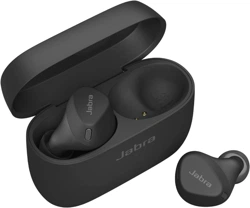
Jabra Elite 7 Active features
• Ultimate workout fit with ShakeGrip™
• IP57-rated sweatproof protection
• Rich, powerful, personalized sound
• Adjustable Active Noise Cancellation (ANC) &
HearThrough
• Up to 9 hours of battery (ANC on), 35 with the
case
6
ENGLISH
2. Jabra Elite 7 Active
overview
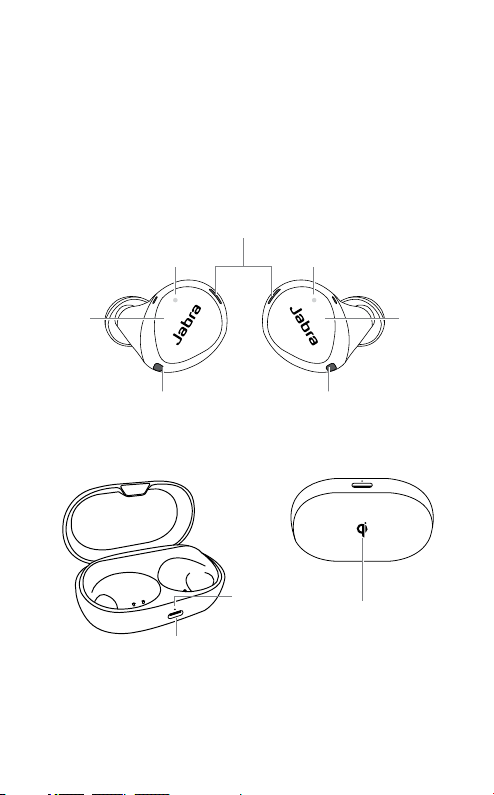
Jabra Elite 7 Active
Microphones
Microphones Microphones
LED LED
Left
button
Right
button
Wireless charging case
Charging port
LED
Qi-certified
wireless
charging
LEFT EARBUD RIGHT EARBUD
7
ENGLISH
2.1 Included accessories
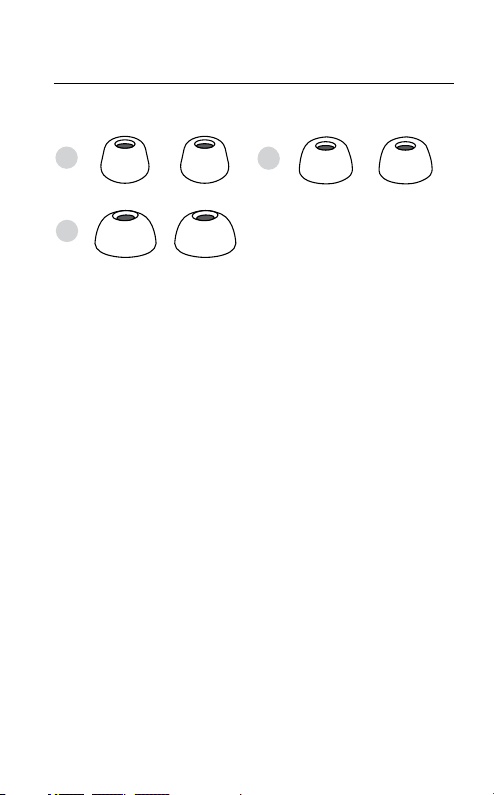
EarGels
L
S
M
pre-mounted on
the earbuds
8
ENGLISH
3. How to wear
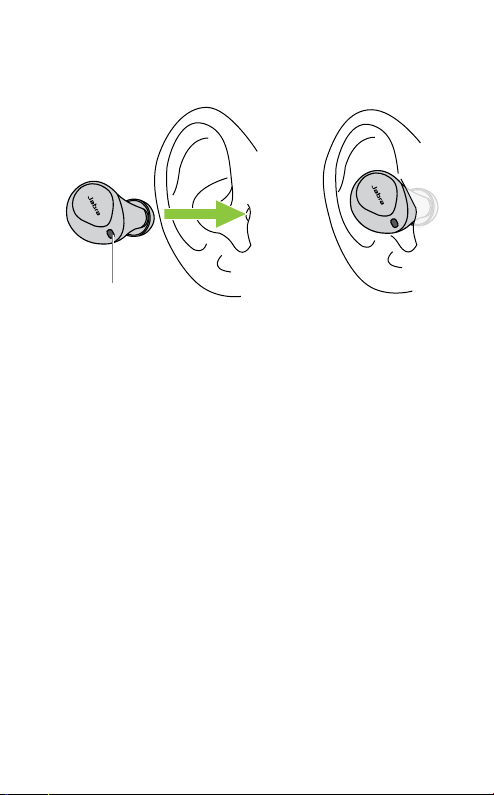
Microphone
Insert each earbud into your ear and ensure the
microphones are pointed towards your mouth.
9
ENGLISH
3.1 Changing EarGels
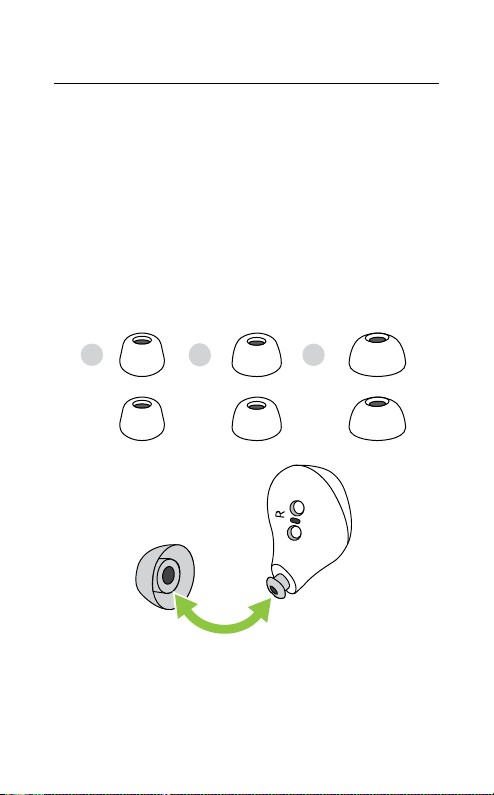
For the optimal audio and ANC experience, it is
recommended to take the MyFit test in the
Sound+ app to ensure you have the best fit. If
you don’t have a good fit, try a different eargel
size. The fit should feel light and comfortable
and you may need a different size EarGel for
each ear. The medium EarGels are pre-mounted
on the earbuds.
M
L
S
10
ENGLISH
4. How to charge
Get up to 9 hours on a single charge with ANC
on, with a total charge of up to 35 hours with
the charging case. If you use the earbuds
without ANC and HearThrough, you’ll get even
more battery, with up to 11 hours in the
earbuds and a total of 42 hours with the
charging case.
4.1 Charging the earbuds
Place the earbuds in the charging case and
close the lid. It takes up to 2.5 hours to fully
recharge the earbuds.
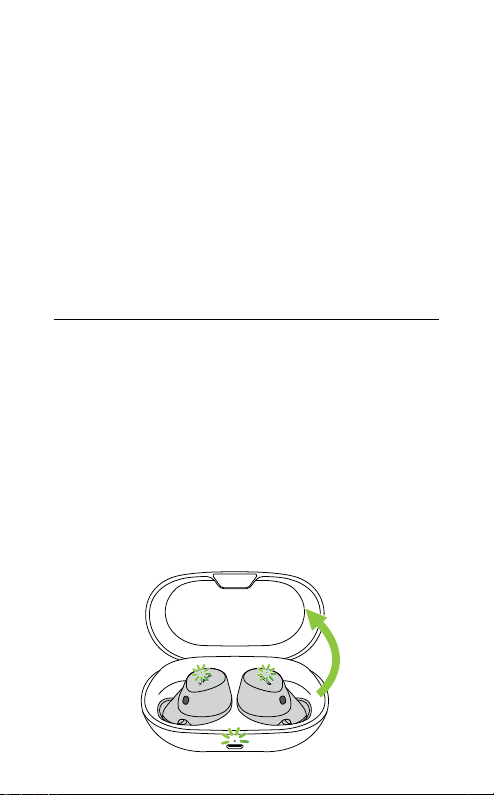
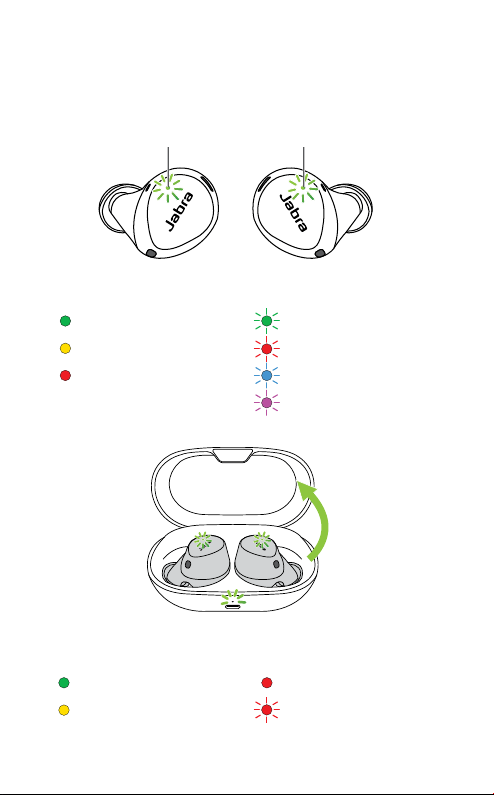
When the charging case is opened, the LEDs on
the earbuds will light up red, yellow or green to
indicate the battery status of the earbuds. The
LED on the front of the charging case indicates
the battery status of the charging case.

11
ENGLISH
4.2 Fast charge the earbuds
When the earbuds are at low battery, placing
them in the charging case for 5 minutes will fast
charge the earbuds and give up to 1.2 hours of
battery. Fast charging the earbuds requires that
the charging case has a minimum of 30% battery.
You can see the current battery status of the
earbuds and charging case using the Jabra
Sound+ app.
12
ENGLISH
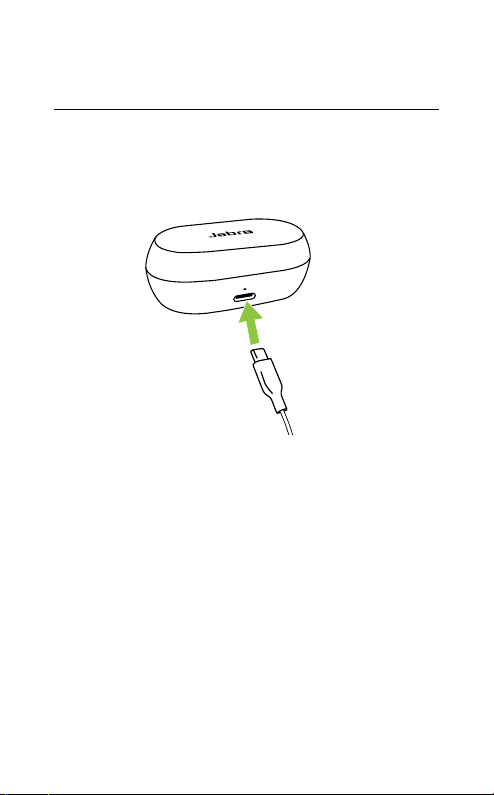
4.3 Charging the charging case
using USB
It takes up to 2 hours and 30 minutes to fully
charge the earbuds and the charging case
using a USB-C charging cable.
USB-C
The charging case uses the standard USB
voltage of 5V +- 0.25V. It is not recommended
to charge the earbuds using a power supply
with a higher voltage.
13
ENGLISH
4.4 Charging the charging case using
the Jabra wireless charging pad
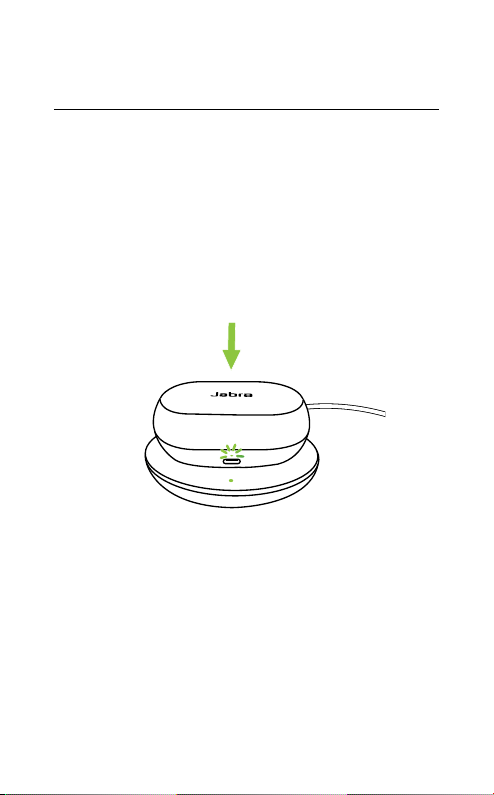
The charging case is Qi-certified. Place the
charging case in the center of the Jabra wireless
charging pad. The LED on the charging case
will flash to indicate the charging case is placed
correctly. It takes up to 2 hours and 30 minutes
to fully charge the earbuds and the charging
case.
PLACE IN CENTER
14
ENGLISH
5. What the LEDs mean
High battery
Medium battery
Low battery
Critically low battery
(earbuds not charging)
EARBUD STATUS
BATTERY STATUS WHEN OPENING CHARGING CASE
High battery
Medium battery
Low battery
Power on
Power off
Pairing
Resetting
LED LED
15
ENGLISH
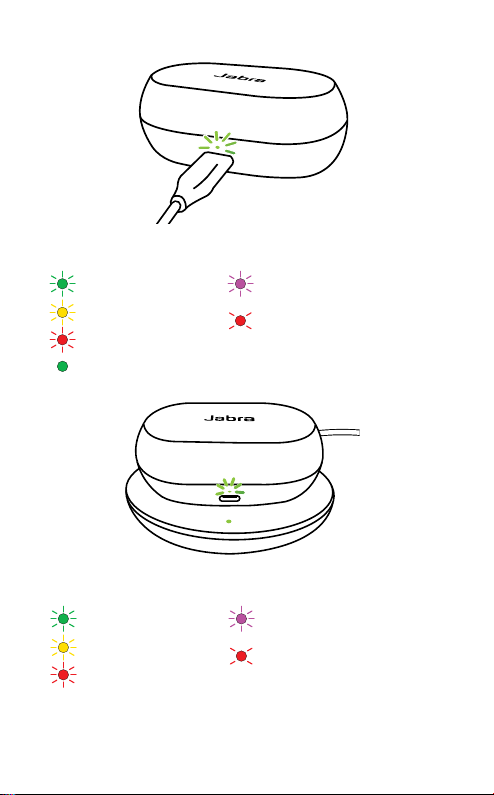
High battery
Medium battery
Low battery
Fully charged
High battery
Medium battery
Low battery
Firmware updating
Firmware update error
(see Section 7.16)
Firmware updating
Firmware update error
(see Section 7.16)
CHARGING CASE STATUS WITH USB CABLE
CHARGING CASE STATUS WITH WIRELESS CHARGING PAD
Note: When fully charged, the LEDs on the charging case
and wireless charging pad will turn off.
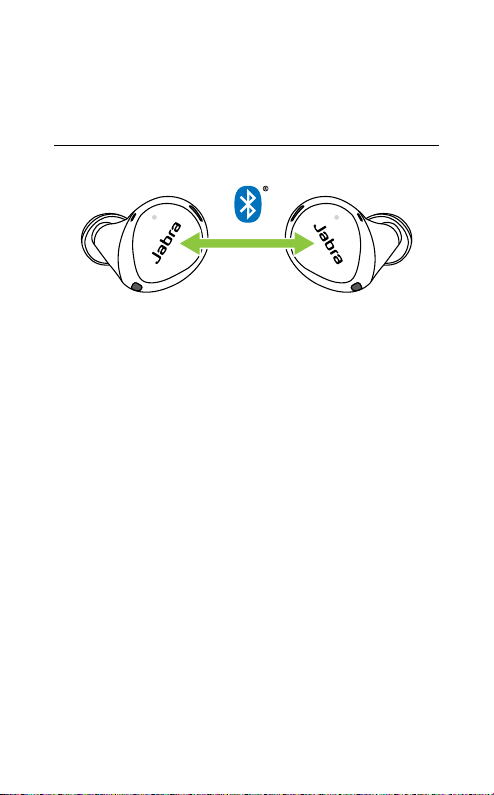
16
ENGLISH
6. How to pair
6.1 Pairing with a mobile device
3 Sec
1. Power on the earbuds by removing them
from the charging case. Alternatively, press
the Left and Right buttons simultaneously to
power the earbuds on.
2. Press and hold (3 sec) the Left and Right
buttons simultaneously until the earbud
LEDs flash blue. The earbuds will now be
ready to pair to your phone.
3. Wear the earbuds and follow the voice-
guided pairing instructions to pair to your
mobile device.
17
ENGLISH
7. How to use
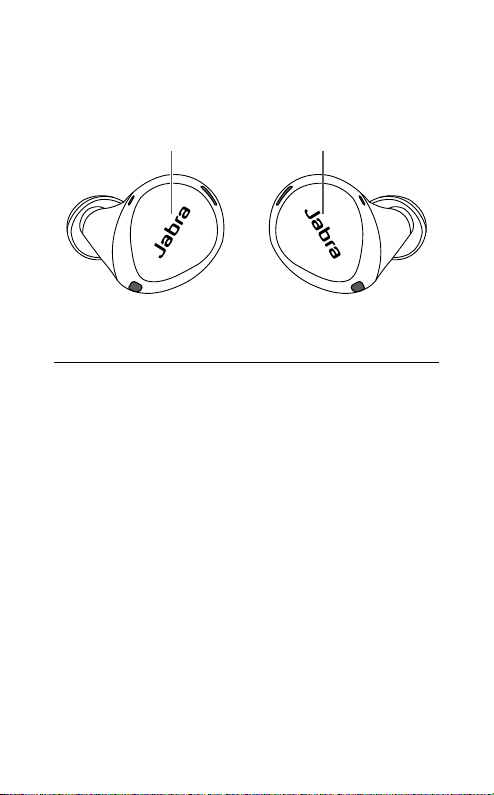
Left button
Right button
7.1 Power the earbuds o/on
To power off the earbuds, place them in the
charging case.
To power on the earbuds, remove them from
the charging case.
Alternatively, the earbuds can be manually
powered off by pressing the Left and Right
buttons on the earbuds simultaneously. To
power on, press and hold (1 sec) the Left or
Right buttons to power on each earbud
individually.
18
ENGLISH
7. 2 Music controls
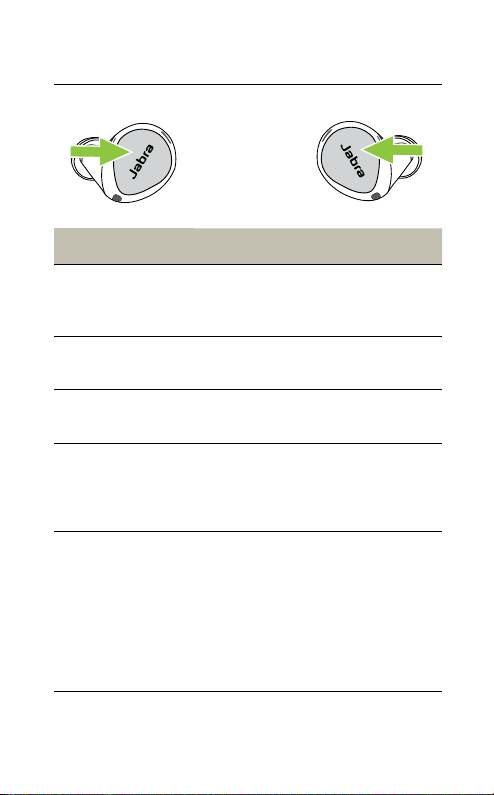
Left earbud Function Right earbud
Play/pause
music
Press the Right
button when not
on a call
Volume up
Press and hold
the Right button
Press and hold the
Left button
Volume down
Next track
Double-press
the Right button
when listening
to music
Restart track
or previous
track
Triple-press the
Right button
when listening
to music
Repeat to skip
to the previous
track
All button functions can be reassigned using
MyControls in the Jabra Sound+ app.
19
ENGLISH
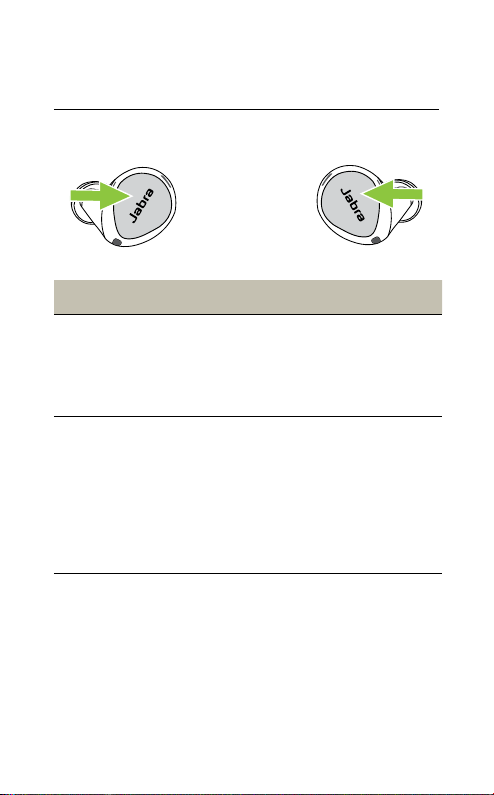
7. 3 Call controls
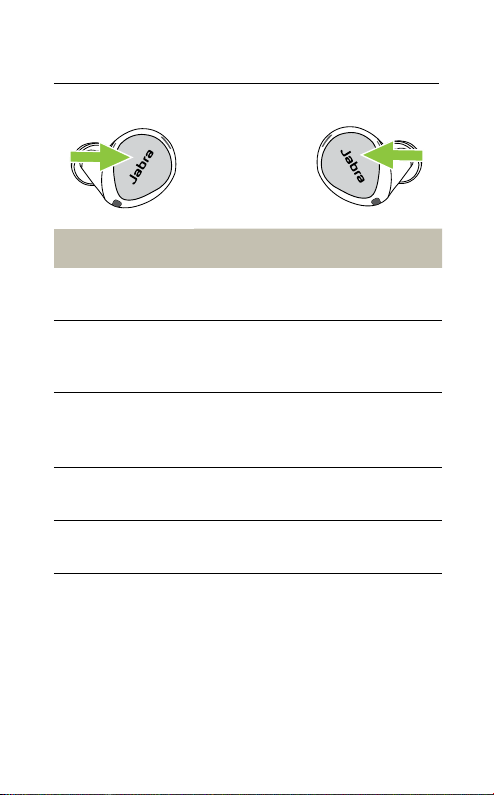
Left earbud Function Right earbud
Press the Left or
Right button
Answer call
Press the Left or
Right button
Double-press
the Left or Right
button
End/Reject call
Double-press
the Left or Right
button
Press the Left or
Right button
Mute/unmute
microphone
Press the Left or
Right button
Volume up
Press and hold
the Right button
Press and hold the
Left button
Volume down
All button functions can be reassigned using
MyControls in the Jabra Sound+ app.
20
ENGLISH
7.4 ANC, HearThrough and Voice
assistant controls
Left earbud Function Right earbud
Press the Left
button when not
on a call
Cycle between
HearThrough,
ANC* and O
Double-press the
Left button when
not on a call
Activate Voice
assistant
(Siri, Google
Assistant,
Amazon
Alexa)
All button functions can be reassigned using
MyControls in the Jabra Sound+ app.
*ANC must first be configured using the Jabra Sound+ app.
21
ENGLISH
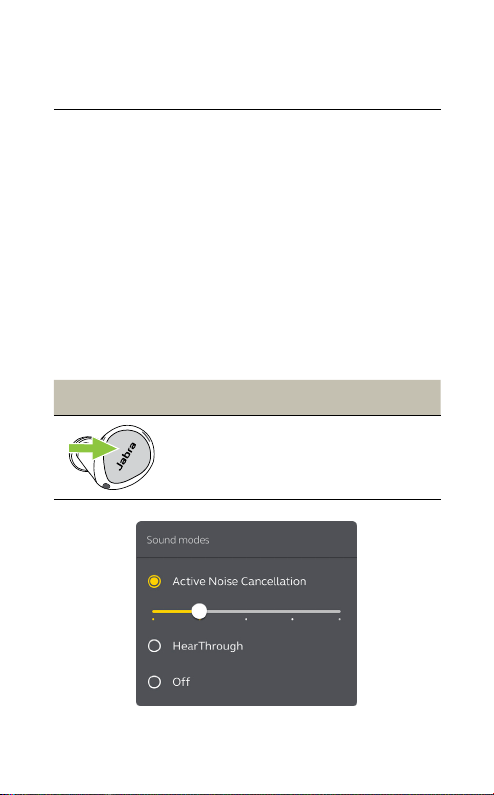
7.5 Adjustable Noise Cancellation
(ANC)
Active Noise Cancellation (ANC) counters noise
by detecting and analyzing the pattern of
incoming sound and then generating an anti-
noise signal to cancel noise out. As a result, you
experience a reduced level of surrounding
noise during music.
Adjustable ANC must first be configured to
your specific hearing profile using the Jabra
Sound+ app before it can be used.
Left button ANC
Cycle between
HearThrough,
ANC and O
Press the Left
button when not on
a call
22
ENGLISH
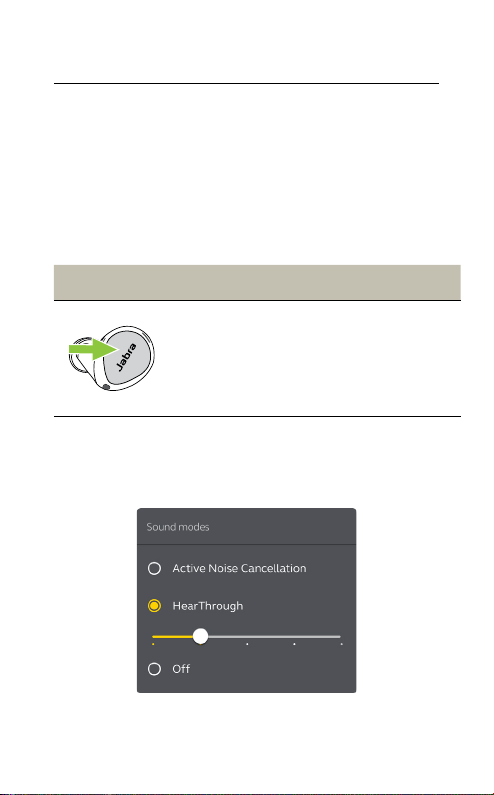
7.6 HearThrough
HearThrough lets you pay attention to your
surroundings and engage in conversation,
when not on a call, without needing to remove
the earbuds. The microphones pick up
surrounding sounds and transmit them to the
speakers.
Left button HearThrough
Cycle between
HearThrough,
ANC* and O
Press the Left button
when not on a call
HearThrough can be adjusted using the Jabra
Sound+ app.
*ANC must first be configured using the Jabra Sound+ app.
23
ENGLISH
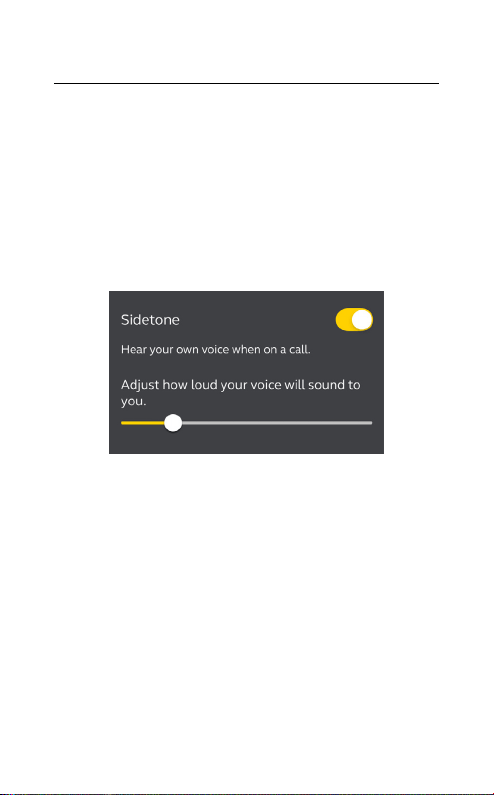
7.7 Sidetone
Sidetone enables you to hear your own voice
when you are on a call. The benefit of Sidetone
is that it enables you to determine how loud
you are speaking.
Sidetone is on by default during calls and can
be turned on/off using the Jabra Sound+ app.
By default, Sidetone on/off cannot be
controlled using the earbuds. However, it can
be added to the earbuds using MyControls in
the Jabra Sound+ app.
24
ENGLISH
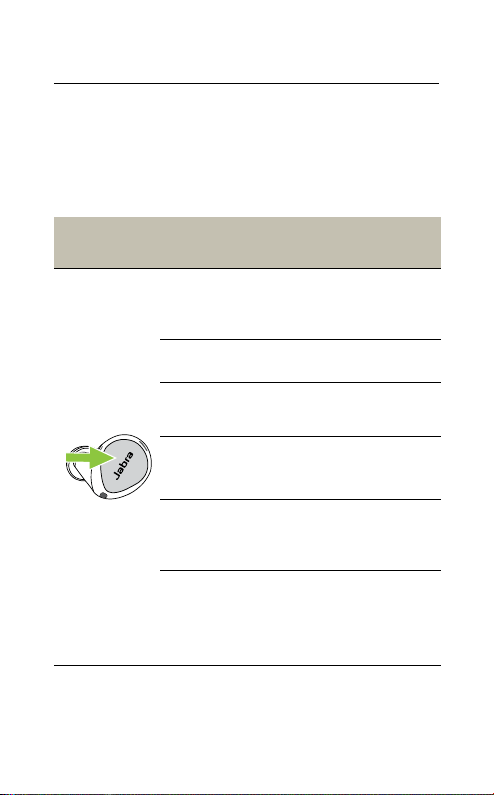
7.8 Mono earbud use
The right or left earbud can be used individually
for music playback or for calls. To activate
mono earbud mode, place the unused earbud
into the charging case.
Left button Left earbud only
Cycle between
HearThrough,
ANC* and O
Press the Left button
when listening to
music
Answer call Press the Left button
End/Reject
call
Double-press the
Left button
Mute/unmute
microphone
Press the Left button
when on a call
Activate Voice
assistant
Double-press the Left
button when not on
a call
Adjust volume
Use the volume
controls on the
connected mobile
device
*ANC must first be configured using the Jabra Sound+ app.
25
ENGLISH
Right button Right earbud only
Play/pause
music
Press the Right button
when listening to
music
Answer call Press the Right button
End/Reject
call
Double-press the
Right button
Mute/unmute
microphone
Press the Right button
when on a call
Next track
Double-press the
Right button when
listening to music
Restart track
or previous
track
Triple-press the Right
button when listening
to music
Repeat to skip to the
previous track
Adjust volume
Use the volume
controls on the
connected mobile
device
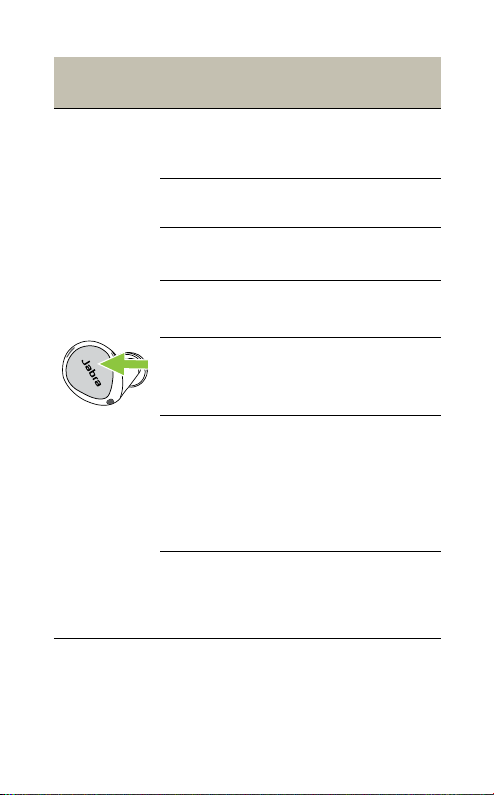
The left and right earbuds will automatically
relink when both are placed in your ears.
26
ENGLISH
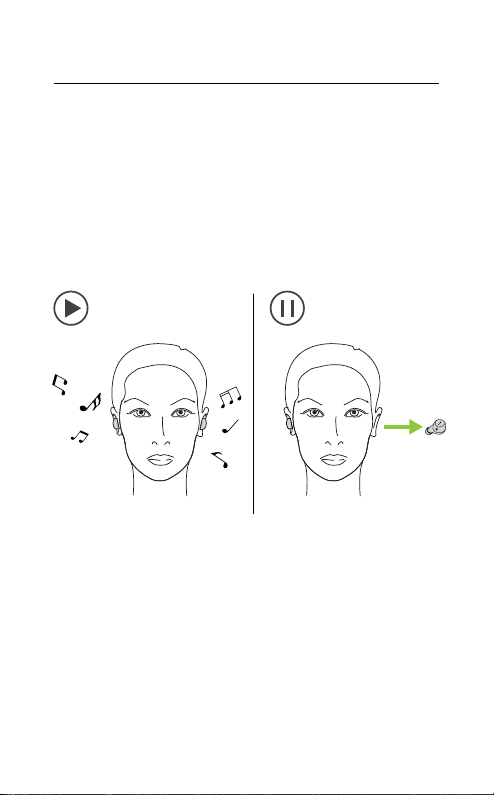
7.9 Auto-pause music and calls
When one of the earbuds is removed from your
ear, music will automatically pause.
To resume the music, return the earbud to your
ear within 60 seconds. After 60 seconds, the
music can be manually resumed by pressing
the Right button.
27
ENGLISH
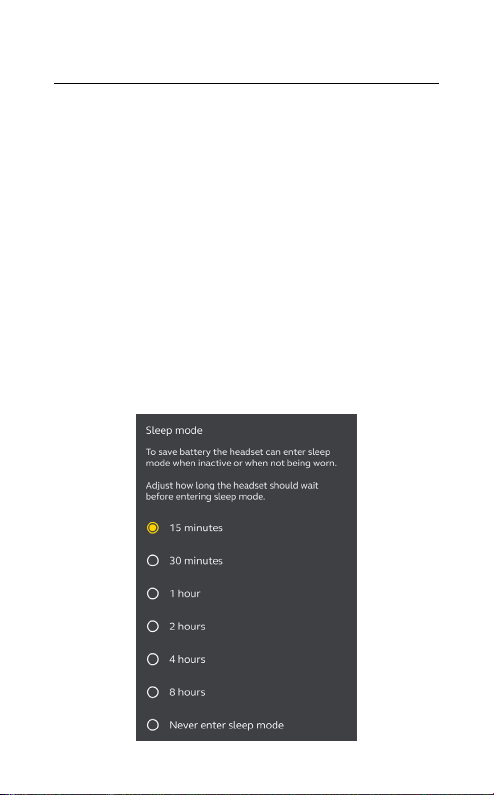
7.10 Sleep mode
To conserve battery, the earbuds will
automatically power off when they are out of
range of your mobile device for 15 minutes and
are not in the charging case, or when they have
been inactive for 30 minutes.
To exit sleep mode, press and hold (1 sec) the
button on each earbud. Alternatively, place the
earbuds in the charging case and then remove
them from the charging case.
Sleep mode can be configured in the Jabra
Sound+ app.

28
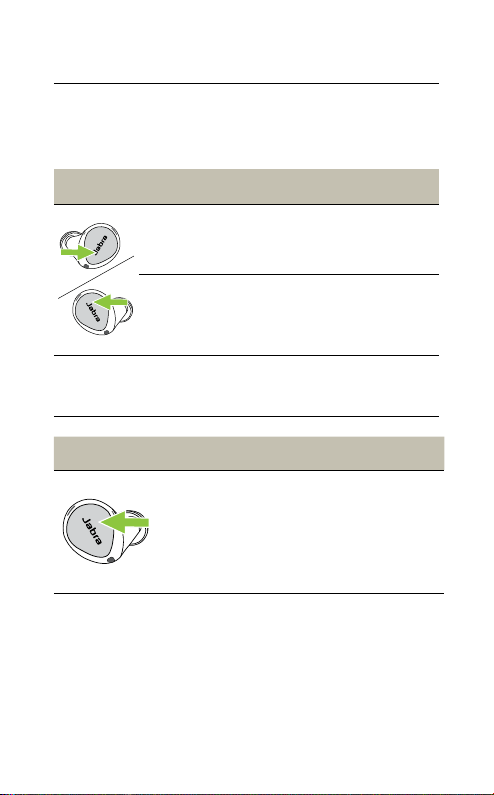
ENGLISH
7.11 MyControls
MyControls is a feature in the Jabra Sound+
app that enables you to reassign any function
to each of the earbud buttons, offering you the
flexibility to configure the earbuds precisely to
your personal preference.
By default, the functions listed below cannot
be controlled using the earbuds, however these
functions can be added to the earbuds using
MyControls in the Jabra Sound+ app.
• Sidetone on/off
• Hold current call and answer incoming call
• Switch between held call and current call
29
ENGLISH
7.12 Multiple call handling
The earbuds can accept and handle multiple
calls at the same time.
Multiple call handling
End current call and
answer incoming call
Press the
Left or Right
button
Reject incoming call,
when on a call
Double-press
the Left or Right
button
7.13 Voice assistant
Right button Voice assistant
Activate
Siri, Google
Assistant,
Amazon
Alexa (device
dependent)
Double-press the Left
button when not on
a call
Voice assistant settings can be configured
using the Jabra Sound+ app.

30
ENGLISH
7.14 Voice guidance and languages
Voice guidance can be turned on/off and the
language can be changed using the Jabra
Sound+ app.
The following languages are available: English,
French, German, Japanese, Mandarin Chinese,
Korean.
7.15 Update firmware
The Jabra Elite 7 Active can be updated to the
latest firmware version using the Jabra Sound+
app.
If notifications are enabled in the Jabra Sound+
app, you will receive an automatic notification
when a firmware update is available.
If an error occurs during the firmware update,
the LED on the charging case will flash red. To
complete the update, connect the charging
case to a power supply, remove the earbuds
from the charging case and then place the
earbuds back in the charging case and close
the lid. The firmware update will restart.

31
ENGLISH
7.16 Reset the earbuds
Resetting the earbuds clears the list of paired
devices and resets all settings.
1. Place both earbuds in the charging case.
2. Press and hold (10 sec) the Left and Right
buttons on the earbuds simultaneously until
the LEDs on the earbuds flash magenta.
3. Close the lid of the charging case for 5 seconds
to complete the reset.
The earbuds will need to be re-paired to your
mobile device. Remember to delete/forget the
pairing in the Bluetooth menu on your mobile
device.
32
ENGLISH
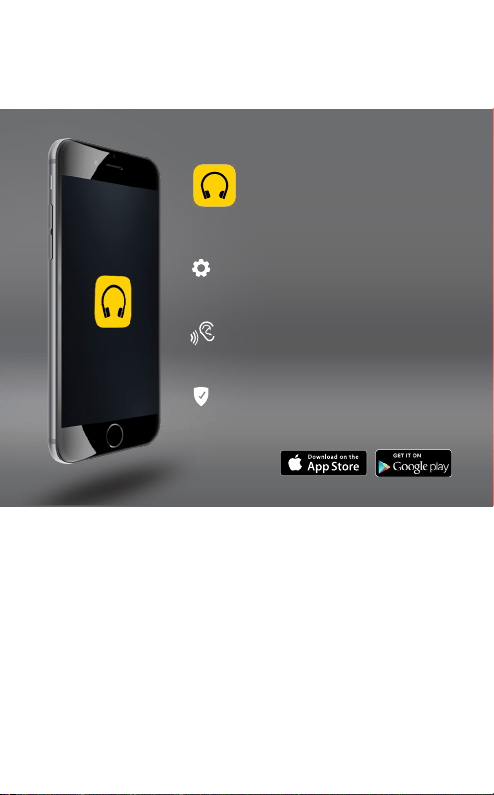
8. Jabra Sound+ app
Jabra Sound+ app
Personalize your music
with MySound
Customize ANC, HearThrough
and MyControls
Register your
2-year warranty

33
ENGLISH
9. Support
9.1 FAQ
View the FAQs on Jabra.com/help/elite7
9.2 How to care for your earbuds
• Always store the earbuds in the charging case
and safely protected.
• To prevent the depletion of the battery
lifetime or capacity, avoid storing the earbuds
in hot or cold environments, such as a closed
car in summer, or in winter conditions.
• It is recommended to store the earbuds
between -20°C and 45°C (-4°F and 113°F).
• Do not store the earbuds for extended periods
of time without recharging them (max. three
months).
• If the earbuds or the charging case become
dirty, it is recommended to clean them with a
soft, lint-free cloth that has been dampened
with clean water.
• The charging case uses the standard USB
voltage of 5v +- 0.25v. It is not recommended
to charge the earbuds using a power supply
with a higher voltage.
34
ENGLISH
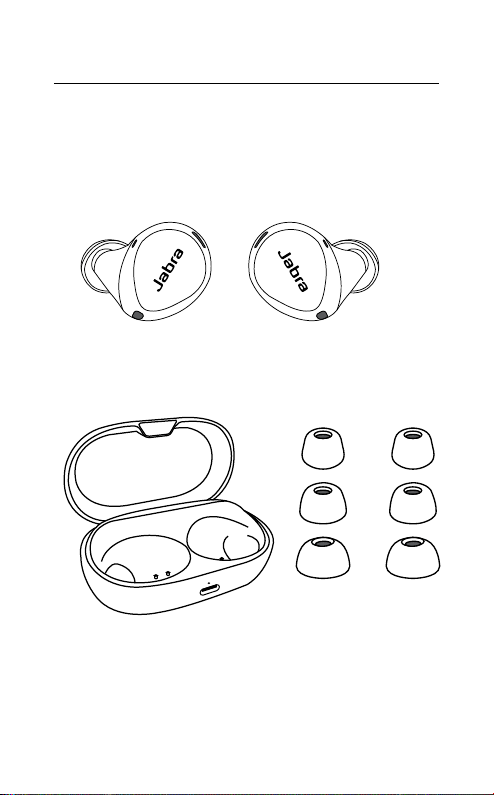
9.3 Replacement accessories
Replacement or additional accessories can be
purchased online at jabra.com/accessories.
Left and right earbud set
Charging case EarGels
M
S
L
35
ENGLISH
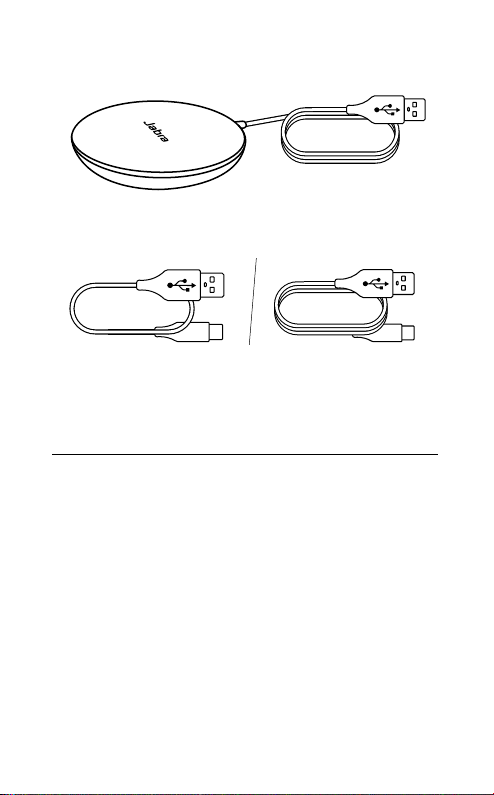
Jabra wireless charging pad
USB charging cables
0.3 m 1.2 m
9.4 Using replacement earbuds
1. Place the replacement earbuds into the
charging case and close the lid.
2. Open the charging case lid and remove the
earbuds.
3. Wear the earbuds and follow the voice
instructions to pair to your mobile device.
4. Update the earbud firmware using the Jabra
Sound+ app.

36
ENGLISH
9.5 Using a replacement charging case
Before using a replacement charging case for
the first time, it will need to be synced with
your current earbuds and charged for 1 hour.
To begin syncing, place your current earbuds
inside the replacement charging case and close
the lid for 10 seconds. If the LED on the charging
case flashes magenta this indicates that the
firmware is being updated. Please wait until the
LED stops flashing magenta before opening the
charging case.