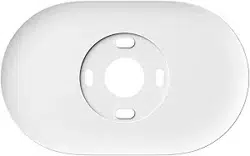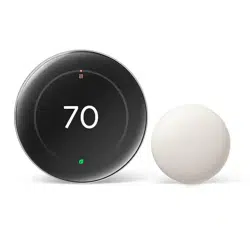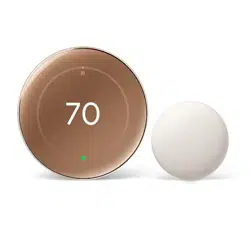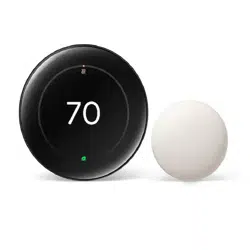
BHP-6000 Heat Pump Thermostat
User Guide
WIFI TYPE
Welcome
Thank you for your purchase.
Your new thermostat will provide uniform and comfortable temperature control throughout every room in
your peoperty. We bring together technology, crasmanship and the highest quality materials to provide
you with a safe, reliable product combined with sleek, contemporary design. Please read this installaon/
programming manual for comprehensive instrucons on installing and operang your thermostat. Please
also ensure a suitably qualified person installs your thermostat and complies with all local regulaons.
In the box you will find
Thermostat
Screws
User Guide
1pc
2pc
1pc
QC Passed
1pc
SYSTEM TYPE
FEATURES
On Appearance
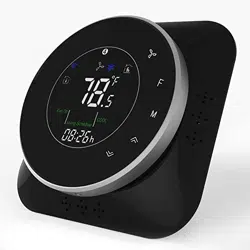
1. Negave black sceen will bring you to a secret world.
2. 51mm round display area helps to protect your eyes.
3. Touch buons to make simple operaon.
4. Amazing Silver Frame opens your modern life.
5. The visiable thickness above the wall is only 11mm.
6. Rotaon to connect gives you easy installaon.
7. Wall mounted or suitable for the installaon of Europe, China, Japan, USA and Italy.
8. White, black or brushless stainless steel housing creates your colorful life.
On Funconality
1. Powerful funcons are available such as WIFI etc,.
2. 0.5℃ accuracy keeps temperature within the level you set.
3. ℃&℉is changeable.(On thermostat)
4. 5+1+1 four periods programmable.
5. Temporary programmable.
6. Holiday mode.
7. All seng languages sunchronize your me zone, address and language.
8. No limit to add thermostats in App.
9. Support Smart Scene.
10. Support to make group and two stage groups.
11. Support device sharing.
CAUTION
OPERATION
4. Advanced Opons
Press and hold unl 5 seconds in order to reach system funcons. Then press to change the
different items.
WIRING
Electrical Shock or Equipment Damage Hazard. Can shock individuals or short equipment circuitry.
Disconnect power supply before installaon.
2. Funcon and Programmable
Press and hold F to set the Permanent Hold, Using Schedule, Temporary Hold. These funcons will
appear on the screen.
Permanent Hold - Manual. In this mode, press to set temperature.
Temporary Hold. During Using Schedule or in this mode, press to set the temporary temp.
It will be invalid ll the start me of the next scheduled period.
Using Schedule. 5+1+1 four periods programmable.
Holiday Mode. Changes temperature seng for a designated number of days.
Touch the icon to set your minute.
Then press F
, the hour of me will flash; Touch the icon to set your hour.
Then press F, the week of me will flash; Touch the icon to set your week.
How to adjust your schedule?
Aer the above me seng, touch the icon F
appear(1 2 3 4 5 will show along the top of the screen).
Use the and arrows to adjust the me for the 1st period(Get Up). Press the icon F
use the
and arrows to set the temp. for the 1st period. Repeat this process for periods 2-4.
1. Warm air, hot water, high efficiency furnaces, heat pumps, steam, gravity.
2. Heat only--including power to open and close zone valves, and normally open zone valves.
3. Heat only with fan.
4. Cool only.
DIMENSION
》
》
》
》
1. Seng the Fan
Press to select the Fan Auto, Fan ON. Auto indicates fan is running its schedule; On indicates
fan schedule is set to On.
3. Selecng System Mode
Press M to select the mode AUTO,COOL,HEAT,OFF,EMER.
HEAT — Thermostat controls the heang system.
OFF — Both heang and cooling systems are off.
COOL — Thermostat controls the cooling system.
AUTO — Thermostat automacally changes between heang and cooling operaon, depending on
indoor temperature.
EMER — Emergency heat cycles to maintain temperature.
》
》
》
》
》
》
》
》
Get Up — Period when you awaken and want your home at a comfortable temperature.
Go Out — Period when you are away from home and want an energy-saving temperature.
Go Home — Period when you return home and want your home back to a comfortable temperature.
Sleep — Period when you are asleep and want an energy saving temperature.
Ø90.0mm
110.0mm
110.0mm
14.0mm
25.5mm
60.0mm
83.0mm
76.0mm
》
》
How to set your me?
Press and hold F for 5 sec. ll the min of me will flash;
Schedule Period Time
Setpoints
Heat Cool
Get Up 6:00 AM
72
℉
(22
℃
)
72
℉
(22
℃
)
Go Out 8:00 AM
72
℉
(22
℃
)
72
℉
(22
℃
)
Go Home 11:30 AM
72℉
(22℃)
72℉
(22℃)
Sleep 01:30 AM
72℉
(22℃)
72℉
(22℃)
All wiring must comply with local electrical codes and ordinances. This thermostat works with 24V
heang and cooling systems. There Y1, W1 share one terminal, Y2, W2 share one terminal.
How to adjust your holiday?
Press F
ll the leers Hold Unl displays and days flash on the screen then click
and arrows to set the days of holiday. When the flashing of days stops,
you can press and arrows to set the temp.. Holiday mode will be valid
immediately.
》
》
》
》
Power Supply: AC/DC24V
±10%
Current Load: 1A (Inducve) 3A (Resistance)
Sensor: NTC3950, 10K
Set Temp. Range: 42-122℉(5~50℃)
Accuracy: ±1℉
Display Temp. Range: 41~210℉(5~99℃)
Ambient Temp: 32~113℉(0~45℃)
Ambient Humidity: 5~95%RH(Non Condensing)
Storage Temp: 23~113℉ (-5~45℃)
User
Setup
Number
Function Setting and options Default
1
Temperature
calibration
-7 to -1
℃
(-13 to -2
℉
)
-5
2
Temp. Difference for
the change of system in
auto mode
0 to 5
℃
(0 to -9
℉
)
03
3
℉ or ℃
0:
℃
setting
1:
℉
setting
1
4
Filter change reminder 0--5 (month) 03
5
Min. Set Temp.
5 to 15
℃
(41 to 59
℉
)
05
6
Max. Set Temp.
15 to 45
℃
(59 to 113
℉
)
45
7
12/24 hours
0: 12h 1: 24h
1
8
O/B
0—changeover valve—O/B
terminal is energized in
cooling (factory setting)
1—changeover valve—O/B
terminal is energized in
heating
1
9
Date (year)
Select number of current
calendar year (1-99)
19
A
Date (month)
Select number of current
calendar month (1-12)
01
B
Date (day)
Select number of current
calendar date (1-31)
1
C
Deadband Temp.
1 to 5
℃
(2 to 9
℉
)
1
D
Backlight adjustment
3 -- 99 (Brightness)
10
E
Delay setting for output
1--5 minute
01
F
Fan output ( Heat)
0
:
Without Fan 1: With Fan
01
TECHNICAL DATA
Timing Error: <1%
Power Consumpon: <1.5W
Shell Material: PC+ABS(Fireproof)
Available Installaon 1: Wall mounted
Available Installaon 2: Hole Distance of 62±5mm (Europe, China and Japan)
Available Installaon 3: Hole Distance of 86±3mm (USA and Italy etc,.)
Wire Terminals: Wire 2×1.5mm2 or 1×2.5mm2
Protecon Class: IP20
Buons: Capacve Touch Buons
BEFORE WIRING AND INSTALLING
1. Read these instrucons carefully. Failure to follow them could damage the product or cause a
hazardous condion.
2. Check the rathings given in the instrucons and on the product to make sure the product is
suitable for your applicaon.
3. Installer must be a trained, experienced service technician.
4. Aer installaon is complete, check out product operaon as provided in these instrucons.
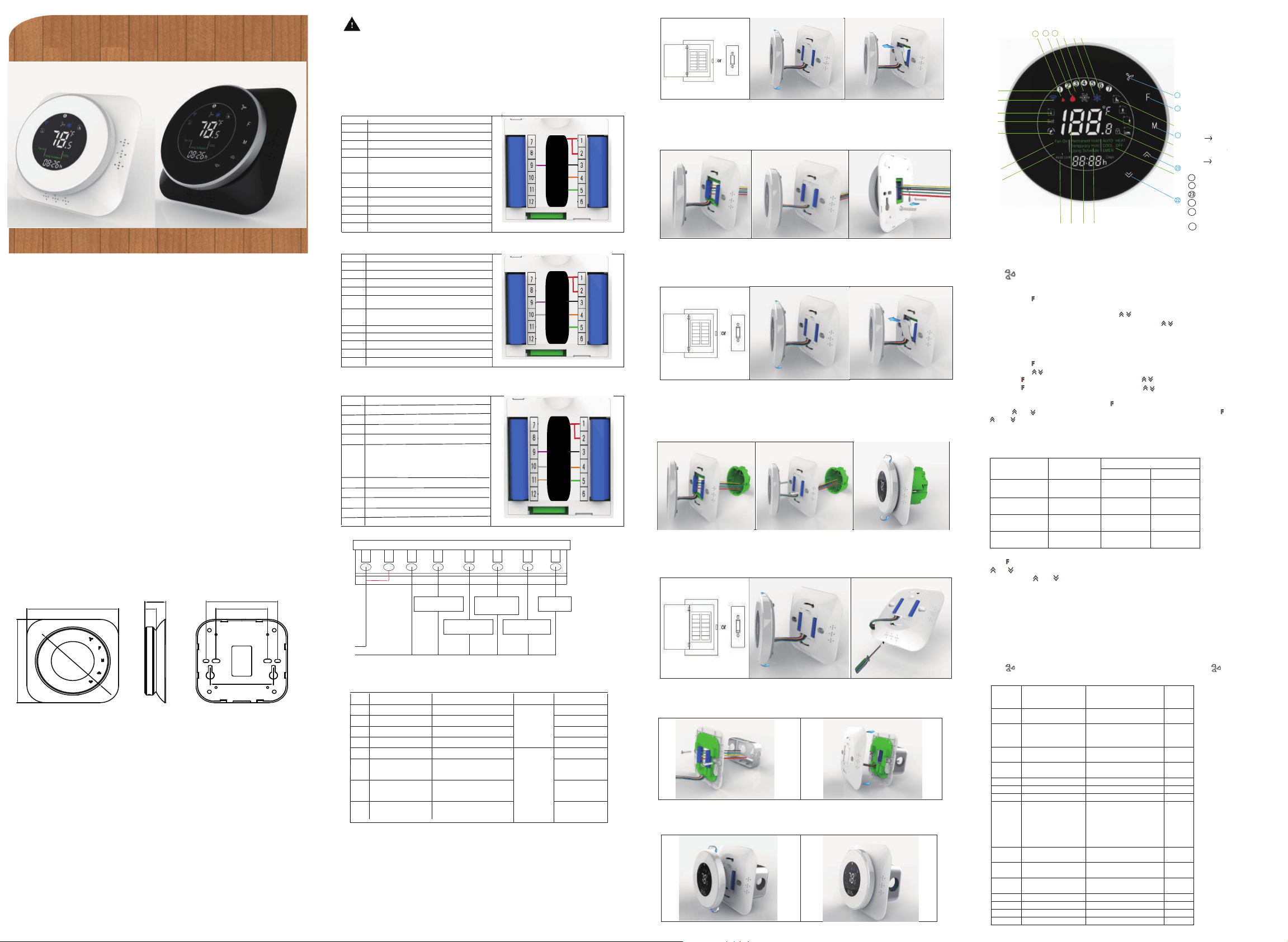
HOME SCREEN QUICK REFERENCE
①Monday to Sunday
②Wifi
③Room Temp
④Set Temp
⑤Energysaving(Keycard Out)
⑥Fan
⑦Wait ll the output works
⑧Holiday Mode
⑨Room Temp. Display
⑩Time Display
⑪
⑫System Mode
⑬Lock
⑭Fahrenheit/Celsius Degree
⑮Periods
⑯ +1 2nd Stage Cool
⑰1st Stage Cool
⑱
⑲ +1 2nd Stage Heat
①
②
③
④
⑤
⑥
⑦
⑧
⑨ ⑩ ⑪
⑫
⑭
Down Buon
Permanent Hold/Temporary
Hold/Using Schedule/Holiday
⑳
1st Stage Heat
21
22
⑬
⑮
⑯⑰⑱
24
Wait
19
20
25
Auto/Cool/Heat/Off
24
25
AUX Heat
21
26
Fan On/Fan Auto
26
Up Buon
Fan
Funcons
Label:
Function:
Y1 Compressor Relay
Y2 Invalid
G Fan Relay
O/B Heat Pump Changeover Valve
R
Heating System Power Wire
Joined with RC by Jumper(one transformer)
W1
W2 Invalid
AUX
Invalid
Invalid
Label: Function:
Y1 Compressor Relay
Y2 Compressor Relay
G Fan Relay
O/B Heat Pump Changeover Valve
R
Heating System Power Wire
Joined with RC by Jumper(one transformer)
W1
W2
AUX
Invalid
NO Invalid
-R
-RC
-C
-O/B
-G
-NO
NO-
NO-
Y1/W1-
Y2/W2-
AUX-
NO-
Invalid
Invalid
Invalid
-R
-RC
-C
-O/B
-G
-NO
NO-
NO-
Y1/W1-
Y2/W2-
AUX-
NO-
Label: Function:
Y1 Compressor Relay
Y2 Compressor Relay
G Fan Relay
O/B Heat Pump Changeover Valve
R
Heating System Power Wire
Joined with RC by Jumper(one transformer)
W1
W2
AUX Auxiliary Heat Relay
NO
Invalid
Invalid
Invalid
-R
-RC
-C
-O/B
-G
-NO
NO-
NO-
Y1/W1-
Y2/W2-
AUX-
NO-
(Stage 1)
For Example:
1Stage Heat pump
2Stage Heat pump
2Stage Heat pump
with Aux Heat
(Stage 1)
(Stage 2)
(Stage 1)
(Stage 2)
RC
C
24VAC Common Wire
RC
C
24VAC Common Wire
RC
C
24VAC Common Wire
Fig 7
Fig 16
2. For the distance 62±5mm (Europe, China and Japan.)
Step 1. Keep the electricity off. See Fig 7.
Step 2. Remove the mounng plate by rotang the LCD part. See Fig 8.
Step 3. Open the insulang cover. See Fig 9.
Step 4. Connect power supply and load into the appropriate terminals. (see”Wiring your thermostat” for
details and Fig 10).
Step 5. Close the insulang cover and fix the mounng plate (the two holes inside) into the wall with screws
in the box. See Fig 11.
Step 6. Fasten body of thermostat and the mounng plate by rotang. See Fig 12.
Step 4. Connect power supply and load into the appropriate terminals.(see”Wiring your thermostat”for
details and Fig 16).
Step 5. Fix the mounng plate(the two holes outside) into the wall with screws in the box. See Fig 17.
Step 6. Connect the front plate and mounng plate. See Fig 18.
Step 7. Fasten body of thermostat and the whole mounng plate by rotang. See Fig 19.
Fig 17
Fig 18
Fig 19
Fig 8 Fig 9
3. For the distance 86±3mm (USA and Italy etc,.)
Step 1. Keep the electricity off. See Fig 13.
Step 2. Remove the mounng plate by rotang the LCD part. See Fig 14.
Step 3. Open the mounng plate by a slot screwdriver. See Fig 15.
Fig 13
Fig 14
Fig 15
Fig 12
Fig 10
Fig 11
NO
Cooling System Power Wire
Joined with R by Jumper(one transformer)
Cooling System Power Wire
Joined with R by Jumper(one transformer)
Cooling System Power Wire
Joined with R by Jumper(one transformer)
No. Type
Terminals Wiring Compressor delay
0.0 1H/1C (conventional)
R. G. W1. Y1 Diagram
conventional
systems
none
1.0 1H/2C (conventional)
R. G. W1. Y1. Y2 none
2.0 2H/2C (conventional)
R. G. W1. Y1. W2. Y2 none
3.0 2H/1C (conventional)
R. G. W1. Y1. W2 none
4.0 1H/1C (heat pump)
R. G. O/B. Y1(W1).
Diagram heat
pump systems
1 min (default)
5.0
2H/1C (heat pump)
R. G. O/B. Y1(W1).
Y2(W2)
1 min (default)
6.0
2H/2C (heat pump)
R. G. O/B. Y1(W1).
Y2(W2)
1 min (default)
7.0
3H
/2C (heat pump)
R. G. O/B. Y1(W1). AUX.
Y2(W2)
1 min (default)
RC R C Y1(W1) Y2(W2) AUX O/B G
Fan
output
Changeover
Vavle
Auxiliary
Heat
output
Compressor
2 output
Compressor
1 output
AC24V
heat pump systems
Your thermostat is suitable for three different kinds of installaon.
1. For wall mounted.
Step 1. Keep the electricity off. See Fig 1.
Step 2. Remove the mounng plate by rotang the LCD part. See Fig 2.
Step 3. Open the insulang cover. See Fig 3.
INSTALLATION
Step 4. Connect power supply and load into the appropriate terminals. (see”Wiring your thermostat” for
details and Fig 4).
Step 5. Close the insulang cover and fasten body of thermostat and the mounng plate by rotang. See Fig 5.
Step 6. Measure the posion you want to place and lock the two screws in the box into the wall. Fix the head
of screws into the slot of the back of thermostat. See Fig 6.
Fig 4
Fig 5 Fig 6
Fig 1 Fig 2
Fig 3
BHP-6000 Heat Pump Thermostat
User Guide
WIFI TYPE
Welcome
Thank you for your purchase.
Your new thermostat will provide uniform and comfortable temperature control throughout every room in
your peoperty. We bring together technology, crasmanship and the highest quality materials to provide
you with a safe, reliable product combined with sleek, contemporary design. Please read this installaon/
programming manual for comprehensive instrucons on installing and operang your thermostat. Please
also ensure a suitably qualified person installs your thermostat and complies with all local regulaons.
In the box you will find
Thermostat
Screws
User Guide
1pc
2pc
1pc
QC Passed
1pc
SYSTEM TYPE
FEATURES
On Appearance
1. Negave black sceen will bring you to a secret world.
2. 51mm round display area helps to protect your eyes.
3. Touch buons to make simple operaon.
4. Amazing Silver Frame opens your modern life.
5. The visiable thickness above the wall is only 11mm.
6. Rotaon to connect gives you easy installaon.
7. Wall mounted or suitable for the installaon of Europe, China, Japan, USA and Italy.
8. White, black or brushless stainless steel housing creates your colorful life.
On Funconality
1. Powerful funcons are available such as WIFI etc,.
2. 0.5℃ accuracy keeps temperature within the level you set.
3. ℃&℉is changeable.(On thermostat)
4. 5+1+1 four periods programmable.
5. Temporary programmable.
6. Holiday mode.
7. All seng languages sunchronize your me zone, address and language.
8. No limit to add thermostats in App.
9. Support Smart Scene.
10. Support to make group and two stage groups.
11. Support device sharing.
CAUTION
OPERATION
4. Advanced Opons
Press and hold unl 5 seconds in order to reach system funcons. Then press to change the
different items.
WIRING
Electrical Shock or Equipment Damage Hazard. Can shock individuals or short equipment circuitry.
Disconnect power supply before installaon.
2. Funcon and Programmable
Press and hold F to set the Permanent Hold, Using Schedule, Temporary Hold. These funcons will
appear on the screen.
Permanent Hold - Manual. In this mode, press to set temperature.
Temporary Hold. During Using Schedule or in this mode, press to set the temporary temp.
It will be invalid ll the start me of the next scheduled period.
Using Schedule. 5+1+1 four periods programmable.
Holiday Mode. Changes temperature seng for a designated number of days.
Touch the icon to set your minute.
Then press F
, the hour of me will flash; Touch the icon to set your hour.
Then press F, the week of me will flash; Touch the icon to set your week.
How to adjust your schedule?
Aer the above me seng, touch the icon F
appear(1 2 3 4 5 will show along the top of the screen).
Use the and arrows to adjust the me for the 1st period(Get Up). Press the icon F
use the
and arrows to set the temp. for the 1st period. Repeat this process for periods 2-4.
1. Warm air, hot water, high efficiency furnaces, heat pumps, steam, gravity.
2. Heat only--including power to open and close zone valves, and normally open zone valves.
3. Heat only with fan.
4. Cool only.
DIMENSION
》
》
》
》
1. Seng the Fan
Press to select the Fan Auto, Fan ON. Auto indicates fan is running its schedule; On indicates
fan schedule is set to On.
3. Selecng System Mode
Press M to select the mode AUTO,COOL,HEAT,OFF,EMER.
HEAT — Thermostat controls the heang system.
OFF — Both heang and cooling systems are off.
COOL — Thermostat controls the cooling system.
AUTO — Thermostat automacally changes between heang and cooling operaon, depending on
indoor temperature.
EMER — Emergency heat cycles to maintain temperature.
》
》
》
》
》
》
》
》
Get Up — Period when you awaken and want your home at a comfortable temperature.
Go Out — Period when you are away from home and want an energy-saving temperature.
Go Home — Period when you return home and want your home back to a comfortable temperature.
Sleep — Period when you are asleep and want an energy saving temperature.
Ø90.0mm
110.0mm
110.0mm
14.0mm
25.5mm
60.0mm
83.0mm
76.0mm
》
》
How to set your me?
Press and hold F for 5 sec. ll the min of me will flash;
Schedule Period Time
Setpoints
Heat Cool
Get Up 6:00 AM
72
℉
(22
℃
)
72
℉
(22
℃
)
Go Out 8:00 AM
72
℉
(22
℃
)
72
℉
(22
℃
)
Go Home 11:30 AM
72℉
(22℃)
72℉
(22℃)
Sleep 01:30 AM
72℉
(22℃)
72℉
(22℃)
All wiring must comply with local electrical codes and ordinances. This thermostat works with 24V
heang and cooling systems. There Y1, W1 share one terminal, Y2, W2 share one terminal.
How to adjust your holiday?
Press F
ll the leers Hold Unl displays and days flash on the screen then click
and arrows to set the days of holiday. When the flashing of days stops,
you can press and arrows to set the temp.. Holiday mode will be valid
immediately.
》
》
》
》
Power Supply: AC/DC24V
±10%
Current Load: 1A (Inducve) 3A (Resistance)
Sensor: NTC3950, 10K
Set Temp. Range: 42-122℉(5~50℃)
Accuracy: ±1℉
Display Temp. Range: 41~210℉(5~99℃)
Ambient Temp: 32~113℉(0~45℃)
Ambient Humidity: 5~95%RH(Non Condensing)
Storage Temp: 23~113℉ (-5~45℃)
User
Setup
Number
Function Setting and options Default
1
Temperature
calibration
-7 to -1
℃
(-13 to -2
℉
)
-5
2
Temp. Difference for
the change of system in
auto mode
0 to 5
℃
(0 to -9
℉
)
03
3
℉ or ℃
0:
℃
setting
1:
℉
setting
1
4
Filter change reminder 0--5 (month) 03
5
Min. Set Temp.
5 to 15
℃
(41 to 59
℉
)
05
6
Max. Set Temp.
15 to 45
℃
(59 to 113
℉
)
45
7
12/24 hours
0: 12h 1: 24h
1
8
O/B
0—changeover valve—O/B
terminal is energized in
cooling (factory setting)
1—changeover valve—O/B
terminal is energized in
heating
1
9
Date (year)
Select number of current
calendar year (1-99)
19
A
Date (month)
Select number of current
calendar month (1-12)
01
B
Date (day)
Select number of current
calendar date (1-31)
1
C
Deadband Temp.
1 to 5
℃
(2 to 9
℉
)
1
D
Backlight adjustment
3 -- 99 (Brightness)
10
E
Delay setting for output
1--5 minute
01
F
Fan output ( Heat)
0
:
Without Fan 1: With Fan
01
TECHNICAL DATA
Timing Error: <1%
Power Consumpon: <1.5W
Shell Material: PC+ABS(Fireproof)
Available Installaon 1: Wall mounted
Available Installaon 2: Hole Distance of 62±5mm (Europe, China and Japan)
Available Installaon 3: Hole Distance of 86±3mm (USA and Italy etc,.)
Wire Terminals: Wire 2×1.5mm2 or 1×2.5mm2
Protecon Class: IP20
Buons: Capacve Touch Buons
BEFORE WIRING AND INSTALLING
1. Read these instrucons carefully. Failure to follow them could damage the product or cause a
hazardous condion.
2. Check the rathings given in the instrucons and on the product to make sure the product is
suitable for your applicaon.
3. Installer must be a trained, experienced service technician.
4. Aer installaon is complete, check out product operaon as provided in these instrucons.
HOME SCREEN QUICK REFERENCE
①Monday to Sunday
②Wifi
③Room Temp
④Set Temp
⑤Energysaving(Keycard Out)
⑥Fan
⑦Wait ll the output works
⑧Holiday Mode
⑨Room Temp. Display
⑩Time Display
⑪
⑫System Mode
⑬Lock
⑭Fahrenheit/Celsius Degree
⑮Periods
⑯ +1 2nd Stage Cool
⑰1st Stage Cool
⑱
⑲ +1 2nd Stage Heat
①
②
③
④
⑤
⑥
⑦
⑧
⑨ ⑩ ⑪
⑫
⑭
Down Buon
Permanent Hold/Temporary
Hold/Using Schedule/Holiday
⑳
1st Stage Heat
21
22
⑬
⑮
⑯⑰⑱
24
Wait
19
20
25
Auto/Cool/Heat/Off
24
25
AUX Heat
21
26
Fan On/Fan Auto
26
Up Buon
Fan
Funcons
Label:
Function:
Y1 Compressor Relay
Y2 Invalid
G Fan Relay
O/B Heat Pump Changeover Valve
R
Heating System Power Wire
Joined with RC by Jumper(one transformer)
W1
W2 Invalid
AUX
Invalid
Invalid
Label: Function:
Y1 Compressor Relay
Y2 Compressor Relay
G Fan Relay
O/B Heat Pump Changeover Valve
R
Heating System Power Wire
Joined with RC by Jumper(one transformer)
W1
W2
AUX
Invalid
NO Invalid
-R
-RC
-C
-O/B
-G
-NO
NO-
NO-
Y1/W1-
Y2/W2-
AUX-
NO-
Invalid
Invalid
Invalid
-R
-RC
-C
-O/B
-G
-NO
NO-
NO-
Y1/W1-
Y2/W2-
AUX-
NO-
Label: Function:
Y1 Compressor Relay
Y2 Compressor Relay
G Fan Relay
O/B Heat Pump Changeover Valve
R
Heating System Power Wire
Joined with RC by Jumper(one transformer)
W1
W2
AUX Auxiliary Heat Relay
NO
Invalid
Invalid
Invalid
-R
-RC
-C
-O/B
-G
-NO
NO-
NO-
Y1/W1-
Y2/W2-
AUX-
NO-
(Stage 1)
For Example:
1Stage Heat pump
2Stage Heat pump
2Stage Heat pump
with Aux Heat
(Stage 1)
(Stage 2)
(Stage 1)
(Stage 2)
RC
C
24VAC Common Wire
RC
C
24VAC Common Wire
RC
C
24VAC Common Wire
Fig 7
Fig 16
2. For the distance 62±5mm (Europe, China and Japan.)
Step 1. Keep the electricity off. See Fig 7.
Step 2. Remove the mounng plate by rotang the LCD part. See Fig 8.
Step 3. Open the insulang cover. See Fig 9.
Step 4. Connect power supply and load into the appropriate terminals. (see”Wiring your thermostat” for
details and Fig 10).
Step 5. Close the insulang cover and fix the mounng plate (the two holes inside) into the wall with screws
in the box. See Fig 11.
Step 6. Fasten body of thermostat and the mounng plate by rotang. See Fig 12.
Step 4. Connect power supply and load into the appropriate terminals.(see”Wiring your thermostat”for
details and Fig 16).
Step 5. Fix the mounng plate(the two holes outside) into the wall with screws in the box. See Fig 17.
Step 6. Connect the front plate and mounng plate. See Fig 18.
Step 7. Fasten body of thermostat and the whole mounng plate by rotang. See Fig 19.
Fig 17
Fig 18
Fig 19
Fig 8 Fig 9
3. For the distance 86±3mm (USA and Italy etc,.)
Step 1. Keep the electricity off. See Fig 13.
Step 2. Remove the mounng plate by rotang the LCD part. See Fig 14.
Step 3. Open the mounng plate by a slot screwdriver. See Fig 15.
Fig 13
Fig 14
Fig 15
Fig 12
Fig 10
Fig 11
NO
Cooling System Power Wire
Joined with R by Jumper(one transformer)
Cooling System Power Wire
Joined with R by Jumper(one transformer)
Cooling System Power Wire
Joined with R by Jumper(one transformer)
No. Type
Terminals Wiring Compressor delay
0.0 1H/1C (conventional)
R. G. W1. Y1 Diagram
conventional
systems
none
1.0 1H/2C (conventional)
R. G. W1. Y1. Y2 none
2.0 2H/2C (conventional)
R. G. W1. Y1. W2. Y2 none
3.0 2H/1C (conventional)
R. G. W1. Y1. W2 none
4.0 1H/1C (heat pump)
R. G. O/B. Y1(W1).
Diagram heat
pump systems
1 min (default)
5.0
2H/1C (heat pump)
R. G. O/B. Y1(W1).
Y2(W2)
1 min (default)
6.0
2H/2C (heat pump)
R. G. O/B. Y1(W1).
Y2(W2)
1 min (default)
7.0
3H
/2C (heat pump)
R. G. O/B. Y1(W1). AUX.
Y2(W2)
1 min (default)
RC R C Y1(W1) Y2(W2) AUX O/B G
Fan
output
Changeover
Vavle
Auxiliary
Heat
output
Compressor
2 output
Compressor
1 output
AC24V
heat pump systems
Your thermostat is suitable for three different kinds of installaon.
1. For wall mounted.
Step 1. Keep the electricity off. See Fig 1.
Step 2. Remove the mounng plate by rotang the LCD part. See Fig 2.
Step 3. Open the insulang cover. See Fig 3.
INSTALLATION
Step 4. Connect power supply and load into the appropriate terminals. (see”Wiring your thermostat” for
details and Fig 4).
Step 5. Close the insulang cover and fasten body of thermostat and the mounng plate by rotang. See Fig 5.
Step 6. Measure the posion you want to place and lock the two screws in the box into the wall. Fix the head
of screws into the slot of the back of thermostat. See Fig 6.
Fig 4
Fig 5 Fig 6
Fig 1 Fig 2
Fig 3
ABOUT WIFI
WI-FI CONNECTION
Before using your Wi-Fi thermostat for the first me, you must configure the
Wi-Fi signal and srngs through your smartphone or tablet. This will allow
communicaon between your connected devices.
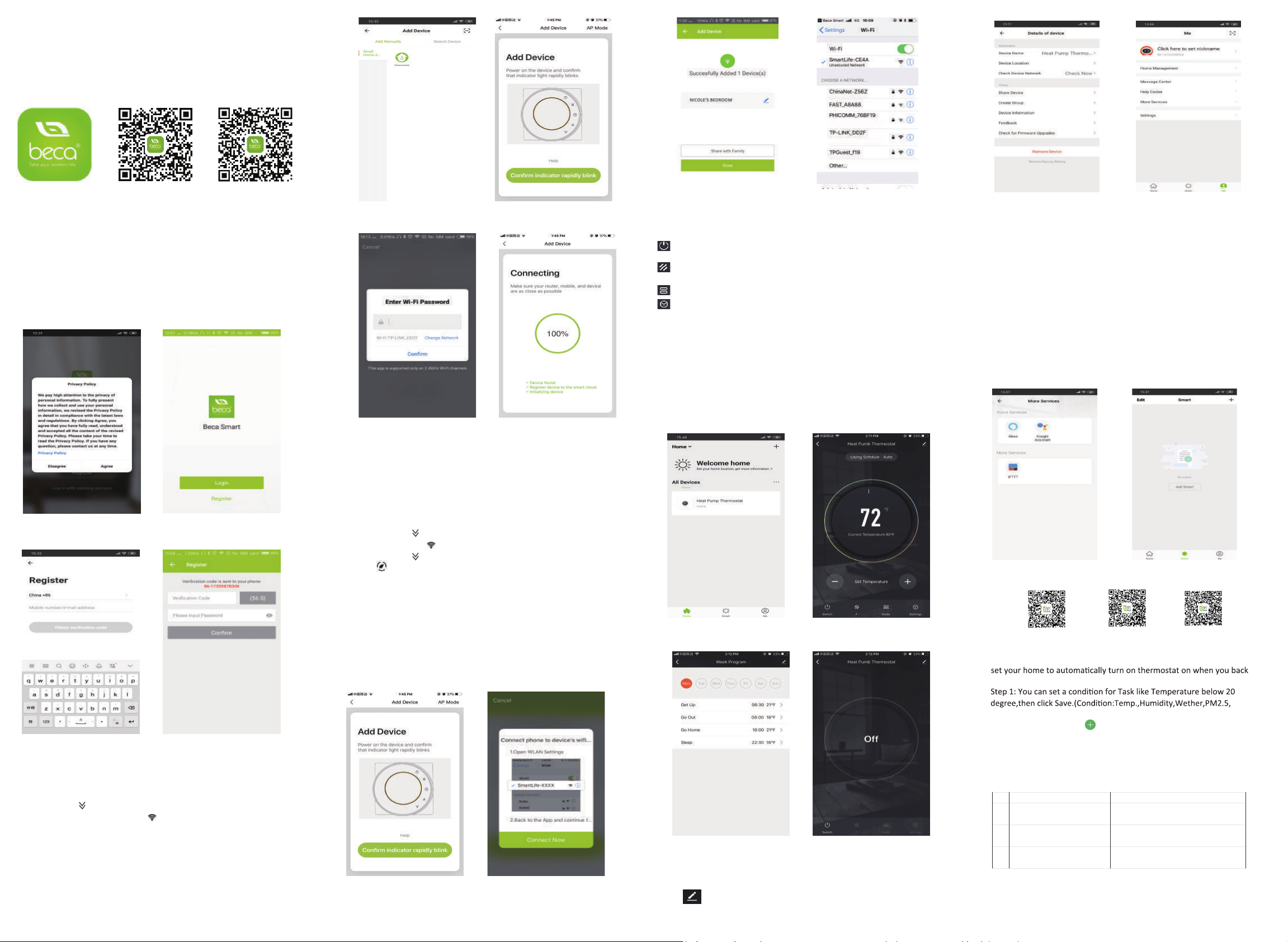
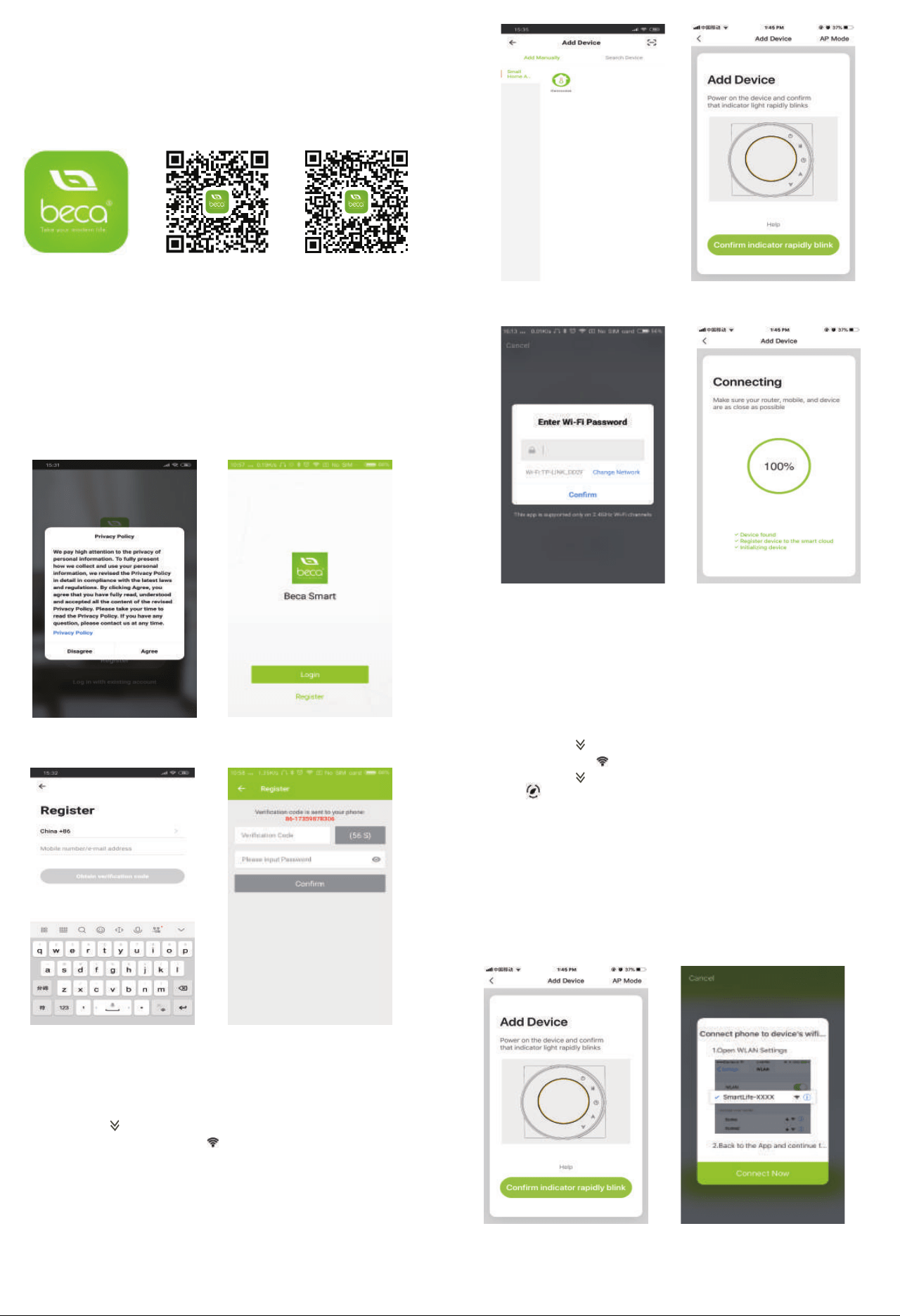
Step 1 Download your APP (Fig 1-1)
Fig 1-1 Fig 1-2 IOS Fig 1-3 Android
For IOS devices, search for My BecaSmart in Apple Store and download.
Alternavely, scan the relevent QR code here (Fig 1-2)
For Android devices, search for My BecaSmart in Google play and download.
Alternavely, scan the relevent QR code here (Fig 1-3)
Step 2 Register your account
Open your BecaSmart, you will get a piece of noficaon (Fig 2-1)
Click Allow to go into your page of register (Fig 2-2). Press register and enter
your phone no. or email (Fig 2-3) then you can get a verificaon code. Input
your password and confirm (Fig 2-4) to complete your registeraon. If you have
account, please log in.
Fig 2-1 Fig 2-2
Fig 2-3 Fig 2-4
Step 3 Connect your Wi-Fi signal
On your thermostat
》
Press and hold the arrow for eight (8) seconds.
The backlight will be on and the icon will flash one time per sec..
Then, go back to the home page of your app
Press the
+
on the upper right corner of the page (see Fig 3-1) to add
your device. Click Confirm indicator rapidly blink (Fig 3-2) then select
your network and back to your app to enter the password of your
wireless router (Fig 3-3) and confirm. The app will connect automatically
(Fig 3-4). This may typically take up to 5~90 seconds to complete.
Your room name could be edited when the device is connected (Fig 4-4).
Fig 3-1 Fig 3-2
Fig 3-3 Fig 3-4
This is EZ mode which provides fast network connection between your app and
your device. If your router doesn’t support it or your wifi signal is weak or you
can not connect by EZ mode, press the AP Mode on the upper right corner in
Fig 3-2.
If you have connected your thermostat successfully, please ignore the AP
seng as below.
On your thermostat
Press and hold the arrow for eight (8) seconds. The backlight
》
will be on and the icon will flash one me per sec..
Press and hold the arrow for eight (8) seconds agian.
The icon will flash one time every (3) seconds.
》
Then, go back to the home page of your app
Click Confirm indicator slowly blink (Fig 4-1) then select your network and back
to your app to enter the password of your wireless router (Fig 3-3) and confirm.
The app will go into the page in Fig 4-2.
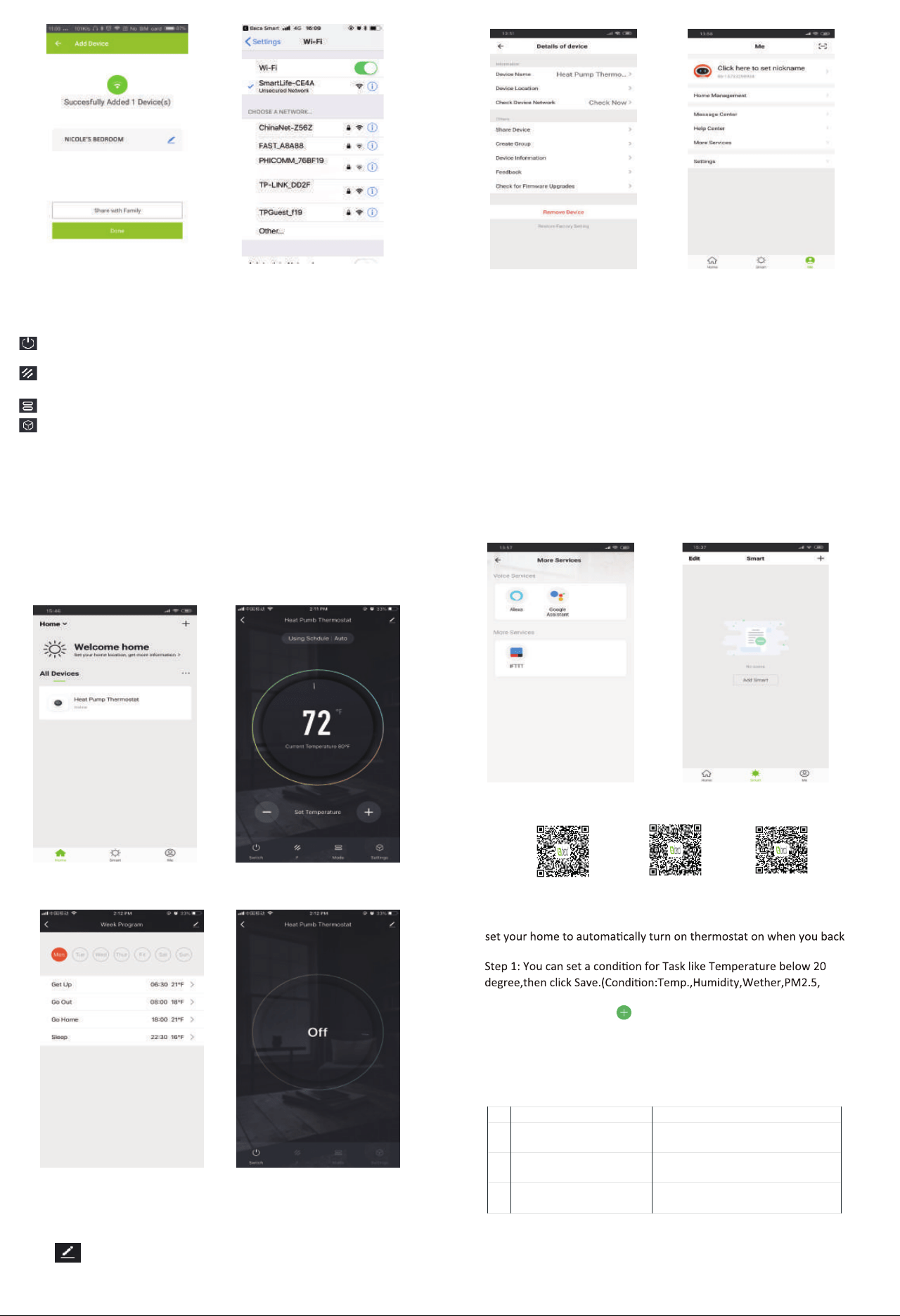
Press Connect now to select the wifi signal Smartlife-CE4A of your
thermostat (Fig 4-3).
Go back to your app and click Connect now then the app will connect
automatically (Fig 3-4)
This may typically take up to 5~90 seconds to complete.
Your room name could be edited when the device is connected (Fig 4-4).
Fig 4-1 Fig 4-2
Fig 4-3 Fig 4-4
PROGRAMMING YOUR THERMOSTAT
*
at the applicaon center interface.
* When in Program mode, click on the seng symbol (at the bottom of
the page) to be taken to the schedule page. (See Fig 5-2)
* You can set the temperature for a week and for different periods of the day.
(Fig 5-3 )
* Once your schedule has been set, click on SAVE and the app will send the
programming to your thermostat and confirm the schedule has been saved.
Fig 5-1 Fig 5-2
Fig 5-3
Fig 5-4
Fig 6-1 Fig 6-2
The one who create this group can control all the rooms at the same me.
How to share your device with your family member?
Way 1: Menoned in the above.
You can see the sharing account you have sent and the device you have
shared in this sharing page.
Except create the group, in this menu page, you can also modify your
device name, share your device, get the informaon of your device.
Note
Way 2: Click your Profile at the right boom of your main page (Fig 6-2).
Select Device Sharing then add the account you want to share.
How to connect your device to Amazon Echo or Google Home?
In your profile, click Intergraon into the using page. Press Use Now >
(Fig 7-1) for your Amazon Echo or Google Home or Tmall Genie or IFTTT
then you can see the operation steps.
You don’t need to do anything if you are the one shared.
You can add as many as rooms you want.
What is your Smart Scene and How to use it?
Customize your own personal scenes to suit your needs.For example,
home (Fig 7-2).Press
+
button into the setting.
Air Quality,Sunrise/Sunset,Device)
Step 2: Add a task. Press to Select Device (Power,Set Temp,Lock
Mode) to act, then Save.If you want to delete the scene,you can press
Delete in the end.
SIMPLE EXCEPTION HANDLING
No. Phenomenons Handling
1 Power is on but without display. * Check if the terminals between LCD panel and
Power Unit Box is loosen.
2 Without output but display works. * Use a new LCD panel or new Power Unit Box to
replace the old one.
3 Room Temp. Is a little different from
the actual.
* Do temperature calibration in item 1 of high
senior options
SERVICE
Your thermostat carries an 24 months warranty from date
of purchase. Service outwith the warranty period may
incur a charge. More detail please contact with us directly.
NOTE: The room sound could be turned on/off in PROFILE-SETTING-
SOUND. The sound is matched with the default of your system .
Fig 7-1 Fig 7-2
Power on/off buon. When the screen is bright, it is power on;
when the screen is dark, it is power off.
When your room is established successfully, it will display on the home screen
(Fig 5-1).Click the line into begining programming our thermostat.
Press - + to adjust the temperature. The adjusted temperature will be displayed
This symbol represents funcon and you can choose Permanent Hold/Temparary
Hold/Using Schedule/Holiday Hold.
Mode,press it you can choose Auto/ Cool/Heat/Emer/Off.
This is the seng symbol. You can set the device name, locaon, greate group and
so on.
How to create a group?
Press (5-4) then click Create Group (Fig 6-1).
Select all the rooms you want and confirm.
Scan the following QR code to see user guide of Amazon Echo, Google Home
and IFTTT.
Amazon Echo Google Home IFTTT
⑳
Up Buon
ABOUT WIFI
WI-FI CONNECTION
Before using your Wi-Fi thermostat for the first me, you must configure the
Wi-Fi signal and srngs through your smartphone or tablet. This will allow
communicaon between your connected devices.
Step 1 Download your APP (Fig 1-1)
Fig 1-1 Fig 1-2 IOS Fig 1-3 Android
For IOS devices, search for My BecaSmart in Apple Store and download.
Alternavely, scan the relevent QR code here (Fig 1-2)
For Android devices, search for My BecaSmart in Google play and download.
Alternavely, scan the relevent QR code here (Fig 1-3)
Step 2 Register your account
Open your BecaSmart, you will get a piece of noficaon (Fig 2-1)
Click Allow to go into your page of register (Fig 2-2). Press register and enter
your phone no. or email (Fig 2-3) then you can get a verificaon code. Input
your password and confirm (Fig 2-4) to complete your registeraon. If you have
account, please log in.
Fig 2-1 Fig 2-2
Fig 2-3 Fig 2-4
Step 3 Connect your Wi-Fi signal
On your thermostat
》
Press and hold the arrow for eight (8) seconds.
The backlight will be on and the icon will flash one time per sec..
Then, go back to the home page of your app
Press the
+
on the upper right corner of the page (see Fig 3-1) to add
your device. Click Confirm indicator rapidly blink (Fig 3-2) then select
your network and back to your app to enter the password of your
wireless router (Fig 3-3) and confirm. The app will connect automatically
(Fig 3-4). This may typically take up to 5~90 seconds to complete.
Your room name could be edited when the device is connected (Fig 4-4).
Fig 3-1 Fig 3-2
Fig 3-3 Fig 3-4
This is EZ mode which provides fast network connection between your app and
your device. If your router doesn’t support it or your wifi signal is weak or you
can not connect by EZ mode, press the AP Mode on the upper right corner in
Fig 3-2.
If you have connected your thermostat successfully, please ignore the AP
seng as below.
On your thermostat
Press and hold the arrow for eight (8) seconds. The backlight
》
will be on and the icon will flash one me per sec..
Press and hold the arrow for eight (8) seconds agian.
The icon will flash one time every (3) seconds.
》
Then, go back to the home page of your app
Click Confirm indicator slowly blink (Fig 4-1) then select your network and back
to your app to enter the password of your wireless router (Fig 3-3) and confirm.
The app will go into the page in Fig 4-2.
Press Connect now to select the wifi signal Smartlife-CE4A of your
thermostat (Fig 4-3).
Go back to your app and click Connect now then the app will connect
automatically (Fig 3-4)
This may typically take up to 5~90 seconds to complete.
Your room name could be edited when the device is connected (Fig 4-4).
Fig 4-1 Fig 4-2
Fig 4-3 Fig 4-4
PROGRAMMING YOUR THERMOSTAT
*
at the applicaon center interface.
* When in Program mode, click on the seng symbol (at the bottom of
the page) to be taken to the schedule page. (See Fig 5-2)
* You can set the temperature for a week and for different periods of the day.
(Fig 5-3 )
* Once your schedule has been set, click on SAVE and the app will send the
programming to your thermostat and confirm the schedule has been saved.
Fig 5-1 Fig 5-2
Fig 5-3
Fig 5-4
Fig 6-1 Fig 6-2
The one who create this group can control all the rooms at the same me.
How to share your device with your family member?
Way 1: Menoned in the above.
You can see the sharing account you have sent and the device you have
shared in this sharing page.
Except create the group, in this menu page, you can also modify your
device name, share your device, get the informaon of your device.
Note
Way 2: Click your Profile at the right boom of your main page (Fig 6-2).
Select Device Sharing then add the account you want to share.
How to connect your device to Amazon Echo or Google Home?
In your profile, click Intergraon into the using page. Press Use Now >
(Fig 7-1) for your Amazon Echo or Google Home or Tmall Genie or IFTTT
then you can see the operation steps.
You don’t need to do anything if you are the one shared.
You can add as many as rooms you want.
What is your Smart Scene and How to use it?
Customize your own personal scenes to suit your needs.For example,
home (Fig 7-2).Press
+
button into the setting.
Air Quality,Sunrise/Sunset,Device)
Step 2: Add a task. Press to Select Device (Power,Set Temp,Lock
Mode) to act, then Save.If you want to delete the scene,you can press
Delete in the end.
SIMPLE EXCEPTION HANDLING
No. Phenomenons Handling
1 Power is on but without display. * Check if the terminals between LCD panel and
Power Unit Box is loosen.
2 Without output but display works. * Use a new LCD panel or new Power Unit Box to
replace the old one.
3 Room Temp. Is a little different from
the actual.
* Do temperature calibration in item 1 of high
senior options
SERVICE
Your thermostat carries an 24 months warranty from date
of purchase. Service outwith the warranty period may
incur a charge. More detail please contact with us directly.
NOTE: The room sound could be turned on/off in PROFILE-SETTING-
SOUND. The sound is matched with the default of your system .
Fig 7-1 Fig 7-2
Power on/off buon. When the screen is bright, it is power on;
when the screen is dark, it is power off.
When your room is established successfully, it will display on the home screen
(Fig 5-1).Click the line into begining programming our thermostat.
Press - + to adjust the temperature. The adjusted temperature will be displayed
This symbol represents funcon and you can choose Permanent Hold/Temparary
Hold/Using Schedule/Holiday Hold.
Mode,press it you can choose Auto/ Cool/Heat/Emer/Off.
This is the seng symbol. You can set the device name, locaon, greate group and
so on.
How to create a group?
Press (5-4) then click Create Group (Fig 6-1).
Select all the rooms you want and confirm.
Scan the following QR code to see user guide of Amazon Echo, Google Home
and IFTTT.
Amazon Echo Google Home IFTTT
⑳
Up Buon