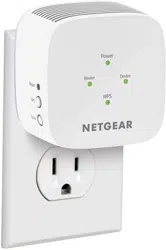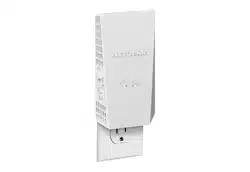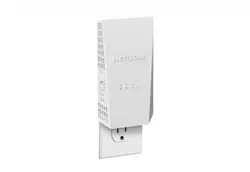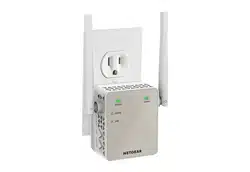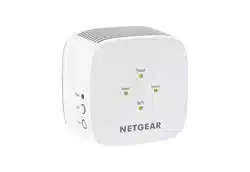
AC750 WiFi Range Extender
Model EX2800
Quick Start
Thank you for purchasing this NETGEAR product. You
can visit www.netgear.com/support to register your
product, get help, access the latest downloads and
user manuals, and join our community. We recommend
that you use only ofcial NETGEAR support resources.
Si ce produit est vendu au Canada, vous pouvez
accéder à ce document en français canadien à
https://downloadcenter.netgear.com/other/.
(If this product is sold in Canada, you can access this
document in Canadian French at
https://downloadcenter.netgear.com/other/.)
For regulatory compliance information including the
EU Declaration of Conformity, visit
https://www.netgear.com/about/regulatory/.
See the regulatory compliance document before
connecting the power supply.
Support
NETGEAR, Inc.
350 East Plumeria Drive
San Jose, CA 95134, USA
© NETGEAR, Inc., NETGEAR and the NETGEAR
Logo are trademarks of NETGEAR, Inc. Any
non‑NETGEAR trademarks are used for
reference purposes only.
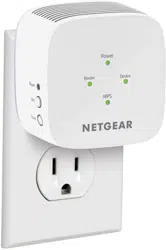
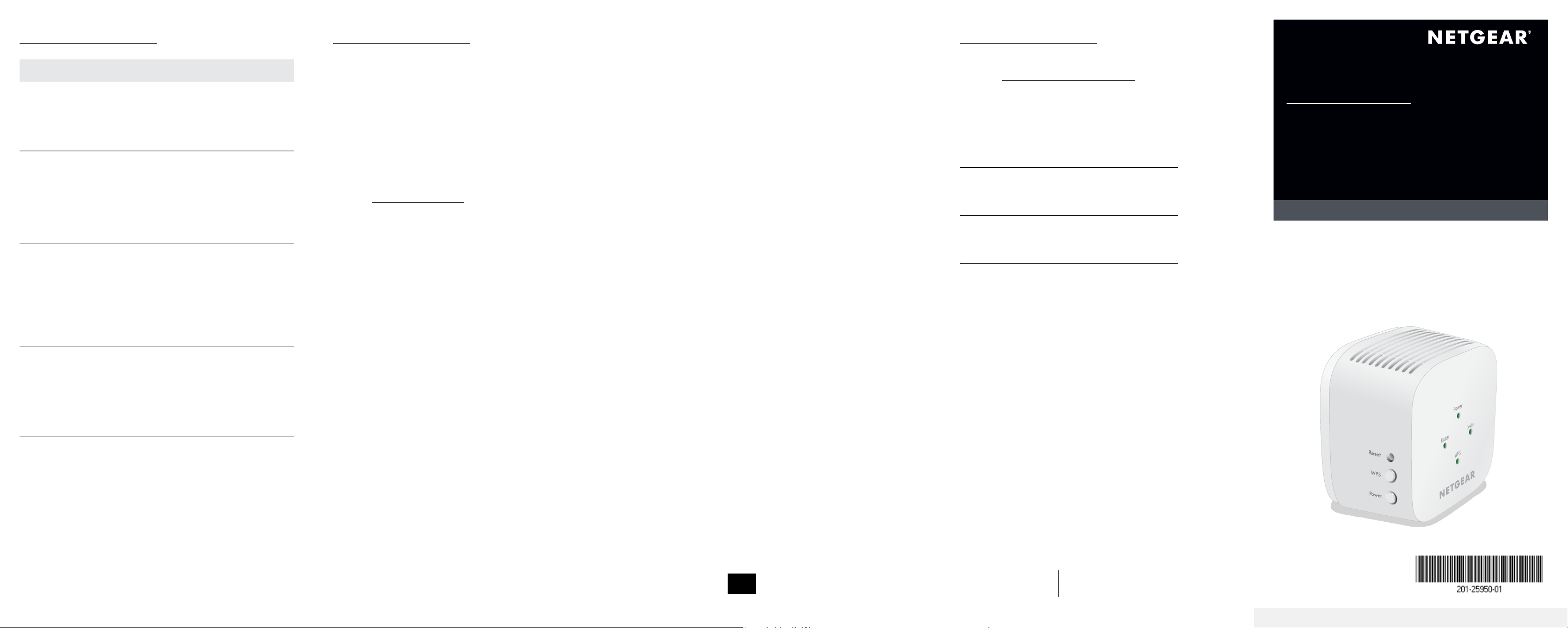
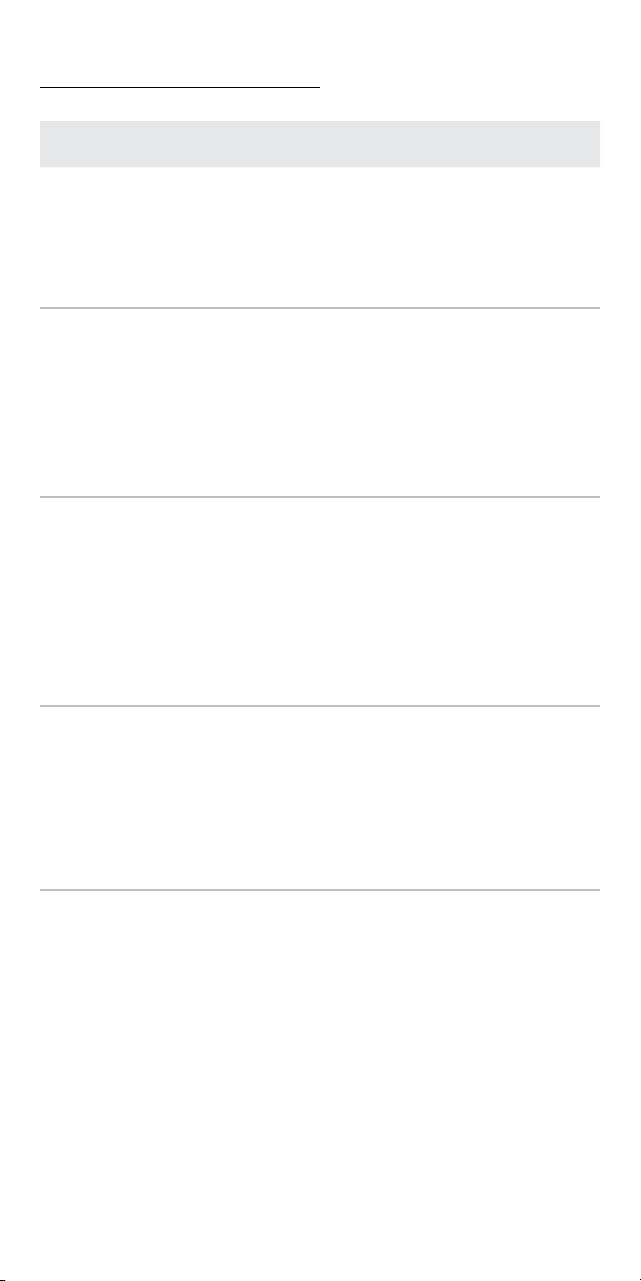
LED Description
Power
• Blinking green. The extender is
booting.
• Solid green. The extender is powered
on.
• Off. The extender is powered off.
Router This LED indicates the WiFi connection
between the extender and the router.
• Solid green. Best connection.
• Solid amber. Good connection.
• Solid red. Poor connection.
• Off. No connection.
Device
This LED indicates the WiFi connection
between your computer or mobile device
and the extender:
• Solid green. Best connection.
• Solid amber. Good connection.
• Solid red. Poor connection.
• Off. No connection.
WPS
• Blinking green. A WPS connection is
being established.
• Solid green. The extended network is
enabled with WiFi security (either WPA
or WPA2).
• Off. The extended network is enabled
without WiFi security.
LED descriptions Log in to the extender
After installation, you can log in to the extender to view
or change the extender’s settings.
1. Launch a web browser from a computer or mobile
device that is connected to your extender network.
When you are connected to the extender, the
Device LED lights.
2. Log in to your extender:
• If your extender and router use different WiFi
network names (SSIDs), visit
www.mywiext.net.
• If your extender and router use the same WiFi
network name (SSID), enter
http://<extender’s IP address> (for example,
http://192.168.1.3).
To nd your extender’s IP address, do the
following:
a. Log in to your router.
b. Find the page in your router web interface
that lists the devices connected to your
router.
c. Find your extender in the list and note
your extender’s IP address.
d. Enter your extender’s IP address in the
address eld of your web browser.
A login page displays.
3. Enter your admin email and password and click the
LOG IN button.
The Status page displays.
NETGEAR INTERNATIONAL LTD
Floor 1, Building 3,
University Technology Centre
Curraheen Road, Cork,
T12EF21, Ireland
August 2019
If you used WPS to connect your extender to your
router, the extender creates two new extender WiFi
networks.
The extender’s new WiFi network names are based on
your existing WiFi network name, with _2GEXT and
_5GEXT at the end of the name.
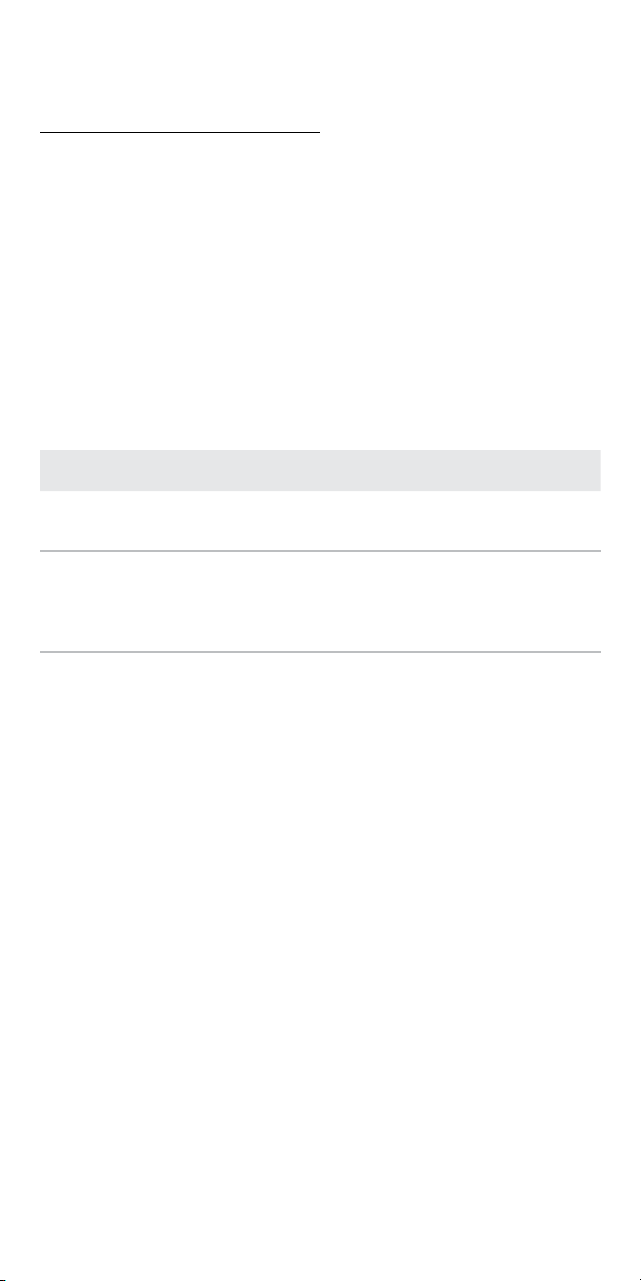
The following table list examples of what your
extender’s new WiFi network names might look like:
Description Examples of WiFi Names
Existing WiFi network
name
MyNetworkName
New extender WiFi
network names
MyNetworkName_2GEXT
MyNetworkName_5GEXT
Connect your device to the
extended network
Getting started
1. For initial setup, place your extender in the same
room as your router.
You can move your extender to a new location after
the setup.
2. Plug the extender into an electrical outlet.
3. Wait for Power LED to light green.
4. If the Power LED does not light, press the
Power button.
5. Connect your extender to your existing WiFi
network using one of these methods:
• Connect with WPS. Wi‑Fi Protected Setup
(WPS) lets you join a secure WiFi network
without typing the network name and
password. Your router must support WPS to
use this method. For more information, see
Connect with WPS.
WPS does not support WEP network security
or a hidden WiFi network. If your router WiFi
network uses WEP security or uses a hidden
WiFi network, follow the instructions in Connect
with the NETGEAR installation assistant.
• Connect with the NETGEAR installation
assistant. The Nighthawk app guides you
through the installation. For more information,
see Connect with the NETGEAR installation
assistant.
Connect with the NETGEAR installation
assistant
1. On a computer or mobile device, open the WiFi
connection manager and nd and connect to the
extender network called NETGEAR_EXT.
When you are connected to the extender, the
Device LED lights.
2. Launch a web browser.
3. Visit www.mywiext.net.
The NETGEAR installation assistant displays.
4. Follow the prompts to connect your extender to
your existing WiFi network.
5. After the setup is complete, move your extender to
a new location.
For more information, see Find a good spot for
your extender.
6. Connect your WiFi‑enabled devices to the
extended network using the WiFi credentials you
specied during the setup.
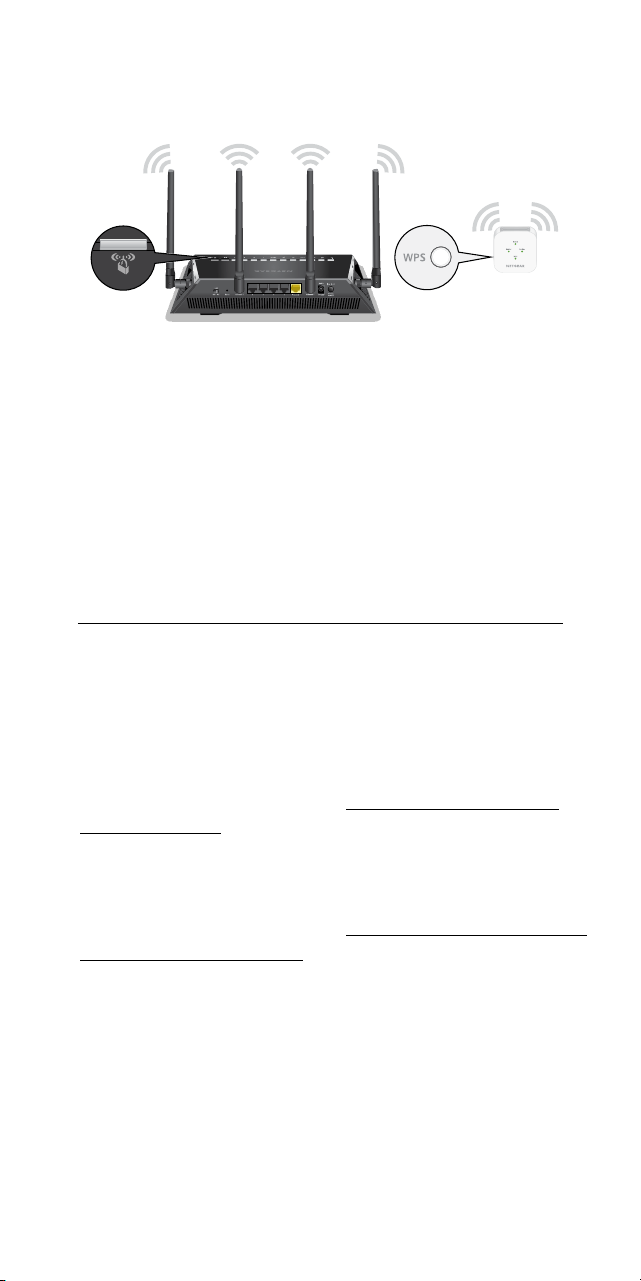
1. Press the WPS button on the extender until the
WPS LED blinks.
2. Within two minutes, press the WPS button on your
router.
When the extender connects to the router, the WPS
LED on the extender lights solid green and the
Router LED lights.
Note: If the Router LED does not light, try again.
If it still does not light, see the instructions in the
Connect with the NETGEAR installation assistant
section.
3. If your WiFi router supports the 5 GHz band, repeat
Steps 1 and 2 to connect the extender to the 5 GHz
band.
4. Move your extender to a new location.
For more information, see Find a good spot for
your extender.
5. Connect your WiFi‑enabled devices to the
extended network.
For more information, see Connect your device to
the extended network.
Connect with WPS
Find a good spot for your
extender
1. Unplug your extender and move it to a new
location.
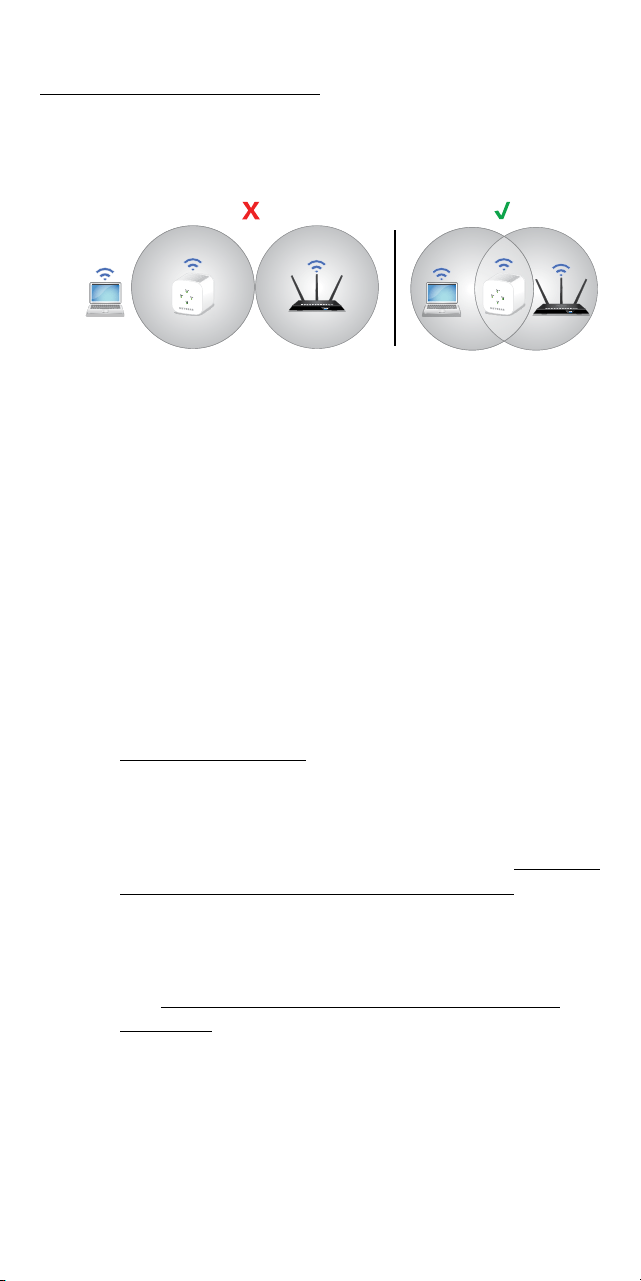
We recommend that the new location be about
halfway between your router and the area with a
poor WiFi signal.
The extender must be within the range of your
router WiFi network.
2. Power on your extender.
3. Use the Router LED to nd a spot where the
extender‑to‑router connection is optimal.
For more information about the Router LED, see
LED descriptions on the other side of this quick
start guide.
If you used WPS to connect your extender to your
router, the extender creates two new extender WiFi
networks.
The extender’s new WiFi network names are based on
your existing WiFi network name, with _2GEXT and
_5GEXT at the end of the name.
The following table list examples of what your
extender’s new WiFi network names might look like:
Description Examples of WiFi Names
Existing WiFi network
name
MyNetworkName
New extender WiFi
network names
MyNetworkName_2GEXT
MyNetworkName_5GEXT
Connect your device to the
extended network
Getting started
1. For initial setup, place your extender in the same
room as your router.
You can move your extender to a new location after
the setup.
2. Plug the extender into an electrical outlet.
3. Wait for Power LED to light green.
4. If the Power LED does not light, press the
Power button.
5. Connect your extender to your existing WiFi
network using one of these methods:
• Connect with WPS. Wi‑Fi Protected Setup
(WPS) lets you join a secure WiFi network
without typing the network name and
password. Your router must support WPS to
use this method. For more information, see
Connect with WPS.
WPS does not support WEP network security
or a hidden WiFi network. If your router WiFi
network uses WEP security or uses a hidden
WiFi network, follow the instructions in Connect
with the NETGEAR installation assistant.
• Connect with the NETGEAR installation
assistant. The Nighthawk app guides you
through the installation. For more information,
see Connect with the NETGEAR installation
assistant.
Connect with the NETGEAR installation
assistant
1. On a computer or mobile device, open the WiFi
connection manager and nd and connect to the
extender network called NETGEAR_EXT.
When you are connected to the extender, the
Device LED lights.
2. Launch a web browser.
3. Visit www.mywiext.net.
The NETGEAR installation assistant displays.
4. Follow the prompts to connect your extender to
your existing WiFi network.
5. After the setup is complete, move your extender to
a new location.
For more information, see Find a good spot for
your extender.
6. Connect your WiFi‑enabled devices to the
extended network using the WiFi credentials you
specied during the setup.
1. Press the WPS button on the extender until the
WPS LED blinks.
2. Within two minutes, press the WPS button on your
router.
When the extender connects to the router, the WPS
LED on the extender lights solid green and the
Router LED lights.
Note: If the Router LED does not light, try again.
If it still does not light, see the instructions in the
Connect with the NETGEAR installation assistant
section.
3. If your WiFi router supports the 5 GHz band, repeat
Steps 1 and 2 to connect the extender to the 5 GHz
band.
4. Move your extender to a new location.
For more information, see Find a good spot for
your extender.
5. Connect your WiFi‑enabled devices to the
extended network.
For more information, see Connect your device to
the extended network.
Connect with WPS
Find a good spot for your
extender
1. Unplug your extender and move it to a new
location.
We recommend that the new location be about
halfway between your router and the area with a
poor WiFi signal.
The extender must be within the range of your
router WiFi network.
2. Power on your extender.
3. Use the Router LED to nd a spot where the
extender‑to‑router connection is optimal.
For more information about the Router LED, see
LED descriptions on the other side of this quick
start guide.

If you used WPS to connect your extender to your
router, the extender creates two new extender WiFi
networks.
The extender’s new WiFi network names are based on
your existing WiFi network name, with _2GEXT and
_5GEXT at the end of the name.
The following table list examples of what your
extender’s new WiFi network names might look like:
Description Examples of WiFi Names
Existing WiFi network
name
MyNetworkName
New extender WiFi
network names
MyNetworkName_2GEXT
MyNetworkName_5GEXT
Connect your device to the
extended network
Getting started
1. For initial setup, place your extender in the same
room as your router.
You can move your extender to a new location after
the setup.
2. Plug the extender into an electrical outlet.
3. Wait for Power LED to light green.
4. If the Power LED does not light, press the
Power button.
5. Connect your extender to your existing WiFi
network using one of these methods:
• Connect with WPS. Wi‑Fi Protected Setup
(WPS) lets you join a secure WiFi network
without typing the network name and
password. Your router must support WPS to
use this method. For more information, see
Connect with WPS.
WPS does not support WEP network security
or a hidden WiFi network. If your router WiFi
network uses WEP security or uses a hidden
WiFi network, follow the instructions in Connect
with the NETGEAR installation assistant.
• Connect with the NETGEAR installation
assistant. The Nighthawk app guides you
through the installation. For more information,
see Connect with the NETGEAR installation
assistant.
Connect with the NETGEAR installation
assistant
1. On a computer or mobile device, open the WiFi
connection manager and nd and connect to the
extender network called NETGEAR_EXT.
When you are connected to the extender, the
Device LED lights.
2. Launch a web browser.
3. Visit www.mywiext.net.
The NETGEAR installation assistant displays.
4. Follow the prompts to connect your extender to
your existing WiFi network.
5. After the setup is complete, move your extender to
a new location.
For more information, see Find a good spot for
your extender.
6. Connect your WiFi‑enabled devices to the
extended network using the WiFi credentials you
specied during the setup.
1. Press the WPS button on the extender until the
WPS LED blinks.
2. Within two minutes, press the WPS button on your
router.
When the extender connects to the router, the WPS
LED on the extender lights solid green and the
Router LED lights.
Note: If the Router LED does not light, try again.
If it still does not light, see the instructions in the
Connect with the NETGEAR installation assistant
section.
3. If your WiFi router supports the 5 GHz band, repeat
Steps 1 and 2 to connect the extender to the 5 GHz
band.
4. Move your extender to a new location.
For more information, see Find a good spot for
your extender.
5. Connect your WiFi‑enabled devices to the
extended network.
For more information, see Connect your device to
the extended network.
Connect with WPS
Find a good spot for your
extender
1. Unplug your extender and move it to a new
location.
We recommend that the new location be about
halfway between your router and the area with a
poor WiFi signal.
The extender must be within the range of your
router WiFi network.
2. Power on your extender.
3. Use the Router LED to nd a spot where the
extender‑to‑router connection is optimal.
For more information about the Router LED, see
LED descriptions on the other side of this quick
start guide.

If you used WPS to connect your extender to your
router, the extender creates two new extender WiFi
networks.
The extender’s new WiFi network names are based on
your existing WiFi network name, with _2GEXT and
_5GEXT at the end of the name.
The following table list examples of what your
extender’s new WiFi network names might look like:
Description Examples of WiFi Names
Existing WiFi network
name
MyNetworkName
New extender WiFi
network names
MyNetworkName_2GEXT
MyNetworkName_5GEXT
Connect your device to the
extended network
Getting started
1. For initial setup, place your extender in the same
room as your router.
You can move your extender to a new location after
the setup.
2. Plug the extender into an electrical outlet.
3. Wait for Power LED to light green.
4. If the Power LED does not light, press the
Power button.
5. Connect your extender to your existing WiFi
network using one of these methods:
• Connect with WPS. Wi‑Fi Protected Setup
(WPS) lets you join a secure WiFi network
without typing the network name and
password. Your router must support WPS to
use this method. For more information, see
Connect with WPS.
WPS does not support WEP network security
or a hidden WiFi network. If your router WiFi
network uses WEP security or uses a hidden
WiFi network, follow the instructions in Connect
with the NETGEAR installation assistant.
• Connect with the NETGEAR installation
assistant. The Nighthawk app guides you
through the installation. For more information,
see Connect with the NETGEAR installation
assistant.
Connect with the NETGEAR installation
assistant
1. On a computer or mobile device, open the WiFi
connection manager and nd and connect to the
extender network called NETGEAR_EXT.
When you are connected to the extender, the
Device LED lights.
2. Launch a web browser.
3. Visit www.mywiext.net.
The NETGEAR installation assistant displays.
4. Follow the prompts to connect your extender to
your existing WiFi network.
5. After the setup is complete, move your extender to
a new location.
For more information, see Find a good spot for
your extender.
6. Connect your WiFi‑enabled devices to the
extended network using the WiFi credentials you
specied during the setup.
1. Press the WPS button on the extender until the
WPS LED blinks.
2. Within two minutes, press the WPS button on your
router.
When the extender connects to the router, the WPS
LED on the extender lights solid green and the
Router LED lights.
Note: If the Router LED does not light, try again.
If it still does not light, see the instructions in the
Connect with the NETGEAR installation assistant
section.
3. If your WiFi router supports the 5 GHz band, repeat
Steps 1 and 2 to connect the extender to the 5 GHz
band.
4. Move your extender to a new location.
For more information, see Find a good spot for
your extender.
5. Connect your WiFi‑enabled devices to the
extended network.
For more information, see Connect your device to
the extended network.
Connect with WPS
Find a good spot for your
extender
1. Unplug your extender and move it to a new
location.
We recommend that the new location be about
halfway between your router and the area with a
poor WiFi signal.
The extender must be within the range of your
router WiFi network.
2. Power on your extender.
3. Use the Router LED to nd a spot where the
extender‑to‑router connection is optimal.
For more information about the Router LED, see
LED descriptions on the other side of this quick
start guide.
If you used WPS to connect your extender to your
router, the extender creates two new extender WiFi
networks.
The extender’s new WiFi network names are based on
your existing WiFi network name, with _2GEXT and
_5GEXT at the end of the name.
The following table list examples of what your
extender’s new WiFi network names might look like:
Description Examples of WiFi Names
Existing WiFi network
name
MyNetworkName
New extender WiFi
network names
MyNetworkName_2GEXT
MyNetworkName_5GEXT
Connect your device to the
extended network
Getting started
1. For initial setup, place your extender in the same
room as your router.
You can move your extender to a new location after
the setup.
2. Plug the extender into an electrical outlet.
3. Wait for Power LED to light green.
4. If the Power LED does not light, press the
Power button.
5. Connect your extender to your existing WiFi
network using one of these methods:
• Connect with WPS. Wi‑Fi Protected Setup
(WPS) lets you join a secure WiFi network
without typing the network name and
password. Your router must support WPS to
use this method. For more information, see
Connect with WPS.
WPS does not support WEP network security
or a hidden WiFi network. If your router WiFi
network uses WEP security or uses a hidden
WiFi network, follow the instructions in Connect
with the NETGEAR installation assistant.
• Connect with the NETGEAR installation
assistant. The Nighthawk app guides you
through the installation. For more information,
see Connect with the NETGEAR installation
assistant.
Connect with the NETGEAR installation
assistant
1. On a computer or mobile device, open the WiFi
connection manager and nd and connect to the
extender network called NETGEAR_EXT.
When you are connected to the extender, the
Device LED lights.
2. Launch a web browser.
3. Visit www.mywiext.net.
The NETGEAR installation assistant displays.
4. Follow the prompts to connect your extender to
your existing WiFi network.
5. After the setup is complete, move your extender to
a new location.
For more information, see Find a good spot for
your extender.
6. Connect your WiFi‑enabled devices to the
extended network using the WiFi credentials you
specied during the setup.
1. Press the WPS button on the extender until the
WPS LED blinks.
2. Within two minutes, press the WPS button on your
router.
When the extender connects to the router, the WPS
LED on the extender lights solid green and the
Router LED lights.
Note: If the Router LED does not light, try again.
If it still does not light, see the instructions in the
Connect with the NETGEAR installation assistant
section.
3. If your WiFi router supports the 5 GHz band, repeat
Steps 1 and 2 to connect the extender to the 5 GHz
band.
4. Move your extender to a new location.
For more information, see Find a good spot for
your extender.
5. Connect your WiFi‑enabled devices to the
extended network.
For more information, see Connect your device to
the extended network.
Connect with WPS
Find a good spot for your
extender
1. Unplug your extender and move it to a new
location.
We recommend that the new location be about
halfway between your router and the area with a
poor WiFi signal.
The extender must be within the range of your
router WiFi network.
2. Power on your extender.
3. Use the Router LED to nd a spot where the
extender‑to‑router connection is optimal.
For more information about the Router LED, see
LED descriptions on the other side of this quick
start guide.
AC750 WiFi Range Extender
Model EX2800
Quick Start
Thank you for purchasing this NETGEAR product. You
can visit www.netgear.com/support to register your
product, get help, access the latest downloads and
user manuals, and join our community. We recommend
that you use only ofcial NETGEAR support resources.
Si ce produit est vendu au Canada, vous pouvez
accéder à ce document en français canadien à
https://downloadcenter.netgear.com/other/.
(If this product is sold in Canada, you can access this
document in Canadian French at
https://downloadcenter.netgear.com/other/.)
For regulatory compliance information including the
EU Declaration of Conformity, visit
https://www.netgear.com/about/regulatory/.
See the regulatory compliance document before
connecting the power supply.
Support
NETGEAR, Inc.
350 East Plumeria Drive
San Jose, CA 95134, USA
© NETGEAR, Inc., NETGEAR and the NETGEAR
Logo are trademarks of NETGEAR, Inc. Any
non‑NETGEAR trademarks are used for
reference purposes only.
LED Description
Power
• Blinking green. The extender is
booting.
• Solid green. The extender is powered
on.
• Off. The extender is powered off.
Router This LED indicates the WiFi connection
between the extender and the router.
• Solid green. Best connection.
• Solid amber. Good connection.
• Solid red. Poor connection.
• Off. No connection.
Device
This LED indicates the WiFi connection
between your computer or mobile device
and the extender:
• Solid green. Best connection.
• Solid amber. Good connection.
• Solid red. Poor connection.
• Off. No connection.
WPS
• Blinking green. A WPS connection is
being established.
• Solid green. The extended network is
enabled with WiFi security (either WPA
or WPA2).
• Off. The extended network is enabled
without WiFi security.
LED descriptions Log in to the extender
After installation, you can log in to the extender to view
or change the extender’s settings.
1. Launch a web browser from a computer or mobile
device that is connected to your extender network.
When you are connected to the extender, the
Device LED lights.
2. Log in to your extender:
• If your extender and router use different WiFi
network names (SSIDs), visit
www.mywiext.net.
• If your extender and router use the same WiFi
network name (SSID), enter
http://<extender’s IP address> (for example,
http://192.168.1.3).
To nd your extender’s IP address, do the
following:
a. Log in to your router.
b. Find the page in your router web interface
that lists the devices connected to your
router.
c. Find your extender in the list and note
your extender’s IP address.
d. Enter your extender’s IP address in the
address eld of your web browser.
A login page displays.
3. Enter your admin email and password and click the
LOG IN button.
The Status page displays.
NETGEAR INTERNATIONAL LTD
Floor 1, Building 3,
University Technology Centre
Curraheen Road, Cork,
T12EF21, Ireland
August 2019

AC750 WiFi Range Extender
Model EX2800
Quick Start
Thank you for purchasing this NETGEAR product. You
can visit www.netgear.com/support to register your
product, get help, access the latest downloads and
user manuals, and join our community. We recommend
that you use only ofcial NETGEAR support resources.
Si ce produit est vendu au Canada, vous pouvez
accéder à ce document en français canadien à
https://downloadcenter.netgear.com/other/.
(If this product is sold in Canada, you can access this
document in Canadian French at
https://downloadcenter.netgear.com/other/.)
For regulatory compliance information including the
EU Declaration of Conformity, visit
https://www.netgear.com/about/regulatory/.
See the regulatory compliance document before
connecting the power supply.
Support
NETGEAR, Inc.
350 East Plumeria Drive
San Jose, CA 95134, USA
© NETGEAR, Inc., NETGEAR and the NETGEAR
Logo are trademarks of NETGEAR, Inc. Any
non‑NETGEAR trademarks are used for
reference purposes only.
LED Description
Power
• Blinking green. The extender is
booting.
• Solid green. The extender is powered
on.
• Off. The extender is powered off.
Router This LED indicates the WiFi connection
between the extender and the router.
• Solid green. Best connection.
• Solid amber. Good connection.
• Solid red. Poor connection.
• Off. No connection.
Device
This LED indicates the WiFi connection
between your computer or mobile device
and the extender:
• Solid green. Best connection.
• Solid amber. Good connection.
• Solid red. Poor connection.
• Off. No connection.
WPS
• Blinking green. A WPS connection is
being established.
• Solid green. The extended network is
enabled with WiFi security (either WPA
or WPA2).
• Off. The extended network is enabled
without WiFi security.
LED descriptions Log in to the extender
After installation, you can log in to the extender to view
or change the extender’s settings.
1. Launch a web browser from a computer or mobile
device that is connected to your extender network.
When you are connected to the extender, the
Device LED lights.
2. Log in to your extender:
• If your extender and router use different WiFi
network names (SSIDs), visit
www.mywiext.net.
• If your extender and router use the same WiFi
network name (SSID), enter
http://<extender’s IP address> (for example,
http://192.168.1.3).
To nd your extender’s IP address, do the
following:
a. Log in to your router.
b. Find the page in your router web interface
that lists the devices connected to your
router.
c. Find your extender in the list and note
your extender’s IP address.
d. Enter your extender’s IP address in the
address eld of your web browser.
A login page displays.
3. Enter your admin email and password and click the
LOG IN button.
The Status page displays.
NETGEAR INTERNATIONAL LTD
Floor 1, Building 3,
University Technology Centre
Curraheen Road, Cork,
T12EF21, Ireland
August 2019

AC750 WiFi Range Extender
Model EX2800
Quick Start
Thank you for purchasing this NETGEAR product. You
can visit www.netgear.com/support to register your
product, get help, access the latest downloads and
user manuals, and join our community. We recommend
that you use only ofcial NETGEAR support resources.
Si ce produit est vendu au Canada, vous pouvez
accéder à ce document en français canadien à
https://downloadcenter.netgear.com/other/.
(If this product is sold in Canada, you can access this
document in Canadian French at
https://downloadcenter.netgear.com/other/.)
For regulatory compliance information including the
EU Declaration of Conformity, visit
https://www.netgear.com/about/regulatory/.
See the regulatory compliance document before
connecting the power supply.
Support
NETGEAR, Inc.
350 East Plumeria Drive
San Jose, CA 95134, USA
© NETGEAR, Inc., NETGEAR and the NETGEAR
Logo are trademarks of NETGEAR, Inc. Any
non‑NETGEAR trademarks are used for
reference purposes only.
LED Description
Power
• Blinking green. The extender is
booting.
• Solid green. The extender is powered
on.
• Off. The extender is powered off.
Router This LED indicates the WiFi connection
between the extender and the router.
• Solid green. Best connection.
• Solid amber. Good connection.
• Solid red. Poor connection.
• Off. No connection.
Device
This LED indicates the WiFi connection
between your computer or mobile device
and the extender:
• Solid green. Best connection.
• Solid amber. Good connection.
• Solid red. Poor connection.
• Off. No connection.
WPS
• Blinking green. A WPS connection is
being established.
• Solid green. The extended network is
enabled with WiFi security (either WPA
or WPA2).
• Off. The extended network is enabled
without WiFi security.
LED descriptions Log in to the extender
After installation, you can log in to the extender to view
or change the extender’s settings.
1. Launch a web browser from a computer or mobile
device that is connected to your extender network.
When you are connected to the extender, the
Device LED lights.
2. Log in to your extender:
• If your extender and router use different WiFi
network names (SSIDs), visit
www.mywiext.net.
• If your extender and router use the same WiFi
network name (SSID), enter
http://<extender’s IP address> (for example,
http://192.168.1.3).
To nd your extender’s IP address, do the
following:
a. Log in to your router.
b. Find the page in your router web interface
that lists the devices connected to your
router.
c. Find your extender in the list and note
your extender’s IP address.
d. Enter your extender’s IP address in the
address eld of your web browser.
A login page displays.
3. Enter your admin email and password and click the
LOG IN button.
The Status page displays.
NETGEAR INTERNATIONAL LTD
Floor 1, Building 3,
University Technology Centre
Curraheen Road, Cork,
T12EF21, Ireland
August 2019

AC750 WiFi Range Extender
Model EX2800
Quick Start
Thank you for purchasing this NETGEAR product. You
can visit www.netgear.com/support to register your
product, get help, access the latest downloads and
user manuals, and join our community. We recommend
that you use only ofcial NETGEAR support resources.
Si ce produit est vendu au Canada, vous pouvez
accéder à ce document en français canadien à
https://downloadcenter.netgear.com/other/.
(If this product is sold in Canada, you can access this
document in Canadian French at
https://downloadcenter.netgear.com/other/.)
For regulatory compliance information including the
EU Declaration of Conformity, visit
https://www.netgear.com/about/regulatory/.
See the regulatory compliance document before
connecting the power supply.
Support
NETGEAR, Inc.
350 East Plumeria Drive
San Jose, CA 95134, USA
© NETGEAR, Inc., NETGEAR and the NETGEAR
Logo are trademarks of NETGEAR, Inc. Any
non‑NETGEAR trademarks are used for
reference purposes only.
LED Description
Power
• Blinking green. The extender is
booting.
• Solid green. The extender is powered
on.
• Off. The extender is powered off.
Router This LED indicates the WiFi connection
between the extender and the router.
• Solid green. Best connection.
• Solid amber. Good connection.
• Solid red. Poor connection.
• Off. No connection.
Device
This LED indicates the WiFi connection
between your computer or mobile device
and the extender:
• Solid green. Best connection.
• Solid amber. Good connection.
• Solid red. Poor connection.
• Off. No connection.
WPS
• Blinking green. A WPS connection is
being established.
• Solid green. The extended network is
enabled with WiFi security (either WPA
or WPA2).
• Off. The extended network is enabled
without WiFi security.
LED descriptions Log in to the extender
After installation, you can log in to the extender to view
or change the extender’s settings.
1. Launch a web browser from a computer or mobile
device that is connected to your extender network.
When you are connected to the extender, the
Device LED lights.
2. Log in to your extender:
• If your extender and router use different WiFi
network names (SSIDs), visit
www.mywiext.net.
• If your extender and router use the same WiFi
network name (SSID), enter
http://<extender’s IP address> (for example,
http://192.168.1.3).
To nd your extender’s IP address, do the
following:
a. Log in to your router.
b. Find the page in your router web interface
that lists the devices connected to your
router.
c. Find your extender in the list and note
your extender’s IP address.
d. Enter your extender’s IP address in the
address eld of your web browser.
A login page displays.
3. Enter your admin email and password and click the
LOG IN button.
The Status page displays.
NETGEAR INTERNATIONAL LTD
Floor 1, Building 3,
University Technology Centre
Curraheen Road, Cork,
T12EF21, Ireland
August 2019