
User manual
Jabra
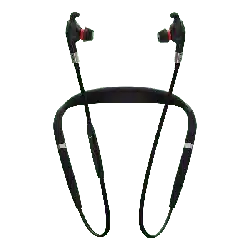
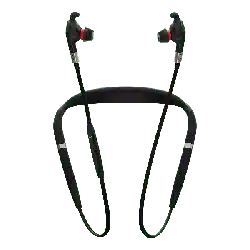
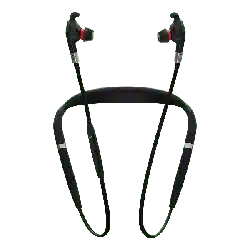
Evolve 75

© 2017 GN Audio A/S. All rights reserved. Jabra
®
is a
trademark of GN Audio A/S. The Bluetooth
®
word mark and
logos are registered trademarks owned by the Bluetooth
SIG, Inc. and any use of such marks by GN Audio A/S is under
license.
Declaration of Conformity can be found on
www.jabra.com/CP/US/doc
Designed and engineered in Denmark
Made in China
MODEL: HSC040W END040W

3
ENGLISH
Jabra Evolve 75
1. Welcome .........................................5
2. Overview ......................................... 6
2.1 Included accessories
2.2 Optional accessories
3. How to wear ...................................8
3.1 Replacing the ear cushions
3.2 Fold-flat storage
4. How to charge ............................ 11
4.1 Using the charging stand
4.2 Using the USB charging cable
4.3 Battery status
5. How to connect .......................... 14
5.1 PC (using Jabra Link 370)
5.2 PC (using USB cable)
5.3 Smartphone
6. How to use ................................. 16
6.1 What the buttons do
6.2 Multiple call handling
6.3 Voice guidance
6.4 Busylights
6.5 Active Noice Cancellation (ANC)
6.6 Listen-in
6.7 Factory reset


5
ENGLISH
Jabra Evolve 75
1. Welcome
Thank you for using the Jabra Evolve 75.
We hope you will enjoy it!
JABRA EVOLVE 75 FEATURES
• Superior Active Noise Cancellation (ANC)
• Integrated busylight to enhance your
productivity
• MultiUse connectivity to two Bluetooth
®
devices, enabling you take calls and listen to
music from the same headset
• HD voice and world class speakers
• Up to 30 meter/100 feet Bluetooth
connectivity
6
ENGLISH
Jabra Evolve 75
2. Overview
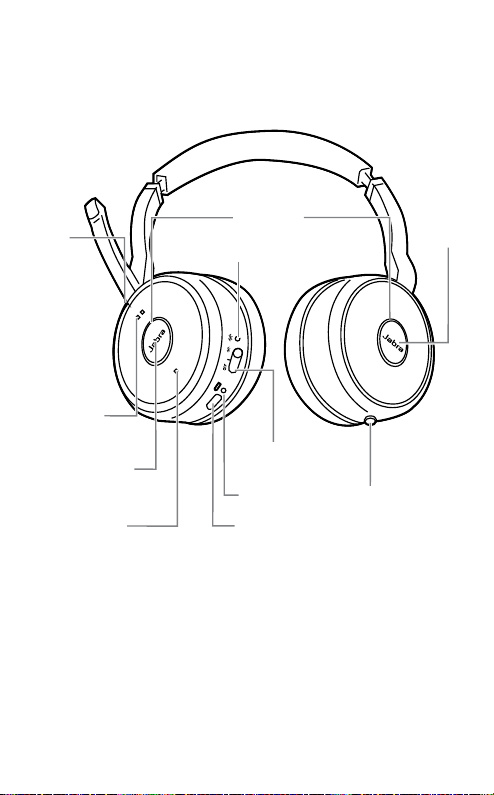
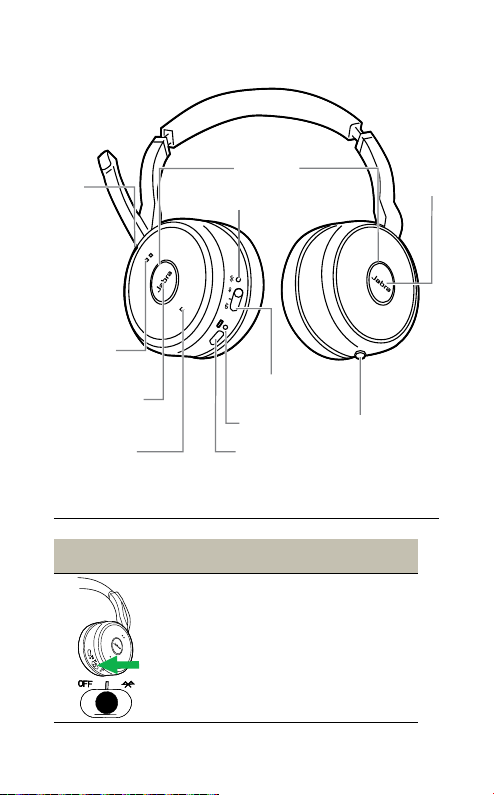
USB charging
Battery LED
On/O/Pairing
Busylight
Bluetooth LED
ANC
Listen-in
Volume down
Previous track (hold)
Answer/end call
Play/pause music (hold)
Volume up
Next track (hold)
Mute
7
ENGLISH
Jabra Evolve 75
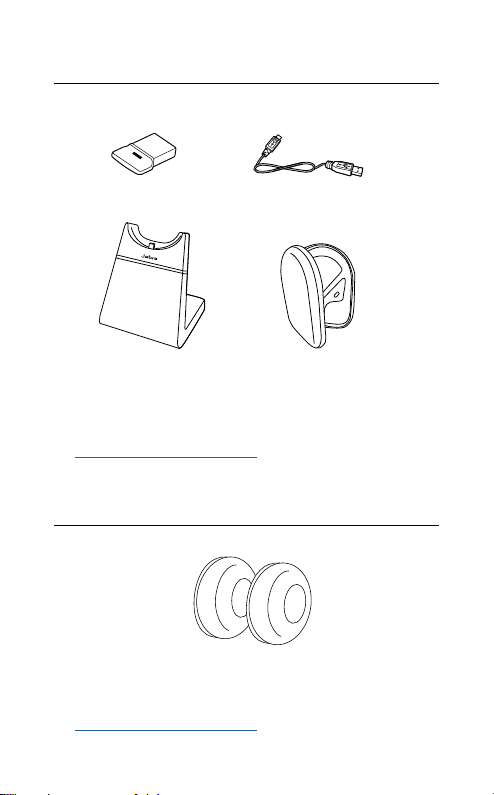
2.1 Included accessories
Charging stand
(not supplied in all variants)
Pouch
Replacement accessories are available online
at jabra.com/accessories.
2.2 Optional accessories
Replacement ear cushions are available online
at jabra.com/accessories.
USB charging
cable
jabra
Jabra Link 370
Ear cushions
8
ENGLISH
Jabra Evolve 75
3. How to wear
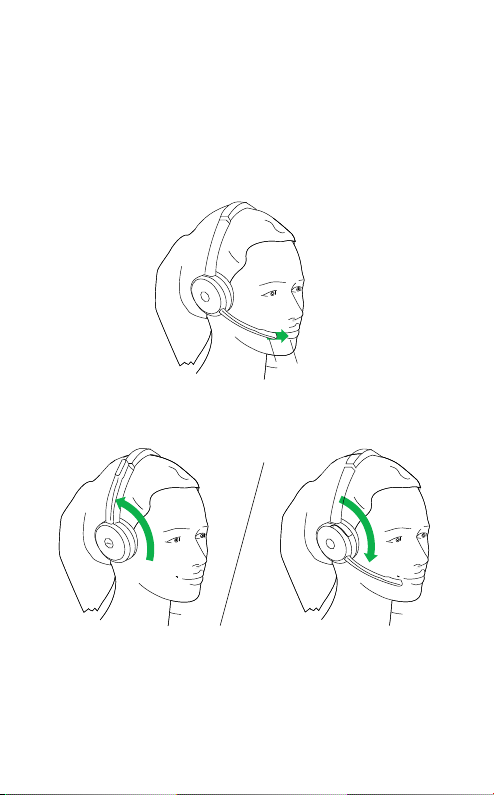
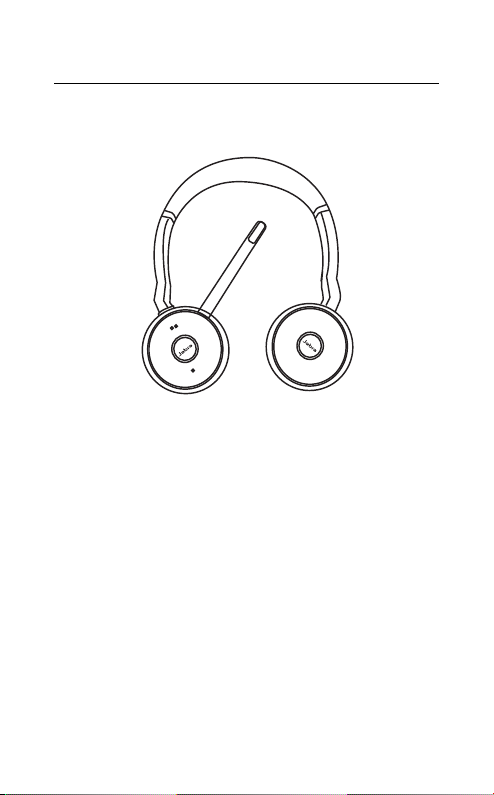
Position the microphone close to your mouth
(2 cm or 3/4 inch). The microphone is bendable
for personal preference.
ENGLISH
3/4"
2 cm
Rotate the microphone up to mute, or down to
un-mute.
ENGLISH
3/4"
2 cm
Mute Un-mute
When the microphone is not needed, rotate it
upwards and magnetically attach to the
headband.
9
ENGLISH
Jabra Evolve 75
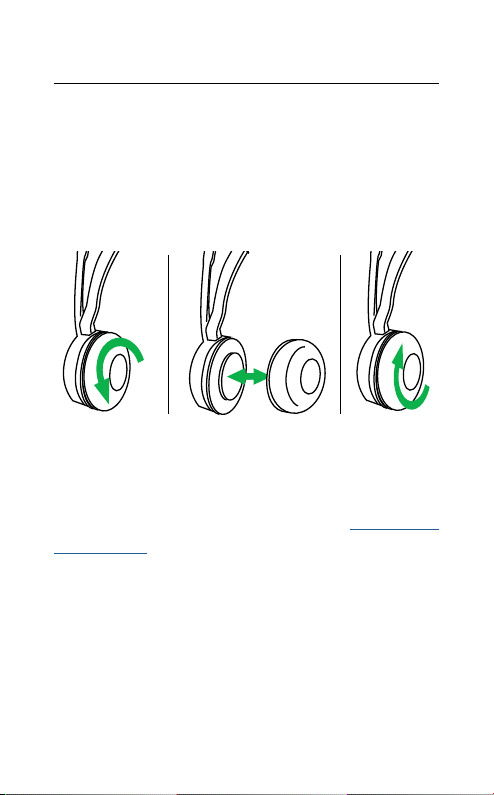
3.1 Replacing the ear cushions
Rotate the ear cushions counter-clockwise and
gently pry them off to completely remove
them from the headset. To attach the new ear
cushions, place them in the same position and
rotate clockwise to lock them in place.
Do not use or wear the headset when the ear
cushions are not attached. Replacement ear
cushions can be purchased via jabra.com/
accessories.
10
ENGLISH
Jabra Evolve 75
3.2 Fold-flat storage
The earcups can be folded-flat for easy storage.

11
ENGLISH
Jabra Evolve 75
4. How to charge
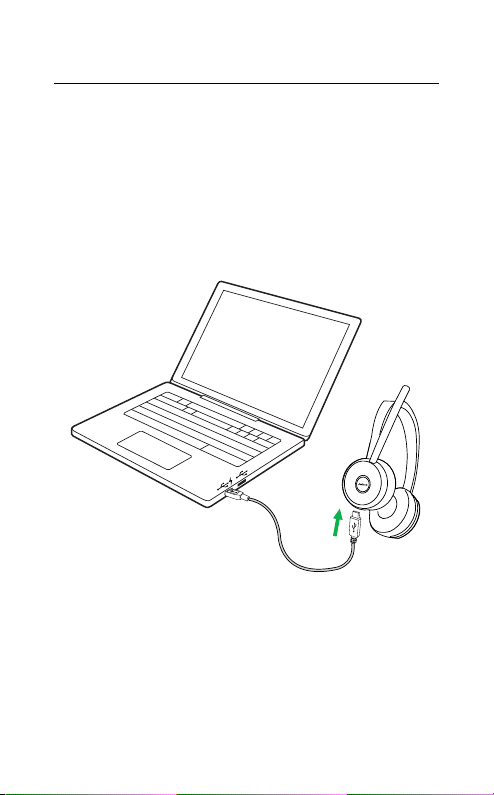
4.1 Using the charging stand
Plug the charging stand into a powered USB
port on your PC, docking station, or wall
charger, and then dock the headset.
It takes approx. 3 hours to fully charge the
headset.
When the PC is turned off, the headset will
continue to charge only when the charging
stand is plugged into a powered USB port.
12
ENGLISH
Jabra Evolve 75
4.2 Using the USB charging cable
Plug the supplied USB charging cable into a
USB port on your PC, docking station, or wall
charger.
It takes approx. 3 hours to fully charge the
headset.
13
ENGLISH
Jabra Evolve 75
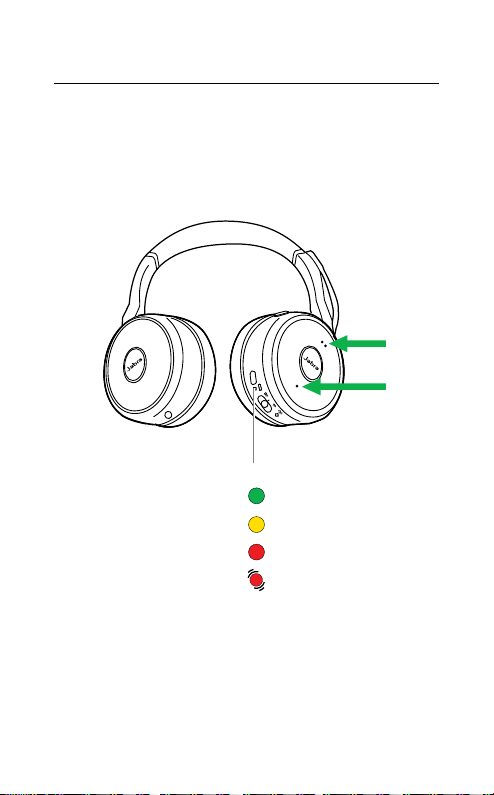
4.3 Battery status
To hear the current headset battery status,
wear the headset and press the Volume up or
Volume down button when not on a call or
listening to music.
BAT TERY STATUS
Full
Medium
Low/charging
Critically low
14
ENGLISH
Jabra Evolve 75
5. How to connect
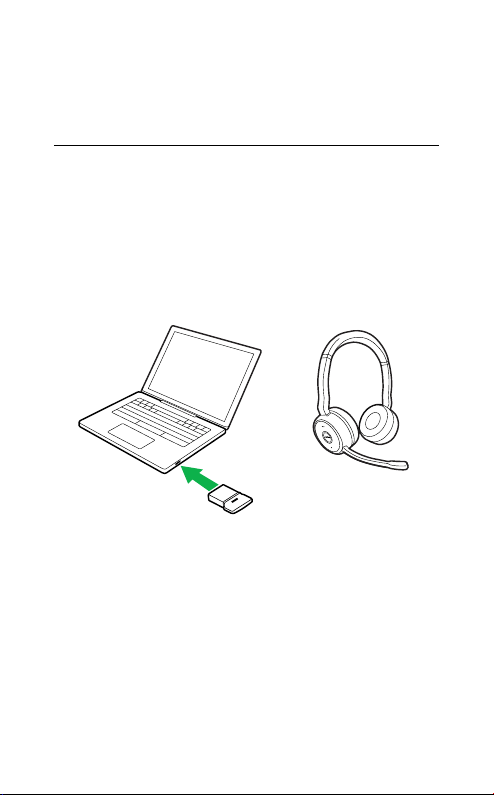
5.1 PC (using Jabra Link 370)
Plug the supplied Jabra Link 370 into a USB
port on your PC. The Jabra Evolve 75 and the
Jabra Link 370 are pre-paired and ready for use
out of the box. The Bluetooth range is up to 30
meters or 100 feet.
jabra
To hear music in the headset you may need to
select the Jabra Link 370 as the playback device
in your operating system’s audio settings.
To manually pair the Jabra Evolve 75 with the
Jabra Link 370, download and use Jabra Direct
or Jabra Suite for Mac.

15
ENGLISH
Jabra Evolve 75
5.2 PC (using USB cable)
Ensure the headset is switched on, and then
plug the headset into a USB port on your PC
using the supplied USB cable.
5.3 Smartphone
Slide and hold the On/Off/Bluetooth switch in
the Bluetooth position for 3 seconds and
follow the voice-guided instructions to begin
pairing the headset to your smartphone.
3 sec.
The Bluetooth range is up to 10 meters or 30
feet (limited by your smartphone’s Bluetooth
connectivity).
16
ENGLISH
Jabra Evolve 75
6. How to use
USB charging
Battery LED
On/O/Pairing
Busylight
Bluetooth LED
ANC
Listen-in
Volume down
Previous track (hold)
Answer/end call
Play/pause music (hold)
Volume up
Next track (hold)
Mute
6.1 What the buttons do
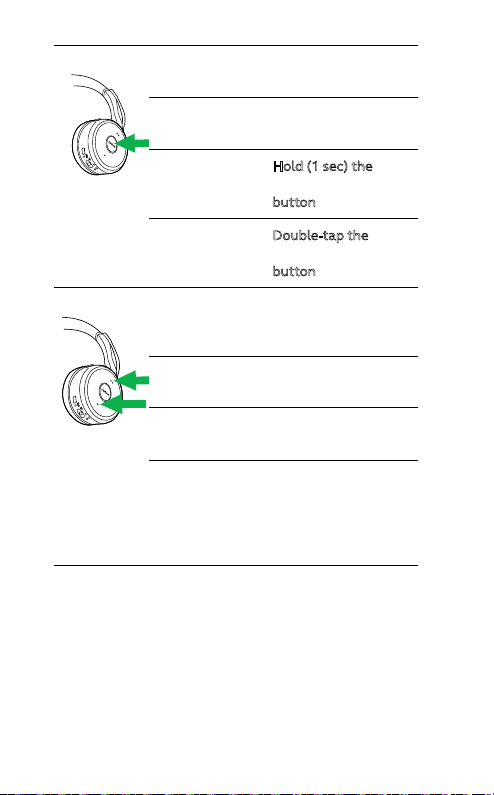
RIGHT EARCUP
Turn headset
on/o
Slide the On/O/
Bluetooth switch to
On or O
17
ENGLISH
Jabra Evolve 75
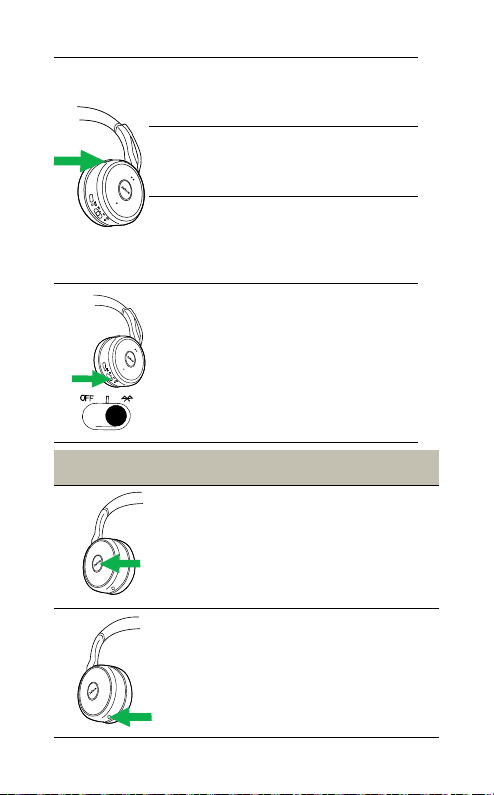
Answer call
Press the Answer/End
call button
End call
Press the Answer/End
call button
Play/pause
music
Hold (1 sec) the
Answer/End call
button
Reject call
Double-tap the
Answer/End call
button
Volume
up/down
Press the Volume
up or Volume down
button
Next track
Hold (1 sec) the
Volume up button
Previous track
Hold (1 sec) the
Volume down button
Battery
status
Press the Volume
up or Volume down
button, when not on
a call or listening to
music
18
ENGLISH
Jabra Evolve 75
Mute/
un-mute
microphone
Press the Mute
button, or rotate the
microphone up/down
Turn voice
guidance
on/o
Hold (5 secs) the
Mute button
Siri/Cortana/
Google Now
Press the Mute
button, when not on
a call or listening to
music
Pair
Bluetooth
device
Slide and hold (3
secs) the On/O/
Bluetooth switch
in the Bluetooth
position
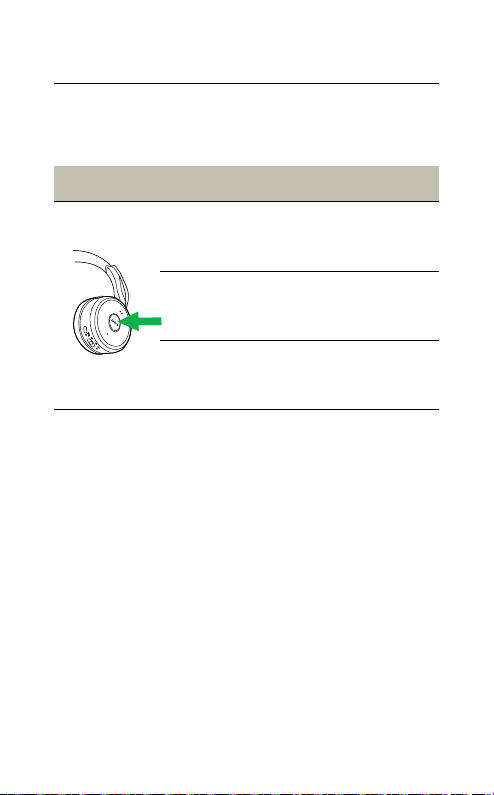
LEFT EARCUP
Listen-in
on/o
Press the Listen-in
button
ANC on/o Press the ANC button
19
ENGLISH
Jabra Evolve 75
6.2 Multiple call handling
The headset can accept and handle multiple
calls at the same time.
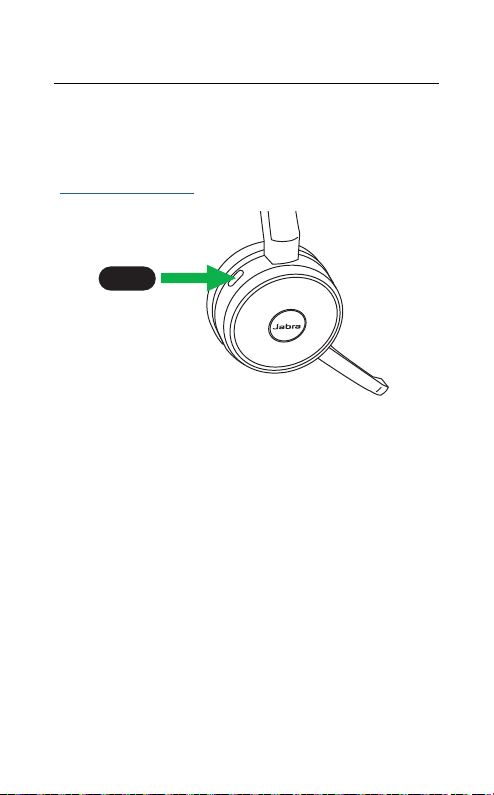
RIGHT EARCUP
Put current call on
hold, and answer
incoming call
Press the Answer/
End call button
Switch between
held call and
active call
Hold (2 secs) the
Answer/End call
button
Reject incoming
call, and continue
current call
Double-tap
Answer/End call
button
21
ENGLISH
Jabra Evolve 75
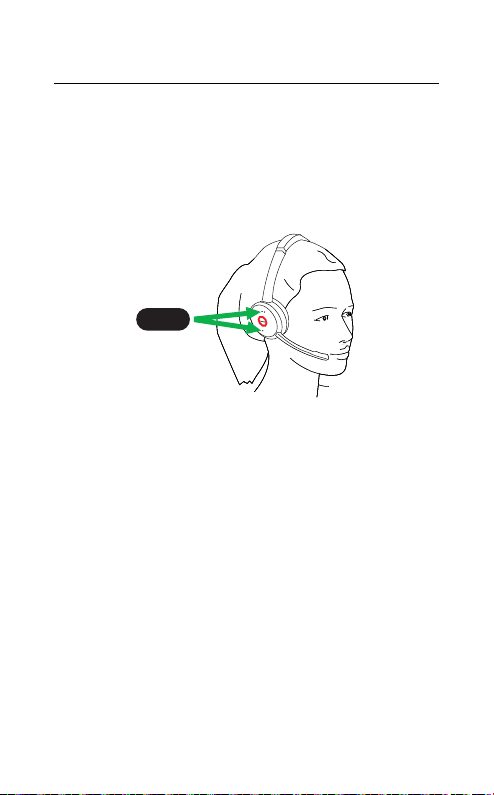
6.4 Busylights
The Busylights on the headset automatically
light up red when you are on a call to indicate
to colleagues that you are busy. To manually
switch the Busylights on/off, press the Volume
up and Volume down buttons simultaneously.
5 sec.
To de-activate the Busylight function entirely,
hold the Volume up and Volume down buttons
simultaneously for 5 seconds. De-activating
the Busylight function will prevent the use of
the busylights.
To re-activate the Busylight function, hold the
Volume up and Volume down buttons
simultaneously for 5 seconds.
22
ENGLISH
Jabra Evolve 75
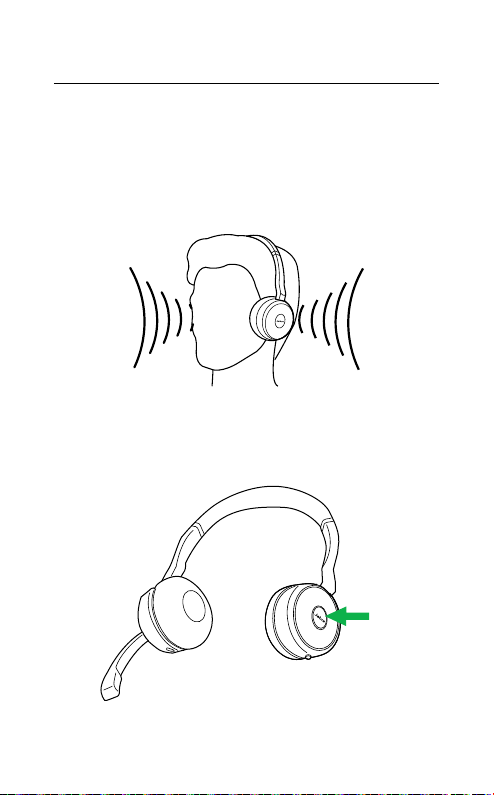
6.5 Active Noice Cancellation (ANC)
Active Noise Cancellation (ANC) reduces
outside disturbance to a minimum, allowing
you to fully focus on your work or call.
Press the ANC button to switch Active Noise
Cancellation on/off.
23
ENGLISH
Jabra Evolve 75
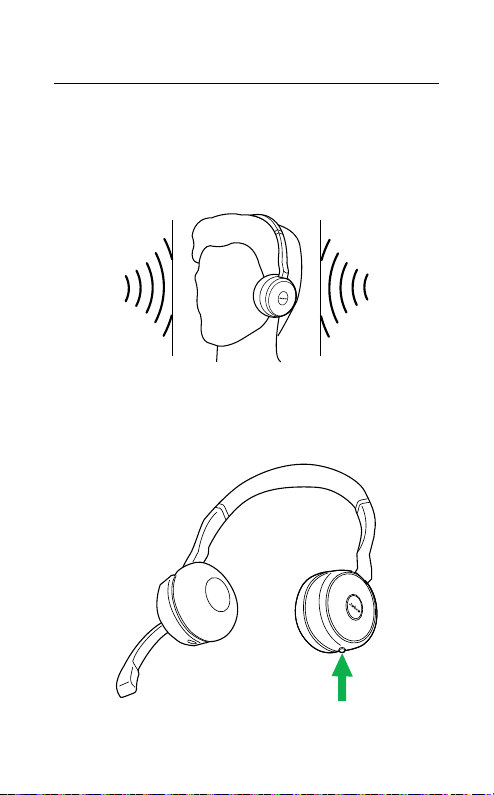
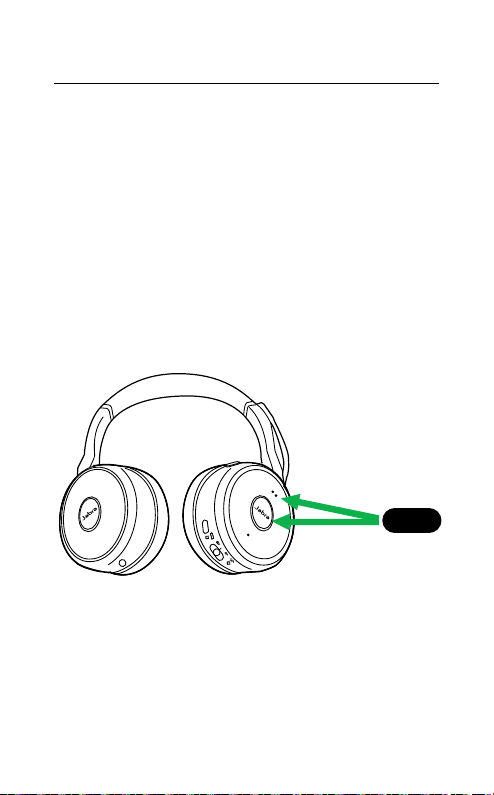
6.6 Listen-in
Listen-in enables you to hear your surroundings
without having to take off the headset. Your
music and calls will be muted (but not paused)
when Listen-in is on..
Press the Listen-in button to switch Listen-in
on/off.
24
ENGLISH
Jabra Evolve 75
6.7 Factory reset
Resetting the Jabra Evolve 75 clears the list of
paired Bluetooth devices and all personalized
settings.
To perform a factory reset, hold the Answer/
End call button and the Volume up button at
the same time for 5 seconds.
After the headset has been reset, you will need
to re-pair it to the Jabra Link 370, or to your
smartphone.
5 sec.

25
ENGLISH
Jabra Evolve 75
7. Software
7.1 Jabra Direct
Jabra Direct is PC software designed to
support, manage and enable optimal
functionality for Jabra devices.
Download via jabra.com/direct
7. 2 Suite for Mac
Suite for Mac is software designed to support,
manage and enable optimal functionality for
Jabra devices on Apple computers.
Download via jabra.com/supportpages/jabra-suite-for-mac

26
ENGLISH
Jabra Evolve 75
7. 3 Firmware update
Firmware updates improve performance, or
add new functionality to Jabra devices.
1. Connect the Jabra Evolve 75 to a PC using
the USB cable, charging stand, or Jabra Link
370.
2. Install Jabra Direct on your PC, or Suite for
Mac on your Mac.
3. Use Jabra Direct or Suite for Mac to check for
the latest firmware updates.


28
ENGLISH
Jabra Evolve 75
REV E
www.jabra.com/evolve75