User manual
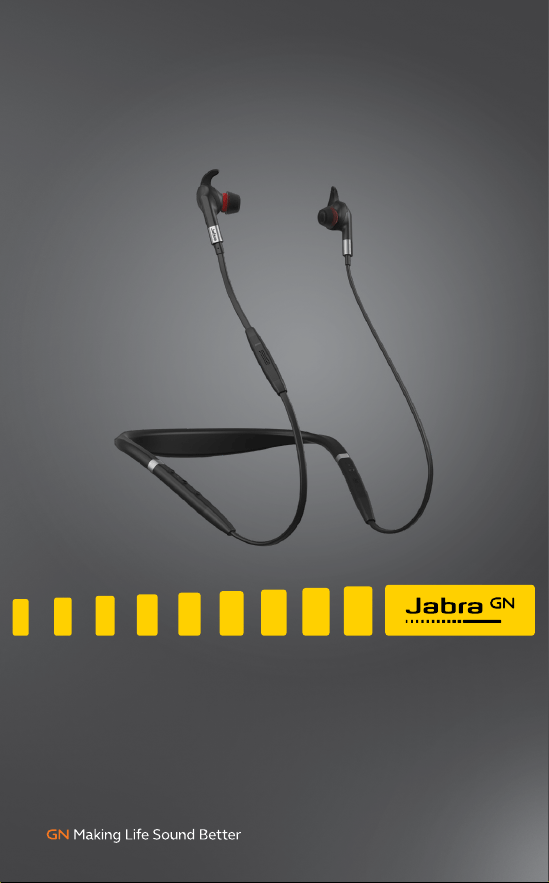
Evolve 75e
Jabra

© 2017 GN Audio A/S. All rights reserved. Jabra
®
is a
trademark of GN Audio A/S. The Bluetooth
®
word mark and
logos are registered trademarks owned by the Bluetooth
SIG, Inc. and any use of such marks by GN Audio A/S is under
license.
Declaration of Conformity can be found on
www.jabra.com/CP/US/doc
Made in China
MODEL: HSC070W/END040W

3
ENGLISH
1. Welcome ......................................... 5
2. Jabra Evolve 75e overview .........6
2.1 Included accessories
3. How to wear ................................... 7
3.1 Getting the correct fit
3.2 Attaching the EarWings
3.3 Using the magnetic earbuds
4. How to charge ............................ 11
4.1 What the LEDs mean
5. How to connect .......................... 13
5.1 Power on/o
5.2 Connecting to a computer (Bluetooth adapter)
5.3 Connecting to a computer (USB cable)
5.4 Pairing with a smartphone
6. How to use ................................. 16
6.1 Calls & music
6.2 Active Noise Cancellation (ANC)
6.3 HearThrough
6.4 Listen-in
6.5 Voice guidance
6.6 Siri or Google Now
6.7 Multiple call handling
6.8 Busylight


5
ENGLISH
1. Welcome
Thank you for using the Jabra Evolve 75e. We
hope you will enjoy it!
Jabra Evolve 75e features
• UC certified microphone technology
• Active Noise Cancellation (ANC) to eliminate
disturbances
• Integrated Busylight to prevent interruptions
• Power battery to fuel all-day use (up to 12
hours on a 2 hour charge)
• Dual-connectivity to two Bluetooth devices,
enabling you to take calls and listen to music
from the same earbuds
• Up to 30 meters / 100 feet of wireless range
for true mobility
• Vibrating call alert to ensure you never miss
a call
• Listen-in feature: Hear the conversations
around you, at the touch of a button
6
ENGLISH
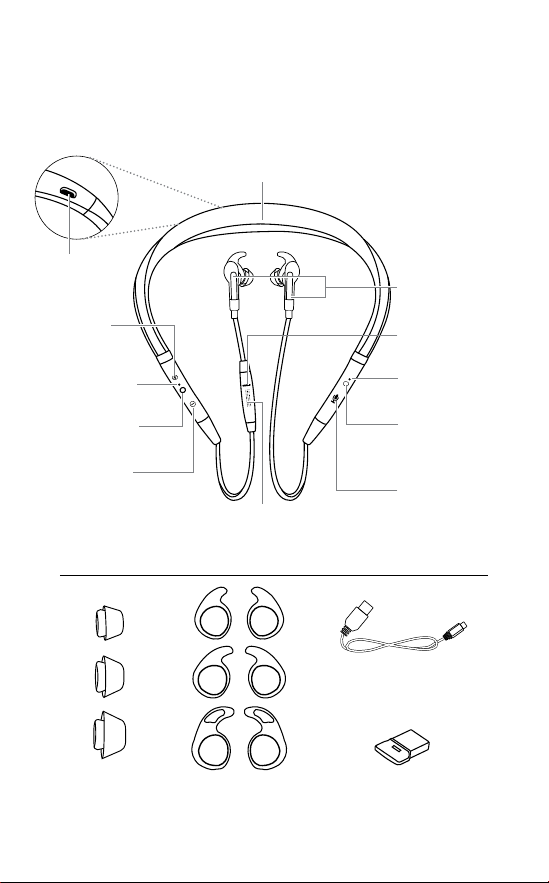
2. Jabra Evolve 75e
overview
Magnetic zone
Vibrating neckband
Mute
Voice Assistant
Cycle between
ANC and Hear-
Through modes
Listen-in (hold)
Audio mode LED
Busylight
USB charging
Volume up
Next track (hold)
Battery/
Bluetooth LED
Microphone
Power on/o (hold)
Answer/end call
Play/pause music
Volume down
Previous track (hold)
2.1 Included accessories
EarGel
R
L
R
L
R
L
EarWing
Jabra Link 370
USB charging cable
7
ENGLISH
3. How to wear
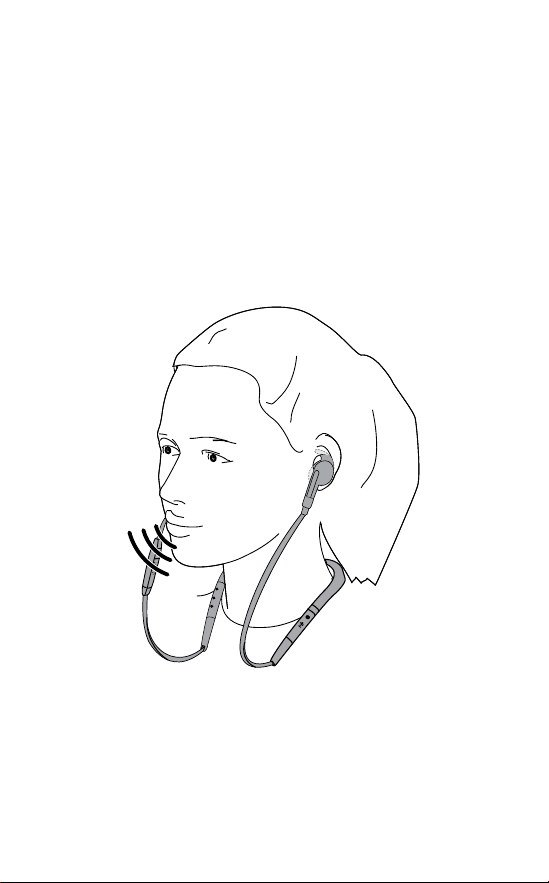
Jabra Evolve 75e is designed to be worn around
the neck.
For the optimal call experience, position the
microphone as close to your mouth as possible.
8
ENGLISH
3.1 Getting the correct fit
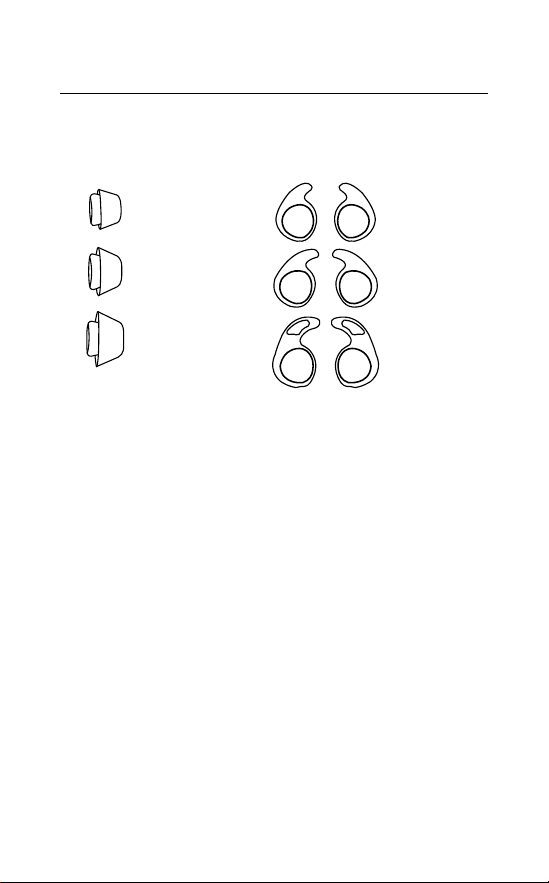
The earbuds are supplied with three EarGel
and EarWing sizes: large, medium and small.
R
L
R
L
R
L
Small Small
Medium
Medium
Large
Large
It is highly recommended to mix and match the
different EarGel and EarWing sizes to find the
best combination for your ear. The correct fit
will feel tight and will seal out background
noises.
9
ENGLISH
3.2 Attaching the EarWings
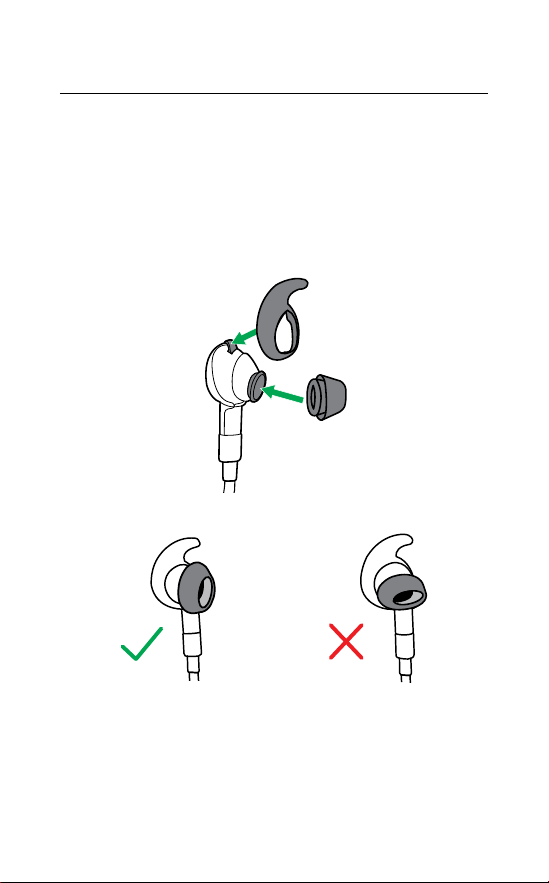
To properly attach the EarWing, align the
indent on the EarWing (as illustrated) with the
ridge on the earbud, and stretch the EarWing
over the earbud. It will fit perfectly in the
groove when properly attached.
10
ENGLISH
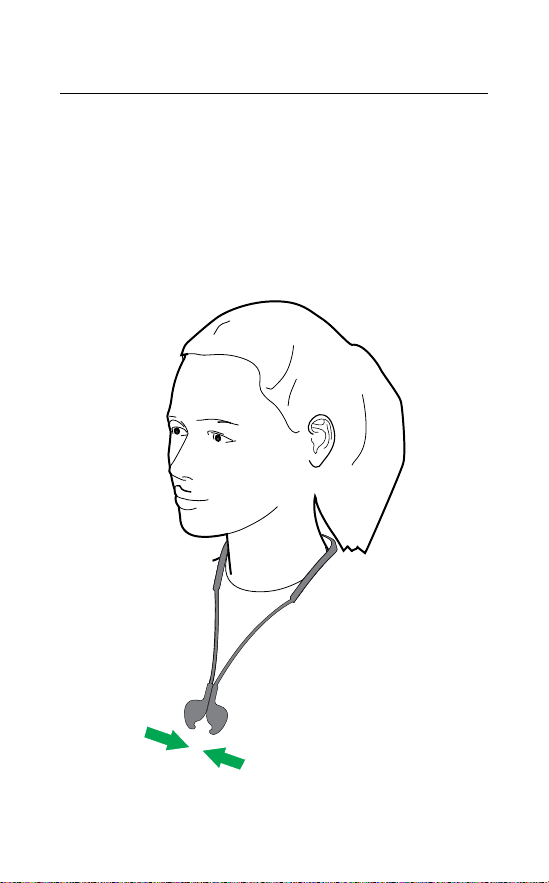
3.3 Using the magnetic earbuds
The earbuds are magnetic, and connect
together for convenient cable and power
management. When the earbuds are
connected, your music will be paused or your
call will be ended. Go to section 6.1. for more
information.
11
ENGLISH
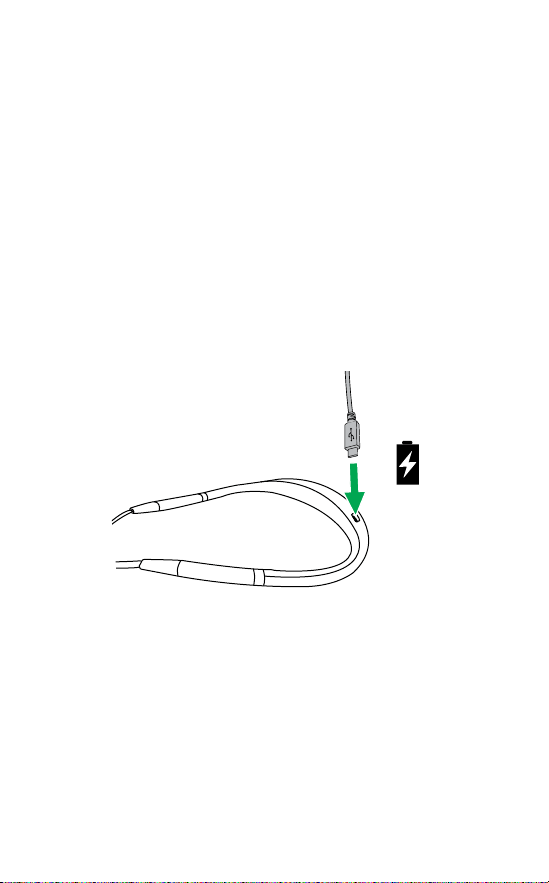
4. How to charge
To charge the earbuds, connect a USB charging
cable to the USB charging port on the
neckband. It is recommended to charge the
earbuds using the supplied Jabra charging
cable, however it is possible to charge the
earbuds using your smartphone charger.
It takes approx. 2 hours to fully charge the
earbuds.
Note: Always clean and dry the USB charging port before
charging the earbuds. It is recommended to recharge the
earbuds at least once a month.
12
ENGLISH
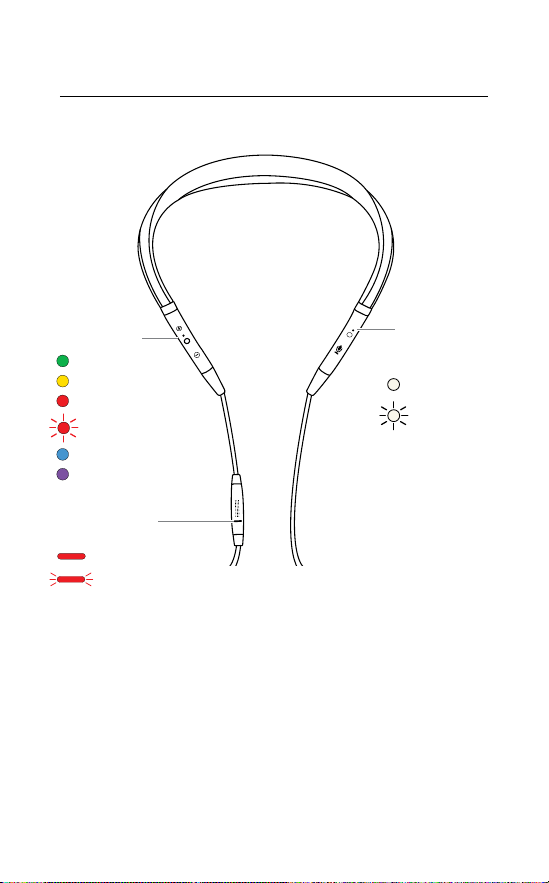
4.1 What the LEDs mean
Battery LED
Busylight LED
ANC/Listen-in
LED
Full
Medium
Low
Very low
Pairing mode
Resetting
Busy
Incoming call
ANC on
Listen-in on
13
ENGLISH
5. How to connect
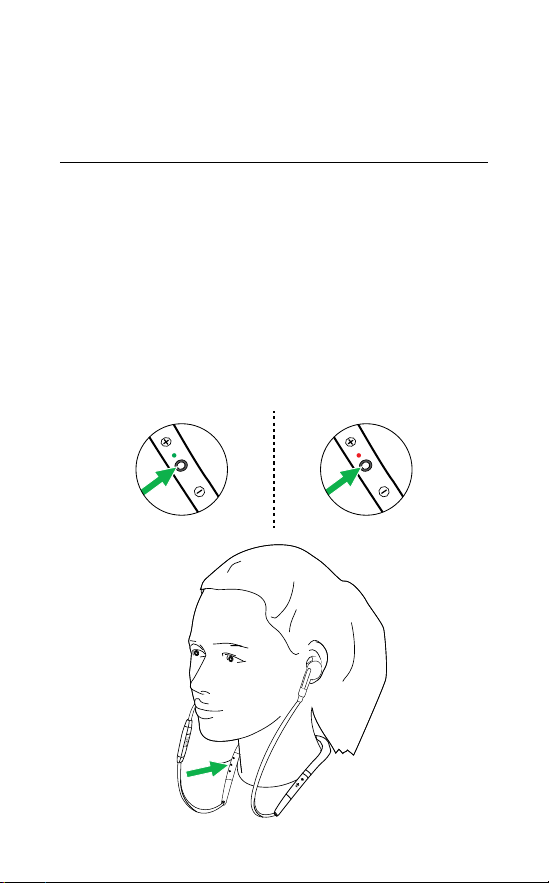
5.1 Power on/o
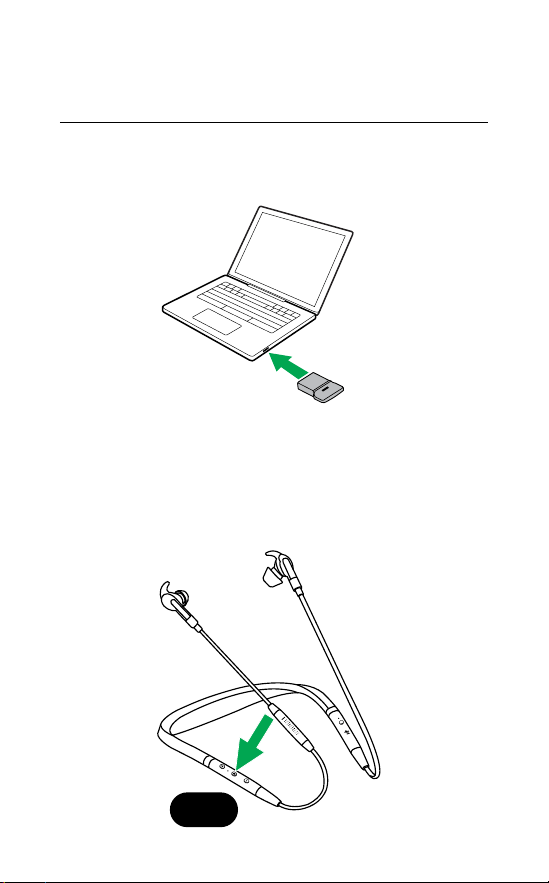
On: Hold the Multi-function button for 1
second. The LED will flash green, and the
neckband will vibrate.
Off: Hold the Multi-function button for 3
seconds. The LED will flash red, and the
neckband will vibrate.
On O
14
ENGLISH
5.2 Connecting to a computer
(Bluetooth adapter)
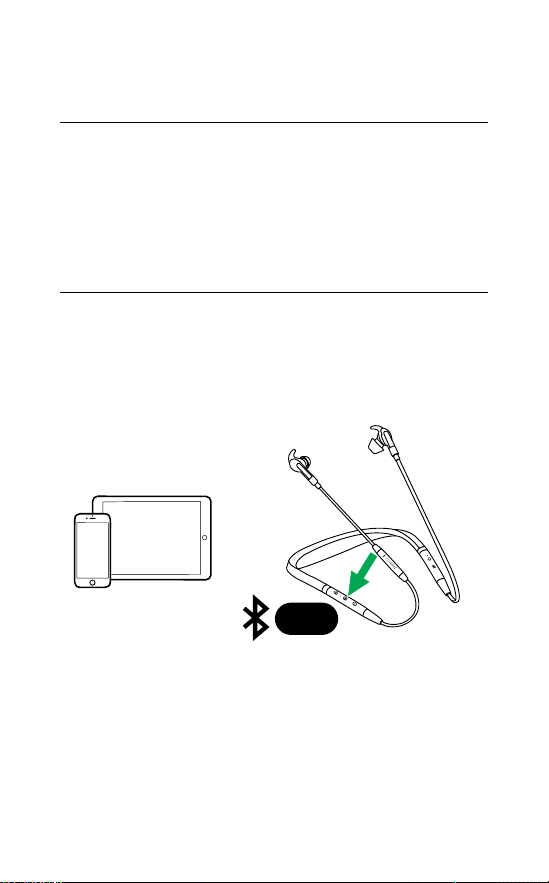
1. Insert the Bluetooth adapter (Jabra Link 370)
into your computer.
jabra
2. Hold (1 sec) the Multi-function button on
the earbuds to power them on. The earbuds
and the Bluetooth adapter are pre-paired
and will automatically connect.
jabra
1 sec
15
ENGLISH
5.3 Connecting to a computer
(USB cable)
1. Ensure the earbuds are powered on.
2. Plug the earbuds into a USB port on your
computer using the supplied USB cable.
5.4 Pairing with a smartphone
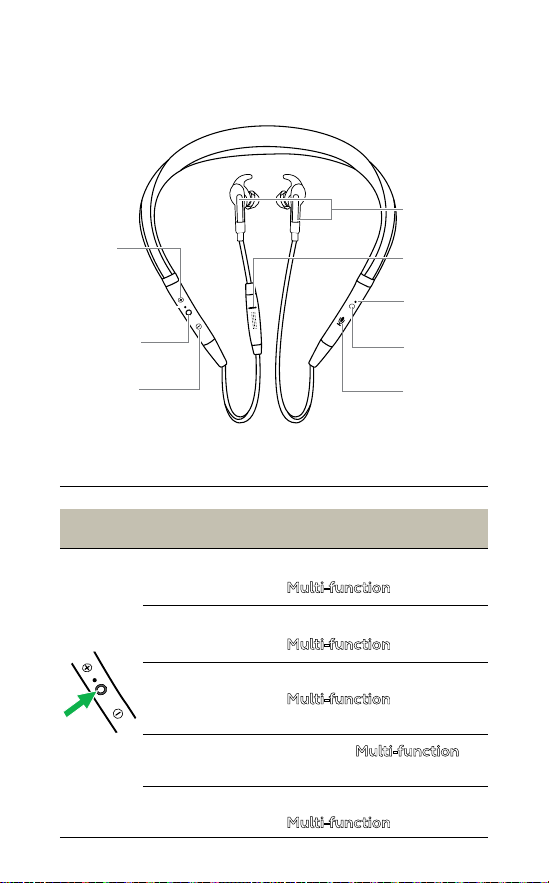
1. Ensure the earbuds are powered off, and
then hold (3 secs) the Multi-function button
until the LED flashes blue and you hear an
announcement in the earbuds.
2. Wear the earbuds and follow the voice-guided
pairing instructions.
3 sec
16
ENGLISH
6. How to use
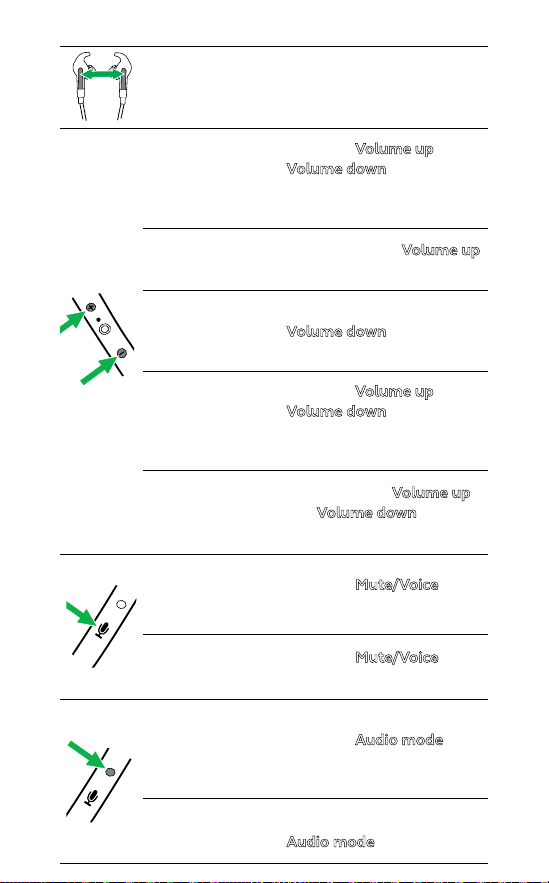
Magnetic zone
Mute/Voice
button
Audio mode
button
Audio mode
LED
Busylight
Volume up
button
Multi-function
button
Volume down
button
6.1 Calls & music
Calls & music
Power on
Hold (1 sec) the
Multi-function button
Power o
Hold (3 sec) the
Multi-function button
Play/pause
music
Hold (1 sec) the
Multi-function button
(smartphone only)
Answer/end
call
Press the
Multi-function
button when not on a call
Reject call
Double-tap the
Multi-function button
17
ENGLISH
Answer/end
call or play/
pause music
Detach/attach the
magnetic earbuds
Adjust volume
Press the
Volume up or
Volume down button,
when listening to music or
on a call
Next track
Hold (1 sec) the
Volume up
button (smartphone only)
Previous track
Hold (1 sec) the
Volume down button
(smartphone only)
Battery status
Press the
Volume up or
Volume down button,
when not listening to music
or on a call
Busylight on/
o
Press both the
Volume up
and
Volume down buttons
simultaneously
Siri or Google
Now
Press the Mute/Voice
button, when not on a call
Mute/un-mute
microphone
Press the
Mute/Voice
button, when on a call
Cycle between
ANC and
HearThrough
modes
Press the
Audio mode
button
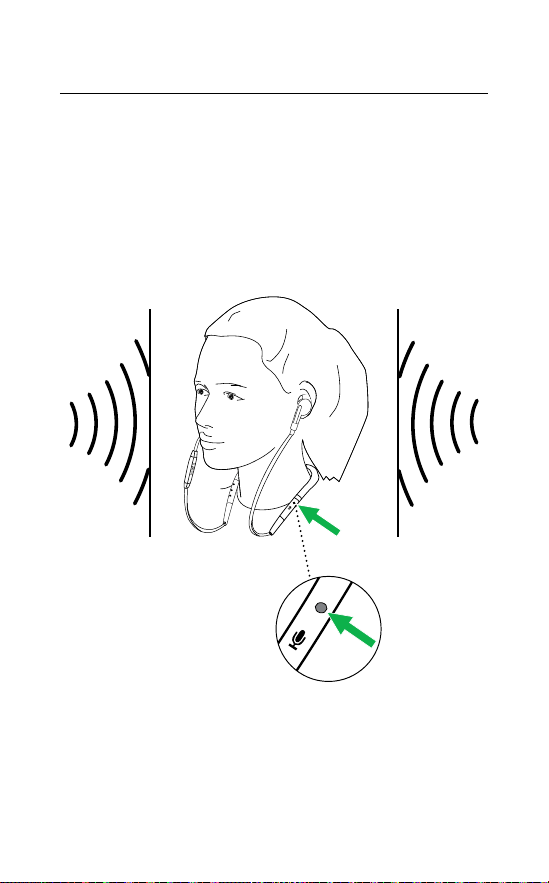
Listen-in on/o
Hold (2 secs) the
Audio mode button
18
ENGLISH
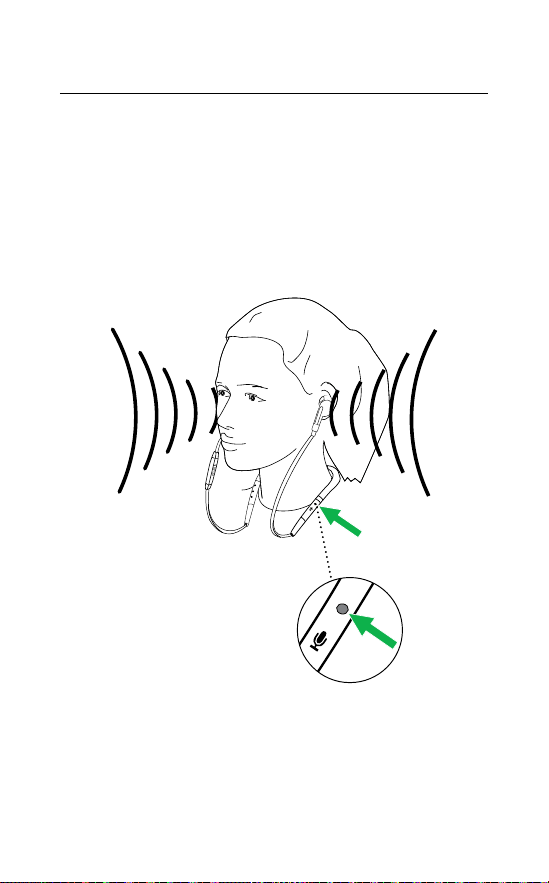
6.2 Active Noise Cancellation (ANC)
The earbuds use Active Noise Cancellation
(ANC) to eliminate outside disturbance,
allowing you to fully focus.
Press the Audio mode button to cycle through
the available options.
2 sec
19
ENGLISH
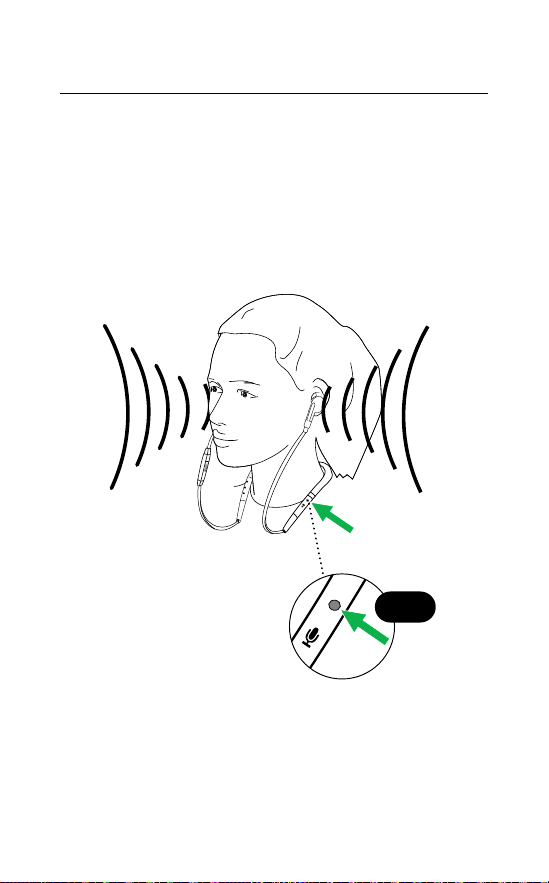
6.3 HearThrough
HearThrough enables you to hear your
surroundings without needing to remove the
earbuds. Your music will not be muted.
Press the Audio mode button to cycle through
the available options.
20
ENGLISH
6.4 Listen-in
Listen-in enables you to engage in conversations
without needing to remove the earbuds. Your
music will be muted.
Hold (2 secs) the Audio mode button to
activate Listen-in.
2 sec
21
ENGLISH
6.5 Voice guidance
Voice guidance are announcements intended
to guide you or give earbud status updates (e.g.
connection and battery status).
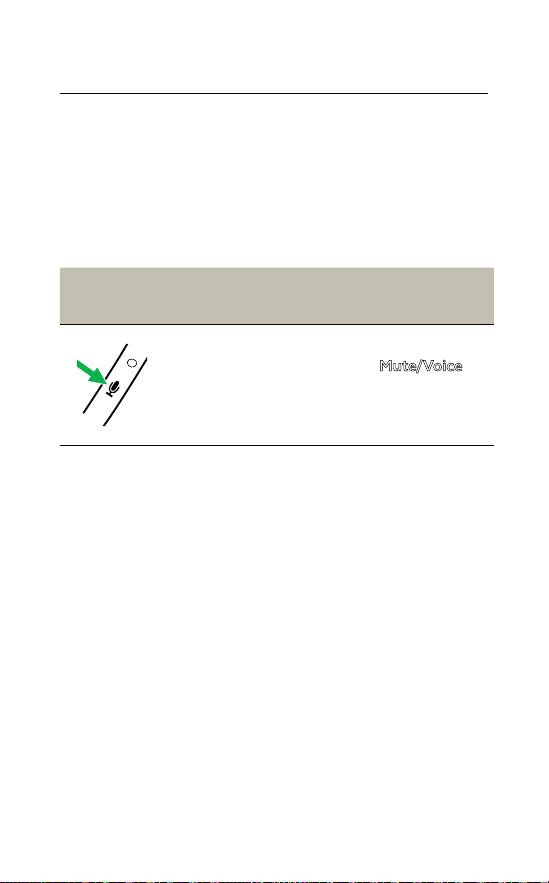
How to turn voice guidance On/Off
Voice guidance is enabled by default.
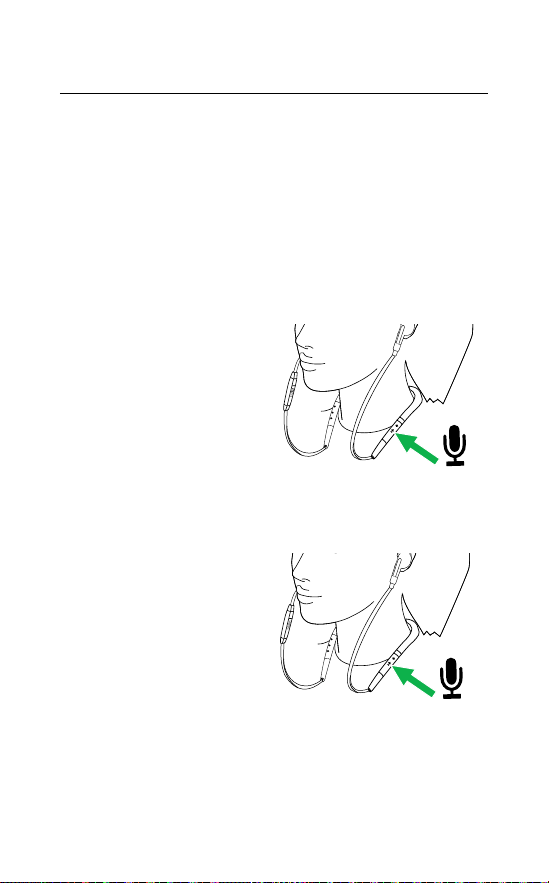
Voice Guidance On:
Ensure the earbuds
are powered on, and
then hold the
Mute/Voice button
for 5 seconds.
Voice Guidance Off:
Ensure the earbuds
are powered on, and
then hold the
Mute/Voice button
for 5 seconds.
22
ENGLISH
6.6 Siri or Google Now
Phone voice commands enable you to speak to
Siri or Google Now on your smartphone using
your earbuds. For more information on using
Siri or Google Now, please refer to your
smartphone’s user manual.
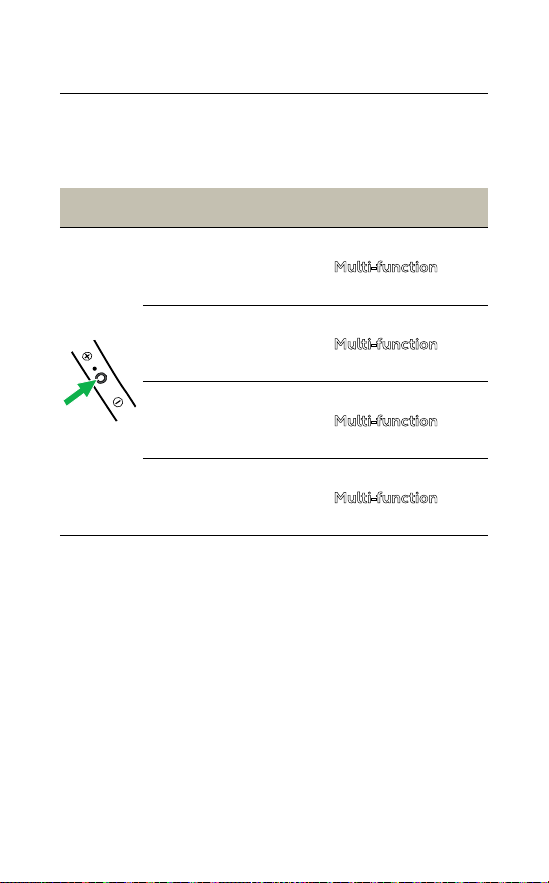
Phone voice commands
Activate Siri
or Google
Now (phone
dependent)
Press the
Mute/Voice
button, when not on
a call
23
ENGLISH
6.7 Multiple call handling
The earbuds can answer or reject calls when
you are already on a call.
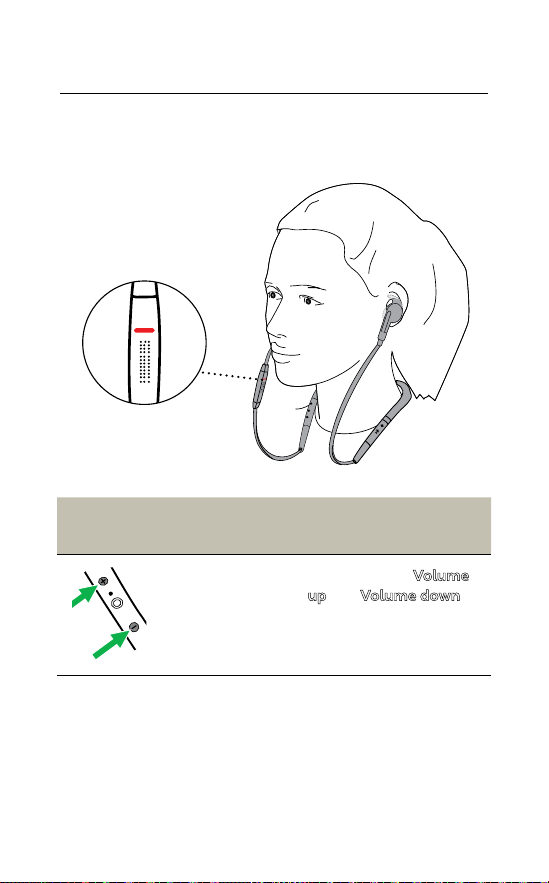
Multiple call handling
End current call and
answer incoming call
Press the
Multi-function
button
Put current call on
hold and answer
incoming call
Hold (1secs) the
Multi-function
button
Switch between held
call and active call
Hold (1secs) the
Multi-function
button
Reject incoming call,
when on a call
Double-tap the
Multi-function
button
24
ENGLISH
6.8 Busylight
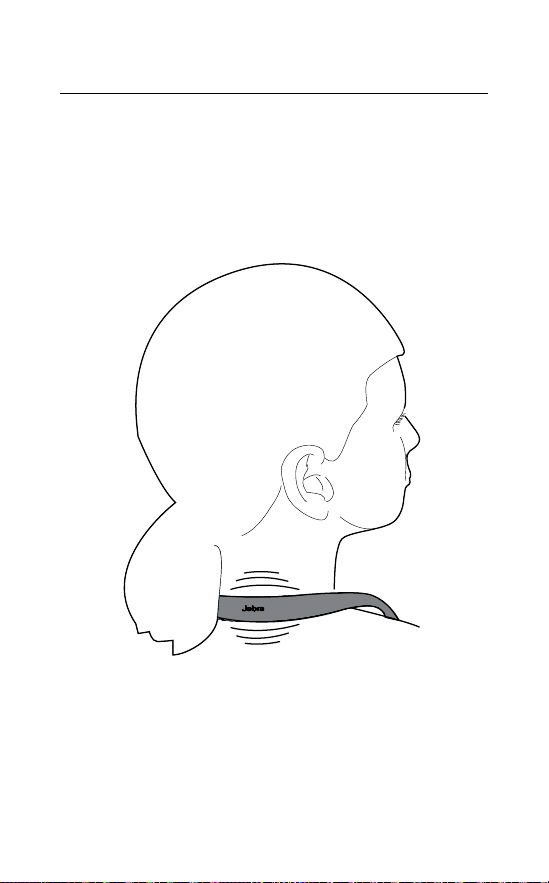
The Busylight lets others know when you are
busy or on a call.
Busylight
Busylight
on/o
Press both the
Volume
up and Volume down
buttons simultaneously
to turn the Busylight
on/o
To disable (or re-enable) the Busylight function,
hold both the Volume up and Volume down
buttons simultaneously for 3 seconds.
25
ENGLISH
6.9 Vibrate alert
The earbuds will vibrate whenever they are
powered on/off, connected to your smartphone
or computer, or whenever there is an incoming
call.
26
ENGLISH
6.10 How to reset
Resetting the earbuds clears the list of paired
devices and all earbud settings.
After resetting, it is necessary to re-pair the
earbuds to your smartphone or to your
Bluetooth adapter (Jabra Link 370). Please note
that Jabra Direct is required to re-pair the
earbuds to the Bluetooth adapter.
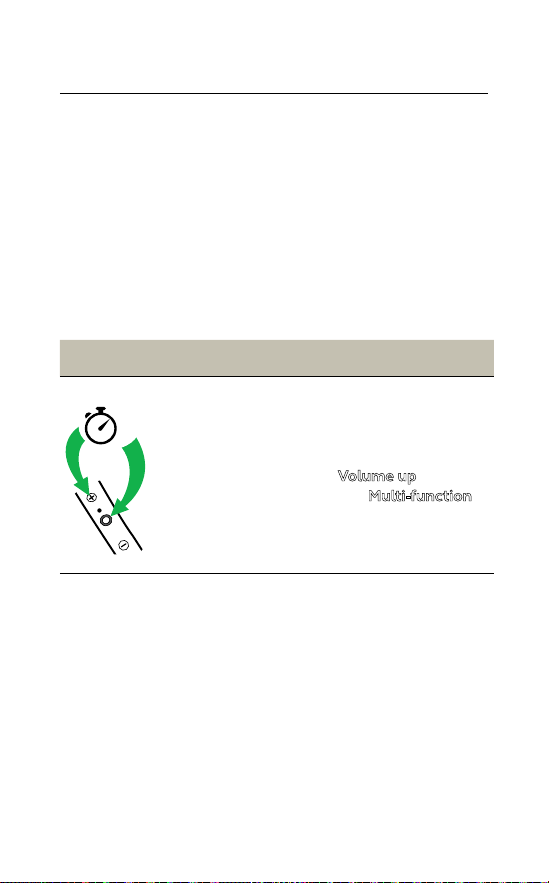
Reset
5
Reset the pairing
list
Ensure the earbuds are
powered on and you
are not on a call. Then
simultaneously hold
the
Volume up button
and the
Multi-function
button for 5 seconds.
You will then need to
re-pair the earbuds.

27
ENGLISH
6.11 Firmware update
Firmware updates improve performance, or
add new functionality to Jabra devices.
1. Connect the Jabra Evolve 75e to a computer
using the USB cable or Jabra Link 370.
2. Install Jabra Direct on your computer, or
Suite for Mac on your Mac.
3. Use Jabra Direct or Suite for Mac to check for
the latest firmware updates.

28
ENGLISH
7. Support
7.1 FAQ
View the FAQs on Jabra.com/Evolve75e
7. 2 How to care for your earbuds
• Always store the earbuds with the power off
and safely protected.
• Avoid storage at extreme temperatures
(above 50°C/122°F or below -10°C/14°F). This
can shorten battery life and may affect the
earbuds.
• Regularly clean the metal mesh on each
earbud to avoid them becoming blocked.

29
ENGLISH
REV D
jabra.com/evolve75e