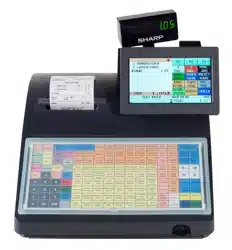
The above illustration shows the UP-820F.

WARNING
FCC Regulations state that any unauthorized changes or modifications
to this equipment not expressly approved by the manufacturer could void
the user’s authority to operate this equipment.
Note: This equipment has been tested and found to comply with the
limits for a Class A digital device, pursuant to Part 15 of the FCC Rules.
These limits are designed to provide reasonable protection against harmful
interference when the equipment is operated in a commercial environ-
ment.
This equipment generates, uses, and can radiate radio frequency energy
and, if not installed and used in accordance with the instruction manual,
may cause harmful interference to radio communications. Operation of
this equipment in a residential area is likely to cause harmful interfer-
ence, in which case the user will be required to correct the interference at
his own expense.
CAUTION
The AC power socket-outlet should be installed near the equipment
and should be easily accessible.
FOR YOUR RECORDS
Please record below the model number and serial number for easy refer-
ence in case of loss or theft. These numbers are located on the right side
of the unit. Space is provided for further pertinent data.
Model Number
Serial Number
Date of Purchase
Place of Purchase
— 1 —
BATTERY DISPOSAL
Contains Nickel Metal Hydride Battery. Must be Disposed of Properly.
Contact Local Environmental Officials for Disposal Instructions.
INTRODUCTION
Thank you very much for your purchase of the SHARP POS Terminal Model UP-810F/820F. Please read this
Manual carefully before operating your POS terminal in order to gain full understanding of functions and features.
Please keep this manual for future reference. It will help you if you encounter any operational problems.
IMPORTANT
Avoid installing this terminal in a location that may be subjected to direct radiation, unusual
temperature changes, and high humidity or exposure to water or other liquids.
Installation in such a location could cause damage to the cabinet and the electronic components.
Do not operate this terminal with wet hands.
This may cause damage to the terminal.
Do not apply excessive pressure to the display. Do not use a sharp-pointed object on the display.
This may cause damage to the LCD.
When cleaning this terminal, use a dry, soft cloth. Never use solvents, such as benzene or thinner.
The use of such chemicals will lead to discoloration or deterioration of the cabinet.
The terminal plugs into any standard wall outlet (120V ± 10% AC) with a dedicated earth-ground.
Other electrical devices on the same electrical circuit could cause the terminal to malfunction.
If the terminal malfunctions, call your local authorized dealer for service. Do not try to repair the
terminal yourself.
For a complete electrical disconnection, remove the AC power cord from the wall outlet.
This POS terminal uses a nickel metal hydride battery pack for memory protection.The battery
pack must be replaced at least every three years at the user's expense. For replacement of the
battery pack, please consult your authorized SHARP dealer.
PRECAUTION
This POS terminal has a built-in memory protection circuit which is operated by a rechargeable battery pack.
It should be known that all batteries will, in time, dissipate their charge even if not used. Therefore to insure
an adequate initial charge in the protection circuit and to prevent any possible loss of memory upon
installation, it is recommended that each unit be allowed to be charged for a period of 24 to 48 hours prior to
use by the customer.
In order to charge the battery pack, the machine must be plugged in . This charging precaution can prevent
unnecessary initial service calls.
This product utilizes tin-lead solder, and fluorescent lamp containing a
small amount of mercury.
Disposal of these materials may be regulated due to environmental
considerations.
For disposal or recycling information, please contact your local authori-
ties, the Electronics Industries Alliance: www.eiae.org, the lamp
recycling organization: www. lamprecycle. org or Sharp at 1-800-BE-
SHARP
(For U.S.A only)

— 2 —
CONTENTS
INTRODUCTION ........................................................................................................................................................ 1
IMPORTANT............................................................................................................................................................... 1
PRECAUTION ........................................................................................................................................................... 1
1. Part Names and Functions .............................................................................................................................. 9
External View ...................................................................................................................................................... 9
Front view .................................................................................................................................................. 9
Rear view .................................................................................................................................................... 9
Printer (UP-810F) ............................................................................................................................................. 10
Printer (UP-820F) ............................................................................................................................................. 11
RS232 Connector/SD Card Slot ..................................................................................................................... 12
Opening the RS232 connector cover......................................................................................................... 12
Opening the SD card slot cover ............................................................................................................... 12
Keyboard ........................................................................................................................................................... 13
Inserting the keyboard sheet..................................................................................................................... 13
Standard keyboard layout ......................................................................................................................... 14
Optional keys ............................................................................................................................................ 15
Default key texts on the display ................................................................................................................ 17
Drawer lock key................................................................................................................................................. 19
Display................................................................................................................................................................19
Operator display........................................................................................................................................ 19
Display angle ............................................................................................................................................ 21
Customer display ..................................................................................................................................... 22
Display contrast adjustment ..................................................................................................................... 22
Screen save mode ................................................................................................................................... 22
2. Selecting Operating Mode ............................................................................................................................. 23
Operating Modes .............................................................................................................................................. 23
Mode Selection ................................................................................................................................................. 24
3. Time Display and Automatic Date Updating ................................................................................................ 25
4. Receipts ........................................................................................................................................................... 26
Built-in Printer Sample Receipt ......................................................................................................................... 26
5. Prior to Entries ................................................................................................................................................ 27
Preparations for Entries .................................................................................................................................... 27
Error Warning ................................................................................................................................................... 27
Starting Cash Memory Entry ............................................................................................................................. 28
6. Entries .............................................................................................................................................................. 29
Server Code Entries .......................................................................................................................................... 29
Item Selection from the Function Menu Windows ............................................................................................ 29
Item Entries ....................................................................................................................................................... 32
Single item entries .................................................................................................................................... 32
Repeat entries .......................................................................................................................................... 34
Multiplication entries ................................................................................................................................. 35
Split-pricing entries ................................................................................................................................... 37
Successive multiplication entries ............................................................................................................. 38
Scale entries ............................................................................................................................................ 40
Single item Findization (SIF) .................................................................................................................... 42
Age verification (Birthday entry) ............................................................................................................... 43

— 3 —
Special Entries for PLU/UPC ........................................................................................................................... 44
Promotion (mix-and-match) function ....................................................................................................... 44
PLU/UPC link entries ............................................................................................................................... 44
UPC learning function ............................................................................................................................. 45
PLU/UPC price inquiry (view) function .................................................................................................... 46
UPC price change function ..................................................................................................................... 47
PLU level shift (for direct PLUs) .............................................................................................................. 49
PLU price level shift ................................................................................................................................. 50
Combo meal entries.................................................................................................................................. 51
Condiment entries (for PLU) ..................................................................................................................... 51
Repeat round entries ................................................................................................................................ 52
Display of Subtotals .......................................................................................................................................... 53
Merchandise subtotal ............................................................................................................................... 53
Taxable subtotal ....................................................................................................................................... 53
Tax-inclusive subtotal (full subtotal) .......................................................................................................... 53
Tray subtotal ............................................................................................................................................. 53
Eat-in subtotal ........................................................................................................................................... 53
Food stamp-eligible subtotal ..................................................................................................................... 53
Group discountable subtotal ..................................................................................................................... 54
Gasoline discount subtotal ....................................................................................................................... 54
Holding/Recalling of Transaction ..................................................................................................................... 55
Hold/Recall Function ............................................................................................................................... 55
Finalization of Transaction ................................................................................................................................ 56
Cash or check tendering .......................................................................................................................... 56
Mixed tendering (check + cash) ............................................................................................................... 56
Cash or check sale that does not need any tender entry (Expect payment) ............................................ 56
Charge (credit) sale .................................................................................................................................. 56
Mixed-tender sale (cash or check tendering + charge tendering) ............................................................ 56
Positive/Negative code checking function ................................................................................................ 56
Food stamp tendering .............................................................................................................................. 57
Food stamp status shift............................................................................................................................. 57
Tax Calculations ................................................................................................................................................ 58
Automatic tax ............................................................................................................................................ 58
Manual tax ................................................................................................................................................ 58
Tax deletion .............................................................................................................................................. 59
Tax status shift .......................................................................................................................................... 60
Guest Check (GLU/PBLU) ................................................................................................................................ 61
GLU/PBLU system.................................................................................................................................... 61
Deposit entries .......................................................................................................................................... 63
Transferring guest checks out or in (Transfer-out/in) ............................................................................... 64
Bill totalizing/bill transfer............................................................................................................................ 65
Bill separating ........................................................................................................................................... 67
Bill printing ................................................................................................................................................ 69
Auxiliary Entries................................................................................................................................................. 70
Percent calculations (premium or discount).............................................................................................. 70
Discount entries ........................................................................................................................................ 71
Refund entries........................................................................................................................................... 72
Return entries ........................................................................................................................................... 72
Printing of non-add code numbers............................................................................................................ 73
Refund sales mode ................................................................................................................................... 73
Group discount entries.............................................................................................................................. 73
Remote printer send function.................................................................................................................... 74
Gratuity ..................................................................................................................................................... 74
Payment Treatment ........................................................................................................................................... 75

— 4 —
Tip-in entries.............................................................................................................................................. 75
Tip editing ................................................................................................................................................. 75
Tip paid entries ......................................................................................................................................... 76
Currency conversion ................................................................................................................................ 76
Received-on-account entries ................................................................................................................... 76
Paid-out entries ........................................................................................................................................ 78
No-sale (exchange) .................................................................................................................................. 79
Cashing a check ...................................................................................................................................... 79
Customer management ........................................................................................................................... 80
WASTE mode ................................................................................................................................................... 81
7. Correction ........................................................................................................................................................ 82
Correction of the Last Entry (Direct Void) ......................................................................................................... 82
Correction of the Next-to-Last or Earlier Entries (Indirect Void) ....................................................................... 83
Subtotal Void .................................................................................................................................................... 84
Correction of Incorrect Entries Not Handled by the Direct or Indirect Void Function ........................................ 84
8. Special Printing Functions............................................................................................................................... 85
Printing Message Text for Remote Printer or Chit Receipts ............................................................................. 85
Copy Receipt Printing ....................................................................................................................................... 85
Validation Printing Function .............................................................................................................................. 86
9. Manager’s Override Entries and Correction after Finalization ................................................................ 87
Override Entries ................................................................................................................................................ 87
Correction after Finalization ............................................................................................................................ 88
10. Reading (X) and Resetting (Z) of Sales Totals .............................................................................................. 89
How to take an OPXZ, X1/Z1 or X2/Z2 reports ....................................................................................... 89
Flash report............................................................................................................................................... 89
Daily Sales Totals .............................................................................................................................................. 92
Transaction report ..................................................................................................................................... 92
Department report..................................................................................................................................... 95
Individual group total report on departments ............................................................................................ 96
Full group total report on departments...................................................................................................... 96
Department markdown report ................................................................................................................... 96
PLU/UPC report by designated range ...................................................................................................... 97
PLU/UPC pick up report ........................................................................................................................... 98
PLU/UPC report by associated department.............................................................................................. 99
Individual group total report on PLUs/UPCs ........................................................................................... 100
Full group total report on PLUs/UPCs .................................................................................................... 100
PLU/UPC stock report by designated range ........................................................................................... 100
PLU/UPC stock pick up report ................................................................................................................ 100
PLU/UPC zero sales report (full) ............................................................................................................ 101
PLU/UPC zero sales (by dept.) report .................................................................................................... 101
PLU/UPC minimum stock report ............................................................................................................. 101
PLU/UPC price category report .............................................................................................................. 102
Cash in drawer report ............................................................................................................................. 102
Positive check report .............................................................................................................................. 102
Dynamic UPC report by designated range ............................................................................................. 103
Dynamic UPC pick up report .................................................................................................................. 103
Dynamic UPC report by associated department .................................................................................... 104
Tax report ............................................................................................................................................... 105
Key capture report .................................................................................................................................. 105
Individual server report ............................................................................................................................106

— 5 —
Full server report .................................................................................................................................... 107
SCM(Starting cash memory)report ......................................................................................................... 107
Hourly report ........................................................................................................................................... 108
GLU/PBLU report ................................................................................................................................... 109
GLU/PBLU report by server .................................................................................................................... 109
Closed GLU/PBLU report ....................................................................................................................... 110
Closed GLU/PBLU report by server ........................................................................................................ 111
X1/Z1 stacked reports ............................................................................................................................. 111
Periodic Consolidation..................................................................................................................................... 112
Transaction report .................................................................................................................................. 112
Daily net report ....................................................................................................................................... 113
Customer sales report ............................................................................................................................ 114
Customer sales report by sales range .................................................................................................... 115
Customer charge account report ............................................................................................................ 115
X2/Z2 stacked report .............................................................................................................................. 115
Electronic journal ............................................................................................................................................ 116
11. Non-accessed UPC and Customer Deletion ............................................................................................... 117
Non-accessed UPC report ...................................................................................................................... 118
Non-accessed customer report ............................................................................................................... 118
Customer delete report ........................................................................................................................... 119
Dynamic UPC clear................................................................................................................................. 119
12. How to Use the Programming Keyboard Sheet ......................................................................................... 120
Programming Keyboard Layout ...................................................................................................................... 120
How to Enter Text Using Alphanumeric Characters ...................................................................................... 121
Using character keys on the keyboard ................................................................................................... 121
Entering character codes ....................................................................................................................... 122
13. Programming ................................................................................................................................................. 123
Basic Procedure .............................................................................................................................................. 123
Programming screens............................................................................................................................. 123
Programming example ........................................................................................................................... 124
Article Programming ....................................................................................................................................... 126
Department ............................................................................................................................................. 127
PLU/UPC ................................................................................................................................................ 129
Dynamic UPC ......................................................................................................................................... 132
PLU range............................................................................................................................................... 132
PLU/UPC stock ....................................................................................................................................... 133
Link PLU table (for PLU/UPC) ................................................................................................................ 134
Condiment table ..................................................................................................................................... 135
Mix & Match table ................................................................................................................................... 137
Combo meal table .................................................................................................................................. 138
Scale table ............................................................................................................................................. 139
UPC Non-PLU code format .................................................................................................................... 140
UPC delete ............................................................................................................................................. 141
Direct Key Programming ................................................................................................................................. 142
Direct PLU/COMBO/Dept. key ............................................................................................................... 142
PLU Menu Key Programming ......................................................................................................................... 144
PLU menu key ........................................................................................................................................ 144
Functional Programming ................................................................................................................................. 146
Discount key ( - 1 thru - 9 ) ..................................................................................................................... 147
Percent key ( %1 thru %9 ) ..................................................................................................................... 148
Group discount key ( GDSC%1 thru GDSC%3 ) .................................................................................... 149

— 6 —
Gas discount .......................................................................................................................................... 150
Gratuity .................................................................................................................................................. 151
Tip ......................................................................................................................................................... 151
RA ........................................................................................................................................................... 152
PO........................................................................................................................................................... 153
Manual tax .............................................................................................................................................. 153
Tax delete ............................................................................................................................................... 154
No-sale ................................................................................................................................................... 154
Void ........................................................................................................................................................ 155
Refund .................................................................................................................................................... 155
Return ..................................................................................................................................................... 156
Media Key Programming................................................................................................................................. 157
Cash keys ............................................................................................................................................... 158
Check keys ............................................................................................................................................. 162
Charge keys............................................................................................................................................ 165
Food stamp tender key ........................................................................................................................... 169
FSTEND EBT key .................................................................................................................................. 171
Cash benefit EBT (CASH BNF key) ...................................................................................................... 173
Currency conversion keys ...................................................................................................................... 175
Eat-in keys .............................................................................................................................................. 175
Service key.............................................................................................................................................. 176
Final key.................................................................................................................................................. 178
Cash in drawer........................................................................................................................................ 180
Check change ......................................................................................................................................... 180
Check cashing ....................................................................................................................................... 181
Currency denominations (MONEY) .........................................................................................................183
Text Programming ........................................................................................................................................... 184
Function text ........................................................................................................................................... 185
Department group text ............................................................................................................................ 187
PLU group text ....................................................................................................................................... 187
Server group text .................................................................................................................................... 188
Message text .......................................................................................................................................... 188
Personnel Programming ................................................................................................................................. 189
Server ..................................................................................................................................................... 189
Manager ................................................................................................................................................. 190
Terminal Programming .................................................................................................................................... 191
Machine number ..................................................................................................................................... 192
Consecutive number ............................................................................................................................... 192
Interval timer............................................................................................................................................ 192
Default menu level .................................................................................................................................. 193
Available GLU code ................................................................................................................................ 193
Bill number .............................................................................................................................................. 193
Brightness ............................................................................................................................................... 193
Date/Time Setting ........................................................................................................................................... 194
Date/time ................................................................................................................................................ 194
Optional Feature Selection ............................................................................................................................. 195
Function prohibition ................................................................................................................................ 196
Function selection 1 ............................................................................................................................... 198
Function selection 2 ............................................................................................................................... 199
Printing selection..................................................................................................................................... 201
Secret Code Programming.............................................................................................................................. 203
Z1 reports ............................................................................................................................................... 204
PGM2-mode operations ......................................................................................................................... 204
System Z1 reports .................................................................................................................................. 205

— 7 —
System PGM2-mode operations ............................................................................................................ 205
Initial down-loading (with clearing of memory) ...................................................................................... 206
Maintenance down-loading (without clearing of memory) ...................................................................... 206
Auto key ................................................................................................................................................. 207
Report Programming ....................................................................................................................................... 208
Zero skip ................................................................................................................................................. 209
Hourly report ........................................................................................................................................... 209
Stacked report ........................................................................................................................................ 210
Logo Text Programming .................................................................................................................................. 213
Receipt logo .......................................................................................................................................... 214
Validation printing text ............................................................................................................................. 214
Bill logo ................................................................................................................................................... 215
Scrolling message for pole display.......................................................................................................... 215
Device Configuration Programming................................................................................................................. 216
Built-in printer.......................................................................................................................................... 217
Journal printer ......................................................................................................................................... 217
External journal ...................................................................................................................................... 217
Receipt printer......................................................................................................................................... 218
Bill printer ................................................................................................................................................ 218
Report printer .......................................................................................................................................... 219
Validation (VP) printer ............................................................................................................................. 219
Remote printer (KP#1 thru KP#9) ........................................................................................................... 220
BCR (SCANNER) ................................................................................................................................... 220
Pole display ............................................................................................................................................ 221
GLU Code Programming ................................................................................................................................ 222
Customer Programming .................................................................................................................................. 223
Customer code ....................................................................................................................................... 224
Customer programming .......................................................................................................................... 224
Negative Code File Programming ................................................................................................................. 225
Negative code/Override status ............................................................................................................... 225
Positive Code File Programming..................................................................................................................... 227
Positive code .......................................................................................................................................... 227
Macro Key Programming................................................................................................................................. 229
Mode position/Auto key no. .................................................................................................................... 229
Function Menu Key Programming................................................................................................................... 230
Function menu key.................................................................................................................................. 231
Function key ............................................................................................................................................233
Function menu key list ............................................................................................................................ 234
Capture Key Programming.............................................................................................................................. 235
Capture key data .................................................................................................................................... 235
Key Data Entry Job Table Programming ......................................................................................................... 236
Capture job number ................................................................................................................................ 236
Tax Programming ............................................................................................................................................ 237
Table tax.................................................................................................................................................. 238
Rate (%) tax ............................................................................................................................................ 240
Doughnut tax exemption (for the Canadian tax system)......................................................................... 240
TRAINING Mode Selection ............................................................................................................................. 241
TRAINING mode..................................................................................................................................... 241
Backup Data Send Programming.................................................................................................................... 242
Backup data send ................................................................................................................................... 242
Backup Data Receive Programming ............................................................................................................... 243
Backup data receive ............................................................................................................................... 243
PLU Updating (in the PGM1 Mode)................................................................................................................ 244
Automatic Sequencing Key Programming....................................................................................................... 245

— 8 —
Loading Dynamic UPC to the Main UPC File.................................................................................................. 246
SD CARD Mode ............................................................................................................................................. 247
Reading Stored Programs............................................................................................................................... 249
Program reading sequence................................................................................................................... 249
Sample printouts ..................................................................................................................................... 250
Data Clear ....................................................................................................................................................... 263
14. Universal Product Code (UPC) or European Article Number (EAN)........................................................ 264
UPC or EAN code............................................................................................................................................ 264
Add-on code .................................................................................................................................................... 265
UPC file ........................................................................................................................................................... 265
15. Operator Maintenance................................................................................................................................... 266
In Case of Power Failure................................................................................................................................. 266
In Case of a Printer Error.................................................................................................................................... 266
Thermal Printing .............................................................................................................................................. 266
Cautions in handling the printer .............................................................................................................. 266
Cautions in handling the recording paper (Thermal paper) .................................................................... 267
Installing and Removing the Paper Roll........................................................................................................... 268
Recording paper specifications .............................................................................................................. 268
Installing a paper roll (UP-810F) ............................................................................................................. 268
Installing a paper roll (UP-820F) ............................................................................................................. 269
Manual installing of a paper roll (UP-810F/UP-820F) ............................................................................. 270
Removing the journal paper roll (UP-820F) ............................................................................................ 271
Prevention of paper jams ........................................................................................................................ 272
Removing a paper jam (UP-810F) .......................................................................................................... 273
Removing a paper jam (UP-820F) .......................................................................................................... 273
Cleaning the Print Head (UP-810F)................................................................................................................. 274
Cleaning the Print Head (UP-820F)................................................................................................................. 275
Removing the Till and the Drawer.................................................................................................................... 276
Operating the Drawer by Hand......................................................................................................................... 276
Before Calling for Service................................................................................................................................ 277
16. List of Options ............................................................................................................................................... 277
17. Specifications................................................................................................................................................. 278
— 9 —
Part Names and Functions
This chapter describes the part names and functions of this POS terminal.
1
External View
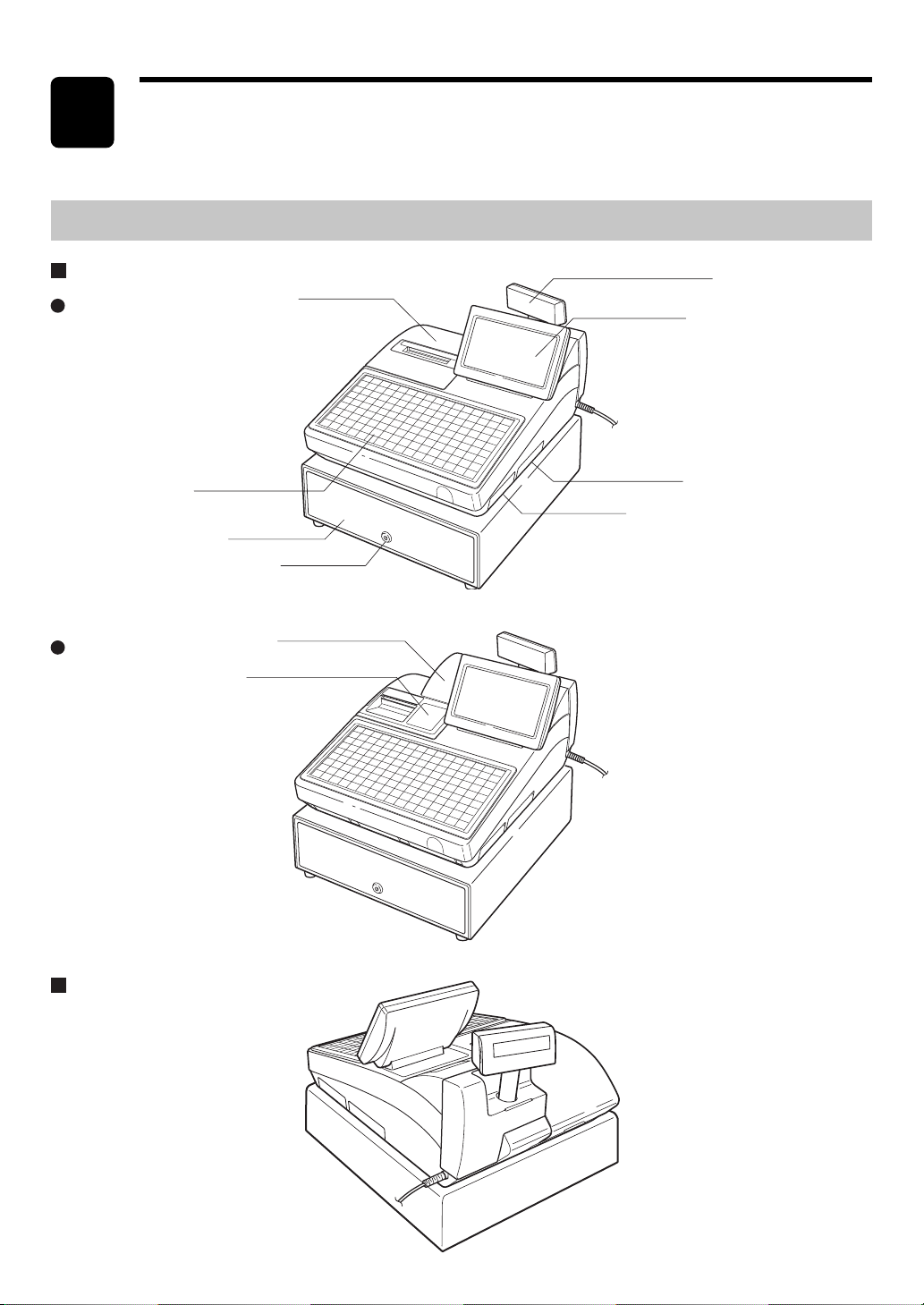
Front view
Rear view (UP-810F/UP-820F)
Printer cover
Keyboard (flat-type)
SD card slot
RS232 connector
Operator display
Customer display (Pop-up type)
Drawer
Drawer lock
Printer cover
Journal filter
UP-810F
UP-820F
— 10 —
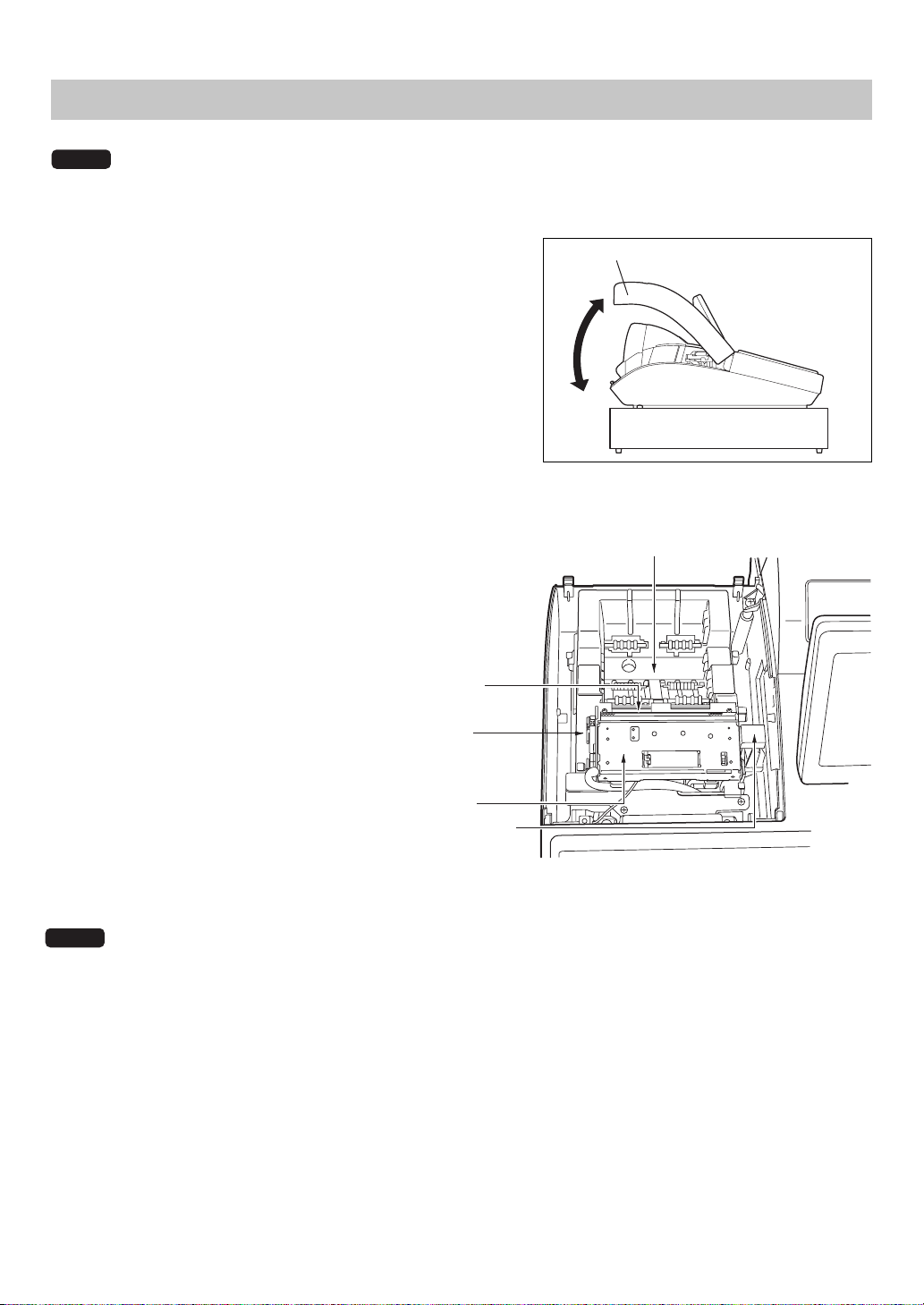
Printer cover
The built-in printer is a 1-station (receipt) type thermal printer,
and therefore it does not require any type of ink ribbon or
cartridge. The average life of the printer is approximately 5
million lines.
To open the printer cover, lift up the cover as shown in the
illustration on the right.
Printer (UP-810F)
NOTE
Paper roll location
Print head
release lever
Cutter unit
Cutter open lever
Paper chute
Print head release lever
The print head can be lifted by the green
lever on the left side of the printer. Pulling the
lever forward lifts the print head up. If the
paper becomes jammed, you need to lift the
print head.
Cutter open lever
If a paper jam occurs, pull the cutter unit
open while pushing the cutter open lever to
the right. Then remove the paper jam inside
the printer. For further information, refer to
the "Removing a paper jam" section in the
"Operator Maintenance" chapter.
Do not attempt to remove the paper roll with the head in the down position. This may result in damage to
the printer and print head.
The POS terminal UP-810F may be configured with multiple types of printers offered by the market. For
specific instructions related to the handling and care of the printer, please refer to the applicable printer
instruction manual.
NOTE
— 11 —
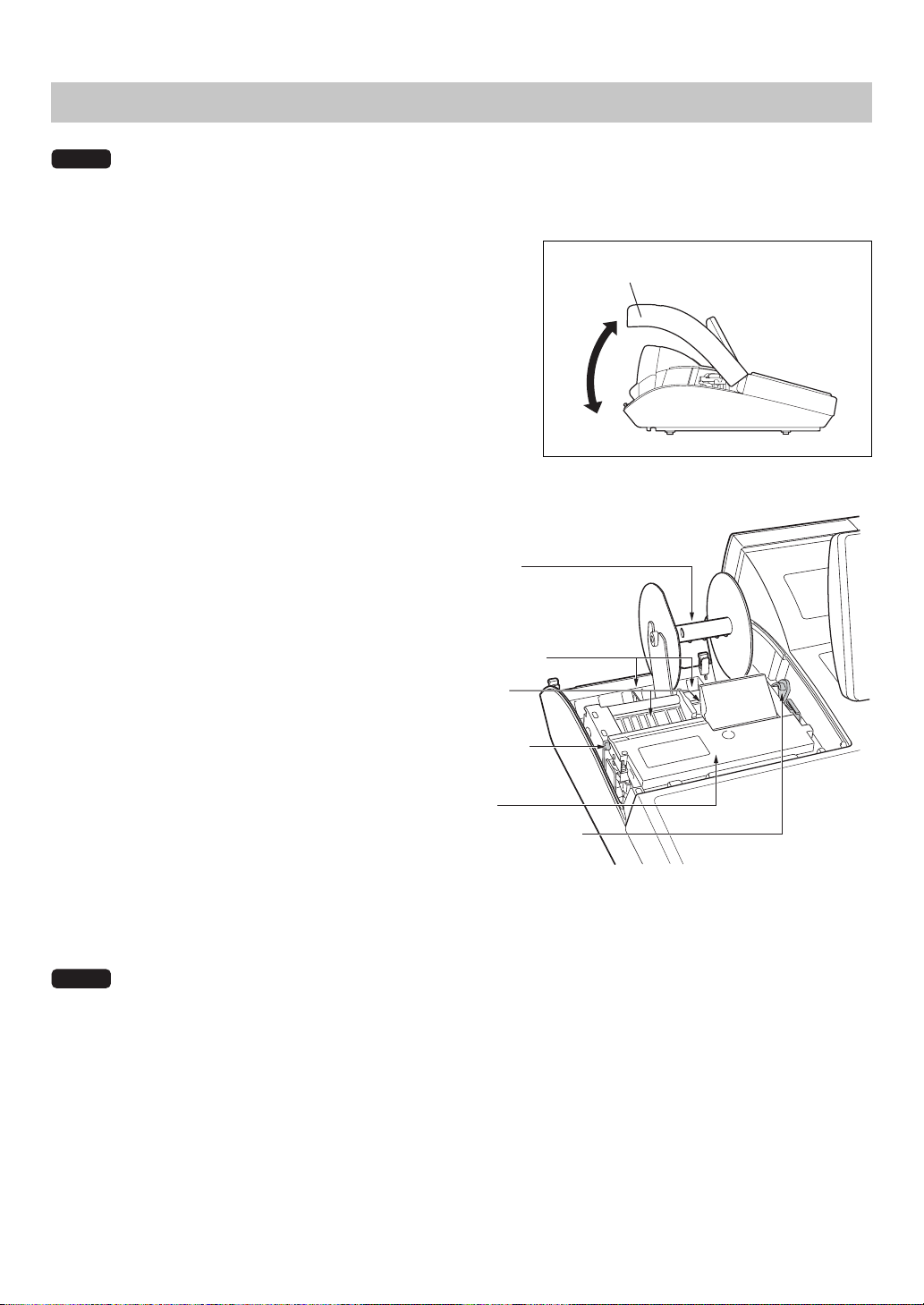
Printer cover
The built-in printer is a 2-station (receipt/journal) type thermal
printer, and therefore it does not require any type of ink ribbon
or cartridge. The average life of the printer is approximately 5
million lines.
To open the printer cover, lift up the cover as shown in the
illustration on the right.
Printer (UP-820F)
NOTE
The POS terminal UP-820F may be configured with multiple types of printers offered by the market. For
specific instructions related to the handling and care of the printer, please refer to the applicable printer
instruction manual.
Your POS terminal is shipped with the print
head release lever held by a white retainer in
the lifted up position. Be sure to remove this
retainer and push down the print head
release lever before you use the terminal.
Print head release lever
The print head can be lifted by the green
lever on the right side of the printer. Pulling
the lever forward lifts the print head up. If the
paper becomes jammed, you need to lift the
print head.
Cutter open tab
If a paper jam occurs, pull the cutter unit
open while pushing the cutter open lever to
the right. Then remove the paper jam inside
the printer. For further information, refer to
the "Removing a paper jam" section in the
"Operator Maintenance" chapter.
Do not attempt to remove the paper roll with the head in the down position. This may result in damage to
the printer and print head.
NOTE
Cutter open tab
Cutter unit
Print head release lever
Paper chute
Paper roll location
Take-up spool
— 12 —
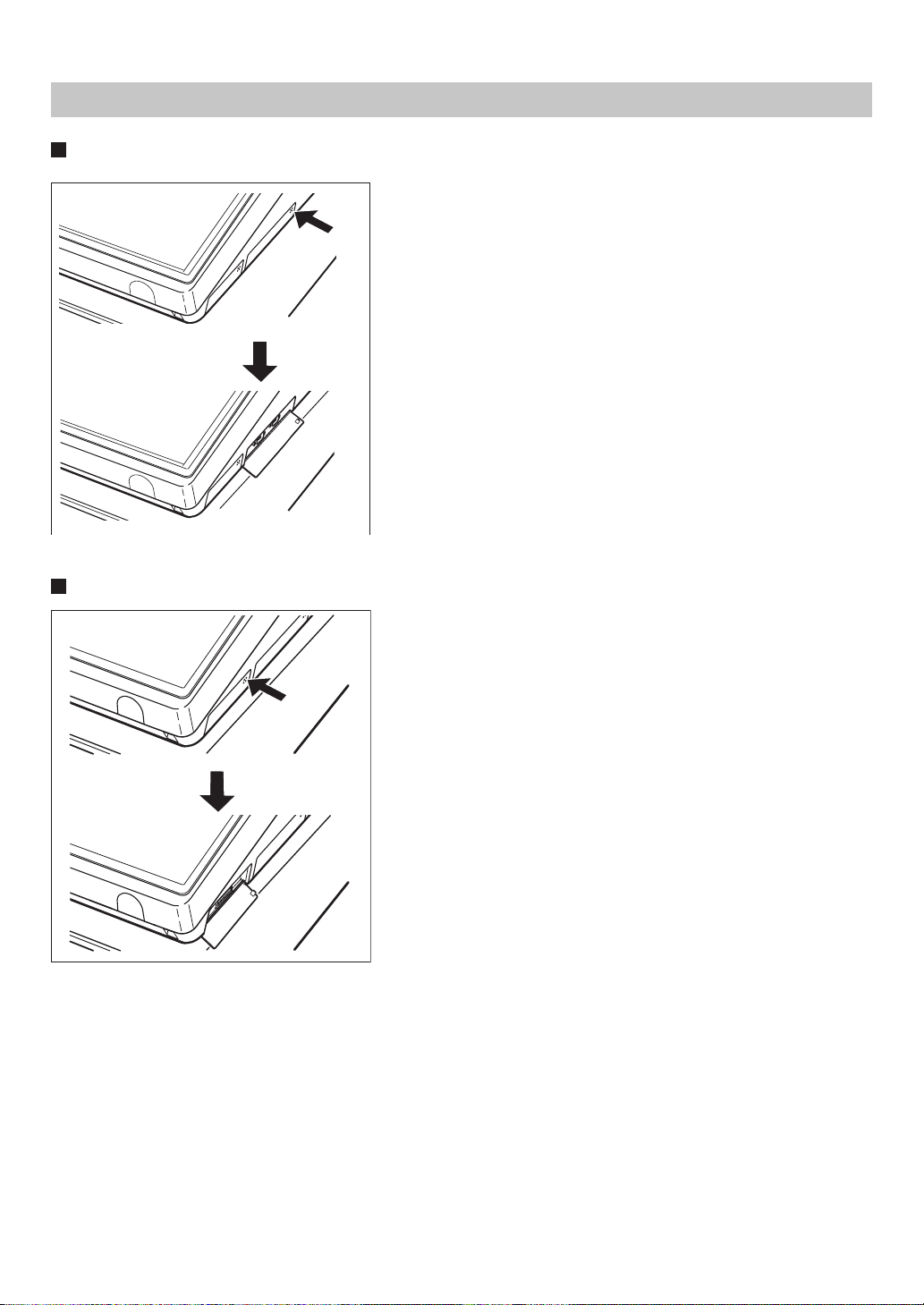
RS232 Connector/SD Card Slot
Opening the RS232 connector cover
To open the RS232 connector cover, push the part of the cover as
indicated by the arrow in the illustration on the left.
* To close the cover, push the same part in until you hear it click.
Opening the SD card slot cover
To open the SD card slot cover, push the part or the cover as
indicated by the arrow in the illustration on the left.
* To close the cover, push the same part in until you hear it click.
For further information, refer to the “SD Card Mode” section.
— 13 —
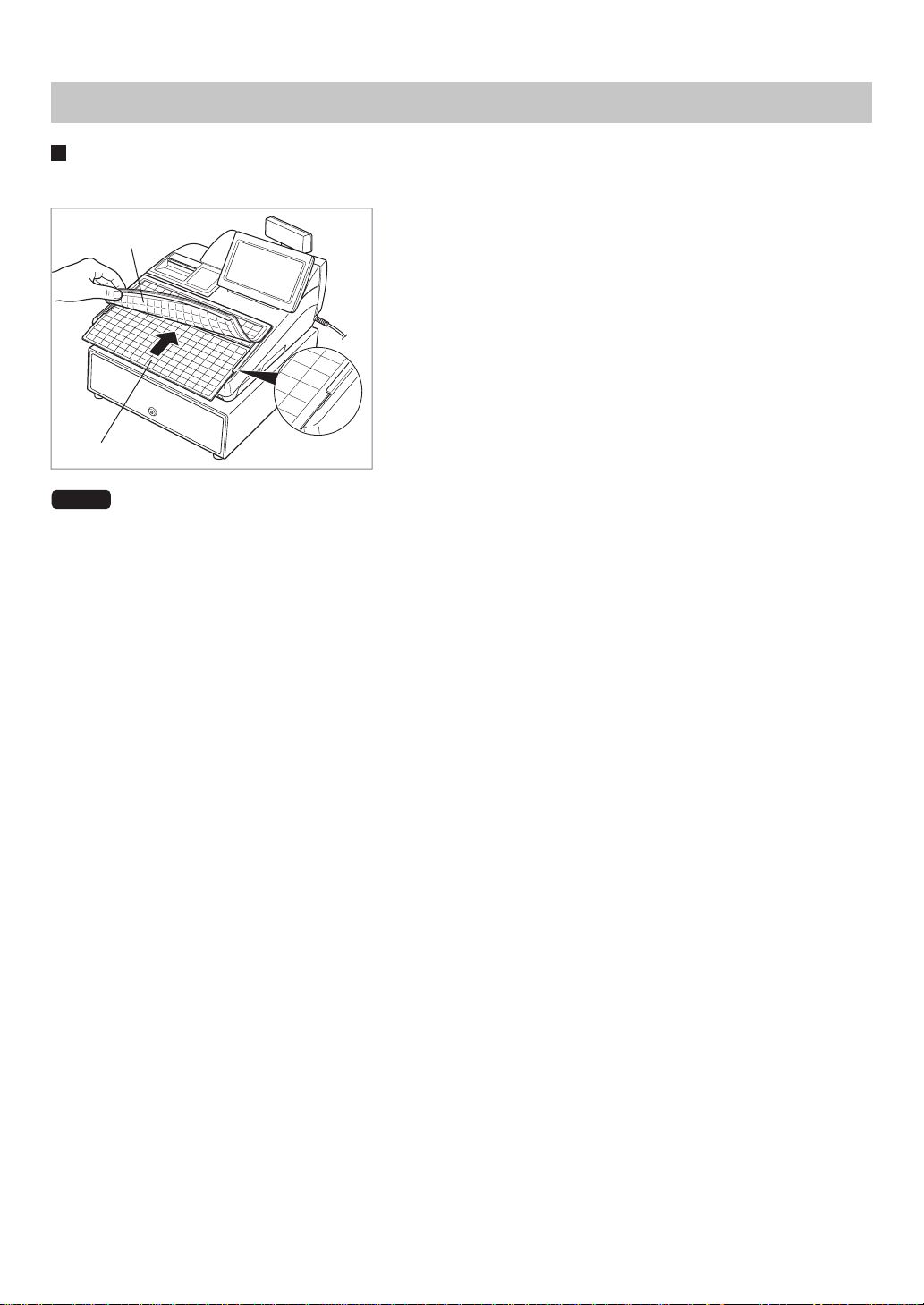
Inserting the keyboard sheet
Insert the keyboard sheet between the keyboard cover and the cabinet as illustrated below.
Keyboard
1.
2.
Insert the keyboard sheet into the slit, holding up the keyboard
cover as shown left.
Close the keyboard cover.
NOTE
Keyboard sheet
Keyboard cover
• Do not spread the keyboard cover too far as it might tear.
• Replace the keyboard sheet with a new one if by chance it gets wet. Use of a wet keyboard sheet may
cause problems.
• Be sure to use only SHARP-supplied keyboard sheets. Thick or hard sheets make key operation
difficult.
• Smooth the keyboard sheet evenly under the keyboard cover and remove any folds or wrinkles to
ensure easier operation.
• If you need a new keyboard sheet, please consult your dealer.
• The keyboard cover will eventually wear out. If your keyboard cover is dirty or broken, replace the cover
with a new one. For details, consult your authorized SHARP dealer.
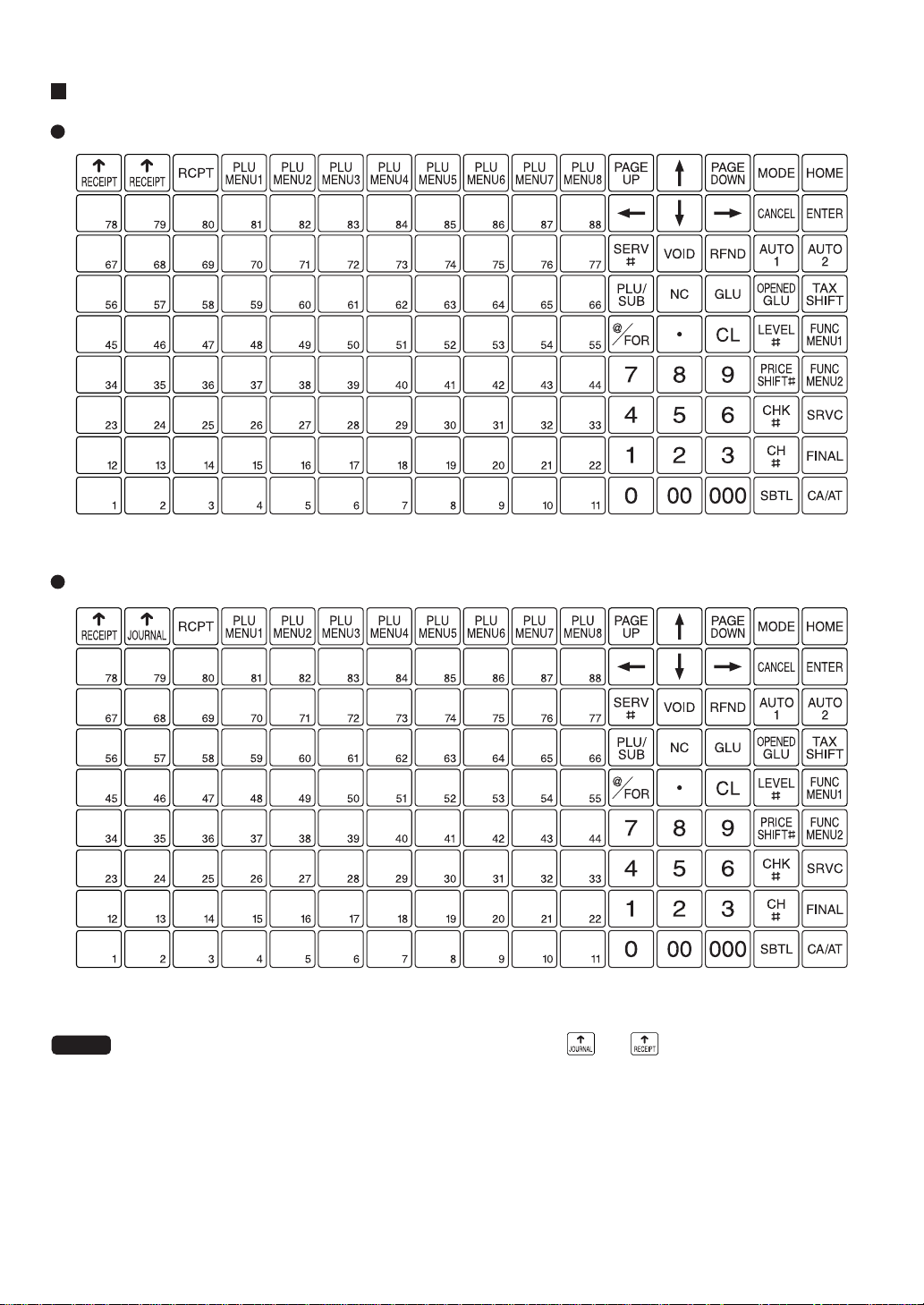
— 14 —
UP-810F
Standard keyboard layout
NOTE
UP-820F
• All the keys except the receipt and journal paper feed keys ( and ) can be re-positioned. If you
want to change the layout, consult your authorized SHARP dealer.
• Keyboard layout is subject to change without notice.
— 15 —
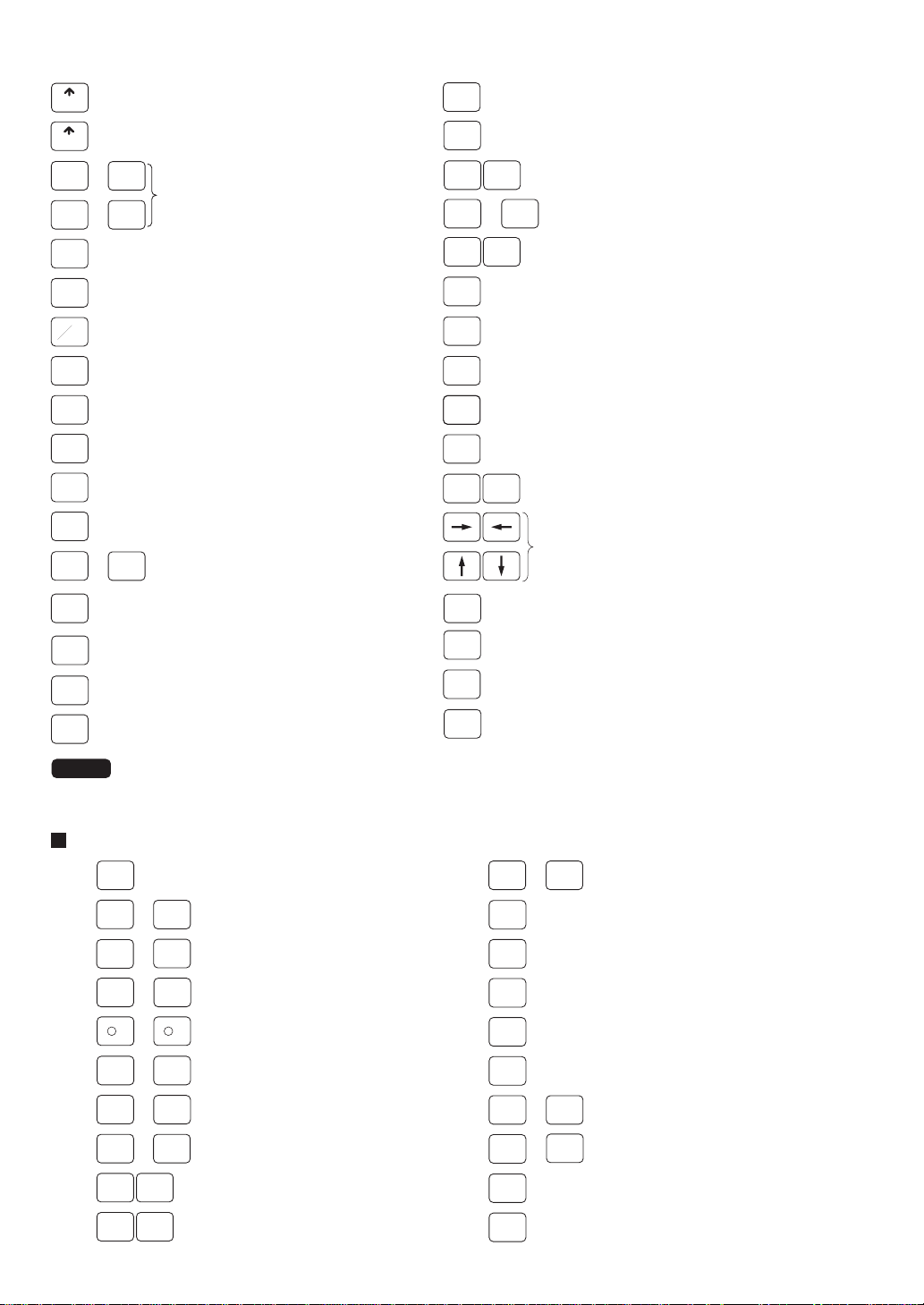
Optional keys
The following optional keys can be assigned in place of those shown in the figure of the standard key-
board layout. For details, please consult your authorized SHARP dealer.
0
9
•
00 000
CL
Numeric keys
Decimal point key
Clear key
Multiplication key
Receipt print key
Tax 1 shift key
Refund key
RFND
PLU/
SUB
LEVEL
#
RECEIPT
JOURNAL
Receipt paper feed key
Journal paper feed key
...
...
...
PAGE
UP
PAGE
DOWN
Page up/down keys
88
1
PLU menu keys
PLU
MENU1
Enter key
ENTER
MODE
HOME
Automatic sequencing 1 and 2 keys
AUTO
1
FUNC
MENU1
FUNC
MENU2
PLU
MENU8
AUTO
2
Function menu 1 and 2keys
PLU level shift menu key
P-SHIFT
#
CHK
#
Check menu key
SBTL
Subtotal key
CA/AT
Cash/amount tendered key
Cancel key
Cursor (up/down/right/left arrow) keys
CANCEL
GLU
Guest lookup key
TAX
SHIFT
Void key
Final key
Service key
@
FOR
RCPT
FINAL
SRVC
SERV
#
Server code entry key
VOID
Price shift menu key
CH
#
Charge menu key
Price lookup/subdepartment/
UPC key
Direct price lookup keys
Mode key
Home key
New check key
NC
NOTE
CHK
1
CHK
9
Check 1 thru 9 keys
Transfer out key
Transfer in key
Cash tip key
Charge tip key
Tip paid key
Eat in 1 thru 3 keys
Tax 2 thru 5 shift keys
Deposit key
Deposit refund key
Dept. number key
Department keys
Percent 1 thru 9 keys
Discount 1 thru 9 keys
Charge 1 thru 9 keys
Cash 2 thru 5 keys
Conversion 1 thru 4 keys
Received-on-account 1 and 2 keys
Paid-out 1 and 2 keys
Direct price lookup keys
...
...
...
...
...
...
...
...
...
...
123
89
99
1
%1
PO PO2
RA
CA2
CONV1 CONV4
RA2
%9
-
1
-
9
TAX2
SHIFT
EAT IN
1
EAT IN
3
TRANS
OUT
TRANS
IN
CASH
TIP
CHARGE
TIP
TIP
PAID
TAX5
SHIFT
CH
1
CH
9
DEPOSIT
RF
DEPOSIT
DEPT
#
CA5

— 16 —
Remote printer send key
Gratuity exempt key
Tare entry key
Balance key
Repeat entry key
Individual payment key
Amount entry key
Inquiry key
Customer code entry key
UPC price change key
Birthday entry key
Table no. (seat no.) entry key
Void menu key
Refund sale key
Receipt ON/OFF key
Waste mode key
Condiment next key
Edit tip key
Repeat round key
Table# recall key
Message 1 thru 5 keys
Message menu key
PLU menu 9 thru 50 keys
Macro 1 thru 4 keys
Upsize key
Data capture 1 thru 10 key
...
...
...
...
Backspace key
Delete key
Next higher dollar key
Merchandise subtotal key
Tray subtotal key
Return key
Gasoline sales 1 thru 28 subtotal key
NEXT
$
PAST
VOID
RP
SEND
GAS1
SBTL
GAS28
SBTL
NS
BAL
DELETE
BACK
SPACE
MDSE
SBTL
GRT
EX
OPEN
TARE
Non-add code/Date & time
display key
RETURN
TRAY
SUBTL
No-sale key
Scale entry key
PLU level shift 1 thru 5 keys
Price level shift 1 thru 6 keys
Food stamp/Cash benefit shift key
FS/CBNF
SHIFT
PRICE
CHANGE
REPEAT
IND.
PAYMENT
RFND
SALE
VOID
MENU
TABLE
#
AMT
RCP
SW
WASTE
C
NEXT
INQ
#/TM
SCALE
LEVEL
1
LEVEL
5
PRINT
GD3
SHIFT
Group discount shift 1 thru 3 keys
...
FS
TEND
COVER
CNT
SBTL
VOID
GD1
SHIFT
Validation print key
Bill print key
Past void key
Subtotal void key
Group discount %1 thru 3 keys
Cover count entry key
Bill separation key
BILL
GDSC
%3
GDSC
%1
BS
Bill totalize/Bill transfer key
(CHECK-ADD)
CASH
MENU
BT
Food stamp tender key
FSTEND
EBT
“Food stamp tender by EBT” key
Guest check copy key
GCCOPY
Cash benefit key
GC
BAL
CASH
BENEFIT
Guest check balance key
Cash menu key
CUST
BIRTH
RP
ROUND
MSG
MENU
MACRO
1
MACRO
4
CAP.1
CAP.10
CA/CHK1 CA/CHK9
EDIT
TIP
GLU
RECALL
MSG
1
MSG
5
UPSIZE
PLU
MENU9
PLU
MENU50
Check cashing 1 thru 9 keys
...
HOLD/RECALL
Manager number keys
MGR
#
Hold/Recall keys
FUNC.
MENU8
FUNC.
MENU30
Function menu 8 thru 30 key...
P-SHIFT
1
P-SHIFT
6
AUTO
3
AUTO
99
Automatic sequencing 3 thru 99 keys
...
...
...
...
...
TAX
Manual tax key

— 17 —
Default key texts on the display
The
HOME
key and
FUNC
MENU1
through
FUNC
MENU30
keys can be set as function keys on the keyboard area of the display.
Note that the labels on the key tops in this manual may differ from the displayed default key texts.
The default texts are as follows:
ST
SUB TOTAL
MODE
MODE
HOME
HOME
TL
CASH TOTAL
#/TM
# TIME
NS
NS
SCALE
SCALE
OPEN
TARE
OPEN TARE
PLU/UPC
PLU UPC
GCCOPY
GCCOPY
RCPT
RCPT
RA
RA
RA2
RA2
PO
PO
PO2
PO2
REPEAT
REPEAT
RIPT
ON/OFF
RCP ON/OFF
WASTE
WASTE
MDS
ST
MDS ST
TRY
ST
TRY ST
FS/CBN
SHIFT
FS/CBN SHIFT
PRINT
PRINT
BILL
BILL
CHARGE
TIP
CHARGE TIP
CASH
TIP
CASH TIP
TIP
PAID
TIP PAID
VOID
VOID
I.VOID
I.VOID
key Default text key Default text
ST
VD
ST VD
REFUND
REFUND
RETURN
RETURN
TAX
TAX
COVER
COUNT
COVER COUNT
PBAL
PBAL
N.C.
N.C.
SERVICE
SRVC
FINAL
FINAL
DEPOSIT
DEPO
DEPOSIT
RF
DEPO REFUND
B.T.
B.T.
FSTEND
FSTEND
FSTEND
EBT
FSTENDEBT
CASH
BENEFIT
CASH BN
SERVER#
SRV#
RP
SND
RP SND
GRATUITY
GRATUITY
BALANCE
BAL
AMOUNT
AMOUNT
DEPT#
DEPT#
INQ
INQ
PRICE
CHANGE
PRICE CHANGE
CUSTOMER
CUST
BIRTH
BIRTH
TRANS
OUT
TRANS OUT
TRANS
IN
TRANS IN
SEAT#
SEAT#

— 18 —
key Default text key Default text
You can change the default texts in the PGM2 mode.
NOTE
I.PAY
I.PAY
RF.SAL
RF.SAL
B.S.
B.S.
WASTE
WASTE
C
NEXT
C NEXT
NEXT$
NEXT$
EDIT
TIP
EDIT TIP
REPEAT
ROUND
REPEAT ROUND
GLU
RC
GLU RC
UPSIZE
UPSIZE
GC
BAL
GC BAL
MGR#
MGR#
HOLD/RECALL
HOLD RECALL
LEVEL#
LEVEL#
L1
...
L5
L1 thru L5
PRICE
SFT#
PRICE SHIFT#
PRICE
SFT1
...
PRICE
SFT6
P1 thru 6
TAX1SF
...
TAX5SF
TAX1SF thru TAX5SF
GD1SFT
...
GD3SFT
GD1SFT thru GD3SFT
GDSC%1
...
GDSC%3
GROUP DISC1 thru 3
%1
...
%9
%1 thru 9
1
...
9
(-)1 thru (-)9
CONV1
...
CONV4
CONV1 thru CONV4
CA/CHK1
...
CA/CHK9
CA/CHK 1 thru CA/CHK 9
EATIN1
...
EATIN3
EATIN1 thru 3
MESSAGE1
...
MESSAGE5
MSG1 thru 5
CAP.1
...
CAP.10
CAP.1 thru 10
GAS1
ST
...
GAS28
ST
GAS1 ST thru GAS28 ST
CA2
...
CA5
CA2 thru CA5
CHECK
...
CHECK9
CHECK thru CHECK9
CHARGE1
...
CHARGE9
CHG1 thru CHG9
— 19 —
SK1-1
This key locks and unlocks the cash drawer. To lock it, turn 90 degrees counter-
clockwise. To unlock it, turn 90 degrees clockwise.
This key is also used to open the cash drawer.
(Please refer to "15. Operator Maintenance — Operating the Drawer by Hand".)
Drawer lock key
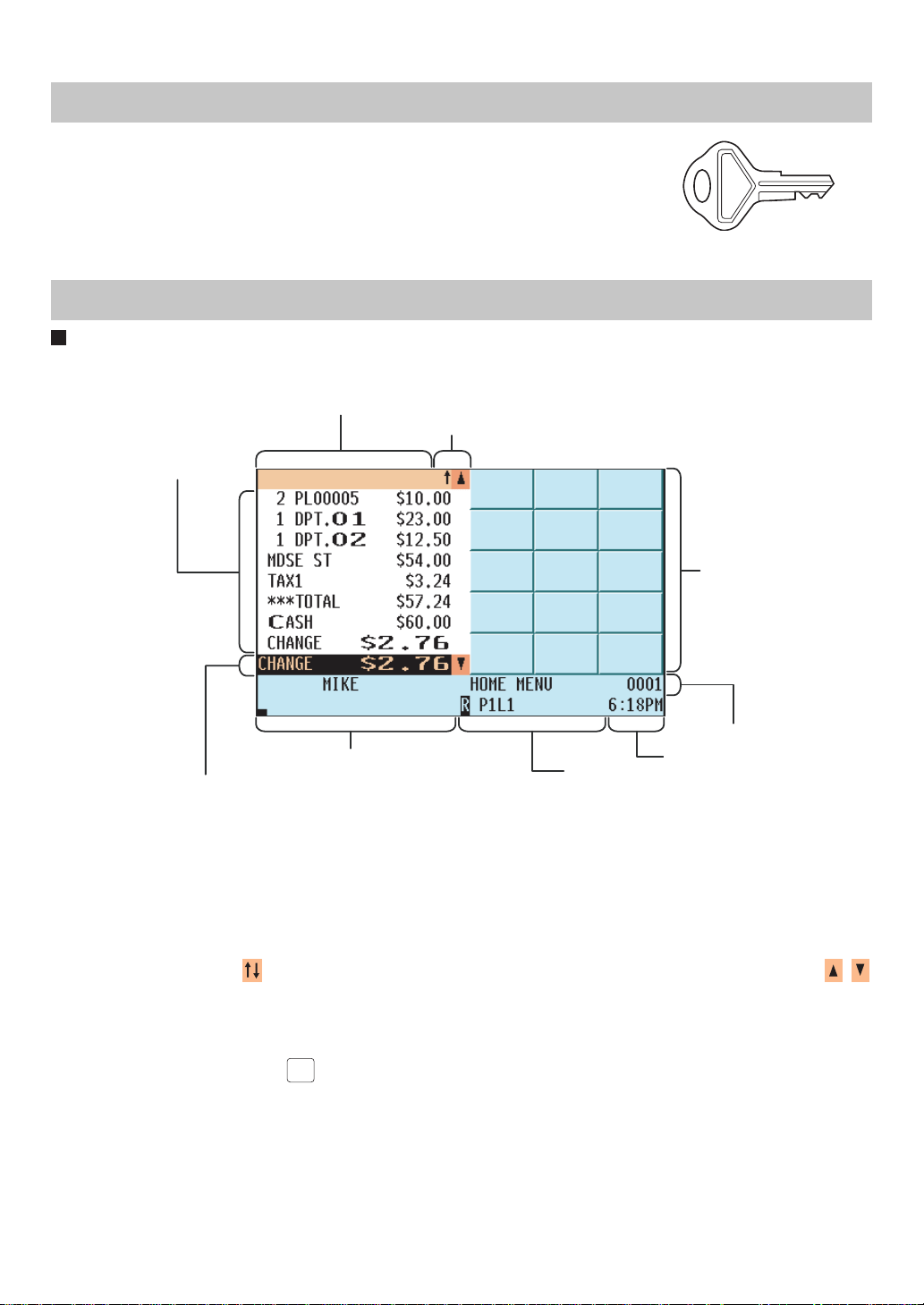
Operator display (touch panel)
• Screen example 1 (REG mode)
Total and REG status display area/Cursor down key
Main display area
Information area 2
Scroll guidance/Cursor up key
Keyboard area
Information area 1
Time areaNumeric key data area
Common status area
Main display area
Shows sales information you have just entered.
Total and REG status display area
Shows the sales total.
Scroll guidance/Cursor up (down) keys
Shows the scroll guidance to indicate you can scroll in the arrow direction using the cursor up/down keys /
when the transaction information occupies more than 8 lines.
Keyboard area
Shows the keyboard.
By pressing a menu key such as
HOME
key, a function menu key, or a PLU menu keys, the currently displayed keys
are replaced by the keys assigned to the menu key.
Information area 1
Shows the following items:
Server name :Shows the current server name.
Menu title :Shows the current menu title.
Server code :Shows the current server code.
Electronic mail indicator (M): Appears when an electronic mail is received.
Display
— 20 —
Item text :Appears when an item is selected on the main display area or registered.
Modification status : Shows "REFUND", "RETURN" or the like when the corresponding key is
pressed.
Information area 2
Shows the GLU code during a GLU entry.
Time area
Shows the current time.
Common status area
Shows the following items:
Price level shift indicator (P1-P6) :Shows the current PLU/UPC price level.
PLU level shift indicator (L1-L5) :Shows the current PLU level.
Receipt shift indicator (r) :Shows the receipt shift status.
T-Log near full indicator (
) : appears when the used memory is 80%.
appears when the used memory is 90%.
appears when the used memory is 95%.
Stock alarm indicator (!) :Appears when the stock of the PLU which you entered is zero,
negative or the minimum.
Electronic journal near full indicator (
) : appears when the used memory is 80%.
appears when the used memory is 90%.
appears when the used memory is 95%.
Tax shift status indicator (V) :Appears when the Tax status is shifted.
Receipt ON/OFF state indicator (R) :Appears when the receipt ON-OFF function is in the "OFF" state.
Sentinel mark (X) :Appears when the cash in drawer exceeds the programmed
sentinel amount.
The sentinel server is performed for the total cash in drawer.
Numeric key data area
Shows numeric data by numeric key entry.
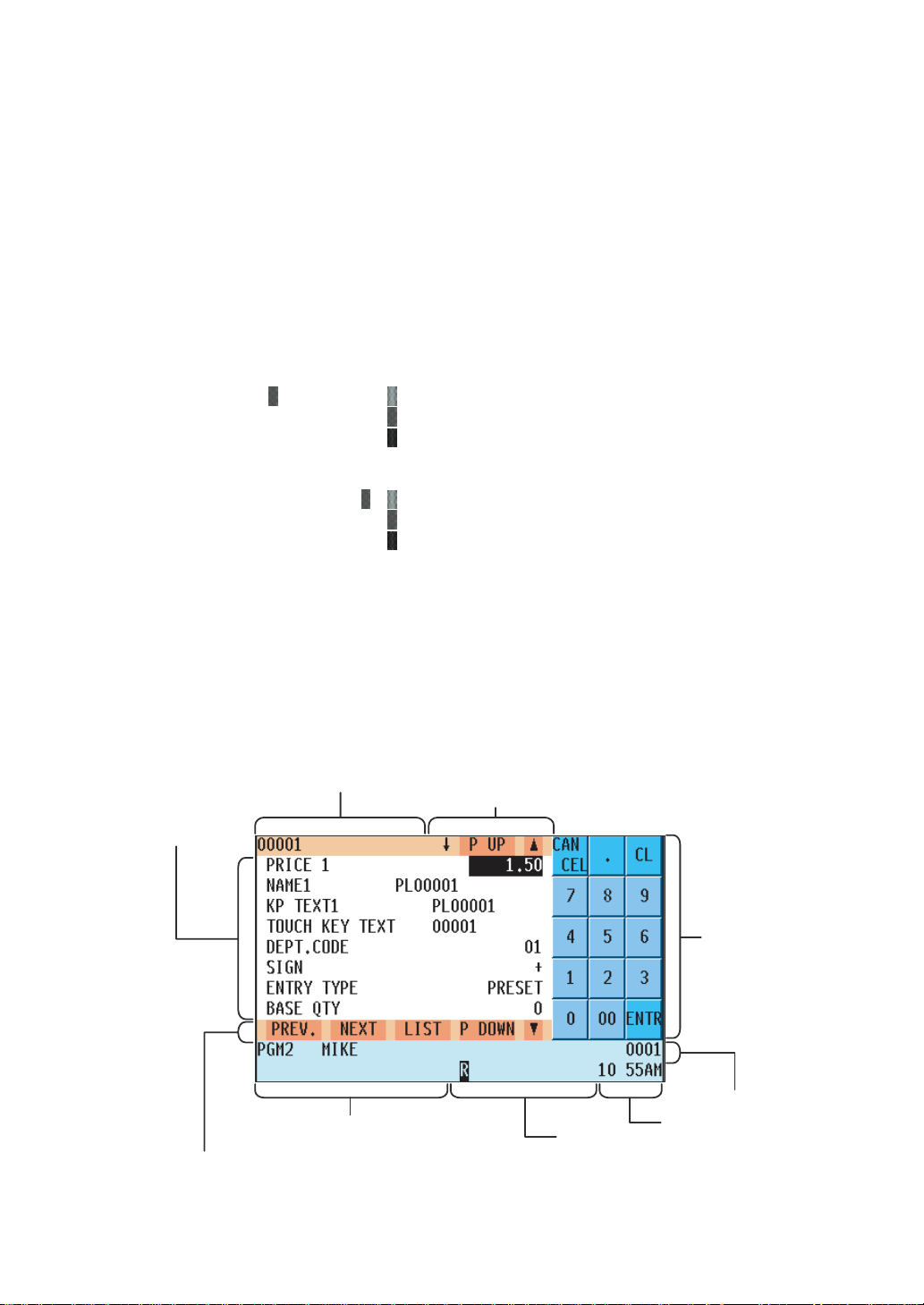
• Screen example 2 (PGM mode)
Previous record key/Next record key/Item list key/Page down key/Cursor down key
Main display area
Information area 2
Scroll guidance/Page up key/Cursor up key
Numeric key
area
Information area 1
Time areaNumeric key data area
Common status area
Main display area
Shows programmable items.
— 21 —
Information area 1
Shows the mode you are in, server name, electronic mail indicator (M) and server code. Refer to the REG mode
screen example for details.
Information area 2
Shows the current job name like "READING", "RESETTING", etc.
Numeric key area
Shows the numeric keys.
Time area/Numeric key data area/Scroll guidance/Cursor up (down) keys
Refer to the REG mode screen example.
Common status area
Shows the following indicators besides some of those shown in the REG mode screen example:
Caps lock indicator (A/a) : During text entry for programming, the upper-case letter "A"
appears when caps lock is on, and the lower-case letter "a"
appears when caps lock is off.
Double-size character mode indicator (W) : Appears when the double-size character mode is selected
during text entry for programming.
Page up (down) keys (
P UP
/
P DOWN
)
Used to scroll the window to go to the next page or back to the previous page.
Next/Previous record key (
NEXT
/
PREV.
)
Used to go to the next record or back to the previous record.
Item list key (
LIST
)
Used to list programmable options. You can also toggle the options with the key.
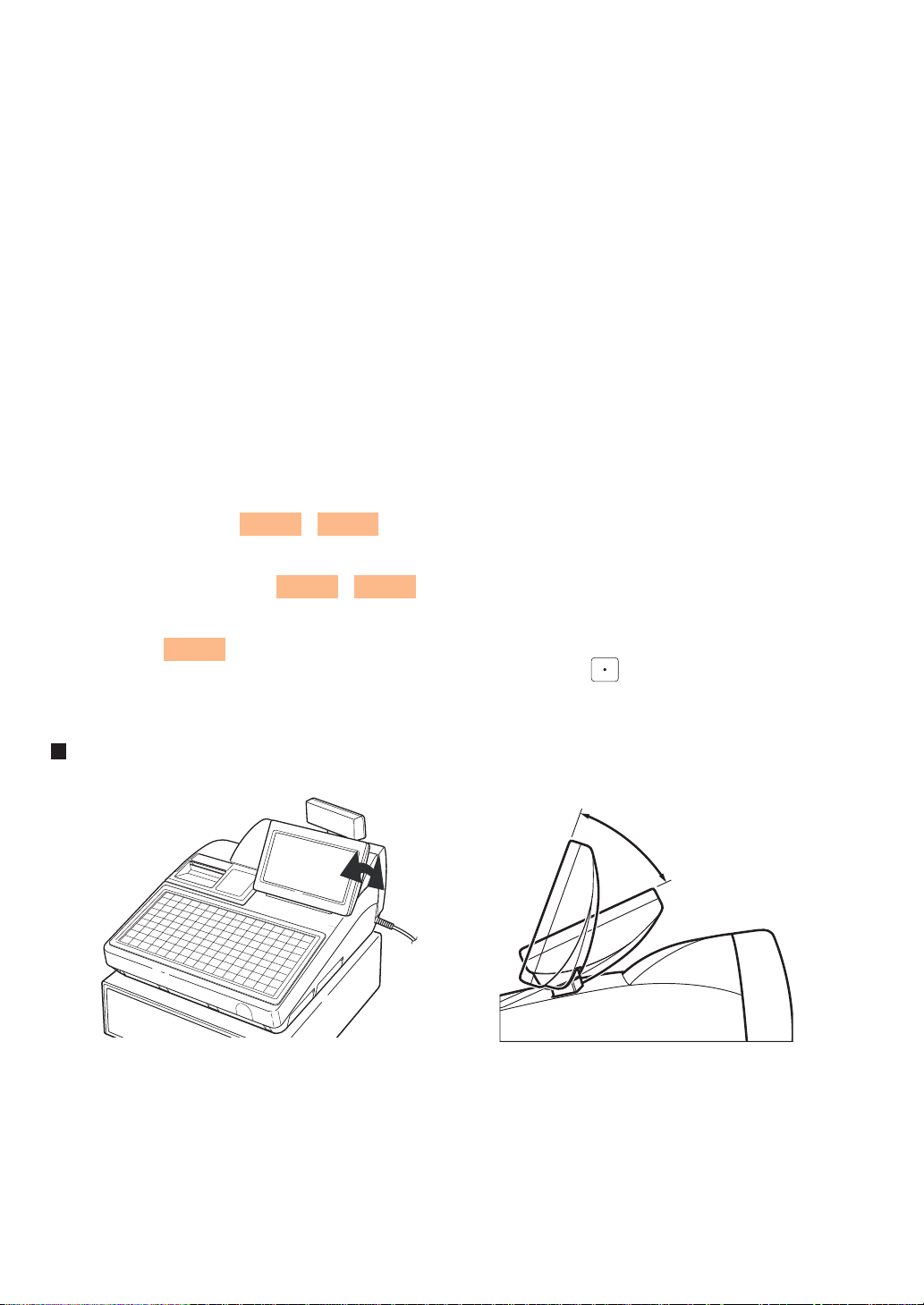
Display angle
The operator display can be tilted for the best viewing angle.
It can be tilted within 45 degrees as shown in the above illustrations.
CAUTION : Do not pull or push the display beyond the allowable tilt angle range (45 degrees) nor apply excessive
pressure to the display.
45
o

— 22 —
Customer display (pop-up type)
Display contrast adjustment (operator display)
You can adjust the contrast of the display in the "BRIGHTNESS" menu of "TERMINAL" programming.
The backlight in the display is a consumable part.
When the contrast is no longer adjustable and the display becomes darker, consult your authorized SHARP
dealer.
Screen save mode
When you want to save the electric power or save the display's life, use the screen save function. This function can
turn off the LCD backlight when the POS terminal is to be out of operation for an extended period of time. You can
program the time for which your POS terminal should keep the normal status (in which the backlight is "ON") before
it goes into the screen save mode.
To go back to the normal mode, press any key.
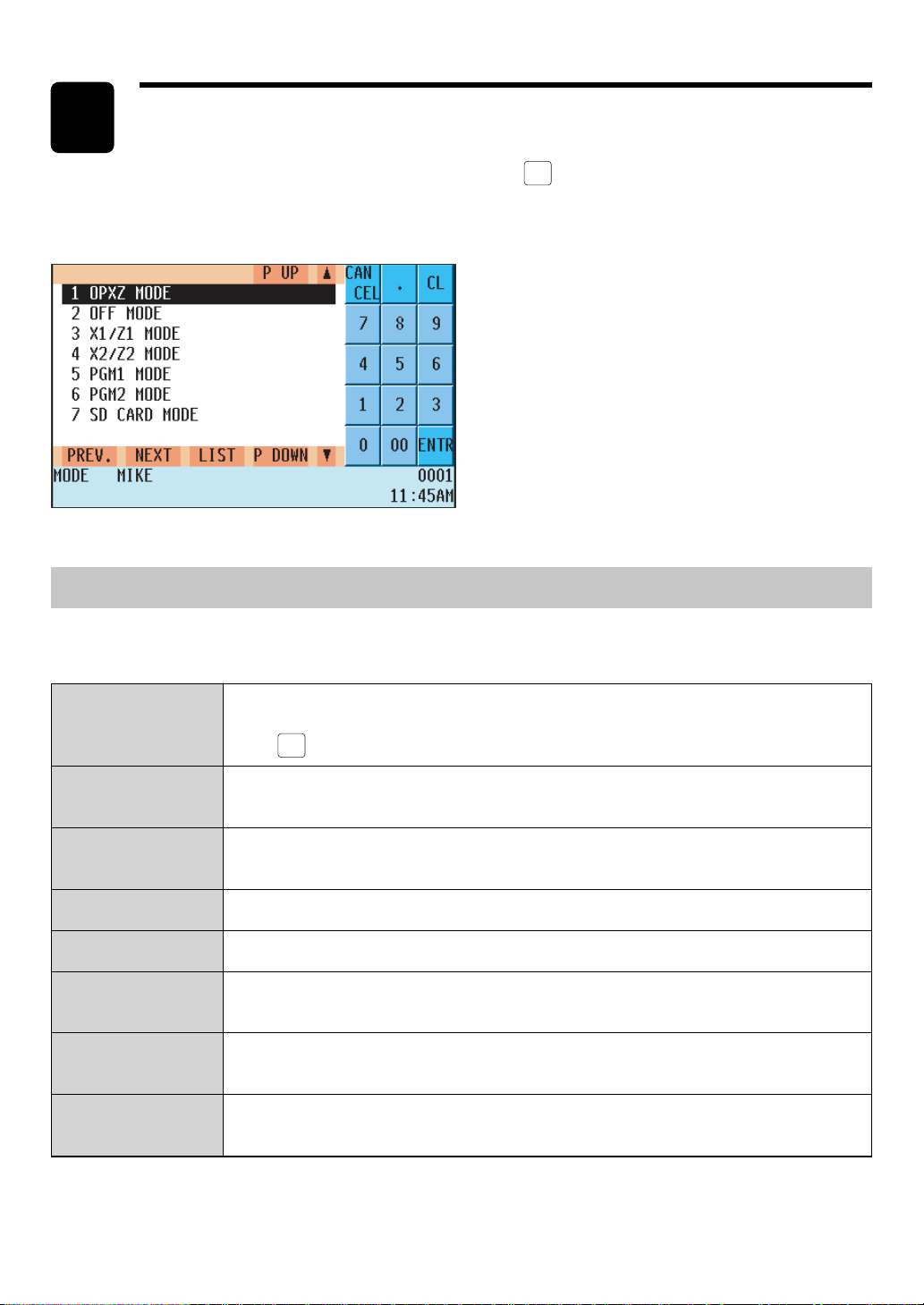
— 23 —
Mode selection window
Selecting an Operating Mode
2
When you turn on the POS terminal and press the
MODE
key, a mode selection window will
appear on the display, listing available operating modes as shown below.
Operating Modes
You can select any mode other than REG from the list in the mode selection window. Your POS terminal supports
the following eight operating modes:
REG mode
OPX/Z mode
OFF mode
X1/Z1 mode
X2/Z2 mode
PGM1 mode
PGM2 mode
SD Card mode
This mode allows you to enter various sales information. The mode selection window
does not list this mode. To select this mode from the mode selection window, press
the
CANCEL
key.
This mode allows cashiers/servers to take X or Z reports on their sales. It can also be
used to specify the number of hours for which employees work.
This mode locks all the operational functions of the POS terminal. When you select
this mode, the window will disappear. Pressing any key turns the POS terminal "ON."
This mode is used to take various daily total reports (X1/Z1 reports).
This mode is used to take various weekly or monthly reports (X2/Z2 reports).
This mode allows you to program those items which need to be frequently changed,
such as unit prices of departments or PLUs and percentages.
This mode allows you to program those items which can be programmed in the PGM1
and need not be frequently changed, such as date, time and functions.
This mode allows you to save the data of your POS terminal to an SD card or load the
data saved in the SD card on the terminal.
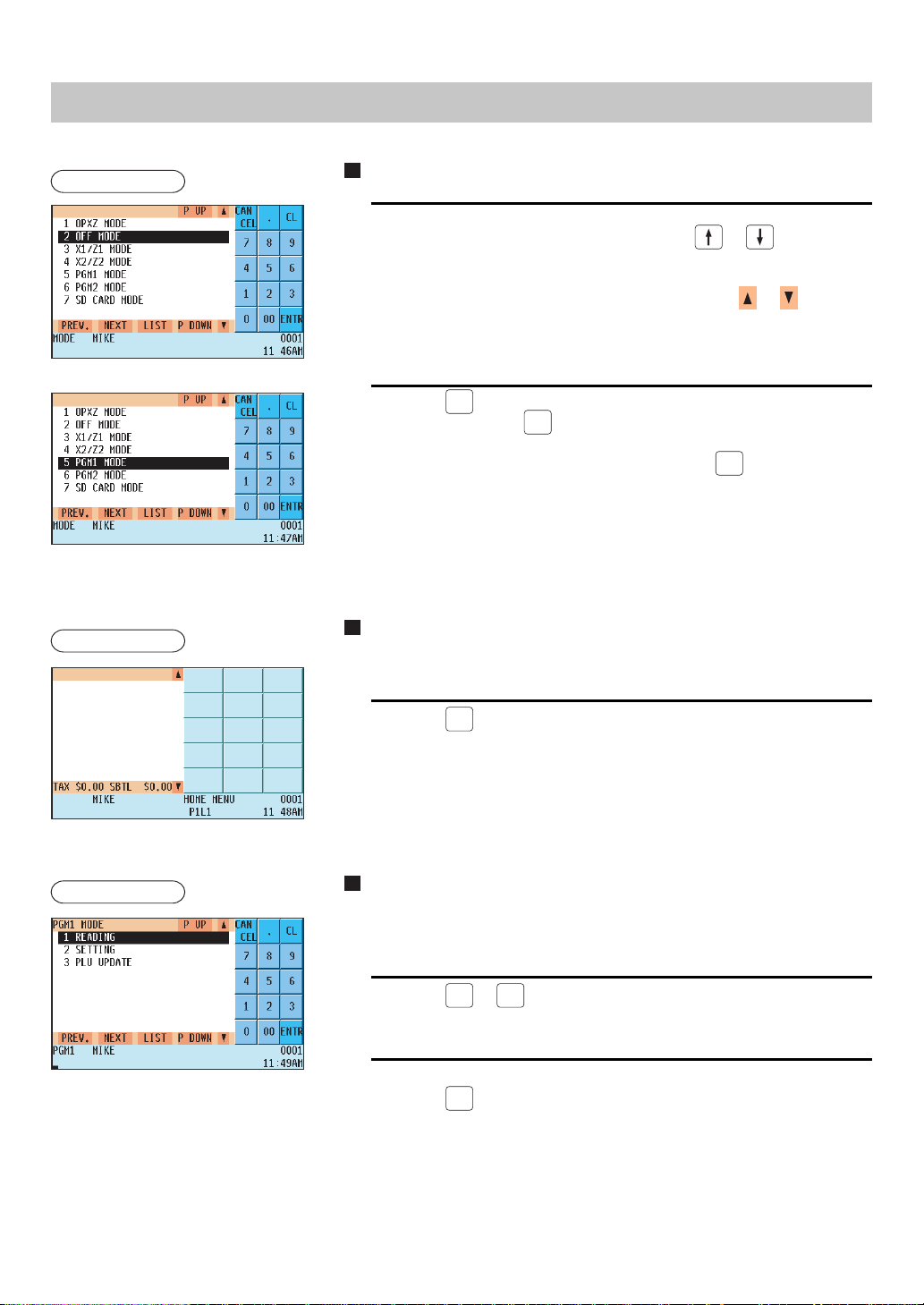
— 24 —
Mode Selection
Selecting a mode
1.
Use one of the following ways:
• Move the cursor to the desired option using the or key.
• Enter the desired option number using a numeric key.
• Touch the desired option.
• Move the cursor to the desired option by touching the
or key.
2.
Press the
ENTER
key.
• You need not press the
ENTER
key when you have touched the option
directly.
• When you want to enter the REG mode, press the
CANCEL
key.
Returning to the mode selection window from the
REG mode
To return to the mode selection window from the REG mode:
1.
Press the
MODE
key.
• You will return to the mode selection window.
Returning to the mode selection window from
modes other than the REG mode
To return to the mode selection window from modes other than the REG
mode, use the following procedure:
1.
Press the
CANCEL
or
MODE
key with the selected mode menu screen for the
selected mode displayed.
• You will enter the REG mode.
2.
Press the
MODE
key.
• You will return to the mode selection window.
Procedure
Procedure
Procedure
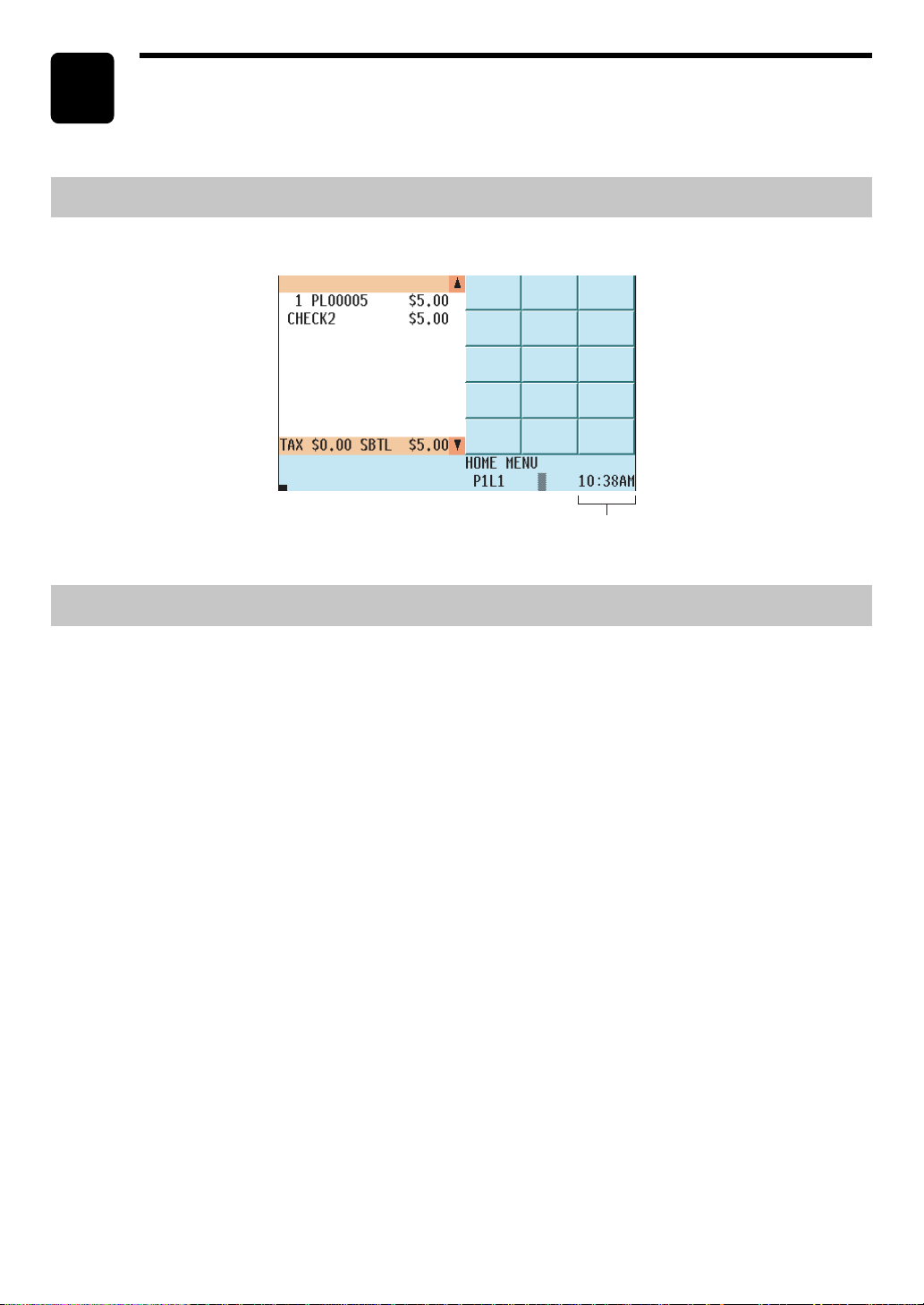
— 25 —
Time Display and Automatic Date
Updating
3
Time display
The screen always displays the current time in the bottom left corner as shown below.
Once the internal clock is started at the correct time, it continues to run until the battery is exhausted. It also
updates the date automatically.
Automatic date updating
Time
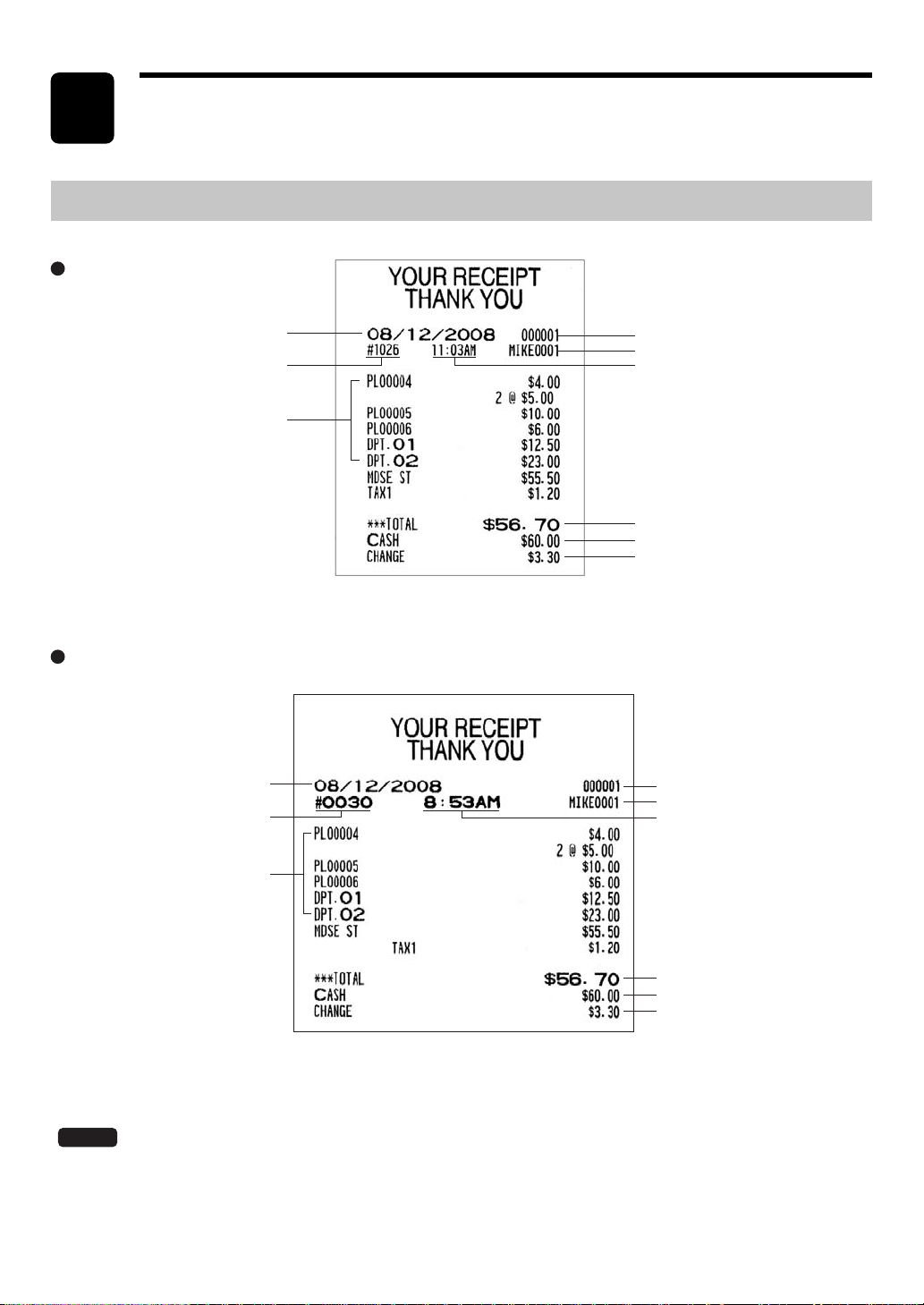
— 26 —
Receipts
This chapter describes the part names and functions of this POS terminal.
4
Built-in Printer Sample Receipt
The above receipt sample was printed out by the built-in printer of the UP-810F.
All other receipt samples in this manual were printed out by the receipt printer of the UP-820F.
NOTE
Time
Consecutive no.
Date
Item entry
Machine no.
Server name / Server code
Sales total
Cash amount tendered
Change due
Time
Consecutive no.
Date
Item entry
Machine no.
Server name / Server code
Sales total
Cash amount tendered
Change due
UP-810F
UP-820F

— 27 —
Prior to Entries
5
Preparations for Entries
NOTE
Receipt/Journal paper roll(s)
If the paper roll (paper rolls) is (are) not installed in the built-in printer of your POS terminal, install a new one (ones)
according to section "Installing and Removing the Paper Roll" under "Operator Maintenance." If the roll in the
printer is getting low, replace it with a new one.
Receipt ON/OFF function
You can disable receipt printing in the REG mode to save paper using the receipt On/Off function. To disable
receipt printing, press the
FUNC
MENU1
key and then touch the
RCP
ON/OFF
key to set the function to "OFF" by press the key.
When this function is in the OFF state, the Receipt Off Indicator "R" is highlighted. To enable receipt printing, touch
"RCP ON/OFF" with this function in the OFF state.
Your POS terminal will print reports regardless of the state of the Receipt ON/OFF function. This means
that the paper roll(s) must be installed even when the Receipt ON/OFF function is preset to "OFF".
In the following examples, your POS terminal will go into an error state accompanied by a warning beep and the
error message on the display. Clear the error state by pressing the
CL
key and take a proper action.
• When you exceed a 32-digit number (entry limit overflow):
Cancel the entry and reenter a correct number.
• When you make an error in key operation:
Clear the error and try the entry again.
• When you make an entry beyond a programmed amount entry limit:
Check to see if the entered amount is correct. If it is correct, it can be rung up by the manager. Contact your
manager.
• When an including-tax subtotal exceeds eight digits:
Delete the subtotal by pressing the
CL
key and press a media key to finalize the transaction.
Error Warning
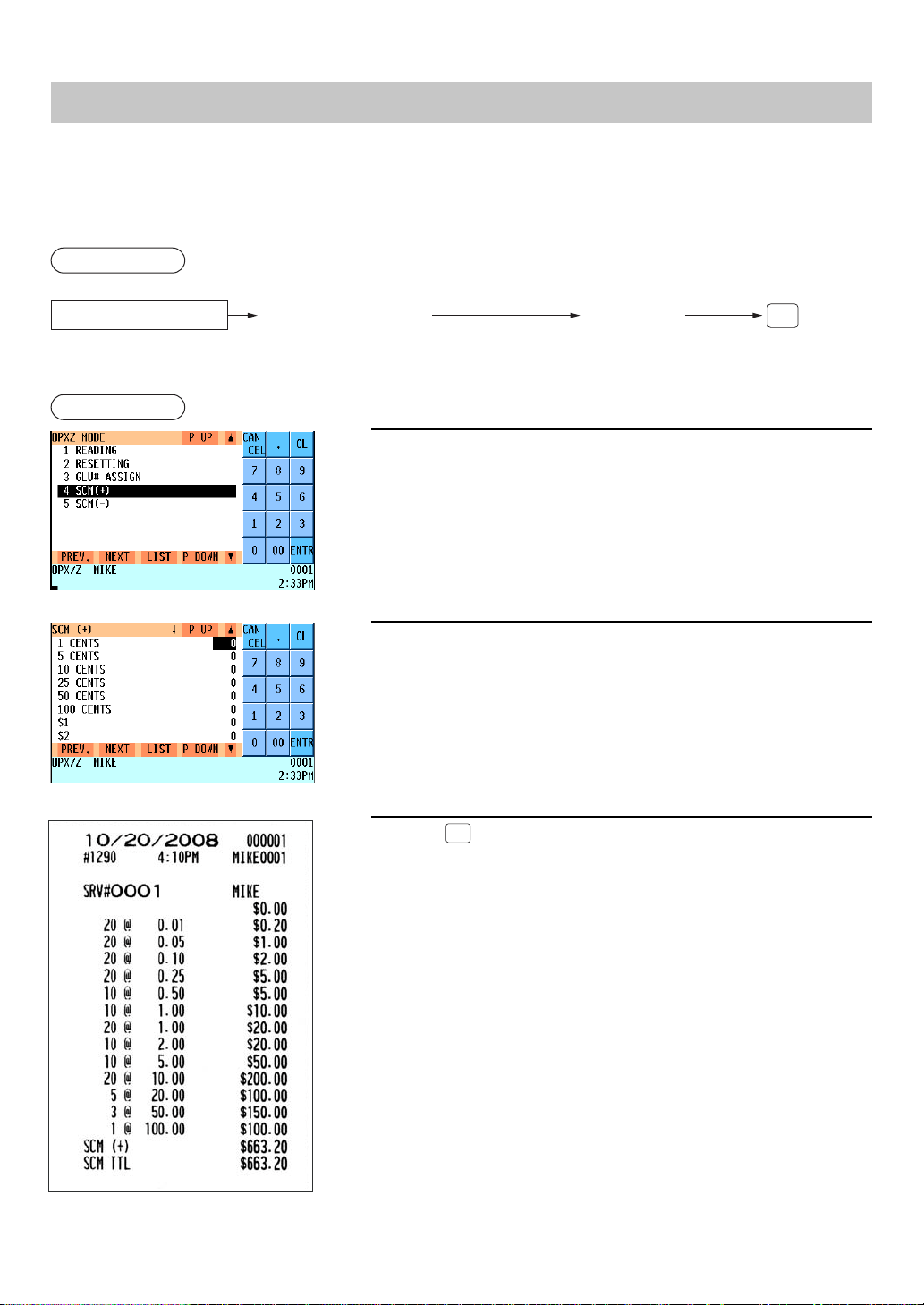
— 28 —
If you enter the amount of cash for change (starting cash) in the drawer before starting entry operations, you can
discriminate that amount from the sales amount when reports are generated.
Your POS terminal can be programmed to enforce the entry of starting cash into memory. For details, consult your
authorized SHARP dealer.
Select the OPXZ mode and perform the following operation:
Drawer is opened and
SCM entry menu is displayed.
XXXXXXXX
Amount
(max. 8 digits for each currency)
Select SCM(+) or SCM(–)
CA/AT
Starting Cash Memory Entry
Procedure
1.
Select "04 SCM(+)" or "05 SCM(-)" in the OPXZ mode.
• The SCM entry menu is displayed.
2.
Enter the amounts of cash in domestic and foreign currencies.
3.
Press the
CA/AT
key.
• The SCM report is printed.
Example

— 29 —
Entries
6
Server Code Entries
Prior to an item entry, the server will be compelled to enter his or her assigned server code. However, this may not
be necessary when the POS terminal has been programmed for “stay-down server mode.”
Procedure
XXXX
Server code
XXXX
Secret code
X
Drawer no.
ENTERENTER
SERV
#
NOTE
• When the server entry on system is programmed for “stay-down server mode,” no server can sign on
while another server signs.
• When the server entry system is programmed for “automatic server sign-off mode,” a server must sign
on prior to each sales transaction.
The sign-off operation can be performed by using the following procedure in the REG.
To sign off a server:
SERV
#
NOTE
• Depending upon how your POS terminal has been preset, if an item entry is attempted when the server
has not signed on, server entry will be prompted on the window to compel server entry.
Your POS terminal allows you to select functions from specified function menu windows depending upon the
terminal setup. For example, if you want to finalize a charge 2 sale, select the option “CHG 2” from the charge
menu instead of pressing the
CHG
2
key.
Each menu can be opened as follows:
Item Selection from the Function Menu Windows
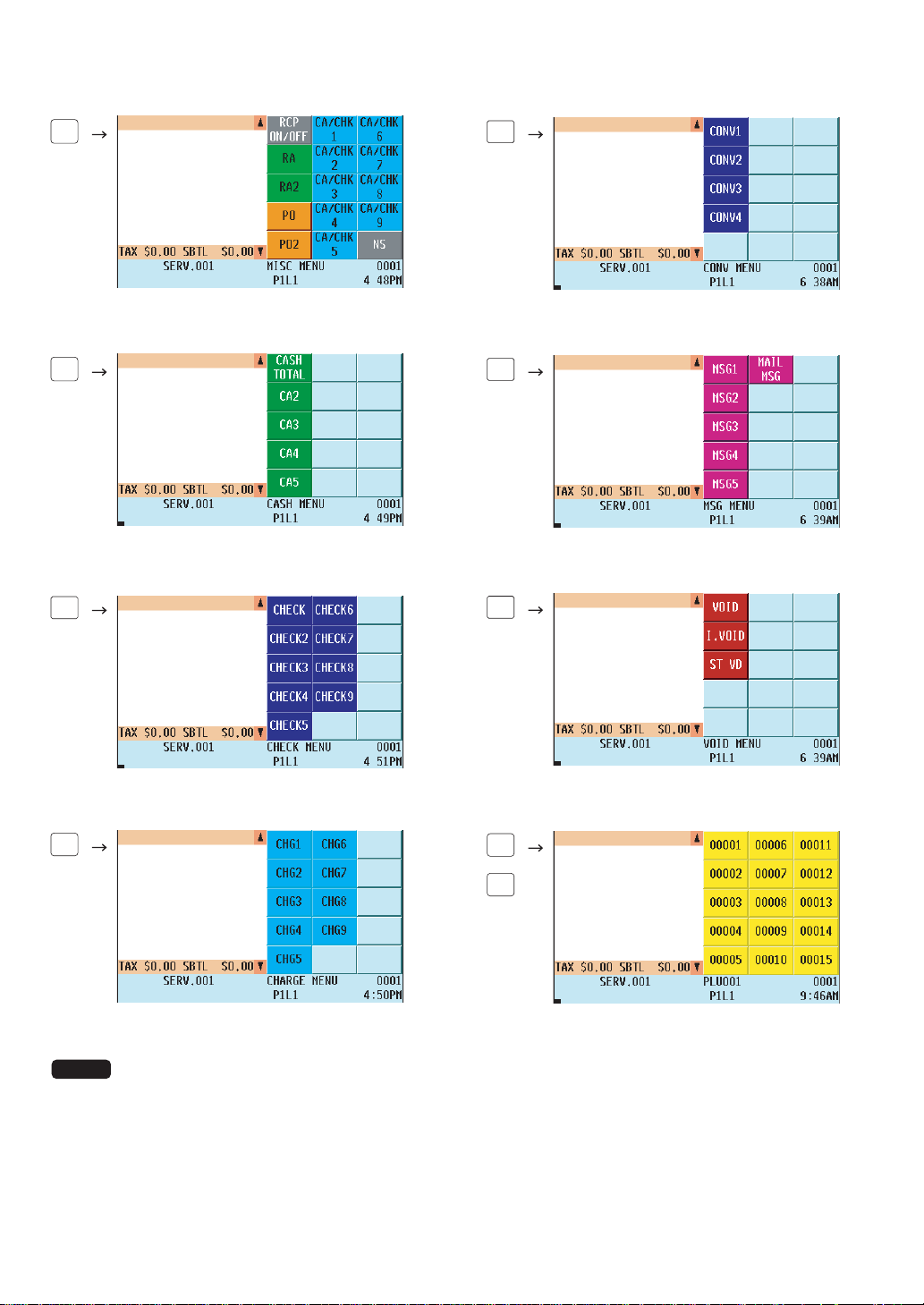
— 30 —
• Miscellaneous function menu window
FUNC
MENU1
• Cash menu window
FUNC
MENU2
• Check menu window
CHK
#
• Charge menu window
CH
#
• Conversion menu window
CONV
#
• Massage menu window
MSG
MENU
• Void menu window
VOID
MENU
• PLU menu window
PLU
MENU1
PLU
MENU50
* The keys on these menus are shown as examples. You can set your choice of function keys on the
function menu and PLU keys on the PLU menu.
NOTE
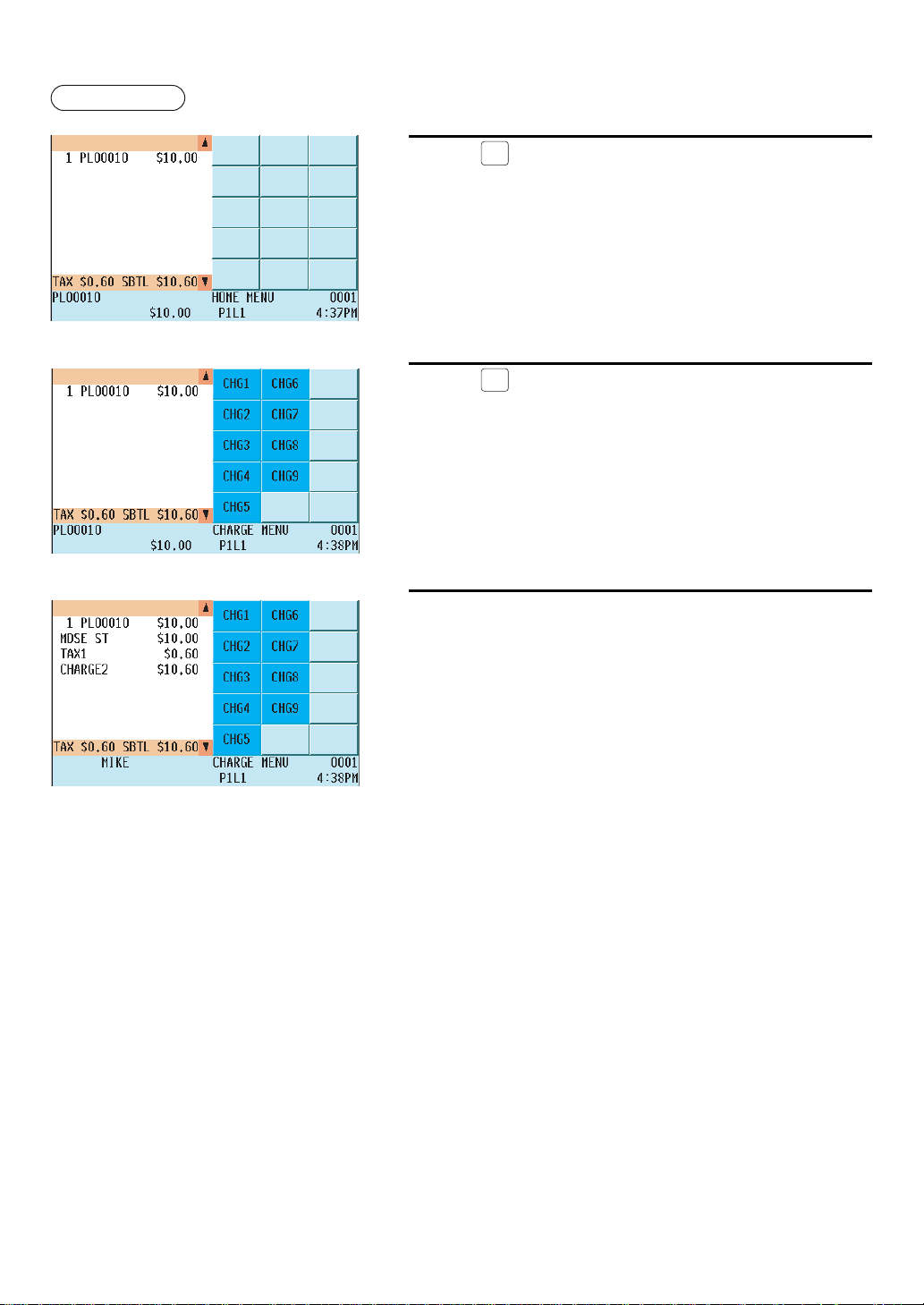
— 31 —
Example
Selling the PLU no.10 item and finalizing through charge 2
1.
Press the
10
key.
2.
Press the
CH
#
key.
• The charge CHECK menu window will appear in the keyboard
area.
3.
Select “CHG2.”
• The transaction will be finalized.
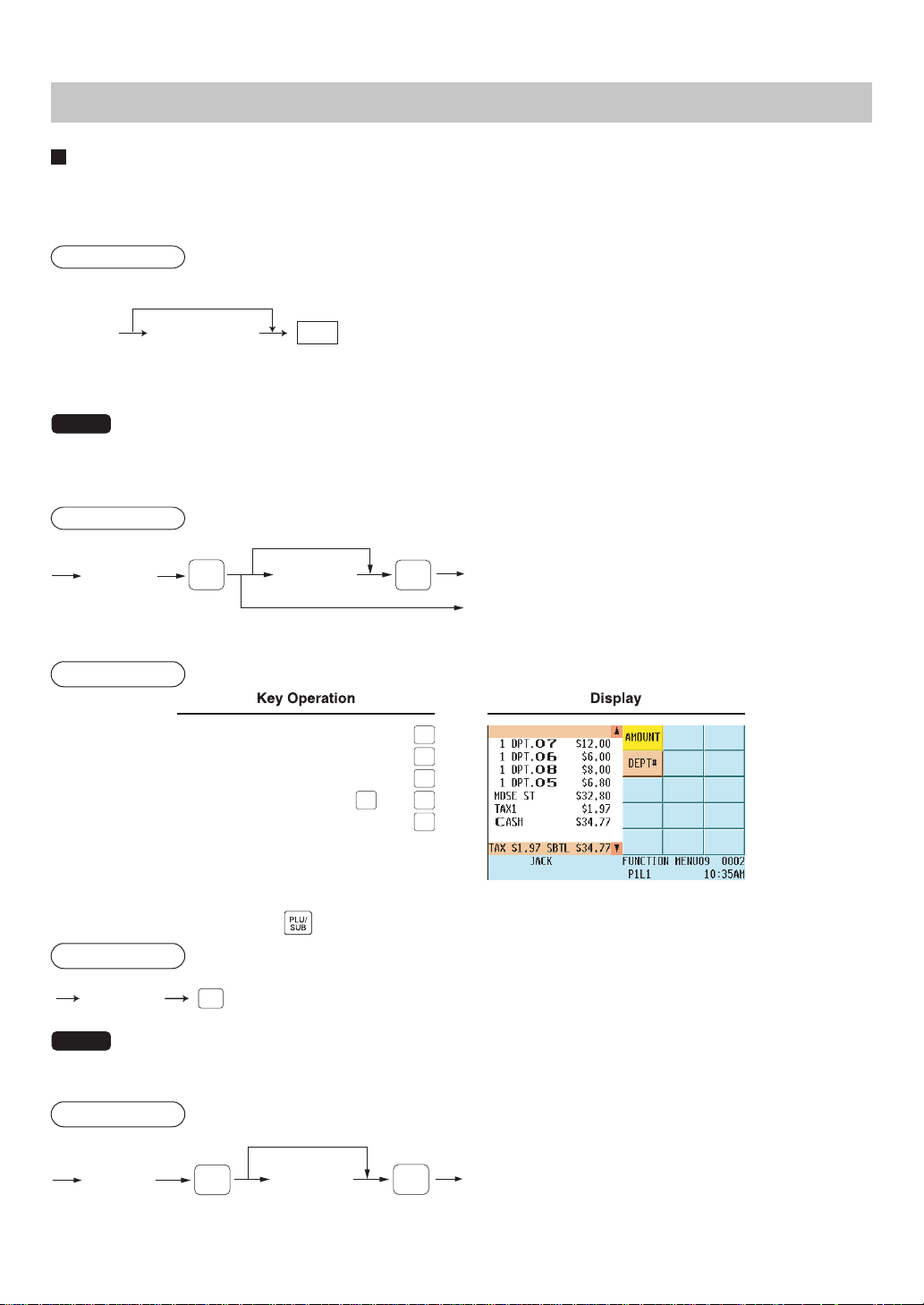
— 32 —
Item Entries
Single item entries
Department entries (direct department entries)
Enter a unit price and press the corresponding department key.
If you use a programmed unit price, press the department key only.
Procedure
When using a programmed unit price
Unit price*
(max. 7digits)
Dept.
*Less than the programmed upper limit amount
NOTE
When a department programmed with the unit price as zero (0) is entered, only the sales quantity is
added.
Department entries (indirect department entries)
Procedure
* The pop-up window for amount entrry will
open.
**Less than the programmed upper limit
amount.
Unit price**
(max. 7 digits)
When using a programmed price
Dept. code
(1-99)
For “Preset only” type
DEPT
#
ENTER
*
Example
1200
7
6
8
6805
CA/AT
DEPT#
DEPT#
ENTER
PLU entries (indirect PLU entries)
Enter a PLU code and press the key.
Procedure
PLU code
PLU/
SUB
NOTE
When a PLU programmed with the unit price as zero (0) is entered, only the sales quantity is added.
Subdepartment (open PLU) entries
Procedure
* The pop-up window for amount entry will
open.
**Less than the programmed upper limit
amount.
Unit price*
*
(max. 7 digits)
When using a programmed price
PLU code
ENTER
PLU/
SUB
*
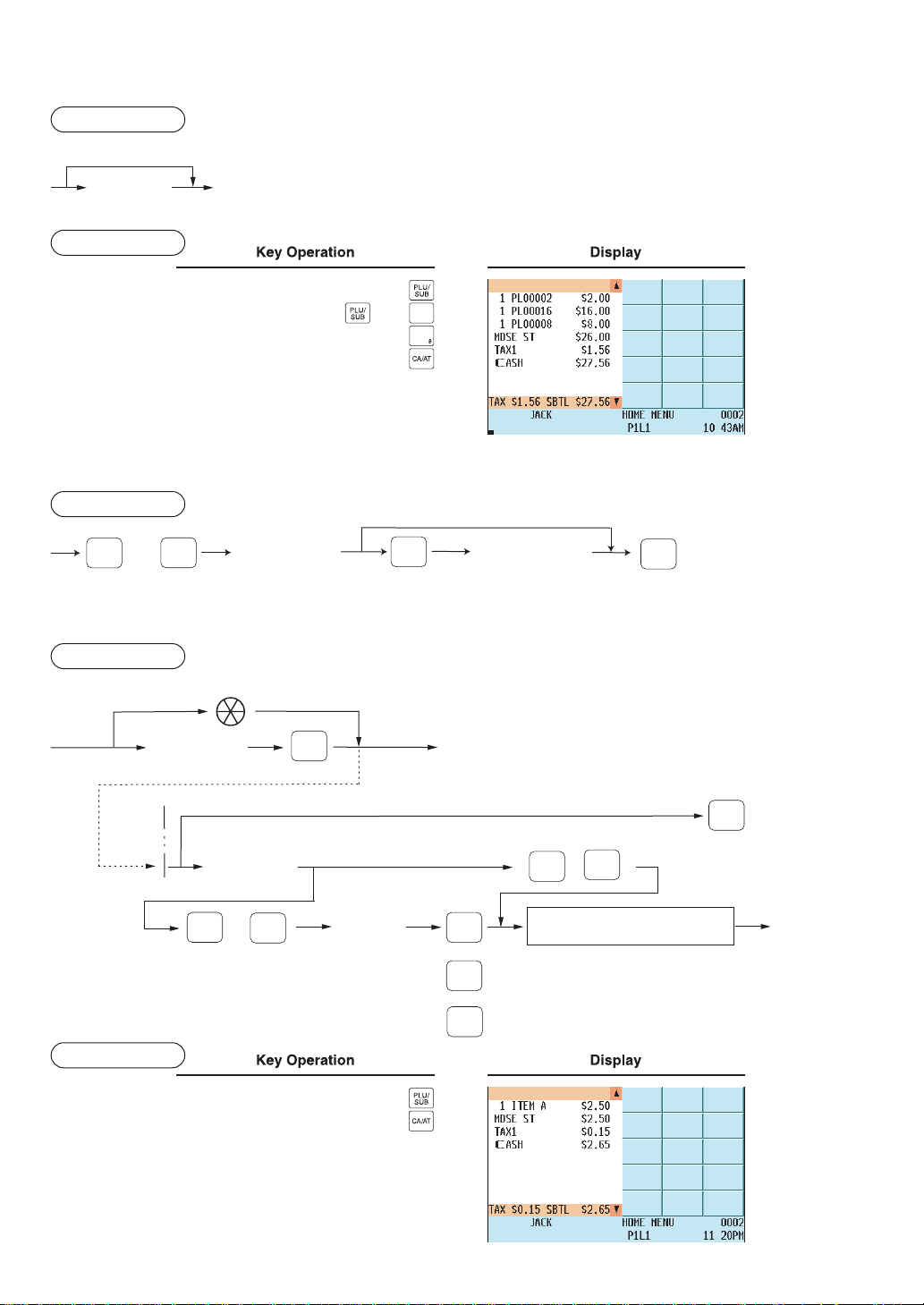
— 33 —
PLU entries (direct PLU entries)
Procedure
Direct PLU key
Unit price
(for subdept.)
When using a programmed price
Example
ENTER
2
16 1600
PLU menu-based entries (PLU entries and subdepartment entries)
Follow this procedure:
Procedure
Item selection
from the window
*
For PLU entry
Unit price
(for subdept. entries)
ENTER
PLU
MENU1
PLU
MENU50
thru
ENTER
* The pop-up window for amount entry will open.
UPC entries
Procedure
Scanning UPC code
UPC code
(max.13 digits)
Unit price
(max. 6 digits)
(Registration)
To cancel the learning function entry
DEPT
#
Dept. code
(1 - 99)
(
~
)
When the dept. key is depressed directly
99
1
CA/AT
ENTER
or
PLU/
SUB
CANCEL
CA/AT
ENTER
or
“AUTO DELETE/NO DELETE”
selection
or
Example
5099887654302
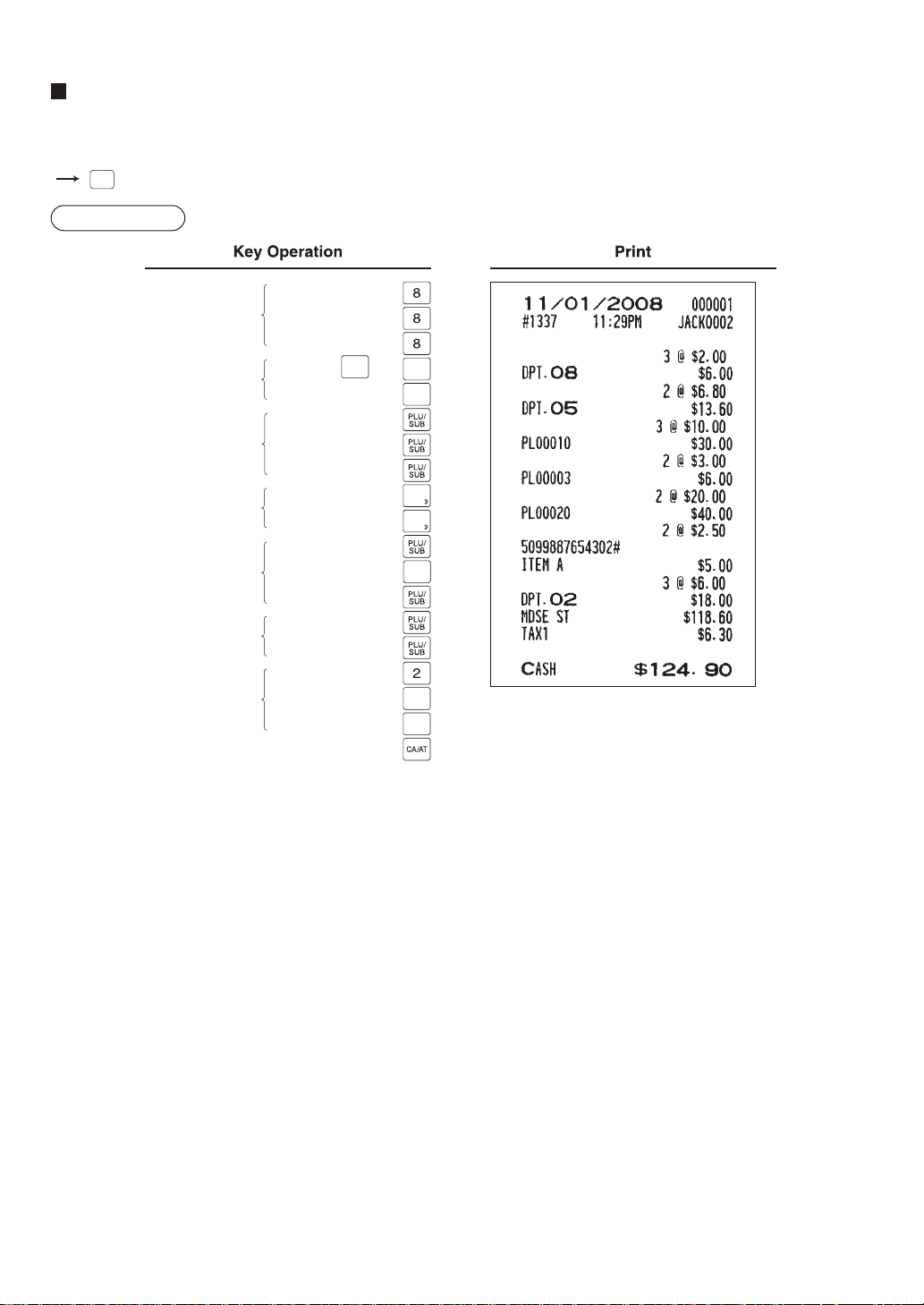
— 34 —
Repeat entries
You can use this function for repetitive entries of the same item.
Simply press the repeat function key after a valid item entry.
REPEAT
Example
Repeated
department
entry (direct)
Repeated
department entry
(indirect)
Repeated PLU
entry (indirect)
Repeated PLU
entry (direct)
Repeated
subdepartment
entry
Repeated UPC
entry
Repeated
department entry
(direct) using the
repeat key
DEPT
#
DEPT
#
ENTER
ENTER
REPEAT
REPEAT
200
5 680
10
20
2000
5099887654302
600
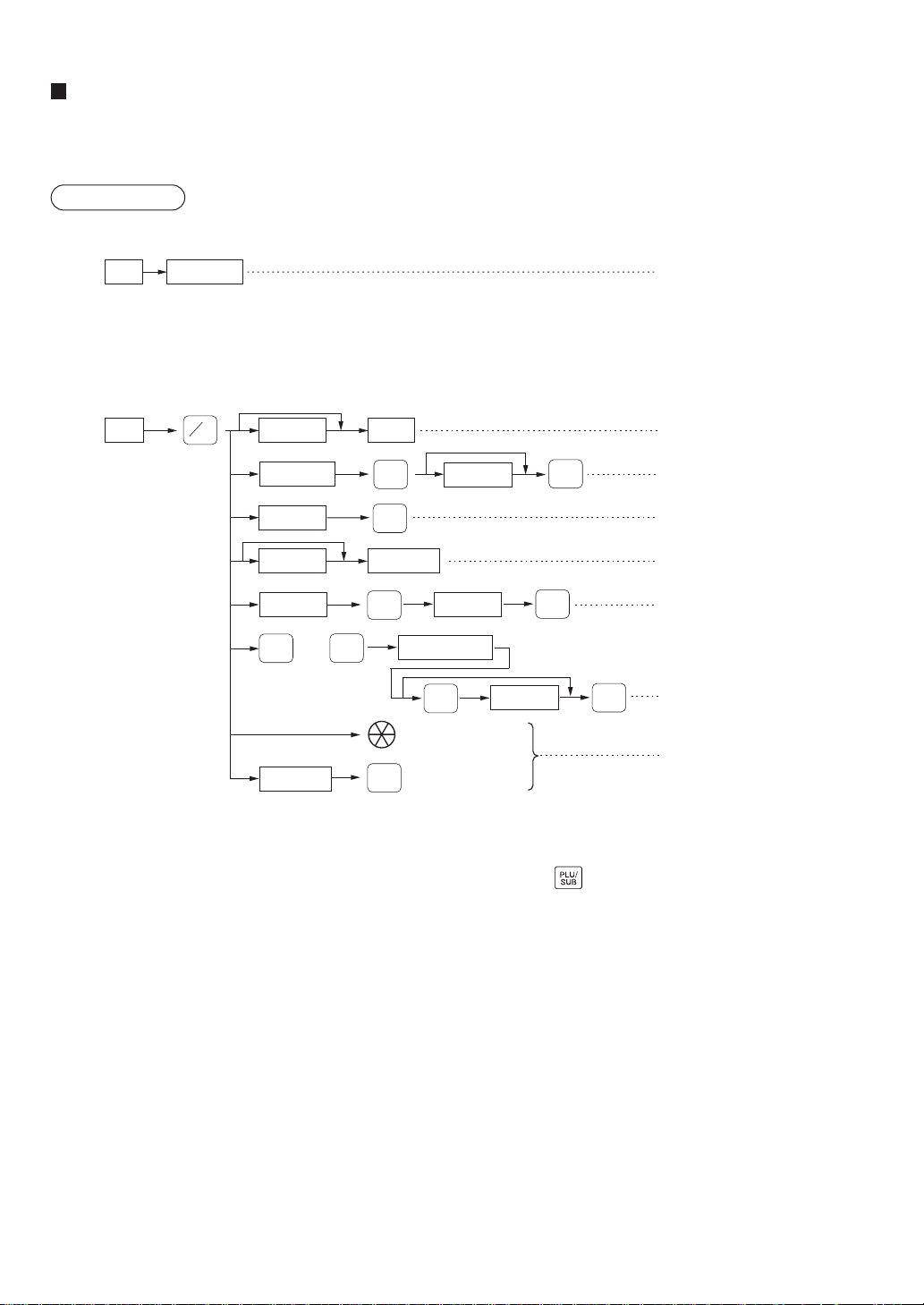
— 35 —
Multiplication entries
Use this function feature when you need to enter two or more of the same item.
This feature helps you when you sell large quantities of items or need to enter quantities that contain decimals.
Procedure
FF method (for quick multiplication of direct PLU)
Direct PLU
Q'ty
PLU entry (direct)
• The FF (fast food) method cannot be used for a COUPON-LIKE PLU entry.
Normal method
Scanning UPC code
Unit price
PLU code
UPC code
Unit price
PLU code
Unit price Direct PLU
Q'ty
Dept.
When you use a programmed
unit price
Dept. entry (direct)
Unit price
Dept. code
Dept. entry (indirect)
PLU entry (indirect)
PLU/subdept. entry (direct)
UPC entry
Subdept. entry
DEPT
#
@
FOR
ENTER
ENTER
PLU/
SUB
PLU/
SUB
Item selection
ENTER
PLU
MENU1
PLU
MENU50
thru
Unit price
ENTER
PLU/subdept. entry (menu)
PLU/
SUB
*
*
*
* The pop-up window for amount entry will open.
• After scanning a UPC code or entering a UPC code and pressing the
key, the learning UPC function may
require you to enter a unit price with the display “UNDEFINED CODE”. Enter the unit price and department code
to be associated with the UPC.
• Q’ty: Up to four digits integer + three digits decimal
• Unit price: Less than the programmed upper limit
• Q’ty x unit price: Up to seven digits

— 36 —
Example
Select PLU code 20
from the menu.
DEPT
#
ENTER
ENTER
7
165
2
5
250
15
8
8
3
18
1800
5
5099887654302
2
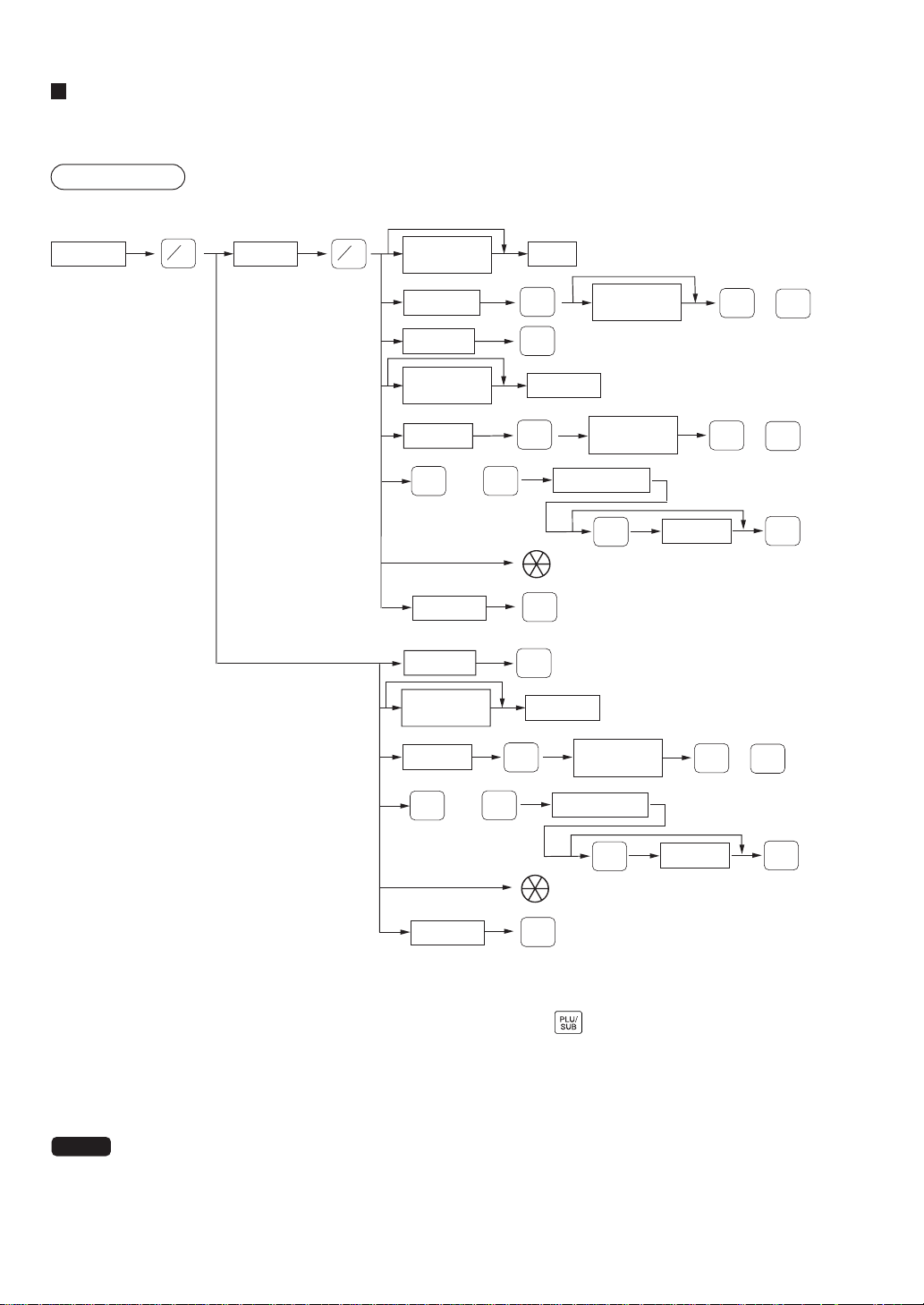
— 37 —
Split-pricing entries
You will use this function when your customer wants to separately buy items normally sold in base (unit) quantities.
Procedure
Unit price
per base q'ty
Unit price
per base q'ty
PLU code
Direct PLU
Base q'tySelling q'ty
Unit price
per base q'ty
PLU code
Direct PLU
When you use a programmed
unit price
Only when you use a
base q'ty programmed
for PLU or UPC code
PLU code
Unit price
per base q'ty
PLU code
Unit price
per base q'ty
Dept.
Dept. code
Unit price
per base q'ty
UPC code
AMT
DEPT
#
@
FOR
ENTER
or
Item selection
ENTER
PLU
MENU1
PLU
MENU50
thru
Unit price
ENTER
PLU/
SUB
PLU/
SUB
AMT
ENTER
or
UPC code
Item selection
ENTER
PLU
MENU1
PLU
MENU50
thru
Unit price
ENTER
@
FOR
AMT
ENTER
or
PLU/
SUB
PLU/
SUB
PLU/
SUB
PLU/
SUB
*
*
*
*
*
* The pop-up window for amount entry will open.
• After scanning a UPC code or entering a UPC code and pressing the
key, the learning UPC function may
require you to enter a unit price with the display “UNDEFINED CODE”. Enter the unit price and department code
to be associated with the UPC.
• Selling quantity: Up to four digits integer + three digits decimal
• Base quantity: Up to two digits (integer)
NOTE
For actual use of this function, please consult your dealer.
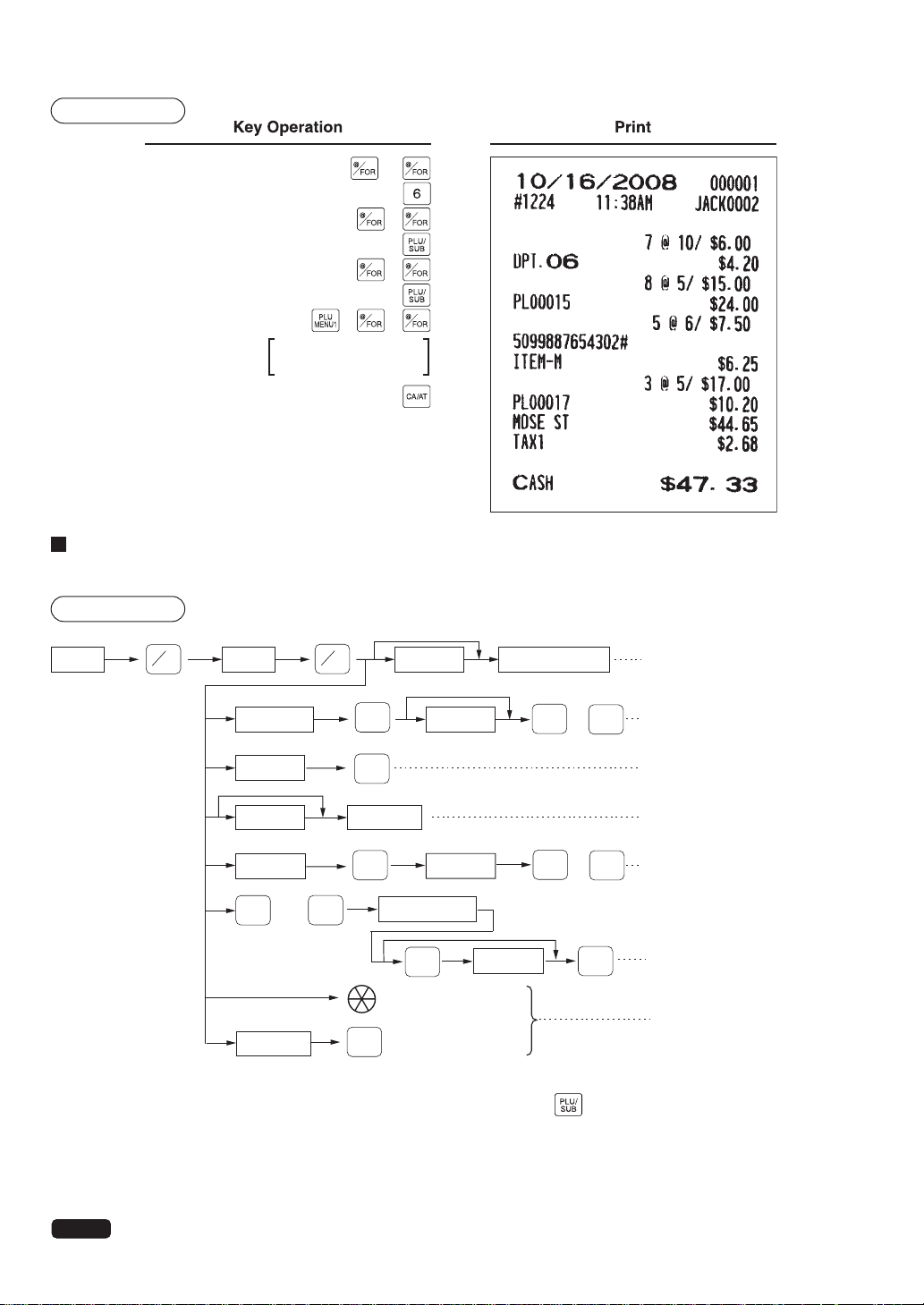
— 38 —
Example
7 10
600
8 5
15
5 6
5099887654302
3 5
Select PLU code 17
from the menu.
Successive multiplication entries
This function is practical for such entries as a sale of an item sold by area (square foot).
Procedure
Length Unit price
PLU code
PLU code
When you use a programmed
unit price
Dept. entry (direct)
PLU entry (indirect)
Dept. entry (indirect)
PLU/subdept. entry (direct)
Subdept. entry
Width Department key
Unit price
Dept. code
Unit price Direct PLU
Unit price
Scanning a UPC code
UPC code
UPC entry
AMT
DEPT
#
@
FOR
ENTER
or
Item selection
ENTER
PLU
MENU1
PLU
MENU50
thru
Unit price
ENTER
PLU/subdept. entry (menu)
@
FOR
PLU/
SUB
PLU/
SUB
AMT
ENTER
or
PLU/
SUB
*
*
*
* The pop-up window for amount entry will open.
• After scanning a UPC code or entering a UPC code and pressing the key, the learning UPC function may
require you to enter a unit price with the display “UNDEFINED CODE”. Enter the unit price and department code
to be associated with the UPC.
• Selling quantity: Up to four digits integer + three digits decimal
• Base quantity: Up to two digits (integer)
NOTE
For actual use of this function, please consult your dealer.

— 39 —
Example
3 4
400
1 5
2 5
8
1 75
7 75
4 5
5099887654302
1 2
1 2
Select PLU code 50
from the menu.
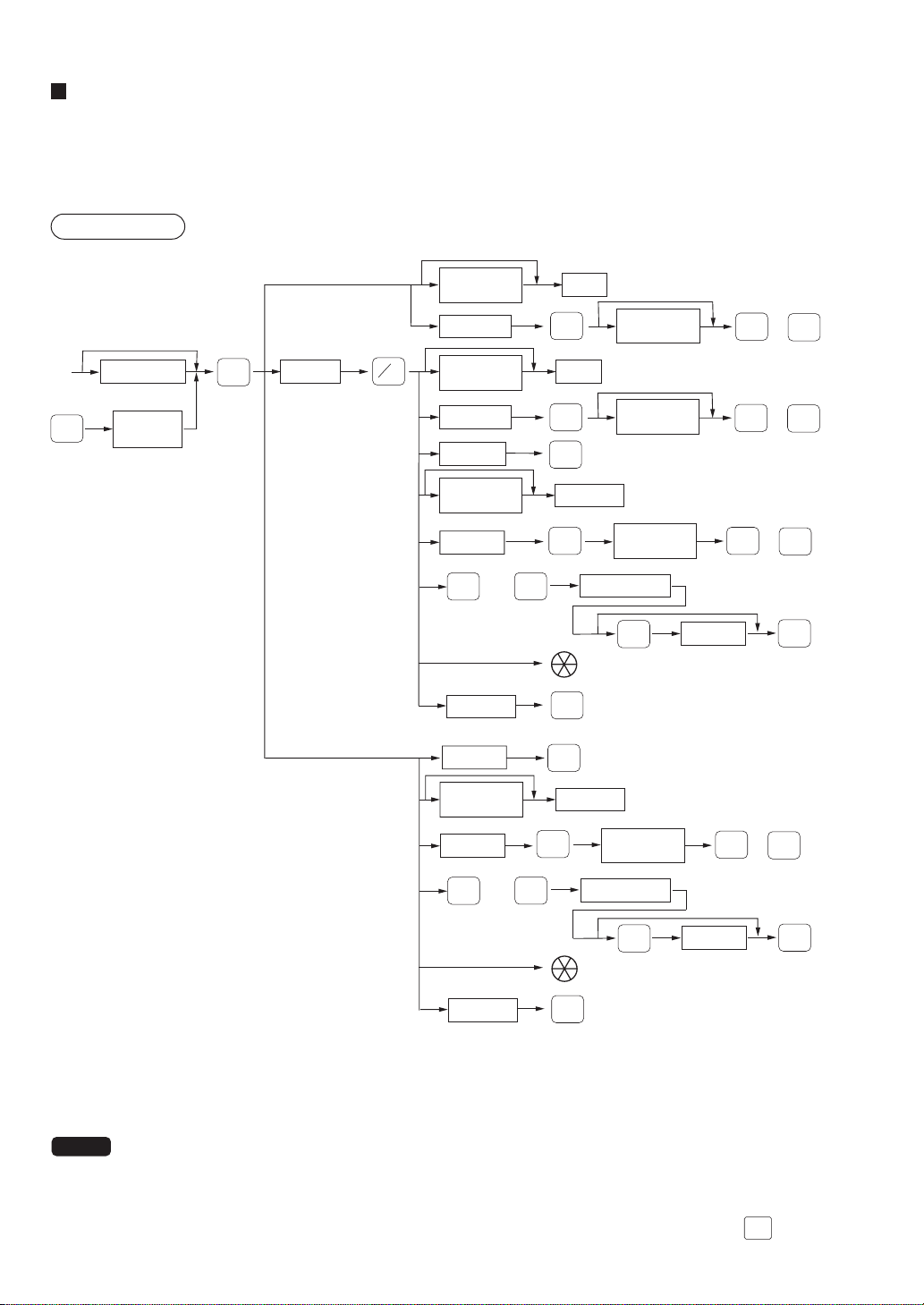
— 40 —
Scale entries
For entry of items sold by weight, a scale must be connected to read the weight automatically. To make a refund
entries, enter the weight manually while the scale platter is empty or reads zero.
i) Auto scale entries
Procedure
Unit price
per base wt.
Unit price
per base wt.
PLU code
Direct PLU
Base wt.
Tare number
PLU code
Direct PLU
Only when you use a
base wt. programmed
for PLU or UPC code
PLU code
Unit price
per base wt.
PLU code
Unit price
per base wt.
Dept.
Dept. code
Unit price
per base wt.
SCALE
Dept.
When you use a programmed
unit price
Dept. code
When base wt. is
Scanning UPC code
Scanning UPC code
1 LB (or 1 KG)
Unit price
per base wt.
OPEN
TARE
When you use a
programmed tare no.
Open tare
weight
(1 - 9)
Unit price
per base wt.
Unit price
per base wt.
@
FOR
AMT
ENTER
or
DEPT
#
AMT
ENTER
or
DEPT
#
PLU/
SUB
PLU/
SUB
AMT
ENTER
or
UPC code
Item selection
ENTER
PLU
MENU1
PLU
MENU50
thru
Unit price
ENTER
UPC code
Item selection
ENTER
PLU
MENU1
PLU
MENU50
thru
Unit price
ENTER
PLU/
SUB
AMT
ENTER
or
PLU/
SUB
PLU/
SUB
PLU/
SUB
*
*
*
*
*
*
* The pop-up window for amount entry will open.
• Open tare weight: Up to 5 digits (integer + decimal)
• Net weight: Up to 5 digits (integer + decimal)
• Base weight: Up to 2 digits (integer)
NOTE
• This POS terminal can be programmed with up to nine tare tables and allows different kinds of tares to
be assigned to them.
• When the SCALE key is pressed, the weight is automatically read from the connected scale (option)
and the net weight appears on the display.
• When an item is programmed for “Scale compulsory”, it is not necessary to press the
SCALE
key.
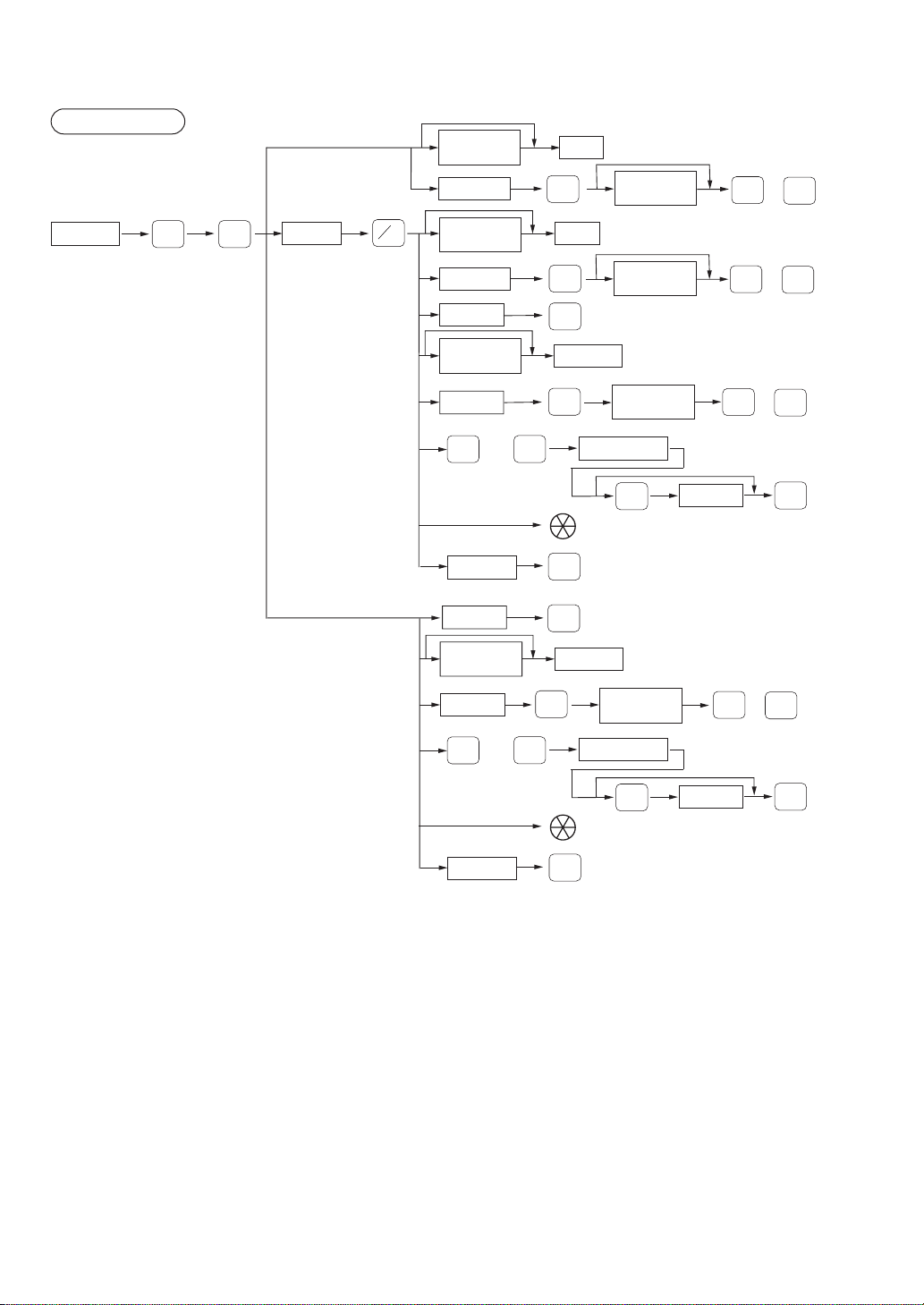
— 41 —
ii) Manual scale entries
Procedure
Unit price
per base wt.
Unit price
per base wt.
PLU code
Direct PLU
Base wt.
Net weight
PLU code
Direct PLU
Only when you use a
base wt. programmed
for PLU or UPC code
PLU code
Unit price
per base wt.
PLU code
Unit price
per base wt.
Dept.
Dept. code
Unit price
per base wt.
SCALE
Dept.
When you use a programmed
unit price
Dept. code
When base wt. is
Scanning UPC code
Scanning UPC code
1 LB (or 1 KG)
Unit price
per base wt.
Unit price
per base wt.
Unit price
per base wt.
RFND
@
FOR
AMT
DEPT
#
ENTER
or
PLU/
SUB
AMT
DEPT
#
ENTER
or
PLU/
SUB
AMT
ENTER
or
UPC code
Item selection
ENTER
PLU
MENU1
PLU
MENU50
thru
Unit price
ENTER
PLU/
SUB
PLU/
SUB
AMT
ENTER
or
UPC code
Item selection
ENTER
PLU
MENU1
PLU
MENU50
thru
Unit price
ENTER
PLU/
SUB
PLU/
SUB
*
*
*
*
*
*
*
* The pop-up window for amount entry will open.
• Net weight: Up to 5 digits (integer + decimal)
• Base weight: Up to 2 digits (integer)
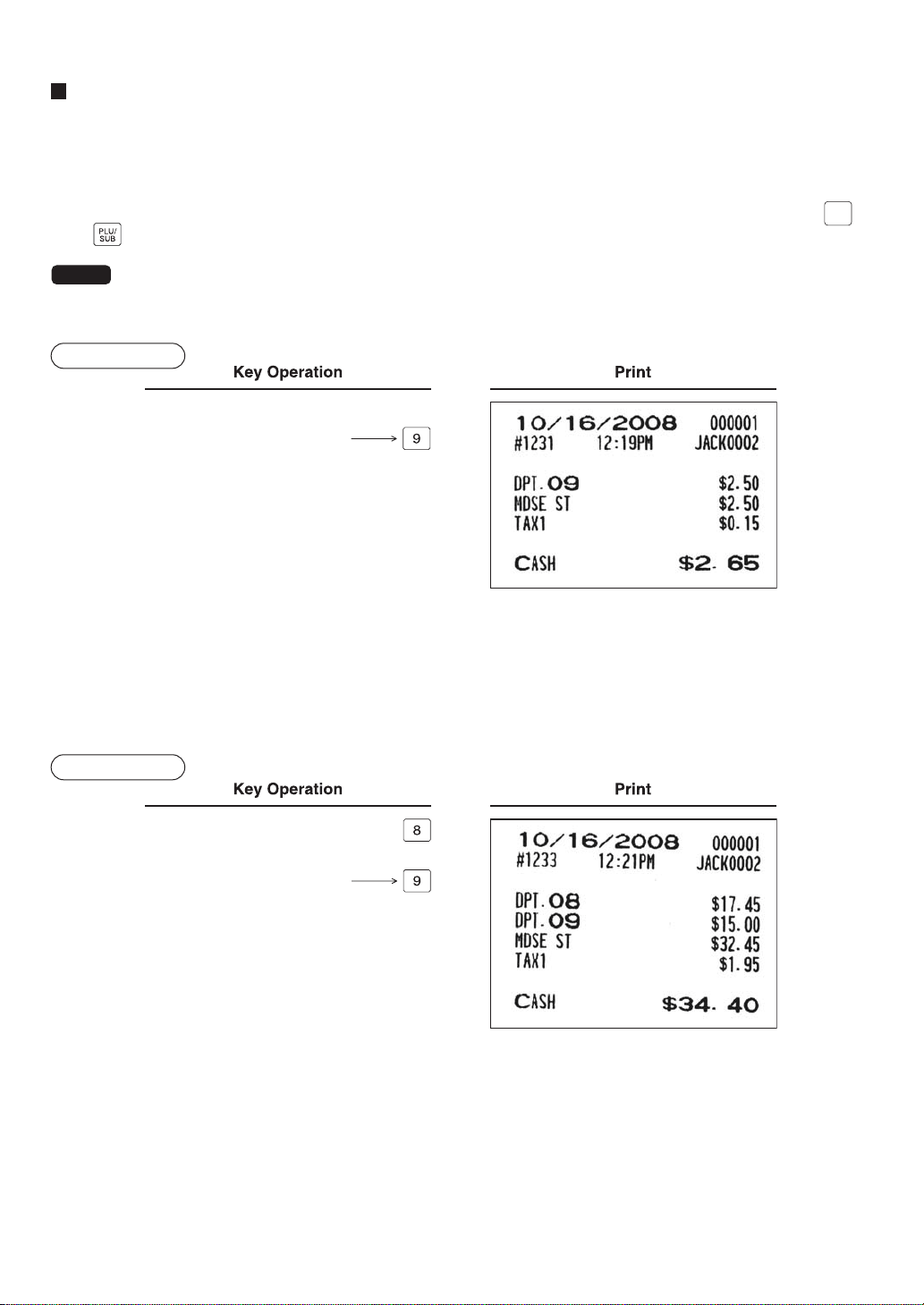
— 42 —
Single item cash sale (SICS) and single item finalization (SIF)
SICS entries
• This function is useful when only one item (for example, a pack of cigarettes) is sold by cash. This function is
applicable only to those departments programmed for SICS or to the PLUs, subdepartments or UPC which are
associated with the department.
• The transaction is finalized and the drawer opens as soon as you press the corresponding department key,
AMT
key, key or the corresponding direct PLU key.
NOTE
If entry of a department, PLU/subdepartment or UPC programmed for SICS follows entries of depart-
ments, PLUs/subdepartments or UPC not programmed for SICS, the transaction is not finalized and is
treated as a normal sale.
Example
For finishing
the transaction
250
SIF entries
• If entry of a department, PLU/subdepartment or UPC programmed for SIF follows entries of departments, PLUs/
subdepartments or UPC not programmed for SIF, the transaction is finalized immediately as a single item cash
sale.
• Like the SICS function, this function is available for single-item cash settlement.
Example
For finishing
the transaction
1745
1500

— 43 —
Age verification (Birthday entry)
The age verification function is used for prohibiting sales of goods (departments, PLUs, or UPCs) for to persons
under a given age which are based on birthday entries.
When a department/PLU/UPC for which a figure other than zero (01 to 99) has been programmed as the age
limitation (in years) is entered, a birthday entry must be performed.
Procedure
XXXXXX
Birthday (five or six digits)
BIRTH
NOTE
• A birthday entry can be performed two or more times at any point during a transaction, though the last
entered birthday remains in effect.
• You can enter the date as far back as 98 years.
[Ex.] When the current year is 2008: you can enter a year between 1910-2008.
When the current year is 2011: you can enter a year between 1913-2011.
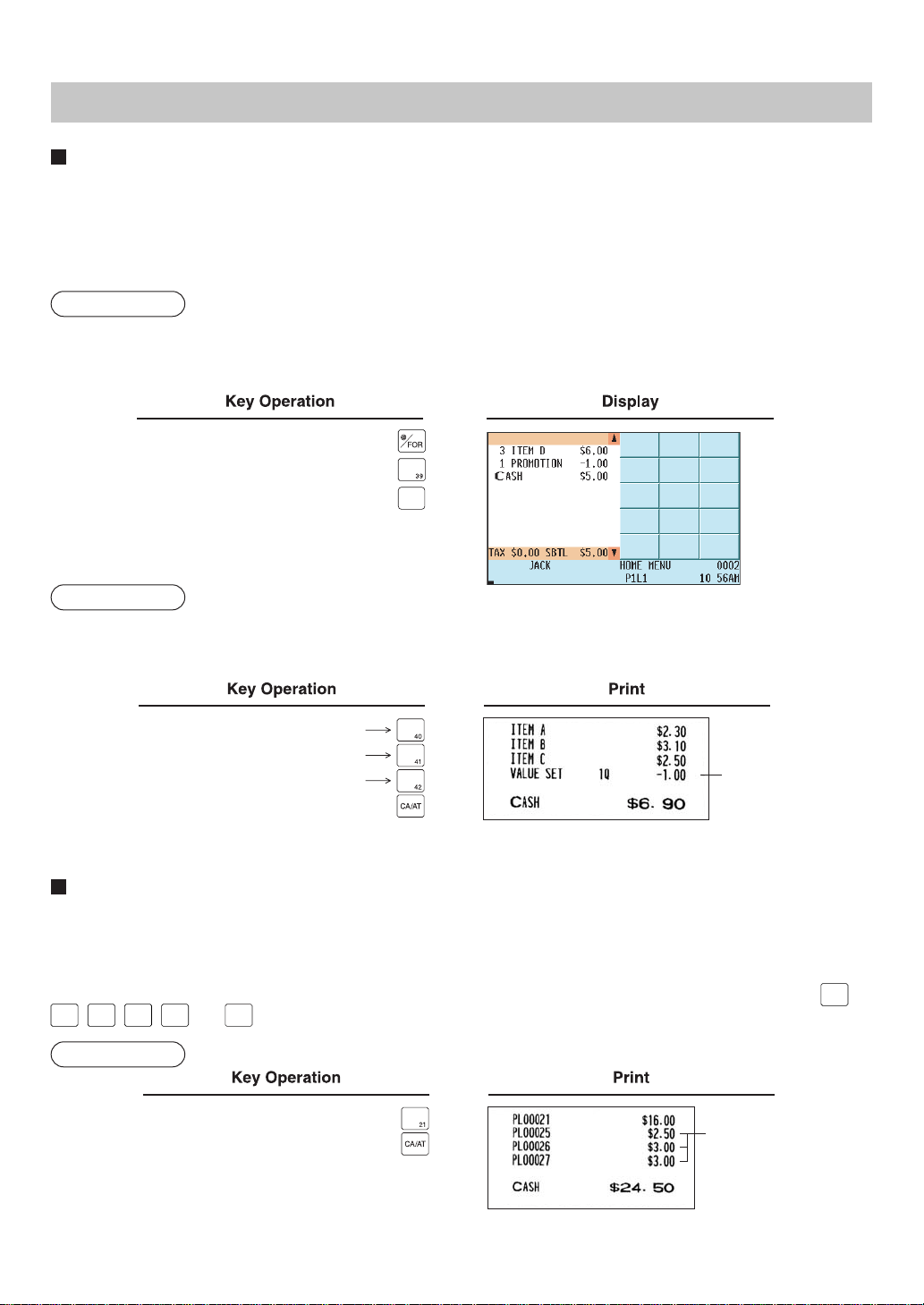
— 44 —
Special Entries for PLU/UPC
Promotion (mix-and-match) function
This function is convenient for selling a mix of different PLU/UPC items by the lump (e.g. value meal, bundle sale,
etc.). Operation is the same as for normal PLU/UPC. The base quantity and unit price are assigned to a mix-and-
match table. All items that are programmed into the table are treated as if they belong to one group.
• Using the UPC learning function, you can store necessary data for new UPC codes in the training mode for later
use in the REG mode.
Example
(For a certain PLU)
PLU00039 (ITEM D) of unit price $2.00
Mix-and-match table no. 1 (Text: Promotion; Base quantity: 3; Price: $5.00)
3
CA/AT
Example
(For different PLUs)
PLU00040 (ITEM A, $2.00), PLU00041 (ITEM B, $3.10), and PLU00042 (ITEM C, $2.50)
Mix-and-match table no. 2 (Text: VALUE SET; Base quantity: 3; Price: $6.90)
Treated as $2.30 item
Treated as $3.10 item
Treated as $2.50 item
Promotion
discount
PLU/UPC link entries
It is possible to link PLUs/UPCs (linked PLUs/UPCs) with a leading link PLU/UPC so that they can be combined for
a single key entry of the leading PLU/UPC. You can program a maximum of 99 leading link PLUs/UPCs. A maxi-
mum of five PLUs/UPCs can be linked to a leading PLU/UPC.
In case that you register a PLU/UPC to which any PLUs/UPCs are linked, the linked PLUs/UPCs are automatically
registered together with the leading link PLU/UPC. Only the leading PLU is affected by the status shift keys (
TAX1
SHIFT
,
TAX2
SHIFT
,
TAX3
SHIFT
,
TAX4
SHIFT
,
TAX5
SHIFT
and
FS/CBN
SHIFT
keys).The percent calculation is in effect for the amount of the leading PLU.
Example
(In case of link PLU)
Linked PLUs
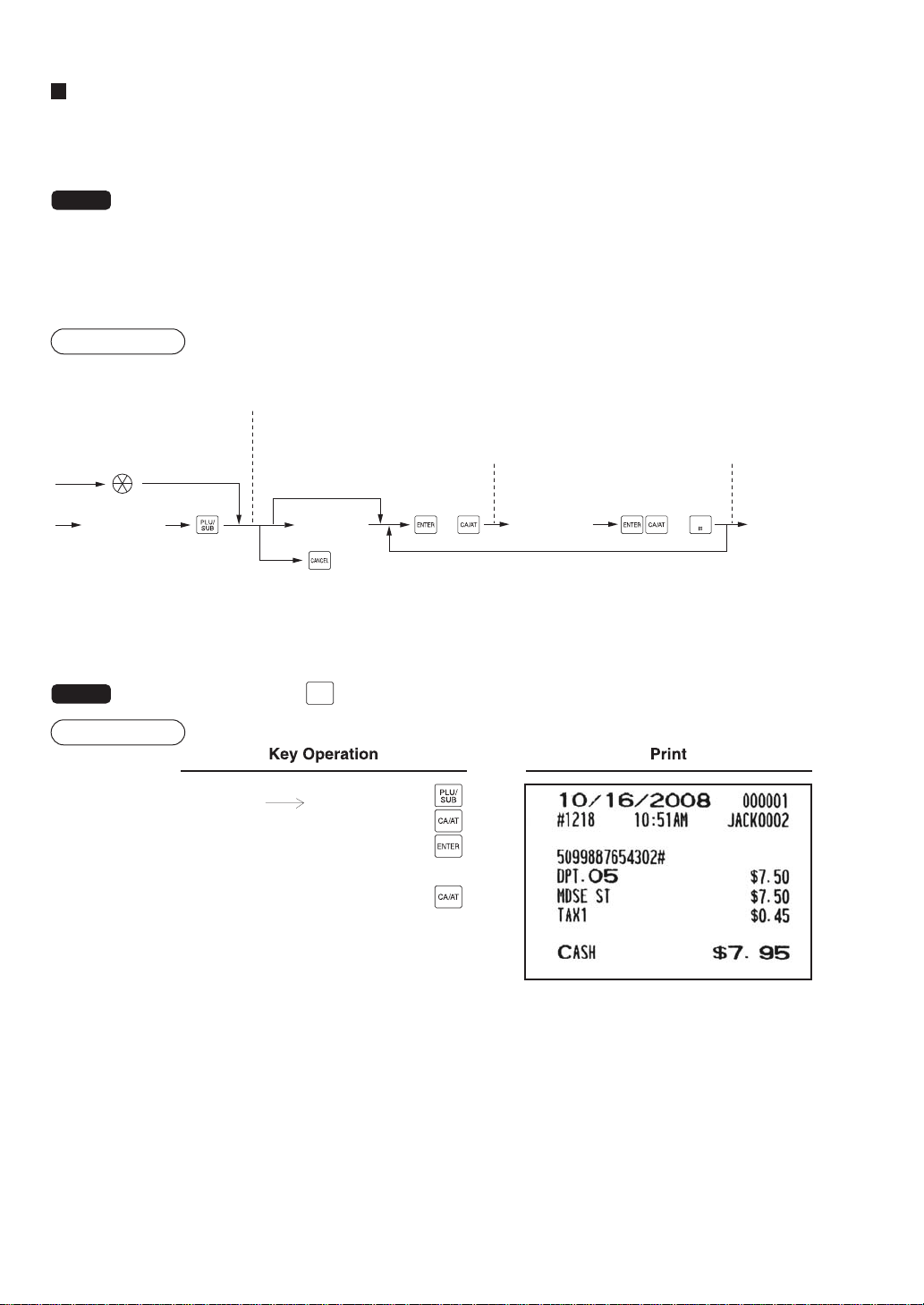
— 45 —
UPC learning function
When you enter or scan an undefined UPC code, you are required to enter its unit price and associated depart-
ment. The entered UPC code, associated department and unit price are stored in the UPC file or the dynamic UPC
file and used for future UPC sales entries.
NOTE
• When there is no remaining space in the file, the data is not stored in the file.
• The text for the associated department is applied to the UPC code.
• You can use the UPC learning function in the training mode. This may be convenient to practice on the
scanning system.
• Using the UPC learning function, you can store necessary data for new UPC codes in the training
mode for later use in the REG mode.
Procedure
Scanning an undefined UPC code
When the unit price is zero,
or in case of non-PLU type
UPC code having price info.
or related to press code.
To cancel the operation
Unit price
Undefined
UPC code
“UNDEFINED CODE” is displayed
with beep sounds and price input
window is displayed.
Dept. code input window
is displayed.
Delete method selection
window is displayed.
Selection
of delete
method
*
Dept. code oror
DEPT
* Select “1 AUTO DELETE” when you want to exempt the UPC code entered from the non-accessed UPC delete
function (deletion by selecting DELETE option from UPC DELETE menu in Z1 mode).
NOTE
For repeat entry, use the
REPEAT
key.
Example
“UNDEFINED CODE” is
displayed.
5099887654302
750
5
Select “1 AUTO DELETE”.
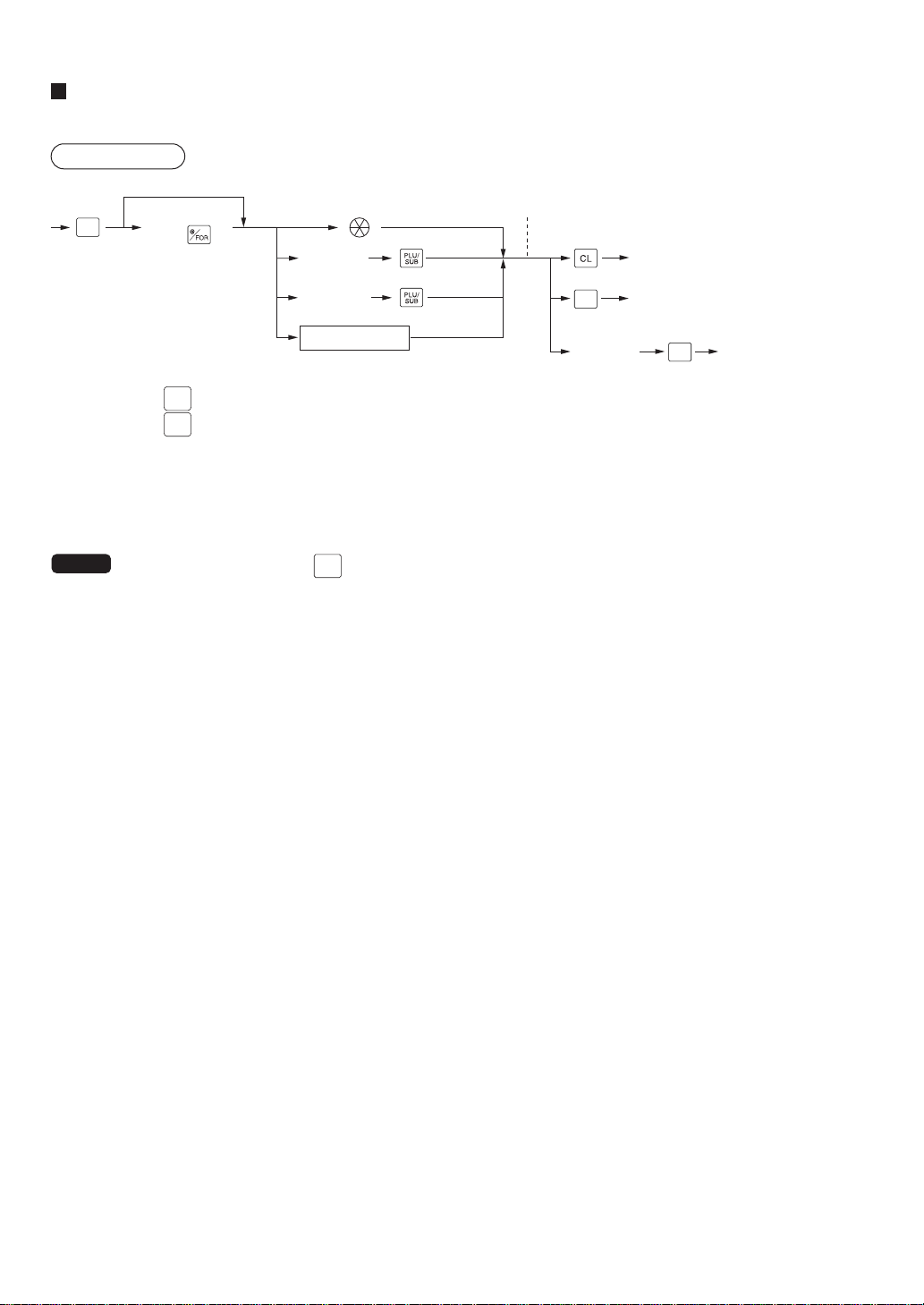
— 46 —
PLU/UPC price inquiry (view) function
This function displays the unit price of a PLU/UPC item (view mode).
Procedure
Numeric entry
(Q'ty )
UPC code
Scanning UPC code
*
1
*
2
Direct PLU key
PLU code
Unit price
(MGR mode)
*
3
AMT
AMT
INQ
The total sales amount of the
PLU/UPC is displayed.
*1: Press the
CL
keys to cancel the view mode.
*2: Press the
AMT
key to register the displayed unit price of the PLU/UPC item.
*3: The manager can change the unit price temporarily. The unit price programmed in the PGM mode can not be
changed. The manager need to enter his or her manager code and secret code before the manager's opera-
tion.
NOTE
For repeat entry, use the
RETURN
key.
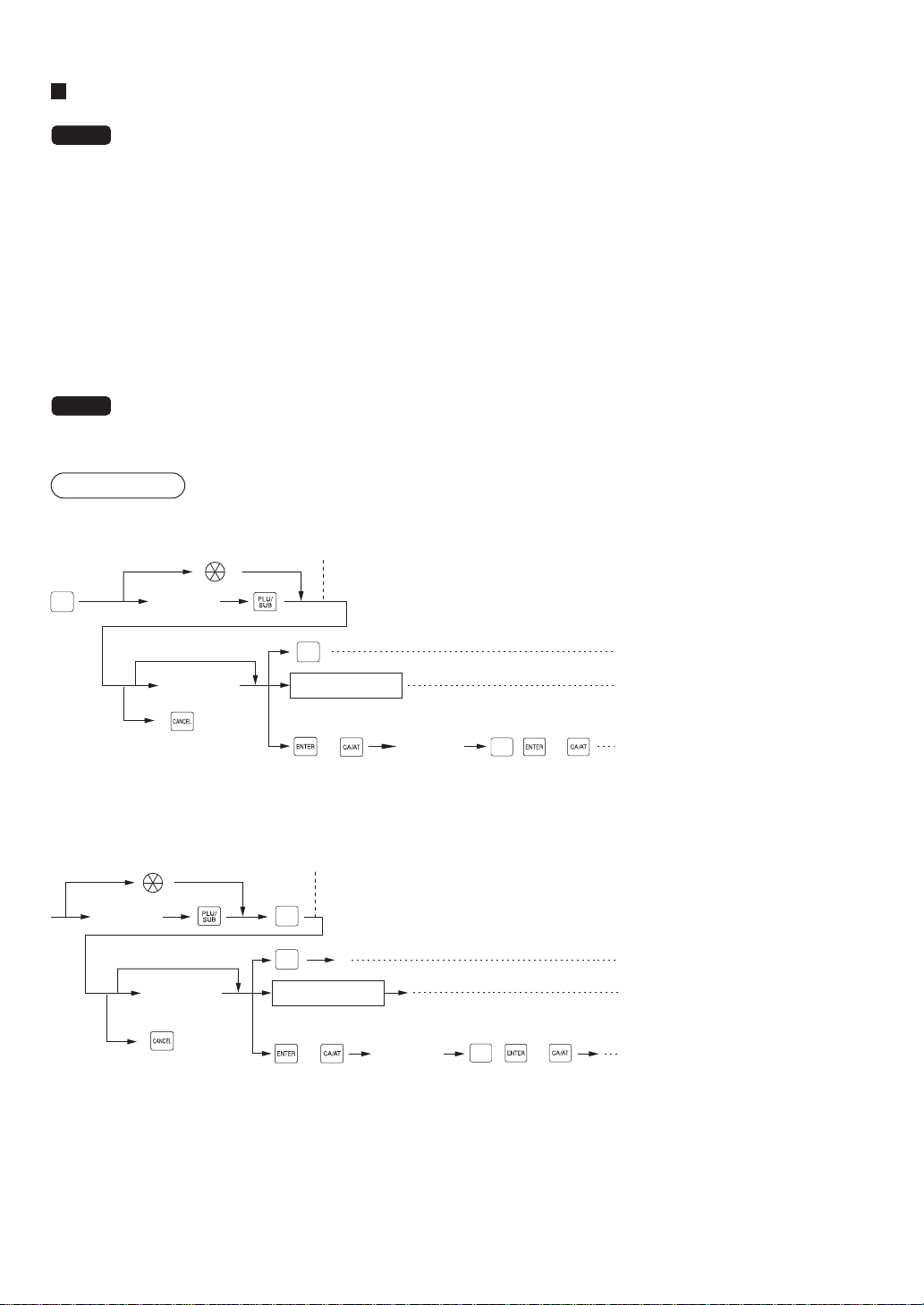
— 47 —
UPC price change function
NOTE
To use this function, consult your dealer.
The manager and servers/cashiers can use this function when they need to change the unit price or associated
department of a UPC item.
There are two methods for change:
1. Price change mode
You can change the preset price and/or the associated department of a UPC item without entering the PGM
mode.
2. Changing price during a transaction
When you have found an incorrect UPC price and/or associated department upon transaction, you can correct
them during the transaction. Upon entry of new price and/or associated department, the preset price and/or
associated department is automatically changed to the new price and/or associated department.
NOTE
For Non-PLU type prices embedded in UPC-A codes and press codes, the prices in the codes have
priority over the preset prices. So, for these codes, a changed price is valid only during the current
transaction.
Procedure
Price change mode
UPC code
Dept codeor
Department key
Scanning UPC code
Price entry window is displayed.
To cancel the mode
To keep the price
*
*
or,
Unit price
To change the unit price only
To change the associated dept.
using the dept. code entry key
To change the associated dept.
directly by depressing the
corresponding key
PRICE
CHANGE
PRICE
CHANGE
DEPT
#
Changing price during a transaction
EAN code
Dept code
Department key
Scanning UPC code
To cancel
To keep the price
Unit price
To change the unit price only
To change the associated dept.
using the dept. code entry key
To change the associated dept.
directly by depressing the
corresponding key
or or,
*
*
Price entry window is displayed.
PRICE
CHANGE
PRICE
CHANGE
DEPT
#
*: Associated department can be changed only when the totalizer of the item is “0”.
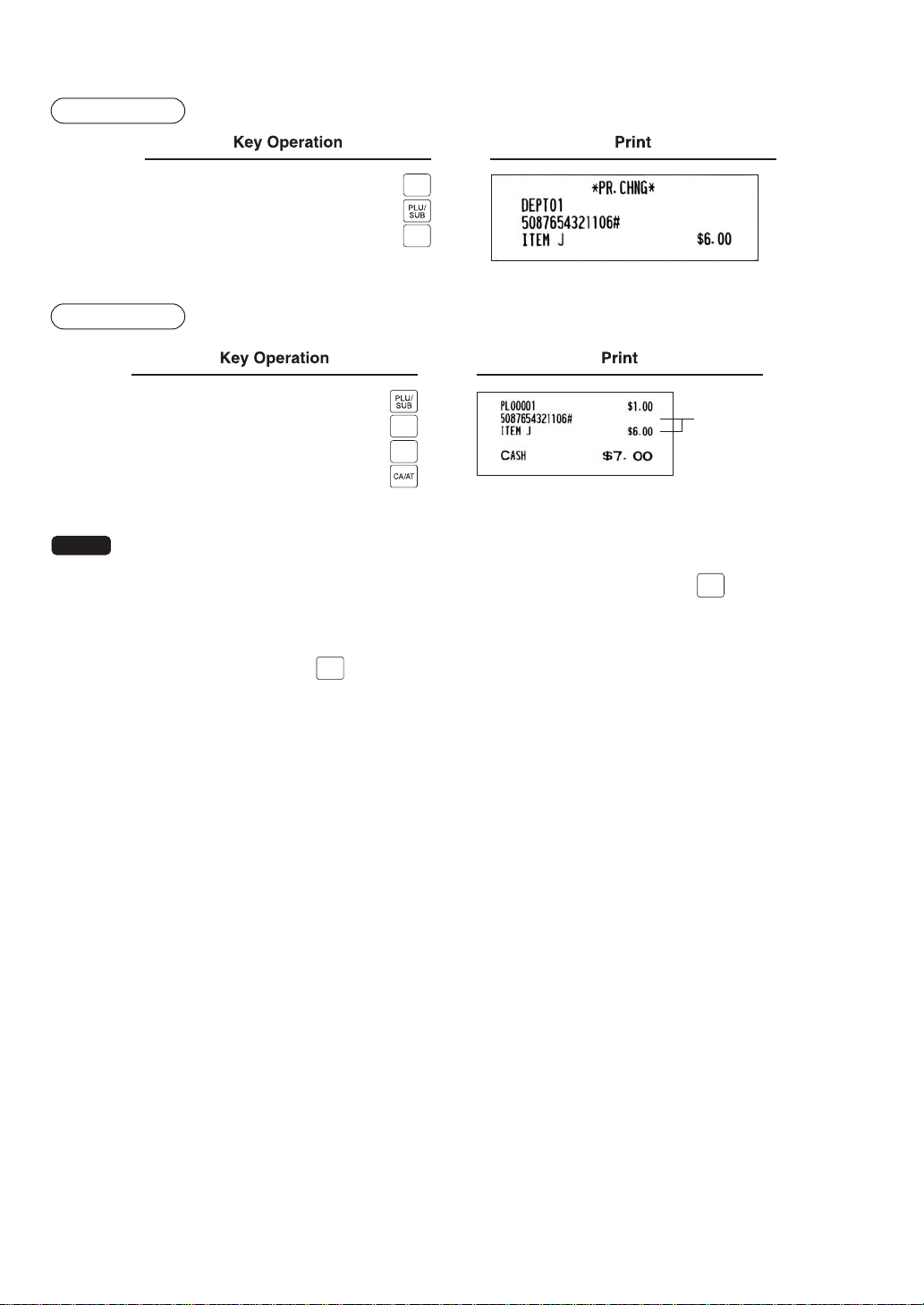
— 48 —
Example
Price change mode
PRICE
CHANGE
PRICE
CHANGE
5087654321106
600
Example
Changing a price during a transaction
PRICE
CHANGE
PRICE
CHANGE
5087654321106
600
Price change
NOTE
• When an undefined code is entered in the price change mode, the POS terminal goes to an error
status.
• During a transaction, you can void the UPC entry by the first depression of the
PRICE
CHANGE
key, then you can
enter a correct price and/or associated department.
• When an associated department is changed, the item label for the department will be also changed
automatically.
• For repeat entry, use the
PRICE
CHANGE
key.
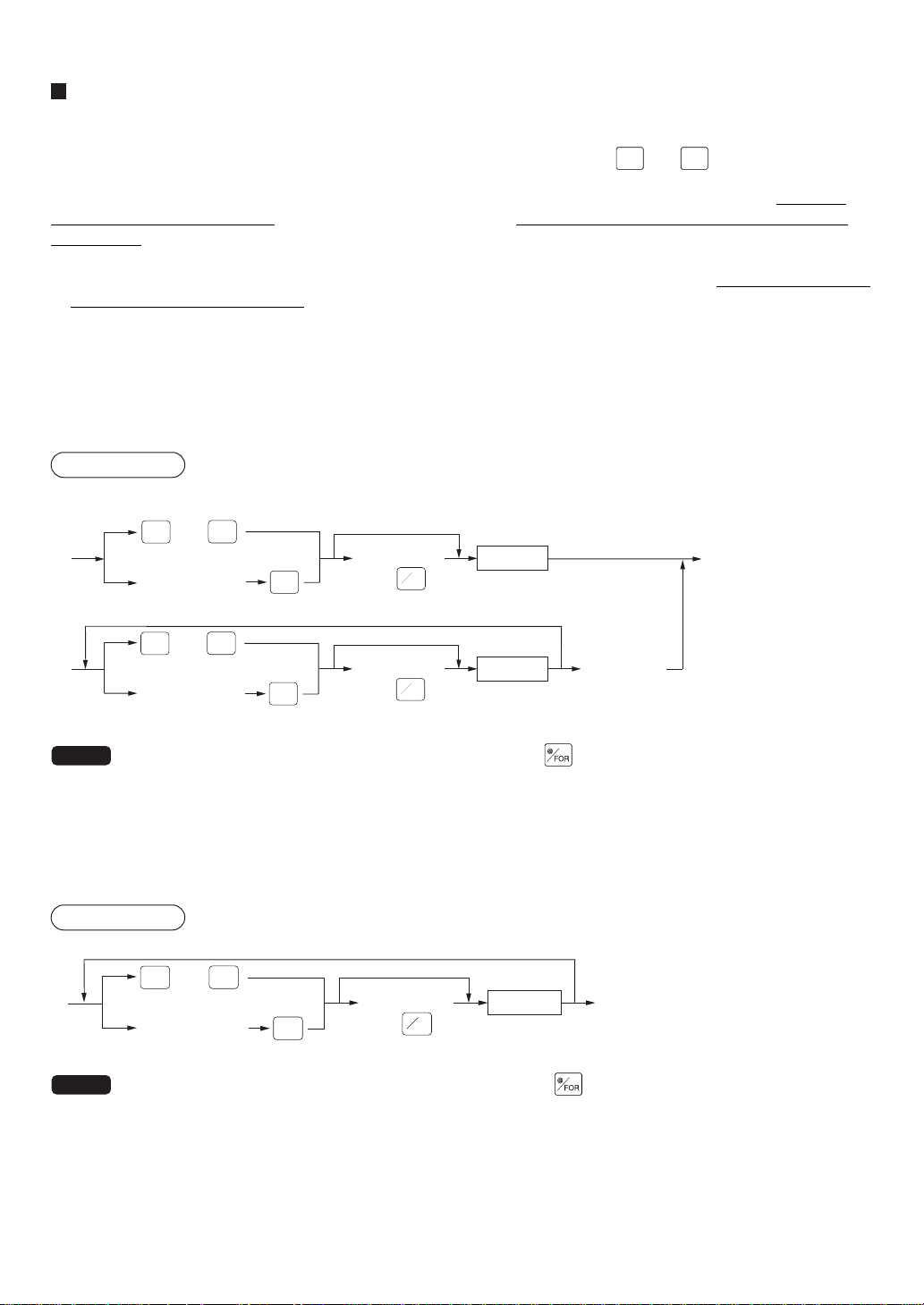
— 49 —
PLU level shift (for direct PLUs)
This function can increase the number of direct PLUs on your POS terminal without adding additional direct PLU
keys. You can use direct PLUs in five levels by utilizing the PLU level shift keys
LEVEL
1
thru
LEVEL
5
.
The level key shifts the PLU level to the required level. (The normal level is level 1.)
You must program your machine in the PGM2 mode to select one of the two PLU level shift modes — automatic
return mode* or lock shift mode** — and decide whether to allow both the manager and servers/cashiers or only
the manager to perform the PLU level shift function.
* The automatic return mode automatically shifts the PLU level back to the preset level after
pressing a direct PLU
key or finalizing each transaction.
** The lock shift mode holds the current PLU level until another PLU level shift key is pressed.
Automatic return mode (for PLU levels)
If your terminal has been programmed for PLU level shift in the automatic return mode, press a desired PLU level
shift key before a numeric entry.
Procedure
Direct PLU
(Finalization)
Numeric entry
Direct PLU
Preset level
(Q'ty, )
(Q'ty, )
Numeric entry
(Returning every item entry to the preset level)
(Returning every transaction to the present level)
@
FOR
@
FOR
LEVEL
1
LEVEL
5
thru
LEVEL
#
(Level no.: 1 to 5)
LEVEL
1
LEVEL
5
thru
LEVEL
#
(Level no.: 1 to 5)
NOTE
When using the FF method (PLU), you need not press the key for a multiplication entry.
Lock shift mode (for PLU levels)
If your terminal has been programmed for PLU level shift in the lock shift mode, press a desired PLU level shift key
before a numeric entry.
Procedure
Direct PLU The current level is hold.
(Q'ty, )
Numeric entry
@
FOR
LEVEL
1
LEVEL
5
thru
LEVEL
#
(Level no.: 1 to 5)
NOTE
• When using the FF method (PLU), you need not press the key for a multiplication entry.
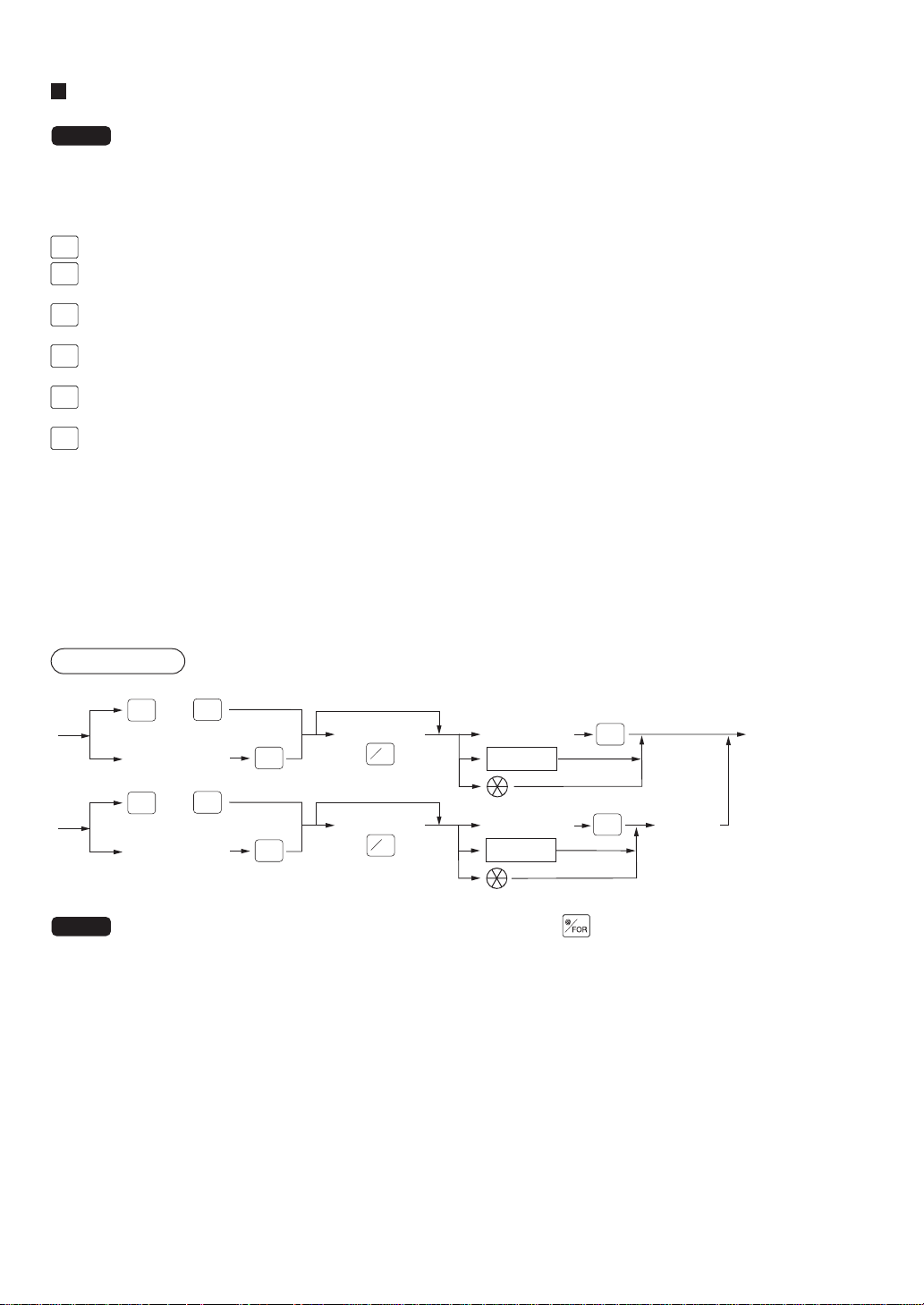
— 50 —
PLU price level shift
NOTE
To use this function, please consult your authorized SHARP dealer.
Six different price levels can be programmed for each PLU.
The price levels can be changed for each PLU registration.
These keys have the following functions:
P-SHIFT
1
: Shifts the PLU price level from level 2, 3, 4, 5, or 6 to level 1 (base level).
P-SHIFT
2
: Shifts the PLU price level from level 1, 3, 4, 5, or 6 to level 2. When you press this key, the price level shift
indicator will show “P2.”
P-SHIFT
3
: Shifts the PLU price level from level 1, 2, 4, 5, or 6 to level 3. When you press this key, the price level shift
indicator will show “P3.”
P-SHIFT
4
: Shifts the PLU price level from level 1, 2, 3, 5, or 6 to level 4. When you press this key, the price level shift
indicator will show “P4.”
P-SHIFT
5
: Shifts the PLU price level from level 1, 2, 3, 4, or 6 to level 5. When you press this key, the price level shift
indicator will show “P5.”
P-SHIFT
6
: Shifts the PLU price level from level 1, 2, 3, 4, or 5 to level 6. When you press this key, the price level shift
indicator will show “P6.”
* The automatic return mode shifts the PLU price level back to level 1 after a PLU entry automatically. You can
select whether the PLU price level should return to level 1 each time you enter one item or each time you
finalize one transaction.
** The lock shift mode holds the current PLU price level shift until a price level shift key is pressed.
Automatic return mode (for price shifts)
If your terminal has been programmed for PLU/UPC price level shift in the automatic return mode, press a
desired price level shift key before a numeric entry.
Procedure
(each item)
Direct PLU
PLU code
(Q'ty, , etc.)
(Q'ty, , etc.)
Numeric entry
(each transaction)
PLU code
[Payment]
Numeric entry
Return to
price level 1
@
FOR
@
FOR
PLU/
SUB
PLU/
SUB
P-SHIFT
#
P-SHIFT
1
P-SHIFT
6
thru
(Level no.: 1 to 6)
P-SHIFT
#
P-SHIFT
1
P-SHIFT
6
thru
(Level no.: 1 to 6)
Direct PLU
NOTE
When you use the FF method (PLU), you need not press the key for a multiplication entry.
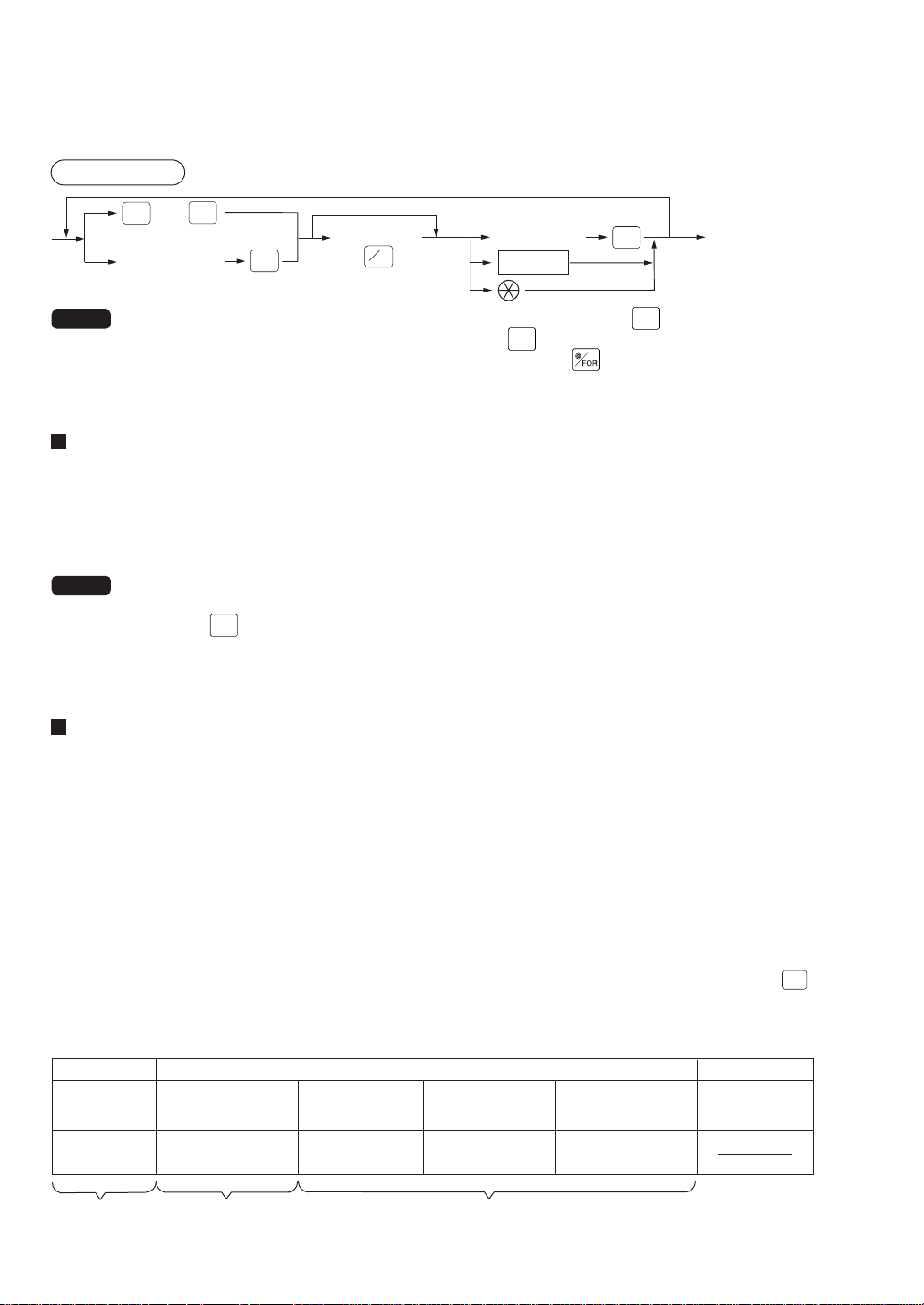
— 51 —
Lock shift mode (for price shifts)
If your terminal has been programmed for PLU/UPC price level shift in the lock shift mode, press the desired
price level shift key before a numeric entry.
Procedure
To shift the price level of another PLU
(Q'ty, , etc.)
Numeric entry
PLU code
The current
price level
@
FOR
PLU/
SUB
Direct PLU
P-SHIFT
#
P-SHIFT
1
P-SHIFT
6
thru
(Level no.: 1 to 6)
NOTE
• If you select the automatic return mode, it is not necessary to use the
P-SHIFT
1
key on the keyboard. If you
select the lock shift mode, it is necessary to use the
P-SHIFT
1
key.
• When you use the FF method (PLU), you need not press the
key for a multiplication entry.
Combo meal entries
The operation is the same as for normal PLU entries.
When a combo meal is entered with a combo (function) key, the labels of those PLUs linked to the combo key can
be printed automatically. The sum of all adjusted prices (of the PLUs linked to the combo key) is the “combo meal”
price.
NOTE
• When a combo meal is entered with a combo key, the quantity totalizer of the combo key and the
amount totalizers of the linked PLUs are updated.
• When the
UPSIZE
key is pressed with the cursor pointing at a combo meal selected, the combo meal entry
of 1st price level is voided and the combo meal of 2nd price level is registered.
Condiment entries (for PLU)
Your POS terminal may be programmed to prompt you to condiment and preparatory instructions for a menu-item
PLU.
Example:
When you enter a menu-item PLU, a prompting message such as “HOW COOK?” and a list of the “Following
PLUs” will appear. You must specify one of the “Following PLUs” such as “without mustard” to meet a special order
of the guest. In an example of the condiment table shown below, it is assumed that the condiment table no.1 is
assigned to PLU code 21 (programmed text “STEAK”) and table no. 4 is linked to table no. 1 as the next table no.
When you enter the PLU code 21, the message “HOW COOK?” will appear to prompt you to choose one option
from “RARE,” “MED.RARE,” and “WELLDONE.” If the guest chooses “RARE,” enter it. Then the next message
“POTATO?” will appear to prompt you to choose one option from
“P.CHIPS,” “MASHED P.”, and “BAKED P.” If the guest chooses “MASHED P.”, enter it. Then press the
CA/AT
key to end this entry.
An example of linked condiment tables is shown below.
23 25 27
(HOW COOK?) (RARE 0.00) (MED.RARE 0.00) (WELLDONE 0.00)
33 37 38
(POTATO?) (P. CHIPS 0.60) (MASHED P. 0.60) (BAKED P. 0.50)
Table number PLU codes for condiment entry (programmed text, price) Next table no.
1
4
4
PLUsMessage text
Menu-item
PLUs
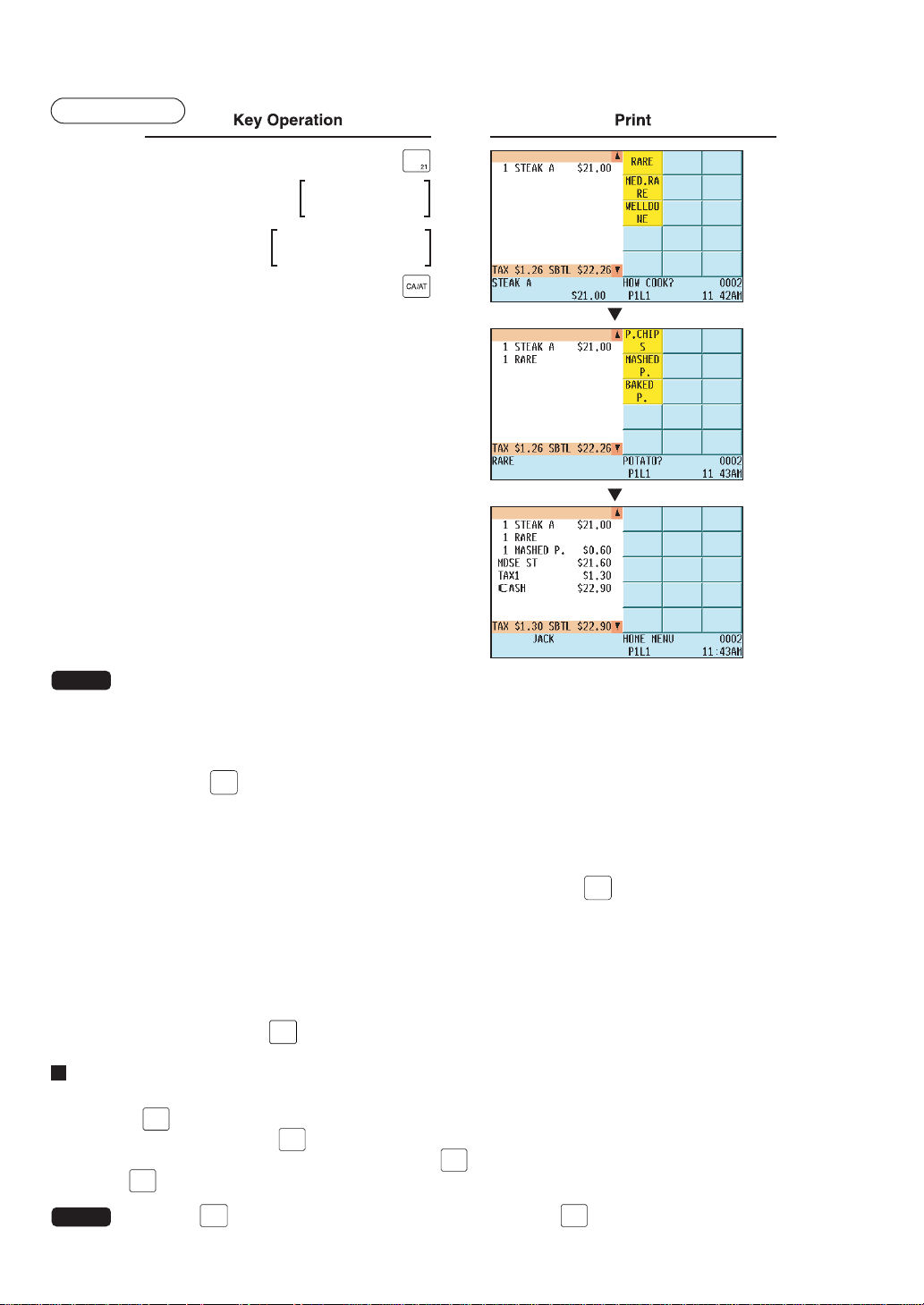
— 52 —
Example
Touch “RARE”
on the keyboard.
Touch “MASHED P.”
on the keyboard.
NOTE
• When the condiment entry is programmed as compulsory, your POS terminal will continue to prompt
condiment entry until you finish the entire condiment entry programmed for the PLU. During the
condiment entry, if you enter a PLU which is not in the condiment table, an error message will appear.
• When the condiment entry is programmed as non-compulsory, entering a PLU which is not in the
condiment table cancels the condiment entry.
• When the
CANCEL
key is pressed, the entry skips to the next condiment table which is programmed.
• When you enter a PLU priced at “0.00,” only the text may be printed on the receipt.
• No refund entry is possible for any condiment entries. When you perform a refund entry with a menu-
item PLU, the condiment PLUs assigned to the menu-item PLU are automatically registered as a
refund entry.
• You may omit the compulsory condiment entry by pressing the
CANCEL
key.
• Cursor void entry or touching void entry is allowed for those PLUs that are entered as condiments
(menu and condiment).
• Multiplication entry can be made for each condiment item independently. However, the sum of manually
entered quantities per condiment table should not be more than the ordered quantity of the menu PLU.
When no multiplication entry is made, the quantity is decided automatically to reach the ordered
quantity number of the menu PLU.
• You can press the
P-SHIFT
#
key to shift the price level during condiment PLU entry.
Repeat round entries
This function can be used for reorder entries of PLU items (single PLU item and condiment PLU) simply by de-
pressing the
REPEAT
ROUND
key. To enable this function, the PLU must be preset as “yes” for repeat entries.
Upon the first depression of the
REPEAT
ROUND
key, those items that were previously registered in a transaction are shown as
reorderable items, and upon second depression of the
REPEAT
ROUND
key, those items registered after the previous depres-
sion of the
REPEAT
ROUND
key including the first reordered items are shown as reorderable items.
NOTE
When the
VOID
key is pressed just after the depression of the
REPEAT
ROUND
key, all items subjected to the repeat
round entry are voided.

— 53 —
Display of Subtotals
Your POS terminal provides these eight types of subtotals:
Merchandise subtotal
You may press the
MDSE
SBTL
key at any point during a transaction.
The net sales subtotal - not including tax - and the symbol “MDSE ST” will appear in the display.
Taxable subtotal
Taxable 1 subtotal
Press the
TAX1
SHIFT
and
SBTL
keys in this order at any point during a transaction. The sales subtotal of taxable 1
items will appear in the window and the caption “TAX1” and the tax 1 amount will appear.
Taxable 2 subtotal
Press the
TAX2
SHIFT
and
SBTL
keys in this order at any point during a transaction. The sales subtotal of taxable 2
items will appear in the window and the caption “TAX2” and the tax 2 amount will appear.
Taxable 3 subtotal
Press the
TAX3
SHIFT
and
SBTL
keys in this order at any point during a transaction. The sales subtotal of taxable 3
items will appear in the window and the caption “TAX3” and the tax 3 amount will appear.
Taxable 4 subtotal
Press the
TAX4
SHIFT
and
SBTL
keys in this order at any point during a transaction. The sales subtotal of taxable 4
items will appear in the window and the caption “TAX4” and the tax 4 amount will appear.
Taxable 5 subtotal
Press the
TAX5
SHIFT
and
SBTL
keys in this order at any point during a transaction. The sales subtotal of taxable 5
items will appear in the window and the caption “TAX5” and the tax 5 amount will appear.
Tax-inclusive subtotal (full subtotal)
You may press the
SBTL
key at any point during a transaction. The sales subtotal including tax and the symbol
“SUBTOTAL” will appear in the display.
Tray subtotal
You may press the
TRAY
SBTL
key during a transaction in the REG.
The contents of the tray total itemizer which includes tax are printed and displayed.
Eat-in subtotal
You may press an eat-in key prior to entering a payment. Your POS terminal will calculate a subtotal according to
the programmed tax exemption status and display the subtotal, the symbol “EAT IN,” and a corresponding caption
(“EAT IN 1,” “EAT IN 2,” or “EAT IN 3”) will be displayed.
For a transaction with an eat-in subtotal, you must finalize the transaction by making a payment entry. Just after
pressing the eat-in key, however, you can cancel the entry of that key by pressing the
CL
key or another eat-in
key.
Food stamp-eligible subtotal
You may press the
FS
TEND
key at any point during a transaction. The sale subtotal of items eligible for food stamp
payment will appear in the display.

— 54 —
Group discountable subtotal
Group 1 discountable subtotal
You may press the
GD1
SHIFT
GD1 SHIFT and
SBTL
keys in this order at any point during a transaction.
Group 2 discountable subtotal
You may press the
GD2
SHIFT
GD2 SHIFT and
SBTL
keys in this order at any point during a transaction.
Group 3 discountable subtotal
You may press the
GD3
SHIFT
GD3 SHIFT and
SBTL
keys in this order at any point during a transaction.
Gasoline discount subtotal
You may press the
GAS
SBTL
key and select the payment media at any point during a transaction. The gasoline
discount subtotal will appear in the display.
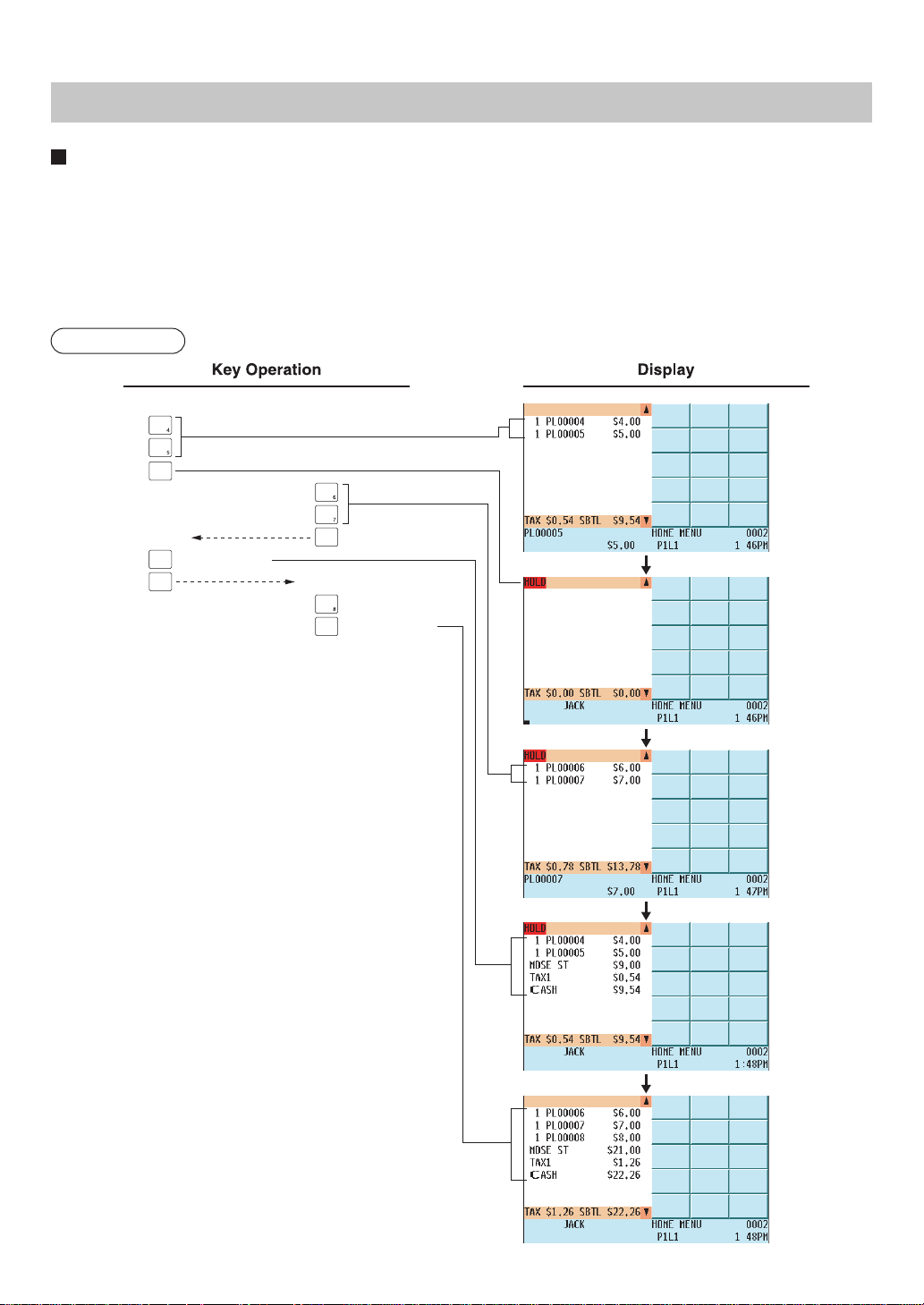
— 55 —
Holding/Recalling of Transaction
Hold/Recall Function
This function can be used during entry of a transaction to start entry of the next transaction. For example, if it
seems to take time for a guest to make payment, by pressing the HOLD/RECALL key or touching “HOLD/RECALL”
in the keyboard area of the display, you can start entry of a transaction with the next guest. While the former
transaction is held, the red mark “HOLD” appears in the top left corner of the display indicating that the transaction
is held. You can resume the transaction with the former guest by pressing or touching the key again (RECALL).
If you like to use this function, consult your authorized SHARP dealer.
Procedure
CA/AT
CA/AT
For one guest For the next guest
(Recall)
(Recall)
(Finalization)
(Finalization)
HOLD/RECALL
HOLD/RECALL
HOLD/RECALL

— 56 —
Finalization of Transaction
Cash or Check tendering
Press the
SBTL
key to get the tax-inclusive subtotal, enter the amount tendered by your customer, then press any of
the
CA/AT
thru
CA5
keys if it is a cash tender or press any of the
CHK
1
thru
CHK
9
key if it is a check tender. When the
amount tendered is greater than the amount of the sale, your POS terminal will show the amount of change due
and the symbol “CHANGE.” Otherwise your POS terminal will show the symbol “DUE” and the deficit amount. To
settle the deficit amount, another tender amount equal to or equal to or exceeding the amount due must be en-
tered.
NOTE
• You can also enter a check or cash tender from the check or cash menu window. Press the
CHK
#
or
CASH
#
key and select the desired check or cash media key and enter the amount.
Mixed tendering (check + cash)
Mixed tendering of check and cash is possible. After pressing the
SBTL
key, enter the amount tendered by your
customer in check or cash, and press the corresponding key, then again enter the amount tendered in cash or
check, and press the corresponding key.
Cash or check sale that does not need any tender entry (Exact Payment)
Enter items and press any of the
CA/AT
thru
CA5
key if it is a cash sale or press any of the
CHK
1
thru
CHK
9
keys if it is a
check sale. Your POS terminal will display the total sales amount.
Charge (credit) sale
Enter items and press the corresponding charge keys (
CH
1
thru
CH
9
).
NOTE
• Amount tendering operations (i.e. change calculations) can be achieved by using the
CH
1
thru
CH
9
key
when PGM2-mode programming your POS terminal has been preset programmed for amount tender
compulsory in the PGM2 mode.
• When charge tendering is performed with EFT/ACCT compulsory, the corresponding card authorization
sequence is initiated.
• You can also enter a charge tender from the charge menu window. Press the
CH
#
key and select the
desired charge media key and enter the amount.
Mixed-tender sale (cash or check tendering + charge tendering)
In case of mixed tendering of cash and charge, press the
SBTL
key to get a tax-inclusive subtotal,
enter the amount tendered in cash by your customer, and press the
CA/AT
thru
CA5
key. Then press an appropriate
charge key to settle the payment of a deficit.
In case of mixed tendering of check and charge, tendering, use press the
CHK
1
thru
CHK
9
keys in place of the
CA/AT
thru
CA5
key.
Positive/Negative code checking function
The Positive/Negative code checking function can be used to inhibit an entry of any invalid code by checking
whether the entered non-add code, such as a card or check code, is valid (positive) or invalid (negative).
For details, please consult your authorized SHARP dealer.

— 57 —
Food stamp tendering
If your customer makes payment (or tendering) by food stamps, obtain the food stamp-eligible subtotal* by
pressing the
FS
TEND
key and make a food stamp tender entry before entering a cash or check tender.
* Note:The food stamp-eligible subtotal depends upon how your POS terminal is programmed about the food
stamp-eligibility of the automatic tax on a sale of items eligible for food stamp payment, or whether your
POS terminal is programmed to allow the automatic tax to be paid with food stamps or not or to exempt
taxation. The example below presupposes that your POS terminal has been programmed to exempt
taxation.
When the amount tendered in food stamps is greater than the food stamp-eligible subtotal: Your POS terminal
shows two amounts of change due in its on the display: the food stamp change due appears at the left on the
display and the cash change due at the right.
When the food stamp tender is smaller than the food stamp-eligible subtotal:
• The remainder may be paid by food stamps, or in cash or check.
However, if your POS terminal is programmed to exempt taxation, it cannot accept an additional food stamp
tender.
Food stamp status shift
Your POS terminal allows you to shift the programmed food-stamp status of each department,
CH
1
thru
CH
9
,
percent key, the UPC or the PLU key by pressing the
FS
SHIFT
key prior to pressing those keys. After the status shift
operation each entry is completed, the programmed food stamp status is resumed.
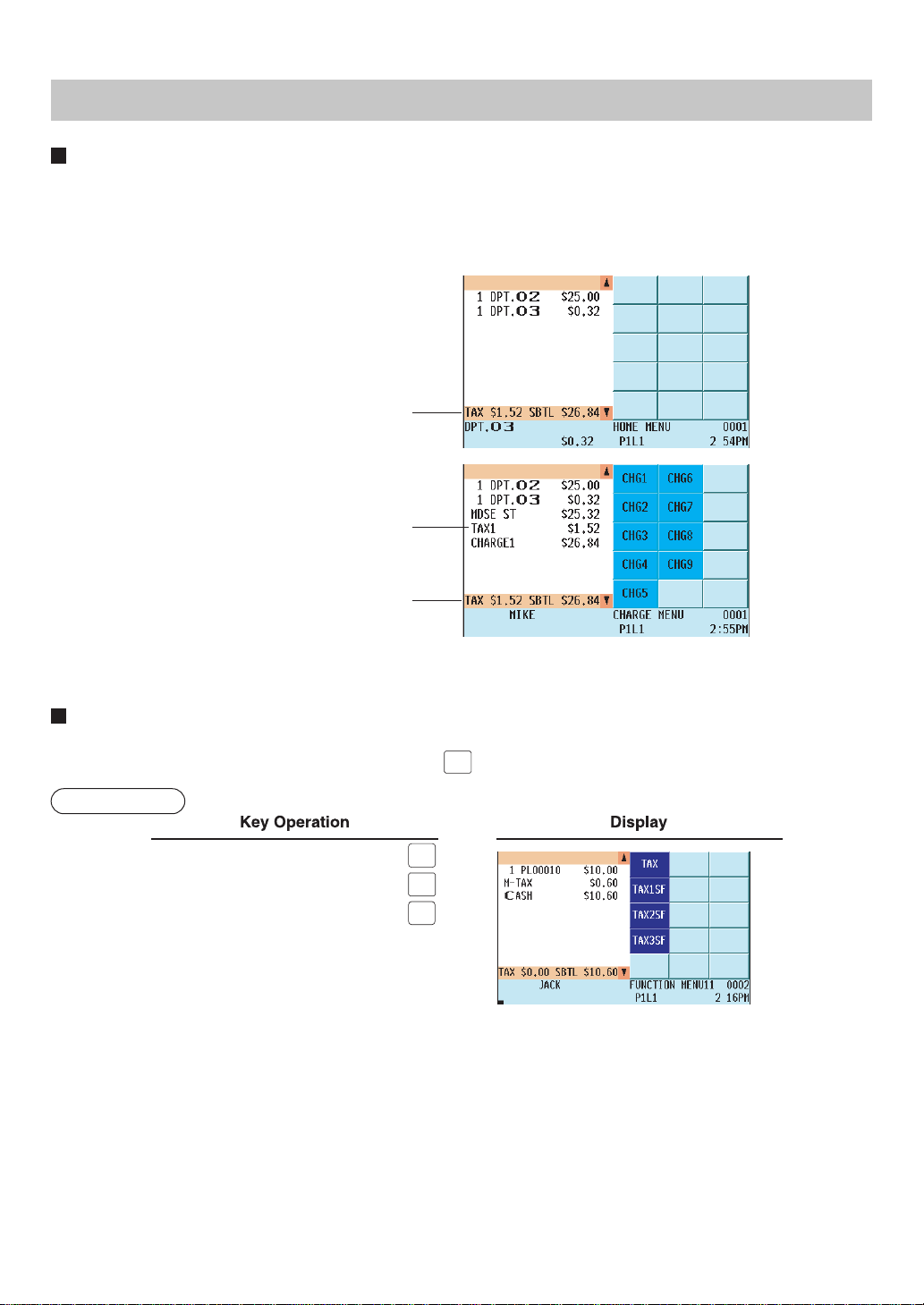
— 58 —
Tax Calculations
Automatic tax
When your POS terminal is programmed with a tax table (or tax rate) and a department or PLU is set for pro-
grammed as taxable, it automatically computes the tax on any item that is entered directly into the department or
indirectly via a related PLU.
Display Example
Tax and subtotal
Tax and subtotal
Tax
Manual tax
Your POS terminal allows you to enter tax manually after item entries as follows:
After an item entry, enter the tax amount and press the
TAX
key.
Example
10
60
TAX
CA/AT

— 59 —
Tax deletion
You can delete the automatic tax on the taxable 1, taxable 2, taxable 3, taxable 4, or taxable 5 subtotal of each
transaction with the following procedure. Press the corresponding TAX SHIFT key and then the subtotal key. After
the subtotal is displayed, press the
TAX
key.
Example
TAX2SF
TAX
TAX2SF
SBTL
TAX
CA/AT
3000
or
or
NOTE
If any of the media keys (i.e. cash, check 1 thru check 9, or charge 1 thru charge 9) is programmed for
tax deletion in the PGM2 mode, the tax can be deleted without using the procedures above. In this
case, pressing the corresponding media key programmed for tax deletion will always cause the selected
tax to be deleted.
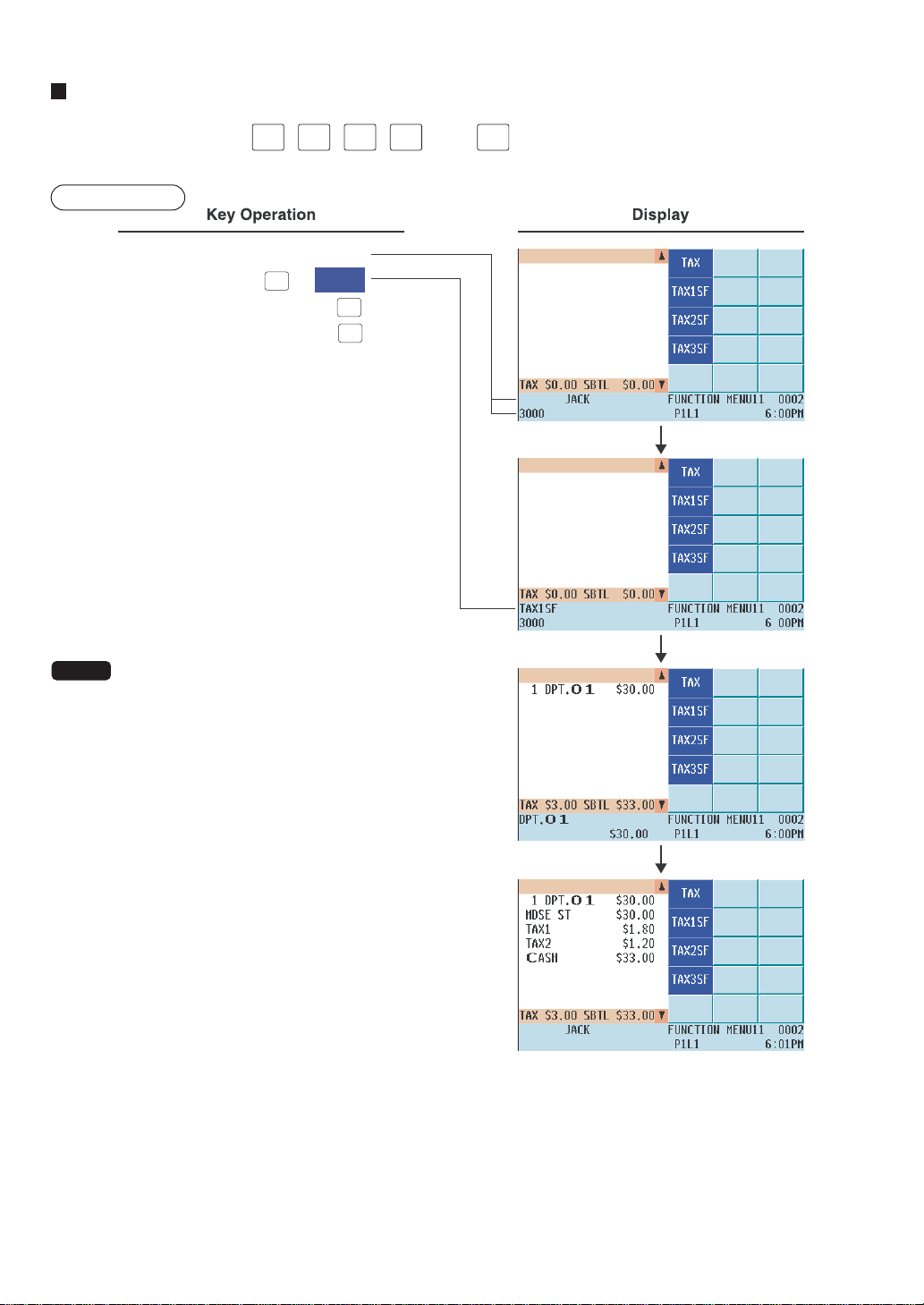
— 60 —
Tax status shift
Your POS terminal allows you to shift the programmed tax status of a department or PLU key or discount or
percent key by pressing the
TAX1
SHIFT
,
TAX2
SHIFT
,
TAX3
SHIFT
,
TAX4
SHIFT
and/or
TAX5
SHIFT
keys before that key. After the entry is completed,
the programmed tax status of the key is resumed.
Example
3000
1
TAX1SF
or
TAX1SF
CA/AT
NOTE
The entry of a multi-taxable item for PST
and/or GST is prohibited as follows (for Canada):
In case of; Tax 1: PST, Tax 2: PST, Tax 3: PST, Tax 4:
GST, Tax 5: PST
Taxable 1 and 2 item . . . . . . . . . . . . . . . . . . prohibited
Taxable 1 and 3 item . . . . . . . . . . . . . . . . . . prohibited
Taxable 1 and 4 item . . . . . . . . . . . . . . . . . . . . allowed
Taxable 1 and 5 item . . . . . . . . . . . . . . . . . . prohibited
Taxable 2 and 3 item . . . . . . . . . . . . . . . . . . prohibited
Taxable 2 and 4 item . . . . . . . . . . . . . . . . . . . . allowed
Taxable 2 and 5 item . . . . . . . . . . . . . . . . . . prohibited
Taxable 3 and 4 item . . . . . . . . . . . . . . . . . . . . allowed
Taxable 3 and 5 item . . . . . . . . . . . . . . . . . . prohibited
Taxable 4 and 5 item . . . . . . . . . . . . . . . . . . . . allowed
In case of; Tax 1: PST, Tax 2: PST, Tax 3: GST, Tax 4:
GST, Tax 5: PST
Taxable 1 and 2 item . . . . . . . . . . . . . . . . . . prohibited
Taxable 1 and 3 item . . . . . . . . . . . . . . . . . . . . allowed
Taxable 1 and 4 item . . . . . . . . . . . . . . . . . . . . allowed
Taxable 1 and 5 item . . . . . . . . . . . . . . . . . . prohibited
Taxable 2 and 3 item . . . . . . . . . . . . . . . . . . . . allowed
Taxable 2 and 4 item . . . . . . . . . . . . . . . . . . . . allowed
Taxable 2 and 5 item . . . . . . . . . . . . . . . . . . prohibited
Taxable 3 and 4 item . . . . . . . . . . . . . . . . . . prohibited
Taxable 3 and 5 item . . . . . . . . . . . . . . . . . . . . allowed
Taxable 4 and 5 item . . . . . . . . . . . . . . . . . . . . allowed
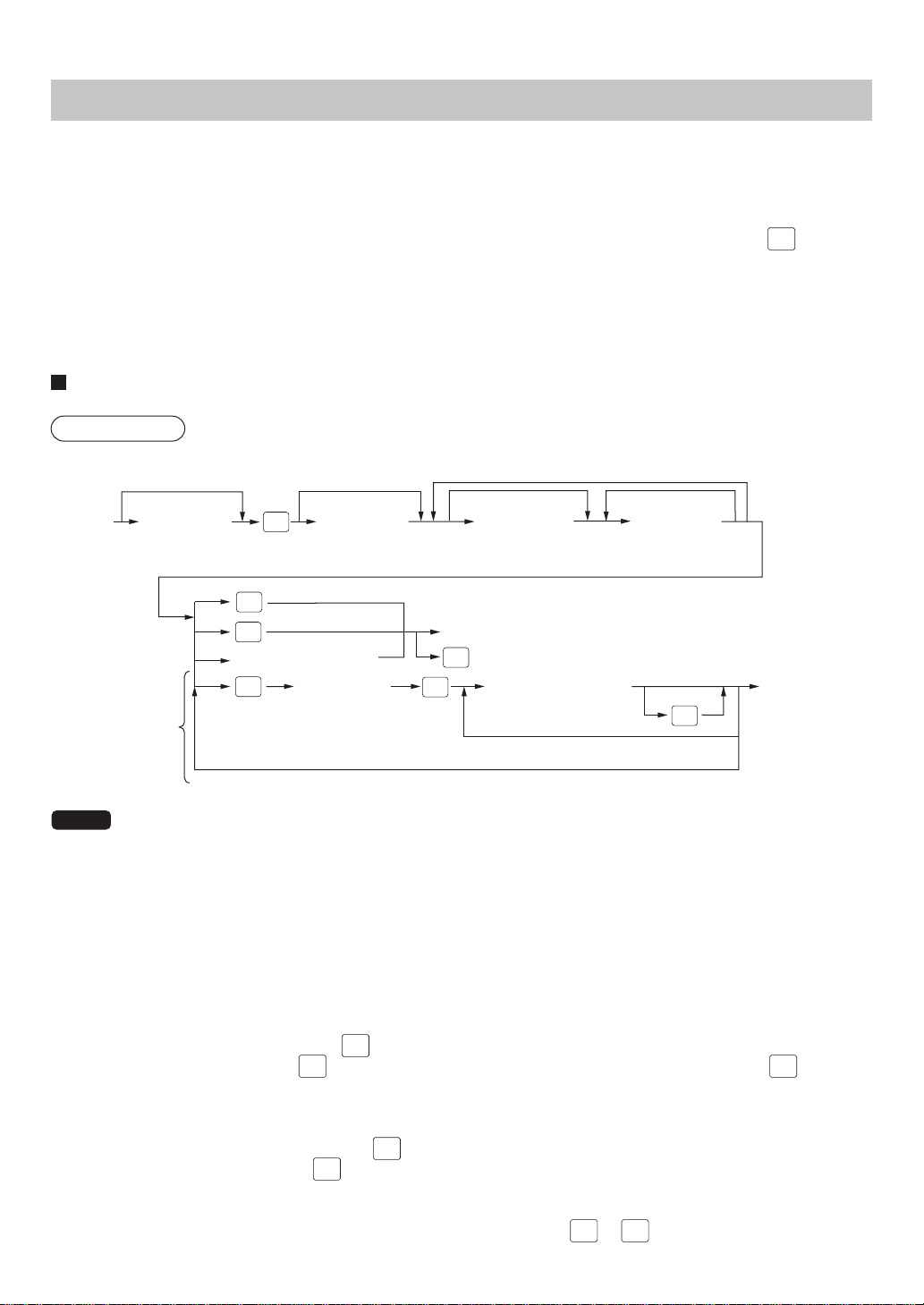
— 61 —
Guest Check (GLU/PBLU)
Two different guest check entry systems are available: the GLU system and previous balance lookup (PBLU)
system. It depends on how your POS terminal has been programmed which of these is used.
(Consult your authorized SHARP dealer for this selection.)
GLU system: If this system is selected, the balance due and details of the order are saved in the guest check file.
The information can be recalled for additional ordering or finalization by pressing the
GLU
RECALL
key, or
entering a GLU code.
PBLU system:If this system is selected, the previous balance is stored in the previous balance lookup file (PB
lookup file). The information can be recalled for additional ordering by entering a previous balance
lookup code (a PBLU code).
GLU/PBLU system
Procedure
For automatic GLU/PBLU
code generation
To end individual payment
Seat no. entry
(max. 2 digits)
Cover count
entry
[Item entries]
[Payment operations]
Individual
payment
operation
for table
system
To issue a bill
GLU or
PBLU code
*4
[Payment operations]
*2
*3
*1
*4
IND.
PAYMENT
BILL
ENTER
BILL
SRVC
NC
FINAL
Seat no. entry
NOTE
• The GLU/PBLU code refers to a number/code that will be used whenever the guest check must be
accessed for re-ordering or final payment.
The range of GLU or PBLU codes that can be entered in each terminal can be programmed, and also
can be specified in the OPX/Z mode for each server.
• Your POS terminal can be programmed for table #/PBLU codes in a sequential fashion. If your POS
terminal has not been so programmed, table #/PBLU codes can be entered manually.
*1 GLU/PBLU code: 1 to 9999
When the range of GLU or PBLU codes is programmed in the PGM2 mode and/or specified in the
OPX/Z mode, a GLU code that can be entered is limited to the range.
*2 The cover count refers to the number of people in a party. When cover count entry is compulsory,
you must enter the cover count (max. 2 digits). When cover count entry is not compulsory, enter the
cover count and press the
COVER
COUNT
key; however, in the table system, it is automatically calculated by the
number of times the
SEAT
#
key is pressed. (When the cover count is not entered and the
SEAT
#
key is not
pressed, the cover count is counted as 1.)
*3 Seat # entry is only for the table system.
When seat # entry is compulsory, you must enter a seat #. To enter the first person #, enter the seat
# (max. 2 digits) and press the
ENTER
key. To enter the second or subsequent person#, enter the
number and press the
SEAT
#
key.
The number of times of seat # entry must not exceed the entered cover count.
*4 These are of optional functions (Temporary finalization).
You can temporarily finalize a guest check by pressing the
SRVC
or
FINAL
key. It is advisable to use the
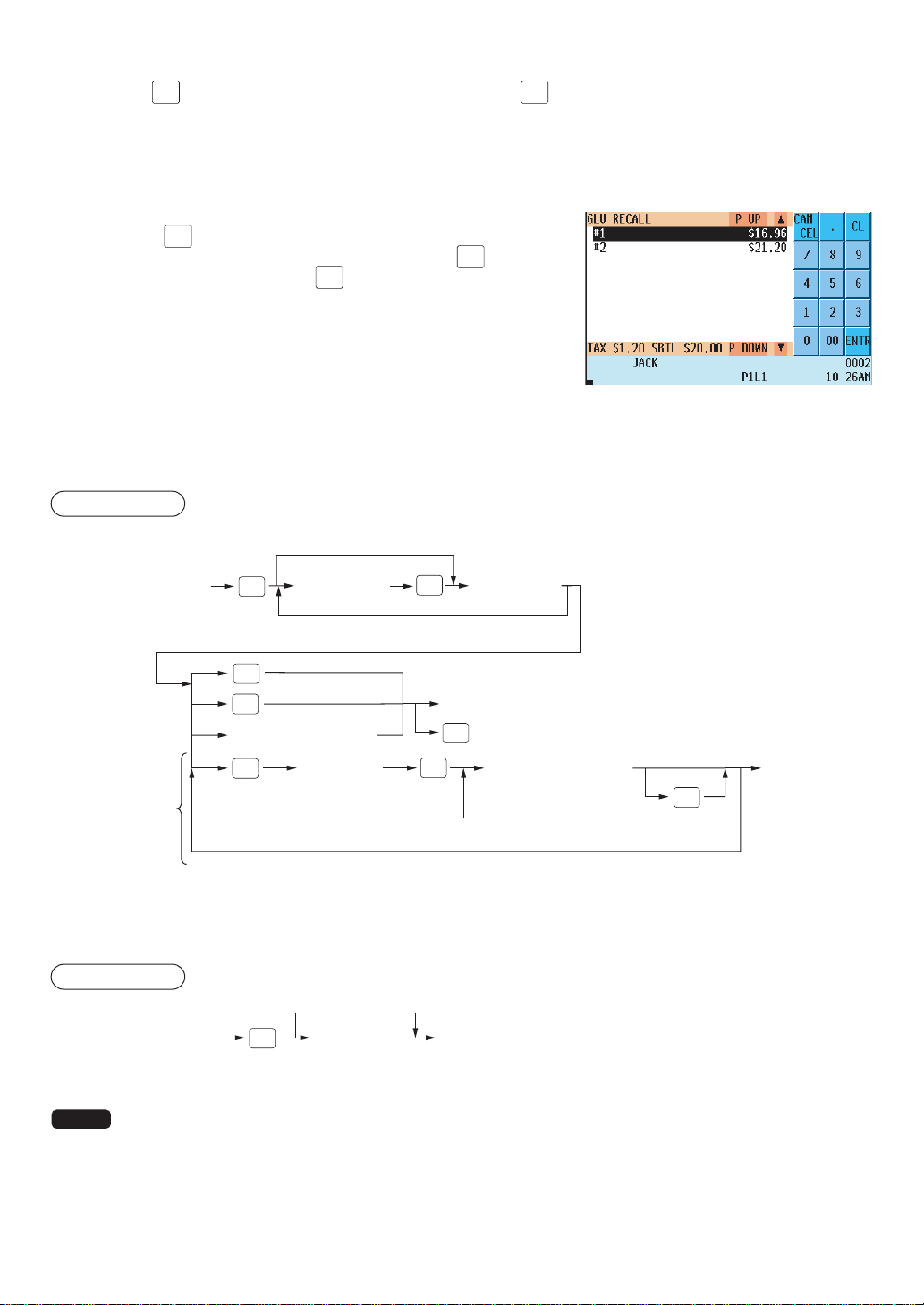
— 62 —
SRVC
key when printing is not desired and to use the
FINAL
key when printing of the current balance
including tax is desired. Even after this temporary finalization operation, the guest check is still
“open”.
This means you can still make additional orders for the guest check.
GLU recall
Each server can recall his or her GLUs for reorder entry or settlement
by pressing the
GLU
RECALL
key. On the display, the list of GLUs that are still
open is displayed. Select the desired GLU and press the
ENTER
key, or
enter the desired GLU and press the
GLU
key while the recall window is
shown on the display.
The recall window will be displayed automatically if so programmed.
Reorder entries
For making additional guest check entries;
Procedure
[Item entries]
GLU/PBLU code
(1 to 9999)
Seat no.
(max. 2 digits)
To enter items for the last person
To end individual payment
Seat no.
(max. 2 digits)
[Payment operations]
Individual
payment
operation
To issue the bill
[Payment operations]
IND.
PAYMENT
BILL
ENTER
BILL
SRVC
FINAL
SEAT
#
GLU
Settlement
Use the following procedure:
Procedure
[Item entries] [Payment operations]
GLU/PBLU code
(1 to 9999)
GLU
NOTE
You can make a tip-in entry before a tender entry. For a tip-in entry, the tip amount must be entered by
using the associated media key e.g. CH1 thru CH9 for the charge tip and CASH 1 thru CASH 5 for the
cash tip.
An example of GLU recall window
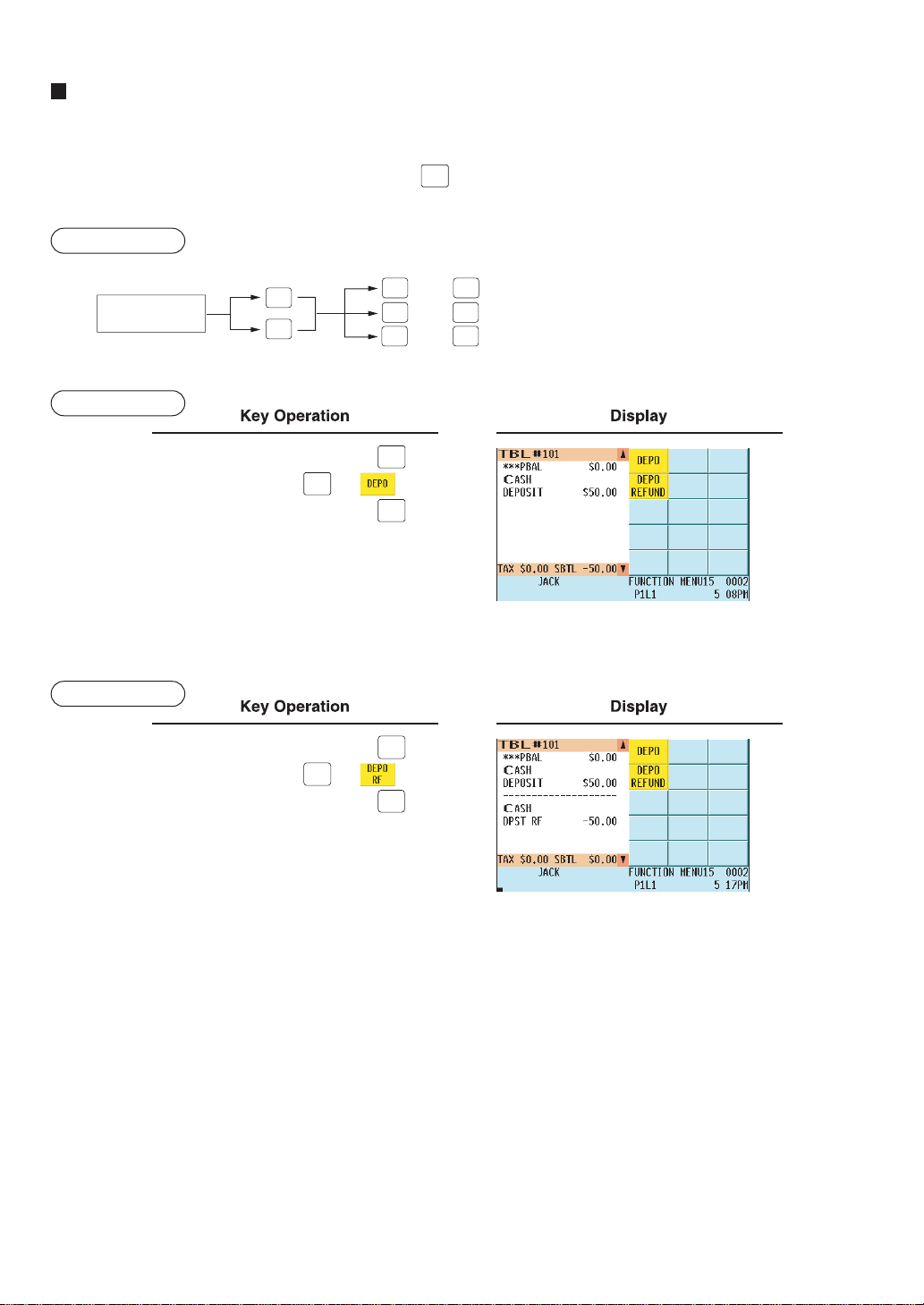
— 63 —
Deposit entries
Deposit refers to a prepayment on a guest check. It can be received as a cash, check or charge tender.
You can make a deposit entry only when entering a guest check. It cannot be done during handling of a tendered
amount.
A received deposit can be refunded by pressing the
DEPOSIT
RF
key. You cannot attempt to refund an amount larger
than the deposit balance.
Procedure
thru
Deposit amount
(max. 7 digits)
thru
thru
DEPOSIT
RF
CA/AT
CHK
1
CHK
9
CH
1
CH
9
CA5
DEPOSIT
Example
101
N.C.
5000
DEPOSIT
(or )
N.C.
Example
101
GLU
5000
DEPOSIT
RF
(or )
CA/AT
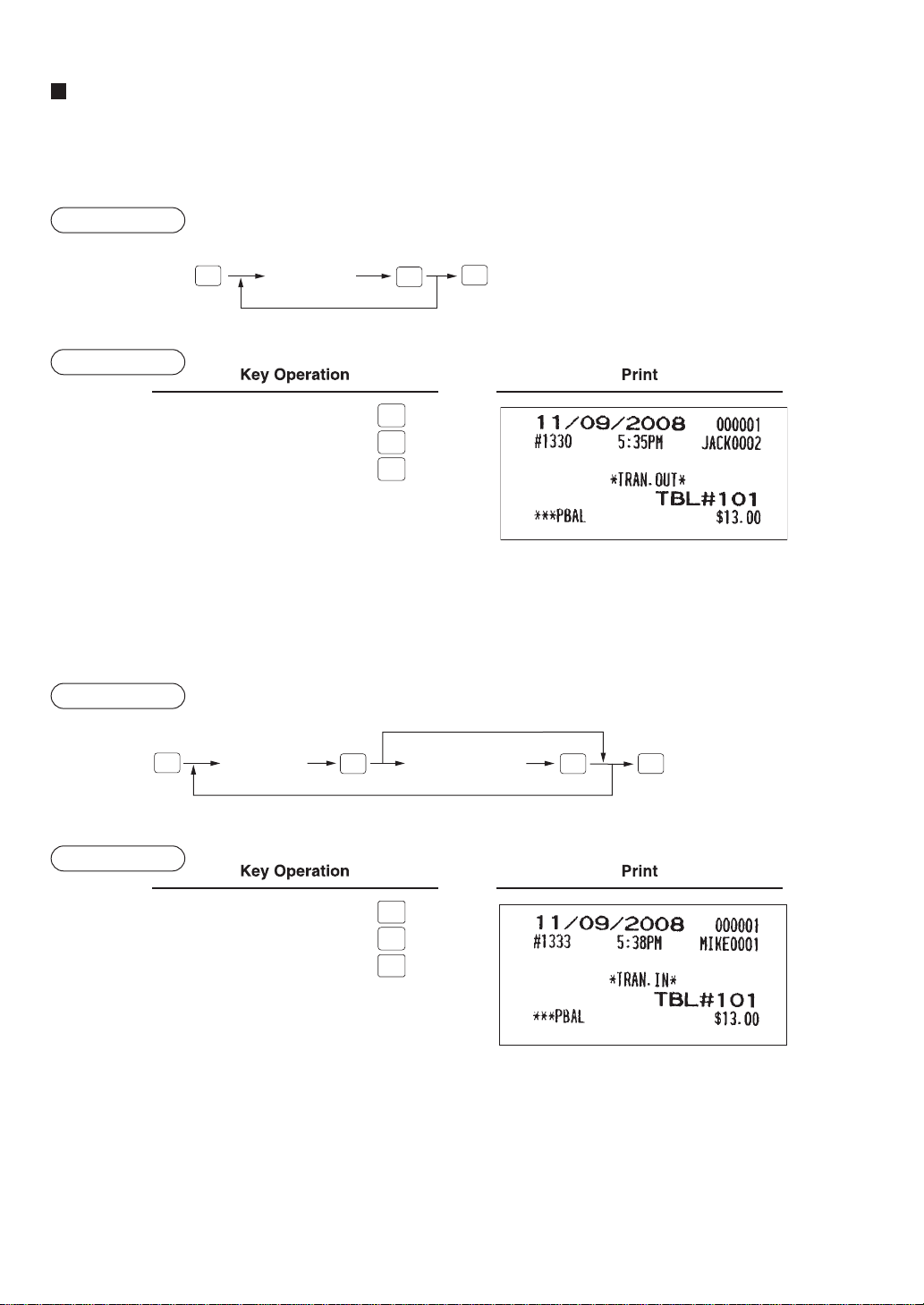
— 64 —
Transferring guest checks out or in (Transfer-out/in)
Transferring guest checks out
At the end of server shift or whenever a server is relieved, the server's responsibility for one or more open guest
checks can be released to transfer it to another server.
Procedure
(server sign-on)
XXXX
GLU/PBLU code
For the next guest check
TRANS
OUT
GLU
TRANS
OUT
Example
TRANS
OUT
101
GLU
TRANS
OUT
Transferring guest checks in
When the second server is assigned to be responsible for guest checks that have been transferred out:
Procedure
(new server
sign-on)
XXXX
GLU/PBLU code
For the next guest check
Cover count entry
(2 digits)
TRANS
IN
TRANS
IN
Only when cover count entry is non-compulsory
GLU
ENTER
Example
TRANS
IN
101
GLU
TRANS
IN
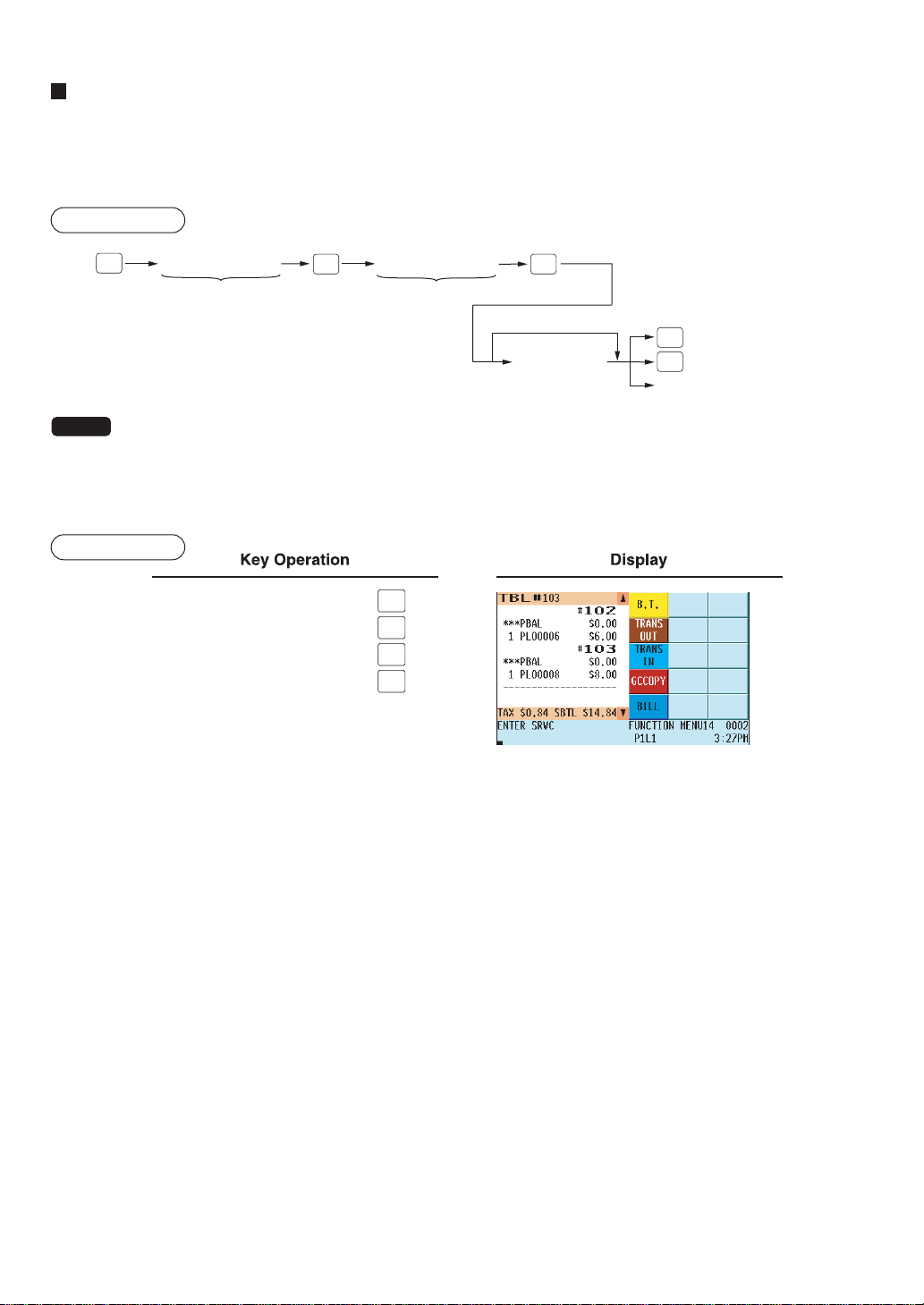
— 65 —
Bill totalizing/bill transfer
Bill totalizing
The bill totalizing function is used to combine multiple bills. The function is useful, for example, when a particular
guest pays not only his or her bill, but also the bills of other guests (Adding guest checks).
Procedure
GLU/PBLU code GLU/PBLU code
[Payment operations]
[Sales entries]
#1 bill
#2 bill
GLU
B.T.
SRVC
FINAL
SBTL
NOTE
• A #1 bill is added to a #2 bill. A maximum of 5 bills may be added to a #2 bill.
• The GLU/PBLU code of #1 must be in use. If the guest check(s) of #1 or #2 has already been handled
by another server, the guest check(s) must have been transferred out (by the Transfer-out operation).
• After the bill totalizing operation, the individual payment function is not allowed.
Example
B.T.
102
GLU
103
SBTL
SERV
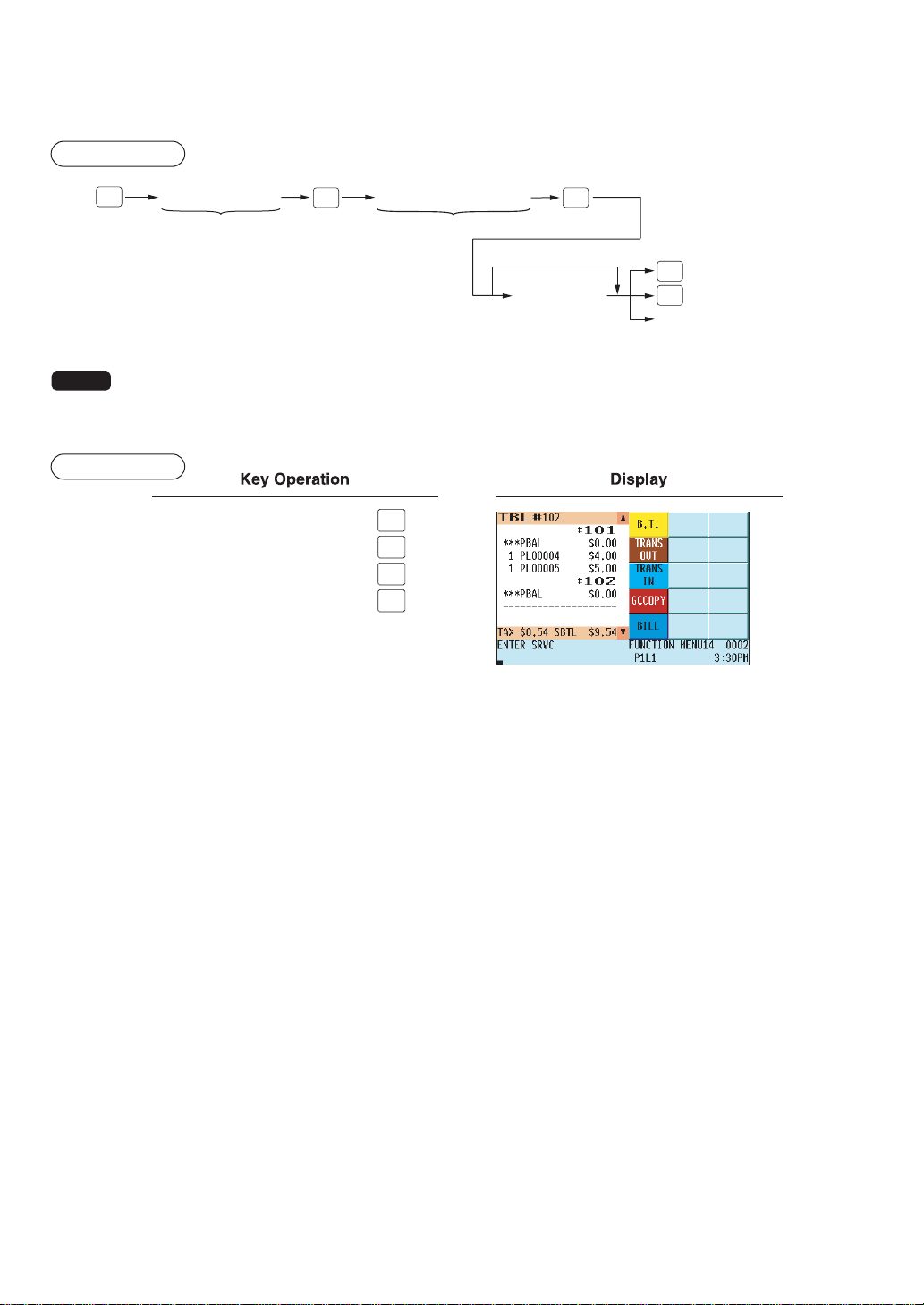
— 66 —
Bill transfer
This function is used to change the GLU/PBLU code of a particular bill.
Procedure
GLU/PBLU code New GLU/PBLU code
[Payment operations]
[Sales entries]
#1 bill
#2 bill
GLU
B.T.
SRVC
FINAL
SBTL
NOTE
• This function requires that the current GLU/PBLU code be entered for #1 and a new GLU/PBLU code
be entered for #2.
• A #1 bill is transferred to a #2 bill. The #1 bill is then cleared.
Example
G.T.
101
GLU
102
SBTL
SERV
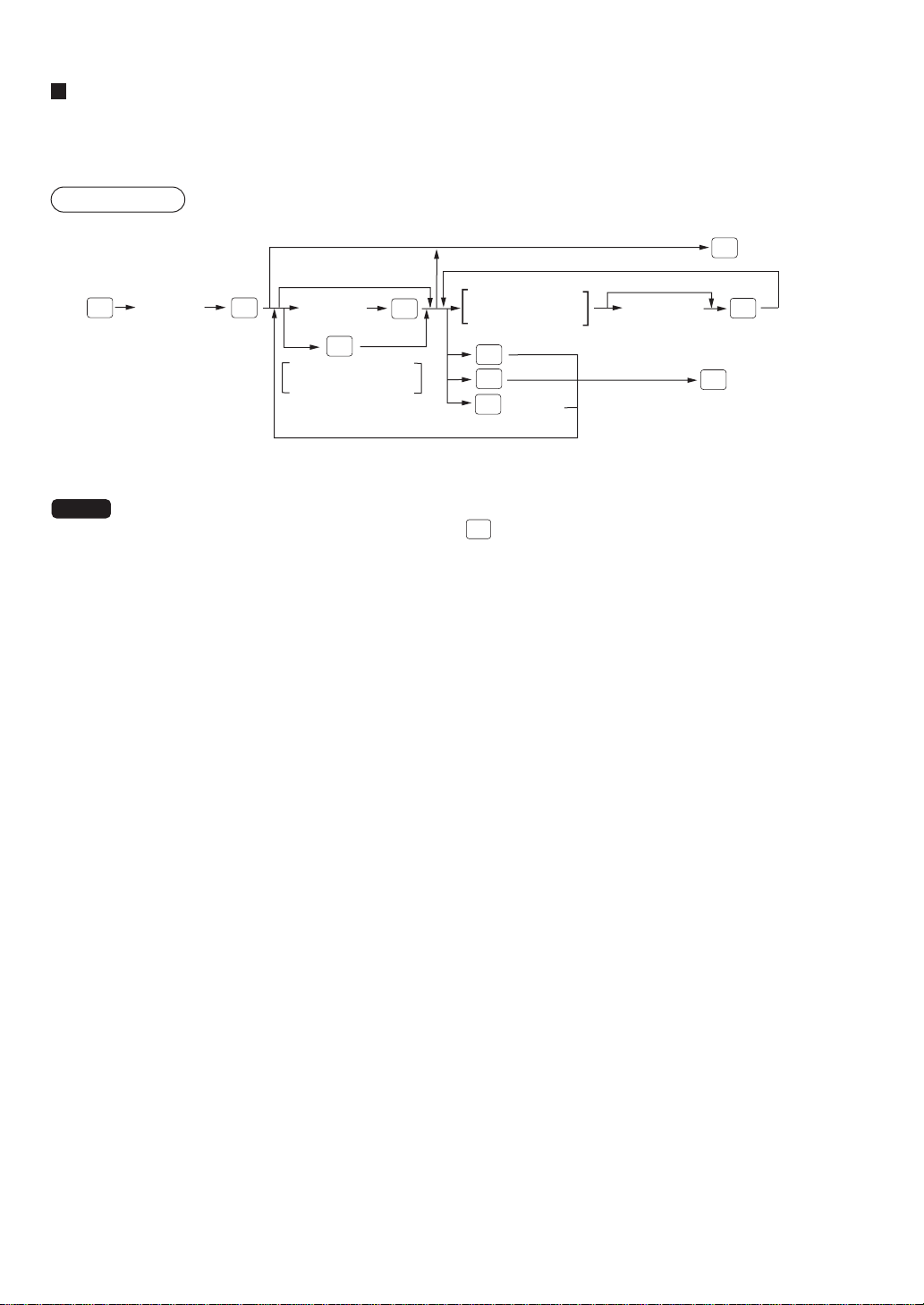
— 67 —
Bill separating
The function is used when each guest of a group pays his or her own order. With this function, you can select some
items from a guest check and make an entry for the payment. Also, you can transfer the selected items to other
guest checks. This function is available only in the GLU system.
Procedure
GLU code
(Original
GLU code)
GLU code
(For receiving)
Selecting an item
by cursor control
or other
payment key
Numeric key
(Q'ty)
To enter total q'ty
When entering no
GLU code
To terminate
To terminate
To select the item
For automatic receiving
GLU code generation
GLU
B.S.
SRVC
FINAL
CA/AT
GLU
NC
ENTER
B.S.
B.S.
NOTE
• If a receiving GLU code is not entered during a bill separating operation, it is considered that the
payment function has been made by pressing
CA/AT
key or other payment key.
• If a particular receiving GLU code is already in use, a lock error occurs when that number is entered.
• You cannot specify the quantity of an item for selection when the stored quantity has a decimal fraction.
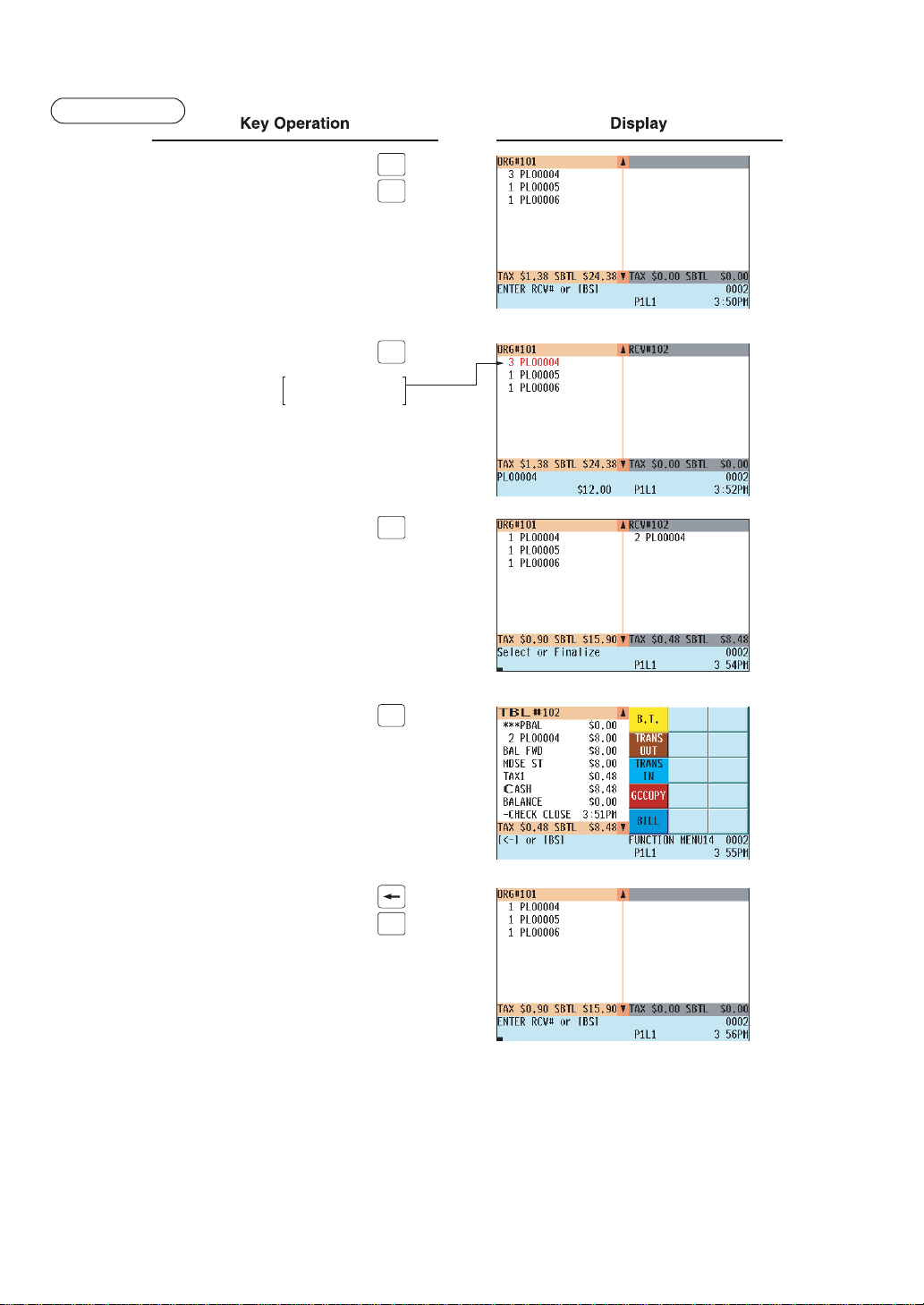
— 68 —
Example
B.S.
101
GLU
102
GLU
2
ENTER
CA/AT
B.S.
Touch the item for
bill splitting

— 69 —
Bill printing
This function is used for issuing the bill to the guest. Your POS terminal can print the bill (normal bill or cumulative
bill) on the slip, roll, receipt, or journal printer. For selecting these printers, consult your authorized SHARP dealer.
Procedure
XX
No. of lines
of slip feed
BILL
Bill on the slip (auto feed)
NOTE
• This function is available immediately after the finalization of a transaction (including after pressing the
SRVC
or the
FINAL
key).
• If the copy function is allowed, you can print the bill copy on the slip and receipt only once. If you need
the bill copy, consult your authorized SHARP dealer.
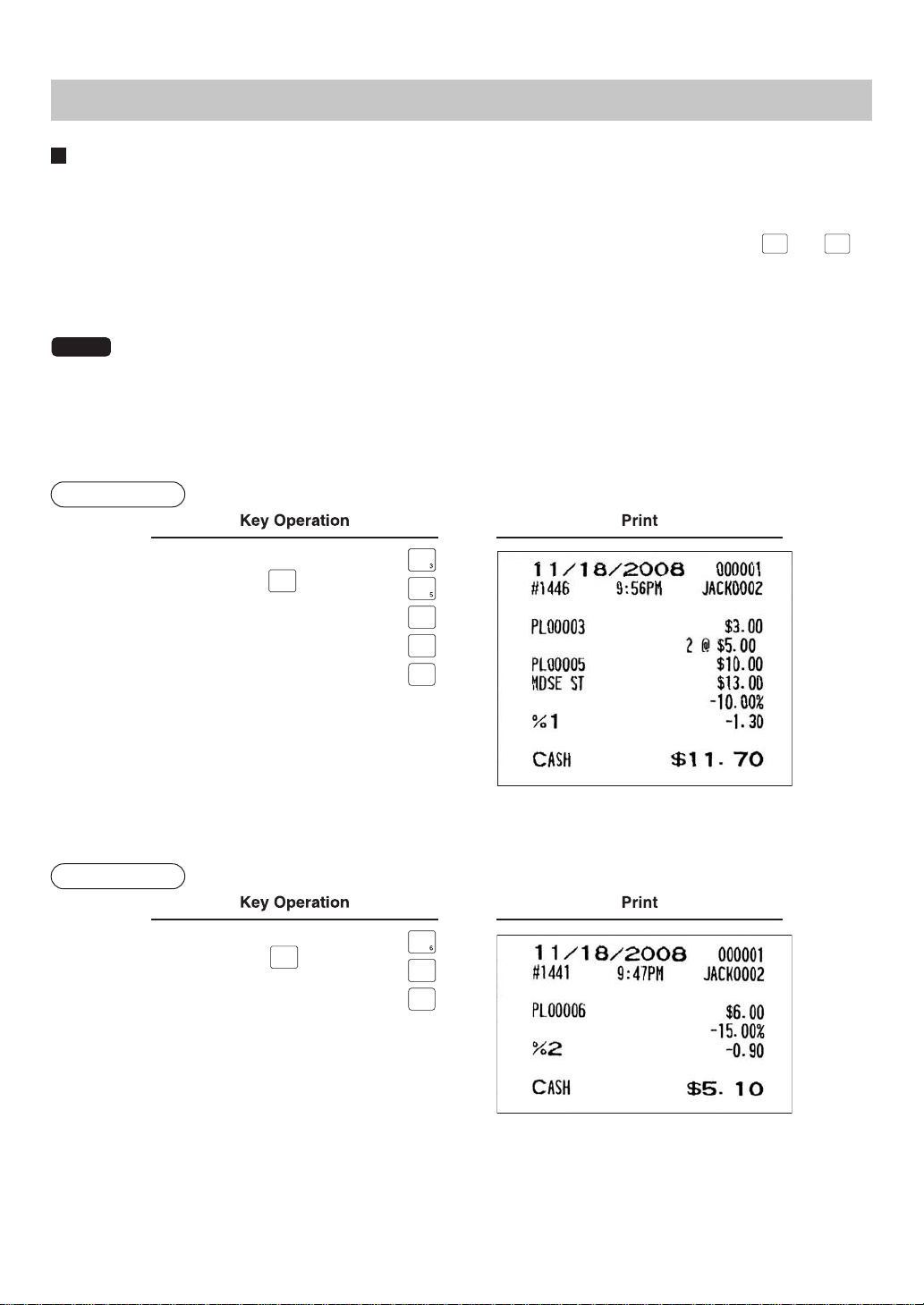
— 70 —
Auxiliary Entries
Percent calculations (premium or discount)
• Your POS terminal provides a percent calculation for a merchandise subtotal or an item entry. You need to specify,
in advance, a merchandise subtotal or item entry for which your POS terminal should perform a percent calcula-
tion.
• For percent calculations (premium, discount, merchandise subtotal or individual), you may use the
%1
thru
%9
keys.
• Percentage: 0.01 to 99.99%
NOTE
• For ST % (merchandise subtotal) entry:
The % entry is allowed only when all PLUs associated with the % key have been entered.
• For Item % entry:
The % entry is allowed only for a PLU associated with the % key.
Percent calculation for a merchandise subtotal
Example
2
MDSE
ST
%1
CA/AT
Peacent calculation for item entries
Example
%2
CA/AT
(When a discount of 10%
is preset for the
%1
key)
(When a discount of 15%
is preset for the
%2
key)

— 71 —
Discount entries
For discount or coupon tenderings, you may use the
1
thru
9
keys if so programmed.
If the discount or tendered coupon is the one applicable to sales, use the vendor coupon; and if it is applicable to
an item entry, use the store coupon.
NOTE
•Discount entries beyond the programmed limit for servers can be made by a manager.
NOTE
• For a vendor coupon entry:
The coupon entry is allowed only when all PLUs associated with the (-) key have been entered.
• For a store coupon entry:
The coupon entry is allowed only for a PLU which is associated with the (-) key.
Discount for a merchandise subtotal
Example
30
MDSE
ST
2
CA/AT
Discount for a merchandise subtotal
Example
50
1
CA/AT
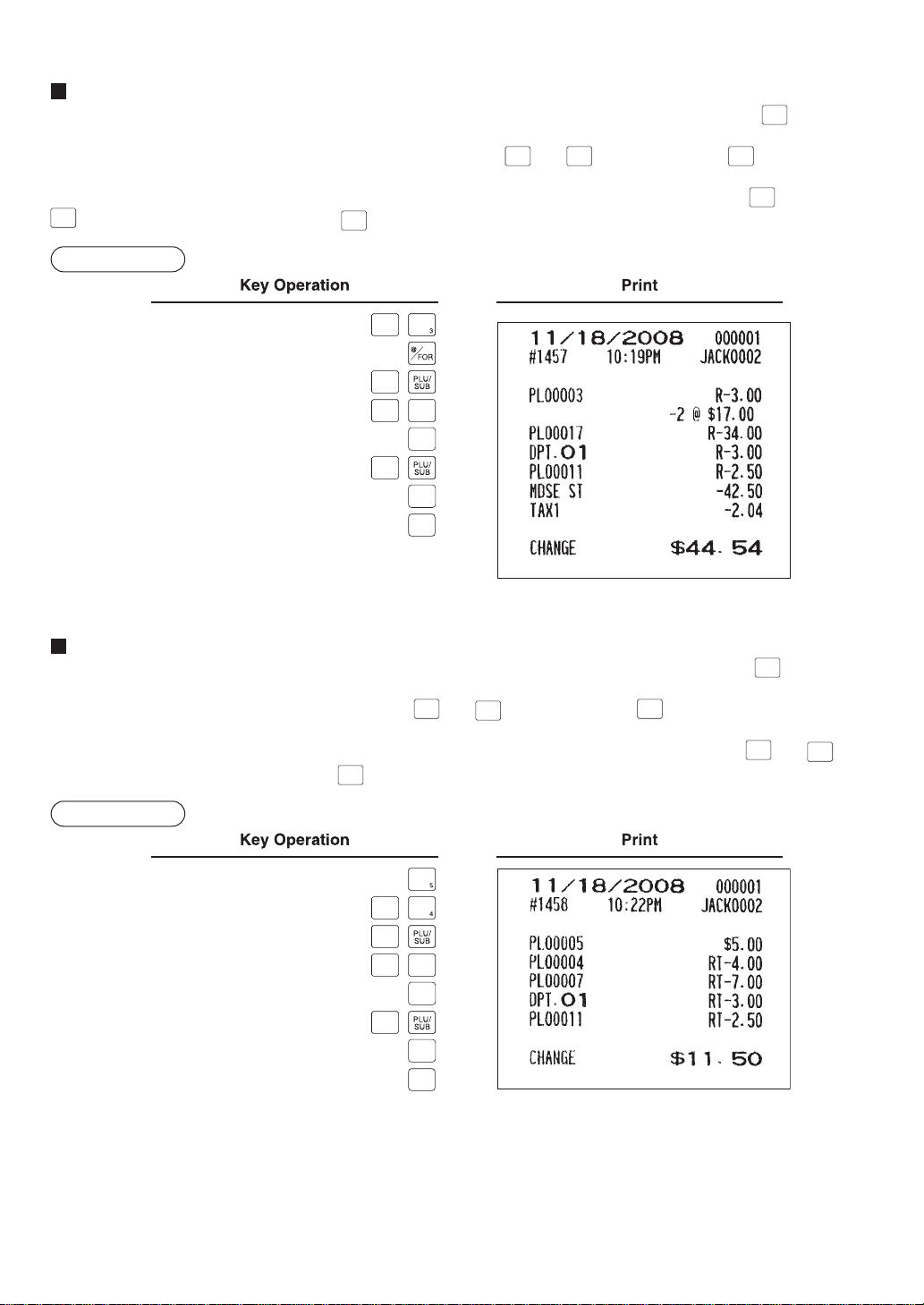
— 72 —
Refund entries
If a refunded item is to be entered into a department, enter the amount of the refund, then press the
REFUND
key
and a corresponding department key in this order; and if an item entered into a PLU (or UPC) is returned,
enter a corresponding PLU code (or UPC code), then press the
REFUND
and
PLU/
SUB
keys, or press the
REFUND
and direct PLU
keys without entry of PLU code, in this order.
If an refunded item is to be entered into an open PLU, enter a corresponding PLU code, press the
REFUND
and
PLU/
SUB
keys, then enter price and press the
ENTER
.
Example
RFND
2
17
RFND
1
RFND
DEPT#
300
ENTER
11
RFND
250
ENTER
CA/AT
Return entries
If a returned item is to be entered into a department, enter the amount of the return, then press the
RETURN
key and a
corresponding department key in this order; and if an item entered into a PLU (or UPC) is returned, enter a corre-
sponding PLU code (or UPC code), then press the
RETURN
and
PLU/
SUB
keys, or press the
RETURN
and direct PLU keys without
entry of PLU code, in this order.
If an returned item is to be entered into an open PLU, enter a corresponding PLU code, press the
RETURN
and
PLU/
SUB
keys, then enter the price and press the
ENTER
.
Example
RETURN
7
RETURN
1
RETURN
DEPT#
300
ENTER
11
RETURN
250
ENTER
CA/AT
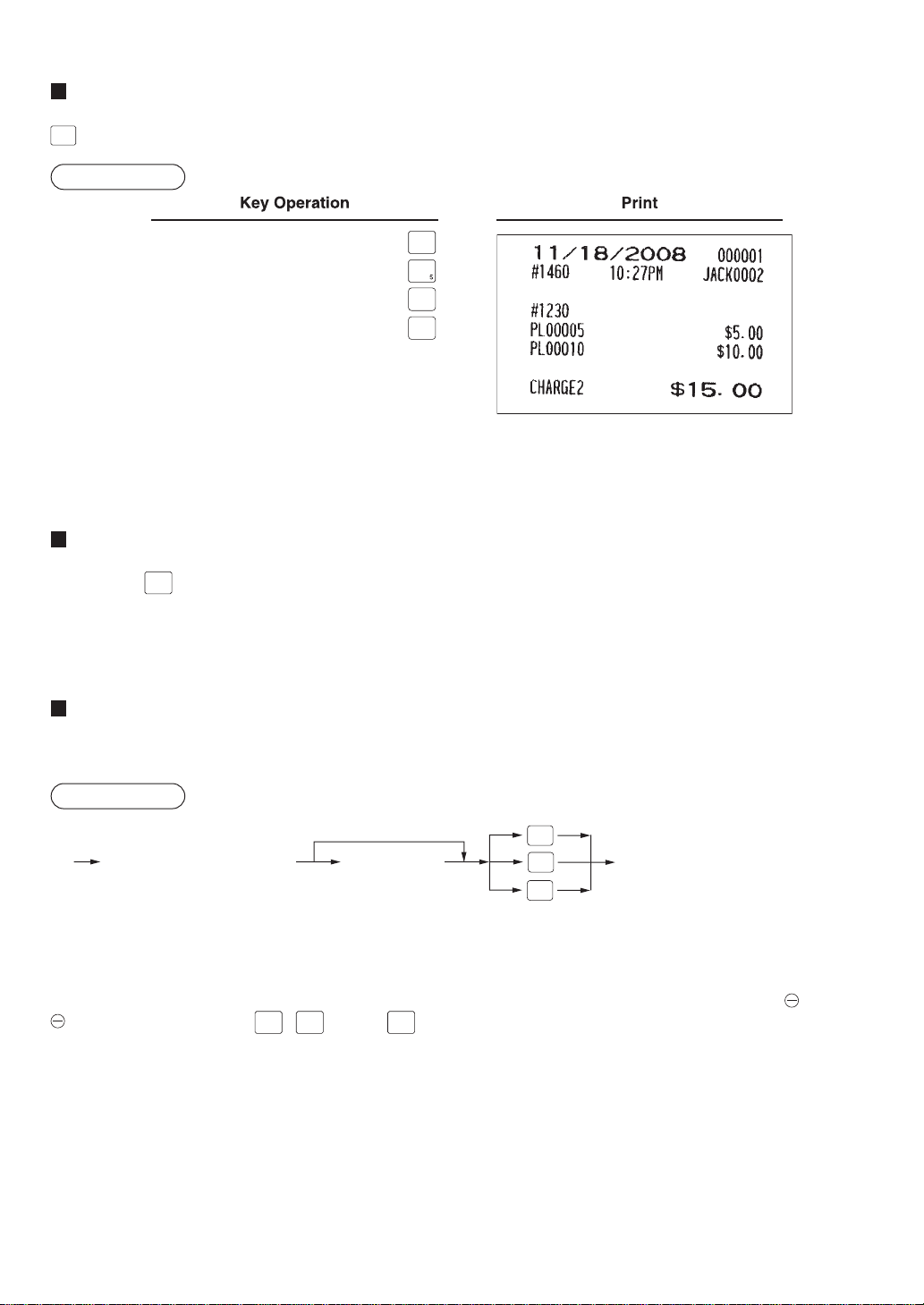
— 73 —
Printing of non-add code numbers
Enter a non-add code number with a maximum of 16 digits such as a customer reference number and press the
#/TM
key at any point during a transaction.
Example
1230
#/TM
10
CHG
2
Refund sales mode
This function can be used only for item return entries relating to departments and PLUs/UPCs.
Pressing the
RFND
SALE
key at the beginning of a transaction causes your POS terminal to enter the REFUND SALES
mode.
All entries in the REFUND SALES mode are automatically treated as refund entries. This mode cannot be finalized
by a check payment entry.
Group discount entries
• Your POS terminal provides percent (discount/premium) calculations for three groups.
• Percentage: 0.01 to 100.00%
Procedure
XXX.XX
(rate: max. 100.00%)
GDSC
%2
[Group discountable subtotal]
GDSC
%1
GDSC
%3
To use the programmed rate
• Group discount status shift
Your POS terminal allows you to shift the programmed group discount status of each dept., PLU, UPC,
1 thru
9, percent by pressing the
GD1
SFT
,
GD2
SFT
, and/or
GD3
SFT
keys before that key. After each entry is completed, the pro-
grammed group discount status of the key is resumed.
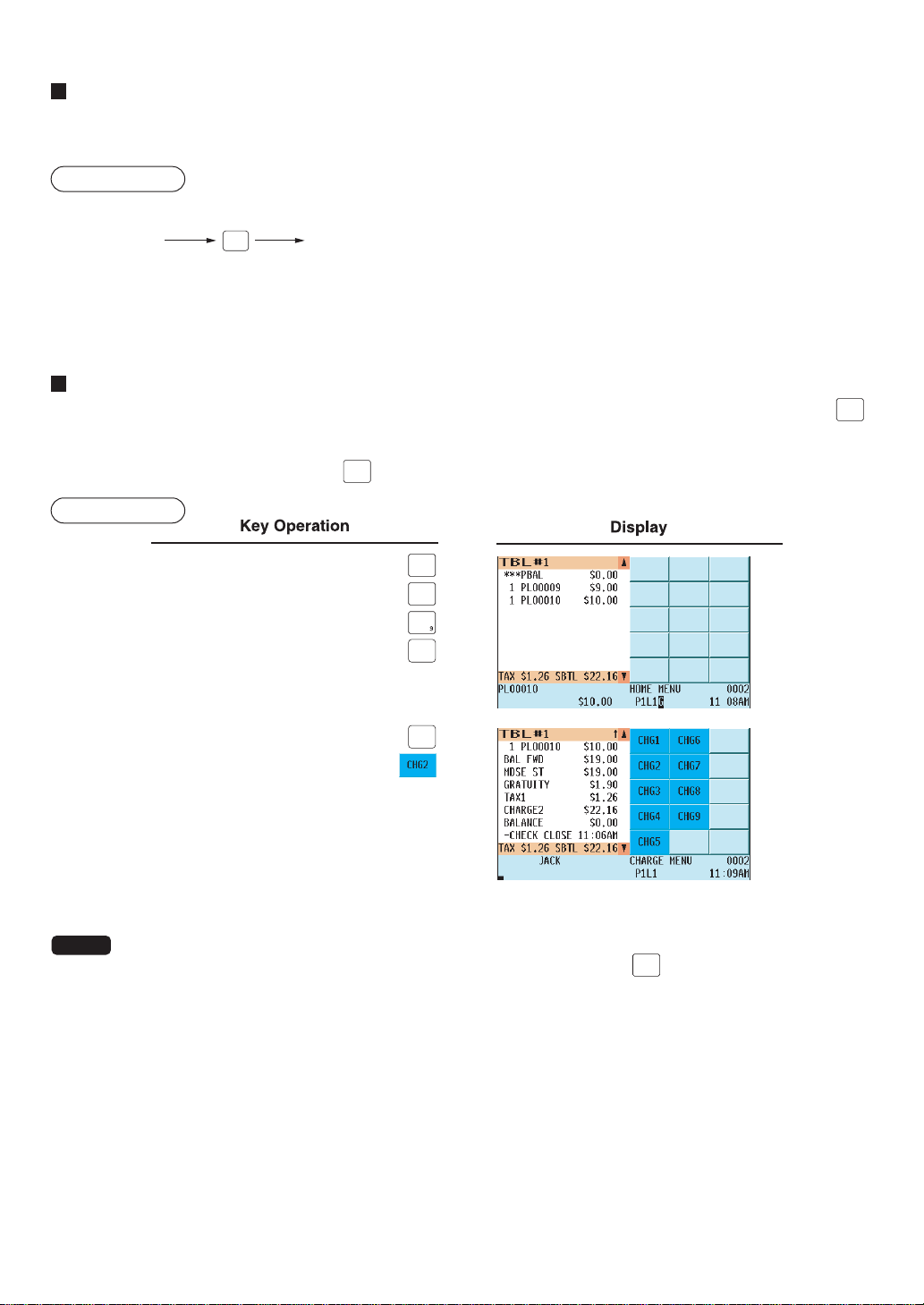
— 74 —
Remote printer send function
This function enables a partial order to be sent to the kitchen for preparation while the server is waiting for an order
for other items.
Procedure
Item entry Data transfer to the remote printer
RP
SEND
Remaining items will be sent to the remote printer when the transaction is finalized.
When this function is used, subtotal void operation is not allowed.
Gratuity
If the gratuity function is enabled, you can easily add a gratuity as programmed to the subtotal by pressing the
GRATUITY
key before finalization of the transaction.
When the transaction is subject to gratuity, the gratuity symbol [G] appears on the display screen.
To cancel the gratuity function, press the
GRATUITY
key again.
Example
1
N.C.
GRATUITY
10
CH
#
NOTE
• You cannot add a gratuity during a payment operation.
• You can also make food stamp tendering operation after pressing the
GRATUITY
key though tax exemption is
not allowed.
• If you combine a guest check subject to gratuity and one(s) not subject to gratuity by the Bill Totalizing
function, a gratuity will be charged to the subtotal of the combined guest check.
the gratuity amount
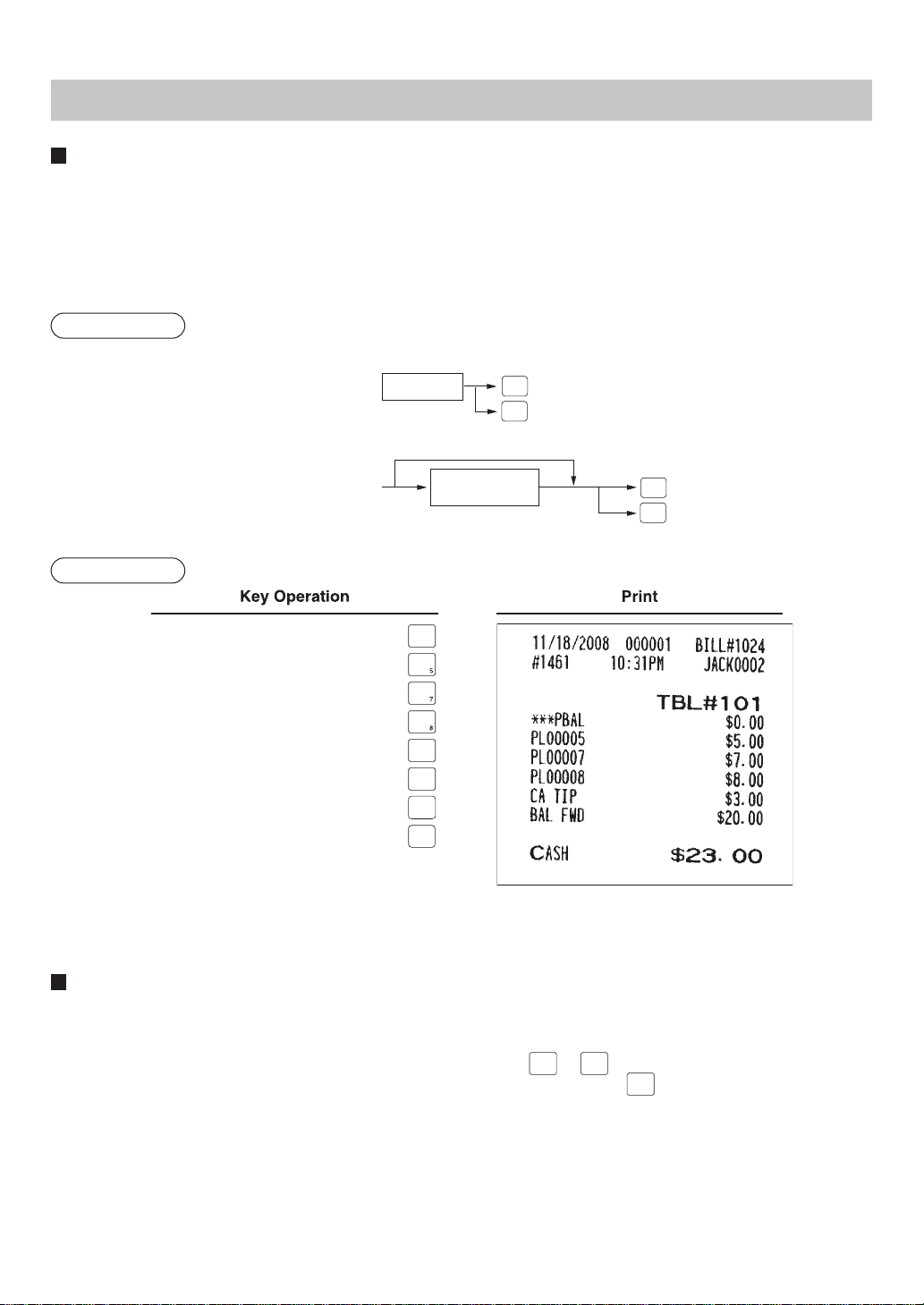
— 75 —
Payment Treatment
Tip-in entries
Your POS terminal allows the entry of tips given to servers in cash or by credit card.
A tip entry should be done before a payment entry.
You must use the corresponding media key (e.g. CH1 thru CH9) for a charge tip and CASH 1 thru CASH 5 for a
cash tip.
Two different tip-in entry systems are available: the tip amount entry system and the tip percent rate entry system.
Which system is used depends on how your POS terminal has been programmed.
Procedure
Tip amount
Tip percent rate
(0.01 - 99.99)
Tip amount entry system:
Tip percent rate entry system:
When you use a programmed percent rate
CASH
TIP
CHARGE
TIP
CASH
TIP
CHARGE
TIP
Example
101
N.C.
SERV
101
GLU
300
CASH
TIP
CA/AT
Tip editing
This function is used for entering a tip amount after finalizing a guest check transaction. This function is available
when the guest check transaction is finalized by a charge tender, and also when the tip is paid by a charge tender.
To edit or add tip amount, the bill number which is issued when the
SRVC
or
FINAL
key is pressed in the guest check
entry must be used in order to identify the guest. For editing operation, press the
EDIT
TIP
key or touch “EDIT TIP” in the
keyboard area and follow the prompts on the display to enter the bill number and tip amount.
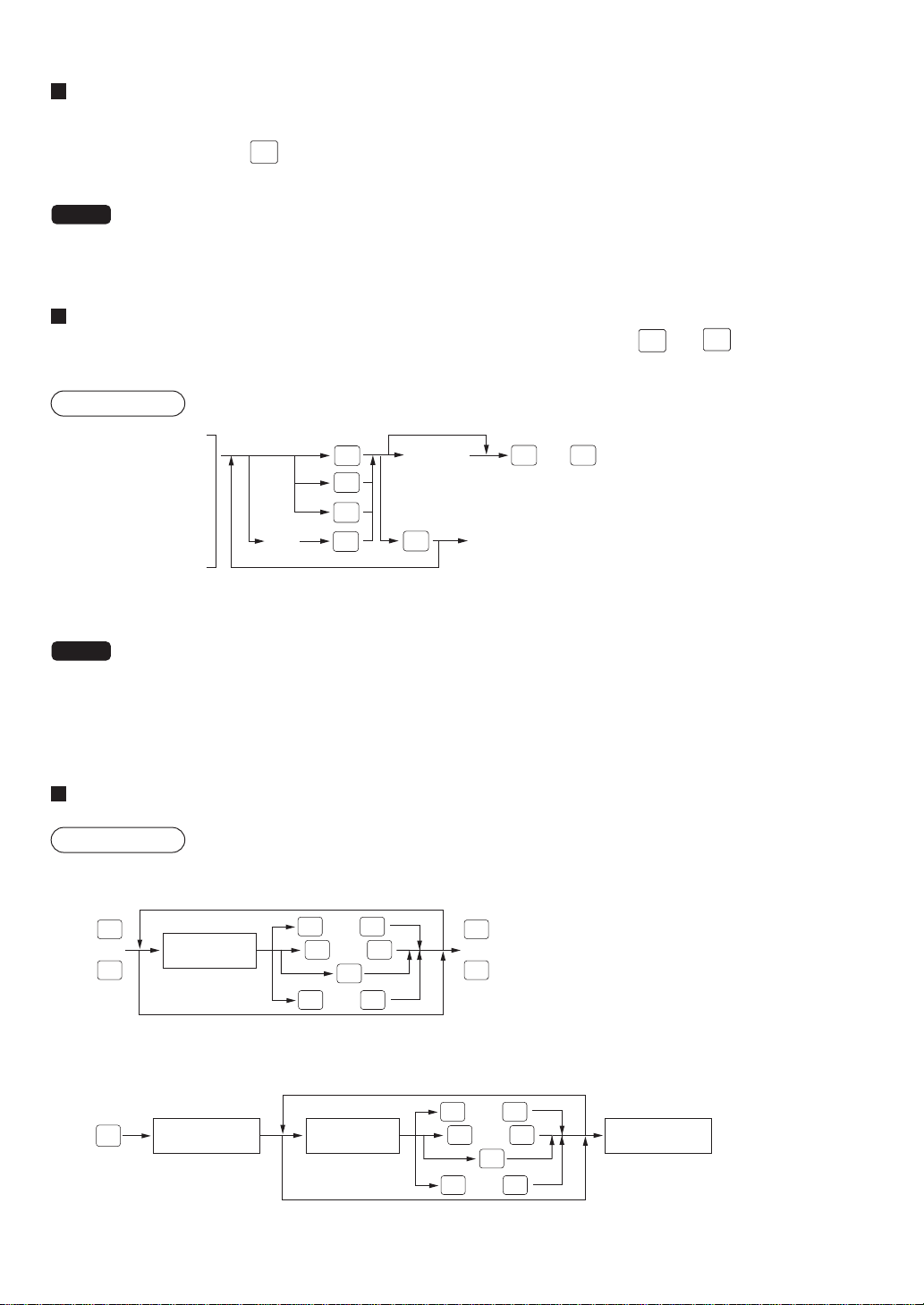
— 76 —
Tip paid entries
This operation is used to distribute a tip paid by credit card to servers in cash. To perform a tip paid entry, enter the
server code, then press the
TIP
PAID
key or touch “TIP PAID” in the keyboard area.
You can prohibit the tip paid operation in the REG mode by PGM2 programming.
NOTE
When the tip amount remains unchanged in Individual Server Resetting, the tip paid function is auto-
matically executed and a tip receipt is issued on the report printer prior to report printing.
Currency conversion
Your POS terminal allows payment entries in foreign currency. Pressing any of the
CONV1
thru
CONV4
keys creates a
subtotal in foreign currency. After currency conversion, finalization can be done only by cash.
Procedure
*Preset rate:
0.0000 to 9999.9999
Reentry
Preset rate
*
Rate
*
Amount
tendered
(max. 8 digits)
For direct finalization
After an entry
is completed
or
After the amount
tendered is found
smaller than the
sales amount in
a sales entry
Next registration
or
payment in
domestic currency
CONV1
CL
CONV2
CONV3
CONV4
CA/AT
CA5
thru
NOTE
• When the amount tendered is short, the equivalent to the deficit is shown in domestic currency.
• You can also enter a currency conversion tender from the conversion menu window. Press the CONV
key and select a pertinent conversion number.
• The amount of change will be displayed and printed in domestic currency.
Received-on-account entries
Procedure
Direct key entries
Amount
(max. 8 digits)
thru
thru
For the next RA
To cancel
or
or
RA2
RA
RA2
RA
CH
9
CHK
9
CH
1
CHK
1
FS
TEND
thru
CA/AT
CA5
Menu-based entries
RA or RA2
from the window
RA or RA2
from the window
Amount
(max. 8 digits)
thru
thru
For the next RA
To cancel
CH
9
CHK
9
CH
1
CHK
1
FS
TEND
thru
CA/AT
CA5
FUNC
MENU1
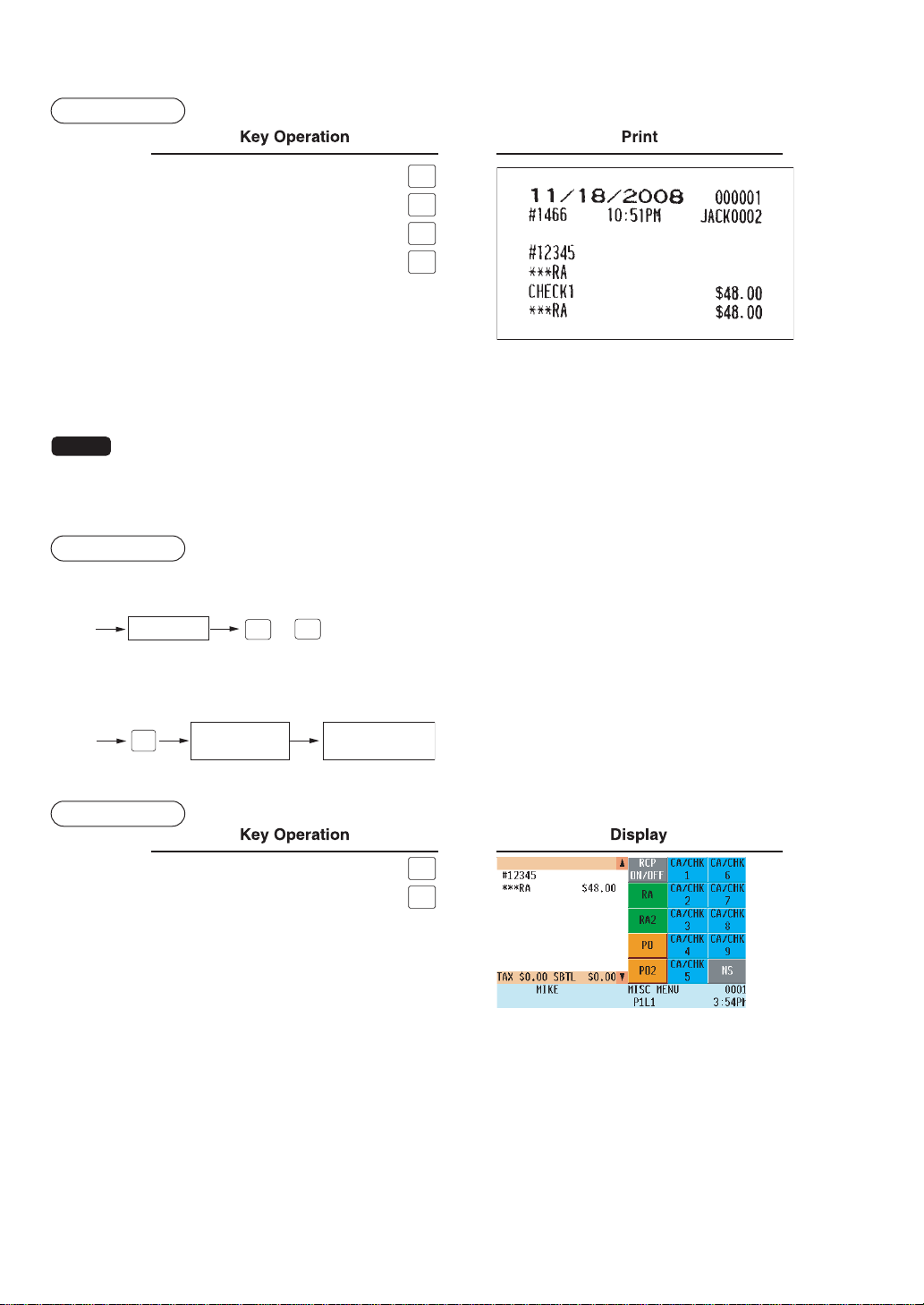
— 77 —
Example
12345
#/TM
RA
4800
CHECK
RA
NOTE
Instead of the above procedures, you may choose the following received-on-account entry procedure
only for cash payment.
Contact your authorized SHARP dealer to change the procedure.
Procedure
Direct key entries
or
RA amount
RA2
RA
Menu-based entries
RA or RA2
from the window
Amount
(max. 8 digits)
FUNC
MENU1
Example
12345
#/TM
4800
RA
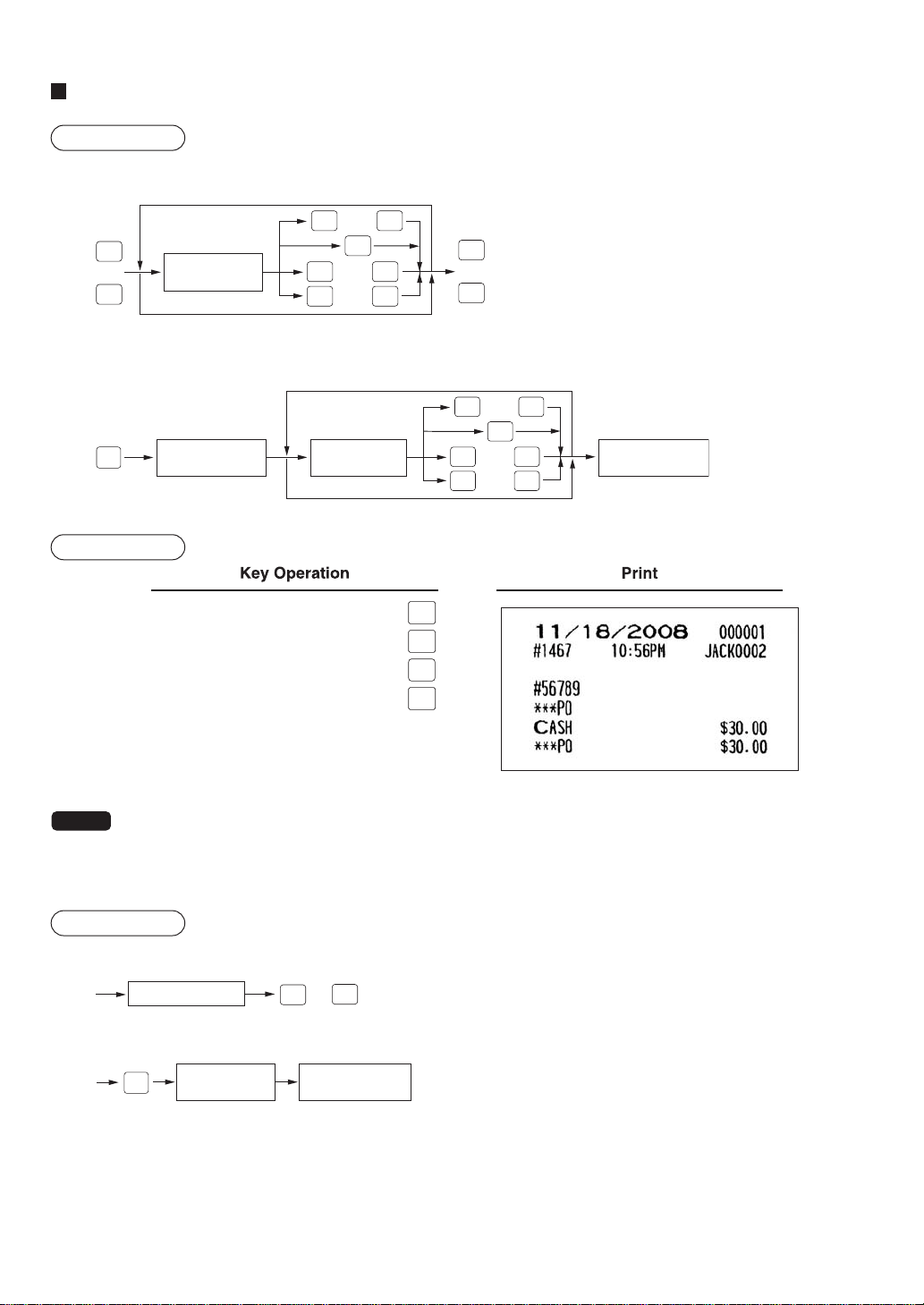
— 78 —
Paid-out entries
Procedure
Direct key entries
Amount
(max. 8 digits)
thru
thru
For the next PO
To cancel
CH
9
CHK
9
CH
1
CHK
1
or
PO2
PO
or
PO2
PO
FS
TEND
thru
CA/AT
CA5
Menu-based entries
PO or PO2
from the window
PO or PO2
from the window
Amount
(max. 8 digits)
thru
thru
For the next PO
To cancel
CH
9
CHK
9
CH
1
CHK
1
FS
TEND
thru
CA/AT
CA5
FUNC
MENU1
Example
56789
#/TM
PO
3000
CA/AT
PO
NOTE
Instead of the above procedures, you may choose the following paid-out entry procedure only for cash
payment.
Contact your authorized SHARP dealer to change the procedure.
Procedure
Direct key entries
Paid-out amount
or
PO2
PO
Menu-based entries
PO or PO2
from the window
Amount
(max. 8 digits)
FUNC
MENU1
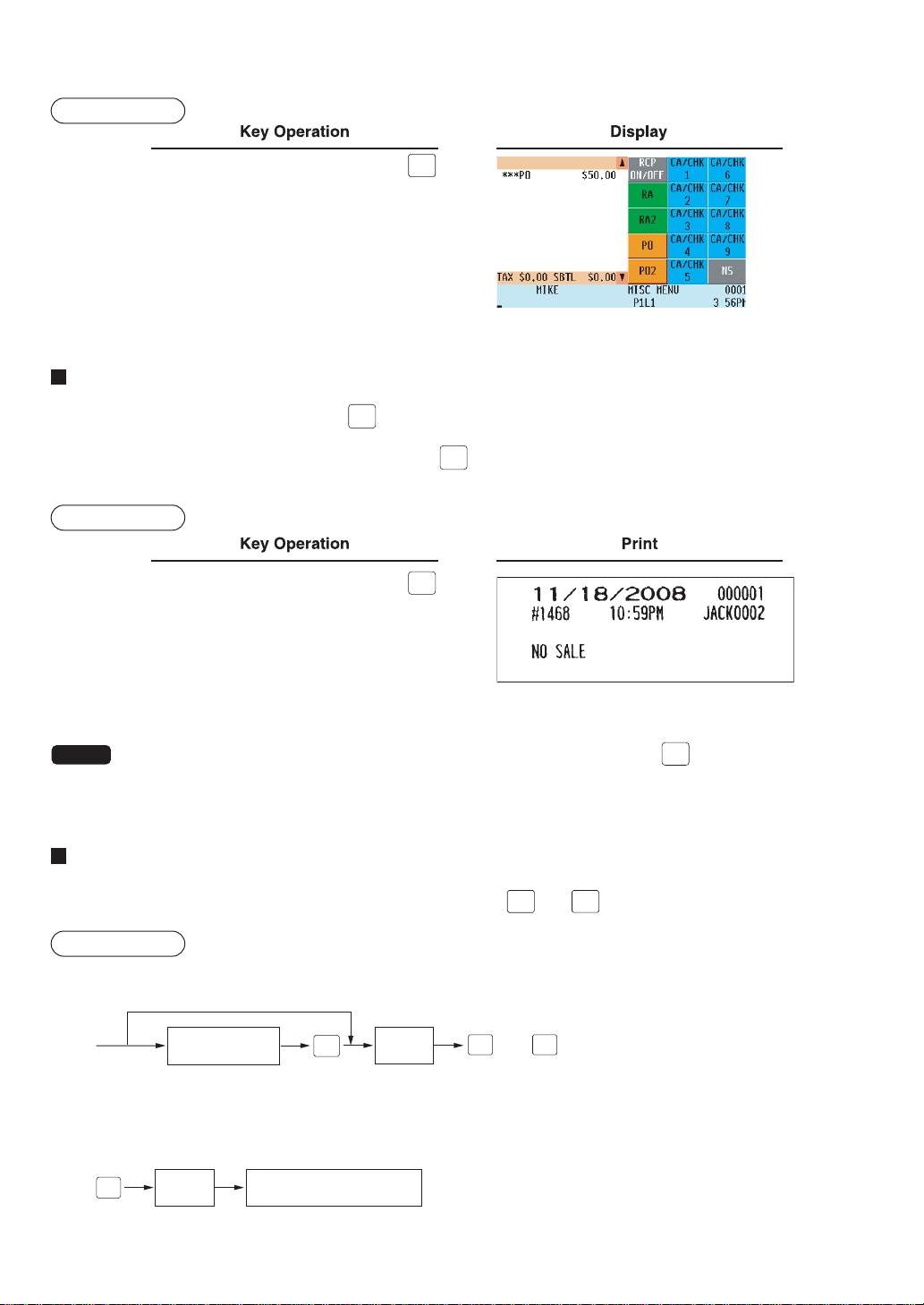
— 79 —
Example
5000
PO
No-sale (exchange)
For exchange of money, simply press the
NS
key without any entry. The drawer will open and the printer will issue
a receipt on which “NO SALE” is printed. If your POS terminal is programmed to allow a non-add code entry and
you enter a non-add code number before pressing the
NS
key, a no-sale entry will be achieved with a non-add
code number printed.
Example
NS
NOTE
You can also enter “No-sale” from the Function Menu 1 window. Press the
FUNC
MENU1
key and select “NS” (No
Sale) from the window.
Cashing a check
To cash a check, enter the check amount, then press any of the
CA/CHK1
thru
CA/CHK9
keys.
Procedure
Direct key entries
Non-add code
number
Check
amount
thru
(When non-add code entry is allowed.)
CA/CHK9CA/CHK1
#/TM
Menu-based entries
CA/CHK1 thru CA/CHK9
from the window
Check
amount
FUNC
MENU1
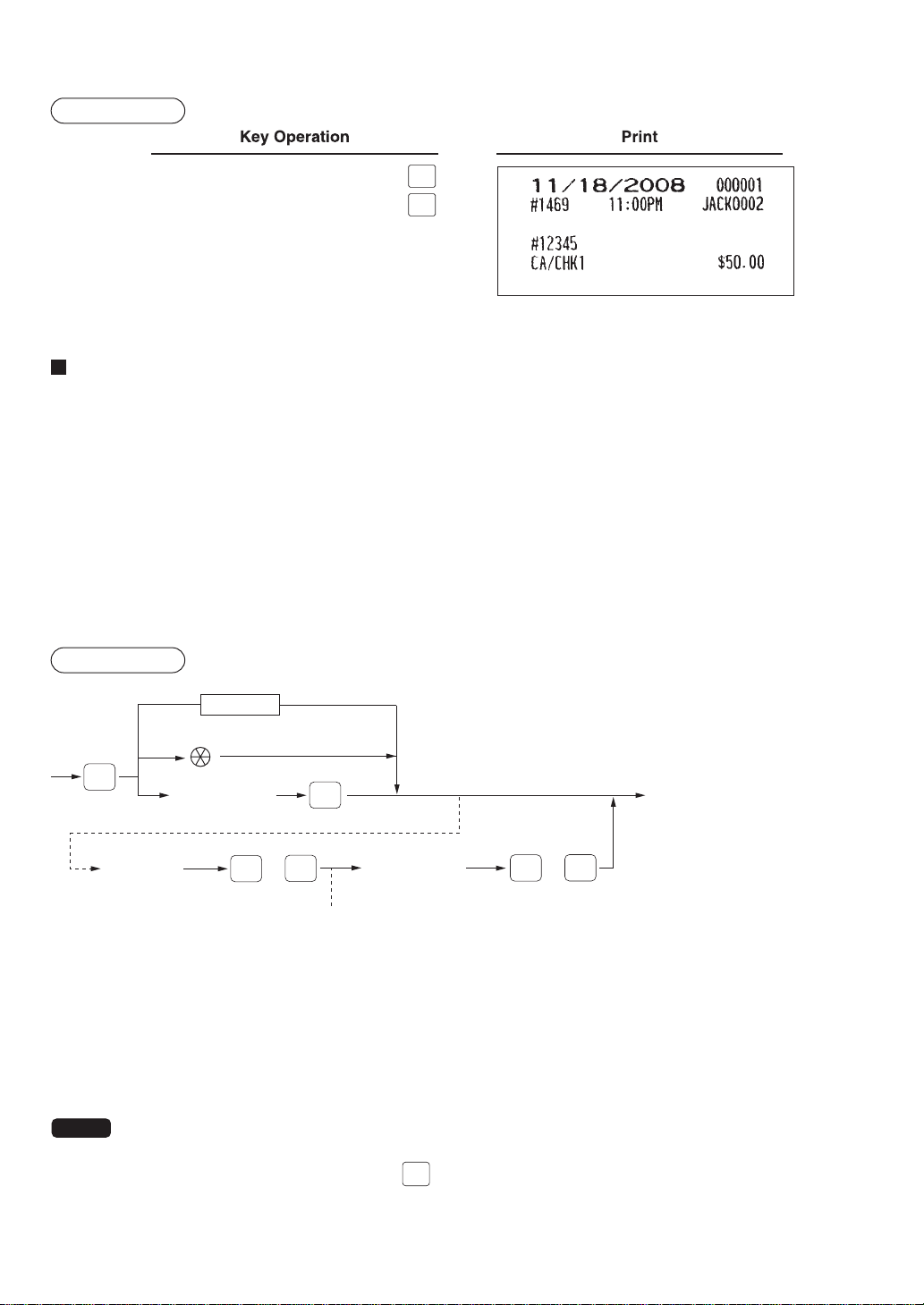
— 80 —
Example
12345
#/TM
5000
CA/CHK1
Customer management
Your POS terminal can provide a customer management function.
To enable the customer management function, enter the customer code assigned to a customer. You can enter the
customer code at any point during a transaction.
Normally customer information (name, code and address) is previously set by programming.
However, you can enter information on a new customer during a transaction. When an undefined customer code is
entered, the message “UNDEFINED CODE” is displayed, then you can enter the customer's name and address,
which are saved in the customer file.
For the customer registered, you can defer his/her payment. Take a tentative finalization procedure using the CH 1
key. The sales amount is added to the charge amount for the customer. When the customer settles his/her charge
account, take a received-on account entry procedure.
Procedure
Customer code
(max.13 digits)
*Scanning customer code
or
***
**
Name entry
(max.16 characters)
Address entry
(max.40 characters)
Sales registration
CA/AT
ENTER
ENTER
or
CA/AT
ENTER
CUST
MCR entry
*: Scan the customer code on a Customer Card provided to the customer, or enter the EAN-13 format bar code.
The customer code can be entered by the optional magnet card reader.
**: When an entered customer code does not exist in the customer file, "UNDEFINED CODE" is displayed for a
moment with beep sound. Then the NAME entry window entered appears and prompts the operator to enter
the customer's name.
***: The ADDRESS entry window is displayed.
NOTE
• Customer code entry is inhibited after payment operation.
• When the wrong code is entered, take the following procedure to cancel it.
If no item has been entered, press the
NS
key.
If an item entry has been made, perform a subtotal void operation.
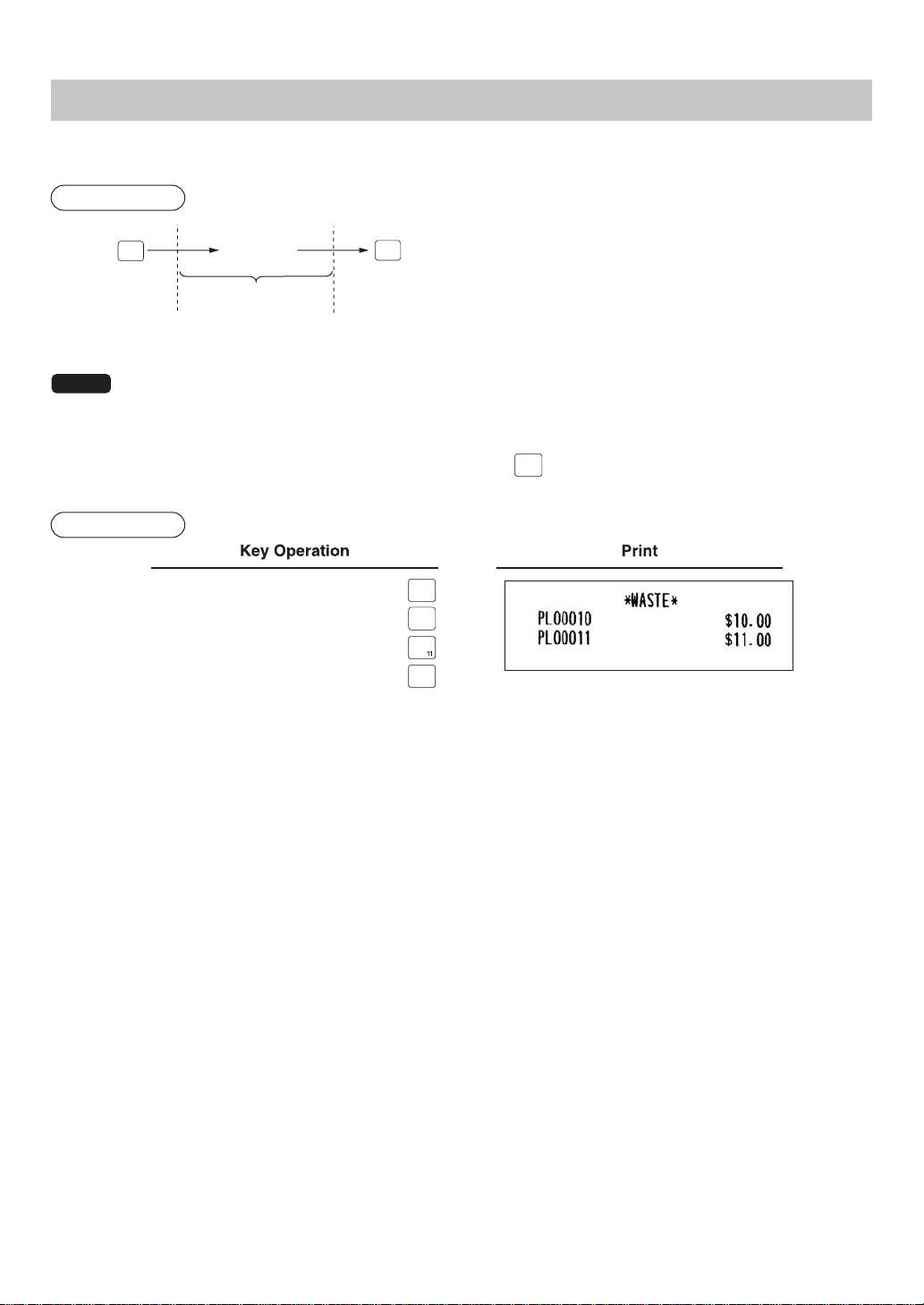
— 81 —
WASTE mode
This mode is used to remove an article which has already been prepared and is no longer suitable to be served.
Procedure
[Item entry]
WASTE mode
WASTE
WASTE
NOTE
• PLU entries are only allowed in the WASTE mode, and direct and indirect void operations are also
allowed in this mode.
• When a WASTE-mode transaction is finalized, the drawer does not open.
• The consecutive number is incremented every WASTE-mode transaction.
• When the WASTE mode is activated by pressing the
WASTE
key, the mode caption “WASTE” is displayed.
Example
WASTE
10
WASTE
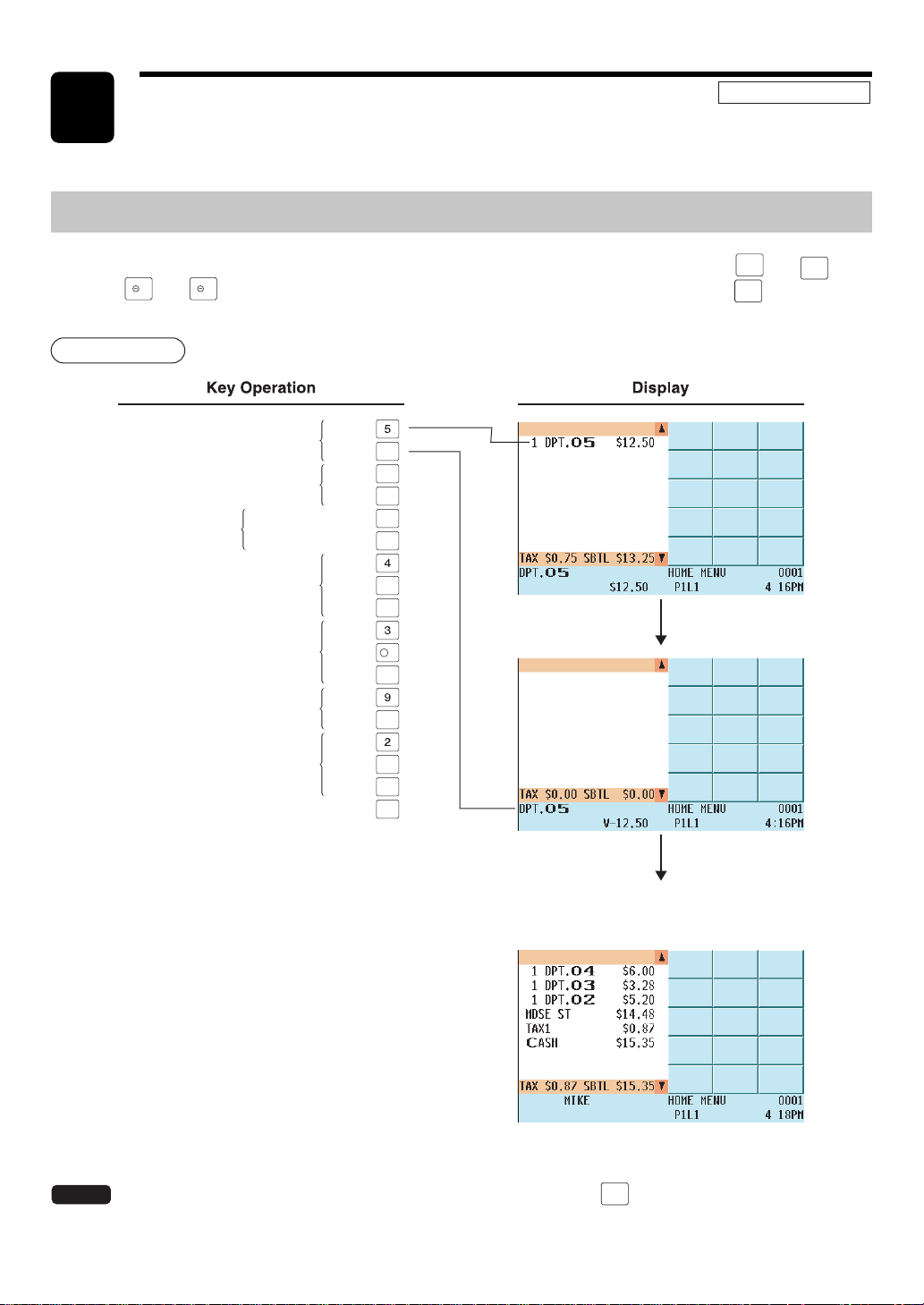
— 82 —
Correction of the Last Entry (Direct Void)
If you make an incorrect entry relating to a department, PLU/subdepartment, UPC, percentage (
%1
thru
%9
),
discount (
1
thru
9
), manual tax, or tip, you can immediately void the entry by pressing the
VOID
key or touch-
ing “VOID” in the keyboard area of the display.
Procedure
VOID
PLU/
SUB
VOID
PLU/
SUB
VOID
%2
VOID
-
2
VOID
TAX
VOID
CA/AT
- - - - - -
VOID
1250
9
5012345678900
600
328
28
520
40
Voiding a deportment entry
Voiding a PLU entry
Voiding a UPC code
entry
Voiding a percent calculation
Voiding a discount entry
Voiding a deportment entry
(preset price)
Voiding a manual tay entry
NOTE
You can also void an entry from the void menu window. Press the
VOID
MENU
key and select the desired void
option.
Correction
7
REG MODE
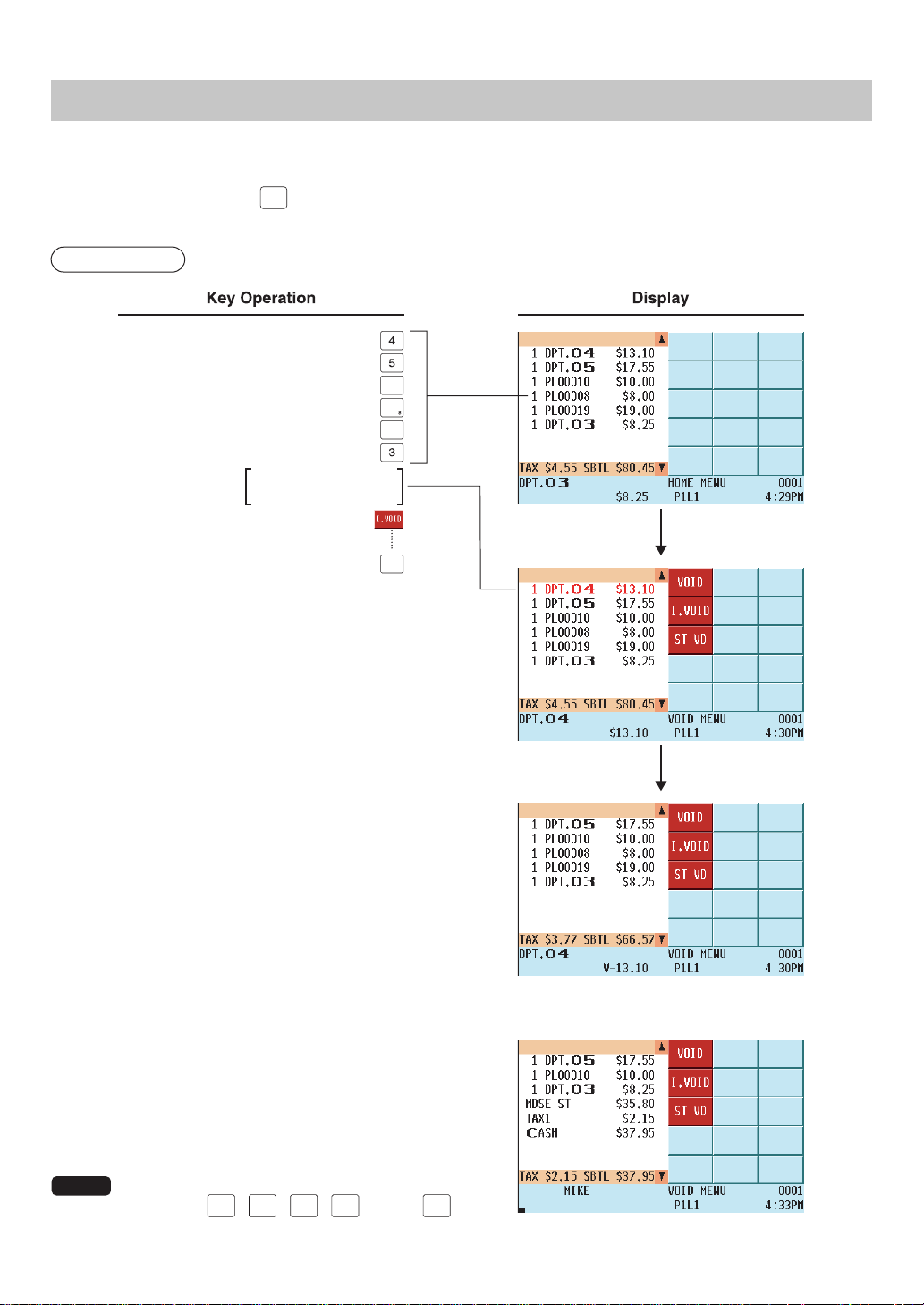
— 83 —
Correction of the Next-to-Last or Earlier Entries (Indirect Void)
By selecting a line and touching “I.VOID” in the keyboard area, you can void any incorrect department, PLU/
subdepartment, UPC or item refund entry made earlier than the last entry if you find it before finalizing the transac-
tion (e.g. before pressing the
CA/AT
key).
This function is applicable only to entries relating to a department and PLU/subdepartment, UPC and item refund.
Procedure
- - - - - -
PLU/
SUB
PLU/
SUB
CA/AT
1310
1755
10
19
825
Move the cursor to
the desired line
NOTE
• To void entries that include a tax status shift,
press the
TAX1
SHIFT
,
TAX2
SHIFT
,
TAX3
SHIFT
,
TAX4
SHIFT
, and/or
TAX5
SHIFT
keys prior to touching “I.VOID.”.
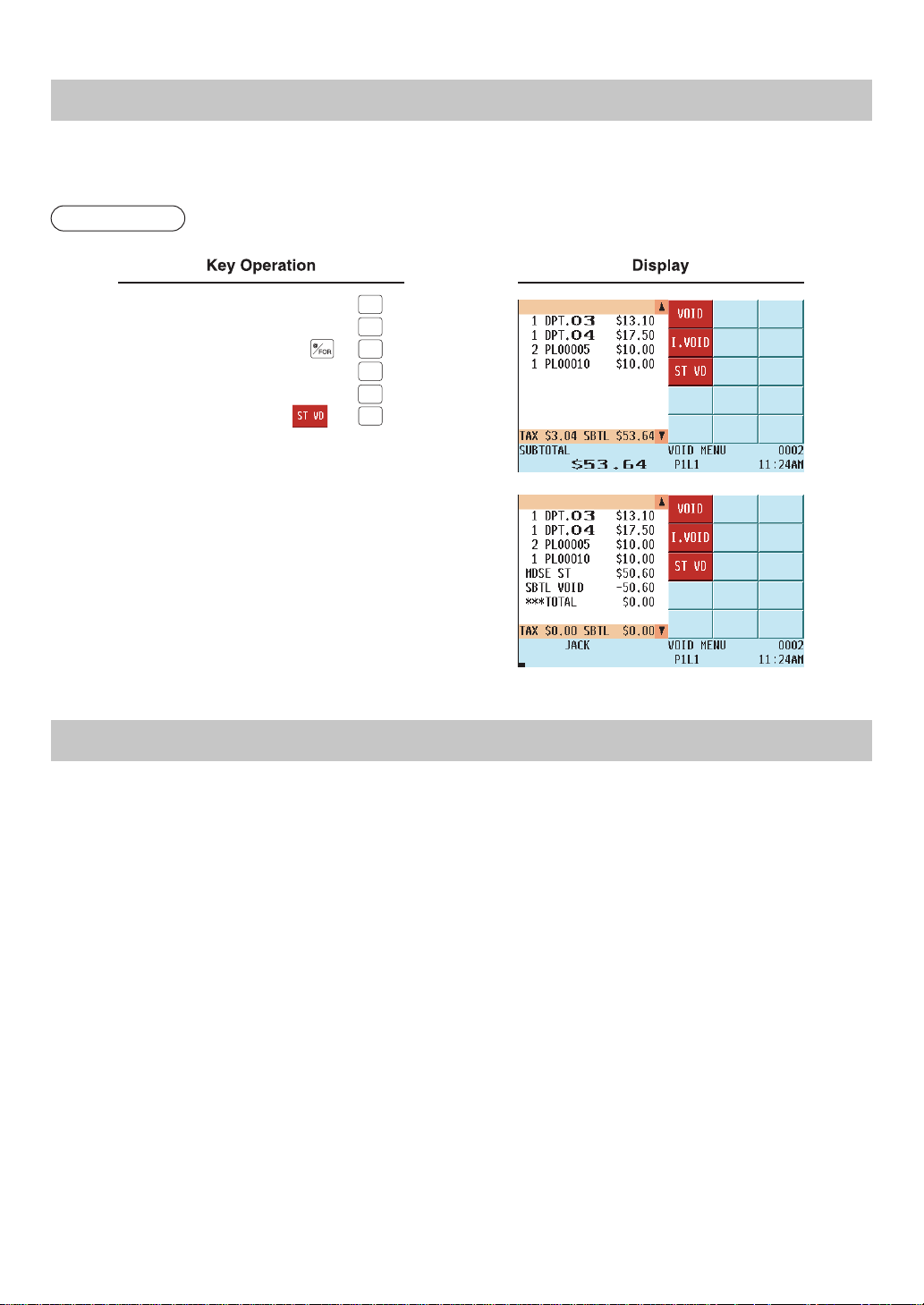
— 84 —
Subtotal Void
With the SBTL VOID key or selecting a line and touching “ST VD”, you can void an entire transaction. Once a
subtotal void is executed, the transaction is canceled and the POS terminal issues a receipt.
Procedure
3
4
PLU/
SUB
PLU/
SUB
SBTL
SBTL
VOID
1310
1755
2 5
10
or
Correction of Incorrect Entries Not Handled by the Direct or Indirect Void Function
You cannot void any errors after finalization of a transaction or during entry of an amount tendered. These errors
must be handled by the manager.
The following steps should be taken.
1.
If you are entering an amount tendered, finalize the transaction.
2.
Hand the incorrect receipt to your manager for recording purposes.
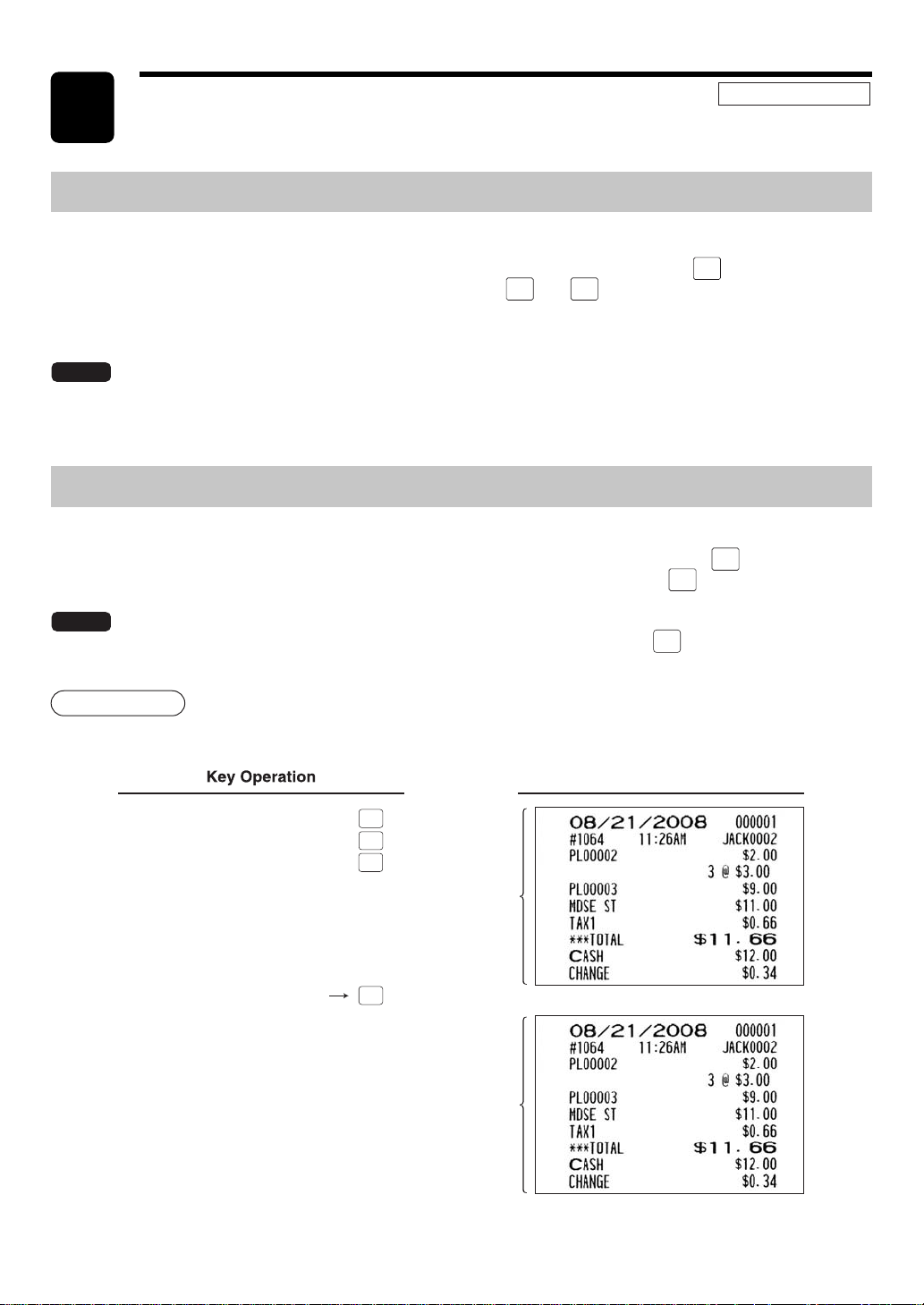
— 85 —
Printing Message Text on Remote Printers or Chit Receipts
You can print a message on a remote printer or a chit receipt if so programmed. Press the
MSG
MENU
key and select the
relevant message key in the keyboard area, or press one of the
MSG1
thru
MSG5
keys during an item entry. The
message will be printed in double sized characters together with the content of the transaction.
NOTE
You can not finalize the transaction when a message only is entered.
When multiple messages are entered, the last message only is printed.
Copy Receipt Printing
When the receipt ON-OFF function is in the OFF state, you can get a receipt by pressing the
RCPT
key. When the
receipt ON-OFF function is in the ON state, you can get a copy receipt by pressing the
RCPT
key.
NOTE
To toggle the receipt ON-OFF function, use either of the following procedures:
• Touch “RCP ON/OFF” from the window which is opened by pressing the
FUNC
MENU1
key.
• Press the RCP SW key to open the “RCP ON/OFF” window.
Procedure
Printing a receipt after making entries as shown below with the receipt ON-OFF function “OFF”.
2
3
3
CA/AT
For receipting
RCPT
Print on the
journal
Print on the
receipt
Print
Special Printing Functions
8
REG MODE
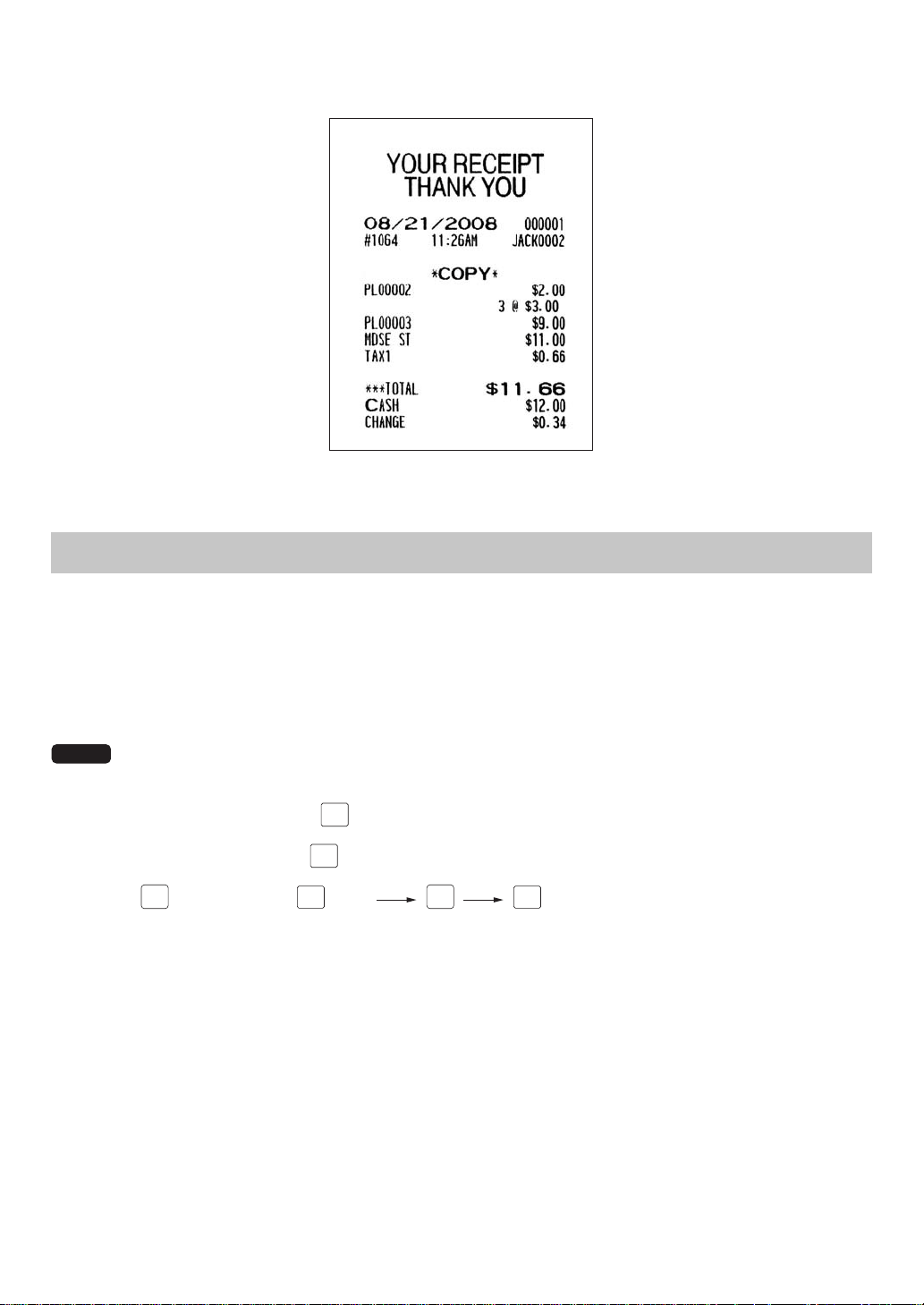
— 86 —
The “COPY” symbol is printed on the copy receipt.
Validation Printing Function
Your POS terminal can perform validation printing when it is connected a slip printer. For the details of the slip
printer, consult your authorized SHARP dealer.
1.
Set a validation slip on the slip printer.
2.
Press the PRINT key. Validation printing will start.
NOTE
If the validation printing function is programmed as compulsory, it can be overridden by the following
operation. If you need this overide function, consult your authorized SHARP dealer.
1. Enter the manager code and press
ENTER
.
2. Enter your secret code and press
ENTER
.
3. Press the
CANCEL
key and then the
PRINT
key. (
CANCEL
PRINT
)
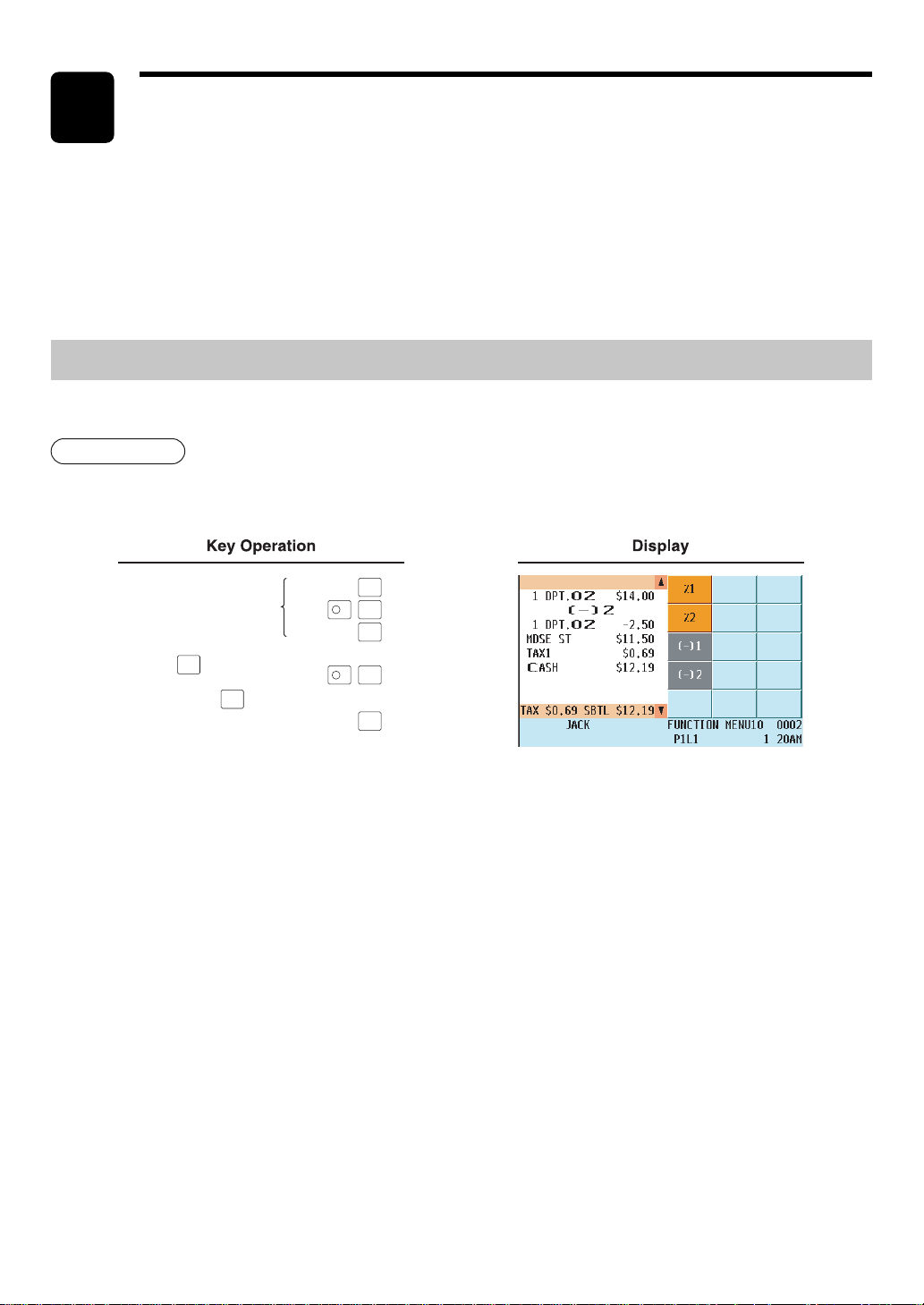
— 87 —
Manager(s) can override programmed limits (such as maximum amounts) for various functions and
void incorrect entries that servers or cashiers cannot correct (incorrect entries that are found after
finalizing a transaction or cannot be corrected by direct or indirect void).
Override Entries
Programmed limits for various functions can be overriden by a manager as follows
Example
Selling a $14.00 item (Dept 03) for cash and subtracting the coupon amount $2.50 from the sales amount (This
example presumes that the POS terminal has been programmed not to allow coupon entries
1400
250
-
2
CL
250
-
2
Normal REG-mode
entries
Enter the manager code
and prss , and then
enter his or her secret
code and press .
Return to the normal REG mode.
......
Error
CA/AT
ENTER
ENTER
2
2
2
Manager’s Override Entries and
Correction after Finalization
9
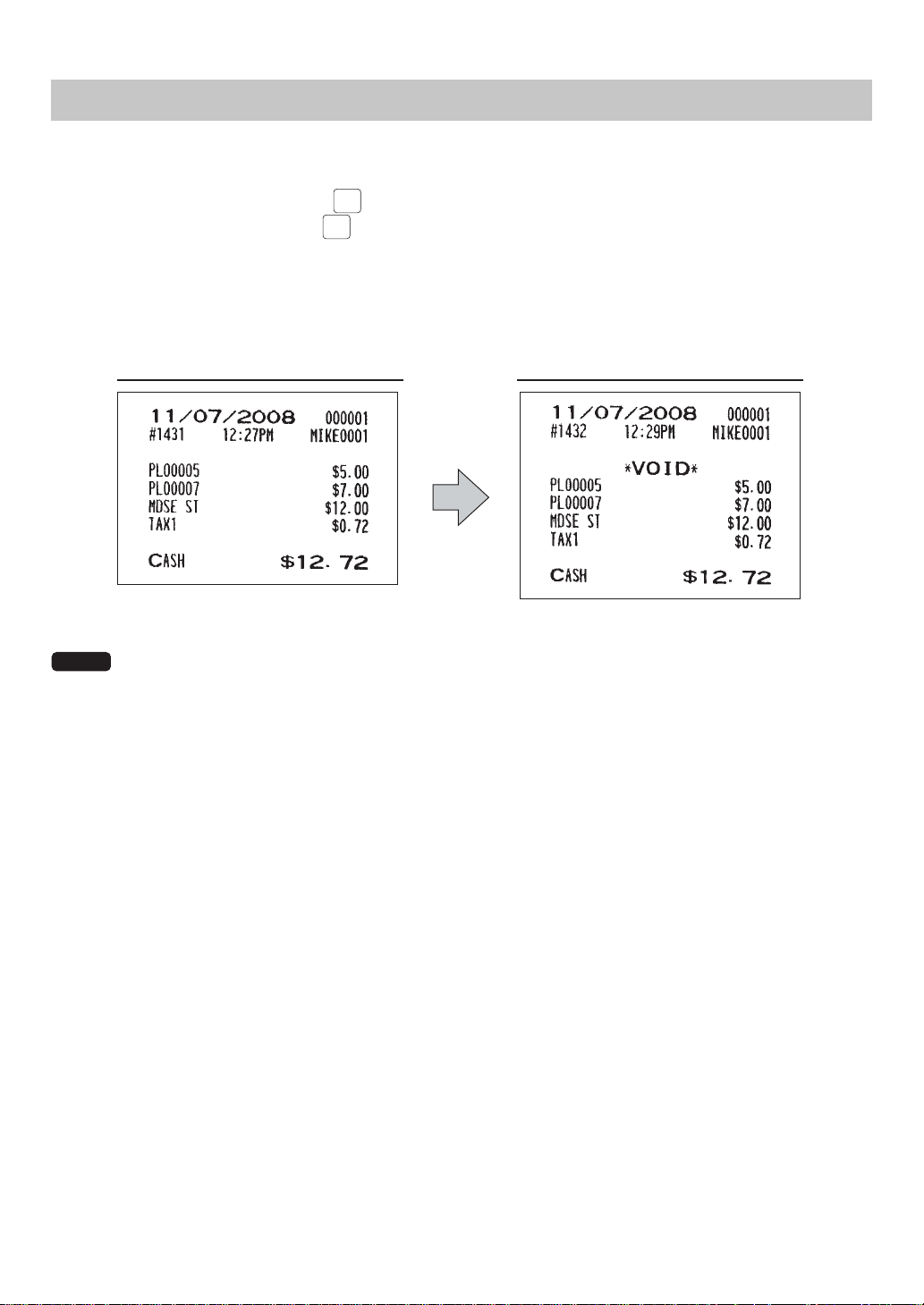
— 88 —
Correction after Finalization
To void incorrect entries, follow the procedure below
1.
Enter the manager code and press
ENTER
.
2.
Enter your secret code and press
ENTER
.
3.
Press the VOID key to put your POS terminal in the VOID mode. (Note the indication on the display.)
4.
Repeat the entries recorded on the incorrect receipt. (All data on the incorrect receipt is removed from the POS
terminal memory; the voided amounts are added to the void mode totalizer.)
Incorrect receipt Cancellation receipt
NOTE
Your POS terminal exits the VOID mode when the transaction is completed (i.e. finalized in the VOID
mode). To void additional transactions, repeat steps 1 and 4 above.

— 89 —
Reading (X) and Resetting (Z)
of Sales Totals
10
• Use the reading function (X) when you need to take an X report (reading) of sales information entered
after the last resetting operation. You can take this report any number of times. It does not affect the
POS terminal’s memory.
• Use the resetting function (Z) when you need to clear the POS terminal’s memory. Resetting
operation prints all sales information and clears the entire memory except GT1 through GT3, the
reset count, and the consecutive number.
• X1 and Z1 reports show daily sales information. You can take these reports in the X1/Z1 mode.
• X2 and Z2 reports show periodic (monthly) consolidation information. You can take these reports in
the X2/Z2 mode.
• In the OPXZ mode, a server/cashier can take his or her report.
• If you want to stop printing a report, press the key. Even if the printing is stopped, the consecutive
number (and Z counter if you are printing a Z report) is increased by one.
How to take an OPXZ, X1/Z1 or X2/Z2 report
[To take an OPX, X1 or X2 report:]
1. Enter the OPXZ, X1/Z1, or X2/Z2 mode from the mode selection window.
2. Select “1 READING” to display the report list.
3. Select a report title listed in the table (shown later). When you select an item in parentheses on the opening
screen, you can jump to the associated report title(s).
4. If needed, enter the corresponding values in the “Data to be entered” column in the table (shown later).
[To take an OPX, Z1 or Z2 report:]
1. Enter the OPXZ, X1/Z1, or X2/Z2 mode from the mode selection window.
2. Select “2 RESETTING” to display the report list.
3. Select a report title listed in the table (shown later).
4. If needed, enter the corresponding values in the “Data to be entered” column in the table (shown later).
5. After all steps to take a report are completed, the message“ARE YOU SURE ?” will appear.
Select one of the following options:
• “YES” to reset the sales information.
• “NO” to cancel the report procedure.
Flash report
You can take flash reports (display only) in the X1 mode for department sales, cash in drawer (CID) and
sales total for a fast view of sales revenue.
1. Enter the X1/Z1 mode from the mode selection window.
2. Select “3 FLASH MODE” to display the flash report menu.
3. Select “DEPT SALES” to take a flash report of department sales, “CID” to take a flash report of cash in
drawer, or “SALES TOTAL” to take a flash report of sales total.
X1/Z1 MODE
X2/Z2 MODE
OPXZ MODE
CANCEL
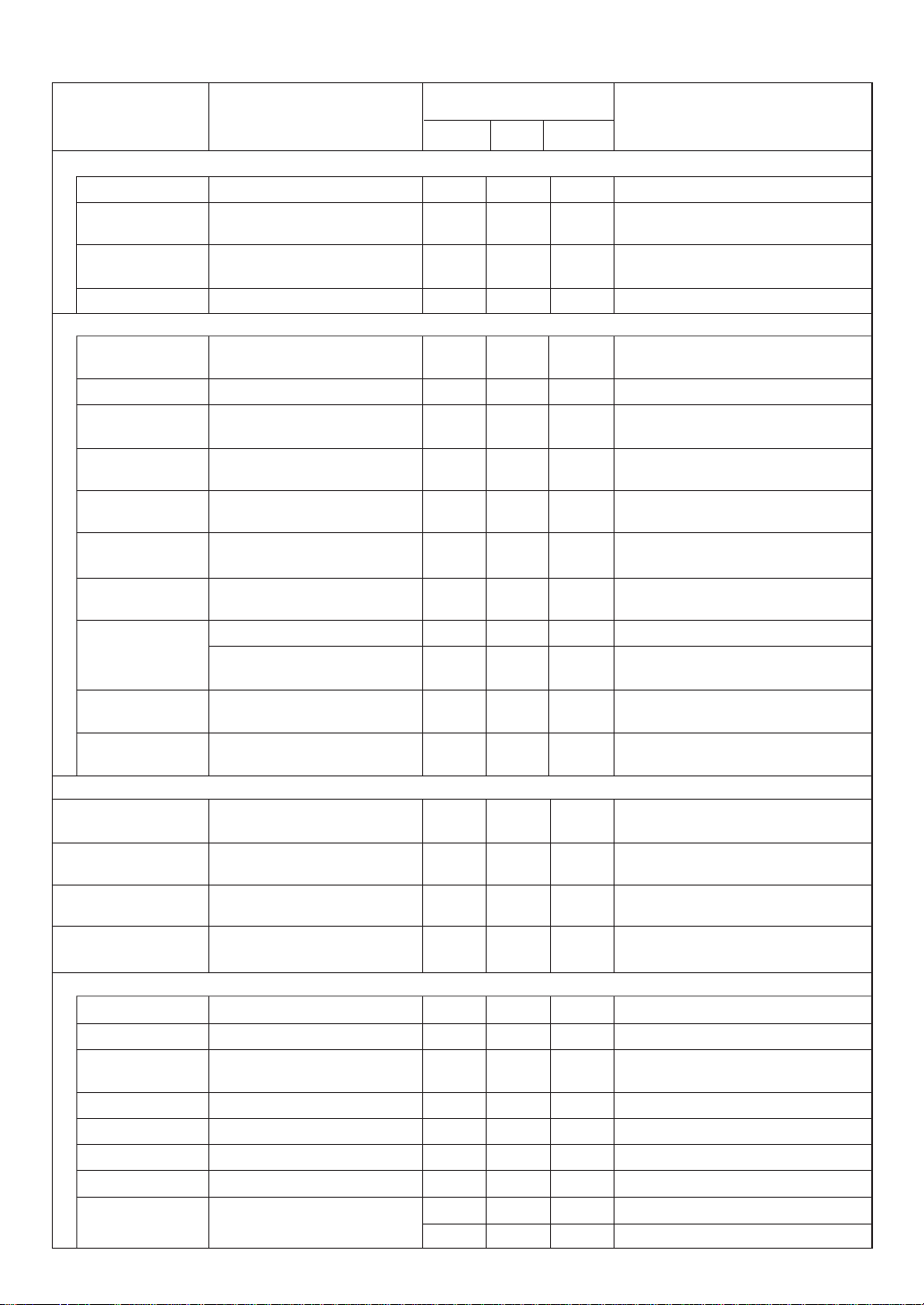
— 90 —
X1, Z1 X2, Z2 Start/end department codes
X1 X2 Department group no.
X1 X2
X1 X2
X1, Z1 X2, Z2 Start/end PLU/UPC codes
X1, Z1 X2, Z2 *1
X1, Z1 X2, Z2 Department code
X1 X2 PLU/UPC group no.
X1 X2
X1, Z1 Start/end PLU/UPC codes
X1 *1
X1 X2 All
X1 X2 Department code
X1 Start/end PLU/UPC codes
X1 X2 Price
X1, Z1 X2, Z2 Start/end UPC codes
X1, Z1 X2, Z2 *1
X1, Z1 X2, Z2 Department code
X1 Z2
X1, Z1 X2, Z2
X1 X2
X1, Z1
X1
X1 X2
X1, Z1 X2, Z2
X1, Z1X, Z X2, Z2
X, Z
DEPARTMENT
<DEPARTMENT>
<PLU>
<DYNAMIC>
<TRANSACTION>
DEPT.IND.
GROUP
DEPT.GROUP.
TOTAL
MARKDOWN DEPT.
PLU/UPC
PLU PICK UP
PLU BY DEPT
PLU IND.
GROUP
PLU GROUP.
TOTAL
PLU STOCK
PLU STOCK
PICK
PLU ZERO
SALES
PLU MINIMUM.
STOCK
PLU PRICE
CATEGORY
DYNAMIC UPC
D-UPC PICK
UP
D-UPC BY
NON-ACCESSED
UPC
DEPT
TRANSACTION
CID
POSITIVE
CHECK
KEY CAPTURE
TAX
ALL SERVER
IND. SERVER
Department by group
Individual group total of
departments
Full group total of
departments
Department markdown
PLU/UPC by designated
range
PLU/UPC pick up report
PLU/UPC by associated
dept.
Individual group of PLU/
UPC
Full group total of PLU/
UPC
PLU stock by designated
range
PLU/UPC stock pick up
report
PLU/UPC zero sales
PLU/UPC zero sales by
department
PLU/UPC minimum stock
PLU/UPC by price category
Dynamic UPC by
designated range
Dynamic UPC pick up
report
Dynamic UPC by
Non-accessed UPC report
associated dept.
Transaction
Cash in drawer
Positive check
Key capture report
Tax
Full server
X1X
X: Server code; X1: All server data
SCM Starting cash memory
Individual server
X1/Z1OPXZ X2/Z2
Available report type
in each mode
deretne eb ot ataD noitpircseDeltit tropeR
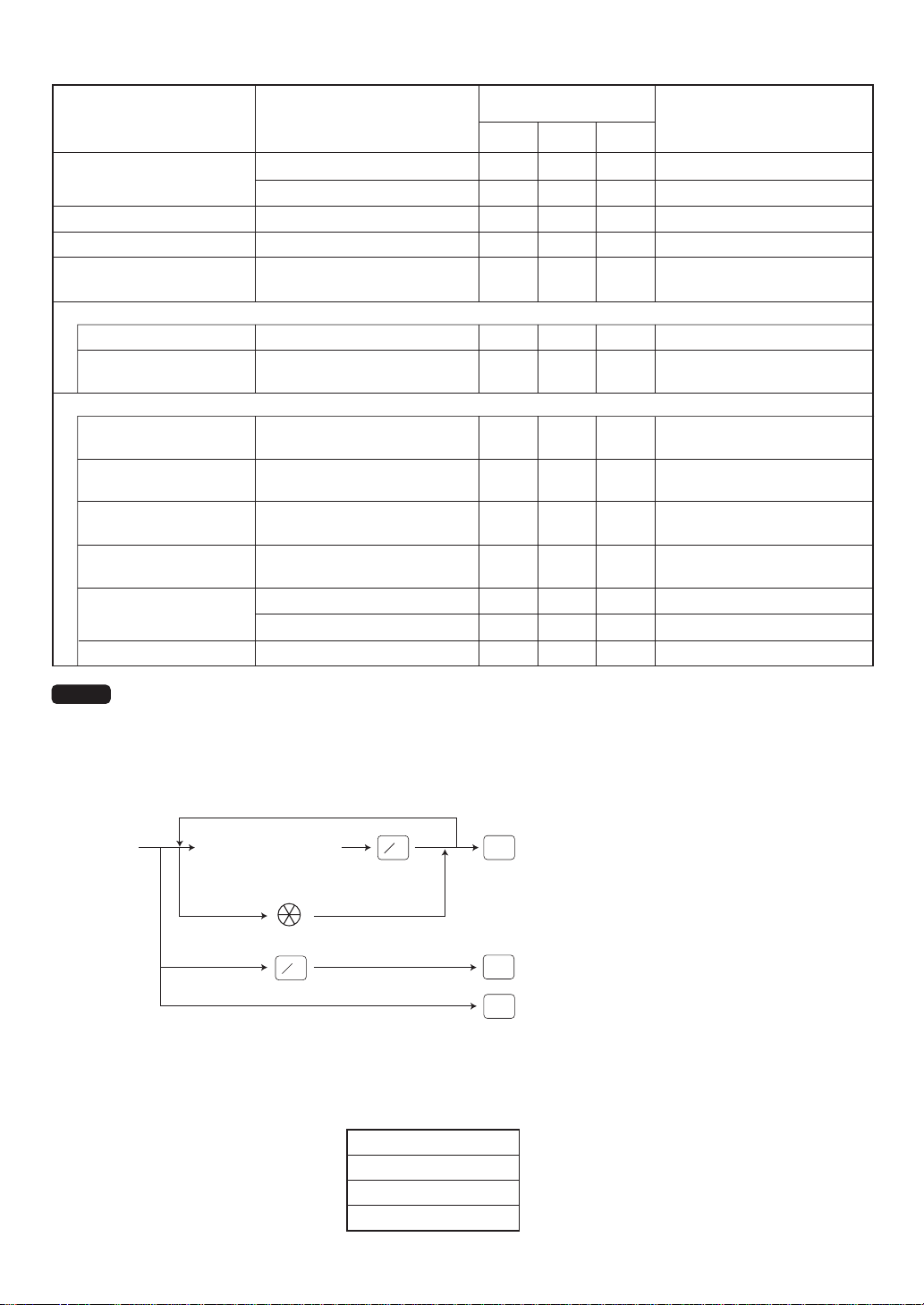
— 91 —
X1, Z1 Start/end time
X1
X2, Z2
X1, Z1 Start/end GLU code
X1, Z1
X1, Z1 Start/end GLU code
X1, Z1
X2 Start/end customer codes
X2, Z2 Start/end customer codes
X2 Amount
X2
X1, Z1 X2, Z2
X1, Z1 X2, Z2
X1, Z1
HOURLY
DAILY NET
GLU
GLU BY
SERVER
CLOSE GLU
CL-GLU BY
SERVER
CUSTOMER DETAILS
<CUSTOM>
<CLOSE>
ONLY REPORT
CUSTOMER
SALES ALL REPORT
CUSTOM BY
SALES RANGE
CHARGE
ACCOUNT
STACKED
E.JOURNAL
REPORT
Hourly (full)
Hourly (by range)
Daily net
GLU
GLU by server
Closed GLU
Closed GLU by server
Customer details only report
Customer sales all report
Customer by designated
sales range
Customer no payment
Stacked report 1
Stacked report 2
Electronic journal
X1/Z1OPXZ X2/Z2
Available report type
in each mode
deretne eb ot ataD noitpircseDeltit tropeR
NOTE
1: You can pick up PLU/UPC codes for issuing a report. You can pick up new PLU/UPC codes or the
codes that were picked up last time. To pick up new codes, select “1 NEW PICK UP”, and follow the
procedure below to pick up new codes. To pick up the codes that were picked up last time, select “2
LAST PICK UP”.
Follow the below procedure for picking up PLU/UPC codes.
To pick up PLU/UPC codes
that were picked up the last time
To pick up all PLU/UPC codes
To pick up another code
PLU/UPC code
(PLU code: max. 5digits)
(UPC code: max. 13digits)
Scanning UPC code
CA/AT
CA/AT
CA/AT
@
FOR
@
FOR
* The following reports relating to PLU/UPC is issued in the following sequence:
PLU, PLU BY DEPT, PLU IND. GROUP, PLU ZERO SALES, PLU STOCK, PLU MINIMUM. STOCK and PLU CAT-
EGORY
Also the UPC codes are printed in the sequence shown below.
UPC-A
UPC-E
EAN-13
EAN-8
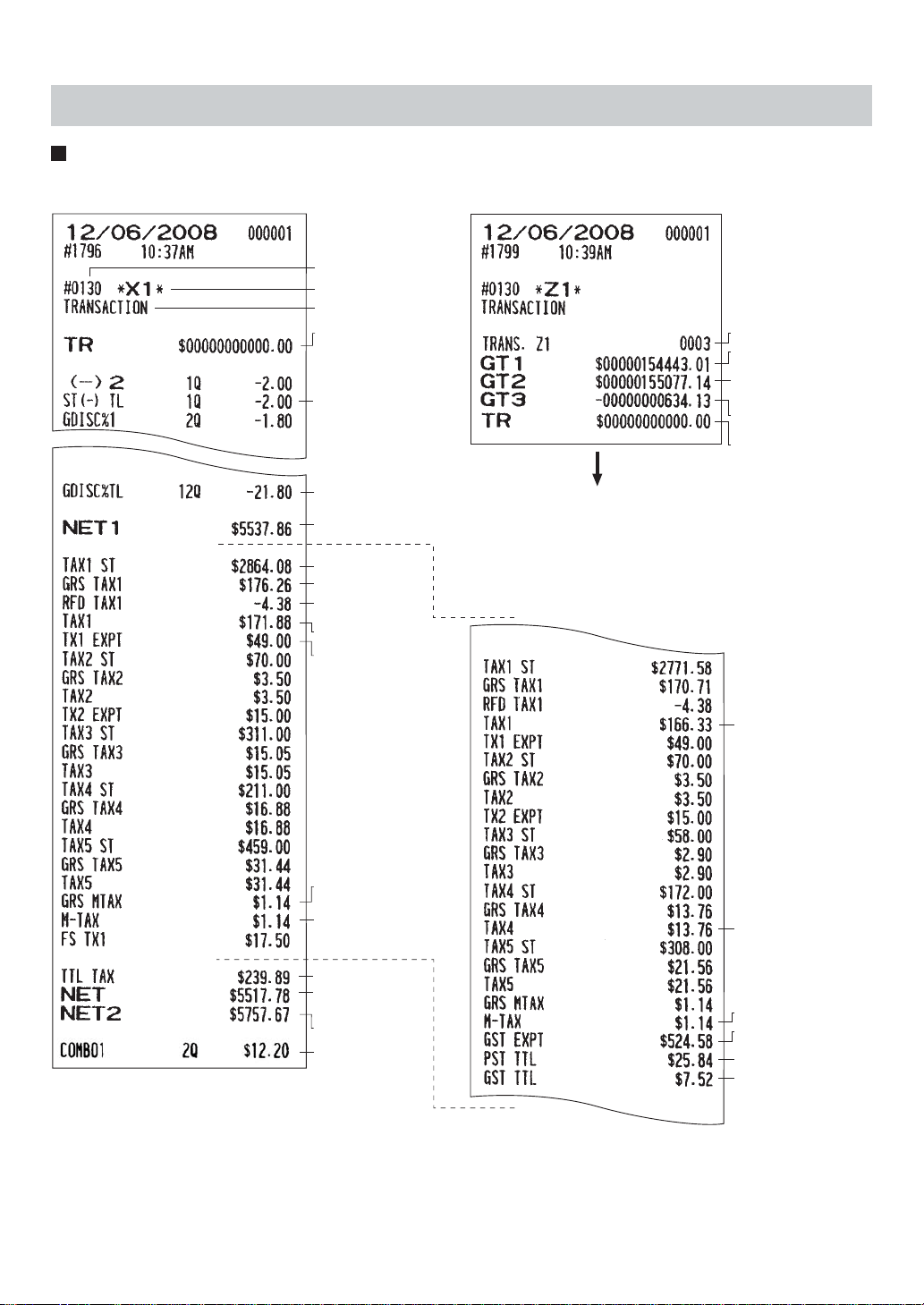
— 92 —
Daily Sales Totals
Transaction report
troper Z elpmaS •troper X elpmaS •
To be continued on the next page
(When the Canadian tax system
is selected)
The subsequent printout occurs
in the same format as in the
sample X report.
Reset counter
Net grand total
(GT2-GT3)
Grand total of
minus registration
Grand total of
training-mode
registrations
Grand total of
plus registration
Tax 1
Tax 4
Manual tax
Exempt total from
GST
PST total
GST total
Job code
Read symbol
Report title
Net sales total
Net taxable 1 total
Net tax 1 total
Gross tax 1 total
Refund tax 1
total
Grand total of
training-mode
registrations
Taxable 1 exempt
total
Gross manual tax
total
Tax total
Sales total without
tax
Sales total
Net manual tax
Combo1 countor and
total
total
Total for group
discount %
(-) 2 counter and total
(subtotal (-) )
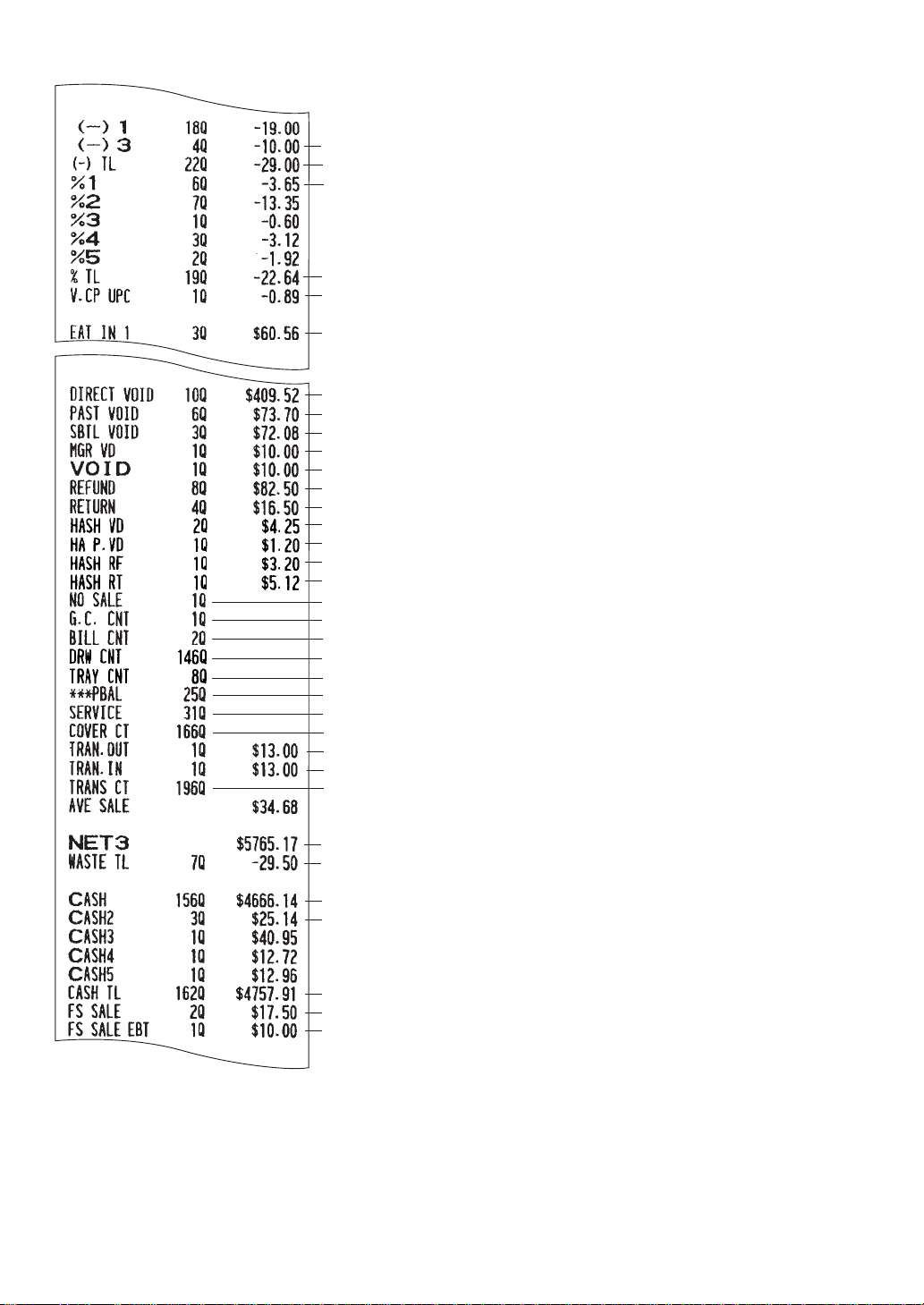
— 93 —
To be continued on the next page
Eat-in 1 counter and total
Direct void counter and total
Indirect void counter and total
Subtotal void counter and total
Manager item void counter and total
Void-mode transaction counter and total
Refund counter and total
Return counter and total
Hash item void counter and total
Hash item indirect void
Hash item refund counter and total
Hash item refund counter and total
Transfer-in counter and total
Transfer-out counter and total
No-sale (exchange) counter
Guest check copy counter
Sales total (including hash dept. total)
Cash counter and total
Cash 2 counter and total
Bill print counter
Till timer counter
Tray subtotal print counter
Transaction counter
GLU/PBLU counter
Service counter (for GLU/PBLU)
Cover counter
%1 counter and total (Item %)
(-)3 counter and total (Item(-))
Total for item(-)
Total for item %
Waste counter and total
Total for cash
Food stamp sales total
FS tendering by EBT sales total
Vender coupon UPC counter and total

— 94 —
Check 1 sale counter and tendering counter
Cash+check in drawer
Cash in drawer
Deposit counter and total
Deposit refund counter and total
Tip-paid counter and total
Cash tip-in counter and total
Charge tip-in counter and total
Received-on-account counter and total
Starting cash memory total
Starting cash memory(-)
Starting cash memory(+)
Total for check cashing
Food stamp change(by cash)
Total for charge
Total for check
Paid-out counter and total
Total for received-on-account
Check cashing 1 counter and total
Tot al for paid-out
Gross charge 1 counter and total
Currency conversion 4 total (by manual rate)
Total for conversion
Food stamp in drawer
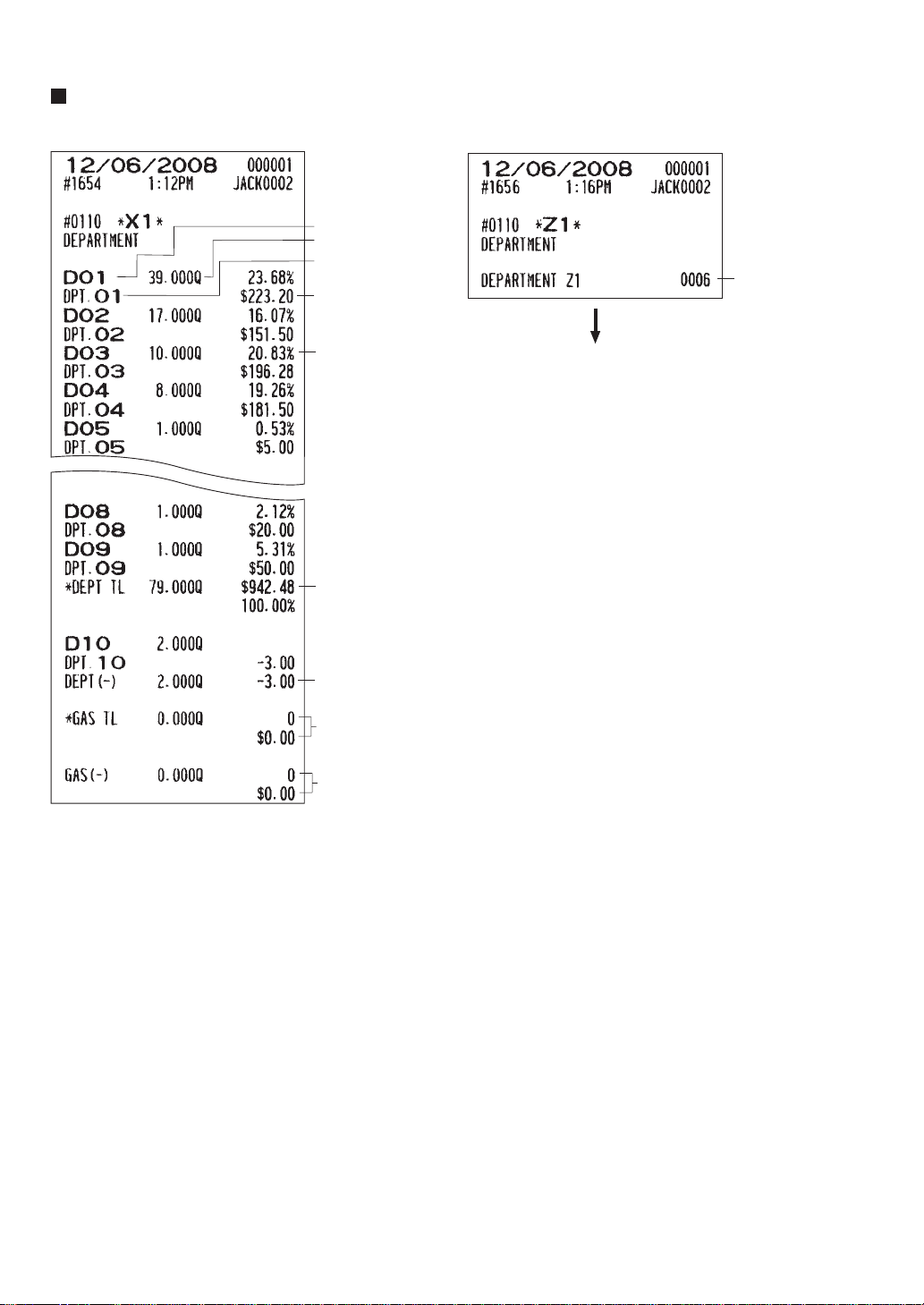
— 95 —
Department report
• Sample X report • Sample Z report
Sales amount
“+” real dept. counter
and total
Ratio of dept.
3 sales amount to
“+” real dept. total
“–” real dept. counter
and total
Dept. label
Sales q'ty
Dept. code
“+” gasoline dept.
counter/gasoline q ty/total
“–” gasoline dept.
counter/gasoline q ty/total
Reset counter
The subsequent printout occurs
in the same format as in the
sample X report.
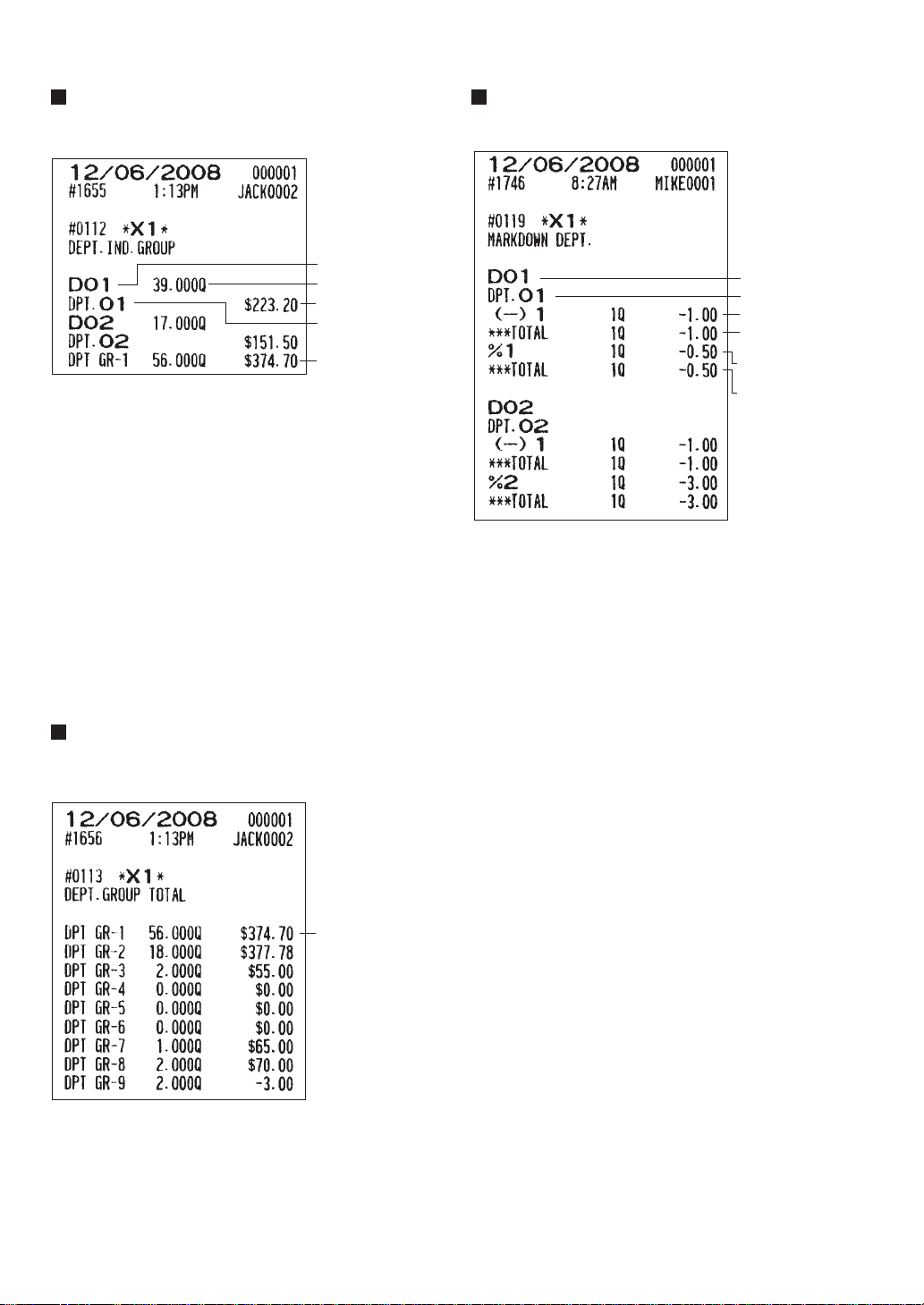
— 96 —
Individual group total report on
departments
Department markdown report
Full group total report on
departments
Sales q'ty
Dept. code
Dept. label
Sales amount
Group 1 sales
q'ty and amount
Group 1 sales
q'ty and amount
Dept. code
Dept. label
Item (-) counter and
total for dept. 1
%1 counter and total(item%)
(-)1 counter and total(item(-))
Item % counter and
total for dept. 1
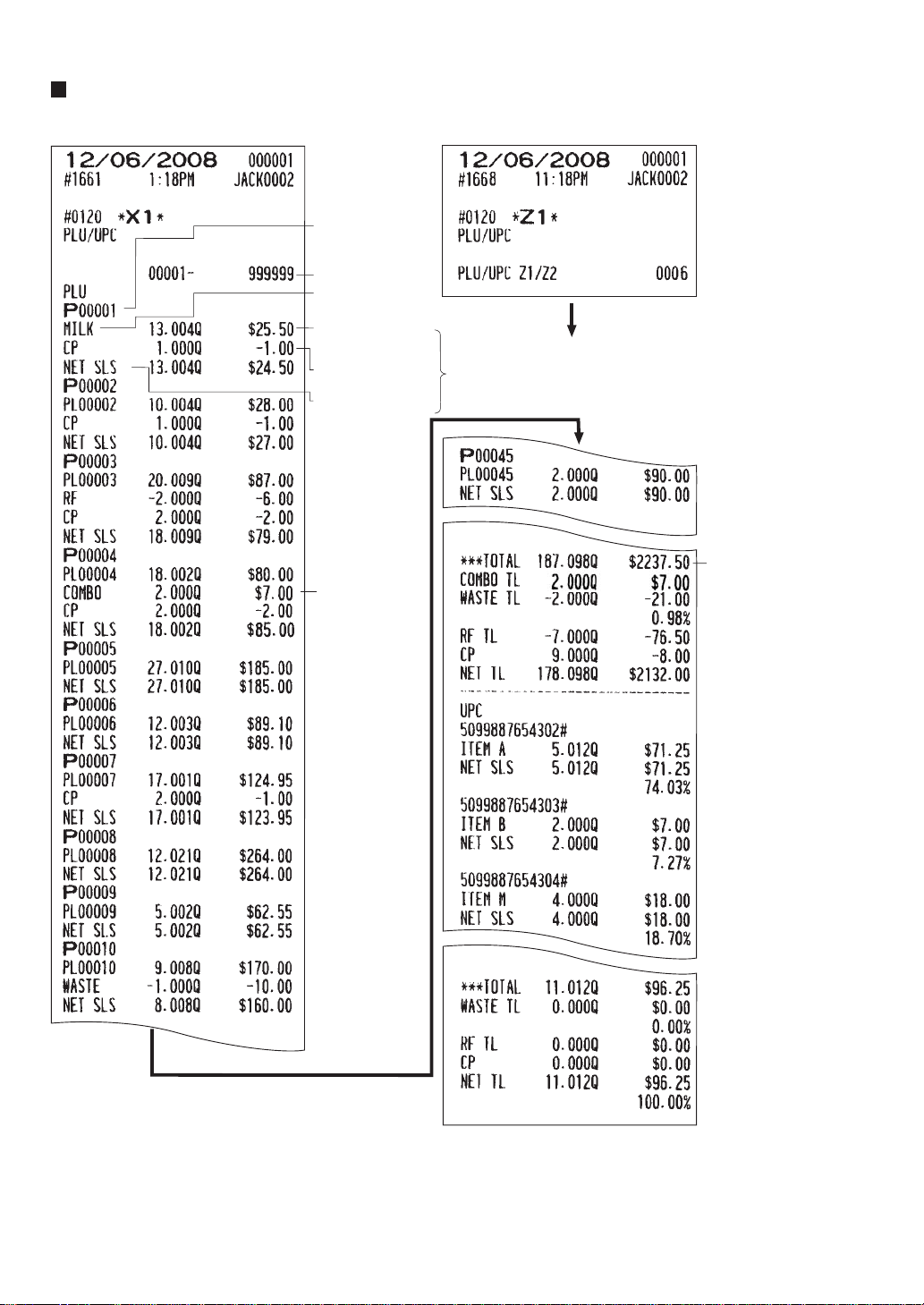
— 97 —
PLU/UPC report by designated range
• Sample X report • Sample Z report
The subsequent printout occurs
in the same format as in the
sample X report.
Combo sales for
price level 1
*1
Item label for price
level1
Coupon counter and
total for price level 1
PLU code
PLU range
Sales q'ty and
amount for price
level 1
Net sales for
price level 1
Total sales q'ty and total sales
amount for price level 1
*1
If you need these
information, please
consult your dealer.
*1
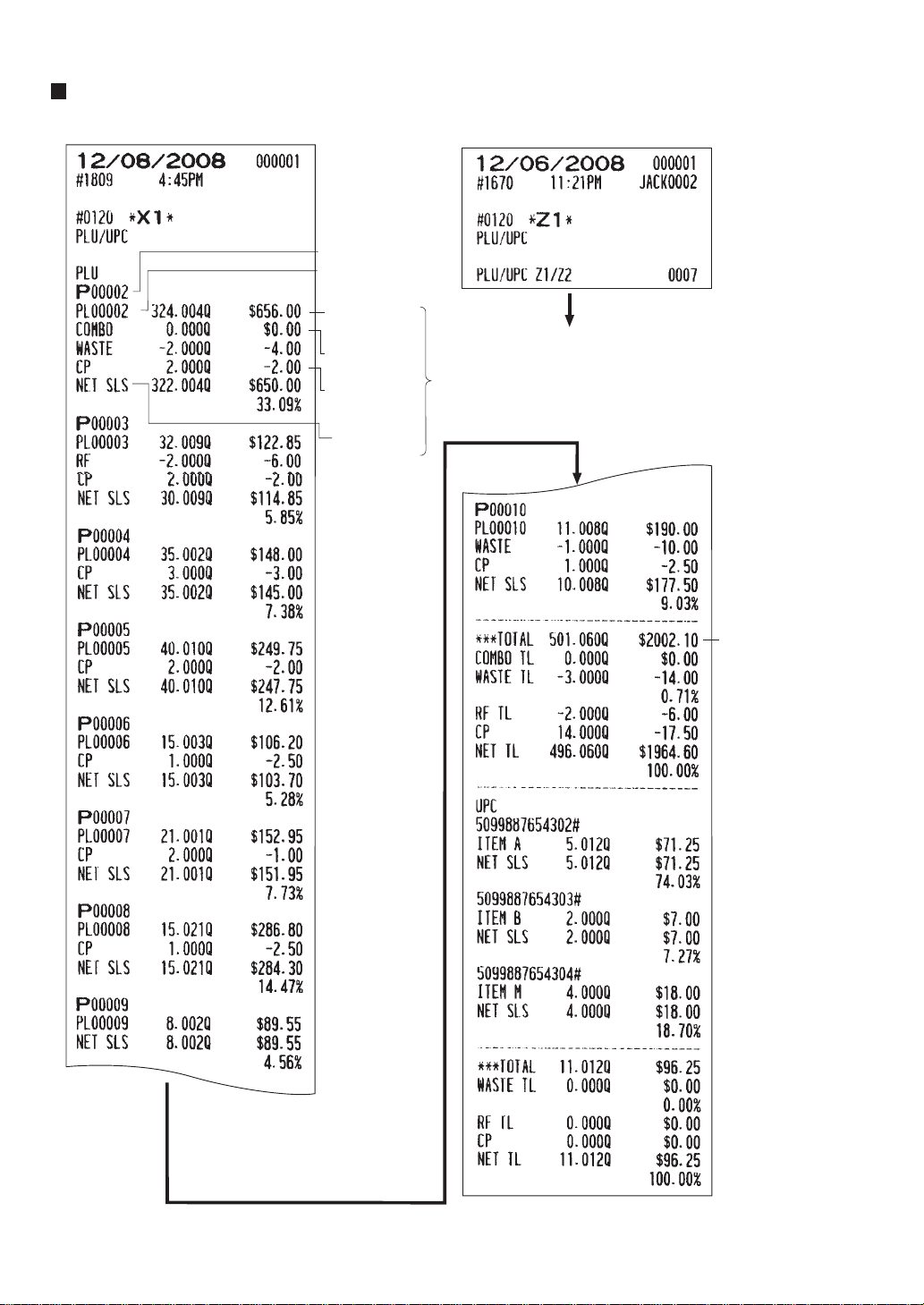
— 98 —
PLU/UPC pick up report
• Sample X report • Sample Z report
Total sales q 'ty and
total sales amount
for price level 1
Item label for
price level 1
PLU code
Sales q'ty and
amount for
price level 1
Net sales for
price level 1
The subsequent printout occurs
in the same format as in the
sample X report.
Coupon counter
and total for
price level 1
*1
*1
If you need these
information, please
consult your dealer.
Combo sales
for price level 1
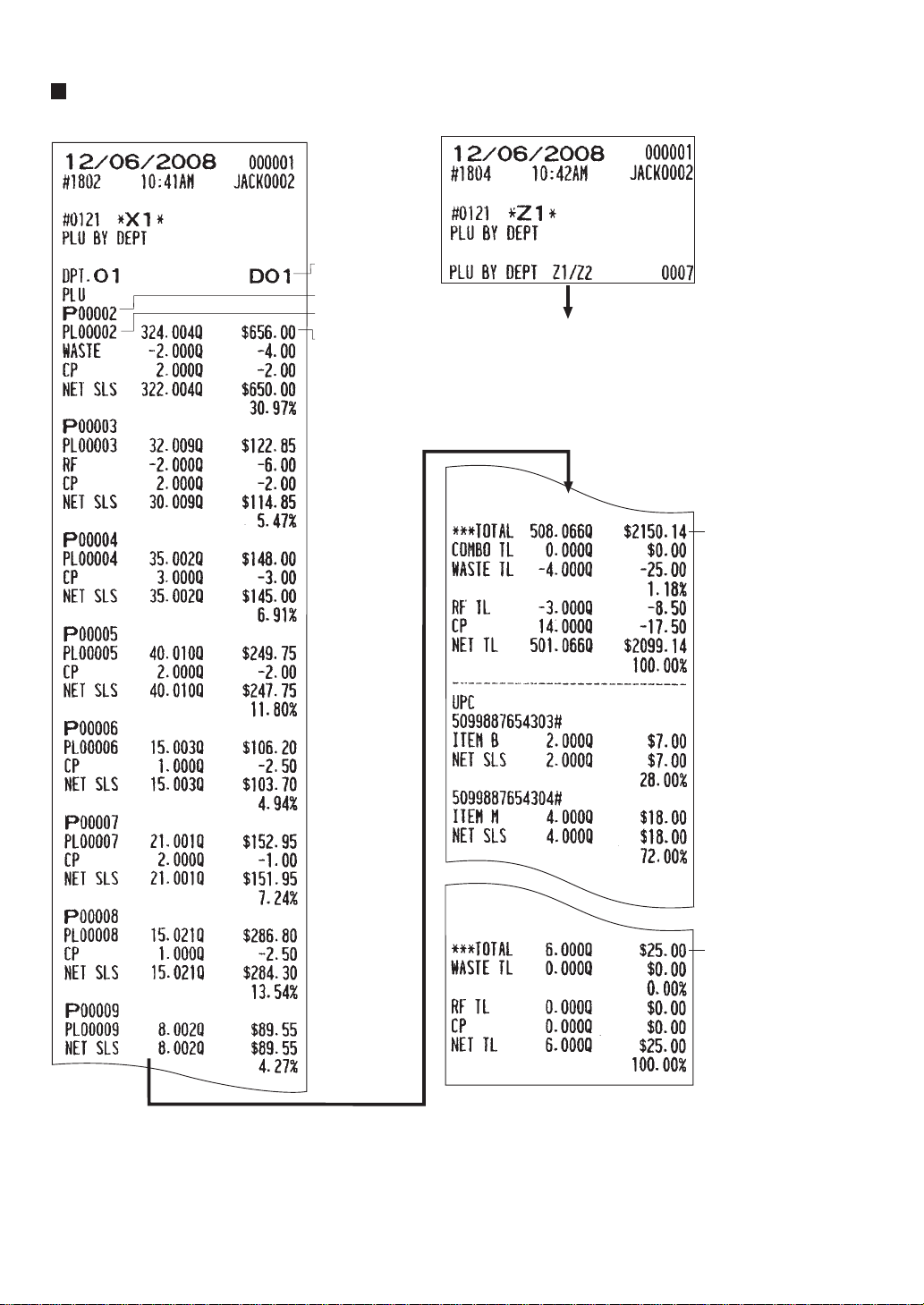
— 99 —
PLU/UPC report by associated department
• Sample X report
Associated
dept. code
Sales q'ty and
amount for
price level 1
PLU code
Item label
• Sample Z report
The subsequent printout occurs
in the same format as in the
sample X report.
Total sales q'
ty and
total sales amount
for price level 1
Total sales q'
ty
and total sales
amount for
price level 6
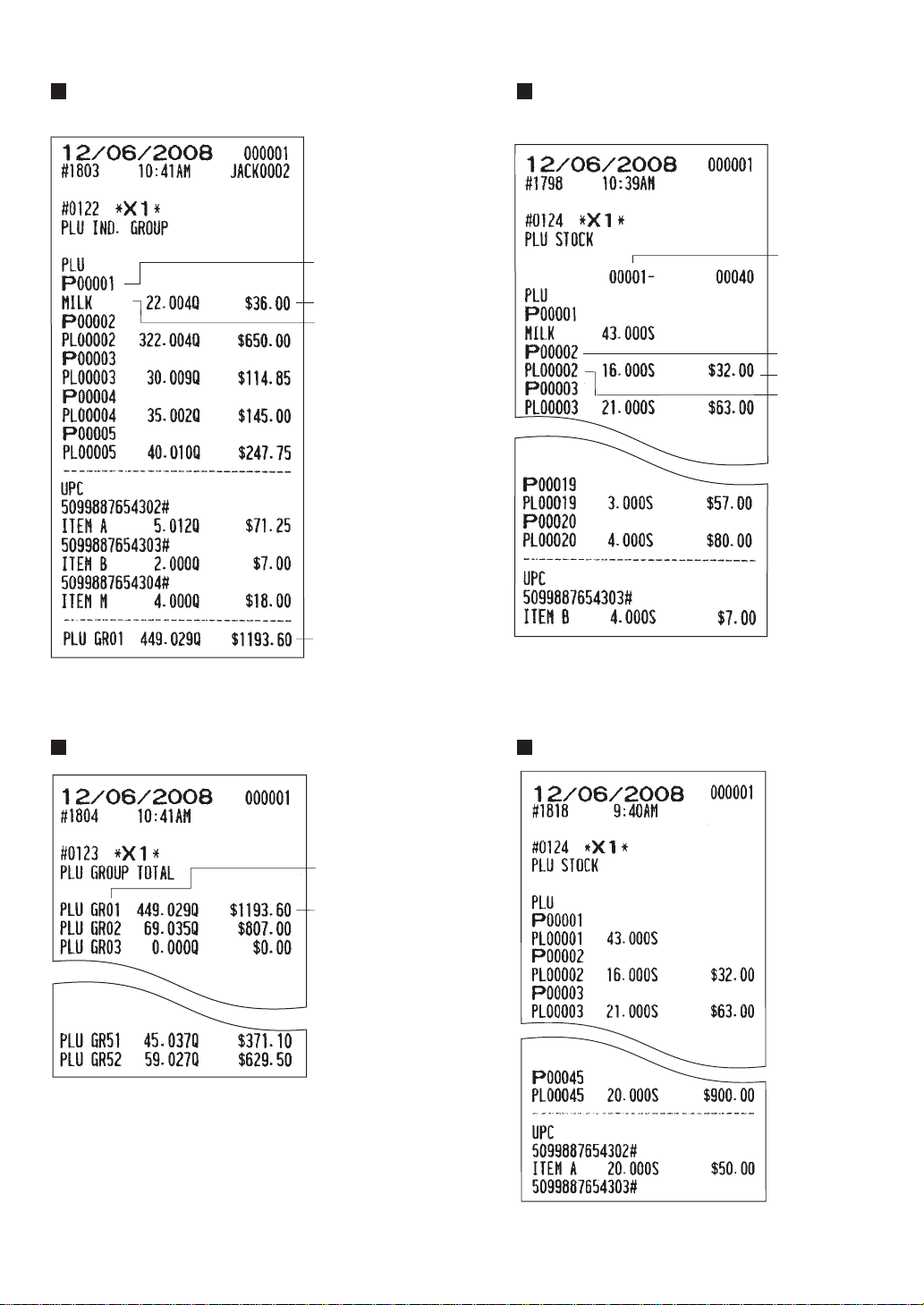
— 100 —
Individual group report on PLUs/UPCs PLU/UPC stock report by
designated range
Full group total report on PLUs/UPCs PLU/UPC stock pick up report
Sales q
'
ty and
amount for PLU
group 1
Item label
Stock q
'
ty
PLU code
Item label
Range
PLU code
Sales q'
ty and
amount for price level 1
Item label
Group 1 sales
q ty and amount
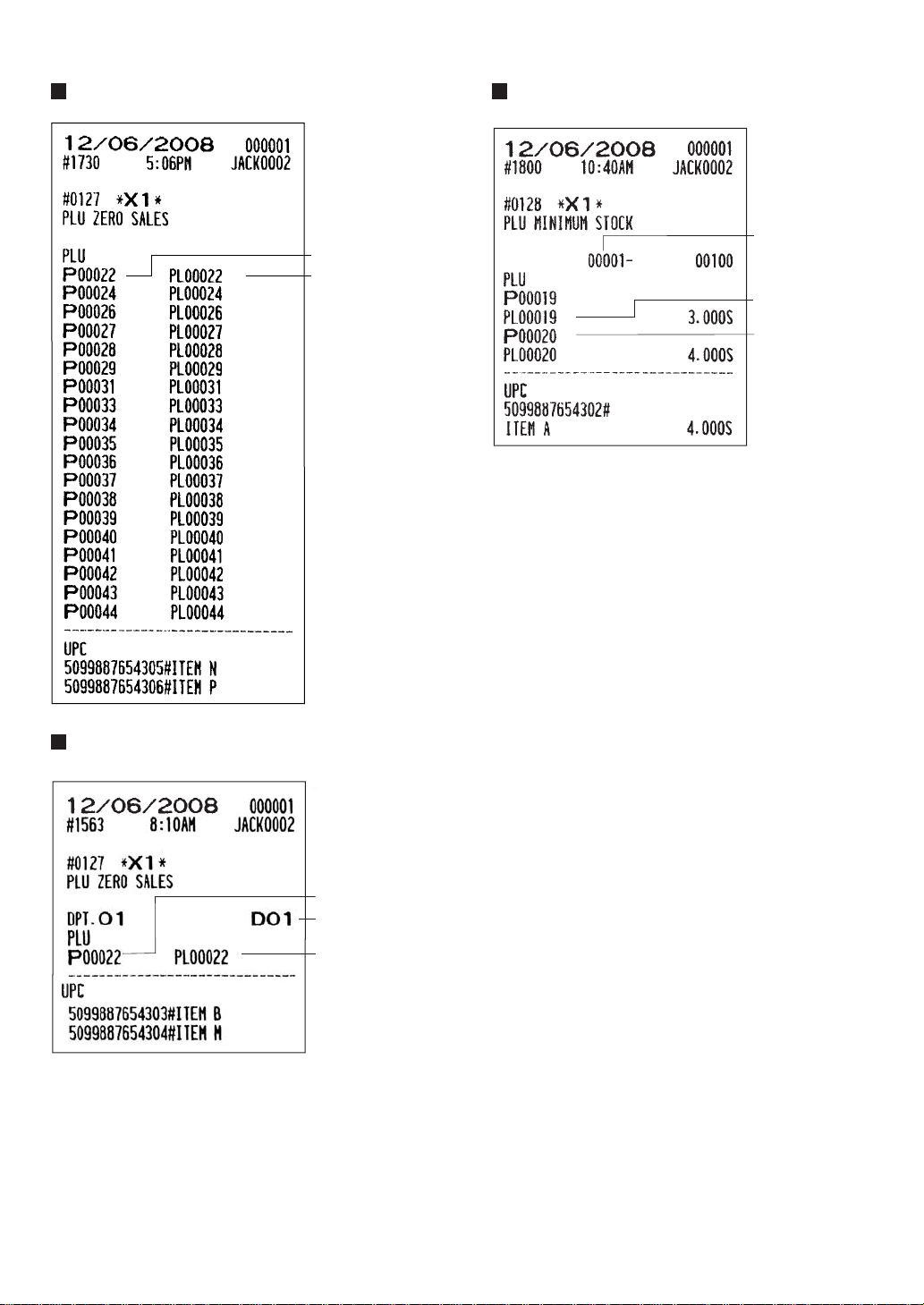
— 101 —
PLU/UPC zero sales report (full) PLU/UPC minimum stock report
PLU/UPC zero sales (by dept.) report
Item label
Associated dept. code
PLU code
Item label
Range
PLU code
Item label
PLU code
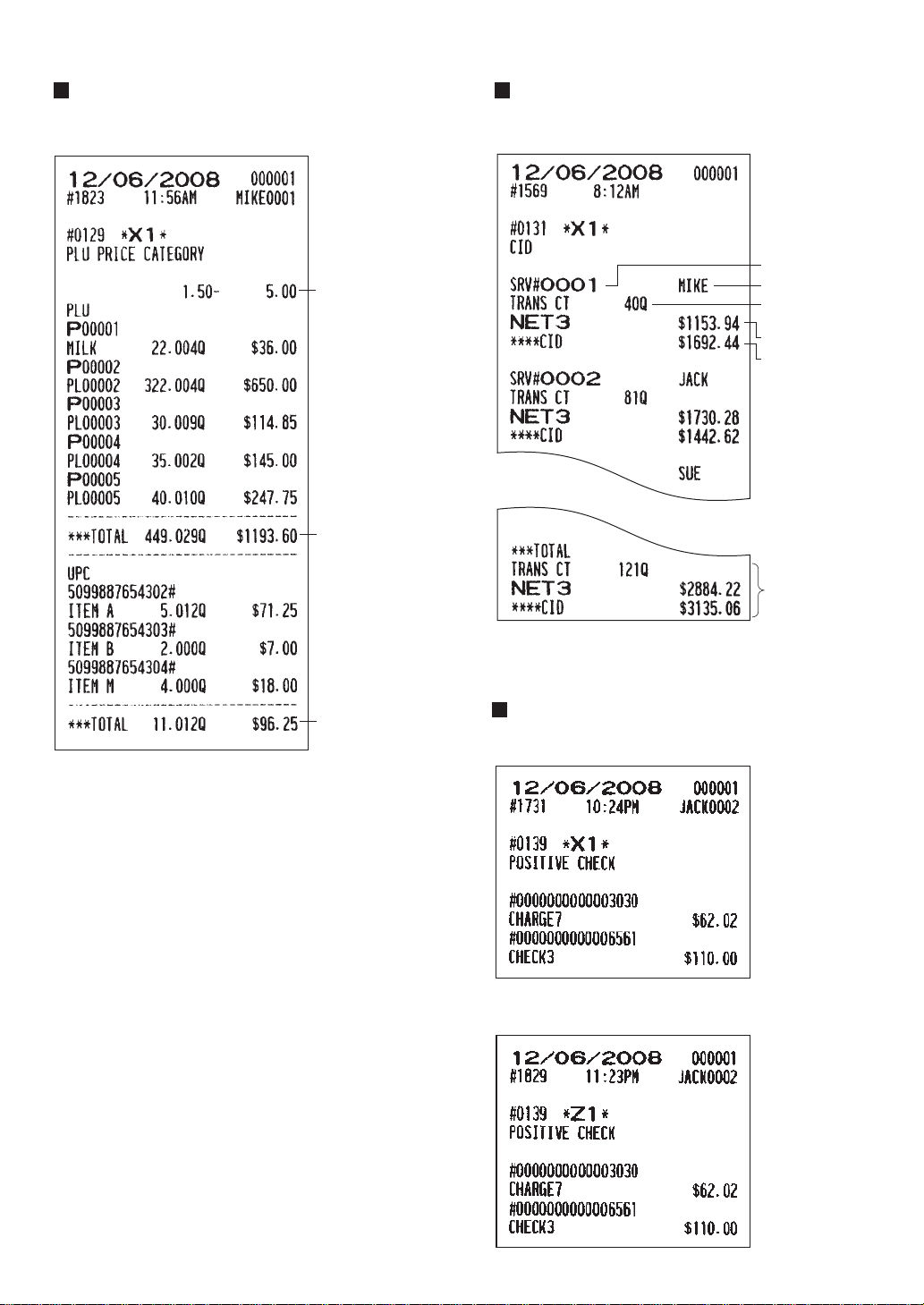
— 102 —
PLU/UPC price category report Cash in drawer report
Positive check report
• Sample X report
Price range
Price level 1
Price level 1
• Sample X report
Server code
Cash in drawer
Sales total
Server name
Transaction
counter
Total
• Sample X report
• Sample Z report
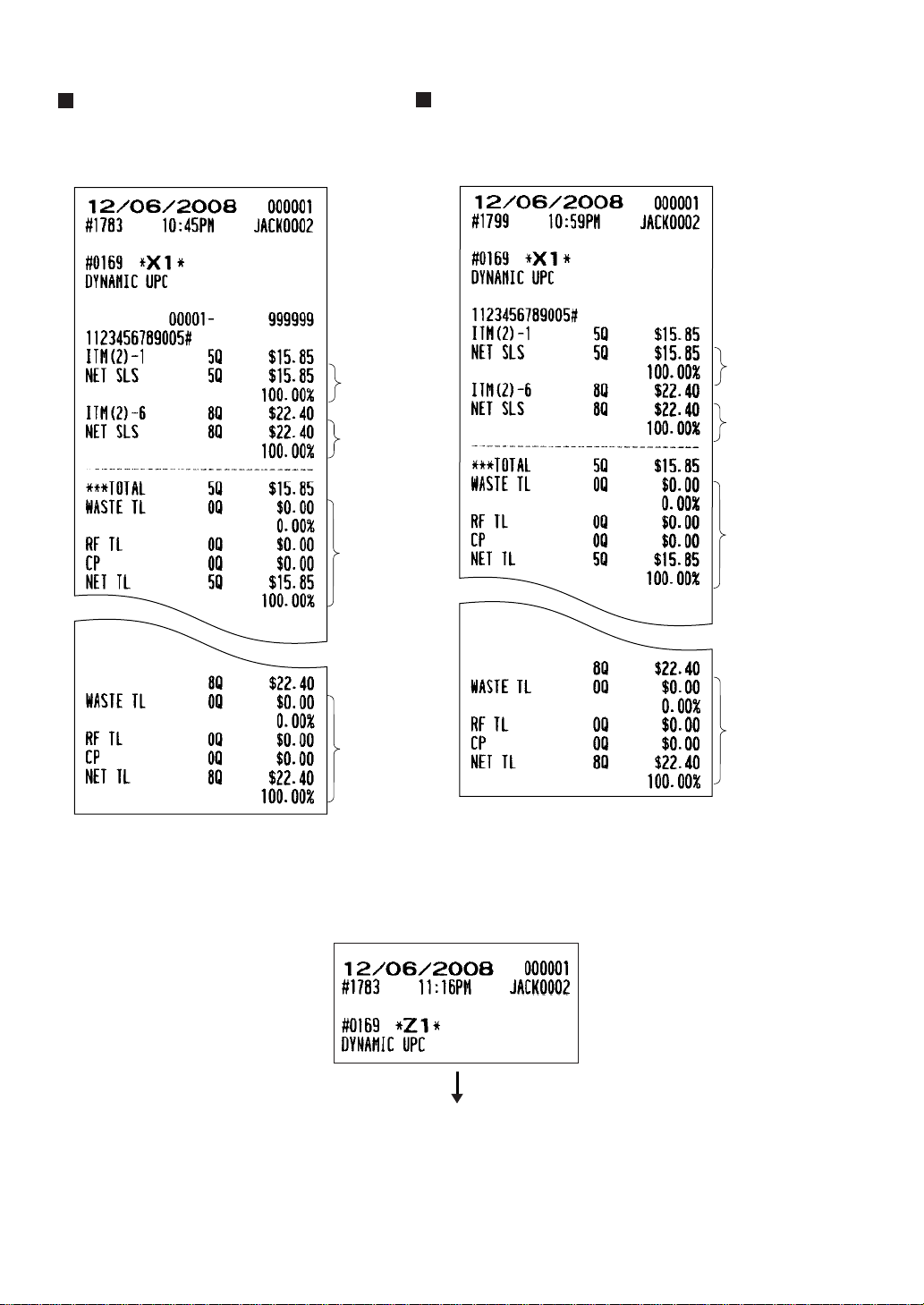
— 103 —
DynamicUPC report
by designated range
DynamicUPC pick up report
• Sample X report • Sample X report
*1
*1
*1
*1
*1
*1
*1
*1
• Sample Z report
The subsequent printout occurs
in the same format as in the
sample X report.
*1
If you need these information, please consult your dealer.
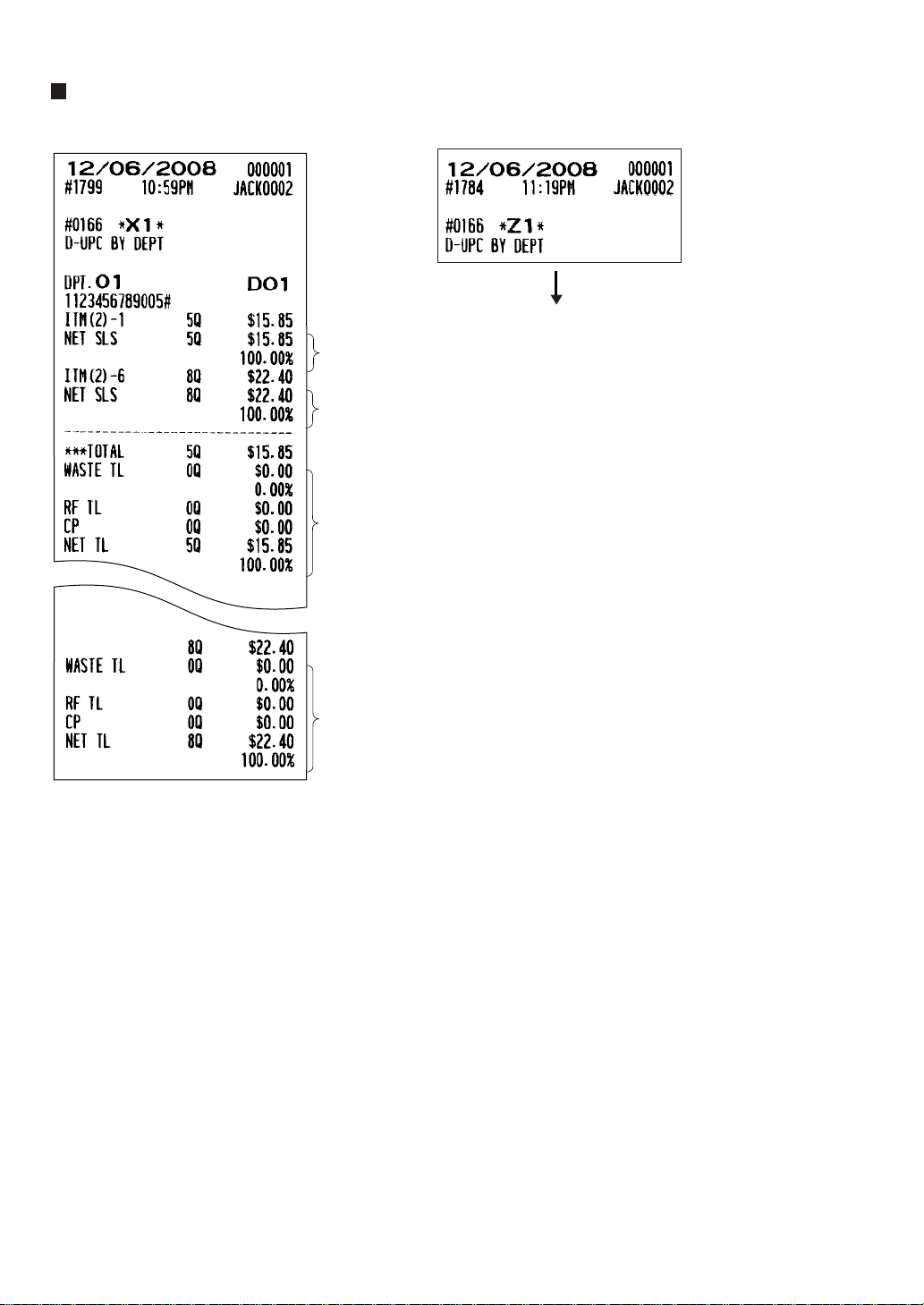
— 104 —
• Sample X report
• Sample Z report
*1
*1
*1
*1
The subsequent printout occurs
in the same format as in the
sample X report.
*1
If you need these information, please consult your dealer.
Dynamic UPC report by associated department
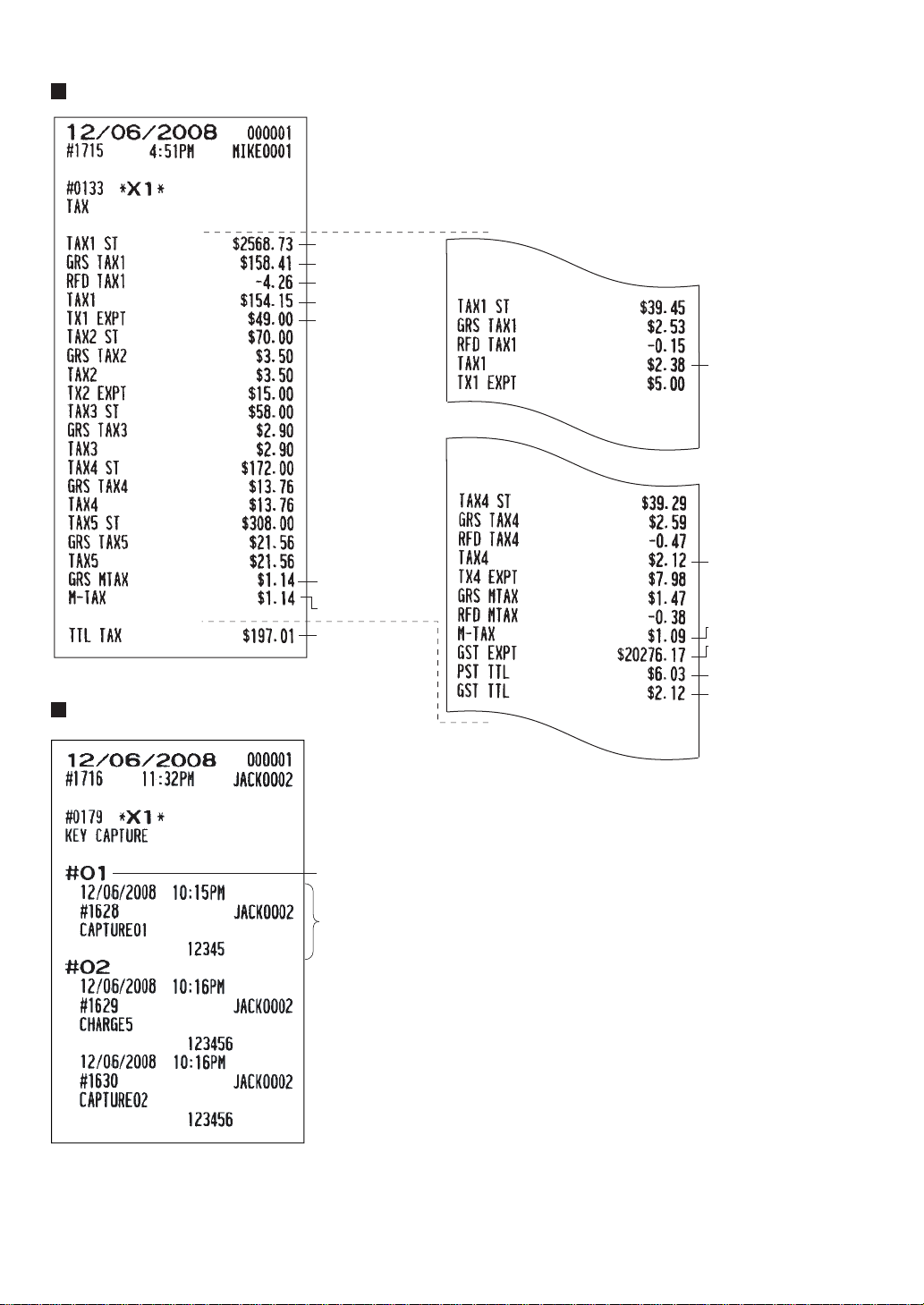
— 105 —
Tax report
Net manual tax total
Gross manual tax
total
Taxable 1 exempt
total
Net tax 1 total
Refund tax 1 total
Gross tax 1 total
Net taxable 1 total
Tax 1
Tax 4
Manual tax
Exempt total from
GST
PST total
GST total
(When the Canadian tax system
is selected)
Tax total
Capture job no.
Capture information
Key capture report
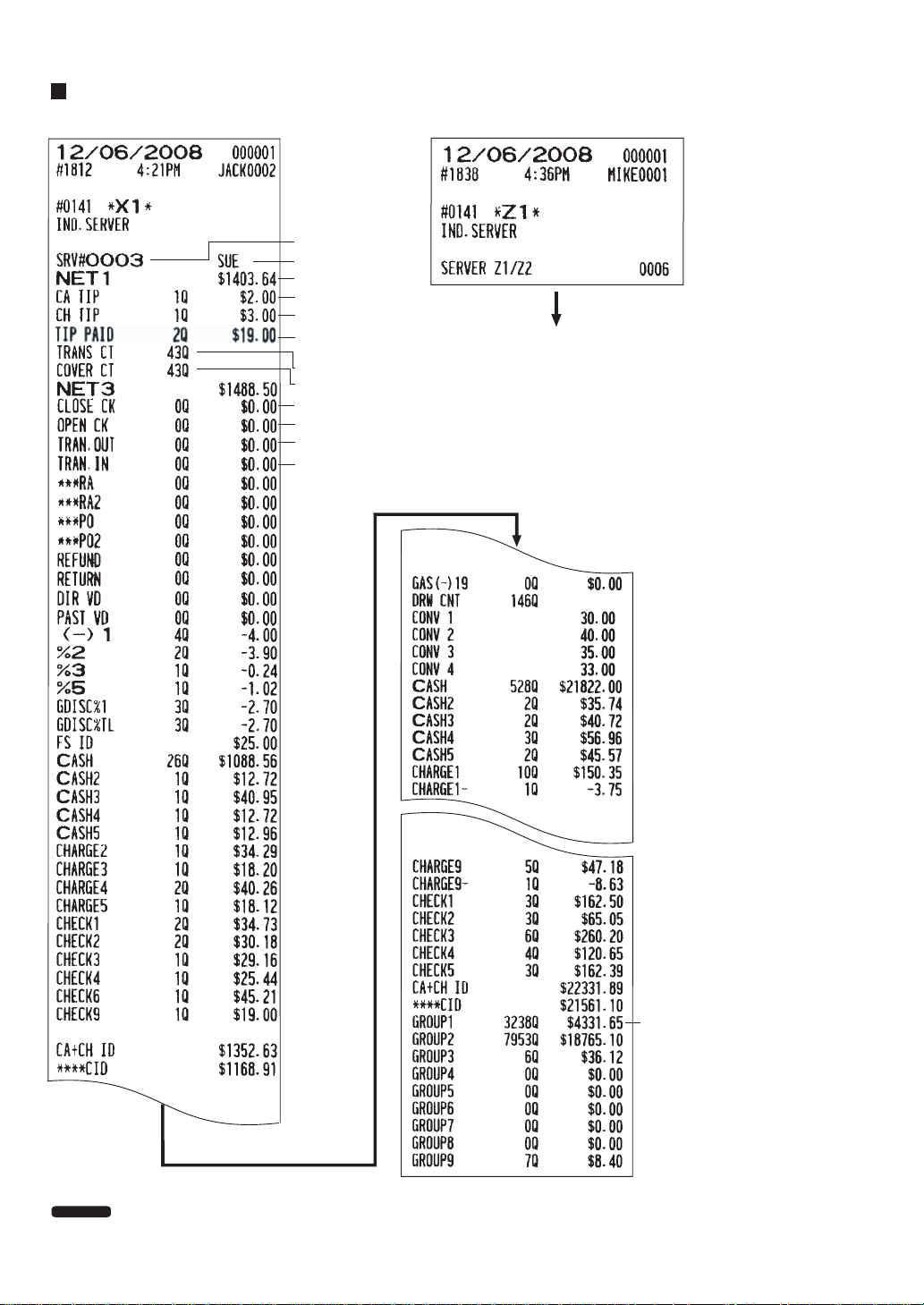
— 106 —
• Sample X report • Sample Z report
Charge tip-in
Cash tip-in
Tip paid counter
and total
Net sales total
Transfer-out counter and total
Open GLU/PBLU counter and total
Transfer-in counter and total
Closed GLU/PBLU counter and total
Server name
Cover counter
Transaction counter
Server code
Server group 1
total
The subsequent printout occurs
in the same format as in the
sample X report.
Individual server report
NOTE
When the tip amount remains unchanged in Individual Server Resetting, the tip paid function is
automatically executed and a tip receipt is printed on the report printer prior to report printing.
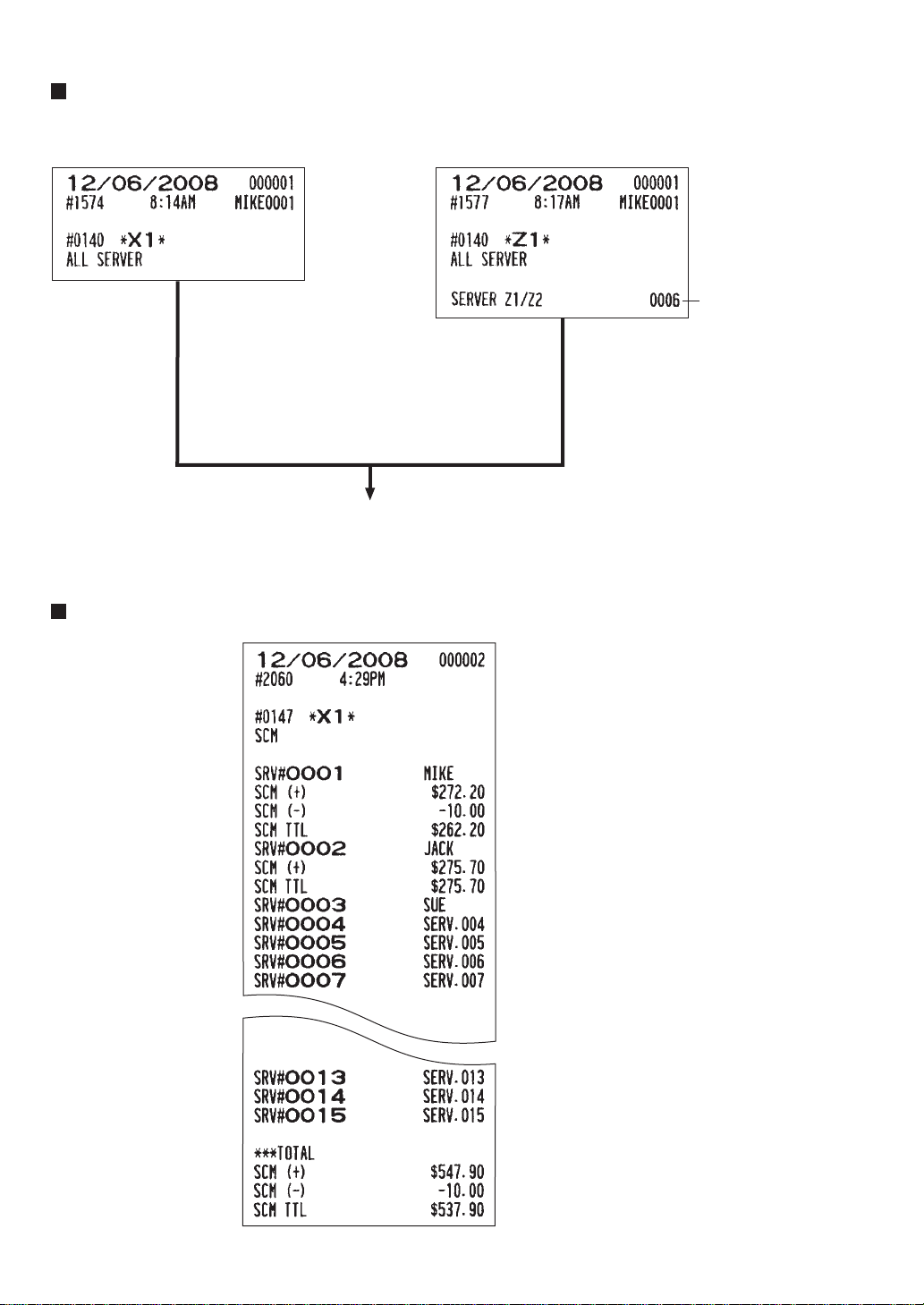
— 107 —
Full server report
• Sample X report • Sample Z report
The subsequent printout occurs
in the same format as in the sample report shown in
the “Individual server report”; and sales data
on servers print in this sequence.
Reset counter
SCM(Starting cash memory )report
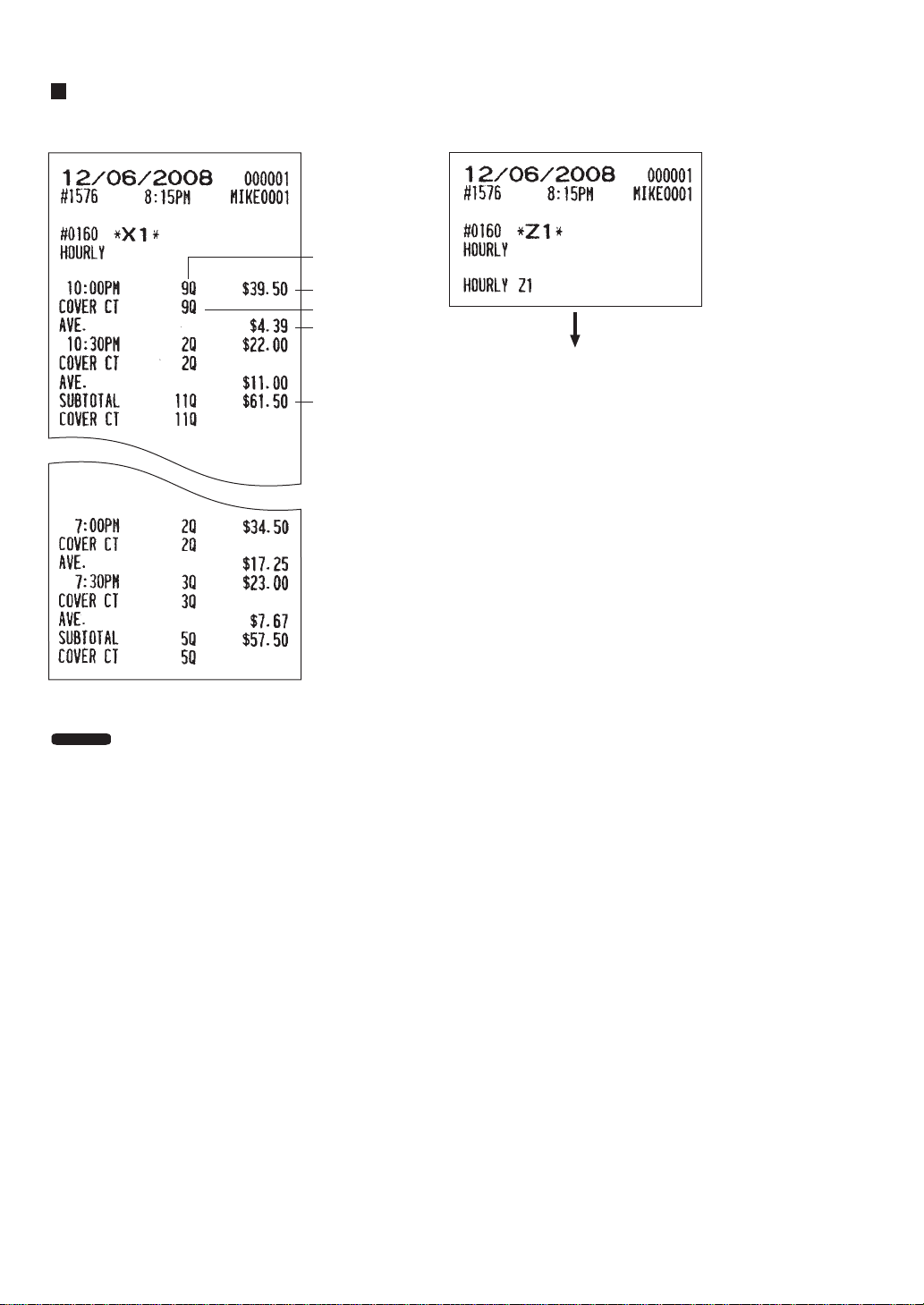
— 108 —
Hourly report
The hourly report can be formatted by 15
min., 30 min., or 1 hour intervals
depending upon programming.
NOTE
• Sample X report
Cover counter
Sales total
Subtotal
(10:00 - 10:59)
Average sales
amount per
customer
(Sales total/
cover counter)
Transaction
counter
The subsequent printout occurs
in the same format as in the
sample X report.
• Sample Z report
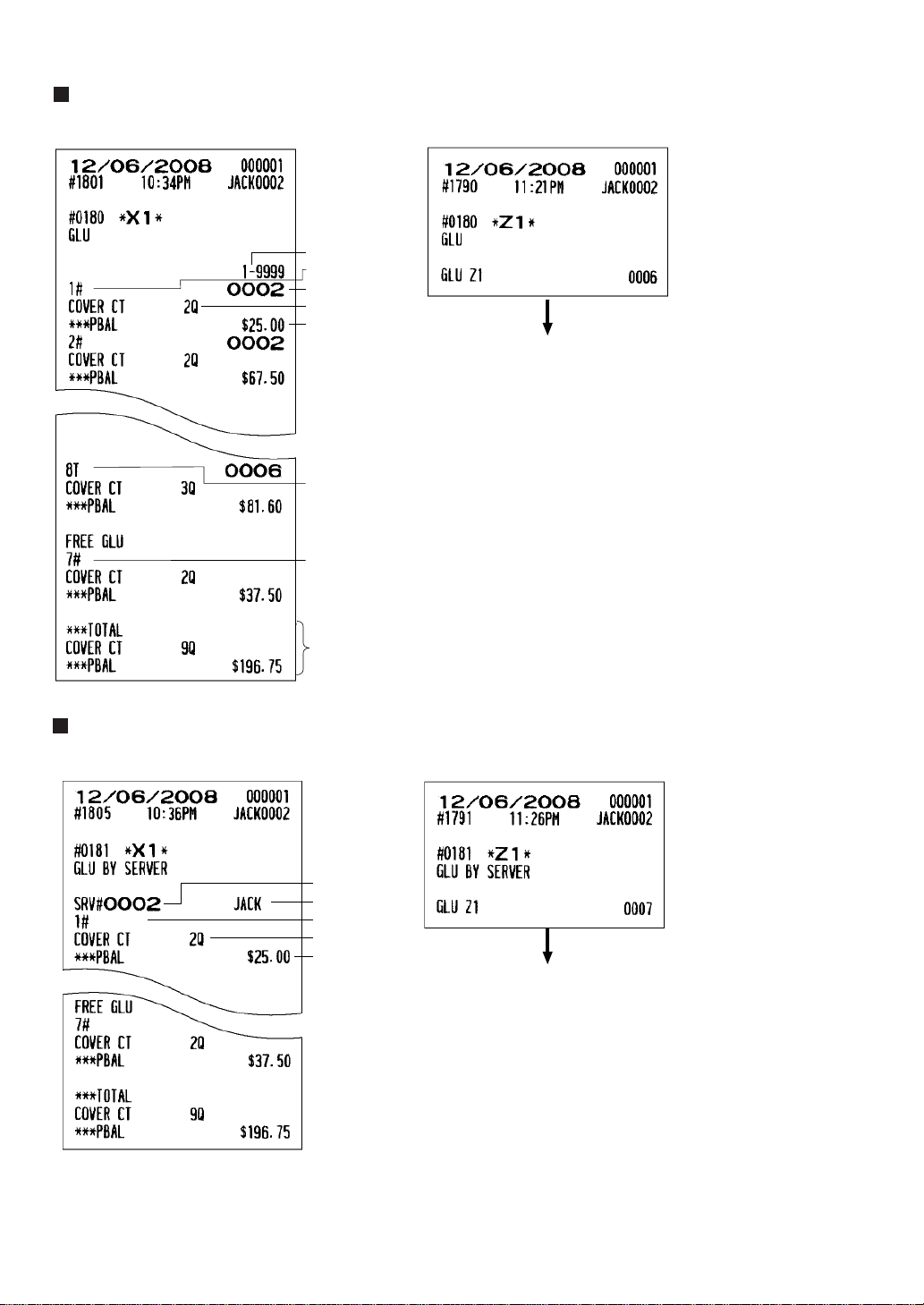
— 109 —
Server code
Cover counter
Balance amount
Table#/PBLU code
Range
“T”: This table#/PBLU code was used in the training mode.
Free table#/PBLU code
(This number or code has been transferred out.)
Total
The subsequent printout occurs
in the same format as in the
sample X report.
Balance amount
Cover counter
Table#/PBLU code
Server code
Server name
The subsequent printout occurs
in the same format as in the
sample X report.
• Sample X report
• Sample Z report
• Sample X report
• Sample Z report
GLU/PBLU report by server
GLU/PBLU report
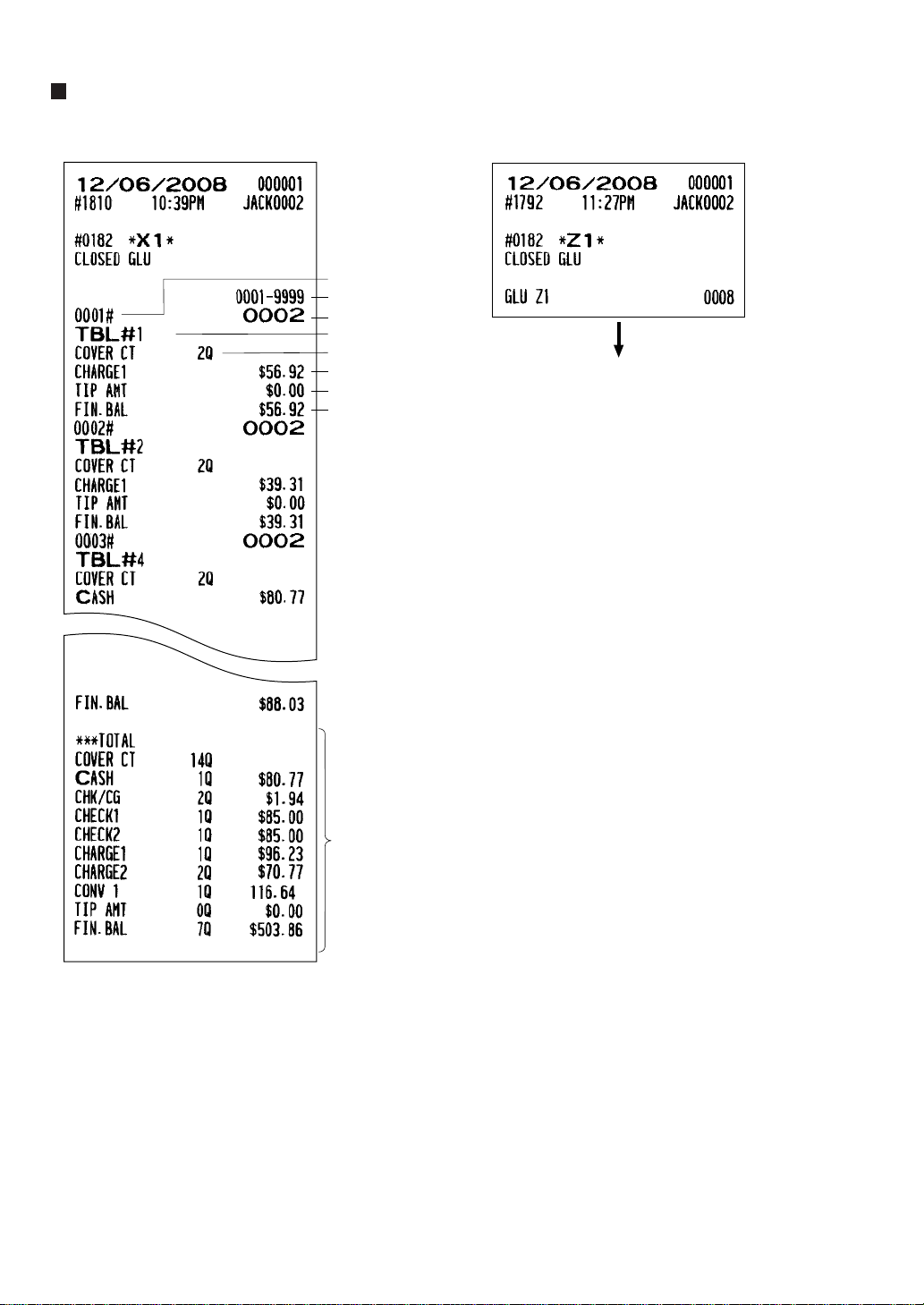
— 110 —
Closed GLU/PBLU report
• Sample X report • Sample Z report
Cover counter
Server code
Bill range
Table#
Bill no.
Total
Amount
Tip amount by tip edit
Final balance amount
The subsequent printout occurs
in the same format as in the
sample X report.
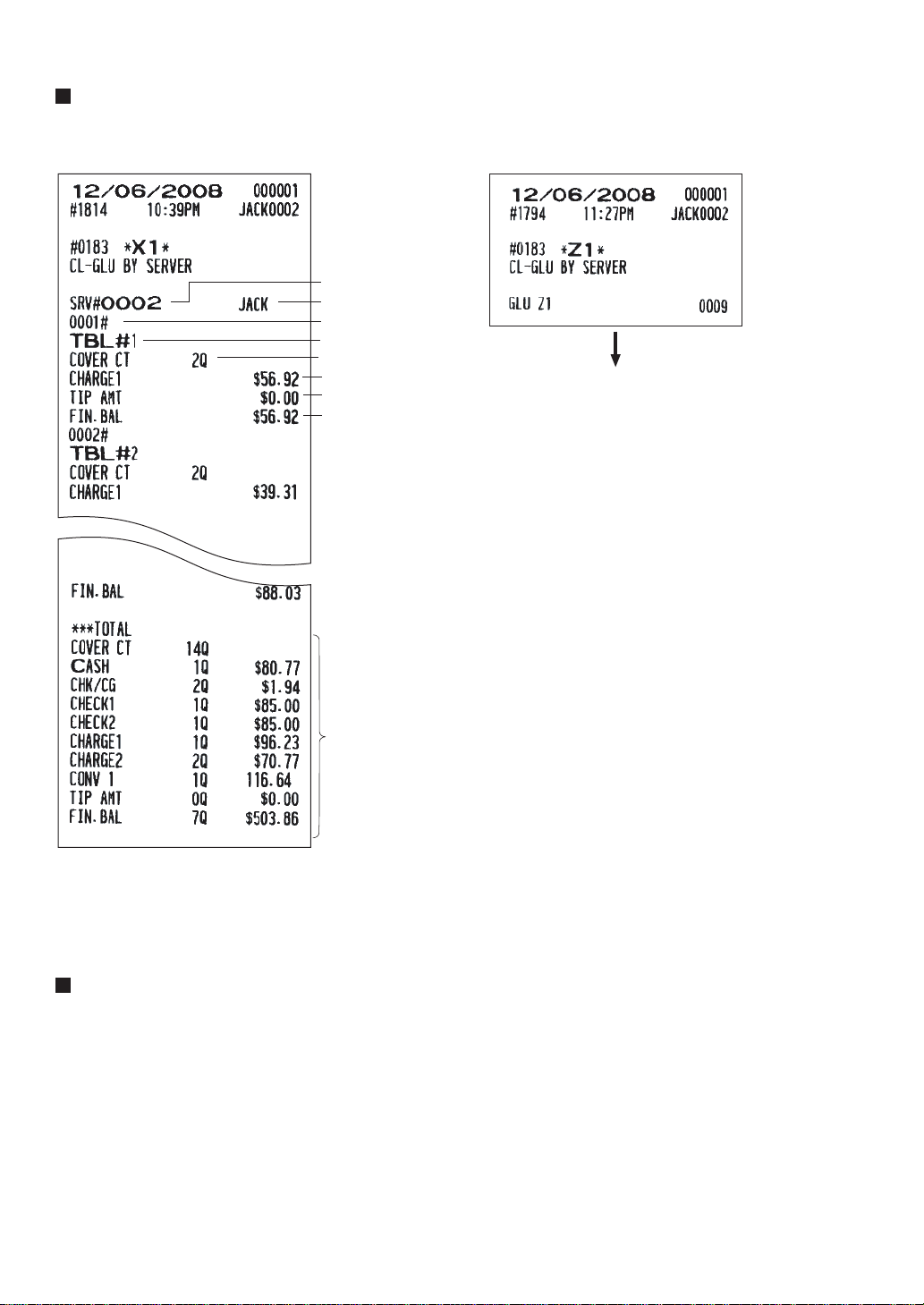
— 111 —
83
Closed GLU/PBLU report by server
• Sample X report • Sample Z report
The subsequent printout occurs
in the same format as in the
sample X report.
X1/Z1 stacked reports
You can print multiple X1/Z1 reports in sequence under a single report job number. In this case, you need to
program in advance which X1/Z1 reports should be printed. Refer to “Stacked report” under the section
“Report Programming” in Chapter 13.
Cover counter
Server code
Server name
Table#
Bill no.
Total
Amount
Tip amount by tip edit
Final balance amount
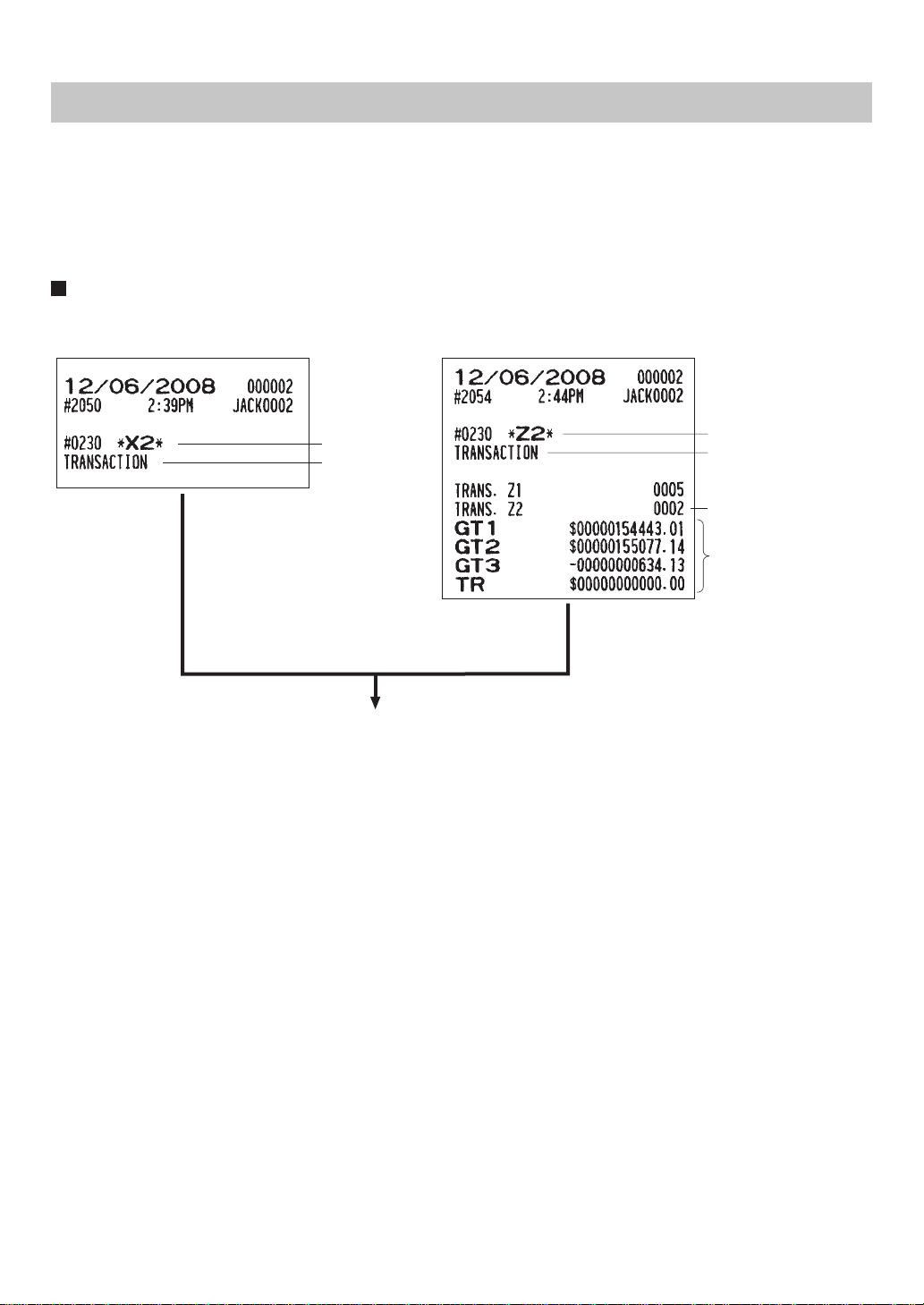
— 112 —
Periodic Consolidation
Your POS terminal allows you to take consolidation X and Z reports of a chosen period (the period is usually
one week or month).
• General overview
The periodic reading or resetting reports are the same in format as those in the X1/Z1 report for daily sales
information except mode indication (“X2” or “Z2”).
Transaction report
• Sample X report • Sample Z report
The subsequent printouts are the same in format
as those in the X/Z report on daily totals.
Reset counter of
periodic consolidation
Grand totals
Read symbol
Report title
Reset symbol
Report title
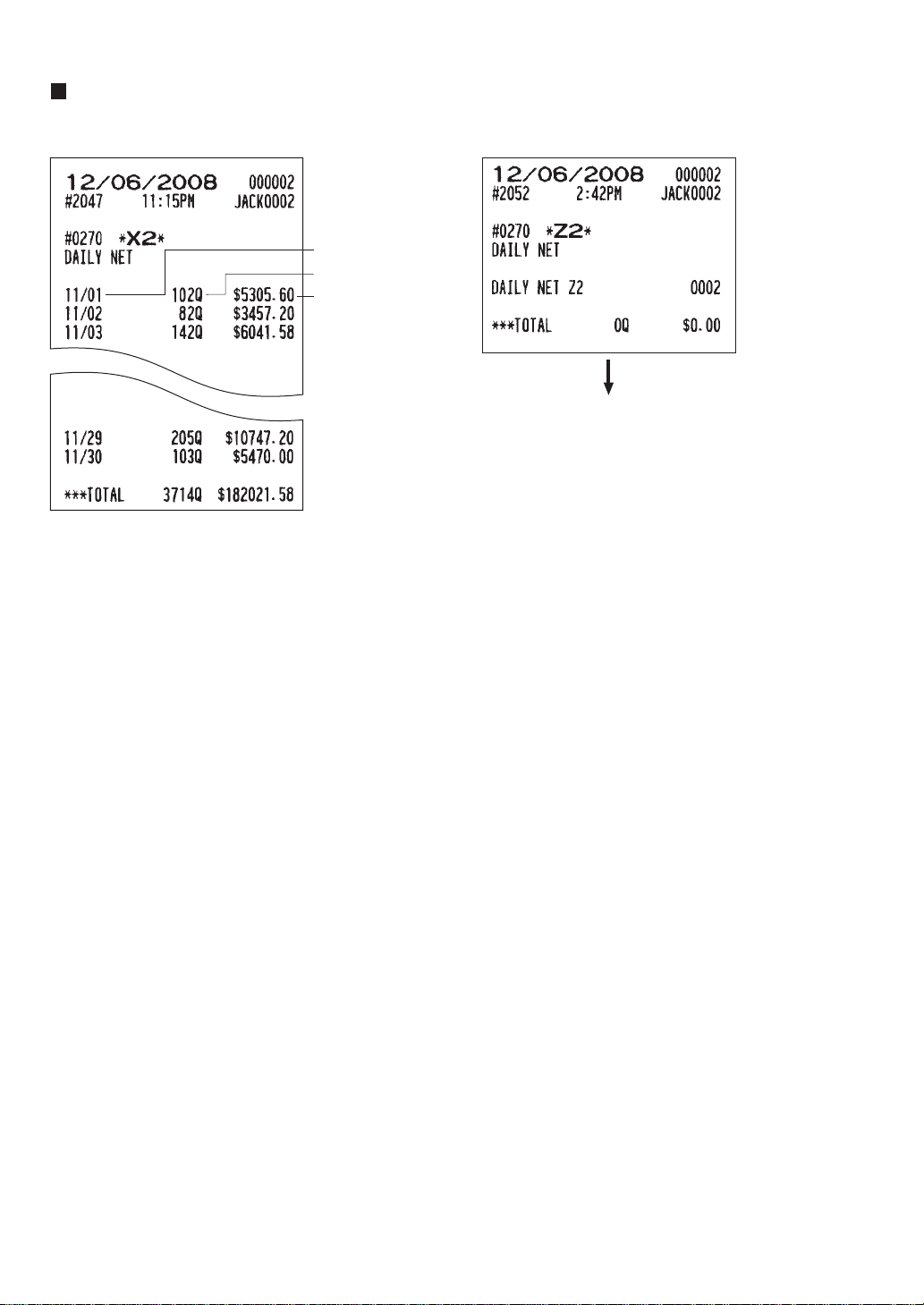
— 113 —
Daily net report
• Sample X report • Sample Z report
Transaction counter
Date
Sales total
The subsequent printout occurs
in the same format as in the
sample X report.
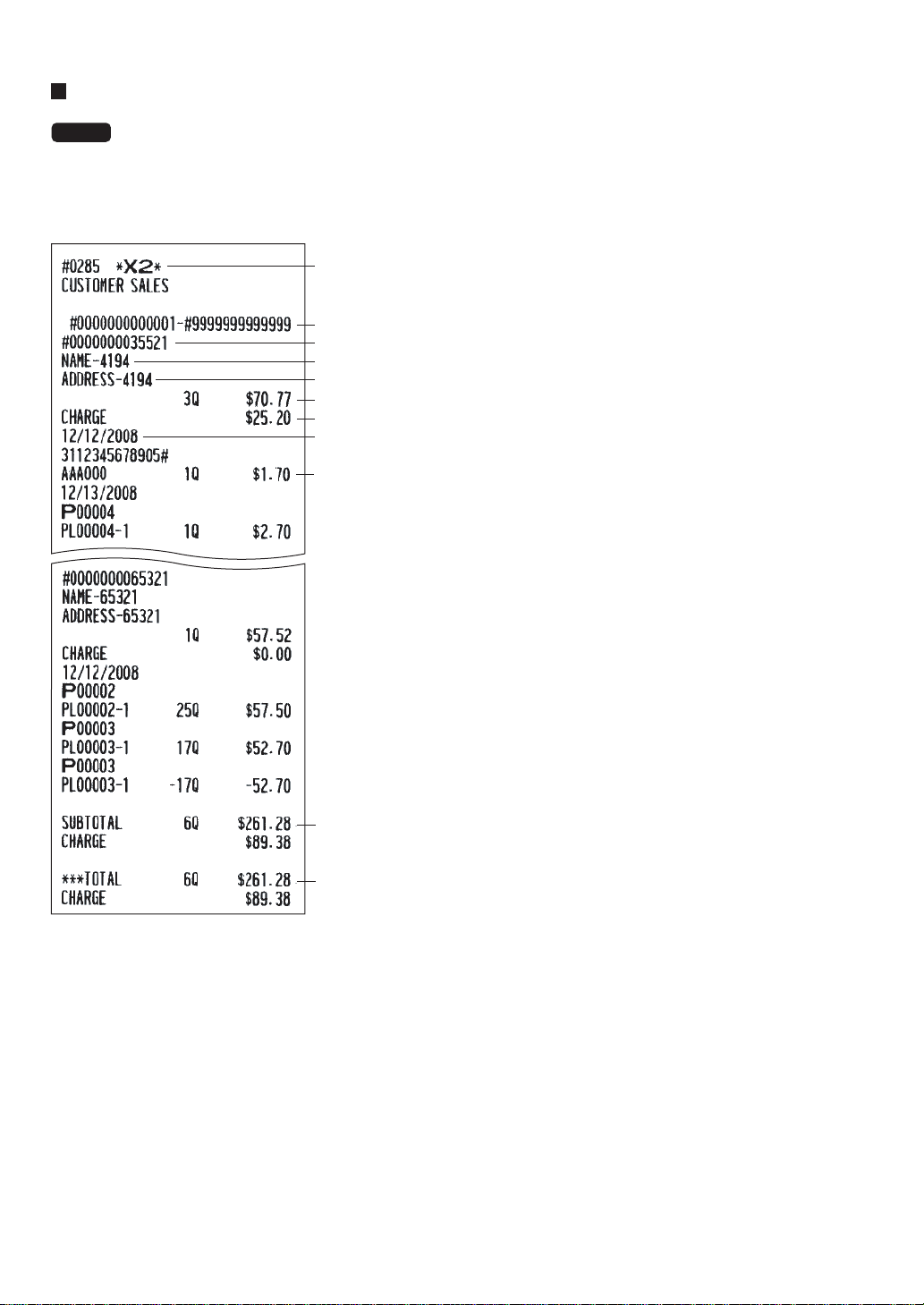
— 114 —
Customer sales report
NOTE
Customer details only report and customer sales all report are printed in the same format.
You can print either report depending on the programming of CUSTOMER DATA in FUNC.SELECT2
menu. On the customer details only report, you can print details (date/sales item) only. On the customer
sales all report, you can print (and reset in Z2 mode) accumulated sales q’ty/total and details.
* When you take a Z report, “Z2” is printed instead of “X2”.
*
Code range
The full total on the customer file
Subtotal on the report
Sales items
Date
Charge account
Sales q’ty and total
Address
Name
Customer code
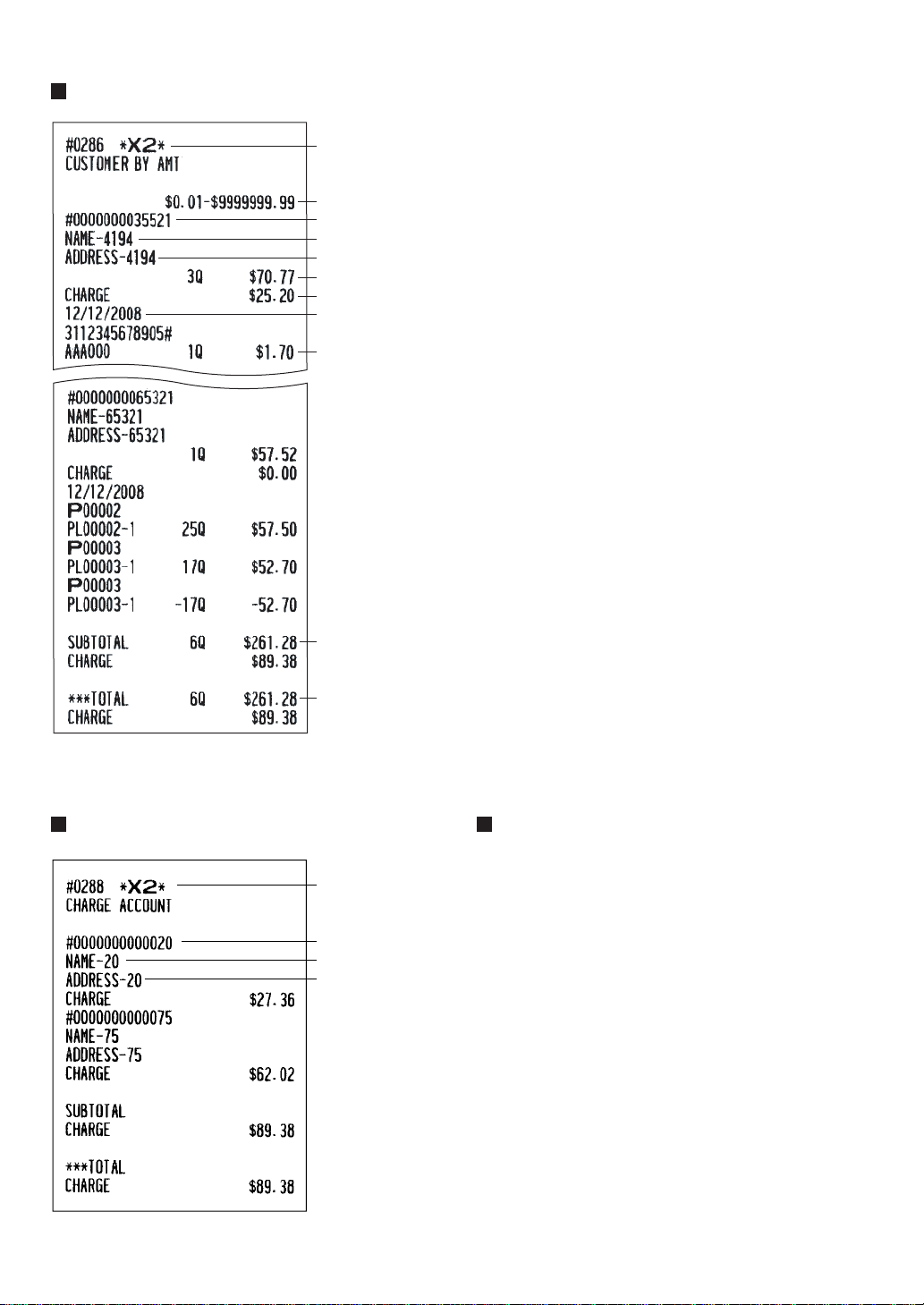
— 115 —
Sales range
*
The full total on the customer file
Subtotal on the report
Sales items
Date
Charge account
Sales q’ty and total
Address
Name
Customer code
*When you take a Z report, “Z2” is
printed instead of “X2”.
Customer sales report by sales range
Customer charge account report X2/Z2 stacked report
You can print multiple X2/Z2 reports in sequence under
a single transaction. In this case you need to program
in advance which X2/Z2 reports should be printed.
Refer to “Stacked report” under “Report Programming”
in Chapter 13 “Programming.”
Customer code
Name
Address
*
* When you take a Z report, “Z2” is
printed instead of “X2”.

— 116 —
Electronic journal
This function is intended to record the journal data in the electronic paper. For details, consult your authorized
SHARP dealer.
• Recording data
The POS terminal records the printing output to the journal printer in REG, PGM1, PGM2, X1/Z1, and X2/Z2
modes into the electronic journal file.
• Reporting (X report)
The POS terminal reports the journal data (same as normal journal formats) in the electronic journal file by
the report printer or the display.
Operation: Select the reading operation “E.JOURNAL” in the X1/Z1 mode.
It is possible to designate the range or code as follows:
C.C. No. (Consecutive no.): ALL or RANGE (designate start no./end no.)
DATE (Date): ALL or RANGE (designate start date/end date)
TIME (Time): ALL or RANGE (designate start time/end time)
SERVER (Server/Cashier code): ALL or INDIVIDUAL (designate server/cashier code)
• Resetting (Z report)
It is possible to take the resetting report of the journal data in the electronic journal file by the report printer.
Operation: Select the resetting operation “E.JOURNAL” in X1/Z1 or OPXZ mode.
It is possible to designate the range (consecutive no./date/time) or server/cashier code as shown in the
Reporting (X report) paragraph can not be used.

— 117 —
Non-accessed UPC, Dynamic
UPC and Customer Code
Deletion
11
X1/Z1 MODE
X2/Z2 MODE
You can delete UPCs and customer codes that have not been accessed for a certain period. You can
program this period in the PGM2 mode. As for customer codes, you can delete any customer code with
regardless of the non-accessed period.
Follow the procedure below.
Non-accessed UPC deletion
1. Enter the X1/Z1 mode from the mode selection window.
2. Select “2 RESETTING ”.
3. Select “8 NON ACCESSED UPC” to delete non-accessed UPCs.
4. When you select“8 NON ACCESSED UPC”, select whether to delete all the non-accessed UPCs at a time
(1 ALL DELETE) or delete the non-accessed UPCs individually (2 IND.DELETE).
NOTE
It is recommended that you first take a report before deleting operation.
Dynamic UPC clear
1. Enter the X1/Z1 mode from the mode selection window.
2. Select “2 RESETTING”.
3. Select “9 D-UPC CLEAR” to clear a designated range of UPCs, “10 D-UPC CLEAR PICK” to pick up codes
one by one to clear them (see the “NOTE” on page 91), or “11 D-UPC CLEAR DEPT” to clear codes on an
associated department basis.
Non-accessed customer deletion
1. Enter the X2/Z2 mode from the mode selection window.
2. Select “5 NON ACCESS. CUST.”.
3. Select “1 READING” to take a report, or “2 DELETE” to delete non-accessed customer codes.
4. When you select “2 DELETE”, select whether to delete all the non-accessed customer codes at a time (1
ALL DELETE) or delete non-accessed customers codes individually (2 IND.DELETE).
NOTE
It is recommended that you first take a report before deleting operation.
Customer code deletion
1. Enter X2/Z2 mode from the mode selection window.
2. .”ETELED REMOTSUC 6“tceleS
3. Specify the range (start/end customer codes) you want to delete.
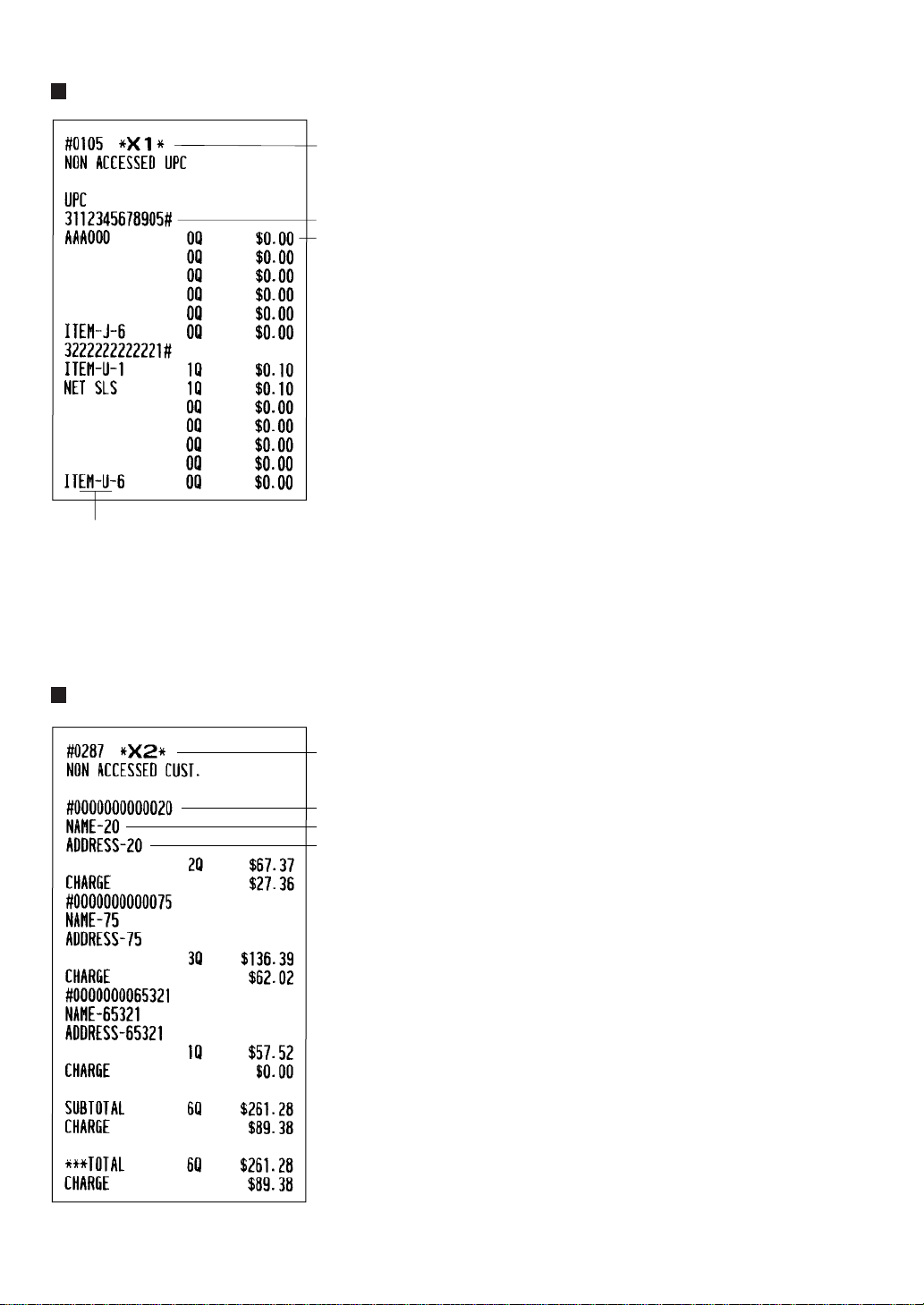
— 118 —
Non-accessed UPC report
Non-accessed customer report
*1 When you select “DELETE”, “Z1” is printed instead of “X1”.
*2 When there is any sales data of the UPC for PLU/UPC report, the data is printed here.
When you delete the UPC in Z1 mode under this situation, the UPC data for PLU/UPC report is also deleted.
* When you select “DELETE”, “Z2” is printed instead of “X2”.
Customer code
Name
Address
*
Item label
UPC code
*1
*2

— 119 —
Customer delete report
Dynamic UPC clear
Customer code
Customer range
Name
Address
(by designated range) (by pickup list)
(by associated dept.)
*1
*1
*1
*1
*1
If you need these information,
please consult your dealer.
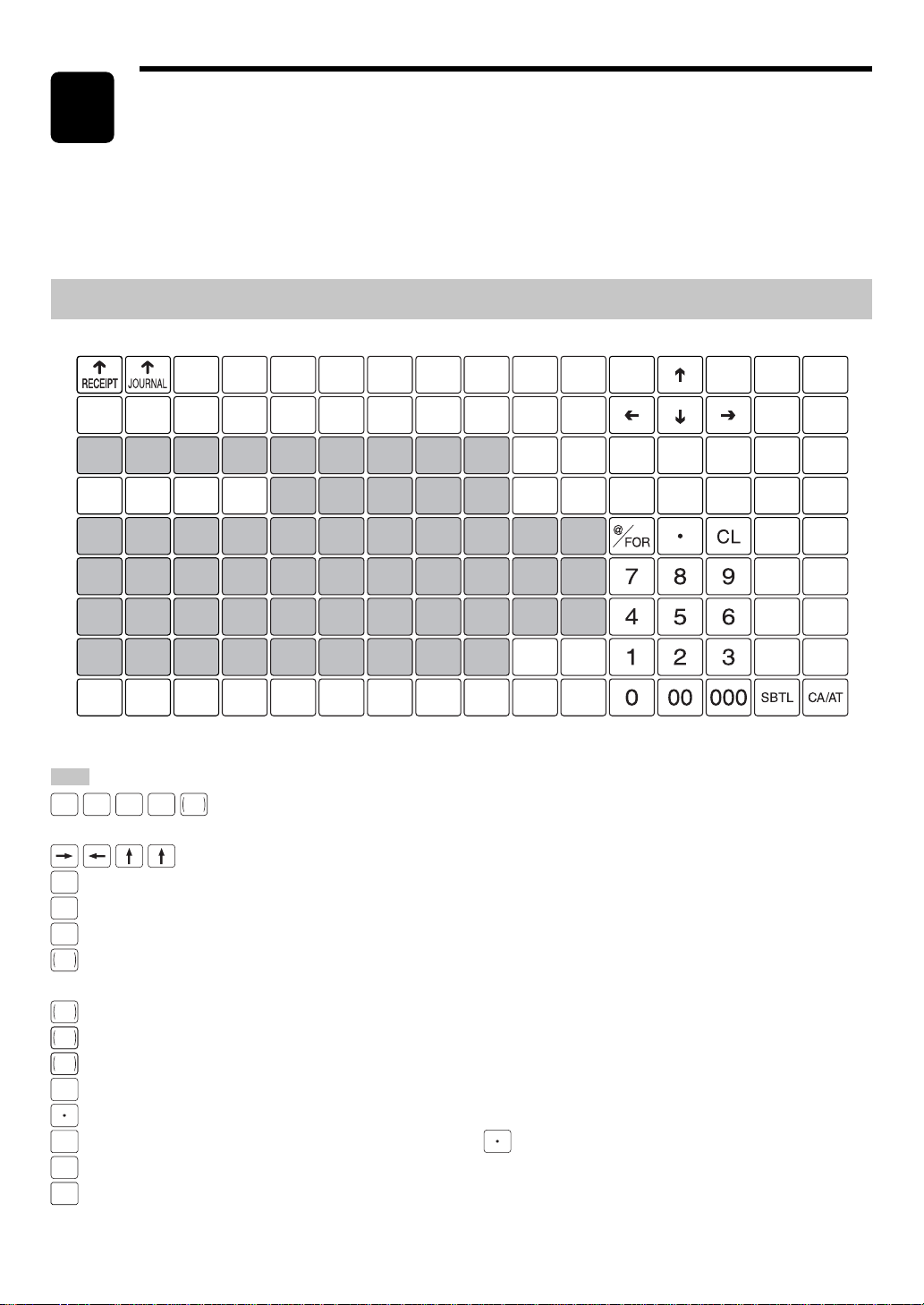
— 120 —
How to Use the Programming
Keyboard Sheet
The programming keyboard sheet is used for programming in the PGM 1 or 2 mode.
This sheet is transparent. Place the sheet over the standard key sheet or blank key sheet when
programming.
Programming Keyboard Layout
[ ] N _ - + { }
" ' ? < >
! @ # $ % ^ & * ( ) =
Q W E R T Y U I O P /
A S D F G H J K L ; :
Z X C V B N M , .
(DC)
(SHIFT) (SPACE) (SPACE) (SPACE) (SPACE) (SPACE) (SPACE) (SPACE) (SPACE) (SPACE) (SHIFT)
?
(PAGE
UP)
(BACK
SPACE)
(PAGE
DOWN)
(PREV.
RECORD)
(NEXT
RECORD)
(MODE) (HOME)
(CANCEL)
(INS)
( )
(DEL)
(ENTER)
(DC)
––
(UPDATE)
(RECALL)
( ) ( ) ( )
: The shaded area contains the character keys which are used for programming.
(SHIFT)
(DC)
(INS)
(DEL)
BACK
SPACE
: Used for entry of characters. For more information about characters for programming, see
the section “How to Enter Text Using Alphanumeric Characters. ”
: Used to move the cursor.
(ENTER)
: Used to enter each setting.
CA/AT
: Used to finalize programming.
(CANCEL)
: Used to cancel programming and to get back to the previous screen.
PREV.
RECORD
: Used to go back to the previous record, e.g., from the department 2 programming window back to the
department 1 programming window.
NEXT
RECORD
: Used to go to the next record, for example, in order to program unit prices for sequential departments.
PAGE
DOWN
: Used to scroll the window to go to the next page.
PAGE
UP
: Used to scroll the window to go back to the previous page.
CL
: Used to clear the last setting you have entered or clear an error state.
: Used to toggle between two or more options.
SBTL
: Used to list those options which you can toggle by the key.
(RECALL)
: Used to call up a desired code.
(UPDATE)
: Used to update PLU unit price or name.
Numeric keys: Used for entering figures.
12
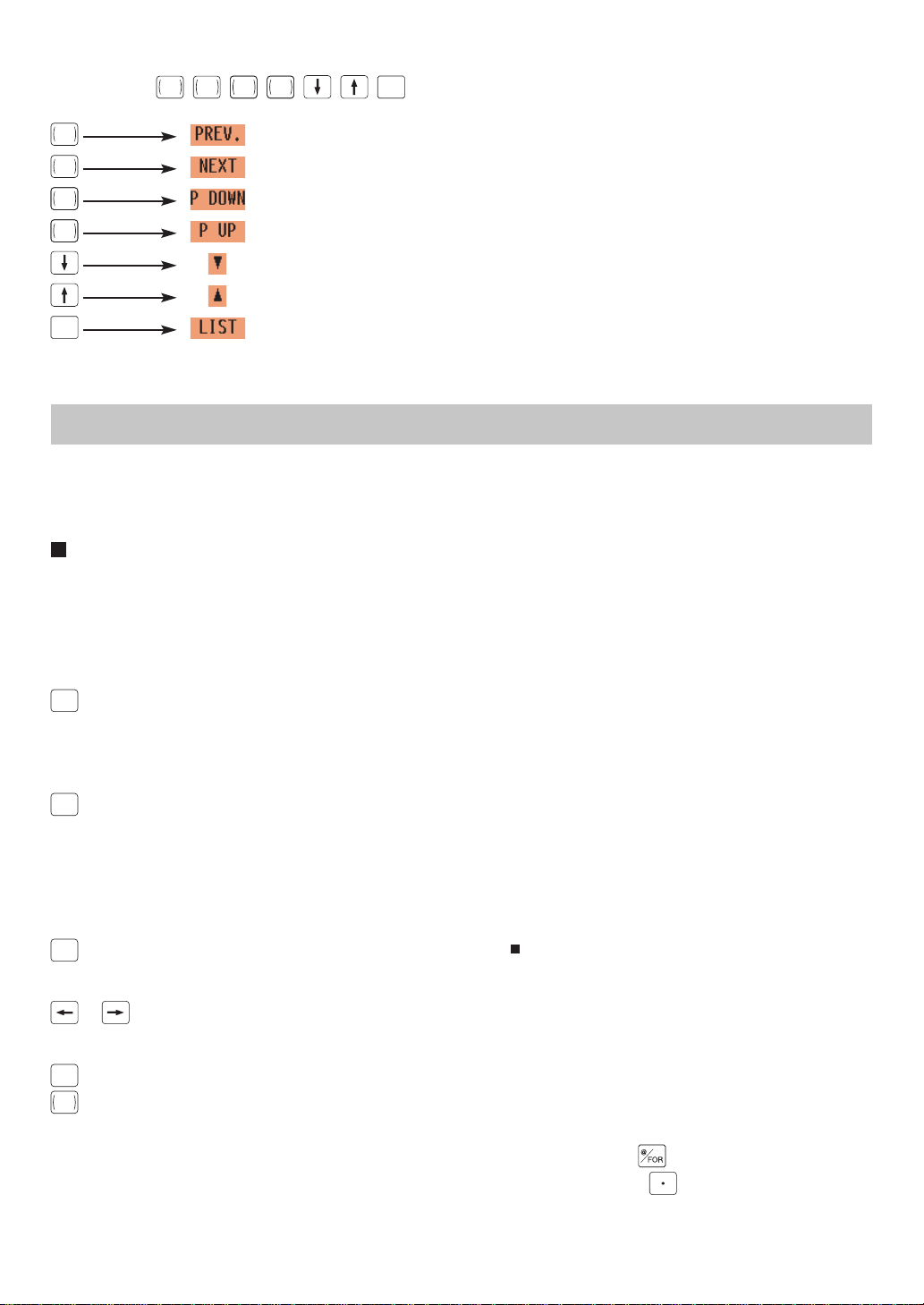
— 121 —
Regarding the
PREV.
RECORD
,
NEXT
RECORD
,
PAGE
DOWN
,
PAGE
UP
, , ,
SBTL
keys, you can use the corresponding keys on the screen to
perform the same actions:
PREV.
RECORD
NEXT
RECORD
PAGE
DOWN
PAGE
UP
SBTL
For more information about these keys, see the Basic Procedures section in Chapter 13 Programming.
How to Enter Text Using Alphanumeric Characters
This section discusses how to enter text using alphanumeric characters such as DESCRIPTION, NAME and
TEXT.
Using character keys on the keyboard
Entering alphanumeric characters
To enter a character, simply press the corresponding character key on the programming keyboard sheet.
To enter a digit, simply press the corresponding numeric key.
Entering double-size characters
(DC)
: This key toggles the double-size character mode and the normal-size character mode. The default is the
normal-size character mode. When the double-size character mode is selected, the letter “W” appears at the
bottom of the display.
Entering lower-case letters
(SHIFT)
:You can enter an upper-case letter by using this key. Press this key just before you enter the lower-case
letter. The shifted state is held until this key is pressed again.
Editing text
You can edit the text you have entered by deleting and/or inserting characters.
To select a text editing mode
(INS)
:Toggles between the insert mode (“_”) and the overwrite (“ ”) mode.
To move the cursor
or : Moves the cursor.
To delete a character or figure
(DEL)
: Deletes a character or figure in the cursor position.
BACK
SPACE
:Moves the cursor back and deletes the character or figure at the left of the cursor.
Text copy/paste
Copy (to the buffer) : Move the cursor to the target text line to copy, and press key.
Paste (from the buffer) : Move the cursor to the target text line to paste, and press key.
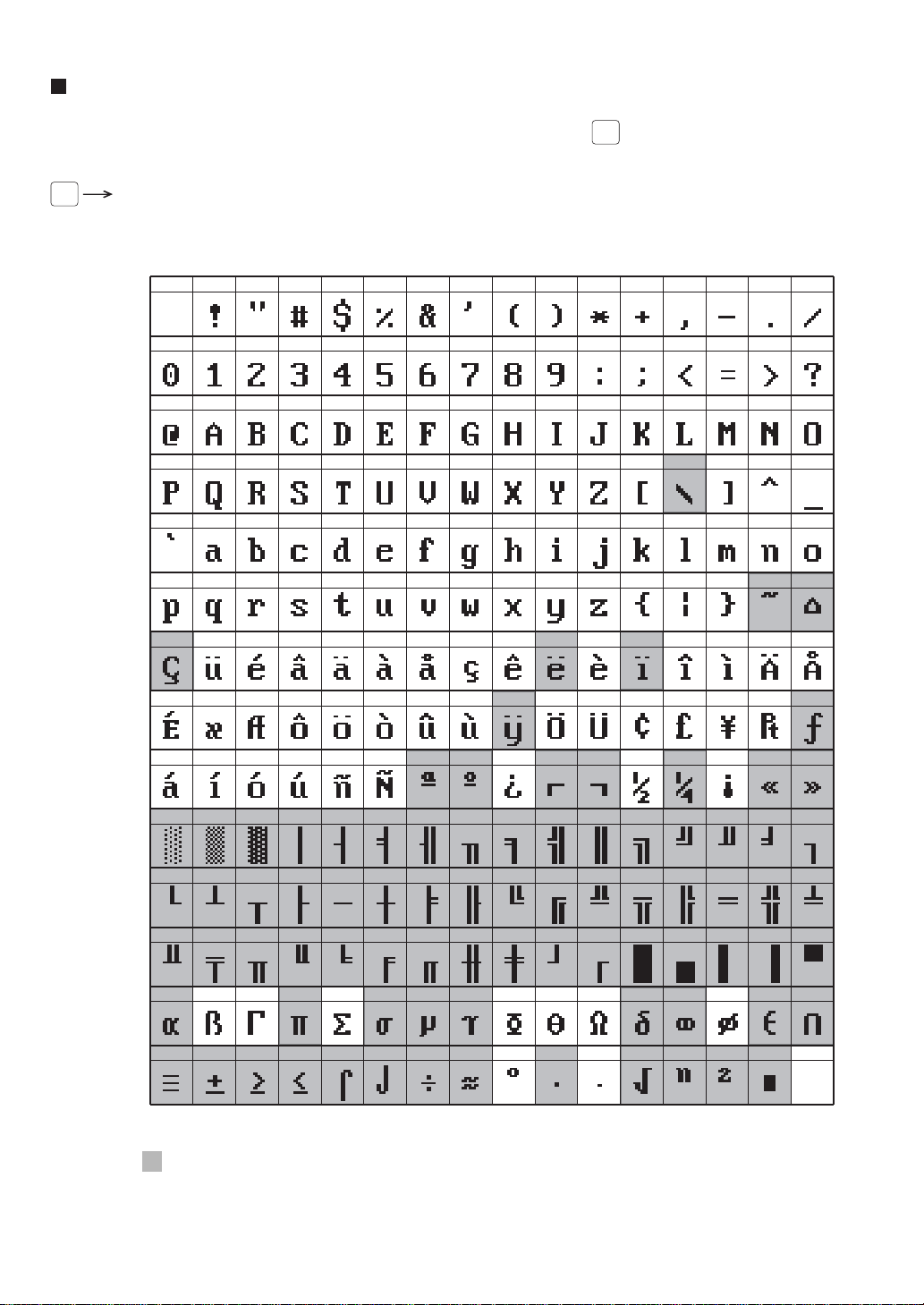
— 122 —
Entering character codes
Numerals, letters and symbol can be used for programming by pressing the
00
key followed by character codes.
Use the following procedure with the cursor placed at the position where you want to enter characters:
00
XXX XXX: Character code (3 digits)
032 033 034 035 036 037 038 039 040 041 042 043 044 045 046 047
048 049 050 051 052 053 054 055 056 057 058 059 060 061 062 063
064 065 066 067 068 069 070 071 072 073 074 075 076 077 078 079
080 081 082 083 084 085 086 087 088 089 090 091 092 093 094 095
096 097 098 099 100 101 102 103 104 105 106 107 108 109 110 111
112 113 114 115 116 117 118 119 120 121 122 123 124 125 126 127
128 129 130 131 132 133 134 135 136 137 138 139 140 141 142 143
144 145 146 147 148 149 150 151 152 153 154 155 156 157 158 159
160 161 162 163 164 165 166 167 168 169 170 171 172 173 174 175
176 177 178 179 180 181 182 183 184 185 186 187 188 189 190 191
192 193 194 195 196 197 198 199 200 201 202 203 204 205 206 207
208 209 210 211 212 213 214 215 216 217 218 219 220 221 222 223
224 225 226 227 228 229 230 231 232 233 234 235 236 237 238 239
240 241 242 243 244 245 246 247 248 249 250 251 252 253 254 255
(DC)
032 - 047
Character
code:
048 - 063
064 - 079
080 - 095
096 - 111
112 - 127
128 - 143
144 - 159
160 - 175
176 - 191
192 - 207
208 - 223
224 - 239
240 - 255
*(DC) : Double-size character code
“_” (095): Line feed code
: Shade characters can not be printed by the built-in printer (display only).
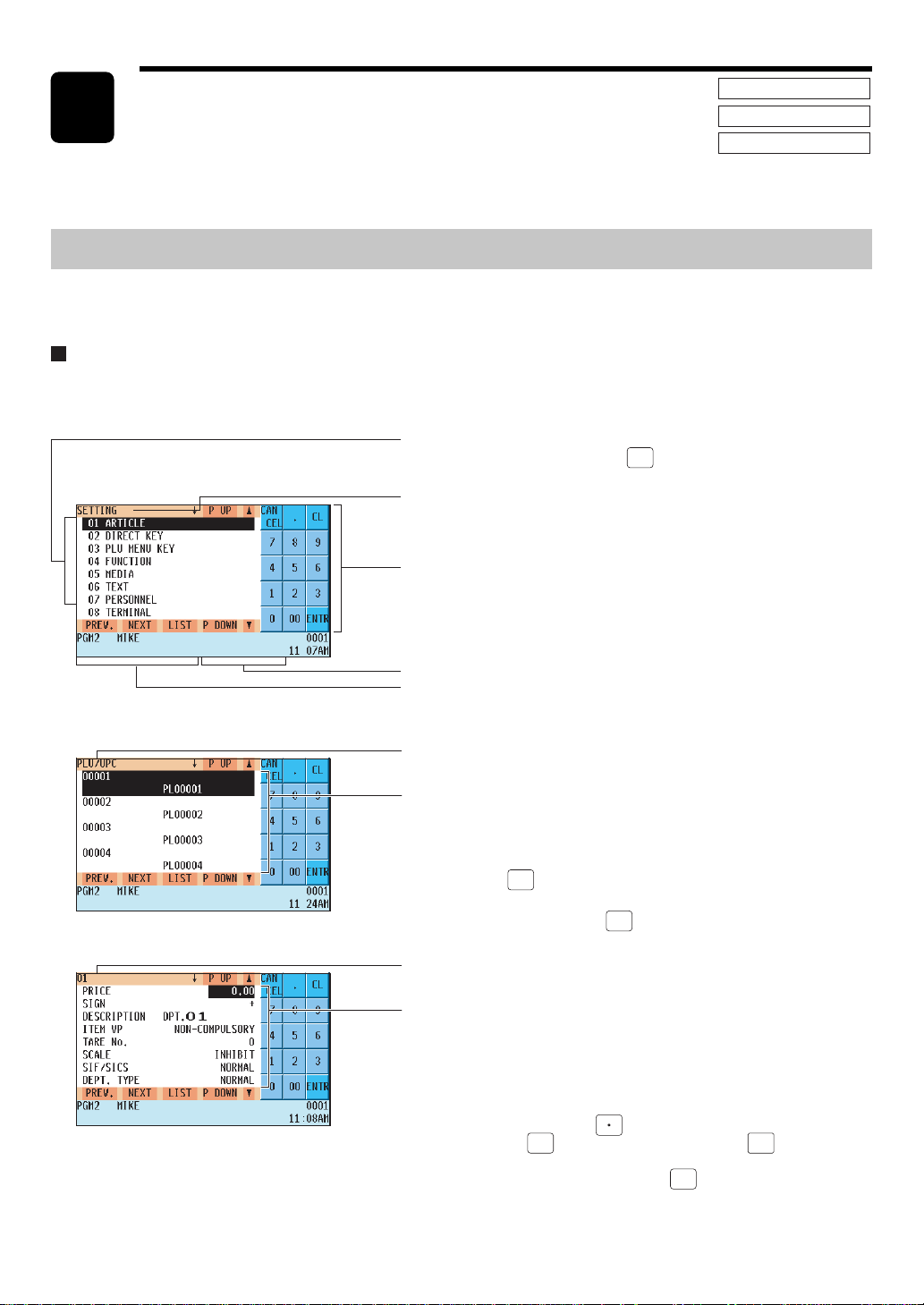
— 123 —
Programming
This chapter explains how to program various items.
Before you start programming, select the PGM1, PGM2 or SD CARD mode
from the mode selection screen depending on the item you are going to
program.
Basic Procedure
This section illustrates the basic programming by using an example of programming for departments.
Programming screens
Opening screen: When you select the PGM1, PGM2 or SD CARD mode from the mode selection screen, your
display will show a programming opening screen corresponding to the mode you selected.
Programming menu: Use the cursor keys or numeric keys to select
the desired option and press the
(ENTER)
key, or touch the option on the
screen.
Mode you are in
Numeric key area
Common status area
Numeric key data area
Code selecting screen (Dept. PLU/UPC, Customer):
Code title
Code number and its description:
(In case of PLU/UPC and customer, two lines are used for one
code, upper line - code, lower line - description.)
Use the cursor keys or numeric keys to select the desired option
and press the
(ENTER)
key, or touch the option on the screen. (When
you select the last item, the screen goes to the selected option
screen without pressing the
(ENTER)
key.)
Programming screen:
Selected menu message
Setting items:
Use the cursor to select the desired option or touch it on the
screen.
There are three entry methods described below:
Numeric entry : Use numeric keys.
Character entry : Use character keys.
Selective entry : Press the
key to toggle options and press the
(ENTER)
key to select it, or press the
SBTL
key to show
the options list. Use the cursor keys to move the
cursor and press the
(ENTER)
key to select it, or touch
the option on the screen.
13
(In case of PGM2)
PGM1 MODE
PGM2 MODE
SD CARD MODE
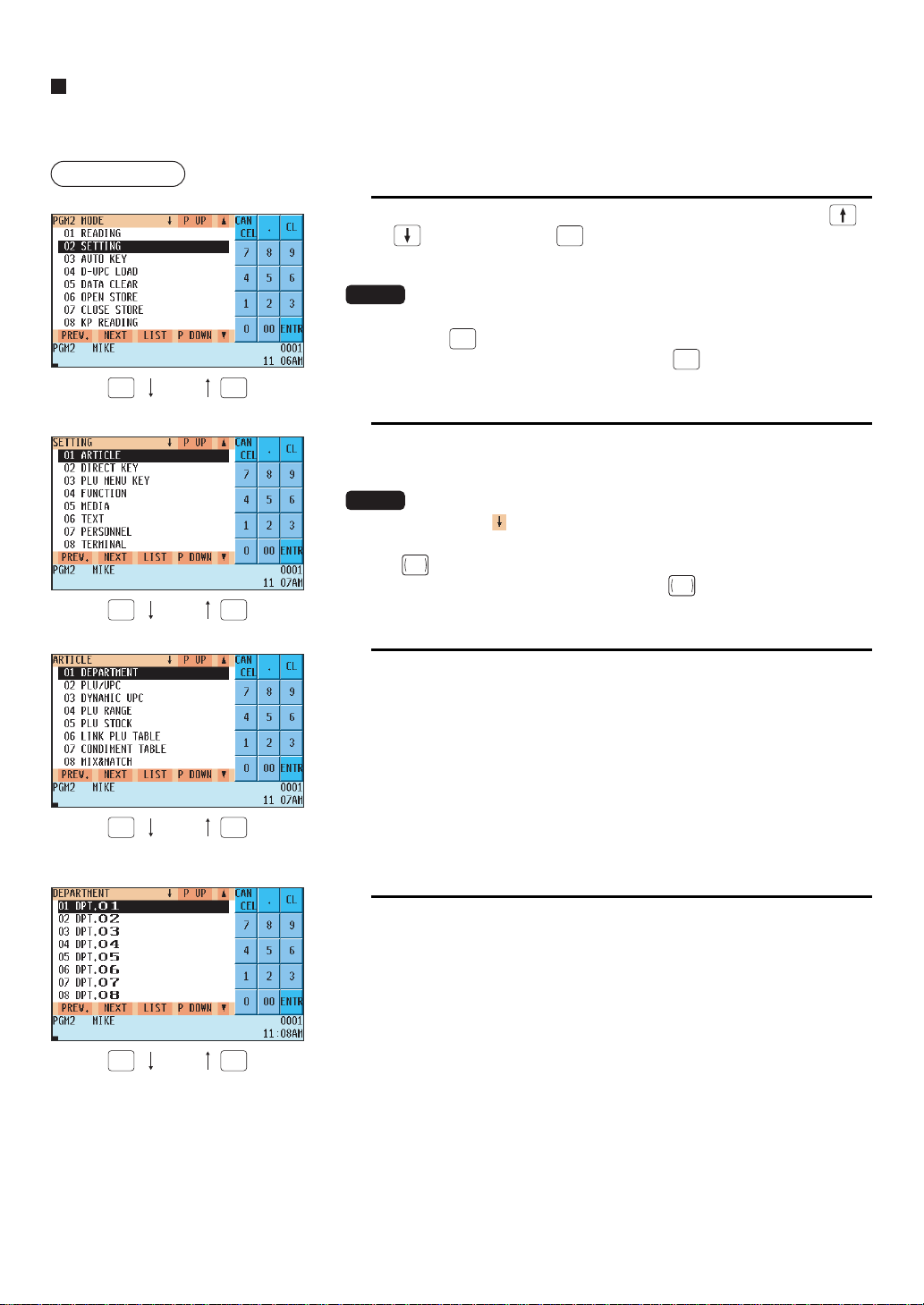
— 124 —
Programming example
The following example shows how to preset 2.00 for the unit price, ABCDE for the description, and taxable 2 yes
for department
Procedure
1.
In the PGM2 MODE window, select “02 SETTING” by using the
or key and press the
(ENTER)
key.
” The SETTING screen will appear.
NOTE
• You can also select “2 SETTING” by using numeric key “2”, then
pressing the
(ENTER)
key, or touching “2 SETTING” on the screen.
• To return to the previous screen, press the
(CANCEL)
key.
2.
Select “01 ARTICLE”.
• The ARTICLE window will appear.
NOTE
The arrow mark in the window shows that the window contains
more options than are now on the screen. To scroll the window, press
the
PAGE
DOWN
key.
To return to the previous page, press the
PAGE
UP
key.
3.
Select “01 DEPARTMENT”.
• The DEPARTMENT window will appear, listing programmable
departments.
4.
Select “01 DPT.01” to program for department 1.
• The 01 window will appear.
(CANCEL)
(ENTER)
(CANCEL)
(ENTER)
(CANCEL)
(ENTER)
(CANCEL)
(ENTER)
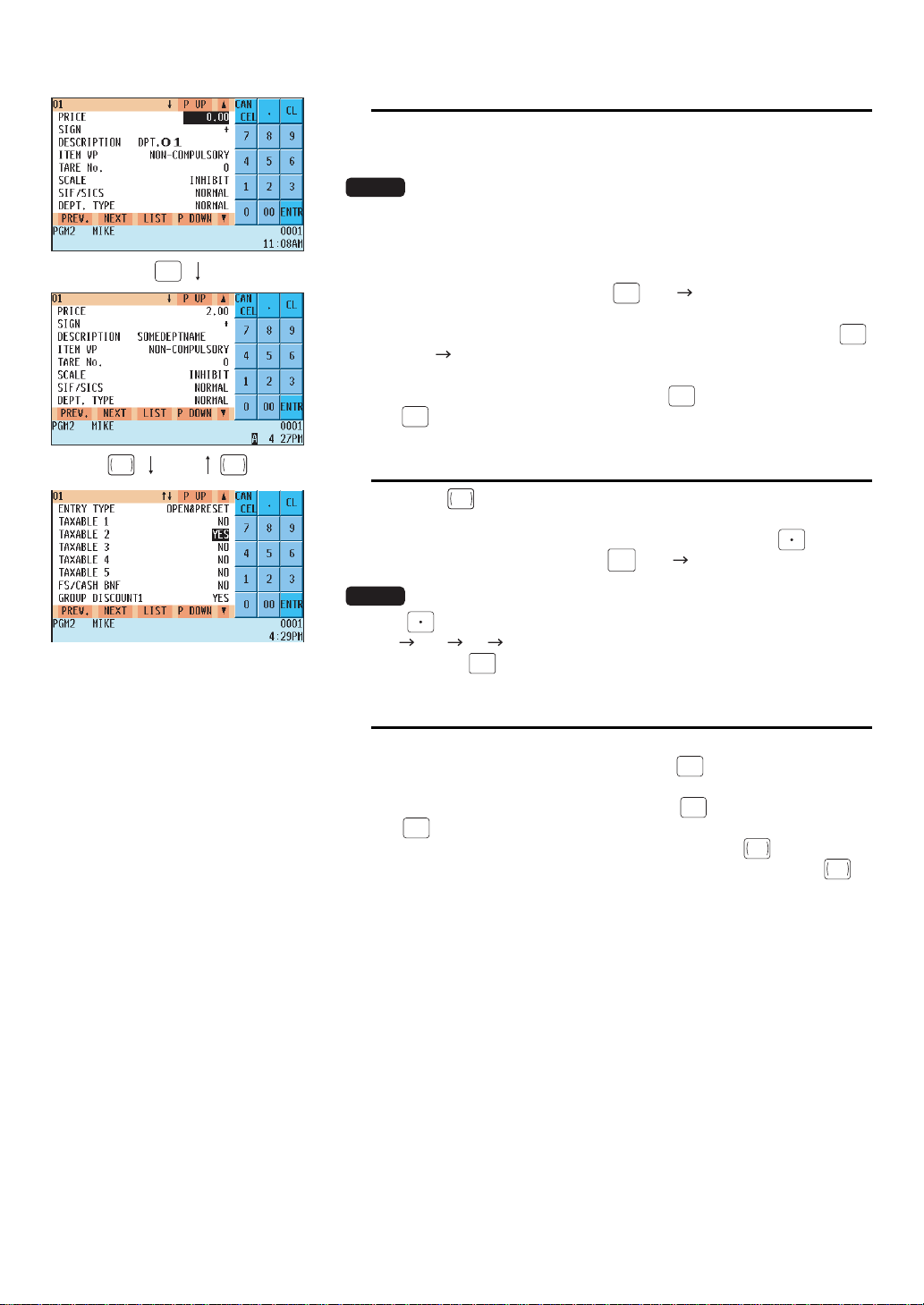
— 125 —
5.
On the first page of the “01” window, preset the unit price and de-
scription as follows:
NOTE
There are three entry methods for the programming: numeric
entry,character entry, and selective entry.
• Move the cursor to or touch “PRICE”, enter “200” by using
numeric keys, then press the
(ENTER)
key. Numeric entry
• Move the cursor to or touch “DESCRIPTION”, enter
“SOMEDEPTNAME” by using character keys, then press the
(ENTER)
key. Character entry
If you want to clear the setting, press the
CA/AT
key before you press
the
(ENTER)
key.
6.
Press the
PAGE
DOWN
key and you will see the page as shown left, then
program the machine to set “TAXABLE 2” as follows:
• Move the cursor to or touch “TAXABLE 2”, press the key to
select “YES,” then press the
ENTER
key. Selective entry method
NOTE
The key toggles between two options as follows:
NO YES NO ....
Pressing the
SBTL
key displays all pertinent options.
7.
Select one of the following actions:
•To cancel the programming, press the
(CANCEL)
key. Select “1 YES” in
the “ARE YOU SURE ?” window.
•To finalize the programming, press the
CA/AT
key, then press the
(CANCEL)
key. You will return to the “DEPERTMENT” window.
•To program the following department, press the
NEXT
RECORD
key. The “02”
window will appear. To return to the “01” window, press the
PREV.
RECORD
key.
The following sections describe how to preset each item for programming.
(ENTER)
PAGE
DOWN
PAGE
UP
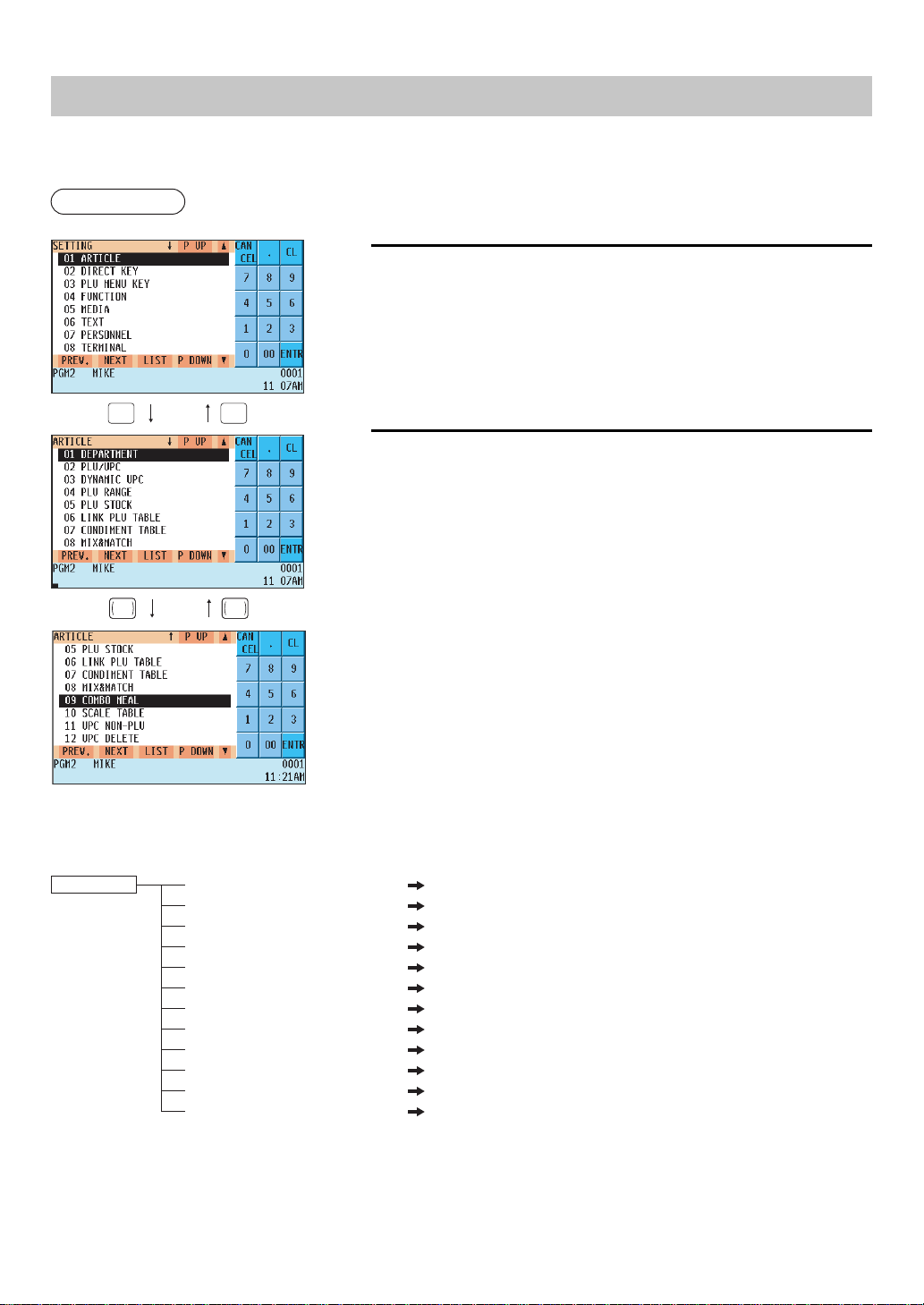
— 126 —
Article Programming
Use the following procedure to select any option included in the article programming group.
Procedure
1.
In the SETTING window, select “01 ARTICLE.”
” The ARTICLE window will appear.
2.
Select any option from the following options list:
1 DEPARTMENT: Departments
2PLU/UPC: PLUs/UPCs
3 DYNAMIC UPC: Dynamic UPC
4 PLU RANGE: A range of PLUs
5 PLU STOCK: PLU/UPC stock quantity
6 LINK PLU TABLE: Link PLU table
7 CONDIMENT TABLE: Condiment table
8 MIX&MATCH: Mix & match table
9 COMBO MEAL: Combo meal table
10 SCALE TABLE: Scale table
11 UPC NON-PLU: UPC non-PLU type code format
12 UPC DELETE: UPC record delete period
The following illustration shows the article programming option groups.
1 ARTICLE
1 DEPARTMENT See Department on page 127.
2 PLU/UPC See PLU/UPC on page 129.
3 DYNAMIC UPC See Dynamic UPC on page 132.
4 PLU RANGE See PLU range on page 132.
5 PLU STOCK See PLU/UPC stock on page 133.
6 LINK PLU TABLE See Link PLU table on page 134.
7 CONDIMENT TABLE See Condiment table on page 135.
8 MIX&MATCH See Mix & Match table on page 137.
9 COMBO MEAL See Combo meal table on page 138.
10 SCALE TABLE See Scale table on page 139.
11 UPC NON-PLU See UPC Non-PLU code format on page 140.
12 UPC DELETE See UPC delete on page 141.
(CANCEL)
(ENTER)
PAGE
DOWN
PAGE
UP
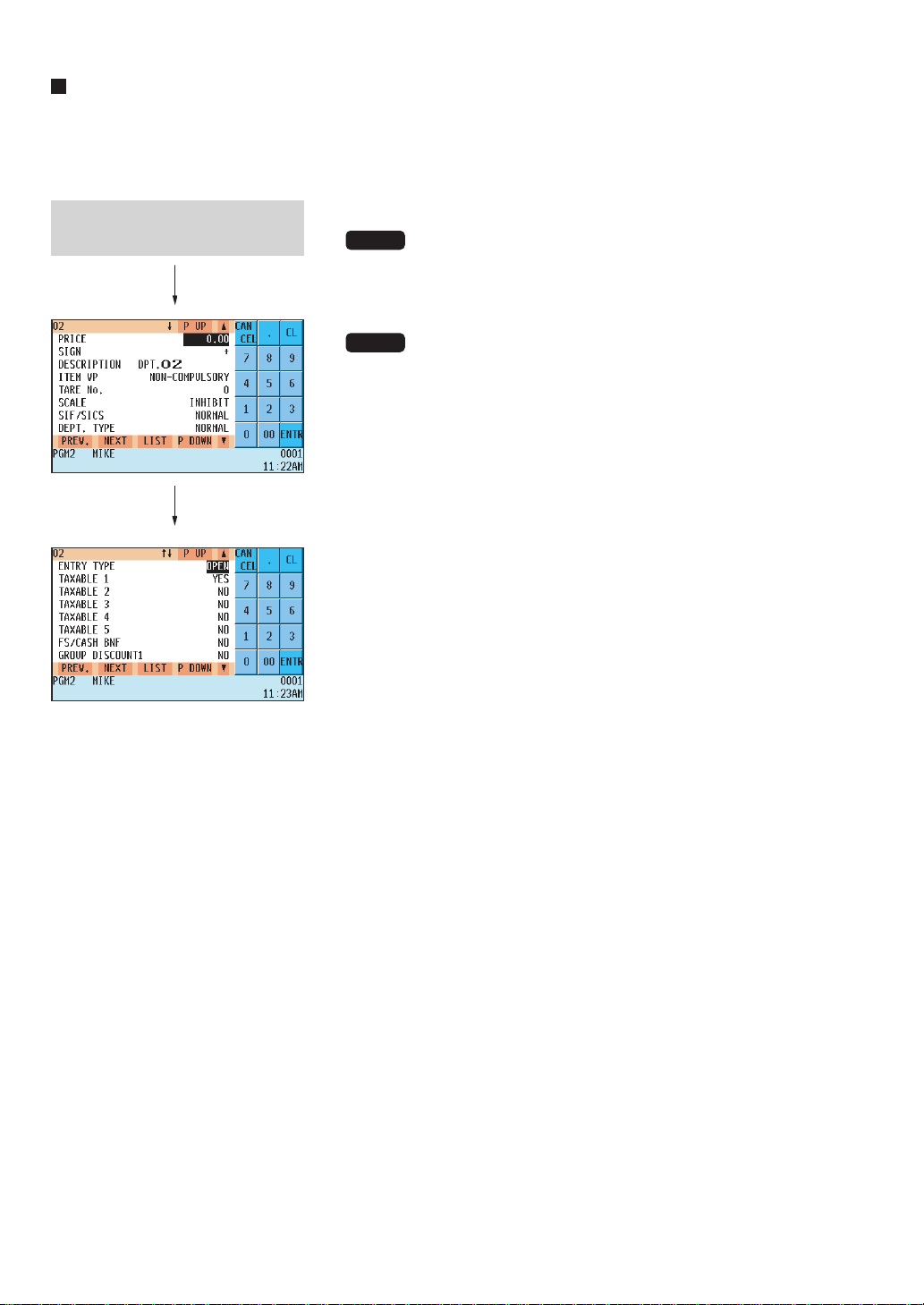
— 127 —
Department
Your POS terminal machine is equipped with 10 standard departments, and can be equipped with a maximum of
99 departments.
Use the following procedure to program for departments.
Program each item as follows:
NOTE
For more information about the entry methods patterns, see
the “Basic Procedure Instructions” section.
• PRICE (Use the numeric entry method)
Unit price (max. 6 digits)
NOTE
When the zero-value department entry (unit price “0”) is made,
text of the department is only displayed/printed.
• SIGN (Use the selective entry method)
+: Assigns a plus sign to departments for normal sales transactions.
–: Assigns a minus sign for minus transactions.
• DESCRIPTION <Default for dept.1> (Use the character entry
method)
DESCRIPTION : Description for a department. Up to 8 or 16
characters can be entered.
• ITEM VP (Use the selective entry method)
NON-COMPULSORY : Makes item validation printing compulsory.
COMPULSORY : Makes item validation printing noncompulsory.
• TARE No. (Use the numeric entry method)
Tare table number associated with scale entry (1 thru 9).
• SCALE (Use the selective entry method)
INHIBIT : Inhibits a scale entry function.
ENABLE : Enables a scale entry function.
COMPULSORY : Makes a scale entry compulsory.
• SIF/SICS (Use the selective entry method)
Department type selection
NORMAL : Department other than SIF or SICS department
SICS : SICS department
SIF : SIF department
• DEPT. TYPE (Use the selective entry method)
Department type selection
NORMAL : Normal department
HASH : Hash department
BR : Bottle return department
GAS : Gas department
GIFT : Sale by Gift Card
GIFT RELOAD : Gift Card reloading
• A hash department is used to enter the amount of a special “sale,”
such as a gift certificate, etc. Any amounts entered in this department
are not added to the grand total exclusive of tax amounts.
• ENTRY TYPE (Use the selective entry method)
Type of unit price entry for departments
OPEN : Open price only
PRESET : Preset price only
OPEN & PRESET : Open price and preset price
INHIBIT : Inhibited
Select the desired dept. code from
the departments list.
The screen continues.

— 128 —
Department (continued)
• TAXABLE 1 thru 5 (Use the selective entry method)
Tax status
NO : Non-taxable
YES : Taxable
• When an entry of a taxable department is made in a transaction, tax is automatically computed according to
the associated tax table or rate.
• FS/CASH BNF (Use the selective entry method)
Food stamp/cash benefit status
NO : Food stamp/cash benefit ineligible
YES : Food stamp/cash benefit eligible
• GROUP DISCOUNT 1 thru 3 (Use the selective entry method)
Group discount status
NO : Non-discountable
YES : Discountable
• HALO (Use the numeric entry method)
•You can set an upper limit amount (HALO) for each department. The limit is effective for the REGmode
operations and the manager can override it.
• AB is the same as A x 10B
A: Significant digit for HALO (1 thru 9)
B: Number of zeros to follow the significant digit for HALO (0 thru 7)
• LALO (Use the numeric entry method)
• You can set a lower limit amount (LALO). The limit is effective for the REG-mode operations and the man-
ager can override it.
• AB is the same as A x 10B
A: Significant digit for LALO (1 thru 9)
B: Number of zeros to follow the significant digit for LALO (0 thru 7)
• AGE LIMITATION (Use the numeric entry method)
Age limitation (0 thru 99)
When a department for which a figure other than zero (01 to 99) has been programmed as the age limitation is
entered, the birthday entry must be completed.
• SERVER GROUP No. (Use the numeric entry method)
Server group number (0 thru 9)
Every department can be assigned to any of the server groups. The sales total of each department group is
printed on the server report.
• GROUP No. (Use the numeric entry method)
Group number (0 thru 9)
You can assign departments to a maximum of nine groups. This programming enables you to take group sales
reports.
• MODIFY OUTPUT (Use the selective entry method)
NO : Disables output to network remote printers.
YES : Enables output to network remote printers. Modified to follow a previous item.
• OUTPUT KP No. 1 thru 3 (Use the numeric entry method)
ID number of the network remote printer 1, 2 or 3 (1 thru 9)
If the number “0” is entered, no remote printer will operate.
• CHIT RECEIPT (Use the selective entry method)
YES : Prints the department sales information on the chit receipt in the remote printer format.
NO : Prints nothing on the chit receipt.
• CVM CTRL CHAR. (Use the numeric entry method)
CVM (Color Video Monitor) control character (0 thru 255)
• This programming enables you to assign a number as a CVM control character to each department. This
number is converted to a two-digit character code that is transmitted for use with a CVM device.
• DOUGHNUT EXEMPT (Use the selective entry method)
YES : Enables the doughnut tax exemption (Canadian tax system).
NO : Disables the doughnut tax exemption.
• DATA ENT. JOB# (Use the numeric entry method)
Key data entry job number (Capture job number: 0 thru 99)
When “0” is programmed, data entry is inhibited.
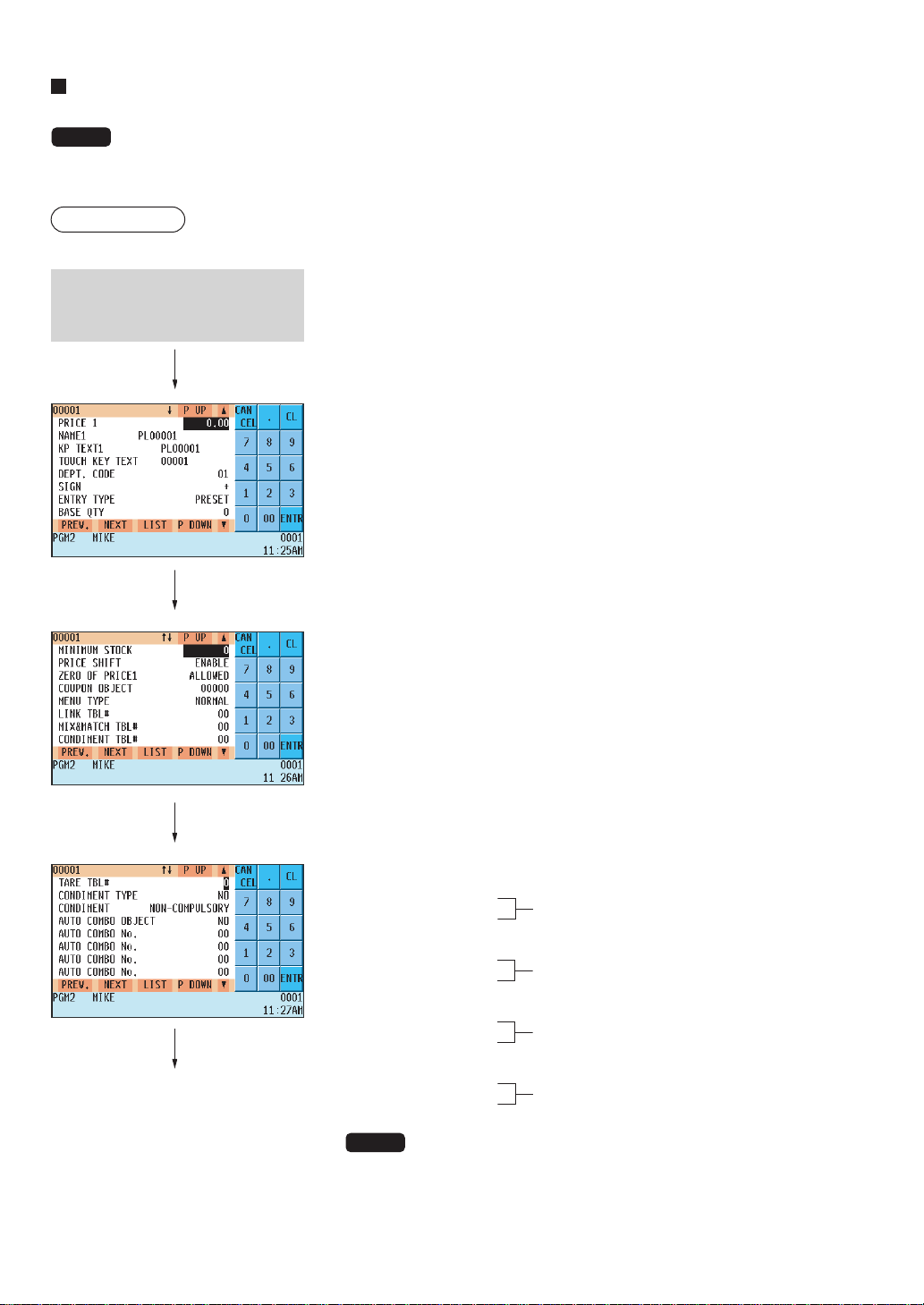
— 129 —
PLU/UPC
NOTE
• In this manual, the word UPC represents UPC (Universal Product Code) and the word EAN represents
EAN (European Article Number).
• With regard to the UPC codes available to this POS terminal, please refer to Chapter 14.
Procedure
Program each item as follows:
• *PRICE 1 thru 6 (Use the numeric entry method)
Unit price of each price level (max. 6 digits).
• NAME*1# thru 6 (Use the character entry method)
Description for a PLU/UPC (for each price level). Up to 8 or 16
characters can be entered.
• KP TEXT 1 thru 6 (Use the character entry method)
Description of text for kitchen printer for each price level.
Up to 12 characters can be entered.
• TOUCH KEY TEXT (Use the character entry method)
Description for a PLU touch key
Up to 12 characters can be entered.
• DEPT.CODE (Use the numeric entry method)
Department code to be associated with the entered PLU/UPC (01
through 99)
When a PLU/UPC is associated with a department, the following
functions of the PLU/UPC depend on the programming for the
department.
• Item validation print compulsory/non-compulsory
• Single item cash sale/single item finalize
• SIGN (Use the selective entry method)
+:Plus PLU/UPC
–:Minus PLU/UPC
The function of every PLU/UPC varies according to the combination
of its sign and the sign of its associated
department as follows:
Department: +
PLU/UPC: +
Serves as a normal plus PLU/UPC
Department: –
PLU/UPC: –
Serves as a normal minus PLU/UPC
Department: +
PLU/UPC: –
Accepts store coupon entries, but not split-
pricing entries.
Department: –
PLU/UPC: +
Not valid; not accepted
NOTE
* On the sample screen, the price level 1 setting only is shown.
Depending on the default settings, you may see the price level
1 through 6 settings on the screen. Please consult your
authorized SHARP dealer for more details.
Select the desired PLU code from
the PLUs list, or directly enter a
PLU/UPC code.
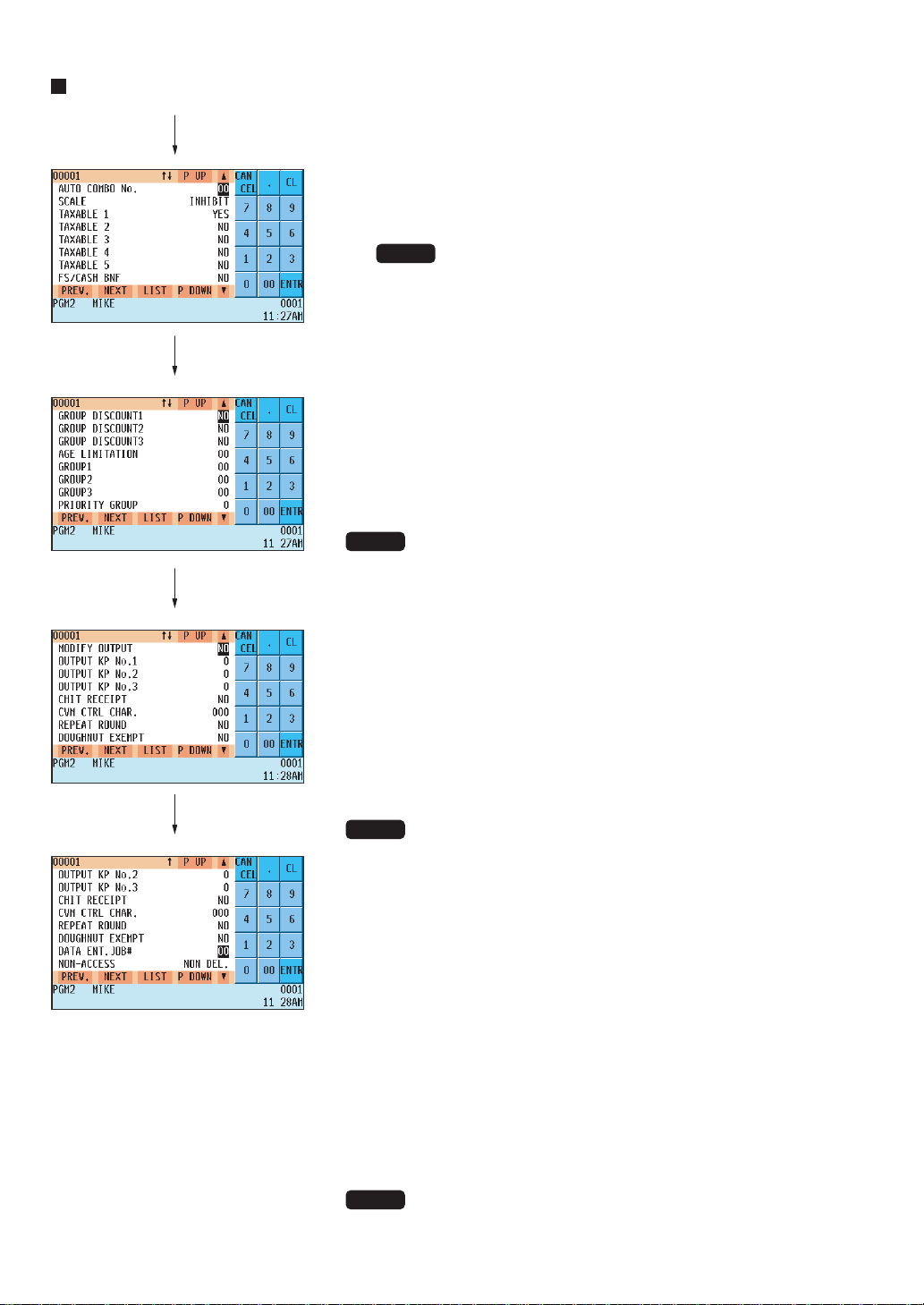
— 130 —
PLU/UPC (continued)
• ENTRY TYPE (Use the selective entry method)
Mode parameter
PRESET : Preset price only
OPEN & PRESET : Open price and preset price
INHIBIT : Inhibited
OPEN : Open price only
NOTE
For UPC, it is fixed to PRESET .
• BASE QTY (Use the numeric entry method)
Base quantity for each PLU/UPC which is counted each time the item
is entered. (max. 2 digits)
• MINIMUM STOCK (Use the numeric entry method)
Minimum stock quantity for a PLU (max. 7 digits)
• PRICE SHIFT (Use the selective entry method)
ENABLE : Enables PLU/UPC price level shift.
INHIBIT : Inhibits PLU/UPC price level shift.
COMPULSORY : Makes PLU/UPC price level shift compulsory.
NOTE
When COMPULSORY is selected for a PLU/UPC, repeat
entries of the PLU/UPC are inhibited.
• *ZERO OF P1 thru 6 (Use the selective entry method)
ALLOWED : Allows a zero-price entry.
INHIBIT : Inhibits a zero-price entry.
• COUPON OBJECT (Use the numeric entry method)
Select an object PLU code (max. 5 digits).
A coupon-like PLU is able to link to another PLU (object PLU).
By this programming, the associated coupon PLU cannot be entered
unless the object PLU has been rung up.
(However, the quantity is not affected.)
NOTE
• Any object PLU should not be programmed as a minus PLU or belong
to any minus department.
• MENU TYPE (Use the selective entry method)
PLU menu type selection
NORMAL : Normal PLU/UPC
LINK : Link PLU/UPC
• LINK TBL# (Use the numeric entry method)
Table number for link PLUs (1 thru 99)
• MIX&MATCH TBL# (Use the numeric entry method)
Table number for mix and match (1 thru 99)
• CONDIMENT TBL# (Use the numeric entry method)
Table number for condiment entry (1 thru 99)
NOTE
For UPC, it is fixed to “00”.
— 131 —
PLU/UPC (continued)
• TARE TBL# (Use the numeric entry method)
Tare table number associated with scale entry (1 thru 9)
• CONDIMENT TYPE (Use the selective entry method)
TIED : Condiment type
NO : Non-condiment type
NOTE
For UPC, it is fixed to “NO” .
• CONDIMENT (Use the selective entry method)
NON-COMPULSORY : Makes a condiment entry non-compulsory.
COMPULSORY : Makes a condiment entry compulsory.
NOTE
For UPC, it is fixed to “NON-COMPULSORY.” .
• AUTO COMBO OBJECT (Use the selective entry method)
YES : Makes the PLU an AUTO COMBO object.
NO : Does not make the PLU/UPC an AUTO COMBO object.
NOTE
For UPC, it is fixed to “NO.”
• AUTO COMBO No. (Use the numeric entry method)
Auto Combo number (1 to 99)
If the number 0 is entered, the PLU is not an object of the AUTO COMBO.
NOTE
For UPC, it is fixed to “0.”
• SCALE (Use the selective entry method)
INHIBIT : Inhibits a scale entry.
ENABLE : Enables a scale entry.
COMPULSORY : Makes a scale entry compulsory.
• TAXABLE 1 thru 5 (Use the selective entry method)
YES : Makes the PLU/UPC taxable.
NO : Makes the PLU/UPC non-taxable.
• FS/CASH BNF (Use the selective entry method)
Food stamp/cash benefit status
NO : Food stamp/cash benefit ineligible
YES : Food stamp/cash benefit eligible
• GROUP DISCOUNT 1 thru 3 (Use the selective entry method)
Group discount status
NO : Non-discountable
YES : Discountable
• AGE LIMITATION (Use the numeric entry method)
Age limitation (0 thru 99)
When a PLU/UPC for which a figure other than zero (01 to 99) has been programmed as the age limitation,
the birthday entry must be completed.
• GROUP 1 thru 3 (Use the numeric entry method)
PLU group number (00 thru 99)
• PRIORITY GROUP (Use the numeric entry method)
PLU group which is to be given the highest priority to in printing on the remote printer (1 thru 9)
• MODIFY OUTPUT (Use the selective entry method)
YES : Will follow previous PLUs which has the remote printer assignment.
NO : Will not follow previous PLUs which has the remote printer assignment.
• OUTPUT KP No.1 thru 3 (Use the numeric entry method)
ID number of the network remote printer 1, 2 or 3 (1 thru 9)
If the number 0 is entered, no remote printer will operate.
• CHIT RECEIPT (Use the selective entry method)
NO : Prints nothing on the chit receipt.
YES : Prints the PLU sales information on the chit receipt in the remote printer format.
• CVM CTRL CHAR. (Use the numeric entry method)
CVM (Color Video Monitor) control character (0 thru 255)
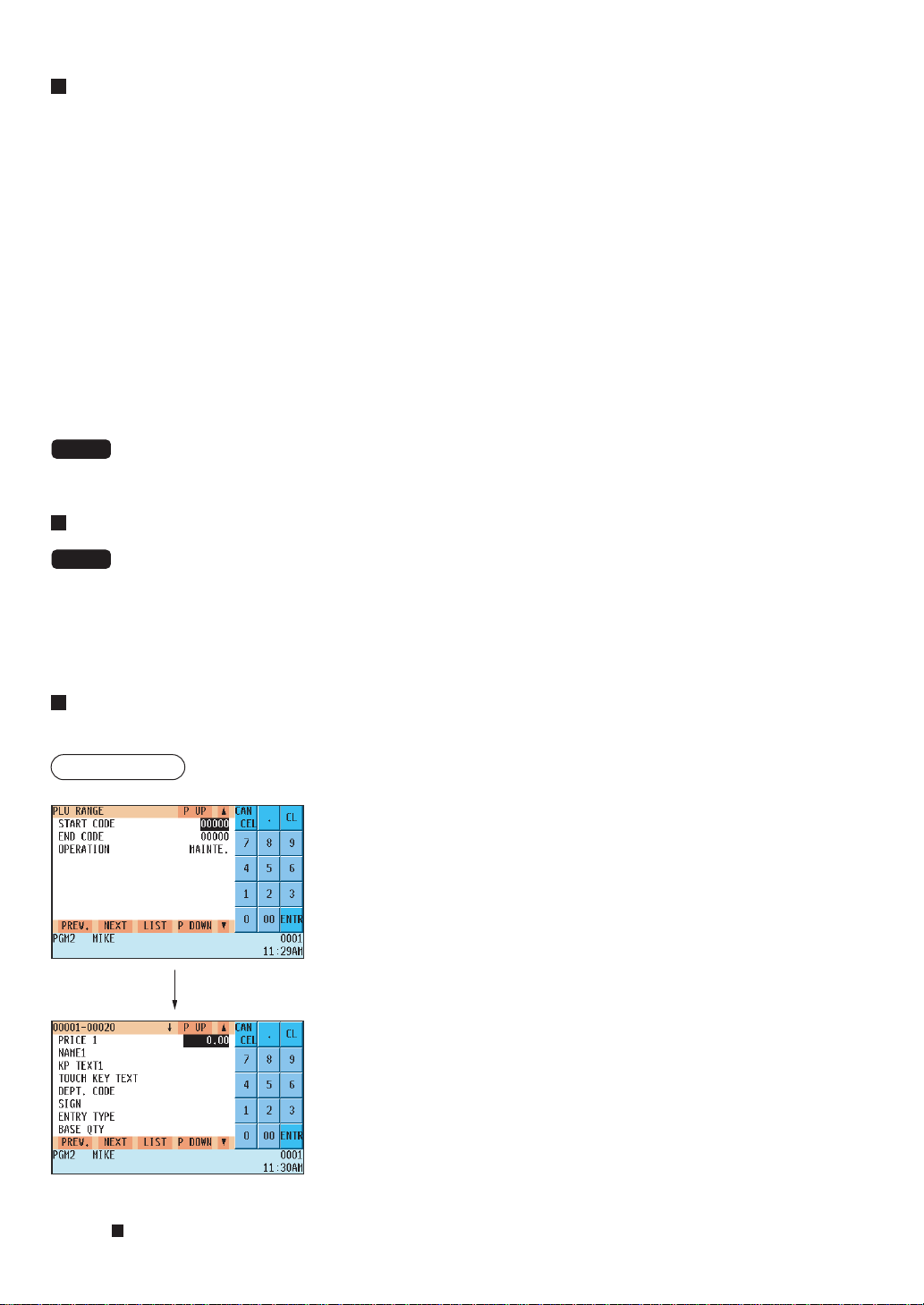
— 132 —
PLU/UPC (continued)
• REPEAT ROUND (Use the selective entry method)
NO : Inhibits repeat round registration
YES : Allows repeat round registration
• DOUGHNUT EXEMPT (Use the selective entry method)
YES : Enables the doughnut tax exemption (Canadian tax system).
NO : Disables the doughnut tax exemption.
• DATA ENT. JOB# (Use the numeric entry method)
Key data entry job number (Capture job number: 0 thru 99)
When 0 is programmed, data entry is inhibited.
• NON-ACCESS (Use the selective entry method)
NON DEL : Not delete non-accessed UPCs by Z1 report.
DEL. BY Z : Delete non-accessed UPCs by Z1 report.
NOTE
For PLU, it is fixed to “NON DEL.” .
Dynamic UPC
NOTE
For the UPC codes available to this POS terminal and type UPC files, please refer to the Chapter 14.
After you select 3 DYNAMIC UPC on the ARTICLE menu, enter an UPC code or select a pertinent code. The same
items (except MIN. STOCK) as the PLU/UPC described in the previous section will appear. Please refer to the
PLU/UPC section for entering values or selecting options. The data will be saved in the Dynamic UPC file.
PLU range
You can program the PLUs by a range as follows:
Procedure
Enter a value or select an option for each item as follows:
• START CODE (Use the numeric entry method)
Starting PLU code (max. 5 digits)
• END CODE (Use the numeric entry method)
Ending PLU code (max. 5 digits)
• OPERATION (Use the selective entry method)
MAINTE : Enables you to change the setting you have
programmed.
NEW&MAINTE : Enables you to change the current setting when
the specified codes have already been created or
to create new codes when the specified codes
have not been created yet.
DELETE : Enables you to delete a specified range of PLUs.
The screen is continues in the
same format as screens shown in
section “
PLU/UPC”
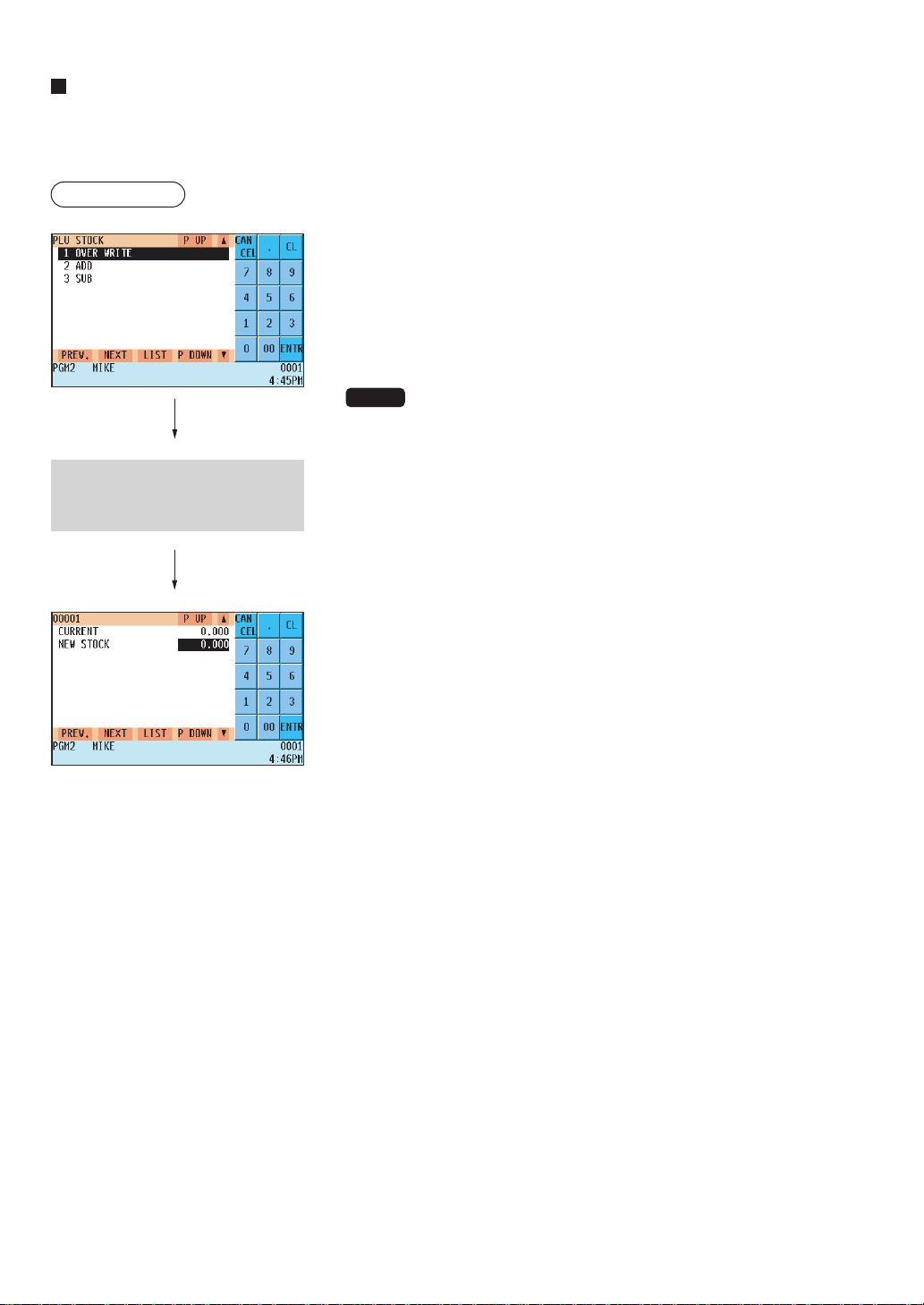
— 133 —
PLU/UPC stock
You can assign a stock quantity to each PLU/UPC code.
Shown below is an example of selecting 1 OVER WRITE.
Procedure
After selecting “1 OVER WRITE,” select a pertinent PLU/UPC code. Then
the next screen will appear to show the following items:
• CURRENT
The current stock is displayed.
• NEW STOCK (Use the numeric entry method)
Enter a new stock quantity (max. 7 digits: 1 to 9999.999)
NOTE
• If you need to add (or subtract) a stock quantity to (or from) the current
stock quantity, select 2 ADD (or 3 SUB ) and enter a value to be added
or subtracted.
• The entry of a new stock value will update to the PLU/UPC stock
counter.
Select the desired PLU code from
the PLUs list, or directly enter a
PLU/UPC code.
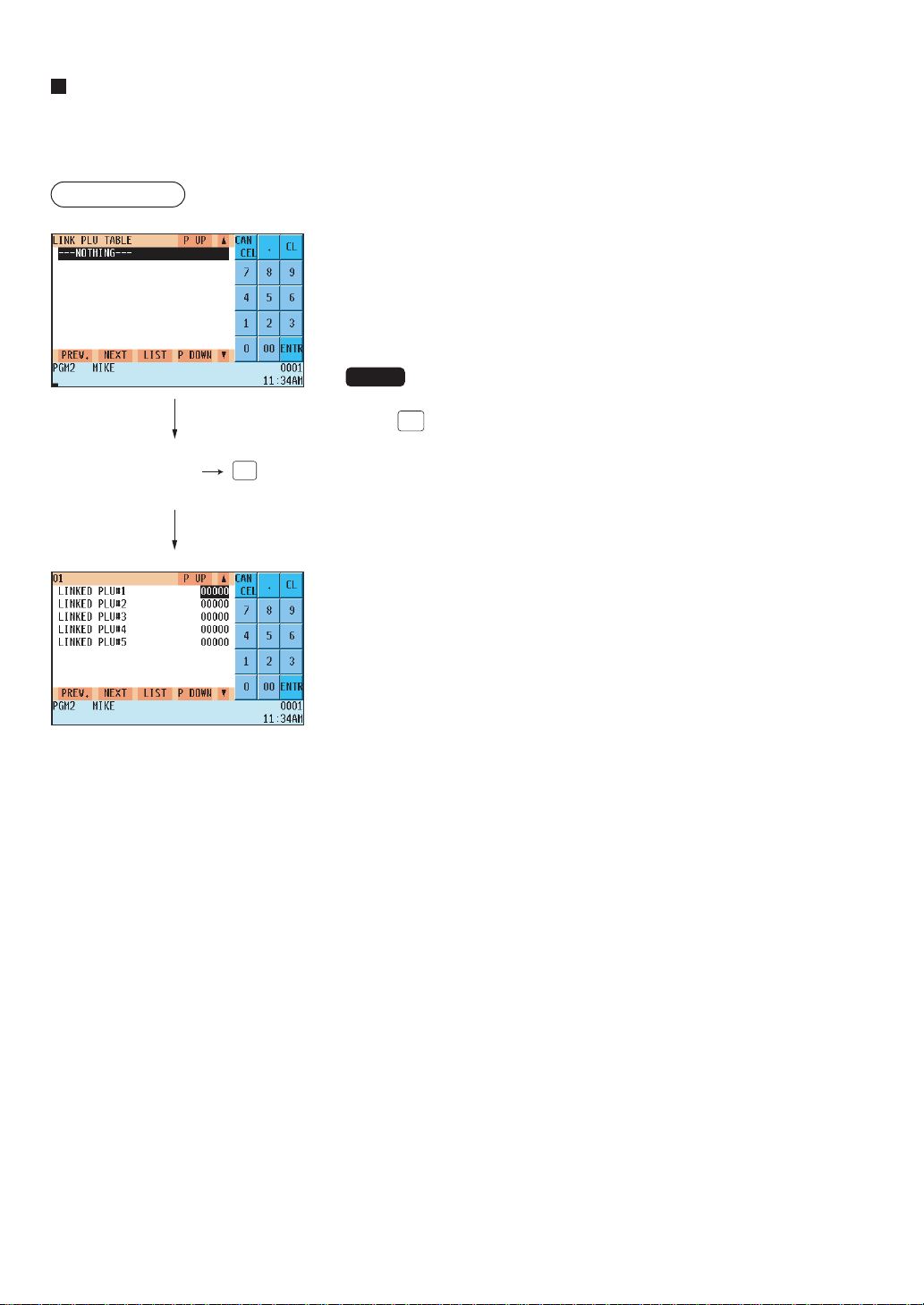
— 134 —
Link PLU table (for PLU/UPC)
It is possible to link PLUs (linked PLUs) with a PLU or UPC (link PLU/UPC) so that with a single key depression of
the link PLU/UPC key. However, the maximum number of links is five. Even if more than five PLUs are linked, the
sixth or higher link is invalid. not actualized.
Procedure
Program each item as follows:
• LINK PLU TABLE (Use the numeric entry method)
Link PLU table number (1 thru 99)
• LINKED PLU#1 thru 5 (5 PLUs. max.)
Select linked PLUs (max. 5 PLUs) from the list.
NOTE
• PLU codes should be defined before programming a link PLU table.
• If the
(DEL)
key is pressed on the table number selection menu, the
selected table will be deleted.
Selected link
PLU table no.
(ENTER)
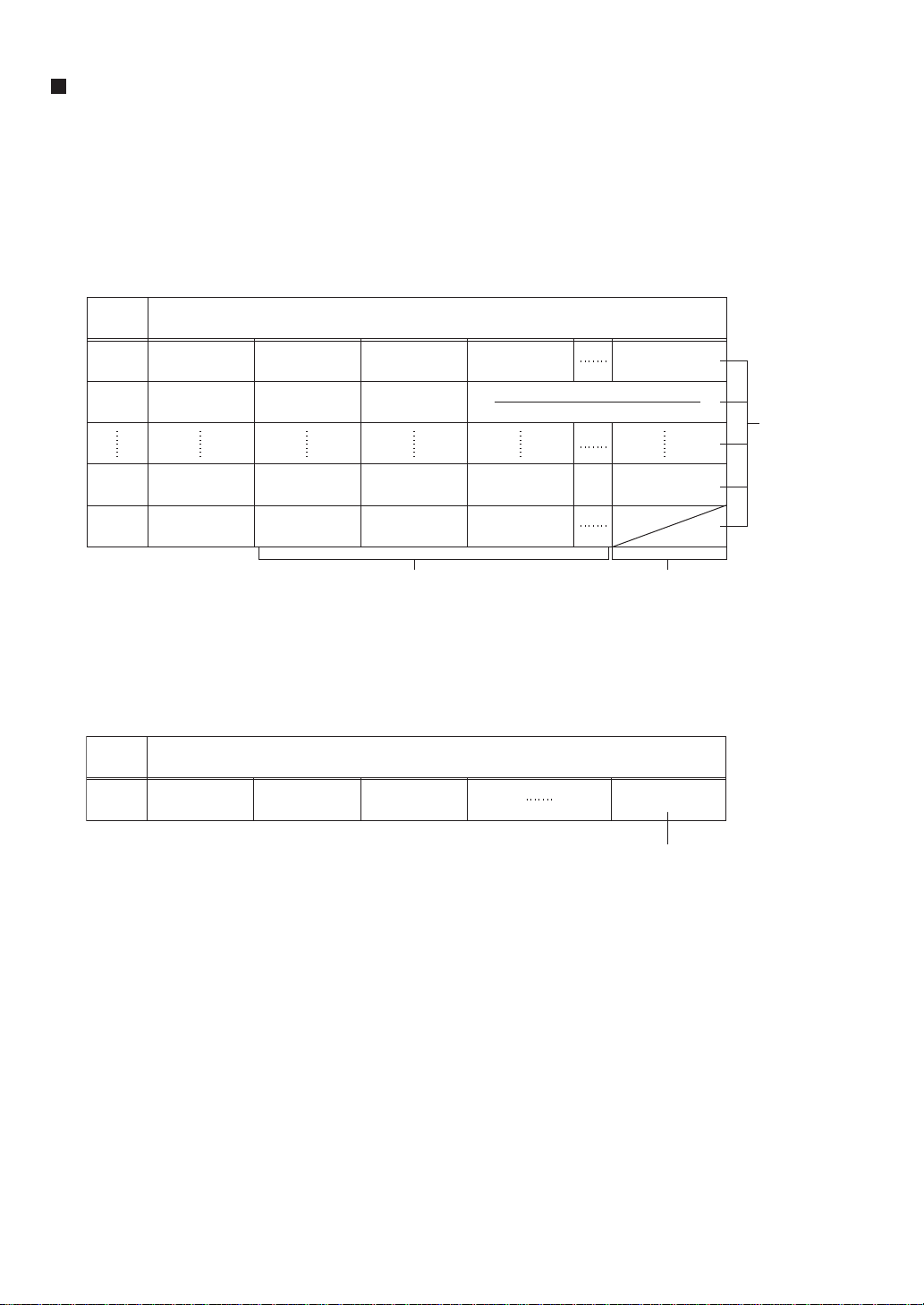
— 135 —
Condiment table
The condiment entry is intended to assist the operator in making menu entries which require special cooking
instructions. For example, a server can make such entries as a garnish of potato, with salad, and steak doneness.
When a server enters a menu-item PLU to which PLUs for the condiment entry have been assigned, these orders
(such as a garnish of potato ) will be printed on the receipt and conveyed to the kitchen.
Before programming for the condiment entry, prepare a condiment table. The following shows an example of a
condiment table:
Condiment tables
Message text
(HOW COOK?)
Message text
(WITH?)
Message text
(POTATO?)
Message text
(DRINK?)
23
(RARE)
44
(SALAD)
33
(P.CHIPS)
63
(TEA)
25
(MED.RARE)
45
(FRUITS)
37
(MASHEDP.)
65
(MILK)
27
(WELLDONE)
38
(BAKEDP.)
67
(A.JUICE)
02
99
Table
number
01
02
04
99
PLU codes for condiment entry (programmed text)
Condiment
tables
(Up to 99)
PLUs (Up to 28 for a table) Next condiment
table number
The condiment PLU programmed in a condiment table can be linked with another condiment table.
For Example, if condiment PLU 44 (SALAD) is linked with condiment table 10 (SAUCE) as shown below, choices of
condiment table 10 will appear when PLU 44 (SALAD) is entered.
Message text
(SAUCE)
51
(ITALIAN)
53
(FRENCH)
12
Table
number
10
PLU codes for condiment entry (programmed text)
Next condiment
table number
The condiment table should contain the following:
Condiment table: The condiment table is a group of condiment PLUs, which is assigned to each menu item PLU.
A table consists of a message text and up to 28 PLUs. You can assign the next condiment table
number to a condiment table to link them.
The message text is used for displaying a prompting message. The PLU is used for the special
order setting. For example, when a server enters a menu-item PLU, a message text such as
“HOWCOOK?” will appear. Then specify one of the PLUs programmed for the text, such as
“RARE.”
Table number: The table number is intended to identify each condiment table.
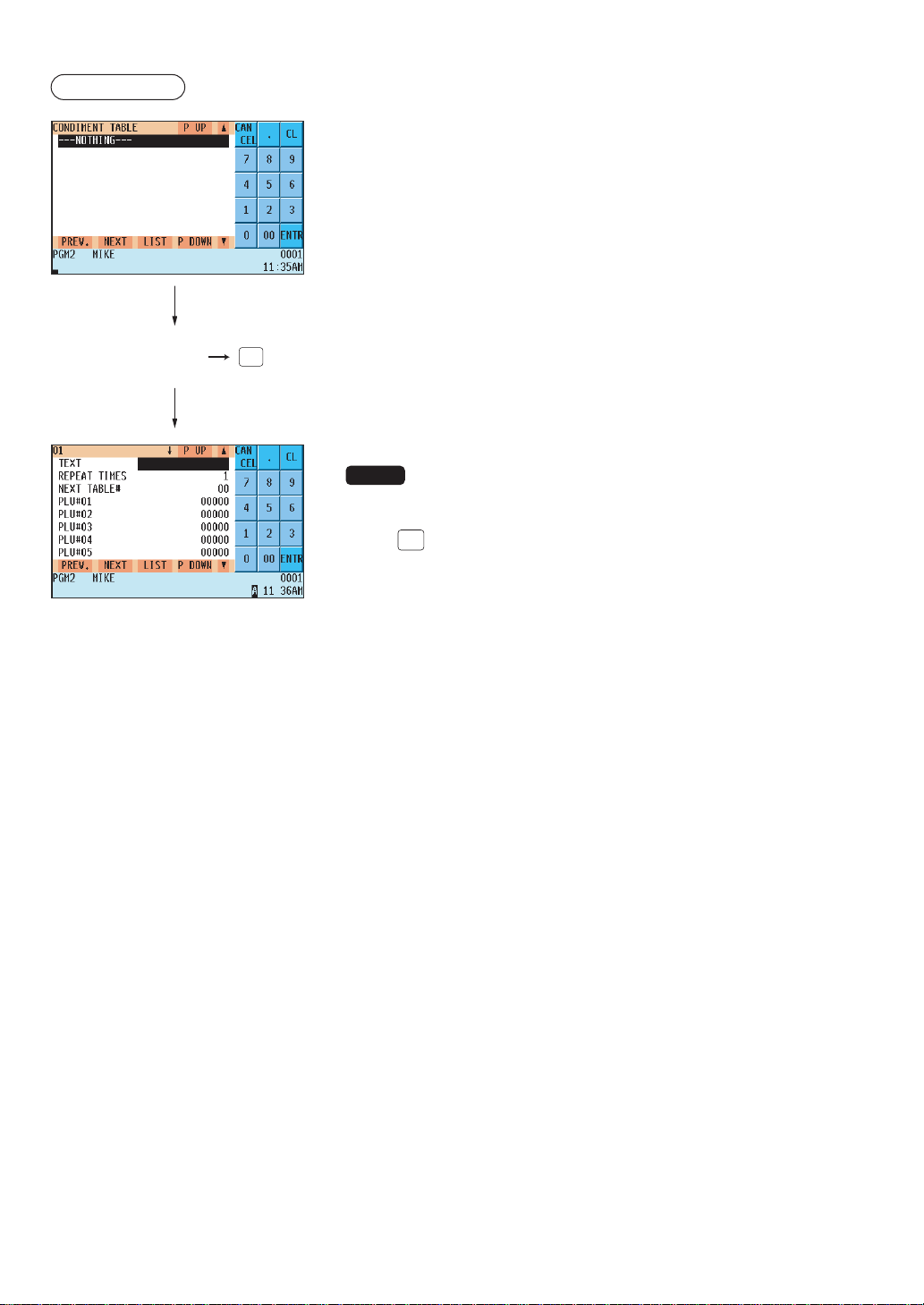
— 136 —
Procedure
Program each item as follows:
• CONDIMENT TABLE. (Use the numeric entry method)
Condiment table number (1 thru 99)
• REPEAT TIMES (Use the numeric entry method)
Repeat times (1 thru 9)
When the REPEAT TIMES (2 thru 9) is programmed, the table is
shown repeatedly as many times as programmed, then the next table
will be shown.
• NEXT TABLE# (Use the numeric entry method)
Enter the next condiment table number (max. 2 digits).
• PLU#1-28 (Use the numeric key)
Select condiment PLUs contained in the table (max. 28 PLUs) from
the list.
NOTE
• The description of the first PLU is used as the display prompt.
• PLU codes should be defined before programming a condiment table.
• If the
(DEL)
key is pressed on the table number selection menu, the table
in the cursor position will be deleted.
Selected
condiment table
(ENTER)
number
The screen continues.
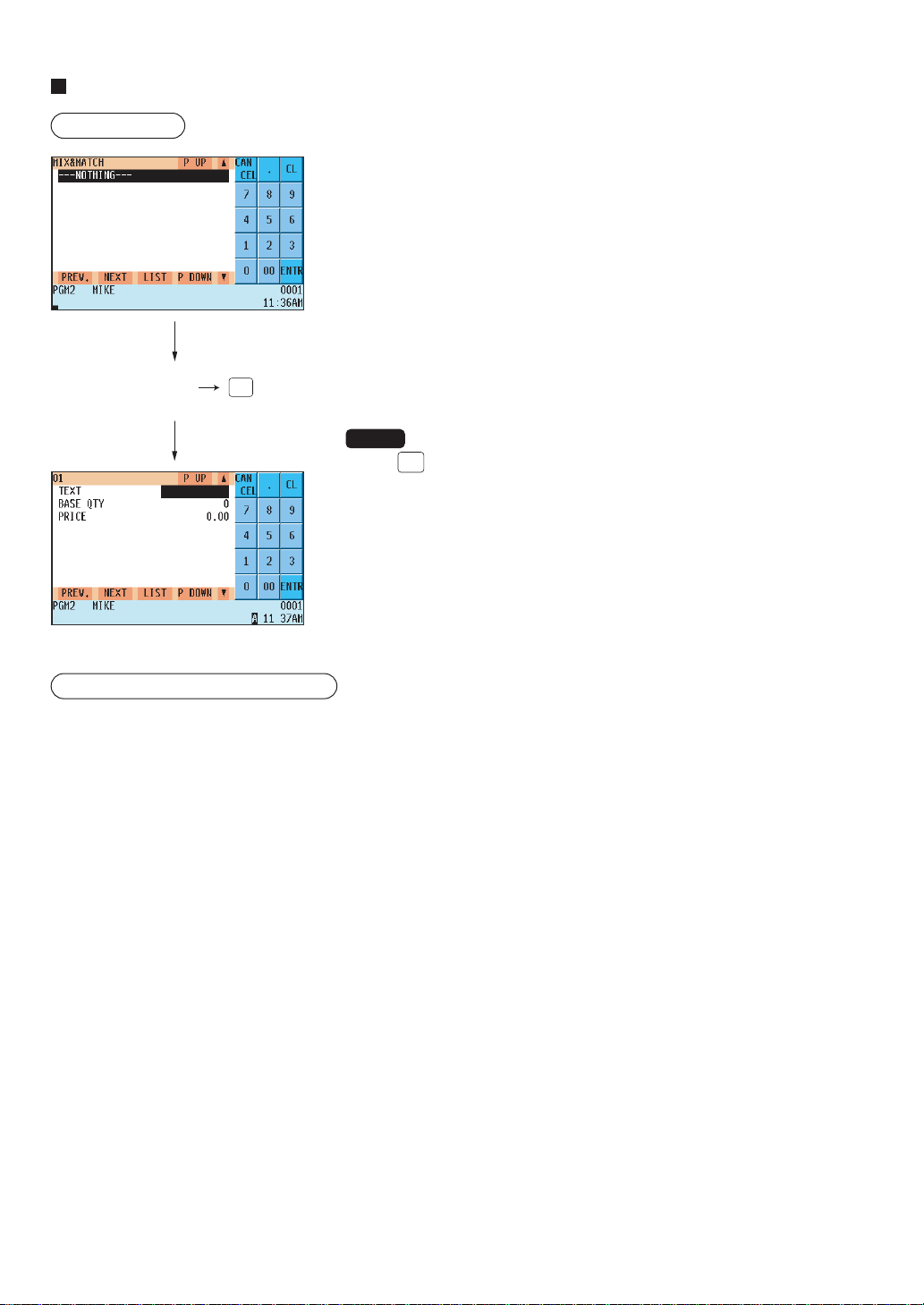
— 137 —
Selected
mix & match
(ENTER)
table number
Mix & Match table
Procedure
Program each item as follows:
• MIX&MATCH (Use the numeric entry method)
Mix & match table number (1 thru 99)
• TEXT (Use the character entry method)
Description for the promotion (Mix and match)
• BASE QTY (Use the numeric entry method)
Base quantity for each mix & match table (max. 2 digits)
• PRICE (Use the numeric entry method)
Unit price for each mix & match table (max. 7 digits)
NOTE
• If the
(DEL)
key is pressed on the table number selection menu, the table
in the cursor position will be deleted.
Programming examples
(For the examples on page 44)
Example 1 (for a certain PLU)
In addition to assignment of Mix-and-match table 01
to PLU 39, proceed programming as follows:
MIX&MATCH table no.: 1
TEXT: PROMOTION
BASE QTY: 3
PRICE: $5.00
Example 2 (for three PLU)
In addition to assignment of Mix-and-match table 02
to PLUs 40, 41, and 42, proceed programming as
follows:
MIX&MATCH table no.: 2
TEXT: VALUE SET
BASE QTY: 3
PRICE: $6.90
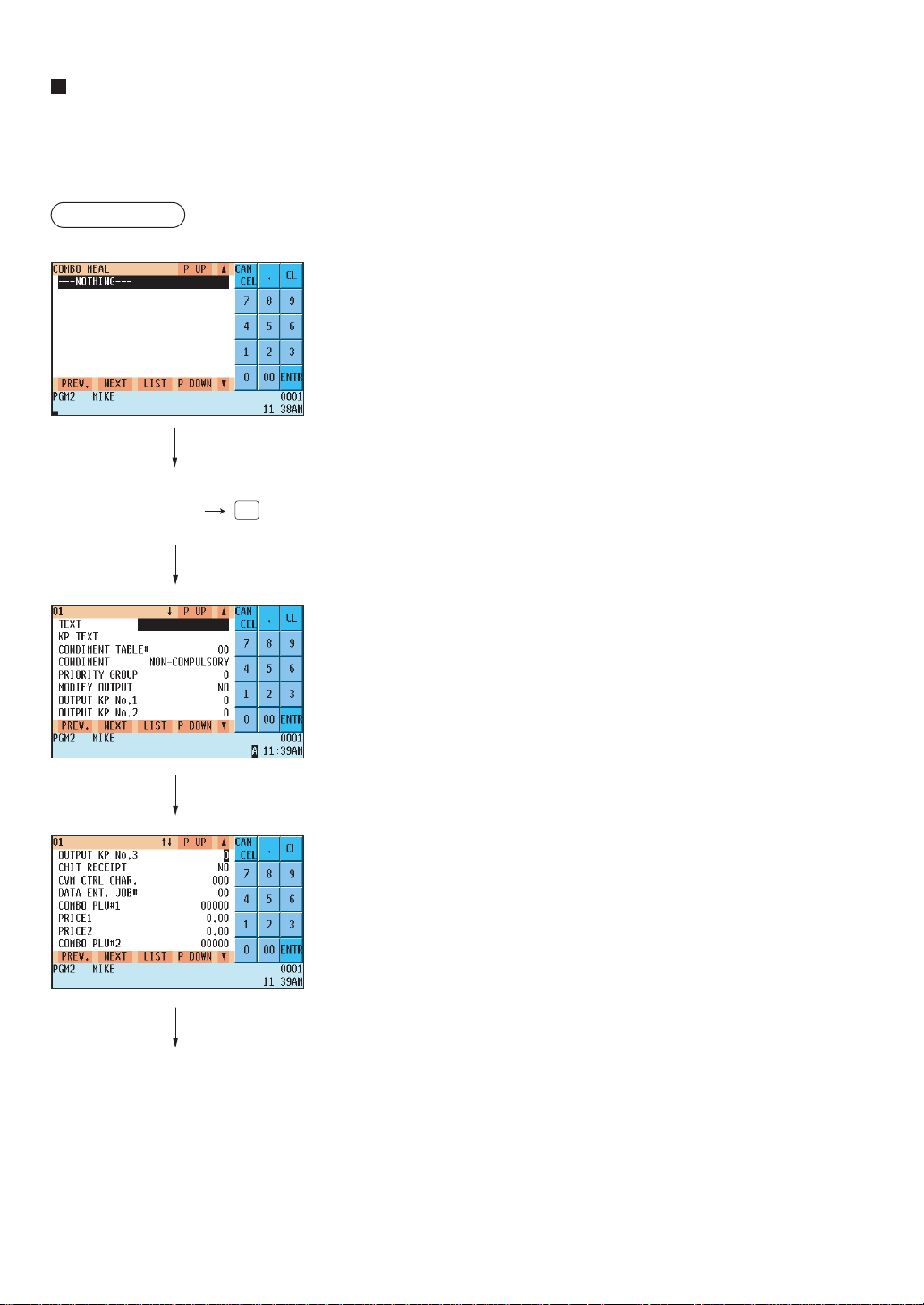
— 138 —
Combo meal table
When two or more menu items, consisting of PLUs related to a special offering, are to be programmed together, the
combo meal function should be used. Up to 20 combo keys (tables) can be programmed. Each combo key can be
associated with 9 PLUs (items).
Procedure
Program each item as follows
• COMBO MEAL (Use the numeric entry method)
Combo meal table number (1 thru 20)
• Combo title (Use the character entry method)
Title of each combo meal table (max. 16 characters).
• KP TEXT (Use the character entry method)
Description of the kitchen printer for a combo key.
Up to 12 characters can be entered.
• CONDIMENT TABLE (Use the numeric entry method)
Table number for condiment entry (1 thru 99)
• CONDIMENT (Use the selective entry method)
COMPULSORY: Makes a condiment entry compulsory.
NON-COMPULSORY: Makes a condiment entry non-compulsory.
• PRIORITY GROUP (Use the numeric entry method)
Combo group which is to be given the highest priority to in printing on
the remote printer (1 thru 9).
• MODIFY OUTPUT (Use the selective entry method)
NO : Will not follow previous PLUs which has the remote
printer assignment.
YES : Will follow previous PLUs which has the remote printer
assignment.
• OUTPUT KP No.1 thru 3 (Use the numeric entry method)
ID number of the network remote printer 1, 2 or 3 (1 thru 9).
If the number “0” is entered, no remote printer will operate.
• CHIT RECEIPT (Use the selective entry method)
YES : Prints the combo sales information on the chit receipt in
the remote printer format.
NO : Prints nothing on the chit receipt.
• CVM CTRL CHAR. (Use the numeric entry method)
CVM (Color Video Monitor) control character (0 thru 255)
• DATA ENT. JOB# (Use the numeric entry method)
Key data entry job number (Capture job number: 0 thru 99)
When “0” is programmed, the data capture entry is inhibited.
Selected combo
table no.
ENTER
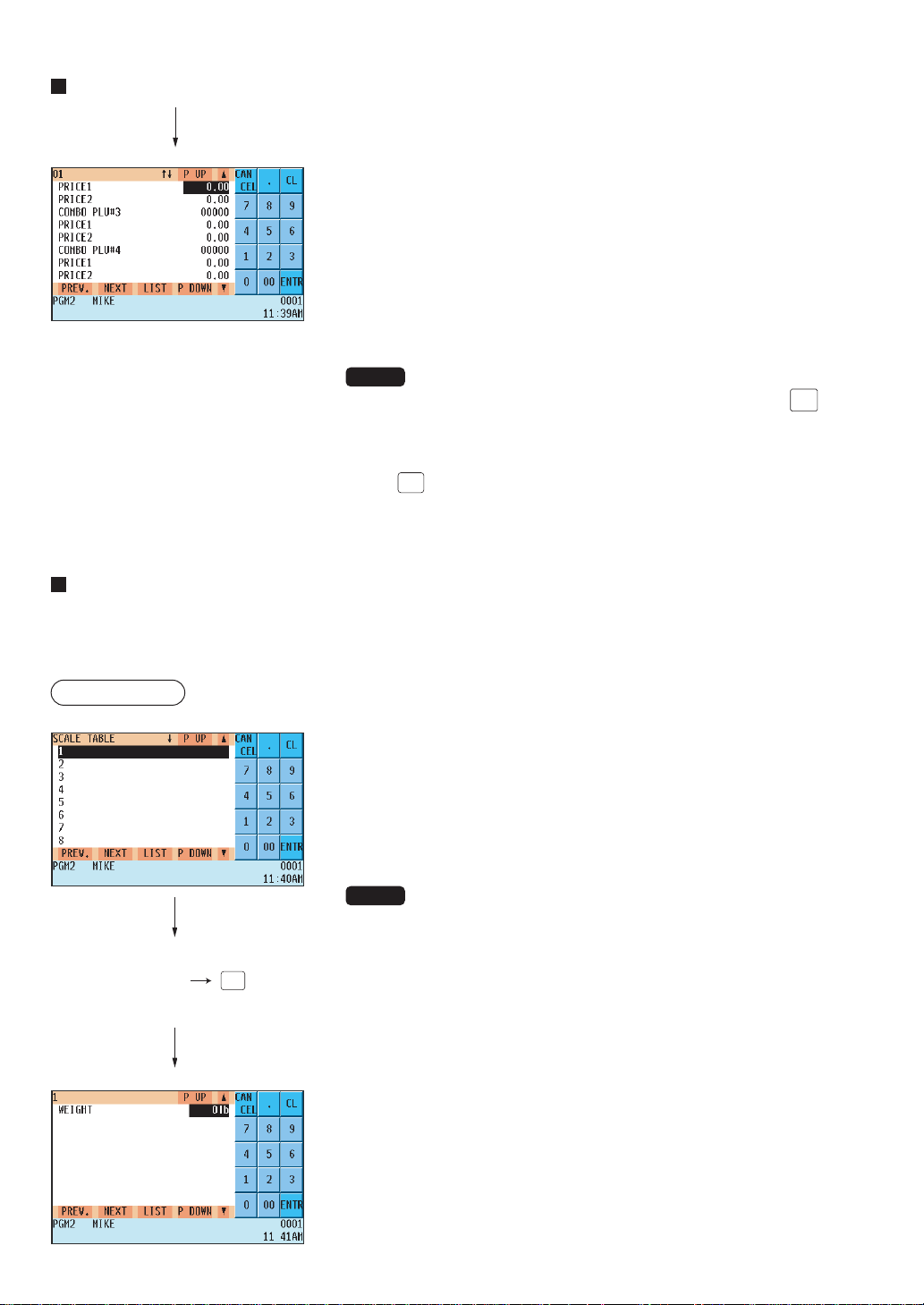
— 139 —
Combo meal table (continued)
• COMBO PLU#1-9 (Use the numeric entry method)
Select associated PLUs (max. 9 PLUs) from the list.
• PRICE1 (Use the numeric entry method)
Unit price of each associated PLU (max. 6 digits).
• PRICE2 (Use the numeric entry method)
2nd unit price (for Upsize function) of each associated PLU (max. 6
digits).
NOTE
• The PRICE1 is selected by the combo meal entry. When the
UPSIZE
key is
pressed after the combo meal entry, the entry of PRICE1 is voided and
a new entry of PRICE2 is registered.
• PLU codes should be defined before programming a combo meal table.
• If the
(DEL)
key is pressed on the table number selection menu, the
programmed data in the cursor position will be deleted.
Scale table
The POS terminal can be programmed with up to nine tare tables and allows different tares to be assigned to
scalable items (for auto scale entries).
Procedure
Program each item as follows:
• SCALE TABLE (Use the numeric entry method)
Tare table number (1 thru 9)
• WEIGHT (Use the numeric entry method)
Enter a tare weight for the scale table number (max. 4 digits: 1 to
99.99 lbs.).
NOTE
Your POS terminal may also be set to accommodate 1-integer + 3decimal
weights. For more details, please consult your authorized SHARP dealer.
Selected
tare table
(ENTER)
number
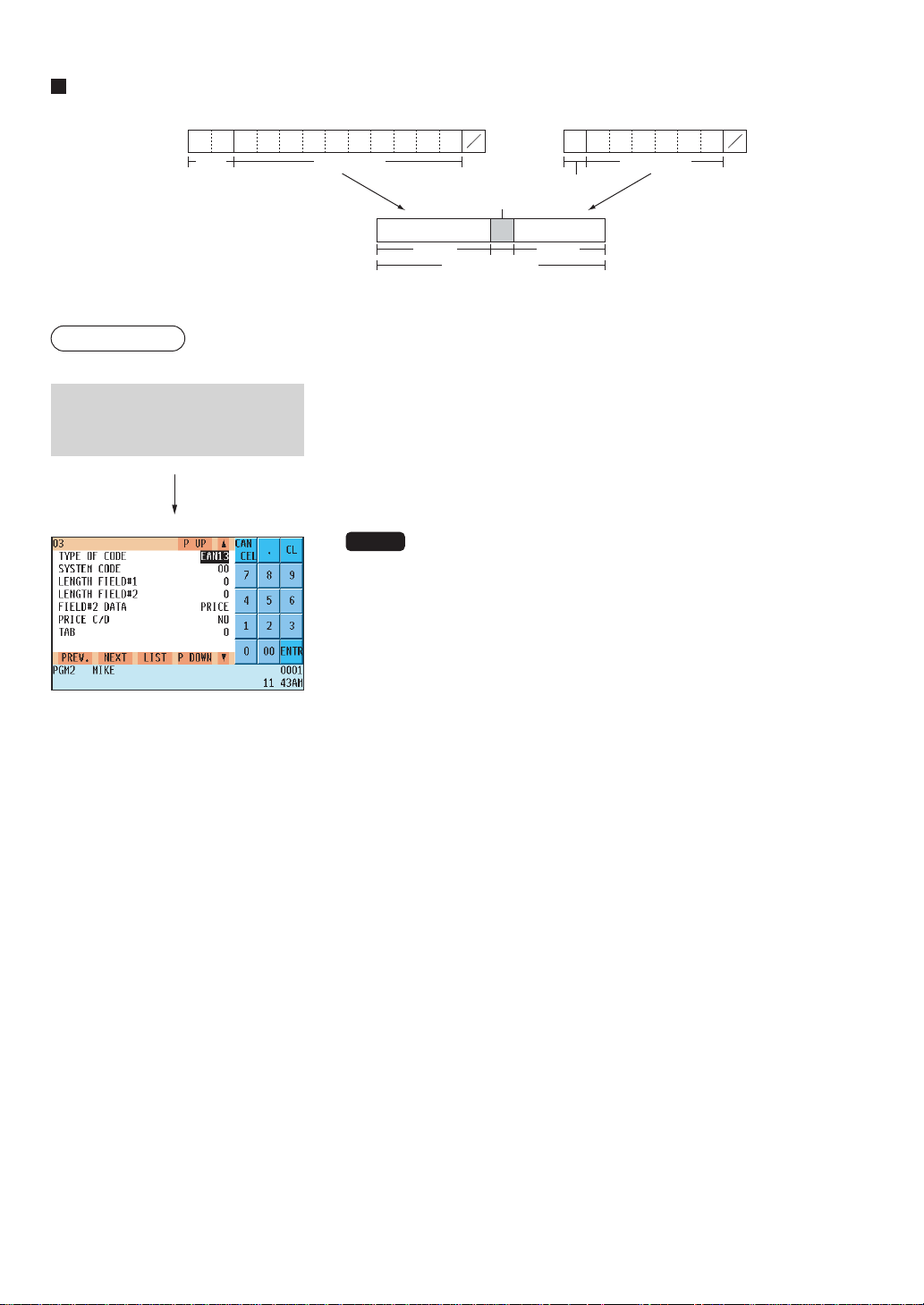
— 140 —
UPC Non-PLU code format
C
D
Free formatFlag
(02 or 20-29)
Field 2Field 1
Free format area
Price check digit
EAN-13 type EAN-8 type
2
C
D
Free format
Flag
Procedure
Program each item as follows:
• TYPE OF CODE (Use the selective entry method)
EAN-8: EAN-8 format code (consists of 8 digits)
EAN-13 (UPC-A): EAN-13 format code (consists of 13 digits)
• SYSTEM CODE (Use the numeric entry method)
System code (i.e. flag code): EAN-8: 1 digit, EAN-13: 2 digits
NOTE
ISBN/ISSN and press codes are always used the fixed format even if
code, 37, 43, 78, 98, or 97 is entered.
• LENGTH FIELD#1 (Use the numeric entry method)
Length of field 1 (number of digits): 0 to 9
• LENGTH FIELD#2 (Use the numeric entry method)
Length of field 2 (number of digits): 0 to 9
• FIELD#2 DATA (Use the selective entry method)
Meaning of field 2
QUANTITY : Quantity
PRICE : Price
• PRICE C/D (Use the selective entry method)
Price check digit
YES : Use the price check digit
NO : Not use the price check digit
• TAB (Use the selective entry method)
TAB or decimal point of field: 3/2/1/0
Select an arbitrary number, or the
desired UPC TYPE OF CODE &
SYSTEM CODE you set.
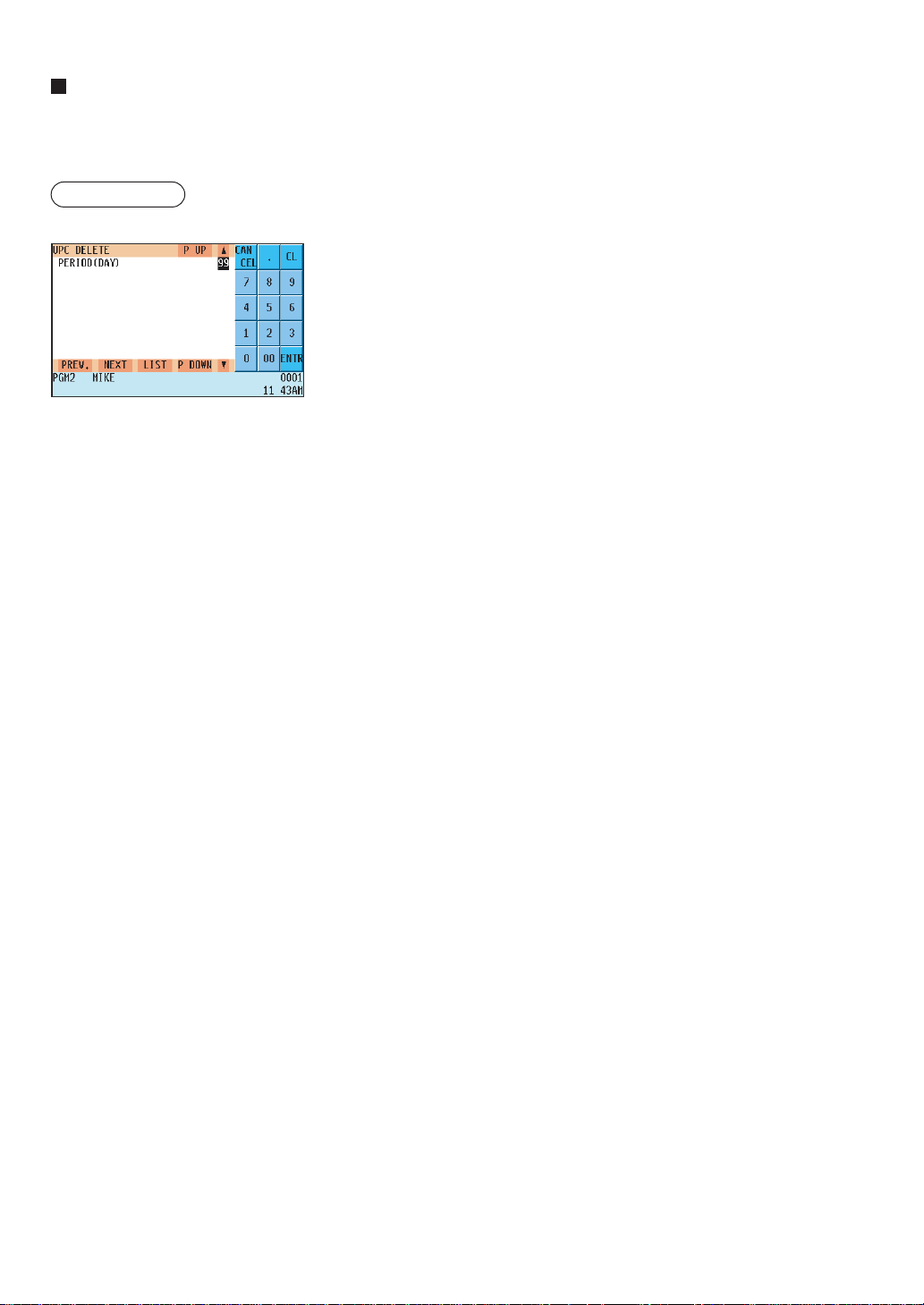
— 141 —
UPC delete
When you execute the delete job (UPC DELETE) in the X1 mode, you can delete the UPC codes which have not
been accessed during the period you set in this program when you execute the delete job while in UPC DELETE in
the X1 mode.
Procedure
Program each item as follows:
• PERIOD (DAY) (Use the numeric entry method)
Enter the UPC record delete period: 01 to 99 (00: Not delete by the
non-accessed deleting job)
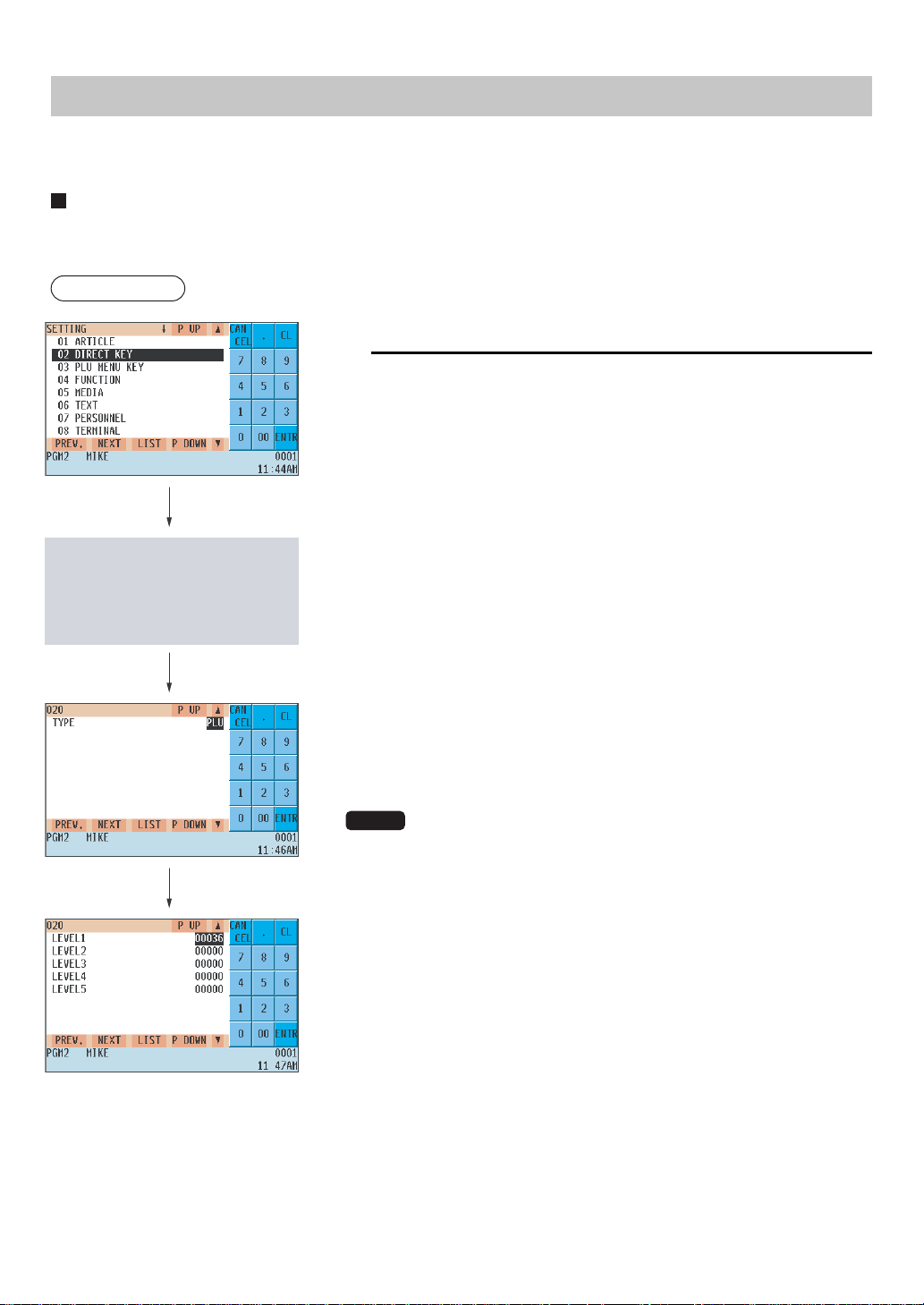
— 142 —
Direct Key Programming
Use the following procedure to select direct-key programming:
Direct PLU/COMBO/Dept. key
You can assign PLUs, combo meals and departments directly to the keyboard. In the case of combo meals or
PLUs, you may assign up to 5-levels to be accessed directly on the keyboard.
Procedure
In the case of setting “00020 DIRECT PLU”
1.
In the SETTING window, select “02 DIRECT KEY.”
• The DIRECT KEY window will appear.
• TYPE (Use the selective entry method)
PLU : Assigns the key as a direct PLU key.
COMBO : Assigns the key as a direct combo key.
DEPT : Assigns the key as a direct department key.
NOTE
•You can also select a direct PLU key by pressing the corresponding key
when the PLU has been assigned directly on the keyboard instead of
selecting the key from the menu.
•When selecting a department, the screen on which a department code
is to be entered (the message “DEPT. CODE”) will appear.
• When selecting a combo, the screen on which a combo table number is
to be entered (“COMBO TBL#”) will appear.
• LEVEL1 thru 5 (Use the numeric entry method)
Enter a PLU number or combo table number for each level.
For example, if you want to use this key as PLU code 1 (level 1) and
PLU code 101 (level 2), enter 1 for the “LEVEL1” and 101 for the
“LEVEL2.”
Press the key on the keyboard
you wish to program or select the
desired key no. from the key
numbers list (Refer to the next
page).
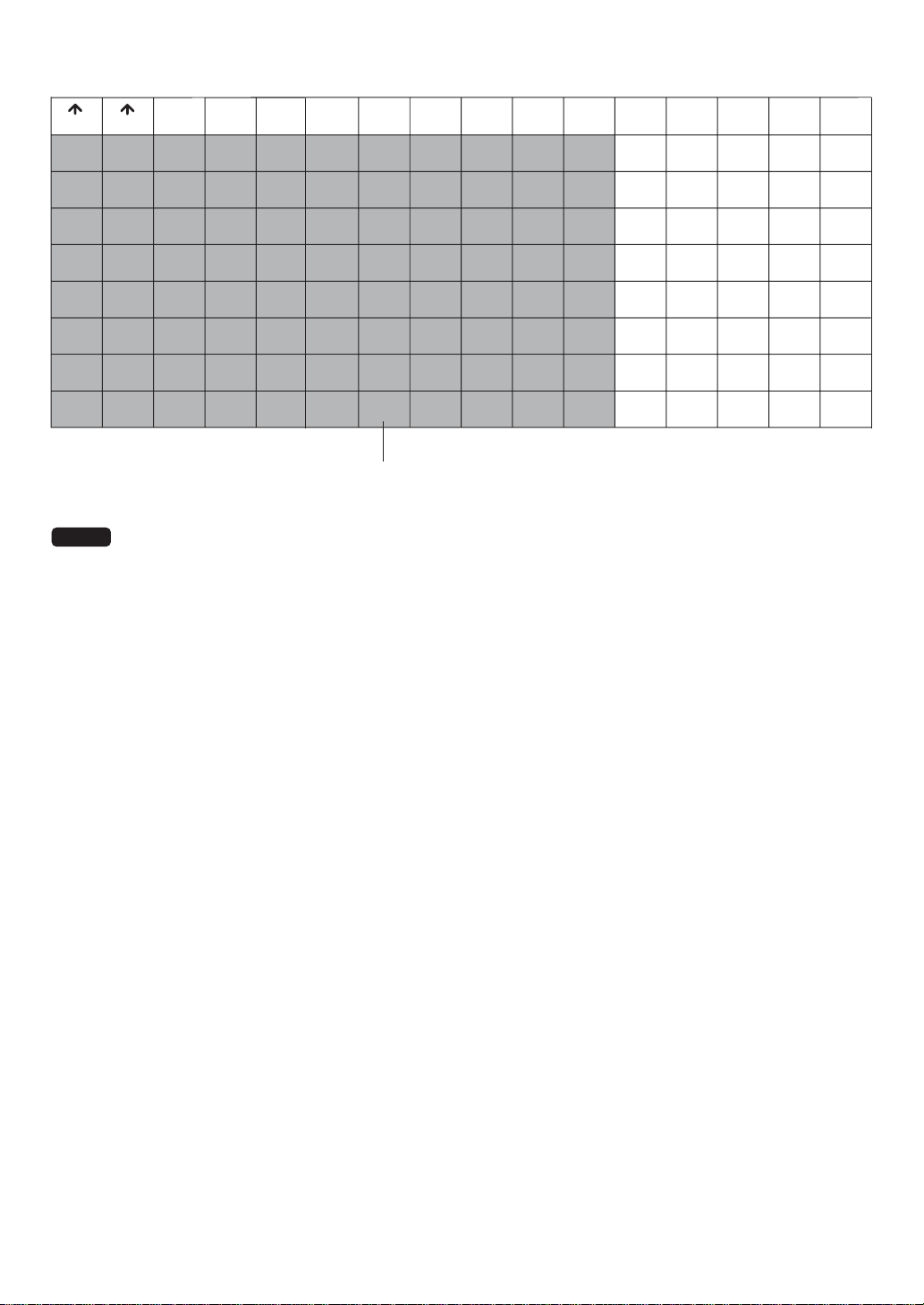
— 143 —
Key numbers
25 34 43 52 61 70 79 88 97 106 115
816243342516069788796105114
715233241505968778695104113
614223140495867768594103112
513213039485766758493102111
412202938475665748392101110
311192837465564738291100109
21018273645546372819099108
191726 35 44 53 62 71 80 89 98 107
RECEIPT
JOURNAL
124 133 142
123 132 141
122 131 140
121 130 139
120 129 138
119 128 137
118 127 136
117 126 135
116 125 134
Default keyboard: Departments, PLUs and combo mealsprogrammable area
NOTE
You cannot place a department, PLU or combo meal key where a function key has been previously
programmed.
For more information, please consult your authorized SHARP dealer.
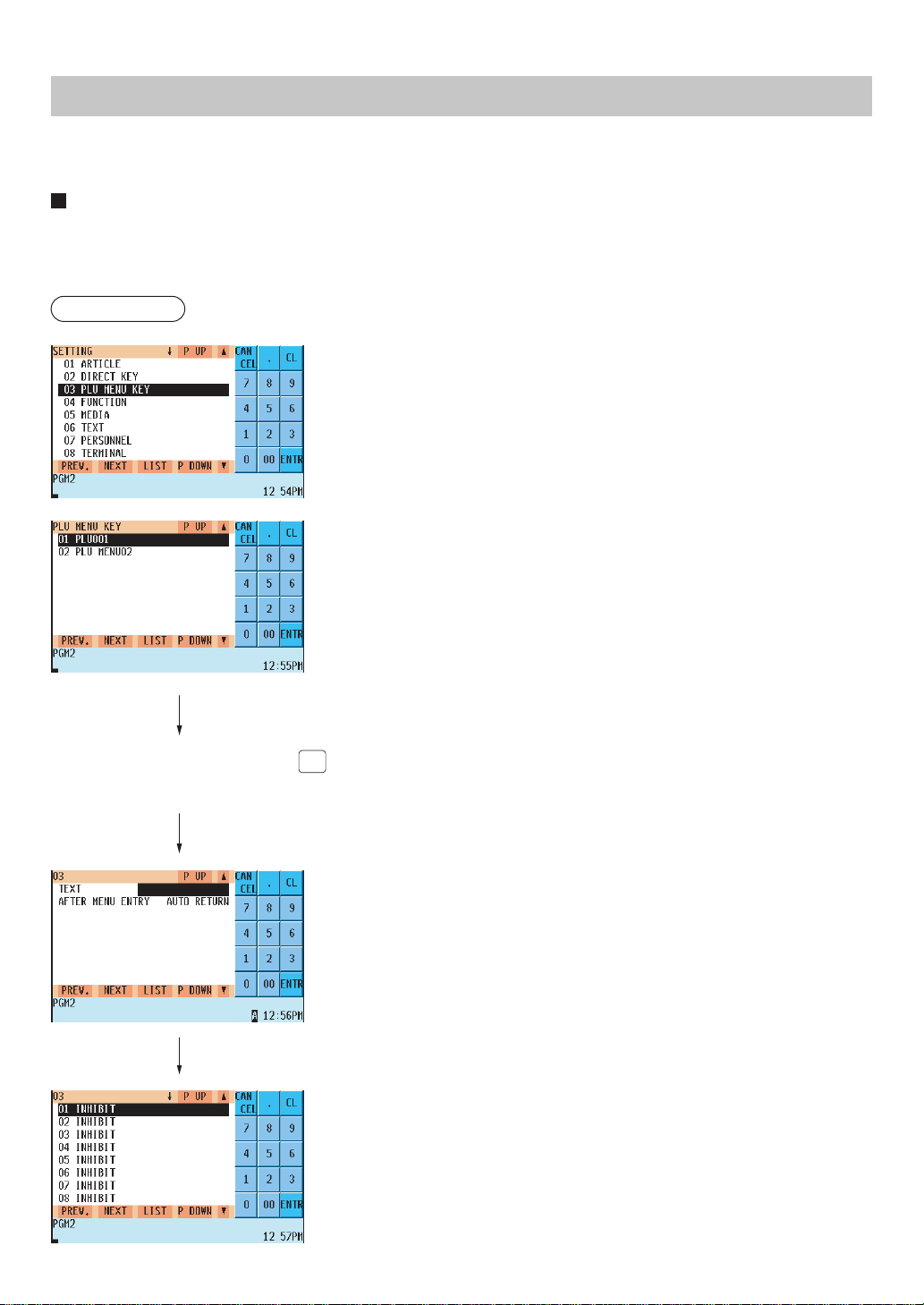
— 144 —
PLU Menu Key Programming
Use the following procedure for PLU menu key programming:
PLU menu key
When you enter PLUs, using the PLU menu key makes it easy to find categorized PLU items from the menu list.
Your POS terminal allows you to program a max. of 50 PLU menu keys. You can program a max. of 15 PLUs/sub-
menus for each PLU menu key.
Procedure
Use the following procedure to program a PLU menu key:
In the SETTING window, select “03 PLU MENU KEY” and program each
item as follows:
• PLU MENU KEY (Use the numeric entry method)
PLU menu key number (1 thru 50)
1 thru 50: For the direct PLU menu key.
Select a PLU menu key and press
(ENTER)
.
(or enter the correpanding key no.)
• TEXT (Use the character entry method)
Description for the PLU menu key. Up to 16 characters can be
entered.
• AFTER MENU ENTRY (Use the selective entry method)
AUTO RETURN: The display returns to the home menu after
menu entry.
STAY DOWN: The current window stays open after menu entry.
• PLU or MENU (Use the selective entry method)
Select a menu PLU or sub-menu from the list.
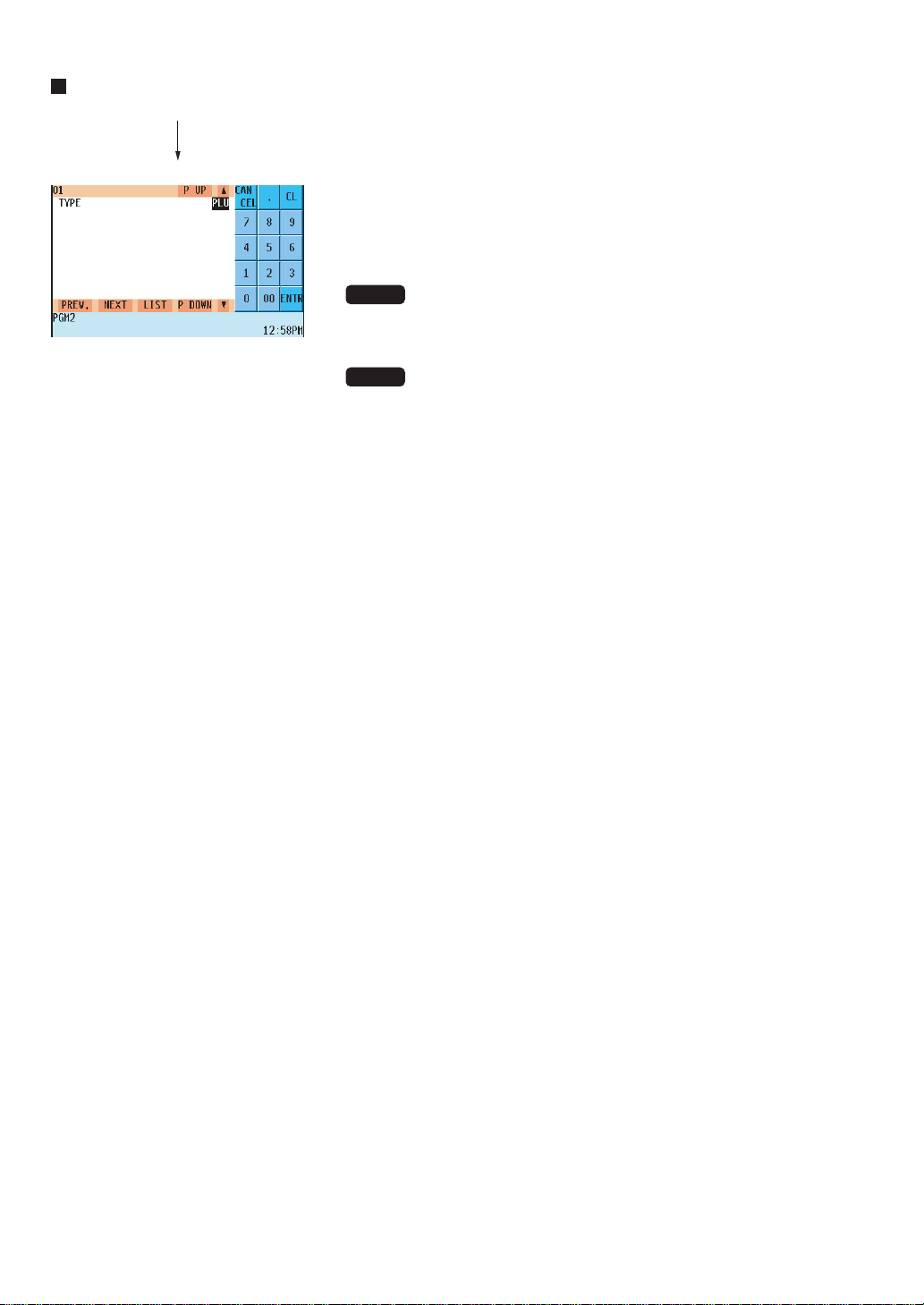
— 145 —
PLU menu key (continued)
• TYPE (Use the selective entry method)
PLU : Selects to program a PLU.
MENU : Selects to program a sub-menu.
NOTE
When selecting a sub-menu, the screen on which a sub-menu number is
to be entered (the message “MENU”) will appear.
NOTE
• The PLU code should be defined before programming a PLU menu key.
• If the (DEL) key is pressed on the menu key number selection menu,
the menu list will be canceled.
• If the (DEL) key is pressed on the menu PLU code selection menu, the
menu in the cursor position will be deleted.
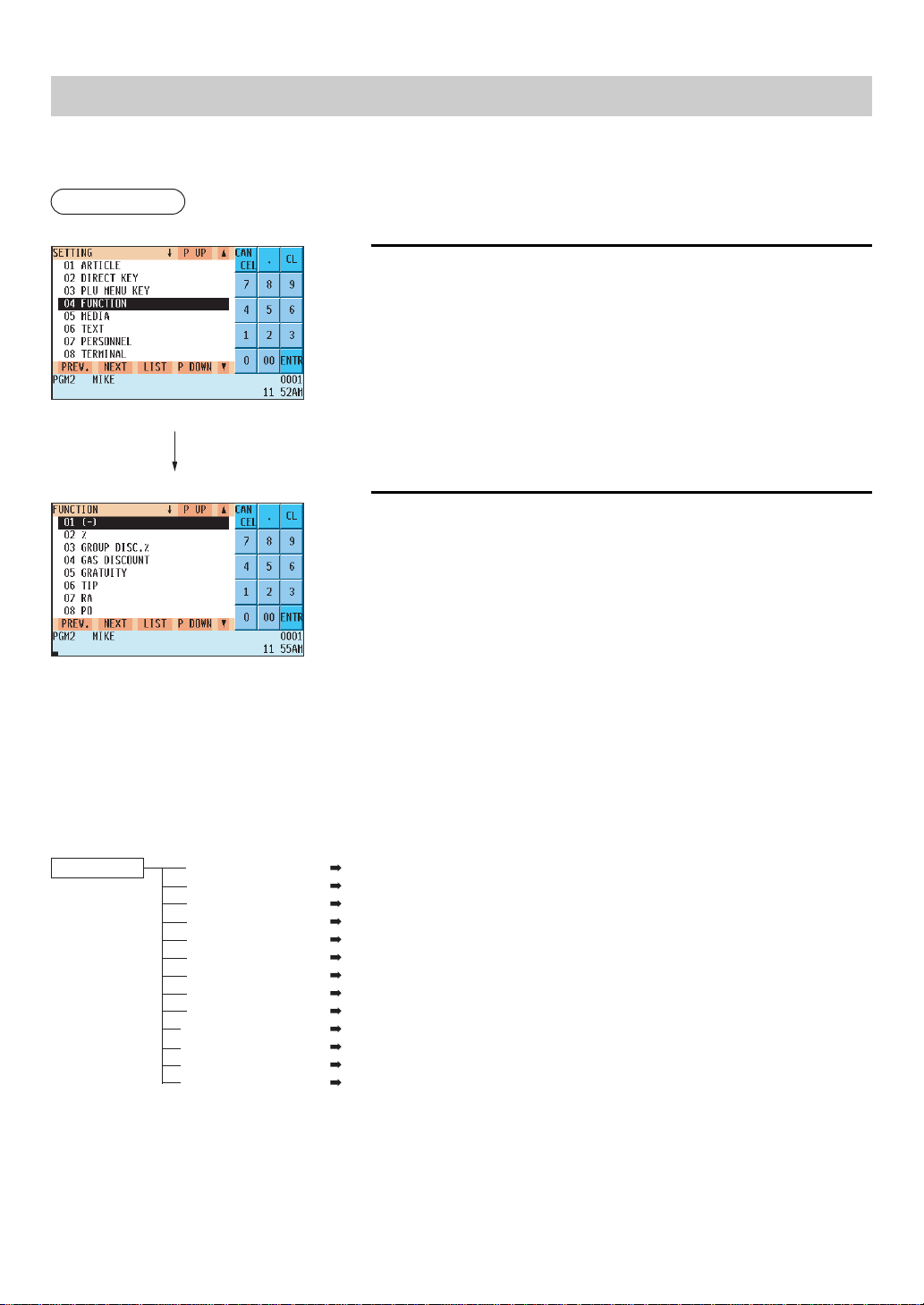
— 146 —
Functional Programming
Use the following procedure for functional programming group:
Procedure
1.
In the SETTING window, select “04 FUNCTION.”
• The FUNCTION window will appear.
2.
Select any option from the following options list:
1 (–): Discount key
2 %: Percent key
3 GROUP DISC.%: Group discount
4 GAS DISCOUNT: Gas discount
5 GRATUITY: Gratuity
6 TIP: Tip
7 RA: Received on account
8 PO: Paid out
9 MANUAL TAX: Manual tax
10 TAX DELETE: Tax delete
11 NO SALE: No-sale
12 VOID: Void
13 REFUND: Refund
The following illustration shows the functional programming options.
4 FUNCTION
1 (–) See “Discount key” on page 147.
2 % See “Percent key” on page 148.
3 GROUP DISC.% See “Group discount key” on page 149.
4 GAS DISCOUNT See “Gas discount” on page 150.
5 GRATUITY See “Gratuity” on page 151.
6 TIP See “Tip” on page 151.
7 RA See “RA” on page 152.
8 PO See “PO” on page 153.
9 MANUAL TAX See “Manual tax” on page 153.
10 TAX DELETE See “Tax delete” on page 154.
11 NO SALE See “No sale” on page 154.
12 VOID See “Void” on page 155.
13 REFUND See “Refund” on page 155.
The screen continues.
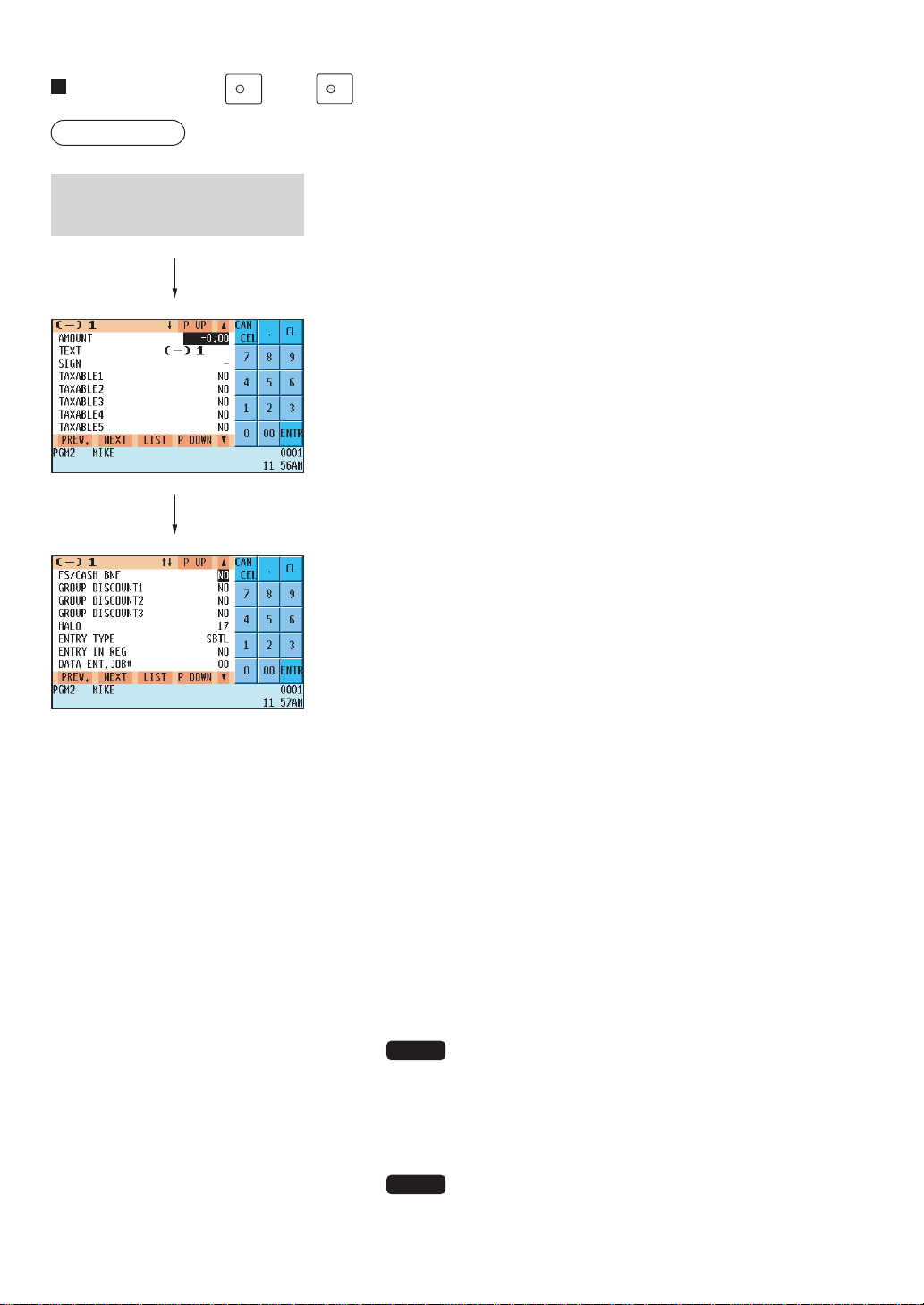
— 147 —
Discount key (
1
thru
9
)
Procedure
Program each item as follows:
• AMOUNT (Use the numeric entry method)
Discount amount (max. 6 digits: 0 to 999999)
• TEXT (Use the character entry method)
Description for the discount key. Up to 12 characters can be entered.
• SIGN (Use the selective entry method)
The + or – sign assigns the premium or discount function to each
discount key.
–: Minus amount (discount)
+: Plus amount (premium)
• TAXABLE1 thru 5 (Use the selective entry method)
YES : Taxable
NO : Non-taxable
• FS/CASH BNF (Use the selective entry method)
Food stamp/cash benefit status
NO : Food stamp/cash benefit ineligible
YES : Food stamp/cash benefit eligible
• GROUP DISCOUNT 1 thru 3 (Use the selective entry method)
Group discount status
NO : Non-discountable
YES : Discountable
• HALO (High Amount Lockout: use the numeric entry method)
A: Significant digit for HALO (1 thru 9)
B: Number of zeros to follow the significant digit for HALO (0 thru 7)
AB is the same as A x 10B.
• ENTRY TYPE (Use the selective entry method)
ITEM: Item (–)
SBTL: Subtotal (–)
• ENTRY IN REG (Use the selective entry method)
YES : Allows a discount entry in the REG mode.
NO : Inhibits a discount entry in the REG mode.
• DATA ENT. JOB# (Use the numeric entry method)
Key data entry job number (Capture job number: 0 thru 99)
When “0” is programmed, data capture is inhibited.
• PLU1 thru 20 (Use the numeric entry method)
Program the PLU code for which the corresponding (–) key is usable.
(1 thru 99999)
NOTE
For the Markdown coupon entry (item (–)):
The coupon entry will be allowed only for a PLU which is
listed in this table.
For the Discount coupon entry (ST (–)):
The coupon entry will be allowed only when all PLU listed
in this table have been entered.
NOTE
You can also select a discount key by pressing the
corresponding key when it has been placed directly on
the keyboard instead of selecting the key from the menu.
Select the desired discount key
from the discount keys list.
The screen continues.
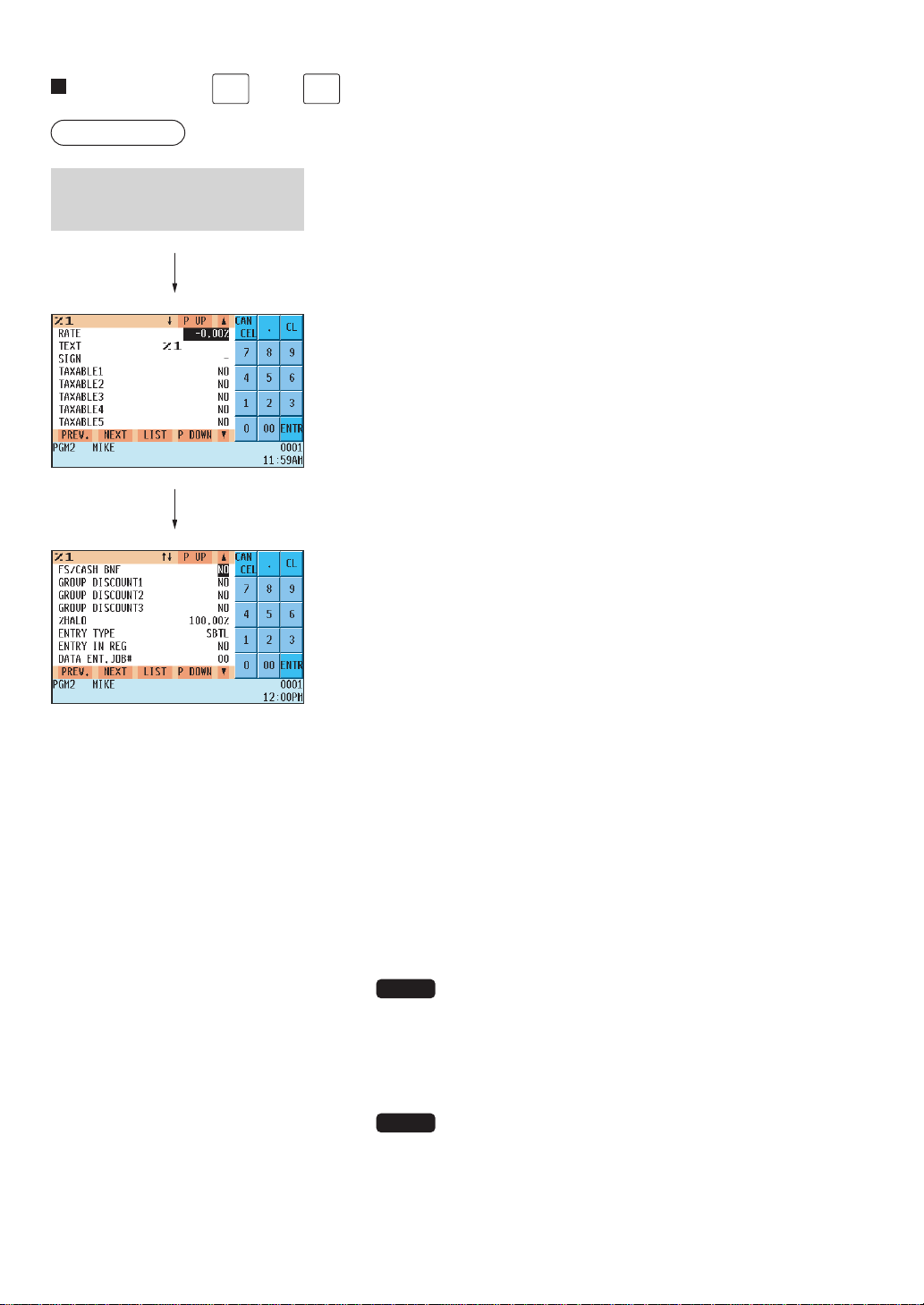
— 148 —
Percent key (
%1
thru
%9
)
Procedure
Program each item as follows:
• RATE (Use the numeric entry method)
Percent rate (0.00 to 100.00)
• TEXT (Use the character entry method)
Description for the percent key. Up to 12 characters can be entered.
• SIGN (Use the selective entry method)
Programming of the + or – sign assigns the premium or discount
function to each percent key.
–: Minus (discount)
+: Plus (premium)
• TAXABLE1 thru 5 (Use the selective entry method)
YES : Taxable
NO : Non-taxable
• FS/CASH BNF (Use the selective entry method)
Food stamp/cash benefit status
NO : Food stamp/cash benefit ineligible
YES : Food stamp/cash benefit eligible
• GROUP DISCOUNT 1 thru 3 (Use the selective entry method)
Group discount status
NO : Non-discountable
YES : Discountable
• %HALO (High Amount Lockout: use the numeric entry method)
HALO (High Amount Lockout) for the percent key (0.00 to 100.00)
• ENTRY TYPE (Use the selective entry method)
ITEM : Item %
SBTL : Subtotal %
• ENTRY IN REG (Use the selective entry method)
YES : Allows a discount entry in the REG mode.
NO : Inhibits a discount entry in the REG mode.
• DATA ENT. JOB# (Use the numeric entry method)
Key data entry job number (Capture job number: 0 thru 99)
When “0” is programmed, data entry is inhibited.
• PLU1 thru 20 (Use the numeric entry method)
Program PLU code which the corresponding % key. (1 thru 99999)
NOTE
For the Markdown % entry (item %):
The % entry will be allowed only for a PLU which is listed in this table.
For the Discount % entry (ST %):
The % entry will be allowed only when all PLUs listed in this table
have been entered.
NOTE
You can also select a percent key by pressing the corresponding key
when it has been placed directly on the keyboard instead of selecting
the key from the menu.
Select the desired percent key
from the percent keys list.
The screen continues.
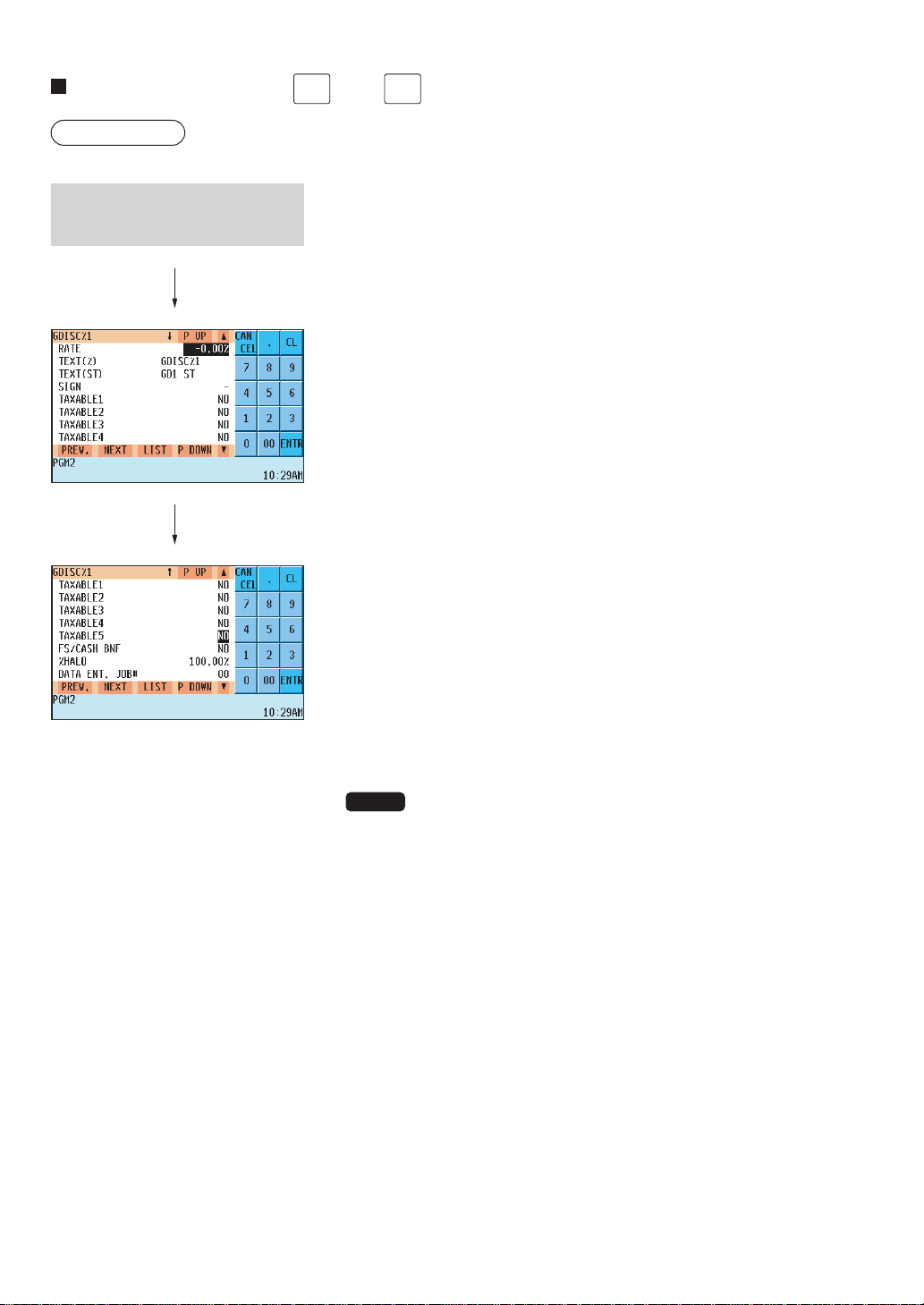
— 149 —
Group discount key (
GDSC%1
thru
GDSC%3
)
Procedure
Program each item as follows:
• RATE (Use the numeric entry method)
Percent rate (0.00 to 100.00)
• TEXT (%) (Use the character entry method)
Description for the group discount key. Up to 12 characters can be
entered.
• TEXT (ST) (Use the character entry method)
Description for group subtotal. Up to 12 characters can be entered.
• SIGN (Use the selective entry method)
Programming of the + or – sign assigns the premium or discount
function to each group discount key.
–: Minus (discount)
+: Plus (premium)
• TAXABLE1 thru 5 (Use the selective entry method)
YES : Taxable
NO : Non-taxable
• FS/CASH BNF (Use the selective entry method)
Food stamp/cash benefit status
NO : Food stamp/cash benefit ineligible
YES : Food stamp/cash benefit eligible
• %HALO (High Amount Lockout: use the numeric entry method)
HALO (High Amount Lockout) for the group discount key (0.00 to
100.00)
• DATA ENT. JOB# (Use the numeric entry method)
Key data entry job number (Capture job no: 0 thru 99)
When “0” is programmed, data entry is inhibited.
NOTE
You can also select a group discount key by pressing the corresponding
key when it has been placed directly on the keyboard instead of selecting
the key from the menu.
Select the desired key from the
group discount keys list.
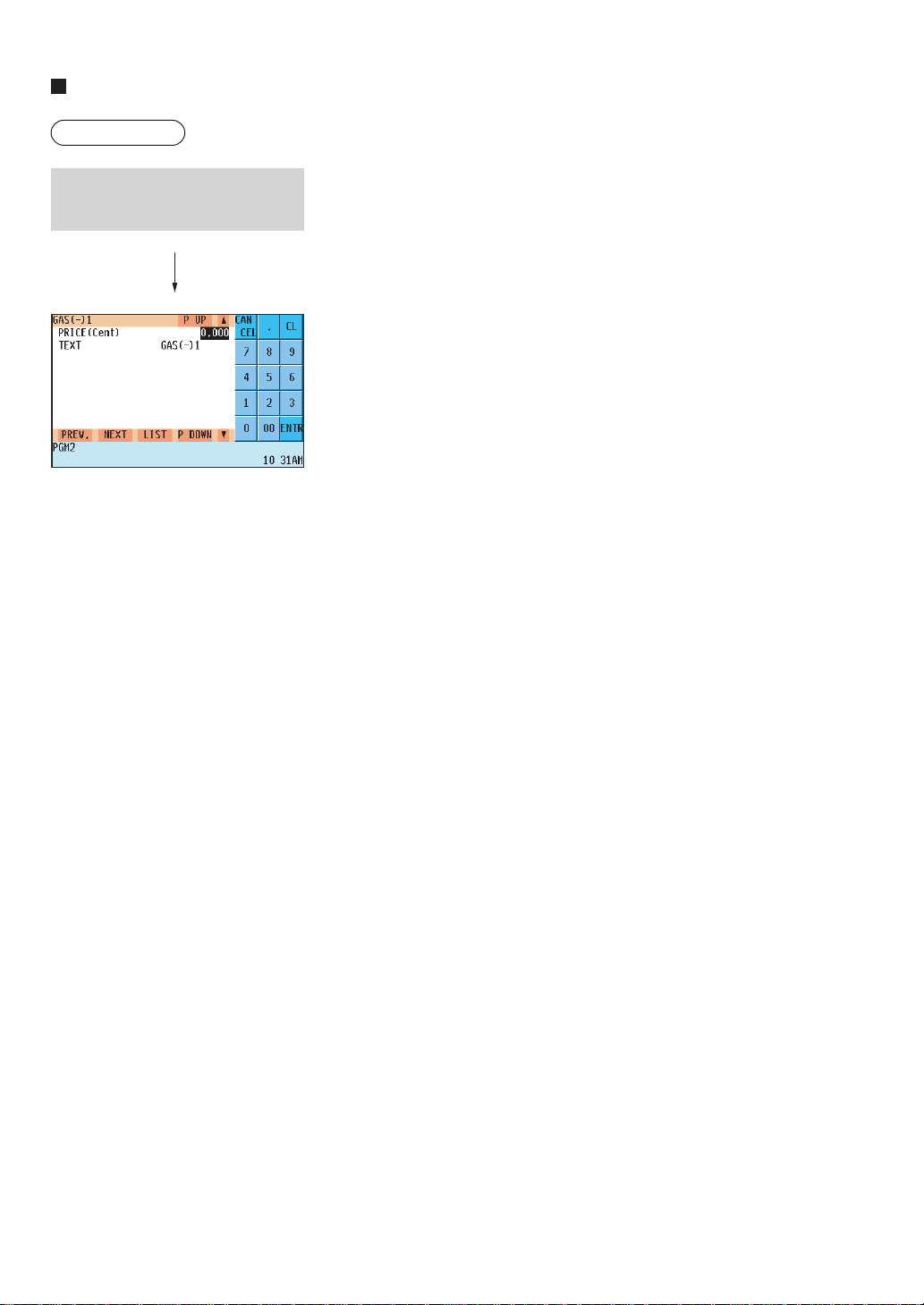
— 150 —
Gas discount
Procedure
Program each item as follows:
• PRICE(Cent) (Use the numeric entry method)
Reduce unit price for each medium (0.0 to 99.9 Cent)
• TEXT (Use the character entry method)
Description for gas discount. Up to 12 characters can be entered.
Select the desired Gas discount
(1 thru 28) from the list.
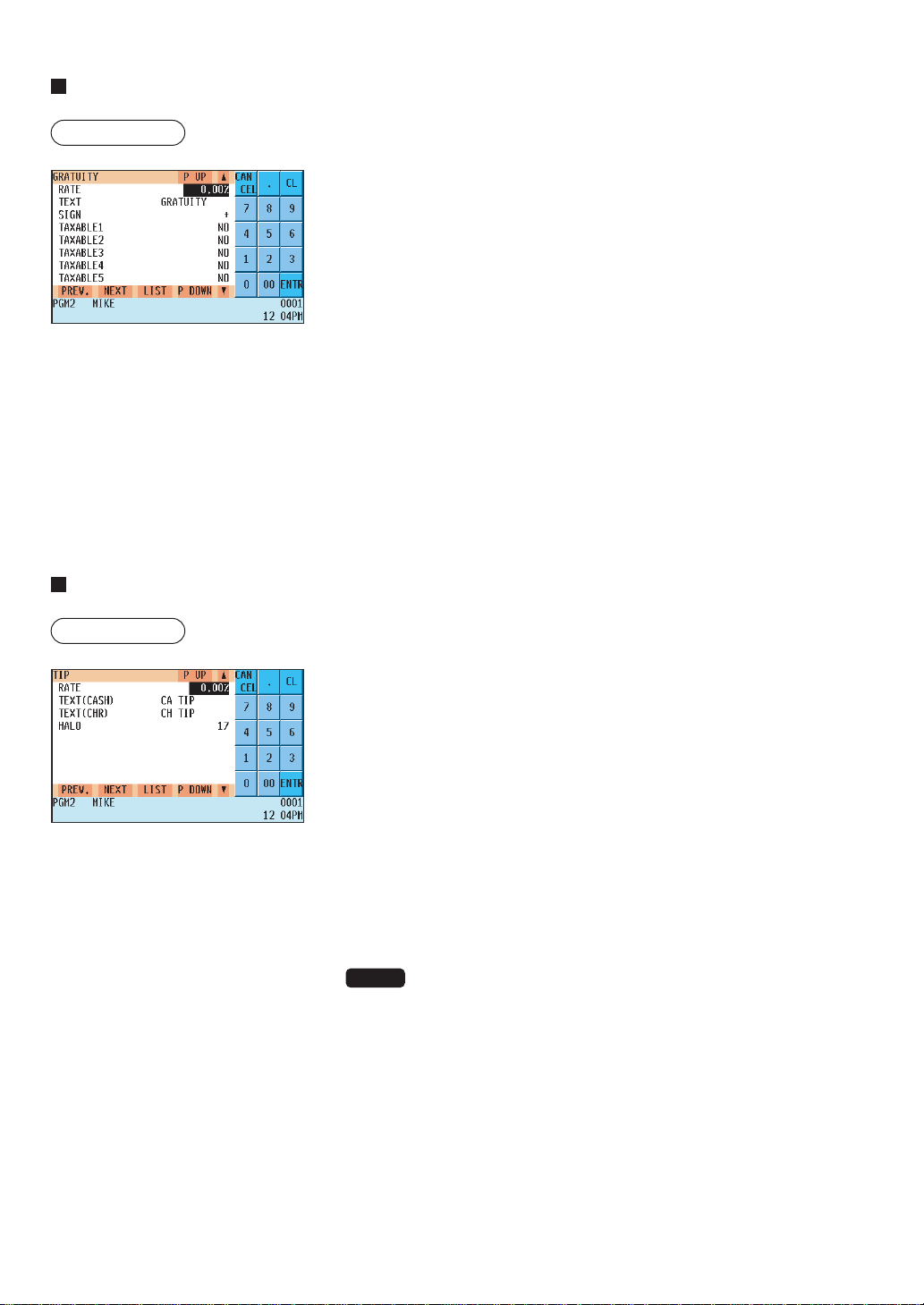
— 151 —
Gratuity
Procedure
Program each item as follows:
• RATE (Use the numeric entry method)
Percent rate (0.00 to 100.00)
• TEXT (Use the character entry method)
Description for gratuity. Up to 12 characters can be entered.
• SIGN (Use the selective entry method)
The + or – sign assigns the premium or
discount function for the gratuity.
–: Minus (discount)
+: Plus (premium)
• TAXABLE1 thru 5 (Use the selective entry method)
YES : Taxable
NO : Non-taxable
Tip
Procedure
Program each item as follows:
• RATE (Use the numeric entry method)
Percent rate (0.00 to 100.00)
• TEXT(CASH) (Use the character entry method)
Description for the cash tip. Up to 12 characters can be entered.
• TEXT(CHR) (Use the character entry method)
Description for the non-cash tip. Up to 12 characters can be entered.
• HALO (High Amount Lockout: use the numeric entry method)
A: Significant digit for HALO (1 thru 9)
B: Number of zeros to follow the significant digit for HALO (0 thru 8)
AB is the same as A x 10B.
NOTE
You can also select a tip key by pressing the corresponding key when it
has been placed directly on the keyboard instead of selecting the key
from the menu.
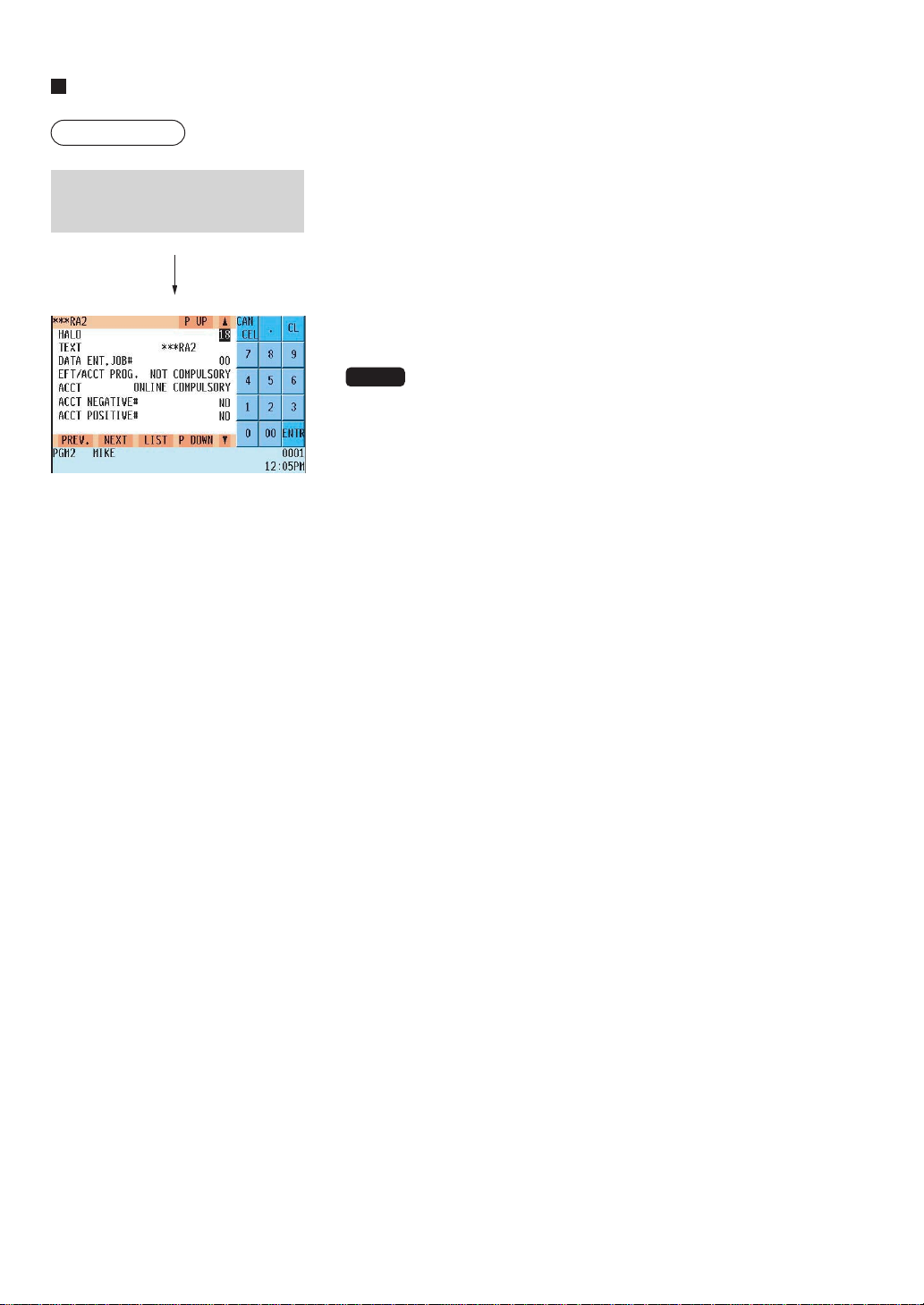
— 152 —
RA
Procedure
Program each item as follows:
• HALO (High Amount Lockout: use the numeric entry method)
A: Significant digit for HALO (1 thru 9)
B: Number of zeros to follow the significant digit for HALO (0 thru 8)
AB is the same as A x 10B.
• TEXT (Use the character entry method)
Description for the received-on-account key. Up to 12 characters can
be entered.
NOTE
You can also select an RA key by pressing the corresponding key when it
has been placed directly on the keyboard instead of selecting the key
from the menu.
• DATA ENT. JOB# (Use the numeric entry method)
Key data entry job no. (Capture job no: 0 thru 99)
When “0” is programmed, data entry is inhibited.
• EFT/ACCT PROG. (Use the selective entry method)
EFT/ACCT programming
• NOT COMPULSORY.
• ACCT COMPULSORY.
• ACCT (Use the selective entry method)
• ONLINE COMPULSORY.
• OFFLINE COMPULSORY.
• CARD RD COMPULSORY.
• ACCT NEGATIVE# (Use the selective entry method)
• NO
• YES
• ACCT POSITIVE# (Use the selective entry method)
• NO
• YES
Select the desired received-on-
account key from the RA keys list.
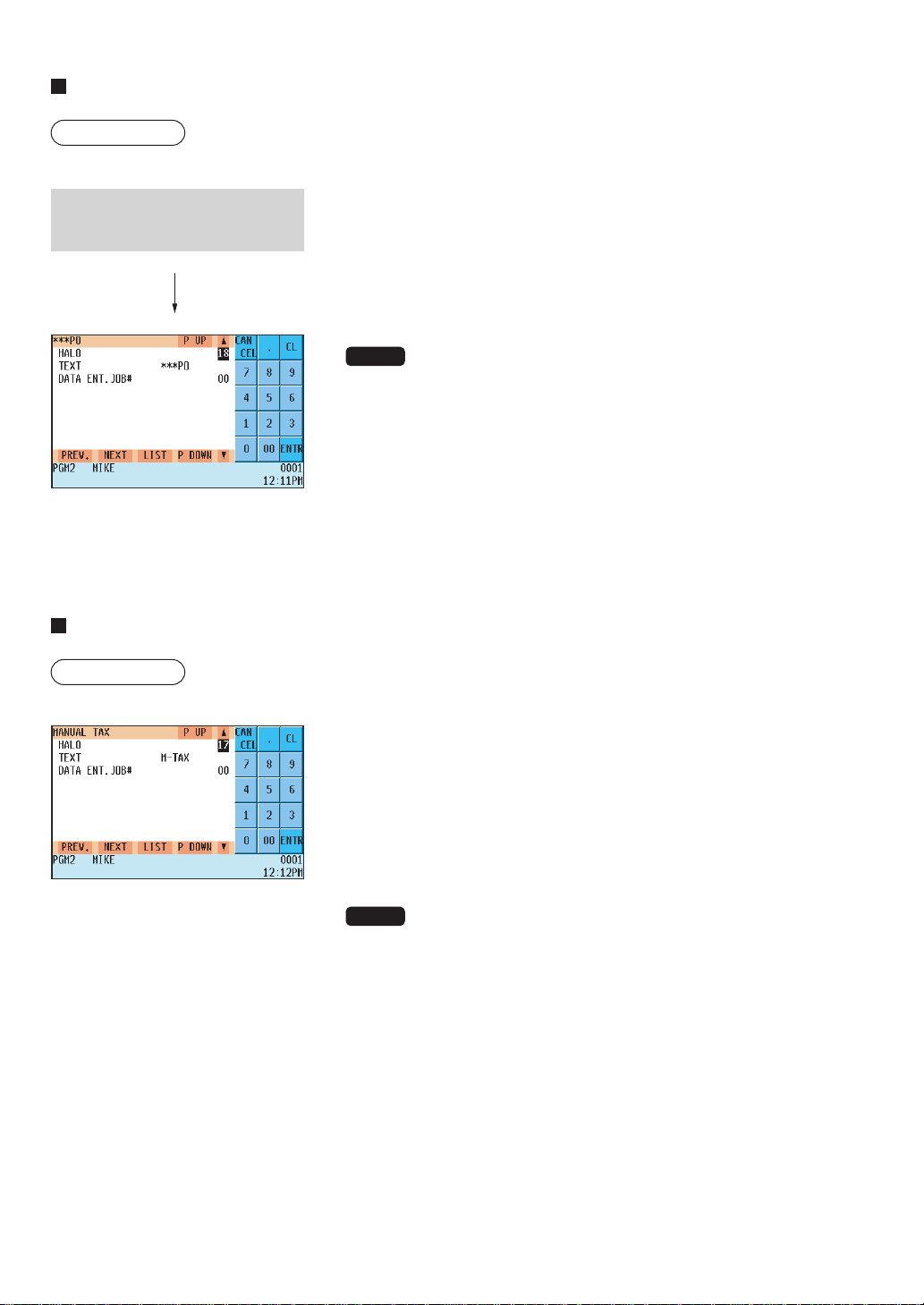
— 153 —
PO
Procedure
Program each item as follows:
• HALO (High Amount Lockout: use the numeric entry method)
A: Significant digit for HALO (1 thru 9)
B: Number of zeros to follow the significant digit for HALO (0 thru 8)
AB is the same as A x 10B.
• TEXT (Use the character entry method)
Description for the paid-out key. Up to 12 characters can be entered.
NOTE
You can also select a PO key by pressing the corresponding key when it
has been placed directly on the keyboard instead of selecting the key
from the menu.
• DATA ENT. JOB# (Use the numeric entry method)
Key data entry job no. (Capture job no: 0 thru 99)
When “0” is programmed, data entry is inhibited.
Manual tax
Procedure
Program each item as follows:
• HALO (High Amount Lockout: use the numeric entry method)
A: Significant digit for HALO (1 thru 9)
B: Number of zeros to follow the significant digit for HALO (0 thru 8)
AB is the same as A x 10B.
• TEXT (Use the character entry method)
Description for the manual tax key. Up to 12 characters can be
entered.
NOTE
You can also select a manual tax key by pressing the corresponding key
when it has been placed directly on the keyboard instead of selecting the
key from the menu.
• DATA ENT. JOB# (Use the numeric entry method)
Key data entry job no. (Capture job no: 0 thru 99)
When “0” is programmed, data entry is inhibited.
Select the desired paid-out key
from the PO keys list.
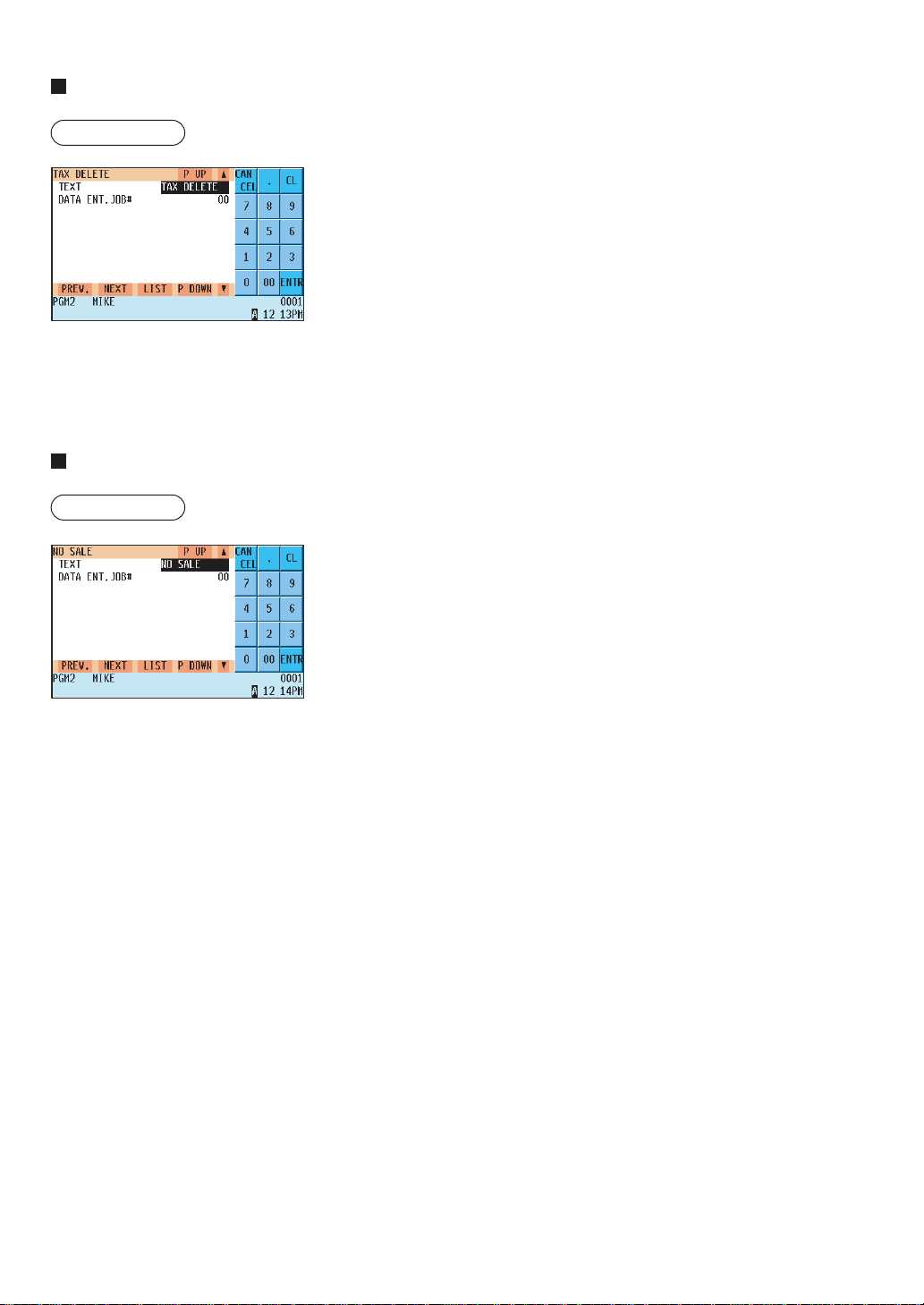
— 154 —
Tax delete
Procedure
Program each item as follows:
• TEXT (Use the character entry method)
Description for the tax delete.
Up to 12 characters can be entered.
• DATA ENT. JOB# (Use the numeric entry method)
Key data entry job number (Capture job no: 0 thru 99)
When “0” is programmed, data entry is inhibited.
No-sale
Procedure
Program each item as follows:
• TEXT (Use the character entry method)
Description for the no-sale.
Up to 12 characters can be entered.
• DATA ENT. JOB# (Use the numeric entry method)
Key data entry job number (Capture job no: 0 thru 99)
When “0” is programmed, data entry is inhibited.
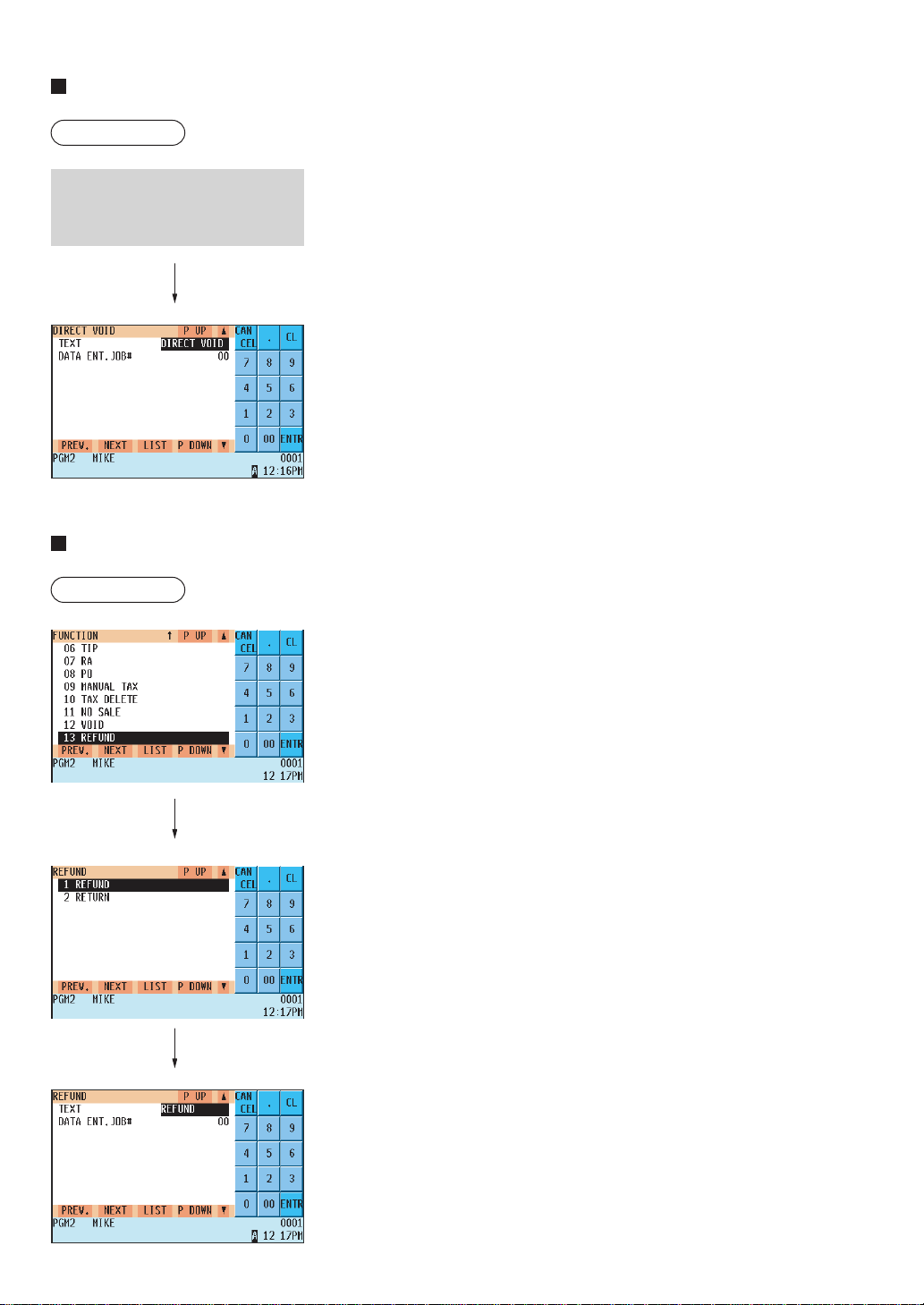
— 155 —
Void
Procedure
Program each item as follows:
• TEXT (Use the character entry method)
Description for the void function.
Up to 12 characters can be entered.
• DATA ENT. JOB# (Use the numeric entry method)
Key data entry job no. (Capture job no: 0 thru 99)
When “0” is programmed, data entry is inhibited.
Refund
Procedure
Program each item as follows:
• TEXT (Use the character entry method)
Description for the refund or return function.
Up to 12 characters can be entered.
• DATA ENT. JOB# (Use the numeric entry method)
Key data entry job no. (Capture job no: 0 thru 99)
When “0” is programmed, data entry is inhibited.
Select the desired void function
from the list (DIRECT VOID/
PAST VOID/SBTL VOID).
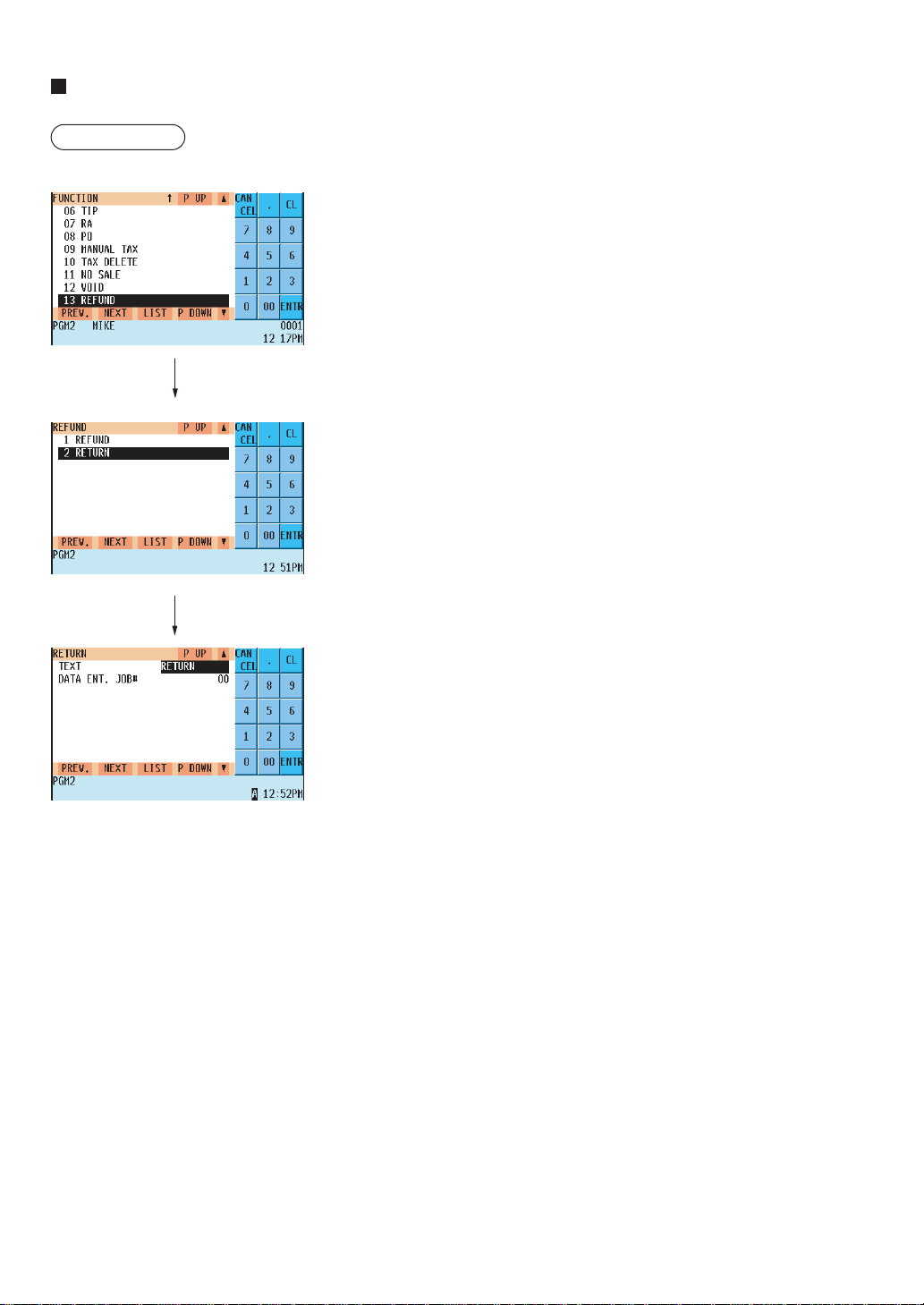
— 156 —
Return
Procedure
Program each item as follows:
• TEXT (Use the character entry method)
Description for the return function.
Up to 12 characters can be entered.
• DATA ENT. JOB# (Use the numeric entry method)
Key data entry job no. (Capture job no: 0 thru 99)
When “0” is programmed, data entry is inhibited.
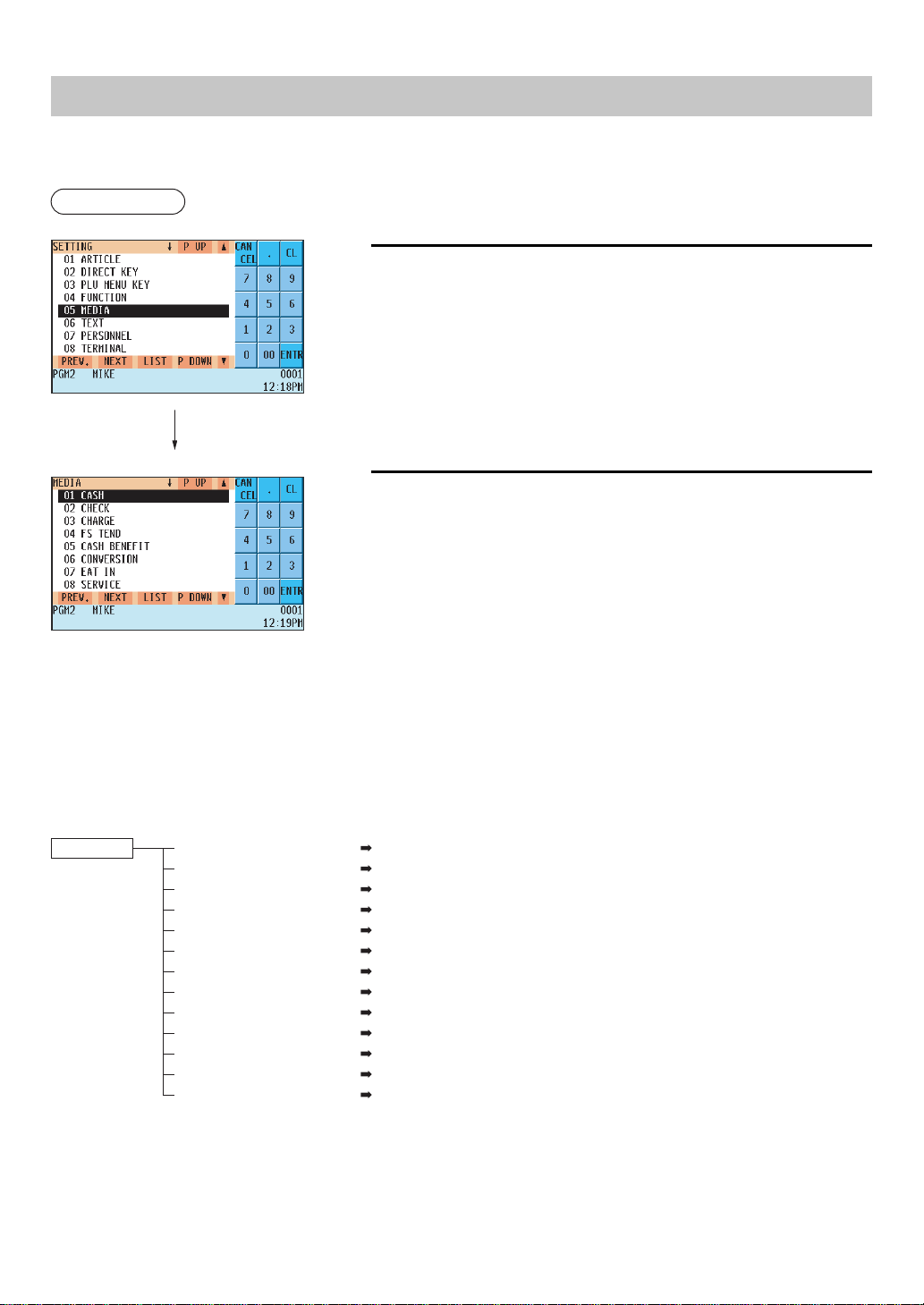
— 157 —
Media Key Programming
Use the following procedure for media key programming:
Procedure
1.
In the SETTING window, select “05 MEDIA.”
• The MEDIA window will appear.
2.
Select any option from the following options list:
1 CASH: Cash key
2 CHECK: Check key
3 CHARGE: Charge key
4 FS TEND: Food stamp tender key
5 CASH BENEFIT: Cash benefit key
6 CONVERSION: Currency conversion keys
7EAT IN: Eat-in key
8 SERVICE: Service key
9 FINAL: Final key
10 CID: Cash in drawer
11 CH/CG: Check change
12 CA/CK: Check cashing
13 MONEY: Currency denominations
The following illustration shows the media key programming options.
5 MEDIA
1 CASH See “Cash keys”
on page 158.
2 CHECK See “Check keys”
on page 162.
3 CHARGE See “Charge keys”
on page 165.
4 FS TEND See “Food stamp tender key”
on page 169.
5 CASH BENEFIT See “Cash benefit by EBT”
on page 173.
6 CONVERSION See “Currency conversion keys”
on page 175.
7 EAT-IN See “Eat-in keys”
on page 175.
8 SERVICE See “Service key”
on page 176.
9 FINAL See “Final key”
on page 178.
10 CID See “Cash in drawer”
on page 180.
11 CH/CG See “Check change”
on page 180.
12 CA/CK See “Check cashing”
on page 181.
13 MONEY See “Currency denominations”
on page 183.
The screen continues.
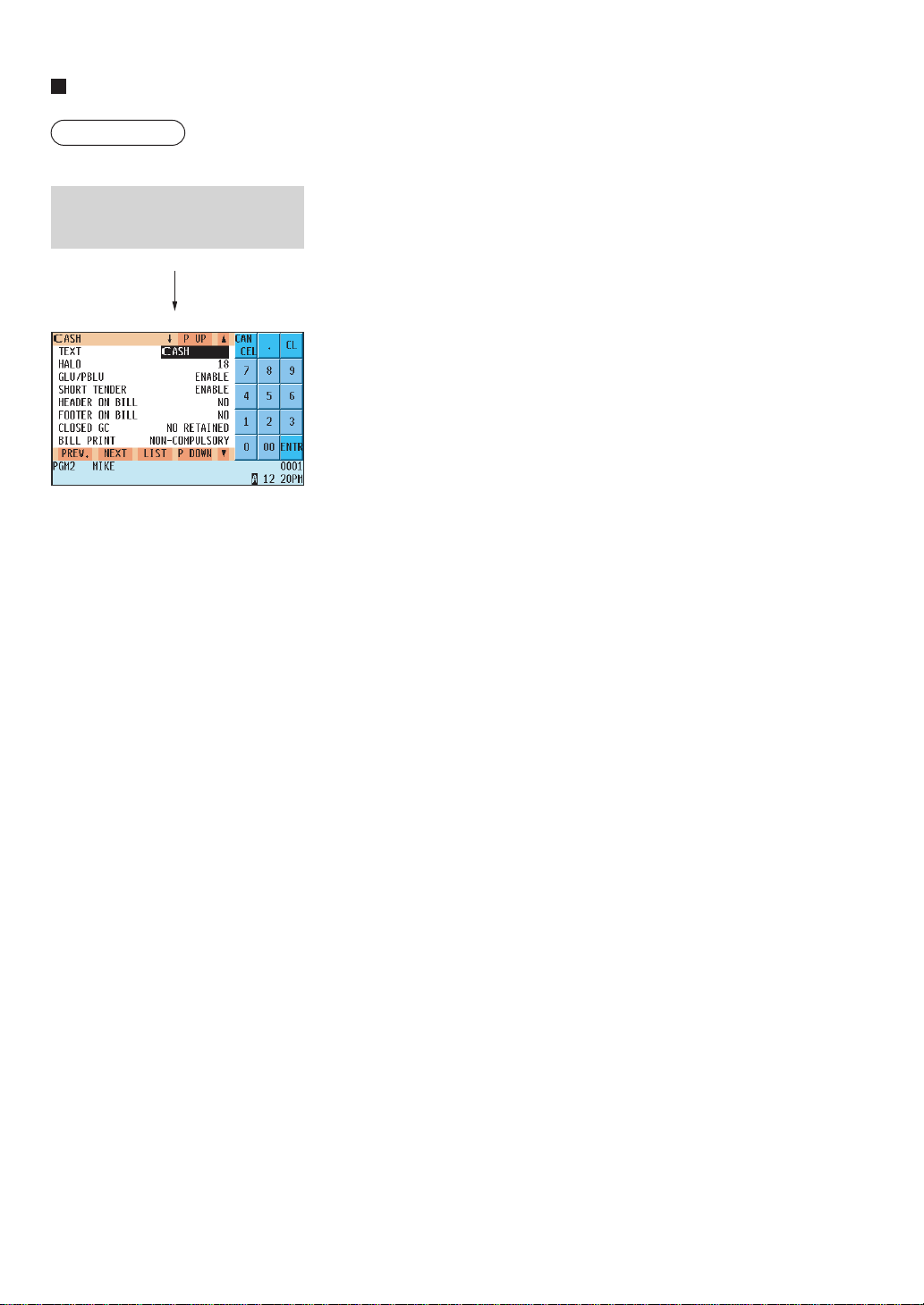
— 158 —
Cash keys
Procedure
Program each item as follows:
• TEXT (Use the character entry method)
Description for the cash key. Up to 12 characters can be entered.
• HALO (High Amount Lockout: use the numeric entry method)
AB is the same as A x 10
B
.
A: Significant digit (1 thru 9)
B: Number of zeros to follow the significant digit (0 thru 8)
You can set AB at 18 for no limitation.
• GLU/PBLU (Use the selective entry method)
GLU/PBLU entry
COMPULSORY: Makes the GLU/PBLU entry compulsory.
INHIBIT: Inhibits GLU/PBLU entry.
ENABLE: Enables GLU/PBLU entry.
• SHORT TENDER (Use the selective entry method)
Short amount tender
DISABLE: Disables short amount tender.
ENABLE: Enables short amount tender.
• HEADER ON BILL (Use the selective entry method)
YES : Enables header printing on the bill.
NO : Disables header printing on the bill.
• FOOTER ON BILL (Use the selective entry method)
YES : Enables footer printing on the bill.
NO : Disables footer printing on the bill.
• CLOSED GC (Use the selective entry method)
RETAIN: Retains the closed GLU/PBLU summary data.
NO RETAIN: Does not retain the closed GLU/PBLU summary data.
• BILL PRINT (Use the selective entry method)
Compulsory/non-compulsory bill printing
COMPULSORY: Compulsory bill printing
NON-COMPULSORY: Non-compulsory bill printing
• FOOTER ON RCPT (Use the selective entry method)
This item decides whether or not your POS terminal should print a
message at the foot of a receipt when a specified cash key is used.
YES : Enables footer printing on the receipt.
NO : Disables footer printing on the receipt.
Select the desired cash key from
the cash keys list.
The screen continues.

— 159 —
Cash keys (continued)
• NON ADD# (Use the selective entry method)
You can enforce non-add code entry when a cash entry is accepted.
COMPULSORY: Compulsory non-add code entry
NON-COMPULSORY: Non-compulsory non-add code entry
• NEGATIVE # CHECK (Use the selective entry method)
YES : Enables the negative # check function.
Any code (non-add code) existing in the negative # file is treated as invalid. The negative # check
function can be overridden depending upon the programming.
NO : Disables the negative # check function.
• POSITIVE # CHECK (Use the selective entry method)
YES : Enables the positive # check function.
Any code (non-add code) existing in the positive # file is treated as valid.
NO : Disables the positive # check function.
• VP (Use the selective entry method)
COMPULSORY: Compulsory validation printing
NON-COMPULSORY: Non-compulsory validation printing
• GAS DISCOUNT (Use the selective entry method)
YES : Enables gas discount.
NO : Disables gas discount.
• TAX1 thru 5 DELETE (Use the selective entry method)
You can program each cash key to delete tax (i.e. tax 1, tax 2, tax 3, tax 4, and tax 5) when it is pressed.
YES : Deletes Tax n (1 thru 5).
NO : Calculates Tax n (1 thru 5).
• DRAWER OPENING (Use the selective entry method)
You can program each cash key to open the drawer.
NO : Does not open the drawer.
YES : Opens the drawer.
• AMOUNT (Use the selective entry method)
You may select whether amount tendered entry is compulsory or non-compulsory.
COMPULSORY: Compulsory amount tendered entry
NON-COMPULSORY: Non-compulsory amount tendered entry
• OUTPUT KP No.1 thru No.3 (Use the numeric entry method)
ID number of the remote printer 1, 2 or 3 (1 digit: 1 to 9)
If the number “0” is entered, no data will be sent to the remote printer.
• CHIT RECEIPT (Use the selective entry method)
YES : Prints on the chit receipt in the remote printer format.
NO : Prints nothing on the chit receipt.
• DATA ENT. JOB# (Use the numeric entry method)
Key data entry job no. (Capture job no: 0 thru 99)
When “0” is programmed, data capture entry is inhibited.

— 160 —
Cash keys (continued)
• EFT/ACCT PROG. (Use the selective entry method)
You can select EFT/ACCT compulsory or not-compulsory.
NOT COMPULSORY: Not-compulsory EFT/ACCT
EFT COMPULSORY: Compulsory EFT
ACCT COMPULSORY: Compulsory ACCT
• EFT (Use the selective entry method)
Select ACTION CODE from the following options:
AUTH-ONLY
DIAL
POST-AUTH
• EFT TYPE (Use the selective entry method)
Select the transaction type.
GIFT CARD
CHECK
DEBIT
CREDIT
• ACCT (Use the selective entry method)
ONLINE COMPULSORY.
OFFLINE COMPULSORY.
CARD RD COMPULSORY.
• ACCT NEGATIVE# (Use the selective entry method)
NO
YES
• ACCT POSITIVE# (Use the selective entry method)
NO
YES
• CARD# PRINT (Use the selective entry method)
YES : Prints the card number.
NO : Does not print the card number.
• SIGN.LINE PRINT (Use the selective entry method)
YES : Prints the signature line.
NO : Does not print the signature line.
• CARD HOLDER PRINT (Use the selective entry method)
YES : Prints the name of the card holder.
NO : Does not print the name of the card holder.
• EXPIRATION PRINT (Use the selective entry method)
YES : Prints the card expiration date.
NO : Does not print the card expiration date.

— 161 —
Cash keys (continued)
• NUMBER OF RCPT (Use the numeric entry method)
Number of authorization receipts to be issued (1 digit: 1 to 9)
If the number “0” is entered, no authorization receipt is issued.
NOTE
You can also select a cash key by pressing the corresponding key when it has been placed directly on the key-
board instead of selecting the key from the menu.
• PRINT LALO (Use the numeric entry method)
LALO for gift card authorization receipt printing (00.00-99.99)
• IC CARD (Use the selective entry method)
YES : Enables IC card entry
NO : Disables IC card entry
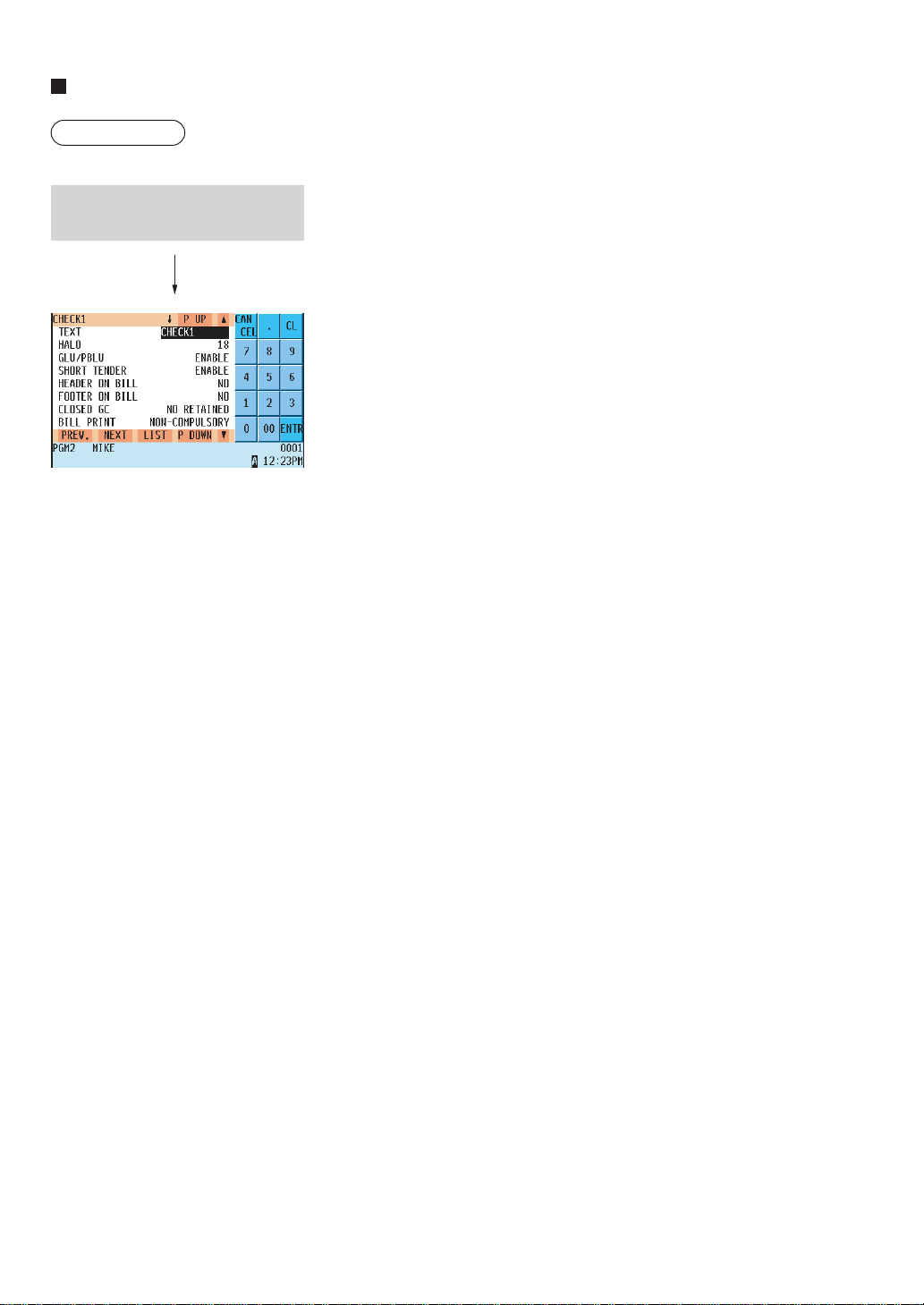
— 162 —
Check keys
Procedure
Program each item as follows:
• TEXT (Use the character entry method)
Description for the check key. Up to 12 characters can be entered.
• HALO (High Amount Lockout: use the numeric entry method)
AB is the same as A x 10B.
A: Significant digit (0 thru 9)
B: Number of zeros to follow the significant digit (0 thru 8)
You can set AB at 18 for no limitation.
• GLU/PBLU (Use the selective entry method)
COMPUL: Makes GLU/PBLU entry compulsory.
INHIBIT: Inhibits GLU/PBLU entry.
ENABLE: Enables GLU/PBLU entry.
• SHORT TENDER (Use the selective entry method)
DISABLE: Disables short amount tender.
ENABLE: Enables short amount tender.
• HEADER ON BILL (Use the selective entry method)
YES : Enables header printing on the bill.
NO : Disables header printing on the bill.
• FOOTER ON BILL (Use the selective entry method)
YES : Enables footer printing on the bill.
NO : Disables footer printing on the bill.
• CLOSED GC (Use the selective entry method)
RETAIN: Retains the closed GLU/PBLU summary data.
NO RETAIN: Does not retain the closed GLU/PBLU summary data.
• BILL PRINT (Use the selective entry method)
COMPULSORY: Compulsory bill printing
NON-COMPULSORY: Non-compulsory bill printing
• FOOTER ON RCPT (Use the selective entry method)
YES : Enables footer printing on the receipt.
NO : Disables footer printing on the receipt.
• NON ADD # (Use the selective entry method)
COMPULSORY: Compulsory non-add code entry
NON-COMPULSORY: Non-compulsory non-add code entry
• NEGATIVE # CHECK (Use the selective entry method)
YES : Enables the negative # check function.
Any code (non-add code) existing in the negative # file is
treated as invalid. The negative # check function can be
overridden depending upon the programming.
NO : Disables the negative # check function.
Select the desired check key from
the check keys list.
The screen continues.

— 163 —
Check keys (continued)
• POSITIVE # (Use the selective entry method)
YES : Enables the positive # check function.
Any code (non-add code) existing in the positive # file is treated as valid.
NO : Disables the positive # check function.
• CHANGE DUE (Use the selective entry method)
Whether to enable or disable the change calculation function can be selected for each check key.
DISABLE: Disables change calculation.
ENABLE: Enables change calculation.
• VP (Use the selective entry method)
COMPULSORY: Compulsory validation printing
NON-COMPULSORY: Non-compulsory validation printing
• GAS DISCOUNT (Use the selective entry method)
YES : Enables gas discount.
NO : Disables gas discount.
• TAX1 thru 5 DELETE (Use the selective entry method)
You can program each check key to delete tax (i.e. tax 1, tax 2, tax 3, tax 4, and tax 5) when it is pressed.
YES : Deletes Tax n (1 thru 5).
NO : Calculates Tax n (1 thru 5).
• DRAWER OPENING (Use the selective entry method)
NO : Does not open the drawer.
YES : Opens the drawer.
• AMOUNT (Use the selective entry method)
COMPULSORY: Compulsory amount tendered entry
NON-COMPULSORY: Non-compulsory amount tendered entry
• OUTPUT KP No.1 thru 3 (Use the numeric entry method)
ID number of the remote printer 1, 2 or 3 (1 digit: 1 to 9)
If the number “0” is entered, no items will be sent to the remote printer.
• CHIT RECEIPT (Use the selective entry method)
YES : Prints on the chit receipt in the remote printer format.
NO : Prints nothing on the chit receipt.
• DATA ENT. JOB# (Use the numeric entry method)
Key data entry job no. (Capture job no: 0 thru 99)
When “0” is programmed, the data capture entry is inhibited.
• EFT/ACCT PROG. (Use the selective entry method)
You can select EFT/ACCT compulsory or not-compulsory.
NOT COMPULSORY: Not-compulsory EFT/ACCT
EFT COMPULSORY: Compulsory EFT
ACCT COMPULSORY: Compulsory ACCT
• EFT (Use the selective entry method)
Select the ACTION CODE from the following options:
AUTH-ONLY
DIAL
POST-AUTH

— 164 —
Check keys (continued)
• EFT TYPE (Use the selective entry method)
Select the transaction type.
GIFT CARD
CHECK
DEBIT
CREDIT
• ACCT (Use the selective entry method)
ONLINE COMPULSORY.
OFFLINE COMPULSORY.
CARD RD COMPULSORY.
• ACCT NEGATIVE# (Use the selective entry method)
NO
YES
• ACCT POSITIVE# (Use the selective entry method)
NO
YES
• CARD# PRINT (Use the selective entry method)
YES : Prints the card number.
NO : Does not print the card number.
• SIGN.LINE PRINT (Use the selective entry method)
YES : Prints the signature line.
NO : Does not print the signature line.
• CARD HOLD. PRINT (Use the selective entry method)
YES : Prints the name of the card holder.
NO : Does not print the name of the card holder.
• EXPIRATION PRINT (Use the selective entry method)
YES : Prints the card expiration date.
NO : Does not print the card expiration date.
• NUMBER OF RCPT (Use the numeric entry method)
Number of authorization receipts to be issued (1 digit: 1 to 9)
If the number “0” is entered, no authorization receipt is issued.
• PRINT LALO (Use the numeric entry method)
LALO for gift card authorization receipt printing (00.00-99.99)
• IC CARD (Use the selective entry method)
YES : Enables IC card entry
NO : Disables IC card entry
NOTE
You can also select a check key by pressing the corresponding key when it has been placed directly on the key-
board instead of selecting the key from the menu.
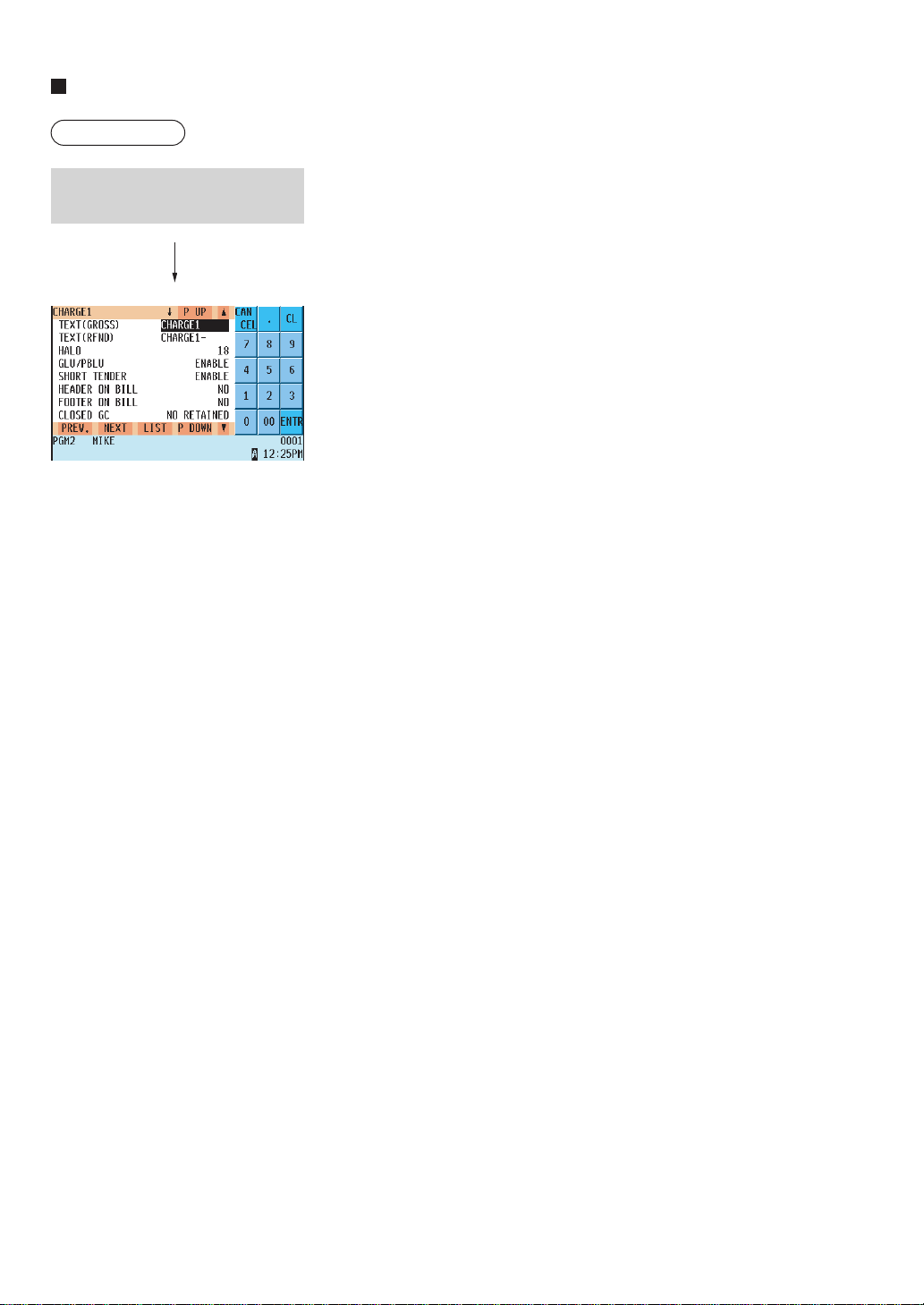
— 165 —
Charge keys
Procedure
Program each item as follows:
• TEXT(GROSS) (Use the character entry method)
Description for the charge (gross sales) key. Up to 12 characters can
be entered.
• TEXT(REFUND) (Use the character entry method)
Description for the (refunded) charge key. Up to 12 characters can be
entered.
• HALO (High Amount Lockout: use the numeric entry method)
AB is the same as A x 10B.
A: Significant digit (0 thru 9)
B: Number of zeros to follow the significant digit (0 thru 8)
You can set AB at 18 for no limitation.
• GLU/PBLU (Use the selective entry method)
COMPULSORY: Makes GLU/PBLU entry compulsory.
INHIBIT: Inhibits GLU/PBLU entry.
ENABLE: Enables GLU/PBLU entry.
• SHORT TENDER (Use the selective entry method)
DISABLE: Disables short amount tender.
ENABLE: Enables short amount tender.
• HEADER ON BILL (Use the selective entry method)
YES : Enables header printing on the bill.
NO : Disables header printing on the bill.
• FOOTER ON BILL (Use the selective entry method)
YES : Enables footer printing on the bill.
NO : Disables footer printing on the bill.
• CLOSED GC (Use the selective entry method)
RETAIN: Retains the closed GLU/PBLU summary data.
NO RETAIN: Does not retain the closed GLU/PBLU summary data.
• BILL PRINT (Use the selective entry method)
Compulsory/non-compulsory bill printing
COMPULSORY: Compulsory bill printing
NON-COMPULSORY: Non-compulsory bill printing
• FOOTER ON RCPT (Use the selective entry method)
YES : Enables footer printing on the receipt.
NO : Disables footer printing on the receipt.
• NON ADD # (Use the selective entry method)
COMPULSORY: Compulsory non-add code entry
NON-COMPULSORY: Non-compulsory non-add code entry
Select the desired charge key
from the charge keys list.
The screen continues.

— 166 —
Charge keys (continued)
• NEGATIVE # CHECK (Use the selective entry method)
YES : Enables the negative # check function.
Any code (non-add code) existing in the negative # file is treated as invalid. The negative # check
function can be overridden depending upon the programming.
NO : Disables the negative # check function.
• POSITIVE # (Use the selective entry method)
YES : Enables the positive # check function.
Any code (non-add code) existing in the positive # file is treated as valid.
NO : Disables the positive # check function.
• CHANGE DUE (Use the selective entry method)
Whether to enable or disable the change calculation function can be selected for each check key.
DISABLE: Disables change calculation.
ENABLE: Enables change calculation.
• VP (Use the selective entry method)
COMPULSORY: Compulsory validation printing
NON-COMPULSORY: Non-compulsory validation printing
• GAS DISCOUNT (Use the selective entry method)
YES : Enables gas discount.
NO : Disables gas discount.
• TAX1 thru 5 DELETE (Use the selective entry method)
You can program each check key to delete tax (i.e. tax 1, tax 2, tax 3, tax 4, and tax 5) when it is pressed.
YES : Deletes Tax n (1 thru 5).
NO : Calculates Tax n (1 thru 5).
• DRAWER OPENING (Use the selective entry method)
NO : Does not open the drawer.
YES : Opens the drawer.
• AMOUNT (Use the selective entry method)
COMPULSORY: Compulsory amount tendered entry
INHIBIT: Inhibit amount tendered entry
• OUTPUT KP No.1 thru 3 (Use the numeric entry method)
ID number of the remote printer 1, 2 or 3 (1 digit: 1 to 9)
If the number “0” is entered, no items will be sent to the remote printer.
• CHIT RECEIPT (Use the selective entry method)
YES : Prints on the chit receipt in the remote printer format.
NO : Prints nothing on the chit receipt.
• DATA ENT. JOB# (Use the numeric entry method)
Key data entry job no. (Capture job no: 0 thru 99)
When “0” is programmed, the data capture entry is inhibited.
• EFT/ACCT PROG. (Use the selective entry method)
You can select EFT/ACCT compulsory or not-compulsory.
NOT COMPULSORY: Not-compulsory EFT/ACCT
EFT COMPULSORY: Compulsory EFT
ACCT COMPULSORY: Compulsory ACCT

— 167 —
Charge keys (continued)
• EFT (Use the selective entry method)
Select ACTION CODE from the following options:
AUTH-ONLY
DIAL
POST-AUTH
• EFT TYPE (Use the selective entry method)
Select the transaction type.
GIFT CARD
CHECK
DEBIT
CREDIT
• ACCT (Use the selective entry method)
ONLINE COMPULSORY.
OFFLINE COMPULSORY.
CARD RD COMPULSORY.
• ACCT NEGATIVE# (Use the selective entry method)
NO
YES
• ACCT POSITIVE# (Use the selective entry method)
NO
YES
• CARD# PRINT (Use the selective entry method)
YES : Prints the card number.
NO : Does not print the card number.
• SIGN.LINE PRINT (Use the selective entry method)
YES : Prints the signature line.
NO : Does not print the signature line.
• CARD HOLDER PRINT (Use the selective entry method)
YES : Prints the name of the card holder.
NO : Does not print the name of the card holder.
• EXPIRATION PRINT (Use the selective entry method)
YES : Prints the card expiration date.
NO : Does not print the card expiration date.
• NUMBER OF RCPT (Use the numeric entry method)
Number of authorization receipts to be issued (1 digit: 1 to 9)
If the number “0” is entered, no authorization receipt is issued.
• PRINT LALO (Use the numeric entry method)
LALO for gift card authorization receipt printing (00.00-99.99)
• IC CARD (Use the selective entry method)
YES : Enables IC card entry
NO : Disables IC card entry

— 168 —
Charge keys (continued)
• TIP LINE PRINT (Use the selective entry method)
YES : Prints the tip line.
NO : Does not print the tip line.
NOTE
You can also select a charge key by pressing the corresponding key when it has been placed directly on the
keyboard instead of selecting the key from the menu.
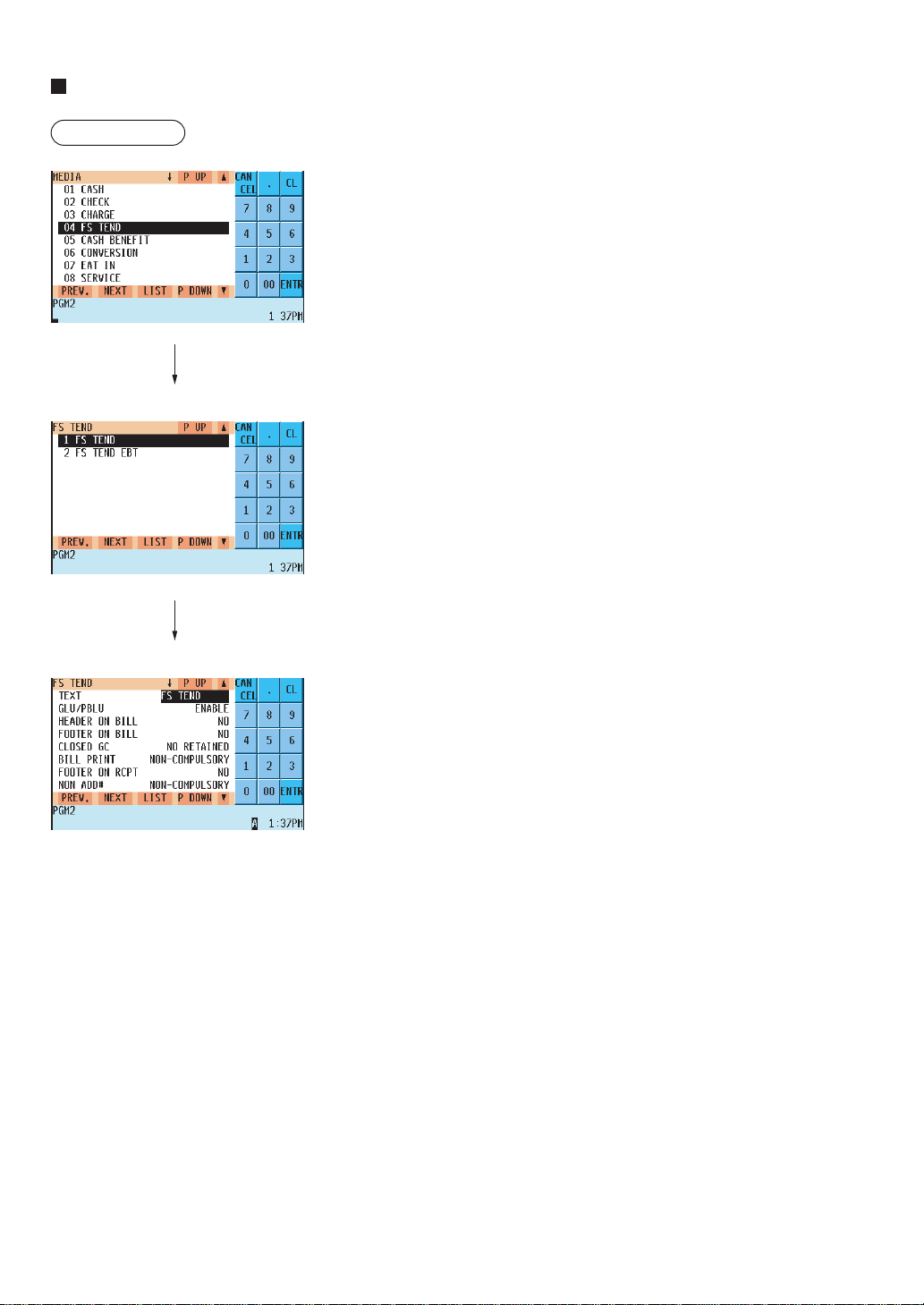
— 169 —
Food stamp tender key: For manual entry of paper food stamp payment
Procedure
Program each item as follows:
• TEXT (Use the character entry method)
Description for the check key. Up to 12 characters can be entered.
• GLU/PBLU (Use the selective entry method)
COMPULSORY: Makes GLU/PBLU entry compulsory.
INHIBIT: Inhibits GLU/PBLU entry.
ENABLE: Enables GLU/PBLU entry.
• HEADER ON BILL (Use the selective entry method)
YES : Enables header printing on the bill.
NO : Disables header printing on the bill.
• FOOTER ON BILL (Use the selective entry method)
YES : Enables footer printing on the bill.
NO : Disables footer printing on the bill.
• CLOSED GC (Use the selective entry method)
RETAIN: Retains the closed GLU/PBLU summary data.
NO RETAIN: Does not retain the closed GLU/PBLU summary data.
• BILL PRINT (Use the selective entry method)
COMPULSORY: Compulsory bill printing
NON-COMPULSORY: Non-compulsory bill printing
• FOOTER ON RCPT (Use the selective entry method)
YES : Enables footer printing on the receipt.
NO : Disables footer printing on the receipt.
• NON ADD # (Use the selective entry method)
COMPULSORY: Compulsory non-add code entry
NON-COMPULSORY: Non-compulsory non-add code entry
• NEGATIVE # CHECK (Use the selective entry method)
YES : Enables the negative # check function.
Any code (non-add code) existing in the negative # file is
treated as invalid. The negative # check function can be
overridden depending upon the programming.
NO : Disables the negative # check function.
• POSITIVE # (Use the selective entry method)
YES : Enables the positive # check function.
Any code (non-add code) existing in the positive # file is
treated as valid.
NO : Disables the positive # check function.
• VP (Use the selective entry method)
COMPULSORY: Compulsory validation printing
NON-COMPULSORY: Non-compulsory validation printing
The screen continues.

— 170 —
Food stamp tender key (continued)
• DRAWER OPENING (Use the selective entry method)
NO : Does not open the drawer.
YES : Opens the drawer.
• OUTPUT KP No.1 thru 3 (Use the numeric entry method)
ID number of the remote printer 1, 2 or 3 (1 digit: 1 to 9)
If the number “0” is entered, no data will be sent to the remote printer.
• CHIT RECEIPT (Use the selective entry method)
YES : Prints on the chit receipt in the remote printer format.
NO : Prints nothing on the chit receipt.
• DATA ENT. JOB# (Use the numeric entry method)
Key data entry job no. (Capture job no: 0 thru 99)
When “0” is programmed, data capture entry is inhibited.
NOTE
You can also select a food stamp tender key by pressing the corresponding key when it has been placed directly on
the keyboard instead of selecting the key from the menu.
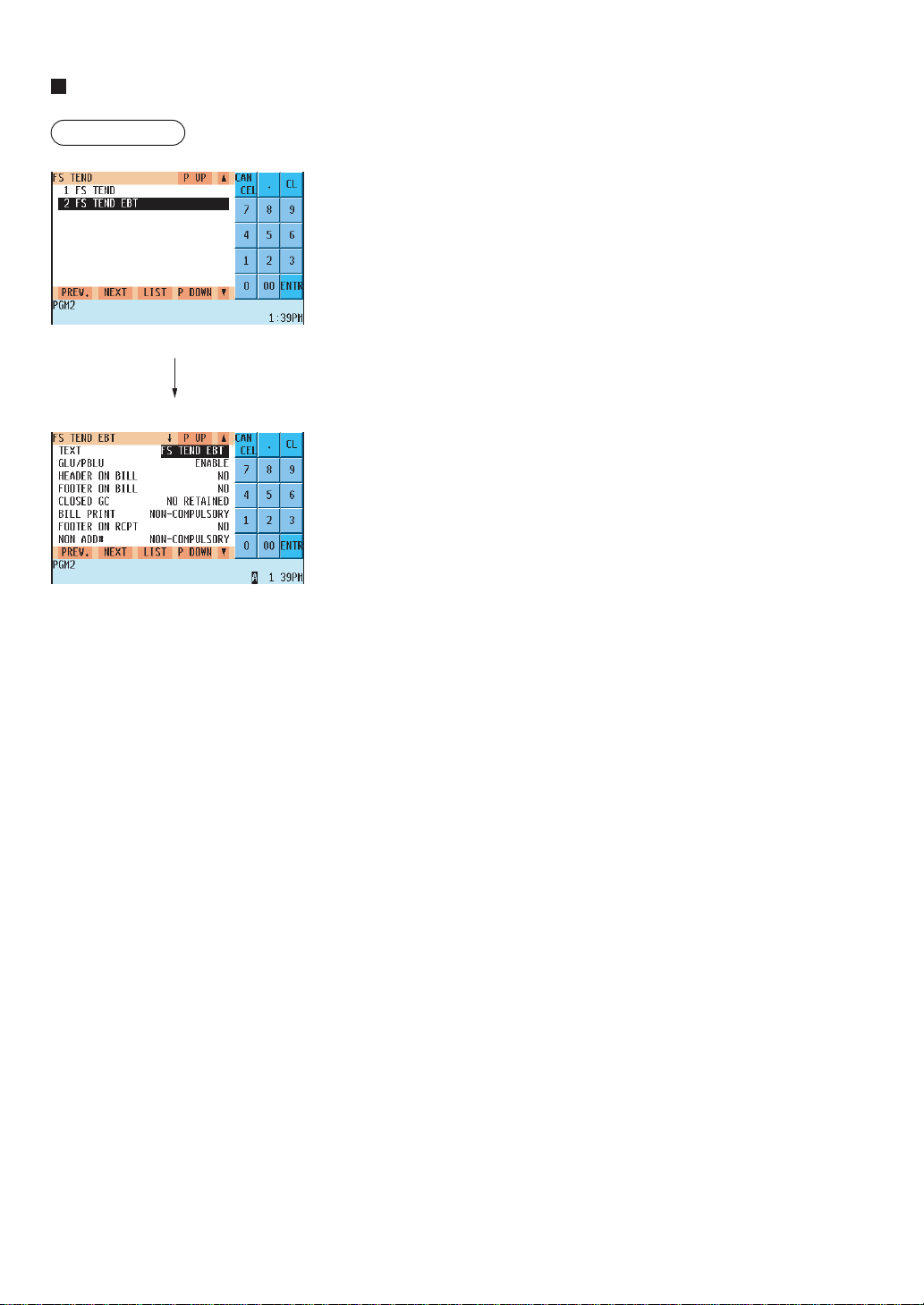
— 171 —
FSTEND EBT key: For food stamp tendering by EBT (Electronic Benefits Transfer)
Procedure
Program each item as follows:
• TEXT (Use the character entry method)
Description for the check key. Up to 12 characters can be entered.
• GLU/PBLU (Use the selective entry method)
COMPULSORY: Makes GLU/PBLU entry compulsory.
INHIBIT: Inhibits GLU/PBLU entry.
ENABLE: Enables GLU/PBLU entry.
• HEADER ON BILL (Use the selective entry method)
YES : Enables header printing on the bill.
NO : Disables header printing on the bill.
• FOOTER ON BILL (Use the selective entry method)
YES : Enables footer printing on the bill.
NO : Disables footer printing on the bill.
• CLOSED GC (Use the selective entry method)
RETAIN: Retains the closed GLU/PBLU summary data.
NO RETAIN: Does not retain the closed GLU/PBLU summary data.
• BILL PRINT (Use the selective entry method)
COMPULSORY: Compulsory bill printing
NON-COMPULSORY: Non-compulsory bill printing
• FOOTER ON RCPT (Use the selective entry method)
YES : Enables footer printing on the receipt.
NO : Disables footer printing on the receipt.
• NON ADD # (Use the selective entry method)
COMPULSORY: Compulsory non-add code entry
NON-COMPULSORY: Non-compulsory non-add code entry
• NEGATIVE # CHECK (Use the selective entry method)
YES : Enables the negative # check function.
Any code (non-add code) existing in the negative # file is
treated as invalid. The negative # check function can be
overridden depending upon the programming.
NO : Disables the negative # check function.
• POSITIVE # (Use the selective entry method)
YES : Enables the positive # check function.
Any code (non-add code) existing in the positive # file is
treated as valid.
NO : Disables the positive # check function.
• VP (Use the selective entry method)
COMPULSORY: Compulsory validation printing
NON-COMPULSORY: Non-compulsory validation printing
The screen continues.

— 172 —
FSTEND EBT key: For food stamp tendering by EBT (Electronic Benefits Transfer)
(continued)
• DRAWER OPENING (Use the selective entry method)
NO : Does not open the drawer.
YES : Opens the drawer.
• OUTPUT KP No.1 thru 3 (Use the numeric entry method)
ID number of the remote printer 1, 2 or 3 (1 digit: 1 to 9)
If the number “0” is entered, no data will be sent to the remote printer.
• CHIT RECEIPT (Use the selective entry method)
YES : Prints on the chit receipt in the remote printer format.
NO : Prints nothing on the chit receipt.
• DATA ENT. JOB# (Use the numeric entry method)
Key data entry job no. (Capture job no: 0 thru 99)
When “0” is programmed, data capture entry is inhibited.
• CARD# PRINT (Use the selective entry method)
YES : Prints the card number.
NO : Does not print the card number.
• CARD HOLDER PRINT (Use the selective entry method)
YES : Prints the name of the card holder.
NO : Does not print the name of the card holder.
• EXPIRATION PRINT (Use the selective entry method)
YES : Prints the card expiration date.
NO : Does not print the card expiration date.
NOTE
You can also select a food stamp tender key by pressing the corresponding key when it has been placed directly on
the keyboard instead of selecting the key from the menu.
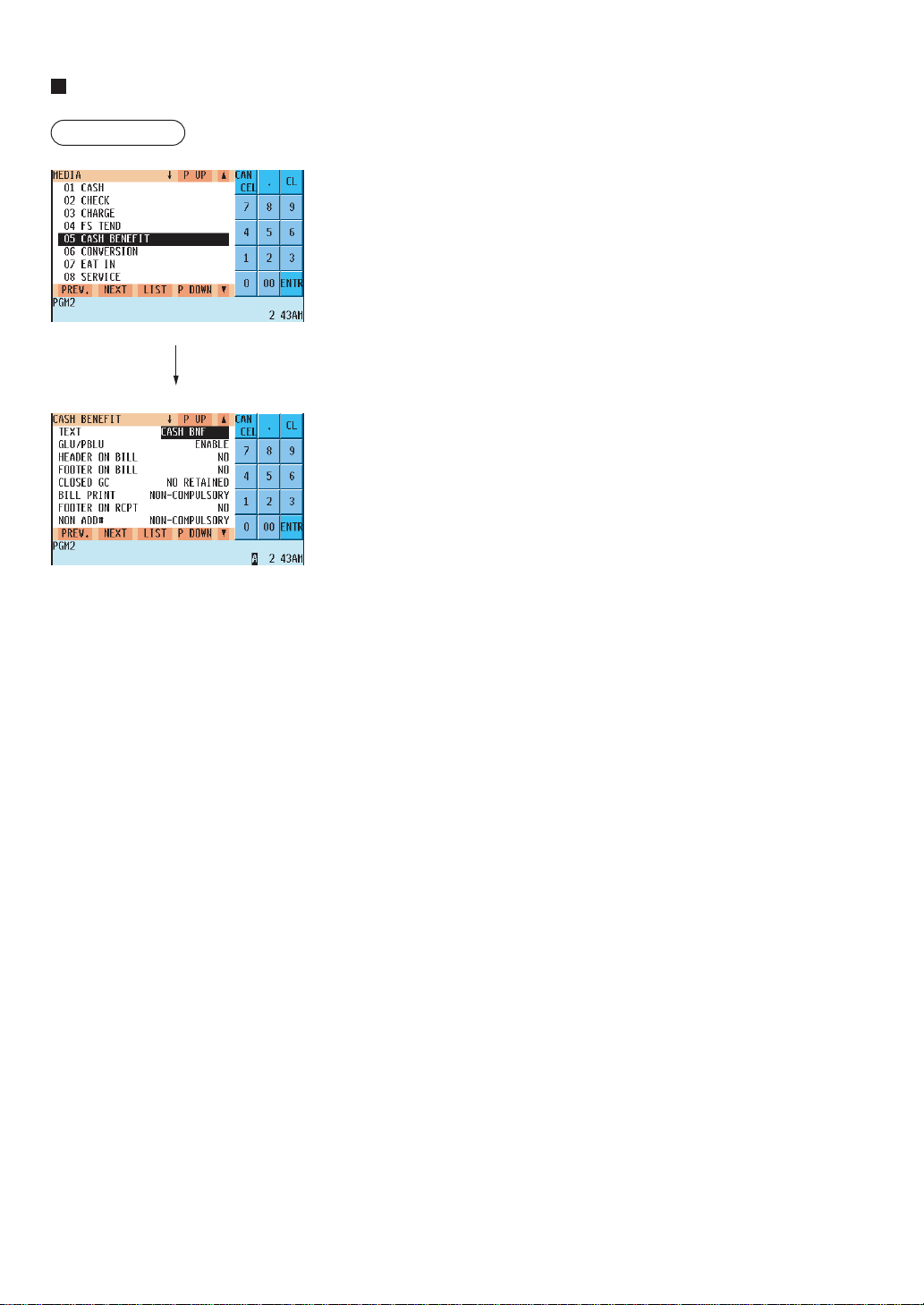
— 173 —
Cash benefit by EBT (CASH BNF key)
Procedure
Program each item as follows:
• TEXT (Use the character entry method)
Description for the check key. Up to 12 characters can be entered.
• GLU/PBLU (Use the selective entry method)
COMPULSORY: Makes GLU/PBLU entry compulsory.
INHIBIT: Inhibits GLU/PBLU entry.
ENABLE: Enables GLU/PBLU entry.
• HEADER ON BILL (Use the selective entry method)
YES : Enables header printing on the bill.
NO : Disables header printing on the bill.
• FOOTER ON BILL (Use the selective entry method)
YES : Enables footer printing on the bill.
NO : Disables footer printing on the bill.
• CLOSED GC (Use the selective entry method)
RETAIN: Retains the closed GLU/PBLU summary data.
NO RETAIN: Does not retain the closed GLU/PBLU summary data.
• BILL PRINT (Use the selective entry method)
COMPULSORY: Compulsory bill printing
NON-COMPULSORY: Non-compulsory bill printing
• FOOTER ON RCPT (Use the selective entry method)
YES : Enables footer printing on the receipt.
NO : Disables footer printing on the receipt.
• NON ADD # (Use the selective entry method)
COMPULSORY: Compulsory non-add code entry
NON-COMPULSORY: Non-compulsory non-add code entry
• NEGATIVE # CHECK (Use the selective entry method)
YES : Enables the negative # check function.
Any code (non-add code) existing in the negative # file is
treated as invalid. The negative # check function can be
overridden depending upon the programming.
NO : Disables the negative # check function.
• POSITIVE # (Use the selective entry method)
YES : Enables the positive # check function.
Any code (non-add code) existing in the positive # file is
treated as valid.
NO : Disables the positive # check function.
• VP (Use the selective entry method)
COMPULSORY: Compulsory validation printing
NON-COMPULSORY: Non-compulsory validation printing
The screen continues.

— 174 —
Cash benefit by EBT (continued)
• DRAWER OPENING (Use the selective entry method)
NO : Does not open the drawer.
YES : Opens the drawer.
• OUTPUT KP No.1 thru 3 (Use the numeric entry method)
ID number of the remote printer 1, 2 or 3 (1 digit:1 to 9)
If the number “0” is entered, no data will be sent to the remote printer.
• CHIT RECEIPT (Use the selective entry method)
YES : Prints on the chit receipt in the remote printer format.
NO : Prints nothing on the chit receipt.
• DATA ENT. JOB# (Use the numeric entry method)
Key data entry job no. (Capture job no: 0 thru 99)
When “0” is programmed, data capture entry is inhibited.
• CARD# PRINT (Use the selective entry method)
YES : Prints the card number.
NO : Does not print the card number.
• CARD HOLDER PRINT (Use the selective entry method)
YES : Prints the name of the card holder.
NO : Does not print the name of the card holder.
• EXPIRATION PRINT (Use the selective entry method)
YES : Prints the card expiration date.
NO : Does not print the card expiration date.
NOTE
You can also select a food stamp tender key by pressing the corresponding key when it has been placed directly on
the keyboard instead of selecting the key from the menu.
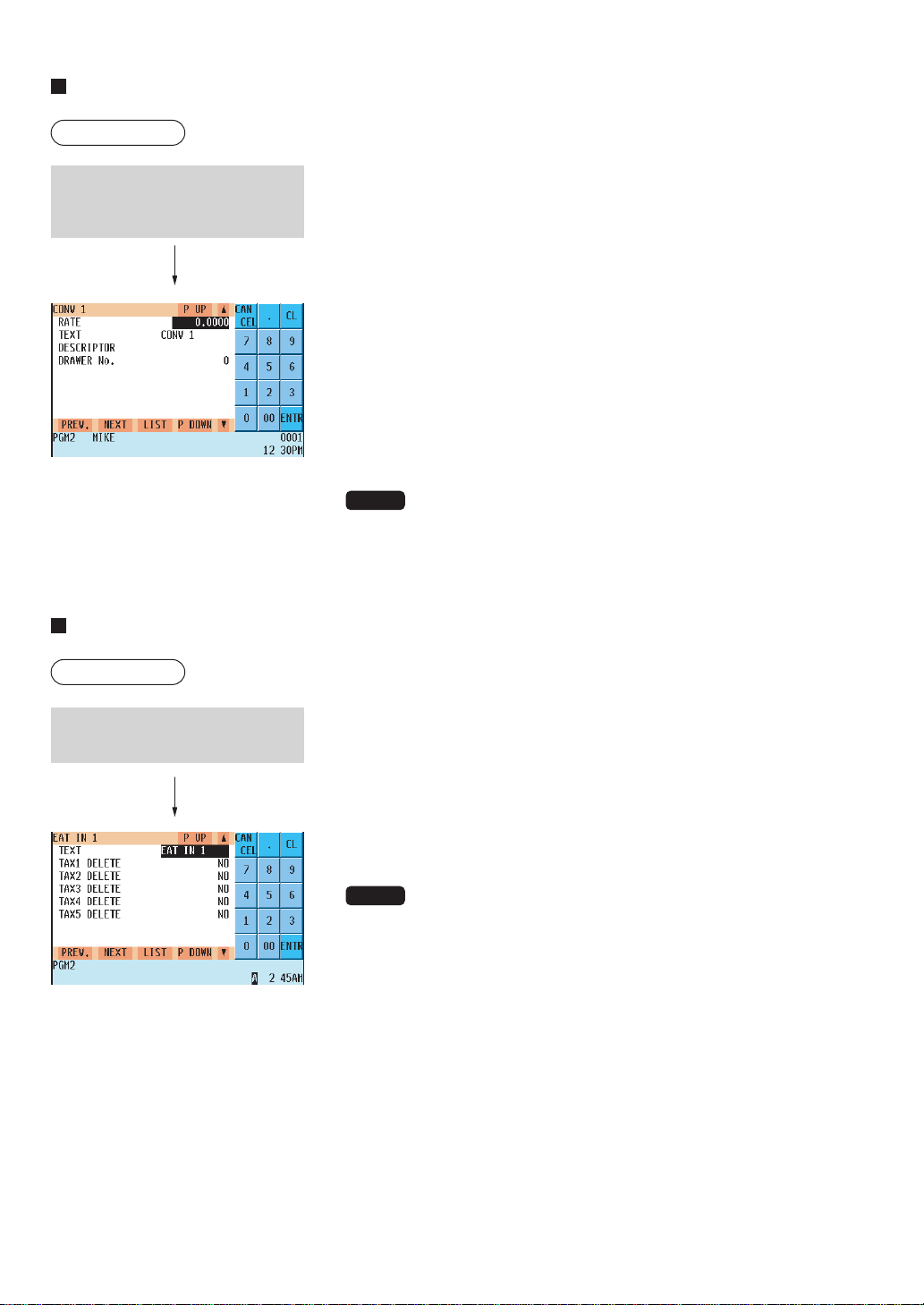
— 175 —
Currency conversion keys
Procedure
Program each item as follows:
• RATE (Use the numeric entry method)
Currency conversion rate (0.0000 to 9999.9999)
(for CONV1 thru CONV4)
• TEXT (Use the character entry method)
Description for the currency conversion key. Up to 12 characters can
be entered.
• DESCRIPTOR (Use the character entry method)
Currency descriptor. Up to 4 characters can be entered.
• DRAWER No.* (Use the numeric entry method)
Foreign currency Drawer No. (1 digit: 0 to 2)
NOTE
You can also select a conversion key by pressing the corresponding key
when it has been placed directly on the keyboard instead of selecting the
key from the menu.
Eat-in keys
Procedure
Program each item as follows:
• TEXT (Use the character entry method)
Description for the eat-in key. Up to 12 characters can be entered.
• TAX1 thru 5 DELETE (Use the selective entry method)
YES : Deletes Tax n (1 thru 5).
NO : Calculates Tax n (1 thru 5).
NOTE
You can also select an eat-in key by pressing the corresponding key when
it has been placed directly on the keyboard instead of selecting the key
from the menu.
Select the desired currency
conversion key from the currency
conversion keys list.
Select the desired eat-in key from
the eat-in keys list.
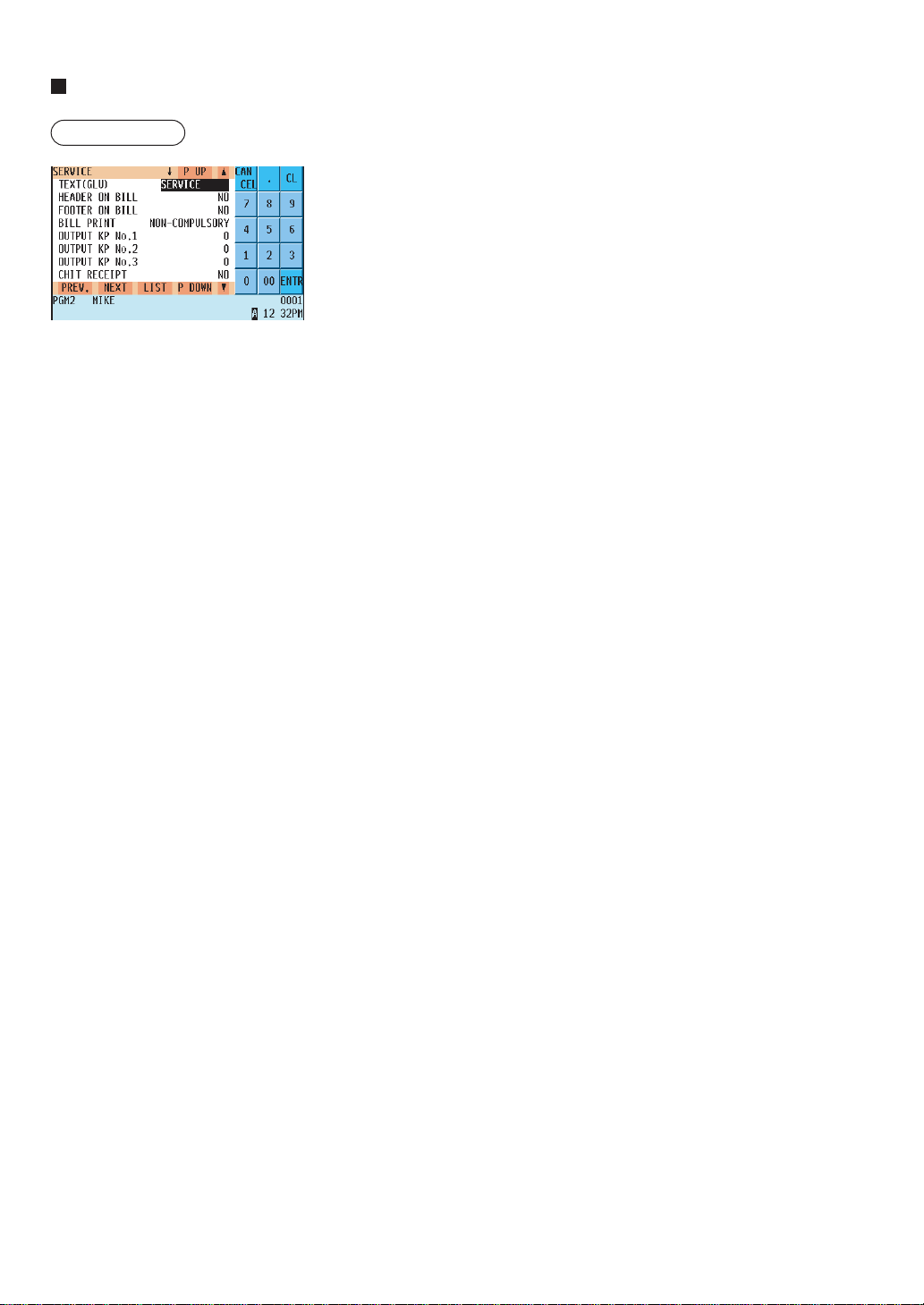
— 176 —
Service key
Procedure
Program each item as follows:
• TEXT (GLU) (Use the character entry method)
Description for the service key. Up to 12 characters can be
entered.
• HEADER ON BILL (Use the selective entry method)
YES : Enables header printing on the bill.
NO : Disables header printing on the bill.
• FOOTER ON BILL (Use the selective entry method)
YES : Enables footer printing on the bill.
NO : Disables footer printing on the bill.
• BILL PRINT (Use the selective entry method)
COMPULSORY: Compulsory bill printing
NON-COMPULSORY: Non-compulsory bill printing
• OUTPUT KP No.1 thru 3 (Use the selective entry method)
ID number of the remote printer 1, 2 or 3 (1 digit: 1 to 9)
If the number “0” is entered, data will be printed on the remote printer.
• CHIT RECEIPT (Use the selective entry method)
YES : Prints on the chit receipt in the remote printer format.
NO : Prints nothing on the chit receipt.
• DATA ENT. JOB# (Use the numeric entry method)
Key data entry job no. (Capture job no: 0 thru 99)
When “0” is programmed, data capture entry is inhibited.
• EFT/ACCT PROG. (Use the selective entry method)
You can select EFT/ACCT compulsory or not-compulsory.
NOT COMPULSORY: Not-compulsory EFT/ACCT
EFT COMPULSORY: Compulsory EFT
ACCT COMPULSORY: Compulsory ACCT
• EFT (Use the selective entry method)
Select the ACTION CODE from the following options:
AUTH-ONLY
DIAL
POST-AUTH
• EFT TYPE (Use the selective entry method)
Select the transaction type.
GIFT CARD
CHECK
DEBIT
CREDIT
The screen continues.

— 177 —
Service key (continued)
• ACCT (Use the selective entry method)
ONLINE COMPULSORY.
OFFLINE COMPULSORY.
CARD RD COMPULSORY.
• ACCT NEGATIVE# (Use the selective entry method)
NO
YES
• ACCT POSITIVE# (Use the selective entry method)
NO
YES
• CARD# PRINT. (Use the selective entry method)
YES : Prints the card number.
NO : Does not print the card number.
• SIGN.LINE PRINT (Use the selective entry method)
YES : Prints the signature line.
NO : Does not print the signature line.
• CARD HOLDER PRINT (Use the selective entry method)
YES : Prints the name of the card holder.
NO : Does not print the name of the card holder.
• EXPIRATION PRINT (Use the selective entry method)
YES : Prints the card expiration date.
NO : Does not print the card expiration date.
• NUMBER OF RCPT (Use the numeric entry method)
Number of authorization receipts to be issued (1 digit: 1 to 9)
If the number “0” is entered, no authorization receipt is issued.
• PRINT LALO (Use the numeric entry method)
LALO for gift card authorization receipt printing (00.00-99.99)
• IC CARD (Use the selective entry method)
YES : Enables IC card entry
NO : Disables IC card entry
NOTE
You can also select a service key by pressing the corresponding key when it has been placed directly
on the keyboard instead of selecting the key from the menu.
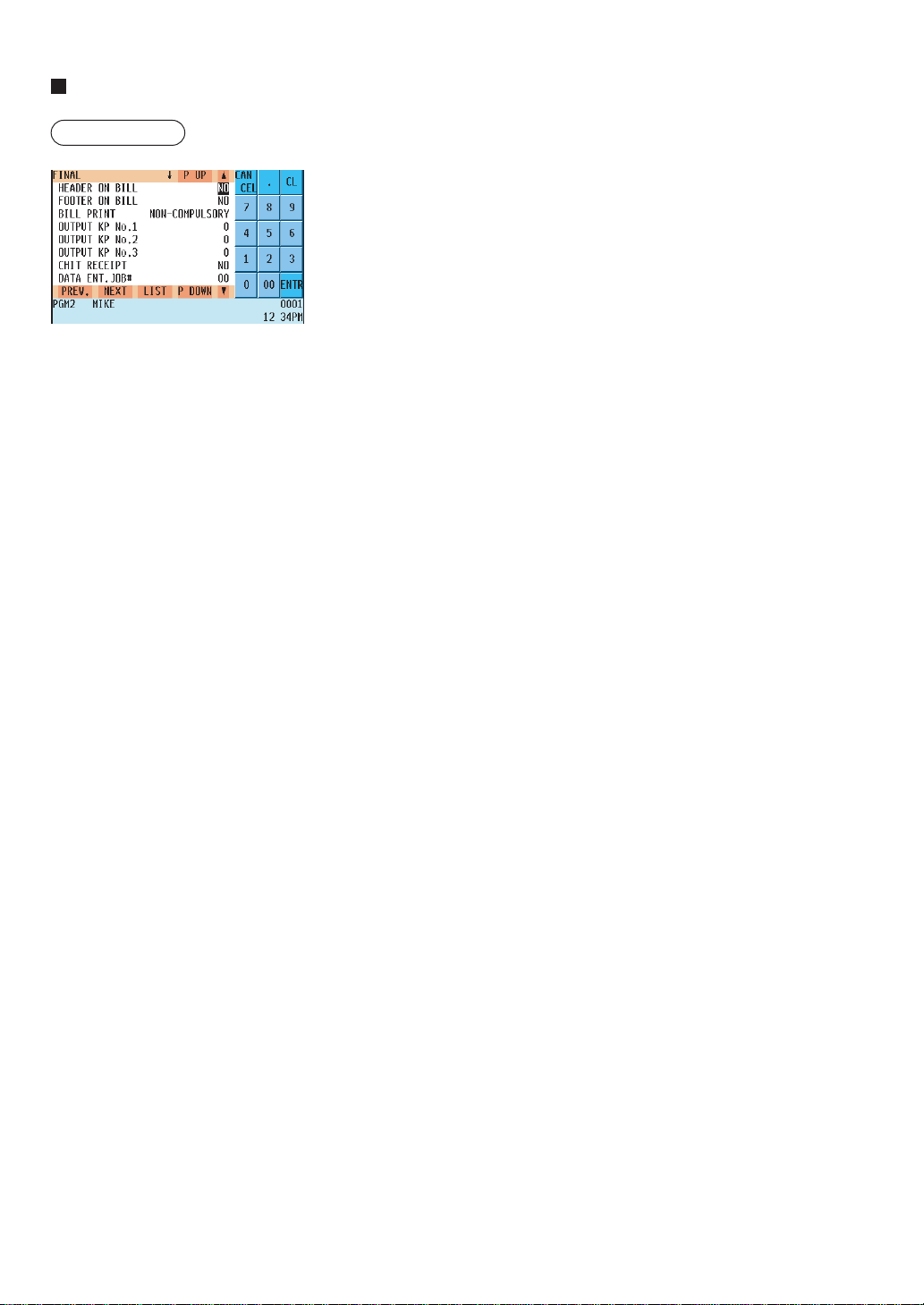
— 178 —
Final key
Procedure
Program each item as follows:
• HEADER ON BILL (Use the selective entry method)
YES : Enables header printing on the bill.
NO : Disables header printing on the bill.
• FOOTER ON BILL (Use the selective entry method)
YES : Enables footer printing on the bill.
NO : Disables footer printing on the bill.
• BILL PRINT (Use the selective entry method)
COMPULSORY: Compulsory bill printing
NON-COMPULSORY: Non-compulsory bill printing
• OUTPUT KP No.1 thru 3 (Use the number entry method)
ID number of the remote printer 1, 2 or 3 (1 digit: 1 to 9)
If the number “0” is entered, data will be printed on the remote printer.
• CHIT RECEIPT (Use the selective entry method)
YES : Prints on the chit receipt in the remote printer format.
NO : Prints nothing on the chit receipt.
• DATA ENT. JOB# (Use the numeric entry method)
Key data entry job no. (Capture job no: 0 thru 99)
When “0” is programmed, data capture entry is inhibited.
• EFT/ACCT PROG. (Use the selective entry method)
You can select EFT/ACCT compulsory or not-compulsory.
NOT COMPULSORY: Not-compulsory EFT/ACCT
EFT COMPULSORY: Compulsory EFT
ACCT COMPULSORY: Compulsory ACCT
• EFT (Use the selective entry method)
Select the ACTION CODE from the following options:
AUTH-ONLY
DIAL
POST-AUTH
• EFT TYPE (Use the selective entry method)
Select the transaction type.
GIFT CARD
CHECK
DEBIT
CREDIT
The screen continues.

— 179 —
Final key (continued)
• ACCT (Use the selective entry method)
ONLINE COMPULSORY.
OFFLINE COMPULSORY.
CARD RD COMPULSORY.
• ACCT NEGATIVE# (Use the selective entry method)
NO
YES
• ACCT POSITIVE# (Use the selective entry method)
NO
YES
• CARD# PRINT (Use the selective entry method)
YES : Prints the card number.
NO : Does not print the card number.
• SIGN.LINE PRINT (Use the selective entry method)
YES : Prints the signature line.
NO : Does not print the signature line.
• CARD HOLDER PRINT (Use the selective entry method)
YES : Prints the name of the card holder.
NO : Does not print the name of the card holder.
• EXPIRATION PRT. (Use the selective entry method)
YES : Prints the card expiration date.
NO : Does not print the card expiration date.
• NUMBER OF RCPT (Use the numeric entry method)
Number of authorization receipts to be issued (1 digit:1 to 9)
If the number “0” is entered, no authorization receipt is issued.
• PRINT LALO (Use the numeric entry method)
LALO for gift card authorization receipt printing (00.00-99.99)
• IC CARD (Use the selective entry method)
YES : Enables IC card entry
NO : Disables IC card entry
NOTE
You can also select a final key by pressing the corresponding key when it has been placed directly on the keyboard
instead of selecting the key from the menu.
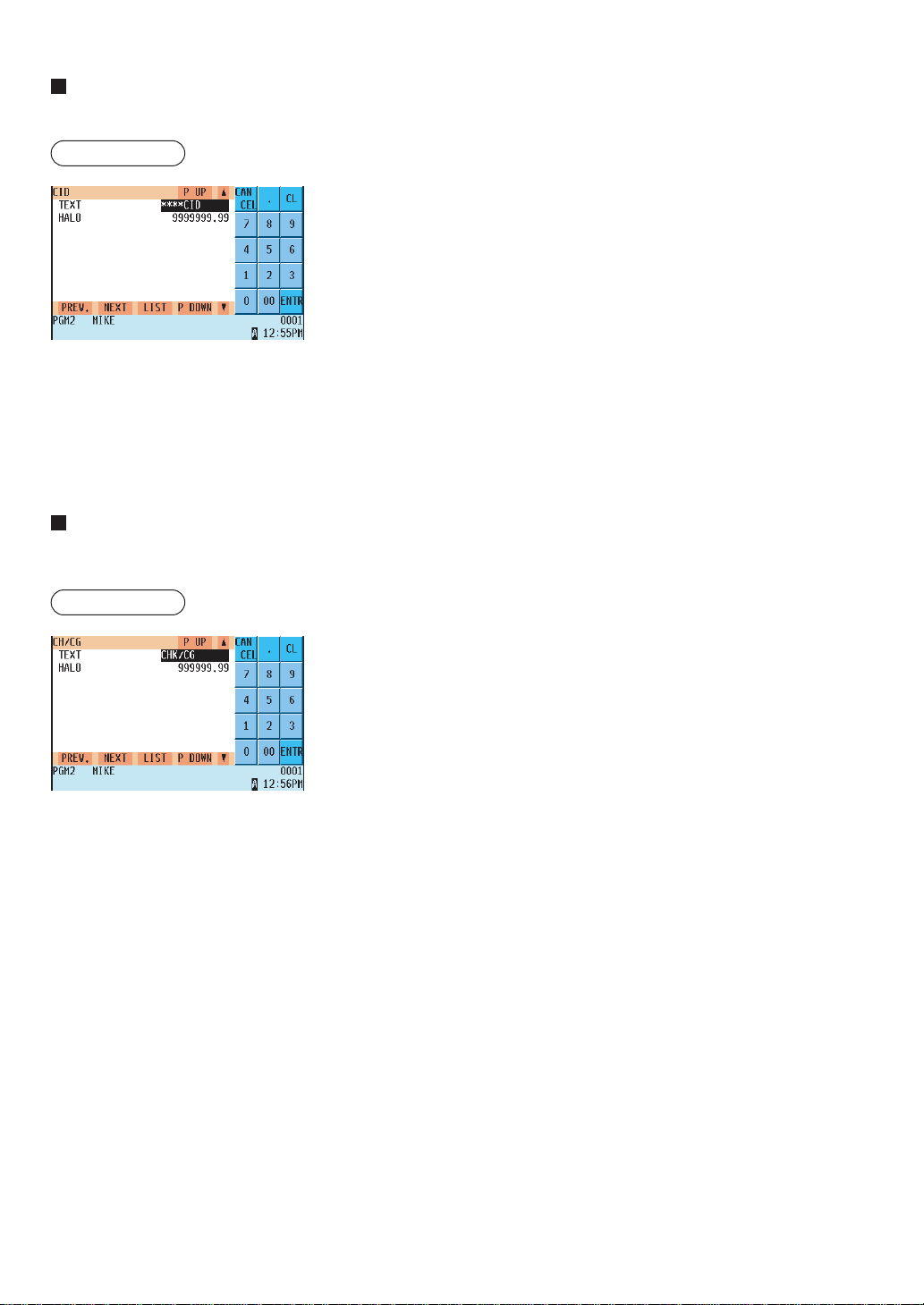
— 180 —
Cash in drawer
You can program the description and the upper limit amount for the cash in drawer (sentinel).
Procedure
Program each item as follows:
• TEXT (Use the character entry method)
Description for the cash in drawer. Up to 12 characters can be
entered.
• HALO (High Amount Lockout: used the numeric entry method)
Limit amount: 0 to 9999999.99
Program each item as follows:
Check change.
You can program the description and the upper limit amounts for check change
Procedure
• TEXT (Use the character entry method)
Description for check change. Up to 12 characters can be entered.
• HALO (High Amount Lockout: used the numeric entry method)
Limit amount: 0 to 999999.99
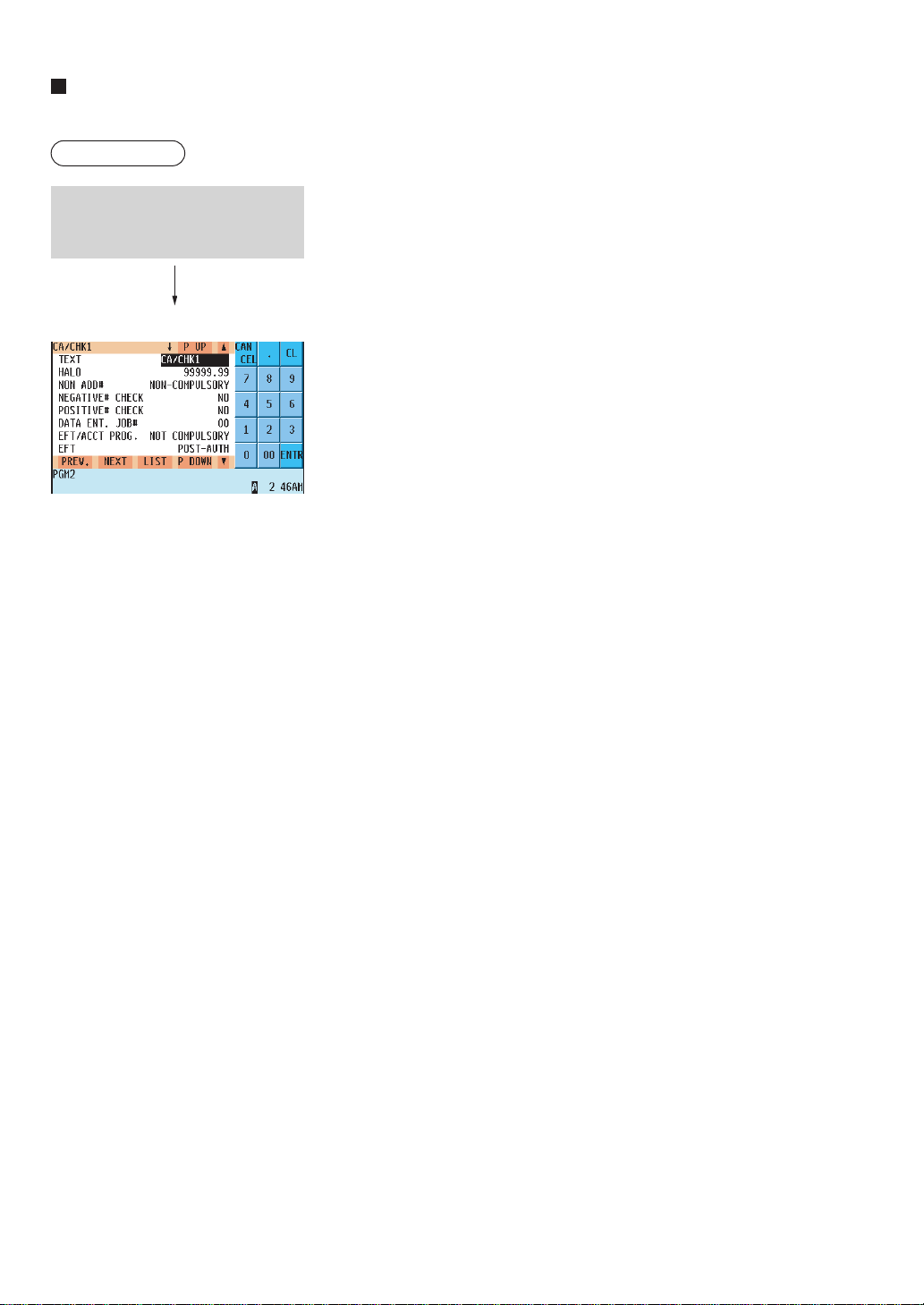
— 181 —
Check cashing
You can program the description and the upper limit amounts for check cashing.
Procedure
Program each item as follows:
• TEXT (Use the character entry method)
Description for check cashing. Up to 12 characters can be entered.
• HALO (High Amount Lockout: used the numeric entry method)
Limit amount: 0 to 999999.99
• NON ADD # (Use the selective entry method)
COMPULSORY: Compulsory non-add code entry
NON-COMPULSORY: Non-compulsory non-add code entry
• NEGATIVE # CHECK (Use the selective entry method)
YES : Enables the negative # check function.
Any code (non-add code) existing in the negative # file is
treated as invalid. The negative # check function can be
overridden depending upon the programming.
NO : Disables the negative # check function.
• POSITIVE # (Use the selective entry method)
YES : Enables the positive # check function.
Any code (non-add code) existing in the positive # file is
treated as valid.
NO : Disables the positive # check function.
• DATA ENT. JOB# (Use the numeric entry method)
Key data entry job no. (Capture job no: 0 thru 99)
When “0” is programmed, data capture entry is inhibited.
• EXPIRATION PRINT (Use the selective entry method)
YES : Prints the card expiration date.
NO : Does not print the card expiration date.
• NUMBER OF RCPT (Use the numeric entry method)
Number of authorization receipts to be issued (1 digit: 1 to 9)
If the number “0” is entered, no authorization receipt is issued.
• EFT/ACCT PROG. (Use the selective entry method)
You can select EFT/ACCT compulsory or non-compulsory.
NOT COMPULSORY: Non-compulsory EFT/ACCT
EFT COMPULSORY: Compulsory EFT
ACCT COMPULSORY: Compulsory ACCT
• EFT (Use the selective entry method)
Select the ACTION CODE from the following options:
AUTH-ONLY
DIAL
POST-AUTH
Select the desired check cashing no.
from the check cashing numbers list.
The screen continues.

— 182 —
Check cashing (continued)
•EFT TYPE (Use the selective entry method)
Select the transaction type.
GIFT CARD
CHECK
DEBIT
CREDIT
• ACCT (Use the selective entry method)
ONLINE COMPULSORY.
OFFLINE COMPULSORY.
CARD RD COMPULSORY.
• ACCT NEGATIVE# (Use the selective entry method)
NO
YES
•ACCT POSITIVE# (Use the selective entry method)
NO
YES
• CARD# PRINT (Use the selective entry method)
YES : Prints the card number.
NO : Does not print the card number.
• SIGN.LINE PRINT (Use the selective entry method)
YES : Prints the signature line.
NO : Does not print the signature line.
• CARD HOLDER PRINT (Use the selective entry method)
YES : Prints the name of the card holder.
NO : Does not print the name of the card holder.
• EXPIRATION PRINT (Use the selective entry method)
YES : Prints the card expiration date.
NO : Does not print the card expiration date.
• NUMBER OF RCPT (Use the numeric entry method)
Number of authorization receipts to be issued (1 digit: 1 to 9)
If the number “0” is entered, no authorization receipt is issued.
• PRINT LALO (Use the numeric entry method)
LALO for gift card authorization receipt printing (00.00-99.99)
• IC CARD (Use the selective entry method)
YES : Enables IC card entry
NO : Disables IC card entry
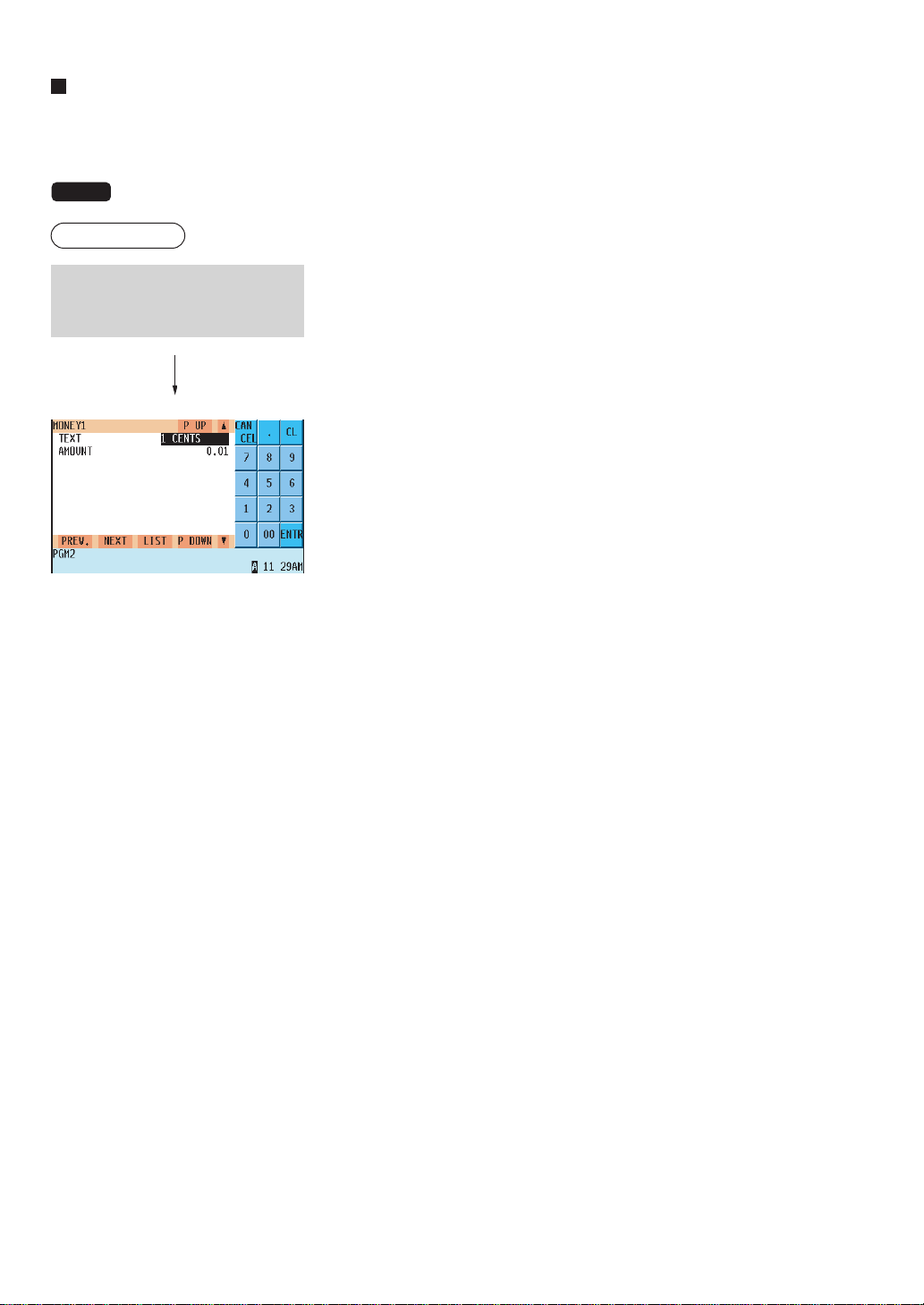
— 183 —
Currency denominations (MONEY)
You can program the texts and amounts of each denomination (domestic bill, coin and foreign currency) used for
the starting cash memory. Up to 20 currency denominations (MONEY1 through 20) can be programmed.
NOTE
For the starting cash memory (SCM), refer to the "Starting Cash Memory Entry" section on page 28.
Procedure
• TEXT (Use the character entry method.)
Description for the currency denomination
Up to 12 characters can be entered.
• AMOUNT (Use the numeric entry method.)
Amount for the currency denomination (max. 6 digits)
Select the desired currency
denominations from the currency
MONEY list.
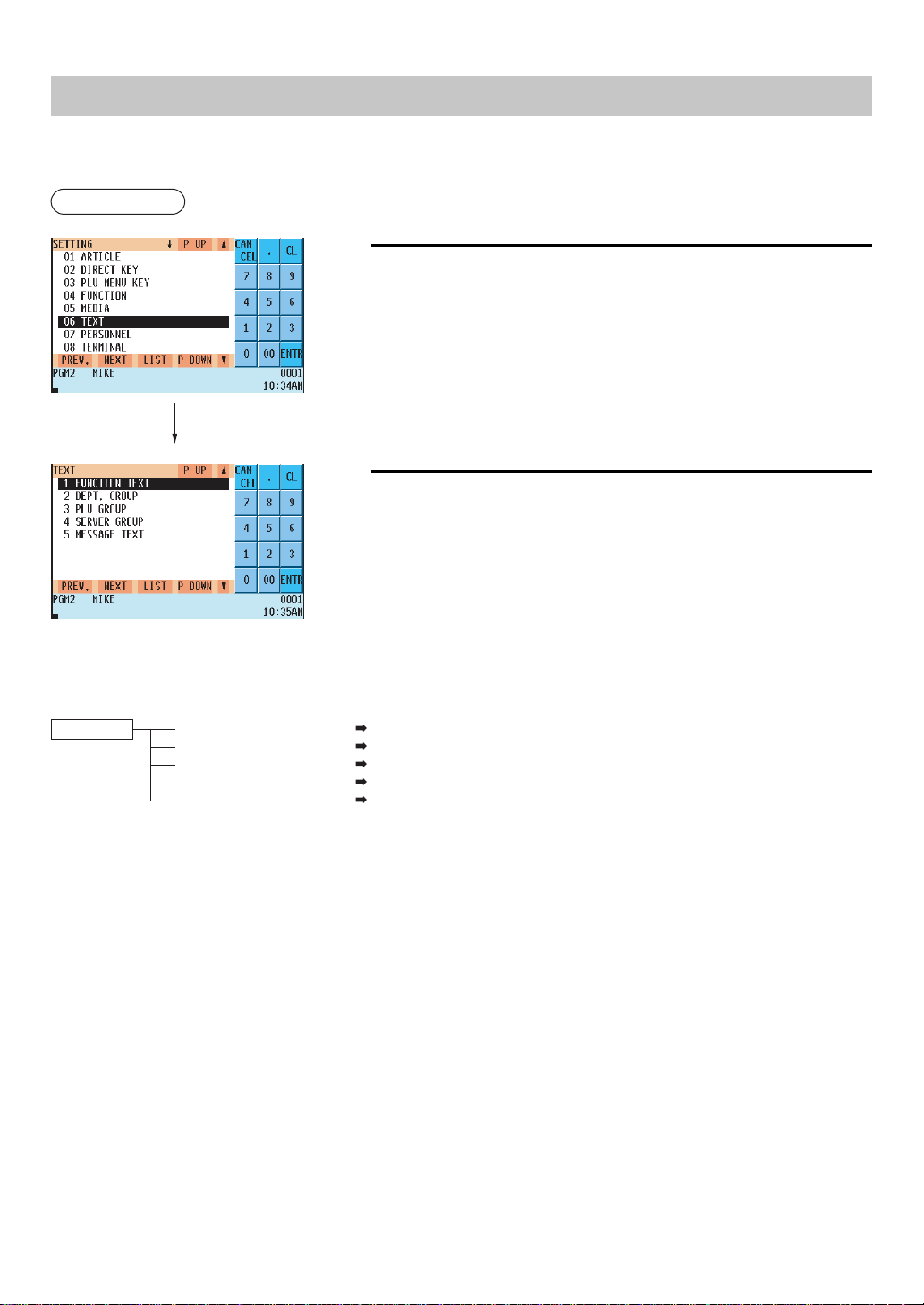
— 184 —
Text Programming
Use the following procedure for text programming:
Procedure
1.
In the SETTING window, select “06 TEXT.”
• The TEXT window will appear.
2.
Select any option from the following options list:
1 FUNCTION TEXT: Function text
2 DEPT. GROUP: Department group text
3 PLU GROUP: PLU group text
4 SERVER GROUP: Server group text
5 MESSAGE TEXT: Message text
The following illustration shows those options included in the text programming group.
6 TEXT
1 FUNCTION TEXT See “Function text” on page 185.
2 DEPT. GROUP See “Department group text” on page 187.
3 PLU GROUP See “PLU group text” on page 187.
4 SERVER GROUP See “Server group text” on page 188.
5 MESSAGE TEXT See “Message text” on page 188.
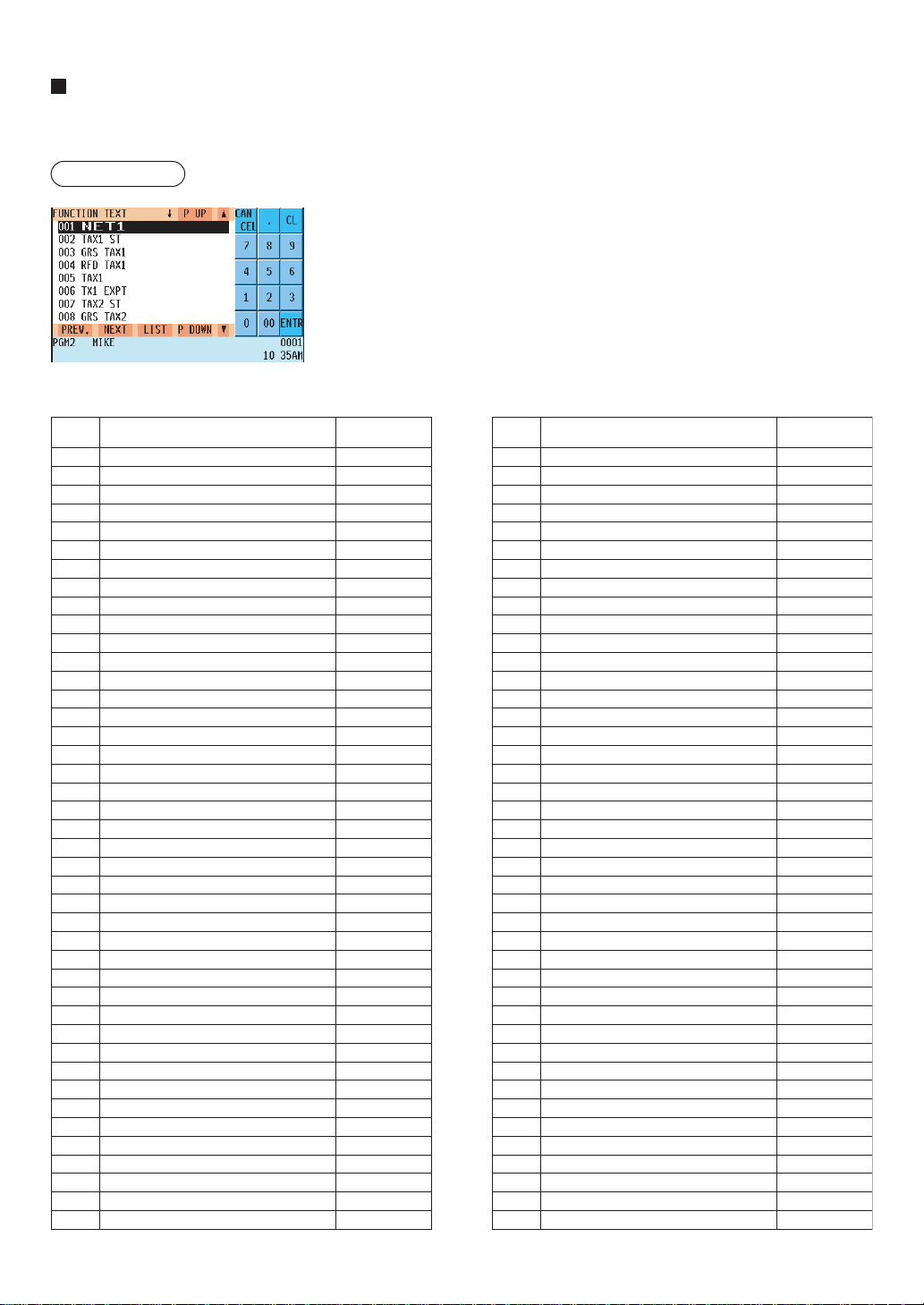
— 185 —
Function text
You can program a maximum of eight characters for each function by using the following table:
Procedure
001
002
003
004
005
006
007
008
009
010
011
012
013
014
015
016
017
018
019
020
021
022
023
024
025
026
027
028
029
030
031
032
033
034
035
036
037
038
039
040
041
042
Net sales total
Net taxable 1 subtotal
Gross tax 1 total
Tax 1 total of refund entries
Net tax 1 total
Exempt tax 1
Net taxable 2 subtotal
Gross tax 2 total
Tax 2 total of refund entries
Net tax 2 total
Exempt tax 2
Net taxable 3 subtotal
Gross tax 3 total
Tax 3 total of refund entries
Net tax 3 total
Exempt tax 3
Net taxable 4 subtotal
Gross tax 4 total
Tax 4 total of refund entries
Net tax 4 total
Exempt tax 4
Net taxable 5 subtotal
Gross tax 5 total
Tax 5 total of refund entries
Net tax 5 total
Exempt tax 5
Gross manual tax total
Refund manual tax total
Exempt total from GST
PST total
GST total
Tax total
Tax 1 forgiveness total
Tax 2 forgiveness total
Tax 3 forgiveness total
Cash benefit forgiveness1
Cash benefit forgiveness2
Cash benefit forgiveness3
Net
Sales total including tax total
Coupon PLU
Vender Coupon UPC
NET1
TAX1 ST
GRS TAX1
RFD TAX1
TAX1
TX1 EXPT
TAX2 ST
GRS TAX2
RFD TAX2
TAX2
TX2 EXPT
TAX3 ST
GRS TAX3
RFD TAX3
TAX3
TX3 EXPT
TAX4 ST
GRS TAX4
RFD TAX4
TAX4
TX4 EXPT
TAX5 ST
GRS TAX5
RFD TAX5
TAX5
TAX5 EXPT
GRS MTAX
RFD MTAX
GST EXPT
PST TTL
GST TTL
TTL TAX
FS TX1
FS TX2
FS TX3
CBNF TX1
CBNF TX2
CBNF TX3
NET
NET2
CP PLU
V. CP UPC
043
044
045
046
047
048
049
050
051
052
053
054
055
056
057
058
059
060
061
062
063
064
065
066
067
068
069
070
071
072
073
074
075
076
077
078
079
080
081
082
083
084
Mix&Match Discount
Manager Void
VOID MODE
Hash Direct Void
Hash Past Void
Hash Refund
Hash Return
Vp Counter
Bill Counter
Tray Counter
Guest Check Copy Counter
Drawer Counter
Drawer Alarm
Trans Out
Trans In
PBAL
Cover Count
Customer
Net3 (Sales)
Mash Net Total
Fs Change(Cash)
Cash Benefit Change(Cash)
Cash+Check In Drawer
Fs In Drawer
Deposit
Deposit Refund
Tip Paid
(+)Dept Total
(–)Dept Total
Hash (+)Dpt Total
Hash (–)Dpt Total
Bottle (+)Dpt Total
Bottle (–)Dpt Total
Gasoline (+)Dpt Total
Gasoline (–)Dpt Total
Subtotal
Merchandize Subtotal
Total
Change
Due
Tip Due
Tray Total
DISCOUNT
MGR VD
VOID
HASH VD
HASH P.VD
HASH RF
HASH RT
VP CNT
BILL CNT
TRAY CNT
G.C. CNT
DRW CNT
DRAWER ALARM
TRANS OUT
TRANS IN
***PBAL
COVER CT
TRANS CT
NET3
HASH TTL
FS/CG
CBNF/CG
CA+CH ID
FS ID
DEPOSIT
DPST RF
TIP PAID
*DEPT TL
DEPT(–)
*HASH TL
*HASH(–)
*BTTL TL
*BTTL(–)
*GAS TL
GAS (–)
SUBTOTAL
MDSE ST
***TOTAL
CHANGE
DUE
TIP DUE
TRAY TL
Function
No.
Function Default text
Function
No.
Function Default text
The screen continues.
— 186 —
Function text (continued)
085
086
087
088
089
090
091
092
093
094
095
096
097
098
099
100
101
102
103
104
105
106
107
108
109
110
111
112
113
114
115
116
117
118
119
120
121
122
123
124
125
126
127
128
129
130
131
132
133
134
135
136
137
138
139
140
141
142
Food Stamp Sales Total
Food Stamp Sales total by EBT
Cash Benefit Sales Total
Food Stamp Sbtl
Food Stamp/Cash benefit subtotal
Change(Food stamp)
Voucher Purchase
Food stamp refund by EBT
Food stamp balance
Cash benefit balance
Cash back amount by cash benefit
Items
Customer Charge
Balance
Copy Rcpt Title
G.C. Copy Titleg.C.Copy
B.T. Title
B.S. Title
Final Balance
Balance Forward
Closed Check
Open Check
Percent Of Net Sale
Seat Number
Vat Exempt
Individual Payment
Tare Weight
Receipt Swicth
Free Glu
Waste Title
Average Sales
St(–) Tl
St % Tl
Item(–) Tl
Item % Tl
Group Discount % Tl
Gas Discount Tl
Cash Tl
Ra Tl
Po Tl
Ca/Chk Tl
Conv Tl
Charge Tl
Check Tl
PLU Repo:Combo
PLU Repo:Waste
PLU Repo:Rf
PLU Repo:Cp
PLU Repo:Net Sales
PLU Repo:Combo Tl
PLU Repo:Waste Tl
Pu Repo:Rf Tl
PLU Repo:Net Tl
Glu Text
Server Sign-On Text
Server Sign-Off Text
Gift Refund
Gift Net Total
FS SALE
FS SALE EBT
CBNF SALE
FS ST
FS/CBNF ST
FS CG
FS VOUCHER
FS RFND EBT
F
S BALANCE
CBNF BALANCE
CBNF CB
ITEMS
CHARGE
BALANCE
COPY
G.C.COPY
B. T.
B. S.
FIN. BAL
BAL FWD
CLOSE CK
OPEN CK
(%)SALES
SEAT#
VAT EXPT
IND.PAY
TARE WT.
RCP S.W.
FREE GLU
WASTE
AVE SALE
ST(–) TL
ST % TL
(–) TL
% TL
GDISC%TL
GASDISTL
CASH TL
RA TL
PO TL
CA/CK TL
CONV TL
CHR TL
CHECK TL
COMBO
WASTE
RF
CP
NET SLS
COMBO TL
WASTE TL
RF TL
NET TL
TBL#
SIGN-ON
SIGN-OFF
GIFT RF
GIFT TTL
143
144
145
146
147
148
149
150
151
152
153
154
155
156
157
158
159
160
161
162
163
164
165
166
167
168
169
170
171
172
173
174
175
176
177
178
179
180
181
182
183
184
185
186
187
188
189
190
191
192
193
194
290
Gift Card Dpt Total
Gift Card Balance
Cash back amount by Cash
Cash back amount by Cash2
Cash back amount by Cash3
Cash back amount by Cash4
Cash back amount by Cash5
Cash back amount by Caarge1
Cash back amount by Caarge2
Cash back amount by Caarge3
Cash back amount by Caarge4
Cash back amount by Caarge5
Cash back amount by Caarge6
Cash back amount by Caarge7
Cash back amount by Caarge8
Cash back amount by Caarge9
Cash back amount by Check1
Cash back amount by Check2
Cash back amount by Check3
Cash back amount by Check4
Cash back amount by Check5
Cash back amount by Check6
Cash back amount by Check7
Cash back amount by Check8
Cash back amount by Check9
Cash back title
Cash back total
Change + Cash Back amount display text
Scm(+)
Scm(–)
Scm Total
Conversion1 Is
Conversion2 Is
Conversion3 Is
Conversion4 Is
Cash Is
Check1 Is
Check2 Is
Check3 Is
Check4 Is
Check5 Is
Check6 Is
Check7 Is
Check8 Is
Check9 Is
Vender Coupon Is
Ccd
Ccd Differ
Ccd Differ Total
Combo 1 (Trn.Rpt)
Combo 2 (Trn.Rpt)
Combo 3 (Trn.Rpt)
Combo 99 (Tm.Rpt)
*GC TL
GIFT BAL
CB CA
CB CA2
CB CA3
CB CA4
CB CA5
CB CHR1
CB CHR2
CB CHR3
CB CHR4
CB CHR5
CB CHR6
CB CHR7
CB CHR8
CB CHR9
CB CHK1
CB CHK2
CB CHK3
CB CHK4
CB CHK5
CB CHK6
CB CHK7
CB CHK8
CB CHK9
CASH BACK
CB TL
CG+CB
SCM(+)
SCM(–)
SCM TTL
CONV1 IS
CONV2 IS
CONV3 IS
CONV4 IS
CASH IS
CHECK1 IS
CHECK2 IS
CHECK3 IS
CHECK4 IS
CHECK5 IS
CHECK6 IS
CHECK7 IS
CHECK8 IS
CHECK9 IS
V.CP UPC IS
CCD
CCD DIF.
DIF. TL
COMBO1
COMBO2
COMBO3
COMBO99
Function
No.
Function Default text
Function
No.
Function Default text
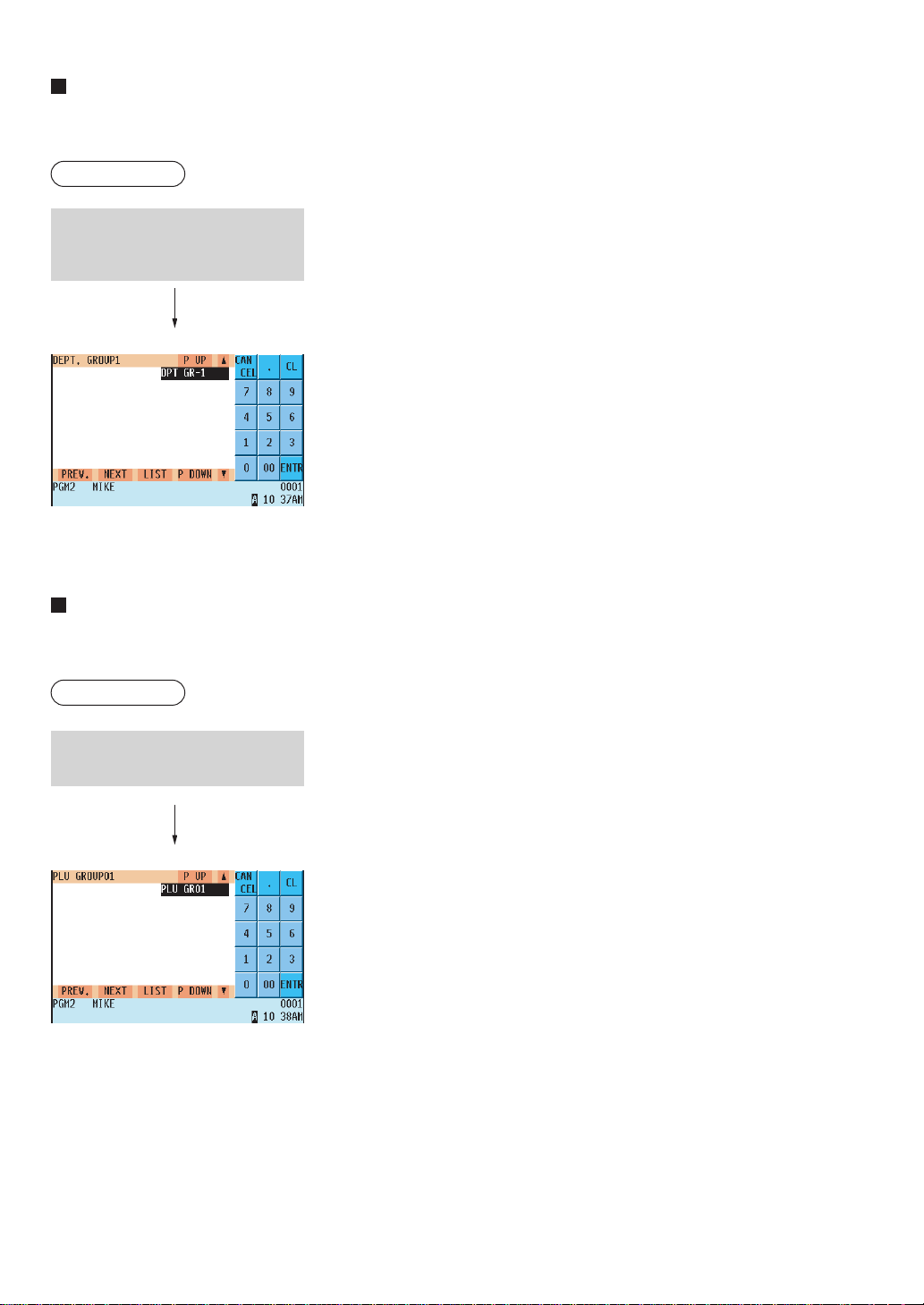
— 187 —
Department group text
You can program a maximum of eight characters for each department group (1~9).
Procedure
Program the item as follows:
• TEXT (Use the character entry method)
Description for the department group. Up to 12 characters can be
entered.
PLU group text
You can program a maximum of eight characters for each PLU group (1~99).
Procedure
Program the item as follows:
• TEXT (Use the character entry method)
Description for the PLU group. Up to 12 characters can be entered.
Select the desired department
group number from the depart-
ment group list.
Select the desired PLU group
number from the PLU group list.
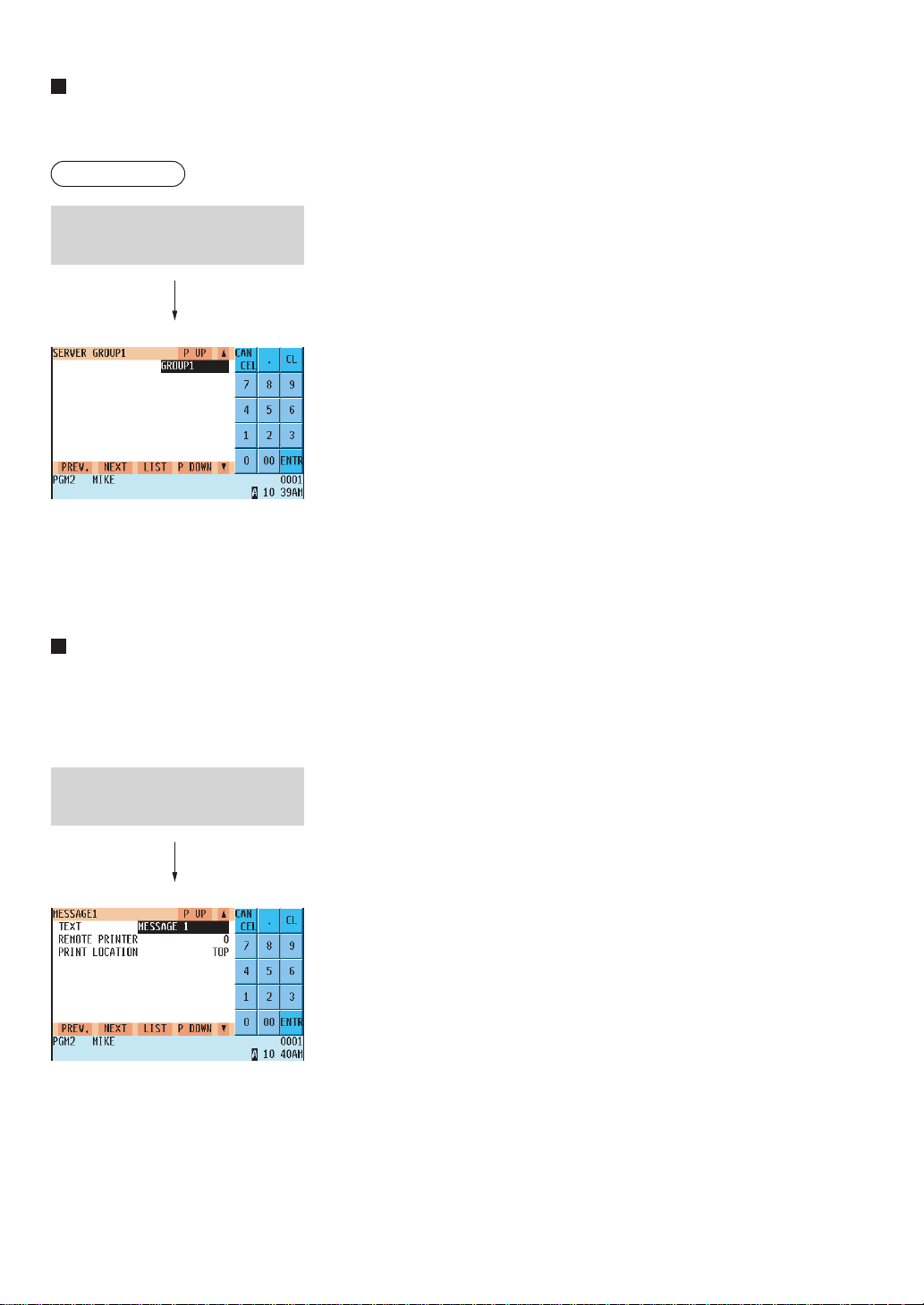
— 188 —
Server group text
You can program a maximum of eight characters for each server group (1~9).
Procedure
Program the item as follows:
• TEXT (Use the character entry method)
Description for the server group. Up to 12 characters can be entered.
Message text
You can program a message consisting of a maximum of 16 characters for each remote printer.
Program each item as follows:
• TEXT (Use the character entry method)
Description for a remote printer message. Up to 16
characters can be entered.
• REMOTE PRINTER (Use the numeric entry method)
Remote printer number (1 - 9/0)
• PRINT LOCATION (Use the selective entry method)
TOP: Prints the message at the top of a remote printer receipt.
BOTTOM: Prints the message at the bottom of a remote printer
receipt.
Select the desired server group
no.from the server groups list.
Select the desired message no.
from the message list.
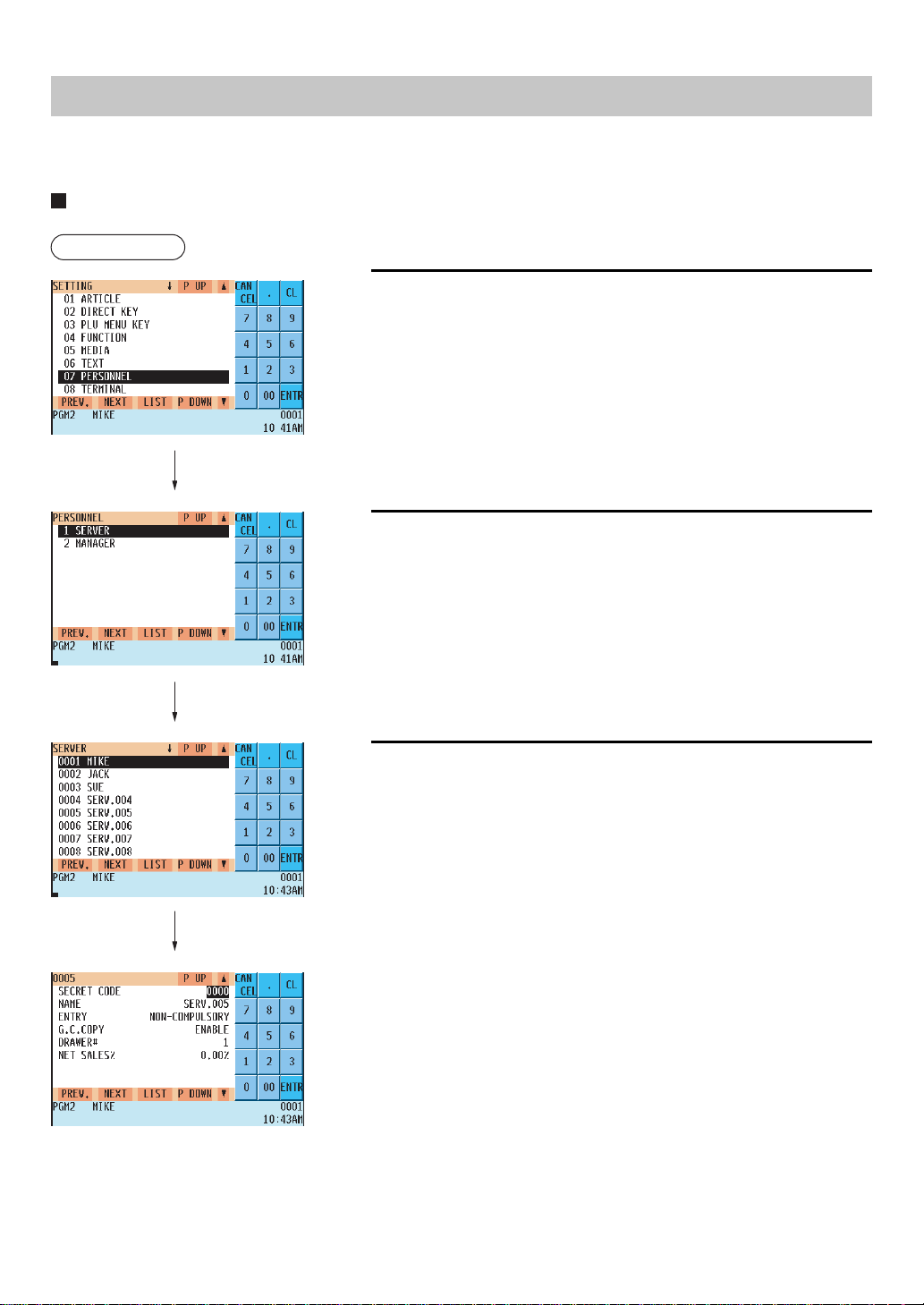
— 189 —
Personnel Programming
Use the following procedure for personnel programming:
Server
Procedure
1.
In the SETTING window, select “07 PERSONNEL.”
• The PERSONNEL window will appear.
2.
Select the “SERVER”.
• The SEVER window will appear.
3.
Select the server name.
Program each item as follows:
• SECRET CODE (Use the numeric entry method)
Secret code (max. 4 digits: 0001 to 9999/0000)
• NAME (Use the character entry method)
Name for the server. Up to 12 characters can be entered.
• ENTRY (Use the selective entry method)
GLU(PBLU): Compulsory GLU(PBLU)
NON-COMPULSORY: Non-compulsory GLU(PBLU)
• G.C.COPY (Use the selective and method)
ENABLE: Enables G.C.Copy.
DISABLE: Disables G.C.Copy.
• DRAWER# (Use the numeric entry method)
Drawer number (1 or 2/0)
• NET SALES% (Use the numeric entry method)
Net sales percent rate
(max. 5 digits, 0.00 to 100.00)

— 190 —
Manager
Procedure
1.
In the SETTING window, select “07 PERSONNEL.”
• The PERSONNEL window will appear.
2.
Select the “MANAGER”.
• The MANAGER window will appear.
3.
Select or enter the manager code.
4.
Program the item as follows:
• SECRET CODE (Use the numeric entry method)
Secret code (max. 4 digits: 0001 to 9999/0000)
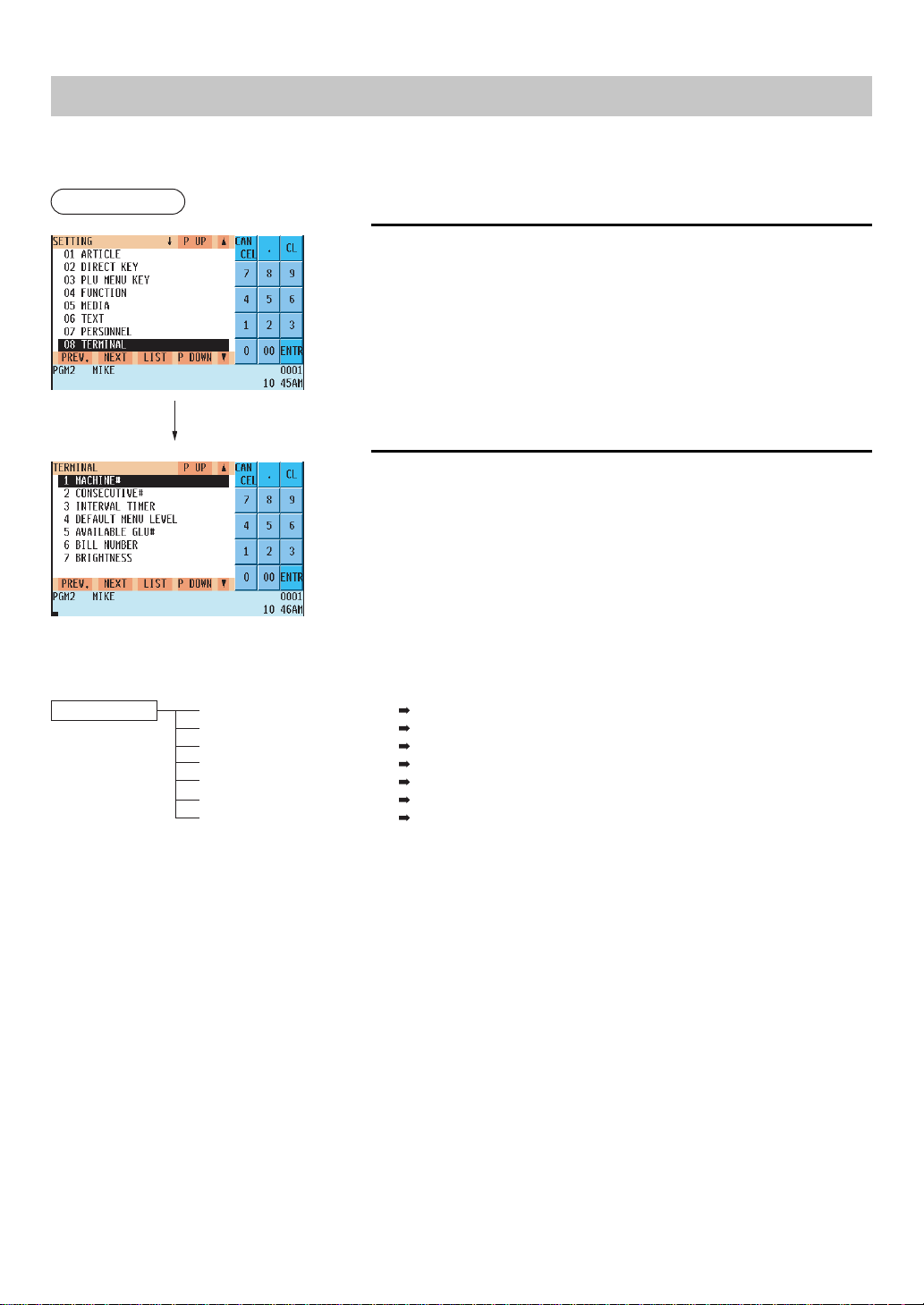
— 191 —
Terminal Programming
Use the following procedure for terminal programming:
Procedure
1.
In the SETTING window, select “08 TERMINAL.”
• The TERMINAL window will appear.
2.
Select any option from the following options list:
1 MACHINE#: Machine number
2 CONSECUTIVE#: Consecutive number
3 INTERVAL TIMER: Interval timer
4 DEFAULT MENU LEVEL Default menu level
5 AVAILABLE GLU# Available GLU code
6 BILL NUMBER Bill number
7 BRIGHTNESS Brightness of the LCD display
The following illustration shows those options included in the terminal programming group.
8 TERMINAL
1 MACHINE# See “Machine number” on page 192.
2 CONSECUTIVE# See “Consecutive number” on page 192.
3 INTERVAL TIMER See “Interval timer” on page 192.
4 DEFAULT MENU LEVEL See “Default menu level” on page 193.
5 AVAILABLE GLU# See “Available GLU code” on page 193.
6 BILL NUMBER See “Bill number” on page 193.
7 BRIGHTNESS See “Brightness” on page 193.
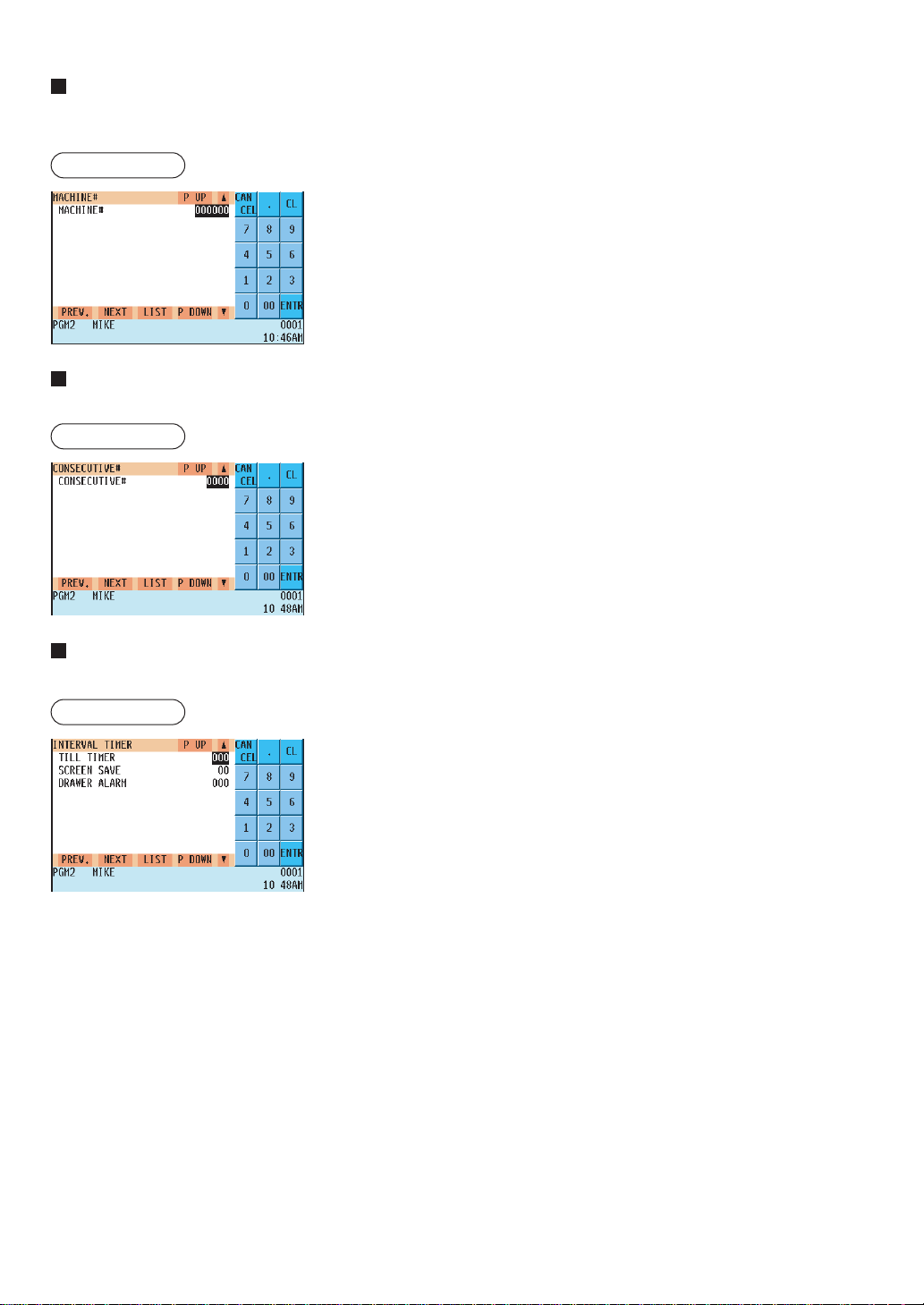
— 192 —
Machine number
When your store has two or more POS terminals, it is practical to assign unique machine numbers to them for
identification.
Procedure
Program the item as follows:
• MACHINE# (Use the numeric entry method)
Machine number (max. 6 digits: 0 to 999999)
Consecutive number
The consecutive number is increased by one each time a receipt is issued.
Procedure
Program the item as follows :
• CONSECUTIVE# (Use the numeric entry method)
Enter a number (max. 4 digits: 0 to 9999) that is one less
than the desired starting number.
Interval timer
You can program the timer for THE TILL TIMER, the screen save mode timer and the drawer alarm timer.
Procedure
Program each item as follows :
• TILL TIMER (Use the numeric entry method)
The POS terminal counts the number of times the drawer is left open
for longer than a programmed time limit. The counter will be
incremented by one each time a programmed time limit is reached.
The time limit for TILL TIMER can be preset to 0-255 seconds. The
count is printed on the transaction report and server report. If the
number “0” is entered, this function is unavailable.
• SCREEN SAVE (Use the numeric entry method)
Screen save mode timer (max. 2 digits : 0 to 99 minutes)
If the number “0” is entered, the POS terminal will turn off the display
after the POS terminal remains idle.
• DRAWER ALARM (Use the numeric entry method)
Length of alarm time with drawer opening (0 to 255 seconds)
• Your POS terminal monitors how long the drawer is kept open from
the moment the drawer is opened at the end of a transaction in the
REG/VOID mode. It stops time counting when a valid key (except the
[TAX], [BILL], and [RCPT] keys) is pressed for the next transaction. It
restarts time counting after that transaction is ended. You can stop
the buzzer alarm by closing the drawer. No key entries can be made
while the buzzer is sounding. If the number “0” is entered, this
function will be unavailable.
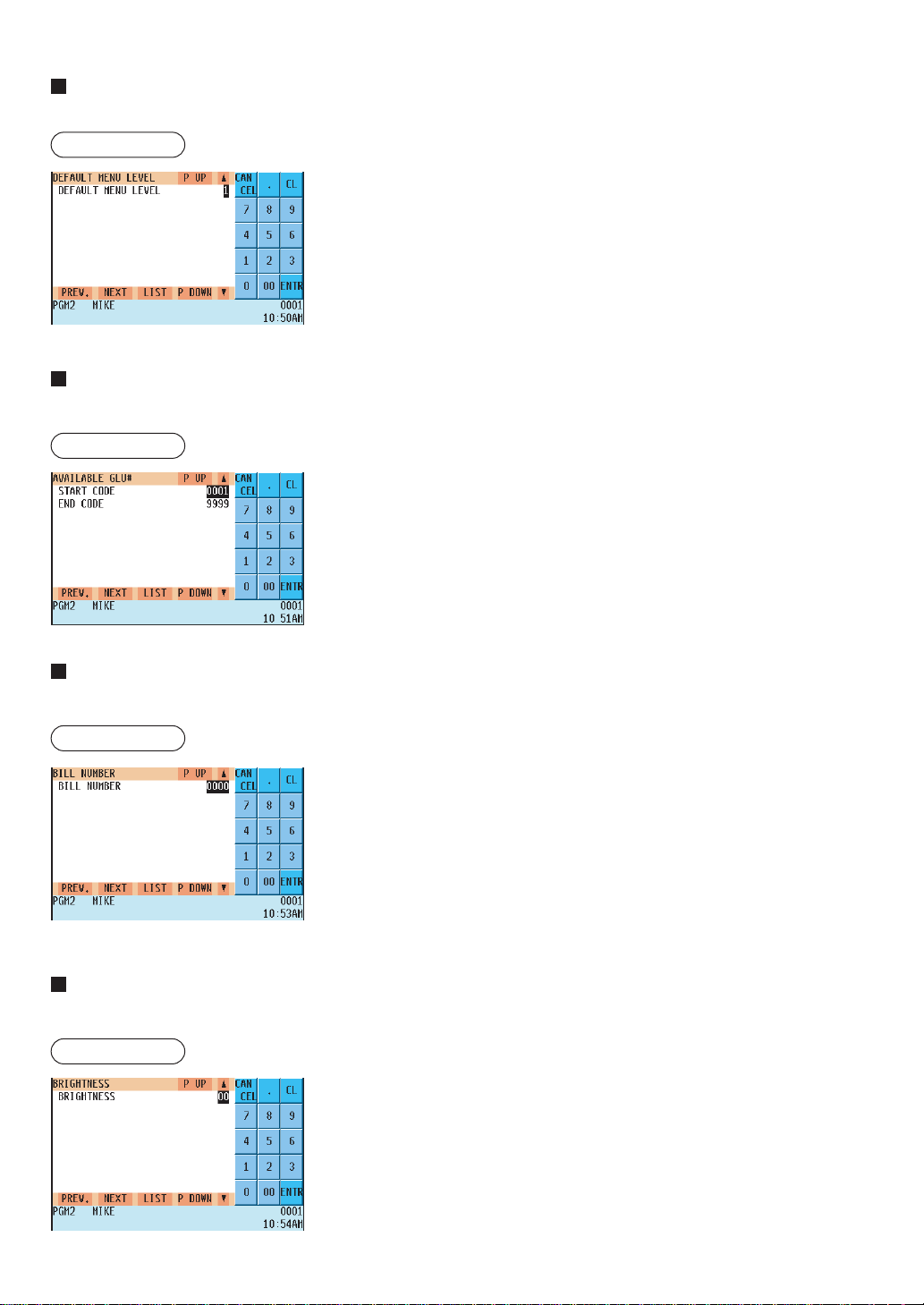
— 193 —
Default menu level
You can preset the menu level to be returned after item entry.
Procedure
Program the item as follows:
• DEFAULT MENU LEVEL (Use the numeric entry method)
Default menu level (1 to 5)
Available GLU code
You can specify the range of GLU numbers available for each terminal.
Procedure
Program the item as follows:
• START CODE (Use the numeric entry method)
Start GLU/PBLU code (max. 4 digits: 1 to 9999)
• END CODE (Use the numeric entry method)
End GLU/PBLU code (max. 4 digits: 1 to 9999)
Bill number
A consecutive bill number is automatically increased each time a GLU entry is finalized.
Procedure
Program the item as follows:
• BILL NUMBER (Use the numeric entry method)
Enter a number (max. 4 digits: 0 to 9999) that is one less
than the desired starting number.
Brightness
You can adjust the brightness of the LCD.
Procedure
• BRIGHTNESS (Use the numeric entry Method)
Brightness of the LCD (0 to 13)
“13” is the brightest.
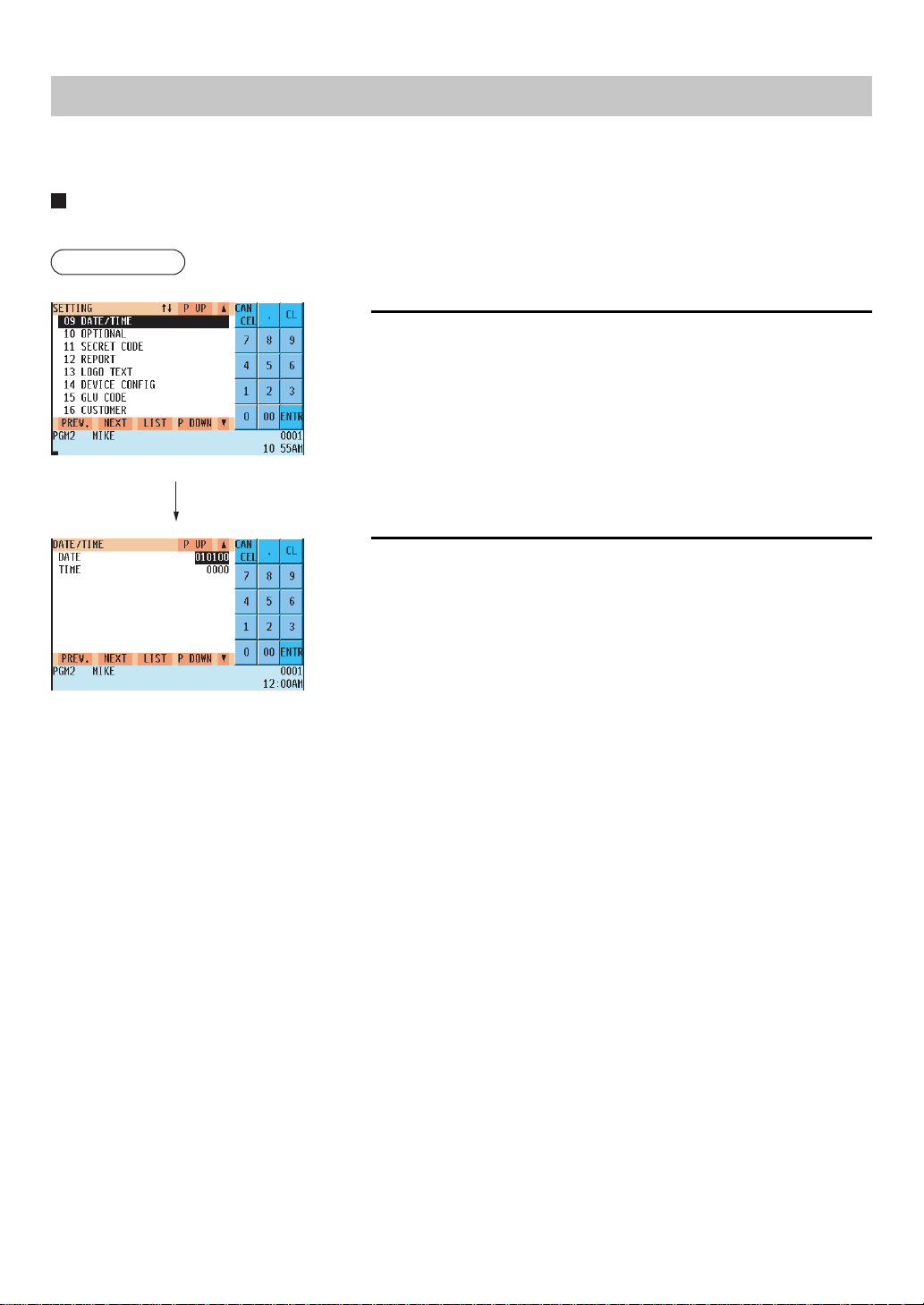
— 194 —
Date/Time Setting
Use the following procedure to set the date and time:
Date/time
You can set the date and time for the POS terminal.
Procedure
1.
In the SETTING window, select "09 DATE/TIME."
• The DATE/TIME window will appear.
2.
Set each item as follows:
• DATE (Use the numeric entry method)
Enter the month (2 digits), day (2 digits), and year (2 digits) in this
sequence.
• TIME (Use the numeric entry method)
Set the time (max. 4 digits) on the military time (24-hour) system. For
example, to set 2:30 AM, enter 0230; and to set 2:30 PM, enter 1430.
The time will be printed and displayed on the real-time system. Once
you set the time, the internal clock will continue to run until the battery
goes dead and also update the date (month, day, year) when re-
quired.
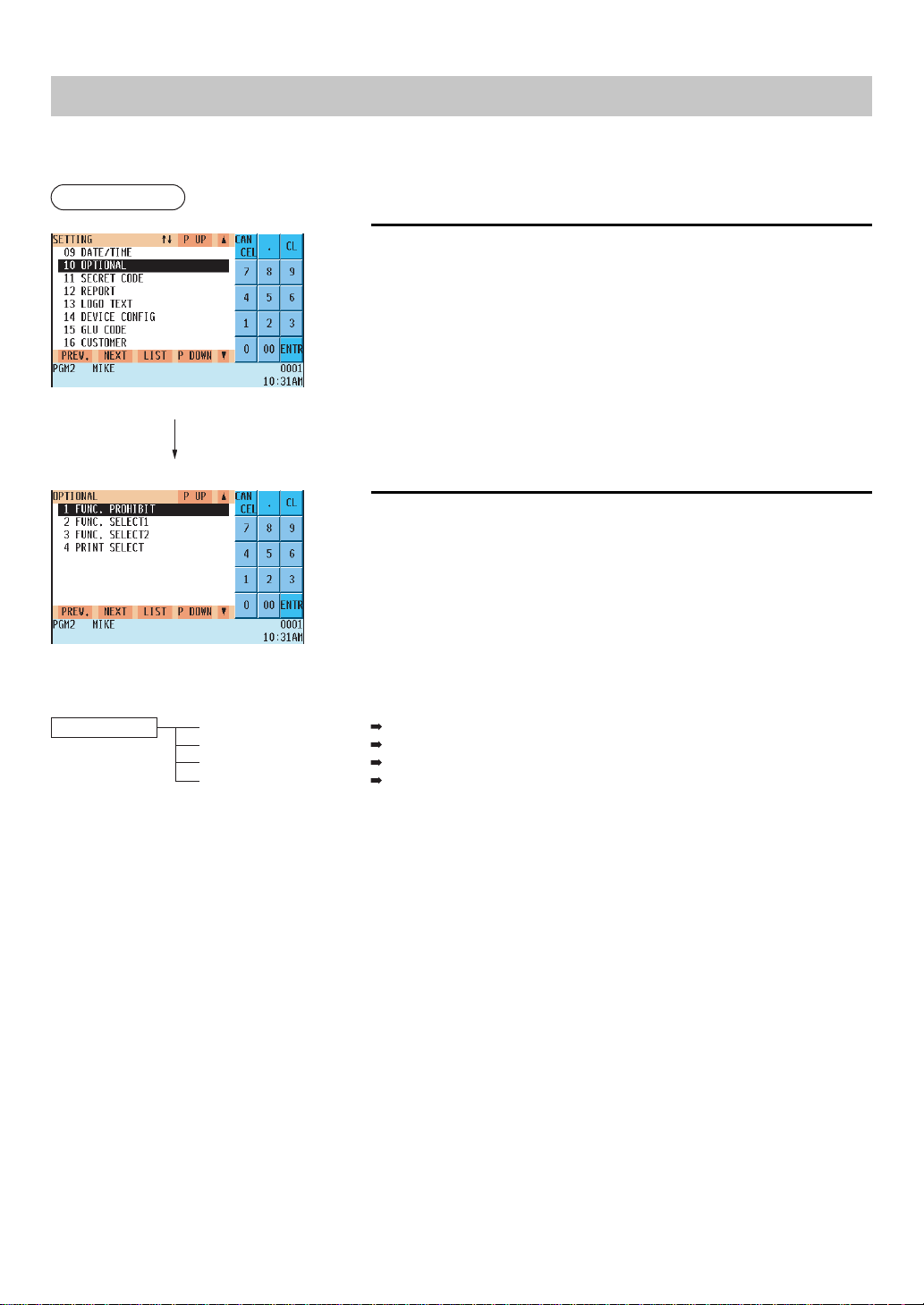
— 195 —
Optional Feature Selection
Use the following procedure to select an optional feature :
Procedure
1.
In the SETTING window, select “10 OPTIONAL.”
• The OPTIONAL window will appear.
2.
Select any option from the following options list:
1 FUNC.PROHIBIT: Function prohibition
2 FUNC.SELECT1: Function selection 1
3 FUNC.SELECT2: Function selection 2
4 PRINT SELECT: Printing selection
The following illustration shows the optional feature options.
10 OPTIONAL
1 FUNC.PROHIBIT. See “Function prohibition” on page 196.
2 FUNC.SELECT1 See “Function selection 1” on page 198.
3 FUNC.SELECT2 See “Function selection 2” on page 199.
4 PRINT SELECT See “Printing selection” on page 201.
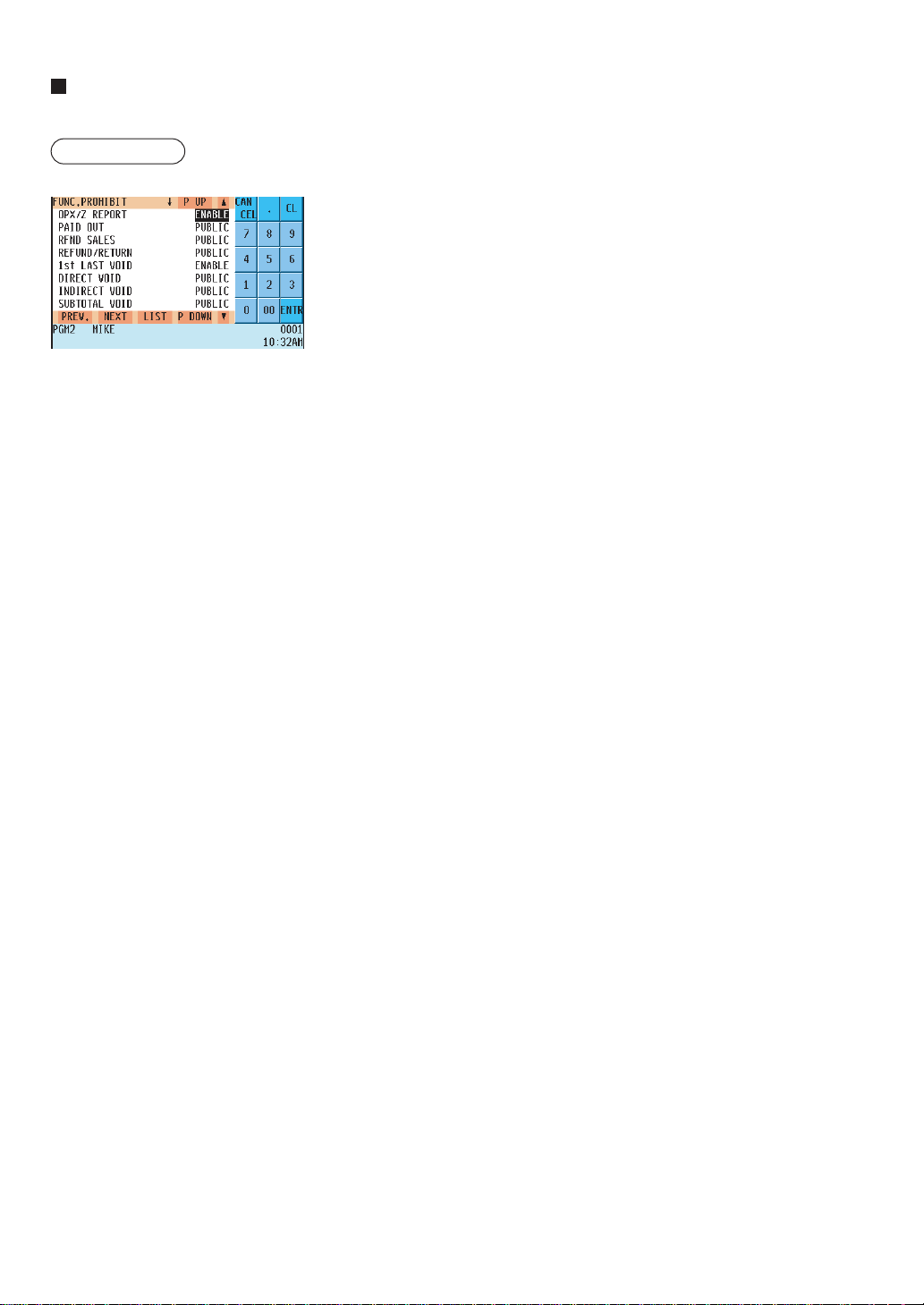
— 196 —
Function prohibition
Your POS terminal allows you to select whether to enable or disable various functions.
Procedure
Program each item as follows:
• OPX/Z REPORT (Use the selective entry method)
DISABLE: Disables server report printing in the OP X/Z mode.
ENABLE: Enables server report printing in the OP X/Z mode.
• PAID OUT (Use the selective entry method)
LIMITED: Only available to the manager.
PUBLIC: Available to the manager and servers/cashiers.
• RFND SALES (Use the selective entry method)
LIMITED: Only available to the manager.
PUBLIC: Available to the manager and servers/cashiers.
• REFUND/RETURN (Use the selective entry method)
LIMITED: Only available to the manager.
PUBLIC: Available to the manager and servers/cashiers.
• 1st LAST VD (Use the selective entry method)
DISABLE: Disables first-item direct void.
ENABLE: Enables first-item direct void.
• DIRECT VD (Use the selective entry method)
LIMITED: Only available to the manager.
PUBLIC: Available to the manager and servers/cashiers.
• INDIRECT VD (Use the selective entry method)
LIMITED: Only available to the manager.
PUBLIC: Available to the manager and servers/cashiers.
• SBTL VOID (Use the selective entry method)
LIMITED: Only available to the manager.
PUBLIC: Available to the manager and servers/cashiers.
• VOID MODE (Use the selective entry method)
LIMITED: Only available to the manager.
PUBLIC: Available to the manager and servers/cashiers.
• NO SALE (Use the selective entry method)
LIMITED: Only available to the manager.
PUBLIC: Available to the manager and servers/cashiers.
• PAY WHEN ST=0 (Use the selective entry method)
DISABLE: Disables finalization in the REG mode when the subtotal
is zero.
ENABLE: Enables finalization in the REG mode when the subtotal is
zero.
• TIP PAID (Use the selective entry method)
LIMITED: Only available to the manager.
PUBLIC: Available to the manager and servers/cashiers.
• TRANS IN/OUT (Use the selective entry method)
LIMITED: Only available to the manager.
PUBLIC: Available to the manager and servers/cashiers.
The screen continues.

— 197 —
Function prohibition (continued)
• INDIRECT VOID (GLU) (Use the selective entry method)
DISABLE: Disables indirect void/refund/return entry in GLU re-order.
ENABLE: Enables indirect void/refund/return entry in GLU re-order.
• OPEN GLU DISPLAY (Use the selective entry method)
DISABLE: Does not display currently opened GLU automatically.
ENABLE: Displays and recalls the balances of currently opened GLU automatically.
• UPC LEARNING (Use the selective entry method)
DISABLE: Disables the UPC learning function.
ENABLE: Enables the UPC learning function.
• PRICE CHANGE (Use the selective entry method)
LIMITED: Only available to the manager.
PUBLIC: Available to the manager and servers/cashiers.
• CUSTOMER LEARNING (Use the selective entry method)
ENABLE: Only available to the manager.
DISABLE: Available to the manager and servers/cashiers.
• CUSTOMER TEL# (Use the selective entry method)
DISABLE: Disables the learning function of customer telephone numbers.
ENABLE: Enables the learning function of customer telephone numbers.
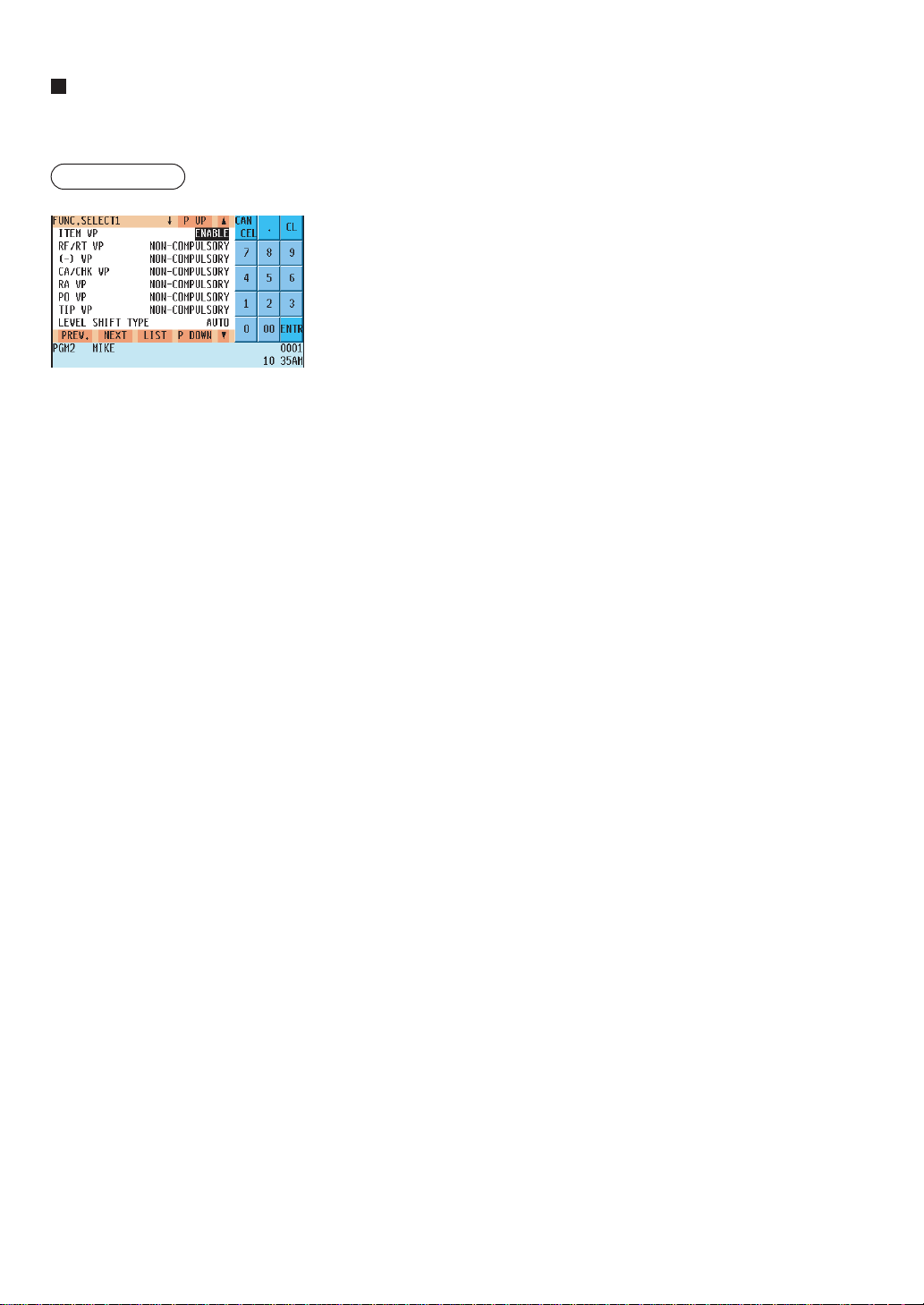
— 198 —
Function selection 1
Your POS terminal enables you to select various functional settings.
Program each item as follows:
• ITEM VP (Use the selective entry method)
DISABLE: Disables item validation printing.
ENABLE: Enables item validation printing.
• RF/RT VP (Use the selective entry method)
COMPULSORY: Compulsory refund/return validation printing.
NON-COMPULSORY: Non-compulsory refund/return validation printing.
• (–) VP (Use the selective entry method)
COMPULSORY: Compulsory minus entry validation printing.
NON-COMPULSORY: Non-compulsory minus entry validation printing.
• CA/CHK VP (Use the selective entry method)
COMPULSORY: Compulsory cashing a check validation printing.
NON-COMPULSORY: Non-compulsory cashing a check validation
printing.
• RA VP (Use the selective entry method)
COMPULSORY: Compulsory RA validation printing.
NON-COMPULSORY: Non-compulsory RA validation printing.
• PO VP (Use the selective entry method)
COMPULSORY: Compulsory PO validation printing.
NON-COMPULSORY: Non-compulsory PO validation printing.
• TIP VP (Use the selective entry method)
COMPULSORY: Compulsory tip validation printing.
NON-COMPULSORY: Non-compulsory tip validation printing.
• LEVEL SHIFT TYPE (Use the selective entry method)
MANUAL: Lock shift mode
AUTO: Automatic return mode
• LEVEL SHIFT (Use the selective entry method)
LIMITED: Only available to the manager.
PUBLIC: Available to the manager and servers/cashiers.
• PRICE SHIFT TYPE (Use the selective entry method)
MANUAL: Lock shift mode
AUTO: Automatic return mode
• PRICE SHIFT (Use the selective entry method)
LIMITED: Only available to the manager.
PUBLIC: Available to the manager and servers/cashiers.
• RETURN TO LEVEL1 <Return to level 1>
(Use the selective entry method)
When the PLU level shift system is set to “AUTO,” the PLU level can
be returned to level 1 by one of the following methods:
RECEIPT: Returns the PLU level to level 1 by one receipt.
BY ITEM: Returns the PLU level to level 1 by one item.
• RETURN TO PRICE1 <Return to price 1> (Use the selective entry method)
When the PLU price level shift method is set to “AUTO,” the price
level can be returned to price 1 by one of the following methods:
RECEIPT: Returns the price level to price 1 by one receipt.
BY ITEM: Returns the price level to price 1 by one item.
The screen continues.
Procedure
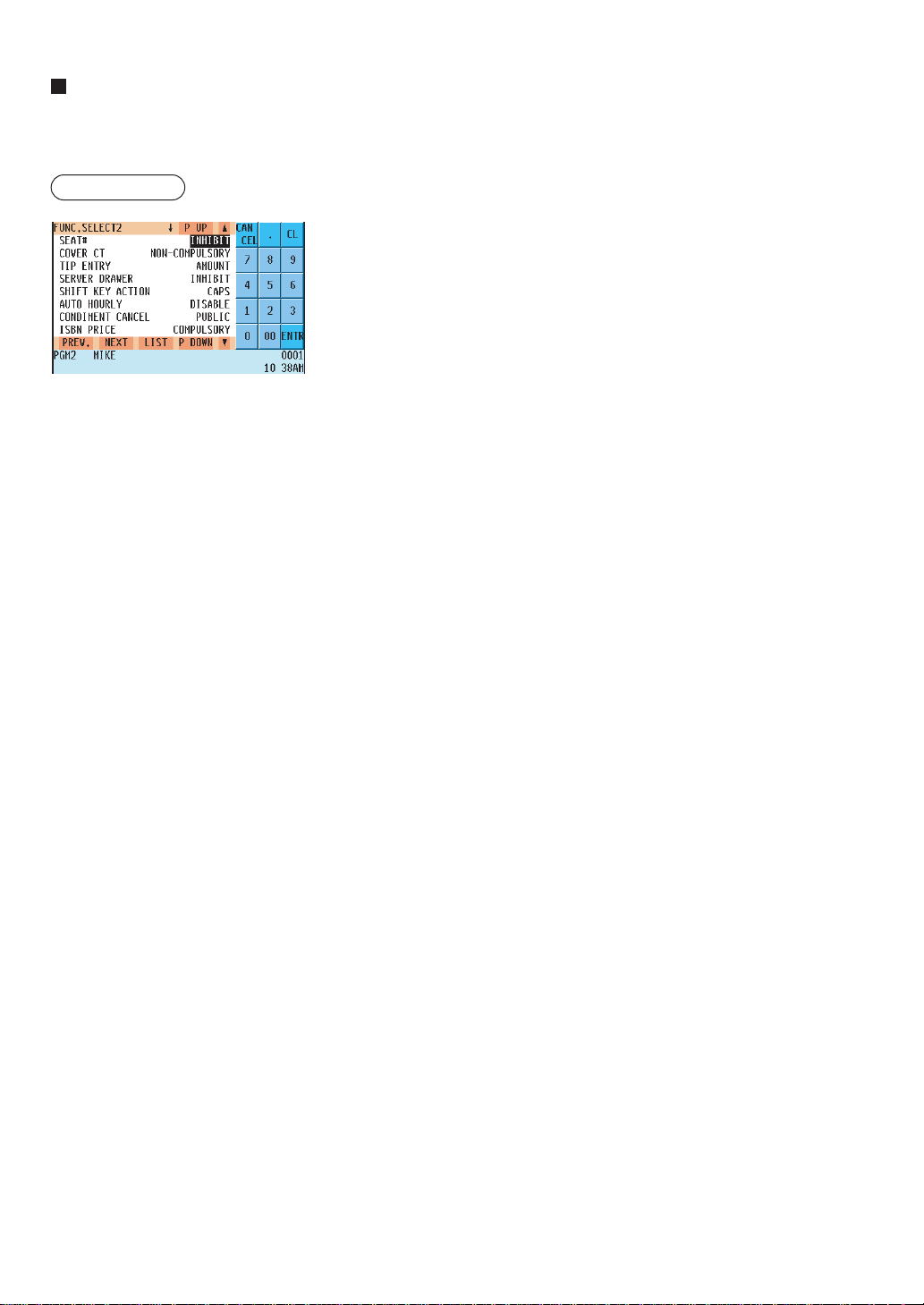
— 199 —
Function selection 2
Your POS terminal enables you to select various functional settings.
Program each item as follows:
• SEAT # (Use the selective entry method)
COMPULSORY: Compulsory seat number entry (GLU operations)
INHIBIT: Inhibited seat number entry (GLU operations)
• COVER CT (Use the selective entry method)
COMPULSORY: Compulsory cover count entry (GLU operations)
NON-COMPULSORY: Non-compulsory cover count entry (GLU
operations)
• TIP ENTRY (Use the selective entry method)
FIX RATE: Tip entry using a programmed rate
AMOUNT: Manual tip entry
• SERVER DRAWER (Use the selective entry method)
COMPULSORY: Compulsory server drawer assignment at sign-on
INHIBIT: Inhibits server drawer assignment at sign-on
• SHIFT KEY ACTION (Use the selective entry method)
CAPS: Locks the upper-case letter mode once the shift key is pressed.
SHIFT: Shifts the upper-case letter mode to the lower-case letter
mode after an letter is entered.
• AUTO HOURLY (Use the selective entry method)
DISABLE: Disables automatic hourly reporting.
ENABLE: Enables automatic hourly reporting.
If “ENABLE” is selected, an hourly report is issued at hourly intervals
automatically.
• CONDIMENT. CANCEL (Use the selective entry method)
LIMITED: Cancel operation is only available to the manager.
PUBLIC: Cancel operation is available to the manager and servers/
cashiers.
• ISBN PRICE (Use the selective entry method)
Price entry after ISBN/ISSN code entry INHIBIT/COMPULSORY
COMPULSORY: Compulsory price entry after ISBN/ISSN code entry.
INHIBIT: Inhibits price entry after ISBN/ISSN code entry.
• CUSTOMER DATA (Use the selective entry method)
TOTAL: Sales total and charge sales total
DETAIL: Detail data (Sales total, charge sales total, sales date,
item’s name, amount and quantity)
• SERVER POPUP (Use the selective entry method)
DISABLE: Opens the SERVER POPUP sign on window upon 1st
item entry.
ENABLE: Does not open the SERVER POPUP sign on window
upon 1st item entry.
The screen continues.
Procedure

— 200 —
Function selection 2 (continued)
• T-LOG FULL (Use the selective entry method)
LOCK: Locks entries at a terminal when T-LOG buffer becomes full.
CONTINUE: Does not lock entries at a terminal even when T-LOG butter becomes full.
• E.J. FULL (Use the selective entry method)
LOCK: Locks entries at a terminal when E.J. buffer becomes full.
CONTINUE: Does not lock entries at a terminal even when E.J. butter becomes full.
• CAPTURE FUL (Use the selective entry method)
LOCK: Locks entries at a terminal when CAPTURE job memory becomes full.
CONTINUE: Not locks entries at a terminal even when CAPTURE job memory becomes full.
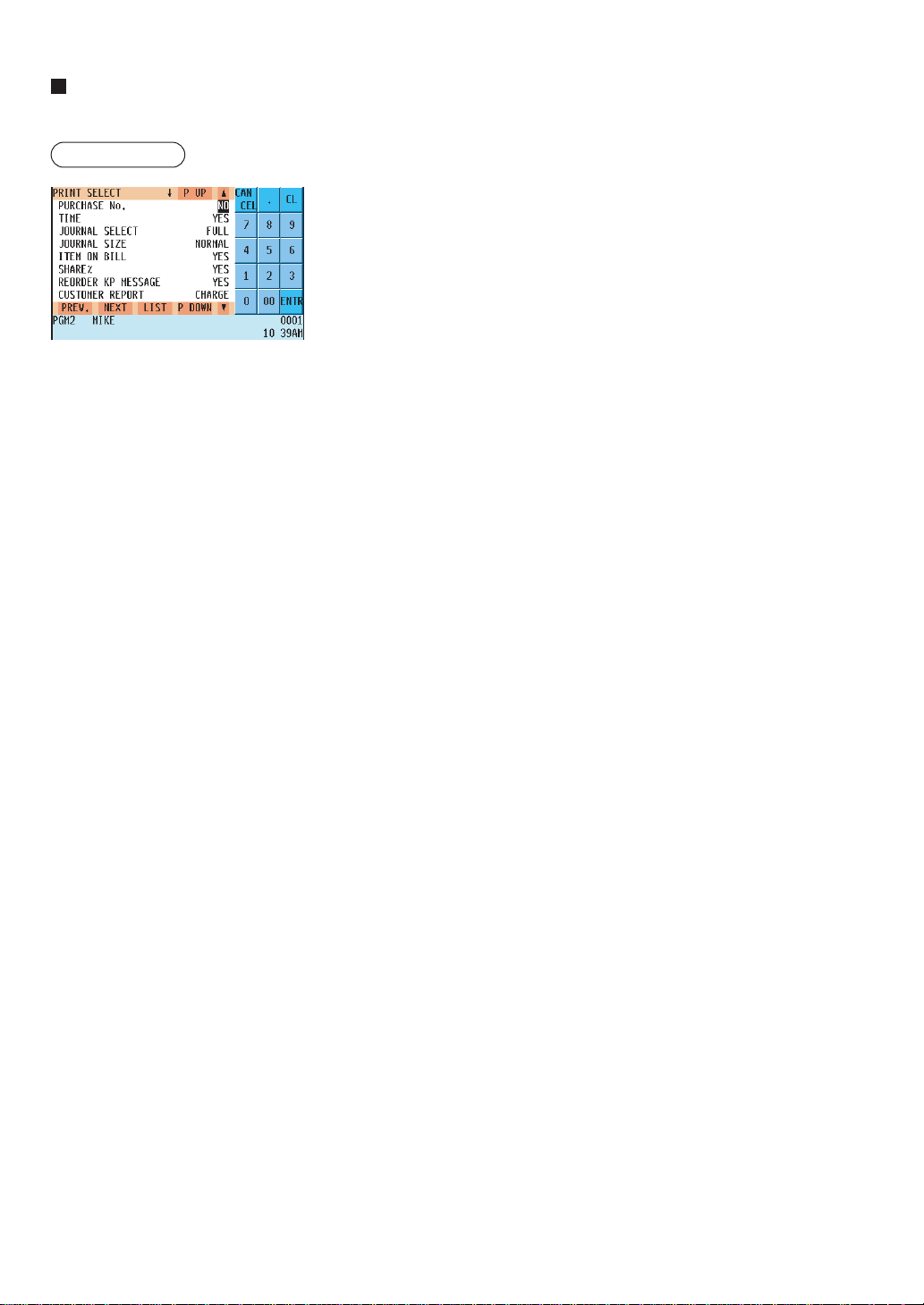
— 201 —
Printing selection
You can program various printing functions.
Procedure
Program each item as follows:
• PURCHASE NO. (Use the selective entry method)
YES: Prints the purchase number.
NO : Does not print the purchase number.
• TIME (Use the selective entry method)
NO : Does not print the time on the receipt and journal.
YES: Prints the time on the receipt and journal.
• JOURNAL SELECT (Use the selective entry method)
PARTIAL: Prints summary information on the journal.
FULL: Prints detailed information on the journal.
• JOURNAL SIZE (Use the selective entry method)
NORMAL: Prints normal-size letters on the journal.
SMALL: Prints compressed-size letters on the journal.
• ITEM ON BILL (Use the selective entry method)
NO : Does not print items in a GLU/PBLU transaction on the bill
printer.
YES: Prints items in a GLU/PBLU transaction on the bill printer.
• SHARE% (Use the selective entry method)
NO : Does not print the share percent in the department report.
YES: Prints the share percent in the department report.
• REORDER KP MESSAGE (Use the selective entry method)
YES: Prints the reorder message on a kitchen printer.
NO : Does not print the reorder message on a kitchen printer.
• CUSTOMER REPORT (Use the selective entry method)
Non-payment customer report format
DETAIL: Detail data
CHARGE: Charge amount data
• BIRTHDAY (Use the selective entry method)
YES: Prints the entered birthday.
NO : Does not print entered birthday.
• TAX STATUS RJ (Use the selective entry method)
Taxable status printing on the receipt and journal.
(YES/NO)
• TAX STATUS BILL (Use the selective entry method)
Taxable status printing on bill (slip)
(YES/NO)
• TAX STATUS KP (Use the selective entry method)
Taxable status printing on a kitchen printer
(YES/NO)
The screen continues.

— 202 —
Printing selection (continued)
• CUST. CODE&NAME KP (Use the selective entry method)
YES : Prints the customer code and name on a kitchen printer (bill/slip).
NO : Does not print the customer code and name on a kitchen printer.
• CUST. ADDRESS KP (Use the selective entry method)
YES : Prints the customer address on a kitchen printer (bill/slip).
NO : Does not print the customer address on a kitchen printer.
• CUST. TELPHONE# KP (Use the selective entry method)
YES : Prints the customer telephone number on a kitchen printer (bill/slip).
NO : Does not print the customer telephone number on a kitchen printer.
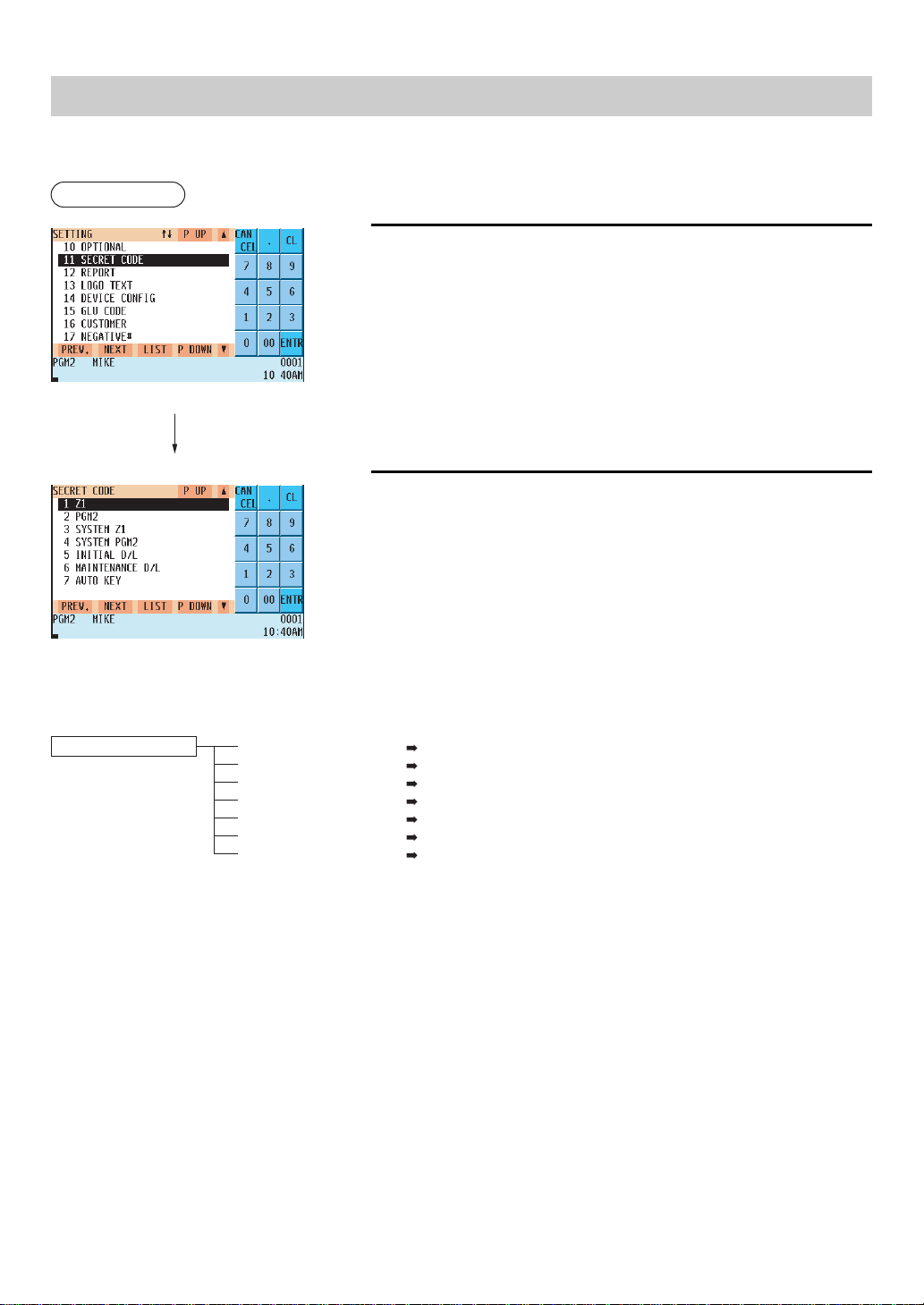
— 203 —
Secret Code Programming
Use the following procedure to program a secret code:
Procedure
1.
In the SETTING window, select “11 SECRET CODE.”
• The SECRET CODE window will appear.
2.
Select any option from the following options list:
1 Z1: Z1 reports
2 PGM2: PGM2 operations
3 SYSTEM Z1: System Z1 reports
4 SYSTEM PGM2: System PGM2 operations
5 INITIAL D/L: Initial down-loading
6 MAINTENANCE. D/L: Maintenance down-loading
7 AUTO KEY: Auto keys
The following illustration shows those options included in the secret code programming group.
11 SECRET CODE 1
2
3
4
5
6
1 Z1 See “Z1 reports” on page 204.
2 PGM2 See “PGM2-mode operations” on page 204.
3 SYSTEM Z1 See “System Z1 reports” on page 205.
4 SYSTEM PGM2 See “System PGM2-mode operations” on page 205.
5 INITIAL D/L See “Initial down-loading” on page 206.
6 MAINTENANCE. D/L See “Maintenance down-loading” on page 206.
7 AUTO KEY See “Auto key” on page 207.
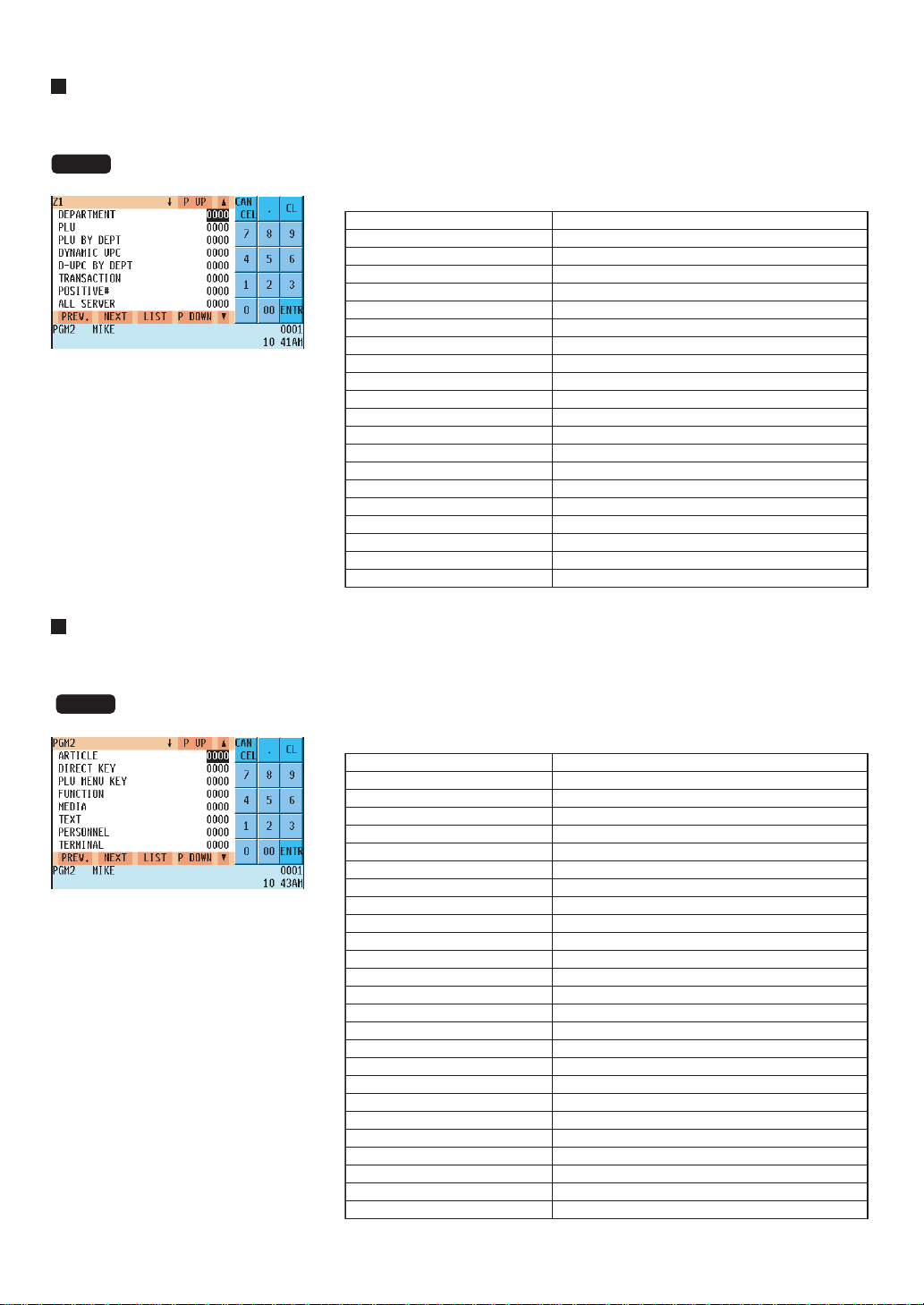
— 204 —
Z1 reports
You can assign a secret code to each report.
Secret code: max. 4 digits (0001 to 9999/0000) (Use the numeric entry method)
NOTE
If “0” is entered, the “compulsory secret code entry” will be canceled.
Program each item as follows:
DEPARTMENT
PLU
PLU BY DEPT
DYNAMIC UPC
D-UPC BY DEPT
TRANSACTION
POSITIVE#
ALL SERVER
IND. SERVER
HOURLY
GLU
GLU BY SERVER
CLOSED GLU
CL-GLU BY SERVER
STACKED REPORT
NON ACCESS UPC
D-UPC CLEAR
D-UPC CLR DEPT
EFT
ACCT BAL SYS
E.JOURNAL
Department report
PLU report
PLU by department report
Dynamic UPC report
Dynamic UPC by department report
Transaction report
Positive number report
All server report
Individual server report
Hourly report
GLU report
GLU by server report
Closed GLU report
Closed GLU by server report
Stacked report
Non-access UPC
Dynamic UPC clear report
Dynamic UPC clear by dept. report
EFT
Balance of account (system)
Electronic journal
PGM2-mode operations
You can assign a secret code to each programming operation in the PGM2 mode.
Secret code: max. 4 digits (0001 to 9999/0000) (Use the numeric entry method)
NOTE
If “0” is entered, the “compulsory secret code entry” will be canceled.
Program each item as follows:
ARTICLE
DIRECT KEY
PLU MENU KEY
FUNCTION
MEDIA
TEXT
PERSONNEL
TERMINAL
DATE/TIME
OPTIONAL
SECRET CODE
REPORT
LOGO TEXT
DEVICE CONFIG
GLU CODE
TAX
CUSTOMER
NEGATIVE#
POSITIVE#
MACRO KEY
FUNCTION KEY
CAPTURE KEY
CAPTURE JOB#
TRAINING
DATA SEND
DATA RECEIVE
Article programming
Direct key programming
PLU menu key programming
Function programming
Media programming
Text programming
Personnel programming
Terminal programming
Date/time programming
Optional programming
Secret code programming
Report programming
Logo programming
Device configuration programming
GLU code programming
Tax programming
Customer programming
Negative number programming
Positive number programming
Macro key programming
Function menu key programming
Capture key programming
Capture job programming
Training mode
Backup data send
Backup data receive
The screen continues.
The screen continues.
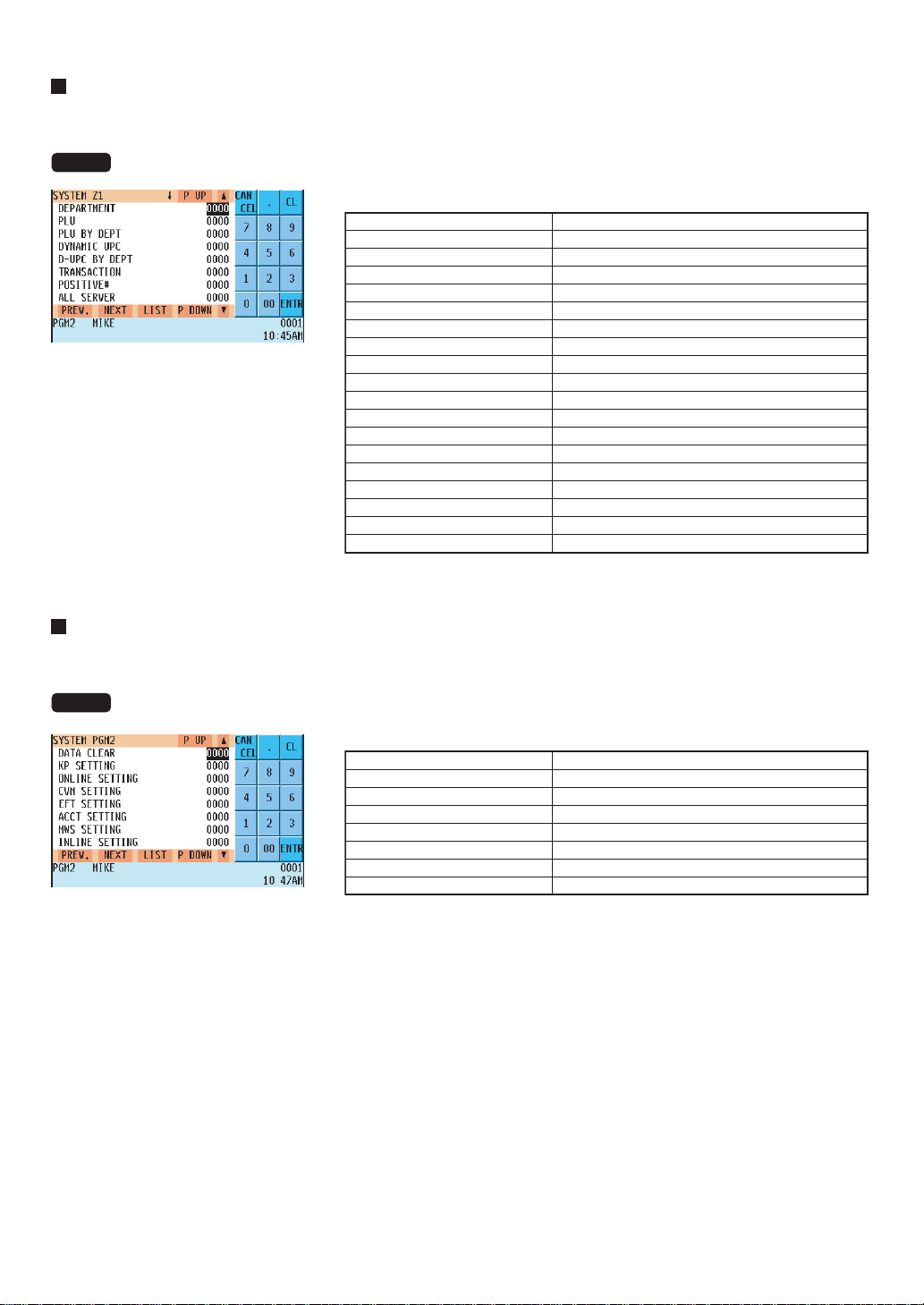
— 205 —
System Z1 reports
You can assign a secret code to each system report.
Secret code: max. 4 digits (0001 to 9999/0000) (Use the numeric entry method)
NOTE
If “0” is entered, the “compulsory secret code entry” will be canceled.
Program each item as follows:
DEPARTMENT
PLU
PLU BY DEPT
DYNAMIC UPC
D-UPC BY DEPT
TRANSACTION
POSITIVE#
ALL SERVER
IND. SERVER
HOURLY
GLU
GLU BY SERVER
CLOSED GLU
CL-GLU BY SERV
STACKED REPORT
NON ACCESS UPC
D-UPC CLEAR
D-UPC CLEAR DEPT
E.JOURNAL
Department report
PLU report
PLU by department report
Dynamic UPC report
Dynamic UPC by department report
Transaction report
Positive number report
All server report
Individual server report
Hourly report
GLU report
GLU by server report
Closed GLU report
Closed GLU by server report
Stacked report
Non-access UPC report
Dynamic UPC clear report
Dynamic UPC clear by department report
Electronic journal
System PGM2-mode operations
You can assign a secret code to each system programming operation in the PGM2 mode.
Secret code: max. 4 digits (0001 to 9999/0000) (Use the numeric entry method)
NOTE
If “0” is entered, the “compulsory secret code entry” will be canceled.
Program each item as follows:
DATA CLEAR
KP SETTING
ONLINE SETTING
CVM SETTING
EFT SETTING
ACCT SETTING
MWS SETTING
INLINE SETTING
Data clear operation
Kitchen printer setting
Online setting
CVM setting
EFT setting
Account setting
Manager work station setting
Inline setting
The screen continues.
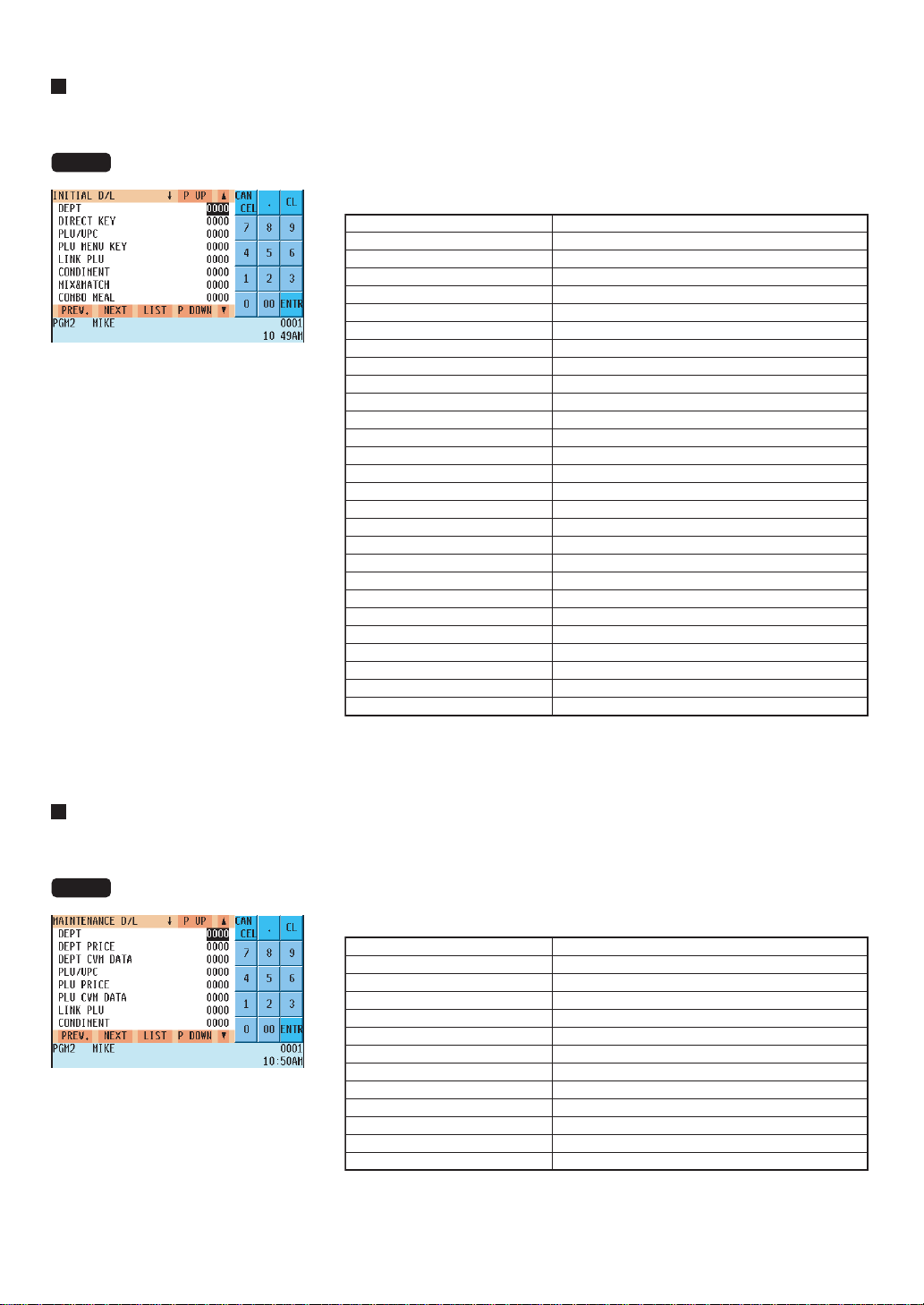
— 206 —
Initial down-loading (with clearing of memory)
You can assign a secret code to each preset data to be downloaded.
Secret code: max. 4 digits (0001 to 9999/0000) (Use the numeric entry method)
NOTE
If “0” is entered, the “compulsory secret code entry” will be canceled.
Program each item as follows:
DEPT
DIRECT KEY
PLU/UPC
PLU MENU KEY
LINK PLU
CONDIMENT
MIX&MATCH
COMBO MEAL
UPC NON-PLU
TRANSACTION
MANAGER
SERV. SIGN OFF
OPTION
DATE/TIME
LOGO
DEF. MENU LEVEL
TAX
NEGATIVE#
POSITIVE#
MACRO KEY
FUNC. MENU KEY
CAPTURE KEY
CAPTURE JOB#
ONLINE PRESET
INLINE PRESET
KP PRESET
DEVICE CONFIG
ALL PGM
Department preset
Direct department/PLU preset
PLU/UPC preset
PLU menu key preset
Link PLU preset
Condiment PLU preset
Mix & Match preset
Combo meal preset
UPC Non-PLU code format
Transaction preset
Manager preset
All server sign off
Other preset
Date/time preset
Logo text preset
Default menu level
Tax preset
Negative number preset
Positive number preset
Macro key preset
Function menu key preset
Capture key preset
Capture job preset
Online preset
Inline preset
Kitchen printer preset
Device configuration preset
All PGM preset
Maintenance down-loading (without clearing of memory)
You can assign a secret code to each preset data to be downloaded.
Secret code: max. 4 digits (0001 to 9999/0000) (Use the numeric entry method)
NOTE
If “0” is entered, the “compulsory secret code entry” will be canceled.
Program each item as follows:
DEPT
DEPT PRICE
DEPT CVM DATA
PLU/UPC
PLU PRICE
PLU CVM DATA
LINK PLU
CONDIMENT
MIX&MATCH
COMBO MEAL
COMBO CVM DATA
TRANSACTION
POSITIVE#
Department preset
Department price preset
dept CVM data
PLU/UPC preset
PLU price preset
PLU CVM data
Link PLU preset
Condiment PLU preset
Mix & Match preset
Combo meal preset
Combo CVM data
Transaction preset
Positive number preset
The screen continues.
The screen continues.
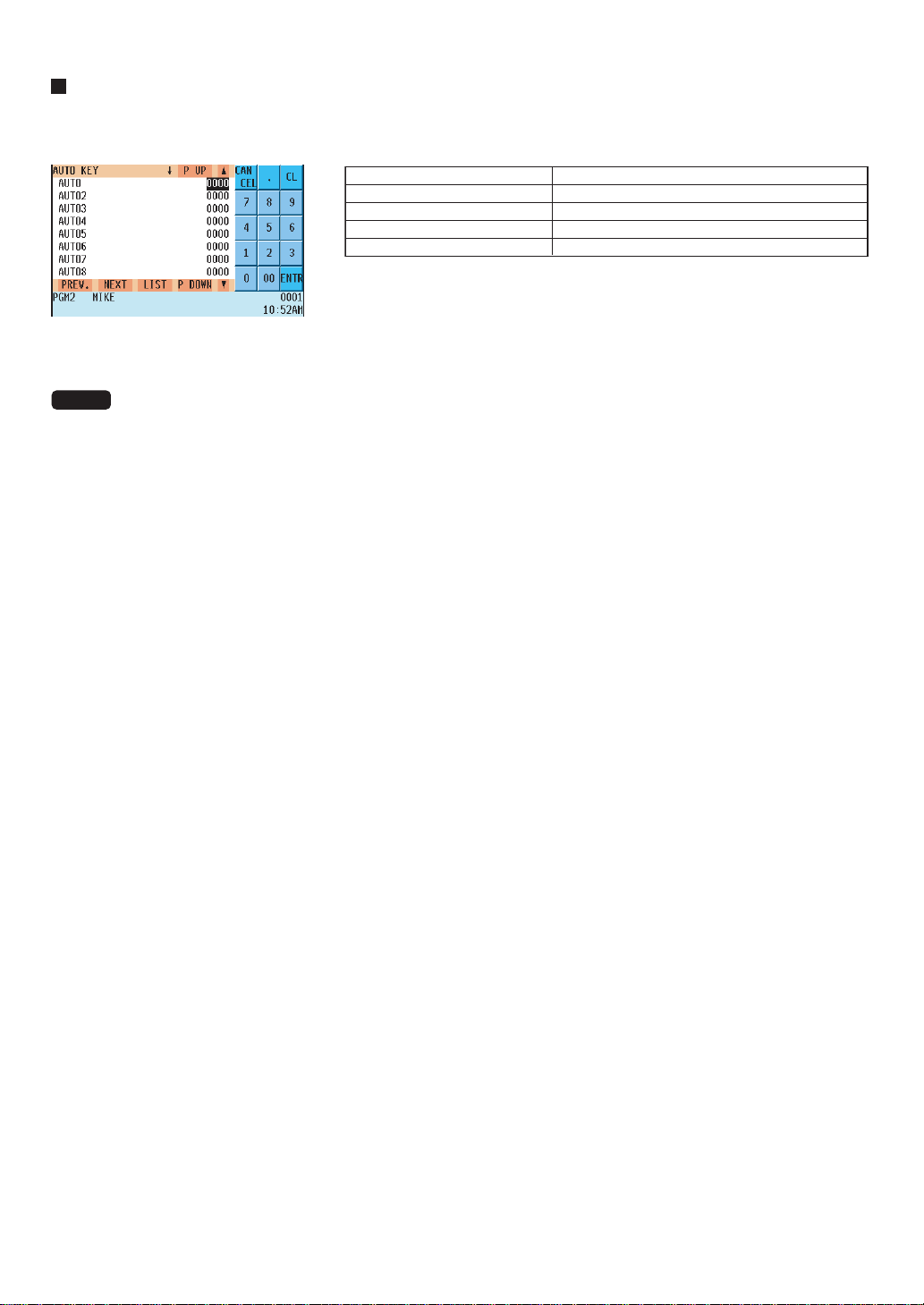
— 207 —
Auto key
You can assign a secret code to each automatic sequencing key (Auto key).
Secret code: max. 4 digits (0001 to 9999/0000) (Use the numeric entry method)
AUTO
AUTO2
AUTO3
...
AUTO99
Auto key
Auto2 key
Auto3 key
...
Auto99 key
NOTE
If “0” is entered, the “compulsory secret code entry” will be canceled.
The screen continues.

— 208 —
Report Programming
Use the following procedure for report programming:
Procedure
1.
In the SETTING window, select “12 REPORT.”
• The REPORT window will appear.
2.
Select any option from the following list:
1 0 SKIP: Zero skip
2 HOURLY REPORT: Hourly report
3 STACKED REPORT: Stacked report
The following illustration shows the report programming options.
1 0 SKIP See “Zero skip” on page 209.
2 HOURLY REPORT See “Hourly report” on page 209.
3 STACKED REPORT See “Stacked report” on page 210.
12 REPORT
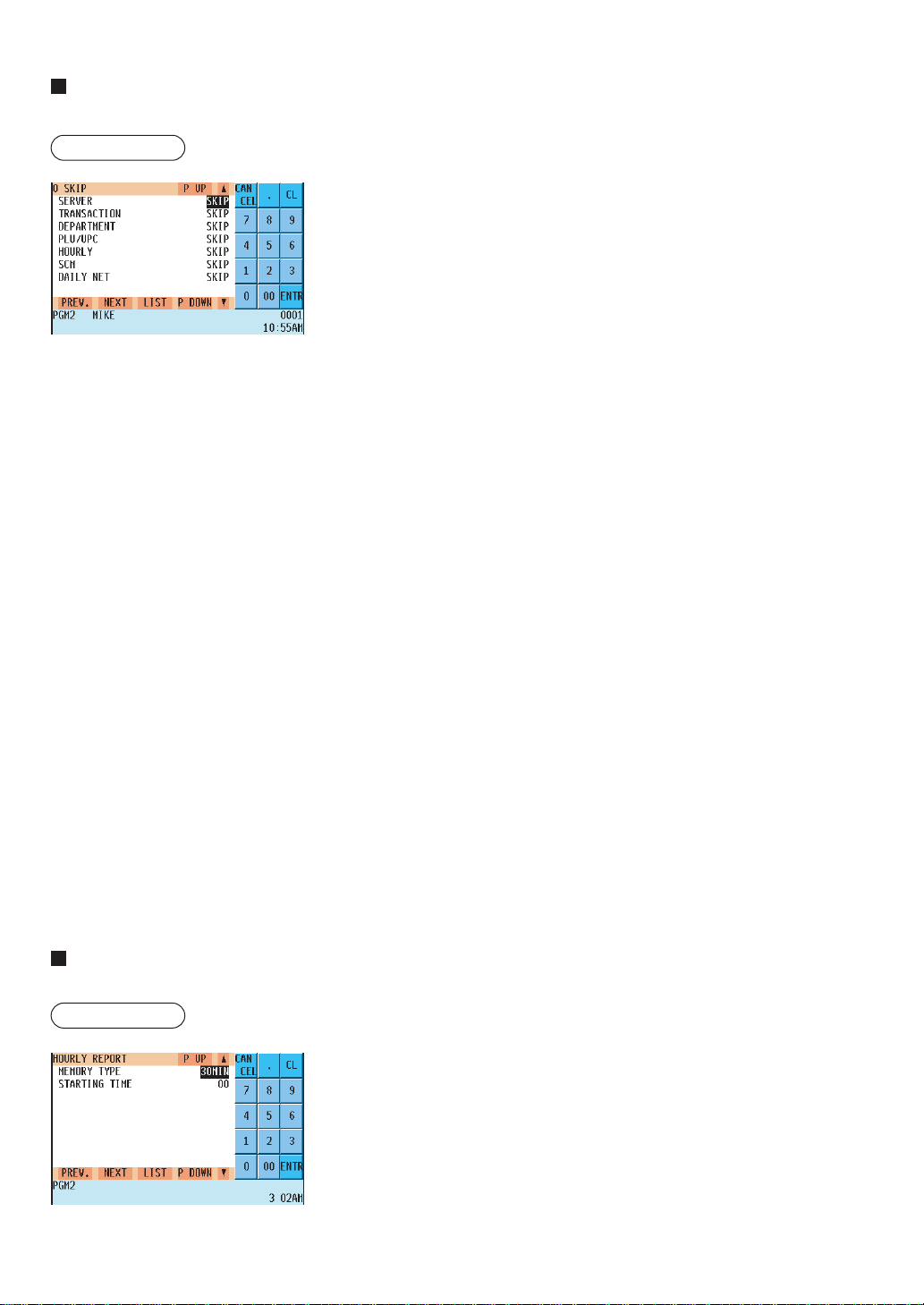
— 209 —
Zero skip
You can program whether or not to skip “0” sales totalizer in each report.
Procedure
Program each item as follows:
• SERVER (Use the selective entry method)
NOT SKIP: Does not skip those data that are “0” sales in the server
report.
SKIP: Skips those data that are “0” sales in the server report.
• TRANSACTION (Use the selective entry method)
NOT SKIP: Does not skip those data that are “0” sales in the
transaction report.
SKIP: Skips those data that are “0” sales in the transaction
report.
• DEPARTMENT (Use the selective entry method)
NOT SKIP: Does not skip those data that are “0” sales in the
department report.
SKIP: Skips those data that are “0” sales in the department
report.
• PLU/UPC (Use the selective entry method)
NOT SKIP: Does not skip those data that are “0” sales in the PLU/
UPC report.
SKIP: Skips those data that are “0” sales in the PLU/UPC
report.
• HOURLY (Use the selective entry method)
NOT SKIP: Does not skip those data that are “0” sales in the hourly
report.
SKIP: Skips those data that are “0” sales in the hourly report.
• SCM (Use the selective entry method)
NOT SKIP: Does not skip those data that are “0” sales in the
SCM report.
SKIP: Skips those data that are “0” sales in the SCM report.
• DAILY NET (Use the selective entry method)
NOT SKIP: Does not skip those data that are “0” sales in the daily
net report.
SKIP: Skips those data that are “0” sales in the daily net
report.
Hourly report
You can program the memory type and the starting time for the hourly report.
Procedure
Program each item as follows:
• MEMORY TYPE (Use the selective entry method)
15MIN: Selects the 15-minute type.
30MIN: Selects the 30-minute type.
60MIN: Selects the 60-minute type.
• STARTING TIME (Use the numeric entry method)
Starting time entry (max. 2 digits: 0 to 23)
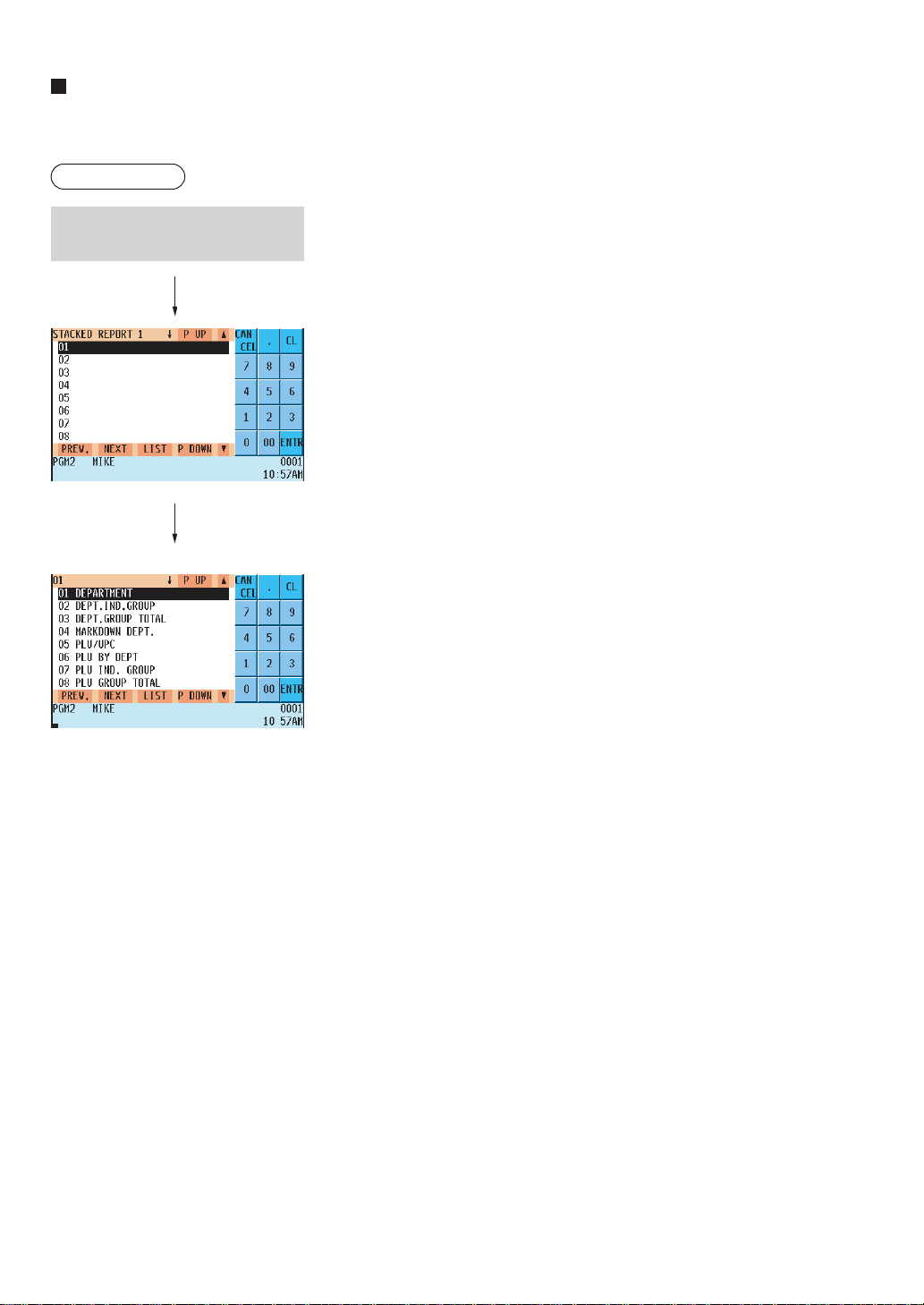
— 210 —
Stacked report
Your POS terminal is equipped with the stacked report printing function that enables multiple X/Z reports to be
printed in sequence by a single request.
Procedure
You can select a maximum of twenty reports from the stacked reports list.
Some reports can be set their parameters such as “START CODE” and
“END CODE.”
• 01 DEPARTMENT (Use the numeric entry method)
Full department report
Parameter: Start department code/end department code (1 thru 99)
• 02 DEPT.IND.GROUP (Use the numeric entry method)
Individual group report on departments
Parameter: Department group no. (1 thru 9)
• 03 DEPT.GROUP TOTAL
Full group total report on departments
• 04 MARKDOWN DEPT. (Use the numeric entry method)
Markdown for department report
Parameter: Start department code/end department code (1 thru 50)
• 05 PLU/UPC (Use the numeric entry method)
PLU report by designated range
Parameter: Start PLU code/end PLU code (1 thru 999999)
• 06 PLU BY DEPT (Use the numeric entry method)
PLU report by associated departments
Parameter: Department code (1 thru 50)
• 07 PLU IND. GROUP (Use the numeric entry method)
PLU report by individual group
Parameter: PLU group no. (00 thru 99)
• 08 PLU GROUP TOTAL
Full group total report on PLUs
• 09 PLU STOCK (Use the numeric entry method)
PLU stock report
Parameter: Start PLU code/end PLU code (1 thru 99999)
• 10 PLU ZERO SALES (Use the selective/numeric entry method)
PLU zero sales report
Parameter: 1 ALL/2 BY DEPT.
When “2 BY DEPT.” is selected, enter a department code (1 thru 99).
• 11 PLU MINIMUM STOCK (Use the numeric entry method)
PLU minimum stock report
Parameter: Start PLU code/end PLU code (1 thru 99999)
• 12 PLU PRICE CATEGORY (Use the numeric entry method)
PLU price category report
Parameter: Start unit price/end unit price
The screen continues.
Select a stacked report no. from
the stacked reports list.

— 211 —
Stacked report (continued)
• 13 DYNAMIC UPC
Dynamic UPC report
• 14 TRANSACTION
Transaction report
• 15 CID
Cash in drawer report
• 16 POSITIVE CHECK
Positive check report
• 17 TAX
Tax report
• 18 SCM
Starting cash memory report
• 19 ALL SERVER
Full server report
• 20 IND. SERVER (Use the numeric entry method)
Individual server report
Parameter: Server code (1 thru 9999)
• 21 HOURLY (Use the numeric entry method)
Hourly report
Parameter: Start time/end time (0 thru 2345)
NOTE
To take the hourly Z report, you have to specify the full-range hourly report.
• 22 DAILY NET
Daily net report
• 23 GLU (Use the numeric entry method)
GLU/PBLU report
Parameter: Start GLU code/end GLU code (1 thru 99999999)
• 24 GLU BY SERVER (Use the numeric entry method)
GLU/PBLU report by server
Parameter: Server code (1 thru 9999/Up to 255 servers can be assigned.)
• 25 CLOSED GLU (Use the numeric entry method)
Closed GLU/PBLU report
Parameter: Start GLU code/end GLU code (1 thru 99999999)
• 26 CL-GLU BY SERVER (Use the numeric entry method)
Closed GLU/PBLU report by server
Parameter: Server code (1 thru 9999/Up to 255 servers can be assigned.)
• 27 CUST. DETAILS ONLY (Use the numeric entry method)
Customer details only report
Parameter: Start customer code/end customer code

— 212 —
Stacked report (continued)
• 28 CUSTOM SALES ALL (Use the numeric entry method)
Customer sales all report
Parameter: Start customer code/end customer code
• 29 CHARGE ACCOUNT
Charge account (customer no payment) report
• 30 KEY CAPTURE
Key capture report
• 31 NON ACCESSED UPC
No-access UPC report
• 32 NON ACCESSED CUST.
No-access customer report
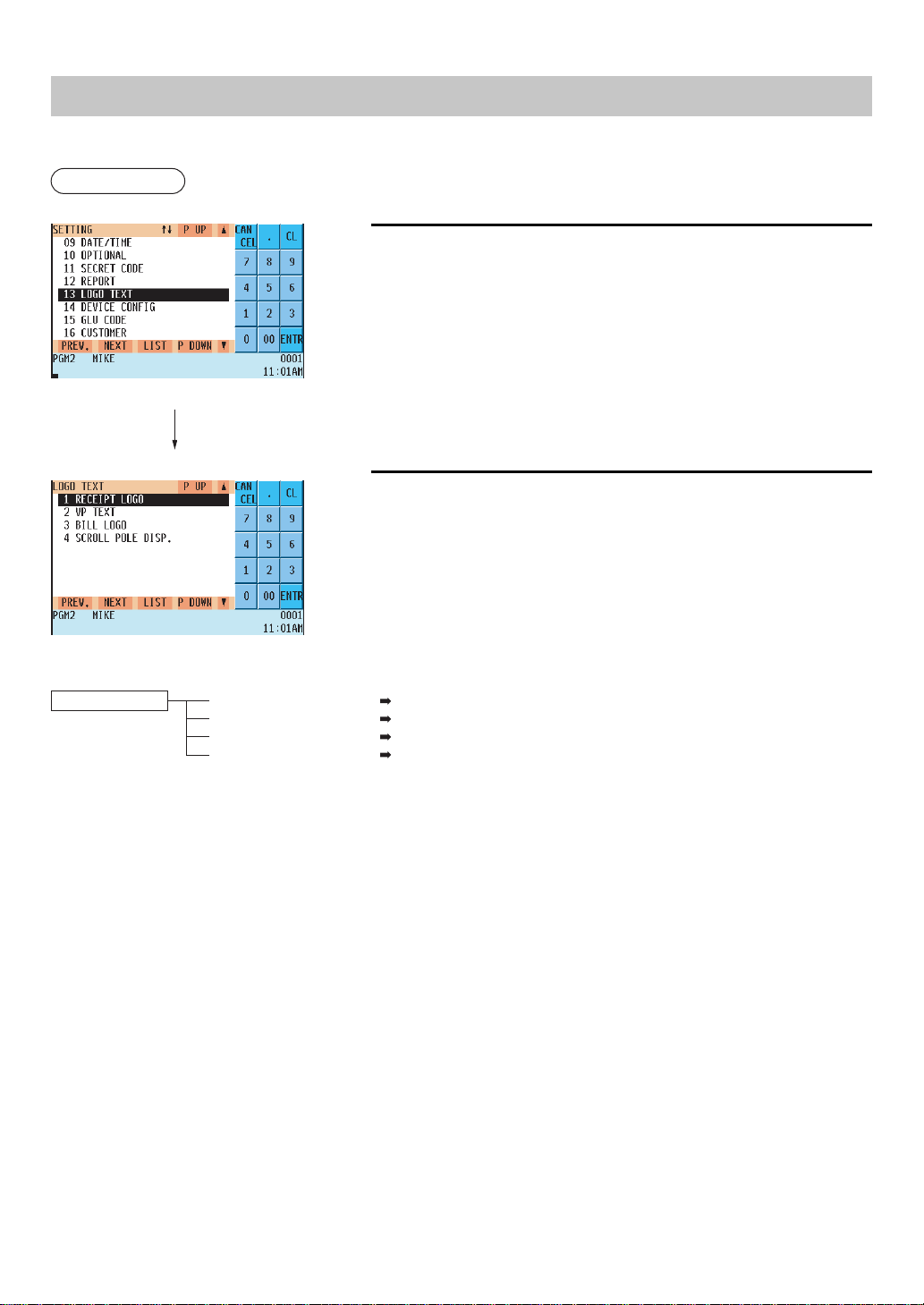
— 213 —
Logo Text Programming
Use the following procedure for logo text programming.
Procedure
1.
In the SETTING window, select “13 LOGO TEXT.”
• The LOGO TEXT window will appear.
2.
Select any option from the following options list:
1 RECEIPT LOGO: Receipt logo
2 VP TEXT: Validation printing text
3 BILL LOGO: Bill logo
4 SCROLL POLE DISP: Scrolling message for pole display
The following illustration shows the logo text programming options.
13 LOGO TEXT
1 RECEIPT LOGO See “Receipt logo” on page 214.
2 VP TEXT See “Validation printing text” on page 214.
3 BILL LOGO See “Bill logo” on page 215.
4 SCROLL POLE DISP See “Scrolling message for pole display” on page 215.
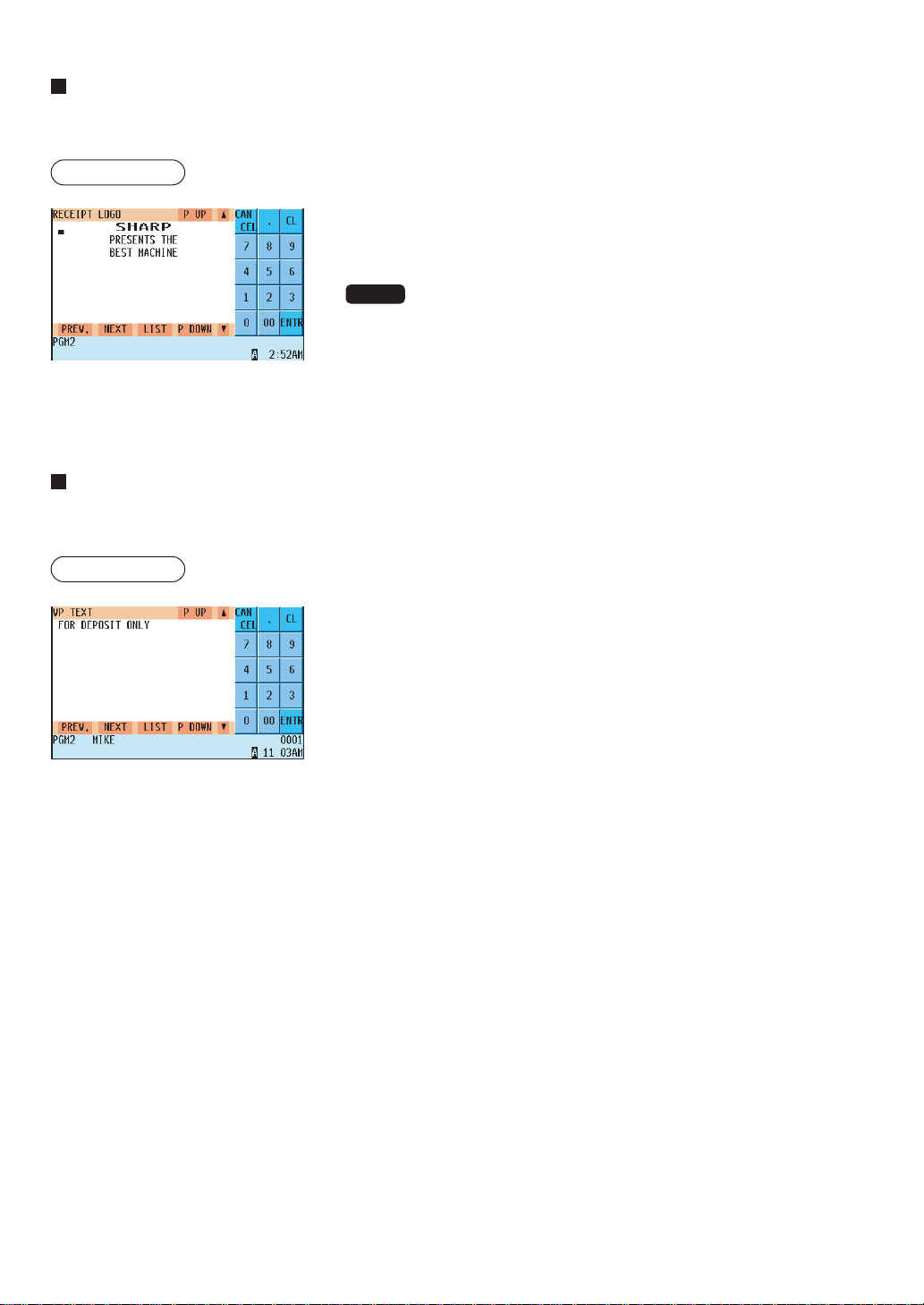
— 214 —
Receipt logo
Your POS terminal can print programmed messages for customers on every receipt.
Procedure
Program the item as follows:
• RECEIPT LOGO (Use the character entry method)
Logo text for the receipt (max. 30 characters x 6 lines)
NOTE
The number of lines available for a message varies according to the
message type: the “3-line header message” type, “3-line footer message”
type, “6-line header message” type and “Stamp only” type. Please consult
your authorized SHARP dealer.
Validation printing text
Your POS terminal can print programmed validation messages.
Procedure
Program the item as follows:
• VP TEXT (Use the character entry method)
Text for the validation slip (max. 30 characters x 3 lines)
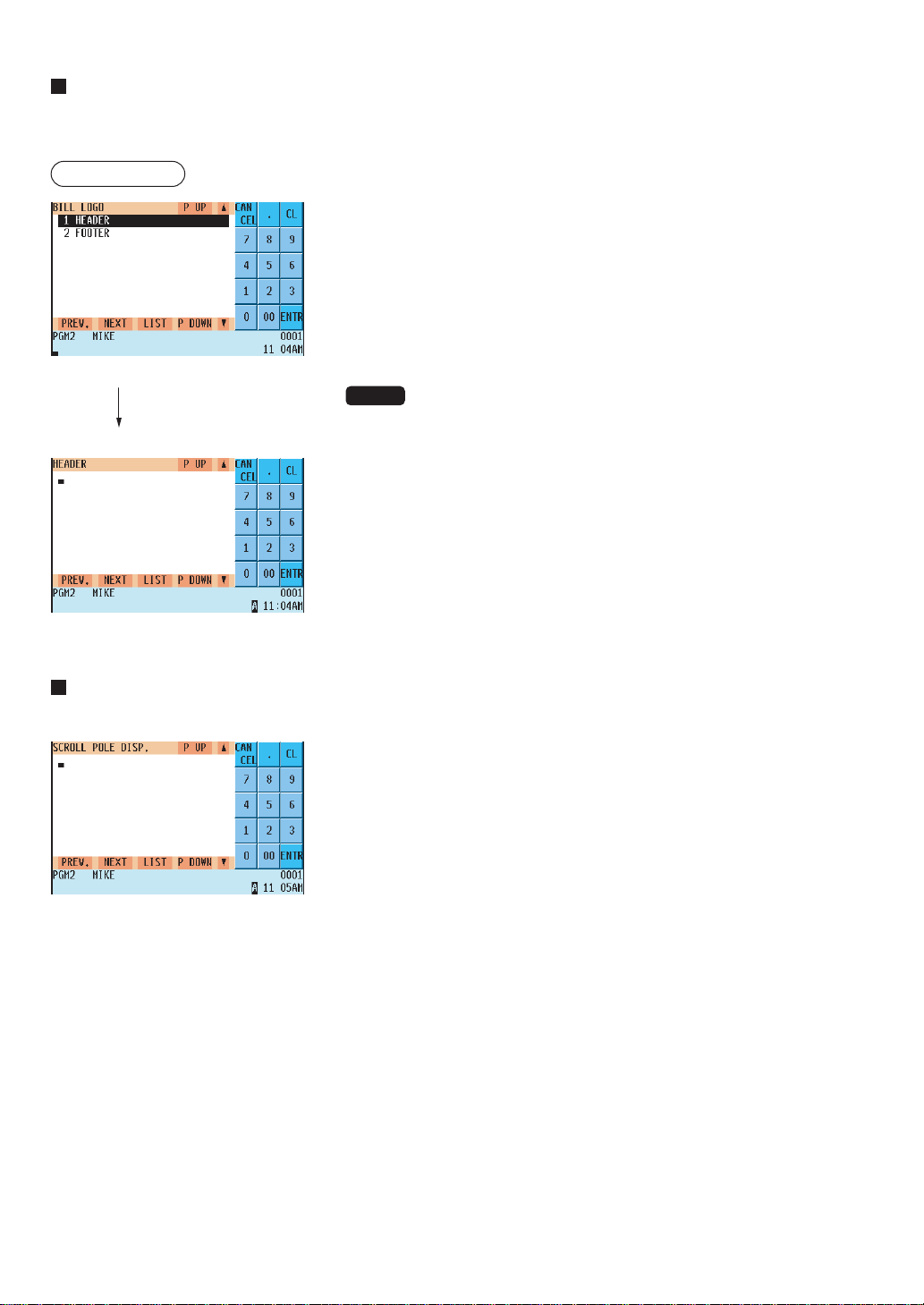
— 215 —
Bill logo
Your POS terminal can print programmed messages for customers on the bill.
Shown below is an example of selecting “1 HEADER”.
Procedure
When “1 HEADER” is selected:
• HEADER (Use the character entry method)
Header text for the bill (max. 40 characters x 3 lines)
When “2 FOOTER” is selected:
• FOOTER (Use the character entry method)
Footer text for the bill (max. 30 characters x 6 lines)
NOTE
Header/Footer text for bill printer programming.
Scrolling message for pole display
Your POS terminal can display a scrolling message on the optional pole display.
Program the item as follows:
• SCROLL POLE DISP. (Use the character entry method)
Text for the scrolling message (max. 64 characters)
If ti is assumed that
you have selected “1
HEADER.”
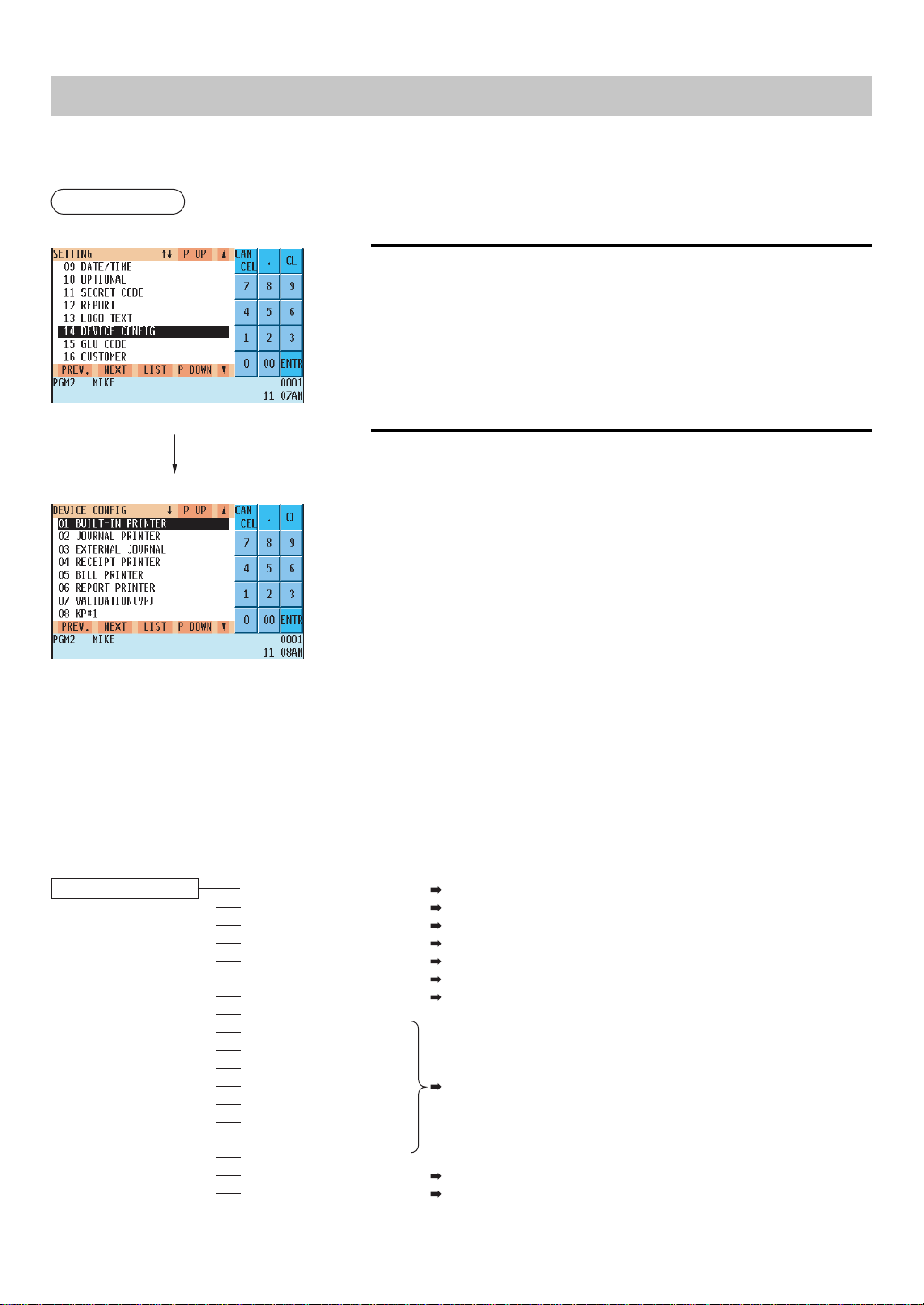
— 216 —
Device Configuration Programming
Use the following procedure to select a device configuration programming:
Procedure
1.
In the SETTING window, select “14 DEVICE CONFIG.”
• The DEVICE CONFIG window will appear.
2.
Select any option from the following options list:
01 BUILT-IN PRINTER: Built-in printer
02 JOURNAL PRINTER: Journal printer*
03 EXTERNAL JOURNAL:External journal
04 RECEIPT PRINTER: Receipt printer
05 BILL PRINTER: Bill printer
06 REPORT PRINTER: Report printer
07 VALIDATION (VP): Receipt printer
08 KP#1: Remote printer #1
09 KP#2: Remote printer #2
10 KP#3: Remote printer #3
11 KP#4: Remote printer #4
12 KP#5: Remote printer #5
13 KP#6: Remote printer #6
14 KP#7: Remote printer #7
15 KP#8: Remote printer #8
16 KP#9: Remote printer #9
17 BCR(SCANNER): BCR (Scanner)
18 POLE DISPLAY: Pole display
The following illustration shows those options included in the device configuration programming group.
14 DEVICE CONFIG
01 BUILT-IN PRINTER: See “Built-in printer” on page 217.
02 JOURNAL PRINTER: See “Journal printer” on page 217.
03 EXTERNAL JOURNAL: See “External journal” on page 217.
04 RECEIPT PRINTER: See “Receipt printer” on page 218.
05 BILL PRINTER: See “Bill printer” on page 218.
06 REPORT PRINTER: See “Report printer” on page 219.
07 VALIDATION (VP): See “Validation (VP) printer” on page 219.
08 KP#1:
09 KP#2:
10 KP#3:
11 KP#4:
12 KP#5: See “Remote printer” on page 220.
13 KP#6:
14 KP#7:
15 KP#8:
16 KP#9:
17 BCR(SCANNER): See “BCR (Scanner)” on page 220.
18 POLE DISPLAY : See “Pole display” on page 221.
The screen continues.
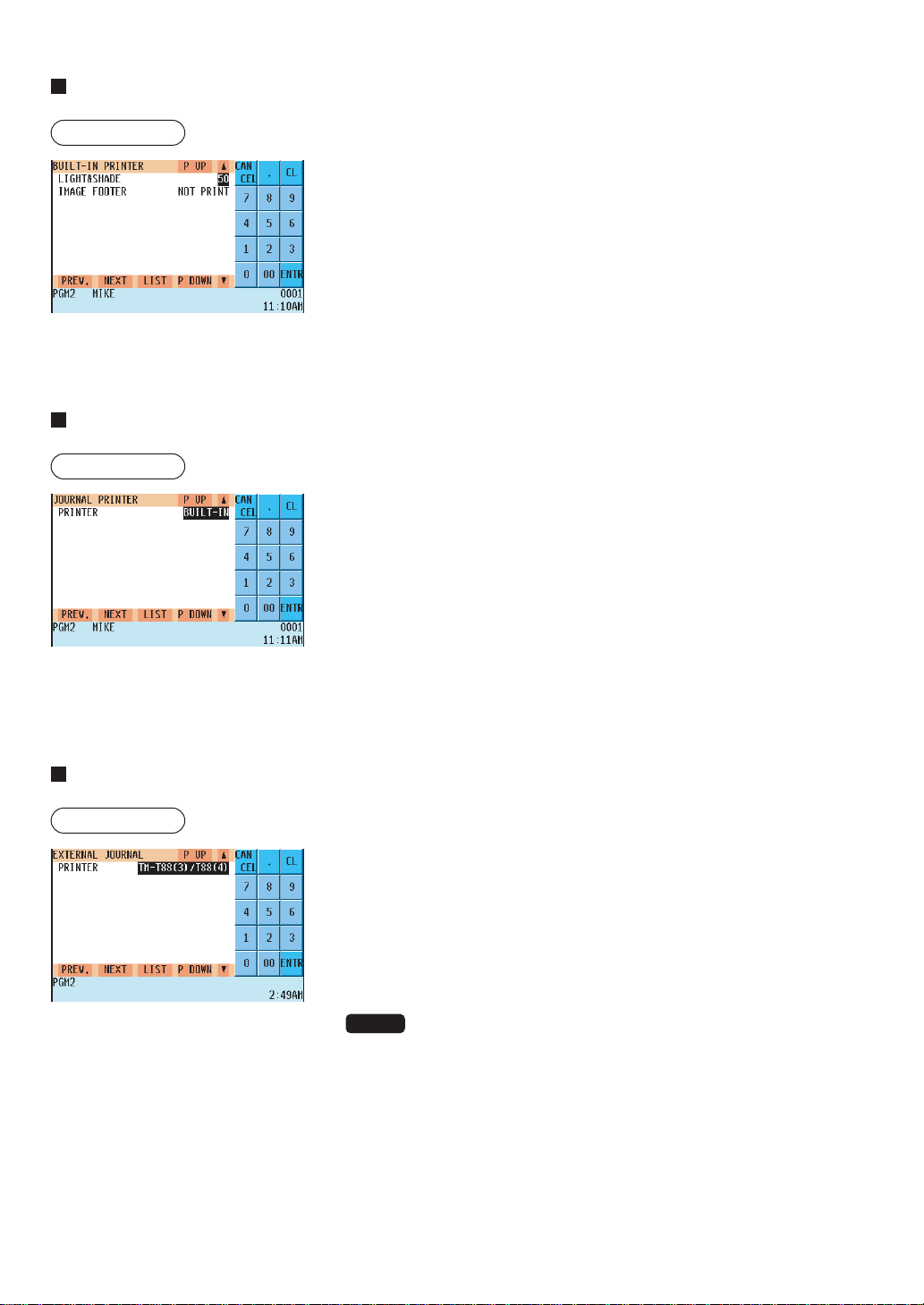
— 217 —
Built-in printer
Procedure
Program each item as follows:
• LIGHT&SHADE (Use the numeric entry method)
Select a light and shade level. (00 to 99)
00: 65% of the standard
50: 100% <standard>
99: 135%of the standard
• IMAGE FOOTER (Use the selective entry method)
PRINT: Prints footer graphic logo.
NOT PRINT: Does not print footer graphic logo.
Journal printer
Procedure
Program each item as follows:
In the case of the UP-810F:
• PRINTER (Use the selective entry method)
Select the printer to be used from the following:
TM-T88(3)/T88(4)
TM-U220/230
BUILT-IN (Built-in printer)
TM-T90
In the case of the UP-820F:
Journal printer is fixed to "BUILT IN."
External journal
Procedure
Program each item as follows:
• PRINTER (Use the selective entry method)
Select the printer to be used from the following:
TM-T88(3)/T88(4)
TM-U220/230
TM-T90
NOTE
If you want to access the EXTERNAL JOURNAL window,
please consult your authorized SHARP dealer.
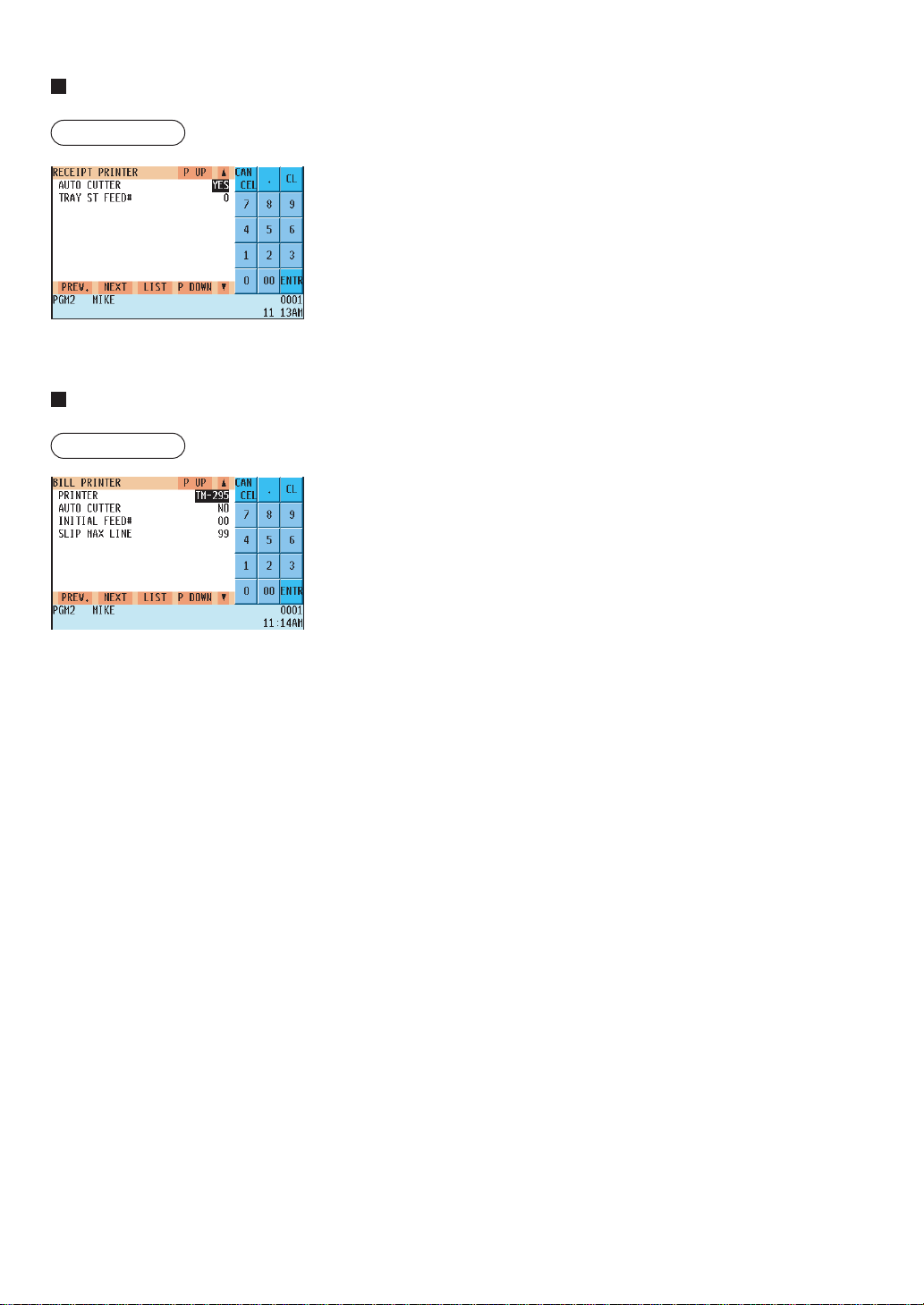
— 218 —
Receipt printer
Procedure
Program each item as follows:
• AUTO CUTTER (Use the selective entry method)
Auto cutter function
YES: Enables the auto cutter function.
NO : Disables the auto cutter function.
• TRAY ST FEED# (Use the numeric entry method)
Number of lines to be fed for a tray subtotal (0 to 9)
Receipt printer is fixed to "BUILT IN."
Bill printer
Procedure
Program each item as follows:
• PRINTER (Use the selective entry method)
Select the printer to be used.
BUILT-IN (built-in printer)
EPSON TM-295 EPSON TM-T88(3)(4)+LOGO
EPSON TM-T88(3)/88(4) EPSON TM-U220/230
EPSON TM-T90
• AUTO CUTTER (Use the selective entry method)
Auto cutter function
YES: Enables the auto cutter function.
NO : Disables the auto cutter function.
(This item is invalid for TM-295 and the built-in printer.)
• INITIAL FEED# (Use the numeric entry method)
Number of lines to be fed for a slip (0 to 64 lines): only for TM-295
• SLIP MAX LINE (Use the numeric entry method)
Maximum number of lines printable on a slip (0 to 99):only for TM-
295
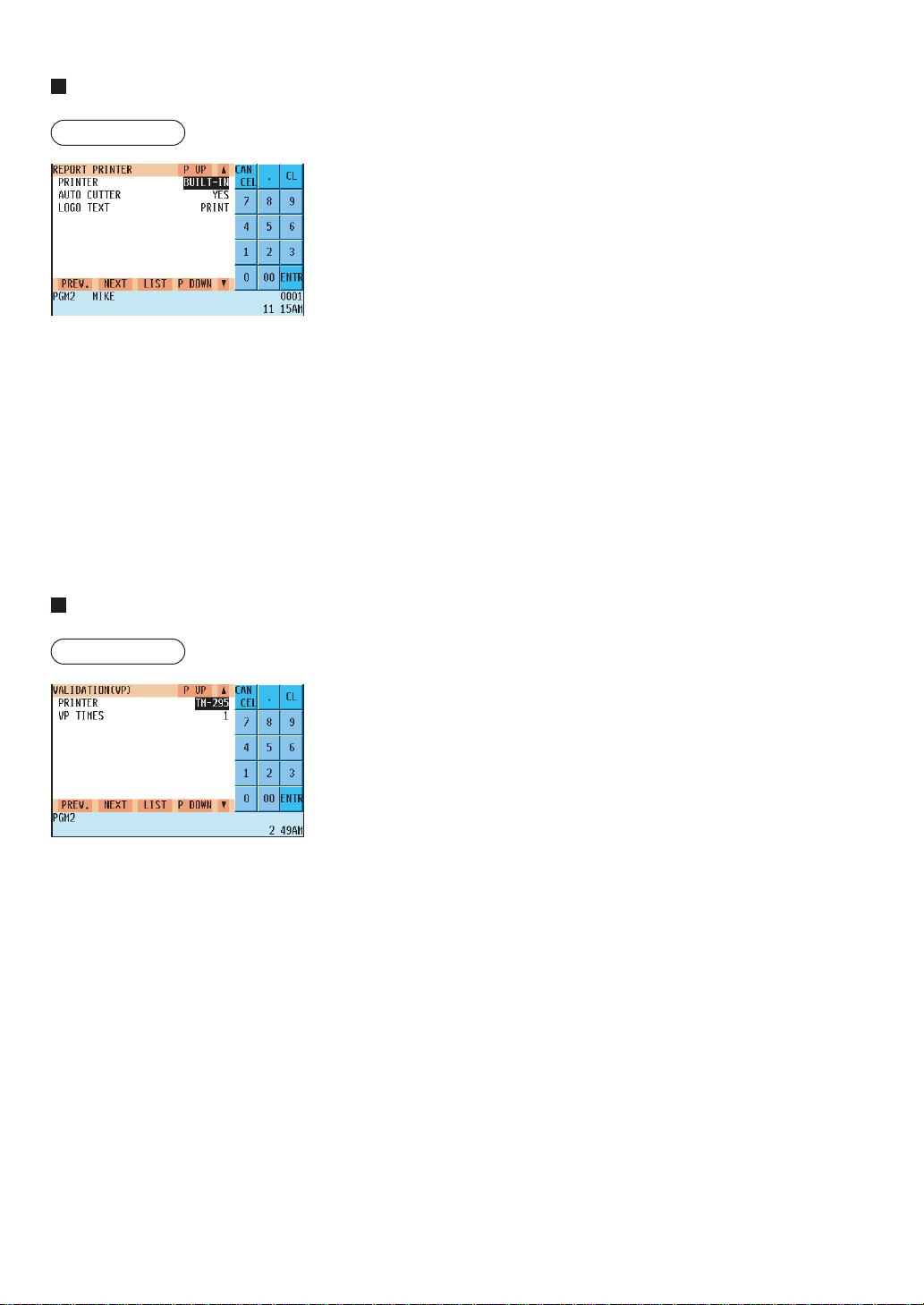
— 219 —
Report printer
Procedure
Program each item as follows:
• PRINTER (Use the selective entry method)
Select the printer to be used.
BUILT-IN (built-in printer)
EPSON TM-295 EPSON TM-T88(3)/88(4)
EPSON TM-U220/230 EPSON TM-T90
• AUTO CUTTER (Use the selective entry)
Auto cutter function
YES: Enables auto cutter function.
NO: Disables auto cutter function.
• LOGO TEXT (Use the selective entry method)
Select the logo text printing status.
NOT PRINT: Logo text is not printed.
PRINT: Logo text is printed.
(This item is invalid for the built-in printer.)
Validation (VP) printer
Procedure
Program each item as follows:
• PRINTER (Use the selective entry method)
Select the printer to be used.
EPSON TM-295
• VP TIMES (Use the numeric entry method)
Number of times of validation printing (0 thru 9)

— 220 —
Remote printer (KP#1 thru KP#9)
Procedure
Program each item as follows:
• PRINTER (Use the selective entry method)
Select the printer to be used.
EPSON TM-T88(3)/88(4) EPSON TM-U-220/230
EPSON TM-T90 BUILT-IN (built-in printer)
• AUTO CUTTER (Use the selective entry method)
Auto cutter function
YES: Enables auto cutter function.
NO : Disables auto cutter function.
• LOGO TEXT (Use the selective entry method)
Select the logo text printing status.
NOT PRINT: Logo text is not printed.
PRINT: Logo text is printed.
• TOP EXTRA LINE (Use the numeric entry method)
Number of leading blank lines to be fed for a remote printer (0 to 9)
• BOTTOM EXTRA LINE (Use the numeric entry method)
Number of tracking blank lines to be fed for a remote printer (0 to 9)
BCR (SCANNER)
Procedure
Program each item as follows:
• BAUD RATE (Use the selective entry method)
Transmission speed (baud rate)
19200 bps/9600 bps/4800 bps
• DATA BITS (Use the selective entry method)
Data bit: 7 bits/8 bits
• PARITY (Use the selective entry method)
Parity bit: NON/ODD/EVEN
• STOP BIT (Use the selective entry method)
Stop bit: 1 bit/2 bits

— 221 —
Pole display
Procedure
Program the item as follows:
• WAITING TIME (Use the numeric entry method)
Waiting time until the message is displayed on the pole display (1 to
999)
When you enter "0", no message is displayed.
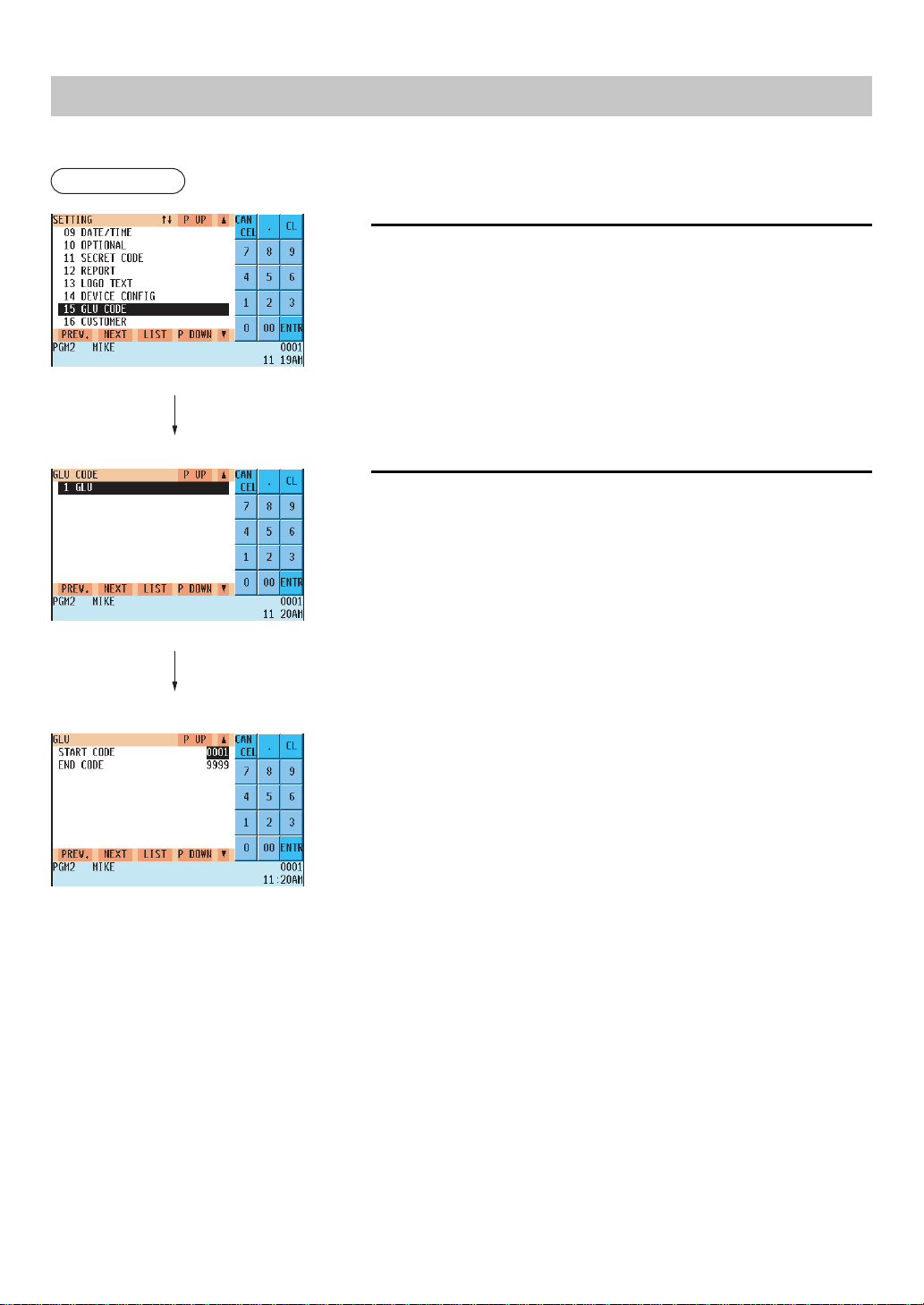
— 222 —
GLU Code Programming
Use the following procedure for GLU code programming:
Procedure
1.
In the SETTING window, select “15 GLU CODE.”
• The GLU CODE window will appear.
2.
Select any item from the following option list:
1 GLU: GLU/PBLU code
You can program the range of available guest check codes.
Program each item as follows:
• START CODE (Use the numeric entry method)
Start GLU code (max. 4 digits: 1 to 9999)
• END CODE (Use the numeric entry method)
End GLU code (max. 4 digits: 1 to 9999)
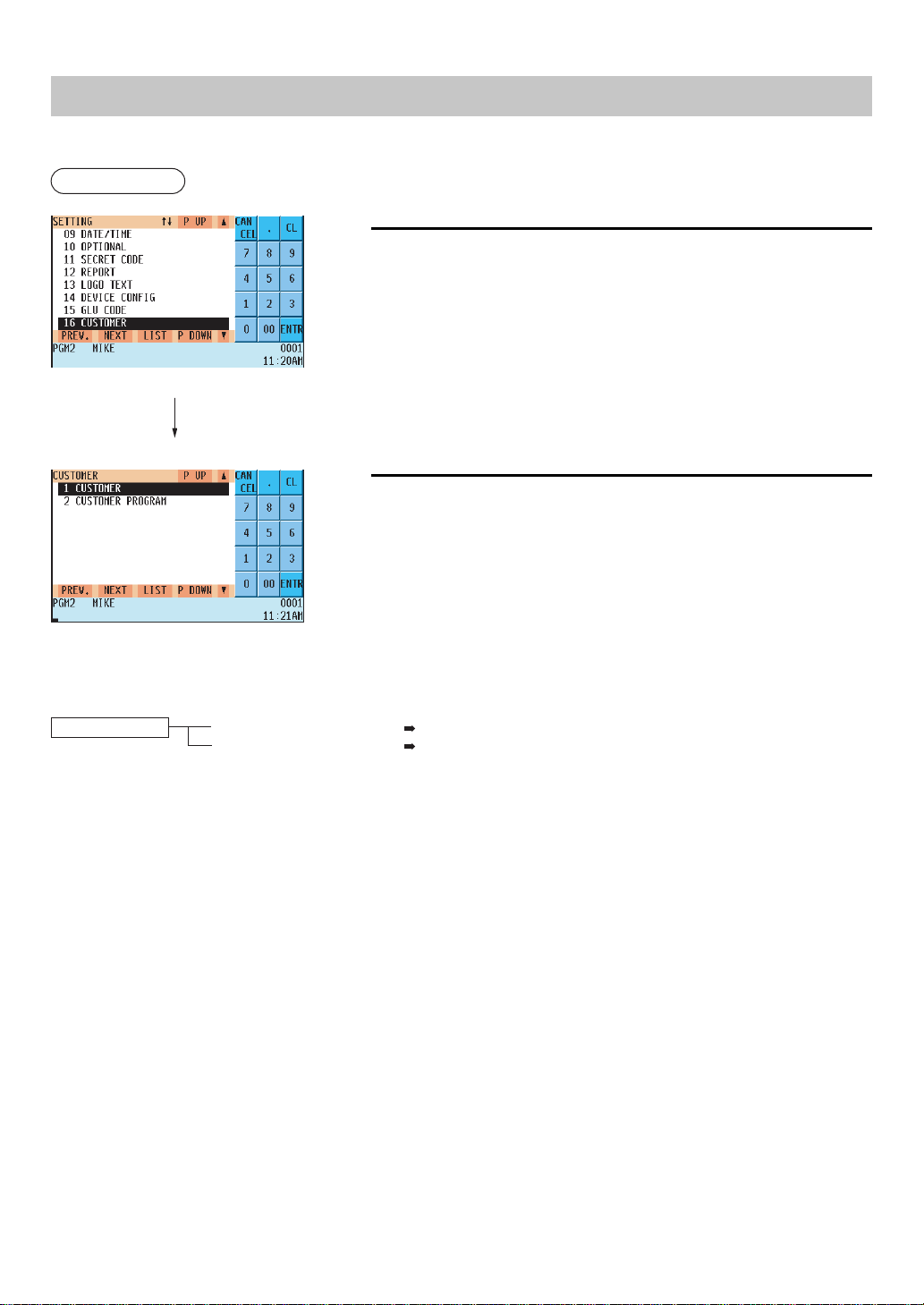
— 223 —
Customer Programming
Use the following procedure for customer programming:
Procedure
1.
In the SETTING window, select “16 CUSTOMER”.
2.
Select an option form the following option list:
1 CUSTOMER: Customer code
2 CUSTOMER PROGRAM: Customer programming
The following illustration shows those options included in the customer programming group.
16 CUSTOMER
1 CUSTOMER See “Customer code” on page 224.
2 CUSTOMER PROGRAM See “Customer programming” on page 224.
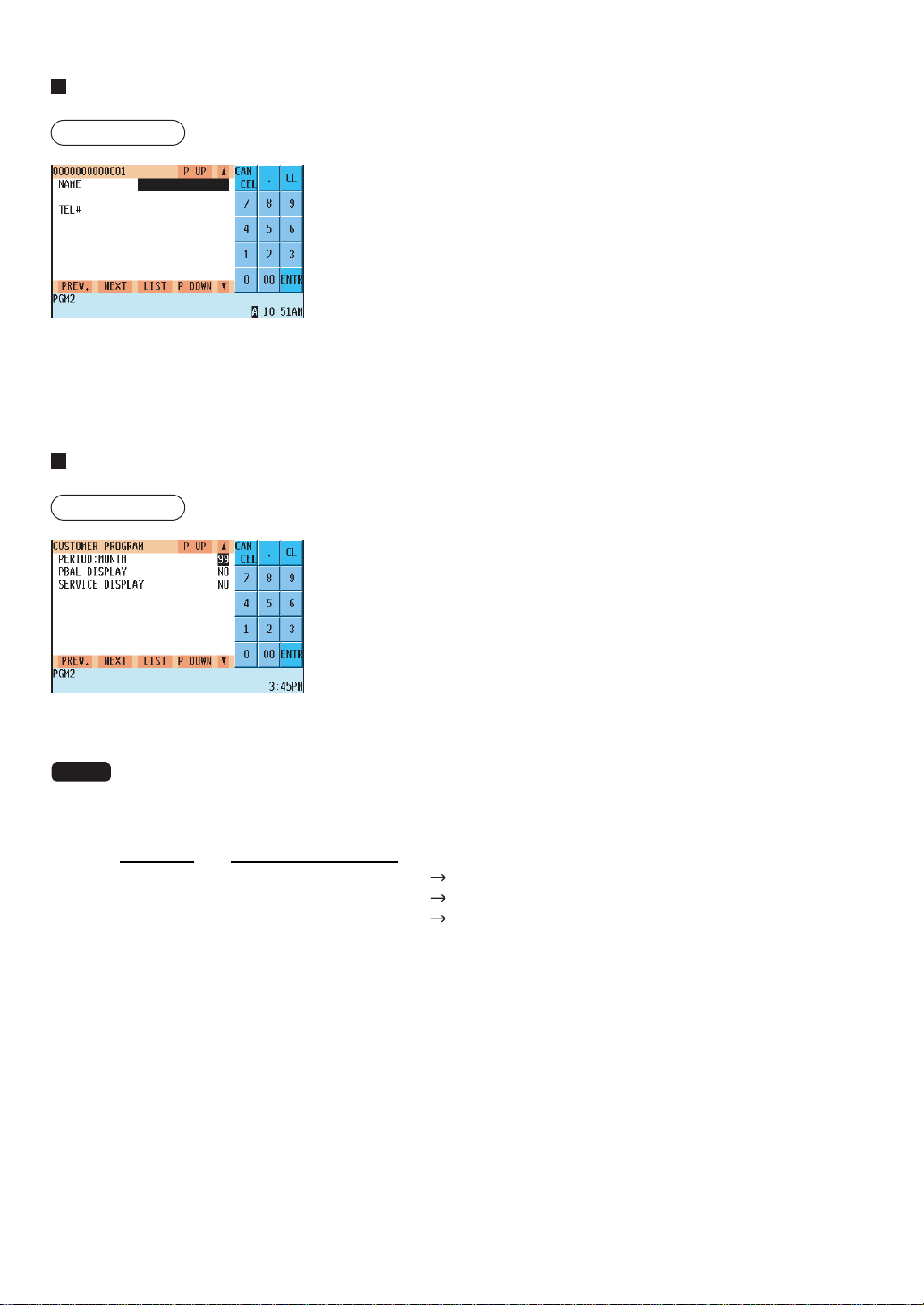
— 224 —
Customer code
Procedure
Program each item as follows:
• NAME (Use the character entry method)
Enter a customer's name (max. 16 characters)
• ADDRESS (Use the character entry method)
On the second line, enter the customer's address (max. 40 charac-
ters)
• TEL# (Use the numeric entry method)
Enter a customer's telephone number (max. 24 characters)
Customer programming
Procedure
Program each item as follows:
• PERIOD:MONTH (Use the numeric entry method)
Preset a period to delete customer detail data.
Enter the period months. (01 to 99)
If you enter “00”, the customer detail data will not be deleted.
NOTE
If the following condition is satisfied, the code is deleted by deleting operation.
Date of deletion (Year, Month) Date of the last access (Year, Month) + programmed period + 1
[Ex.] Date of deletion = 8/(1 to 31)/2009, Period = 12 months:
Customer Date of the last access
Customer A (6/(1 to 30)/2008) Deleted
Customer B (7/(1 to 31)/2008)
Deleted
Customer C (8/(1 to 31)/2008) Not deleted
• PBAL DISPLAY (Use the selective entry method)
YES : Displays the customer's PBAL amount in case of customer entry.
NO : Does not display the customer's PBAL amount in case of customer entry.
• SERVICE DISPLAY (Use the selective entry method)
YES : Displays the customer's service amount in case of customer entry.
NO : Does not display the customer's service amount in case of customer entry.
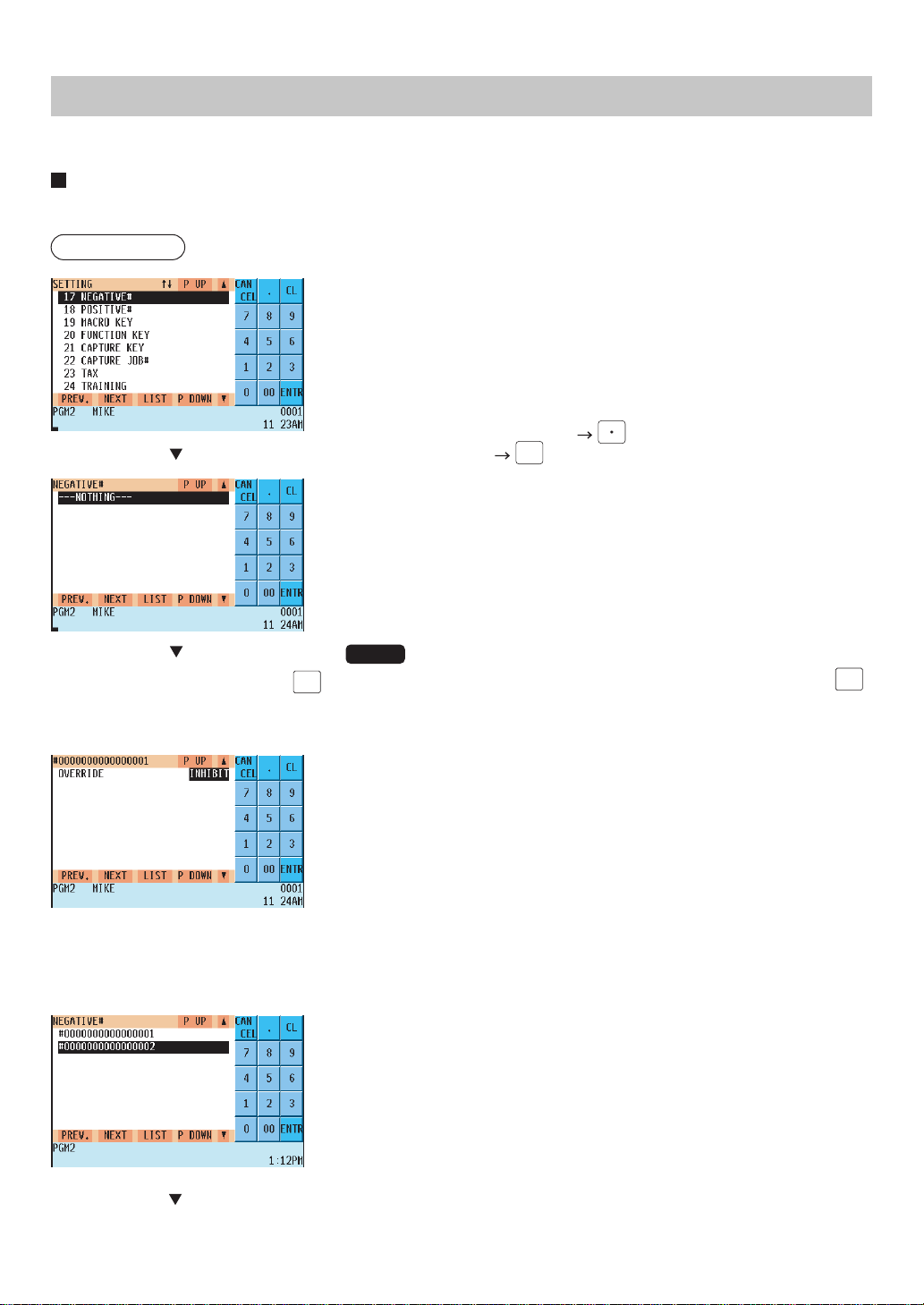
— 225 —
Negative Code File Programming
Use the following procedure for negative code file programming:
Negative code/Override status
You can program the negative code and its override status.
Procedure
Program each item as follows:
• NEGATIVE# (Use the numeric entry method)
Negative code (max. 16 digits)
• OVERRIDE (Use the selective entry method)
Negative code checking can be overridden in compliance with
programmed override status.
(Override/access operation:
)
(Not to override:
CANCEL
)
REG&MGR: Available to the manager and servers/cashiers.
The message “ACCESS” is displayed.
MGR ONLY: Only availanle to the manager.
The message “CALL MGR” is displayed.
INHIBIT: The override operation is inhibited.
The message “NOT ACCEPT” is displayed.
NOTE
• You can create a new code by entering the code, then pressing the
ENTER
key.
To delete a negative code, proceed as follows:
Enter the code or move the cursor to the code, and then press the DEL
key.
Select a negative code and press
ENTER
.
(Or enter the corresponding code.)
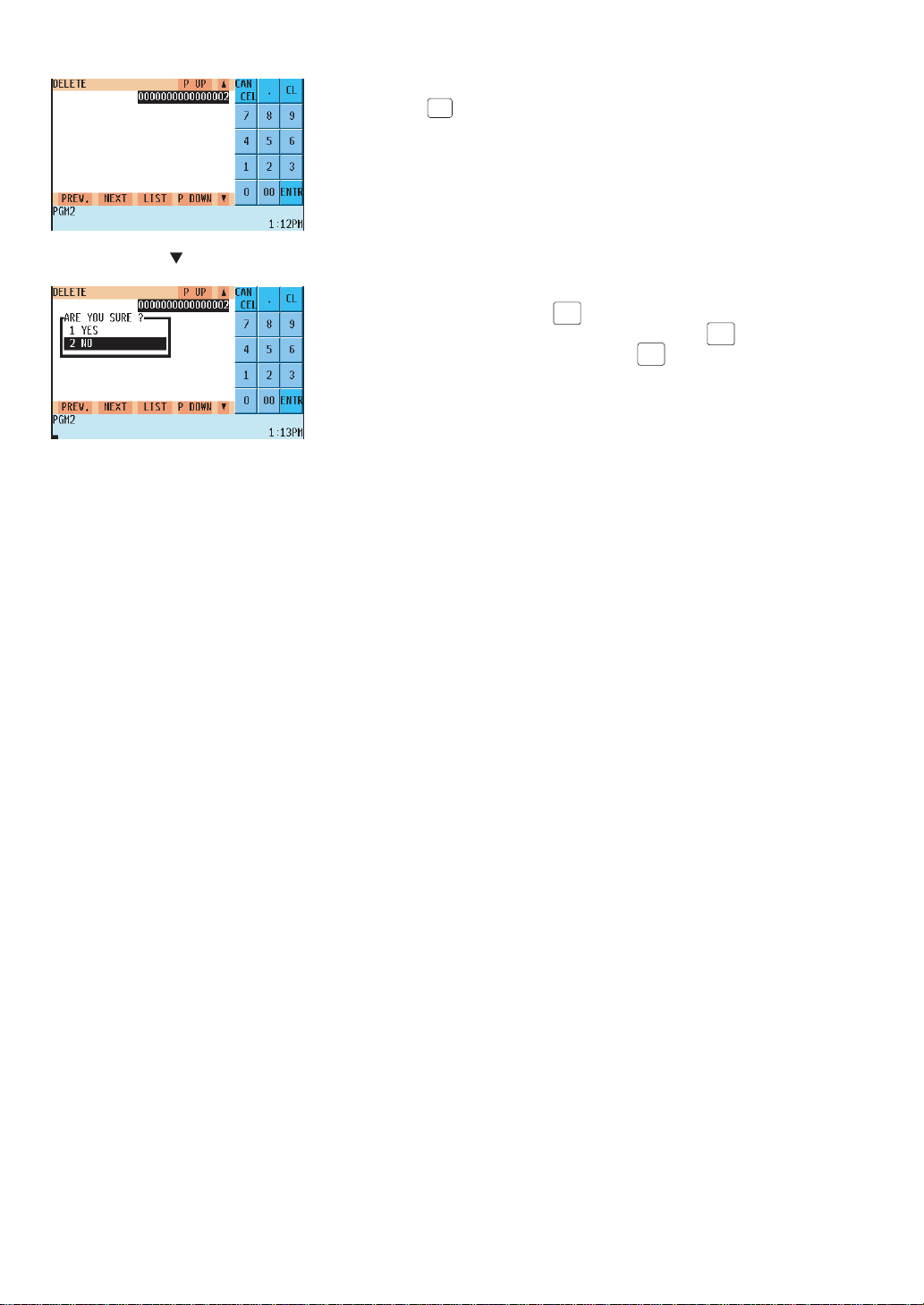
— 226 —
The DELETE window appears.
• Press the
CA/AT
key.
Message “ARE YOU SURE ?” appears.
• Select “YES” and press the
ENTER
key.
• To cancel the deletion, select “NO” and press the
ENTER
key.
To end the deletion procedure, press the
CANCEL
key.
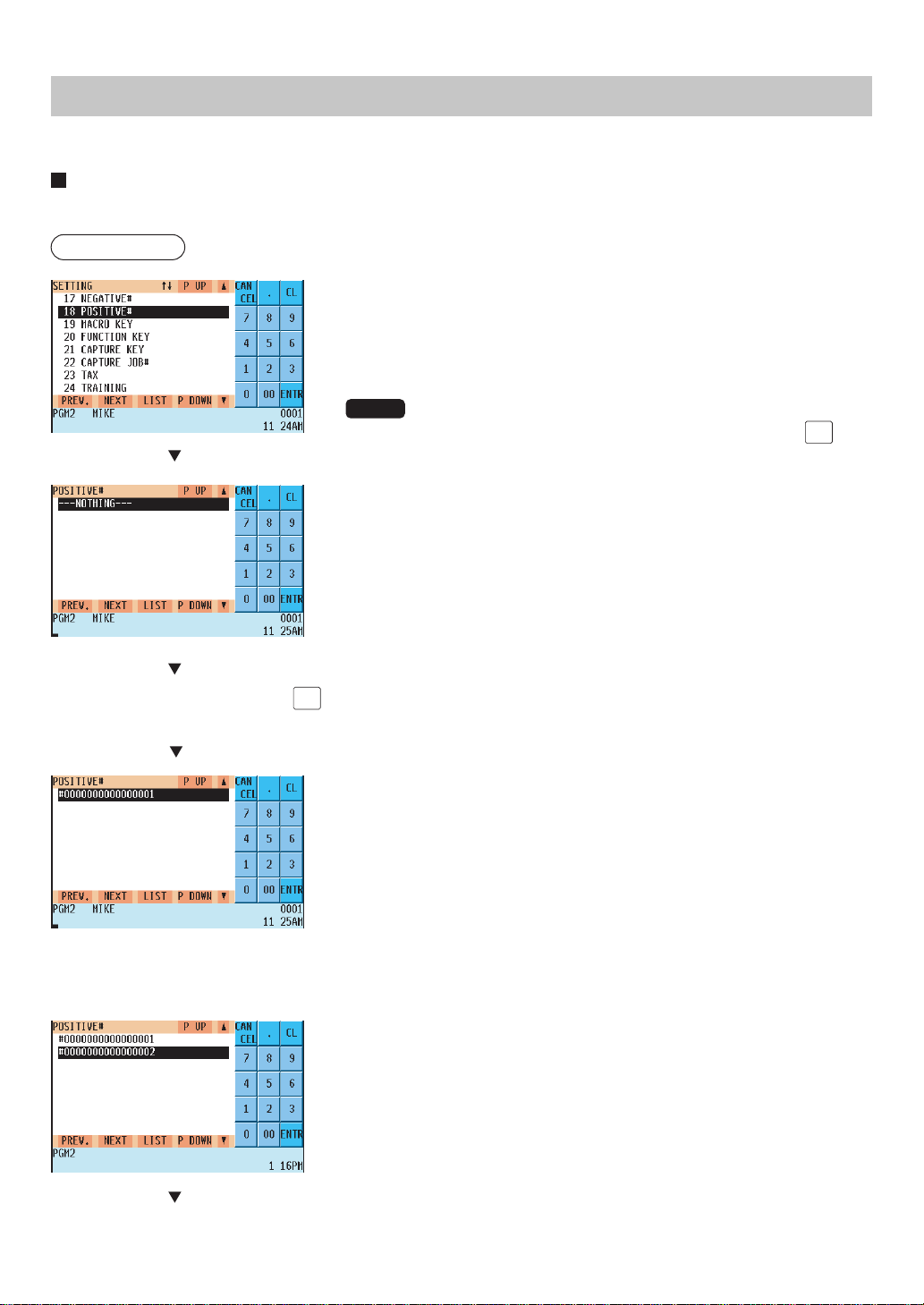
— 227 —
Positive Code File Programming
Use the following procedure for positive code file programming:
Positive code
You can create/delete the positive code.
Procedure
Program the item as follows:
• POSITIVE# (Use the numeric entry method)
Positive code (max. 16 digits)
NOTE
• You create a new code by entering the code, then pressing the
ENTER
key.
To delete a negative code, proceed as follows:
Enter the code or move the cursor to the code, and then press the DEL
key.
Select a negative code and press
ENTER
.
(Or enter the corresponding code.)
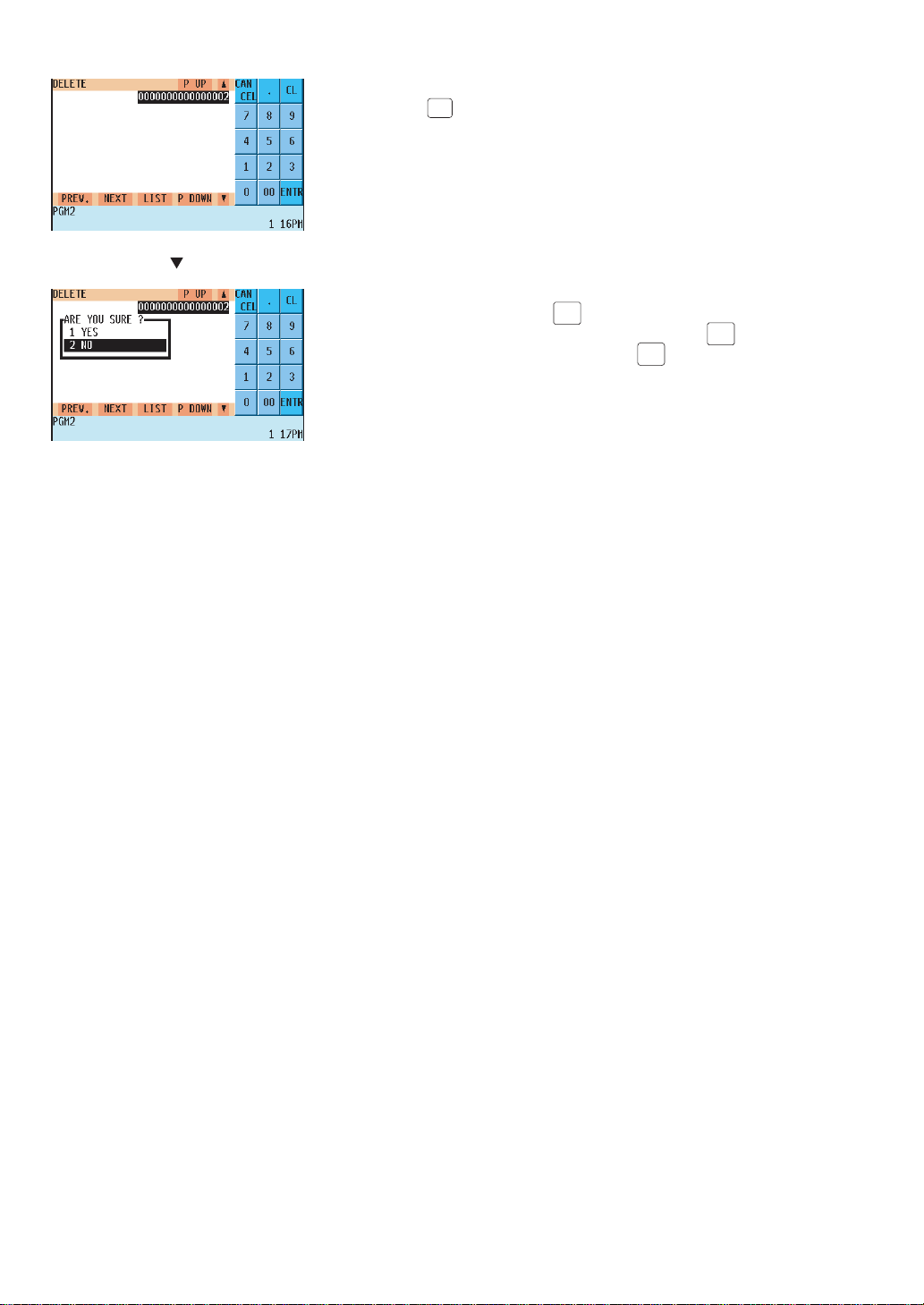
— 228 —
The DELETE window appears.
• Press the
CA/AT
key.
Message “ARE YOU SURE ?” appears.
• Select “YES” and press the
ENTER
key.
• To cancel the deletion, select “NO” and press the
ENTER
key.
To end the deletion procedure, press the
CANCEL
key.
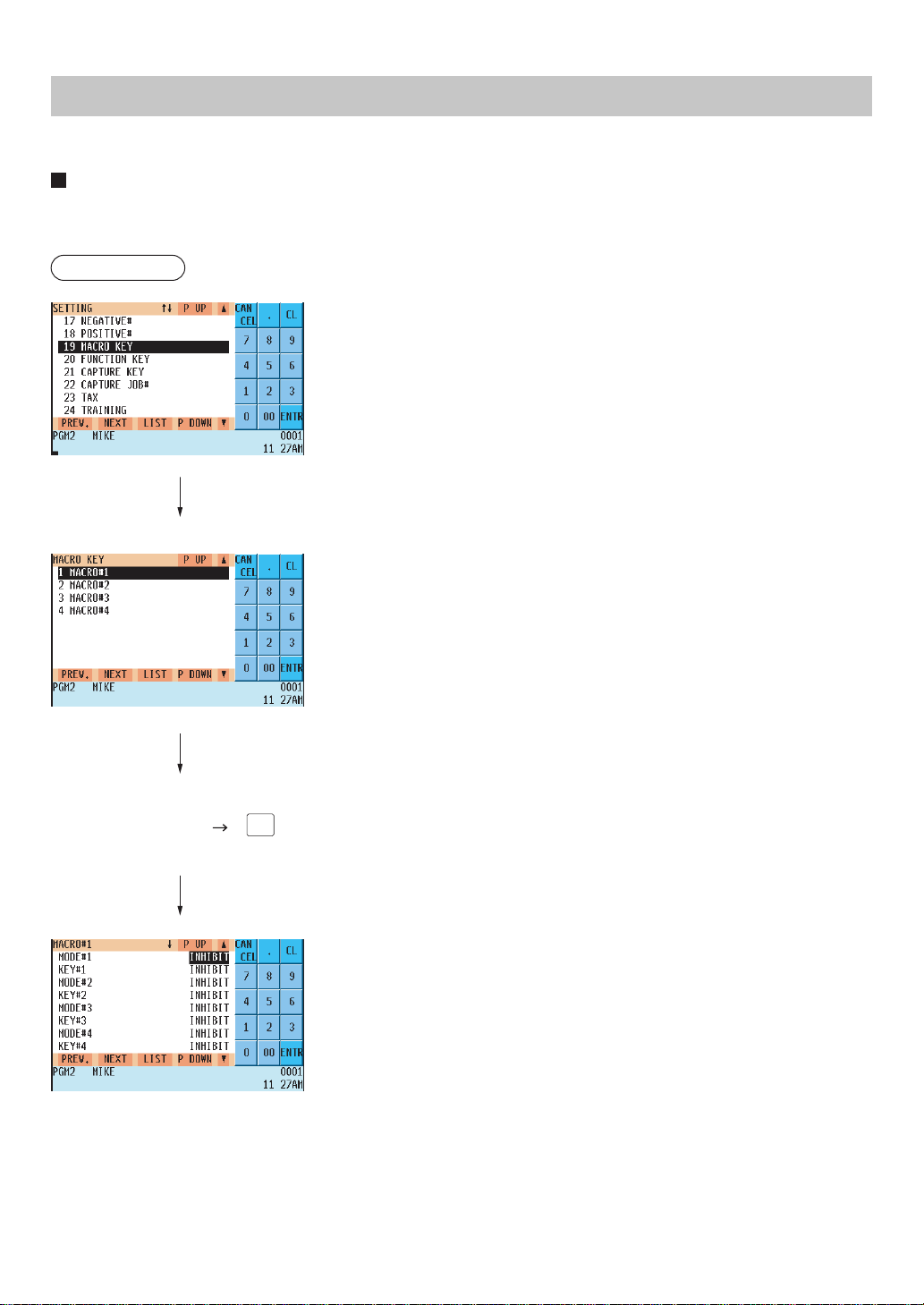
— 229 —
Macro Key Programming
Use the following procedure for macro key programming :
Mode position/Auto key no.
The Macro Key Function is used to run a series of instructions with a single key stroke. You can program up to 15
modes auto key numbers for each macro key.
Procedure
Program the item as follows:
• MACRO#1 thru MACRO#4 (Use the selective entry method)
Select the pertinent macro key from the list.
• MODE#1 thru MODE#15 (Use the selective entry method)
INHIBIT: AUTO key is inhibited.
PGM2: PGM2 mode
PGM1: PGM1 mode
OPXZ: OP X/Z mode
REG: REG mode
X1Z1: X1/Z1 mode
X2Z2: X2/Z2 mode
• KEY#1 thru KEY#15 (Use the selective entry method)
INHIBIT: AUTO key is inhibited.
AUTO1 thru AUTO99: AUTO key no.
Select a pertinent
macro key.
ENTER
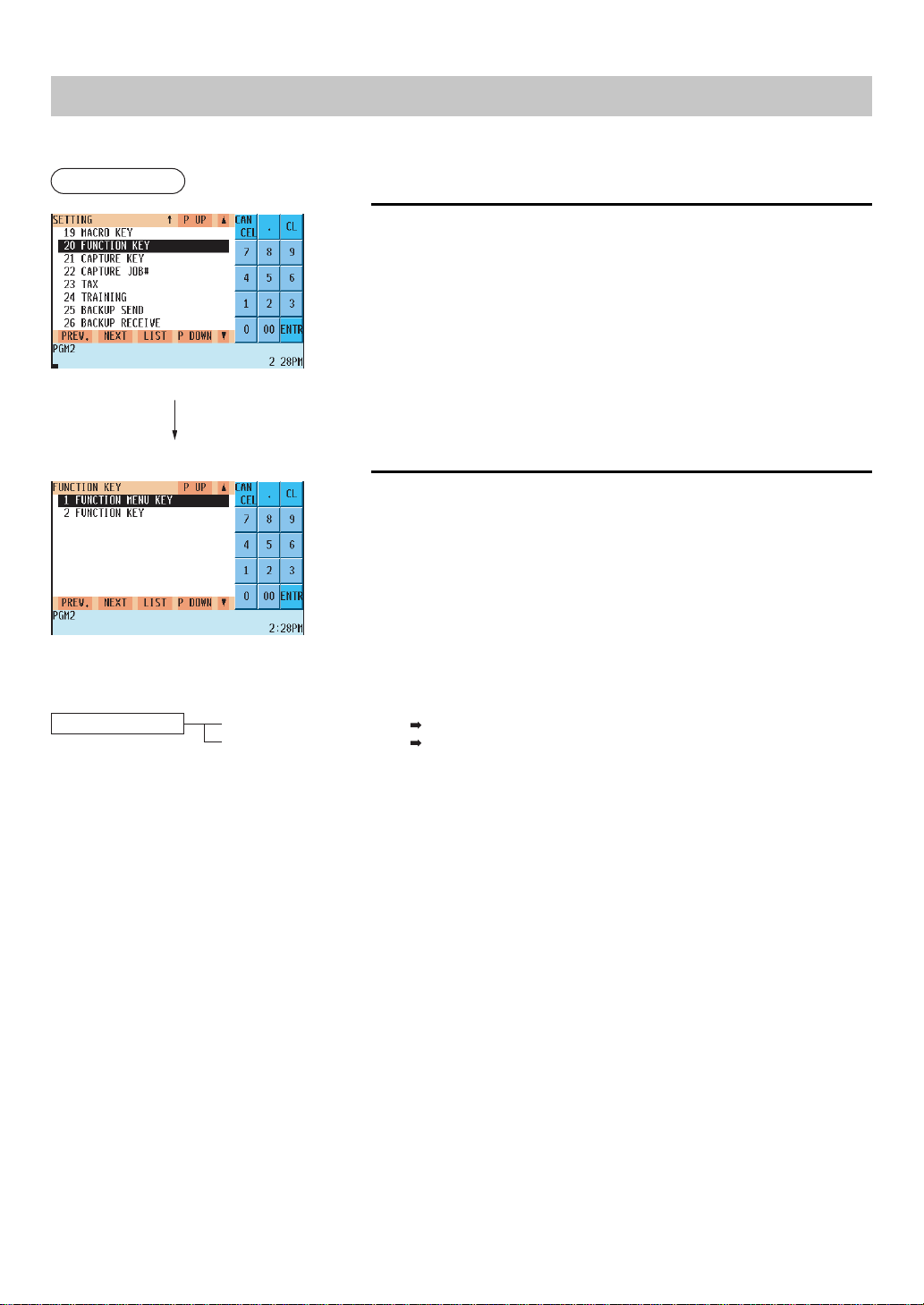
— 230 —
Function Menu Key Programming
Use the following procedure for the function key programming:
Procedure
1.
In the SETTING window, select “20 FUNCTION KEY”.
• The FUNCTION KEY window will appear.
2.
Select an option from the following option list:
1 FUNCTION MENU KEY: Function menu key
2 FUNCTION KEY: Function key
The following illustration shows the function key programming options.
13 FUNCTION KEY 1 FUNCTION MENU KEY See “Function menu key” on page 231.
2 FUNCTION KEY See “Function key” on page 233.
* See “Function menu key list” for the function keys assigned to each function menu key by default.
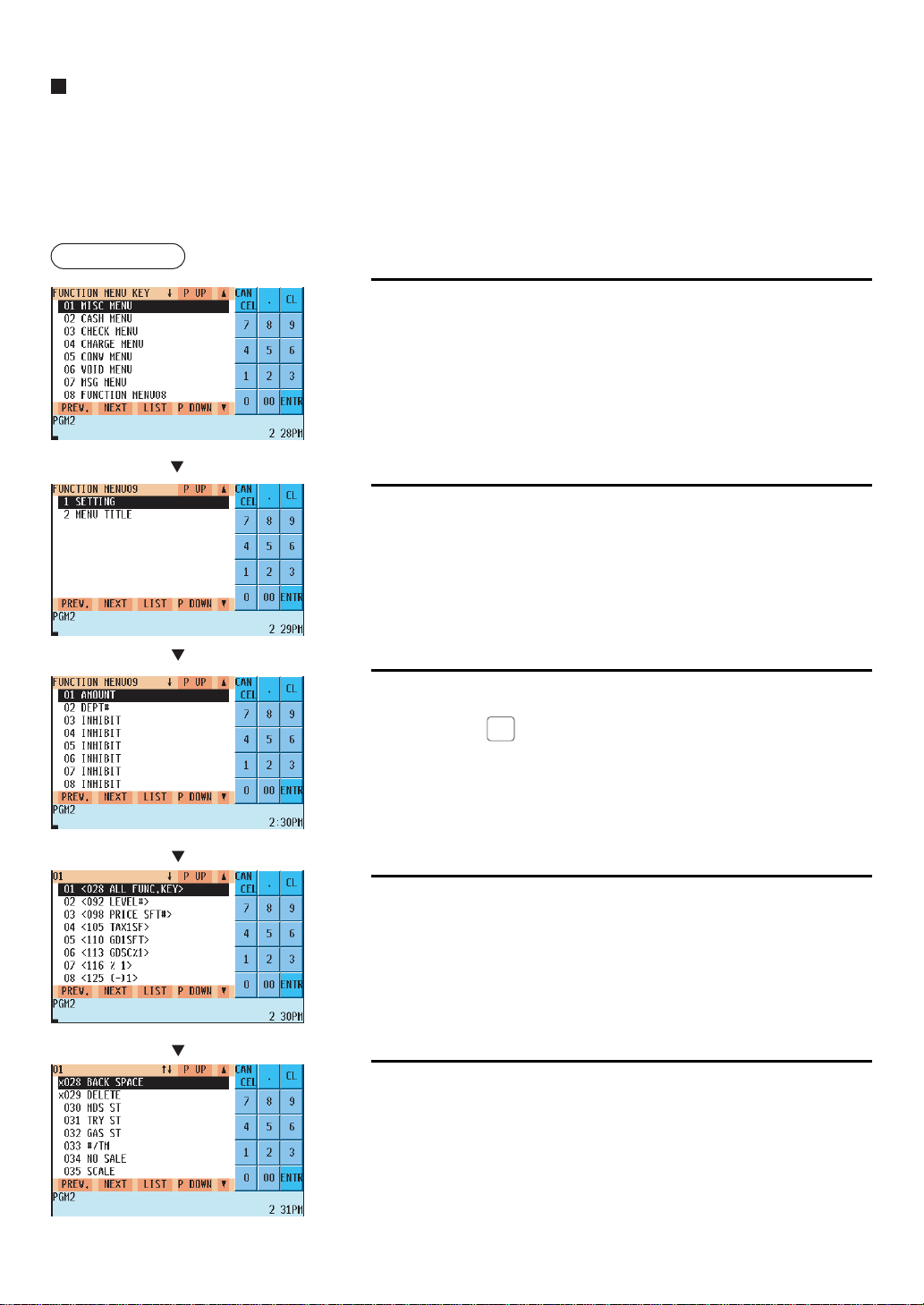
— 231 —
Function menu key
You can assign a maximum of 15 function keys to each of the 30 function menu keys. You can also program the
display menu titles for each function menu key.
Pressing a function menu key displays its assigned function keys in the keyboard area, allowing you to use those
function keys by touching.
Setting a function menu key
Procedure
1.
Select the desired function menu key from the function menu key list.
2.
Select “1 SETTING”.
3.
Select the desired function key number.
In this example, the AMOUNT and DEPT# keys are allocated to the
#01 and #02 of
FUNC
MENU9
key.
(Some function menu keys have the specific function keys allocated
to them by default. For details of the preprogrammed function keys,
refer to “Function menu key list”.)
4.
Select the desired function key group.
Selecting a function key group here allows you to jump to a function
key listed close to your desired one.
5.
Select a function key which you like to assign to the function menu
key.
The screen continues.
The screen continues.
The screen continues.
The screen continues.
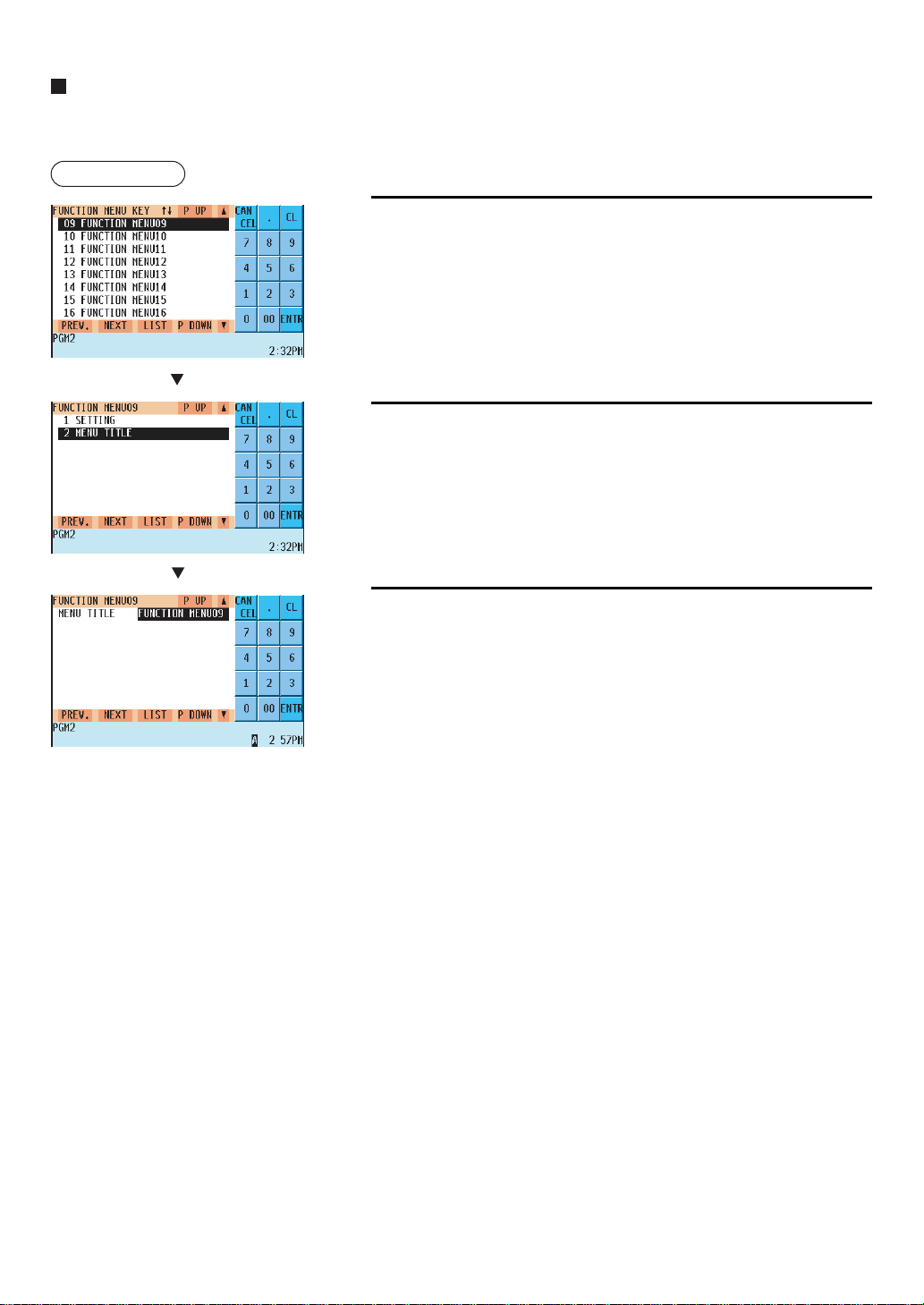
— 232 —
Function menu key (continued)
Setting a menu title
Procedure
1.
Select the desired function menu key from the function menu key list.
2.
Select “2 MENU TITLE”.
3.
Enter a text for the menu title.
• MENU TITLE (Use the character entry method)
Text for the menu title
Up to 16 characters can be entered.
Some function menu keys have the preprogrammed title texts
corresponding to the function keys allocated to them by default.
For details of the preprogrammed function keys, refer to “Function
menu key list”.
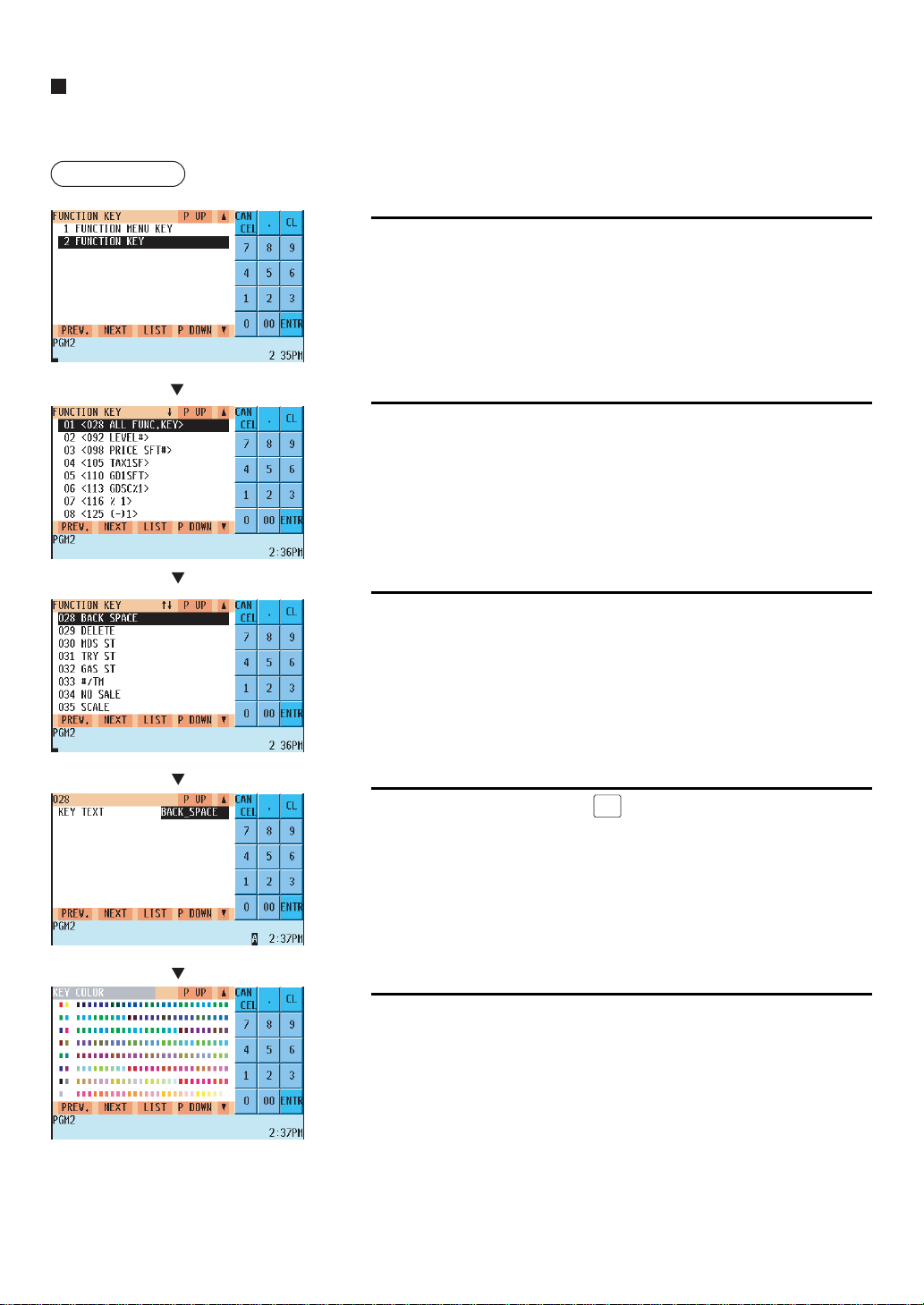
— 233 —
Function key
You can program a display key text and a display key color function key.
Procedure
1.
In the FUNCTION KEY window, select "2 FUNCTION KEY".
2.
Select a pertinent function key group.
Selecting a function key group here allows you to jump to a function
key listed close to the desired one.
3.
Select the desired function key.
4.
Enter a key text and press the
ENTER
key.
• KEY TEXT (Use the character entry method)
Text for the function key
Up to 12 characters can be entered.
By entry of the character “_” the following text is displayed in the
second line.
For the default texts of each function key, refer to “Default key text on
the display”.
5.
Select the desired key color from 232 colors.
The screen continues.
The screen continues.

— 234 —
Function menu key list
For the function menu keys (
FUNC
MENU1
to
FUNC
MENU30
). the default settings are as follows.
Function menu 01 key
FUNC
MENU1
Menu title: MISC MENU
Function key#1: RCPT ON/OFF
Function key#2: RA
Function key#3: RA2
Function key#4: PO
Function key#5: PO2
Function key#6: CA/CHK1
Function key#7: CA/CHK2
Function key#8: CA/CHK3
Function key#9: CA/CHK4
Function key#10: CA/CHK5
Function key#11: CA/CHK6
Function key#12: CA/CHK7
Function key#13: CA/CHK8
Function key#14: CA/CHK9
Function key#15: NOSALE
Function menu 02 key
FUNC
MENU2
Menu title: CASH MENU
Function key#1: TL
Function key#2: CASH2
Function key#3: CASH3
Function key#4: CASH4
Function key#5: CASH5
Function key#6 to 15: INHIBIT
Function menu 03 key
FUNC
MENU3
Menu title: CHECK MENU
Function key#1: CHECK
Function key#2: CHECK2
Function key#3: CHECK3
Function key#4: CHECK4
Function key#5: CHECK5
Function key#6: CHECK6
Function key#7: CHECK7
Function key#8: CHECK8
Function key#9: CHECK9
Function key#10 to 15: INHIBIT
Function menu 04 key
FUNC
MENU4
Menu title: CHARGE MENU
Function key#1: CHARGE1
Function key#2: CHARGE2
Function key#3: CHARGE3
Function key#4: CHARGE4
Function key#5: CHARGE5
Function key#6: CHARGE6
Function key#7: CHARGE7
Function key#8: CHARGE8
Function key#9: CHARGE9
Function key#10 to 15: INHIBIT
Function menu 05 key
FUNC
MENU5
Menu title: CONV MENU
Function key#1: CONV1
Function key#2: CONV2
Function key#3: CONV3
Function key#4: CONV4
Function key#5 to 15: INHIBIT
Function menu 06 key
FUNC
MENU6
Menu title: VOID MENU
Function key#1: VOID
Function key#2: I. VOID
Function key#3: ST VD
Function key#4 TO 15: INHIBIT
Function menu 07 key
FUNC
MENU7
Menu title: MSG MENU
Function key#1: MESSAGE1
Function key#2: MESSAGE2
Function key#3: MESSAGE3
Function key#4: MESSAGE4
Function key#5: MESSAGE5
Function key#6: MAIL MESSAGE
Function key#7 TO 15: INHIBIT
Function menu 08 to 30 key
FUNC
MENU8
to
FUNC
MENU30
Menu title: FUNC. MENU
Function key#1 TO 15: INHIBIT
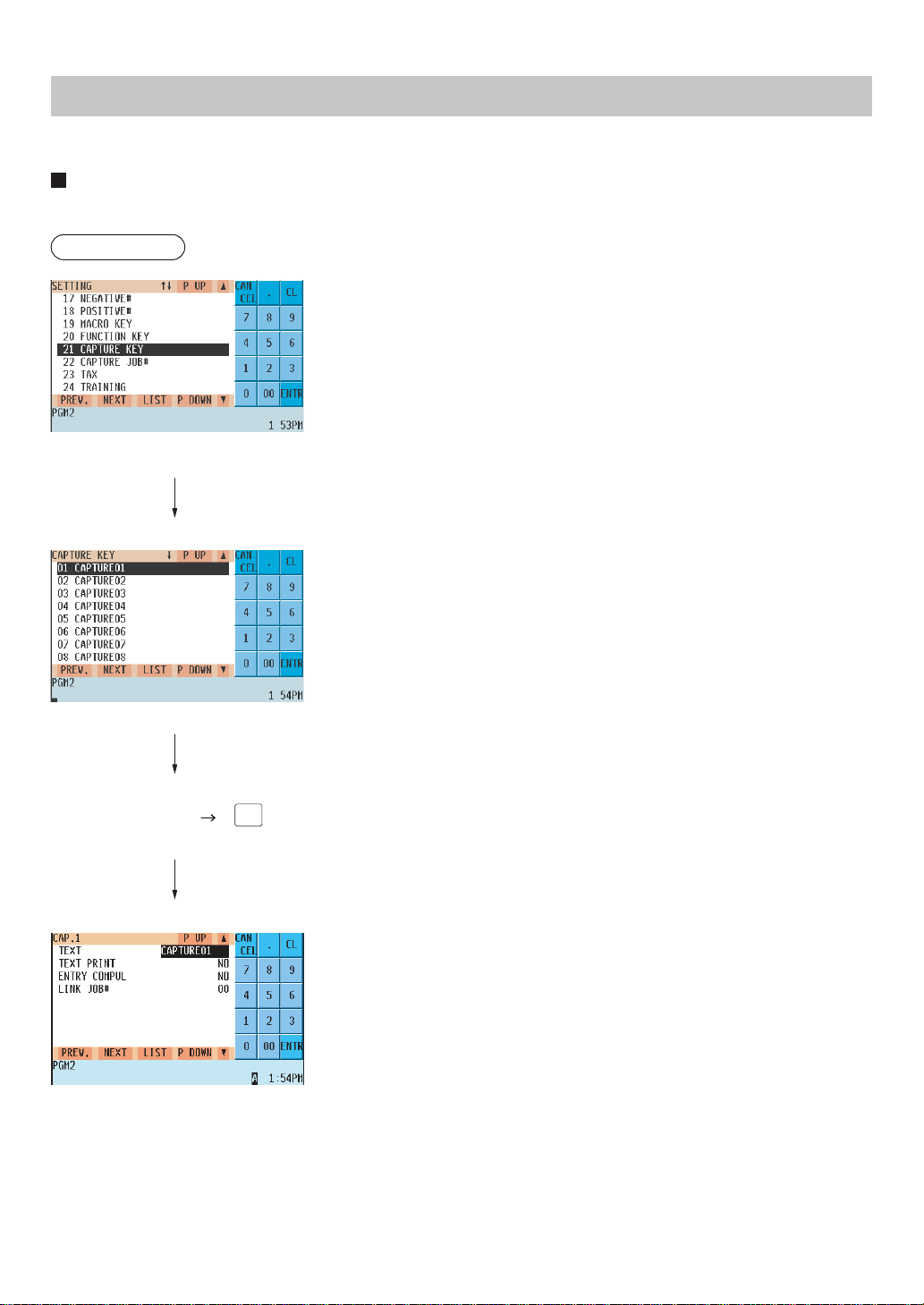
— 235 —
Capture Key Programming
Use the following procedure for capture key programming:
Capture key data
You can program max. 10 data capture keys for the capture data function.
Procedure
Program the item as follows:
• CAPTURE01 thru 10 (Use the selective entry method)
Select the desired data capture key from the list.
• TEXT (Use the character entry method)
Description for the data capture key. Up to 12 characters can be
entered.
• TEXT PRINT (Use the selective entry method)
YES: Prints the data capture key TEXT on R/J or bill.
NO : Does not print the data capture key TEXT.
• ENTRY COMPUL (Use the selective entry method)
Enforcing the data capture key.
BEGIN: Enforced at the beginning of transaction.
END: Enforced at the end of transaction.
NO:Not enforced-assigned key data function no.
• LINK JOB# (Use the numeric entry method)
Capture job number (1 to 99)
ENTER
Select the desired
macro key
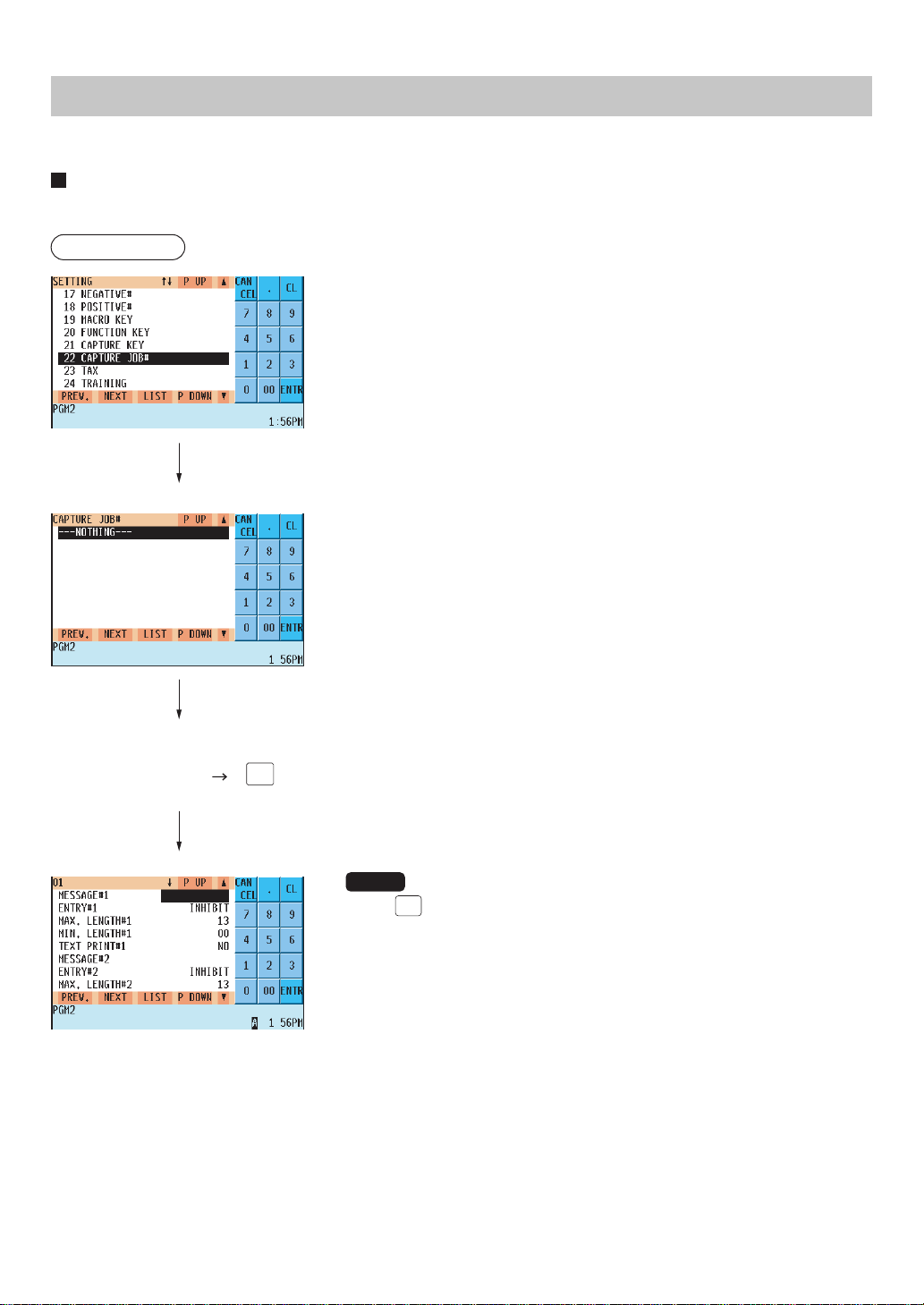
— 236 —
Key Data Entry Job Table Programming
Use the following procedure for key data entry job table programming:
Capture job number
You can program a max. of 99 capture job numbers.
Procedure
Program each item as follows:
• CAPTURE JOB# (Use the selective entry method)
Select the pertinent capture Job number. (1 to 99)
• MESSAGE#1 Thru 4
(Use the character entry method)
Description for the job (display message). Up to 12
characters can be entered.
(for MESSAGE#1 Thru 4)
• ENTRY#1 thru 4 (Use the selective entry method)
Data entry type
NUMERIC:Numeric data type
CHARACTER: Character data type
INHIBIT: Data entry is inhibited.
• MAX. LENGTH#1 thru 4 (Use the numeric entry method)
Max. length of data entry (0 to 13)
“0” means that ENTER key entry is only allowed.
• MIN. LENGTH#1 thru 4 (Use the numeric entry method)
Min. length of data entry (0 to 13)
• TEXT PRINT#1 thru 4 (Use the selective entry method)
YES: Prints entry data on R/J or Bill printer.
NO : Does not print entry data.
NOTE
• If the
(DEL)
key is pressed on the job number selection menu, the selected
job table will be deleted.
Select a pertinent
macro key.
ENTER
The screen continues.
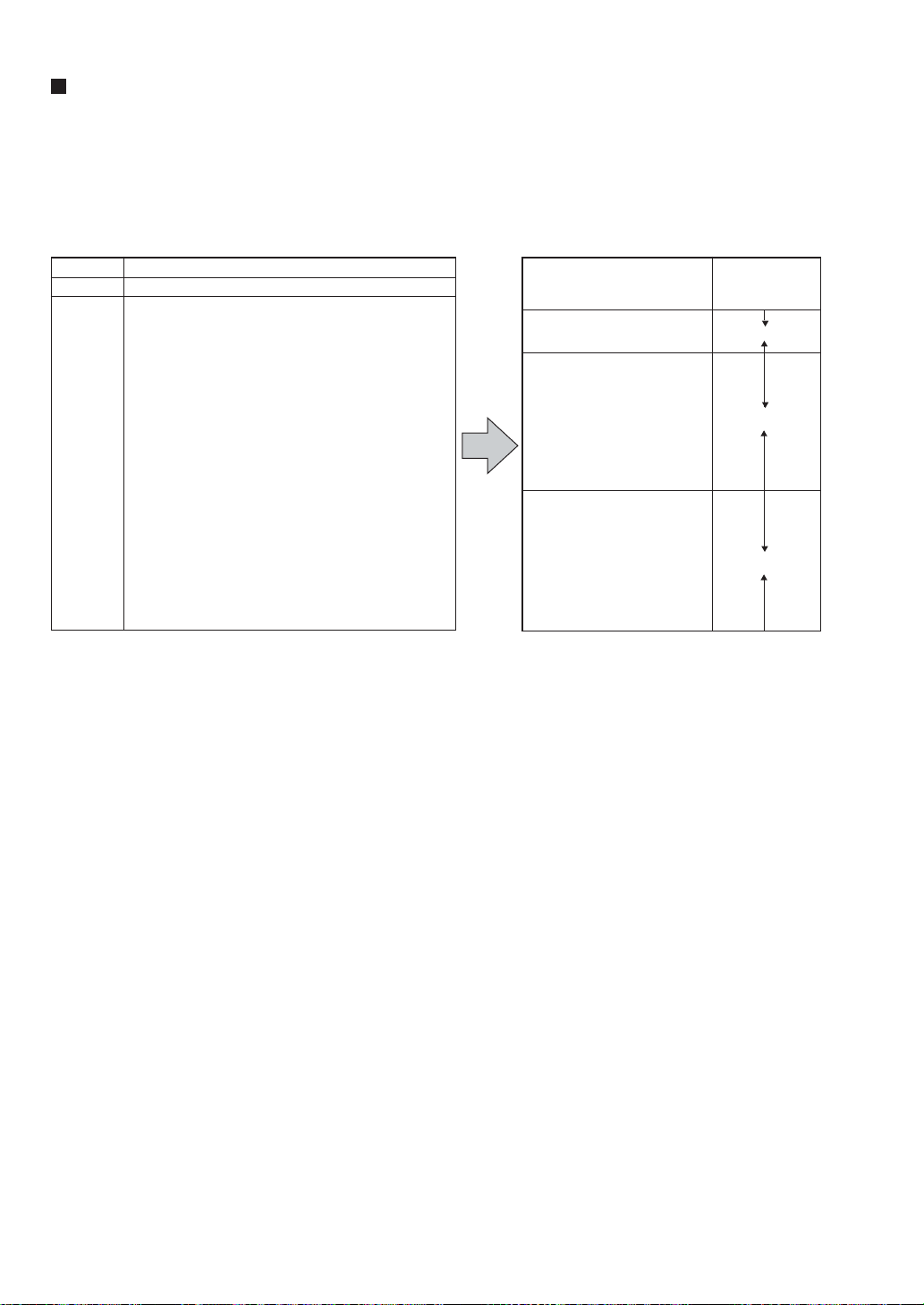
— 238 —
Table tax
Your POS terminal has an automatic tax calculation feature which allows you to program four tax tables.
Automatic tax calculations require you to program, in addition to tax tables, the tax status of each pertinent depart-
ment, PLU, and function key.
Sample tax table
New Jersey tax table: 6%
Range of sales amount
Tax Minimum breakpoint Maximum breakpoint
A: Difference between a
minimum breakpoint and
the next one (¢)
-
10 (0.11 - 0.01)
B: Non-cyclic
12 (0.23 - 0.11)
16 (0.39 - 0.23)
18 (0.57 - 0.39)
C: Cyclic 1
16 (0.73 - 0.57)
16 (0.89 - 0.73)
22 (1.11 - 0.89)
12 (1.23 - 1.11)
16 (1.39 - 1.23)
18 (1.57 - 1.39)
16 (1.73 - 1.57)
D: Cyclic 2
16 (1.89 - 1.73)
22 (2.11 - 1.89)
......
......
.....
.....
......
......
.....
.....
........
........
.....
.....
........
........
.....
.....
.10
.22
.38
.56
.72
.88
1.10
1.22
1.38
1.56
1.72
1.88
2.10
2.22
.00
.01
.02
.03
.04
.05
.06
.07
.08
.09
.10
.11
.12
.13
.01
.11
.23
.39
.57
.73
.89
1.11
1.23
1.39
1.57
1.73
1.89
2.11
to
to
to
to
to
to
to
to
to
to
to
to
to
to
–Q
–M1
–M2
–T
To program a tax table, first make a table like the right table shown above.
From the tax table, calculate the difference between each minimum breakpoint and the next one (A). Then, from
the differences, find irregular cycles (B) and regular cycles (C and D). In connection with these cycles, the following
items necessary to program a tax table will be shown:
T: Tax amount collected on the minimum taxable amount (Q)
Q: Minimum taxable amount
M1: Maximum value of the minimum breakpoint on a regular cycle (C).
We call this point “MAX point.”
M2: Maximum value of the minimum breakpoint on a regular cycle (D).
We call this point “MAX point.”
M: Range of the minimum breakpoint on a regular cycle: difference between Q and M1 between M1 and M2
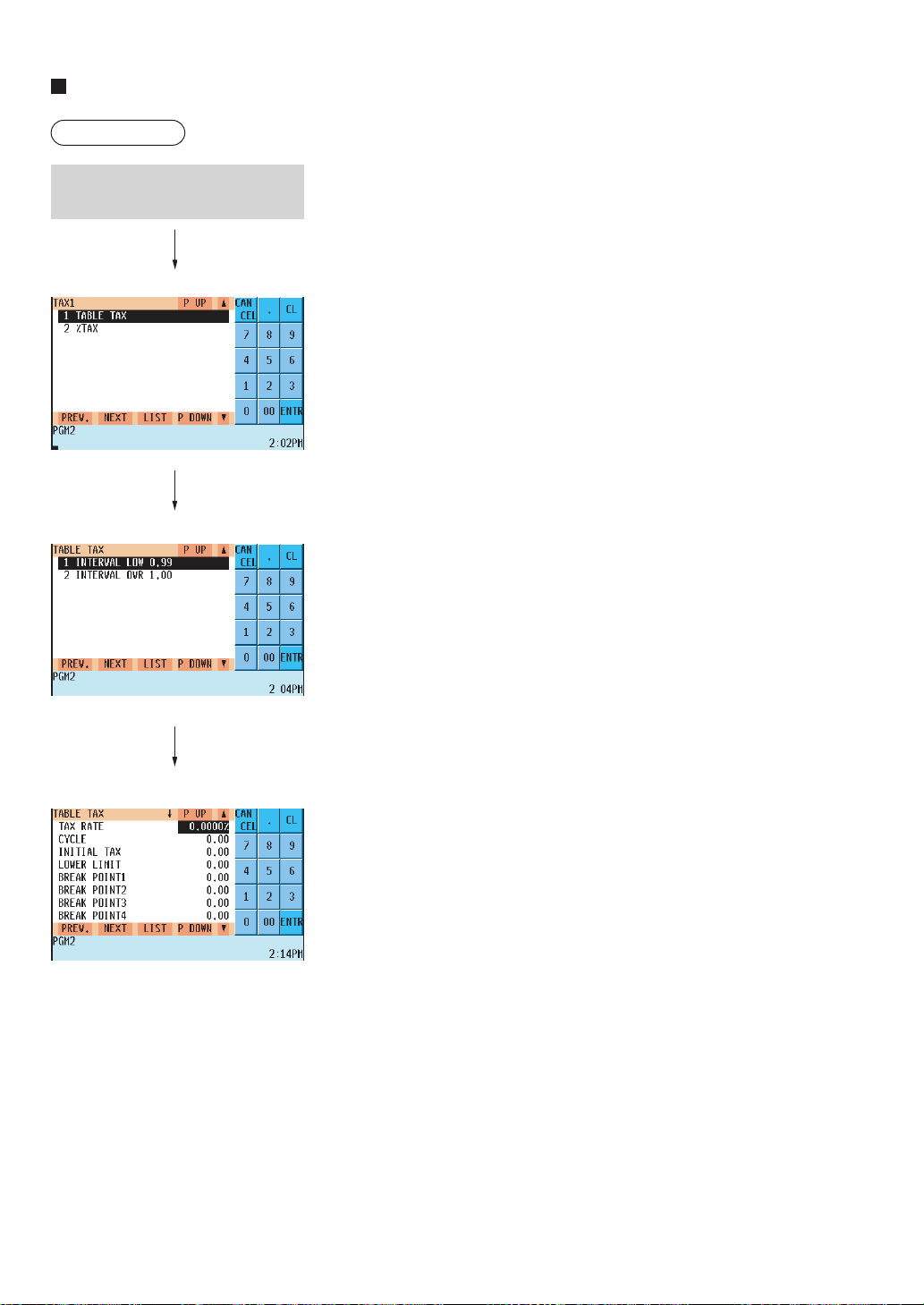
— 239 —
Table tax (continued)
Procedure
Program each item as follows:
• TAX RATE (Use the numeric entry method)
Tax rate for the tax table (max. 7 digits: 0.0000 to 999.9999)
• CYCLE (Use the numeric entry method)
Range of the minimum breakpoint on a regular cycle for the tax table
(max. 4 digits: 0.01 to 99.99)
See the description of “M” on the previous page.
• INITIAL TAX (Use the numeric entry method)
Initial tax amount for the tax table (max. 3 digits: 0.01 to 9.99)
See the description of “T” on the previous page.
• LOWER LIMIT (Use the numeric entry method)
Minimum taxable amount for the tax table (max. 5 digits: 0.01 to
999.99)
See the description of “Q” on the previous page.
• BREAK POINT1 thru 72 (Use the numeric entry method)
Breakpoints programmable for the tax table (max. 5 digits: 0.01 to
999.99)
72 breakpoints can be programmed for each tax table. (When the
interval between breakpoints is one dollar or more and less than one
hundred dollars, 36 breakpoints are programmed for each tax table.)
Select the desired tax no. from
the taxes list.
The screen continues.

— 240 —
Rate (%) tax
You can program a tax rate for each tax rate number.
Procedure
Program each item as follows:
• TAX RATE (Use the numeric entry method)
Tax rate (max. 7 digits: 0.0000 to 999.9999%)
• LOWER LIMIT (Use the numeric entry method)
Lowest taxable amount (max. 5 digits: 0.01 to 999.99)
Doughnut tax exemption (for the Canadian tax system)
Procedure
Program the item as follows:
• QUANTITY (Use the numeric entry method)
Quantity for the doughnut tax exempt (for Canadian tax)
(max. 2 digits: 1 to 99/0)
NOTE
This option is available only when the Canadian tax system is selected.
Select a pertinent tax no. from the
taxes list.
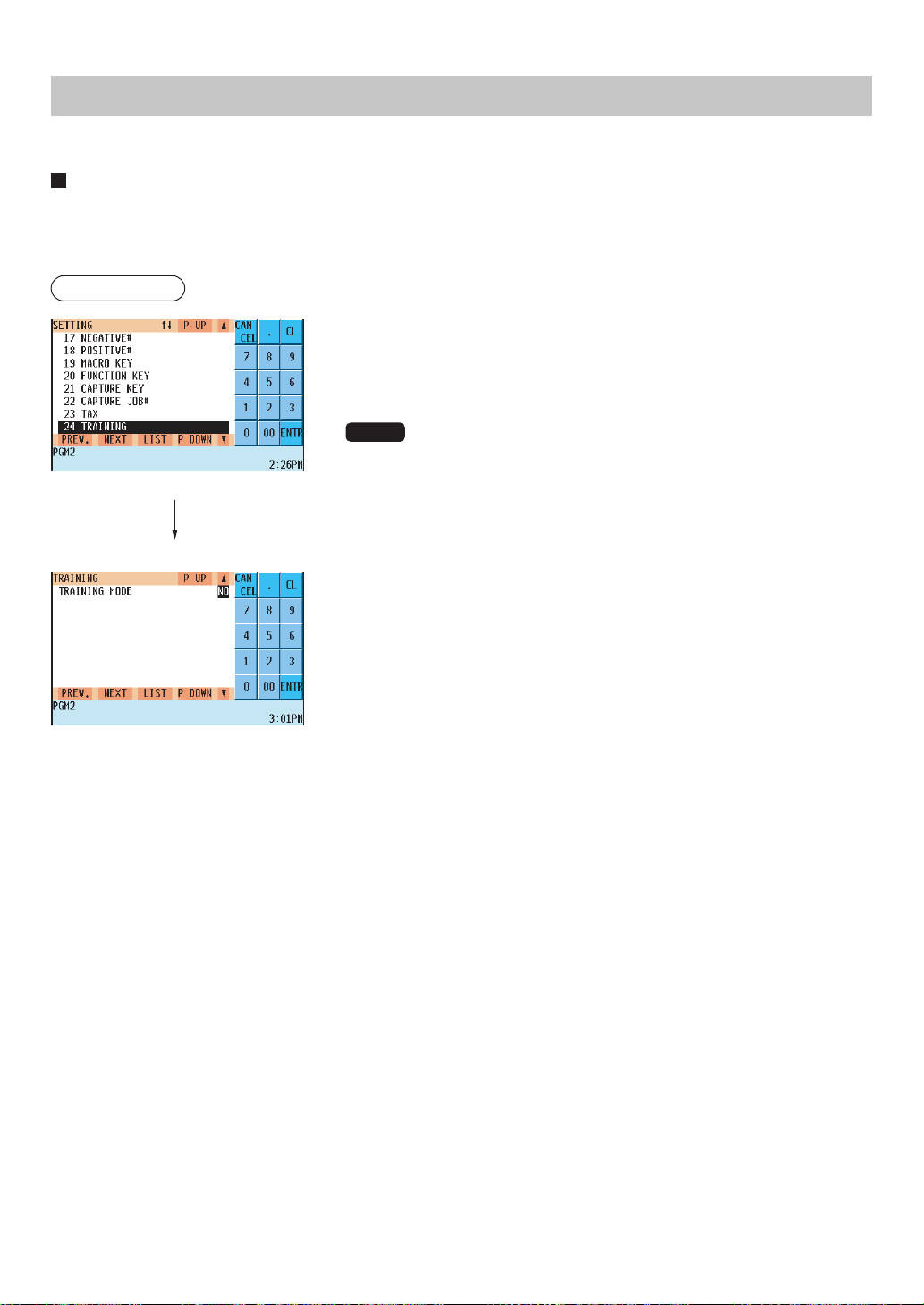
— 241 —
TRAINING Mode Selection
Use the following procedure to select the training mode:
TRAINING mode
You will use the TRAINING mode if you need to train someone in machine operations without any change in POS
terminal's memory. Reports are not available. When the training is completed, exit this mode and put your POS
terminal back into the normal mode of operation.
Procedure
Program the item as follows:
• TRAINING MODE (Use the selective entry method)
YES: The training mode is valid.
NO : The training mode is not valid.
NOTE
• All operations in the training mode are the same as the REG mode
operations.
• In the training mode, the consecutive number is incremented.
• The cash drawer does not open in the training mode.
No item data is sent to the remote printers in the training mode.
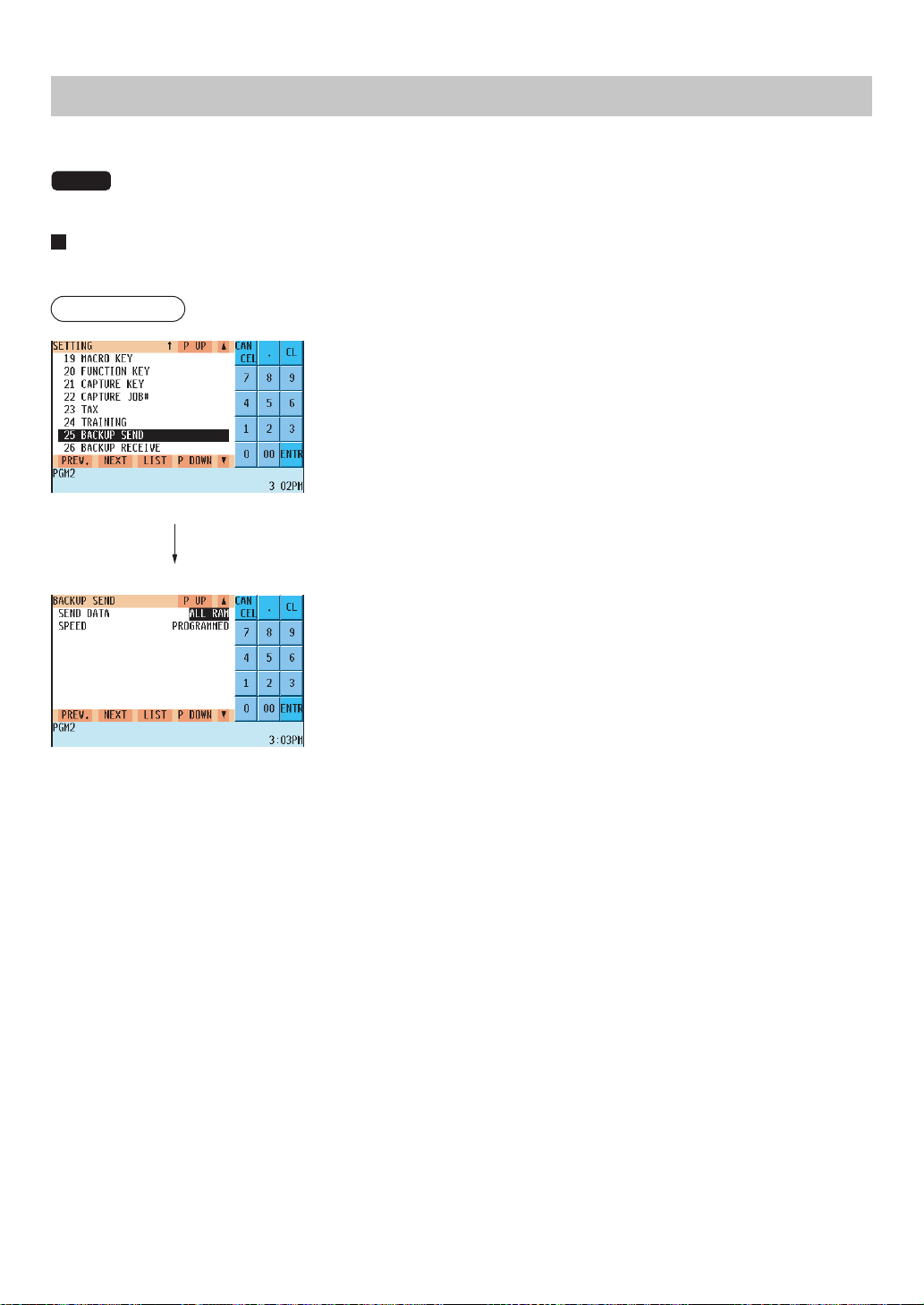
— 242 —
Backup Data Send Programming
Use the following procedure for backup data send programming:
NOTE
For more information, please consult your authorized SHARP dealer.
Backup data send
Your POS terminal can send data to another device via RS232 for the purpose of backing up its program.
Procedure
Program each item as follows:
• SEND DATA (Use the selective entry method)
Select one of the following options (data sources):
• ALL RAM • SSP
• SPEED (Use the selective entry method)
Select one of the following options (data transmission speeds):
PROGRAMMED: Sends data at a programmed speed.
38400bps: Sends data at 38400 bps.
19200bps: Sends data at 19200 bps.
9600bps: Sends data at 9600 bps.
4800bps: Sends data at 4800 bps.
2400bps: Sends data at 2400 bps.
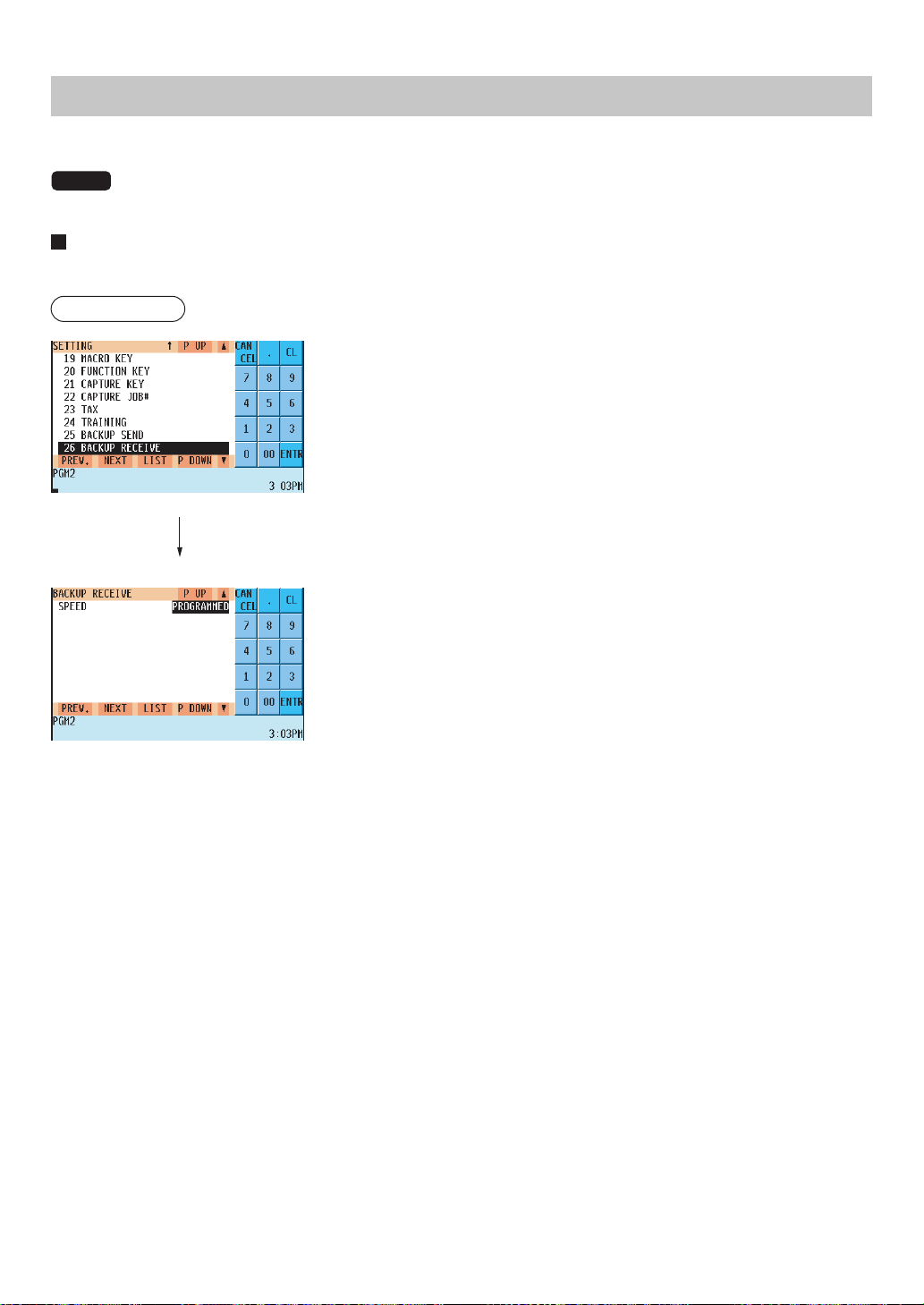
— 243 —
Backup Data Receive Programming
Use the following procedure for backup data receive programming:
NOTE
For more information, please consult your authorized SHARP dealer.
Backup data receive
Your POS terminal can receive data from another device via RS232 which has previously received the data.
Procedure
Program the item as follows:
• SPEED (Use the selective entry method)
Select one of the following options (data transmission speeds):
PROGRAMMED: Receives data at a programmed speed.
38400bps: Receives data at 38400 bps.
19200bps: Receives data at 19200 bps.
9600bps: Receives data at 9600 bps.
4800bps: Receives data at 4800 bps.
2400bps: Receives data at 2400 bps.
CAUTION: The receiving unit must have equal or larger memories than the terminal sending the program.
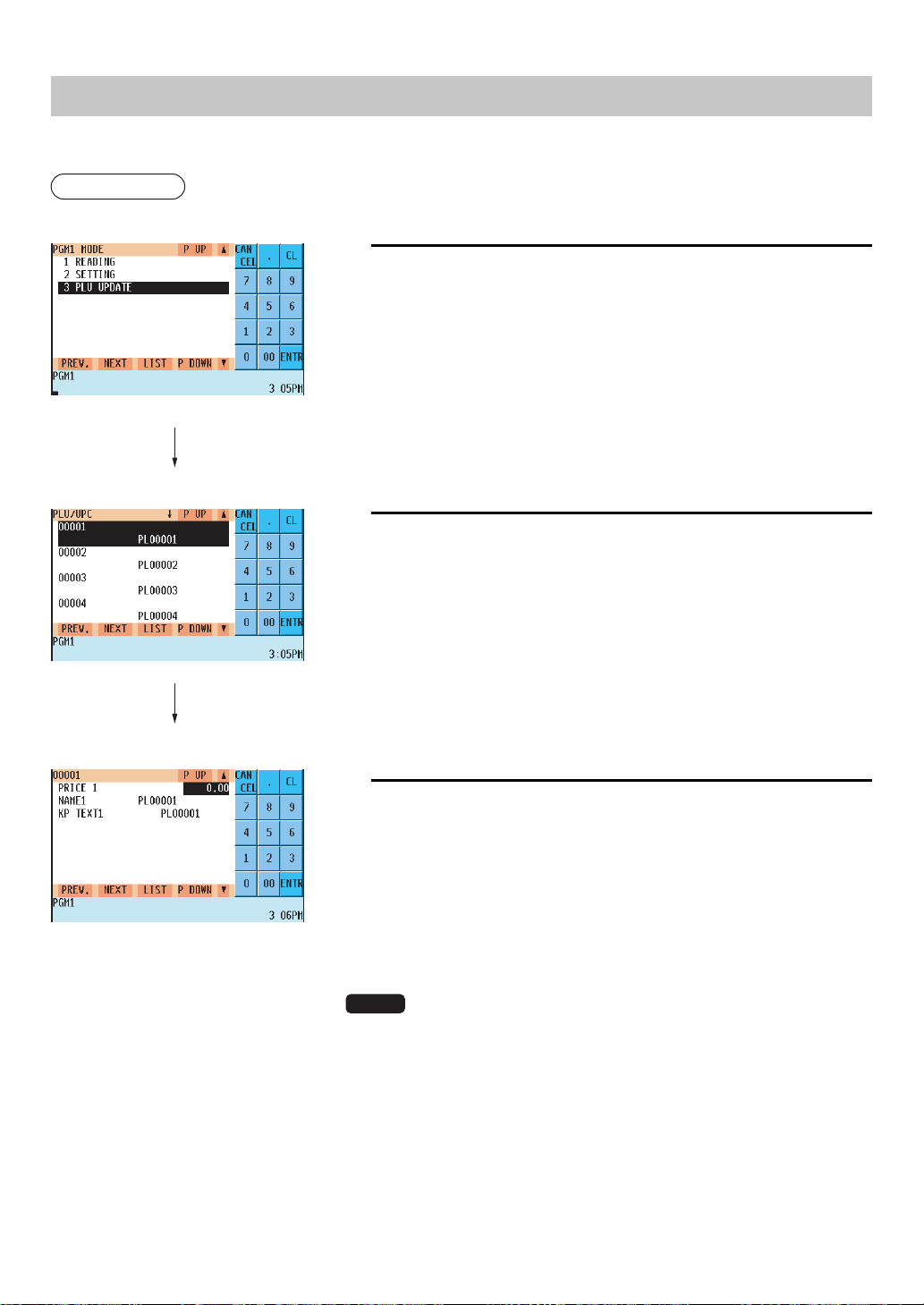
— 244 —
PLU Updating (in the PGM1 Mode)
The PLU UPDATE option is primary used a supervisor or manager to change the PLU's unit price or name daily.
Procedure
To program a unit price or name for the PLU, proceed as follows:
1.
In the PGM1 window, press the (UPDATE) key or select the option
“3 PLU UPDATE”.
• The PLU list will appear.
2.
Select the desired PLU code from the list.
3.
Program a unit price or name for the corresponding price level.
• *PRICE1 thru 6 (Use the numeric entry method)
Unit price of each price level (max. 6 digits)
• *NAME1 thru 6 (Use the character entry method)
Name of each price level. Up to 8 or 16 characters can be
entered.
• *KP TEXT 1 thru 6 (Use the character entry method)
Description (text) for kitchen printer for each price level.
Up to 12 characters can be entered.
NOTE
* On the sample screen, the price level 1 setting is only shown. De-
pending on the default settings, you may see the price level 1 through 6
settings on the screen. Please consult your authorized SHARP dealer
for more details.
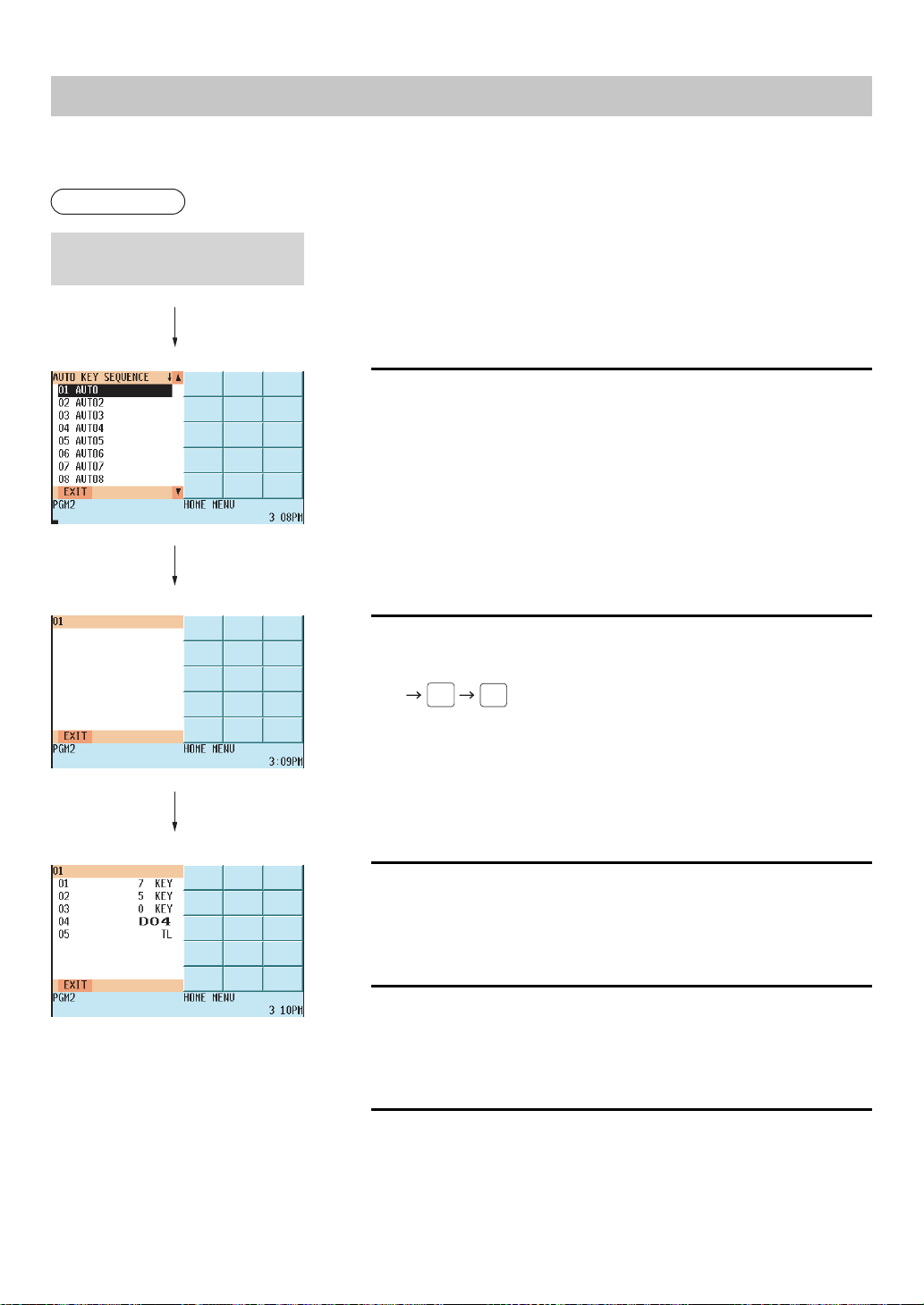
— 245 —
Automatic Sequencing Key Programming
If you program AUTO keys (automatic sequencing keys) for frequently performed key operations, you can enter
those key operations simply by pressing the corresponding AUTO keys.
Procedure
To program automatic sequencing keys as follows:
1.
Select the automatic sequencing key which you want to program.
2.
Enter the desired sequence for the automatic sequencing key in the
programmed sequence.
750
4
CA/AT
3.
To end programming for the key, touch “EXIT” in the lower left corner
of the display.
4.
To program another automatic sequencing key, repeat the above
steps.
5.
To end programming automatic sequencing keys, press the key.
Select “03 AUTO KEY” from the
PGM2 window.
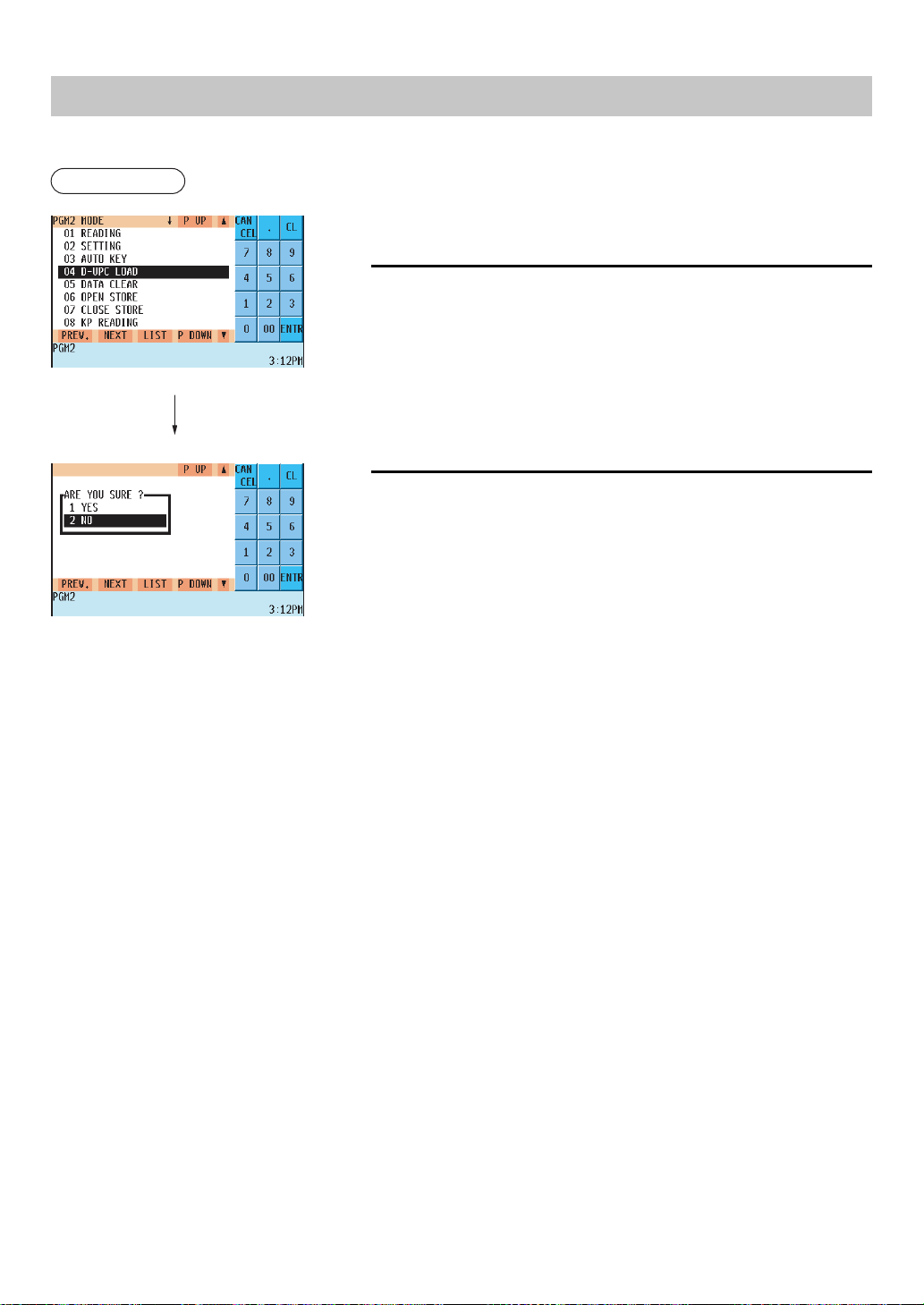
— 246 —
Loading Dynamic UPC to the Main UPC File
The UPC master file (main file) can be updated by loading the data in the dynamic UPC file to the UPC master file.
Procedure
To loading dynamic UPC, proceed as follows:
1.
Select “4 D-UPC LOAD” from the PGM2 window.
2.
Select “YES” or “NO”, and press the ENTER key.
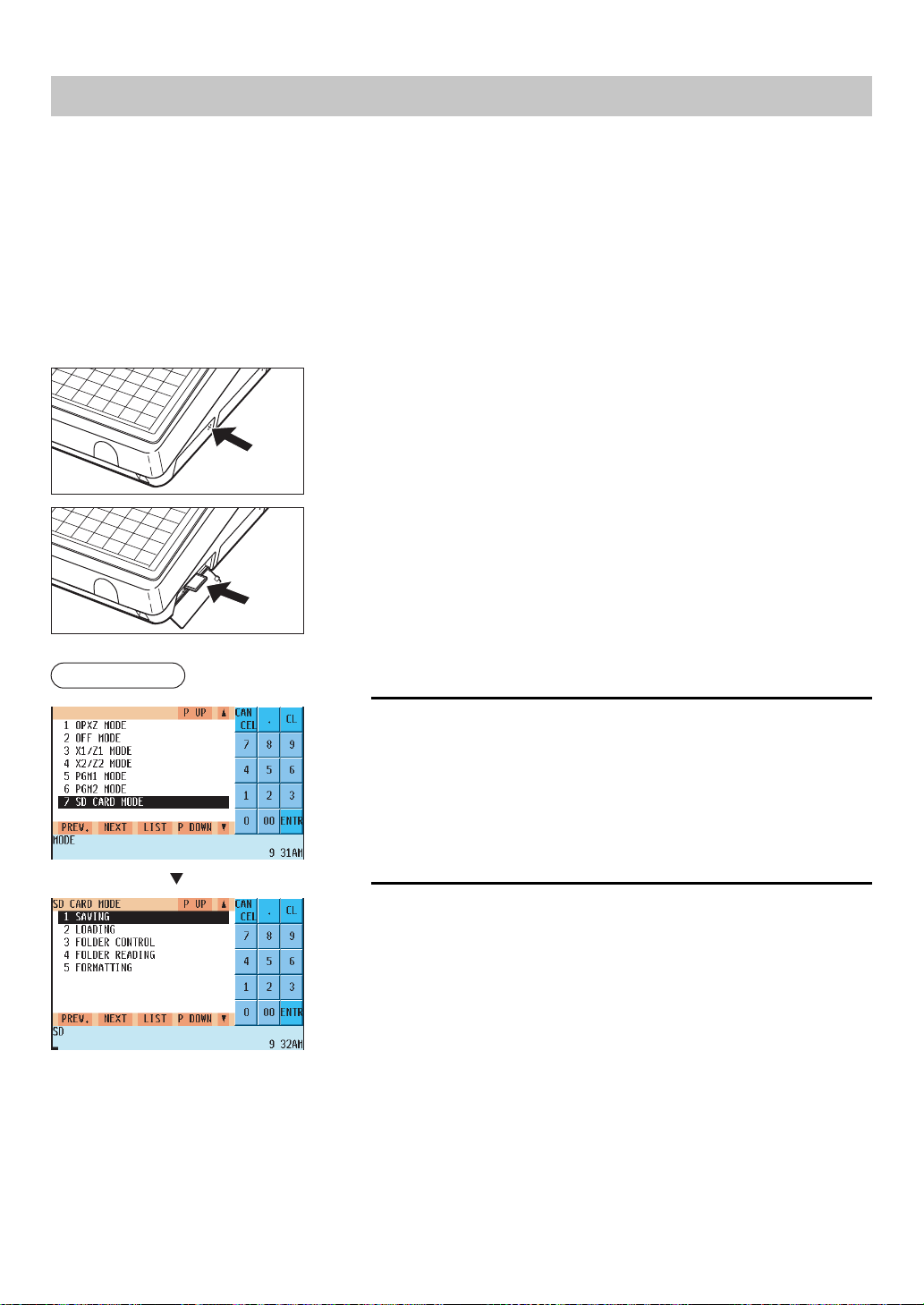
— 247 —
SD CARD Mode
In the SD CARD mode, you can save the data stored in your POS terminal into an SD card or load data from the
SA card for various purposes. The types of data available in this mode are as follows:
• Sales data
• Electronic journal data
• T-LOG data
• Programming data
• All RAM data
Use the following procedure for operation in the SD CARD mode.
Installing SD card
1.
Push the SD card slot cover part indicated by the arrow to open the
cover.
* To close the cover, push the arrowed part in until you hear it click.
2.
Insert the SD card into the slot.
* To remove the SD card, push it again, and it comes out of the slot.
1.
Select “7 SD CARD MODE” in the mode selection window.
2.
Select the desired type of operation.
Procedure

— 248 —
In each menu of this mode, you can perform the following operations:
1 SAVING
1 SAVE ONLY : Saves the following data of the POS terminal to the SD card.
1 SALES DATA
2 EJ DATA
3 T-LOG DATA
4 PROGRAMMING DATA
2 SAVE & CLEAR : Saves the following data of the POS terminal to the SD card and clears them from the POS terminal.
1 EJ DATA
2 T-LOG DATA
2 LOADING : Loads the following data from the SD card to the POS terminal.
1 PROGRAMMING DATA
2 CUSTOMER NAME LIST
3 FOLDER CONTROL
1 FOLDER NAME : Specifies the name of the folder to be created, save and load the data into and from.
2 FOLDER CREATE : Creates a new user folder.
4 FOLDER READING
5 FORMATTING : Formats the SD card.
: Reads the content of the folder saved in the SD card.
NOTE
• For details, please consult your authorized SHARP dealer.
• To save or load all RAM data, please consult your authorized SHARP dealer.
• This model supports SD cards only. Use of any other types of SD cards such as miniSD, microSD, etc. with an
adapter is not supported.
• Do not turn off the POS terminal when it is accessing the SD card. The data in the card may be broken.
• Formatting the SD card erases all the data in it.

— 249 —
Reading Stored Programs
You can read programs stored in the PGM1 or PGM2 mode.
Program reading sequence
To read those programs stored in the PGM1 or PGM2 mode, use the following procedure:
1. In the mode selection window, select the PGM1 or PGM2 and press the
ENTER
key.
2. Select “01 READING” from the PGM1 or PGM2 mode window to display the items list.
3. Select an item listed in the table shown later.
4. Where “RANGE” and/or “PICK UP” are displayed on the screen, select either option. Select “RANGE” to read
program by range, and “PICK UP” to read program by picking up codes. The procedure to specify a range or to
pick up codes are the same as the one in sales report.
On the table, for the item you can specify a range, “*1” is indicated, and for the item you can pick up codes, “*2”
is indicated.
Item: Description: Available mode:
1 DEPARTMENT *1 Department PGM1 or PGM2
2 PLU/UPC *2 PLU/UPC PGM1 or PGM2
3 DYNAMIC UPC *2 Dynamic UPC PGM1 or PGM2
4 LINK PLU TABLE *1 Link PLU table PGM2
5 CONDIMENT TABLE. *1 Condiment table PGM2
6 MIX&MATCH Mix-and-match table PGM2
7 COMBO MEAL *1 Combo meal table PGM2
8 UPC OTHER UPC others PGM2
9 SCALE TABLE Scale table PGM2
10 FUNCTION Function PGM1 or PGM2
11 MEDIA Media key PGM2
12 SERVER Server PGM1 or PGM2
13 MANAGER Manager PGM2
14 OPTIONAL Optional feature PGM2
15 FUNCTION TEXT Function text PGM2
16 DEPT. GROUP Department group PGM2
17 PLU GROUP PLU/UPC group PGM2
18 SERVER GROUP Server group PGM2
19 TEXT Text PGM2
20 TAX Tax PGM2
21 GLU CODE GLU PGM2
22 CUSTOMER *1 Customer PGM2
23 CUSTOMER PROGRAM. Customer programming PGM2
24 NEGATIVE # Negative no. PGM2
25 POSITIVE # Positive no. PGM2
26 AUTO KEY Automatic sequencing key PGM2
27 MACRO KEY Macro key PGM2
28 CAPTURE KEY Capture key PGM2
29 CAPTURE JOB# Capture job PGM2
30 DEVICE CONFIG Device configuration PGM2
31 DIRECT KEY Direct key PGM2
32 FUNCTION KEY Function key PGM2
33 FUNCTION MENU KEY Function menu key PGM2
34 PLU MENU KEY PLU menu key PGM2
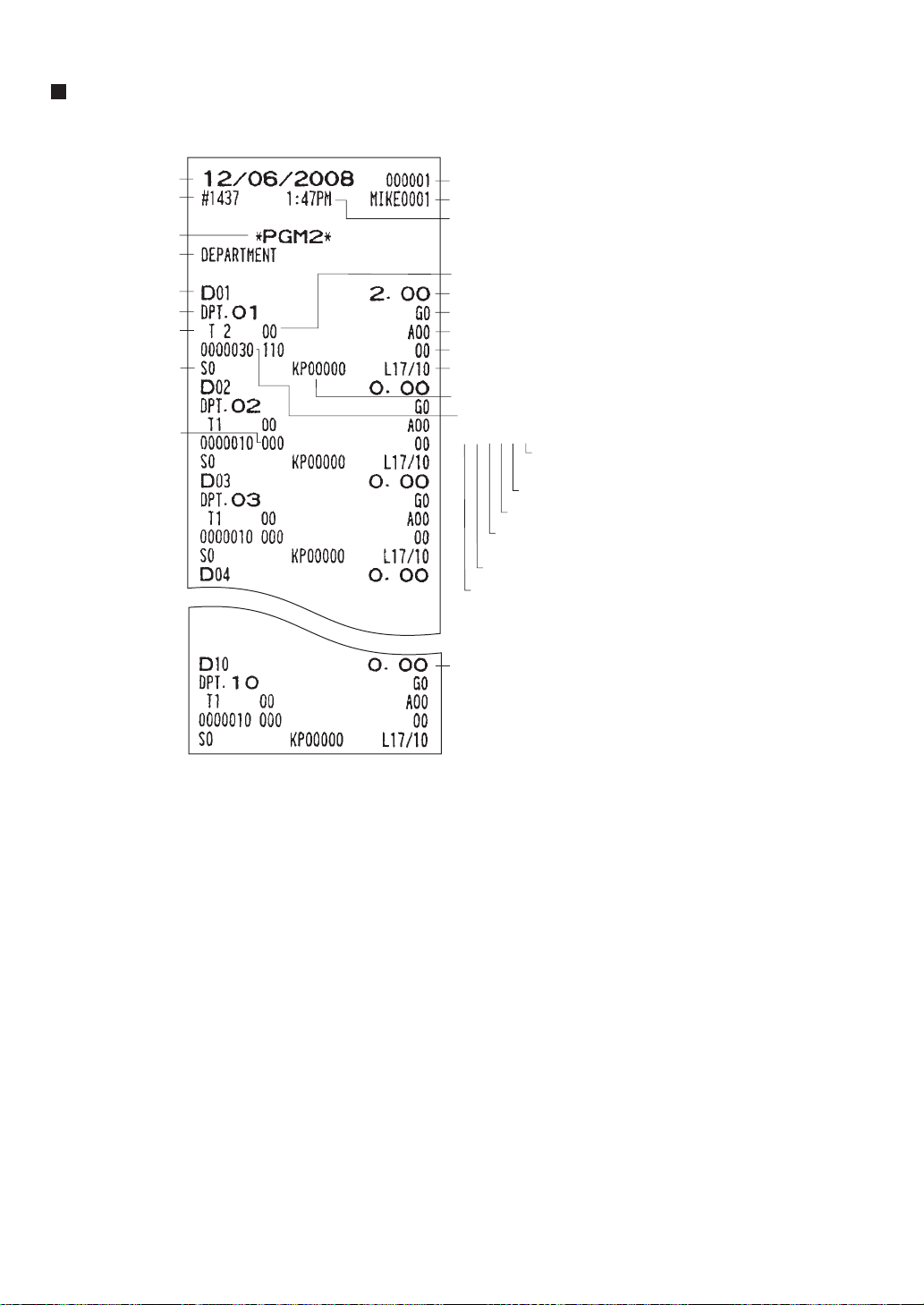
— 250 —
Sample printouts
• Departments (PGM1 or PGM2 mode)
*When you take this report in the PGM1 mode, “PGM2” is replaced by “PGM1.”
Unit price
Group no.
Age limitation
CVM control character
HALO/LALO
Date
Consecutive number
Operating mode*
Report type
Dept. code
Item label
Tax status
Server group no.
SIF/SICS/Normal
Validation printing
(compulsory/non-compulsory)
Tara table no.
Type of unit price entry
(open & preset/preset/open/inhibit)
Minus department
Function programming
000003
Machine number
Server name/server code
Time
Print station
Gas/BR/Hash/Normal
Scale status
(compulsory/enable/inhibit)
Group discount
status (1/2/3)
Key data entry job no.
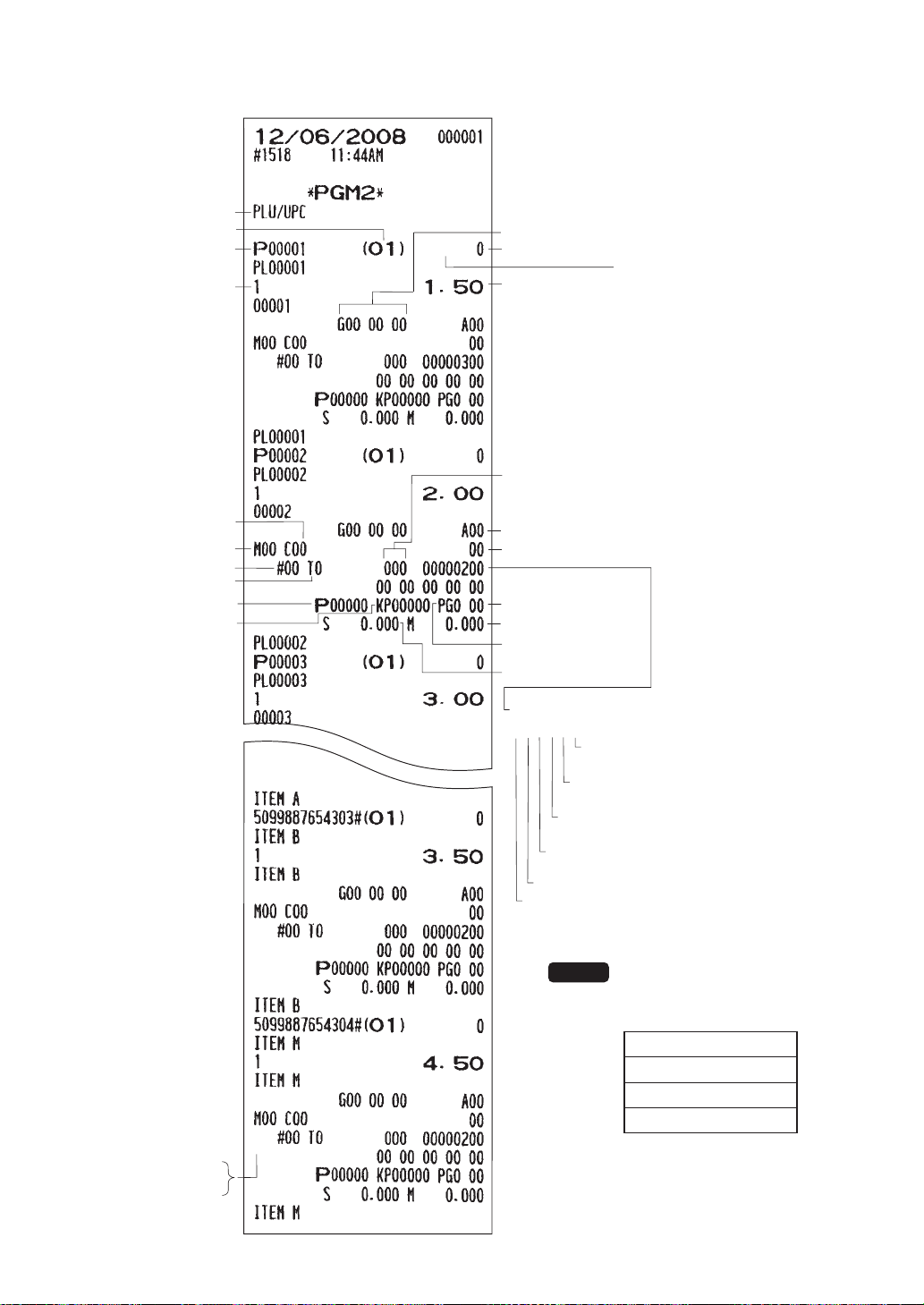
— 251 —
• PLU/UPC (PGM1 or PGM2 mode)
Group nos.
Base q'ty
Price level 1
Report type
Dept. code
PLU code
Scale status
(compulsory/allowed/prohibited)
Condiment entry to menu item
(compulsory/non-compulsory)
Condiment type/
non-condiment type
Mode parameter
(open & preset/preset/open/inhibit)
Function programming
000002
Price shift (compulsory/prohibited/allowed)
Condiment table no.
PLUʼs menu type
Normal PLU
Link PLU
Combo meal
Blank :
L :
C :
Zero price (allowed/disallowed)
Coupon object PLU
Print station
Mix & match table no.
Link PLU table no.
Scale table no.
CVM control character
Minimum stock q'ty
Priority group no.
Stock q'ty
Repeat round (Yes/no)
Group discount status (1/2/3)
Age limitation
Key data entry job no.
(for UPC)
Blank: Auto delete
* : No delete
NOTE
UPC-A
UPC-E
EAN-13
EAN-8
The UPC codes are
printed in the sequence
shown below.
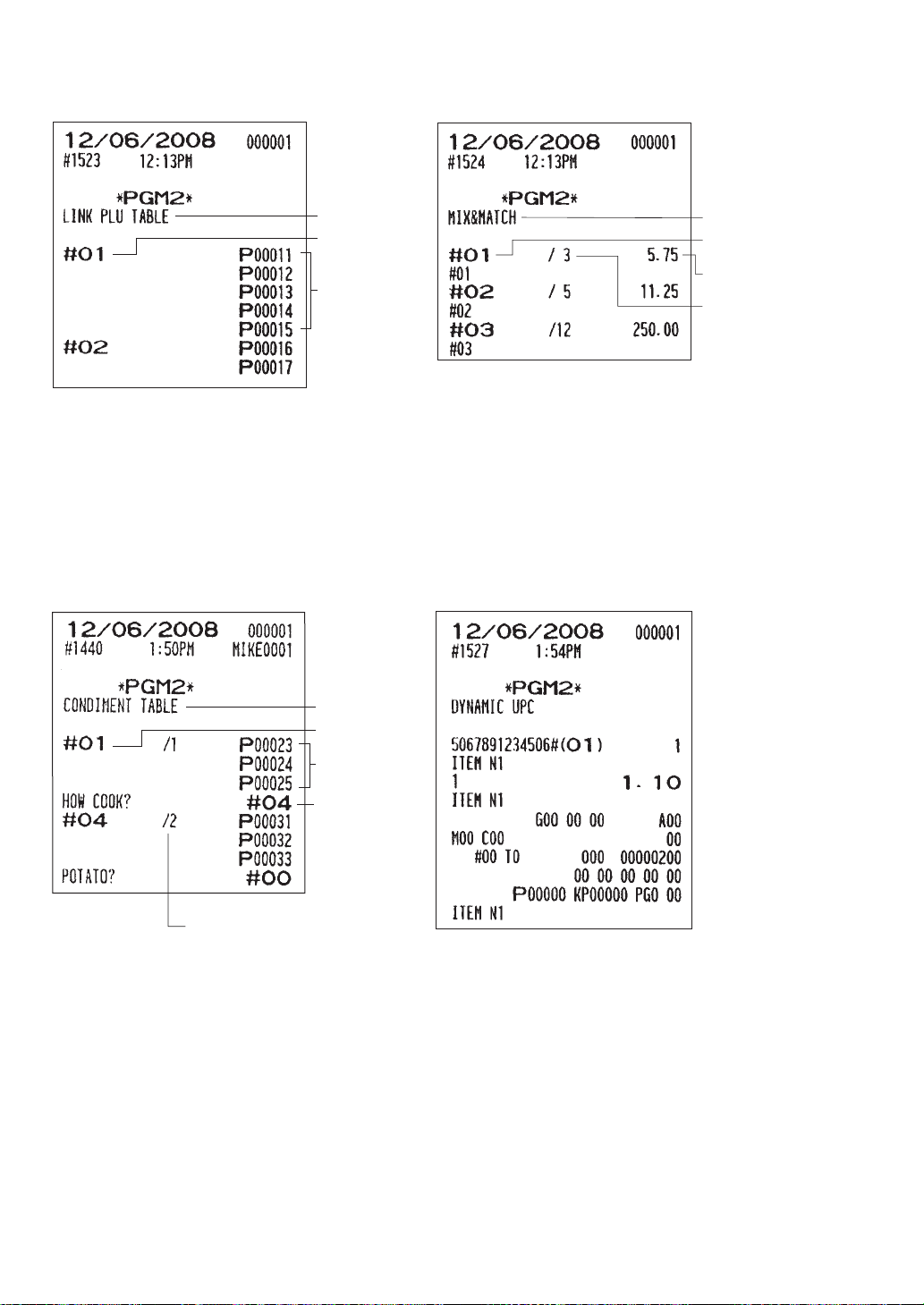
— 252 —
• Link PLU table (PGM2 mode) • Mix & Match table (PGM2 mode)
• Condiment table (PGM2 mode) • Dynamic UPC (PGM2 mode)
Report type
Link PLU
table no.
Assigned
PLU codes
Report type
Mix & Match
table no.
Price
Base qʼty
Report type
Condiment
table no.
Assigned
PLU codes
Number of repeats
Next table#
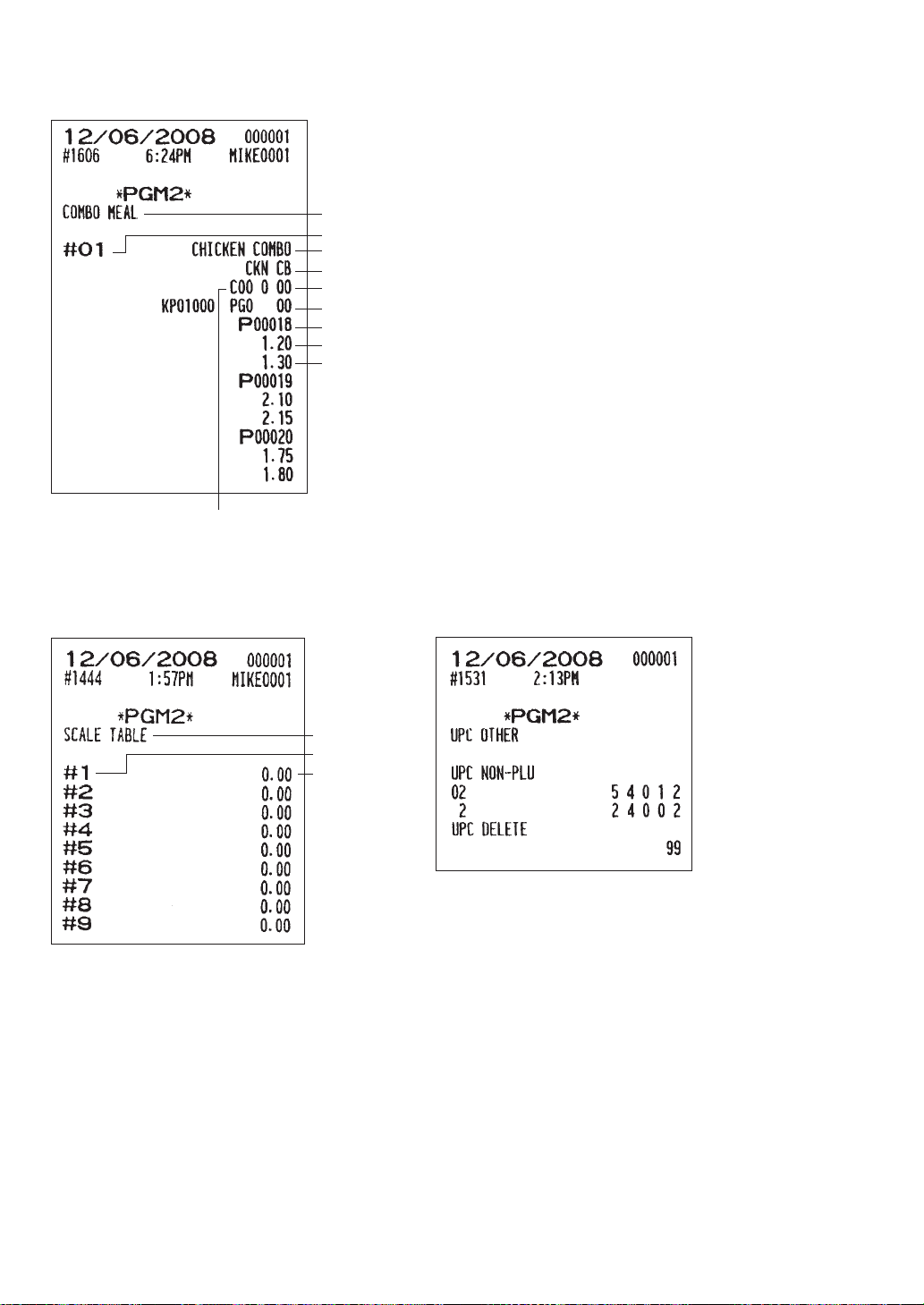
— 253 —
• Combo meal table (PGM2 mode)
• Scale tare table (PGM2 mode) • UPC other (PGM2 mode)
Report type
Scale table no.
Weight
Report type
Combo table no.
Combo meal text
Kitchen printer text
Condiment entry to menu item (compulsory/non-compulsory)
Print station/Priority group no./CVM control character
Associated PLU text
Associated PLU unit price (PRICE1)
Associated PLU upsize price (PRICE2)
Condiment table no.
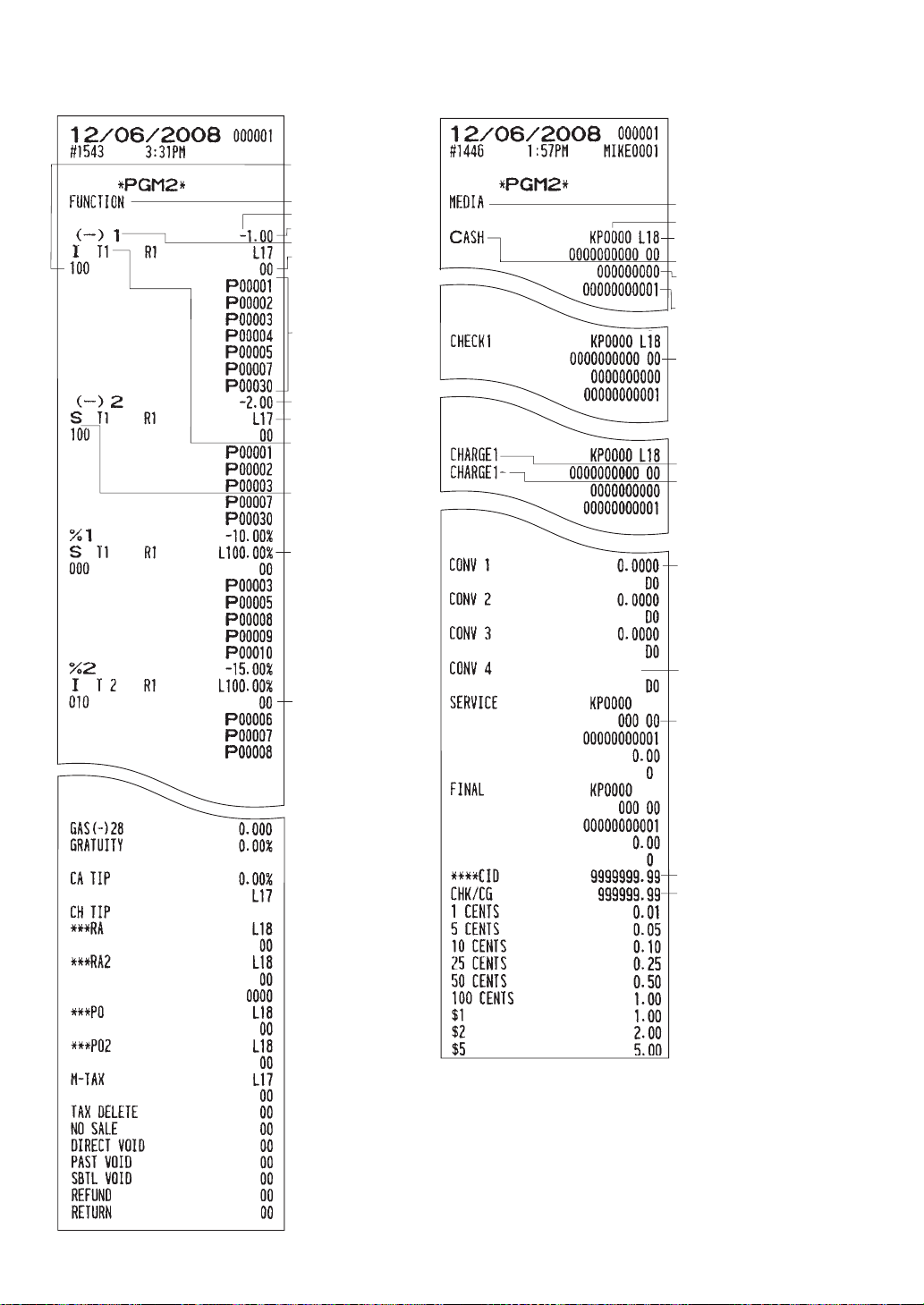
— 254 —
• Functions (PGM1 or PGM2 mode) • Media (PGM2 mode)
Report type
Function text
Amount
HALO
Type
I=Item
S=Subtotal
Tax status
Associated PLUs
(max. 20 items)
Group discount
status (1/2/3)
Key data entry
job no.
Amount
Sign (plus/minus)
HALO
Key data entry
job no.
Rate
Function
programming (3)
Function text (gross)
Function text (refund)
Function text
Sentinel
HALO
Report type
Print station
Function
programming/
Key data entry job no.
Tax status
HALO
Function
programming (1)/
Key data entry job no.
Function
programming (2)
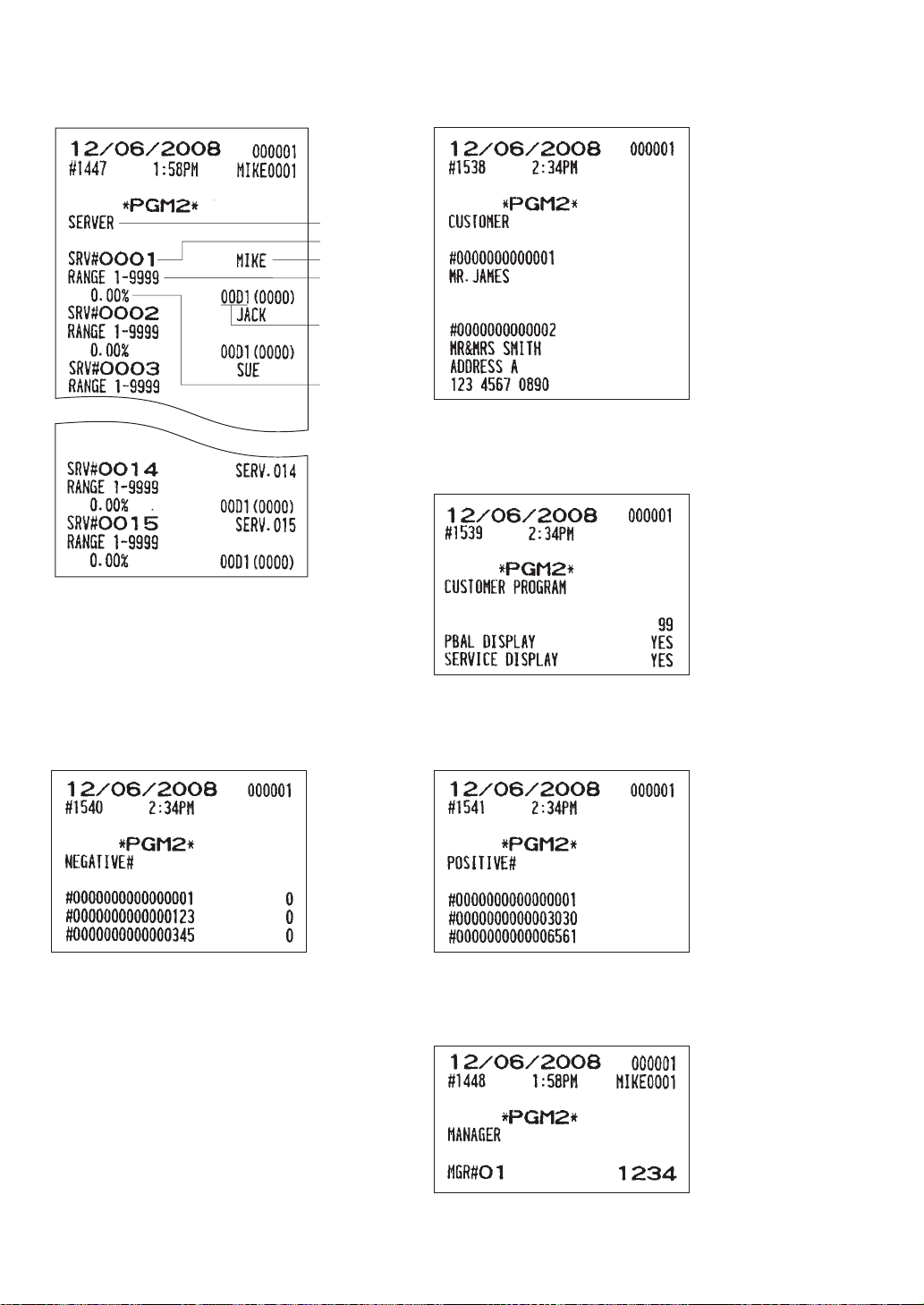
— 255 —
• Server (PGM1 or PGM2 mode) • Customer (PGM2 mode)
• Customer control (PGM2 mode)
• Negative no. (PGM2 mode) • Positive no. (PGM2 mode)
Report type
Server code
Server name
Linked GLU
codes
Function
programming
Net sales %
• Manager (PGM2 mode)
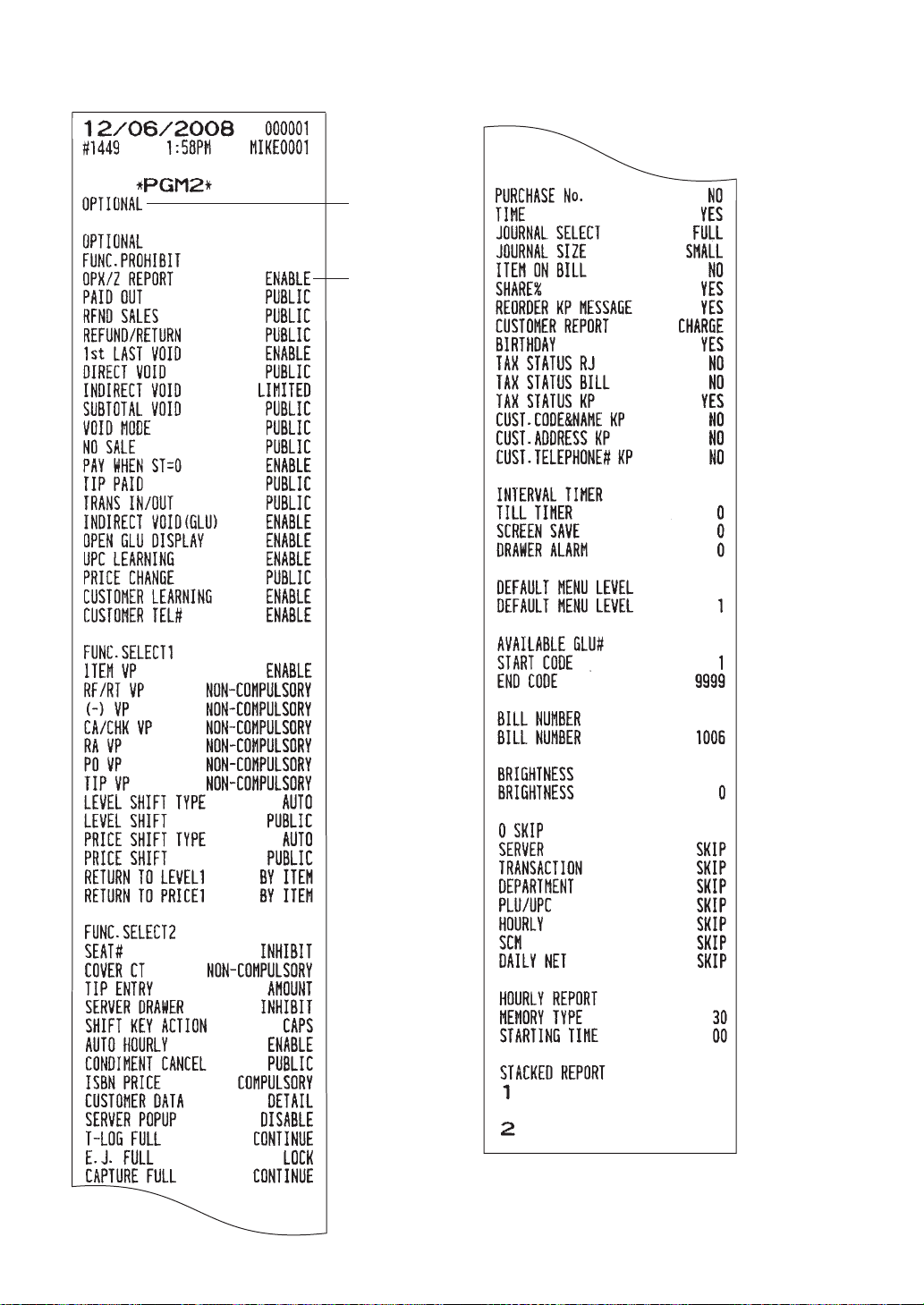
— 256 —
• Optional features (PGM2 mode)
To be continued
Report type
Setting
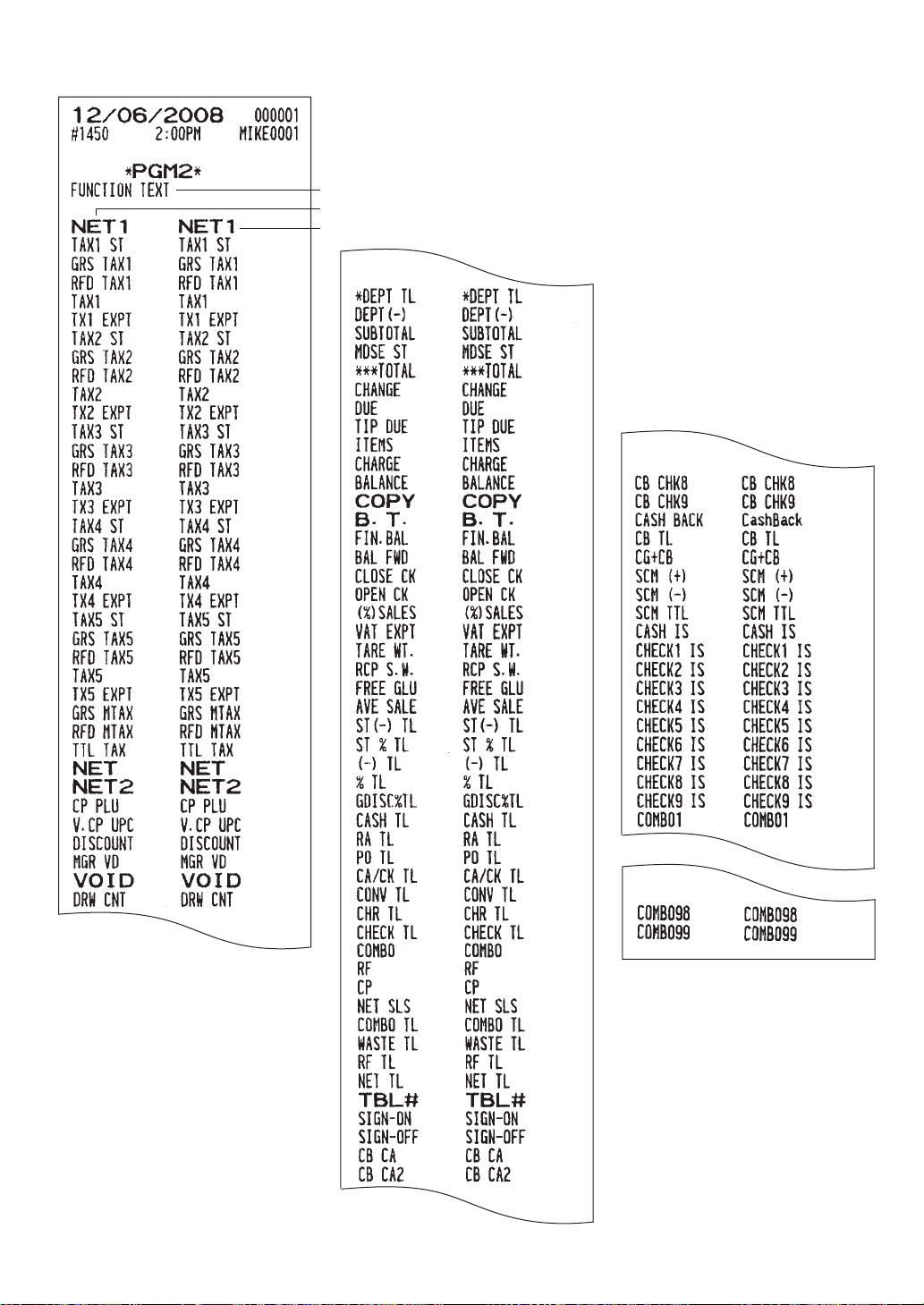
— 257 —
• Function text (PGM2 mode)
To be continued
To be continued
Report type
Function text (default)
Text (preset)
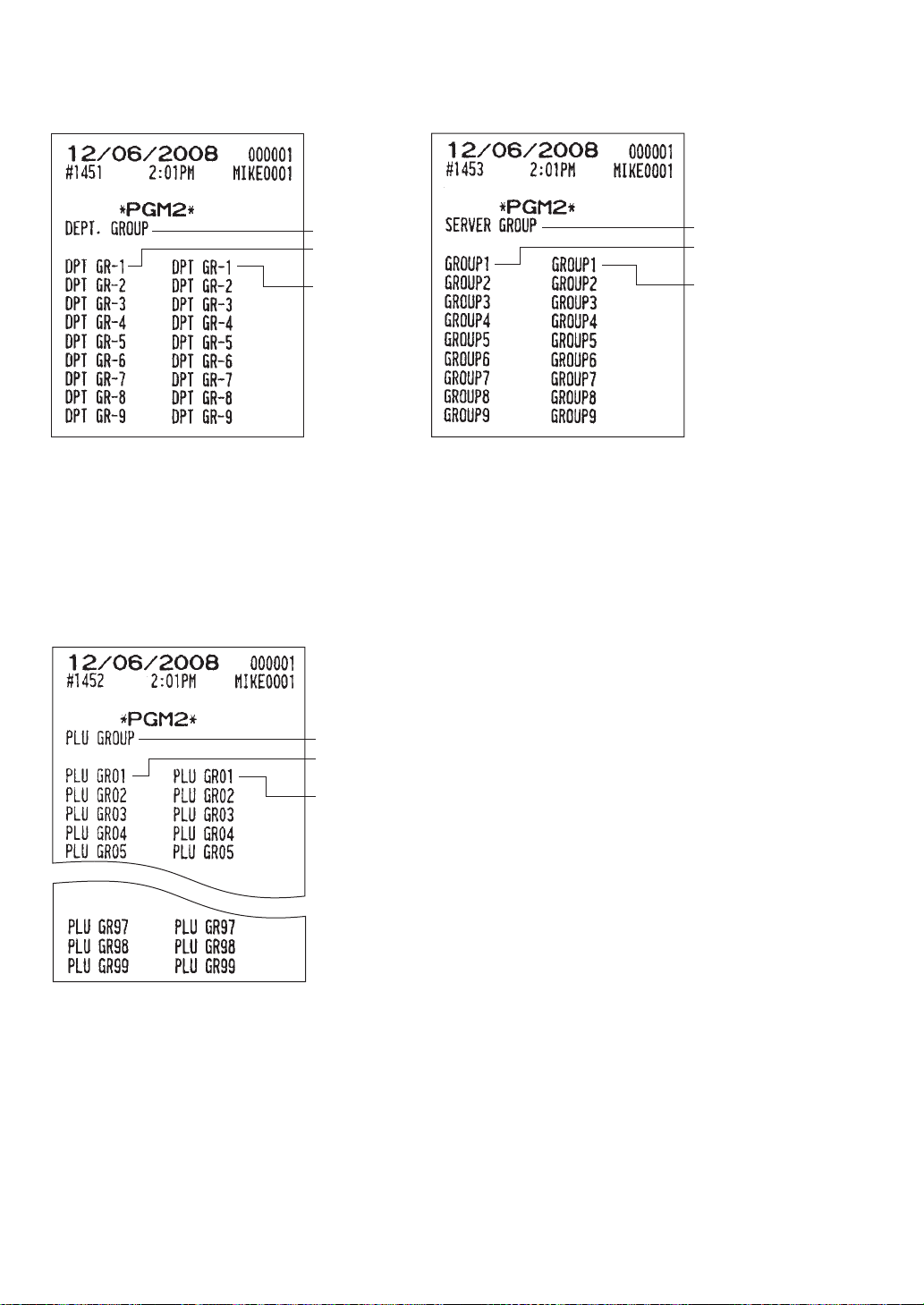
— 258 —
• Department group text (PGM2 mode) • Server group text (PGM2 mode)
• PLU group text (PGM2 mode)
Report type
Function text
(default)
Text (preset)
Report type
Function text
(default)
Text (preset)
Report type
Function text
(default)
Text (preset)
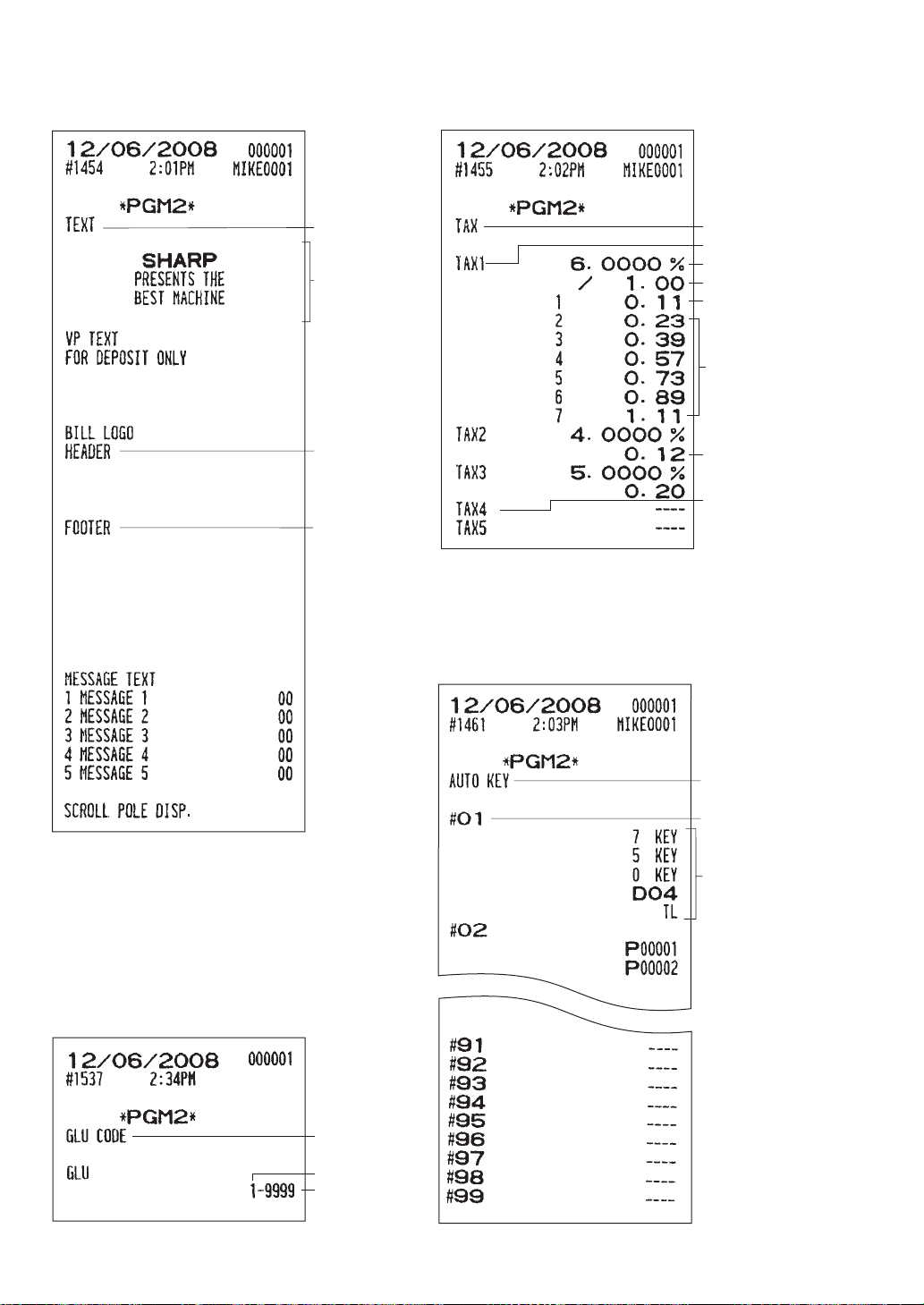
— 259 —
• Logo text (PGM2 mode) • Tax rate (PGM2 mode)
• AUTO key (PGM2 mode)
Report type
Receipt logo text
Header text for
bill printer
Footer text for
bill printer
Report type
Start code
End code
Report type
Tax no.
Rate
Cycle
Lower tax limit
Breakpoint
amount
Lower tax limit
Doughnut tax
exempt count
Report type
AUTO key no.
Entry sequence
programmed
• GLU code (PGM2 mode)
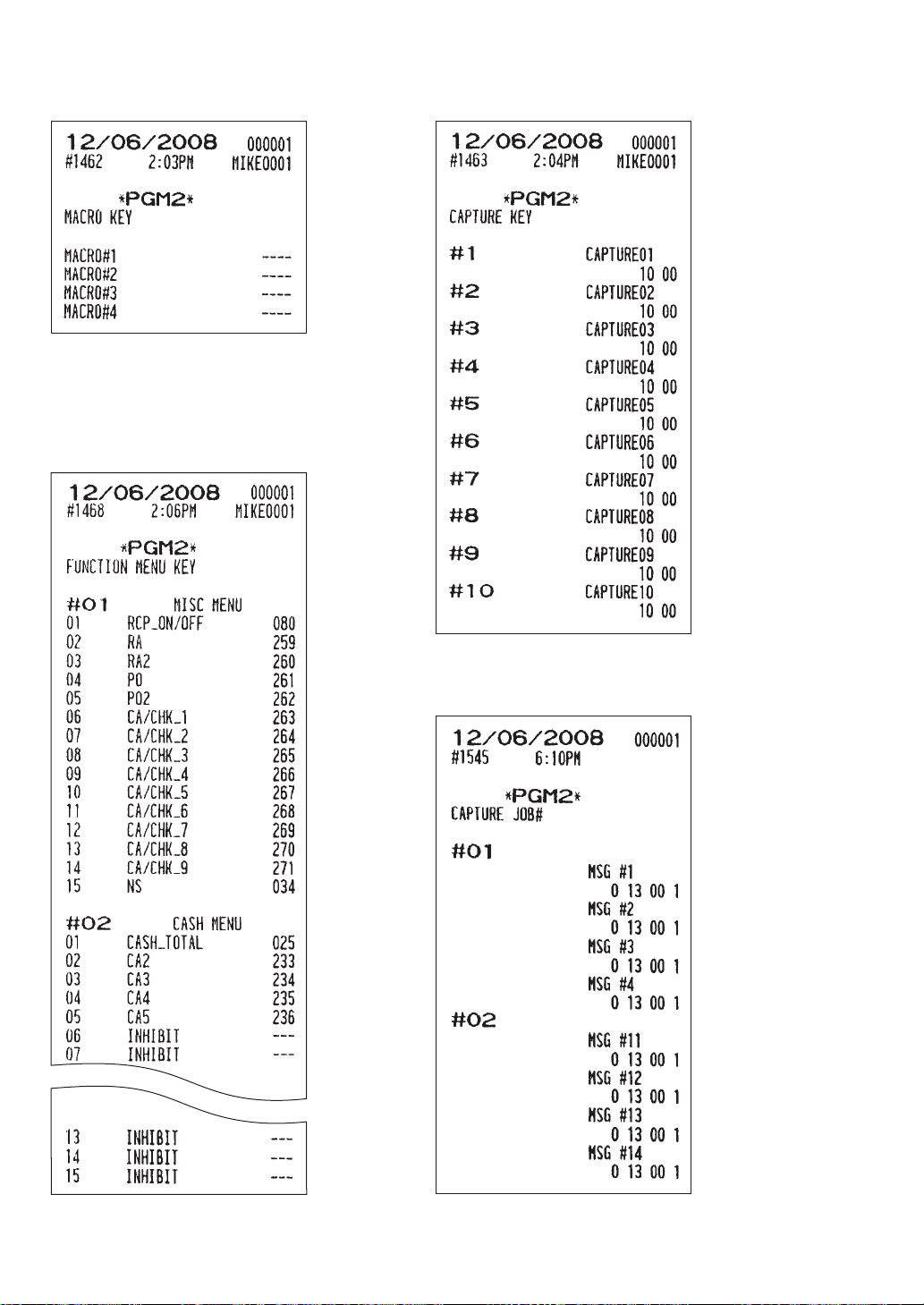
— 260 —
• Macro key (PGM2 mode) • Capture key (PGM2 mode)
• Function menu key (PGM2 mode)
• Capture job no. (PGM2 mode)
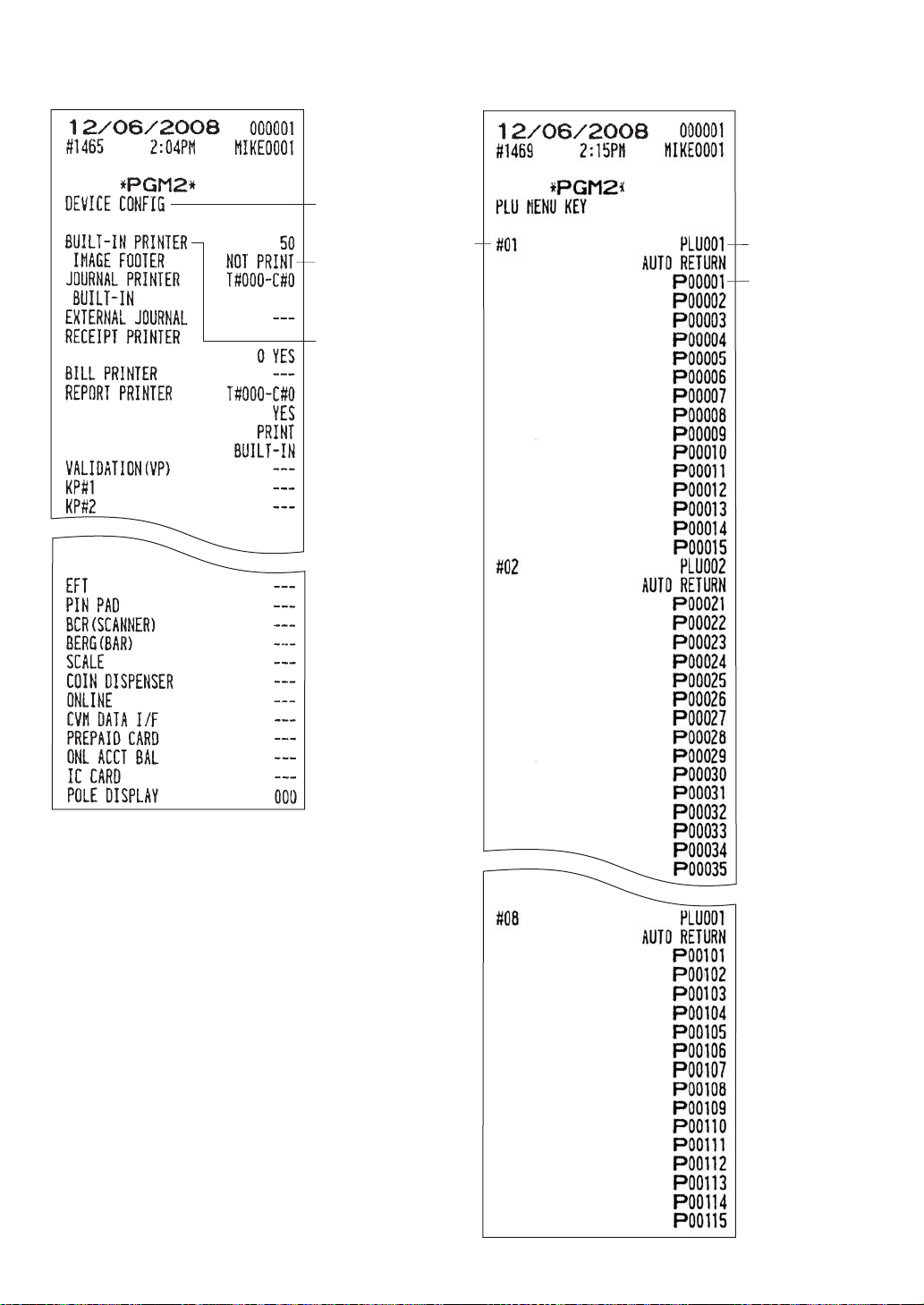
— 261 —
• Device configuration (PGM2 mode) • PLU menu key (PGM2 mode)
Report type
Image mode
Printer type
Title
PLU
menu
key no.
Menu
PLU
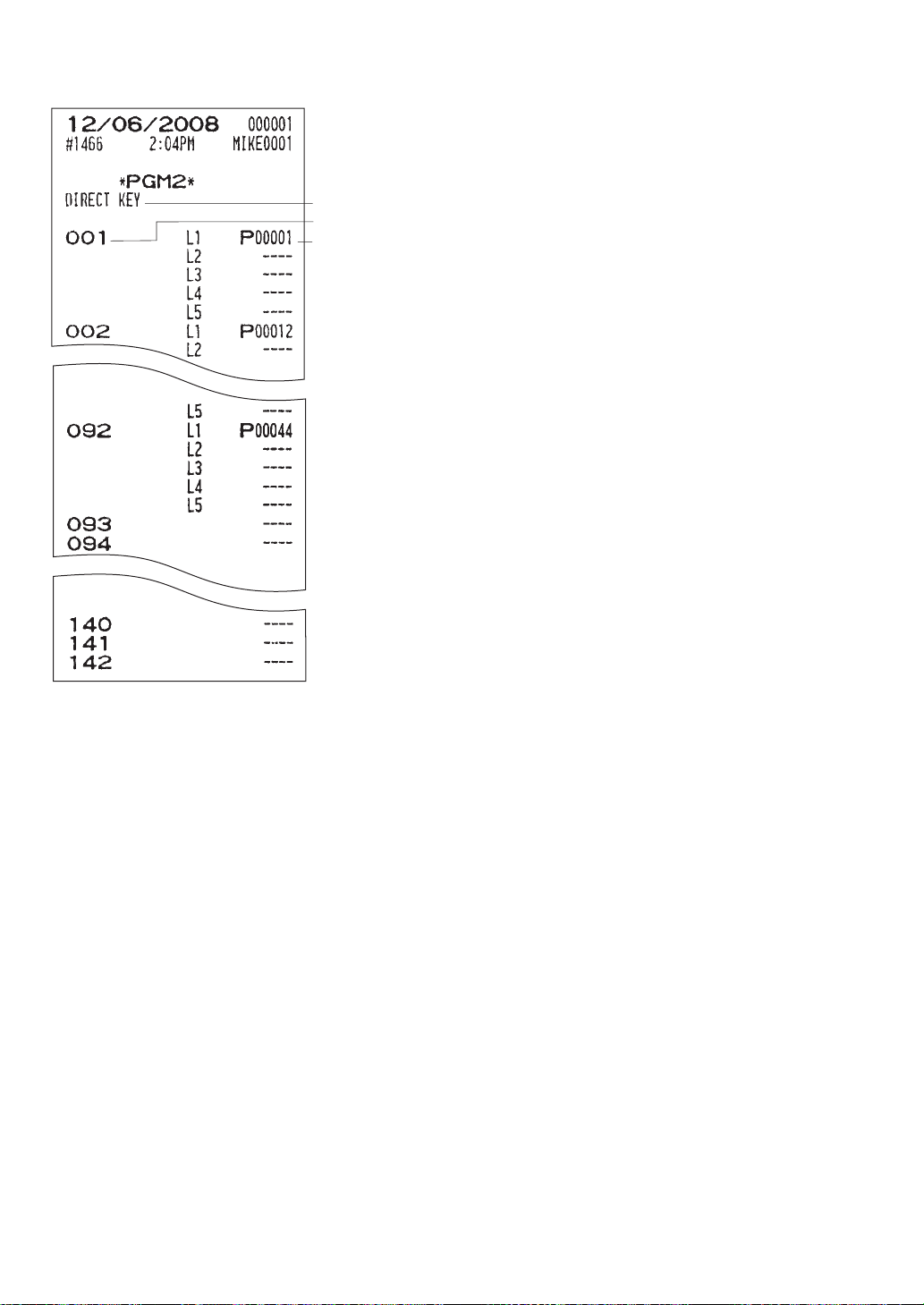
— 262 —
• Direct key (PGM2 mode)
Report type
Key no.
PLU code
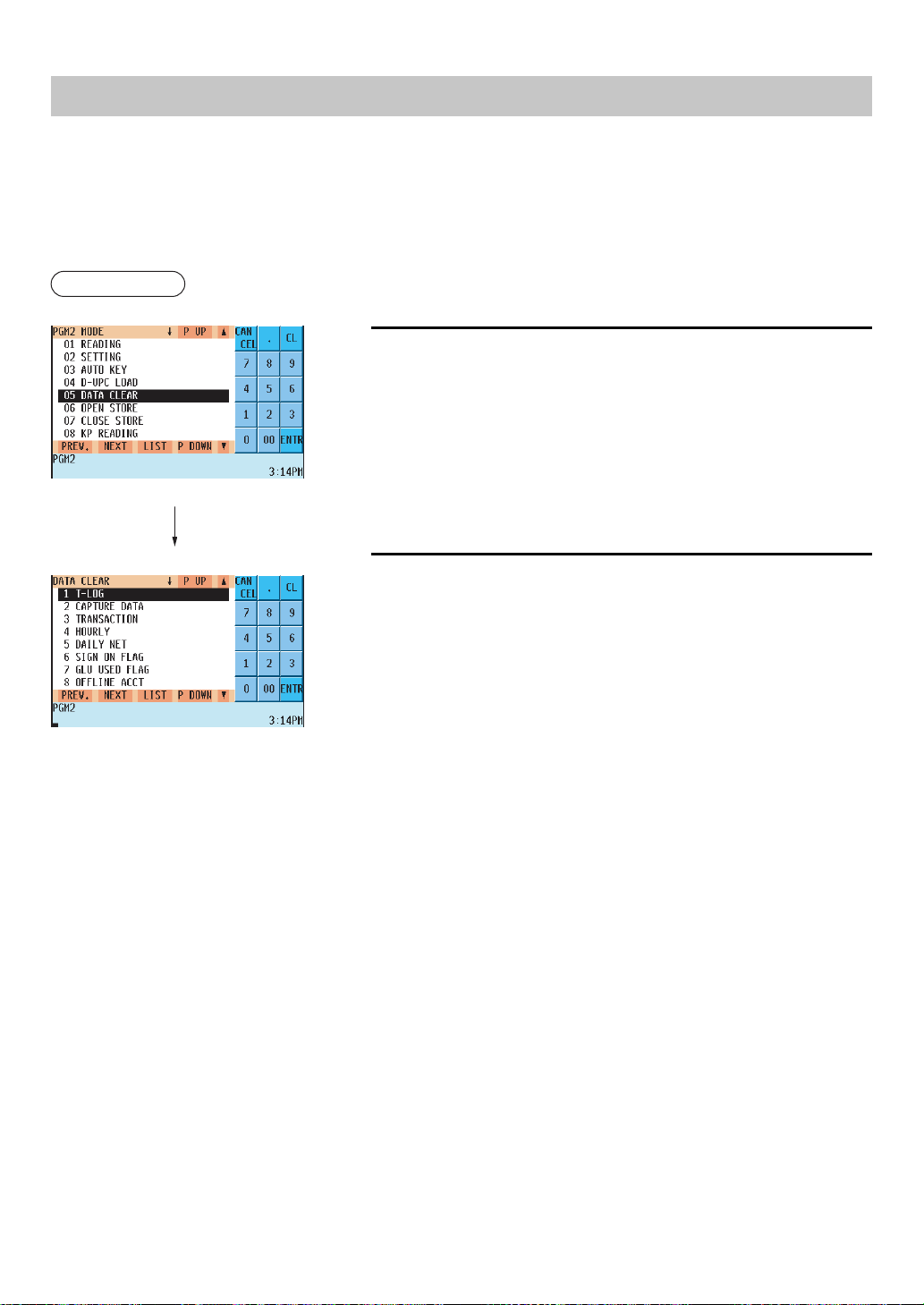
— 263 —
Data Clear
The DATA CLEAR function is primarily used to clear data such as report data (T-LOG, capture data, transaction or
hourly report, daily net sales, sign on/GLU used flag, offline account data, or electronic journal file data) in case
some system trouble occurred occures.
This data clear function should be used only when your authorized SHARP dealer instructs you to do so.
Use the following procedure to perform data clear operation. only when instructed by your authorized SHARP
dealer.
Procedure
1.
In the PGM2 mode menu, select “5 DATA CLEAR”.
• The DATA CLEAR window will appear.
2.
Select the data to be cleared.
The screen continues.
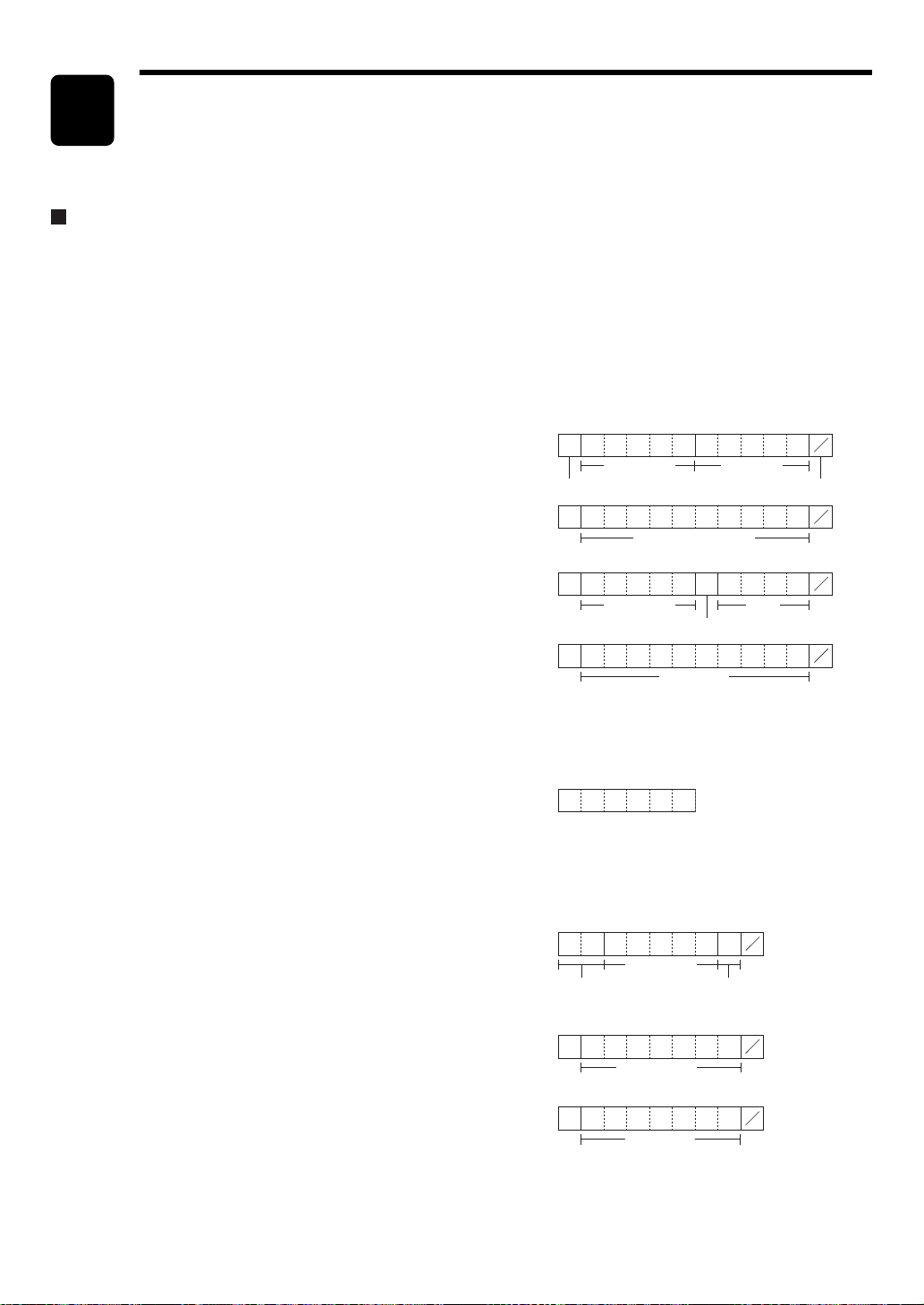
— 264 —
14
0
C
D
Maker code
Number system character
Item code
Check digit
3
C
D
NCD (or HRI) format
2
** ***
C
D
Item code Price
Price check digit
4
C
D
(Free code)
C
D
Maker code
Item codeNation code
2
C
D
(Free format)
0
C
D
(Free code)
Program the format in EAN NON-PLU.
Universal Product Code (UPC) or
European Article Number (EAN)
UPC or EAN code
Your machine can handle the following codes:
• UPC-A (Number system character: 0, 2, 3, 4) • UPC-E
• EAN-8 • EAN-13 • Internal code EAN-8/EAN-13
For the purpose of in-store marking, there are two kinds of PLU type (treated like PLU code) and Non-PLU type (for
price/quantity information).
When a code is of the non-PLU type, the price/quantity in the code is read for sales entries (in case of quantity,
“quantity multiplied by the preset unit price” is processed to obtain the price.)
UPC-A
• Number system character: 0 <used in the source marking>
• Number system character: 3 <used as NDC or HRI>
For entry, a full 12 digit number or 11digit number (omitting the
check digits) must be entered.
• Number system character: 2 <In-store marking Non-PLU type>
You can program the format in “EAN NON-PLU” in ARTICLE
setting.
• Number system character: 4 <In-store marking PLU type>
Here, a full 12digit number, 11digit number (excluding the check
digit), or a leading zero plus 12 digit number must be entered. (Any
number is allowed for the digits marked with *, and on the receipt/journal, non-PLU type code is printed like
2020008**** (****: price information).)
UPC-E
• UPC-E is a zero-suppressed version of UPC-A that conforms to
the UPC-E Standards. This code is used for marking small pack-
ages.
Here, a 6digit number or a leading zero plus 6digits number must be entered.
EAN-8
• Ordinary EAN-8 code (flag: neither 0 nor 2) <used in the source
marking>
Here, a full 8 digit number must be entered.
• Internal code (flag 2) <in-store marking non-PLU short type>
Program the format in “EAN NON-PLU” in ARTICLE setting.
• Internal code (flag 0) <in-store marking PLU short type>
Here, a full 8digit number must be entered. On the receipt/journal,
non-PLU type code is printed like 208**** (****: price/quantity
information)

— 265 —
EAN-13
• Ordinary EAN-13 code (used in source marking)
• Specific EAN-13 code (flag 977, 978, 979) (used in the source
marking: ISBM, ISSN)
Here, you must enter a full 13digit number.
• Internal code (used for in-store marking, flag character number: 20 through 29 and 02)
Program the format in “EAN NON-PLU” in ARTICLE setting.
Add-on code
UPC-A and EAN-13 may be followed by a twodigit number or a fivedigit number as an add-on code, except the
UPC-A without a check digit.
Therefore, the total number of digits which can be entered for each type code is as shown below:
Code entry No add-on code 2-digit add-on code 5-digit add-on code
UPC-A 12 14 17
UPC-A w/leading zero 13 15 18
UPC-A w/o check digit 11 –
UPC-E 6 –
EAN-8 8 –
–
–
–
EAN-13 13 15 18
NOTE
Your POS terminal automatically identifies the add-on code in an UPC/EAN code from the total number
of digits and the flag.
UPC file
Your POS terminal has a UPC main file and can provide a dynamic UPC (D-UPC) file.
UPC main file
Generally use, all UPC items are managed in the UPC main file.
Programming data and sales information is saved in the UPC main file.
Dynamic UPC file
If a dynamic UPC file is generated, the items entered by the UPC learning function (refer to the “UPC learning
function” section.) are saved in this file temporarily. (If not generated, they are directly saved in the UPC main file.)
The data saved temporarily can be transferred to the UPC main file when necessary by executing the D-UPC
LOAD in the PGM2 mode.
If you want to use the dynamic UPC file, please consult your authorized SHARP dealer.
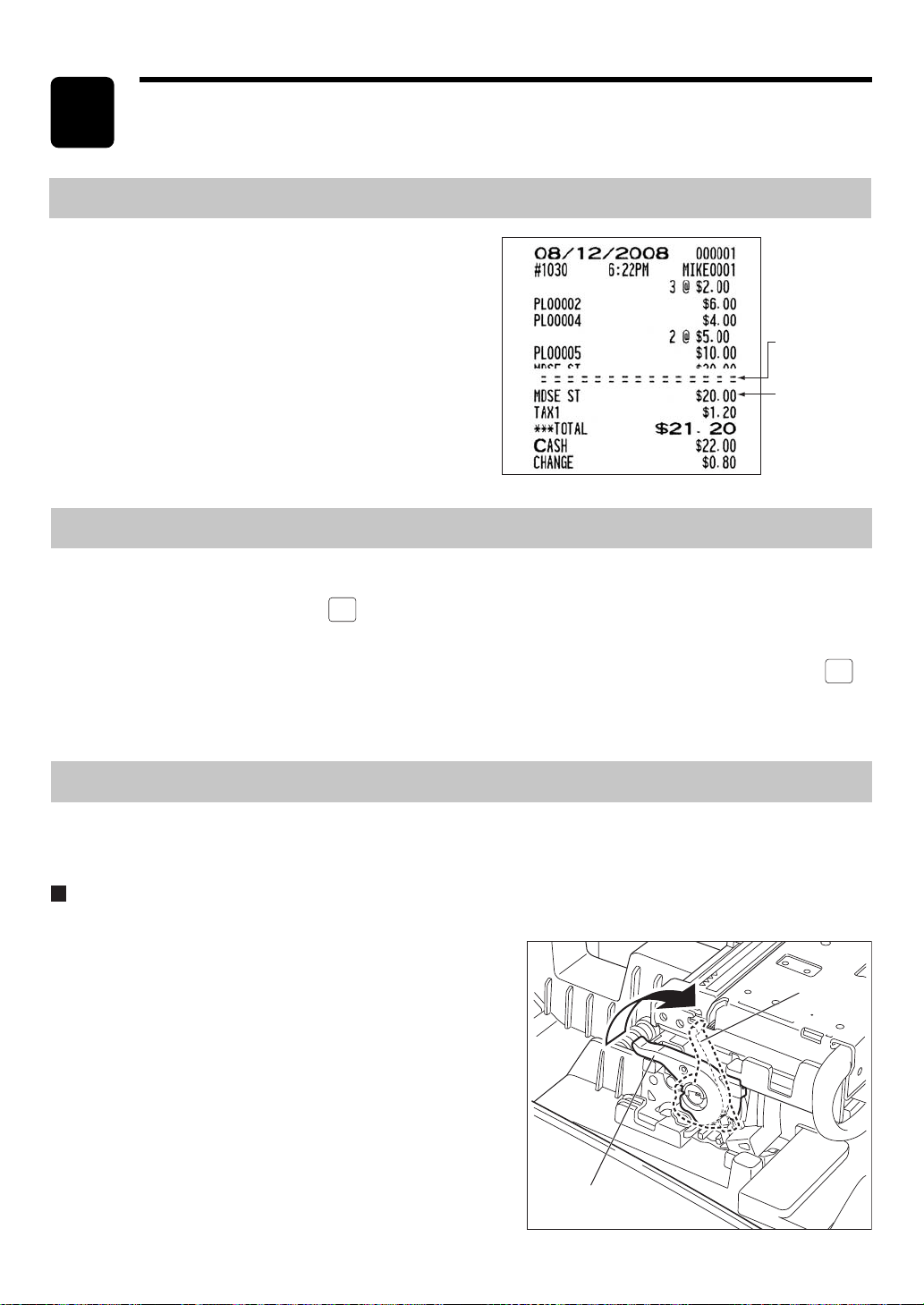
— 266 —
Your POS terminal uses a thermal printer. When the print head is heated to a certain level, printing is made on
thermal paper.
Operator Maintenance
15
In Case of Power Failure
Even when power is lost, your POS terminal retains its
memory contents and all information on sales entries.
•When a power failure occurs while your POS terminal is
idling or during an entry operation, it returns to the normal
state after power recovery.
• When a power failure occurs during a printing cycle, the
terminal prints “= = = = = = = = = = =” and then carries out
the correct printing procedure after power recovery. (See
the sample print.)
Print after power
recovery
Power failure
symbol
In Case of a Printer Error
If the printer runs out of paper, the printer will stall, and the “PAPER EMPTY” message will appear on the display.
Any key entries will not be accepted. Referring to “Installing and Removing a Paper Roll” in this chapter, install a
new paper roll properly, then press the
CL
key. The printer will print the power failure symbol and resume printing.
If the print head is in the “up” position, the printer will stalls, and the “HEAD UP” message will appear on the
display. Any key entries will not be accepted. Bring back the print head to the correct position, then press the
CL
key. The printer will print the power failure symbol and resume printing.
Thermal Printing
• If your POS terminal for an extended period of time, pull the
print head release lever toward you so that the print head is
set apart from the plate.
Cautions in handling the printer
In the case of the UP-810F
Printing position
Head-up
position
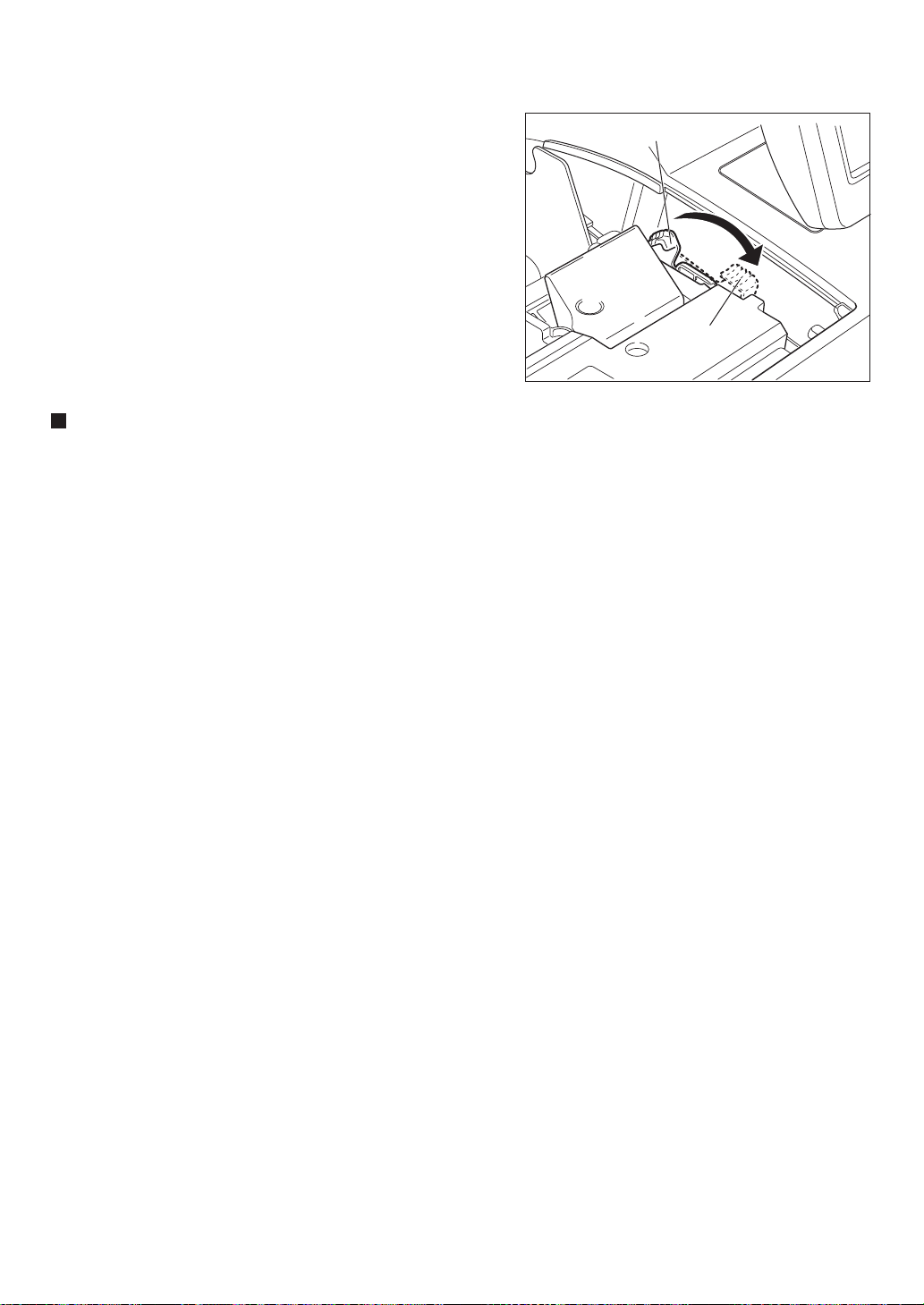
— 267 —
•Avoid installing the machine in any of the following places:
Dusty or humid places
Place exposed to direct sunlight
Place where there is iron powder (A permanent magnet
and an electromagnet are used in this machine.)
• Use the print head release lever only when necessary.
• Never pull the paper when it is in consult with the print head.
First release the head with the print head release lever, and
then remove the paper.
• Never touch the surface of the print head.
• Never touch the print head and the motor during printing or
before they cool down.
Cautions in handling the recording paper (thermal paper)
• Use only paper as specified by SHARP.
• Unpack the thermal paper just before you use it.
•Avoid heat. The paper begins to develop color at around 70˚C.
•Avoid dusty and humid places for storage. Avoid direct sunlight.
• The printed text on the paper can discolor under the following conditions:
Exposure to high humidity and temperature.
Exposure to direct sunlight.
Contact with glue, thinner or a freshly copied blueprint.
Heat caused by friction (scratching etc.)
Contact with a rubber eraser or adhesive tape.
• Be very careful when handling the thermal paper. If you want to keep a permanent record, copy the printed text
with a photocopier.
In the case of the UP-820F
Printing position
Head-up
position
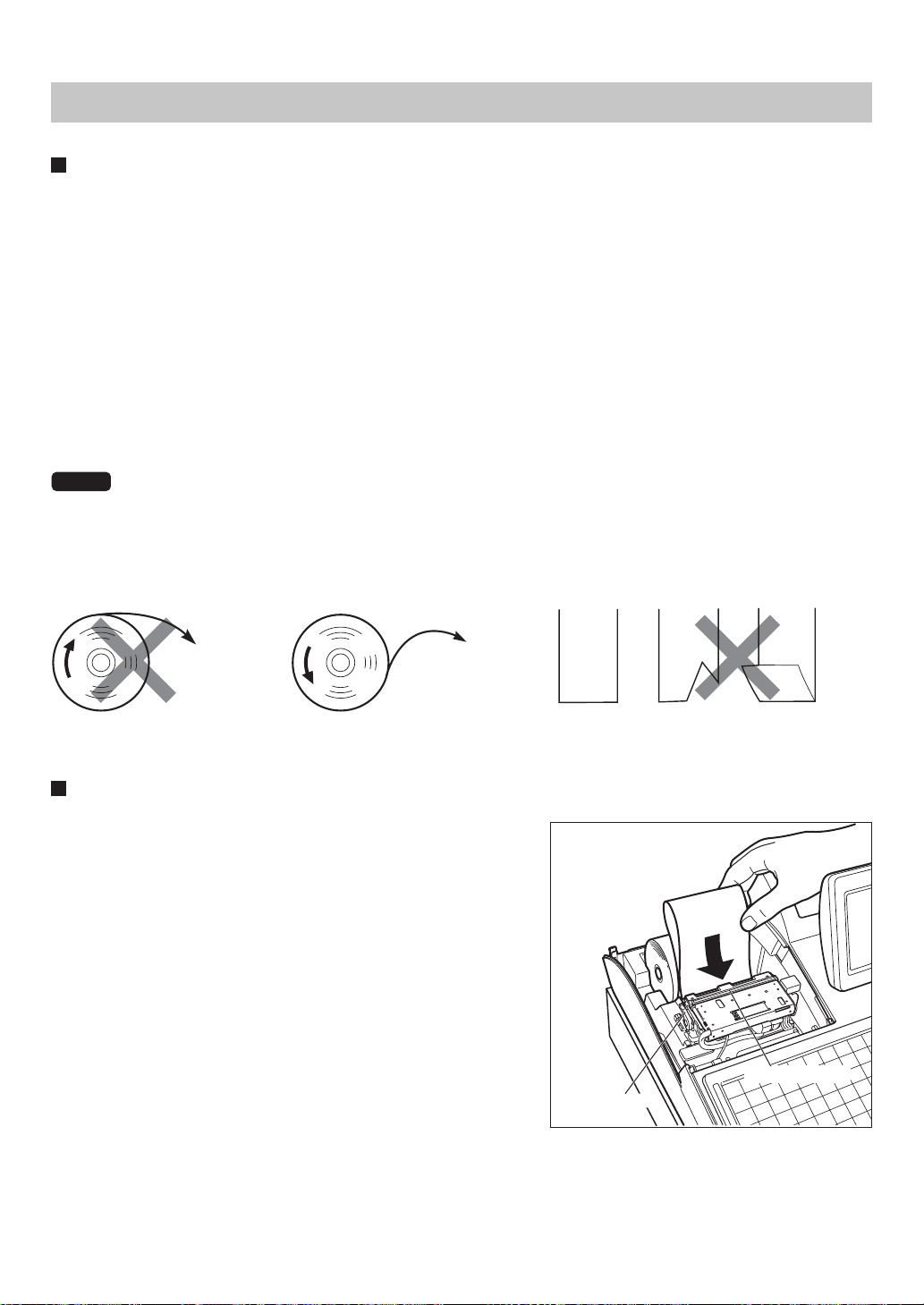
— 268 —
Recording paper specifications
Be sure to use paper rolls as specified by SHARP.
The use of any paper rolls other than specified could cause paper jamming, resulting in a POS terminal
malfunction.
Paper specification
Paper width: UP-810F: 3.13 ± 0.02 in. (79.5 ± 0.5 mm)
UP-820F: 2.26 ± 0.02 in. (57.5 ± 0.5 mm)
Max. outside diameter: 3.15 in. (80 mm)
Quality: Thermal paper
Paper tube: 0.71 in. (18 mm)
• Be sure to set paper roll(s) prior to using your machine. Otherwise it may cause a malfunction.
Install the paper roll in the printer. Be careful to set the roll and cut the paper end correctly.
NOTE
If the leading end of the paper roll is fixed with paste or tape, the paper’s color development ability may
be lost in the pasted or taped area due to deterioration of the heat-sensitive color development compo-
nent of the paper surface. As a result, nothing may be printed in this area. Therefore, when setting a new
paper roll in the machine, be sure to cut off approximately one revolution (approx. 25 cm long).
(How to set the paper roll) (How to cut the paper end)
To the printer
Incorrect
To the printer
Correct
Correct Incorrect
Installing a paper roll (UP-810F)
Installing the receipt paper roll
1.
Select the “REG” mode with the AC cord connected.
2.
Remove the printer cover.
3.
Confirm that the print head release lever is in its printing
position.
4.
Set the paper correctly in the receipt paper holder of the printer
as shown on the right.
5.
Insert the end of the paper into the paper chute as shown on the
right. It will automatically be fed through the printer.
6.
Cut off the excess paper that comes out of the printer with the
manual cutter.
7.
Replace the printer cover.
Installing and Removing a Paper Roll
In the case of the UP-810F
Printing position
Paper slot guide
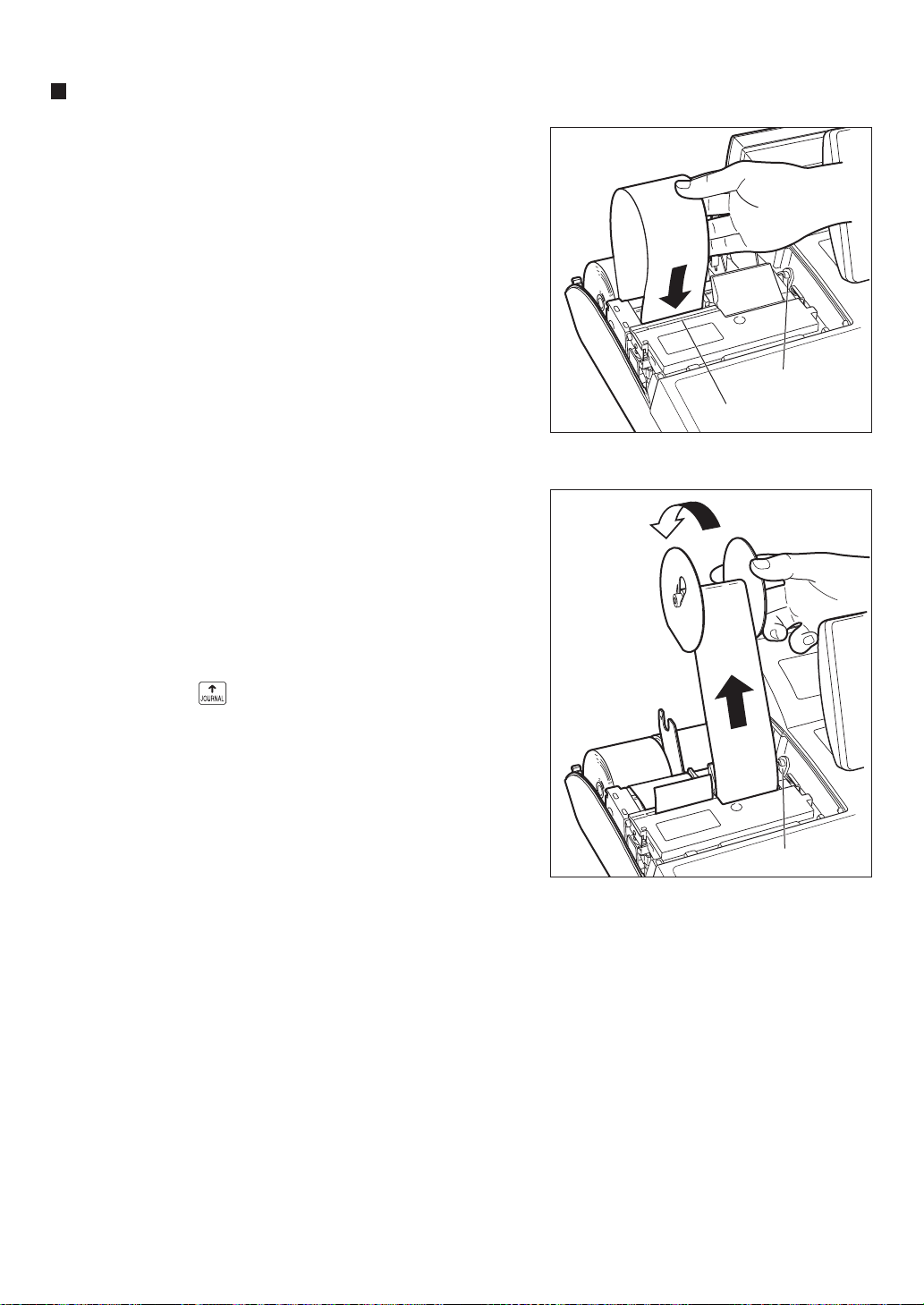
— 269 —
Installing a paper roll (UP-820F)
Installing the receipt paper roll
1.
Select the “REG” mode with the AC cord connected.
2.
Remove the printer cover.
3.
Check that the print head release lever is in its printing position.
4.
Set the paper correctly as illustrated right in the paper roll
location (receipt side) of the printer.
5.
Insert the end of the paper into the paper chute as shown on
the right. It will automatically be fed through the printer.
6.
Cut off the excess paper that comes out of the printer with the
manual cutter.
7.
Replace the printer cover.
Installing a journal paper roll
1.
Select the “REG” mode with the AC cord connected.
2.
Remove the printer cover.
3.
Confirm that the print head release lever is in its printing
position.
4.
Set the paper correctly in the journal paper holder of the printer.
(See the illustrations on the previous page.)
5.
Insert the end of the paper into the paper chute as shown on the
right. It will automatically be fed through the printer.
6.
Insert the end of the paper into the slit in the paper take-up
spool. (Press the
key to feed paper more if required.)
7.
Wind the paper around the spool shaft two or three turns.
8.
Set the spool on the bearing.
9.
Replace the printer cover.
Printing position
Manual cutter
Printing position
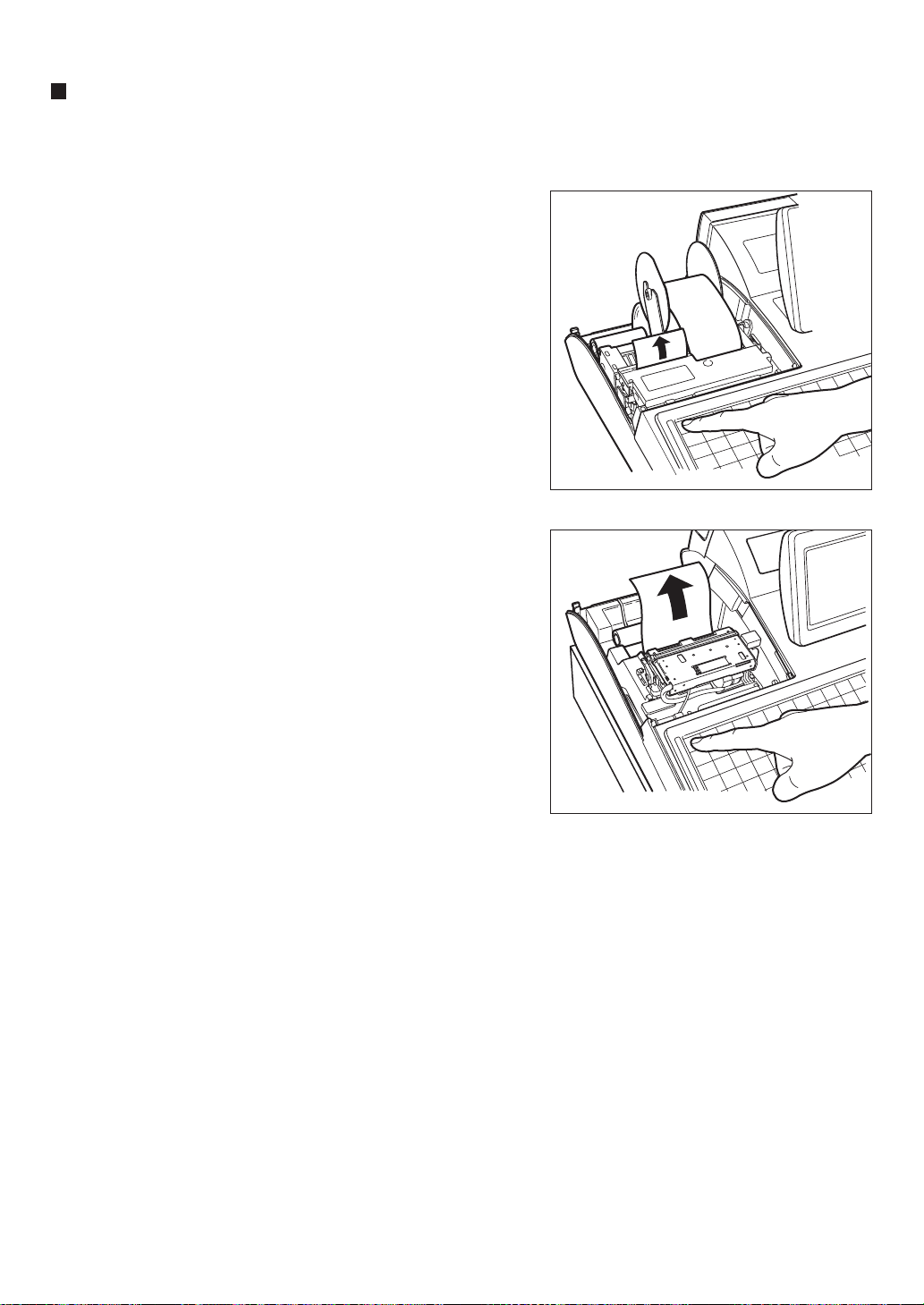
— 270 —
Manual installing of a paper roll (UP-810F/UP-820F)
When you want to manually install a new roll of paper while your machine is turned off, follow the steps below:
1.
Pull the print head release lever toward you to lift up the print
head.
2.
Correctly place the new paper roll in the receipt/journal paper
roll holder.
3.
Insert the paper end into the paper chute until it comes out of
the printer.
4.
Cut off the excess receipt paper or wind the paper around
the take-up spool as described on the right (journal paper).
5.
Return the print head release lever to its original position.
In the case of the UP-810F
In the case of the UP-820F
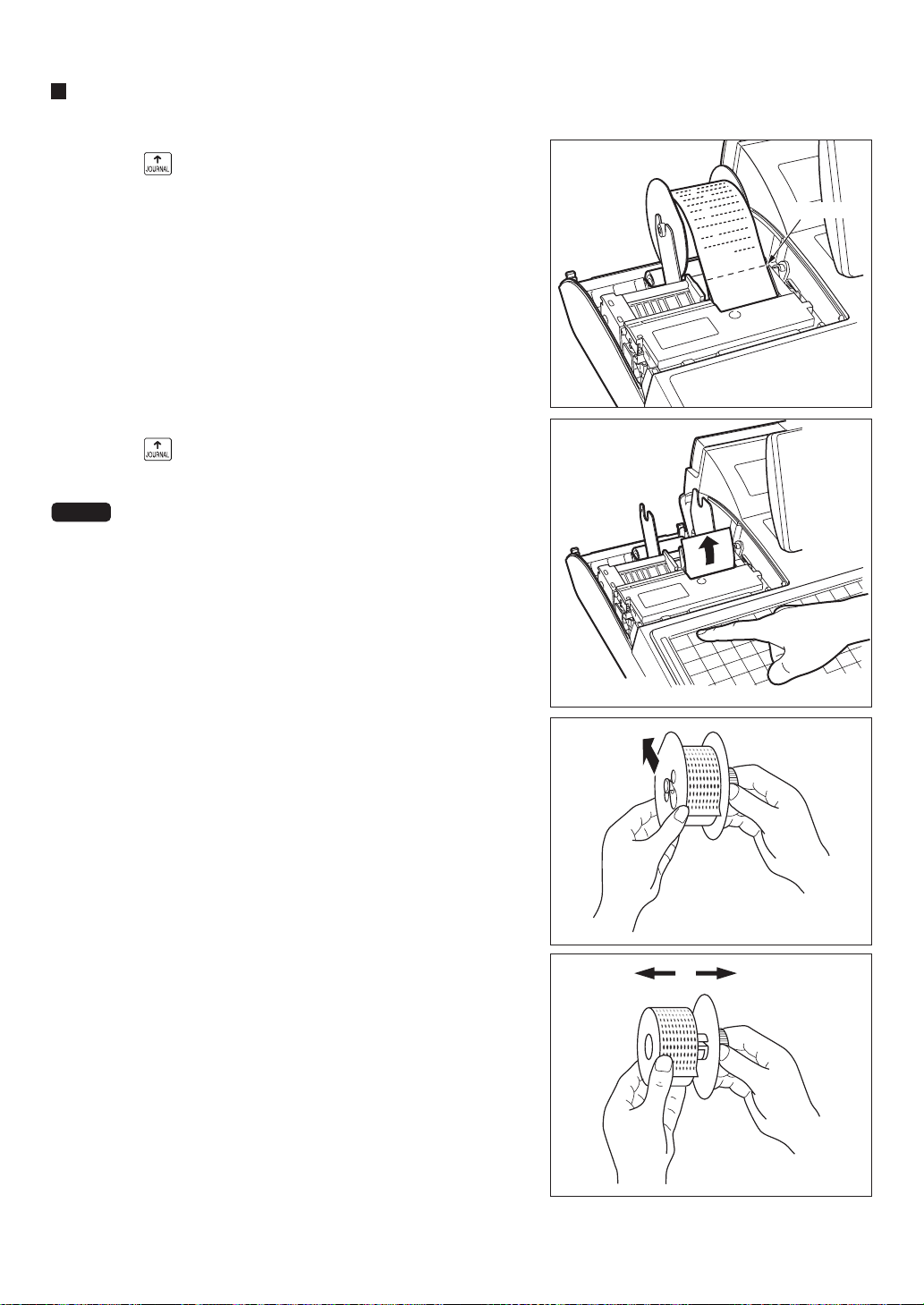
— 271 —
Removing the journal paper roll (UP-820F)
1.
Remove the printer cover.
2.
Press the key to feed the journal paper until all its printed
part comes out.
3.
Cut the paper and remove the take-up spool.
4.
Cut the paper behind the printer and near the paper roll.
5.
Press the key until the paper remaining in the printer
comes out completely.
6.
Remove the paper roll from the back of the printer.
NOTE
Do not pull the paper through the printer.
7.
Remove the outer side of the take-up spool as shown on the
right.
8.
Remove the printed journal roll from the take-up spool.
Cut here
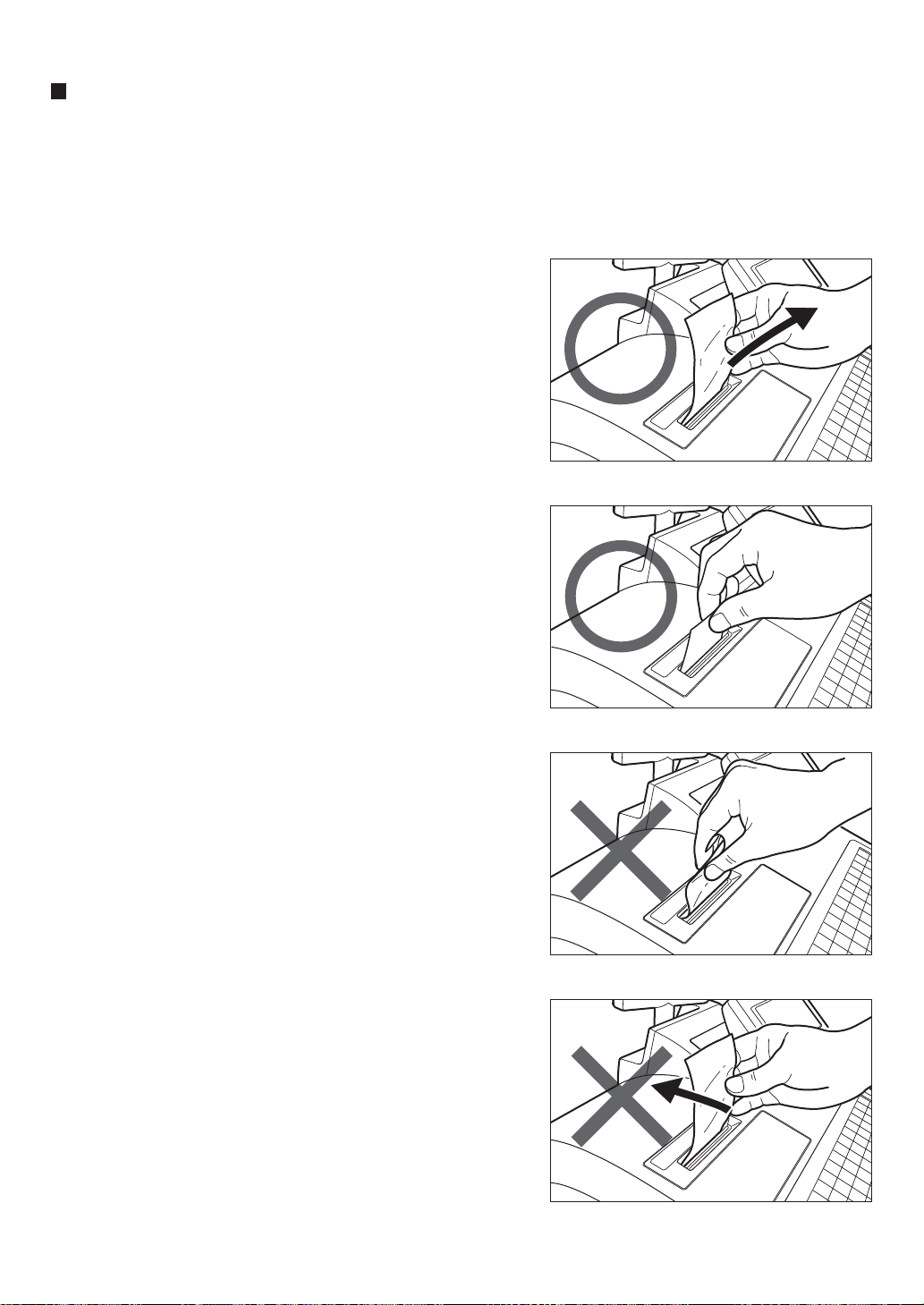
— 272 —
Prevention of paper jams
Keep the following points in mind to prevent paper jams.
• Do not touch the receipt while it is being printed.
• Cut off the receipt after printing is finished. You hear the cutter sound when printing is finished.
• Pulling the receipt during printing may cause paper to jams.
How to pull the receipt paper after the printing
Pull the receipt paper obliquely upward from behind holding
the middle of its side.
Correct
Correct
Incorrect
Incorrect
In case the receipt is short, always cut if off after the
printing is finished.
Do not press the receipt paper from above nor hold it in the way it
wrinkles. This may result in a paper jam.
Do not pull the receipt paper obliquely (rightward or leftward).
This may result in a paper jam.
The above illustrations show the receipt
printer of the UP-810F.
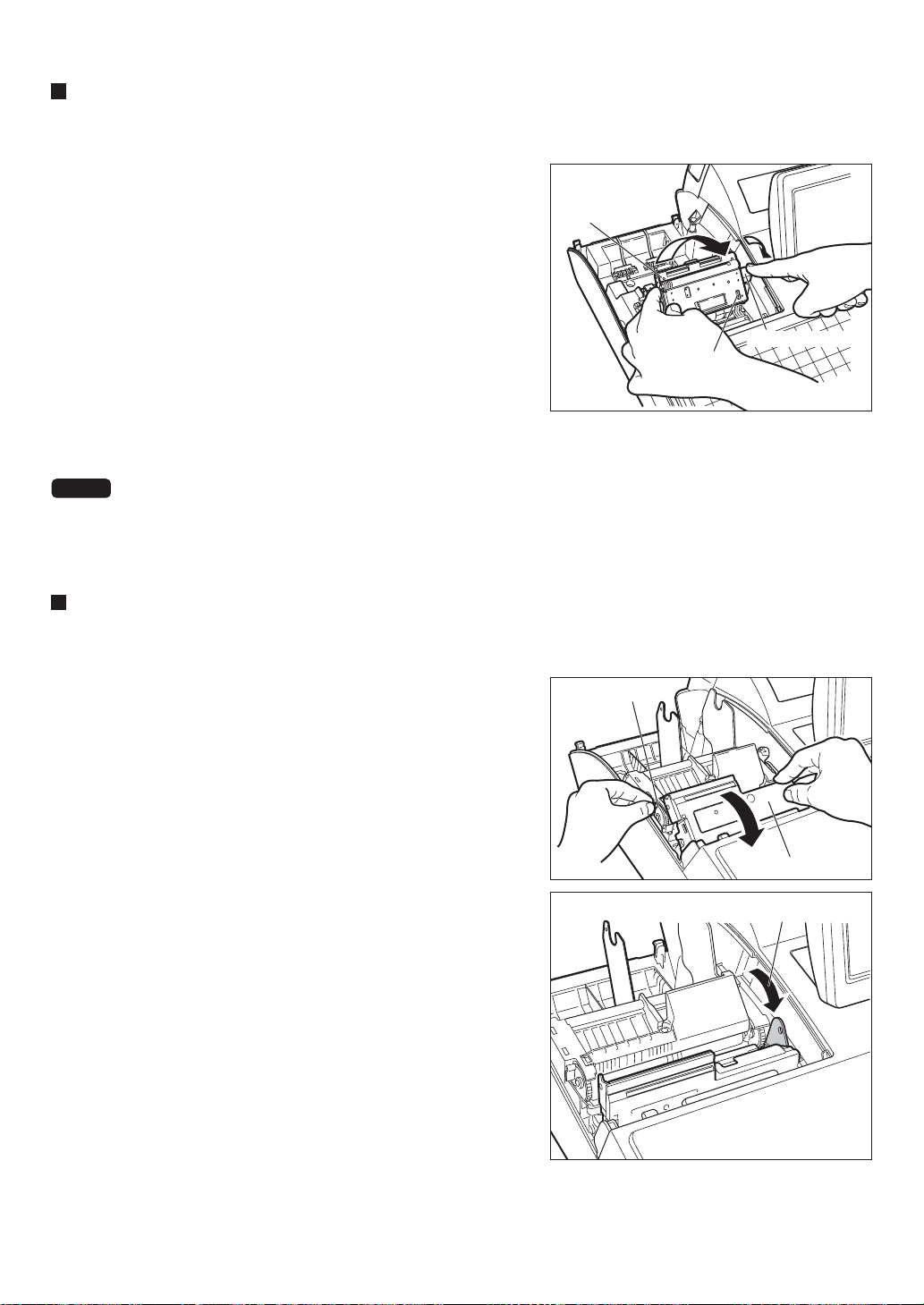
— 273 —
Removing a paper jam (UP-810F)
Precaution: Be very careful not to cut yourself with the cutter. Never touch the print head immediately after printing,
because the head may still be hot.
Cutter unit
Cutter open lever
Gear
1.
Remove the printer cover.
2.
While pushing the cutter open lever to the right, pull up the
cutter unit.
3.
Remove the paper jam. Check for any shreds of paper in the
printer and cutter unit and if any remove.
4.
Pull up the print head release lever to the “up” position.
5.
Remove the receipt paper. Cut off the paper end if it wrinkles
squashed.
6.
Return the cutter unit to its original position. Make sure the
metal part is surely hooked to the cutter open lever.
7.
Return the print head release lever to its original position.
8.
Reset the paper roll correctly by following the steps in “Install-
ing a paper roll”.
9.
Replace the printer cover.
NOTE
In case the cutter blade won’t return to its original position due to paper jams or small foreign objects like
clips stuck in the cutter unit, turn the gear on the cutter unit using a small screwdriver or some other
tapered tool.
Removing a paper jam (UP-820F)
Pull all the way forward
Cutter unit
Cutter open tab
Precaution: Be very careful with the cutter, so as not to cut yourself. Never touch the print head immediately after
printing, because the head may still be hot.
1.
Remove the printer cover.
2.
Remove the receipt paper, and if the paper jam is at the
journal paper, remove the journal paper, too.
3.
While pushing the cutter open tab, pull up the cutter unit.
4.
Pull the print head release lever all the way forward (after it
stops at one position, continue pulling forward until it stops
again and cannot be pulled forward any further).
5.
Remove the paper jam. Check for and remove any shreds of
paper that may remain in the printer.
6.
Return the print head release lever to its original position.
7.
Return the cutter unit to its original position. Make sure the
metal part is surely hooked to the cutter open tab.
8.
Reset the paper roll(s) correctly by following the steps in
“Installing the paper roll”.
9.
Replace the printer cover.
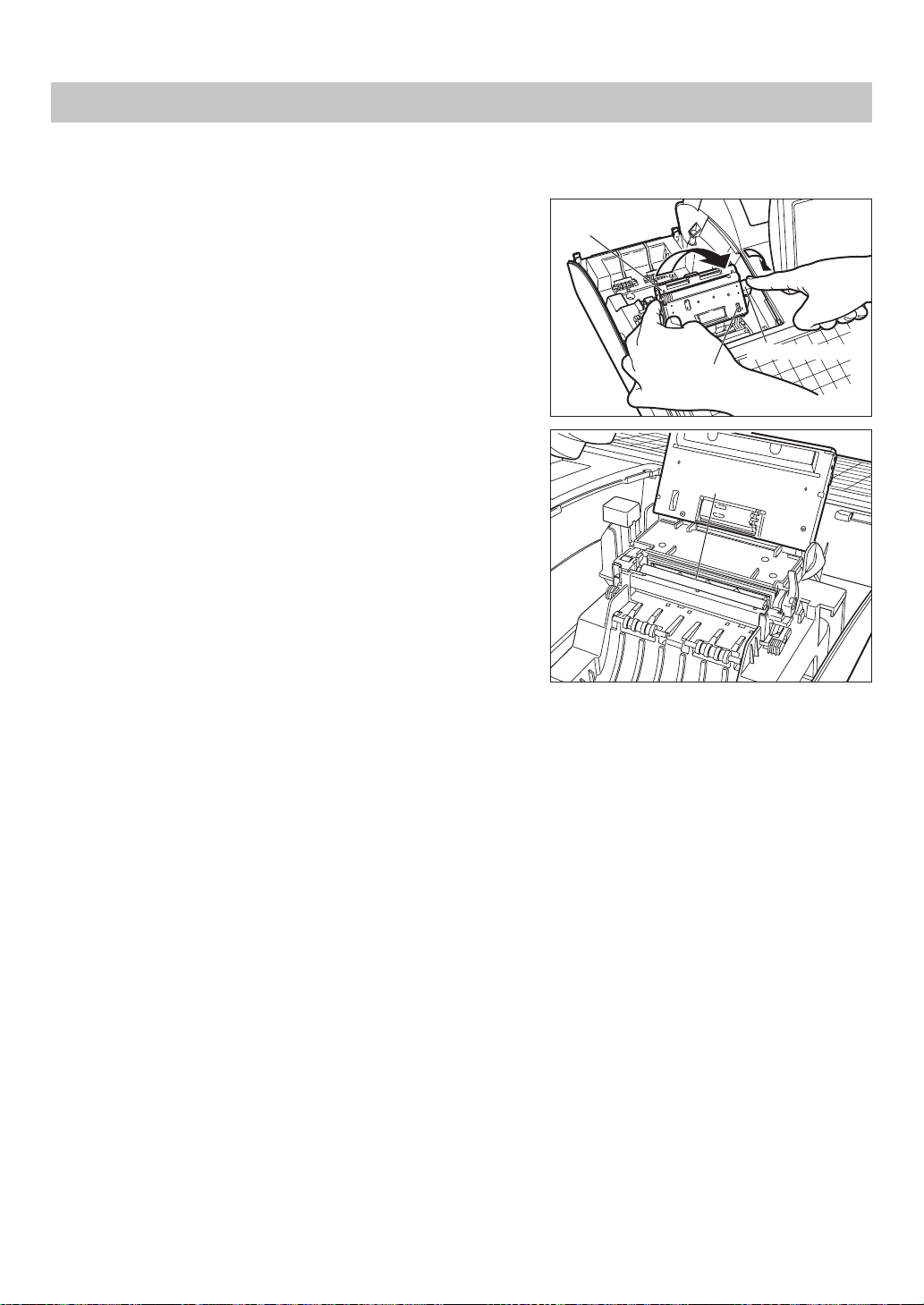
— 274 —
When the printed text is getting dark or faint, there may be paper dust adhering to the print head. Clean the print
head as follows:
Cleaning the Print Head (UP-810F)
1.
Select the OFF mode.
2.
Remove the printer cover.
3.
Pull up the print head release lever to the “up” position.
4.
Remove the paper roll.
5.
While pushing the cutter open lever to the right, pull up the
cutter unit.
Print head
Cutter unit
Cutter open lever
Gear
Precautions:
Never touch the print head with a tool or anything hard which
may damage the head.
6.
Clean the print head with a soft rag moistened ethyl alcohol or
isopropyl alcohol.
7.
Return the print head release lever to its original position
immediately after cleaning.
8.
Return the cutter unit to its original position. Make sure the
metal part is surely hooked to the cutter open lever.
9.
Reset the paper roll correctly by following the step in “Install-
ing a paper roll”.
10.
Replace the printer cover.
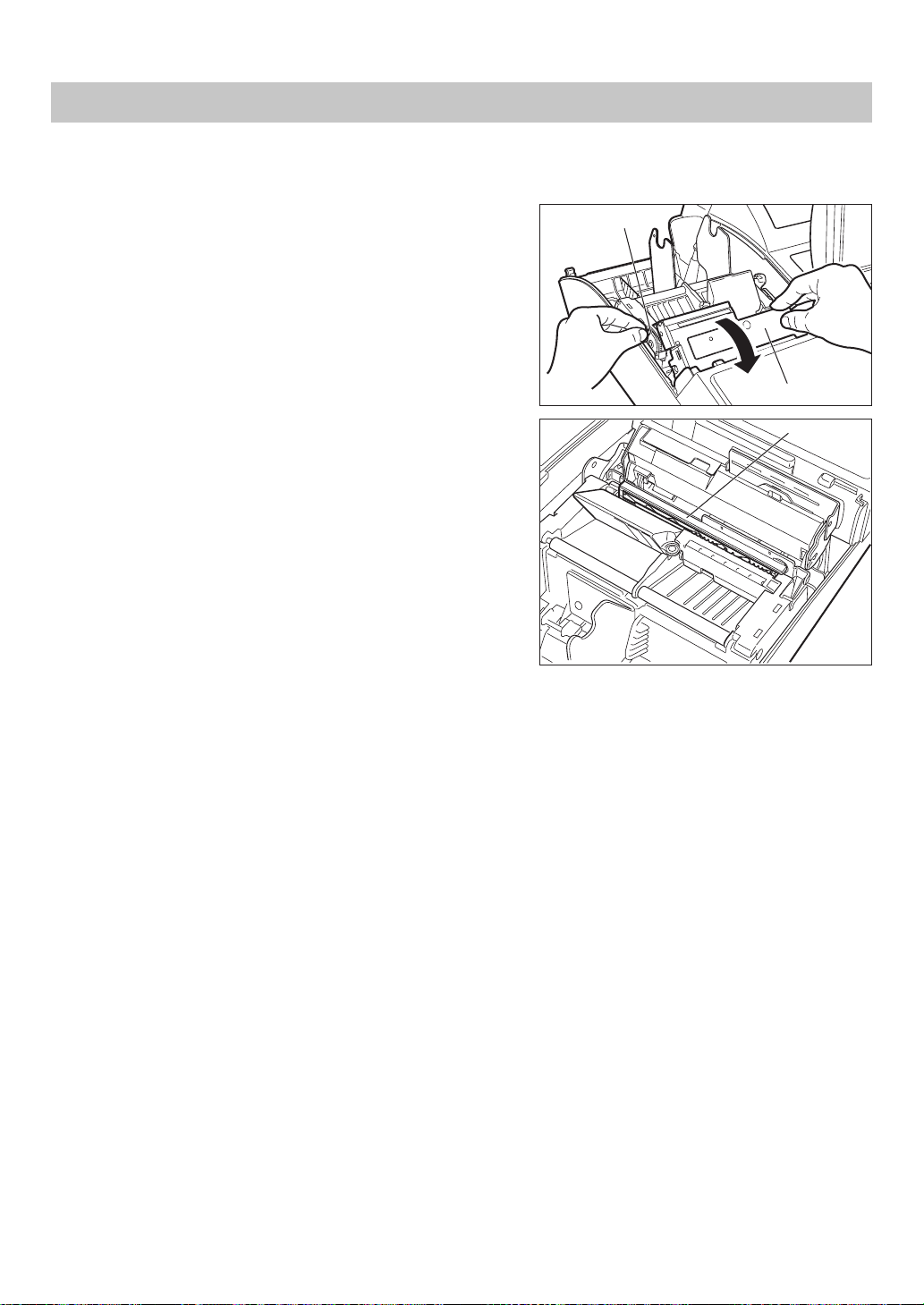
— 275 —
When the printed text is getting dark or faint, there may be paper dust adhering to the print head. Clean the print
head as follows:
Cleaning the Print Head (UP-820F)
1.
Select the OFF mode.
2.
Remove the printer cover.
3.
Pull up the print head release lever to the “up” position.
4.
Remove the paper roll(s).
5.
While pushing the cutter open lever to the right, pull up the
cutter unit.
Precautions:
Never touch the print head with a tool or anything hard which
may damage the head.
6.
Clean the print head with a soft rag moistened ethyl alcohol or
isopropyl alcohol.
7.
Return the print head release lever to its original position
immediately after cleaning.
8.
Return the cutter unit to its original position. Make sure the
metal part is surely hooked to the cutter open lever.
9.
Reset the paper roll(s) correctly by following the step in
“Installing a paper roll”.
10.
Replace the printer cover.
The above illsutration shows the built-in printer
of the UP-820F.
Cutter unit
Cutter open tab
Print head
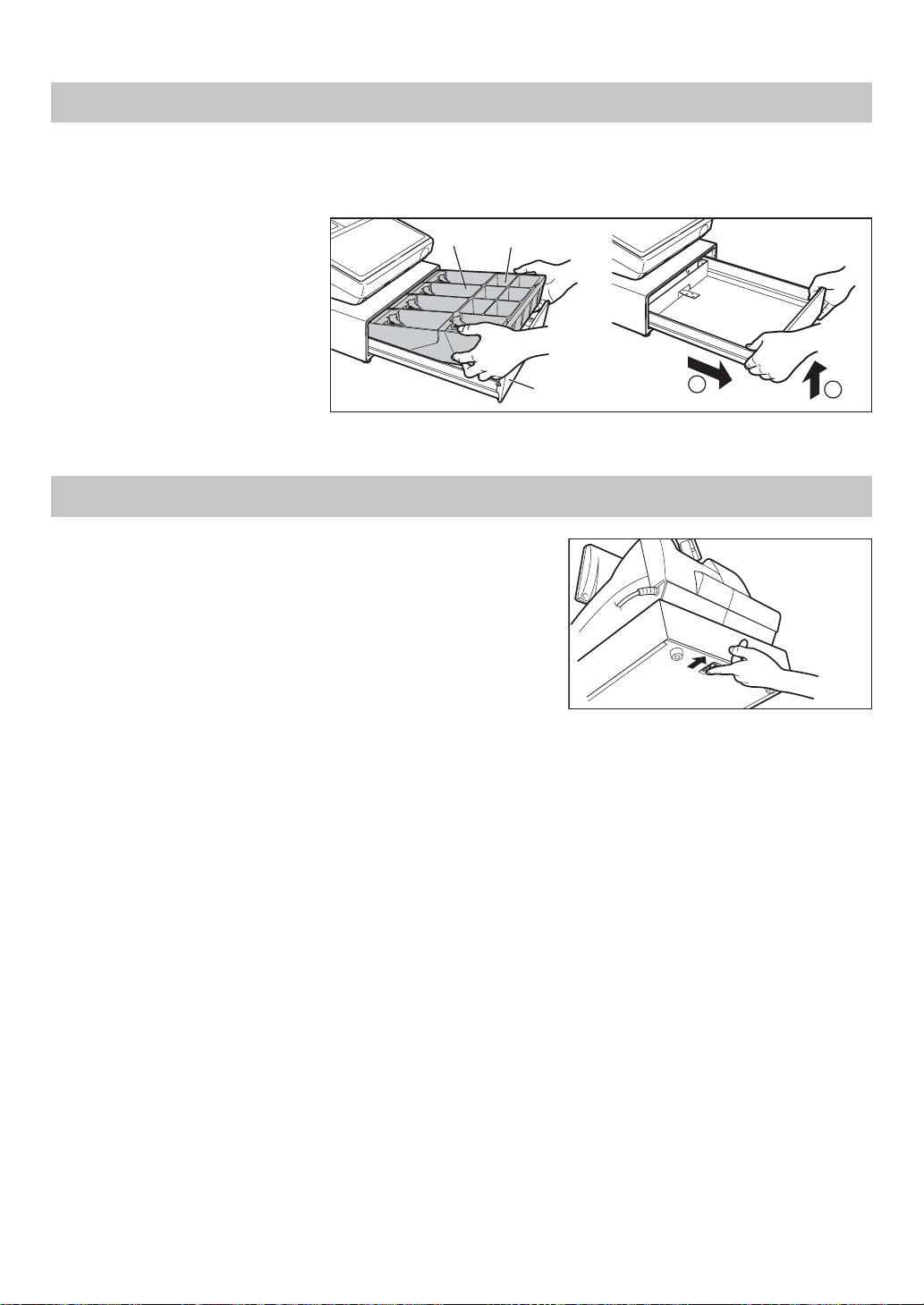
— 276 —
2
1
Till
Coin case
Drawer
The till in the POS terminal is detachable. After closing your business for the day, remove the till from the drawer
and keep the drawer open. The 6-denomination coin case is also detachable from the till. To detach the drawer, pull
it forward fully with the till removed, and remove it by lifting it up.
Removing the Till and the Drawer
The drawer automatically opens. However, when a power failure
occurs or the machine becomes out of order, slide the lever located
on the bottom of the machine in the direction of the arrow. (See the
diagram on the right.)
The drawer will not open if it is locked with the key.
Opening the Drawer by Hand
Lever
— 277 —
The following options are available for your POS terminal:
For further information, consult your authorized SHARP dealer. Do not try to install any option yourself.
1. Remote customer display model UP-P20DPB
2. Remote drawer model ER-03DW(B7) or ER-04DW
3. Remote coin case model ER-55CC2 or ER-75CC3
4. RAM memory board model UP-S04MB2
5. Magnetic card reader model UP-E13MR3
Phenomena shown in the left-hand column of the table below do not always imply functional faults of the terminal.
Before calling for service, please carry out checks as suggested in the "Check" column.
Before Calling for Service
The display does not illuminate
The display is illuminated, but the
whole machine rejects any entry.
No receipt is issued.
No journal paper is taken up.
(UP-820F)
Printing is unusual.
Phenomenon Check
Is power supplied to the electrical outlet?
Is the AC power cord plug disconnected or loosely connected to
the electrical outlet?
Is the contrast control adjusted correctly?
Is the terminal in the screen-save mode?
Is a server code assigned to the POS terminal?
Is the terminal set properly to the "REG" mode?
Is the paper roll properly installed?
Is there a paper jam?
Is the Receipt ON/OFF function in the "OFF" state?
Is the terminal set properly to the "REG" mode?
Is the take-up spool installed on the bearing properly?
Is there a paper jam?
Is the print head release lever in the printing position?
Is there a paper jam?
List of Options
16
— 278 —
Specifications
17
Model
External dimensions
Weight
Power source
Power consumption
Operating temperature
Electronics
Built-in battery
Keyboard
Display
Customer display
Printer Type
Printing speed
Printing capacity
Other functions
Paper Width
roll
Max. diam.
Quality
Cash drawer
Accessories
UP-810F
14.1 (W)* X17.6 (D) X14.7 (H) in. (358(W)* X 447(D) X 374(H) mm)
* Including the touch panel.
30.0 lbs (13.6 kg)
120 V AC ± 10%, 60 Hz
Stand-by: 21W
Operating: 49 W (max.)
32 to 104˚F (0 to 40 ˚C)
LSI (CPU) etc.
Rechargeable battery pack, memory retention time of about one month (with fully
charged built-in battery pack, at 77˚F [25 ˚C])
Flat keyboard
Operator display: Color LCD module and touch panel
400 (W) X 240 (H) (dots)
7-segment display (7 positions)
1-station thermal printer
Max. 20 lines/second
48 digits for receipt paper
Graphic logo printing function
Logo message function
Paper feed function
3.13 ± 0.02 in. (79.5 ± 0.5 mm)
3.15 in. (80 mm)
High quality (0.06 to 0.08 mm thickness)
5 slots for bill and 6 for coin denominations
Hardware Operation Manual: 1 copy
Standard key sheet: 1
(placed under keyboard cover)
Programming key sheet: 1
(placed under keyboard cover)
Paper roll: 1
Drawer lock keys: 2
UP-820F
30.9 lbs (14.0 kg)
Stand-by: 21 W
Operating: 52 W (max.)
2-station thermal printer
Max. 17.3 lines/second
48 digits for receipt paper
2.26 ± 0.02 in. (57.5 ± 0.5 mm)
Hardware Operation Manual: 1 copy
Standard key sheet: 1
(placed under keyboard cover)
Programming key sheet: 1
(placed under keyboard cover)
Paper rolls: 2
Take-up spool: 1
Drawer lock keys: 2
* Specifications and appearance are subject to change without notice for improvement.

— 279 —
NOTICE
PLEASE BE SURE TO ASK ABOUT THE WARRANTY THAT AN AUTHORIZED DEALER EXTENDS TO
YOU. In order to assure you, the end-user, of warranty protection, Sharp extends a limited warranty to each
of its authorized dealers, and in turn requires each of its authorized dealers to extend its own warranty to
you on terms that are no less favorable than those given to the dealer by Sharp. You should be aware,
however, that Sharp does not itself extend any warranties, either express or implied, directly to you, the
end-user, and no one is authorized to make any representations or warranties on behalf of Sharp. Specifically,
SHARP DOES NOT EXTEND TO YOU, THE END-USER, ANY EXPRESS WARRANTY OR ANY
IMPLIED WARRANTY OF MERCHANTABILITY, FITNESS FOR USE OR FITNESS FOR ANY PARTICULAR
PURPOSE IN CONNECTION WITH THE HARDWARE, SOFTWARE, OR FIRMWARE EMBODIED IN
OR USED IN CONJUNCTION WITH THIS PRODUCT.
Sharp is not responsible for any damages or loss, either direct, incidental or consequential, which you, the
end-user, may experience as a result of your purchase or use of the hardware, software or firmware
embodied in or used in conjunction with this product. Your sole remedy in the event that you encounter any
difficulties with the product is against the authorized dealer from which you purchased the product. In the
event that this authorized dealer does not honor its warranty commitments, please contact the Point of
Sale Division, ISG, Sharp Electronics Corporation, Sharp Plaza, P.O. Box 650, Mahwah, NJ 07495-1163
so that Sharp can try to help you to assure complete satisfaction of all the warranty rights to which you are
entitled from the authorized dealer.

— 280 —
SHARP ELECTRONICS CORPORATION
UP810F/820F_MIE10
Sharp Plaza, Mahwah, New Jersey 07495-1163
1-800-BE-SHARP
http://www.sharp-usa.com
SHARP CORPORATION

