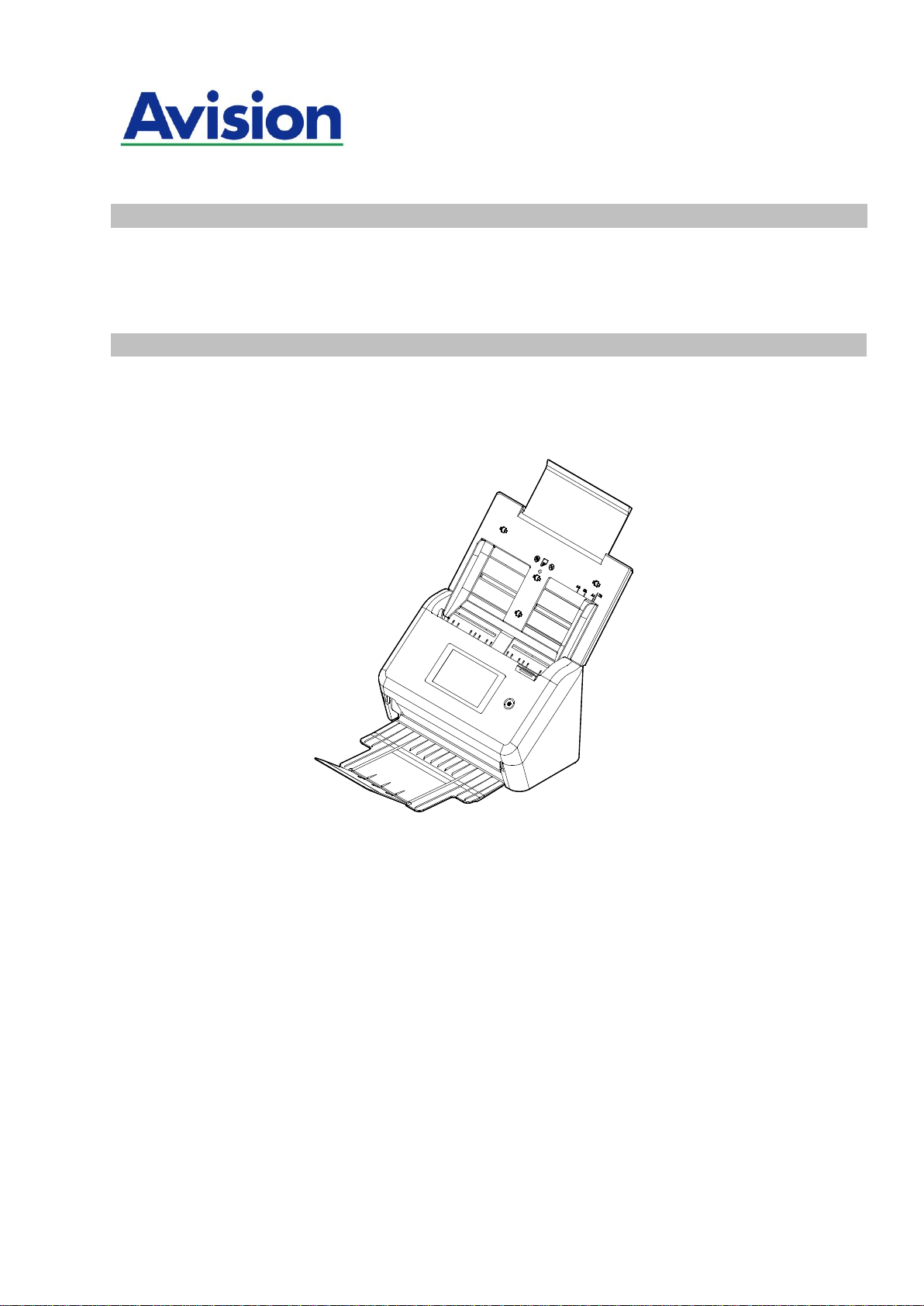
Network Scanner
User's Manual
Regulatory model: FF-2007H
Avision Inc.

ii
Copyrights and Trademarks
Ethernet is a registered trademark of Xerox Corporation.
Microsoft, Windows 7, Windows 8, and Windows 10 are registered trademarks of Microsoft
Corporation in the United States and/or other countries.
Other product names used herein are for identification purposes only and may be
trademarks of their respective companies. We disclaim any and all rights to those marks.
Warranty
The information contained in this document(s) is subject to change without notice.
The manufacturer makes no warranty of any kind with regard to this material, including,
but not limited to, the implied warranties of fitness for a particular purpose.
The manufacturer shall not be liable for errors contained herein or for incidental or
consequential damages in connection with the furnishing, performance, or use of this
material.
Safety Information
When using this equipment, the following safety precautions should always be followed.
Safety During Operation
In this manual, the following important symbols are used:
WARNING:
Indicates potentially hazardous situations, which if instructions are not followed, could
result in death or serious injury.
CAUTION:
Indicates a potentially hazardous situation which, if instructions are not followed, may
result in minor or moderate injury or damage to property.
Important:
Indicates operational requirements and restrictions. Please read and follow these
instructions to ensure a proper operation and to avoid damage to the machine.
Note:
Indicates further explanation or clarification. Reading this is highly recommended.
WARNING:
To avoid hazardous electric shock or fire, do not remove any covers or screws other than
those specified in this manual.
CAUTION:
To reduce the risk of fire, use only no.26AWG or larger telecommunication line cord.
Disconnect the power plug by pulling the plug, not the cable.
Do not touch the metal fingers of the ADF pad module. The edges are sharp and
touching them may result in injury.

iii
Precautions
Do not install the equipment near heating or air conditioning units.
Do not install the equipment in a humid or dusty place.
Place the equipment securely on an even, flat surface. Tilted or uneven surfaces may
cause mechanical or paper-feeding problems.
Retain the box and packing materials for shipping purposes.
Federal Communications Commission (FCC) compliance information
statement
Part 15
This equipment has been tested and found to comply with the limits for a Class B digital
device, pursuant to Part 15 of the FCC Rules. These limits are designed to provide
reasonable protection against harmful interference in a residential installation. This
equipment generates, uses and can radiate radio frequency energy and, if not installed and
used in accordance with the instructions, may cause harmful interference to radio
communications.
However, there is no guarantee that interference will not occur in a particular installation. If
this equipment does cause harmful interference to radio or television reception, which can
be determined by turning the equipment off and on, the user is encouraged to try to correct
the interference by one of the following measures:
Reorient or relocate the receiving antenna.
Increase the separation between the equipment and receiver.
Connect the equipment into an outlet on a circuit different from that to which the
receiver is connected.
Consult the dealer or an experienced radio/TV technician for help.
This device complies with Part 15 of the FCC Rules. Operation is subject to the following
two conditions: (1) This device may not cause harmful interference, and (2) this device
must accept any interference received, including interference that may cause undesired
operation.
European Union Regulatory Notice
Products bearing the CE marking comply with the following EU Directives:
Low Voltage Directive 2014/35/EC
EMC Directive 2014/30/EC
Restriction of the use of certain hazardous substances (RoHS) Directive 2011/65/EU
RED (Radio Equipment Directive) (2014/53/EC)
CE compliance of this product is valid if powered with the correct CE-marked AC adapter
provide by Avision.
This product satisfies the Class B limits of EN55022, EN55024, safety requirements of EN
60950 and ROHS requirements of EN50581.
*This machine is certified as Class 1 LED product.
iv
*Note the operating temperature for the battery is from -20° to 60° C. And the operating
temperature for the product is from 10° to 35° C.
If the operating temperature for the battery is outside the range of -20°~60° C, it may
cause cracking, rupturing, bursting, emission of flame or expulsion of molten metal to the
outside of the equipment enclosure.
Product Safety Guide
Please clearly read all these instructions, and follow all instructions and warnings before
installing and using the device.
The following indications are used in this document to obviate any chance of accident or damage
to you and/or the device.
WARNING
Indicates potentially hazardous situations, which if instructions are not
followed, could result in death or serious injury.
CAUTION
Indicates a potentially hazardous situation which, if instructions are not
followed, may result in minor or moderate injury or damage to property.
WARNING
Use only the AC power adapter that came with your device. Using any other AC power
adapter could cause fire, electrical shock, or injury.
Use only the AC power cord and USB cable that came with your device and avoid abrasions,
cuts, fraying, crimping, and kinking. Using any other AC power cord and USB cable could
cause fire, electrical shock, or injury.
Do not place objects on top of the AC power cord, and do not allow the AC power adapter
or the AC power cord to be stepped on or run over.
Place the device and its AC power adapter near an electrical outlet where the AC power
adapter can easily be unplugged.
If you use an extension cord with the device, make sure that the total ampere rating of the
devices plugged into the extension cord does not exceed the cord's ampere rating.
Place the device close enough to the computer so that the interface cable can easily reach
between the device and the computer.
Do not place or store the device or its AC power adapter:
Outdoors
Near excessive dirt or dust, water, or heat sources
In locations subject to shocks, vibrations, high temperature or humidity, direct
sunlight, strong light sources, or rapid changes in temperature or humidity
Do not use the device with wet hands.
Never disassemble, modify, or attempt to repair the AC power adapter, device, or device
option by yourself, except as specifically explained in the device's documentation. This
could cause fire, electrical shock, or injury.
Do not insert objects into any opening, as they may touch dangerous voltage points or
short-out components. Beware of electrical shock hazards.
Unplug the device and the AC power adapter, and refer servicing to qualified service
personnel under the following conditions:
The AC power adapter or plug is damaged.
Liquid has entered the device or the AC power adapter.
Object has entered the device or the AC power adapter.
The device or the AC power adapter has been dropped, or the case has been
damaged.
The device or the AC power adapter does not operate normally (i.e. appearance of
smoke, strange smell, odd noise, etc.), or exhibits a distinct change in performance
Unplug the device and the AC power adapter before cleaning.

v
CAUTION:
Do not attempt to operate the product in temperature outside the range of -20°~60° C.
If so, this may cause cracking, rupturing, bursting, emission of flame or expulsion of
molten metal to the outside of the equipment enclosure.
Note the the operating temperature for the battery is from -20° to 60° C and the
operating temperature for the product is from 10° to 35° C.
Do not locate the device on rackety or aslope tables. Do not locate the device on unstable
surface. The device may fall down and this may result in injury.
Do not place heavy objects on the unit. It may cause unbalance and the device may fall
down. This may result in injury.
Store the AC Power cord/USB cable bundled out of the reach of children to avoid the risk of
injury.
Keep plastic bags bundled out of the reach of children to avoid the danger of suffocation.
If you are not going to use the device for a long period, unplug the AC power adapter from
the electrical outlet.
Disposal of Waste Equipment by Users in Private Union
This symbol on the product or on its packaging indicates that the product can not be
disposed of with your other household waste. Instead it should be sent to appropriate
facilities for recovery and recycling in an effort to protect human health and the
environment. Fore more information about where you can drop off your waste equipment
for recycling, please contact your local city office, your household waste disposal service or
the shop where you purchased the product.
As an ENERGY STAR
®
Partner, Avision Inc. has determined that this
product meets the ENERGY STAR guidelines for energy efficiency.
System Requirements
CPU:
Intel
®
Core™ 2 Duo or higher
Memory:
32 bit: 2 GB
64 bit: 4 GB
Optical Drive:
DVD-ROM Drive
USB Port:
USB port 3.1 Gen 1 (compatible with USB 2.0)
Compatible
Operating
System:
Windows 10 (32 bits/64 bits), Windows 8 (32 bits/64 bits),
Windows 7

1
1 Getting Started
Introduction
Thank you for purchasing the network scanner. With the product, you can
instantly scan single-sided or double-sided document(s) and deliver the electronic
images to various destinations including E-mail addresses, ftp servers, network
folders such as FTP, FTPS, FTPES, or cloud servers such as Google Drive, Dropbox,
Evernote, OneDrive, or Microsoft SharePoint. In addition, the product also allows
you to save the scanned image to an inserted USB flash drive, or the product’s
own memory.
If required, the product can be used as a regular scanner through USB or wired
network connection to start a scan with your TWAIN-compliant software
application and optimize your scanned images with various advanced image
enhancement tool. You may refer to Chapter 7 Using the Product As a Regular
Scanner in this manual on how to use this function.
Various Scan to Destinations
Scanning and Sending Your Images to an E-mail address:
Connected to an ethernet network and a SMTP server, the product allows you to
transmit document(s) to your E-mail as attachment. With a touch of the E-mail
key and the selection of your recipients' E-mail addresses, the document(s)
is/are first scanned and converted into an image file, and then transmitted to
remote recipients within minutes.
Scanning and Sending Your Image to a Cloud server or Network Folder:
The product allows you to send the scanned documents to a server such as
Google Drive, Dropbox, Evernote, SharePoint Online or a network folder over
intranet with FTP (File Transfer Protocol), FTPS (FTP Secure), FTPES, SharePoint,
or SMB (Server Message Block Protocol). This feature off-loads the mail server
from handling large attachments.
Scanning and Saving Your Images to a USB Flash Drive:
By plugging a USB flash drive into the USB port of the product, the product
allows you to scan your document and save the scanned images to your USB
flash drive.
Scanning and Saving Your Images to the Product’s Memory:
By selecting a public folder as a filing destination, the product allows you to scan
and save the scanned image in the product’s memory and access the file from
the product’s embedded web page.

2
Scancast:
Scan and broadcast the images respectively to various destinations including a
cloud server, a public folder (the product’s memory), a USB flash drive, E-mail
addresses, a file server on the network such as FTP、FTPS、SMB.
Using Convenient Shortcuts:
By assigning your frequently used settings and scan to destinations as Shortcuts,
the product allows you to streamline your workflow and complete your scanning
task in just one press of a button.
Easy Customization:
This product makes user customization fast and easy by simply installing a
third-party app (short for application) to be run on the product. The new plug-in
app allows users to complete the scan tasks according to its own workflow.

3
Package Items
1. Scanner Main Unit
2. ADF Paper Tray
3. Ethernet Cable
4. Software CD/Quick Guide
5. USB Cable
6. Power Adapter & Power Cord
Note:
1. Only use the AC adapter DA-48M24 by APD/ADS-65LSI-24-3 24048E by
HONOR included in the machine. Using other AC adapters may damage the
machine and void the warranty.
2. Please unpack the packing carefully, and check the contents against the
checklist. If any items are missing or damaged, please contact your
dealer immediately.
1
2
3
5
4
3

4
External View
The Front View
Part Name
Function
Extension
Can be pulled out and adjusted to the size of the
document being scanned.
ADF Paper Tray
Load the document onto this part when scanning
document.
Paper Guides
Adjusts to the width of the documents to prevent
skewing of the scanned pages.
LCD Touch Panel
Operate the scanner through the touch screen.
Power Button
Press to turn on the power.
Output Tray
Open to collect the document after scanned.
Paper Stopper
Adjust to the length of the documents to prevent
them from falling apart.
ADF Paper
Tray
Extension
Paper Guide
Paper Stopper
The Power Button
Paper Guide
LCD Touch Panel
Output Paper Tray
5
The Rear View
Part Name
Function
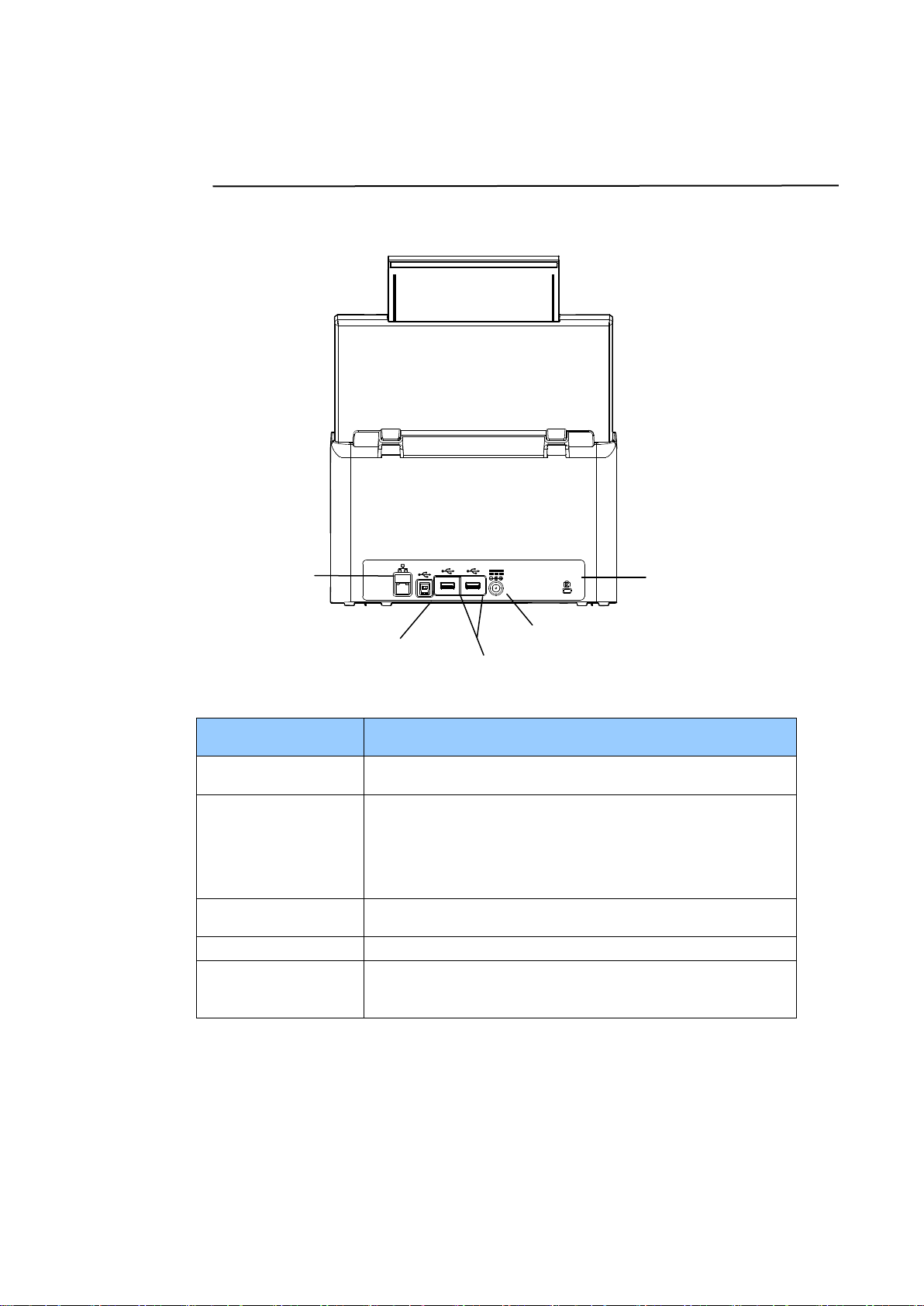
LAN Port
Connect the scanner to network with a LAN cable.
USB Port
Connect to your computer via the supplied USB
cable to use the device as a regular scanner.
Connect to your computer via the supplied USB
cable to download firmware if required.
Power Connector
Connect the AC adapter to the scanner.
USB Flash Drive
Used to insert a USB flash drive.
Kensington
Security Slot
Attach to a lock to secure the scanner.
Power Jack
LAN Port
USB Port
Kensington
Security Slot
USB Flash Drive Port
6
Removable Parts
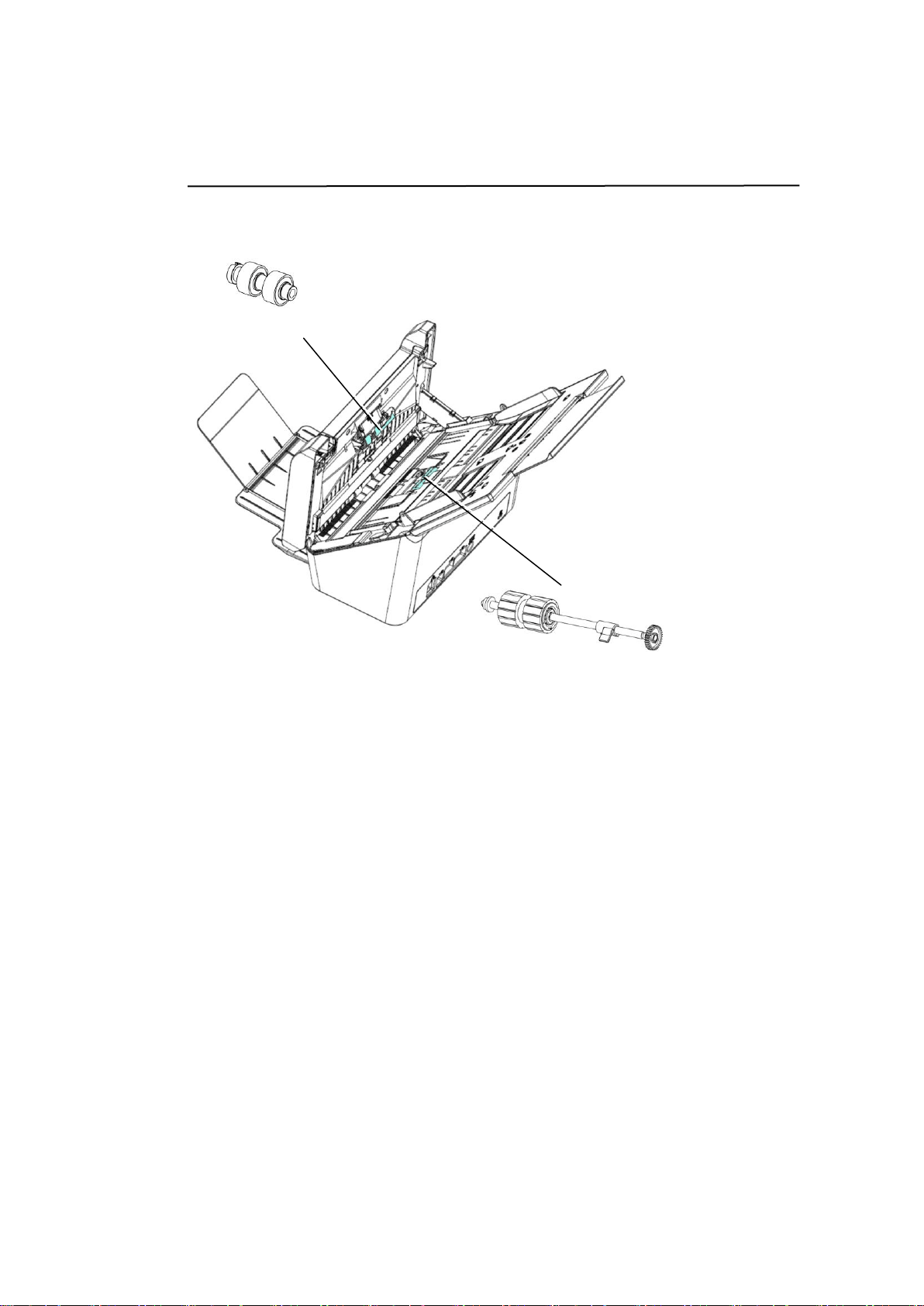
ADF Roller
Friction Roller
7
Pre-installation Information
Preinstallation
The product has to be setup properly on your network to perform E-mail and
filing functions. The following network parameters have to be set.
Important!
Make a copy of the following table and ask your Network Administrator
to complete the information.
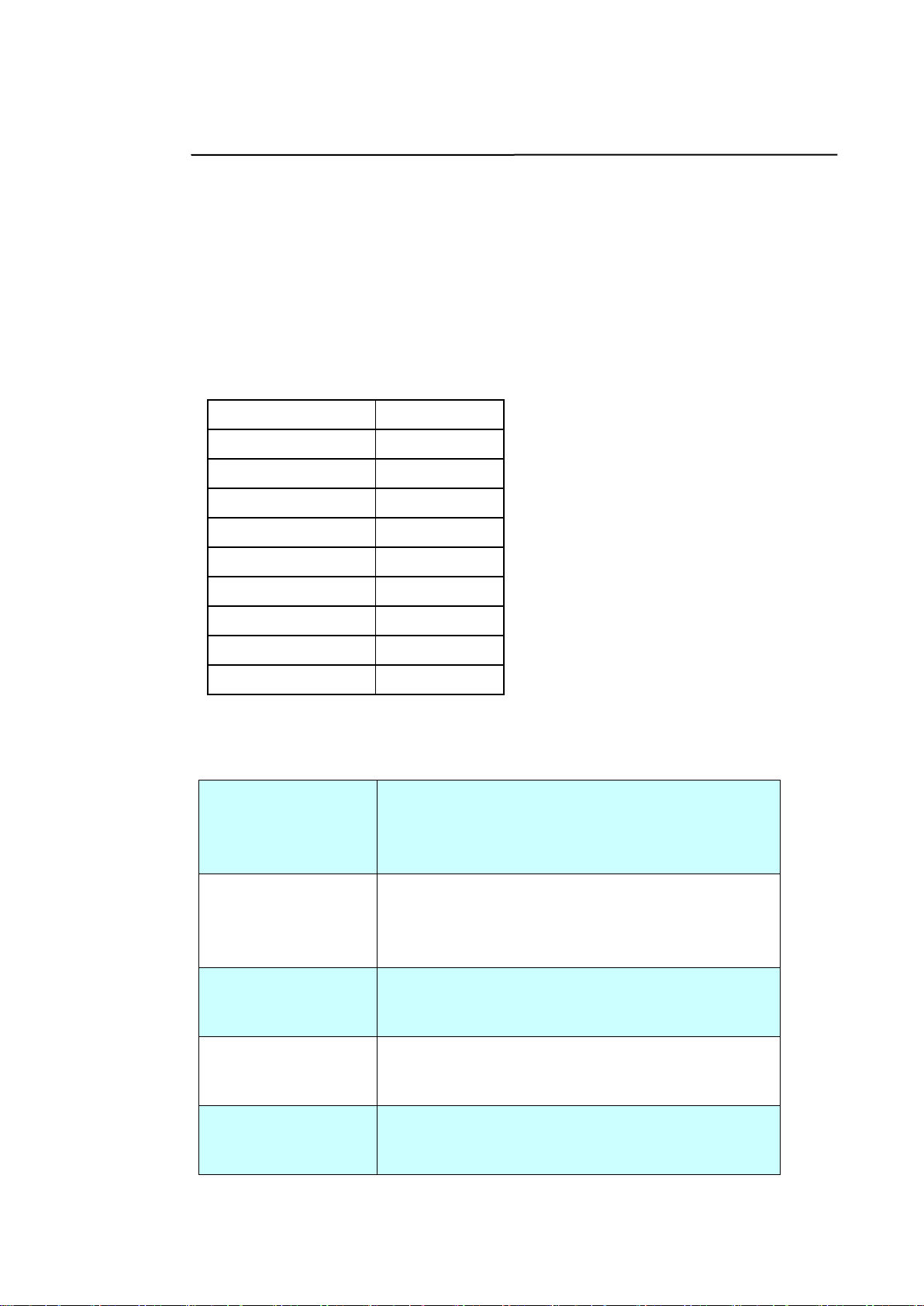
1. DHCP Enable:
2. IP Address:
. . .
3. Subnet Mask:
. . .
4. Gateway IP:
. . .
5. DNS Server:
. . .
6. WINS Server:
. . .
7. SMTP Server:
8. SMTP Port:
9. LDAP Server:
. . .
10. LDAP Port:
Explanation of contents:
1. *DHCP Enable:
Choose Yes to obtain IP/subnet/gateway/DNS
server/WINS server addresses automatically
from DHCP server.
2. *IP Address:
The Internet Protocol (IP) address assigned to
your machine by your network administrator or
by DHCP server.
3. Subnet Mask:
The net mask address assigned by your network
administrator or by DHCP server.
4. Gateway IP:
The gateway IP address assigned by your
network administrator or by DHCP server.
5. *DNS server:
The IP address of DNS server assigned by your
network administrator.

8
6. *WINS Server:
The IP address of WINS server assigned by your
network administrator.
7. *SMTP Server:
The IP address of your SMTP mail server
assigned by your network administrator.
8. SMTP Port:
The port number of your SMTP Mail Server.
9. *LDAP Server:
The IP address of your LDAP server.
10. LDAP Port:
The port number of your LDAP server.
Note:
1. DHCP server: With DHCP (Dynamic Host Configuration Protocol), a host can
automatically be given a unique IP address each time it connects to a
network--making IP address management an easier task for network
administrators. If the DHCP server is available from your network, you do
not need to enter TCP/IP, subnet mask, gateway, and DNS information.
Instead, this information will be automatically given for the product.
2. IP Address: An IP (Internet Protocol) address uniquely identifies a host
connection to an IP network. System administrator or network designer
assigns the IP address. The IP address consists of two parts, one identifying
the network and the one identifying your node. The IP address is usually
written as four numbers separated by periods. Each number can be zero to
255. For example, 10.1.30.186 could be an IP address.
3. DNS: Stands for Domain Name System. The DNS server identifies hosts via
names instead of IP addresses. If the DNS server is available on your
network, you can enter the domain name instead of digits for the IP
address.
4. DNS: Stands for Domain Name System. The DNS server identifies hosts via
names instead of IP addresses. If the DNS server is available on your
network, you can enter the domain name instead of digits for the IP
address.
5. WINS: Stands for Windows Internet Naming Service. WINS resolves
Windows network computer names (also known as NetBIOS names) to
Internet IP addresses, allowing Windows computers on a network to easily
find and communicate with each other
6. LDAP: Stands for Lightweight Directory Access Protocol. LDAP enables users
to access directories and address books directly from external networked
devices to simplify document distribution.

9
2 Installing Your Machine
This chapter is specifically targeted to the persons who are responsible for the
administration of the product. It is recommended that the administrator read this
chapter before installing the machine.
Minimum Configuration Requirements
To use the product as a network scanner, the following configuration is required:
To send E-mails from the product:
TCP/IP network
A Mail server
To file document(s) via intranet
FTP, FTPS, FTPES, or SMB protocol environment

10
Installing the ADF Paper Tray
1. Hold the ADF Paper Tray and insert two pins to the holes on the top of the
scanner as shown.
2. Pull out the extension to the length of the document.
3. Pull the Output Tray and raise the paper stopper to prevent the paper from
falling.
ADF Paper Tray

11
Connecting the Cables
Connecting the Ethernet Cable
1. Connect one end of your Ethernet LAN cable to an available port of your
Ethernet Hub.
2. Connect the other end to the port marked at the back of the product.
Connecting the Power and Turning on the Machine
1. Connect one end of the power cable to the power receptacle of the product.
2. Connect the other end to an appropriate power outlet.

12
3. Press the [Power] button to turn on the product. The Power LED lights
in green and the LCD Touch Panel will be displayed with a Home screen
as illustrated.
Note:
If the product will not be used for a long time, press the Power button for 3
seconds to turn off the power. Then unplug the product from the power
outlet.
Turning Off the Machine
1. Press the Power button for at least 2 seconds. A Confirmation dialog box
appears.
Power off
Reboot
2. Tap [Power off] to turn off the machine or reboot to restart the machine.
Power off
The machine is going to power off.
Cancel OK
3. Tap [OK] to turn off the machine.
13
Selecting Your Language
The product provides various languages on the LCD Touch Panel. Choose your
desired language to be displayed on the LCD Touch Panel.
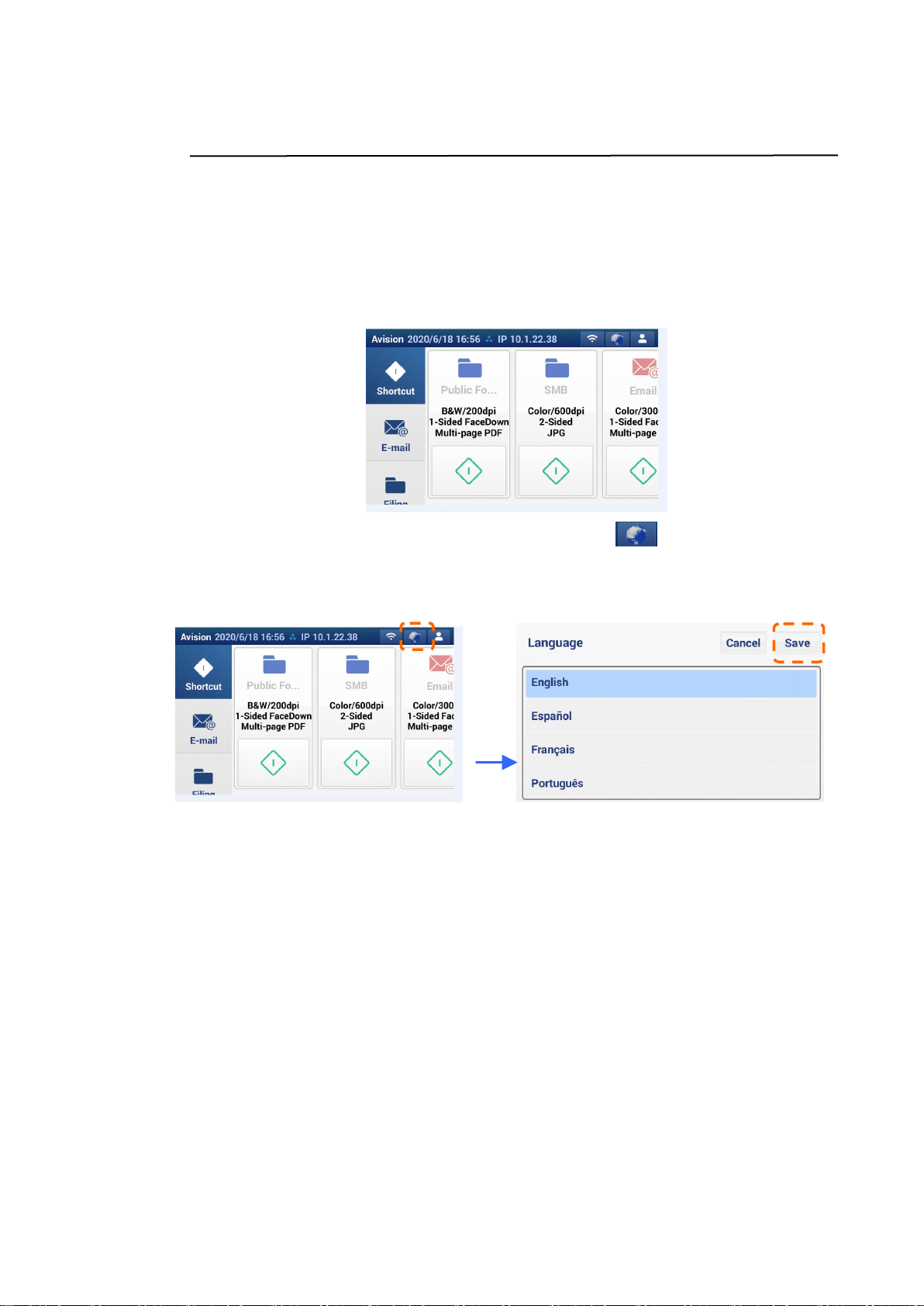
1. Press the [Power] button to turn on the product. The LCD Touch Panel will
be prompted with a Home Screen as indicated.
2. On the LCD Touch Panel, tap the language icon and then choose your
desired language. Choice : English, Deutsche, Française, Español, Português
Pусский, 中文繁體, 中文简体, תירבע .
3. Tap [Save] to save the setting.

14
Specifying the Product’s TCP/IP Address
If you connect the product to your computer via a network cable, you need to
specify an IP address for the product. An IP address can be obtained
automatically through the DHCP server by default, or you may specify a static IP
address via the product’s embedded web page. Please follow the steps in below
to configure the IP address of the product.
1. On the Home Screen of the LCD Touch Panel, tap
[Settings]>[Network]>[Wired] in succession and then set the IP address
for the product.
- Check [DHCP] if you wish to enable DHCP.
- Check [Static IP] if you wish to specify a static IP address. If [Static
IP] is selected, tap the IP Address/Subnet Mask/Gateway
IP/DNS Server field respectively to bring up the soft keyboard and
then enter the relevant values.
2. Tap [OK] to save the setting and go back to the previous screen.
Note:
If the system administrator has chosen DHCP, then the IP address of TCP/IP,
gateway, subnet mask, and DNS server will be automatically given.
When installing the product for the first time, it is recommended that the
Administrator retain the default system settings. The settings can be
customized at a later date once you are familiar with the operation and
functionality.

15
Specifying the Product’s Mail Server
To use the scan-to-email feature, you must specify the product’s SMTP server or
LDAP server if you wish to import an address book from other devices.
To specify the SMTP and LDAP server,
1. Open your browser and type the product’s IP address on the URL field to
prompt the product’s embedded web page.
Please login with the default user name and password – [admin]. The
password can be changed later in the web page.
2. On the product’s web page, choose [Network]>[Mail server]/[LDAP
Server] option to prompt the [Mail server]/[LDAP Server] page.
3. Enter your mail server information. Enter authentication information if
required. (See the following screen as an example.)
E-mail Server Setting
Mail Server
Enter the IP address of your SMTP server.
SMTP Port #
Enter the port number of the SMTP server.
* 25
Authentication
Method
Enter the email authentication method.
Choice: *None, SMTP, POP3
Encrypt
Choose the encryption method of your emails to
the SMTP server.
Choice: *None, STARTTLAS, SSL/TLS
Login Name
Enter the login name for SMTP authentication.
Password
Enter the password for SMTP authentication.
Mail Server
LDAP Server

16
LDAP Server Setting
LDAP Server IP or
URL
Enter the IP address or the URL of your LDAP
server.
Port #
Enter the port number of the LDAP server.
* 389
Login Name
Enter the login name of the LDAP server.
Note:
1. In Microsoft Active Directory, some servers
may require you to add “domain name” as
your full login name. For example, if your
domain name is “company” and your user
name is “administrator”, then your full
login name is “company\administrator”.
2. When your LDAP server requests an
“anonymous login”, please leave your
login name and password blank instead of
typing “anonymous” as your login name
and password.
Password
Enter the password of the LDAP server.
Search Root
Enter your base DN. Base DN (distinguished
name) identifies the starting point of a
search. A dn indicates what record to view
in an LDAP tree. The top level of the LDAP
directory tree is the base, referred to as the
"base DN". For example, you could indicate
a base of dc=com,dc=net for a search that
starts at the top and proceeds downward.
Search Attribute
cn
Obtain E-mail
Address From
mail
Timeout(second)
The specified time to connect the LDAP
server.
Authentication
Type
Choice: Anonymous, Simple
Note: Please check the SMTP server and LDAP server information with your
Network Administrator.

17
4. Click [Update] to save the setting and exit the page.
Note:
1. The login name is case-sensitive and is up to 32 digits or characters.
2. The password is case-sensitive and is up to 16 characters.
3. LDAP Search:
This machine supports two types of authentication, simple and anonymous, to
login your LDAP servers.
This machine allows up to 100 match results in a single search.
The attributes such as “cn” and “mail” have been predefined as the search field.
Therefore, if your search text is “m”, the LDAP search engine will search the name
or the email address that contains the character “m”. For example, you might
get the return match results such as “mary, [email protected]m”, or “jack,

18
Creating Your Address Book
To save the time in typing the E-mail address, you can create your address book
to speed up the process.
1. On the product’s web page, choose [Address Book] option to prompt the
[Address Book] page.
2. On the [E-mail List] tab, choose [New] to prompt the [Add a New E-mail
Address] page.
3. Enter your E-mail address and its description.
4. Click [Submit] to save the setting or [Quit] to leave the page without
saving any setting.
Note:
Up to 2000 E-mail addresses can be entered in the Address Book.
Address Book

19
Creating A New Filing Profile
To store your scanned image to the network folders, you need to first set up a
few network folders including FTP, FTPS, FTPES, Public Folder, SharePoint, or SMB
to store the images. You may first check with your System Administrator to make
sure that you have the privilge to access these network folders.
1. On the product’s webpage, choose [Filing Profile] to prompt the following
page.
2. Choose [New] to prompt the [Add a New Filing Profile] page.
3. Refer to the following table to create your Filing Profiles. Tap [Submit] after
the settings have been made satisfactory.
Item
Description
Profile Name
Enter the name of your profile. The name will be shown
in the LCD screen.
Filing Profile

20
Target URL
If FTPS, FTP, FTPES, SMB, or SharePoint is selected, enter
the URL address. You can either enter a domain name or
an IP address with the directory path. For example,
10.1.20.25/test
Choice: FTP, FTPS, FTPES, SMB, SharePoint, Public Folder,
USB.
Port #
Enter the port number for the [Scan to] server.
Passive Mode
Set your FTP connection mode. Choice: On/Off (default:
Off).
Login Name
Enter your login name to use the designated folder.
Password
Enter your password to use the designated folder.
File Name
Enter your default file name.
Document Side
Choose your desired default scanning side.
Choice: *1-Sided Face Down, 1-Sided Face Up,
2-Sided
File Format
Choose your desired default file format for the scanned
image.
Choice: JPEG, One-Page TIFF, M-TIFF (Multi-Page
TIFF), One-Page PDF, *M-PDF (Multi-Page PDF)
Output Color
Choose your desired default output color for the scanned
image.
Choice: *Color, Gray, B/W
Resolution
The resolution is measured in pixels per inch (ppi)
(sometimes referred to as dots per inch or dpi). Higher
resolutions result in more detail in the scan, slower
scanning and in general, greater file sizes. When OCR
(Optical Character Recognition) is to be performed on a
scan, 300dpi should be used for most languages except
Asian languages. For Asian languages, 400 dpi is
recommended.
Resolution: 150 dpi Resolution: 200 dpi
Note: If you are scanning duplex (two-sided) paper in
color mode, the max. resolution is 400 dpi.
Choice: 100, 150 dpi, *200 dpi, 300 dpi, 400, 600
dpi.
*: Factory default
4. If successful, the name of a new filing profile will be displayed in the
profile list.

21
3 Operation
Document Loading Tips
Before using the ADF (Auto Document Feeder), please make sure that your
paper meets the following specifications:
Document(s) can range in size from 74 x 50 mm (2.9 x 2 in.) to 216 x 356
mm (8.5 x 14 in.) (Legal).
Document(s) can range in weight from 12 to 110 lbs (50 ~ 413 g/m
2
)
ID cards up to 1.25 mm (0.05 in.) thick
Plastic cards compliant with the ISO7810 ID-1 type
Document(s) should be square or rectangular and in good condition (not
fragile or worn).
Document(s) should be free of curl, wrinkle, tears, wet ink, or punch holes.
Document(s) should be free of staples, paper clips, paper sticky notes.
22
Loading Document(s) in the ADF
Fanning Your Document
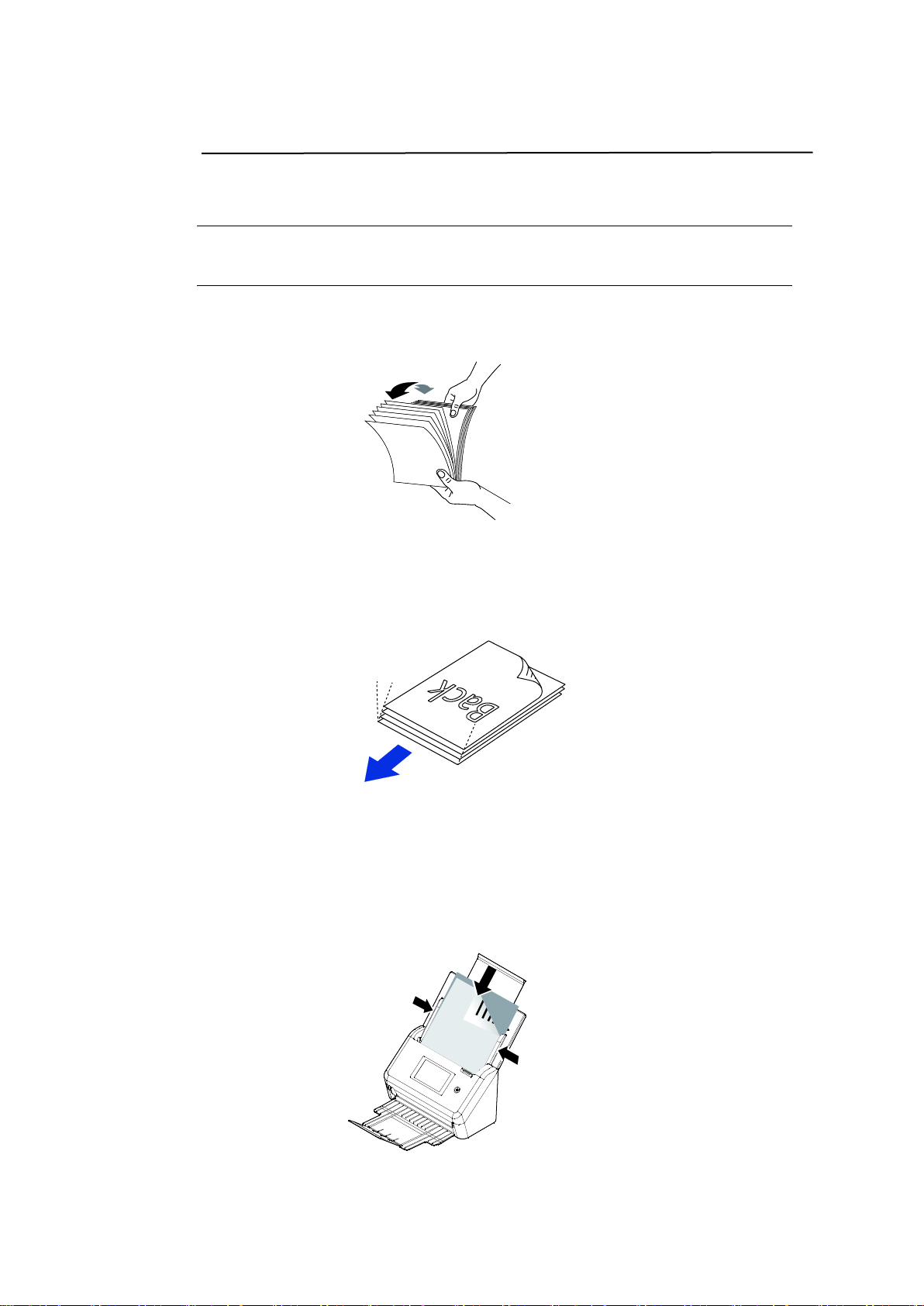
Note: To avoid occasional multi-feeds or paper jams, please fan your
documents and align the top edges before feeding them into the scanner.
1. Hold both ends of the documents and fan them a few times.
2. Rotate the documents by 90 degrees and fan them in the same
manner.
3. Align the edges of the documents in a step-like pattern (see picture
below).
Document Feeding
1. Load the stack of document face down with the top of the pages
pointing into the feeder.
2. Verify that the paper guides are aligned with the edges of the stack.
Step-like
Scanning
Direction

23
Scanning a Stack of Document with Various Sizes
and Weights
When scanning a batch of documents with different sizes and weights, be
sure to follow the following guidelines to avoid a skewed image or a paper
jam:
1. Align the documents TOP EDGE first in the sequence of paper size from
large to small.
2. If two pages are of the same size yet with different weight, arrange
these pages in the sequence of paper weight from heavyweight to
lightweight.
3. Align the edges of the documents by tapping the bottom of the stack
against the table top.
4. Center these pages in the document feeder and make sure that the
edges of page of the largest size slightly touch the Paper Guide.

24

25
Scanning and Sending Your Document to E-mail
Addresses
1. Load your document in the ADF with the 1
st
page facing down and the top of
the pages pointing to the feeder.
2. Press the E-mail button on the Home screen. The following E-mail
main screen will be displayed.
3. Enter the E-mail address.
- Touch any place on the “To” field (the empty box in the center) to bring
up the “soft keyboard” to type your email address. Tap the 2
nd
field to
enter your 2
nd
E-mail address. Or tap (Address Book) to select email
address from current Address Book.
- You can delete the E-mail address by touching the [Delete] button after
you input your email address.
4. Enter or select CC address as well, if necessary.
5. Tap [Settings] to check if the Document Sides, Output Color, or File Format
meets your requirements. If not, change the settings to suit your needs.
6. Tap the [Scan] button ( ) to start a scan.
7. In a second, the scanned image will be sent to your specified email address.

26
Settings Descriptions
Basic
Item
Description
File Format
Choose the file format for your scanned image.
Choice: JPEG, One-page TIFF, M-TIFF (Multi-Page TIFF),
One-page PDF, *M-PDF (Multi-Page PDF)
Note:
MPDF or MTIFF file format allows you to scan
multi-page document and convert it to a single file.
PDF file format allows you to save one image page in a
single file.
JPEG file format is available for Color and Gray images
only.
TIFF file format is available for B&W images only.
Resolution
The resolution is measured in pixels per inch (ppi) (sometimes
referred to as dots per inch or dpi). Higher resolutions result
in more detail in the scan, slower scanning and in general,
greater file sizes. When OCR (Optical Character Recognition)
is to be performed on a scan, 300dpi should be used for most
languages except Asian languages. For Asian languages, 400
dpi is recommended.
Resolution: 150 dpi Resolution: 200 dpi
Note: If you are scanning duplex (two-sided) paper in color
mode, the max. resolution is 400 dpi.
Choice: 150 dpi, *200 dpi, 300 dpi, 600 dpi.
Paper Size
Choose your document size: Choice: Auto、*A4、Letter、
Legal、4x6、5×7。(*: Factory Default)

27
Document
Sides
Choice: *1-Sided Face Down, 1-Sided Face Up, 2-Sided
1-Sided Face Down: Choose to scan single side of your
document and make sure the scanning side faces down on the
document feeder.
1-Sided Face Up: Choose to scan single side of your
document and make sure the scanning side faces up on the
document feeder.
2-Sided: If your original is a double-sided document, choose
2-Sided to scan both sides of your document.
Document
Type
Choose your document type.
Choice: *Mixed, Photo, Text
Text: Suitable for document contains pure text.
Photo: Suitable for document contains photos.
Mixed: Suitable for common business document with photo
or text.
Output
Color
Choose your desired output color for your scanned image.
Choice: *Color, Gray, B&W
Color: Choose Color if you wish to scan a color image for
your original in color.
Gray: Choose Gray image if your original contains actual
shades of gray.
Choose B&W if your original contains only text, pencil or ink
sketch.
Batch
Choose if you wish to enable Batch Scanning. If enable, after
scan is finished, a dialog box will be prompted to enquire if
you wish to continue scan. If yes, load your document to scan
another set of document.
Choice: ON/*Off
* Factory Default

28
Setttings for Various Mail Servers
When using the Scan-to-Email function, the machine will encounter various
setting problems on mail servers and cause the mails to be sent
unsuccessfully. This document is intended to help users to solve the settings
problems. The following is the setting information for Gmail and Office365.
For Gmail
1. Setting on a Gmail Account
When using Gmail as Mail Server, due to security issues, you will be
denied when you log in, and an error code 531534 will be displayed on
the machine. There are two ways to solve it. One is to access less
security app. The other is to enable 2-Step verification to generate a
set of app password for the machine.
(1) Access less security app.
Please first apply a testing account - testxxx@gmail.com and a
password – pwdxxx to specify the following settings:
(a) Login Gmail mailbox, enter My Account and then select [Security] and
click [Off] from the [Less secure app access] option.
(b) Turn on [Allow less secure apps: ON] as indicated.
Then, the machine can directly use the longin password on Gmail server.

29
(2) Enable 2-Step verification to generate App Password for the
machine.
Turn on 2-Step verification:
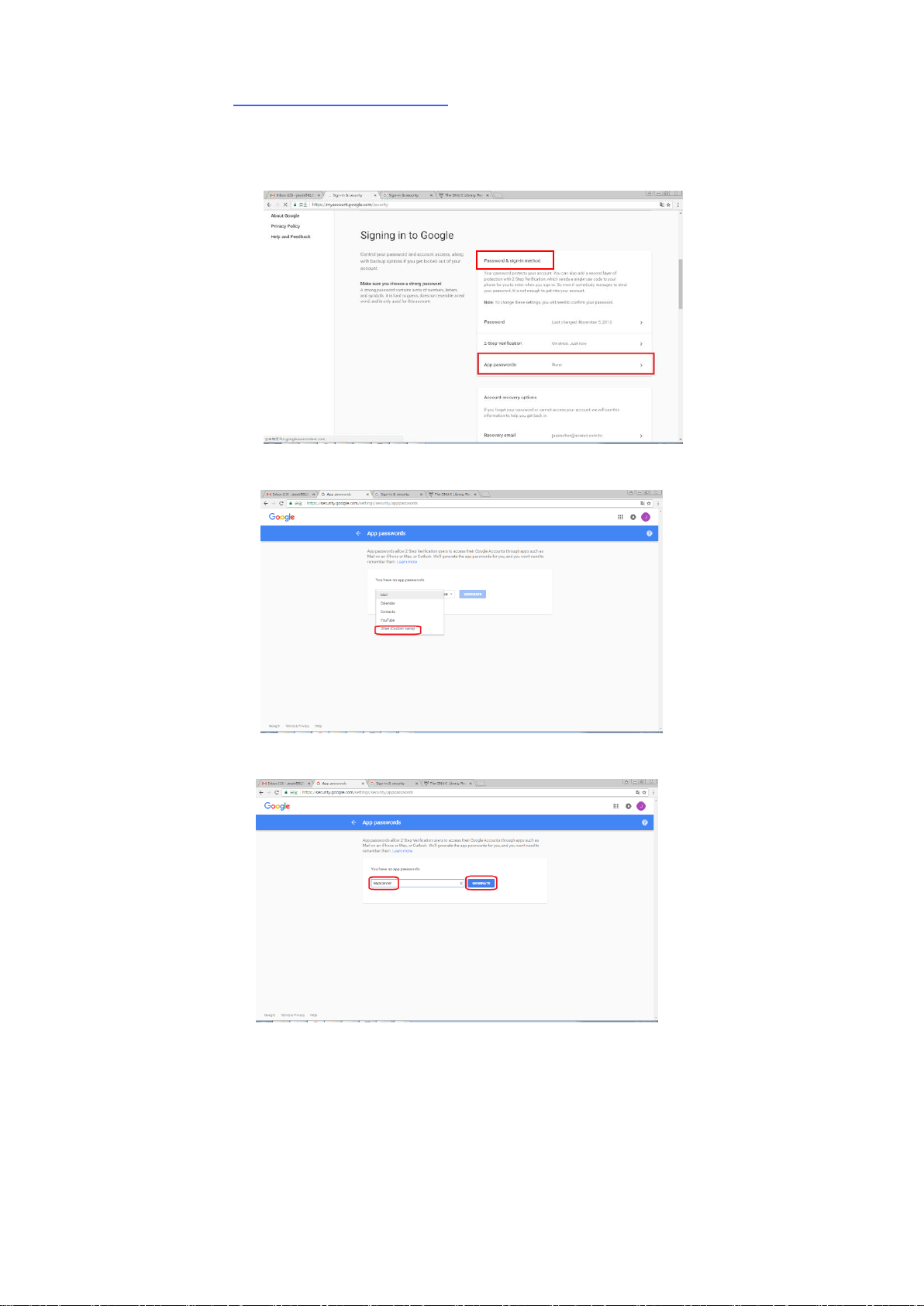
(a) Click [My Account]>[Sign-in & security]>[Password & sign-in
method] in succession and then turn on [2-Step verification] as
indicated in below.
(b) Click [GET STARTED] when the following dialog box is prompted.
(c) Enter your password and click [Next] when the new login screen is
prompted.
(d) Enter your mobile phone number and then click [TRY IT] to get the
verification code.

30
(e) Check the text message of your mobile phone and then enter the
verification code in the following dialog box and click [Next].
(f) Click [TURN ON] to complete the 2-Step verification.
31
Generate App Password:
(a) Return to [Signing in to Google] screen, an additional item - [APP
passwords] will be added on the [Password & sign-in method] option as
indicated in below. Click [>] as shown in the red box.
(b) Choose [Other (custom name)] in the following screen.
(c) On the output device – MyScanner, click [GENERATE].
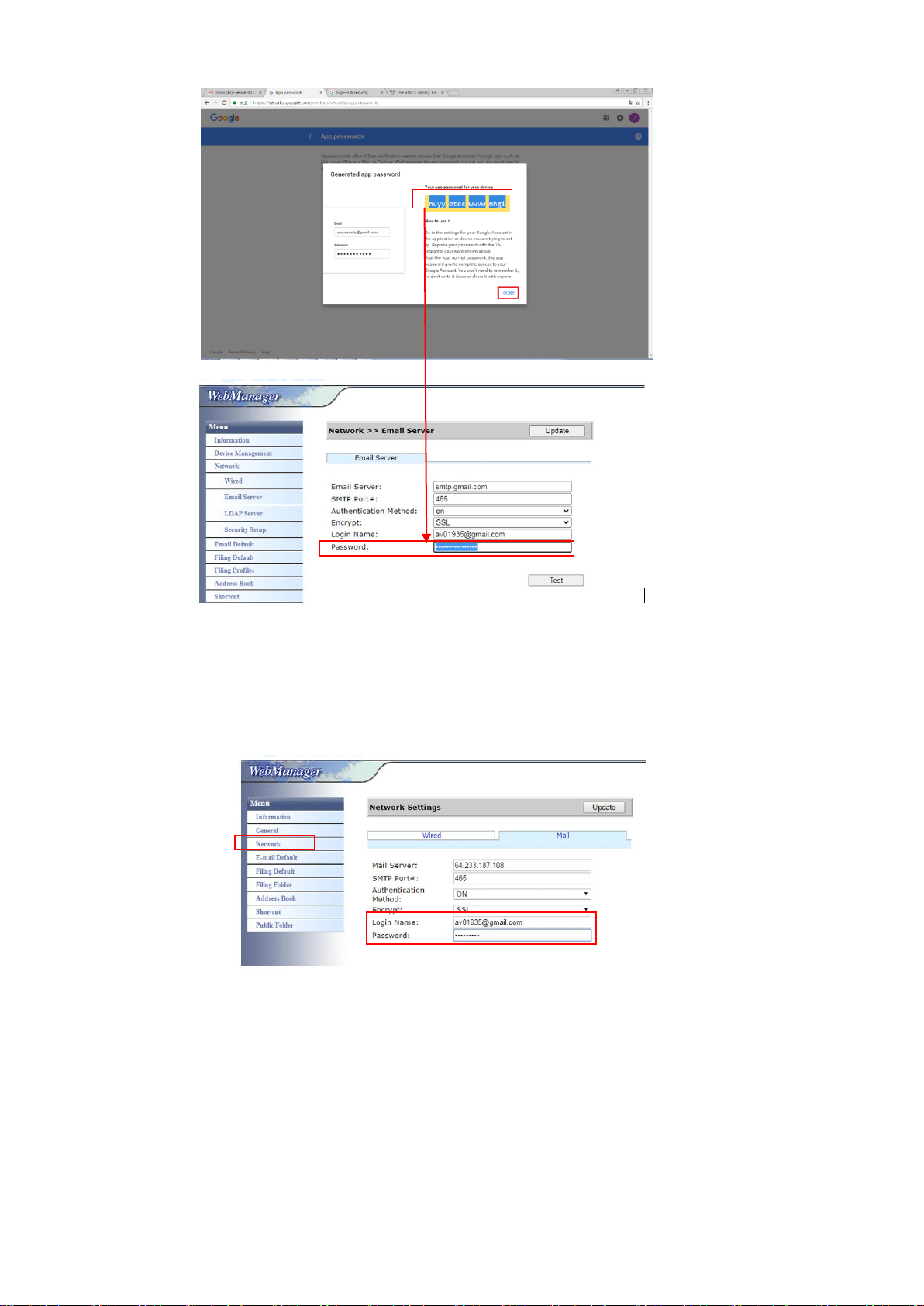
(d) The white text on the blue background is your app password for the
device. Make sure to copy the password first and then click [DONE].
Enter this password on the machine’s mail server setting.
32
Setttings on the Machine’s Webpage
(a) Open your browser and type the machine’s IP address on the URL
address to open the device’s enbedded webpage.
(b) Choose [Network] to open the [Network Settings] page and enter
Gmail’s account and password. Be sure to add @gmail.com after the
account and choose a encryption type, for example, SSL.
Note:
Gmail supports non-encryption connection yet you can only send mail to Gmail
users. The setting is:
Mail Server: aspmx.l.google.com
SMTP Port#: 25
Authentication Method:off
Refer to https://support.google.com/a/answer/176600?hl=zh-Hant

33
For Office365
Check if Connection Line is OK
To use office365, you must go through an external line and make sure if
connection is OK. The following is how to check if the connection is OK.
Take Option1 mail server as an example:
If successful, the following screen will be prompted.
The following link is a link to Office365. It contains informations for various
options. This document will explain Option1, Option2 and Office365 mailbox.
https://technet.microsoft.com/en-us/library/dn554323(v=exchg.150).aspx#option2
(a) Option1
1. This option can send mail to outside mailboxes such as Gmail or yahoo. This
method requires account and password login. The settings are:
Authentication: ON
Encrypt: STARTTLS
Port: 587
Mail Server: smtp.office365.com
Login Name : Network@tw.avision-global.com
Password : refer to Office365Pwd.txt
2. After completing the above setting, be sure to fill in the [From] field with
your Office365 account. On the machine’s touch panel, tap [E-mail]>[E-mail
Options] and then enter Office365 account in the [From] field as shown in
below.

34
(b) Option2
This option can only send mail to office365 accounts that are also registered
in the same group, and cannot sent mail to outside mailboxes. This method
does not require account and password. Settings are as follows:
Authentication: OFF
Encrypt: None
Port: 25
Mail Server: contoso-com.mail.protection.outlook.com
The following screen shows the Office365 mail server applied by Avision)
(The Avision office365 mail server account:
tw-avisionglobal-com02e.mail.protection.outlook.com)
(c) Office365 Mail Box
Simply click [Mail] after login to Office365 as indicated in below.
35
How to import e-mail address from a LDAP Server
1. Configuring Your LDAP Server Setting:
(1). Open your browser and type the IP address of the device on the URL
address. The webpage of the device appears.
(2). Login the webpage. (default user name and password: admin)
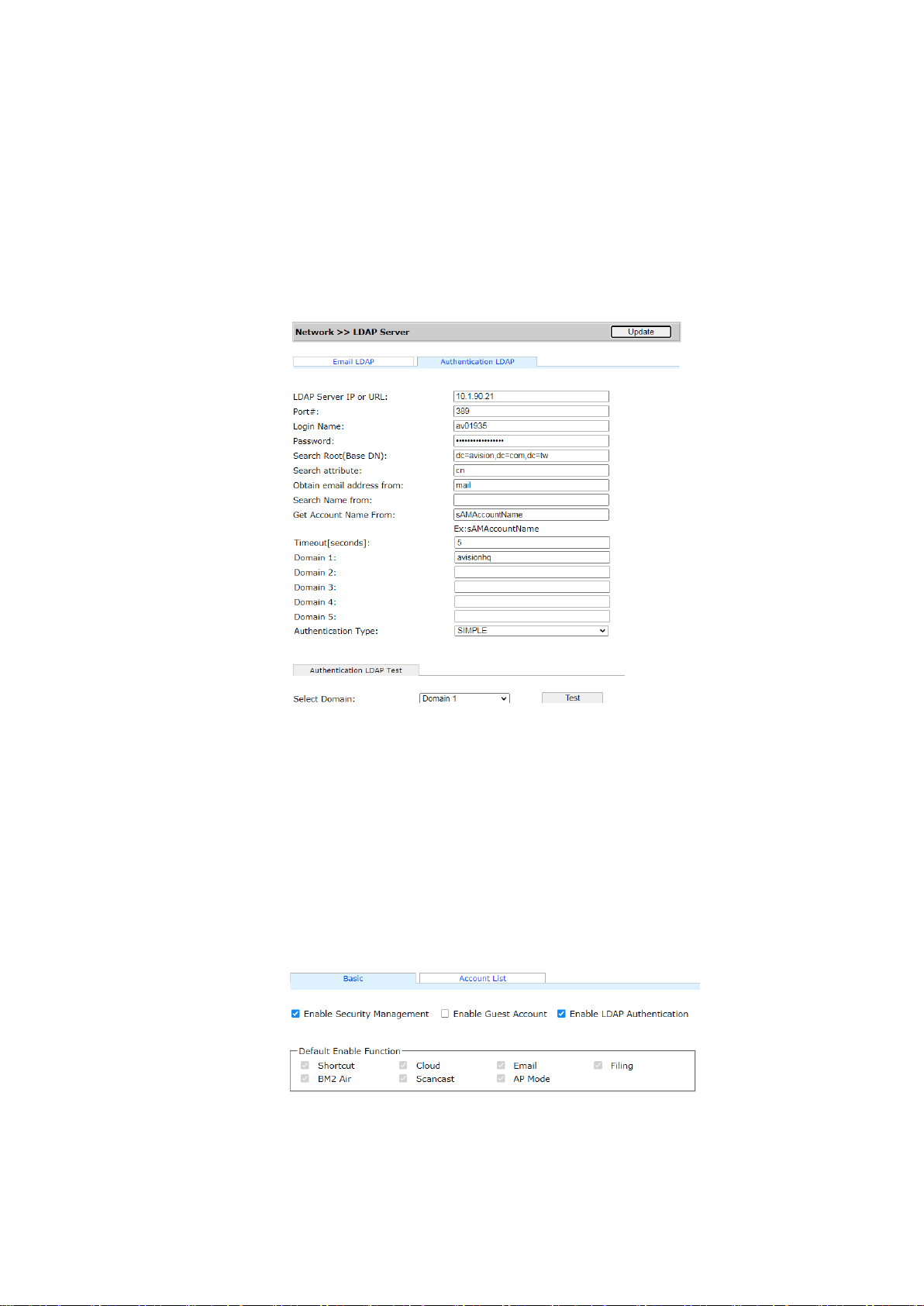
(3). Choose [Network]>[LDAP Server]>[Authentication LDAP] in
succession.
(4). Enter your LDAP information respectively and then click [Update] to
complete. Refer to the following example.
(5). You may try [Authentication LDAP test] to check if the connection
and login test successful with admin's AD(ActiveDirectory) account.
2. Set Accounts with LDAP authentication:
(1). On the device’s webpage, choose [Account Management] and
check [Enable Security Management] & [Enable LDAP
Authentication].
(2). Click the [Account List] tab, and click [New]. Check [LDAP
Authentication].
(3). Click [LDAP Search] and then enter your account and click [Submit]
to search your AD account. The search result will be displayed as
illustrated.

36
3. Use your account to log-in your network scanner.
37
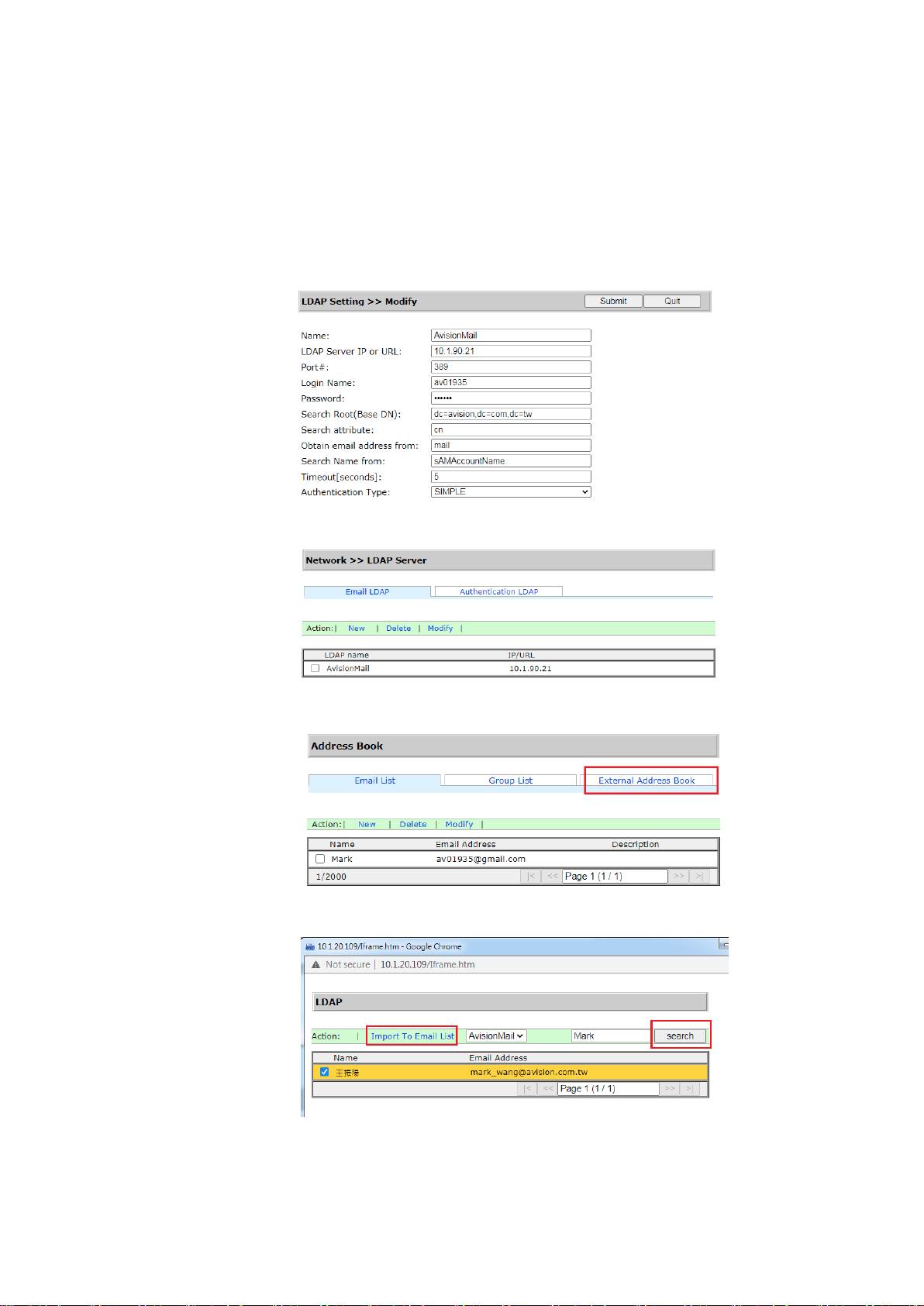
To import email address from LDAP Mail Server:
(1). Open your browser and type the IP address of the device on the
URL address. The webpage of the device appears.
(2). Login the webpage. (default user name and password: admin)
(3). Choose [Network]>[LDAP Server]>[Email LDAP] in succession.
(4). Enter your settings and click [Submit] to complete. Refer to the
following example.
(5). Then set a Mail LDAP.
(6). Choose [Address Book]>[External Address Book] in succession.
(7). Choose the Mail LDAP you have set.
(8). Search your account, and choose [Import to Email List].
(9). Finally, refresh your device’s webpage, you will see your e-mail has
been added to the address book from the LDAP Mail server.

38

39
Sending Your Document to a Network Folder, a USB
Flash Drive or a Public Folder
Important:
To send your scanned images to a network folder such as FTP, FTPS, FTPES,
or SharePoint, you may need to contact your System Administrator to get the
correct URL for the specified server. Your System Administrator will also give
you access to the site and a valid user login and password.
To send your scanned images to a network folder such as FTP, FTPS, FTPES,
or SharePoint, you need to first create a few destinations on the product’s
web page. (Refer to the preceding section Creating A New Filing Profile).
1. Load your document in the ADF with the 1
st
page facing down and the top
of the pages pointing to the feeder.
2. Press the Filing button on the Home screen. The following Filing
main screen will be displayed.
3. Choose a [Scan to] destination to store your scanned image.
4. Tap the [Settings] tab to check if the document side, output color, or file
format meets your requirements. If not, change the settings to suit your
needs. (For more information about the settings, see the settings
description described in the preceding section – Scanning and Sending Your
Documents to E-mail Addresses on page 24.)
5. Tap the [Scan] ( ) button. The scanner starts scanning your document.
6. Enter your user name or password when the Login window appears.
7. In a second, the scanned image will be sent to your specified destination.

40
How to Send Your Image to SharePoint
SharePoint (Server) is a web-based platform that your company owns and
operates. You can use the web site as a secure place to store, organize, share
information from any device through a web browser.
To add a SharePoint server for your filing profile,
1. Open your browser and type and IP address of your scanner. An embedded
webpage appears.
2. Login the page to acess more settings with default user name and
password – admin.
3. Click [Filing Profile] and then [New] to create a new filing profile.
4. Enter your Profile Name. For example, SharePoint.
5. Select [SharePoint] from the [Target URL] field and then type the IP
address or domain name of the SharePoint server provided by the IT
department of your company as illustrated in below:
You may also check with your IT personnel for the server port, domain
name and make sure that you have an authorized account.
6. Enter your login name and password.
7. Click [Submit] to complete the SharePoint settings.
8. If successful, a [SharePoint] profile will appear on the Profile list as shown
in below.

41
To scan and send your image to SharePoint Server,
1. Tap [Filing] and then choose [SharePoint].
2. Load your document to the scanner and then tap the [Start] button.
3. In a second, the scanned image will be sent to the SharePoint server.
42
Sending Your Scanned Image to a USB Flash Drive
To start a scan and send the scanned image to an inserted USB flash drive,
1. Load your document in the ADF with the 1
st
page facing down and the top
of the pages pointing to the feeder.
2. Insert a USB flash drive to the flash drive port on the rear side of the
scanner.
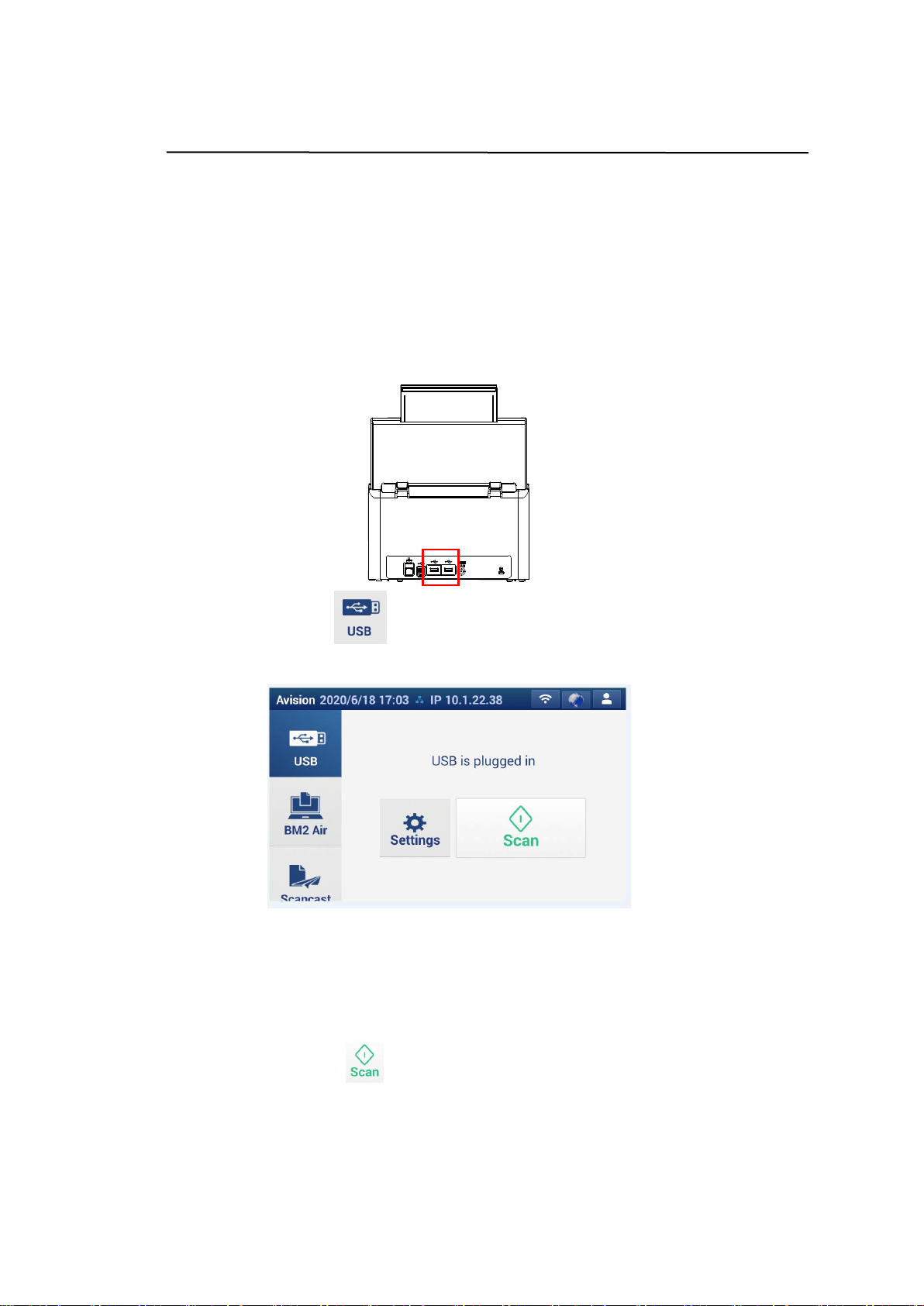
3. Press the USB button on the Home screen. The following Scan to
USB screen will be displayed.
4. Tap the [Settings] tab to check if the document side, output color, or file
format meets your requirements. If not, change the settings to suit your
needs. (For more information about the settings, see the settings
description described in the preceding section – Scanning and Sending Your
Documents to E-mail Addresses on page 24.)
5. Tap the [Scan] ( ) button. The scanner starts scanning your document
and storing in your USB flash drive.
43
Sending Your Document to Clouds
Important:
To send your scanned images to a cloud server such as Dropbox, Google Drive,
Evernote, OneDrive, and SharePoint Online, make sure you have the privilege to
access the cloud servers. For example you need to create a login name and
password first.
1. Load your document in the ADF with the 1
st
page facing down and the top
of the pages pointing to the feeder.
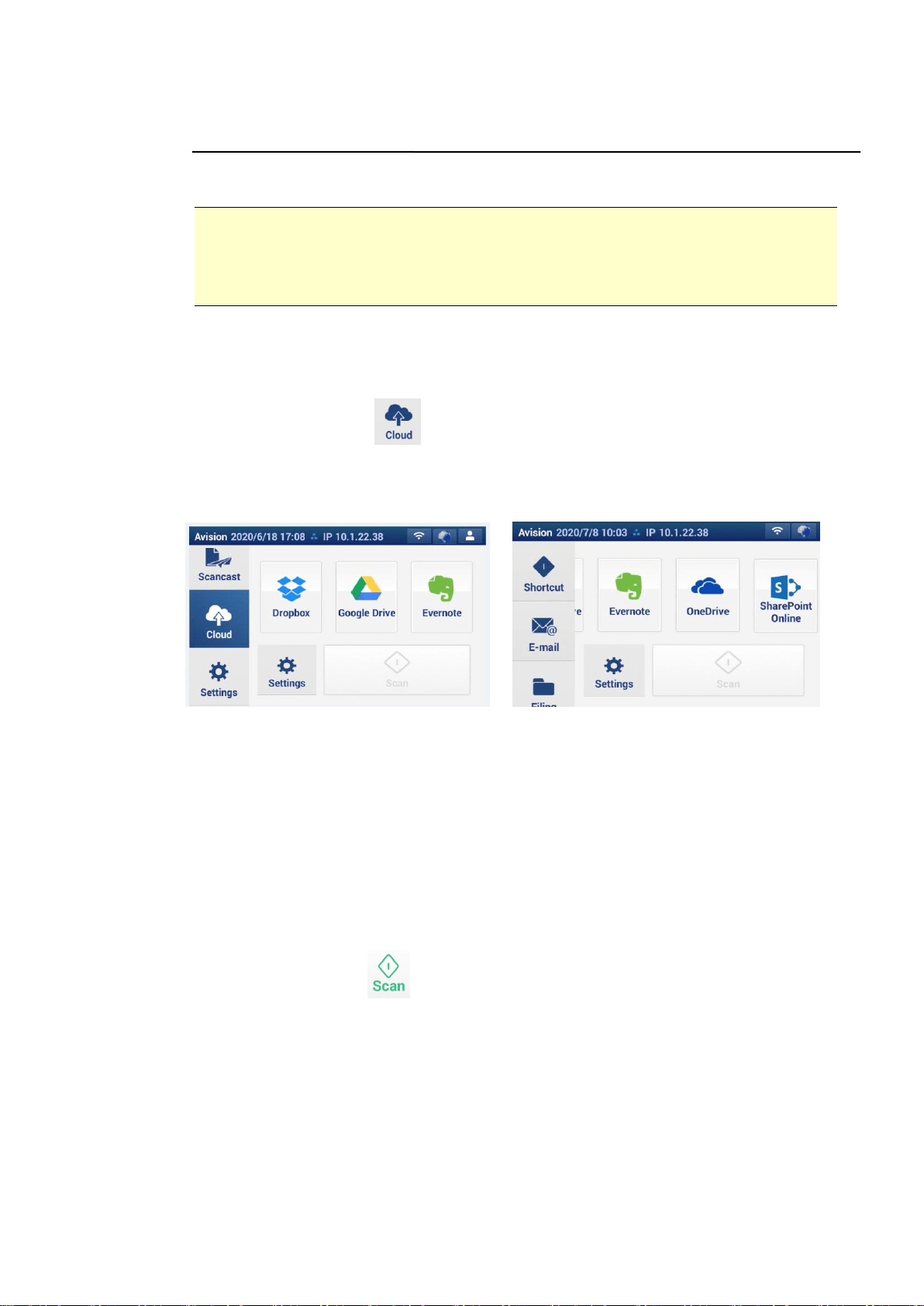
2. Press the Cloud button on the Home screen. The LCD Touch Panel
prompts the following Cloud main screen. Slide the screen left to acess
more cloud servers.
3. Choose your desired cloud server to save your scanned images. Choice:
GoogleDrive, OneDrive, SharePointOnline, Dropbox, Evernote.
4. Tap the [Settings] tab to check if the document side, output color, or file
format meets your requirements. If not, change the settings to suit your
needs. (For more information about the settings, see the settings
description described in the preceding section – Scanning and Sending
Your Documents to E-mail Addresses on page 24.)
For SharePointOnline, you may enter your desired group site name to store
your scanned image. Otherwise, the image will be sent to a default group
site name.
5. Tap the Scan button.
6. The product begins to upload your scanned images to your specified cloud
server.
On the web site of your specified cloud server, you will be required to
complete the login and authorization. If successful, your account will be
displayed and the scanned image will be stored in the cloud server.

44
How to Send Your Image to SharePointOnline
SharePoint Online, a platform within Microsoft Office 365, is a cloud-based
service provided directly by Microsoft.
To set SharePointOnline Setting:
1. Open your browser and type and IP address of your scanner. An embedded
webpage appears.
2. Login the page to acess more settings with default user name and
password – admin.
3. Click [ShortCut]>[New]>[Cloud] in succession to create a new ShorCut to
speed up the process.
4. Enter your Shortcut Name. For example, ShortPointOnline.
5. Select [SharePointOnline] from the [Target URL] field.
6. Enter your subfolder name to store the image. For example, bess. (You can
create next subfolder by adding “/”, for example, bess/invoice.
7. Enter your site address (group name). For example, 789. Or using default
site address to be stored in [Group website] site.
8. Click [Submit] to complete the settings.
9. If succesful, a new SharePointOnline will be added to the list as indicated in
below.

45
To scan and send the image to SharePointOnline:
1. Load your document to the scanner.
2. On the touch panel, tap the [Start] button of the [SharePoint] shortcut.
3. When the following [Sign in] dialog box is prompted, type your account name,
password, and then click [Next]. Click [Yes] when [Stay sign in] dialog box
is prompted.
4. The scanned image will be delivered to your SharePointOnline Cloud.
5. Open your browser and type the IP address/domain name of your company’s
SharePointOnline server. You can find your image in the SharePointOnline
page as shown in below. (Group name: 789, Subfolder: bess)
File Name
Your
Subfolder
Group Name

46
Creating a Shortcut Button
By setting frequently used scan settings and destinations as Shortcut on the
Home screen, the product helps you to streamline your workflow and complete
your scanning task in just one single step.
Plus, if the cloud server has been setup as a shortcut button on the main screen,
the login name and password will be remembered to save you the trouble of
having to enter the information each time you access the cloud server.
To create a Shortcut button,
1. Open your browser and type the product’s IP address on the URL field to
prompt the product’s embedded web page.
To access complete information of the web page, please login with the
default user name and password – [admin]. The password can be changed
later in the web page.
2. On the webpage, tap [Shortcut] >[New] >[Email] or [Filing] . For
example, tap [Email] to prompt the Email page.
3. Enter your Shortcut Name and type your frequently used email addresses
on the [To]/[CC]/[BCC] fields.
Shortcut

47
4. Tap [E-mail options] and then type your [From] address.
5. Tap [Advanced Setting] or [Layout Adjustment] to check if these
settings fit for frequent Email jobs. If not, change accordingly.
6. Tap [Order] and then enter the sequence no. of the shortcut to be
displayed on the Touch Panel.
7. Tap [OK] and then [Submit]. The new shortcut button will be displayed on
the LCD Touch Panel.
The New
ShortCut
Name

48
Using the Shortcut Buttons
To use a Shortcut button,
1. Tap the [Scan] button of your desired ShortCut button on the touch screen.
2. The scanner starts scanning.
3. The scanned images are sent to your specified destination.
The Scan Button
The ShortCut
Button

49
Scanning and Broadcasting Your Images
The Scancast (Scan and broadcast) feature allows you to scan a document first
and then send to many destinations respectively.
1. Load your document in the ADF with the 1
st
page facing down and the top of
the pages pointing to the feeder.
2. Press the Scancast button on the touch screen. The following
Scancast main screen will be displayed.
3. Tap [Settings] to check if the document side, output color, or file format
meets your requirements. If not, change the settings to suit your needs.
4. Tap the [Scan] ( ) button. The product starts scanning. The [Scancast]
window for multiple destinations appears.
5. Choose a [Cast To] destination for your scanned image. Choice: Cloud,
E-mail, Filing.
- Cloud: Choose your desired cloud servers from a selection of
Dropbox, Evernote, OneDrive, SharePointOnlineand Google Drive.
- E-mail: Enter [To/From] E-mail address.
- Filing: Choose your network folder.
If USB is selected, make sure a USB flash drive has been inserted to
the USB flash drive port of the product.

50
If Public Folder is selected, the scanned image will be stored in the
product’s memory. Enter the PIN number (folder name) during
scanning and then access the scanned image via the product’s
embedded web page. (Refer more detailed information on
subsequent section - Customizing the Product’s Settings via the
Embedded Web Page.)
6. Tap the [Export] button to deliver the scanned image to your first
destination. For example, an-email address.
7. After the scanned image has been delivered successfully, the following
[Scancast] window appears.
8. Tap [Back to Scancast] to go back to the [Scancast] window and choose
your 2
nd
destination.
9. Repeat Step 6 ~ Step 7 to send the scanned image to another destination.
10. If you have finished distributing your scanned image to all the destinations
you want, press the [Back] button to exit the screen.

51
4 Setting Up and Managing
Destinations
This section provides procedure for the administrator to setup and manage your
destinations including E-mail addresses or network folders to distribute the
scanned document on the network.
Setting Up Your E-mail Address Book
This section provides procedure for the administrator on how to setup E-mail
Address Book.
Adding a new E-mail Address
Follow these steps to add a new E-mail address.
1. Open your browser and type the product’s IP address on the URL field to
prompt the product’s embedded web page.
To access complete information of the web page, please login with the default
user name and password – [admin]. The password can be changed later in
the web page.
2. Choose [Address Book] to prompt the [Address Book] page.
Address
Book

52
3. On the [E-mail List] tab, choose [New] to prompt the [Add a New E-mail
Address] page.
4. Enter your E-mail address and its description.
5. Modify your address information. Click [Submit] to save the setting or [Quit] to
leave the page without saving any setting.
Note:
Up to 2000 E-mail addresses can be entered in the Address Book.
Editing a Current E-mail Address
To modify a current E-mail address,
1. Repeat Step 1 from the previous section, Adding a New E-mail Address. The
[E-mail Address Book] page will be displayed.
2. Choose the address you want to Modify from the list and then choose [Modify]
to prompt the [Modify E-mail Addresses] page.
3. Modify your address information. Click [Submit] to save the setting or [Quit] to
leave the page without saving any setting.
Deleting a Current E-mail Address
To delete a current E-mail address,
1. Repeat Step 1 from the previous section, Adding a New E-mail Address. The
[E-mail Address Book] page will be displayed.
2. Choose the address you want to delete from the list and then choose [Delete] to
erase the address. A Confirmation dialog box appears to confirm your deletion.
Click [OK] to confirm or [Cancel] to exit.

53
Adding a new E-mail Group
To send multiple addresses simultaneously at one time, you can create address
group to speed up the process. Up to 20 addresses can be included in one
group and a total of 20 groups can be created in the Address Book.
To add a new E-mail group,
1. Repeat Step 1 from the previous section, Adding a New E-mail Address.
The [E-mail Address Book] page will be displayed.
2. Tap [Group] and then choose [New] to prompt the [Add a New Group]
page.
3. Enter your group name and its description.
4. Choose the address from the right side and click to add a member to the
group.
5. Click [Submit] to save the setting or [Quit] to leave the page without
saving any setting.

54
Editing a Current E-mail Group
To modify a current E-mail group,
1. Repeat Step 1 from the previous section, Adding a New E-mail Address.
The [E-mail Address Book] page will be displayed.
2. Tap [Group] and choose the group which you want to modify from the list
and then tap [Modify] to prompt the [Modify E-mail Group] page.
3. Modify your group information. Choose the group member you wish to
add and then click to add the new member or click to delete an old
member from the group.
4. Tap [Save] to save the setting and leave the E-mail screen. Or tap
[Cancel] to leave the page without saving any setting.
Deleting a Current E-mail Group
To delete a current E-mail group,
1. Repeat Step 1 from the previous section, Adding a New E-mail Address.
The [E-mail Address Book] page will be displayed.
2. Tap [Group] and choose the group which you want to delete from the list
and then tap [Delete] to erase the group.
3. A Confirmation dialog box appears to confirm your deletion. Click [OK] to
confirm or [Cancel] to exit.

55
Setting Up Your Filing Profiles
The section provides procedure on how to setup your Filing Profiles to send your
scanned document to a specified network folder. The Filing Profiles can be setup
and managed through the product’s embedded web page.
Adding a new Filing Profiles
To create a Filing Profiles, follow these steps:
1. Open your browser and type the product’s IP address on the URL field to
prompt the product’s embedded web page.
To access complete information of the web page, please login with the
default user name and password – [admin]. The password can be changed
later in the web page.
2. Choose [Filing Profile] to prompt the following page.
3. Tap [New] to prompt the [New Filing Profiles] page.
4. Enter your Filing Profiles information. Refer to the preceding section,
Creating Your Filing Profile (page 20), on how to enter your folder
information.
5. Click [Submit] to save the setting or [Quit] to leave the page without
saving any setting.
Filing Profile

56
Editing a Current Filing Profiles
To modify a current Filing Profiles,
1. Repeat Step 1 from the previous section, Adding a New Filing Profiles. The
[Filing Profiles] page will be displayed.
2. Choose the Filing Profiles which you want to modify from the list and then
tap [Modify] to prompt the [Modify Filing Profiles] page.
3. Modify your folder information.
4. Click [Submit] to save the setting or [Quit] to leave the page without
saving any setting.
Deleting a Current Filing Profiles
To delete a current Filing Profiles,
1. Repeat Step 1 from the previous section, Adding a New Filing Profiles. The
[Filing Profiles] page will be displayed.
2. Choose the folder you want to delete from the list and then choose [Delete]
to erase the folder. A Confirmation dialog box appears to confirm your
deletion. Click [OK] to confirm or [Cancel] to exit.

57
5 Starting a Scan from Your
Mobile Device
When a mobile device is use, the scanned images can be received from the mobile
device. Wireless (Wi-Fi) Network: The availability of the feature varies according to
your product model.
Making Preparation
To connect the scanner to a wireless LAN, prepare the followings:
An environment in which a wireless LAN is available
When connecting the scanner to a wireless LAN, you may need information for a
wireless access point such as an SSID (network name) and a security key
(password). For details, contact your Network Administrator or refer to the manual
for the wireless access point.
Attention!
Do not place obstacles that block radio waves (e.g. walls or metal plates) or
devices that cause radio wave interference (e.g. cordless phones) within 100 mm
of the scanner, or near your wireless access point.
MB Application
Download the MB Application on your mobile device from an application store
such as Google Play.
MB
Application

58
Connecting to A Wireless Network
Connecting to a Wi-Fi network in an AP (Access Point) Mode
In AP (Access Point) mode, your mobile devices and the scanner are connected
wirelessly without an additional AP (Access Point) since the scanner itself works as
an AP.
1. If you have connected a wired Ethernet cable to the scanner, disconnect the
network cable.
2. Turn on the Wi-Fi switch on the back of the scanner. The Wi-Fi LED light will
be flashing and then turn solidly on.
3. On the Home Screen of the LCD Touch Panel, tap [Settings]>
[Network]>[AP Mode Setting]. In a second, the SSID and IP Address will
be displayed.
4. On your mobile devices, make sure Avision–xxxxxx (xxxxxx indicates the last
six digits of the Mac Address) has been selected as your network name
(SSID).
AP (Access Point)

59
Connecting the Scanner to a Wi-Fi Network in a Client Mode
In a Client mode, your mobile devices and scanner are connected wirelessly
through an additional AP (Access Point). This mode is also the default wireless
mode.
Connecting Your Scanner to an Access Point:
Important:
Note the wired and wireless mode can not work at the same time. To connect the
scanner in a wireless network, please first disconnect the Ethernet cable
connecting to your scanner.
1. If you have connected a wired Ethernet cable to the scanner, disconnect
the network cable.
2. Make sure the Wi-Fi LED light is flashing. If not, turn on the Wi-Fi switch on
the back of the scanner. The Wi-Fi LED light will be flashing.
3. On the Home Screen of the LCD Touch Panel, tap [Settings]>[Network].
Make sure that [Wireless Client] is turned on.
4. In a second, current wireless networks near you will be displayed as shown
below.
AP (Access Point)

60
5. Select an Access Point and click [Connect] to connect the scanner to a
specified Access Point, for example, SMCWBR14S-NL. In a few seconds, if the
connection is successful, the IP address and Mac address of the scanner will
be displayed as indicated above.
Note:
If your access point is set to not broadcast the SSID, please follow these steps to
manually add the SSID name (network name):
1. On the wireless page, tap the [More Settings]> button and then choose
[Add network]. The [Add network] page will be displayed.
2. Enter the Network SSID name and choose the security mode, encryption
type, and network key and then tap [Save] to search the wireless network
manually.
Your scanner supports the following authentication methods:
Security mode
Encryption method
Key Index
WPAPSK
TKIP, AES, TKIPAES
X
WPA2PSK
TKIP, AES, TKIPAES
X

61
Connecting to a Wireless Access Point Using the WPS Button
You may connect the scanner to a WPS compatible wireless access point by
pressing the WPS button on the back of the scanner.
Before You Begin!
To enable the WPS connection of your access point, please refer to the user’s
guide of your access point.
Perform the following procedure to connect.
1. Confirm your wireless access point/router has the WPS or AOSS
TM
symbol as
shown below.
2. Turn on the Wi-Fi switch on the back of the scanner. The Wi-Fi LED light will
be flashing.
3. Press the WPS button of your wireless access point. (You may refer to the
user’s guide of your access point/router for instructions on how to use the
WPS button.)
4. On the wireless page, tap the [More Settings]> button and then choose
[WPS Push Button] for at least 2 minutes.
5. If the connection is successful, the Wi-Fi LED light of the scanner will turn
solidly on and the connected AP name will be displayed on the page as
indicated below.

62
Scanning a Document from a Mobile Device
Make sure that the MB Application (Scan App) has been installed on your mobile
device. The MB Application can be purchased for free from an application store
such as Google Play.
1. Enable [Wi-Fi] from [Settings] of your wireless computer, smartphone, or
tablet and then choose the same network name (SSID) of your scanner. For
example, SMCWBR14S-NL.
2. Tap the MB app ( ) on the screen to launch the Scan Application. The main
window will be displayed and the application will automatically search a
scanner in the same wireless LAN. If successful, [Start scan] will be
displayed at the bottom as shown below.
ATTENTION:
If the scanner is not found, please check the
followings:
1. The scanner is not ready yet. Tap [More
Settings] and then [Search scanner]
to search the scanner again.
2. Check if the mobile device and the
scanner are in the same wireless LAN.

63
3. Check if the default settings meet your requirements. If not, change the scan
settings to fit your specific scanning task.
Item
Description
Resolution: Select your desired resolution. The higher
resolution, the greater the image quality and disk space.
Choice: *150, 200, 300 dpi
Scan Size: Select your paper size or you may choose Auto
to let the scanner detect your document size automatically.
Choice: *Auto size, A4, LTR (Letter), LGL (Legal), 4x6,
5x7
File Format: Select the file format for your image.
Choice: *JPEG, PDF, TIFF
Note:
The JPEG file does not support the B&W image.
The TIFF file format supports only the B&W image.
Select to scan the front side (simplex) or both the front side
and the rear side (duplex) of your document.
Choice: *Simplex, Duplex
Note: The duplex mode is available to scan from the auto
document feeder only.
Color Mode: Select your desired image mode.
Choice: *Color, B&W, Gray
* Default settings
4. Load a page to the auto document or place a page on the flat bed.
5. Tap the [Start scan] button. (Choose your scanner if there is more than
one scanner connected to the network). In a second, the scanner begins
scanning the document and the thumbnail scanned image will be
displayed.
6. Tap the thumbnail image to view the entire image.
The
Thumbnail
Image

64
6 Customizing the Product’s
Configurations
This chapter is specifically targeted to the persons who are responsible for the
administration of the product. It is recommended that the administrator read this
chapter before installing the machine.
The product’s configurations can be customized via the LCD Touch Panel. In
addition to using the touch screen, the product allows the administrator to
remotely configure the machine by launching the product’s embedded web page.
How to customize the product’s configurations via these two methods will be
described in the following sections.
Note:
When installing the product for the first time, it is recommended that the
Administrator retain the default system settings. The settings can be
customized at a later date once you are familiar with the operation and
functionality.
65
Customizing the Product’s Configurations by the
Touch Screen
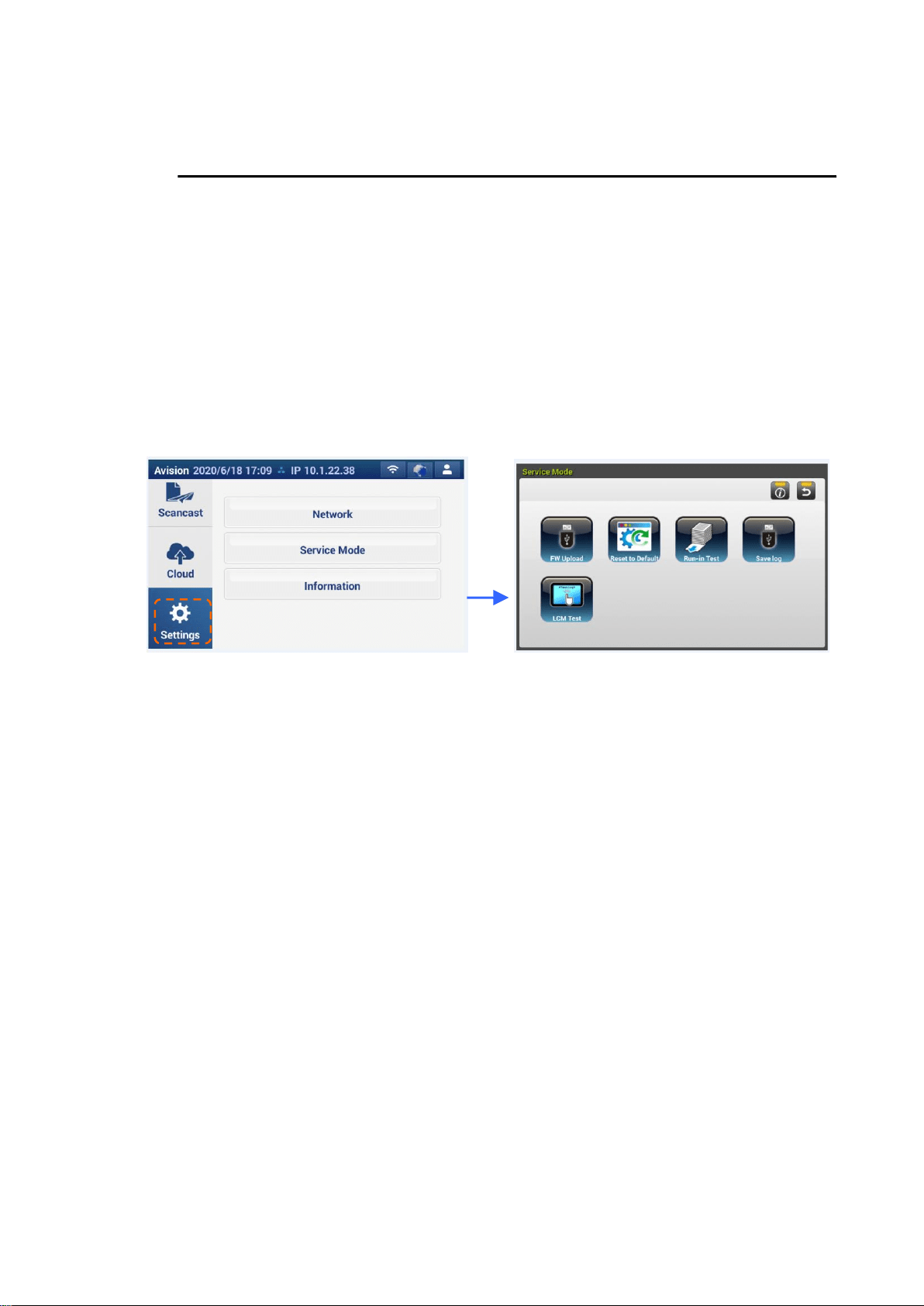
Press the [Settings] button. The options such as [Network], [Service Mode], and
[Information] will be displayed.
Network:
Tap [Network] to configure the scanner’s wired or wireless information.
Service Mode:
Tap [Service Mode] to access options on the Service Mode including FW Upload,
Reset to Default, Run-In Test, Store Log, and LCM test.
These options will be explained in the subsequent section Accessing the Service
Mode in page 57.
Information:
Tap [Information] to show the scanner’s basic information.
66
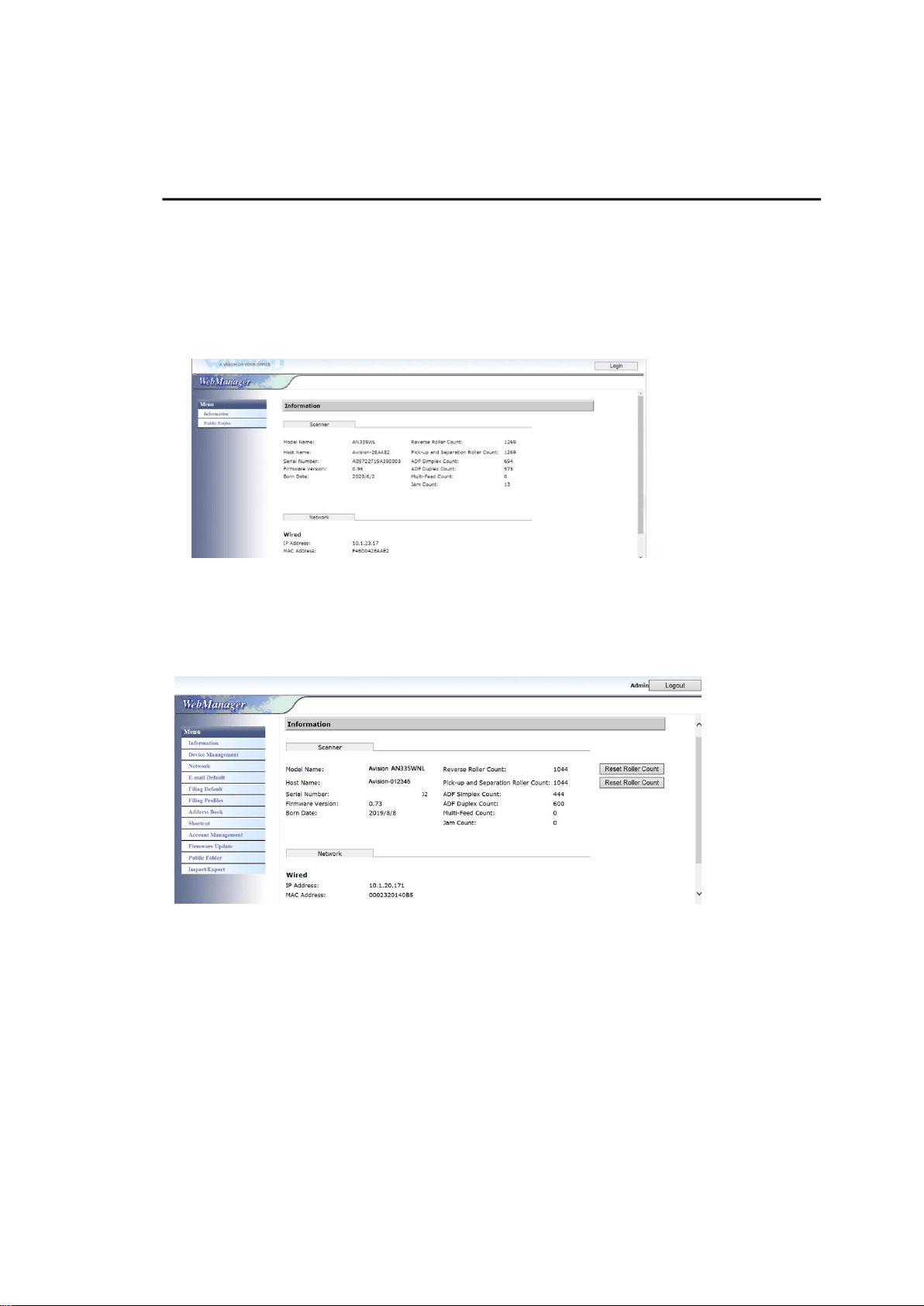
Customizing the Product’s Configurations by the
Product’s Web Page
1. Open your browser.
2. Type the IP address of the product in the URL field of your browser and then
press Enter. The product’s embedded web page appears.
3. To access complete information of the web page, please login with the default
user name and password – [admin]. The password can be changed later in
the web page.
Click each item under these tabs to set up relevant values. For details on each
setting, please refer to the subsequent section, Summary of the Product’s
Configurations.
67
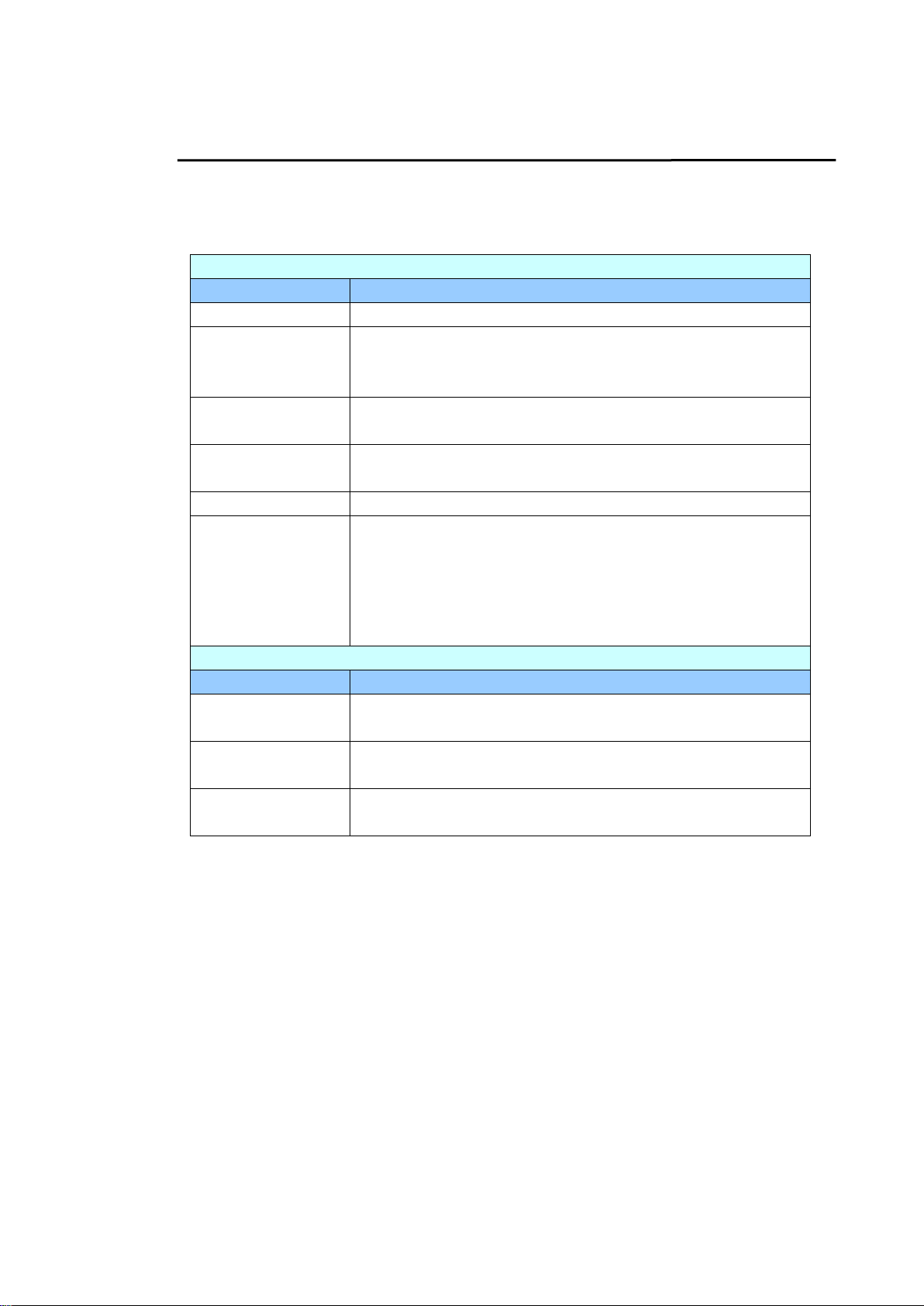
Summary of the Product’s Configurations
Information: Used to show the product’s basic information.
Scanner
Items
Description
Model Name
Used to show the product’s model name.
Host Name
Used to show the product’s host name (Avision-xxxxxx) for
the scanner in a wired and wireless environment. Xxxxxx
indicates the last six digits of the scanner’s Mac address.
Serial Number
Used to show the product’s current time. The time
format is 24-hour system.
Firmware
Version
Used to show the firmware version.
Born Date
Used to show the manufacturing date.
Scan Count
Scan Count including Reverse Roller Count, Pick-up and
Separation Roller Count, ADF Simplex Count, Multi-Feed
Count, and Paper Jam Count.
Reset Roller Count: Click this button to reset roller
count after roller has been replaced.
Network
Items
Description
Wired
Used to show the product’s IP and Mac address in a
wired network environment.
Wireless AP
Used to show the IP and Mac address of the product’s
AP (Access Point) in a wireless network environment.
AP Mode
Used to show the product’s SSID (network name) and
IP address in a wireless network environment.

68
Device Management
General: Used to specify the product’s general information.
General
Items
Description
Host Name
Avision-xxxxxx: The network name (SSID) for the
scanner in a wired and wireless environment. Xxxxxx
indicates the last six digits of the scanner’s Mac
address.
NTP Server
Used to specify the product’s NTP server.
Date
Used to specify the product’s current date.
Time
Used to specify the product’s current time. The time
format is 24-hour system.
Time Zone
Used to specify the time zone of your location.
Power Saving
Used to specify the length of time the product needs to
enter the power saving mode after last action. Range: 1
~ *240 minutes
Auto Power OFF
Used to specify how long the product needs to shut
down automatically after last action. Range: 1 ~ 480
minutes
Screen Off
Enter the length of time the product turns off the screen
after the last action.
Choice: *Never, 3 min, 5 min, 10 min
Device E-mail
Address
Enter device’s e-mail address. This address serves as
[Report to E-mail] address in Filing function if you
wish to send the filing report to an E-mail address.
Multi-Feed
Detection
default
Choose if you wish to enable the Multi-Feed Detection
via ultrasonic unit. Ultrasonic Detection allows you to
set overlapped document by detecting paper thickness
between documents. Choice: On/*Off
Reset to User
Default
Used to specify a timeout period after your last action to
return to the main screen.
Choice: *30 Sec, 1 Min, 3 Min, 5 Min
Disable: Check [Disable] to set no timeout.
Auto Add
Contact to
Address Book
Choose [On] to automatically add a new entry e-mail
address to address book.
Choice: On/*Off
Admin Profile
Used to specify the login name and password to enter
the product’s web page.
E-mail Address: used to specify the administrator’s
E-mail address.

69
Function Lock
Scan to USB
Used to enable or disable the function. Choice:
Choice: Scan to USB (*ON/OFF), Scan to Public Folder
(*ON/OFF), App plug-in (ON/*OFF), App Scan
(*ON/OFF), Vritual Scanner Link (*ON/OFF)
App plug-in: Choose [On] to allow a third-party
application to be installed and used on the product.
App Scan: The scan app developed by Avision to be
installed on mobile devices.
A
+
Manager Settings
A
+
Manager
Settings
Check [Enable] and then enter the IP address of a
specified server to send the system log file to for quick
troubleshooting.
* : Factory Default

70
Network: Used to specify the product’s network settings.
Items
Description
Wired
DHCP (Obtain
IP address
automatically)
Used to specify if the product’s IP address is assigned
by DHCP or a static IP.
Choice: Off, On
If you have a DHCP server available on your network
and the DHCP has been enabled, the IP address, subnet
mask, gateway, and DNS server will be automatically
given.
IP Address
The Internet Protocol (IP) address
assigned to your machine by your
network administrator.
Subnet Mask
The net mask address assigned by
your network administrator.
Gateway IP
The gateway IP address assigned by
your network administrator.
DNS Server
The Domain Name Server assigned
by your network administrator.
WIN Server
The WIN Server assigned by your
network administrator.
Mail Server
Items
Description
Mail Server
Enter the IP address of your SMTP server (mail server).
SMTP Port #
Enter the port number of the SMTP server.
* 25
Authentication
Method
Choose to enable the email authentication method.
Choice: OFF, *ON
Encrypt
Choose the encryption method of your emails to the
SMTP server.
Choice: *None, STARTTLAS, SSL/TLS
Login Name
Enter the login name for SMTP authentication.
Password
Enter the login name for SMTP authentication.

71
LDAP Settings
Items
Description
Authentication
LDAP
Enter the IP address of your LDAP server and its port
number.
New
Setup a new LDAP setting.
Enter IP address and port number of your LDAP server,
Login name and password to access the LDAP server,
and search information.
Note: Check LDAP server information with your
Network Administrator.
Delete
Delete a current LDAP setting.
Modify
Modify information of a current LDAP setting.
* : Factory Default
E-mail Default: Used to specify the product’s default scan settings for E-mail.
The default scan settings include 5 tabs which are Basic, E-mail Option, Advanced
Settings, Layout Adjustment. For more details on the options of each tab, please
refer to the setting description on the preceding section, Scanning and Sending
Your Documents to E-mail Addresses.
Filing Default: Used to specify the product’s default scan settings for Filing. The
default scan settings include 5 tabs which are Basic, E-mail Option, Advanced
Settings, Layout Adjustment. For more details on the options of each tab, please
refer to the setting description on the preceding section, Scanning and Sending
Your Documents to a Network Folder, a USB Flash drive or a Public Folder.

72
Filing Profiles: Used to setup and manage your file destinations including FTP,
SMB, USB (an inserted USB flash drive), or a Public Folder (the machine’s
memory).
Items
Description
Add
Add a new Filing Profiles.
Enter information on the [Basic], [Advanced Settings],
[Layout Adjustment] tabs.
For more details on the options of each tab, please refer to
the setting description on the preceding section, Scanning
and Sending Your Documents to a Network Folder, a USB
Flash drive or a Public Folder on page 35.
Delete
Delete a current profile.
Modify
Modify a current profile.
Profile Name
Used to specify the profile name for the destination.
Address Book: Used to create or edit your address book. Options include Add,
Modify, Delete, and Group.
ShortCut: Used to set up the product’s ShortCut displayed on the LCD touch
panel.
Item
Description
Destination
Choice: USB Flash, Public Folder, FTP, FTPS, SMB,
E-mail.
Option: New, Edit, Delete

73
Account Management: Used to define users and set user’s privileges including
using the Shortcut, BM2 Air, Scancast, E-mail, Cloud, or Filing function of the
product by assigning an account’s authentication method.
Basic
Items
Description
Enable Security
Management
Check to implement security by setting up
accounts and enabling LDAP authentication.
Enable Guest Account
Check to allow guest accounts.
Enable LDAP Authentication
Check to enable LDAP authentication.
Default Enable Function
Check the names of functions (ShortCut, Cloud,
E-mail, Filing, BM2 Air, AP Mode, Scancast) to
be allowed to perform.
Account List
Items
Description
New
Setup a new account.
Enter User Name, Password, E-mail Address,
check the functions to be allowed to perform,
and check if using LDAP authentication.
Delete
Delete a current account.
Modify
Modify information of a current account.
Firmware Update: Obtain the latest firmware file from the web site
(www.avision.com) first. And then click [Browse] to find the file on your
computer. Finally click [Update] to update the latest firmware to the product.

74
Configurations Customized Only Via the LCD Touch
Screen
There are some activities which can be set only through the LCD touch screen, for
example, the service mode. The service mode is set to provide saving system
log file, updating firmware for quick troubleshooting your problems.
Accessing the Service Mode
To access the service mode,
1. On the product’s LCD screen, choose [Settings] and then [Service Mode].
2. The Service Mode screen will be displayed with following options: [FW
Updated], [Reset to Default], [Run-in Test], and [Save Log].
FW Updated:
Follow these steps to update the firmware:
1. Locate the latest firmware file from the web
site (http://www.avision.com).
2. Store the firmware file on your removable USB
disk.
3. Plug the removable USB disk into the USB disk
port of the machine.
4. Tap [FW Updated] to update the firmware
file.
Reset to Default:
Choices include [Reset Admin], [Reset Network
Settings], [Reset Admin and Network], [Reset
to Factory Default].
Reset Admin: Reset the login user name and
password of the product’s web page.
Reset Network Settings: Reset the network settings
to factory default.
Reset Admin and Network: Reset both the login
information and the network settings to default.
Reset to Factory Default: Reset all configurations to
factory default values.
Run-in Test:
For internal use only.
Save Log:
Plug a removable USB disk into the USB port of the
machine and tap [Save Log] to save system log
file.

75
Configurations Customized Only Via the Product’s
Web Page
There are some activities which can be set only through the product’s web page.
For example, some options on [Device Management], [Import/Export], and
[Public Folder]. How to use these options will be described in the following
sections.
Exporting and Importing System Data
To easily manage several scanners in the network, the machine provides a useful
feature to allow system administrator to export the system data of one scanner
into a file and then import this data to other scanners in the network.
For example, the address book, Filing Profiles, and default systems settings of one
scanner can be first exported to a file as a backup and then import these files to
other scanner.
Follow the procedure described in below to export and then import your system
data.
To export system data,
1. On the product’s web page, choose [Import/Export].
2. Choose the system data you want to export. Choice: Address Book, Filing
Profiles, Settings (Device Management, Account Management, Mail
Server/LDAP Server, E-mail Default, Filing Default).
3. Choose [Export Now]. The selected system data will be exported into a file.
If [address book] is selected, an XXXX_addressbook.csv file will be
generated. If [Filing Profiles] or [settings] is selected, an XXXX
_profile.json or XXXX _setting will be generated. (XXXX indicates model
number)
4. Save the exported file into your computer as a backup.

76
To import system data,
1. On the product’s web page, choose [Import/Export].
2. Choose the system data you want to import. Choice: Address Book, Filing Profiles,
Settings (Device Management, Account Management, Mail Server/LDAP Server,
E-mail Default, Filing Default).
3. On the Importing option, choose [Browse] to locate the system data which you
have been previously exported.
4. Choose [Import Now] to start importing the system data to your machine. The
current system data will be overwritten.
Accessing the Public Folder
The machine allows you to save the scanned image temporarily to the product’s
memory and then access the scanned image through the product’s web page. To
access the scanned image, follow these steps:
To access the scanned image,
1. On the product’s web page, choose [Public Folder].
2. A Pin number dialog box appears. If desired, enter your pin number to access the
public folder.
3. Choose your scanned file on the [Public Folder] and click [Download] to
download the file to your computer.
Note: The scanned images can be saved on the product’s memory for 24 hours
only. After 24 hours, the image files will be automatically deleted.

77
7 Using the Product as a
Regular Scanner
Installing the Scanner Driver
NOTE:
1). To ensure your computer can identify the USB scanner, please install scanner
driver first before connecting the scanner to your computer.
2). The scanner driver contains TWAIN, ISIS and WIA driver. After the
installation of scanner driver is completed, this scanner allows you to scan via a
TWAIN, ISIS, or a WIA interface. Start your TWAIN-compliant image editing
software application to select a TWAIN or WIA user interface or your ISIS software
to select an ISIS user interface. You may also launch Microsoft’s Scanner and
Camera Wizard to scan via a WIA user interface.
1. Place the supplied CD-ROM onto your CD-ROM drive.
2. The software installation graphic appears. If not, run “setup.exe”.
Contents on the installation graphic:
Install Scanner Driver: To communicate with your scanner, you need to
install the scanner driver.
Install Button Manager V2: To use the [BM2 Air] function, you need to
install Button Manager V2. To ensure Button Manager V2 works properly,
please FIRST install scanner driver before installing Button Manager V2.
Install Virtual Scanner Link: To connect your computer to the scanner in
the network, you need to install the Network Setup Tool.
Install AVScan X: To scan and organize your multi-page document(s),
you can install the software application to manage them easily and
effectively.

78
View Manual: Click “View Manual” to view or print the detailed user
manual for the scanner and Button Manager V2 respectively.
3. Click Install Scanner Driver to install the scanner driver and then click
Install Button Manager V2 to install the Button Manager V2 unto your
computer.
Connecting to the Computer
Via a USB Cable
1. Connect the square end of the USB cable to the USB port of your scanner.
Connect the rectangle end to the USB port at the rear side of your computer.
Note: The scanner is designed with a USB 3.2 Gen 1X1 interface to ensure
the optimal speed. If your computer comes with a USB 3.2 Gen 1X1 port,
make sure to connect the scanner to your computer to the USB 3.2 Gen
1X1 port which is distinguished in blue color at the back of your computer.
The USB 3.2 Gen 1X1 port enhances your scanning speed and is also
compatible with USB 2.0 and USB 1.1.
2. The computer should detect a new USB device and prompt a “New
Hardware Found” message.
3. By following the on-screen instructions, click the Next button to continue.
When the certification screen appears, click Continue Anyway to complete
the installation.
4. When the Finish dialog is prompted, click the Finish button.

79
Via a Wired Network
1. Connect one end of your Ethernet LAN cable to an available port of your
Ethernet Hub.
2. Connect the other end to the port marked at the back of the product.
Connecting to the Network Scanner
Before connecting to the network scanner, make sure that Virtual Scanner Link
(Network Setup Tool) has been installed onto your computer. The Network
Setup Tool is included in the supplied software CD.
1. Start [Virtual Scanner Link] by choosing Start>All Programs>Avision
Virtual Scanner>Virtual Scanner Link. The main window will be displayed
and the scanners in your network will be searched automatically. In a few
seconds, the result including the scanner model and scanner’s IP address will
be displayed as shown.
2. Choose the scanner you wish to connect and then press [Connect]. If
connection is successful, a connection mark will be displayed as shown.

80
3. After the scanner has been connected successfully, launch your
TWAIN-compliant image-editing software application to start a scan.
Note:
The network scanner can be used by one user at a time. If the network scanner is
being used by other user, you will be prompted with a message to connect the
scanner later. When the scanner is available, you will also be prompted with a
message to connect the scanner and start scanning your document.
If the network scanner has not been found, it is probably the scanner and your
computer are not in the same LAN. In this case, you can assign a specific IP
address of the scanner to let [Virtual Scanner Link] automatically search the
scanner. Click the [Option] button, type your IP address on the [Searching
Address] field (1), then click the [+] button (2) and finally click [OK] (3) to
complete.
Searching Time: When the program is launched, it automatically searches the
scanner in the network in 5 seconds (default). The searching time can be changed
from a range of 5 to 20 seconds.
If the [Virtual Scanner Link] program has been closed and then launched again,
[Virtual Scanner Link] will automatically search and connect the network scanner
it has previously connected to.
The connection is always enabled, whether the scanner enters into the sleeping mode
or turns off and on again. VSL will automatically detect the previously connected
scanner and connect again.
(1)
(2)
(3)

81
[Automatically searching and connecting device]: Check this option and enter
your time (1~5 min.) to allow the VSL to reconnect to the device every specified
minute(s) if the device has been woken up during sleep mode or the device has
been turned off and on again.
[Connecting the device with a specified name instead of a login name]:
Check this option and enter your desired name for the computer. Yet you need to
reconnect the device again to refresh the status.

82
How to Switch to Another Computer on the Network
Scanner
Please follow these steps to connect the network scanner to other computer in
the network:
1. Turn on the scanner.
2. Make sure that a LAN (Ethernet) cable has been connected to the scanner
and that the Virtual Scanner Link (VSL) has been installed to your
computer. (Refer to the preceding section 2.3~2.7)
3. On your computer, start [Virtual Scanner Link] by choosing Start>All
Programs>Avision Virtual Scanner>Virtual Scanner Link. The main
window will be displayed and the scanners in your network will be searched
automatically.
4. In VSL main window, connect the scanner.
5. Open Button Manager 2 by choosing Start>All Programs>Avision Button
Manager.
6. On your scanner’s screen, tap the [BM2 Air] button.
7. A list of computers (login names) connecting to the scanner will be
displayed.
8. Tap the computer you want to connect. The Button Panel will be displayed.
9. Tap your desired Button No. or destination.
1. PC 1
2. PC 2
3. PC 3
4. PC 4

83
10. The scanner starts feeding your paper and the scanned image will be sent
to your specified application or destination.

84
Verifying Your Scanner Installation
To verify if your scanner installation is correct, Avision provides you a useful test
program called Avision Capture Tool. With this tool, you can perform simple
scans and view the captured images. In addition, it helps you complete your
scan at a rated speed.
The following procedure describes how to verify your scanner installation. If the
installation is not correct, please review the preceding section to check if the
cable connection and scanner driver have been successfully installed.
Before you begin, be sure the scanner is on.
1. Select Start>Programs>Avision xxx Scanner>Avision Capture Tool. The
Select Scanner Model dialog box will be displayed. (xxx indicates the model
number)
2. Select your driver type and scanner model and click OK. The following
Avision Capture Tool dialog box will be displayed.
File Format
Setup
Actual
Size
Fit
Page
Scan
Save File Path

85
3. Choose your desired file format from the File Format drop down list box.
(Default is JPEG, other choice includes TIFF, MTIFF, PDF, MPDF, GIF, and
BMP.) The supported file formats vary depending on your scanner model.
4. Type your desired folder name and file name in the File Path box. (Default is
C:\Documents and Settings\User Name\My Documents\My Scan\Image.)
Note: If you do not wish to save the scanned image, deselect the Save
button since default is Save Enable. In this case, the thumbnail view will
be disabled. And therefore, after viewing all the scanned images, only
the last one will remain on the screen.
5. Click the Setup button ( ) or choose Setup from the File menu to
prompt the Scanner Properties dialog box.
6. From the Image Selection Box, choose your desired image type for your
scanned image. (Default is Front B&W) If you have a duplex scanner,
choose Front and Rear to scan both sides of your document.
7. Click OK to quit the Scanner Properties dialog box. (To learn more
details about the Scanner Properties dialog box, please see the
subsequent chapter, Using the Scanner Properties Dialog Box.)
8. Place your document face down on the document glass or face up in the
auto document feeder.
9. In the Scan Validation dialog box, click the Scan button ( ) or
choose Scan from the File menu.
10. The document will be scanned and displayed in the Scan Validation screen.
After the scanned images have been displayed, your scanner installation
verification is completed.
Image
Selection
Box

86
11. You can view the scanned image in Fit Page ( ) or Actual Size (100%)
button ( ) from the Viewing toolbars at the right side.
12. Click the Close box or Quit from the File menu to exit the Scan Validation
Tool.
A Glance of the Scanner Properties Dialog Box
1. Tab Options
Choice: Image, Compression, Color Dropout, Paper,
Multi-Feed Detection, Preview, Options, Settings,
Information.
2. Image Selection
Box
Choose your image type and the side of document you
wish to scan. Options vary based on type of scanner.
3. Brightness
Adjust the brightness level from –100 to +100.
4. Contrast
Adjust the contrast level from –100 to +100.
5. Resolution
Determine the quality of the scanned image. The
industry standard is 200 dpi.
6. Invert
Reverse the color of your scanned image.
7. Scan Source
Choice: Auto Document Feeder, Flatbed, Flatbed
(Book), Automatic (varies due to different scanner
model)
8. Defaults
Reset all values on the tabs to the factory default
settings.
3
4
5
6
7
1
2
8
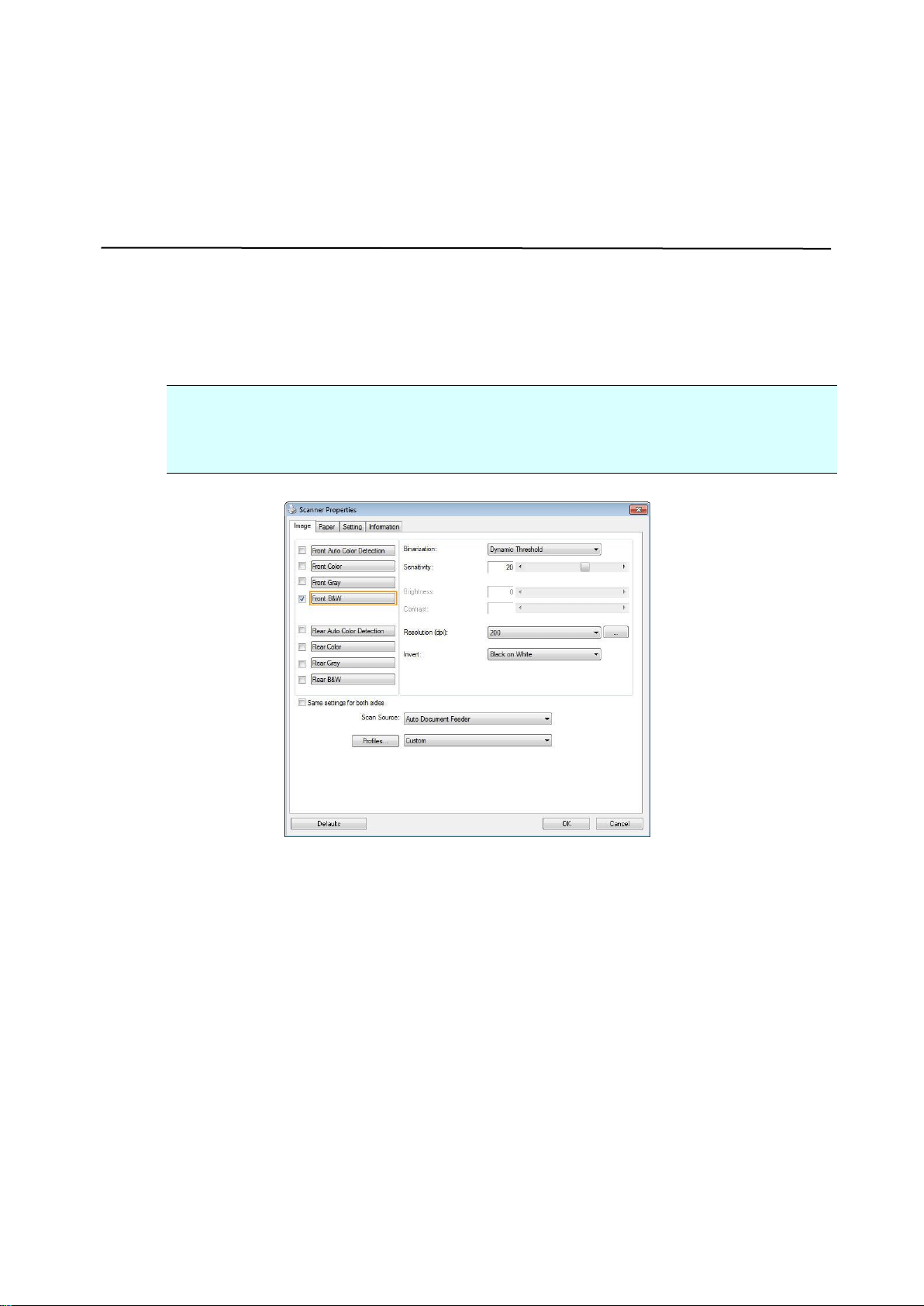
87
8 Using the Scanner Properties
Dialog Box
The Scanner Properties dialog box allows you to configure the scanner’s settings. It
consists of several tabbed windows each of which will be described in this chapter.
Note: In this chapter, all options are available based on a duplex (double-side)
scanner. If you have purchased a simplex (single-side) scanner, all options are
available for single sided only.
The Scanner Properties dialog box

88
Buttons on the Scanner Properties Dialog Box
The buttons on the Scanner Properties dialog box
Buttons
Description
Defaults
Click the Defaults button, the factory default settings will
be shown on each tab.
Cancel
Click the Cancel button to leave the Scanner Properties
dialog box.

89
The following table shows the default settings:
Tab name
Default settings
Image
Image:Front B&W
Binarization:Dynamic Threshold
Resolution:200 dpi
Invert:Blank on White
Scan Source:Auto Document Feeder
Threshold:None
Brightness:None
Contrast:None
Compression
None
Color Dropout
None
Paper
Cropping:Automatic
Deskew:Yes
Orientation:Portrait
OverScan:0.00
Note: The availability of this option varies
due to scanner model.
Unit:Inch
Multi-Feed
Detection
None
Preview
None
Options
Rotation Degrees:None
Blank Page Removal:None
Edge Fill:White,0 mm
Image Control Option:None
Setting
Enable Energy Saver:Enable, 15 minutes
after last scan action
Show Scanning Progress:Yes
Show Warning Message:Yes
Save Settings after Closing:Yes
Imprinter
Digital Imprinter
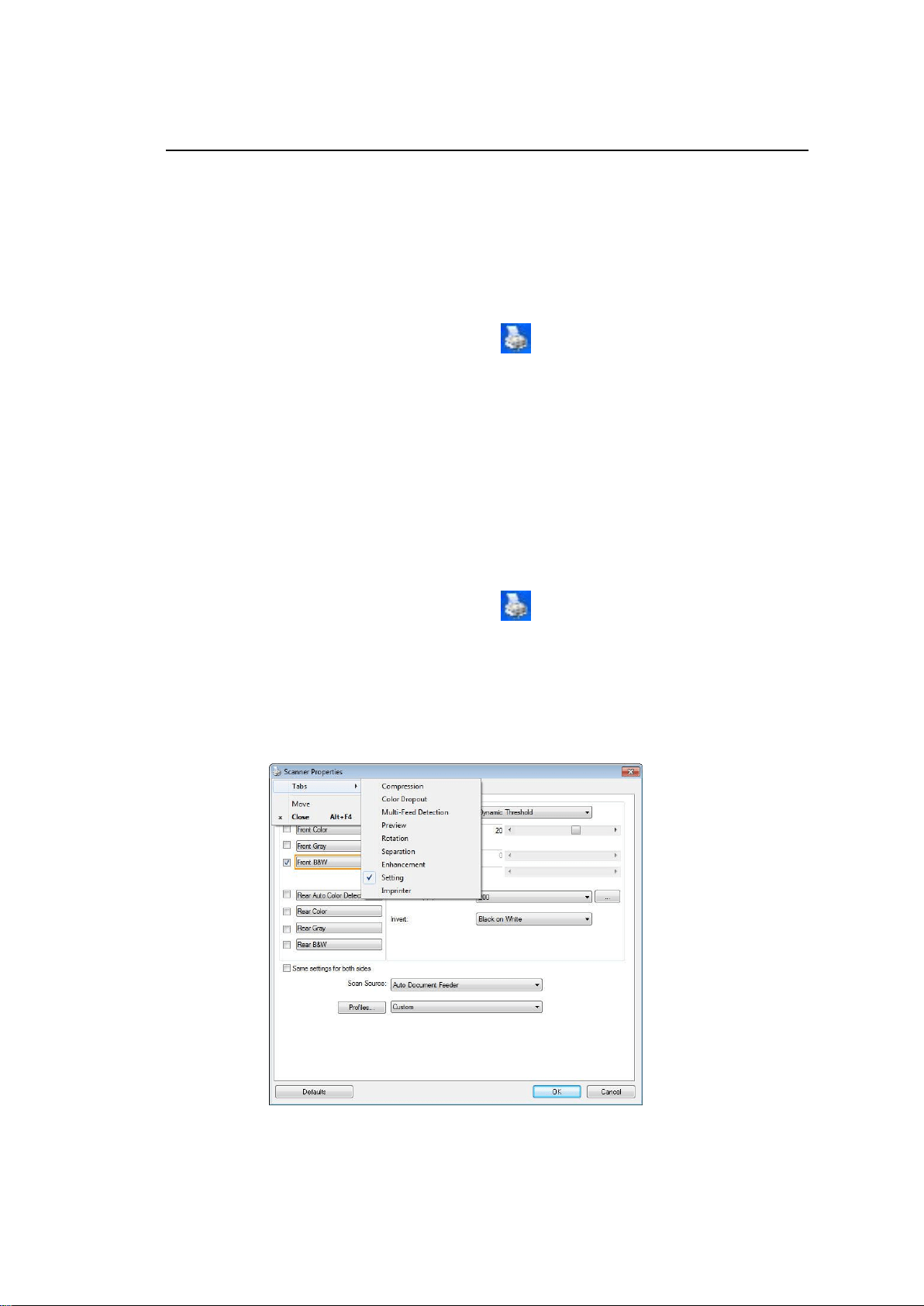
90
Showing or Hiding Tabs
The [Scanner Properties] dialog box is displayed in default with three basic tabs
- Image, Paper, and Information. To show more tabs, click the [Scanner
Properties] icon to access more scan settings.
To show more tabs,
1. Click the [Scanner Properties] icon ( ) on the upper left corner, and
choose [Tab] to show available tab names. The available tabs include
Compression, Color Drop out, Preview, Rotation, Separation, Multi-Feed,
Options, Settings, and Imprinter. (Note: the options vary based on scanner
model.)
2. Choose the tab you want to display. The selected tab will be shown with a
check mark and then displayed in the [Scanner Properties] dialog box.
3. To access the settings, click the selected tab on the top of the [Scanner
Properties] dialog box. The page of the selected tab will be displayed.
To hide a tab window,
1. Click the [Scanner Properties] icon ( ) on the upper left corner, and
choose [Tabs] to show available tab names.
2. Choose the tab you want to hide. Then, the selected tab will be hided in the
[Scanner Properties] dialog box.
Note: The [Image], [Paper], and [Information] tab can not be hided since they
preprogrammed to be displayed by default.

91
The Image Tab
The Image tab allows you to choose the front side and (or) the rear side of your
document, the type of image, and to set several basic scan settings. Note that
except for the resolution, you can set individual scan settings for the front side and
the rear side. For example, all settings in the Image tab, Compression tab, Color
Dropout tab can be set individually for the front and the rear side. However, the
settings in the Paper tab, the Option tab, and the Setting tab have to be set the
same for the front and rear side.
The Image tab dialog box

92
The Image Selection Box
The Image Selection box includes the image type and
document side option. If you wish to scan both the
front side and the rear side of your color document,
you can check both Front Color and Rear Color at the
same time. Note the options vary based on type of
scanner.
Example 1:Scanning a two-sided color document, both sides in color
Side/Image
Selection
Front
Rear
Example 2:Scanning a two-sided color document, one in B&W, the other
in color
Side/Image
Selection
Front
Rear

93
Image Type
Description
Color
Choose Color if you wish to scan a color image for
your original in color.
Gray
Choose Gray image if your original contains actual
shades of gray.
B&W
Choose B&W if your original contains only text,
pencil or ink sketch.
B&W
Gray
Color
Front/Rear Auto Color Detection:
Click to automatically detect and scan the front or the rear page of your color
document in color image mode. If your document is in colors, the scanner will
automatically scan the document into a color image. If your document is
non-color, you can choose the output to be either B&W or Gray from the Non-Color
Selection option. This option is useful when you have a mixture of color and
non-color document.
Note: If you choose Front Rear Auto Color Detection, you can not specify the
image mode of your rear page and vice versas.
Modes of Auto Color Detection:
If [Front/Rear Auto Color Detection] is selected, its modes will be displayed.
Choice includes Normal, Ignore paper color. For paper with background color
such as invoices, choosing [Ignore paper color] will automatically remove the
background color and enhance the detection accuracy.
Normal
Ignore paper color
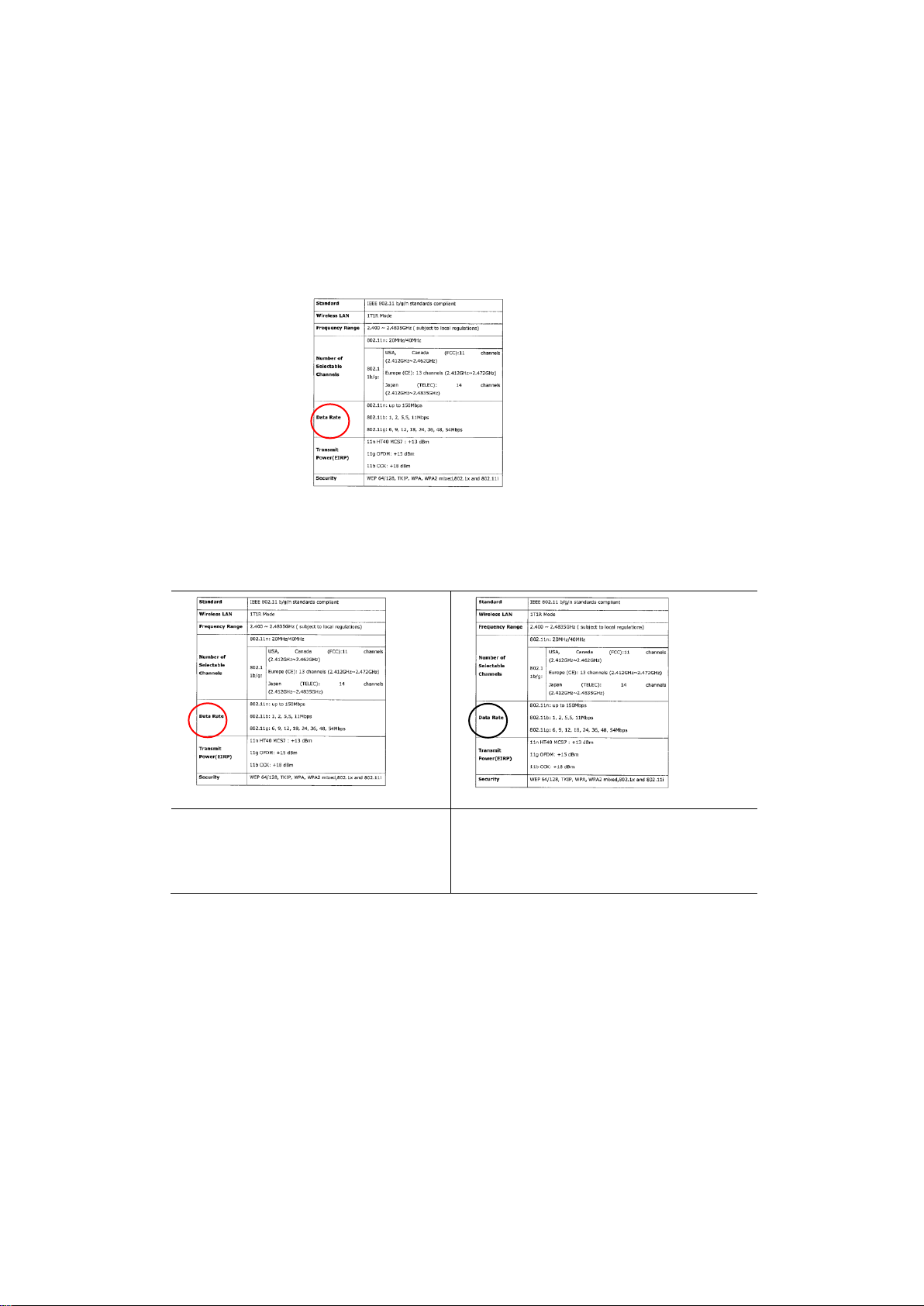
94
Sensitivity of Auto Color Detection
If your documents contain primarily B&W text and small amount of light or pale
colors and you do not wish them to be recognized as color image to save the file
size, you can increase the sensitivity value by moving the bar to the right to let
these images to be detected as B&W. The value ranges from 1 to 100. The
default is 37.
Original
Sensitivity: 1
(The image is recognized as a
color one)
Sensitivity: 100
(The image is recognized as a black
and white one)
Same settings on both sides:
Click to apply same scan settings for both sides of your documents. After checking
this option, any settings you have changed will automatically applied to both the
front side and the rear side. For example, if you choose your ideal resolution to be
300 dpi, this will be applied both to the front side and rear side of your document.

95
Other Image Options
Binarization
This is the process of converting a grayscale or color image to
a bi-tonal image. There are several different methods of
performing this conversion. Options: Dynamic
Threshold, Fixed Processing, Halftone 1~5, Error
Diffusion.
Dynamic Threshold: Selecting Dynamic Threshold
allows the scanner to dynamically evaluate each document to
determine the optimal threshold value to produce the highest
quality image. This is used to scan mixed document
containing faint text, shaded background, or color
background with a single setting. If Dynamic Threshold is
selected, Threshold, Brightness, and Contrast are not
available.
Dynamic Threshold (AD): Selecting Dynamic Threshold
(AD) to perform the enhanced mode of the Dynamic
Threshold feature. However, using this mode may slow down
your scanning speed.
Sensitivity of Dynamic Threshold
Occasionally your scanned image may contain small dots or
speckles. To remove these spots, increase the sensitivity
value by moving the bar to the right. The value ranges from
1 to 30. The default is 20.
Fixed Processing: Used for black-and-white and other high
contrast documents. A single level is set to determine the
black-and-white transition. The threshold is programmable over
the entire density range. Fixed Processing sets Contrast to 0.
If Fixed Processing is selected, Contrast is not available.
Halftone: In addition to the black and white display, Halftone
can present a somehow gray shade of image by using different
size of dots. Halftone image looks like the picture we have seen
in the newspaper. Options include Halftone 1, Halftone 2,
Halftone 3, Halftone 4, Halftone 5.
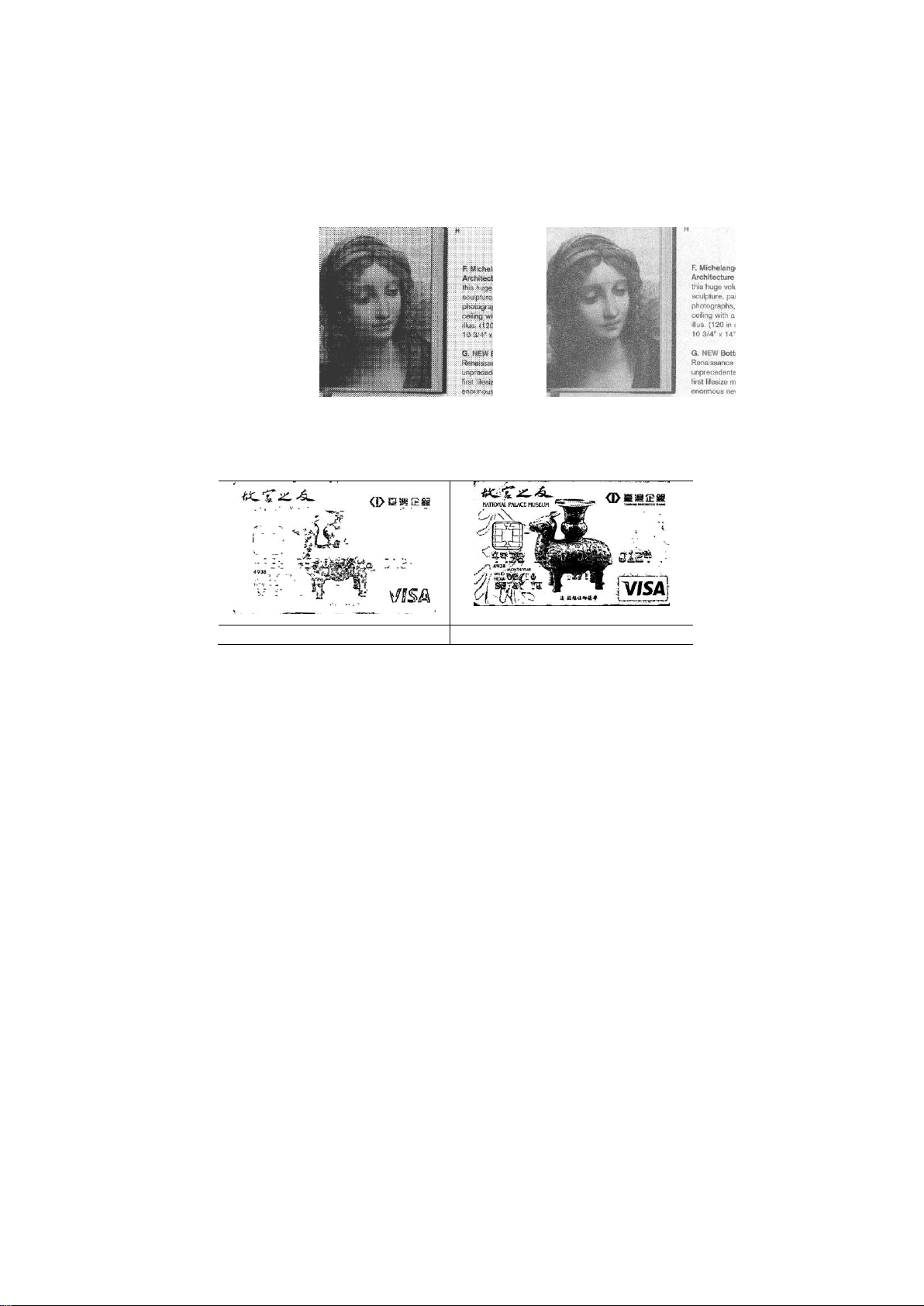
96
Error Diffusion: Error Diffusion is a type of Halftone. Error
Diffusion gives good image texture and makes text in images
more readable than Halftone.
Halftone Image Error Diffusion Image
Dynamic Threshold
Dynamic Threshold (AD)
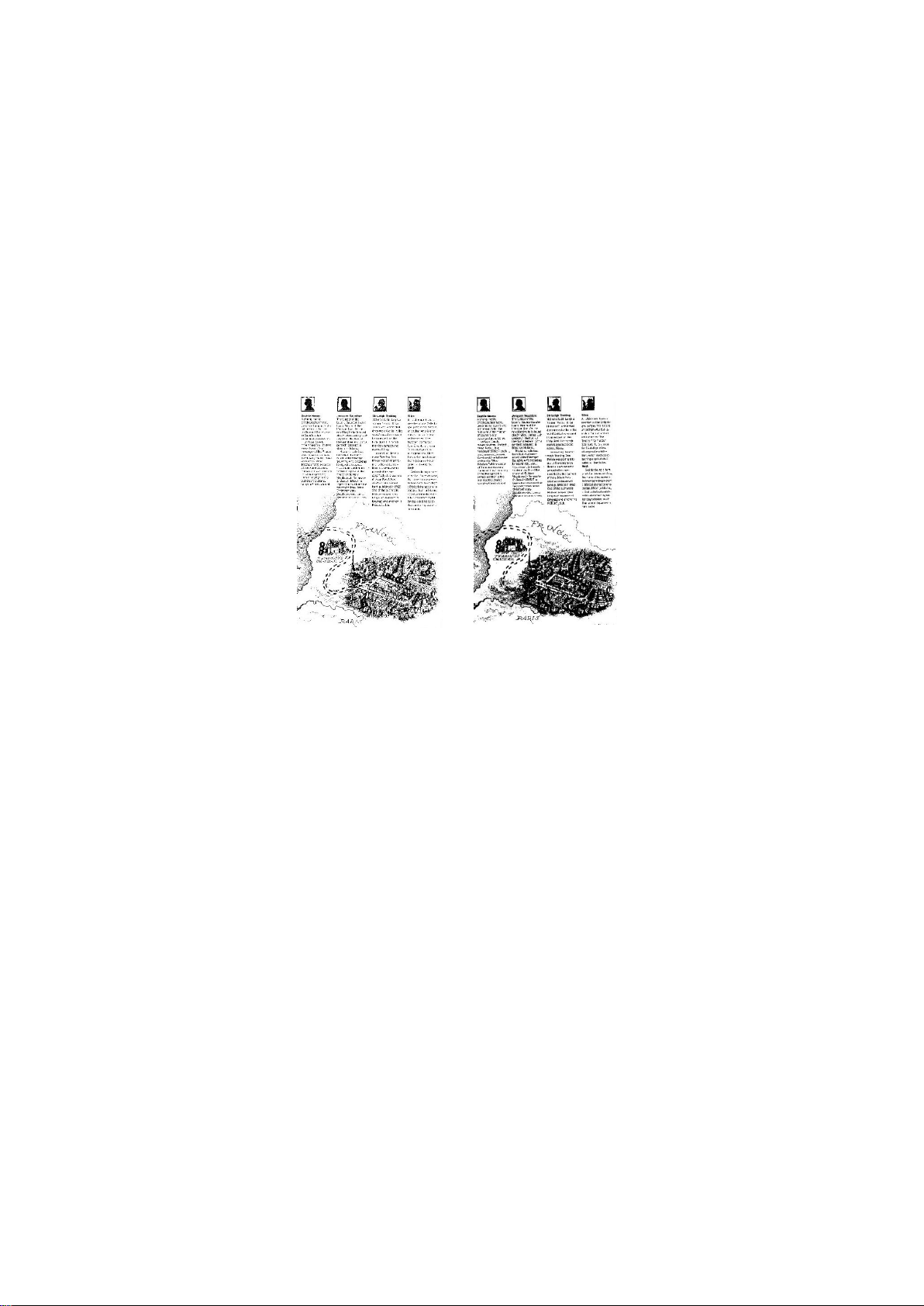
97
Threshold
Used to convert a grayscale image to a
bi-tonal image. The value ranges from 0 to 255. A low threshold
value produces a lighter image, and can be used to subdue
backgrounds and subtle, unneeded information. A high threshold
value produces a darker image, and can be used to help pick up
faint images.
Adjust the threshold setting by dragging the Threshold sliding bar to
the left or right to achieve the desired threshold setting.
200 dpi,
Threshold:50,
Brightness: 0
200 dpi,
Threshold:100,
Brightness: 0

98
Gray
Document Type: Choice: Normal, Photo, Document
Three options of document type are provided when you choose Gray as the image
type for your scanned document. Choice: Normal, Photo, Document.
Document: Choose Document if your original contains pure text or a mixture
of text and graphic since it is an optimal setting for regular business document.
When using Document, only Threshold can be adjusted.
Photo: Choose Photo if your original contains photo to reproduce your photo in
vivid grayscale image. When using Photo, no Threshold and Contrast can be
adjusted.
Normal: When using Normal, Threshold, Brightness, and Contrast can be
adjusted.
Threshold: The value ranges from 0 to 255. The default is 230. A low threshold
value produces a lighter image, and can be used to subdue backgrounds and subtle,
unneeded information. A high threshold value produces a darker image, and can be
used to help pick up faint images. Adjust the threshold setting by dragging the
Threshold sliding bar to the left or right to achieve the desired threshold setting.
Normal
Photo
Document
(Threshold: 230)
Normal
Photo
Document
(Threshold: 230)

99
Brightness
Adjusts the lightness or darkness of an image. The higher the
value, the brighter the image. Drag the slider to the right or
left to increase or decrease the brightness. The range is
from –100 to +100.
Contrast
Adjusts the range between the darkest and the lightest shades
in the image. The higher the contrast, the bigger the different
grayscale. Drag the slider to the right or left to increase or
decrease the contrast. The range is from –100 to +100.
Brightness: -50
Brightness: 0
(Normal)
Brightness: +50
Contrast: -50
Contrast: 0
(Normal)
Contrast: +50

100
Resolution
A good control of the resolution results a
good detail of an image that scans. The
resolution is measured by dots per inch
(dpi). Normally, the greater the dpi
number, the higher the resolution and
the image file size. Be aware that
greater resolution takes more time to
scan, and more disk space for the
scanning image. For your information,
an A4 size color image scanned at 300
dpi at True Color mode consumes
approximately 25 MB of disk space. A
higher resolution (usually means over
600 dpi) is only recommended when you
need to scan a small area at True Color
mode.
Choose a resolution value from the drop
down list. The default value is 200 dpi.
Available resolutions are 75, 100, 150,
200,300, 400 and 600. Or you may
choose your desired value by clicking the
box in the right side of the drop down list
and press the arrow key to select your
desired value and then click the Add
button to include it in the drop down list.
Note: The resolution is up to 300 dpi if
an imprinter or a MICR reader is installed
or connected to the scanner.
Resolution: 75 dpi
Resolution: 150 dpi

101
Invert
Reverses the brightness and the colors in the image. The
default setting is Black on a White background. Reverse mode
is White on a Black background. For color images, each pixel
will be changed into its complementary color at the command
of Invert.
Black on White
White on Black
Scan
Source
Choice:
Auto Document Feeder: Used to scan multiple pages.
Flatbed: Used to scan a single page. For example, pages from
newspaper clipping, paper with wrinkles or curls.
Flatbed (book): Used to scan several inside pages from
book.
Automatic: Allow the scanner automatically set its scan
source. If Automatic is selected and there is document in
both the auto document feeder (ADF) and the flatbed, then the
scan source will be automatically set to ADF. If Automatic is
selected and there is document only in flatbed, then the scan
source will be set to flatbed.
Merge Two Sides into One Image:
If you have a sheet-fed duplex scanner with front input tray,
you can scan an A3 size document with an innovative method.
Thus, fold your A3 size document into A4, and then load the
paper in the front tray. Choose Merge Two Sides from the
Scan Source option and then the scanner is able to scan both
sides of your document and merge two A4 images into one A3
image.
When you select Merge Two Sides into One Image, the Cropping
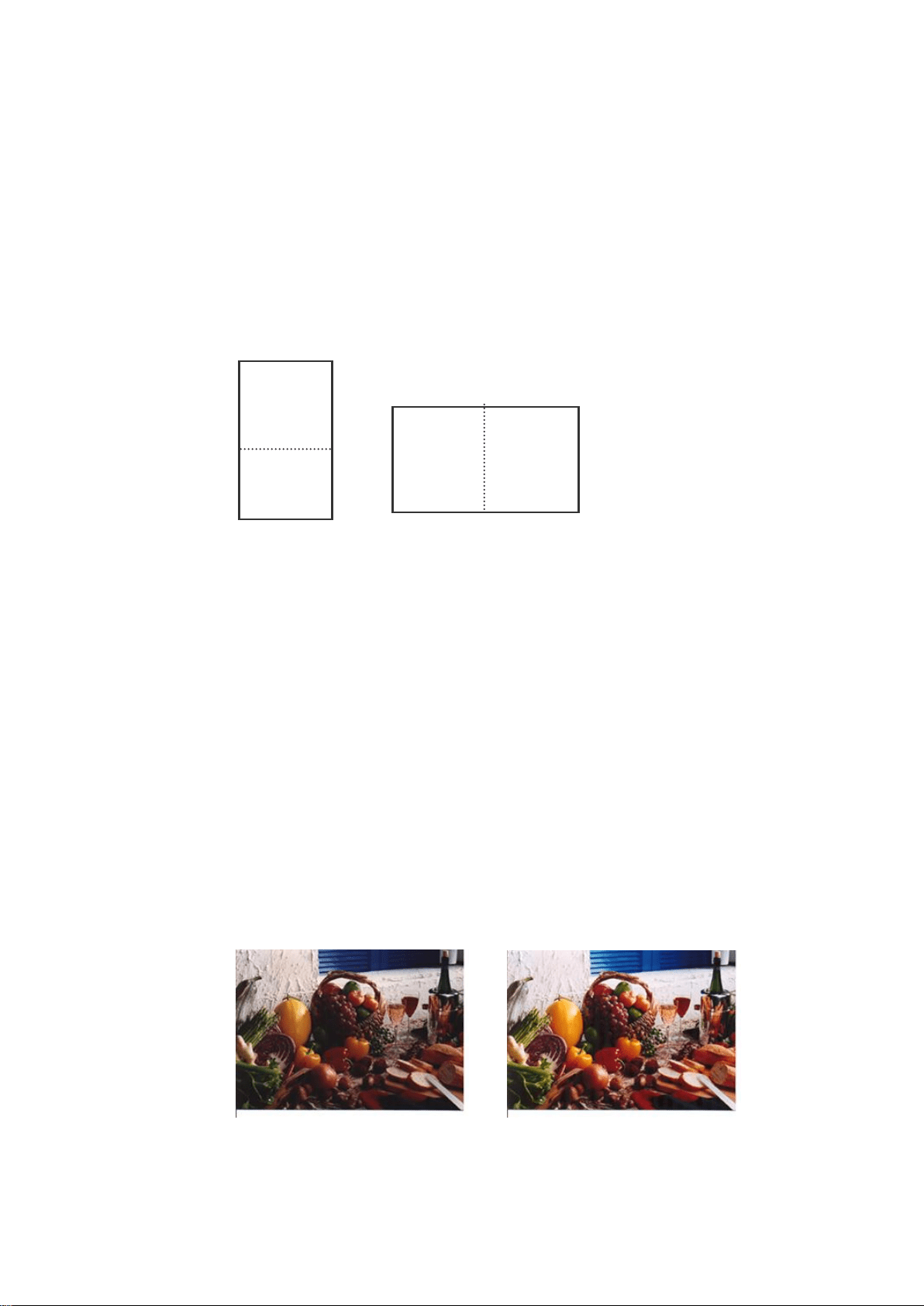
102
or Multi-feed function will be disabled.
Note: This feature must be used with a carrier sheet. Regarding
how to load a document with a Carrier Sheet, refer to Section
4.6.2, Other Paper Selection.
Note the options vary based on type of scanner.
If “Merge Two Sides into One Image” is selected, its choice will be available
including “Merge Horizontally”, “Merge Vertically”, “Merge Vertically (Back
Side Flip)”. If the reverse side of your document is upside down, choose
“Merge Vertically (Back Side Flip)” and the back side will be automatically
rotated 180 degrees and merged.
Note the options vary based on type of scanner.
Color
Matching
The purpose of Color Matching is getting the accurate color. This
option uses the default parameters (ICC profile) to adjust the
colors of the image.
Choice: None, Document, Photo
None: Choose “None” to disable this option.
Document: Choose “Document” if your original contains pure
text or a mixture of text and graphic since it is an optimal
setting for regular business document.
Photo: Choose “Photo” if your original contains photo to
reproduce your photo in vivid color image.
Normal After Color Matching
Front
Side
Rear
Side
Merge Vertically
Front
Side
Rear
Side
Merge Horizontally

103
Scanning Color Images
The following options are available for scanning color images.
Brightness
Contrast
Resolution
Invert
Scanning Grayscale Images
The following options are available for scanning gray images.
Brightness
Contrast
Resolution
Invert
Scanning B&W Images
The following options are available for scanning B&W images.
Binarization (Dynamic Threshold)
Resolution
Invert
Or
Binarization (Fix Processing)
Threshold
Brightness
Resolution
Invert
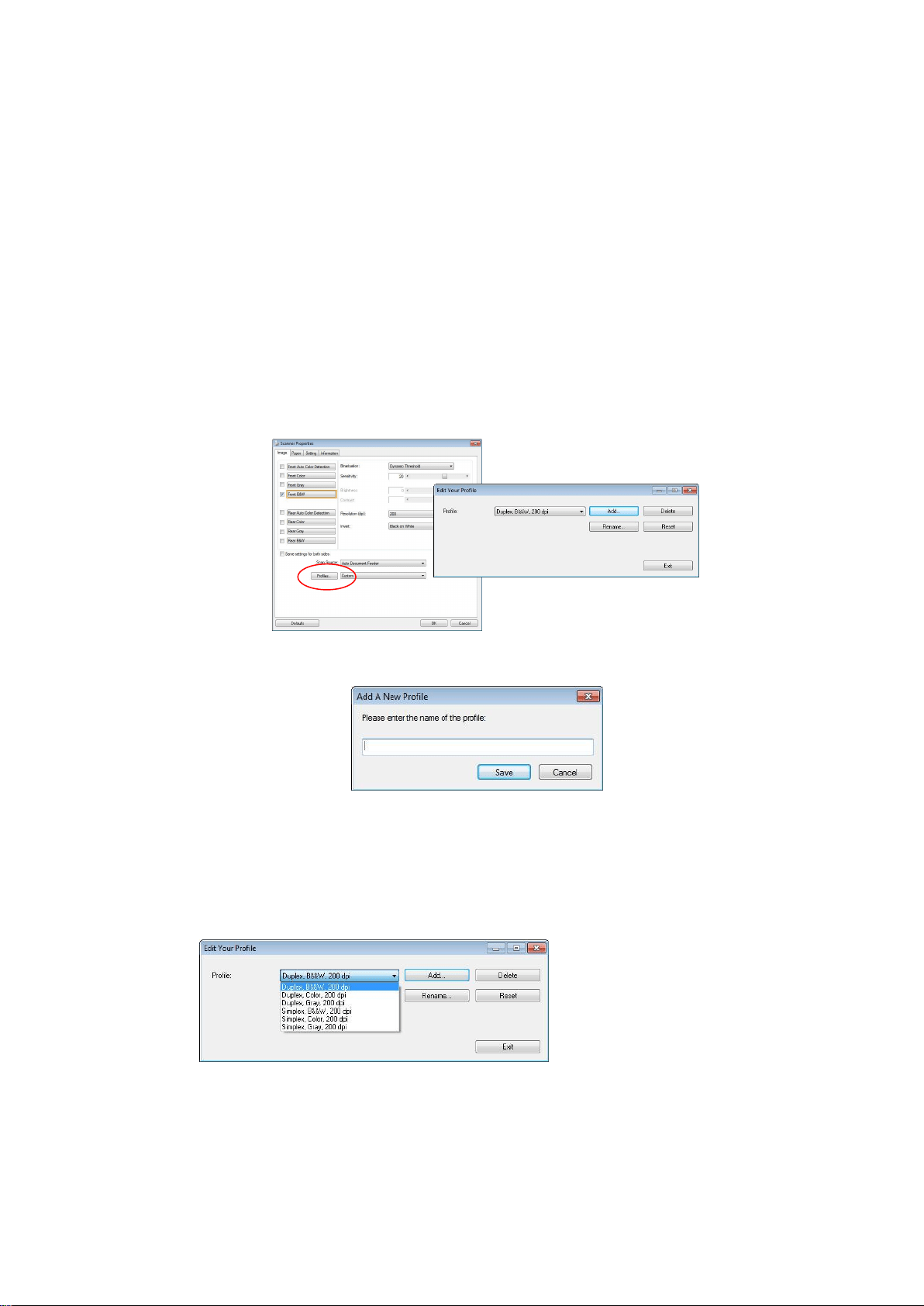
104
Editing Profiles
The Scanner Properties dialog box allows you to change and save your frequently
used scan settings into a profile. You can edit these profiles by renaming or
deleting them.
To add a new profile,
1. Customize your settings. (For example, change your resolution, image type,
cropping method, scan size, or other scan settings.)
2. Click the Image tab and then choose “Profiles” to prompt the “Edit Your Profile”
dialog box.
3. Click “Add” to enter the name of the profile and then choose “Save”.
4. The new profile will be saved and shown in the “Profiles” dropdown list box.
To load a profile,
1. From the Image tab dialog box, choose your favorable profile from the
“Profiles” dropdown list box.
2. Your favorable profile will be immediately loaded and displayed on Scanner
Properties dialog box.

105
To delete a profile,
1. From the Image tab dialog box, click “Profiles” to prompt the Edit Your Profile
dialog box.
2. Choose the profile you want to delete from the dropdown list box.
3. Click “Delete”. A Confirm message “Are you sure you want to delete this
profile?” is prompted.
4. Choose “Yes” to delete or “Cancel” to quit.
To rename a profile,
1. From the Image tab dialog box, click “Profiles” to prompt the Edit Your Profile
dialog box.
2. Choose the profile you want to rename from the dropdown list box and then
click the Rename button.
3. Enter new name for the profile.
4. Choose “Save” to save the new profile or “Cancel” to quit.
Note:
The preset default profiles include Flatbed, Simplex-B&W, 200 dpi, Simplex-Gray,
200 dpi, Simplex-Color, 200 dpi, Duplex-B&W, 200 dpi, Duplex-Gray, 200 dpi,
Duplex-Color, 200 dpi. If you have a simplex or a sheetfed scanner, the duplex or
the flatbed option will not be available.

106
The Compression Tab
The Compression tab allows you to compress your scanned image and choose the
level of compression. Bi-tonal images are normally compressed using CCITT
standard called Group 4 (G4). Color and grayscale images are often compressed
using JPEG technology. Move the JPEG Quality slider to the right or left to
increase or decrease the level of compression. Note the greater the compression
level, the lower image quality. Default is 50%.
Note that the compression depends on your image editing application. If your
image editing application does not support the type of compression format, then
either a warning message will appear or the image quality of the compressed file
will not be acceptable.
JPEG (Joint Photographic Editor Group). This group developed and lent their name
to a file compression standard for color and grayscale images that is widely used by
scanners, and software applications. On Microsoft Windows-based systems, a file
with the extension .jpg has normally been compressed using this standard.
For scanning color or gray images, the following compressions are available:
None
JPEG
For scanning B&W images, the following compressions are available:
None
G4
Compression:
To complete your scan at a rated speed, the scanned image is compressed by
default during transmission. However, if you wish to obtain the highest image
quality, you can choose to uncompress the image data before it is outputted.
To Application:
Choose if you wish to compress the image data and transfer it from the TWAIN
driver to the application. Note Bi-tonal images are normally compressed using
CCITT standard called Group 4 (G4). Color and grayscale images are often
compressed using JPEG technology. Move the [Image Quality] slider to the right
or left to increase or decrease your image quality. Note the greater the image
quality, the lower the compression level. Default is 50%.
Scanned
Image
Scanned
Image
Scanner
Scanner Driver
Image Editing
Application

107
Note that the compression depends on your image editing application. If your
image editing application does not support the type of compression format, then
the image of the compressed file will look abnormal.
From Scanner: (Note: The availability of this feature varies due to scanner
model.)
Choose if you wish to compress the scanned image and transfer it from the scanner
to the TWAIN driver.
Choice: Uncompressed, *Best Image Quality (Low Compression Level), Better
Image Quality (Normal Compression Level), Normal Image Quality (High
Compression Level). (*: Factory Default)
The Compression tab dialog boxThe Compression tab dialog box

108
The Color Dropout Tab
Color Dropout Selection
The [Color Dropout] tab allows you to select either green, red, blue, or a color of
your choice to remove the details of the selected color from a scanned image. This
feature is used to sharpen your text when using OCR (Optical Character
Recognition) software. Note this feature applies only to the gray or black and white
image.
Choice: None, Auto, Remove Red, Remove Green, Remove Blue, Custom
- None: Does not remove any color.
- Auto: Automatically outputs the image with the details of the primary color
removed.
- Remove Red/Remove Green/Remove Blue: Outputs the image with the
details of the specified color removed.
- Custom: Specify the color you wish to remove by entering its RGB (Red, Green,
and Blue) value respectively.
Advanced Options:
- Quality Mode: Range: 0~20. Default: 10
When [Quality Mode] is selected, you can determine the color to be dropped out
using the [Filter Threshold] slider. A lower value will drop more of the selected
color out, while a higher value will leave more of the selected color in.
- Normal Mode: Use an optimized setting to determine the color.
Original
Auto/Remove Green (normal mode)
Remove Red (normal mode)
Remove Green (quality mode:
Threshold: 18)
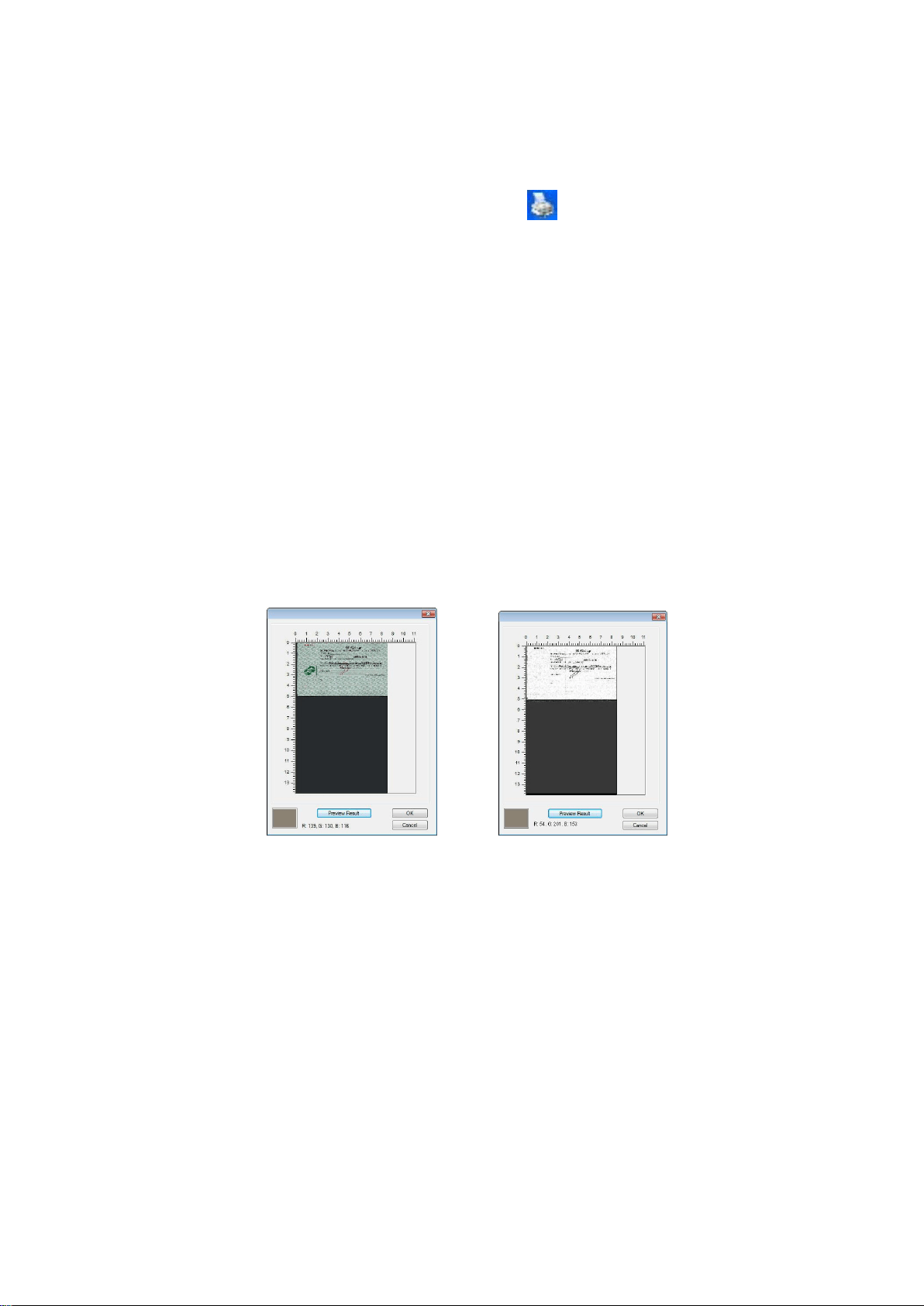
109
Preview the color dropout result:
To preview the color dropout result, please follow these steps:
1. Click the [Scanner Properties] icon ( ) on the upper left corner, and
choose [Tab] to show available tab names.
2. Choose [Preview] to show the Preview tab.
3. Click the [Preview] tab to show the Preview page.
4. Load your document to the scanner and click the [Preview] button to get a
preview image.
5. On the [Image] tab, click [Gray] or [Black and White] image mode and then
choose [Custom] on the [Color Dropout] tab. A [Preview window] button will
be displayed.
6. Click the [Preview window] button to prompt the [Preview] window with
the previewed image.
7. Move your cursor over the preview image. Your mouse cursor now becomes
an Eyedropper.
8. Click to select a color which you wish to remove.
9. Click and hold your mouse button to view the result after removing the
specified color. If the result is satisfactory, click [OK] to close the Preview
window.
The Preview Window The Color dropout result

110
The Color Dropout dialog box
To select a color on the Color palette,
1. Click the Color Dropout tab from
the Scanner Properties dialog
box.
2. Choose Gray or B&W from the
Image Selection box and click
“Custom” from the Color Dropout
drop-down menu. The Color
palette appears.

111
3. Move your cursor over the
palette. The cursor becomes a
cross sign.
4. Click to choose a color. The RGB values are changed simultaneously.

112
The Paper Tab
The Paper tab allows you to define values relating to image output (i.e., Auto Crop
or not, Scan Area, OverScan, Multi-Feed Detection).
The Paper tab dialog box
Cropping
Cropping allows you to capture a portion of the document being scanned.
Choice: Automatic, Automatic (36”), Fixed to Transport, EOP (End of
Page) Detection, Automatic Multiple, Relative to Documents.
Options
Description
Automatic
Automatic adjusts the cropping window according to
different document sizes and automatically straighten a
skewed document. Use this option for batches of
mixed-sized documents.
Automatic
(36”)
Automatically adjusts the cropping window according to
different document sizes smaller than 36” and
automatically straighten a skewed image. Use this
option for batches of mixed-sized document.
Note: The availability of this feature varies due to
the scanner model.

113
Fixed to
Transport
This feature allows you to define the area or zone to be
imaged. Use for batches of same-sized documents. If
you select this option, you can use the arrow keys to
define the x and y offset values, width and length to
redefine your scanned area. The Display window will
show image placement as you change the values.
EOP (End of
Page)
Detection
This feature allows you to define the area or zone to be
imaged. Use for batches of same-width but different
length documents. If you select this option, you can
use the arrow keys to define the x and y offset values,
width and length to redefine your scanned area. The
Display window will show image placement as you
change the values.
Automatic
Multiple
This option allows you to place various sized documents
such as photos, ID Cards, or business cards on the
flatbed (if available) and lets you create multiple
individually cropped images in one scan. Note: To
correctly create multiple images, please make sure
there is at least 12mm (0.5”) of space between each
document.
Relative to
Document
This option allows you to crop different areas on your
documents and deliver these images in B&W, Gray, or
Color separately. For example, there are applications
which require you to store the entire document in B&W
and a part of the document in color to save storage
space. This is useful for documents where a
photograph or signature appears in a consistent area on
the document such as resumes, and so on.
The following options are only available when Fixed to Transport is selected.
X-Offset — the distance from the left end of the scanner to the left edge of
the scanning area.
Y-Offset — the position from the top end of the document to the top end of
the scanning area.
Width — the width of the scanning area.
Length — the length of the scanning area.
Center: automatically calculates the x-offset for center-fed feeding based
upon document size selected.
— relocate the scan area by click the arrow key on the cross sign while
retain the scan size. View the result from the Display window.

114
The Adjustment option is available when Automatic is selected.
Adjustment —adds a positive/negative margin value Top/Bottom or
toward left/right of the image. Adjustment is used when the automatic
document feeder is used. Adjustment reduces the possibility of corner
clipping on skewed images. To set Adjustment values, use the UP/Down
buttons to select where you want to apply Adjustment values: Top/Bottom
or Left/Right, and then select the amount of inches/mm/pixels applied.
Select a value within the range of 0.00 to 1.00 / -1.00.
Relative to Document: (used for batches of same-sized documents)
This option allows you to crop different areas on your documents and deliver
these images in B&W, Gray, or Color separately. For example, there are
applications which require you to store the entire document in B&W and a part
of the document in color to save storage space. This is useful for documents
where a photograph or signature appears in a consistent area on the document
such as resumes, and so on.
The following procedure describes how to reproduce the entire document in
B&W and a portion of document (picture) in color.
1. On the Paper tab, choose “Relative to Document” or “Fixed to Transport”
from the Cropping option.
2. Choose your scan size from the Scan Area option. The selected scan size
will be displayed in a red rectangular box. This is also the scan size of
your entire document. (For example, ISO B5. If you have not chosen a
scan area and leave the selection as None, then the default area will be
the scanner’s maximum.)
A red rectangular box

115
3. Click the Preview tab to display the Preview window. A black rectangular
box appears to indicate the max. scan size your have just selected.
4. Click the Preview button to view the entire image in low resolution to
correctly crop your relative scan area.
5. Select image type from the Image Selection box. The selected image will
appear in highlighted color. (For example, Front Color)
6. Place your cursor on the Preview window and click your left mouse button.
A cross sign will appear as illustrated. Create your relative scan size
diagonally by dragging the left mouse button to your preferable size. The
selected area will appear in a red box as illustrated.
The Preview
Image
The Preview
Button
The
Relative
Area
A Cross
Sign
A black
rectangular
box
The Image
Selection
Box
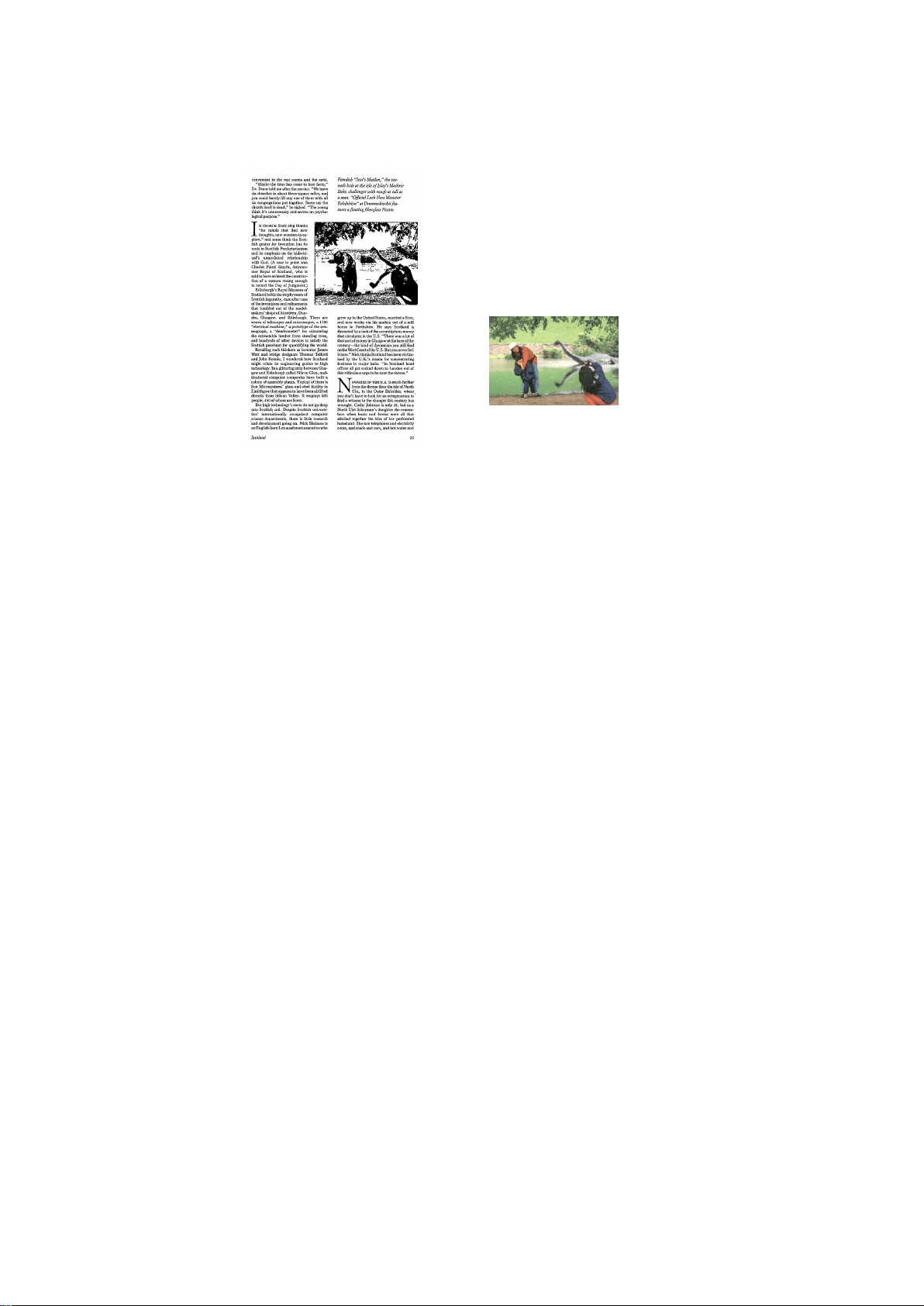
116
7. Check the B&W image from the Image Selection box to scan the entire
document.
8. Click the Scan button to start scanning the document in two image types
and sizes. (See the result in below.)
The entire document in B&W The relative area in color
Other Paper Selection
Carrier Sheet Mode:
Check this option to automatically crop the scan window according to your
document size when scanning non-standard document (fragile, irregular-size
document) with a carrier sheet (optional). Note: The availability of this option
varies due to scanner model.
Loading Documents Using a Carrier Sheet
A Carrier Sheet is a plastic sheet specifically used for loading non-standard
document onto the scanner. It allows you to scan document that can not be
scanned in the regular way. Also, documents larger than A4 size, such as A3 and
B4, can be scanned by folding in half, inserting into the Carrier Sheet, and
scanning in duplex mode. You can also scan documents that can be damaged quite
easily such as photographs, or irregular size documents that are difficult to load
directly such as clippings.

117
To scan document using a Carrier Sheet,
For documents larger than A4/Letter size, such as A3
a. Fold the sheet to be scanned in half.
b. Fold the sheet tightly and smooth out crease. Otherwise, the sheet may be
skewed during scanning.
1. Open the Carrier Sheet and place the document inside.
Align the top of the document to the top of the Carrier Sheet (the printed area).
For documents larger than A4/letter size, such as A3
Align the top of the document to the top of the Carrier Sheet (the printed section)
and the folded portion to the right edge of the Carrier Sheet so that the document
fits into the Carrier Sheet at the upper corner.
For non-standard document
Center your document in the Carrier Sheet.
2. Load the Carrier Sheet with the gray section (printed section) facing
downwards.
3. Adjust the paper guides to the width of the Carrier Sheet.
Adjust the paper guides so that there is no space between the guides and the
Carrier sheet. Space between the guides and Carrier Sheet may cause the
Carrier Sheet to become unaligned during scanning, and skew the scanned
image.
4. Start the scan.

118
Notice:
[Carrier Sheet] is available for the models that support the Carrier Sheet.
Some functions are disabled when [Carrier Sheet] is checked.
This option may not work properly on some applications.
Scan Area
Choose your desired paper size with the drop-down list box. Or you may
select a custom paper size by clicking the Scan Area box and then click Add
to include in the choice.
Choices are listed below:
None
US Letter- 8.5”x 11”
US Legal – 8.5” x 14”
ISO A4 – 21 x 29.7 cm
ISO A5 – 14.8 x 21 cm
ISO A6 – 10.5 x 14.8cm
ISO A7 – 7.4 x 10/5 cm
ISO B5 – 17.6 x 25 cm
ISO B6 – 12.5 x 17.6 cm
ISO B7 – 8.8 x 12.5 cm
JIS B5 – 18.2 x 25.7 cm
JIS B6 – 12.8 x 18.2 cm
JIS B7 – 9.1 x 12.8 cm
Scanner Maximum
Long Page (<118”)
Long Page (<118”):
When you need to scan documents whose length exceeds scanner maximum,
please choose Long Page. Note if Long Page is selected, the Multi-Feed
Detection will not be available. (Note: This option and the maximum
allowable document length vary due to type of scanner.)
When Long Page (<118”) is selected, be sure to specify your document size
in the Length and Width field.

119
Notice when scanning long page document:
1. Pull out the extension in the ADF Paper Tray.
2. Secure enough space around the Output Tray to prevent the ejected paper
from falling off the Output Tray.
3. To ensure the performance, in color mode, set the resolution to be 300 dpi or
lower; in Black and White mode, set the resolution to be 600 dpi or lower.
4. Depending on your system environments, application, or your specified paper
size, there may be insufficient memory to perform scanning.
OverScan
Overscan allows you to add a specific margin at top and bottom or right and left
(Options vary based on the type of scanner) of the edge of the image. This is
used to reduce possible corner clipping on the skewed images and often applied to
a batch of skewed document to be scanned in the auto document feeder. Select
a value between 0 and +5 mm. Note the overscan result will not be shown in
the Display window and that the availability of the function varies based on type
of scanner.
Pre-Feed
Choice: Enable, Disable. If enable is selected, you can set the amount of time
the scanner starts pre-feeding your paper after your documents has been loaded
into the feeder. The default is disable. Note: The availability of this option varies
due to scanner model.
Transport Timeout
Set the amount of time the scanner will wait and then start auto scan after the
first scan job is completed. If you have many separate documents need to be
scanned at the same scan settings, this feature is especially useful. The default is
0. The value ranges from 0 to 30 seconds.
Note:
1. Within the specified timeout period, if you load your document to the feeder,
the scanner starts scanning automatically.
2. If your scanner has a flatbed option and you place your paper on the flatbed,
after the timeout period, you need to click the Scan button on the TWAIN
user interface to start scanning.
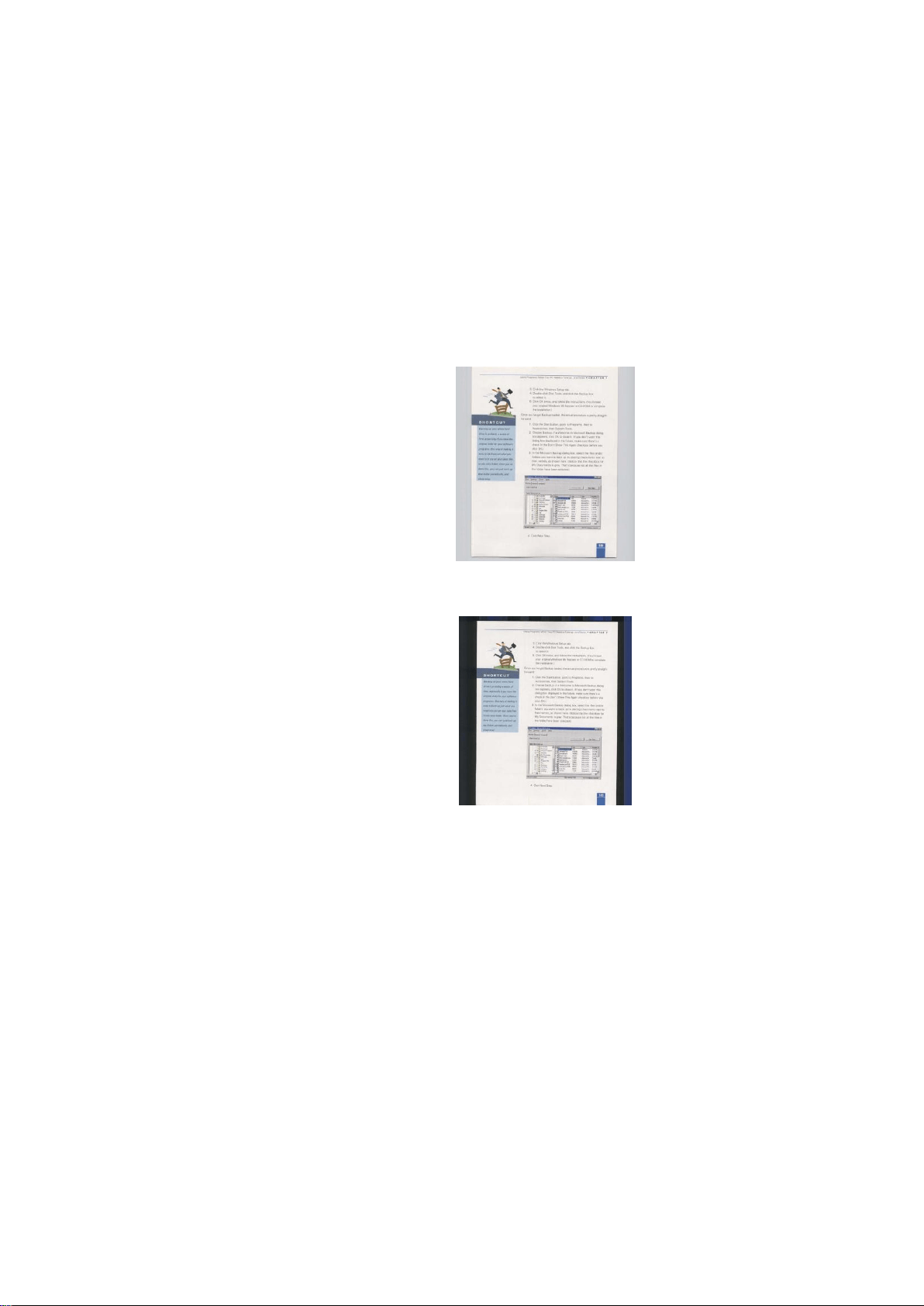
120
Background Setting
This option allows you to set your scan
background. Choice: White Background, Black
Background.
Note: For a sheet-fed scanner with an auto
document feeder, this option is currently available
only in the “Auto crop” mode. For a scanner with a
flatbed platen, this option is available either in the
“Auto crop” or the “Fixed to Transport” mode.
White Background
Black Background

121
The Multi-Feed Detection Tab
Multi-Feed Detection
Multi-Feed Detection allows you to detect overlapped document that go through
the auto document feeder. Multi-Feed usually occurs due to stapled documents,
adhesives on documents, or electro-statically charged document. Note: The
availability of the function varies based on type of scanner.
Additional Length Detection
Additional Length Detection allows you to define the length of document being
multi-fed. This value indicates the additional length exceeding your scan area.
The Display window will show the size of the document as you change the value.
A value of 0 indicates no additional length detection. The Additional Length
Detection is best used when scanning same-size documents in the auto document
feeder.
Ultrasonic Detection
Ultrasonic Detection allows you to set overlapped document by detecting paper
thickness between documents. Note: The availability of the function varies
based on type of scanner.
There are two options available if Multi-Feed is detected.
Stop Scanning after Multi-Feed
If this is selected, the scanner will stop the feeder and display the following
Warning dialog box if multi-feed is detected.

122
Action:
1. Follow the instruction on the Warning dialog box to remove the rest pages on
the feeder.
2. Click OK to close the Warning dialog box.
3. Scan the rest pages.
Clear the Multi-Fed Paper: Auto
If this is checked, once multi-feed is detected and scanning operation is stopped,
the scanner will automatically clear the transport of the multi-fed paper. If this is
not checked, once multi-feed is detected and scanning operation is stopped, you
need to manually clear the transport of the multi-fed paper. Note: The
availability of this option varies based on type of scanner.
Multi-Feed Alarm
If a wave file is added, the scanner will make a sound alarm if multi-feed is
detected yet no Warning dialog box will be displayed.
If “Stop Scanning after Multi-Feed” is selected, the scanner will stop the feeder.
If “Stop Scanning after Multi-Feed” has not been selected, the scanner will
continue to scan till the end of your document.
Action:
1. If “Stop Scanning after Multi-Feed” is selected, follow the action described in
the preceding section “Stop Scanning after Multi-Feed” on the previous page to
complete your job.
2. If “Stop Scanning after Multi-Feed” has not been selected, rescan the pages
where multi-feed is detected.
How to add the sound alarm:
1. Click the Browse button on the right side of the speaker icon. The Open dialog
box appears.
2. Choose your wave file.
3. Click the Open button. The wave file is added.
Units
Defines the primary measurement system. Inches, Millimeters, and Pixels are
available.
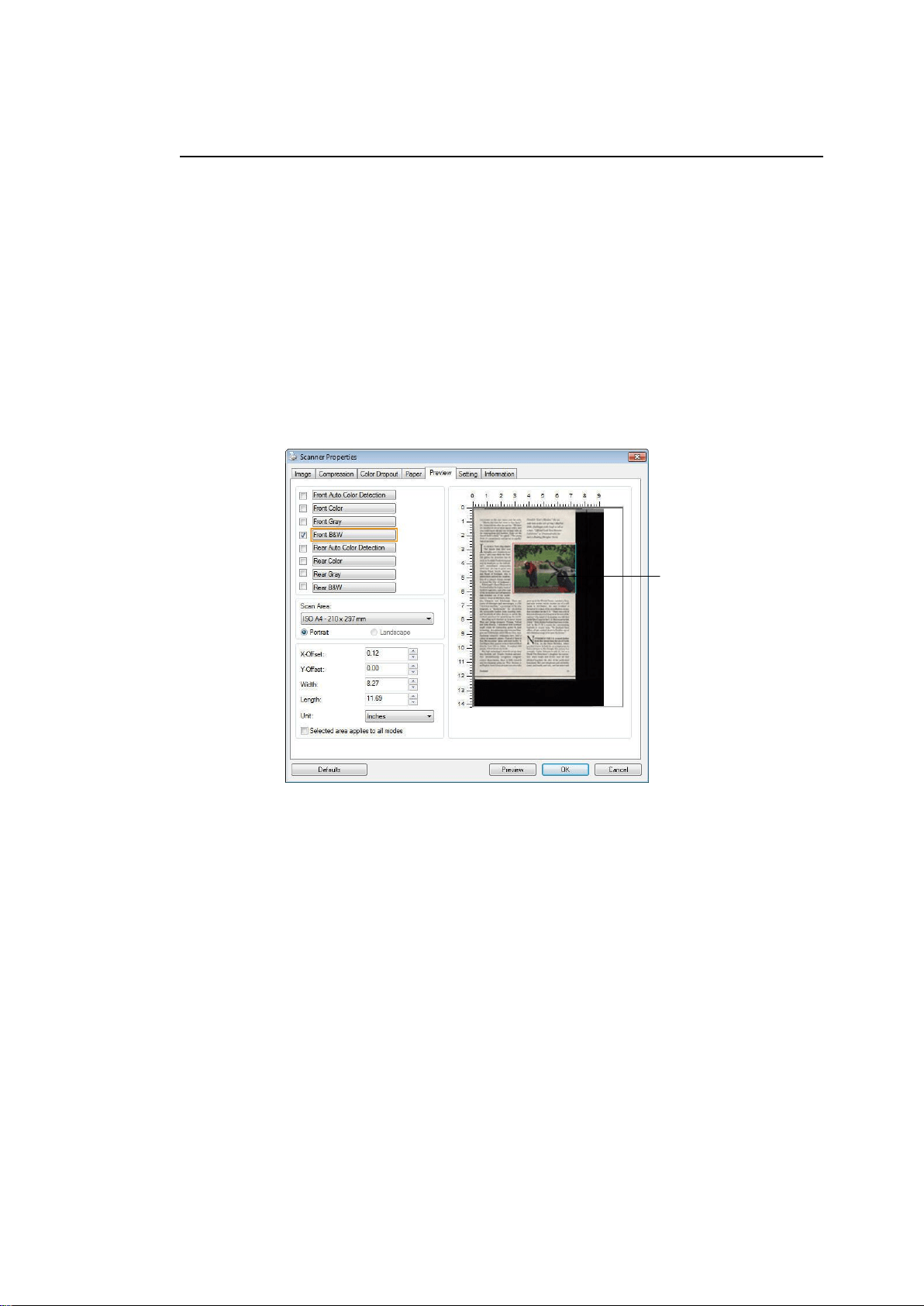
123
The Preview Tab
The Preview tab allows you to preview (a low-resolution scan) your image before
final scan. This preview image lets you allocate your scan area. You can choose
your scan area by the “Scan Area” drop down list box or placing your cursor on the
Display window and dragging it diagonally on the Display window. Then, a red
rectangle box will appear to indicate the selected area.
Note: If you choose “Automatic Cropping” on the “Paper Tab”, then to select a
scan area on the Preview tab is not allowed.
The Preview Tab
The Display
Window

124
The Enhancement Tab
The Enhancement tab allows you to set following additional image processing
settings.
The Option tab dialog box
Punch
Hole
Removal
You can remove punch holes from the output scanned image when
scanning punched document. Note the availability of this feature
varies depending on your scanner model.
Punch holes can not be removed when:
Resolution is set lower than 150dpi
The hole is near the edge of the document
The holes are not aligned along the edge of the document
Punch Hole Removal is available only when “Auto Crop” is
enabled. If either “Fixed to Transport”, “EOP (End of Page)
Detection”, “Automatic Multiple”, “Relative to Documents” is
selected from the Cropping option on the Paper tab, the Punch
Hole Removal option will be disabled.
Original
Output image

125
Before Shadow Removal
After Shadow Removal
Shadow Removal
When 「Flatbed」on the 「Scan
Source」 option is selected on the
「Image」tab, the 「Shadow
Removal」option will be enabled. Click
to remove the shadow on the book
spine when scanning a book.

126
Background Processing: The [Background Processing] option allows you to
smooth background color or remove it to make image clearer. The option is
especially useful for documents with color forms such as invoices.
Choices: None (default), Smooth, Removal
- None - no background processing will be performed (default)
- Smooth - produces images with a more uniform background color. This option
improves image quality.
- Removal - identifies the background color and then removes it.
Sensitivity: Choice: 0, 1, 2, 3, 4. Default: 0
- The higher the value, the more background color will be kept.
Mode: Auto, Moiré
If [Smooth] is selected in the [Background Processing] option, then the choices
for the [Mode] option includes Auto, and Moiré.
- Auto - uses the factory preprogrammed mode to proceed background smoothing.
- Moiré – Remove the moiré patterns that appear on the background of the image
when scanning printed material.
If [Removal] is selected in the [Background Processing] option, then the [Mode]
option will be replaced with [Fill Color]. Choices: White, Auto.
- White - identifies the background color and substitutes it with white.
- Auto - identifies the background color and substitutes it with the color of the
largest background zone.
Background Processing: None

127
Background Processing:
Smooth
Background Processing:
Removal
Fill Color: White
Note: Background color in small zone will not be processed or removed.
Edge Fill
Check White or Black if you wish to add white or black
edge on the border of your scanned image. Enter the
value from 0 to 5 mm. Default value is 0.
If you want to add a white or black frame on the edges
of the scanned image, check "Edge Extension".
Original
Edge Fill: 5mm (Black)
The default value is 0. The maximum value is half of the
short side of the selected scan area.
For example, if you choose an A4 size (8.26 "X11.69"),
then the maximum value of the white or black box is
4.14" (half of "8.26").

128
Despeckle
Occasionally small dots or specks appear in the background of a scanned image.
Remove unwanted speckles provides a cleaner image for OCR (Optical
Character Recognition) processing, and also helps to reduce compressed file
size.
Define the speckles (also known as image noise) you wish to remove by
specifying its number (size) and radius (range). The measuring unit is pixel.
The higher the number, the more speckles will be removed.
Before Despeckle
(noise number:0, noise radius:1)
After Despeckle
(noise number:22, noise radius:10)
Note:
The function is currently available for Black and White image only.
To scan at rated speed, it is recommended to set the noise radius up to 10
pixels.
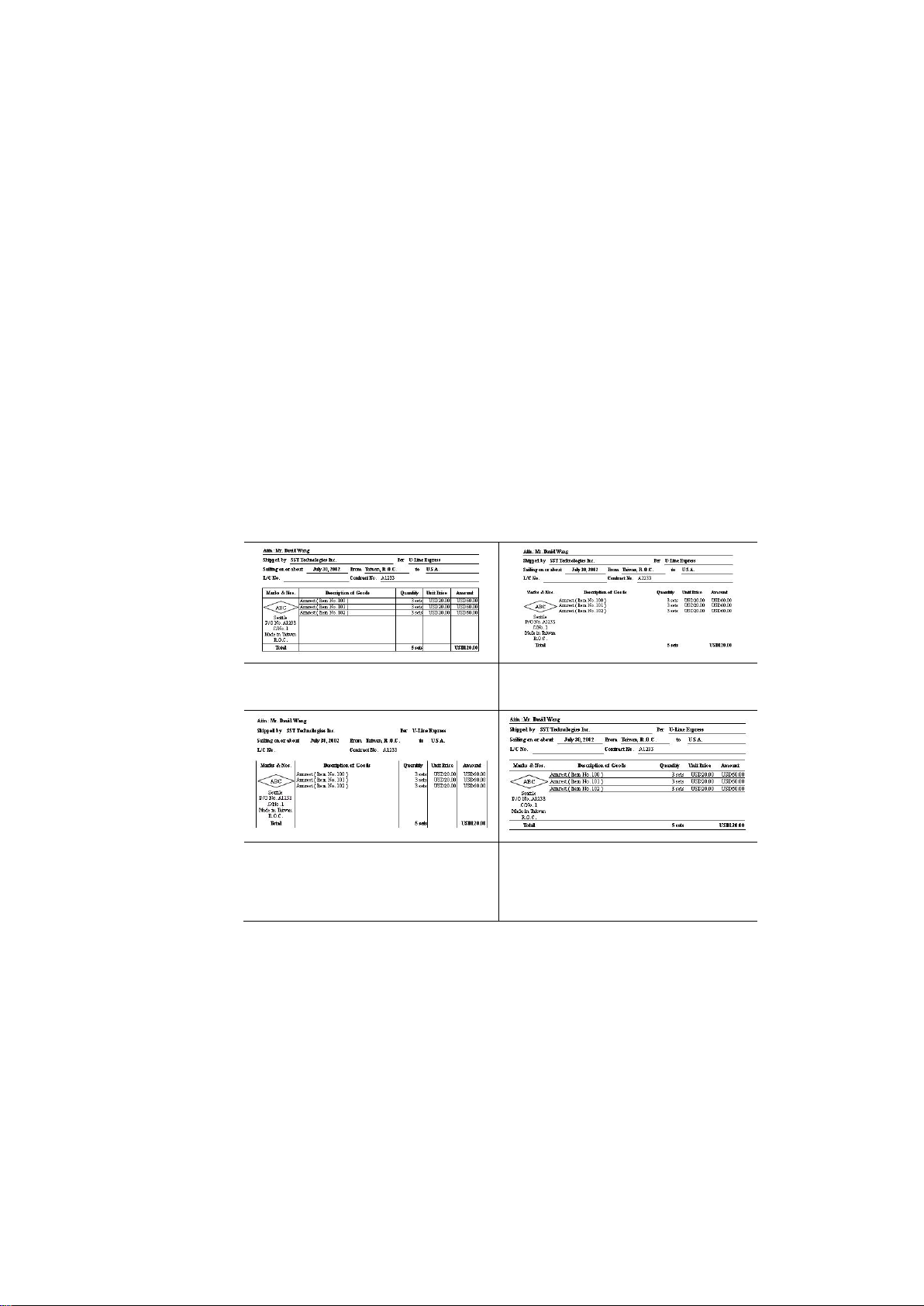
129
Line Removal: When Black and White image mode is selected on the
[Image] tab, the [Line Removal] option will be enabled. Line Removal
erases lines on the image and then reconstructs characters so the OCR
(Optical Character Recognition) accuracy can be improved.
Choices: None, Form, Horizontal, Vertical
None – the default mode which does not remove any line.
Form – remove any form in the document.
Horizontal – select [Horizontal] and then enter the length of horizontal
line to remove only the horizontal line exceeding your specified length.
Vertical – select [Vertical] and then enter the length of vertical line to
remove only the vertical line exceeding your specified length.
None
Remove Form
Remove Horizontal Line
(over 30 mm)
Remove Vertical Line
(over 70 mm)

130
The Rotation Tab
The Rotation tab allows you to set the following image rotating options:
Rotate Image
Choose the rotation angle from the drop down list if
you wish to rotate your scanned image.
Choice: None, 90°CW(clockwise),
90°CCW(counter clockwise), 180°, Auto based
on contents. Auto rotate every even page.
Original
Rotate 90°CW
Rotate 90°CCW
Rotate 180°

131
Auto based on contents: Automatically rotate
images based on the contents of document. When
「Auto based on contents」 is selected, its modes
will be enabled to let you select more options.
Mode: Quick, Full Text, Complexity
Quick – the default mode to let you rotate images at
the fastest speed.
Full Text – the enhanced mode for documents with
mixed text orientation.
Complexity – the enhanced mode yet at the slowest
speed for document with complex image or text
orientation.
Auto rotate every even page:
Automatically rotate 180° on every even page. This
is especially useful when you scan the inside pages
from a book. As a result, if you choose “Flatbed
(book)” from the “Scan Source” option, “auto rotate
every even page” will be selected as default.
Note: This option varies based on type of
scanner.
Document with various
text orientations
Document with dark or
complex background
Split Image
By splitting an image, two separate images are
created horizontally or vertically. This is useful for
documents containing two pages per image when
you want to save them as two images (one page for
one image). Choice: None, Horizontal, Vertical.
Default is None.
Horizontal: Divide one image into the upper half
and the lower half.

132
Vertical: Divide one image into the left half and the
right half.
Split Horizontally
Split Vertical

133
Flip Side
Rotation
Select “fanfold” to rotate the image of the reverse
side to 180 degrees.
This is applied to double-sided document which are
viewed in portrait are sometime fed into the scanner
in landscape or vice versa.
Choice: Book, Fanfold.
If “Book” is selected, the image of the reverse side
will not be rotated.
The following illustration shows the documents which should be viewed in
portrait are fed into the scanner in landscape

134
Image Control
Option
Check the Mirror box if you wish to reverse the right
and left side of your image.
Original
The Mirror Effect

135
The Separation Tab
The Separation tab allows you to enable the detection engine to detect the blank
page, barcode, and patch code and then notify the software application which
supports document separation to separate your multi-page documents. Choices:
Blank Page Removal, Barcode Detection, Patch Code Detection.
Blank Page
Removal
Choices: None, Blank Page Removal Threshold,
Image Size.
None – Do not remove the blank pages.
Threshold - Move the slider to the left or right to
define your threshold for the blank page.
Image Size – Range: 1~ 10000 KB. Specify your
desired image size to detect the page as a blank
page. For example, if 3 KB is selected, any page less
than 3 KB will be recognized as blank page.
Barcode
Detection
Check [Enable] to detect barcode and notify the
software application for advanced processing. Please
note the whole document will be checked and no
specific detection area needs to be designated.

136
When the bar code has been detected successfully,a file [avbarcode.ini] will be
created and stored in the following path:
Windows XP: C:\Documents and Settings\All Users\Application
Data\%PRODUCTNAME%
Vista, Windows 7, Windows 8, Windows 10: C:\ProgramData\%PRODUCTNAME%
Barcode Types:
The following barcode types can be detected.
Two-dimensional codes
Aztec
DataMatrix
PDF417
QR Code
One-dimensional barcodes:
Add-2
Add-5
Airline 2 of 5
Australian Post 4-State Code
BCD Matrix
Codabar
Code 128 (A,B,C)
Code 2 of 5
Code 32
Code 39
Code 39 Extended
Code 93
Code 93 Extended
DataLogic 2 of 5
EAN 128 (GS1, UCC)
EAN-13
EAN-8
GS1 DataBar
Industrial 2 of 5
Intelligent Mail (One Code)
Interleaved 2 of 5
Inverted 2 of 5
ITF-14 / SCC-14
Matrix 2 of 5
Patch Codes
PostNet
Royal Mail (RM4SCC)
UCC 128
UPC-A
UPC-E
Barcode Zone:
Specify the barcode zone to be detected.
Select 「All」 to checks the whole document and detects barcodes. Or you may speed
up the process by specifying a detection area since only the specified area is checked.
Choice: All, Top, Bottom, Left, Right, Bottom Right, Bottom Left, Top Right,
Top Left

137
Choice for barcode zone on a page:
All
Top
Bottom
Left
Right
Bottom
Right
Bottom
Left
Top Right
Top Left
Note:
Recommended resolution: 200~600 dpi for regular barcode, 300~600 dpi for
QR code
Skewed barcodes may not be recognized correctly.
Using the same sheet repeatedly may decrease the recognition accuracy due to
accumulated dirt on the sheets. If the sheet is not recognized correctly or gets
smudged, replace it with a new sheet.
Patch code Detection:
Check [Enable] to detect patch codes and notify the software application for
advanced processing.
A patch code is a pattern of parallel, alternating black bars and spaces (i.e. a
barcode) that is printed on a document. Patch code sheet is most commonly used
as a document separator in a stack of document.
You can find various sizes of patch codes (PDF) by choosing
[Start] menu>[All Programs]>[Avision Scanner Series]>[Patch code] in
succession.
Simply print the PDF file to produce the patch code sheet. Insert the patch code
sheets to wherever you want the file to separate.
Patch code sheet

138
Notes to print the patch codes:
Use blank white paper.
Set the scaling to 100%. The sheet is not recognized correctly when printed in
a size smaller than the original.
Do not use toner saving mode. The sheet is not recognized correctly when the
print is too light.
Do not use thin paper in order to avoid bleed-through from the back.
When you copy a patch code sheet that you printed out, make sure to copy by
the same size and brightness as the original copy.
Use the same sheet repeatedly may decrease the recognition accuracy due to
accumulated dirt on the sheets. If the sheet is not recognized correctly or gets
smudged, replace it with a new sheet.

139
The Setting Tab
The Setting tab allows you to set the following settings:
The Setting tab dialog box
Energy
Saving
Control
Check the Enable Energy Saver box and move the slider to
set the amount of time to start the energy saver after your
last action. The range is from 1 to 60 minutes.
Enable Power
Off
Check the Enable Power Off box and move the slider to set
the amount of time to automatically turn off the scanner after
your last action. The range is from 1 to 480 minutes. The
default is 240 minutes (4 hours). Note the value of “Power
Off” has to be greater than or equal to the value of “Energy
Saving”.

140
Cache
Mode: None, Page Number, Memory Size.
This option allows you to assign a specified memory
size from the available RAM to process the image
data. By specifying a smaller memory size, you can
free more memory for other applications you are
running. By specifying a larger memory size, you can
have more memory to process the image data
especially when you have a large amount of
documents needed to be scanned.
You can also specify your memory size by the page
number. For your information, an A4 color document
scanning at 300 dpi consumes approximates 24MB.
Image Count
When the selected cache mode is “none”, the image
count option allows you to assign number of pages
you need to scan. For example, if you wish to scan the
first two pages, simply move the page slider to 2, and
the scan action will be stopped when the scanning of
the first two pages have been completed.
Show
Scanning
Progress
Check and the scanning progress bar will be shown
during scanning.
Show
Warning
Message
Check to show the warning messages such as “ADF
pad count exceeds 50,000 scans (the number varies
based on type of scanner). Please replace the ADF pad
and reset the pad count.”
Save Settings
after Closing
Check to save your scanner properties settings after
leaving the dialog box. Next time when you open the
Scanner Properties dialog box, the previously saved
settings will be shown.

141
The Imprinter Tab
The Imprinter tab allows you to print alphanumeric characters, date, time,
document count and custom message on your scanned image if digital imprinter is
selected or at the back of your document if external imprinter is selected.
Choice: External Imprinter, Digital Imprinter. If you have installed an
external imprinter, choose external imprinter. If you do not have an imprinter,
choose digital imprinter. Note External Imprinter provides a vertical and rear-side
print capability while digital printer provides a horizontal and front-side print
capability.

142
Contents
Print All
Check Print All to automatically print the text at all
pages of your documents.
Uncheck Print All to print the text for the first page of
your documents only.
Custom
Enter your custom text to be included in your print
string.
Counter
Show the document count for the scan session. This
value is increased sequentially by the scanner.
Date/Time
Choose if you wish to include the date and time in
your print string.
Format: YYYYMMDDHHSS For example,
20090402170645-check0001 indicates year, month,
date, hour, seconds, your custom text and the
counter.
Custom Font
Choose your desired font.
Choice: Normal, Fixed Width
Fixed Width (Mono spaced) fonts have a fixed
character spacing. So each character occupies the
same width.

143
Advanced
Font Attributes
Choose your font attributes. Choice: Normal,
Underline, Double, and Bold.
String
Orientation
Choose your string orientation.
Choice: Normal, Rotated, Vertical, Vertical
Inversion, 90 degrees CW, 90 degrees CCW
Normal
Rotated
Vertical
Vertical Inversion
90 degrees CW
90 degrees CCW
If you check the digital imprinter to stamp text on
your scanned image, the illustration of normal and
rotated string is shown below:
Normal
Rotated
144
Print Position
Choose the position you wish to print your string.
Move the slider to the right to increase the value or to
the left to decrease the value. Range: 0~355mm,
default:0 mm
The value indicates the height from the bottom of your
paper to the last letter of your string. This option is
available only if an external imprinter is installed.
Print Position (for digital imprinter)
Choose the position of your printed string. Choice: Top, Middle, Bottom,
Custom. If Custom is selected, enter the X and Y offset value to specify the
position.
The value of
Print Position
0001abc 2010

145
The Information Tab
The Information tab displays the following system and scanner information.
The Information tab dialog box
The “Report” button:
If you encounter any error message while using the scanner, click the Report
button. A report.txt file [Windows XP: C:\Documents and Settings\All
Users\Application Data\%PRODUCTNAME%; Vista, Windows 7, Windows 8,
Windows 10: C:\ProgramData\%PRODUCTNAME% (C: system drive)] will be
generated. Please send this file to the nearest service center for trouble shooting.
The “Reset Roller Count” button:
After scanning over a recommended number of pages (refer to subsequent section
7.4 Replacing the ADF Roller) through the ADF, the ADF roller may be worn out
and you may experience problems with document feeding. In this case, it is
highly recommended to replace the ADF roller with a new one. (Note the
replacement of the ADF roller has to be performed only by authorized service
center. Therefore, please return your scanner for roller replacement.) After
replacing the ADF roller, click the “Reset Roller Count” button to reset the roller
count.
Note:
The lifetime and the replacing procedure vary based on type of scanner.

146
9 ISIS Interface Operation
* Please refer to the preceding chapter, Scanner Installation, to install ISIS scanner driver.
You may start your ISIS-compliant software application to scan via the ISIS user interface.
The ISIS driver operation method is similar to the TWAIN’s. Every function on the ISIS
interface screen is briefly described as below:
Mode: Select one of scan modes, including B&W, gray, color options.
Dither: 5 halftone levels available, can be disabled.
Dots per inch: Select your desired resolution.
Paper Size: Select your desired paper size.
Brightness: Adjust your scan image brightness or darkness.
Contrast: Adjust the range between the darkest and the lightest shades in the image.
Default: Click to reset all settings.
Area: Select your desired scan area or position.

147
10 Scanning and Sending the
Scanned Images to Your
Computer (BM2 Air)
Before You Begin:
Before you begin using the function of [BM2 Air], please make sure you have
already installed the scanner driver, Button Manager V2, and connecting to the
scanner to your computer via a USB cable or an ethernet cable as described in
the preceding section, chapter 7 Using the Product as a Regular Scanner.
USB Connection LAN Connection
Installing Button Manager V2
Button Manager V2 provides you an easy way to scan your document and then
link the scanned image to your designated software application. All this can be
done by a simple touch of the button on the scanner. Yet, before you scan, it is
recommended to check the button configurations first to ensure a proper file
format and a destination application.

148
Checking the Button Configurations before Scanning
1. Button Manager V2 runs from the system tray. After Button Manager V2 and
the scanner driver are properly installed, Button Manager V2 is started and
the Button icon will be displayed on the system tray at the bottom right
corner of your computer screen.
2. Left-click the Button Manager V2 icon to prompt the following Button Panel.
The Button Panel
This indicates the scanner model
The Button
Icon
The Function
Icon
(The number of
function icons
vary based on
type of
scanner.)

149
3. The Button Panel shows the first five scanning buttons. Right-click the
button (function) you wish to check. The Button Properties window appears.
If you wish to change the setting, use this window to reset the setting for the file
format, destination application, or other scan settings.
4. Click the OK button to leave the window.
Folder and
file name for
the scanned
image
Image Mode
Selection
Box
Name of the Selected Button
Scan To
destination
and settings
Button
Name
OCR
settings
Basic Scan
Parameters
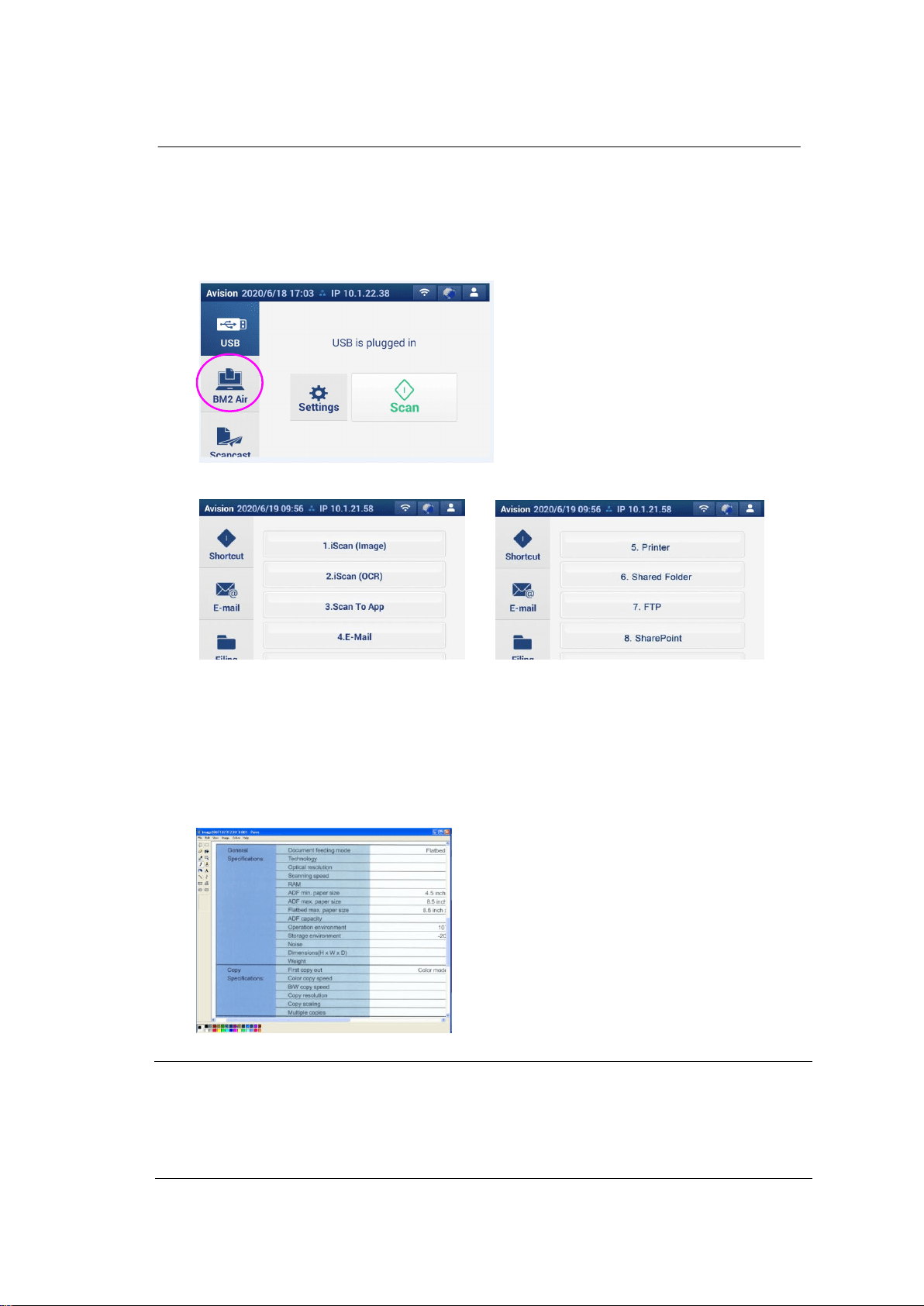
150
Scanning From One Touch of the Buttons
1. Adjust the paper guide for the width of paper and load the document with
their tops into the automatic document feeder.
2. Press [BM2 Air] on the LCD display. A list of connected computer will be
displayed.
3. Select the computer you want to connect. A Button Panel will be displayed.
4. Tap your desired Button No. or destination.
5. The scanner starts feeding your paper and the scanned image will be sent to
your specified application or destination.
6. After the scanning is finished, the Microsoft Paint software will be launched
and the scanned image appears in the main window of Microsoft Paint as
below.
Note:
1. For details information on how to use the Button Manager V2, please refer to
the user’s manual in the supplied CD.
2. You may also use Button Manager V2 on your desktop by starting Button
Manager V2 from All Programs or double clicking the Avision Scanner Utility from
the Control Panel.

151
11 Maintenance
Cleaning the Touch Screen
Wipe the Touch screen Monitor with a wet cloth first then wipe it with a dry cloth.
Warning:
Do not use liquids, household cleaners, or neutral detergents, as they may
damage the touch screen.
Cleaning the ADF
After using the scanner for a long period of time, the rollers and glass inside the
scanner may become contaminated with ink, toner particles or paper dust. It is
necessary to perform routine cleaning to ensure the optimum image quality and
performance. As a guideline, please clean the rollers and glass after first 4,000
to 5,000 scans and then perform the cleaning on a weekly basis. Note that the
guideline varies according to the type of documents you are scanning.
Tip! If documents do not feed easily, if several documents feed at the same
time or if streaks appear on the scanned images, it is time to clean your scanner.
Touch
screen

152
The Cleaning Procedures
1. Soak a clean cloth with some isopropyl alcohol (95%).
2. Press the ADF Release button to open the front door to the left. Wipe and
rotate the ADF Roller until the surface is completely removed from dust.
3. Wipe the rubber part of the ADF pad. Be careful not to damage the pick
springs.
4. Close the scanner front cover. Your scanner is now ready for use.
Warning:
When cleaning, be careful not to snap or damage the arm sensor.
Arm Sensor

153
Cleaning the Glass
1. Press the ADF Release button. Open the front door to the left.
2. Wet a clean cloth with some isopropyl alcohol. (95%)
3. Wipe the glass and the white area as illustrated below to rid the dust or dirt.
Warning:
When cleaning, be careful not to snap or damage the arm sensor.
Arm Sensor

154
Replacing the ADF Friction Roller
After scanning approximately *100,000 pages through the ADF, the ADF Friction
Roller may be worn out and you may experience problems with document feeding.
In this case, you may need to replace a new ADF roller. For ordering the ADF
roller, please consult your nearest dealer and follow the procedure below to
replace it.
Disassembling Procedure
1. Press the ADF Release button.
2. Gently open the ADF Front Door to the left.
3. Hold the mylar assembly with your fingers and then lift it up as shown in
below.
4. Press the right end of the Friction Roller externally to detach it from the
slot and then detach the left end from its hole.
5. Remove rollers from the shaft.
Warning:
When replacing, be careful not to snap or damage the mylar.

155
Reassembling Procedure
1. Install the new rollers to the shaft.
2. Insert the left end of the Friction Roller to the hole of its original place.
Make sure the flat side is up as shown.
3. Insert the right end of the Friction Roller to its slot.
4. Press down the mylar assembly.
5. Close the ADF Front Cover.
Flat side Up

156
*Note:
Consumables must be replaced regularly. It is recommended to purchase new
consumables in advance so that they can be replaced before the end of
their life time.
The replacement cycle is based on the use of A4 (80 g/m2 [20 lb]) wood-free
paper or plain paper. The actual cycle varies according to the type of used
paper and how frequently the scanner is used and cleaned.
Use only the specified consumables.
To purchase consumables, contact the store where you purchased the scanner
or an authorized scanner service provider.

157
Replacing the ADF Roller
After scanning approximately *200,000 pages through the ADF, the ADF rollers
may be worn out and you may experience problems with document feeding. In
this case, you may need to replace a new ADF roller. For ordering the ADF roller,
please consult your nearest dealer and follow the procedure below to replace it.
Disassembling Procedure
1. Press the ADF Release button to open the ADF front door.
2. Use both hands to pull the roller cover to open it.
3. Move the tab of the ADF Roller UP as indicated.
4. Detach the right end of the ADF roller from the scanner and remove the ADF
roller.
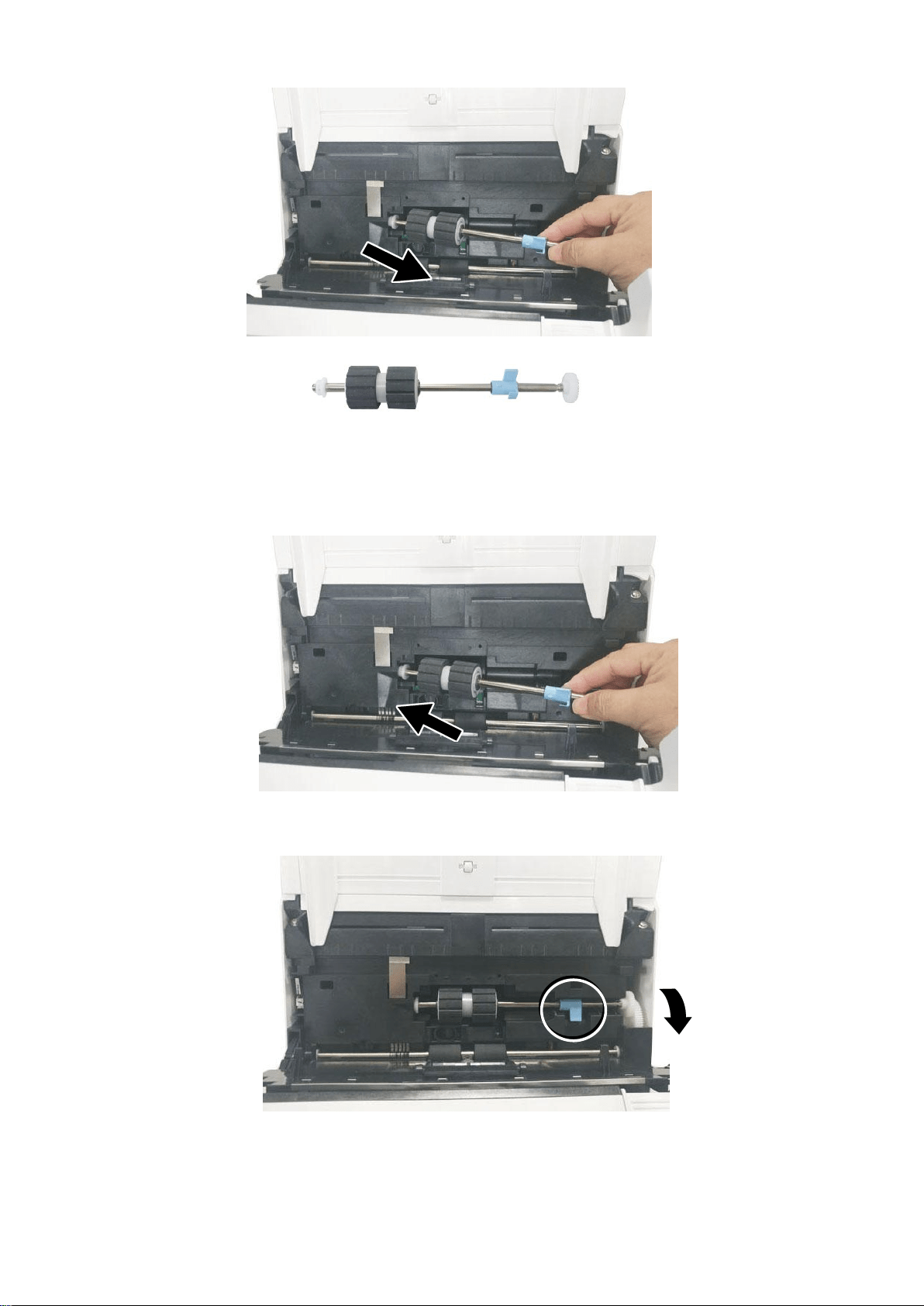
158
Assembling Procedure
1. Insert the left end of the ADF roller first to its slot and place the ADF roller to
its proper position.
2. Move the tab of the ADF roller DOWN.
3. Close the ADF roller cover. A snap-in sound could be heard if correctly
installed.

159
*Note:
Consumables must be replaced regularly. It is recommended to purchase new
consumables in advance so that they can be replaced before the end of
their life time.
The replacement cycle is based on the use of A4 (80 g/m2 [20 lb]) wood-free
paper or plain paper. The actual cycle varies according to the type of used
paper and how frequently the scanner is used and cleaned.
Use only the specified consumables.
To purchase consumables, contact the store where you purchased the scanner
or an authorized scanner service provider.

160
12 Troubleshooting
Clearing Paper Jams
In the event of a paper jam, follow the procedures below to remove the paper:
1. Press the ADF Release Button on the right side. Gently open the Scanner
Front Door to the left.
2. Carefully pull the paper out of the ADF unit.
3. Close the scanner front door. Your Scanner is now ready to use.

161
Questions and Answers
Question:
Paper becomes jammed during scanning.
Answer:
1. Open the front door.
2. Pull out the jammed paper carefully.
3. Close the front door.
Question:
More than one sheet of paper are fed into the scanner.
Answer:
1. Open the scanner front door.
2. Remove the multi-fed sheets.
3. Close the front door.
4. Flatten the corners and edges. Loosen the paper before
putting it into the paper guide again.
5. Check the feeding roller condition. If necessary, follow
the cleaning directions and perform the cleaning.
Question:
Paper becomes skewed in the scanner.
Answer:
1. Use the slide guide to keep the paper path straight.
2. Check the condition of the feeding roller. If necessary,
follow the cleaning directions and perform the cleaning.
Question:
Why does my scanned image always come out too
dark?
Answer:
1. Please adjust the screen settings to sRGB.
2. Please adjust the brightness settings on the screen from
application software.

162
Errors Indicated on the Touch Screen
Error Code and Error Messages
Error code
Problem Description
Solution
Network Errors
592301
Mail server is not set.
1.Check “Mail server” setting.
2.Contact your your network
administrator for further help.
592302
DNS server is not set.
1.Check “DNS server” setting.
2.Contact your network administrator
for further help
592303
Failed to convert Computer
Name to IP.
1.Check “DNS server” setting
2.Check target server name and domain
in CIFS URL.
3.Check Client for Micrsoft Networks on
PC side.
4.Contact your network administrator
for further help
592304
Failed to get IP address from
DNS server.
1.Check “DNS server” setting
2.Check target server name.
3.Contact your network administrator
for further help.
592305
Detected an IP address
conflict.
1. Check network settings.
2. Contact your network administrator
for further help.
NTP Errors
593001
NTP server does not respond
within the timeout period.
1.Check “NTP server” setting.
2.Check firewall settings.
3.Check network environment.
4.Contact your network administrator
for further help
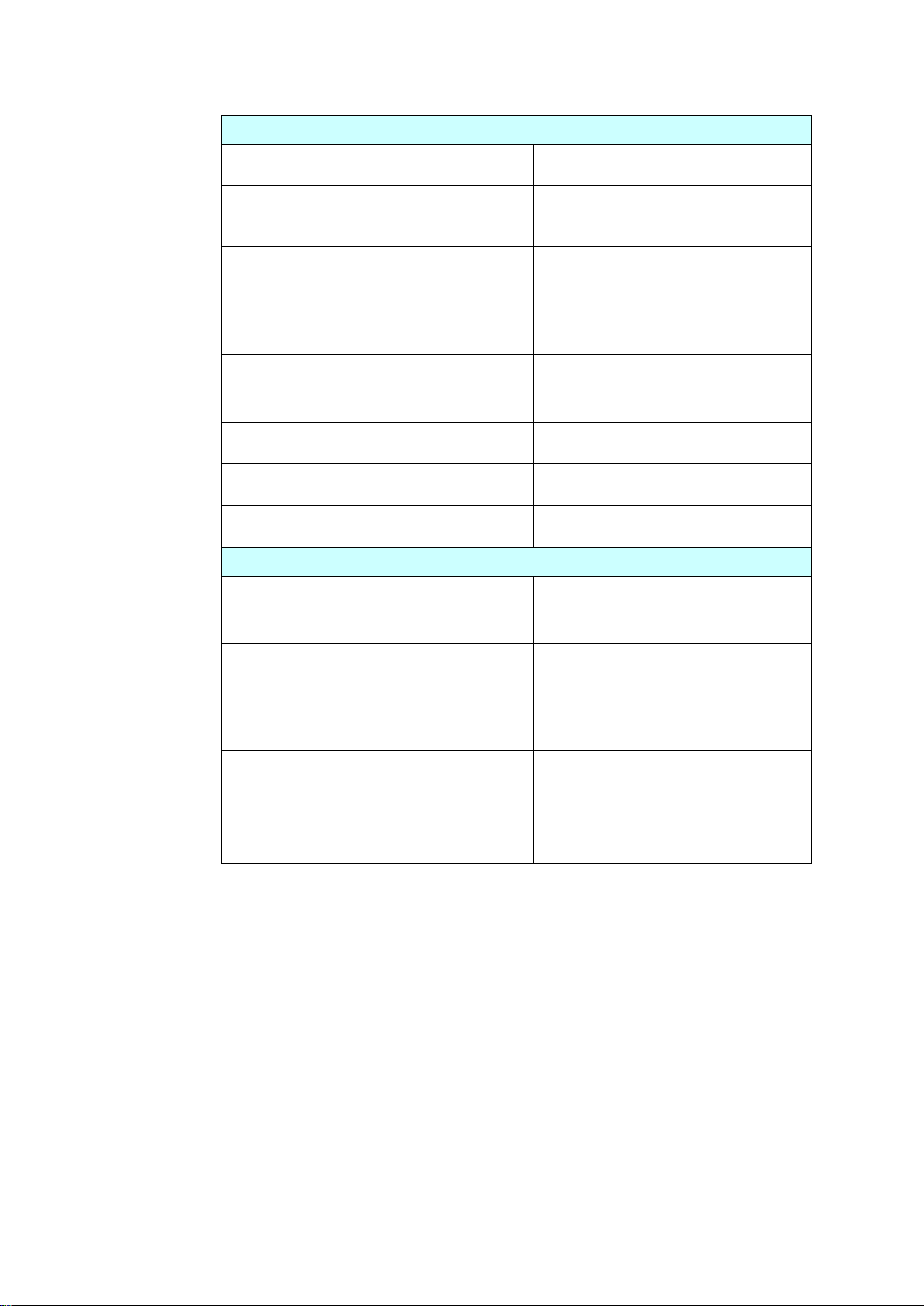
163
LDAP Errors
596001
LDAP URL is empty.
Enter LDAP server IP or Port.
596002
Failed to connect to LDAP
server.
Check LDAP server IP or Port.
596003
Authentication type error.
Check the authentication type.
596004
LDAP account or password is
empty.
Enter login name and password.
596005
Please check login name and
password.
Check login name and password.
596006
Search root is empty.
Enter "search root".
596007
Failed to search.
Check "search root".
596008
Search attribute is empty.
Enter "search attribute".
Wi-Fi Errors
597001
Failed to connect to Wi-Fi AP.
Check password if Wi-Fi AP (Access
Point) requires password.
597002
Failed to initiate AP scan.
Scanner fails to scan in AP mode. Try
later. If this problem always exists,
contact your nearest dealer.
597003
Unable to find a wireless AP.
Scanner does not search any Wi-Fi
AP.
Try again later. If this problem always
exists, contact your nearest dealer.

164
SMTP Errors
530002
Failed to connect to Mail
server.
1. Check Mail server address and port
number.
2. Check network environment.
3. Contact your network administrator
for further help
530003
Failed to connect to Mail
server via SSL.
Contact your network administrator
about Mail server settings. Set correct
Authentication method and Encrypt.
530004
Failed to connect to Mail
server because server
requires SSL connection.
1.Contact your network administrator
about Mail server settings.
2.Set correct authentication method
and encrypt.
3.Change encrypt setting to SSL and
try again.
531011
Mail server requires
TLS/STARTTLS connection.
1.Contact your network administrator
about Mail server settings.
2.Set correct authentication method
and encrypt.
3.Change encrypt setting to
TLS/STARTTLS and try again.
531012
Scanner tries to do
authentication, but mail
server does not require it.
1.Contact your network administrator
about Mail server settings.
2.Set correct authentication method.
3.Change authentication method to
None and try again.
531013
Authentication method
replied by Mail server is not
supported on this scanner.
Contact your network administrator.
538001
Connection is broken during
data transmission.
1. Check network environment.
2. Check if email attachment size is
larger than the mailbox quota.

165
530421
531421
532421
533421
534421
536421
Mail server replies that
service is not available.
Contact your network administrator for
further help.
537550
Login name must be the
same as From address.
The account of from and login must be
same
533450
Recipient mailbox may
be not available.
Check “To” addresses.
532451
533451
534451
535451
537451
Requested action is
aborted by Mail server.
Contact your network administrator for
further help.
533452
535452
537452
One recipient's mailbox
has insufficient storage.
1.Check recipient mailbox quota.
2.Contact your network administrator for
further help.
530500
Failed to connect to Mail
server via
TLS/STARTTLS.
1.Contact your network administrator
about Mail server settings.
2.Set correct authentication method and
encrypt.
3.Change encrypt setting to None and try
again.
532530
Mail server requires to
do authentication.
Contact your network administrator about
Mail server settings, authentication
method and encrypt setting.

166
531534
Mail server rejects your
login.
1.If you are using Gmail as mail server,
please turn on "Access for less secure
apps". Or enabling 2-Step Verification and
then create an "app password" for
scanner.
2.If you are using Gmail as mail server,
you can login on A place, at the same
time, someone uses your account to login
on B place. Gmail will reject someone's
login.
3. Please contact the administrator of mail
server.
531535
Failed to login to Mail server.
1.Server requires authentication.
2.Check login name and password.
533001
To, CC and BCC addresses
are empty.
Enter email address.
533550
Recipient mailbox may be
not available.
1. Check recipient’s addresses.
2. If mail server is Microsoft Exchange,
please check the settings on mail server,
is the IP of machine allowed to send mail?
535552
537552
Mail attachment size
exceeds Mail server's
limitation.
1. Check mailbox storage allocation.
533553
Recipient address is not
correct.
Check “To” addresses.
532440
532553
532554
537554
From address is not correct.
Check “From” address.
532501
From address is invalid.
Check “From” address.
533504
HELO command is rejected.
Check "Host Name" and "domain name".
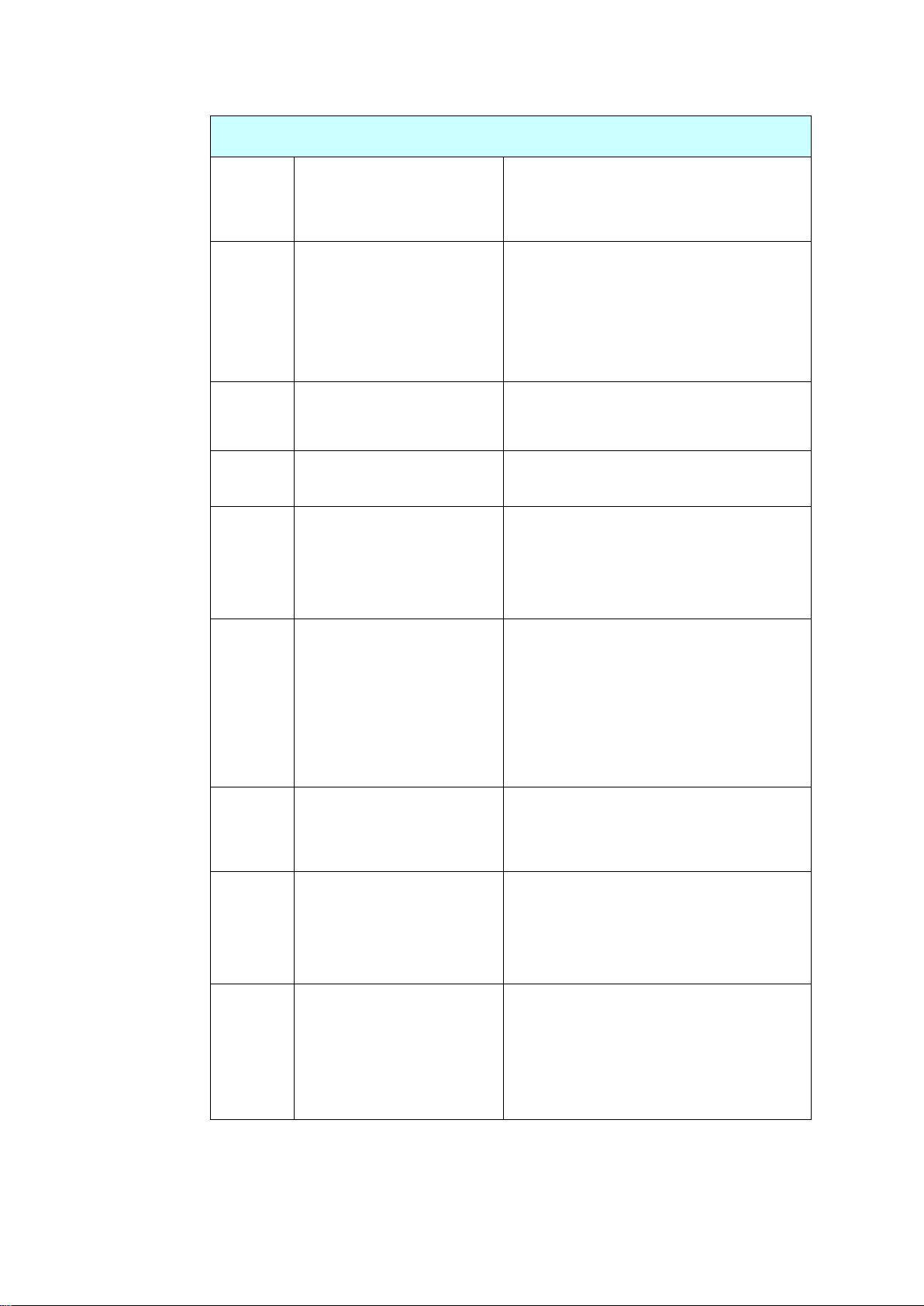
167
FTP Errors
540002
Failed to connect to FTP
server.
Make sure the FTP server has not been
shut down and port number is correct. If
firewall is enabled, check firewall settings.
540003
Failed to connect to FTP
server via SSL.
Make sure the FTP server has not been
shut down and port number is correct.
If the error is still there, contact your your
network administrator or FTP server
administrator.
540004
Failed to login to FTP server.
Check your login name and try again.
540005
Failed to login to FTP server.
Check your password and try again.
540020
540021
FTP control connection is
broken.
1.Contact your network administrator to
check FTP server log.
2.Contact your network administrator to
check network environment.
540023
FTP server does not open
data connection to scanner.
1.Contact your network administrator to
check firewall settings.
2.Contact server administrator to check
ftp server log.
3.Change Active mode to Passive mode
and try again.
546005
Data connection is broken
during transmission.
1.Contact server administrator to check
server log.
2.Check network environment.
549002
Failed to open passive mode
data connection to FTP
server.
1.Contact your network administrator to
check firewall settings.
2.Contact your network administrator to
check FTP server log.
540421
FTP server replies that
service is not available and it
closes control connection.
1. Too many connections from this IP,
contact your FTP server administrator.
2. FTP server shut down and cannot
provide services.
3. Try again later. If problem persists,
contact FTP server administrator.
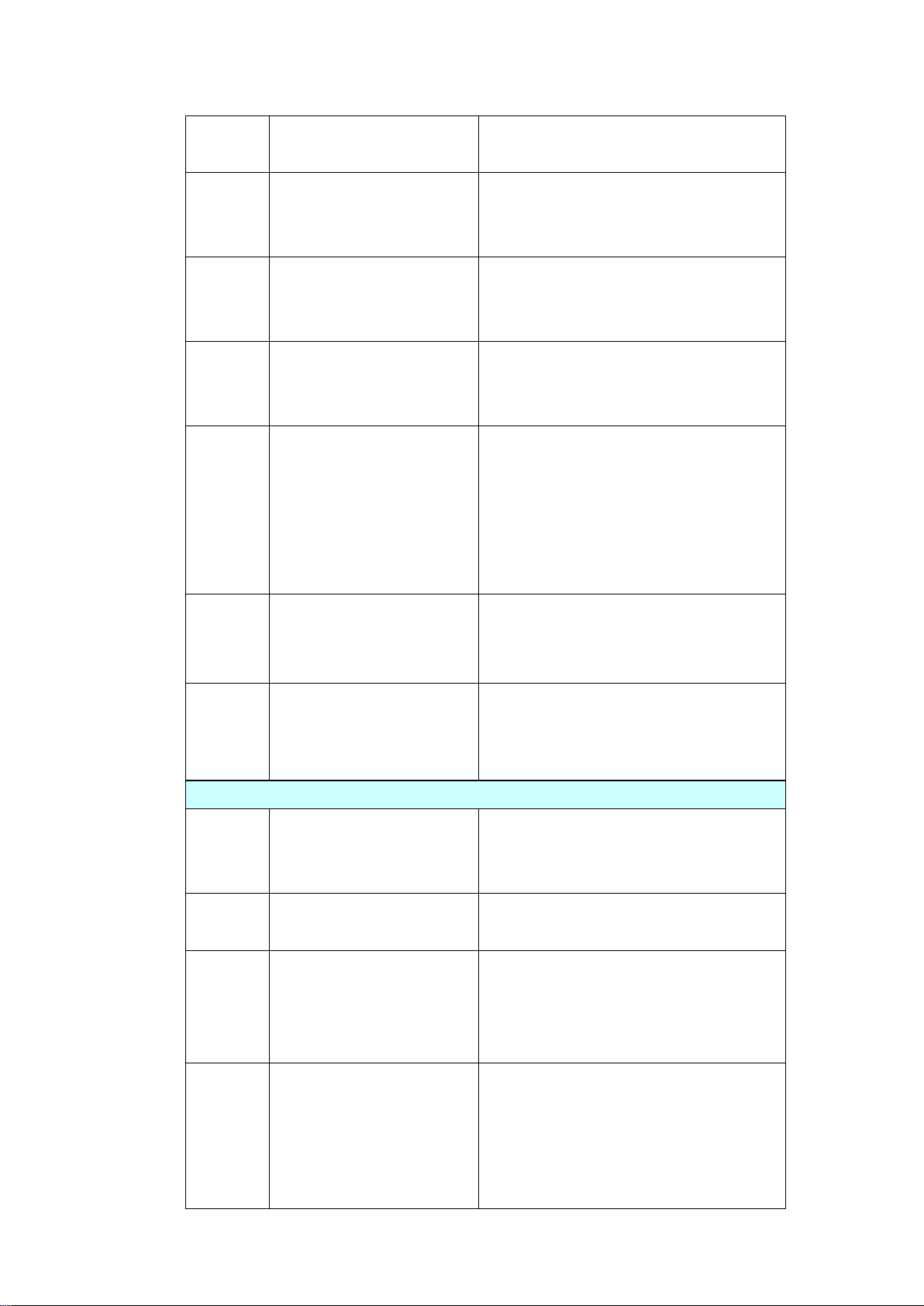
168
546425
Failed to open data
connection to FTP server.
Contact your network administrator to
check firewall settings and FTP server log.
544450
546450
548450
Failed to access file because
it's locked on server.
The file already exists and is locked by
Windows. Check your network
administrator.
546452
548452
Insufficient storage space in
FTP server.
Ask server administrator to increase
allocated storage space, or delete
unnecessary files.
540550
Failed to access target
directory or directory has
being deleted.
1.Check if the directory exists or not.
2.Check if the directory is empty or not.
541550
542550
546550
Failed to write file to FTP
server.
1.Confirm that you are attempting to
connect to the correct server/location.
2.The administrator of the remote server
must provide you with permissions to
access files via FTP.
3.Check if file has not being opened.
543421
Server does not support
active mode.
Please enable "passive mode" and try
again.
546553
548553
Filename is not allowed on
FTP server. Please check
filename.
Change the file name or delete
spaces/special characters in the file name.
CIFS Errors
560029
Account is locked. Please
contact your network
administrator.
Contact your your network administrator
for further help.
560033
Failed to login to target
PC.
Check domain in Network settings.
560034
The trust relationship
between this workstation
and the primary domain
failed
Contact your your network administrator
for further help.
561003
Target PC's IP address is
not correct.
1. Check the network cable or
connector.
2. Check if URL or IP address is correct.
3. Check if "File and Printer Sharing for
Microsoft Networks" is enabled.
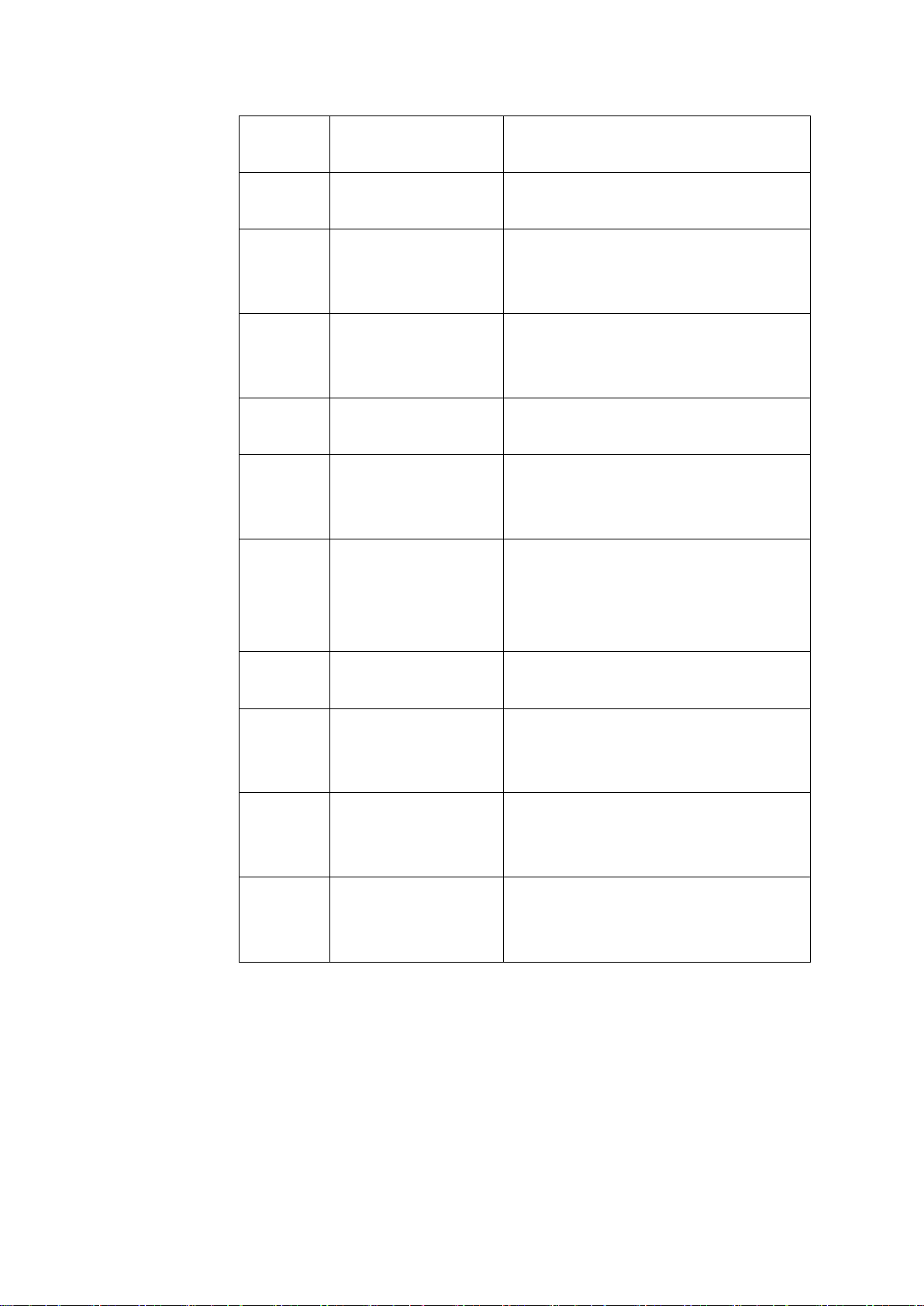
169
561005
Access is denied from
target PC.
Please check access permissions of
shared folder on target PC.
561006
File is closed during
communications.
Please check target PC.
561032
Sharing violation or
file is in use on target
PC.
Please check if shared folder name is
correct.
562005
Shared folder does
not exist during
transmission.
Please check target PC.
562006
Shared folder name
is not correct.
Please check profile settings and shared
folder name on target PC.
562088
Target PC does not
respond within the
timeout period.
Server busy, and try scan-to CIFS again
later.
563021
Target PC replies
service is not ready.
1. Please wait CIFS service initialization,
and try scan-to CIFS again later.
2.Please check the same hostname on
different machines.
563039
Insufficient disk
space on target PC.
Please clean up disk space.
569001
Connection is broken
during
communication.
Check the network cable or connector.
Check if URL or IP address is correct.
569033
Shared path is not
correct. No shared
folder in the URL.
Please check if URL or IP address is
correct.
569020
Target PC does not
respond within the
timeout period.
Server busy, please try scan-to CIFS
again later.
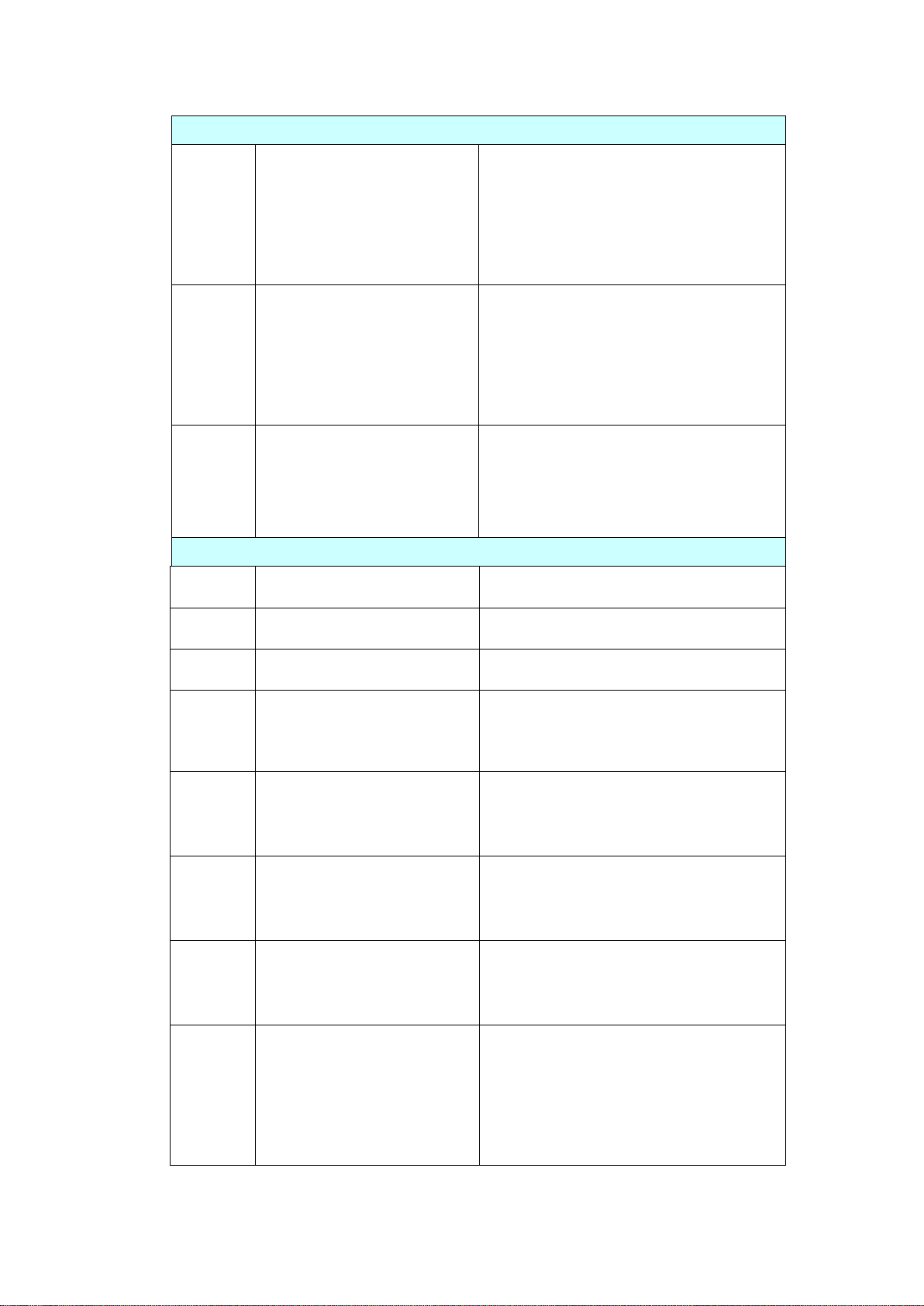
170
SharePoint Errors
555400
Server errorRequest
parameter error.
Please check if the login information
such as user name, password, server IP,
Domain, location URL, or subfolder is
correct and check also the network
connection status.
555401
Server error:Login failed.
Please check if the login information
such as user name, password, server IP,
Domain, or location URL is correct and
check also the network connection
status.
555402
Attachment exceeds
limitation.
Please inform the server administrator
to change the max. upload file size. And
please check the settings with your
server administrator.
HTTP Errors
550002
Failed to receive data.
Check network environment.
550004
Data length is wrong.
Please try again.
556001
HTTP server URL is invalid.
Check the format of URL.
556002
Failed to connect to HTTP
server.
1.Check the server name or IP in URL
2.Check network environment.
556003
Connection is broken and fail
to send header to HTTP server.
1. Check the network cable or connector
2. Contact your your network
administrator for further help
556004
Connection is broken and fail
to send data to HTTP server.
1. Check the network cable or connector
2. Contact your your network
administrator for further help
556005
Connection is broken and fail
to receive data from HTTP
server.
1. Check the network cable or connector
2. Contact your your network
administrator for further help
556006
The size of received data from
HTTP server is wrong.
The size of received data is not equal to
the content length.
1. Check the network cable or connector.
2. Contact your your network
administrator for further help.

171
AWIP Errors
557001
Failed to connect to remote
App.
Check network envrionment.
557002~
557005
Failed to send file to remote
App.
Check network cable and connector.
Contact your network administrator for
further help.
System Errors
150001
Scanner not ready
Reboot your machine. If the problem
persists, please call service personnel for
help.
150004
Unauthorized network access,
please login first
Please login first.
151004~
151010
Failed to save scanned image
file.
Please try again. If the problem persists,
please call service personnel for help.
Please restart the product and try again.
If the error persist, please call service
personnel for help.
152004~
152005
Scan parameter error.
152006
Failed to allocate memory.
152999
153001~
153003
Internal error
153005
Insufficient memory
Reduce scan reslution or select a
different file format. A;termatively,
reduce number of pages to be scanned.
153010
Internal error
Please restart the product and try again.
If the error persist, please call service
personnel for help.
153020~
153026
153021
153022
Scanner busy.
153023~
153026
Internal error
170004
Internal error.
Please restart the product and try again.
If the error persist, please call service
personnel for help.

172
170005
Send action is stopped
Please restart the product and try again.
If the error persist, please call service
personnel for help.
170011
Failed to send filing report to
email.
Please check your SMTP settings or
contact your network administrator.
171201
172202
173204
Internal error.
Please restart the product and try again.
If the error persist, please call service
personnel for help.
175101
Failed to save file into public
folder.
175102
Public folder disk space is not
enough.
Contact your network administrator.
175201~
175205
Failed to save file into public
folder.
Restart the product and try again. If the
error persist, please call service
personnel for help.
176003
Internal error.
177102
Public folder disk space is not
enough.
Contact your network administrator.
178102
Can not get IP.
179204
180001~
180002
Internal error.
Please restart the product and try again.
If the error persist, please call service
personnel for help.
180010
Send action is stopped.
Please restart the product and try again.
If the error persist, please call service
personnel for help.
182001
Failed to create thumbnail
image.
Please restart the product and try again.
If the error persist, please call service
personnel for help.
182002
Create thumbnail action is
stopped.
Please restart the product and try again.
If the error persist, please call service
personnel for help.
183006
185201
Internal error.
Please restart the product and try again.
If the error persist, please call service
personnel for help.

173
BM2 and VSL Errors
200100
To use the [BM2] function,
you need to first install
Button Manager V2 onto
your computer.
Check if the PC has installed Button Manager.
200101
VSL disconnect.
Check if the VSL connection on the PC still
work.
Scanner Errors
000016
UART read and write test
error
Restart the device. If the error persists, call
service to replace the main board.
000017
Motor Stall
Restart the device. If the error persists, call
service to replace the motor.
000020
Download firmware error
Check firmware file and try again.
000022
Lamp off error.
Restart the device. If the error persists, call
service to replace the lamp.
000023
Flashrom read and write
test error.
Restart the device. If the error persists, call
service to replace the main board.
000029
ADF AFE read and write
test error.
Restart the device. If the error persists, call
service to replace the main board.
002013
Paperjam
Open the front door to remove the jammed
paper.
002014
ADF cover opens
Close ADF cover.
002015
ADF no paper.
Load aper into the auto document feeder.
002024
NVRAM read and write test
error.
Restart the device. If the error persists, call
service to replace the main board.
003101
Multiple feed
Remove paper.
Fan your paper and tray again.
002033
Page skew.
Remove paper.
Fan your paper and try again.
002036
Ultrasonic sensor error
Restart the device. If the error persists,
contact service personnel.
002037
ADF Bottom head AFE test
error.
Restart the device. If the error persists, call
service to replace the main board.
002040
Fan check error
Restart the device. If the error persists,
contact service personnel.
003003
DRAM read and write test
error.
Restart the device. If the error persists, call
service to replace the main board.

174
003004
ADF DRAM read and write
test error.
Restart the device. If the error persists, call
service to replace the main board.
003006
ADF Bottom Head light
check error.
Restart the device. If the error persists, call
the service to replace the lamp.
003010
ADF Top Head light check
error.
Restart the device. If the error persists, call
the service to replace the lamp.
003211
Page miss-feed
Make sure the edge of your document
slightly touch the paper guides and try
again.

175
Technical Support
If your problem still exists after trying the above solution, please contact our
technical support.
Headquarter
Avision Inc.
No. 20, Creation Road I, Science-Based Industrial Park,
Hsinchu 300, Taiwan, ROC
TEL: +886 (3) 578-2388
FAX: +886 (3) 577-7017
Web Site: http://www.avision.com.tw
US and Canada Area
Avision Labs, Inc.
6815 Mowry Ave., Newark CA 94560, USA
TEL: +1 (510) 739-2369
FAX: +1 (510) 739-6060
E-MAIL: support@avision-labs.com
Web Site: http://www.avision.com
China Area
Technical Support Center in Shanghai
7A, No.1010, Kaixuan Road, Shanghai 200052 P.R.C.
TEL :+86-21-62816680
FAX :+86-21-62818856
E-MAIL: [email protected]n
Web Site: http://www.avision.com.cn
Europe Area
Avision Europe GmbH
Bischofstr. 101 D-47809 Krefeld Germany
TEL: +49-2151-56981-40
FAX: +49-2151-56981-42
E-MAIL: info@avision-europe.com
Web Site: http://www.avision.de


177
13 Specifications
All specifications are subject to change without notice. For more
detailed information, please refer to our web site at www.avision.com
Items
Specifications
Model Number : FF-2007H
General Specifications
System Description
Network Scanner
Image Sensor
Contact Image Sensor (CIS)
Light Source
LED Light Bar
Optical Resolution
600 x 600 dpi
Output Resolution
1200 dpi (PC Scan)
Output Quality
Input: 48 bits color
Output: 24 bits Color
8 bits Gray
1 bit Monochrome
LCD Size
8 inches
External Connections
1. RJ-45 (for Network connection)
2. USB 3.2 Gen 1x1
Network Connection
RJ-45 Ethernet 10/100/1000 Mb, Wi-Fi
Output Format
JPEG, TIFF (One-Page TIFF), M-TIFF
(Multi-Page TIFF), PDF (One-Page PDF),
*M-PDF (Multi-Page PDF)
Dimension (WxDxH)
Min.
Max.
282 x 152 x 165 mm (11 x 5.98 x 6.49 in.)
282 x 457 x 334 mm (11 x 18 x 13.15 in.)
Weight
4.2 Kg (9.26 lb)
Power Requirement
100~240Vac, 50/60Hz
Power Source
24Vdc, 1.5A
Operating
Environment
Temperature
10°C~35°C
Humidity
10%~85% RH
Scan Size
ADF Paper Capacity
50 sheets (80 g/m+² or 20 lb. Paper)
ADF Paper Size
74 x 50 mm (2.9 x 2 in.) ~ 216 x 356 mm (8.5
x 14 in.)
Paper Thickness
50 ~ 413 g/m² (12~110 lbs)

178
Network Specification
Connectivity
RJ-45 Ethernet 10/100/1000 Mb, Wi-Fi
Communication
Protocol
IPv4, TCP, UDP, DHCP, SSL/TLS, DNS, DDNS, SNTP,
LDAP, LDAPS, SMTP, SMTPS, HTTP, HTTPS, MIME,
FTP, FTPS, SMB, Ipsec, 802.1x
Configuration
Requirement
1. IP address
2. Subnet mask
3. Gateway
4. SMTP server
5. FTP server
E-mail Specification
Communication
Protocol
SMTP
File Formats
B&W
Gray/Color
PDF, TIFF, MTIFF
PDF, TIFF, MTIFF, JPEG
Default File Format
PDF
Separation Limit
1MB, 3MB, 5MB, 10MB, 30MB, Unlimited
Resolution
100 dpi, 150 dpi, *200 dpi, 300 dpi, 400 dpi, 600
dpi
Default Resolution
200 dpi
Supported Mail
Server Application
Lotus Mail Server 5.0
MS Exchange Server 2000
RedHat 7.0 SendMail
MAC Mail Server in OS 9.04
Filing Specification
Communication
Protocol
FTP, FTPS, FTPES, SMB, SharePoint
File Formats
JPEG, TIFF (One-Page TIFF), M-TIFF (Multi-Page
TIFF), PDF (One-Page PDF), *M-PDF (Multi-Page
PDF), PDF/A(M-PDF), PNG
Resolution
100 dpi, 150 dpi, *200 dpi, 300 dpi, 400 dpi, 600
dpi
Max. Number of
Filing Profiles
50

179
Wi-Fi Specifications:
Standard
IEEE 802.11 b/g/n standards compliant
Wireless LAN
1T1R Mode
Frequency Range
2.412 ~ 2.484GHz ( subject to local regulations)
Modulation Type
CCK, DQPSK, DBPSK for DSSS
64QAM, 16QAM, QPSK, BPSK for OFDM
Modulation Technology
DSSS, OFDM
Transfer Rate
802.11b: up to 11Mbps
802.11g: up to 54Mbps
802.11n: up to 72.2Mbps
Output Power
802.11b: 149.279mW
802.11g: 360.579mW
802.11n (HT20): 345.939mW
Antenna
PCB antenna
Security
WEP 64/128, TKIP, WPA, WPA2 mixed, 802.1x
and 802.11i