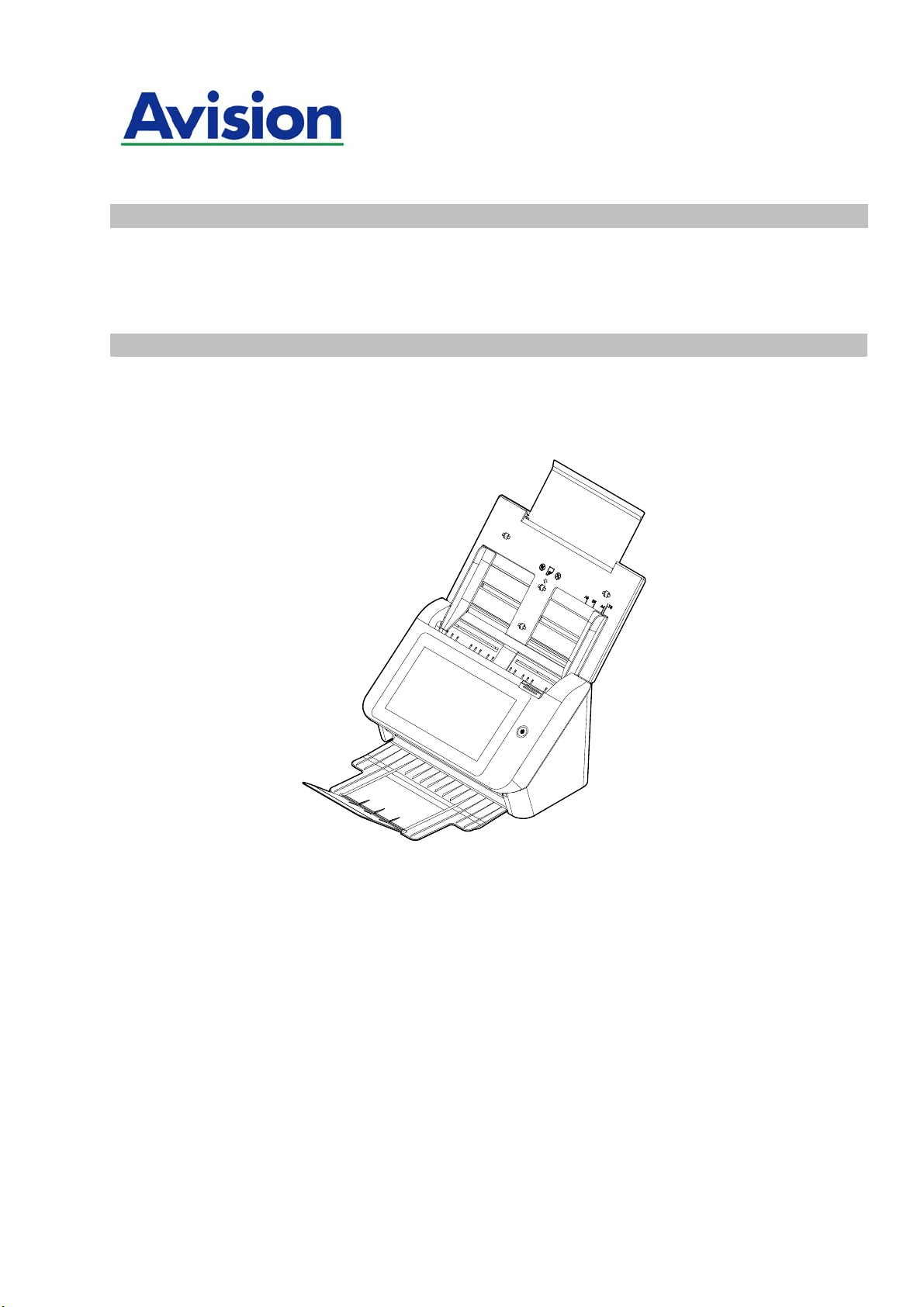
N et w ork Scanner
User's Manua l
Regulatory m odel: FF- 2002H
Avision I nc.

i
i
Copyr ight s a nd Tr a dem arks
Et hernet is a registered tradem ark of Xerox Corporat ion.
Microsoft, Windows 7, Windows 8, and Windows 10 are regist ered t radem arks of Microsoft
Corporat ion in the United States and/ or other countries.
Ot her product nam es used herein are for ident ification purposes only and m ay be
tradem arks of t heir respective com panies. We disclaim any and all rights t o t hose m arks.
W ar rant y
The inform at ion cont ained in t his docum ent(s) is subj ect t o change wit hout not ice.
The m anufacturer m akes no warrant y of any kind with regard t o this m at erial, including,
but not lim it ed t o, t he im plied warrant ies of fitness for a particular purpose.
The m anufact urer shall not be liable for errors cont ained herein or for incidental or
consequential dam ages in connect ion with t he furnishing, perform ance, or use of t his
m at erial.
Safet y I nform at ion
When using t his equipm ent , the following safet y precautions should always be followed.
Safet y D ur ing Operat ion
I n this m anual, t he following im port ant sym bols are used:
W ARN I N G:
I ndicat es pot ent ially hazardous situat ions, w hich if instruct ions are not followed, could
result in deat h or serious injury.
CAUTI ON :
I ndicat es a pot entially hazardous sit uation which, if inst ructions are not followed, m ay
result in m inor or m oderate injury or dam age to property.
I m portant:
I ndicates operational requirem ent s and restrictions. Please read and follow t hese
instructions to ensure a proper operat ion and t o avoid dam age t o t he m achine.
N ot e:
I ndicates further explanat ion or clarificat ion. Reading t his is highly recom m ended.
W ARN I N G:
To avoid hazardous electric shock or fire, do not rem ove any covers or screws other than
t hose specified in t his m anual.
CAUTI ON :
To reduce t he risk of fire, use only no.26AWG or larger t elecom m unicat ion line cord.
Disconnect the power plug by pulling t he plug, not t he cable.
Do not t ouch t he m et al fingers of t he ADF pad m odule. The edges are sharp and
touching them m ay result in inj ury.

iii
Preca ut ions
Do not install t he equipm ent near heating or air condit ioning units.
Do not install t he equipm ent in a hum id or dusty place.
Place t he equipm ent securely on an even, flat surface. Tilted or uneven surfaces may
cause m echanical or paper-feeding problem s.
Retain t he box and packing m aterials for shipping purposes.
Fede ral Com m unica t ions Com m ission ( FCC) com pliance inform at ion
st a t e m e nt
Part 1 5
This equipm ent has been t est ed and found t o com ply wit h t he lim it s for a Class B digit al
device, pursuant to Part 15 of the FCC Rules. These lim its are designed t o provide
reasonable prot ection against harm ful int erference in a residential installat ion. This
equipm ent generat es, uses and can radiat e radio frequency energy and, if not installed and
used in accordance wit h the inst ructions, m ay cause harm ful interference t o radio
com m unicat ions.
However, t here is no guarant ee that int erference w ill not occur in a part icular installat ion. I f
this equipm ent does cause harm ful interference t o radio or t elevision recept ion, which can
be determ ined by t urning the equipm ent off and on, t he user is encouraged t o try t o correct
the int erference by one of the following m easures:
Reorient or relocate t he receiving antenna.
I ncrease t he separation bet ween t he equipm ent and receiver.
Connect t he equipm ent into an outlet on a circuit different from t hat t o which t he
receiver is connected.
Consult t he dealer or an experienced radio/ TV t echnician for help.
This device com plies with Part 15 of t he FCC Rules. Operation is subj ect t o t he following
two conditions: ( 1) This device m ay not cause harm ful int erference, and (2) t his device
m ust accept any int erference received, including int erference t hat m ay cause undesired
operation.
European Union Regulator y Not ice
Products bearing t he CE m arking com ply wit h t he following EU Directives:
Low Volt age Direct ive 2014/ 35/ EC
EMC Directive 2014/ 30/ EC
Rest rict ion of t he use of certain hazardous substances ( RoHS) Direct ive 2011/ 65/ EU
RED ( Radio Equipm ent Direct ive) ( 2014/ 53/ EC)
CE com pliance of t his product is valid if powered wit h t he correct CE- m arked AC adapt er
provide by Avision.
This product sat isfies the Class B lim it s of EN55032, EN55035, and safet y requirem ent s of
EN62368- 1.
* This m achine is certified as Class 1 LED product.

i
v
* Not e the operating tem perature for the bat t ery is from -20° t o 60° C. And t he operating
tem perature for t he product is from 10° t o 35° C.
I f t he operating t em perat ure for t he bat t ery is outside the range of - 20° ~ 60° C, it m ay
cause cracking, rupt uring, bursting, em ission of flam e or expulsion of m olt en m et al t o t he
out side of t he equipm ent enclosure.
Pr oduct Sa fet y Guide
Please clearly read all t hese instruct ions, and follow all inst ructions and warnings before
installing and using t he device.
The following indications are used in t his docum ent to obviate any chance of accident or dam age
to you and/ or the device.
W ARN I NG
I ndicates pot ent ially hazardous situat ions, which if inst ructions are not
followed, could result in deat h or serious inj ury.
CAUTI ON
I ndicates a potent ially hazardous situat ion which, if inst ruct ions are not
followed, m ay result in m inor or m oderat e inj ury or dam age t o propert y .
W ARN I NG
Use only t he AC power adapt er t hat cam e w it h your device. Using any other AC power
adapt er could cause fire, electrical shock, or inj ury.
Use only t he AC power cord and USB cable t hat cam e with your device and avoid abrasions,
cut s, fraying, crim ping, and kinking. Using any ot her AC power cord and USB cable could
cause fire, electrical shock, or inj ury.
Do not place obj ect s on t op of t he AC power cord, and do not allow t he AC power adapt er
or t he AC power cord t o be stepped on or run over.
Place the device and it s AC power adapter near an electrical out let where t he AC power
adapter can easily be unplugged.
I f you use an extension cord with the device, m ake sure that t he t ot al am pere rat ing of t he
devices plugged int o the extension cord does not exceed t he cord's am pere rating.
Place the device close enough t o t he com puter so that the int erface cable can easily reach
bet ween t he device and t he com put er.
Do not place or store the device or its AC power adapt er:
Out doors
Near excessive dirt or dust, wat er, or heat sources
I n locat ions subj ect to shock s, vibrations, high t em peratur e or hum idit y, direct
sunlight, strong light sources, or rapid changes in t em perat ure or hum idit y
Do not use t he device wit h wet hands.
Never disassem ble, m odify, or at t em pt t o repair t he AC power adapt er, device, or device
option by yourself, except as specifically explained in t he device's docum ent at ion. This
could cause fire, elect rical shock, or inj ury.
Do not insert obj ects int o any opening, as t hey m ay t ouch dangerous volt age point s or
short- out com ponent s. Beware of electrical shock hazards.
Unplug t he device and t he AC power adapt er, and refer servicing to qualified service
personnel under t he following condit ions:
The AC pow er adapter or plug is dam aged.
Liquid has ent ered the device or t he AC power adapt er.
Obj ect has ent ered t he device or the AC power adapt er.
The device or the AC power adapt er has been dropped, or the case has been
dam aged.
The device or t he AC power adapt er does not operate norm ally ( i.e. appearance of
sm oke, strange sm ell, odd noise, etc.) , or exhibit s a dist inct change in perform ance

v
Unplug t he device and t he AC power adapt er before cleaning.
CAUTI ON :
Do not at t em pt to operate t he product in t em perature out side t he range of - 20° ~ 60° C.
I f so, t his m ay cause cracking, rupturing, bursting, em ission of flam e or expulsion of
m olt en m et al t o the out side of the equipm ent enclosure.
Note the t he operat ing t em perat ure for t he bat t ery is from - 20° t o 60° C and t he
operating t em perature for t he product is from 10° t o 35° C.
Do not locate the device on rackety or aslope t ables. Do not locat e t he device on unst able
surface. The device m ay fall down and t his m ay result in injury.
Do not place heavy obj ect s on t he unit . I t m ay cause unbalance and t he device m ay fall
down. This m ay result in injury .
Store t he AC Power cord/ USB cable bundled out of t he reach of children t o avoid t he risk of
inj ury.
Keep plast ic bags bundled out of t he reach of children t o avoid t he danger of suffocation.
I f you are not going t o use the device for a long period, unplug t he AC power adapt er from
the electrical out let .
Disposal of W ast e Equipm e n t by Use r s in Privat e Union
This sym bol on t he product or on it s packaging indicat es t hat t he product can not be
disposed of with your other household wast e. I nstead it should be sent t o appropriat e
facilit ies for recovery and recycling in an effort to protect hum an health and t he
environm ent. Fore m ore inform ation about where you can drop off your waste equipm ent
for recycling, please cont act your local cit y office, your household waste disposal service or
the shop where you purchased t he product.
As an ENERGY STAR
®
Part ner, Avision I nc. has det erm ined t hat t his
product m eets the ENERGY STAR guidelines for energy efficiency.
System Requir e m e n t s
CPU: I ntel
®
Core™ 2 Duo or higher
Mem ory: 32 bit : 2 GB
64 bit : 4 GB
Opt ical Drive: DVD- ROM Drive
USB Port: USB port 3.1 Gen 1 ( com pat ible wit h USB 2.0)
Com pat ible
Operating
Syst em :
Windows 10 ( 32 bits/ 64 bits), Windows 8 ( 32 bit s/ 64 bit s),
Windows 7

1
1 Get t ing St art ed
I nt r oduct ion
Thank you for purchasing t he net work scanner. With t he product, you can
inst antly scan single- sided or double- sided docum ent ( s) and deliver the electronic
im ages t o v arious destinat ions including E-m ail addresses, ft p servers, net w ork
folders such as FTP, FTPS, FTPES, or cloud servers such as Google Drive,
Evernote, OneDrive, or Microsoft SharePoint . I n addit ion, t he product also allows
you t o save t he scanned im age to an insert ed USB flash drive, or the product’s
own m em ory.
I f required, the product can be used as a regular scanner t hrough USB or wired
net work connection t o st art a scan wit h your TWAI N- com pliant soft ware
applicat ion and optim ize your scanned im ages with various advanced im age
enhancem ent t ool. You m ay refer to Chapt er 7 Using t he Product As a Regular
Scanner in t his m anual on how t o use t his function.
Va rious Sca n to Dest inat ions
Scanning and Sending Your I m ages t o an E- m a il address:
Connect ed t o an et hernet net work and a SMTP server, t he product allows you t o
transm it docum ent(s) to your E-m ail as at t achm ent. Wit h a t ouch of t he E-m ail
key and t he selection of your recipient s' E-m ail addresses, the docum ent(s)
is/ are first scanned and convert ed into an im age file, and t hen transm it t ed t o
rem ot e recipient s within m inut es.
Scannin g a nd Se n din g You r I m a ge t o a Cloud serve r or N e t w ork Folder:
The product allows you t o send the scanned docum ent s t o a server such as
Google Drive, Evernote, SharePoint Online or a network folder over int ranet wit h
FTP ( File Transfer Protocol) , FTPS (FTP Secure), FTPES, SharePoint , or SMB
( Server Message Block Protocol) . This feature off- loads the m ail server from
handling large at t achment s.
Scann ing and Saving Your I m age s t o a USB Fla sh Drive:
By plugging a USB flash drive int o t he USB port of t he product, t he product
allows you t o scan your docum ent and save t he scanned im ages to your USB
flash drive.
Scanning and Saving You r I m ages t o t he Pr oduct’s Mem ory:
By select ing a public folder as a filing dest ination, t he product allow s y ou t o scan
and save t he scanned im age in the product’s m em ory and access t he file from
the product’s em bedded web page.

2
Pr e view :
Before sending your docum ent s over the net work, t he product allows you t o view
a reduced size of t he scanned docum ent t o verify if t he scanned im age has
been skew, or upside down. I f one of the pages is skew, you can delet e and
rescan t hat page t o save your t im e.
Scanca st :
Scan and broadcast t he im ages respectively t o various destinat ions including a
cloud server, a public folder ( t he product’s m em ory), a USB flash drive, E-m ail
addresses, a file server on t he network such as FTP、FTPS、SMB.
Using Convenient Short cut s:
By assigning your frequently used set t ings and scan t o dest inat ions as Short cuts,
the product allows you t o stream line your workflow and com plet e your scanning
task in j ust one press of a but t on.
Ea sy Custom izat ion:
This product m akes user custom ization fast and easy by sim ply installing a
third- party app ( short for application) to be run on t he product. The new plug- in
app allows users t o com plet e the scan t asks according t o it s own workflow.
3
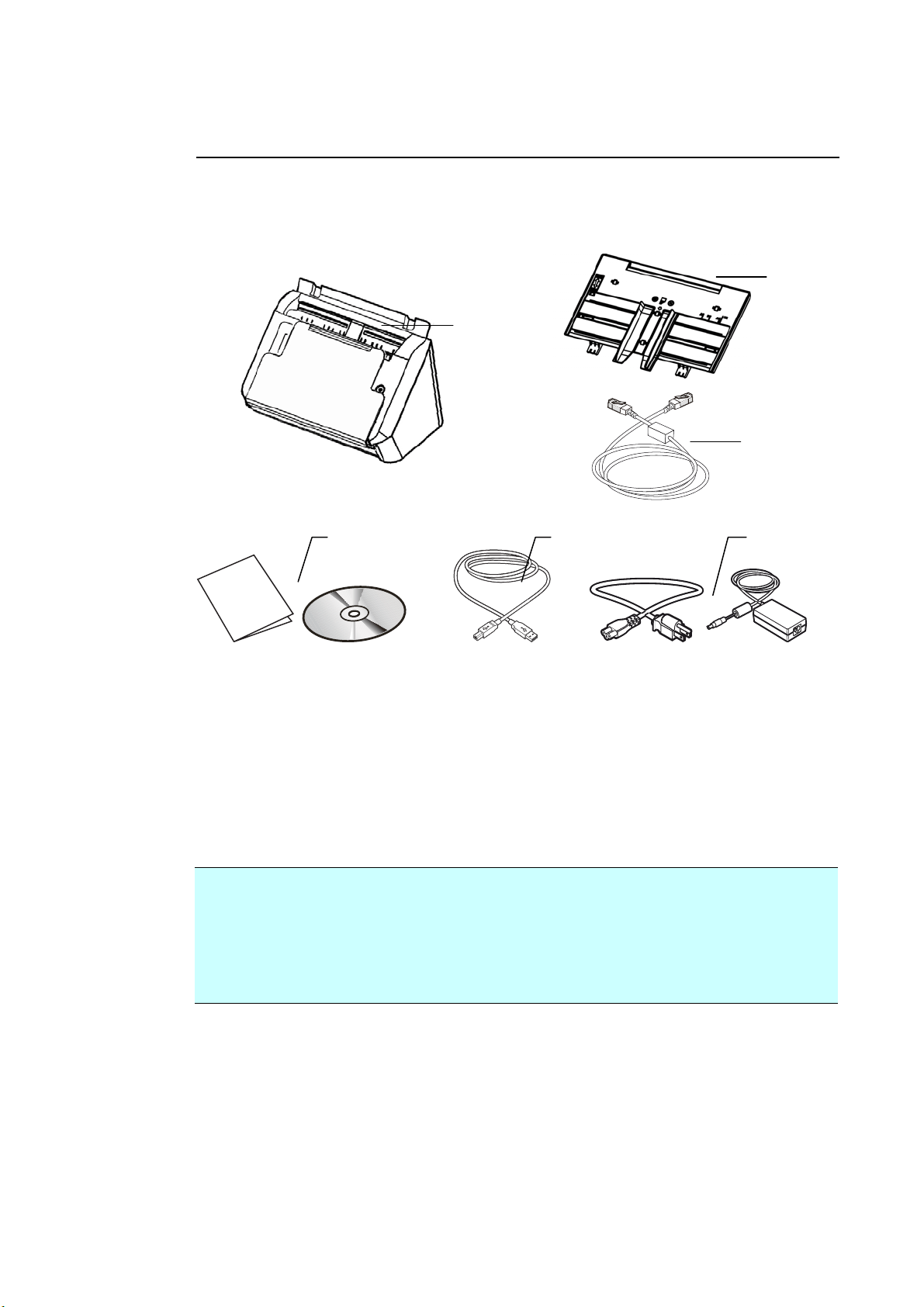
Pa ck age I t em s
1 . Scanne r Main Unit
2 . ADF Pa per Tray
3 . Et hernet Ca ble
4 . Softw are CD / Quick Guide
5 . USB Ca ble
6 . Pow e r Adapt er & Pow e r Cord
N ot e:
1 . Only use t he AC adapt er DA-48M24 by APD/ ADS-65LSI-24-3 24048E by
HONOR included in t he m achine. Using other AC adapt ers m ay dam age
the m achine and void the warrant y.
2 . Please unpack the packing carefully, and check t he cont ent s against t he
checklist. I f any it em s are m issing or dam aged, please cont act your
dealer im m ediately.
1
2
3 5
4
3
4
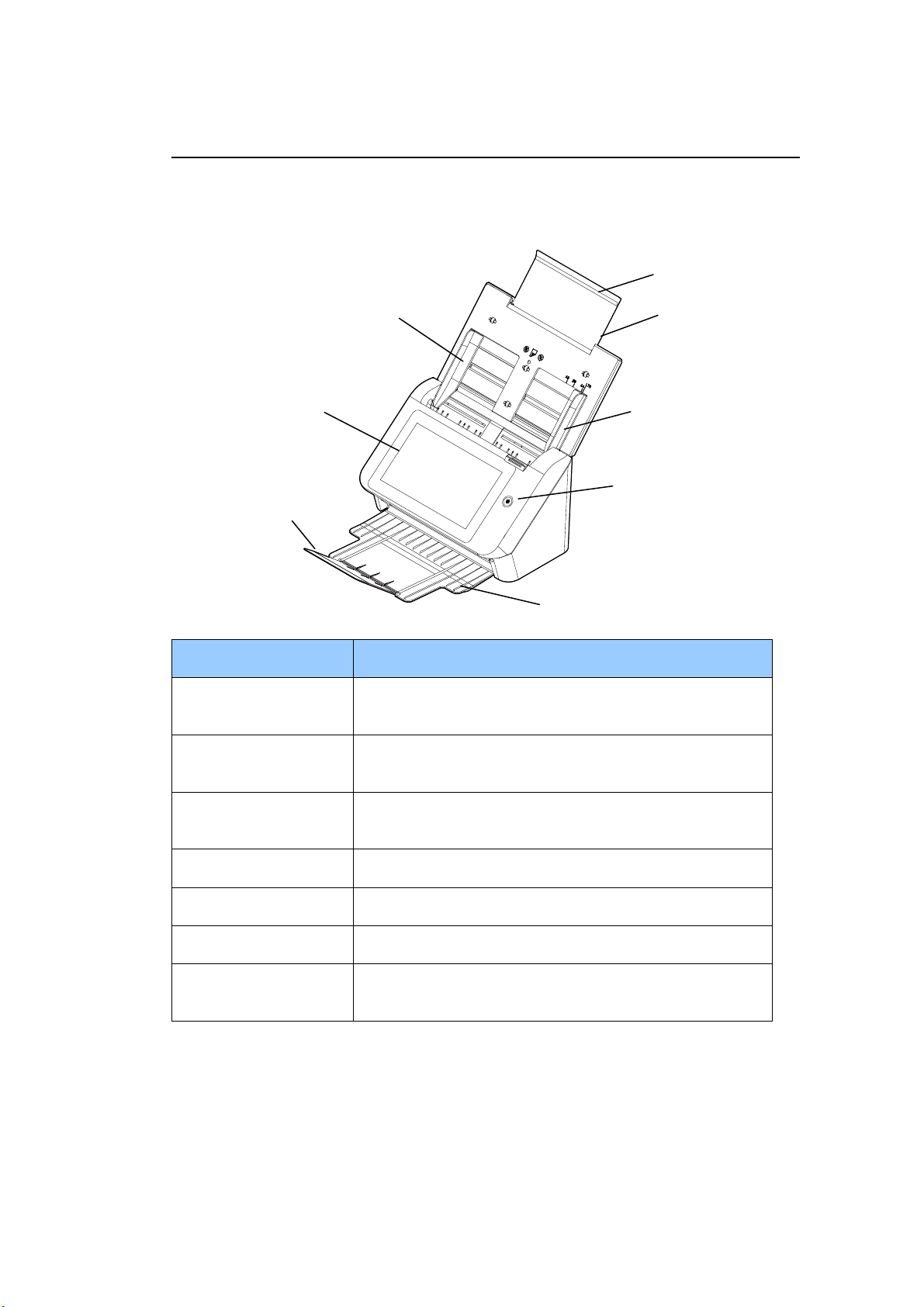
Ex t e rnal View
The Front View
Pa rt N a m e Funct ion
Ex t ension Can be pulled out and adj usted t o t he size of t he
docum ent being scanned.
ADF Pa per Tray Load t he docum ent onto t his part when scanning
docum ent .
Pa pe r Guides Adj usts t o t he widt h of t he docum ent s to prevent
skewing of the scanned pages.
LCD Touch Pa nel Operate the scanner t hrough t he t ouch screen.
Pow e r But t on Press t o turn on t he power.
Outpu t Tra y Open t o collect the docum ent after scanned.
Pa per Stopper Adj ust t o t he lengt h of t he docum ent s to prevent
them from falling apart.
ADF Paper
Tray
Extension
Paper Guide
Paper Stopper
T
he Power Butt on
Paper Guide
LCD Touch Panel
Out put Paper Tray
5
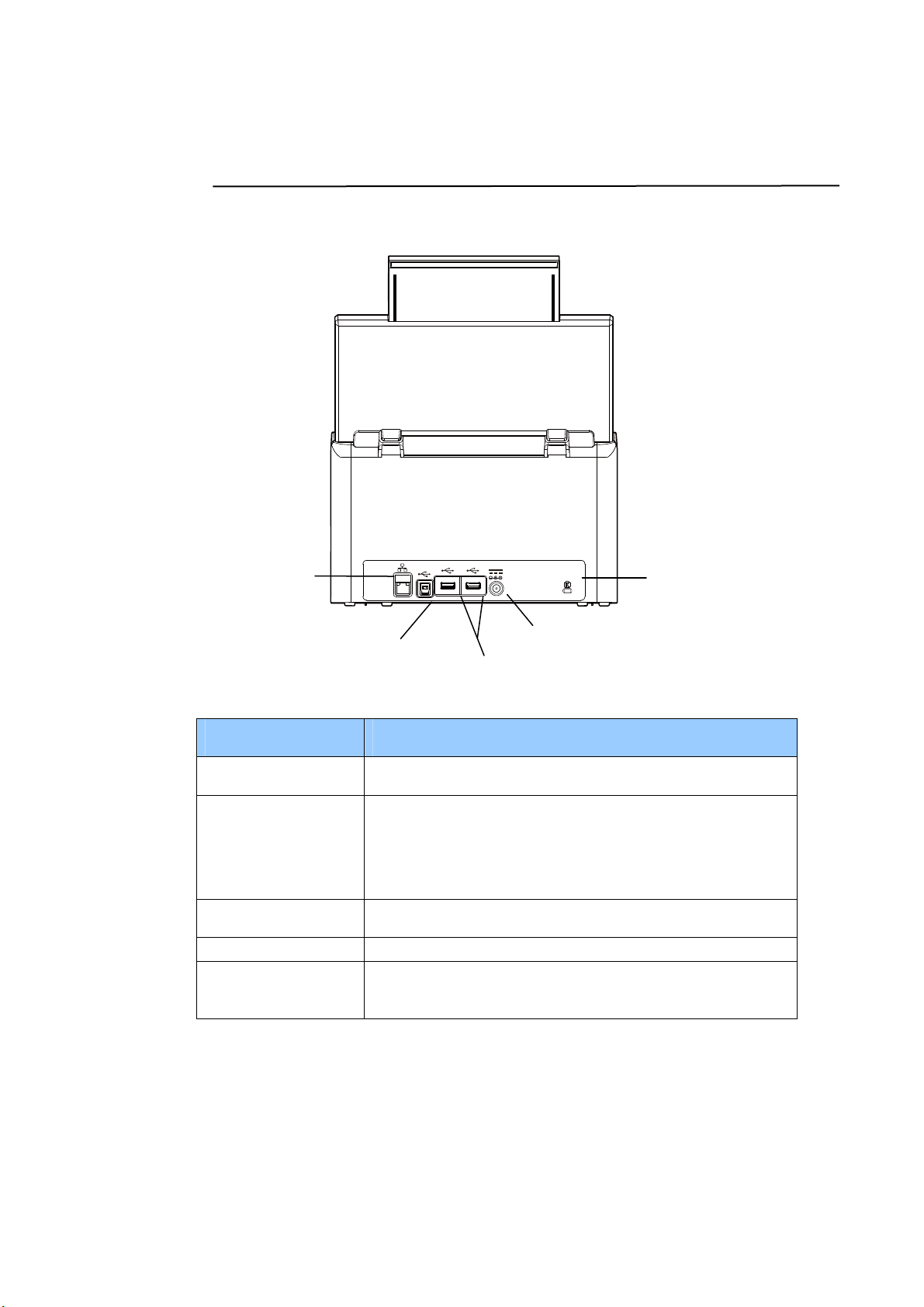
The Rear View
Pa rt N a m e Funct ion
LAN Port Connect t he scanner t o network with a LAN cable.
USB Por t Connect t o your com put er via the supplied USB
cable t o use t he device as a regular scanner.
Connect t o your com put er via t he supplied USB
cable t o download firm ware if required.
Pow e r Connector Connect t he AC adapt er t o t he scanner.
USB Flash Drive Used t o insert a USB flash drive.
Kensingt on
Secur it y Slot
At t ach to a lock t o secure t he scanner.
Power Jack
LAN Port
USB Port
Kensingt on
Security Slot
USB Flash Drive
Port
6
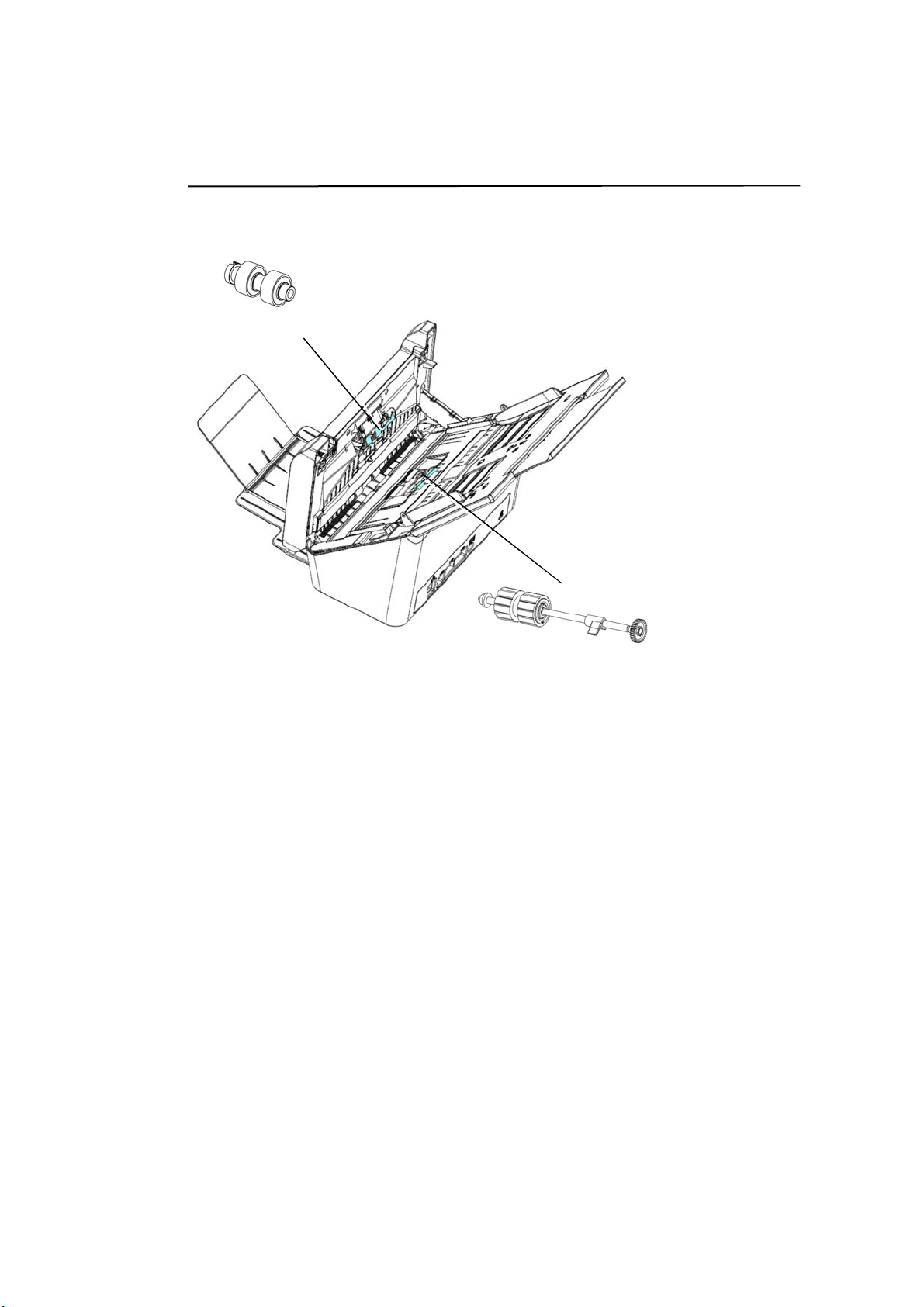
Rem ovable Part s
ADF Roller
Friction Roller
7
Pr e- inst alla t ion I nform at ion
Preinst alla t ion
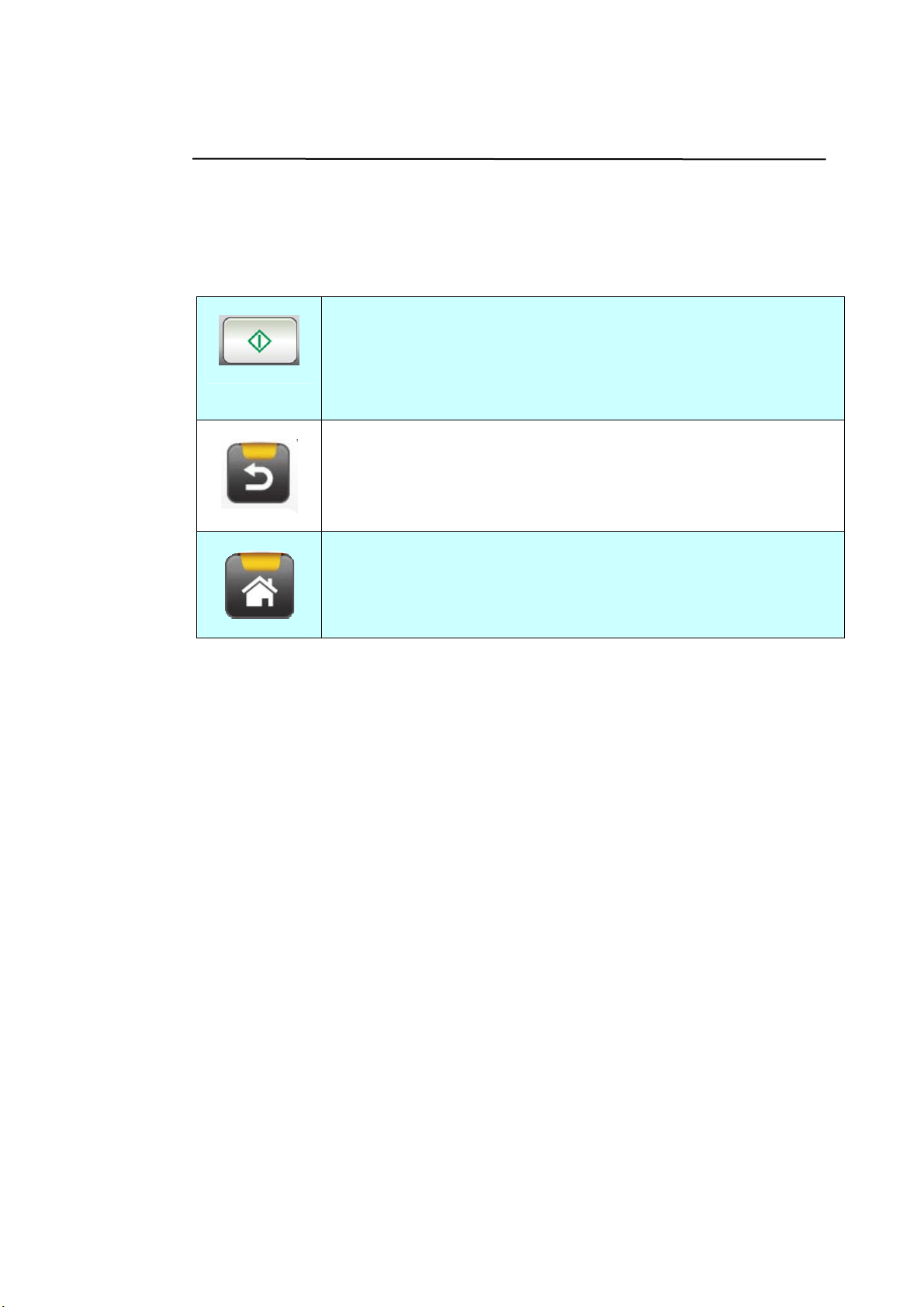
The product has t o be setup properly on your network t o perform E-m ail and
filing funct ions. The follow ing net work param et ers have t o be set.
I m portant !
Ma k e a copy of t he follow ing t a ble and a sk your N e t w ork Adm inist ra t or
t o com plet e t he inform a t ion.
1 . DHCP Enable :
2. IP Address: . . .
3. Subnet Mask: . . .
4. Gateway IP: . . .
5. DNS Server: . . .
6. WINS Server: . . .
7. SMTP Server:
8. SMTP Port:
9. LDAP Server: . . .
1 0 . LDAP Port:
Ex pla nation of contents:
1 . * DHCP Enable: Choose Yes t o obt ain I P/ subnet / gateway/ DNS
server/ WI NS server addresses aut om at ically
from DHCP server.
2 . * I P Addr e ss: The I nternet Protocol ( I P) address assigned t o
your m achine by your net work adm inist rat or or
by DHCP server.
3 . Subnet Mask: The net m ask address assigned by your network
adm inist rat or or by DHCP server.
4 . Gat e w a y I P: The gat eway I P address assigned by your
net work adm inist rator or by DHCP server.
5 . * DN S server: The I P address of DNS server assigned by your
net work adm inist rator.

8
6 . * W I N S Se rver: The I P address of WI NS server assigned by your
net work adm inist rator.
7 . * SMTP Serve r: The I P address of your SMTP m ail server
assigned by your network adm inistrator.
8 . SM TP Port : The port num ber of your SMTP Mail Server.
9 . * LDAP Server: The I P address of your LDAP server.
1 0 . LDAP Port: The port num ber of your LDAP server.
N ot e:
1 . DHCP server: Wit h DHCP ( Dynam ic Host Configurat ion Protocol) , a host can
aut om at ically be given a unique I P address each t im e it connect s t o a
net work- - m aking I P address m anagem ent an easier task for net work
adm inist rat ors. I f t he DHCP server is available from your network, you do
not need t o ent er TCP/ I P, subnet m ask, gat eway, and DNS inform at ion.
I nstead, t his inform at ion will be autom at ically given for t he product .
2 . I P Address: An IP ( I nt ernet Protocol) address uniquely identifies a host
connection t o an I P net w ork. Syst em adm inistrator or net work designer
assigns t he I P address. The I P address consists of t w o parts, one ident ifying
the net work and t he one ident ifying your node. The I P address is usually
writ ten as four num bers separated by periods. Each num ber can be zero t o
255. For exam ple, 10.1.30.186 could be an I P address.
3 . DNS: Stands for Dom ain Nam e System . The DNS server ident ifies hosts via
nam es instead of I P addresses. I f t he DNS server is available on your
net work, you can ent er the dom ain nam e instead of digit s for t he I P
address.
4 . DNS: Stands for Dom ain Nam e System . The DNS server ident ifies hosts via
nam es instead of I P addresses. I f t he DNS server is available on your
net work, you can ent er the dom ain nam e instead of digit s for t he I P
address.
5 . WI NS: Stands for Windows I nternet Nam ing Service. WI NS resolves
Windows net work com puter nam es ( also known as NetBI OS nam es) t o
I nt ernet I P addresses, allowing Windows com put ers on a net work to easily
find and com m unicate with each ot her
6 . LDAP: Stands for Light weight Direct ory Access Protocol. LDAP enables users
to access direct ories and address books directly from external net worked
devices t o sim plify docum ent distribution.
9
Frequent ly Used But t ons on the Touch Scre en
The following t able lists t he frequent ly used but t ons and t heir functions on t he
touch panel:
The [ Start] button:
Choose to start scanning t he docum ent and sending t he
scanned im age t o E- m ail, Public Folder, USB Flash Drive, or
ot her destinat ions.
The [ Back] bu t t on:
Choose t o leave current screen and ret urn t o previously
operational screen.
The [ Hom e] button:
Choose t o leave current screen and ret urn t o t he m ain
operational screen.

1
0
2 I nst alling Your Machine
This chapt er is specifically t arget ed t o t he persons who are responsible for t he
adm inist rat ion of t he product. I t is recom m ended t hat the adm inist rat or read this
chapt er before installing t he m achine.
Minim um Configur at ion Requirem ent s
To use t he product as a net work scanner, t he following configurat ion is required:
To send E- m ails fr om t he product :
TCP/ I P net work
A Mail server
To file docum ent( s) via int ranet
FTP, FTPS, FTPES, or SMB prot ocol environm ent
11
I nst alling the ADF Paper Tray
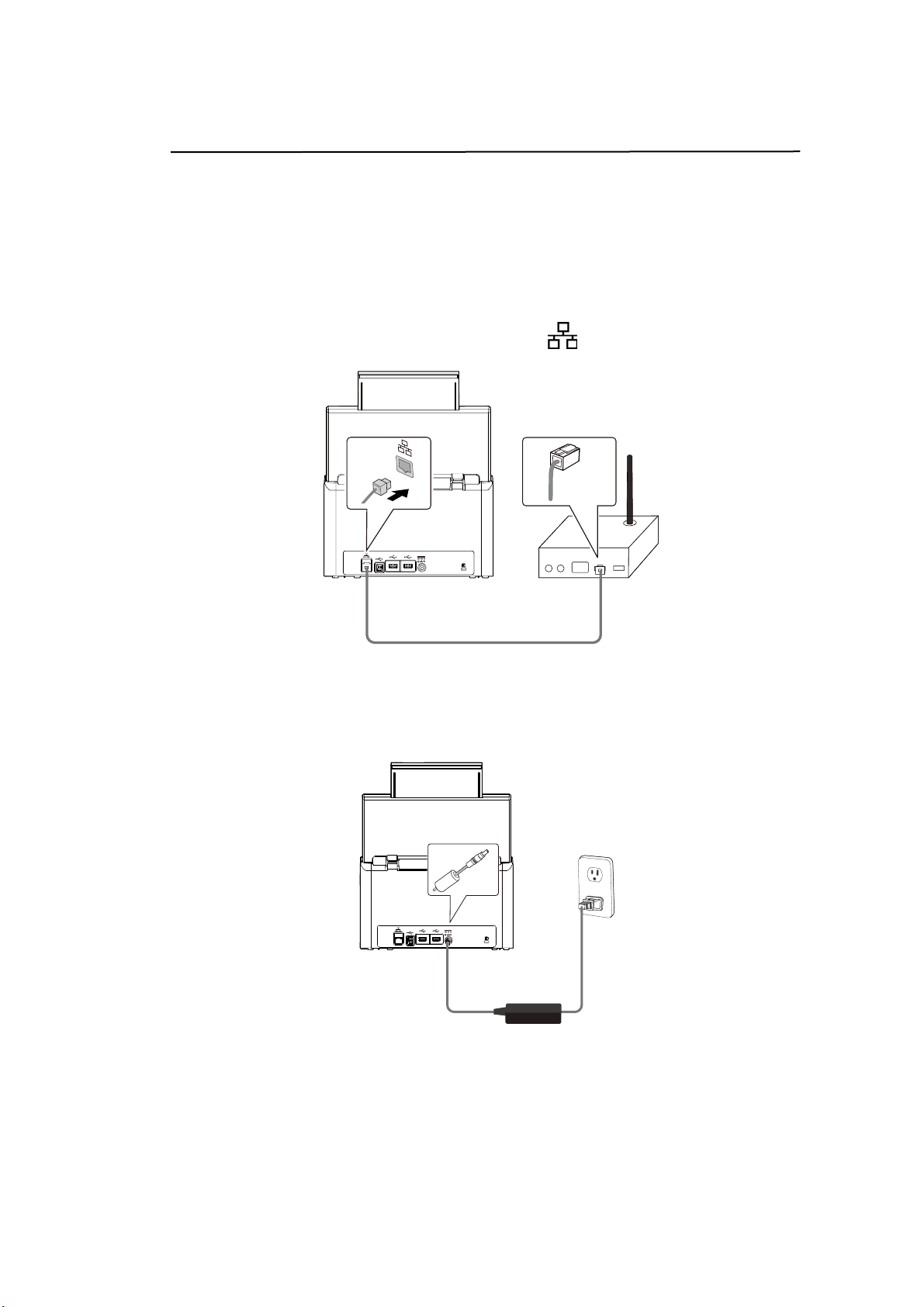
1 . Hold t he ADF Paper Tray and insert t wo pins t o t he holes on t he t op of t he
scanner as shown.
2 .
Pull out t he extension t o the lengt h of t he docum ent.
3 .
Pull t he Out put Tray and raise t he paper st opper to prevent t he paper from
falling.
ADF Paper Tray
12
Connect ing the Cables
Connect ing t he Ethernet Ca ble
1 . Connect one end of your Et hernet LAN cable to an available port of your
Et hernet Hub
.
2 . Connect t he ot her end t o the port m arked at t he back of t he product.
Connect ing t he Pow e r a nd Turning on t he M a chine
1 . Connect one end of t he power cable t o the power recept acle of t he product.
2 . Connect t he other end t o an appropriat e power out let.
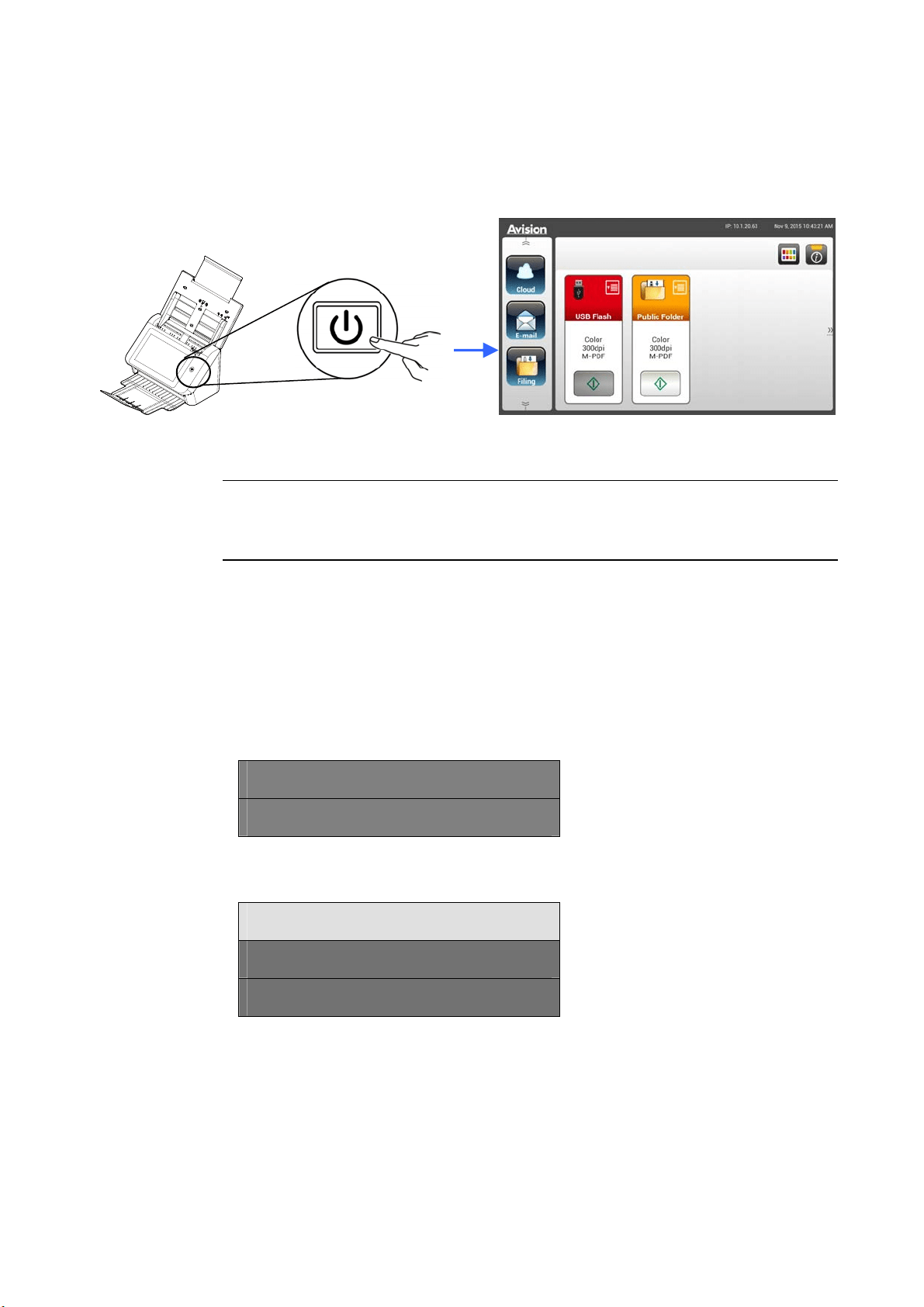
13
3 . Press t he [ Pow e r ] button t o t urn on t he product. The Power LED lights
in green and the LCD Touch Panel w ill be displayed wit h a Hom e screen
as illust rat ed.
N ot e:
I f t he product will not be used for a long t im e, press t he Power button for 3
seconds to t urn off t he power. Then unplug t he product from t he power
out let .
Turning Off t he M a chine
1 . Press the Pow er button for at least 2 seconds. A Confirm at ion dialog box
appears.
Pow er off
Reboot
2 . Tap [ Pow e r off] to turn off the m achine or reboot t o restart the m achine.
Pow er off
The m achine is going t o pow er off.
Cancel OK
3 . Tap [ OK] t o t urn off t he m achine.
14
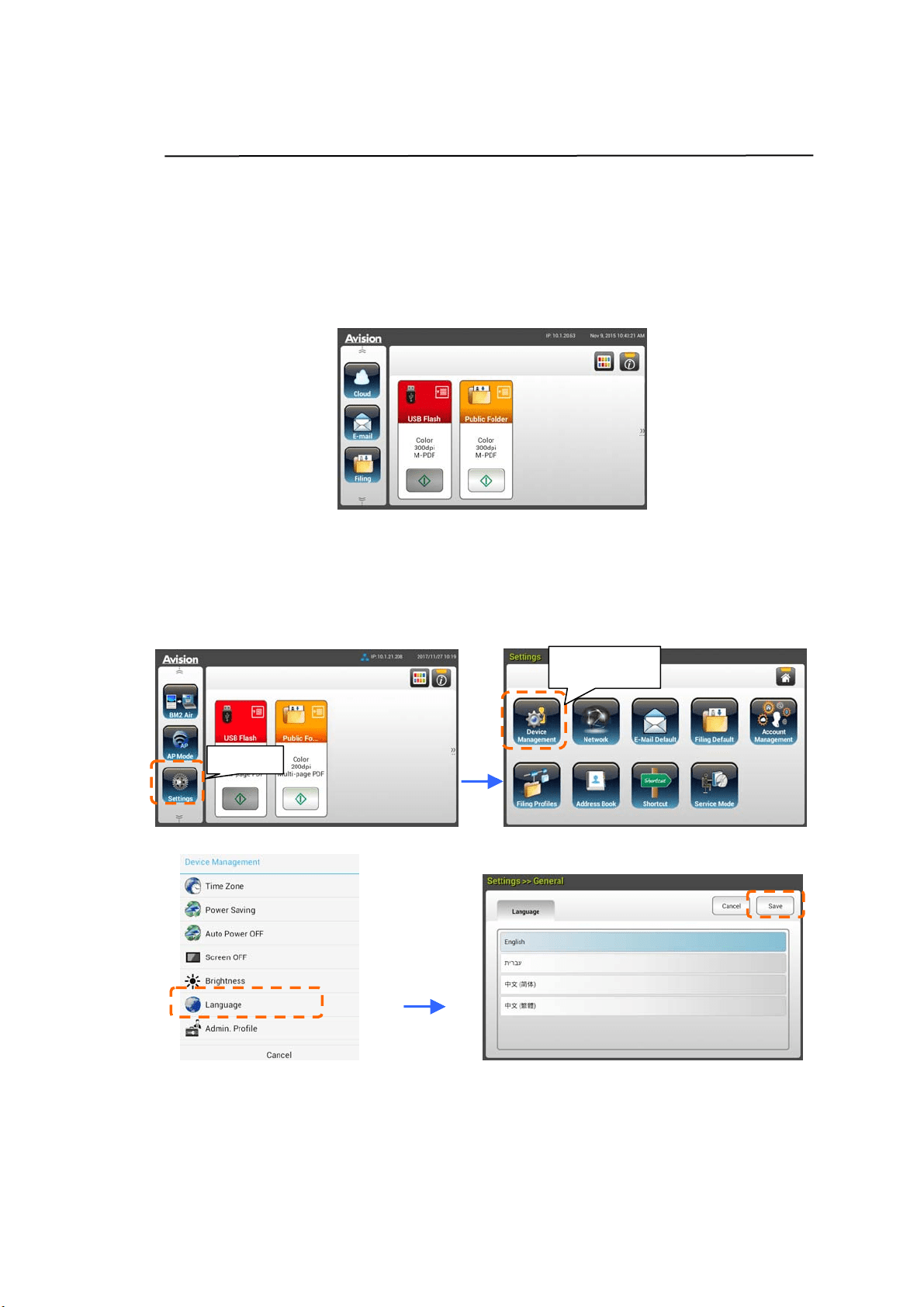
Select ing Your La nguage
The product provides various languages on t he LCD Touch Panel. Choose your
desired language t o be displayed on t he LCD Touch Panel.
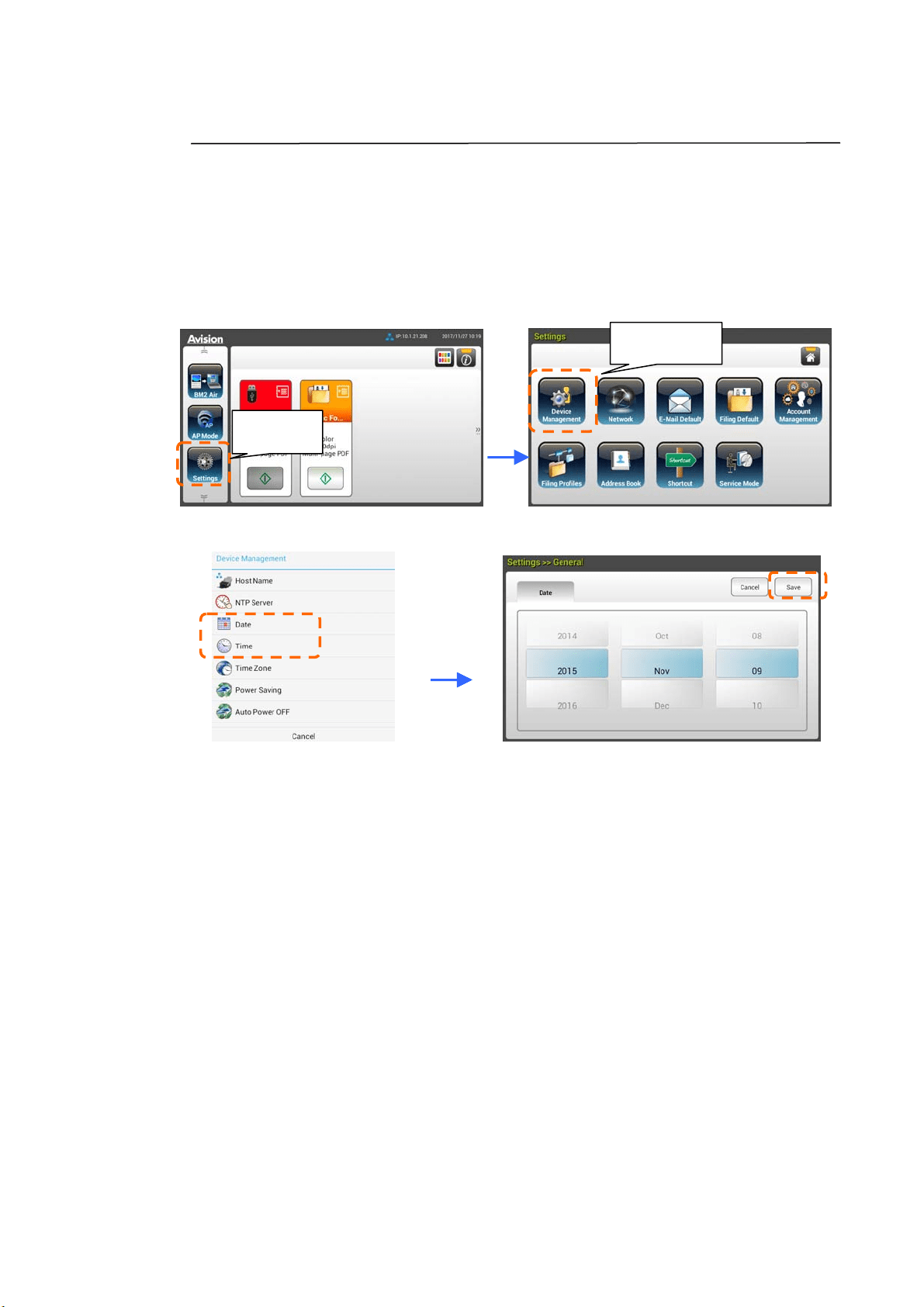
1 . Press t he [ Pow e r ] butt on t o t urn on t he product . The LCD Touch Panel will
be prom pt ed with a Hom e Screen as indicat ed.
2 . On t he LCD Touch Panel, t ap [ Set t ings] > [ Device M a nage m e n t ]
> [ Language ] in succession and t hen choose your desired language.
Choice : English, Chinese Tradit ional, Chinese Sim plified, Spanish,
Portuguese, Hebrew.
3 . Tap [ Sa ve] to save t he setting.
Settings
Device
Management
1
5
Set t ing Dat e and Tim e
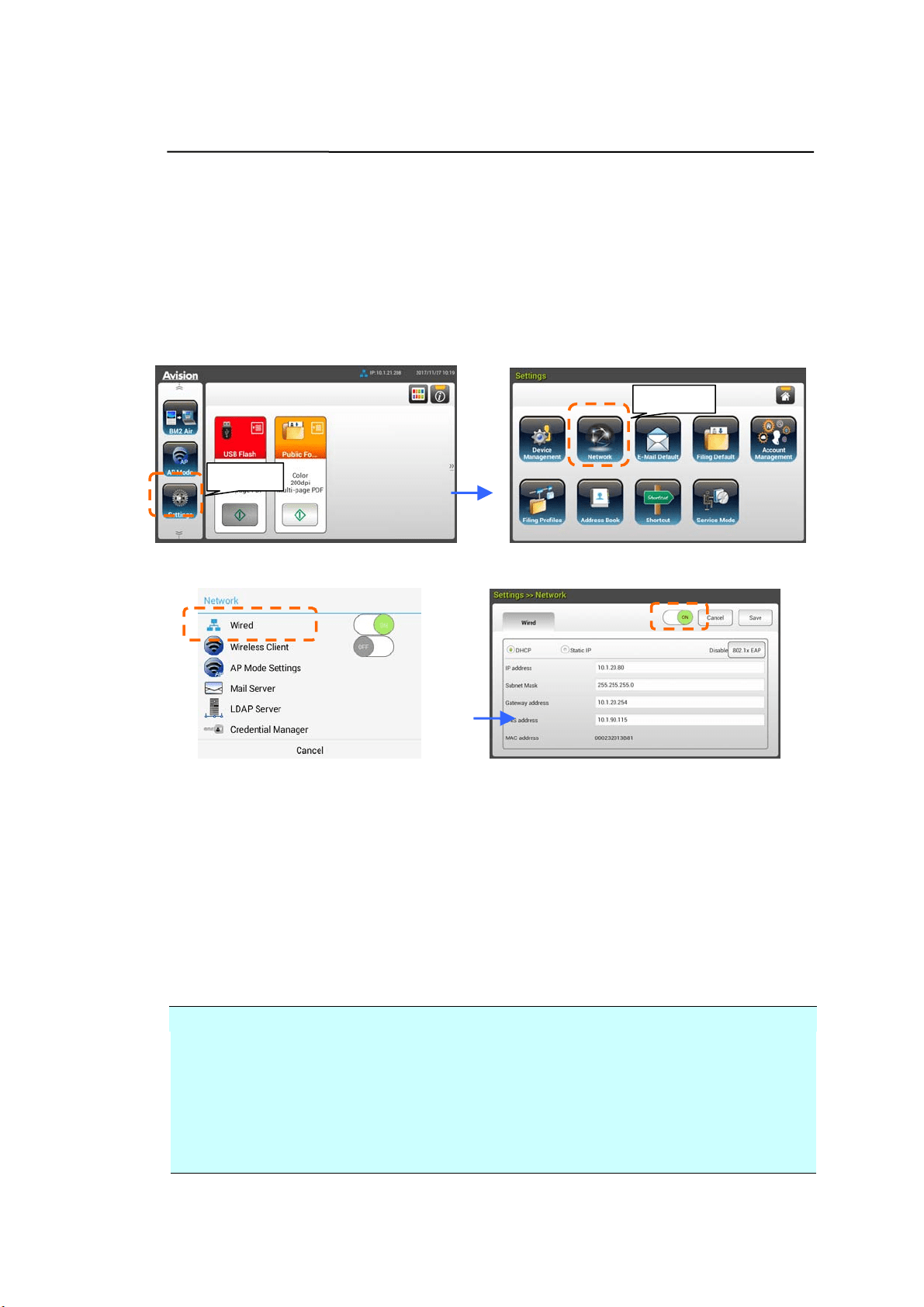
To let t he product show current dat e and t im e, please set your dat e and tim e for
the product before using it.
1 . On t he Hom e Screen of t he LCD Touch Panel, tap [ Se t t ings] > [ D e vice
Manage m e nt ] > [ D a t e] in succession and t hen set your current dat e.
2 . Tap [ Sa ve] to save t he setting and go back t o the previous screen.
3 . On t he [ D evice M a nage m e nt] screen, t ap [ Tim e ] t o set your current t im e.
4 . Tap [ Sa ve] to save t he setting and go back t o the previous screen.
Settings
Device
Management
16
Specifying t he Pr oduct ’s TCP/ I P Address
To let ot her devices on t he network identify the product, you need t o set an I P
address for t he product. Follow t hese st eps t o set an I P address:
1 . On t he Hom e Screen of the LCD Touch Panel, t ap
[ Set t in gs] > [ N e t w or k ] > [ W ired] in succession and t hen set the I P address
for the product.
- Check [DHCP] if you wish to enable DHCP.
- Check [St a t ic I P] if you wish t o specify a static I P address. I f [ St a t ic
I P] is select ed, tap t he I P Address/ Subnet M a sk / Gat ew a y
I P/ DNS Serve r field respectively t o bring up t he soft keyboard and
then enter t he relevant values.
2 . Tap [ Save] t o save t he setting and go back t o t he previous screen.
N ot e:
I f t he system adm inistrator has chosen DHCP, t hen t he I P address of TCP/ I P,
gat eway, subnet m ask, and DNS server will be autom at ically given.
When inst alling t he product for the first t im e, it is recom m ended that t he
Adm inist rat or retain t he default syst em sett ings. The settings can be
cust om ized at a lat er date once you are fam iliar wit h t he operation and
funct ionalit y.
Settings
Network
1
7
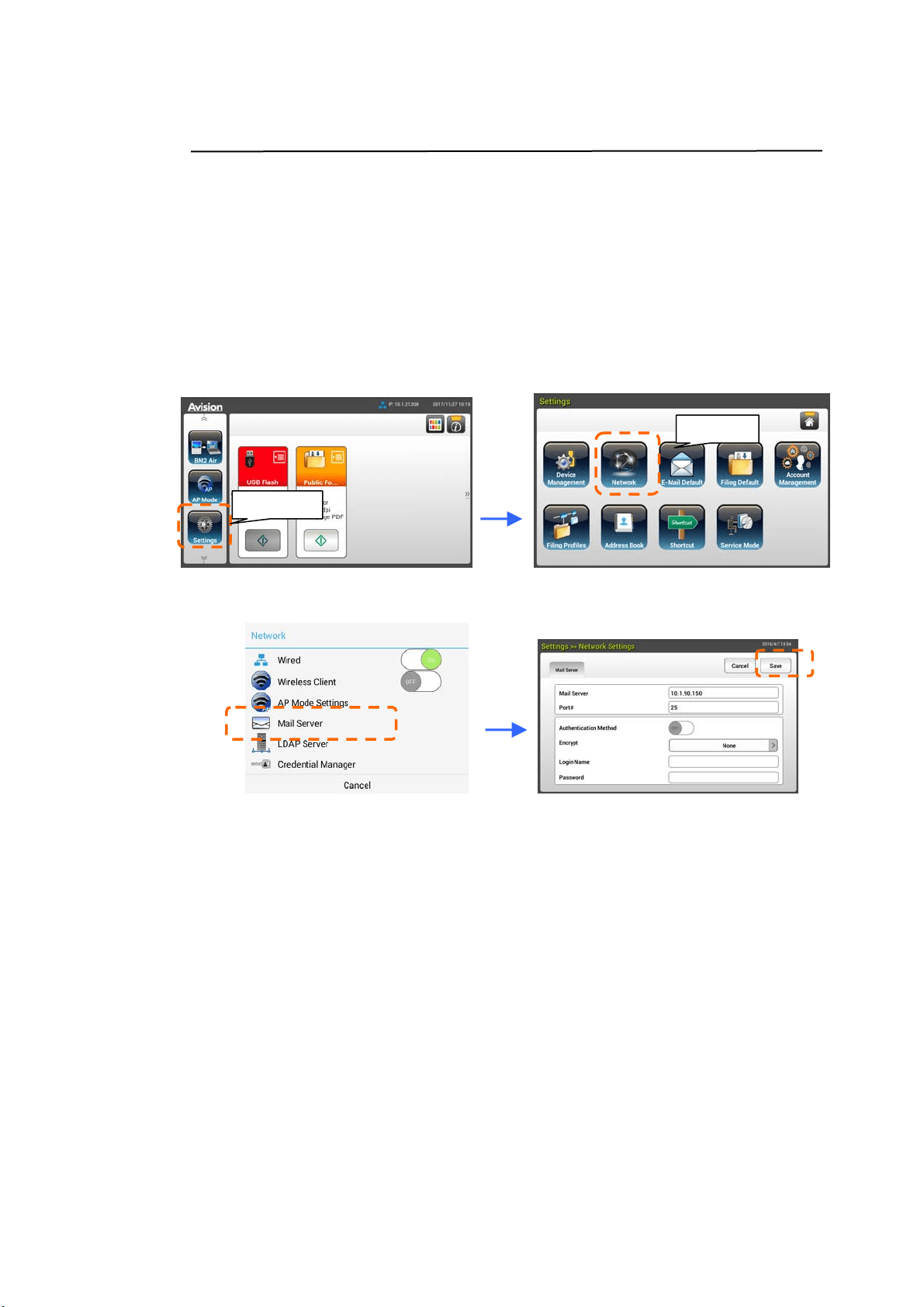
Specifying t he Pr oduct ’s Ma il Serve r
To send t he scanned im age t o a recipient via E-m ail, you need first specify your
m ail server inform at ion on t he product. Follow t hese steps t o set your m ail
server:
1 . On t he Hom e Screen of the LCD Touch Panel, t ap
[ Set t in gs] > [ N e t w or k ] > [ M a il Serve r ] in succession and t hen set your
m ail server inform at ion.
On the Mail server opt ion, ent er t he I P address and port num ber of your
m ail server.
- On t he Aut henticat ion Met hod opt ion, t ap [ ON ] t o enable it or [ OFF]
to disable it .
- Tap anywhere respectively on t he Login N am e/ Pa ssw or d/ M a il
Serve r/ Por t # field t o bring up t he soft keyboard and then enter t he
relevant values.
2 . Tap [ Sa ve] t o save the set ting and leave the screen.
Settings
Network
18
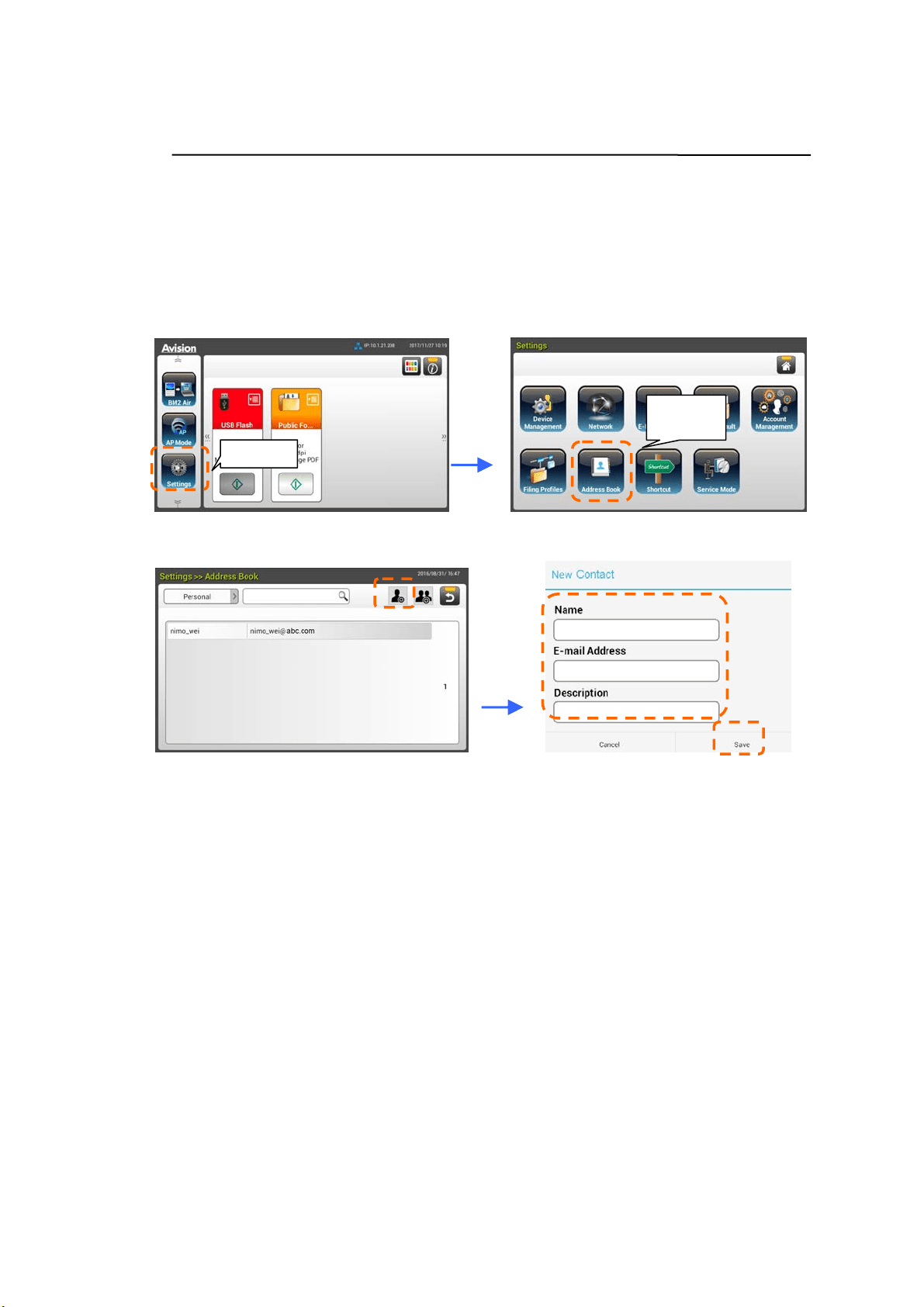
Creat ing Your Addre ss Book
To save the tim e in t yping t he E-mail address, you can creat e your address book
to speed up t he process.
1 . On t he Hom e Screen of t he LCD Touch Panel, tap [ Se t t ings] > [ Address
Book] > [ N ew ] in succession and t hen ent er your address inform at ion.
2 . Tap [ Sa ve] t o save the set ting and leave the screen.
Settings
Address
Book
19
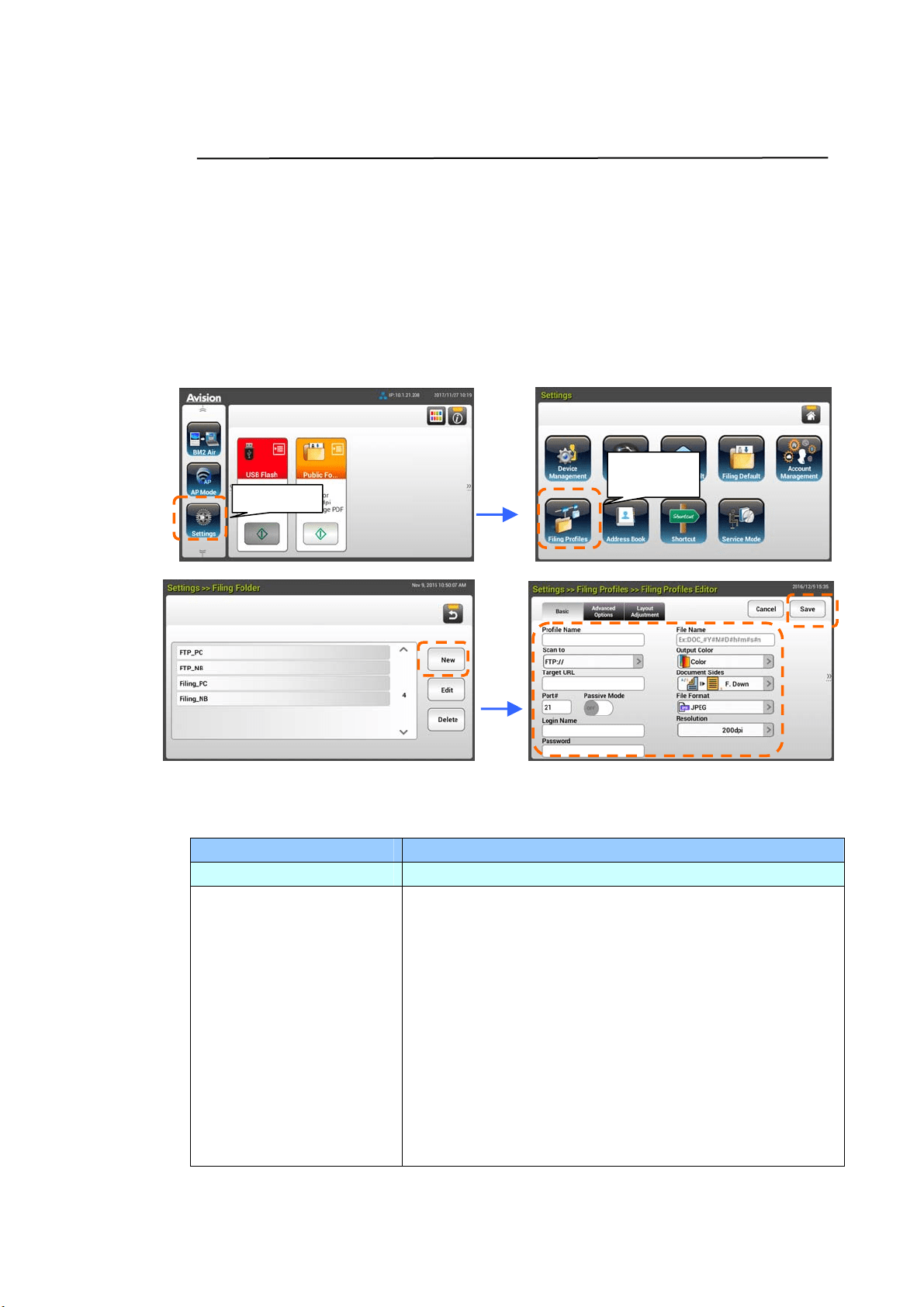
Creat ing Your Filing Profiles
To store your scanned im age t o the net work folders, you need t o first set up a
few network folders including FTP, FTPS, FTPES, Public Folder, SharePoint, or SMB
to store the im ages. You m ay first check with your System Adm inist rat or t o m ake
sure t hat you have t he privilge t o access these network folders.
1 . On t he Hom e Screen of t he LCD Touch Panel, tap [ Se t t ings] > [ Filing
Pr ofiless] > [ N e w ] in succession.
2 . Refer t o t he follow ing table to create your Filing Profiles. Tap [ Save] aft er
the settings have been m ade satisfact ory.
I tem Descr iption
Pr ofile N am e Enter your profile nam e.
Scan t o Choose your [ Scan t o] destinat ion protocol.
Choice in cludes * FTP: / / , FTPS: / / , FTPES:/ / ,
SMB: \ \ , USB, Public Folder, SharePoint .
USB: Store t he scanned im age t o an insert ed USB
flash drive.
Pu blic Folder : St ore the scanned im age to t he
m em ory of t he product and t hen access t he im age via
the product’s em bedded web page.
SMB: St ore t he scanned im age t o som eone else’s
com put er in t he net work over int ranet.
FTP/ FTPS/ FTPES/ Share Point : Store t he scanned
im age t o t he net work folder over intranet.
Settings
Filing
Profiles
2
0
Targe t URL I f FTPS, FTP, FTPES, SMB, or SharePoint is select ed,
ent er the URL address. You can eit her ent er a dom ain
nam e or an I P address wit h t he direct ory pat h. For
exam ple, 10.1.20.25/ test
Port # Enter t he port num ber for the [ Scan t o] server.
Pa ssive Mode
Set your FTP connect ion m ode. Choice: On/ Off
( default : Off).
Login Na m e
Enter your login nam e to use t he designated folder.
Pa ssw ord
Enter your password t o use t he designat ed folder.
File N a m e Enter your default file nam e.
Outpu t Color Choose your desired default output color for t he
scanned im age.
Choice: * Color , Gray, B/ W
Docum e nt Side Choose your desired default scanning side.
Choice : * 1 - Sided Fa ce D ow n , 1 - Side d Fa ce Up,
2 - Sided
File Form at Choose your desired default file form at for t he
scanned im age.
Choice: JPEG, TI FF ( One- Page TI FF) , M- TI FF
( M ult i- Pa ge TI FF) , PDF ( One- Pa ge PD F) ,
* M - PDF ( M ult i- Pa ge PD F) , PDF/ A( M - PD F) , PN G
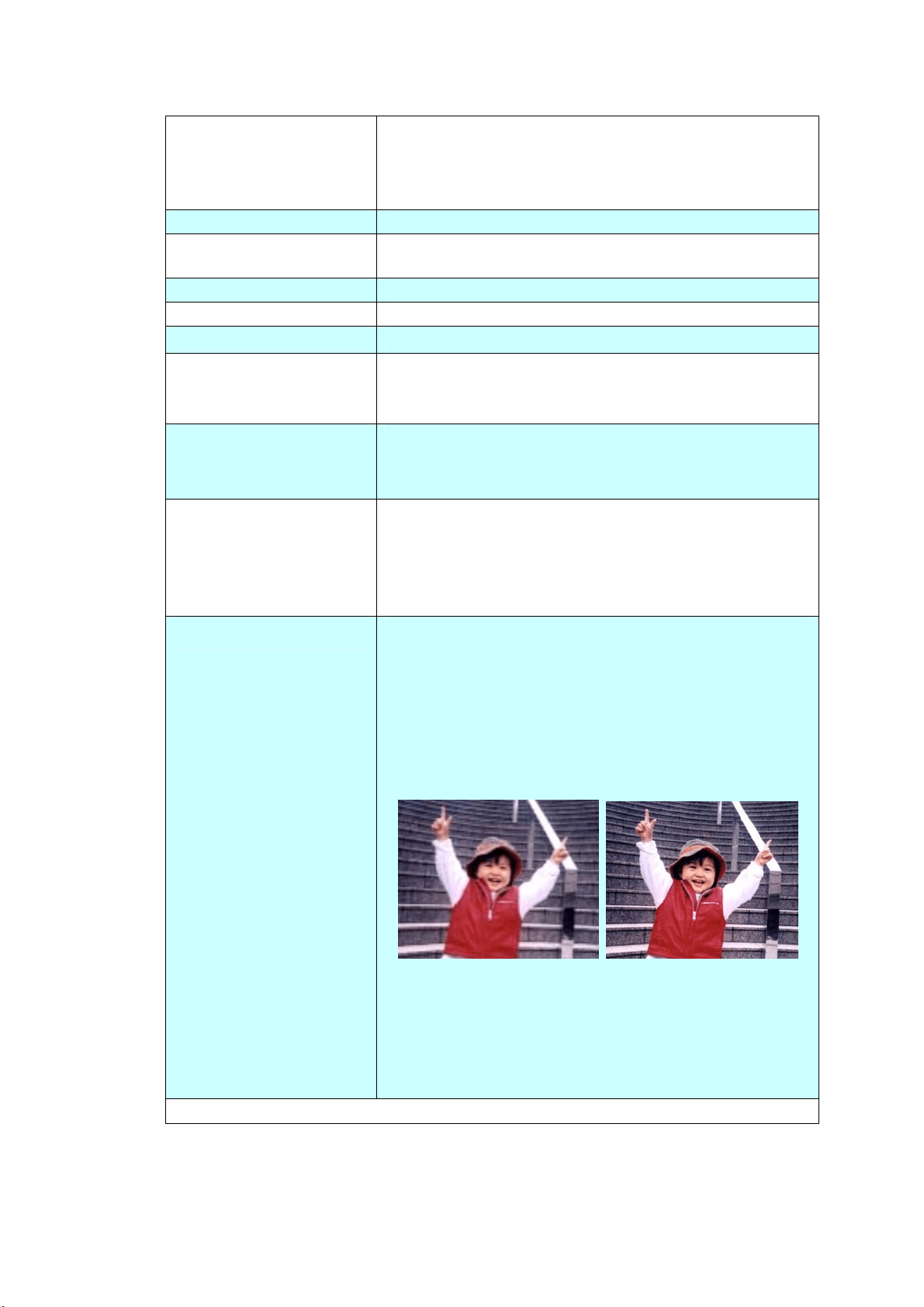
Re solution
The resolut ion is m easured in pixels per inch ( ppi)
( som etim es referred t o as dot s per inch or dpi) .
Higher resolut ions result in m ore det ail in the scan,
slower scanning and in general, great er file sizes.
When OCR ( Opt ical Character Recognit ion) is t o be
perform ed on a scan, 300dpi should be used for m ost
languages except Asian languages. For Asian
languages, 400 dpi is recom m ended.
Re solut ion: 1 5 0 dpi Resolut ion : 2 0 0 dpi
N ot e: I f you are scanning duplex ( t wo- sided) paper
in color m ode, the m ax. resolut ion is 400 dpi.
Choice: 1 0 0 dpi, 1 5 0 dpi, * 2 0 0 dpi, 3 0 0 dpi, 4 0 0
dpi, 6 0 0 dpi.
* : Factory default
21
I nst alling and La unching a Plug- I n App ( Opt iona l)
This product m akes user custom ization fast and easy by sim ply installing a
third- party app ( short for application) to be run on t he product. The new plug- in
app allows users t o com plet e the scan t asks according t o it s own workflow.
Follow t hese steps to install t he plug- in app:
1 . Open your browser and enter t he product’s I P address on t he URL address.
The product’s em bedded web page will be displayed.
2 . Login the web page. ( default user nam e and password: adm in)
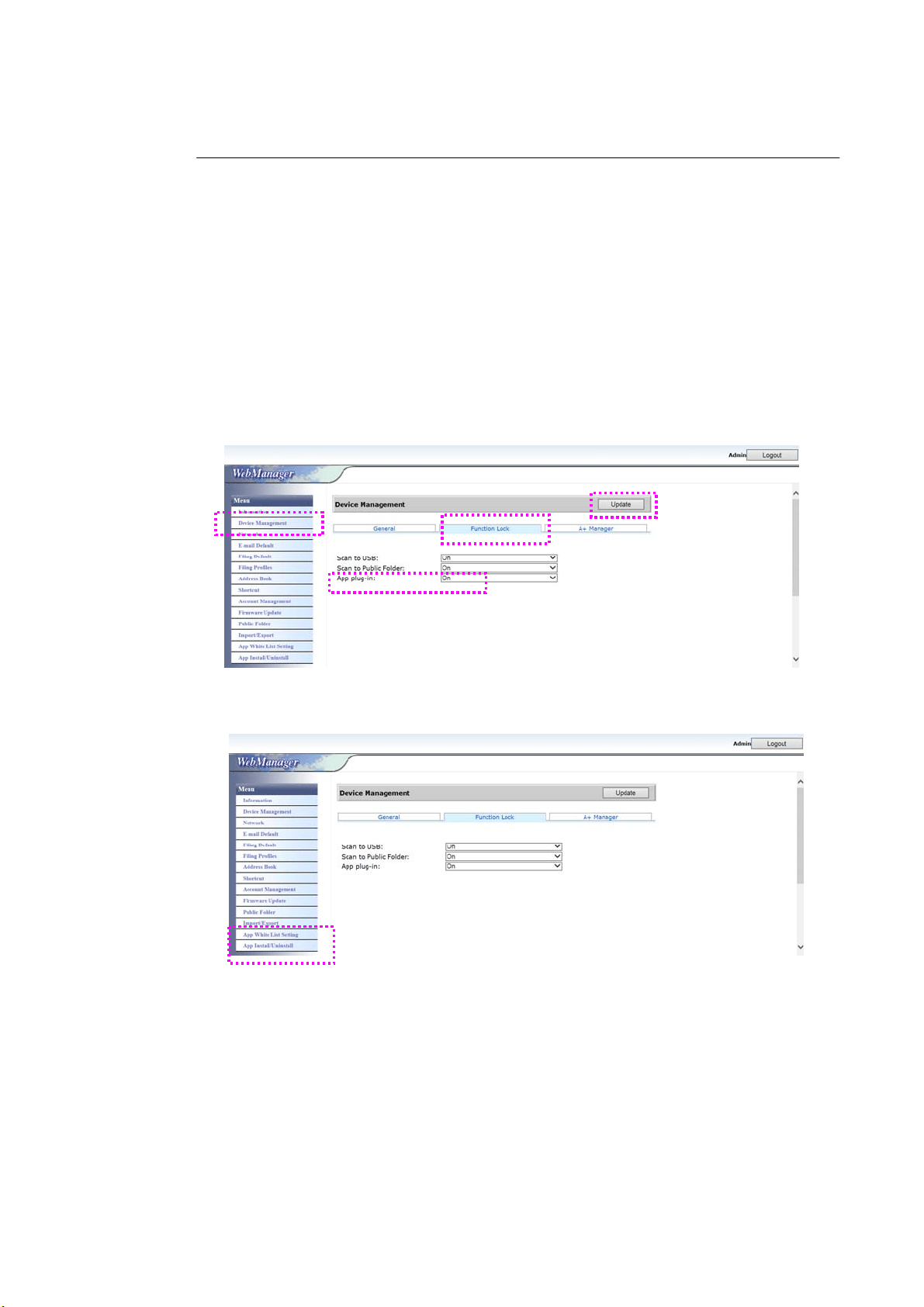
3 . Tap [ Device M a nage m e nt] > [ Funct ion Lock ] , and t urn on the [ App
plug- in ] opt ion. Tap [ Upda t e] t o com plete.
4 . The [ App W hit e List Set t ing] and [ App I nstall/ Unintall] opt ions will be
displayed at t he Menu item s.
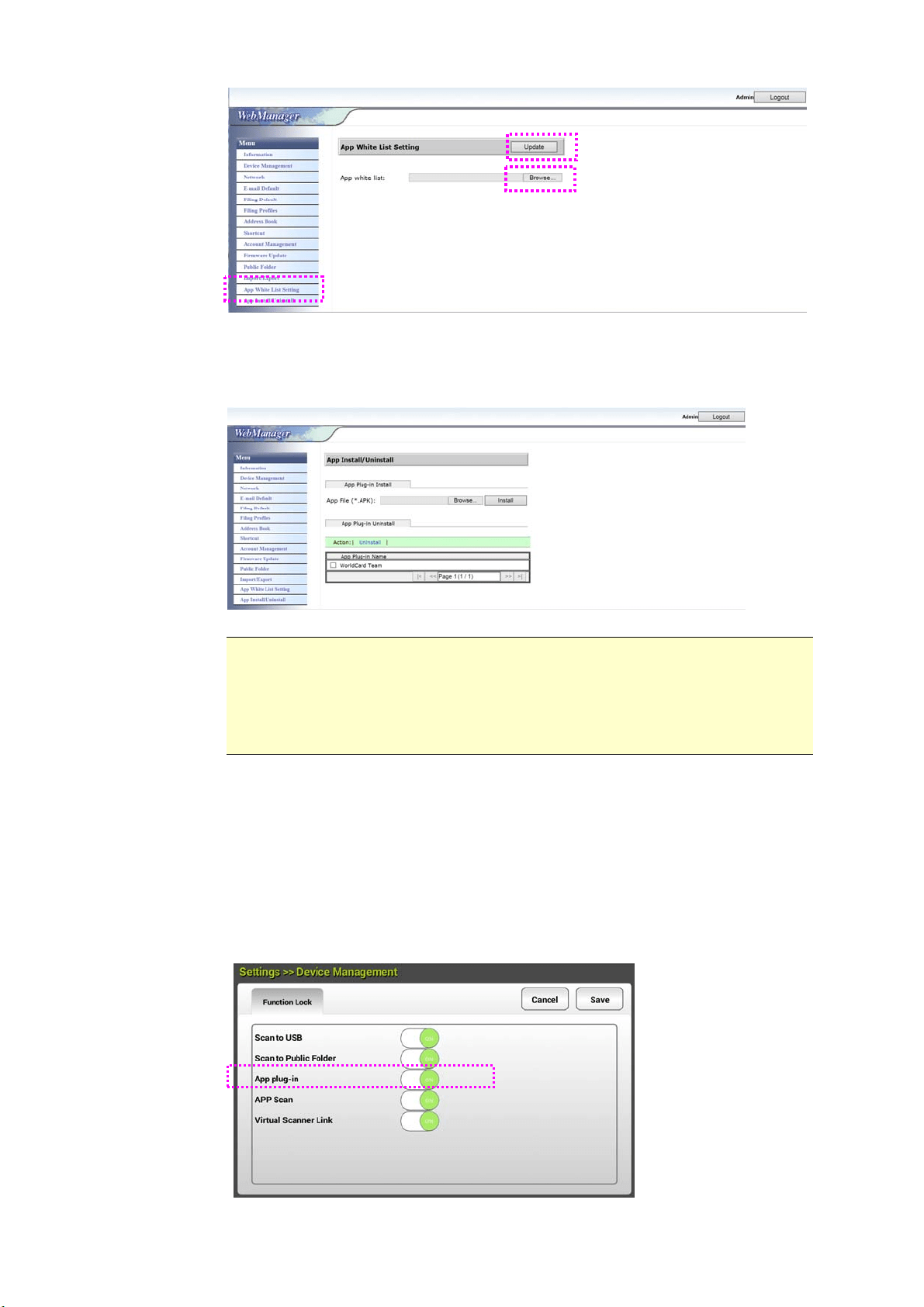
5 . Tap [ App W hit e List Sett ing] from the Menu opt ion and t hen t ape
[ Brow se] to select t he app nam e ( in .spf file form at ) to be recognized by
the product. Finally, t ap [ Update] to com plet e.
App W hit e List Sett ing is the process of creat ing a list of
trusted applications and allowing only t hose apps t o run on t he device.
22
6 . Tap [ App I nstall/ Uninstall] from the M enu option and t hen browse t he
installat io file of your app and t hen t ap [ I nstall] . I f successful, the new
plug- in app w ill be displayed in the app list in below.
N ot e:
I f you wish t o uninstall t he plug- in app, sim ply select t he app nam e
from t he list and t hen tap [ Uninst a ll] . The plug- in app w ill be
uninst alled accordingly.
The plug- in application is opt ional and the product supports only t he
scanning application.
How t o run t he plug- in app on t he product :
1 . I nst all t he plug- in app according t o t he st eps described in t he preceding
section.
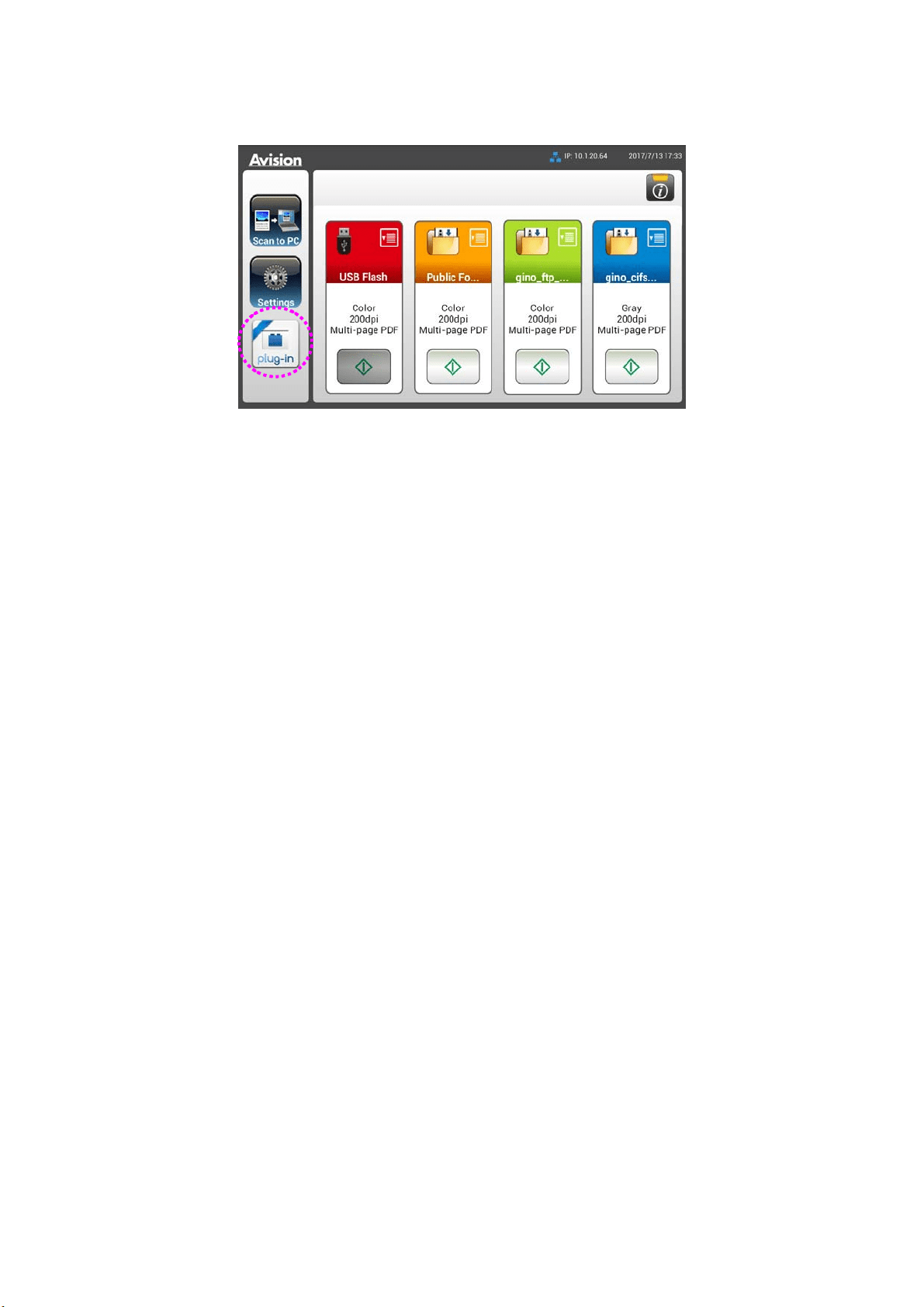
2 . On t he product’s t ouch panel, tap [ Settings] > [ D e vice M a nage m ent ] >
[ Funct ion Lock] in succession. Make sure t he [ App plug- in ] is t urned
ON .
23
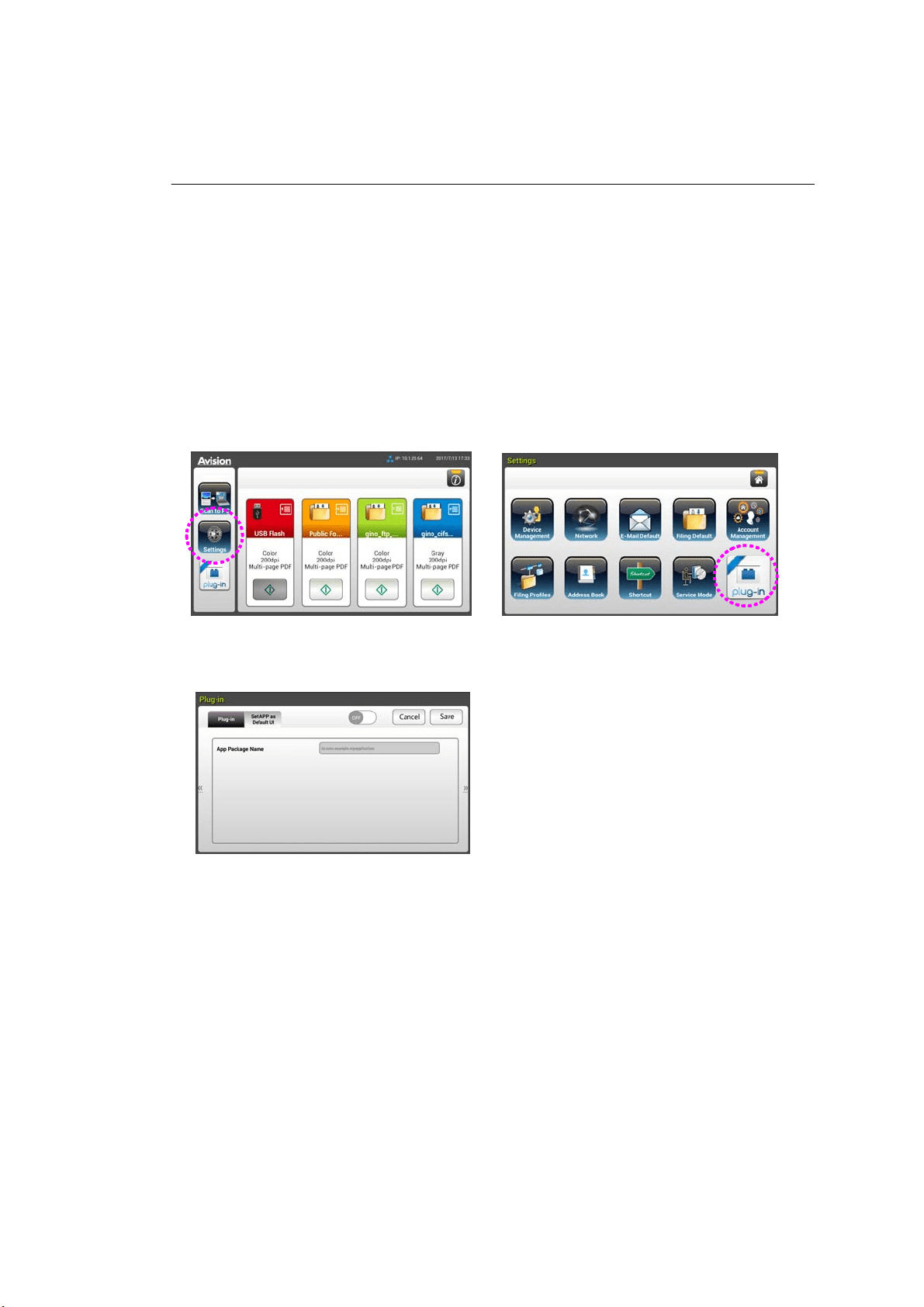
3 . Scroll down t he m enu it em s on the right and t hen t ap the [ plug- in] icon.
Launch t he app by selecting t he nam e of app.
* Plug- in app: Support Android OS version 4.4 or below.
24
Set t ing the Plug- I n App as the De fa ult Use r
I nt e rfa ce
After installing your plug- in applicat ion, you can set t he plug- in application t o be
the default user interface aft er turning on the m achine by t he t ouch panel or t he
em bedded website.
To set the plug- in app a s t he defa ult user int erfa ce on t he Touch Panel,
1 . Tap [ Se t t ings] on t he touch panel and login wit h default user nam e and
password - adm in.
2 . Tap [ Plug- in] and t hen [ Set APP a s Defa ult UI ] .
3 . Ent er your application nam e in t he [ App Pa ckage N a m e] field and t hen t ap
[ Sa ve] t o com plet e.
4 . Rest art t he m achine. Your application’s user int erface will be displayed.
To set t he plug- in app as t h e de fault user int e rface on t he w ebsit e,
1 . Open your browser and ent er t he product’s I P address on t he URL address.
The product’s em bedded web page will be displayed.
2 . Login t he web page. ( default user nam e and password: adm in)
3 . Choose [ App I nst all/ Uninstall] from t he M e n u opt ion and select the [ Se t
App as D e fault UI ] .
4 . Check the [ Enable] option and choose [ Update] t o com plete.
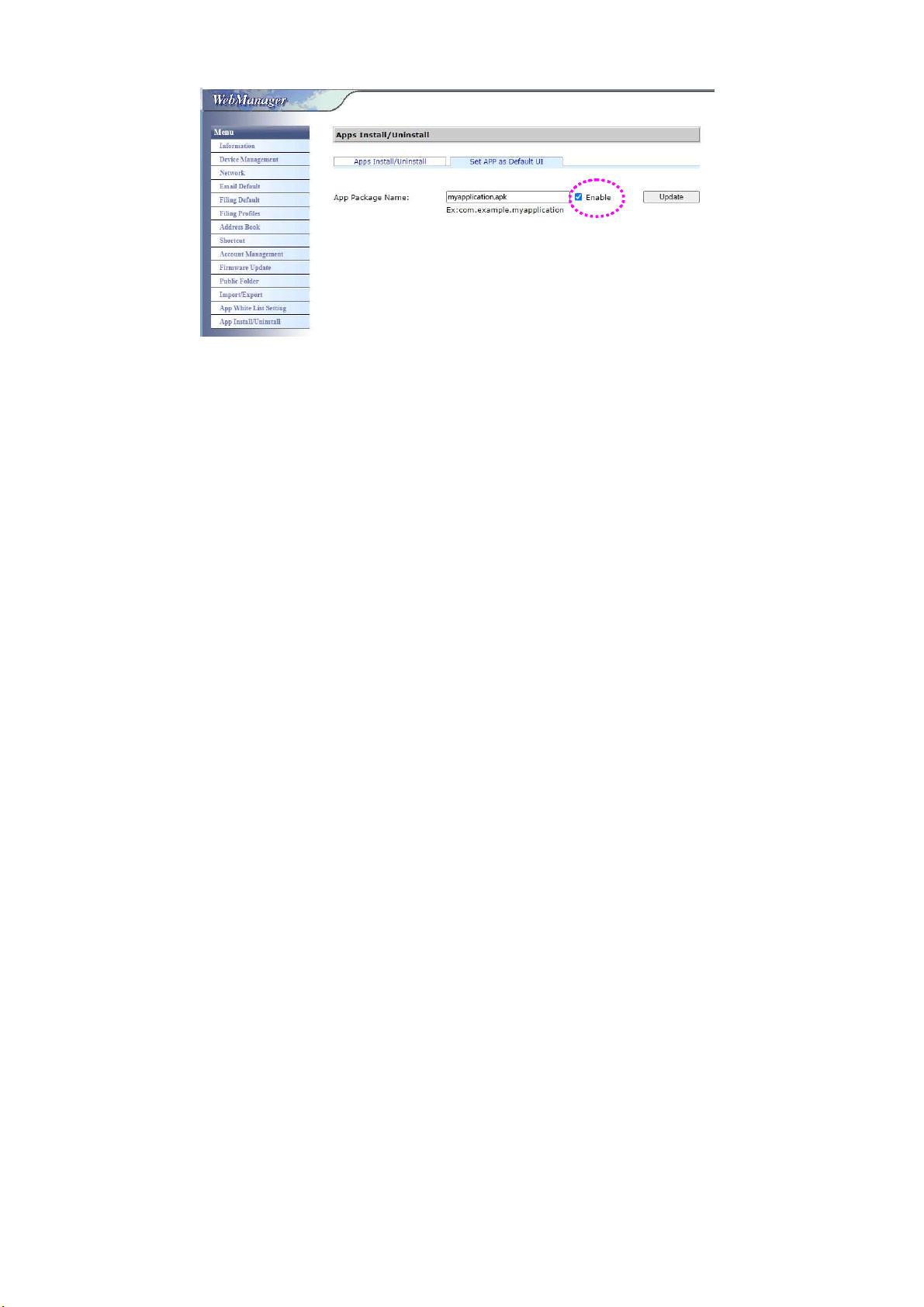
2
5
5 . Rest art t he m achine. Your application’s user int erface will be displayed.
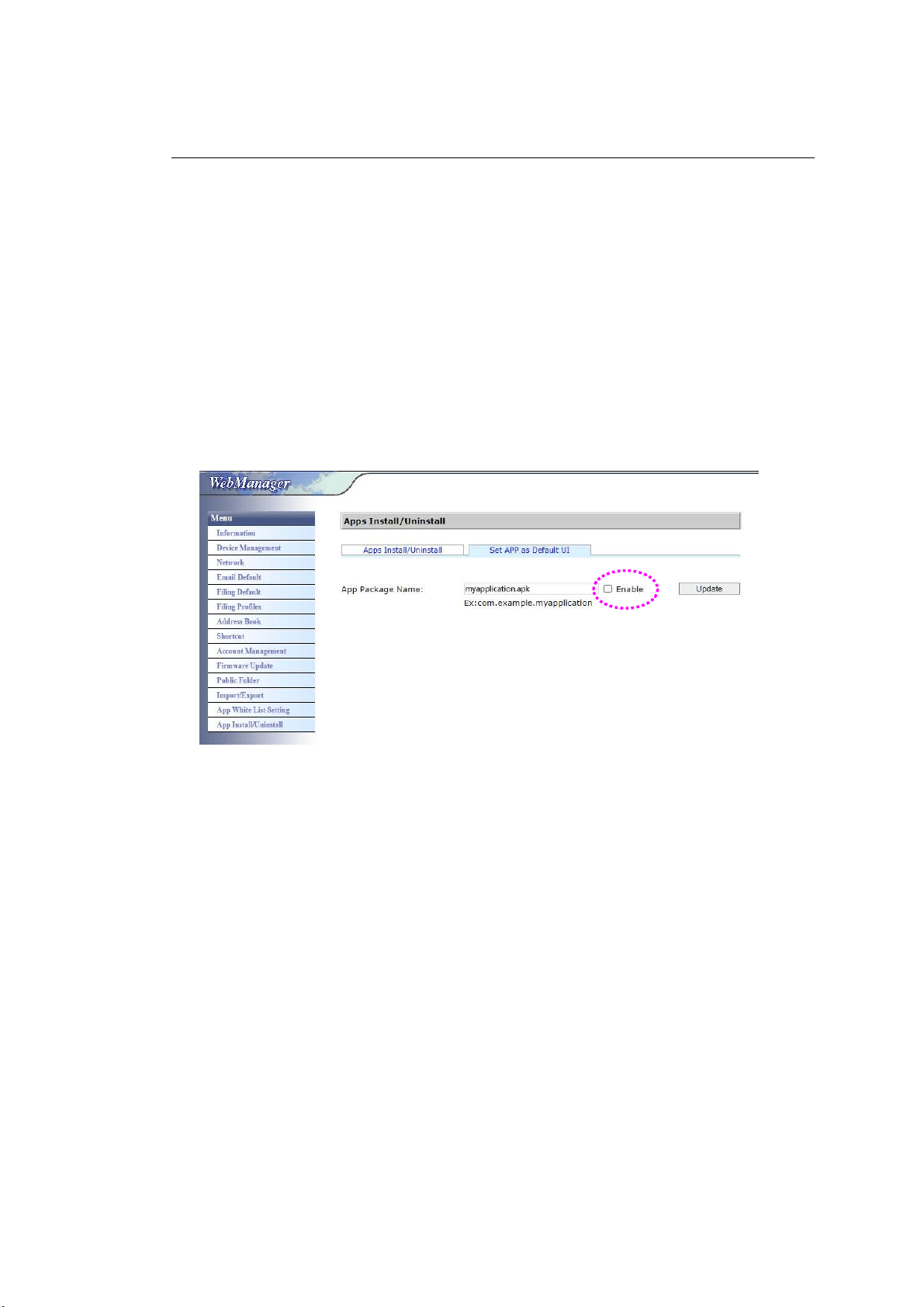
26
Sw it ching back t o t he Avision’s User I nt erface
I f you want t o swit ch back t o the Avision’s ( fact ory default) user int erface, you
can disable your application from t he product’s em bedded websit e.
To swit ch back to t he Avision’s user int erface,
1 . Open your browser and ent er t he product’s I P address on t he URL address.
The product’s em bedded web page will be displayed.
2 . Login t he web page. ( default user nam e and password: adm in)
3 . Choose [ App I nst all/ Uninstall] from t he M e n u opt ion and select [ Set App
as D e fault UI ] .
4 . Uncheck t he [ Enable] but t on and choose [ Upda t e] t o com plete.
5 . Rest art t he m achine. The Avision’s user int erface will be displayed.

2
7
3 Operat ion
Docum ent Loading Tips
Before using t he ADF ( A
ut o Docum ent Feeder), please m ake sure t hat your
paper m eet s t he following specifications:
Docum ent ( s) can range in size from 52 x 70 m m to 216 x 356 m m
( Legal) .
Docum ent ( s) can range in weight from 50 t o 433 g/ m
2
I D cards up t o 1.25 m m ( 0.05 in.) t hick
Plastic cards com pliant wit h t he I SO7810 I D- 1 t ype
Docum ent(s) should be square or rect angular and in good condit ion ( not
fragile or worn).
Docum ent ( s) should be free of curl, wrinkle, t ears, wet ink, or punch holes.
Docum ent ( s) should be free of staples, paper clips, paper st icky notes.
28
Loading Docum e nt ( s) in t he ADF
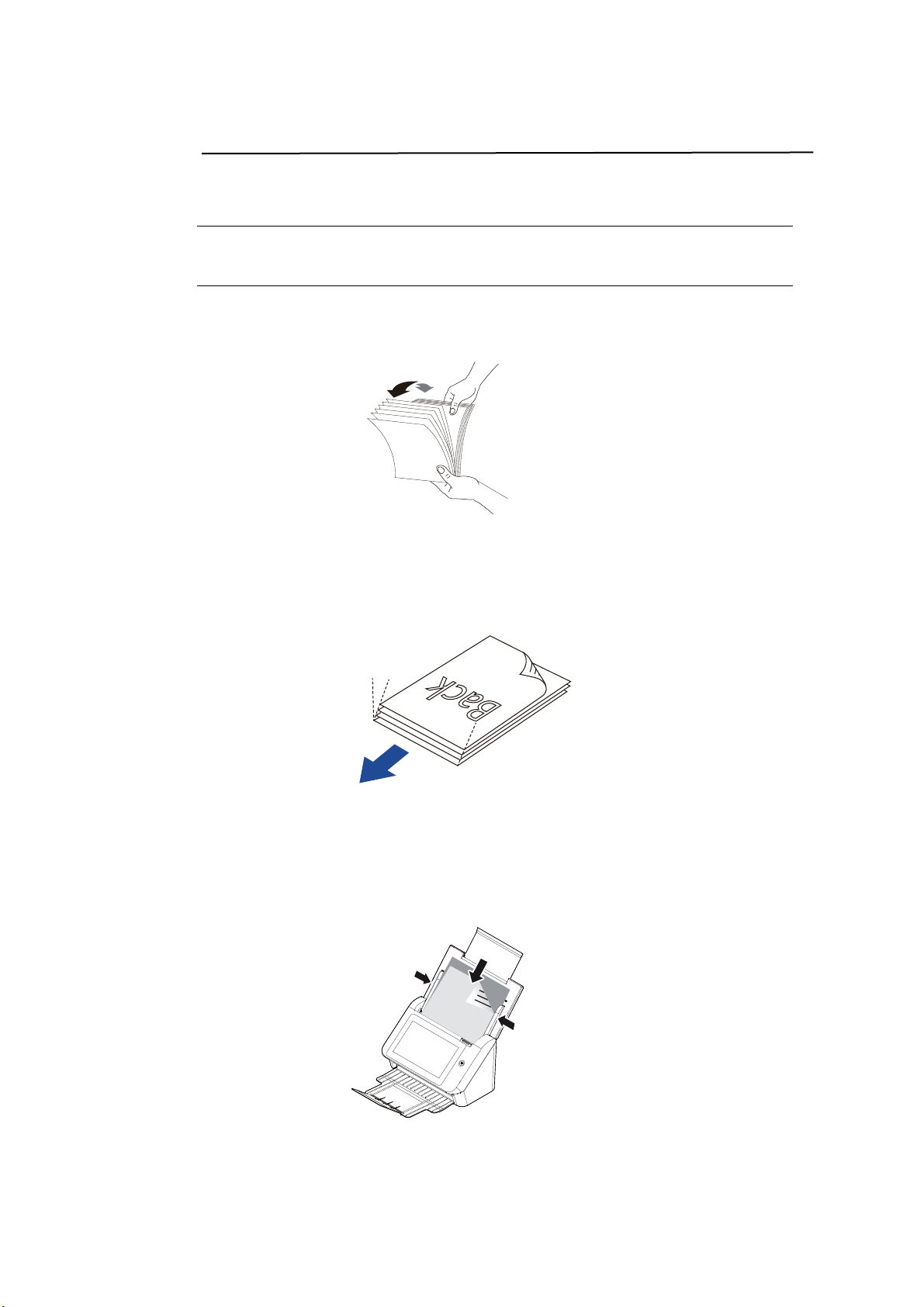
Fanning You r D ocum ent
N ot e: To avoid occasional m ult i- feeds or paper j am s, please fan your
docum ent s and align t he t op edges before feeding t hem int o t he scanner.
1 . Hold bot h ends of t he docum ent s and fan them a few tim es.
2 . Rot ate t he docum ent s by 90 degrees and fan t hem in t he sam e
m anner.
3 . Align t he edges of t he docum ent s in a step- like pat tern ( see pict ure
below) .
Docum e nt Feeding
1 . Load the stack of docum ent fa ce dow n wit h the t op of the pages
pointing into t he feeder.
2 . Verify that t he paper guides are aligned wit h t he edges of t he
st ack.
St ep- like
Scanning
Direct ion
29
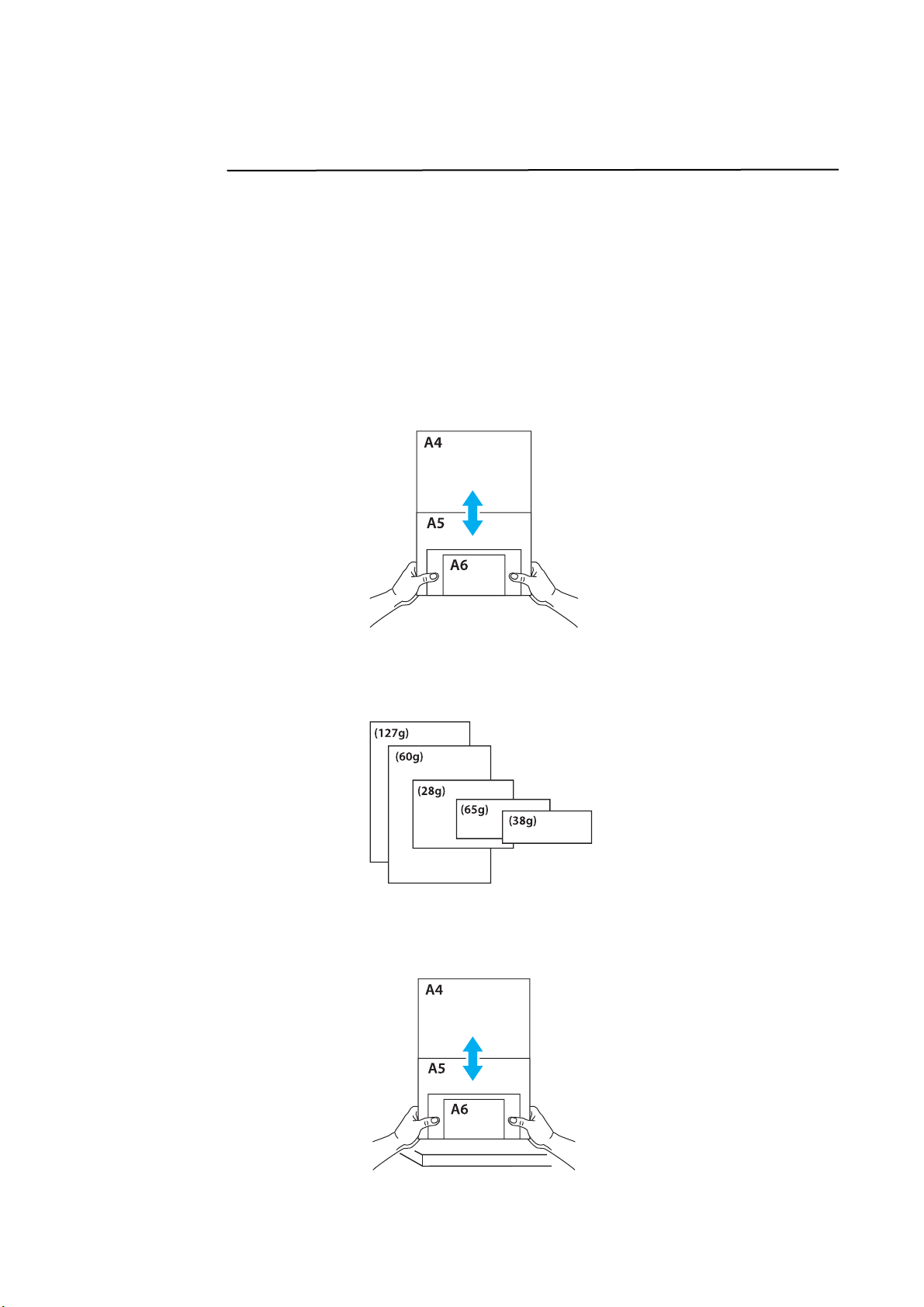
Sca nning a St a ck of Docum e nt w ith Va rious Sizes
and W e ight s
When scanning a batch of docum ent s with different sizes and weight s, be
sure t o follow t he follow ing guidelines t o avoid a skewed im age or a paper
j am :
1 . Align t he docum ent s TOP EDGE first in the sequence of paper size from
large to sm all.
2 . I f t wo pages are of t he sam e size yet with different weight , arrange t hese
pages in t he sequence of paper weight from heavyweight to light weight .
3 . Align t he edges of t he docum ent s by tapping t he bot t om of t he stack
against t he t able t op.
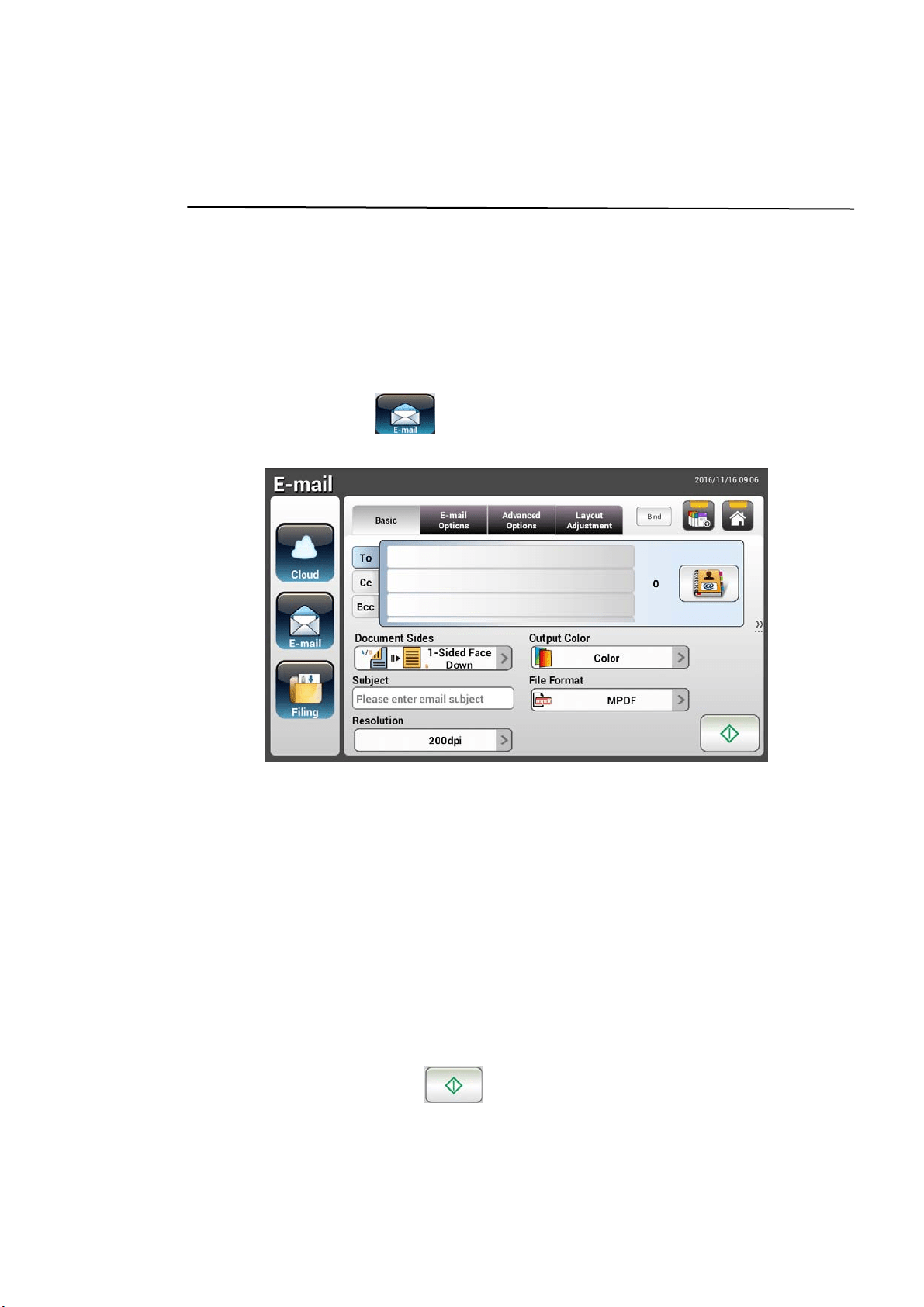
4 . Center t hese pages in t he docum ent feeder and m ake sure t hat t he edges
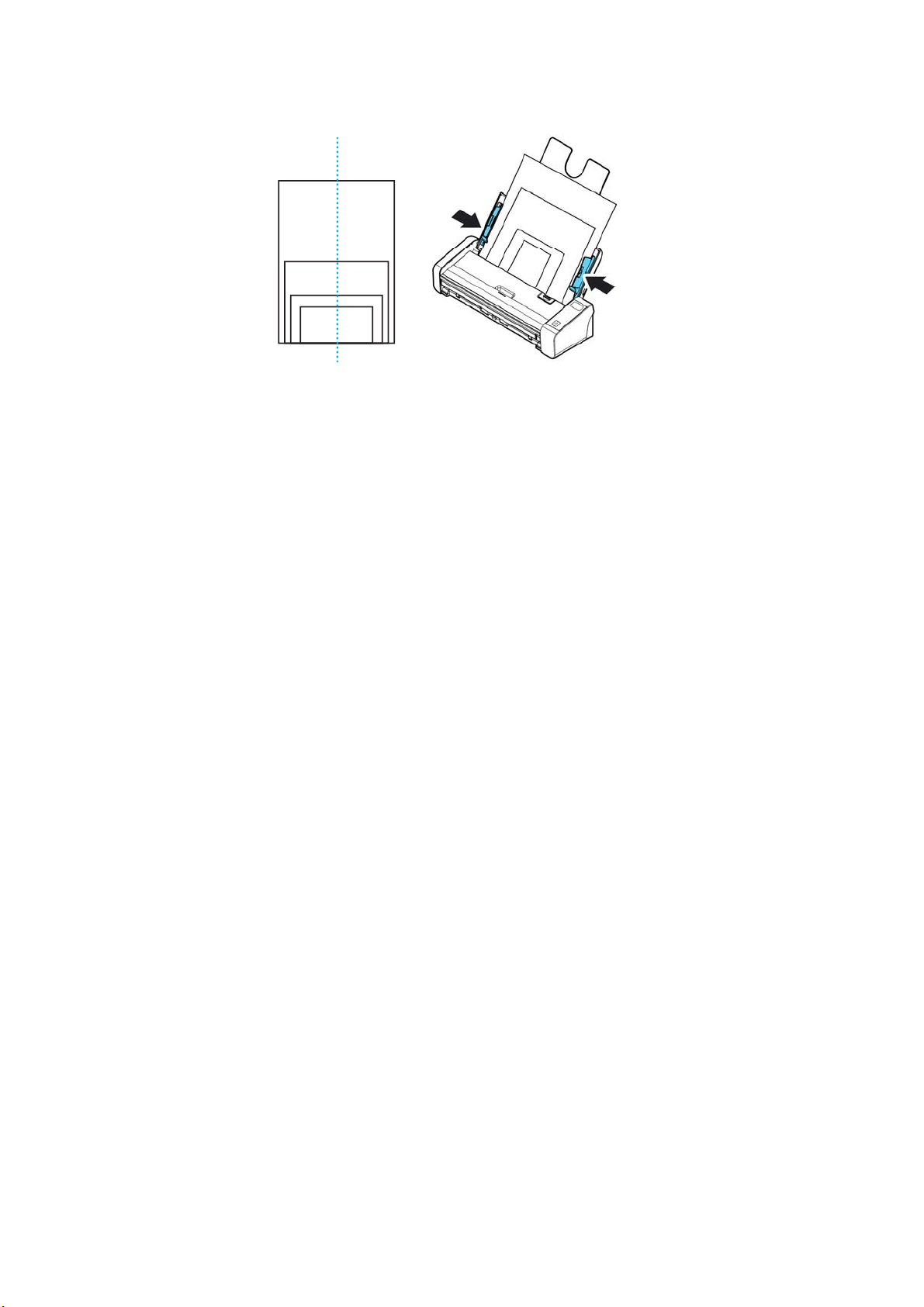
3
0
of page of the largest size slight ly t ouch t he Paper Guide.
31
Sca nning and Sending Your D ocum ent to E- m a il
Addresse s
Basic Operat ion
Using t h e Defa ult Set t ing
1 . Load your docum ent in the ADF wit h the 1
st
page facing down and t he t op of
the pages pointing t o t he feeder.
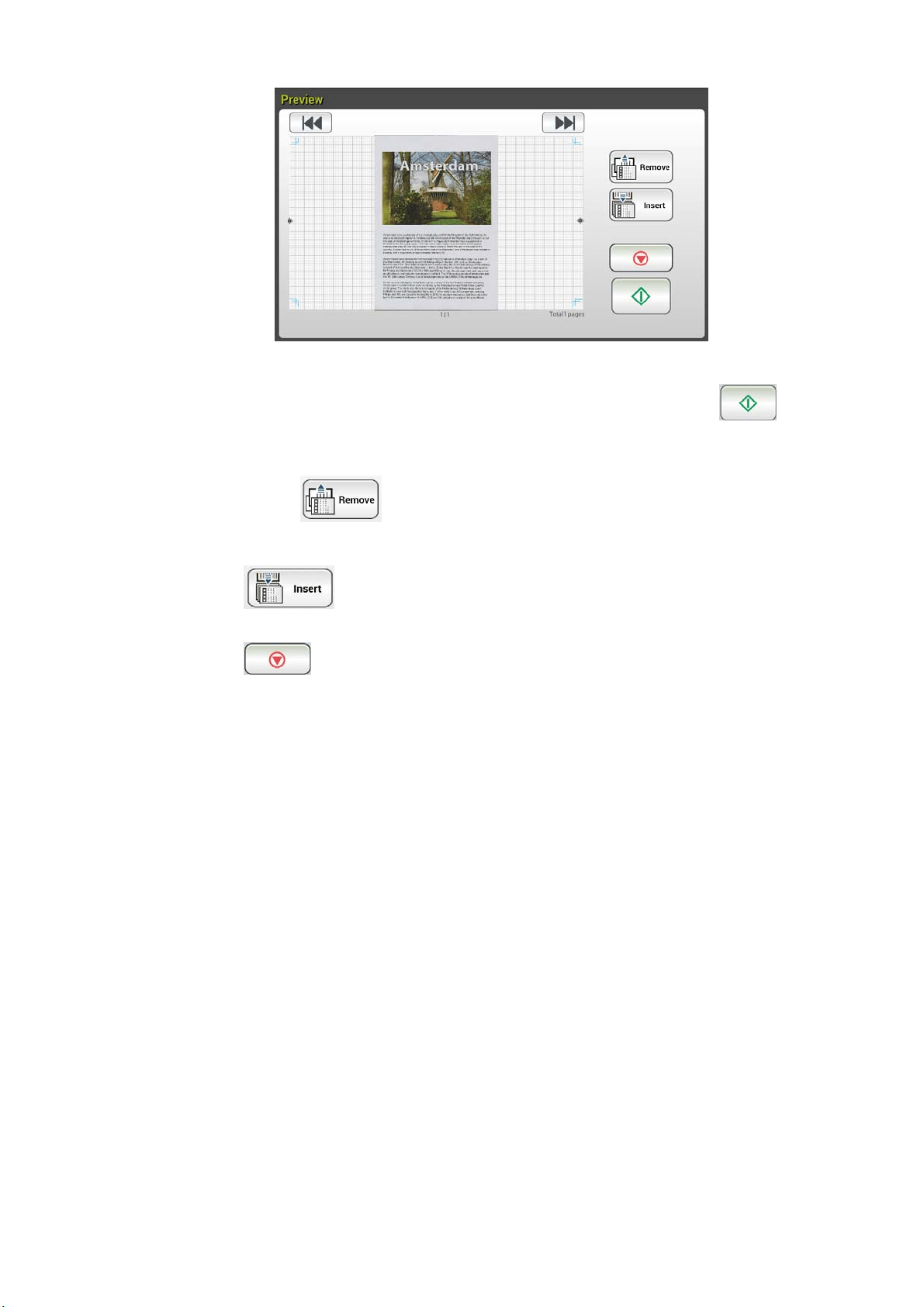
2 . Press t he E- m a il
button on t he Hom e screen. The following
E- m ail m ain screen will be displayed in t he right side.
3 . Ent er the E-m ail address.
- Touch any place on the “To” field ( the em pt y box in t he cent er) t o bring
up t he “soft keyboard” t o type your em ail address. Tap t he 2
nd
field t o
ent er your 2
nd
E- m ail address.
- You can delete t he E- m ail address by t ouching t he [ Dele t e] but t on aft er
you input your em ail address.
4 . Ent er or select CC and BCC address as well, if necessary. Ent er the subj ect
of your E-m ail via t he soft keyboard. I f not , t he “ Default Subj ect ” will be
displayed in recipient s’ E-m ail m essage.
5 . Check if t he Docum ent Sides, Output Color, or File Form at m eet s your
requirem ent s. I f not , change t he settings t o suit your needs.
6 . Tap the [ St a r t ] but t on (
) t o st art a scan.
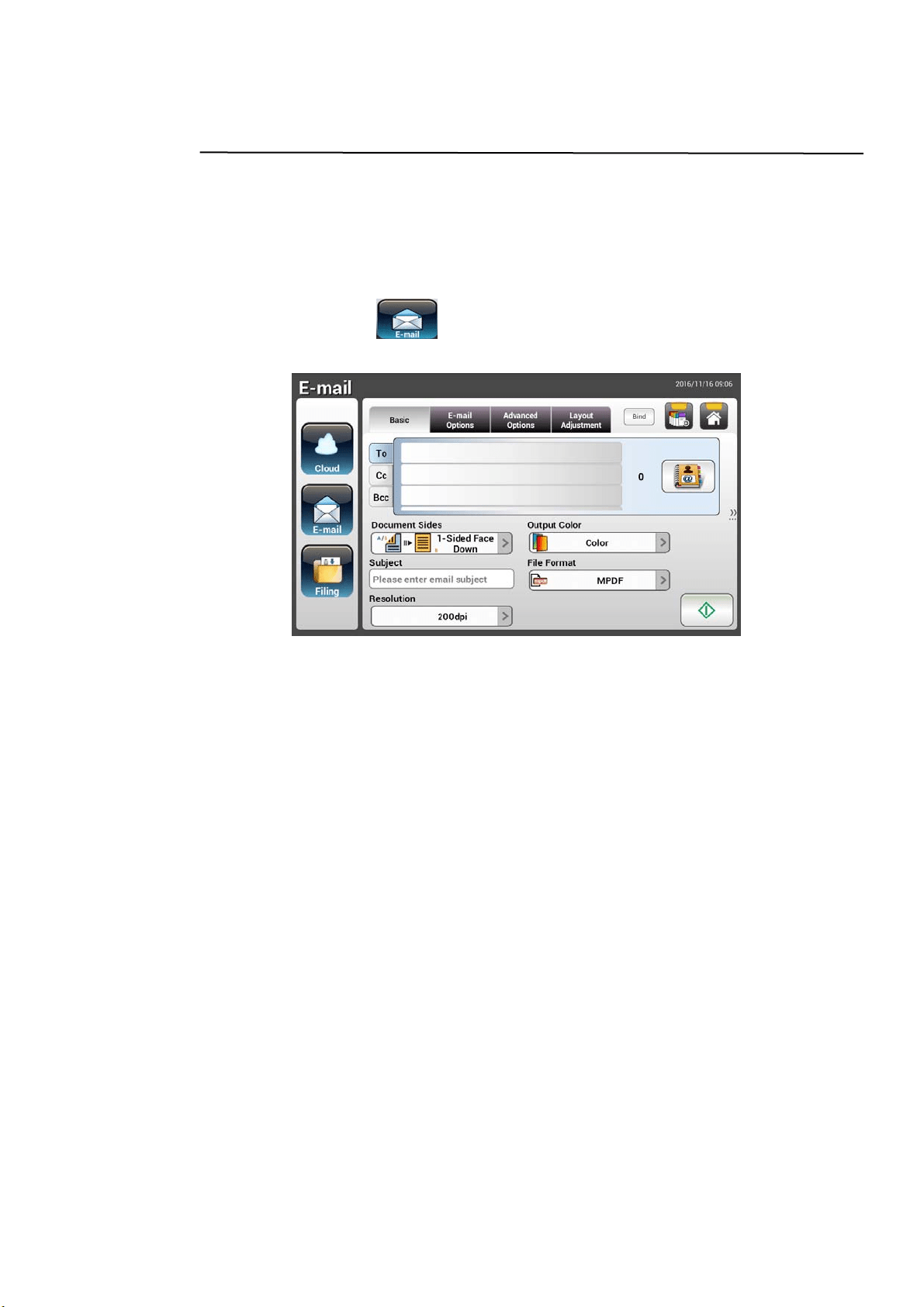
7 . The product starts scanning and t he preview im age will be displayed.
32
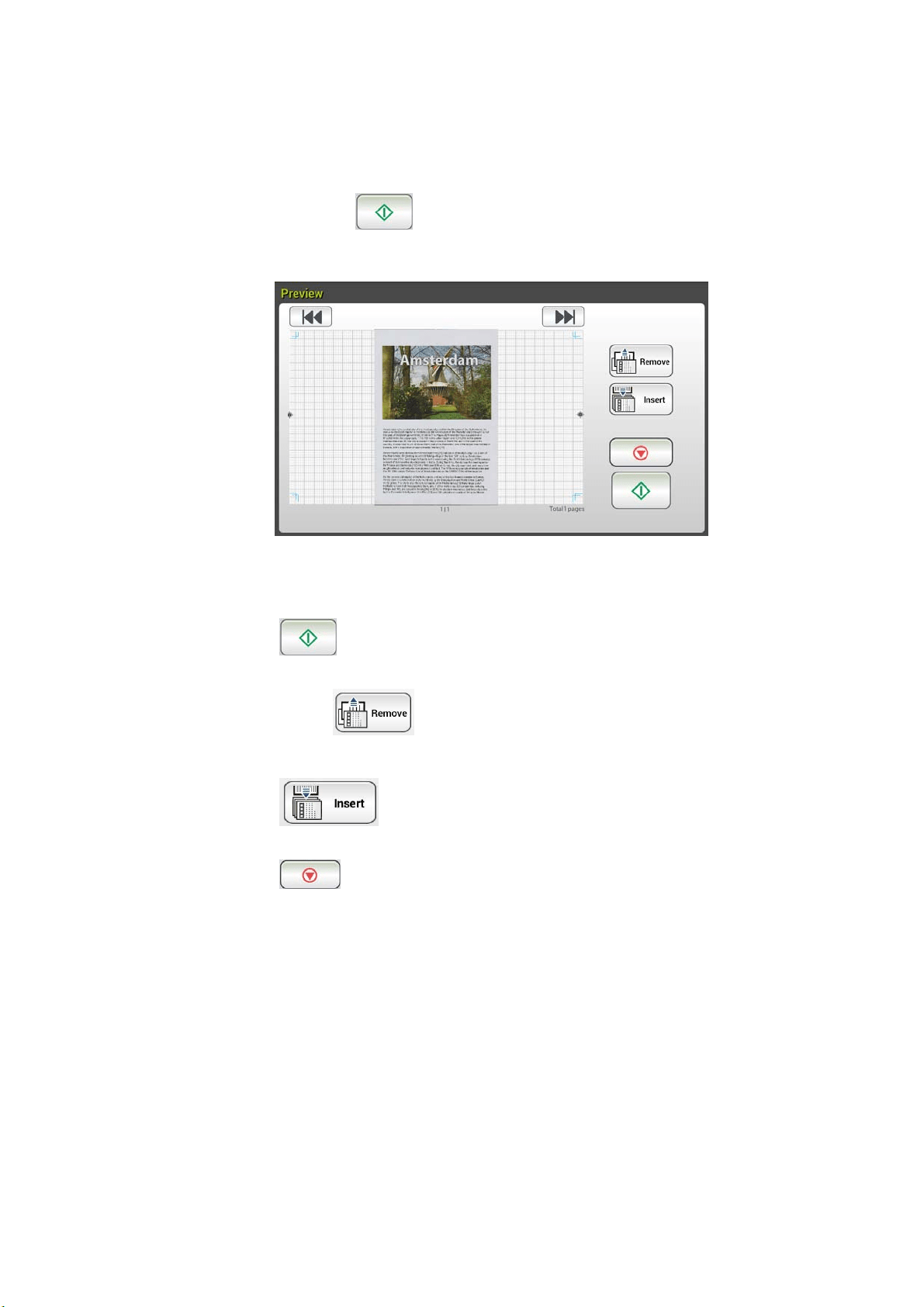
8 . On t he Preview screen,
St art : I f t he scanned im age is OK, press the [ St art] button ( ) on
the t ouch panel t o distribut e t he scanned im age.
Rem ove: I f the scanned im age is not satisfactory, tap t he [ Rem ove]
but t on (
) to delet e t he scanned im age.
I nse r t : You m ay also insert m ore pages by t aping t he [ I nsert]
(
) but t on.
Cance l: I f the scanned im age is not OK, tap t he [ Ca n cel] but ton
(
) t o abort t he job.
9 . I n a second, t he scanned im age will be sent t o your E- m ail addresses.
33
Adva nced Opera t ion
Using Specia l Set t ings
1 . Load your docum ent in the ADF wit h the 1
st
page facing down and t he t op of
the pages pointing t o t he feeder.
2 . Press t he E- m a il
button on t he Hom e screen. The following
E- m ail m ain screen appears.
3 . Enter your E-m ail address.
- Touch any place on the “To” field ( t he em pt y box in t he cent er) to bring
up t he “Soft Keyboard” t o t ype your em ail address. Press Ent e r t o t ype
the 2
nd
E-m ail address and t hen click Ret urn t o return t o the E- m a il m ain
screen.
4 . Enter or select CC and BCC address as well, if necessary. Ent er the subj ect
of your E-m ail via t he soft keyboard. I f not , t he “ Default Subj ect ” will be
displayed in recipient s’ E-m ail m essage.
5 . On t he Ba sic screen, check if t he docum ent sides, output color, or file
form at m eet s your requirem ents. I f not , change t he set t ings t o suit your
needs.
6 . Tap t he E- m ail Opt ions tab t o prom pt t he E- m a il Option s screen. Type
your E-m ail m essage if necessary in t he Message field via t he soft
keyboard, ent er t he attachm ent nam e of t he scanned docum ent , and t he
“ Reply t o” address if necessary. ( For m ore inform at ion about t he set tings,
see t he settings descript ion in t he next two pages.)
7 . Tap t he Adva nced Set t in gs t ab t o prom pt t he Advance d Se t t ings screen.
Change t he densit y, cont ract, qualit y level, and resolution if t he default
set t ings are not sat isfactory. (For m ore inform ation about t he set t ings, see
the settings description in t he next t wo pages.)
34
8 . Tap t he La yout Adjustm ent t ab to prom pt the Layout Adj ustm ent
screen. Change original size, and preview if t he default settings are not
sat isfact ory. ( For m ore inform at ion about t he settings, see t he settings
descript ion in t he next page.)
9 . Press t he [ St art]
button t o start a scan.
1 0 . The product st arts scanning and the preview im age will be displayed.
1 1 . On t he Preview screen,
St art : I f the scanned im age is OK, press the [ St art ] but ton
(
) on t he touch panel to dist ribut e t he scanned im age.
Rem ove: I f the scanned im age is not sat isfact ory, tap t he [ Rem ove]
but t on (
) to delet e t he scanned im age.
I n sert : You m ay also insert m ore pages by t aping t he [ I nser t ]
(
) but t on.
Cancel: I f t he scanned im age is not OK, tap t he [ Ca ncel] but t on
(
) t o abort t he job.
1 2 . I n a second, t he scanned im age will be sent t o your E-m ail addresses.
3
5
Set t ings De script ions
Basic
I t em Descr iption
Docum e nt
Sides
Choice: * 1 - Sided Face Dow n , 1 - Sided Face Up, 2 - Sided
1 - Sided Face Dow n : Choose to scan single side of your
docum ent and m ake sure t he scanning side faces down on t he
docum ent feeder.
1 - Sided Face Up: Choose t o scan single side of your
docum ent and m ake sure t he scanning side faces up on the
docum ent feeder.
2 - Sided: I f your original is a double- sided docum ent, choose
2 - Sided t o scan bot h sides of your docum ent .
Subj e ct Enter t ext for your em ail subj ect. Up t o 64 charact ers are
allowed.
Re solution
The resolut ion is m easured in pixels per inch ( ppi) (som et im es
referred t o as dot s per inch or dpi) . Higher resolut ions result
in m ore det ail in t he scan, slow er scanning and in general,
greater file sizes. When OCR ( Optical Charact er Recognit ion)
is t o be perform ed on a scan, 300dpi should be used for m ost
languages except Asian languages. For Asian languages, 400
dpi is recom m ended.
Re solut ion: 1 5 0 dpi Resolut ion : 2 0 0 dpi
N ot e: I f you are scanning duplex ( t wo- sided) paper in color
m ode, t he m ax. resolut ion is 400 dpi.
Choice: 1 0 0 dpi, 1 5 0 dpi, * 2 0 0 dpi, 3 0 0 dpi, 4 0 0 dpi,
6 0 0 dpi.
Outpu t
Color
Choose your desired output color for your scanned im age.
Choice: * Color , Gray, B& W
Color: Choose Color if you wish to scan a color im age for
your original in color.
Gray: Choose Gr a y im age if your original cont ains act ual
shades of gray.
Choose B& W if your original cont ains only t ext , pencil or ink
sketch.
36
File Form at Choose t he file form at for your scanned im age.
Choice: JPEG, TI FF ( One- Page TI FF) , M- TI FF
( M ult i- Pa ge TI FF) , PDF ( One- Pa ge PD F) , * M - PDF
( M ult i- Pa ge PD F) , PD F/ A( M - PD F) , PN G
N ot e:
M PD F or M TI FF file form at allows you to scan
m ult i- page docum ent and convert it t o a single file.
PDF file form at allows you to save one im age page in a
single file.
JPEG file form at is available for Color and Gray im ages
only.
TI FF file form at is available for B&W im ages only.
* Factory Default

3
7
E- m ail Options
I tem Descr iption
From Enter t he “ From ” address of your out going m ails from the
product. I f an E-m ail can not be sent, not ification is ret urned
to t his address. I f t he adm inistrator has not set the device’s
em ail account in the Mail Server settings, you can ent er the
em ail address here. This is the “ From ” address in your
E- m ail when you receive an em ail from t he product.
Reply To Enter a “ Re ply t o” address if you wish to specify a reply
address which is different from t he “From ” address. Up t o 60
characters can be ent ered in t he field. To ent er the address,
you m ay press anywhere on t he “ Reply To” field t o bring up
the soft keyboard t o t ype t he address.
Message Type your em ail m essage here. To ent er t he t ext, you m ay
press anywhere on the “Messa ge” field t o bring up t he soft
keyboard to t ype t he text.
File N a m e Enter t he file nam e for your scanned docum ent wit hout
ext ension. I f you have not ent ered a value in the box, the
system w ill bring you a default file nam e, im age. Using # n
# Y# M# D# h# m # s m akes file nam e change as t im e goes. ( n,
Y, M, D, h, m , and s represent series num ber, year, m onth,
date, hour, m inute, and second respectively.) For exam ple,
t ype file nam e: t est # n# D will bring your filing file nam e as
test 000105
File
Sepa rat ion
Lim it the file size of t he at t achm ent of each outgoing em ail t o
avoid t he size lim it at ion from SMTP servers. Use the com bo
box t o select from t he list.
Choice: 5 MB/ 1 0 M / 2 0 M / 3 0 M B/ * Unlim it ed
* Factory Default
38
Adva nced Set t ings
I t em Descr iption
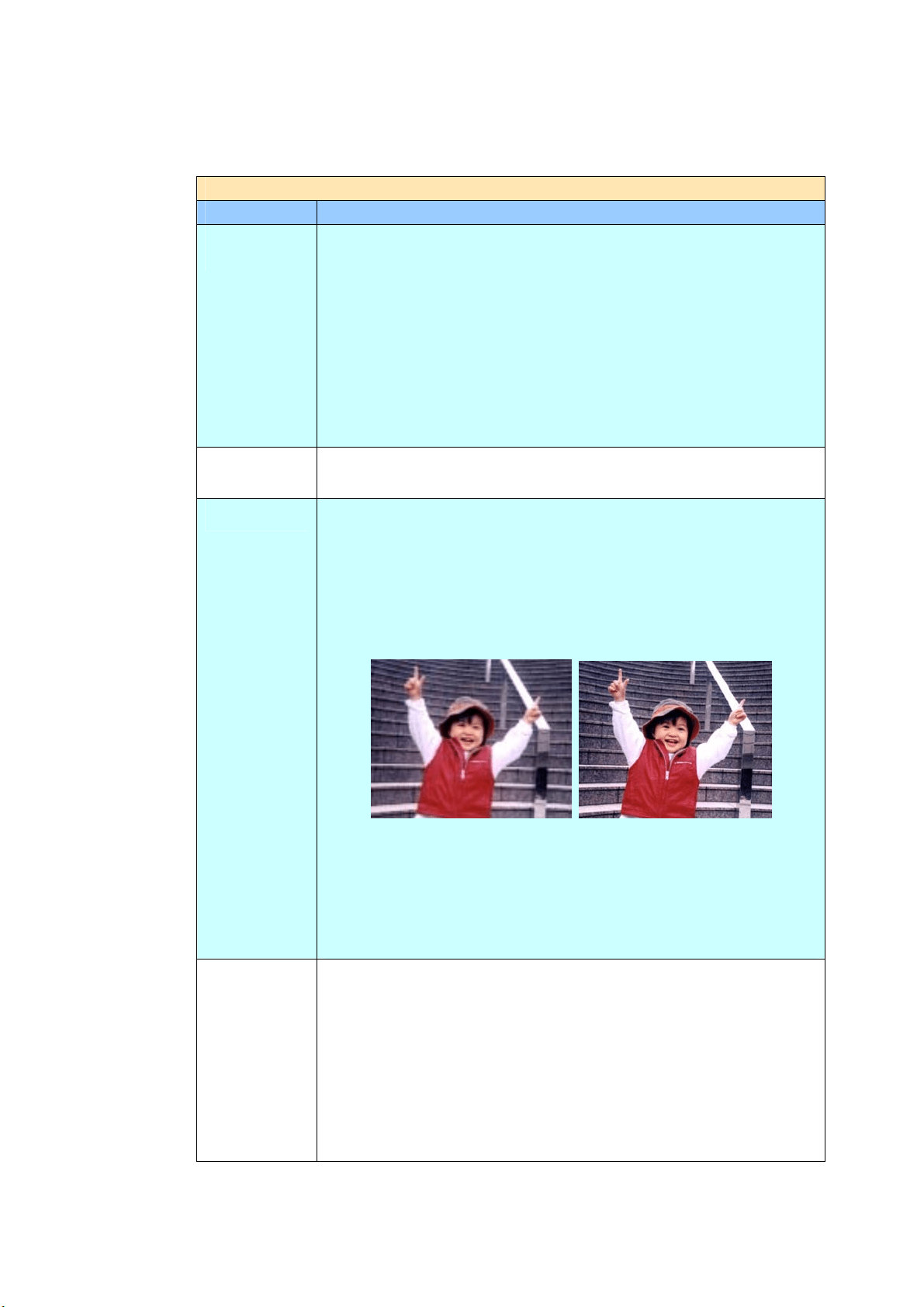
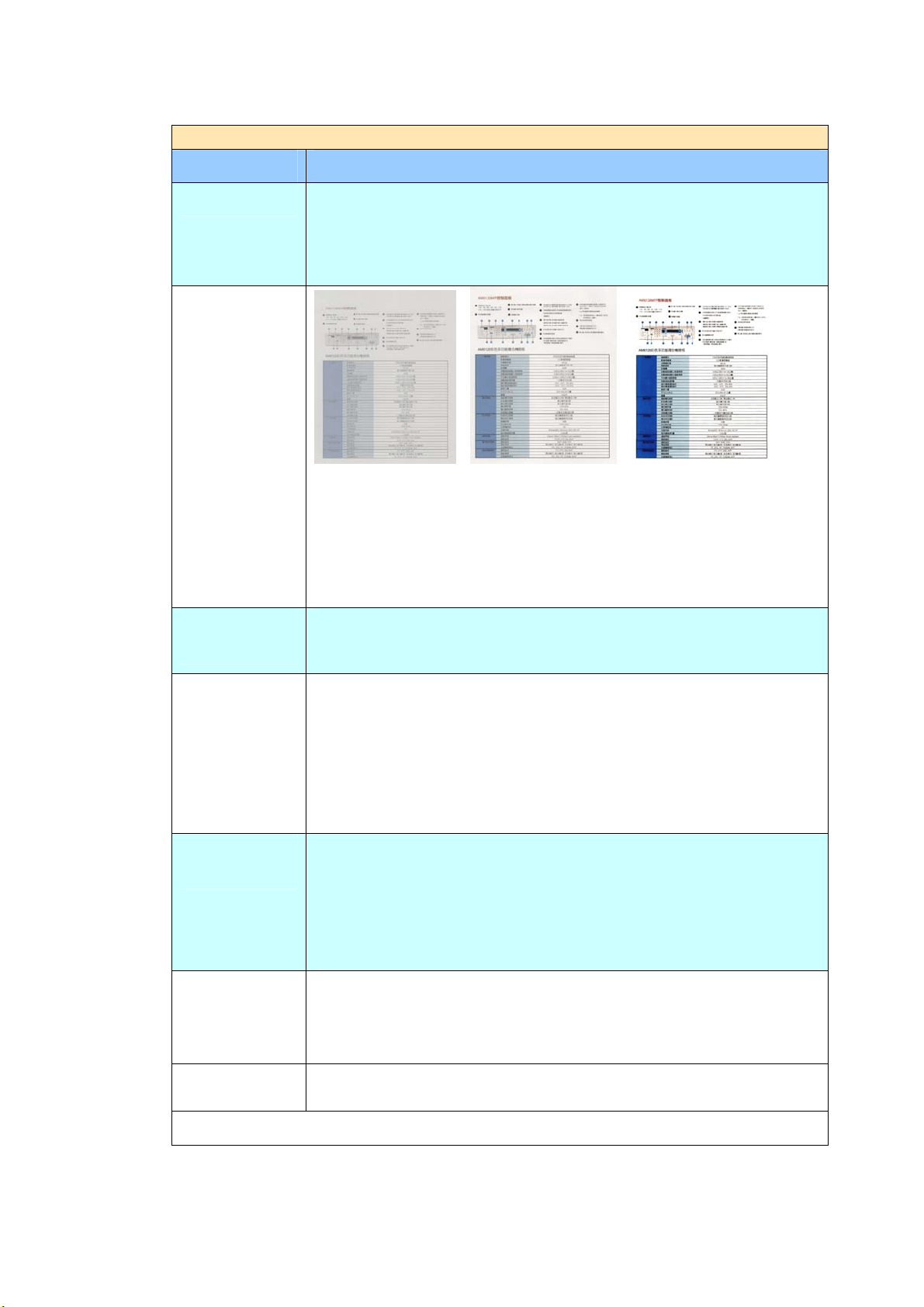
Densit y 7 levels of densit y are provided t o adj ust t he lightness or
cont rast of your docum ent . I f your original docum ent is t oo light
or t oo dark, you can use this setting t o adj ust t he scanned
im age. Choice : Leve l - 3 ~ 3 . D e fault valu e: 0
Cont rast
Contrast: -3 Contrast: 0 Contrast: 3
( N orm al)
Choice: Level - 3 ~ 3 . Defa ult value: 0
Adj ust t he Contrast slider right or left t o increase or decrease
the cont rast.
Rem ove
Bla n k Page
I f you wish t o rem ove t he blank page, you can adj ust t he
sensit ivit y value to define the t hreshold. The higher t he value,
t he m ore t he sensit ivit y.
Qualit y/ File
Size
The opt ions will be av ailable only when “ JPEG” form at is
select ed in the At t a chm ent For m a t opt ion. Choose the qualit y
level of y our scanned im age. The higher t he qualit y, t he larger
file size.
Choice: * N orm a l Qualit y/ Sm a ll File , H igher
Qualit y/ Larger File, H ighest Quality/ La r gest File
Docum e nt
Type
Choose your docum ent t ype.
Choice: * M ixed, Phot o, Text
Text: Suitable for docum ent cont ains pure t ext.
Ph ot o: Suit able for docum ent cont ains photos.
Mixed: Suit able for com m on business docum ent with phot o or
text.
Mult i- Feed
Detection
Choose if you w ish t o enable t he Mult i- Feed Det ection via
ult rasonic unit . Ult rasonic Det ect ion allow s you t o set
overlapped docum ent by det ecting paper t hickness bet w een
docum ent s. Choice: On/ * Off
Highlight
Used t o adj ust t he brightness of t he entire im age. The sm aller
the num ber, the higher t he bright ness. Range: 128~ * 255
* Factory Default
39
Layout Adjustm ents
I t em Descr iption
Original Size Press to select scan area.
Auto: Let t he m achine aut om at ically det ect t he scan area
according t o your original.
Det ectable size: A4、A5、A6、B5、LGL、LTR
Pr e set Scan Area: Specify your scan area from a list of A4,
A5, B5, LTR ( Let t er), and LGL ( Legal) .
Choice: * Auto/ Pr eset Scan Area
Auto
Orie nt a t ion
When Auto Orie nt a t ion is t urn On, im ages can be rot at ed t o
their proper orient at ions based on their cont ent s. ( * : off)
Pr e view Turn on t o display preview im age in a low resolut ion t o check if
the scanned im age is correct.
Choice: * ON , OFF
Carrier Shee t
Mode
Turn on t his option t o aut om at ically crop t he scan window
according t o your docum ent size when scanning non- standard
docum ent ( fragile, irregular- size docum ent ) wit h a carrier sheet
( opt ional) . On how t o use t he Carrier Sheet , please refer t o t he
subsequent section in page 117.
* Factory Default
4
0
Sett t ings for Va rious M a il Server s
When using t he Scan-to- Email funct ion, t he m achine w ill encount er various
set t ing problem s on m ail servers and cause t he m ails t o be sent
unsuccessfully. This docum ent is int ended to help users t o solve the set tings
problem s. The following is t he sett ing inform at ion for Gm ail and Office365.
For Gm ail
1 . Set t ing on a Gm a il Accou nt
When using Gm ail as Mail Server, due t o security issues, you will be
denied when you log in, and an error code 531534 will be displayed on
the m achine. There are two ways t o solve it. One is to access less
security app. The ot her is t o enable 2-St ep verificat ion t o generat e a
set of app password for the m achine.
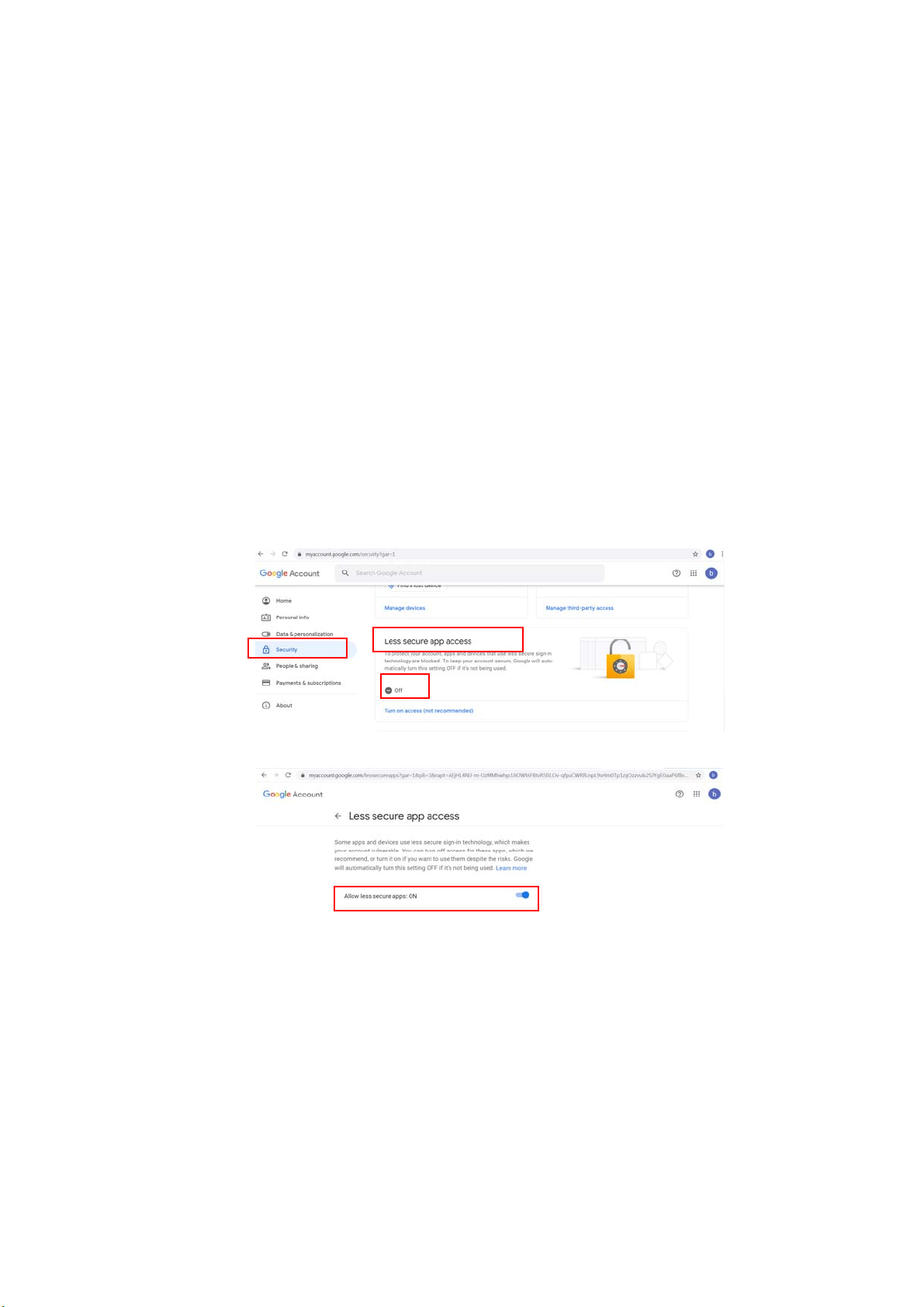
( 1 ) Acce ss le ss securit y a pp.
Please first apply a t esting account - t estxxx@gm ail.com and a
password
– pwdxxx t o specify t he follow ing sett ings:
( a) Login Gm ail m ailbox, ent er My Account and t hen select [ Security] and
click [ Off ] from t he [ Less secure app access] opt ion.
( b) Turn on [ Allow less secure apps: ON] as indicated.
Then, the m achine can direct ly use t he longin passw ord on Gm ail server.
41
( 2 ) Enable 2 - St ep verificat ion t o gene rat e App Pa ssw ord for t he
m achine.
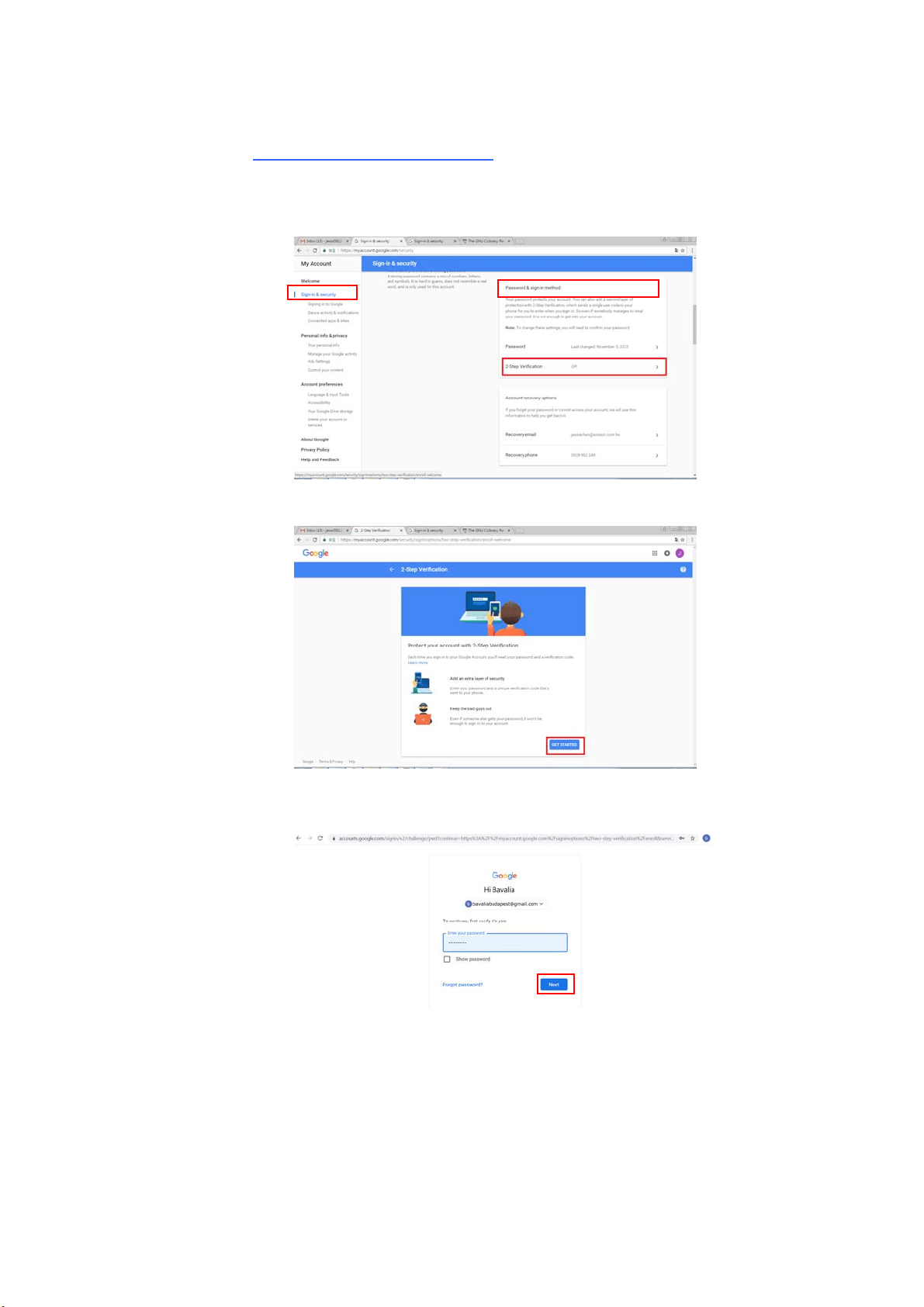
Turn on 2 - St ep verification:
( a) Click [ M y Accou nt ] > [ Sign- in & secu rit y] > [ Pa ssw or d & sign- in
m et hod] in succession and t hen t urn on [ 2- Step verification] as
indicated in below.
( b) Click [ GET STARTED ] when t he following dialog box is prom pt ed.
( c) Ent er your passw ord and click [ Next ] when t he new login screen is
prom pt ed.
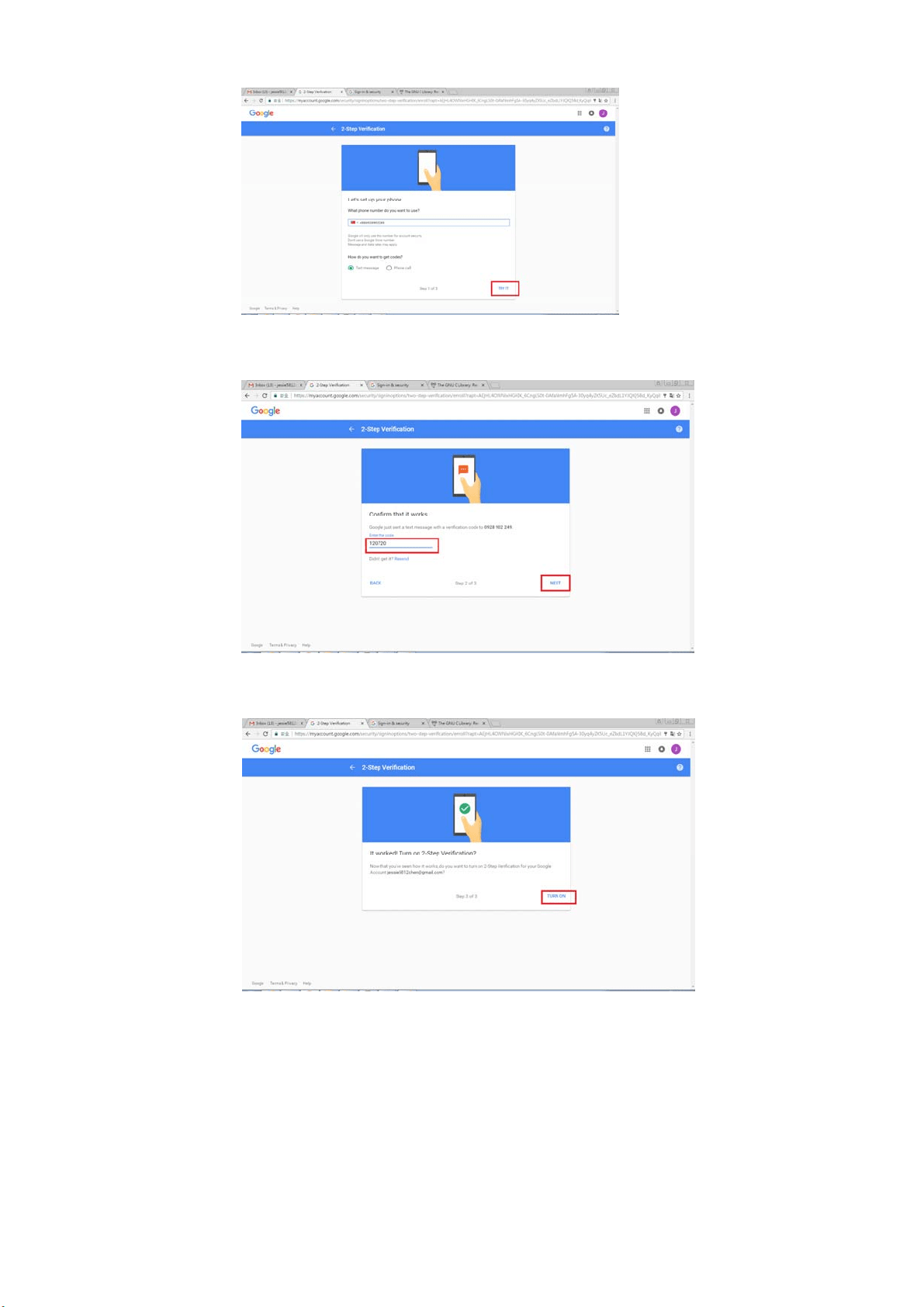
( d) Ent er your m obile phone num ber and t hen click [ TRY I T] t o get t he
verification code.
42
( e) Check the t ext m essage of your m obile phone and t hen enter t he
verificat ion code in t he follow ing dialog box and click [ Next ] .
( f) Click [ TURN ON] t o com plete t he 2- Step verification.
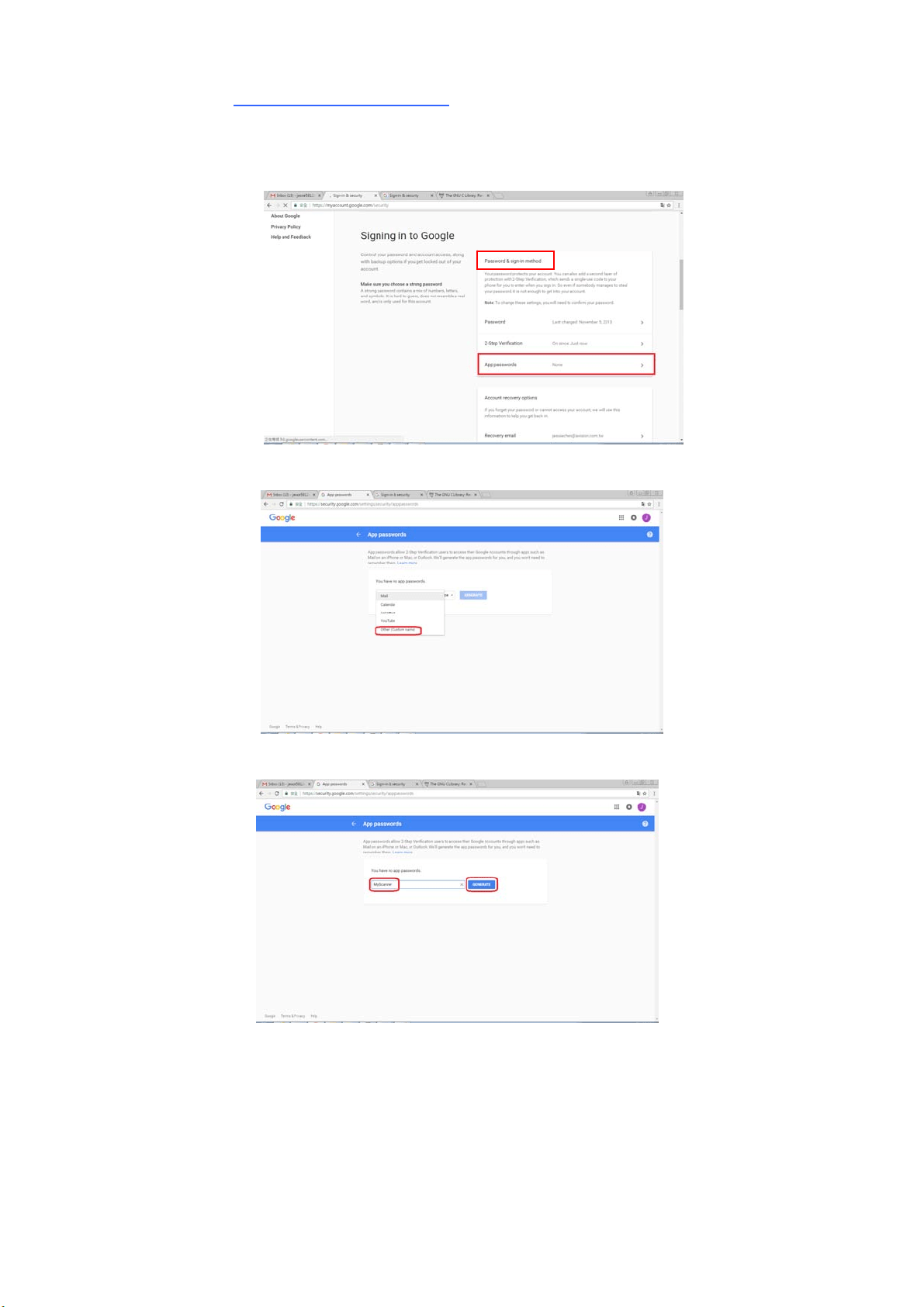
43
Gene r a t e App Pa ssw or d:
( a) Ret urn t o [ Signing in t o Google] screen, an addit ional it em - [ APP
passwords] will be added on t he [ Password & sign- in m et hod] opt ion as
indicated in below. Click [ > ] as shown in t he red box.
( b) Choose [ Other ( cust om nam e)] in t he following screen.
( c) On the out put device – MyScanner, click [ GENERATE] .
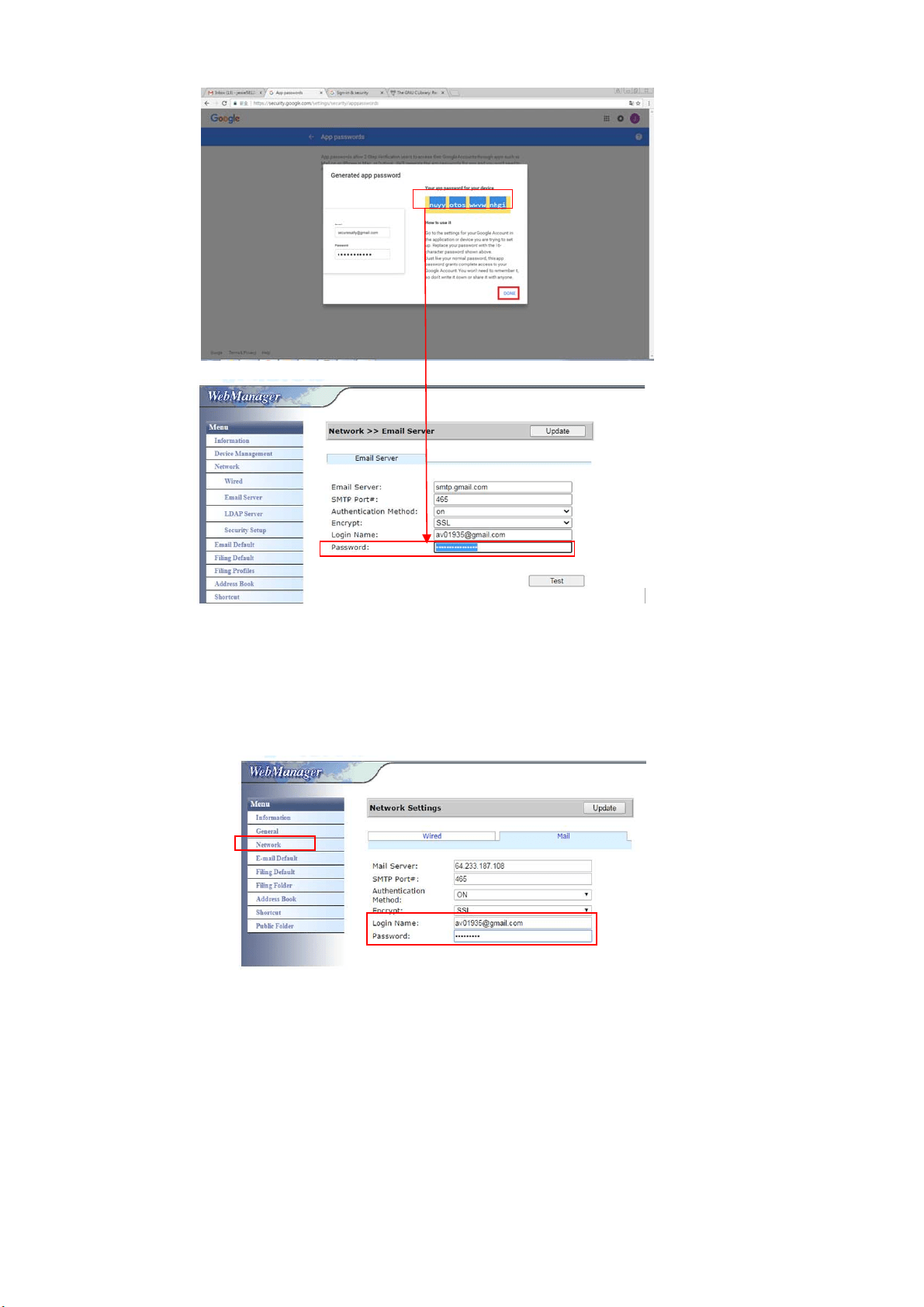
( d) The whit e t ext on t he blue background is your app password for the
device. Make sure t o copy t he password first and t hen click [ DONE] .
Enter t his password on t he m achine’s m ail server sett ing.
44
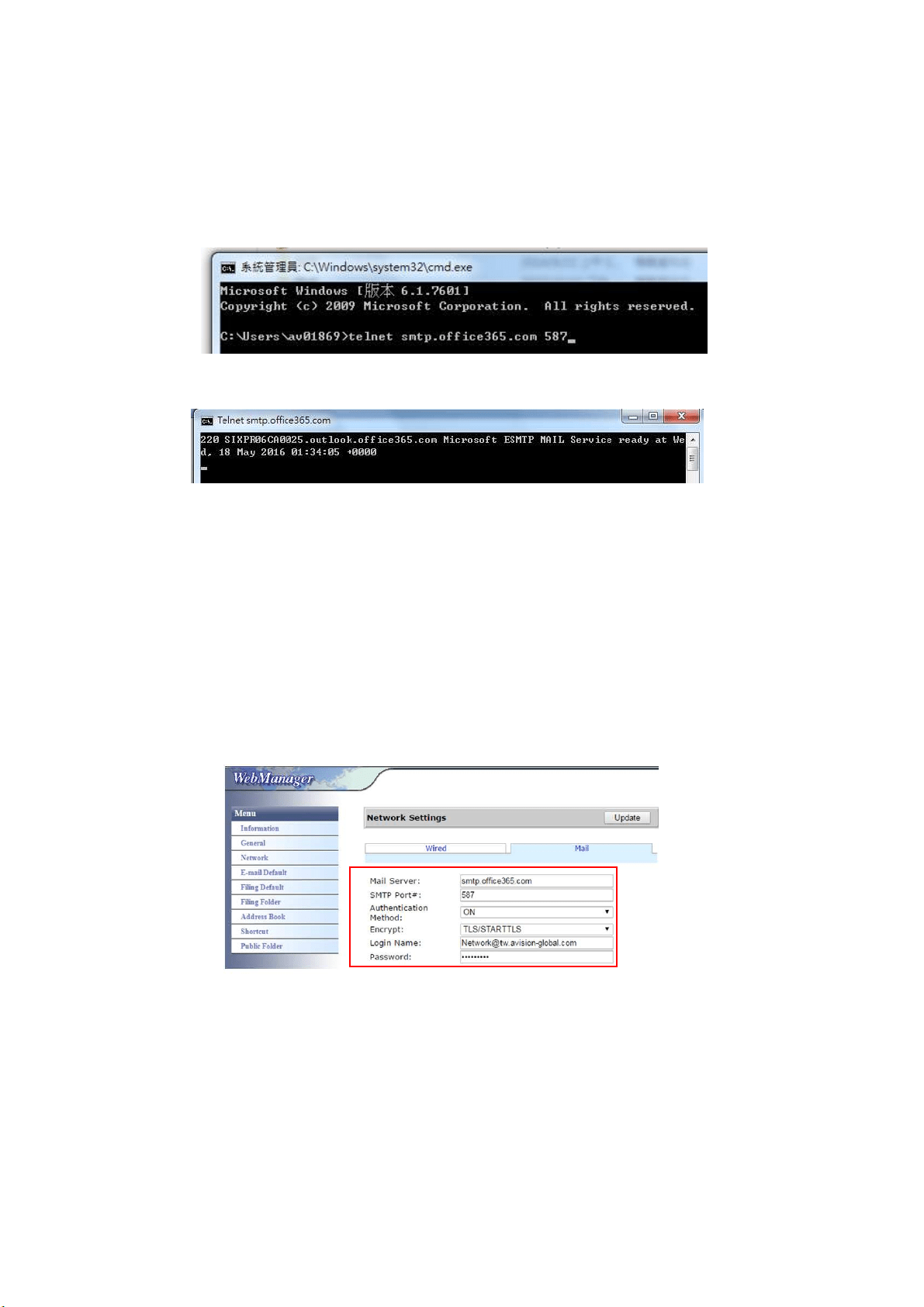
Sett t ings on t h e Machine’s W ebpage
( a) Open yo
ur browser and t ype t he m achine’s I P address on t he URL
address to open t he device’s enbedded webpage.
( b) Choose [ Network] t o open t he [ Network Set t ings] page and enter
Gm ail’s account and password. Be sure t o add @gm ail.com aft er t he
account and choose a encrypt ion t ype, for exam ple, SSL.
N ot e:
Gm ail supports non- encrypt ion connection yet you can only send m ail t o Gm ail
users. The setting is:
Mail Server: aspm x.l.google.com
SMTP Port# : 25
Authent ication Method: off
Refer t o ht t ps: / / support.google.com / a/ answer/ 176600?hl= zh- Hant
4
5
For Office3 6 5
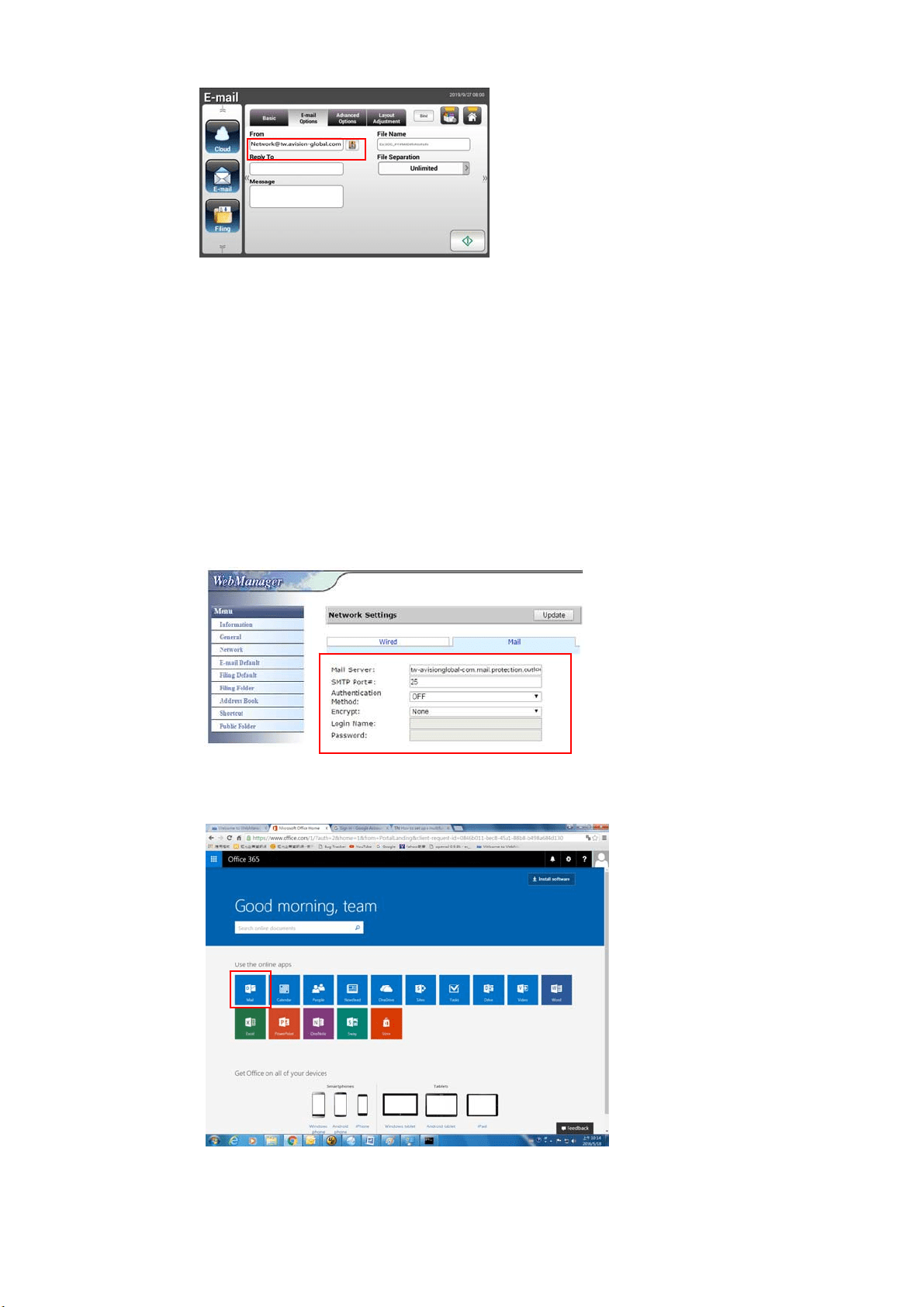
Check if Con nect ion Line is OK
To use office365, you m ust go t hrough an external line and m ake sure if
connect ion is OK. The following is how to check if t he connect ion is OK.
Take Opt ion1 m ail server as an exam ple:
I f successful, the following screen will be prom pt ed.
The following link is a link t o Office365. I t cont ains inform at ions for various
opt ions. This docum ent will explain Opt ion1, Opt ion2 and Office365 m ailbox.
https: / / t echnet .m icrosoft .com / en- us/ library/ dn554323( v= exchg.150) .aspx# opt ion2
( a ) Opt ion1
1. This opt ion can send m ail t o out side m ailboxes such as Gm ail or yahoo. This
m ethod requires account and password login. The settings are:
Aut hent icat ion: ON
Encrypt : STARTTLS
Port: 587
Mail Server: sm t p.office365.com
Login Nam e : Network@tw.avision- global.com
Password : refer t o Office365Pwd.txt
2. After com pleting t he above setting, be sure t o fill in the [ From ] field wit h
your Office365 account . On t he m achine’s t ouch panel, t ap [ E- m ail] > [ E- m ail
Opt ions] and then ent er Office365 account in t he [ From ] field as shown in
below.
46
( b) Option2
This opt ion can only send m ail to office365 account s t hat are also registered
in t he sam e group, and cannot sent m ail t o outside m ailboxes. This m et hod
does not require account and password. Settings are as follows:
Aut hent icat ion: OFF
Encrypt : None
Port: 25
Mail Server: contoso- com .m ail.prot ection.out look.com
The following screen shows t he Office365 m ail server applied by Avision)
( The Avision office365 m ail server account :
tw- avisionglobal- com 02e.m ail.prot ection.outlook.com )
( c) Office3 6 5 M a il Box
Sim ply click [ Mail] aft er login t o Office365 as indicated in below.
4
7
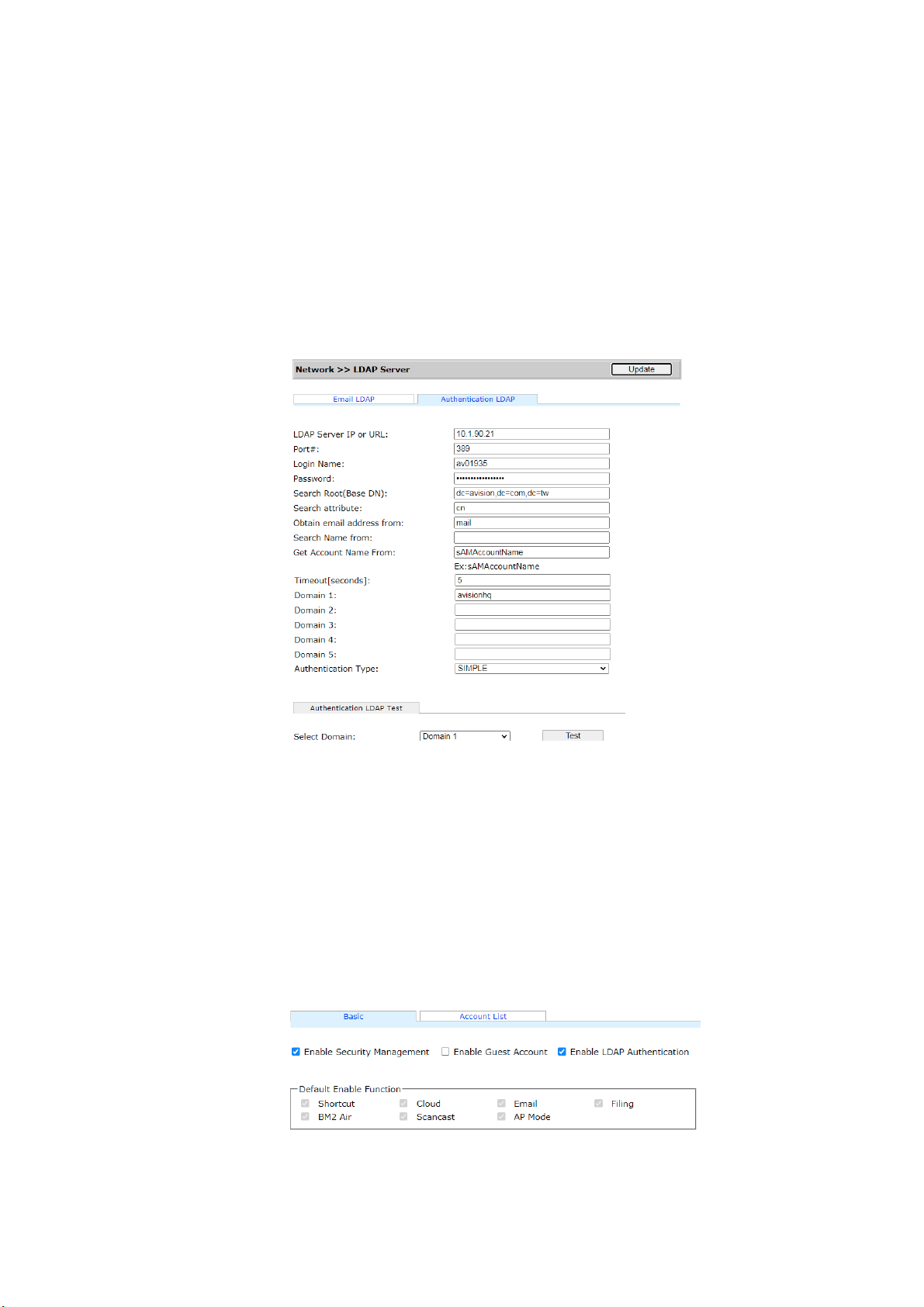
How t o im port e - m a il a ddr e ss from a LDAP Se r v e r
1 . Con figuring Your LDAP Se r ver Set t ing:
( 1 ) . Open your browser and t ype the I P address of t he device on t he URL
address. The webpage of t he device appears.
( 2 ) . Login t he webpage. ( default user nam e and password: adm in)
( 3 ) . Choose [ N et w or k ] > [ LD AP Server] > [ Authentica t ion LDAP] in
succession.
( 4 ) . Ent er your LDAP inform at ion respectively and t hen click [ Update] to
com plet e. Refer t o the following exam ple.
( 5 ) . You m ay try [ Authent ication LDAP test] t o check if the connection
and login t est successful wit h adm in's AD( ActiveDirect ory) account.
2 . Se t Accou nt s w it h LDAP a uthent ication:
( 1 ) . On t he device’s webpage, choose [ Accou nt M a nage m e nt ] and
check [ Enable Securit y Manage m e nt] & [ Enable LDAP
Aut henticat ion] .
( 2 ) . Click the [ Accou nt List ] t ab, and click [ N ew ] . Check [ LD AP
Aut henticat ion] .
( 3 ) . Click [ LDAP Se a r ch] and t hen enter your account and click [ Subm it ]
to search your AD account . The search result will be displayed as
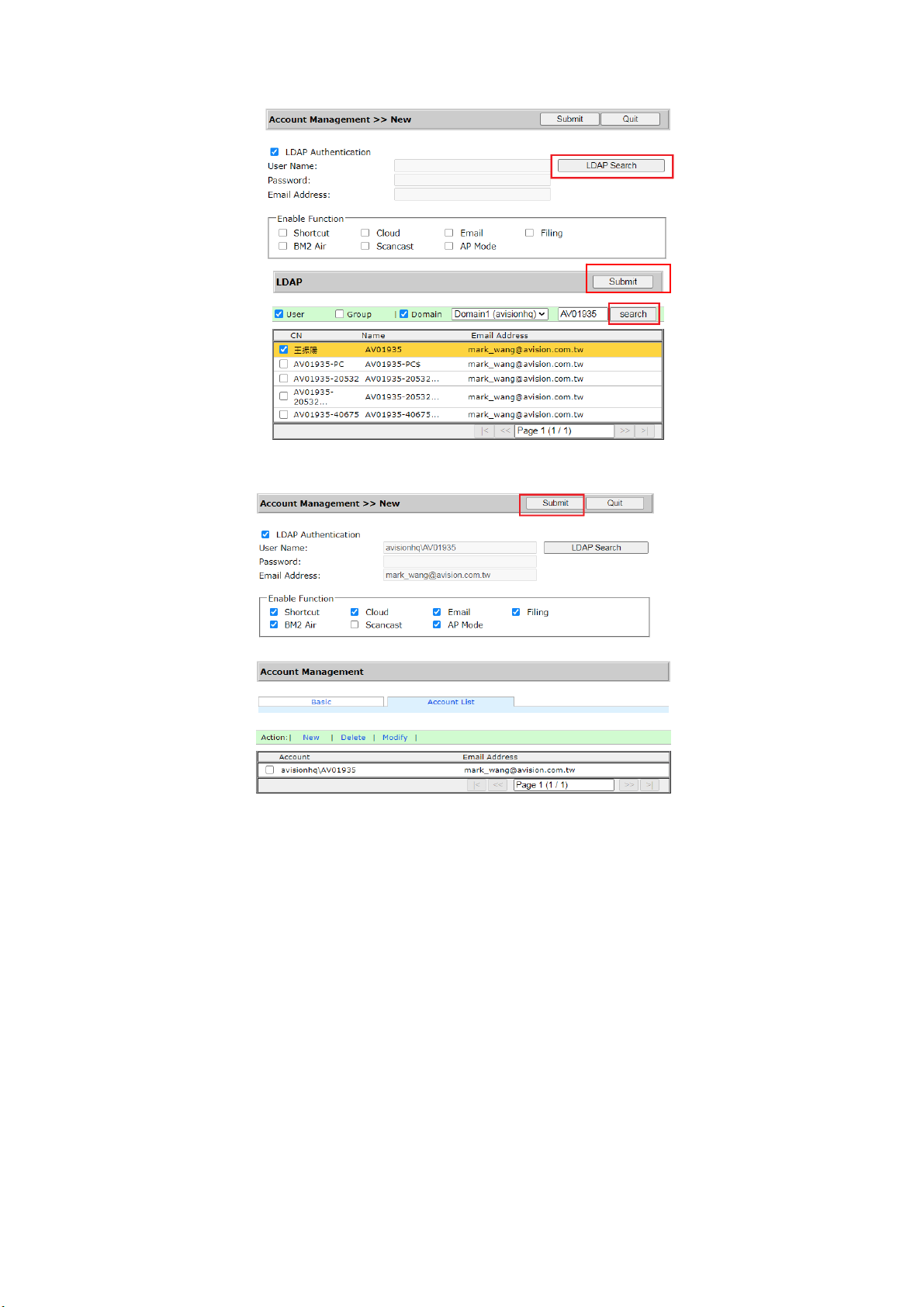
48
illust rated.
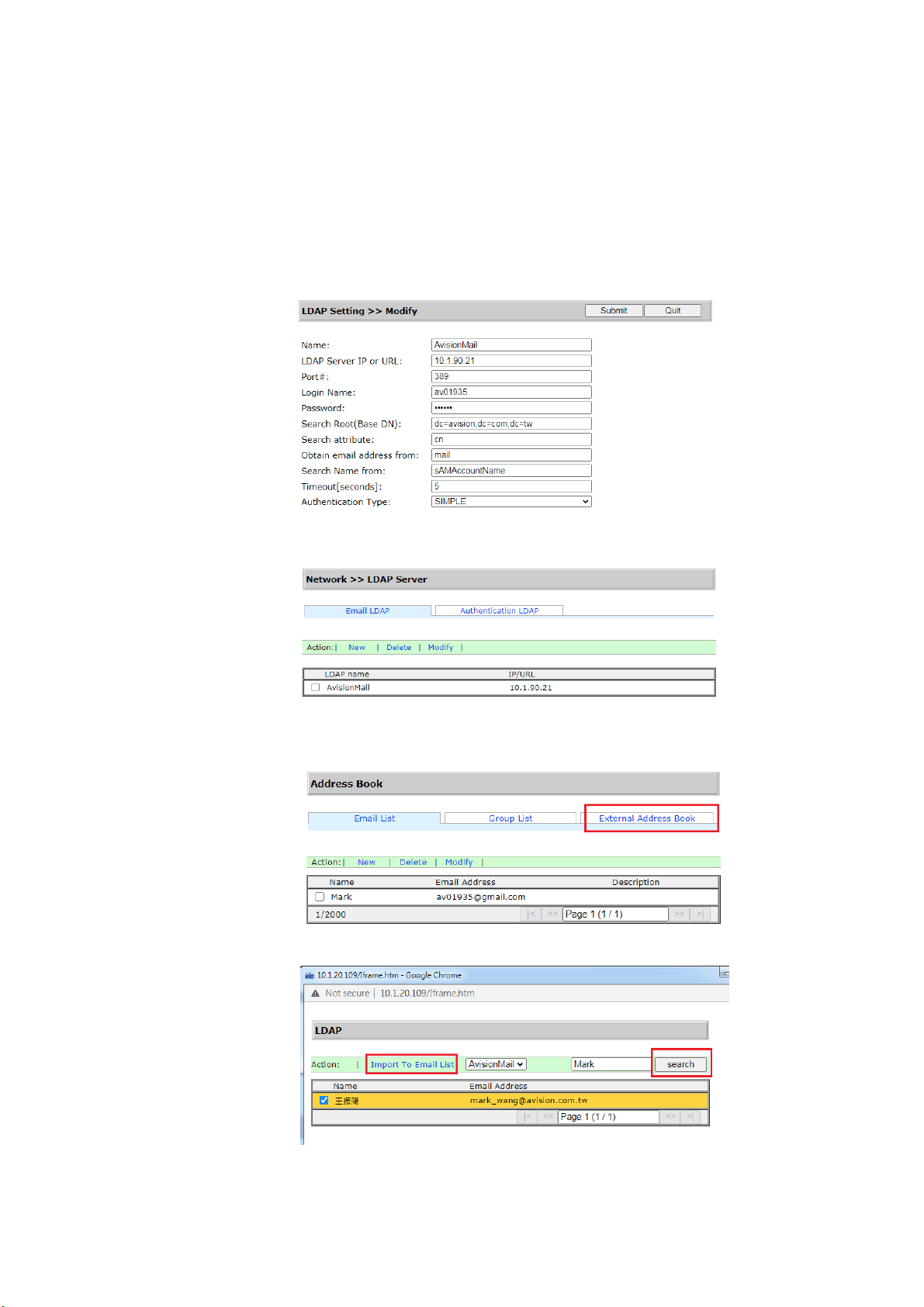
3 . Use your account to log- in your netw ork scanner.
49
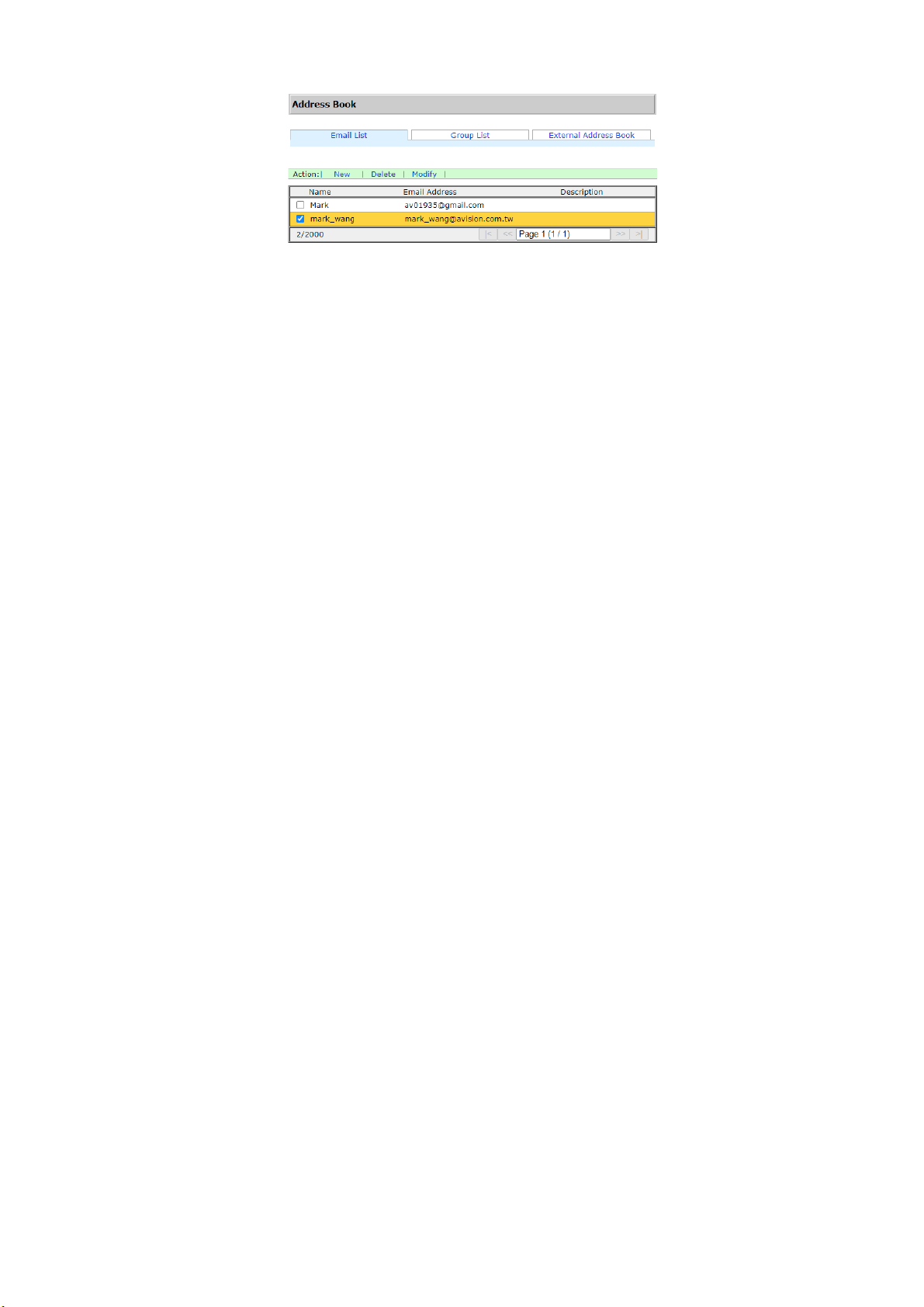
To im port em ail a ddress from LDAP Mail Server:
( 1 ) . Open your browser and type t he IP address of t he device on t he
URL address. The webpage of the device appears.
( 2 ) . Login t he webpage. ( default user nam e and password: adm in)
( 3 ) . Choose [ N et w or k ] > [ LDAP Se rver] > [ Em a il LDAP] in succession.
( 4 ) . Ent er your settings and click [ Subm it ] t o com plet e. Refer t o t he
following exam ple.
( 5 ) . Then set a Mail LDAP.
( 6 ) . Choose [ Address Book ] > [ Ex t e r nal Address Book] in succession.
( 7 ) . Choose t he Mail LDAP you have set.
( 8 ) . Search your account , and choose [ I m port t o Em a il List ] .
( 9 ) . Finally, refresh y our device’s w ebpage, you will see your e- m ail has
been added t o t he address book from t he LDAP Mail server.
5
0
51
Sending Your Docum ent to a Net w ork Folder, a USB
Flash Drive or a Public Folder
I m portant:
To send your scanned im ages t o a network folder such as FTP, FTPS, FTPES, or
SharePoint, you m ay need t o cont act your System Adm inistrator t o get t he
correct URL for the specified server. Your Syst em Adm inist rat or will also give you
access t o the sit e and a valid user login and password.
Basic Operat ion
Using t h e Defa ult Set t ings
1 . Load your docum ent in the ADF wit h t he 1
st
page facing down and t he t op
of t he pages point ing t o t he feeder.
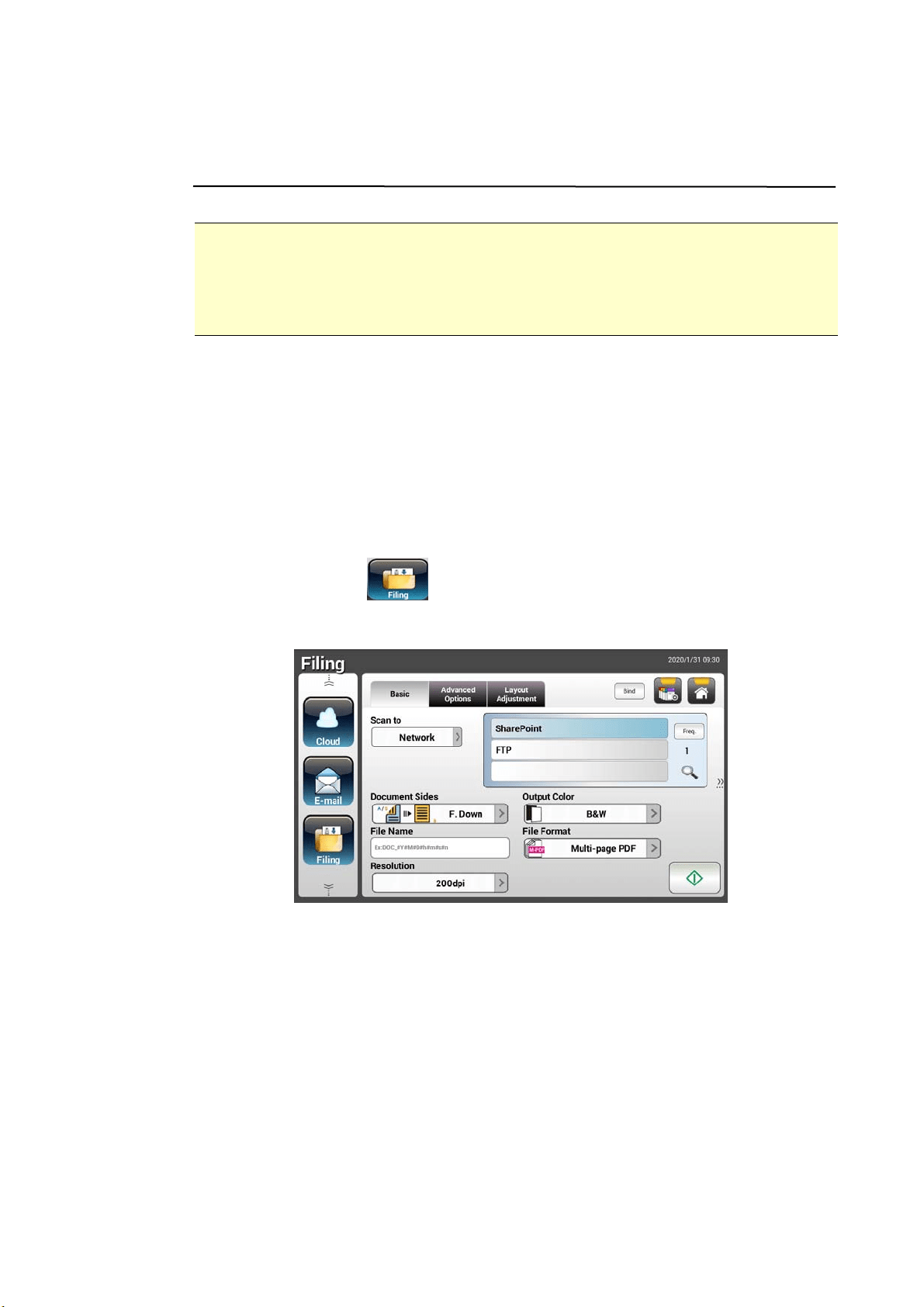
2 . Press t he Filing
button on t he Hom e screen. The following Filing
m ain screen will be displayed.
3 . Choose a [ Scan t o] dest inat ion t o store your scanned im age.
- Choose N et w ork or Local.
- I f N et w ork is selected, the available net w ork servers including FTP,
FTPS, or SharePoint will be displayed at t he right box. You m ay use the
Up- arrow or Dow n- arrow but t on t o scroll from t he list .
- I f Local is select ed, USB and Public Folder will be displayed at the
right box. I f USB is selected, m ake sure a USB flash drive has been
insert ed t o t he USB flash drive port of t he product .
I f Public Folder is selected, the scanned im age will be stored in t he
product’s m em ory. Ent er t he PI N num ber ( folder nam e) during scanning
and t hen access the scanned im age via t he product’s em bedded web
page. (Refer m ore det ailed inform at ion on subsequent sect ion -
Cust om izing t he Product’s Set t ings via t he Em bedded Web Page.)
52
4 . I f desired, ent er t he file nam e prefix in the [ File N am e] field for the
scanned docum ent.
5 . Check if t he docum ent side, out put color, or file form at m eet s your
requirem ent s. I f not , change t he settings t o suit your needs.
6 . Tap the [ St a r t ] (
) but t on. The scanner start s scanning your
docum ent .
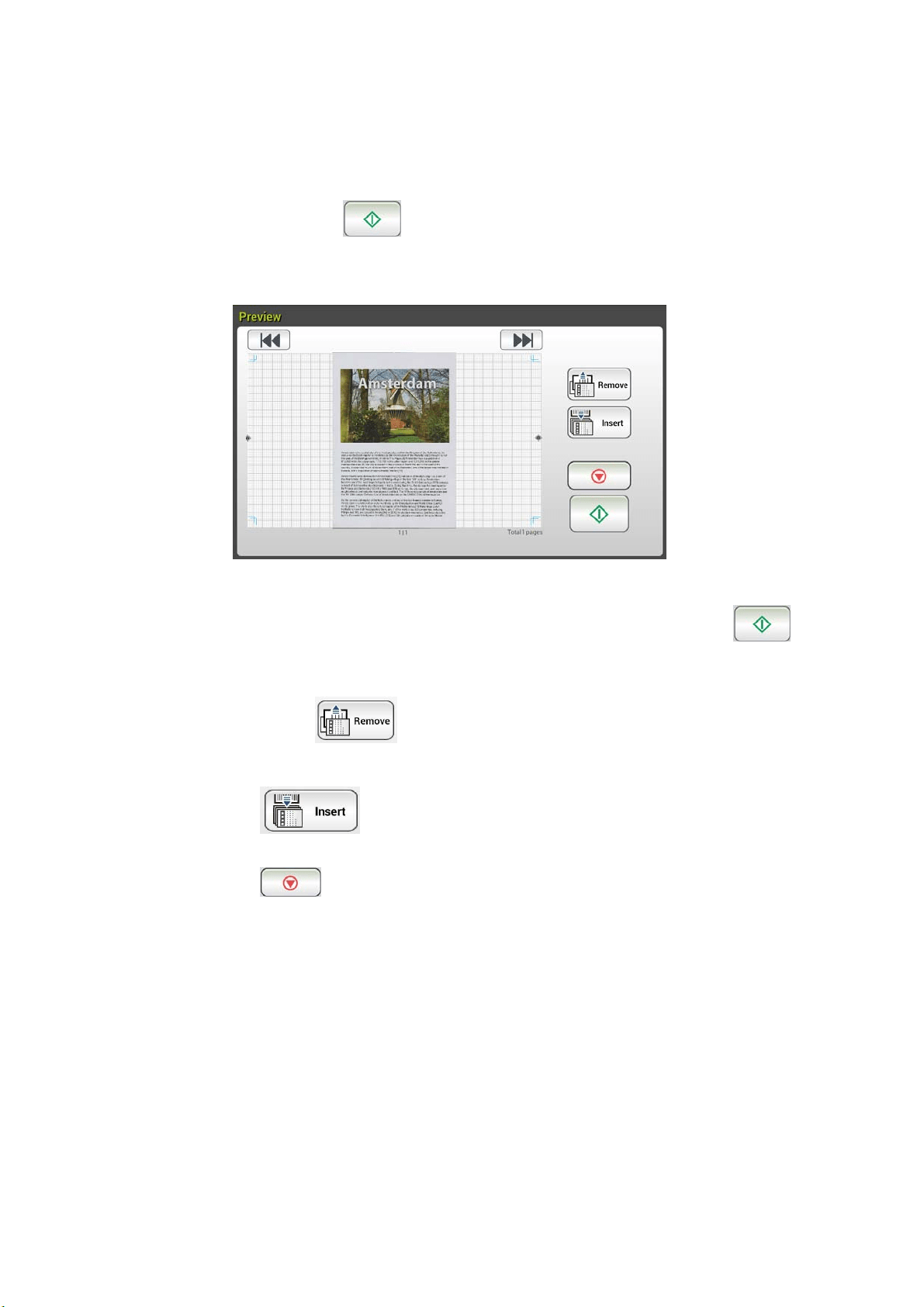
7 . The product starts scanning and t he preview im age will be displayed.
8 . On t he Preview screen,
St a rt : I f t he scanned im age is OK, press the [ St art] button ( )
on t he t ouch panel to distribute t he scanned im age.
Rem ove: I f the scanned im age is not satisfactory, tap t he [ Rem ove]
but t on (
) to delet e t he scanned im age.
I nse r t : You m ay also insert m ore pages by t aping the [ I nsert]
(
) but t on.
Cance l: I f the scanned im age is not OK, tap t he [ Ca n cel] but t on
(
) t o abort t he job.
9 . Ent er your user nam e or password when t he Login window appears.
1 0 . I n a second, t he scanned im age will be sent t o your specified destinat ion.
53
Adva nced Opera t ion
Using Specia l Set t ings
1 . Load your docum ent in t he ADF wit h t he 1
st
page facing down and t he t op
of t he pages point ing t o t he feeder.
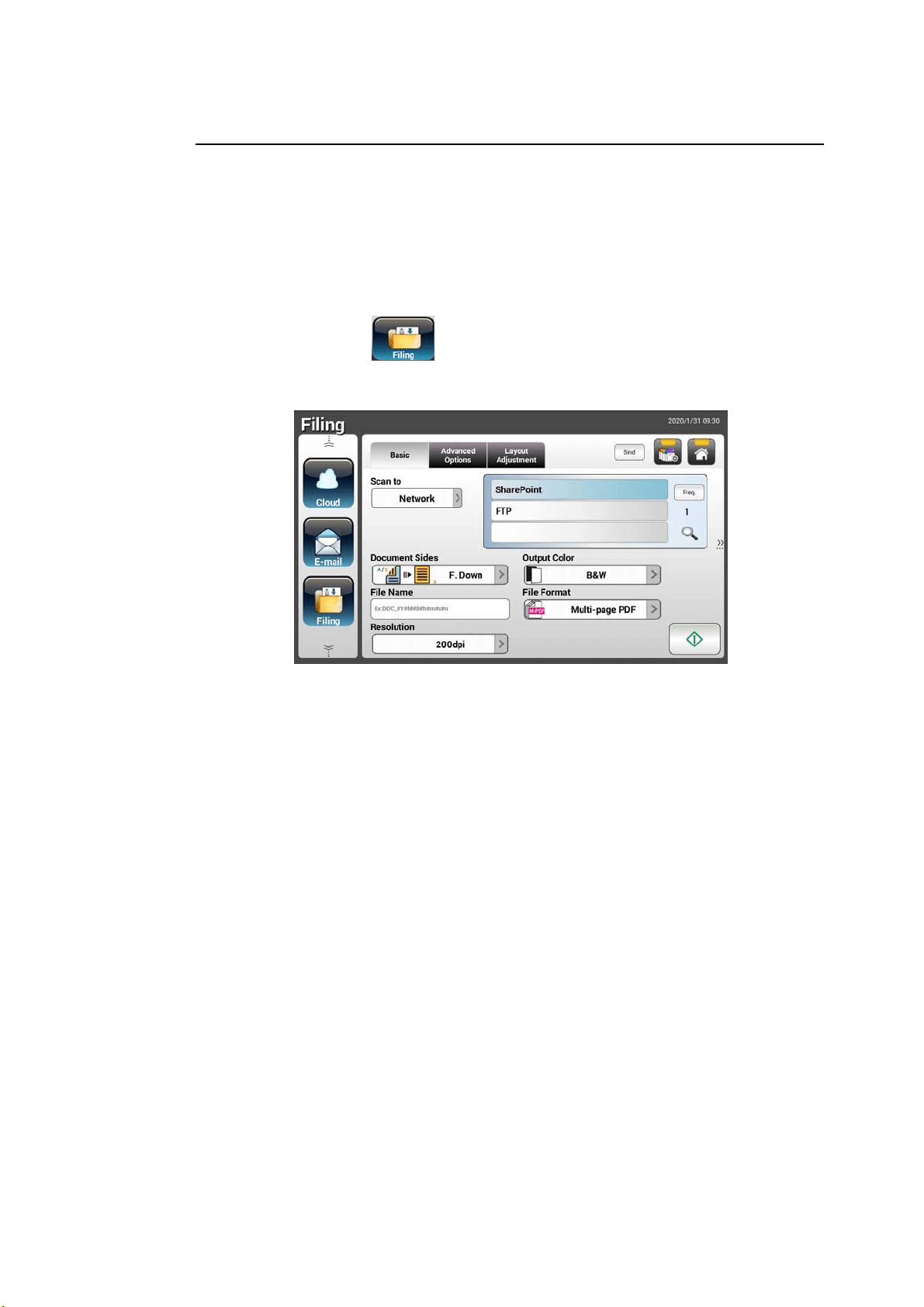
2 . Press t he Filin g
button on t he Hom e screen. The LCD Touch Panel
prom pt s the following Filing m ain screen.
3 . Choose your [ Scan t o] destination t o store your scanned im age.
- Choose N et w ork or Local.
- I f N et w ork is selected, the available network servers will be displayed
at t he right box. You m ay use t he Up- a r r ow or Dow n- a rrow button
to scroll from t he list including SharePoint, FTP, FTPS.
- I f Loca l is selected, USB and Public Folder will be displayed at t he
right box. I f USB is select ed, m ake sure a USB flash drive has been
insert ed t o t he USB flash drive port of t he product .
I f Public Folder is selected, t he scanned im age will be stored in t he
product’s m em ory. Ent er t he PI N num ber ( folder nam e) during scanning
and t hen access the scanned im age via t he product’s em bedded web
page. (Refer m ore det ailed inform at ion on subsequent sect ion -
Cust om izing t he Product’s Set t ings via t he Em bedded Web Page.)
4 . On t he Ba sic screen, ent er your desired file nam e and check if docum ent
side, out put color, or file form at m eets your requirem ents. I f not, change
the settings t o suit your needs.
5 . Tap the Adva nced Set t in gs t ab t o prom pt t he Advanced Sett ings
screen. Change t he densit y, cont ract, resolut ion, and qualit y level if t he
default settings are not sat isfactory. ( For m ore inform at ion about the
set t ings, see the settings descript ion described in t he preceding sect ion –
Scanning and Sending Your Docum ent s t o E- m ail Addresses on page 31.)
54
6 . Tap t he Layout Adj ustm ent tab t o prom pt t he Layout Adjustm e nt
screen. Change original size and preview if t he default set t ings are not
sat isfact ory. ( For m ore inform at ion about t he settings, see t he settings
descript ion described in t he preceding sect ion – Scanning and Sending Your
Docum ent s to E-m ail Addresses on page 30.)
7 . Tap t he St a r t
but t on. The scanner st arts scanning your docum ent .
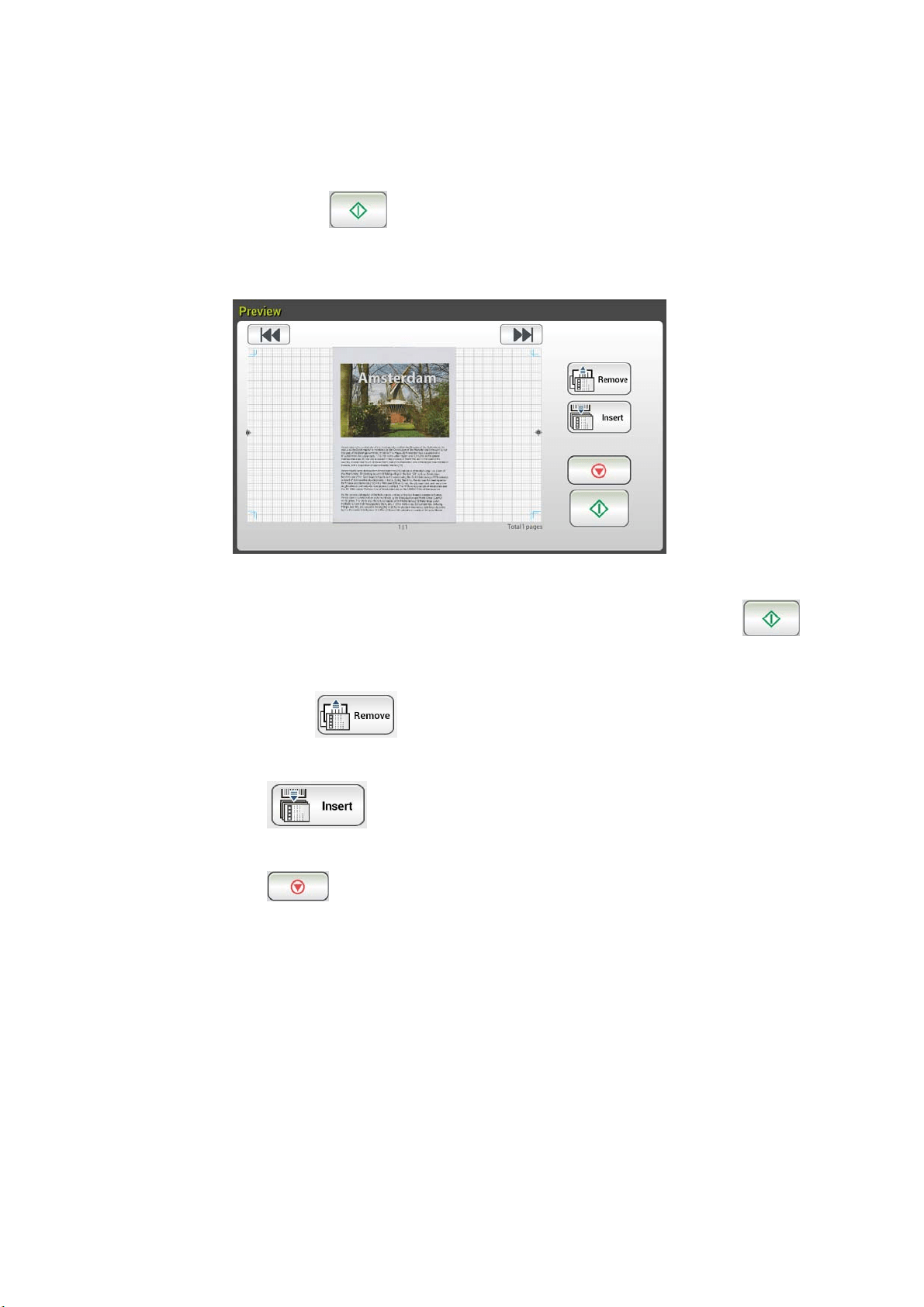
8 . The product starts scanning and the preview im age will be displayed.
9 . On the Preview screen,
St art : I f the scanned im age is OK, press the [ St art ] but ton ( )
on t he t ouch panel to distribute t he scanned im age.
Rem ove: I f t he scanned im age is not satisfact ory, t ap t he [ Rem ove]
but t on (
) to delet e t he scanned im age.
I nsert: You m ay also insert m ore pages by t aping t he [ I nsert]
(
) but t on on t he bot t om of the screen.
Ca ncel: I f t he scanned im age is not OK, tap t he [ Ca n cel] but ton
(
) t o abort t he job.
1 1 . I n a second, the scanned im age will be sent t o y our specified net work
folder.
5
5
How t o Send Your I m a ge t o Share Point
SharePoint ( Serve r) is a web- based platform t hat your com pany ow ns and
operat es. You can use the web site as a secure place to store, organize, share
inform at ion from any device through a web browser.
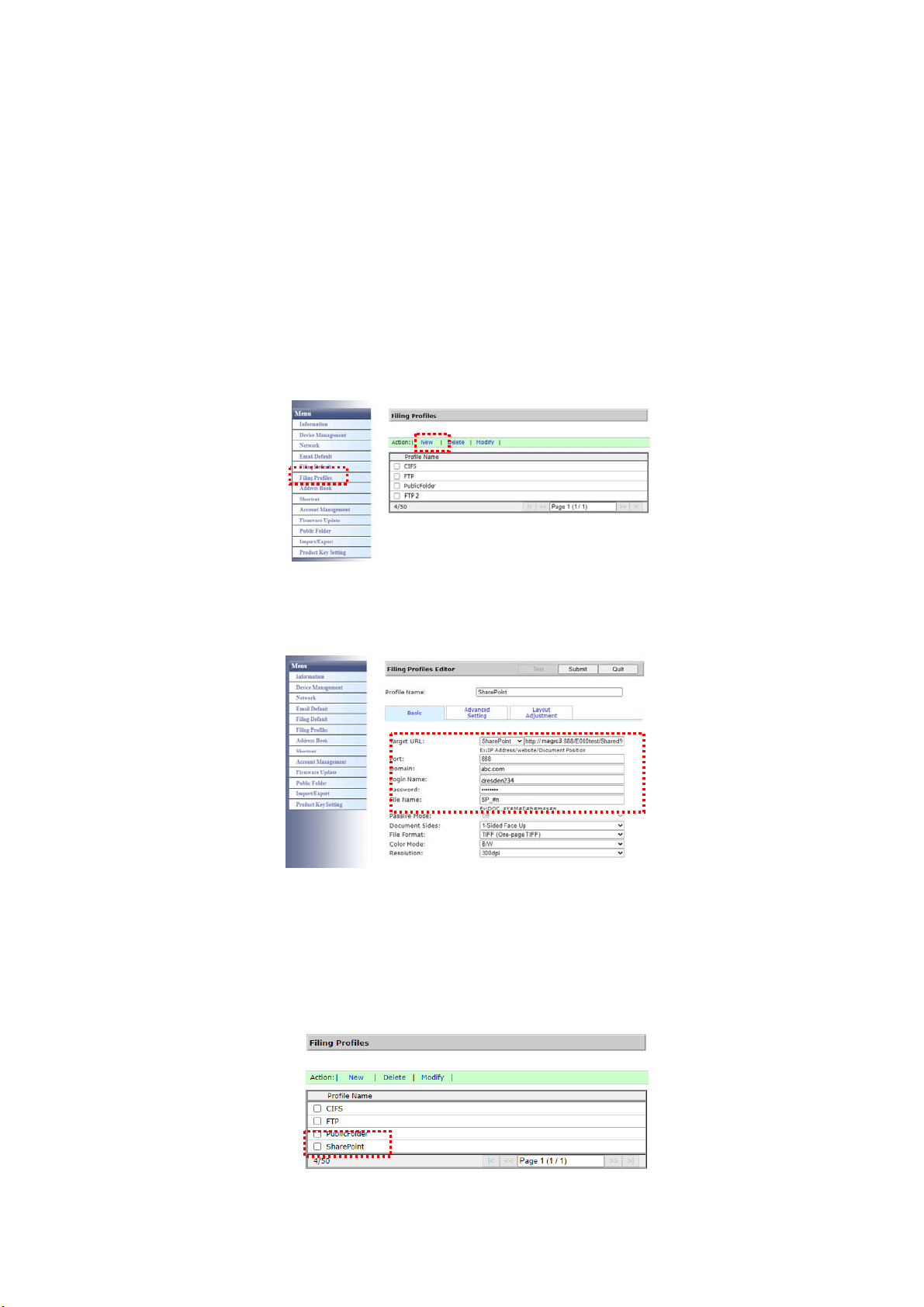
To add a SharePoint serve r for your filing pr ofile ,
1 . Open your browser and type and I P address of your scanner. An em bedded
webpage appears.
2 . Login the page to acess m ore settings wit h default user nam e and
password – adm in.
3 . Click [ Filing Profile] and then [ New] t o creat e a new filing profile.
4 . Enter your Profile Nam e. For exam ple, SharePoint.
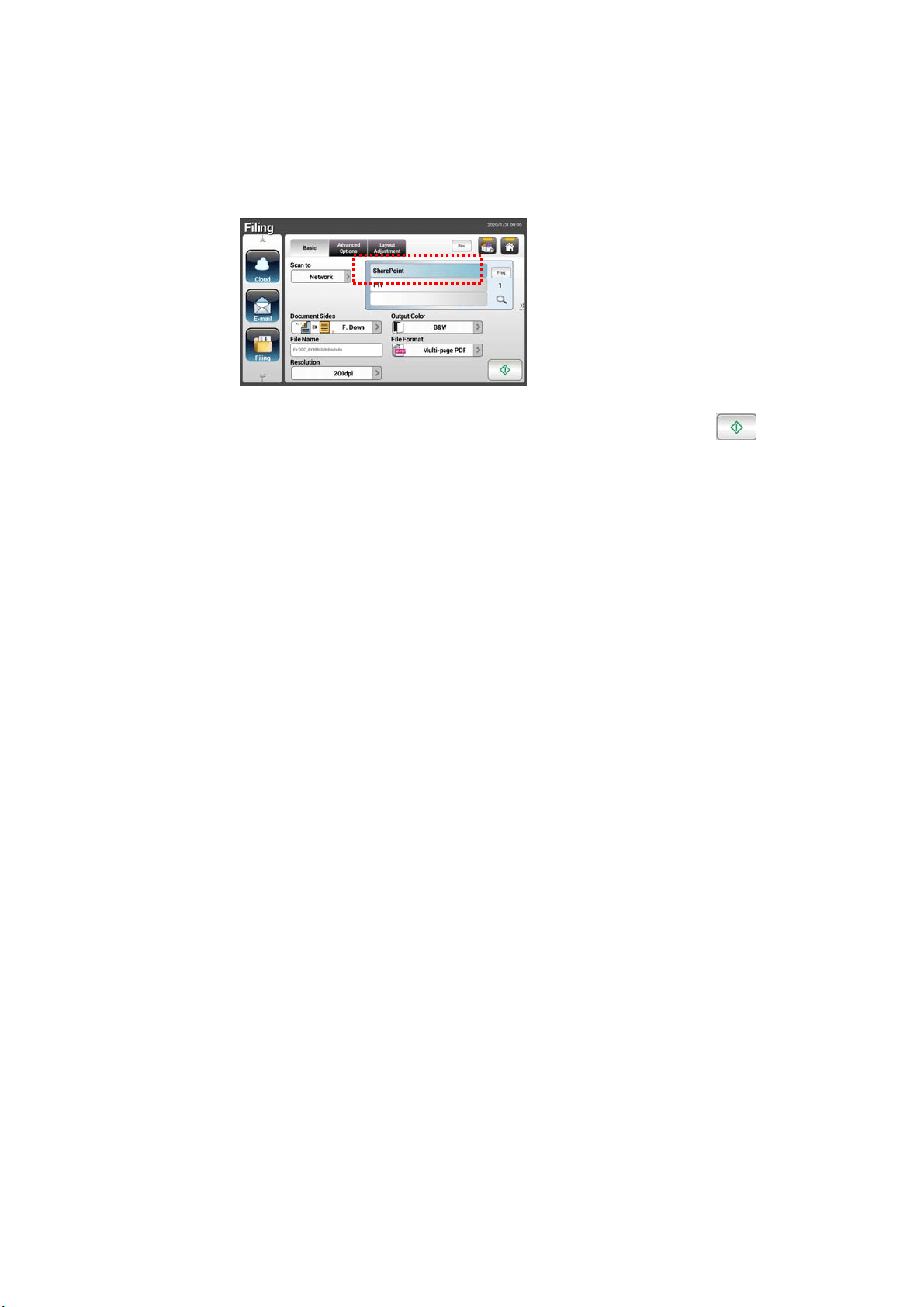
5 . Select [ SharePoint ] from the [ Target URL] field and t hen t ype the I P
address or dom ain nam e of t he SharePoint server provided by t he I T
departm ent of your com pany as illust rat ed in below:
You m ay also check with your I T personnel for t he server port, dom ain
nam e and m ake sure t hat you have an aut horized account .
6 . Enter your login nam e and password.
7 . Click [ Subm it] t o com plet e t he SharePoint settings.
8 . I f successful, a [ SharePoint ] profile will appear on t he Profile list as show n
in below.
56
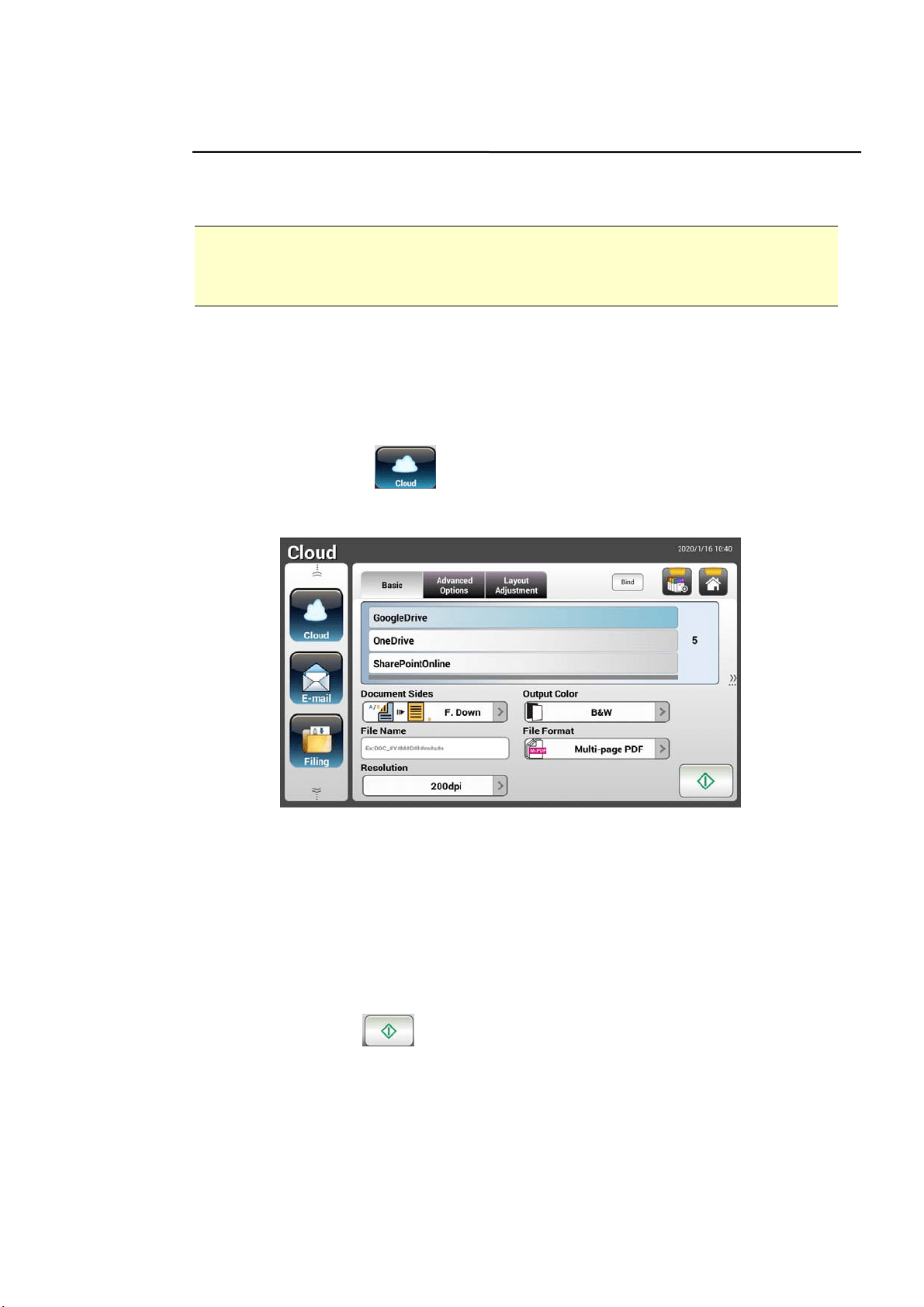
To scan and send your im age t o SharePoint Se rver,
1 . Tap [ Filing] and t hen choose [ Net work] from t he [ Scan to] opt ion.
Finally, choose [ SharePoint ] .
2 . Load your docum ent t o t he scanner and t hen t ap t he [ Start ]
but t on.
3 . I n a second, t he scanned im age will be sent to t he SharePoint server.
5
7
Sending Your Docum ent t o Clouds
Basic Operat ion
I m portant:
To send your scanned im ages t o a cloud server such as Google Drive, Evernot e,
OneDrive, and SharePoint Online, m ake sure you have t he privilege t o access t he
cloud servers. For exam ple you need t o creat e a login nam e and password first.
Using t h e Defa ult Set t ings
1 . Load your docum ent in t he ADF wit h t he 1
st
page facing down and t he t op
of t he pages point ing t o t he feeder.
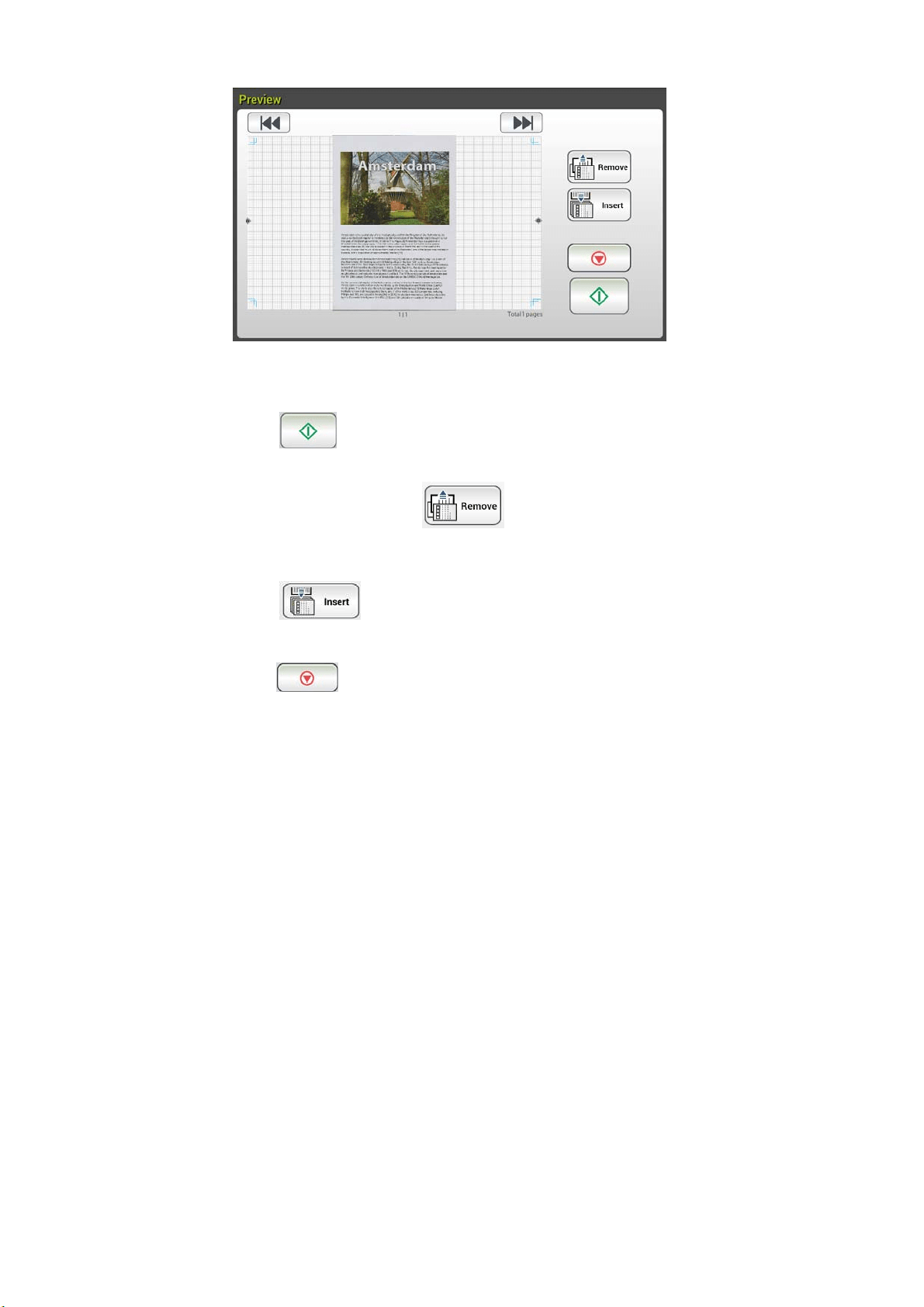
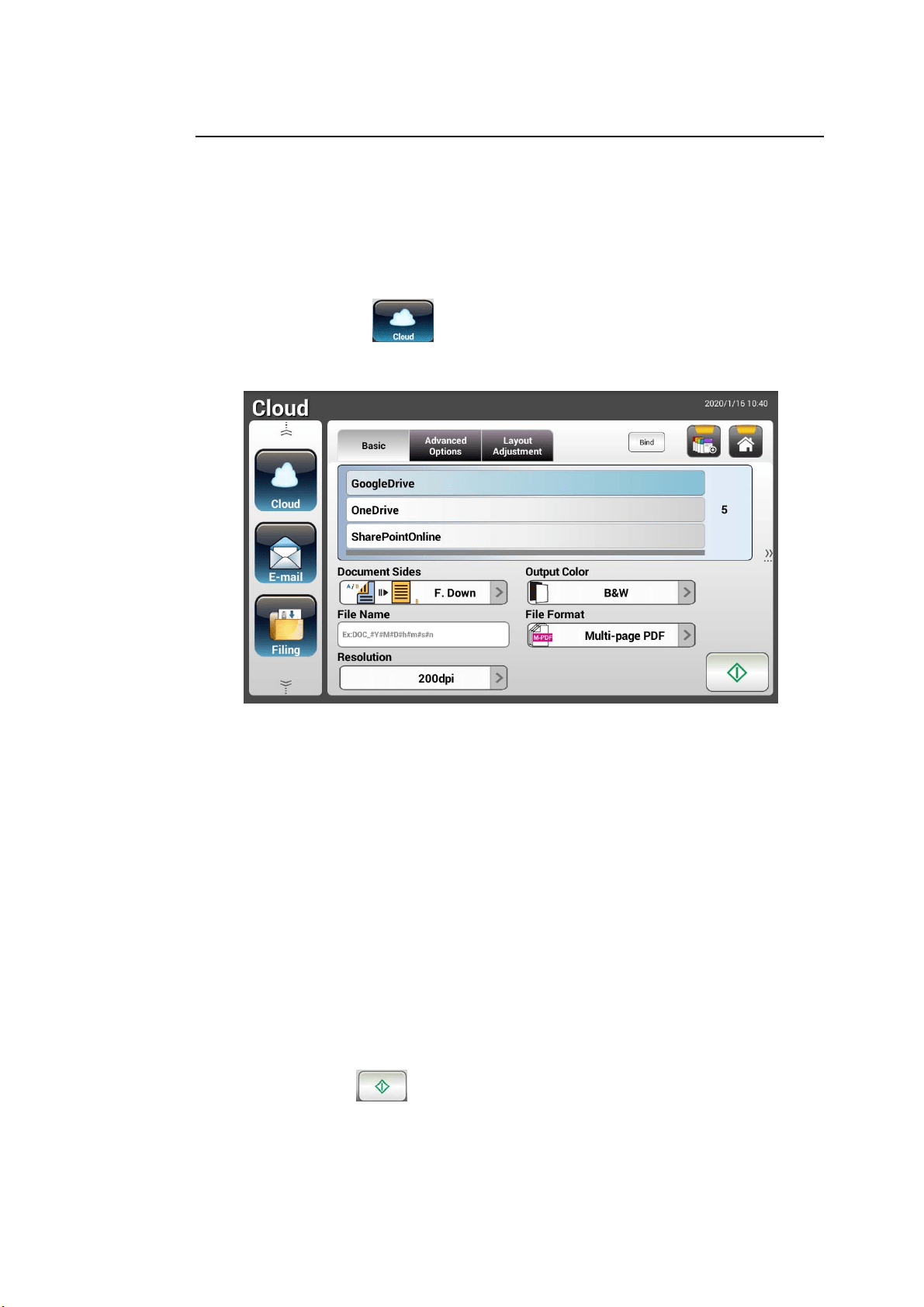
2 . Press the Cloud
button on t he Hom e screen. The LCD Touch Panel
prom pt s the following Cloud m ain screen.
2 . Choose your desired cloud server t o save your scanned im ages. Choice:
GoogleDrive, On eDrive, SharePoint Onlin e, Eve rnot e .
3 . Check if t he docum ent side, out put color, or file form at m eet s your
requirem ent s. I f not , change t he settings t o suit your needs.
For SharePoint Online, you m ay ent er your desired group sit e nam e t o store
your scanned im age. Ot herwise, t he im age will be sent t o a default group
sit e nam e.
4 . Tap the Start
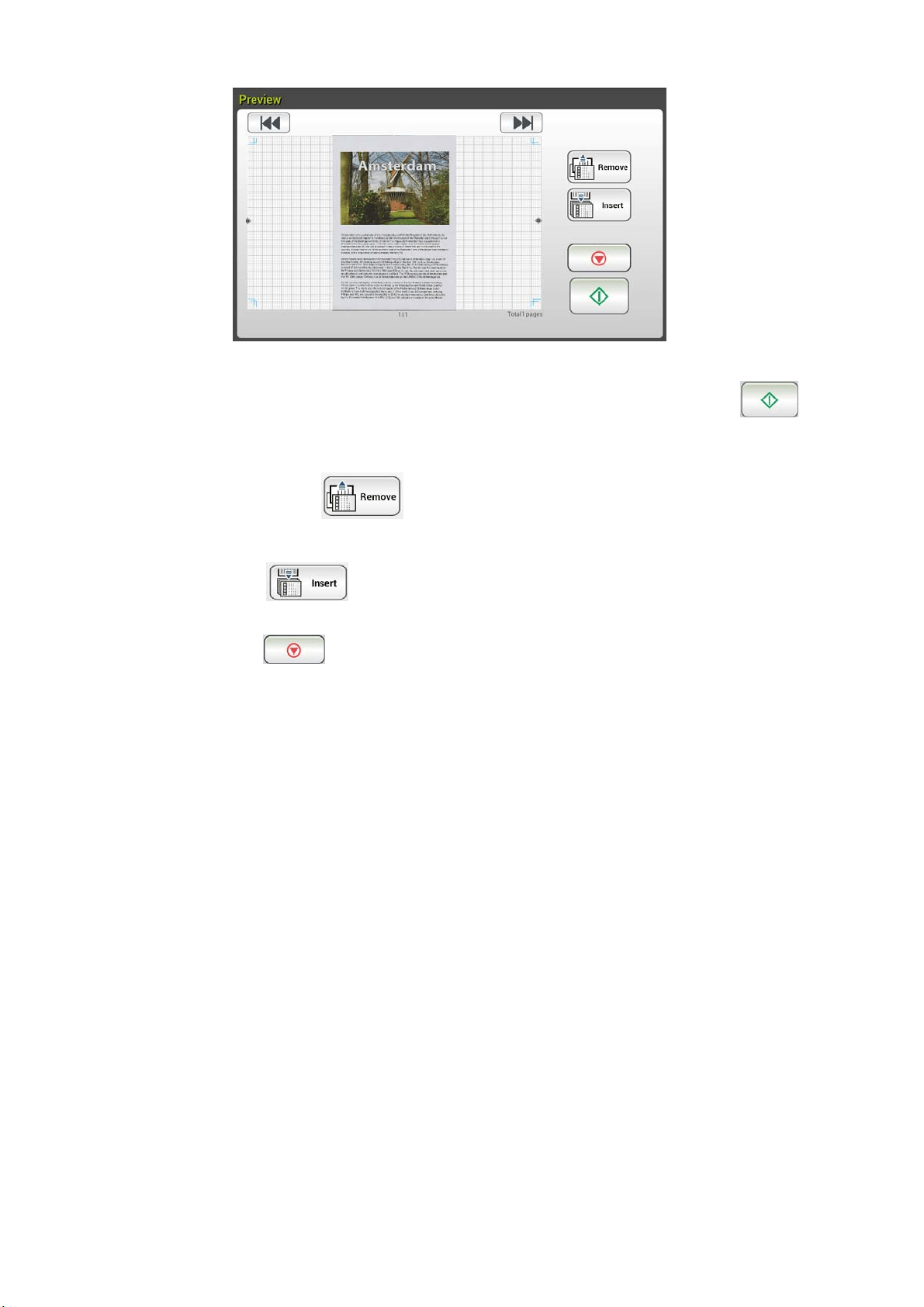
button. The scanner start s scanning and a Preview
screen w ill be prom pt ed.
58
5 . On t he Preview screen,
St art : I f t he scanned im age is OK, press the [ St art] button
(
) on t he touch panel to dist ribut e t he scanned im age.
Rem ove: I f t he scanned im age is not satisfact ory, t ap t he
[ Rem ove] but ton (
) to delet e t he scanned im age.
I nse r t : You m ay also insert m ore pages by t aping t he [ I nsert]
(
) but t on.
Cance l: I f the scanned im age is not OK, tap t he [ Ca n cel] but ton
(
) t o abort t he job.
6 . The product begins t o upload your scanned im ages to your specified cloud
server.
On the web sit e of your specified cloud server, you will be required t o
com plet e the login and aut horizat ion. I f successful, your account will be
displayed and t he scanned im age will be stored in t he cloud server.
59
Adva nced Opera t ion
Using Specia l Set t ings
1 . Load your docum ent in t he ADF with t he 1
st
page facing down and t he t op
of t he pages point ing t o t he feeder.
2 . Press the Cloud
button on t he Hom e screen. The LCD Touch Panel
prom pt s the following Cloud m ain screen.
3 . Choose your desired [ Scan t o] cloud server t o save your scanned im ages.
Choice: Google D rive, OneDrive, SharePointOnline, Evernot e .
4 . On the Basic screen, check if t he docum ent sides, output color, or file
nam e m eet s your requirem ents. I f not , change t he sett ings t o suit your
needs.
5 . Tap t he Advanced Sett ings t ab t o prom pt t he Adva n ced Se t t ings screen.
Change t he densit y, sharpness, cont ract , sat urat ion, and qualit y level and
select resolut ion of t he scanned im age if t he default settings are not
sat isfact ory. ( For m ore inform at ion about t he scan sett ings, please refer t o
the preceding sect ion – Scanning and Sending Your Docum ent s t o E-m ail
Addresses on page 31.)
6 . Tap the Layout Adjustm e nt t ab to prom pt the Layout Adj ustm ent
screen. Change original size and original orient at ion if t he default settings
are not satisfact ory. ( For m ore informat ion about t he scan sett ings, please
refer t o t he preceding sect ion – Scanning and Sending Your Docum ent s t o
E- m ail Addresses on page 33.)
7 . Tap the St art
but t on. The scanner st arts scanning your docum ent .
6
0
8 . On the Preview screen,
St a r t : I f t he scanned im age is OK, press the [ St art ] but ton ( )
on t he t ouch panel to distribute t he scanned im age.
Rem ove: I f t he scanned im age is not satisfactory, t ap the [ Rem ove]
but t on (
) to delet e t he scanned im age.
I nsert : You m ay also insert m ore pages by t aping t he [ I nse r t ]
(
) but t on.
Cance l: I f the scanned im age is not OK, tap t he [ Ca n cel] but ton
(
) t o abort t he job.
9 . The product begins t o upload t he scanned im ages t o your specified cloud
server.
On the web sit e of your specified cloud server, you will be required t o
com plet e the login and aut horizat ion. I f successful, your account will be
displayed and t he scanned im age will be stored in t he cloud server.
61
How t o Send Your I m a ge t o Share Point Online
SharePoint Onlin e, a plat form wit hin Microsoft Office 365, is a cloud- based
service provided directly by Micr osoft .
To set SharePointOnline Se t t ing:
1 . Open your browser and t ype and I P address of your scanner. An em bedded
webpage appears.
2 . Login t he page t o acess m ore settings wit h default user nam e and
password – adm in.
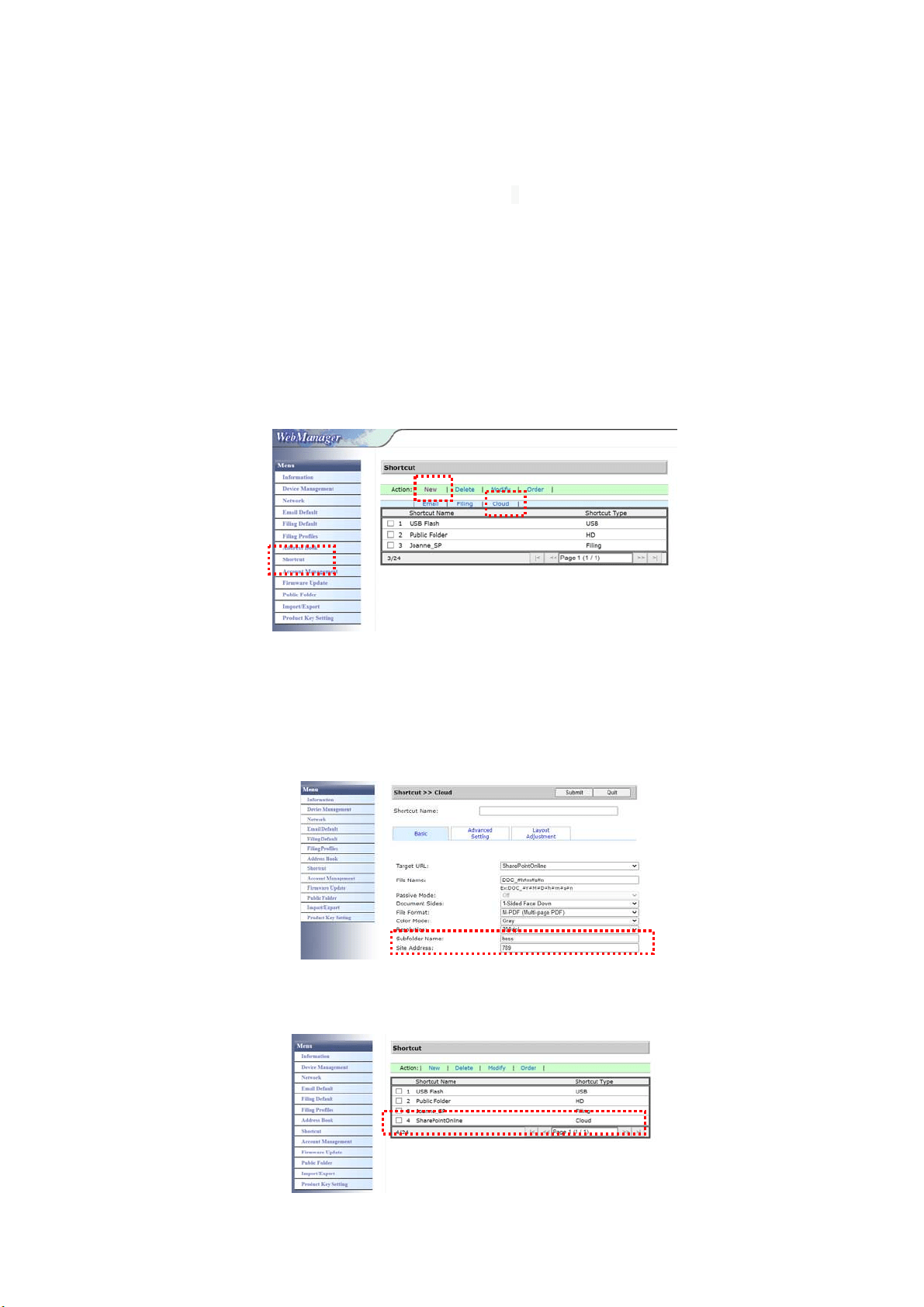
3 . Click [ ShortCut ] > [ New] > [ Cloud] in succession t o create a new ShorCut t o
speed up t he process.
4 . Ent er your Shortcut Nam e. For exam ple, Short Point Online.
5 . Select [ SharePoint Online] from t he [ Target URL] field.
6 . Ent er your subfolder nam e to store the im age. For exam ple, bess. ( You can
creat e next subfolder by adding “ / ” , for exam ple, bess/ invoice.
7 . Ent er your sit e address ( group nam e) . For exam ple, 789. Or using default
sit e address to be stored in [ Group websit e] site.
8 . Click [ Subm it] t o com plet e t he settings.
9 . I f succesful, a new SharePoint Online w ill be added t o t he list as indicated in
below.
62
To scan and send t he im a ge t o SharePointOnline:
1 . Load your docum ent t o the scanner.
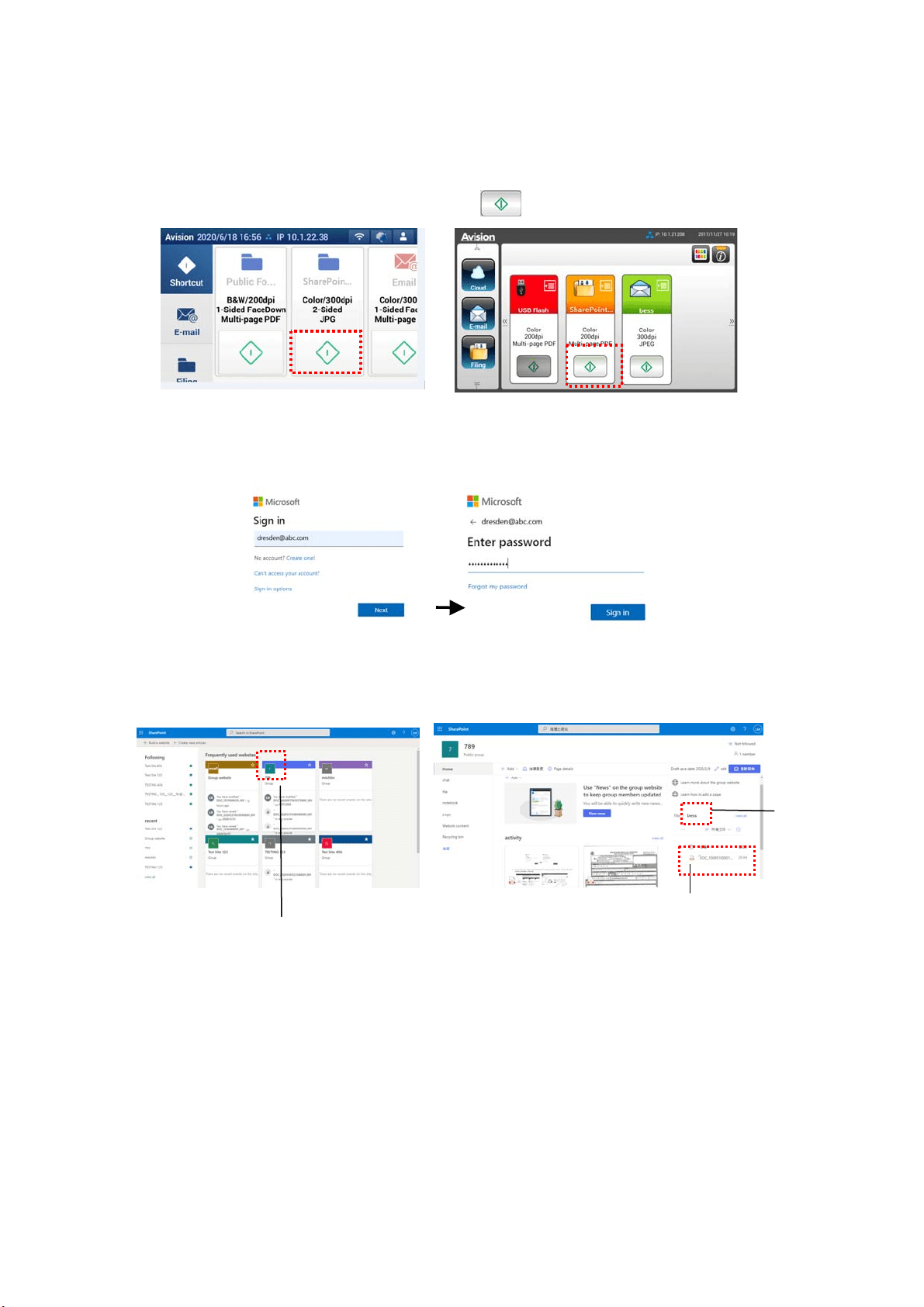
2 . On t he t ouch panel, t ap t he [ St art]
butt on of t he [ SharePoint] shortcut .
AN335L series AN335W/AN335W series
3 . When t he following [ Sign in] dialog box is prom pt ed, t ype your account nam e,
password, and t hen click [ Next ] . Click [ Yes] when [ Stay sign in] dialog box
is prom pt ed.
4 . The scanned im age will be delivered to your SharePoint Online Cloud.
5 . Open your browser and type t he I P address/ dom ain nam e of your com pany’s
SharePointOnline server. You can find your im age in t he SharePoint Online
page as shown in below. ( Group nam e: 789, Subfolder: bess)
File Nam e
Your
Subfolder
Group Nam e
63
Cr ea t ing a Shortcut But t on
By set t ing frequent ly used scan set t ings and dest inat ions as Shortcut on t he
Hom e screen, t he product helps you t o stream line your workflow and com plet e
your scanning t ask in j ust one single step.
Plus, if t he cloud server has been setup as a shortcut but t on on t he m ain screen,
t he login nam e and password will be rem em bered t o save you t he t rouble of
having t o enter t he inform at ion each t im e you access t he cloud server.
To create a Short cut button,
1 . Select your frequently operat ional m ode on t he left panel. For exam ple,
E- m ail. The E-m ail screen will be displayed on t he right panel.
2 . Select your frequent ly used E- m ail address in the [ To] / [ CC] / [ BCC] field.
3 . On the [ E- m ail opt ions] screen, t ype your [ Fr om ] address.
4 . Check if any of the scan set t ings needs t o be changed t o suit your
frequent ly used E-m ail t ask.
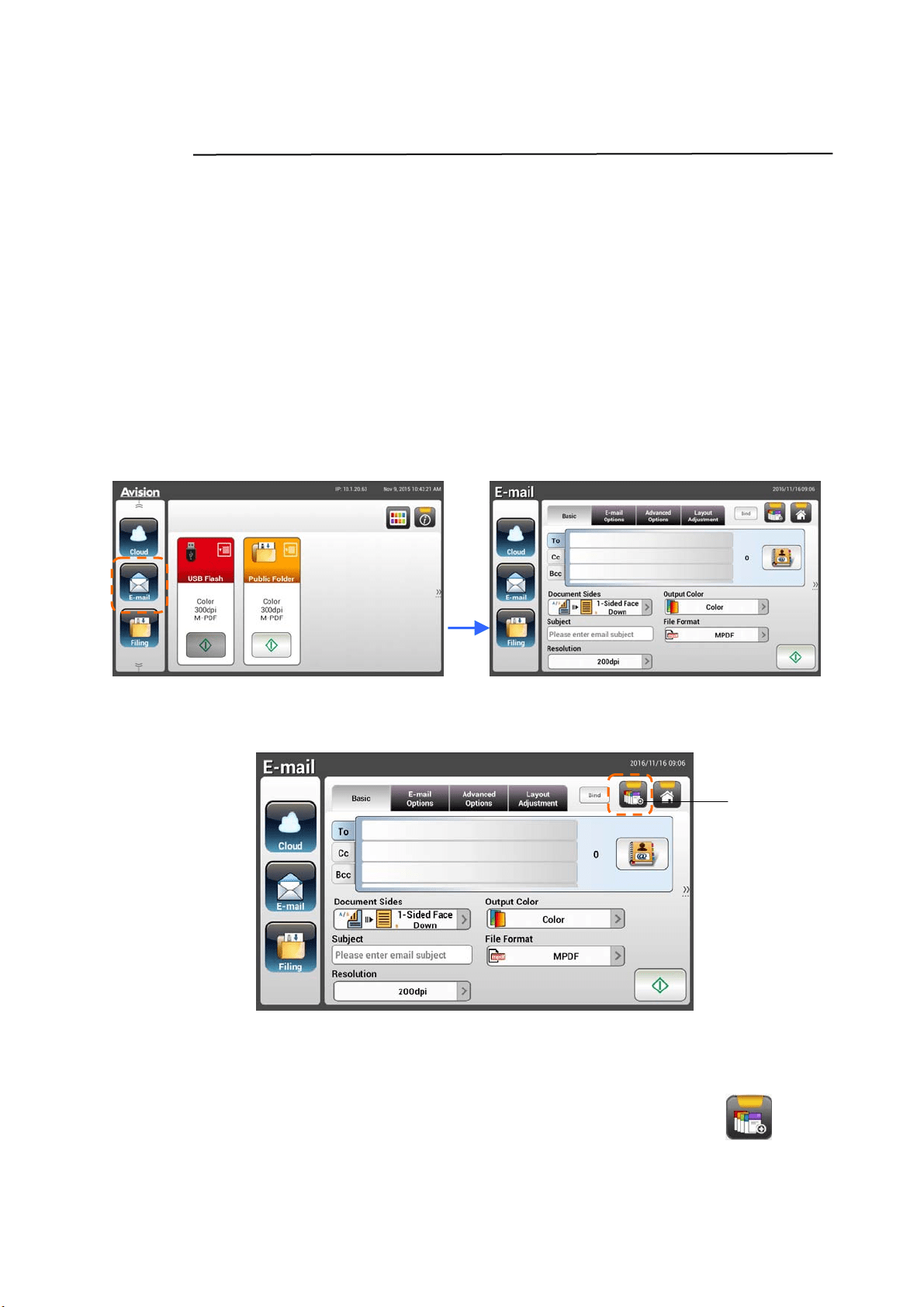
5 . I f t he scan settings are satisfactory, t ap t he [ N ew ShortCut]
t o
creat e your new ShortCut.
Add a New
Short Cut
Button
64
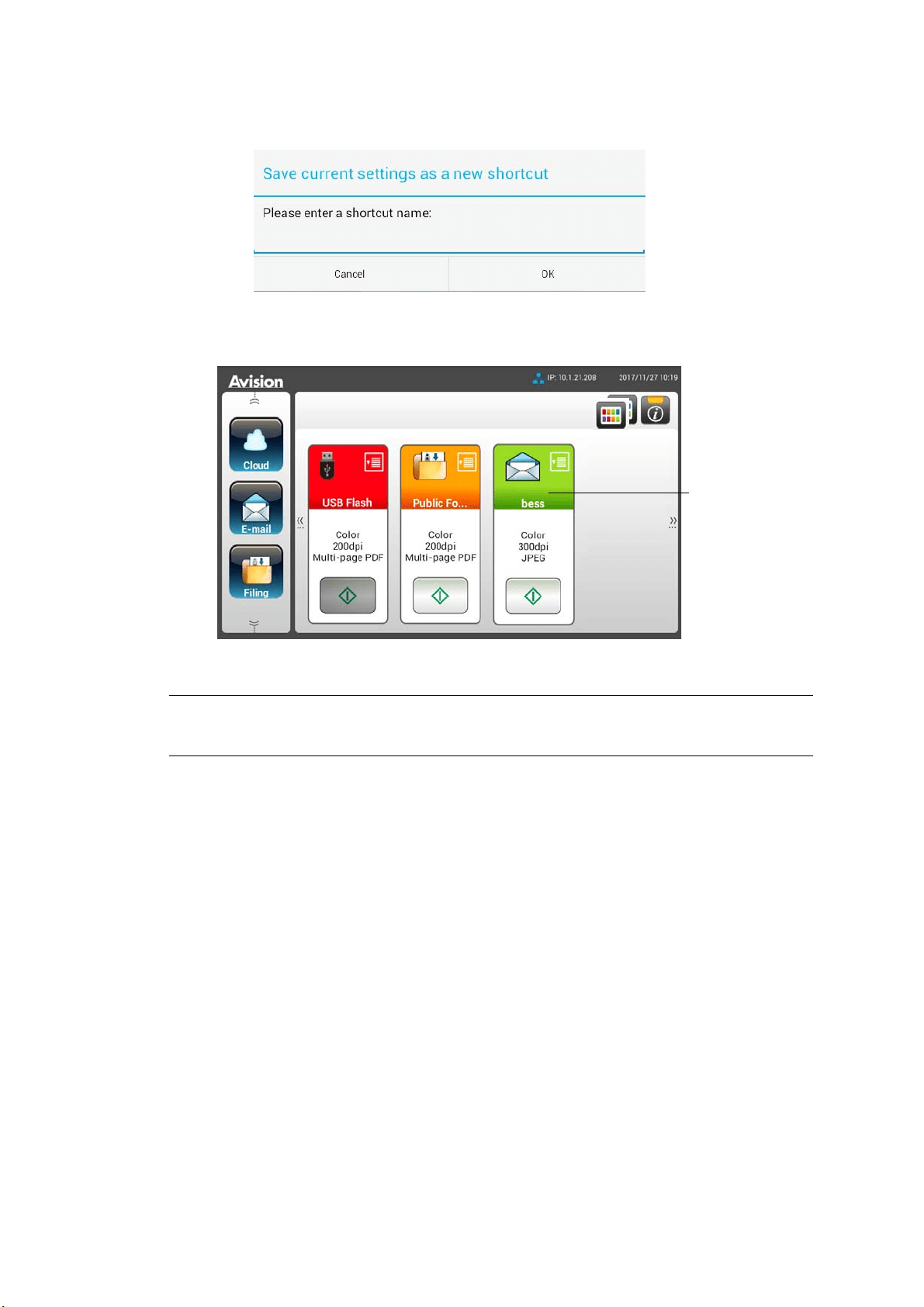
6 . An [ Ent er a Short cut N am e] dialog box w ill be prom pt ed.
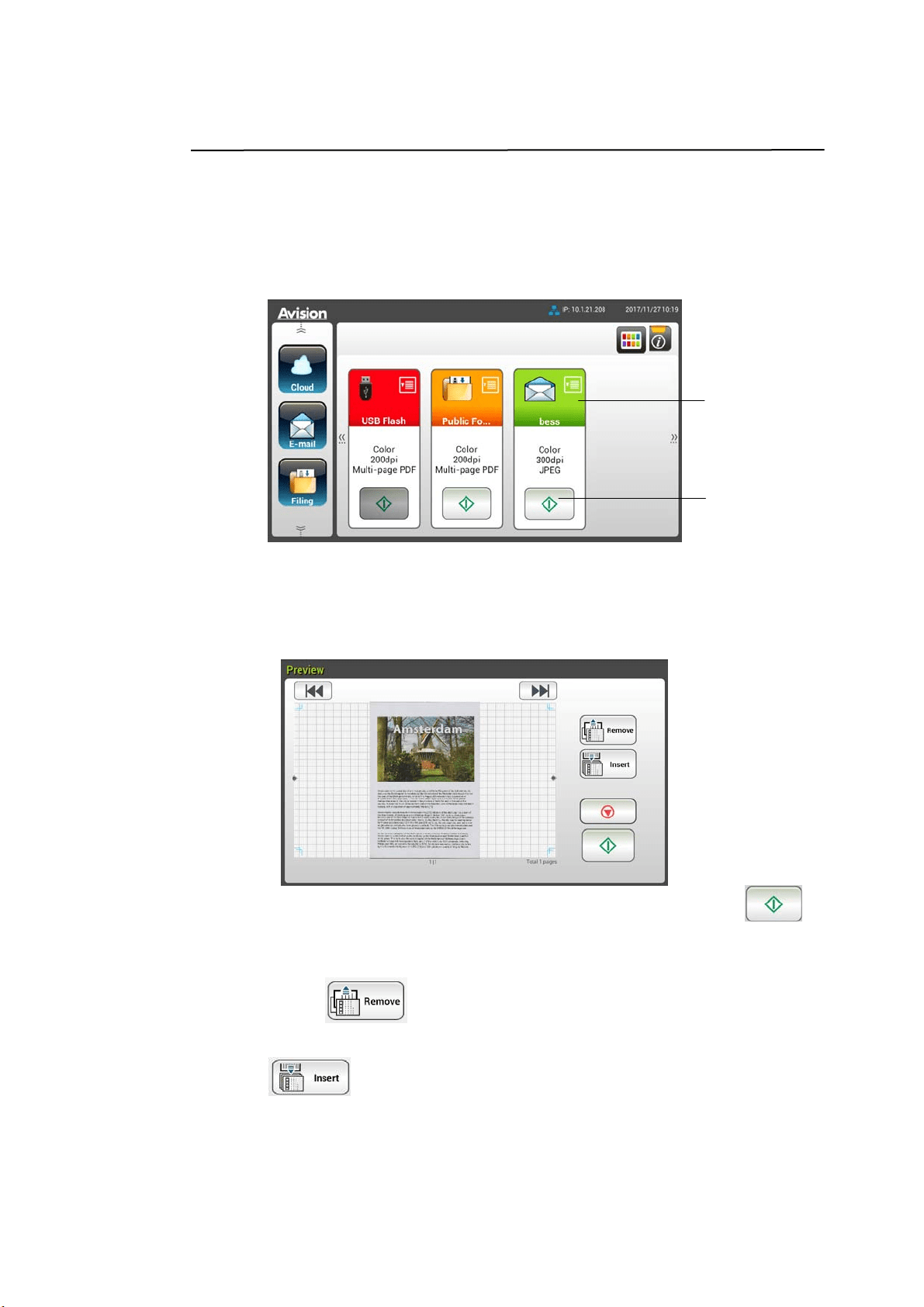
7 . Ent er your shortcut nam e and t ap [ OK] . For exam ple, bess. The new
shortcut button will be displayed on t he LCD Touch Panel.
N ot e:
Follow t he sim ilar procedure t o create your frequent ly Cloud or Filing destination
to be your ShortCut on t he LCD Touch Panel.
The New
Short Cut
Nam e
6
5
Using the Short cut But tons
To use a Short cut but t on,
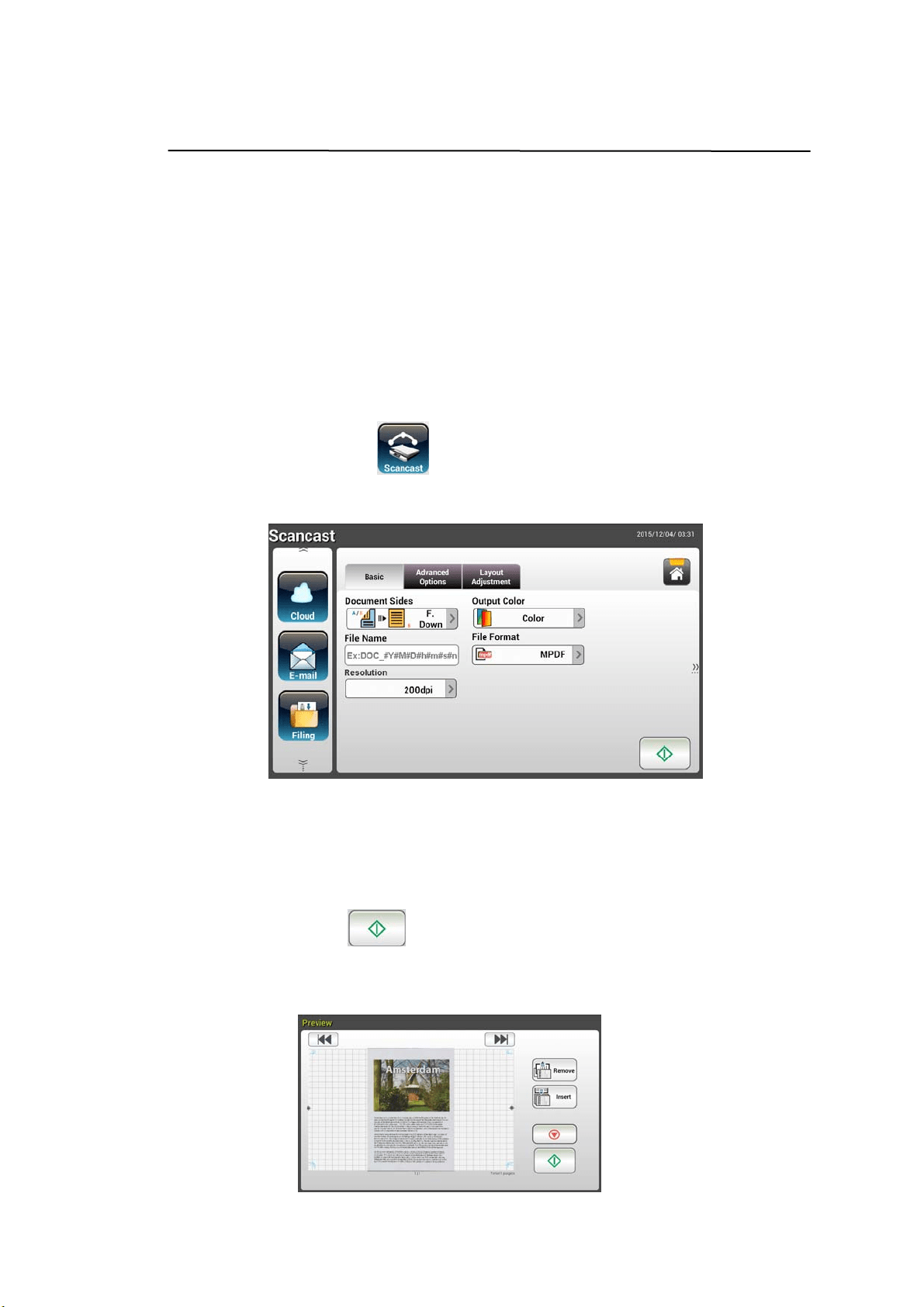
1 . Tap the [ Start] button of your desired ShortCut but ton on the t ouch screen.
2 . The scanner starts scanning and a preview im age will be displayed.
3 . On t he Preview screen,
St a r t : I f the scanned im age is OK, press the [ St art ] but ton ( ) on
the t ouch panel t o distribut e t he scanned im age.
Rem ove: I f t he scanned im age is not sat isfactory, tap t he [ Rem ove]
but t on (
) to delet e t he scanned im age.
I nse r t : You m ay also insert m ore pages by t aping t he [ I nsert]
(
) but t on.
Cance l: I f t he scanned im age is not OK, tap t he [ Ca n cel] but t on to
abort t he j ob.
4 . The scanned im ages are sent t o your specified destinat ion.
The St art
Button
The Short Cut
Button
66
Sca nning and Broadcast ing Your I m ages
The Scancast (Scan and broadcast ) feat ure allows you t o scan a docum ent first
and t hen send t o m any destinat ions respectively.
Basic Operat ion
Using t h e Defa ult Set t ings
1 . Load your docum ent in the ADF wit h t he 1
st
page facing down and t he t op
of t he pages point ing t o t he feeder.
2 . Press t he Sca ncast
button on the touch screen. The following
Scanca st m ain screen will be displayed.
3 . I f desired, enter t he file nam e prefix in the [ File N am e] field for t he
scanned docum ent.
4 . Check if t he docum ent side, out put color, or file form at m eet s your
requirem ent s. I f not , change t he settings t o suit your needs.
5 . Tap t he [ St art] (
) but t on. The scanner start s scanning your
docum ent .
6 . The product st arts scanning and the preview im age will be displayed.
6
7
7 . On t he Preview screen,
St art : I f t he scanned im age is OK, press the [ St art] button
(
) on t he touch panel to dist ribut e t he scanned im age.
Rem ove: I f the scanned im age is not satisfactory, tap t he
[ Rem ove] but ton (
) to delet e t he scanned im age.
I nse r t : You m ay also insert m ore pages by t aping t he [ I nsert]
(
) but t on.
Cance l: I f the scanned im age is not OK, tap t he [ Ca n cel] but ton
(
) t o abort t he job.
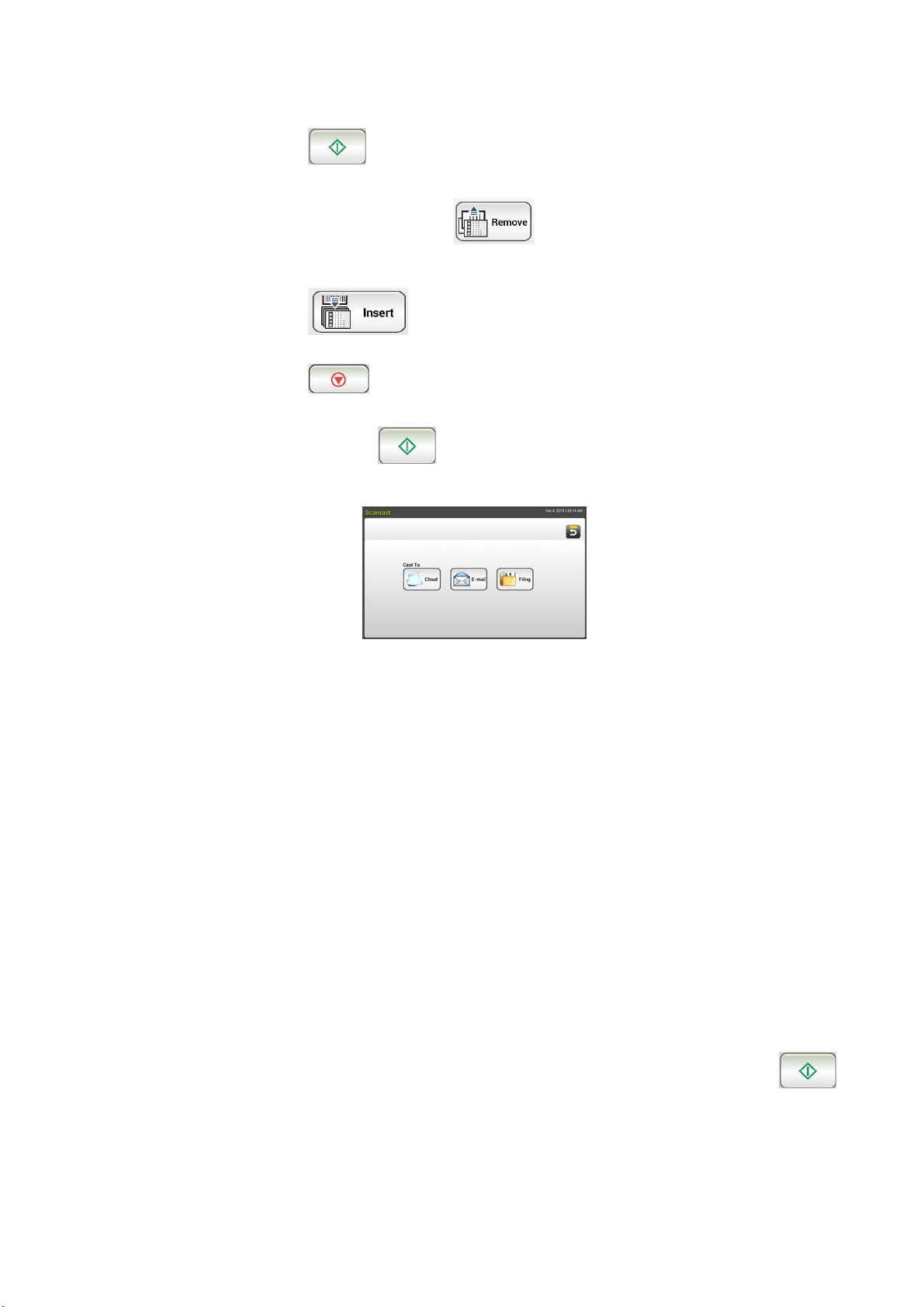
8 . I f t he [ St art] ( ) button has been select ed, the [ Scanca st ]
window for m ultiple destinat ions appears.
9 . Choose a [ Cast To] destination for your scanned im age. Choice: Cloud,
E- m ail, Filing.
- Cloud: Choose your desired cloud servers from a selection of
Evernot e, and Google Drive.
- E- m ail: Ent er [ To/ From ] E- m ail address.
- Filing: Choose your net work folder from a select ion of Local or
Net work. I f N et w ork is selected, the available network servers will
be displayed at the right box. You m ay use t he Up- a r row or
Dow n- a rrow button t o scroll from the list.
I f Local is selected, USB and Public Folde r will be displayed at t he
right box. I f USB is selected, m ake sure a USB flash drive has been
insert ed t o t he USB flash drive port of t he product .
I f Public Folder is selected, the scanned im age will be stored in t he
product’s m em ory. Ent er t he PI N num ber ( folder nam e) during
scanning and then access t he scanned im age via t he product ’s
em bedded web page. ( Refer m ore det ailed inform at ion on
subsequent sect ion - Custom izing t he Product’s Settings via t he
Em bedded Web Page.)
1 0 . Aft er your first destinat ion has been specified, press t he [ St a rt ] (
)
but t on t o send t he scanned im age t o t he destinat ion.
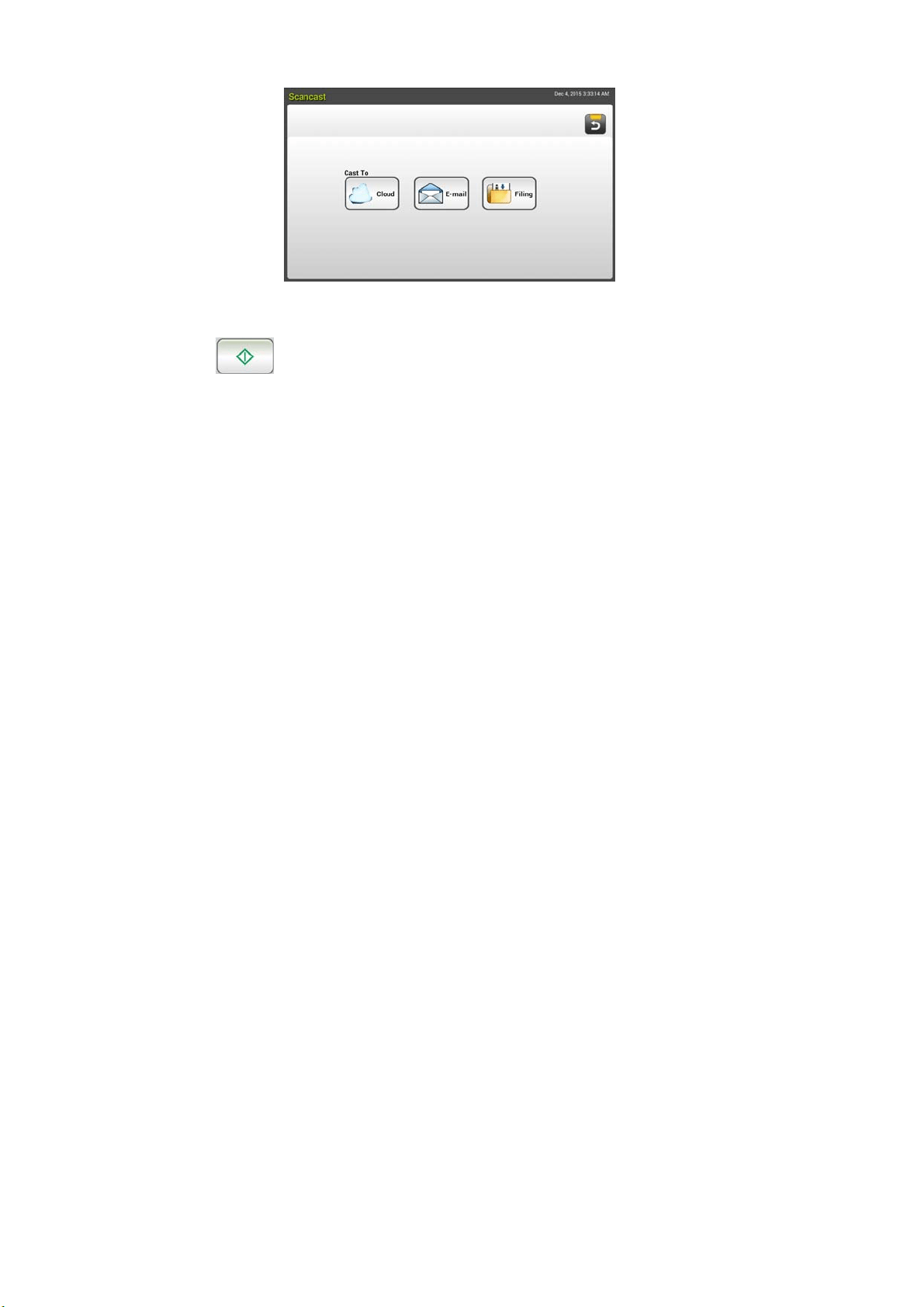
1 2 . Aft er t he scanned im age has been delivered successfully t o your first
dest ination, t he [ Sca n cast] w indow for m ult iple destinat ions appears
again.
68
1 3 . Repeat St ep 9 t o choose your 2
nd
dest ination and t hen press the [ St a r t ]
(
) but t on t o send t he scanned im age to t he destinat ion.
1 4 . Repeat St ep 12 ~ Step 13 t o send t he scanned im age t o another
dest ination.
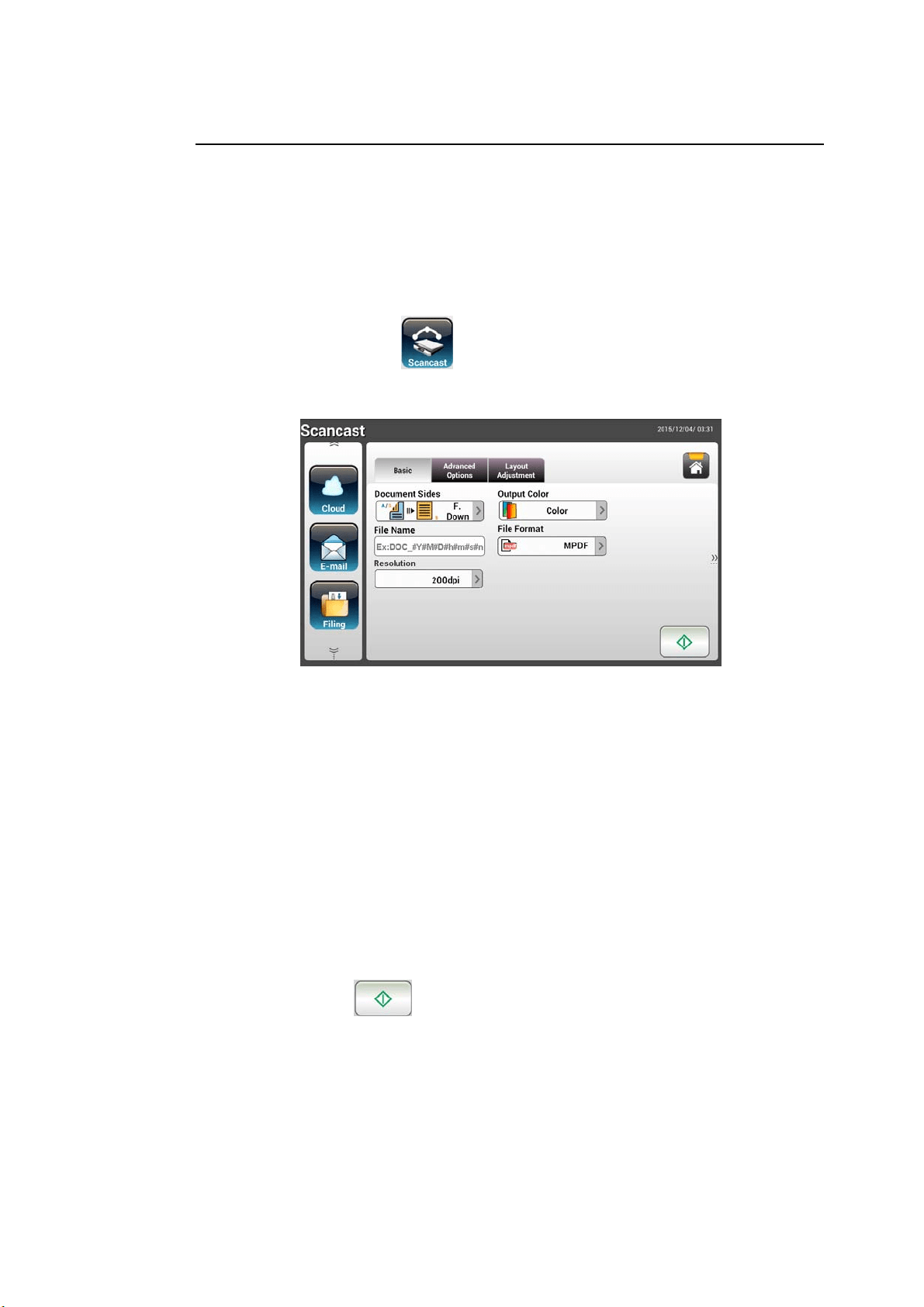
1 5 . I f you have finished distributing your scanned im age t o all t he dest inations
you want , press t he [ Ba ck ] but ton to exit t he screen.
69
Adva nced Opera t ion
Using Specia l Set t ings
1 . Load your docum ent in t he ADF wit h t he 1
st
page facing down and t he t op
of t he pages point ing t o t he feeder.
2 . Press t he Sca n ca st button on t he touch screen. The LCD Touch
Panel prom pt s the following Scancast m ain screen.
3 . On t he Ba sic screen, ent er your desired file nam e and check if docum ent
side, out put color, or file form at m eets your requirem ents. I f not, change
the settings t o suit your needs.
4 . Tap t he Adva nced Set t in gs t ab t o prom pt t he Advance d Se t t ings screen.
Change t he densit y, cont ract, resolut ion, and qualit y level if t he default
set t ings are not sat isfactory. (For m ore inform at ion about t he scan sett ings,
please refer to t he preceding sect ion – Scanning and Sending Your
Docum ent s to E-m ail Addresses on page 31.)
5 . Tap t he La yout Adjustm ent t ab to prom pt the Layout Adj ustm ent
screen. Change original size and preview if t he default set t ings are not
sat isfact ory. ( For m ore inform at ion about t he scan sett ings, please refer t o
the preceding sect ion – Scanning and Sending Your Docum ent s t o E-m ail
Addresses on page 33.)
6 . Tap t he Start
but t on. The scanner st arts scanning your docum ent .
7 . The product st arts scanning and the preview im age will be displayed.
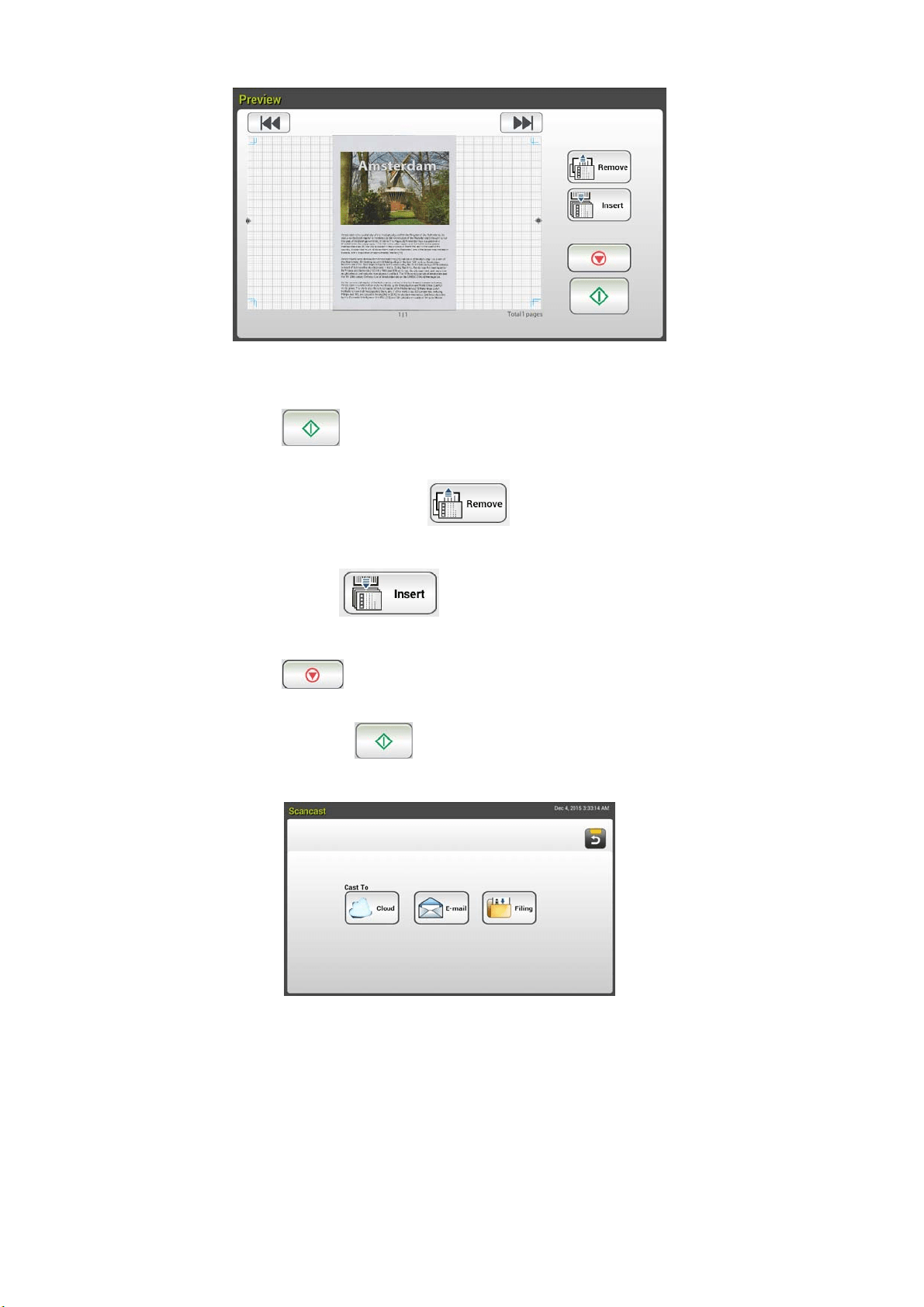
7
0
8 . On the Preview screen,
St art : I f t he scanned im age is OK, press the [ St art] button
(
) on t he touch panel to dist ribut e t he scanned im age.
Rem ove: I f t he scanned im age is not satisfactory, t ap the
[ Rem ove] but ton (
) to delet e t he scanned im age.
I nse r t : You m ay also insert m ore pages by t aping t he [ I nsert
Pa ge s (
) ] but t on on t he bot tom of t he screen.
Cance l: I f the scanned im age is not OK, tap t he [ Ca n cel] but ton
(
) t o abort t he job.
9 . I f t he [ Start] ( ) button has been selected, t he [ Scancast ]
window for m ultiple destinat ions appears.
1 0 . Choose a [ Cast To] destinat ion for your scanned im age. Choice: Cloud,
E- m ail, Filing.
- Cloud: Choose your desired cloud servers from a selection of
Evernot e, and Google Drive.
- E- m ail: Ent er [ To/ From ] E- m ail address.
- Filing: Choose your net work folder from a select ion of Local or
Net work. I f N et w ork is selected, the available network servers will
be displayed at the right box. You m ay use t he Up- a r row or
Dow n- a rrow button t o scroll from the list.
71
I f Local is selected, USB and Public Folde r will be displayed at t he
right box. I f USB is selected, m ake sure a USB flash drive has been
insert ed t o t he USB flash drive port of t he product .
I f Public Folder is selected, the scanned im age will be stored in t he
product’s m em ory. Ent er t he PI N num ber ( folder nam e) during
scanning and then access t he scanned im age via t he product ’s
em bedded web page. ( Refer m ore det ailed inform at ion on
subsequent sect ion - Custom izing t he Product’s Settings via t he
Em bedded Web Page.)
1 1 . Aft er your first destinat ion has been specified, press the [ St art]
(
) but t on t o send t he scanned im age to t he destinat ion.
1 2 . After t he scanned im age has been delivered successfully to your first
dest ination, t he [ Sca n cast] w indow for m ult iple destinat ions appears
again.
1 3 . Repeat St ep 10 t o choose your 2
nd
dest ination and t hen press the [ St art]
(
) but t on t o send t he scanned im age to t he destinat ion.
1 4 . Repeat St ep 12 ~ Step 13 t o send t he scanned im age t o another
dest ination.
1 5 . I f you have finished distributing your scanned im age to all t he
dest inat ions you want , press the [ Back] button t o exit t he screen.
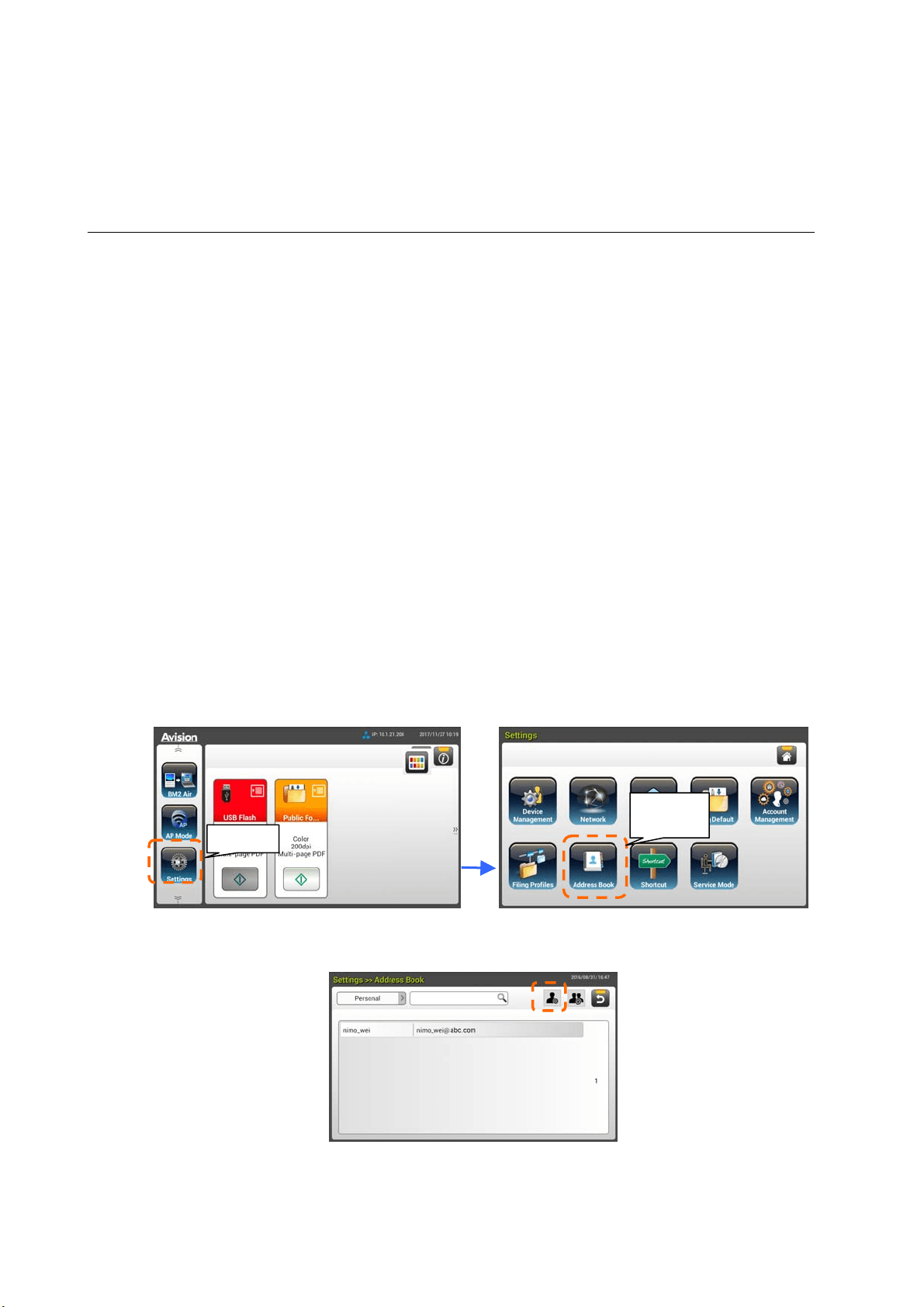
72
4 Set t ing Up and Managing
Dest inat ions
This sect ion provides procedure for t he adm inistrator t o setup and m anage your
dest inations including E-m ail addresses or network folders t o distribut e t he
scanned docum ent on the net work.
Set t ing Up Your E- m ail Address Book
This sect ion provides procedure for t he adm inist rator on how t o setup E-m ail
Address Book. The address book can be setup and m anaged eit her t hrough t he
LCD Touch Panel or the product’s em bedded web page. This section uses LCD
Touch Panel as an exam ple.
Adding a ne w E- m a il Address
Follow t hese steps to add a new E- m ail address.
1 . On t he Hom e screen of the LCD Touch Panel, select [ Set t ings] > [ Address
Book] in succession. The E- m ail Address Book screen will be displayed.
2 . Tap [ N e w ] t o prom pt t he [ New E- m a il Address] page.
3 . Ent er your E- m ail address and its description.
4 . Tap [ Save] t o save your address and leave t he E-m ail screen.
Setting
Address
Book

73
N ot e:
Up t o 200 E- m ail addresses can be ent ered in the Address Book.
Edit ing a Cur rent E- m ail Address
To m odify a current E-m ail address,
1 . Repeat Step 1 from the previous sect ion, Adding a New E-m ail Address. The
[ E- m ail Addr e ss Book ] page will be displayed.
2 . Select t he E-m ail address which you want to m odify from t he list and t hen
tap [ Edit ] t o prom pt t he [ M odify E- m ail Addresses] page.
3 . Modify your address inform at ion.
4 . Tap [ Save] to save t he sett ing and leave t he E-m ail screen. Or t ap [ Ca n ce l]
to leave the page wit hout saving any setting.
De le t ing a Curr ent E- m ail Address
To delete a current E- m ail address,
1 . Repeat Step 1 from the previous sect ion, Adding a New E-m ail Address. The
[ E- m ail Addr e ss Book ] page will be displayed.
2 . Choose t he address you want t o delete from t he list and t hen choose
[ Dele t e] t o erase the address. A Confirm at ion dialog box appears t o
confirm your deletion. Click [ OK] t o confirm or [ Ca ncel] t o exit .
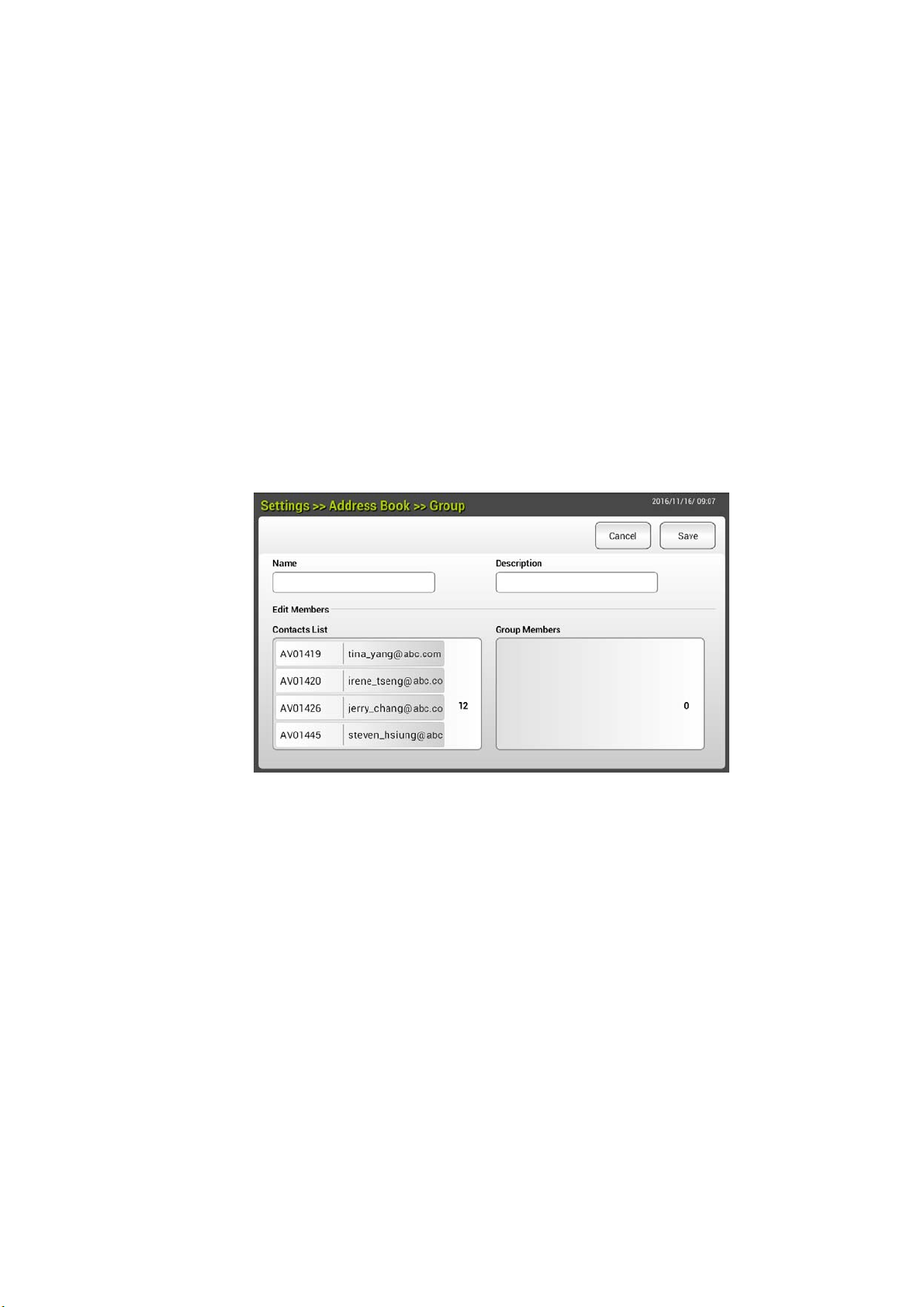
74
Adding a ne w E- m a il Gr oup
To send m ult iple addresses sim ultaneously at one t im e, you can create address
group t o speed up t he process. Up to 50 addresses can be included in one
group and a t ot al of 50 groups can be creat ed in t he Address Book.
To add a new E- m ail group,
1 . Repeat Step 1 from the previous section, Adding a New E-m ail Address.
The [ E- m a il Address Book ] page will be displayed.
2 . Tap [ Group] and t hen choose [ N ew ] t o prom pt t he [ Add a N ew Group]
page.
3 . Ent er your group nam e and its descript ion.
4 . Choose t he address from t he address list and click t o add a m em ber t o
the group.
5 . Click [ Save] t o save the sett ing or [ Cancel] t o leave t he page without
saving any set t ing.

7
5
Edit ing a Cur rent E- m ail Gr oup
To m odify a current E-m ail group,
1 . Repeat Step 1 from t he previous sect ion, Adding a New E-m ail Address.
The [ E- m a il Address Book ] page will be displayed.
2 . Tap [ Group] and choose t he group which you want to m odify from the list
and t hen t ap [ M odify] t o prom pt t he [ Modify E- m ail Grou p] page.
3 . Modify your group inform at ion. Choose t he group m em ber you wish to
add and t hen click t o add t he new m em ber or click t o delet e an old
m em ber from the group.
4 . Tap [ Save] t o save t he setting and leave t he E-m ail screen. Or t ap
[ Ca ncel] t o leave the page wit hout saving any setting.
De le t ing a Curr ent E- m ail Group
To delete a current E- m ail group,
1 . Repeat Step 1 from the previous sect ion, Adding a New E-m ail Address.
The [ E- m a il Address Book ] page will be displayed.
2 . Tap [ Gr oup] and choose t he group which you want to delete from t he list
and t hen t ap [ D elete] t o erase t he group.
3 . A Confirm at ion dialog box appears t o confirm your delet ion. Click [ OK] t o
confirm or [ Ca n cel] t o exit .
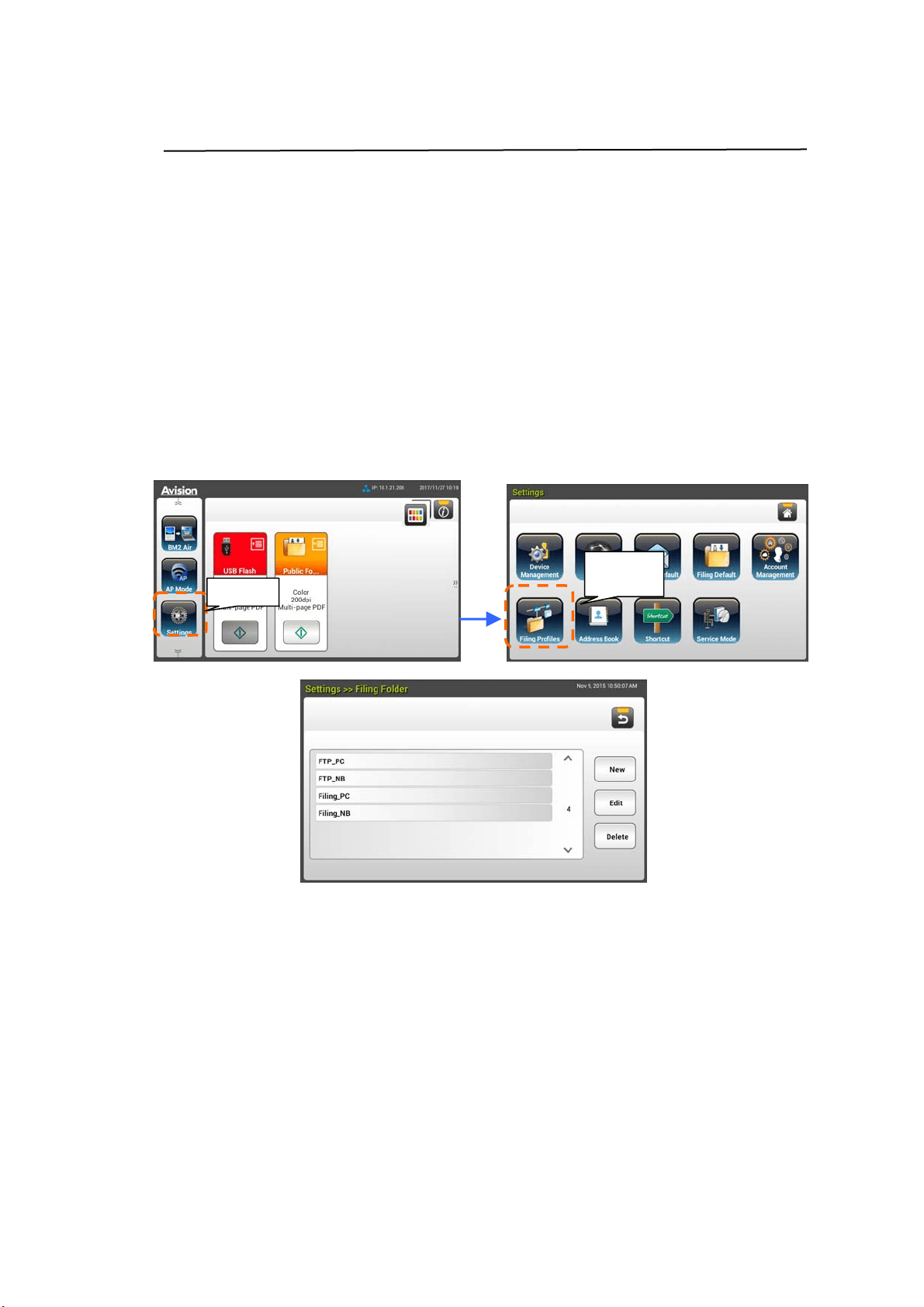
76
Set t ing Up Your Filing Profiles
The sect ion provides procedure on how t o setup your Filing Profiles t o send your
scanned docum ent t o a specified net w ork folder. The Filing Profiles can be set up
and m anaged eit her t hrough t he LCD Touch Panel or the product’s em bedded
web page.
Adding a ne w Filing Profiles
To create a Filing Profiles, follow t hese steps:
1 . On the Hom e screen of the LCD Touch Panel, select [ Sett ings] > [ Filing
Pr ofiles] in succession. The Filing Profiles screen will be displayed.
2 . Tap [ N ew ] t o prom pt t he [ N ew Filing Profiles] page.
3 . Ent er your Filing Profiles inform at ion. Refer t o t he preceding sect ion,
Creating Your Filing Profile ( page 19), on how t o ent er your folder
inform at ion.
4 . Tap [ Sa ve] to save your set t ing or [ Ca n ce l] t o leave the screen wit hout
saving these sett ings.
Setting
Filing
Profiles

7
7
Edit ing a Cur rent Filing Pr ofiles
To m odify a current Filing Profiles,
1 . Repeat Step 1 from the previous sect ion, Adding a New Filing Profiles. The
[ Filing Profiles] page will be displayed.
2 . Choose the Filing Profiles which you want t o m odify from the list and then
tap [ M odify] to prom pt t he [ Modify Filing Profiles] page.
3 . Modify your folder inform at ion.
4 . Tap [ Sa ve] to save t he setting and leave the Filing Profiles screen. Or t ap
[ Ca ncel] t o leave the page wit hout saving any setting.
De le t ing a Curr ent Filing Profiles
To delet e a current Filing Profiles,
1 . Repeat Step 1 from the previous sect ion, Adding a New Filing Profiles. The
[ Filing Profiles] page will be displayed.
2 . Choose t he folder you want t o delet e from t he list and t hen choose [ D e lete]
t o erase t he folder. A Confirm at ion dialog box appears to confirm your
delet ion. Click [ OK] to confirm or [ Cancel] t o exit.
78
5 St art ing a Scan from Your
Mobile Device
Wit h a built - in Wi- Fi m odule, the scanner is converted int o a w ireless device.
When a m obile device is use, the scanned im ages can be received from t he m obile
device.
Ma k ing Pre pa ra t ion
To connect t he scanner to a wireless LAN, prepare the followings:
An e n vironm ent in w hich a w ireless LAN is a vailable
When connecting t he scanner t o a wireless LAN, you m ay need inform at ion for a
wireless access point such as an SSI D ( network nam e) and a securit y key
( password) . For det ails, cont act your Network Adm inist rator or refer t o t he m anual
for the wireless access point .
At t ention!
Do not place obstacles t hat block radio waves ( e.g. walls or m et al plat es) or
devices t hat cause radio wave int erference ( e.g. cordless phones) wit hin 100 m m
of t he scanner, or near your wireless access point .
MB Application
Download the MB Applicat ion on your m obile device from an applicat ion store
such as Google Play.
MB
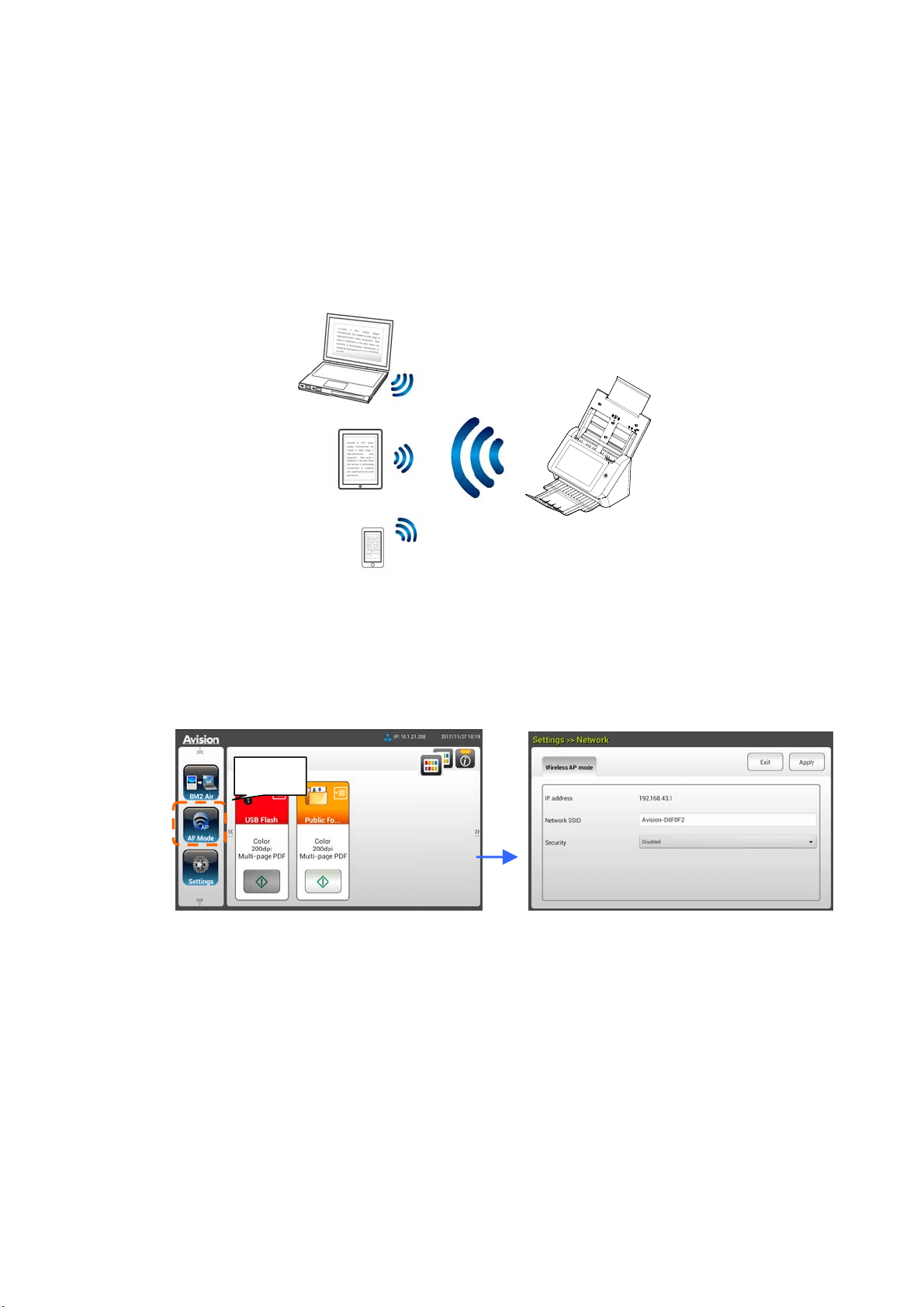
79
Connect ing to A W ireless Ne t w ork
Connect ing t o a W i- Fi net w ork in a n AP ( Access Point ) M ode
I n AP (Access Point) m ode, your m obile devices and t he scanner are connected
wirelessly without an addit ional AP ( Access Point ) since the scanner it self works as
an AP.
1 . I f you have connected a wired Ethernet cable t o the scanner, disconnect the
net work cable.
2 . On the Hom e Screen of t he LCD Touch Panel, t ap [ AP Mode ] . I n a second,
the SSI D and I P Address will be displayed.
3 . On your m obile devices, m ake sure Avision–xxxxxx ( xxxxxx indicates the last
six digit s of t he Mac Address) has been select ed as your network nam e
( SSI D) .
AP ( Access Point)
AP
Mode
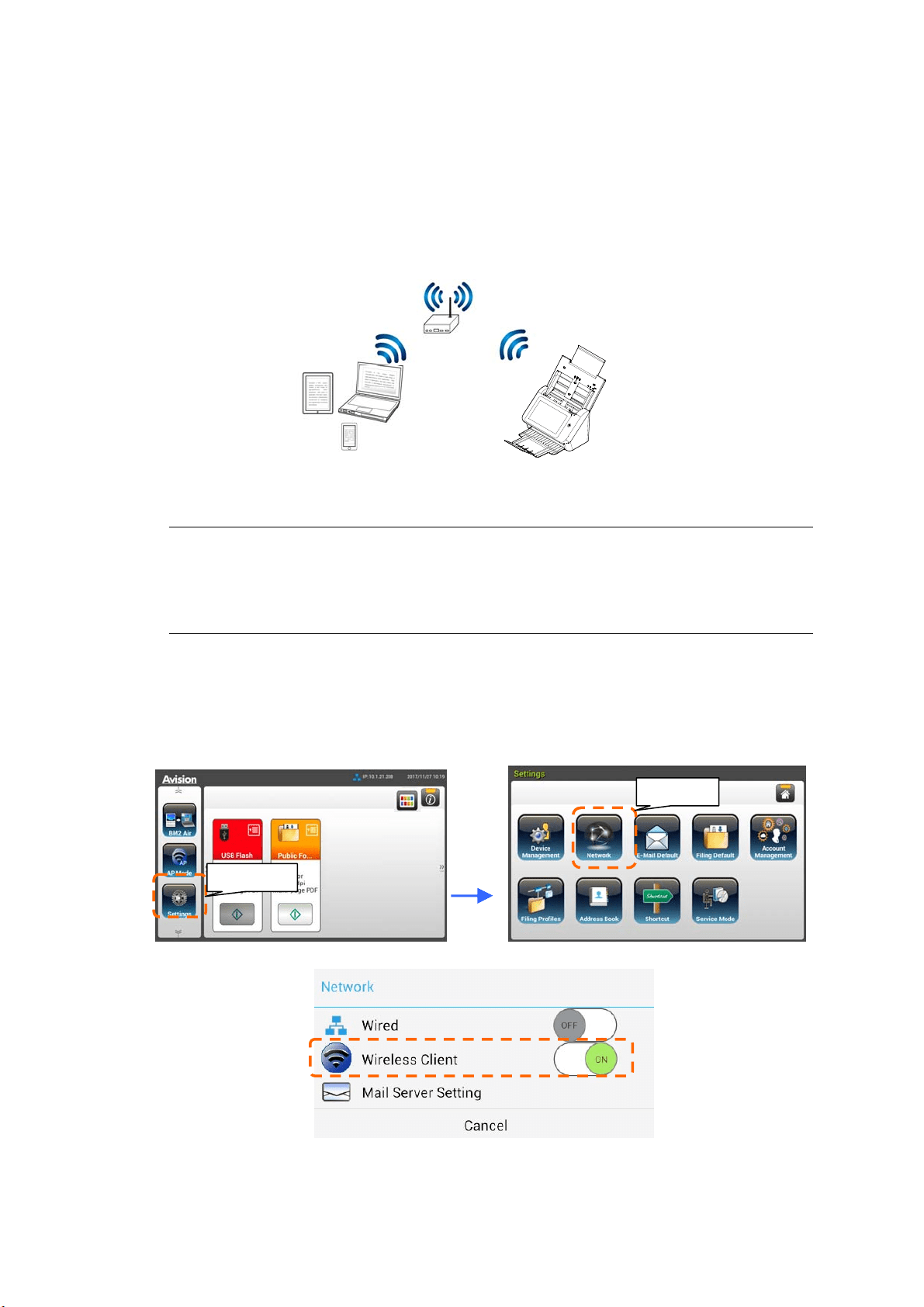
8
0
Connect ing t he Scanne r t o a W i- Fi Ne t w ork in a Clie nt M ode
I n a Client m ode, your m obile devices and scanner are connected wirelessly
through an addit ional AP ( Access Point ) . This m ode is also t he default w ireless
m ode.
Connect ing Your Scanne r t o a n Access Point:
I m portant :
Note the wired and wireless m ode can not work at t he sam e tim e. To connect t he
scanner in a wireless net w ork, please first disconnect t he Ethernet cable
connecting t o your scanner.
1 . I f you have connected a wired Et hernet cable t o t he scanner, disconnect
the net work cable.
3 . On t he Hom e Screen of t he LCD Touch Panel, t ap [ Set t ings] > [ N e t w or k ] .
Make sure t hat [ W ir e less Clie nt] is turned on.
4 . I n a second, current w ireless net works near you will be displayed as shown
below.
AP ( Access Point )
Settings
Network
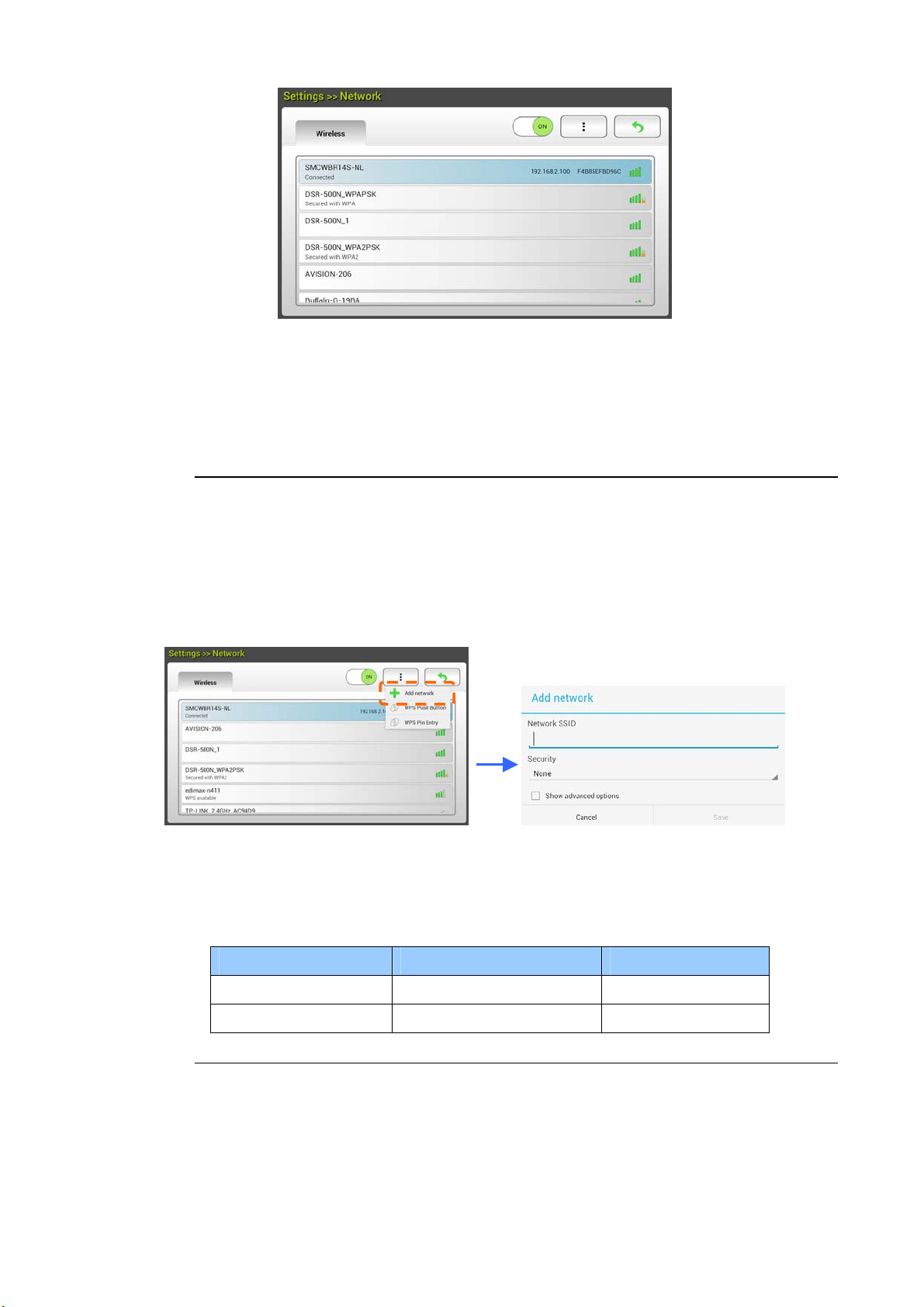
81
5 . Select an Access Point and click [ Conn e ct ] t o connect t he scanner t o a
specified Access Point, for exam ple, SMCWBR14S- NL. I n a few seconds, if t he
connect ion is successful, the I P address and Mac address of the scanner will
be displayed as indicated above.
N ot e:
I f your access point is set t o not broadcast t he SSI D, please follow t hese st eps t o
m anually add t he SSI D nam e (network nam e) :
1 . On the wireless page, t ap the [ More Sett ings] > but ton and t hen choose
[ Add netw ork] . The [ Add netw ork] page will be displayed.
2 . Ent er t he Network SSI D nam e and choose the securit y m ode, encrypt ion
type, and network key and t hen t ap [ Save] t o search t he wireless net work
m anually.
Your scanner support s the following authent icat ion m et hods:
Secur it y m ode Encryption m e t hod Key I ndex
WPAPSK TKI P, AES, TKI PAES X
WPA2PSK TKI P, AES, TKI PAES X
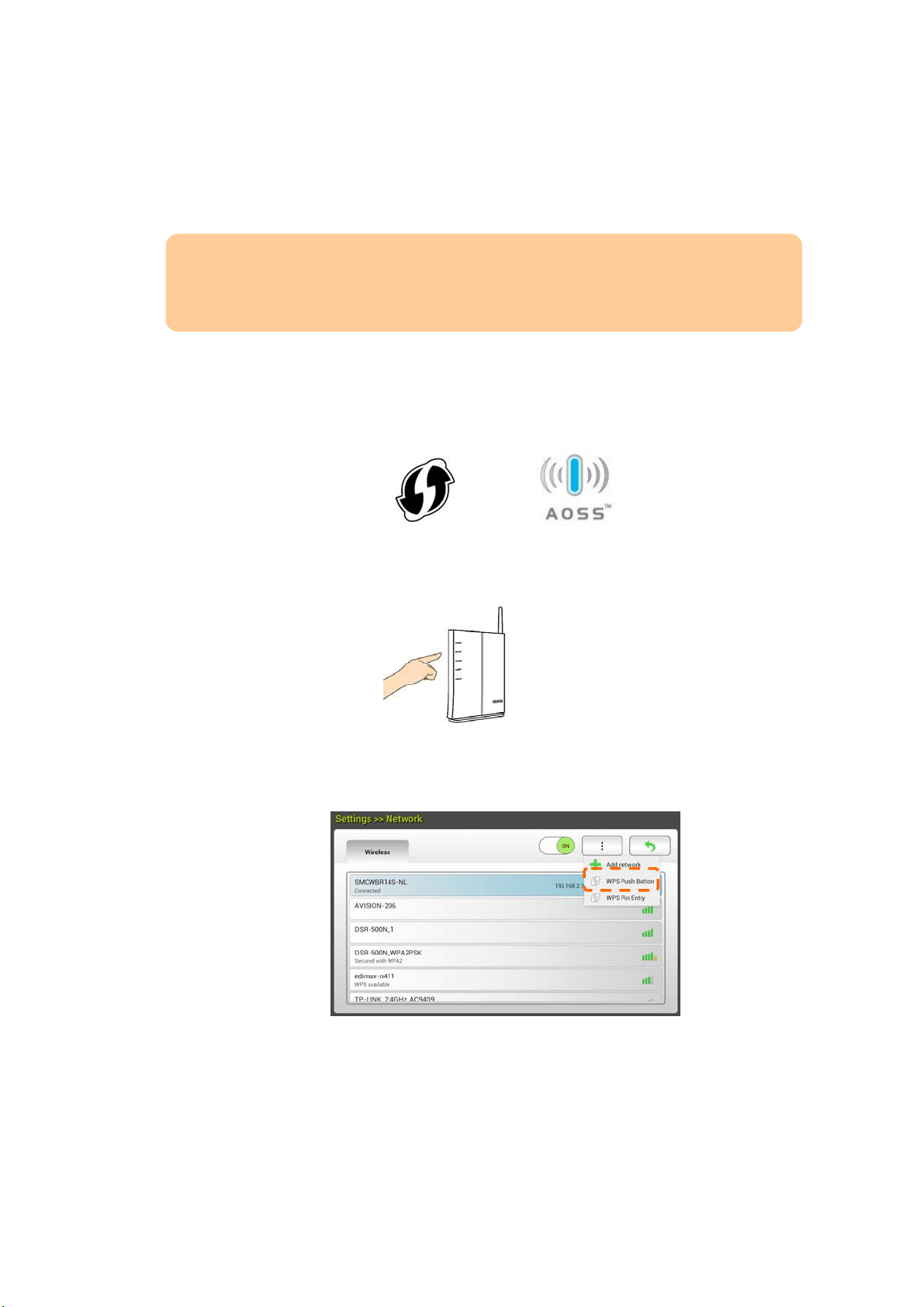
82
Connect ing t o a W ir ele ss Access Point Using t he W PS But t on
You m ay connect t he scanner t o a WPS com pat ible wireless access point by
pressing t he WPS button on t he back of t he scanner.
Befor e You Be gin!
To enable the WPS connection of your access point , please refer t o t he user’s
guide of your access point.
Perform t he following procedure t o connect.
1 . Confirm your wireless access point / rout er has t he WPS or AOSS
TM
sym bol as
shown below.
2 . Press t he WPS but ton of your wireless access point. ( You m ay refer t o the
user’s guide of your access point/ router for instruct ions on how t o use t he
WPS but t on.)
3 . On t he Hom e Screen of t he LCD Touch Panel, tap [ Se t t ings] > [ N et w ork] .
Make sure t hat [ W ir e less Clie nt] is t urned on. On the wireless page, tap
the [ More Sett ings] > but t on and t hen choose [ W PS Push Butt on] for at
least 2 m inut es.
4 . I f the connection is successful, t he connect ed AP nam e will be displayed on
the page as indicat ed below.
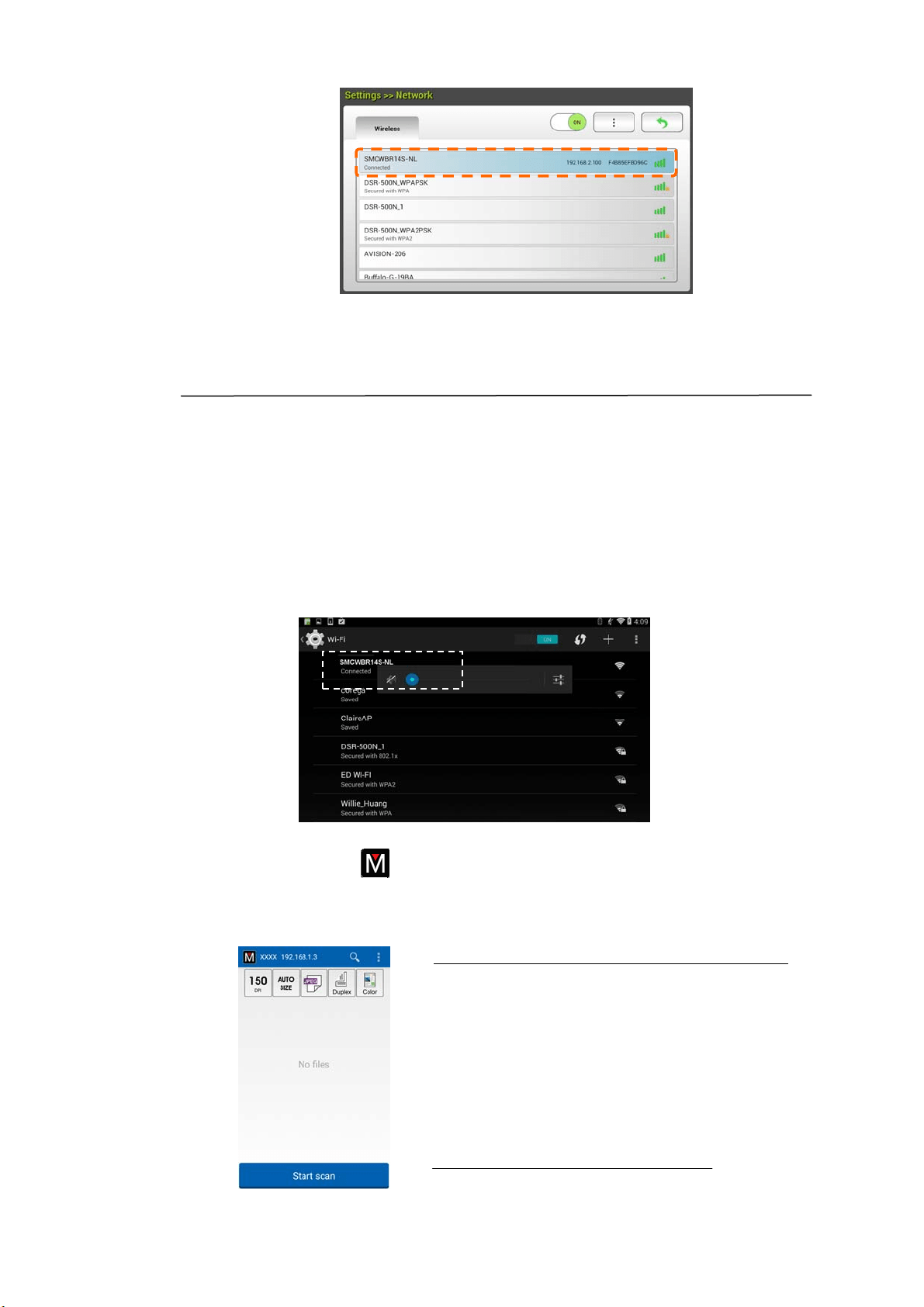
83
Sca nning a Docum ent from a Mobile Device
Make sure t hat t he MB Applicat ion ( Scan App) has been installed on y our m obile
device. The M B Application can be purchased for free from an application store
such as Google Play.
1 . Enable [ W i- Fi] from [ Se t t ings] of your wireless com put er, sm artphone, or
tablet and t hen choose t he sam e net work nam e ( SSI D) of your scanner. For
exam ple, SMCWBR14S- NL.
2 . Tap t he MB app (
) on t he screen to launch t he Scan Applicat ion. The m ain
window will be displayed and t he application will autom at ically search a
scanner in t he sam e wireless LAN. I f successful, [ Start scan] will be
displayed at t he bot t om as shown below.
ATTENTI ON :
I f t he scanner is not found, please check t he
follow ings:
1. The scanner is not ready yet. Tap [ M ore
Sett ings] and then [ Search sca nner]
to search t he scanner again.
2. Check if t he m obile device and t he
scanner are in t he sam e wireless LAN.
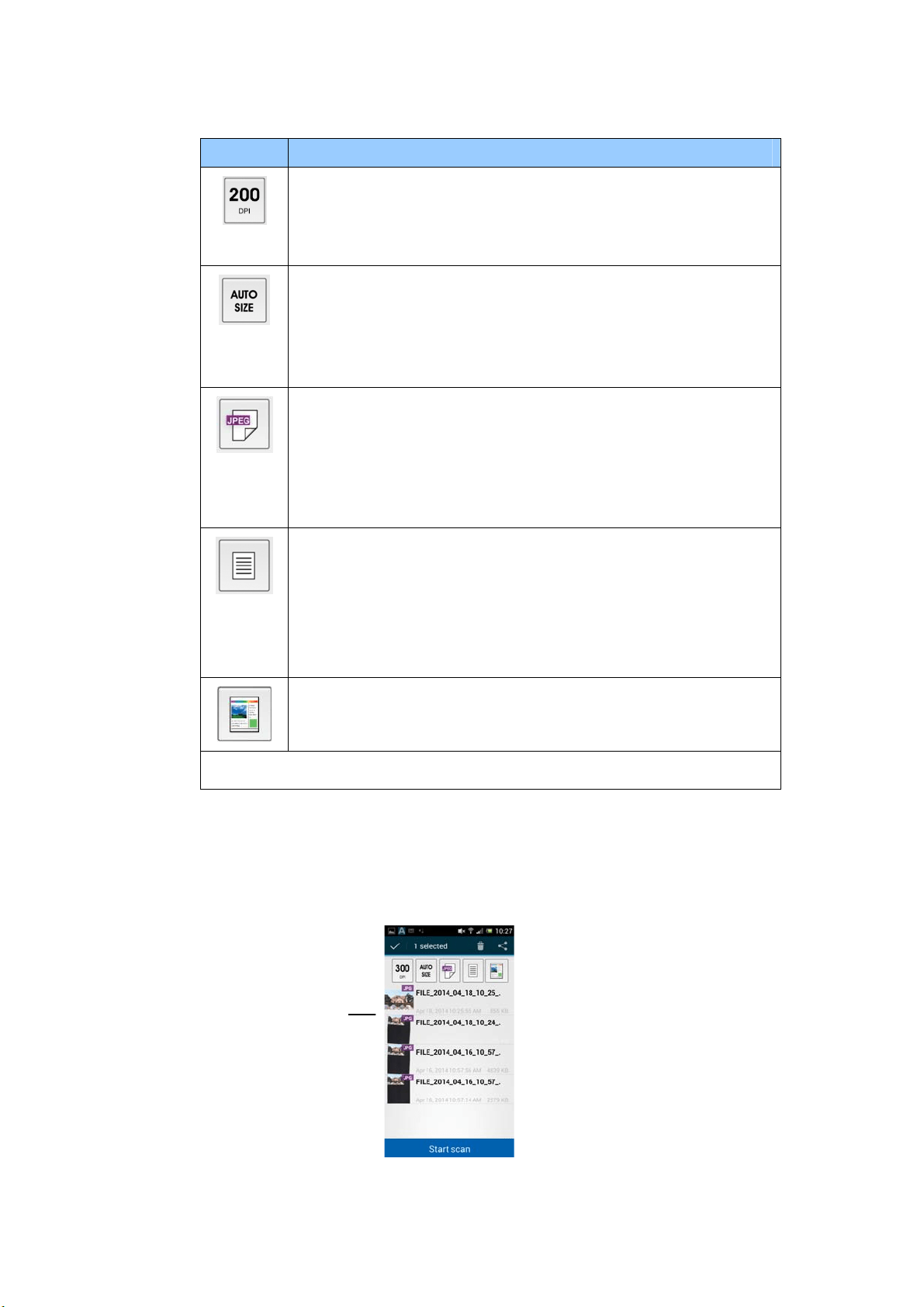
84
3 . Check if t he default set t ings m eet your requirem ent s. I f not, change the scan
set t ings to fit your specific scanning t ask.
I tem Descript ion
Resolut ion: Select your desired resolut ion. The higher
resolution, t he greater t he im age qualit y and disk space.
Choice: * 1 5 0 , 2 0 0 , 3 0 0 dpi
Scan Size: Select your paper size or you m ay choose Auto
to let t he scanner det ect your docum ent size aut om atically .
Choice: * Auto size, A4 , LTR ( Lett e r) , LGL ( Lega l) , 4 x 6 ,
5 x 7
File Form at : Select t he file form at for your im age.
Choice: * JPEG, PD F, TI FF
N ot e:
The JPEG file does not support t he B&W im age.
The TI FF file form at supports only t he B&W im age.
Select to scan t he front side (sim plex) or bot h t he front side
and t he rear side ( duplex) of your docum ent .
Choice: * Sim plex, Duplex
Note: The duplex m ode is available t o scan from t he auto
docum ent feeder only.
Color Mode: Select your desired im age m ode.
Choice: * Color , B& W , Gray
* Default settings
4 . Load a page t o t he aut o docum ent or place a page on t he flat bed.
5 . Tap t he [ Start scan] button. ( Choose your scanner if t here is m ore than
one scanner connected t o t he network) . I n a second, t he scanner begins
scanning t he docum ent and t he t hum bnail scanned im age will be
displayed.
6 . Tap t he t hum bnail im age to view t he entire im age.
The
Thum bnail
I m age
8
5
6 Custom izing t he Product’s
Configurat ions
This chapt er is specifically t arget ed t o t he persons who are responsible for t he
adm inist rat ion of t he product. I t is recom m ended t hat the adm inist rat or read this
chapt er before installing t he m achine.
The product’s configurat ions can be cust om ized via the LCD Touch Panel. I n
addit ion t o using t he touch screen, t he product allows t he adm inistrator t o
rem ot ely configure the m achine by launching t he product’s em bedded web page.
How t o custom ize t he product ’s configurations v ia these two m et hods will be
described in t he follow ing sect ions.
N ot e:
When installing t he product for the first t im e, it is recom m ended that t he
Adm inist rat or retain t he default syst em sett ings. The settings can be
cust om ized at a lat er date once you are fam iliar wit h t he operation and
funct ionalit y.
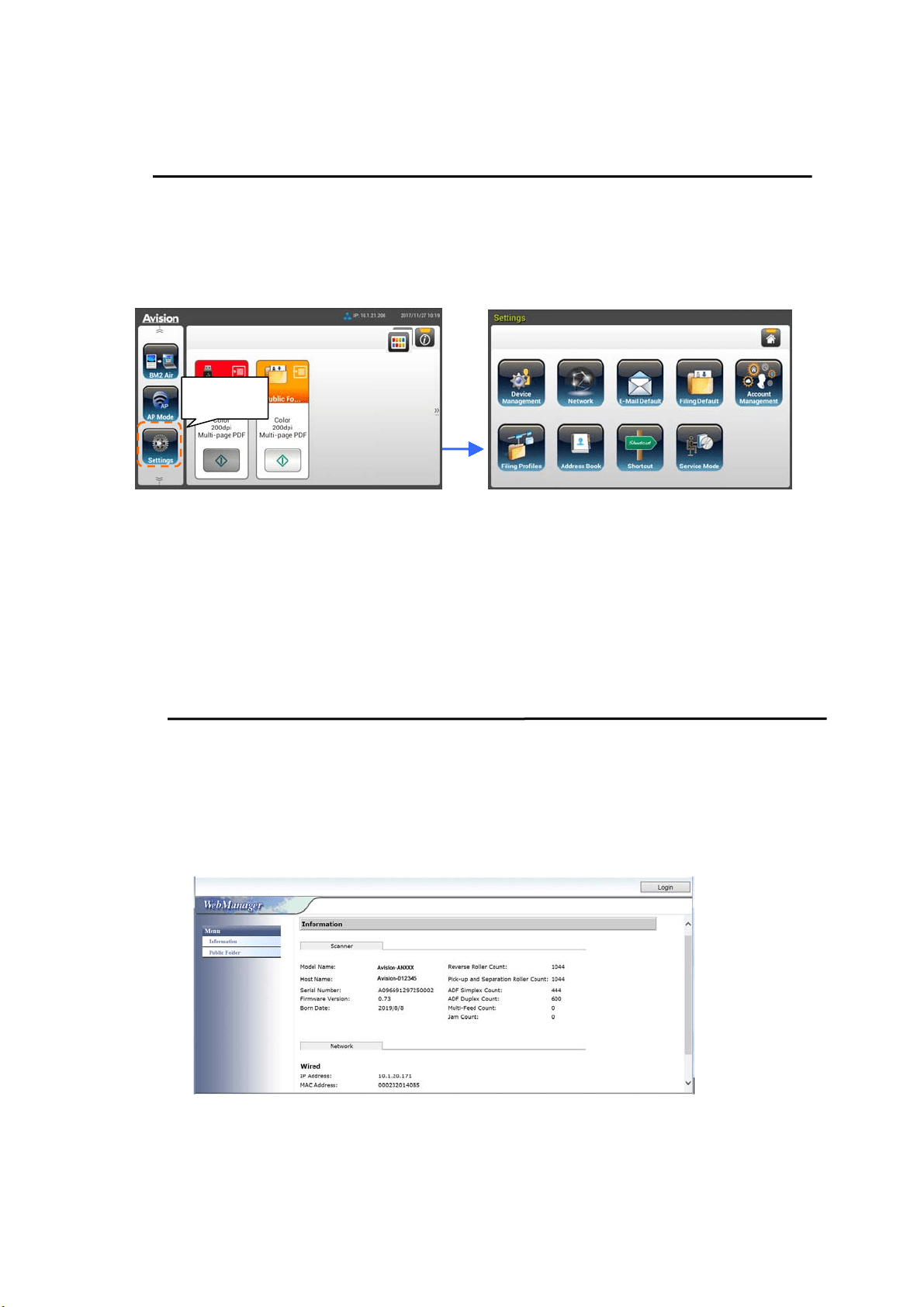
86
Cust om izing the Product ’s Configurat ions by the
Touch Screen
Press t he [ Se t t ings] but t on on Touch Screen. Please login wit h the default user
nam e and password – [ adm in] . The [ Se t t ings] screen will be displayed as
indicated. ( The password can be changed lat er in t he web page.)
These 8 buttons displaying at t he top are: General, Net work, E-m ail Default,
Filing Default, Filing Profiles, Address Book, Short Cut , and Service Mode. For
details on each setting, please refer t o t he subsequent sect ion, Sum m ary of t he
Product’s Configurat ions.
Cust om izing t he Product ’s Configura t ions by t he
Pr oduct ’s W eb Page
1 . Open your browser.
2 . Type the I P address of t he product in t he URL field of your browser and t hen
press Ent er. The product’s em bedded web page appears.
3 . To access com plet e inform at ion of t he web page, please login wit h t he default
user nam e and password – [ adm in] . The password can be changed lat er in
the web page.
Settings
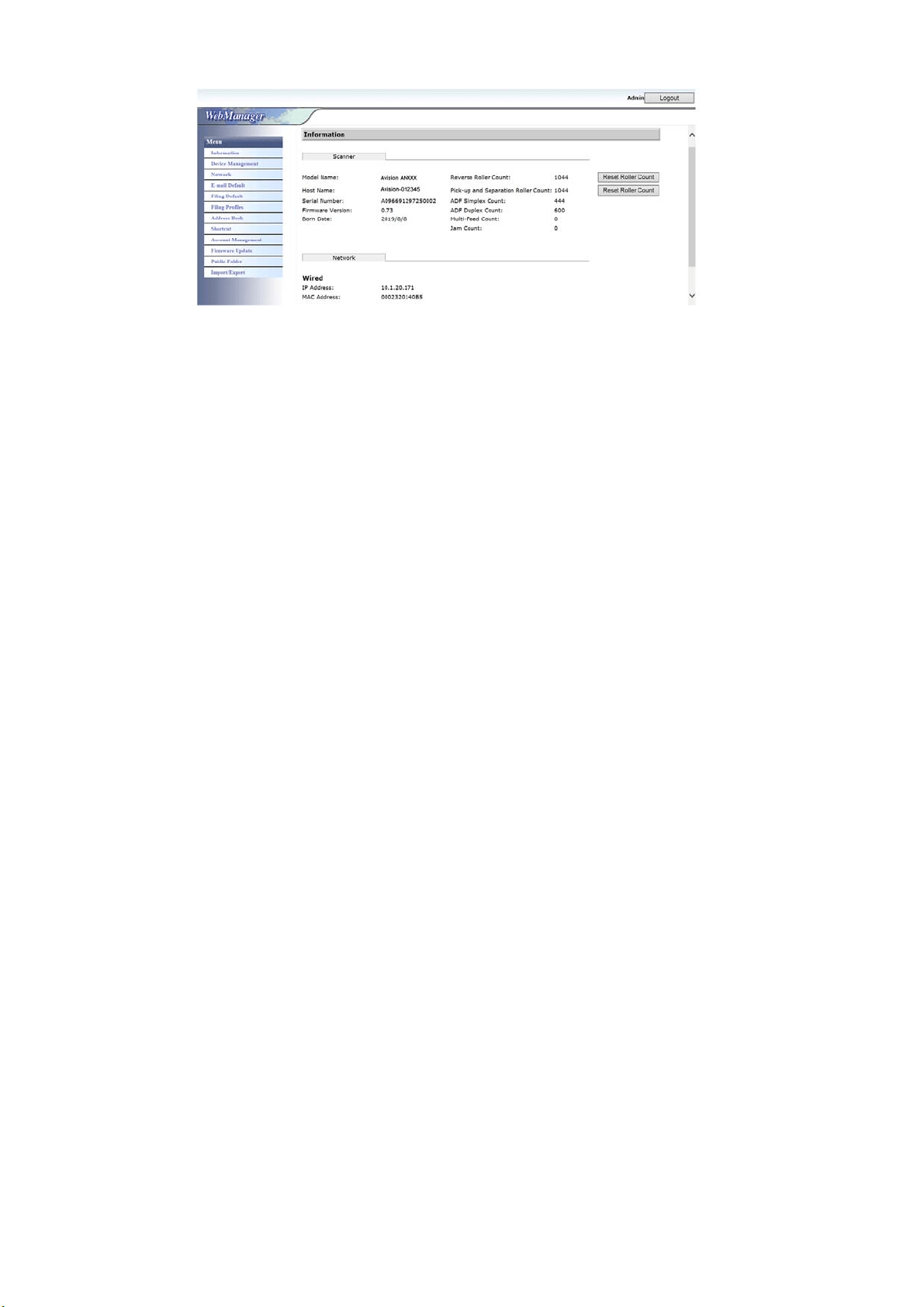
87
Click each it em under t hese t abs to set up relevant values. For det ails on each
set t ing, please refer to t he subsequent sect ion, Sum m ary of t he Product ’s
Configurat ions.
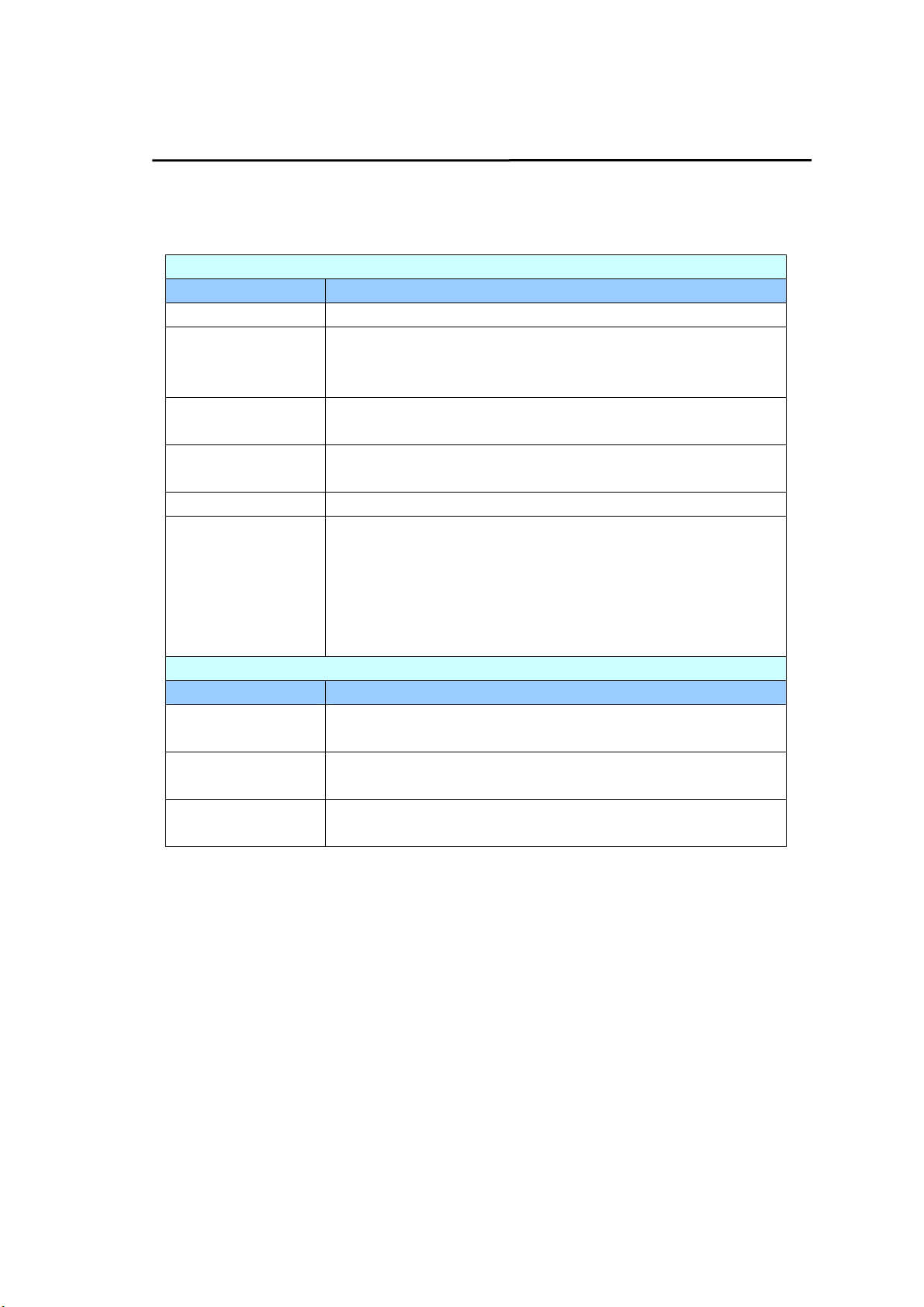
88
Sum m ar y of the Product ’s Configurat ions
I nform at ion: Used t o show the product’s basic inform at ion.
Scanner
I tem s Descr iption
Model Nam e Used t o show the product’s m odel nam e.
Host N a m e Used t o show the product’s host nam e ( Avision- xxxxxx) for
the scanner in a wired and wireless environm ent. Xxxxxx
indicates t he last six digit s of t he scanner’s Mac address.
Seria l N um be r Used t o show t he product’s current tim e. The t im e
form at is 24-hour system .
Firm w a re
Version
Used t o show t he firm ware version.
Bor n D a t e Used t o show t he m anufacturing dat e.
Scan Count Scan Count including Reverse Roller Count , Pick- up and
Separat ion Roller Count, ADF Sim plex Count , Multi- Feed
Count, and Paper Jam Count .
Re set Rolle r Count: Click t his but t on t o reset roller
count aft er roller has been replaced.
N et w ork
I tem s Descr iption
W ir ed Used t o show the product’s IP and Mac address in a
wired net work environm ent .
W ir eless AP Used t o show the I P and Mac address of t he product’s
AP ( Access Point ) in a wireless net work environm ent .
AP Mode Used t o show the product’s SSI D (net w ork nam e) and
I P address in a wireless net work environm ent.
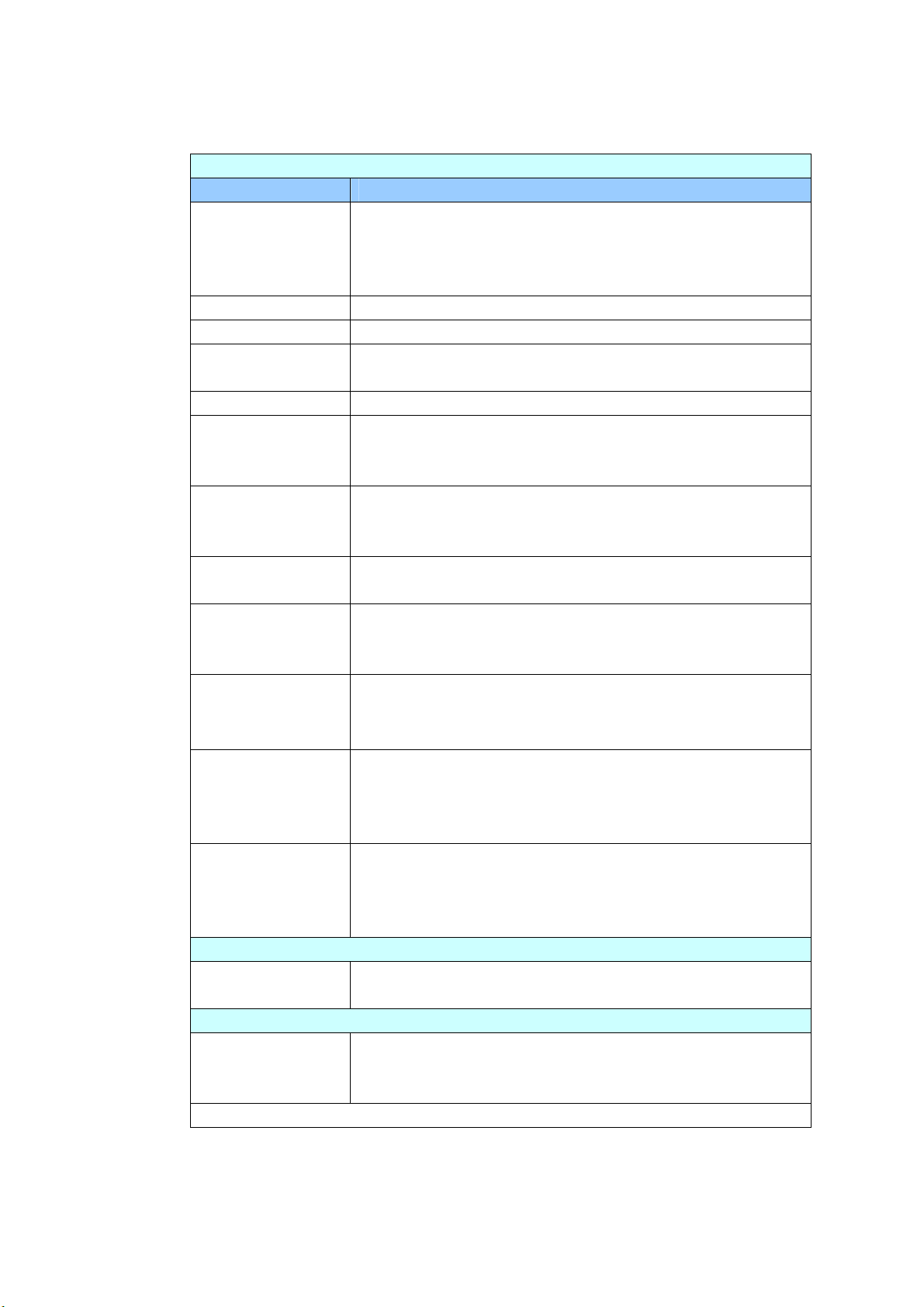
89
Device M a nage m e nt
Gene r a l: Used t o specify t he product’s general inform at ion.
Gene r a l
I tem s Descr iption
Host N a m e Avision- xxxxxx: The net work nam e ( SSI D) for t he
scanner in a wired and wireless environm ent . Xxxxxx
indicates the last six digit s of the scanner’s Mac
address.
N TP Server Used t o specify t he product’s NTP server.
Date Used t o specify the product’s current dat e.
Tim e Used t o specify the product’s current t im e. The t im e
form at is 24-hour system .
Tim e Zone Used t o specify the t im e zone of your location.
Pow e r Sa vin g Used t o specify t he length of t im e t he product needs t o
ent er the power saving m ode aft er last act ion. Range: 1
~ * 240 m inut es
Keep w ir ed
netw ork on
during sleeping
Check to keep wired net work on during t he m achine’s
power saving m ode.
Enable Auto
Pow e r Off
Check t o enable auto power off. Range: * 0 ~ 480
m inutes
Screen Off Enter t he lengt h of tim e t he product turns off t he screen
aft er the last act ion.
Choice: * Never, 3 m in, 5 m in, 10 m in
Device E- m ail
Address
Enter device’s e- m ail address. This address serves as
[ Report t o E- m ail] address in Filing funct ion if y ou
wish t o send the filing report t o an E- m ail address.
Mult i- Feed
Detection
de fault
Choose if you w ish t o enable t he Mult i- Feed Det ection
via ultrasonic unit. Ultrasonic Detect ion allows you t o
set overlapped docum ent by det ect ing paper t hickness
between docum ent s. Choice: On / * Off
Adm in Profile Used to specify the login nam e and passw ord t o enter
the product’s web page.
E- m ail Address: used t o specify the adm inist rator’s
E- m ail address.
Funct ion Lock
Scan t o USB
Used t o enable or disable the funct ion. Choice: * ON/ OFF
A
+
M anager Sett ings
A
+
M anager
Sett ings
Check [ Ena ble] and t hen enter t he I P address of a
specified server to send the system log file t o for quick
troubleshoot ing.
* : Factory Default
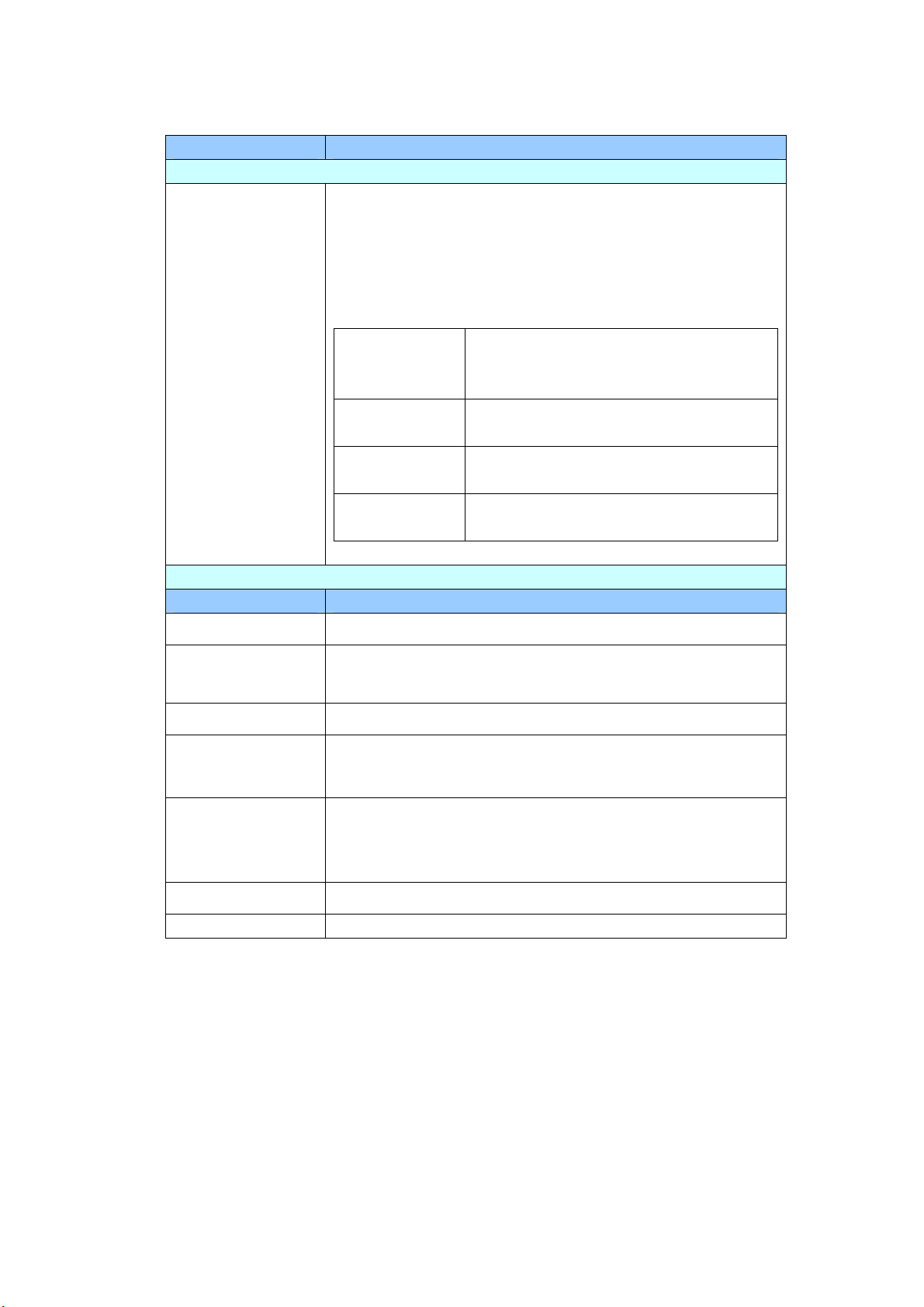
9
0
N et w ork: Used t o specify t he product’s network set t ings.
I tem s Descr iption
W ir ed
DHCP Used t o specify if t he product’s I P address is assigned
by DHCP or a stat ic I P.
Choice: Off, On
I f you have a DHCP server available on your net work
and t he DHCP has been enabled, t he I P address, subnet
m ask, gat eway, and DNS server will be autom at ically
given.
I P Addr e ss The I nt ernet Protocol ( I P) address
assigned to your m achine by your
net work adm inist rator.
Subnet Mask
The net m ask address assigned by
your net work adm inist rat or.
Gatew a y I P The gat eway I P address assigned by
your net work adm inist rat or.
DNS Serve r The Dom ain Nam e Server assigned
by your net work adm inistrator.
Mail Se rver
I tem s Descr iption
Mail Se rver Enter t he I P address of your SMTP server ( m ail server) .
SMTP Port # Enter t he port num ber of t he SMTP server.
* 25
Aut henticat ion
Met hod
Choose to enable t he em ail authentication m et hod.
Choice: OFF, * ON
Encrypt Choose the encryption m et hod of your em ails to t he
SMTP server.
Choice: * N one , STARTTLAS, SSL/ TLS
Login Na m e Ent er t he login nam e for SMTP aut hent icat ion.
Pa ssw ord Ent er t he login nam e for SMTP aut hent icat ion.
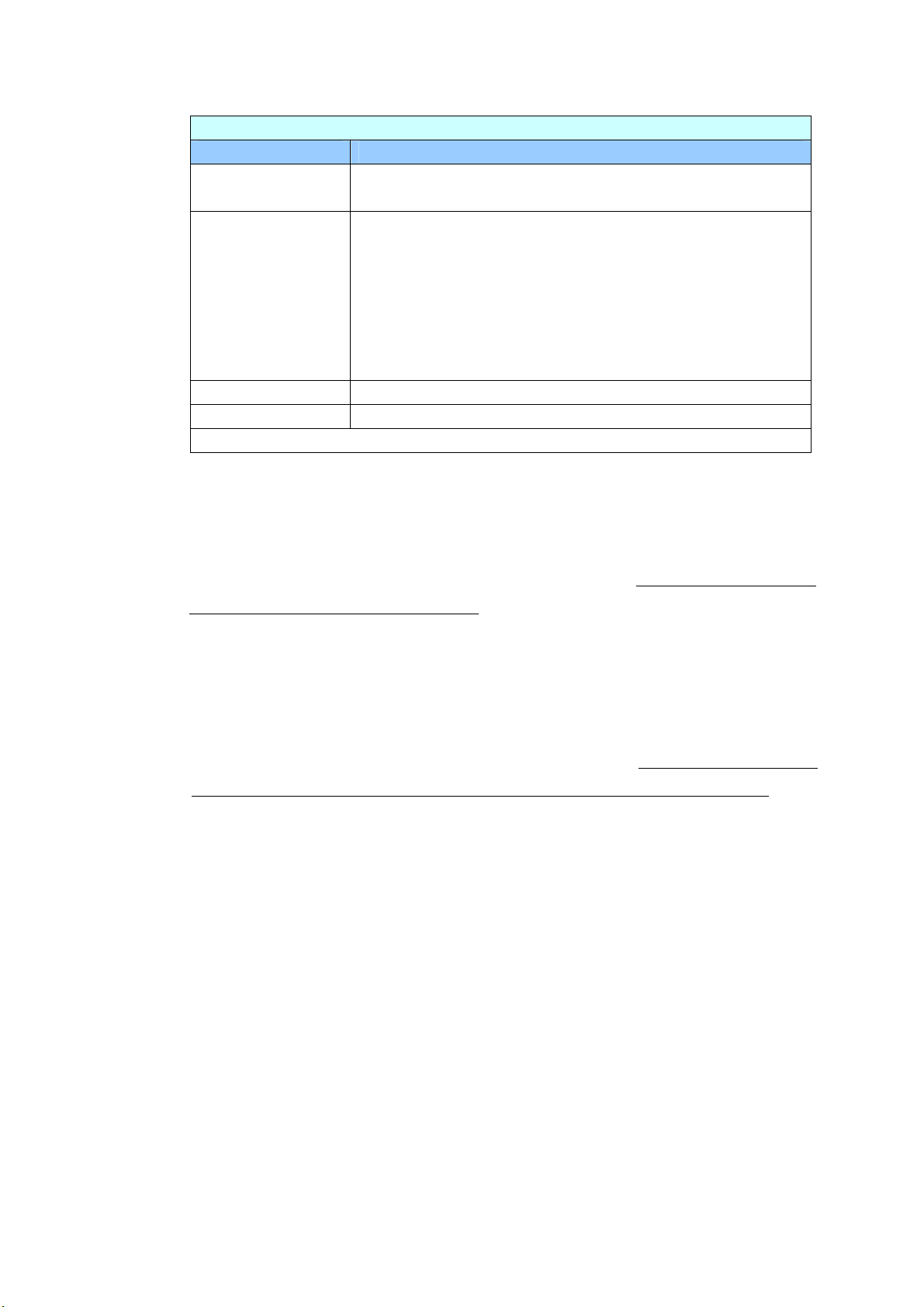
91
LDAP Set t ings
I tem s Descr iption
Aut henticat ion
LDAP
Enter t he I P address of your LDAP server and its port
num ber.
N ew
Set up a new LDAP setting.
Enter I P address and port number of your LDAP server,
Login nam e and password to access t he LDAP server,
and search inform at ion.
N ot e: Check LDAP server inform at ion with your
Network Administrator.
Dele t e
Delet e a current LDAP set ting.
Modify
Modify inform ation of a current LDAP sett ing.
* : Factory Default
E- m ail D efault : Used t o specify t he product’s default scan settings for E-m ail.
The default scan sett ings include 5 t abs which are Basic, E- m ail Opt ion, Advanced
Set t ings, Layout Adj ust m ent . For m ore det ails on t he opt ions of each t ab, please
refer t o t he setting descript ion on t he preceding sect ion, Scanning and Sending
Your Docum ent s to E-m ail Addresses on page 30.
Filing Default : Used t o specify the product’s default scan settings for Filing. The
default scan set t ings include 5 tabs which are Basic, E-m ail Opt ion, Advanced
Set t ings, Layout Adj ust m ent . For m ore det ails on t he opt ions of each t ab, please
refer t o t he setting descript ion on t he preceding sect ion, Scanning and Sending
Your Docum ent s to a Network Folder, a USB Flash drive or a Public Folder on
page 35.
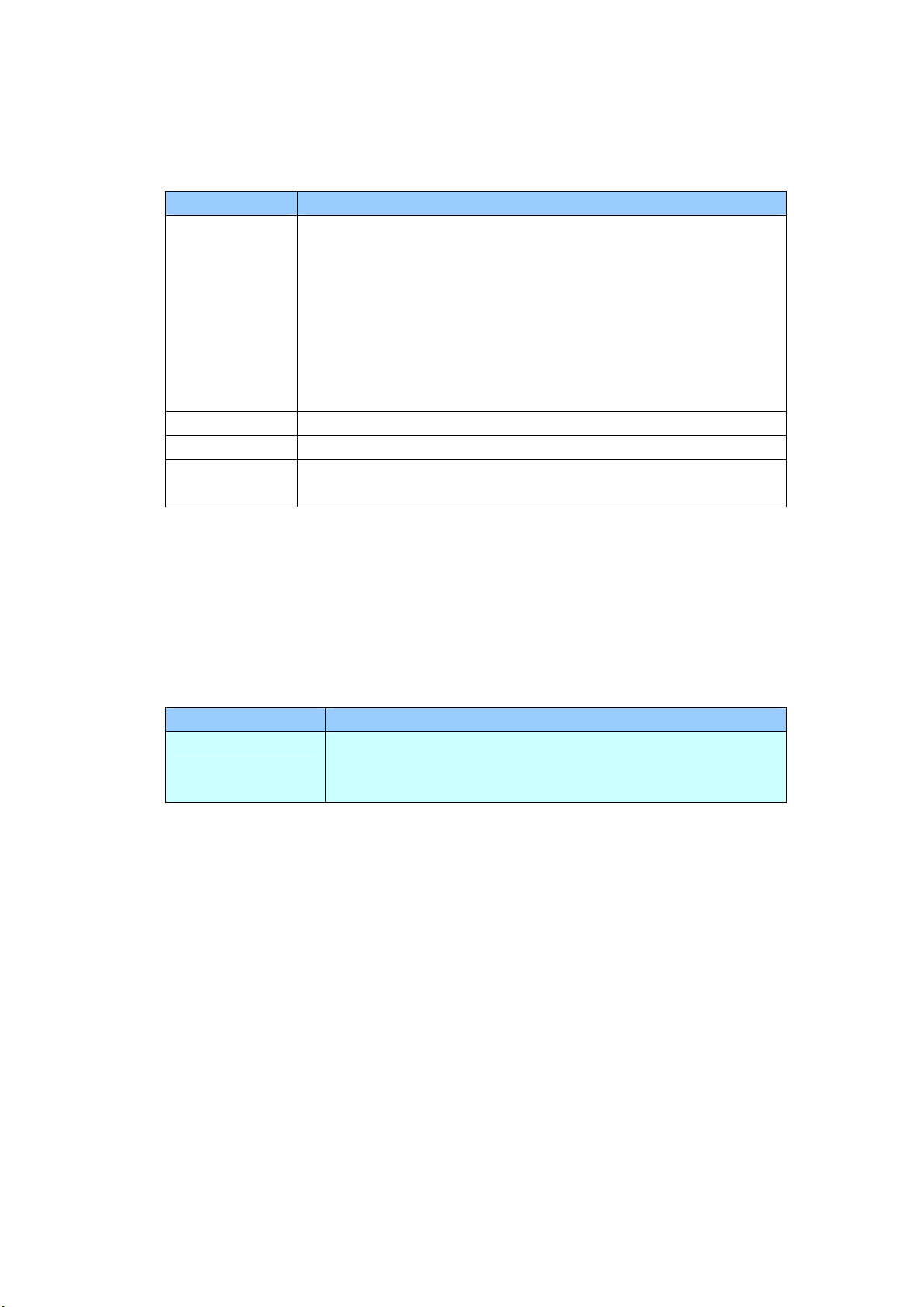
92
Filing Profiles: Used t o set up and m anage your file destinations including FTP,
SMB, USB ( an insert ed USB flash drive), or a Public Folder ( t he m achine’s
m em ory) .
I tem s Descr ipt ion
Add Add a new Filing Profiles.
Enter inform at ion on t he [ Ba sic] , [ Adva nced Set t in gs] ,
[ Layout Adjustm ent] t abs.
For m ore det ails on t he opt ions of each t ab, please refer t o
the setting descript ion on t he preceding sect ion, Scanning
and Sending Your Docum ent s t o a Net work Folder, a USB
Flash drive or a Public Folder on page 35.
Dele t e Delet e a current profile.
Modify Modify a current profile.
Folder N a m e Used to specify t he folder nam e for the dest inat ion.
Address Book : Used t o creat e or edit your address book. Opt ions include Add,
Modify, Delet e, and Group.
Shor t Cut: Used t o set up t he product ’s ShortCut displayed on t he LCD t ouch
panel.
I tem Descr iption
Dest in a t ion Choice: USB Flash, Public Folder, FTP, FTPS, SMB,
E- m ail.
Opt ion: New, Edit , Delet e
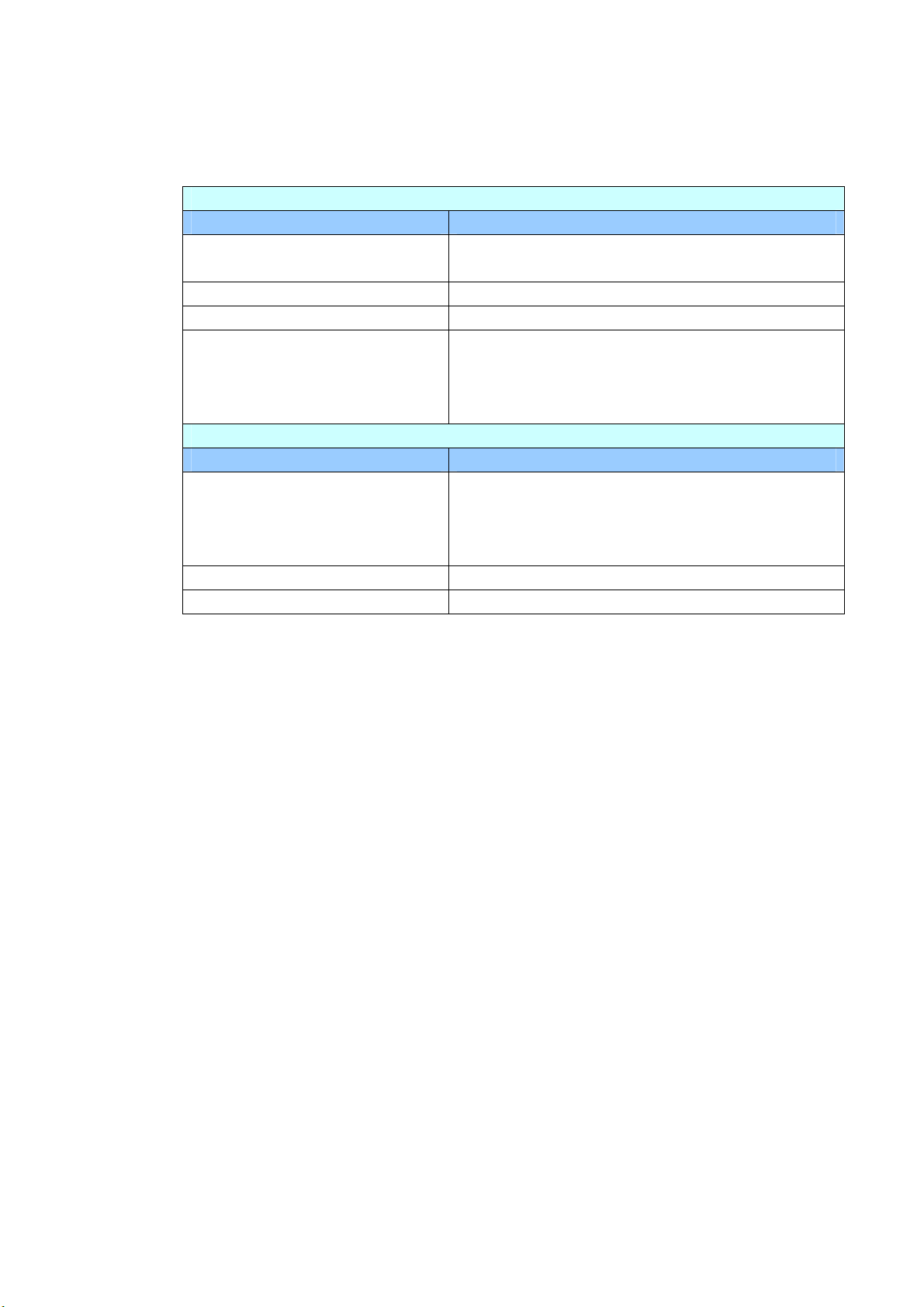
93
Account M a n a gem ent: Used t o define users and set user’s privileges including
using the copy, E-m ail, cloud, or filing funct ion of t he product by assigning an
account’s authent ication m et hod.
Basic
I tem s Descr iption
Enable Securit y
Manage m e nt
Check to im plem ent securit y by sett ing up
accounts and enabling LDAP aut hent ication.
Enable Guest Accou nt
Check to allow guest accounts.
Enable LDAP Aut hentica t ion
Check t o enable LDAP aut hent ication.
Defa ult Enable Function
Check the nam es of funct ions ( Short Cut , Cloud,
E- m ail, Filing, BM2 Air, AP Mode, Scancast ) to
be allowed t o perform .
Account List
I tem s Descr iption
N ew
Set up a new account .
Enter User Nam e, Password, E-m ail Address,
check t he funct ions t o be allowed t o perform ,
and check if using LDAP aut hentication.
Dele t e
Delet e a current account .
Modify
Modify inform ation of a current account .
Firm w a re Upda t e: Obt ain t he lat est firm ware file from t he w eb site
( www.avision.com ) first. And t hen click [ Br ow se] t o find t he file on your
com put er. Finally click [ Update] to updat e the lat est firm ware t o t he product.

94
Configura t ions Cust om ized Only Via the LCD Touch
Scr ee n
There are som e activities which can be set only t hrough the LCD t ouch screen, for
exam ple, t he service m ode. The service m ode is set t o provide saving system
log file, updating firm ware for quick t roubleshoot ing your problem s.
Acce ssing t he Ser vice M ode
To access the service m ode,
1. On t he product’s LCD screen, choose [ Se t t in gs] and t hen [ Se rvice Mode] .
2. The Service Mode screen w ill be displayed w it h following opt ions: [ FW
Upda t ed] , [ Re set t o Defa ult ] , [ Run- in Test] , and [ Sa ve Log] .
FW Updated: Follow t hese steps to updat e the firm ware:
1. Locat e the latest firm ware file from t he web
sit e ( http: / / www.avision.com ) .
2. Store the firm ware file on your
rem ovable USB
disk.
3. Plug t he rem ovable USB disk int o the USB disk
port of t he m achine.
4 . Tap [ FW Upda t ed] to updat e the firm ware
file.
Re set t o Defa ult : Choices include [ Reset Adm in] , [ Reset N e t w ork
Sett ings] , [ Re set Adm in and N e t w or k ] , [ Re set
t o Fa ct or y D e fault ] .
Reset Adm in: Reset t he login user nam e and
password of t he product’s web page.
Reset Network Settings: Reset the net work settings
to fact ory default .
Reset Adm in and Network: Reset both t he login
inform at ion and the net w ork sett ings t o default.
Reset t o Fact ory Default : Reset all configurat ions t o
factory default values.
Run- in Test: For int ernal use only.
Save Log: Plug a rem ovable USB disk int o t he USB port of t he
m achine and t ap [ Sa ve Log] t o save syst em log
file.

95
Adj ust ing Bright ness
To adj ust bright ness on t he LCD screen, follow t hese steps:
1. On t he product’s LCD screen, choose [ Sett ings] and t hen [ Device
Manage m e nt ] .
2. Tap t he [ Bright ness] opt ion and m ove the scroll bar to t he right to increase
your bright ness or t o the left t o decrease your bright ness of t he LCD screen.
Select ing Language
To select t he language, follow t hese st eps:
1 . On t he product’s LCD screen, choose [ Sett ings] and t hen [ Device
Manage m e nt ] .
2 . Tap the [ La nguage] option and select your language display on t he LCD
screen. Choice: English, Chinese Tradit ional, Chinese Sim plified, Spanish,
Portuguese, and Hebrew.
3 . Tape [ Sa v e] t o save t he settings.

96
Configura t ions Cust om ized Only Via the Product ’s
W eb Pa ge
There are som e activities which can be set only t hrough the product’s w eb page.
For exam ple, som e opt ions on [ Device M a nage m e nt] , [ I m port / Expor t ] , and
[ Public Folde r ] . How t o use t hese opt ions will be described in t he following
sections.
Ex port ing a nd I m por t ing Syst e m Dat a
To easily m anage several AN335WN in t he net work, t he m achine provides a useful
feat ure t o allow system adm inistrator t o export t he system dat a of one AN335WN
int o a file and t hen im port t his data t o ot her AN335WN in the network.
For exam ple, t he address book, Filing Profiles, and default system s settings of one
AN335WN can be first exported t o a file as a backup and t hen im port t hese files to
ot her AN335WN.
Follow t he procedure described in below t o export and t hen im port your system
data.
To export syst em dat a,
1. On t he product’s web page, choose [ I m por t / Expor t ] .
2. Choose t he syst em dat a you want t o export. Choice: Address Book, Filing
Profiles, Settings ( Device Managem ent , Account Managem ent, Mail
Server/ LDAP Server, E-m ail Default, Filing Default ) .
3. Choose [ Ex port N ow ] . The select ed system dat a will be exported into a file.
I f [ a ddress book] is select ed, an AN335WN_addressbook.csv file will be
generated. I f [ Filing Profile s] or [ set t ings] is selected, an
AN335WN_profile.json or AN335WN_setting will be generated...
4. Save t he exported file int o your com put er as a backup.

97
To im port system dat a,
1. On t he product’s w eb page, choose [ I m port / Expor t ] .
2. Choose t he system dat a you want t o im port. Choice: Address Book, Filing Profiles,
Set t ings ( Device Managem ent , Account Managem ent, Mail Server/ LDAP Server,
E- m ail Default , Filing Default) .
3. On t he I m porting opt ion, choose [ Brow se ] to locate the system dat a which you
have been previously exported.
4. Choose [ I m por t N ow ] t o st art im porting t he system dat a t o your m achine. The
current system data will be overwritt en.
Acce ssing t he Public Folde r
The m achine allows you t o save t he scanned im age tem porarily to t he product’s
m em ory and then access t he scanned im age t hrough the product’s web page. To
access t he scanned im age, follow t hese steps:
To access the scanned im age,
1. On t he product’s w eb page, choose [ Public Folder] .
2. A Pin num ber dialog box appears. If desired, enter your pin num ber to access t he
public folder.
3. Choose your scanned file on t he [ Public Folder] and click [ D ow nloa d] t o
download t he file t o your com put er.
Note: The scanned im ages can be saved on t he product’s m em ory for 24 hours
only. After 24 hours, t he im age files will be aut om at ically delet ed.
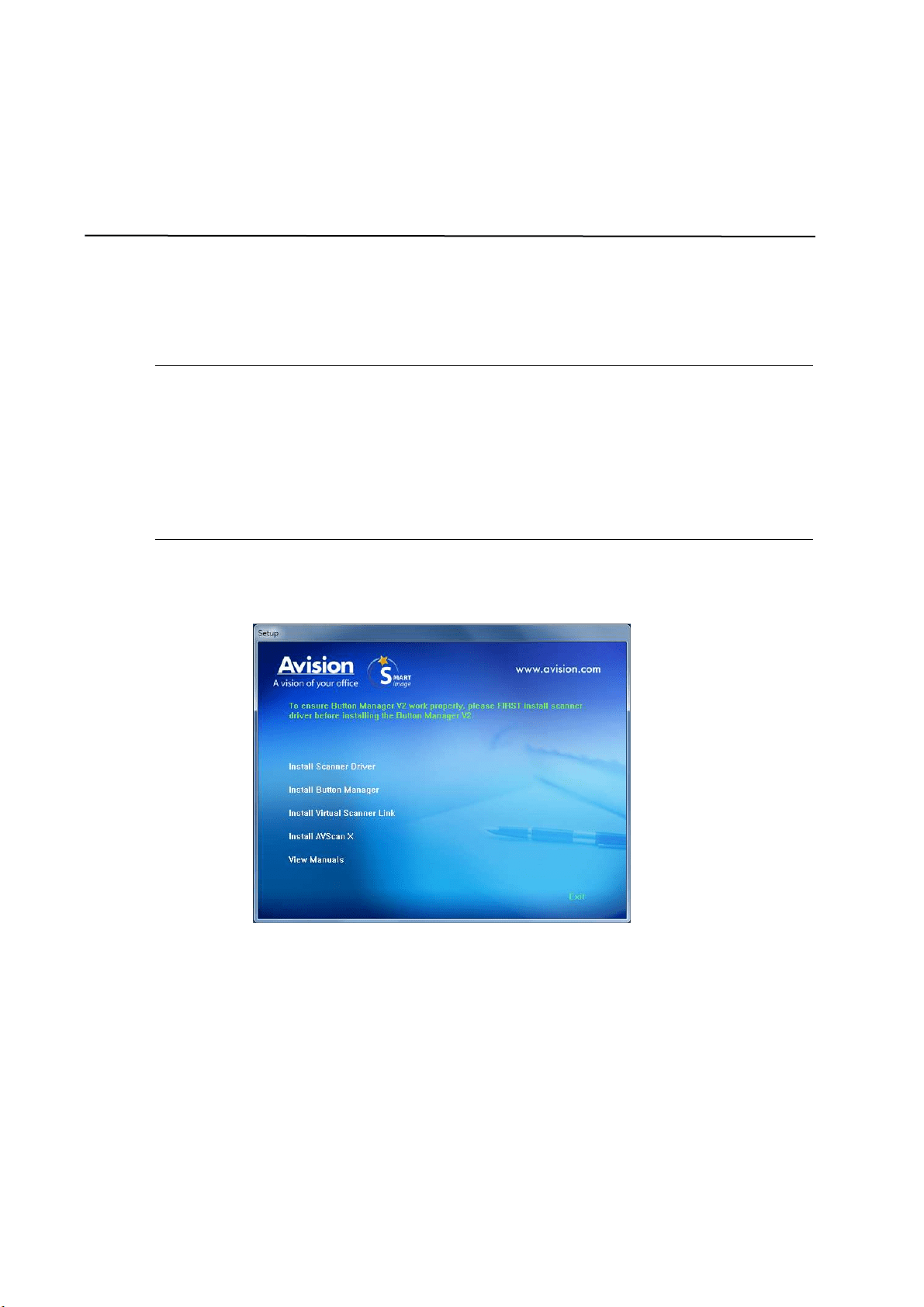
98
7 Using t he Product as a
Regular Scanner
I nst alling the Sca nner Driver
N OTE:
1 ) . To ensure your com put er can ident ify t he USB scanner, please inst all scanner
driver first before connecting t he scanner to your com put er.
2 ) . The scanner driver cont ains TWAI N, I SI S and WI A driver. Aft er t he
inst allat ion of scanner driver is com plet ed, t his scanner allows you t o scan via a
TWAI N, I SI S, or a WI A int erface. Start your TWAI N- com pliant im age edit ing
soft ware application t o select a TWAI N or WI A user interface or your I SI S soft ware
to select an I SI S user int erface. You m ay also launch Microsoft ’s Scanner and
Cam era Wizard t o scan via a WI A user int erface.
1 . Place t he supplied CD-ROM ont o your CD- ROM drive.
2 . The soft ware inst allat ion graphic appears. I f not, run “se t up.exe”.
Contents on t he inst a llat ion gra phic:
I nst all Sca n ner D r iver: To com m unicat e with your scanner, you need t o
inst all t he scanner driver.
I nst all Butt on Ma nage r V2 : To use t he [ BM2 Air] funct ion, you need t o
inst all But t on Manager V2. To ensure But t on Manager V2 works properly,
please FI RST install scanner driver before installing But t on Manager V2.
I nst all Virtual Scanner Link: To connect your com puter t o t he scanner in
the net work, you need to inst all t he Net work Set up Tool.
I nst all AVScan X: To scan and organize your m ulti- page docum ent ( s) ,
you can install the soft w are applicat ion t o m anage t hem easily and
effectively.
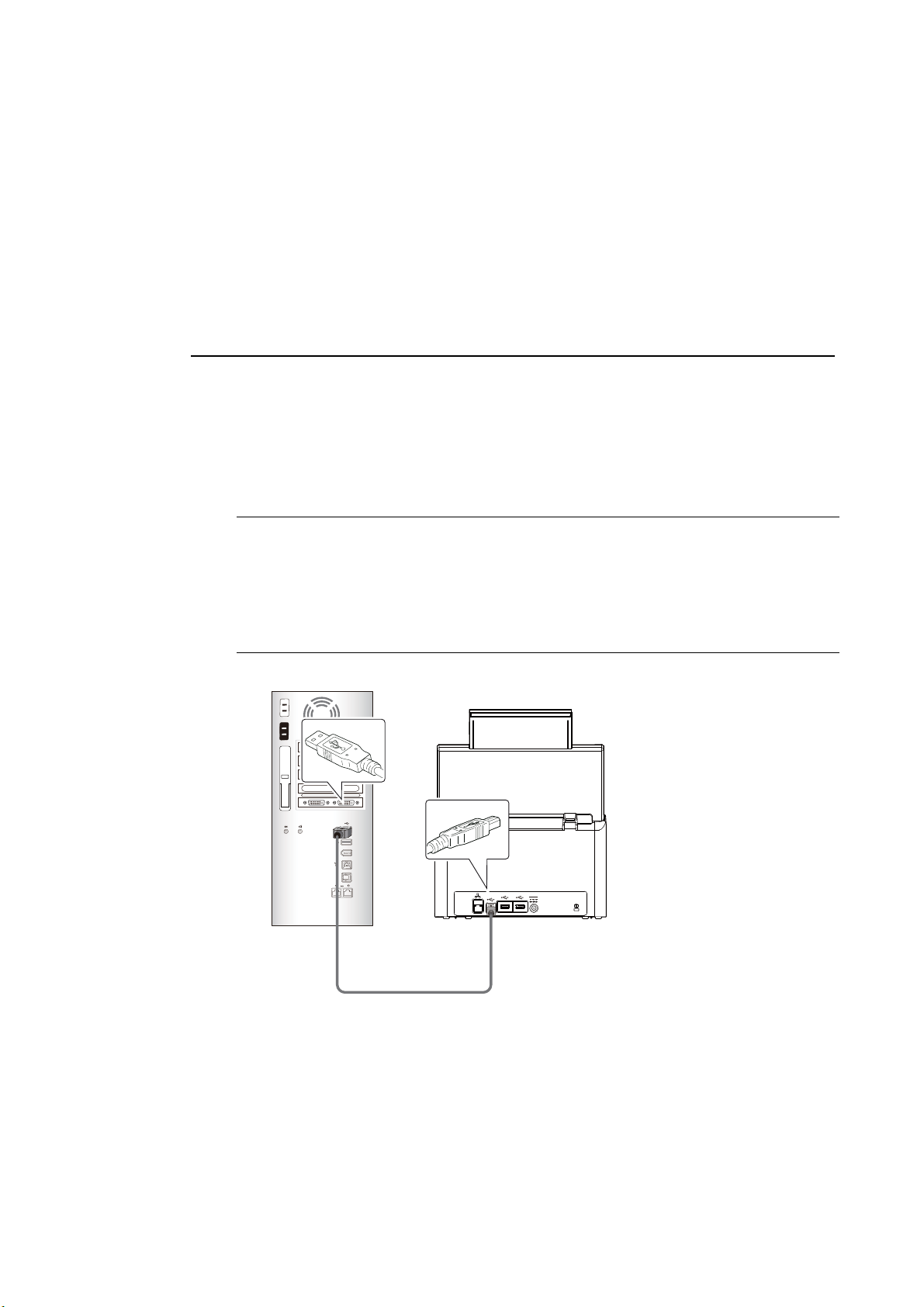
99
View Manua l: Click “View Manua l” t o view or print the det ailed user
m anual for t he scanner and Butt on Manager V2 respectively.
3 . Click I nstall Scanne r Driver t o inst all the scanner driver and t hen click
I nstall Butt on Manager V2 to install t he But t on Manager V2 unto your
com put er.
Connect ing to the Com put er
Via a USB Ca ble
1 . Connect the square end of t he USB cable t o t he USB port of your scanner.
Connect the rectangle e nd t o t he USB port at t he rear side of your com put er.
N ot e:
The scanner is designed wit h a USB 3.2 GEN 1X1 int erface to ensure the
opt im al speed. I f your com put er com es wit h a USB 3.2 GEN 1X1 port ,
m ake sure t o connect t he scanner t o your com put er t o t he USB 3.2 GEN
1X1 port which is distinguished in blue color at t he back of your com put er.
The USB 3.2 GEN 1X1 port enhances your scanning speed and is also
com pat ible wit h USB 2.0 and USB 1.1.
2 . The com puter should detect a new USB device and prom pt a “N ew
Hardw a r e Found” m essage.
3 . By following t he on- screen inst ructions, click t he N ext but ton to continue.
When the certificat ion screen appears, click Cont inue Anyw ay t o com plete
the installat ion.
4 . When t he Finish dialog is prom pt ed, click t he Finish button.
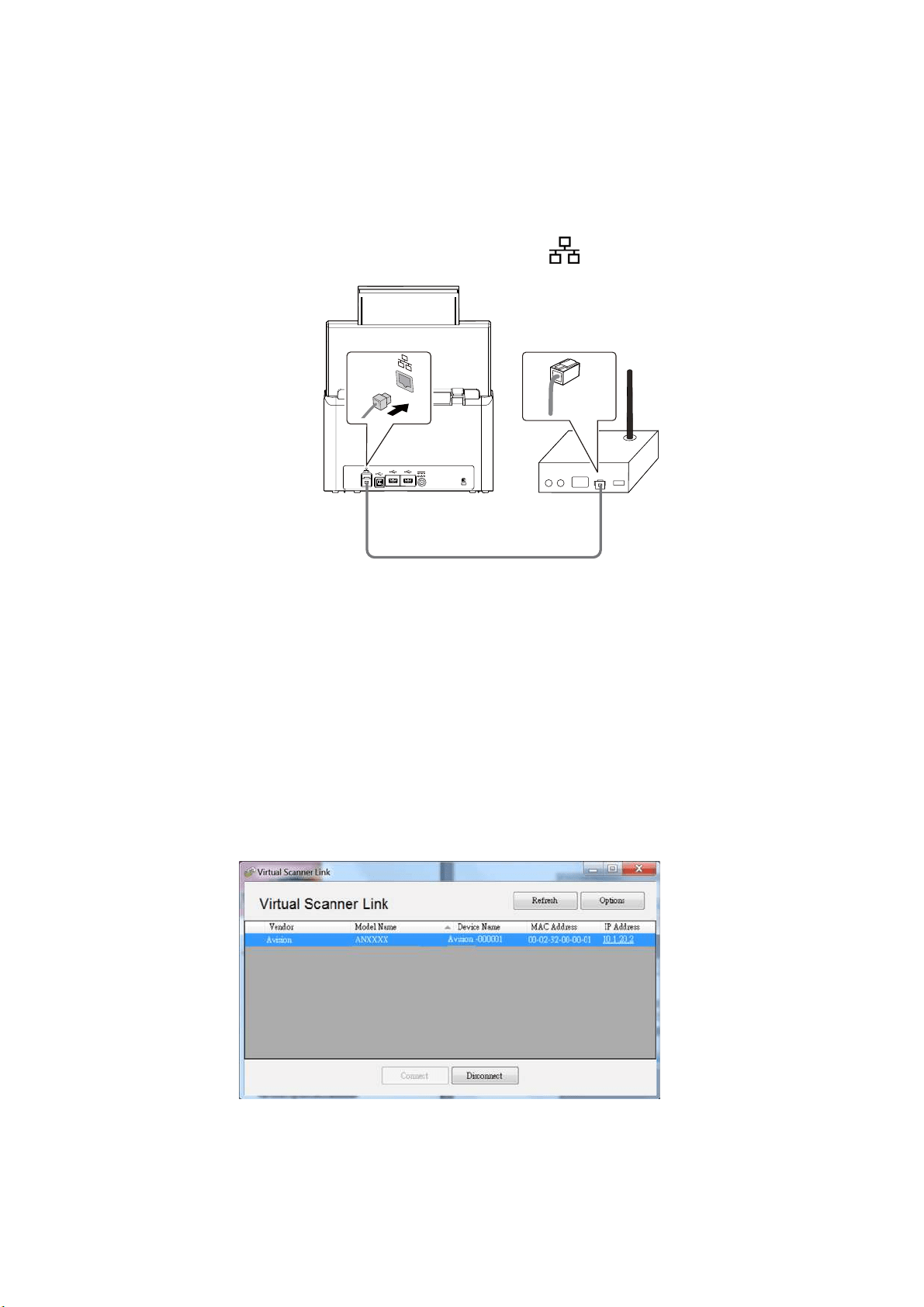
10
0
Via a W ir ed N e t w or k
1 . Connect one end of your Ethernet LAN cable to an available port of your
Et hernet Hub
.
2 . Connect t he other end t o t he port m arked
at t he back of t he product.
Connect ing to the N et w ork Sca nne r
Before connecting to the net work scanner, m ake sure that Virtual Scanner Link
( Network Set up Tool) has been installed ont o your com put er. The Network
Set up Tool is included in t he supplied soft ware CD.
1 . St art [ Virt ual Scanne r Link] by choosing St a r t > All Progr a m s> Avision
Virt ual Sca nner> Virt ual Scann er Link. The m ain window will be displayed
and t he scanners in your net work will be searched autom at ically. I n a few
seconds, t he result including t he scanner m odel and scanner’s I P address w ill
be displayed as shown.
2 . Choose t he scanner you wish t o connect and then press [ Conne ct ] . I f
connection is successful, a connection m ark will be displayed as shown.
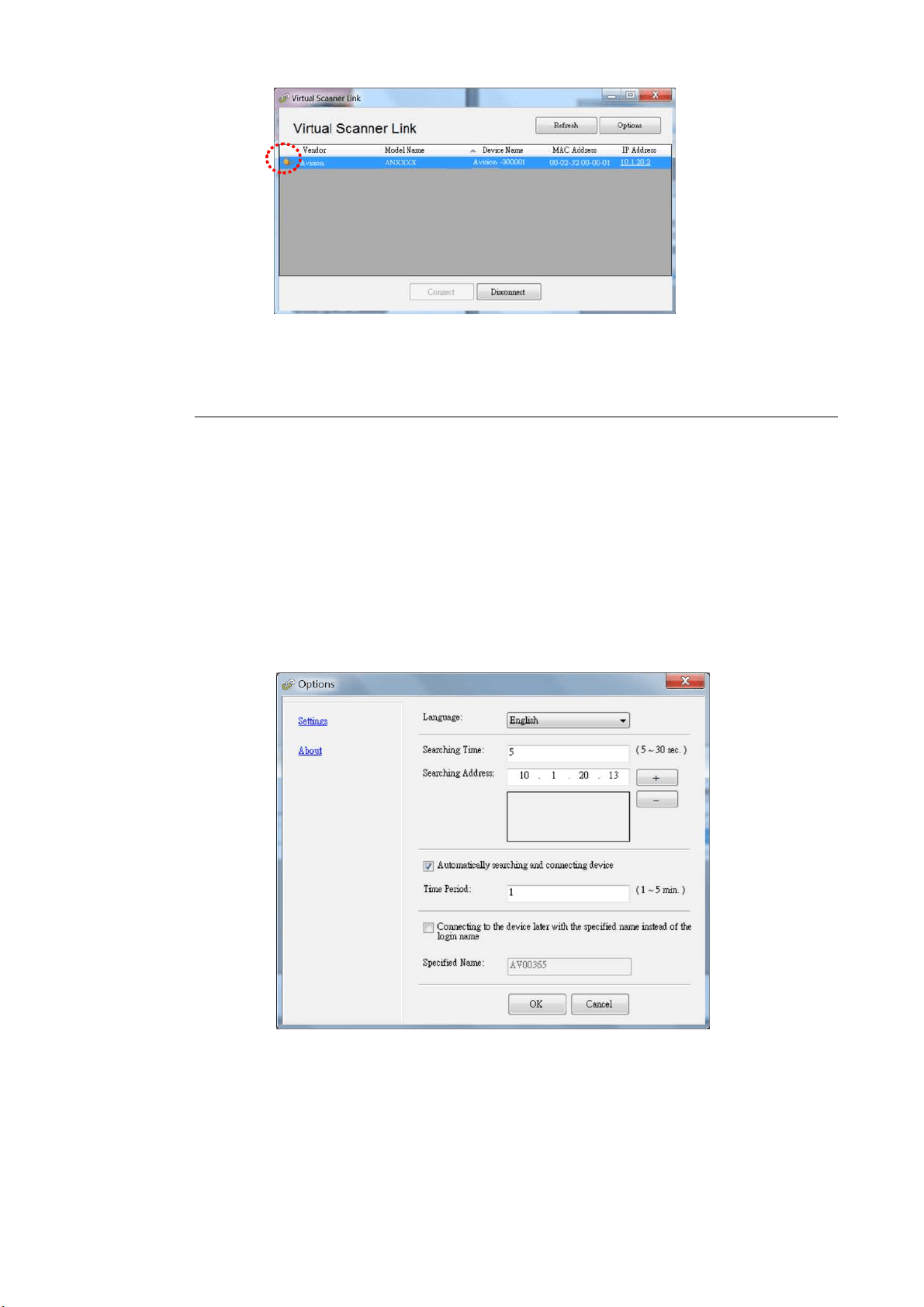
101
3 . After t he scanner has been connected successfully, launch your
TWAI N- com pliant im age- editing soft ware application t o start a scan.
N ot e:
The net work scanner can be used by one user at a t im e. I f t he net work
scanner is being used by ot her user, you w ill be prom pt ed wit h a m essage t o
connect t he scanner lat er. When the scanner is available, you will also be
prom pt ed wit h a m essage t o connect the scanner and start scanning your
docum ent .
I f t he net work scanner has not been found, it is probably t he scanner and
your com put er are not in t he sam e LAN. In t his case, you can assign a
specific I P address of t he scanner t o let [ Virtual Scanner Link] aut om at ically
search the scanner. Click t he [ Opt ion] but t on, t ype your I P address on the
[ Searching Address] field ( 1 ) , t hen click t he [ + ] but t on ( 2 ) and finally click
[ OK] ( 3 ) to com plet e.
Searching Tim e: When t he program is launched, it autom at ically searches t he
scanner in t he net w ork in 5 seconds (default ) . The searching t im e can be
changed from a range of 5 t o 20 seconds.
I f t he [ Virtual Scanne r Link ] program has been closed and t hen launched
again, [ Vir t ual Scann er Link] will aut om at ically search and connect t he
net work scanner it has previously connect ed t o.
(1)
(2)
(3)
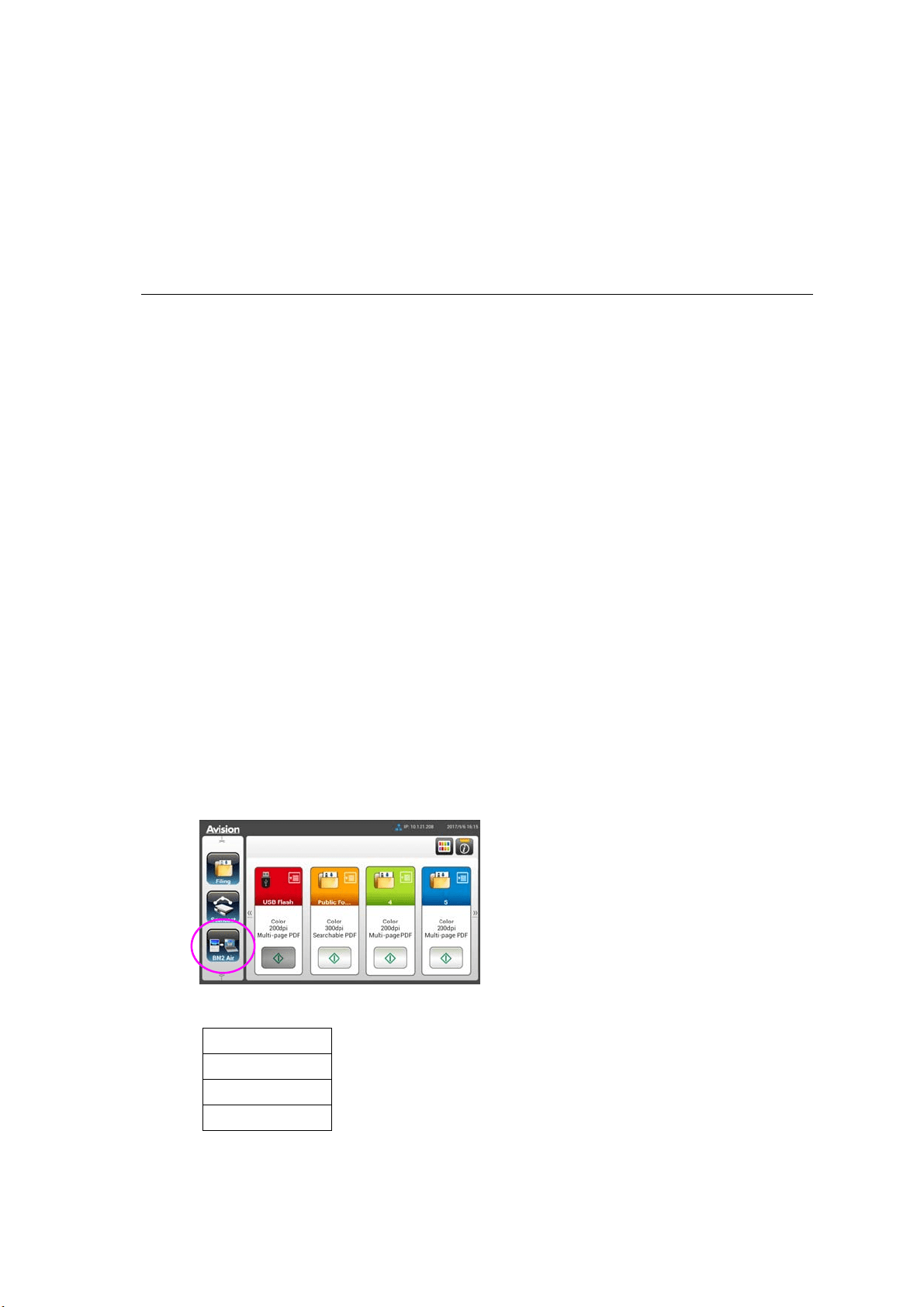
10
2
The connection is always enabled, whet her t he scanner enters into t he sleeping m ode
or t urns off and on again. VSL will aut om at ically detect t he previously connected
scanner and connect again.
[ Au t om atically searching and con necting de vice] : Check t his opt ion and
ent er your t im e ( 1~ 5 m in.) t o allow the VSL t o reconnect t o the device every
specified m inut e( s) if t he device has been woken up during sleep m ode or t he
device has been t urned off and on again.
[ Con necting t he de vice w ith a specified nam e instead of a login na m e] :
Check this opt ion and ent er your desired nam e for the com put er. Yet you need
to reconnect the device again t o refresh t he stat us.
How t o Sw it ch to Anot her Com put er on the Net w ork
Sca nne r
Please follow t hese steps t o connect the net work scanner to other com put er in t he
net work:
1 . Turn on the scanner.
2 . Make sure t hat a LAN ( Ethernet ) cable has been connected t o the scanner
and t hat t he Virt ual Scanner Link ( VSL) has been installed t o your com put er.
( Refer t o t he preceding sect ion)
3 . On your com put er, st art [ Virt ual Sca nner Link] by choosing Start> All
Pr ogram s> Avision Vir t ual Scanner> Vir t ual Scanner Link. The m ain
window will be displayed and the scanners in your net work will be searched
aut om at ically.
4 . I n VSL m ain window, connect t he scanner.
5 . Open But t on Manager 2 by choosing Start> All Program s> Avision But t on
Manager.
6 . On t he scanner’s screen, select [ BM2 Air] icon.
7 . A list of com put ers ( login nam es) connecting t o t he scanner will be displayed.
8 . Select t he com put er you want to connect. The But t on Panel will be displayed.
1. PC 1
2. PC 2
3. PC 3
4. PC 4
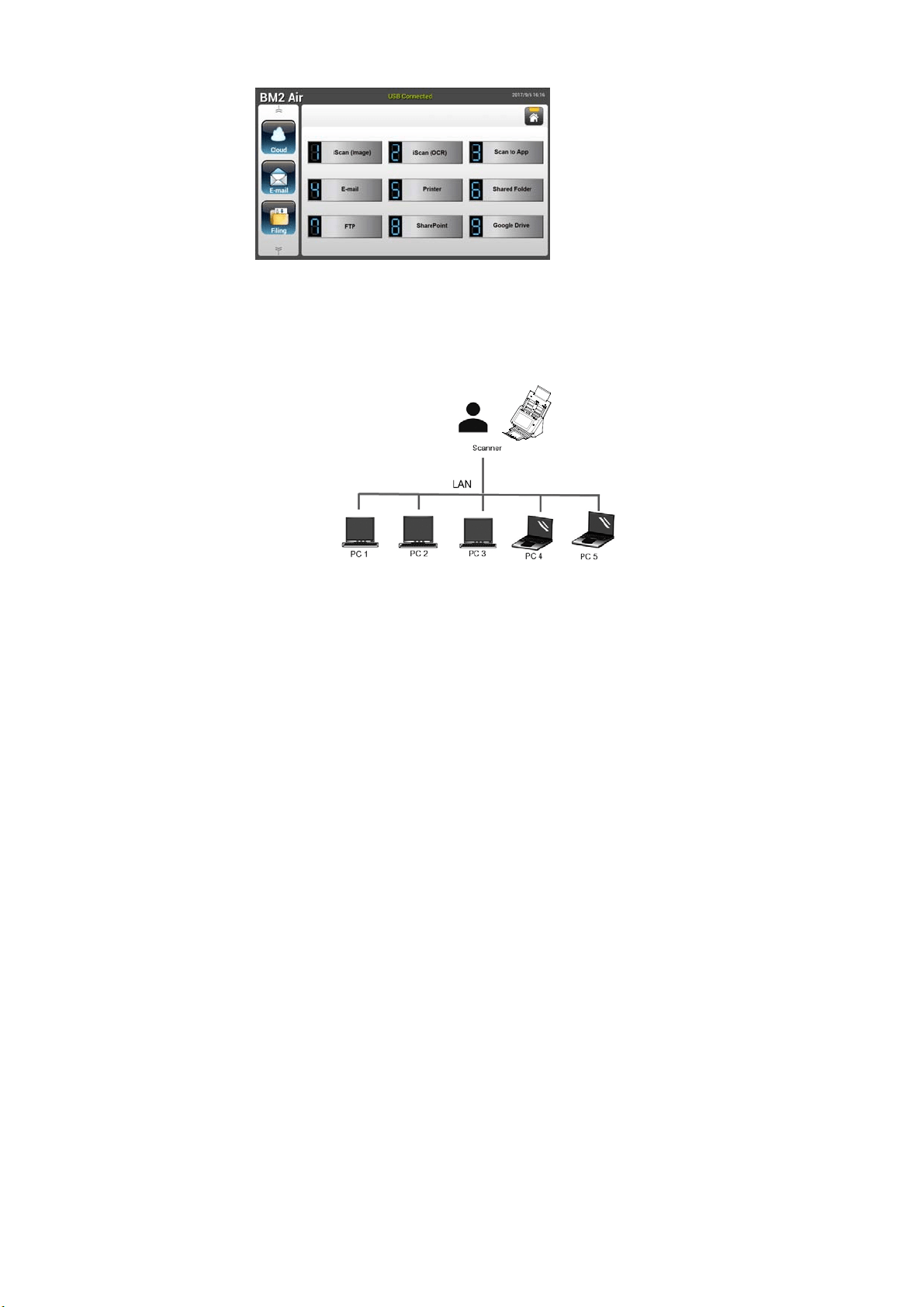
103
9 . Use t he Arrow key t o select your desired But t on No. or dest ination.
1 0 . The scanner st arts feeding y our paper and t he scanned im age will be sent
to your specified applicat ion or destination.
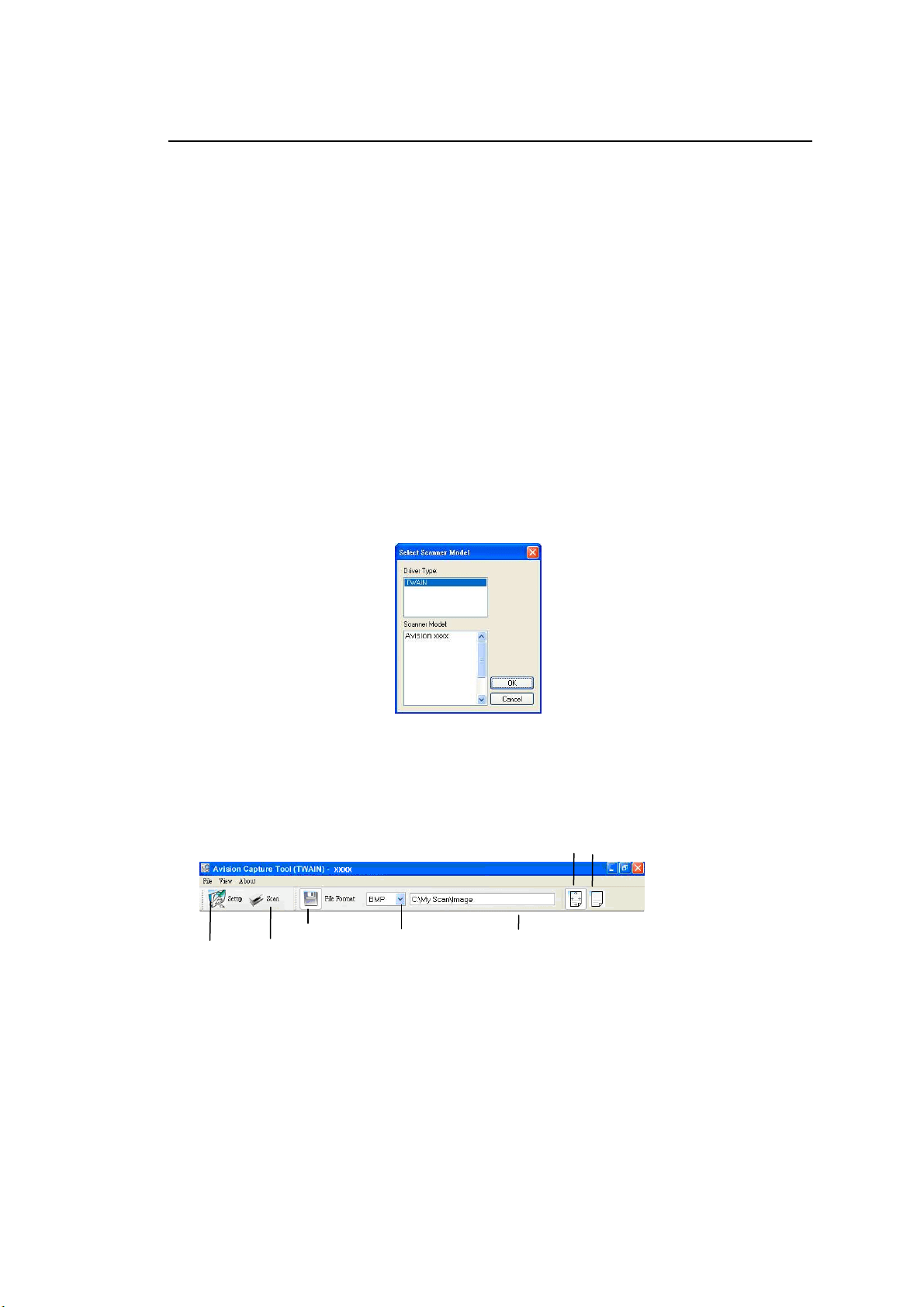
104
Ve rifying Your Sca nne r I nstalla t ion
To verify if your scanner installat ion is correct, Avision provides you a useful t est
program called Avision Capt ure Tool. With t his t ool, you can perform sim ple
scans and view t he capt ured im ages. I n addition, it helps you com plet e your
scan at a rated speed.
The following procedure describes how t o verify your scanner installat ion. I f t he
installat ion is not correct, please review t he preceding sect ion t o check if t he
cable connection and scanner driver have been successfully installed.
Before you begin, be sure the scanner is on.
1. Select St art> Program s> Avision xxx Scanner> Avision Capt ure Tool. The
Select Scanner Model dialog box will be displayed.
2. Select your driver t ype and scanner m odel and click OK. The following
Avision Capture Tool dialog box w ill be display ed.
File Form at
Set up
Actual
Size
Fit
Page
Scan
Save
File Path
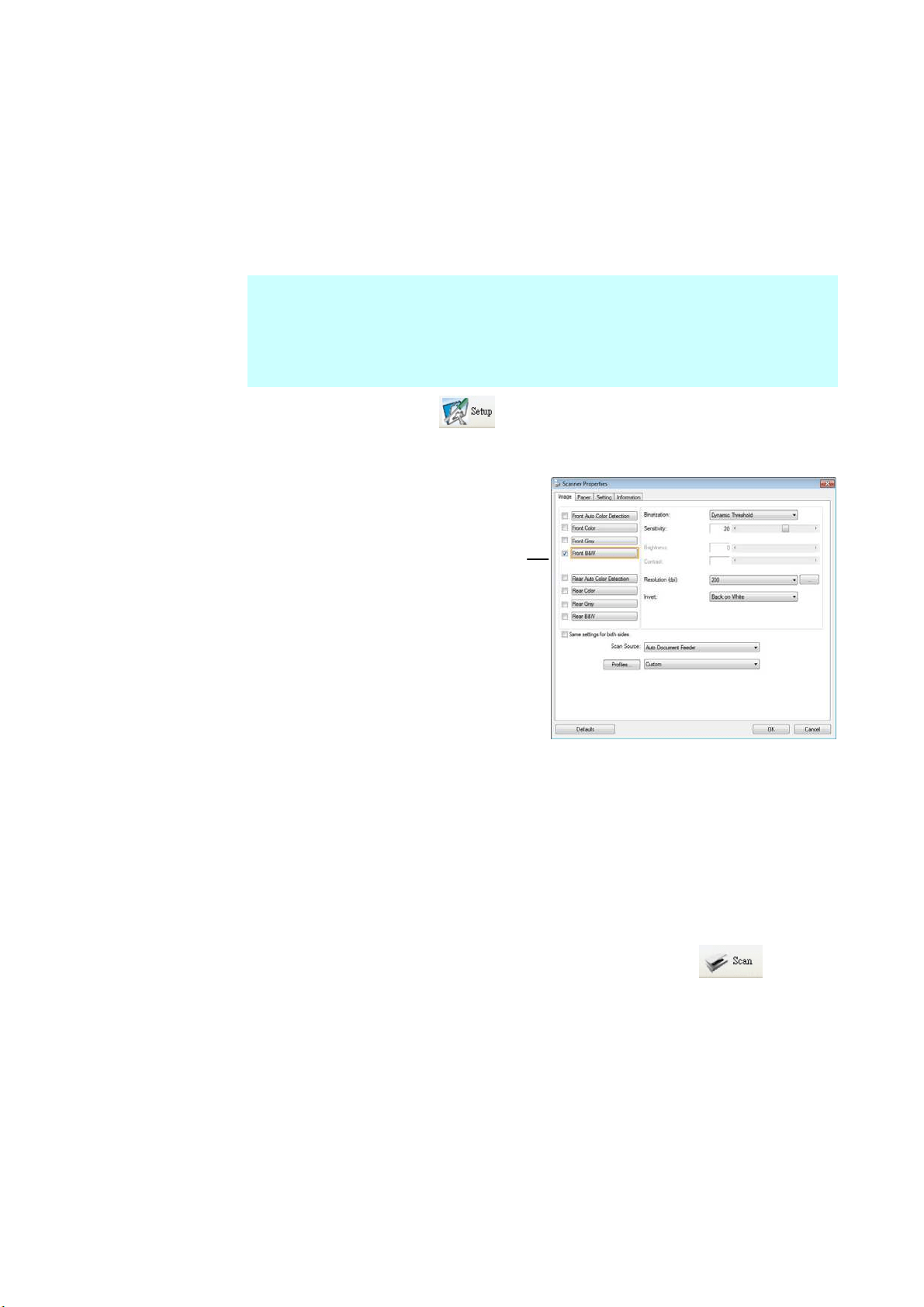
10
5
3. Choose your desired file form at from t he File Form at drop down list box.
( Default is JPEG, other choice includes TI FF, MTI FF, PDF, MPDF, GI F, and
BMP.) The support ed file form at s vary depending on your scanner m odel.
4. Type your desired folder nam e and file nam e in t he File Pat h box. ( Default is
C: \ Docum ents and Sett ings\ User Nam e\ My Docum ent s\ My Scan\ I m age.)
N ot e: I f you do not wish t o save the scanned im age, deselect the Save
but t on since default is Save Enable. I n this case, t he t hum bnail v iew will
be disabled. And t herefore, aft er viewing all t he scanned im ages, only
t he last one w ill rem ain on t he screen.
5. Click t he Set up but t on (
) or choose Set up from t he File m enu t o
prom pt t he Scanner Properties dialog box.
6. From t he I m age Selection Box, choose your desired im age t ype for your
scanned im age. ( Default is Front B&W) I f you have a duplex scanner,
choose Front and Rear to scan bot h sides of your docum ent.
7. Click OK t o quit t he Scanner Properties dialog box. ( To learn m ore
details about t he Scanner Properties dialog box, please see the
subsequent chapter, Using t he Scanner Propert ies Dialog Box.)
8. Place your docum ent face down on the docum ent glass or face up in t he
aut o docum ent feeder.
9. I n t he Scan Validation dialog box, click t he Scan button (
) or
choose Scan from t he File m enu.
10. The docum ent will be scanned and display ed in t he Scan Validat ion screen.
After t he scanned im ages have been displayed, your scanner inst allat ion
verification is com plet ed.
I m age
Select ion
Box
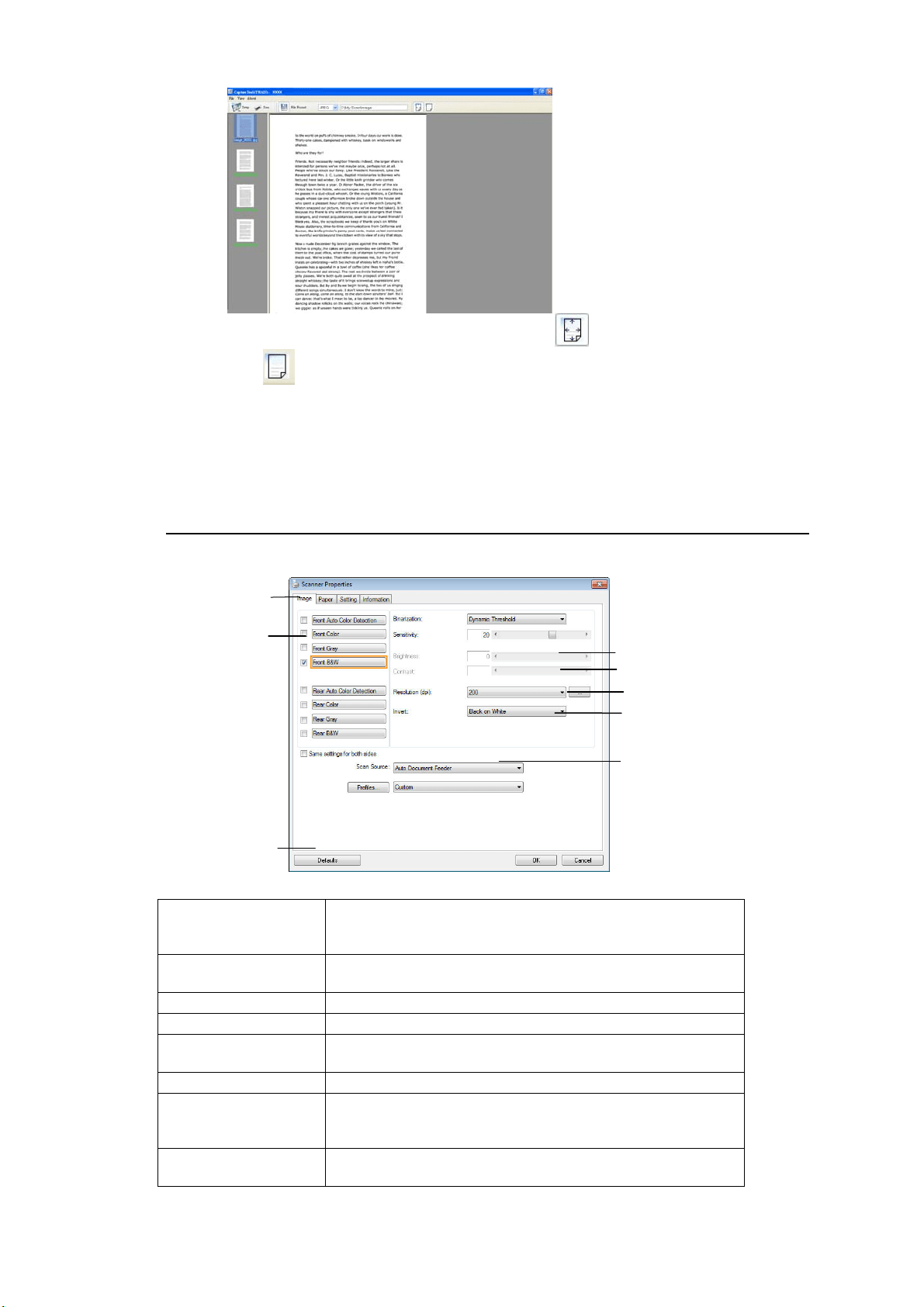
10
6
11. You can view t he scanned im age in Fit Page (
) or Actual Size (100% )
but t on (
) from t he Viewing t oolbars at t he right side.
12. Click t he Close box or Quit from t he File m enu t o exit t he Scan Validation
Tool.
A Glance of the Scanner Propert ies Dialog Box
1 . Ta b Options Choice: I m age, Com pression, Color Dropout , Paper,
Mult i- Feed Detect ion, Preview, Opt ions, Settings,
I nform at ion.
2 . I m a ge Sele ction
Box
Choose your im age t ype and t he side of docum ent you
wish to scan. Opt ions vary based on t ype of scanner.
3 . Bright ness Adj ust t he bright ness level from –100 t o + 100.
4 . Contrast Adj ust the cont rast level from –100 t o + 100.
5 . Resolution
Determ ine t he qualit y of t he scanned im age. The
industry standard is 200 dpi.
6 . I nvert Reverse t he color of your scanned im age.
7 . Scan Sou rce Choice: Aut o Docum ent Feeder, Flat bed, Flat bed
( Book), Autom at ic ( varies due t o different scanner
m odel)
8 . Defa ult s Reset all values on t he t abs t o t he fact ory default
set t ings.
3
4
5
6
7
1
2
8
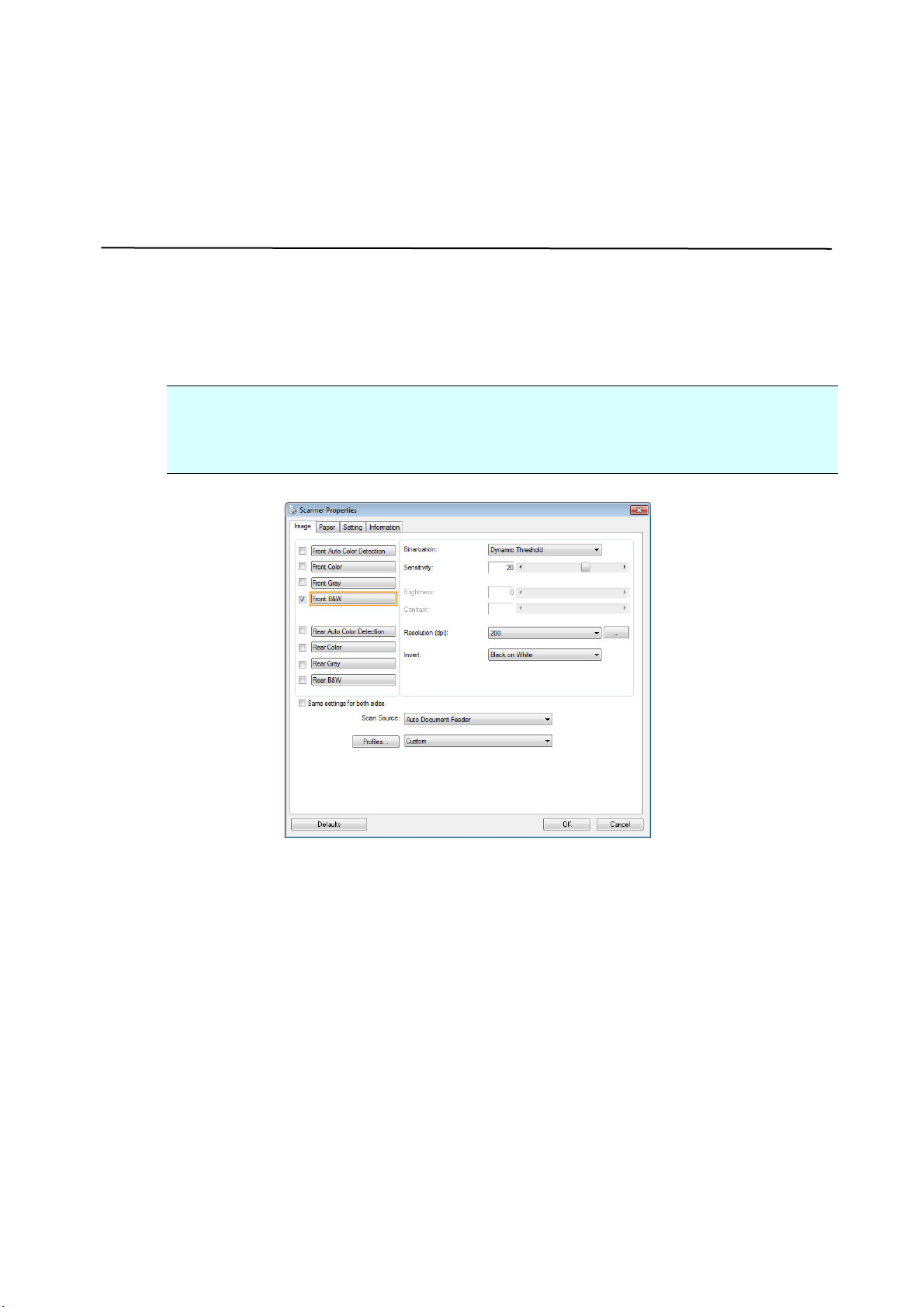
107
8 Using t he Scanner Propert ies
Dialog Box
The Scanner Properties dialog box allows you t o configure the scanner’s set t ings. I t
consists of several tabbed windows each of which will be described in t his chapt er.
N ot e: I n t his chapter, all opt ions are available based on a duplex ( double- side)
scanner. If you have purchased a sim plex ( single- side) scanner, all opt ions are
available for single sided only.
The Scanne r Proper t ie s dialog box
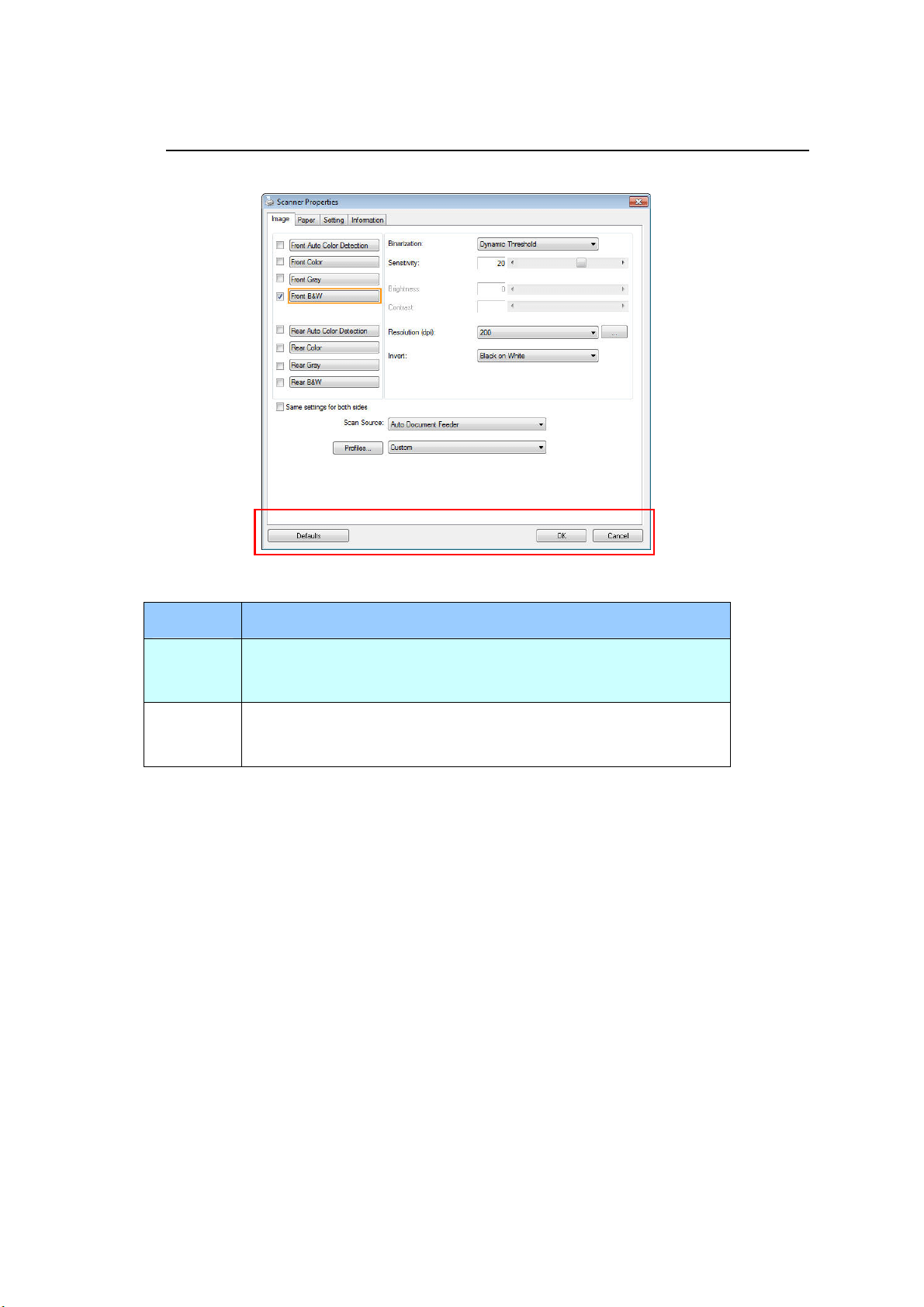
108
But tons on the Sca nner Proper t ies Dialog Box
The but t ons on t he Scanne r Proper t ies dialog box
Butt ons
Descr iption
Defa ult s Click t he D efault s button, t he fact ory default sett ings will
be shown on each t ab.
Cance l Click t he Cance l but ton to leave t he Scanner Properties
dialog box.

109
The following table shows t he default settings:
Tab nam e D e fault sett ings
I m a ge I m age:Front B&W
Binarization:Dynam ic Threshold
Resolut ion:200 dpi
I nvert :Blank on Whit e
Scan Source:Aut o Docum ent Feeder
Threshold:None
Bright ness:None
Cont rast:None
Com pre ssion None
Color Dropout None
Pa pe r Cropping:Autom at ic
Deskew:Yes
Orient ation:Portrait
OverScan:0.00
Note: The availabilit y of this opt ion varies
due t o scanner m odel.
Unit :I nch
Mult i- Feed
Detection
None
Pr e view None
Opt ions Rot at ion Degrees:None
Blank Page Rem oval:None
Edge Fill:White,0 m m
I m age Cont rol Opt ion:None
Sett ing Enable Energy Saver:Enable, 15 m inut es
aft er last scan act ion
Show Scanning Progress:Yes
Show Warning Message:Yes
Save Set tings aft er Closing:Yes
I m print er Digit al I m print er
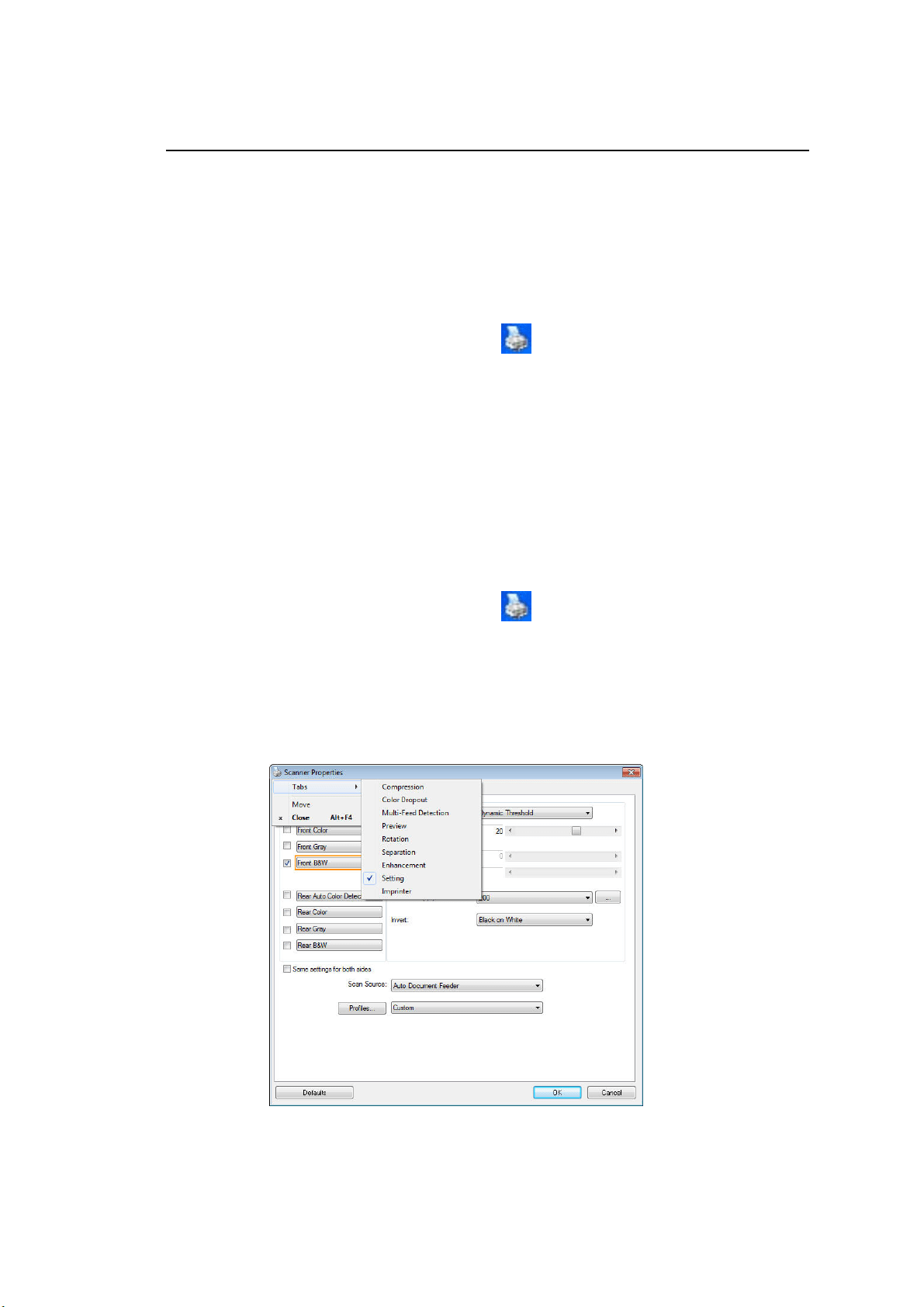
11
0
Show ing or Hiding Ta bs
The [ Sca n ner Properties] dialog box is displayed in default with three basic t abs
- I m age, Paper, and I nform ation. To show m ore t abs, click t he [ Scanner
Pr operties] icon t o access m ore scan sett ings.
To show m ore t abs,
1. Click t he [ Scanne r Propertie s] icon (
) on t he upper left corner, and
choose [ Tab] t o show available tab nam es. The available t abs include
Com pression, Color Drop out , Preview, Rotation, Separation, Multi- Feed,
Opt ions, Set t ings, and I m print er. (Note: t he opt ions vary based on scanner
m odel.)
2. Choose t he t ab you want t o display. The selected tab will be shown wit h a
check m ark and t hen displayed in t he [ Scanner Propert ies] dialog box.
3. To access t he settings, click t he select ed t ab on t he t op of t he [ Scanner
Pr operties] dialog box. The page of t he selected tab w ill be displayed.
To hide a t ab window,
1. Click t he [ Scanne r Propertie s] icon (
) on t he upper left corner, and
choose [ Tabs] t o show available t ab nam es.
2. Choose t he t ab you want t o hide. Then, t he selected tab will be hided in t he
[ Scanner Pr opertie s] dialog box.
Note: The [ I m a ge] , [ Pa pe r ] , and [ I nfor m a t ion] t ab can not be hided since t hey
preprogram m ed t o be displayed by default.
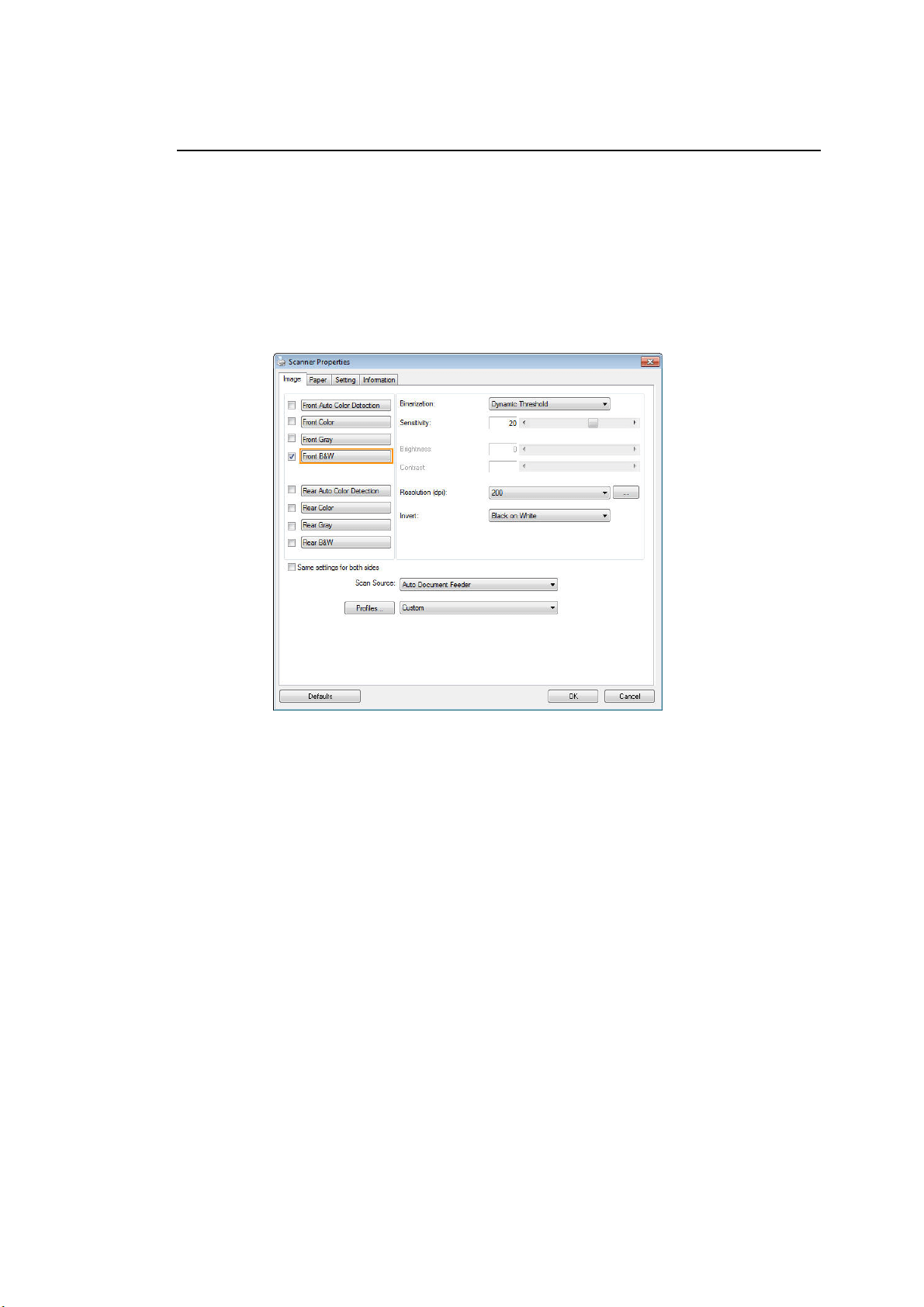
111
The I m a ge Ta b
The I m age tab allows you t o choose t he front side and ( or) the rear side of your
docum ent , t he t ype of im age, and t o set several basic scan sett ings. Not e that
except for t he resolut ion, you can set individual scan sett ings for t he front side and
the rear side. For exam ple, all set t ings in t he I m age t ab, Com pression t ab, Color
Dropout t ab can be set individually for t he front and t he rear side. However, t he
set t ings in t he Paper t ab, the Opt ion t ab, and the Setting t ab have t o be set t he
sam e for t he front and rear side.
The I m age t a b dia log box
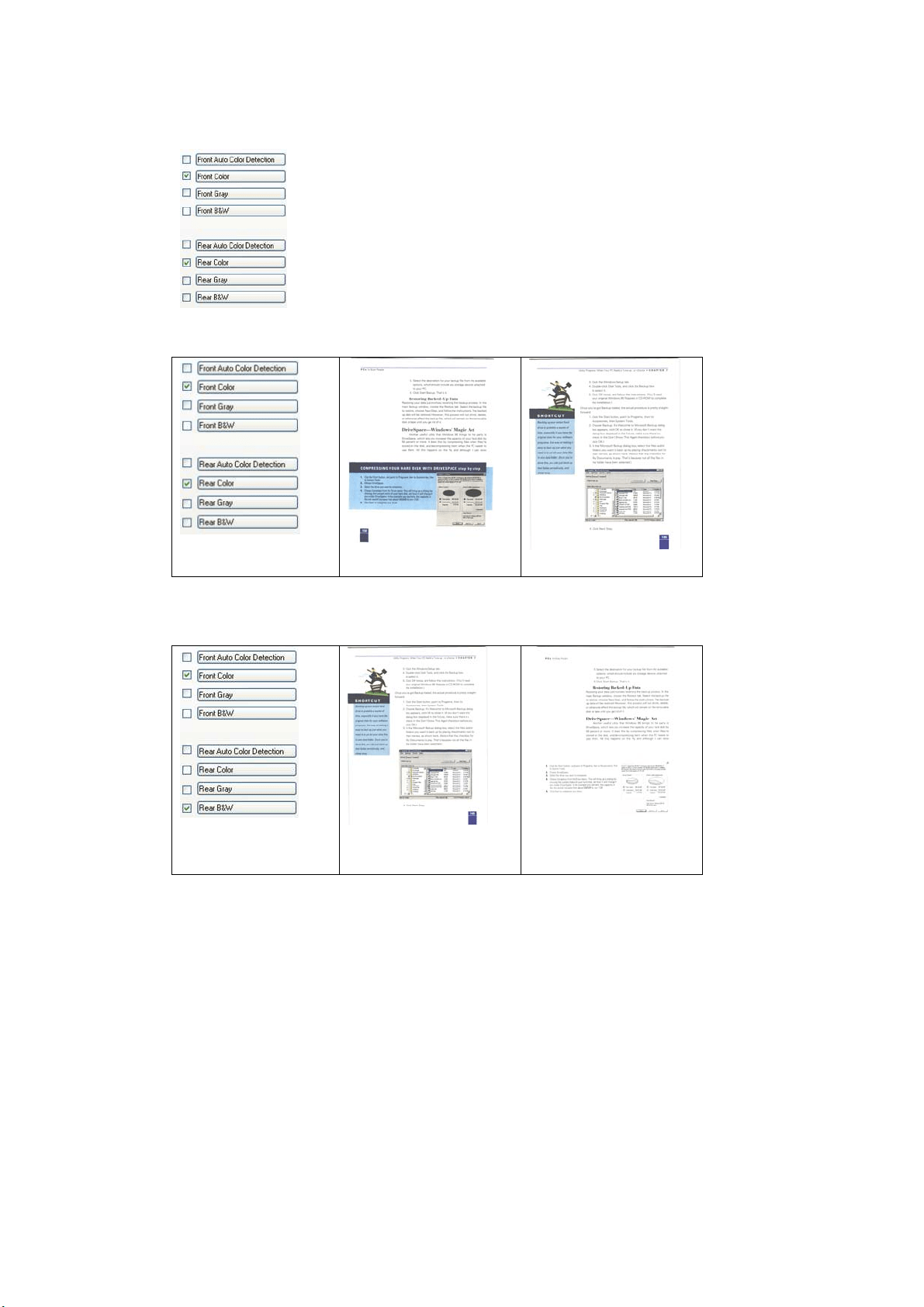
11
2
The I m a ge Se le ct ion Box
The I m age Select ion box includes t he im age t ype and
document side option. If you wish to scan both the
front side and the rear side of your color docum ent ,
you can check bot h Front Color and Rear Color at t he
sam e tim e. Not e t he opt ions vary based on t ype of
scanner.
Ex a m ple 1
:Scanning a tw o- sided color docum ent, both sides in color
Side/ I m a ge
Sele ct ion
Fron t
Rear
Ex a m ple 2
:Scanning a tw o- sided color docum ent, one in B& W , t he ot her
in color
Side/ I m a ge
Sele ct ion
Fron t
Rear
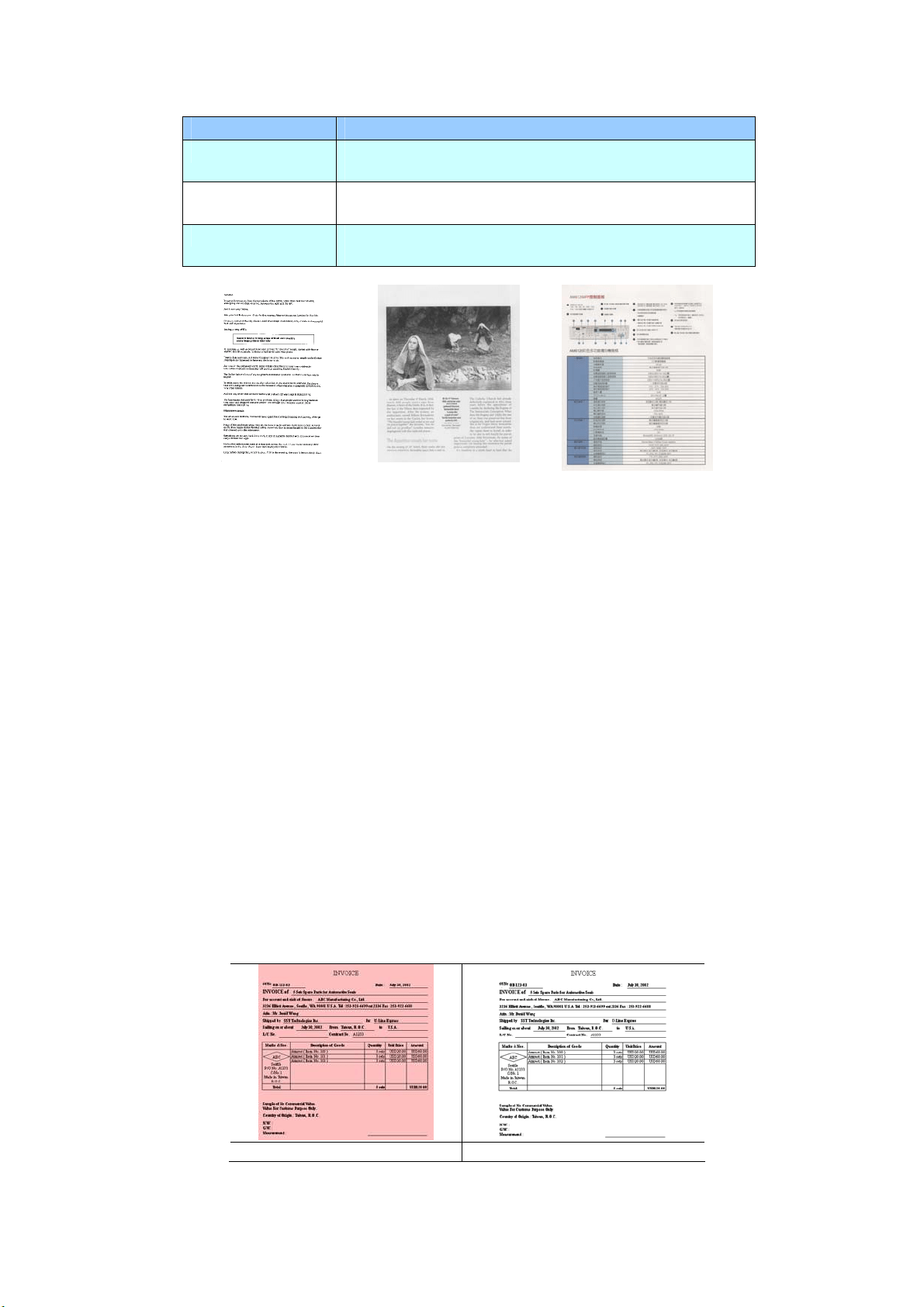
113
I m age Type Descr iption
Color Choose Color if you w ish t o scan a color im age for
your original in color.
Gray Choose Gray im age if your original cont ains act ual
shades of gray.
B& W Choose B&W if y our original cont ains only t ext,
pencil or ink sket ch.
B& W Gray Color
Front/ Rear Auto Color Detection:
Click t o autom at ically det ect and scan t he front or t he rear page of your color
docum ent in color im age m ode. I f your docum ent is in colors, t he scanner will
aut om at ically scan t he docum ent int o a color im age. I f your docum ent is
non-color, you can choose t he output t o be eit her B&W or Gray from t he Non- Color
Selection option. This opt ion is useful when you have a m ixture of color and
non-color docum ent .
Note: I f you choose Front Rear Aut o Color Det ection, you can not specify t he
im age m ode of your rear page and vice versas.
Modes of Au t o Color De t ection:
I f [ Fr on t / Rear Auto Color Det ection] is select ed, its m odes will be displayed.
Choice in cludes N orm a l, I gnor e pa per color. For paper wit h background color
such as invoices, choosing [ I gnore pa per color] will aut om at ically rem ove t he
background color and enhance t he det ection accuracy.
N or m a l I gnore pape r color
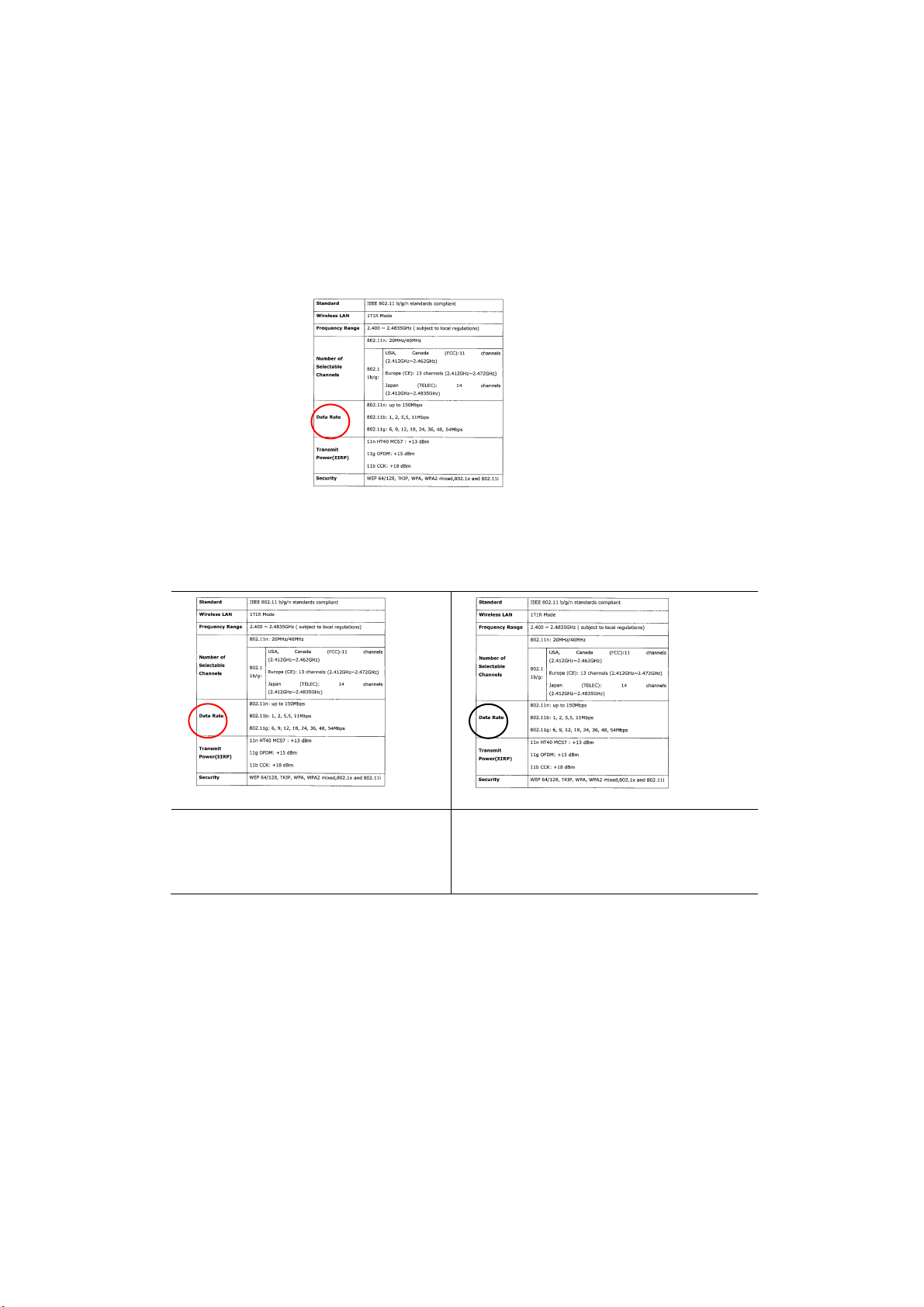
114
Sensit ivity of Auto Color Detect ion
I f your docum ent s cont ain prim arily B&W t ext and sm all am ount of light or pale
colors and you do not wish them t o be recognized as color im age t o save the file
size, you can increase the sensit ivit y value by m oving the bar to t he right t o let
these im ages t o be det ected as B&W. The value ranges from 1 to 100. The
default is 37.
Original
Sensit ivit y: 1
( The im age is recognized as a
color one)
Sensit ivity: 100
( The im age is recognized as a black
and whit e one)
Sam e sett ings on both side s:
Click t o apply sam e scan settings for bot h sides of your docum ent s. Aft er checking
this option, any sett ings you have changed will autom at ically applied t o bot h t he
front side and t he rear side. For exam ple, if you choose your ideal resolut ion to be
300 dpi, this will be applied both t o t he front side and rear side of your docum ent.

115
Ot her I m a ge Opt ions
Bin a rizat ion
This is the process of convert ing a grayscale or color im age t o
a bi- tonal im age. There are several different m et hods of
perform ing t his conversion. Opt ions: Dyna m ic
Threshold, Fixed Processing, H a lftone 1 ~ 5 , Err or
Diffusion.
Dynam ic Th reshold: Select ing D ynam ic Threshold
allows t he scanner t o dynam ically evaluat e each docum ent t o
determ ine t he optim al t hreshold value t o produce t he highest
qualit y im age. This is used t o scan m ixed docum ent
cont aining faint t ext, shaded background, or color
background wit h a single set ting. I f Dynam ic Threshold is
select ed, Threshold, Brightness, and Cont rast are not
available.
Dynam ic Threshold ( AD) : Selecting D ynam ic Threshold
( AD ) t o perform t he enhanced m ode of t he Dynam ic
Threshold feature. However, using t his m ode m ay slow dow n
your scanning speed.
Sensit ivity of D ynam ic Th reshold
Occasionally your scanned im age m ay cont ain sm all dot s or
speckles. To rem ove these spot s, increase t he sensitivit y
value by m oving t he bar to t he right . The value ranges from
1 t o 30. The default is 20.
Fix e d Processing: Used for black- and- whit e and other high
cont rast docum ent s. A single level is set t o det erm ine t he
black- and- whit e t ransition. The t hreshold is program m able over
the ent ire density range. Fix ed Pr oce ssing set s Cont rast t o 0.
I f Fixed Processing is selected, Cont rast is not available.
Halft one: I n addit ion t o t he black and whit e display, Halft one
can present a som ehow gray shade of im age by using different
size of dot s. Halft one im age looks like the pict ure we have seen
in the newspaper. Opt ions include H a lftone 1 , H a lftone 2 ,
Halft one 3 , H a lftone 4 , H a lftone 5 .
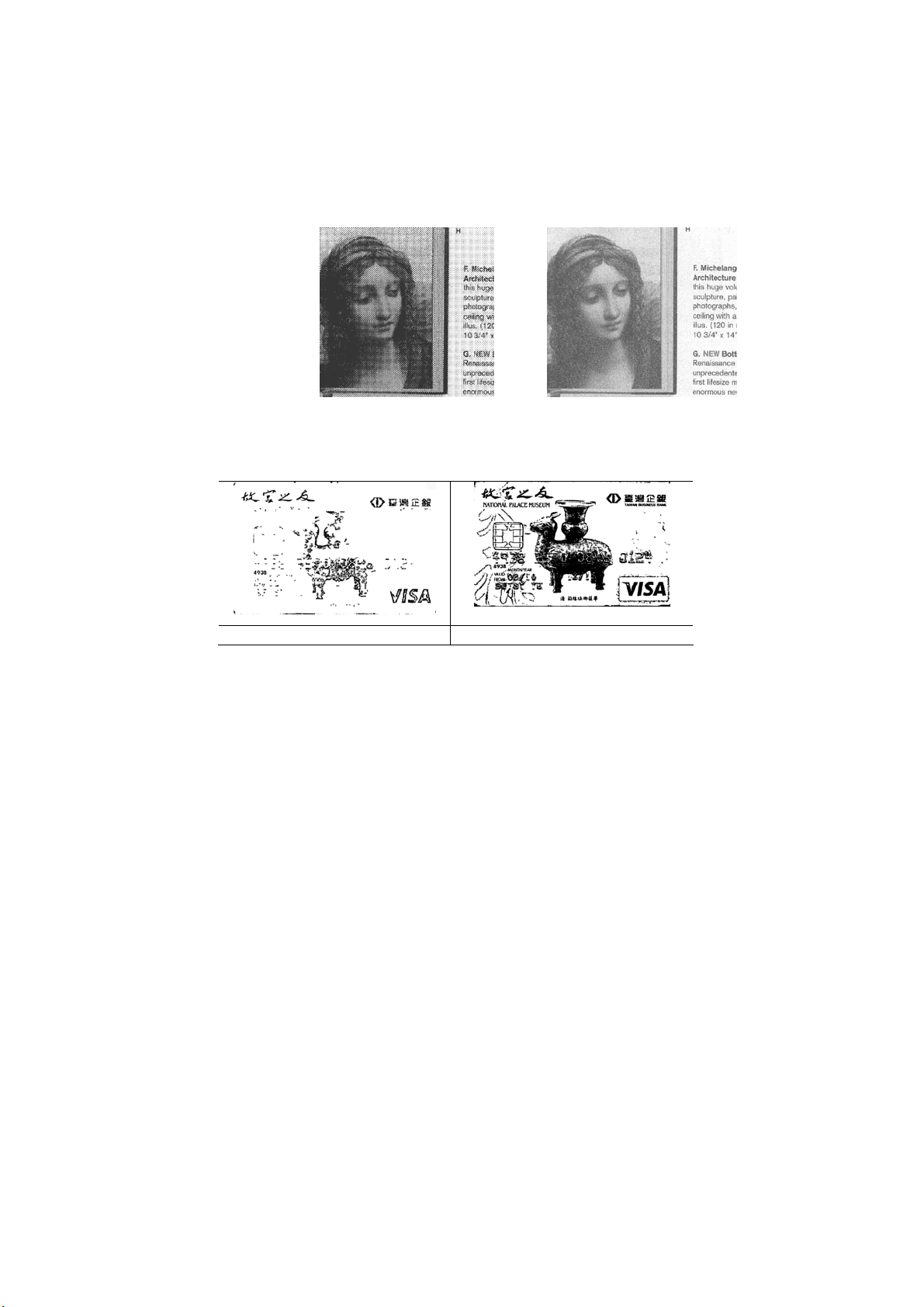
116
Er ror Diffusion: Error Diffusion is a t ype of Halft one. Error
Diffusion gives good im age text ure and m akes text in im ages
m ore readable t han Halft one.
Halftone Image Error Diffusion I mage
Dynam ic Threshold Dynam ic Threshold ( AD)
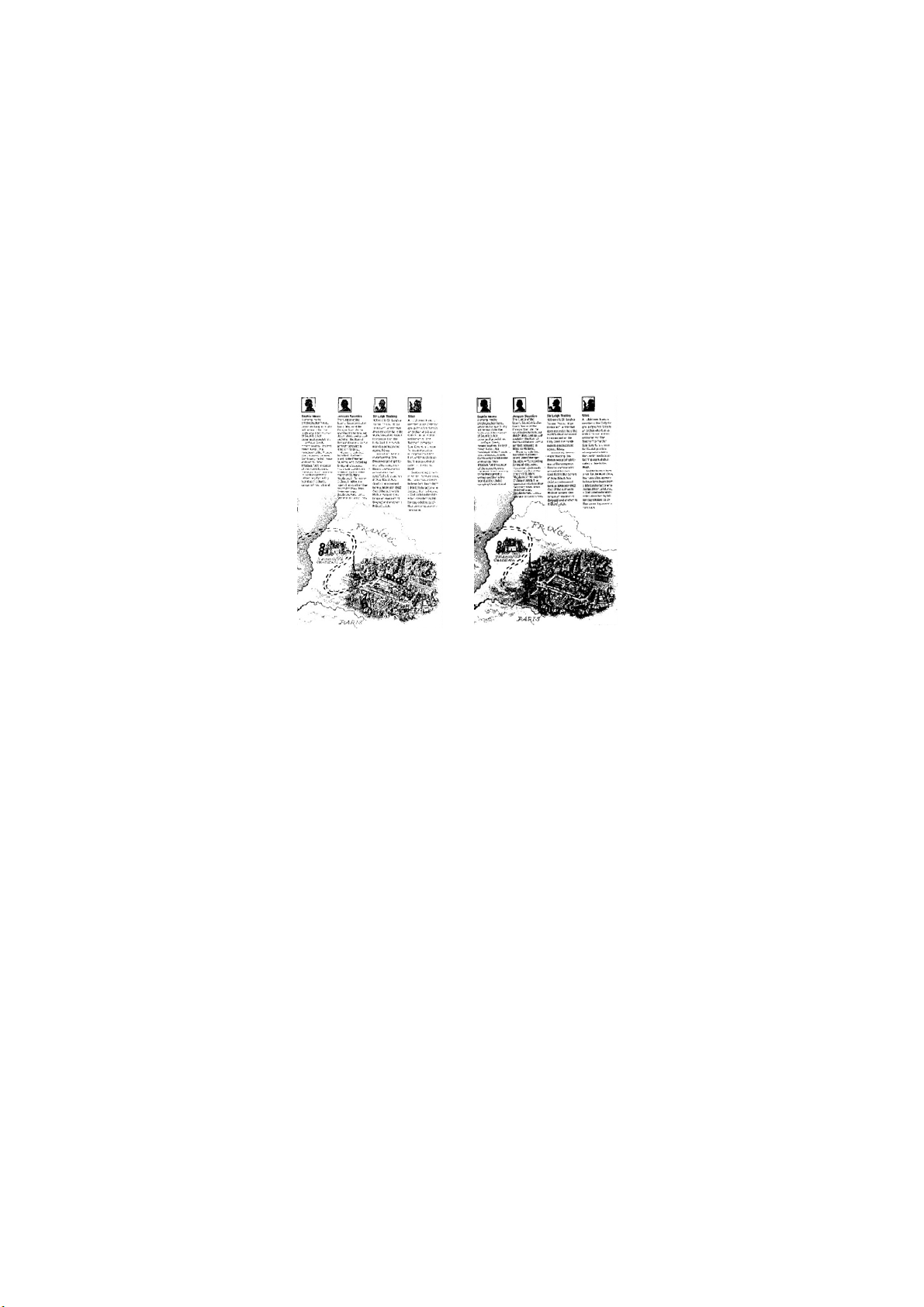
117
Threshold Used t o convert a grayscale im age to a
bi- t onal im age. The value ranges from 0 to 255. A low t hreshold
value produces a light er im age, and can be used t o subdue
backgrounds and subt le, unneeded inform at ion. A high t hreshold
value produces a darker im age, and can be used to help pick up
faint im ages.
Adj ust t he t hreshold setting by dragging t he Threshold sliding bar t o
the left or right t o achieve t he desired t hreshold setting.
2 0 0 dpi,
Threshold:5 0 ,
Brightness: 0
2 0 0 dpi,
Threshold:1 0 0 ,
Brightne ss: 0
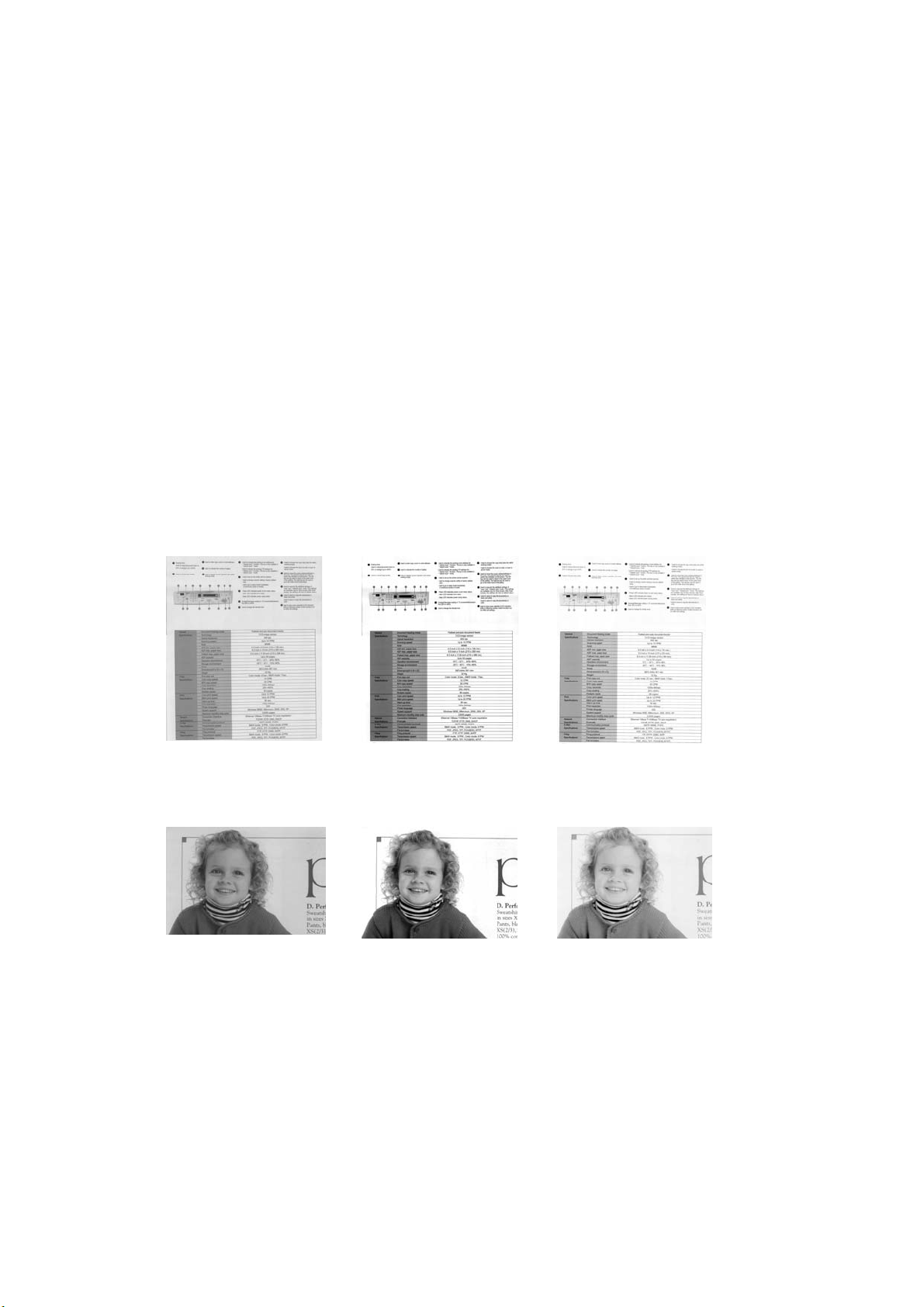
118
Gray
Docum ent Type : Choice: N orm a l, Phot o, D ocum ent
Three opt ions of docum ent t ype are provided when you choose Gray as t he im age
type for your scanned docum ent . Choice: Norm al, Phot o, Docum ent .
Docu m ent: Choose Docum ent if your original contains pure t ext or a m ixture
of t ext and graphic since it is an opt im al sett ing for regular business docum ent .
When using Docum ent , only Threshold can be adj ust ed.
Ph ot o: Choose Phot o if your original cont ains phot o t o reproduce your photo in
vivid grayscale im age. When using Photo, no Threshold and Cont rast can be
adj usted.
N or m a l: When using N orm a l, Threshold, Brightness, and Cont rast can be
adj usted.
Threshold: The value ranges from 0 to 255. The default is 230. A low threshold
value produces a light er im age, and can be used t o subdue backgrounds and subt le,
unneeded inform ation. A high t hreshold value produces a darker im age, and can be
used t o help pick up faint im ages. Adj ust t he t hreshold setting by dragging t he
Threshold sliding bar t o the left or right to achieve t he desired t hreshold setting.
N or m a l
Ph ot o
Docum e nt
( Threshold: 2 3 0 )
N or m a l
Ph ot o
Docum e nt
( Threshold: 2 3 0 )
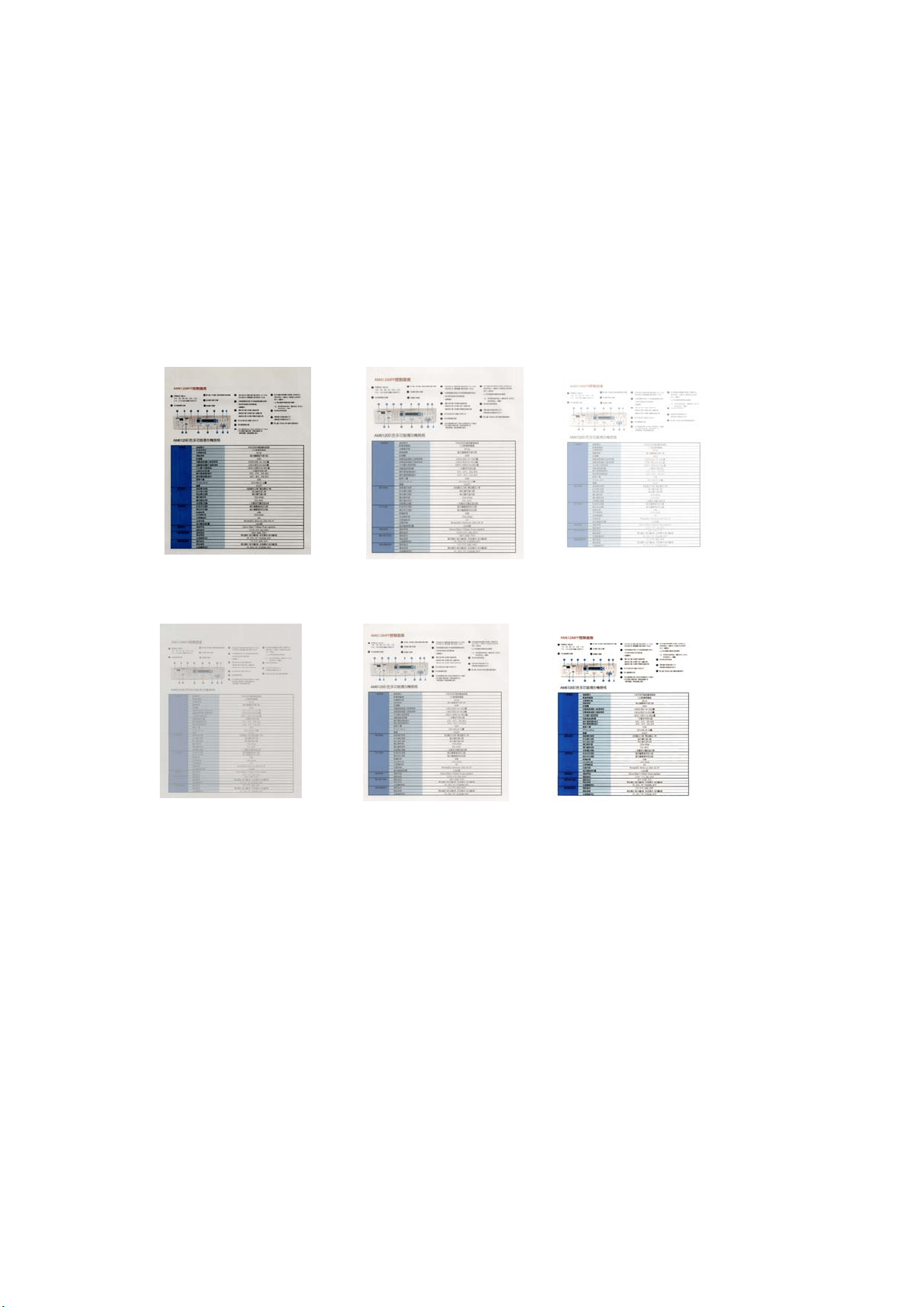
119
Brightness
Adj usts t he light ness or darkness of an im age. The higher t he
value, the bright er t he im age. Drag the slider to t he right or
left to increase or decrease t he bright ness. The range is
from –100 t o + 100.
Cont rast
Adj usts t he range bet ween t he darkest and t he light est shades
in the im age. The higher t he contrast , the bigger t he different
grayscale. Drag t he slider to t he right or left t o increase or
decrease the cont rast. The range is from –100 t o + 100.
Brightne ss: - 5 0 Bright ness: 0
( N orm al)
Brightne ss: + 5 0
Cont rast : - 5 0 Cont rast : 0
( N orm al)
Cont rast: + 5 0

120
Re solution A good cont rol of t he resolut ion result s a
good det ail of an im age t hat scans. The
resolution is m easured by dot s per inch
( dpi) . Norm ally, t he greater the dpi
num ber, t he higher t he resolution and
the im age file size. Be aware t hat
greater resolut ion takes m ore tim e t o
scan, and m ore disk space for t he
scanning im age. For your inform at ion,
an A4 size color im age scanned at 300
dpi at True Color m ode consum es
approxim at ely 25 MB of disk space. A
higher resolut ion (usually m eans over
600 dpi) is only recom m ended when you
need t o scan a sm all area at True Color
m ode.
Choose a resolut ion value from the drop
down list . The default value is 200 dpi.
Available resolut ions are 75, 100, 150,
200,300, 400 and 600. Or you m ay
choose your desired value by clicking t he
box in t he right side of the drop down
list and press t he arrow key t o select
your desired value and t hen click t he
Add button t o include it in the drop down
list . N ot e : The resolut ion is up t o 300
dpi if an im print er or a MI CR reader is
installed or connected t o t he scanner.
Re solution: 7 5 dpi
Re solut ion: 1 5 0 dpi
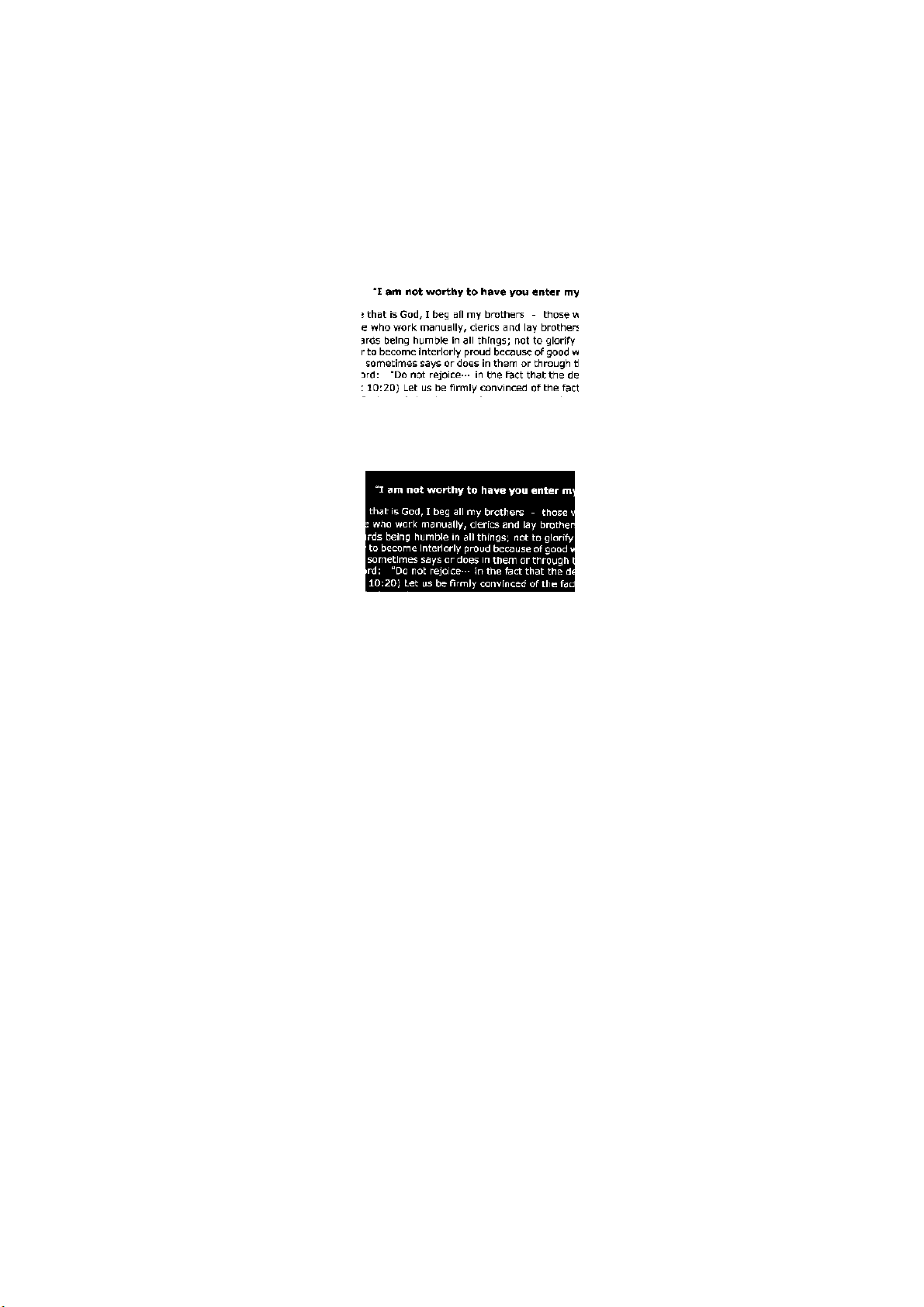
121
I nvert Reverses the bright ness and t he colors in t he im age. The
default setting is Black on a Whit e background. Reverse m ode
is Whit e on a Black background. For color im ages, each pixel
will be changed int o it s com plem entary color at t he com m and
of I nvert .
Bla ck on W hit e
W hit e on Bla ck
Scan
Source
Choice:
Auto D ocum ent Feeder: Used t o scan m ultiple pages.
Flatbed: Used to scan a single page. For exam ple, pages from
newspaper clipping, paper with wrinkles or curls.
Flatbed ( book) : Used t o scan several inside pages from
book.
Au t om a t ic: Allow t he scanner autom at ically set it s scan
source. I f Autom a t ic is select ed and t here is docum ent in
bot h t he auto docum ent feeder ( ADF) and t he flatbed, t hen t he
scan source will be autom at ically set t o ADF. I f Au t om a t ic is
select ed and t here is docum ent only in flatbed, t hen t he scan
source will be set t o flat bed.
M erge Tw o Sides into One I m age :
I f you have a sheet - fed duplex scanner with front input t ray,
you can scan an A3 size docum ent wit h an innovat ive m et hod.
Thus, fold your A3 size docum ent into A4, and t hen load t he
paper in t he front t ray. Choose Merge Two Sides from t he
Scan Source opt ion and t hen the scanner is able t o scan bot h
sides of your docum ent and m erge t wo A4 im ages int o one A3
im age.
When you select Merge Two Sides int o One I m age, t he Cropping
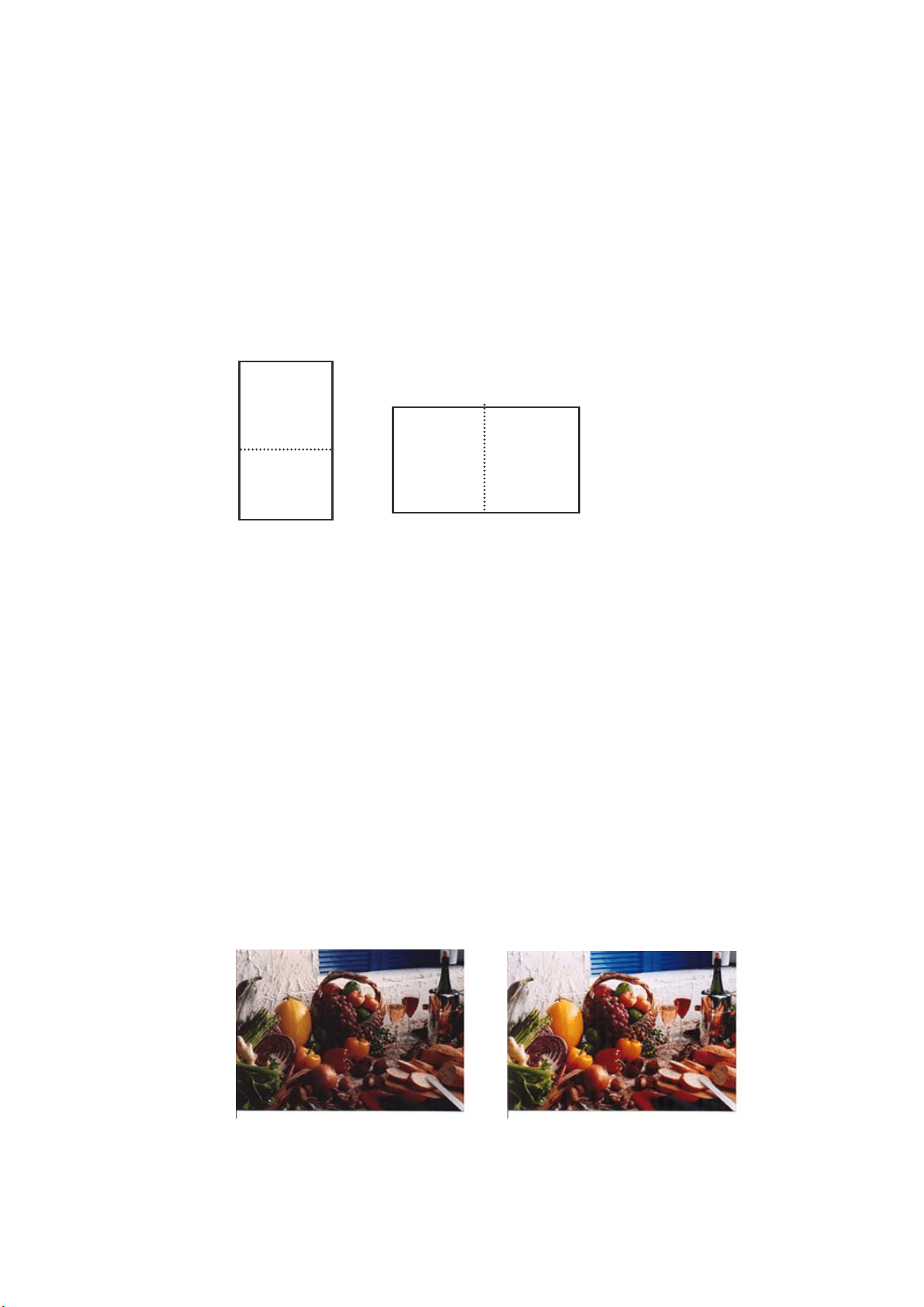
12
2
or Mult i- feed funct ion will be disabled.
N ot e: This feat ure m ust be used w ith a carrier sheet. Regarding
how to load a docum ent w it h a Carrier Sheet , refer t o Sect ion
4.6.2, Ot her Paper Selection.
N ot e t he options vary based on t ype of scanner.
I f “ Merge Two Sides int o One I m age” is selected, its choice w ill be available
including “Merge Horizont ally” , “ Merge Vert ically” , “ Merge Vert ically ( Back
Side Flip) ” . I f t he reverse side of your docum ent is upside down, choose
“ Merge Vert ically ( Back Side Flip) ” and t he back side will be autom at ically
rotated 180 degrees and m erged.
N ot e t he options vary based on t ype of scanner.
Color
Mat ching
The purpose of Color Matching is getting t he accurate color. This
opt ion uses t he default param et ers (I CC profile) t o adj ust t he
colors of t he im age.
Choice: N on e, D ocum ent, Phot o
None: Choose “None” to disable this option.
Docum e nt : Choose “ Docum ent ” if your original cont ains pure
text or a m ixture of t ext and graphic since it is an opt im al
set t ing for regular business docum ent .
Phot o: Choose “Photo” if your original cont ains photo t o
reproduce your phot o in vivid color im age.
Normal After Color Matching
Front
Side
Rear
Side
Merge Vert ically
Front
Side
Rear
Side
Merge Horizont ally

123
Scanning Color I m a ges
The following opt ions are available for scanning color im ages.
Brightness
Contrast
Resolution
I nvert
Scanning Gra ysca le I m a ges
The following opt ions are available for scanning gray im ages.
Brightness
Contrast
Resolution
I nvert
Scanning B& W I m a ges
The following opt ions are available for scanning B&W im ages.
Binarizat ion ( Dynam ic Threshold)
Resolution
I nvert
Or
Binarization (Fix Processing)
Threshold
Brightness
Resolution
I nvert
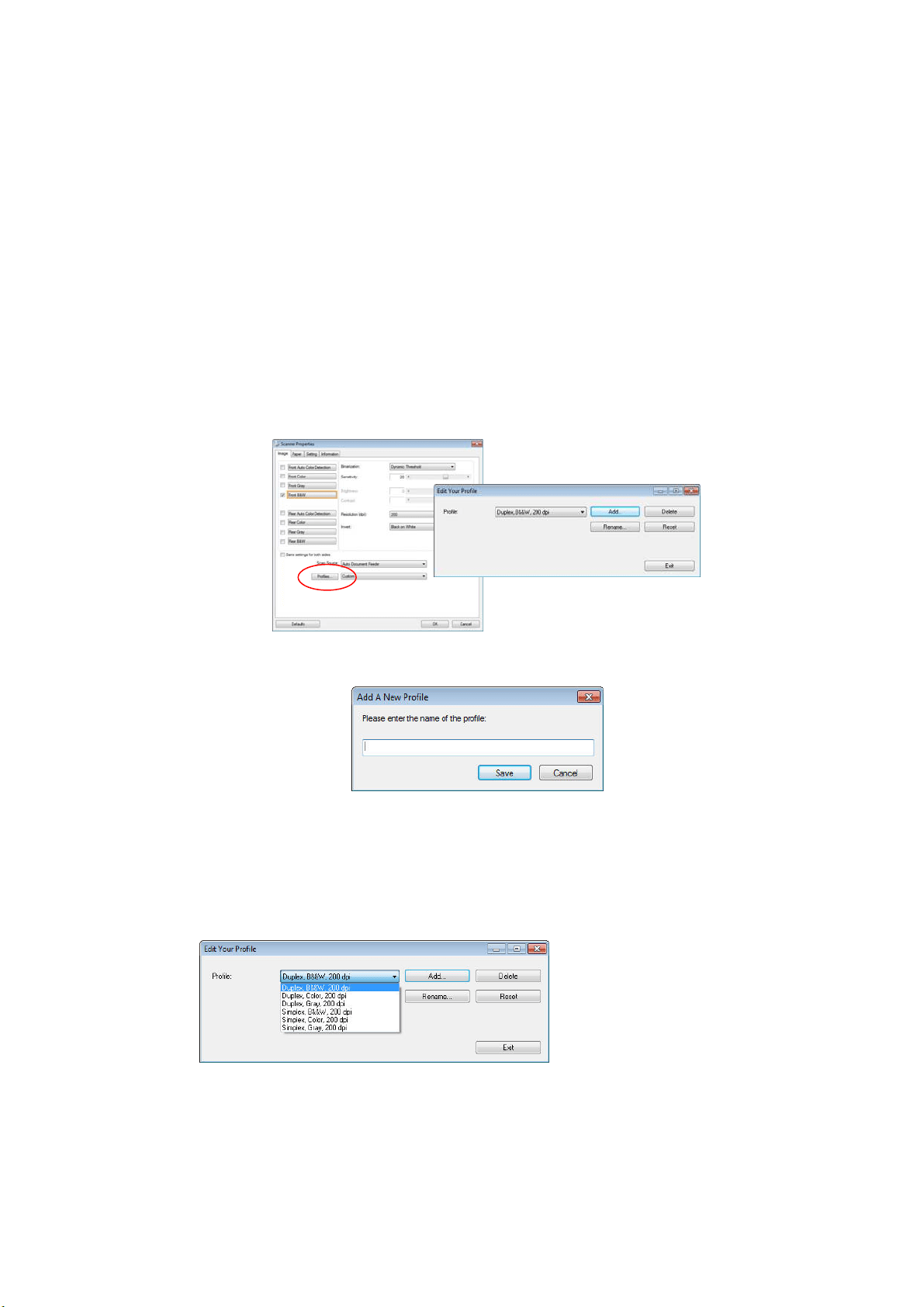
124
Edit ing Profiles
The Scanner Properties dialog box allows you t o change and save your frequently
used scan settings int o a profile. You can edit these profiles by renam ing or
deleting t hem .
To add a new pr ofile ,
1. Cust om ize your settings. ( For exam ple, change your resolut ion, im age t ype,
cropping m et hod, scan size, or ot her scan set t ings.)
2. Click t he I m age tab and t hen choose “Profiles” t o prom pt t he “Edit Your Profile”
dialog box.
3. Click “Add” t o enter t he nam e of t he profile and then choose “ Save” .
4. The new profile will be saved and shown in the “ Profiles” dropdown list box.
To load a pr ofile ,
1. From t he I m age t ab dialog box, choose your favorable profile from the
“ Profiles” dropdown list box.
2. Your favorable profile will be im m ediat ely loaded and displayed on Scanner
Properties dialog box.
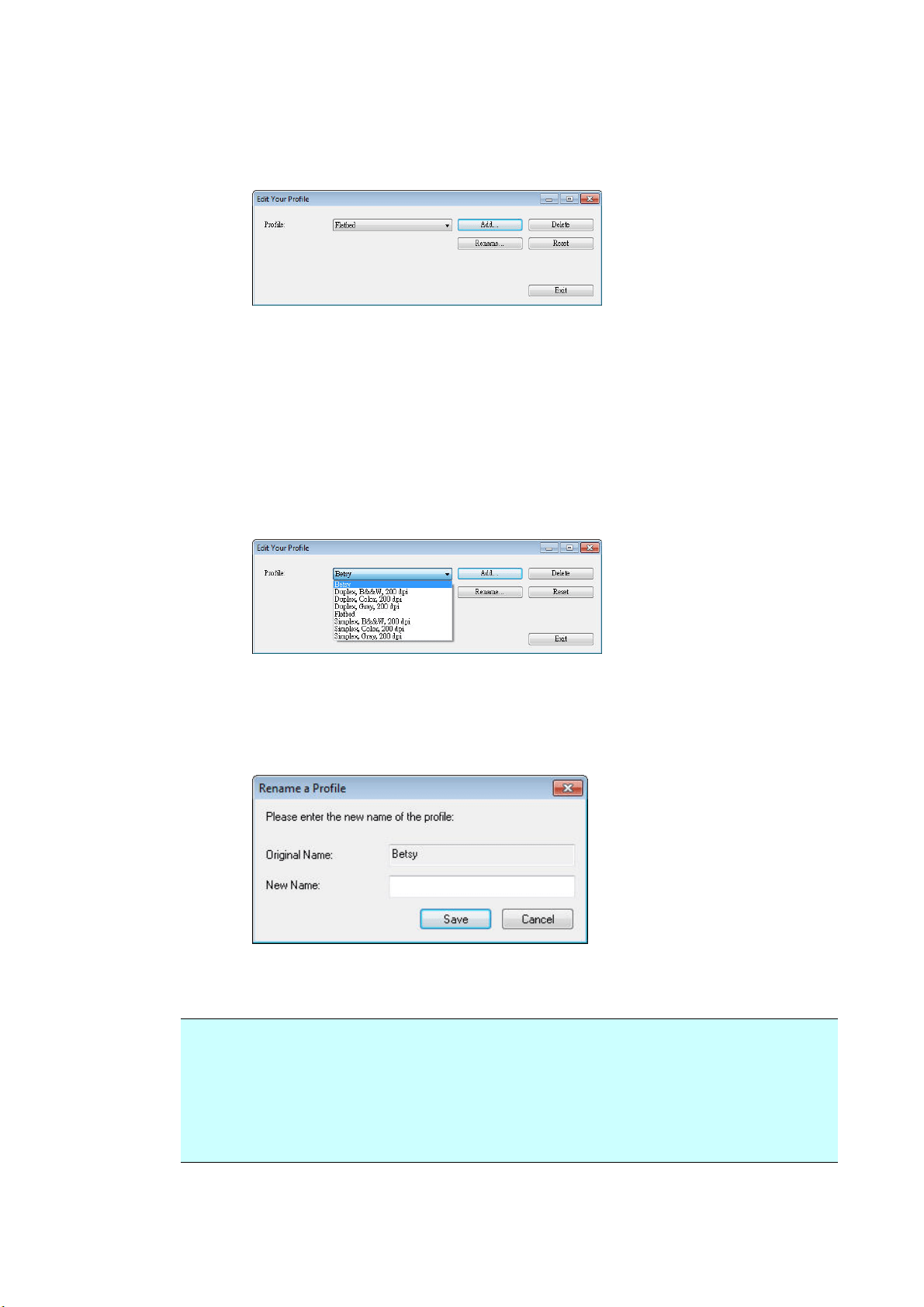
12
5
To dele t e a profile,
1. From the I m age t ab dialog box, click “Profiles” t o prom pt t he Edit Your Profile
dialog box.
2. Choose t he profile you want to delete from t he dropdown list box.
3. Click “ Delet e” . A Confirm m essage “ Are you sure you want t o delet e t his
profile?” is prom pt ed.
4. Choose “ Yes” t o delet e or “Cancel” t o quit.
To renam e a profile ,
1. From t he I m age t ab dialog box, click “ Profiles” t o prom pt t he Edit Your Profile
dialog box.
2. Choose t he profile you want t o renam e from t he dropdown list box and t hen
click the Renam e but t on.
3. Ent er new nam e for the profile.
4. Choose “ Save” t o save t he new profile or “ Cancel” t o quit .
N ot e:
The preset default profiles include Flat bed, Sim plex-B&W, 200 dpi, Sim plex-Gray,
200 dpi, Sim plex- Color, 200 dpi, Duplex- B&W, 200 dpi, Duplex- Gray, 200 dpi,
Duplex- Color, 200 dpi. I f you have a sim plex or a sheetfed scanner, t he duplex or
t he flat bed opt ion w ill not be available.
12
6
The Com pression Tab
The Com pression t ab allows you to com press your scanned im age and choose t he
level of com pression. Bi- t onal im ages are norm ally com pressed using CCI TT
st andard called Group 4 ( G4). Color and grayscale im ages are oft en com pressed
using JPEG t echnology. Move the JPEG Qualit y slider t o t he right or left t o
increase or decrease t he level of com pression. Not e t he greater t he com pression
level, t he lower im age qualit y. Default is 50% .
Note t hat t he com pression depends on your im age edit ing application. I f your
im age editing application does not support t he t ype of com pression form at, then
eit her a warning m essage will appear or t he im age qualit y of t he com pressed file
will not be accept able.
JPEG ( Joint Photographic Edit or Group) . This group developed and lent their nam e
to a file com pression st andard for color and grayscale im ages t hat is widely used by
scanners, and soft ware applications. On Microsoft Windows-based syst em s, a file
with the extension .jpg has norm ally been com pressed using t his standard.
For scanning color or gray im ages, the following com pressions are available:
None
JPEG
For scanning B&W im ages, t he following com pressions are available:
None
G4
Com pre ssion:
To com plet e your scan at a rated speed, t he scanned im age is com pressed by
default during t ransm ission. However, if you wish t o obt ain t he highest im age
qualit y, you can choose t o uncom press t he im age dat a before it is output t ed.
To Application:
Choose if you wish to com press the im age dat a and t ransfer it from the TWAI N
driver t o t he application. Not e Bi- t onal im ages are norm ally com pressed using
CCI TT standard called Group 4 (G4) . Color and grayscale im ages are oft en
com pressed using JPEG t echnology. Move the [ I m a ge Quality] slider to t he right
or left t o increase or decrease your im age qualit y. Note t he great er t he im age
qualit y, t he lower t he com pression level. Default is 50% .
Scanned
I m age
Scanned
I m age
Scanner
Scanner Driver
I m age Editing
Applicat ion
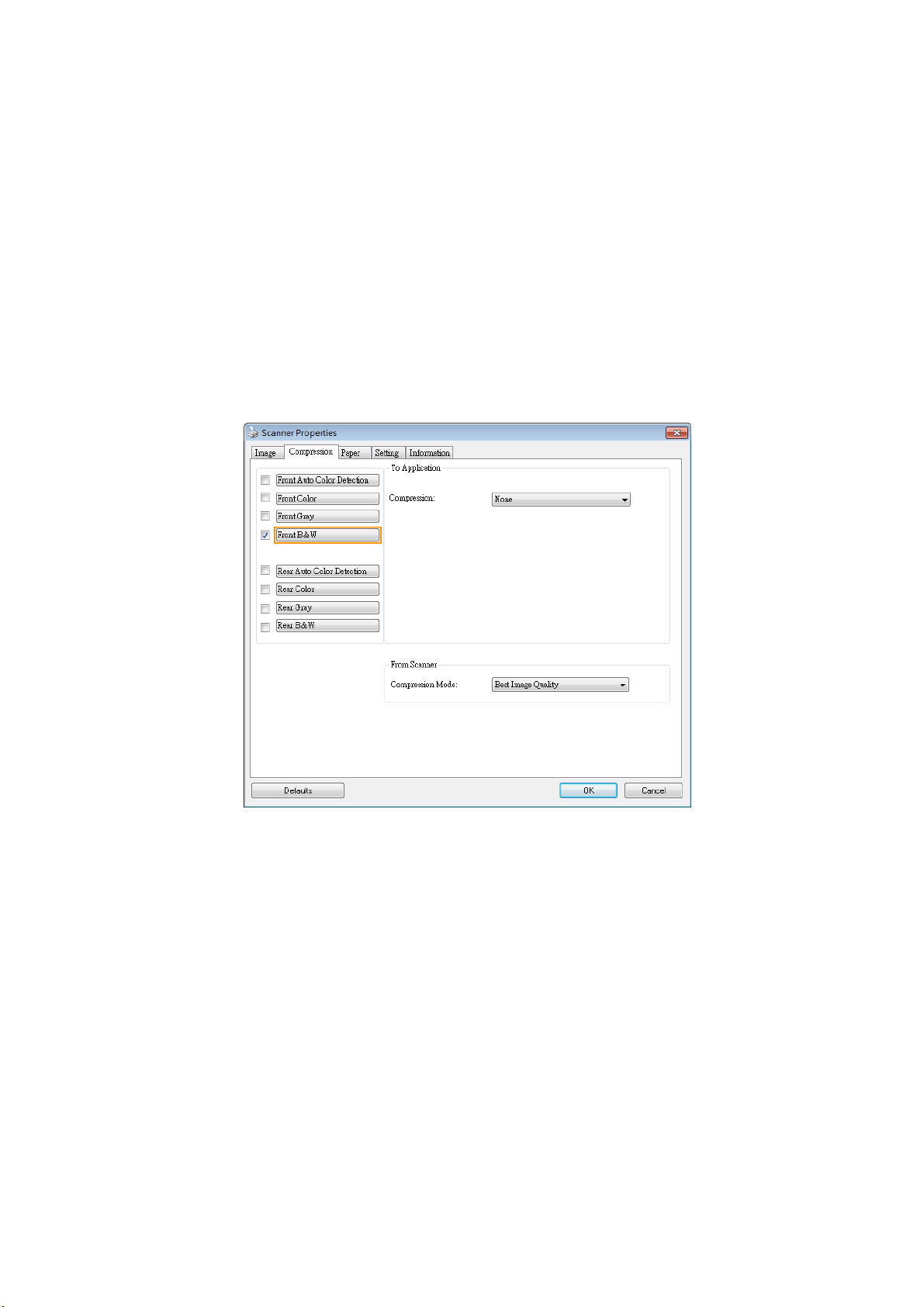
12
7
Note t hat t he com pression depends on your im age edit ing application. I f your
im age editing application does not support t he t ype of com pression form at , then
the im age of t he com pressed file will look abnorm al.
From Scanner: ( N ot e: The availabilit y of t h is fe a t u r e varie s due t o scanner
m odel.)
Choose if you wish to com press t he scanned im age and t ransfer it from t he scanner
to t he TWAI N driver.
Choice: Uncom pressed, * Best I m age Qualit y (Low Com pression Level) , Bett er
I m age Quality (Norm al Com pression Level) , Norm al I m age Qualit y ( High
Com pression Level) . ( * : Fact ory Default )
The Com pre ssion t ab dia log boxThe Com pression t a b dialog box
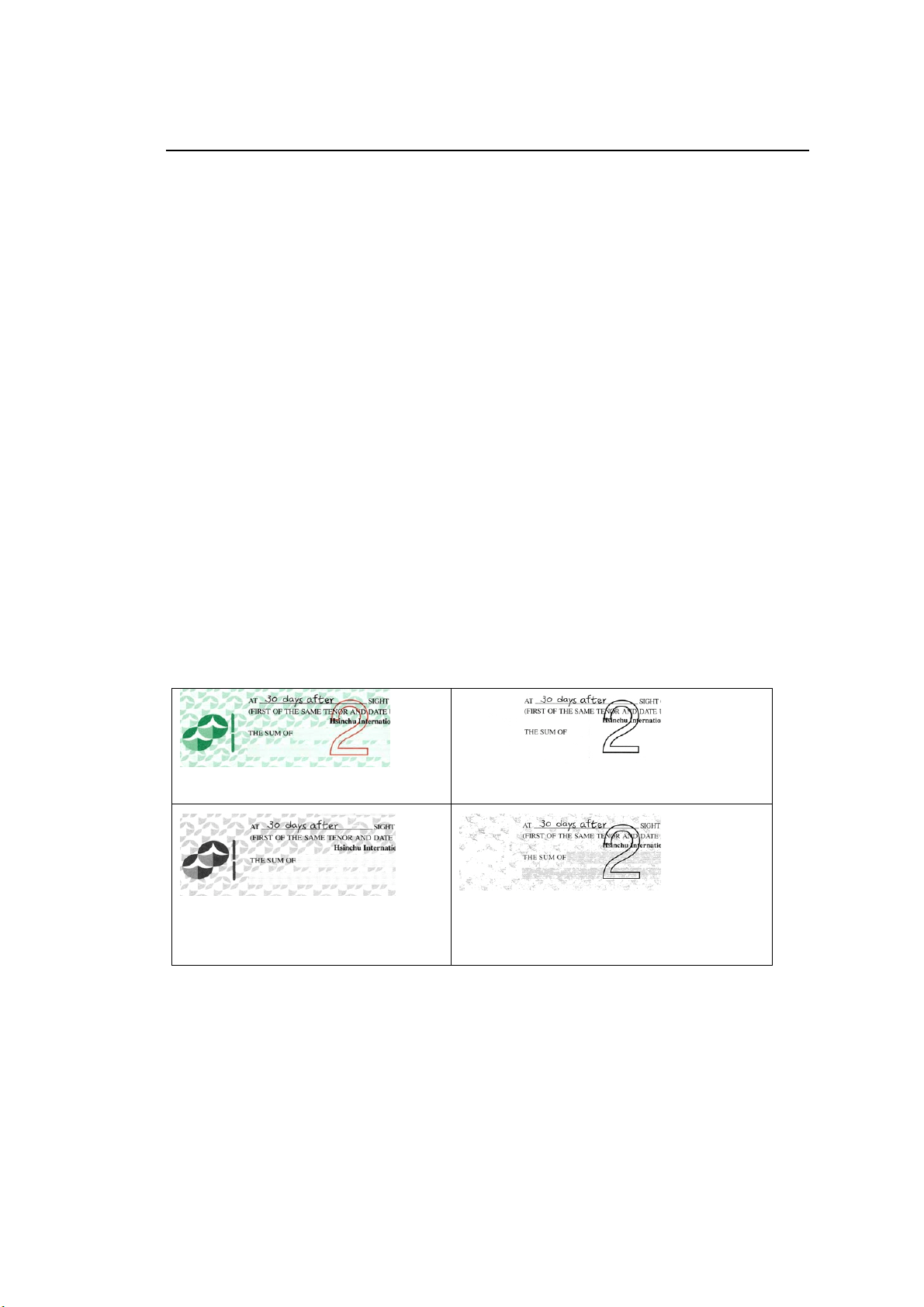
128
The Color Dropout Tab
Color D ropout Se le ct ion
The [ Color D r opout] t ab allows you t o select eit her green, red, blue, or a color of
your choice to rem ove the det ails of t he select ed color from a scanned im age. This
feat ure is used to sharpen your t ext when using OCR ( Opt ical Character
Recognit ion) soft ware. Not e t his feat ure applies only t o t he gray or black and whit e
im age.
Choice: N on e, Auto, Re m ove Re d, Re m ove Green, Rem ove Blue, Cust om
- N one: Does not rem ove any color.
- Auto: Aut om at ically out put s t he im age with t he det ails of t he prim ary color
rem oved.
- Rem ove Red/ Rem ove Gr een/ Re m ove Blue: Output s t he im age wit h t he
details of t he specified color rem oved.
- Custom : Specify t he color you wish to rem ove by ent ering its RGB ( Red, Green,
and Blue) value respectively.
Advanced Opt ions:
- Qualit y M ode: Range: 0~ 20. Default: 10
When [ Qualit y Mode] is select ed, you can det erm ine t he color t o be dropped out
using t he [ Filt er Threshold] slider. A lower value w ill drop m ore of t he select ed
color out, while a higher value will leave m ore of t he selected color in.
- N or m a l M ode: Use an opt im ized setting t o determ ine t he color.
Original
Auto/ Rem ove Green ( norm al m ode)
Rem ove Red ( norm al m ode)
Rem ove Green ( quality m ode:
Threshold: 18)
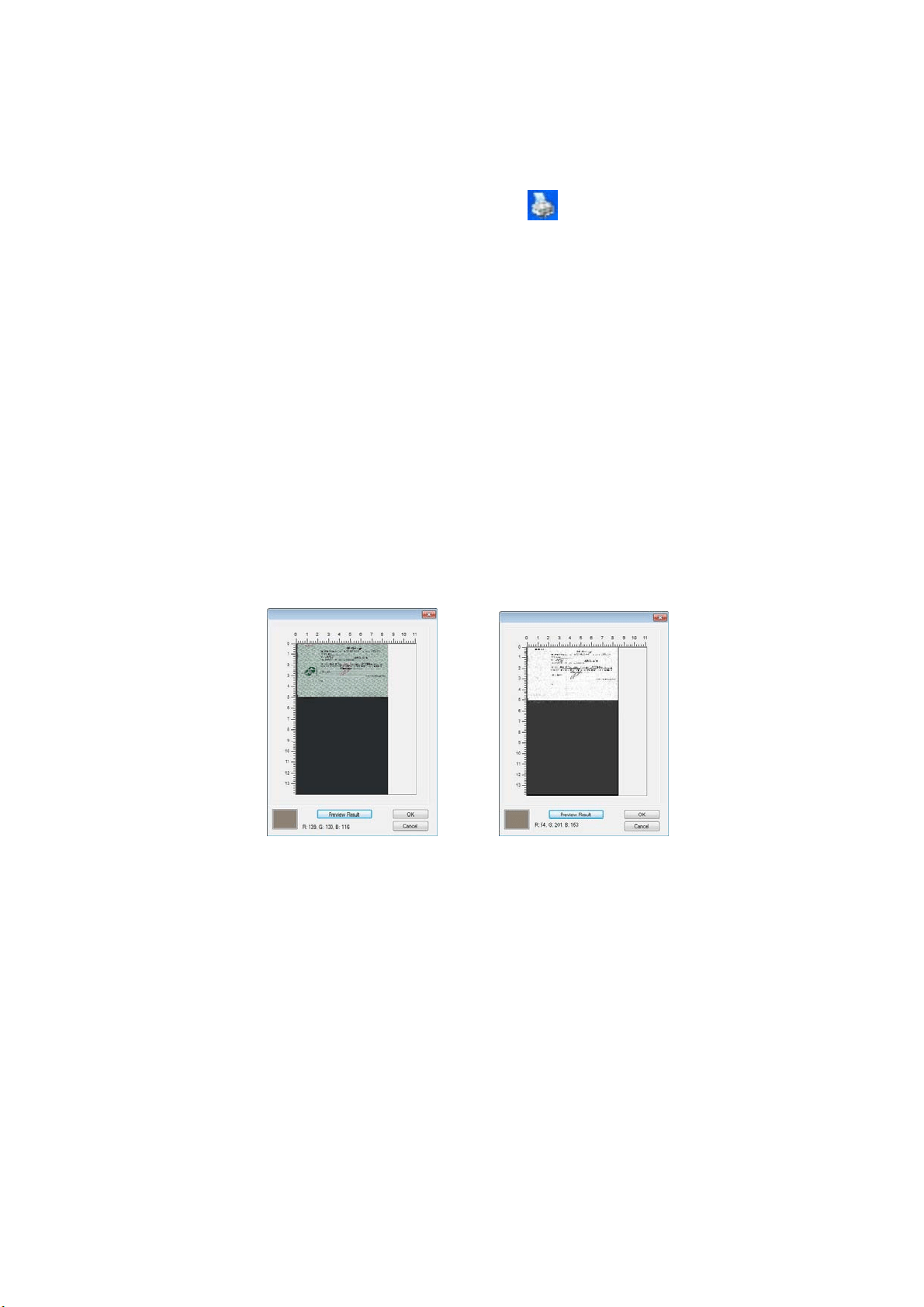
129
Preview t he color dropout result :
To preview t he color dropout result , please follow t hese steps:
1. Click t he [ Scanner Propertie s] icon (
) on t he upper left corner, and
choose [ Tab] t o show available t ab nam es.
2. Choose [ Pr e view ] t o show the Preview t ab.
3. Click t he [ Pr e view ] t ab t o show t he Preview page.
4. Load your docum ent t o t he scanner and click t he [ Previe w ] but t on t o get a
preview im age.
5. On t he [ I m age] t ab, click [ Gray] or [ Black and White] im age m ode and t hen
choose [ Custom ] on t he [ Color Dropout ] t ab. A [ Preview window] but t on will
be displayed.
6. Click t he [ Preview w in dow ] but t on t o prom pt t he [ Pr evie w ] window wit h
the previewed im age.
7. Move your cursor over the preview im age. Your m ouse cursor now becom es
an Eyedropper.
8. Click t o select a color which you wish t o rem ove.
9. Click and hold your m ouse but t on t o view the result aft er rem oving t he
specified color. I f t he result is satisfactory, click [ OK] t o close t he Preview
window.
The Preview Window The Color dropout result
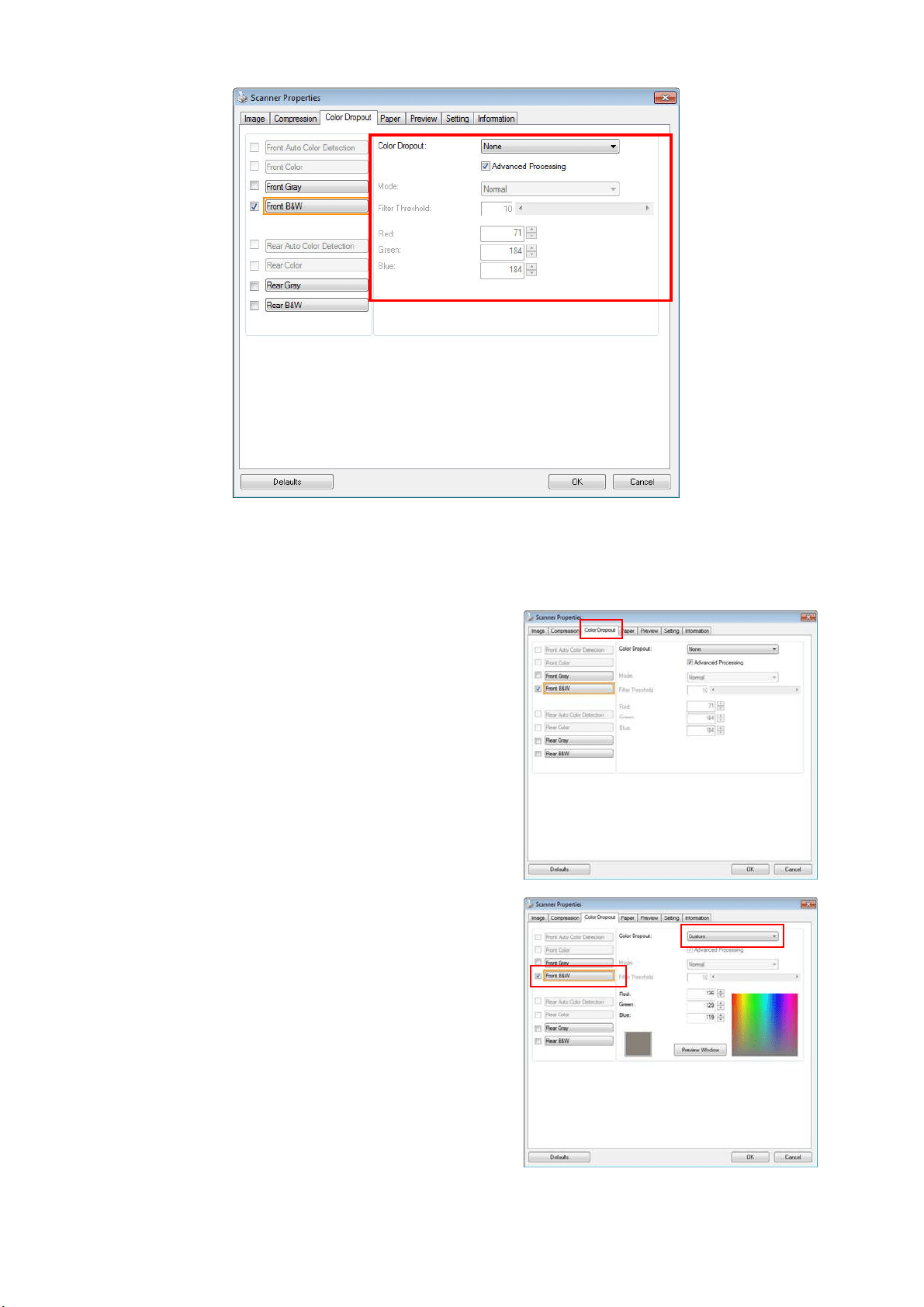
13
0
The Color Dropout dia log box
To select a color on the Color palet t e,
1. Click t he Color Dropout t ab from
the Scanner Properties dialog
box.
2. Choose Gray or B&W from t he
I m age Select ion box and click
“ Cust om ” from t he Color Dropout
drop- down m enu. The Color
palet t e appears.
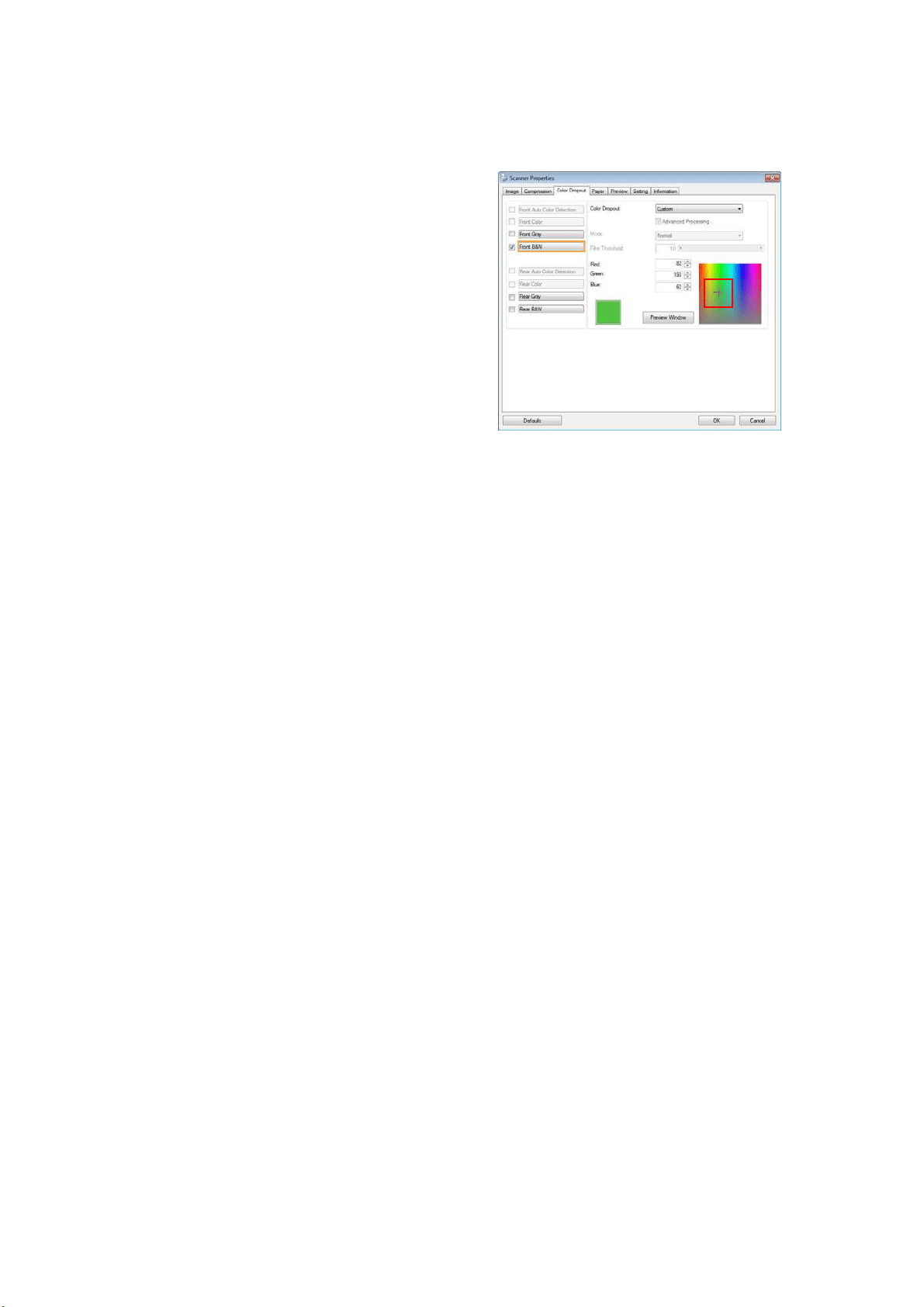
131
3. Move your cursor over t he
palet t e. The cursor becom es a
cross sign.
4. Click t o choose a color. The RGB values are changed sim ult aneously.
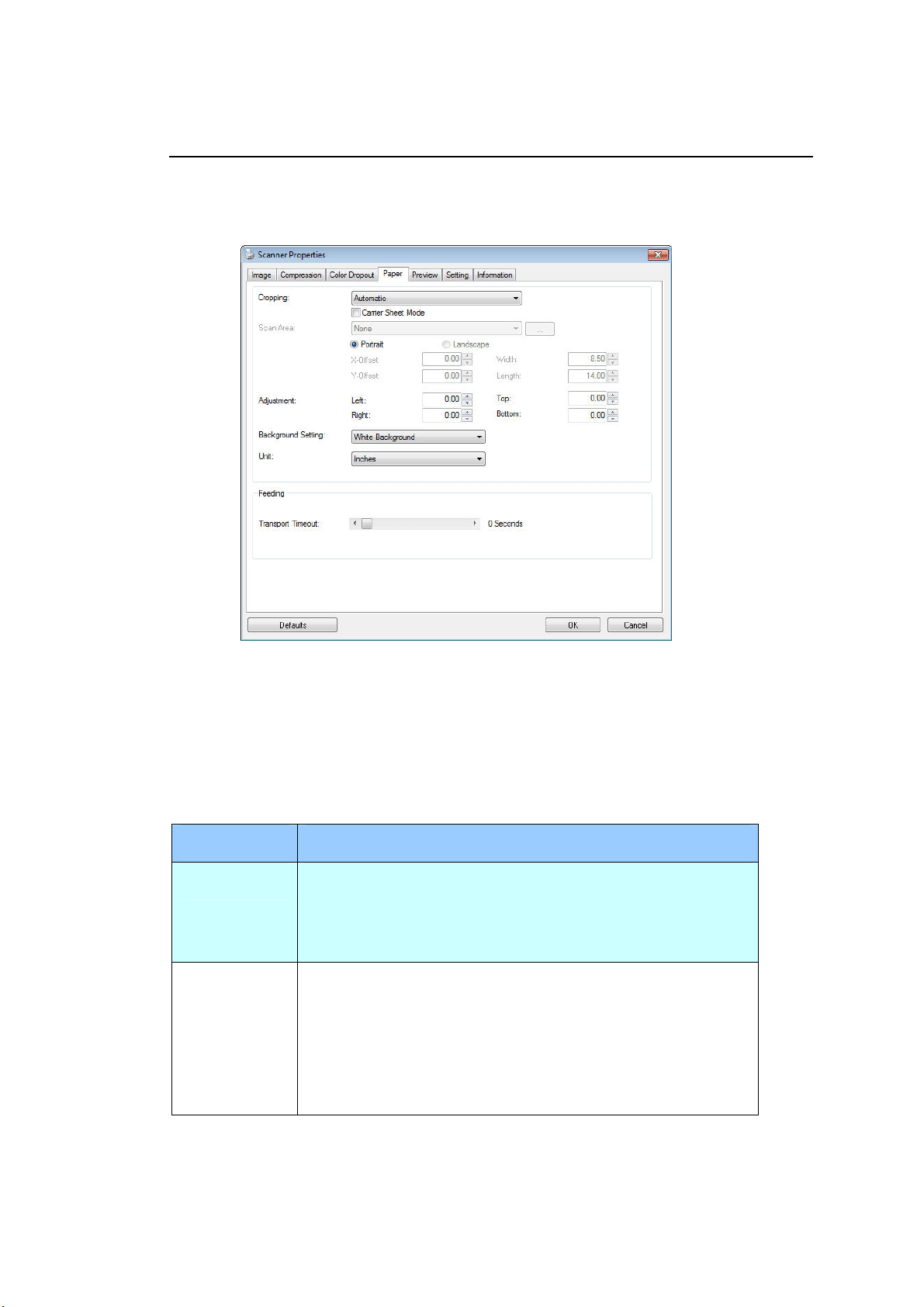
13
2
The Paper Ta b
The Paper t ab allows you to define values relat ing t o im age out put ( i.e., Aut o Crop
or not, Scan Area, OverScan, Multi- Feed Detect ion) .
The Paper t a b dia log box
Cropping
Cropping allows you t o capture a portion of t he docum ent being scanned.
Choice: Autom a t ic, Autom a t ic ( 3 6 ”) , Fixed t o Transpor t , EOP ( End of
Pa ge ) D e t e ct ion, Au t om a t ic M ult iple, Relat ive t o D ocum ents.
Opt ions Descr iption
Autom a t ic
Autom atic adj usts t he cropping window according t o
different docum ent sizes and aut om atically straighten a
skewed docum ent . Use this opt ion for bat ches of
m ixed- sized docum ents.
Autom a t ic
( 3 6 ”)
Autom atically adj ust s t he cropping window according t o
different docum ent sizes sm aller t han 36” and
aut om at ically st raighten a skewed im age. Use t his
opt ion for batches of m ixed- sized docum ent .
N ot e: The availabilit y of t his feature varies due t o
t he scanner m odel.

133
Fix e d t o
Transport
This feat ure allows you t o define t he area or zone t o be
im aged. Use for bat ches of sam e- sized docum ent s. I f
you select this opt ion, you can use the arrow keys t o
define the x and y offset values, widt h and lengt h t o
redefine your scanned area. The Display w indow will
show im age placem ent as you change t he values.
EOP ( End of
Pa ge )
Detection
This feat ure allows you t o define t he area or zone t o be
im aged. Use for batches of sam e- widt h but different
lengt h docum ent s. I f you select t his opt ion, you can
use t he arrow keys t o define t he x and y offset values,
widt h and lengt h to redefine your scanned area. The
Display window will show im age placem ent as you
change the values.
Autom a t ic
Mult iple
This opt ion allows you t o place various sized docum ent s
such as phot os, I D Cards, or business cards on t he
flat bed ( if available) and let s you creat e m ult iple
individually cropped im ages in one scan. Note: To
correctly create m ult iple im ages, please m ake sure
there is at least 12m m (0.5” ) of space between each
docum ent .
Re lat ive t o
Docum e nt
This opt ion allows you to crop different areas on your
docum ent s and deliver t hese im ages in B&W, Gray, or
Color separately. For exam ple, there are applications
which require you t o store t he entire docum ent in B&W
and a part of t he docum ent in color to save storage
space. This is useful for docum ent s where a
phot ograph or signat ure appears in a consistent area on
t he docum ent such as resum es, and so on.
The following options are only available when Fixed t o Tra nspor t is selected.
X- Offset — the dist ance from t he left end of t he scanner t o t he left edge of
the scanning area.
Y- Offset — t he posit ion from the top end of the docum ent t o t he t op end of
the scanning area.
W idt h — the width of t he scanning area.
Lengt h — the lengt h of t he scanning area.
Ce nt er: aut om atically calculat es the x-offset for center- fed feeding based
upon docum ent size select ed.
— relocate the scan area by click t he arrow key on t he cross sign while
ret ain the scan size. View the result from the Display window.
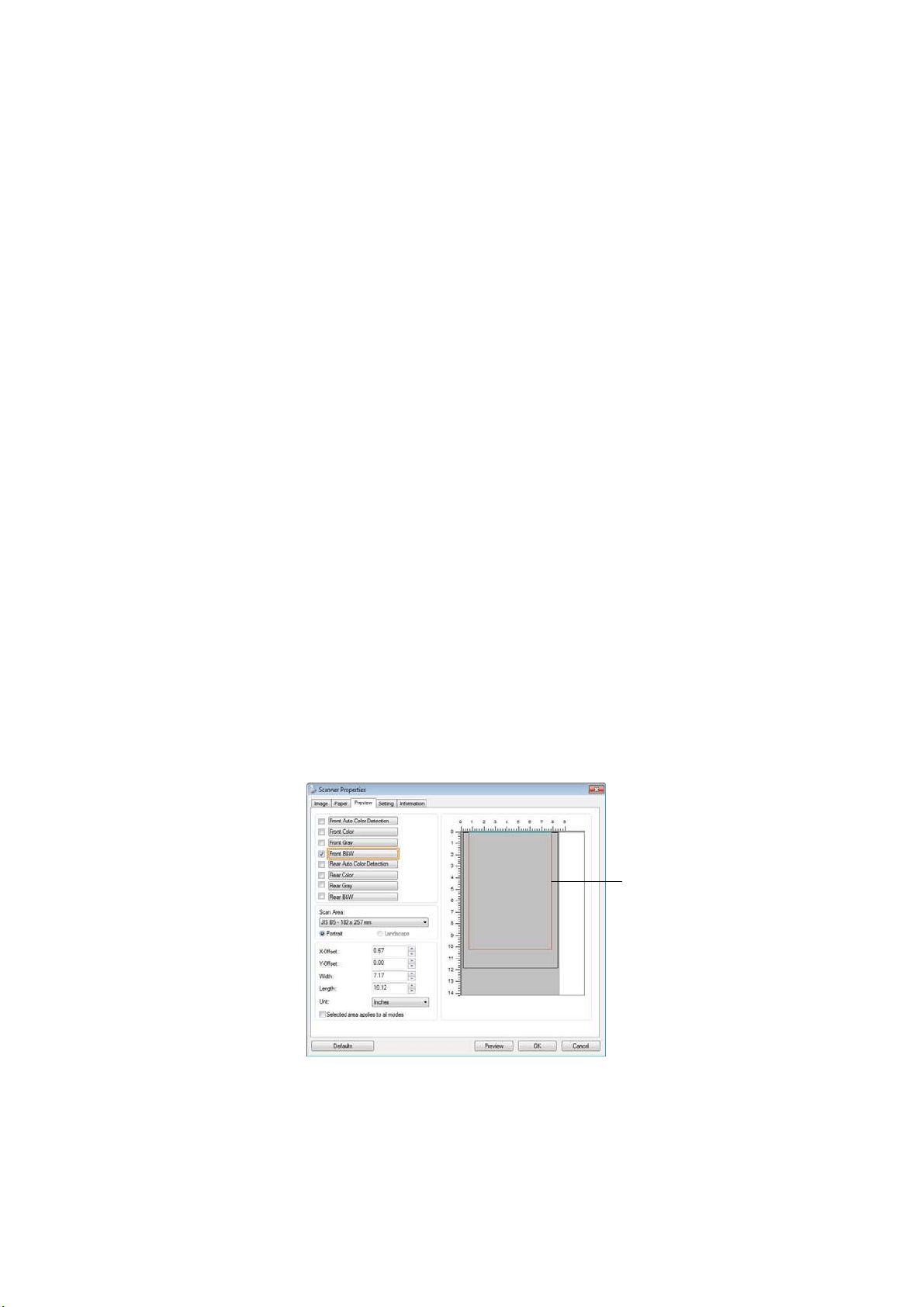
134
The Adj ustm ent opt ion is available when Autom at ic is selected.
Adj ustm ent —adds a positive/ negat ive m argin value Top/ Bot t om or
tow ard left / right of t he im age. Adj ust m ent is used when t he autom at ic
docum ent feeder is used. Adj ustm ent reduces t he possibilit y of corner
clipping on skewed im ages. To set Adj ustm ent values, use t he UP/ Down
but t ons t o select where you want t o apply Adj ustm ent values: Top/ Bot t om
or Left / Right , and t hen select t he am ount of inches/ m m / pixels applied.
Select a value wit hin t he range of 0.00 to 1.00 / - 1.00.
Re lat ive t o Docum e nt: ( used for bat ches of sam e- sized docum ent s)
This opt ion allows you to crop different areas on your docum ent s and deliver
these im ages in B&W, Gray, or Color separat ely. For exam ple, t here are
applicat ions which require you to st ore the entire docum ent in B&W and a part
of t he docum ent in color t o save storage space. This is useful for docum ent s
where a phot ograph or signature appears in a consistent area on t he docum ent
such as resum es, and so on.
The following procedure describes how t o reproduce t he entire docum ent in
B&W and a portion of docum ent ( pict ure) in color.
1. On the Paper t ab, choose “ Relative t o Docum ent ” or “Fixed t o Transport”
from t he Cropping option.
2. Choose your scan size from the Scan Area opt ion. The select ed scan size
will be displayed in a red rect angular box. This is also the scan size of
your ent ire docum ent . (For exam ple, I SO B5. I f you have not chosen a
scan area and leave the selection as None, t hen t he default area will be
the scanner’s m axim um .)
A red rectangular box
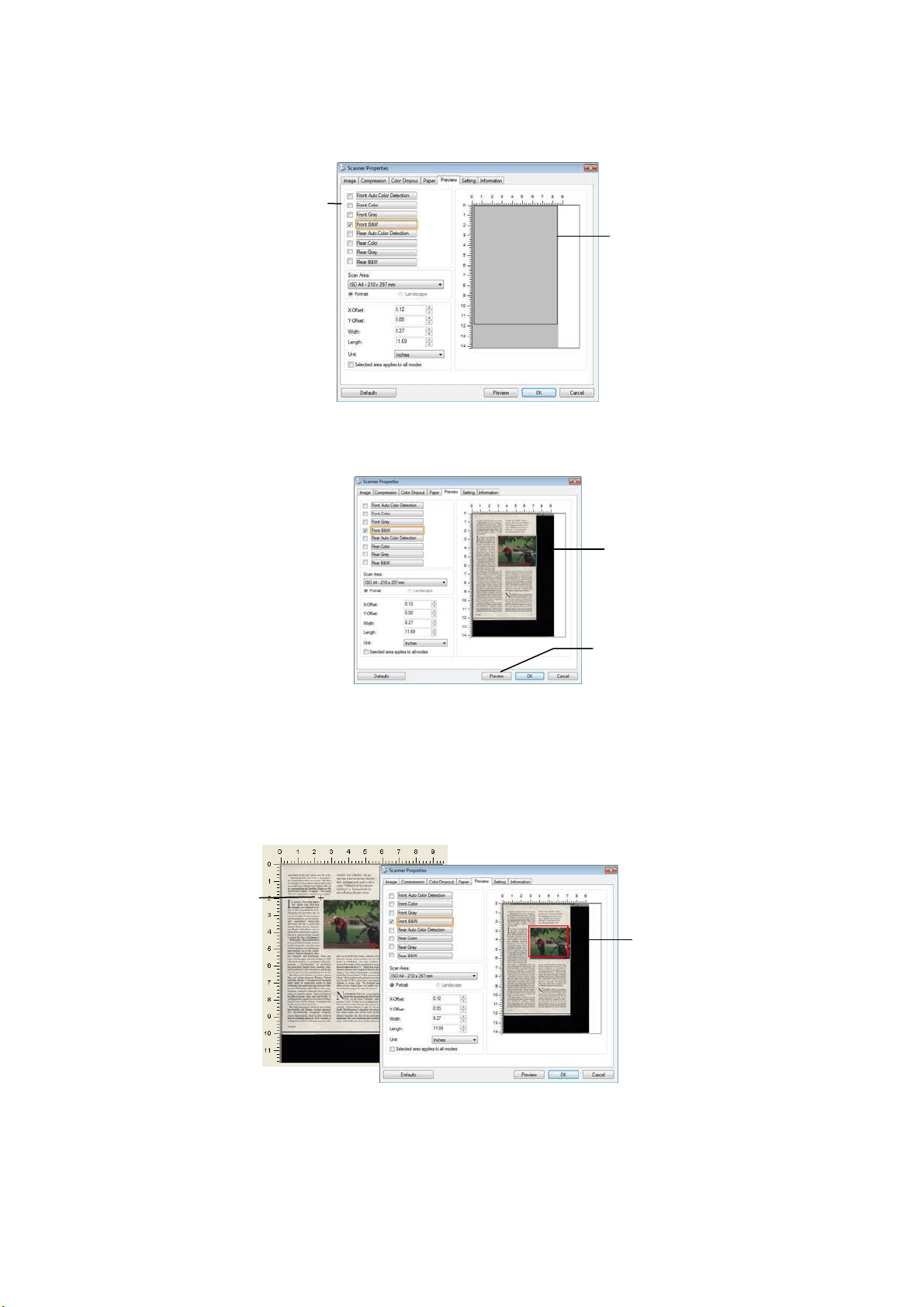
13
5
3. Click t he Preview tab t o display t he Preview window . A black rect angular
box appears t o indicat e t he m ax. scan size your have j ust select ed.
4. Click t he Preview butt on t o view the entire im age in low resolution t o
correctly crop your relat ive scan area.
5. Select im age type from t he I m age Select ion box. The selected im age will
appear in highlighted color. ( For exam ple, Front Color)
6. Place your cursor on t he Preview window and click your left m ouse button.
A cross sign will appear as illust rated. Creat e your relat ive scan size
diagonally by dragging t he left m ouse but t on t o your preferable size. The
select ed area will appear in a red box as illustrated.
T
he Preview
I m age
T
he Preview
Button
The
Relat ive
Area
A Cross
Sign
A black
rectangular
box
The I m age
Select ion
Box
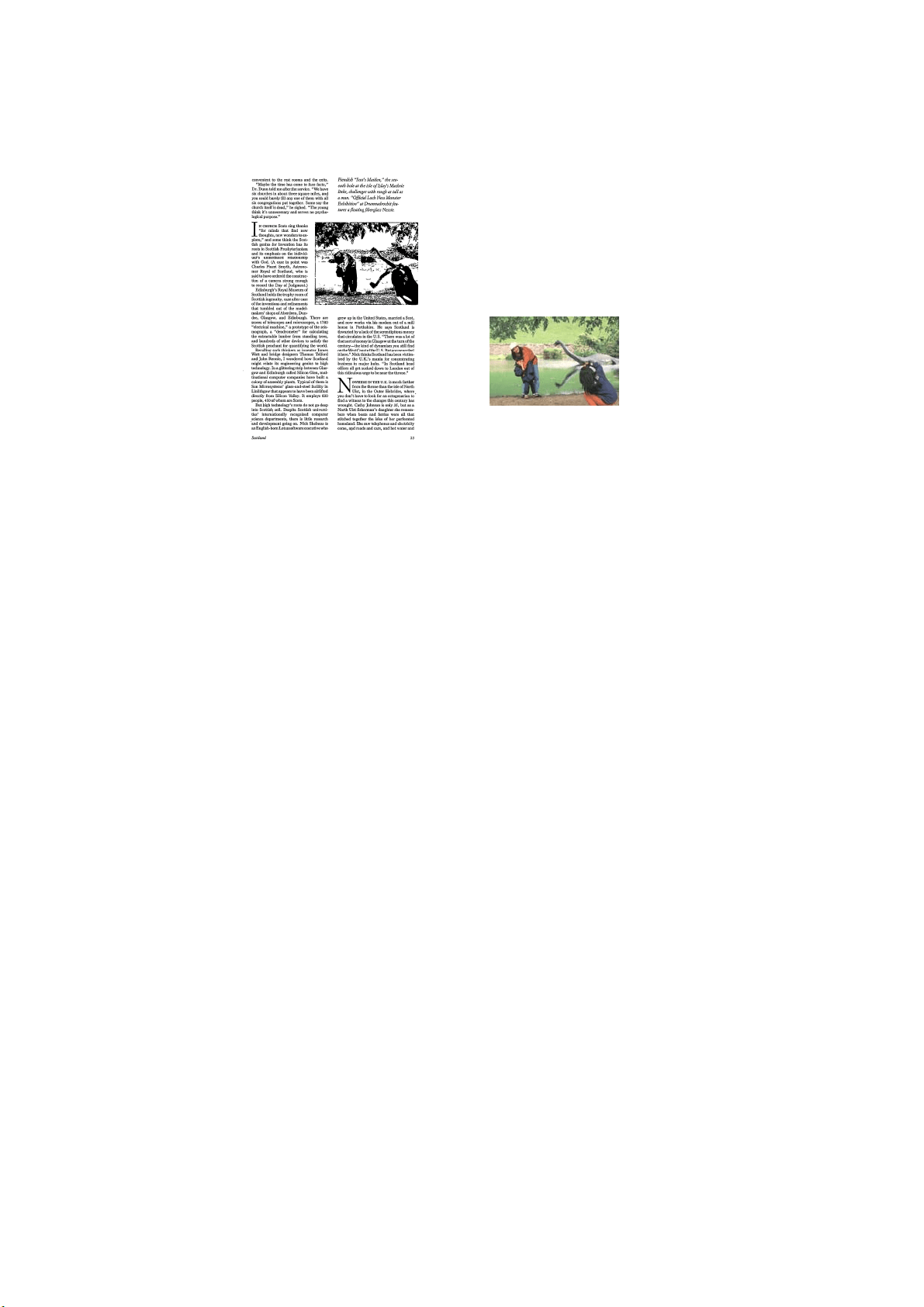
13
6
7. Check t he B&W im age from t he I m age Select ion box t o scan t he ent ire
docum ent .
8. Click t he Scan button t o start scanning the docum ent in t w o im age t ypes
and sizes. ( See the result in below.)
The entire docum ent in B&W The relative area in color
Ot her Pa per Se le ct ion
Carrier Sheet M ode:
Check t his opt ion t o aut om at ically crop the scan window according t o your
docum ent size when scanning non- standard docum ent ( fragile, irregular-size
docum ent ) wit h a carrier sheet ( opt ional) . Note: The availabilit y of t his opt ion
varies due to scanner m odel.
Loa ding Docum e nt s Using a Ca rrie r Sheet
A Carrier Sheet is a plastic sheet specifically used for loading non- standard
docum ent onto t he scanner. I t allows you t o scan docum ent t hat can not be
scanned in t he regular way. Also, docum ents larger t han A4 size, such as A3 and
B4, can be scanned by folding in half, inserting int o t he Carrier Sheet, and
scanning in duplex m ode. You can also scan docum ent s that can be dam aged quite
easily such as photographs, or irregular size docum ents that are difficult to load
direct ly such as clippings.
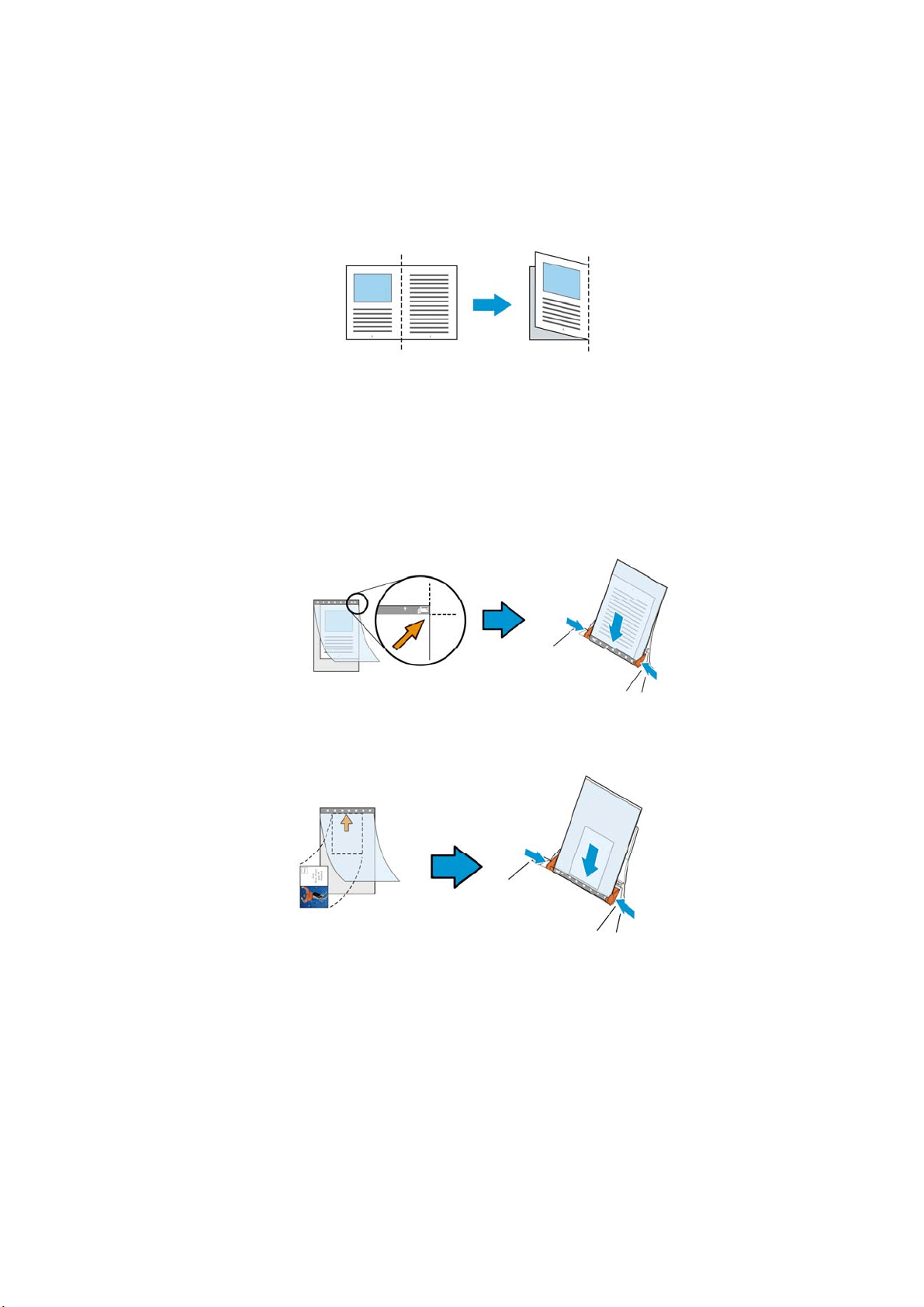
13
7
To scan docum ent u sing a Ca rrier Sheet,
For docum e nt s large r t han A4 / Let t e r size, such a s A3
a. Fold t he sheet t o be scanned in half.
b. Fold the sheet t ight ly and sm oot h out crease. Otherw ise, t he sheet m ay be
skewed during scanning.
1. Open the Carrier Sheet and place the docum ent inside.
Align t he top of t he docum ent t o t he top of t he Carrier Sheet (the print ed area) .
For docum e nt s large r t han A4 / le t t e r size, such as A3
Align t he top of t he docum ent t o t he top of the Carrier Sheet ( t he print ed sect ion)
and t he folded portion t o t he right edge of t he Carrier Sheet so t hat t he docum ent
fit s into the Carrier Sheet at t he upper corner.
For n on - st a ndard docum e nt
Center your docum ent in t he Carrier Sheet.
2. Load the Carrier Sheet wit h t he gray sect ion (print ed sect ion) facing
downw ards.
3. Adj ust the paper guides to t he widt h of t he Carrier Sheet .
Adj ust t he paper guides so that t here is no space bet ween t he guides and t he
Carrier sheet . Space bet ween the guides and Carrier Sheet m ay cause t he
Carrier Sheet t o becom e unaligned during scanning, and skew t he scanned
im age.
4. Start t he scan.
138
N ot ice:
[ Carrier Sheet ] is available for t he m odels that support t he Carrier Sheet.
Som e functions are disabled when [ Carrier Sheet ] is checked.
This opt ion m ay not work properly on som e applications.
Scan Area
Choose your desired paper size wit h t he drop- down list box. Or you m ay
select a cust om paper size by clicking t he Scan Area box and t hen click Add
to include in t he choice.
Choices a r e list ed below :
N on e
US Lett e r- 8 .5 ”x 1 1 ”
US Legal – 8 .5 ” x 1 4 ”
I SO A4 – 2 1 x 2 9 .7 cm
I SO A5 – 1 4 .8 x 2 1 cm
I SO A6 – 1 0 .5 x 1 4 .8 cm
I SO A7 – 7 .4 x 1 0 / 5 cm
I SO B5 – 1 7 .6 x 2 5 cm
I SO B6 – 1 2 .5 x 1 7 .6 cm
I SO B7 – 8 .8 x 1 2 .5 cm
JI S B5 – 1 8 .2 x 2 5 .7 cm
JI S B6 – 1 2 .8 x 1 8 .2 cm
JI S B7 – 9 .1 x 1 2 .8 cm
Scann er M a x im um
Long Pa ge ( < 1 1 8 ”)
Long Pa ge ( < 1 1 8 ”) :
When you need to scan docum ents whose lengt h exceeds scanner m axim um ,
please choose Long Pa ge. Not e if Long Pa ge is selected, the M ult i- Feed
Detection will not be available. ( Not e: This opt ion and t he m axim um
allowable docum ent length vary due t o t ype of scanner.)
When Long Page ( < 1 1 8 ”) is select ed, be sure t o specify your docum ent size
in t he Le n gth and W idt h field.

139
N ot ice w hen scanning long page docum ent:
1. Pull out the extension in t he ADF Paper Tray.
2. Secure enough space around t he Output Tray t o prevent t he ej ected paper
from falling off t he Output Tray.
3. To ensure t he perform ance, in color m ode, set t he resolut ion t o be 300 dpi or
lower; in Black and White m ode, set the resolut ion t o be 600 dpi or lower.
4. Depending on your syst em environm ent s, applicat ion, or your specified paper
size, t here m ay be insufficient m em ory t o perform scanning.
Over Scan
Overscan allows you t o add a specific m argin at t op and bot t om or right and left
( Opt ions vary based on t he t ype of scanner) of t he edge of t he im age. This is
used t o reduce possible corner clipping on t he skewed im ages and oft en applied t o
a bat ch of skewed docum ent t o be scanned in t he auto docum ent feeder. Select
a value bet ween 0 and + 5 m m . Not e t he overscan result will not be show n in
the Display window and t hat t he availabilit y of the function varies based on t ype
of scanner.
Pr e - Feed
Choice: Enable, Disable. I f enable is selected, you can set t he am ount of tim e
the scanner starts pre-feeding your paper after your docum ents has been loaded
int o t he feeder. The default is disable. Not e: The availabilit y of t his opt ion varies
due t o scanner m odel.
Transport Tim eout
Set the am ount of t im e t he scanner will wait and t hen start auto scan after t he
first scan j ob is com plet ed. I f you have m any separate docum ent s need t o be
scanned at the sam e scan sett ings, t his feature is especially useful. The default is
0. The value ranges from 0 t o 30 seconds.
N ot e:
1. Wit hin t he specified t im eout period, if you load your docum ent t o t he feeder,
the scanner starts scanning aut om at ically.
2. I f your scanner has a flat bed opt ion and you place your paper on t he flatbed,
aft er the t im eout period, you need t o click the Scan but t on on the TWAI N
user interface t o start scanning.
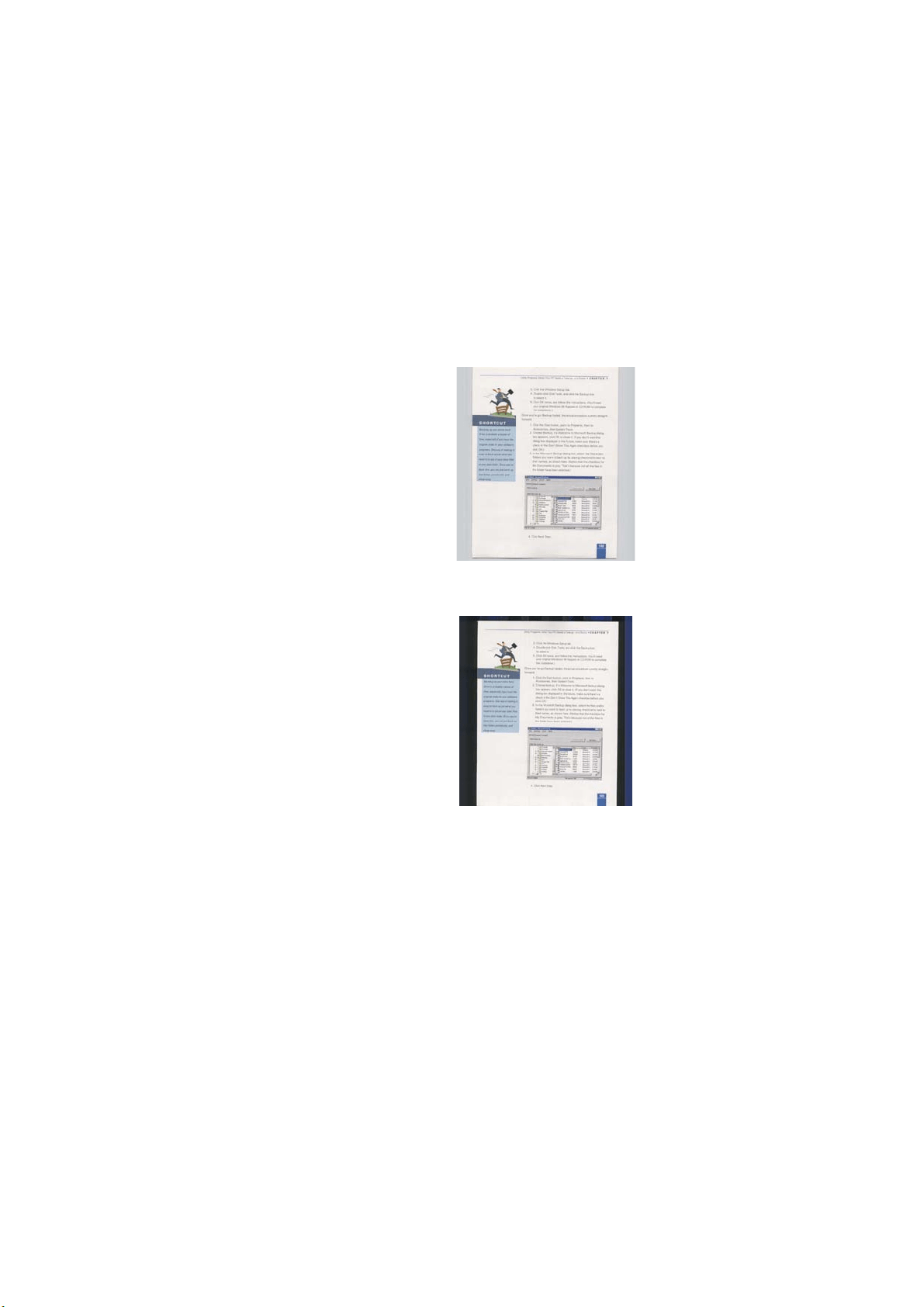
14
0
Background Set t ing This opt ion allows you t o set your scan
background. Choice: W hit e Background, Bla ck
Backgr oun d.
Note: For a sheet - fed scanner wit h an auto
docum ent feeder, t his opt ion is currently available
only in t he “ Aut o crop” m ode. For a scanner wit h a
flat bed plat en, t his opt ion is available eit her in the
“ Auto crop” or t he “Fixed to Transport” m ode.
Whit e Background
Black Background
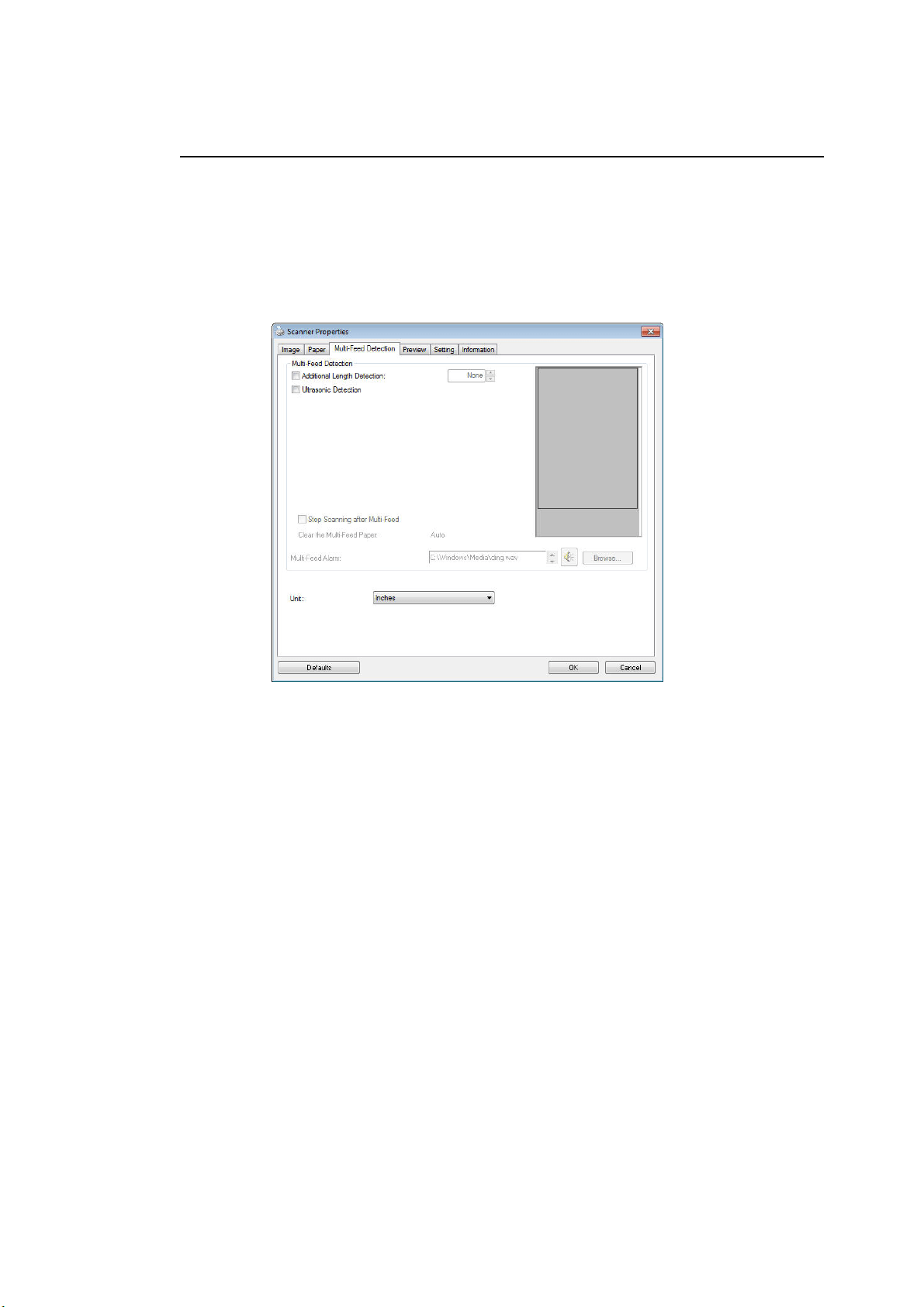
141
The M ult i- Fee d Detect ion Tab
Mult i- Feed Det e ct ion
Multi- Feed Detect ion allows you t o det ect overlapped docum ent that go t hrough
the auto docum ent feeder. Multi- Feed usually occurs due t o stapled docum ent s,
adhesives on docum ent s, or electro- stat ically charged docum ent . Note: The
availabilit y of t he funct ion varies based on t ype of scanner.
Addit ional Length D et e ct ion
Addit ional Lengt h Detect ion allows you t o define t he lengt h of docum ent being
m ult i- fed. This value indicat es t he addit ional lengt h exceeding your scan area.
The Display window w ill show t he size of t he docum ent as you change t he value.
A value of 0 indicates no addit ional lengt h det ection. The Addit ional Lengt h
Det ection is best used when scanning sam e- size docum ent s in t he auto docum ent
feeder.
Ult rasonic D e t ection
Ult rasonic Det ection allow s you t o set overlapped docum ent by detect ing paper
thickness between docum ent s. Not e: The availabilit y of t he function varies
based on t ype of scanner.
There are t wo options available if Mult i- Feed is det ect ed.
Stop Scanning after M ult i- Fe e d
I f t his is selected, t he scanner w ill st op t he feeder and display the following
Warning dialog box if m ult i- feed is det ect ed.

14
2
Action:
1. Follow t he instruct ion on t he Warning dialog box t o rem ove t he rest pages on
the feeder.
2. Click OK t o close t he Warning dialog box.
3. Scan t he rest pages.
Cle a r t he M ult i- Fe d Pa per: Auto
I f t his is checked, once m ult i- feed is det ected and scanning operation is st opped,
t he scanner will aut om at ically clear t he t ransport of the m ulti- fed paper. I f t his is
not checked, once mult i- feed is det ected and scanning operation is stopped, you
need t o m anually clear the t ransport of the m ult i- fed paper. Note: The
availabilit y of t his option varies based on t ype of scanner.
Mult i- Feed Ala r m
I f a wave file is added, t he scanner w ill m ake a sound alarm if m ulti- feed is
detect ed yet no Warning dialog box w ill be displayed.
I f “ Stop Scanning after Mult i- Feed” is select ed, t he scanner w ill st op the feeder.
I f “ Stop Scanning after Mult i- Feed” has not been selected, the scanner will
cont inue t o scan t ill t he end of your docum ent .
Act ion:
1. I f “St op Scanning aft er Mult i- Feed” is select ed, follow t he act ion described in
the preceding sect ion “ St op Scanning after Mult i- Feed” on t he previous page t o
com plet e your j ob.
2. I f “ Stop Scanning aft er Mult i- Feed” has not been select ed, rescan t he pages
where m ulti- feed is detected.
How t o a dd t he sound a la rm
:
1. Click the Browse but t on on t he right side of t he speaker icon. The Open dialog
box appears.
2. Choose your wave file.
3. Click the Open but ton. The wave file is added.
Un it s
Defines t he prim ary m easurem ent syst em . I nch es, M illim eters, and Pixels are
available.
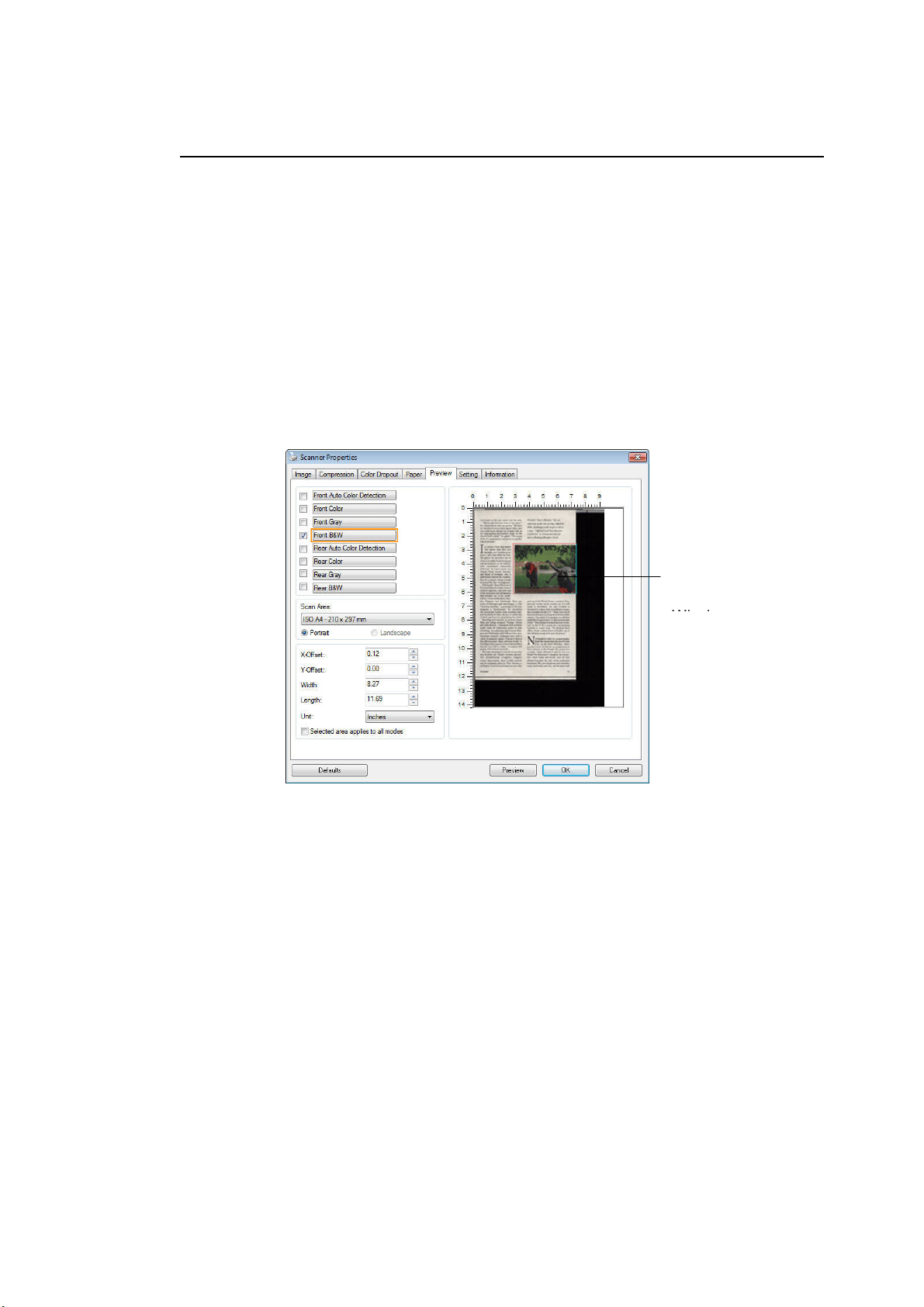
143
The Preview Tab
The Preview t ab allow s you t o preview ( a low- resolution scan) your im age before
final scan. This preview im age let s you allocate your scan area. You can choose
your scan area by t he “ Scan Area” drop down list box or placing your cursor on t he
Display window and dragging it diagonally on t he Display w indow. Then, a red
rect angle box w ill appear t o indicate t he selected area.
Note: I f you choose “ Autom at ic Cropping” on t he “ Paper Tab” , then t o select a
scan area on t he Preview t ab is not allow ed.
The Previe w Ta b
The Display
Wi d
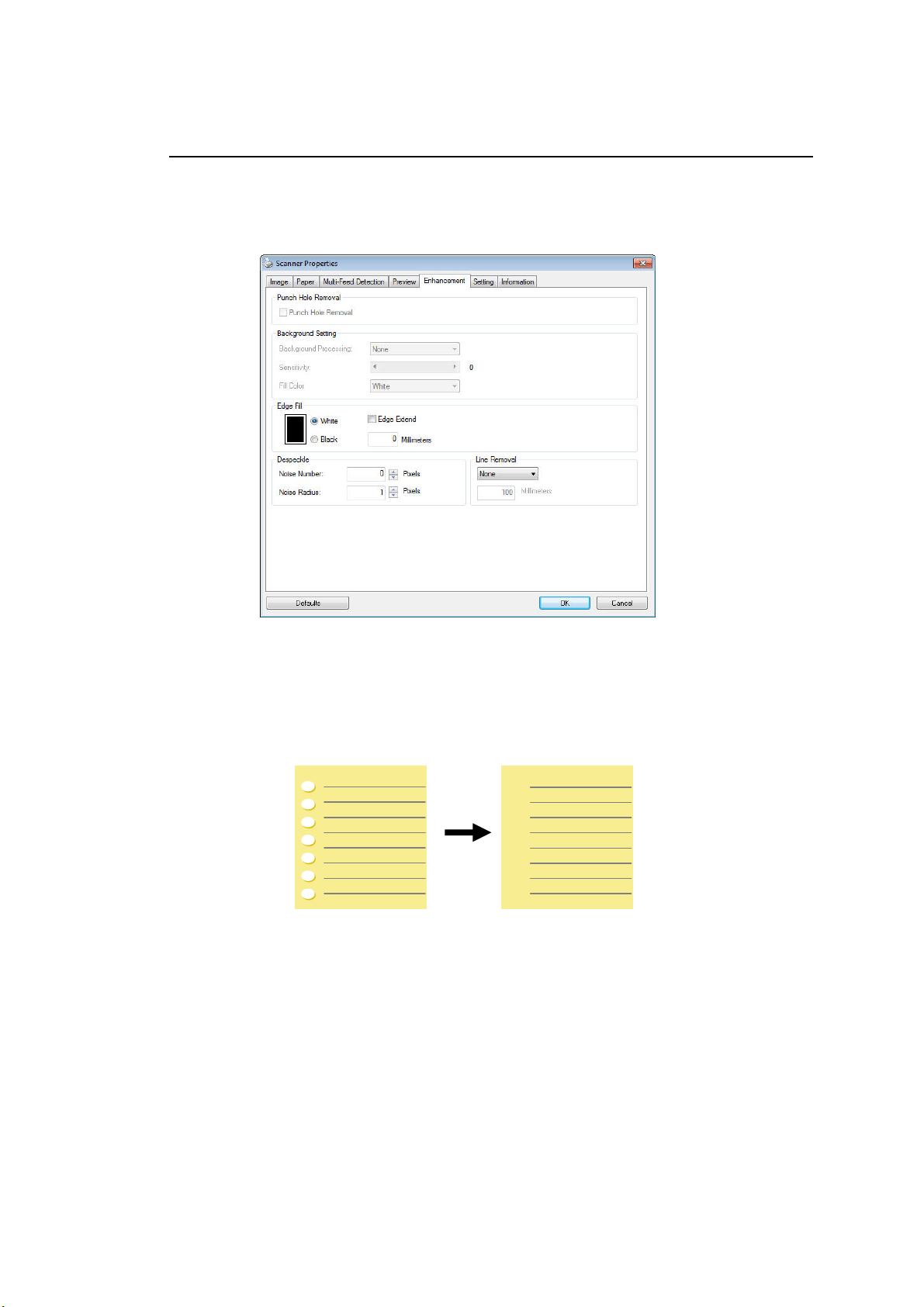
144
The Enhancem ent Tab
The Enhancem ent t ab allows you t o set following addit ional im age processing
set t ings.
The Option t ab dialog box
Pu nch
Hole
Rem oval
You can rem ove punch holes from t he output scanned im age when
scanning punched docum ent . Not e t he availabilit y of t his feat ure
varies depending on your scanner m odel.
Pu nch hole s can not be rem oved w hen:
Resolut ion is set lower t han 150dpi
The hole is near t he edge of the docum ent
The holes are not aligned along t he edge of t he docum ent
Punch Hole Rem oval is available only w hen “ Aut o Crop” is
enabled. I f eit her “ Fixed t o Transport”, “ EOP ( End of Page)
Det ection” , “ Autom at ic Mult iple” , “ Relat ive t o Docum ent s” is
select ed from t he Cropping opt ion on t he Paper t ab, t he Punch
Hole Rem oval opt ion will be disabled.
Original
Out put im age
14
5
Befor e Shadow Rem oval After Shadow Rem oval
Shadow Rem oval
When 「Flat bed」on the 「Scan
Source 」 opt ion is selected on t he
「I m a ge」tab, the 「Shadow
Rem oval」opt ion will be enabled. Click
to rem ove the shadow on t he book
spine when scanning a book.
14
6
Backgr ound Pr oce ssing: The [ Backgr oun d Pr oce ssing] opt ion allows you t o
sm oot h background color or rem ove it t o m ake im age clearer. The option is
especially useful for docum ents with color form s such as invoices.
Choices: N one ( de fault ) , Sm oot h, Re m ova l
- N one - no background processing w ill be perform ed ( default)
- Sm ooth - produces im ages wit h a m ore uniform background color. This opt ion
im proves im age qualit y.
- Rem oval - ident ifies the background color and then rem oves it .
Sensit ivit y: Choice: 0 , 1 , 2 , 3 , 4 . Defa ult : 0
- The higher t he value, t he m ore background color will be kept .
Mode: Aut o, Moiré
I f [ Sm oot h] is selected in the [ Ba ckgr ound Pr ocessing] opt ion, then t he choices
for the [ Mode] opt ion includes Aut o, and Moiré.
- Au t o - uses t he factory preprogram m ed m ode to proceed background sm oot hing.
- M oir é – Rem ove t he m oiré pat t erns t hat appear on t he background of the im age
when scanning print ed m at erial.
I f [ Rem oval] is selected in t he [ Back gr ound Pr ocessing] opt ion, t hen t he [ M ode]
opt ion will be replaced w it h [ Fill Color] . Choices: White, Auto.
- W hit e - identifies t he background color and subst itut es it wit h whit e.
- Au t o - identifies the background color and subst itut es it with t he color of t he
largest background zone.
Backgr ound Pr oce ssing: N one
14
7
Backgr ound Pr oce ssing:
Sm oot h
Backgr ound Pr oce ssing:
Rem oval
Fill Color: Whit e
N ot e: Background color in sm all zone will not be processed or rem oved.
Edge Fill Check Whit e or Black if you wish t o add w hit e or black
edge on t he border of your scanned im age. Ent er t he
value from 0 to 5 m m . Default value is 0.
I f you want t o add a whit e or black fram e on t he edges
of t he scanned im age, check "Edge Extension".
Original
Edge Fill: 5 m m ( Black)
The default value is 0. The m axim um value is half of t he
short side of the selected scan area.
For exam ple, if you choose an A4 size (8.26 "X11.69" ) ,
then t he m axim um value of t he whit e or black box is
4.14" ( half of " 8.26" ) .
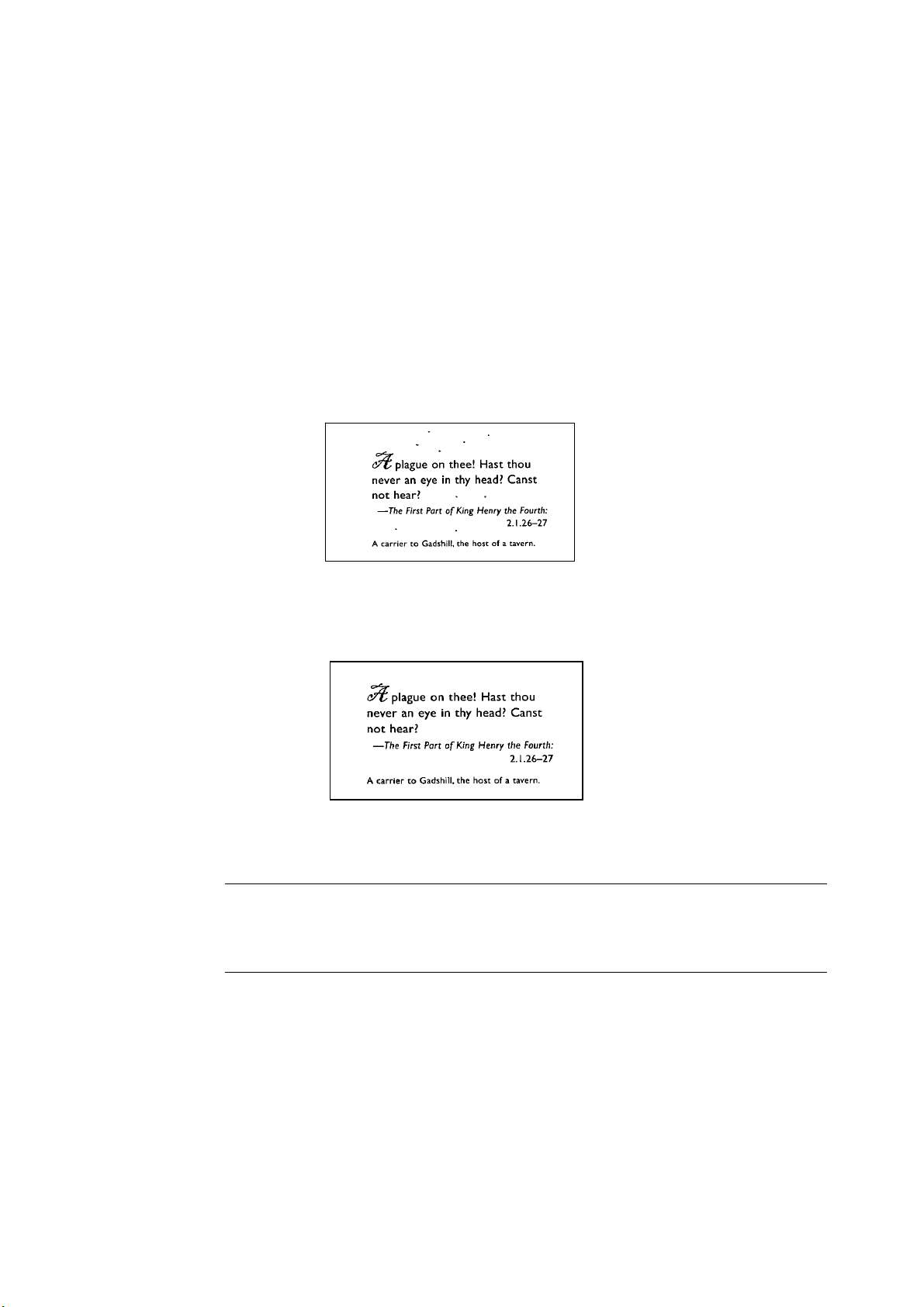
148
Despeckle
Occasionally sm all dots or specks appear in t he background of a scanned im age.
Rem ove unwant ed speckles provides a cleaner im age for OCR ( Opt ical
Charact er Recognition) processing, and also helps t o reduce com pressed file
size.
Define the speckles ( also known as im age noise) you wish to rem ove by
specifying its num ber ( size) and radius ( range) . The m easuring unit is pixel.
The higher t he num ber, t he m ore speckles will be rem oved.
Before Despeckle
( noise num ber: 0, noise radius: 1)
Aft er Despeckle
( noise num ber: 22, noise radius: 10)
N ot e:
The funct ion is current ly available for Black and Whit e im age only.
To scan at rat ed speed, it is recom m ended to set the noise radius up t o 10
pixels.
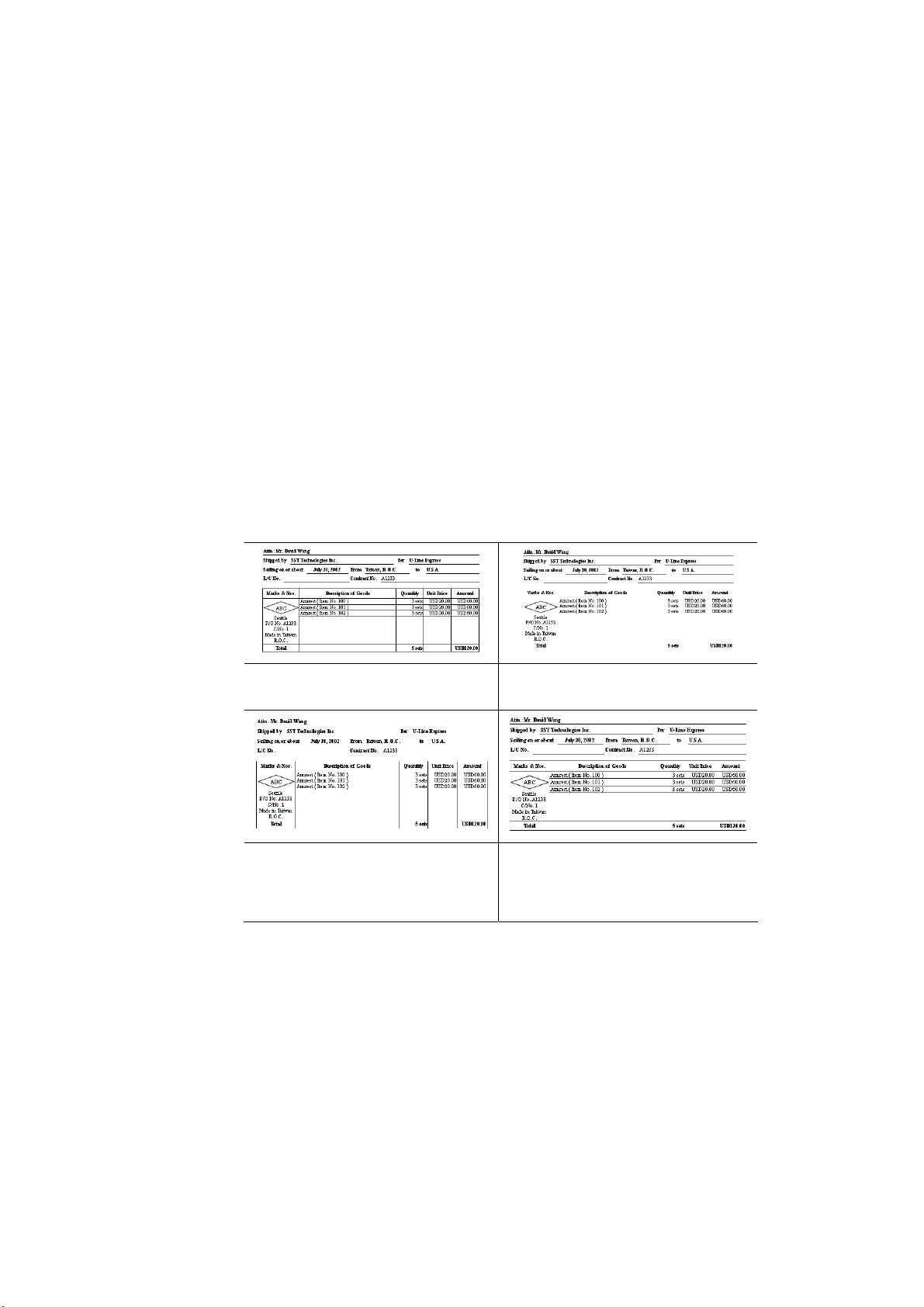
149
Line Rem oval: When Bla ck and W h it e im age m ode is selected on t he
[ I m age ] t ab, t he [ Line Rem oval] opt ion will be enabled. Line Rem oval
erases lines on t he im age and then reconstructs characters so t he OCR
( Opt ical Character Recognition) accuracy can be im proved.
Choices: N one, Form , Hor izon t a l, Vertica l
N on e – t he default m ode w hich does not rem ove any line.
Form – rem ove any form in t he docum ent .
Horizont a l – select [ H orizont a l] and t hen enter t he lengt h of horizontal
line t o rem ove only t he horizont al line exceeding your specified lengt h.
Vert ical – select [ Vertica l] and t hen ent er t he lengt h of vertical line t o
rem ove only the vertical line exceeding your specified length.
N on e Rem ove For m
Rem ove H orizontal Line
( over 3 0 m m )
Re m ove Vert ical Line
( over 7 0 m m )
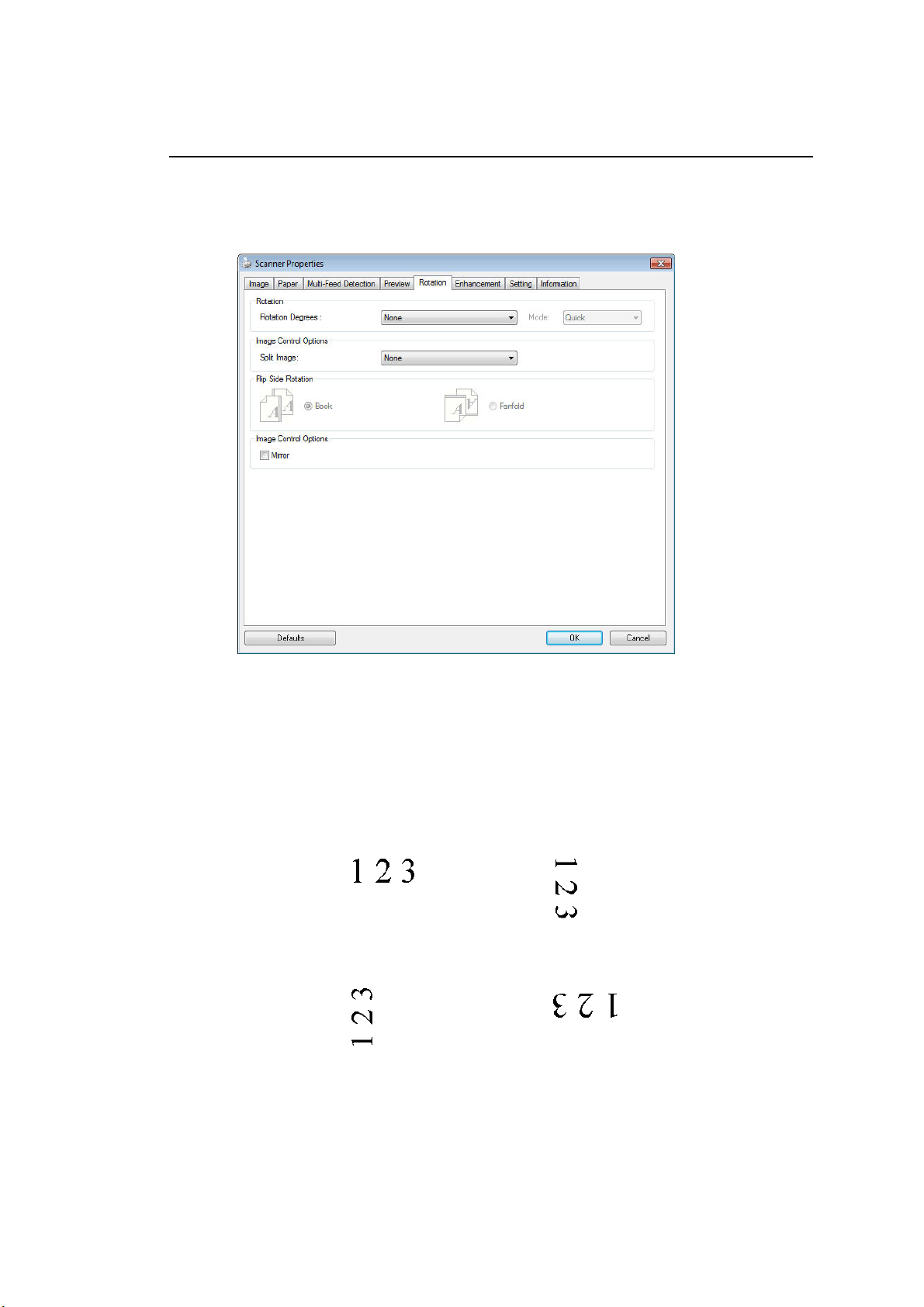
15
0
The Rotat ion Tab
The Rotat ion t ab allows you t o set t he following im age rot ating opt ions:
Rotate I m age Choose the rot at ion angle from t he drop down list if
you wish t o rot at e your scanned im age.
Choice: N one, 9 0 ° CW ( clockw ise) ,
9 0 ° CCW ( counter clock w ise) , 1 8 0 ° , Aut o base d
on cont e n t s. Aut o r otat e e very e ven page .
Original
Rot a t e 9 0 ° CW
Rot a t e 9 0 ° CCW
Rotate 1 8 0 °
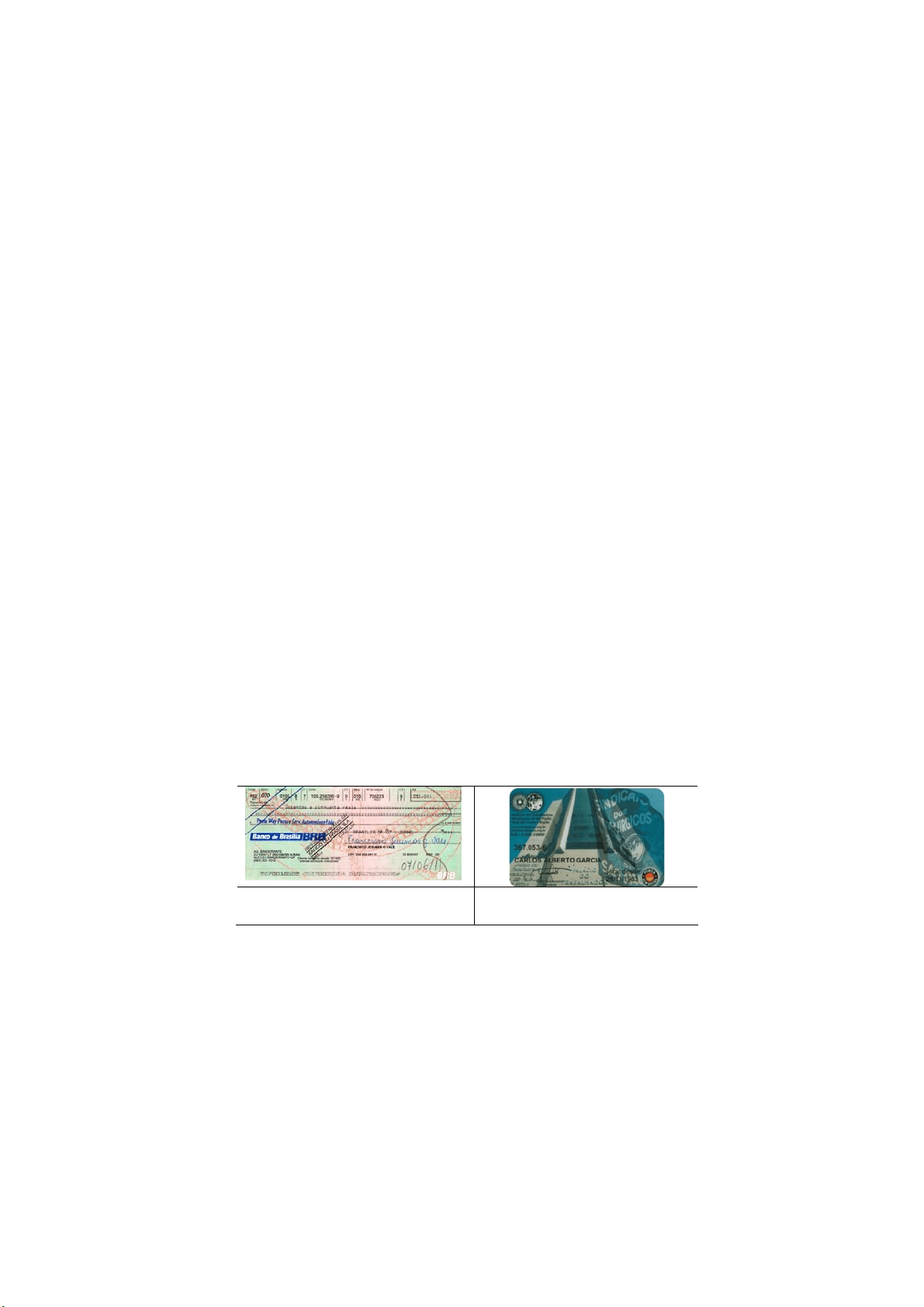
151
Auto base d on content s: Aut om at ically rot at e
im ages based on t he cont ent s of docum ent . When
「Auto base d on contents」 is selected, it s m odes
will be enabled t o let you select m ore opt ions.
Mode: Quick, Full Te x t , Com plexit y
Quick – t he default m ode t o let you rot at e im ages at
the fast est speed.
Full Text – the enhanced m ode for docum ents with
m ixed t ext orient at ion.
Com plexity – t he enhanced m ode yet at the slowest
speed for docum ent wit h com plex im age or t ext
orient at ion.
Auto rot a t e e very even page:
Autom atically rotate 180° on every even page. This
is especially useful when you scan t he inside pages
from a book. As a result , if you choose “ Flatbed
( book) ” from the “ Scan Source” opt ion, “ aut o rot at e
every even page” will be select ed as default.
N ot e: This opt ion varie s ba sed on type of
scanner.
Docum e n t w it h various
t ext orie ntat ions
Docum e nt w it h dark or
com ple x back ground
Split I m age By split t ing an im age, t wo separat e im ages are
creat ed horizont ally or vertically . This is useful for
docum ent s cont aining two pages per im age when
you want t o save t hem as t wo im ages ( one page for
one im age) . Choice: None, Hor izont a l, Ver t ica l.
Default is None.
Horizont a l: Divide one im age int o the upper half
and t he lower half.

15
2
Vert ical: Divide one im age int o t he left half and t he
right half.
Split H orizont a lly
Split Vert ical
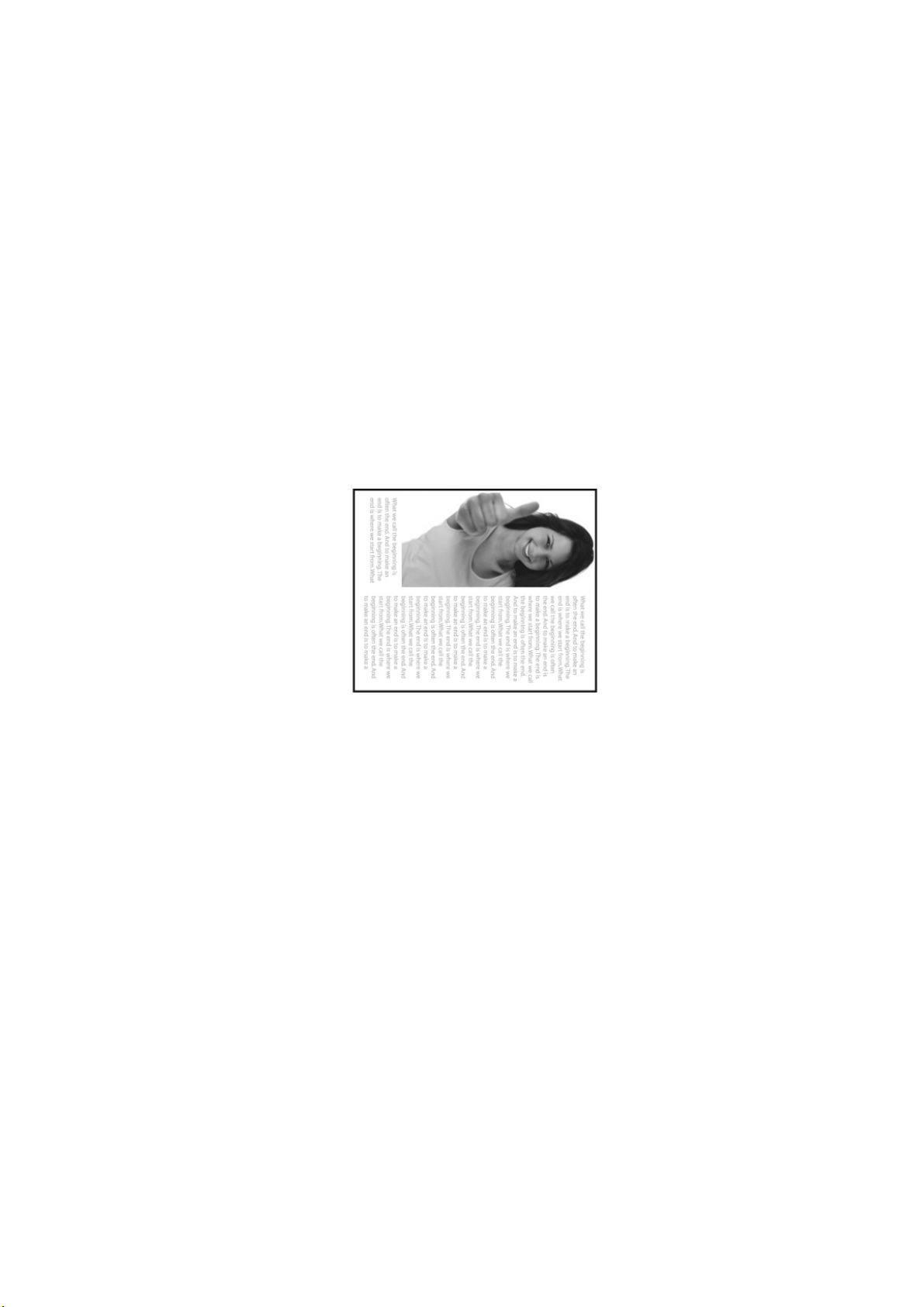
153
Flip Side
Rotation
Select “ fanfold” t o rotat e t he im age of t he reverse
side t o 180 degrees.
This is applied to double- sided docum ent which are
viewed in portrait are som et im e fed into t he scanner
in landscape or vice versa.
Choice: Book , Fanfold.
I f “ Book” is select ed, t he im age of t he reverse side
will not be rot at ed.
The following illust rat ion shows t he docum ent s which should be viewed in
portrait are fed into t he scanner in landscape
154
I m age Con t r ol
Opt ion
Check t he Mirror box if you wish t o reverse t he right
and left side of your im age.
Original
The M irror Effe ct
15
5
The Separa t ion Tab
The Separation t ab allow s you t o enable t he det ection engine t o det ect the blank
page, barcode, and pat ch code and t hen not ify t he software application which
supports docum ent separat ion t o separate your m ulti- page docum ent s. Choices:
Blank Page Rem oval, Barcode Det ection, Pat ch Code Det ection.
Bla n k Page
Rem oval
Choices: None, Blank Page Rem oval Threshold,
I m age Size.
N on e – Do not rem ove t he blank pages.
Threshold - Move t he slider t o t he left or right t o
define your threshold for t he blank page.
I m age Size – Range: 1~ 10000 KB. Specify your
desired im age size to det ect the page as a blank
page. For exam ple, if 3 KB is selected, any page less
than 3 KB will be recognized as blank page.
Barcode
Detection
Check [ Ena ble] to detect barcode and not ify t he
soft ware application for advanced processing. Please
not e t he whole docum ent will be checked and no
specific det ection area needs t o be designat ed.

15
6
When t he bar code has been det ected successfully,a file [ avbarcode.ini] will be
creat ed and stored in t he following pat h:
Windows XP: C: \ Docum ents and Sett ings\ All Users\ Application
Dat a\ % PRODUCTNAME%
Vist a, Windows 7, Windows 8, Windows 10: C: \ Program Dat a\ % PRODUCTNAME%
Barcode Type s:
The following barcode t ypes can be det ected.
Tw o- dim ensiona l codes
Aztec
Dat aMatrix
PDF417
QR Code
One- dim ensional ba r codes:
Add- 2
Add- 5
Aust ralian Post 4- St ate
BCD Matrix
Codabar
Code 128
Code 32
Code 39
Code 93
Dat aLogic 2 of 5
EAN 128
EAN-13
EAN-8
GS1 Dat aBar
I ndustrial 2 of 5
I nt elligent Mail
I nt erleaved 2 of 5
I nvert ed 2 of 5
I ATA 2 of 5
Matrix 2 of 5
PostNet
Royal Post 4-St at e
UPC-A
UPC-E
Barcode Zone:
Specify t he barcode zone t o be det ected.
Select 「All」 t o checks t he whole docum ent and det ects barcodes. Or you m ay speed
up t he process by specifying a det ect ion area since only the specified area is checked.
Choice: All, Top, Bot tom , Left , Right , Bot t om Righ t , Bot t om Left , Top Right ,
Top Left
15
7
Choice for barcode zone on a page :
All
Top
Bot t om
Left
Right
Bot t om
Right
Bot t om
Left
Top Right
Top Left
N ot e:
Recom m ended resolution: 200~ 600 dpi for regular barcode, 300~ 600 dpi for
QR code
Skewed barcodes m ay not be recognized correctly.
Using t he sam e sheet repeat edly m ay decrease t he recognition accuracy due t o
accum ulated dirt on t he sheet s. I f the sheet is not recognized correctly or get s
sm udged, replace it with a new sheet.
Pa t ch code Det ect ion:
Check [ Ena ble] to detect pat ch codes and not ify t he software application for
advanced processing.
A patch code is a pat t ern of parallel, alternat ing black bars and spaces ( i.e. a
barcode) that is print ed on a docum ent . Patch code sheet is m ost com m only used
as a docum ent separator in a stack of docum ent .
You can find various sizes of patch codes ( PDF) by choosing
[ St a r t ] m enu> [ All Progra m s] > [ Avision Scanne r Serie s] > [ Pat ch code] in
succession.
Sim ply print t he PDF file t o produce t he pat ch code sheet . I nsert the pat ch code
sheets t o wherever you want t he file t o separat e.
Patch code sheet

158
N ot es t o print t he pa t ch codes:
Use blank whit e paper.
Set the scaling t o 100% . The sheet is not recognized correctly when printed in
a size sm aller t han t he original.
Do not use t oner saving m ode. The sheet is not recognized correctly when the
print is t oo light .
Do not use t hin paper in order t o avoid bleed- t hrough from t he back.
When you copy a pat ch code sheet t hat you print ed out , m ake sure to copy by
the sam e size and bright ness as the original copy.
Use t he sam e sheet repeat edly m ay decrease t he recognit ion accuracy due t o
accum ulated dirt on t he sheet s. I f the sheet is not recognized correctly or get s
sm udged, replace it with a new sheet.
159
The Set t ing Ta b
The Setting t ab allows you t o set t he following sett ings:
The Set t ing t a b dia log box
Energy
Saving
Cont rol
Check the Enable Energy Sa ver box and m ove t he slider to
set the am ount of t im e to st art t he energy saver after your
last action. The range is from 1 t o 60 m inut es.
Enable Pow e r
Off
Check the En a ble Pow er Off box and m ove t he slider t o set
the am ount of t im e t o aut om at ically turn off t he scanner aft er
your last action. The range is from 1 to 480 m inut es. Not e
the value of “Power Off” has t o be greater t han or equal to
the value of “ Energy Saving” .

16
0
Cache
Mode: N one , Page N um be r , M em or y Size.
This opt ion allow s you t o assign a specified m em ory
size from the available RAM t o process the im age
data. By specifying a sm aller m em ory size, you can
free m ore m em ory for other applications you are
running. By specifying a larger m em ory size, you can
have m ore m em ory t o process the im age dat a
especially when you have a large am ount of
docum ent s needed t o be scanned.
You can also specify your m em ory size by t he page
num ber. For your inform at ion, an A4 color docum ent
scanning at 300 dpi consum es approxim ates 24MB.
I m age Cou nt
When t he selected cache m ode is “ none” , t he im age
count opt ion allows you t o assign num ber of pages
you need to scan. For exam ple, if you wish t o scan t he
first two pages, sim ply m ove t he page slider t o 2, and
t he scan action will be st opped when the scanning of
the first t wo pages have been com pleted.
Show
Scanning
Pr ogress
Check and t he scanning progress bar w ill be shown
during scanning.
Show
W a r ning
Message
Check t o show t he warning m essages such as “ ADF
pad count exceeds 50,000 scans ( t he num ber varies
based on t ype of scanner) . Please replace t he ADF pad
and reset the pad count.”
Save Se t t ings
afte r Closing
Check t o save your scanner properties set t ings after
leaving t he dialog box. Next tim e when you open t he
Scanner Propert ies dialog box, the previously saved
set t ings will be shown.
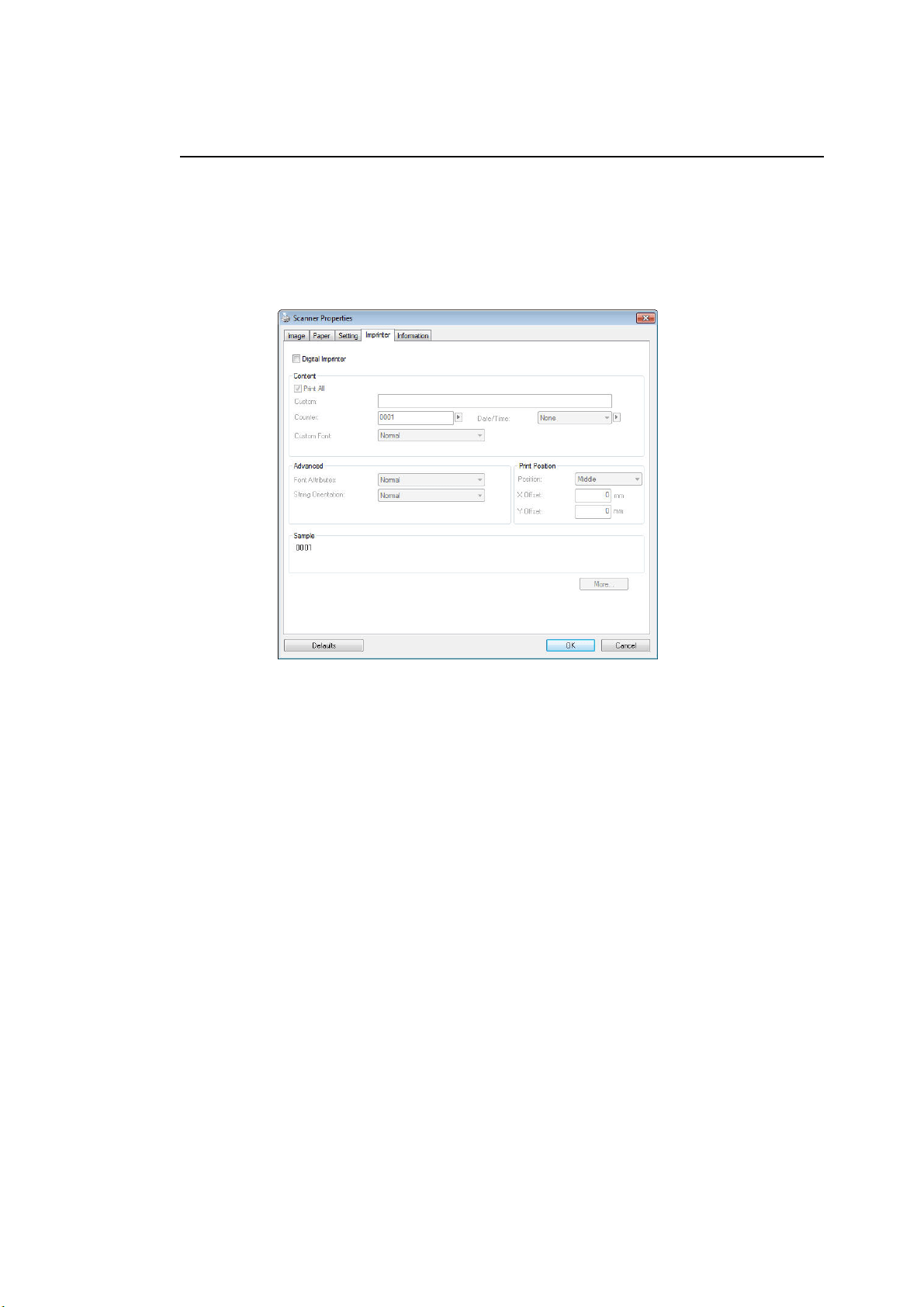
161
The I m print er Ta b
The I m print er t ab allows you t o print alphanum eric charact ers, dat e, t im e,
docum ent count and custom m essage on your scanned im age if digit al im print er is
select ed or at the back of your docum ent if external im print er is selected.
Choice: Ex t e r nal I m pr int e r, D igit a l I m pr inter. I f you have installed an
external im printer, choose external im pr inter. I f you do not have an im print er,
choose digit al im pr inter. Not e Ext ernal I m printer provides a vertical and rear-side
print capabilit y while digit al print er provides a horizont al and front - side print
capability.

162
Contents
Pr int All Check Print All t o aut om at ically print t he t ext at all
pages of your docum ent s.
Uncheck Print All to print the text for the first page of
your docum ent s only.
Custom Enter your cust om t ext t o be included in y our print
st ring.
Counter Show t he docum ent count for t he scan session. This
value is increased sequent ially by the scanner.
Da t e/ Tim e Choose if you wish t o include t he dat e and t im e in
your print st ring.
Form at : YYYYMMDDHHSS For exam ple,
20090402170645- check0001 indicat es year, m onth,
date, hour, seconds, your custom t ext and t he
count er.
Custom Font Choose your desired font .
Choice: N or m a l, Fixed W idt h
Fix e d W idth ( Mono spaced) fonts have a fixed
character spacing. So each charact er occupies t he
sam e widt h.
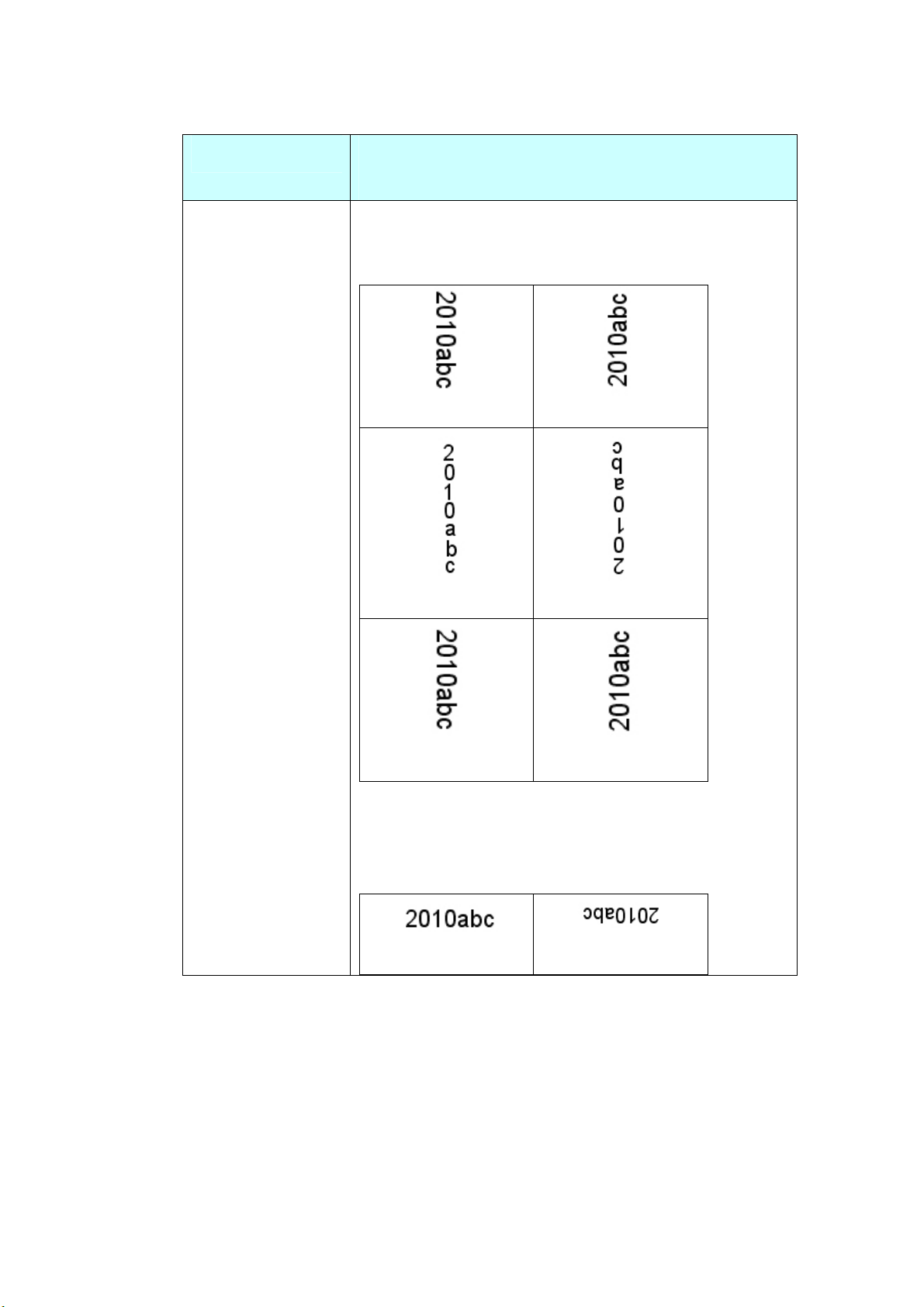
163
Advanced
Font At t ribut e s Choose your font at t ributes. Choice: N or m a l,
Under line, D ou ble, a nd Bold.
St ring
Orie nt a t ion
Choose your st ring orient at ion.
Choice: N or m a l, Rot a t ed, Vert ical, Vertica l
I nversion, 9 0 degrees CW , 9 0 degrees CCW
N or m a l
Rotated
Vert ical
Vert ical I nversion
9 0 de grees CW
9 0 de grees CCW
I f you check t he digit al im print er t o st am p t ext on
your scanned im age, the illustration of norm al and
rotated string is shown below:
N or m a l
Rotated
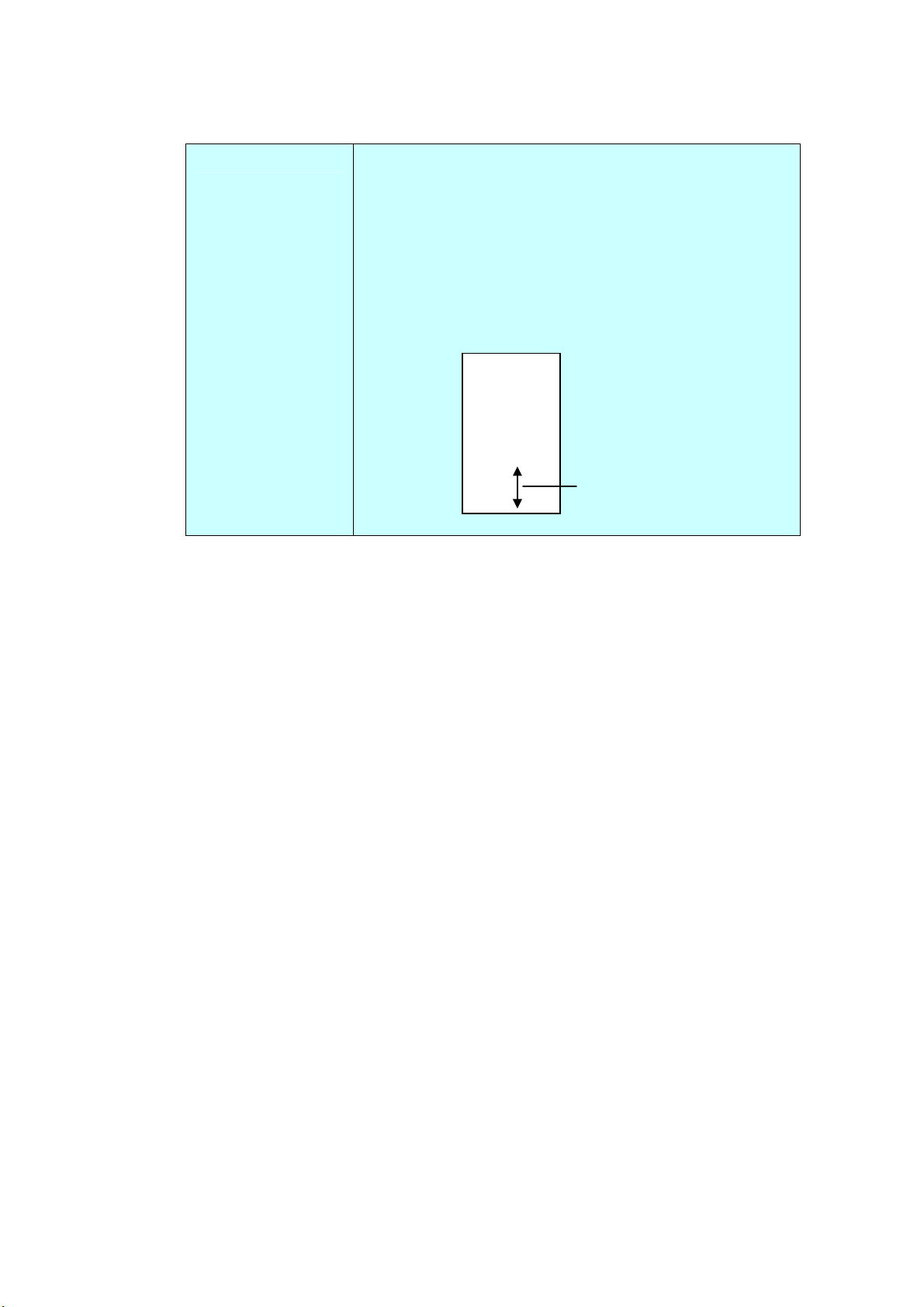
164
Pr int Posit ion Choose the position you wish to print your st ring.
Move t he slider t o the right to increase the value or to
the left t o decrease the value. Range: 0~ 355m m ,
default: 0 m m
The value indicat es t he height from t he bott om of your
paper t o t he last let t er of your string. This opt ion is
available only if an ext ernal im print er is installed.
Pr int Posit ion ( for digit a l im print e r)
Choose the position of your printed st ring. Choice: Top, M iddle, Bot t om ,
Custom . I f Custom is select ed, enter t he X and Y offset value t o specify t he
position.
T
he value o
f
Print Position
0001abc 2010
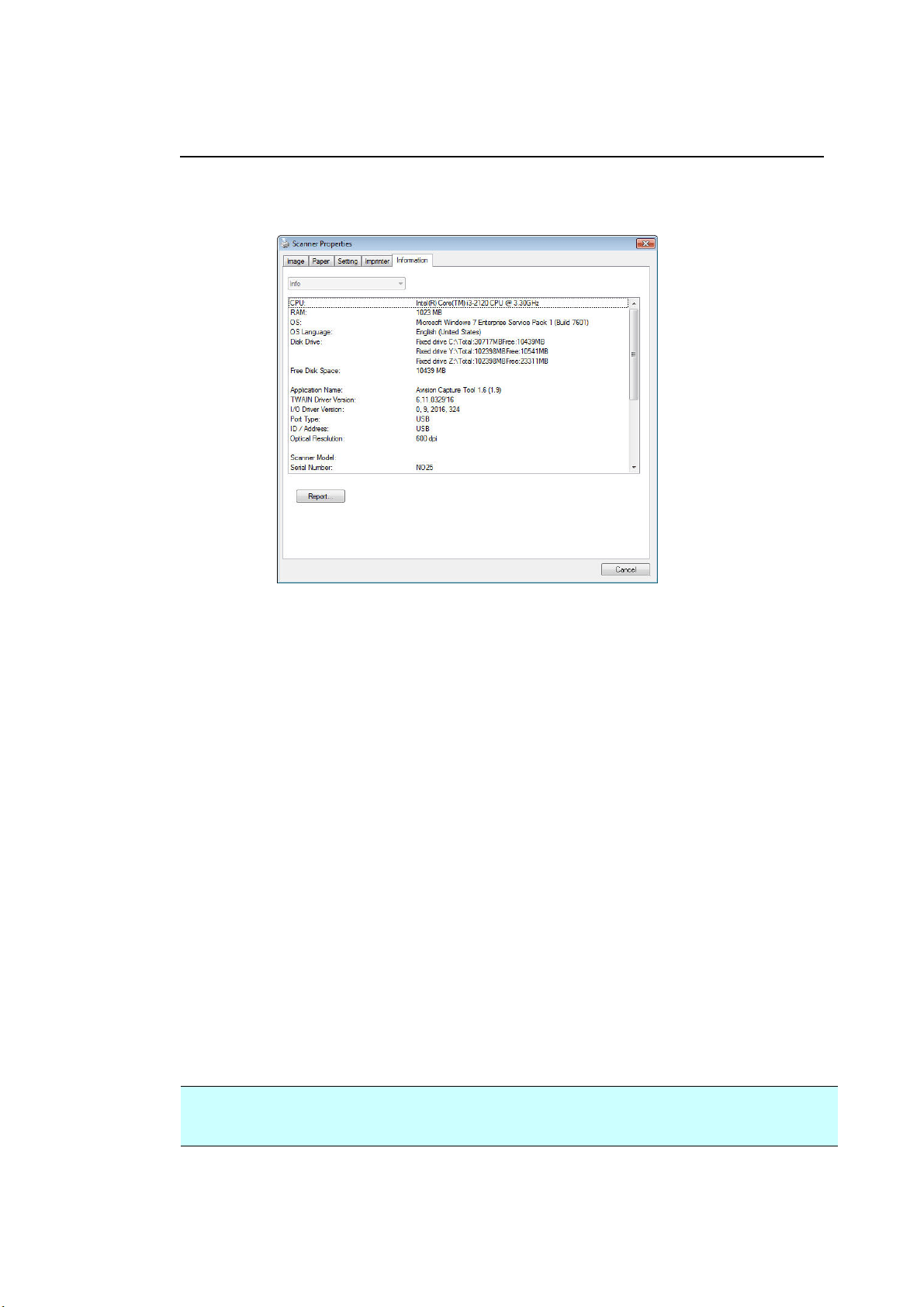
16
5
The I nform a t ion Ta b
The I nform at ion t ab displays t he following syst em and scanner inform ation.
The I nfor m at ion t ab dia log box
The “Re por t ” but ton
:
I f you encounter any error m essage while using t he scanner, click t he Report
but t on. A report .txt file [
Windows XP: C: \ Docum ent s and Settings\ All
Users\ Application Dat a\ % PRODUCTNAME% ; Vista, Windows 7, Window s 8,
Windows 10: C: \ Program Dat a\ % PRODUCTNAME% ( C: syst em drive) ] will be
generated. Please send this file to t he nearest service cent er for trouble shooting.
The “Re set Rolle r Count” but t on :
Aft er scanning over a recom m ended num ber of pages ( refer t o subsequent sect ion
7.4 Replacing t he ADF Roller) t hrough t he ADF, t he ADF roller m ay be worn out
and you m ay experience problem s with docum ent feeding. I n t his case, it is
highly recom m ended t o replace t he ADF roller with a new one. ( Not e t he
replacem ent of t he ADF roller has t o be perform ed only by authorized service
center. Therefore, please return your scanner for roller r eplacem ent .) Aft er
replacing t he ADF roller , click t he “ Re set Roller Count” button t o reset t he roller
count .
N ot e:
The lifet im e and t he replacing procedure vary based on t ype of scanner.
xxx
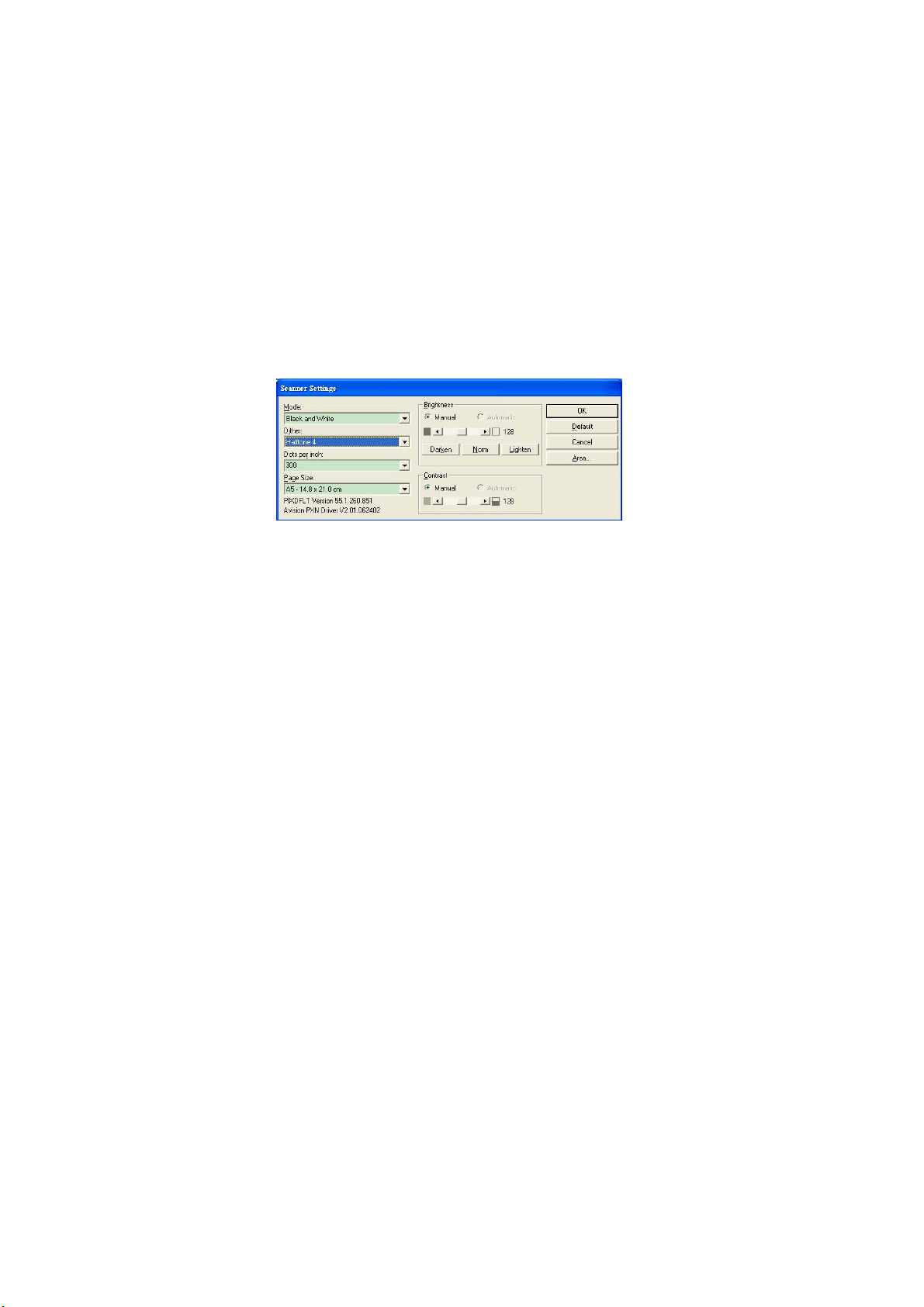
16
6
9 I SI S I nterface Operat ion
* Please refer t o t he preceding chapt er, Scanner I nst allat ion, t o install I SI S scanner driver.
You m ay start your I SI S-com pliant soft ware application t o scan via t he I SI S user interface.
The I SI S driver operat ion m et hod is sim ilar to t he TWAI N’s. Every function on t he I SI S
int erface screen is briefly described as below:
Mode: Select one of scan m odes, including B&W, gray, color opt ions.
Dit her: 5 halft one levels available, can be disabled.
Dot s per inch: Select your desired resolut ion.
Pa per Size: Select your desired paper size.
Brightness: Adj ust your scan im age bright ness or darkness.
Cont rast : Adj ust t he range bet ween the darkest and t he light est shades in the im age.
Defa ult : Click to reset all sett ings.
Area: Select your desired scan area or posit ion.
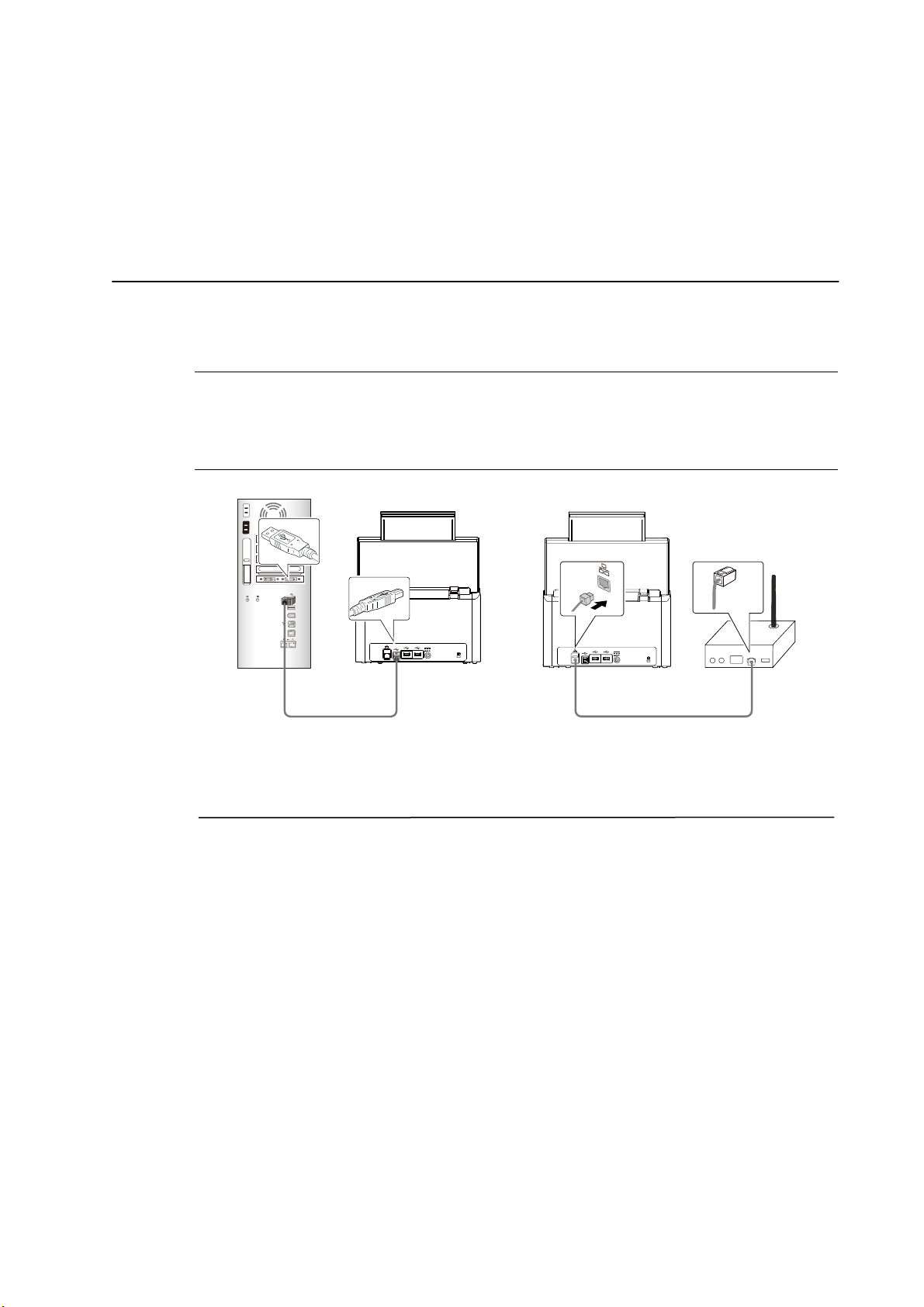
167
1 0 Scanning and Sending t he
Scanned I m ages t o Your
Com put er ( BM2 Air)
Befor e You Be gin:
Before you begin using t he function of [ BM2 Air] , please m ake sure you have
already inst alled t he scanner driver, But t on Manager V2, and connect ing t o the
scanner t o your com put er via a USB cable or an et hernet cable as described in
the preceding sect ion, chapt er 7 Using t he Product as a Regular Scanner.
USB Connection LAN Connection
I nst alling But t on Ma na ge r V2
Button Manager V2 provides you an easy way t o scan your docum ent and t hen
link t he scanned im age t o your designat ed software application. All t his can be
done by a sim ple touch of t he but t on on t he scanner. Yet , before you scan, it is
recom m ended t o check t he but t on configurat ions first to ensure a proper file
form at and a destinat ion application.
168
Check ing the But ton Configura t ions before Scanning
1. But t on Manager V2 runs from t he syst em t ray. Aft er But ton Manager V2 and
the scanner driver are properly installed, Button Manager V2 is started and
t he But t on icon will be displayed on the system t ray at t he bot t om right
corner of your com put er screen.
2. Left - click t he But t on Manager V2 icon t o prom pt t he following But t on Panel.
The But t on Panel
This indicat es
the scanner m odel
The Button
The Function
I con
( The num ber of
funct ion icons
vary based on
type of
scanner.)
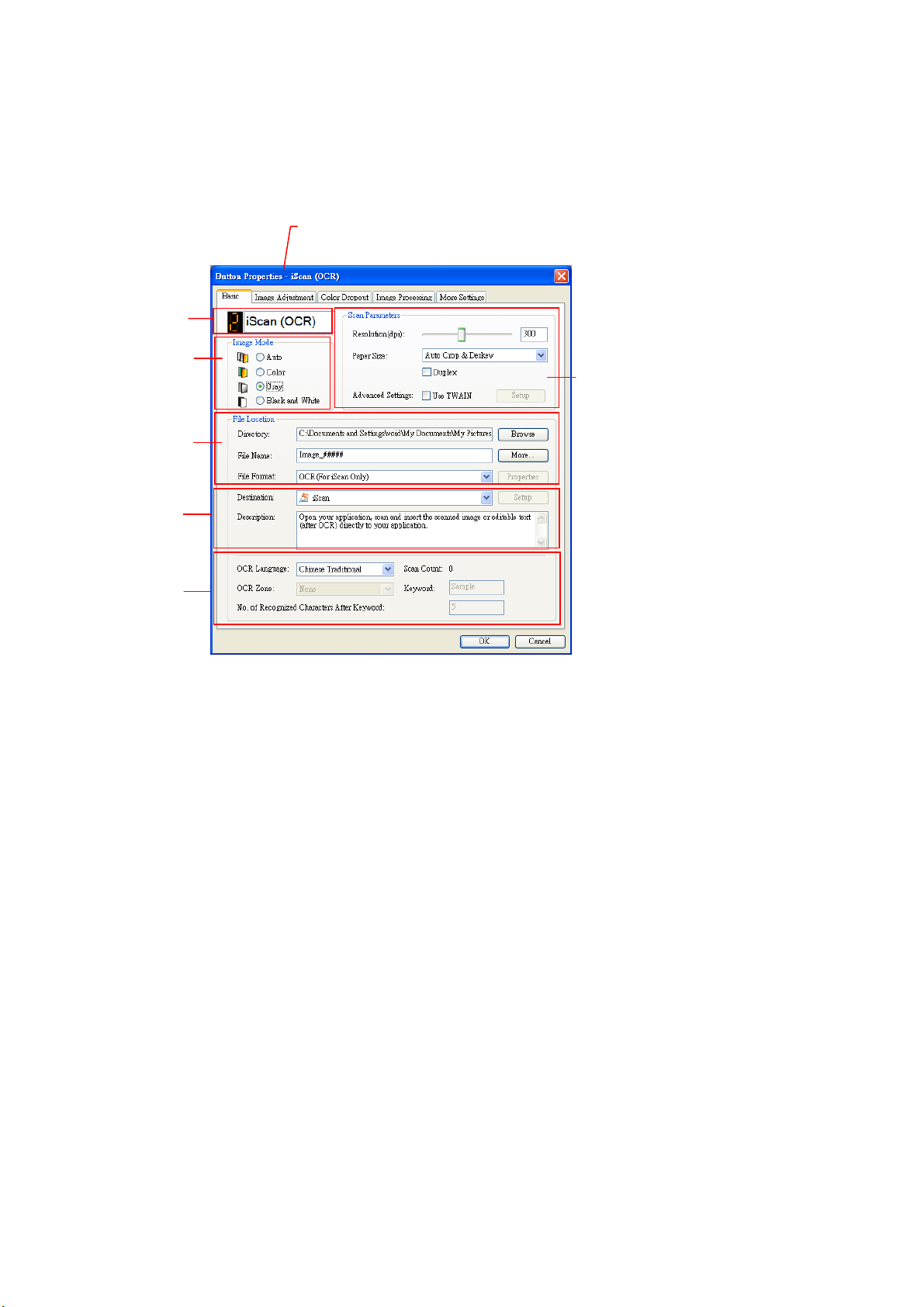
169
3. The But t on Panel shows t he first five scanning buttons. Right-click t he
but t on ( function) you wish to check. The But t on Properties window appears.
I f you wish t o change t he setting, use t his window t o reset t he set t ing for t he file
form at , dest ination applicat ion, or ot her scan sett ings.
4. Click t he OK but t on t o leave t he window.
Folder and
file nam e for
the scanned
im age
I m age Mode
Select ion
Box
Nam e of t he Selected But ton
Scan To
dest ination
and set t ings
But ton
Nam e
OCR
set tings
Basic Scan
Param eters
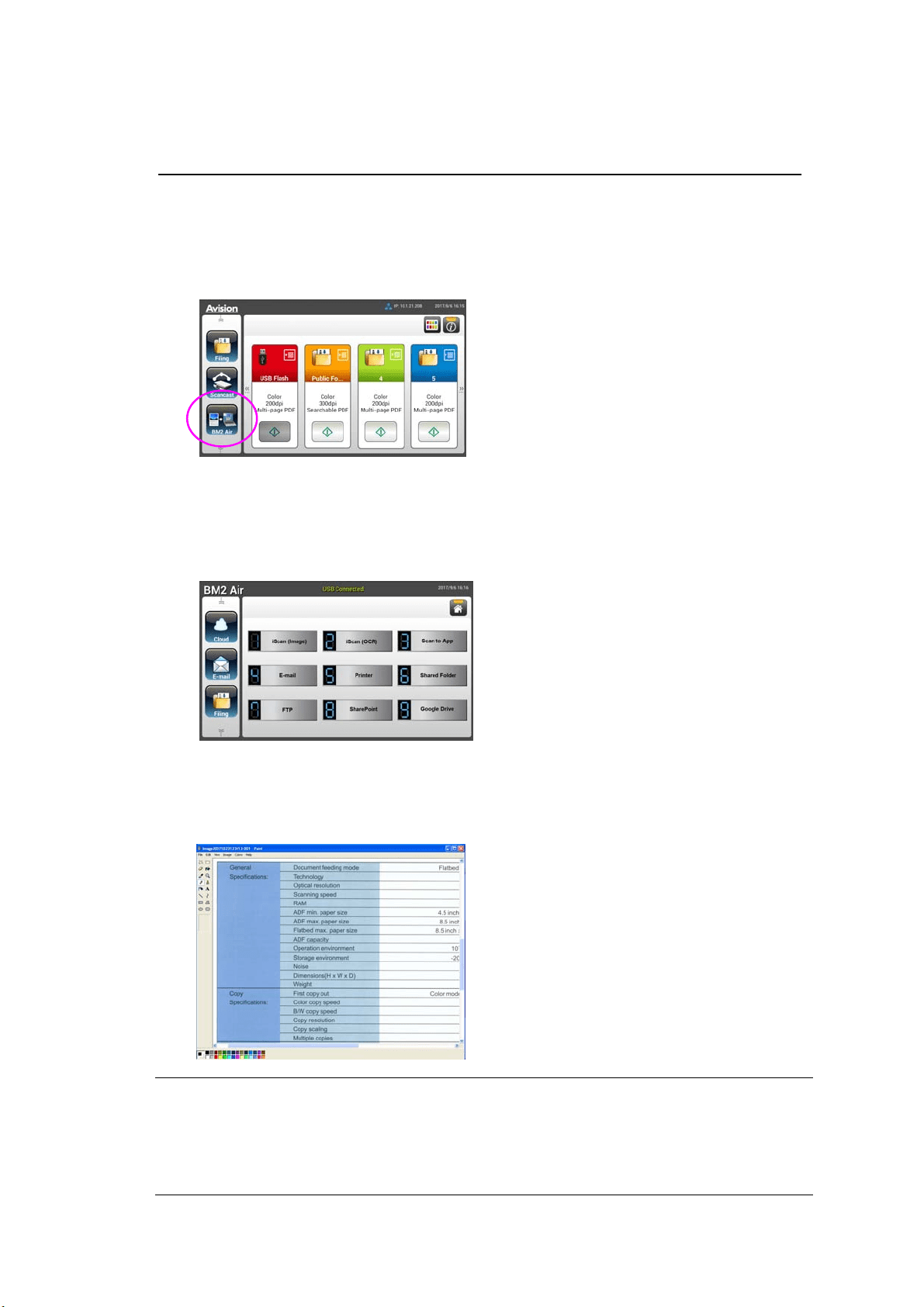
17
0
Sca nning From One Touch of the But t ons
1. Adj ust t he paper guide for the widt h of paper and load t he docum ent wit h
their t ops int o t he autom atic docum ent feeder.
2. Tap [ BM 2 Air] on t he LCD display.
3. Select t he com put er you want t o connect.
4. Select your desired but ton num ber or dest ination. ( For exam ple, if you w ish
to scan wit h button ( funct ion) 3, “ Scan t o App” , which opens Microsoft Paint
and displays t he scanned im age in t he window of Microsoft Paint, t he LCD
screen should show “ Function 3” ) .
5. The scanner begins feeding the paper.
6. After t he scanning is finished, the Microsoft Paint soft ware will be launched
and t he scanned im age appears in the m ain window of Microsoft Paint as
below.
N ot e:
1 . For det ails inform at ion on how to use t he But t on Manager V2, please refer
t o t he user’s m anual in t he supplied CD.
2 . You m ay also use Button Manager V2 on your deskt op by starting But t on
Manager V2 from All Program s or double clicking t he Avision Scanner
Ut ilit y from t he Cont rol Panel.
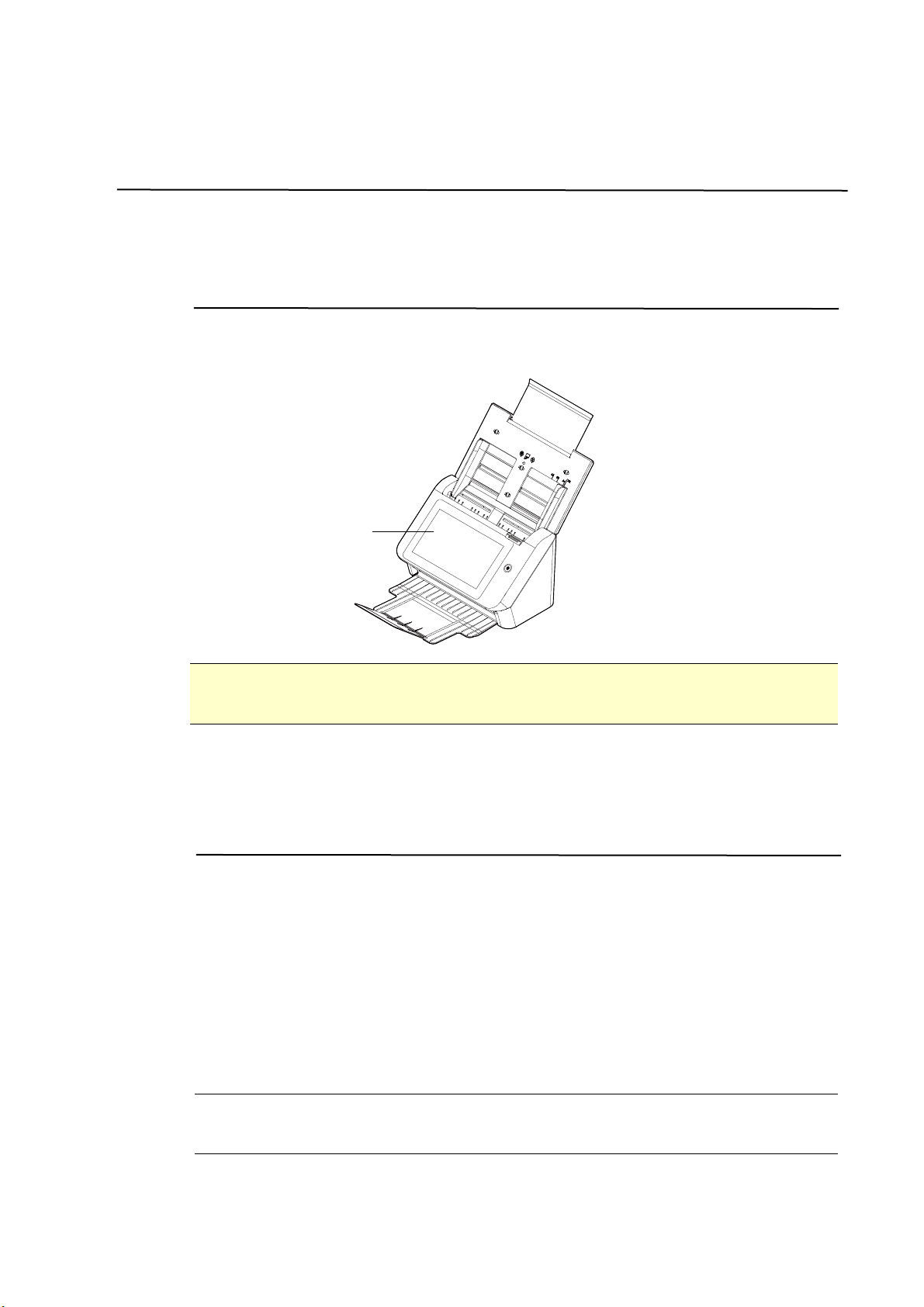
171
1 1 Maintenance
Cle aning t he Touch Screen
Wipe t he Touch screen Monitor w it h a wet cloth first t hen wipe it wit h a dry clot h.
W a r ning:
Do not use liquids, household cleaners, or neut ral det ergent s, as they m ay
dam age t he touch screen.
Cle aning t he ADF
Aft er using t he scanner for a long period of t im e, t he rollers and glass inside the
scanner m ay becom e cont am inat ed wit h ink, toner particles or paper dust. I t is
necessary to perform routine cleaning to ensure the opt im um im age qualit y and
perform ance. As a guideline, please clean t he rollers and glass aft er first 4,000
to 5,000 scans and t hen perform t he cleaning on a weekly basis. Note that t he
guideline varies according t o the t ype of docum ents you are scanning.
Tip! I f docum ent s do not feed easily, if several docum ent s feed at t he sam e
tim e or if streaks appear on t he scanned im ages, it is t im e to clean your scanner.
Touch
screen
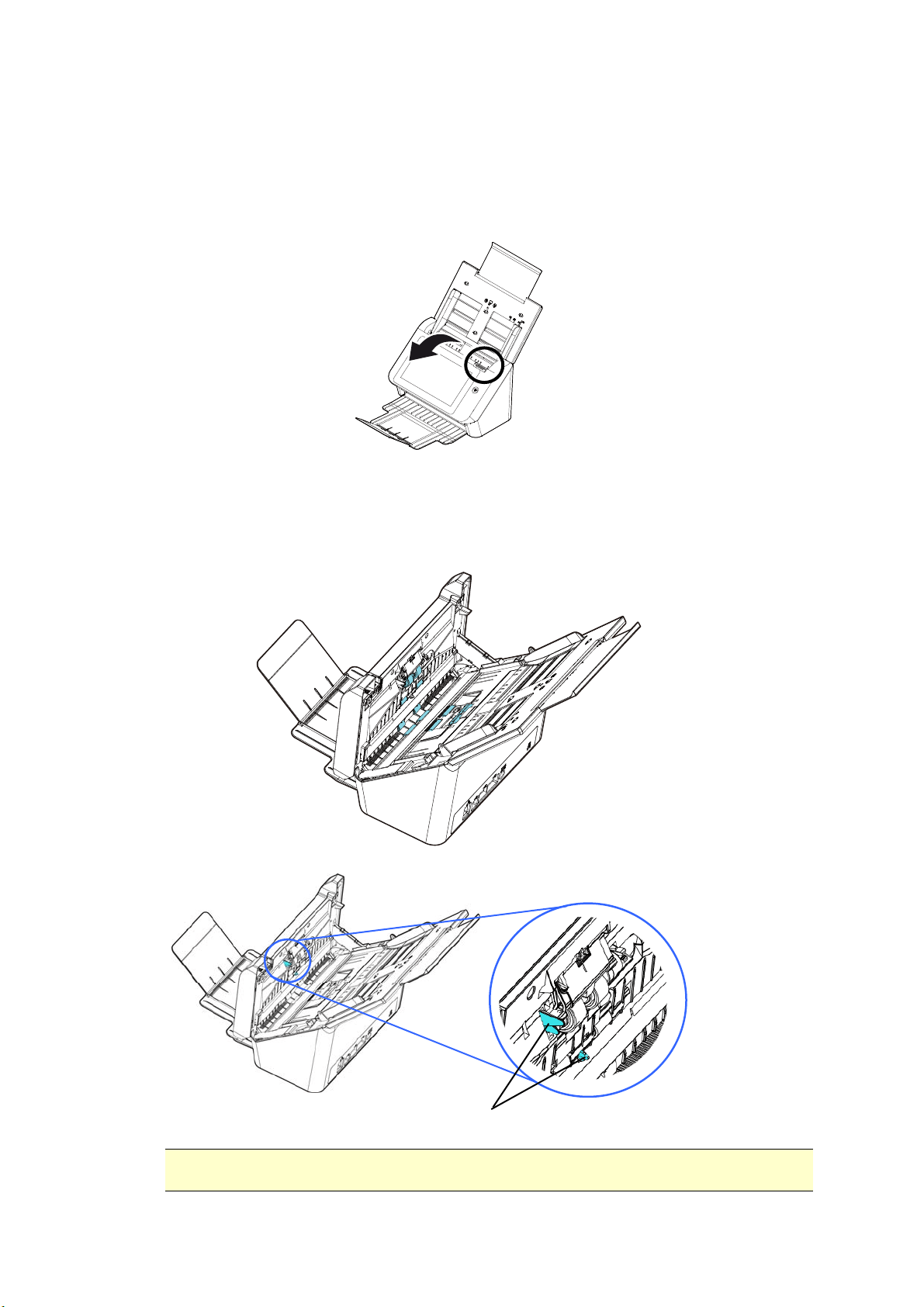
17
2
The Cleaning Procedures
1 . Soak a clean cloth wit h som e isopropyl alcohol ( 95% ) .
2 . Press t he ADF Release button t o open t he front door t o t he left . Wipe and
rotat e t he ADF Roller until t he surface is com plet ely rem oved from dust .
3 . Wipe t he rubber part of t he ADF pad. Be careful not to dam age the pick
springs.
4 . Close t he scanner front cover. Your scanner is now ready for use.
W a r ning:
When cleaning, be careful not t o snap or dam age t he arm sensor.
Arm Sensor
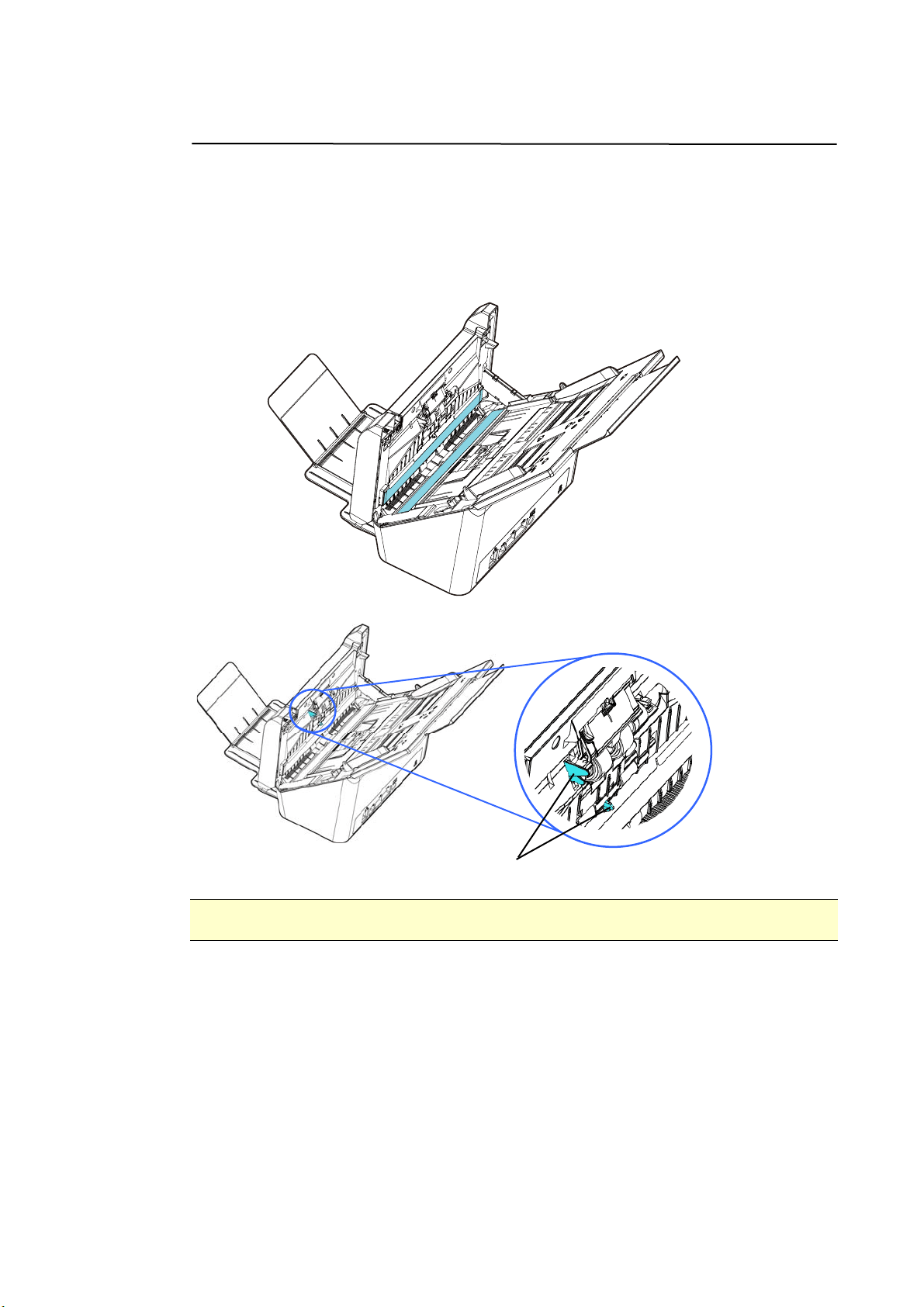
173
Cle aning t he Glass
1 . Press the ADF Release but t on. Open t he front door to t he left .
2 . Wet a clean cloth wit h som e isopropyl alcohol. ( 95% )
3 . Wipe the glass and t he whit e area as illust rated below t o rid the dust or dirt.
W a r ning:
When cleaning, be careful not t o snap or dam age t he arm sensor.
Arm Sensor
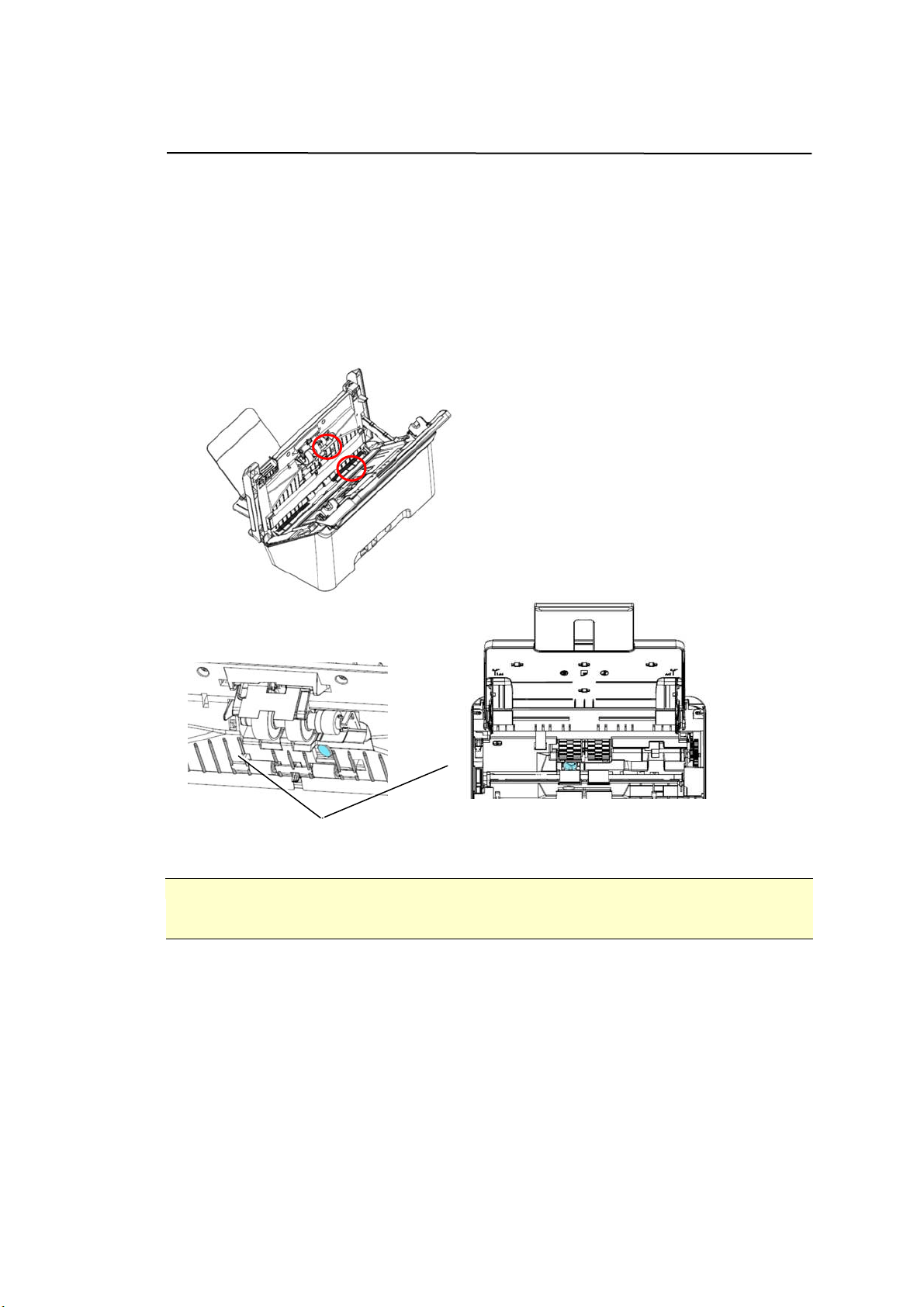
174
Cle aning t he Sensors
I f t he scanner som et im es fails to detect m ult i- feed via ult rasonic sensors, it is
possible t hat paper dust or dirt m ay be accum ulated on t he surface on the
ult rasonic sensors. Please follow these steps to clean t he sensors.
1 . Open t he front cover t o the left .
2 . Wet a clean cloth wit h som e isopropyl alcohol. ( 95% )
3 . Gent ly wipe t he dirt and dust off t he surface of the ult rasonic sensors.
N ot e:
I f it is difficult to clean, use a cotton swab.
When cleaning, be careful not t o snap or dam age t he arm sensor.
Ult rasonic Sensors
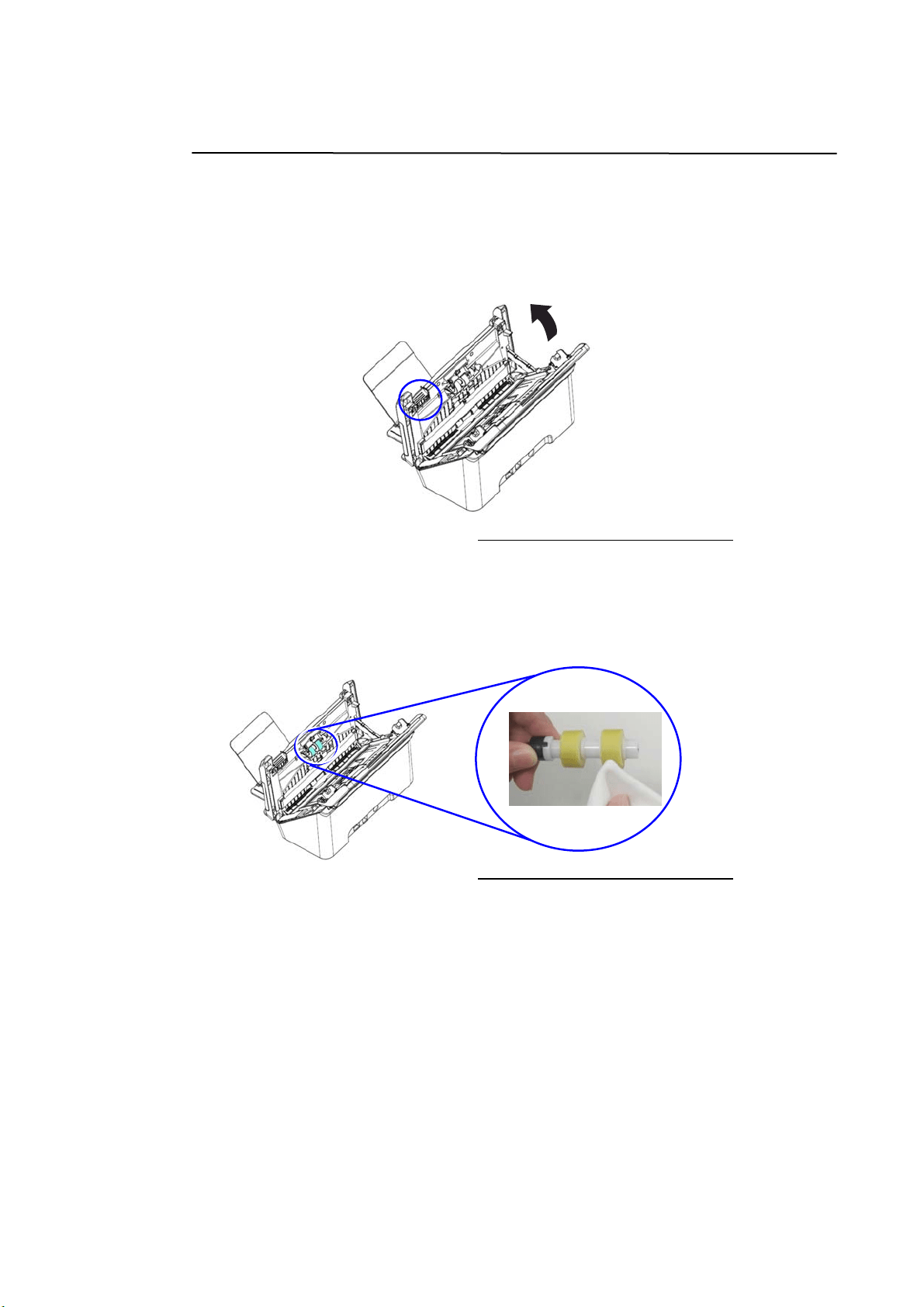
17
5
Cle aning t he Frict ion Roller
1 . Soak a clean cloth wit h som e isopropyl alcohol ( 95% ) . I f accident ally use t oo
m uch alcohol, be sure t o wring out t he dam p clot h.
2 . Open the front door slight ly to t he left .
3 . Refer t o t he subsequent section Replacing t he ADF Frict ion Roller
on how t o
rem ove t he Friction Roller.
4 . Hold one end of t he roller assem bly and gent ly wipe t he surface of t he rollers
with the other hand t o rem ove the dust of stains. Be careful no t o scratch t he
surface of t he roller. Rotate the rollers until t hey are com plet ely cleaned.
5 . Refer t o t he subsequent sect ion Replacing t he ADF Frict ion Roller on how t o
rem ove t he Friction Roller.
6 . Close the ADF front cover.
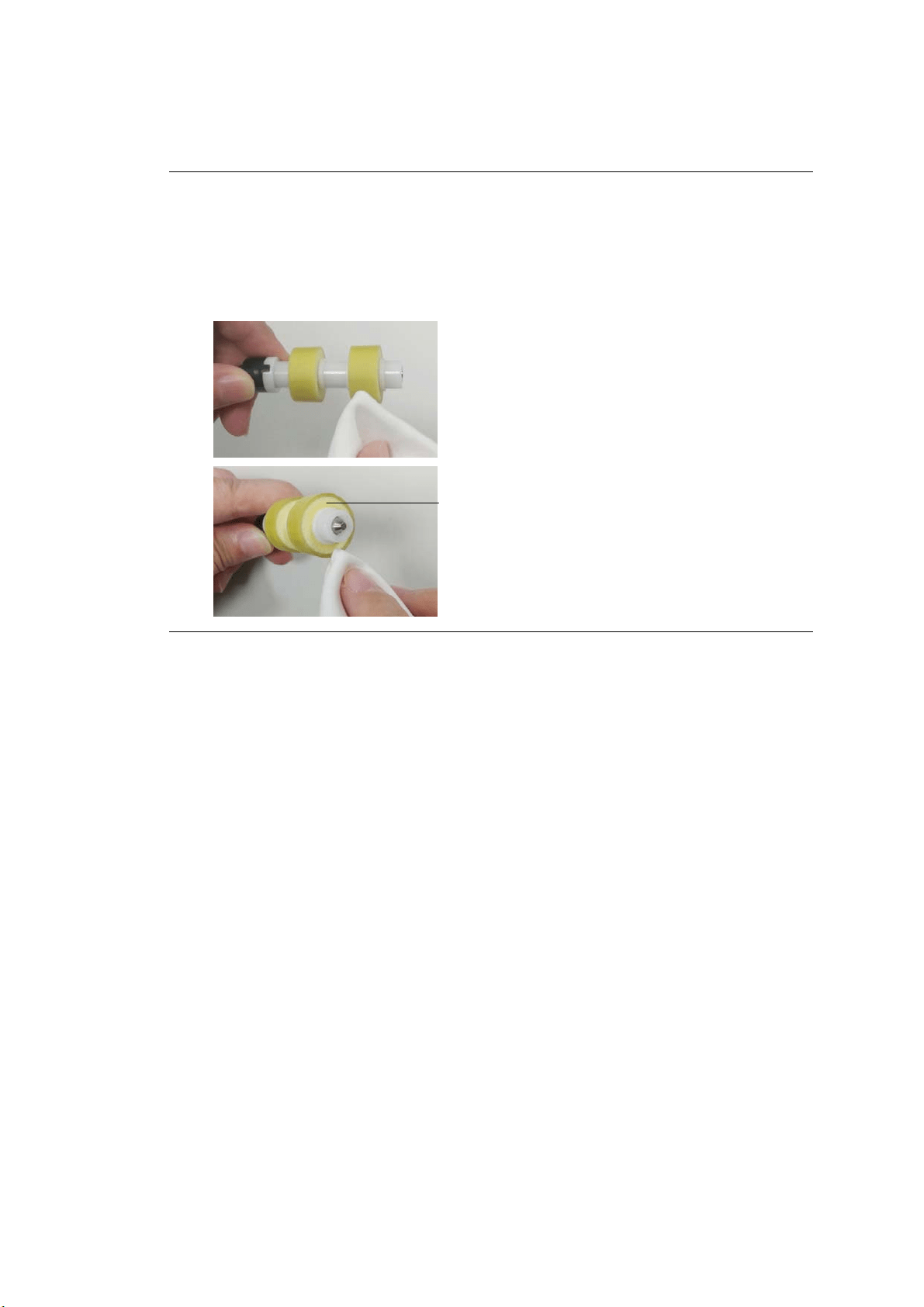
17
6
W a rning:
Do not use other detergent to clean t he rollers. Other det ergent s m ay
dam age t he rollers and cause feeding errors.
Gently wipe
Only t he Surfa ce of the roller and wait until the alcohol has
been com plet ed evaporated. Avoid excessive alcohol flowing t o t he inner
foam , leading t o the dam age to the roller and causing feeding errors.
Do not let t he clot h m oist urized with alcohol
touch t he foam beneat h the surface of t he
roller or let t he excessive alcohol flow int o
the foam .
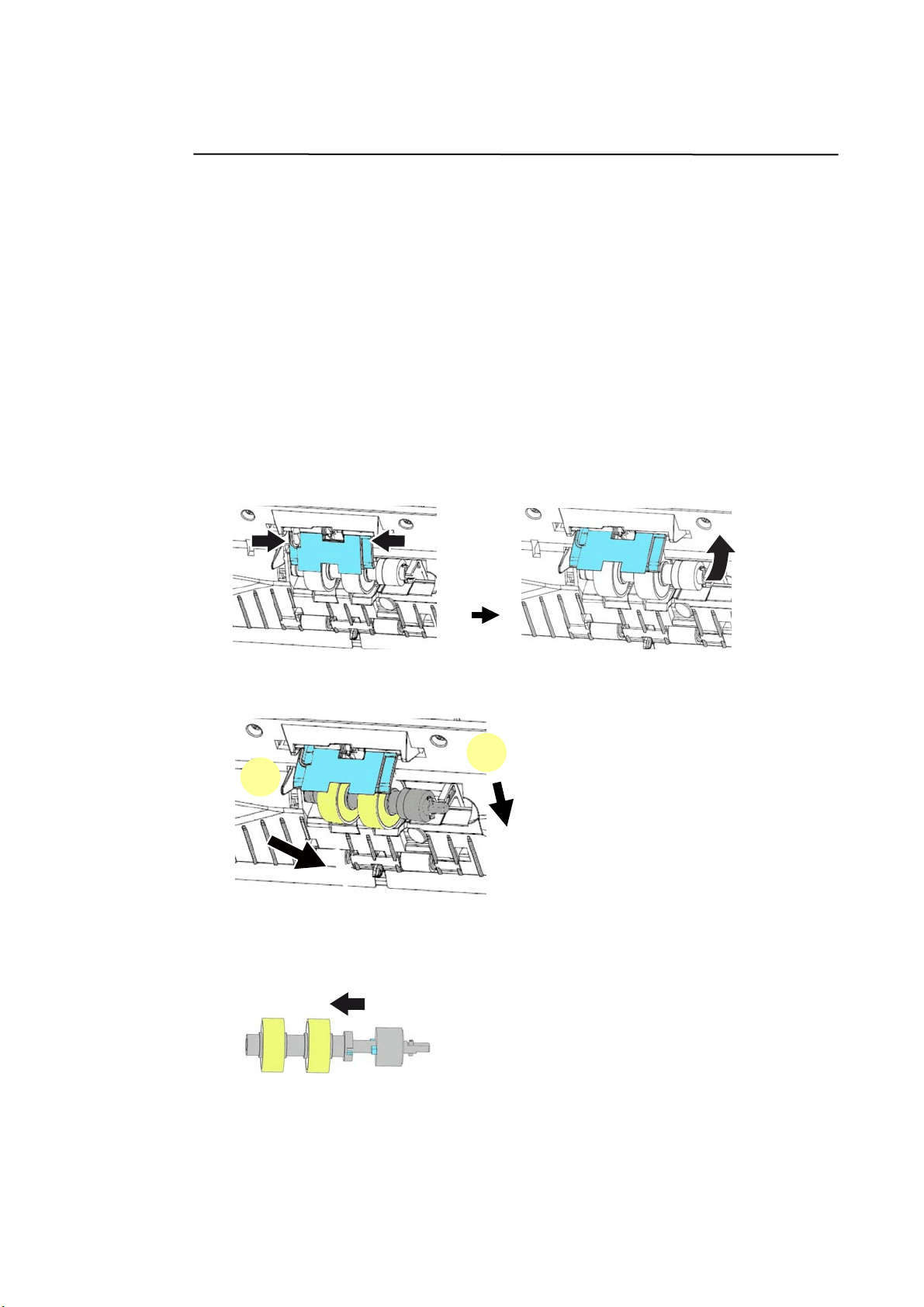
17
7
Replacing the AD F Frict ion Roller
Aft er scanning approxim at ely * 100,000 pages t hrough t he ADF, t he ADF Friction
Roller m ay be w orn out and you m ay experience problem s w it h docum ent feeding.
I n t his case, you m ay need t o replace a new ADF roller. For ordering t he ADF
roller, please consult your nearest dealer and follow t he procedure below t o
replace it.
Disa ssem bling Pr ocedu re
1 . Press t he ADF Release button.
2 . Gent ly open t he ADF Front Door t o t he left .
3 . Hold the m ylar assem bly wit h your fingers and t hen lift it up as illust rated in
below.
4 . Press t he right end of t he Friction Roller externally t o det ach it from t he slot
and t hen det ach t he left end from its hole.
5 . Rem ove t he rollers from t he shaft .
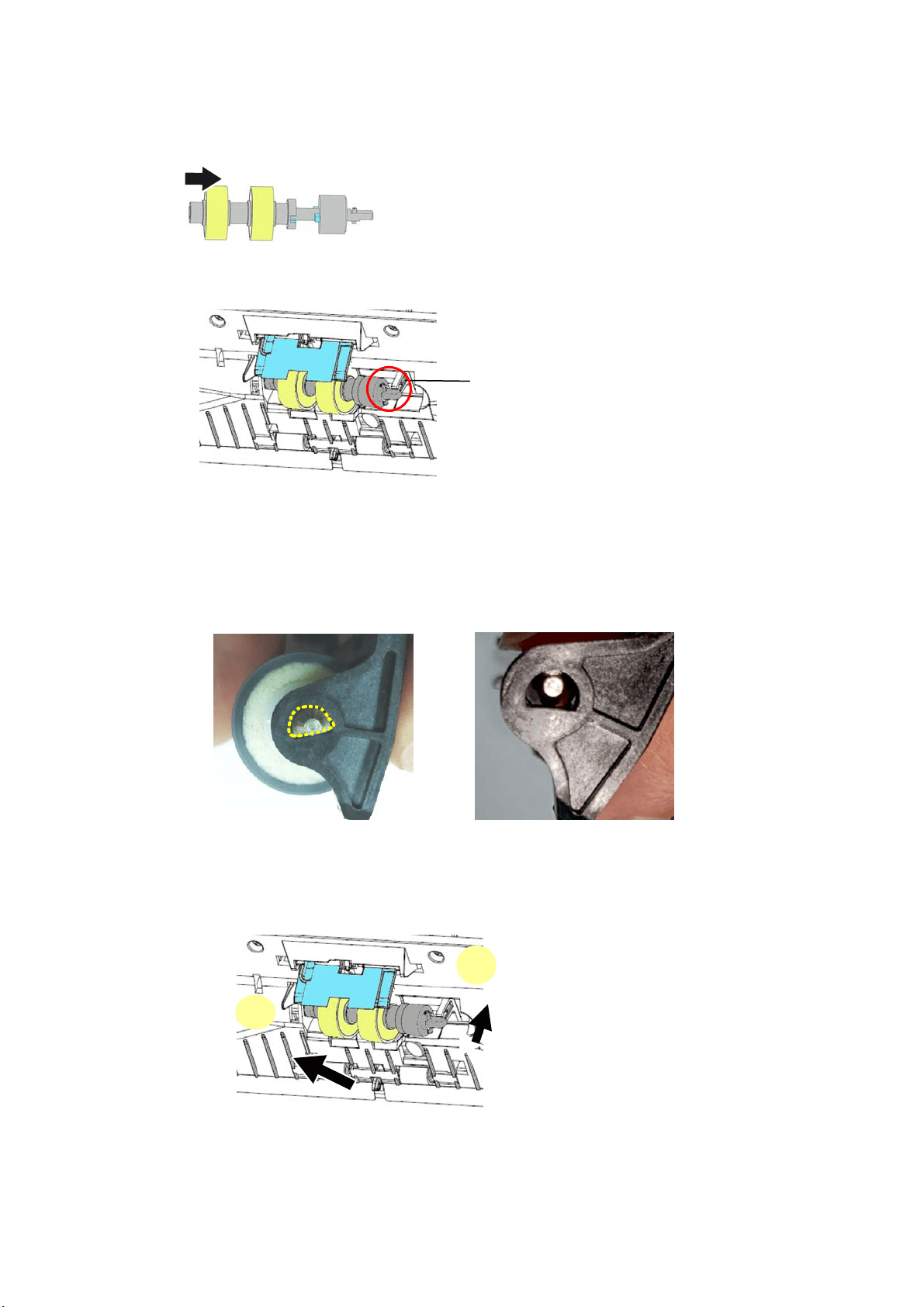
178
Reassem bling Procedure
1 . Install t he rollers to t he shaft . ( Align t he prot rusion wit h t he notch)
2 . I nsert t he left end of t he Friction Roller to t he slot . Make sure t he flat side is
up as shown.
I
MPORTAN T:
Make sure t he D-shape end is aligned t o the D-shape hole as
illust rated. Otherwise, t he docum ent m ay not be fed int o t he feeder
and caused t he m achine m alfunct ion.
3 . I nsert t he right end of t he Friction Roller t o it s slot.
Flat side Up
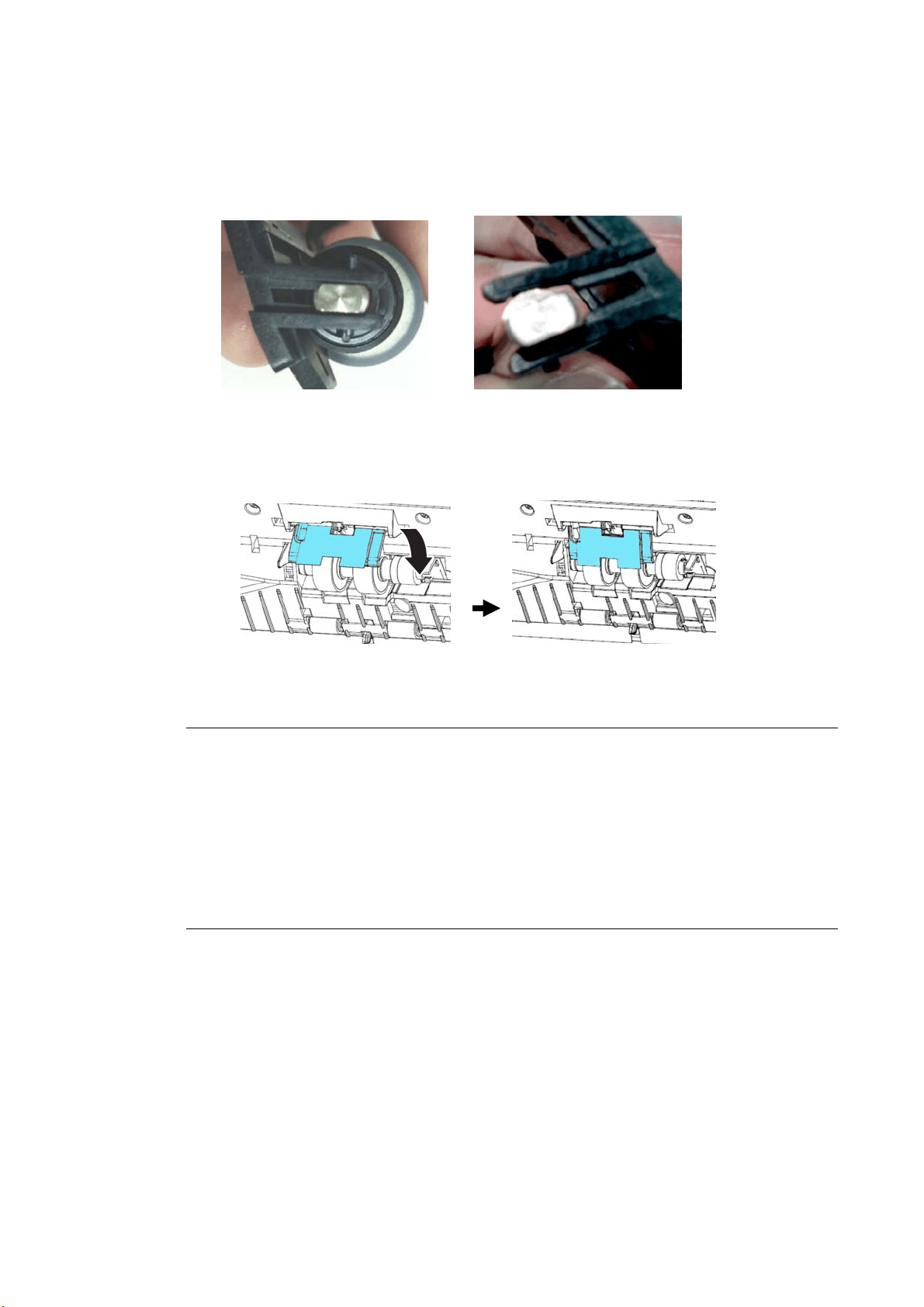
179
I
MPORTAN T:
The flat surface on t he right end m ust be inserted horizontally t o the
groove, as shown in t he figure below. Otherwise, t he docum ent m ay
not be fed int o the feeder and caused the m achine m alfunction.
4 . Press down t he m ylar assem bly.
5 . Close the ADF Front Door.
* N ot e:
Consum ables m ust be replaced regularly. I t is recom m ended t o purchase new
consum ables in advance so t hat they can be replaced before t he end of
their life t im e.
The replacem ent cycle is based on t he use of A4 ( 80 g/ m 2 [ 20 lb] ) wood- free
paper or plain paper. The act ual cycle varies according t o t he type of used
paper and how frequent ly t he scanner is used and cleaned.
Use only t he specified consum ables.
To purchase consum ables, contact t he store w here you purchased t he scanner
or an authorized scanner service provider.
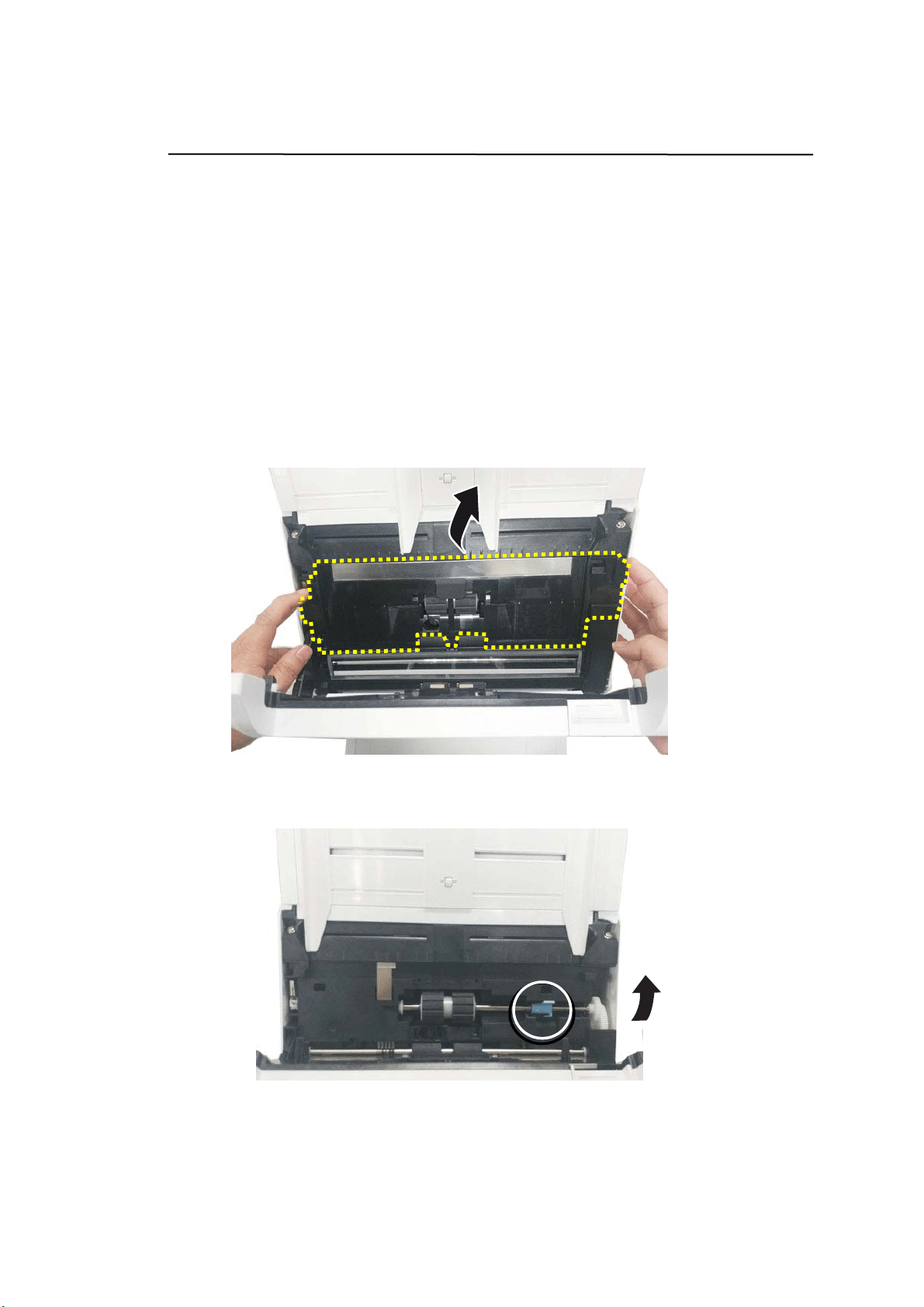
18
0
Replacing the AD F Roller
Aft er scanning approxim at ely * 200,000 pages t hrough t he ADF, the ADF rollers
m ay be worn out and you m ay experience problem s wit h docum ent feeding. In
this case, you m ay need t o replace a new ADF roller. For ordering t he ADF roller,
please consult your nearest dealer and follow t he procedure below t o replace it .
Disa ssem bling Pr ocedu re
1 . Press t he ADF Release button t o open t he ADF front door.
2 . Use bot h hands to pull t he roller cover to open it .
3 . Move t he t ab of t he ADF Roller UP as indicated.
4 . Detach t he right end of t he ADF roller from the scanner and rem ove t he ADF
roller.
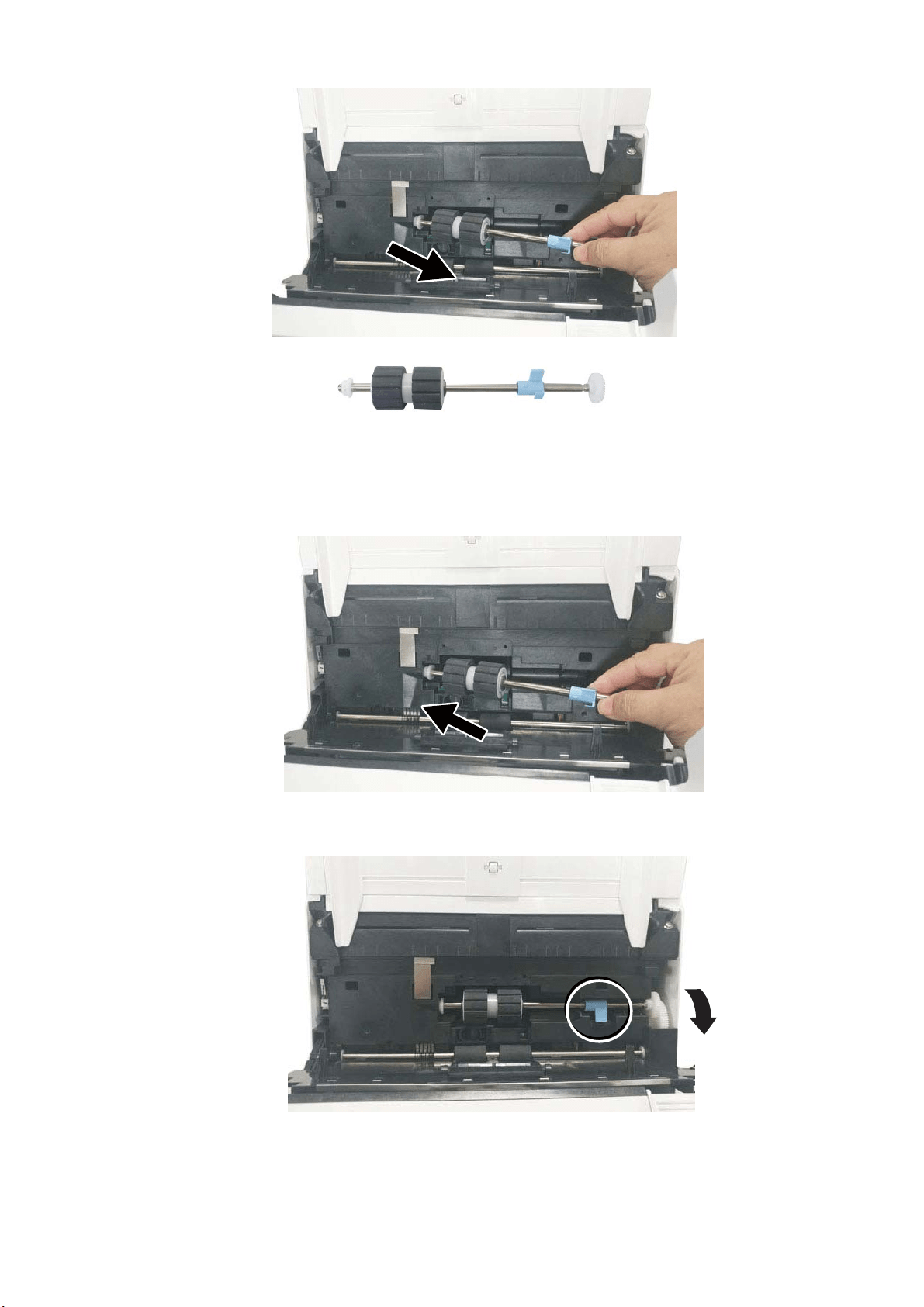
181
Assem bling Procedu re
1 . I nsert the left end of t he ADF roller first t o its slot and place the ADF roller to
it s proper posit ion.
2 . Move t he t ab of t he ADF roller D OW N .
3 . Close t he ADF roller cover. A snap- in sound could be heard if correctly
inst alled.

18
2
* N ot e:
Consum ables m ust be replaced regularly. I t is recom m ended t o purchase new
consum ables in advance so t hat they can be replaced before t he end of
their life t im e.
The replacem ent cycle is based on t he use of A4 ( 80 g/ m 2 [ 20 lb] ) wood- free
paper or plain paper. The act ual cycle varies according t o t he type of used
paper and how frequent ly t he scanner is used and cleaned.
Use only t he specified consum ables.
To purchase consum ables, contact t he store w here you purchased t he scanner
or an authorized scanner service provider.
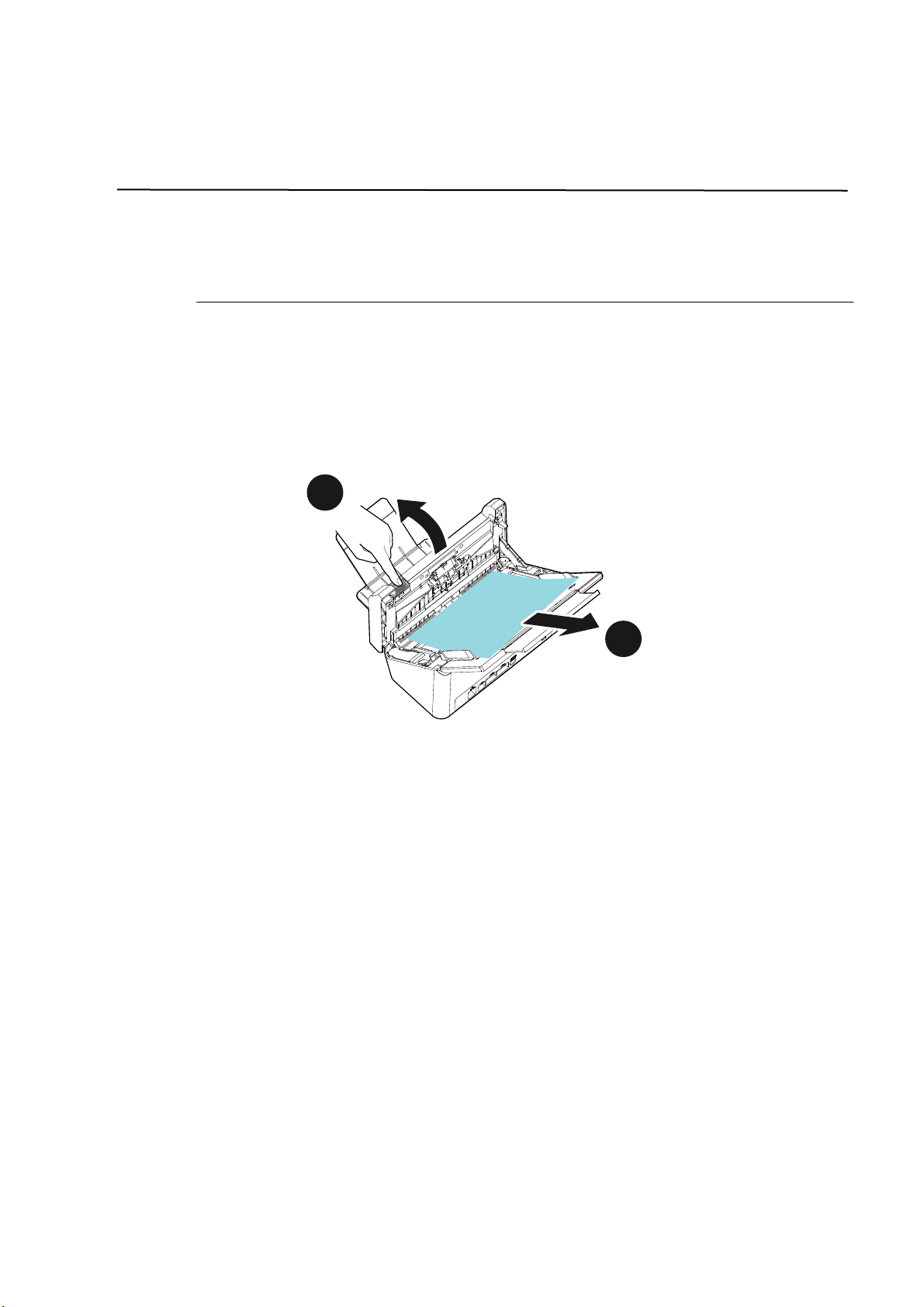
183
1 2 Troubleshoot ing
Cle aring Paper Jam s
I n t he event of a paper j am , follow t he procedures below t o rem ove t he paper:
1 . Press the ADF Release But t on on the right side. Gent ly open t he Scanner
Front Door t o t he left.
2 . Carefully pull t he paper out of t he ADF unit .
3 . Close the scanner front door. Your Scanner is now ready t o use.

184
Quest ions and Answ ers
Question : Pa per be com e s j a m m e d dur ing scanning.
Answ er: 1. Open t he front door.
2. Pull out t he j am m ed paper carefully.
3. Close t he front door.
Question : More t han one she e t of pape r are fed into t he scanne r.
Answ er: 1. Open t he scanner front door.
2. Rem ove t he m ulti- fed sheet s.
3. Close t he front door.
4. Flatten t he corners and edges. Loosen the paper before
put t ing it int o t he paper guide again.
5. Check t he feeding roller condit ion. I f necessary, follow
the
cleaning direct ions
and perform the cleaning.
Question : Pa per becom e s skew ed in t he scann er.
Answ er: 1. Use the slide guide to keep the paper pat h straight .
2. Check t he condit ion of t he feeding roller. I f necessary,
follow t he cleaning direct ions and perform t he cleaning.
Question : W hy doe s m y scanned im a ge a lw ays com e out too
da rk ?
Answ er: 1. Please adj ust t he screen sett ings t o SRGB.
2. Please adj ust t he brightness settings on t he screen from
applicat ion soft ware.

18
5
Er rors I ndicat ed on t he Touch Scr ee n
Er ror Code a nd Error Message s
Error code Problem D escr iption Solution
N etw ork Error s
592301 Mail ser ver is not set .
1.Check “ Mail server” sett ing.
2.Cont act your your net work
adm inist rator for further help.
592302 DNS server is not set.
1.Check “ DNS server” sett ing.
2.Cont act your net work adm inistrator
for further help
592303
Failed to convert Com put er
Nam e t o I P.
1.Check “ DNS server” sett ing
2.Check t arget server nam e and dom ain
in CI FS URL.
3.Check Client for Micrsoft Networks on
PC side.
4.Cont act your net work adm inistrator
for further help
592304
Failed to get I P addr ess fr om
DNS server.
1.Check “ DNS server” sett ing
2.Check t arget server nam e.
3.Cont act your net work adm inistrator
for further help.
592305
Detected an I P address
conflict.
1. Check network settings.
2. Cont act your net work adm inistrator
for further help.
N TP Er rors
593001
NTP server does not respond
within the t im eout period.
1.Check “ NTP server” setting.
2.Check firewall set t ings.
3.Check network environm ent .
4.Cont act your net work adm inistrator
for further help
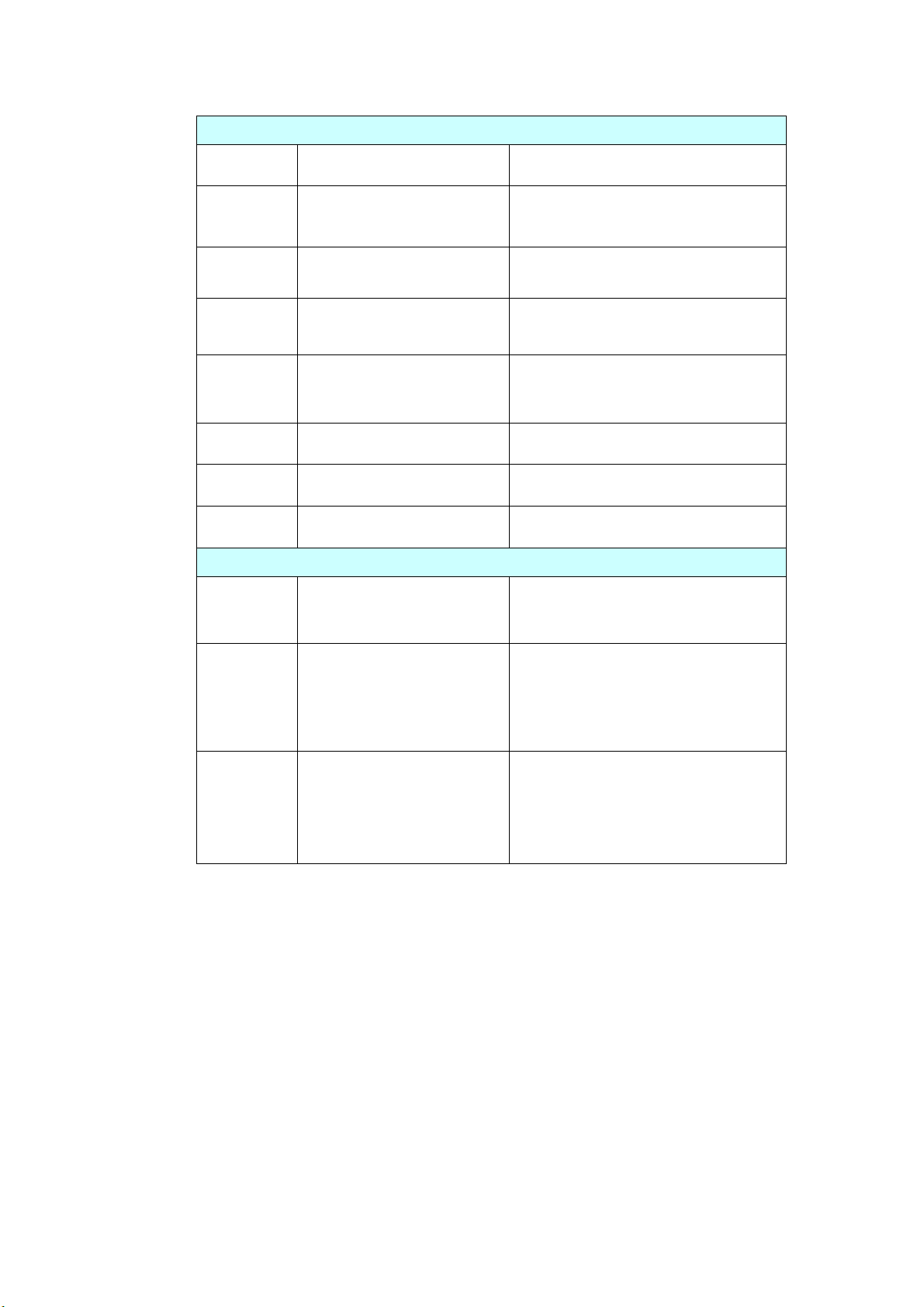
186
LD AP Err ors
596001
LDAP URL is em pt y.
Ent er LDAP server I P or Port.
596002
Failed to connect t o LDAP
server.
Check LDAP server I P or Port.
596003 Aut hent ication t ype error. Check t he aut hent ication type.
596004
LDAP account or password is
em pty.
Ent er login nam e and password.
596005
Please check login nam e and
password.
Check login nam e and password.
596006 Search root is em pty. Ent er "search root".
596007 Failed to search. Check " search root".
596008 Search attribut e is em pt y. Ent er " search at t ribut e".
W i- Fi Er ror s
597001
Failed to connect t o Wi- Fi AP.
Check password if Wi- Fi AP ( Access
Point ) requires password.
597002 Failed to init iate AP scan.
Scanner fails t o scan in AP m ode. Try
later. I f t his problem always exist s,
cont act your nearest dealer.
597003 Unable t o find a wireless AP.
Scanner does not search any Wi- Fi
AP.
Try again lat er. I f t his problem always
exists, cont act your nearest dealer.

187
SMTP Err ors
530002 Failed to connect t o Mail
server.
1. Check Mail server address and port
num ber.
2. Check network environm ent .
3. Cont act your net work adm inistrator
for further help
530003 Failed to connect t o Mail
server via SSL.
Contact your net wor k adm inist rator
about Mail server set t ings. Set correct
Aut hent ication m et hod and Encrypt .
530004 Failed to connect t o Mail
server because server
requires SSL connection.
1.Cont act your net work adm inistrator
about Mail server set t ings.
2.Set correct aut hent ication m ethod
and encrypt .
3.Change encr ypt setting t o SSL and
try again.
531011 Mail server requires
TLS/ STARTTLS connect ion.
1.Cont act your net work adm inistrator
about Mail server set t ings.
2.Set correct aut hent ication m ethod
and encrypt .
3.Change encr ypt setting t o
TLS/ STARTTLS and t ry again.
531012 Scanner t ries t o do
authent ication, but m ail
server does not require it .
1.Cont act your net work adm inistrator
about Mail server set t ings.
2.Set correct aut hent ication m ethod.
3.Change aut henticat ion m et hod t o
None and t ry again.
531013 Aut hent ication m et hod
replied by Mail server is not
support ed on t his scanner.
Contact your net wor k adm inist rator.
538001 Connection is broken during
dat a t ransm ission.
1. Check network environm ent .
2. Check if em ail attachm ent size is
larger t han the m ailbox quot a.

188
530421
531421
532421
533421
534421
536421
Mail server replies that
service is not available.
Contact your net wor k adm inist rator for
furt her help.
537550 Login nam e m ust be the
sam e as From address.
The account of from and login m ust be
sam e
533450 Recipient m ailbox m ay
be not available.
Check “ To” addresses.
532451
533451
534451
535451
537451
Request ed action is
aborted by Mail server.
Contact your net wor k adm inist rator for
furt her help.
533452
535452
537452
One recipient's m ailbox
has insufficient storage.
1.Check recipient m ailbox quot a.
2.Cont act your net work adm inistrator for
furt her help.
530500 Failed to connect t o Mail
server via
TLS/ STARTTLS.
1.Cont act your net work adm inistrator
about Mail server set t ings.
2.Set correct aut hent ication m ethod and
encrypt .
3.Change encr ypt setting t o None and t ry
again.
532530 Mail server requires t o
do aut hent ication.
Contact your net wor k adm inist rator about
Mail server set t ings, aut henticat ion
m et hod and encrypt set t ing.
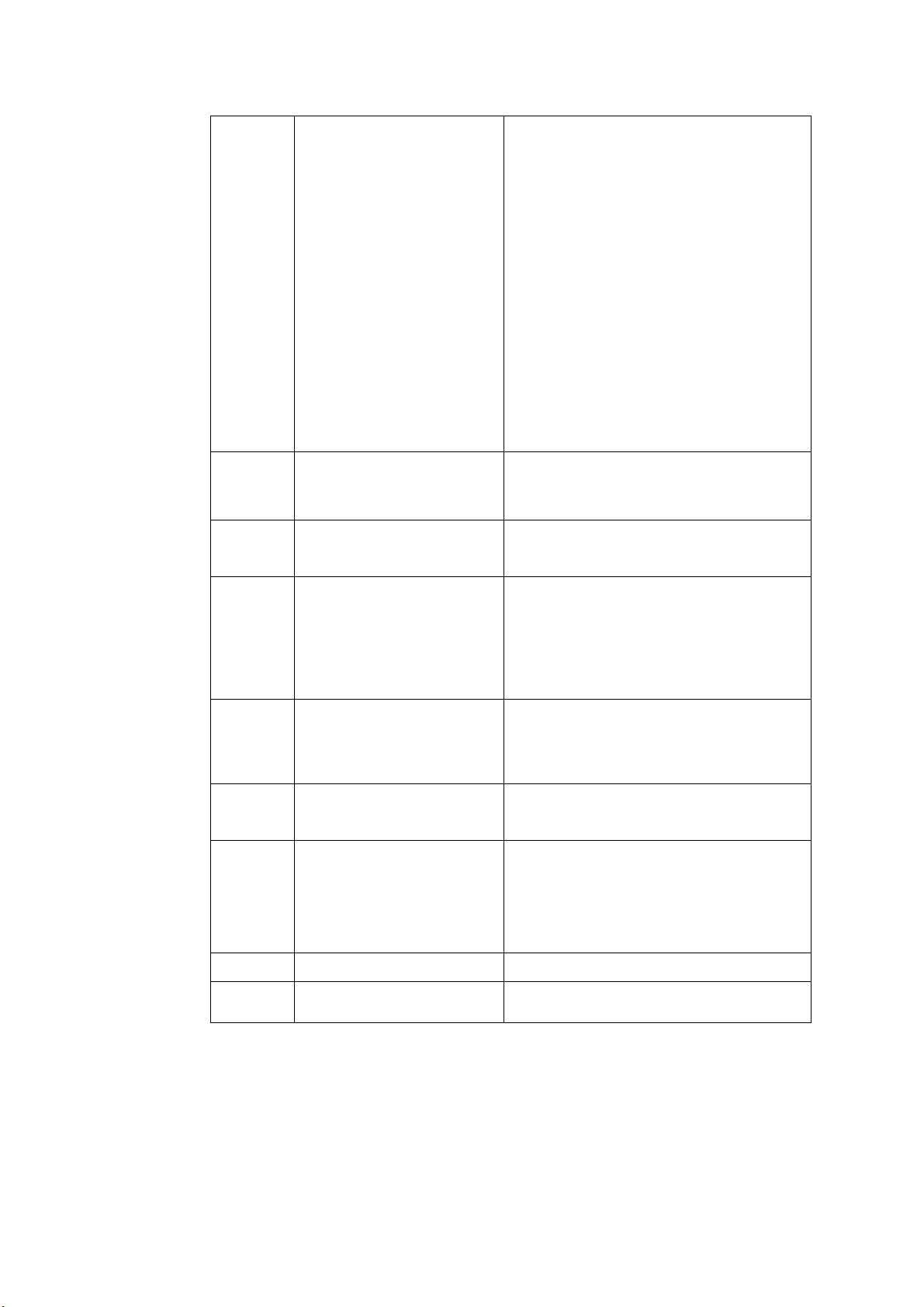
189
531534 Mail server rejects your
login.
1.I f you are using Gm ail as m ail server,
please t urn on " Access for less secure
apps". Or enabling 2-St ep Verification and
then create an " app password" for
scanner.
2.I f you are using Gm ail as m ail server,
you can login on A place, at t he sam e
tim e, som eone uses your account t o login
on B place. Gm ail will rej ect som eone's
login.
3. Please cont act t he adm inist rat or of m ail
server.
531535 Failed t o login to Mail server.
1.Server requires aut henticat ion.
2.Check login name and password.
533001 To, CC and BCC addresses
are em pt y.
Ent er em ail address.
533550 Recipient m ailbox m ay be
not available.
1. Check recipient ’s addresses.
2. I f m ail server is Microsoft Exchange,
please check the sett ings on m ail server,
is t he I P of m achine allowed t o send m ail?
535552
537552
Mail attachm ent size
exceeds Mail server's
lim it ation.
1. Check m ailbox storage allocation.
533553 Recipient address is not
correct.
Check “ To” addresses.
532440
532553
532554
537554
From addr ess is not correct .
Check “ From ” address.
532501 From address is invalid. Check “ From ” address.
533504 HELO com m and is rej ected. Check " Host Nam e" and "dom ain nam e".

19
0
FTP Err ors
540002
Failed to connect t o FTP
server.
Make sure t he FTP server has not been
shut down and port num ber is correct. I f
firewall is enabled, check firew all set t ings.
540003
Failed to connect t o FTP
server via SSL.
Make sure t he FTP server has not been
shut down and port num ber is correct.
I f t he error is still t here, cont act your your
network adm inistrat or or FTP server
adm inist rator.
540004
Failed to login t o FTP server.
Check your login nam e and t ry again.
540005
Failed to login t o FTP server.
Check your password and try again.
540020
540021
FTP cont rol connect ion is
broken.
1.Cont act your net work adm inistrator t o
check FTP server log.
2.Cont act your net work adm inistrator t o
check network environm ent .
540023
FTP server does not open
dat a connection t o scanner.
1.Cont act your net work adm inistrator t o
check firew all set t ings.
2.Cont act ser ver adm inistrat or t o check
ftp server log.
3.Change Active m ode t o Passive m ode
and t ry again.
546005
Data connect ion is broken
during t ransm ission.
1.Cont act ser ver adm inistrat or t o check
server log.
2.Check network environm ent .
549002
Failed to open passive m ode
dat a connection t o FTP
server.
1.Cont act your net work adm inistrator t o
check firew all set t ings.
2.Cont act your net work adm inistrator t o
check FTP server log.
540421
FTP server replies t hat
service is not available and it
closes cont rol connect ion.
1. Too m any connect ions fr om t his I P,
cont act your FTP server adm inistrat or.
2. FTP server shut down and cannot
provide services.
3. Try again lat er. I f problem persist s,
cont act FTP server adm inist rator.

191
546425
Failed to open dat a
connection to FTP server.
Contact your net wor k adm inist rator t o
check firew all set t ings and FTP server log.
544450
546450
548450
Failed to access file because
it's locked on server.
The file already exist s and is locked by
Windows. Check your net work
adm inist rator.
546452
548452
I nsufficient stor age space in
FTP server.
Ask server adm inistrator t o increase
allocated st orage space, or delet e
unnecessary files.
540550
Failed to access t arget
directory or direct ory has
being delet ed.
1.Check if t he directory exist s or not.
2.Check if t he directory is em pt y or not .
541550
542550
546550
Failed t o write file to FTP
server.
1.Confirm that you are at tem pt ing t o
connect t o t he correct server/ location.
2.The adm inist rator of the rem ot e server
m ust provide you with perm issions t o
access files via FTP.
3.Check if file has not being opened.
543421
Server does not support
act ive m ode.
Please enable "passive m ode" and t ry
again.
546553
548553
Filenam e is not allowed on
FTP server. Please check
filenam e.
Change t he file nam e or delete
spaces/ special charact ers in the file nam e.
CI FS Er ror s
560029
Account is locked. Please
cont act your net work
adm inist rator.
Contact your your net work adm inistrator
for further help.
560033
Failed to login t o target
PC.
Check dom ain in Network sett ings.
560034
The t rust relat ionship
bet ween t his workstation
and t he prim ary dom ain
failed
Contact your your net work adm inistrator
for further help.
561003
Target PC's I P address is
not correct .
1. Check t he net work cable or
connector.
2. Check if URL or I P address is correct.
3. Check if "File and Print er Sharing for
Microsoft Networks" is enabled.
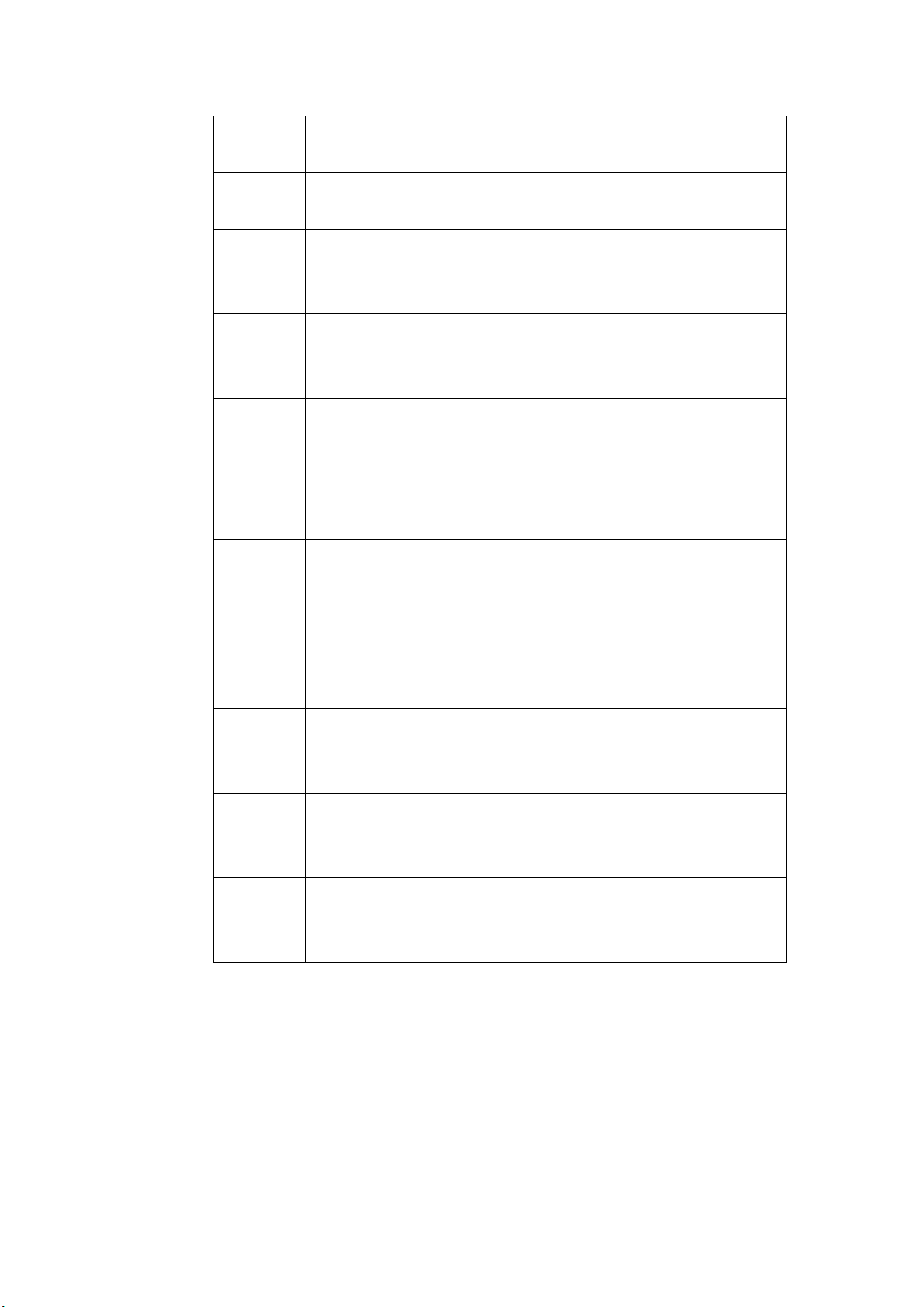
19
2
561005
Access is denied from
target PC.
Please check access perm issions of
shared folder on target PC.
561006
File is closed during
com m unications.
Please check t arget PC.
561032
Sharing violation or
file is in use on t arget
PC.
Please check if shared folder nam e is
correct.
562005
Shared folder does
not exist during
transm ission.
Please check t arget PC.
562006
Shared folder nam e
is not correct.
Please check profile set t ings and shared
folder nam e on t arget PC.
562088
Target PC does not
respond wit hin the
tim eout period.
Server busy, and try scan- t o CI FS again
later.
563021
Target PC replies
service is not ready.
1. Please wait CI FS service init ializat ion,
and t ry scan- t o CI FS again lat er.
2.Please check t he sam e hostnam e on
different m achines.
563039
I nsufficient disk
space on t arget PC.
Please clean up disk space.
569001
Connect ion is broken
during
com m unication.
Check t he network cable or connector.
Check if URL or I P address is correct .
569033
Shared pat h is not
correct. No shared
folder in t he URL.
Please check if URL or I P address is
correct.
569020
Target PC does not
respond wit hin the
tim eout period.
Server busy, please t ry scan- t o CI FS
again lat er.
193
Sha rePoint Er ror s
555400
Server errorRequest
param et er error.
Please check if t he login inform ation
such as user nam e, password, server I P,
Dom ain, location URL, or subfolder is
correct and check also t he network
connection st at us.
555401
Server error:Login failed.
Please check if t he login inform ation
such as user nam e, password, server I P,
Dom ain, or location URL is correct and
check also t he network connect ion
st at us.
555402
At t achm ent exceeds
lim it ation.
Please inform t he server adm inistrat or
to change t he m ax. upload file size. And
please check the sett ings w it h your
server adm inistr ator.
HTTP Err ors
550002
Failed to receive dat a. Check network environm ent.
550004
Data lengt h is wrong. Please t ry again.
556001
HTTP server URL is invalid.
Check t he form at of URL.
556002
Failed to connect t o HTTP
server.
1.Check t he server nam e or I P in URL
2.Check network environm ent .
556003
Connect ion is broken and fail
to send header t o HTTP server.
1. Check t he net work cable or connector
2. Cont act your your net work
adm inist rator
for further help
556004
Connect ion is broken and fail
to send data to HTTP ser ver.
1. Check t he net w ork cable or connect or
2. Cont act your your net work
adm inist rator
for further help
556005
Connect ion is broken and fail
to receive dat a from HTTP
server.
1. Check t he net work cable or connector
2. Cont act your your net work
adm inist rator
for further help
556006
The size of r eceived data from
HTTP server is wrong.
The size of received data is not equal t o
the cont ent lengt h.
1. Check t he net work cable or connector.
2. Cont act your your net work
administrator for further help.
194
AW I P Errors
557001 Failed to connect t o rem ot e
App.
Check net work envrionm ent .
557002~
557005
Failed t o send file to rem ote
App.
Check net work cable and connector.
Contact your net wor k adm inist rator for
furt her help.
Syst em Err ors
150001 Scanner not ready
Reboot your m achine. I f t he problem
persist s, please call service personnel for
help.
150004
Unaut horized network access,
please login first
Please login first .
151004~
151010
Failed to save scanned im age
file.
152004~
152005
Scan param et er error.
152006
Failed to allocat e m em ory.
152999
153001~
153003
I nt ernal error
Please t ry again. I f the problem persists,
please call service personnel for help.
Please restart t he product and try again.
I f t he error persist, please call service
personnel for help.
153005
I nsufficient m em ory
Reduce scan reslut ion or select a
different file form at. A; t erm at ively,
reduce num ber of pages t o be scanned.
153010
153020~
153026
153021
I nt ernal error
153022 Scanner busy.
153023~
153026
I nt ernal error
Please restart t he product and try again.
I f t he error persist, please call service
personnel for help.
170004
I nt ernal error.
Please restart t he product and try again.
I f t he error persist, please call service
personnel for help.
19
5
170005 Send act ion is stopped
Please restart t he product and try again.
I f t he error persist, please call service
personnel for help.
170011
Failed t o send filing report t o
em ail.
Please check your SMTP set t ings or
cont act your net work adm inist rator.
171201
172202
173204
I nt ernal error.
175101
Failed t o save file int o public
folder.
Please restart t he product and try again.
I f t he error persist, please call service
personnel for help.
175102
Public folder disk space is not
enough.
Contact your net wor k adm inist rator.
175201~
175205
Failed t o save file int o public
folder.
176003 I nternal error.
Restart t he pr oduct and t ry again. I f the
error persist, please call service
personnel for help.
177102
Public folder disk space is not
enough.
178102
179204
Can not get I P.
Contact your net wor k adm inist rator.
180001~
180002
I nt ernal error.
Please restart t he product and try again.
I f t he error persist, please call service
personnel for help.
180010 Send act ion is stopped.
Please restart t he product and try again.
I f t he error persist, please call service
personnel for help.
182001
Failed t o creat e t hum bnail
im age.
Please restart t he product and try again.
I f t he error persist, please call service
personnel for help.
182002
Creat e thum bnail action is
st opped.
Please restart t he product and try again.
I f t he error persist, please call service
personnel for help.
183006
185201
I nt ernal error.
Please restart t he product and try again.
I f t he error persist, please call service
personnel for help.
196
BM2 and VSL Er ror s
200100
To use t he [ BM2]
funct ion, you need to first
install But t on Manager V2
ont o your com put er.
Check if t he PC has installed But t on Manager.
200101 VSL disconnect. Check if t he VSL connection on the PC still work.
Scanne r Error s
000016 UART read and writ e
test error
Restart t he device. I f t he error persists, call
service t o replace t he m ain board.
000017 Motor St all Rest art t he device. I f t he error persist s, call
service t o replace t he m ot or.
000020 Download firm ware
error
Check firm ware file and t ry again.
000022 Lam p off error. Restart t he device. I f t he error persist s, call
service t o replace t he lam p.
000023 Flashrom read and writ e
test error.
Restart t he device. I f t he error persists, call
service t o replace t he m ain board.
000029 ADF AFE read and write
test error.
Restart t he device. I f t he error persists, call
service t o replace t he m ain board.
002013
Paperjam Open t he front door t o rem ove t he j am m ed
paper.
002014 ADF cover opens Close ADF cover.
002015 ADF no paper. Load aper int o t he aut o docum ent feeder.
002024 NVRAM read and writ e
test error.
Restart t he device. I f t he error persists, call
service t o replace t he m ain board.
003101
Multiple feed Rem ove paper.
Fan your paper and t ray again.
002033 Page skew. Rem ove paper.
Fan your paper and t ry again.
002036 Ult rasonic sensor error Restart t he device. I f t he error persists,
cont act ser vice personnel.
002037 ADF Bot t om head AFE
test error.
Restart t he device. I f t he error persists, call
service t o replace t he m ain board.
002040 Fan check err or Restart t he device. I f t he error persist s,
cont act ser vice personnel.
003003 DRAM read and writ e
test error.
Restart t he device. I f t he error persists, call
service t o replace t he m ain board.

19
7
003004 ADF DRAM read and writ e
test error.
Restart t he device. I f t he error persists, call
service t o replace t he m ain board.
003006 ADF Bottom Head light
check error.
Restart t he device. I f t he error persists, call
the service t o replace t he lam p.
003010 ADF Top Head light check
error.
Restart t he device. I f t he error persists, call
the service t o replace t he lam p.
003211 Page m iss- feed Make sure t he edge of your docum ent
slightly t ouch t he paper guides and t ry
again.

198
Technical Support
I f your problem st ill exists after t rying t he above solution, please contact our
technical support.
Headquart er
Avision I nc.
No. 20, Creation Road I , Science- Based I ndustrial Park,
Hsinchu 300, Taiw an, ROC
TEL: + 886 (3) 578- 2388
FAX: + 886 ( 3) 577- 7017
E- MAI L: service@avision.com .tw
Web Si
te: ht tp: / / www.avision.com .t w
US a nd Ca nada Ar ea
Avision Labs, I nc.
6815 Mowry Ave., Newark CA 94560, USA
TEL: + 1 ( 510) 739-2369
FAX: + 1 ( 510) 739-6060
E- MAI L: support@avision-labs.com
Web Sit e:
http: / / www.avision.com
China Area
Techn ical Suppor t Center in Shanghai
7A, No.1010, Kaixuan Road, Shanghai 200052 P.R.C.
TEL :+ 86-21- 62816680
FAX :+ 86- 21- 62818856
E- MAI L: sales@avision.net.cn
Web Sit e: http: / / www.avision.com .cn
Europe Area
Avision Europe Gm bH
Bischofst r. 101 D- 47809 Krefeld Germ any
TEL: + 49-2151-56981- 40
FAX: + 49- 2151- 56981- 42
E- MAI L: info@avision- europe.com
Web Sit e: http: / / w ww.avision.de

201
1 3 Specificat ions
All spe cifica t ions a r e subj e ct t o change w it hout notice. For m or e
de t a ile d inform at ion , please refer t o our w e b sit e at w w w .a vision.com
I tem s Spe cificat ions
Model N um be r : FF- 2 0 0 2 H
Gene ra l Specifications
Syst em Descript ion Net work Scanner
I m age Sensor Cont act I m age Sensor (CI S)
Light Source LED Light Bar
Opt ical Resolut ion 600 x 600 dpi
Out put Resolut ion 1200 dpi ( PC Scan)
Out put Qualit y I nput : 48 bit s color
Out put: 24 bits Color
8 bits Gray
1 bit Monochrom e
LCD Size 8 inches
External Connections 1. RJ- 45 ( for Net work connection)
2. USB 3.2 Gen 1x1
Net work Connection RJ-45 Ethernet 10/ 100/ 1000 Mb, Wi- Fi
Out put Form at JPEG, TI FF ( One- Page TI FF), M-TI FF
( Multi- Page TI FF) , PDF ( One-Page PDF),
* M-PDF ( Mult i- Page PDF) , PDF/ A(M- PDF) , PNG
Dim ension (WxDxH)
Min.
Max.
316 x 207 x 178 m m ( 12.44 x 8.15 x 7.01 in.)
316 x 675 x 254 m m ( 12.44 x 26.57 x 10 in.)
Weight 4.2 Kg ( 9.26 lb)
Power Requirem ent 100~ 240Vac, 50/ 60Hz
Power Source 24Vdc, 1.5A
Tem perature
10° C~ 35° C Operating
Environm ent
Hum idit y 10% ~ 85% RH
Scan Size
ADF Paper Capacity 50 sheets ( 80 g/ m + ² or 20 lb. Paper)
ADF Paper Size 52 x 70 m m ~ 216 x 356 m m
Paper Thickness 50 ~ 433 g/ m ²
20
2
N et w ork Spe cifica t ion
Connect ivit y RJ- 45 Et hernet 10/ 100/ 1000 Mb, Wi- Fi
Com m unication
Prot ocol
I Pv4, TCP, UDP, DHCP, SSL/ TLS, DNS, DDNS, SNTP,
LDAP, LDAPS, SMTP, SMTPS, HTTP, HTTPS, MI ME,
FTP, FTPS,
SMB, I psec, 802.1x
Configurat ion
Requirem ent
1. I P address
2. Subnet m ask
3. Gat eway
4. SMTP server
5. FTP server
E- m ail Specificat ion
Com m unication
Prot ocol
SMTP
File Form at s
B&W
Gray/ Color
PDF, TI FF, MTI FF
PDF, TI FF, MTI FF, JPEG
Default File Form at PDF
Separat ion Lim it 1MB, 3MB, 5MB, 10MB, 30MB, Unlim it ed
Resolut ion 100 dpi, 150 dpi, * 200 dpi, 300 dpi, 400 dpi, 600
dpi
Default Resolut ion 200 dpi
Supported Mail
Server Application
Lot us Mail Server 5.0
MS Exchange Server 2000
RedHat 7.0 SendMail
MAC Mail Server in OS 9.04
Filing Specification
Com m unication
Prot ocol
FTP, FTPS, FTPES, SMB, SharePoint
File Form at s
JPEG, TI FF ( One-Page TI FF) , M-TI FF ( Multi- Page
TI FF), PDF ( One- Page PDF) , * M- PDF ( Multi- Page
PDF) , PDF/ A( M- PDF), PNG
Resolut ion 100 dpi, 150 dpi, * 200 dpi, 300 dpi, 400 dpi, 600
dpi
Max. Num ber of
Filing Profiles
50

203
W i- Fi Specificat ions:
St andard I EEE 802.11 b/ g/ n standards com pliant
Wireless LAN 1T1R Mode
Frequency Range 2.412 ~ 2.484GHz ( subj ect to local regulations)
Modulation Type
CCK, DQPSK, DBPSK for DSSS
64QAM, 16QAM, QPSK, BPSK for OFDM
Modulation Technology DSSS, OFDM
Transfer Rat e
802.11b: up t o 11Mbps
802.11g: up to 54Mbps
802.11n: up to 72.2Mbps
Out put Pow er
802.11b: 149.279m W
802.11g: 360.579m W
802.11n ( HT20): 345.939m W
Antenna PCB ant enna
Security
WEP 64/ 128, TKI P, WPA, WPA2 m ixed, 802.1x
and 802.11i