EN
DYON SMART 42 AD
V1.2.0
Content
1 Important Safety Instructions ................................................................ 3
2 Support Information .............................................................................. 8
3 Appropriate use .................................................................................... 9
4 Notes on energy efficiency .................................................................. 10
5 Conformity .......................................................................................... 12
6 Montage ............................................................................................. 13
6.1 Stand mounting ......................................................................................... 13
6.2 Wall mounting ........................................................................................... 14
7 Controls and connections ................................................................... 15
7.1 The Device ................................................................................................ 15
7.2 Connections .............................................................................................. 16
7.3 CI/CI+ Slot ................................................................................................ 17
7.4 Remote Key Function ............................................................................... 19
7.5 Antenna Connection ................................................................................. 21
8 Initial setup ......................................................................................... 24
8.1 Basic Settings ........................................................................................... 24
8.2 Add remote control ................................................................................... 25
8.3 Setup via Android Smartphone ................................................................ 25
8.4 Internet Setup ........................................................................................... 26
8.5 Country Setup ........................................................................................... 28
8.6 Select TV mode ........................................................................................ 29
8.7 Chromecast............................................................................................... 29
8.8 Tuner mode .............................................................................................. 29
8.9 Satellite Search ......................................................................................... 30
8.10 Antenna settings ....................................................................................... 31
8.11 Cable TV setup ......................................................................................... 32
9 Menu-Settings .................................................................................... 37
9.1 Menu favorites .......................................................................................... 37
9.2 Menu Source ............................................................................................ 38
9.3 Menu Picture ............................................................................................. 38
9.4 Menu Display Mode .................................................................................. 40
9.5 Menu Speaker .......................................................................................... 41
9.6 Menu Power .............................................................................................. 41
9.7 Menu CI-Card ........................................................................................... 42
9.8 Menu Advanced Options .......................................................................... 43
9.9 Menu Settings ........................................................................................... 43
10 Menu Sound ....................................................................................... 44
11 EPG (Electronic Program Guide) ........................................................ 46
12 Troubleshooting .................................................................................. 47
12.1 No sound /No Picture................................................................................ 47
12.2 Error Notes................................................................................................ 48
13 CI+ Information ................................................................................... 50
14 TELETEXT ......................................................................................... 52
15 Selecting the Source........................................................................... 53
EN
DYON SMART 42 AD
2
16 Connecting USB Devices .................................................................... 54
17 Specifications ..................................................................................... 55
18 Glossar ............................................................................................... 58
19 Warranty Condition ............................................................................. 59
EN
DYON SMART 42 AD
3
1 Important Safety Instructions
1) Read these instructions.
2) Keep these instructions.
3) Heed all warnings.
4) Follow all instructions.
5) Do not use this apparatus near water.
6) Clean only with dry cloth.
7) Do not block any ventilation openings, install in accordance
with the instructions.
8) Do not install near any heat sources such as radiations,
heat registers, stoves, or other apparatus (including
amplifiers) that produce heat.
9) Do not defeat the safety purpose of the polarized plug. If
the provided plug does not fit into your outlet, consult an
electrician for replacement of the obsolete outlet.
10) Protected the power cord from being walked on or pinched
particularly at plugs, convenience receptacles, and the
point where they exit from the apparatus.
11) Only use attachments/accessories specified by the
manufacturer.
12) Unplug this apparatus during lighting storms or when
unused for long periods of time.
EN
DYON SMART 42 AD
4
13) Refer all servicing to qualified service personnel. Servicing
is required when the apparatus has been damaged in any
way, such as power-supply cord or plug is damaged, liquid
has been spilled or objects have fallen into the apparatus,
the apparatus has been exposed to rain or moisture, does
not operate normally, or has been dropped.
14) Mains plug is used as the disconnect device, the
disconnect device shall remain readily operable.
15) The ventilation should not be impeded by covering the
ventilation openings with items, such as newspapers, table-
cloth, curtains, etc.
16) No naked flame sources, such as lighted candles, should
be placed on the apparatus.
17) Attention should be drawn to the environmental aspects of
battery disposal.
18) The use of apparatus in moderate climate.
WARNING
To reduce the risk of fire or electric shock, do not expose
this apparatus to rain or moisture.
The batteries shall not be exposed to excessive heat
such as sunshine, fire or the like.
EN
DYON SMART 42 AD
5
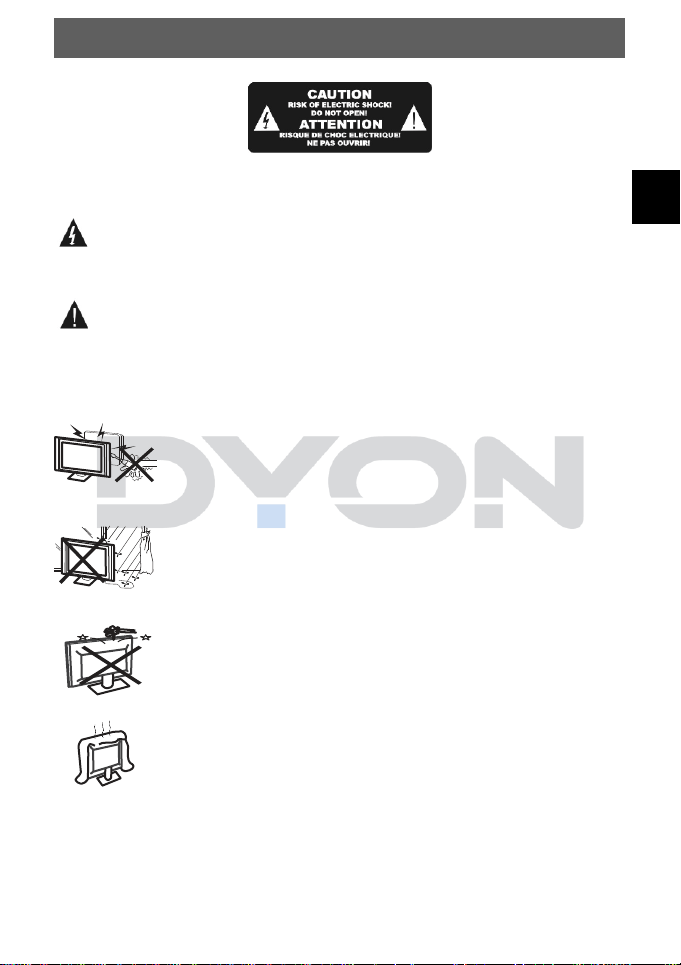
The symbol indicates that dangerous voltages
constituting a risk of electric shock are present within
this unit.
The symbol indicates that there are important
operating and maintenance instructions in the literature
accompanying this unit.
Warning
High voltages are used in the operation of this
television receiver. Do not remove the cabinet
back from your set. Refer servicing to qualified
service personnel.
To prevent fire or electrical shock hazard, do not
expose the television receiver to rain or moisture.
Do not drop or push objects into the television
cabinet slots or openings. Never spill any kind of
liquid on the television receiver.
Do not block the ventilation holes in the back
cover. Adequate ventilation is essential to prevent
failure of electrical components.
EN
DYON SMART 42 AD
6
Caution
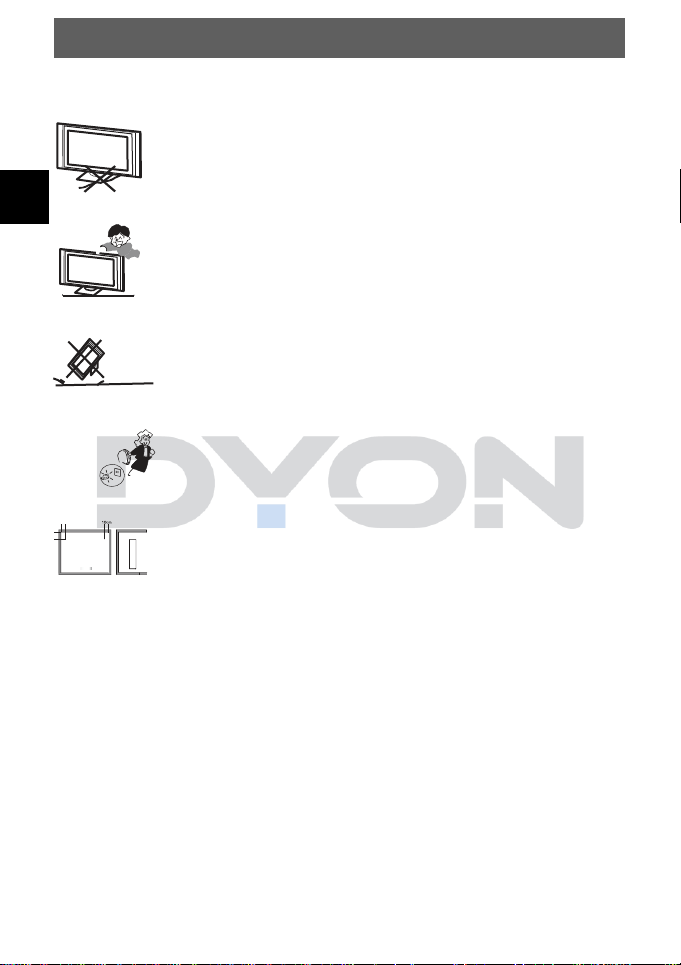
Do not trap the power supply cord under the
television.
Never stand on, lean on, or suddenly push the
television or its stand. You should pay special
attention to children. Serious injury may result if it
should fall.
Do not place your television on an unstable cart,
stand, shelf or table. Serious injury to an individual
and damage to the television, may result if it
should fall.
When the television is not used for an extended
period of time, it is advisable to disconnect the AC
power cord from the AC outlet.
If the television is to be built into a compartment or
similar enclosure, the minimum distances must be
maintained. Heat build-up can reduce the service
life of your television, and can also be dangerous.
EN
DYON SMART 42 AD
7
Tips regarding environmental protection
At the end of its operating life, this product may not be
disposed of by way of your normal household waste.
Instead it must be delivered to a collection point for
recycling electrical and electronic equipment. The icon
on the product, in the operating instructions or on the
packaging, indicates this.
The materials used in manufacturing this product are
recyclable, depending on their identifying markings. By
recycling this equipment, by recycling its components,
or through other procedures of re-using outdated
equipment, you are making an important contribution to
protection our environment. Please ask you local
municipal administration for the location of the
corresponding recycling point.
Battery Recycling
In order to ensure the environmentally friendly disposal
of batteries, please do NOT dispose of used
batteries through normal household waste. Please take
the batteries to your local retail or community collection
point for recycling.
The following may be an indication of a discharged
battery: The device cannot be switched on. The
device switches off automatically and "Battery Empty"
is shown in the display. The device and or battery do
not function properly.
EN
DYON SMART 42 AD
8
2 Support Information
See our website for the latest information on this device,
on other products by our company and on our company itself.
If you have questions or problems, please read the FAQs on
our website or contact our customer support service.
Service Adress
Support-Hotline
AXDIA International GmbH
Service Center
Schmelzerstraße 27
47877 Willich
+49 (0)2154 / 8826-101
Web: www.dyonhilfe.de
E-Mail: support@axdia.de
EN
DYON SMART 42 AD
9
3 Appropriate use
The device is designed for receiving and watching encrypted
and unencrypted DVB-T2, DVB-S2 and DVB-C TV channels
(free-to-air) for private use. It is exclusively meant for this
purpose and must only be used for the same. This also
includes paying attention to all information contained in this
operating manual, especially in the safety instructions. Any
other usage is considered to be improper and may lead to
material damages and even personal injuries. Moreover, it will
result in the immediate loss of guarantee. The manufacturer
does not bear any liability for damages caused due to improper
use.
Enjoy more high definition channels with DYON TV!
EN
DYON SMART 42 AD
10
4 Notes on energy efficiency
The device has facilities for reducing the energy requirement.
Make the appropriate settings as required.
Tune mode
During initial installation and via the menu:
Menu key – Settings - Device Preferences – Retail Mode
Home Mode
Adapted illuminance for home use.
Retail Mode
Adapted illuminance for bright
environments (e.g. salesrooms)
Important
Please note, the power consumption is
increased, by using the exhibition
mode.
Standby
Menu settings:
Device Preferences – Power – Switch Off Timer
Automatic standby
mode
After a predefined time, the device
switches to standby mode.
Automatic networked
standby mode
After a predefined time, the device
switches to networked standby
mode when the connection is active.
EN
DYON SMART 42 AD
11
Important!
The device switches to standby mode independently after
4 hours without operations. Please note, this is NOT a
defect. It is a legal requirement.
A note occurs shortly before the device turn in the off-
mode. Press any key to avoid the off-mode. Switch the
device off and on again via the power-button to reactivate
it.
This function can be deactivated in the system settings
by setting it to “off”.
(Device Preferences – Power – Switch Off Timer)
Attention
The deactivation of the automatic stand-by or extending
the preset switch off time, will lead to a higher power
consumption.
Note
The available modes are named as follows if available
Automatic Standby mode
Standby
Automatic networked
standby mode
Network Standby
EN
DYON SMART 42 AD
12
5 Conformity
We, Axdia International GmbH, hereby declare
that this device corresponds to the basic
requirements and relevant regulations outlined in
guidelines 2014/53/EU, 2014/30/EU, 2014/35/EU
and 2009/125/EC.
The CE declaration of conformity for this product may be found
on the following link:
https://www.dyonhilfe.de/konform
EN
DYON SMART 42 AD
13
6 Montage
6.1 Stand mounting
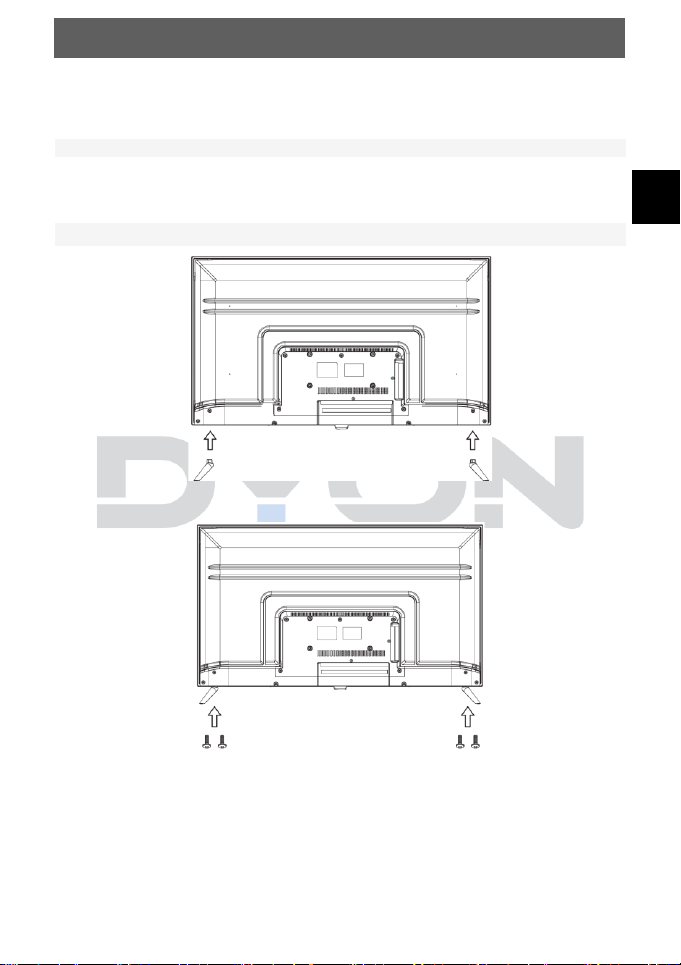
Fix the feet in the device as described in the picture and fix
them with the enclosed mounting screws
EN
DYON SMART 42 AD
14
6.2 Wall mounting
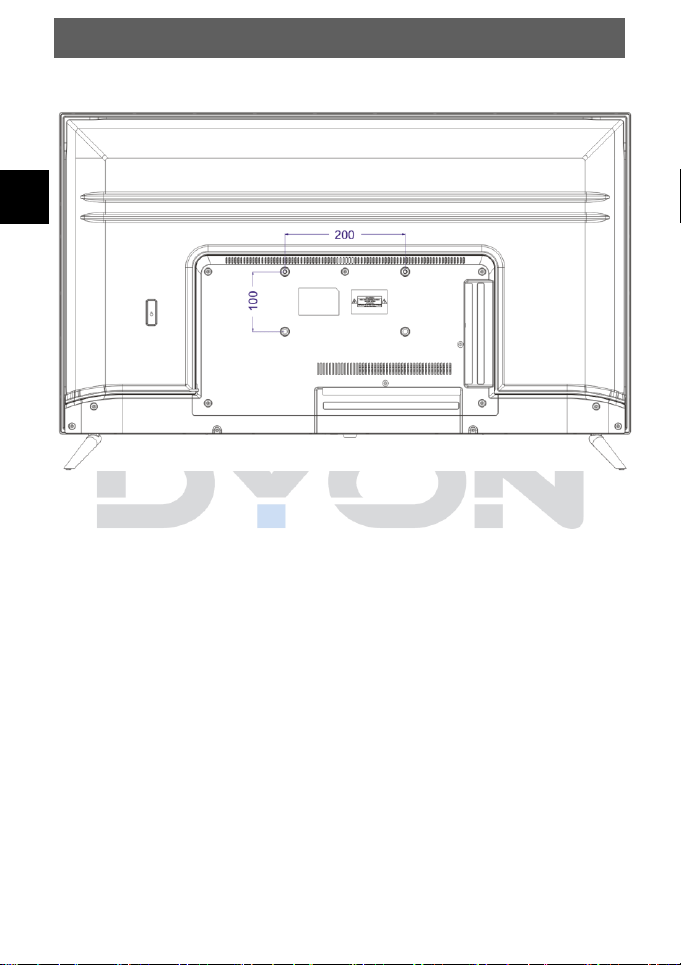
Fasten your wall bracket to the threads on the back and
observe the hole spacing.
EN
DYON SMART 42 AD
15
7 Controls and connections
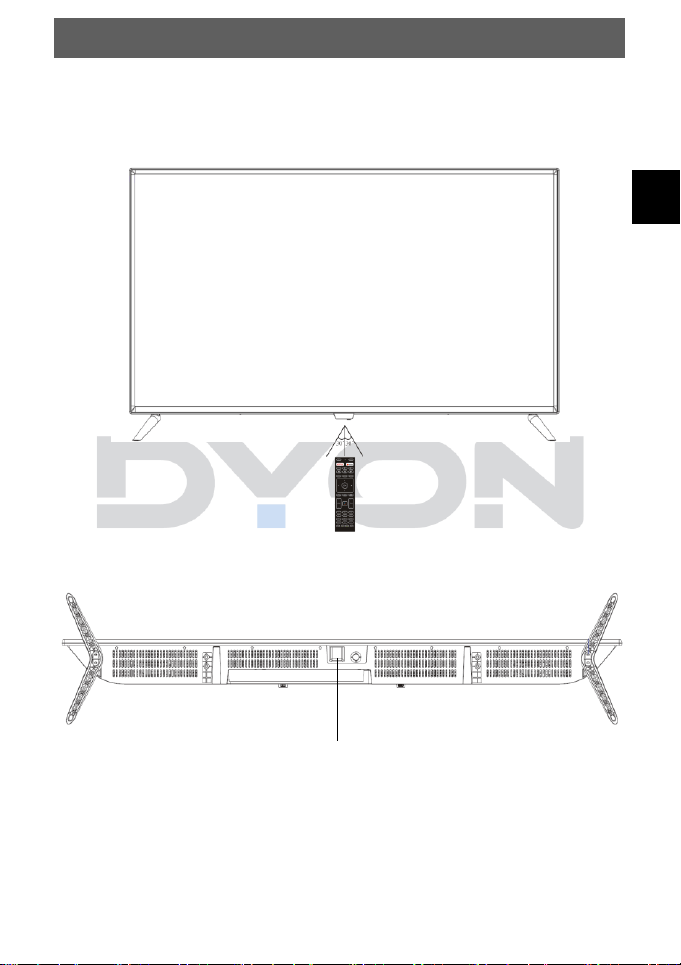
7.1 The Device
Remote Sensor and Status indicator
In Standby Mode, the status indicator lights up red.
Turn the TV on or off
EN
DYON SMART 42 AD
16
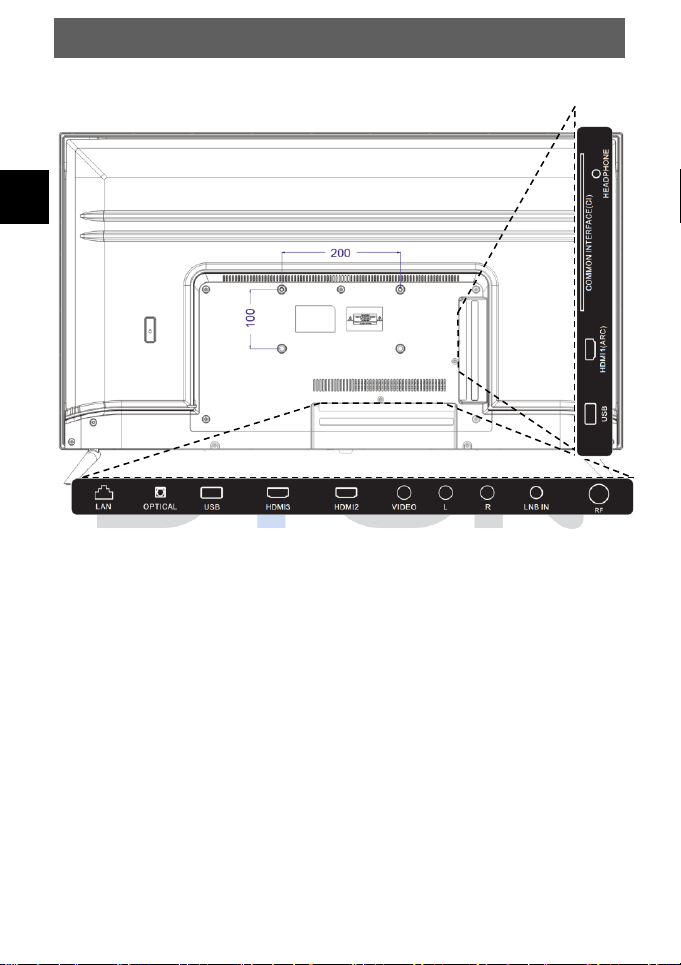
7.2 Connections
Connections from left to right and bottom up:
1. ETHERNET (LAN)
2. Optical Audio Out
3. USB-Port (2.0)
4. HDMI 3
5. HDMI 2
6. AV-IN
7. LNB IN (Satellite)
8. RF (C/-T2) Antenna
connection
9. USB-Port (2.0)
10. HDMI 1 (ARC)
11. CI-Module
12. Headphone jack
6
7
8
9
10
11
12
9
10
11
1
2
3
4
5
6
7
8
EN
DYON SMART 42 AD
17
7.3 CI/CI+ Slot
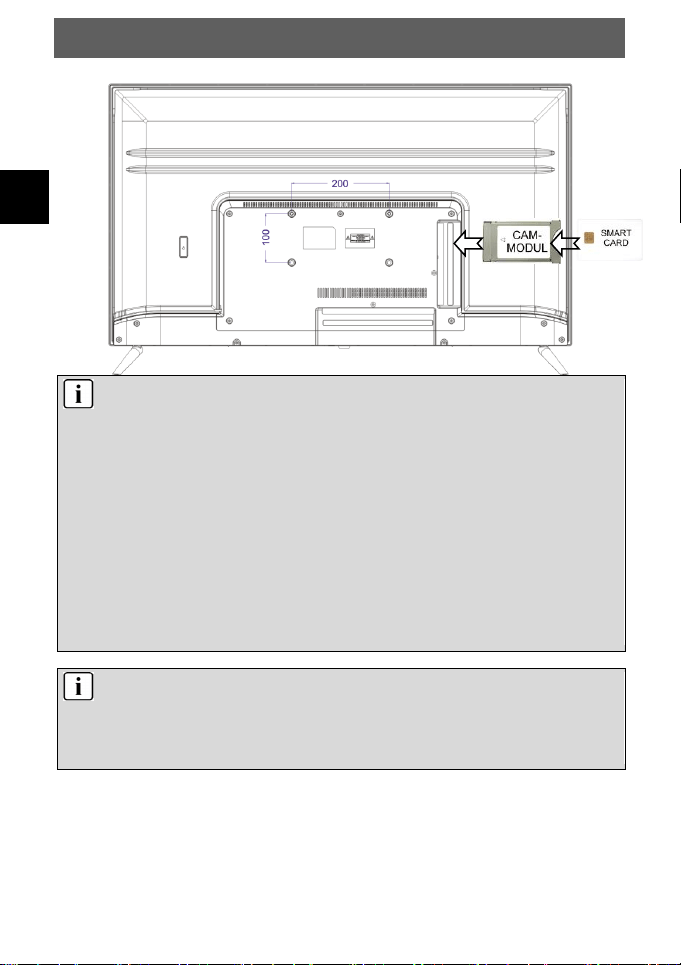
Note according the CI Slot
Please take care to insert the CI-Module (CAM) in the
correct way. The Top side of the module must face
against the wall behind.
This device is equipped with a CI+ slot for use with CAM
modules and Smart cards which allow for the viewing of
encrypted Pay-TV channels. The corresponding modules may
be purchased from the Pay-TV provider or specialized dealer.
Installation
1. Disconnect the TV set from power.
2. Before inserting the module into the device, insure that the
Smart card has been properly installed into the module ().
Pay close attention to the direction when inserting.
The printing on the module and the chip of the Smart card
must be on top.
3. Insert the Module with inserted Smart card with the printing
of the module facing backwards (). Insert the module
carefully into the slot of the device until a little resistance is
felt. Using a little pressure, carefully press the module into
the slot until it sits firmly.
4. Reconnect the power source.
Remove the module
1. Disconnect the TV set from power.
2. Take the module out carefully.
EN
DYON SMART 42 AD
18
Please note
Module and Smart card are not including.
Install the CI+ module after the channel scan has been
accomplished and all other settings have been set.
The activation of the card may take several minutes for
the first time it is used. When necessary, the device will
check the module every time the device is switched on.
Pay close attention to the manual of the CI+ module and
Smart card. Depending on the provider, the Smart card
may be omitted.
Notice to CI+
Please note some function may be limited on some
channels. These limitations are determined by the
broadcaster. The manufacturer takes no responsibility.
EN
DYON SMART 42 AD
19
7.4 Remote Key Function
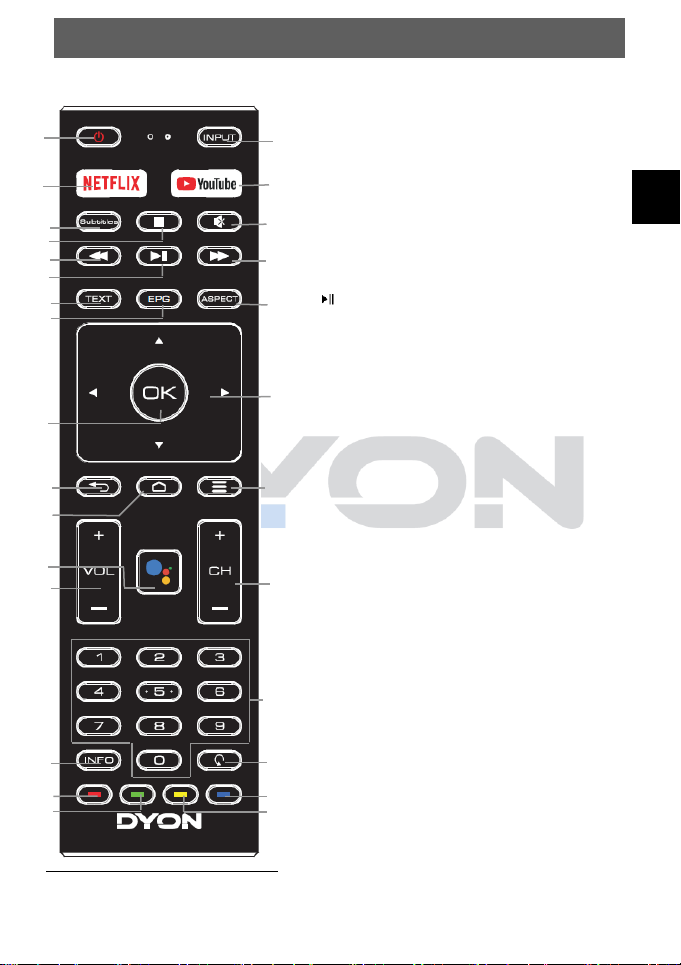
1. POWER: To switch the set device to on or standby.
2. INPUT: Select input source.
3. NETFLIX: Open Netflix App.
4. YOUTUBE: Open YouTube App.
5. SUBTITLES: Used to switch among different
subtitles that are broadcasted in TV mode.
6. MUTE: To disable or enable the sound output.
7. : Stop playback
8. : Fast rewind
9. : Fast forward
10. : Play / Pause
11. TEXT: To open teletext, if teletext is available in the
broadcasted stream.
12. ASPECT: To switch the aspect ratio.
13. EPG: To display information about the program
being viewed and what’s on next. (Not for ATV)
14. ARROWKEYS: Move within the menus.
15. OK: Used to confirm a selection within a menu.
16. BACK:
In menu: Used to return to the previous screen or
menu.
17. HOME: With this Button you will Return to the
Homescreen.
18. MENU: Open the menu of the current App.
19. Google Asisstant Button: activates Microphone on
Remote for you to use with Google Asisstant
20. VOL+/-: Adjust the volume level.
21. CH+/-: Channel selection.
22. NUMBER KEYS: used to select channel numbers or
input numbers in menus.
23. INFO: Shows Information for current Channel
24. RECALL: To show the last viewed channel
25. RED COLOR KEY: In Menu: Menu function as
displayed.
In TV Teletext Mode: To open further teletext
pages directly, as shown at the bottom. If the
page is not available, the color display on the
screen flashes briefly.
26. BLUE COLOR KEY: Refer to RED Color Key
27. GREEN COLOR KEY: Refer to RED Color Key
28. YELLOW COLOR KEY: Refer to RED Color Key
1
2
3
4
5
7
8
6
9
10
13
14
16
17
18
19
20
21
22
23
15
12
11
24
25
26
27
28
EN
DYON SMART 42 AD
20
Insert Batteries into the Remote Control
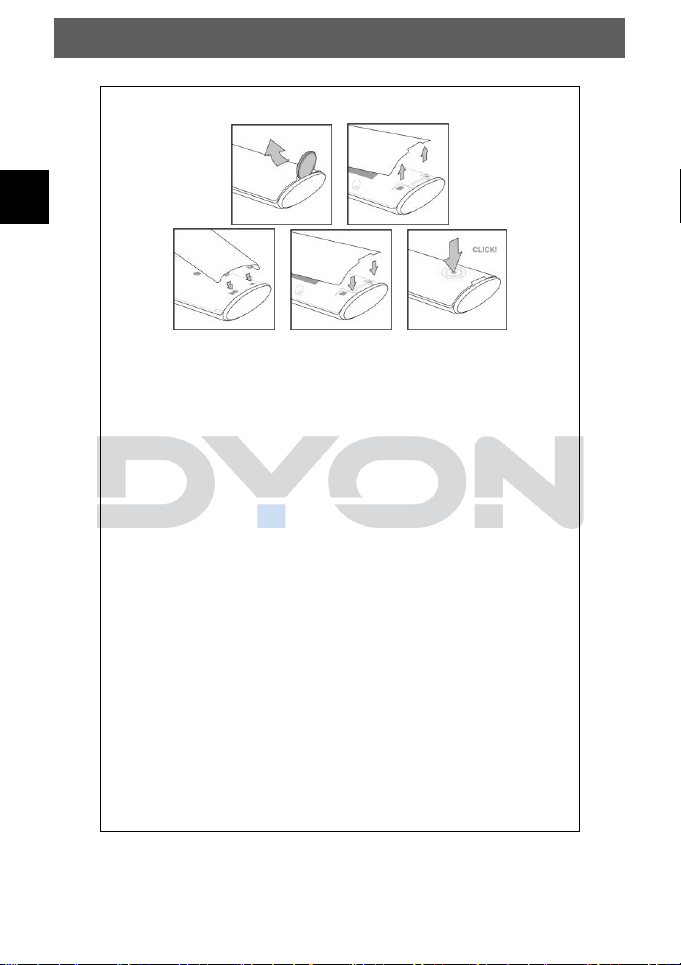
1. Take a coin to remove the battery cover. Insert
the coin into the latch and press down the coin
with a little pressure, until the battery cover
released from the latch. Remove the battery
cover. Inserting the two AAA 1.5V batteries,
make sure that the polarity (+ or -) of the
batteries matches with the polarity inside the
unit.
2. Replace the battery cover by first inserting the
battery cover at the upper end and then pressing it
at the bottom.
Replace the batteries when the TV set begins to
show the following symtomps:
• The signal is hesistant or irregular.
• The remote control does not work
Note
• Alkaline Batteries are recommended.
• Remove the batteries when they are
exhausted or if the remote control is not be
used for a long time.
EN
DYON SMART 42 AD
21
7.5 Antenna Connection
Connection for DVB-T2 reception or cable TV
Connect the signal cable (e.g. the antenna cable) to the
antenna input (RF) on the back of the device.
After connection, switch on the device. Perform the initial
installation or press the Menu button , then press the
button to enter the Channels menu. Now select "new channels
available" on the right and confirm with the OK button. In the
next step, press the button to change to "Tuner (DTV)" and
press the OK button. Now select “Antenna/Cable” and confirm
“Antenna” in the next step. Now carry out the channel search
with a confirmation with the OK button on the field "Scan".
Note on DVB-T
Whether and how many transmitters can be received
depends on the location of the device and the availability
of DVB-T transmitters in this region. DVB-T radio stations
are only available in very few regions.
Please note that when using DVB-T, a new station search
should be performed every time you change location.
Broadcast stations and their transmission frequency vary
from region to region.
Notes on batteries
If the remote control is not used for a long period of time,
please remove the battery from the compartment.
Do not heat batteries or dispose of them in fires.
Do not dismantle, deform or modify batteries.
EN
DYON SMART 42 AD
22
Supplement to DVB-T2
This device is suitable for the reception of DVB-T2
transmitters in Germany.
Make sure that DVB-T2 is available in your region. If you
have any questions, please contact our support. Please
note that you may now need a CI+ module for DVB-T2 to
receive private channels.
Public broadcasters such as ARD and ZDF can also be
seen without a module.
Attention!
The CI+ module has the corresponding functions of a
Smart card already integrated. Therefore you only
need the CI+ module in Germany.
Connection to the satellite receiver
Connect the signal cable to the LNB IN input on the rear panel.
After connection, switch on the unit.
Perform the initial installation or press the Menu button and
“settings”. Press the button to enter the Channels menu.
Now select "new channels available" on the right and confirm
with the OK button. In the next step, press the button to
change to "Tuner (DTV)" and press the OK button. Now select
“Satellite” and confirm with “Next” for a simple search for
satellite systems without single cable system. Select your
desired satellite in the now displayed menu "LNB List" and
confirm with “Next”. Now carry out the channel search with a
confirmation with OK on the "Scan" field.
EN
DYON SMART 42 AD
23
Note
ATV
ATV refers to analog TV transmitters, which are now only
used in large satellite distribution systems such as hotels.
DTV
For private TV reception, regardless of which reception
path you use, DTV is the correct setting for digital TV
channels. A simultaneous analog search does not need to
be performed.
EN
DYON SMART 42 AD
24
8 Initial setup
8.1 Basic Settings
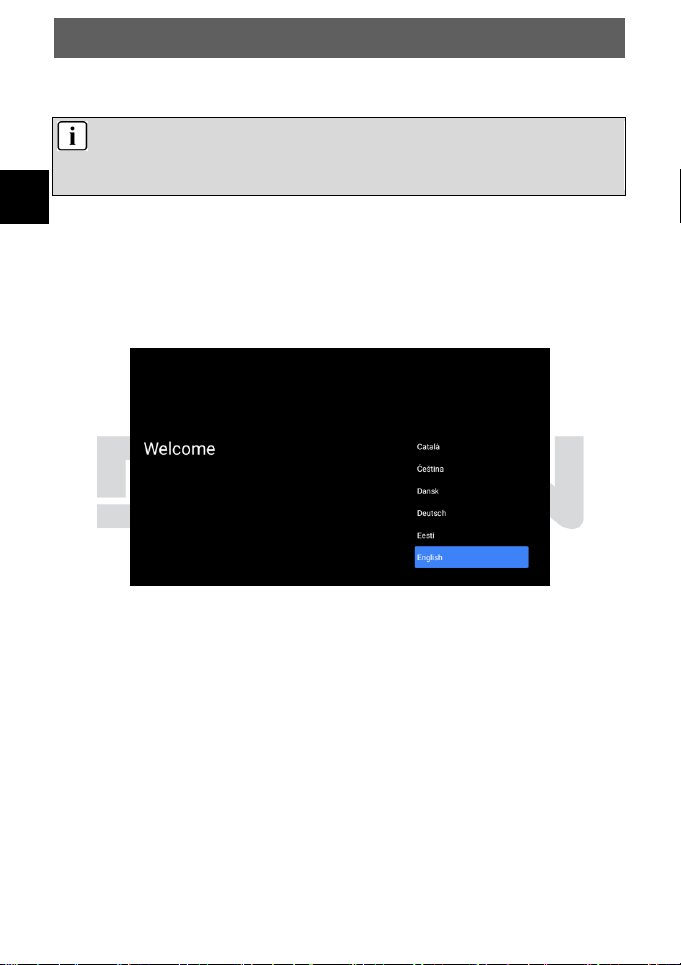
This screen is only displayed, when the TV is turned on for the
first time or reset to the factory default setting.
Please use the / button to select the desired language. To
continue, confirm your selection with the OK button.
Note
Before you proceed, please make sure that the
receiver/antenna cable is connected.
EN
DYON SMART 42 AD
25
8.2 Add remote control
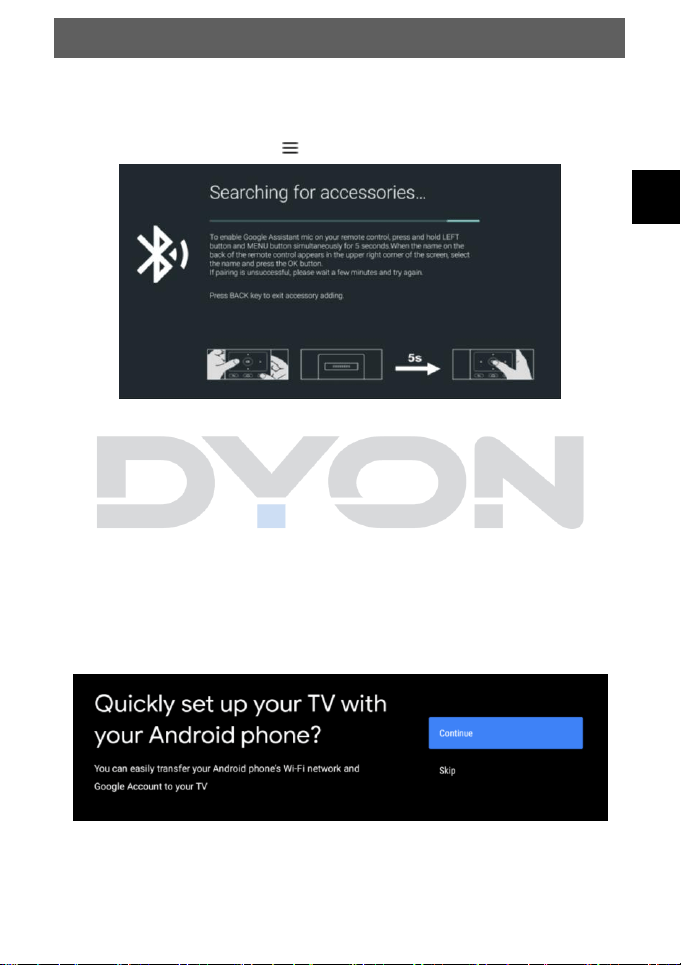
To activate the Google Assistant Microphone on your remote
control, press and the button simultaneously.
You can find the remote control in the upper right corner in the
Bluetooth connection list.
8.3 Setup via Android Smartphone
To make it easier to set up the TV, you can connect your
TV with the Android smartphone. Connect your Android phone
to your TV, select “Continue” to continue the connection and
choose “Skip” to skip this step. Then follow the instructions on
your TV or Android smartphone.
EN
DYON SMART 42 AD
26
8.4 Internet Setup
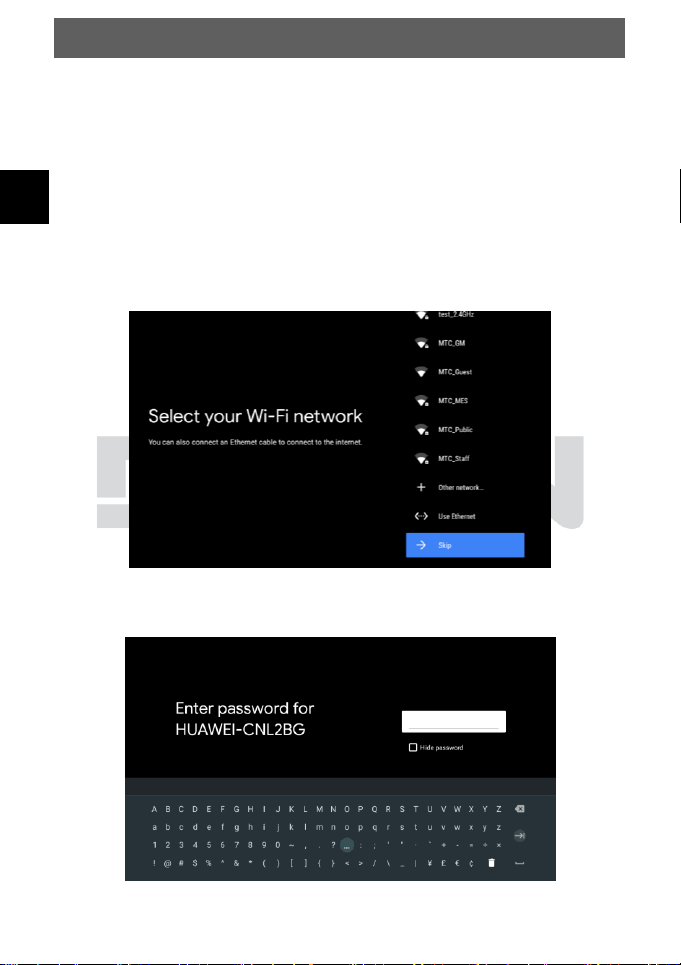
To use functions that require an Internet connection, such as
YouTube, Netflix, HbbTV, etc., you can connect your TV to the
Internet via LAN or Wi-Fi.
• If you want to connect via LAN, simply plug an Ethernet
cable into the socket of your TV.
• If you want to connect your TV via Wi-Fi, please select
your Wi-Fi on the "Select your Wi-Fi network" page.
Now enter your password on the following page. You can
access the keyboard by pressing OK once in the input field.
EN
DYON SMART 42 AD
27
Google User Agreement
On the following page you will be asked to read and agree to
the Google Terms of Use. This is necessary for the use of the
television, without this it cannot be used.
Location sharing and Android improvements
To improve Android, you can give Google access to location
and diagnostic data. At these points you can freely choose
whether this data should be shared or not.
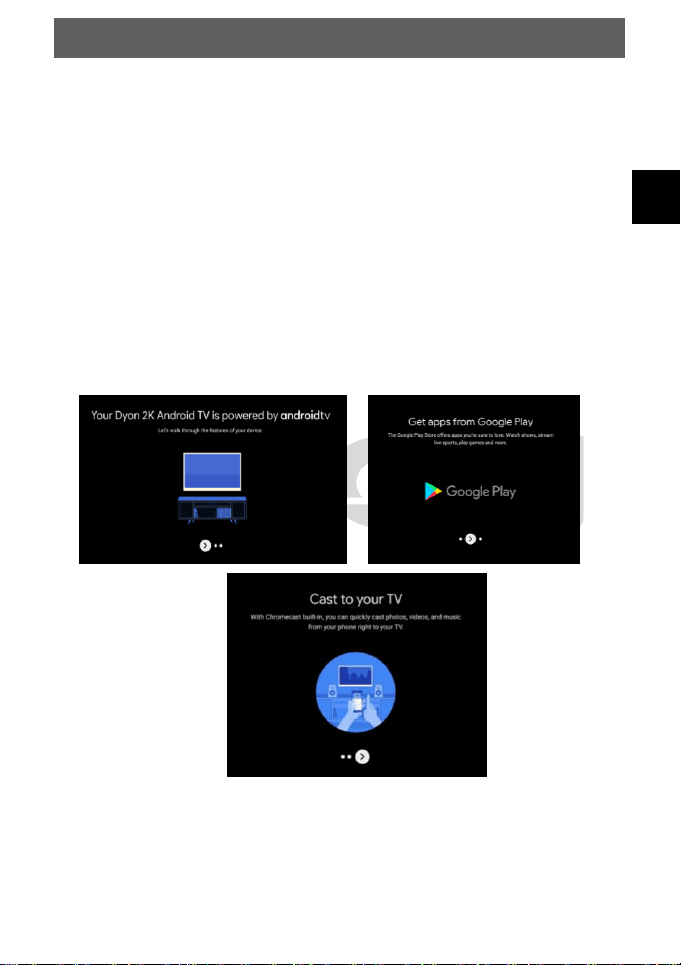
You will now receive a short introduction to the functions of your
Android TV. You can confirm this with the OK button.
EN
DYON SMART 42 AD
28
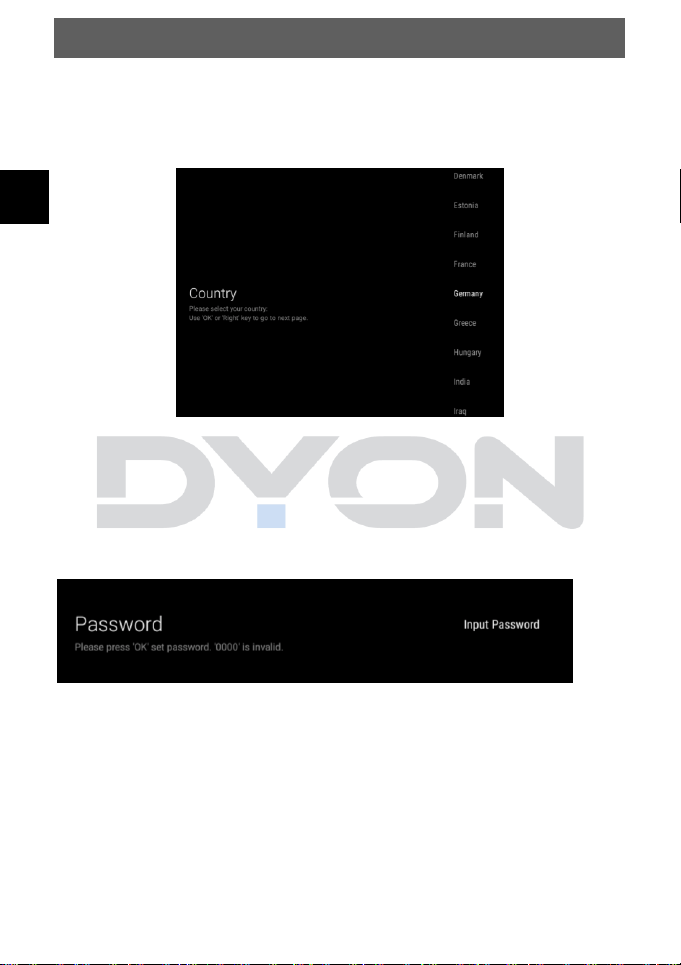
8.5 Country Setup
Select your country in this selection page. You can select it with
the /button and confirm with the OK button.
General Android Password
For Android a password is required to avoid unwanted access.
You must create this on the "Password" page. You can access
the keypad by pressing "Enter password".
EN
DYON SMART 42 AD
29
8.6 Select TV mode
In the TV mode you have the possibility to choose between two
different options.
• The Home mode is optimized for efficient energy usage
for home use. Select “Yes” and confirm with the OK
button to confirm the Home mode and to proceed.
• The Retail mode may cause higher energy
consumption. Select “Yes” and confirm with the OK
button to confirm the Retail mode and to proceed.
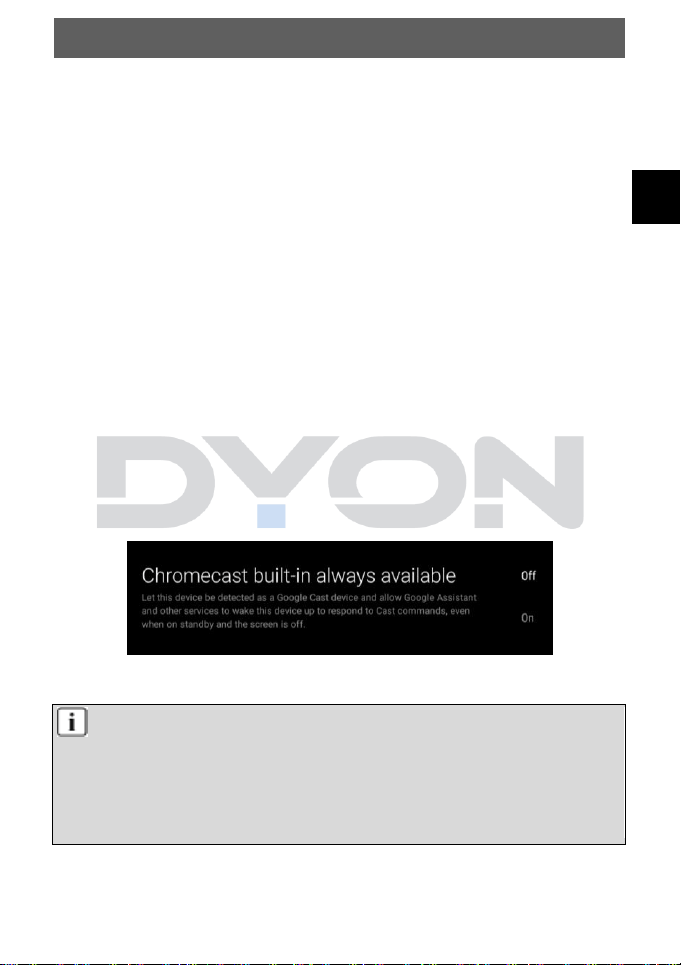
8.7 Chromecast
If you want to mirror the display of your Android smartphone to
your DYON TV, you can activate Chromecast. The permanent
activation offers the advantage that you can do this on your TV
at any time without prior activation. Also from iOS devices it is
possible to mirror video content of selected apps, such as
Prime, Youtube, Twitch and Netflix, as well as others.
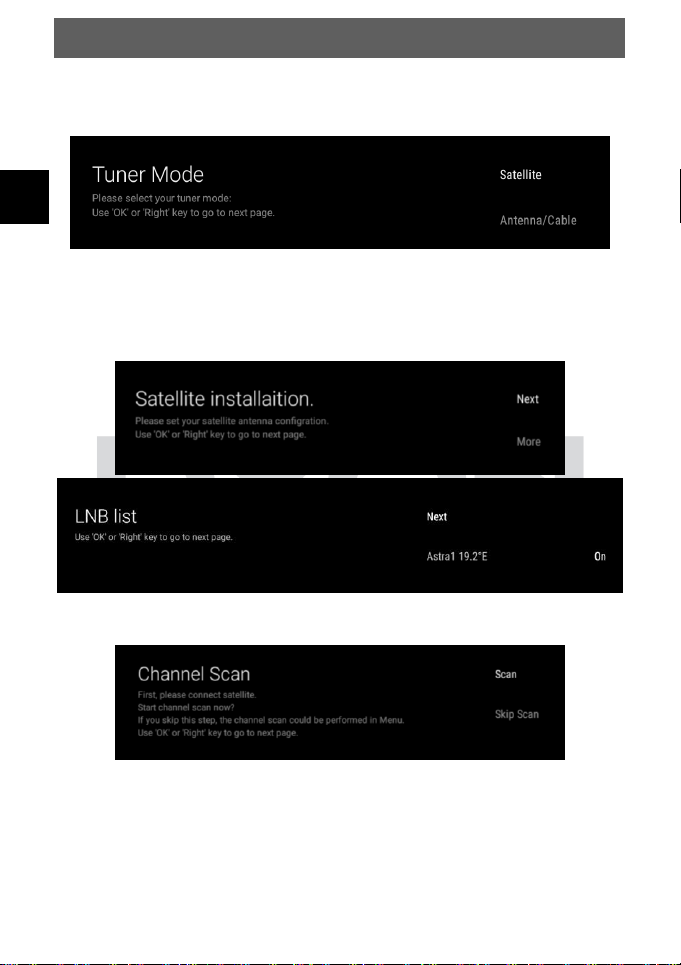
8.8 Tuner mode
Note
If you receive television for private use, DTV is usually
the right choice for the reception mode. Then select the
reception path available to you. Further settings are
usually not necessary.
EN
DYON SMART 42 AD
30
Type of Reception
Now select the desired reception mode with the /button.
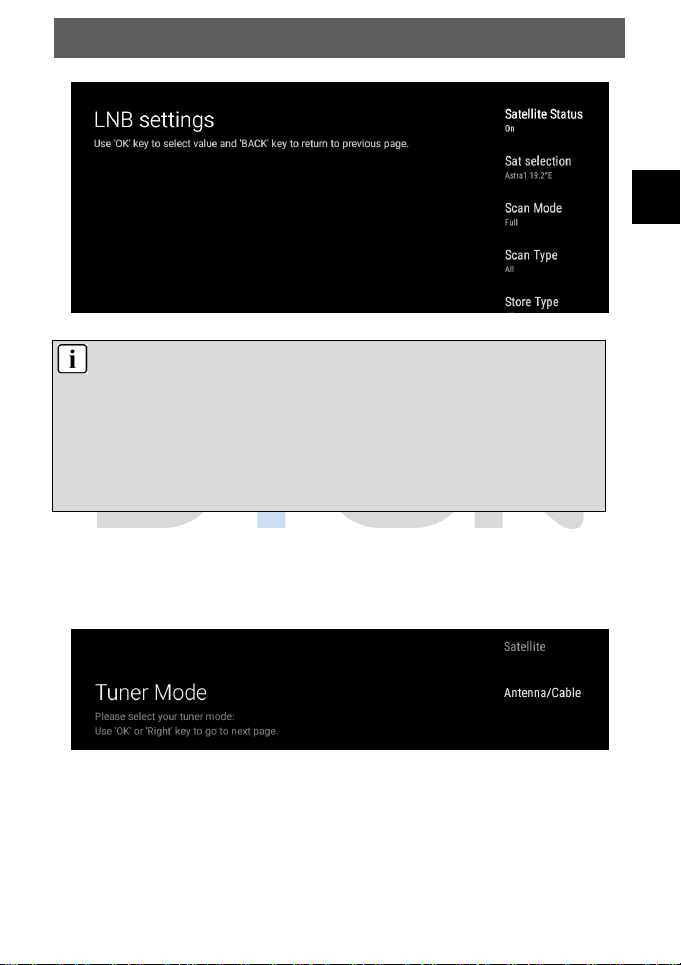
8.9 Satellite Search
Select “Satellite” and confirm in the next step “Next”, for a
simple search for satellite systems without single cable system.
Now perform the channel search with a confirmation with OK on
the field "Scan".
EN
DYON SMART 42 AD
31
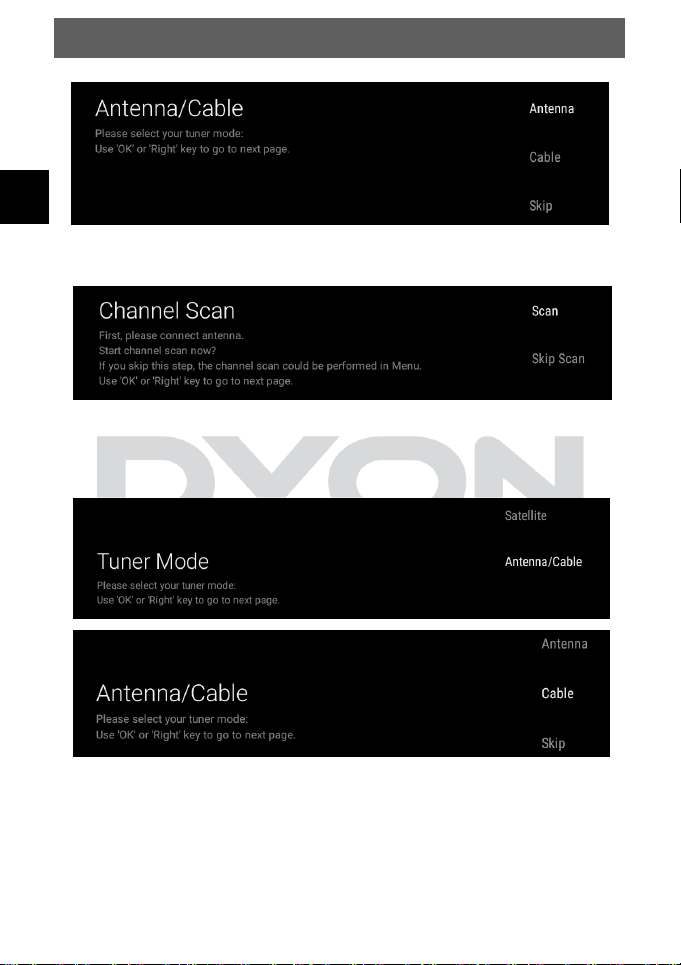
8.10 Antenna settings
Select “Antenna/Cable” with the button and confirm in the
next step “Antenna”.
Note
If you want to watch other satellites, please follow the
LNB List Satellites and make the correct settings there.
If you want to watch more than one satellite, please
make the correct settings in the first step of the satellite
search under "More”.
EN
DYON SMART 42 AD
32
Now perform the channel search with a confirmation with the
OK button on the field "Scan".
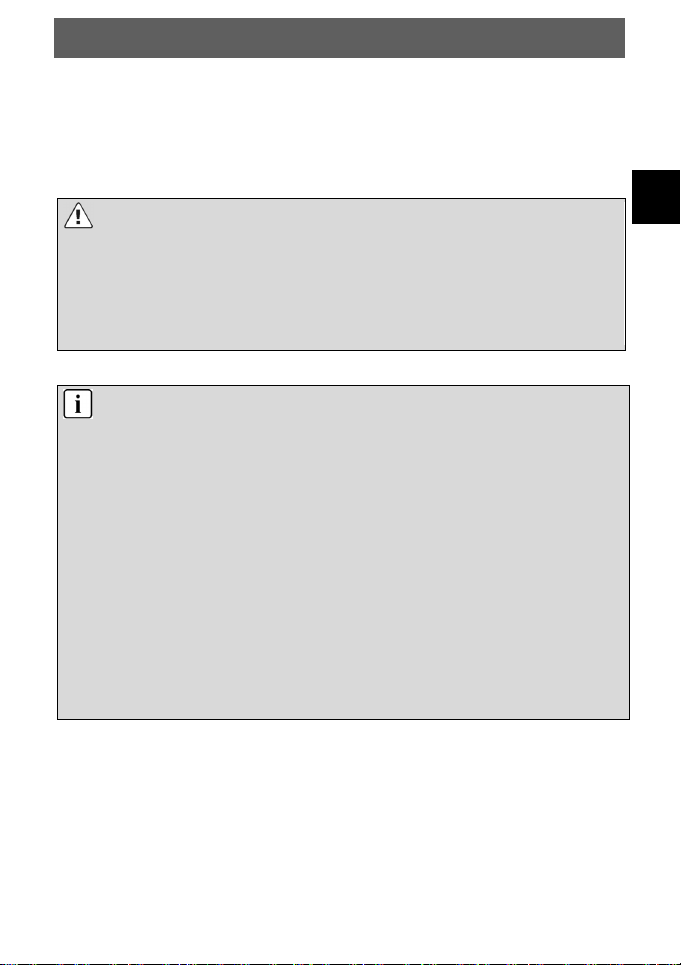
8.11 Cable TV setup
Select Antenna/Cable with the button and confirm “Cable” in
the next step.
Now the operator of your cable network must be selected. If the
operator is in the predefined list, you can start the search in the
next step.
EN
DYON SMART 42 AD
33
If your cable network provider is not in the list, you can start a
Quick or Advanced search via Other.
You can adjust the search mode with the OK button and
confirm with the button.
ATTENTION!
Press the EXIT or MENU button to cancel the channel
scan.
Please note that if you cancel, no stations may be stored
and therefore no station picture is displayed.
FIRST AID!
No station is displayed after the initial installation
Check that the antenna cable is correctly connected to
both the junction box and the device.
Make sure that both the correct reception mode and the
correct reception path have been selected. If you are not
sure, please carry out the initial installation again using
the "ADVANCED" menu and the "Initial installation" menu
item.
If a CI module detects errors such as "NO CI module" or
"Error code 17" is displayed, this can have various
causes. Please refer to the chapter "Troubleshooting".
EN
DYON SMART 42 AD
34
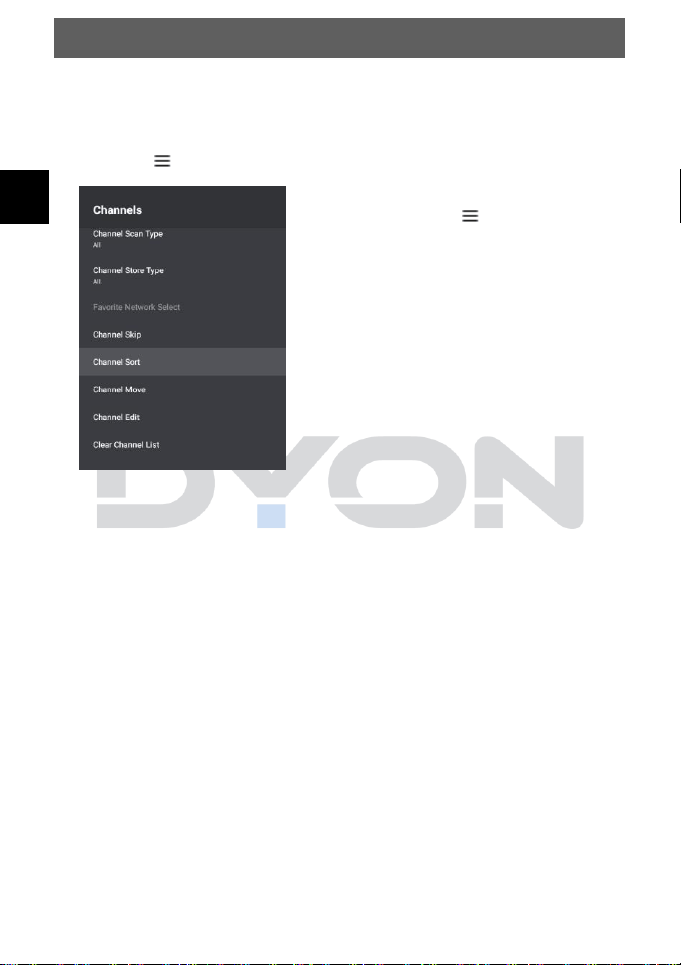
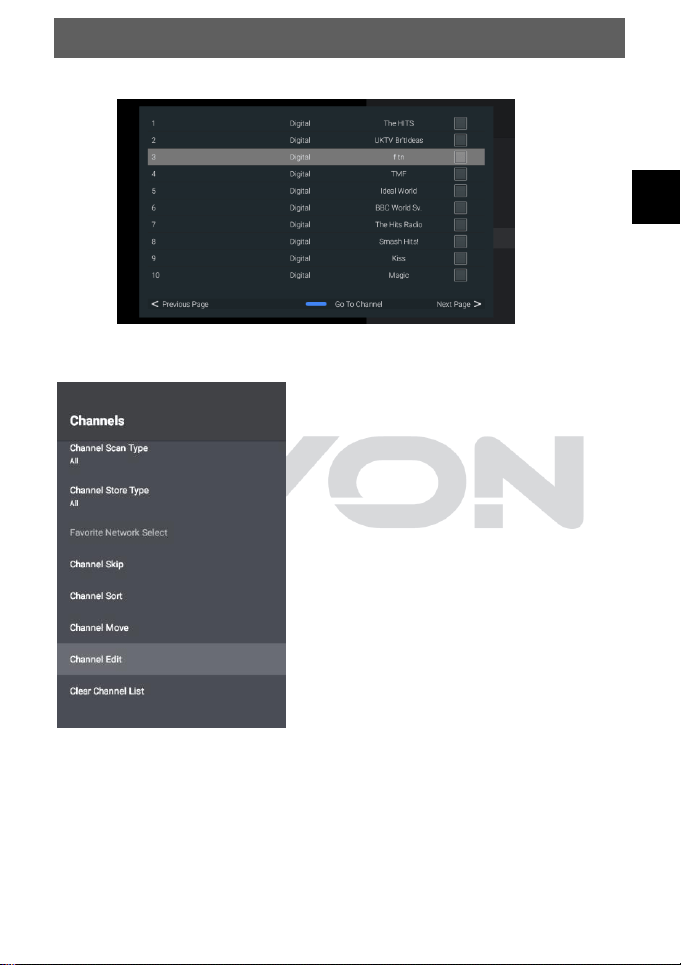
1) Sort programs
You can delete, move, skip or add programs to your
favorites. To do so, please open the menu by pressing the
Menu button. Select the settings with the /buttons.
Press the MENU button on the
remote control.
Select “Channels” with the /
buttons.
Select "Channel Sorts" and press
the OK button.
Select the channels you want to sort individually using the /
buttons.
Now mark the desired channel and move it to the desired
position.
Use the blue button to switch to the currently selected
program to view it.
EN
DYON SMART 42 AD
35
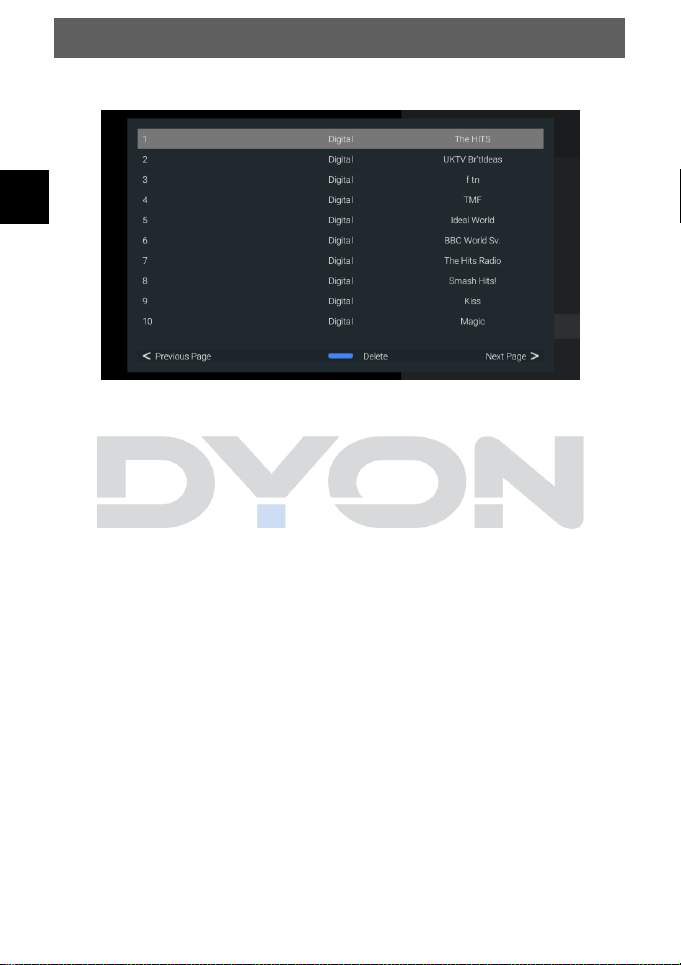
2) Edit channels
If you want to delete programs,
please follow steps 1 and 2 of "Sort
Channel“.
Choose "Edit Channel" from the
Channels menu.
Select the channels you want to
delete one by one with the help of
/ buttons.
EN
DYON SMART 42 AD
36
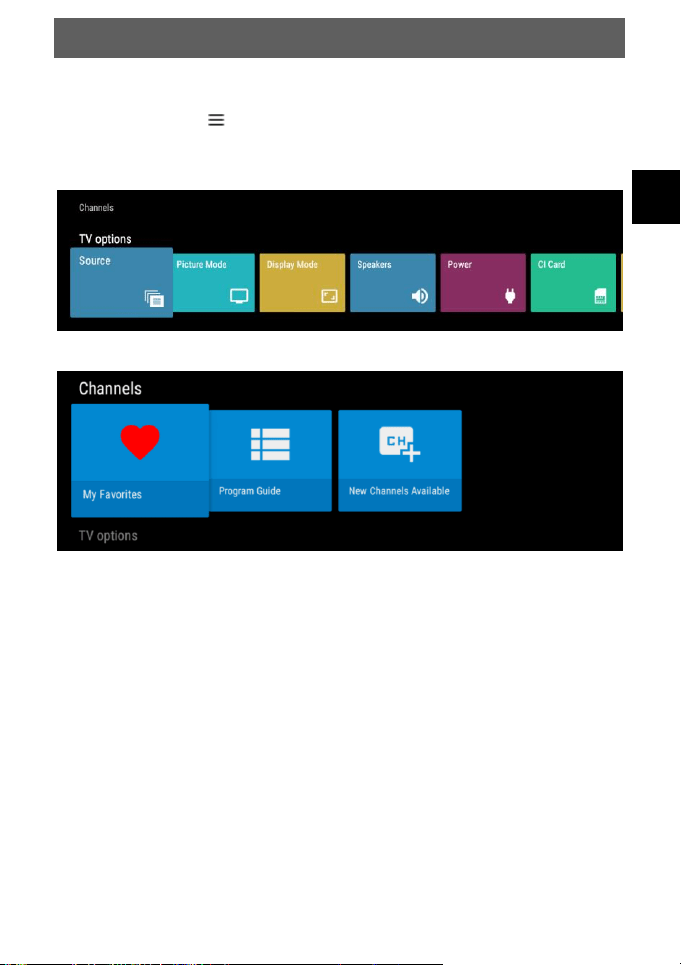
Delete the channels by pressing the blue button
EN
DYON SMART 42 AD
37
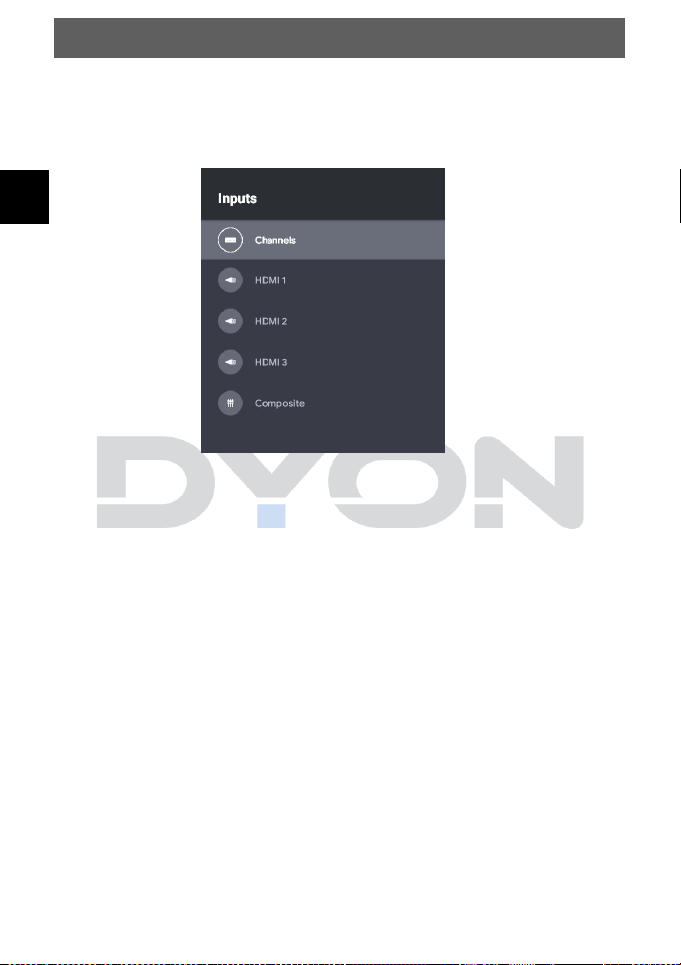
9 Menu-Settings
Press the Menu button and the/button to select a
submenu item. Press the / button to select between TV
options, or channels.
9.1 Menu favorites
In the menu above “TV options” you will find “Channels”. You
can add your favorite channel by selecting “Add to my favorites”.
Now the channel is marked as “My favorites”. Now press the
OK button and then the button, to see your favorites list.
EN
DYON SMART 42 AD
38
9.2 Menu Source
In the Source menu you can select the Source. Here you have
the choice of TV, Composite, HDMI1 - 3.
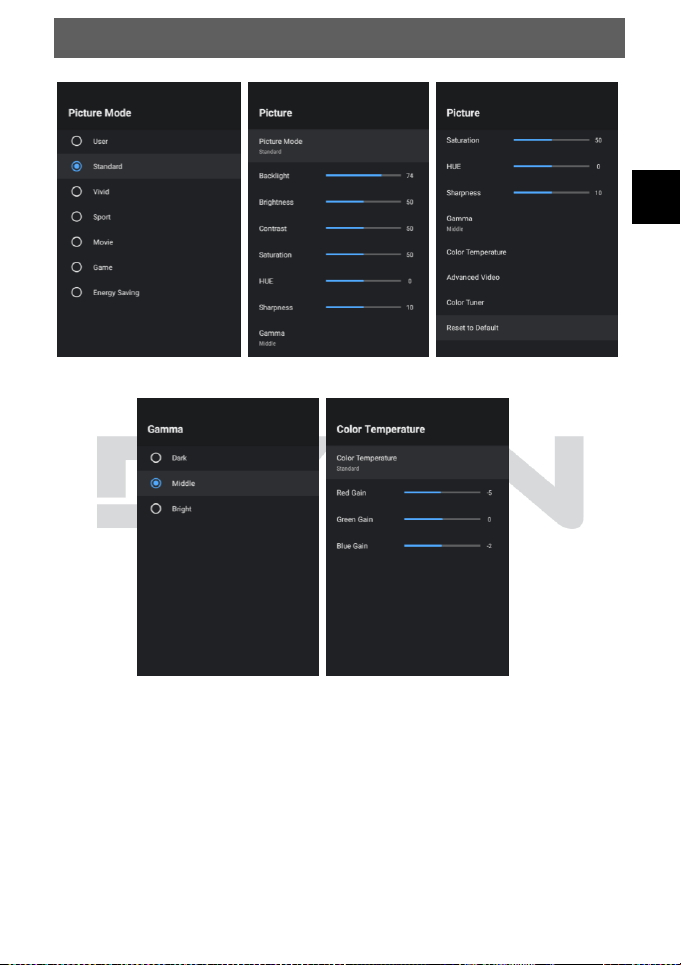
9.3 Menu Picture
In the Picture mode you can select different preset image
modes. The picture settings such as contrast, brightness etc.
proceed as follows. Open the “settings” menu, “Device
Preferences” and “Picture”. You can select various settings for
the picture.
Press the / button to select a setting, press the / button
to change the setting and press the OK button to confirm.
Press the BACK button to return to the previous menu.
EN
DYON SMART 42 AD
39
EN
DYON SMART 42 AD
40
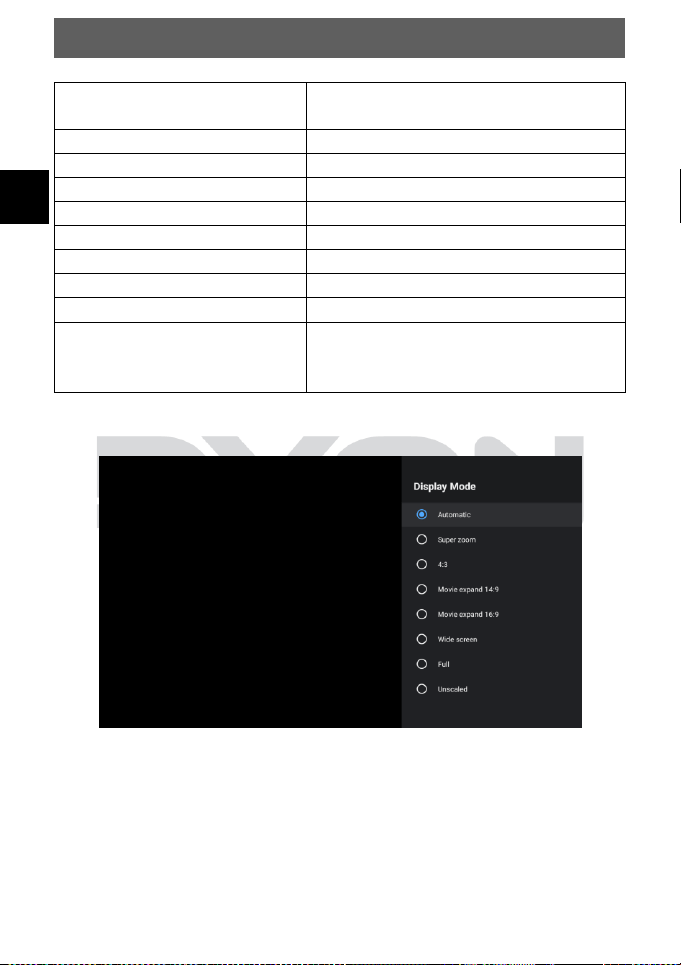
9.4 Menu Display Mode
You can select between different Display modes.
Picture mode
User, Standard, Vivid, Sport,
Movie, Game, Energy Saving
Backlight
Setting 0-100
Brightness
Setting 0-100
Contrast
Setting 0-100
Saturation
Setting 0-100
HUE
Setting 0-50
Sharpness
Setting 0-20
Gamma
Dark, Middle, Bright
Color Temperature
User, Cool, Standard, Warm
Display Mode
Automatic, Full, Super zoom,
Unscaled, 4:3, Movie expand
14:9, Movie expand 16:9
EN
DYON SMART 42 AD
41
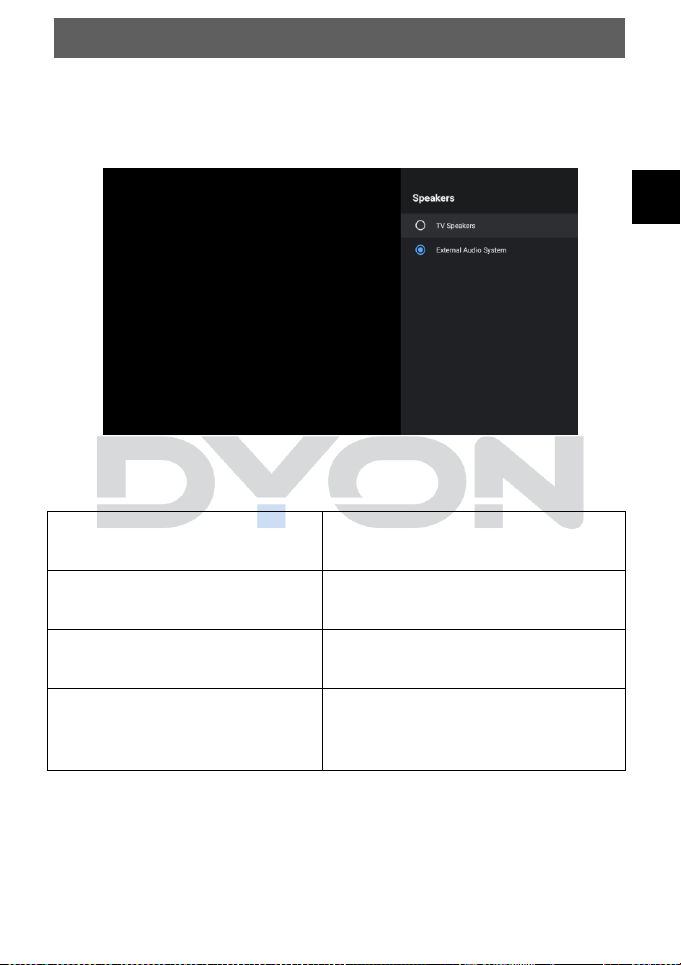
9.5 Menu Speaker
In the Speakers menu you can set whether the internal
speakers or external speakers should be used.
9.6 Menu Power
The following items can be selected in the Power menu.
Sleep Timer
The Standby Timer, which is
always active.
Picture off
The picture is off, sound is
audible.
Switch Off Timer
A unique timer that determines
the time until power off
No Signal Auto Power Off
If there is no signal, the TV will
be switched off after the
selected time.
EN
DYON SMART 42 AD
42
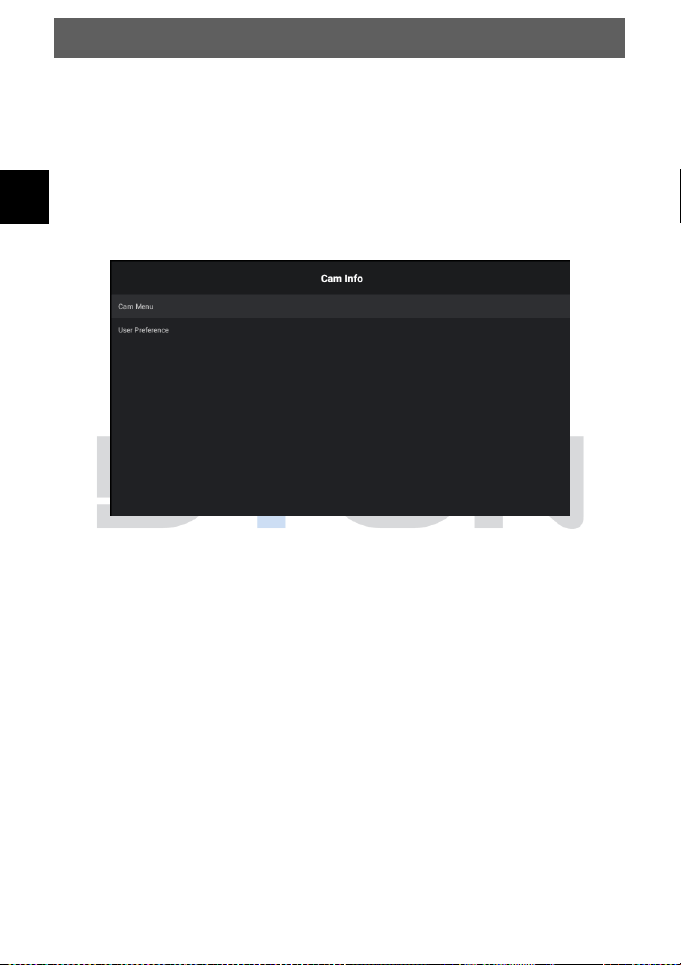
9.7 Menu CI-Card
In the CI Card Menu, you can check the status of your CI card,
such as activation, expiration date and more. Use the
/buttons to move through the menu and press the OK
button to confirm. Press the Menu button to return to the
previous menu. Information about the CI module can only be
displayed when the CI module is inserted.
EN
DYON SMART 42 AD
43
9.8 Menu Advanced Options
You can set the language of the audio track and subtitles, as
well as settings for HbbTV, Automatic Standby and Teletext.
Press the / button to select a setting, press the OK button
to adjust it, press / to change a value, press the OK button
to confirm. Press the MENU button to return to the previous
menu.
9.9 Menu Settings
In this menu you can adjust network & internet, channel,
account, app, remote control & accessories, as well as device
settings.
Note
Resetting to factory default clears all programs and
passwords.
EN
DYON SMART 42 AD
44
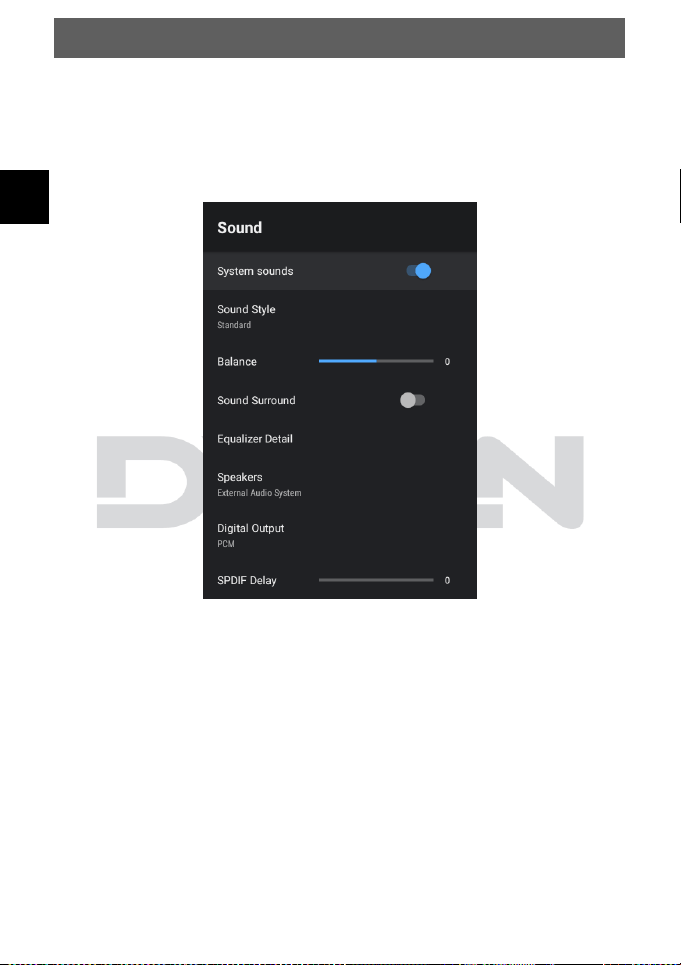
10 Menu Sound
Open the “settings” menu and select “Sound”. Here you can
adjust the sound.
EN
DYON SMART 42 AD
45
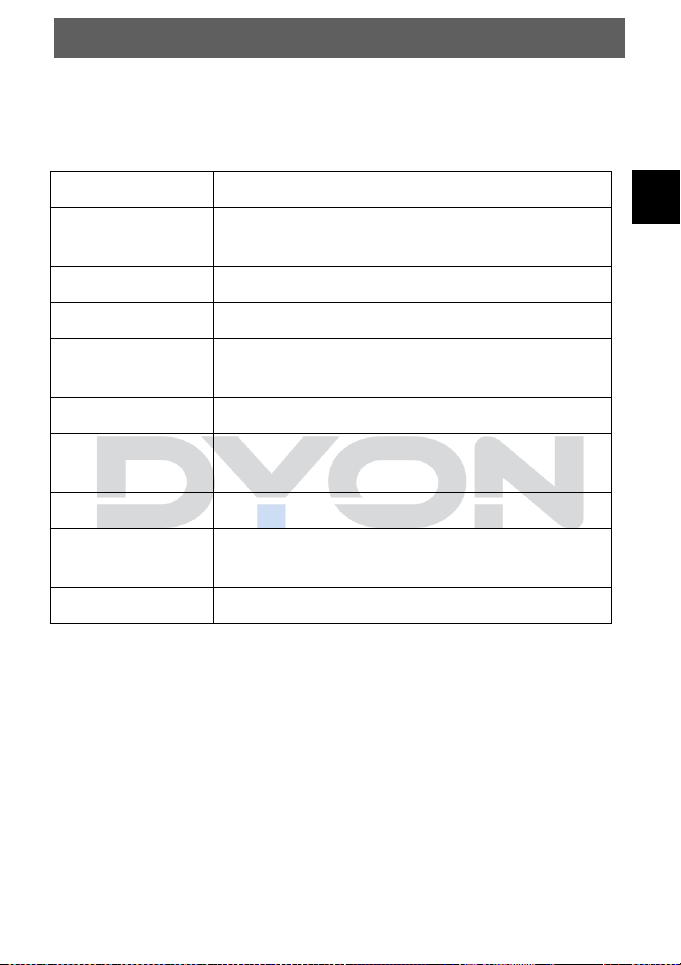
Description of the individual menu items
Systemsounds
Systemsounds On / Off
Sound Style
User, Standard, Vivid, Sports, Movie, Music,
News
Balance
Setting -50 - 50
Surround Sound
Surround Sound On / Off
Equalizer Detail
120Hz, 500Hz, 1500Hz, 5000Hz, 1000Hz
– Setting -50 - 50
Speakers
TV Speakers, External Audio System
Digital Output
Auto, Bypass, PCM, Dolby Digital Plus,
Dolby Digital
SPDIF Delay
Setting 0-250
Auto Volume
Control
Auto Volume Control On / Off
Downmix Mode
Stereo, Surround
EN
DYON SMART 42 AD
46
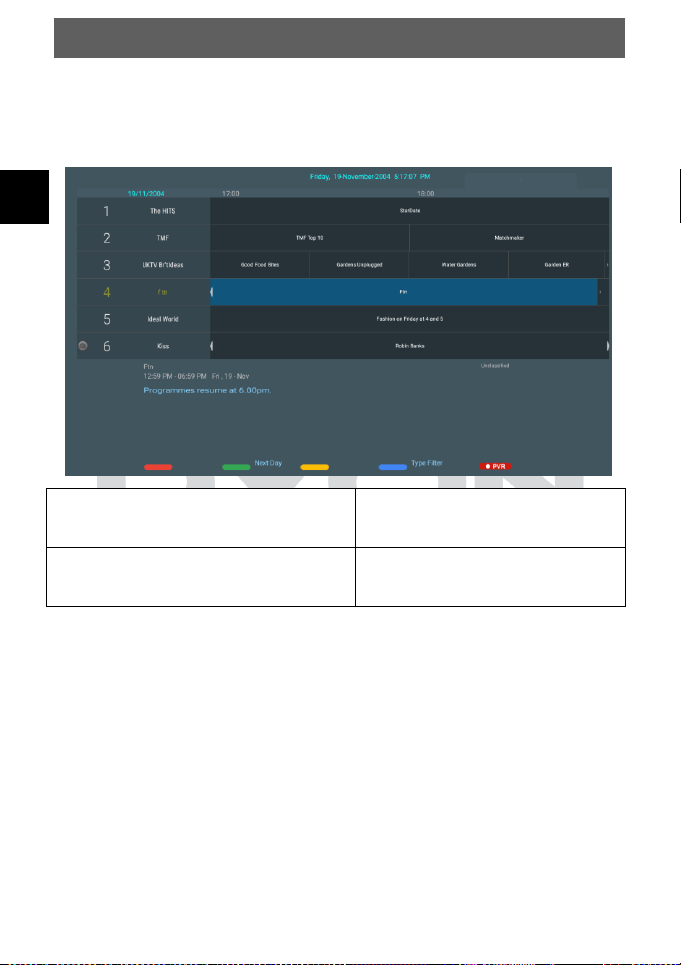
11 EPG (Electronic Program Guide)
Press the EPG button to display the electronic program guide of
the active station. You will find the daily program below.
Press the Green Button to
show next Day.
//
Use // to Choose
your desired channel
EN
DYON SMART 42 AD
47
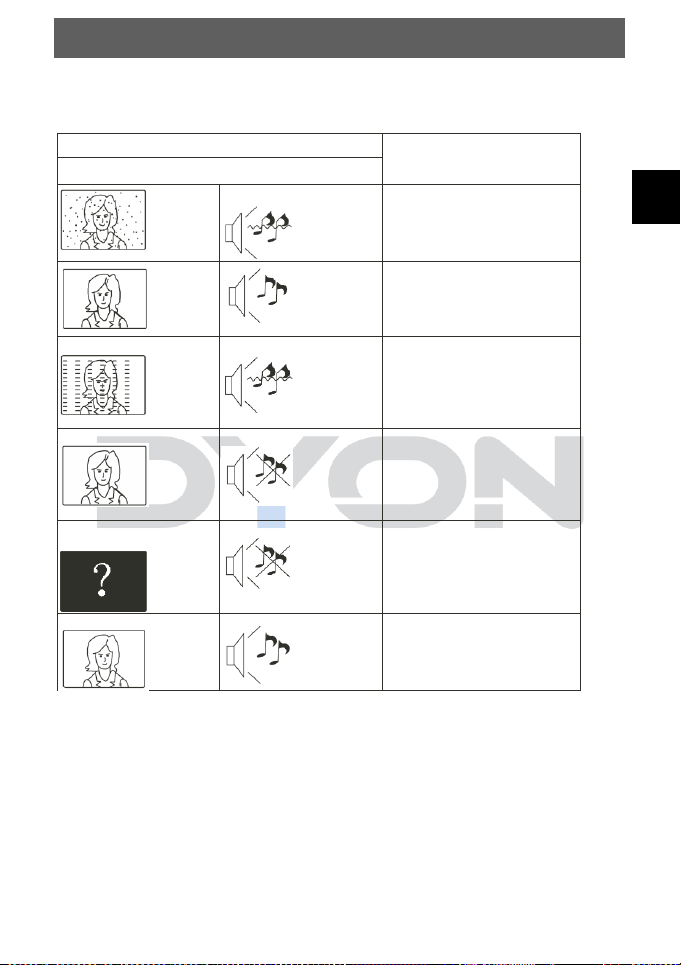
12 Troubleshooting
12.1 No sound /No Picture
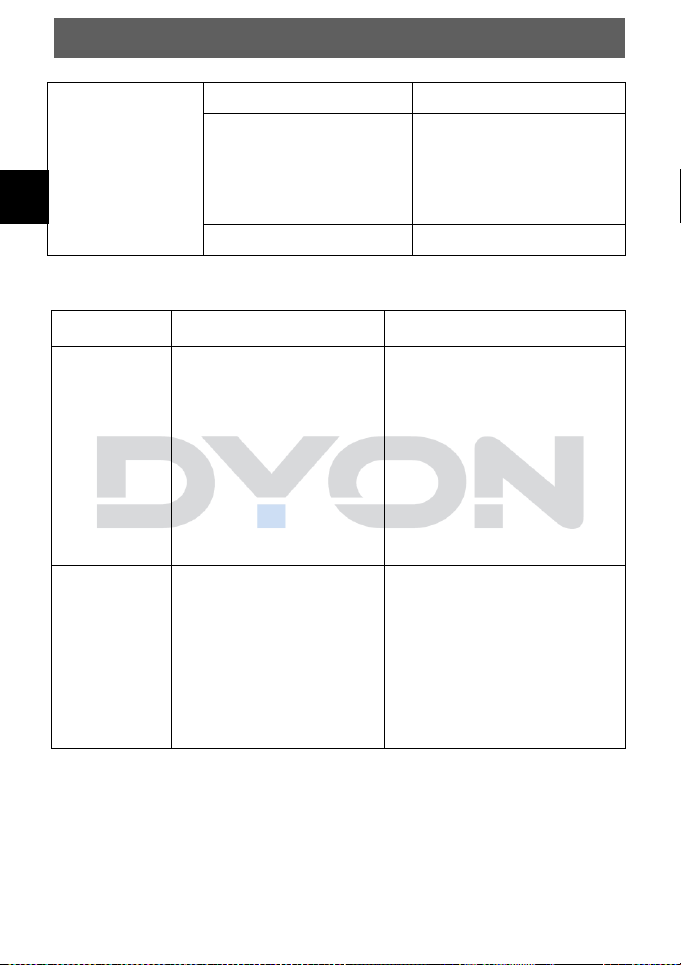
Trouble phenomenon Symptom
Inspection Check
Picture Audio
Snow
Noise
antenna position, direction
or connection
Ghost
Normal
audio
antenna position, direction
or connection
Interfere
nce
Noise
electronic equipment,
car/motorcycle, fluorescent
light
Normal
Picture
Mute
Volume (check if mute is
activated or if the audio
system connections are not
correct)
No picture
Mute
Power cord is not inserted.
Power switch is not
opened. Contrast and
brightness/volume
setup
Press standby key on the
remote
control for inspecting
No
colour
Normal
audio
Colour control
EN
DYON SMART 42 AD
48
Remote control
unit is not
workable
The battery is exhausted
Change new battery
Remote control unit is not
in the right opposite of the
front panel or too far from
it
Adjust the way of holding
remote control unit and
near from the panel
The battery is exhausted
Change new battery
12.2 Error Notes
Display
Possible cause
Solutions
No CI
Module
An encrypted
transmitter is
displayed, but the CI
module is not present
or does not respond.
If no module is used and
you do not want to use a
module, please change
the transmitter.
Check whether the
module is inserted
correctly.
Restart the device.
Error code
17
The module used is
not suitable or
configured for the
selected reception
path, or the station
search was not
completed
successfully.
In a TV mode, press the
OK button to check if
your station list contains
stations. If the list is
empty, perform a station
search.
EN
DYON SMART 42 AD
49
No Signal
The reception is
disturbed, the antenna
cable is not
connected, an unused
reception path has
been selected, or the
station search has not
been completed
successfully.
- Check the input
source using the
SOURCE button.
- Check the antenna
cable.
- In TV mode, press
the OK button to
check if your station
list contains stations.
If the list is empty,
perform a station
search.
Note
In some cases, in the event of a malfunction, the TV
should simply be reset to the factory setting (in the Setting
menu).
EN
DYON SMART 42 AD
50
13 CI+ Information
The TV set contains a Common Interface CI+ Slot.
Different CAM cards with Smart card reader can be found at
local dealers for different Pay-TV provider.
• Set in: Turn off the TV. Now insert the module.
• Remove: Turn off the TV. Now just unplug the module.
If a Module is set in some more options are available at the CI
Information page of the OSD.
1. Press the MENU button to open the system settings.
2. Us the arrow keys to select CI Information and press the OK
button to open the settings. Wait until the sub menu is leaded.
3. Use the arrow keys to select an option and press the OK
button to change or open the selected function.
4. Press the BACK button to store the changes and exit the
menu.
EN
DYON SMART 42 AD
51
Important
Menu options and existing setting points depend on the
CI+ module you are using. The CI+ module (not
included in the scope of delivery) is necessary to be
able to receive encrypted stations using a Smart card
(not supplied). Please ensure that the CI+ module and
smart card are compatible with each other.
The device can be operated with CI + capable
modules. Which channels and contents are enabled
depends on the CI+ module and Smart card used.
Note that not all service providers will provide the
necessary CI+ module, or use different modules that
may not be compatible.
Please contact your dealer or contact the hotline if you
are not sure if the desired combination is possible.
With DVB-T2, the Smart card is integrated in the CI+
module
EN
DYON SMART 42 AD
52
14 TELETEXT
Teletext is an information system broadcast by certain channels
which can be consulted like a newspaper. It also offers access
to subtitles for viewers with hearing problems or who are not
familiar with the transmission language (cable networks,
satellite channels, etc.)
Press
You will obtain
TEXT
This is used to view or exit teletext modes. The
summary appears with a list of items that can
be accessed. Each item has a corresponding
3-digit page number. If the channel selected
does not broadcast teletext, the indication 100
will be displayed and the screen will remain
blank (in this case, exit teletext and select
another channel).
Selecting A
Enter the number of the page required using
the 0 to 9 up/down.
Example: page 120, enter 120. The number is
displayed top left, the counter turns and then
the page is displayed. Repeat this operation to
view another page. If the counter continues to
search, this means that the page is not
transmitted. Select another number.
Direct
access to
the items
Colored are as are displayed at the bottom of
the screen. The 4 colored keys are used to
access the items or corresponding pages. The
colored areas flash when the item or the page
is not yet available.
EN
DYON SMART 42 AD
53
15 Selecting the Source
This unit includes a variety of input sources, which can be
selected and selected using the INPUT button on the remote
control.
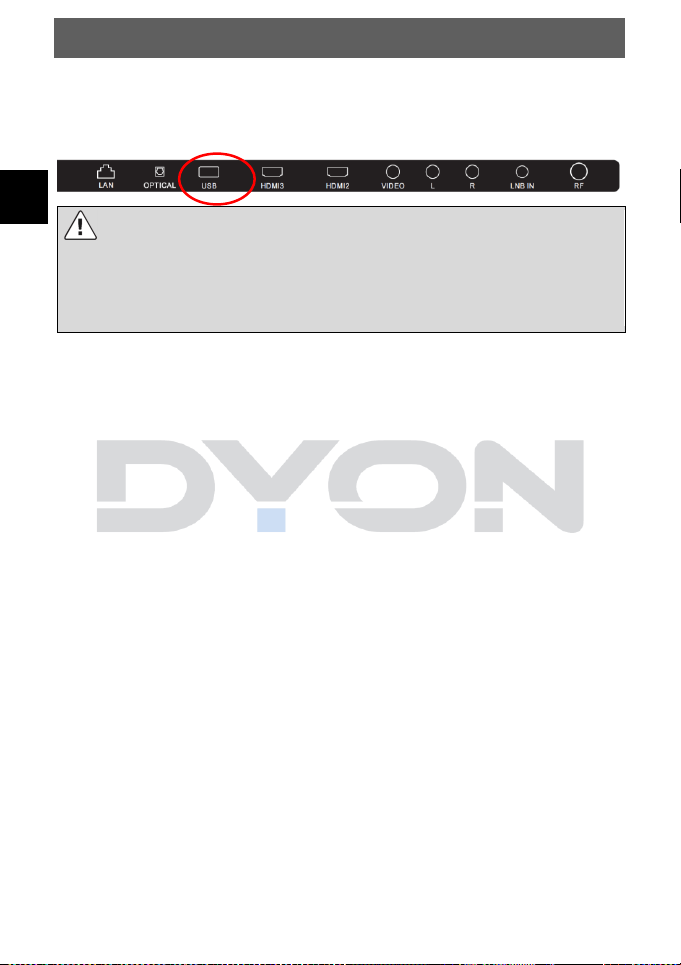
Press the INPUT button to enter the input source menu, the
following screen appears.
Navigation buttons /and OK
In the input source menu, press the /direction buttons to
select the desired screen mode and press the OK button to
enter the selected mode.
EN
DYON SMART 42 AD
16 Connecting USB Devices
This device is equipped with two USB ports to update the
software and to play media files, see figure below.
Please connect USB media directly to the USB interface
of the device.
If this is not possible, please use only connection cables
that are not longer than 25cm.
To play back the contents of a USB stick with your TV please
switch to the main menu with the "House" button. In the main
menu, find Multi MediaPlayer in All APP or download other
players in Google play to display the inserted medium:
EN
DYON SMART 42 AD
55
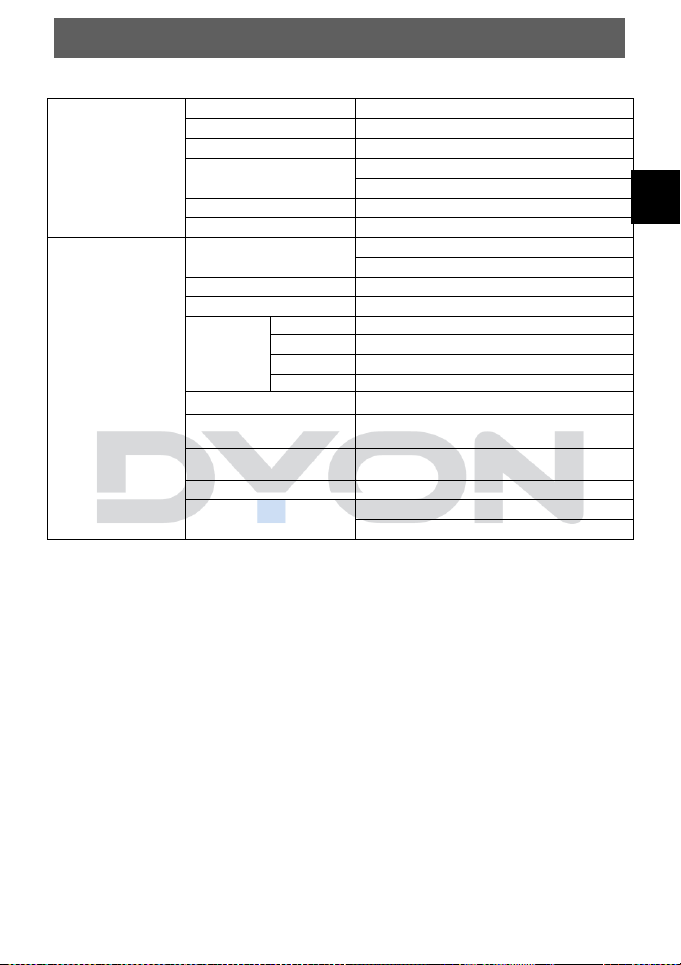
17 Specifications
ATV
(PAL, SECAM)
Frequency Range
48.25MHz ~ 863.25MHz
Input impedance
75Ω
Video System
PAL, SECAM
Sound System
BG, DK, I, L/L'
NICAM/A2
Teletext
1000Pages
Max. Number of
channels
99CH
DTV
(DVB-
T/C/T2/S/S2)
Frequency Range
VHF (50MHz ~ 230 MHz)
UHF (474MHz ~ 862 MHz)
Input Impact
75Ω
Transmitter
Bandwidth
7MHz/8MHz
Modulation
DVB-T
COFDM 2K/8K QPSK, 16QAM, 64QAM
DVB-S/S2
QPSK, 8PSK
DVB-T2
QPSK, 16QAM, 64QAM, 256QAM
DVB-C
16QAM, 32QAM, 64QAM,
128QAM,256QAM
Video System
MPEG-2 MP@ML, MPEG-2 MP@HL,
H.265
Sound System
MPEG-1 layer 1/2, DD, DD+, AAC,
HE-AAC
Basic functions
EPG, Subtitle, LCN,
TELETEXT(Europe), MHEG-
5(UK)
Common Interface
Bulit-In
Max. Number of
channels
700CH(DVB-T+DVB-C, dynamic)
3500CH(DVB-S/S2, dynamic)
EN
DYON SMART 42 AD
56
Product information about the energy efficiency of this device
according to EU regulation (EU) 2019/2013 can be found on
the following website of the European Union from 1
st
of March
2021. To open, please scan the following QR code with your
cell phone.
EN
DYON SMART 42 AD
57
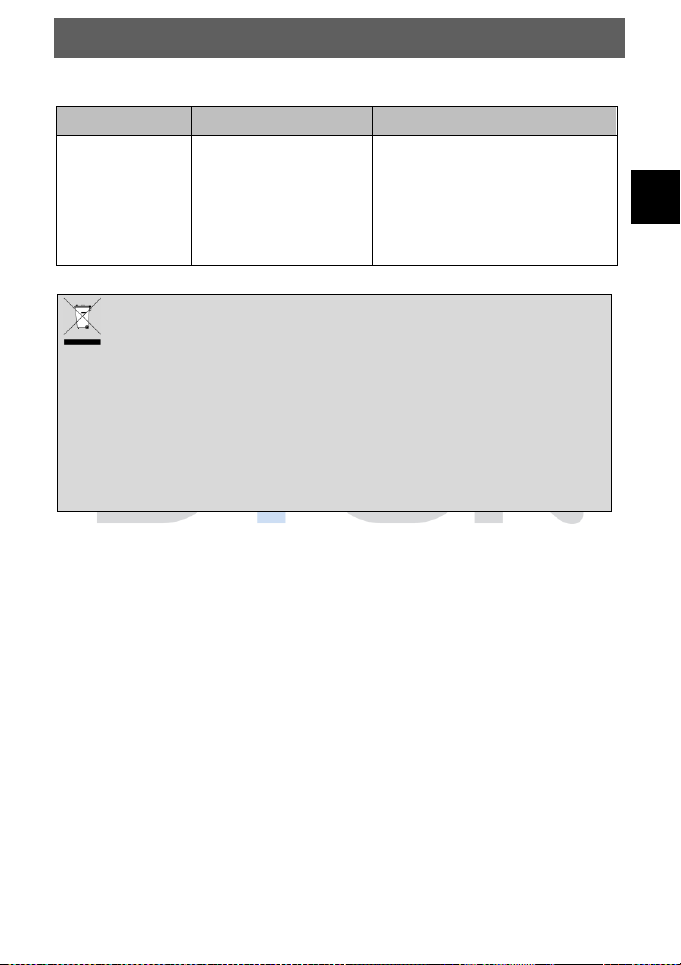
Maximum transmission power
Function
Frequency (MHz)
Output power (dBm)
Wi-Fi
2400-2483.5 (802.11b/g)
2400-2483.5
(802.11n(HT20))
2400-2483.5
(802.11n(HT40))
13±2
Disposal
This symbol on the product or in the instructions means
that your electrical and electronic equipment should be
disposed at the end of life separately from your
household waste. There are separate collection
systems for recycling in the EU. For more information,
please contact the local authority or your retailer where
you purchased the product.
EN
DYON SMART 42 AD
58
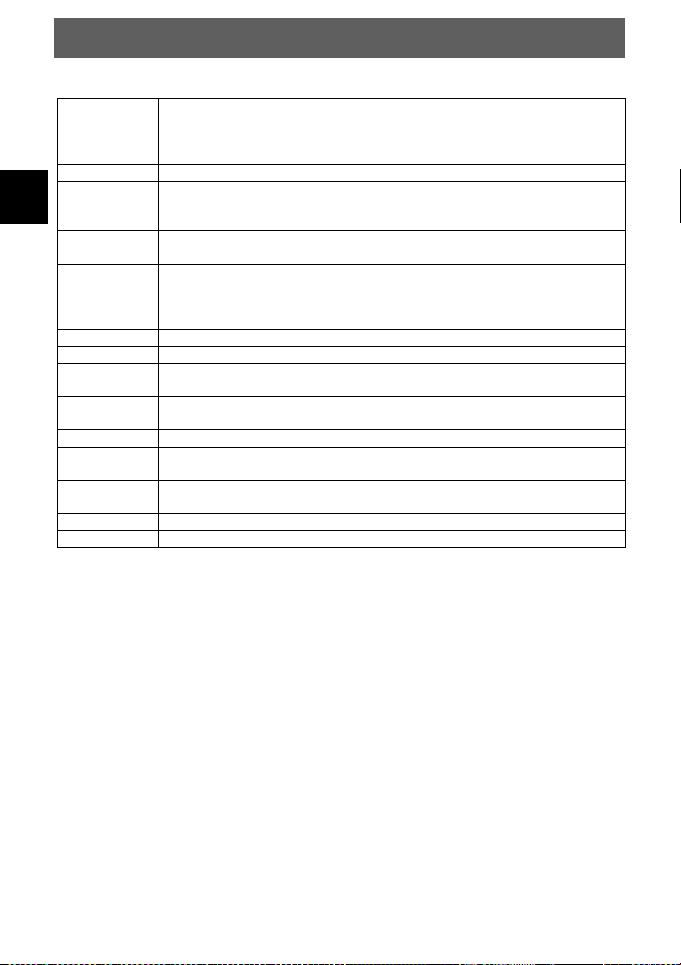
18 Glossar
DiSEqC
Digital Satellite Equipment Control Digital system, with which the
receiver can control different components of the external unit. It
is especially used for selecting from multiple satellite positions
(for example Astra and Eutelsat).
EPG
Electronic Programme Guide
RF
conn
ector
Coaxial connector for LNB antenna cable.
FTA
Free to air services Free of charge services that can be received
without a special decoder.
LNB
Low Noise Block Amplifier / Converter A device at the centre of the
antenna, which converts high frequency incoming signals from
satellites into a low frequency range and amplifies them
simultaneously.
Mute
Key of the remote control for turning off sound
OSD
On screen display Menu control displayed on the screen.
PID
Identification number of a received data stream. The PIDs ensure that a
channel is received completely.
Receiver
Receiver unit, which converts signals from the antenna into video and
audio signals.
SCART
A21 pole connector for connecting the TV set to the receiver.
HDMI
High Definition Multimedia Interface. A connector for connecting the TV
set to the receiver and transmit picture and sound in HD quality.
Y/PB/PR
A connector for connecting the TV set to the receiver and transmit
picture in high quality
RGB
Separated colour information transmission (Red-Green-Blue)
HD
High Definition TV
Manufacturer
Axdia International GmbH
Formerweg 9
D-47877 Willich (Germany)
EN
DYON SMART 42 AD
59
19 Warranty Condition
The following conditions comprise the requirements and scope of our warranty conditions
and do not affect our legal and contractual warranty obligations.
We offer a warranty on our products in accordance with the following conditions:
1. DYON products are covered by a 12 month warranty. We will resolve damages or
defects on DYON products free of charge within 12 months of the purchase date
under the following warranty conditions. For any damage or defect determined later
than 12 months after the purchase date, proof of a manufacturing fault must be
submitted for repair under warranty.
The warranty does not cover batteries and other parts, which are considered
consumables, parts that break easily such as glass or plastic or defects based on
normal wear and tear. There is no warranty obligation in the event of marginal
differences compared to the target appearance and workmanship provided these
have a negligible effect on the product's fitness for use, in the event of damage
caused by chemical or electrochemical effects, by water or generally from abnormal
conditions.
2. The warranty will be performed in such a way that we shall decide whether to repair
the defective parts or to replace them with working parts free of charge. AXDIA
reserves the right to exchange the product for a replacement product of equal value
if the product that is sent in cannot be repaired within a reasonable time or at
reasonable cost. The product can also be exchanged for a different model of the
same value. Requests cannot be made for repairs to be carried out on site. Parts
that have been replaced or exchanged become our property.
3. The warranty claim does not apply if repairs or other work is carried out by
unauthorized persons or if our products are equipped with additional parts or
accessories that are not approved for our products.
4. Warranties that have been activated do not cause the warranty period to be extended,
nor do they trigger a new warranty period. The warranty period for any replacement
parts installed ends with the warranty period for the entire product.
5. Any other or further claims are excluded, especially those for replacement due to
damage caused outside of the product, provided there is no obligatory legal liability.
We therefore accept no liability for accidental, indirect or other consequential
damage of any kind, which leads to usage restrictions, data loss, loss of earnings or
interruption to business.
Asserting a warranty claim
1. To make use of the warranty service, you must contact the AXDIA Service Center by
e-mail, fax or phone (suppo[email protected]). You can also use the service form on our
website or on the back of the warranty conditions.
2. AXDIA Service Center will try to diagnose and solve your problem. If it is determined
that a warranty claim exists, you will be given an RMA number (Return Material
Authorization) and you will be asked to send the product to AXDIA.

EN
DYON SMART 42 AD
60
IMPORTANT: AXDIA will only accept parcels that have an
RMA number.
Please observe the following when sending the product:
1. Send the product suitably packaged with carriage and
insurance paid. Do not enclose any accessories with the
products (no cables, CD's, memory cards, manuals, etc.),
unless the AXDIA Service Centre specifies otherwise.
2. Mark the RMA number on the outside of the package in such
a way that it is visible and clearly legible.
3. You must enclose a copy of the sales slip as proof of
purchase.
4. Once AXDIA has received the product, it will meet its
warranty obligations in accordance with the warranty conditions
and will return the product to the sender with carriage and
insurance paid.
Service outside of warranty
AXDIA can refuse any service claim made that is not covered
by the warranty. If AXDIA agrees to provide a service outside
the warranty, the customer will be invoiced for all repair and
transport costs.
AXDIA will not accept any packages that have not first been
approved by AXDIA by means of an RMA (Return Material
Authorization).