The items supplied with the device and any available accessories may vary depending on the region or service provider.
The supplied items are designed only for this device and may not be compatible with other devices.
Appearances and specifications are subject to change without prior notice.
You can purchase additional accessories from your local Samsung retailer. Make sure they are compatible with the device before purchase.
Use only Samsung-approved accessories. Using unapproved accessories may cause performance problems and malfunctions that are not covered by the warranty.
Availability of all accessories is subject to change depending entirely on manufacturing companies. For more information about available accessories, refer to the Samsung website
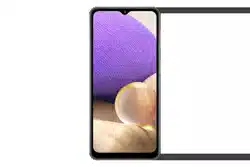
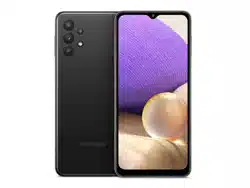
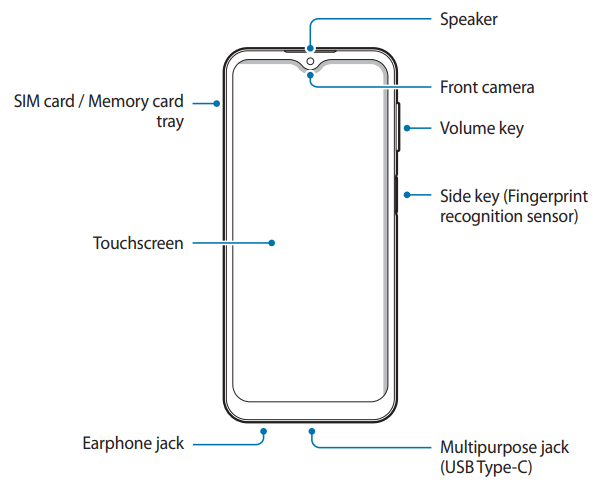
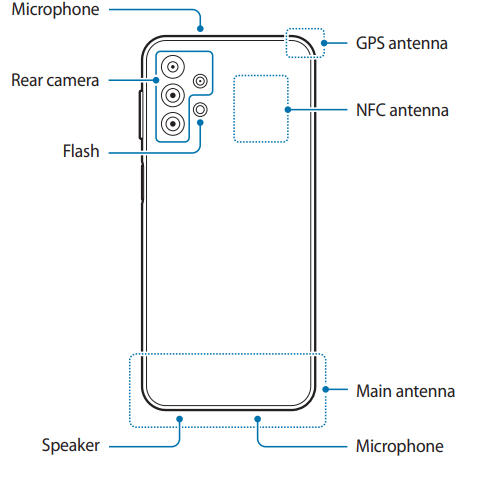
Device layout
Connectivity problems and battery drain may occur in the following situations:
If you attach metallic stickers on the antenna area of the device
If you attach a device cover made with metallic material to the device
If you cover the device’s antenna area with your hands or other objects while using certain features, such as calls or the mobile data connection
Using a Samsung-approved screen protector is recommended. Unapproved screen protectors may cause the sensors to malfunction.
Do not allow water to contact the touchscreen. The touchscreen may malfunction in humid conditions or when exposed to water.
Hard keys
Key
Function
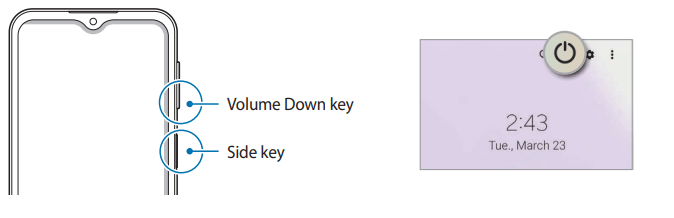
Side key
Press and hold to turn the device on or off.
Press to turn on or lock the screen.
Press twice to launch the app or feature you set.
Side key +
Volume Down key
Press simultaneously to capture a screenshot.
Press and hold simultaneously to turn off the device.
Setting the Side key
Select an app or feature to launch by pressing the Side key twice.
Launch the Settings app, tap Advanced features → Side key, and then select an option you want.
Soft buttons
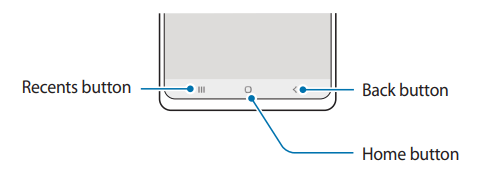
When you turn on the screen, the soft buttons will appear at the bottom of the screen. Refer to Navigation bar (soft buttons) for more information
Charging the battery
Charge the battery before using it for the first time or when it has been unused for extended periods
To save energy, unplug the charger when not in use. The charger does not have a power switch, so you must unplug the charger from the electric socket when not in use to avoid wasting power. The charger should remain close to the electric socket and easily accessible while charging.
Wired charging
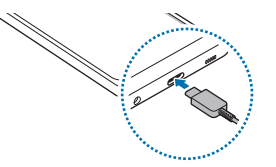
Connect the USB cable to the USB power adapter and plug the cable into the device’s multipurpose jack to charge the battery. After fully charging, disconnect the charger from the device.
Quick charging
Launch the Settings app, tap Battery and device care → Battery → More battery settings, and then activate the feature you want.
• Fast charging: To use the fast charging feature, use a battery charger that supports Adaptive fast charging.
You can charge the battery more quickly while the device or its screen is turned off.
Reducing the battery consumption
Your device provides various options that help you conserve battery power.
Optimize the device using the device care feature.
When you are not using the device, turn off the screen by pressing the Side key.
Activate power saving mode.
Close unnecessary apps.
Deactivate the Bluetooth feature when not in use.
Deactivate auto-syncing of apps that need to be synced.
Decrease the backlight time.
Decrease the screen brightness.
Battery charging tips and precautions
If the battery is completely discharged, the device cannot be turned on immediately when the charger is connected. Allow a depleted battery to charge for a few minutes before turning on the device.
If you use multiple apps at once, network apps, or apps that need a connection to another device, the battery will drain quickly. To avoid losing power during a data transfer, always use these apps after fully charging the battery.
Using a power source other than the charger, such as a computer, may result in a slower charging speed due to a lower electric current.
The device can be used while it is charging, but it may take longer to fully charge the battery.
If the device receives an unstable power supply while charging, the touchscreen may not function. If this happens, unplug the charger from the device.
While charging, the device and the charger may heat up. This is normal and should not affect the device’s lifespan or performance. If the battery gets hotter than usual, the charger may stop charging.
If you charge the device while the multipurpose jack is wet, the device may be damaged. Thoroughly dry the multipurpose jack before charging the device.
If the device is not charging properly, take the device and the charger to a Samsung Service Centre.
Turning the device on and off
Follow all posted warnings and directions from authorized personnel in areas where the use of wireless devices is restricted, such as airplanes and hospitals.
Turning the device on
Press and hold the Side key for a few seconds to turn on the device.
Turning the device off
To turn off the device, press and hold the Side key. Alternatively, open the notification panel, swipe downwards, and then tap .
Tap Power off.
To restart the device, tap Restart.
Forcing restart
If your device is frozen and unresponsive, press and hold the Side key and the Volume Down key simultaneously for more than 7 seconds to restart it.
Emergency mode
You can switch the device to emergency mode to reduce battery consumption. Some apps and functions will be restricted. In emergency mode, you can make an emergency call, send your current location information to others, sound an emergency alarm, and more.
To activate emergency mode, press and hold the Side key, and then tap Emergency mode. Alternatively, open the notification panel, swipe downwards, and then tap → Emergency mode.
To deactivate emergency mode, tap → Turn off Emergency mode.
The usage time left shows the time remaining before the battery power runs out. Usage time left may vary depending on your device settings and operating conditions.
Initial setup
When you turn on your device for the first time or after performing a data reset, follow the on-screen instructions to set up your device.
If you do not connect to a Wi-Fi network, you may not be able to set up some device features during the initial setup.
Understanding the screen
Controlling the touchscreen
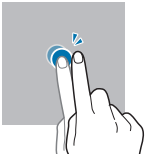
Tapping
Tap the screen.
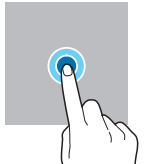
Tapping and holding
Tap and hold the screen for approximately seconds.
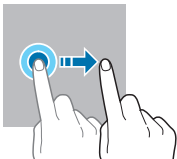
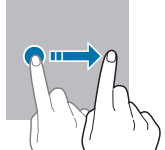
Dragging
Tap and hold an item and drag it to the target position.
Double-tapping
Double-tap the screen.
Swiping
Swipe upwards, downwards, to the left, or to the right.
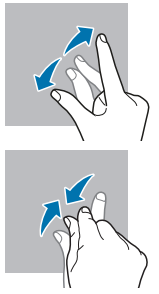
Spreading and pinching
Spread two fingers apart or pinch on the screen.
The device may not recognize touch inputs close to the edges of the screen, which are outside of the touch input area.
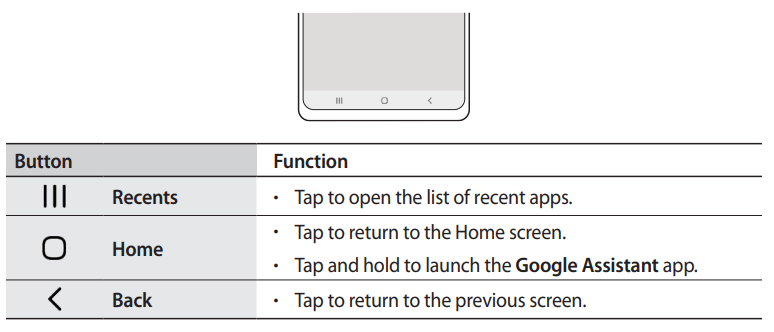
Navigation bar (soft buttons)
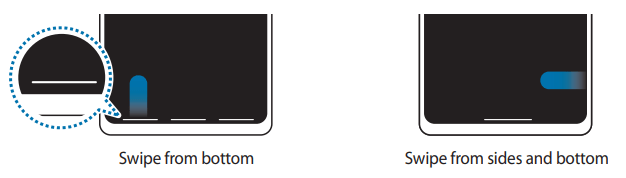
When you turn on the screen, the soft buttons will appear on the navigation bar at the bottom of the screen. The soft buttons are set to the Recents button, Home button, and Back button by default. The functions of the buttons can change according to the app currently being used or usage environment.
Hiding the navigation bar
View files or use apps on a wider screen by hiding the navigation bar.
Launch the Settings app, tap Display → Navigation bar, and then tap Swipe gestures under Navigation type. The navigation bar will be hidden and the gesture hints will appear. Tap More options and select an option you want.
If you want to hide the gesture hints at the bottom of the screen, tap the Gesture hints switch to deactivate it.
Home screen and Apps screen
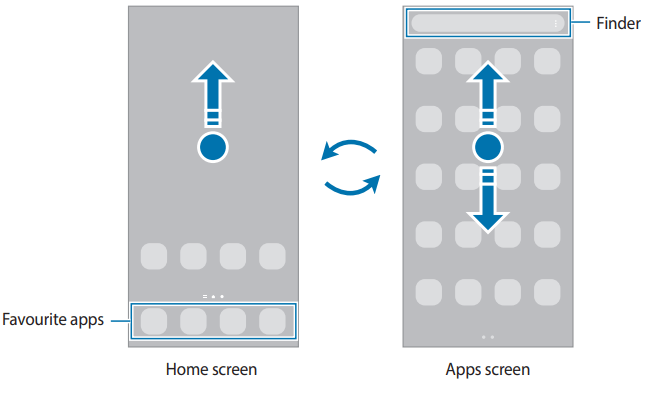
The Home screen is the starting point for accessing all of the device’s features. It displays widgets, shortcuts to apps, and more.
The Apps screen displays icons for all apps, including newly installed apps.
Switching between Home and Apps screens
On the Home screen, swipe upwards to open the Apps screen.
To return to the Home screen, swipe upwards or downwards on the Apps screen. Alternatively, tap the Home button or the Back button.
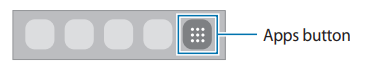
If you add the Apps button on the Home screen, you can open the Apps screen by tapping the button. On the Home screen, tap and hold an empty area, tap Settings, and then tap the Show Apps screen button on Home screen switch to activate it. The Apps button will be added at the bottom of the Home screen.
Editing the Home screen
On the Home screen, tap and hold an empty area, or pinch your fingers together to access the editing options. You can set the wallpaper, add widgets, and more. You can also add, delete, or rearrange Home screen panels.
Adding panels: Swipe to the left, and then tap .
Moving panels: Tap and hold a panel preview, and then drag it to a new location.
Deleting panels: Tap on the panel.
Wallpapers: Change the wallpaper settings for the Home screen and the locked screen.
Themes: Change the device’s theme. Visual elements of interface, such as colours, icons, and wallpapers, will change depending on the selected theme.
Widgets: Widgets are small apps that launch specific app functions to provide information and convenient access on your Home screen. Select a widget and tap Add. The widget will be added on the Home screen.
Settings: Configure settings for the Home screen, such as the screen layout.
Displaying all apps on the Home screen
Without using a separate Apps screen, you can set the device to display all apps on the Home screen. On the Home screen, tap and hold an empty area, and then tap Settings → Home screen layout → Home screen only → Apply.
You can now access all your apps by swiping to the left on the Home screen.
Launching Finder
Search for content on the device quickly.
On the Apps screen, tap Search. Alternatively, open the notification panel, swipe downwards, and then tap .
Enter a keyword.
Apps and content on your device will be searched.
If you tap on the keyboard, you can search for more content.
Moving items
Tap and hold an item, and then drag it to a new location. To move the item to another panel, drag it to the side of the screen.
To add a shortcut to an app on the Home screen, tap and hold an item on the Apps screen, and then tap Add to Home. A shortcut to the app will be added on the Home screen. You can also move frequently used apps to the shortcuts area at the bottom of the Home screen.
Creating folders
Create folders and gather similar apps to quickly access and launch apps.
On the Home screen or the Apps screen, tap and hold an app, and then drag it over another app.
A new folder containing the selected apps will be created. Tap Folder name and enter a folder name.
Adding more apps
Tap on the folder. Tick the apps to add and tap Done. You can also add an app by dragging it to the folder.
Moving apps from a folder
Tap and hold an app to drag it to a new location.
Deleting a folder
Tap and hold a folder, and then tap Delete folder. Only the folder will be deleted. The folder’s apps will be relocated to the Apps screen.
Edge panel
You can quickly access your favourite apps and features from the Edge panels.
Drag the Edge panel handle towards the centre of the screen.
If the Edge panel handle is not visible, launch the Settings app, tap Display, and then tap the Edge panels switch to activate it.
Lock screen
Pressing the Side key turns off the screen and locks it. Also, the screen turns off and automatically locks if the device is not used for a specified period.
To unlock the screen, swipe in any direction when the screen turns on.
If the screen is off, press the Side key to turn on the screen. Alternatively, double-tap the screen.
Changing the screen lock method
To change the screen lock method, launch the Settings app, tap Lock screen → Screen lock type, and then select a method.
When you set a pattern, PIN, password, or your biometric data for the screen lock method, you can protect your personal information by preventing others from accessing your device. After setting the screen lock method, the device will require an unlock code whenever unlocking it.
You can set your device to perform a factory data reset if the unlock code is entered incorrectly several times in a row and the attempt limit is reached. Launch the Settings app, tap Lock screen → Secure lock settings, unlock the screen using the preset screen lock method, and then tap the Auto factory reset switch to activate it.
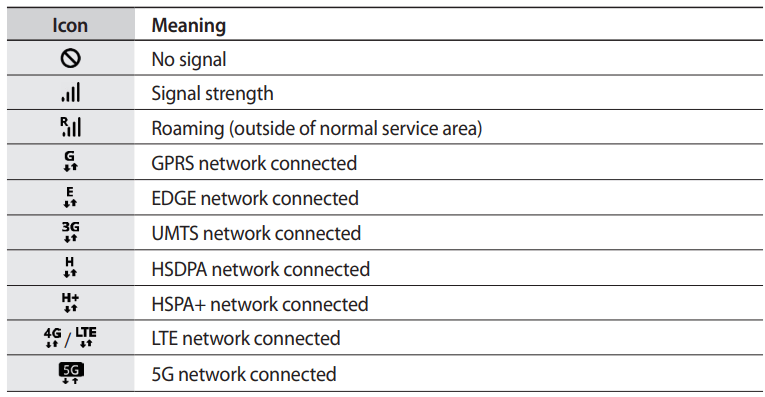
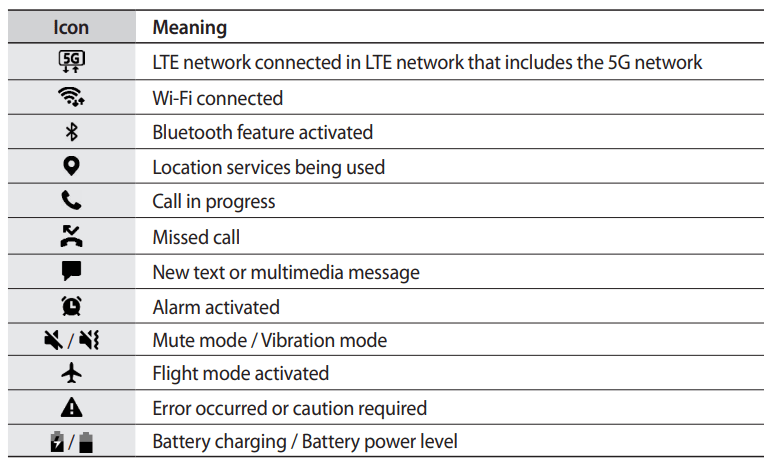
Indicator icons
Indicator icons appear on the status bar at the top of the screen. The icons listed in the table below are most common.
The status bar may not appear at the top of the screen in some apps. To display the status bar, drag down from the top of the screen.
Some indicator icons appear only when you open the notification panel.
The indicator icons may appear differently depending on the service provider or model.
Notification panel
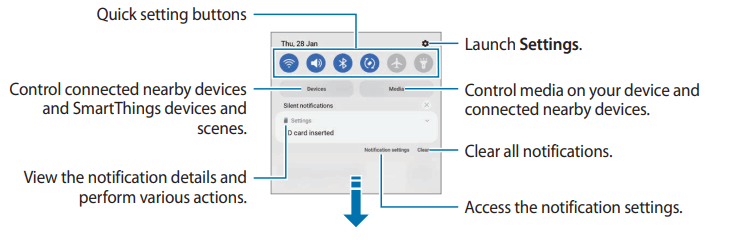
When you receive new notifications, indicator icons appear on the status bar. To see more information about the icons, open the notification panel and view the details.
To open the notification panel, drag the status bar downwards. To close the notification panel, swipe upwards on the screen.
You can use the following functions on the notification panel.
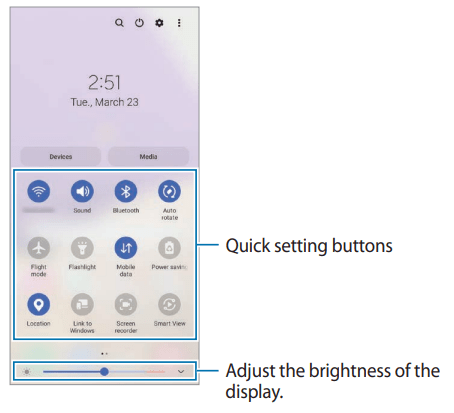
Using quick setting buttons
Tap quick setting buttons to activate certain features. Swipe downwards on the notification panel to view more buttons. To add more buttons, tap
To change feature settings, tap the text under each button. To view more detailed settings, tap and hold a button.
To rearrange buttons, tap → Edit buttons, tap and hold a button, and then drag it to another location.
Controlling media playback
Take control of music or video playback easily using the Media feature. You can also continue playback on another device.
Open the notification panel and tap Media.
Tap the icons on the controller to control the playback.
To continue playback on another device, tap and select the device you want.
Controlling nearby devices
Launch quickly and take control of nearby connected devices and frequently used SmartThings devices and scenes on the notification panel.
Open the notification panel and tap Devices. Nearby connected devices and SmartThings devices and scenes will appear.
Select a nearby device or a SmartThings device to control it, or select a scene to launch it.
Screen capture and screen record
Screen capture
Capture a screenshot while using the device. Press the Side key and the Volume Down key simultaneously. You can view the captured screenshots in Gallery.
It is not possible to capture a screenshot while using some apps and features.
After capturing a screenshot, use the following options on the toolbar at the bottom of the screen:
Capture the current content and the hidden content on an elongated page, such as a webpage. When you tap , the screen will automatically scroll down and more content will be captured.
Write or draw on the screenshot or crop a portion from the screenshot. You can view the cropped area in Gallery
: Share the screenshot with others.
If the options are not visible on the captured screen, launch the Settings app, tap Advanced features → Screenshots and screen recorder, and then tap the Screenshot toolbar switch to activate it.
Screen record
Record the screen while using your device.
Open the notification panel, swipe downwards, and then tap (Screen recorder) to activate it.
Select a sound setting and tap Start recording. After a countdown, recording will start.
To write or draw on the screen, tap .
3. When you are finished recording the video, tap .
You can view the video in Gallery.
To change the screen recorder settings, launch the Settings app and tap Advanced features → Screenshots and screen recorder.
Installing or uninstalling apps
Galaxy Store
Purchase and download apps. You can download apps that are specialized for Samsung Galaxy devices.
Launch the Galaxy Store app. Browse apps by category or tap to search for a keyword.
This app may not be available depending on the service provider or model.
To change the auto update settings, tap → Auto update apps, and then select an option.
Play Store
Purchase and download apps.
Launch the Play Store app. Browse apps by category or search for apps by keyword.
To change the auto update settings, tap → Settings→Auto-update apps, and then select an option.
Managing apps
Uninstalling or disabling apps
Tap and hold an app and select an option.
Uninstall: Uninstall downloaded apps.
Disable: Disable selected default apps that cannot be uninstalled from the device.
Some apps may not support this feature.
Enabling apps
Launch the Settings app, tap Apps → → Disabled→OK, select an app, and then tap Enable.
Setting app permissions
For some apps to operate properly, they may need permission to access or use information on your device.
To view your app permission settings, launch the Settings app and tap Apps. Select an app and tap Permissions. You can view the app’s permissions list and change its permissions.
To view or change app permission settings by permission category, launch the Settings app and tap Apps→ → Permission manager. Select an item and select an app.
If you do not grant permissions to apps, the basic features of the apps may not function properly.
Settings
Connections
Options
Change settings for various connections, such as the Wi-Fi feature and Bluetooth.
On the Settings screen, tap Connections.
Wi-Fi: Activate the Wi-Fi feature to connect to a Wi-Fi network and access the Internet or other network devices. Refer to Wi-Fi for more information.
Bluetooth: Use Bluetooth to exchange data or media files with other Bluetooth-enabled devices. Refer to Bluetooth for more information.
NFC and contactless payments: Set the device to allow you to read near field communication (NFC) tags that contain information about products. You can also use this feature to make payments and buy tickets for transportation or events after downloading the required apps. Refer to NFC and contactless payments for more information.
Flight mode: Set the device to disable all wireless functions on your device. You can use only non-network services.
Mobile networks: Configure your mobile network settings.
Data usage: Keep track of your data usage amount and customize the settings for the limitation. Set the device to automatically disable the mobile data connection when the amount of mobile data you have used reaches your specified limit.
You can activate the data saver feature to prevent some apps running in the background from sending or receiving data. Refer to Data saver for more information.
You can also select apps to always use the mobile data even when your device is connected to a Wi-Fi network. Refer to Mobile data only apps for more information.
Mobile Hotspot and Tethering: Use the device as a mobile hotspot to share the device’s mobile data connection with other devices. For more information about the mobile hotspot, refer to Mobile Hotspot.
More connection settings: Customize settings to control other features. Refer to More connection settings for more information.
Wi-Fi
Activate the Wi-Fi feature to connect to a Wi-Fi network and access the Internet or other network devices.
Connecting to a Wi-Fi network
On the Settings screen, tap Connections→Wi-Fi and tap the switch to activate it.
Select a network from the Wi-Fi networks list.
Networks with a lock icon require a password.
Once the device connects to a Wi-Fi network, the device will reconnect to that network each time it is available without requiring a password. To prevent the device from connecting to the network automatically, tap next to the network and tap the Auto reconnect switch to deactivate it. To delete the saved connection information for a network, tap next to the network and tap Forget.
If you cannot connect to a Wi-Fi network properly, restart your device’s Wi-Fi feature or the wireless router.
Viewing the Wi-Fi network quality information
View the Wi-Fi network quality information, such as the speed and stability.
On the Settings screen, tap Connections → Wi-Fi and tap the switch to activate it. The network quality information will appear under the Wi-Fi networks. If it does not appear, tap → Advanced and tap the Show network quality info switch to activate it.
The quality information may not appear depending on the Wi-Fi network.
Sharing Wi-Fi network passwords
If you make a request to a person who is connected to a secured Wi-Fi network to share its password, you can connect to the network without entering the password. This feature is available between the devices which have contacts each other and the screen of the other device must be turned on.
On the Settings screen, tap Connections→Wi-Fi and tap the switch to activate it.
Select a network from the Wi-Fi networks list.
Tap Request password.
Accept the share request on the other device.
The Wi-Fi password is entered on your device and it is connected to the network.
Wi-Fi Direct
Wi-Fi Direct connects devices directly via a Wi-Fi network without requiring an access point.
On the Settings screen, tap Connections→Wi-Fi and tap the switch to activate it.
Tap → Wi-Fi Direct. The detected devices are listed. If the device you want to connect to is not in the list, turn on its Wi-Fi Direct feature.
Select a device to connect to.
The devices will be connected when the other device accepts the Wi-Fi Direct connection request.
To end the device connection, select the device to disconnect from the list.
Bluetooth
Use Bluetooth to exchange data or media files with other Bluetooth-enabled devices.
Pairing with other Bluetooth devices
On the Settings screen, tap Connections→Bluetooth and tap the switch to activate it. The detected devices will be listed.
Select a device to pair with. If the device you want to pair with is not on the list, set the device to enter Bluetooth pairing mode. Refer to the other device’s user manuals.
Accept the Bluetooth connection request on your device to confirm.
The devices will be connected when the other device accepts the Bluetooth connection request.
To unpair the devices, tap next to the device name to unpair and tap Unpair.
Sending and receiving data
Many apps support data transfer via Bluetooth. You can share data, such as contacts or media files, with other Bluetooth devices. The following actions are an example of sending an image to another device.
Launch the Gallery app and select an image.
Tap → Bluetooth and select a device to receive the image. If the device you want to pair with is not in the list, turn on its visibility option.
Accept the Bluetooth connection request on the other device.
NFC and contactless payments
Your device allows you to read near field communication (NFC) tags that contain information about products. You can also use this feature to make payments and buy tickets for transportation or events after downloading the required apps.
Reading information from NFC tags
Use the NFC feature to read product information from NFC tags.
On the Settings screen, tap Connections and tap the NFC and contactless payments switch to activate it.
Place the NFC antenna area on the back of your device near an NFC tag. The information from the tag appears.
Ensure that the device’s screen is turned on and unlocked. Otherwise, the device will not read NFC tags or receive data.
Making payments with the NFC feature
Before you can use the NFC feature to make payments, you must register for the mobile payment service. To register or get more information about the service, contact your service provider.
On the Settings screen, tap Connections and tap the NFC and contactless payments switch to activate it.
Touch the NFC antenna area on the back of your device to the NFC card reader.
To set the default payment app, open the Settings screen and tap Connections → NFC and contactless payments → Contactless payments → Payment, and then select an app.
The payment services list may not include all available payment apps.
Data saver
Reduce your data usage by preventing some apps running in the background from sending or receiving data.
On the Settings screen, tap Connections → Data usage → Data saver and tap the switch to activate it.
When the data saver feature is activated, theicon will appear on the status bar.
To select apps to use data without restriction, tap Allowed to use data while Data saver is on and select apps.
Mobile data only apps
Select apps to always use mobile data even when your device is connected to a Wi-Fi network.
For example, you can set the device to use only mobile data for apps that you want to keep secure or streaming apps that can be disconnected. Even if you do not deactivate the Wi-Fi feature, the apps will launch using the mobile data.
On the Settings screen, tap Connections → Data usage → Mobile data only apps, tap the switch to activate it, and then tap the switches next to the apps you want.
You may incur additional charges when using this feature.
Mobile Hotspot
Use your device as a mobile hotspot to share your device’s mobile data connection with other devices.
On the Settings screen, tap Connections→Mobile Hotspot and Tethering → Mobile Hotspot.
Tap the switch to activate it. The icon appears on the status bar. You can change the level of security and the password by tapping Configure.
On the other device’s screen, search for and select your device from the Wi-Fi networks list. Alternatively, tap QR code on the mobile hotspot screen and scan the QR code with the other device.
If the mobile hotspot is not found, on your device, tap Configure and set Band to 2.4GHz, tap Advanced, and then tap the Hidden network switch to deactivate it.
If you activate the Auto Hotspot feature, you can share your device’s mobile data connection with other devices signed in to your Samsung account.
More connection settings
Customize settings to control other connection features.
On the Settings screen, tap Connections → More connection settings.
Nearby device scanning: Set the device to scan for nearby devices to connect to.
Printing: Configure settings for printer plug-ins installed on the device. You can search for available printers or add one manually to print files. Refer to Printing for more information.
VPN: Set up virtual private networks (VPNs) on your device to connect to a school or company’s private network.
Private DNS: Set the device to use the security enhanced private DNS.
Ethernet: When you connect an Ethernet adapter, you can use a wired network and configure network settings.
Printing
Configure settings for printer plug-ins installed on the device. You can connect the device to a printer via Wi-Fi or Wi-Fi Direct, and print images or documents.
Some printers may not be compatible with the device.
Adding printer plug-ins
Add printer plug-ins for printers you want to connect the device to.
On the Settings screen, tap Connections→More connection settings → Printing → Download plugin.
Select a printer plug-in and install it.
Select the installed printer plug-in. The device will automatically search for printers that are connected to the same Wi-Fi network as your device.
Select a printer to add.
To add printers manually, tap → Add printer.
Printing content
While viewing content, such as images or documents, access the options list, tap Print → → All printers..., and then select a printer.
Printing methods may vary depending on the content type.
Sounds and vibration
Options
Change settings for various sounds on the device.
On the Settings screen, tap Sounds and vibration.
Sound mode: Set the device to use sound mode, vibration mode, or silent mode.
Vibrate while ringing: Set the device to vibrate and play a ringtone for incoming calls.
Temporary mute: Set the device to use silent mode for a certain period.
Ringtone: Change the call ringtone.
Notification sound: Change the notification sound.
System sound: Change the sound to use for certain actions, such as charging the device.
Volume: Adjust the device’s volume level.
Call vibration pattern: Change the call vibration pattern.
Notification vibration pattern: Change the notification vibration pattern.
Vibration intensity: Adjust the force of the vibration notification.
System sound/vibration control: Set the device to sound or vibrate for actions, such as controlling the touchscreen.
Sound quality and effects: Set the device’s sound quality and effects. Refer to Sound quality and effects for more information.
Separate app sound: Set the device to play media sound from a specific app separately on the other audio device. Refer to Separate app sound for more information.
Some features may not be available depending on the model.
Sound quality and effects
Set the device’s sound quality and effects.
On the Settings screen, tap Sounds and vibration → Sound quality and effects.
Dolby Atmos: Select a surround sound mode optimized for various types of audio, such as movies, music, and voice. With Dolby Atmos, you can experience moving audio sounds that flow all around you.
Equalizer: Select an option for a specific music genre and enjoy optimized sound.
Adapt sound: Set the best sound for you.
Depending on the model, you must connect an earphone to use some features.
Separate app sound
Set the device to play media sound from a specific app on the connected Bluetooth speaker or headset.
For example, you can listen to the Navigation app through your device’s speaker while listening to playback from the Music app through the vehicle’s Bluetooth speaker.
On the Settings screen, tap Sounds and vibration → Separate app sound and tap the switch to activate it.
Select an app to play media sounds separately and tap the Back button.
Select a device for playing the selected app’s media sound.
Lock screen
Options
Change the settings for the locked screen.
On the Settings screen, tap Lock screen.
Screen lock type: Change the screen lock method.
Smart Lock: Set the device to unlock itself when trusted locations or devices are detected. Refer to Smart Lock for more information.
Secure lock settings: Change screen lock settings for the selected lock method.
Wallpaper services: Set the device to use wallpaper services such as Dynamic Lock screen.
Clock style: Change the type and colour of the clock on the locked screen.
Roaming clock: Change the clock to show both the local and home time zones on the locked screen when roaming.
Widgets: Change the settings of the items displayed on the locked screen.
Contact information: Set the device to show contact information, such as your email address, on the locked screen.
Notifications: Set how to show notifications on the locked screen.
Shortcuts: Select apps to display shortcuts to them on the locked screen.
About Lock screen: View the Lock screen version and legal information.
The available options may vary depending on the screen lock method selected.
Smart Lock
You can set the device to unlock itself and remain unlocked when trusted locations or devices are detected.
For example, if you have set your home as a trusted location, when you get home your device will detect the location and automatically unlock itself.
On the Settings screen, tap Lock screen → Smart Lock and follow the on-screen instructions to complete the setup.
This feature will be available to use after you set a screen lock method.
If you do not use your device for four hours or when you turn on the device, you must unlock the screen using the pattern, PIN, or password you set.
Battery and device care
Introduction
The device care feature provides an overview of the status of your device’s battery, storage, memory, and system security. You can also automatically optimize the device with a tap of your finger.
Optimizing your device
On the Settings screen, tap Battery and device care → Optimize now.
The quick optimization feature improves device performance through the following actions.
Closing apps running in the background.
Managing abnormal battery usage.
Scanning for crashed apps and malware.
Using the auto optimization feature
You can set the device to perform auto optimization when your device is not in use. Tap → Automation→Auto optimize daily and tap the switch to activate it. If you want to set the time to perform auto optimization, tap Time.
Battery
Check the remaining battery power and time to use the device. For devices with low battery levels, conserve battery power by activating power saving features.
On the Settings screen, tap Battery and device care → Battery.
Power saving mode: Activate power saving mode to extend the battery’s usage time.
Background usage limits: Limit battery usage for apps that you do not use often.
More battery settings: Configure advanced settings for the battery.
The usage time left shows the time remaining before the battery power runs out. Usage time left may vary depending on your device settings and operating conditions
You may not receive notifications from some apps that use power saving mode.
Storage
Check the status of the used and available storage space.
On the Settings screen, tap Battery and device care → Storage. To delete files or uninstall apps that you do not use any more, select a category. Then, tap and hold, or select, an item and tap Delete or Uninstall.
The actual available capacity of the internal storage is less than the specified capacity because the operating system and default apps occupy part of the space. The available capacity may change when you update the device.
You can view the available capacity of the internal storage in the Specification section for your device on the Samsung website.
Memory
On the Settings screen, tap Battery and device care → Memory.
To speed up your device by stopping apps running in the background, tick apps from the apps list, and tap Clean now.
Device protection
Check the device’s security status. This feature scans your device for malware.
On the Settings screen, tap Battery and device care → Device protection → Scan phone.
Troubleshooting
Before contacting a Samsung Service Centre, please attempt the following solutions. Some situations may not apply to your device.
You can also use Samsung Members to solve any problems you might encounter while using your device.
When you turn on your device or while you are using the device, it prompts you to enter one of the following codes:
Password: When the device lock feature is enabled, you must enter the password you set for the device.
PIN: When using the device for the first time or when the PIN requirement is enabled, you must enter the PIN supplied with the SIM or USIM card. You can disable this feature by using the Lock SIM card menu.
PUK: Your SIM or USIM card is blocked, usually as a result of entering your PIN incorrectly several times. You must enter the PUK supplied by your service provider.
PIN2: When you access a menu requiring the PIN2, you must enter the PIN2 supplied with the SIM or USIM card. For more information, contact your service provider.
Your device displays network or service error messages
When you are in areas with weak signals or poor reception, you may lose reception. Move to another area and try again. While moving, error messages may appear repeatedly.
You cannot access some options without a subscription. For more information, contact your service provider.
Your device does not turn on
When the battery is completely discharged, your device will not turn on. Fully charge the battery before turning on the device.
The touchscreen responds slowly or improperly
If you attach a screen protector or optional accessories to the touchscreen, the touchscreen may not function properly.
If you are wearing gloves, if your hands are not clean while touching the touchscreen, or if you tap the screen with sharp objects or your fingertips, the touchscreen may malfunction.
The touchscreen may malfunction in humid conditions or when exposed to water.
Restart your device to clear any temporary software bugs.
Ensure that your device software is updated to the latest version.
If the touchscreen is scratched or damaged, visit a Samsung Service Centre.
Your device freezes or encounters a fatal error
Try the following solutions. If the problem is still not resolved, contact a Samsung Service Centre.
Restarting the device
If your device freezes or hangs, you may need to close apps or turn off the device and turn it on again.
Forcing restart
If your device is frozen and unresponsive, press and hold the Side key and the Volume Down key simultaneously for more than 7 seconds to restart it.
Resetting the device
If the methods above do not solve your problem, perform a factory data reset.
Launch the Settings app and tap General management → Reset → Factory data reset → Reset → Delete all. Before performing the factory data reset, remember to make backup copies of all important data stored in the device.
Calls are not connected
Ensure that you have accessed the right cellular network.
Ensure that you have not set call barring for the phone number you are dialing.
Ensure that you have not set call barring for the incoming phone number.
Others cannot hear you speaking on a call
Ensure that you are not covering the built-in microphone.
Ensure that the microphone is close to your mouth.
If using an earphone, ensure that it is properly connected.
Sound echoes during a call
Adjust the volume by pressing the Volume key or move to another area.
A cellular network or the Internet is often disconnected or audio quality is poor
Ensure that you are not blocking the device’s internal antenna.
When you are in areas with weak signals or poor reception, you may lose reception. You may have connectivity problems due to issues with the service provider’s base station. Move to another area and try again.
When using the device while moving, wireless network services may be disabled due to issues with the service provider’s network.
The battery does not charge properly (For Samsung-approved chargers)
Ensure that the charger is connected properly.
Visit a Samsung Service Centre and have the battery replaced.
The battery depletes faster than when first purchased
When you expose the device or the battery to very cold or very hot temperatures, the useful charge may be reduced.
Battery consumption will increase when you use certain features or apps, such as GPS, games, or the Internet.
The battery is consumable and the useful charge will get shorter over time.
Error messages appear when launching the camera
Your device must have sufficient available storage and battery power to operate the camera app. If you receive error messages when launching the camera, try the following:
Charge the battery.
Free some storage space by transferring files to a computer or deleting files from your device.
Restart the device. If you are still having trouble with the camera app after trying these tips, contact a Samsung Service Centre.
Picture quality is poorer than the preview
The quality of your pictures may vary, depending on the surroundings and the photography techniques you use.
If you take pictures in dark areas, at night, or indoors, image noise may occur or images may be out of focus.
Error messages appear when opening multimedia files
If you receive error messages or multimedia files do not play when you open them on your device, try the following:
Free some storage space by transferring files to a computer or deleting files from your device.
Ensure that the music file is not Digital Rights Management (DRM)-protected. If the file is DRM-protected, ensure that you have the appropriate licence or key to play the file.
Ensure that the file formats are supported by the device. If a file format is not supported, such as DivX or AC3, install an app that supports it. To confirm the file formats that your device supports, visit the Samsung website.
Your device supports pictures and videos captured with the device. Pictures and videos captured by other devices may not work properly.
Your device supports multimedia files that are authorized by your network service provider or providers of additional services. Some content circulated on the Internet, such as ringtones, videos, or wallpapers, may not work properly.
Bluetooth is not working well
If another Bluetooth device is not located or there are connection problems or performance malfunctions, try the following:
Ensure that the device you wish to connect with is ready to be scanned or connected to.
Ensure that your device and the other Bluetooth device are within the maximum Bluetooth range (10 m).
On your device, launch the Settings app, tap Connections, and then tap the Bluetooth switch to re-activate it.
On your device, launch the Settings app, tap General management → Reset → Reset network settings → Reset settings → Reset to reset network settings. You may lose registered information when performing the reset.
If the tips above do not solve the problem, contact a Samsung Service Centre.
The screen brightness adjustment bar does not appear on the notification panel
Open the notification panel by dragging the status bar downwards, and then drag the notification panel downwards. Tap → Quick panel layout and tap the Show brightness control above notifications switch to activate it.
A connection is not established when you connect the device to a computer
Ensure that the USB cable you are using is compatible with your device.
Ensure that you have the proper driver installed and updated on your computer.
Your device cannot find your current location
GPS signals may be obstructed in some locations, such as indoors. Set the device to use Wi-Fi or a mobile network to find your current location in these situations.
Data stored in the device has been lost
Always make backup copies of all important data stored in the device. Otherwise, you cannot restore data if it is corrupted or lost. Samsung is not responsible for the loss of data stored in the device.
A small gap appears around the outside of the device case
This gap is a necessary manufacturing feature and some minor rocking or vibration of parts may occur.
Over time, friction between parts may cause this gap to expand slightly.
There is not enough space in the device’s storage
Delete unnecessary data, such as cache, using the device care feature or manually delete unused apps or files to free up storage space.
The Home button does not appear
The navigation bar containing the Home button may disappear while using certain apps or features. To view the navigation bar, drag upwards from the bottom of the screen.
Removing the battery
To remove the battery, contact an authorized service centre.
For your safety, you must not attempt to remove the battery. If the battery is not properly removed, it may lead to damage to the battery and device, cause personal injury, and/or result in the device being unsafe.
Samsung does not accept liability for any damage or loss (whether in contract or tort, including negligence) which may arise from failure to precisely follow these warnings and instructions, other than death or personal injury caused by Samsung’s negligence.
 .
. → Turn off Emergency mode.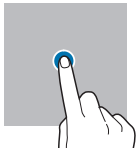
 .
. on the panel.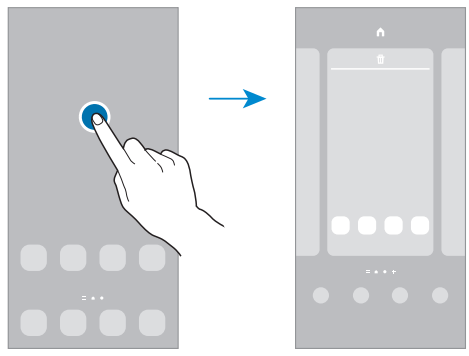
 .
. on the keyboard, you can search for more content.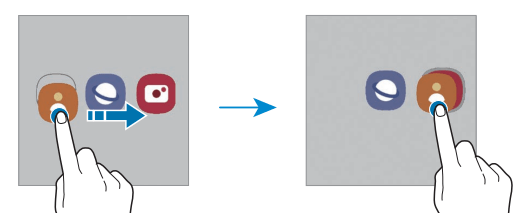
 on the folder. Tick the apps to add and tap Done. You can also add an app by dragging it to the folder.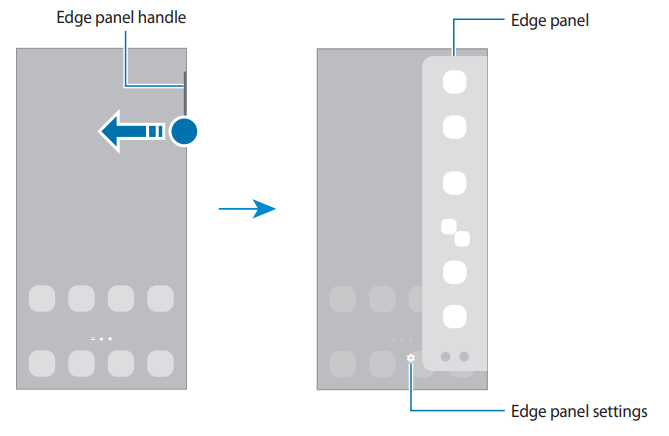

 → Edit buttons, tap and hold a button, and then drag it to another location.
 and select the device you want.
 Capture the current content and the hidden content on an elongated page, such as a webpage. When you tap
  Write or draw on the screenshot or crop a portion from the screenshot. You can view the cropped area in Gallery
 : Share the screenshot with others.
 (Screen recorder) to activate it.
 .
. .
. to search for a keyword.
 → Auto update apps, and then select an option.
 → Settings→Auto-update apps, and then select an option.
 → Disabled→OK, select an app, and then tap Enable.
 → Permission manager. Select an item and select an app.
 next to the network and tap the Auto reconnect switch to deactivate it. To delete the saved connection information for a network, tap
  → Advanced and tap the Show network quality info switch to activate it.
 next to the device name to unpair and tap Unpair.
 → Bluetooth and select a device to receive the image. If the device you want to pair with is not in the list, turn on its visibility option.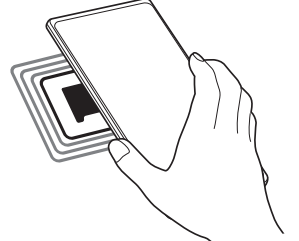
 icon will appear on the status bar.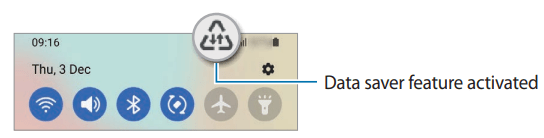
 icon appears on the status bar. You can change the level of security and the password by tapping Configure.
 → Add printer.
 → All printers..., and then select a printer.
 → Automation→Auto optimize daily and tap the switch to activate it. If you want to set the time to perform auto optimization, tap Time.
 → Quick panel layout and tap the Show brightness control above notifications switch to activate it.