USER INSTRUCTIONS
SCOLA™ FM SYSTEM
SCOLA BUDDY

CONTENTS
INTRODUCTION ..................................................
PACKAGECONTENTS .............................................
THESCOLASYSTEM ..............................................
SCOLABUDDYreceiver ............................................
overviewofbuttonsLEDsandjacks...............................
GettingSCOLABUDDYreadytouse..............................
CHARGINGTHEDEVICEFORTHEFIRSTTIME......................
BatteryLEDandacousticindicators ...............................
OPERATION....................................................
Receivingonthetransmitterchannel .............................
ConnectingtotheFMtransmitter .................................
ACOUSTICINDICATORS .........................................
RANGEOFTHEFMSIGNAL ......................................
CUSTOMISINGYOURSCOLABUDDY..............................
Changingthecolour ..............................................
Applyingstickers.................................................
Specialconfigurations ............................................
2

EXTENDEDUSEADDITIONALINFORMATION ....................
Rechargeablebattery ............................................
Connectingdevicestotheaudioinput .............................
Channelsynchronisation..........................................
Connectingheadphonestotheaudiooutput(specialsetting) .......
TIPSFORUSINGTHESCOLAFMSYSTEM .........................
Gettingstarted . . . . . . . . . . . . . . . . . . . . . . . . . . . . . . . . . . . . . . . . . . . . . . . . . .
CAREANDMAINTENANCE ......................................
WARNINGS ....................................................
IFTHESCOLAFMSYSTEMDOESNOTWORK......................
WARRANTY....................................................
REGULATORYINFORMATION ....................................
SYMBOLS......................................................
SETTINGS .....................................................
3

4
INTRODUCTION
Our mission at Widex is to give people with hearing loss the same
opportunities for communication as people with normal hearing.
A Widex hearing aid combined with the SCOLA™ FM system helps
optimise listening comfort and speech comprehension.
SCOLA provides hearing aid users with additional opportunities
in difficult listening situations.
This FM system has been specifically developed for children and
educational environments, and these instructions therefore pri-
marily address parents and teachers.
5
WARNING
This booklet contains important information and instructions. Please
read this booklet carefully before you start using the FM system.
NOTE
The FM system and accessories shown in these user instructions may
differ from the ones you have. We also reserve the right to make any
changes considered necessary.
6
PACKAGE CONTENTS
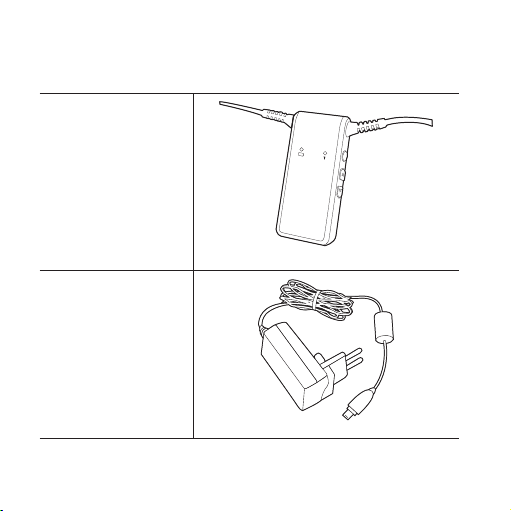
The SCOLA BUDDY incl.
a set of covers
Box 1
Charger
7
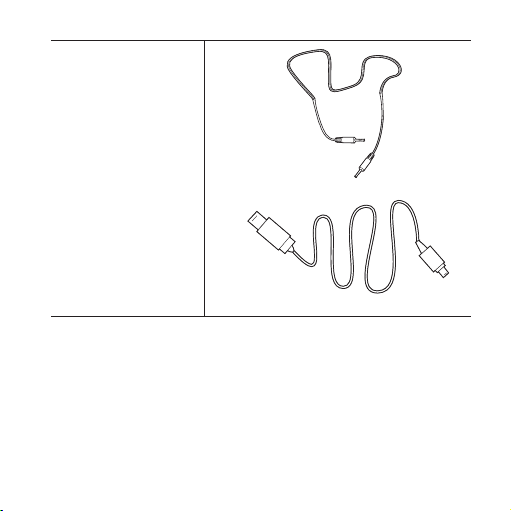
Box 2
1. Audio cable
2. USB cable
1.
2.
8
Box 3
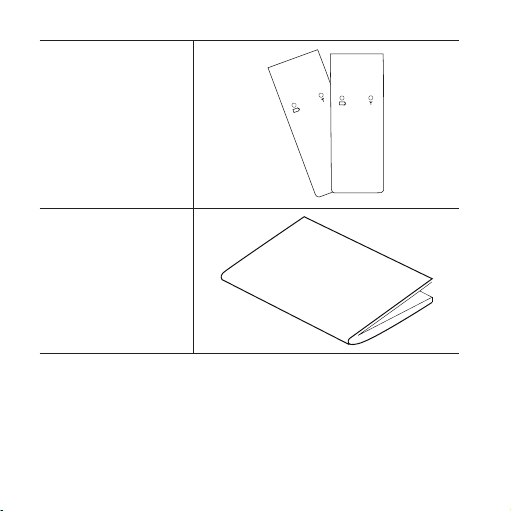
2 sets of extra covers
User instructions

9
THE SCOLA SYSTEM
Using this FM system requires a SCOLA BUDDY receiver and a
SCOLA transmitter, which can either be a SCOLA TALK or a SCOLA
TEACH. The SCOLA BUDDY receiver and the transmitter must be
set to the same channel to work correctly.
SCOLA BUDDY RECEIVER
In SCOLA BUDDY’s standard mode, hearing aids with telecoils are
required, such as BTE or ITE models, bone-anchored hearing aids
or cochlear products. The hearing aid programme must be set to
either the MT or the T programme.
NOTE
Hearing aids without a telecoil will NOT work with SCOLA BUDDY.

10
SCOLA BUDDY can also receive FM signals from other FM trans-
mitters, as long as the same channel/frequency is used for trans-
mitting and receiving.
SCOLA BUDDY may be connected to devices such as MP3 players
using the audio cable.
If SCOLA BUDDY is configured to the headphone mode, head-
phones should be used rather than hearing aids.
11
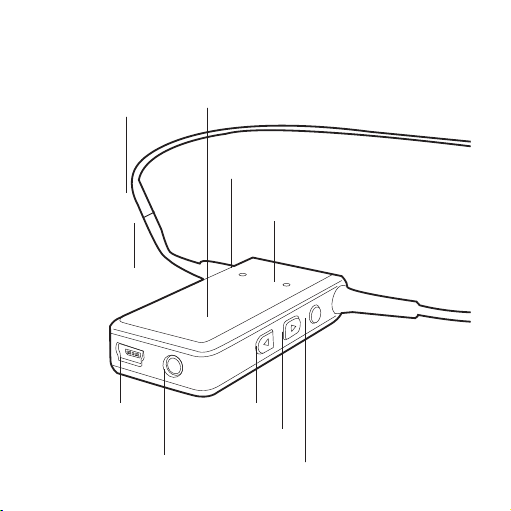
OVERVIEW OF BUTTONS, LEDS AND JACKS
Inductive neck loop
Battery LED
FM LED
On/o and scan button
Volume up
Volume down
Audio jack 3.5mm
Charging jack,
mini USB
Removable colour
covers, front and rear
Loop connector
12
GETTING SCOLA BUDDY READY TO USE:
Set your hearing aid(s) to MT or T (according to the user’s instruc-
tions for your hearing aid).
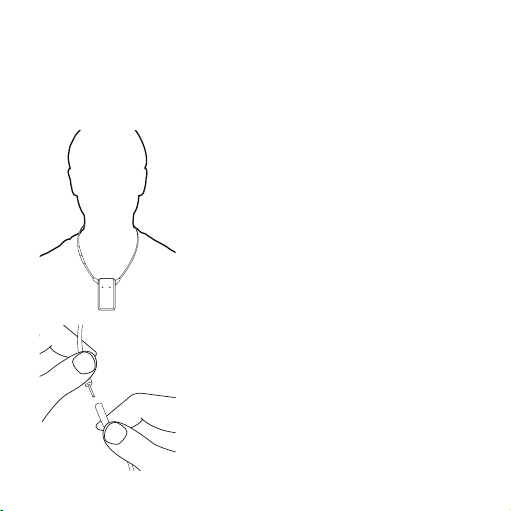
The SCOLA BUDDY device must be worn
around the neck.
Pull it over your head or open the neck
loop at the connector. The plug opens
easily to prevent any kind of injury.
13
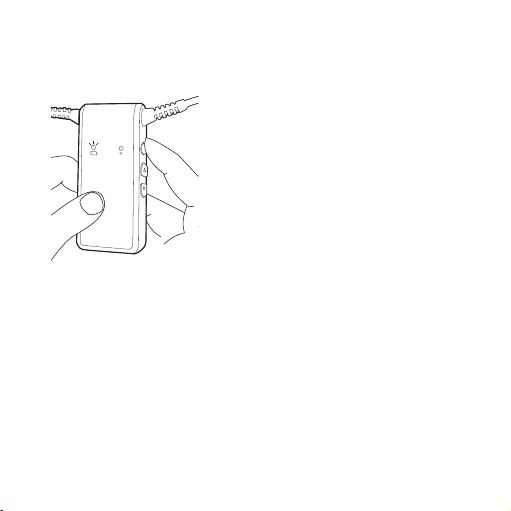
Switch on (and off):
Press and hold (1sec.) the power ON/
OFF button. The battery LED will glow
green if the battery has been suffi-
ciently charged.
To switch OFF, press and hold the power
ON/OFF button (1 sec.). The battery
LED will turn off.
14
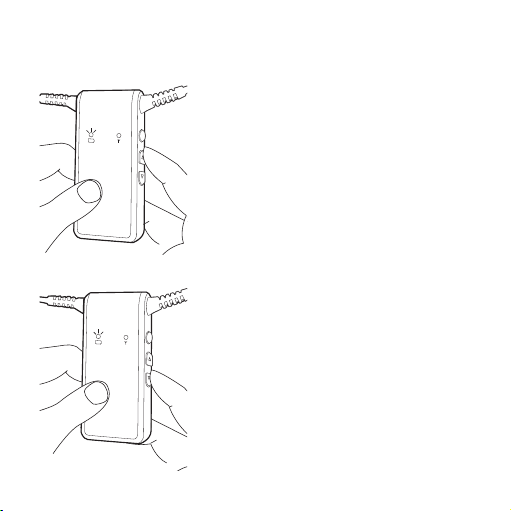
Check the loop connection
Increase or decrease the volume using
the volume buttons, and listen as the
beeps in the hearing aid grow louder or
quieter.
15
CHARGING THE DEVICE FOR THE FIRST TIME
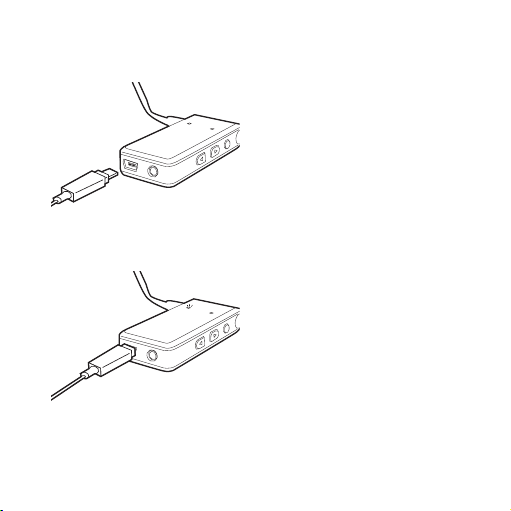
Connect the charger to the mains
supply.
Plug the charger’s plug into the
charging jack.
The battery LED glows constant
red.
Alternatively, the USB cable may
be used to connect the device to
a PC.
Wait until the battery LED begins
to flash green.

16
Remove the charger from the mains supply, and take out the
charger plug.
After charging, SCOLA BUDDY is switched off.
Charging for the first time takes about 10 hours.
Rechargings take about 4 hours.
17
BATTERY LED AND ACOUSTIC INDICATORS
Battery OK Constant green
Battery almost empty - needs
recharging
Red flashing.
Warning beeps (high-low) every 2
minutes
Charging Constant red
Charging completed Green flashing
18
OPERATION
RECEIVING ON THE TRANSMITTER CHANNEL
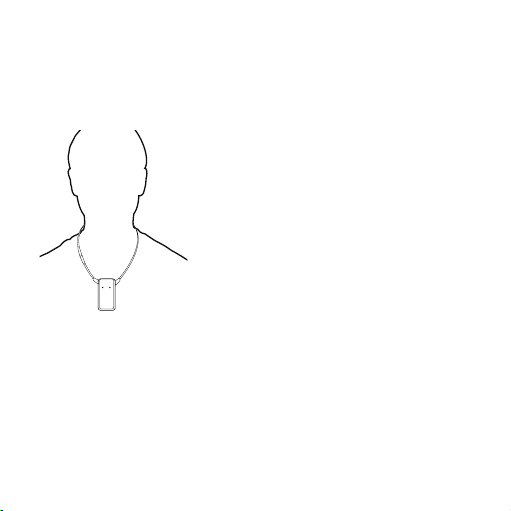
SCOLA BUDDY should be placed around
the neck and the hearing instruments
set to the MT or the T programme.
19
CONNECTING TO THE FM TRANSMITTER
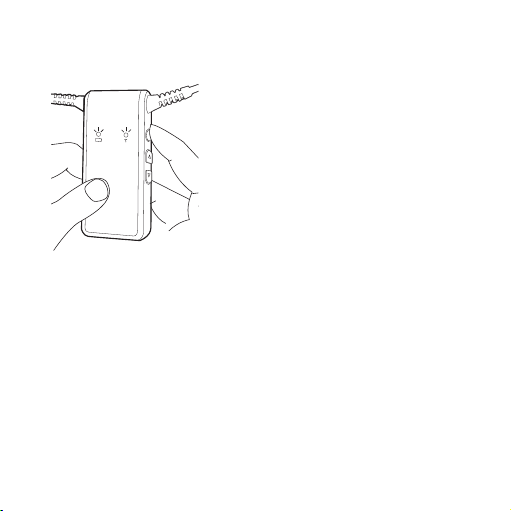
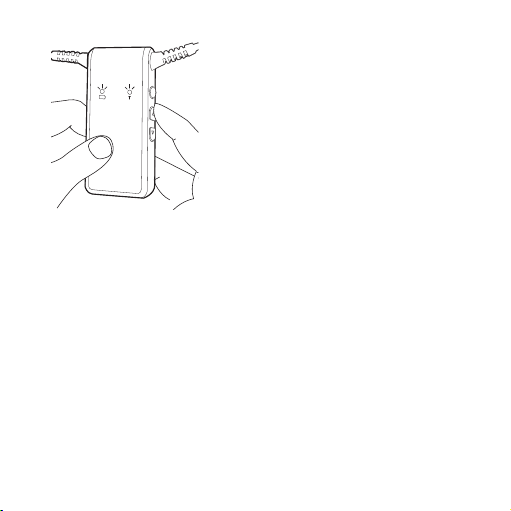
Switch on SCOLA BUDDY. Both LEDs
flash briefly, indicating that its self-test
result is OK. A green light in the LED
indicates the power is on.
20
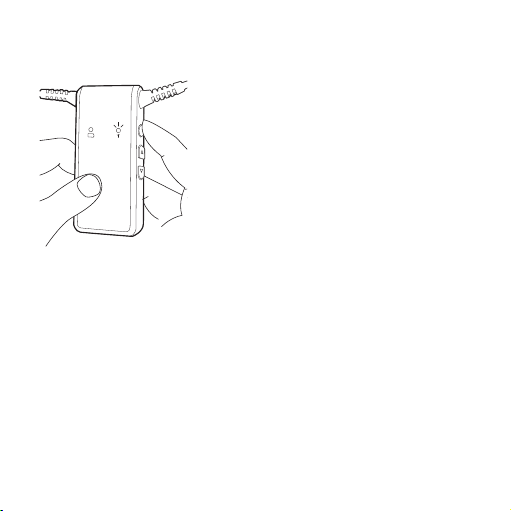
Switch on the FM transmitter (SCOLA TALK or SCOLA TEACH).
If the FM LED is off, press the SCAN but-
ton (same as the ON/OFF button) and
the device will find the transmitting
channel.
When SCOLA BUDDY is receiving the
FM signal, the FM LED will be green.
When speaking into the FM transmitter’s microphone, the speech
must be audible in the hearing aid.
21
Press the ▼ or ▲ button to adjust the
volume up or down to an appropriate
reception volume.
Alternatively, hold the button down for
rapid adjustment.
The device will remember the setting
after switch-off.

22
ACOUSTIC INDICATORS
After switching on, a start-up jingle will indicate connection to
the hearing aid.
Adjusting the volume up or down:
• Highorlow-pitchedbeepsareheardduringvolumeadjust-
ment
• At maximum or minimum volume setting, the beep tone will
be constant.
Channel scanning:
Duringchannelscanningbrief“scanningbeeps”indicatethat
thechannelscanisinprogress
• Adoublebeepindicatesthatatransmittingchannelhasbeen
found
• A long beep indicates that no transmitting channel can be
detected.

23
RANGE OF THE FM SIGNAL
The distance between the transmitter and the SCOLA BUDDY
receiver can be up to 15 metres, depending on various factors,
such as whether the device is being used indoors or outdoors. If
the signal gets too weak or noisy, the FM LED will switch off.
NB: Due to the nature of the FM signal, drop-outs may occur in
the FM signal at certain spots within its range. Try to avoid being
located in these “dead” spots.
24
CUSTOMISING YOUR SCOLA BUDDY
CHANGING THE COLOUR
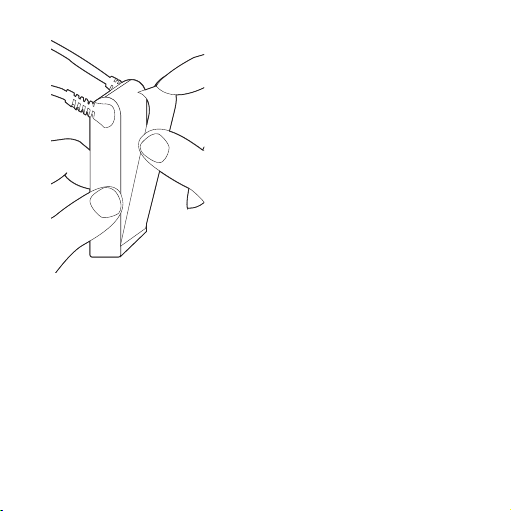
SCOLA BUDDY is supplied with cov-
ers in black, white and blue. There is a
front and a rear cover in each colour.
You can change these covers individu-
ally, but remember to choose the cover
with the LED symbols for the side of
the SCOLA BUDDY unit where the LEDs
are placed.
25
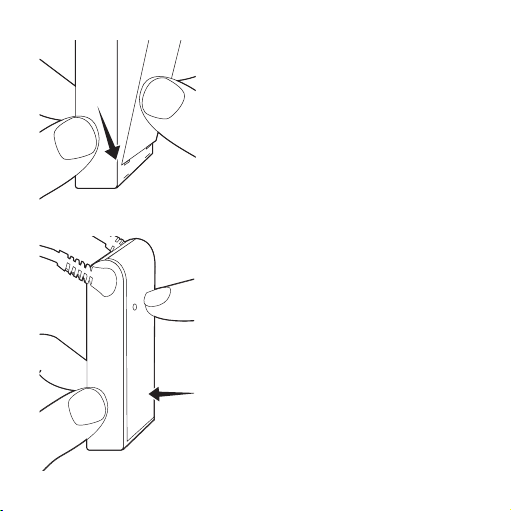
To remove a cover:
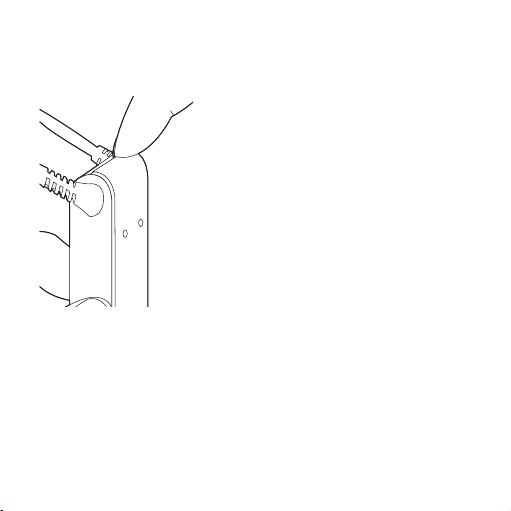
Lift off the cover from the top, using
the nail grip in the middle.
26
Lift out the cover from the two holes
in the bottom.
To attach a cover:
First, attach the cover at the bottom,
locating the two locks in the holes in
the unit.
Next, click and fasten the cover at the
top.

27
APPLYING STICKERS
You can also personalise your SCOLA BUDDY by placing small
stickers on the covers.
This is very popular among children, in particular, but remember
not to place the stickers over the LEDs.
When removing the stickers, first remove the covers from the
SCOLA BUDDY unit, then clean the covers with warm water.
(Alcohol must NOT be used).
SPECIAL CONFIGURATIONS
TheSCOLABUDDYdeviceisveryflexibleandcanbeconfigured
inmanydifferentwaysChannelscanbeinstalledremovedvar-
iousfrequenciesforbeeptonesareavailableandtheLEDscan
bepermanentlyswitchedoff
All of the special settings can be configured by your SCOLA pro-
vider.

28
EXTENDED USE / ADDITIONAL INFORMATION
RECHARGEABLE BATTERY
Fully charged, the battery will last for about ten hours.
To charge the battery, use the charger included or connect the
USB cable to a PC to use the PC as the charging supply.
When the battery is fully charged (the battery LED flashes green),
it will NOT harm the battery if the charger remains connected.
When the FM transmitter is switched off or out of range (the FM
LED turns off), SCOLA BUDDY will switch to its “sleep mode” to
save battery power. As soon as the FM signal is received again, it
will “wake up”.
NOTE
The built-in battery is not replaceable. In case of battery malfunction,
contact your SCOLA provider.
29
CONNECTING DEVICES TO THE AUDIO INPUT
You can listen to mobile audio devices such as MP3 players,
mobile phones, etc., by connecting these to the audio input.
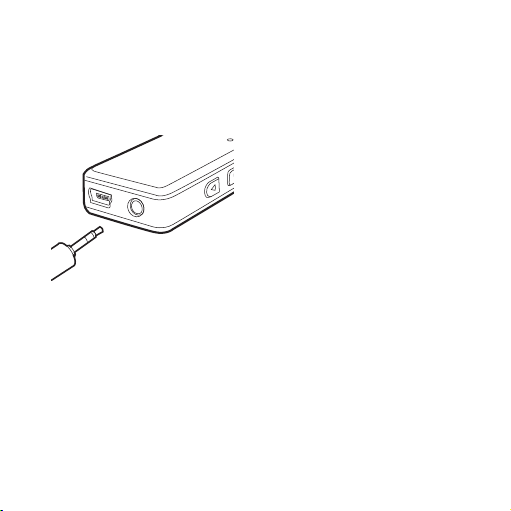
Connect the audio cable to the
3.5 mm jack socket in the SCOLA
BUDDY unit. The FM reception will
be interrupted.
Connect the other jack of the
audio cable to the audio unit.
Adjust the volume on the SCOLA BUDDY to an appropriate level.
The setting will be remembered by the SCOLA BUDDY device
after switch-off.
The volume setting is specific for the audio input, and will not
affect the volume setting of the FM signal.
30
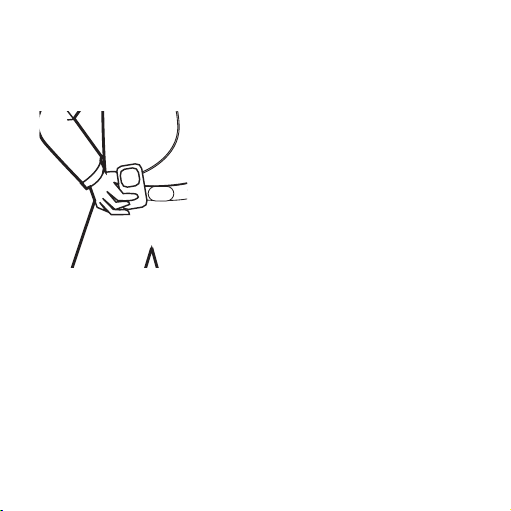
CHANNEL SYNCHRONISATION
Using SCOLA TEACH
With the SCOLA TEACH transmitter, it is
possible to manually, but remotely, syn-
chronise the SCOLA BUDDY’s receiving
channel with the transmitting channel.
Synchronise the channels as described
in the user’s instructions for SCOLA
TEACH.
Even if the receiving channel is not within the standard channel
range for the SCOLA BUDDY unit, it will still be possible to set it to
any channel used by the SCOLA TEACH device.
SCOLA BUDDY can be configured either to start up on the chan-
nel last used, or on a specific channel. The default setting is the
“last used” channel.
31
Using SCOLA CLASSMATE
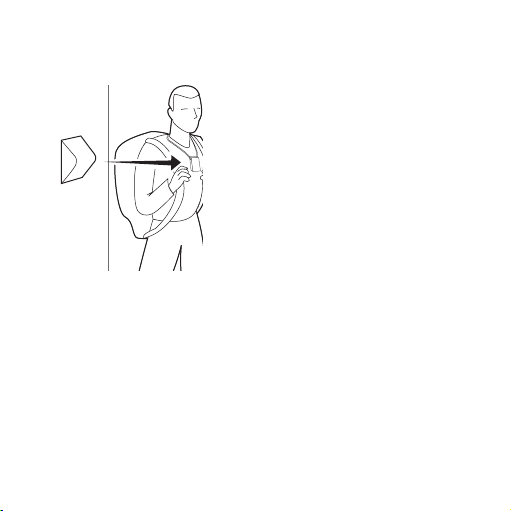
Using SCOLA CLASSMATE, the class-
room synchroniser, it is possible to
remotely and automatically synchro-
nise the SCOLA BUDDY’s receiving
channel to the channel used in the
classroom.
For further information, please see the user’s instructions for
SCOLA CLASSMATE.
A beep indicates successful channel synchronisation.

32
CONNECTING HEADPHONES TO THE AUDIO OUTPUT (SPECIAL
SETTING)
NB: The following setting is only possible when SCOLA BUDDY
is configured using a SCOLA PROGRAMMER at your SCOLA pro-
vider.
SCOLA BUDDY can be supplied with the 3.5 mm jack socket con-
figured as an output, for use with standard headphones. In this
case, when the headphones are connected, the FM signal will be
routed to the audio output instead of to the telecoil.
Without headphones connected, the tele-loop function will be
active.
Connect the headphones to the 3.5 mm jack socket in the SCOLA
BUDDY unit.
With the FM transmitter switched on and receiving on the correct
channel, listen to the FM signal in the headphones.

33
Adjust the volume on the SCOLA BUDDY to an appropriate level.
The setting will be remembered by the SCOLA BUDDY device
after switch-off.
The volume setting is specific for the headphone output, and will
not affect other settings.

34
TIPS FOR USING THE SCOLA FM SYSTEM
GETTING STARTED
SCOLA BUDDY is primarily intended for use in educational insti-
tutions, but can naturally also be used in other locations where
noise, poor acoustics or other factors restrict speech comprehen-
sion.

35
To get the best out of the SCOLA system, it is important to do the
following:
1. Practise using FM, and try out various listening situations in
secure surroundings. This obviously also applies to the par-
ents and teachers of a hearing impaired child.
2. Inform others that you are using an FM system for your
hearing aids, so that they understand why they may have
to speak into a microphone. Talk to the teacher or lec-
turer in advance; tell him or her that you are a hearing aid
user and explain the way that SCOLA works. Check that the
settings and the use of accessories with both SCOLA BUDDY
and SCOLA TEACH/SCOLA TALK are correct.
In the following, we have compiled a list of various listening situ-
ations and recommended settings for the FM system and hearing
aids:
36
Listening
situation
Use of SCOLA BUDDY
and transmitters
Possible settings for the
hearing aid’s telecoil
programmes
Kinder garten Ask the teacher to use
the SCOLA transmitter
and to place the micro-
phone as described in
the instructions.
For younger children, we
mainly recommend that the
hearing aid is set to micro-
phone and telecoil (MT), so
that the child can hear both
his or her own speech and
that of others.
Teaching In group work situa-
tions, or where there are
several teachers, we
recommend the use of
SCOLA TEACH with the
Team Teach function.
37
Listening
situation
Use of SCOLA BUDDY
and transmitters
Possible settings for the
hearing aid’s telecoil
programmes
Lectures 1. Check that there is no
interference from any
other FM systems on the
channel to which the
system is set. Find and
set both transmitter and
receiver to a noise-free
channel.
2. Explain to the speaker
how the SCOLA trans-
mitter works. Ask the
speaker to place the
microphone as close as
possible to his or her
mouth.
If there is a lot of noise in the
room, and you only want to
hear the teacher or speaker,
it can be beneficial to set the
telecoil programme to tele-
coil alone (T).
If there is less noise, and you
also want to hear what is
being said around you, select
the MT programme.
38
Listening
situation
Use of SCOLA BUDDY
and transmitters
Possible settings for the
hearing aid’s telecoil
programmes
At home The SCOLA transmitter can be connected to the TV, PC,
etc. using the audio cable. You can also speak into the
microphone at the same time; the speech is transmitted
together with the music.
If you have the Team Teach version of SCOLA TEACH
and an additional FM microphone, such as a SCOLA
TALK, both parents can communicate with the child via
FM.
39
Listening
situation
Use of SCOLA BUDDY
and transmitters
Possible settings for the
hearing aid’s telecoil
programmes
In the car The SCOLA system is
particularly effective in
the car. However, some
cars’ electrical systems
can interfere with the
hearing aid’s telecoil
reception.
If, as a passenger, you
wish to listen to some
music from, for exam-
ple, an MP3 player, it can
be used in the same
manner as described
above (under “At
home”)
If it is only necessary for the
child to hear the parent,
select the hearing aid’s T pro-
gramme.

40
CARE AND MAINTENANCE
In relation to maintenance, the same advice applies to the SCOLA
FM system as to hearing aids. It is a good idea to clean the system
every day and remove dirt and dust from the whole FM system. In
addition, there are some special precautions:
• RemoveanydirtfromtheSCOLABUDDYusingasoftdry
cloth
• DonottakeaparttheSCOLABUDDYorthehearingaidas
thiswillinvalidatethewarranty
• NevercleantheFMsystemwithwateralcoholorthelike
(withtheexceptionoftheSCOLABUDDYfrontandrearcov-
ers)
• Avoidknotsinleadsandcables
• AvoidexposingtheSCOLAsystemtocosmeticshairsprays
waterdetergentsorotherchemicals
41
WARNINGS
WARNING
• Always ensure that the batteries for the hearing aids and SCOLA
TEACH or SCOLA TALK are out of reach of small children, who might
put them in their mouths. Do not change the batteries in front of chil-
dren, and do not let them see where you store your batteries.
• All batteries must be disposed of in accordance with the relevant
environmental rules.
• If the SCOLA FM system is used in conjunction with any equipment
which is connected to an electrical outlet, the safety regulations for
this equipment, as set out in the IEC 60065 standard, must be fol-
lowed.
• Do not switch on the SCOLA transmitter in hospitals, aircraft, etc.,
where it may interfere with other electronic equipment.
42
NOTE
Avoid setting several FM transmitters to the same channel/frequency
in the same area.
Note that there is a risk of interference from other radio services, espe-
cially if the system is used abroad.
When travelling abroad, be aware that the use of certain channels may
be illegal in some countries.
CAUTION
Be aware that what is transmitted from SCOLA transmitters may be
picked up by other FM equipment.
43
IF THE SCOLA FM SYSTEM DOES NOT WORK
On the following pages are some tips on what to do if the SCOLA
system fails to work as it should. Check the following before con-
tacting your SCOLA system provider:
If there is no sound from SCOLA BUDDY or the audio equipment, or if
the sound is distorted, it may be because:
The hearing aid, SCOLA BUDDY or SCOLA transmitter is not receiving
enough electrical power. Check that both the transmitter and receiver
are turned on, with power from all batteries. Recharge, if necessary, the
batteries for the SCOLA transmitter or SCOLA BUDDY, and replace the
hearing aid batteries.
SCOLA TEACH and SCOLA BUDDY are not set to the same channel.
Check that the SCOLA BUDDY’s FM LED is on, and that there is an FM
signal to it from the correct transmitter (e.g. turn off the transmitter
and check that the LED goes off). If not, select another channel.
44
The plug on the SCOLA BUDDY neck loop is not properly connected.
Clean the plug with a soft cloth, and check that the beep tones sound
correctly when the volume control is adjusted up or down.
The earmould or the tube is blocked. Check that the tube and earmould
are securely connected, and see whether wax, moisture or other debris
is blocking the earmould or tube.
If there is noise in the hearing aid, it may be because:
You are outside the range of the transmitter, or at its periphery. Reduce
the distance between the transmitter and the SCOLA BUDDY.
The hearing aid is set to the telecoil programme (T position), and the
FM microphone signal or the signal from the audio equipment is weak
or interrupted. Set the hearing aid to the MT programme. Check that
the SCOLA transmitter is switched on, place it closer to the person
speaking, or turn up the audio signal.
45
Reception is impaired or blocked by noise or whistling, possibly
because two or more FM transmitters are transmitting on the same
channel on which you are receiving (interference). Try turning off the
SCOLA transmitter. If you can then hear a second FM signal, this is
what is causing the noise. There are three possible ways to prevent
interference:
1. Only have one FM transmitter turned on.
2. Switch to a vacant channel and set/synchronise both the SCOLA
transmitter and the SCOLA BUDDY to this channel.
3. Increase the distance to the interfering FM transmitter, so that the
range becomes so great that the transmitted signals do not interfere
with one another.
If the SCOLA BUDDY is connected to audio equipment, but no sound
can be heard from it:
Check that the plug of the audio cable is properly connected to the
audio input of the SCOLA BUDDY or audio equipment. Ensure that both
connectors are secure.
46
The signal from the audio equipment is too weak. Turn up the volume
of the audio signal using the volume control of the audio equipment, if
possible.
If the batteries have been charged, but the battery LED does not
show that the batteries have been recharged, this may be because:
There is no power in the power outlet. Check that the outlet works.
The charger, cable or plug may be defective. Contact your SCOLA FM
system supplier.

47
WARRANTY
The product is supplied with a two-year international warranty.
The warranty covers all defects in materials and workmanship.
Faults which arise due to mishandling or repair by unauthorised
persons are not covered by the warranty.
SERIAL NUMBER
We recommend that you write down the apparatus serial number
at the end of this guide.

48
SAFETY WARNING:
This device can be powered by an external power supply.
• Onlyconnectapowersupplythatiscompatiblewiththe
SCOLABUDDY
• ThepowersupplymusthaveanoutputratingofVDC
mAandminiUSBconnector
• Thepowersupplyinputratingvoltagemustmatchthemains
powervoltageinyourregionandthepowersupplymust
haveamainsmaleplugthatiscompatiblewiththeACwall
outletinyourregion
• ThepowersupplymustbecertifiedforITEuseandmust
havethecertificationmarksfromanagencyacceptablein
yourregion
Widex strongly recommends that you always use a power supply
that is delivered by your Widex Distributor to ensure safe and ef-
ficient use of your SCOLA BUDDY.

49
Directive 1999/5/EC
Hereby, Widex A/S declares that this SCOLA BUDDY is in compli-
ance with the essential requirements and other relevant provi-
sions of Directive 1999/5/EC.
A copy of the Declaration of Conformity according to 1999/5/EC
can be found at:
http://www.widex.com/doc

50
REGULATORY INFORMATION
FCC ID: BRG-871T
IC: 5676A-871T
Federal Communications Commission Statement
This device complies with part 15 of the FCC Rules. Operation is subject
to the following two conditions:
(1) This device may not cause harmful interference, and
(2) this device must accept any interference received, including
interference that may cause undesired operation.
NOTE:
This equipment has been tested and found to comply with the limits
for a Class B digital device, pursuant to part 15 of the FCC Rules. These
limits are designed to provide reasonable protection against harmful
interference in a residential installation. This equipment generates, uses
and can radiate radio frequency energy and, if not installed and used
in accordance with the instructions, may cause harmful interference to
radio communications. However, there is no guarantee that interference

51
will not occur in a particular installation. If this equipment does cause
harmful interference to radio or television reception, which can be
determined by turning the equipment off and on, the user is encouraged
to try to correct the interference by one or more of the following
measures:
— Reorient or relocate the receiving antenna.
— Increase the separation between the equipment and receiver.
— Connect the equipment into an outlet on a circuit different from that
to which the receiver is connected.
— Consult the dealer or an experienced radio/TV technician for help.
NOTE:
This equipment complies with FCC radiation exposure limits set forth for
an uncontrolled environment. This transmitter must not be co-located or
operating in conjunction with any other antenna or transmitter.
Changes or modifications to the equipment not expressly approved by
Widex could void the user’s authority to operate the equipment.

52
Industry Canada Statement / Déclaration d’industrie Canada
Under Industry Canada regulations, this radio transmitter may only
operate using an antenna of a type and maximum (or lesser) gain
approved for the transmitter by Industry Canada.
To reduce potential radio interference to other users, the antenna
type and its gain should be so chosen that the equivalent isotropically
radiated power (e.i.r.p.) is not more than that necessary for successful
communication.
This device complies with Industry Canada licence-exempt RSS
standard(s). Operation is subject to the following two conditions:
(1) this device may not cause interference, and
(2) this device must accept any interference, including interference that
may cause undesired operation of the device.

53
Conformément à la réglementation d’Industrie Canada, le présent
émetteur radio peut fonctionner avec une antenne d’un type et d’un
gain maximal (ou inférieur) approuvé pour l’émetteur par Industrie
Canada.
Dans le but de réduire les risques de brouillage radioélectrique à
l’intention des autres utilisateurs, il faut choisir le type d’antenne et
son gain de sorte que la puissance isotrope rayonnée équivalente
(p.i.r.e.) ne dépasse pas l’intensité nécessaire à l’établissement d’une
communication satisfaisante.
Le présent appareil est conforme aux CNR d’Industrie Canada
applicables aux appareils radio exempts de licence. L’exploitation est
autorisée aux deux conditions suivantes :
(1) l’appareil ne doit pas produire de brouillage, et
(2) l’utilisateur de l’appareil doit accepter tout brouillage radioélectrique
subi, même si le brouillage est susceptible d’en compromettre le
fonctionnement.
54
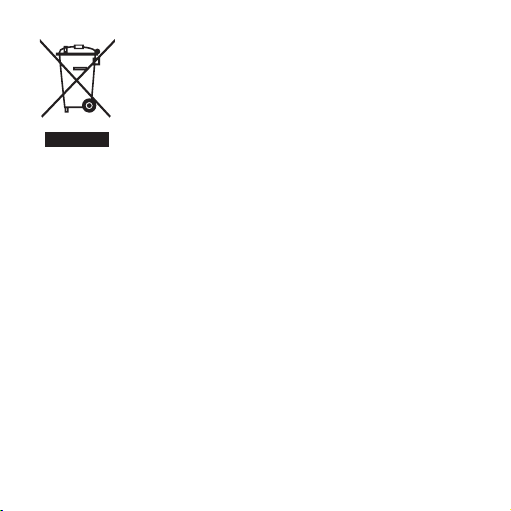
Electrical and electronic equipment (EEE) contains
materials, components and substances that can be
hazardous and present a risk to human health and
the environment when waste electrical and elec-
tronic equipment (WEEE) is not handled correctly.
Do not dispose of hearing aids, hearing aid accessories and bat-
teries with ordinary household waste.
Hearing aids, batteries and hearing aid accessories should be
disposed of at sites intended for waste electrical and electronic
equipment, or given to your hearing care professional for safe
disposal. Proper disposal helps to protect human health and the
environment.
55
SYMBOLS
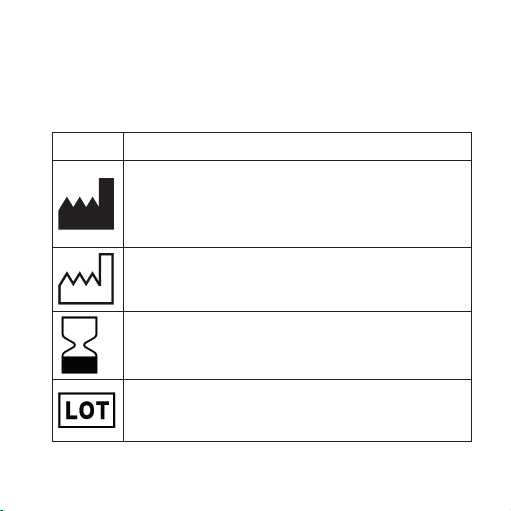
Symbols commonly used by Widex A/S in medical device labelling
(labels/IFU/etc.)
Symbol Title/Description
Manufacturer
The product is produced by the manufacturer whose name
and address are stated next to the symbol. If appropriate,
the date of manufacture may also be stated.
Date of manufacture
The date when the product was manufactured.
Use-by date
The date after which the product is not to be used.
Batch code
The product’s batch code (lot or batch identification).
56
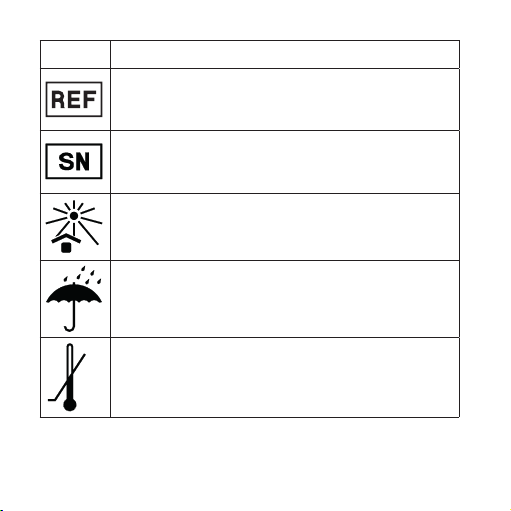
Symbol Title/Description
Catalogue number
The product’s catalogue (item) number.
Serial number
The product’s serial number.*
Keep away from sunlight
The product must be protected from light sources and/or
The product must be kept away from heat
Keep dry
The product must be protected from moisture and/or The
product must be kept away from rain
Lower limit of temperature
The lowest temperature to which the product can be safely
exposed.
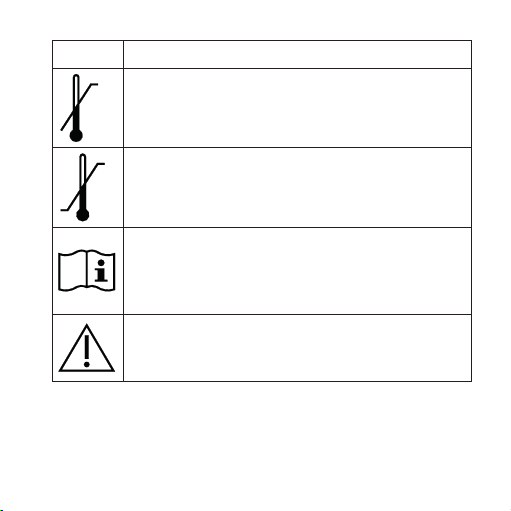
57
Symbol Title/Description
Upper limit of temperature
The highest temperature to which the product can be
safely exposed.
Temperature limits
The highest and lowest temperatures to which the product
can be safely exposed.
Consult instructions for use
The user instructions contain important cautionary infor-
mation (warnings/precautions) and must be read before
using the product.
Caution/Warning
Text marked with a caution/warning symbol must be read
before using the product.
58
Symbol Title/Description
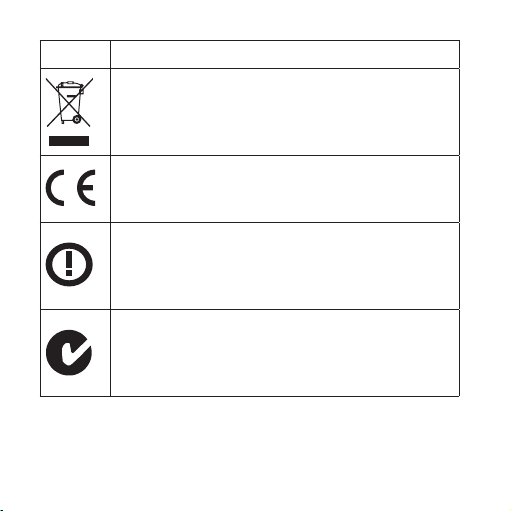
WEEE mark
“Not for general waste”
When the product is to be discarded, it must be sent to a
designated collection point for recycling and recovery.
CE mark
The product is in conformity with the requirements set out
in European CE marking directives.
Alert
The product is identified by R&TTE Directive 1999/5/EC as
an equipment Class 2 product with some restrictions on
use in some CE member states.
C-Tick mark
The product complies with EMC and radio spectrum
regulatory requirements for products supplied to the
Australian or New Zealand market.
59
Symbol Title/Description
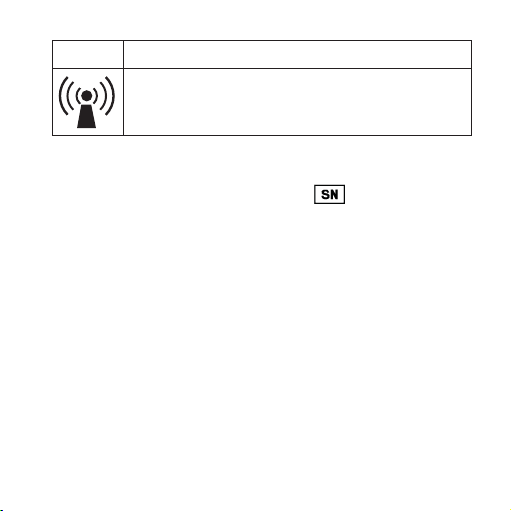
Interference
Electromagnetic interference may occur in the vicinity of
the product.
*The six- or seven-digit number on the product is the serial number. Se-
rial numbers may not always be preceded by

60
SETTINGS
Serial number: ______________________________
Gain adjustment: ____________________________
Starting channel: ____________________________
Channel scan possible: yes [ ] no [ ]

61

62

63
É[5qr0q5|a;;a;a]
WIDEX A/S Nymoellevej 6, DK-3540 Lynge, Denmark
www.widex.com
Manual no.:
9 514 0151 001 #04
Issue:
2015-06