Quick Start Guide
1
Getting Started (WS7100)
Quick Start Guide
32:(5 5(6(7/$1 /$1 /$1:$1
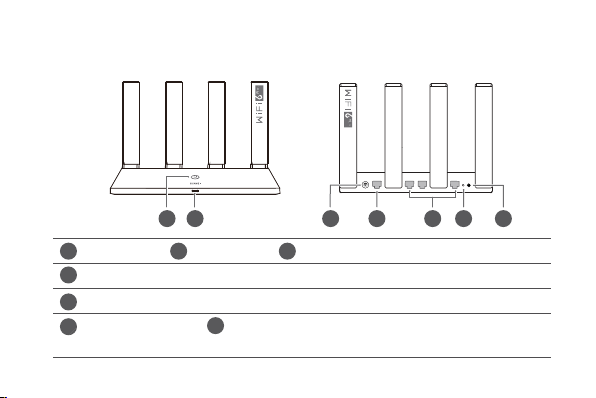
RESET button Power button: Press once to power on the device, or
ÝàääʯÑéÑàìÃäìì¯àäÑÊäìÑÝÑýà²ìÑčȇ
WAN port: Connect to optical modems, broadband modems, etc.
LAN port: Connect to a wired Internet device, such as a computer.
Power portH button Indicator
2 3
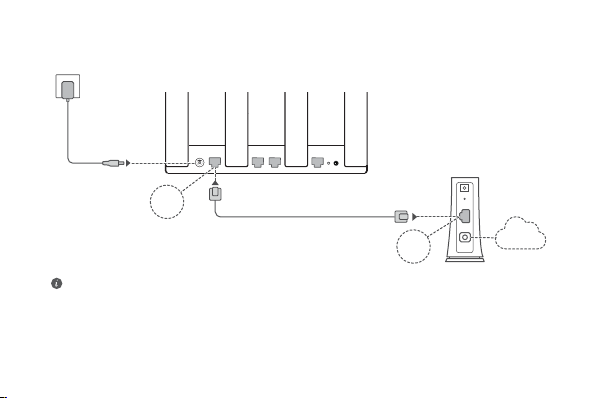
Step 1: Connecting the cables
32:(5 /$1 5(6(7/$1 /$1:$1
32:(5
/$1
321
5(6(7
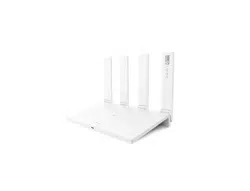
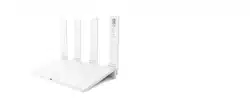
HUAWEI WiFi AX3
WAN
LAN
Internet
Optical/Broadband/cable modem
(from your broadband provider)
Ǿ Erect the all antennas upright to ensure optimized Wi-Fi
®
signal.
Ǿ If the indicator stays red, this indicates that the router is not connected to the Internet.
WÃäà©àìÑȊ^ìÝǂǿÑÊĒªñà²Êªì¯ÊìýÑàÀäìì²ÊªäȊȇ
3
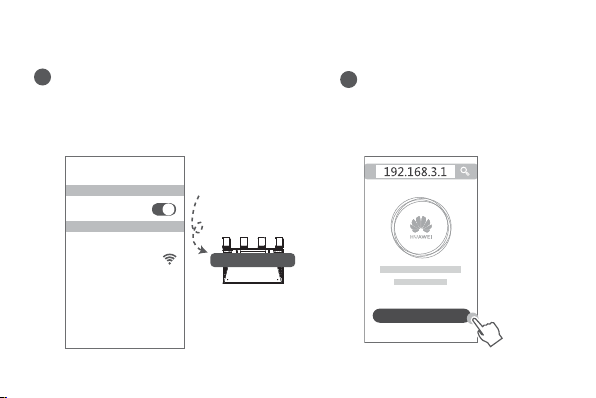
Connect your mobile phone or computer
to the router’s Wi-Fi network (no
password required).
Check for the Wi-Fi name on the bottom of
the new router.
;;;;;;
:L)L1DPH;;;;;;
Wi-Fi
Wi-Fi
Connected
Open the browser, you will be
automatically redirected.
( If the page is not displayed
automatically, enter 192.168.3.1) .
Let's get started
^ìÝǂǿÑÊĒªñà²Êªì¯ÊìýÑàÀäìì²Êªä
4
5
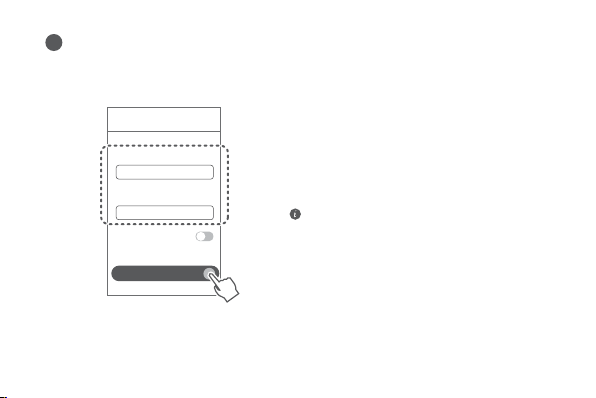
Enter your broadband account and password.
If your Internet connection does not require an account and password, please skip to the
next step.
Internet access wizard
Broadband account
Broadband password
VLAN
Next
Ǿ If you have forgotten your broadband account
and password, contact your broadband carrier
to obtain a broadband account and password.
Ǿ If you need to configure VLAN on your
network, contact your broadband carrier to
ÑÊĒàÉì¯v>EÝàÉìàäȀÊÊÃì¯
VLAN switch on the screen.
5
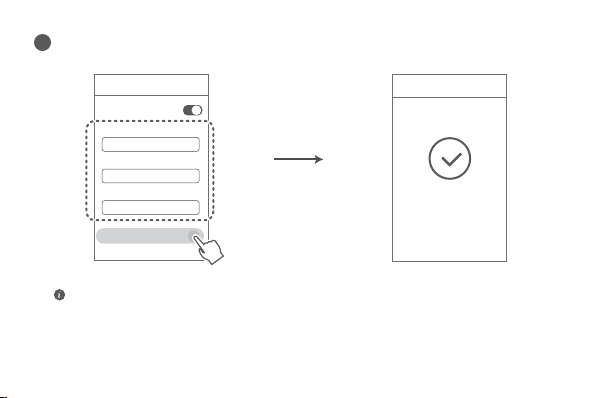
Set a new Wi-Fi name, Wi-Fi password, and admin password for the new router.
,QWHUQHWDFFHVVZL]DUG
Prioritize 5 GHz
:L)LQHWZRUNQDPH
:L)LQHWZRUNSDVVZRUG
$GPLQSDVVZRUG
1H[W
,QWHUQHWDFFHVVZL]DUG
&RQ¿JXUDWLRQFRPSOHWH
(QDEOHPrioritize 5 GHz 3ULRULW\XVDJH RI *+]:L)L EDQGRYHU *+] EDQGZKHQ VLJQDO
VWUHQJWKLVHTXDOWRLQFUHDVHFRQQHFWLRQVSHHGV
9
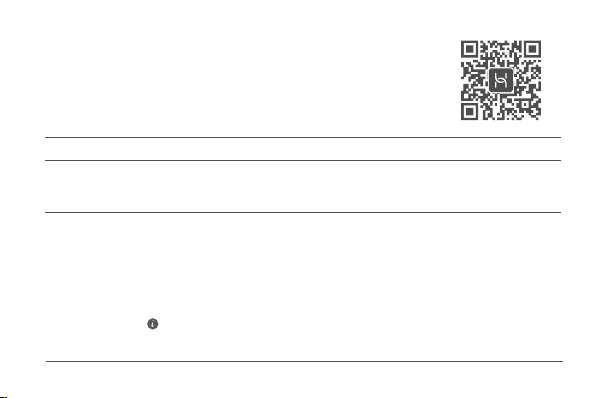
Manage the router with our mobile app
Scan the QR code to download and install the HUAWEI smart
device management app on your mobile phone or tablet. You can
use the app to manage your router.
Indicator
Steady green
Steady red
Flashing
Connected to the network
Not connected to the network
Ǿ Loose cable or connect error. Check the cable.
Ǿ Broadband network error. Contact your broadband carrier.
The router has detected a pairable device.
When other HUAWEI routers (with H or Hi button) are detected, the
²Ê²ìÑàÑÊì¯,kw/w²&²|ǃý²ÃÃēä¯ȇw¯Ê쯲ä¯ÝÝÊäȀÝàääì¯
,kw/w²&²|ǃȋä,ñììÑÊȇf¯²Ê²ìÑàä¯ÑñÃēä¯ßñ²ÀÃăȀ²Ê²ì²Êª
that the pairable device is connecting to the HUAWEI WiFi AX3. The
ÑÊÊì²ÑÊÝàÑää²äÑÉÝÃìý¯Ê쯲ʲìÑàäìÑÝäē䯲ʪȇ
Ǿ If you touched the H button by accident, wait for 2 minutes till the
indicator returns to normal.
Ǿ The H button also features WPS functionality.

7
Frequently Asked Questions (FAQ)
Yǁǿw¯ìÊ/Ѳ©/ÊÑñÊìàÊăѩ쯩ÑÃÃÑý²Êª²ääñäý¯ÊÑÊĒªñà²Êªì¯àÑñìàȈ
Ǿ If your device did not detect the router's Wi-Fi: Ensure that the router is powered on. Wait for a
moment (till the router is started) and try to search again on your device.
Ǿ /©ăÑñÊÊÑì ü²ä²ìì¯àÑñìàȋäÑÊĒªñàì²ÑÊݪ ÑÊ ăÑñàü²ǿÊäñàì¯ìăÑñàü² ²ä
connected to the router's Wi-Fi network, and then enter 192.168.3.1 in the browser to visit this
page on your device.
Ǿ If the page displays "Cable disconnected": Ensure that the router's WAN port is connected to
the modem's LAN port, and the modem has Internet access. Check that all joints are securely
connected and in good contact, and the network cables are in good condition.
If the issue persists, restore the router to the factory settings, and follow the guide to reconnect the
ÃäÊÑÊĒªñàì¯àÑñìàȇ
Yǂǿ,ÑýÑ/àäìÑàì¯àÑñìàìѲìä©ìÑàăäìì²ÊªäȈ
Connect the router to the power supply and wait until the router completes the startup process.
Use a needle or pin to press the RESET button on the router for more than two seconds until the
indicator light goes out. Wait for the router to complete the restart process. When the indicator
turns red, this indicates that the router has been restored to its factory settings.
/©ì¯àÑñìà¯äÊ©ìÑàăàäìȀăÑñÊìÑÑÊĒªñà²ìª²Êȇ

8 9
Q5: What should I do if I forget my login password for the app or the router's web-based
PDQDJHPHQWSDJH"
7U\XVLQJWKHURXWHUV:L)LSDVVZRUGWRORJLQ,IWKHLVVXHSHUVLVWVUHVWRUHWKHURXWHUWRWKHIDFWRU\
VHWWLQJV
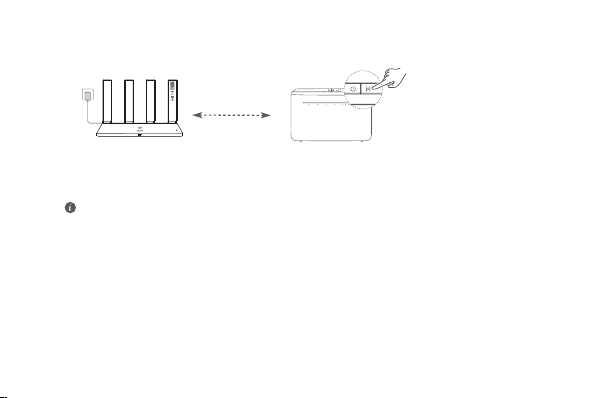
Q3: How do I connect an add-on HUAWEI router (with H/Hi button) to my HUAWEI WiFi
$;VQHWZRUN"
<RXFDQFRQQHFWWKHURXWHULQHLWKHURIWKHIROORZLQJZD\V
:LUHGFRQQHFWLRQ&RQQHFWWKH:$1SRUWRIWKHDGGRQURXWHUQHZRUUHVWRUHGWRIDFWRU\VHWWLQJV
WRWKH/$1SRUWRIWKHFRQ¿JXUHG+8$:(,:L)L$;XVLQJDQ(WKHUQHWFDEOH
:LUHOHVVFRQQHFWLRQXVLQJWKHHEXWWRQ6WHS3ODFHWKHDGGRQURXWHUQHZRUUHVWRUHGWR
IDFWRU\VHWWLQJVZLWKLQRQHPHWHURIWKHFRQ¿JXUHG+8$:(,:L)L$;DQGFRQQHFWLWWRWKHSRZHU
VXSSO\6WHS:KHQWKHLQGLFDWRURQWKH+8$:(,:L)L$;VWDUWVWRÀDVKSUHVVWKH+EXWWRQRQ
LW:DLWXQWLOWKHLQGLFDWRURQWKHDGGRQURXWHUVKRZVLWLVFRQQHFWHGWRWKHQHWZRUN
7KHIROORZLQJ +8$:(,GHYLFH PRGHOVDUH VXSSRUWHG:6 :6DQG:6)RUGHWDLOVDERXW
PRUHGHYLFHPRGHOVVHHWKHGHYLFHPDQXDO
4+RZGR,FRQQHFWD:L)LGHYLFHWRP\URXWHUXVLQJ:36"
:KHQ\RXU URXWHULVSRZHUHGRQSUHVVLWV+ EXWWRQDQG WKHQSUHVVWKH:36EXWWRQ RQWKH :L)L
GHYLFHVXFKDVDSKRQHZLWKLQWZRPLQXWHVWRLQLWLDWHVWDQGDUG:36 QHJRWLDWLRQDQGFRQQHFWWKH
:L)LGHYLFHWRWKHURXWHUV:L)LQHWZRUN

YLJǿ,ÑýÑ/ñäì¯E&©ñÊì²ÑÊÑ©ì¯àÑñìàìÑßñ²ÀÃăÑÊÊììÑì¯w²ȝ&²ÊìýÑàÀȈ
Unlock your phone, enable NFC on it, and touch the NFC area on the back against the NFC area
on the router, then follow the onscreen instructions to connect the phone to the Wi-Fi network.
This feature is available on Android devices that support NFC, but some devices with non-standard NFC
may be unable to connect. iOS devices do not support connecting through NFC.
Ydžǿw¯ìä¯ÑñÃ/Ѳ©äÑÉÑ©Éăü²äÊÊÑìĒÊÑàÑÊÊììÑì¯w²ȝ&²Ȉ
This router supports Wi-Fi 6, which is the new generation Wi-Fi technology that can improve
network speeds for Wi-Fi 6 devices. However, some earlier devices, such as laptops using Intel
ÊìýÑàÀÝìàäȀÉăÊÑìÃìÑĒÊÑàÑÊÊììÑì¯w²ȝ&²ñìÑÑÉÝ첲òìă²ääñäȇ/Ê
this case, try to update the software version of the devices by referring to the device instruction
manual, or perform the following operations:
Update the router and the HUAWEI smart device management app to the latest version. Then
open the app, touch the router icon, touch Show more, search for and enable Wi-Fi 5 backup
network, and connect your device to the Wi-Fi 5 network.
7KH¿JXUHLVIRUUHIHUHQFHRQO\
(QVXUHWKDWWKH+8$:(,&3(LVFRQQHFWHGWRWKH,QWHUQHWDQGWKHURXWHULVQHZRUUHVWRUHGWRIDFWRU\
VHWWLQJV
(QVXUHWKDWWKH+8$:(,&3(VXSSRUWVWKH+8$:(,+L/LQNIXQFWLRQDQG&R$3SURWRFRO3OHDVHFRQVXOW
WKHGLVWULEXWRUIRUGHWDLOV
(QVXUHWKDWWKHGLVWDQFHEHWZHHQ\RXUURXWHUDQGWKH+8$:(,&3(LVOHVVWKDQPHWHUVDQGWKHUHDUH
QRPRUHWKDQWZRZDOOVLQEHWZHHQ
ā:LUHOHVVFRQQHFWLRQXVLQJWKH+EXWWRQ
6WHS3ODFHWKHURXWHUZLWKLQRQHPHWHURIWKH+8$:(,&3(DQGFRQQHFWWKHSRZHUVXSSO\
6WHS:KHQWKHLQGLFDWRURQWKH+8$:(,&3(VWDUWVWRÀDVKSUHVVWKH+EXWWRQRQLW:DLWXQWLOWKH
LQGLFDWRURQWKHURXWHUVKRZVWKDWWKHURXWHULVFRQQHFWHGWRWKHQHWZRUN
6WHS3ODFHWKHURXWHULQDURRPZLWKZHDNVLJQDOVWUHQJWKDQGFRQQHFWWKHSRZHUVXSSO\
ZLWKLQRQHPHWHU

1
11
Safety information
Operation and safety
Ǿ Do not use your device if using the device is prohibited. Do not use the device if doing so
causes danger or interference with other electronic devices.
Ǿ Pacemaker manufacturers recommend that a minimum distance of 15 cm be maintained
between a device and a pacemaker to prevent potential interference with the pacemaker.
If using a pacemaker, hold the device on the side opposite the pacemaker and do not carry
the device in your front pocket.
Ǿ üѲñäìăȀÉÝȀÑà²àìăÊü²àÑÊÉÊìäȇüѲɪÊì²ĒÃäȇkä²Êªì¯ü²²Êì¯ä
environments may result in circuit malfunctions.
Ǿ Ideal operating temperatures are 0 °C to 40 °C. Ideal storage temperatures are -40 °C to +70 °C.
Extreme heat or cold may damage your device or accessories.
Ǿ Keep the device and accessories in a well-ventilated and cool area away from direct
sunlight. Do not enclose or cover your device with towels or other objects. Do not place the
device in a container with poor heat dissipation, such as a box or bag.
Ǿ The device should be installed and operated with a minimum distance of 20 cm between
the radiator and your body.
Ǿ Using an unapproved or incompatible power adapter, charger, or battery may damage your
ü²Ȁä¯Ñàìʲìäò©äÝÊȀÑàñäĒàȀĂÝÃÑä²ÑÊȀÑàÑì¯à¯Ĉàäȇ

1
7KHV\PERORQWKHSURGXFWEDWWHU\OLWHUDWXUHRUSDFNDJLQJPHDQVWKDWWKHSURGXFWVDQGEDWWHULHV
VKRXOGEH WDNHQWRVHSDUDWH ZDVWHFROOHFWLRQ SRLQWVGHVLJQDWHGE\ ORFDODXWKRULWLHV DWWKHHQG RI
WKHOLIHVSDQ7KLV ZLOOHQVXUHWKDW(((ZDVWH LVUHF\FOHGDQGWUHDWHGLQDPDQQHUWKDWFRQVHUYHV
YDOXDEOHPDWHULDOVDQGSURWHFWVKXPDQKHDOWKDQGWKHHQYLURQPHQW
)RUPRUH LQIRUPDWLRQSOHDVHFRQWDFW \RXUORFDODXWKRULWLHVUHWDLOHU RUKRXVHKROGZDVWH GLVSRVDO
VHUYLFHRUYLVLWWKHZHEVLWHKWWSVFRQVXPHUKXDZHLFRPHQ
Reduction of hazardous substances
7KLVGHYLFH DQGLWVHOHFWULFDODFFHVVRULHVFRPSO\ ZLWKORFDO DSSOLFDEOHUXOHVRQWKHUHVWULFWLRQ RIWKH XVH
RIFHUWDLQ KD]DUGRXVVXEVWDQFHVLQHOHFWULFDODQG HOHFWURQLFHTXLSPHQWVXFKDV(8 5($&+UHJXODWLRQ
5R+6DQG%DWWHULHVZKHUHLQFOXGHGGLUHFWLYH)RUGHFODUDWLRQVRIFRQIRUPLW\DERXW5($&+DQG5R+6
SOHDVHYLVLWWKHZHEVLWHKWWSVFRQVXPHUKXDZHLFRPFHUWL¿FDWLRQ
EU regulatory conformance
Statement
+HUHE\+XDZHL'HYLFH &R/WGGHFODUHVWKDWWKLV GHYLFH:6:6 LVLQFRPSOLDQFHZLWKWKH
IROORZLQJ'LUHFWLYH5('(85R+6(8(U3(&
7KHIXOOWH[WRIWKH(8GHFODUDWLRQRIFRQIRUPLW\WKHGHWDLOHG(U3LQIRUPDWLRQDQGPRVWUHFHQWLQIRUPDWLRQ
DERXWDFFHVVRULHVVRIWZDUHDUHDYDLODEOHDWWKHIROORZLQJLQWHUQHWDGGUHVV
KWWSVFRQVXPHUKXDZHLFRPFHUWL¿FDWLRQ
Restrictions in the 5 GHz band:
7KHWR0+]IUHTXHQF\UDQJHLVUHVWULFWHGWRLQGRRUXVHRQO\LQ$7%(%*&+&<&='(
'.(((/(6),)5+5+8,(,6,7/,/7/8/9071/123/37526(6,6.758.
Frequency Bands and Power
7KHIUHTXHQF\ EDQGVDQGWUDQVPLWWLQJSRZHUUDGLDWHGDQGRUFRQGXFWHGQRPLQDOOLPLWV DSSOLFDEOHWR
WKLVUDGLRHTXLSPHQWDUHDVIROORZV:L)L*G%P:L)L*0+]G%P
0+]G%P

1513
Legal Notice
Copyright © Huawei 2020. All rights reserved.
THIS DOCUMENT IS FOR INFORMATION PURPOSE ONLY, AND DOES NOT CONSTITUTE ANY
KIND OF WARRANTIES.
Trademarks and Permissions
Wi-Fi
®
, the Wi-Fi CERTIFIED logo, and the Wi-Fi logo are trademarks of Wi-Fi Alliance.
Other trademarks, product, service and company names mentioned may be the property of
their respective owners.
Version Update
In order to improve the security of the product and provide you with a better user experience,
we will push version update information to you on a regular basis when an important update
is released.
Privacy Policy
To better understand how we use and protect your personal information, please see the
privacy policy at http://consumer.huawei.com/privacy-policy.
End User License Agreement
Please read and agree to the End User License Agreement (HUAWEI EULA) on the product’s
management page before using the product.

14
For More Help
Please visit https://consumer.huawei.com/en/support/hotline for recently updated hotline and
email address in your country or region.