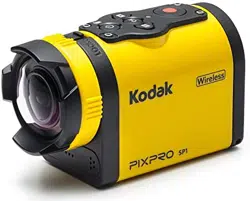
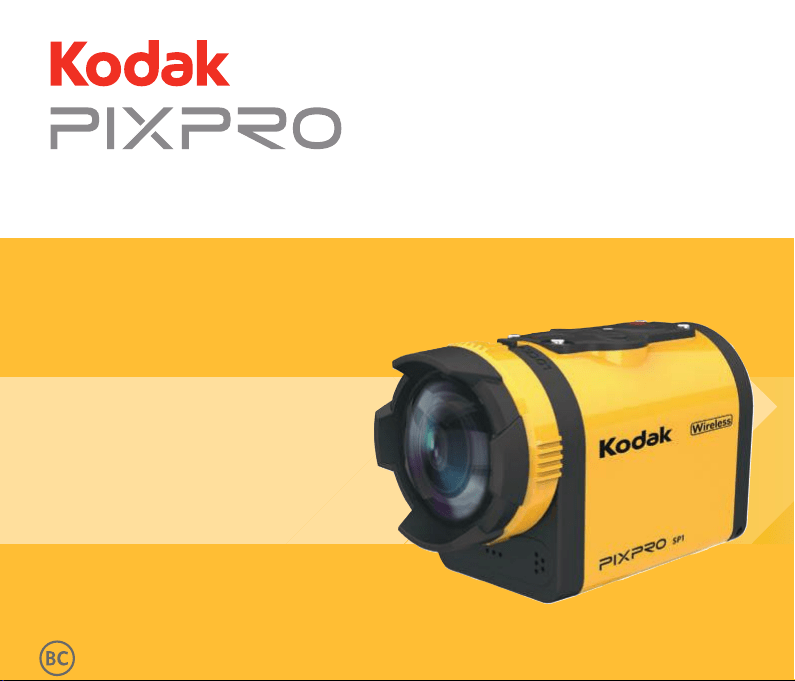
Digital Action Cam
SP1
User Manual
1
Declaration of Conformity
Responsible Party: JK Imaging Ltd.
Address: 17239 So. Main Street, Gardena, CA 90248 USA
JK Imaging Europe, 71 Clarendon Road, Watford, WD17 1DS, UK
Company Website: http://kodakpixpro.com
For Customers in Canada
This device complies with Industry Canada license-exempt RSS standard(s). Operation is
subject to the following two conditions: (1) This device may not cause interference, and (2)
this device must accept any interference, including interference that may cause undesired
operation of the device.
For Customers in Europe
"CE" mark indicates that this product complies with the European requirements for
safety, health, environment and customer protection. "CE" marked products are intended
for sales in Europe.
This symbol [crossed-out wheeled bin WEEE Annex IV] indicates separate collection
of electrical waste and electronic equipment in the European countries. Please do not
throw the equipment into domestic refuse. Please use the return and collection systems
available in your country for proper, safe disposal of this product.
Before You Start

2
For Customers in the U.S.A.
This equipment has been tested and found to comply with the limits for a Class B digital
device, pursuant to Part 15 of the FCC Rules. These limits are designed to provide reasonable
protection against harmful interference in a residential installation. This equipment generates,
uses and can radiate radio frequency energy and, if not installed and used in accordance with
the instructions, may cause harmful interference to radio communications. However, there is
no guarantee that interference will not occur in a particular installation. If this equipment does
cause harmful interference to radio or television reception, which can be determined by turning
the equipment off and on, the user is encouraged to try to correct the interference by one or
more of the following measures:
-- Reorient or relocate the receiving antenna.
-- Increase the separation between the equipment and receiver.
-- Connect the equipment into an outlet on a circuit different from that to which the receiver is
connected.
-- Consult the dealer or an experienced radio / TV technician for help.
This device complies with part 15 of the FCC Rules. Operation is subject to the following two
conditions:
(1) This device may not cause harmful interference, and (2) this device must accept any
interference received, including interference that may cause undesired operation.
Changes or modications not expressly approved by the party responsible for compliance
could void the user's authority to operate the equipment.
3
About this Manual
Thank you for purchasing this product. Please read this manual carefully and keep it in a safe
place for future reference.
JK Imaging Ltd. reserves all rights to this manual. No part of this published manual may
be reproduced, transmitted, transcribed, stored in a retrieval system or translated into
any language or computer language, in any form, by any means, without the prior written
permission of JK Imaging Ltd. .
All trademarks mentioned in this manual are used for identication purposes only and are
properties of their respective owners.
This manual provides you with instructions on how to use your new KODAK PIXPRO
Digital Action Cam. Every effort has been made to ensure that the contents of this manual
are accurate. However, JK Imaging Ltd. reserves the right to make changes without notice.
Throughout this manual, the following symbols are used to help you locate information
quickly and easily:
Indicates useful information.
Indicates precautions are to be taken while operating the product.
Indicates long pressing a certain point.
Indicates tap a certain point.
In this manual, digital action cam is referred to as action cam.

4
Safety Notes
Waterproof / Dustproof / Shockproof
/ Freeze-proof
• JIS / IEC waterproof grade 8 (IPX8).
• JIS / IEC dustproof grade 6 (IP6X).
• Height for shockproof rating is 2.0m.
• Suitable temperature range for freeze
proof capability is -10°C and above.
Product Notes:
• Do not disassemble or repair the product
by yourself.
• Do not heavily drop or knock this product.
Improper handling may damage this
product.
• Avoid touching the lens cover and
lens element please use professional
lens cleaning paper together with lens
cleaning agents to wipe the lens and
keep the lens clean.
• Do not use corrosive, alcoholic or
organic-solvent-containing cleaners to
wipe this product.
• Do not use or store this product in high
temperature environment.
• Do not expose the lens to strong light
sources (e.g. Daylight, etc.) for extended
periods of time.
• Do not use or store the product in strong
magnetic eld environment.
• If the product is quickly transferred from
a low temperature environment to a
high temperature environment, water
condensation may occur in the product
due to physical changes. In this case, it
is recommended to wait until the product
returns to room temperature before you
turn it on.
• If a photo or video cannot be played back
due to human-caused improper operation,
the Company shall assume no liability or
responsibility for compensation.
• Store the product in a dry and clean
environment when you are going to store
the product for a long period of time.
5
• If there is dust, sand or other foreign
materials on the waterproof rubber of the
rear cover and its contact surface, please
wipe it with a clean, dry and lint free cloth
as soon as possible.
• Before using the product underwater,
make sure that there is no damage to or
foreign debris on the waterproof rubber
gasket. Then close the rear cover tightly
to ensure the waterproof capability of the
product.
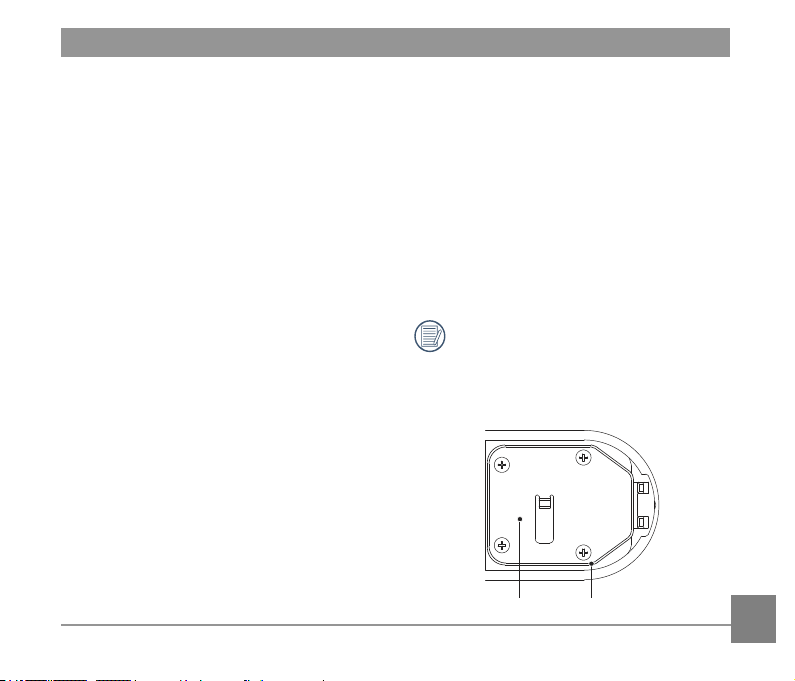
Waterproof rubber with scratches and
cracks will allow water to penetrate into
the product. Contact customer service
immediately for maintenance with
replacement of new waterproof rubber.
Rear Cover Waterproof Rubber
Waterproong Notes:
• Do not use the product below 10 meters
(32.8 feet) underwater. The product will
remain waterproof for one hour at the
depth of 10m (32.8 feet).
• Do not use this product in a geothermal
spring or in water at a temperature
greater than 40 °C.
• Please do not open the rear cover
underwater.
• If water accidentally comes in contact
with the product, please do not open the
rear cover immediately. Turn the product
off, and dry it with a clean, dry and lint
free cloth. Then open the rear cover, and
remove the battery and the memory card.
• When opening the rear cover, if there
are water drops on the contact surface
between the inside of the rear cover and
the body, please dry the water drops.
• After using the product in water or near
sand, mud or other foreign materials,
please rinse it with clean water (close the
rear cover when cleaning). After cleaning,
dry the product with a clean, dry and lint
free cloth.

6
Battery Notes:
• Use only the battery specied for this
product.
• If the battery overheats during charging
or use, stop charging or use immediately.
Turn off the product, remove the battery
carefully, and wait until it cools down.
• Please keep the battery contacts clean
and dry.
• Please install the battery according to the
positive and negative markings on the
battery compartment. Never force it into
the battery compartment.
• If battery uid leaks into the product,
please contact your retailer. If battery
uid leaks onto your skin, rinse your skin
immediately with clean water and seek
for medical attention.
• To prevent the battery from being
damaged, do not drop the battery, impact
it with heavy objects or scratch it with
sharp objects.
• Do not let the battery come in contact
with metal objects (including coins)
to avoid short circuiting, discharging,
excessive heat, or possible leakage.
• Do not heat the battery or throw it into a
re to avoid a possible explosion.
• When the product is stored for a long
period of time, please remove the battery.
• Do not store the battery in a hot
environment.
• In colder environments, the performance
of the battery may be noticeably reduced.
• Do not attempt to disassemble the
battery.
• Disposal of used batteries should be
carried out in accordance with the local
(national or regional) regulations.

7
Memory Card Notes:
• The memory card referred to in this
manual is Micro SD Card or Micro SDHC
card.
• Please buy a genuine memory card of a
well-known brand.
• Please keep the memory card clean and
dry.
• When inserting a memory card, make
sure the notch direction of the card
matches the notch direction of the
memory card mark near the card slot. Do
not force the memory card into the card
slot.
• Before using a brand new memory card,
please format the memory card rst.
• A photo or video taken with the product
will be stored in the folder that is
automatically generated on the memory
card. Do not store photos or videos that
are not taken using the product in these
folders in case that the les cannot be
normally recognized in playback.
• Do not directly edit the data on the
memory card. Copy the data to your
computer disk before editing.
• Do not modify the names of the les or
folders on the memory card using your
PC. Modifying the name of the les or
folders may cause the les to not be
recognized by the product or possibly an
error may occur.
• Please turn the product off before
removing the memory card. Otherwise,
the memory card could be damaged.
• When the product is stored for a long
period of time, please backup the data
on the memory card and remove the
memory card for storage.

8
Other Notes:
• Do not disconnect the power or turn the
product off during the update process.
Doing so may cause incorrect data to be
written and the product may not power on
later.
• When using your product on an airplane,
observe the relevant rules specied by
the airline.
• Due to the limitations of manufacturing
technology, the LCD screen may have a
few dead or bright pixels. These pixels
do no effect the quality of the photos or
video.
• If the LCD screen is damaged, pay
particular attention to the liquid crystal
in the screen. If any of the following
situations arise, take the recommended
immediate action indicated below:
1. If liquid crystal comes in contact with
your skin, please wipe with a dry cloth,
wash thoroughly with soap, and rinse
with plenty of clean water.
2. If liquid crystal gets into your eye, ush
the eye immediately with plenty of
clean water for at least 15 minutes and
then seek for medical assistance.
3. If liquid crystal is swallowed,
immediately ush your mouth
thoroughly with clean water and induce
vomiting. Seek for medical assistance.

9
Contents
Before You Start ....................................................................1
Safety Notes .......................................................................... 4
Contents ................................................................................9
Getting Ready........................................................................13
Accessories Included ........................................................................................ 13
Part Names ....................................................................................................... 15
Installing and Dismantling the Lens Cover .......................................................18
Installing Battery and Memory Card .................................................................20
Charging ...........................................................................................................22
Introduction to Various Button Functions ..........................................................23

10
Operation Method ..................................................................25
Turn On / Off .....................................................................................................25
Set your Language, Date and Time after the rst power-on ............................. 26
LCD Screen Display .........................................................................................27
Introduction to Basic Operation of Recording and Shooting ............................. 28
LCD Screen Display under Playback Status ....................................................30
Introduction to Basic Operation of Playback ..................................................... 31
Introduction to the Setting Mode of Menu Options ...........................................36
Menu Introduction .............................................................................................37
Introduction to General Settings .......................................................................38

11
Introduction to Mode Settings ...........................................................................43
Movie Settings Introduction ..............................................................................44
Still Settings Introduction ..................................................................................51
AP Settings Introduction ...................................................................................54
Connecting the Camera with the Smart Device.....................57
Download and Install App .................................................................................57
Establish a Connection .....................................................................................58
Smart Device APP Operating Method ...................................59
Position Service Function .................................................................................59
Remote Viewnder............................................................................................59

12
Playback ...........................................................................................................67
Connection Port Introduction ................................................. 82
Connect a Computer .........................................................................................82
HDMI Connected TV Output .............................................................................84
Appendices ............................................................................85
Specications ....................................................................................................85
Prompts and Warning Messages ......................................................................88
Trouble Shooting ...............................................................................................92
Special Accessories...............................................................93
13
Getting Ready
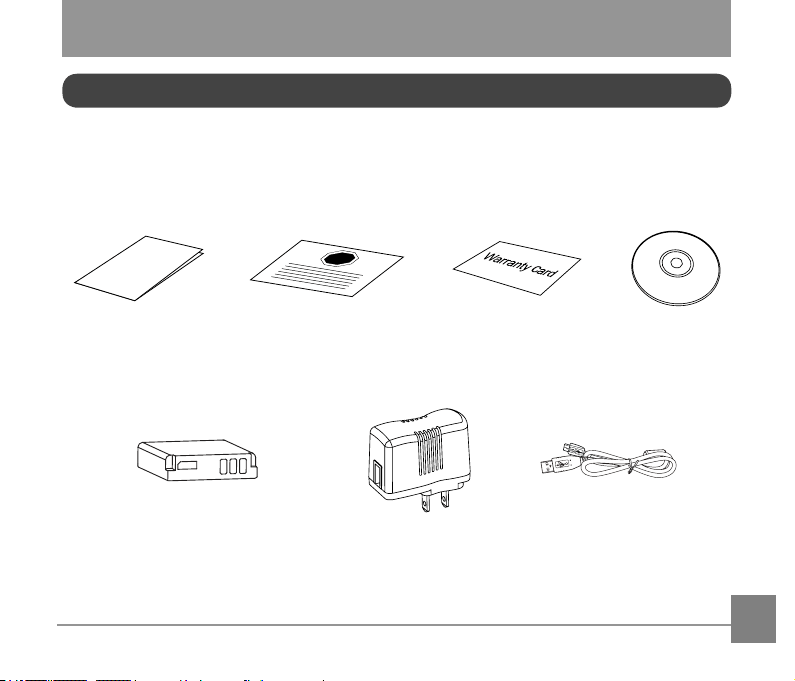
Your product box should contain the product you purchased along with the following
accessories. If anything is missing or appears to be damaged, please contact your retailer.
(Based on sales in different countries or regions, the shape of the AC adapter will vary. The
actual product will prevail.)
Accessories Included
USB Cable
CD-ROMWarranty Card
AC Adapter
Quick Start Guide
Quick Start Guide
STOP
Service Card
Rechargeable
Li-ion Battery
14
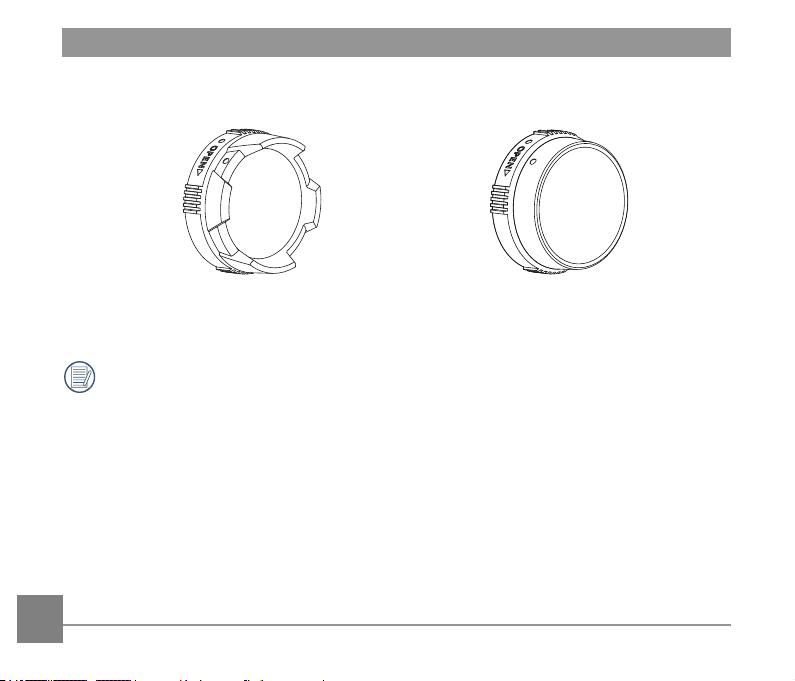
Standard Lens Cover Underwater Lens Cover
Standard Lens Cover has been installed on the product when leaving factory.
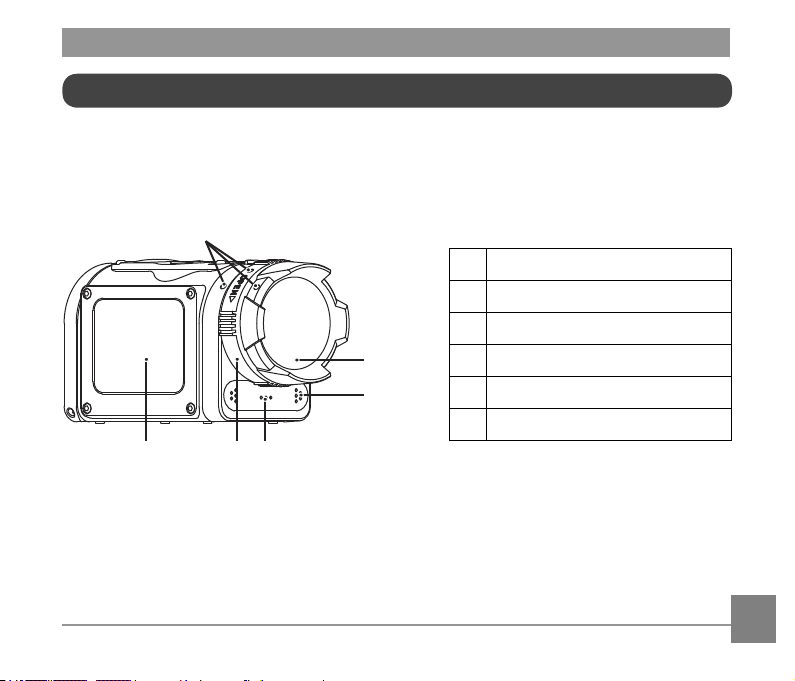
15
1 Alignment Point
2 Standard Lens Cover
3 Microphone
4 Speaker
5 Lens Cover Ring
6 LCD Screen
1
3
2
6
5 4
Part Names
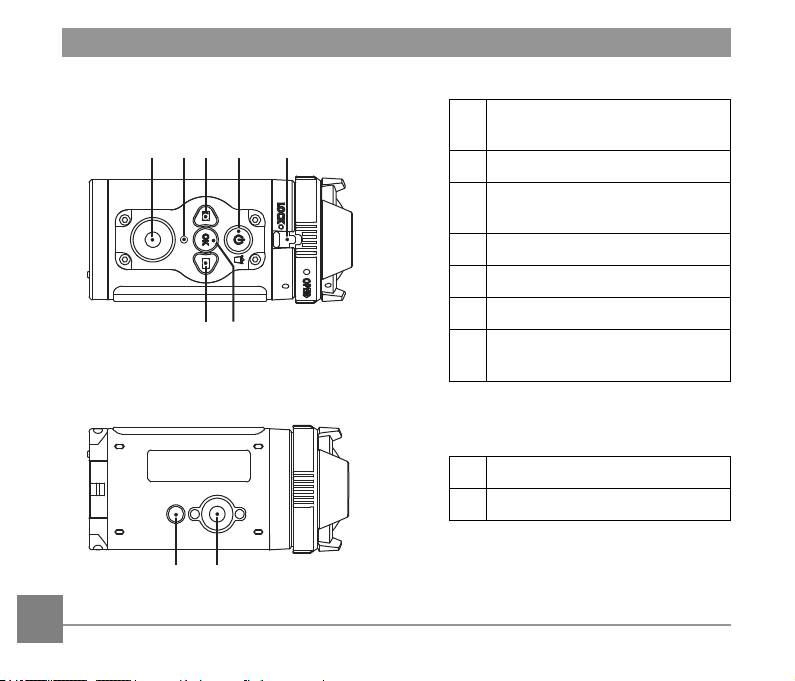
16
7
Video Recording Button /
Shooting Button
8 Status Indicator
9
Menu Button /
Direction Button (Upper)
10
Power Button / Delete Button
11 Lens Cover Buckle
12
OK Button
13
Playback Button /
Direction Button (Lower)
14 Tripod Socket
15 Location Hole
7 9 10 118
13
12
15 14
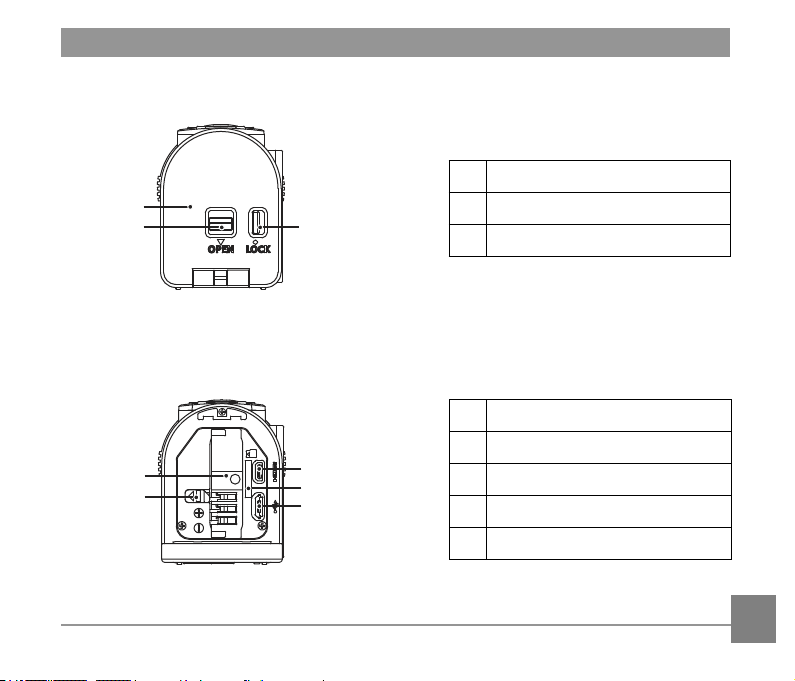
17
16 Rear Cover Open Switch
17 Rear Cover
18 Rear Cover Lock
19 Battery Lock
20 Battery Compartment
21 HDMI Port
22 Micro SD Card Slot
23 USB Port
17
16
18
19
20
21
22
23
Rear Cover Open Status
18
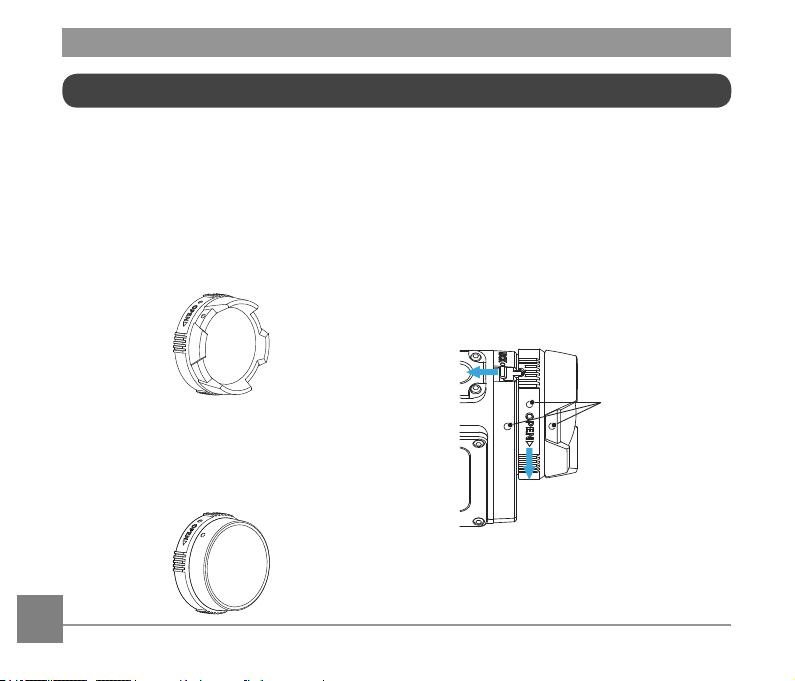
Installing and Dismantling the Lens Cover
Two types of replaceable lens covers are
provided for the product.
Standard Lens Cover:
Applicable for general use. Do not use
underwater.
Visual angle in the air is about 160°. Will not
focus underwater.
Underwater Lens Cover:
Applicable for use in water.
Visual angle in the air is about 130°, and
visual angle in water is about 90°.
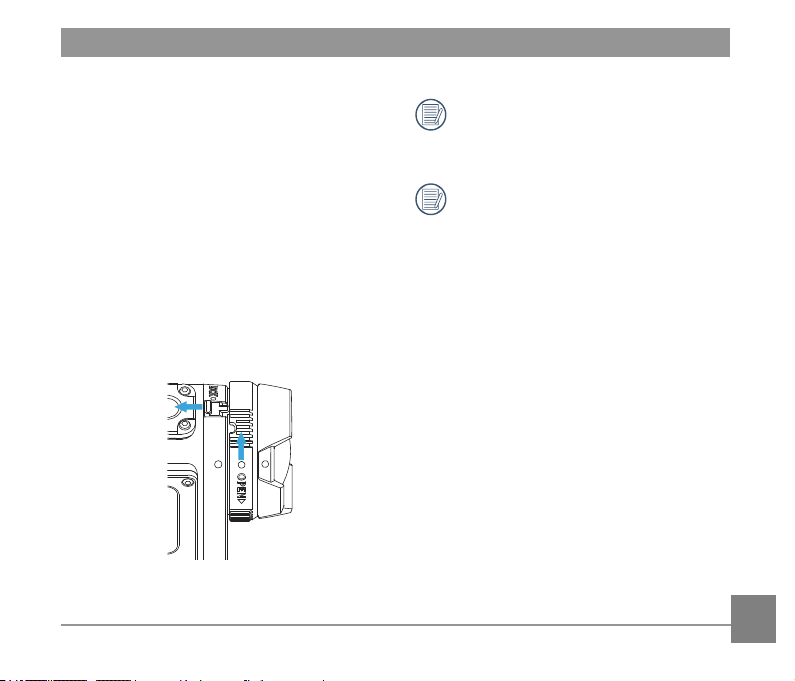
Steps for dismantling the lens cover:
1. Hold the product with your left hand, and
pull the lens buckle with your nger to the
left end as illustrated in the picture. Hold
the lens cover ring with your right hand
and rotate to the OPEN arrow direction.
2. When three alignment points are in a
straight line, loose your left hand from the
lens buckle, and remove the lens cover
from the right with your right hand.
①
②
Alignment Points
19
Please select appropriate lens cover
when taking videos and pictures,
otherwise it will affect the image effect.
When the product is exposed
to uctuations in temperature,
condensation may form on the inside
surface of the lens cover. If this
happens, remove the lens cover, clean
it with a soft, dry, lint-free cloth, and
then reinstall the lens.
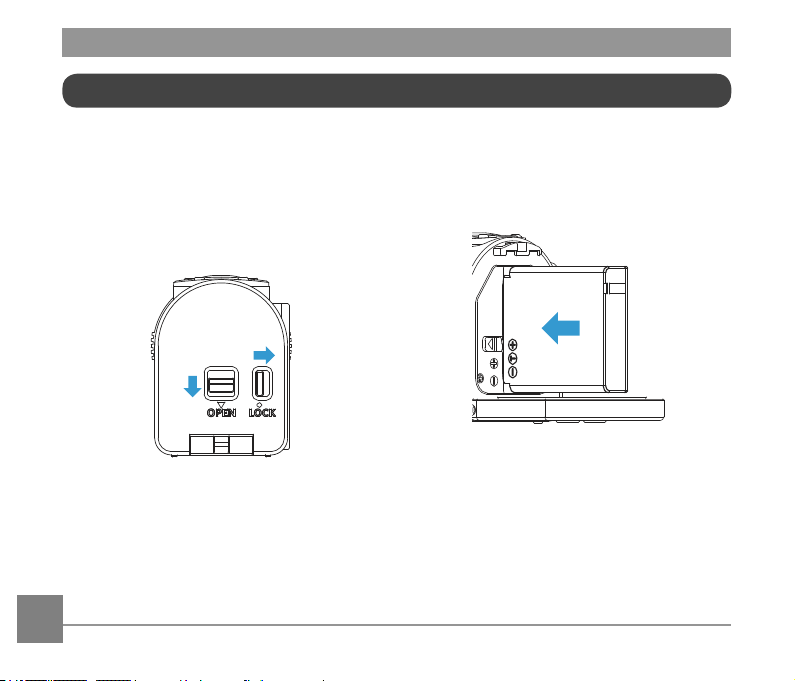
Steps for installing the lens cover:
1. Hold the product with your left hand, and
pull the lens buckle with your nger to the
left end as illustrated in the photo, hold
the lens cover ring with your right hand.
2. When three alignment points are in a
straight line, buckle the lens cover to the
lens, and rotate against the OPEN arrow
direction.
3. When the notch of the lens cover ring
is aligned with the lens buckle, loose
your left hand from the lens buckle, and
remove your right hand from the lens
cover.
①
②
20
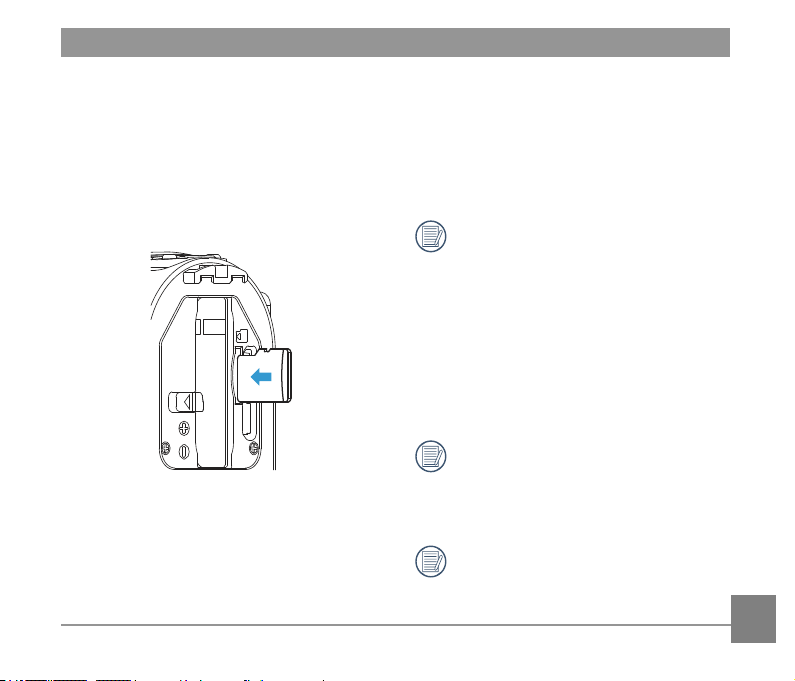
1. Open the rear cover
First, set the rear cover lock to the right,
and push the open switch of the rear
cover downward. Then rotate the rear
cover around the shaft direction to open
upward.
②
①
Installing Battery and Memory Card
2. Insert the battery into the battery
compartment according to the negative
and positive directions as illustrated in
the following picture.
21
4. Close the battery cover
First, rotate the back over around the
shaft direction to close upward. The rear
cover will “click” when tightly closed.
Finally, move the rear cover lock to the
left.
Memory card (refers to Micro SD card
or Micro SDHC card) is optional, which
is not included in the product package
and needs to be purchased separately.
Please purchase a genuine memory
card with a storage capacity range
of 4GB to 32GB, in order to ensure
the safe preservation of data. It is
recommended to use a memory card
of Class 4 or higher.
To remove the memory card, please
open the rear cover and gently push
the memory card. After it is ejected,
remove the card carefully.
The product will automatically turn
off if the memory card is inserted and
extracted when the product is on.
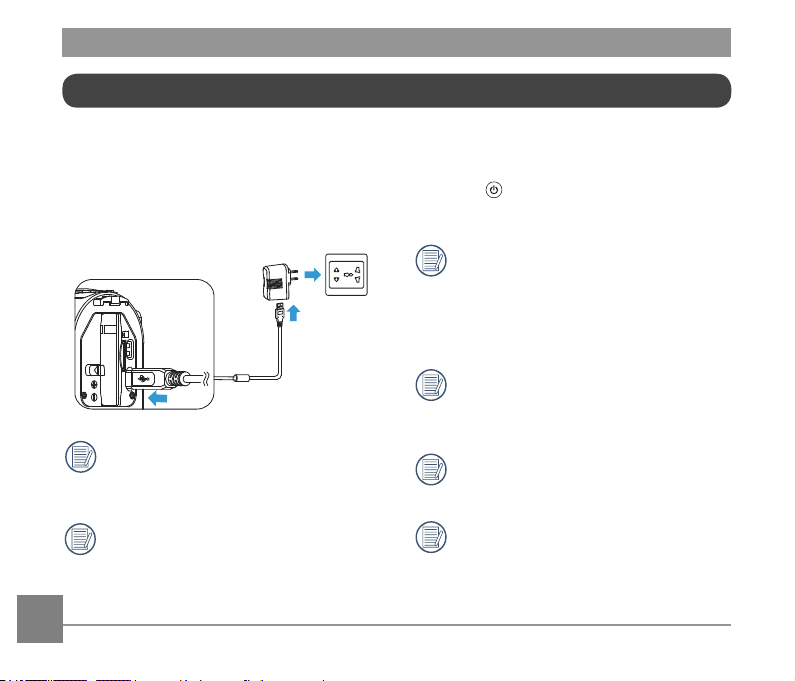
3. Insert the memory card into the card slot
according to the direction illustrated in
the picture when the product is turned
off. When inserting a memory card,
make sure the notch direction of the
card matches the notch direction of the
memory card over the card slot. Do not
force the memory card into the card slot.
22
Please charge after the product is turned off.
1. Connect the product to the AC adapter
with a USB cable.
2. Then insert the plug of the AC adapter to
the power outlet for charging.
After the battery is stored for a long
period, use the supplied AC adapter to
charge the battery prior to use.
You may use external power supplies
(output voltage of 5V, output current
of 1A), namely vehicle power supply
or mobile power pack to charge the
product.
3. You can also connect the product to your
computer with a USB cable to charge the
battery. If you press and hold the power
button
during charging to turn off the
product, the charging will be stopped.
Charging indicator:
Red ash: Charging
The indicator will go out once charging
is nished, and the Action Cam will be
powered off automatically.
To have maximum battery life, charge
the battery for at least 4 hours the rst
time.
Please charge the battery indoors
between 0°C and 40°C.
If connected to the computer USB port
of 100mA, the product will have no
response due to insufcient power.
Charging
23
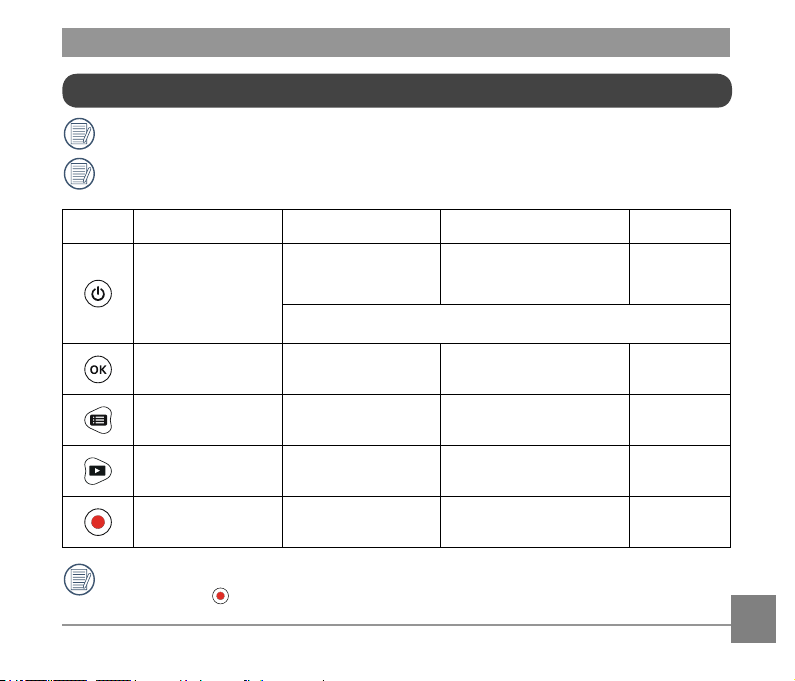
Introduction to Various Button Functions
Button Name Menu Status Viewnder Status Recording
Power Button /
Delete Button
No action
Display all information when the
it is hidden
No action
Press and hold: turn off the product
OK Button Conrm selection
Recording mode /
Shooting mode switch
No action
Menu Button /
Direction Button (Upper)
Switch upward Enter menu No action
Playback Button /
Direction Button (Lower)
Switch downward Enter single photo status No action
Video Recording Button /
Shooting Button
Enter viewnder status
(except Wireless feature)
Start recording /
Shooting a photo
Stop recording
Viewnder status refers to viewnder of recording and shooting.
To save power, if the product is not operated for a period, it will automatically enter the
LCD off status. Press any button can wake LCD.
In the viewnder status, when the Motion detection or
Time Lapse
function is set to be
enabled, press to enter the state of preparing for video recording.
24
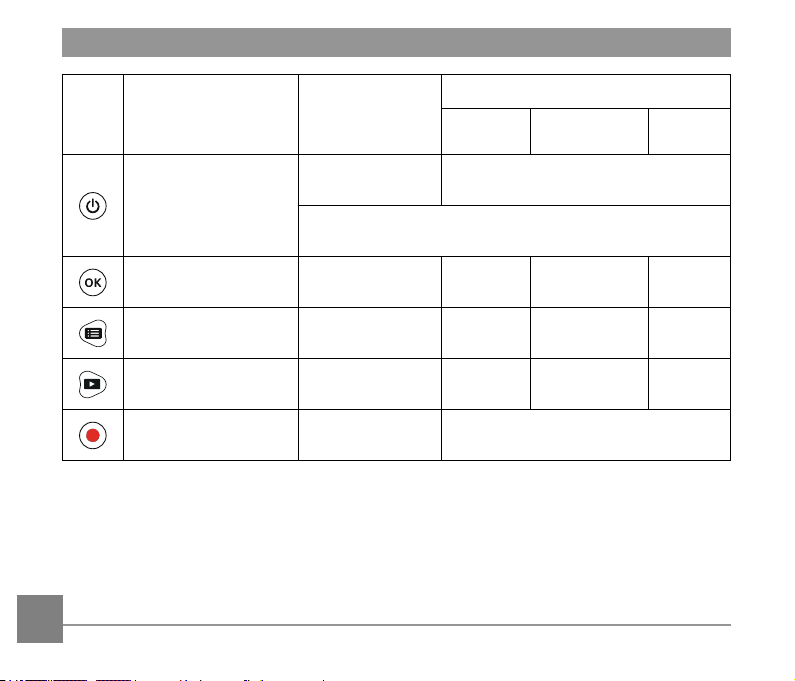
Button Name Single Photo
Movie Playback
Playing Back
Fast Forwarding /
Rewinding
Pausing
Power Button /
Delete Button
Delete Back to the initial state of the movie
Press and hold: turn off the product
OK Button
Photo le: no action
Movie le: start playback
Pause
Normal speed
playback
Continue to
play back
Menu Button /
Direction Button (Upper)
Previous File Rewind Rewind
Previous
Frame
Playback Button /
Direction Button (Lower)
Next File Forward Forward Next Frame
Video Recording Button /
Shooting Button
Enter viewnder status
No action
25
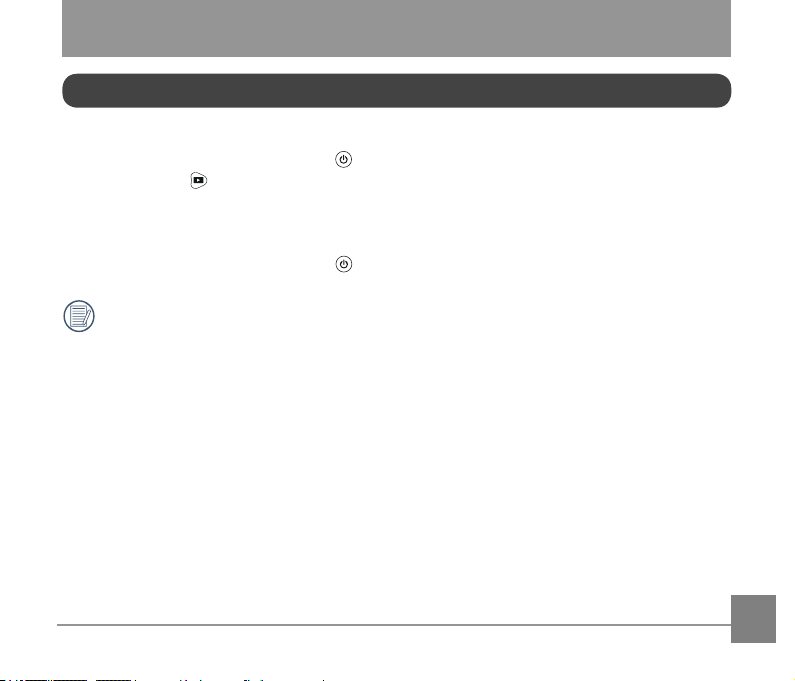
Turn On / Off
Turn on:
When the power is off, press and hold for more than 2 seconds to turn on the product;
or press and hold for more than 2 seconds to turn on the product and enter the playback
status.
Turn off:
When the power is on, press and hold for more than 2 seconds to turn off the product.
If the product cannot be turned on / off normally, you can remove the battery for forced
power cut.
Operation Method
26
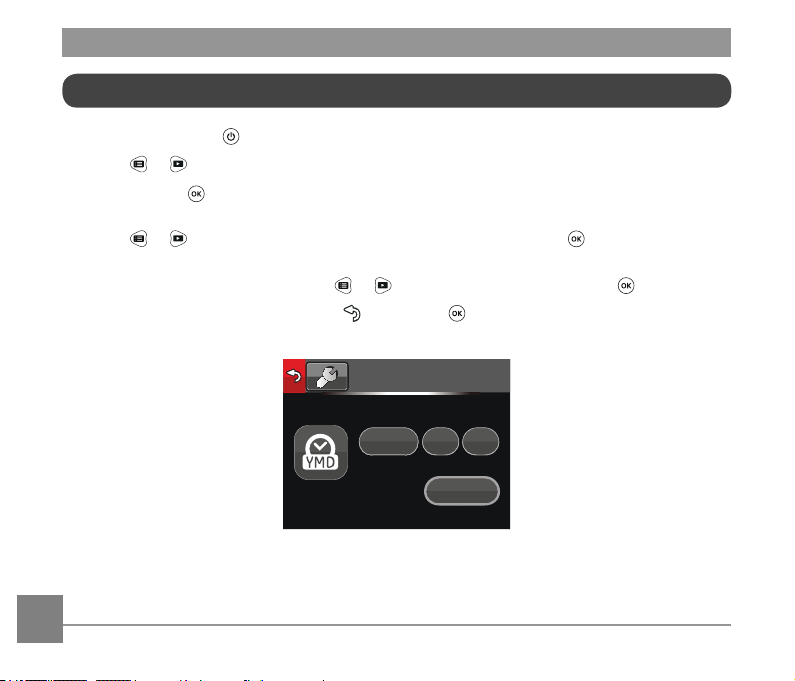
Set your Language, Date and Time after the rst power-on
1. Press and hold the to turn on the product and enter the language selection screen;
2. Press
or to select language;
3. After pressing
button to select desired language, the product will enter「Date / Time」
setting screen;
4. Press
or to adjust the date and time display format, and press to conrm the
display format;
5. In the date and time options, press
or to adjust the values, and press to conrm;
6. After conrming, automatically go to
, and press to conrm, and enter the viewnder
status.
Date / Time
:
2170
00 00
H-M
2013
27
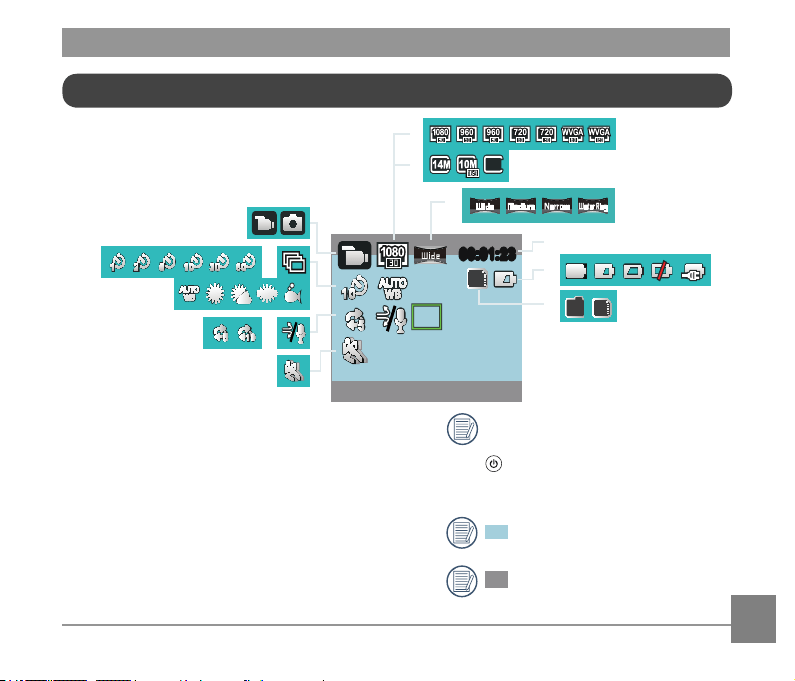
1. Mode Display
2. Time Lapse Display
3. Burst Shot Display
4. White Balance Display
5. Loop recording
Display
6. Wind Cut Display
7. Motion detection
Display
LCD Screen Display
8. Movie Size Display
9. Still Size Display
10. Field of View Display
11. Remaining Recording
Time Display / Number of
remaining shots Display
12. Battery Status Display
13. Internal Memory /
Memory Card Display
Some icons will automatically hide
after a 2 second display. Press
to display all current setting
Message.
Indicates 16:9 display range.
Indicates 4:3 display range.
00:01:2300:01:23
SD
1.
7.
2.
8.
9.
5M
10.
12.
13.
I N
SD
3.
5.
6.
4.
11.
28
Introduction to Basic Operation of Recording and Shooting
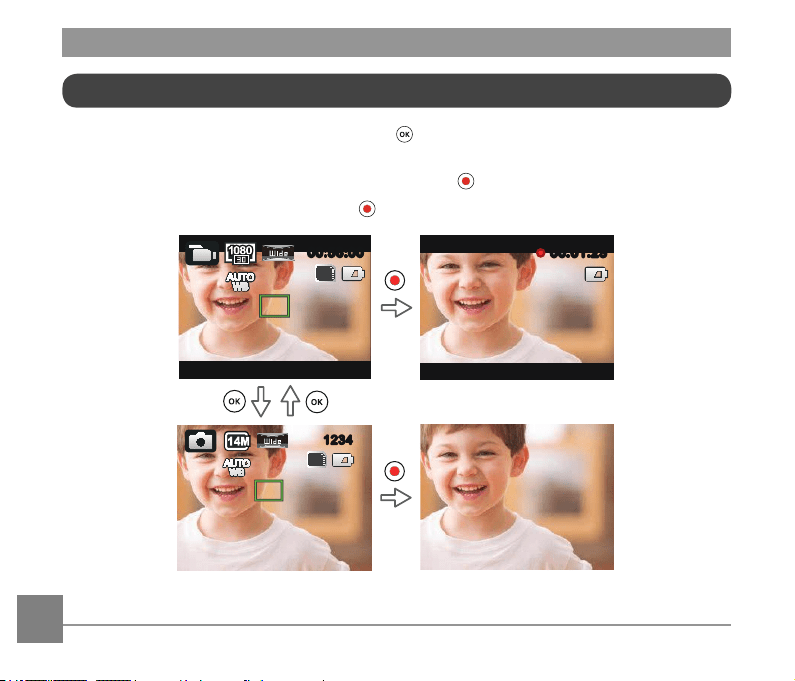
1. Enter the viewnder status mode, and press to switch between recording mode and
shooting mode;
2. Align the lens to the object to be recorded, and press
for recording or shooting;
3. Under the recording mode, repress the
to stop recording.
SD
12341234
00:01:2300:01:23
00:56:0000:56:00
SD
29
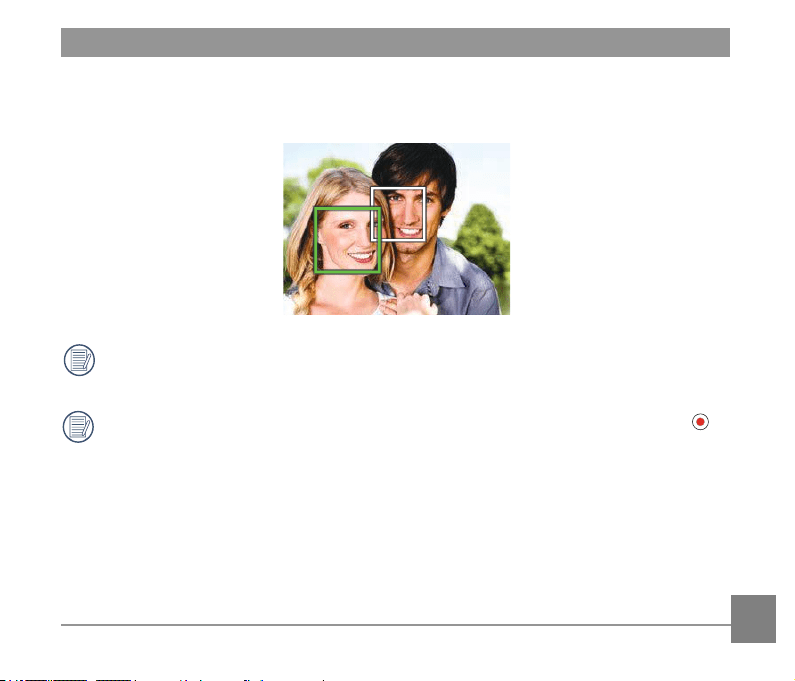
Under shooting mode status, when the product detects a human face, a green focus frame will
appear. When two or more human faces are detected, a green main focus frame and a white
secondary focus frame will appear.
When the product rotates around the lens axis for 180°, the display screen on the LCD is
positive display.
When in still and video record mode, the LCD may turn off to save power. Pressing
will turn on the LCD and immediately initiate / terminate recording. Pressing any other
button will only turn on the LCD.
30
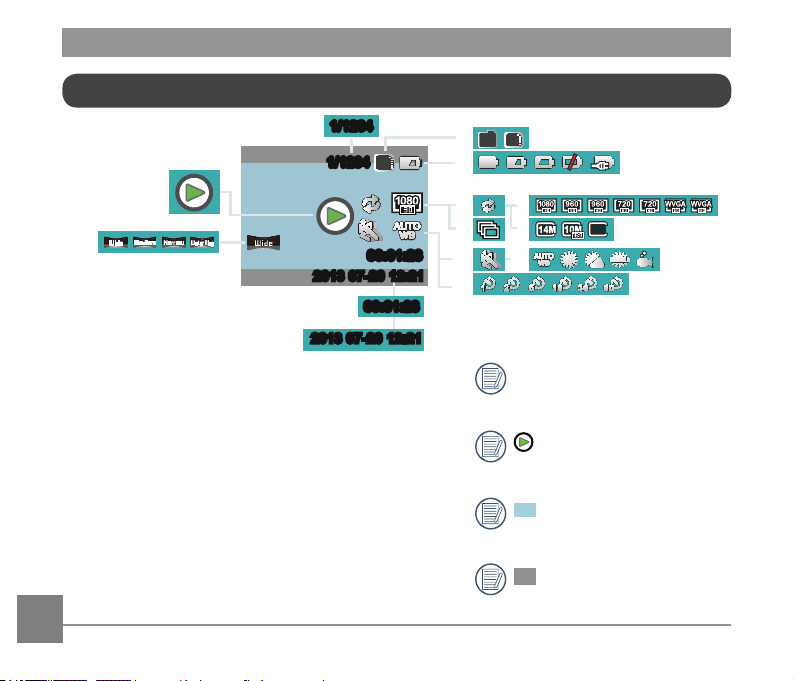
1. Movie Display
2. Field of View Display
3. Memory Card or Internal
Memory Display
4. Battery Status Display
5. Loop recording Display
6. Burst Shot Display
7. Movie Size Display
8. Still Size Display
9. Motion detection Display
LCD Screen Display under Playback Status
10. White Balance Display
11. Time Lapse Display
12. Display of Current number
of Shots / Total Number of
Shots
13. Movie Time Length
Display
14. Shooting Time and Date
Display
Some icons will automatically
hide after a 2 second display.
Only displayed when
playing back the movie le.
Indicates 16:9 display
range.
Indicates 4:3 display
range.
00:01:2300:01:23
1/1234
1/1234
SD
10.
9.
11.
1.
3.
4.
I N
SD
12.
13.
00:01:2300:01:23
1/1234
1/1234
7.
8.
5M
6.
5.
14.
2.
2013 07-20 12:212013 07-20 12:21
2013
07-20 12:212013 07-20 12:21
31
Introduction to Basic Operation of Playback
Single Photo:
1. When in viewnder status mode, press to enter the playback status of video and
pictures;
2. Display movie or picture les on the LCD screen;
3. Press
or to view the movies or pictures stored in the memory card or internal
memory.
Press
to return to the viewnder status.
When the memory card is inserted, only les in the memory card will be displayed, les
on internal memory will not be available to display.
If there are no les in the memory card or internal memory, a no image warning window
will appear.
?
32
Movie Playback:
1. Select movie to be played back, and press to start movie playback.
00:00:4700:00:47 00:01:2300:01:23
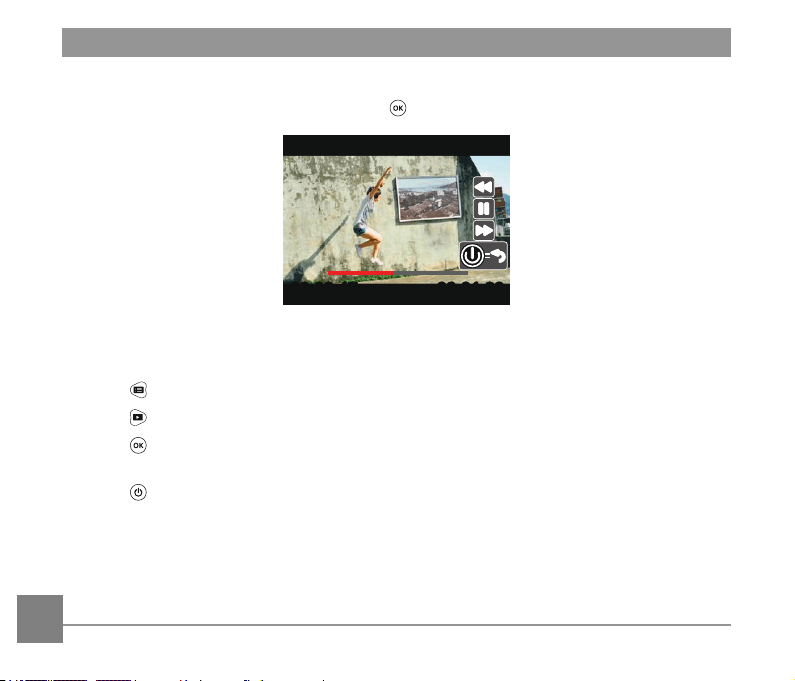
2. When playing back the movie, an operation guidance will appear on the screen. You can
press buttons to perform the corresponding functions.
Press
: Movie playback rewind, multiple presses will fasten the speed: x2 / x4 / x8 / x16
Press
: Movie playback forward, multiple presses will fasten the speed: x2 / x4 / x8 / x16
Press
: Under normal playback mode, the movie playback will be paused; under the
forward, rewind or pause status, normal speed playback will be recovered
Press
: Movie playback back to the initial state
33
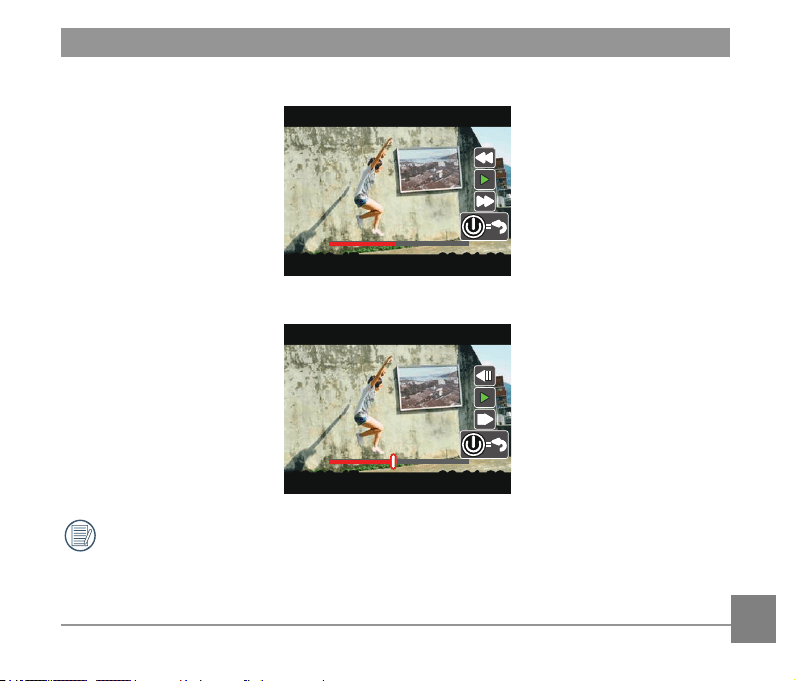
Movie playback rewind or forward:
00:00:4700:00:47 00:01:2300:01:23
Movie playback pause:
00:00:4700:00:47 00:01:2300:01:2300:00:4700:00:47 00:01:2300:01:23
There will be no sound output during rewinding or forwarding.
34
Movie or Picture Delete:
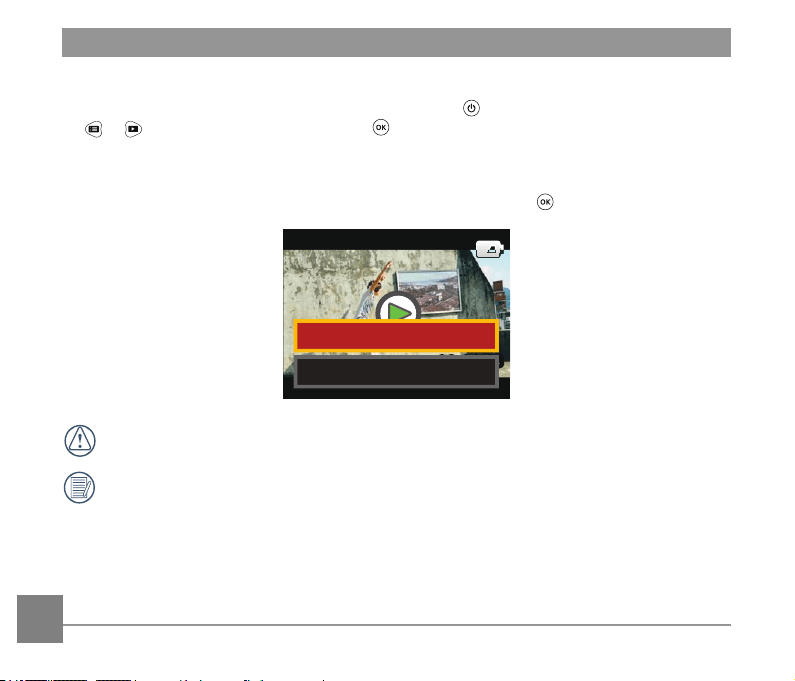
1. Select the movies or photos to be deleted, and press to enter the Delete screen. Press
or to select 「Delete」, and press to conrm.
2. After a movie or a photo is successfully deleted, the LCD will display the next movie or
photo. If you wish to delete additional les, please continue per item 1 above.
3. If you want to exit the Delete screen, select 「Exit」, and press
to conrm.
00:01:2300:01:23
*KRKZK
+^OZ
Movie and / or pictures cannot be restored after being deleted.
A protected le cannot be deleted.
35
Rotation:
The direction sensor comes with the product can automatically adjust the direction during le
playback according to the rotating direction detected during shooting, in order to ensure that
what you see are positive images.
The direction of rotation refers to the direction rotating around the lens center clockwise
or counterclockwise. Only when the direction sensor detects that the product has rotated
for 180°, the rotation feature is effective. Rotation of 90° or 270° is invalid.
The product will record the detected 180 ° rotation information in a le. When you use a
player supporting rotation tag identication (such as Quick Time) for playing, the image
can be automatically converted to positive.
36
Introduction to the Setting Mode of Menu Options
1. Under the viewnder status, press to enter rst-level menu interface of the menu;
2. Press
or to select「Mode Settings」, 「Movie Settings」, 「Still Settings」, 「AP
Settings」 and 「General Settings」;
3. Press
to conrm, and to enter the corresponding secondary level menu interface;
4. Select items with * on the secondary level menu, and press
to conrm and to enter the
tertiary menu interface;
5. Select 「Movie」 or 「Shot」 or 「Exit」 in the secondary menu, and press
conrm to
back to the rst level menu interface.
In the menu interface (except for the Wireless connecting status), press
to return to
the viewnder status.
37
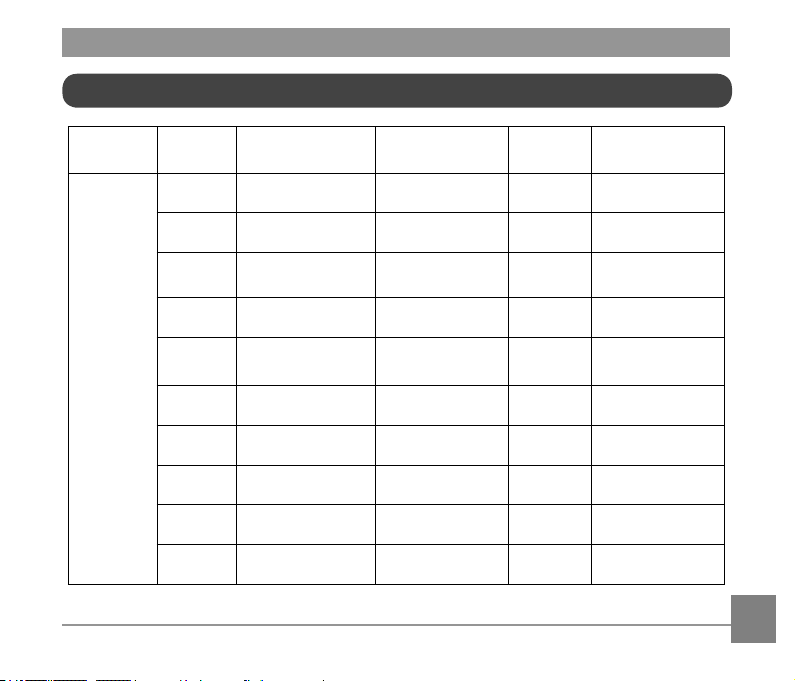
First Level
Menu
Mode
Settings
Movie Settings Still Settings
AP
Settings
General Settings
Secondary
Level
Menu
Movie * Movie Size * Still Size * Sound Settings
Shot *
Time Lapse
* Burst Shot * Power Off
* Loop recording * Field of View
* Wireless Power
Saving
* Field of View * White Balance * Date / Time
* Motion detection Exit * Language
* Wind Cut * Format
* White Balance * Copy to Card
Exit * Reset Settings
* FW Version
Exit
Menu Introduction
38
Introduction to General Settings
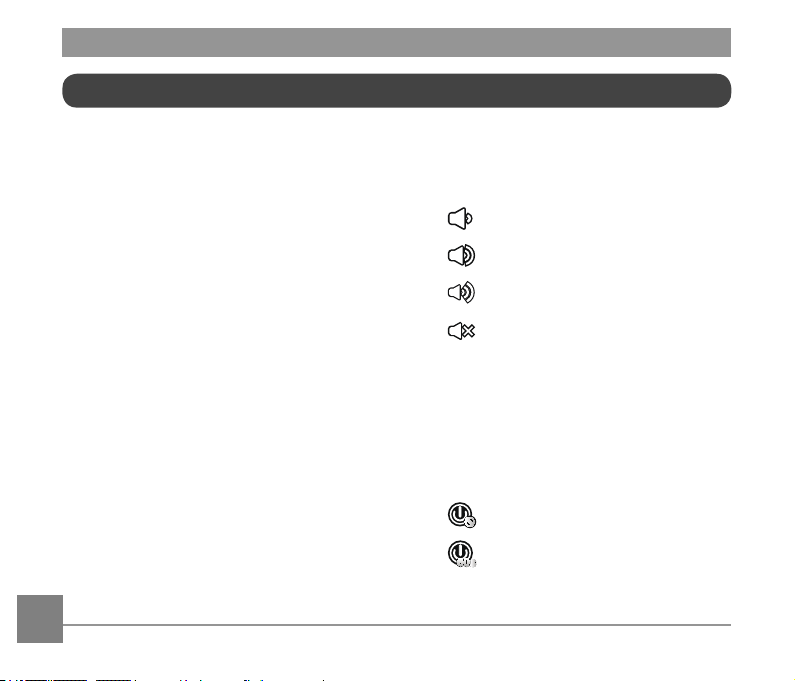
10 options in the 「General Settings」 of the
rst level menu:
• 「Sound Settings」
• 「Power Off」
• 「Wireless Power Saving」
• 「Date / Time」
• 「Language」
• 「Format」
• 「Copy to Card」
• 「Reset Settings」
• 「FW Version」
• 「Exit」
Sound Settings
There are 4 options in the 「Sound
Settings」:
•
Volume 1
•
Volume 2
•
Volume 3
•
Off
Power Off
Power Off means the product will
automatically shut down after 60 seconds
after the LCD is off.
There are 2 options in 「Power Off」:
•
Off
•
60 seconds
39
The Power Off will be invalid during
recording, movie playing back and
wireless connecting.
Wireless Power Saving
Wireless Power Saving mode means that
after 30 seconds of remote-controlled
recording with the APP, the wireless
connection will automatically disconnect, but
the product will continue to record. Wireless
power saving mode will prolong battery life.
There are 2 options in 「Wireless Power
Saving」:
•
Off
!
Off
•
!
ON
Enable
Date / Time
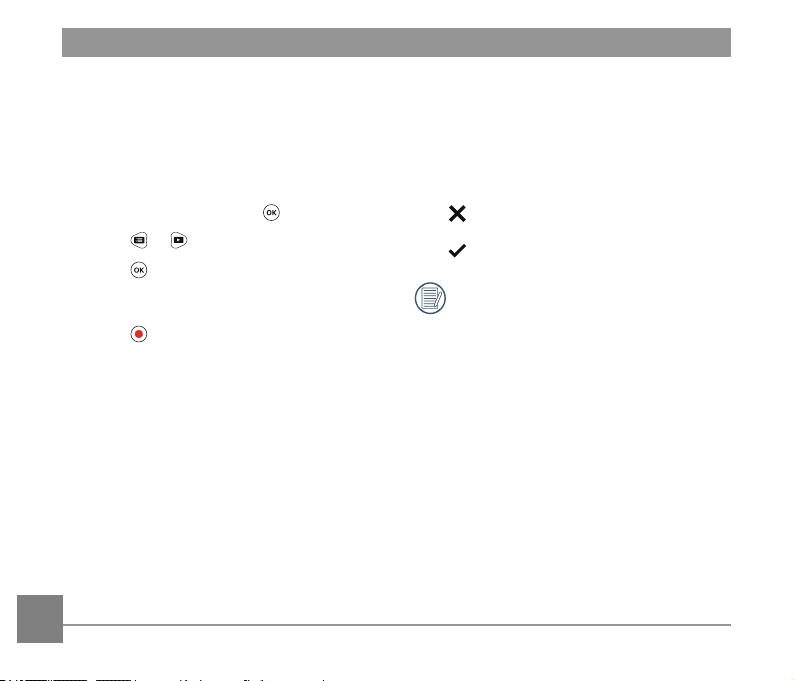
Date and time can be set during the rst
power on cycle. If you wish to change the
date or time thereafter, please operate as
the following.
1. Enter the 「Date / Time」in the
secondary level interface and press
to
conrm;
2. Press
or to adjust the date and
time display format, and press to
conrm the display format;
3. In the date and time options, press
or
to adjust the values, and press to
conrm;
4. After the setting is completed, select
, and press to conrm and back to
「Date / Time」in the secondary level
interface;
5. Press
to return to the viewnder
status.
40
Language
The language can be set during the rst
power on cycle. If you wish to change the
language thereafter, please operate as the
following.
1. Enter the 「Language」 in the secondary
level interface and press
to conrm;
2. Press
or to select language;
3. Press
to conrm and back to
「Language」 in the secondary level
interface;
4. Press
to return to the viewnder
status.
Format
Format can clear all data stored in the
memory card or memory (including protected
movies and photos).
There are 2 options in 「Format」:
•
Cancel
•
Conrm
When a memory card is inserted, only
the card can be formatted. If you need
to format the internal memory, remove
the memory card rst.
41
Copy to Card
Copy to Card is to copy the les in the
internal memory to the memory card
There are 2 options in 「Copy to Card」:
•
Cancel
• Conrm
When the memory card cannot be
detected by the product, options will
not be displayed on the 「Copy to
Card」 interface.
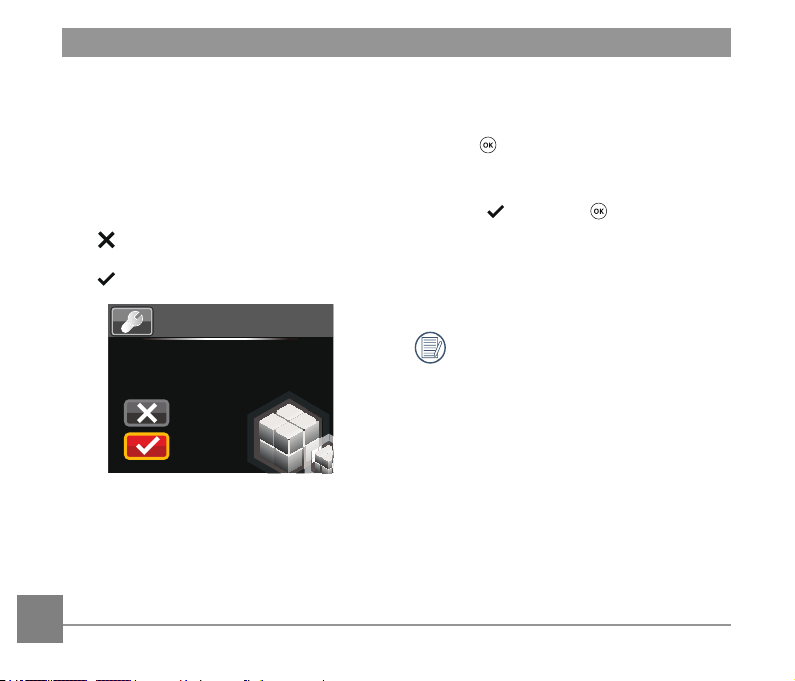
Reset Settings
Reset Settings can recover all product
settings to the factory defaults.
There are 2 options in the 「Reset
Settings」:
•
Cancel
•
Conrm
42
The following operation needs to be followed
to update the rmware:
1. Enter the FW Version interface, and
press
to enter the tertiary level
menu「Update the rmware? 」. LCD
will display 「New version: X.XX」;
2. Select
, and press to conrm. The
product will start to update;
3. Whether the update is successful or
failed, the product will automatically shut
down.
If the low battery warning is displayed,
charge the battery before updating the
rmware.
FW Version
FW Version can display the current version.
When a new version is stored in the memory
card, the rmware can be updated.
There are 2 options in 「Update
rmware? 」:
•
Cancel
•
Conrm
Update Firmware?
New Ver:
x.xx
43
Mode Settings method of operation:
1. After selecting
or options, press
to conrm.
2. Press
to enter the viewnder status,
and display your selected or
status.
Under the viewnder status, directly
press
, to perform or status
switch.
Introduction to Mode Settings
2 options in the 「Mode Settings」 of the
rst level menu:
•
「Movie」: for recording movies
•
「Still」: for shooting photos
44
Movie Settings Introduction
There are 8 options in First Level menu
「Movie Settings」:
• 「Movie Size」
• 「Time Lapse」
• 「Loop recording」
• 「Field of View」
• 「Motion detection」
• 「Wind Cut」
• 「White Balance」
• 「Exit」
Movie Size
Movie Size refers to the image resolution
during recording.
There are 7 options in「Movie Size」:
• 「1080p30」 : 1920×1080 (30fps)
• 「960p50」 : 1280×960 (50fps)
• 「960p30」 : 1280×960 (30fps)
• 「720p60」 : 1280×720 (60fps)
• 「720p30」 : 1280×720 (30fps)
• 「WVGA60」 : 848×480 (60fps)
• 「WVGA120」 : 848×480 (120fps)
When selecting 「WVGA120」,
the product shoots ultra high speed
movies, and plays back with normal 30
fps speed, in order to capture visually
indistinguishable moments easily.
When selecting 「WVGA120」,
the maximum recordable time is 60
seconds, when the time reaches 60
seconds, the product will automatically
stop recording and return to the
viewnder state.
45
When selecting 「WVGA120」, the sound cannot be recorded.
When selecting 「WVGA120」, 「Time Lapse」, 「Loop recording」or「Motion
detection」 cannot be enabled.
When selecting「WVGA60」, 「Time Lapse」 or 「Loop recording」 cannot be
enabled.
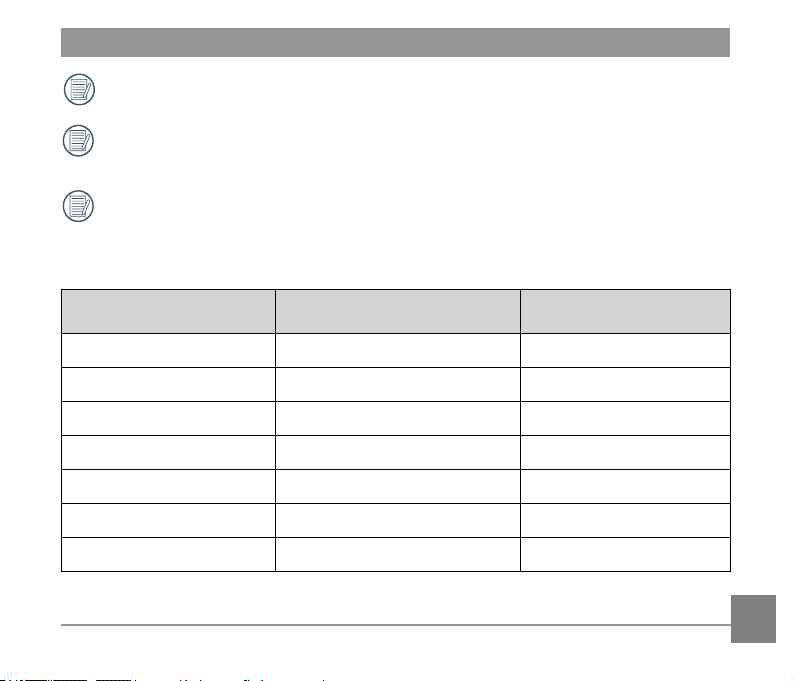
The maximum recording time of a 4GB memory card:
Movie Size Memory card volume
The maximum recording
time is about
1080p30
4GB 32 minutes
960p50
4GB
32 minutes
960p30
4GB
50 minutes
720p60
4GB
35 minutes
720p30
4GB
64 minutes
WVGA60
4GB 64 minutes
WVGA120
4GB 35 minutes
46
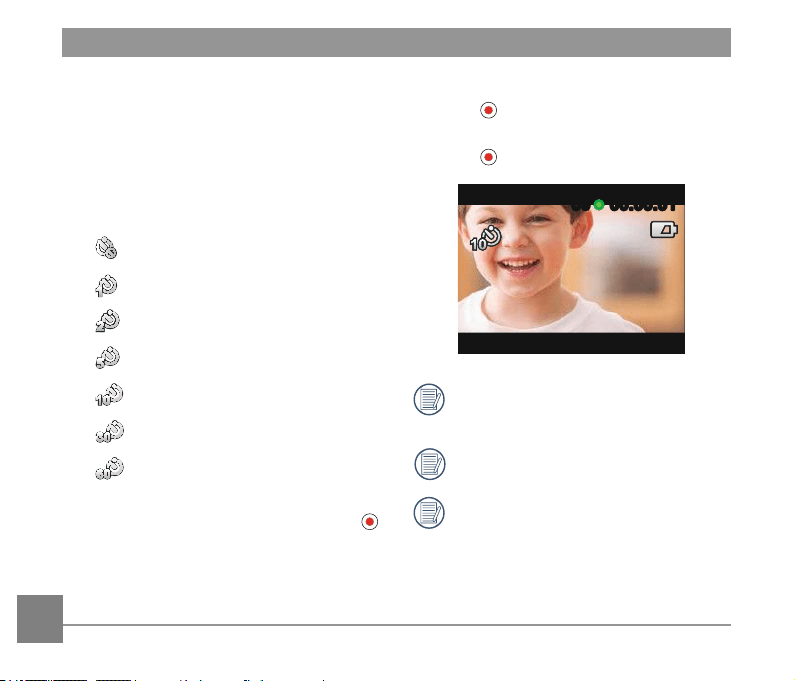
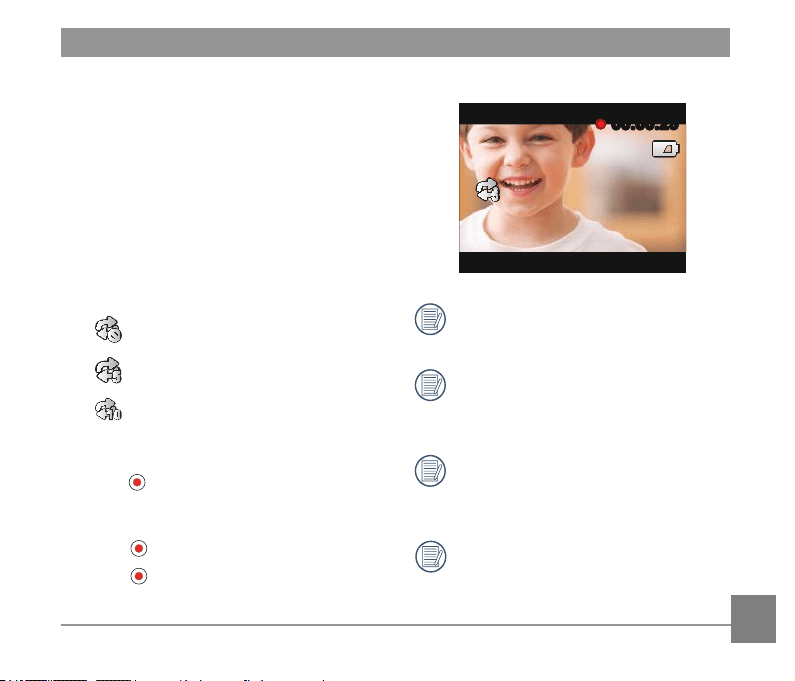
2. Press , the LCD will display red font
time countdown;
3. Press
again to nish recording.
00:00:0100:00:010909
Movie Size cannot be selected as
WVGA120 or WVGA60.
The sound cannot be recorded.
When Loop recording or Motion
detection is enabled, the Time Lapse
feature cannot be used.
Time Lapse
Time Lapse enables the recording of an
interval of time, and splices the frames
together to present a condensed video
which usually requires a long period of time
to complete.
There are 7 options in 「Time Lapse」:
•
Off
• 1 second
•
2 seconds
•
5 seconds
•
10 seconds
•
30 seconds
•
60 seconds
Time Lapse method of operation:
1. After selecting Time Lapse time, press
to back to the viewnder status. LCD will
display corresponding icons;
47
Loop recording
Loop recording allows for the recording of
independent segments of movies according
to selected time length from the beginning of
recording. The product will continually record
movies of the length selected until the
record button is pressed to end recording.
When the memory card is full, the product
will overwrite the recorded les starting from
the rst movie circularly.
There are 3 options in 「Loop recording」:
•
Off
•
5 minutes
•
10 minutes
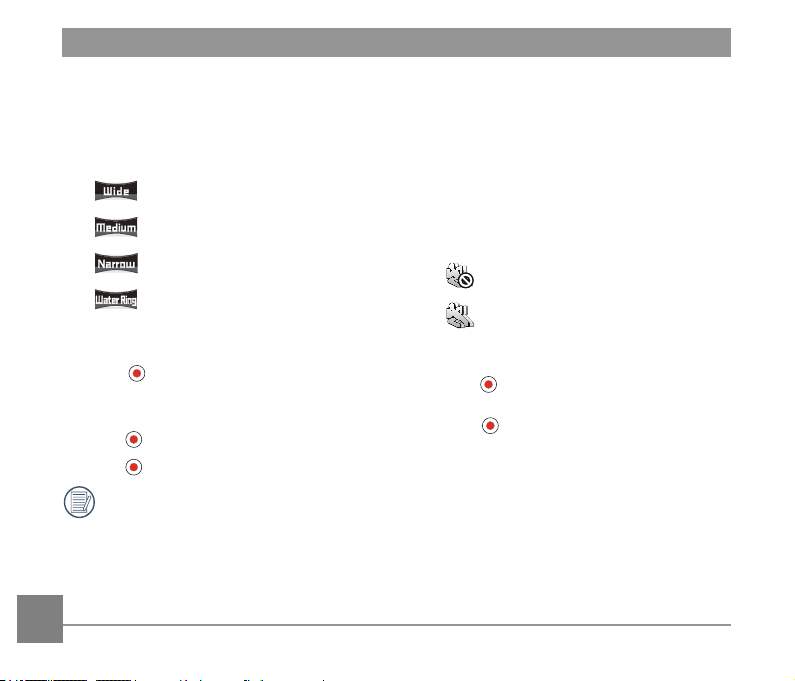
Loop recording method of operation:
1. After selecting Loop recording time,
press
to return to the viewnder
status. LCD will display corresponding
icons;
2. Press
to start recording;
3. Press
again to nish recording.
00:00:2300:00:23
Movie Size cannot be selected as
WVGA120 or WVGA60.
When Time Lapse or Motion detection
is enabled, the Loop recording feature
cannot be used.
Loop recording feature can only be
used when there is a memory card in
the product.
Turn off the product when the Loop
recording function is enabled and then
restart the product. You’ll nd the Loop
recording function is still enabled.
48
Field of View
Field of View means the image receiving
angle for the product.
There are 4 options in 「Field of View」:
•
Ultra Wide
• Medium
•
Narrow
• Water Ring
Field of View method of operation:
1. After selecting the Field of View angle,
press
to return to the viewnder
status. LCD will display corresponding
icons;
2. Press
to start recording;
3. Press
again to nish recording.
Medium or Narrow can only be
selected when the Movie Size is set
to 「1080p30」. If a Movie Size other
than 「1080p30」is selected under
Medium or Narrow status, the product
will automatically set the Field of View
to Ultra Wide.
Motion detection
Motion detection means that if the product
detects moving objects entering into the
LCD screen, it will automatically start
recording. During the recording process, if
there is no moving object detected for 10
continuous seconds, the recording will be
automatically paused.
There are 2 options in 「Motion detection」:
•
Off
•
Enable
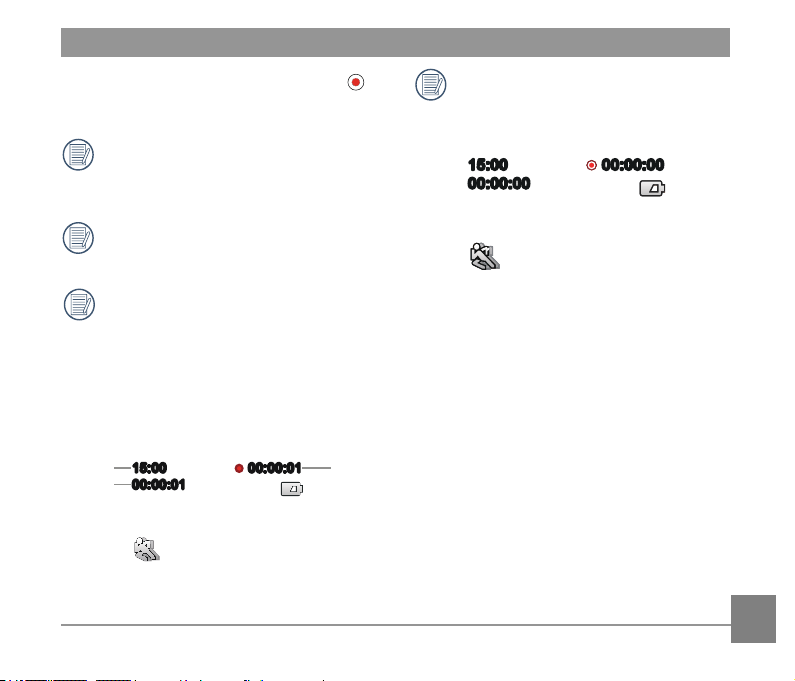
Motion detection method of operation:
1. After the Motion detection is enabled,
press
to back to the viewnder status.
LCD will display corresponding icons;
2. Press
, if the product detects moving
objects, it will automatically start
recording;
3. The product will stop recording when
there is no change in the image within
10seconds;
4. When the image changes again, the
product will start recording automatically,
and this time it will regenerate a video
le;
49
5. During recording, you may press the
to stop recording.
When the Motion detection feature
is enabled, Time Lapse or Loop
recording setting cannot be performed.
Movie Size cannot be selected as
WVGA120.
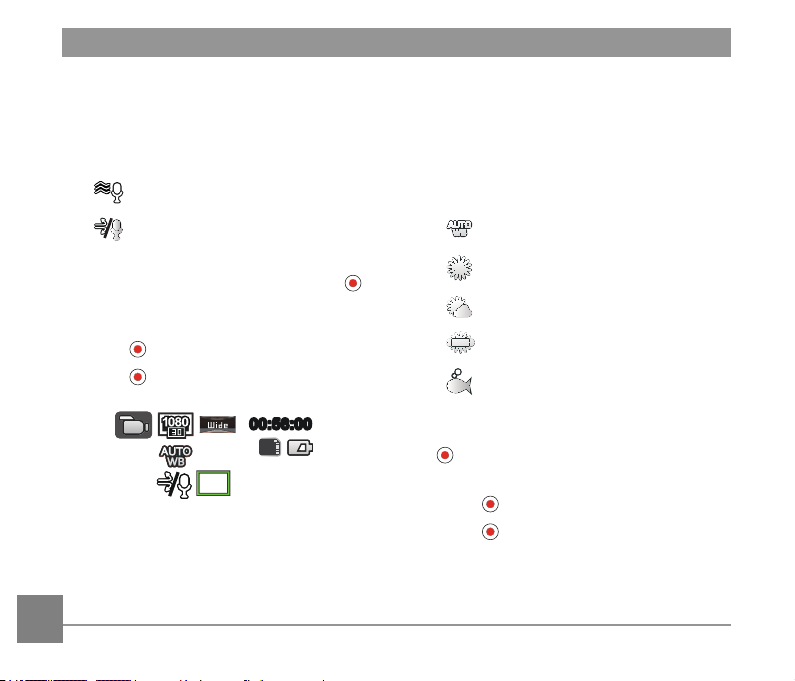
Motion detection interface icon:
① Indicates the total time of
recording
② Indicates the time of the product
③ Indicates the total time from the
beginning of recording
00:00:0100:00:01
00:00:01
00:00:01
15:00
15:00
①
②
③
When the memory card is full, ① will
become red font and ashes for 2
seconds.
00:00:0000:00:00
00:00:00
00:00:00
15:00
15:00
50
Wind Cut
Wind Cut refers to the reduction of noise
caused by wind.
There are 2 options in 「Wind Cut」:
•
Off
•
Enable
Wind Cut method of operation:
1. After the Wind Cut is enabled, press
to return to the viewnder status. LCD will
display corresponding icons;
2. Press
to start recording;
3. Press
again to nish recording.
00:56:0000:56:00
SD
White Balance
White Balance means that the user adjusts
the color temperature under different light
sources to ensure that the colors are
reproduced correctly.
There are 5 options in 「White Balance」:
•
AWB
•
Daylight
• Cloudy
•
Fluorescent
•
Underwater
White Balance method of operation:
1. After the White Balance is enabled, press
to return to the viewnder status. LCD
will display corresponding icons;
2. Press
to start recording;
3. Press
again to nish recording.

51
Still Settings Introduction
There are 5 options in First Level menu 「Still Settings」:
• 「Still Size」
• 「Burst Shot」
• 「Field of View」
• 「White Balance」
• 「Exit」
52
Still Size
The Still Size indicates the number of pixels
used to capture the images. A photo having
higher image resolution contains more details
and is capable of better meeting big-screen
ne photo printing requirements.
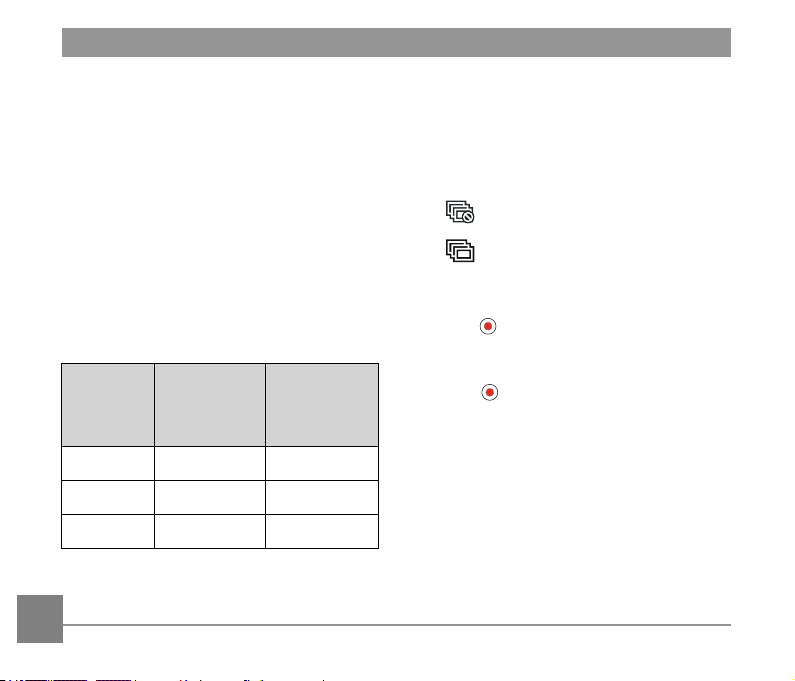
There are 3 options in 「Still Size」:
• 「14MP」 : 4320×3240(4:3)
• 「10MP」 : 4320×2432(16:9)
• 「5MP」 : 2592×1944(4:3)
Number of photos that can be stored on a
4GB memory card:
Still Size
Memory card
volume
Approximate
maximum
number of
images
14MP
4GB 913 shots
10MP
4GB
1211 shots
5MP
4GB
2398 shots
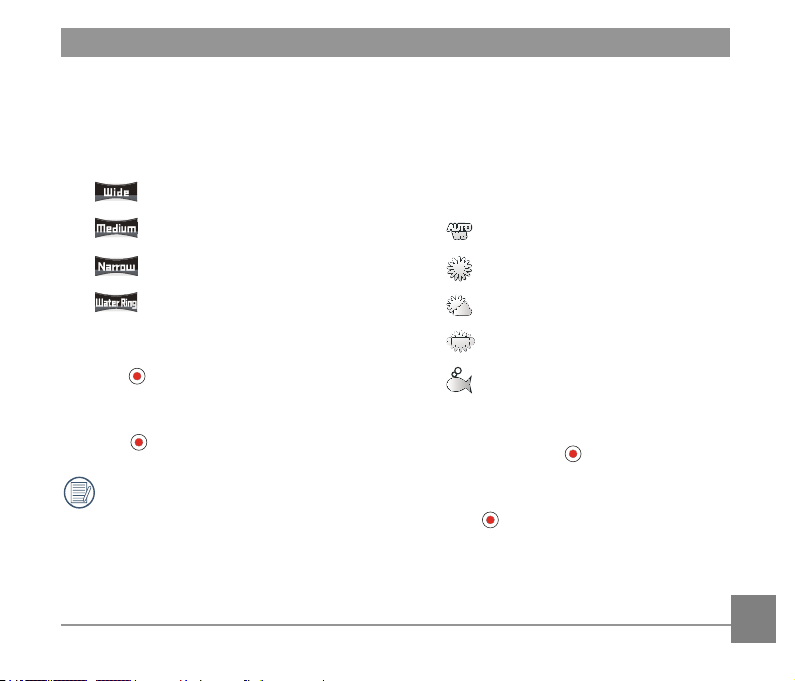
Burst Shot
Burst Shot allows ten photos to be captured
continuously one single time before auto
pause.
There are 2 options in「Burst Shot」:
•
Off
•
Enable
Burst Shot method of operation:
1. After Enable in Burst Shot is selected,
press
to return to the viewnder
status, LCD will display corresponding
icons;
2. Press
to enable Burst Shot shooting. It
will stop after 10 photos are taken.
53
White Balance
White Balance means that the user adjusts
the color temperature under different light
sources to ensure that the colors are
reproduced correctly.
There are 5 options in 「White Balance」:
•
AWB ( Auto White Balance )
•
Daylight
• Cloudy
•
Fluorescent
•
Underwater
White Balance method of operation:
1. After an option of the White Balance
is selected, press
to return to the
viewnder status. LCD will display
corresponding icons;
2. Press
to shoot.
Field of View
Field of View means the image receiving
angle range of the product.
There are 4 options in「Field of View」:
•
Ultra Wide
•
Medium
•
Narrow
•
Water Ring
Field of View method of operation:
1. After selecting the Field of View angle,
press to return to the viewnder
status. LCD will display corresponding
icons;
2. Press
to shoot.
When the image size is set to「5MP」,
Medium and Narrow cannot be
enabled.

54
AP Settings Introduction
The action cam can be wirelessly connected
with your smart device.
Please review the following items before your
rst connection:
1. Your smart device system version needs
to be iOS 7 or higher and Android 4.2 or
higher. If not, please upgrade your smart
device system version.
2. Please do not use in places having high
intensity magnetic eld, electrostatic and
electric wave interference (for example
near a microwave oven), which may
cause failure in receiving signals.
3. Please maintain a distance between the
action cam and the smart device less
than 10 meters (32.8 feet) without signal
shielding interference.
4. Please do not use wireless connection
functionality on a plane.
5. The action cam and the smart device can
only be connected one to one.
6. When the smart device judges the
system to be out of memory, the App will
not be able to run normally. Please clean
up the memory of the smart device.
7. When the temperature of the battery is
higher than 68 °C :
① AP setting cannot be enabled;
② Wireless connection will be
automatically disconnected.
55
Step 2: setting up the smart device
1. Enable the wireless function of the smart
device to search surrounding wireless
devices;
2. Select the name of the action cam to be
connected (PIXPRO-SP1_XXXX), and
input the eight-digit digital password
displayed next to WPA2-PSK on the
action cam;
3. Download the special APP installation
package (APP name: PIXPRO SP1) from
the device appropriate APP store, and
install;
4. Click the icon of the APP
to enable
the APP.
Step 3: set up completion
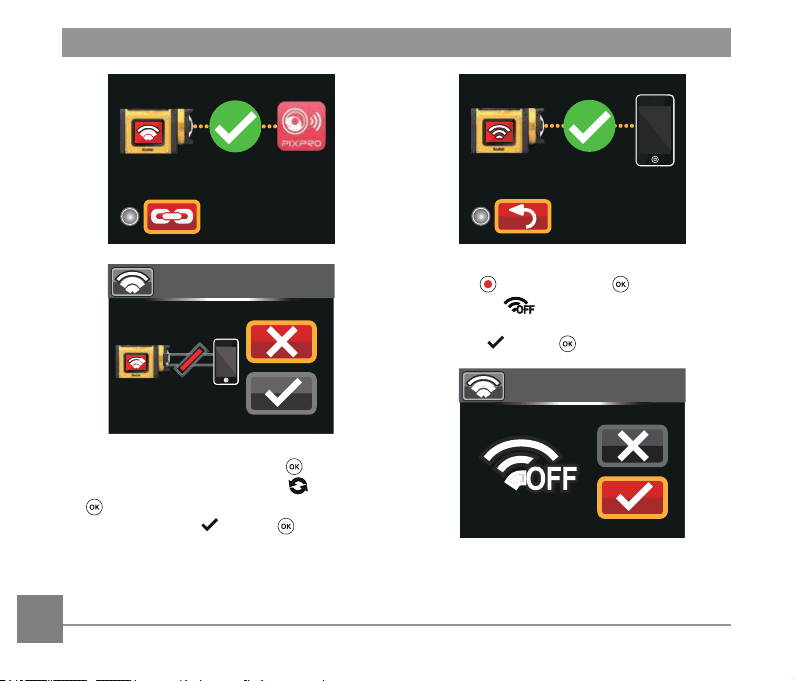
1. Once the APP is connected to the
action cam, functional operations can
be enabled on the smart device. If there
is a need to interrupt the connection,
press , so that the selection interface
appears, select , press , interrupt
connection, and return to the SSID
interface;
Connection setting method of the
product and the smart device:
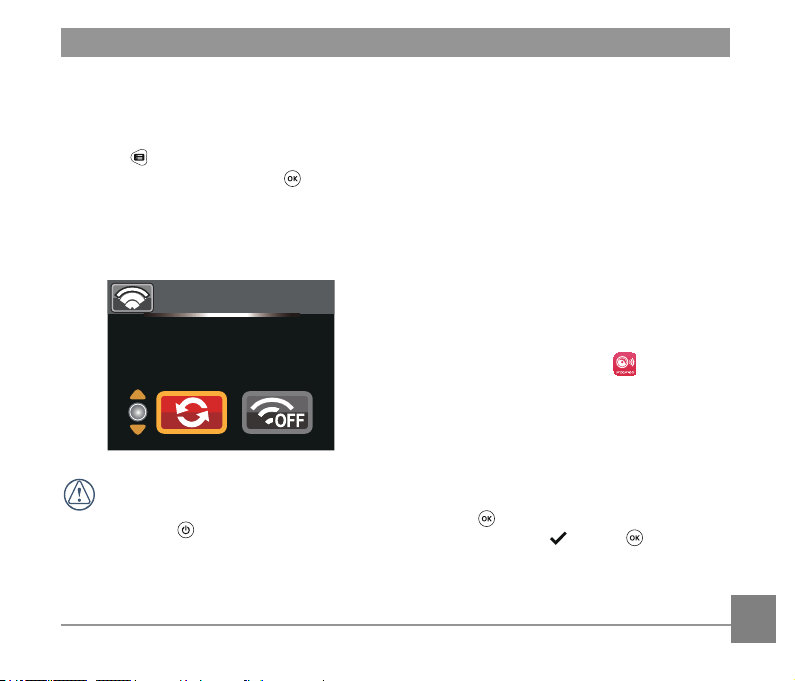
Step 1: setting up the product
1. Press
in the viewnder status, select
「AP Settings」, and press to enable
wireless connection function so that the
SSID interface in 「AP mode」 appears.
SSID and WPA2 password messages are
displayed in the interface.
AP mode
SSID:PIXPRO-SP1_1234
WPA2-PSK:12345678
Wireless connection process takes
about 30 seconds. At this moment,
except for , other buttons are
deactivated.
56
3. If there is a need to turn off wireless,
press button or press after
selecting in the SSID interface so
that the selection interface appears.
Select , press to turn off wireless.
AP mode
AP mode
2. If connect APP failed, press to return
to the SSID interface, select , press
, so that the selection interface
appears, select , press . This
will change the WPA2 password. Next,
perform connection operation again on
the smart device;
57
Connecting the Camera with the Smart Device
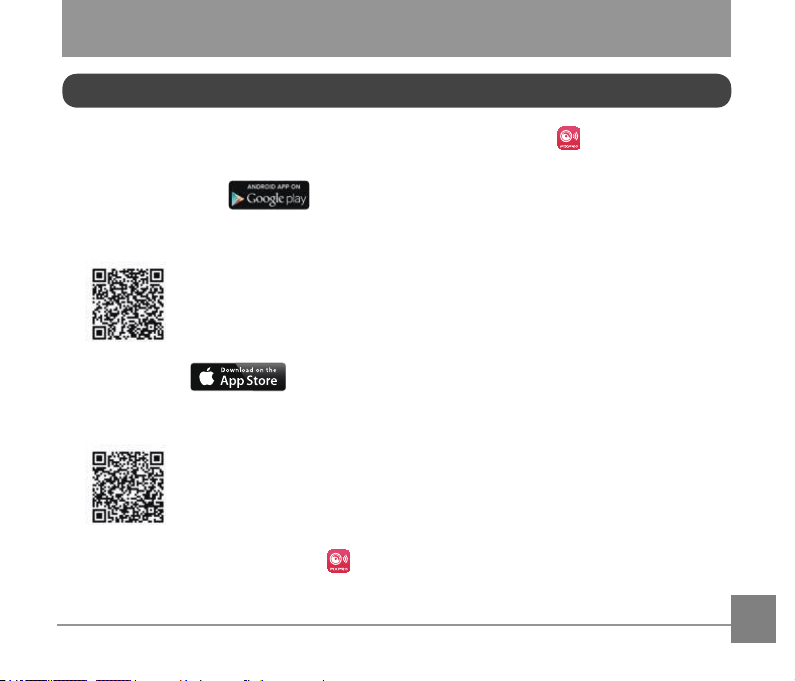
Please download App installation package (App name: PIXPRO SP1) to your smart device
from the path below and install it.
•
Android system
For Android devices, search and download the App “ PIXPRO SP1” in Google play, and
install it following the instructions on the interface.
• iOS system
For Apple devices, search and download the App “ PIXPRO SP1” in App store, and install it
following the instructions on the interface.
After successful installation, this icon will appear on the smart device screen.
Download and Install App
https://play.google.com/store/Apps/details?id=com.
jkimaging.pixproremoteviewer
https://itunes.Apple.com/us/App/pixpro-remote-viewer/
id833154167?mt=8
58
Wi-Fi Connections (iOS System and Android System)
To optimize Wi-Fi performance, please close other unnecessary programs running on
the smart device.
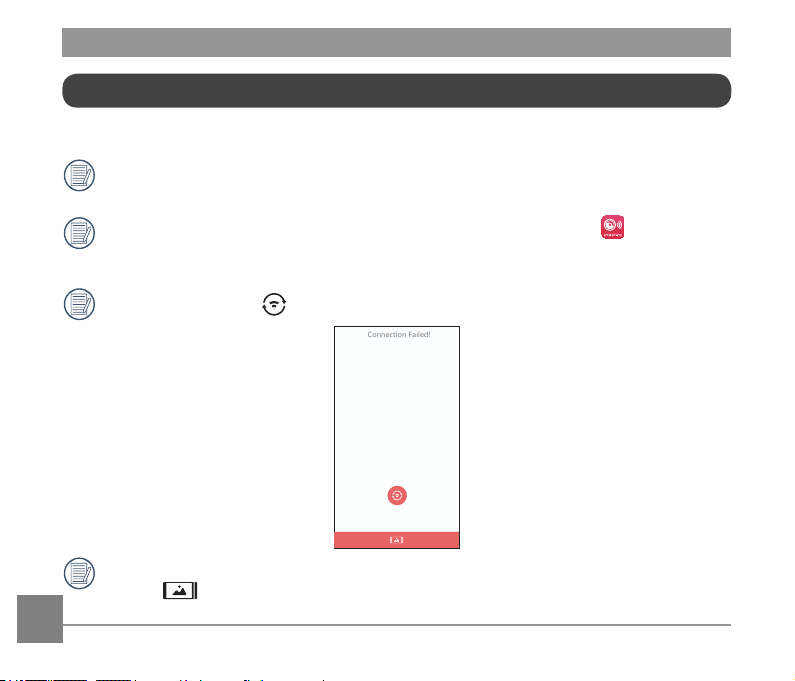
For an Android system smart device, you can directly tap the App icon
to enter
the "Select connecting device" screen. Select the SSID name of the camera to be
connected, enter an eight-digit password, and tap "Connect".
If connection fails, tap
to try to reconnect.
XXXXXXXXXXXXXXXXXXXX
•XXXXXXXXXXXXXXXXX
•XXXXXXXXXXXX
•XXXXXXXXXXX
•XXXXXXXXXXXXXXXXX
•XXXXXXXXXXXXXXXXXXXXXXXXXXXXXXX
XXXXXXXXXXXX
Connection Failed!
When it is unnecessary to connect to the camera or unable to connect the camera, tap
the icon on the screen of the smart device to perform related operations under the
playback mode of the smart device.
Establish a Connection
59
Smart Device APP Operating Method
Position Service Function
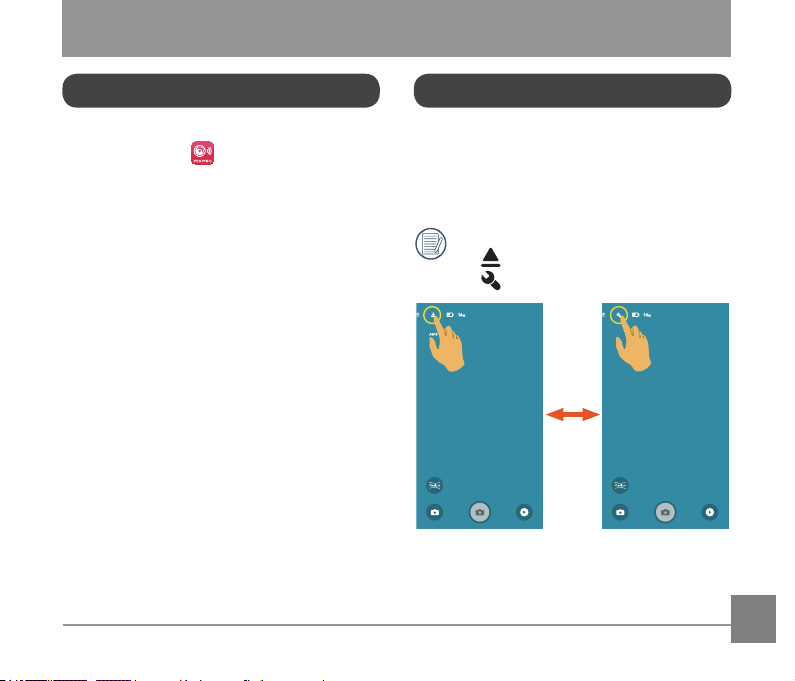
When connected successfully, you can
tap the App icon (
) to start it. Enable
the GPS function on the smart device by
following the prompts on the interface,
PIXPRO SP1 can record GPS location on
picture les. This function is not available for
video les.
Remote Viewnder
After nishing setting position service, the
App will enter the viewnder interface.
Camera functions can be accessed from this
screen.
On the Remote Viewnder interface,
tap
White balance icon to hide, and
tap to restore display.
1234567 1234567
60
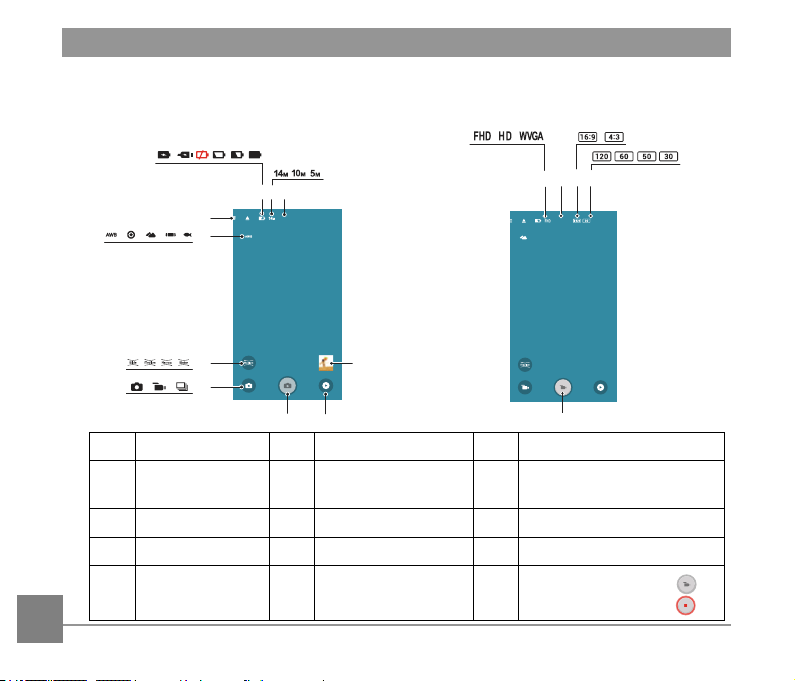
Remote Viewnder Interface
1234567
1
2
3
4
5 6 7
910
8
12:34:56
11 121214
15
Shooting Interface
Movie Interface
1 Shooting mode 6 Image size 11 Movie size
2 Angle 7
Number of photos
that can be taken
12 Recordable video time
3 White balance 8 Quick Review 13 Pixel ratio
4 Menu 9 Playback mode 14 Frame rate
5 Battery state 10 Shutter 15
Start video recording
/
Stop video recording
61
Parameter Settings
Tap the icon to enter the selection screen, and tap any of the options to conrm
selection.
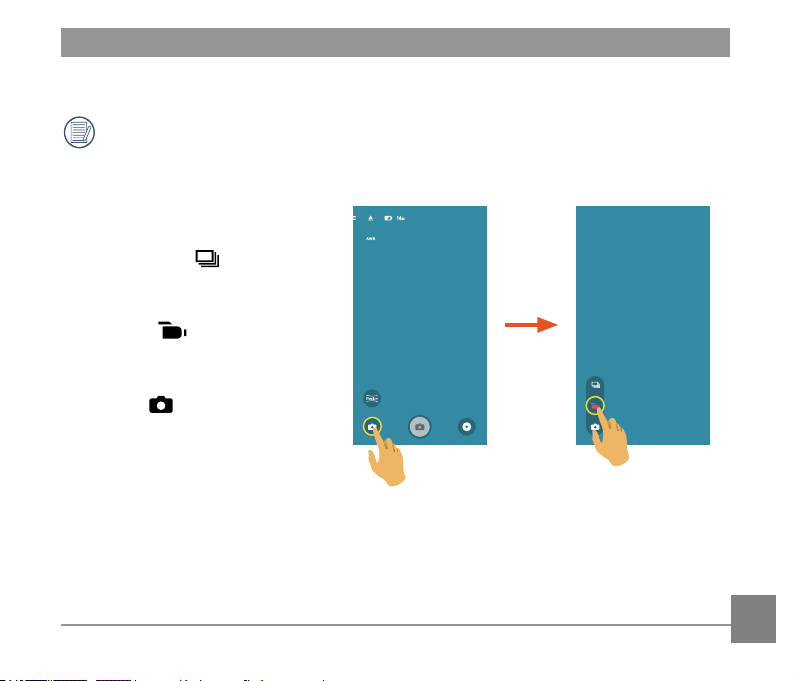
Shooting Mode
There are 3 options:
Continuous Shot
It can take several photos at a time.
Movie Mode
Enables video recording.
Auto Mode
Enables photo shooting.
1234567
62
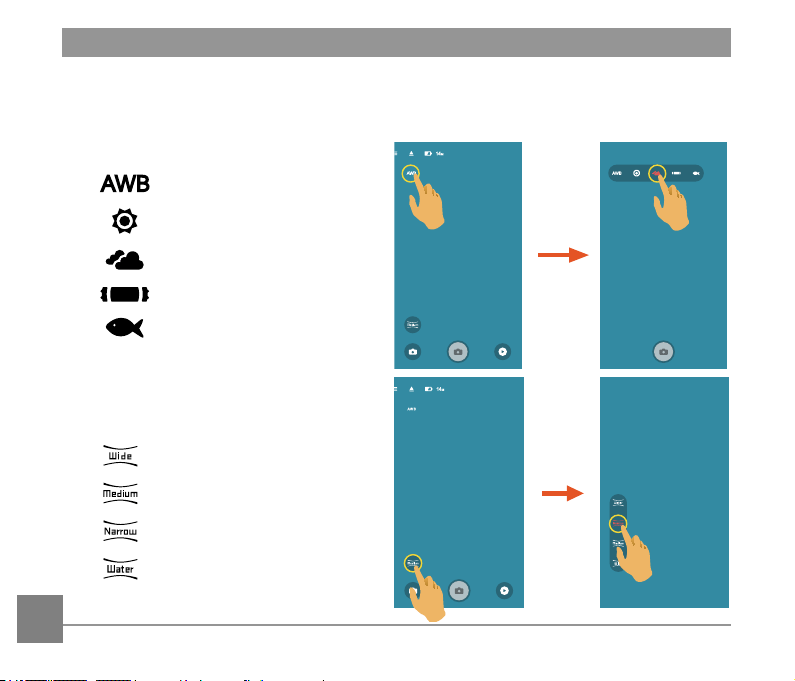
White balance
The WB function allows the user to adjust color temperatures under different light sources, so
as to conrm that the color can be presented properly.
There are 5 options:
•
AWB
•
Daylight
•
Cloudy
•
Fluorescent
•
Underwater
Angle
Field of view sets the viewing angle.
There are 4 options:
•
Ultra Wide
•
Medium
•
Narrow
•
Water Ring
1234567
1234567
63
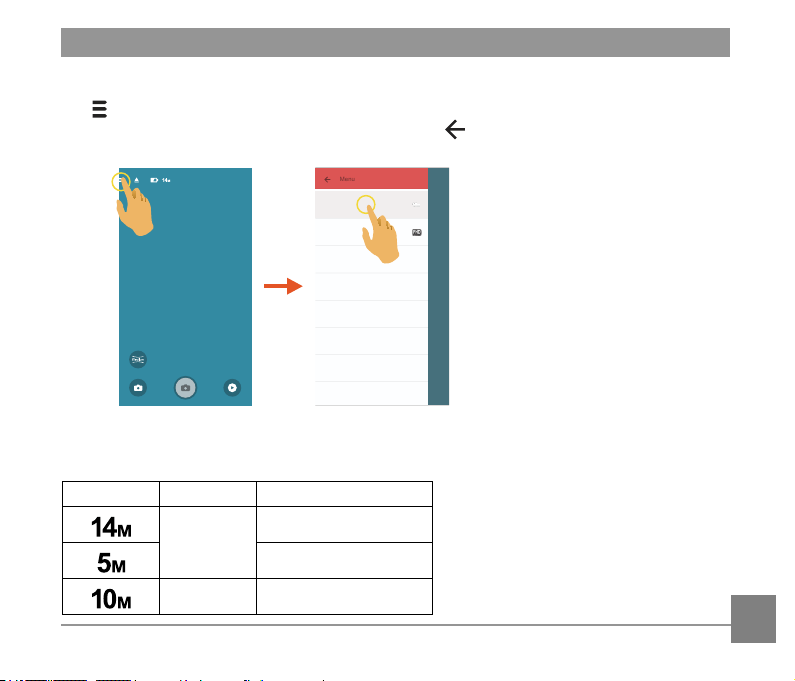
Menu
Tap to show a settable menu. Tap the menu items to be set to enter the item options
screen. Tap options to return to the menu screen. Tap to return to the Remote Viewnder
screen.
Tw o lin e item
S eco ndary text
Tw o lin e item
S eco ndary text
One line item
One line item
Touch Capture
On
Tw o lin e item
S eco ndary text
Menu
Tw o lin e item
S eco ndary text
Tw o lin e item
S eco ndary text
Image Size
14M
Moive Size
FHD 16:9 30p
Touch Capture
On
About
Menu
1234567
Image Size
Set photo resolution.
Icon Pixel ratio Image Pixel
4:3
4320×3240
2592×1944
16:9 4320×2432
64
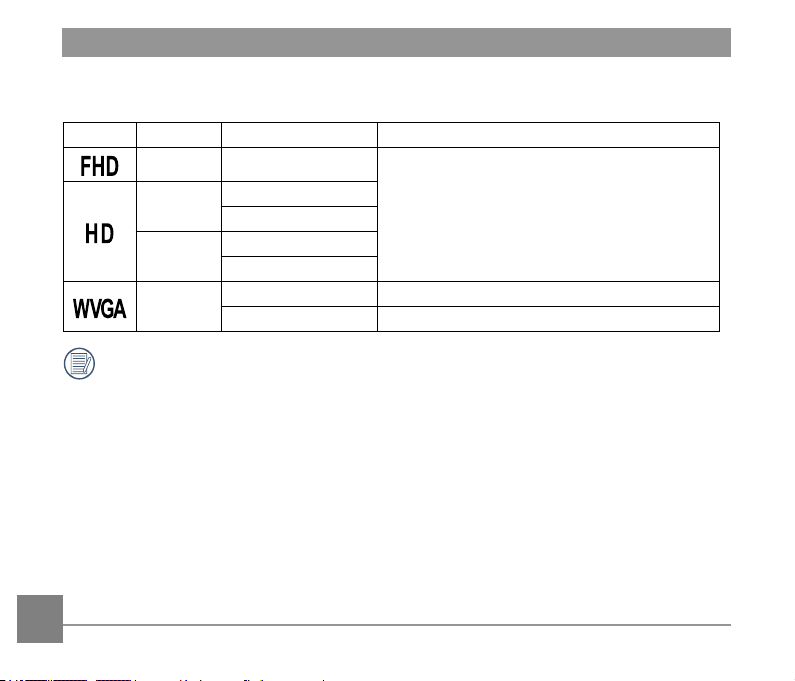
Movie Size
Set video resolution.
Icon Pixel ratio Movie Size Recording Time Restraint
16:9 1920×1080 30fps
The maximum recordable time is 25 minutes.
4:3
1280×960 50fps
1280×960 30fps
16:9
1280×720 60fps
1280×720 30fps
16:9
848×480 60fps None
848×480 120fps The maximum recordable time is 60 seconds.
Select 120fps as the frame rate of movie size to carry out high-speed video recording.
The product shoots ultra high speed movies, and plays back with normal 30fps speed,
in order to capture visually indistinguishable moments easily. But the sound cannot be
recorded.
Touch Capture (Photo shooting mode)
There are 2 options:
• On
• Off
About
• View the current version of the App.
• Tap the ofcial website on the interface and you can go to the website for more information.
65
Shooting Method
All les are saved on the memory card of the camera.
Shooting
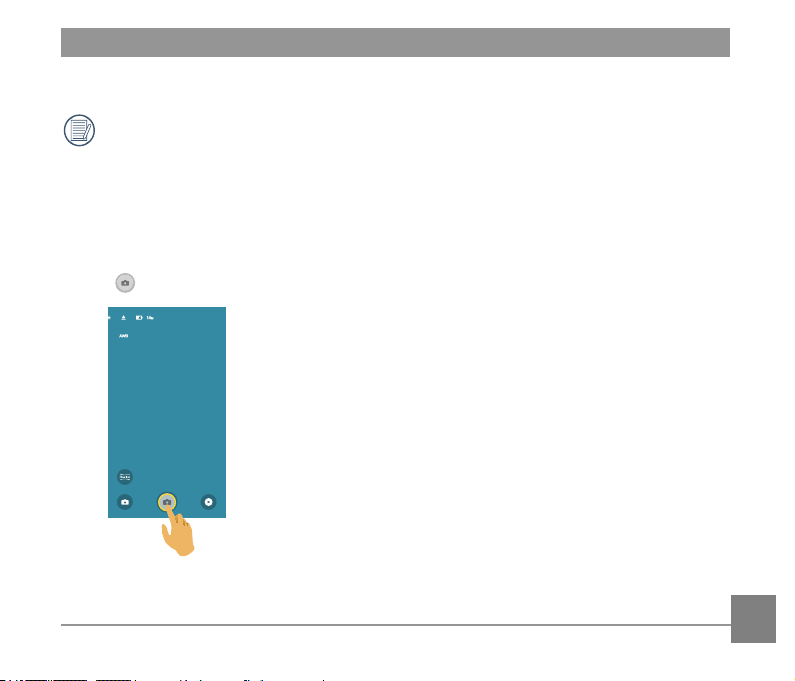
1. Align the camera lens with the shooting subject, and conrm viewing through the screen of
the smart device.
2. Tap the other icons on the interface to set the corresponding parameters.
3. Tap
to shoot photos.
1234567
66
Video Recording
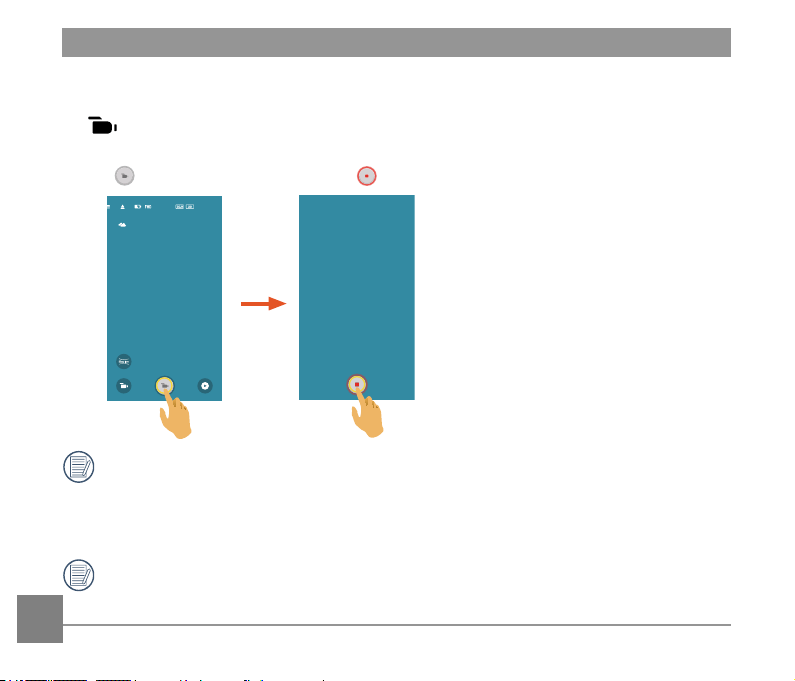
Tap the shooting mode icon on the shooting screen to enter the mode selection screen, and
tap to enter the video recording screen.
1. Tap the other icons on the interface to set the corresponding parameters.
2. Tap
to start recording and then tap to stop.
12:34:56
00:00:10
In Wireless power saving enabled state, a prompting message about breaking of
wireless connection in 30 seconds will be popped up when video recording on the smart
device. At this moment, if the user does not stop video recording, wireless online will be
automatically disconnected, and the wireless disconnection message will be displayed
while video recording is continued on the camera.
Stop video recording and lower the temperature of smart device in case the smart
device’s temperature is too high. When the high temperature reaches the limit, the smart
device automatically stops video recording and shuts down after saving the les.
67
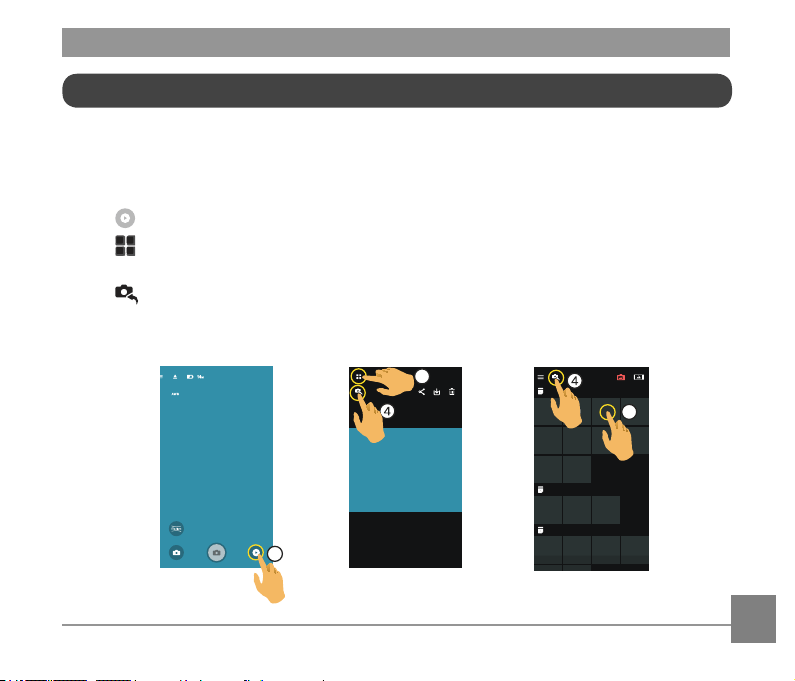
There are two playback modes: • Single playback (movie / photo)
• Index playback (action cam/smart device)
Switching of the Remote Viewnder Mode and the Playback Mode
1. Tap to enter the camera single playback interface.
2. Tap
to enter the index playback interface.
3. Tap any small gure to enter the single playback interface.
4. Tap
to enter the remote viewnder interface.
1234567
1
2
4 JUL 2014
1 JUL 2014
21 JUN 2014
3
Remote Viewnder
interface
Single playback
interface
Index playback
interface
Playback
68
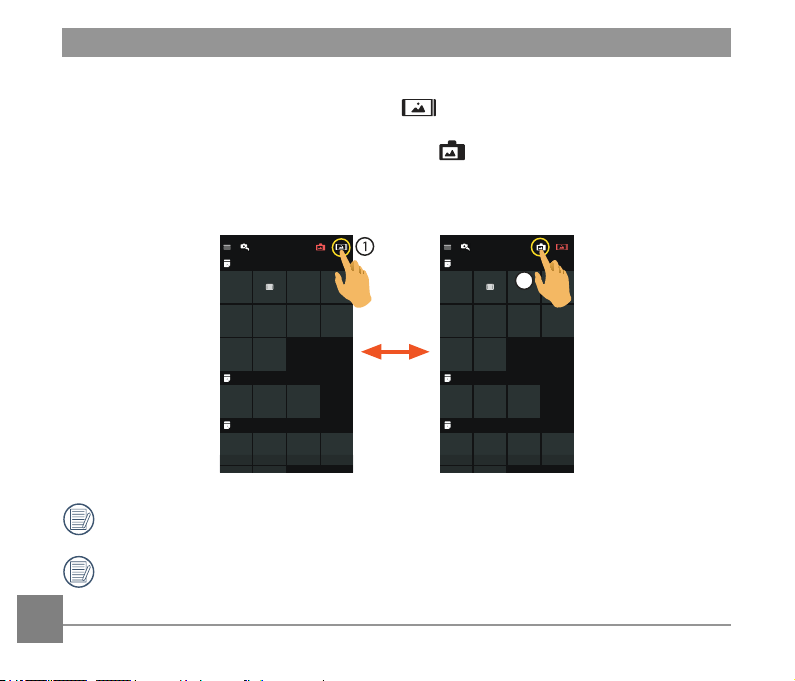
Switching Camera and Smart Device Index Playback
1. On the camera index playback interface, tap to enter into the smart device index
playback interface.
2. On the smart device index playback interface, tap
to enter into the camera index
playback interface.
4 JUL 2014
1 JUL 2014
21 JUN 2014
4 JUL 2014
1 JUL 2014
21 JUN 2014
2
Camera
index playback interface
Smart device
index playback interface
On the smart device index playback interface, tap a small gure to enter into the smart
device single playback interface.
On the camera index playback interface, tap a small gure to enter into the camera
single playback interface.
69
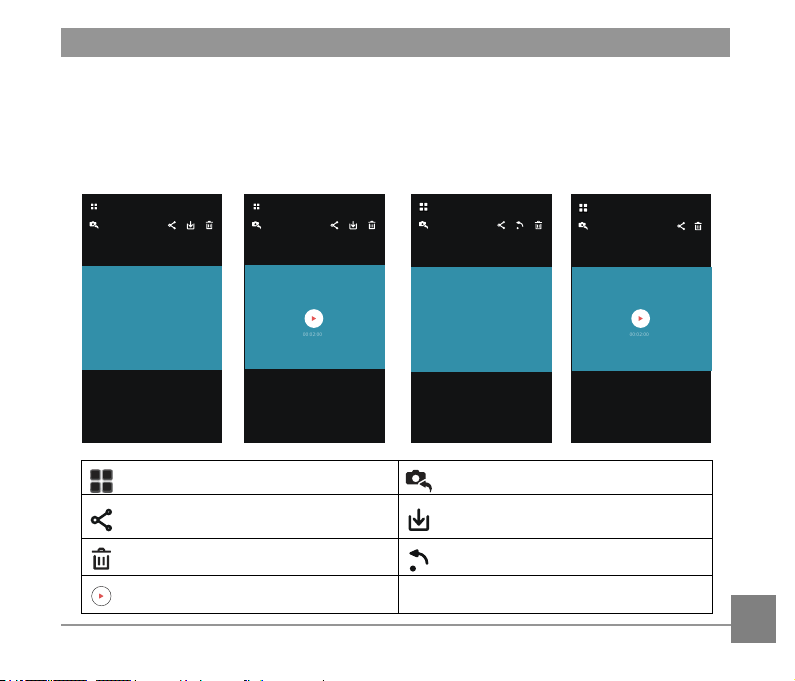
Introduction of the Icons in the Playback Mode
Single Playback
00:02:00
00:02:00
Enter index playback screen Enter photo or movie mode
Share the current photo or video to
social networks
Download the current photo or video
to the smart device
Delete the current photo or video Rotate the photo
Play the video
Action cam
Photo playback
interface
Video playback
interface
Photo playback
interface
Video playback
interface
Smart device
70
Index Playback
4 JUL 2014
1 JUL 2014
21 JUN 2014
4 JUL 2014
1 JUL 2014
21 JUN 2014
1
1 JUL 2014
4 JUL 2014
1 JUL 2014
21 JUN 2014
4 JUL 2014
1 JUL 2014
21 JUN 2014
1
1 JUL 2014
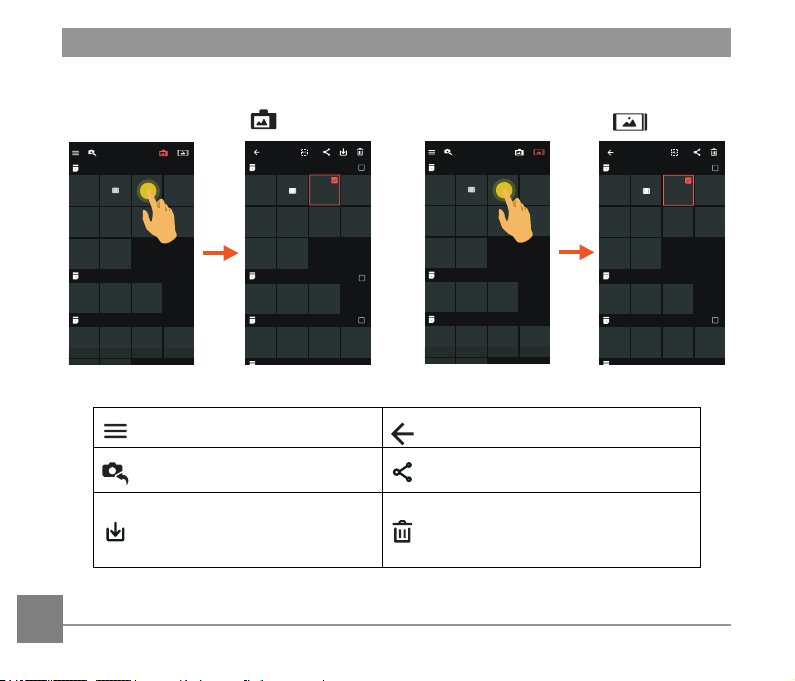
Menu Return to the previous interface
Enter photo or movie mode Select multiple les to share
Enter the download mode to
move the les in the camera
into the smart devices
Select multiple les to delete
Smart device
Action cam
71
Gestures in the Playback Mode
1. Hide/display the icons: Single nger tap
the photo or video once.
2. Zoom in: Quickly tap the photo twice or
use two ngers apart to expand the photo
(Sliding a nger to move around the
photo).
Zoom out: Quickly tap the photo twice
again, and it will restore the original size
or use two ngers folded to reduce the
photo.
3. Browse fore-and-aft les: Slide around
with one nger.
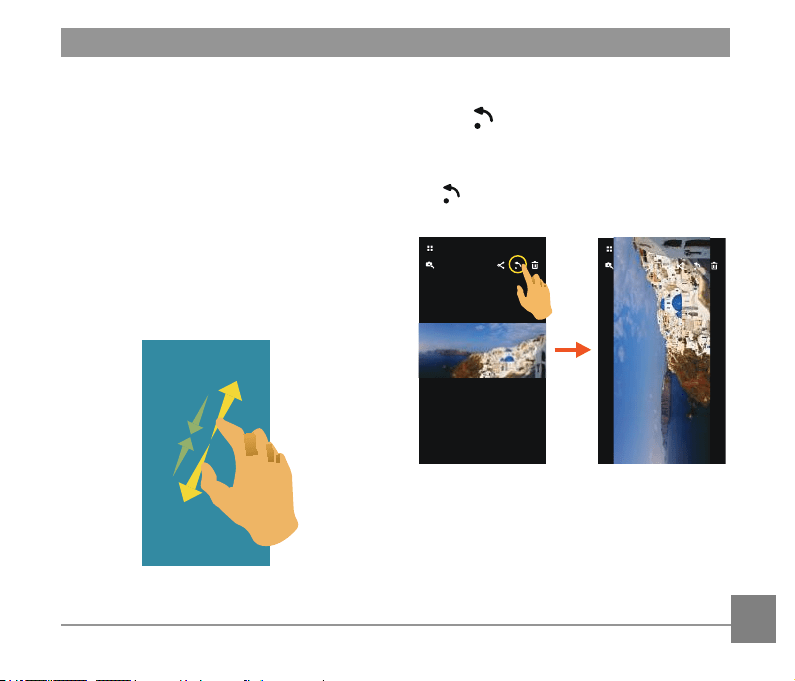
Rotate (Smart device single playback
mode)
Rotate the photo by 90°.
Tap
, the photo will rotate 90 counter-
clockwise each time this icon is pressed.
Description of the Functions in the Playback Mode
72
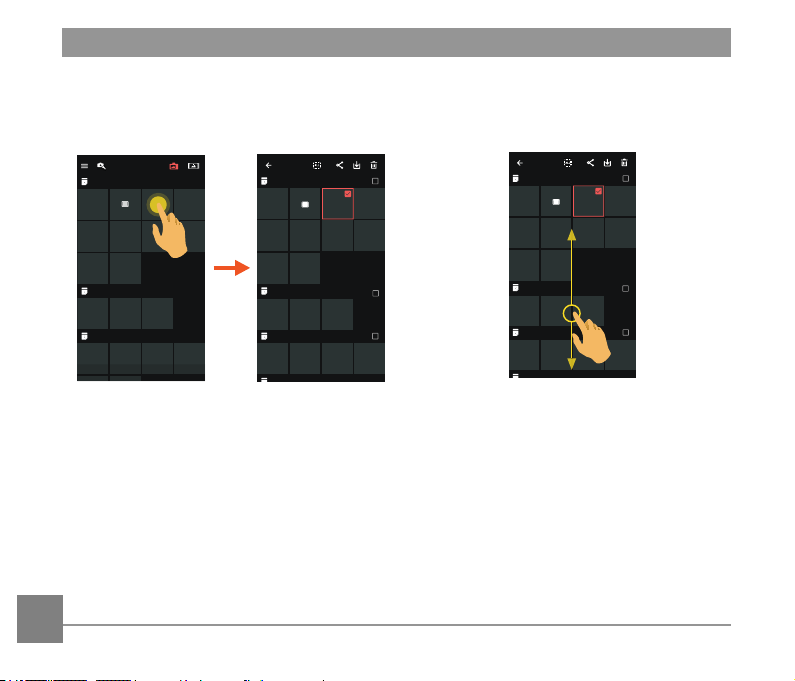
1. Long press a le thumbnail to enter the
multiple-selection screen.
4 JUL 2014
1 JUL 2014
21 JUN 2014
4 JUL 2014
1 JUL 2014
21 JUN 2014
1
1 JUL 2014
2. View fore-and-aft les by sliding a nger
up and down on the screen.
4 JUL 2014
1 JUL 2014
21 JUN 2014
1
1 JUL 2014
Select One or More File(s) (Camera and Smart device index playback mode)
73
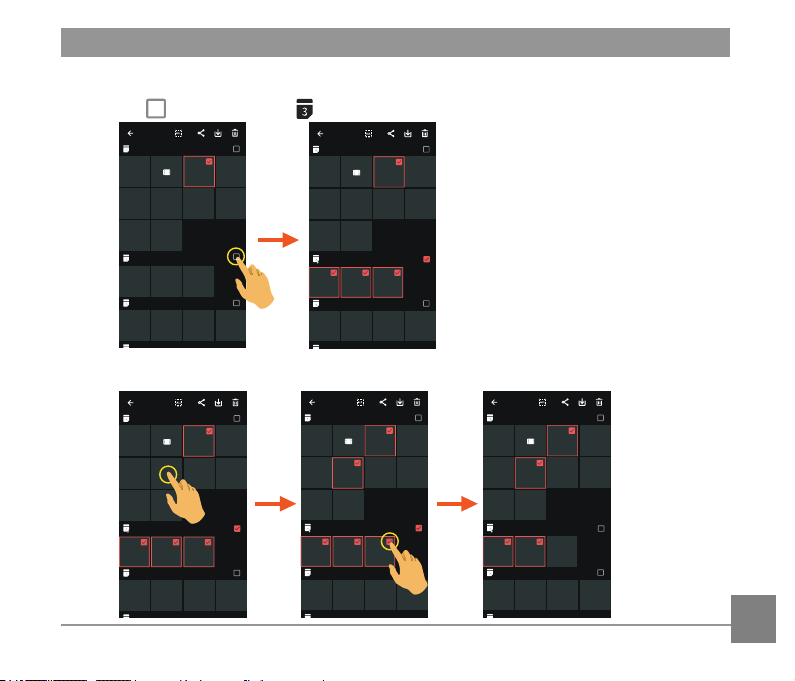
3. Select one or more le(s).
3.1. Tap
after date folder ( ) to select all les under the date folder;
4 JUL 2014
1 JUL 2014
21 JUN 2014
1
1 JUL 2014
4 JUL 2014
1 JUL 2014
21 JUN 2014
4
1 JUL 2014
3.2. Tap a le thumbnail to select a single le (tap again to cancel the selection);
4 JUL 2014
1 JUL 2014
21 JUN 2014
4
1 JUL 2014
4 JUL 2014
1 JUL 2014
21 JUN 2014
5
1 JUL 2014
4 JUL 2014
1 JUL 2014
21 JUN 2014
4
1 JUL 2014
74
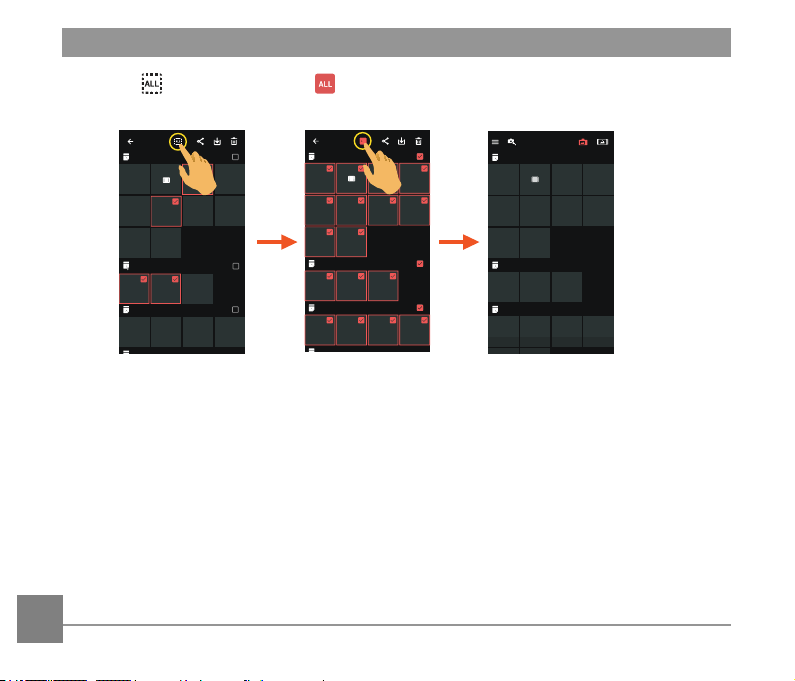
3.3. Tap to select all les; tap to cancel the selections and return to the index
playback interface.
34
4 JUL 2014
1 JUL 2014
21 JUN 2014
1 JUL 2014
4 JUL 2014
1 JUL 2014
21 JUN 2014
4
1 JUL 2014
4 JUL 2014
1 JUL 2014
21 JUN 2014
75
Download
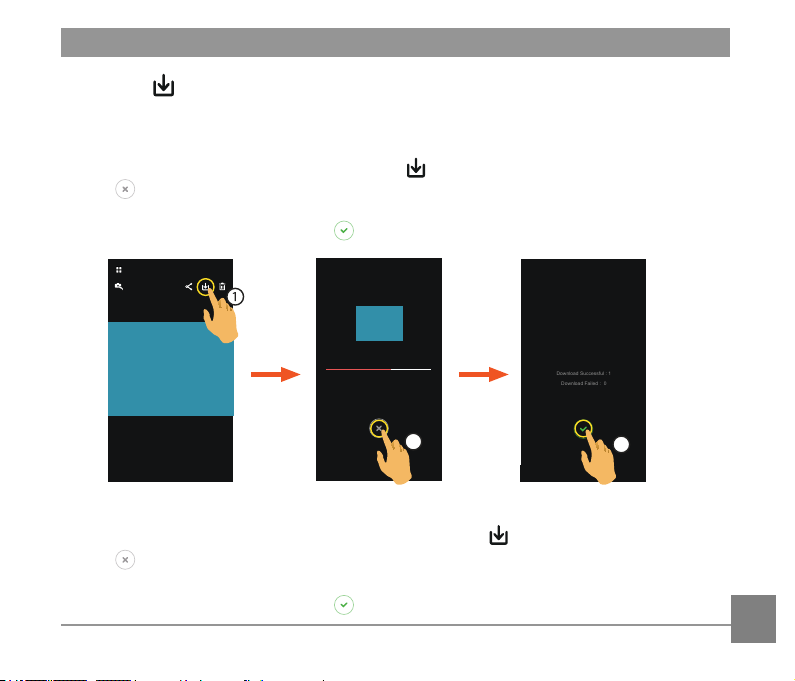
Download the photos or movie in the camera to your smart device.
Camera Single playback mode:
1. Select the le you want to download, and tap
to start downloading.
2. Tap
in the downloading process, and select “Yes” in the pop-up interface to cancel
downloading.
3. After downloading is complete, tap
to return to the playback interface.
1/1
2
Download Finished!!
Download Successful : 1
Download Failed : 0
3
Camera index playback mode:
1. Select one or more le(s) you want to download, and tap
to start downloading.
2. Tap
in the downloading process, and select “Yes” in the pop-up interface to cancel
downloading.
3. After downloading is complete, tap
to return to the playback interface.
76
Share
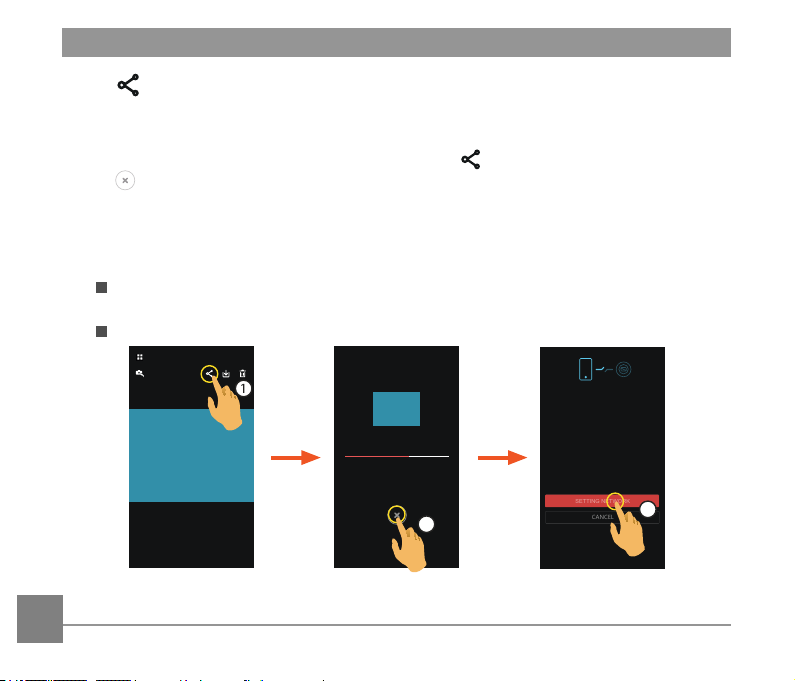
Share the photos or videos to the social network site.
Camera single playback and index playback mode:
1. Select one or more le(s) you want to share, and tap
to start downloading.
2. Tap
in the downloading process, and select “Yes” in the pop-up interface to cancel
downloading.
3. After the download is completed, the photos or videos on the smart device can be shared.
• When the mobile data network is open: Select the social network site to share.
• Mobile data network not open:
iOS system
Please share according to the interface prompt.
Android system
CANCEL
XXXXXXXXXXXXXXXXXXXXXXXXXXXXXX
XXXXXXXXXXXXXXXXXXXXXXXXXXXXXX
XXXXXXXXXXXX
SETTING NETWORK
3
N/N
2
「SETTING NETWORK」: Open mobile data network or Wi-Fi for internet access.
「CANCEL」: Cancel sharing.
77
After the “SETTING NETWORK” is selected and the network is switched, the interface
has 3 options:
“SETTING NETWORK”: change the network settings.
“SHARE”: select the social network site to share.
“CANCEL”: cancel sharing.
When the network is changed, the App will close automatically.
Smart device single playback and index playback mode:
Please share according to the operating methods for sharing in single playback and index
playback mode of the camera.
Delete
Delete the selected photos or videos.
Camera and Smart device index playback mode:
1. Select one or more le(s) you want to download, and tap
.
2. Select “DELETE” to conrm the deletion in the pop-up prompt screen.
78
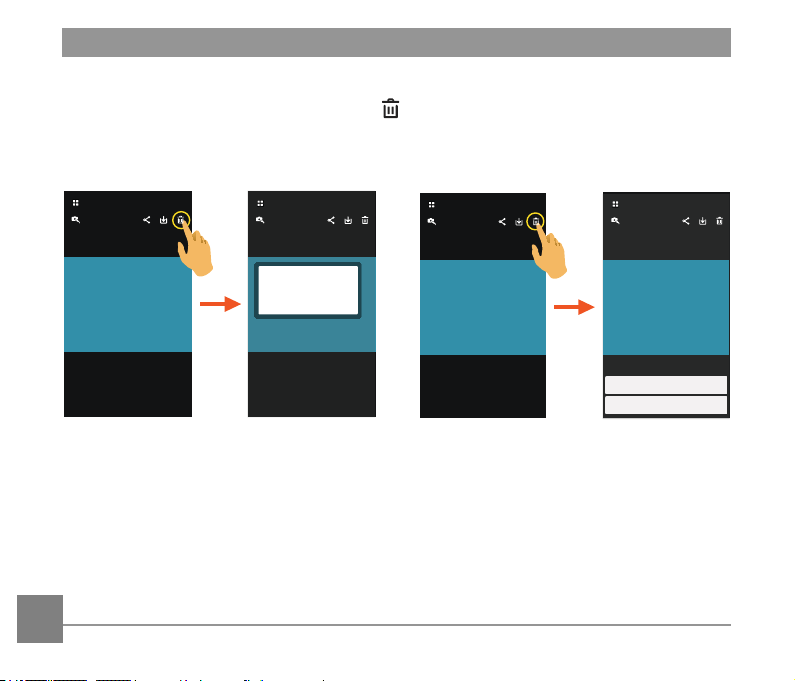
Camera and Smart device single playback mode:
1. Select the le you want to delete, and tap
.
2. Select “DELETE” to conrm the deletion in the pop-up prompt screen.
Would you like to Delete?
CANCEL DELETE
Android system
DELETE
CANCEL
iOS system
79
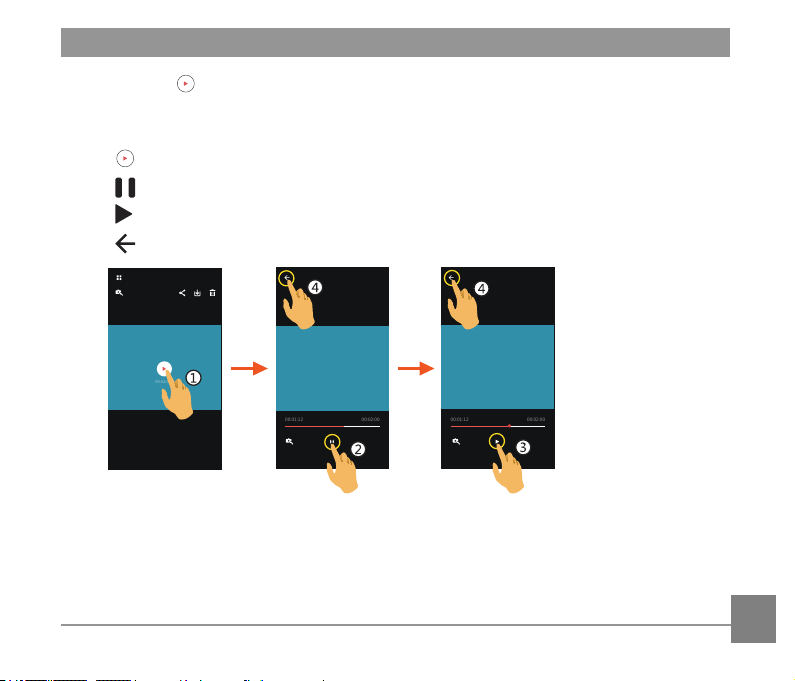
Play the Video (Camera and Smart device single playback mode)
Slow wireless transmission may impact viewing. We suggest downloading the le to your
device before viewing.
1. Tap
to play the video.
2. Tap
to pause the video.
3. Tap
to continue the video.
4. Tap
to return to the previous interface.
00:01:12
00:02:00
00:01:12
00:02:00
00:02:00
80
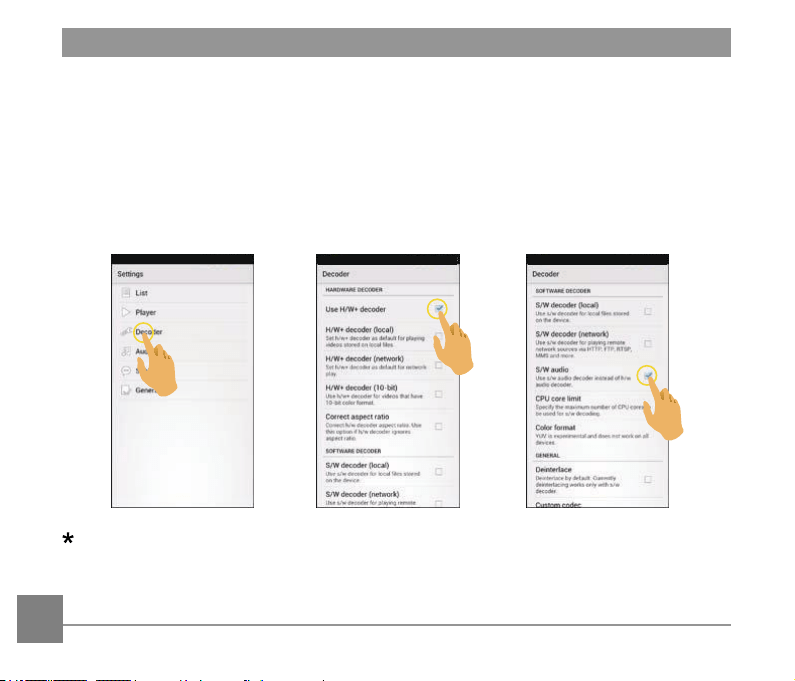
Android User Notication:
To ensure proper playback of video les created with the KODAK PIXPRO SP1 Digital
Camera, we suggest using the MX Player application.
1. Download and install MX Player to your Android smart devices.
Download link: https://play.google.com/store/apps/details?id=com.mxtech.videoplayer.ad
2. Run MX Player.
3. Choose "Decoder" under "Settings" and check the options as shown in the pictures.
The following video applications will also work: VPlayer, VLC for Android, BSPlayer Free.
81
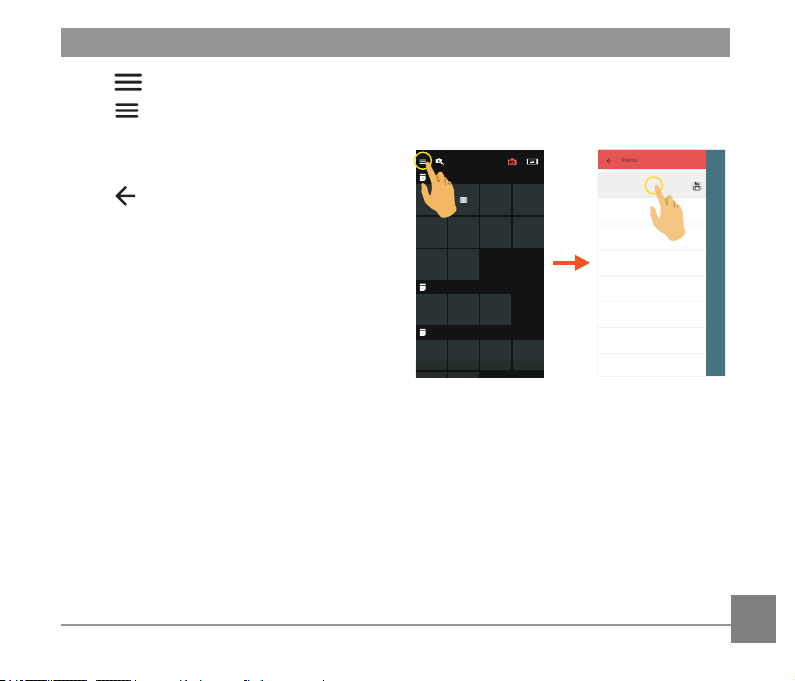
Menu (Camera and Smart device index playback mode)
1. Tap
or slide from the left to the right of the screen to display the menu.
2. Tap your desired setup item.
3. Tap the option to return to the menu.
4. Tap
to return to playback interface.
YouTube
This option is only under the iOS system.
About
See Page 64 for explanations.
Menu
YouTube
Login
4 JUL 2014
1 JUL 2014
21 JUN 2014
About
82
Connect a Computer
Connection Port Introduction
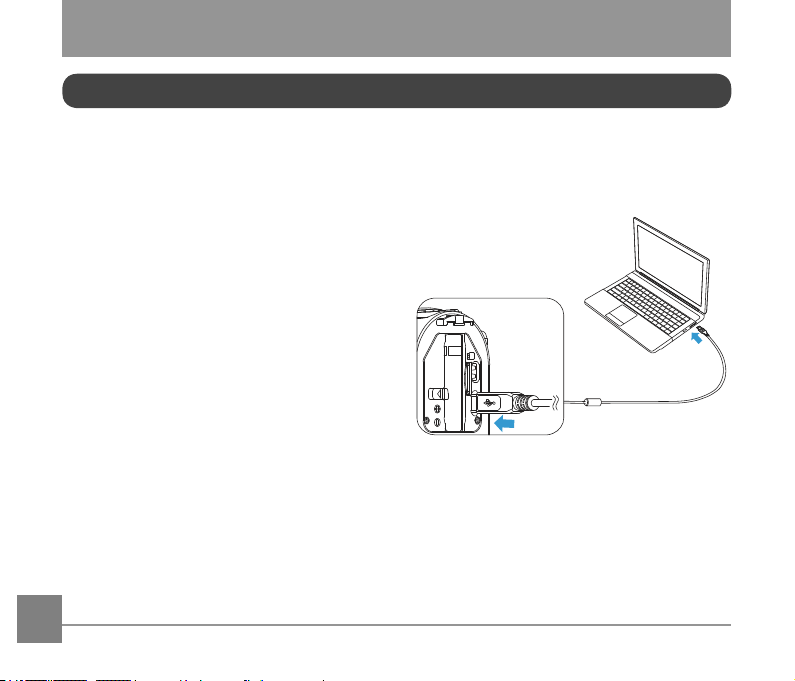
The product can be connected to the
computer using a USB cable to allow for
copying the les from the product into the
computer.
Steps:
1. Open the rear cover of the product,
connect one end of the USB cable to the
computer (the computer needs to be in
on state) and the other end to the USB
port of the product;
2. The product display will show a rolling
connection cartoon. The computer will
automatically sense the product.
3. Open the folder of the product on the
computer and copy the data you need to
the computer.
4. After transmission is completed, please
cancel the USB connection by safely
pulling out the USB device from the
computer system;
5. Pull out the USB cable. The product will
automatically shut down.
The product supports Windows operating
systems (Windows XP, Windows Vista ,
Windows 7, and Windows 8) and the Mac
operating system.
83
If connected to the computer USB port of 100mA, the product will have no response due
to insufcient power supply.
Pressing
for more than 2 seconds will cause shut-down and stop of communication
between the computer and the product.
If a memory card is inserted in the product, only les in the memory card will be read. If
needing to read the les in the internal memory, please pull out the memory card before
connecting to the computer.
84
HDMI Connected TV Output
The product is capable of realizing movie and photo playback on a TV through HDMI.
The HDMI connection defaults to automatic connection mode.
Steps:
1. Open the rear cover of the product, connect one end of the HDMI cable (not included) to a
TV which is up to the HDMI standard (the TV and the product both need to be turned on)
and the other end to the cable to the HDMI port of the product;
2. The product will automatically enter the playback state after the connection is complete.
The operating method is the same as the 「Introduction to Basic Operation of Playback」
on page 31.
If the product is connected to the TV while in the off state, press and hold
and to
power on. The product will automatically enter the playback state.
85
Appendices
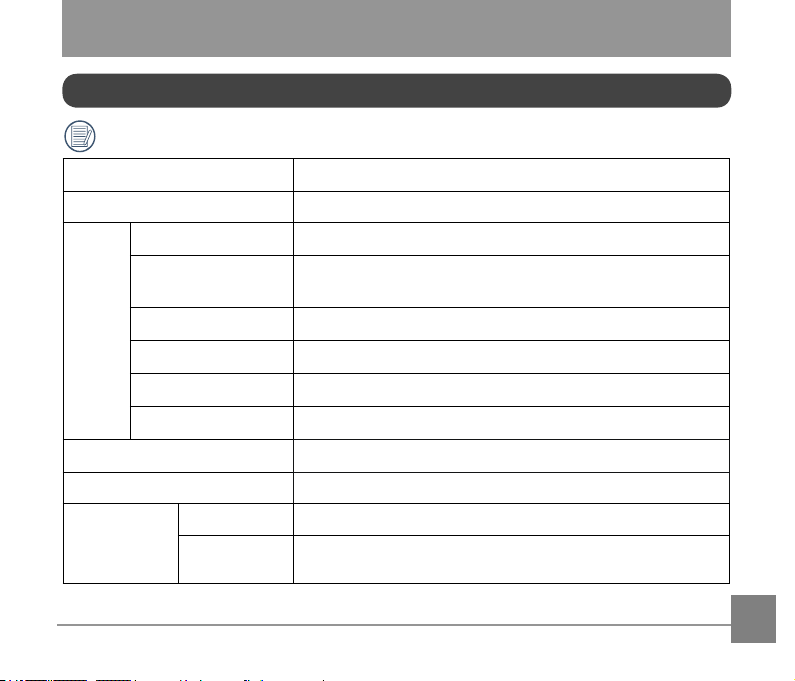
Specications
「Design and specications are subject to change without notice.」
Active Pixels 14.24 Megapixels
Total Pixels 15.31 Megapixels [1/2.33" MOS]
Lens
Focal Length 3.0mm
Equivalent to 35mm lm 16.8mm
F number F2.8
Lens Construction 6 groups 6 elements
Optical Zoom Fixed focus
Focusing Range Normal: 60cm ~ ∞
Field of View Ultra Wide, Medium, Narrow, Water Ring
Anti-Handshake EIS
File Format
Still Image Exif 2.3 (JPEG)
Movie
Movie Format: MOV (H.264),
Audio: Linear PCM (Stereo)
86
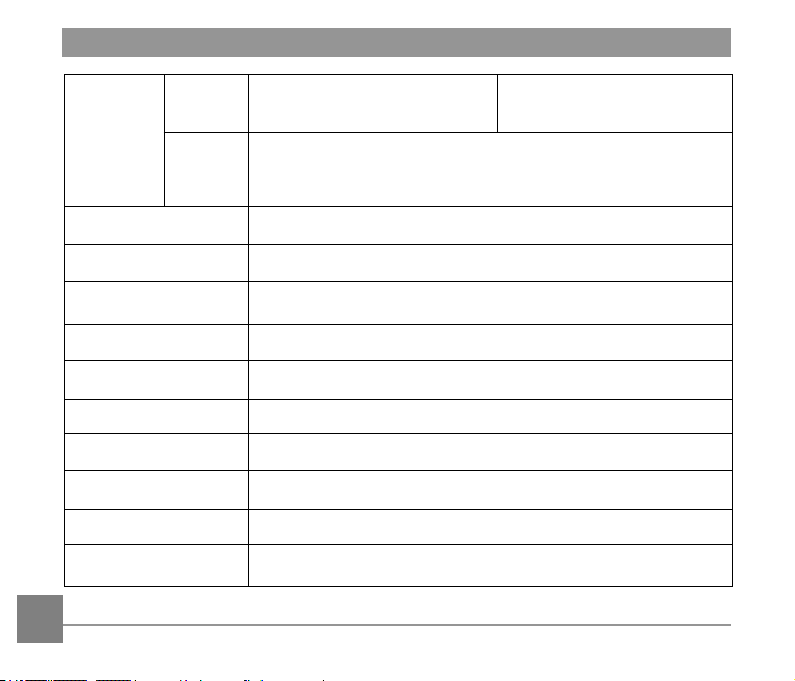
Image
Dimensions
Still Size
(4:3) 14MP: 4320×3240
5MP: 2592×1944
(16:9) 10MP: 4320×2432
Movie Size
1920×1080(30fps), 1280×960(50fps), 1280×960(30fps),
1280×720(60fps), 1280×720(30fps), 848×480(60fps)
High-Speed Movie: 848×480(120fps)
Detection Features Face detection
Waterproof Feature Up to 10 m underwater
Shockproof Feature Up to 2 m
Dustproof Feature Equivalent to JIS / IEC ( IP6X )
Freeze-proong Feature -10°C
Wireless Supported
LCD Screen 1.5 inch ( 115k Pixels )
ISO Sensitivity Auto ( 100 ~ 800 )
Exposure Metering Method Articial Intelligence AE (AiAE), Face AE
Exposure Control Method Program AE
87
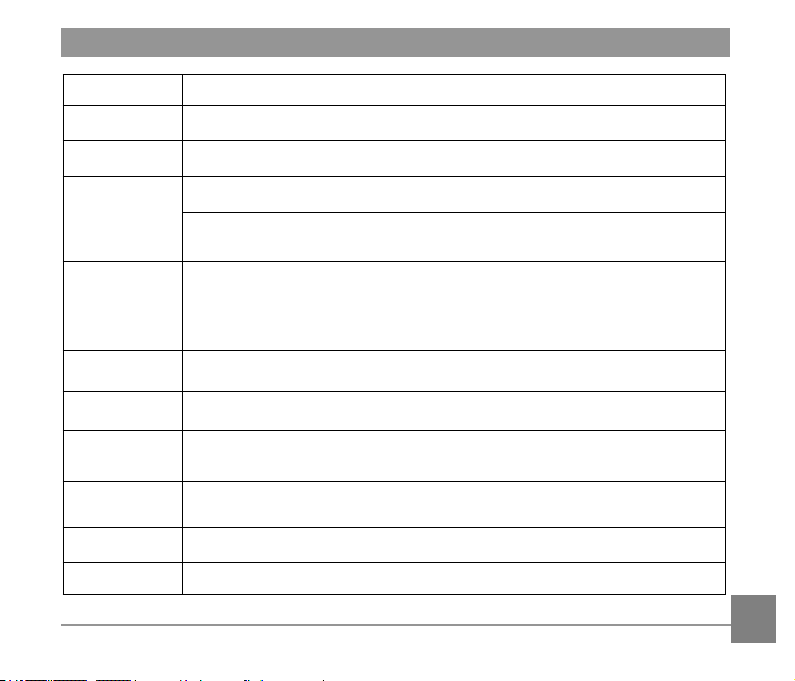
Burst Shot Supported
Playback Modes Single Photo
White Balance Auto (AWB), Daylight, Cloudy, Fluorescent, Underwater
Storage Media
Internal Memory: Approx. 100 MB
Micro SD / Micro SDHC Card (Up to 32GB Support) \
[ MMC Card not supported ]
Language
Support
Support 27 languages: English, Chinese (simplied and traditional), Japanese,
Korean, French, Spanish, Portuguese, Thai, Indonesian, Vietnamese, Italian,
German, Dutch, Russian, Polish, Swedish, Danish, Finnish, Norwegian, Greek,
Turkish, Hungarian, Croatian, Czech, Arabic, Hindi
Interface USB 2.0 ( Micro 5 pin USB ) , HDMI ( Type D )
Power supply Rechargeable Li-ion Battery LB-080, 3.6V 1250mAh, In-action cam Charging
Battery
Performance
Approx. 350 Shots (Based on CIPA Standards); Approx. 130 min for Video
(@1080p/30fps )
Operation
Environment
Temperature: -10 ~ 40°C, Humidity: 0 ~ 90%
Dimensions 84.7×51.4×39.5mm (Based on CIPA Test Standards)
Weight Approx. 155g (excluding battery and memory card)
88
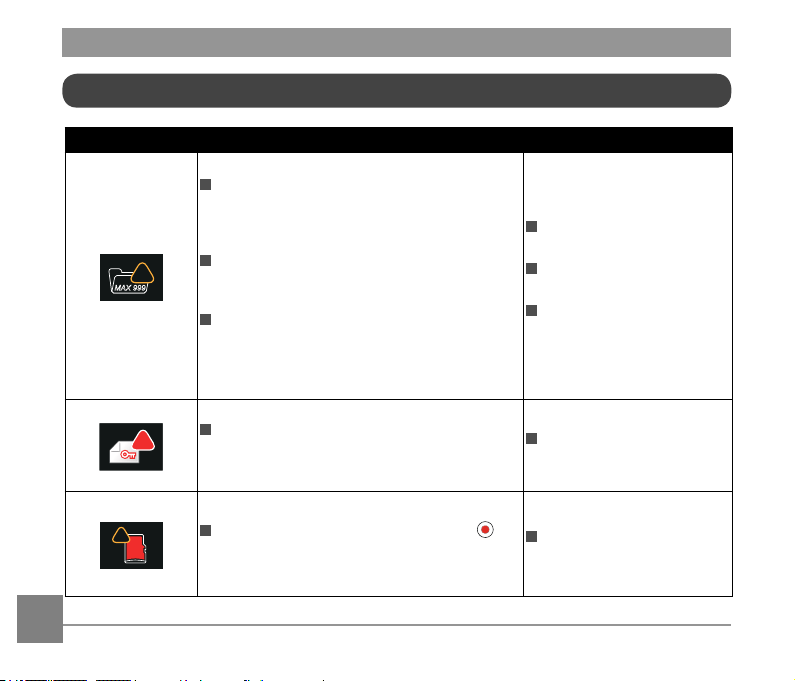
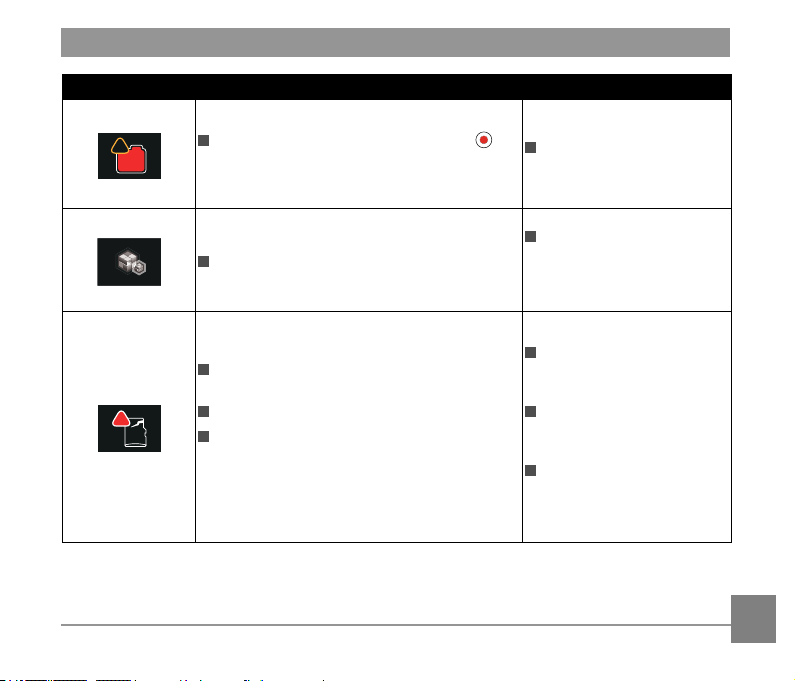
Prompts and Warning Messages
Message Description Reset Mode
!
MAX 999
When using “Copy to card”, if the number
of folders in the memory card exceeds the
maximum number of folders (999), the copy and
access actions cannot be performed.
This message indicates that a long read time
may be caused due to too many folders in the
product.
During shooting, if the les or folders have
reached the maximum number (9999 for les,
999 for folders), the memory card cannot be
accessed.
End the message after the
product processing.
End the message after the
product processing.
The message will disappear
after 2 seconds.
!
When the le is protected, the message will
appear on the screen if the delete action is
performed.
The message will disappear
after 2 seconds.
SD
!
When turning on the product or pressing ,
the product detects that the memory card is out
of space.
The message will disappear
after 3 seconds.
89
Message Description Reset Mode
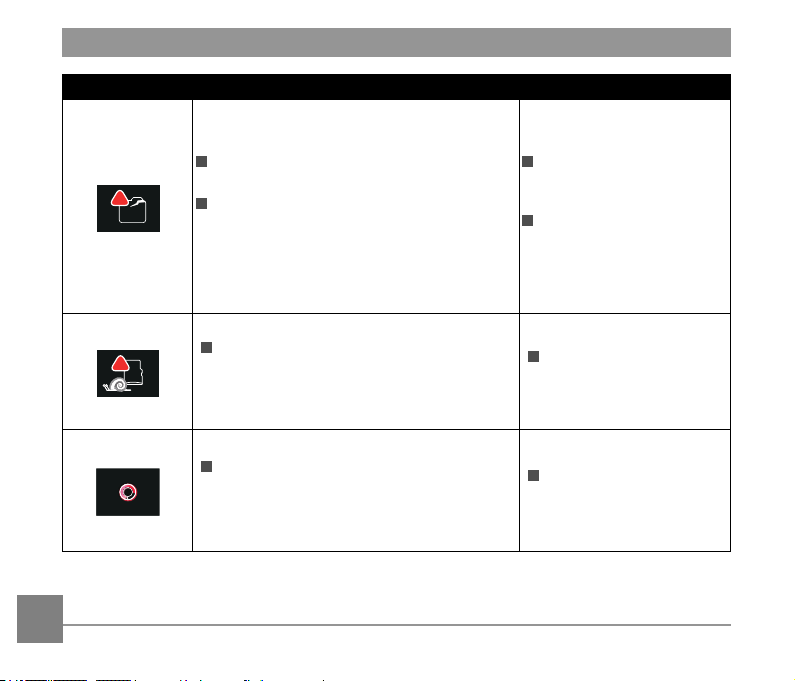
IN
!
When turning on the product or pressing ,
the product detects that the internal memory is
out of space.
The message will disappear
after 3 seconds.
Updating rmware.
User should do nothing.
The product will turn off
automatically after the
update is completed.
SD
!
The memory card still cannot be recognized
after format.
An error occurs when reading the memory card.
Interruption logging problem is encountered
in the period of writing in the memory card or
recording in the video recording or shooting
process.
The message will disappear
in 2 seconds, and the screen
of format or not will appear.
The message will disappear
in 2 seconds, and the screen
of format or not will appear.
Return to the viewnder
status will be displayed in 2
seconds.
90
Message Description Reset Mode
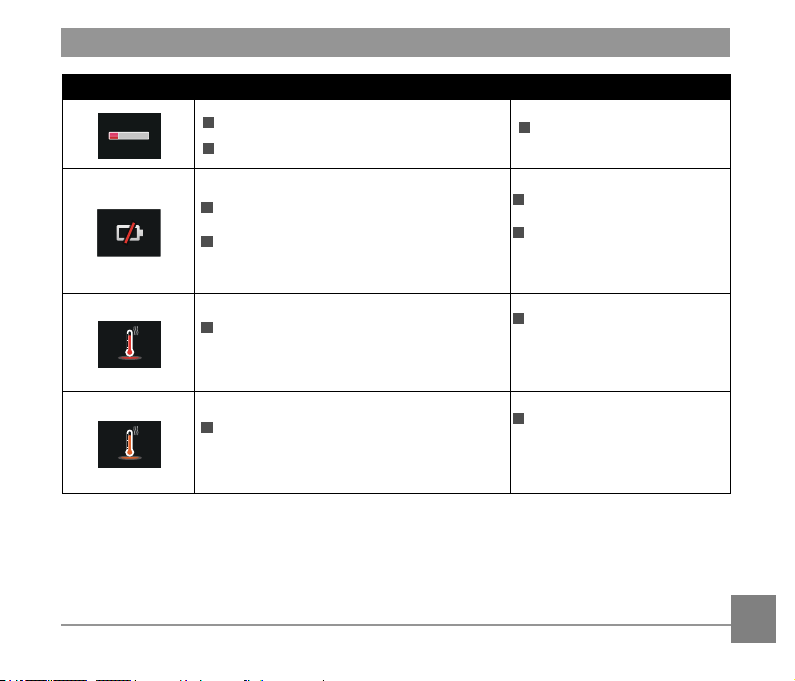
IN
!
The internal memory still cannot be recognized
after format.
Interruption logging problem is encountered
in the period of writing in the memory card or
recording in the video recording or shooting
process.
The message will disappear
in 2 seconds, and the screen
of format or not will appear.
Return to the viewnder
status will be displayed in 2
seconds.
SD
!
When a memory card lower than Class 4
is used to record a HD or above movie, the
writing speed is too slow and recording will
not continue.
Cancel the message and
return to the viewnder
status in 4 seconds.
The time of le processing (imaging
processing, in synthesis, in saving, edition
after-processing, archiving coping, in Format
and the like) exceeds 2 seconds.
The message will
disappear after the
operation is completed.
91
Message Description Reset Mode
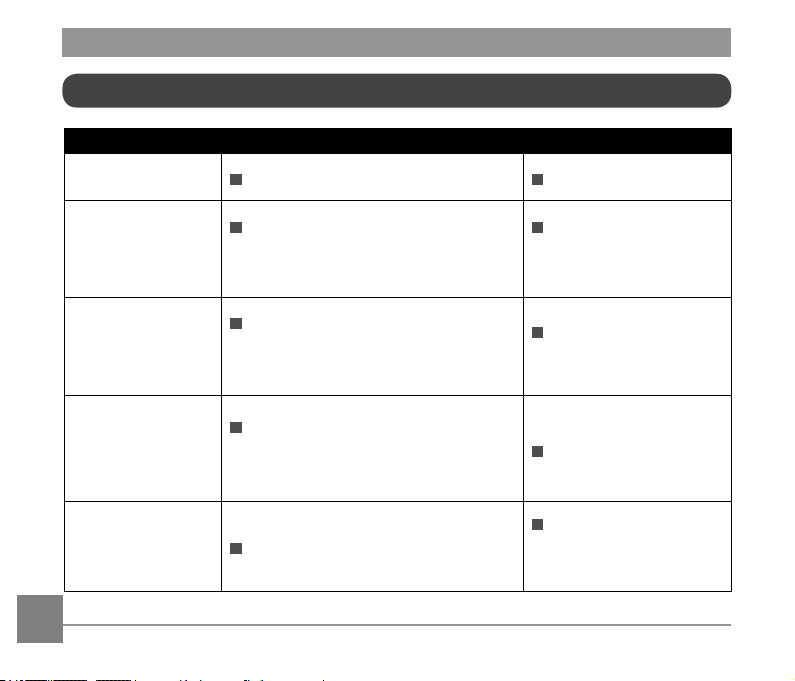
Connecting to the computer USB.
Connecting to the HDMI device.
The display is ended after
connection is succeeded.
Caution will appear before power off when the
battery of the product is already dead.
The rmware cannot be updated when power
is insufcient.
It will shut down after
displaying for 2 seconds.
A message appears to prompt
updating after full charging and
returning to the update screen.
The message will be displayed when the
temperature of the battery reaches 70 °C
during recording.
It will shut down automatically
in 2 seconds, and can be
recovered to use only after the
temperature is reduced.
When the AP setting is enabled, the message
will be displayed when the temperature of the
battery is in the range from 68 to 70 °C.
Return to the menu interface
in 2 seconds and recover use
only after the temperature is
reduced.
92
Trouble Shooting
Problem Possible causes Solution
Product does not
turn on
The battery has been depleted. Charge the battery.
Exceeded maximum
folder number
If the les or folders have reached the
maximum number (9999 for les, 999
for folders), the memory card cannot be
accessed.
Copy the data to the
computer disk, and format
the memory card using the
product.
Writing speed of the
memory card is slow
When a memory card lower than Class 4
is used to record a HD or above movie,
the writing speed will be slower and
recording will not continue.
Use a higher-class
memory card, or format
this card before shooting.
Too many videos to
process
The number of pictures or folders in the
memory card exceeds the specications,
so the playback cannot be displayed or
played back by date.
Delete unwanted les.
High temperature
warning
Battery overheat.
Remove the battery when
the product is turned off.
Continue to use the battery
when it cools.
93
Special Accessories
Let the action cam accommodate to your activity, there are different options of accessories
available. Accessories bundle vary per distribution retailer. To purchase additional accessories
separately, please contact your local retailer customer service support, or visit http://
kodakpixpro.com for more customer service details.
Before using (especially in water or strenuous activity), please pay attention to make
sure the product is tightly secured to prevent damage or loss to the product.
Please ensure that the adhesive surface is clean before using double-sided adhesive
accessories. Dirt, grease, or other foreign matter will reduce the effectiveness of the
double-sided adhesive.
After fully assembling the accessories, please check to make sure that the screw and
pre-tightening handle are in the proper position and fully secure.
For ease of assembly, please line up the marks on the base and pre-tightening handle
per the diagrams below.
Mark
Pre-tightening handle
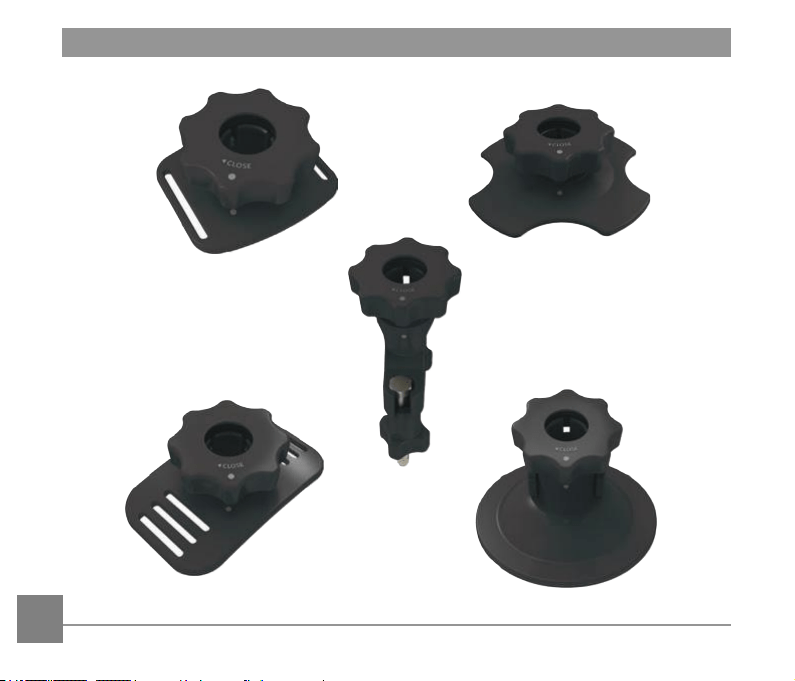
94
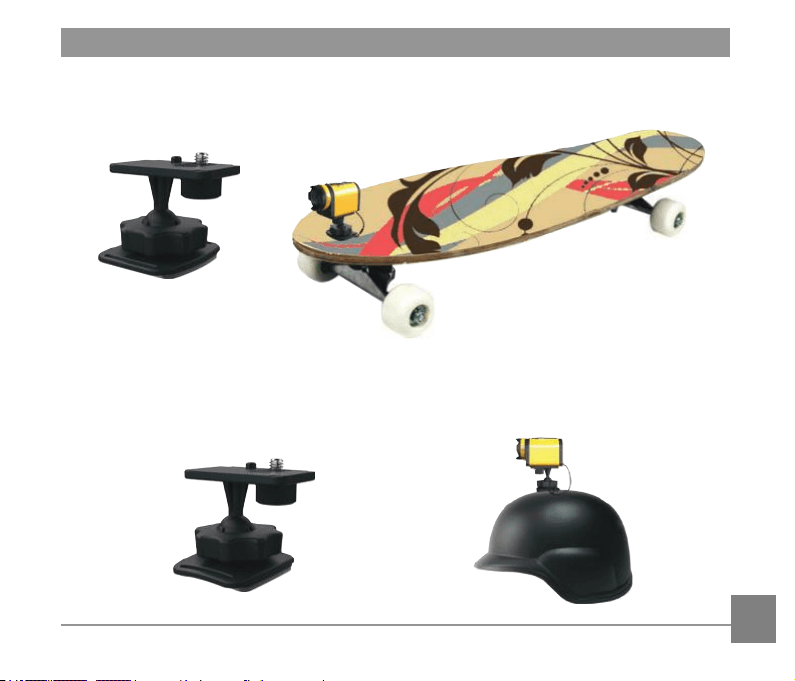
95
Adhesive mount (at) : accessory applicable to skateboard
Adhesive mount (curved) : accessory applicable to helmet
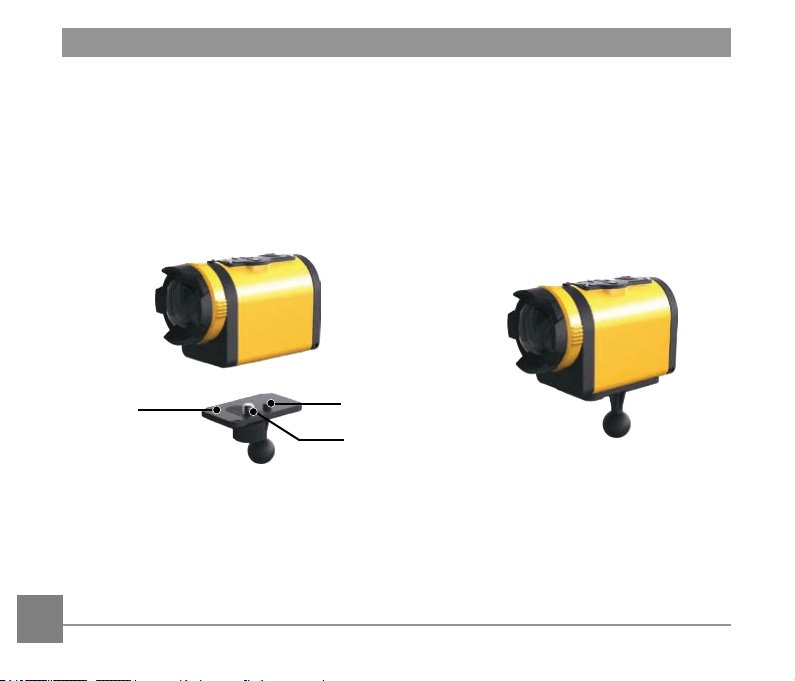
96
Installation Method:
There are two types of adhesive mounts: at and curved. You may select based on the shape
of the object to be used.
Both types can be assembled in the same way, taking the adhesive mount (at) as an
example:
1. Align the location pole of the base to the location hole of the action cam, and align the
screw on the base to the tripod socket of the action cam. Rotate the screw for xing.
Location Pole
Base
Screw
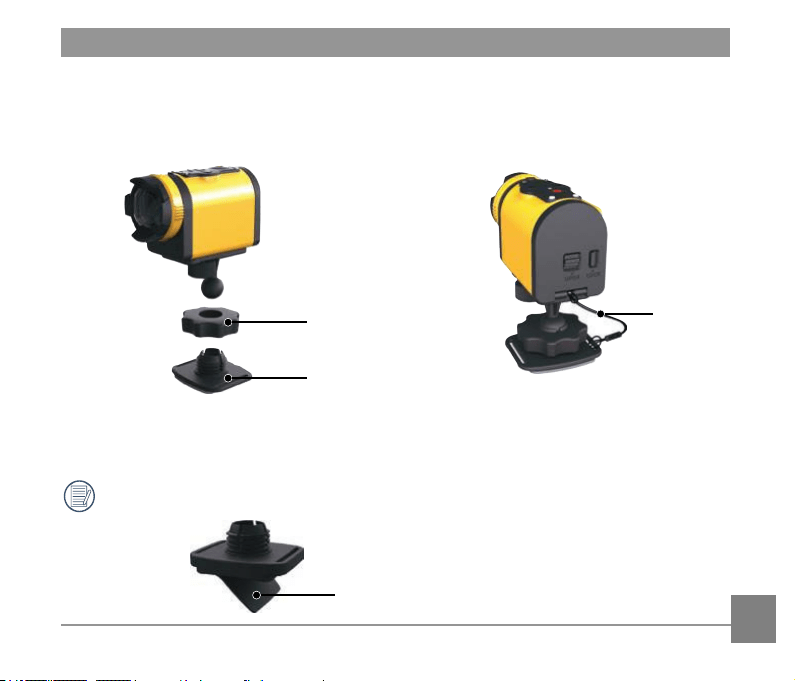
97
2. Tie one end of the tether to the adhesive mount, and the other end to the rear cover shaft.
3. Assemble the base, pre-tightening handle and adhesive mount according to the direction
illustrated in the picture. First press the base into the adhesive mount, and then rotate and
tighten the pre-tightening handle.
4. Tack the double-sided adhesive at the bottom of the adhesive mount to the object to be
used.
Double-sided adhesive is disposable. It can be purchased separately and replaced if
needed.
Pre-tightening Handle
Tether
Adhesive Mount
Double-sided adhesive
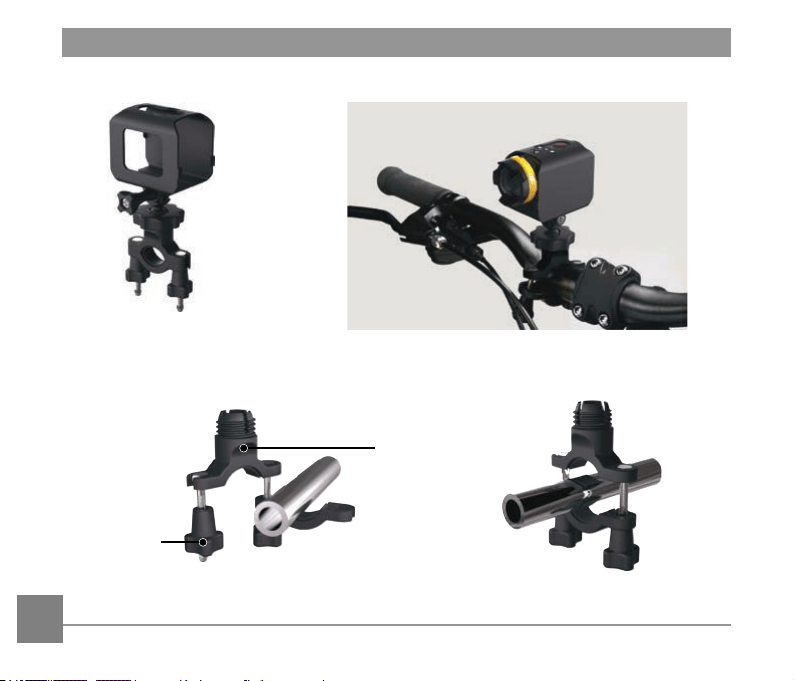
98
Bar mount: accessory applicable to bicycle
Installation Method:
1. Set the bar clamp to the handlebar, and rotate the screw for xing.
Bar Clamp
Screw
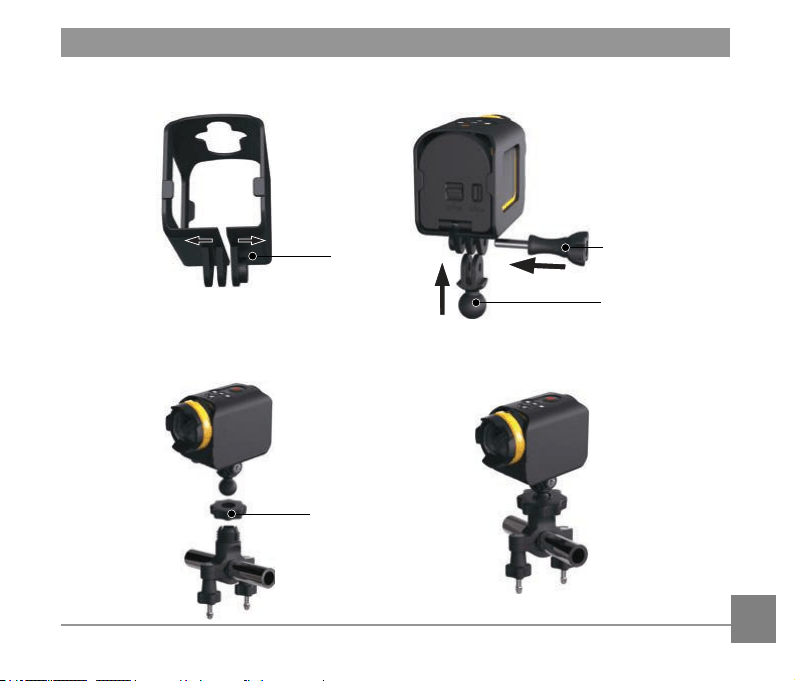
99
2. Open the bottom part of the xing sleeve and set it in the Action Cam. Insert the connector
into the bottom part of the xing sleeve, and then tighten them with screw.
3. Assemble the base, pre-tightening handle and bar clamp according to the direction
illustrated in the picture. First press the base into the bar clamp, and then rotate and tighten
the pre-tightening handle.
Fixing sleeve
Screw
Connector
Pre-tightening Handle
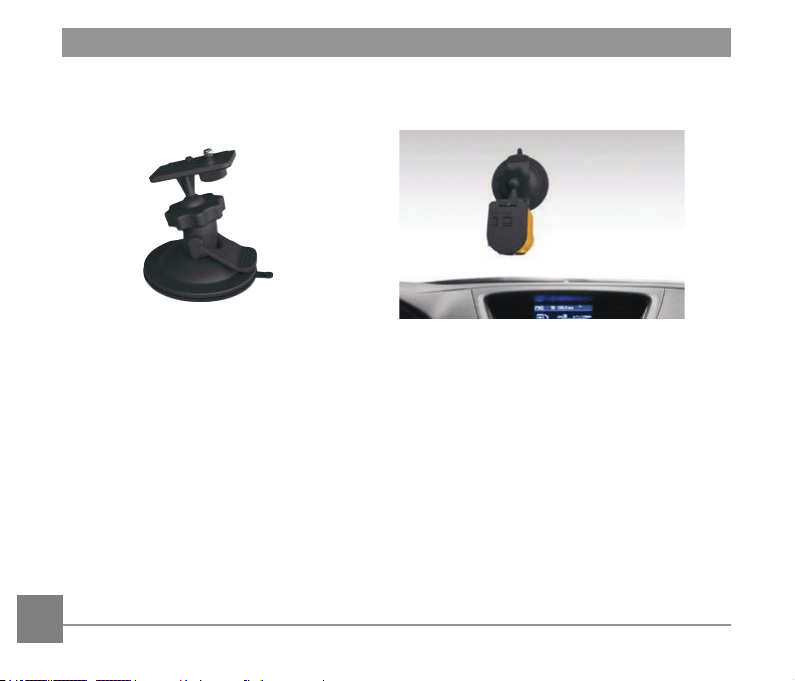
100
Suction cup mount: accessory applicable to be attached to the automotive
windshield (or smooth surface)
Installation Method:
1. Align the location pole of the base to the location hole of the action cam, and align the
screw on the base to the Tripod Socket of the action cam. Rotate the screw for xing.
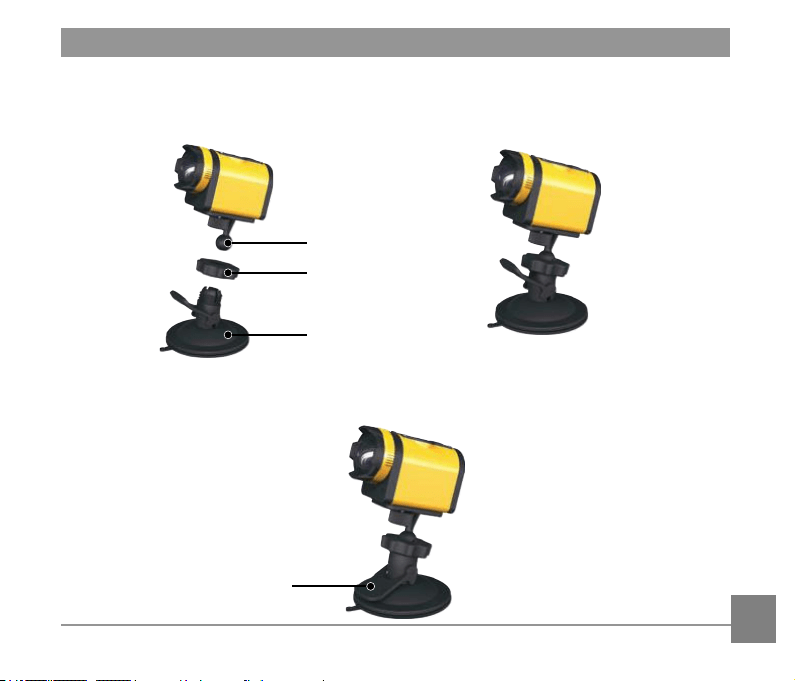
101
2. Assemble the base, pre-tightening handle and suction mount according to the direction
illustrated in the Picture. First press the base into the suction cup mount, and then rotate
and tighten the pre-tightening handle.
3. First, clean the suction mount and the windshield, and then attach the suction cup to the
windshield (or smooth surface). Press the handle to make it attached to the windscreen.
Suction Mount
Pre-tightening Handle
Base
Handle
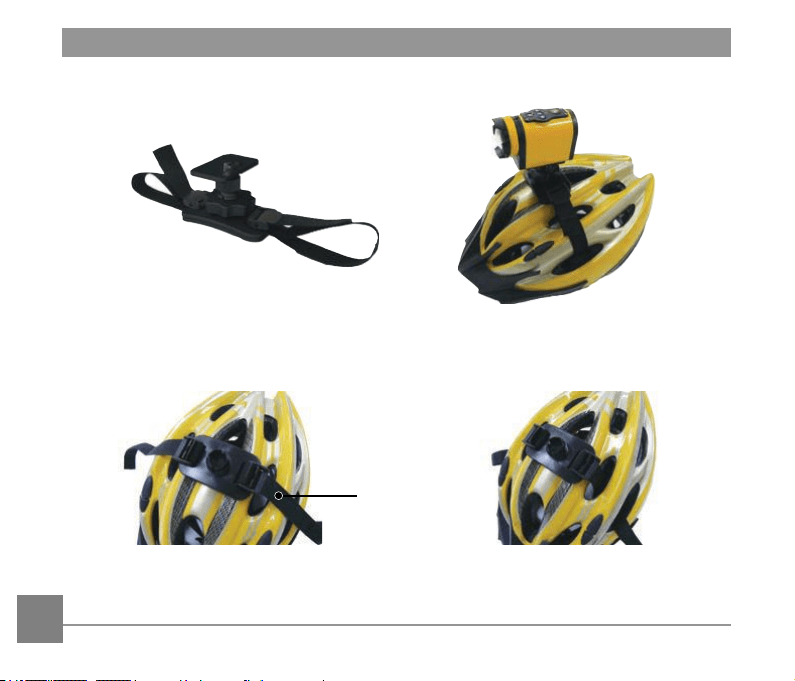
102
Vented helmet strap mount-A: accessory applicable to bicycle helmet
Installation Method:
1. Expand the band rst, and then thread both ends of the band into the helmet.
Band
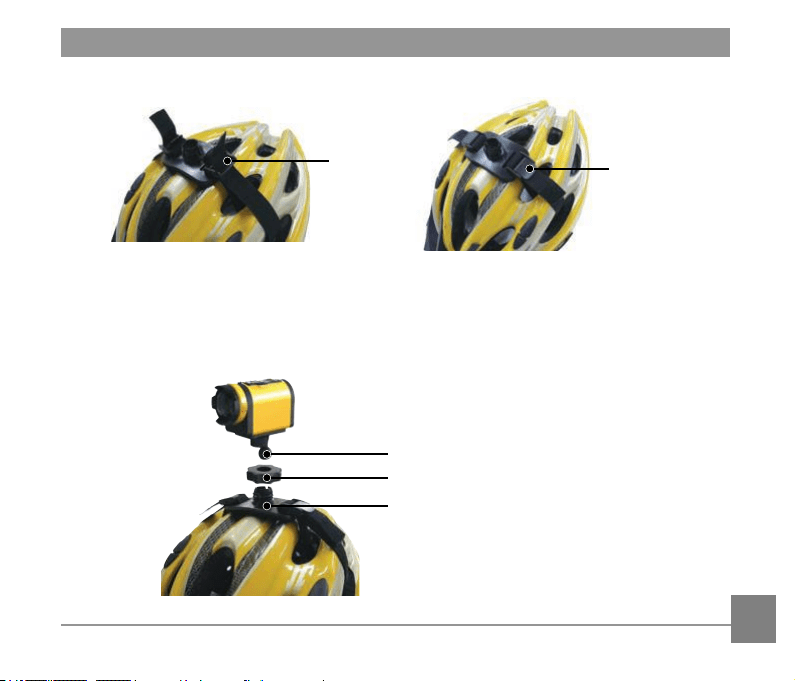
103
2. Thread both ends of the band into the buckle, and then press the buckle clamp.
3. Align the location pole of the base to the location hole of the action cam, and align the
screw on the base to the tripod socket of the action cam. Rotate the screw for xing.
4. Assemble the base, pre-tightening handle and vented helmet strap mount according to the
direction illustrated in the picture. First press the base into the vented helmet strap mount,
and then rotate and tighten the pre-tightening handle.
Buckle
Buckle Clamp
Pre-tightening Handle
Buckle Adhesive Mount
Base
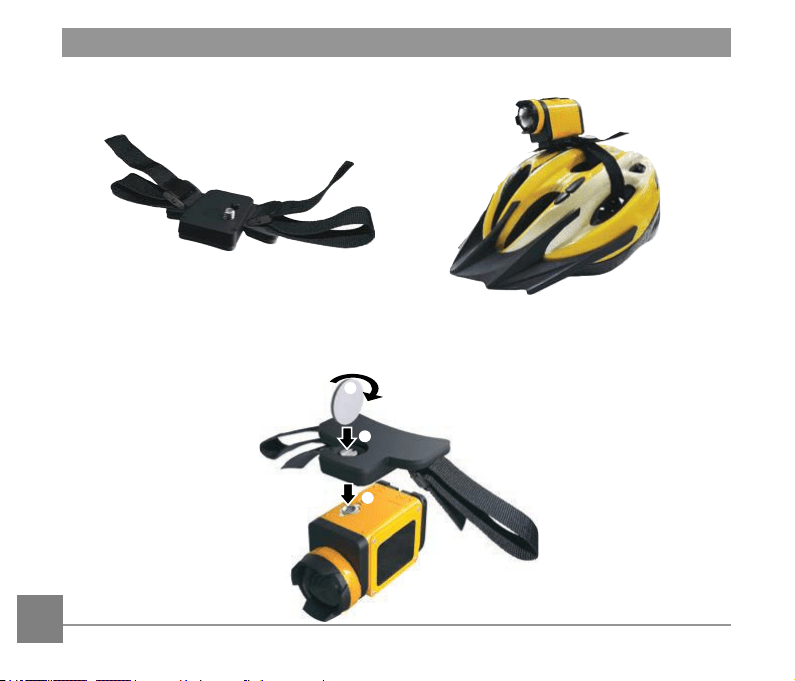
104
Vented helmet strap mount-B: accessory applicable to bicycle helmet
Installation Method:
1. Align the location pole of the mount to the location hole of the action cam, and align the
screw on the holder to the tripod socket of the action cam, and then rotate the screw with a
tool like a coin to fasten.
3
2
1
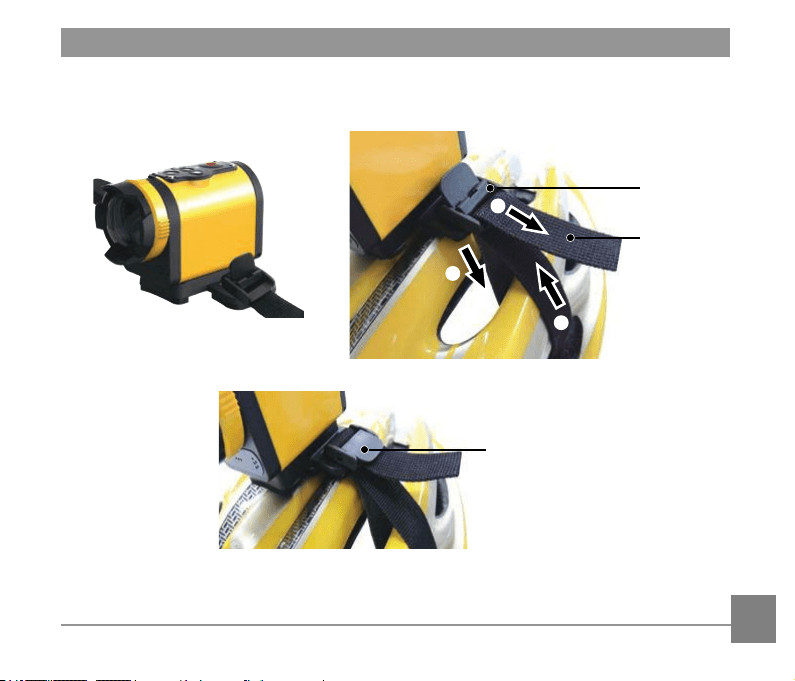
105
2. Expand the band rst, and then thread both ends of the band into the buckle.Thread both
ends of the band into the buckle, and then press the buckle clamp
1
2
3
Buckle
Band
Buckle Clamp
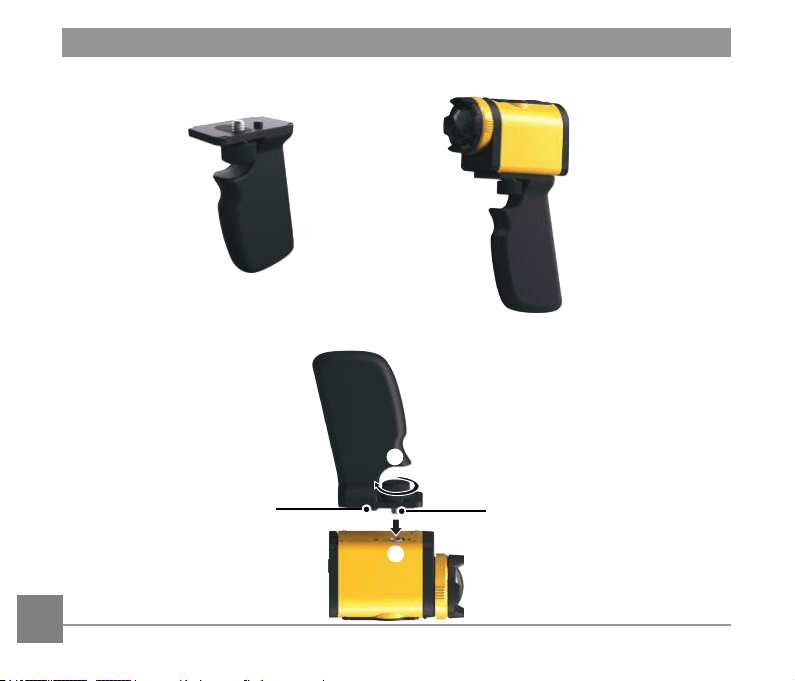
106
Handheld mount : accessory applicable to be handheld
Installation Method:
1. Align the location pole of the mount to the location hole of the action cam, and align the
screw on the holder to the tripod socket of the action cam, rotate the screw for xing.
Location Pole
1
2
Screw
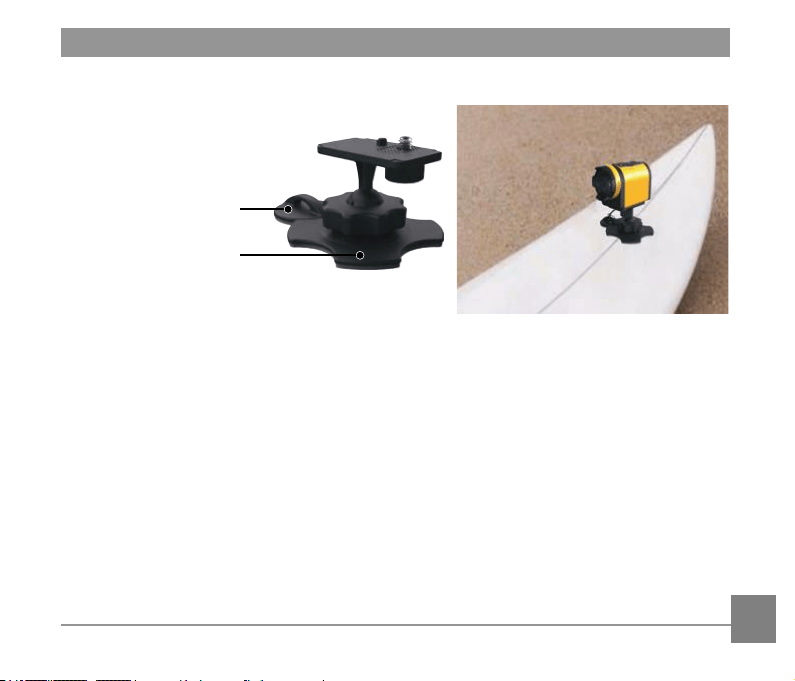
107
Surfboard adhesive mount: accessory applicable to surfboard
Installation Method:
1. Align the location pole of the base to the location hole of the action cam, and align the
screw on the base to the Tripod Socket of the action cam. Rotate the screw for xing.
2. Tie one end of the tether to the plane support (small), and the other end to the rear cover
shaft of the action cam.
Plane Support (Small)
Plane Support (Large)
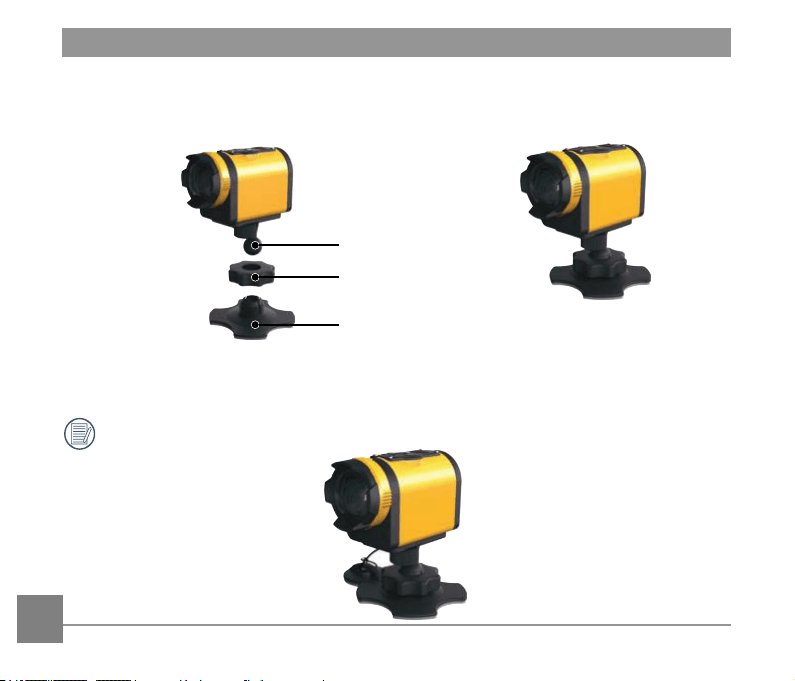
108
3. Assemble the base, pre-tightening handle and plane support (large) according to the
direction illustrated in the Picture. First press the base into the plane support (large), and
then rotate and tighten the pre-tightening handle.
4. Tack the double-sided adhesive at the bottom of the plane support (large) and the plane
support (small) to the object to be used.
Double-sided adhesive is disposable. It can be purchased separately and replaced if
needed.
Pre-tightening Handle
Plane Support (Large)
Base
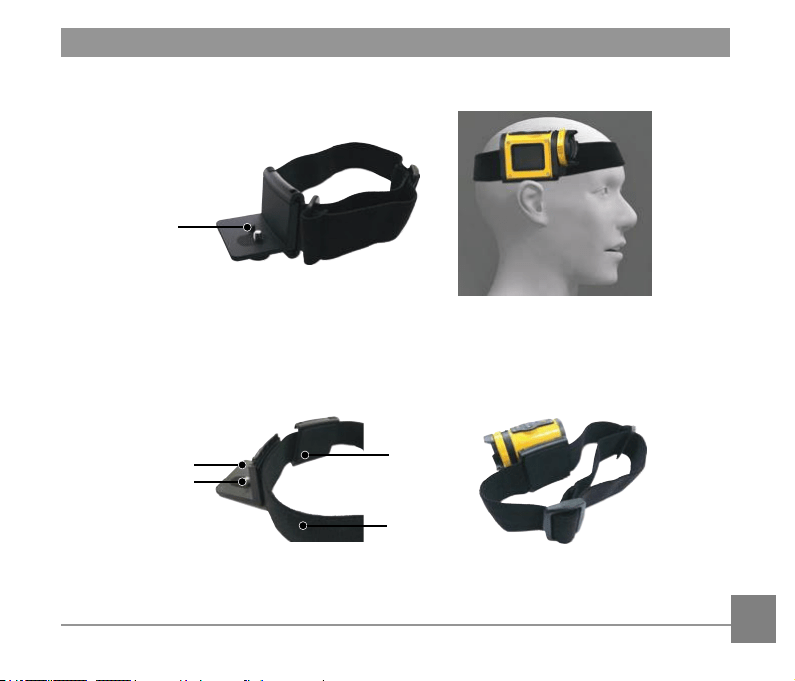
109
Head strap mount : accessory applicable to mount the action cam on your
head
Installation Method:
1. Insert the angle bracket into the mount, align the location pole on the angle bracket to
the location hole of the action cam, and align the screw on the angle bracket to the tripod
socket of the action cam. Rotate the screw for xing.
2. Set the band to your head and adjust the degree of tightness.
Location Pole
Angle Bracket
Screw
Mount
Band
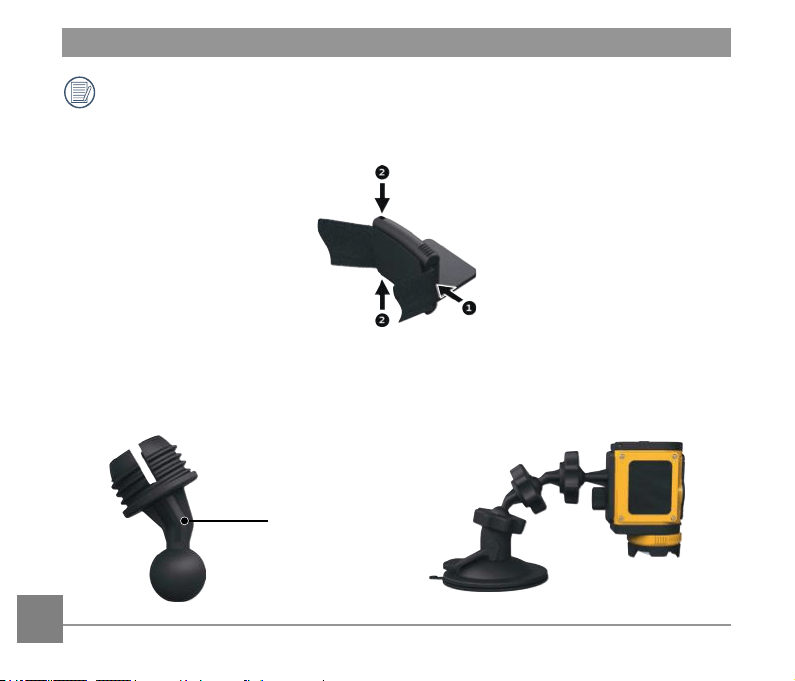
110
If you need to remove the mount, please use one hand to push forward the angle
bracket (as directed by arrow ①), and use a pointed object to push the buckles in the
two side holes by order with another hand (as directed by arrow ②) . Then remove the
angle bracket out from the mount.
Extended Arm:
You can add one or two extended arms (except head bank mount) to each kit, to help you to
adjust the mounting angle of the action cam more exibly.
Extended Arm

Ver. 9
Licensed
Product
The Kodak trademark and trade dress are used under license from Kodak.
© 2013 JK Imaging Ltd. All Rights Reserved.
JK Imaging Ltd., 17239 So. Main Street, Gardena, CA 90248 USA
JK Imaging Europe, 71 Clarendon Road, Watford, WD17 1DS, UK
http://kodakpixpro.com