USER MANUAL
USER MANUAL
www.rovedashcam.com
Copyright (C) 2019, All rights reserved
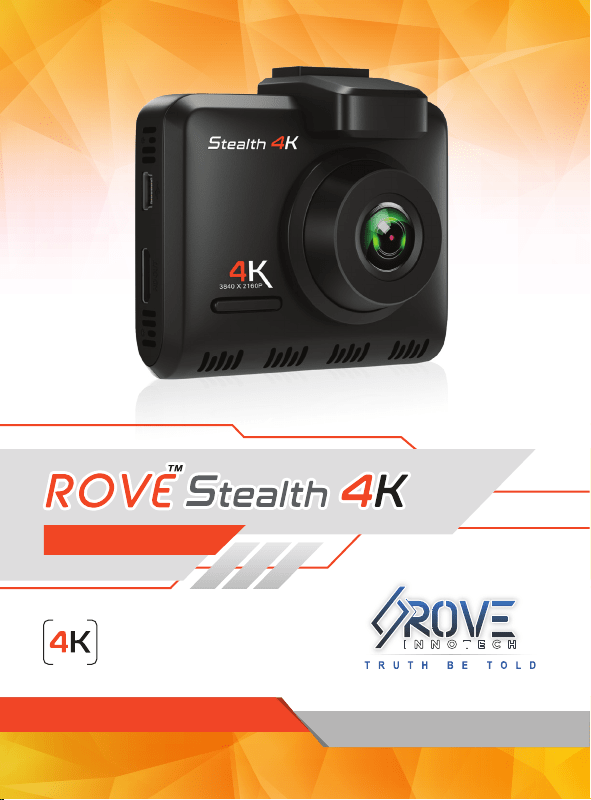
MODEL: Stealth 4K
3840 X 2160P @30FPS

Scan the QR Code to Email US Scan the QR Code to Text US
Just Scan the QR Code with your iPhone or Android’s
Camera to get in touch with us.
Response in just 6 hours
For faster response text us
1 (401) 484-ROVE(7683)
Item NOT as described?
Damaged or defective?
Missing items?
Any issues what so ever?
STOP
WE WILL HELP YOU RESOLVE ANY ISSUES ASAP.
CONTACT US BEFORE RETURNING THE ITEM
CUSTOMER SERVICE
EXPERIENCING
PROBLEMS
Hours: Mon - Fri 9am-5pm PST
HOW TO VIDEOS
Visit our website
www.rovedashcam.com/pages/videos
Understanding ROVE Stealth 4K
Watch HOW-TO VIDEOS to learn & understand all the
features so you can get the maximum benefit out of it.

3
CONTENT GUIDE
4
6
8
10
11
12
13
14
15
16
20
21
22
23
25
33
34
36
46
47
52
54
56
59
60
61
|
|
|
|
|
|
|
|
|
|
|
|
|
|
|
|
|
|
|
|
|
|
|
|
|
|
User Agreement+Precaution+User Warning
Getting Started - Out Of The Box Instructions
Technical Specification
Main Features
Package Contents
Product Diagram
Understanding Keys & Functions
Inserting / Removing A Micro+SD Card
Formating Memory Card
Installation
Turning On/off your Camera
Understanding Status Icons
LED Indicator
Battery Information
Using Wi-Fi Feature
Understanding Parking Mode
Understanding Motion Detection
Understanding Settings Menu
GPS player Software Installation and Instruction
Playback Your Recorded Videos
Product Warranty
Disclaimer Of Warranty/limitations
FAQ/Troubleshooting
Safety Legal Aspects
User Manual Desclaimer
Notice
4
USER MANUAL
Do not expose this product to rain, moisture or water under any
circumstances or it will result in external or internal damage.
Do not put the unit in a damp environment. This device is not
designed to be damp proof.
Do not try to open the cover or try to repair it yourself. If the
accessories for this device have any problem, please contact
the seller for assistance.
This camera is intended to use inside motor vehicle. Don’t
install it where it will block the driver’s view of the road
including mirrors or the deployment of airbags.
By purchasing ROVE Dash cam, it is assumed that by default you
agree with precautions, user warnings and all the terms &
conditions of warranty. If for any reason you do not agree with
any of the terms mentioned in this manual, then you may return
the product in its original packaging unused within its return
window for a full refund.
USER AGREEMENT
Please read this manual very carefully before using the camera or
installation and keep it safe for future reference. It will be helpful
if you have any questions or encounter any operational problems.
PRE-CAUTIONS
Please read and understand all instructions before using this
product. If any damage is caused by failure to follow the instruc-
tions, the warranty will be voided.
WARNINGS
Failure to comply with safety warnings and regulations can
result in serious injury or death.

5
Do not place the camera loose on top of the dashboard or
in-front of the air bags.
Do not mount the camera where it can be a distraction if it
became loose and fall off the windshield while driving.
Do not expose this device to an excessive heat, dust or use any
chemical substance or cleaning solvent to clean this device.
Instead use soft moist cloth for cleaning.
Pay careful attention when cleaning the lens surface. Use a
soft, moist cloth to clean the lens to avoid compromising
video quality.
Removing the camera from the vehicle when not in use is
recommended. This prevents likelihood of theft or exposure
to excessive heat to prevent damage to unit.
Do not operate or install the camera while driving, or attempt
to change any setting etc. Pull off the road first and only do so
when it is safe.
Do not drop, puncture or disassemble this product.
Do not use the charger if the cord is broken or damaged. Keep
out of reach of children.
Do not leave the camera in the direct sunlight for a long period
of time or where temperature could go above 140°F (60°C).
The camera is designed to be used for normal daily commute
recording. It is not made to continuously record 24/7 365 days.
Some countries or USA states prohibit drivers from mounting anything
on windshield or prohibit mounting on certain area of the windshield. It
is owner/operator’s responsibility to mount or use of this device
incompliance with local laws.
The company is NOT responsible for the loss of any data or your
content during operation or in any circumstance.
1
2
3
Make sure to always keep the camera plugged into the power,
because camera’s internal battery is NOT meant to last more
than 3-5 minutes depending on the video resolution you
choose.
You will need to insert a memory card before you can start
recording. Please insert only SAMSUNG Class-10, U3 or
higher speed Micro SD card up to 512GB max for reliable
operation. (NOT included in the packaging)
Before first time use, you MUST format your memory card in
the camera to prevent any errors and for smooth operation.
(See Page 15)
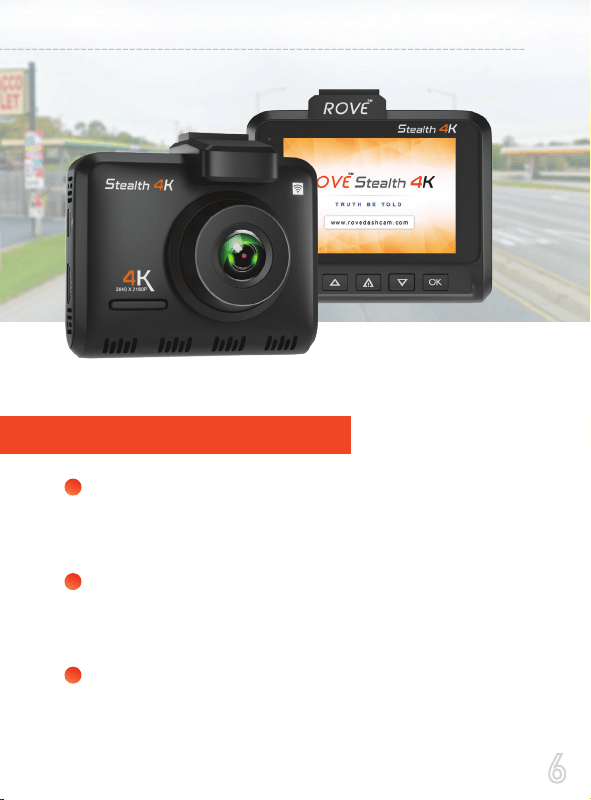
OUT OF THE BOX INSTRUCTIONS
Getting Started
6
USER MANUAL

4
5
6
7
8
ROVE Stealth 4K Car dash cam is programmed to turn ON
and START RECORDING automatically when it receives the
power, and STOPS RECORDING and turns OFF automati-
cally within 4-5 seconds when the power is disconnected.
(i.e. when you start /stop your car)
Setting Date & Time: Please set the correct date and time by
going into the Settings Menu.
How to hide power cable inside your car’s dash board?
There are many people has demonstrated on YouTube
how and where to hide power cable inside your car. You
can view one of the ways here, this video is NOT recorded
by us.
https://youtu.be/xwD8Ilk-MHU
How to transfer videos to PC/MAC?
Insert memory card directly to your PC/MAC to view or
download them.
You can also connect your camera to your PC/MAC by
included short USB data cable. Then go to Settings Menu
> USB Storage > Select Connect as a Flash Drive.
We recommend VLC Media Player to view your videos.
You can get it free at www.videolan.org (See Page 47-51)
Note: Do NOT use Windows Media Player. It is NOT made to
play 4K videos.
Wi-Fi: You can also connect ROVE Stealth 4K Car Dashcam
to your smart phone directly by using built-in Wi-Fi feature.
(See Page 25-32)
7
8
USER MANUAL
TECHNICAL SPECIFICATION
:
:
:
Lens type and layers 6G+1 IR Lens
Lens Angle 150° A+ Wide Wide Angle
Focal length f= 3.0mm (F/NO = 2.0)
LENS
:
:
:
:
Storage Type
Max Capacity
Minimum Speed Required
Supported Format System
External: Micro-SD Card
512GB Max
Class 10, U3 Speed
FAT32
STORAGE
:
:
Sensor name OmniVision OS08A10
Sensor native resolution 8MP PurCell CMOS
SENSOR
:
:
Picture format (BMP, JPG etc.) JPG
Supported photo resolution 20MP (5120 X 3840P)
PHOTO
Screen size 2.35"
Screen type IPS
Screen resolution 960 X 480P
:
:
:
SCREEN
9
:
:
USB-Storage YES
USB Charging YES
USB FUNCTIONS
:
:
:
VIDEO
Supported video resolution
with frame rating
Video format MP4
Compression H.265/H.264
Single cam: 4K 3840*2160 P30,
1080P P60, 1080P P30
Dual Cam: 4K + 1080P
:
:
:
:
:
:
TECHNICAL DETAILS
Working Temperature -10°C (14°F) ~ +60°C (140°F)
Weight 82.4g
SIZE 73 X 62 X 15mm (Exclude Lens)
Battery Capacity 250mAh
HDMI YES
AV YES
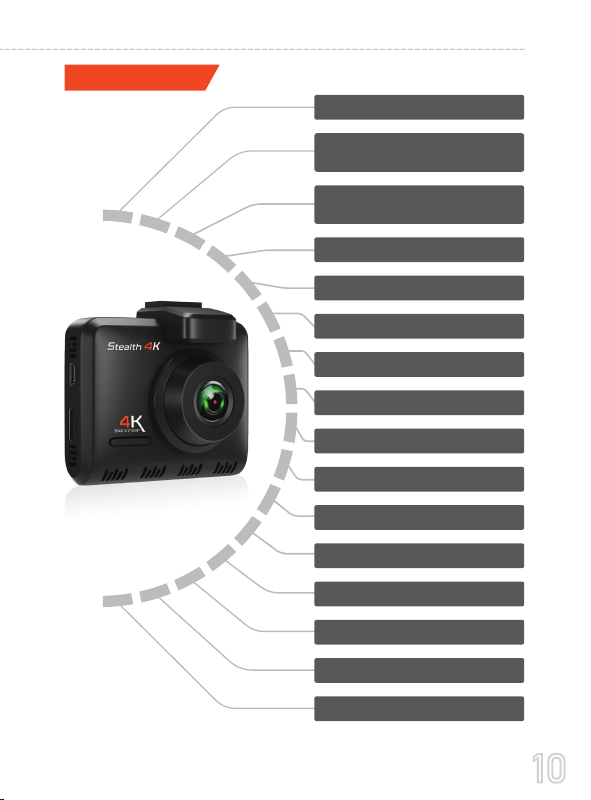
10
USER MANUAL
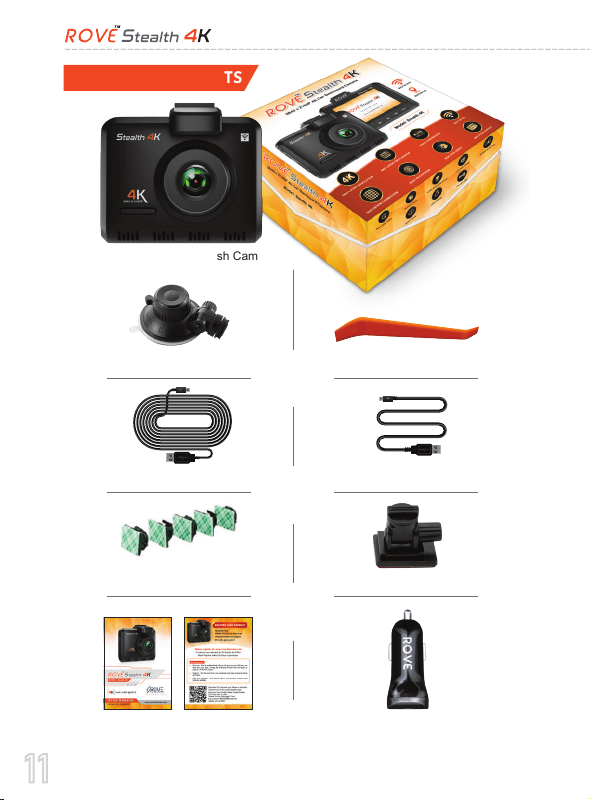
MAIN FEATURES
512GB Max Support
Micro-SD Class 10, U3
4K 3840 x 2160P Resolution
Rear Camera
Full-HD 1080P (Optional)
Digital Distortion Correction
20MP Photos
WDR - (True Color Gamut)
150° A+ Wide Angle Lens
Super Night Vision
Built-In WiFi
Built-In GPS
Time-Lapse Video
Seamless Loop Recording
Motion Detection
24-HR Parking Monitor
G-Sensor
Emergency Video Lock
11
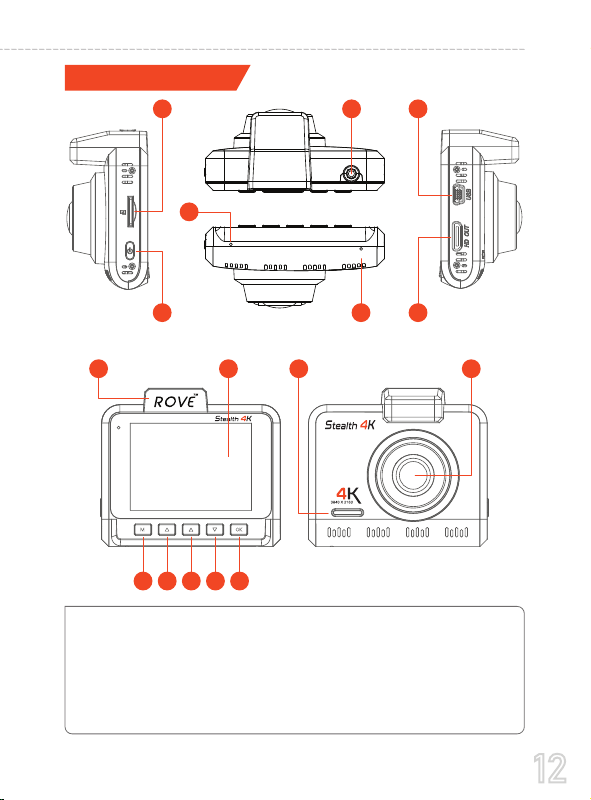
PACKAGE CONTENTS
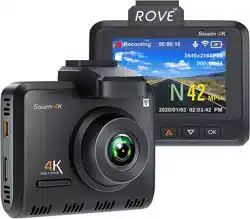
ROVE Stealth 4K Dash Cam
Windshield Suction Mount Car Wire Trim Tool
12FT Mini-USB Car Charging Cable 2.5FT Mini-USB Data Cable
5 x Cable Hiding Clips 3M Sticky Mount
User Manual & Registration Card
ROVE Dual USB Car Charger
12
USER MANUAL
1 3 6
52
98 15 16
10 11 12 13 14
7
4
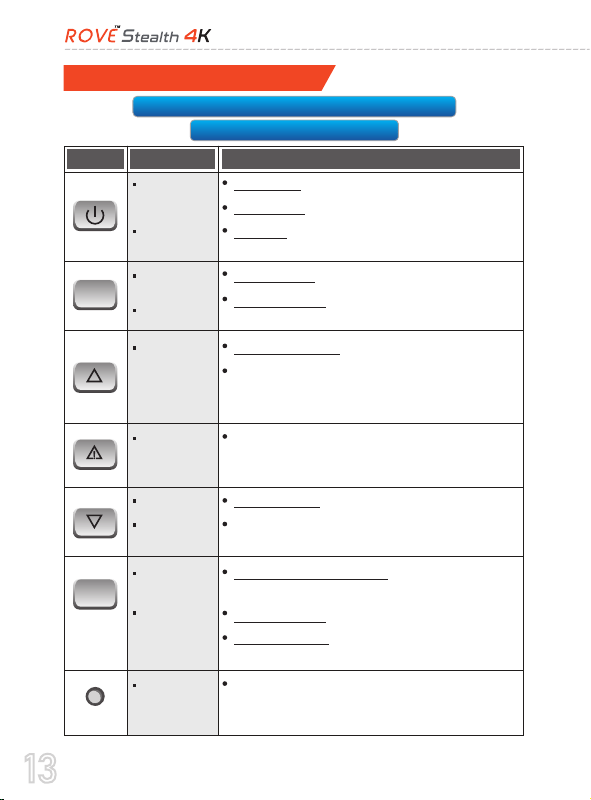
PRODUCT DIAGRAM
MIC
USB Port
HD OUT
GPS
5
6
7
8
Memory Card Slot
Power Button
Rear Cam Slot
Reset
1
2
3
4
Display
Menu/Mode
Up
SOS / Wi-Fi
9
10
11
12
Down
OK
Speaker
Lens
13
14
15
16
GPS
RESET
MIC
13
Understanding Keys & Functions
KEY FUNCTION INSTRUCTION
Reboot the dash cam at any case.
(Utilize this RESET if the camera Freeze up or
if it become non responsive.)
Reset
Reset
Lock Videos
During recording, short press to lock current
video; in video mode, short press to start a
1-min locked video.
Down
Mute Switch
Menu Setting: Short press to Scroll Down
Short press to Mute/Un-Mute the microphone
anytime while in video mode.
Up
In Menu Settings: Short press to scroll UP.
Short press to change camera views between
FRONT & REAR (Only when rear camera is
plugged in)
Menu
Setting
Playback
M
Setting Menu: Short press to enter Setting Menu.
Mode Switch: Long press to switch to
Playback Mode.
Power
ON/OFF
Take Photo
Power ON: Short press to power ON.
Power OFF: Long press to power OFF.
PHOTO: Short Press to take a PHOTO when in
video mode.
Start/Stop
Recording
Confirm
Setting
OK
Record In Video Mode: Short press to
Start/Stop recording.
Settings Menu: Confirm Setting
WiFi ON/OFF: Long Press to turn the WiFi
On/Off
LONG PRESS = Press & Hold For 2-3 Seconds
SHORT PRESS = Press Once
14
USER MANUAL
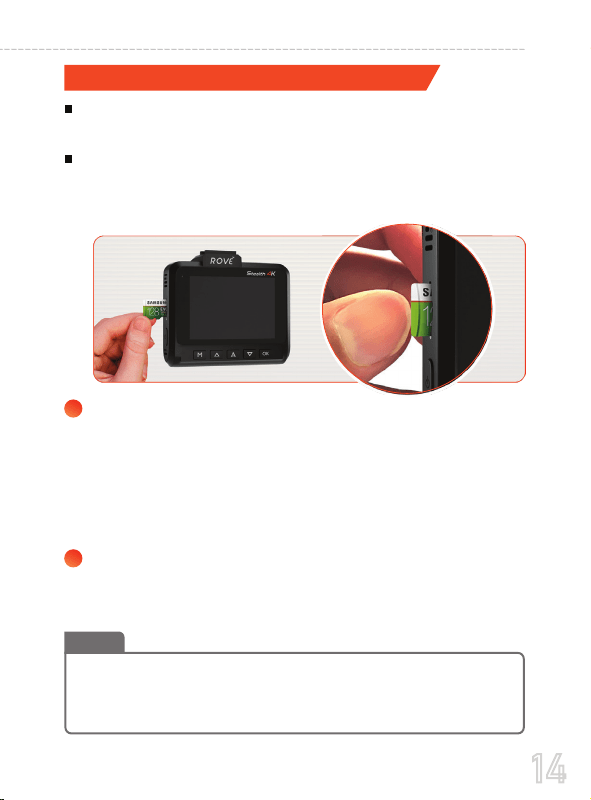
Must use only Brand Name, Class-10, U3 or higher speed Micro-SD
Card. Max support 512GB.
We Recommend SAMSUNG Class 10, U3 Speed Micro-SD Card.
You can purchase it from Amazon here:
TO INSTALL
Make sure the camera is turned OFF First. Then align the GOLD
CONTACTS facing towards the front of the camera (Lens Side).
Then insert the memory card half way in. Then use the finger nail
or a paper clip to push the card all the way inward until it clicks and
locks in place.
If you experience camera FREEZING or LAGGING or STOPS
Recording after few seconds. Then It is the issue of the MEMORY
CARD. (NOT THE CAMERA ISSUE) - Please Contact US.
TO REMOVE
To remove the MicroSD card, gently push its edge inward until it
clicks, and then pops out, then simply pull it out of the slot.
https://www.amazon.com/dp/B07MKSGZM6/
Note
INSERTING / REMOVING A MICRO SD CARD
1
2
15
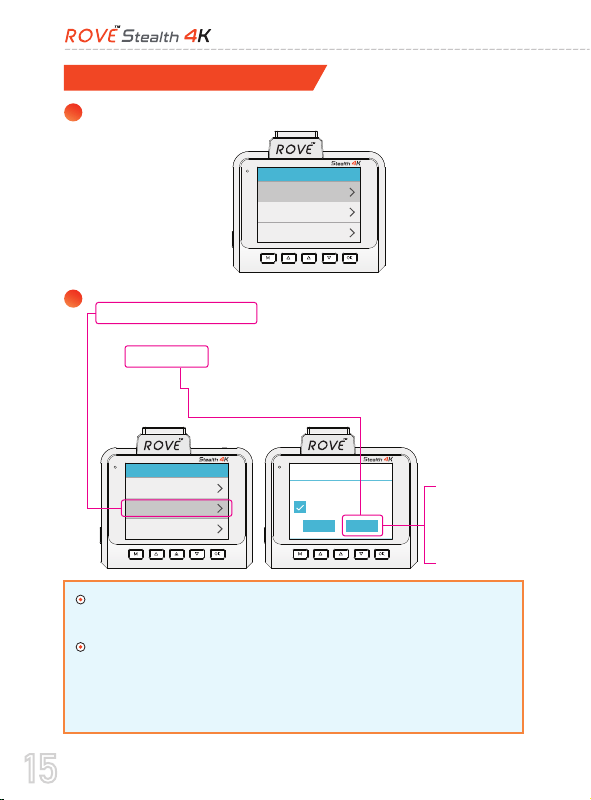
Please press the (M) MENU button to enter the settings.
Then press theDOWNbutton to scroll down until you see
Format Memory Card>>Then press theOKbutton to enter
format submenu.>>thenpressDOWNbutton to highlight
theCONFIRM>>Then press theOKbutton to confirm to
format the memory card (The formatting process will be
super quick.Now press the M button to exit the settings).
FORMATTING MEMORY CARD
1
2
Settings
Video Settings Front
Audio Settings
Light Frequency 60Hz
Settings
Micro-SD Card Storage
Format Memory Card
Default Settings
Notice
Format SD at once?
Quick format
Cancel Confirm
Press OK button
to make sure your
Memory card is
formated.
We recommend that you format the memory card every 3
months to keep it clean for smooth operation.
Please note that memory cards have their self life span,
after so many uses of writing data over and over, eventual-
ly they will become in operable. When that happens,
please replace your memory card.
16
USER MANUAL
The camera comes with the default settings which allows you to
start using your camera right out of the box without changing any
settings. Make sure to format the memory card before first time use.
Note
INSTALLATION
Make sure that the camera’s view is not obstructed by any window
tint or any other objects.
If your vehicle has side curtain airbags please be very careful when
running any cables along your vehicle windows. Ensure you are
not running cable spast any of the airbags as this can prevent the
airbags from deploying.
1
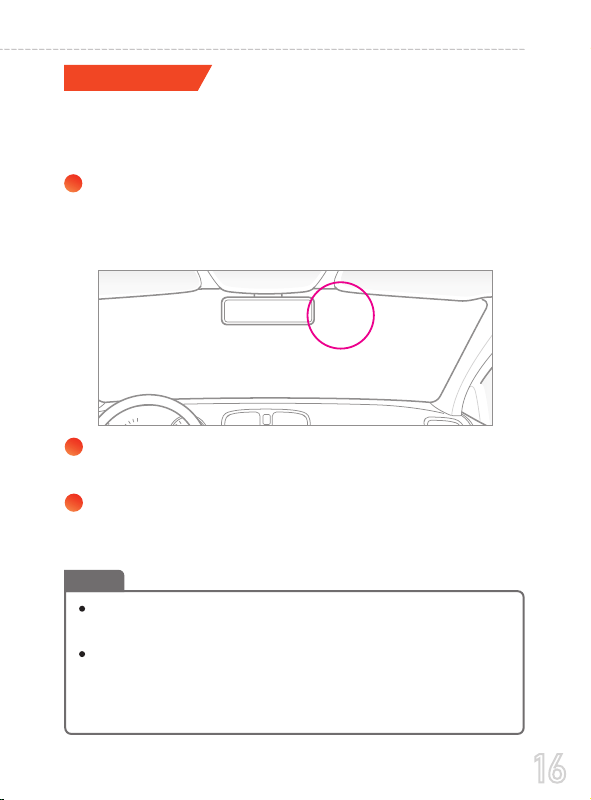
Installation Position: It is recommended to install ROVE
Stealth 4K at the near of rear view mirror of driver opposite
side. Clean any foreign matter and moisture from the place
where the product will be installed.
Stop the engine where there is some light and in a safe place,
and then remove the key.
Attach the ROVE Stealth 4K to the windshield glass with
using the suction mount. Set the camera lens to point directly
forwards to the center when installing it.
2
3
17
4
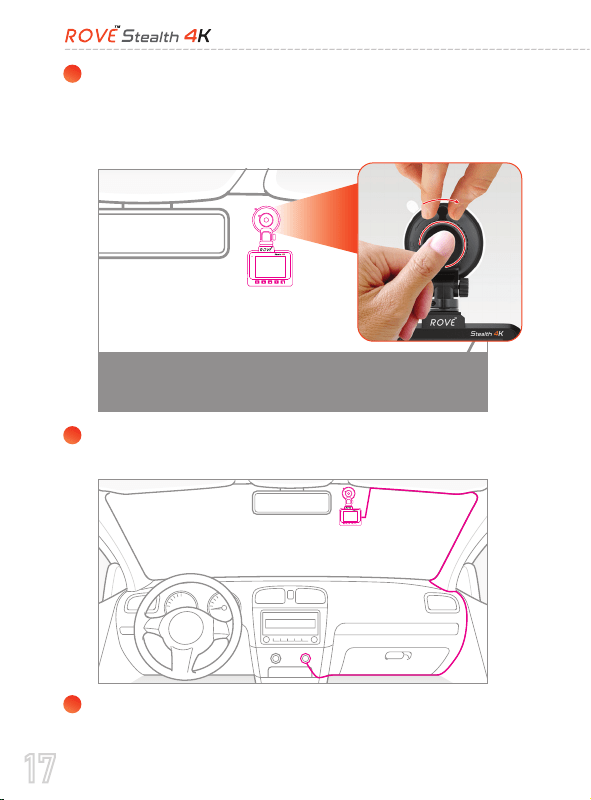
To Lock The Suction Mount: Press & hold it tight to remove
any air between suction mount and the windshield. While
pressing & holding towards the windshield, turn the LOCK-
ING Knob towards CLOCK WISE to LOCK in place.
5
6
Use the power cord to connect the USB Port of the product to
car's cigarette lighter socket.
Use the cable clip to organize and hide the power cord so
that it doesn't interfere with the driver's vision.
Press the suction mount against windshield and while
pressing, turn the LOCKING Knob towards LOCK position to
lock the mount in place.
18
USER MANUAL
6
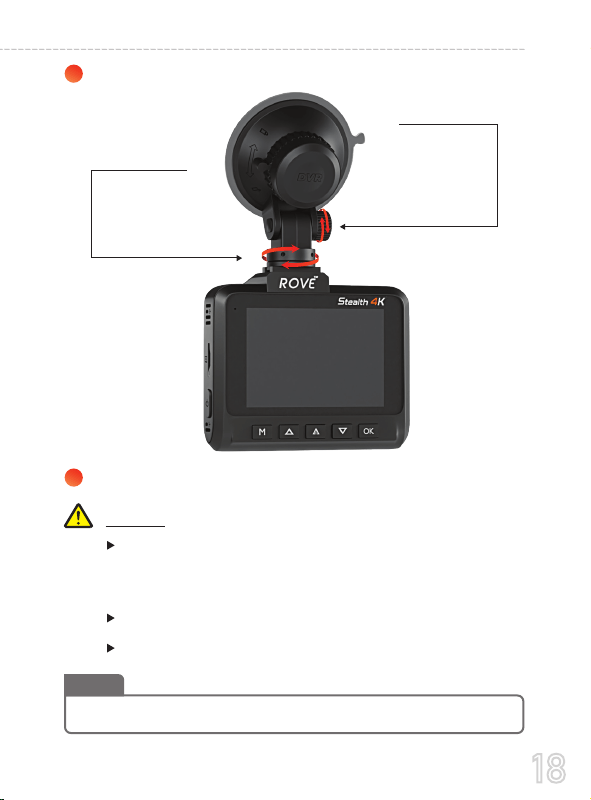
Adjust the lens angle of the camera.
7
Start the engine and check if the product works properly.
Make sure to remove the Plastic Lens Screen Protector before
recording videos. Otherwise your videos will look blurry and
out of focus.
Do not remove the Micro-SD card while it is saving or reading data.
The data may be damaged or malfunction may caused.
Caution:
After a test drive, check if video was correctly recorded.
Note
Simply rotate the
camera 360
o
to
record any direction
you prefer.
Loosen the screw
to adjust the
camera’s view angle
and then tighten to
lock that angle.
19
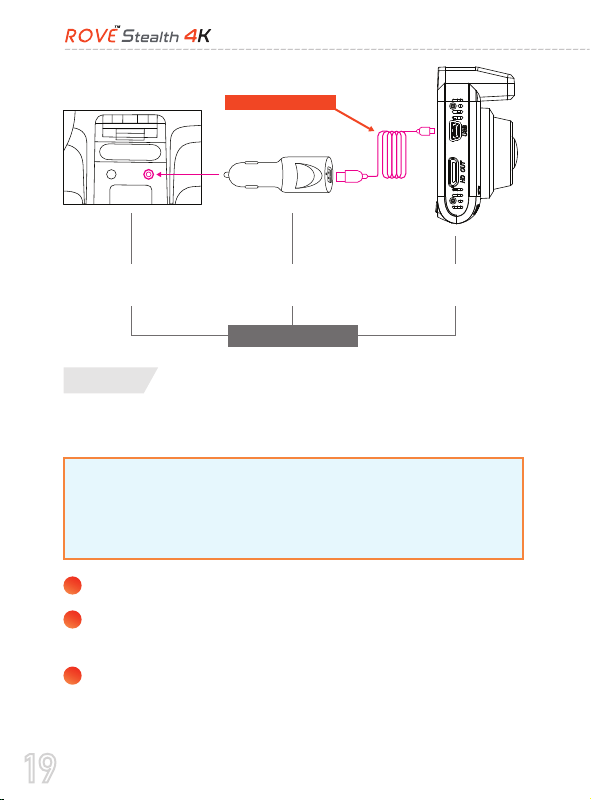
Car charger connects to the car cigarette lighter.
Do NOT Connect the camera to PC for Charging. Instead
use the 110V wall outlet.
The device will start up automatically and record as soon as
power supplied, and the device will save the last video file
and power off autometically after cutting the power supply.
Only use the supplied charger to power and charge the Rove
Stealth 4K dash cam.
Charging
1
2
3
Car Cigarette
Lighter Plug
ROVE Stealth 4K
Dash Cam
Car Cigarette
Lighter Socket
Wiring at a glance
12FT Charging Cable
You can use your iPhone or Android Phone’s USB Charger, and plug
into your home’s 110V Wall outlet to power/charge the camera while
in your home. Just make sure it is NOT super heavy duty charger over
3.1 AMP. Otherwise it can damage the camera.
20
USER MANUAL
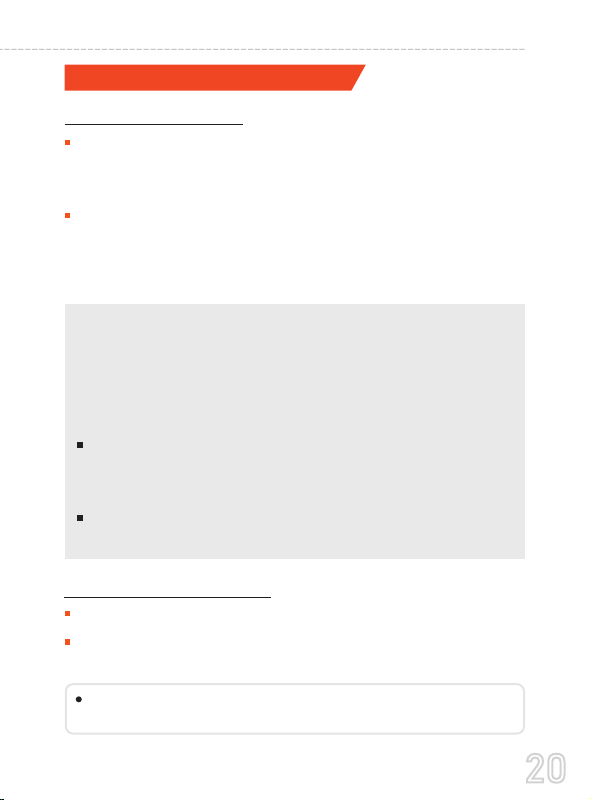
Note: Be sure to insert the Memory card before powering up the device.
Format the Memory card before you start recording for the first time.
TURNING ON/OFF YOUR CAMERA
AUTO POWER ON/OFF
Auto Power ON: ROVE Stealth 4K Dash Cam is designed to
ON and start recording automatically when it receives power.
i.e. when the car engine is started.
Auto Power OFF: The camera is also pre-configured to turn
itself OFF automatically within few seconds when the power
gets disconnected, i.e. when the car key is turned to LOCK
position.
To manually turn ON: Press the power button once.
To manually turn OFF: Press and hold the power button for at
least 2-3 seconds
MANUAL POWER ON/OFF
NOTE: Some trucks/car’s 12V cigarette outlet is always HOT, which
means it provides constant power even when the car is turned OFF and
LOCKED. If this is the case for your vehicle, then the auto ON/OFF
feature will not work.
To Remedy this situation, you can do one of the two option.
Change the connection in the fuse box for your 12V outlet to socket
which only supplies power when car key is turned to ACC or ON
position.
Hard Wire the dash cam to car’s fuse box with a connector that only
provides power when your car’s key is turn to ACC or ON position.

21
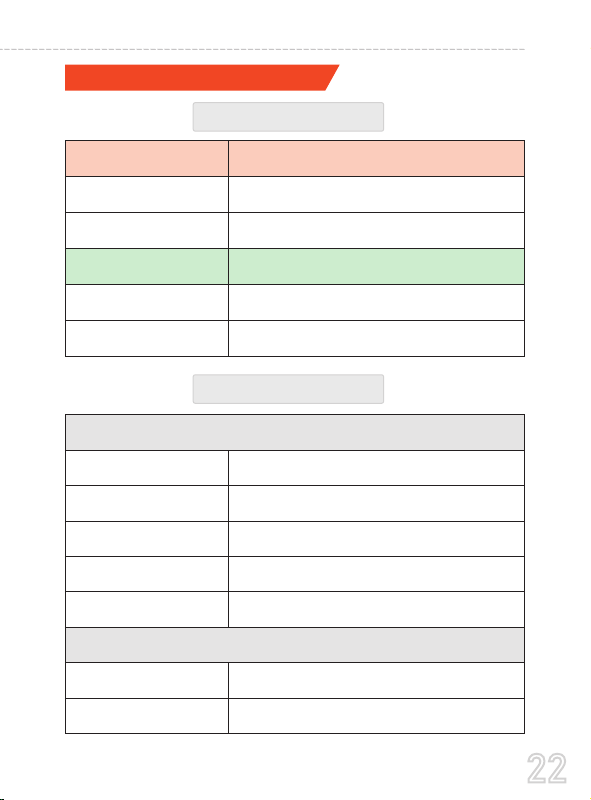
ICONS WHAT DOES IT MEAN?
UNDERSTANDING STATUS ICONS
Home Screen
Home Screen Status Icons
2019/03/23 02:03:42
Recording 00:00:10
3840x2160P30
Menu,
Mode Switch
Up Down
OK,
Start/Stop
Recording
SOS,
Lock videos
Microphone Indicator
Wi-Fi Indicator
Battery Indicator
Video Resolution
Current Date
Current Time
Recording Indicator
Memory Card Indicator
GPS Signal Indicator
Parking Mode Status
Motion Detection Status
Recording Status
Loop Recording Timer
(Resets every loop)
2019/03/23
02:03:42
3840x2160P30
Recording
Battery Is Charging
Power Cable Is Plugged In
Power NOT Plugged In
Internal Battery Level
Memory Card Installed
Memory Card NOT Installed
Memory Card Is Deffective
Video Recording Started
Loop Recording Timer
G-Sensor
00:00:10
Emergency Video Lock
ICONS WHAT DOES IT MEAN?
Parking Mode ON
Parking Mode OFF
Motion Detection ON
Motion Detection OFF
Microphone ON
Microphone OFF
Wi-Fi ON
Wi-Fi OFF
Current Video Resolution
Current Date &
Current Time
22
USER MANUAL
LED STATUS LIGHT INDICATOR
When Camera Is Plugged Into The POWER
Indicates Recording Status
Blinking RED Recording Video
Solid RED/NO RED NOT Recording Video
GREEN LIGHT Indicates Internal Ba�ery Charging Status
Solid GREEN Internal Ba�ery Charging
NO GREEN Light Internal Ba�ery Fully Charged
Solid RED + Solid GREEN
Camera Idle + Internal Ba�ery Charging
Only Solid RED
Camera Idle + Internal Ba�ery Fully Charged
Only Blinking RED
Camera Recording Video +
Internal Ba�ery Fully Charged
Only Solid GREEN
Camera is Turned OFF + Internal Ba�ery Charging
(The Green LED Will Turn OFF When The Camera Is Fully Charged)
NO Lights
(Both Lights Turned OFF)
Camera is Turned OFF +
Internal Ba�ery Fully Charged
Only Solid RED
Camera Idle + Internal Ba�ery NOT Charging
Only Blinking RED
Camera Recording Video +
Internal Ba�ery NOT Charging
When Camera Is NOT Plugged Into The POWER
(When Running On Internal Ba�ery)
RED LIGHT
General Understanding
DIFFERENT SCENARIOS
23
BATTERY INFORMATION
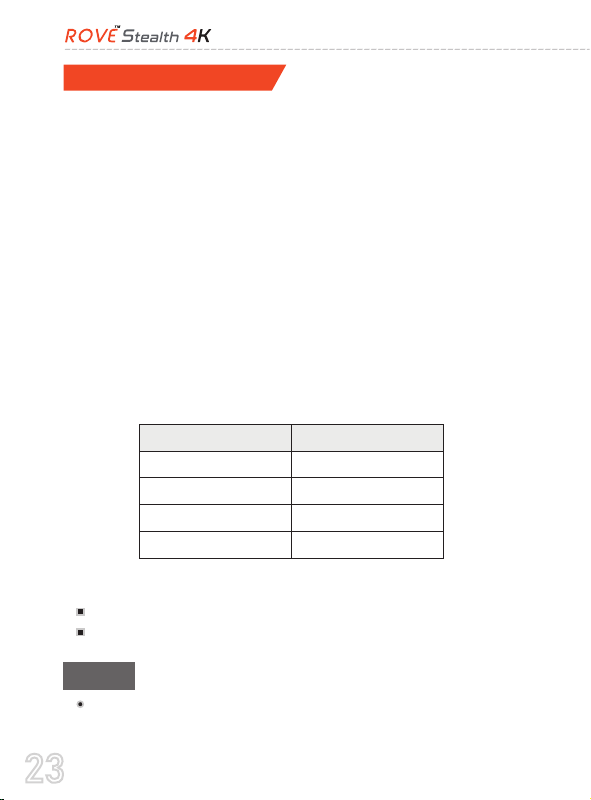
This product contains Lithium-Ion inbuilt battery. With a full
charge battery should last upto 2-5 minutes. Internal battery is
NOT meant to last long time. The higher the video resolution you
choose the more power it will consume, hence it will last short
duration, and the lower video resolution you choose the less
power it will consume, hence it will last longer. The purpose of
in-built battery is to save the last video file safely without any
data loss and turn off the camera when power gets disconnected.
Following are approximate internal battery lasting time when it is
fully charged. e.g. when you turn off your car. Another purpose
is parking mode. When your car vibrates by impact and vibration
activates G-Sensor setting range then camera will turn on and
start recording on battery for 1-minute, lock video file and then
auto turn off automatically.
If you leave your car for long time we advise that you
remove the camera from the car because of the temperature
Video Resolution Approximate Time
2160P @30fps
1440P @30fps
1080 @30fps
720P @30fps
2 - 3 Minutes
3 - 5 Minutes
5 - 7 Minutes
7 - 8 Minutes
Temperature:
Standard Operating Temperature: -10°C to +60°C
Standard Working Humidity: 10-90%
Caution

24
USER MANUAL
and sun exposure inside the car can exceed specified range
above depending upon your geographical and weather
conditions.
Do not expose this camera to extreme high heat, direct
sunlight, cigerattes, cigars, candles or low temperatures or
crush or break.
Do not use in humid, wet and/or corrosive environment.
Do not expose battery to extreme temperatures above 60°C
or 140°F Just like any other battery, it could explode or cause
fire. It is user’s responsibility to operate it correctly.
Please adhere to your local or state laws for recycle of Li-Ion
battery properly.
25
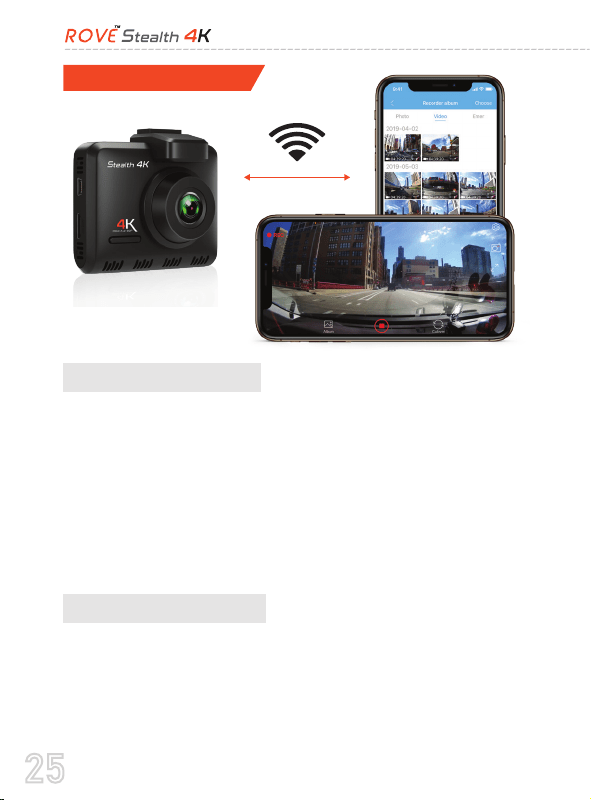
The WiFi feature has been designed so you can pair your dash
camera wirelesly with your smartphone and access your record-
ing instantly from the dash cam. Here you can view, download
and share your videos easily with your friends and family. Just
like how you would connect your Bluetooth speaker to your
smartphone for wireless music play, the same way dash cameras
use WiFi signal (instead of a Bluetooth) to pair your smartphone
with ROVE Stealth-4K.
USING WI-FI FEATURE
What is a WiFi Feature?
The WiFi signal range is about 10FT when there are NO obstruc-
tions in the middle. Please NOTE that just like your home WiFi
network, you can't have WiFi signal outside your home, the same
way, WiFi range is 10FT from this small device.
What is the WiFi Range?
26
USER MANUAL
Pairing your Stealth 4K with your Smart Phone using WiFi
NO. ROVE Stealth-4K dash cam is NOT made to broadcast
footage over the cloud or internet. It is NOT a cloud or an IP
camera and it is NOT meant to do that. You can get live video and
footage on ROVE Stealth-4K’s APP as long as you stay within the
10FT range from the dash cam.
Can I watch the videos or surveillance
around my car remotely?
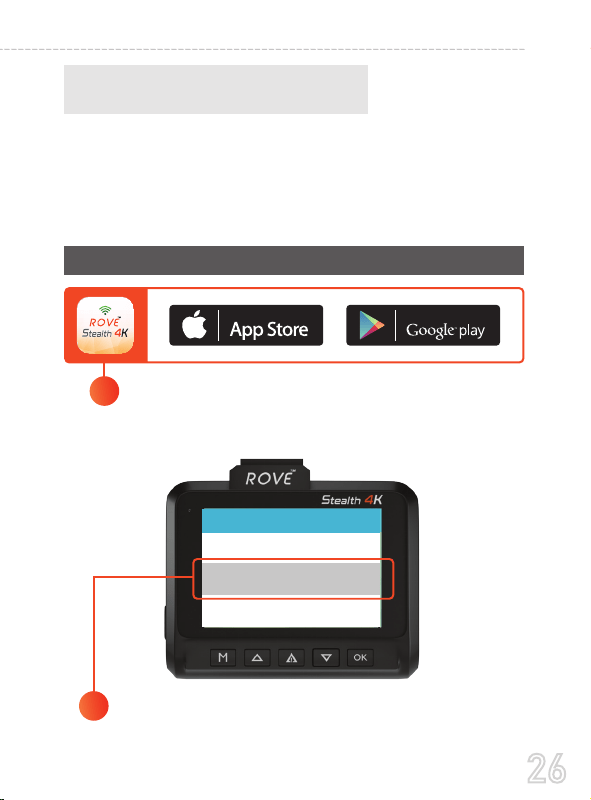
Turn the WiFi ON from the Stealth-4K's Settings
Settings
Reset System >
Wi-Fi ON
About >
2
Download on the ANDROID APP ON
Search for “ROVE Stealth 4K” in App Store or
Google Play Store to find the App and then
download and install it on your phone.
1
27
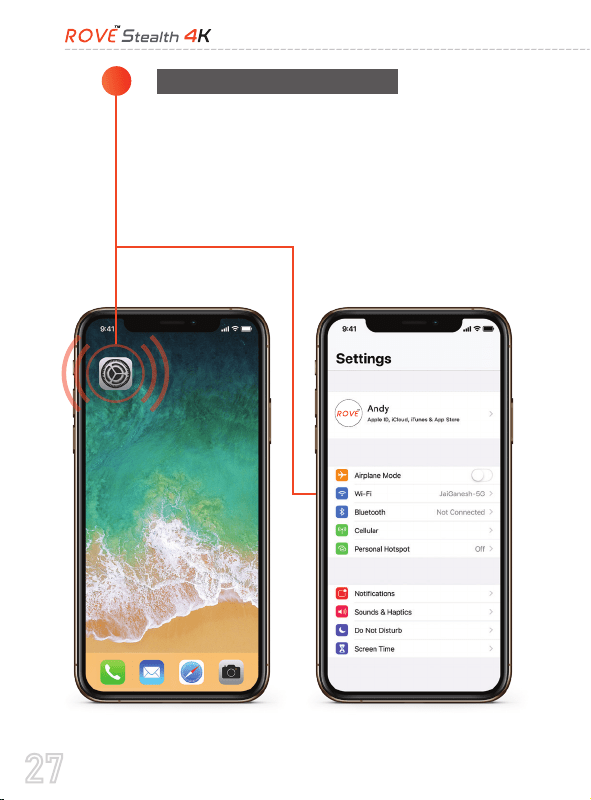
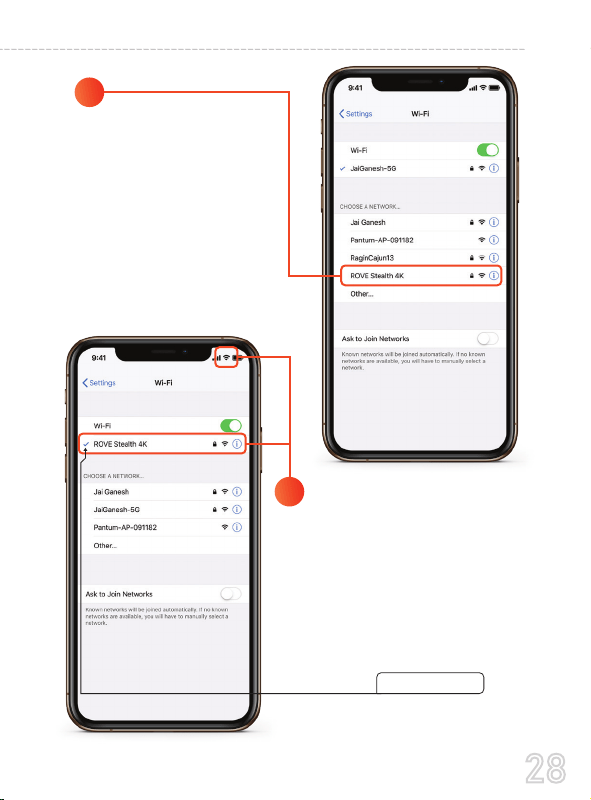
From your iOS Home screen, go to Settings > Wi-Fi
Turn on Wi-Fi. Your device will automatically
search for available Wi-Fi networks.
3
Connecting WiFi For iPHONE
28
USER MANUAL
From the available
networks list, choose the
"ROVE Stealth 4K"
WiFi Network
4
5
When Prompted, Enter The
Default Password:
88889999
(First time only - then it will save
the password)
Wait until the connection is complete.
After you join the network, For iPhone,
you should see blue check mark next
to the network and a Wi-Fi connected
icon in the upper-right corner.
29
6
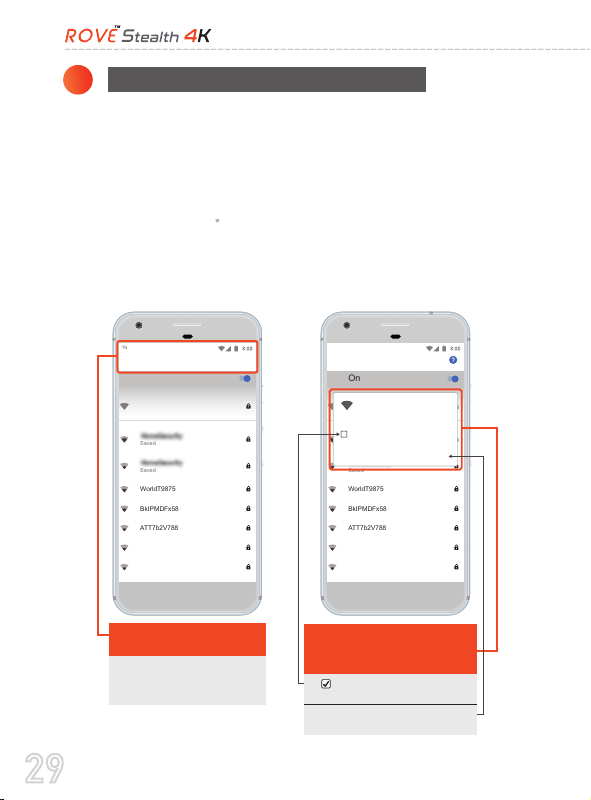
Once connected to ROVE Stealth 4K WiFi, it will say “No Internet”. Which
is fine. You just have to tap on the pop up notification that will show up in
few seconds to select that you still want to stay connected even though
there is NO Internet. Once you select this OK, you are set to go.
Wi-Fi
On
ROVE R1_44334c9bff77
Connected, no Internet
WorldT9875
BkIPMDFx58
ATT7b2V788
ATT9j998Q4
TheCombine
Saved
Saved
ROVE Stealth 4K
This network has no Internet access.
Stay connected?
Don’t ask again for this network
NO YES
Touch here as soon as you
see this notification
Once you enter the default
password for ROVE WiFi and hit
connect, you will see this pop-up in
few seconds.
1. Check this box, so your phone
remembers this setting for next time.
2. Then touch YES to stay connected to
this WiFi and save this preference.
WorldT9875
BkIPMDFx58
ATT7b2V788
ATT9j998Q4
TheCombine
Saved
Saved
Android System
Wi-Fi has no Internet access
Tap for options
On
ROVE Stealth 4K
Connected, no Internet
Once you tap that notification
from the LEFT you will get
this screen.
1. Turn OFF Cellular Data
2. Turn OFF WiFi Calling Feature if enabled.
3. From the available network list, choose the “ROVE Stealth 4K”
WiFi Network.
4. When prompted enter the default password “88889999”
(First Time Only - Then it will save the password”
5. Wait until the connection is complete.
Connecting Wi-Fi For ANDROID Phones
30
USER MANUAL
Using the ROVE Stealth 4K App
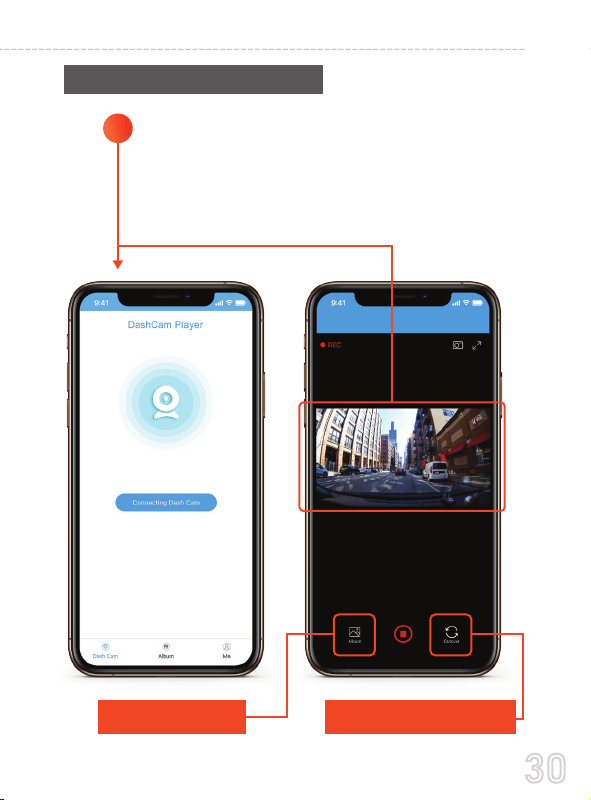
Open the ROVE Stealth-4K APP & Select "Connect
Dash Cam"
The camera should now be paired automatically
with ROVE Stealth-4K APP and you should see the
LIVE Video Feed.
1
Select Album, to access
previously recorded videos
Choose this to switch live video view
between FRONT & REAR Camera
31
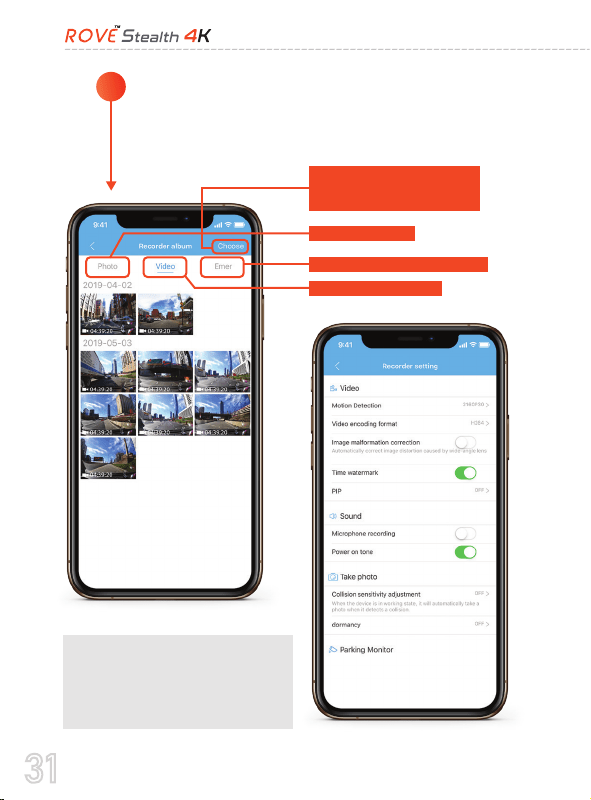
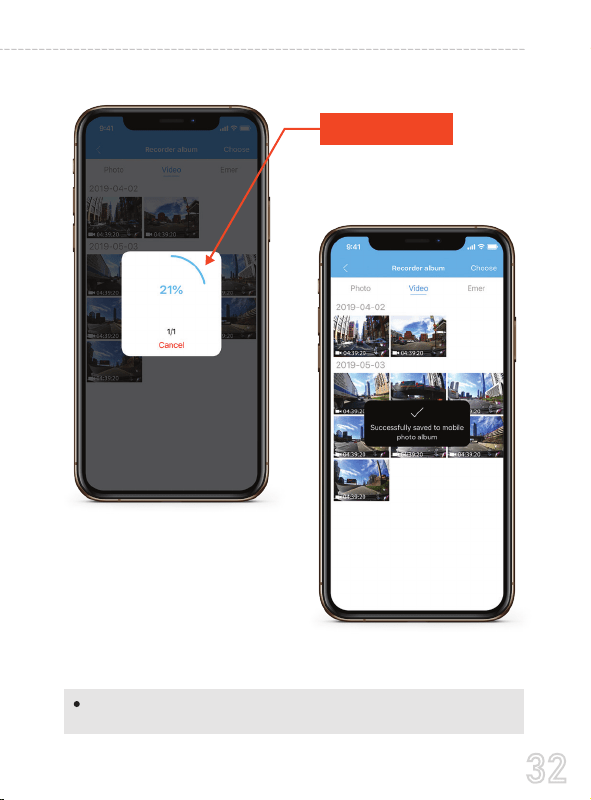
You can easily navigate yourself, view your record-
ings, change settings etc.
2
Choose to select any videos then
take action to either DOWNLOAD
or DELETE selected files.
View Photos Taken
Access Recorded Videos
Access Emergency Locked Videos
APP UPDATES COMING SOON.
Please pardon us, we are working on
improving our APP and language ASAP.
We will push an update very soon.
32
USER MANUAL
Note: Apple logo & App Store are trademarks of Apple Inc., Google logo
and Google Play are trademarks of Google Inc.
Video Being Downloaded
to your phone directly.

33
UNDERSTANDING PARKING MODE
How To Test This
Parking mode works as follows. Let's say you went shopping and
parked your car in the parking lot. Then someone hits your car
while backing up their car, then the impact caused by hitting your
car makes your camera vibrate, which then activates the built-in
G-sensor and then parking mode, which then turns ON your
camera automatically and starts recording for 1-min, then it locks
and saves that video file so it does NOT get deleted by the loop
cycle function, then the camera turns OFF automatically. Now
when you come back from shopping and see that your car has
been hit, you should check the saved videos on your camera to
see if parking mode got activated. Please note that you should
keep parking mode feature turned OFF while exploring the other
features of the camera in your hand, otherwise every time it
detects movement, it will turn the camera ON for 1-min and then
turn OFF (Which some customers think that camera is random
turns ON/OFF and is defective). So only turn ON this feature
after you install the camera on your car's windshield unless you
like to test this feature as described below.
To test this feature, turn ON parking mode & set it to LOW /
Medium Impact Detection. Now turn OFF the camera by pressing
and holding the power button for 2 seconds. Then Shake the
camera in your hands, this will turn ON camera for 1-min and
then turns OFF after 1-min.

34
USER MANUAL
UNDERSTANDING MOTION DETECTION
Well, it does NOT work like the native Infrared LED motion
sensing light or other devices would work. (i.e. Home's
Driveway Lights)
Motion Detection in DASH CAMs will work based on the
Light Capture Algorithm Change in the camera via back end
processing. So basically, the camera will stay ON all the time
in the stand by mode detecting if there is any motion (light
capture change) in front of the camera?
Now as soon as someone at close range proximity to the
Motion detection feature is made for people who want to create
surveillance around their car when the car is NOT driving,
during the night or when they are not in their car so the camera
can record every time if there is a motion in front of the camera.
FYI
99% of our customers do NOT use this feature. This is an add ON
feature and most customers will simply leave this feature turned OFF.
Caution
How does Motion Detection work in Dash Cams?
Motion detection is NOT meant to be turned ON when you are
driving or when the car or the camera is moving. Otherwise, you
will have missing video seconds. Please note that when you are
on the road and driving, you would want the continuous video
recording so you can have all the video proof you need without
even missing a single second.

35
What you will need if you prefer to use this feature?
What should you konw before using this feature?
camera starts to move, which makes the light captured by the
camera to change (hence, the camera notices that something in
front of it is moving) which will trigger the camera to START
recording automatically.
Now, the camera will continue to record until there is NO
more motion in front of the camera. Then it will STOP record-
ing and stay in stand by mode (idle mode) until the next
motion detection event occurs and triggers the camera.
ANSWER: Hard-Wiring your dash cam to car's fuse box to
always hot/continuous power supply.
NOTE: In order to use the motion detection, the camera must stay
in stand by mode, and for the camera to be in stand by mode, it
requires a continuous power supply.
Therefore, you will need to HARD WIRE your dash cam to your
car's battery via car's fuse box to always HOT socket which
provides continuous power even when car's key is turned
OFF/LOCK position.
The camera will NOT turn ON/OFF automatically if you
Hard-Wire your dash cam to always hot/continuous power
supply. You will have to manually turn ON/OFF your camera.

36
USER MANUAL
Understanding Settings Menu
VIDEO SETTINGS
Short press Menu Key to enter the setting interface after power
on. In this case, the video recording will be stopped and you get
the Settings Menu.
1
Attention: To EXIT the Settings Menu, Press the M button to go back.
A. VIDEO RESOLUTION
3840x2160P @ 30fps (4K) (Default)
1440p @30fps
1296P @30fps
1080P @60fps
1080P @30fps
720P @30fps
B. LOOP RECORDING
ROVE Stealth 4K dashcam offers multiple video resolutions.
3840x2160P is the 4K resolution.
You can choose the video resolution you like. Higher resolu-
tion videos will take more storage spaces as you know.
This feature allows camera to continuously record loop by
loop so it can delete the oldest video files automatically
when the memory card becomes full so you don’t have to
manually delete them. This feature will spilt each video files
to appropriate length based on your selection.
OFF: When you choose OFF, the camera will keep recording

37
C. TIME LAPSE VIDEO
OFF (Default)
ON
1fps (Normal)
2fps (Smooth)
4fps (Smoother)
OFF
1-MIN (DEFAULT)
2-MIN
3-MIN
5-MIN
10-Min
20-Min
1-video file until memory card becomes full and then it will
give you “Card Full” message at when memory card
becomes full. It will NOT record any further until you either
delete files to make room or format the memory card.
ROVE Stealth 4k supported to captures videos with Time
Lapse recording mode. It’s around one to four frames per
second. Please make sure to turn OFF Time-Lapse Video
option once you are done using it. Otherwise camera will
only record time lapse video everytime.

38
USER MANUAL
D. VIDEO ENCODING
E. DISTORTION CORRECTION
H.265 (DEFAULT)
H.264
OFF (Default)
ON
F. WDR
ON (Default)
OFF
You can choose the video encoding you like. H.265 is more
advanced than H.264 in several ways. The main difference is
that HEVC allows for further reduced file size.
Because of the circular wide-angle lens of the dash cameras
to capture the details on wide side, some distortion in the
image is created. It is widely known as the fish eye lens
effect. This feature allows the camera to digitally correct the
distortion of the images by applying the distortion correction
algorithm.
Wide Dynamic Range (WDR) improves the exposure by
taking the combinations of over exposed and under exposed
image into one robust wide range of lighting with higher
depth image.

39
2
G. VIDEO STAMPS
ON (Default)
OFF
AUDIO SETTINGS
A. AUDIO
B. SPEAKER VOLUME
ON (Default)
OFF
OFF
LOW
MED (Default)
HIGH
ROVE Stealth 4K has built in microphone to record audio
with video. You can choose to record mute video by
choosing OFF.
This feature allows you to adjust the volume of the built in
speaker in the camera.
This option allows you to turn ON All the stamps on the
bottom of the video. If this option is OFF, then there will be
NO stamps on the video what so ever.

40
USER MANUAL
3
4
LIGHT FREQUENCY
C. KEY TONE
D. BOOT-UP TONE
ON (Default)
OFF
60 Hz (Default)
50 Hz
SPEED UNIT
MPH (Default)
KPH
This features allows you to turn the key tone/beep sound
OFF/ON.
ON (Default)
OFF
This feature allows you to turn OFF the camera's booting up
and turning off tone.
Here you should choose the frequency accordingly to your
power supply specification used in your country based on
your geographical location.
This feature allows you to set the speed unit of your choice.
KPH = Kilometers Per Hour, MPH = Miles Per Hour

41
5
6
7
G-SENSOR SENSITIVITY
LCD ON/OFF SETTING
OFF (Default)
1-Min
3-Min
5-Min
Charging - Operate Camera Normally
Connect as a Flash Drive PC/MAC
USB MODE
By turning ON this feature, the camera will automatically
turn the display screen OFF. (Please NOTE that the camera
will stay ON)
When you plug the camera with your 2.5FT short USB cable
to your PC/MAC, this feature allows you to connect your
camera as a flash drive (Select STORAGE). If you just want
to provide power to the camera then select (CHARGING)
G-Sensor is a 3-axis impact gravitational accelerometer
which is designed to detect physical and gravitational forces
on the camera. The higher the G-Sensor setting equates to the
higher the sensitivity setting, meaning more files will be
protected.
While Video is Being Recorded: In the event when G-Sensor
is triggered due to physical or gravitational impact force on
the camera, the current Loop cycle length of video file will be
locked so it will NOT be deleted by Loop cycle function.
CAUTION: In the event of an accident please make sure you

42
USER MANUAL
8
OFF
10% (Smallest Impact Detection)
30%
50% (Medium Impact Detection)
70%
90% (High Impact Detection)
20%
40%
60%
80%
PARKING MONITOR
OFF (Default)
ON
This feature is designed to work when camera is SHAKEN
during Hit-&-Run event while your car is parked. When
someone hits your car and impact is detected based on your
G-Sensor setting, the camera will turn ON automatically,
then Start recording for 1-min on internal battery, then lock
that video file safely so it does Not get deleted by loop cycle
function & turn it self OFF automatically.
Note: This function is designed to run on internal battery.
Internal battery can provide power up to 2-3 minutes when it
is fully charged.
retrieve your footage before using your camera again to
prevent the loss of important Video file due to the loop cycle
function, in case the force was minor which did NOT trigger
G-Sensor to lock video file automatically. It is best practice
and recommended for you to retrieve all necessary video
footage after any event of accident before using your camera
to prevent loss of vital video file.

43
9
10
MOTION DETECTION
OFF (Default)
ON
DUAL CAM VIEW
ON
OFF
This setting can be used for various purposes such as remote
video surveillance, during parking etc.
When this feature is turned ON: The camera will record
ONLY when there is motion detected in front of camera’s
field of view by using it’s advanced motion detection
algorithm.
Camera will START recording when there is motion detected
and STOP recording when there is no more motion in front
of the camera.
CAUTION: We do NOT recommend this setting turned on
during your daily commute, because it could have missed
video seconds due to continuous driving will not have
comparison algorithm for motion detection feature to work
accurately. This feature works best when camera is still and
nothing is moving in front of the camera. Now when motion
is detected camera will start recording until there is no more
motion.
This feature allows you to scroll through the different views
when rear camera is plugged in.

44
USER MANUAL
11
12
13
14
15
DATE & TIME
GPS INFORMATION
CUSTOM STAMP
Micro-SD CARD STORAGE
LANGUAGE
Simplified Chinese
Traditional Chinese
Russian
Japanese
Thai
Polish
English (Default)
French
Spanish
Portuguese
Deutsch
Italian
This setting allows you to choose your desired language
setting for camera.
This feature allow you to see your current geographical
location in Latitude & Longitude.
This feature will allows you to set a any name or numbers to
be stamped on the videos.
This feature will allow you to check the storage of inserted
memory card into the camera.
Time and date can be set manually.
45
16
17
18
19
WiFi
ON (Default)
OFF
ABOUT
MODEL :
VERSION : V1.06-10-2019
OPERATING SYSTEM : Linux Kernel-4.9.y
WiFi Name : ROVE Stealth-4K
Password : 88889999
FORMAT MEMORY CARD
DEFAULT SETTINGS
Performing this operation will format the memory card,
deleting all the data. (NOT Retrivable)
It is recommended that you keep an eye on your memory
card periodically to make sure recording optimally.
We recommend you format the memory card every 3
months to keep it clean and for smooth operation.
Make sure to back up your data before formatting the
memory card if you need them.
Here you can restore all the settings to factory default
settings.
This feature will allow you to turn Wi-Fi ON.
Default Password = 88889999 (See Page # 25 to 32)
46
USER MANUAL
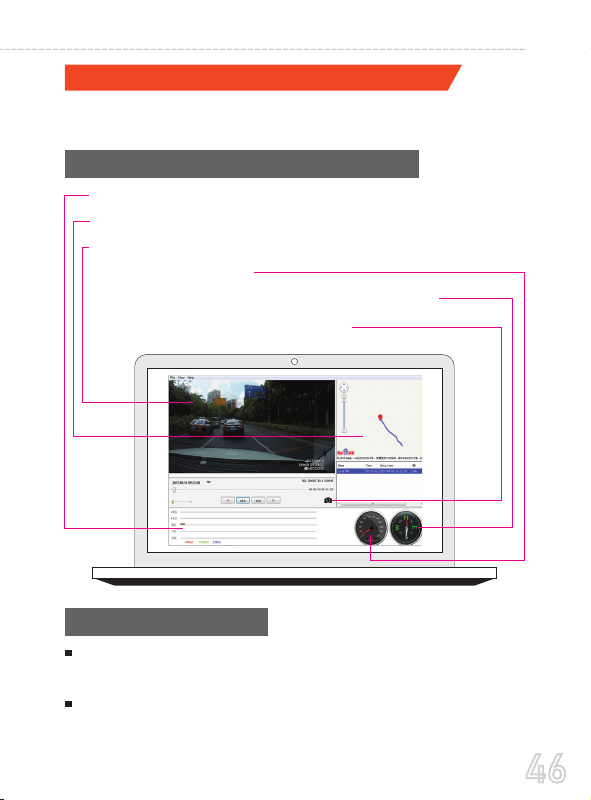
GPS player Software Installation (PC/MAC Only)
Using the Car DV Player
Why Car DV Player? What are the features?
To download FREE Car DV Player, visit www.rovedashcam.com
(Only suitable for the units with GPS function)
Please open the customized video player and install it for the first
time use.
Click “FILE > OPEN” to browse and select the video file that you
prefer to play, then select OPEN to play the video in the player.
Check G-Sensor Data
Play back your recorded videos
To see the Exact GPS route with the video on google maps
Check Driving Speed
Check Driving Direction (i.e. N, S, NW, SE, etc.)
Take a screen shot of paused frame
47
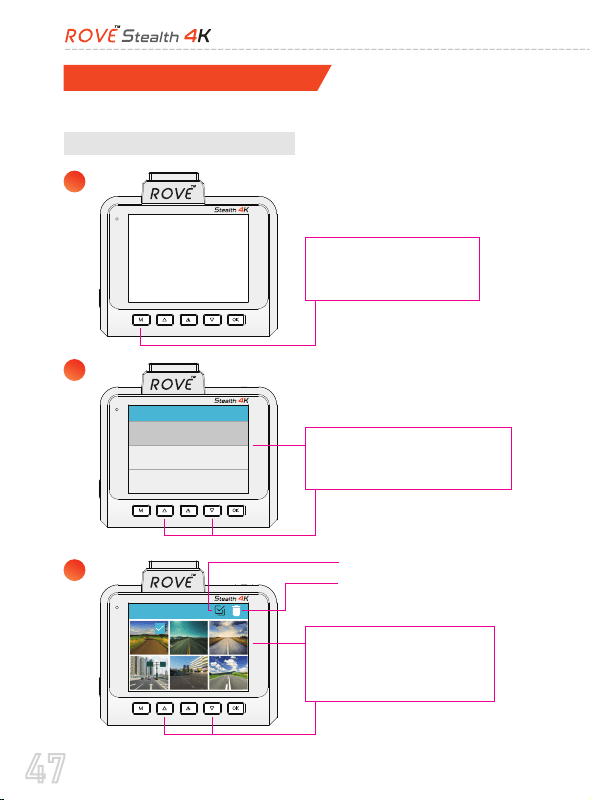
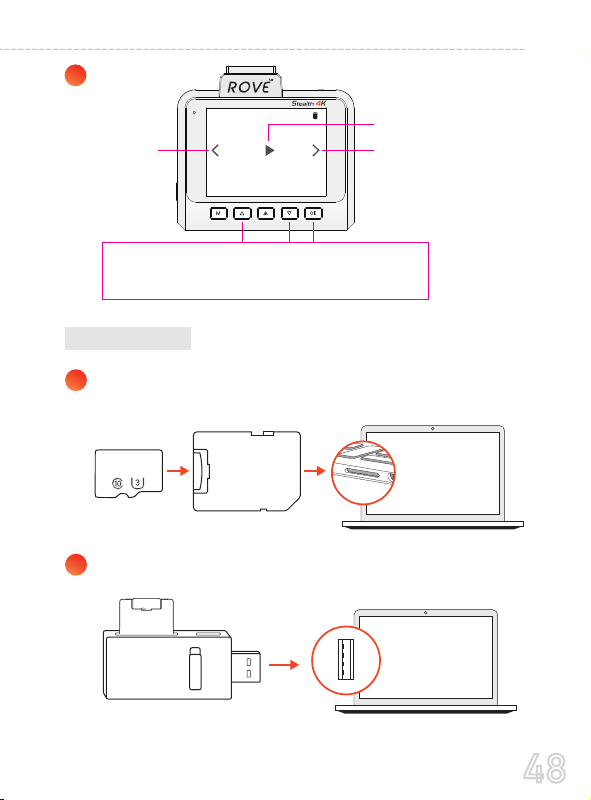
Playback Your Recorded Videos
A. Directly On The CAMERA
There are 3 different way you can access your videos.
1
2
3
Long Press M Button to
Enter Playback Mode
Playback
Front EMR Record
Front Record
Rear EMR Record
Use UP/DOWN Button to
Select the appropriate Folder
Front Record
Use UP/DOWN Button to
Select the Video & Press
OK Button to Play
Select All
Delete
48
USER MANUAL
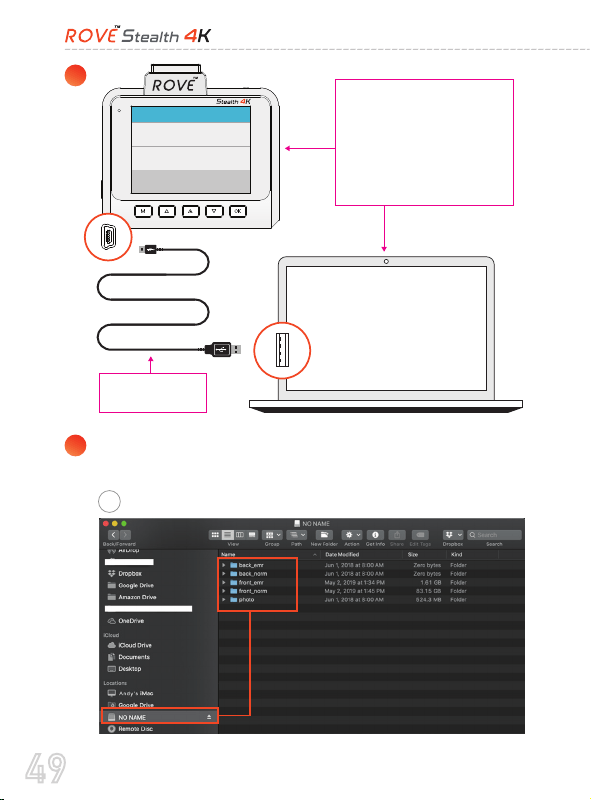
B. On PC/MAC
1
2
4
Use UP/DOWN Button to Select the function first.
Then Press OK Button to confirm the function.
Insert Micro-SD Card Into SD-Adaptor
then insert the SD-adaptor into PC/MAC SD-adaptor slot.
Previous
Play / Pause
Next
2019_05_21_130347_00.MP4
00:02/00:11 X1
512GB
Micro-SD Card
SD Card
Adaptor
Insert USB Card Reader into the PC/MAC
512GB
HDMI
SD Card
Adaptor
SD Card
Adaptor
49
3
4
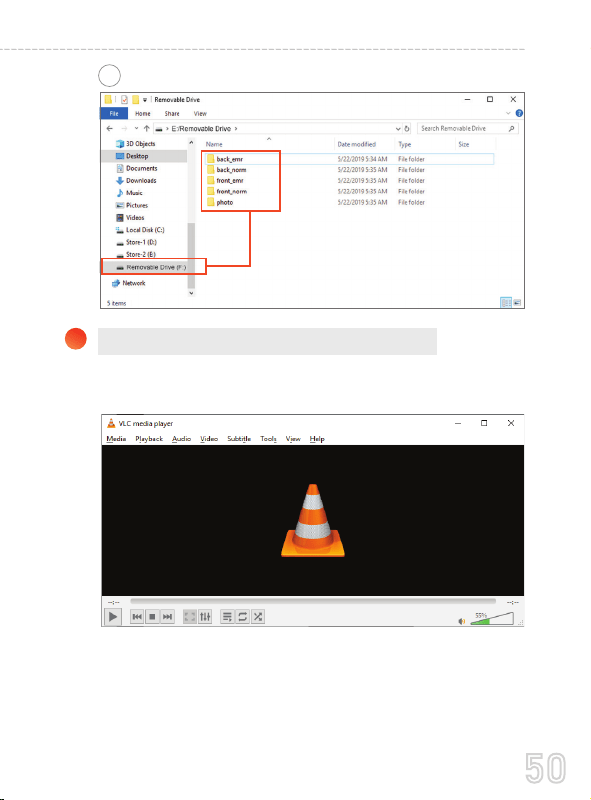
USB MODE
Charging - Operate Camera Normally
Connect as a Webcam PC/MAC
Connect as a Flash Drive PC/MAC
Connect the camera to
PC/MAC via 2.5FT
USB Data Cable
Then go to settings >
USB Mode > Storage
Go to the SD-Card folder through browsing the file explorer
from your PC/MAC.
A
2.5FT USB Data
Cable (Included)
MAC
50
USER MANUAL
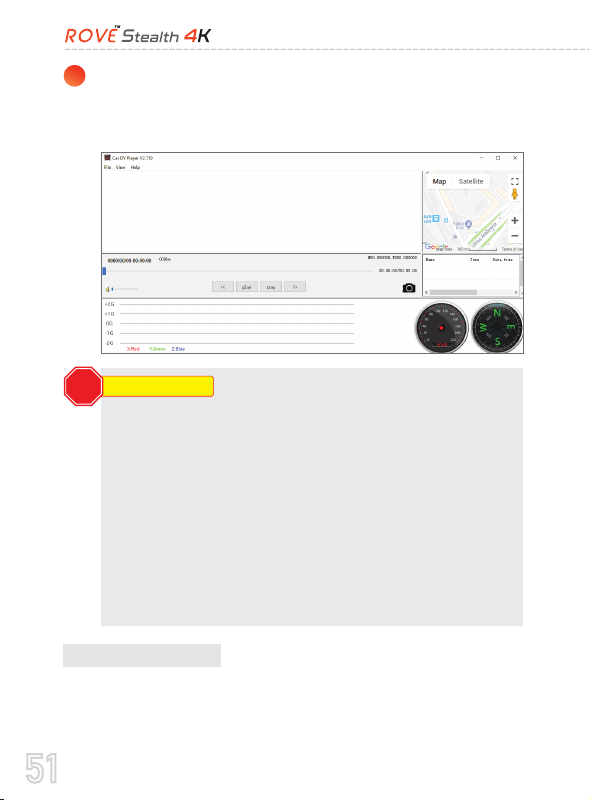
Right Click on the video file > then select “OPEN WITH”>
then select “VLC Media Player” to play the video.
We recommend VLC Media Player to play the 4K videos.
You can download it FREE by visiting www.videolan.org
5
B
PC
Correct Video Player To Play 4K VIDEOS:
51
To View GPS Route & Other Data, Use our FREE Car DV
Player. You can download it by visiting >
http://www.rovedascam.com
C. On SmartPhone
6
Playback Your Recorded Videos On Your SmartPhone By Using
WiFi Feature. See Page # 25-32
ATTENTION Do NOT Use Windows Media Player to
play the videos from your Stealth-4K. These are High-Bit
Rate 4K videos, which requires specific codecs & H265
un-coding capabilities, which is NOT supported by
Windows Media Player. Your videos will LAG if you use
windows media player.
You also will NEED fairly new PC/MAC in order to play
smooth video playback. If your videos will LAG, then
your PC/MAC is NOT fast enough. Try playing videos
directly on the camera & they will NOT lag.
ATTENTION
STOP

52
USER MANUAL
ONE YEAR LIMITED WARRANTY
1.
2.
3.
4.
5.
6.
We at ROVE InnoTech would like to provide One (1) full year of
limited warranty for your product from the date of purchase to be
free from defects in materials and craftsmanship.
IMPORTANT:
Please save your warranty/serial number card as an evidence.
Proof of original purchase is required for any warranty service.
(Online order receipt is also accepted)
The warranty is confined to the first purchaser of the product
and is not transferable.
Service / Repairs during warranty period shall be carried out
by company authorized personnel only.
It is the responsibility of the purchaser to bring the product to
the authorized service center at purchaser’s cost and risk.
The company will not be liable for any hardware and / or
data loss arising from the use of any third party software
whether downloaded or otherwise.
In the event of repairs and / or replacement of any part(s) of
the product this warranty will remain in force only for the
unexpired period of the warranty.
In case of any physical damage to the product and / or
WARRANTY TERMS CONDITIONS

53
7.
8.
9.
10.
misuse detected by the Authorized service center personnel,
the warranty will be void and service / repairs will be done
on chargeable basis only and subject to availability of parts.
The company’s obligation under this warranty shall be
limited to repair or providing replacement of part(s) only.
The maximum claim(s) if entertained by the company will be
subject to the maximum retail price of the product purchased
or the purchase price, whichever is lower and on production
of original proof of purchase.
During the warranty period in the event of any unforeseen
circumstances where spares not available a commercial
solution in lieu of repairs will be calculated based on compa-
ny’s providing depreciation rules and the same will be
applicable for the purchaser.
The replacement unit will be either new or refurbished based
on the availability. We reserve the right to even upgrade you
to the newest version be it similar or not if we have discontin-
ued the current model.
Product specifications are subject to change without prior
notice. All trademarks, logos, brands and product names are
properties of their respective owners. All product features
specified are as per ideal test conditions. No claims / damag-
es shall arise directly or indirectly for nonperforrnance /
under performance of one or more features specified. MRP is
subject to change from time to time due to various factors.

54
USER MANUAL
1.
2.
3.
4.
5.
Company shall not be liable/responsible directly or indirect-
ly for any claim for compensations, damages, any losses etc.
under this “Limited Warranty” due to inconvenience, loss of
time, loss of profits, loss of business opportunity, loss of data,
loss of goodwill, work stoppage, any personal and / or
commercial loss, compensation for mental agony, anxiety etc.
resulting from the use of the product(s) or any direct or
indirect loss of any nature whatsoever (incl. any personal
injury or death).
Except for the warranties set forth herein, company disclaims
all other warranties, expressed or implied or statutory,
including but not limited to the implied warranties of
merchantability or fitness for a particular purpose.
The maximum liability of company under any circumstances
shall be limited to an amount equal to the invoice amount
paid by the purchaser to company or a company authorized
reseller for the Product(s).
Company shall not be liable directly or indirectly for any
claim for compensation if the Product has been exposed to
moisture and / or dampness and / or extreme thermal and /
or extreme environmental conditions or to rapid changes in
such conditions, to corrosion, to oxidation, to spillage of food
or liquid or to influence from external chemical products.
ROVE InnoTech (here in after referred to as “the company”)
guarantees to the purchaser that this product carries a
warranty for the period mentioned above, commencing from
the date of purchase.
DISCLAIMER OF WARRANTY/LIMITATIONS

55
What is not covered by the warranty?
Purchased from an unauthorized reseller. Purchased for resale.
Product provided free of charge. Cosmetic damage such as
scratches, nicks, and dents by improper use. damage is caused by
abuse, accident, misuse, water, flood, fire, the act of GOD or any
external causes. The product is damaged by any self-repairs /
service performed by an unauthorized person or a company.
Damage to a product that has been modified or altered without
the written permission from us directly. Damage is caused by
using different power cord or chargers that are not supplied by
us. In addition, ROVE reserves the right to refuse warranty
against any product or services that are obtained and/or used in
contravention of the laws of any country.

56
USER MANUAL
Camera does not turn ON
Error/Message “Card Full”
Use Included USB Cable & your smart phone’s charger. Now
plug it into your home’s wall outlet.
When you plug it in, the camera should turn ON. If NOT, then
press the Power Button Once to see if it turns ON. If it still
does NOT turn ON, then remove the memory card.
Keep the camera plugged in. Now Press the RESET button
ONCE with a paper clip. Now the camera should turn ON. If
it still doesn’t turn ON, then please CONTACT US.
Format card by going into System Settings > Format > OK > Select
Yes > OK.
Video is fuzzy
Please make sure to remove the Lens Protector film and there is
no dirt on windshield also. If the lens is out of focus, we are
extremely sorry in advance. This can be a manufacturing defect.
Please send us an email with a screenshot or a sample video so we
can get this resolved for you ASAP.
Resetting the device
1.
2.
3.
Warning: Formatting the SD card will delete all stored data permanently.
FAQ / TROUBLESHOOTING
IF the camera become frozen or if no buttons responding, then press
the RESET button with a paper clip once to restart the camera at any
point. This will NOT reset any settings that you have previously
selected. This option only reset’s hardware of the camera.

57
Camera Freezing/Lagging or Crashing
Guys Please TRUST US on this. If your camera is freezing, lagging
or does NOT record video after some seconds etc. While operat-
ing; then it is the Memory Card Issue. Either you are using the
WRONG, FAKE or BAD Memory Card. (Please be aware of the
Fake Ones out there. If you have purchased your memory card
from eBay or any third party seller online then it is most likely a
fake one, even though it looks exactly like real. Please trust us. We
have sold thousands of ROVE Dash Camera’s and they do NOT
lag, we stand by our product and we do extensive testing. Some
customers simply thinks the camera is bad or not stable, but that is
NOT the case here. It’s the Memory Card Issue. Please CONTACT
US and we are dedicated in resolving this for you ASAP.
Camera gets HOT
It is normal for your camera to run slightly hot. Please see
temperature guidelines.
Camera turns ON/OFF frequently automatically
Please set the camera to DEFAULT SETTING and then try again
without changing any settings.
My oldest video files are missing
Your ROVE Dash Cam has Loop Cycle Recording. When it is set
to either 1, 3, 5 or 10 or 20-Minutes, it will delete oldest files and
record newer files over and over when the memory card is full.

58
USER MANUAL
Micro SD Card is crooked or not going in slot easy
Please make sure you align micro SD card correctly with gold
contacts.
Camera Locks many videos automatically
Please change your G-Sensor Setting to higher setting. This
setting depends on type of car or truck you are driving and how
much vibration your car/truck is creating based on suspensions
and road condition.
Please make sure memory card is at least Class 10, U3 and
purchased from trusted vendor such as Walmart, target, best
buy, Ship & Sold by Amazon" etc. (there are many fake cards
out there Online, remember if it's cheap, its fake.
Now go to camera’s system settings and FORMAT your
memory card. (Make sure to back up your videos first before
formatting the memory card). After formatting memory card,
please press and hold power button to turn the camera off.
Now unplug power cable, and re-plug the power cable, camera
should now turn ON automatically and start recording.
1.
2.
Please feel free to contact our personalised support at
[email protected] Most e-mails are typically replied
within 4-6 hours. However all quesitons are answered within 24
Hours. No Exceptions For faster response, we recommend that
you please text us at 1-401-484-ROVE (7683).
Please visit http://www.rovedascam.com

59
Ail rights are reserved. reproduction, transfer, distribution of the
contents herein in any manner without the prior written permis-
sion of ROVE Innotech is prohibited. ROVE Innotech reserves the
right to add, modify or delete, any of the contents herein or
withdraw this documents at any time without prior notice and
without assigning any reasons thereof. For detailed terms and
conditions refer www.rovedashcam.com
Please check your local or state laws before using in car
recording device. It is user's responsibility to comply
with all local and state laws.
ROVE Stealth 4K Dash Cam must be placed at proper
location so it does not obstruct your view while driving.
Do not use or manipulate any functions or any accesso-
ries of ROVE Dash Cam while driving. Distraction is a
leading cause of accidents.
SAFETY LEGAL ASPECTS

60
USER MANUAL
A great care was taken while creating this user manual. It is
possible that there are minor typos are there. Please visit our
website for latest and updated user manual if available. We also
frequently update other great contents that is very useful to our
customers.
Camera upgrades, firmware, box contents can be changed
without notice. Always see up to date information by visiting our
website.
This is the very first edition of user manual that we wrote for
Stealth 4K and we have worked extremely hard to provide such
content. At ROVE we are dedicated to continuously improving
camera’s firmware and adding more features as they become
available. Therefore sometime we can update our firmware
before we can catch up to the user manual and all the latest
changes. We thank you for your understanding and support.
If you have any questions, please feel free to reach out to our
personalized customer care.
USER MANUAL DESCLAIMER
61
NOTICE
This product complies with the radio interface requirements
of the European Community.
This symbol means the product must not be discarded as
household waste, and should be delivered to an appropriate
and recycling helps protect natural resources, human health
and the environment. For more information on disposal and
recycling of this product, contact your local municipality,
disposal service, or the shop where you bought this product.
This device complies with part 15 of the FCC Rules. Opera-
tion is subject to the following two conditions: (1) This
device may not cause harmful interference, and (2) This
device must accept any interference received, including
interference that may cause undesired operation

62
USER MANUAL
A BIG THANK YOU !!
Thank you for purchasing your new ROVE Stealth 4K Dash
Cam. We hope you find your new dash cam useful and fun
to use.
If you are having difficulties setting it up, please email us at
[email protected]. 99% of all setup problems can
easily be resolved and should be able to get you up and
running in no time.
In the unlikely event that we can’t help, we’re always happy
to provide full, hassle-free refund. We just want our custom-
er to be happy and proud to use ROVE Dash Cam!
There is no perfect product, however we will always do our
best to provide perfect customer service to you.
•>
•>
•>
•>
Scan to Email US:
Scan to Text US:
1-401-484-7683
Scan the QR Code to
CONTACT US
Response in just 6 hours
For faster response text us
1 (401) 484-ROVE(7683)
CUSTOMER SERVICE:
QUESTIONS
Mon - Fri 9am-5pm PST
HOURS