
Table of Contents
1. Important ............................................... 1
1.1 Safety precautions and maintenance .1
1.2 Notational Descriptions ............................2
1.3 Disposal of product and packing
material ...............................................................3
2. Setting up the USB docking stand ....4
2.1 Installation .........................................................4
2.2 Operating the USB docking stand ......7
3. USB docking stand ...............................8
3.1 What is it? .........................................................8
3.2 Minimum systems requirement .........10
3.3 Setting the software .................................11
3.4 Using the software .................................... 13
4. TechnicalSpecications ..................... 16
5. Regulatory Information .....................18
6. Customer care and warranty ..........22
6.1 Customer Care & Warranty ...............22
7. Troubleshooting & FAQs ..................25
7.1 Troubleshooting .......................................... 25
1
1. Important
1. Important
This electronic user’s guide is intended for
anyone who uses the Philips USB docking stand.
Take time to read this user manual before
you use your USB docking stand. It contains
important information and notes regarding
operating your USB docking stand.
The Philips guarantee applies provided the
product is handled properly for its intended use,
in accordance with its operating instructions and
upon presentation of the original invoice or cash
receipt, indicating the date of purchase, dealer’s
name and model and production number of the
product.
1.1 Safety precautions and
maintenance
Warnings
Use of controls, adjustments or procedures
other than those specied in this documentation
may result in exposure to shock, electrical
hazards and/or mechanical hazards.
Read and follow these instructions when
connecting and using your USB docking stand.
Operation
• Please keep your USB docking stand out of
direct sunlight, very strong bright lights and
away from any other heat source. Lengthy
exposure to this type of environment may
result in discoloration and damage to your
USB docking stand.
• Remove any object that could fall into
the connection ports or prevent proper
cooling of your USB docking stand’s
electronics.
• When positioning your USB docking stand,
make sure the power plug and outlet are
easily accessible.
• Turn off your USB docking stand by
detaching the power cable or DC power
cord.
• Please use approved power cord provided
by Philips at all times. If your power cord
is missing, please contact with your local
service center. (Please refer to Customer
Care Consumer Information Center)
• Do not subject your USB docking stand to
severe vibration or high impact conditions
during operation.
• Do not knock or drop your USB docking
stand during operation or transportation.
Maintenance
• Unplug your USB docking stand if it’s not
going to be used for an extensive period
of time.
• Unplug your USB docking stand if it needs
to be cleaned, please use only a damp
cloth. Organic solvents, such as, alcohol, or
ammonia-based liquids should never be
used to clean your USB docking stand.
• To avoid the risk of shock or permanent
damage to the stand, do not expose your
USB docking stand to dust, rain, water, or
excessive humid environment.
• If your USB docking stand is wet, please dry
it with a dry cloth as quickly as possible.
• If foreign substance or water gets in your
USB docking stand, please turn the power
off immediately and disconnect the power
cord. Then, remove the foreign substance
or water, and send it to the maintenance
center.
• Do not store or use the USB docking stand
in locations exposed to heat, direct sunlight
or extreme cold, such as a car and the car
trunk.
• In order to maintain the best performance
of your USB docking stand and use it for a
longer lifetime, please use the USB docking
stand in a location that falls within the
following temperature and humidity ranges.
• Temperature: 0-40°C 32-104°F
• Humidity: 20-80% RH

2
1. Important
Service
• The casing cover should be opened only by
qualified service personnel.
• If there is any need for any document for
repair or integration, please contact with
your local service center. (please refer to
the chapter of “Consumer Information
Center”)
• For transportation information, please refer
to “Technical Specifications”.
Note
Consult a service technician if the USB docking
stand is not operating normally, or you are
not sure what procedure to take when the
operating instructions given in this manual have
been followed.
1.2 Notational Descriptions
The following subsections describe notational
conventions used in this document.
Notes, Cautions and Warnings
Throughout this guide, blocks of text may be
accompanied by an icon and printed in bold or
italic type. These blocks contain notes, cautions
or warnings. They are used as follows:
Note
This icon indicates important information and
tips that help you make better use of your
computer system.
Caution
This icon indicates information that tells you
how to avoid either potential damage to
hardware or loss of data.
Warning
This icon indicates the potential for bodily harm
and tells you how to avoid the problem.
Some warnings may appear in alternate formats
and may not be accompanied by an icon. In such
cases, the specic presentation of the warning is
mandated by the relevant regulatory authority.
3
1. Important
1.3 Disposal of product and packing
material
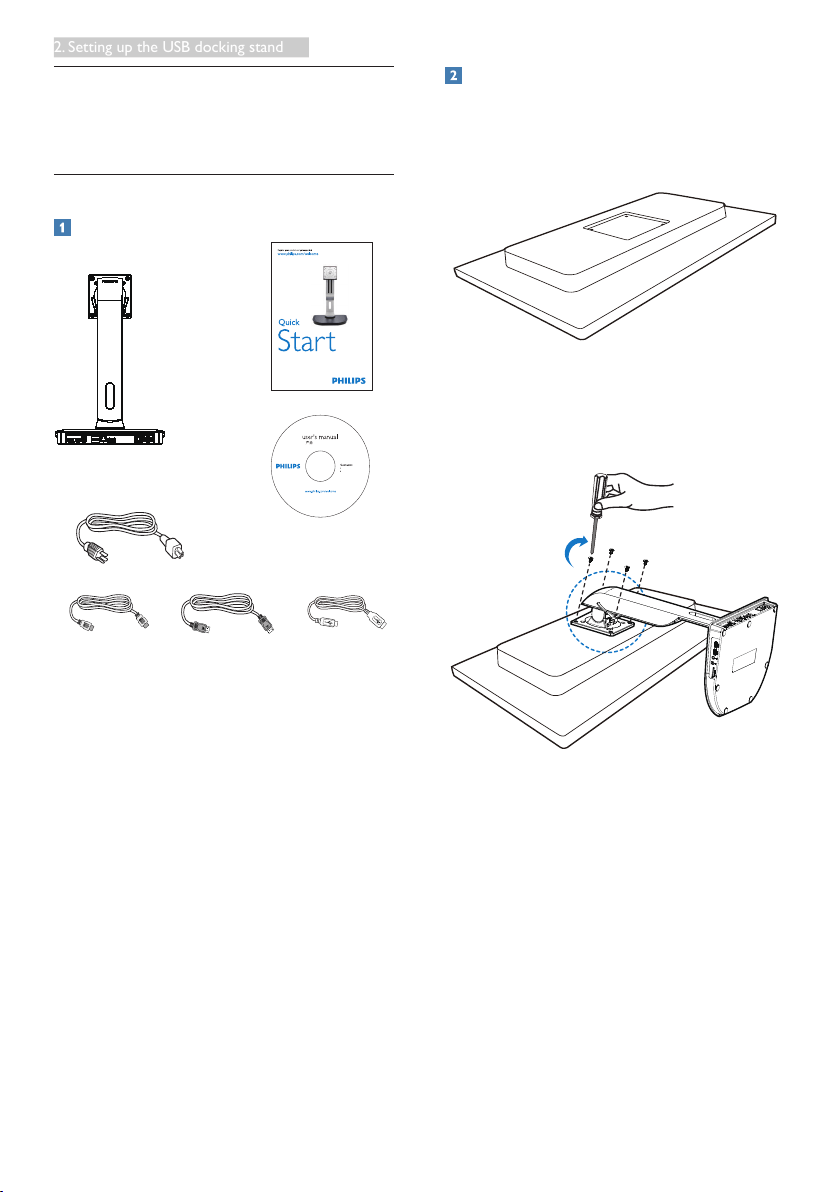
Waste Electrical and Electronic Equipment-
WEEE
This marking on the product or on its
packaging illustrates that, under European
Directive 2012/19/EU governing used electrical
and electronic appliances, this product may
not be disposed of with normal household
waste. You are responsible for disposal of
this equipment through a designated waste
electrical and electronic equipment collection.
To determine the locations for dropping off
such waste electrical and electronic, contact
your local government ofce, the waste disposal
organization that serves your household or the
store at which you purchased the product.
Your new USB docking stand contains materials
that can be recycled and reused. Specialized
companies can recycle your product to increase
the amount of reusable materials and to
minimize the amount to be disposed of.
All redundant packing material has been
omitted. We have done our utmost to make the
packaging easily separable into mono materials.
Please nd out about the local regulations on
how to dispose of your old USB docking stand
and packing from your sales representative.
Taking back/Recycling Information for
Customers
Philips establishes technically and economically
viable objectives to optimize the environmental
performance of the organization's product,
service and activities.
From the planning, design and production
stages, Philips emphasizes the important of
making products that can easily be recycled. At
Philips, end-of-life management primarily entails
participation in national take-back initiatives
and recycling programs whenever possible,
preferably in cooperation with competitors,
which recycle all materials (products and related
packaging material) in accordance with all
Environmental Laws and taking back program
with the contractor company.
Your display is manufactured with high quality
materials and components which can be
recycled and reused.
To learn more about our recycling program
please visit
http://www.philips.com/about/
sustainability/ourenvironmentalapproach/
productrecyclingservices/index.page
4
2. Setting up the USB docking stand
2. Setting up the USB
docking stand
2.1 Installation
Package contents
©
2
0
1
5
K
o
n
i
n
k
l
i
j
k
e
P
h
i
l
i
p
s
N
.
V
.
A
l
l
r
i
g
h
t
s
r
e
s
e
r
v
e
d
.
U
n
a
u
t
h
o
r
i
z
e
d
d
u
p
l
i
c
a
t
i
o
n
i
s
a
v
i
o
l
a
t
i
o
n
o
f
a
p
p
l
i
c
a
b
l
e
l
a
w
s
.
M
a
d
e
a
n
d
p
r
i
n
t
e
d
i
n
C
h
i
n
a
.
V
e
r
s
i
o
n
Philips and the Philips’ Shield Emblem are registered trademarks of
Koninklijke Philips N.V. and are used under license from Koninklijke
Philips N.V.
USB docking stand drivers
User’s Manual
使用
前请阅读使用说明
保留备用
USB docking stand
* HDMI Cable * DP Cable USB Cable
SB4B1928
* May differ based on region.
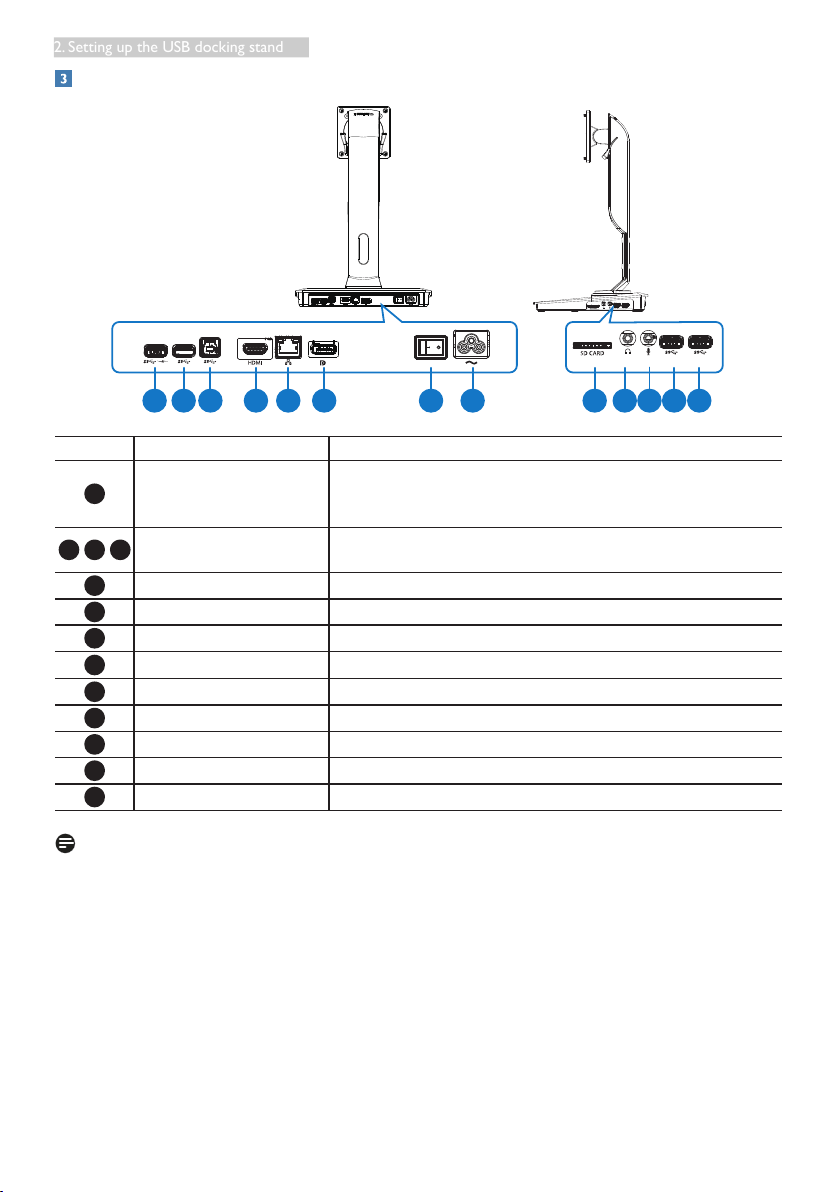
Install the USB docking stand to your
monitor
1. Place the monitor face down on a smooth
surface. Pay attention not to scratch or
damage the screen.
2. Snap in the base in the VESA mount area.
Use a screwdriver to tighten the four
screws.
5
2. Setting up the USB docking stand
Connecting to your monitor and server
1 2 3 4 5 6 7 8 9 10 11 12 13
Components Description
1
USB3.0 with B.C.1.2 fast
charging
For connection with USB devices (USB 1.0, 1.1, 2.0, 3.0
compatible). USB port is compatible for quick-charging B.C.1.2
compatible devices.
2
12
13
USB 3.0 port
For connection with USB devices (USB 1.0, 1.1, 2.0, 3.0
compatible).
3
USB 3.0 upstream port For connection with a notebook/PC.
4
HDMI port For connection to an external HDMI monitor.
5
Gigabit Ethernet port For connection to local area network or cable/DSL modem.
6
DP port For connection to an external DP monitor.
7
Power switch For turning on/off USB docking
8
Power inlet For connecting power cord to electric supply.
9
Media Card slot To insert Secure Digital, Memory Stick or multimedia card.
10
Earphone For connection to headphone.
11
Mic For connection to microphone.
Note
Supported Flash memory cards type.
• Support the following memory card interfaces:
Secure DIgital
TM
(SD), MultiMediaCard
TM
(MMC), Micro-SD (T-flash), SDHC, SDXC, RS-MMC,
Mobile-MMC, MMCPlus and MMC-micro
• Support SDXC / MSXC card up to 2TB

6
2. Setting up the USB docking stand
Connect to AC power
1. Connect your USB docking stand power
cord to the power connector.
2. Connect the power cord to an AC outlet.
3. Turn on your USB docking stand by
switching “ON” the power switch.
Connect to computer
1. Connect one end of the USB 3.0 cable
to the USB 3.0 port on the rear of the
docking stand.
2. Connect the other end of the USB
3.0 cable to the USB 3.0 port on your
notebook/PC.
Connect to USB docking stand
1. Connect monitor signal cable to HDMI or
DP connector on the docking stand.
2. The docking stand can be connected to or
disconnected from notebook/PC whether
it is on or off.
3. External devices from docking stand work
only when the docking stand USB upstream
is connected to a notebook/PC.
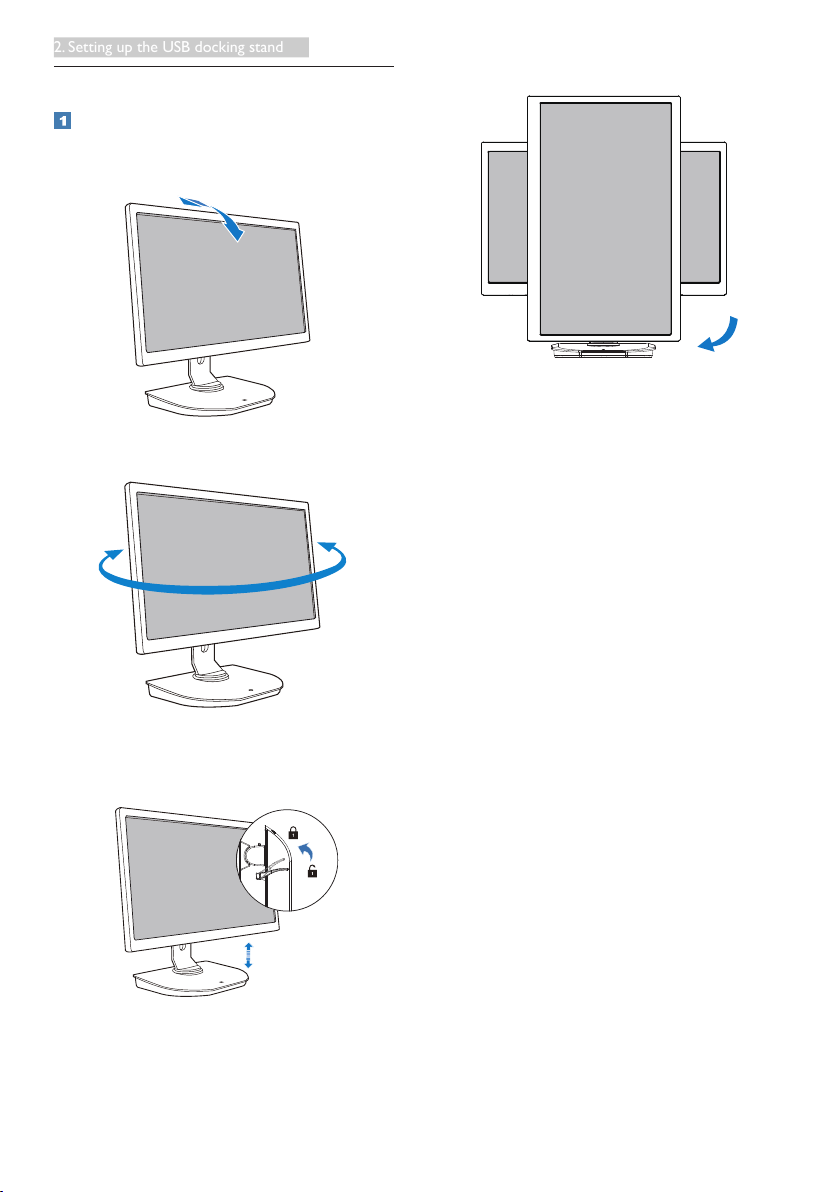
7
2. Setting up the USB docking stand
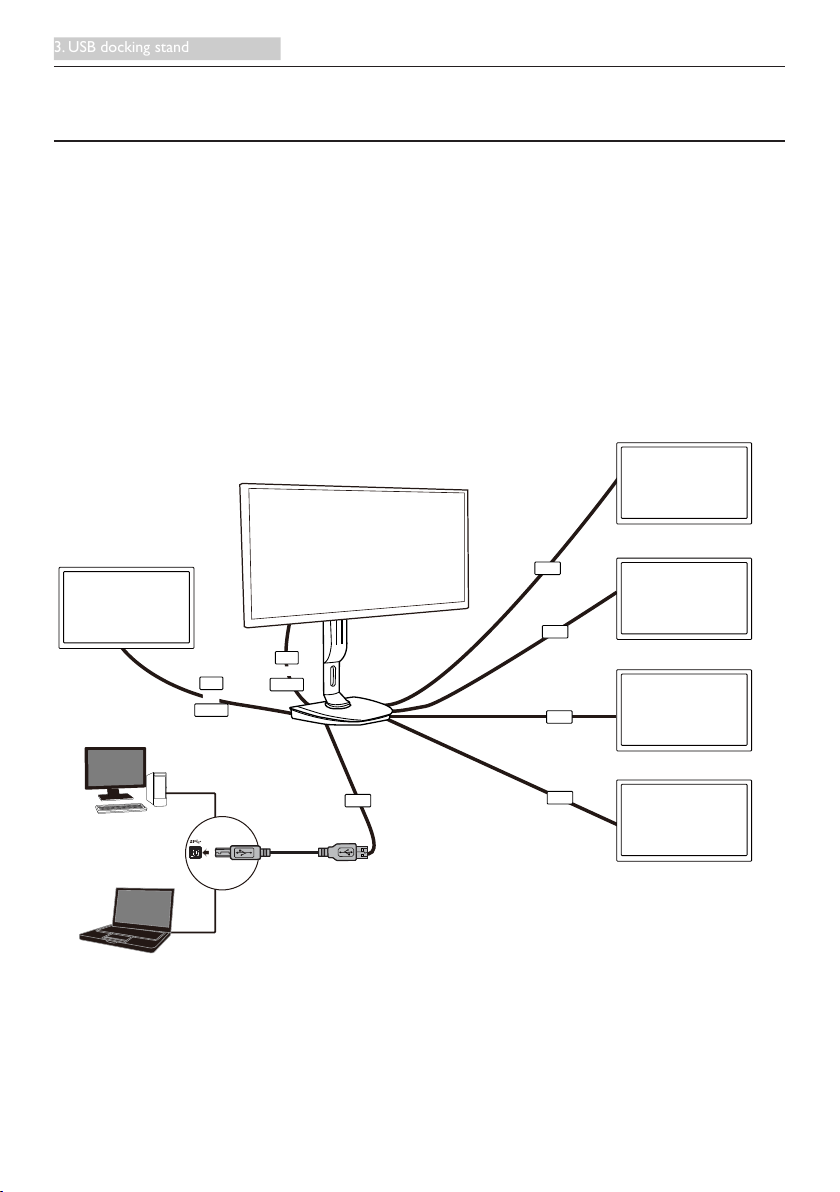
2.2 Operating the USB docking stand
Physical Function
Tilt
20˚
-5˚
Swivel
+65˚
-65˚
Height adjustment
120mm
Pivot
90˚
0˚
8
3. USB docking stand
3. USB docking stand
3.1 What is it?
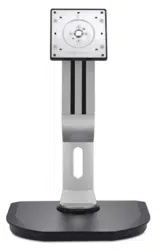
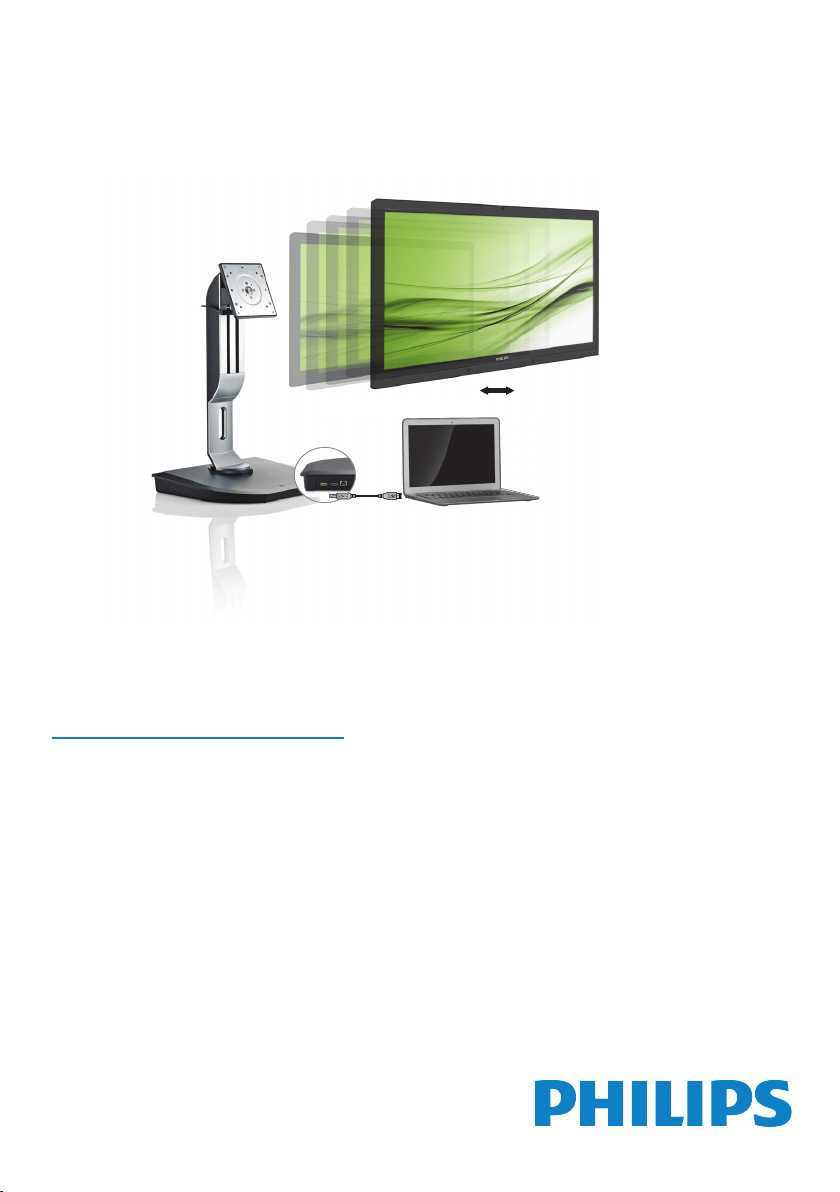
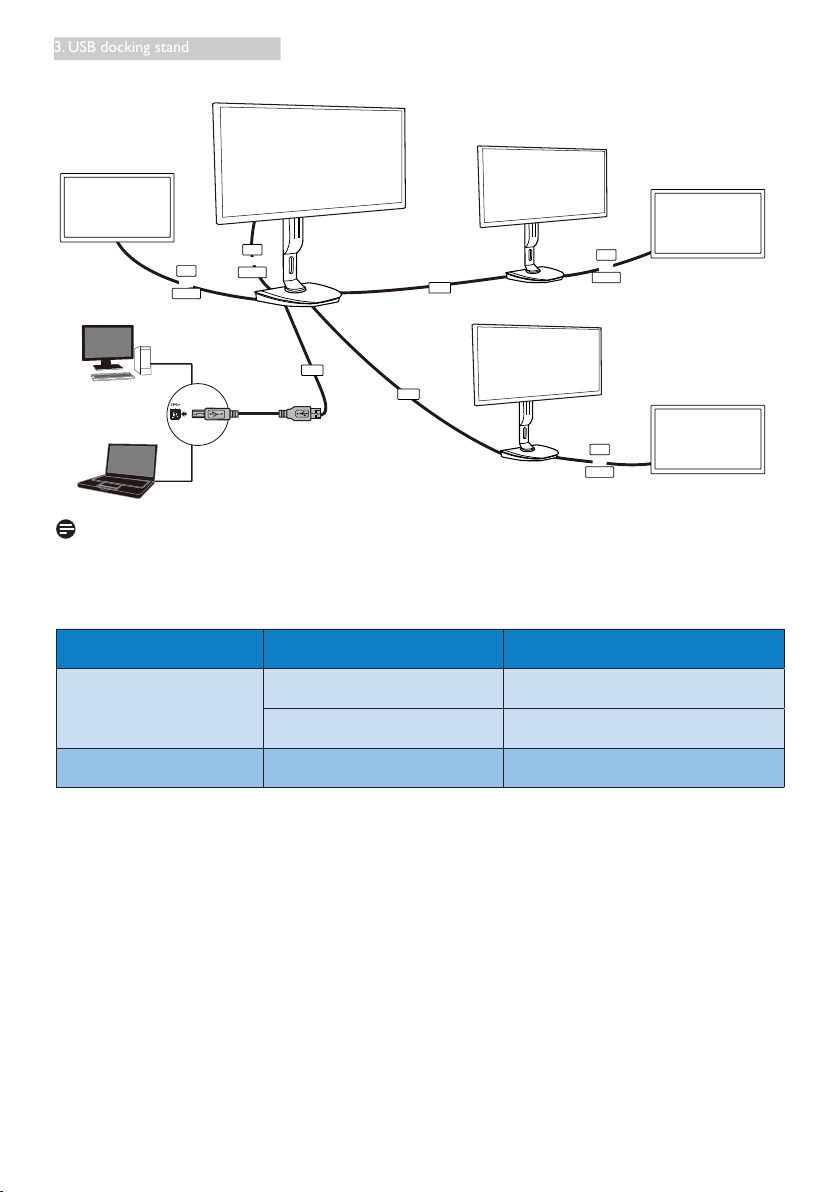
Philips USB docking stand connects your notebook/PC to the display as well as external peripherals.
It turns one USB port into USB/video connectors, so that you could access to all of your peripherals,
including USB device, keyboard & mouse, speakers, SD card and even internet by LAN.
With this stand there’s no need to purchase a new dock with future notebook purchases. It unclutters
your desk, to give you more space for a more productive work area.
With the exibility of mounting existing 19” up to 28” monitors with VESA mounting standard, Philips
USB docking stand is also able to expand your workspace by adding additional monitors. You can also
connect HDMI/DP port to your HDMI/DP monitor or USB port to DisplayLink™ USB monitor. With
Windows OS, it can be connected up to 6 displays, not including the notebook display. With Mac OS, it
can be connected up to 4 displays, not including the notebook display.
USB Monitor
USB Monitor
USB Monitor
USB Monitor
Monitor
DP
HDMI
DP
USB
PC
Notebook
USB
USB
USB
USB
or
HDMI
or
USB docking stand
W/ display
9
3. USB docking stand
Monitor
Monitor
Monitor
DP
HDMI
DP
USB
PC
Notebook
USB
USB
or
HDMI
or
DP
HDMI
or
DP
HDMI
or
USB docking stand
W/ display
USB docking stand
W/ display
USB docking stand
W/ display
Note
1. You could extend to maximum six displays for Windows and four displays for Mac system.
2. Due to the limitation of transmission bandwidth, large content videos that are 4K or above, may
experience less smooth picture image.
Mode Connection Type Max Resolution
Single Head
DP 1.2 3840x2160@30Hz
HDMI 1.3 2560x1440@50Hz
Dual Head DP 1.2 / HDMI 1.3 2048x1152@60Hz

10
3. USB docking stand
3.2 Minimum systems requirement
1
Operation system
For optimal performance, use the docking stand with notebook/PC running the Windows Vista,
Windows 7 or Windows 8/8.1 operation system.
2
System requirement
Minimum System Requirements PC with non-4K displays
• Microsoft Windows Vista® (32-bit or 64-bit)
• Microsoft Windows 7 (32-bit or 64-bit)
• Microsoft Windows 8 (32-bit or 64-bit)
• Microsoft Windows 8.1 (32- bit or 64-bit)
• 1 GB of memory for Windows 7 and 8
• 2 GB of memory for Windows 8.1
• 1.6 GHz of dual-core Central Processing Unit (CPU)
• 30 MB of free space on the hard disk drive on which you want to install the device driver
Minimum System Requirements PC with 4K displays
• 2.0 GHz or above of dual-core Central Processing Unit (CPU)
• 4 GB memory
For more information please visit: http://www.displaylink.com/support/index.php
11
3. USB docking stand
3.3 Setting the software
1
Installing the DisplayLink USB Graphics Software
Do not connect a DisplayLink devices/screen to your USB docking stand before the installation.
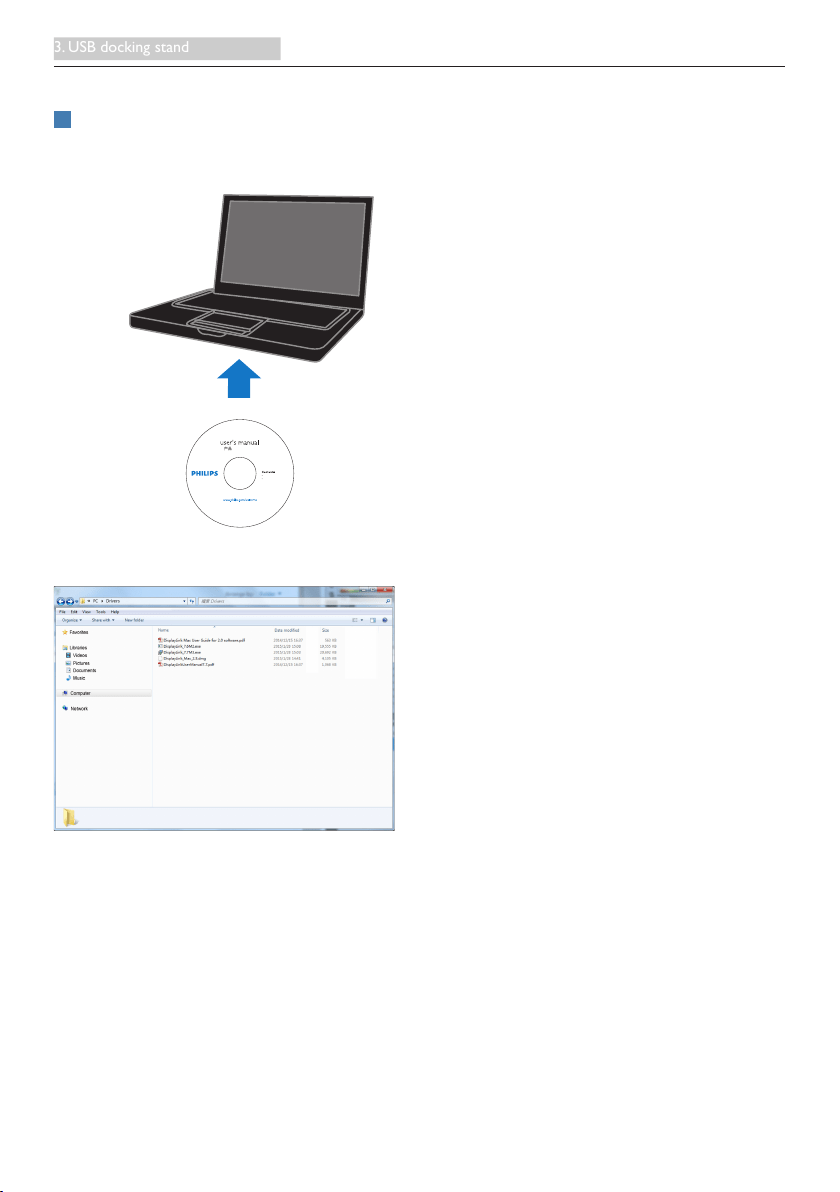
(1). Insert the included driver CD
©
2
0
1
5
K
o
n
i
n
k
l
i
j
k
e
P
h
i
l
i
p
s
N
.
V
.
A
l
l
r
i
g
h
t
s
r
e
s
e
r
v
e
d
.
U
n
a
u
t
h
o
r
i
z
e
d
d
u
p
l
i
c
a
t
i
o
n
i
s
a
v
i
o
l
a
t
i
o
n
o
f
a
p
p
l
i
c
a
b
l
e
l
a
w
s
.
M
a
d
e
a
n
d
p
r
i
n
t
e
d
i
n
C
h
i
n
a
.
V
e
r
s
i
o
n
Philips and the Philips’ Shield Emblem are registered trademarks of
Koninklijke Philips N.V. and are used under license from Koninklijke
Philips N.V.
USB docking stand drivers
User’s Manual
使用
前请阅读使用说明
保留备用
USB docking stand
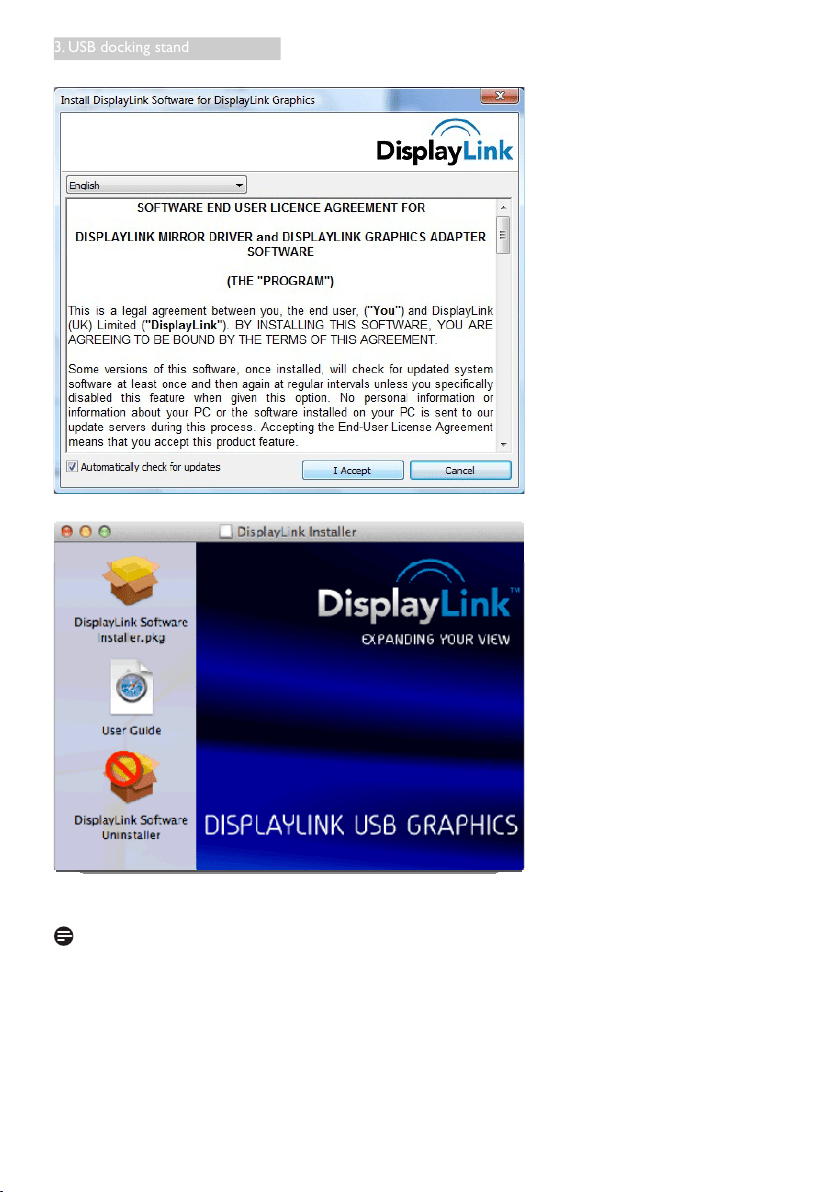
(2). Double click on "DisplayLink_***.exe"
12
3. USB docking stand
For Windows OS
For Mac OS
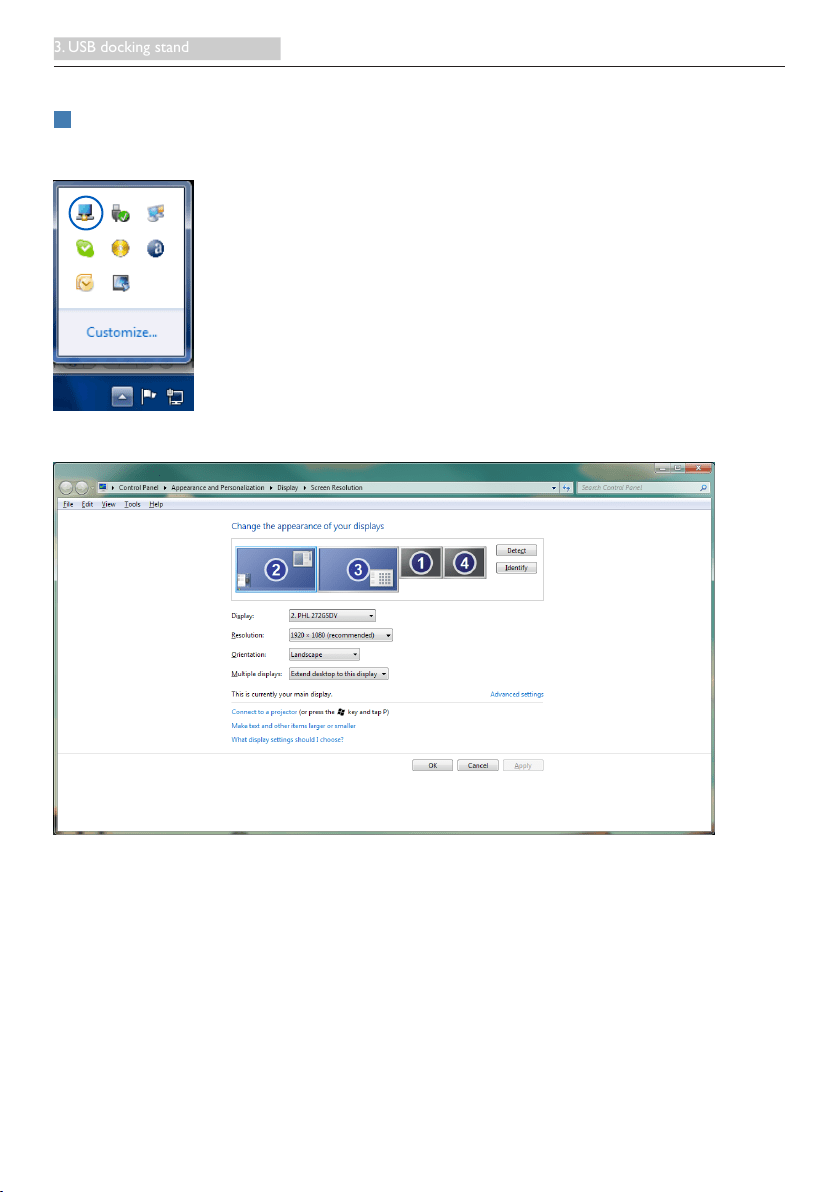
(3). Follow the on- screen instructions until the installation is completed.
Note
For details regarding your DisplayLink user guide, please refer to the CD that comes with your USB
docking stand at the following directory: \PC\Drivers
The latest version of this software can be obtained from: http://www.DisplayLink.com
For further support please visit http://www.displaylink.com/support.
For Mac OS X installation support please visit: http://www.displaylink.com/support/index.php
13
3. USB docking stand
3.4 Using the software
1
Using DisplayLink
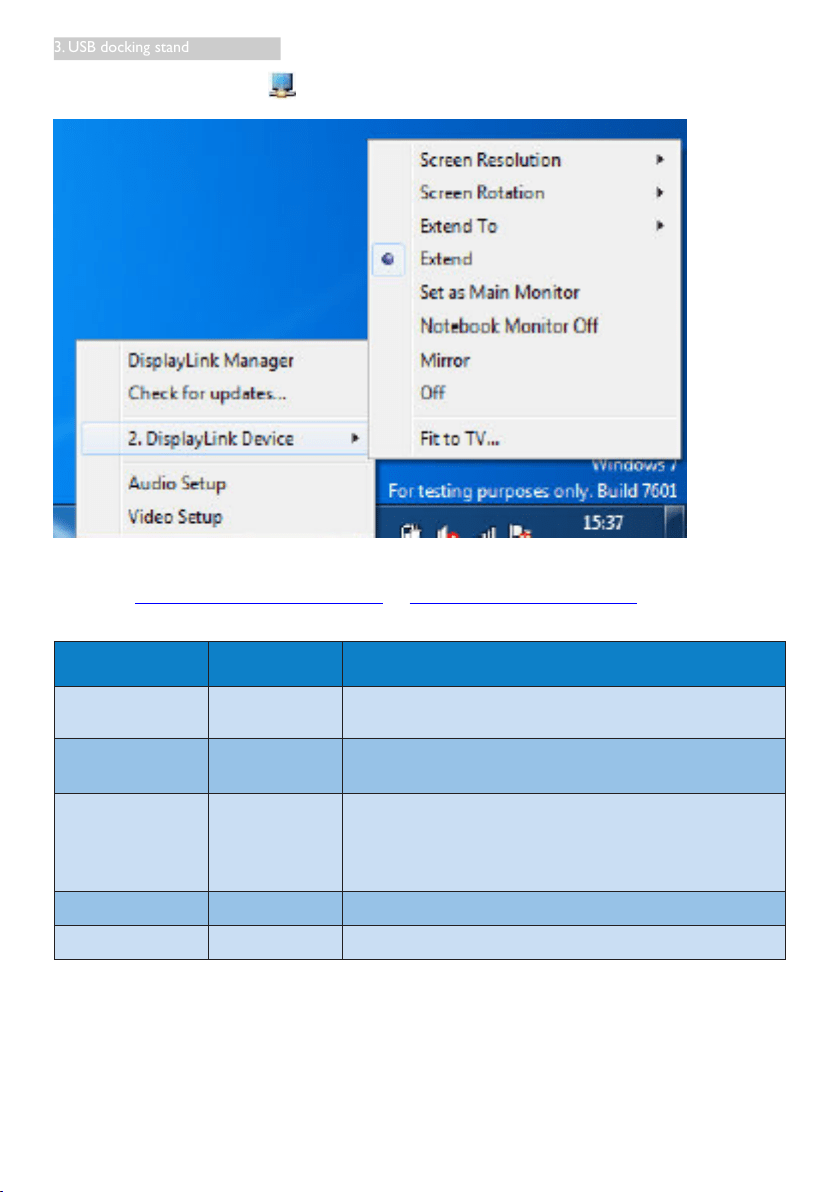
1. Using DisplayLink to congure the display of an extra monitor.
In the notication area, click the DisplayLink icon, and select "DisplayLink Manager".
2. To extend the Windows desktop, click " Multiple displays" tab, and select " Extend these displays".
To mirror the primary monitor, click " Multiple displays" tab, and select " Duplicate these displays".
14
3. USB docking stand
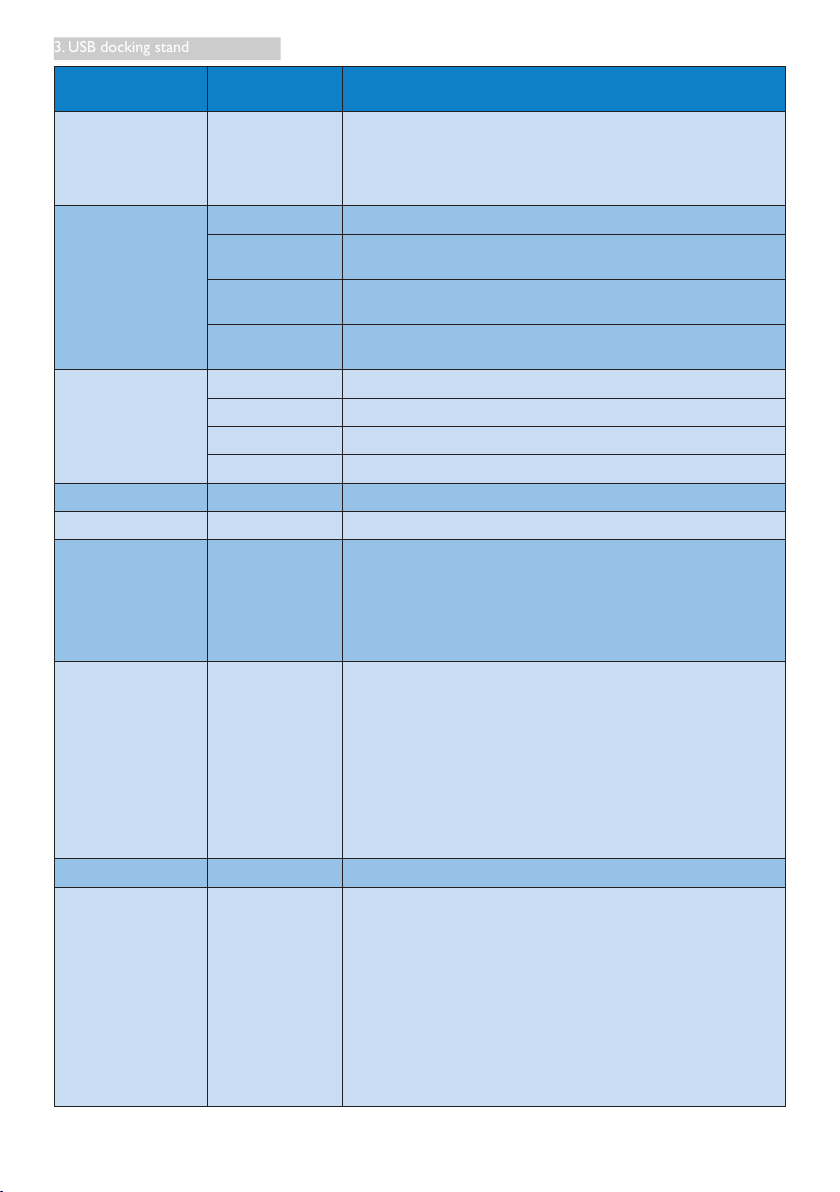
3. Click the DisplayLink icon .
A menu appears with several options. These are shown and described below.
\
Further Support
Please visit http://www.displaylink.com/support or http://www.displaylink.org/forum.
Menu Option
Sub-menu
Option
Description
DisplayLink Manager
This is the UI title. Clicking on this item will show the version
of DisplayLink software installed.
Check for Updates
Connects to the Microsoft Windows Update Server to check
for newer software versions and downloads them, if available
.
DisplayLink devices
Options to
congure this
DisplayLink
device
In this section of the menu, a list of connected DisplayLink
devices will appear. Each of these devices has its own sub-
conguration menu. These Submenu options are covered in
the table below.
Audio Setup Opens the Windows Audio Conguration Window.
Video Setup Opens the Windows Screen Resolution window.
15
3. USB docking stand
Menu Option
Sub-menu
Option
Description
Screen Resolution
Displays a list of available resolutions. Some resolutions may
be enclosed by [ ]. Please see, Inferred Modes.
This option is not available in mirror mode, as the resolution
is dened as the resolution of the main monitor.
Screen Rotation
Normal No rotation is applied to the DisplayLink display.
Rotated Left
Rotates the extended or mirrored display by 270 degrees
clockwise.
Rotated Right
Rotates the extended or mirrored display by 90 degrees
clockwise.
Upside-Down
Rotates the extended or mirrored display by 180 degrees
clockwise.
Extend To
Right Extends the display to the right of the main display.
Left Extends the display to the left of the main display.
Above Extends the display above of the main display.
Below Extends the display below the main display.
Extend Extends your Windows desktop onto this display.
Set as Main Monitor Sets this screen as the main display.
Notebook Monitor
Off
Switches off the display of the notebook and makes the
DisplayLink
display the main display.
Note: This option will only appear when 1 DisplayLink USB
screen, is
connected. It will also only appear on Laptop
computers.
Mirror
Copies what is on the main display and reproduces it on this
display.
Note: The resolution of this display and the primary must
be the same
in mirror mode. This may be lower than the
preferred resolution of
the display.
It is only possible to mirror 2 displays. If a display is already set
to
mirror mode, this option will be greyed out for the other
DisplayLink
displays and not available.
Off Switches off this display.
Fit to TV
If the Windows desktop does not completely appear on the
TV, this
option can be used to adjust the size of the Windows
desktop. See “Fit
to TV” for details on how to congure this
feature.
Notes:
• This option will only appear when 1 DisplayLink USB screen,
is
connected
.
• This option will only work in extend mode. Selecting the
option in mirror mode will extend the displays.
16
4. Technical Specications
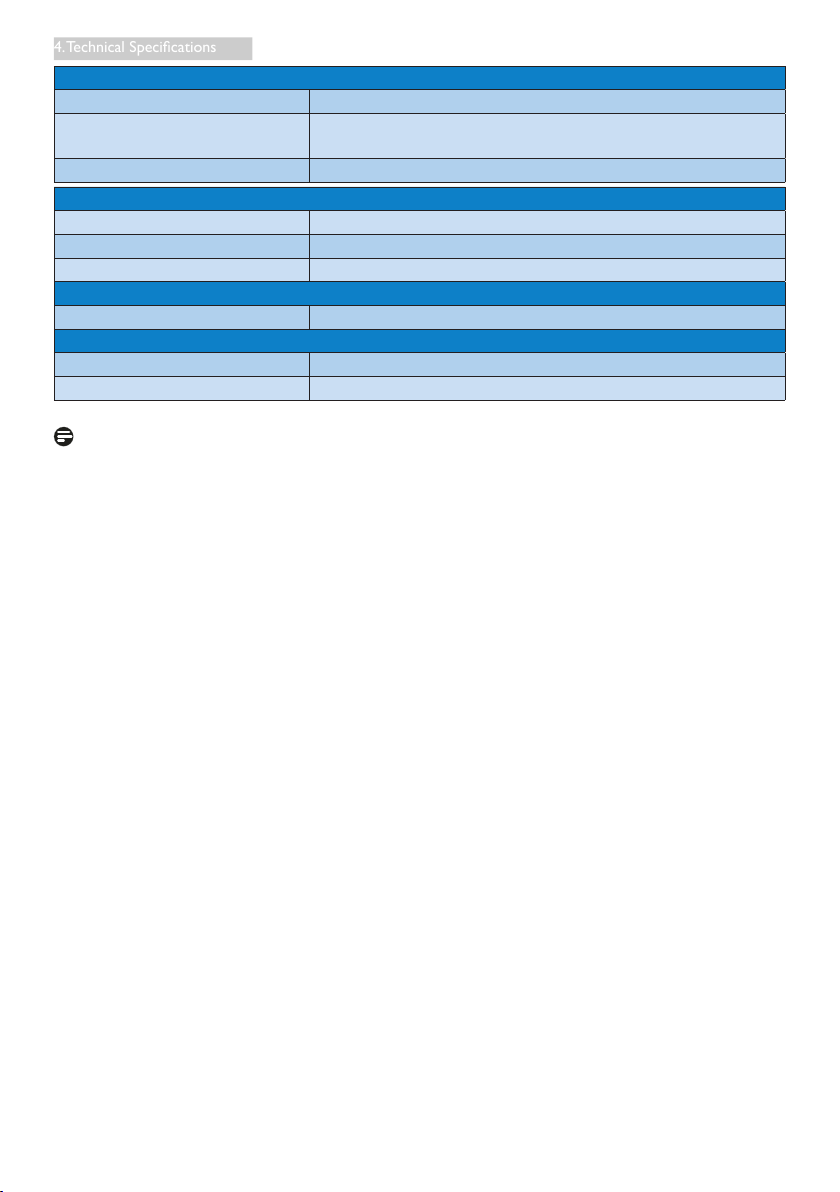
4. Technical Specifications
Picture/Display
Supported resolution
Single Head
HDMI1.3: 2560 x 1440@50Hz (max.)
or DP1.2: 3840 x 2160@30Hz (max.)
Dual Head (HDMI1.3/DP1.2):
2048 x 1152@60Hz (max.)
Ergonomics
Tilt -5° / +20°
Swivel -65° / +65°
Height Adjustment 120 mm +/-5 mm
Pivot Adjustment 90°
Height adjustment locking
system
Ye s
Monitor size Ready for 19"~28" VESA mount-compliant monitors
Connectivity
Signal Output
DP 1.2 x1, HDMI 1.3 x1
USB 3.0 downstream x 4 ( including fast charger x 1)
Signal Input USB 3.0 upstream x 1
Earphone jack Ye s
Microphone
Ye s
LAN port RJ 45
SD card: Yes , 2TB max
Convenience
Cable management Ye s
VESA mount 75 x 75 mm & 100 x 100 mm (with attached screws)
Power
On mode 3.8 W (Typ.), 121 W (Max.)
Standby mode (S3) <4 W (Typ.)
Off mode 0 W
Power LED Indicator On mode: white, Standby/Off mode: dark.
Power Supply Built-in, 100-240VAC, 50/60Hz
Dimension
Stand (WxHxD) 310 x 463 x 261 mm
Weight
Stand 3.4 kg
Product with packaging 5.2 kg
17
4. Technical Specications
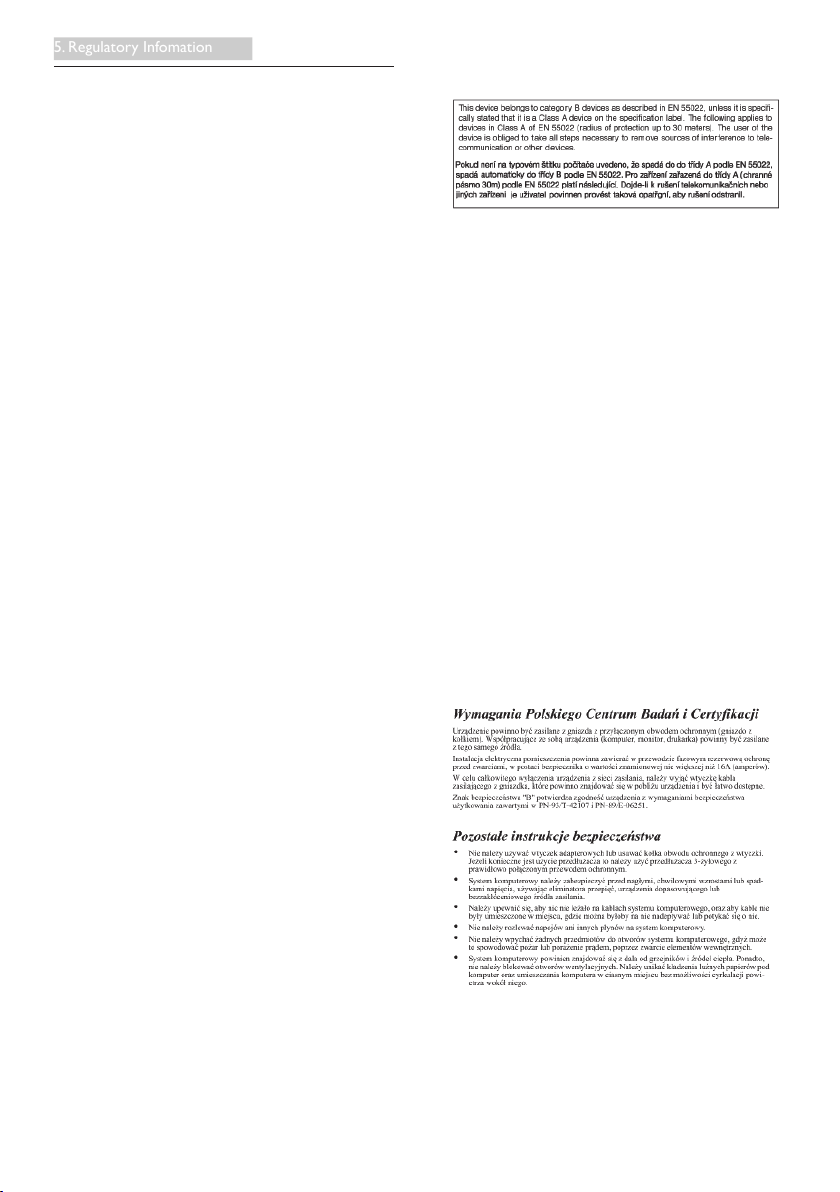
Operating Condition
Temperature range (operation) 0°C to 40 °C
Temperature range
(Non-operation)
-20°C to 60°C
Relative humidity 20% to 80%
Environmental
ROHS YES
Packaging 100% recyclable
Specic Substances 100% PVC BFR free housing
Compliance and standards
Regulatory Approvals CB,CU-EAC, CE, EMF, ErP, Semko, C-tick
Cabinet
Color Front column: silver, back column: black, base:black
Finish Texture
Note
1. USB port 5V standby power is not supported when USB docking stand is off.
2. This data is subject to change without notice. Please visit http://www.philips.com/support for the
most updated information.
3. USB docking stand does not support hot plug EDID detection. System only enables USB upstream
port when connected to notebook/PC.
4. The RJ45 (network) connector on the notebook/PC is disabled when the notebook/PC is
connected to the USB docking stand.
18
5. Regulatory Infomation
5. Regulatory Information
CE Declaration of Conformity
This product is in conformity with the following
standards
• EN60950-1:2006+A11:2009+A1:20
10+A12:2011 (Safety requirement of
Information Technology Equipment).
• EN55022:2010 (Radio Disturbance
requirement of Information Technology
Equipment).
• EN55024:2010 (Immunity requirement of
Information Technology Equipment).
• EN61000-3-2:2006 +A1:2009+A2:2009
(Limits for Harmonic Current Emission).
• EN61000-3-3:2008 (Limitation of Voltage
Fluctuation and Flicker) following provisions
of directives applicable.
• 2006/95/EC (Low Voltage Directive).
• 2004/108/EC (EMC Directive).
• 2009/125/EC (ErP, Energy-related Product
Directive, EU 617/2013 Implementing)
• 2011/65/EU (RoHS Directive)
And is produced by a manufacturing
organization on ISO9000 level.
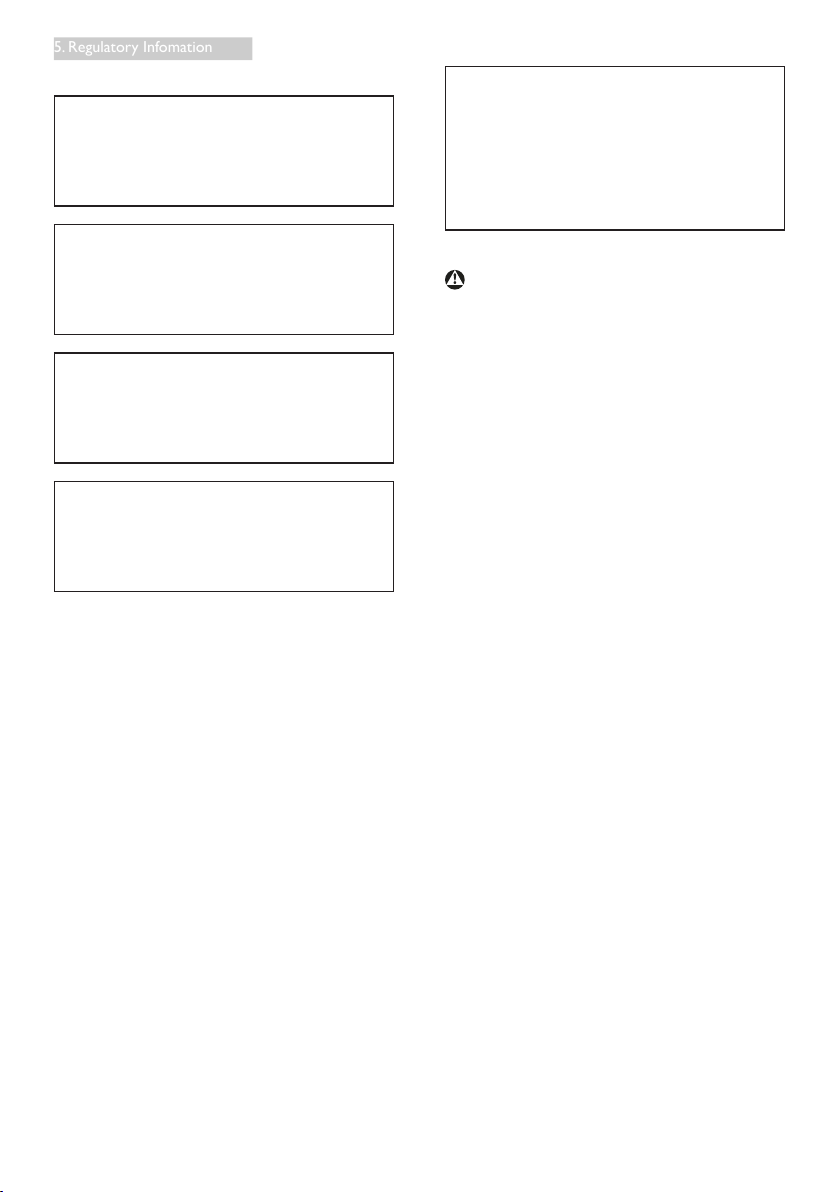
EN 55022 Compliance (Czech Republic Only)
PolishCenterforTestingandCertication
Notice
The equipment should draw power from a
socket with an attached protection circuit (a
three-prong socket). All equipment that works
together (computer, monitor, printer, and so on)
should have the same power supply source.
The phasing conductor of the room's electrical
installation should have a reserve short-circuit
protection device in the form of a fuse with a
nominal value no larger than 16 amperes (A).
To completely switch off the equipment, the
power supply cable must be removed from the
power supply socket, which should be located
near the equipment and easily accessible.
A protection mark "B" conrms that the
equipment is in compliance with the protection
usage requirements of standards PN-93/T-42107
and PN-89/E-06251.
19
5. Regulatory Infomation
North Europe (Nordic Countries) Information
Placering/Ventilation
VARNING:
FÖRSÄKRA DIG OM ATT HUVUDBRYTARE
OCH UTTAG ÄR LÄTÅTKOMLIGA, NÄR
DU STÄLLER DIN UTRUSTNING PÅPLATS.
Placering/Ventilation
ADVARSEL:
SØRG VED PLACERINGEN FOR, AT
NETLEDNINGENS STIK OG STIKKONTAKT
ER NEMT TILGÆNGELIGE.
Paikka/Ilmankierto
VAROITUS:
SIJOITA LAITE SITEN, ETTÄ VERKKOJOHTO
VOIDAAN TARVITTAESSA HELPOSTI
IRROTTAA PISTORASIASTA.
Plassering/Ventilasjon
ADVARSEL:
NÅR DETTE UTSTYRET PLASSERES, MÅ
DU PASSE PÅ AT KONTAKTENE FOR
STØMTILFØRSEL ER LETTE Å NÅ.
Ergonomie Hinweis (nur Deutschland)
Der von uns gelieferte Farbmonitor entspricht
den in der "Verordnung über den Schutz vor
Schäden durch Röntgenstrahlen" festgelegten
Vorschriften.
Auf der Rückwand des Gerätes bendet sich
ein Aufkleber, der auf die Unbedenklichkeit der
Inbetriebnahme hinweist, da die Vorschriften
über die Bauart von Störstrahlern nach Anlage
III ¤ 5 Abs. 4 der Röntgenverordnung erfüllt sind.
Damit Ihr Monitor immer den in der Zulassung
geforderten Werten entspricht, ist darauf zu
achten, daß
1. Reparaturen nur durch Fachpersonal
durchgeführt werden.
2. nur original-Ersatzteile verwendet werden.
3. bei Ersatz der Bildröhre nur eine
bauartgleiche eingebaut wird.
Aus ergonomischen Gründen wird empfohlen,
die Grundfarben Blau und Rot nicht auf
dunklem Untergrund zu verwenden (schlechte
Lesbarkeit und erhöhte Augenbelastung bei zu
geringem Zeichenkontrast wären die Folge).
Der arbeitsplatzbezogene Schalldruckpegel
nach DIN 45 635 beträgt 70dB (A) oder
weniger.
ACHTUNG: BEIM AUFSTELLEN
DIESES GERÄTES DARAUF
ACHTEN, DAß NETZSTECKER UND
NETZKABELANSCHLUß LEICHT
ZUGÄNGLICH SIND.
20
5. Regulatory Infomation
Restriction on Hazardous Substances
statement (India)
This product complies with the “India E-waste
Rule 2011” and prohibits use of lead, mercury,
hexavalent chromium, polybrominated
biphenyls or polybrominated diphenyl ethers
in concentrations exceeding 0.1 weight % and
0.01 weight % for cadmium, except for the
exemptions set in Schedule 2 of the Rule.
E-Waste Declaration for India
This symbol on the product or on its packaging
indicates that this product must not be
disposed of with your other household waste.
Instead it is your responsibility to dispose of
your waste equipment by handing it over to
a designated collection point for the recycling
of waste electrical and electronic equipment .
The separate collection and recycling of your
waste equipment at the time of disposal will
help to conserve natural resources and ensure
that it is recycled in a manner that protects
human health and the environment. For more
information about where you can drop off your
waste equipment for recycling in India please
visit the below web link.
http://www.india.philips.com/about/sustainability/
recycling/index.page
Information for U.K. only
WARNING - THIS APPLIANCE MUST BE
EARTHED.
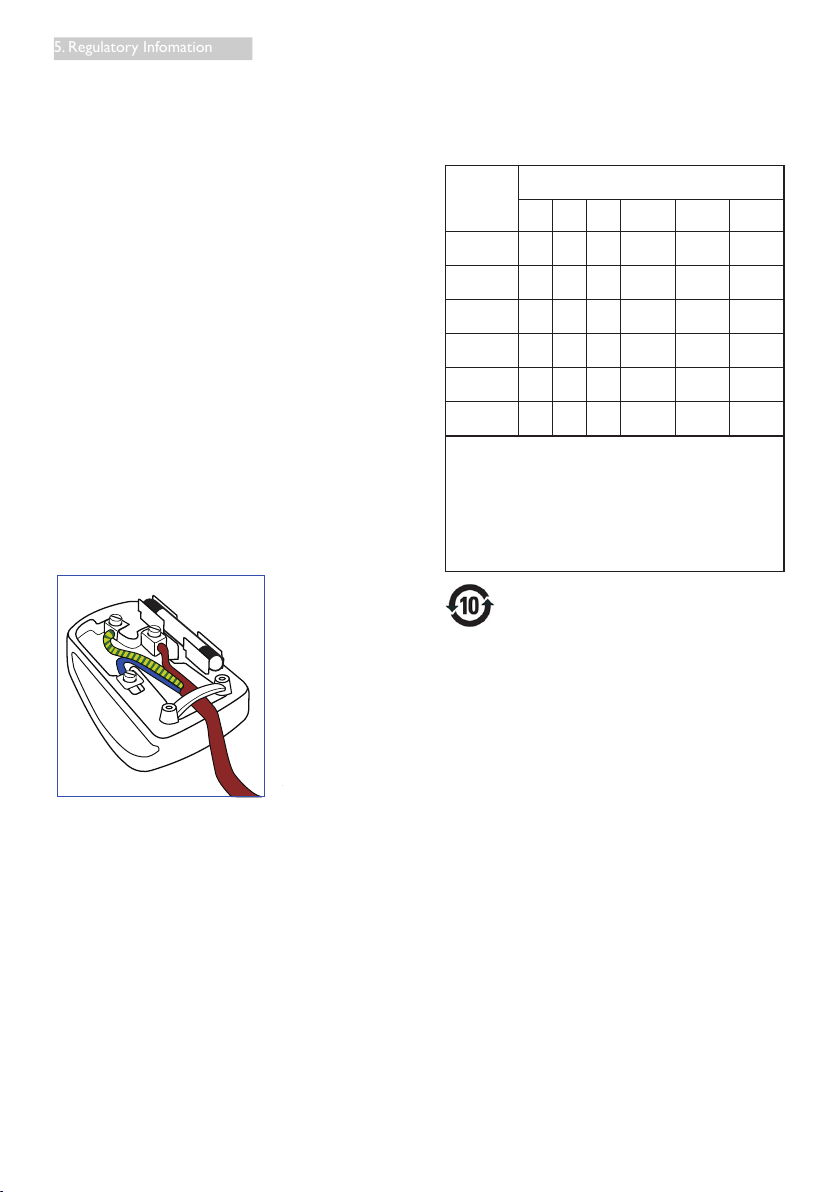
Important:
This apparatus is supplied with an approved
moulded 13A plug. To change a fuse in this type
of plug proceed as follows:
1. Remove fuse cover and fuse.
2. Fit new fuse which should be a BS 1362
5A,A.S.T.A. or BSI approved type.
3. Retit the fuse cover.
If the tted plug is not suitable for your socket
outlets, it should be cut off and an appropriate
3-pin plug tted in its place.
If the mains plug contains a fuse, this should
have a value of 5A. If a plug without a fuse is
used, the fuse at the distribution board should
not be greater than 5A.
NOTE: The severed plug must be destroyed
to avoid a possible shock hazard
should it be inserted into a 13A socket
elsewhere.
(A)
(B)
21
5. Regulatory Infomation
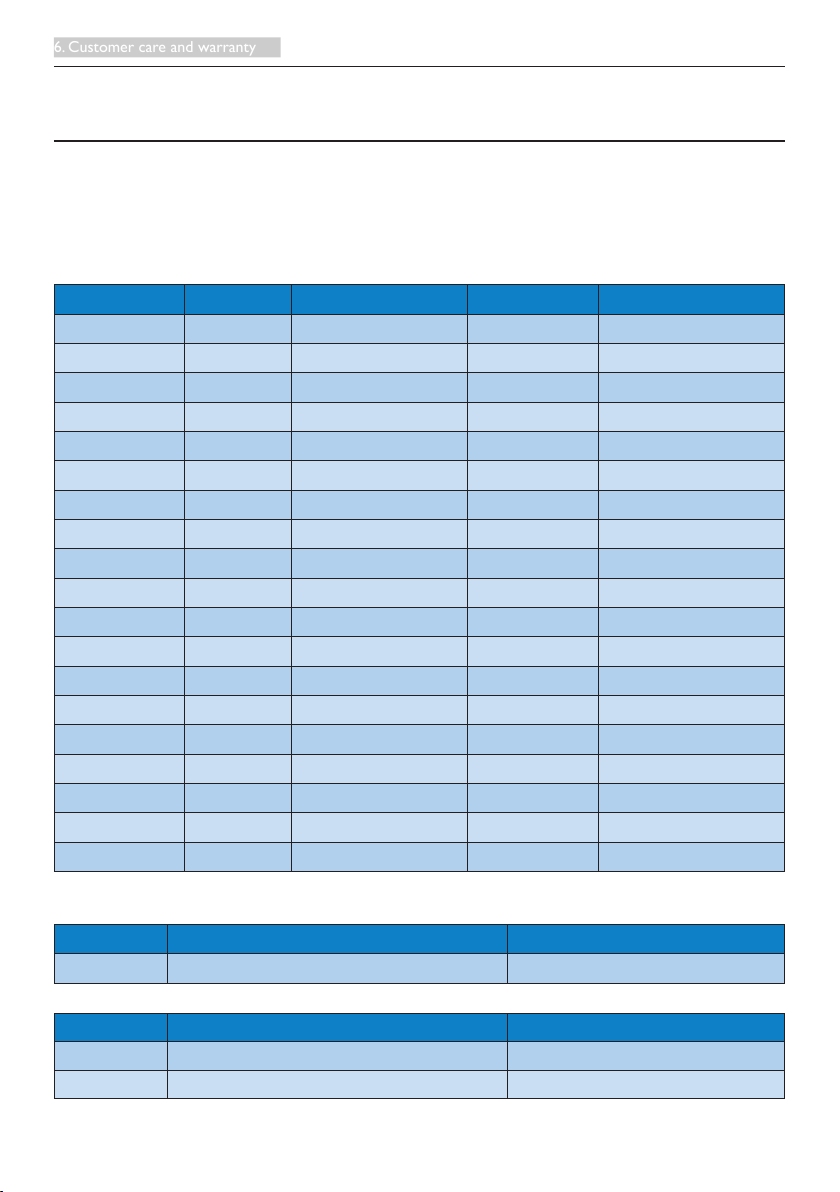
How to connect a plug
The wires in the mains lead are coloured in
accordance with the following code:
BLUE -“NEUTRAL”(“N”)
BROWN -“LIVE”(“L”)
GREEN&YELLOW -“EARTH”(“E”)
1. The GREEN&YELLOW wire must be
connected to the terminal in the plug
which is marked with the letter "E" or by
the Earth symbol or coloured GREEN or
GREEN&YELLOW.
2. The BLUE wire must be connected to the
terminal which is marked with the letter
"N" or coloured BLACK.
3. The BROWN wire must be connected
to the terminal which is marked with the
letter "L" or coloured RED.
Before replacing the plug cover, make certain
that the cord grip is clamped over the sheath of
the lead - not simply over the three wires.
-
China RoHS
The People's Republic of China released a
regulation called "Management Methods for
Controlling Pollution by Electronic Information
Products" or commonly referred to as China
RoHS. All products produced and sold for China
market have to meet China RoHS request.
根据中国大陆《电子电气产品有害物质
限制使用标识要求》(也称为中国大陆
RoHS),以下部分列出了本产品中可能包
含的有害物质的名称和含量。
部件名称
有害物质
铅
(Pb
)
汞
(Hg)
镉
(Cd)
六价铬
(Cr(VI))
多溴联苯
(PBB)
多溴二苯
醚(PBDE)
外壳 ○ ○ ○ ○ ○ ○
液晶显示屏 × ○ ○ ○ ○ ○
电路板组件* × ○ ○ ○ ○ ○
电源适配器 × ○ ○ ○ ○ ○
电源线/连接
线
× ○ ○ ○ ○ ○
遥控器 × ○ ○ ○ ○ ○
本表格依据SJ/T 11364的规定编制。
* : 电路板组件包括印刷电路板及其构成的零部件,如电阻、电
容、集成电路、连接器等。
○: 表示该有害物质在该部件所有均质材料中的含量均在GB/T
26572规定的限量要求以下。
×: 表示该有害物质至少在该部件的某一均质材料中的含量超出
GB/T 26572规定的限量要求
。
上表中打“×”的部件,应功能需要,部分有害物质含量超出GB/T 26572
规定的限量要求,但符合欧盟RoHS法规要求(属于豁免部分)。
环保使用期限
电子电气产品有害物质限制使用标识要求
说明:该电子电气产品含有某些有害物
质,在环保使用期限内可以放心使用,超
过环保使用期限之后应该进入回收循环系
统。
《废弃电器电子产品回收处理管理条例》
提示性说明
为了更好地关爱及保护地球,当用户不再
需要此产品或产品寿命终止时,请遵守国
家废弃电器电子产品回收处理相关法律法
规,将其交给当地具有国家认可的回收处
理资质的厂商进行回收处理。
22
6. Customer care and warranty
6. Customer care and warranty
6.1 Customer Care & Warranty
For warranty coverage information and additional support requirement valid for your region, please visit
www.philips.com/support website for details. You may also contact your local Philips Customer Care
Center number listed below.
Contact Information for WESTERN EUROPE region:
Country CSP Hotline Number Price Opening Hours
Austria RTS +43 0810 000206
€
0.07 Mon to Fri : 9am - 6pm
Belgium Ecare +32 078 250851
€
0.06 Mon to Fri : 9am - 6pm
Cyprus Alman 800 92 256 Free of charge Mon to Fri : 9am - 6pm
Denmark Infocare +45 3525 8761 Local call tariff Mon to Fri : 9am - 6pm
Finland Infocare +358 09 2290 1908 Local call tariff Mon to Fri : 9am - 6pm
France Mainteq +33 082161 1658
€
0.09 Mon to Fri : 9am - 6pm
Germany RTS +49 01803 386 853
€
0.09 Mon to Fri : 9am - 6pm
Greece Alman +30 00800 3122 1223 Free of charge Mon to Fri : 9am - 6pm
Ireland Celestica +353 01 601 1161 Local call tariff Mon to Fri : 8am - 5pm
Italy Anovo Italy +39 840 320 041
€
0.08 Mon to Fri : 9am - 6pm
Luxembourg Ecare +352 26 84 30 00 Local call tariff Mon to Fri : 9am - 6pm
Netherlands Ecare +31 0900 0400 063
€
0.10 Mon to Fri : 9am - 6pm
Norway Infocare +47 2270 8250 Local call tariff Mon to Fri : 9am - 6pm
Poland MSI +48 0223491505 Local call tariff Mon to Fri : 9am - 6pm
Portugal Mainteq 800 780 902 Free of charge Mon to Fri : 8am - 5pm
Spain Mainteq +34 902 888 785
€
0.10 Mon to Fri : 9am - 6pm
Sweden Infocare +46 08 632 0016 Local call tariff Mon to Fri : 9am - 6pm
Switzerland ANOVO CH +41 02 2310 2116 Local call tariff Mon to Fri : 9am - 6pm
United Kingdom Celestica +44 0207 949 0069 Local call tariff Mon to Fri : 8am - 5pm
Contact Information for China:
Country Call center Consumer care number
China PCCW Limited 4008 800 008
Contact Information for NORTH AMERICA :
Country Call center Consumer care number
U.S.A. EPI-e-center (877) 835-1838
Canada EPI-e-center (800)479-6696
23
6. Customer care and warranty
Contact Information for CENTRAL AND EASTERN EUROPE region:
Country Call center CSP Consumer care number
Belarus NA IBA
+375 17 217 3386
+375 17 217 3389
Bulgaria NA LAN Service +359 2 960 2360
Croatia NA
MR Service Ltd +385 (01) 640 1111
Czech Rep. NA Asupport 420 272 188 300
Estonia NA FUJITSU
+372 6519900(General)
+372 6519972(workshop)
Georgia NA Esabi +995 322 91 34 71
Hungary NA Profi Service
+36 1 814 8080(General)
+36 1814 8565(For AOC&Philips
only)
Kazakhstan NA Classic Service I.I.c. +7 727 3097515
Latvia
NA
ServiceNet LV
+371 67460399
+371 27260399
Lithuania
NA UAB Servicenet
+370 37 400160(general)
+370 7400088 (for Philips)
Macedonia NA AMC +389 2 3125097
Moldova NA Comel +37322224035
Romania
NA Skin +40 21 2101969
Russia NA CPS +7 (495) 645 6746
Serbia&Montenegro NA Kim Tec d.o.o. +381 11 20 70 684
Slovakia NA Datalan Service +421 2 49207155
Slovenia NA PC H.and +386 1 530 08 24
the republic of Belarus NA ServiceBy + 375 17 284 0203
Turkey NA Tecpro +90 212 444 4 832
Ukraine NA Topaz +38044 525 64 95
Ukraine NA Comel +380 5627444225
Contact Information for LATIN AMERICA region:
Country Call center Consumer care number
Brazil
Vermont
0800-7254101
Argentina 0800 3330 856
24
6. Customer care and warranty
Contact Information for APMEA region:
Country ASP Consumer care number Opening hours
Australia AGOS NETWORK PTY LTD 1300 360 386 Mon.~Fri. 9:00am-5:30pm
New Zealand Visual Group Ltd. 0800 657447 Mon.~Fri. 8:30am-5:30pm
Hong Kong
Macau
Company: Smart Pixels
Technology Ltd.
Hong Kong:
Tel: +852 2619 9639
Macau:Tel: (853)-0800-987
Mon.~Fri. 9:00am-6:00pm
Sat. 9:00am-1:00pm
India REDINGTON INDIA LTD
Tel: 1 800 425 6396
SMS: PHILIPS to 56677
Mon.~Fri. 9:00am-5:30pm
Indonesia
PT. CORMIC SERVISINDO
PERKASA
+62-21-4080-9086 (Customer
Hotline)
+62-8888-01-9086 (Customer
Hotline)
Mon.~Thu. 08:30-12:00;
13:00-17:30
Fri. 08:30-11:30; 13:00-17:30
Korea Alphascan Displays, Inc 1661-5003
Mon.~Fri. 9:00am-5:30pm
Sat. 9:00am-1:00pm
Malaysia R-Logic Sdn Bhd +603 5102 3336
Mon.~Fri. 8:15am-5:00pm
Sat. 8:30am-12:30am
Pakistan TVONICS Pakistan +92-213-6030100 Sun.~Thu. 10:00am-6:00pm
Singapore
Philips Singapore Pte Ltd
(Philips Consumer Care
Center)
(65) 6882 3966
Mon.~Fri. 9:00am-6:00pm
Sat. 9:00am-1:00pm
Taiwan FETEC.CO 0800-231-099 Mon.~Fri. 09:00 - 18:00
Thailand
Axis Computer System Co.,
Ltd.
(662) 934-5498 Mon.~Fri. 8:30am~05:30pm
South Africa Computer Repair Technologies 011 262 3586 Mon.~Fri. 8:00am~05:00pm
Israel Eastronics LTD 1-800-567000 Sun.~Thu. 08:00-18:00
Vietnam
FPT Service Informatic
Company Ltd. - Ho Chi Minh
City Branch
+84 8 38248007 Ho Chi Minh
City
+84 5113.562666 Danang City
+84 5113.562666 Can tho
Province
Mon.~Fri. 8:00-12:00, 13:30-
17:30,Sat. 8:00-12:00
Philippines
EA Global Supply Chain
Solutions ,Inc.
(02) 655-7777; 6359456 Mon.~Fri. 8:30am~5:30pm
Armenia
Azerbaijan
Georgia
Kyrgyzstan
Tajikistan
Firebird service centre +97 14 8837911 Sun.~Thu. 09:00 - 18:00
Uzbekistan
Soniko Plus Private Enterprise
Ltd
+99871 2784650 Mon.~Fri. 09:00 - 18:00
Turkmenistan Technostar Service Centre +(99312) 460733, 460957 Mon.~Fri. 09:00 - 18:00
Japan
フィリップスモニター
・サポートセンター
0120-060-530 Mon.~Fri. 10:00 - 17:00
25
7. Troubleshooting & FAQs
7. Troubleshooting & FAQs
7.1 Troubleshooting
This page deals with problems that can be
corrected by a user. If the problem still persists
after you have tried these solutions, contact
Philips customer service representative.
Common Problems
There is no video on the monitor attached to
the dock.
• Check the video connection cables to the
dock.
• Unplug from the power supply, wait 10
seconds, and then re-connect to the power
supply.
The video on the attached monitor is
distorted or corrupted.
• Check video connection cables.
• Check the video resolution under Control
Panel > All Control Panel Items > Display>
Change Display Setting.
The video on the attached monitor is not
displaying in extended mode.
Change the settings by either:
• Configuring under
Control Panel > All Control Panel Items >
Display > Change Display Setting.
• Switch by cycling the “Windows Key + P.
The audio connectors are not functioning.
• Check the setting under
Control Panel > All Control Panel Items >
Sound to make sure the USB Audio device
is available and set to default. Right click to
show all available options.
HDCP content is not able to display on the
attached monitor.
• Check that the attached monitor is HDCP
compliant.
DisplayLink driver not able to install.
Get the driver by either:
1. Downloading the latest driver from the
DisplayLink website at
www.displaylink.com/support.
2. Connect to Windows Update with
Docking stand. (by using Wi-Fi or
Ethernet port of the notebook)
Notebook failed to boot with dock connected.
• Remove all USB devices connected to the
dock; some unqualified boot devices may
cause lock up at boot screen.
No CD drive and no Internet access for
downloading the driver.
• Get an external optical drive to load the
driver from the CD.
• Download the driver from http://www.
displaylink.com/support/downloads.php to a
USB flash drive and run the setup.
Screen says
Attention
Check cable connection
• Make sure the monitor cable is properly
connected to your USB docking stand.
(Also refer to the Quick Start Guide).
• Check to see if the monitor cable has bent
pins.
• Make sure the USB docking stand is turned
on.
Visible signs of smoke or sparks
• Do not perform any troubleshooting steps
• Disconnect the USB docking stand from
the main power source immediately for
safety.
• Contact with Philips customer service
representative immediately.

© 2015 Koninklijke Philips N.V. All rights reserved.
Philips and the Philips Shield Emblem are registered trademarks of
Koninklijke Philips N.V. and are used under license from
Koninklijke Philips N.V.
Specicationsaresubjecttochangewithoutnotice.
Version: M4SB4B1928UE1WWT