Withings Activité™
v3.0 | April, 2017
Withings Activité™
Activity Tracker - Sleep Analyzer
Installation and Operating Instructions

EN - 2
Withings Activité™
v3.0 | April, 2017
Table of Contents
Minimum Requirements ..........................................................................4
Internet Access ����������������������������������������������������������������������������������������������������������������4
Smartphone or Device �����������������������������������������������������������������������������������������������������4
OS Version �����������������������������������������������������������������������������������������������������������������������4
Withings Health Mate® App Version �������������������������������������������������������������������������������4
Description ..................................................................................................5
Overview ��������������������������������������������������������������������������������������������������������������������������5
Box Contents �������������������������������������������������������������������������������������������������������������������6
Setting Up the Withings Activité™ .......................................................... 7
Installing the Withings Health Mate® App ����������������������������������������������������������������������7
Installing my Withings Activité™ ��������������������������������������������������������������������������������������7
Setting the Time ������������������������������������������������������������������������������������������������������������15
Tracking my activity ................................................................................16
Overview ������������������������������������������������������������������������������������������������������������������������16
Checking my progress ���������������������������������������������������������������������������������������������������16
Changing my activity goal ���������������������������������������������������������������������������������������������17
Tracking my swimming sessions ����������������������������������������������������������������������������������18
Tracking my sleep ...................................................................................19
Overview ������������������������������������������������������������������������������������������������������������������������19
Retrieving my sleep data �����������������������������������������������������������������������������������������������19
Setting an Alarm ������������������������������������������������������������������������������������������������������������20
Getting more active .................................................................................23
Competing with my friends ��������������������������������������������������������������������������������������������23
Competing with myself �������������������������������������������������������������������������������������������������� 24
Syncing your Data ...................................................................................26
Dissociating your Withings Activité™ ..................................................27
Cleaning and Maintenance ....................................................................29
Cleaning your Withings Activité™ ����������������������������������������������������������������������������������29
Replacing the Battery ����������������������������������������������������������������������������������������������������29

EN - 3
Withings Activité™
v3.0 | April, 2017
Replacing the Wristband �����������������������������������������������������������������������������������������������29
Calibrating the Hands ����������������������������������������������������������������������������������������������������30
Updating the Firmware Version �������������������������������������������������������������������������������������32
User Guide Copyright..............................................................................33
Legal Notice ..............................................................................................33
Personal Data ����������������������������������������������������������������������������������������������������������������33
Safety Instructions ..................................................................................33
Use and Storage ������������������������������������������������������������������������������������������������������������33
Water Resistance ����������������������������������������������������������������������������������������������������������� 34
Leather Wristband ���������������������������������������������������������������������������������������������������������34
Service and Maintenance ����������������������������������������������������������������������������������������������34
Specications ...........................................................................................35
Document Release Overview ................................................................37
Warranty ....................................................................................................38
Regulatory Statements ..........................................................................39

EN - 4
Withings Activité™
v3.0 | April, 2017
Important Notice
By using your Withings Activité™ you expressly agree to the Withings Services
website�
Minimum Requirements
Internet Access
Access to the Internet is required to:
• Download the Withings Health Mate® app,
• Set up your Withings Activité™,
• Upgrade the rmware.
For more details, refer to “Specications” on page35.
Smartphone or Device
An iOS device or an Android device (with operational Bluetooth Low Energy and Wi-Fi
or 3G/4G) is required to:
• Set up your Withings Activité™,
• Retrieve data from your Withings Activité™,
• Interact with your Withings Activité™,
• Interact with people.
For more details, refer to “Specications” on page35.
OS Version
You need iOS 7 (or higher) or Android 4.3 (or higher) on your device to install and run
the Withings Health Mate® App.
For any device, BLE (Bluetooth Low Energy) compatibility is required to install
your Withings Activité™.
Withings Health Mate® App Version
You always need the latest version of the Withings Health Mate® app to have all the latest
features available.

EN - 5
Withings Activité™
v3.0 | April, 2017
Description
Overview
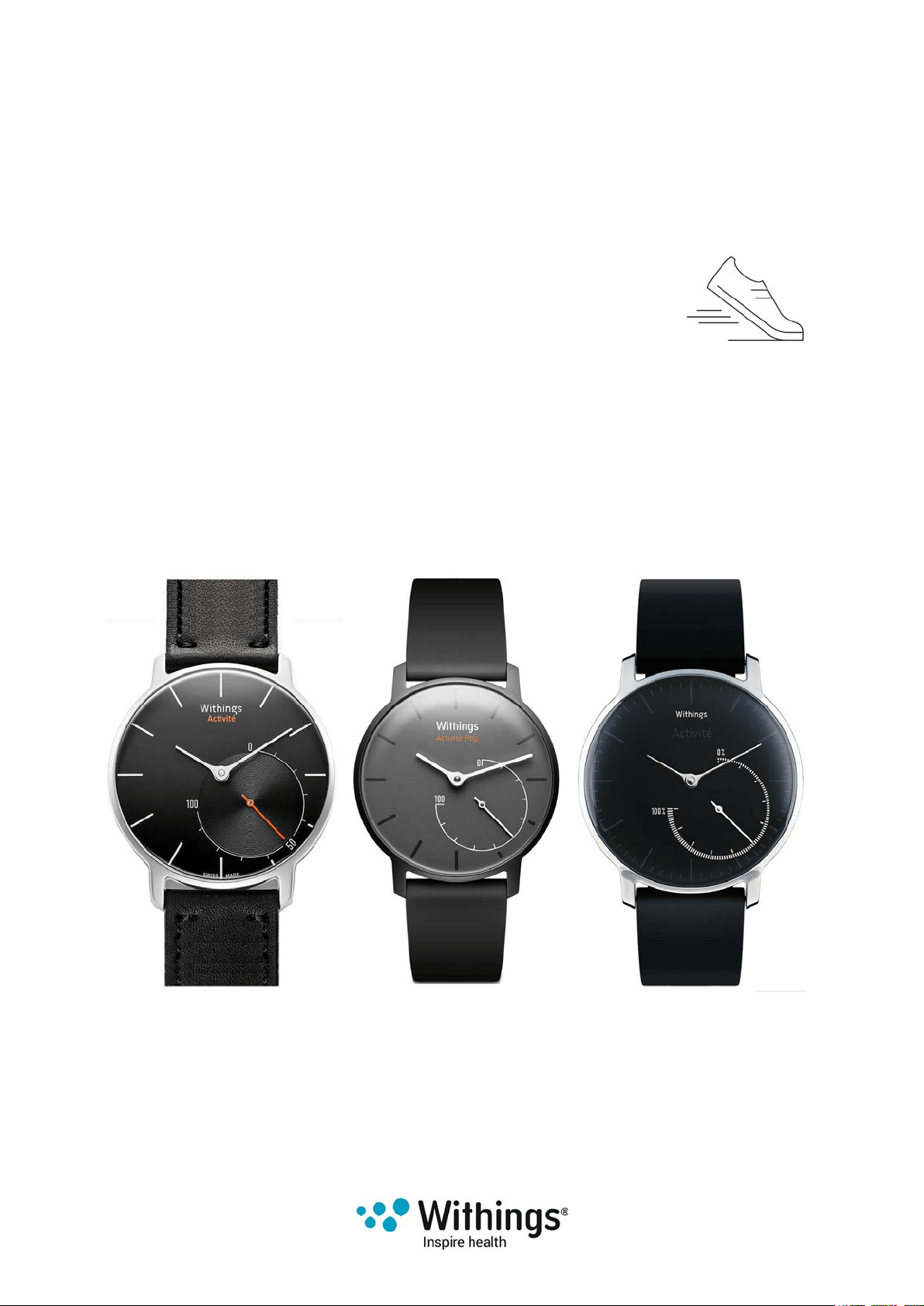
The Withings Activité™ Pop / Withings Activité™ Steel are the rst truly wearable activity
trackers. They can track your activity and your sleep, while still managing to look like a
beautiful watch.They are also water-resistant up to 5ATM and allow you to track your
swimming sessions.
The Withings Activité™ is a Swiss-made activity tracker which comes with a unbreakable
sapphire glass and a French ne calf leather wristband, giving it a classy and tasteful look.
It also comes with an additional silicone wristband that you can use for your workout
sessions or whenever you are going underwater. It shares the same features as the
Withings Activité™ Pop / Withings Activité™ Steel.
You can easily check your activity by taking a look at the activity hand which goes from
0% up to 100% when you reach your daily step goal. By default, the daily step goal
is 10,000 steps. You can, however, change that goal anytime you want through the
Withings Health Mate® app. Whenever you go above your daily step goal, the activity hand
goes back to the 0% mark and starts moving toward the 100% mark all over again.
Contrary to most activity trackers, the Withings Activité™ does not require that you charge
it thanks to its replaceable cell battery. It has an estimated battery life of up to 8 months,
meaning that you won’t have to worry about charging it every other day.
The Withings Activité™ also allows you through the Withings Health Mate® app to set an
alarm that vibrates to wake you up smoothly, without waking up your sleeping partner. You
can easily check your alarm time by double-tapping your Withings Activité™: the hands
move on their own to the time that was set for your alarm and then go back to the current
time. Note that you need to stabilize your Withings Activité™ for 5 seconds before double-
tapping the glass.
Because your Withings Activité™ is set up using your iOS or Android device, you never
have to worry about setting the time, not even when you change time zones or for
daylight savings. All you have to do is open the Withings Health Mate® app so that it can
automatically retrieve the correct time when it syncs with your phone.
Last but not least, the data coming from your Withings Activité™ is fully integrated in the
Withings Health Mate® app, allowing you to follow your progress and your history from a
single location.
EN - 6
Withings Activité™
v3.0 | April, 2017
Your Withings Activité™ also offers motivation in several forms. You can compete with
your friends through the leaderboard available in the Withings Health Mate® app. You can
also compete with yourself thanks to virtual badges that you get when you achieve certain
distances or a certain number of steps.
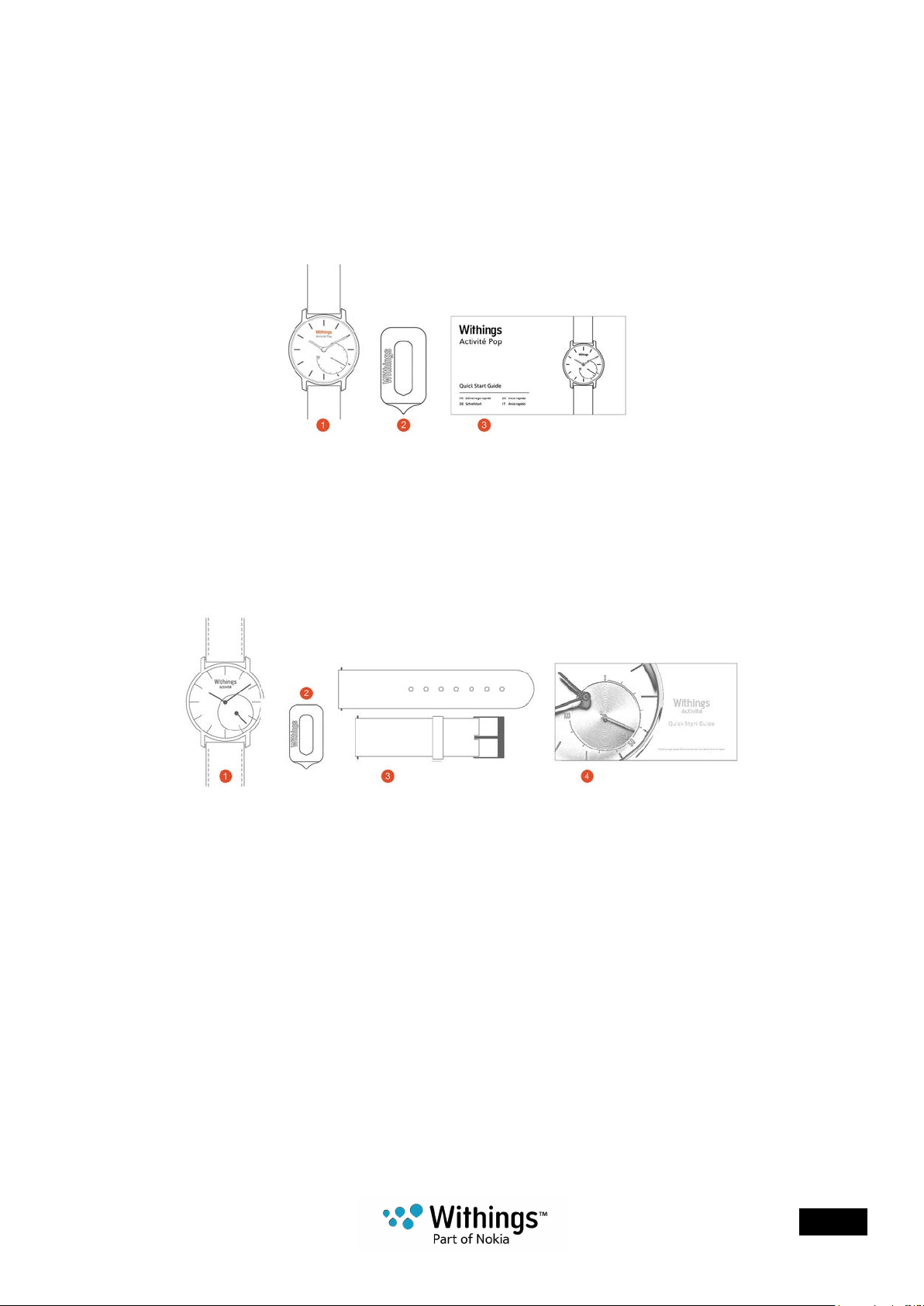
Box Contents
Withings Activité™ Pop / Withings Activité™ Steel
(1)Withings Activité™ Pop
/ Withings Activité™ Steel
(CR2025 battery included)
(2)Tool to reset the watch (3)Withings Activité™ Pop
/ Withings Activité™ Steel
quick installation guide
Withings Activité™
(1)Withings Activité™
(CR2025 battery included)
(4)Withings Activité™ quick
installation guide
(2)Tool to reset the watch (3)Additional silicone
wristband for sports

EN - 7
Withings Activité™
v3.0 | April, 2017
Setting Up the Withings Activité™
Installing the Withings Health Mate® App
If the Withings Health Mate® app is not already installed on your device, perform
the following steps:
1. Type go.withings.com in your device’s web browser.
2. Tap Android App on Google play.
3. Tap INSTALL.
The installation process starts.
Installing my Withings Activité™
I’m new to Withings®
If you don’t already have a Withings® account, you have to create one in order to set up
and use your Withings Activité™.
If you already have an account, refer to “I already have a Withings® account” on page11
To install your Withings Activité™, perform the following steps
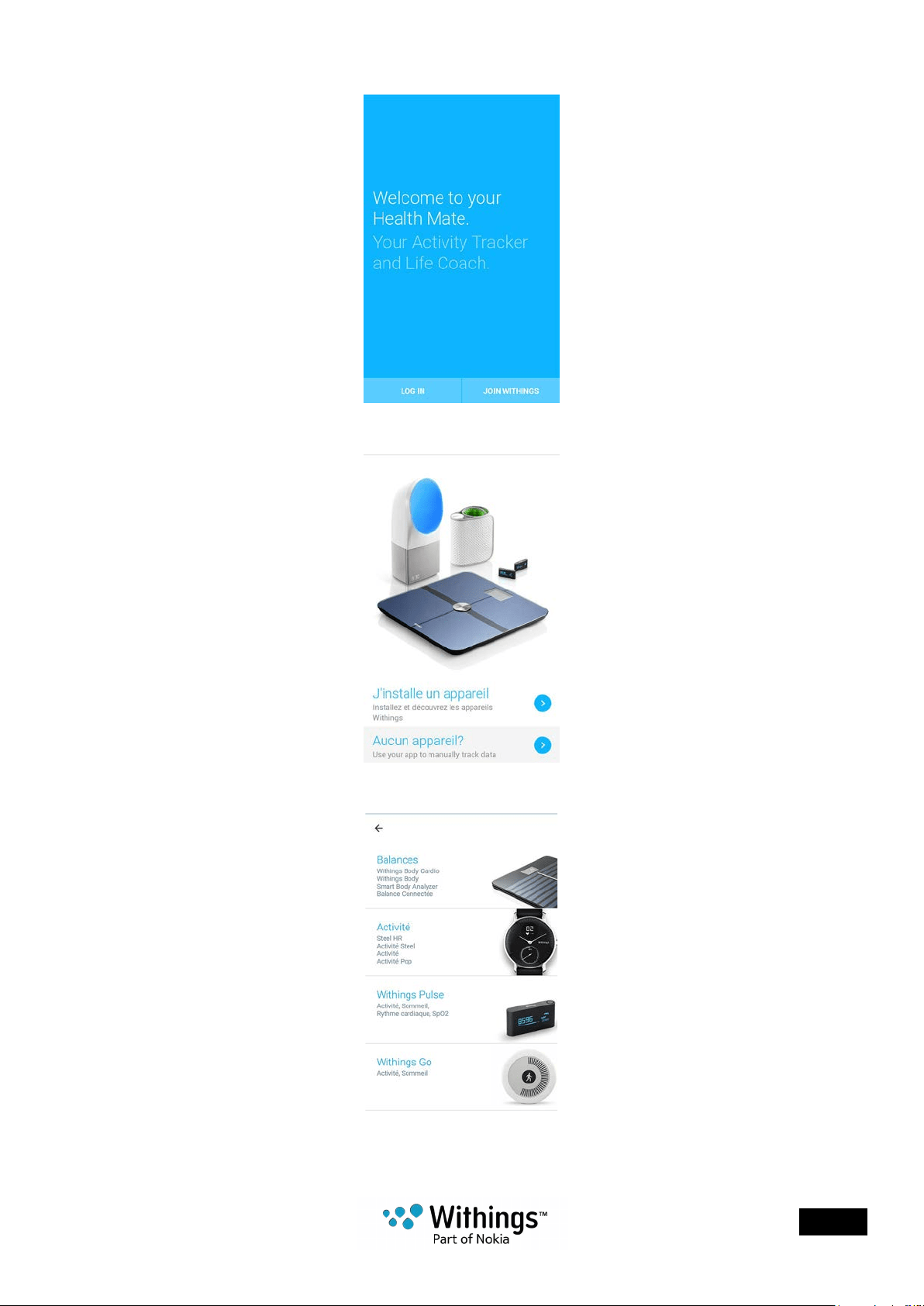
1. Open the Withings Health Mate® app.
EN - 8
Withings Activité™
v3.0 | April, 2017
2. Tap Join Withings.
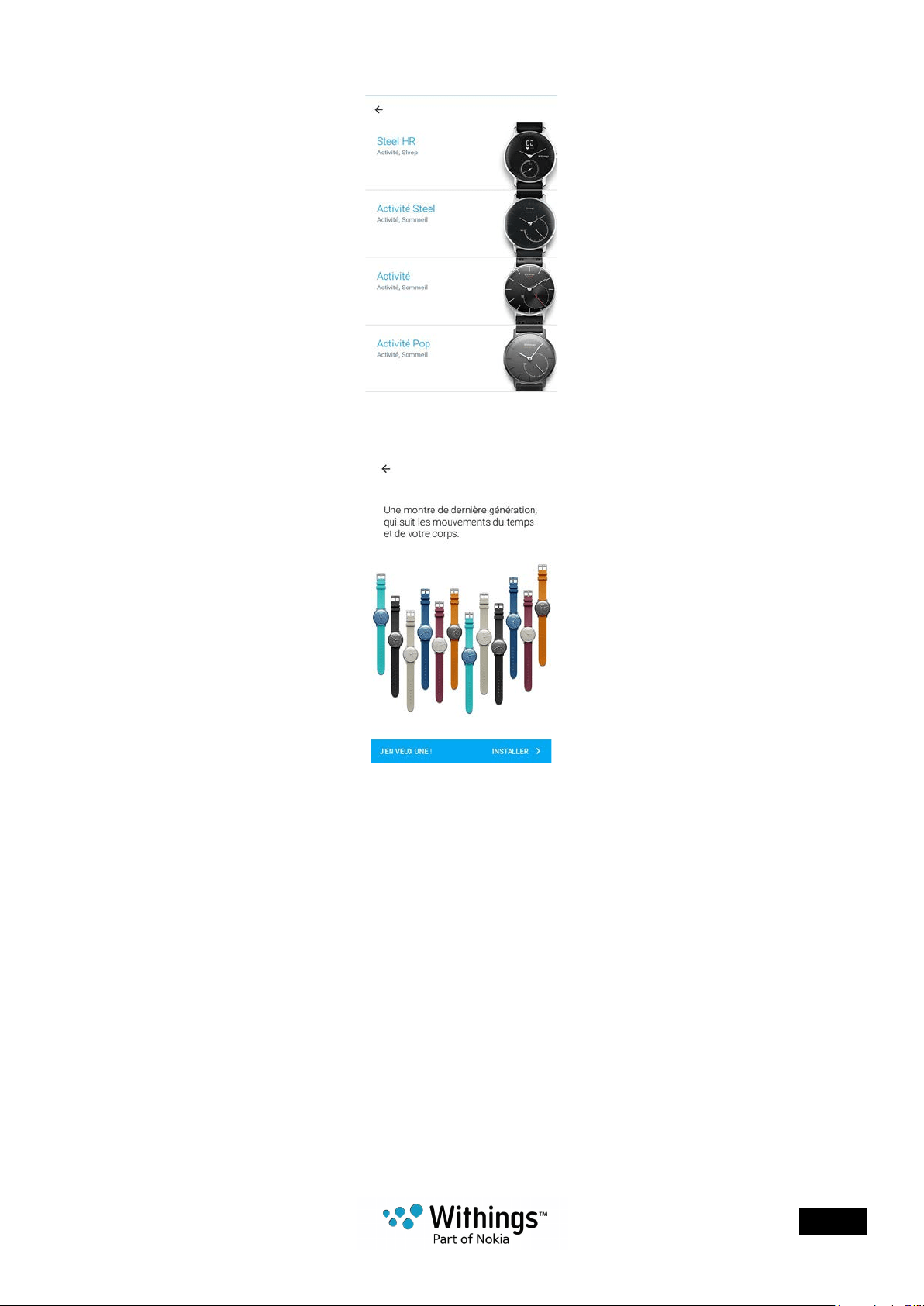
3. Tap I’m setting up my device.
4. Tap Activité Watches:
EN - 9
Withings Activité™
v3.0 | April, 2017
5. Tap your watch model.
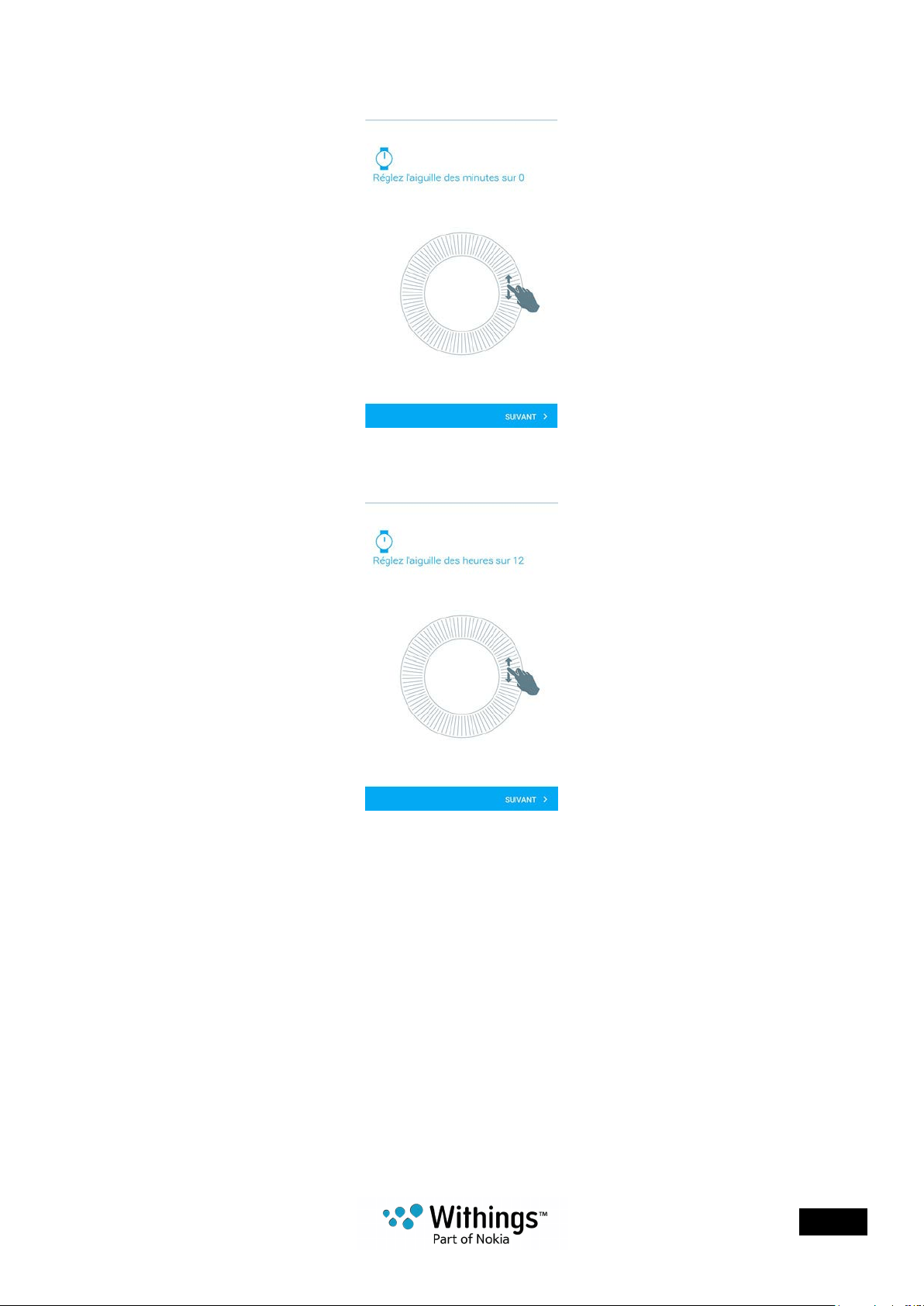
6. Tap Install.
7. Push the reset button located at the back of your Withings Activité™ using the tool it
came with.
Your Withings Activité™ vibrates once.
If it doesn’t vibrate, try changing the angle of the tool when you push the reset button.
8. Put your Withings Activité™ close enough to your mobile device. Tap Next.
You may need to press the reset button again if your device cannot detect
your Withings Activité™ on its own.
9. Enter your email address, password and then conrm your password. Tap Next.
10. Enter your rst name, surname and birthday. Tap Next.
11. Select your gender and enter your height and weight. Tap Create.
EN - 10
Withings Activité™
v3.0 | April, 2017
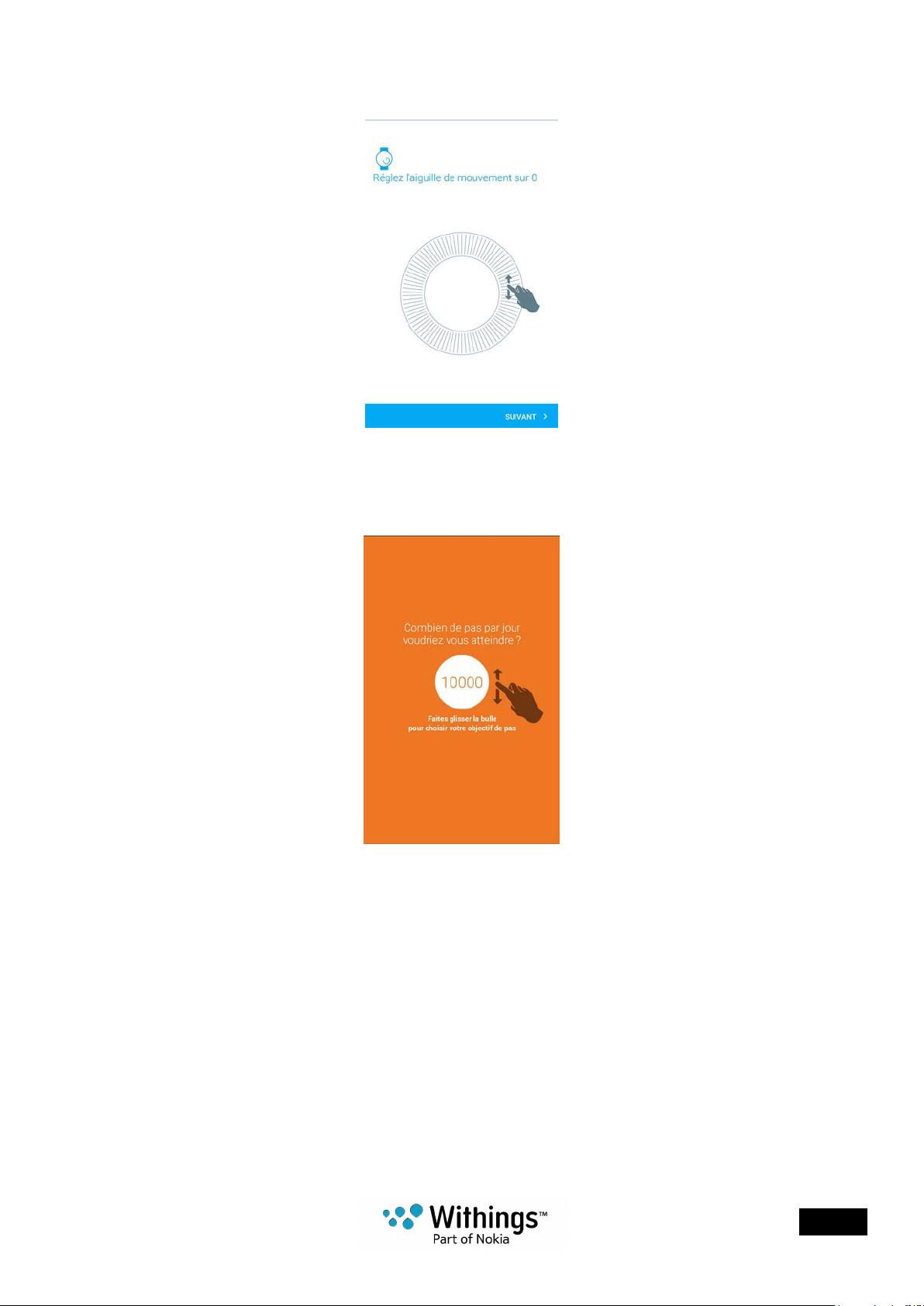
12. When prompted to, slide your nger on the wheel displayed in the app until the minute
hand reaches the 0 mark. Tap Next.
13. Slide your nger on the wheel displayed in the app until the hour hand reaches
the 0 mark. Tap Next.
EN - 11
Withings Activité™
v3.0 | April, 2017
14. Slide your nger on the wheel displayed in the app until the activity hand reaches
the 0 mark. Tap Next.
15. Tap Done.
16. Tap and slide the daily step goal up or down to select the goal you want.
The range for your goal is between 3,000 and 15,000 steps a day.
17. Tap Save.
I already have a Withings® account
If you already have a Withings® account, you can get started on the installation process.
To do so, perform the following steps:
1. Open the Withings Health Mate® app.
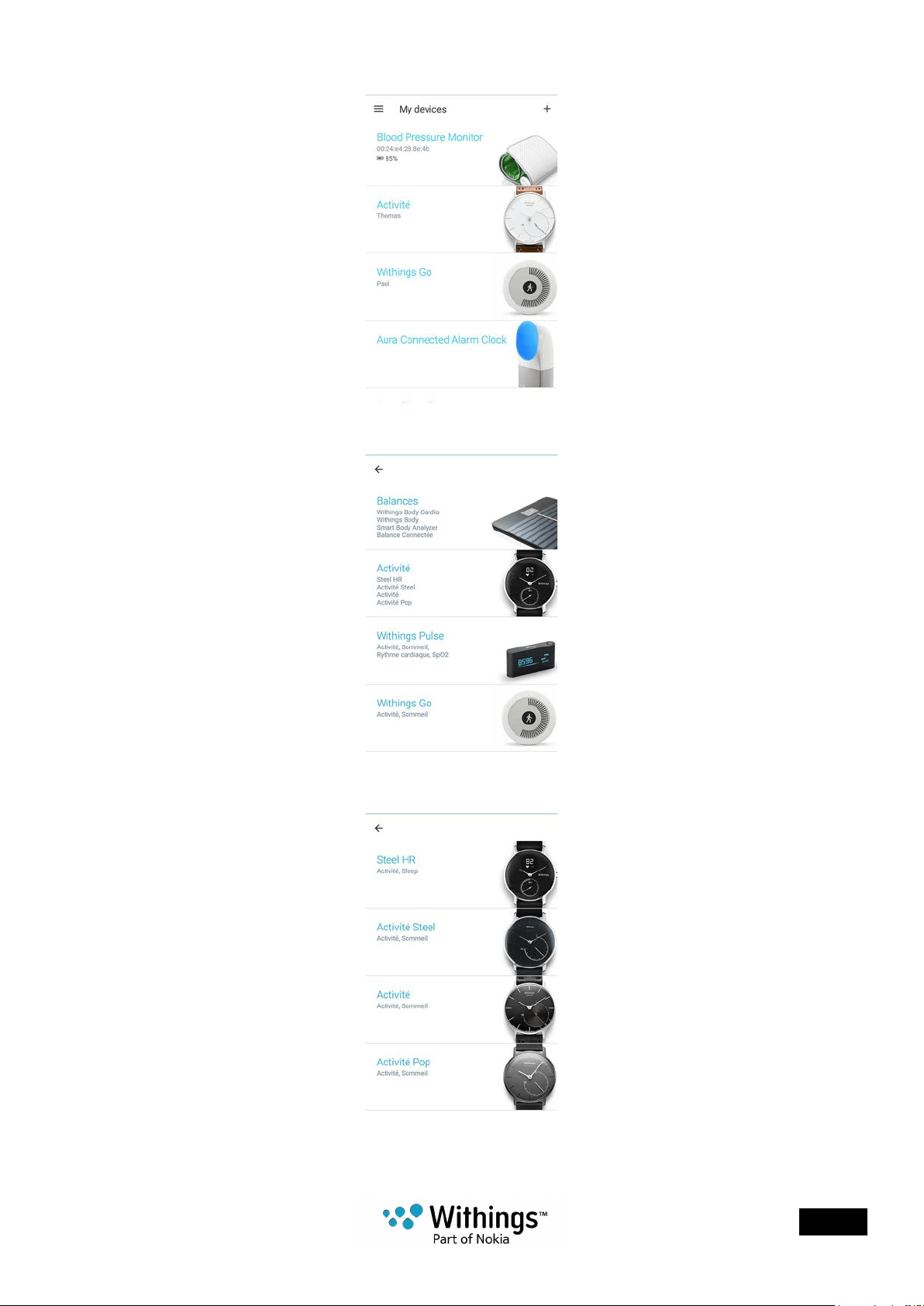
2. Tap My devices.
EN - 12
Withings Activité™
v3.0 | April, 2017
3. Tap +.
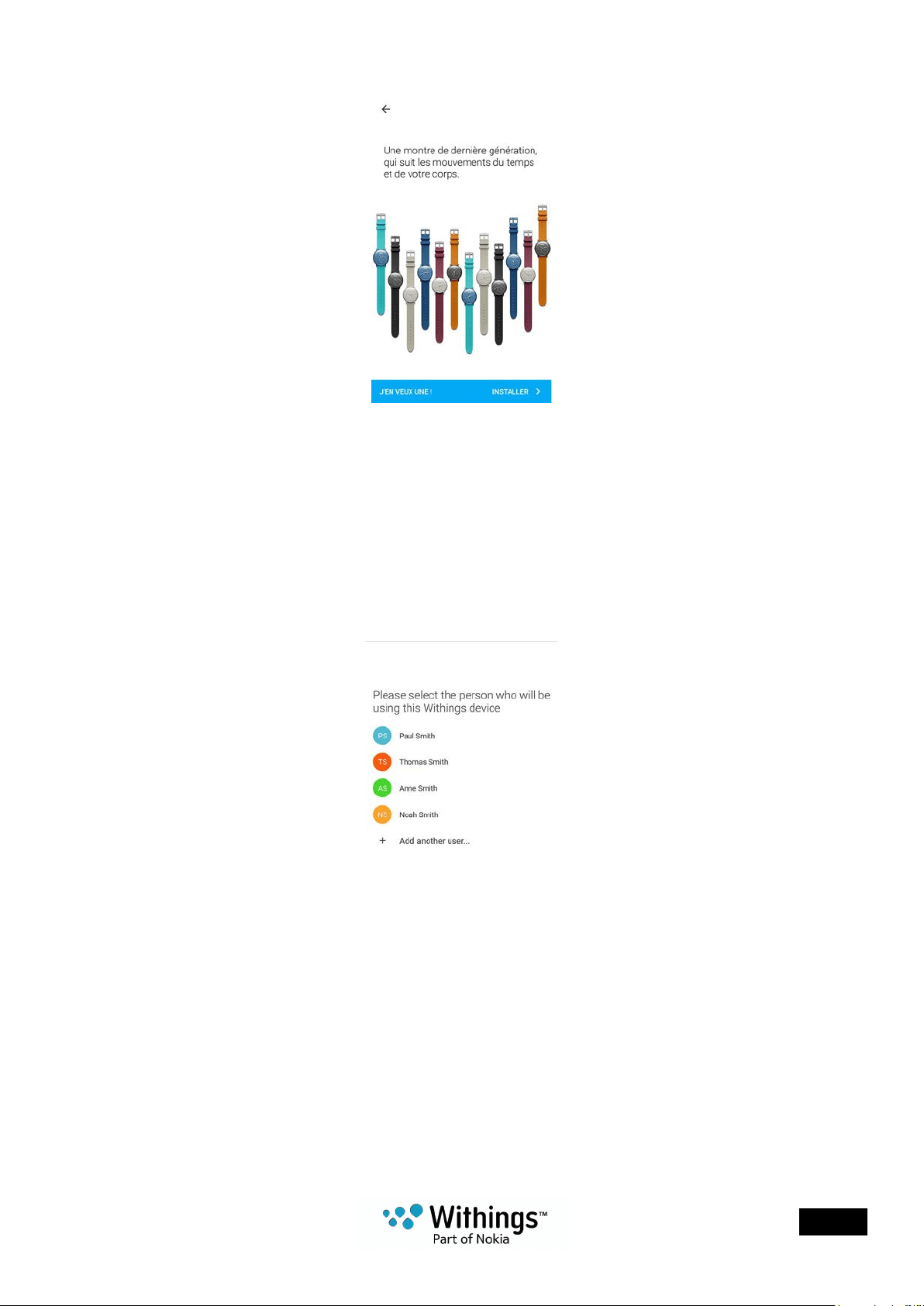
4. Tap Activité Watches:
5. Tap your watch model.
EN - 13
Withings Activité™
v3.0 | April, 2017
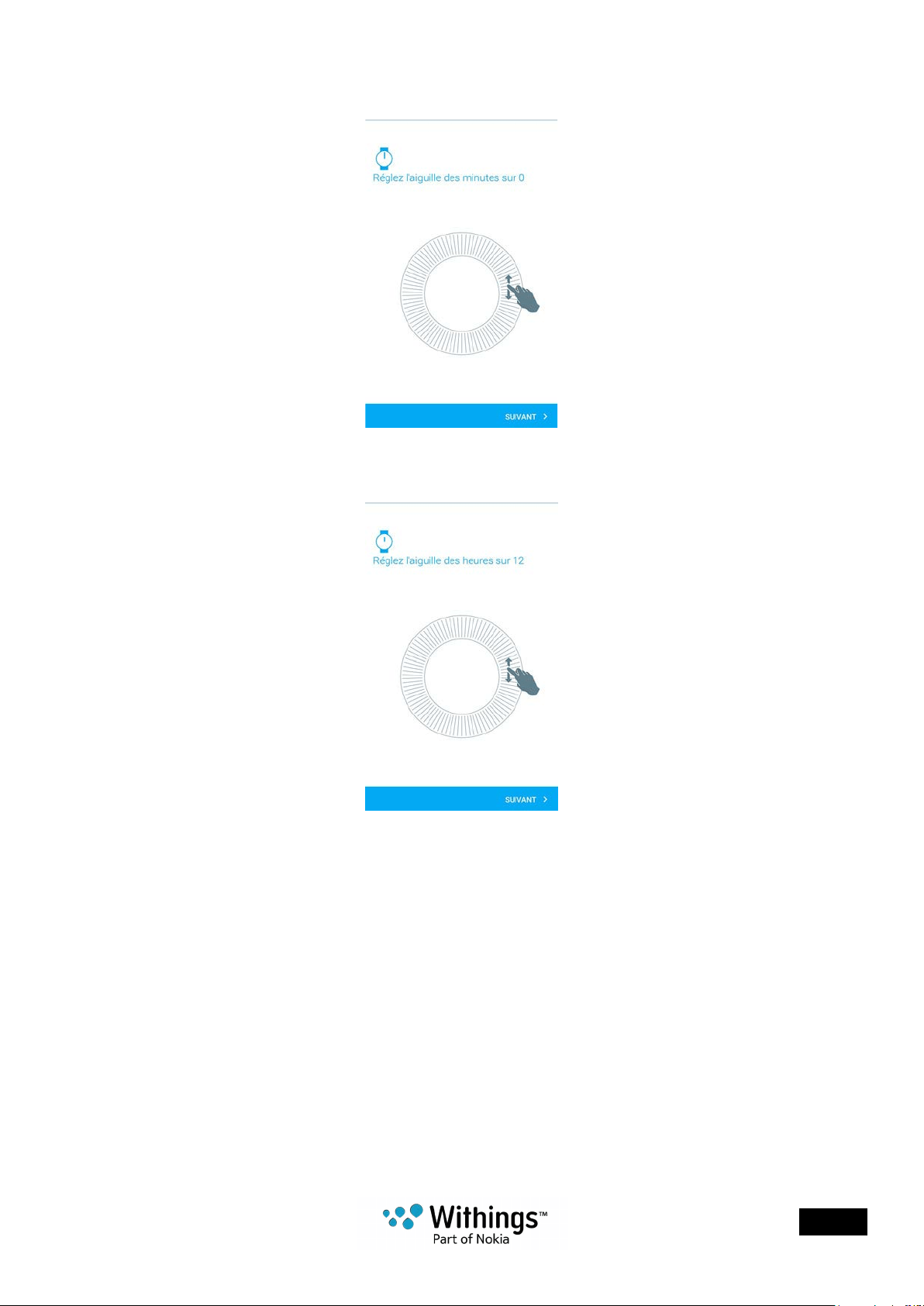
6. Tap Install.
7. Push the reset button located at the back of your Withings Activité™ using the tool it
came with.
Your Withings Activité™ vibrates once.
If it doesn’t vibrate, try changing the angle of the tool when you push the reset button.
8. Put your Withings Activité™ close enough to your mobile device.Tap Next.
You may need to press the reset button again if your device cannot detect
your Withings Activité™ on its own.
9. Select the user who will be using the Withings Activité™.
EN - 14
Withings Activité™
v3.0 | April, 2017
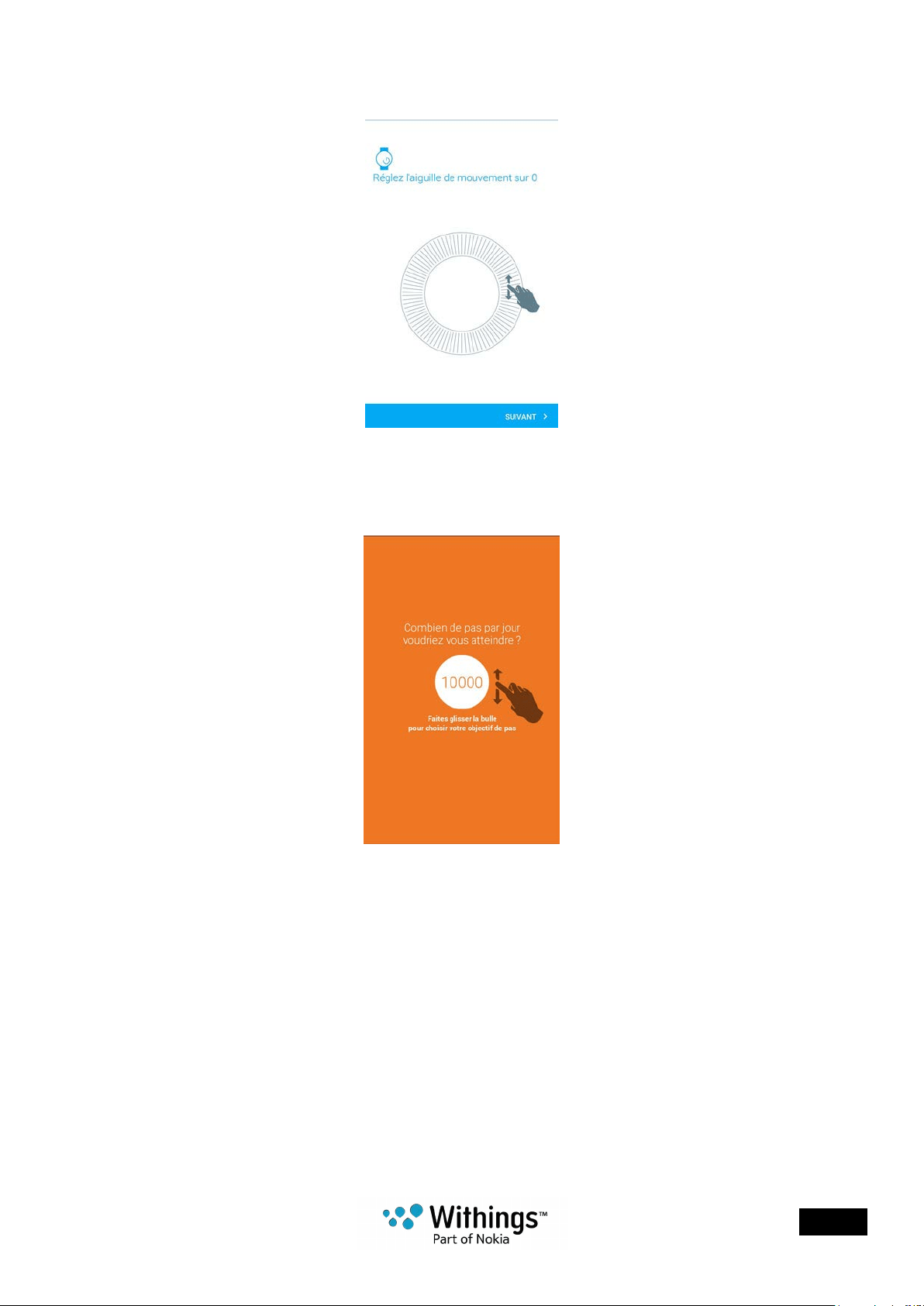
10. When prompted to, slide your nger on the wheel displayed in the app until the minute
hand reaches the 0 mark. Tap Next.
11. Slide your nger on the wheel displayed in the app until the hour hand reaches
the 0 mark. Tap Next.
EN - 15
Withings Activité™
v3.0 | April, 2017
12. Slide your nger on the wheel displayed in the app until the activity hand reaches
the 0 mark. Tap Next.
13. Tap Done.
14. Tap and slide the daily step goal up or down to select the goal you want.
The range for your goal is between 3,000 and 15,000 steps a day.
15. Tap Save.
Setting the Time
The Withings Activité™ is set up using your iOS and Android device, which allows it to be
automatically set to the current time, based on the time zone you are in. If you ever have to
change time zones while wearing your Withings Activité™, all you have to do is open
the Withings Health Mate® app to sync your watch with your device and the correct time
will be displayed.
Note that you won’t have to worry about daylight savings either. In this case as well, syncing
your Withings Activité™ with your device will be enough to update to the correct time.
EN - 16
Withings Activité™
v3.0 | April, 2017
Tracking my activity
Overview
Your Withings Activité™ allows you to track your activity: number of steps, run tracking
and swim tracking. Whether you are walking, running or swimming, you don’t have to do
anything to start tracking it. All you have to do is wear your Withings Activité™, it will do
the rest.
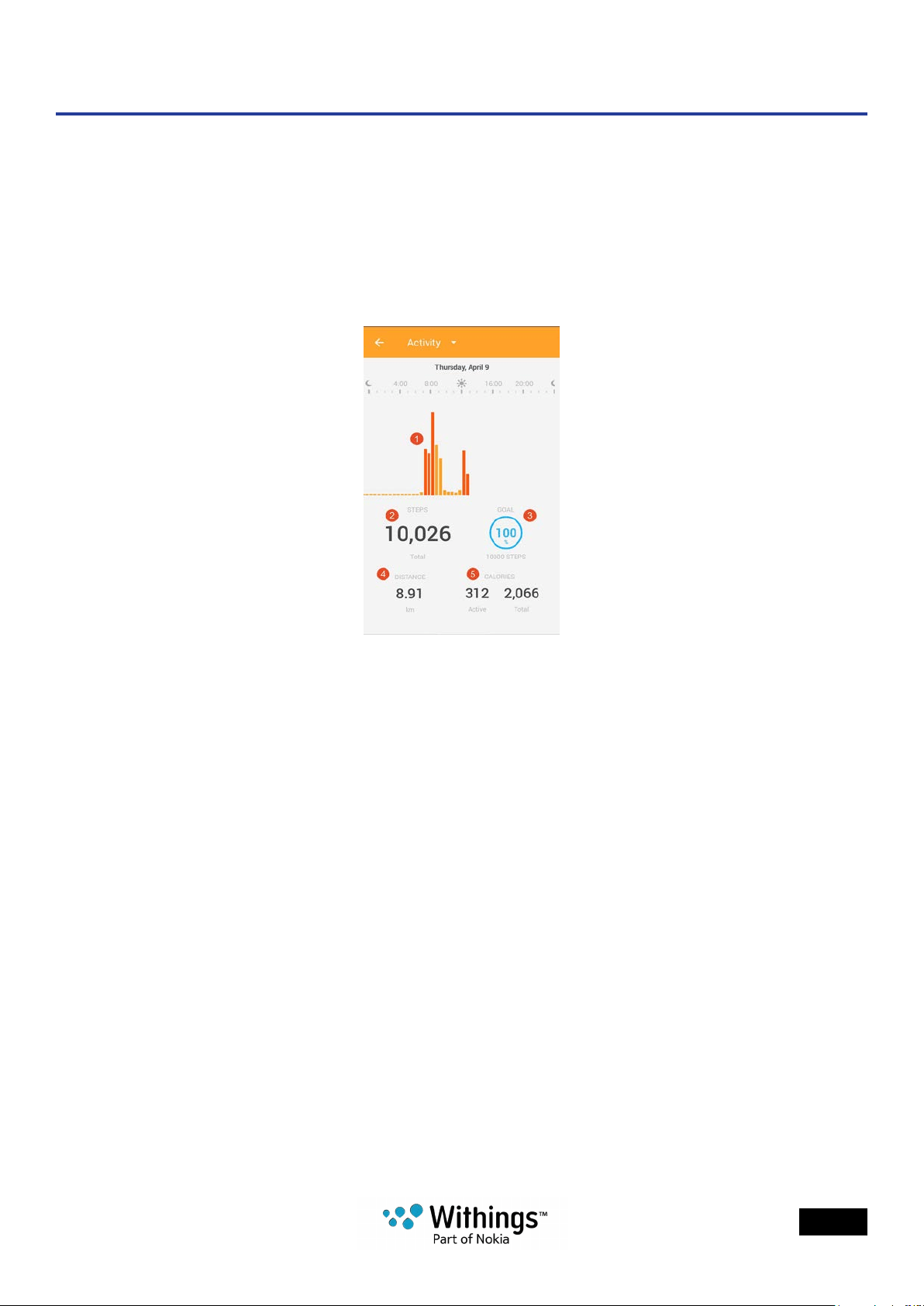
(1)Visual representation of
the number of steps: each
bar corresponds
to a 30-minute period
(2)Number of steps during
the day
(3)Percentage of the daily
step goal achieved
(4) Estimated distance
walked during the day
(5)Estimated calories
burned during the day
(active calories and total
number of calories)
The integrated accelerometer allows your Withings Activité™ to automatically count
your number of steps and to recognize when you are running.
Your running activity, your distance and your calories are calculated thanks to an algorithm
based on your number of steps and your personal data (age, height and weight).
Checking my progress
In order to check your progress in terms of number of steps, all you have to do is have
a look at the activity hand. Depending on its position, you can tell what percentage
of your daily step goal you have achieved. Once you reach the 100% mark, your watch
vibrates and the cycle starts all over again, from 0% to 100%.
EN - 17
Withings Activité™
v3.0 | April, 2017
To get more information (such as the exact number of steps, the distance, or the calories
you have burned), simply press the button located on the right-hand side. The different
screens of your Withings Activité™ will be displayed one after the other.
To get even more details, simply log in to the Withings Health Mate® app. The app offers
many graphs that allow you to easily see your history and your progress from the very rst
time you use it.
Changing my activity goal
This feature allows you to set a custom daily step goal. To change your daily step goal,
perform the following steps:
1. Open the Withings Health Mate® app.
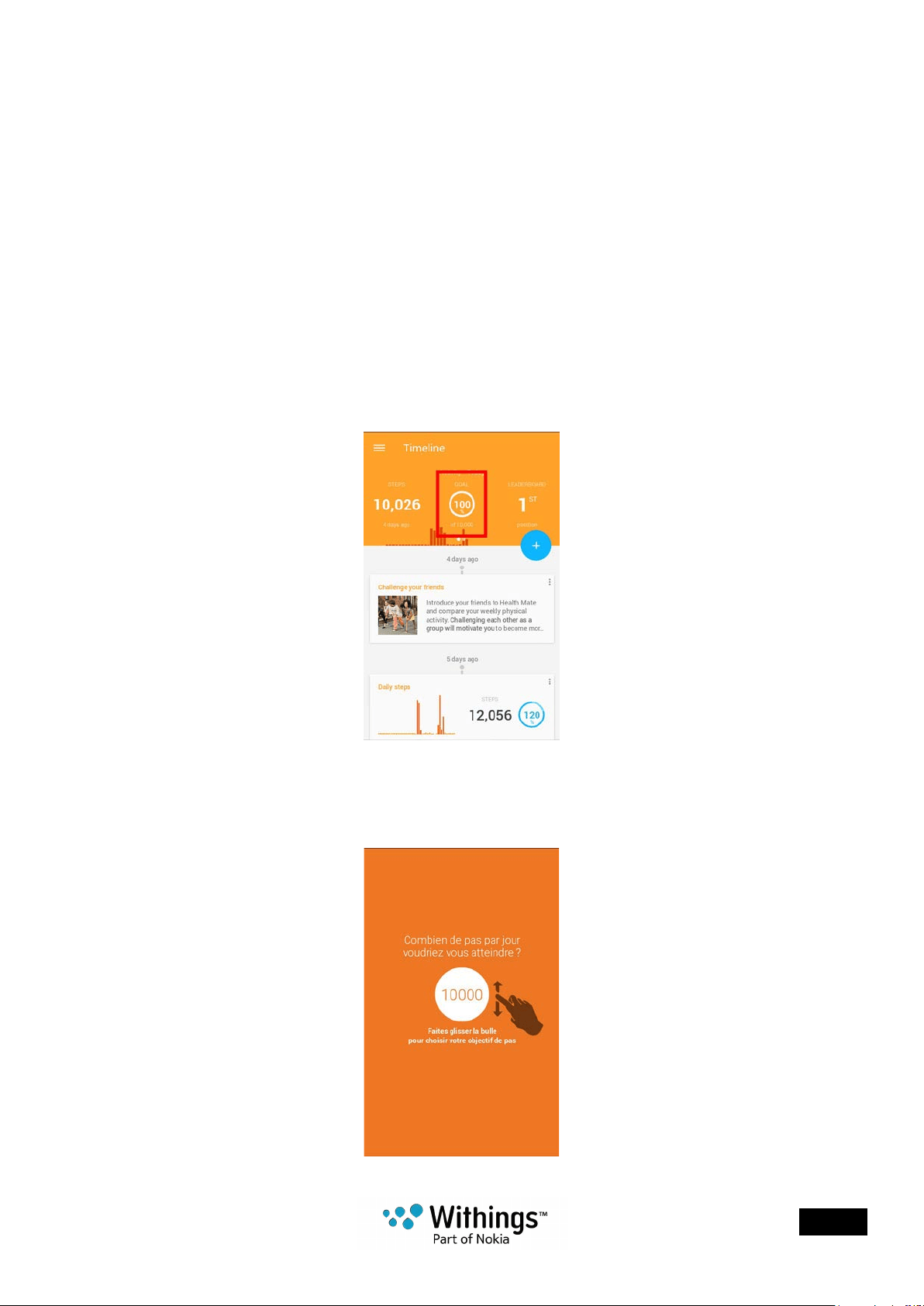
2. Go to your Timeline.
3. Tap Goal.
If this screen is not displayed, swipe left or right in the top widget (colored part at the top
of the screen) until you nd it.
4. Tap and slide the daily step goal up or down to select the goal you want.

EN - 18
Withings Activité™
v3.0 | April, 2017
5. Tap OK.
6. Sync your Withings Activité™ by opening the Withings Health Mate® app
and refreshing your Timeline by sliding your nger from top to bottom.
Tracking my swimming sessions
Your Withings Activité™ allows you to track your swimming sessions. All you have to do
is wear your Withings Activité™ while swimming. It will automatically detect that you’re
swimming and track your swimming sessions without any action required on your part.
Once you’re done swimming, the Withings Health Mate® app will let you know how long
your session was and how many calories you’ve burned.
EN - 19
Withings Activité™
v3.0 | April, 2017
Tracking my sleep
Overview
Your Withings Activité™ lets you track your sleep without requiring any action on your part.
All you have to do is wear your Withings Activité™ when you go to sleep: it will do the rest on
its own.
If you do not want to track your sleep, simply don’t wear your Withings Activité™ to sleep.
Retrieving my sleep data
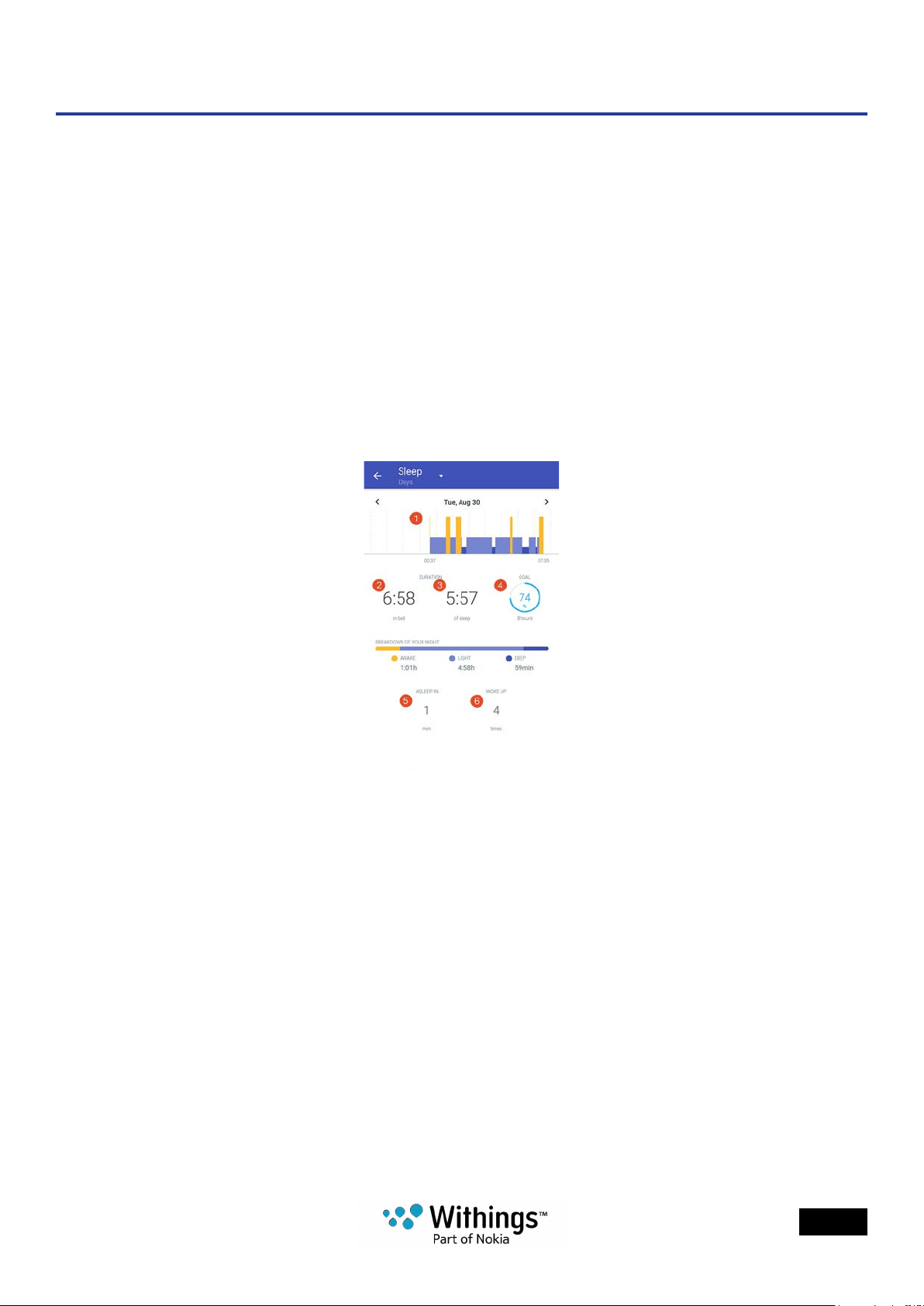
You can retrieve the sleep data collected by your Withings Activité™ in your Timeline
in the Withings Health Mate® app.
(1)Breakdown of your night:
- Time spent awake (orange)
- Duration of light sleep
cycle (light blue)
- Duration of deep sleep
cycle (dark blue)
(2)Time spent laying
(3)Total time spent sleeping
(4)Percentage of the sleep
goal
(5)Time it took you to fall
asleep
(6)Number of wake-ups
The Withings Health Mate® app keeps your entire history, allowing you to easily track
how your sleep data evolves over time.
EN - 20
Withings Activité™
v3.0 | April, 2017
Setting an Alarm
Enabling the Alarm
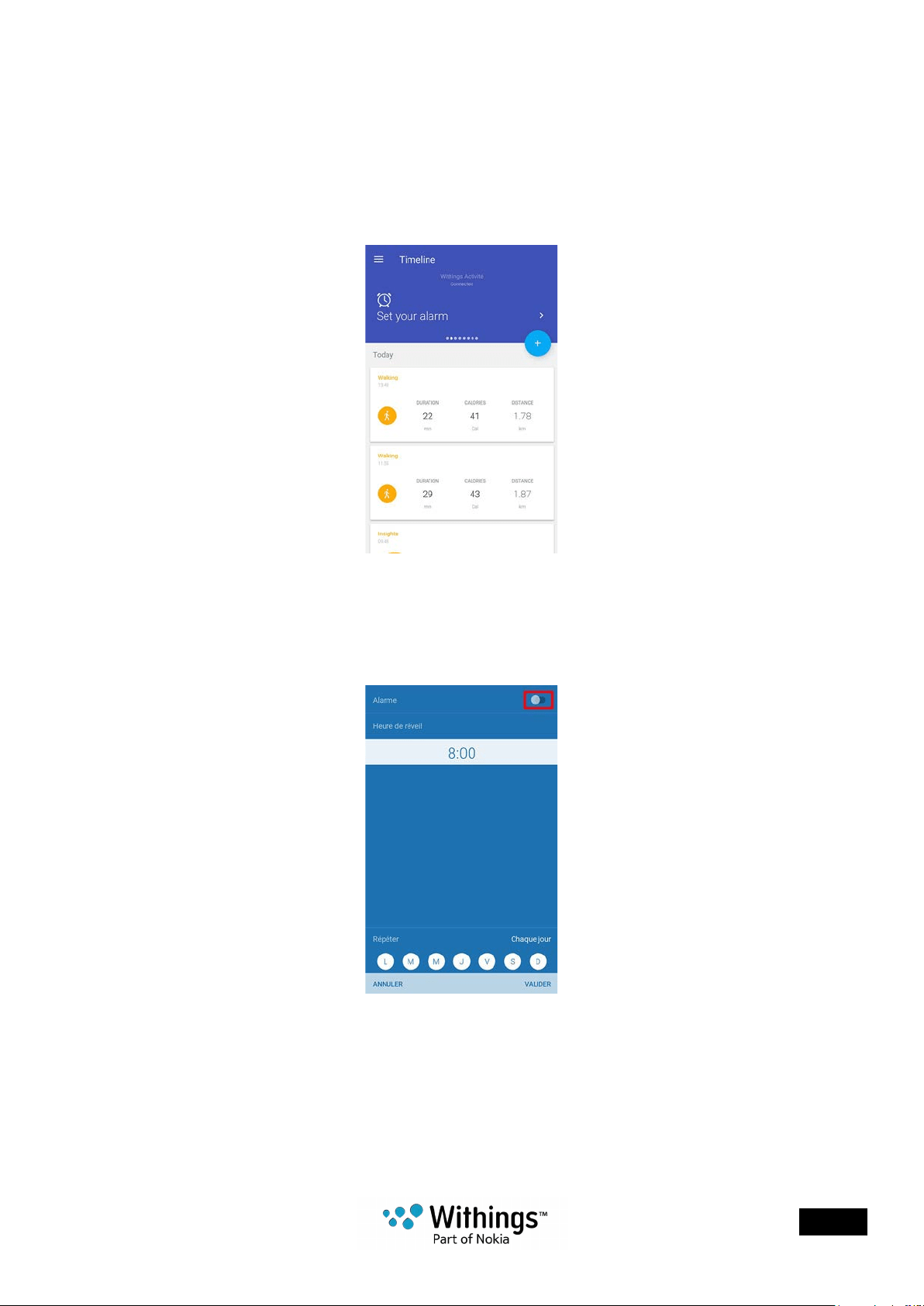
In order to enable and set an alarm, perform the following steps:
1. Open the Withings Health Mate® app.
2. Go to your Timeline.
3. Tap Set your alarm.
If this screen is not displayed, swipe left or right in the top widget (colored part at the top
of the screen) until you nd it.
4. Put your Withings Activité™ close enough to your mobile device.
5. Tap the Alarm toggle to enable the alarm.
6. Tap and slide the wake up time up or down to select the alarm time.
You can only select multiples of ve minutes.
7. If necessary, select a smart wake-up time when setting an alarm.
Your watch will then nd the best moment to wake you up during that time period
to make for a smoother wake-up experience.
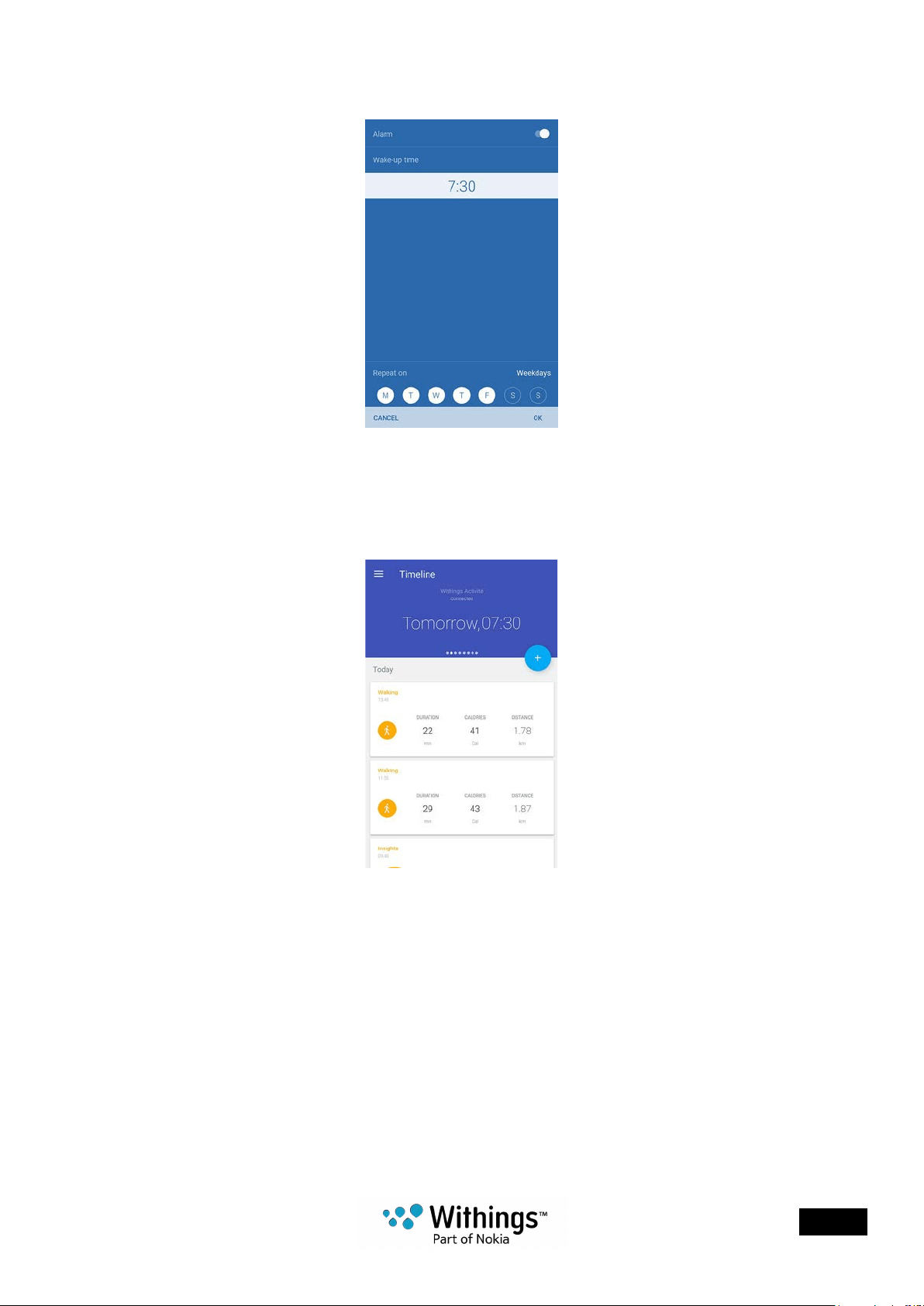
EN - 21
Withings Activité™
v3.0 | April, 2017
8. Tap OK.
9. Tap Repeat on if you want to select on which days the alarm should be triggered.
10. Tap OK to conrm.
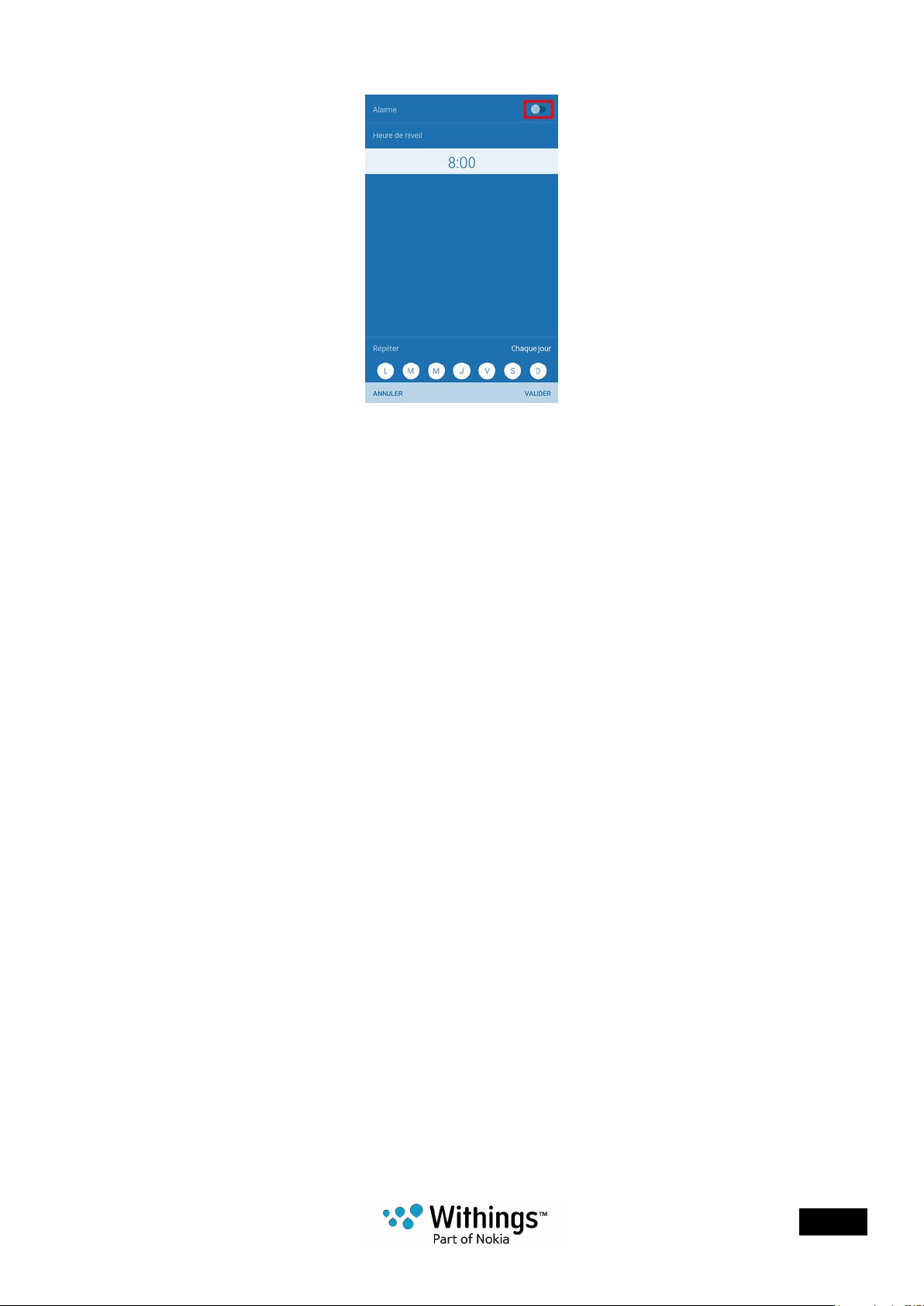
Disabling the Alarm
1. In the Withings Health Mate® app, go to your Timeline.
2. Tap your alarm time.
If this screen is not displayed, swipe left or right in the top widget (colored part at the top
of the screen) until you nd it.
3. Put your Withings Activité™ close enough to your mobile device.
EN - 22
Withings Activité™
v3.0 | April, 2017
4. Tap the Alarm toggle to disable the alarm.
5. Tap the back arrow at the top left of the screen to go back to your Timeline.
Your alarm is disabled.
Checking the Alarm
You can easily check the alarm by tapping the glass of your Withings Activité™ at least
three times. Note that you need to stabilize your Withings Activité™ for ve seconds before
tapping the glass, or the hands will not move.
Stopping the Alarm
At this point, it is not possible to stop the alarm once it has started. Your Withings Activité™
will vibrate 8 times before stopping on its own.
EN - 23
Withings Activité™
v3.0 | April, 2017
Getting more active
Competing with my friends
Overview
Your Withings Activité™ and the Withings Health Mate® app help you stay motivated
by bringing a social dimension to the equation. You can add your friends and family
to your leaderboard and compete with them to be the one who walks the most every week.
It doesn’t matter if they have a Withings® product or not: you can add anyone as long
as they have the Withings Health Mate® app on their smartphone, thanks to the in-app
tracking that can act as an activity tracker.
This feature is only available to the main user of the account.
Adding someone to my leaderboard
You can invite people to join your leaderboard. To do so, perform the following steps:
1. In the Withings Health Mate® app, go to Leaderboard.
2. Tap +.
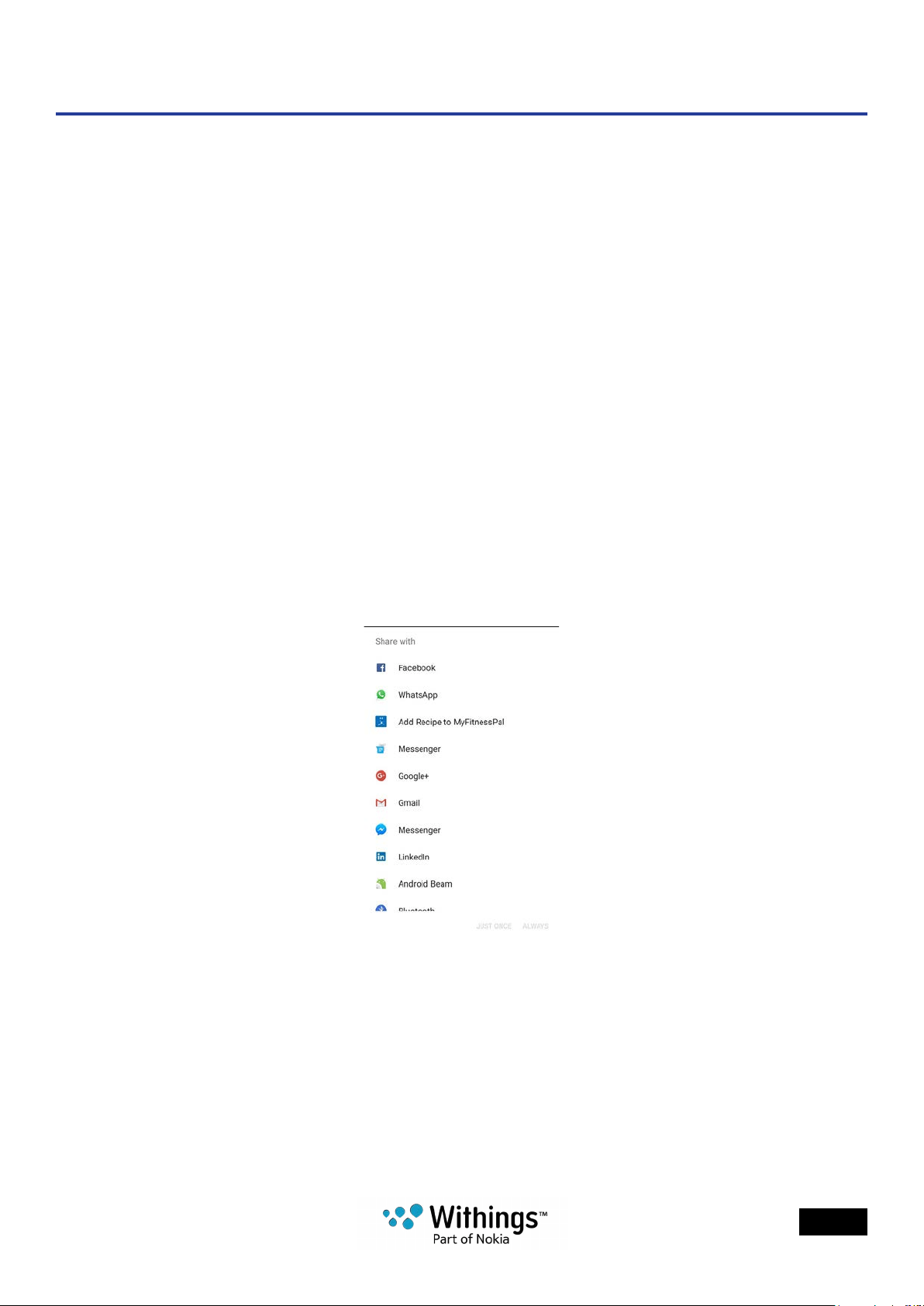
3. Select how you want to send your invitation.
Several options are available, such as message, email or social media websites.
EN - 24
Withings Activité™
v3.0 | April, 2017
Interacting with someone in my leaderboard
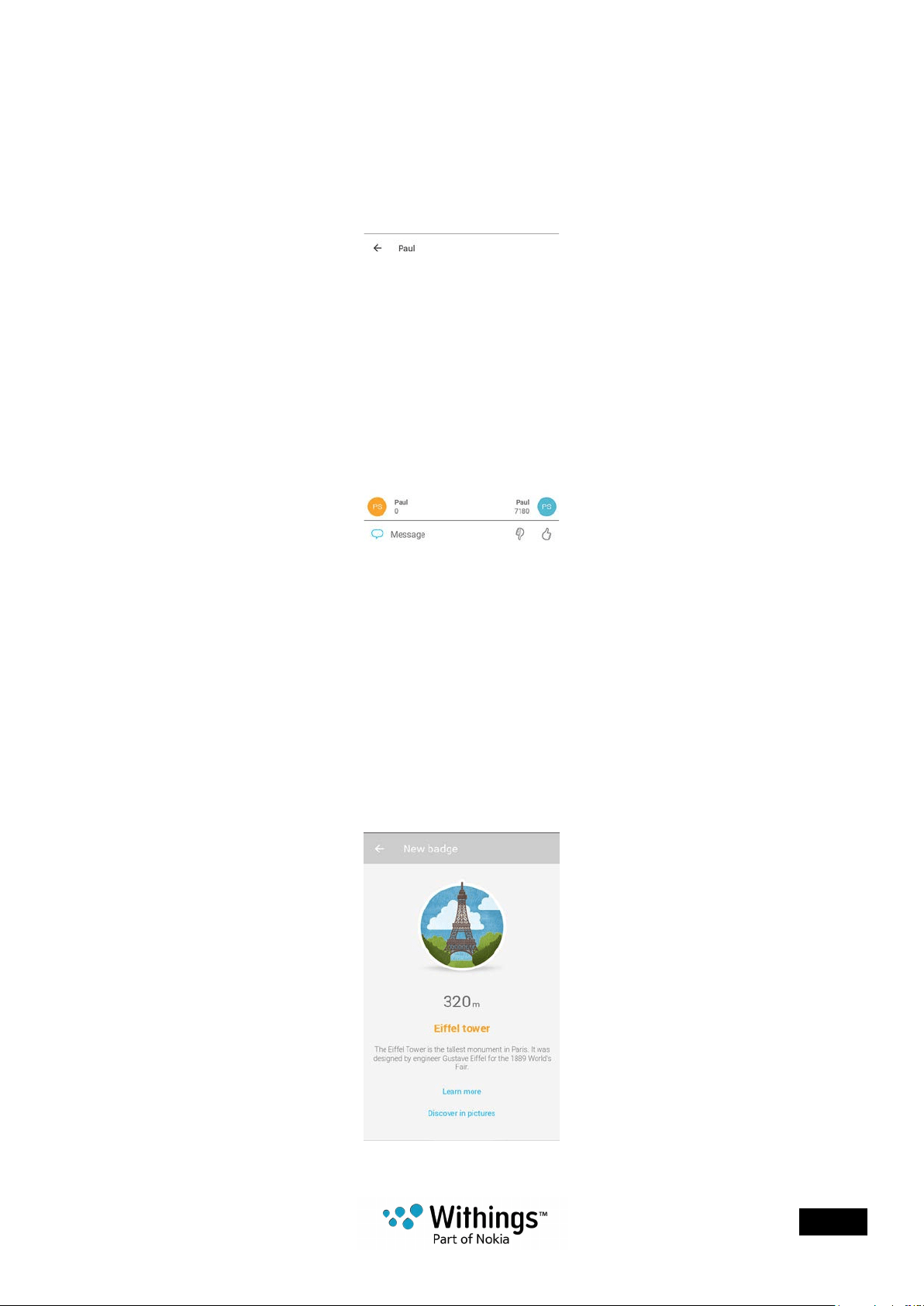
Once you have friends in your leaderboard, you can interact with them by tapping
their name and selecting one of the three actions available:
• Cheer (thumbs up) to encourage them,
• Taunt (thumbs down) to show off,
• Message to chat with them.
Adding a social component to your activity tracking is a great way to stay motivated
and push your limits.
Competing with myself
Badges
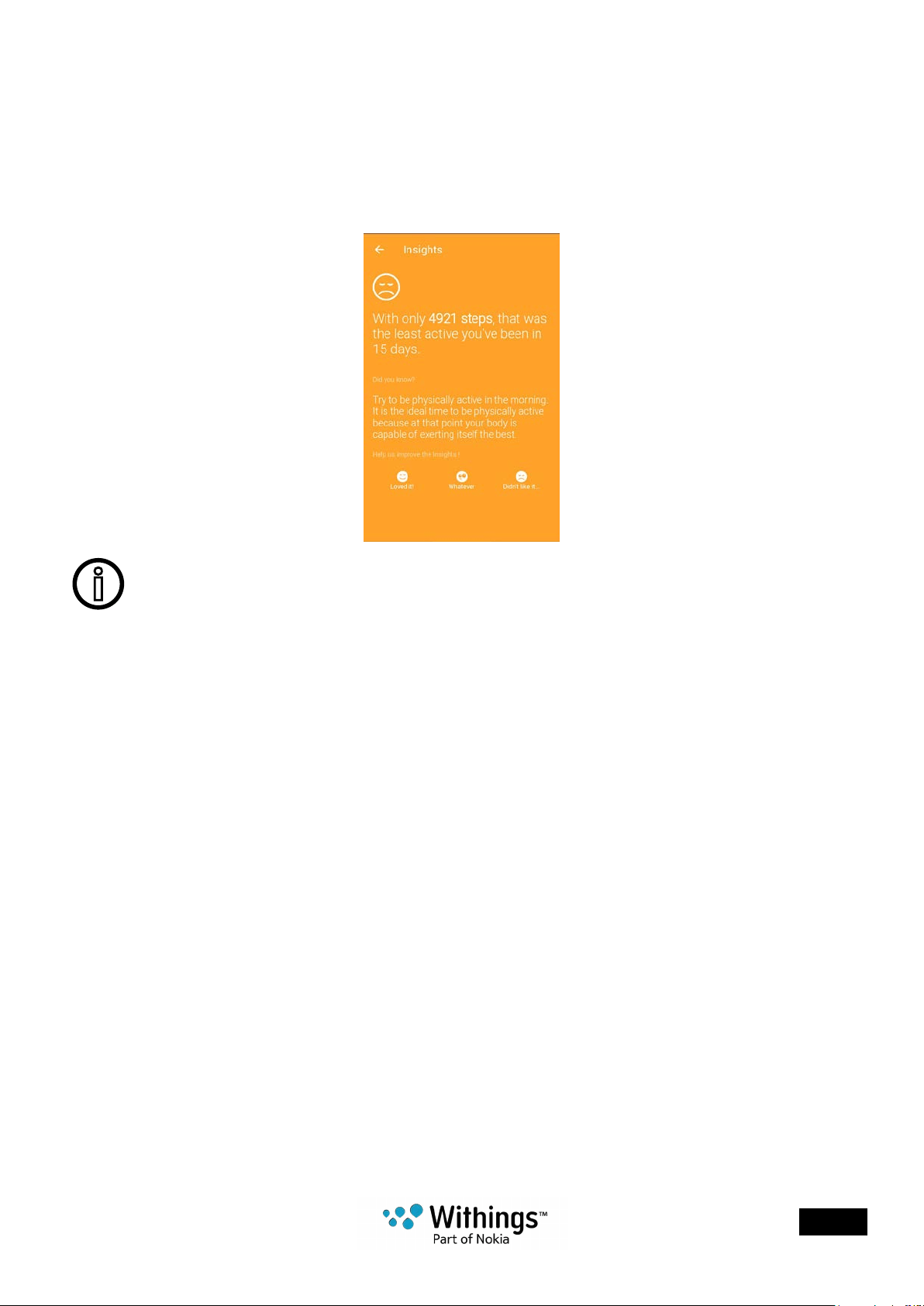
The Withings Health Mate® app offers a system of badges, virtual rewards that you unlock
after certain achievements. There are two kinds of badges:
• daily steps badges whenever you reach a certain number of steps on a given day,
• cumulative distance badges when you reach an overall distance.
Badges are a fun way to stay motivated and to be rewarded for your efforts.
EN - 25
Withings Activité™
v3.0 | April, 2017
Insights
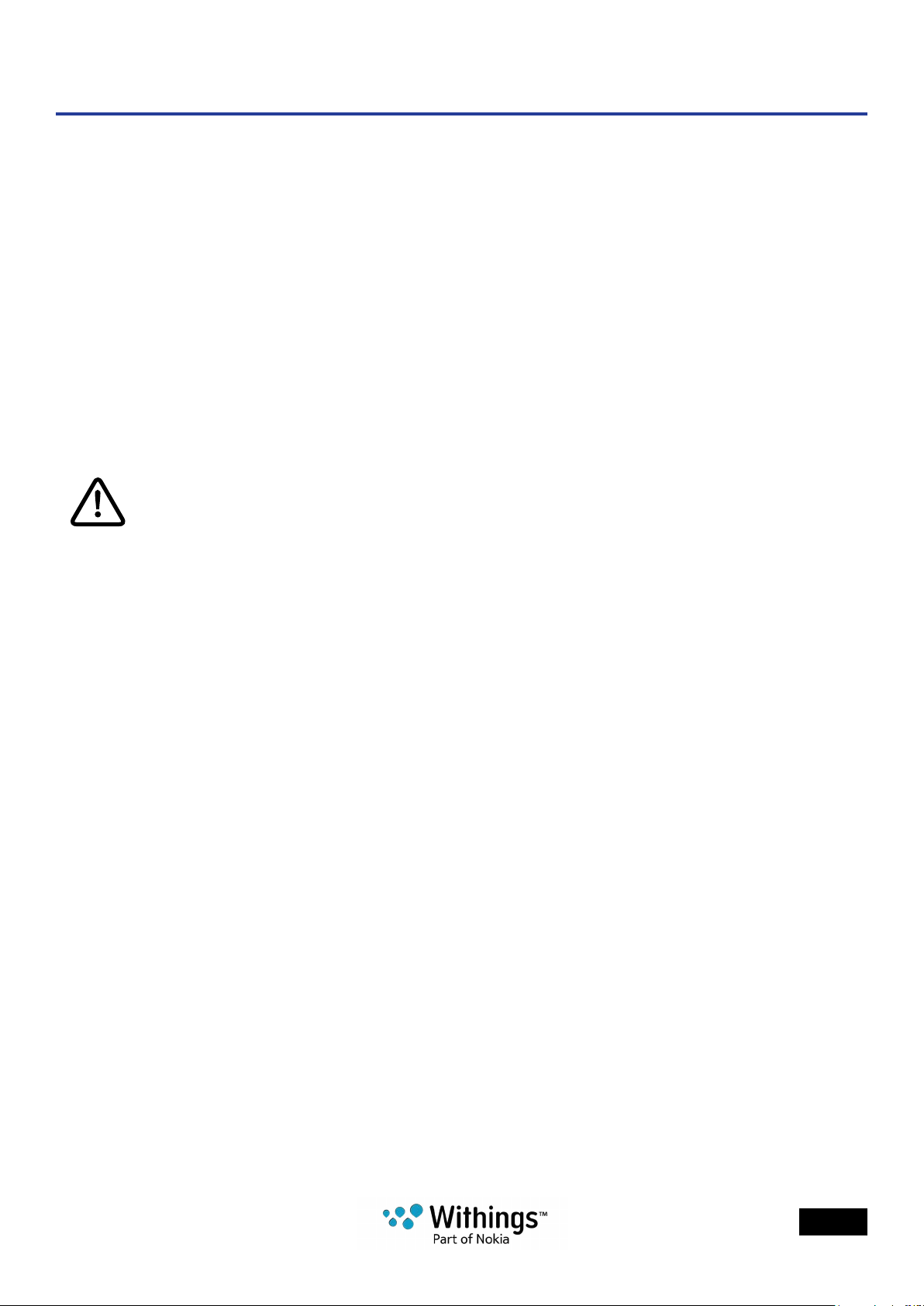
Once you have been using your Withings Activité™ for a few days, the
Withings Health Mate® app will provide you with Insights. This feature looks at your activity
and lets you know when you are more active than usual. Whenever you are less active than
usual, the Insights encourage you to keep going so that you can reach
your health goal.
It is not possible to disable the Insights�
EN - 26
Withings Activité™
v3.0 | April, 2017
Syncing your Data
Thanks to background synchronization, you should never have to worry about syncing
your data, as long as your Bluetooth is always enabled. Background sync is automatically
triggered when:
• You have taken more than 1,000 steps since the last sync.
• You have reached your daily step goal.
• More than 6 hours have passed since the last sync took place.
• You change time zones or when daylight savings start.
You can also sync your data manually. All you have to do to sync your data is open
the Withings Health Mate® app. When you do, your Withings Activité™ automatically syncs
your data with the app. Make sure your Withings Activité™ is close enough to your mobile
device and the Bluetooth is activated on your device or you will not be able to synchronize
your data.
Your Withings Activité™ can only store your data for 38 hours� Make sure you
open the app regularly so that you do not lose any of your data�
EN - 27
Withings Activité™
v3.0 | April, 2017
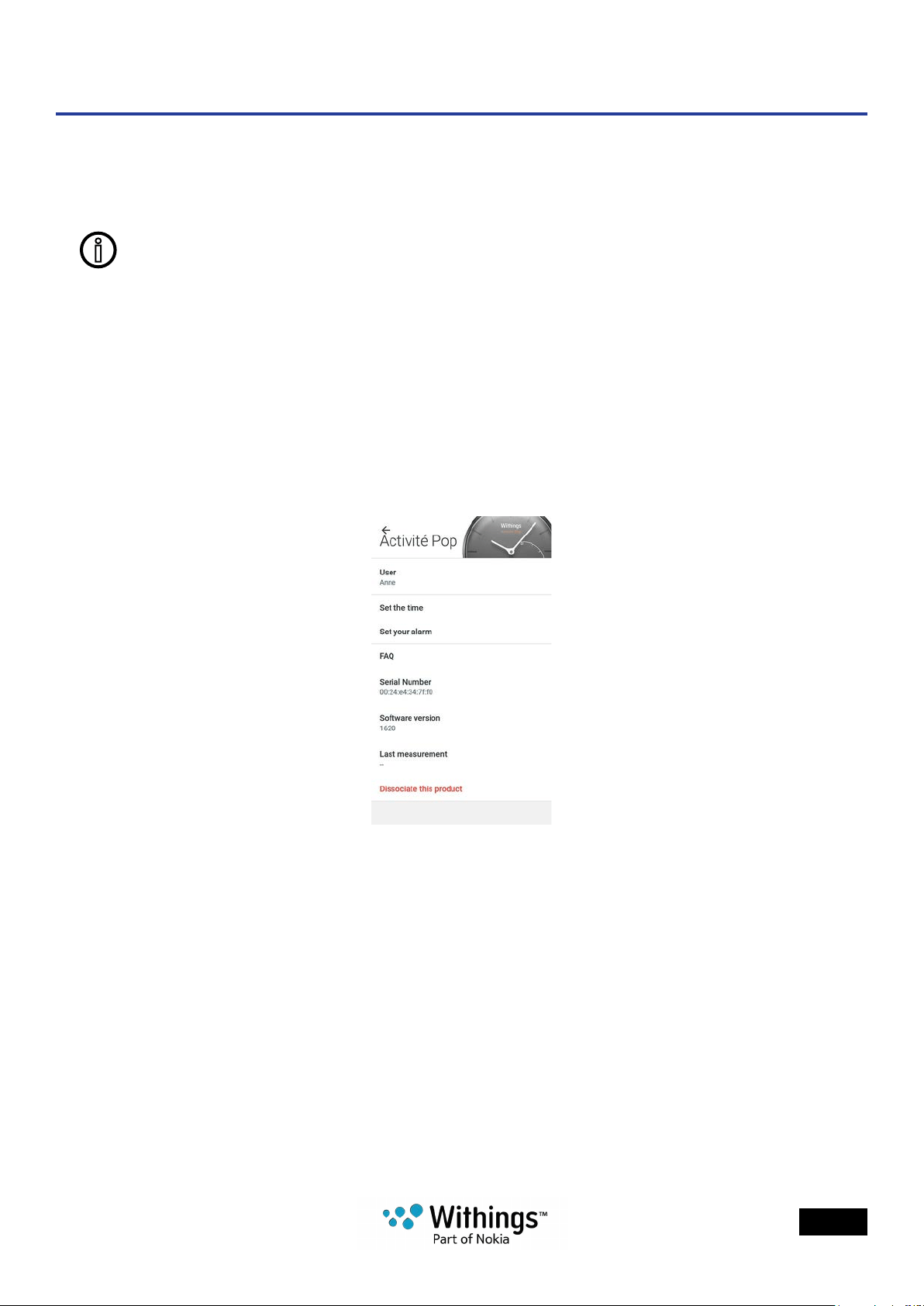
Dissociating your Withings Activité™
Dissociating your Withings Activité™ allows you to remove it from your account. Once it is
no longer linked to your account, it can be installed on another account or on the prole of
another user of your account.
Dissociating your Withings Activité™ will not remove
any of your data from the Withings Health Mate® app�
To dissociate your Withings Activité™, perform the following steps:
1. Press the reset button located at the back ve times with the tool provided with the
Withings Activité™ to perform a factory reset.
Allow for the Withings Activité™ to vibrate each time you press the reset button.
When the factory reset is complete, the Withings Activité™ vibrates twice.
2. Go to My devices in the Withings Health Mate® app.
3. Tap your Withings Activité™.
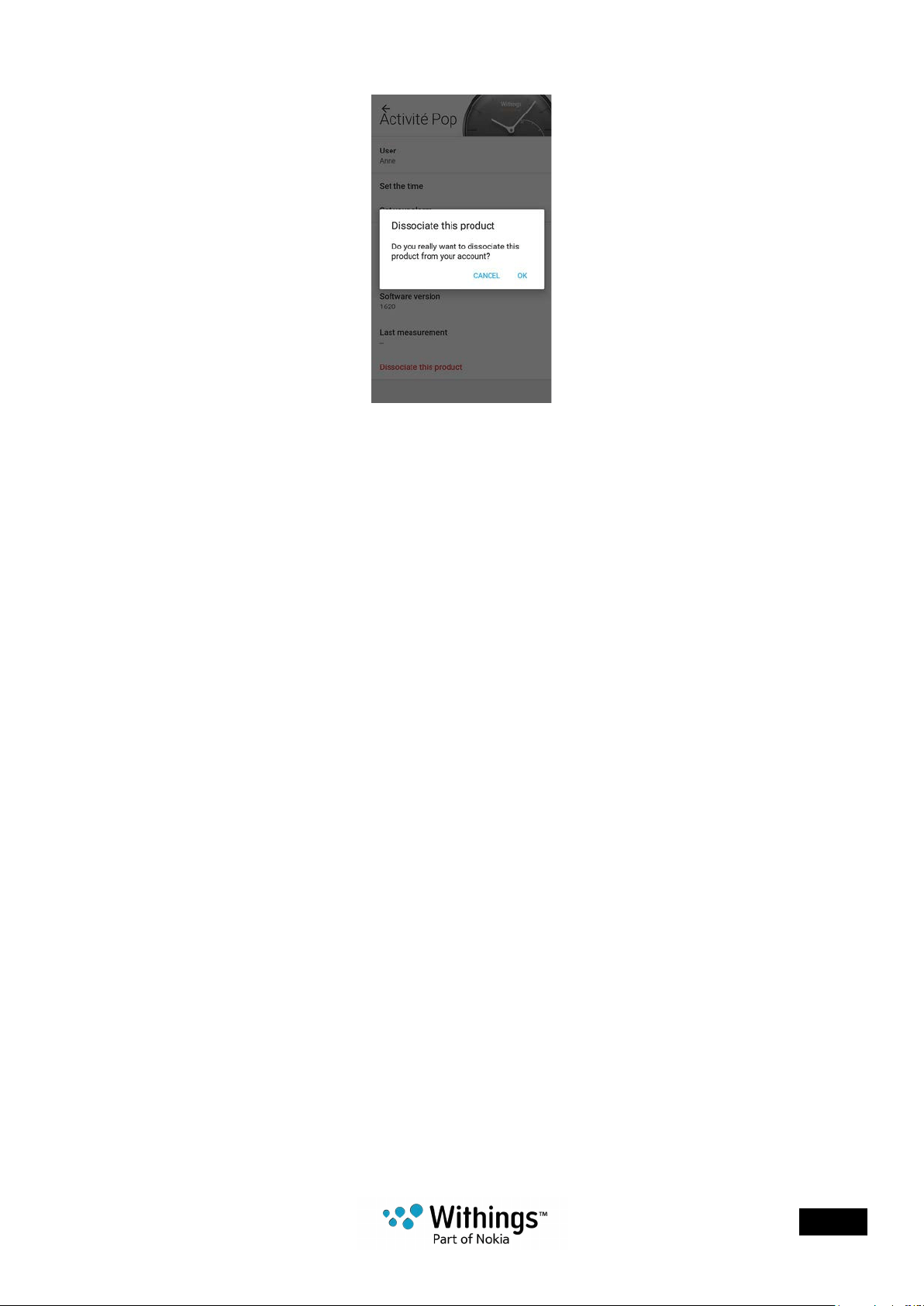
4. Tap Dissociate this product.
EN - 28
Withings Activité™
v3.0 | April, 2017
5. Tap Remove from my account.

EN - 29
Withings Activité™
v3.0 | April, 2017
Cleaning and Maintenance
Cleaning your Withings Activité™
Withings Activité™ Pop / Withings Activité™ Steel
• Use a lint-free cloth moistened with water to clean the glass and casing
of your Withings Activité™ Pop / Withings Activité™ Steel.
• Run the silicone band under water and rub it with hypoallergenic soap to clean it.
• Dry the silicone wristband with a soft cloth.
Withings Activité™
• Use a lint-free cloth moistened with water to clean the glass and casing
of your Withings Activité™.
• Gently rub the leather band with your ngers to remove smudges. It should not
be cleaned or come in contact with water as it will damage the leather.
• Run the silicone band under water and rub it with hypoallergenic soap to clean it.
• Dry the silicone wristband with a soft cloth.
Replacing the Battery
The battery needs to be replaced when the hands stop moving and when the watch no
longer vibrates when you press the reset button.
The Withings Activité™ will run for approximately 8 months on a standard watch battery. We
recommend you to go to a watchmaker if you want to install the new CR2025 battery.
If the time does not seem correct after replacing the battery, you may need to recalibrate
the hands of your Withings Activité™.
Replacing the Wristband
You need to replace the wristband of your Withings Activité™ for your workout sessions
or before going under water to avoid any damage to the leather. You can easily replace it
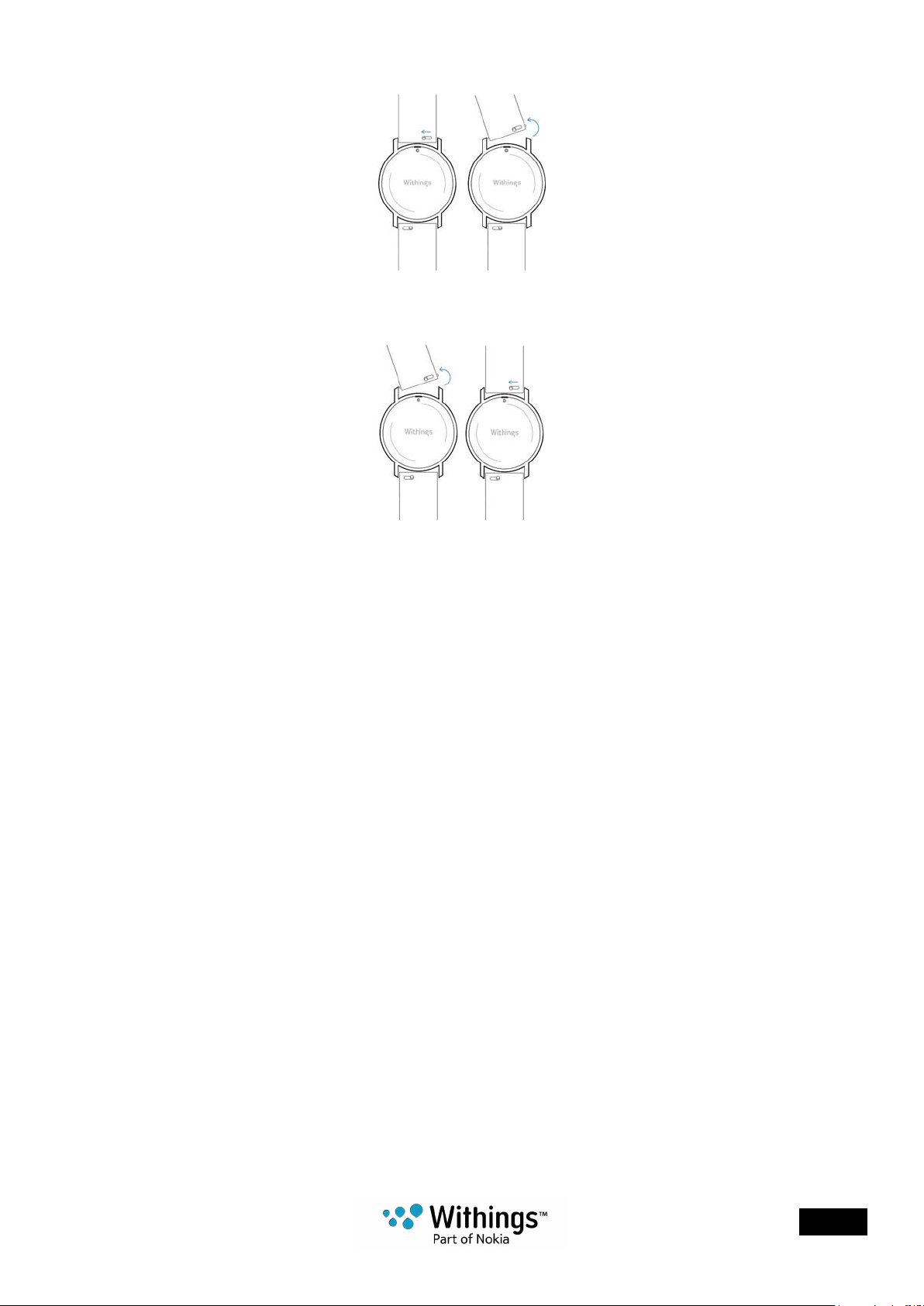
thanks to the quick release spring bars with which the wristband is attached.
To do so, perform the following steps:
1. Turn your Withings Activité™ over.
2. Locate the knob of each spring bar.
EN - 30
Withings Activité™
v3.0 | April, 2017
3. Pull the knob of the rst spring bar to the left side and remove the wristband.
4. Insert one side of the spring bar of the new wristband.
5. Put the wristband in place while pulling the knob to the left side.
6. Release the knob.
The wristband is now properly attached to your Withings Activité™.
7. Repeat the previous steps for the other side.
Calibrating the Hands
If you ever feel that the time displayed on your Withings Activité™ is incorrect, you may need
to recalibrate the hands. To do so, perform the following steps:
1. In the Withings Health Mate® app, go to My devices.
2. Tap your Withings Activité™.
3. Tap Calibrate the Activité hands.
Put your Withings Activité™ close enough to your mobile device.
You may need to press the reset button located at the back using the tool provided with
your Withings Activité™ if your device cannot detect it on its own.
If it doesn’t vibrate, try changing the angle of the tool when you push the reset button.
EN - 31
Withings Activité™
v3.0 | April, 2017
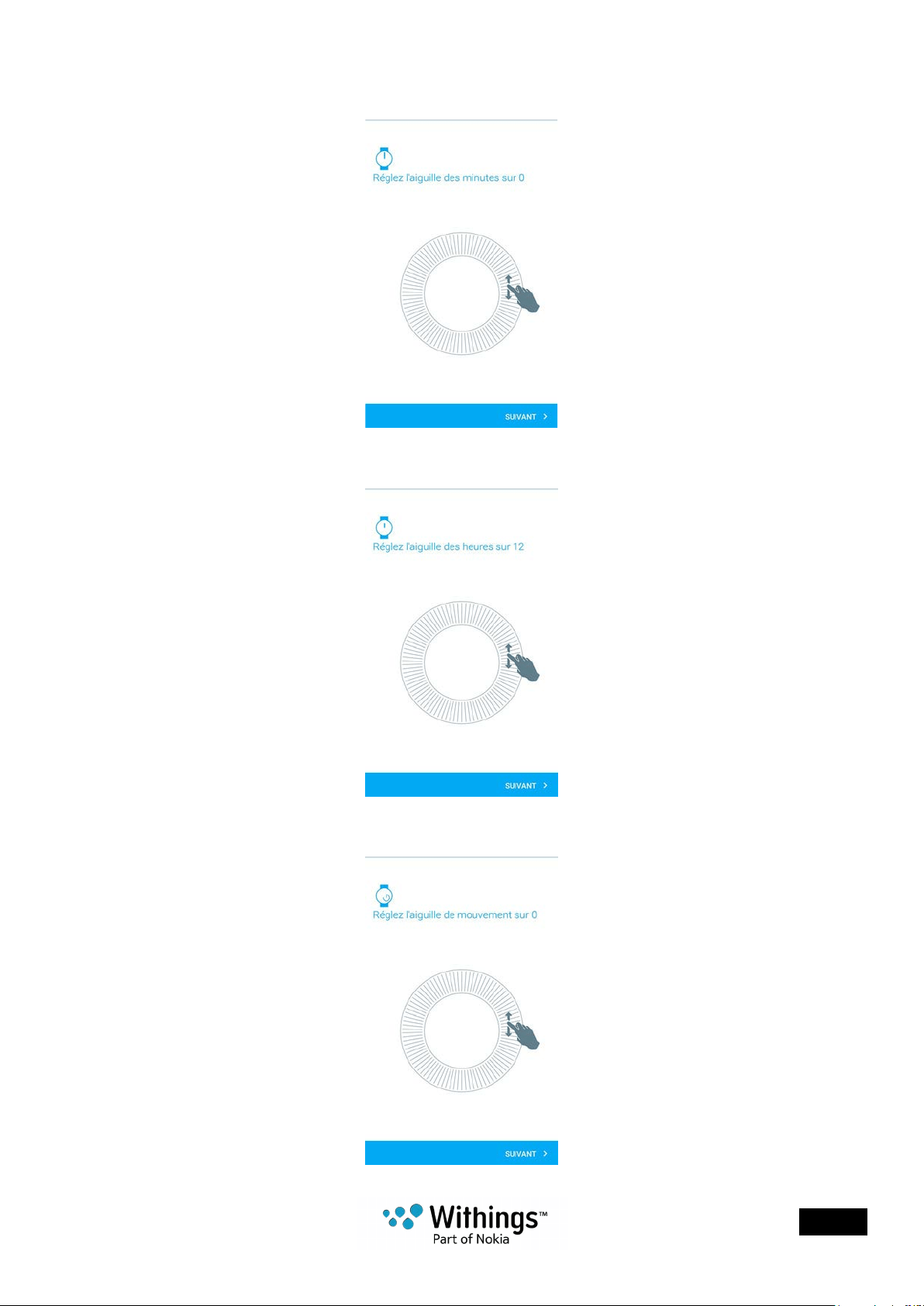
4. When prompted to, slide your nger on the wheel displayed in the app until the minute
hand reaches the 0 mark. Tap Next.
5. Slide your nger on the wheel displayed in the app until the hour hand reaches
the 0 mark. Tap Next.
6. Slide your nger on the wheel displayed in the app until the activity hand reaches
the 0 mark. Tap Next.

EN - 32
Withings Activité™
v3.0 | April, 2017
7. Tap Done.
Your Withings Activité™ is now properly calibrated and the hands move to their correct
position to display the current time.
Updating the Firmware Version
We regularly offer new rmware versions so that you can benet from the latest features we
add to our products. When a new rmware version is available, the Withings Health Mate®
app usually prompts you to install it through your Timeline.

EN - 33
Withings Activité™
v3.0 | April, 2017
User Guide Copyright
This User Guide is protected by Intellectual Property laws and copyright. Any reproduction,
modication, representation and/or publication, without Withings® prior approval is strictly
prohibited. You may print this User Guide for your personal use exclusively. For any question
please contact Withings at : contact.withings.com.
Legal Notice
By using your Withings Activité™ you expressly agree to the Withings Services
Terms and Conditions available on our website�
This product us not a medical device and should not be used to diagnose
or treat any medical condition�
Personal Data
• Make sure you have read our privacy policy, which you can nd on our website.
• Make sure your Withings® account password is secure enough to restrict access
to your account. It should be at least eight-character long, have mixed case, and use
a combination of alphanumeric and special characters.
• We recommend that you export your data on a regular basis to local storage on your
home computer. You can do so from the Withings Health Mate® web interface by
clicking Measurement table, selecting the tab corresponding to the data you want
to export and clicking Download.
Safety Instructions
Use and Storage
• Use the product at temperatures between -10°C and 45°C (14°F and 113°F).
• Product may be stored in a clean, dry location between -20°C and 85°C
(4°F and 185°F) when not in use.
• Avoid any extreme temperature changes.
• Avoid any kind of shocks, be they physical, thermal or otherwise. They may damage
internal and external components of your watch.
• Keep the glass case of your Withings Activité™ Pop away from any sharp
or hard objects to prevent any scratches.
• Keep your Withings Activité™ and its accessories out of reach from children, as it
contains small parts and may present a choking hazard.

EN - 34
Withings Activité™
v3.0 | April, 2017
Water Resistance
• Your Withings Activité™ can withstand a pressure similar
to that of a 50 m (165 ft) depth. You can, therefore, use it when dishwashing, splashing
or swimming. however, it can’t be used for diving or snorkeling.
• Do not move the watch back cover when it is under water
• Avoid long exposure to salt water. Make sure you rinse your watch with fresh water after
spending time swimming in salted water.
• Avoid exposure to any chemical products such as solvents, detergents, perfumes
or cosmetics. They may damage the wristband or the casing of the watch.
• Avoid extreme atmospheres (e.g., saunas or steam rooms)
• Opening the watch back case may damage the water resistance of the watch. This
operation should always be done by a professional watchmaker to ensure the watch
waterproof qualities.
• The aging of the materials may affect the water resistance of the watch. Water
resistance cannot be permanently guaranteed.
Leather Wristband
• Avoid any contact with water or humidity to prevent any discoloration or deformation.
• Avoid long exposure to sunlight to prevent any discoloration.
• Avoid any contact with greasy substances and cosmetic products.
• Contact our customer service in case of any problem with the leather wristband.
Service and Maintenance
• Do not attempt to repair or modify your Withings Activité™ yourself. Service and
maintenance not described in this User Guide should be performed by professional
technicians.
• Exposure to high or low temperatures, or any over use of the double tap feature may
shorten battery life.

EN - 35
Withings Activité™
v3.0 | April, 2017
Specications
Withings Activité™ Pop
• Three different colors: Shark Grey, Bright Azure and Wild Sand
• Watch diameter: 36.3 mm diameter (1.4 in.)
• Weight: 37 g (1.30 oz)
• Wristbands: Fits wrists up to 200 mm. (7.9 in.)
• Water resistant up to 50 m (165 ft)
Withings Activité™ Steel
• Two different colors: Black and White
• Watch diameter: 36.3 mm diameter (1.4 in.)
• Weight: 37 g (1.30 oz)
• Wristbands: Fits wrists up to 200 mm. (7.9 in.)
• Water resistant up to 50 m (165 ft)
Withings Activité™
• Two different colors: Silver and Black
• Swiss Made watch
• French calf leather wristband
• Watch diameter: 36.3 mm diameter (1.4 in.)
• Weight: 37 g (1.30 oz)
• Wristbands: Fits wrists up to 195 mm. (7.7 in.)
• Water resistant up to 50 m (165 ft)
Metrics and Features
• Steps
• Distance
• Calories
• Running
• Swimming
• Sleep
• Silent alarm
Battery
• Battery life of 8 months
• CR2025 cell battery
Sensors
• Day and night motion sensor
• High precision MEMS 3-axis accelerometer
• Low power consumption

EN - 36
Withings Activité™
v3.0 | April, 2017
Connectivity
• Bluetooth / Bluetooth Low Energy (Bluetooth Smart Ready)
Compatible Devices
• iPhone 4s and higher
• iPod Touch 5th Gen and higher
• iPad 2nd Gen and higher
• BLE (Bluetooth low Energy) compatible Android device
You can nd the full list of compatible Android devices at:
• http://support.withings.com/activitepop/android, or
• http://support.withings.com/activite/android
Compatible OS
• iOS 7.0 and higher
• Android 4.3 and higher

EN - 37
Withings Activité™
v3.0 | April, 2017
Document Release Overview
Release date Modications
January 2015 v1.0 First release
October 2015 v2.0 Update of:
“Service and Maintenance” on page34
“Product Overview” on page6
“Changing your Activity Goal” on page20
“Tracking your Swimming Sessions” on page20
“Syncing your Data” on page26
“Replacing the Battery” on page29
“Updating the Firmware Version” on page32
November 2016 v3.0 Update of the guide structure
April 2017 v3.0 Update of: “Replacing the Battery” on page29
The screenshots in this manual are used for explanatory purposes� Your actual
screens may differ from the screenshots in this manual�

EN - 38
Withings Activité™
v3.0 | April, 2017
Warranty
Withings® One (1) Year Limited Warranty - Withings Activité™
Withings® Inc. of 16192 Coastal Highway, Lewes, DE 19958 (“Withings®”) warrants
the Withings® branded hardware product (“Withings Activité™”) against defects in materials
and workmanship when used normally in accordance with Withings®’ published guidelines
for a period of ONE (1) YEAR from the date of original retail purchase by the end-user
purchaser (“Warranty Period”). Withings®’ published guidelines include but are not limited
to information contained in technical specications, safety instructions or quick start guide.
Withings does not warrant that the operation of the Withings Activité™ will be uninterrupted
or error-free. Withings® is not responsible for damage arising from failure to follow
instructions relating to the Withings Activité™’s use.
The warranty does not extend to:
• Normal wear and tear such as alteration of the color and/or the material
of the wristband, deteriorated glass case, or peeling of the watch case plating.
• Any damage to the watch and its parts resulting from abnormal or abusive use,
negligence or lack of care, or accidental damage (such as dents).
• Indirect damages of any kind.

EN - 39
Withings Activité™
v3.0 | April, 2017
Regulatory Statements
FFCC ID: XNAHWA01
This device complies with Part 15 of the FCC Rules and with Industry Canada
licence-exempt RSS standard(s).
Operation is subject to the following two conditions:
(1) This device may not cause harmful interference, and
(2) This device must accept any interference received, including interference that may cause
undesired operation.
Changes or modications made to this equipment not expressly approved by Withings®
may void the FCC authorization to operate this equipment.
Radiofrequency radiation exposure Information:
The radiated output power of the device is far below the FCC radio frequency exposure
limits. Nevertheless, the device shall be used in such a manner that the potential for human
contact during normal operation is minimized.
This device complies with the R&TTE Directive.
A copy of the EU Declaration of Conformity is available online
at www.withings.com/compliance