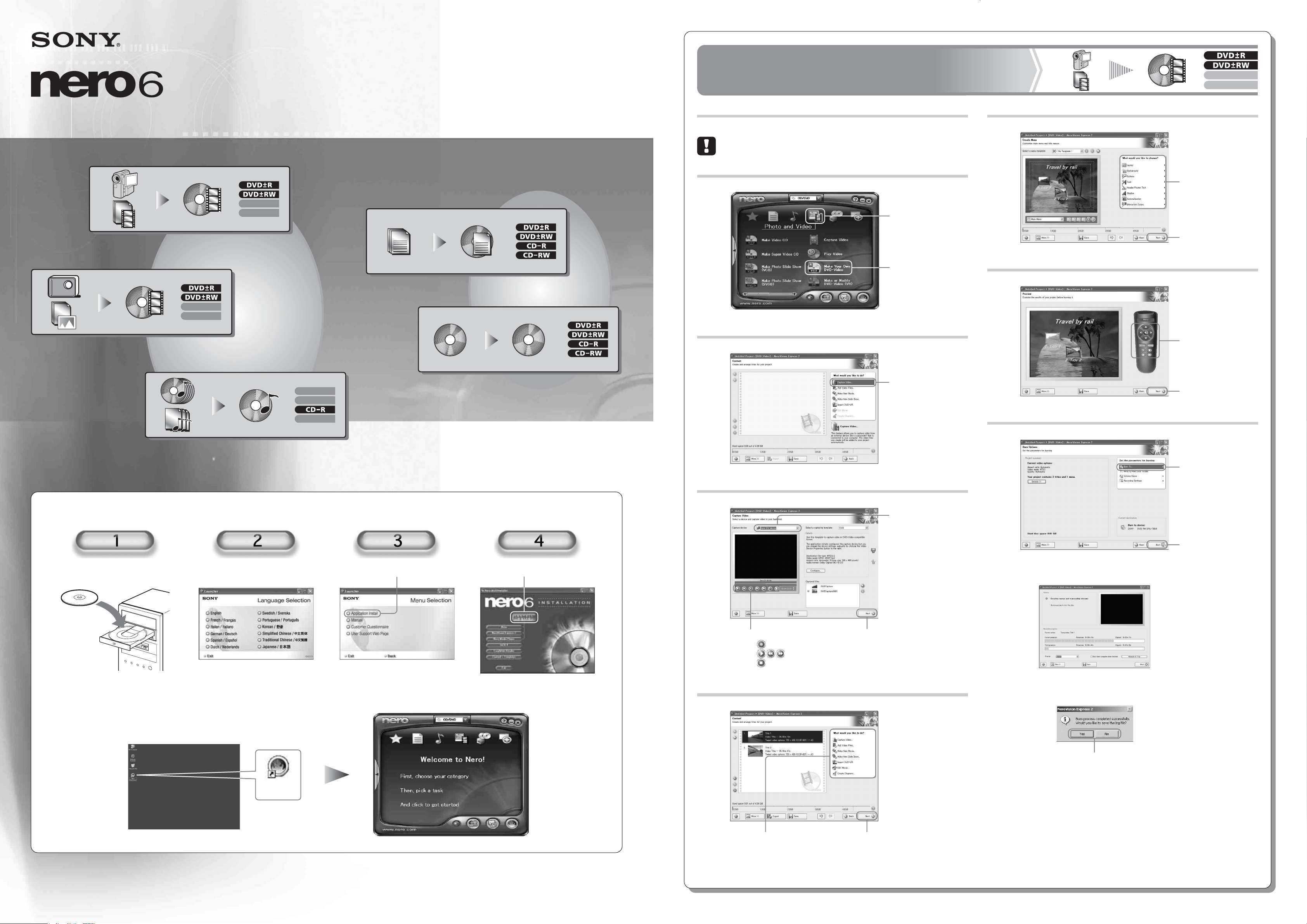
Create a movie DVD with
a digital video camera
1
Click “Capture Video”.
Make further adjustments
to the contents of your DVD.
Or
Click here to
proceed.
2
3
4
1 Select a DV
device here.
2 Click
to capture video.
to play/search video.
to stop playback.
3 Click here to proceed.
Create a menu for
your DVD.
Or
Click here to proceed.
Preview your DVD.
Or
Click here to proceed.
1 Click “Burn To...”
and select a drive
for burning.
2 Click here to burn.
Click an option to finish.
1 Point here.
2 Click here.
5
6
7
v
v
First, connect a digital video camera to your computer with an
i.LINK cable.
Installing the software
Insert the software disc. Select a language. Click here. Click here to install the software.
Quick Start Guide
Nero
StartSmart
Note: Images depicted in this guide may differ slightly from what appears on your screen.
2-514-546-11(1)
7819900951
Double-click the “Nero StartSmart” icon.
Start up the software
©2004 Sony Corporation Printed in China
Steps 2 and 3 may not appear for some users.
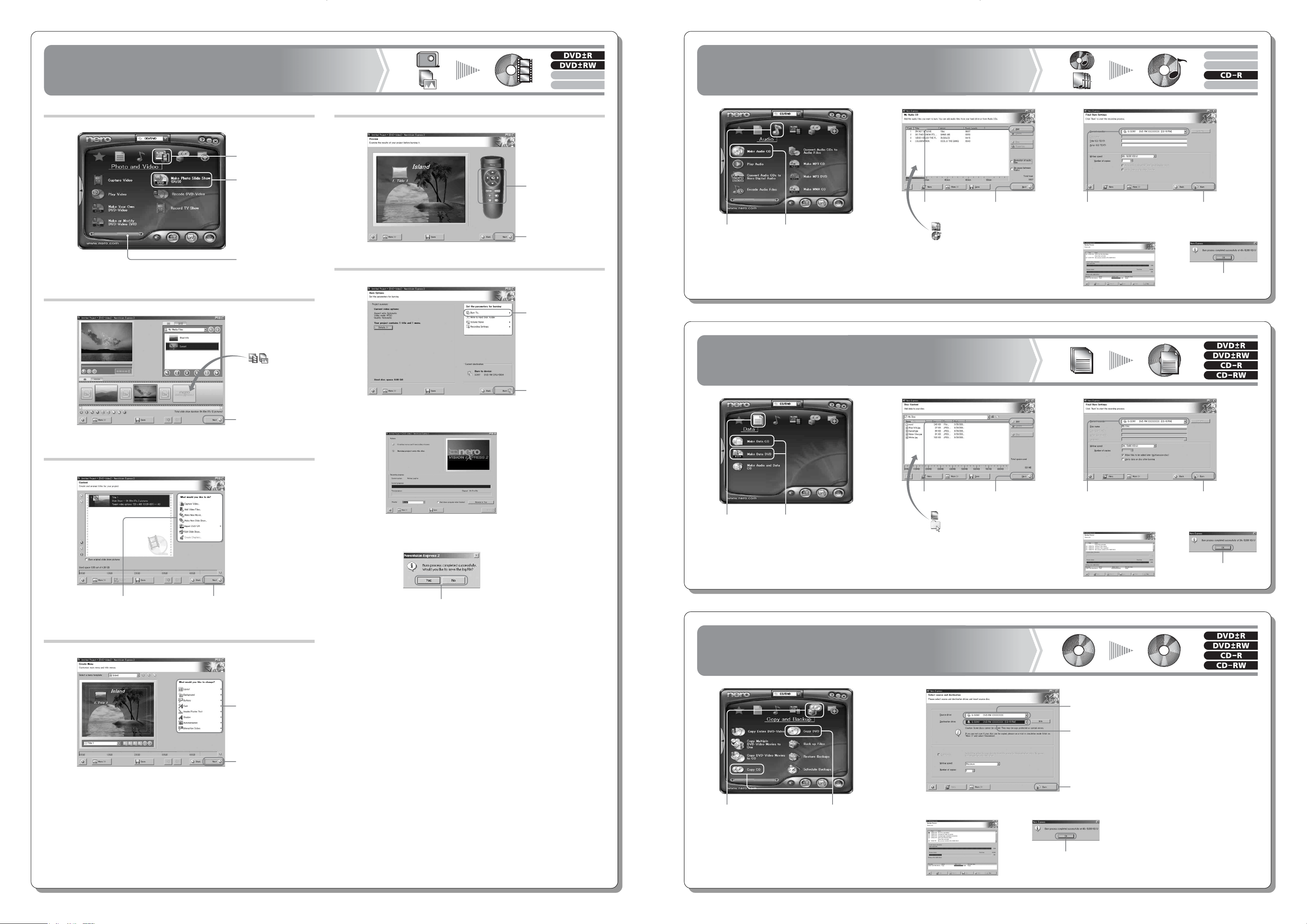
Create a data disc
Create a data disc
Copy a disc
Copy a disc
Create a data disc
Copy a disc
Create a movie DVD with a digital video camera
Create a movie DVD with a digital video camera
Create a slide-show DVD from digital photos
Create a slide-show DVD from digital photos
Create a music CD
Create a music CD
Create a movie DVD with a digital video camera
Create a slide-show DVD from digital photos
Create a music CD
1
1 Drag and drop
photos
from hard disk
or removable
memory media.
2 Click here to
proceed.
Create a menu for
your DVD.
Or
Click here to proceed.
2
3
4
Make further adjustments to
the contents of your DVD.
Or
Click here to
proceed.
Preview your DVD.
Or
Click here to proceed.
1 Select a drive for
burning.
2 Click here to burn.
Click an option to finish.
1 Point here.
3 Click here.
2 Slide the bar to
the right.
5
6
v
v
Create a slide-show DVD
from digital photos
1 Point here.
2 Click here.
1 Point here.
2 Click here.
1 Point here.
2 Click here.
21
21
1 Click “Add” or
drag and drop
music files or
a music CD.
2 Click here
to proceed.
1 Click “Add” or
drag and drop
files or
folders.
2 Click here
to proceed.
1 Select a drive for burning.
2 Click here
to burn.
v
3
1 Select a drive for
reading.
3 Click here to burn.
2 Select a drive for
burning.
Click “OK” to finish.
Click “OK” to finish.
3
1 Select a drive for burning.
2 Click here
to burn.
Click “OK” to finish.
12
v
Copy a disc
Create a data disc
Create a music CD
v
v
v
v
* Copy-protected discs cannot be copied.