2021.06
v1.4
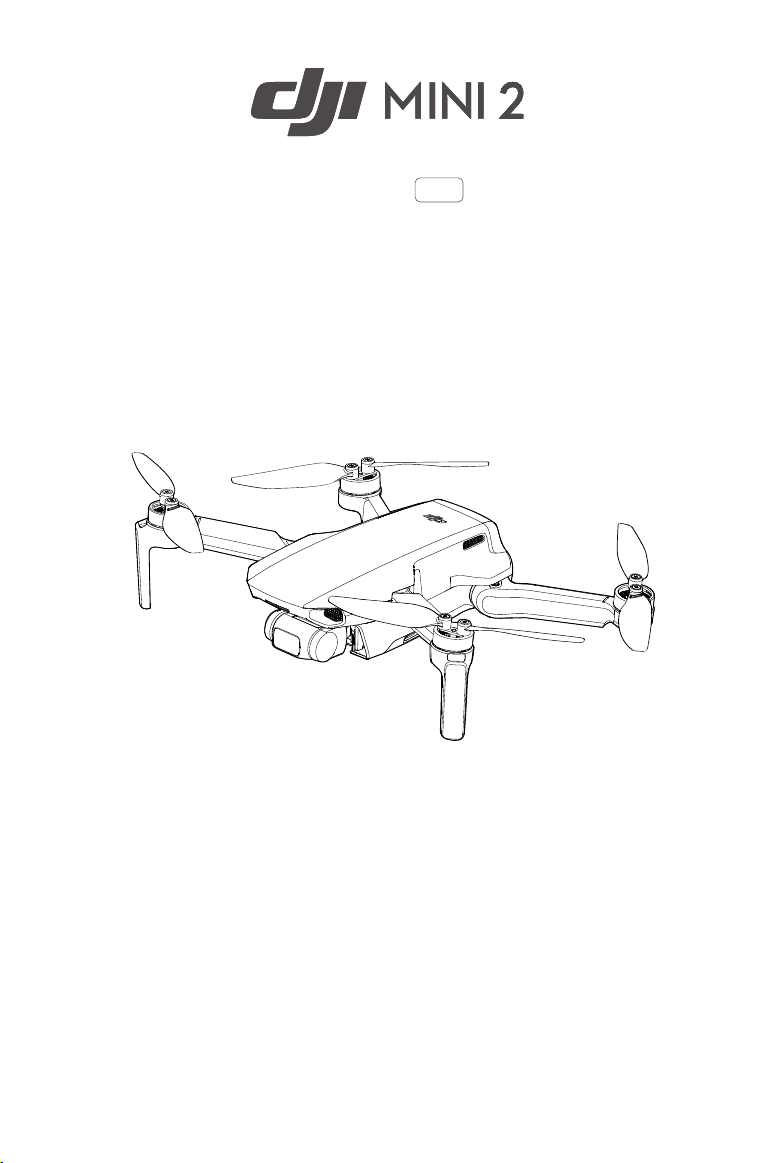
User Manual
Searching for Keywords
Search for keywords such as “battery” and “install” to find a topic. If you are using Adobe
Acrobat Reader to read this document, press Ctrl+F on Windows or Command+F on Mac to
begin a search.
Navigating to a Topic
View a complete list of topics in the table of contents. Click on a topic to navigate to that
section.
Printing this Document
This document supports high resolution printing.
Version Date Revisions
v1.4 2021.06 1.ModiedgeneraldescriptionofRTHandRTHwhentheaircraftisina
GEOzone(P14,P16).
2.Modifieddescriptionofauto-dischargingfortheIntelligentFlight
Battery(P21).
Revision Log
2
©
2021 DJI All Rights Reserved.
Using this Manual
Legend
Warning Important HintsandTips Reference
Read Before the First Flight
ReadthefollowingdocumentsbeforeusingDJI
TM
Mini2:
1.UserManual
2.QuickStartGuide
3.DisclaimerandSafetyGuidelines
ItisrecommendedtowatchalltutorialvideosontheocialDJIwebsiteandreadthedisclaimerand
safetyguidelinesbeforeusingforthersttime.Prepareforyourrstightbyreviewingthequickstart
guideandrefertothisusermanualformoreinformation.
Video Tutorials
GototheaddressbeloworscantheQRcodetowatchtheDJIMini2tutorialvideos,
whichdemonstratehowtouseDJIMini2safely:
http://www.dji.com/mini-2/video
Download the DJI Fly App
MakesuretousetheDJIFlyappduringflight.ScantheQRcodeontherightto
downloadthelatestversion.
TheAndroidversionofDJIFlyiscompatiblewithAndroidv6.0andlater.TheiOSversion
ofDJIFlyiscompatiblewithiOSv11.0andlater.
*Forincreasedsafety,flightisrestrictedtoaheightof98.4ft(30m)andarangeof164ft(50m)when
notconnectedorloggedintotheappduringflight.ThisappliestoDJIFlyandallappscompatiblewith
DJIaircraft.
Theoperating temperatureofthisproductis0°to40° C.Itdoesnotmeetthestandardoperating
temperatureformilitarygradeapplication (-55°to125°C),whichisrequiredtoenduregreater
environmentalvariability.Operatetheproductappropriatelyandonlyforapplicationsthatitmeetsthe
operatingtemperaturerangerequirementsofthatgrade.

©
2021 DJI All Rights Reserved.
3
Contents
Using this Manual
2
Legend
2
Read Before the First Flight
2
Video Tutorials
2
Download the DJI Fly App
2
Product Prole
6
Introduction
6
Preparing the Aircraft
6
Preparing the Remote Controller
7
Aircraft Diagram
8
Remote Controller Diagram
8
Activating DJI Mini 2
9
Aircraft
11
Flight Modes
11
Aircraft Status Indicator
12
QuickTransfer
13
Return to Home
14
Vision System and Infrared Sensing System
16
Intelligent Flight Mode
18
Flight Recorder
20
Propellers
20
Intelligent Flight Battery
21
Gimbal and Camera
25
Remote Controller
28
Remote Controller Prole
28
Using the Remote Controller
28
Optimal Transmission Zone
32
Linking the Remote Controller
32
DJI Fly App
34
Home
34
Camera View
35


©
2021 DJI All Rights Reserved.
5
Product Prole
This section introduces DJI Mini 2 and
lists the components of the aircraft and
remote controller.
6
©
2021 DJI All Rights Reserved.
Product Prole
Introduction
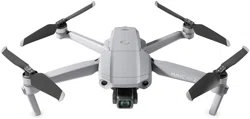
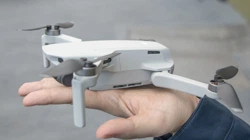
DJIMini2boastsafoldabledesignandanultralightweightoflessthan249g.FeaturingaDownward
VisionSystemandInfraredSensingSystem,DJIMini2canhoverandyindoorsaswellasoutdoors
andautomaticallyinitiateReturntoHome(RTH).Witha fully stabilized 3-axis gimbal and 1/2.3”
sensorcamera,DJIMini2shoots4Kvideoand12MPphotos.EnjoyIntelligentFlightmodessuchas
QuickShotsandPanorama,whileQuickTransferandTrimmedDownloadmakedownloadingandediting
photosandvideosmoreconvenientandecient.
DJIMini2comesequippedwiththeDJIRC-N1remotecontroller,whichboastsDJI’slong-range
transmissionOCUSYNC
TM
2.0technology,oeringamaximumtransmissionrangeof6mi(10km)and
videoqualityofupto720pfromtheaircrafttotheDJIFlyapponamobiledevice.Theremotecontroller
worksatboth2.4GHzand5.8GHz,andiscapableofselectingthebesttransmissionchannel
automaticallywithoutlatency.Theaircraftandcameracaneasilybecontrolledusingtheonboard
buttons.
DJIMini2hasamaximumightspeedof36mph(57.6kph)andamaximumighttimeof31minutes,
whilethemaximumruntimeoftheremotecontrollerissixhours.
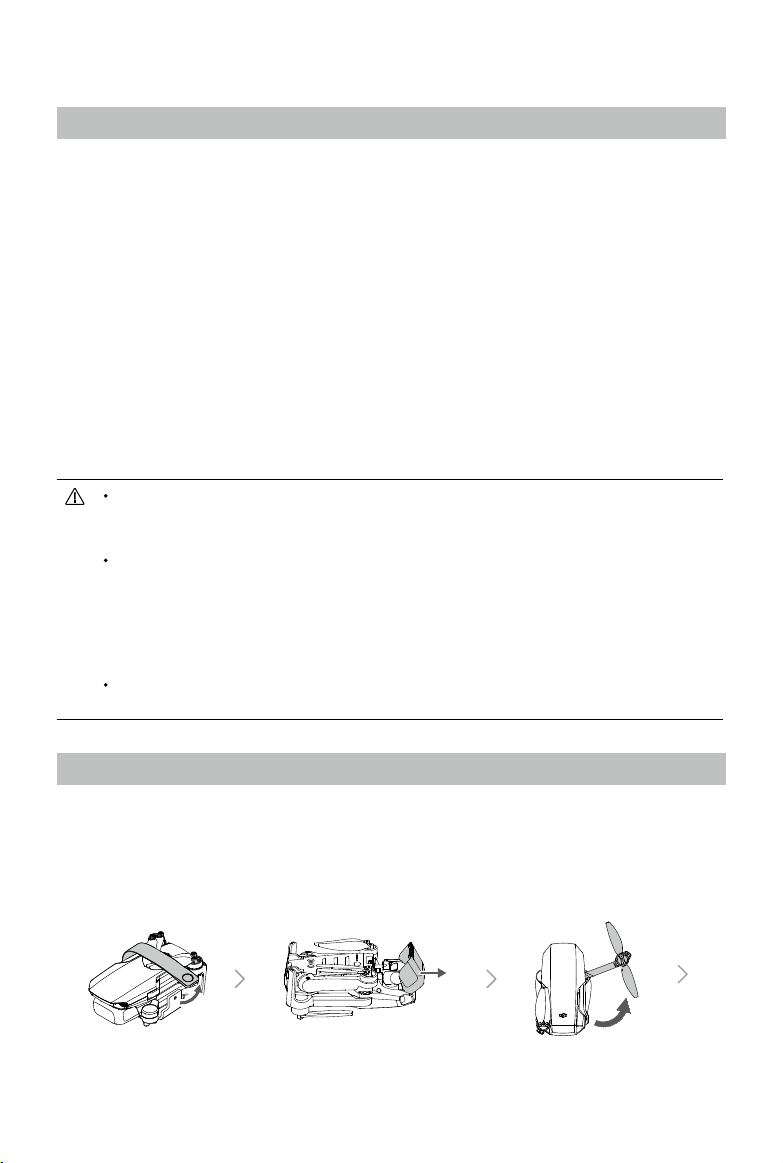
Preparing the Aircraft
Allaircraftarmsarefoldedbeforetheaircraftispackaged.Followthestepsbelowtounfoldtheaircraft.
1.Removethepropellerholder.
2.Removethegimbalprotectorfromthecamera.
3.Inthefollowingorder,unfoldthefrontarms,reararms,andallthepropellers.
Maximumighttimewastestedinanenvironmentwithnowindwhileyingataconsistent10.5mph
(17kph)andthemaximumightspeedwastestedatsealevelaltitudewithnowind.Thesevalues
areforreferenceonly.
Theremotecontrollerreachesitsmaximumtransmissiondistance(FCC)inawide-openareawith
noelectromagneticinterferenceatanaltitudeofapprox.400ft(120m).Themaximumtransmission
distancereferstothemaximumdistancethattheaircraftcanstillsendandreceivetransmissions.It
doesnotrefertothemaximumdistancetheaircraftcanyinasingleight.Themaximumruntime
wastestedinalaboratoryenvironmentandwithoutchargingthemobiledevice.Thisvalueisfor
referenceonly.
5.8GHzisnotsupportedinsomeregions.Thisfrequencybandwillautomaticallybedisabledin
theseregions.Observelocallawsandregulations.
©
2021 DJI All Rights Reserved.
7
DJI Mini 2 User Manual
Itisrecommendedtoinstallagimbalprotectortoprotectthegimbalanduseapropellerholderto
securethepropellerswhentheaircraftisnotinuse.
ThepropellerholderandUSBchargerareonlyincludedinthecombopackage.
Unfoldthefrontarmsbeforeunfoldingthereararms.
Makesurethegimbalprotectorisremovedandallarmsareunfoldedbeforepoweringontheaircraft.
Otherwise,itmayaecttheaircraftself-diagnostics.
Preparing the Remote Controller
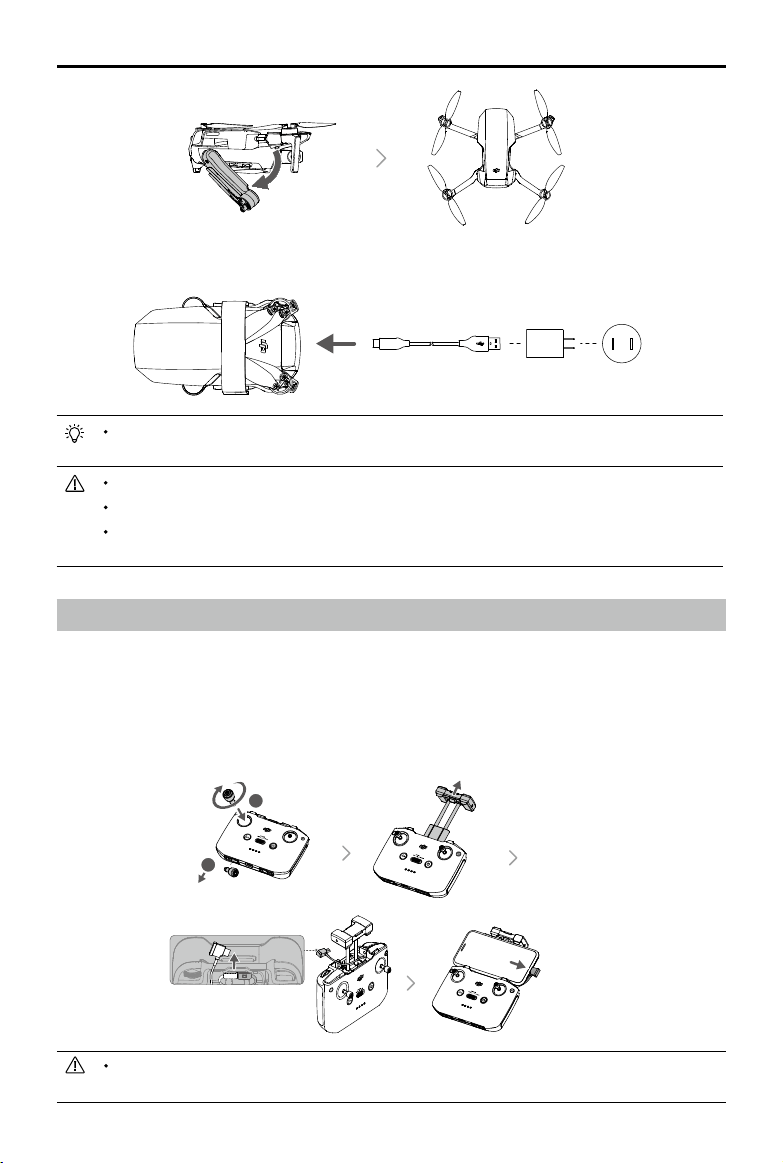
1. Removethecontrolsticksfromtheirstorageslotsontheremotecontrollerandscrewtheminto
place.
2. Pulloutthemobiledeviceholder.Chooseanappropriateremotecontrollercablebasedonthetype
ofmobiledevice.ALightningconnectorcable,MicroUSBcable,andUSB-Ccableareincludedin
thepackaging.Connecttheendofthecablewithouttheremotecontrollerlogotothemobiledevice.
Makesurethemobiledeviceissecured.
IfaUSBconnectionpromptappearswhenusinganAndroidmobiledevice,selecttheoptionto
chargeonly.Otherwise,itmayresultinconnectionfailure.
4. AllIntelligentFlightBatteriesareinhibernationmodebeforeshipmenttoensuresafety.UsetheUSB
chargertochargeandactivateIntelligentFlightBatteriesforthersttime.
2
1
8
©
2021 DJI All Rights Reserved.
DJI Mini 2 User Manual
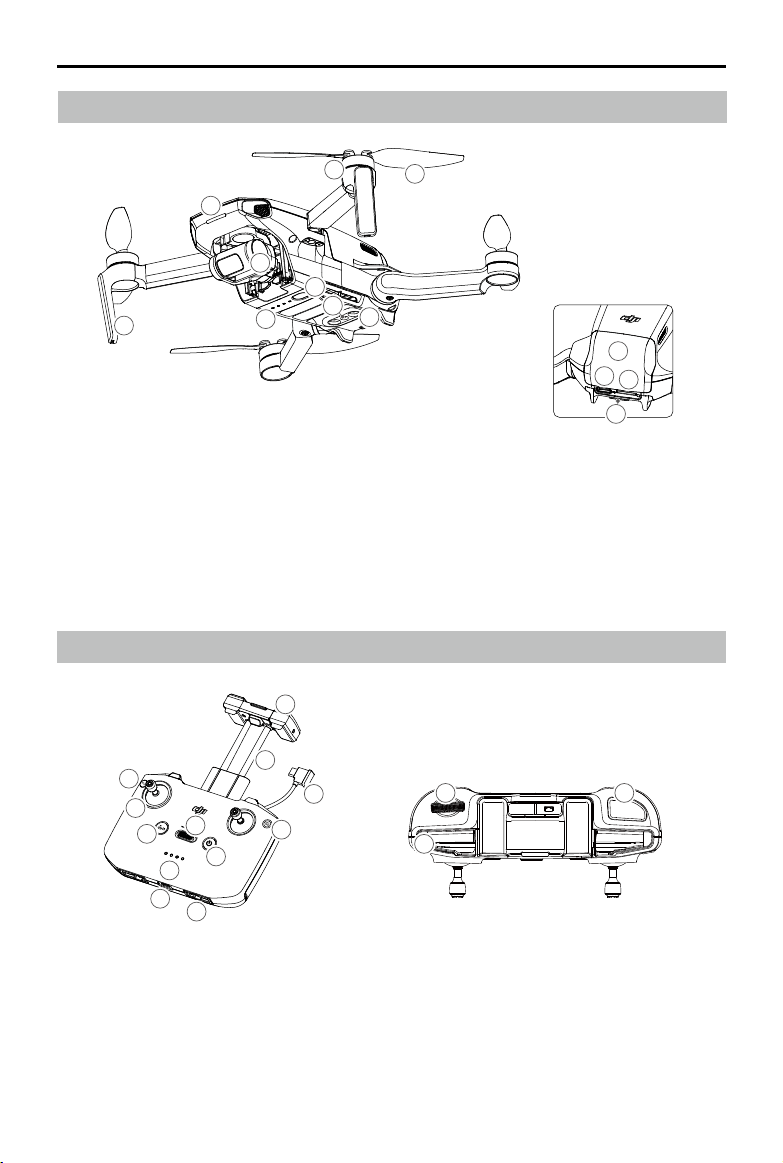
Aircraft Diagram
Remote Controller Diagram
1
2
3
6
7
8
9
13
10
11
12
5
4
1. Gimbal and Camera
2. Power Button
3. Battery Level LEDs
4. Downward Vision System
5. Infrared Sensing System
6. Motors
7. Propellers
8. Antennas
9. Front LED
10. Battery Compartment Cover
11. USB-C Port
12. microSD Card Slot
13. Aircraft Status Indicator/QuickTransfer Button
4
6
1
2
3
5
7
8
10
9
11
12
13
15
14
1. Power Button
Pressoncetocheckthecurrentbatterylevel.
Pressonce,thenagain,andholdtopower
theremotecontrolleronoro.
2. Flight Mode Switch
SwitchbetweenSport,Normal,andCine
mode.
3. Flight Pause/Return to Home (RTH) Button
Pressoncetomaketheaircraftbrakeand
hoverinplace(onlywhenGPSorDownward
VisionSystemareavailable).Pressandhold
thebuttontoinitiateRTH.Theaircraftreturns
tothelastrecordedHomePoint.Pressagainto
cancelRTH.

©
2021 DJI All Rights Reserved.
9
DJI Mini 2 User Manual
Activating DJI Mini 2
DJIMini2requiresactivationbeforeusingforthersttime.Afterpoweringontheaircraftandremote
controller,followtheon-screeninstructionstoactivateDJIMini2usingDJIFly.Aninternetconnectionis
requiredforactivation.
4. Battery Level Indicators
Displaysthecurrentbatteryleveloftheremote
controller.
5. Control Stick
Usethecontrolstickstocontroltheaircraft
movements.SetthecontrolstickmodeinDJI
Fly.Thecontrolsticksareremovableandeasy
tostore.
6. Customizable Button
Pressoncetorecenterthegimbalortiltthe
gimbaldownward(defaultsettings).Thebutton
canbesetinDJIFly.
7. Photo/Video Toggle
Pressoncetoswitchbetweenphotoandvideo
mode.
8. Remote Controller Cable
Connecttoamobiledeviceforvideolinkingvia
theremotecontrollercable.Selectthecable
accordingtothemobiledevice.
9. Mobile Device Holder
Usedtosecurelymountthemobiledeviceto
theremotecontroller.
10. Antennas
Relayaircraftcontrolandvideowireless
signals.
11. USB-C Port
Forchargingandconnectingtheremote
controllertothecomputer.
12. Control Sticks Storage Slot
Forstoringthecontrolsticks.
13. Gimbal Dial
Controlsthetiltofthecamera.Pressandhold
thecustomizablebuttontousethegimbal
dialtoadjustthezoominvideomode.
14. Shutter/Record Button
Pressoncetotakephotosorstartorstop
recording.
15. Mobile Device Slot
Usedtosecurethemobiledevice.

10
©
2021 DJI All Rights Reserved.
Aircraft
DJI Mini 2 contains a ight controller,
video downlink system, vision system,
propulsion system, and an Intelligent
Flight Battery.
©
2021 DJI All Rights Reserved.
11
Aircraft
DJIMini2containsaightcontroller,videodownlinksystem,visionsystem,propulsionsystem,andan
IntelligentFlightBattery.
Flight Modes
DJIMini2hasthreeflightmodes,plusafourthflightmodethattheaircraftswitchestoincertain
scenarios.FlightmodescanbeswitchedviatheFlightModeswitchontheremotecontroller.
Normal Mode:TheaircraftutilizesGPSandtheDownwardVisionSystemtolocateitselfandstabilize.
IntelligentFlightModeisenabledinthismode.WhentheGPSsignalisstrong,theaircraftusesGPSto
locateitselfandstabilize.WhentheGPSisweakandthelightingconditionsaresucient,theaircraft
usestheDownwardVisionSystemtolocateitselfandstabilize.WhentheDownwardVisionSystemis
enabledandlightingconditionsaresucient,themaximumightaltitudeangleis25°andthemaximum
ightspeedis10m/s.
Sport Mode:InSportmode,theaircraftusesGPSandtheDownwardVisionSystemforpositioning.In
Sportmode,aircraftresponsesareoptimizedforagilityandspeedmakingitmoreresponsivetocontrol
stickmovements.Themaximumightspeedis16m/s,maximumascentspeedis5m/s,andmaximum
descentspeedis3.5m/s.
Cine Mode:CinemodeisbasedonNormal modeandtheightspeedislimited,makingtheaircraft
morestableduringshooting.Themaximumightspeedis6m/s,maximumascentspeedis2m/s,and
maximumdescentspeedis1.5m/s.
TheaircraftautomaticallychangestoAttitude(ATTI)modewhentheDownwardVisionSystemis
unavailableordisabledandwhentheGPSsignalisweakorthecompassexperiencesinterference.
WhentheDownwardVisionSystemisunavailable,theaircraftcannotpositionitselforbrake
automatically,whichincreasestheriskofpotentialighthazards.InATTImode,theaircraftmaybemore
easilyaectedbyitssurroundings.Environmentalfactorssuchaswindcanresultinhorizontalshifting,
whichmaypresenthazards,especiallywhenyinginconnedspaces.
ThemaximumspeedandbrakingdistanceoftheaircraftsignicantlyincreaseinSportmode.A
minimumbrakingdistanceof30misrequiredinwindlessconditions.
DescentspeedsignicantlyincreasesinSportmode.Aminimumbrakingdistanceof10misrequired
inwindlessconditions.
TheresponsivenessoftheaircraftsignicantlyincreasesinSportmode,whichmeansasmallcontrol
stickmovementontheremotecontrollertranslatesintotheaircraftmovingalargedistance.Bevigilant
andmaintainadequatemaneuveringspaceduringight.
DuringvideomodeinNormalorCinemode,theightspeedislimitedwhenthepitchofthegimbal
isnear-90°or0°inordertoensureshootingisstable.Iftherearestrongwinds,therestrictionwill
bedisabledtoimprovethewindresistanceoftheaircraft.Asaresult,thegimbalmayvibratewhile
recording.
12
©
2021 DJI All Rights Reserved.
DJI Mini 2 User Manual
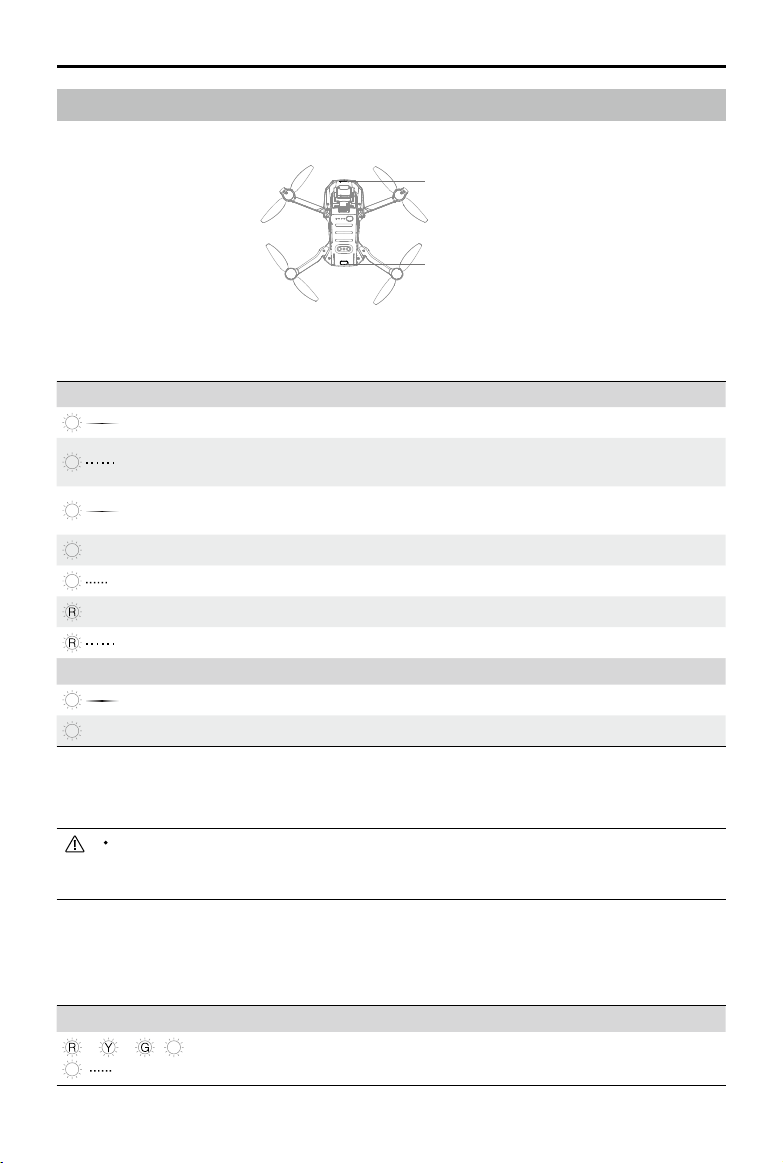
Aircraft Status Indicator
DJIMini2hasafrontLEDandaircraftstatusindicator.
Aircraft Status Indicator States
Normal States
B
P
Blinksred,yellow,green,blue,and
purplealternately
Poweringonandperformingself-diagonistic
tests
Front LED States
When Powered On
W
Pulseswhite Defaultstate(customizableinDJIFly)
B
Blinksblueslowly
SwitchingbetweenWi-FiconnectionandOcuSync 2.0video
transmissionconnection
B
Pulsesblue
SwitchedtoWi-Ficonnectionandwaitingtoconnect to mobile
device
B
—
Solidblue SwitchedtoWi-Ficonnectionandconnectedtomobiledevice
B
Blinksbluequickly SwitchedtoWi-Ficonnectionanddownloadingathighspeed
—
Solidred FailedtoswitchtoWi-Ficonnection
Blinksredslowly ESCisbeepingwhileusingFindMyDrone
When Powered O
W
Pulseswhite Charging
W
—
Solidwhite Chargingcomplete
PressandholdtheQuickTransferbuttontoswitchbetweenQuickTransfermode(Wi-Ficonnection)
andightmode(OcuSync2.0videotransmissionconnection).Ifrmwareisnotupdatedtov1.1.0.0or
above,presstheQuickTransferbuttontwice.
IfthefrontLEDcontinuestoslowlyblinkbluewhenswitchingfromWi-FiconnectiontoOcuSync2.0
videotransmissionconnection,itindicatesthattheswitchfailed.Restarttheaircraft.Theaircraftwill
entertheightmode(OcuSync2.0videotransmissionconnection)bydefaultafterrestarting.
Theaircraftstatusindicatorshowsthestatusoftheightcontrolsystemoftheaircraft.Refertothe
tablebelowformoreinformationabouttheaircraftstatusindicator.
ThefrontLEDshowstheorientationoftheaircraftandpulseswhitewhentheaircraftispoweredon.
AircraftStatusIndicator/QuickTransferButton
FrontLED
©
2021 DJI All Rights Reserved.
13
DJI Mini 2 User Manual
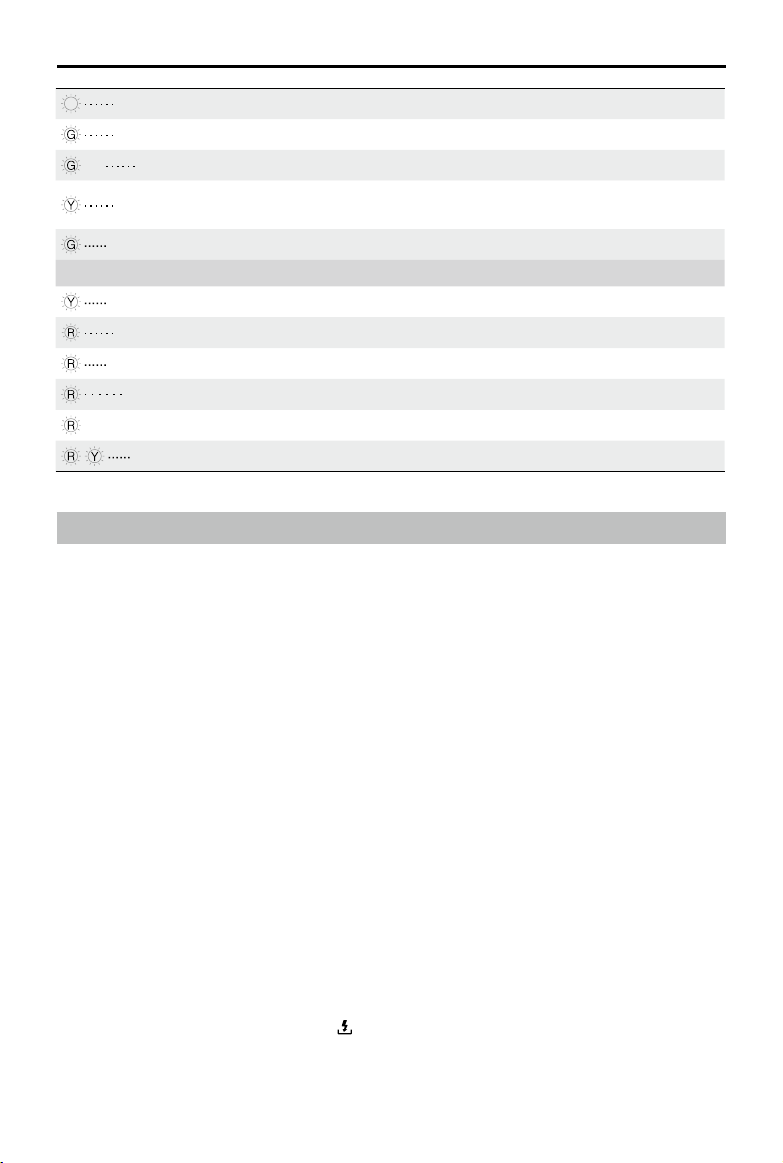
P
Blinkspurpleslowly Warmingup
Blinksgreenslowly GPSenabled
×2 Blinksgreentwicerepeatedly DownwardVisionSystemenabled
Blinksyellowslowly
GPSandDownwardVisionSystemdisabled
(ATTImodeenabled)
Blinksgreenquickly Braking
Warning States
Blinksyellowquickly Remotecontrollersignallost
Blinksredslowly Lowbattery
Blinksredquickly Criticallylowbattery
Blinksred IMUerror
—
Solidred Criticalerror
Blinksredandyellowalternately Compasscalibrationrequired
QuickTransfer
DJIMini2canconnectdirectlytomobiledevicesviaWi-Fi,enabling users to download photos and
videosfromtheaircrafttothemobiledevicethroughDJIFlywithouttheneedofaremotecontroller.
Userscanenjoyfasterandmoreconvenientdownloadswithatransmissionrateofupto20MB/s.
Usage
Method 1: mobile device is not connected to the remote controller
1. Powerontheaircraftandwaituntiltheself-diagnostictestsoftheaircraftarecomplete.Pressand
holdtheQuickTransferbuttonfortwosecondstoswitchtoQuickTransfermode(ifrmwareisnot
updatedtov1.1.0.0,presstheaircraftstatusindicatortwice).ThefrontLEDwillblinkblueslowly
beforepulsingblueonceswitchingissuccessful.
2. MakesureBluetoothandWi-Fiisenabledonthemobiledevice.LaunchDJIFlyandapromptwill
automaticallyappeartoconnecttotheaircraft.
3. TapConnect.Oncesuccessfullyconnected,thefilesontheaircraftcanbeaccessedand
downloadedatahighspeed.Notethatwhenconnectingthemobiledevicetotheaircraftfortherst
time,youneedtopresstheQuickTransferbuttontoconrm.
Method 2: mobile device is connected to the remote controller
1. Makesurethattheaircraftisconnectedtothemobiledeviceviatheremotecontrollerandthe
motorshavenotstarted.
2. EnableBluetoothandWi-Fionthemobiledevice.
3. LaunchDJIFly,enterplayback,andtap intheupperrightcornertoaccessthelesontheaircraft
todownloadathighspeed.
14
©
2021 DJI All Rights Reserved.
DJI Mini 2 User Manual
Return to Home
TheReturntoHome(RTH)functionbringstheaircraftbacktothelastrecordedHomePointandlands
whentheGPSissignalisstrong.TherearethreetypesofRTH:SmartRTH,LowBatteryRTH,and
FailsafeRTH.IftheaircraftsuccessfullyrecordedthehomepointandtheGPSsignalisstrong,theRTH
willbetriggeredwheneithertheuserstartsSmartRTH,theaircraftbatterylevelislow,orthesignal
betweentheremotecontrollerandtheaircraftislost. RTHwillalsobetriggeredinotherabnormal
scenariossuchasifthereisalossofvideotransmission.
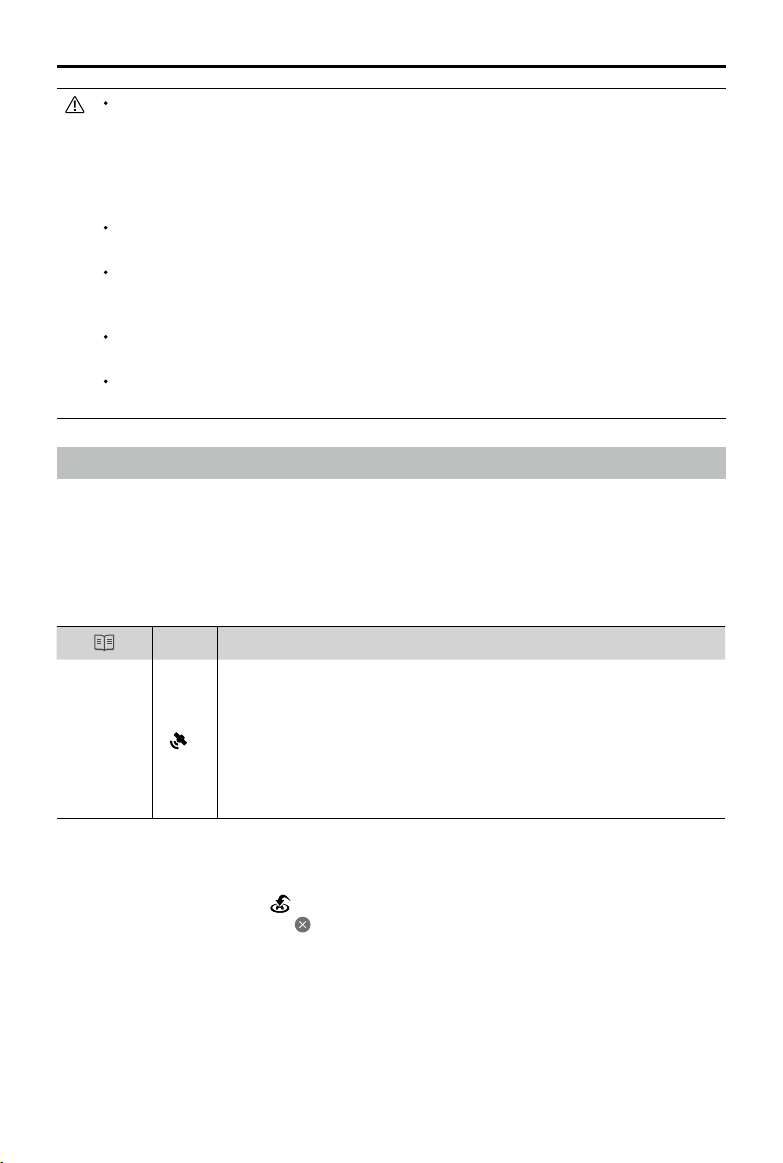
GPS
Description
Home Point
10
ThedefaultHomePointisthefirstlocationwheretheaircraftreceiveda
strongormoderatelystrongGPSsignal(wheretheiconshowswhite).Itis
recommendedtowaituntiltheHomePointissuccessfullyrecordedbefore
ying.AftertheHomePointis recorded,the aircraftstatusindicatorblinks
greenandapromptappearsinDJIFly.IfitisnecessarytoupdatetheHome
Pointduringtheight(suchasiftheuserchangesposition),theHomePoint
canbemanuallyupdatedunderSafetyinSystemSettingsonDJIFly.
Smart RTH
IftheGPSsignalissucient,SmartRTHcanbeusedtobringtheaircraftbacktotheHomePoint.Smart
RTHisinitiatedeitherbytapping inDJIFlyorbypressingandholdingtheRTHbuttonontheremote
controller.ExitSmartRTHbytapping inDJIFlyorbypressingtheRTHbuttonontheremotecontroller.
Low Battery RTH
WhentheIntelligentFlightBatterylevelistoolowandthereisnotenoughpowertoreturnhome,land
theaircraftassoonaspossible.Otherwise,theaircraftwillfallwhenitrunsoutofpower,resultinginthe
aircraftbeingdamagedandotherpotentialhazards.
Toavoidunnecessarydangerduetoinsucientpower,DJIMini2willintelligentlydeterminewhether
thecurrentbatterylevelissucienttoreturnhomebasedonthecurrentlocation.LowBatteryRTHis
Themaximumdownloadratecanonlybeachievedincountriesandregionswherethe5.8GHzfrequency
ispermittedbylawsandregulations,whenusingdevicesthatsupport5.8GHzfrequencybandandWi-
Ficonnection,andinanenvironmentwithoutinterferenceorobstruction.If5.8GHzisnotallowedbylocal
regulations(suchasinJapan),themobiledeviceoftheuserwillnotsupportthe5.8GHzfrequencybandor
theenvironmentwillhavesevereinterference.Underthesecircumstances,QuickTransferwillautomatically
switchtothe2.4GHzfrequencybandanditsmaximumdownloadratewillreduceto6MB/s.
MakesurethatBluetooth,Wi-Fi,andlocationservicesareenabledonthemobiledevicebeforeusing
QuickTransfer.
WhenusingQuickTransfer,itisnotnecessarytoentertheWi-Fipasswordonthesettingspageofthe
mobiledeviceinordertoconnect.AfterswitchingtheaircrafttoQuickTransfer,launchDJIFlyanda
promptwillappeartoconnecttheaircraft.
Theaircraftwillautomaticallyenterightmodebydefaultafterrestarting.QuickTransfermustbe
enteredmanuallyagainifrequired.
UseQuickTransferinanunobstructedenvironmentwithnointerferenceandstayawayfromsources
ofinterferencesuchaswirelessrouters,Bluetoothspeakers,orheadphones.

©
2021 DJI All Rights Reserved.
15
DJI Mini 2 User Manual
triggeredwhentheIntelligentFlightBatteryisdepletedtothepointthatthesafereturnoftheaircraft
maybeaected.
TheusercancancelRTHbypressingtheRTHbuttonontheremotecontroller.IfRTHiscancelled
followingalowbatterylevelwarning,theIntelligentFlightBatterymaynothaveenoughpowerforthe
aircrafttolandsafely,whichmayleadtotheaircraftcrashingorbeinglost.
Theaircraftwillautomaticallylandifthebatterylevelisextremelylow.Theactioncannotbecanceled
buttheremotecontrollercanstillbeusedtoreducethedescentspeedoradjustthedirectionofthe
aircraft.
Theaircraftwilllandautomaticallyifthebatterylevelwillonlylastlongenoughtodirectlydescendand
landfromitscurrentaltitude.Theactioncannotbecanceledbuttheremotecontrollercanbeusedto
adjustthedirectionoftheaircraft.
Failsafe RTH
IftheHomePointwassuccessfullyrecordedandthecompassisfunctioningnormally,FailsafeRTH
automaticallyactivatesaftertheremotecontrollersignalislostformorethan11seconds.
Whenthermwareisupdatedtov1.1.0.0andabove,theaircraftwillybackwardsfor50monits
originalightrouteandascendtothepresetRTHaltitudetoenterStraightLineRTH.Theaircraftenters
StraightLineRTHiftheremotecontrollersignalisrestoredduringFailsafeRTH.Whentheaircrafties
backwardsalongtheoriginalightpathandthedistancefromtheHomePointislessthan20m,the
aircraftstopsyingbackwardontheoriginalightrouteandentersStraightLineRTHatthecurrent
altitude.
InDJIFly,userscanchangethesettingsofhowtheaircraftrespondswhentheremotecontrollersignal
islost.TheaircraftwillnotexecuteFailsafeRTHiflandorhoverhasbeenselectedinthesettings.
Other RTH Scenarios
Therewillbeaprompttoinitiate RTHifthevideolinksignalislostduringflightwhiletheremote
controllerisstillabletocontrolthemovementsoftheaircraft.RTHcanbecancelled.
RTH Procedure (Straight Line)
1. TheHomePointisrecorded.
2. RTHistriggered.
3. Iftheaircraftislessthan20mfromtheHomePointwhenRTHbegins,itwillhoverinplaceandnot
returntohome(rmwareversionv1.1.0.0isrequired.Otherwise,theaircraftwilllandimmediately).
Iftheaircraftisfurtherthan20mfromtheHomePointwhenRTH begins, itwillreturnhomeata
horizontalspeedof10.5m/s.
4. AfterreachingtheHomePoint,theaircraftlandsandthemotorsstop.
TheaircraftcannotreturntotheHomePointiftheGPSsignalisweakorunavailable.IftheGPSsignal
becomesweakorunavailableafterRTHistriggered,theaircraftwillhoverinplaceforawhilebefore
landing.
ItisimportanttosetasuitableRTHaltitudebeforeeachight.LaunchDJIFlyandsettheRTH
altitude.InSmartRTHandLowBatteryRTH,ifthecurrentaltitudeoftheaircraftislessthantheRTH
altitude,itautomaticallyascendstotheRTHaltituderst.Ifthealtitudeoftheaircraftreachesoris
higherthantheRTHaltitude,itwillytotheHomePointatitscurrentaltitude.
16
©
2021 DJI All Rights Reserved.
DJI Mini 2 User Manual
Detection Fields
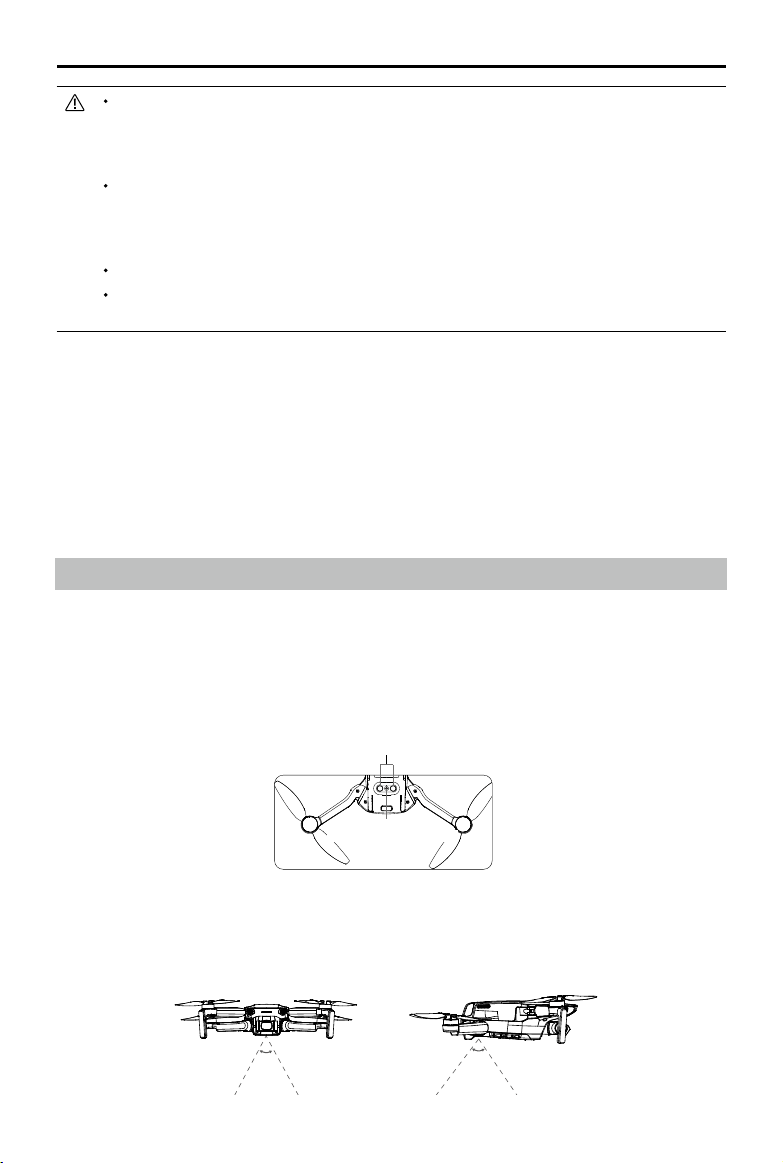
TheDownwardVisionSystemworksbestwhentheaircraftisatanaltitudeof0.5to10mand its
operatingrangeis0.5to30m.
InfraredSensingSystem
DownwardVisionSystem
Landing Protection
LandingProtectionwillactivateduringSmartRTH.
1. DuringLandingProtection,theaircraftwillautomaticallydetectandcarefullylandonsuitableground.
2. Ifthegroundisdeterminedunsuitableforlanding,DJIMini2willhoverandwaitforpilotconrmation.
3. IfLandingProtectionisnotoperational,DJIFlywilldisplayalandingpromptwhentheaircraft
descendsbelow0.5m.Tapconrmorpulldownonthethrottlesticktoland.
Vision System and Infrared Sensing System
DJIMini2isequippedwithaDownwardVisionSystemandInfraredSensingSystem.TheDownward
VisionSystemconsistsofonecameraandtheInfraredSensingSystemconsistsoftwo3Dinfrared
modules.TheDownwardVisionSystemandInfraredSensingSystemhelpstheaircraftmaintainits
currentposition,hoverinplacemoreprecisely,andtoyindoorsorinotherenvironmentswhereGPSis
unavailable.
Iftheaircraftisatanaltitudeof65ft(20m)orhigherandhasnotyetreachedtheRTHaltitude,the
throttlestickcanbemovedtostoptheaircraftfromascendingandtheaircraftwillytotheHome
Pointatitscurrentaltitude(onlyavailablewithrmwarev1.0.0.0.Thisfunctionisnotavailablewhen
thermwareisupdatedtov1.1.0.0orlater).
DuringRTH,thespeed,altitude,andorientationoftheaircraftcanbecontrolledusingtheremote
controlleriftheremotecontrollersignalisnormal.However,theremotecontrollercannotbeusedto
panleftorright.Whentheaircraftisascendingoryingforward,theusercanpushthecontrolstick
completelyintheoppositedirectiontomaketheaircraftexitRTHandhoverinplace.
GEOzoneswillaectRTH.IftheaircraftiesintoaGEOzoneduringRTHitwillhoverinplace.
TheaircraftmaynotbeabletoreturntoaHomePointwhenthewindspeedistoohigh.Flywith
caution.
71°
56°
©
2021 DJI All Rights Reserved.
17
DJI Mini 2 User Manual
Using the Vision Systems
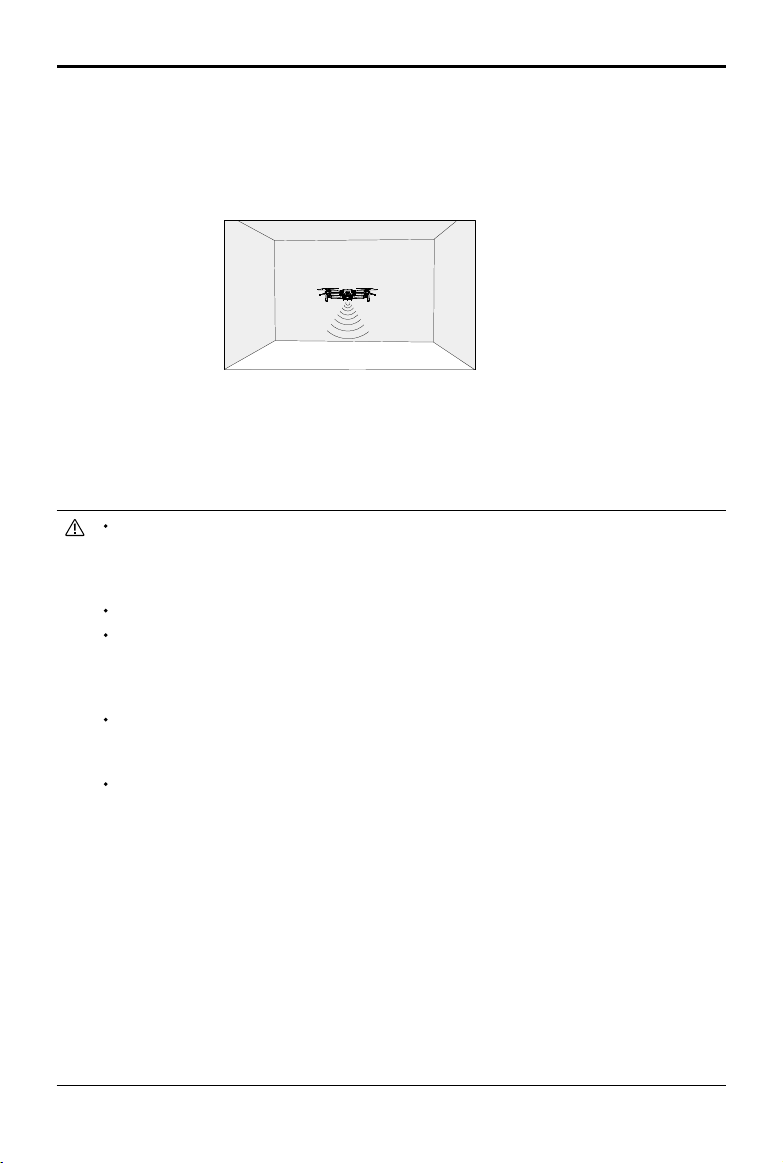
WhenGPSisunavailable,theDownwardVisionSystemisenabledifthesurfacehasacleartextureand
thereissucientlight.TheDownwardVisionSystemworksbestwhentheaircraftisatanaltitudeof0.5
to10m.Ifthealtitudeoftheaircraftisabove10m,theVisionSystemmaybeaected.Extracautionis
required.
Follow the steps below to use the Downward Vision System.
1. MakesuretheaircraftisinNormalorCinemode.Powerontheaircraft.
2. The aircrafthoversinplaceaftertakeo.Theaircraftstatusindicatorblinksgreentwice,indicating
theDownwardVisionSystemisworking.
Payattentiontotheightenvironment.TheDownwardVisionSystemandInfraredSensingSystem
onlyworkunderlimitedconditionsandcannotreplacehumancontrolandjudgment.During
ight,alwayspayattentiontothesurroundingenvironmentandtothewarningsonDJIFlyandbe
responsibleforandmaintaincontroloftheaircraft.
Theaircrafthasamaxhoveringaltitudeof5mifGPSisunavailable.
TheDownwardVisionSystemmaynotfunctionproperlywhentheaircraftisyingoverwater.
Therefore,theaircraftmaynotbeabletoactivelyavoidwaterbelowwhenlanding.Itisrecommended
tomaintainightcontrolatalltimes,makereasonablejudgmentsbasedonthesurrounding
environment,andavoidrelyingontheDownwardVisionSystem.
NotethattheDownwardVisionSystemandInfraredSensingSystemmaynotfunctionproperlywhen
theaircraftisyingtoofast.TheInfraredSensingSystemonlytakeseectwhentheightspeedisno
morethan12m/s.
TheDownwardVisionSystemcannotworkproperlyoversurfacesthatdonothaveclearpattern
variationsorthereisweaklight.TheDownwardVisionSystemcannotworkproperlyinanyofthe
followingsituations.Operatetheaircraftcautiously.
a) Flyingovermonochromesurfaces(e.g.,pureblack,purewhite,puregreen).
b)Flyingoverhighlyreectivesurfaces.
c) Flyingoverwaterortransparentsurfaces.
d)Flyingovermovingsurfacesorobjects.
e) Flyinginanareawherethelightingchangesfrequentlyordrastically.
f) Flyingoverextremelydark(<10lux)orbright(>40,000lux)surfaces.
g) Flyingoversurfacesthatstronglyreectorabsorbinfraredwaves(e.g.,mirrors).
h) Flyingoversurfaceswithoutclearpatternsortexture.(e.g.,powerpole).
i) Flyingoversurfaceswithrepeatingidenticalpatternsortextures(e.g.,tileswiththesamedesign).
j) Flyingoverobstacleswithsmallsurfaceareas(e.g.,treebranches).
18
©
2021 DJI All Rights Reserved.
DJI Mini 2 User Manual
Intelligent Flight Mode
QuickShots
QuickShotshootingmodesincludeDronie,Rocket,Circle,Helix,andBoomerang.DJIMini2records
accordingtotheselectedshootingmodeandautomaticallygeneratesashortvideo.Thevideocanbe
viewed,edited,orsharedtosocialmediafromplayback.
Dronie:Theaircraftiesbackwardandascendswiththecameralockedonthesubject.
Rocket:Theaircraftascendswiththecamerapointingdownward.
Circle:Theaircraftcirclesaroundthesubject.
Helix:Theaircraftascendsandspiralsaroundthesubject.
Boomerang:Theaircraftiesaroundthesubjectinanovalpath,ascendingasitiesawayfrom
itsstartingpointanddescendingasitiesback.Thestartingpointoftheaircraftformsoneendof
thelongaxisoftheoval,whiletheotherendofitslongaxisisattheoppositesideofthesubject
fromthestartingpoint.MakesurethereissucientspacewhenusingBoomerang.Allowaradius
ofatleast99ft(30m)aroundtheaircraftandallowatleast33ft(10m)abovetheaircraft.
Using QuickShots
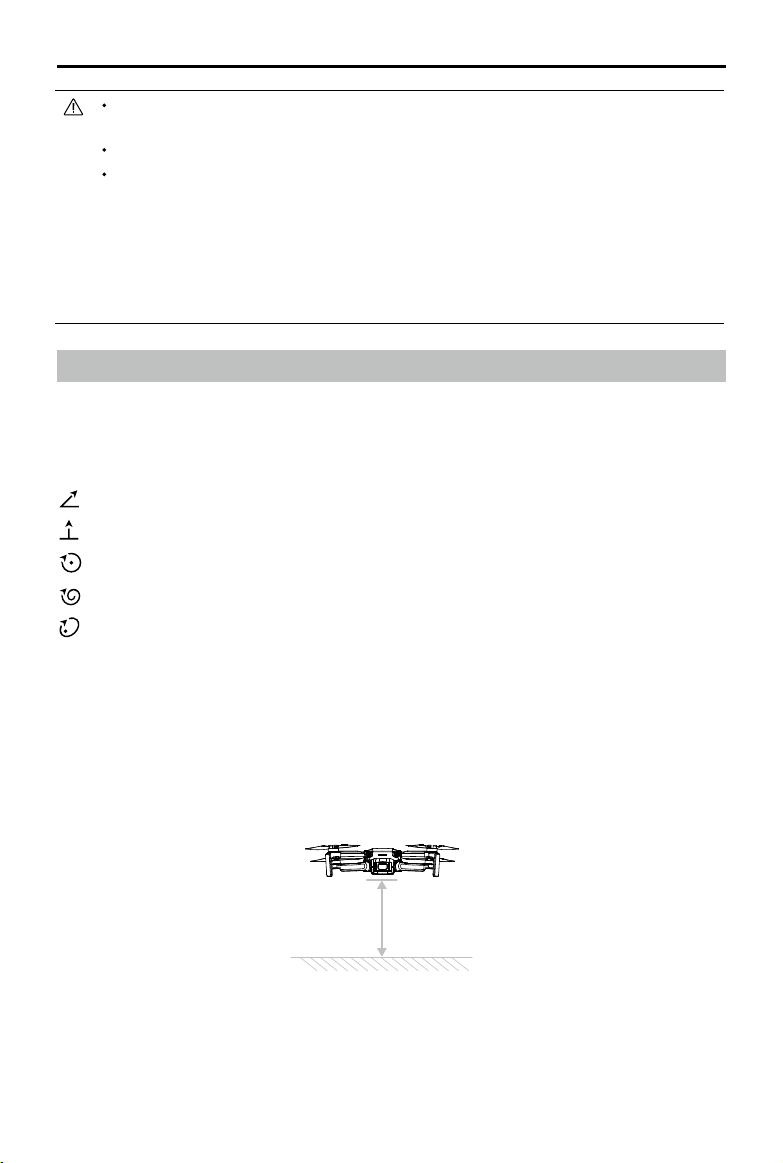
1. MakesurethattheIntelligentFlightBatteryissucientlycharged.Takeoandhoveratleast6.6ft(2m)
abovetheground.
2m
Keepthesensorscleanatalltimes.DONOTtamperwiththesensors.DONOTusetheaircraftin
environmentwithdustandhumidity.DONOTobstructtheInfraredSensingSystem.
DONOTywhenitisrainy,smoggy,orifthereisnoclearsight.
Checkthefollowingeverytimebeforetakeo:
a) MakesuretherearenostickersoranyotherobstructionsovertheInfraredSensingSystemor
DownwardVisionSystem.
b)Ifthereisanydirt,dust,orwaterontheInfraredSensingSystemorDownwardVisionSystem,
cleanwithasoftcloth.DONOTuseanycleanserthatcontainsalcohol.
c) ContactDJISupportifthereisanydamagetotheglassoftheInfraredSensingSystemor
DownwardVisionSystem.
©
2021 DJI All Rights Reserved.
19
DJI Mini 2 User Manual
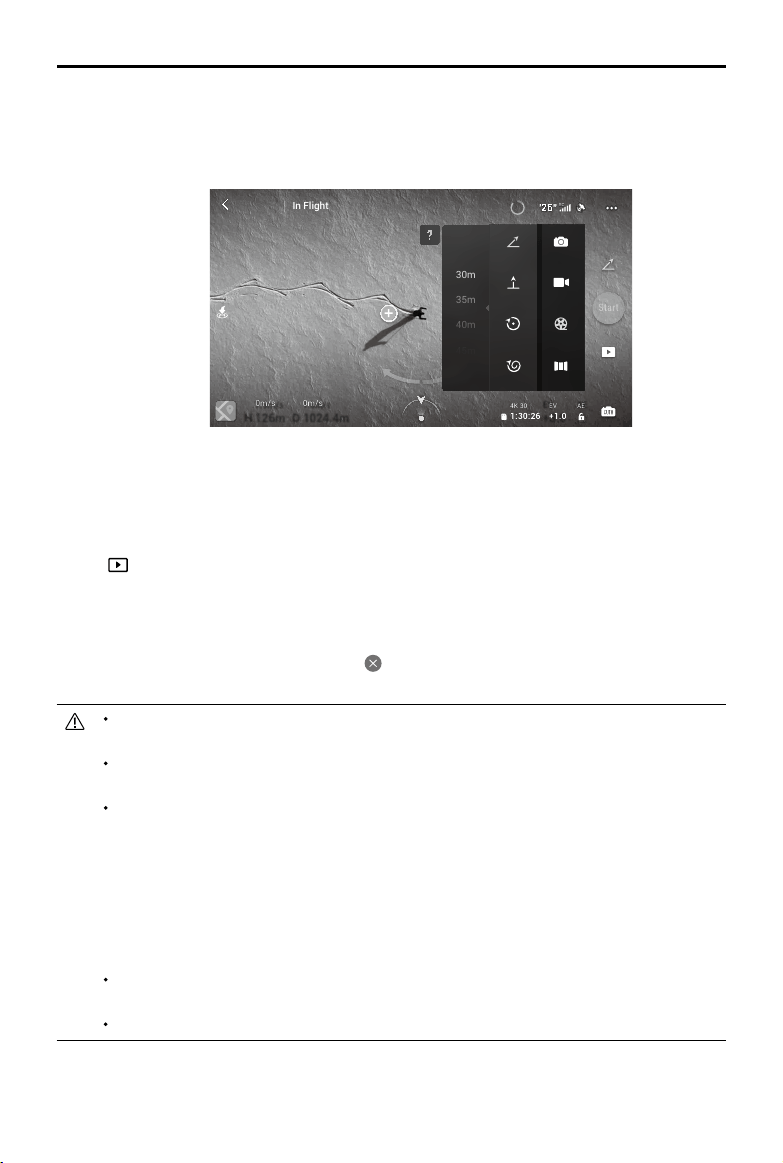
2. InDJIFly,taptheshootingmodeicontoselectQuickShotsandfollowtheprompts.Make
surethatyouunderstandhowtousetheshootingmodeandthattherearenoobstaclesinthe
surroundingarea.
3. Chooseashootingmode,selectyourtargetsubjectinthecameraviewbytappingthecircleonthe
subjectordraggingaboxaroundthesubject,andtapStarttobeginrecording(Itisrecommended
tochooseahumanasatargetsubjectratherthanabuilding).Theaircraftwillybacktoitsoriginal
positononceshootingisnished.
4. Tap toaccesstheshortvideoortheoriginalvideo.Youcaneditthevideoorsharetosocial
mediaafterdownloading.
Exiting QuickShots
PresstheFlightPause/RTHbuttononceortap inDJIFlytoexitQuickShots.Theaircraftwillhoverin
place.
Start
50m
45m
40m
35m
30m
20m
+3.0
EV
AE
H
H
126m
33m
7.9m/s
0m/s
1024.4m
10m
1.6m/s
0m/s
D
D
Pano
80
26
26
20
RCRC
AE
+1.0
EV
1:30:26
4K 30
24
In Flight
Photo
Video
Quickshot
Dronie
Rocket
Circle
Helix
Radius
N Mode
UseQuickShotsatlocationsthatareclearofbuildingsandotherobstacles.Makesurethatthereare
nohumans,animals,orotherobstaclesontheightpath.
Payattentiontoobjectsaroundtheaircraftandusetheremotecontrollertoavoidcollisionswiththe
aircraft.
DONOTuseQuickShotsinanyofthefollowingsituations:
a)Whenthesubjectisblockedforanextendedperiodoroutsidethelineofsight.
b)Whenthesubjectismorethan50mawayfromtheaircraft.
c)Whenthesubjectissimilarincolororpatternwiththesurroundings.
d)Whenthesubjectisintheair.
e)Whenthesubjectismovingfast.
f) Whenthelightingisextremelylow(<300lux)orhigh(>10,000lux).
DONOTuseQuickShotsinplacesthatareclosetobuildingsorwheretheGPSsignalisweak.
Otherwise,theightpathwillbeunstable.
MakesuretofollowlocalprivacylawsandregulationswhenusingQuickShots.
20
©
2021 DJI All Rights Reserved.
DJI Mini 2 User Manual
Flight Recorder
Flightdataincludingighttelemetry,aircraftstatusinformation,andotherparametersareautomatically
savedtotheinternaldatarecorderoftheaircraft.ThedatacanbeaccessedusingDJIAssistant2
(ConsumerDronesSeries).
Propellers
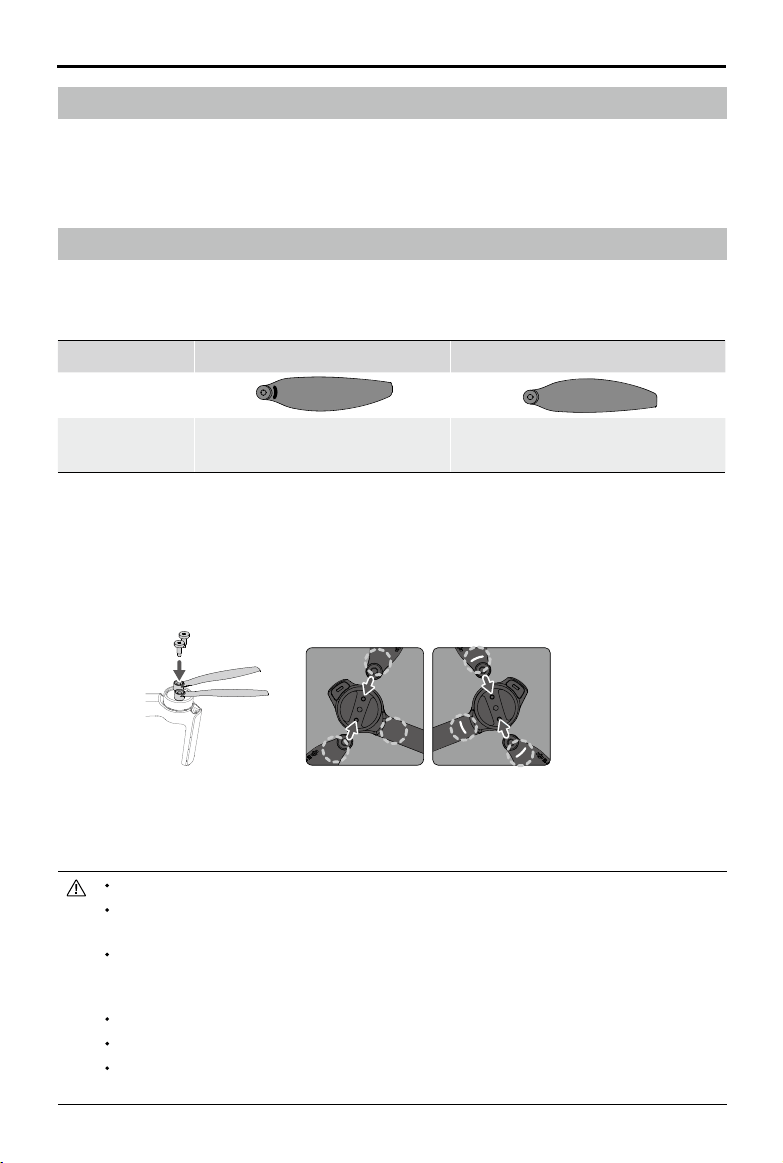
TherearetwotypesofDJIMini2propellers,whicharedesignedtospinindierentdirections.Marksare
usedtoindicatewhichpropellersshouldbeattachedtowhichmotors.Thetwobladesattachedtoone
motorarethesame.
Propellers With marks Without marks
Illustration
MountingPosition
Attachtothemotorsofthearmwith
marks
Attachtothemotorsofthearmwithout
marks
Attaching the Propellers
Attachthepropellerswithmarkstothemotorsofthearmwithmarksandtheunmarkedpropellers
tothemotorsofthearmwithout marks. Use the screwdrivertomountthepropellers.Makesurethe
propellersaresecure.
Detaching the Propellers
Usethescrewdrivertodetachthepropellersfromthemotors.
Propellerbladesaresharp.Handlewithcare.
Thescrewdriverisonlyusedtomountthepropellers.DONOTusethescrewdrivertodisassemble
theaircraft.
Ifapropellerisbroken,removethetwo propellersand screwsonthecorrespondingmotorand
discardthem.Usetwopropellersfromthesamepackage.DONOT mixwithpropellersinother
packages.
OnlyuseocialDJIpropellers.DONOTmixpropellertypes.
Purchasethepropellersseparatelyifnecessary.
Make surethatthepropellersareinstalledsecurelybeforeeachflight.Check tomakesurethe
screwsonthepropellersaretightenedafterevery30hoursofight(approx.60ights).
MarkedUnmarked

©
2021 DJI All Rights Reserved.
21
DJI Mini 2 User Manual
Makesureallpropellersareingoodconditionbeforeeachight.DONOTuseaged,chipped,or
brokenpropellers.
Stayawayfromtherotatingpropellersandmotorstoavoidinjuries.
Place theaircraftcorrectlywhenstoring.Itisrecommendedtouseapropellerholdertofixthe
propellers.DONOTsqueezeorbendthepropellersduringtransportationorstorage.
Makesurethemotorsaremountedsecurelyandrotatingsmoothly.Landtheaircraftimmediatelyifa
motorisstuckandunabletorotatefreely.
DONOTattempttomodifythestructureofthemotors.
DONOTtouchorletyourhandsorbodycomeincontactwiththemotorsafterightastheymaybe
hot.
DONOTblockanyoftheventilationholesonthemotorsorthebodyoftheaircraft.
MakesuretheESCssoundnormalwhenpoweredon.
Intelligent Flight Battery
TheDJIMini2IntelligentFlightBatteryisa7.7V,2250mAhbatterywithsmartcharginganddischarging
functionality.
Battery Features
1. BalancedCharging:duringcharging,thevoltagesofthebatterycellsareautomaticallybalanced.
2. Auto-DischargingFunction:topreventswelling,thebatteryautomaticallydischargestoapprox.96%
ofthebatterylevelwhenitisidleforoneday,andautomaticallydischargestoapprox.72%ofthe
batterylevelwhenitisidleforninedays.Itisnormaltofeelmoderateheatbeingemittedfromthe
batteryduringthedischargingprocess.
3. OverchargeProtection:thebatterystopschargingautomaticallyoncefullycharged.
4. TemperatureDetection:Topreventdamage,thebatteryonlychargeswhenthetemperatureis
between5°and40°C(41°and104°F).Chargingstopsautomaticallyifthetemperatureofthe
batteryexceeds50°C(122°F)duringthechargingprocess.
5. OvercurrentProtection:thebatterystopschargingifanexcesscurrentisdetected.
6. Over-dischargeProtection:dischargingstopsautomaticallytopreventexcessdischargewhenthe
batteryisnotinightuse.Over-dischargeprotectionisnotenabledwhenthebatteryisinightuse.
7. ShortCircuitProtection:thepowersupplyisautomaticallycutifashortcircuitisdetected.
8. BatteryCellDamageProtection:DJIFlydisplaysawarningpromptwhenadamagedbatterycellis
detected.
9. HibernationMode:ifthebatterycellvoltageislowerthan3.0Vorthebatterylevelislessthan10%,
thebatteryentersHibernationmodetopreventover-discharge.Chargethebatterytowakeitfrom
hibernation.
10.Communication:informationaboutthevoltage,capacity,andcurrentofthebatteryistransmittedto
theaircraft.
22
©
2021 DJI All Rights Reserved.
DJI Mini 2 User Manual
RefertotheDJIMini2DisclaimerandSafetyGuidelinesandthestickersonthebatterybeforeuse.
Userstakefullresponsibilityforallusageandoperations.
SpecicationsoftheIntelligentFlightBatteryfortheJapaneseversionaredierent.Refertothe
Specicationssectionformoreinformation.Thebatteryfeaturesarethesameforallversionsofthe
DJIMini2IntelligentFlightBattery.
Using the Battery
Checking Battery Level
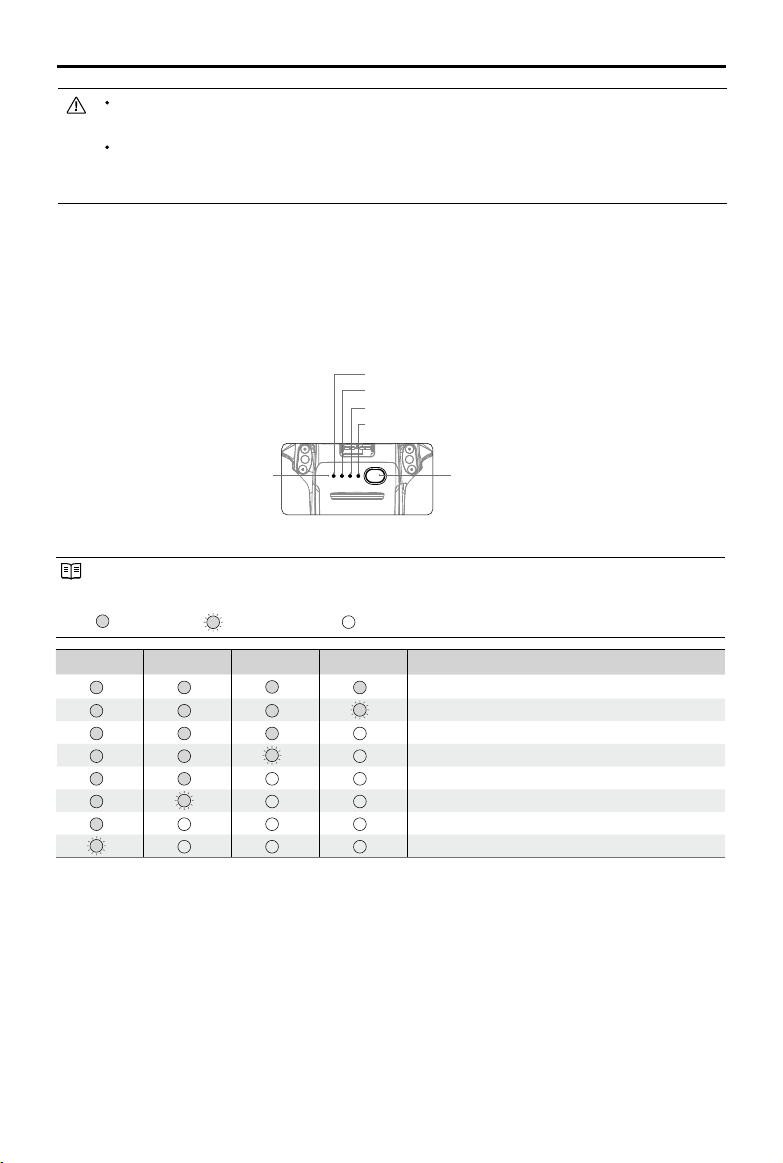
Pressthepowerbuttononcetocheckthebatterylevel.
LED1
LED2
LED3
LED4
BatteryLevelLEDs
PowerButton
Thebatterylevelindicatorsdisplaythe power leveloftheflightbatteryduringchargingand
discharging.Thestatusesoftheindicatoraredenedasfollows:
LEDison. LEDisashing. LEDiso.
LED1 LED2 LED3 LED4 BatteryLevel
batterylevel
>
88%
75%
<
batterylevel≤
88%
63%
<
batterylevel≤75%
50%
<
batterylevel≤63%
38%
<
batterylevel≤50%
25%
<
batterylevel≤38%
13%
<
batterylevel≤25%
0%
<
batterylevel≤13%
Powering On/O
Pressthepowerbuttononce,thenpressagain,andholdfortwosecondstopowerthebatteryonor
o.ThebatterylevelLEDsdisplaythebatterylevelwhentheaircraftispoweredon.
PressthepowerbuttononceandthefourbatterylevelLEDswillblinkforthreeseconds.IfLED3and4
blinksimultaneouslywithoutpressingthepowerbutton,thisindicatesthebatteryisabnormal.Insertthe
IntelligentFlightBatteryagainandmakesurethatitissecurelymounted.
Low Temperature Notice
1. Batterycapacityissignicantlyreducedwhenyinginlow-temperatureenvironmentsof0°to5°C(32°
©
2021 DJI All Rights Reserved.
23
DJI Mini 2 User Manual
Charging the Battery
FullychargetheIntelligentFlightBatterybeforeusingforthersttime.
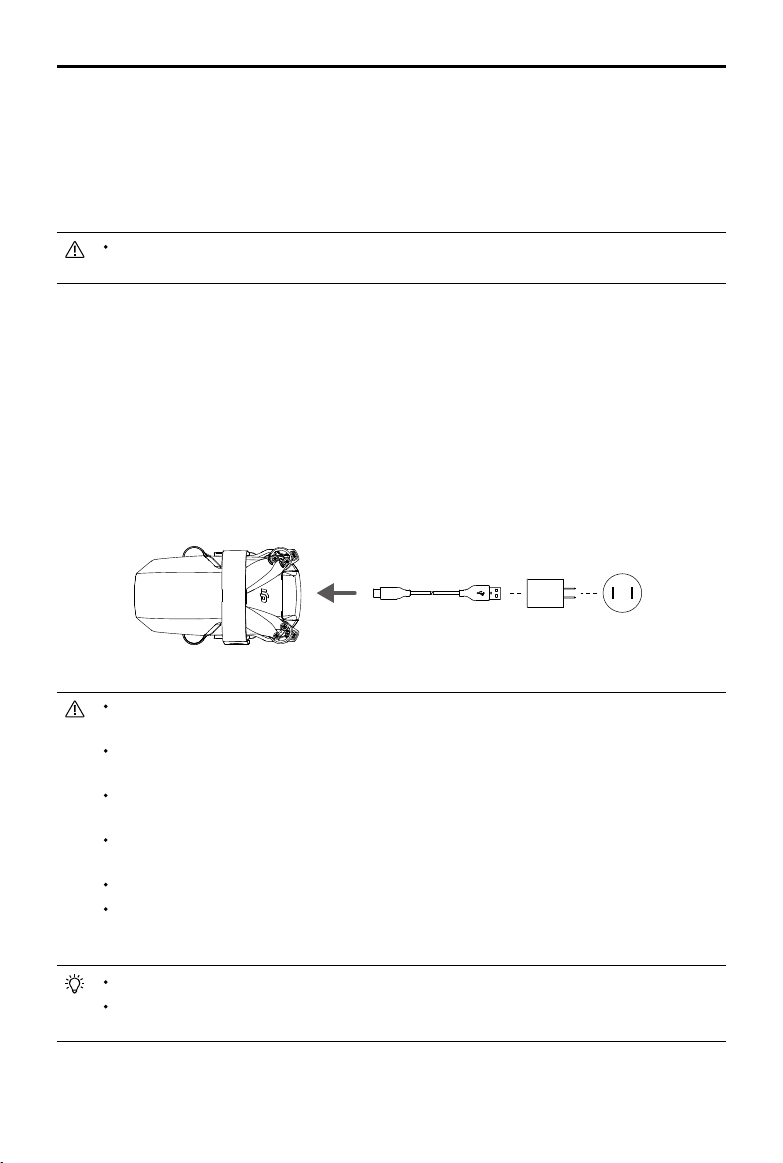
1. ConnecttheUSBchargertoanACpowersupply(100-240V,50/60Hz).Useapoweradapterif
necessary.
2. AttachtheaircrafttotheUSBcharger.
3. ThebatterylevelLEDsdisplaythecurrentbatterylevelduringcharging.
4. TheIntelligentFlightBatteryisfullychargedwhenallthebatterylevelLEDsareon.DetachtheUSB
chargerwhenthebatteryisfullycharged.
Incold environments,insertthebatteryintothebatterycompartmentandturn ontheaircraftto
warmupbeforetakingo.
Thebatterycannotbechargediftheaircraftispoweredonandtheaircraftcannotbepoweredon
duringcharging.
DONOTchargeanIntelligentFlightBatteryimmediatelyafterightasthetemperaturemaybetoo
high.Waituntilitcoolsdowntoroomtemperaturebeforechargingagain.
Thechargerstopschargingthebatteryifthebatterycelltemperatureisnotwithintheoperating
rangeof5°to40°C(41°to104°F).Theidealchargingtemperatureis22°to28°C(71.6°to82.4°F).
TheBatteryChargingHub(notincluded)canchargeuptothreebatteries.VisittheocialDJIOnline
StoreformoreinformationabouttheBatteryChargingHub.
Fullychargethebatteryatleastonceeverythreemonthstomaintainbatteryhealth.
Ifthermwarehasbeenupdatedtov1.1.0.0orabove,itisrecommendedtouseaQC2.0orPD2.0
USBchargertocharge.DJIdoesnottakeanyresponsibilityfordamagecausedbyusingacharger
thatdoesnotthatmeetthespeciedrequirements.
WhenusingtheDJI18WUSBcharger,thechargingtimeisapproximately1hourand22minutes.
ItisrecommendedtodischargetheIntelligentFlightBatteries to30%orlowerduringtransportor
storage.Thiscanbedonebyyingtheaircraftoutdoorsuntilthebatterylevelislessthan30%.
to41°F).Itisrecommendedtohovertheaircraftinplaceforawhiletoheatthebattery.Makesureto
fullychargethebatterybeforetakeo.
2. Toensuretheoptimalperformanceofthebattery,keepthebatterytemperatureabove20°C(68°F).
3. Thereducedbatterycapacityinlow-temperatureenvironmentsreducesthewindspeedresistance
performanceoftheaircraft.Flywithcaution.
4. Flywithextracautionathighsealevels.
24
©
2021 DJI All Rights Reserved.
DJI Mini 2 User Manual
Battery Protection Mechanisms
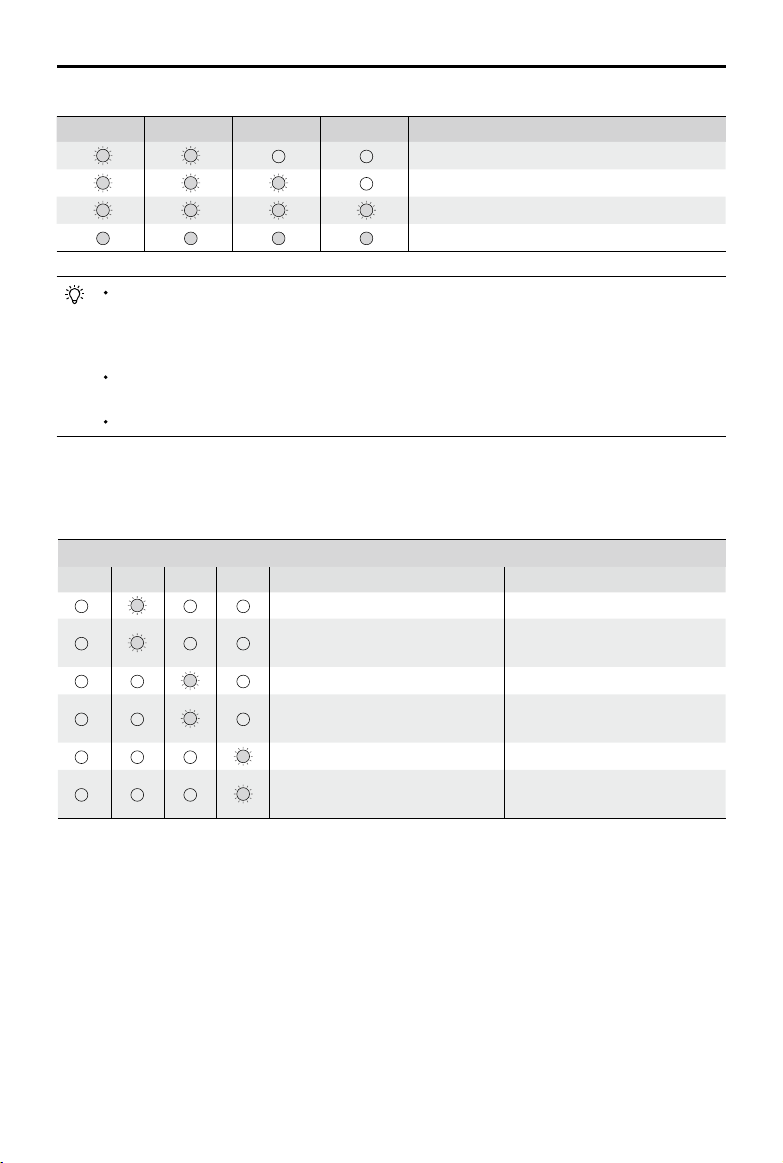
ThebatteryLEDindicatorscandisplaybatteryprotectionnoticationstriggeredbyabnormalcharging
conditions.
Ifthechargingtemperatureprotectionisenabled,thebatterywillresumechargingoncethetemperature
hasreturnedtowithintheallowablerange.Ifoneoftheotherbatteryprotectionmechanismsactivate,
inordertoresumecharging,itisnecessarytopressthebuttontopowerothebattery,unplugthe
charger,andthenplugitinagain.Ifthechargingtemperatureisabnormal,waitforthecharging
temperaturetoreturntonormalandthebatterywillautomaticallyresumechargingwithouttheneedto
unplugandplugthechargeragain.
Installing/Removing the Battery
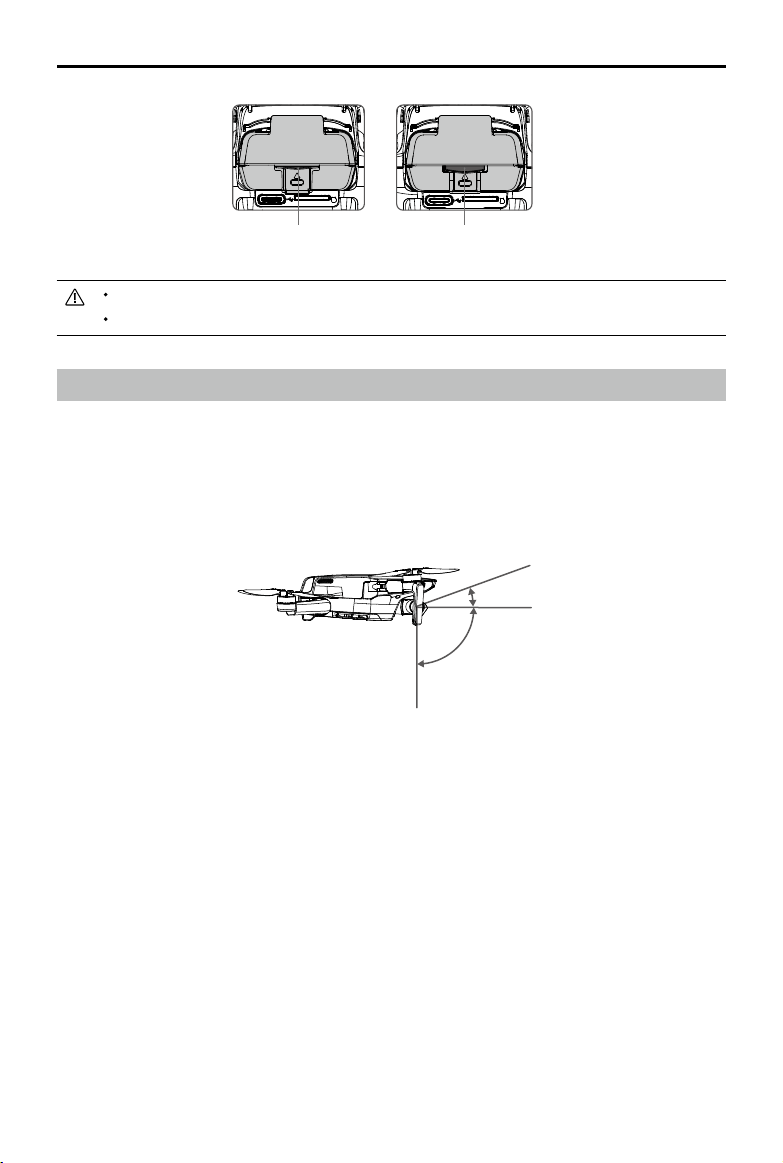
InstalltheIntelligentFlightBatteryintheaircraftbeforeuse.Insertthebatteryinthebatterycompartment
andsecurethebatteryclamp.Aclickingsoundindicatesthebatteryisfullyengaged.Makesurethat
thebatteryisfullyinsertedandthebatterycoverissecureinplace.
LED1 LED2 LED3 LED4
Battery Level
0%
<
batterylevel≤50%
50%
<
batterylevel≤75%
75%
<
batterylevel
<
100%
Fullycharged
Thetablebelowshowsthebatterylevelduringcharging.
TheblinkingfrequencyofthebatterylevelLEDswillbedierentwhenusingdierentUSBchargers.If
thechargingspeedisfast,thebatterylevelLEDswillblinkquickly.Ifthechargingspeedisextremely
slow,thebatterylevelLEDswillblinkslowly(onceeverytwoseconds).Itisrecommendedtochange
theUSB-CcableorUSBcharger.
Ifthebatteryisnotcorrectlyinsertedintotheaircraft,LED 3and4blinksimultaneously.Insertthe
IntelligentFlightBatteryagainandmakesurethatitissecurelymounted.
ThefourLEDsblinksimultaneouslytoindicatethebatteryisdamaged.
Battery Protection Mechanisms
LED1 LED2 LED3 LED4 Blinking Pattern Battery Protection Item
LED2blinkstwicepersecond Overcurrentdetected
LED2blinksthreetimesper
second
Shortcircuitdetected
LED3blinkstwicepersecond Overchargedetected
LED3blinksthreetimesper
second
Over-voltagechargerdetected
LED4blinkstwicepersecond Chargingtemperatureistoolow
LED4blinksthreetimesper
second
Chargingtemperatureistoo
high
©
2021 DJI All Rights Reserved.
25
DJI Mini 2 User Manual
-90°
0°
20°
DONOTdetachthebatterywhentheaircraftispoweringon.
Makesurethatthebatteryismountedrmly.
Gimbal and Camera
Gimbal Prole
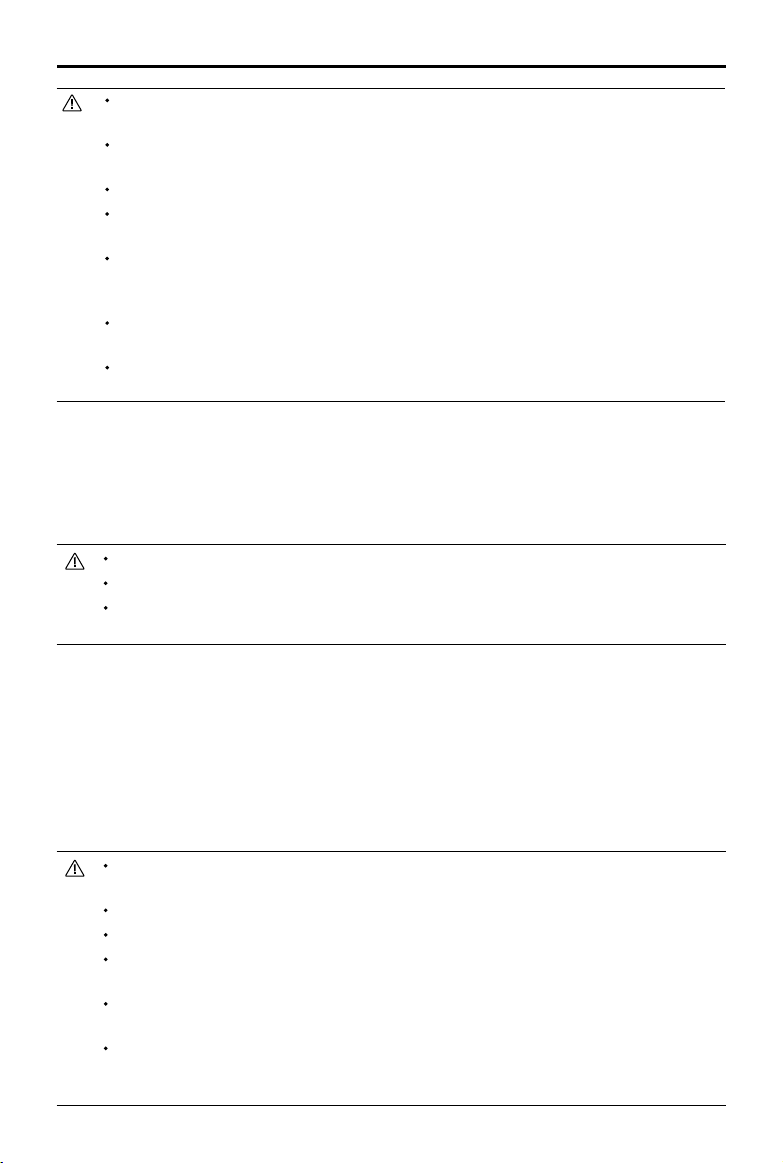
The3-axisgimbalofDJIMini2providesstabilizationforthecamera,allowingyoutocaptureclear
andstableimagesandvideo.Thecontroltiltrangeis-90°to+20°.Thedefaultcontroltiltrange
is-90˚to0˚,andthetiltrangecanbeextendedto-90˚to+20˚byenabling“AllowUpwardGimbal
Rotation”inDJIFly.
Pressthebatteryclampanddetachthebatteryfromthebatterycompartmenttoremoveit.
Usethegimbaldialontheremotecontrollertocontrolthe tilt ofthecamera.Alternatively,enterthe
cameraviewinDJIFly.Pressthescreenuntilacircleappearsanddragthecircleupanddownto
controlthetiltofthecamera.
Gimbal Operation Modes
Twogimbaloperationmodesareavailable.SwitchbetweentheoperationmodesinDJIFly.
FollowMode:theanglebetweentheorientationofthegimbalandaircraftfrontremainsconstantatalltimes.
FPVMode:thegimbalsynchronizeswiththemovementoftheaircrafttoprovidearst-personying
experience.
FullyengagedNotengaged
26
©
2021 DJI All Rights Reserved.
DJI Mini 2 User Manual
Camera Prole
DJIMini2usesa1/2.3"CMOSsensorcamera,whichcanshootupto4Kvideoand12MPphotos,
andsupportsshootingmodessuchasSingle,AEB,TimedShot,andPanorama.
TheapertureofthecameraisF2.8andcanshootat1mtoinnity.
Makesurethetemperatureandhumidityissuitableforthecameraduringusageandstorage.
Usealenscleansertocleanthelenstoavoiddamage.
DONOTblockanyventilationholesonthecameraastheheatgeneratedmaydamagethedevice
andhurttheuser.
Storing Photos and Videos
DJIMini2supportstheuseofamicroSDcardtostoreyourphotosandvideos.AUHS-ISpeedGrade
3ratingorabovemicroSDcardisrequiredduetothefastreadandwritespeedsnecessaryforhigh-
resolutionvideodata.RefertotheSpecifications section for moreinformationaboutrecommended
microSDcards.
WithoutamicroSDcardinserted,userscanstillcapturesinglephotosorrecord720pnormalvideos.
Thelewillbedirectlystoredonthemobiledevice.
DonotremovethemicroSDcardfromtheaircraftwhileitispoweredon.Otherwise,themicroSD
cardmaybedamaged.
Toensurethestabilityofthecamerasystem,singlevideorecordingsarelimitedto30minutes.
Checkcamerasettingsbeforeusetomakesurethecongurationsarecorrect.
Beforeshootingimportantphotosorvideos,shoot afewimagesto testthecamerais operating
correctly.
PhotosorvideoscannotbetransmittedfromthemicroSDcardintheaircraftusingDJIFlyifthe
aircraftispoweredo.
Makesuretopowerotheaircraftcorrectly.Otherwise,thecameraparameterswillnot besaved
andanyrecordedvideosmaybedamaged.DJIisnotresponsibleforanyfailureofanimageorvideo
toberecordedorhavingbeenrecordedinawaythatisnotmachine-readable.
Makesuretherearenostickersorobjectsonthegimbalbeforetakingo.Whentheaircraftispowered
on,DONOTtaporknockthegimbal.Takeofromopenandatgroundinordertoprotectthegimbal.
Precisionelementsinthegimbalmaybedamagedinacollisionorimpact,whichmaycausethe
gimbaltofunctionabnormally.
Avoidgettingdustorsandonthegimbal,especiallyinthegimbalmotors.
Agimbalmotorerrormayoccurinthefollowingsituations:a.Theaircraftisonunevengroundorthe
gimbalisobstructed.b.Thegimbalexperiencesexcessiveexternalforce,suchasduringacollision.
DONOTapplyexternalforcetothegimbalafterthegimbalispoweredon.DONOTaddanyextra
payloadtothegimbalasthismaycausethegimbaltofunctionabnormallyorevenleadtopermanent
motordamage.
Makesuretoremovethegimbalprotectorbeforepoweringontheaircraft.Also,makesuretomount
thegimbalprotectorwhentheaircraftisnotinuse.
Flyinginheavyfogorcloudsmaymakethegimbalwet,leadingtotemporaryfailure.Thegimbal
recoversfullfunctionalityonceitisdry.

©
2021 DJI All Rights Reserved.
27
Remote Controller
This section describes the features
of the remote controller and includes
instructions for controlling the aircraft
and the camera.
28
©
2021 DJI All Rights Reserved.
Remote Controller
Remote Controller Profile
DJIMini2comesequippedwiththeDJIRC-N1remotecontroller,whichboastsDJI’slong-rangeOcuSync
2.0transmissiontechnology,offeringamaximumtransmissionrangeof6mi(10km)and720pwhen
displayingvideofromtheaircrafttoDJIFlyonyourmobiledevice.Easilycontroltheaircraftandcamera
usingtheonboardbuttons.Thedetachablecontrolsticksmaketheremotecontrollereasiertostore.
Inawide-openareawithnoelectromagneticinterference,OcuSync2.0smoothlytransmitsvideolinks
atupto720p.Theremotecontrollerworksatboth2.4GHzand5.8GHz,andwillautomaticallyselect
thebesttransmissionchannel.
OcuSync2.0reduceslatencytoapprox.200ms by improvingthecameraperformancethroughthe
videodecodingalgorithmandthewirelesslink.
Thebuilt-inbatteryhasacapacityof5200mAhandamaximumruntimeof6hours.Theremote
controllerchargesthemobiledevicewithachargingabilityof500mA@5V.Theremotecontroller
automaticallychargesAndroiddevices.ForiOSdevices,firstmakesurethatchargingisenabledin
DJIFly.ChargingforiOSdevicesisdisabledbydefaultandneedstobeenabledeachtimetheremote
controllerispoweredon.
ComplianceVersion:Theremotecontrolleriscompliantwithlocalregulations.
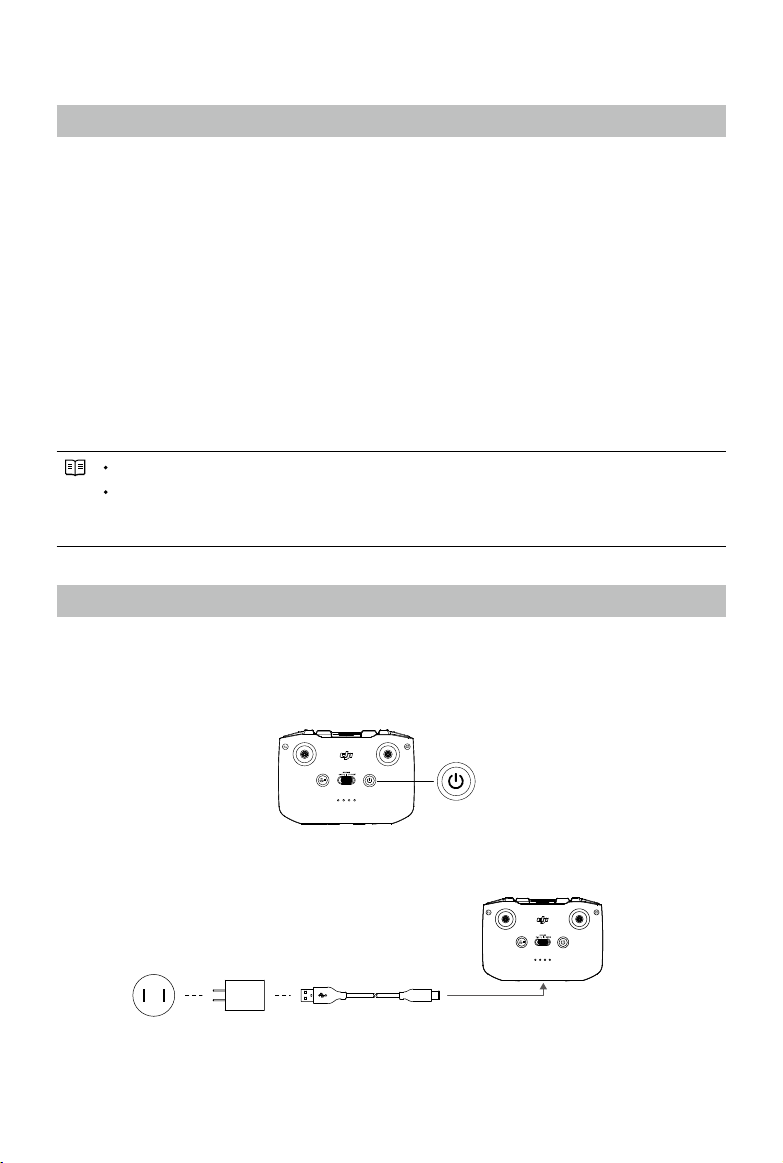
ControlStickMode:Thecontrolstickmodedeterminesthefunctionofeachcontrolstickmovement.
Threepre-programmedmodes(Mode1,Mode2,andMode3)areavailableandcustommodescan
beconguredinDJIFly.ThedefaultmodeisMode2.
Using the Remote Controller
Powering On/O
Pressthepowerbuttononcetocheckthecurrentbatterylevel.Ifthebatterylevelistoolow,recharge
beforeuse.
Pressonce,thenpressagainandholdtopowertheremotecontrolleronoro.
Charging the Battery
UseaUSB-CcabletoconnecttheUSBchargertotheUSB-Cportoftheremotecontroller.Ittakes
approx.fourhourstofullychargetheremotecontroller.
Controlling the Gimbal and Camera
1. Shutter/RecordButton:pressoncetotakeaphotoortostartorstoprecording.
2. Photo/VideoToggle:pressoncetoswitchbetweenphotoandvideomode.
©
2021 DJI All Rights Reserved.
29
DJI Mini 2 User Manual
Controlling the Aircraft
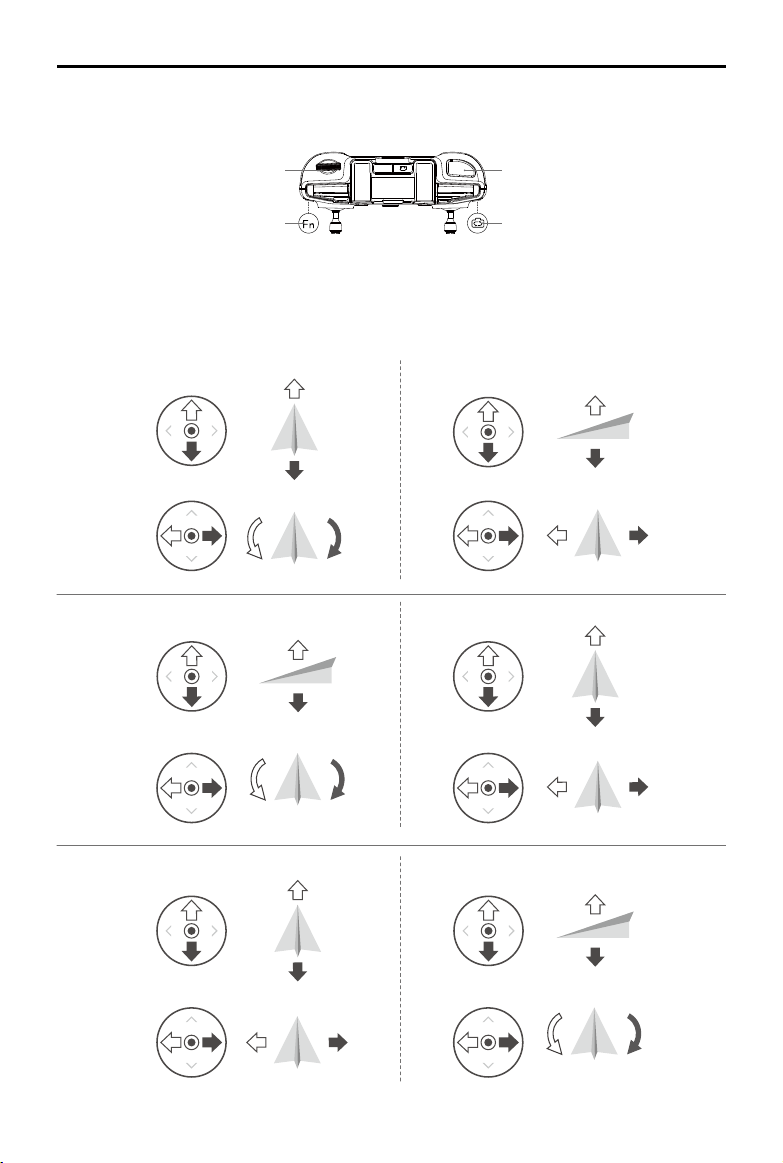
Thecontrolstickscontroltheorientation(pan), forward/backwardmovement (pitch),altitude(throttle),
andleft/rightmovement(roll)oftheaircraft.Thecontrolstick mode determines the function ofeach
controlstickmovement.
GimbalDial
CustomizableButton
Shutter/RecordButton
Photo/VideoToggle
3. GimbalDial:usetocontrolthetiltofthegimbal.
4. Pressandholdthecustomizablebuttoninordertobeabletousethegimbaldialtoadjustthezoom
invideomode.
Right StickLeft Stick
Turn RightTurn Left
Up
Down
RightLeft
Up
Down
Turn RightTurn Left
RightLeft
Forward
Backward
Left Stick Right Stick
Forward
Backward
Right Stick
Up
Down
Forward
Backward
Left Stick
Turn RightTurn Left
RightLeft
Mode1
Mode2
Mode3
30
©
2021 DJI All Rights Reserved.
DJI Mini 2 User Manual
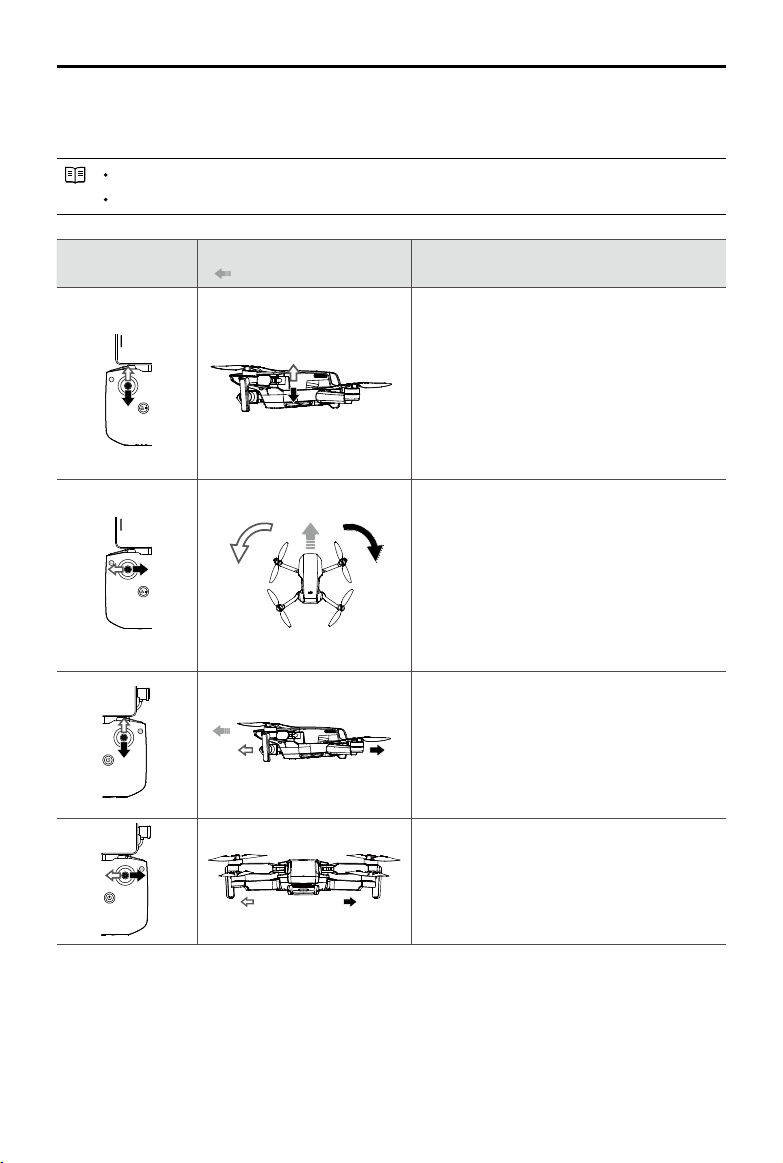
Threepreprogrammedmodes(Mode1,Mode2,andMode3)areavailableandcustommodescanbe
conguredinDJIFly.ThedefaultmodeisMode2.Thegurebelowexplainshowtouseeachcontrol
stick,usingMode2asanexample.
StickNeutral/CenterPoint:Controlsticksareinthecenterposition.
Movingthecontrolstick:Thecontrolstickispushedawayfromthecenterposition.
Remote Controller
(Mode 2)
Aircraft
( Indicates Nose Direction)
Remarks
ThrottleStick:Movingtheleftstickupordown
changesthealtitudeoftheaircraft.
Pushthestickuptoascendanddownto
descend.Themorethestickispushedaway
fromthecenterposition,thefastertheaircraft
willchangealtitude.
Pushthestickgentlytopreventsuddenand
unexpectedchangesinaltitude.
YawStick:Movingtheleftsticktotheleftor
rightcontrolstheorientationoftheaircraft.
Pushthesticklefttorotatetheaircraftcounter-
clockwiseandrightto rotatetheaircraft
clockwise.
Themorethestickispushedawayfromthe
centerposition,thefastertheaircraftwill
rotate.
PitchStick:Movingtherightstickupanddown
changesthepitchoftheaircraft.
Pushthestickuptoyforwardanddowntoy
backward.
Themorethestickispushedawayfromthe
centerposition,thefastertheaircraftwillmove.
RollStick:Movingtherightsticktotheleftor
rightchangestherolloftheaircraft.
Pushthesticklefttoyleftandrighttoyright.
Themorethestickispushedawayfromthe
centerposition,thefastertheaircraftwillmove.

©
2021 DJI All Rights Reserved.
31
DJI Mini 2 User Manual
Flight Pause/RTH Button
Pressoncetomaketheaircraftbrakeandhoverinplace.IftheaircraftisperformingaQuickShot,RTH,
orautolanding,pressoncetoexittheprocedurebeforebraking.
PressandholdtheRTHbuttonuntiltheremotecontrollerbeepstostartRTH.Pressthisbuttonagainto
cancelRTHandregaincontroloftheaircraft.RefertotheReturntoHomesectionformoreinformation
aboutRTH.
Flight Mode Switch
Toggletheswitchtoselectthedesiredightmode.
Position Flight Mode
Sport SportMode
Normal NormalMode
Cine CineMode
Customizable Button
Tocustomizethefunctionofthisbutton,gotoSystemSettings in DJI Fly and select Control.
Customizablefunctionsincluderecenteringthegimbalandtogglingbetweenthemapandliveview.
Remote Controller Alert
TheremotecontrollersoundsanalertduringRTH.Thealertcannotbecancelled.Theremotecontroller
soundsanalertwhenthebatterylevelislow(6%to15%).Alowbatteryalertlevelcanbecancelledby
pressingthepowerbutton.Acriticalbatterylevelalert(lessthan5%),however,cannotbecancelled.
32
©
2021 DJI All Rights Reserved.
DJI Mini 2 User Manual
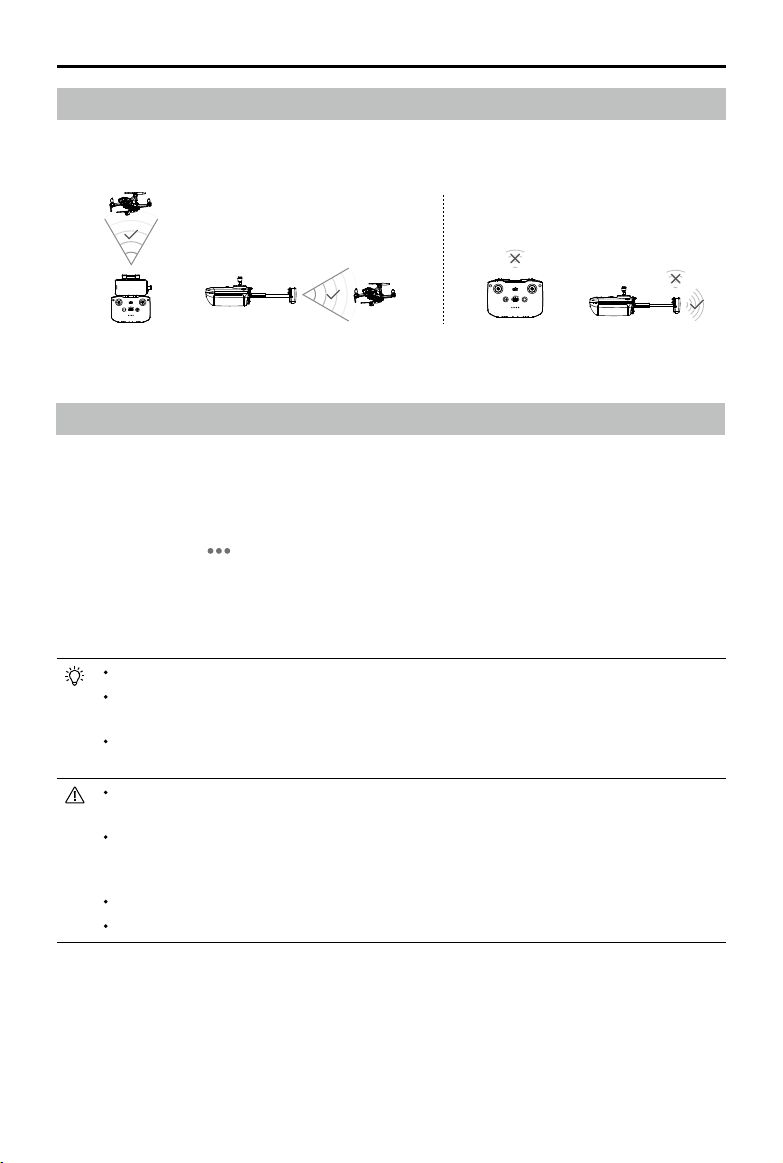
Optimal Transmission Zone
Thesignalbetweentheaircraftandtheremotecontrollerismostreliablewhentheantennasare
positionedinrelationtotheaircraftasdepictedbelow.
Linking the Remote Controller
Theremotecontrollerislinkedtotheaircraftbeforedelivery.Linkingisonlyrequiredwhenusinganew
remotecontrollerforthersttime.Followthesestepstolinkanewremotecontroller:
1. Powerontheremotecontrollerandtheaircraft.
2. LaunchDJIFly.
3. Incameraview,tap andselectControlandPairtoAircraft(Link).Theremotecontrollerwillbeep
continually.
4. Pressandholdthepowerbuttonoftheaircraftformorethanfourseconds.Theaircraftbeepsonce
toindicateitisreadytolink.Theaircraftbeepstwicetoindicatelinkingissuccessful.Thebattery
levelLEDsoftheremotecontrollerwillglowsolid.
Makesuretheremotecontrolleriswithin0.5moftheaircraftduringlinking.
Theremotecontrollerwillautomaticallyunlinkfromanaircraftifanewremotecontrollerislinkedto
thesameaircraft.
TurnoBluetoothandWi-FiwhenusingOcuSync2.0videotransmissionconnection.Otherwise,
theymayaectthevideotransmission.
Fullychargetheremotecontrollerbeforeeachight.Theremotecontrollersoundsanalertwhenthe
batterylevelislow.
Iftheremotecontrollerispoweredonandnotinuseforveminutes,analertwillsound.Aftersix
minutes,theaircraftautomaticallypowerso.Movethecontrolsticksorpressanybuttontocancel
thealert.
Adjustthemobiledeviceholdertomakesurethemobiledeviceissecure.
Fullychargethebatteryatleastonceeverythreemonthstomaintainbatteryhealth.
Strong
Weak
Weak
OptimalTransmissionZone

©
2021 DJI All Rights Reserved.
33
DJI Fly App
This section introduces the main
functions of the DJI Fly app.
34
©
2021 DJI All Rights Reserved.
DJI Fly App
Home
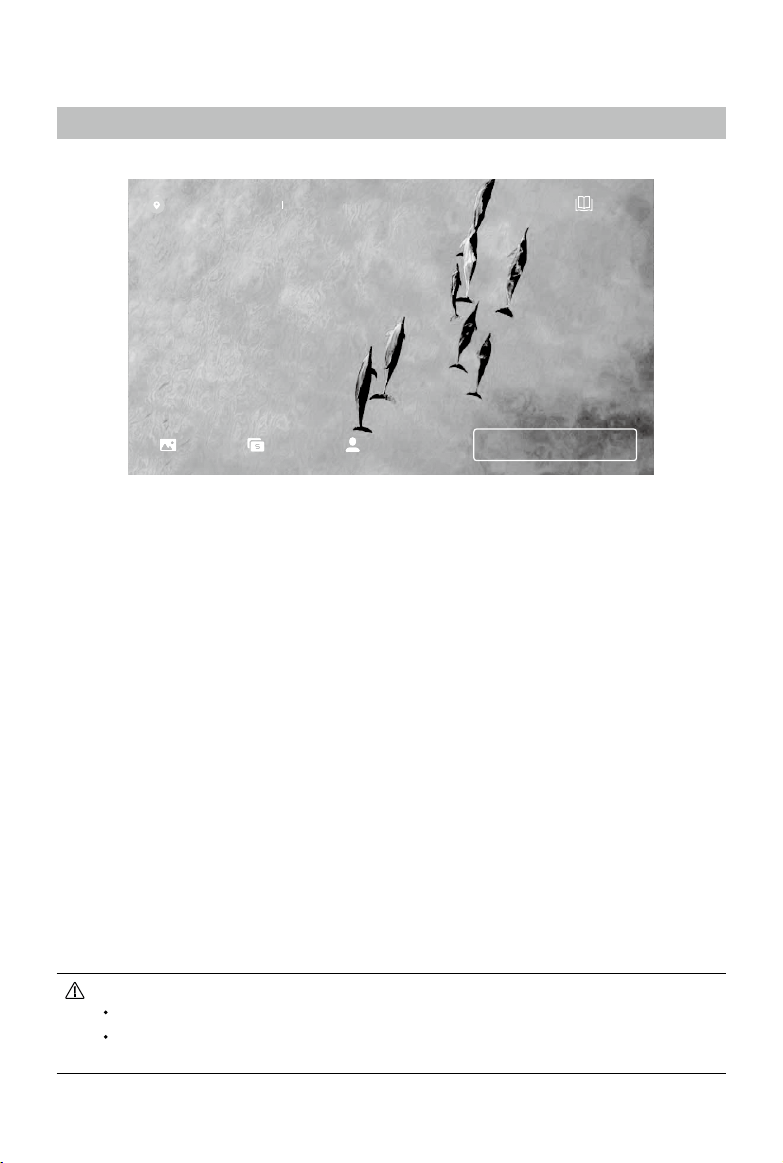
LaunchDJIFlyandenterthehomescreen.
Fly Spots
Vieworsharenearbysuitableightandshootinglocations,learnmoreaboutGEOzones,andpreview
aerialphotosofdierentlocationstakenbyotherusers.
Academy
TaptheiconinthetoprightcornertoenterAcademyandviewproducttutorials,ighttips,ightsafety,
andmanualdocuments.
Album
ViewphotosandvideosfromDJIFlyandyourmobiledevice.TrimmedDownloadissupportedwhen
downloadingavideo.Selectthecliptodownload.QuickShotvideoscanbecreatedandviewedafter
downloadingtothemobiledeviceand rendering.Createcontains TemplatesandPro.Templates
automaticallyeditimportedfootage.Proallowsuserstoeditfootagemanually.
SkyPixel
EnterSkyPixeltoviewvideosandphotossharedbyusers.
Prole
Viewtheaccountinformation,ightrecords,DJIforum,onlinestore,FindMyDronefeature,andothersettings.
Academy
Fly Spots
GO FLY
Skypixel
Album
Altitude Zone (120m)
Profile
TrimmedDownloadisnotsupportedinthefollowingsituations:
Thedurationofthevideoislessthan5seconds.
There isnocachedvideointhemobiledevicecorrespondingtotheoriginal video.Makesureto
downloadusingthemobiledevicethatwasusedforshooting.
©
2021 DJI All Rights Reserved.
35
DJI Mini 2 User Manual
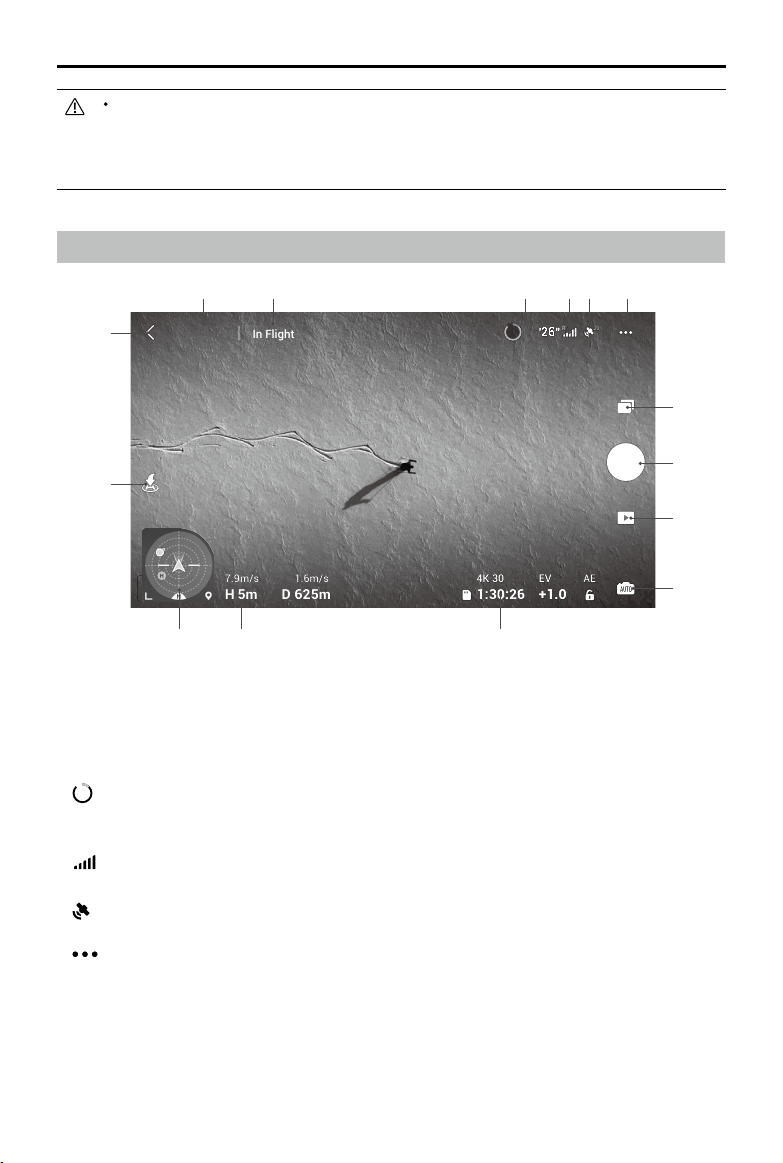
Camera View
1. Flight Mode
N Mode
:displaysthecurrentightmode.
2. System Status Bar
In Flight
:indicatestheaircraftflightstatusanddisplaysvariouswarningmessages.Taptoviewmore
informationwhenawarningpromptappears.
3. Battery Information
80
24'26"
:displaysthecurrentbatterylevelandremainingighttime.Taptoviewmoreinformationabout
thebattery.
4. Video Downlink Signal Strength
RC
:displaysthevideodownlinksignalstrengthbetweentheaircraftandremotecontroller.
5. GPS Status
20
:displaysthecurrentGPSsignalstrength.
6. System Settings
:taptoviewinformationaboutsafety,control,camera,andtransmission.
Safety
FlightProtection:taptosetthe maxaltitude,maxdistance,AutoRTHaltitude, andtoupdatetheHome
Point.
Sensors:viewtheIMUandcompassstatusandcalibrateifnecessary.
AdvancedSettings:includesEmergencyPropellerStopandPayloadmode.“EmergencyOnly”indicatesthat
themotorscanonlybestoppedmid-ightinanemergencysituationsuchasifthereisacollision,amotor
hasstalled,theaircraftisrollingintheair,ortheaircraftisoutofcontrolandisascendingordescendingvery
Thedierenceindurationbetweenthecachedvideointhemobiledeviceandtheoriginalvideofrom
themicroSDcardoftheaircraftistoolarge.Thismayoccurduetothefollowingreasons:
a) ExitedDJIFlywhilerecordingsuchastoansweraphonecallortoreplytoamessage.
b)Videotransmissiondisconnectedwhilerecording.
AE
AE
+1.0+1.0
EVEV
4K 304K 30
80
26
26
20
20
RCRC
24
1:30:26
1.6m/s
D
7.9m/s
H
625m
5m
In Flight
N Mode
1 2 3 4 5 6
111213
14
15
8
7
9
10

36
©
2021 DJI All Rights Reserved.
DJI Mini 2 User Manual
quickly.“Anytime”indicatesthatthemotorscan bestoppedmid-ightanytimeoncethe userperformsa
combinationstickcommand(CSC).Stoppingthemotorsmid-ightwillcausetheaircrafttocrash.
Ifaccessoriessuchasthepropellerguardaremountedtotheaircraft,itisrecommendedtoenablePayloadmode
forenhanced safety.Aftertakeoff,Payload modeisenabledautomaticallyifapayload isdetected.Theflight
performancewillbereducedaccordinglywhenyingwithanypayload.Notethatthemaxserviceceilingabovesea
levelis2,000mandthemaxightspeedandightrangearelimitedwhenPayloadmodeisenabled.
TheFindMyDronefeaturehelpstondthelocationoftheaircraftontheground.
Control
AircraftSettings:taptosetthemeasurementsystem.
GimbalSettings: taptosetthegimbalmode, allowupwardgimbalrotation,recenterthegimbal,andto
calibratethegimbal.Advancedgimbalsettingsincludespeedandsmoothnessforpitchandyaw.
RemoteControllerSettings:taptosetthefunctionofthecustomizablebutton,tocalibratetheremote
controller,toenablephonechargingwhenaniOSdeviceisconnected,andtoswitchcontrolstickmodes.
Makesuretounderstandtheoperationsofacontrolstickmodebeforechangingcontrolstickmode.
BeginnerFlightTutorial:viewtheighttutorial.
ConnecttoAircraft:whentheaircraftisnotlinkedtotheremotecontroller,taptostartlinking.
Camera
Photo:taptosetthephotosize.
GeneralSettings:taptoviewandsethistogram,overexposurewarning,gridlines,whitebalance,andauto
syncHDphotos.
Storage:taptocheckmicroSDcardcapacityandformat.
CacheSettings:taptosettocachewhenrecordingandthemaxvideocachecapacity.
ResetCameraSettings:taptorestoreallthecamerasettingstodefault.
Transmission
Frequencyandchannelmodesettings.
About
Viewdeviceinformation,rmwareinformation,appversion,batteryversion,andmore.
7. Shooting Mode
Photo:Single,AEB,andTimedShot.
Video:videoresolutioncanbesetto4K24/25/30fps,2.7K24/25/30/48/50/60fps,and1080p24/25/30/48/
50/60fps.
Pano:Sphere,180°,andWideAngle.Theaircraftautomaticallytakesseveralphotos accordingtothe
selectedtypeofPanoandgeneratesapanoramicshotinDJIFly.
QuickShots:choosefromDronie,Circle,Helix,Rocket,andBoomerang.
8. Shutter/Record Button
:taptotakeaphotoortostartorstoprecordingavideo.
Duringvideorecording,upto4xdigitalzoomissupported.Tap
1x
toswitchthezoomratio.1080Psupports
4xdigitalzoom,2.7Ksupports3xdigitalzoom,and 4Ksupports2xdigitalzoom.Userscanalsouse2x
zoominphotomode.
9. Playback
:taptoenterplaybackandpreviewphotosandvideosassoonastheyarecaptured.
Afterenteringalbum,tap toswitchbetweenQuickTransfermode(Wi-Ficonnection)andflightmode
(OcuSync2.0videotransmissionconnection).
10. Camera Mode Switch
:choosebetweenAutoandManualmodewheninphotomode.InManualmode,shutterandISOcan
beset.InAutomode,AElockandEVcanbeset.
11. microSD Card Information
:displaystheremainingnumberofphotosorvideorecordingtimeofthecurrentmicroSDcard.Tap
©
2021 DJI All Rights Reserved.
37
DJI Mini 2 User Manual
toviewtheavailablecapacityofthemicroSDcard.
12. Flight Telemetry
D 12m, H 6m,1.6m/s,1m/s:displaysthedistancebetweentheaircraftandtheHomePoint,heightfrom
theHomePoint,aircrafthorizontalspeed,andaircraftverticalspeed.
13. Attitude Indicator
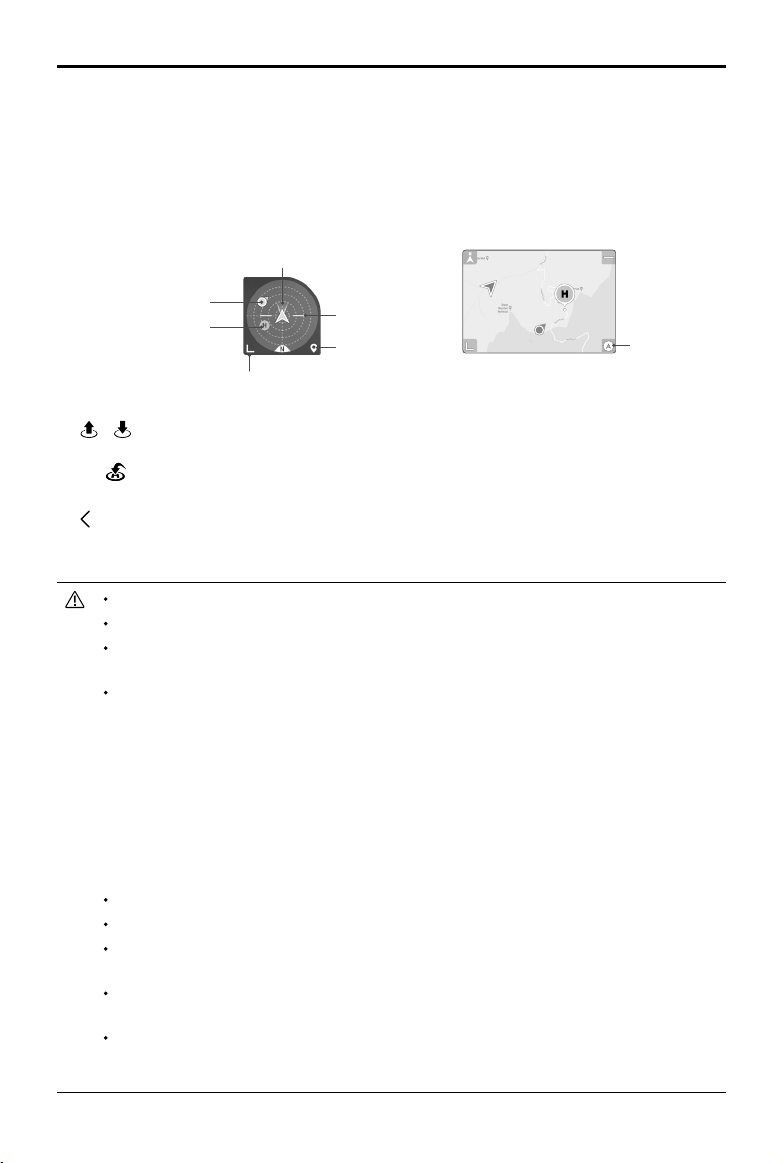
Displaysinformationsuchastheorientationandtiltangleoftheaircraft,positionoftheremotecontroller,
andpositionoftheHomePoint.
Collapse
Switchtominimap
Aircrafttiltangle
HomePoint
Remotecontrollerposition
Aircraftorientation
SwitchtoAttitude
Indicator
14. Auto Takeo/Landing/RTH
/
: taptheicon.Whenthepromptappears, pressandholdthebuttontoinitiateautotakeoor
landing.
Tap toinitiateSmartRTHandhavetheaircraftreturntothelastrecordedHomePoint.
15. Back
:taptoreturntothehomescreen.
Pressthescreenuntilacircleappearsanddragthecircleupanddowntocontrolthetiltofthegimbal.
MakesuretofullychargeyourmobiledevicebeforelaunchingDJIFly.
MobilecellulardataisrequiredwhenusingDJIFly.Contactyourwirelesscarrierfordatacharges.
DONOTacceptphonecallsorusetextingfeaturesduringightifyouareusingamobilephoneas
yourdisplaydevice.
Readallsafetytips,warningmessages,anddisclaimerscarefully.Familiarizeyourselfwiththerelated
regulationsinyourarea.Youaresolelyresponsibleforbeingawareofallrelevantregulationsand
yinginawaythatiscompliant.
a) Readandunderstandthewarningmessagesbeforeusingtheauto-takeoandauto-landingfeatures.
b)Readandunderstandthewarningmessagesanddisclaimerbeforesettingthealtitudebeyondthe
defaultlimit.
c) Readandunderstandthewarningmessagesanddisclaimerbeforeswitchingbetweenightmodes.
d)ReadandunderstandthewarningmessagesanddisclaimerpromptsnearorinGEOzones.
e) ReadandunderstandthewarningmessagesbeforeusingtheIntelligentFlightmodes.
Landtheaircraftimmediatelyatasafelocationifapromptappearsintheappinstructingyoutodoso.
Reviewallwarningmessagesonthechecklistdisplayedintheappbeforeeachight.
Usethein-apptutorialtopracticeyourightskillsifyouhaveneveroperatedtheaircraftorifyoudo
nothavesucientexperiencetooperatetheaircraftwithcondence.
Cachethemapdataoftheareawhereyouintendtoytheaircraftbyconnectingtotheinternet
beforeeachight.
Theappis designedtoassistyouroperation. UsesounddiscretionandDONOTrelyontheapp
tocontroltheaircraft.TheuseoftheappissubjecttoDJIFlyTermsofUseandDJIPrivacyPolicy.
Readthemcarefullyintheapp.

38
©
2021 DJI All Rights Reserved.
Flight
This section describes safe ight
practices and ight restrictions.

©
2021 DJI All Rights Reserved.
39
Flight
Oncepre-ightpreparationiscomplete,itisrecommendedtohoneyourightskillsandpracticeying
safely.Makesurethatallightsarecarriedoutinanopenarea.Theyingheightislimitedto500m.DO
NOTexceedthisheight.Strictlyabidebylocallawsandregulationswhenying.Makesuretoreadthe
DJIMini2DisclaimerandSafetyGuidelinestounderstandthesafetynoticesbeforeying.
Flight Environment Requirements
1. Donotusetheaircraftinsevereweatherconditionsincludingwindspeedsexceeding10m/s,snow,
rain,andfog.
2. Onlyflyinopenareas.Tallstructuresandlargemetalstructuresmayaffecttheaccuracyofthe
onboardcompassandGPSsystem.Itisrecommendedtokeeptheaircraftatleast5mawayfrom
structures.
3. Avoidobstacles,crowds,highvoltagepowerlines,trees,andbodiesofwater.Itisrecommendedto
keeptheaircraftatleast3mabovewater.
4. Minimizeinterferencebyavoidingareaswithhighlevelsofelectromagnetismsuchaslocationsnear
powerlines,basestations,electricalsubstations,andbroadcastingtowers.
5. Aircraftandbatteryperformanceissubjecttoenvironmentalfactorssuchasairdensityand
temperature.DONOTytheaircraft4,000m(13,123ft)orhigherabovesealevel.Otherwise,the
batteryandaircraftperformancemaybereduced.
6. AircraftcannotuseGPSwithinthepolarregions.UsetheDownwardVisionSystemwhenyingin
suchlocations.
7. Flywithcautionwhentakingofrommovingsurfacessuchasamovingboatorvehicle.
Flight Limits and GEO Zones
Unmannedaerialvehicle(UAV)operatorsshouldabidebytheregulationsfromself-regulatory
organizationssuchastheInternationalCivilAviationOrganization,theFederalAviationAdministration,
andlocalaviationauthorities.Forsafetyreasons,flightlimitsareenabledbydefaulttohelpusers
operatethisaircraftsafelyandlegally.Userscansetightlimitsonheightanddistance.
Altitudelimits,distancelimits,andGEOzonesfunctionconcurrentlytomanageightsafetywhenGPS
isavailable.OnlyaltitudecanbelimitedwhenGPSisunavailable.
Flight Altitude and Distance Limits
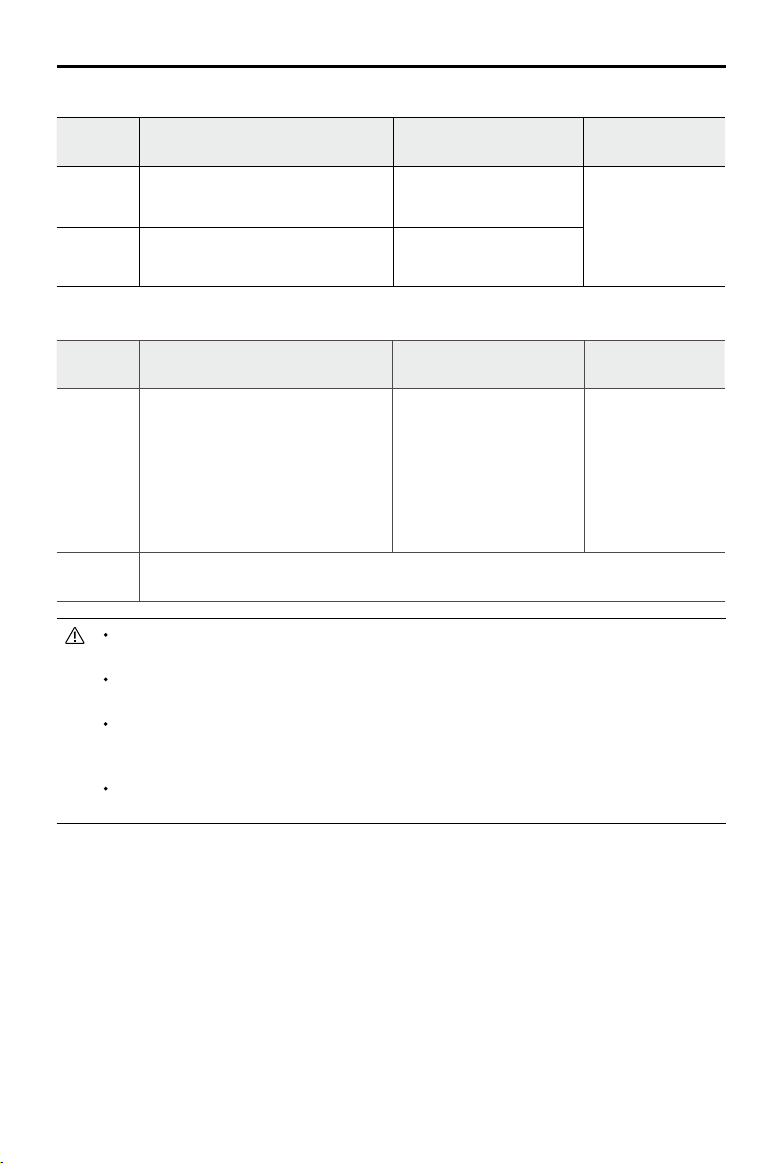
TheightaltitudeanddistancelimitscanbechangedinDJIFly.Basedonthesesettings,theaircraftwill
yinarestrictedcylinderasshownbelow:
MaxFlightAltitude
MaxRadius
HomePoint
Heightofaircraft
whenpoweredon
40
©
2021 DJI All Rights Reserved.
DJI Mini 2 User Manual
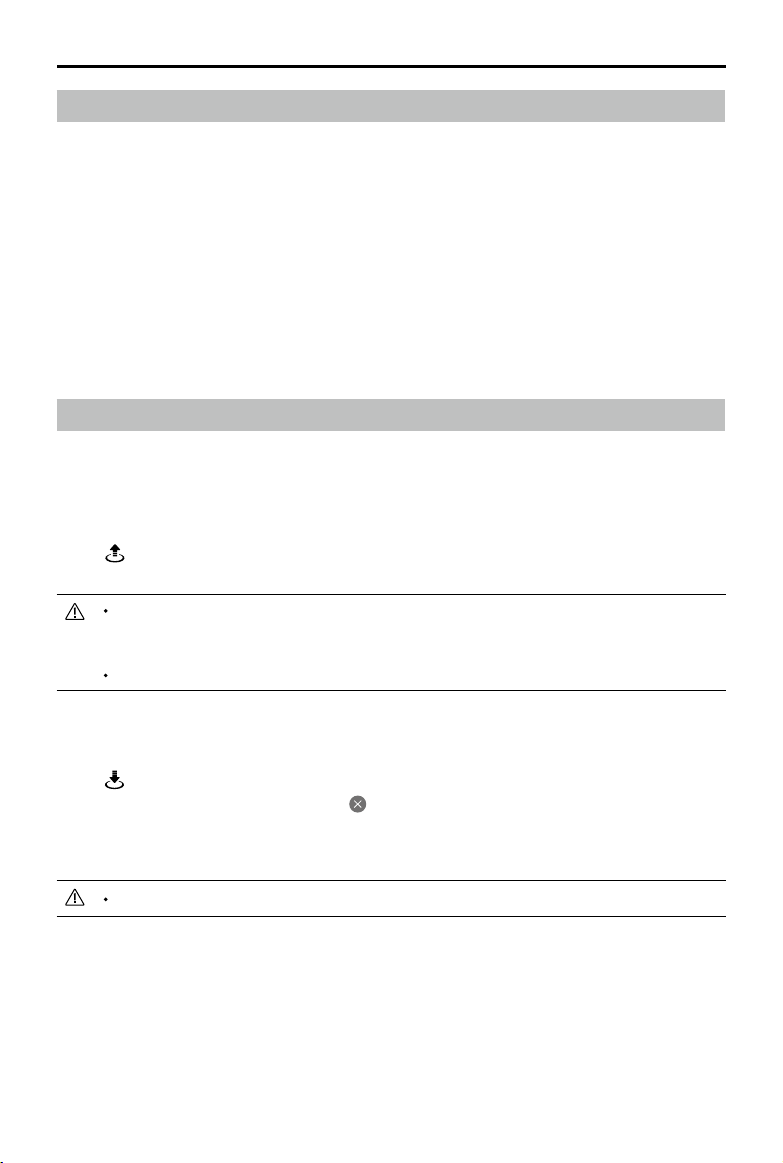
Flight Limits DJI Fly App
Aircraft Status
Indicator
Max
Altitude
Altitudeoftheaircraftcannotexceed
thespeciedvalue
Warning:heightlimit
reached
Blinksgreenand
redalternatively
Max
Radius
Flightdistancemustbewithinthe
maxradius
Warning:distancelimit
reached
When GPS is weak
Flight Limits DJI Fly App
Aircraft Status
Indicators
Max
Altitude
Heightisrestrictedto16ft(5m)
whentheGPSsignalisweakand
InfraredSensingSystemisoperating.
Heightisrestrictedto98ft(30m)
whentheGPSsignalisweakand
InfraredSensingSystemisnot
operating.
Warning:heightlimit
reached.
Blinksredand
greenalternately
Max
Radius
Therestrictionsontheradiusaredisabledandwarningpromptscannotbereceivedin
theapp.
TherewillbenoaltitudelimitiftheGPSsignalbecomesweakduringightaslongastheGPSsignal
wasstrongerthanweak(whiteoryellowsignalbars)whentheaircraftwaspoweredon.
IftheaircraftisinaGEOzoneandthereisaweakornoGPSsignal,theaircraftstatusindicatorwill
glowredforvesecondseverytwelveseconds.
Iftheaircraftreachesanaltitudeorradiuslimit,youcanstillcontroltheaircraft,butyoucannotyit
anyfurther.Iftheaircraftiesoutofthemaxradius,itwillautomaticallyybackwithinrangewhen
theGPSsignalisstrong.
Forsafetyreasons,donotyclosetoairports,highways,railwaystations,railwaylines,citycenters,
orothersensitiveareas.Flytheaircraftonlywithinyourlineofsight.
GEO Zones
AllGEOzonesarelistedontheDJIocialwebsiteathttp://www.dji.com/ysafe.GEOzonesaredivided
intodierentcategoriesandincludelocationssuchasairports,aireldswheremannedaircraftoperate
atlowaltitudes,nationalborders,andsensitivelocationssuchaspowerplants.
YouwillreceiveapromptinDJIFlyifyouraircraftisapproachingaGEOzoneandtheaircraftwillbe
restrictedfromyinginthearea.
When GPS is available
©
2021 DJI All Rights Reserved.
41
DJI Mini 2 User Manual
Pre-Flight Checklist
1. Makesuretheremotecontroller,mobiledevice,andIntelligentFlightBatteryarefullycharged.
2. MakesuretheIntelligentFlightBatteryandthepropellersaremountedsecurelyandthepropellers
arespread.
3. Makesuretheaircraftarmsareunfolded.
4. Makesurethegimbalandcameraarefunctioningnormally.
5. Makesurethatthereisnothingobstructingthemotorsandthattheyarefunctioningnormally.
6. MakesurethatDJIFlyissuccessfullyconnectedtotheaircraft.
7. MakesurethatthecameralensandDownwardVisionSystemsensorsareclean.
8. UseonlygenuineDJIpartsorpartscertifiedbyDJI.Unauthorizedpartsorpartsfromnon-DJI
certiedmanufacturersmaycausesystemmalfunctionsandcompromisesafety.
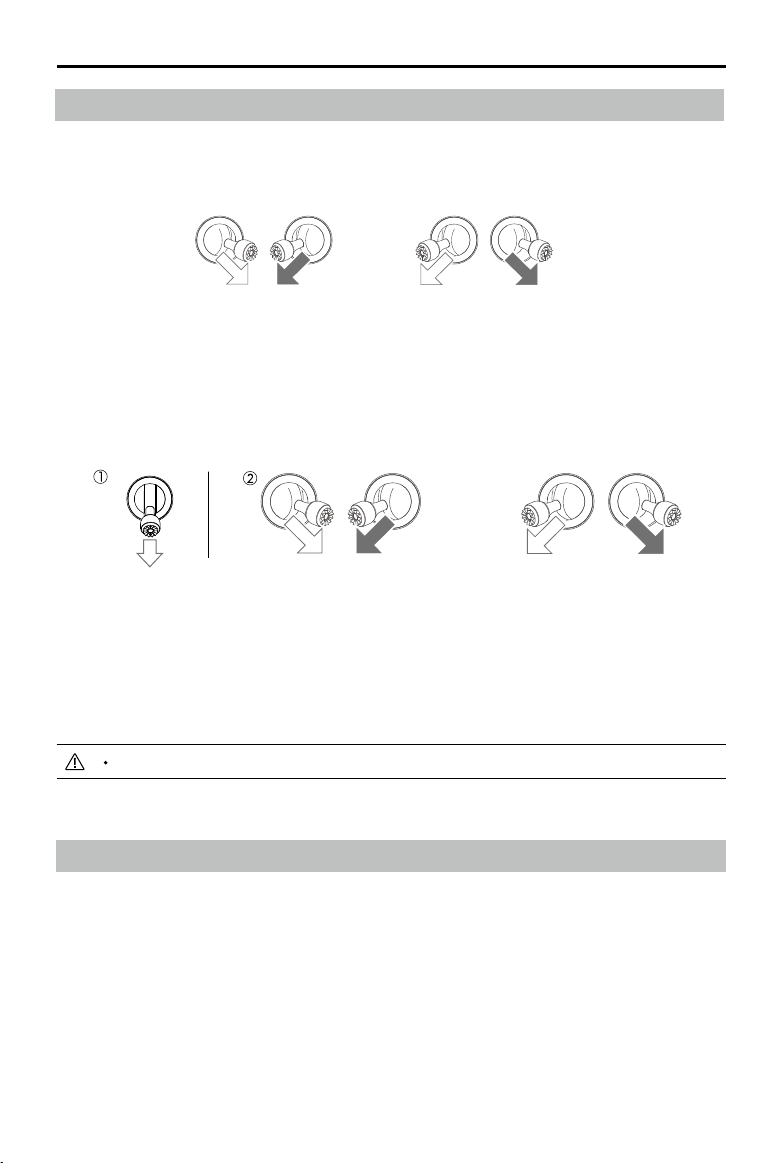
Auto Takeoff/Landing
Auto Takeo
Useautotakeowhentheaircraftstatusindicatorblinksgreen.
1. LaunchDJIFlyandenterthecameraview.
2. Completeallstepsinthepre-ightchecklist.
3. Tap .Ifconditionsaresafefortakeo,pressandholdthebuttontoconrm.
4. Theaircraftwilltakeoandhoverapprox.3.9ft(1.2m)abovetheground.
Theaircraftstatusindicatorblinksgreentwicerepeatedlytoindicatethattheaircraftisreliantonthe
DownwardVisionSystemtoyandcanonlyystableataltitudesbelow30m.Itisrecommendedto
waituntiltheaircraftstatusindicatorisslowlyblinkinggreenbeforeusingautotakeo.
DONOTtakeofromamovingsurfacesuchasamovingboatorvehicle.
Auto Landing
Useautolandingwhentheaircraftstatusindicatorblinksgreen.
1. Tap .Ifconditionsaresafetoland,pressandholdthebuttontoconrm.
2. Autolandingcanbecancelledbytapping .
3. IftheDownwardVisionSystemisworkingnormally,LandingProtectionwillbeenabled.
4. Motorsstopafterlanding.
Choosetheproperplaceforlanding.
42
©
2021 DJI All Rights Reserved.
DJI Mini 2 User Manual
Stopping the Motors Mid-Flight
Themotorsshouldonlybestoppedmid-flightinanemergencysituationsuchasifacollisionhas
occurredoriftheaircraftisoutofcontrolandisascendingordescendingveryquickly,rollingin
theair,orifamotorhasstalled.Tostopthemotorsmid-flight,usethesameCSCthatwasused
tostartthemotors.ThedefaultsettingcanbechangedinDJIFly.
Stoppingmotorsmid-ightwillcausetheaircrafttocrash.
Flight Test
Takeo/Landing Procedures
1. Placetheaircraftinanopen,atareawiththeaircraftstatusindicatorfacingtowardsyou.
2. Powerontheremotecontrollerandtheaircraft.
3. LaunchDJIFly,connectthemobiledevicetotheaircraft,andenterthecameraview.
4. WaituntiltheaircraftstatusindicatorblinksgreenslowlytoindicatethattheHomePointhasbeen
recordedanditisnowsafetoy.
5. Gentlypushthethrottlesticktotakeooruseauto-takeo.
6. Pullthethrottlestickoruseauto-landingtolandtheaircraft.
7. Afterlanding,pushthethrottledownandhold.Themotorsstopafterthreeseconds.
Stopping the Motors
Therearetwomethodstostopthemotors.
Method1:whentheaircrafthaslanded,pushandholdthethrottlestickdown.Themotorswillstop
afterthreeseconds.
Method2:whentheaircrafthaslanded,pushthethrottlestickdown,andperformthesameCSCthat
wasusedtostartthemotors.Releasebothsticksoncethemotorshavestopped.
Starting/Stopping the Motors
Starting the Motors
ACombinationStickCommand(CSC)isusedtostartthemotors.Pushbothstickstothebottominner
oroutercornerstostartthemotors.Oncethemotorsstartspinning,releasebothstickssimultaneously.
OR
OR
Method1 Method2

©
2021 DJI All Rights Reserved.
43
DJI Mini 2 User Manual
Itisimportanttounderstandthebasicightguidelinesforthesafetyofbothyou
andthosearoundyou.
DONOTforgettoreadthedisclaimer and safety guidelines.
8. Powerotheaircraftandremotecontroller.
Video Suggestions and Tips
1. Thepre-ightchecklistisdesignedtohelpyouysafelyandtoensurethatyoucanshootvideo
duringight.Gothroughthefullpre-ightchecklistbeforeeachight.
2. SelectthedesiredgimbaloperationmodeinDJIFly.
3. ItisrecommendedtotakephotosorrecordvideoswhenyinginNormalorCinemode.
4. DONOTyinbadweatherconditionssuchaswhenitisrainingorwindy.
5. Choosethecamerasettingsthatbestsuityourneeds.
6. Performightteststoestablishightroutesandtopreviewscenes.
7. Pushthecontrolsticksgentlytokeeptheaircraftmovementsmoothandstable.

44
©
2021 DJI All Rights Reserved.
Appendix

©
2021 DJI All Rights Reserved.
45
Appendix
Specifications
Aircraft
TakeoWeight
<
249g(Internationalversion)
199g(JPversion)
Dimensions International version
Folded:138×81×58mm
Unfolded:159×203×56mm
Unfolded(withpropellers):245×289×56mm
(JP version)
Folded:138×81×57mm
Unfolded:159×202×55mm
Unfolded(withpropellers):245×289×55mm
DiagonalDistance
213mm
MaxAscentSpeed 5m/s(SportMode)
3m/s(NormalMode)
2m/s(CineMode)
MaxDescentSpeed 3.5m/s(SportMode)
3m/s(NormalMode)
1.5m/s(CineMode)
MaxSpeed(nearsealevel,no
wind)
16m/s(SportMode)
10m/s(NormalMode)
6m/s(CineMode)
MaxServiceCeilingAboveSea
Level
4,000m(Internationalversion)
3,000m(JPversion)
MaxFlightTime 31mins(Internationalversion(measuredwhileyingat17kphinwindless
conditions))
18mins (JPversion(measuredwhileflyingat17kphin windless
conditions))
MaxWindSpeedResistance
10m/s(Scale5)
MaxTiltAngle 40°(SportMode)
25°(NormalMode)
25°(CineMode)
MaxAngularVelocity 250°/s(SportMode)
250°/s(NormalMode)
250°/s(CineMode)
OperatingTemperature
0°to40°C(32°to104°F)
GNSS
GPS+GLONASS+Galileo
OperatingFrequency 2.400-2.4835GHz,5.725-5.850GHz
TransmissionPower(EIRP) 2.4GHz:≤26dBm(FCC),≤20dBm(CE/SRRC/MIC)
5.8GHz:≤26dBm(FCC/SRRC),≤14dBm(CE)

46
©
2021 DJI All Rights Reserved.
DJI Mini 2 User Manual
HoveringAccuracyRange Vertical:±0.1m(withVisionPositioning),±0.5m(withGPSPositioning)
Horizontal:±0.3m(withVisionPositioning),±1.5m(withGPSPositioning)
Gimbal
MechanicalRange Tilt:-110°to+35°
Roll:-35°to+35°
Pan:-20°to+20°
ControllableRange Tilt:-90°to0°(default),-90°to+20°(extended)
Stabilization 3-axis(tilt,roll,pan)
MaxControlSpeed(tilt) 100°/s
AngularVibrationRange ±0.01°
Sensing System
Downward
HoveringRange:0.5-10m
OperatingEnvironment Non-reective,discerniblesurfaceswith
diusereectivityof>20%;
Adequatelightingoflux>15
Camera
Sensor 1/2.3”CMOS,EectivePixels:12M
Lens FOV:83°
35mmformatequivalent:24mm
Aperture:f/2.8
Focusrange:1mto∞
ISORange Video100-3200
Photo100-3200
ElectronicShutterSpeed 4-1/8000s
MaxImageSize 4:3:4000×3000
16:9:4000×2250
StillPhotographyModes Singleshot
Interval:2/3/5/7/10/15/20/30/60s(JPEG),
5/7/10/15/20/30/60s(JPEG+RAW)
AutomaticExposureBracketing(AEB):3Framesat2/3EVStep
VideoResolution 4K:3840×216024/25/30p
2.7K:2720×153024/25/30/48/50/60p
FHD:1920×108024/25/30/48/50/60p
MaxVideoBitrate 100Mbps
SupportedFileFormats FAT32(≤32GB)
exFAT(>32GB)
PhotoFormat JPEG/DNG(RAW)
VideoFormat MP4(H.264/MPEG-4AVC)
Remote Controller
OperatingFrequency 2.400-2.4835GHz,5.725-5.850GHz
MaxTransmissionDistance
(unobstructed,freeof
interference)
10km(FCC),6km(CE/SRRC/MIC)
TransmissionDistance(in
commonscenarios)
Stronginterference(e.g.,citycenter):approx.3km
Moderateinterference(e.g.,outersuburbs,smalltowns):approx.6km
Nointerference(e.g.,ruralareas,beaches):approx.10km
OperatingTemperature -10°to40°C(14°to104°F)

©
2021 DJI All Rights Reserved.
47
DJI Mini 2 User Manual
TransmitterPower(EIRP) 2.4GHz:≤26dBm(FCC),≤20dBm(CE/SRRC/MIC)
5.8GHz:≤26dBm(FCC/SRRC),≤14dBm(CE)
BatteryCapacity 5200mAh
OperatingCurrent/Voltage 1200[email protected]V(withAndroiddevice)
700[email protected]V(withiOSdevice)
SupportedMobileDeviceSize 180×86×10mm(Height×Width×Thickness)
SupportedUSBPortTypes Lightning,MicroUSB(Type-B),USB-C
VideoTransmissionSystem OcuSync2.0
LiveViewQuality 720p@30fps
MaxBitrate 8Mbps
Latency(dependingon
environmentandmobiledevice)
200ms
Charger
Input 100-240V,50/60Hz,0.5A
Output 12V1.5A/9V2A/5V3A
RatedPower 18W
Intelligent Flight Battery (International Version)
BatteryCapacity 2250mAh
Voltage 7.7V
ChargingVoltageLimit 8.8V
BatteryType LiPo2S
Energy 17.32Wh
Weight 82.5g
ChargingEnvironment
Temperature
5°to40°C(41°to104°F)
MaxChargingPower 29W
Intelligent Flight Battery (JP version)
BatteryCapacity 1065mAh
Voltage 7.6V
ChargingVoltageLimit 8.7V
BatteryType LiPo2S
Energy 8.09Wh
Weight 48.9g
ChargingEnvironment
Temperature
5°to40°C(41°to104°F)
MaxChargingPower 18W
App
App DJIFly
RequiredOperatingSystem iOSv11.0orlater;Androidv6.0orlater
SD Cards
SupportedSDCards UHS-ISpeedGrade3ratingorabovemicroSDcard
48
©
2021 DJI All Rights Reserved.
DJI Mini 2 User Manual
Calibrating the Compass
Itisrecommendedtocalibratethecompassinthefollowingsituationswhenyingoutdoors:
1. Flyingatalocationfurtherthan31miles(50km)awayfromthelocationtheaircraftwaslastown.
2. Theaircrafthasnotbeenownformorethan30days.
3. AcompassinterferencewarningappearsinDJIFlyand/ortheaircraftstatusindicatorblinksredand
yellowalternatively.
DONOTcalibratethecompassinlocationswheremagneticinterferencemayoccursuchasclose
tomagnetitedepositsorlargemetallicstructuressuchasparkingstructures,steelreinforced
basements,bridges,cars,orscaolding.
DONOTcarryobjectsthatcontainferromagneticmaterialssuchasmobilephonesneartheaircraft
duringcalibration.
Itisnotnecessarytocalibratethecompasswhenyingindoors.
Calibration Procedure
Chooseanopenareatocarryoutthefollowingprocedure.
1. TapSystemSettingsinDJIFly,selectSafety,thenCalibrate,andfollowtheon-screeninstructions.
Theaircraftstatusindicatorissolidyellow,indicatingcalibrationhasstarted.
2. Holdtheaircrafthorizontallyandrotateit360°.Theaircraftstatusindicatorwillturnsolidgreen.
3. Holdtheaircraftverticallyandrotateit360°aroundaverticalaxis.
4. Iftheaircraftstatusindicatorblinksred,thecalibrationhasfailed.Changeyourlocationandtrythe
calibrationprocedureagain.
Aircrafttakeoweightincludesbattery,propellers,andamicroSDcard.
Aircraftregistrationisrequiredinsomecountriesandregions.Checklocalrulesandregulations
beforeuse.
ThetransmissiondistanceincommonscenarioslistedabovearethetypicalvaluestestedinanFCC
areawithoutobstruction.
Thesespecicationshavebeendeterminedthroughtestsconductedwiththelatestrmware.Firmware
updatescanenhanceperformance.Itishighlyrecommendedtoupdatetothelatestrmware.
RecommendedmicroSDCards
16GB:SanDiskExtreme
32GB:SamsungProEndurance,SamsungEvoPlus,SanDiskIndustrial,
SanDiskExtremeV30A1,SanDiskExtremeV30A2,SanDiskExtremePro
V30A1,SanDiskExtremeProV30A2,Lexar633x,Lexar667x
64GB: SamsungProEndurance, SamsungEvoPlus,SanDiskExtreme
V30A1,SanDiskExtremeV30A2,Lexar633x,Lexar667x,Lexar1000x,
LexarHighEndurance,ToshibaEXCERIAM303V30A1,NetacProV30A1
128GB: SamsungProPlus, SamsungEvoPlus,SanDiskExtremeV30
A1,SanDiskExtremeV30A2,SanDiskExtremePlusV30A1,SanDisk
ExtremePlusV30A2,Lexar633x,Lexar667x,Lexar1000x,LexarHigh
Endurance,ToshibaEXCERIAM303V30A1,NetacProV30A1
256GB:SanDiskExtremeV30A1,SanDiskExtremeV30A2
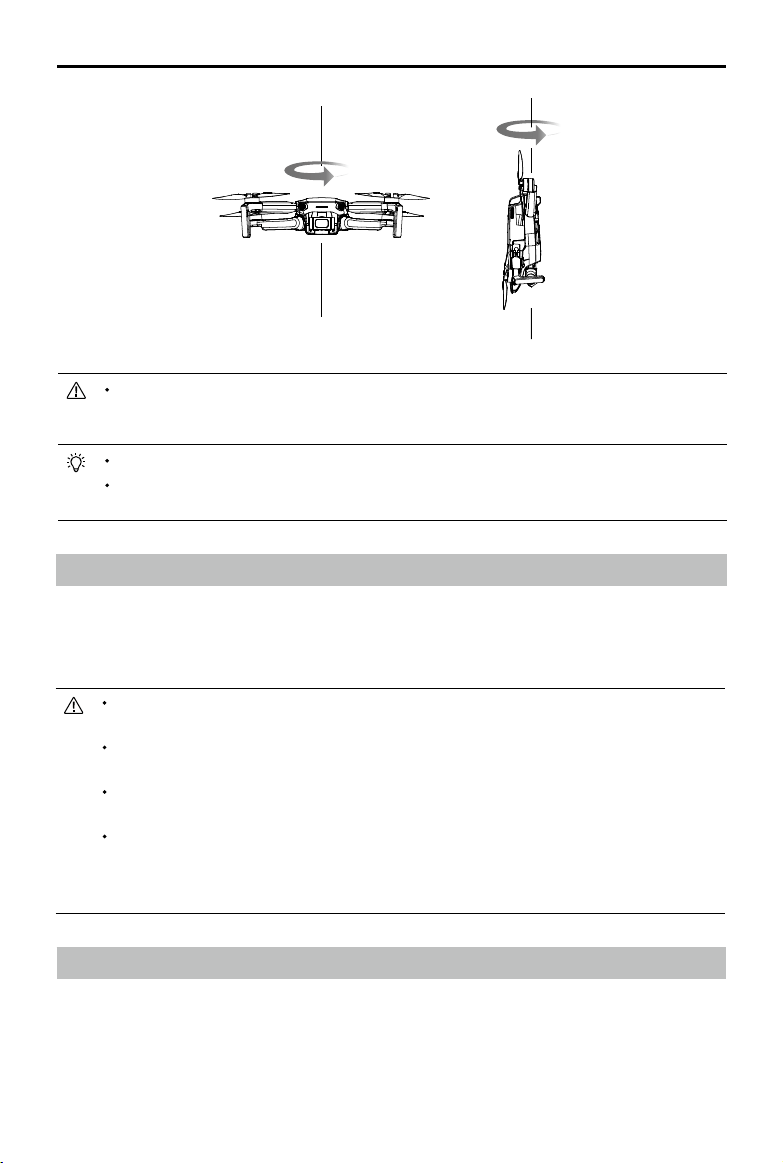
©
2021 DJI All Rights Reserved.
49
DJI Mini 2 User Manual
Iftheaircraftstatusindicatorblinksredandyellowalternativelyaftercalibrationiscompleted,this
indicatesthatthecurrentlocationisnotsuitableforyingtheaircraftduetothelevelofmagnetic
interference.Chooseanewlocation.
ApromptwillappearinDJIFlyifcompasscalibrationisrequiredbeforetakeo.
Theaircraftcantakeoimmediatelyoncecalibrationiscomplete.Ifyouwaitmorethanthree
minutestotakeoaftercalibration,youmayneedtocalibrateagain.
Updating Firmware
WhenyouconnecttheaircraftorremotecontrollertoDJIFly,youwillbenotifiedifanewfirmware
updateisavailable.Toupdate,connectthemobiledevicetotheinternetand follow the on-screen
instructions.Notethatthefirmwarecannotbeupdatediftheremotecontrollerisnotlinkedtothe
aircraft.
Makesuretofollowallthestepstoupdatermware.Otherwise,theupdatemayfail.Theaircraftwill
poweroautomaticallyafterthermwareupdateiscomplete.
Thermwareupdatewilltakeapprox.10minutes.It isnormalforthegimbalto golimp,aircraft
statusindicatorstoblink,andtheaircrafttoreboot.Waitpatientlyuntiltheupdateiscomplete.
Beforeperforminganupdate,makesuretheIntelligentFlightBatteryisatleast15%chargedandthe
remotecontrollerisatleast20%charged.
Theremotecontrollermaybecomeunlinkedfromtheaircraftafterupdating.Relinktheremote
controllerandaircraft.Notethattheupdatemayresetvariousmaincontrollersettings,suchasthe
RTHaltitudeandthemaximumightdistance,todefaultsettings.Beforeupdating,takenoteofyour
preferredDJIFlysettingsandreadjustthemaftertheupdate.
After-Sales Information
Visithttps://www.dji.com/supporttolearnmoreaboutafter-salesservicepolicies,repairservices,and
support.

This content is subject to change.
Download the latest version from
http://www.dji.com/mini-2
Ifyouhaveanyquestionsaboutthisdocument,pleasecontact
DJIbysendingamessageto[email protected].
DJIisatrademarkofDJI.
Copyright©2021DJIAllRightsReserved.
DJI Support
http://www.dji.com/support