FULL MANUAL
A
Regulatory Compliance Statements
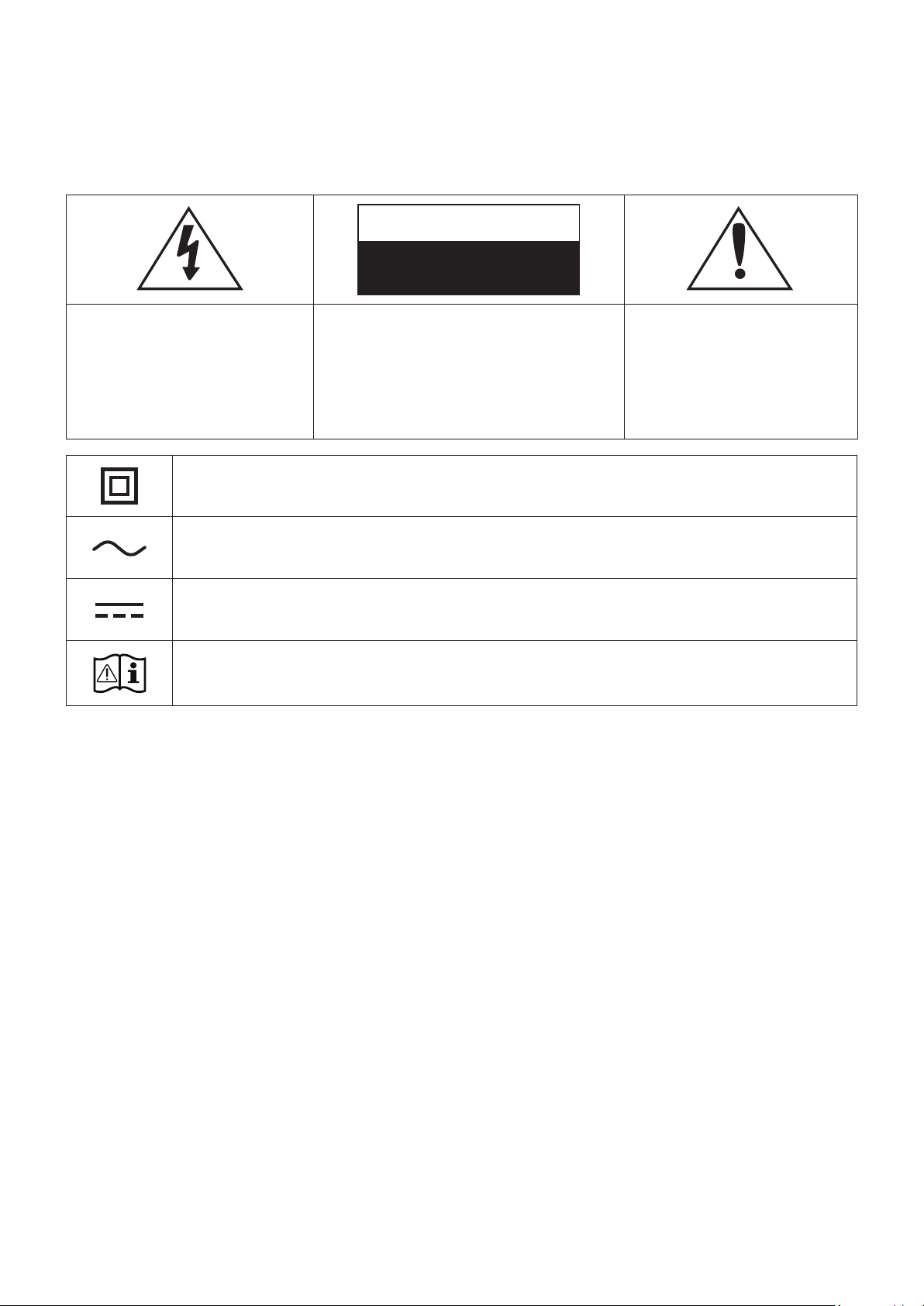
CAUTION
RISK OF ELECTRIC SHOCK.
DO NOT OPEN.
This symbol indicates that
high voltage is present inside.
It is dangerous to make any
kind of contact with any
internal part of this product.
CAUTION: TO REDUCE THE RISK OF
ELECTRIC SHOCK, DO NOT REMOVE THE
COVER (OR BACK). NO USER SERVICEABLE
PARTS INSIDE. REFER SERVICING TO
QUALIFIED SERVICE PERSONNEL.
This symbol indicates that
this product has included
important literature
concerning operation and
maintenance.
Class II product : This symbol indicates that it does not require a safety connection
to electrical earth (ground).
AC voltage : This symbol indicates that the rated voltage marked with the symbol
is AC voltage.
DC voltage : This symbol indicates that the rated voltage marked with the symbol
is DC voltage.
Caution, Consult instructions for use : This symbol instructs the user to consult the
user manual for further safety related information.
❚
WARNING
•
To reduce the risk of re or electric shock, do not expose this appliance to rain or moisture.
•
Do not expose this apparatus to dripping or splashing. Do not put objects lled with liquids,
such as vases on the apparatus.
•
To turn this apparatus off completely, you must pull the power plug out of the wall socket.
Consequently, the power plug must be easily and readily accessible at all times.
❚
CAUTION
•
TO PREVENT ELECTRIC SHOCK, MATCH WIDE BLADE OF PLUG TO WIDE SLOT, FULLY INSERT.
•
This apparatus shall always be connected to a AC outlet with a protective grounding
connection.
•
To disconnect the apparatus from the mains, the plug must be pulled out from the mains
socket, therefore the mains plug shall be readily operable.
Safety Information
ENG - ii

❚
Wiring the Main Power Supply Plug (UK Only)
IMPORTANT NOTICE
The mains lead on this equipment is supplied with a moulded plug incorporating a fuse. The value
of the fuse is indicated on the pin face of the plug and if it requires replacing, a fuse approved to
BS1362 of the same rating must be used. Never use the plug with the fuse cover removed. If the
cover is detachable and a replacement is required, it must be of the same colour as the fuse tted
in the plug. Replacement covers are available from your dealer. If the tted plug is not suitable for
the power points in your house or the cable is not long enough to reach a power point, you should
obtain a suitable safety approved extension lead or consult your dealer for assistance. However,
if there is no alternative to cutting off the plug, remove the fuse and then safely dispose of the
plug. Do not connect the plug to a mains socket as there is a risk of shock hazard from the bared
exible cord. Never attempt to insert bare wires directly into a mains socket. A plug and fuse
must be used at all times.
IMPORTANT NOTICE
The wires in the mains lead are coloured in accordance with the following code:– BLUE = NEUTRAL
BROWN = LIVE As these colours may not correspond to the coloured markings identifying the terminals in
your plug, proceed as follows:– The wire coloured BLUE must be connected to the terminal marked with
the letter N or coloured BLUE or BLACK. The wire coloured BROWN must be connected to the terminal
marked with the letter L or coloured BROWN or RED.
WARNING : DO NOT CONNECT EITHER WIRE TO THE EARTH TERMINAL WHICH IS MARKED WITH
THE LETTER E OR BY THE EARTH SYMBOL , OR COLOURED GREEN OR GREEN AND YELLOW.
A
Safety precautions
❚
Power Supply Precautions
•
Do not overload outlets or extension cords.
-
This may result in abnormal heat or re.
•
Do not plug in or unplug the power cord with wet hands.
•
Do not place the product near heating equipment.
•
To clean the power plug blades, remove the plug from the wall outlet and wipe the blades with
a dry cloth only.
•
Do not bend the power cord or pull it forcefully.
•
Do not put heavy objects on the power cord.
•
Do not plug the power cord into a loose or damaged outlet.
•
Fully insert the power cord's plug into the wall outlet so that the plug is rmly attached to the
outlet.
-
If the connection is unstable, there is a risk of re.
•
Before connecting the AC power cord to the DC adaptor outlet, make sure the voltage
designation of the DC adaptor corresponds to the local electrical supply.
ENG - iii

❚
Installation Precautions
•
Do not install the product near equipment or objects that generate heat or produce re (candles,
mosquito coils, heaters, radiators, etc.). Do not install in direct sunlight.
•
When moving the product, turn off the power and disconnect all cords (include the power cord)
from the unit.
-
A damaged cord may cause a re and poses a risk of electric shock.
•
Installing the product in environments with high heat or humidity, dust, or extreme cold, can
lead to quality problems or cause the product to malfunction. Before you install the product in
an environment that is outside the norm, please contact a Samsung dealer or service centre for
additional information.
•
When placing the product on a shelf, cabinet, or desk, make sure the top panel faces upwards.
•
Do not place the product on an unstable surface (e.g. a shaky shelf, a tilted desk, etc.).
-
Dropping the product can cause it to malfunction and poses a risk of injury. Severe vibration
or impact can also cause the product to malfunction and lead to a re hazard.
•
Install your product with enough space around it for ventilation.
-
Leave at least 10cm at the rear of the product and more than 5cm on each side of the
product.
•
Keep the plastic packing materials out of reach of your children.
-
Children playing with the plastic packing materials run the risk of sufcation.
❚
Usage Precautions
•
Using for an extended time at high volume may cause serious damage to your hearing.
-
If you are exposed to sound louder than 85db for an extended time, you may adversely
affect your hearing. The louder the sound is, the more seriously damaged your hearing
may become. Note that an ordinary conversation is between 50 to 60 db and road noise is
approximately 80 db.
•
This product contains dangerous high voltage. Do not attempt to disassemble, repair, or modify
it yourself.
-
Contact a Samsung dealer or service centre when your product is in need of repair.
•
Do not place any container that contains liquid on the product (e.g. a vase, beverages,
cosmetics, chemicals, etc.). Do do not allow any metal objects (e.g. coins, hair clips, etc.) or
ammable material (e.g. paper, matches, etc.) to enter the product (through the air vents, I/O
ports, etc.).
-
If any harmful material or liquid enters the product, turn off the product immediately, unplug
the power cord, and then contact a Samsung dealer or service centre.
ENG - iv

•
Do not drop the product. In case of a mechanical breakdown, disconnect the power cord and
contact a Samsung dealer or service centre.
-
There is a risk of re or electric shock.
•
Do not hold or pull the product by the power cord or the signal cable.
-
A damaged cable can cause the product to malfunction, cause a re, and poses a risk of
electric shock.
•
Do not use or keep ammable materials near the product.
•
If the product emits an abnormal sound or a burnt smell or smokes, unplug the power-cord
immediately and contact a Samsung dealer or service centre.
•
If you smell gas, ventilate the room immediately. Do not touch the power plug of the product.
Do not turn the product off or on.
•
Do not strike or subject the product to a sudden shock. Do not pierce the product with a sharp
object.
•
This product can be moved and placed indoors.
•
This product is not waterproof or dustproof.
•
Be careful when moving the product to avoid dropping it and possibly damaging it.
❚
Cleaning Precautions
•
Never use alcohol, solvents, waxes, benzene, thinners, air freshener, or lubricants to clean the
product, or spray insecticide on the product.
-
Using any of these materials can discolour the exterior coating or cause it to split or peel off,
or remove the labelling on the product.
•
To clean the product, unplug the power cord, and then wipe the product with a clean, dry, soft
cloth (Microber, cotton).
-
Avoid leaving dust on the product. Dust can scratch its surface.
ENG - v

Contents
Safety Information
Regulatory Compliance Statements ...........ii
WARNING ..........................................................ii
CAUTION ............................................................ ii
Safety precautions.............................................iii
Power Supply Precautions .........................iii
Installation Precautions ..............................iii
Usage Precautions ........................................iv
Cleaning Precautions ....................................v
Getting Started
Checking the Components .............................2
Product Overview ...............................................3
Top / Front / Right Side of the Speaker ..... 3
Rear of the Speaker........................................5
Using Dial Controller .........................................6
Top of the Dial Controller .............................6
Bottom of the Dial Controller ................... 8
Connecting between the Dial
Controller and Speaker .................................9
Connecting to Bluetooth
Connecting to Wi-Fi
Connecting to an External
Device
Connecting an external device via
the AUX cable ................................................ 13
Additional Functions
Using mobile device voice recognition ... 14
Using via Wi-Fi connection........................... 16
Using 2 units - Audio Group .................... 16
Using 2 units - Stereo (Dedicated for
VL350 / VL351) ..............................................17
Connecting with a Samsung Smart TV .... 19
Connecting an Amazon product ............ 20
Installing the Wall Mount
Appendix
Troubleshooting ...............................................26
Open Source Licence Notice .......................29
Licences ...............................................................29
Specications .................................................... 29
Additional Information .................................. 31
About the Network Connection............. 31
Works with SmartThings™ ...................... 31
Copyright ............................................................ 31
ENG - vi
Getting Started
A
Checking the Components
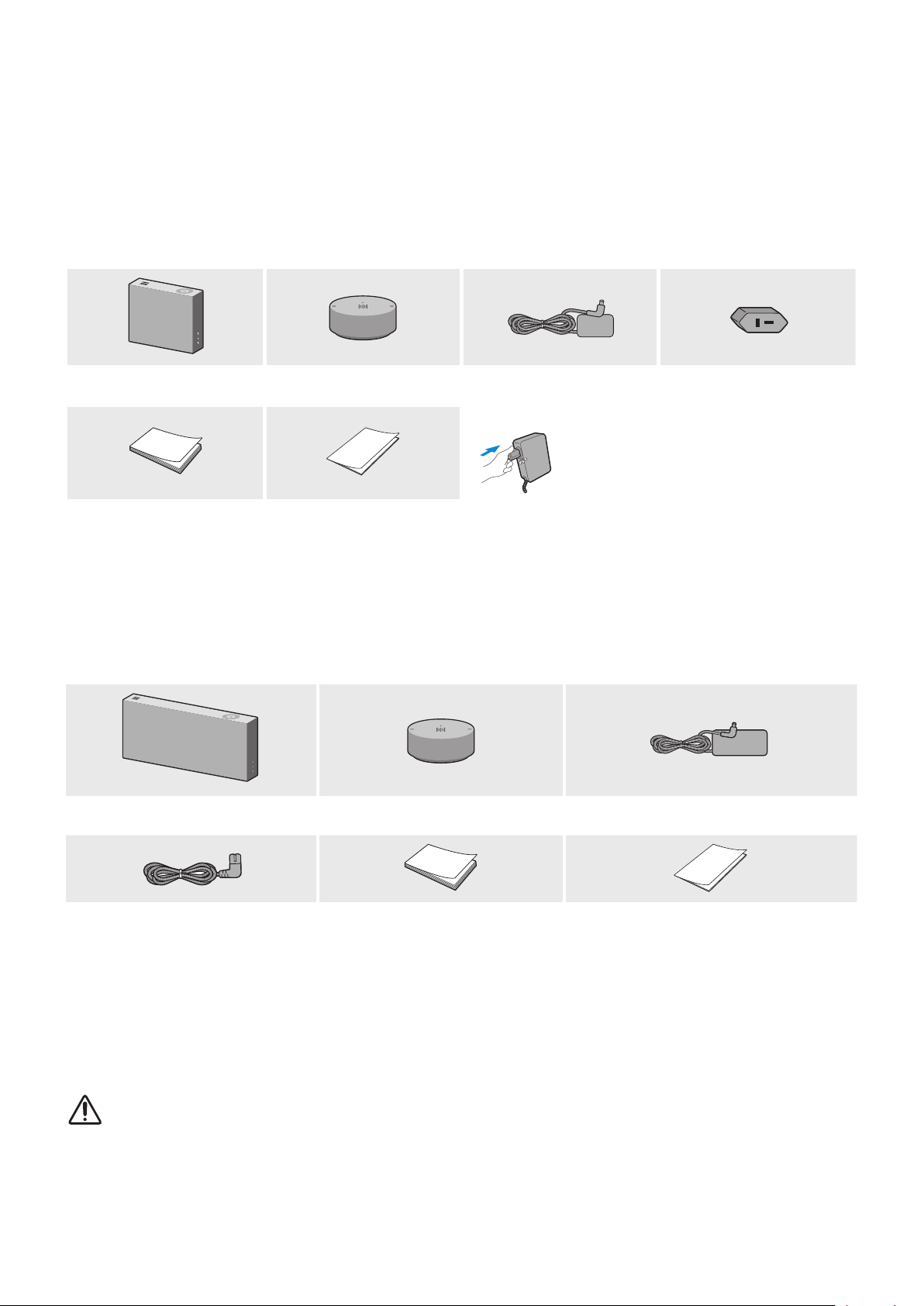
Check the components supplied with your speakers.
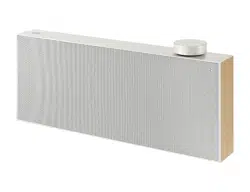
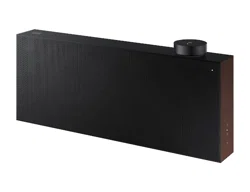
VL350 / VL351
Speaker Dial Controller
AC/DC Adapter
AC Plug
Connect the AC plug to the
AC/DC Adapter until you hear a
“snapping” sound to ensure they
are securely fastened.
(Dedicated for VL350 / VL351)
Quick Setup Guide Regulatory Guide
The AC plug may look different or can be an integrated unit with the AC/DC adapter.
(Dedicated for VL350 / VL351)
The AC plug cannot be removed after assembly. (Dedicated for VL350 / VL351)
VL550 / VL551
Speaker Dial Controller
AC/DC Adapter
Power Cable Quick Setup Guide Regulatory Guide
Make sure to rest the AC/DC Adapter at on a table or the oor. If you place the AC/DC Adapter so that it is
hanging with the AC cord input facing upwards, water or other foreign substances could enter the Adapter
and cause the Adapter to malfunction.
To purchase additional components or optional cables, contact a Samsung Service Centre or Samsung
Customer Care.
CAUTION
9
Do not place any items on top off or sit on the main unit.
9
Handle the product with care as it has sharp edges.
9
See the speaker's bottom for important safety information.
ENG - 2
A
Product Overview
❚
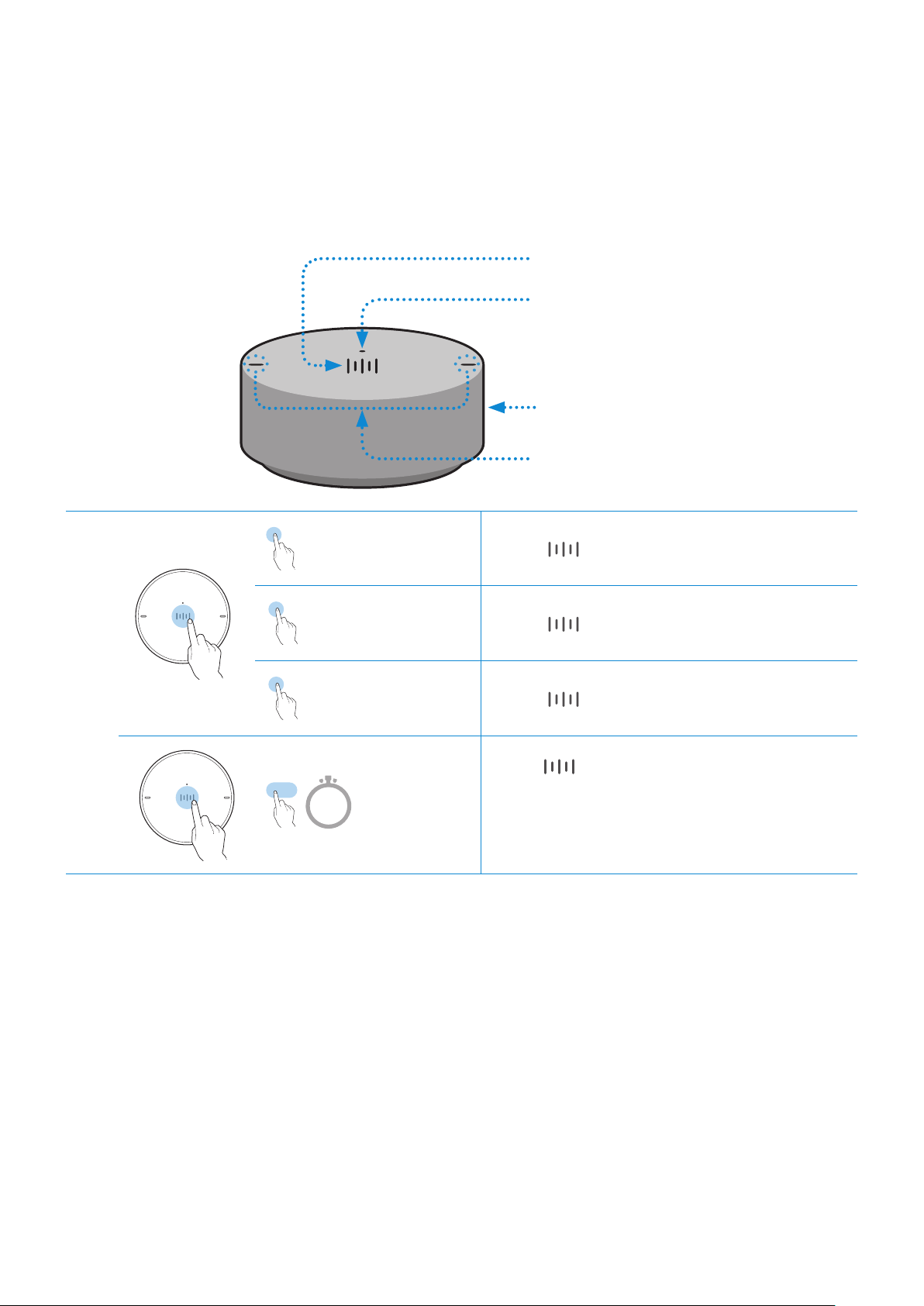
Top / Front / Right Side of the Speaker
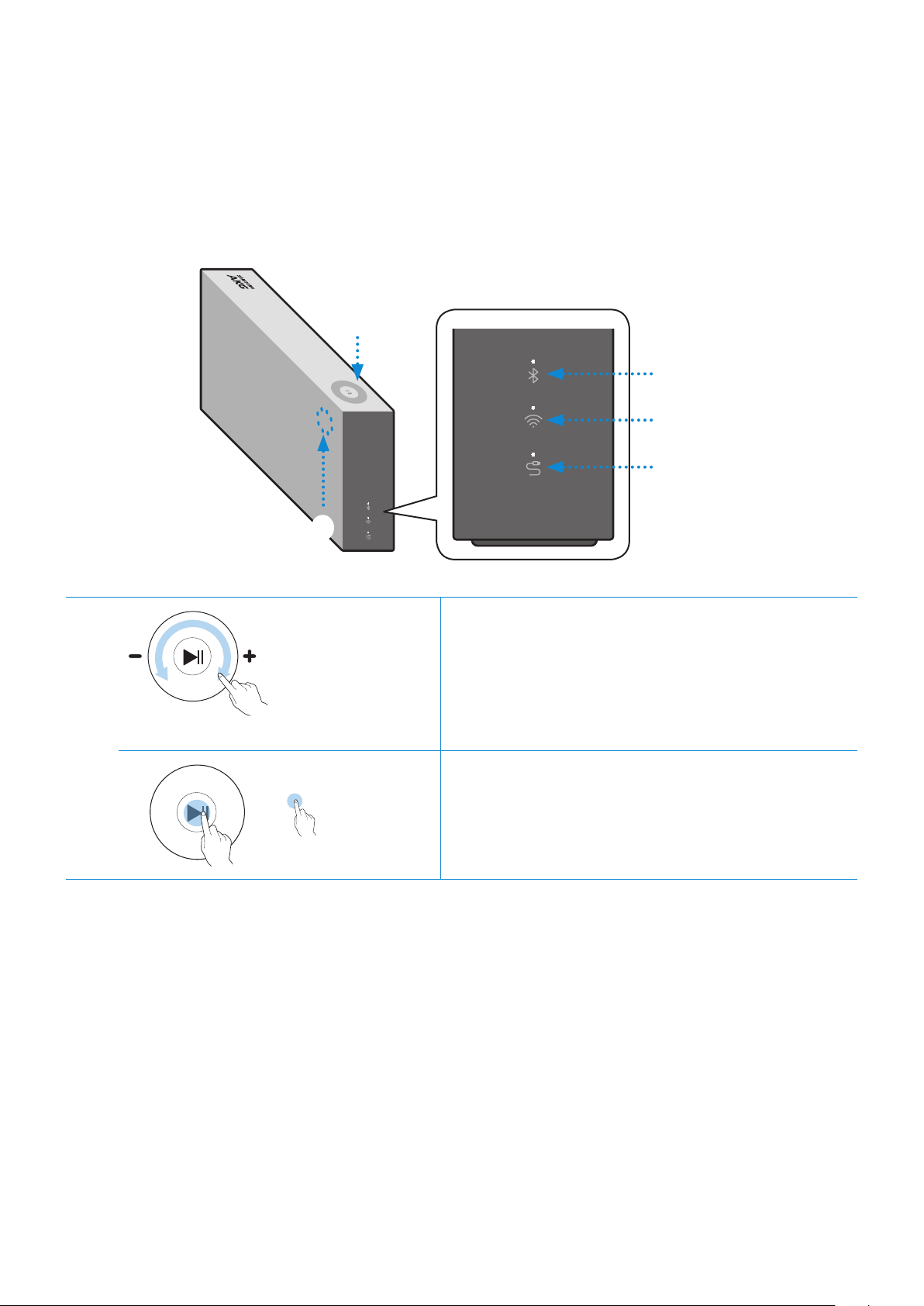
Bluetooth
Wi-Fi
AUX
1
2
1
Volume
adjustment
(Turning the
Touch-wheel)
Touch and drag the touch wheel clockwise to
increase the volume.
Touch and drag the touch wheel anticlockwise to
decrease the volume.
Play / Pause Touch
p
to play or pause music.
ENG - 3
2
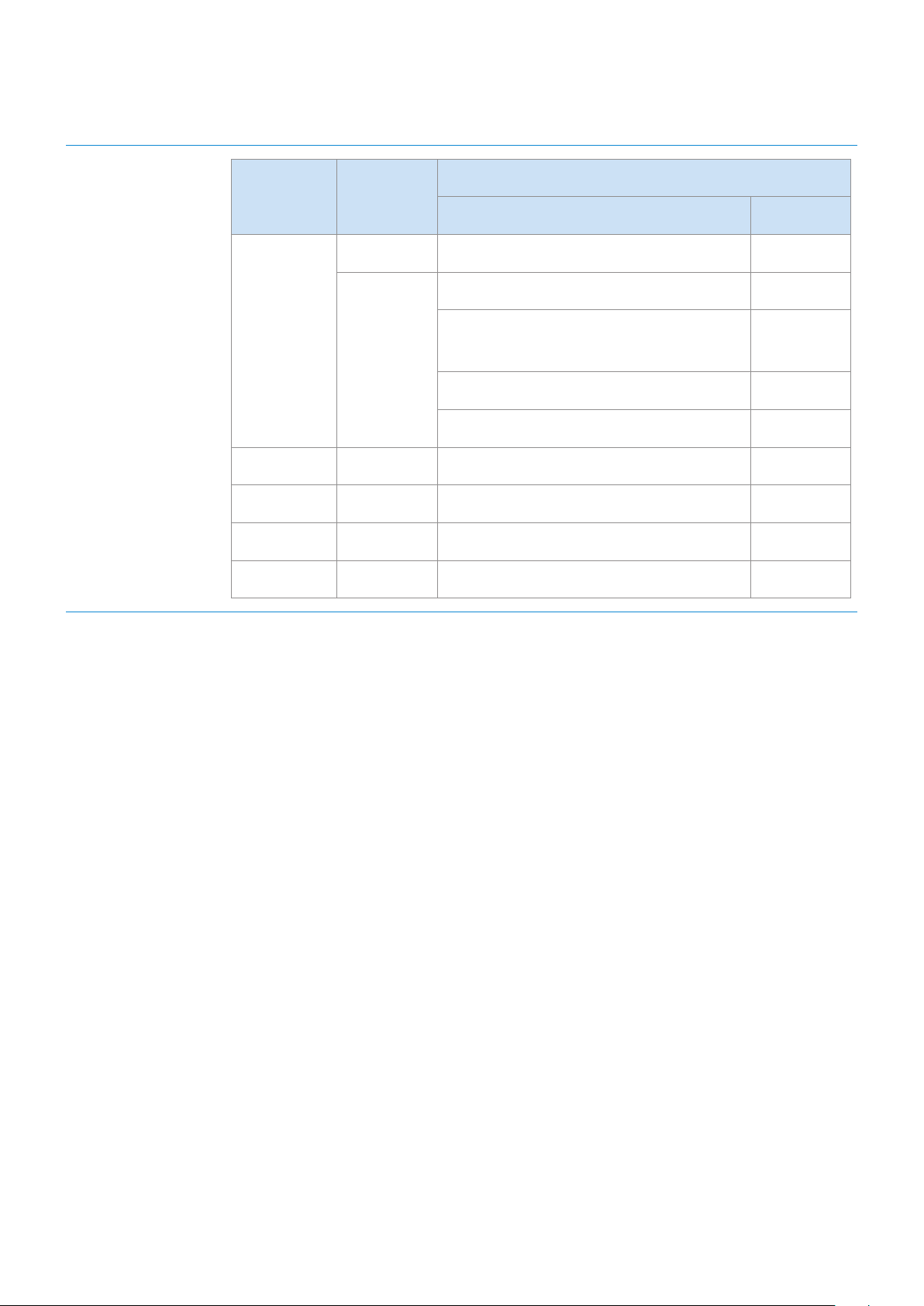
LED
Display
LED Status
Description
Operation Mode
White
On Connected / Normal operation -
Blinking
Booting -
Ready for connecting to Dial
Controller
-
Updating the rmware -
Ready for Wi-Fi connection Wi-Fi
Blue Blinking Waiting to connect the device Bluetooth
Red On Connection error -
Yellow Blink once When the volume is set to Min or Max -
Off Off Power saver -
If not used for more than 5 minutes, the mode is changed to Standby to decrease energy consumption.
The Bluetooth / Wi-Fi / AUX button activates one function at a time.
Play / Pause and Skip features are not available in AUX mode.
Press Bluetooth button for 5 seconds or more to set up Bluetooth connection.
Mute / unmute feature can be used with the Play / Pause button while in AUX mode or Bluetooth mode
(connected to a TV).
ENG - 4
❚
Rear of the Speaker
AUX IN
AUX IN
AUX IN
AUX IN
AUX IN
AUX IN
AUX IN
AUX IN
AUX IN
DC 24V
SERVICE
AUX IN
LAN
POWER
NETWORK
(DC IN)
POWER
SERVICE
AUX IN
LAN
RESET
CONNECT
RESET
CONNECT
(DC IN)
POWER
DC 24V
SERVICE
AUX IN
LAN
POWER
NETWORK
(DC IN)
POWER
SERVICE
AUX IN
LAN
RESET
CONNECT
RESET
CONNECT
(DC IN)
POWER
DC 24V
SERVICE
AUX IN
LAN
POWER
NETWORK
(DC IN)
POWER
SERVICE
AUX IN
LAN
RESET
CONNECT
RESET
CONNECT
(DC IN)
POWER
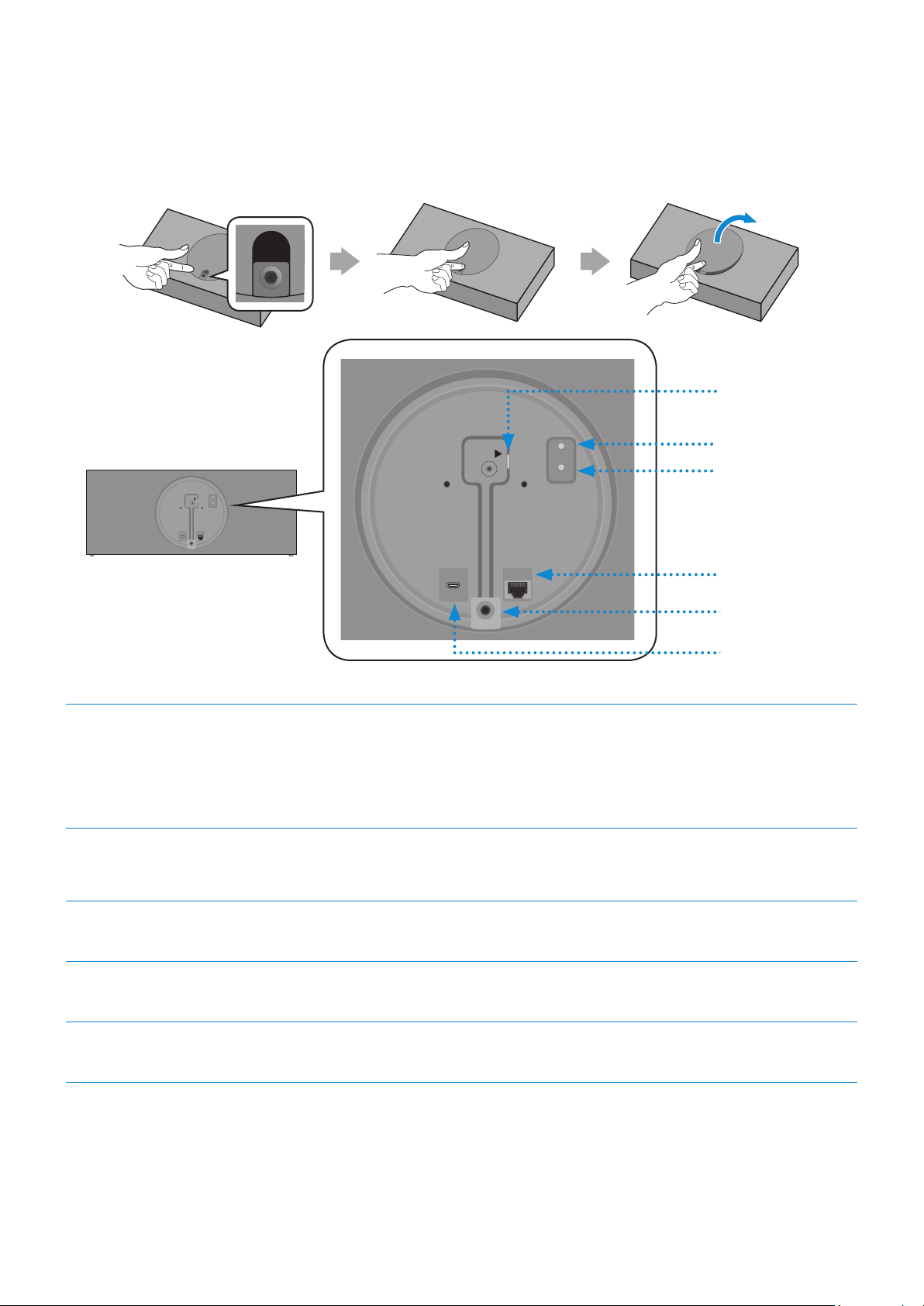
1
RESET Button
2
3
4
5
1
POWER (DC IN)
Jack
1. Connect the power cord to the AC/DC adapter.
(Dedicated for VL550 / VL551)
2. Connect the AC/DC adapter output power cord (round plug) to the
POWER (DC IN) port on the speaker.
2
CONNECT
Button
Press : To disconnect from or reconnect with the Dial Controller.
Long press it for 5 seconds : To initiate Wi-Fi connection.
3
LAN Jack Used to connect the speaker to the wired network.
4
AUX IN Jack Connect it to the analogue output port on an external device.
5
SERVICE Jack Used to update the speaker rmware by a service engineer.
Use Cat 7 (*STP Type) cable for the connection. (* Shielded Twisted Pair)
The RESET button is for troubleshooting.
ENG - 5
A
Using Dial Controller
❚
Top of the Dial Controller
1
Multi-Function Button
2
LED Display
3
Volume wheel
4
Voice MIC
1
X 1
Play / Pause Touch
X 1 to play or pause music.
X 2
Play the next
music
Touch
X 2 to play the next music.
X 3
Play the previous
music
Touch
X 3 to play the previous music.
2 Sec
Mobile
device voice
recognition
Press for 2 seconds to activate the
voice recognition service in your mobile
device.
•
It is available only in Bluetooth mode.
ENG - 6
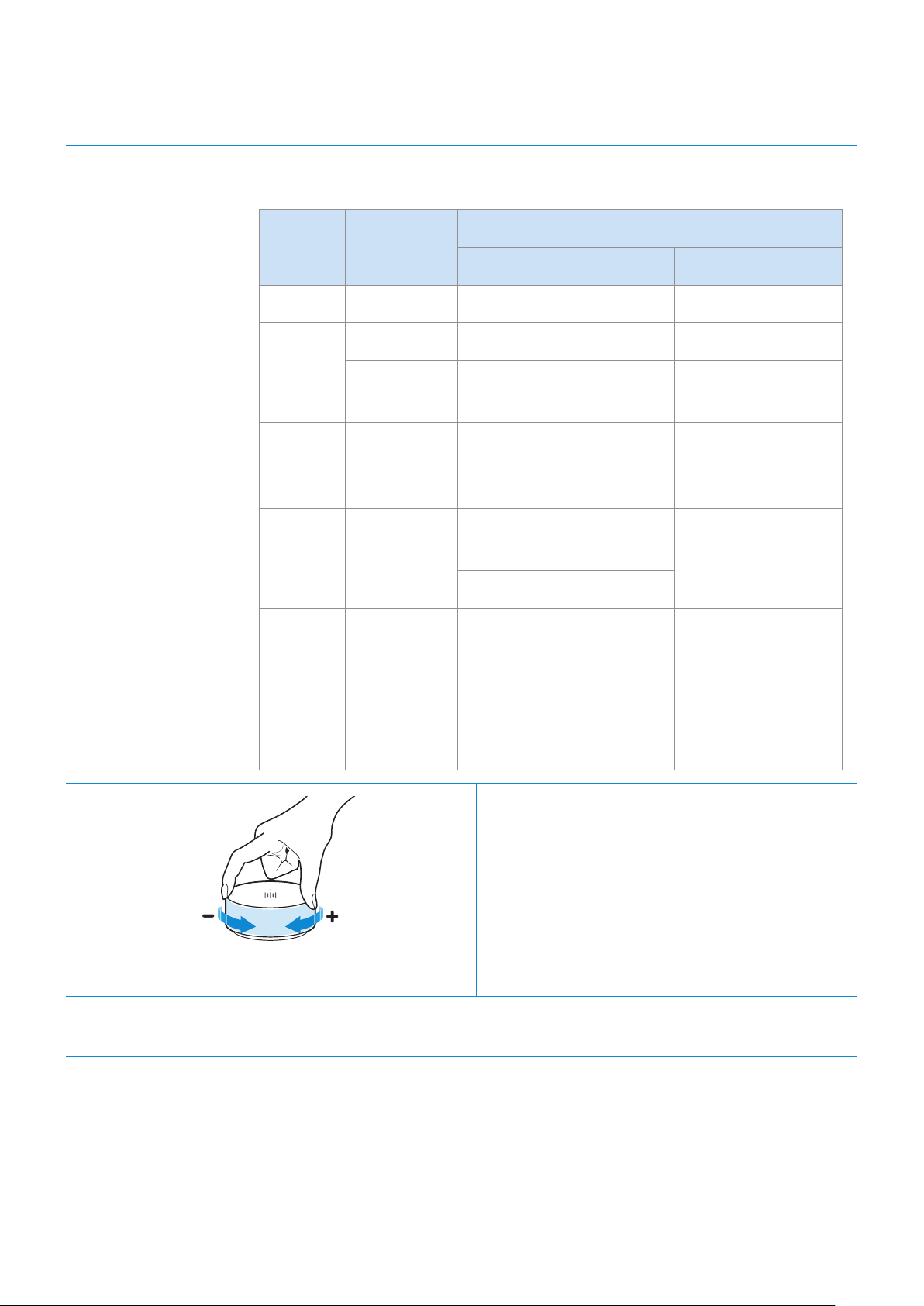
2
LED Display The indicator blinks, lights, or changes the colour depending on the
speaker status.
LED Status
Description
Operation Battery
Off All Off Standby Battery discharged
White
On Normal operation Fully charged
Blinking
Waiting for connection to
the speaker
-
Cyan On
Mobile voice recognition
active (Dedicated for
Bluetooth)
-
Red On
Connection to the
speaker failure
-
In error
Yellow Blink once
When the volume is set
to Min or Max
-
Pink
Blink once
after key use
-
Battery less than
10 %
On Currently charging
3
Volume
adjustment
(Turning the volume wheel)
Turn the volume wheel clockwise to increase
the volume.
Turn the volume wheel anticlockwise to
decrease the volume.
4
Voice MIC MICs that are used for mobile device voice recognition.
Play / Pause and Skip features are not available in AUX mode.
ENG - 7
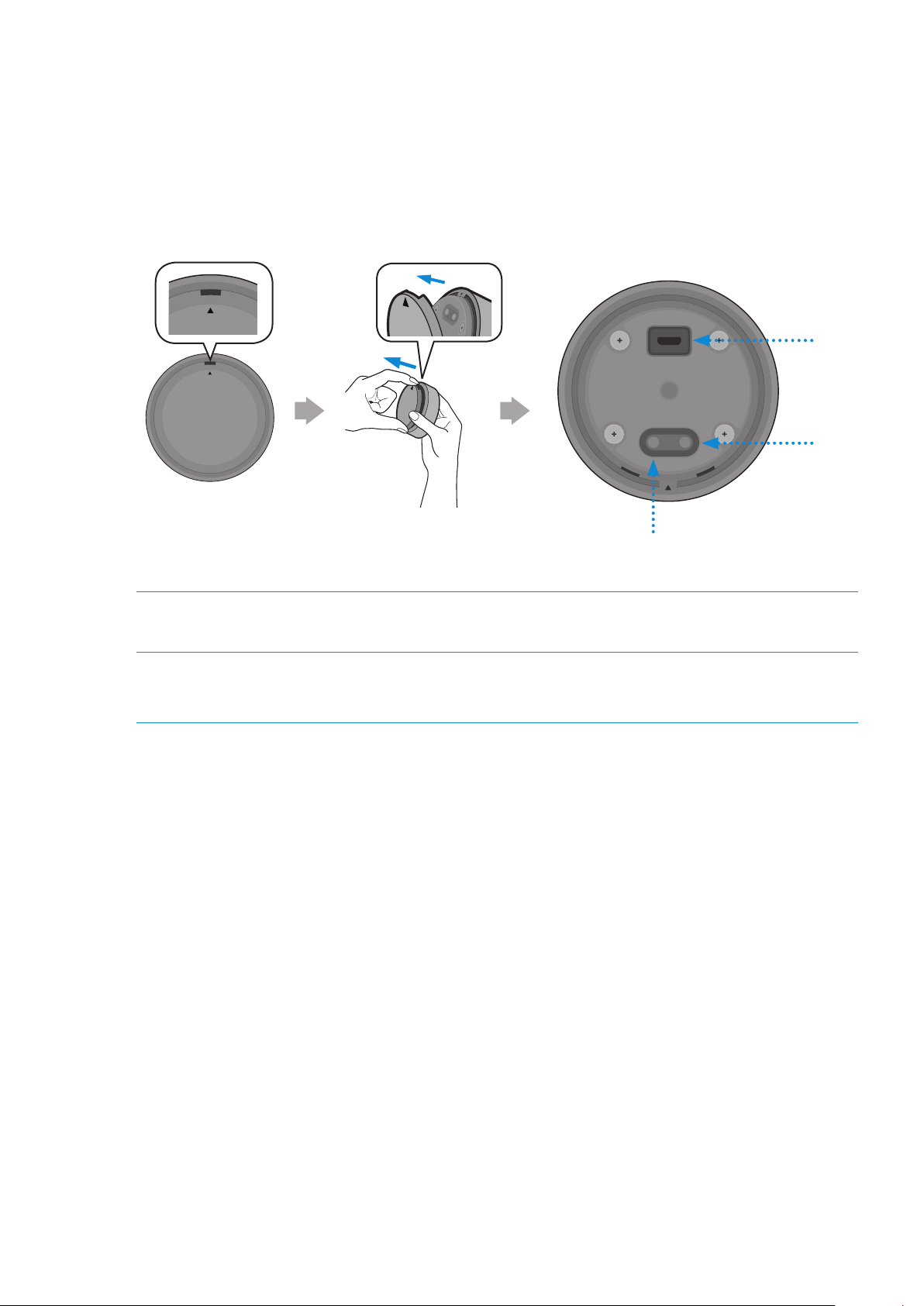
❚
Bottom of the Dial Controller
1
Remove the cover at the bottom of Dial Controller and then turn on the power.
•
Charge your Dial Controller before turning the power on.
OPEN
OPEN
OPEN
OPEN
OPEN
OPEN
CONNECT
DC 5V
IN
RESET
1
2
OPEN
OPEN
CONNECT
RESET
OPEN
RESET Button
1
DC 5V IN Jack Connect the Micro USB cable to charge the Dial Controller.
2
CONNECT
Button
Try connecting to a Speaker.
2
Check the LED status (blinking in pink). If the battery level is low, charge the Dial Controller by
connecting the Micro USB cable. (For more information about the LED display, see page 7.)
It takes approximately 3 hours to fully charge the battery. Fully charged battery can last up to 90 days.
Battery life is subject to use conditions and environment.
The RESET button is for troubleshooting.
ENG - 8
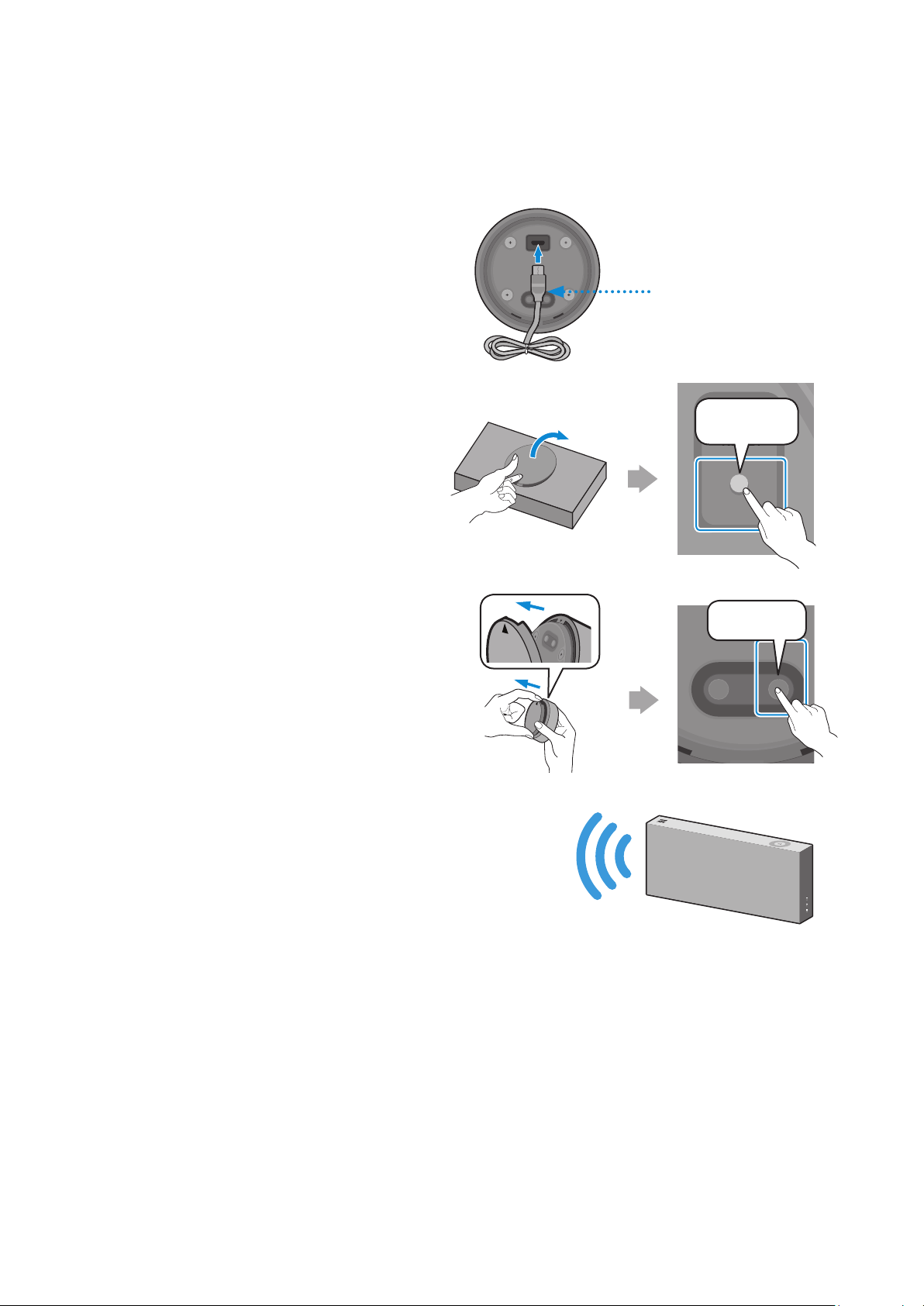
❚
Connecting between the Dial Controller and Speaker
* Before use of the Dial Controller
Charge the Dial Controller until the LED lights.
(When fully charged, the LED changes to white.)
CONNECT
DC 5V
IN
RESET
Micro USB Cable
(not supplied)
1
Press the CONNECT button on
the rear of the speaker.
DC 24V
SERVICE
AUX IN
LAN
POWER
NETWORK
(DC IN)
POWER
SERVICE
AUX IN
LAN
RESET
CONNECT
RESET
CONNECT
(DC IN)
POWER
AUX IN
AUX IN
AUX IN
CONNECT
2
Press the CONNECT button on
the bottom of the Dial Controller.
OPEN
OPEN
OPEN
CONNECT
RESET
OPEN
CONNECT
DC 5V
IN
RESET
CONNECT
3
Once the Dial Controller and speaker
are connected, you can hear voice message,
"Pairing is complete.", from speaker.
ENG - 9
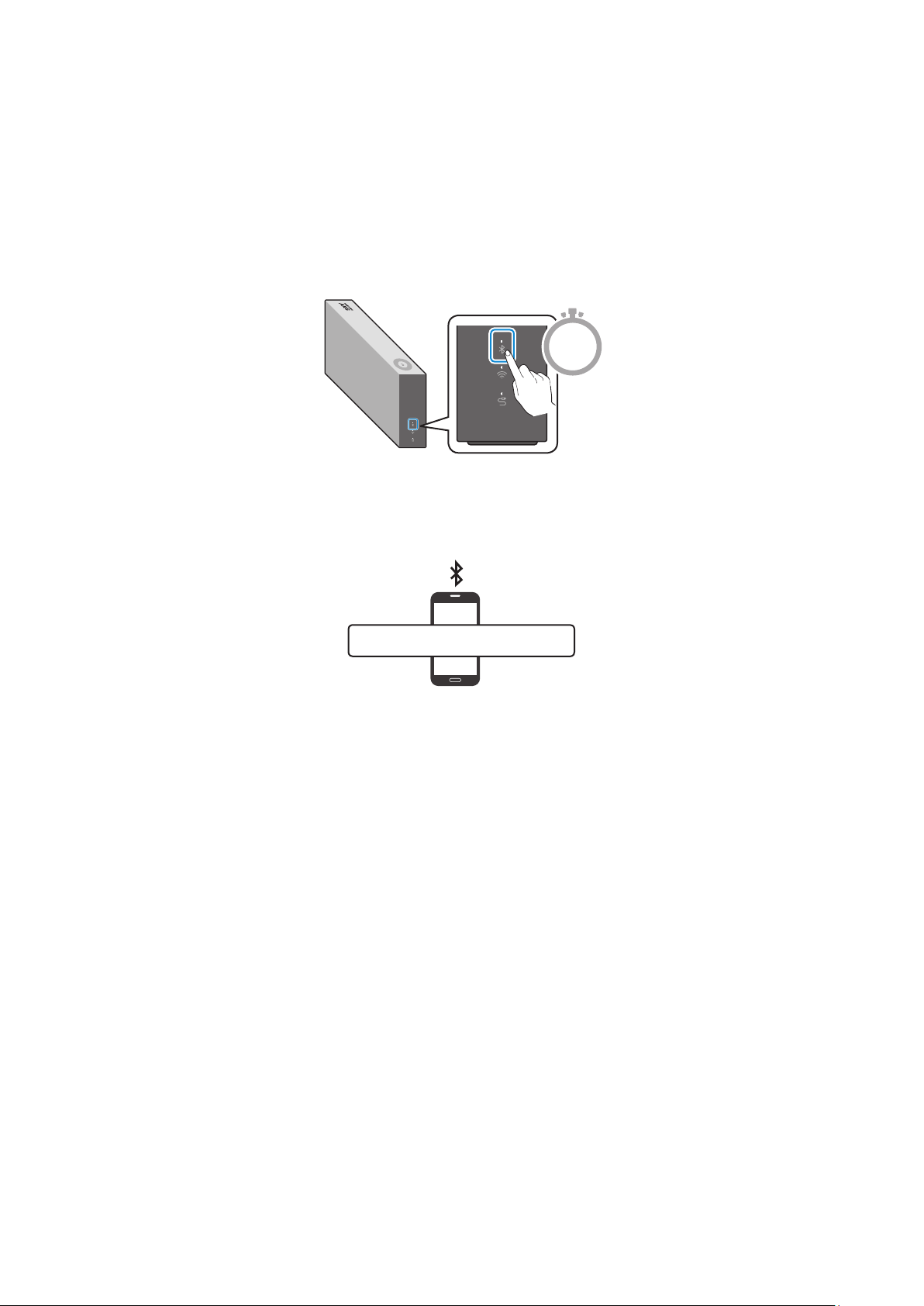
You can connect a mobile device via the Bluetooth, and then enjoy sound from the speaker.
* First time connection
1
Press the Bluetooth button on the right side of the speaker for 5 seconds or more.
5 Sec
2
Select the speaker from the Bluetooth list on your mobile device and connect it.
(e.g. [AV] Samsung AKG VL5)
Mobile device
“[AV] Samsung AKG VL*”
* Reconnection
Only Step 2 is required when reconnecting to mobile devices.
Bluetooth connection allows you to use voice recognition service in your mobile device.
Connecting to Bluetooth
ENG - 10
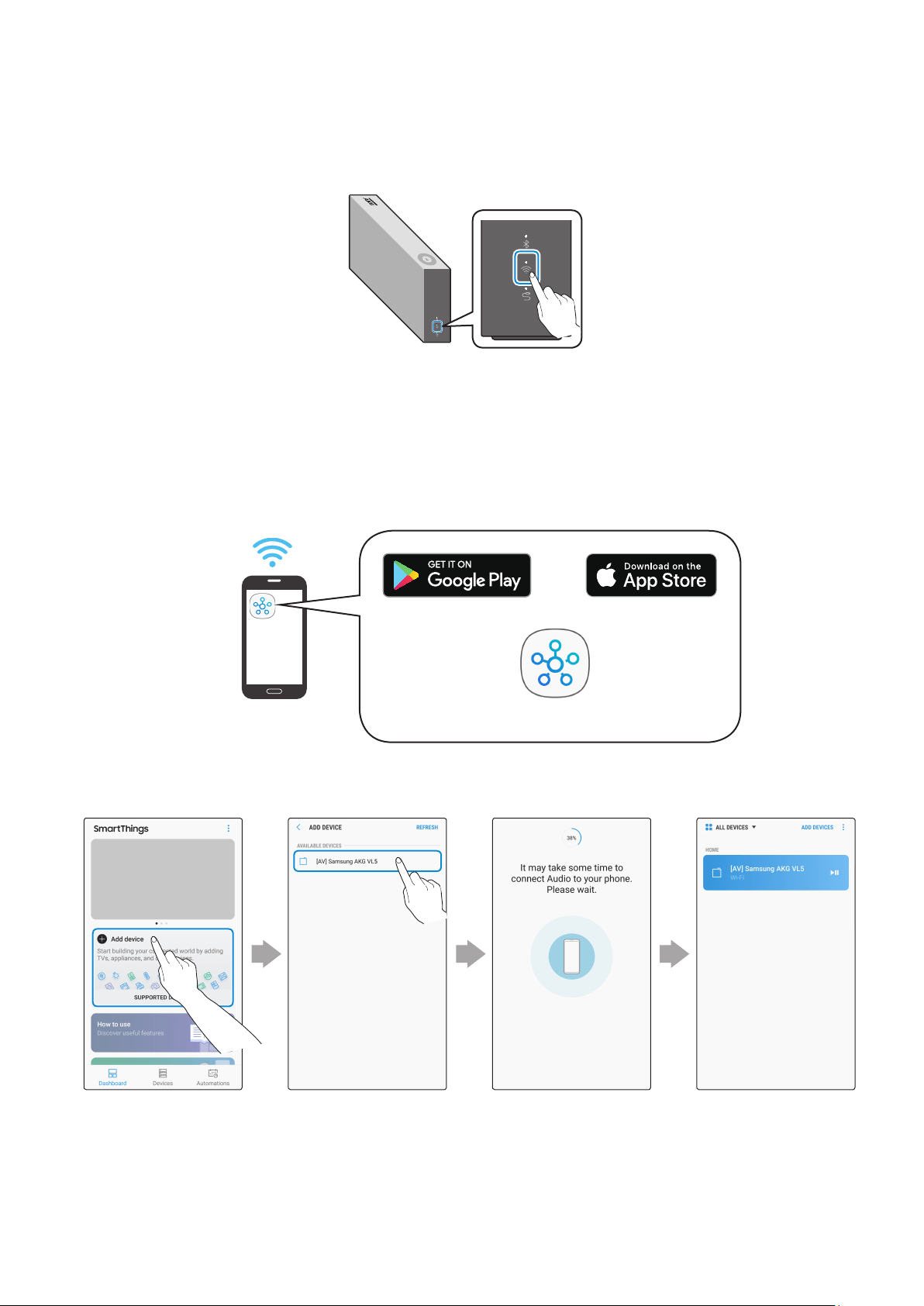
1
Press the Wi-Fi button on the right side of the speaker to switch to Wi-Fi mode.
2
Download the SmartThings app to your mobile device and then launch it.
•
You cannot congure the settings for the devices that are not supported by the
SmartThings app.
•
SmartThings requirements : Android 6.0 or newer version / iOS 10.0 or newer version
•
To use the SmartThings app, a Samsung Account is required.
Mobile device
Android iOS
SmartThings app
3
Follow the instructions on the SmartThings app screen to complete settings.
Standby to be
connected
ConnectedSelect the device
to connect
Touch “Add device”
Connecting to Wi-Fi
ENG - 11
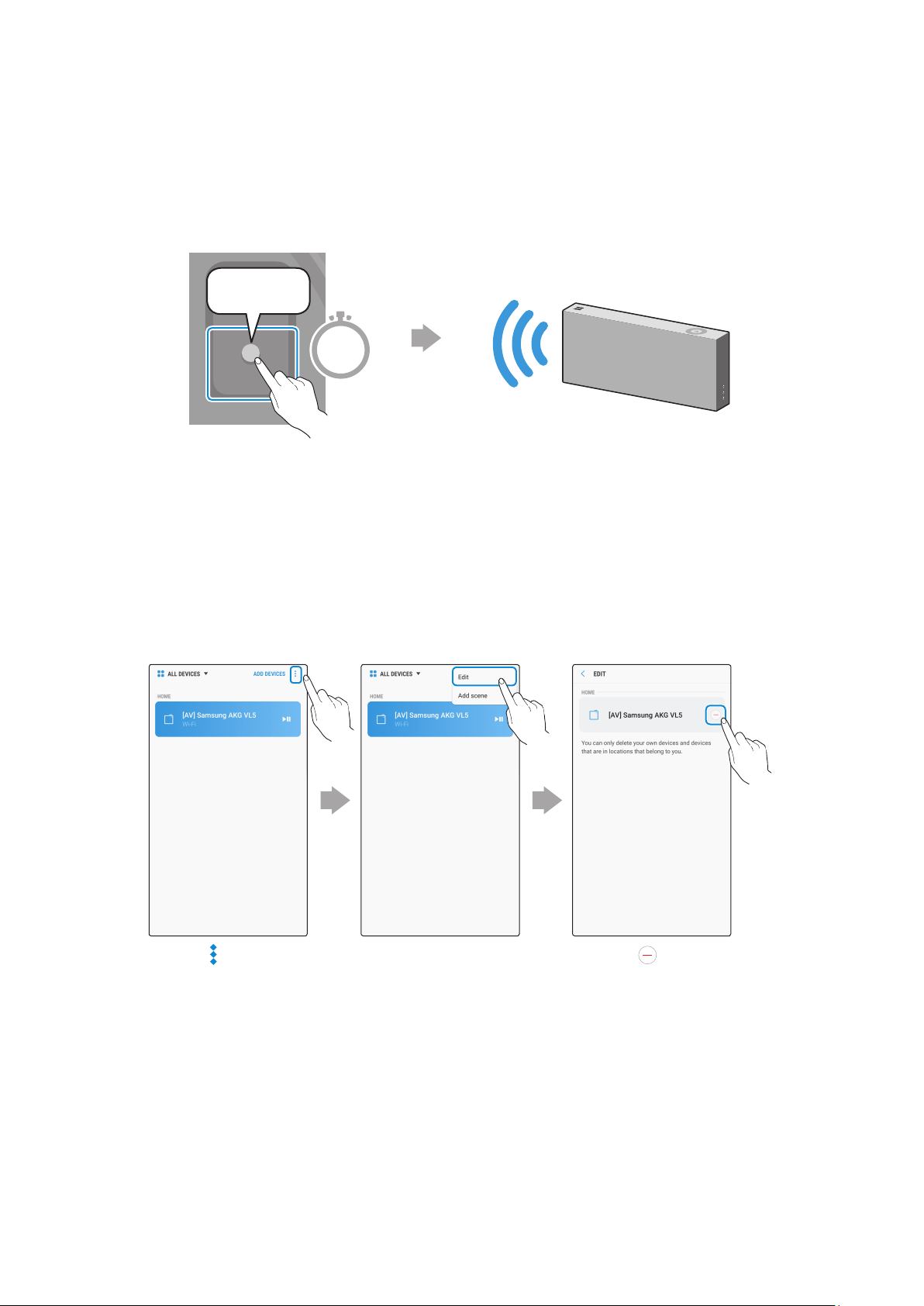
4
Repeat steps 1-3 to connect all speakers to the same wireless router.
•
Spotify Premium users can enjoy music by using the Spotify app.
5-1
Follow the instruction below to reconnect or connect to a new wireless router.
The speaker generates a voice
message notifying that it is now
in standby mode.
DC 24V
SERVICE
AUX IN
LAN
POWER
NETWORK
(DC IN)
POWER
SERVICE
AUX IN
LAN
RESET
CONNECT
RESET
CONNECT
(DC IN)
POWER
CONNECT
Press the CONNECT button
for 5 seconds.
5 Sec
5-2
Repeat step 3.
* Deleting a device from SmartThings app
Touch in the top
right of the device
list
Touch next to
the device to
remove
Touch "Edit"
ENG - 12
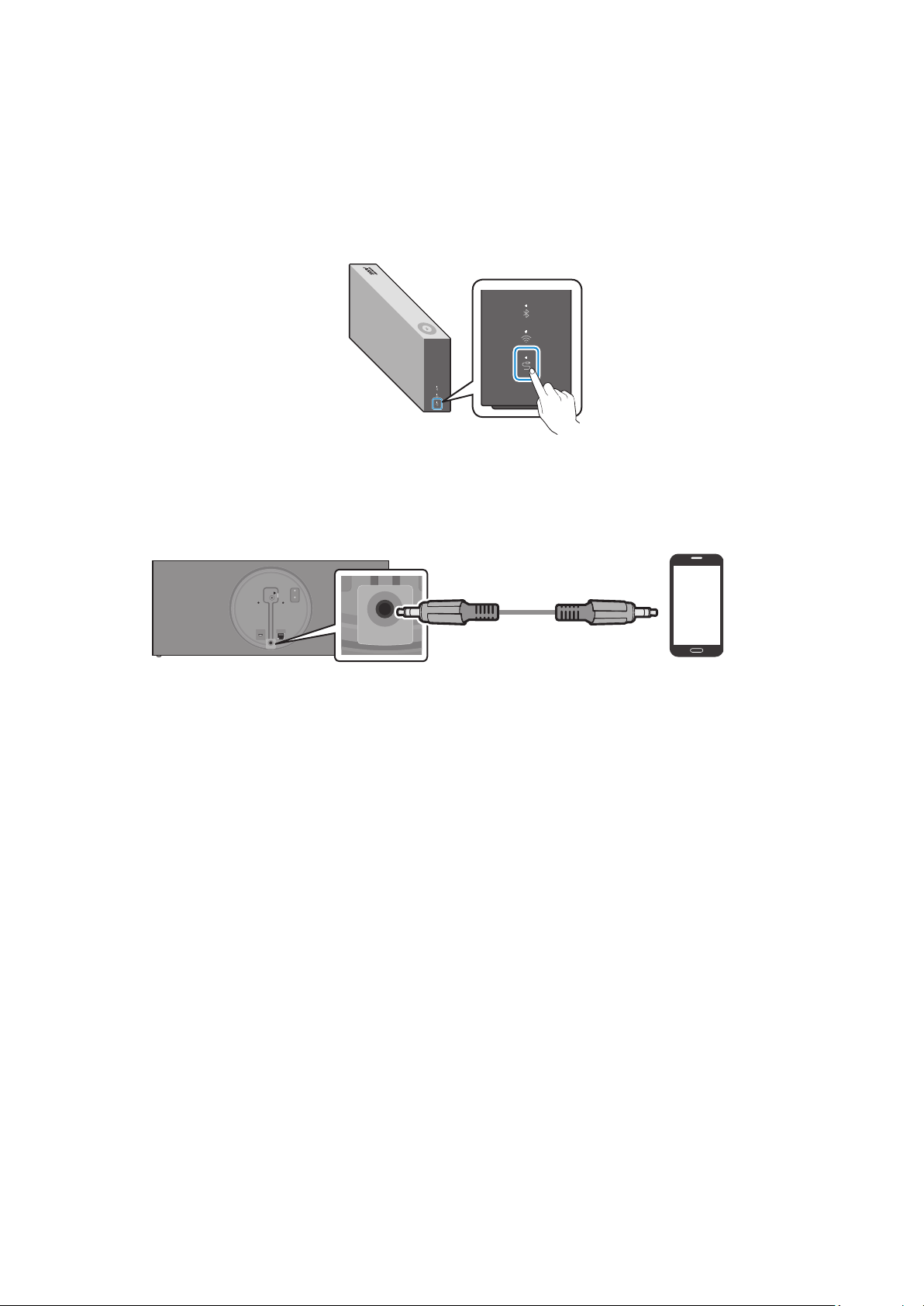
❚
Connecting an external device via the AUX cable
You can connect a mobile device via the AUX cable, and then enjoy sound from the speaker.
1
Press the AUX button on the right side of the speaker to switch to AUX mode.
2
Connect the AUX IN port on the rear of the speaker to an external device via the AUX cable
(not supplied).
DC 24V
SERVICE
AUX IN
LAN
POWER
NETWORK
(DC IN)
POWER
SERVICE
AUX IN
LAN
RESET
CONNECT
RESET
CONNECT
(DC IN)
POWER
DC 24V
SERVICE
AUX IN
LAN
POWER
NETWORK
(DC IN)
POWER
SERVICE
AUX IN
LAN
RESET
CONNECT
RESET
CONNECT
(DC IN)
POWER
AUX Cable
(not supplied)
Rear of the speaker
External Device
(e.g. Mobile device)
Connecting to an External Device
ENG - 13
A
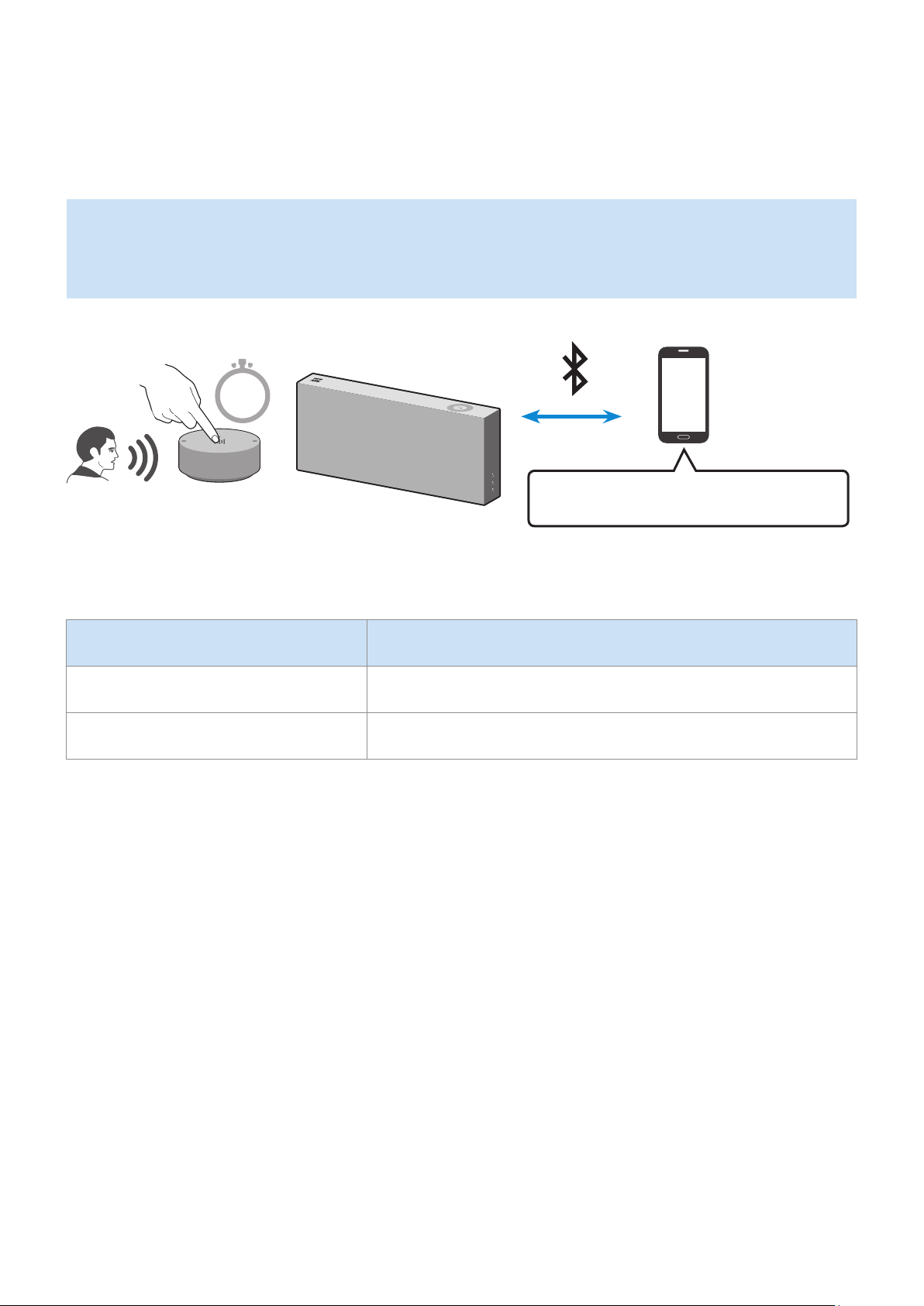
Using mobile device voice recognition
Dedicated functions in Bluetooth mode
•
This function can be used only when a mobile device is connected via Bluetooth.
•
The operation may differ depending on the specication of the mobile device.
Mobile Device Voice Recognition Service
2 Sec
Depending on the voice recognition service provided by your mobile device (e.g. Bixby, Siri, Google Assistant,
etc.), its availability and usage may differ.
Function example Speaking example
Listening to music Play TOP 100
Sending messages Forward my most recent text message to mom
Additional Functions
ENG - 14
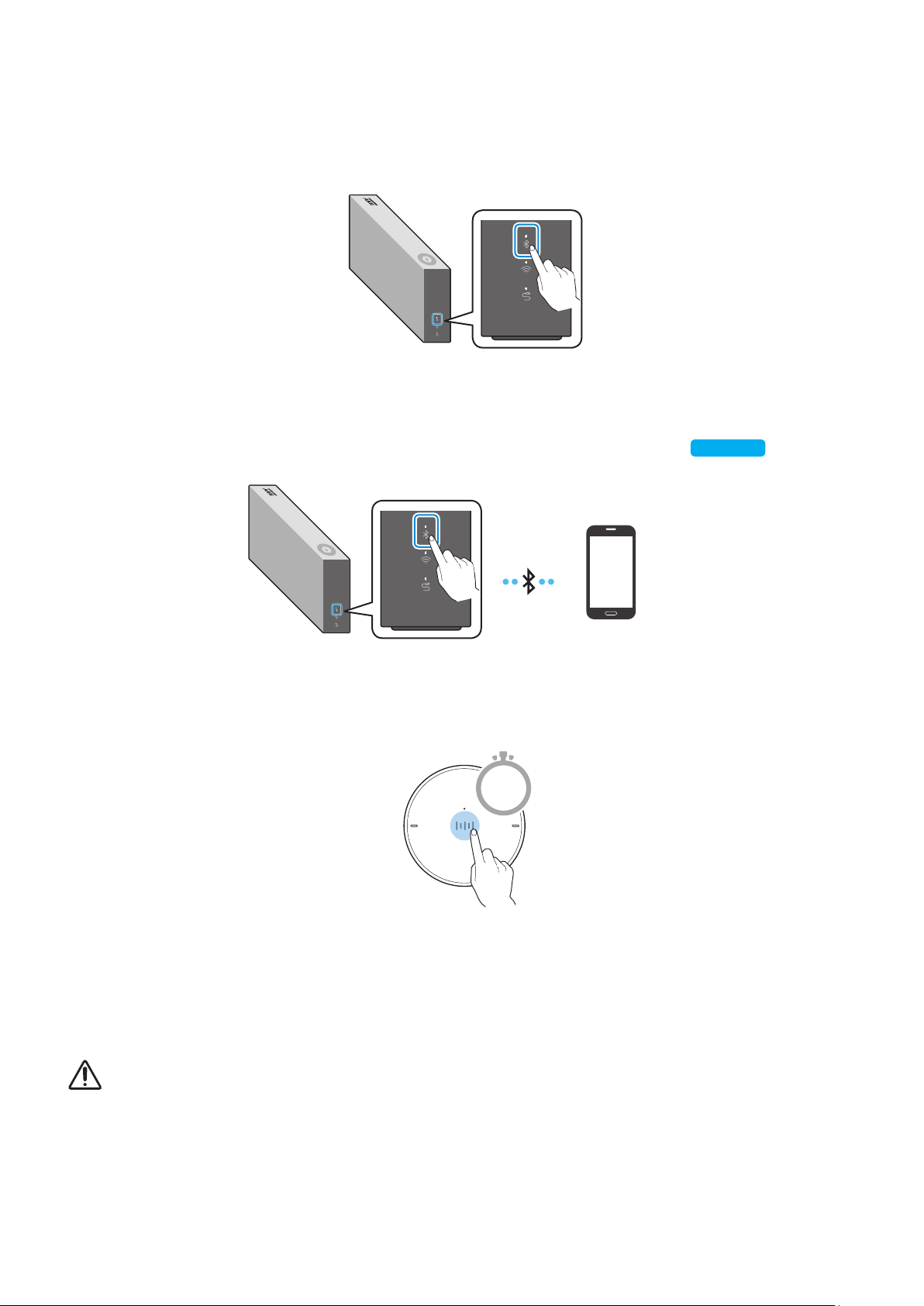
1
Press the Bluetooth button on the right side of the speaker to switch to Bluetooth mode.
1-1
If you have not already, set up Bluetooth connection between the speakers and your
mobile device.
•
To connect a mobile device, please see [Connecting to Bluetooth]
Click here.
.
Mobile device
2
Press and hold the Multi-Function button on Dial Controller until LED shows cyan.
(for 2 seconds or more)
2 Sec
3
LED colour turns cyan, indicating the device’s voice recognition is activated.
Speak directly to Dial Controller to use voice recognition service.
In case of S voice on Samsung Galaxy, be sure to release the lock pattern for use of the function.
CAUTION
9
Maintain at least 1.5 cm distance between your face and Dial Controller when using voice recognition service.
ENG - 15
A
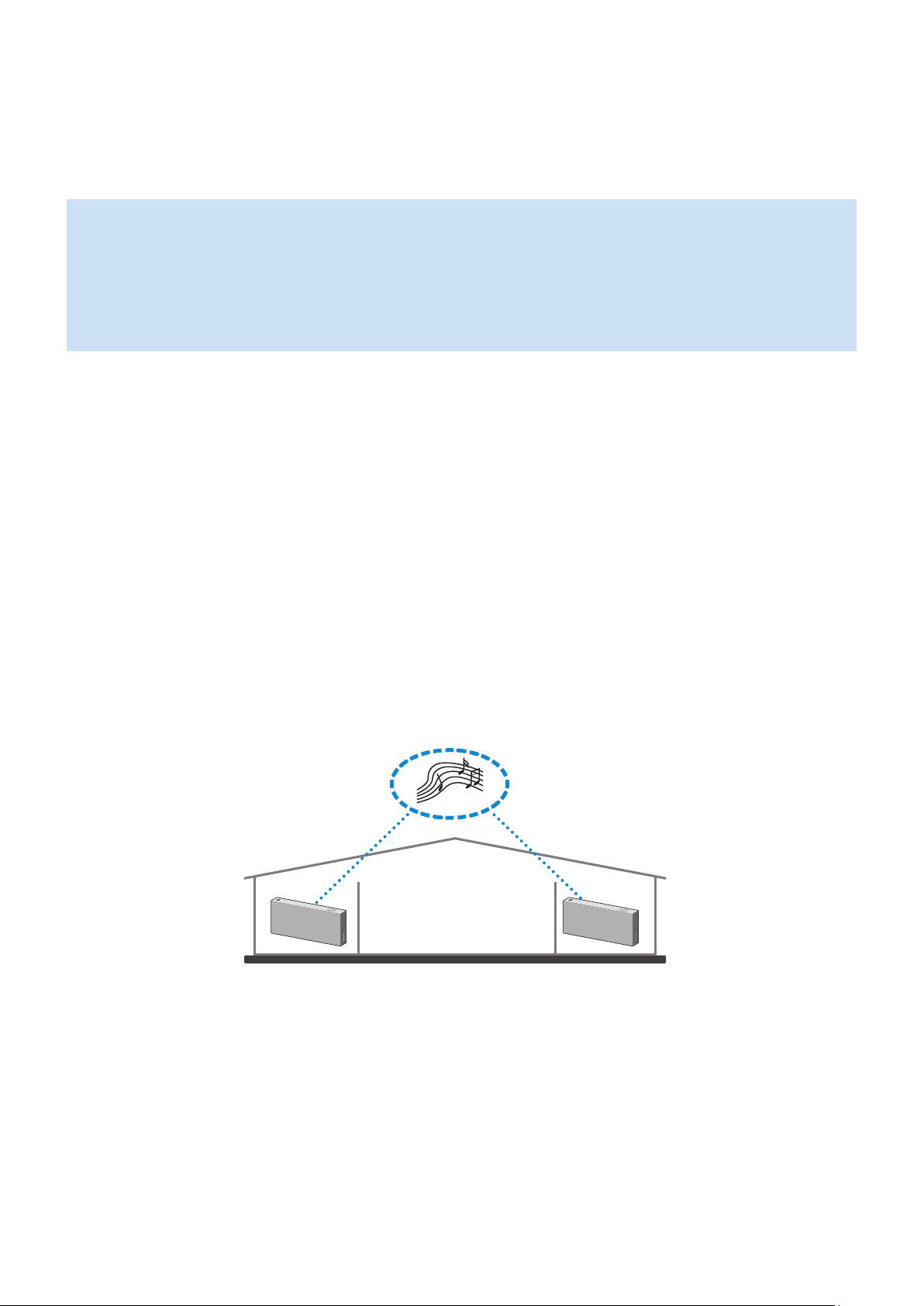
Using via Wi-Fi connection
Functions upon Wi-Fi connection
•
Using 2 units - Audio Group
•
Using 2 units - Stereo (Dedicated for VL350 / VL351)
•
Connecting with a Samsung Smart TV
•
Connecting an Amazon product
Speakers should be all connected to the same wireless router.
5 GHz wireless connection is recommended when using two devices.
When using two devices, a time difference between the video output of the connected equipment and its
audio output may occur.
On rare occasions, there can be choppy audio or interruption of connection due to wireless interference when
used in some conditions.
❚
Using 2 units - Audio Group
1
Use SmartThings app to connect and enjoy 2 speakers as a Audio Group.
•
To use Audio Group, all speakers must be connected to the same wireless router.
ENG - 16
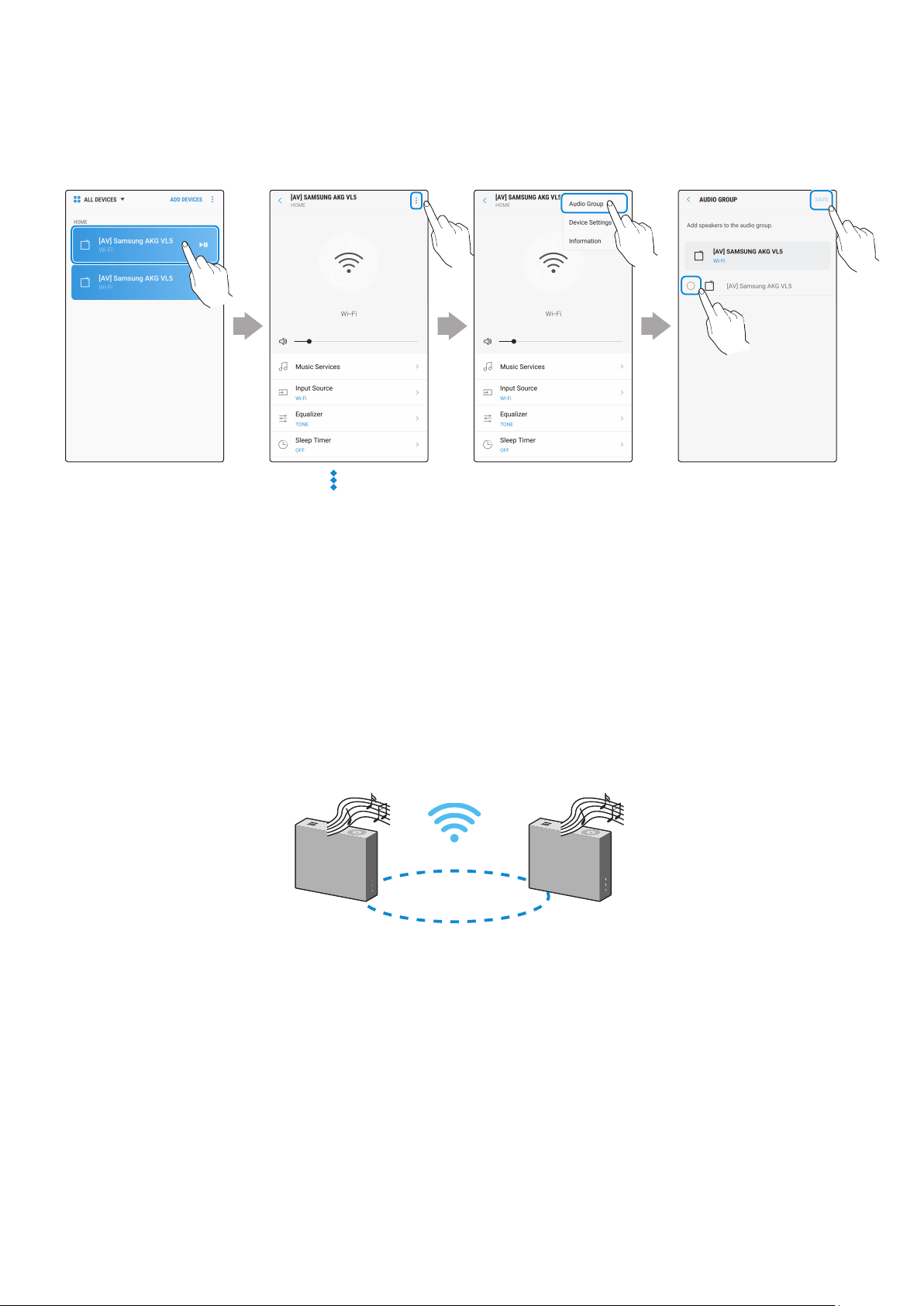
2
Select Audio Group in SmartThings app.
Touch at the top
right
Select from the
device list
Touch "Audio
Group"
Select the second
device and touch
“SAVE”
1
2
❚
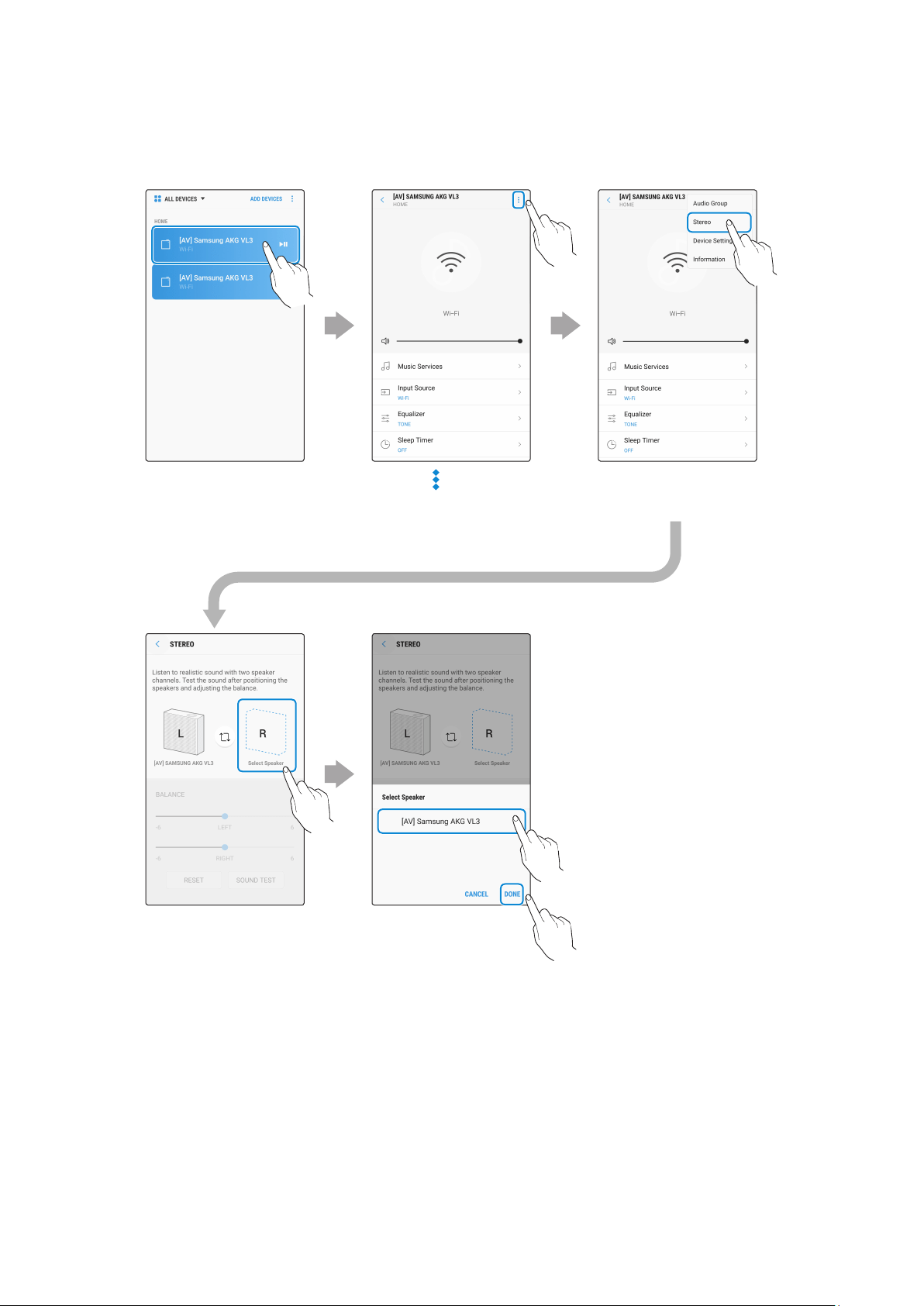
Using 2 units - Stereo (Dedicated for VL350 / VL351)
1
Use SmartThings app to connect and enjoy two speakers as a Stereo.
•
To use Stereo, all speakers must be connected to the same wireless router.
Left
Right
ENG - 17
2
Select Stereo in SmartThings app.
Touch at the top
right
Select from the
device list
Touch "Stereo"
Touch "Select
Speaker"
Select the second
device and touch
“DONE”
1
2
VL550 / VL551 is already a Stereo device so does not support Stereo Multiple connection, only for Audio
Group function.
ENG - 18
❚
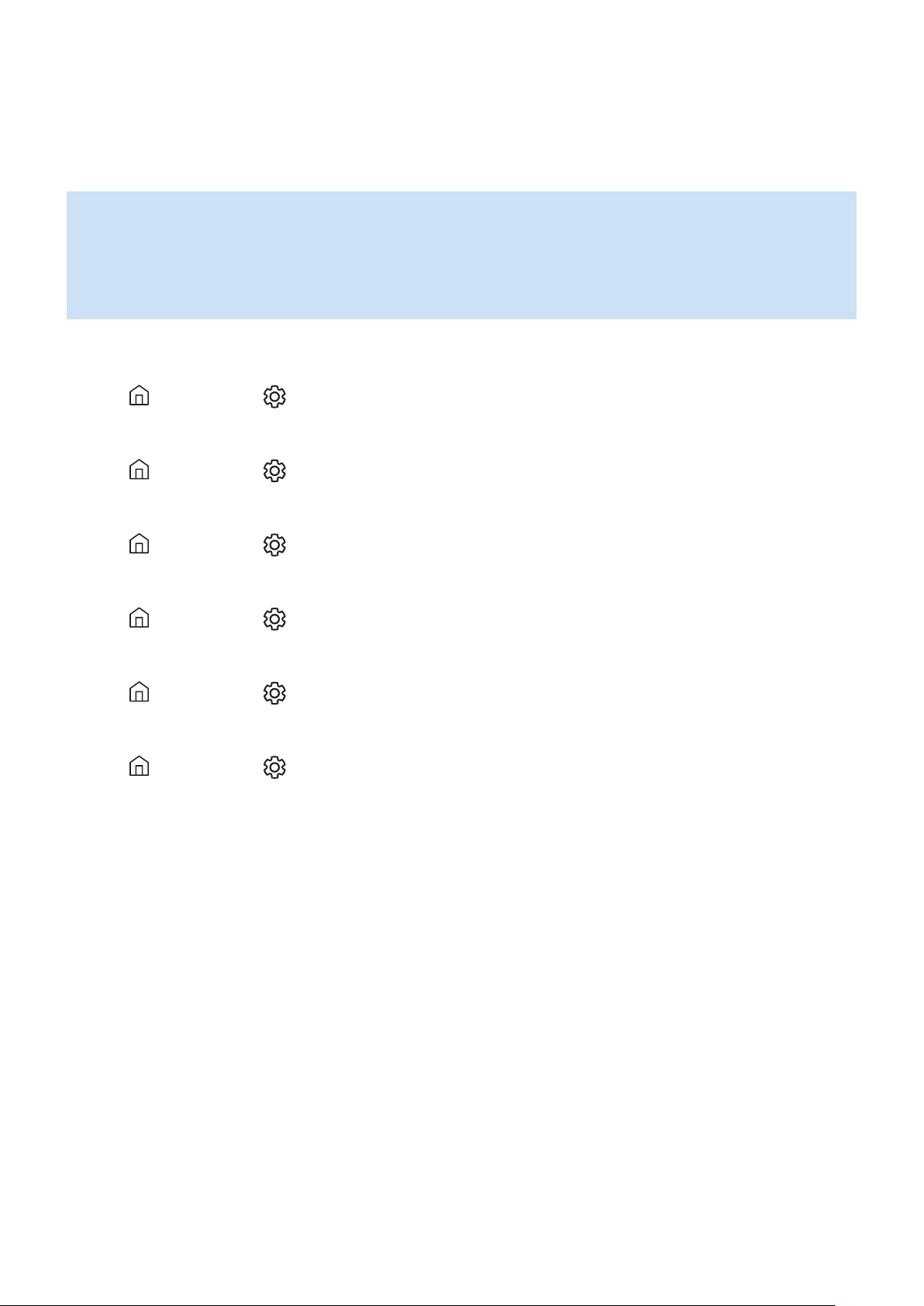
Connecting with a Samsung Smart TV
1. This feature is available only for Samsung Smart TVs released in 2014 and later.
2. TV must be connected to a wireless router.
3. Your Samsung speakers should be connected to the wireless router that is connected to
your TV. (Refer to the corresponding product’s user manual.)
`
Connecting 1 speaker to Samsung Smart TV 2018
Home (
)
Settings ( )
Sound
Sound Output
[AV] Samsung AKG VL*(Wi-Fi)
`
Connecting 2 speakers to Samsung Smart TV 2018
Home (
)
Settings ( )
Sound
Wi-Fi Speaker Surround Setup
`
Connecting 1 speaker to Samsung Smart TV 2017
Home (
)
Settings ( )
Sound
Sound Output
[AV] Samsung AKG VL*(Wi-Fi)
`
Connecting 2 speakers to Samsung Smart TV 2017
Home (
)
Settings ( )
Sound
Wi-Fi Speaker Surround Setup
`
Connecting 1 speaker to Samsung Smart TV 2016
Home (
)
Settings ( )
Sound
Select Speaker
[AV] Samsung AKG VL*(Wi-Fi)
`
Connecting 2 speakers to Samsung Smart TV 2016
Home (
)
Settings ( )
Sound
Expert Settings
Wireless Speaker Manager
`
Connecting 1 or 2 speakers to a 2015 Samsung Smart TV
Menu
Sound
Speaker List
`
Connecting 1 or 2 speakers to a 2014 Samsung Smart TV
Menu
Sound
Speaker Settings
Multiroom Link - Settings
Because the menus may differ depending on the year of manufacture, refer to your TV manual.
ENG - 19
❚
Connecting an Amazon product
•
This feature may not be available in some countries.
•
This service is provided by Amazon and can be terminated at any time. Samsung does not
assume responsibility for service availability.
`
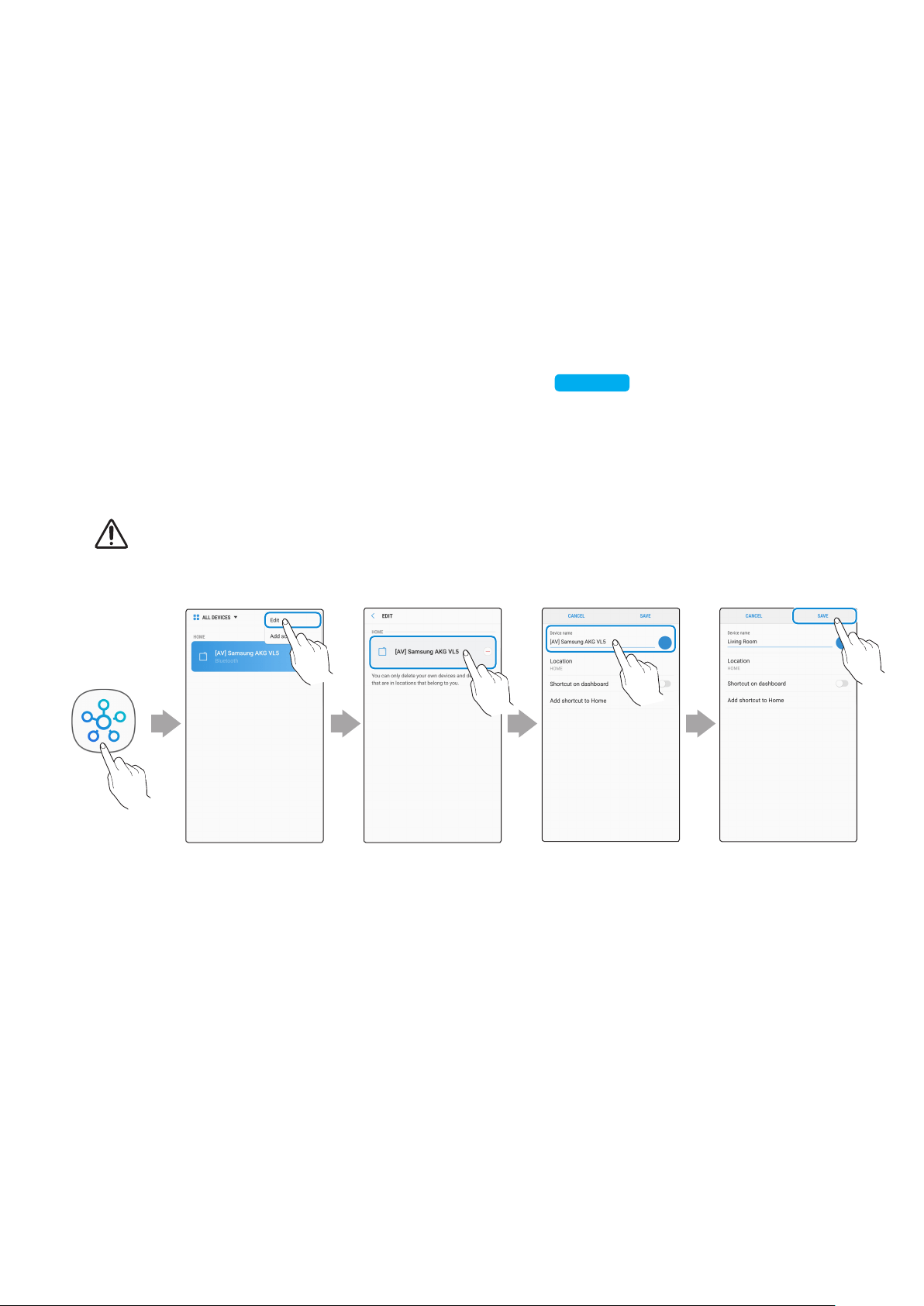
Connect and use with an Amazon product (Amazon Echo)
Use an Amazon Echo product to control your Speaker and enjoy music services provided by
Amazon Echo.
Check if the Speaker is connected to Wi-Fi. [Connecting to Wi-Fi]
Click here.
1
In the SmartThings app, change your Speaker’s name to one that can be recognized by
your Amazon device.
(Example: Samsung, Speaker, Living Room, Family Room, Bedroom, Ofce, etc.)
CAUTION
9
Amazon devices may not recognize names that contain elements such as special characters.
Select "Edit" Select speakers
Change name "SAVE"
ENG - 20
2
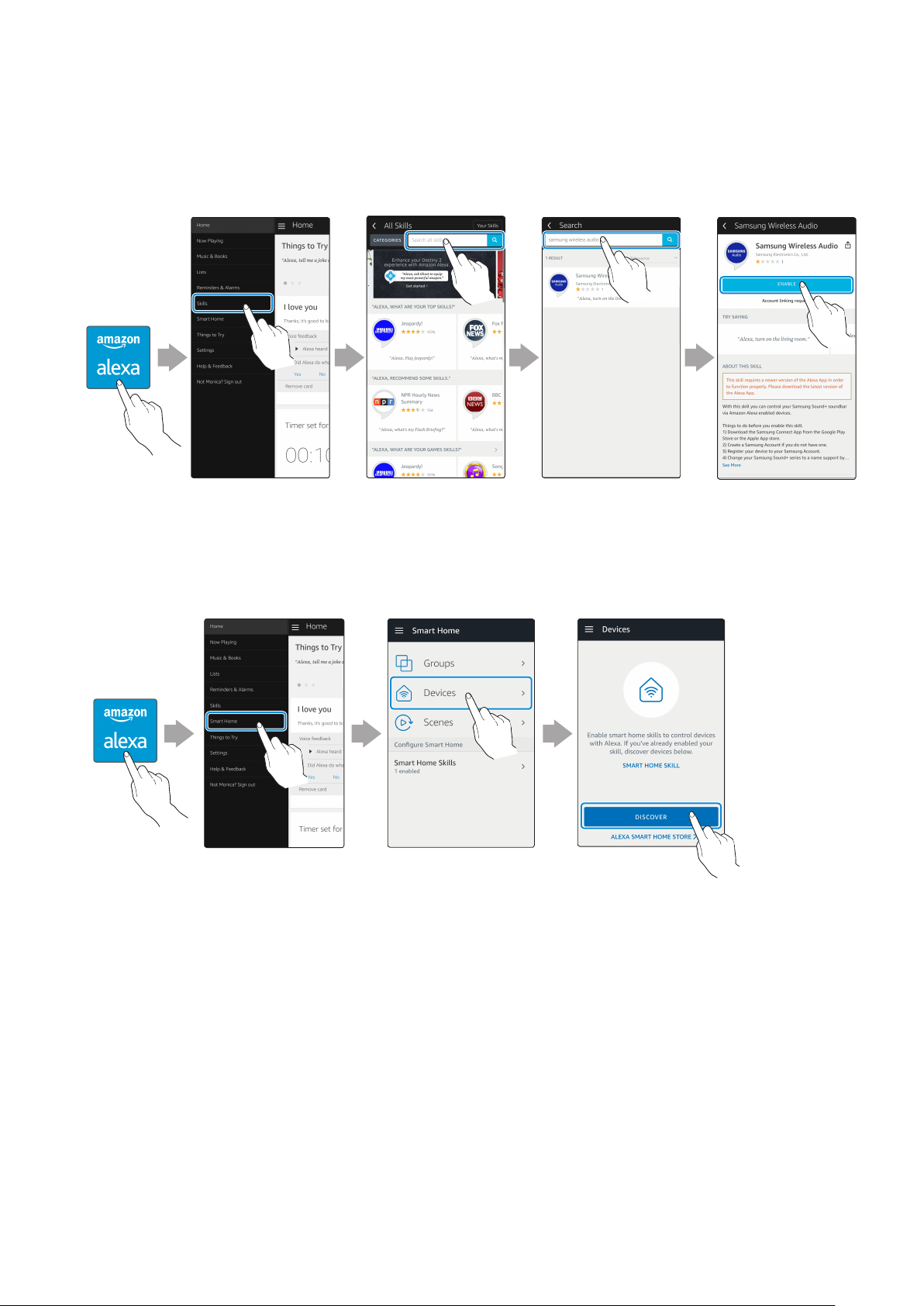
In the Alexa app, search “Samsung Wireless Audio” in Skills, and then select ENABLE.
•
Skip this step if you have Skills set up already.
Amazon Alexa
app
Select "Skills" Search "ENABLE"
3
In the Alexa app, tap Smart Home → Devices → DISCOVER to complete the connection.
Amazon Alexa
app
Select
"Smart Home"
Select "Devices" "DISCOVER"
ENG - 21
`
Use voice commands to control the Speaker
•
The Amazon Echo service you can use with your Speaker is limited to music. Other services
provided by Amazon Echo, such as news and weather, can only be accessed through your
Amazon Echo product.
Trigger + Command + Speaker name
Use the Speaker name you changed in the SmartThings app.
[Connect and use with an Amazon product (Amazon Echo)]
Click here.
Action Voice Command
To search an audio device added to the
SmartThings account connected to the
Amazon Alexa account
"Alexa Discover devices"
* To use voice commands for the Speaker named "Living room"
Action Voice Command
To set the volume level to 20 "Alexa Set the volume to 20 on Living room"
To increase the volume level "Alexa Volume up on Living room"
To mute the sound "Alexa Mute on Living room"
To listen to a radio station named KISS FM "Alexa Play Kiss FM on Living room"
To play the next song "Alexa Next song on Living room"
To stop the audio "Alexa Stop on Living room"
To turn the audio on "Alexa Turn on Living room"
To turn the audio off "Alexa Turn off Living room"
To change the input source "Alexa Switch to Bluetooth on Living room"
ENG - 22
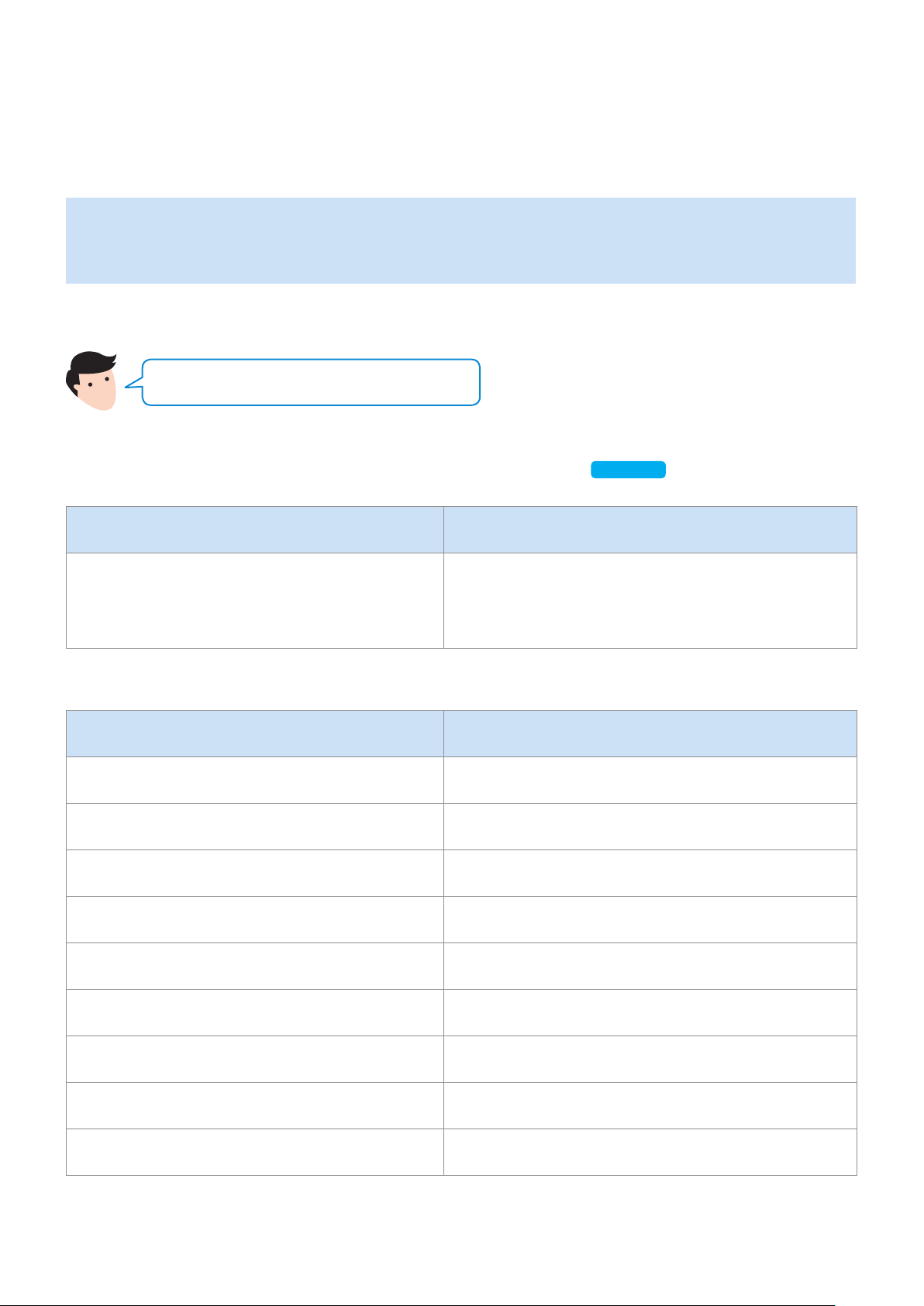
Purchase wall mounting screws according to the type and thickness of the wall you want to
mount the Speaker on.
•
Considerations for purchasing
-
Endurable load : VL350 / VL351 : Above 8.4 Kg
VL550 / VL551 : Above 18.0 Kg
-
Hole size : M5
Do not install in a place with high temperature or humidity.
Verify whether the wall is strong enough to support the product’s weight. If not, reinforce the wall or choose
another installation point.
Purchase and use the xing screws or anchors appropriate for the kind of wall you have (plaster board, iron
board, wood, etc.). If possible, x the support screws into wall studs. Install on a vertical wall only.
Make sure the unit is turned off and unplugged before you install it. Otherwise, it may cause an electric
shock.
Please have a qualied installer install the Wall Mount Bracket.
Ask a professional installation company to mount your product on the wall.
Samsung Electronics is not liable for any damage to the product due to the product being installed
inappropriately.
Please beware not to install the speaker being laid down or turned upside down.
Wall-Mount Components
x 2
x 2
Bracket-Wall Bracket-Screw Wall Fixing Screw
(not supplied)
1
Connect the AC/DC Adapter on the main unit before installation of the wall mount.
AC/DC Adapter
DC 24V
SERVICE
AUX IN
LAN
RESET
CONNECT
(DC IN)
POWER
DC 24V
SERVICE
AUX IN
LAN
RESET
CONNECT
(DC IN)
POWER
Installing the Wall Mount
ENG - 23
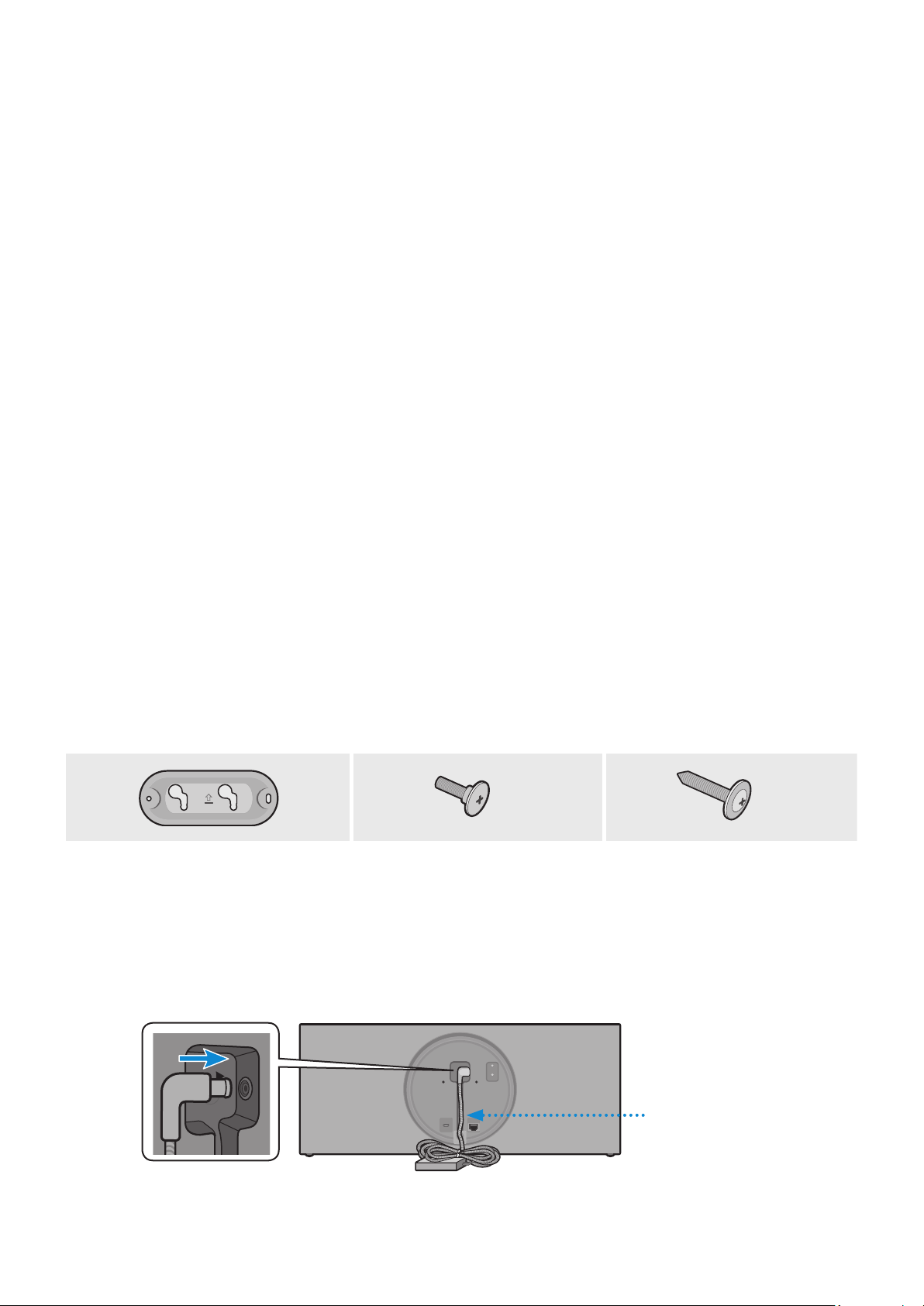
2
Fix the Bracket-Wall, and then fasten the Wall Fixing Screw from the left hole.
Wall
Bracket-Wall
Wall Fixing Screw
(not supplied)
3
Fasten the Wall Fixing Screw in the right hole.
•
When leveling is not made correctly, slightly unfasten the Wall Fixing Screw on the left
and then adjust the Bracket-Wall up or down for leveling.
4
Fasten two Bracket-Screw into the bracket hole on the rear of the main unit.
DC 24V
SERVICE
AUX IN
LAN
RESET
CONNECT
DC 24V
SERVICE
AUX IN
LAN
RESET
CONNECT
DC 24V
SERVICE
AUX IN
LAN
RESET
CONNECT
DC 24V
SERVICE
AUX IN
LAN
RESET
CONNECT
Bracket-Screw
ENG - 24
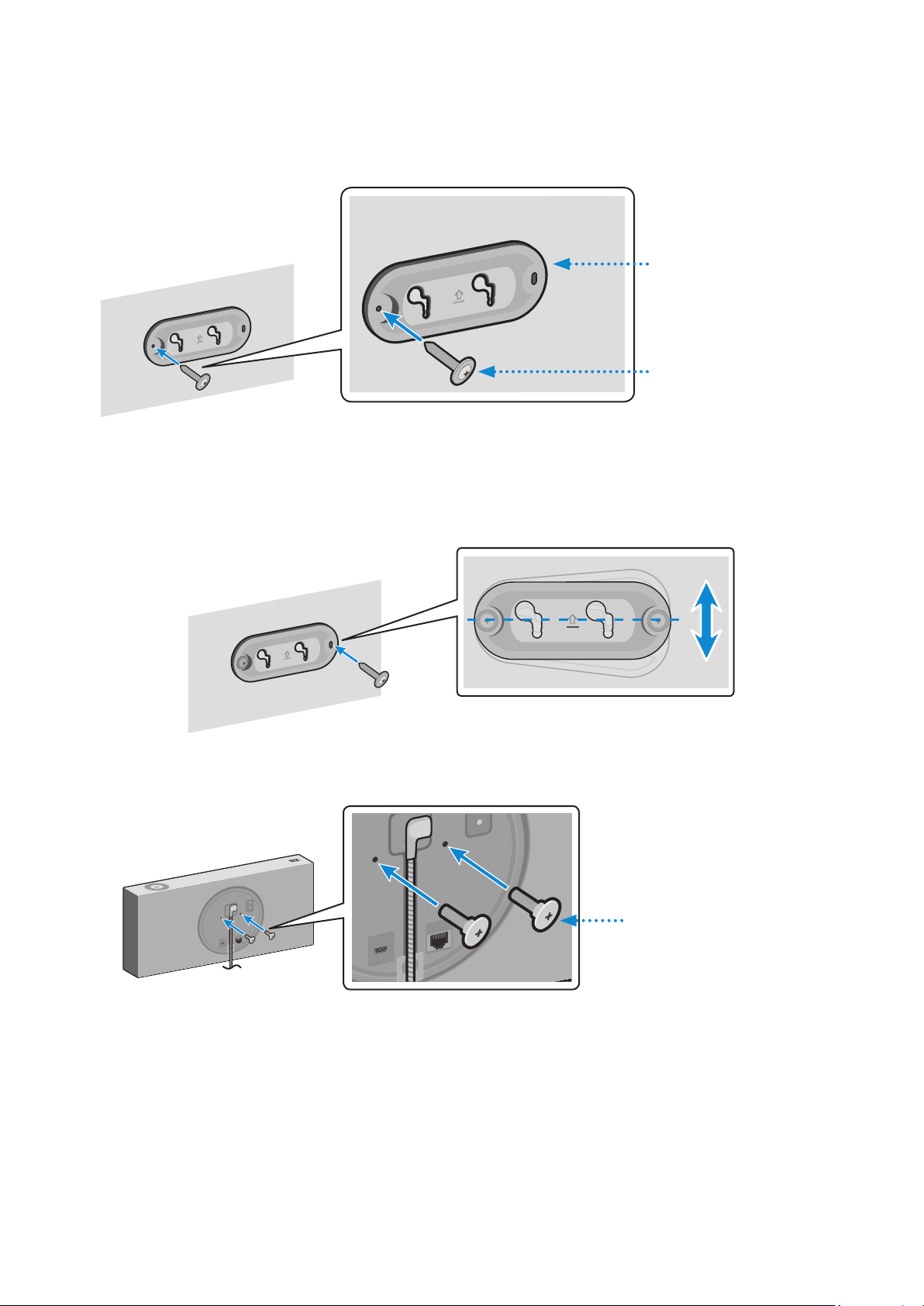
5
Align the Bracket-Screw on the main unit to t into the large groove of Bracket-Wall.
Slide it in the arrow direction until it is seated in the small groove.
•
Be sure to slide it in the arrow direction until it is seated in the small groove of the
Bracket-Wall.
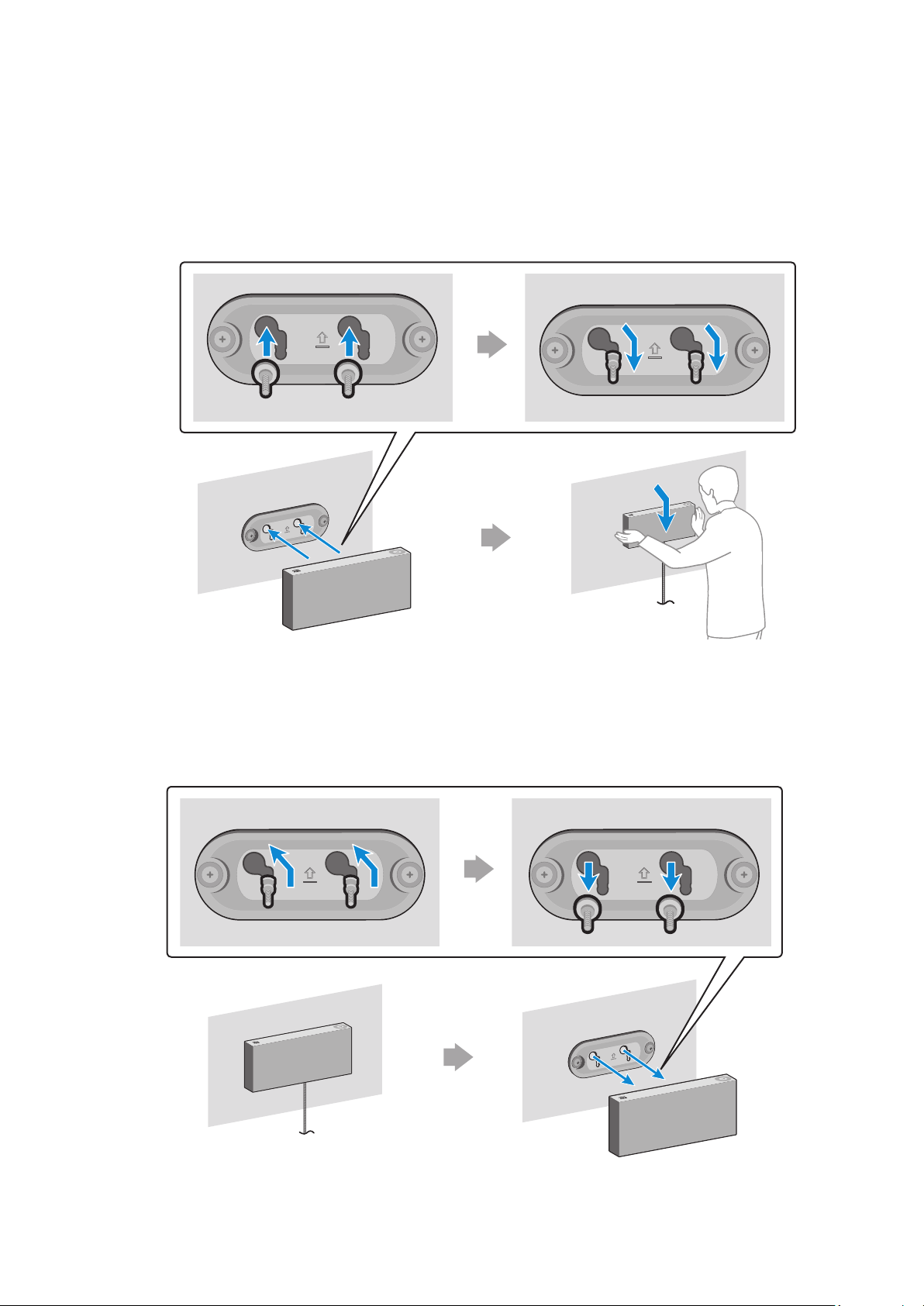
* Removing the Wall Mount
Lift the main unit up until the Bracket-Screw is seated in the large groove of Bracket-Wall and
then pull out the main unit.
ENG - 25
Appendix
A
Troubleshooting
Before requesting service, please check the following.
Symptom Check Remedy
The speaker does not turn
on.
•
Check if the power cord is
properly connected.
•
Plug in the power cord.
There is no response when
you press a button or
touch wheel area.
•
The button or touch wheel
area may be exposed to
statics.
•
Remove the plug and connect it
again.
There is no sound.
•
Is your speaker connected to
a power source?
•
The volume may be set to the
lowest level.
•
Check if the speaker is properly
connected to the power.
•
Try adjusting volume.
The Dial Controller does
not work.
•
The Dial Controller may not
have enough battery power.
•
The Dial Controller may be
out of operating range.
•
Check the connection
between the Dial Controller
and speaker.
•
Press the RESET button on the
bottom of the Dial Controller.
•
Charge the battery as instructed
for the Dial Controller LED
version.
•
Bring the Dial Controller closer to
the speaker.
•
Check “Connecting between the
Dial Controller and Speaker”.
(9 page)
Click here.
ENG - 26
Symptom Check Remedy
Cannot connect the
speaker to a mobile device
or TV.
For wired connection
•
Check the cable connection.
•
Check on the right side of the
speaker and make sure that
the speaker mode is set to
AUX mode.
•
Check the name of the port
and make sure that the cable is
connected to the right port.
•
See “Connecting to an External
Device”. (13 page)
Click here.
For Bluetooth connection
•
Check on the right side of the
speaker and make sure that
the speaker mode is set to
Bluetooth mode.
•
Set the speaker to Bluetooth
mode and try searching from
the mobile device or TV again.
•
Press the Bluetooth button on
the right side of the speaker for
5 seconds or longer to enter the
standby mode and search for the
speaker from your mobile device
or TV.
See “Connecting to Bluetooth”.
(10 page)
Click here.
For Wi-Fi connection
•
Check if your TV is a
supported model.
•
Make sure that your mobile
device or TV is connected to
the Wi-Fi network.
•
Make sure that your speaker
is connected to the Wi-Fi
network.
•
Check the DFS channel.
(DFS : Dynamic Frequency
Selection)
•
This feature supports Samsung
Smart TVs released in 2014 and
later.
•
If your TV is not connected to the
Wi-Fi network, use the network
menu on the TV to establish the
connection.
(See the user manual provided
with your TV)
•
If the TV is already connected,
the speaker should appear on
SmartThings app on your mobile
device (smartphones, tablets, etc.).
See “Using via Wi-Fi connection”.
(16 page)
Click here.
•
Connecting the TV and speaker
over Wi-Fi may not be available
if your wireless router uses the
DFS channel. For details, please
contact your internet provider.
ENG - 27

Symptom Check Remedy
The audio stutters when
playing music or videos
on my mobile device over
Bluetooth.
•
Check if there are any
nearby devices that use radio
communications or may cause
interferences.
•
Are your mobile device or any
radio communication devices
are connected to 2.4 GHz
Wi-Fi network?
•
If you have any nearby device that use
radio communications or may cause
interferences, please turn them off.
•
See “Connecting to Bluetooth”.
(10 page)
Click here.
•
If your mobile device or other radio
communication devices are connected
to a 2.4 GHz Wi-Fi network, this may
cause interferences. Try to connect
your mobile device to a 5 GHz network.
The audio stutters when
the speaker is connected
in Audio Group or Stereo
mode over Wi-Fi.
•
Are you using a 2.4 GHz Wi-Fi
network to connect your mobile
device and speaker?
•
Check the distance between
your wireless router and
speaker.
•
Check the distance between
the speakers.
•
Connect your mobile device and
speaker to a 5 GHz Wi-Fi network.
•
Make sure that your wireless router
and speaker are within the operating
range from each other.
•
Try to power off your wireless router
and restart.
•
Make sure that your speakers are
within the operating range from each
other.
The speaker loses
connection or
stays disconnected
intermittently when
used in stereo mode
after connecting TV and
speakers via Wi-Fi.
•
Are you using a 2.4 GHz Wi-Fi
network to connect your TV
and speaker?
•
Check the distance between
the wireless router, TV, and
speaker.
•
Connect your TV and speaker to a
5 GHz Wi-Fi network.
•
If you are already connected to a
5 GHz Wi-Fi network and having this
problem, check the DFS channel.
•
Make sure that your wireless router,
TV, and speaker are all within the
operating range.
SmartThings app does not
show the speaker on the
list of available devices
when I try to connect it
over Wi-Fi.
•
Is your speaker connected to
a power source?
•
Is your mobile device
connected to a wireless
router?
•
Check if the speaker is properly
connected to the power.
•
Connect your mobile device to the
wireless router.
•
Press CONNECT button in the back
of the speaker for 5 seconds or longer
to enter standby mode and try to
connect again.
If the problem persists, contact the Samsung Call Centre for troubleshooting.
ENG - 28
A
Open Source Licence Notice
•
For further information on Open Sources used in this product, please visit the website:
http://opensource.samsung.com
A
Licences
•
The Spotify Software is subject to third party licences found here :
www.spotify.com/connect/third-party-licenses
•
For more information about Spotify Connect, please visit
www.spotify.com/connect
A
Specications
Model Name VL350 / VL351 VL550 / VL551
Weight 2.1 Kg 4.6 Kg
Dimensions (W X H X D) 210.0 X 211.5 X 70.0 mm 522.0 X 211.5 X 70.0 mm
Speaker Woofer x 1, Tweeter x 1, 4 ohm Woofer x 3, Tweeter x 2, 4 ohm
Operating Temperature Range +5°C to +35°C
Operating Humidity Range 10 % to 75 %
Wireless LAN Built-in
Security
WEP (OPEN/SHARED)
WPA-PSK (TKIP/AES)
WPA2-PSK (TKIP/AES)
Wireless device output power
Wi-Fi max transmitter power
100mW at 2.4GHz – 2.4835GHz,
5.15GHz – 5.35GHz & 5.47GHz – 5.725GHz
Wireless device output power
BT max transmitter power
100mW at 2.4GHz – 2.4835GHz
•
Network speeds equal to or below 10Mbps are not supported.
•
Design and specications are subject to change without prior notice.
•
For more information about the power supply and power consumption, refer to the label
attached to the product. (Label : Bottom of the Speaker Main Unit)
•
Weight and dimensions are approximate.
•
For further details on using the speaker, visit www.samsung.com.
ENG - 29

Overall Standby Power Consumption (W)
(All the network ports are “ON” condition)
3.0 W
Wi-Fi
Disabling Wi-Fi
In Wi-Fi mode, press the Play / Pause button (on
the top side) and the CONNECT button (in the rear
side) together and hold for 30 seconds or more to
disable Wi-Fi.
Enabling Wi-Fi
Press the Wi-Fi button on the right side of the
speaker while Wi-Fi is disabled and hold for
30 seconds or more to enable Wi-Fi again.
Bluetooth
Disabling Bluetooth
In Bluetooth mode, press the Play / Pause button
(on the top side) and the CONNECT button (in the
rear side) together and hold for 30 seconds or more
to disable Bluetooth.
Enabling Bluetooth
Press the Bluetooth button on the right side of the
speaker while Bluetooth is disabled and hold for
30 seconds or more to enable Bluetooth again.
Wi-Fi and Bluetooth are enabled in default settings.
When Wi-Fi and Bluetooth are disabled, turning the product off and on does not enable them.
ENG - 30

A
Additional Information
❚
About the Network Connection
•
Depending on the wireless router used, some network operations may perform differently.
•
For detailed information on networking with a wireless router or modem, refer to the router's or
modem's documentation.
•
Select the wireless channel that is not in use. If selected channel is also used by other
communication devices in close proximity, it may cause wireless interference which interrupts
communications or cause choppy audio.
•
Experiencing choppy audio and interruption of connection due to wireless interference
is possible as the performance of wireless LAN is affected by your environment and use
conditions including router’s performance, distance, obstruction, and interference by other
mobile devices.
•
WEP encryption does not work with WPS (PBC) / WPS (PIN).
❚
Works with SmartThings™
•
This product is compatible with SmartThings.
•
SmartThings service varies from country to country.
•
For more information, visit http://www.smartthings.com
•
Figures and illustrations in this Full Manual are provided for reference only and may differ
from actual product appearance.
•
An administration fee may be charged if either
(a) an engineer is called out at your request and there is no defect in the product (i.e. where
you have failed to read this user manual).
(b) you bring the unit to a repair centre and there is no defect in the product (i.e. where you
have failed to read this user manual).
•
The amount of such administration charge will be advised to you before any work or home
visit is carried out.
A
Copyright
© 2018 Samsung Electronics Co., Ltd. All rights reserved; No part or whole of this user's manual
may be reproduced or copied without the prior written permission of Samsung Electronics Co.,Ltd.
ENG - 31
•
Hereby, Samsung Electronics, declares that this equipment is in compliance with
Directive 2014/53/EU. The full text of the EU declaration of conformity is available
at the following internet address: http://www.samsung.com go to Support >
Search Product Support and enter the model name. This equipment may be
operated in all EU countries.
The 5GHz WLAN(Wi-Fi or SRD) function of this equipment may only be operated
indoors.
[Correct disposal of batteries in this product]
(Applicable in countries with separate collection systems)
This marking on the battery, manual or packaging indicates that the batteries in this product
should not be disposed of with other household waste at the end of their working life. Where
marked, the chemical symbols Hg, Cd or Pb indicate that the battery contains mercury, cadmium
or lead above the reference levels in EC Directive 2006/66.
If batteries are not properly disposed of, these substances can cause harm to human health or
the environment.
To protect natural resources and to promote material reuse, please separate batteries from other
types of waste and recycle them through your local, free battery return system.
Correct Disposal of This Product
(Waste Electrical & Electronic Equipment)
(Applicable in countries with separate collection systems)
This marking on the product, accessories or literature indicates that the product and its
electronic accessories (e.g. charger, headset, USB cable) should not be disposed of with other
household waste at the end of their working life.
To prevent possible harm to the environment or human health from uncontrolled waste disposal,
please separate these items from other types of waste and recycle them responsibly to promote
the sustainable reuse of material resources.
Household users should contact either the retailer where they purchased this product, or
their local government ofce, for details of where and how they can take these items for
environmentally safe recycling.
Business users should contact their supplier and check the terms and conditions of the purchase
contract.
This product and its electronic accessories should not be mixed with other commercial wastes
for disposal.
ENG - 32

WARNING
To remove the battery contact an authorised service centre. To obtain battery removal instructions
please visit samsung.com/global/ecodesign_energy
You must not remove (or attempt to remove) the battery incorporated in this product on your own.
FOR YOUR OWN SAFETY, DO NOT ATTEMPT TO REMOVE THE BATTERY ON YOUR OWN OR
DISPOSE OF IT IN FIRE. DO NOT DISASSEMBLE. CRUSH OR PUNCTURE THE BATTERY.
For information on Samsung’s environmental commitments and product specic regulatory
obligations e.g. REACH, WEEE, Batteries, visit:
http://www.samsung.com/uk/aboutsamsung/samsungelectronics/corporatecitizenship/
data_corner.html
ENG - 33

UNITED KINGDOM EIRE
This Samsung product is warranted for the period of
twelve (12) months from the original date of
purchase, against defective materials and
workmanship. In the event that warranty service is
required, you should return the product to the
retailer from whom it was purchased. However,
Samsung Authorised Dealers and Authorised Service
Centres in other EC Countries will comply with the
warranty on the terms issued to purchasers in the
country concerned. In case of difculty, details of our
Authorised Service Centres are available from:
Samsung Electronics U.K. Ltd
Samsung Customer Support Centre
Selectapost 38, Shefeld, S97 3FJ
United Kingdom
United Kingdom
Tel : 0330 SAMSUNG (7267864)
www.samsung.com/uk/support
EIRE
Tel : 0818 717100
www.samsung.com/ie/support
@WARRANTY CONDITIONS
1. The warranty is only valid if, when warranty
service is required, the warranty card is fully and
properly completed and is presented with the
original invoice or sales slip or conrmation, and
the serial number on the product has not been
defaced.
2. Samsung's obligations are limited to the repair or,
at its discretion, replacement of the product or
the defective part.
3. Warranty repairs must be carried out by
Authorised Samsung Dealers or Authorised
Service Centres. No re-imbursement will be made
for repairs carried out by non Samsung Dealers
and, any such repair work and damage to the
products caused by such repair work will not be
covered by this warranty.
4. This product is not considered to be defective in
materials nor workmanship by reason that it
requires adaptation in order to conform to
national or local technical or safety standards in
force in any Country other than the one for which
the product was originally designed and
manufactured. This warranty will not cover, and
no re-imbursement will be made for such
adaptation nor any damage which may result.
5. This warranty covers none of the following:
a) Periodic check ups, maintenance and repair or
replacement of parts due to normal wear and
tear.
b) Cost relating to transport, removal or
installation of the product.
c) Misuse, including the failure to use this
product for its normal purposes or incorrect
installation.
d) Damage caused by Lightning, Water, Fire, Acts
of God, War, Public Disturbances, incorrect
mains voltage, improper ventilation or any
other cause beyond the control of Samsung.
6. This warranty is valid for any person who legally
acquired possession of the product during the
warranty period.
7. The consumers statutory rights in any applicable
national legislation whether against the retailer
arising from the purchase contract or otherwise
are not affected by this warranty. Unless there is
national legislation to the contrary, the rights
under this warranty are the consumers sole rights
and Samsung, its subsidiaries and distributors
shall not be liable for indirect or consequential
loss or any damage to records, compact discs,
videos or audio taper or any other related
equipment or material.
SAMSUNG ELECTRONICS (U.K.) LTD.
Contact SAMSUNG WORLD WIDE
If you have any questions or comments relating to Samsung products, please contact the
SAMSUNG customer care centre listed for your country.
Country Contact Centre
Web Site
■
North America
U.S.A 1-800-SAMSUNG (726-7864) www.samsung.com/us/support
CANADA 1-800-SAMSUNG (726-7864)
www.samsung.com/ca/support (English)
www.samsung.com/ca_fr/support (French)
■
Latin America
MEXICO 01-800-SAMSUNG (726-7864) www.samsung.com/mx/support
BRAZIL
0800-124-421 (Demais cidades e regiões)
4004-0000 (Capitais e grandes centros)
www.samsung.com/br/support
COSTA RICA 00-800-1-SAMSUNG (726-7864)
www.samsung.com/latin/support (Spanish)
www.samsung.com/latin_en/support (English)
DOMINICAN
REPUBLIC
1-809-200-7264
ECUADOR 1-800-SAMSUNG (72-6786)
EL SALVADOR 8000-SAMSUNG (726-7864)
GUATEMALA 1-800-299-0033
HONDURAS 800-2791-9111
JAMAICA 1-800-SAMSUNG (726-7864) www.samsung.com/latin_en/support (English)
NICARAGUA 001-800-5077267
www.samsung.com/latin/support (Spanish)
www.samsung.com/latin_en/support (English)
PANAMA 800-0101
PUERTO RICO 1-800-682-3180
TRINIDAD &
TOBAGO
1-800-SAMSUNG (726-7864)
VENEZUELA 0-800-SAMSUNG (726-7864)
COLOMBIA
Bogotá en el 600 12 72
Sin costo en todo el pais 01 8000 112 112
Y desde tu celular #726
www.samsung.com/co/support
CHILE 800-SAMSUNG (726-7864)
www.samsung.com/cl/support
BOLIVIA 800-10-7260
PERU 080077708 Desde teléfonos fi jos, públicos o celulares www.samsung.com/pe/support
ARGENTINA 0800-555-SAMS (7267) www.samsung.com/ar
URUGUAY 0800-SAMS (7267) www.samsung.com/uy
PARAGUAY 0800-11-SAMS(7267) www.samsung.com/py
■
Europe
UK 0330 SAMSUNG (7267864) www.samsung.com/uk/support
IRELAND (EIRE) 0818 717100 www.samsung.com/ie/support
GERMANY 06196 77 555 77 www.samsung.com/de/support
FRANCE 01 48 63 00 00 www.samsung.com/fr/support
ITALIA 800-SAMSUNG (800.7267864) www.samsung.com/it/support
SPAIN 0034902172678 www.samsung.com/es/support
PORTUGAL 808 207 267 www.samsung.com/pt/support
LUXEMBURG 261 03 710 www.samsung.com/be_fr/support
NETHERLANDS 088 90 90 100 www.samsung.com/nl/support
BELGIUM 02-201-24-18
www.samsung.com/be/support (Dutch)
www.samsung.com/be_fr/support (French)
Contact SAMSUNG WORLD WIDE
If you have any questions or comments relating to Samsung products, please contact the
SAMSUNG customer care centre listed for your country.
Country Contact Centre
Web Site
■
North America
U.S.A 1-800-SAMSUNG (726-7864) www.samsung.com/us/support
CANADA 1-800-SAMSUNG (726-7864)
www.samsung.com/ca/support (English)
www.samsung.com/ca_fr/support (French)
■
Latin America
MEXICO 01-800-SAMSUNG (726-7864) www.samsung.com/mx/support
BRAZIL
0800-124-421 (Demais cidades e regiões)
4004-0000 (Capitais e grandes centros)
www.samsung.com/br/support
COSTA RICA 00-800-1-SAMSUNG (726-7864)
www.samsung.com/latin/support (Spanish)
www.samsung.com/latin_en/support (English)
DOMINICAN
REPUBLIC
1-809-200-7264
ECUADOR 1-800-SAMSUNG (72-6786)
EL SALVADOR 8000-SAMSUNG (726-7864)
GUATEMALA 1-800-299-0033
HONDURAS 800-2791-9111
JAMAICA 1-800-SAMSUNG (726-7864) www.samsung.com/latin_en/support (English)
NICARAGUA 001-800-5077267
www.samsung.com/latin/support (Spanish)
www.samsung.com/latin_en/support (English)
PANAMA 800-0101
PUERTO RICO 1-800-682-3180
TRINIDAD &
TOBAGO
1-800-SAMSUNG (726-7864)
VENEZUELA 0-800-SAMSUNG (726-7864)
COLOMBIA
Bogotá en el 600 12 72
Sin costo en todo el pais 01 8000 112 112
Y desde tu celular #726
www.samsung.com/co/support
CHILE 800-SAMSUNG (726-7864)
www.samsung.com/cl/support
BOLIVIA 800-10-7260
PERU 080077708 Desde teléfonos fi jos, públicos o celulares www.samsung.com/pe/support
ARGENTINA 0800-555-SAMS (7267) www.samsung.com/ar
URUGUAY 0800-SAMS (7267) www.samsung.com/uy
PARAGUAY 0800-11-SAMS(7267) www.samsung.com/py
■
Europe
UK 0330 SAMSUNG (7267864) www.samsung.com/uk/support
IRELAND (EIRE) 0818 717100 www.samsung.com/ie/support
GERMANY 06196 77 555 77 www.samsung.com/de/support
FRANCE 01 48 63 00 00 www.samsung.com/fr/support
ITALIA 800-SAMSUNG (800.7267864) www.samsung.com/it/support
SPAIN 0034902172678 www.samsung.com/es/support
PORTUGAL 808 207 267 www.samsung.com/pt/support
LUXEMBURG 261 03 710 www.samsung.com/be_fr/support
NETHERLANDS 088 90 90 100 www.samsung.com/nl/support
BELGIUM 02-201-24-18
www.samsung.com/be/support (Dutch)
www.samsung.com/be_fr/support (French)
Country Contact Centre
Web Site
NORWAY 815 56480 www.samsung.com/no/support
DENMARK 707 019 70 www.samsung.com/dk/support
FINLAND 030-6227 515 www.samsung.com/fi /support
SWEDEN 0771 726 786 www.samsung.com/se/support
POLAND
801-172-678* lub +48 22 607-93-33*
* (koszt połączenia według taryfy operatora)
http://www.samsung.com/pl/support/
HUNGARY 0680SAMSUNG (0680-726-7864) www.samsung.com/hu/support
AUSTRIA
0800-SAMSUNG (0800-7267864)
[Only for Dealers] 0810-112233
www.samsung.com/at/support
SWITZERLAND 0800 726 78 64 (0800-SAMSUNG)
www.samsung.com/ch/support (German)
www.samsung.com/ch_fr/support (French)
CZECH 800 - SAMSUNG (800-726786) www.samsung.com/cz/support
SLOVAKIA 0800 - SAMSUNG (0800-726 786) www.samsung.com/sk/support
CROATIA 072 726 786 www.samsung.com/hr/support
BOSNIA 055 233 999
www.samsung.com/support
MONTENEGRO 020 405 888
SLOVENIA 080 697 267 (brezplačna številka) www.samsung.com/si/support
SERBIA 011 321 6899 www.samsung.com/rs/support
ALBANIA 045 620 202 www.samsung.com/al/support
BULGARIA
*3000 Цена в мрежата
0800 111 31 , Безплатна телефонна линия
www.samsung.com/bg/support
ROMANIA
*8000 (apel in retea)
08008-726-78-64 (08008-SAMSUNG)
Apel GRATUIT
www.samsung.com/ro/support
CYPRUS 8009 4000 only from landline, toll free
www.samsung.com/gr/support
GREECE
80111-SAMSUNG (80111 726 7864) only from land line
(+30) 210 6897691 from mobile and land line
LITHUANIA 8-800-77777 www.samsung.com/lt/support
LATVIA 8000-7267 www.samsung.com/lv/support
ESTONIA 800-7267 www.samsung.com/ee/support
■
CIS
RUSSIA
8-800-555-55-55 (VIP care 8-800-555-55-88)
www.samsung.com/ru/support
BELARUS 810-800-500-55-500
www.samsung.com/support
GEORGIA 0-800-555-555
ARMENIA 0-800-05-555
AZERBAIJAN 0-88-555-55-55
KAZAKHSTAN
8-10-800-500-55-500
(GSM: 7799, VIP care 7700)
www.samsung.com/kz_ru/support
UZBEKISTAN 00-800-500-55-500 (GSM: 7799)
www.samsung.com/support
KYRGYZSTAN 00-800-500-55-500 (GSM: 9977)
TAJIKISTAN 8-10-800-500-55-500 (GSM: 8888)
MONGOLIA 1800-25-55
UKRAINE 0-800-502-000
www.samsung.com/ua/support (Ukrainian)
www.samsung.com/ua_ru/support (Russian)
MOLDOVA 0-800-614-40 www.samsung.com/support
Country Contact Centre
Web Site
■
Asia Paci c
CHINA 400-810-5858 www.samsung.com/cn/support
HONG KONG 3698 4698
www.samsung.com/hk/support (Chinese)
www.samsung.com/hk_en/support (English)
MACAU 0800 333 www.samsung.com/support
SINGAPORE 1800 7267864 | 1800-SAMSUNG www.samsung.com/sg/support
AUSTRALIA 1300 362 603 www.samsung.com/au/support
NEW ZEALAND
0800 726 786 (All Product)
0800 6 726 786
www.samsung.com/nz/support
VIETNAM 1800 588 889 www.samsung.com/vn/support
THAILAND
0-2689-3232
1800-29-3232 (Toll free)
www.samsung.com/th/support
MYANMAR +95-1-2399-888 www.samsung.com/mm/support
CAMBODIA
+855-23-993232
1800-20-3232 (Toll free)
www.samsung.com/th/support
LAOS +856-214-17333
MALAYSIA
1800-88-9999
+603-7713 7420 (Overseas contact)
www.samsung.com/my/support
INDONESIA
021-5699-7777
0800-112-8888 (All Product, Toll Free)
www.samsung.com/id/support
PHILIPPINES
1-800-10-726-7864 [ PLDT Toll Free ]
1-800-8-726-7864 [ Globe Landline and Mobile ]
02-422-2111 [ Standard Landline ]
www.samsung.com/ph/support
TAIWAN 0800-329-999 www.samsung.com/tw/support
INDIA
1800 40 SAMSUNG (1800 40 7267864)
(Toll-Free)
www.samsung.com/in/support
NEPAL
16600172667 (Toll Free for NTC Only)
9801572667
BANGLADESH
09612300300
08000300300 (Toll free)
SRI LANKA
+9411SAMSUNG (+94117267864)
+94117540540
+94115900000
■
Middle East
EGYPT
08000-7267864
16580
www.samsung.com/eg/support
IRAN 021-8255 [CE] www.samsung.com/iran/support
ISRAEL *6963 www.samsung.com/il/support/
SAUDI ARABIA (+966) 8002474357 (800 24/7 HELP)
www.samsung.com/sa/home
www.samsung.com/sa_en
PAKISTAN 0800-Samsung (72678) www.samsung.com/pk/support
U.A.E 800-SAMSUNG (800 - 726 7864)
www.samsung.com/ae/support (English)
www.samsung.com/ae_ar/support (Arabic)
OMAN 800-SAM CS (800-72627)
KUWAIT 183-CALL (183-2255)
BAHRAIN 8000-GSAM (8000-4726)
QATAR 800-CALL (800-2255)
TURKEY 444 77 11 www.samsung.com/tr/support
Country Contact Centre
Web Site
NORWAY 815 56480 www.samsung.com/no/support
DENMARK 707 019 70 www.samsung.com/dk/support
FINLAND 030-6227 515 www.samsung.com/fi /support
SWEDEN 0771 726 786 www.samsung.com/se/support
POLAND
801-172-678* lub +48 22 607-93-33*
* (koszt połączenia według taryfy operatora)
http://www.samsung.com/pl/support/
HUNGARY 0680SAMSUNG (0680-726-7864) www.samsung.com/hu/support
AUSTRIA
0800-SAMSUNG (0800-7267864)
[Only for Dealers] 0810-112233
www.samsung.com/at/support
SWITZERLAND 0800 726 78 64 (0800-SAMSUNG)
www.samsung.com/ch/support (German)
www.samsung.com/ch_fr/support (French)
CZECH 800 - SAMSUNG (800-726786) www.samsung.com/cz/support
SLOVAKIA 0800 - SAMSUNG (0800-726 786) www.samsung.com/sk/support
CROATIA 072 726 786 www.samsung.com/hr/support
BOSNIA 055 233 999
www.samsung.com/support
MONTENEGRO 020 405 888
SLOVENIA 080 697 267 (brezplačna številka) www.samsung.com/si/support
SERBIA 011 321 6899 www.samsung.com/rs/support
ALBANIA 045 620 202 www.samsung.com/al/support
BULGARIA
*3000 Цена в мрежата
0800 111 31 , Безплатна телефонна линия
www.samsung.com/bg/support
ROMANIA
*8000 (apel in retea)
08008-726-78-64 (08008-SAMSUNG)
Apel GRATUIT
www.samsung.com/ro/support
CYPRUS 8009 4000 only from landline, toll free
www.samsung.com/gr/support
GREECE
80111-SAMSUNG (80111 726 7864) only from land line
(+30) 210 6897691 from mobile and land line
LITHUANIA 8-800-77777 www.samsung.com/lt/support
LATVIA 8000-7267 www.samsung.com/lv/support
ESTONIA 800-7267 www.samsung.com/ee/support
■
CIS
RUSSIA
8-800-555-55-55 (VIP care 8-800-555-55-88)
www.samsung.com/ru/support
BELARUS 810-800-500-55-500
www.samsung.com/support
GEORGIA 0-800-555-555
ARMENIA 0-800-05-555
AZERBAIJAN 0-88-555-55-55
KAZAKHSTAN
8-10-800-500-55-500
(GSM: 7799, VIP care 7700)
www.samsung.com/kz_ru/support
UZBEKISTAN 00-800-500-55-500 (GSM: 7799)
www.samsung.com/support
KYRGYZSTAN 00-800-500-55-500 (GSM: 9977)
TAJIKISTAN 8-10-800-500-55-500 (GSM: 8888)
MONGOLIA 1800-25-55
UKRAINE 0-800-502-000
www.samsung.com/ua/support (Ukrainian)
www.samsung.com/ua_ru/support (Russian)
MOLDOVA 0-800-614-40 www.samsung.com/support
Country Contact Centre
Web Site
■
Asia Paci c
CHINA 400-810-5858 www.samsung.com/cn/support
HONG KONG 3698 4698
www.samsung.com/hk/support (Chinese)
www.samsung.com/hk_en/support (English)
MACAU 0800 333 www.samsung.com/support
SINGAPORE 1800 7267864 | 1800-SAMSUNG www.samsung.com/sg/support
AUSTRALIA 1300 362 603 www.samsung.com/au/support
NEW ZEALAND
0800 726 786 (All Product)
0800 6 726 786
www.samsung.com/nz/support
VIETNAM 1800 588 889 www.samsung.com/vn/support
THAILAND
0-2689-3232
1800-29-3232 (Toll free)
www.samsung.com/th/support
MYANMAR +95-1-2399-888 www.samsung.com/mm/support
CAMBODIA
+855-23-993232
1800-20-3232 (Toll free)
www.samsung.com/th/support
LAOS +856-214-17333
MALAYSIA
1800-88-9999
+603-7713 7420 (Overseas contact)
www.samsung.com/my/support
INDONESIA
021-5699-7777
0800-112-8888 (All Product, Toll Free)
www.samsung.com/id/support
PHILIPPINES
1-800-10-726-7864 [ PLDT Toll Free ]
1-800-8-726-7864 [ Globe Landline and Mobile ]
02-422-2111 [ Standard Landline ]
www.samsung.com/ph/support
TAIWAN 0800-329-999 www.samsung.com/tw/support
INDIA
1800 40 SAMSUNG (1800 40 7267864)
(Toll-Free)
www.samsung.com/in/support
NEPAL
16600172667 (Toll Free for NTC Only)
9801572667
BANGLADESH
09612300300
08000300300 (Toll free)
SRI LANKA
+9411SAMSUNG (+94117267864)
+94117540540
+94115900000
■
Middle East
EGYPT
08000-7267864
16580
www.samsung.com/eg/support
IRAN 021-8255 [CE] www.samsung.com/iran/support
ISRAEL *6963 www.samsung.com/il/support/
SAUDI ARABIA (+966) 8002474357 (800 24/7 HELP)
www.samsung.com/sa/home
www.samsung.com/sa_en
PAKISTAN 0800-Samsung (72678) www.samsung.com/pk/support
U.A.E 800-SAMSUNG (800 - 726 7864)
www.samsung.com/ae/support (English)
www.samsung.com/ae_ar/support (Arabic)
OMAN 800-SAM CS (800-72627)
KUWAIT 183-CALL (183-2255)
BAHRAIN 8000-GSAM (8000-4726)
QATAR 800-CALL (800-2255)
TURKEY 444 77 11 www.samsung.com/tr/support
Country Contact Centre
Web Site
JORDAN
0800-22273
06 5777444
www.samsung.com/levant/support
SYRIA 962 5777444
LEBANON 1299
IRAQ 80010080
ALGERIA 3004
www.samsung.com/n_africa/supportTUNISIA 80 100 012
MOROCCO 080 100 22 55
■
Africa
SOUTH AFRICA 0860 SAMSUNG (726 7864)
www.samsung.com/support
NAMIBIA 08197267864
ZAMBIA 3434
MAURITIUS 800 2550
REUNION 0262 50 88 80
ANGOLA 917 267 864
ZIMBABWE 0808 0204
MOZAMBIQUE 847267864
NIGERIA 0800-726-7864
www.samsung.com/africa_en/support
GHANA 0800-100-077
COTE D’IVOIRE 8000-00-77
www.samsung.com/africa_fr/supportSENEGAL 800-00-0077
CAMEROON 67095-0077
KENYA 0800 545 545
www.samsung.com/support
UGANDA 0800 300 300
TANZANIA 0800 780 089
RWANDA 9999
BURUNDI 200
DRC 499999
SUDAN 1969
Country Contact Centre
Web Site
JORDAN
0800-22273
06 5777444
www.samsung.com/levant/support
SYRIA 962 5777444
LEBANON 1299
IRAQ 80010080
ALGERIA 3004
www.samsung.com/n_africa/supportTUNISIA 80 100 012
MOROCCO 080 100 22 55
■
Africa
SOUTH AFRICA 0860 SAMSUNG (726 7864)
www.samsung.com/support
NAMIBIA 08197267864
ZAMBIA 3434
MAURITIUS 800 2550
REUNION 0262 50 88 80
ANGOLA 917 267 864
ZIMBABWE 0808 0204
MOZAMBIQUE 847267864
NIGERIA 0800-726-7864
www.samsung.com/africa_en/support
GHANA 0800-100-077
COTE D’IVOIRE 8000-00-77
www.samsung.com/africa_fr/supportSENEGAL 800-00-0077
CAMEROON 67095-0077
KENYA 0800 545 545
www.samsung.com/support
UGANDA 0800 300 300
TANZANIA 0800 780 089
RWANDA 9999
BURUNDI 200
DRC 499999
SUDAN 1969