Gaming PC User Manual
Step 1: Packaging Foam Removal (If Installed With Your Purchase)
Some systems may include a protective foam inside the case that must be removed before turning on the computer.
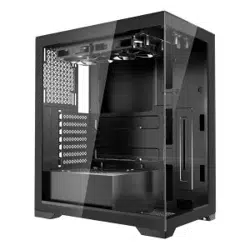
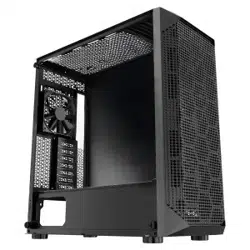
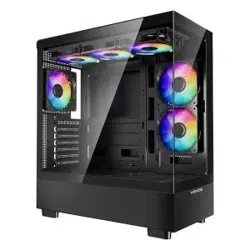
Remove screws from left side panel and remove the panel. Always carefully remove the protective foam before turning on. Inspect all cables to ensure none were disconnected during shipping.
Step 2 Connecting your display
Some systems will have a add-on graphics card, please see below to identify which monitor connector you should be using.
Always connect your display to the ports at 2B. However, if you don't have connectors there then use the connectors at 2A.
Step 3 Connecting Your Peripherals
Connect your peripherals such as your mouse, keyboard, speakers, headset and network to the appropriate parts.
Note most peripherals today are color coordinated so when in doubt match the color of the connectors together with the matching ports on the system.
Step 4 Powering on your system
Use the included power cord and connect the cable to your system's power supply and the other end to a wall outlet.
After your system starts up for the first time you will need your Windows product key located on the side of the system.
Remember you may need switch on the system's power supply first before you can power on your computer with the front power button. (fig.2)
Step 5 Find your Windows Product Key
After your system starts up for the first time you will need your Windows product key located on the side of the system.
Copy the code exactly as it is on the sticker. It is also recommended that you take a picture of the sticker to keep as a reference.