E-1
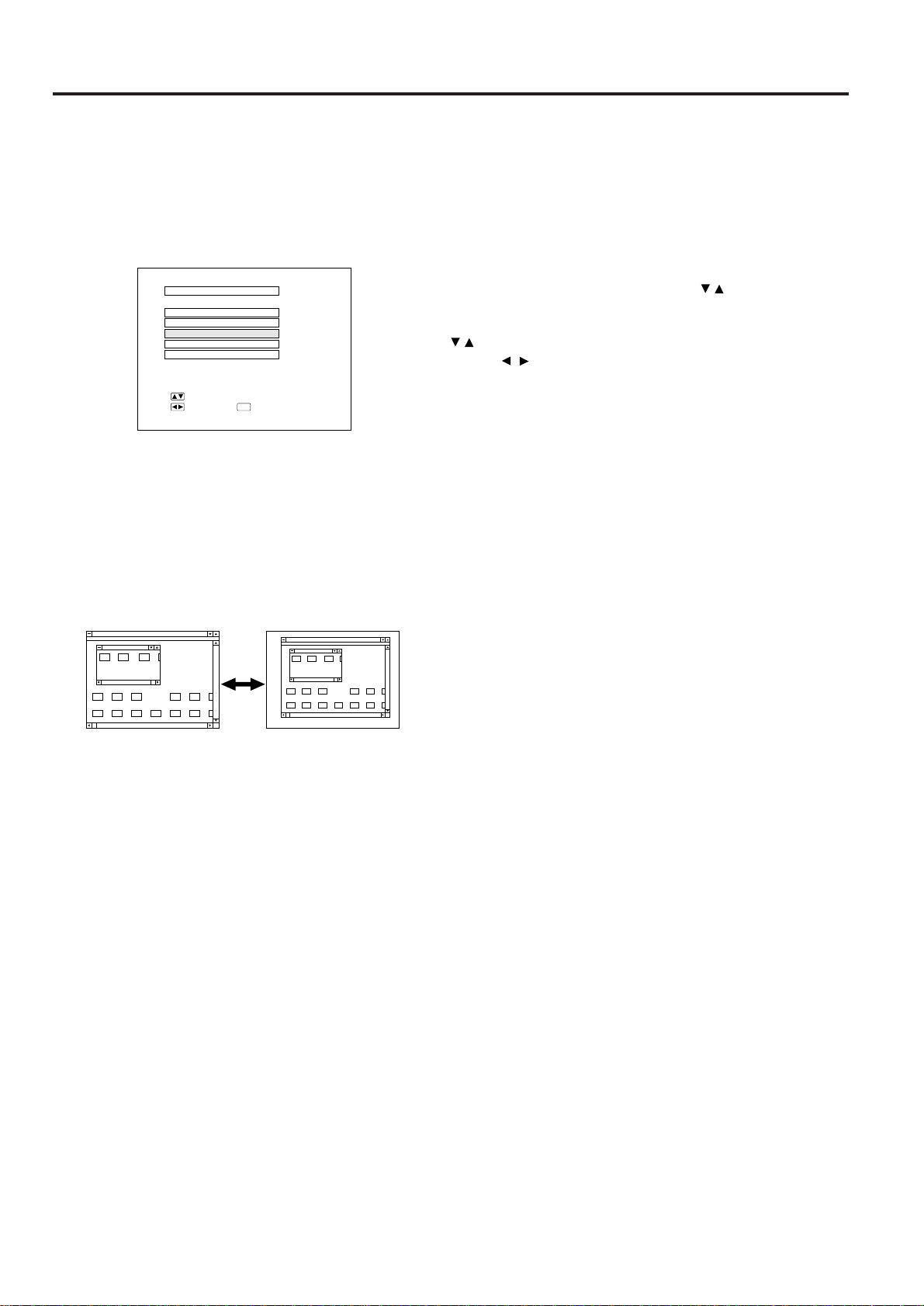
Dear SHARP Customer
Welcome to the SHARP Family. We are pleased that you are now the owner of a SHARP Color
LCD Projector built for outstanding quality, reliability and performance.
Every SHARP Color LCD Projector is adjusted for a proper picture and has passed through the
most stringent quality control tests at the factory. We have prepared this OPERATION MANUAL
so that you have the ability to adjust the picture and color to your personal viewing preference.
We sincerely hope that you will be satisfied with the quality and performance of your Color LCD
Projector for many years to come.
Please read the instructions carefully, and keep them handy for future reference.
IMPORTANT
For your assistance in reporting the loss or
theft of your Color LCD Projector, please
record the Serial Number located on the rear
of the projector and retain this information.
Important Information
There are two important reasons for prompt warranty registration of your new SHARP LCD
Projector, using the REGISTRATION CARD packed with the projector.
1) WARRANTY
This is to assure that you immediately receive the full benefit of the parts, service and labor
warranty applicable to your purchase.
2) CONSUMER PRODUCT SAFETY ACT
To ensure that you will promptly receive any safety notification of inspection, modification, or
recall that SHARP may be required to give under the 1972 Consumer Product Safety Act,
PLEASE READ CAREFULLY THE IMPORTANT “LIMITED WARRANTY” CLAUSE. U.S.A. ONLY
WARNING: High brightness light source, do not stare into the beam of light, or view directly.
Be especially careful that children do not stare directly into the beam of light.
WARNING: TO REDUCE THE RISK OF FIRE OR ELECTRIC SHOCK, DO NOT EXPOSE
THIS PRODUCT TO RAIN OR MOISTURE.
Model No.: PG-D100U
Serial No.:
RISK OF ELECTRIC SHOCK.
DO NOT REMOVE SCREWS
EXCEPT SPECIFIED USER
SERVICE SCREW.
CAUTION: TO REDUCE THE RISK OF ELECTRIC SHOCK,
DO NOT REMOVE COVER.
NO USER-SERVICEABLE PARTS EXCEPT LAMP UNIT.
REFER SERVICING TO QUALIFIED SERVICE
PERSONNEL.
The lightning flash with arrowhead symbol,
within an equilateral triangle, is intended to
alert the user to the presence of uninsulated
“dangerous voltage” within the product’s
enclosure that may be of sufficient
magnitude to constitute a risk or electric
shock to persons.
The exclamation point within a triangle is
intended to alert the user to the presence of
important operating and maintenance
(servicing) instructions in the literature
accompanying the product.
CAUTION
ENGLISH
E-2
WARNING: FCC Regulations state that any unauthorized changes or modifications to this equipment not
expressly approved by the manufacturer could void the user’s authority to operate this equipment.
INFORMATION
This equipment has been tested and found to comply with the limits for a Class A digital device, pursuant to Part
15 of the FCC Rules. These limits are designed to provide reasonable protection against harmful interference
when the equipment is operated in a commercial environment. This equipment generates, uses, and can radiate
radio frequency energy and, if not installed and used in accordance with the instruction manual, may cause
harmful interference to radio communications. Operation of this equipment in a residential area is likely to cause
harmful interference, in which case the user will be required to correct the interference at his own expense.
The enclosed RGB signal cable and Macintosh adaptor must be used with the device. The cable and adaptor
are provided to ensure that the device complies with FCC Class A verification.
IMPORTANT SAFEGUARDS
Electrical energy can perform many useful functions. This unit has been engineered and manufactured to ensure
your personal safety. But IMPROPER USE CAN RESULT IN POTENTIAL ELECTRICAL SHOCK OR FIRE HAZ-
ARD. In order not to defeat the safeguards incorporated into this LCD Projector, observe the following basic rules for
its installation, use and servicing. For your own protection and reliable usage of your LCD Projector, please be sure
to read these “Important Safeguards” carefully before use.
1) Read Instructions – All the safety and operating instructions should be read before the product is operated.
2) Retain Instructions – The safety and operating instructions should be retained for future reference.
3) Heed Warnings – All warnings on the product and in the operating instructions should be adhered to.
4) Follow Instructions – All operating and use instructions should be followed.
5) Cleaning – Unplug this product from the wall outlet before cleaning. Do not use liquid cleaners or aerosol
cleaners. Use a damp cloth for cleaning.
6) Attachments – Do not use attachments not recommended by the product manufacturer as they may cause
hazards.
7) Water and Moisture – Do not use this product near water – for example, near a bathtub, wash bowl, kitchen sink,
or laundry tub; in a wet basement; or near a swimming pool; and the like.
8) Accessories – Do not place this product on an unstable cart, stand, tripod, bracket, or table. The product may
fall, causing serious injury to a child or adult, and serious damage to the product. Use only with a cart, stand,
tripod, bracket, or table recommended by the manufacturer, or sold with the product. Any mounting of the
product should follow the manufacturer’s instructions, and should use a mounting accessory recommended by
the manufacturer.
9) A product and cart combination should be moved with care. Quick stops, excessive force,
and uneven surfaces may cause the product and cart combination to overturn.
10) Ventilation – Slots and openings in the cabinet are provided for ventilation to ensure reliable operation of the
product and to protect it from overheating, and these openings must not be blocked or covered. The openings
should never be blocked by placing the product on a bed, sofa, rug, or other similar surface. This product should
not be placed in a built-in installation such as a bookcase or rack unless proper ventilation is provided or the
manufacturer’s instructions have been adhered to.
11) Power Sources – This product should be operated only from the type of power source indicated on the marking
label. If you are not sure of the type of power supply to your home, consult your product dealer or local power
company. For products intended to operate from battery power, or other sources, refer to the operating instruc-
tions.
12) Grounding or Polarization – This product is equipped with a three-wire grounding-type plug, a plug having a third
(grounding) pin. This plug will only fit into a grounding-type power outlet. This is a safety feature. If you are
unable to insert the plug into the outlet, contact your electrician to replace your obsolete outlet. Do not defeat the
safety purpose of the grounding-type plug.
13) Power-Cord Protection – Power-supply cords should be routed so that they are not likely to be walked on or
pinched by items placed upon or against them, paying particular attention to cords at plugs, convenience recep-
tacles, and the point where they exit from the product.
U.S.A. ONLY
U.S.A. ONLY
U.S.A. ONLY
E-3
IMPORTANT SAFEGUARDS
14) Lightning – For added protection for this product during a lightning storm, or when it is left unattended and
unused for long periods of time, unplug it from the wall outlet and disconnect the cable system. This will prevent
damage to the product due to lightning and power-line surges.
15) Overloading – Do not overload wall outlets, extension cords, or integral convenience receptacles as this can
result in a risk of fire or electric shock.
16) Object and Liquid Entry – Never push objects of any kind into this product through openings as they may touch
dangerous voltage points or short-out parts that could result in a fire or electric shock. Never spill liquid of any
kind on the product.
17) Servicing – Do not attempt to service this product yourself as opening or removing covers may expose you to
dangerous voltage or other hazards. Refer all servicing to qualified service personnel.
18) Damage Requiring Service – Unplug this product from the wall outlet and refer servicing to qualified service
personnel under the following conditions:
a) When the power-supply cord or plug is damaged.
b) If liquid has been spilled, or objects have fallen into the product.
c) If the product has been exposed to rain or water.
d) If the product does not operate normally by following the operating instructions. Adjust only those controls
that are covered by the operating instructions, as an improper adjustment of other controls may result in
damage and will often require extensive work by a qualified technician to restore the product to normal
operation.
e) If the product has been dropped or damaged in any way.
f) When the product exhibits a distinct change in performance - this indicates a need for service.
19) Replacement Parts – When replacement parts are required, be sure the service technician has used replace-
ment parts specified by the manufacturer or with the same characteristics as the original part. Unauthorized
substitutions may result in fire, electric shock, or other hazards.
20) Safety Check – Upon completion of any service or repairs to this product, ask the service technician to perform
safety checks to determine that the product is in proper operating condition.
21) Heat – The product should be situated away from heat sources such as radiators, heat registers, stoves, or
other products (including amplifiers) that produce heat.
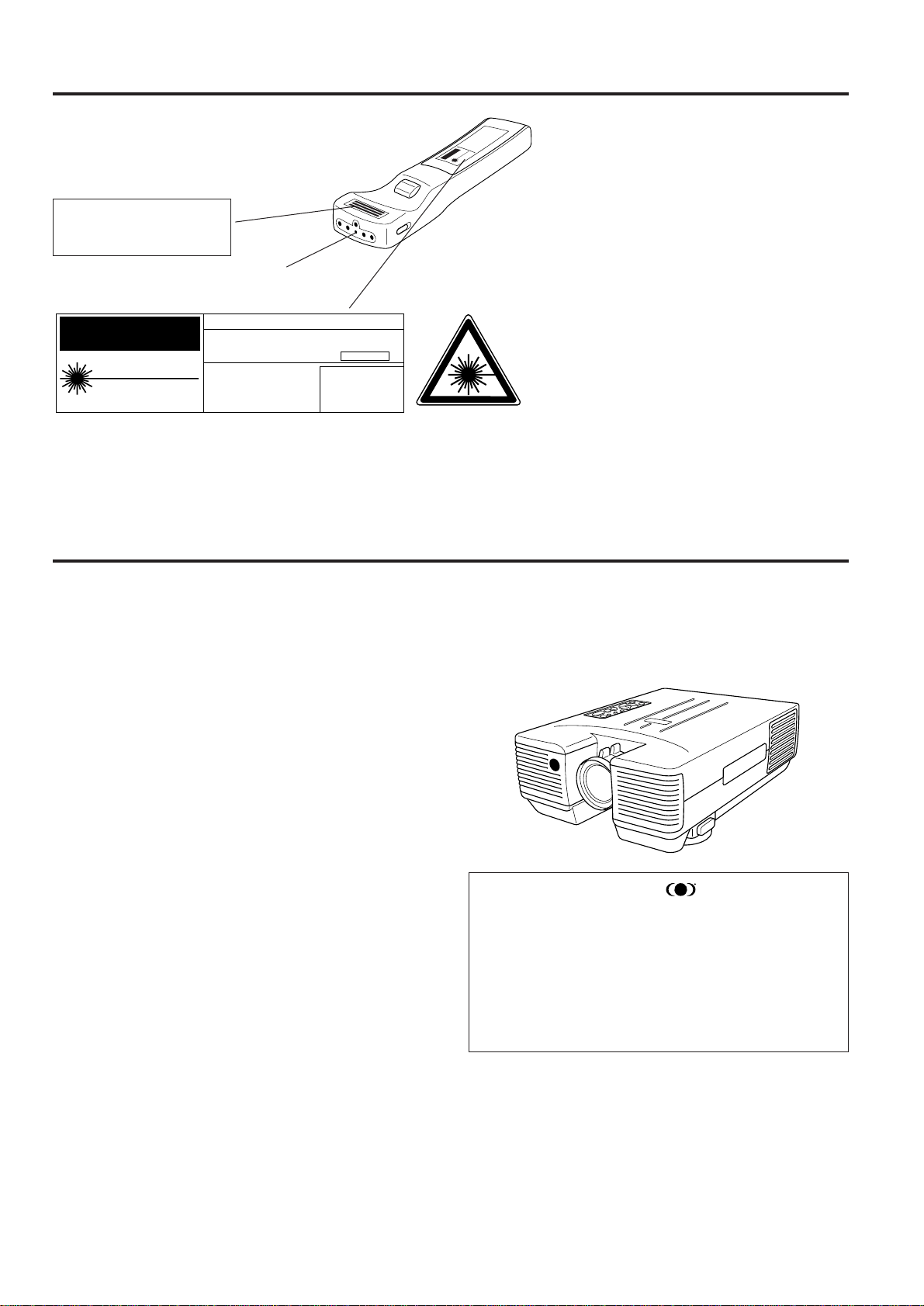
About the Temperature Monitor Function:
• If the projector starts to overheat due to set-up problems or a dirty air filter, “TEMP.” will flash
in the upper-left corner of the picture. If the temperature continues to rise, then the lamp will
turn off, the TEMPERATURE WARNING indicator will flash, and after a 90-second cooling-off
period the power will shut off. Refer to page 31, “Maintenance Indicators,” when the “TEMP.”
warning appears in the picture.
• The cooling fan regulates the internal temperature, and its performance is automatically
controlled. The sound of the fan may change during operation due to changes in the fan speed.
About the Lamp Monitor Function:
• If the lamp is used for more than 1900 hours, “LAMP” will flash in yellow letters on the screen
for 60 seconds, as shown on the right, when you turn the projector on. This is to alert you that
it is time to replace the lamp. Replace the lamp according to the procedure given on page 32.
• When the number of hours the lamp is used reaches 2000, the power automatically turns off
and the projector enters the standby condition.
• Refer to page 27, “Maintenance Indicators,” when the “LAMP” warning appears on the screen.
TEMP.
LAMP
Caution: If “LAMP” begins to flash on the screen, be sure to replace the lamp.
E-4
Cautions Concerning the Laser Pointer
CAUTION
LASER RADIATION-
DO NOT STARE INTO BEAM
WAVE LENGTH : 670nm
MAX. OUTPUT : 1mW
CLASS II LASER PRODUCT
"COMPLIES WITH 21 CFR SUBCHAPTER J"
SHARP ELECTRONICS CORPORATION
SHARP PLAZA, MAHWAH, NEW JERSEY 07430
TEL : 1-800-BE-SHARP
U.S.A. ONLY
REMOTE CONTROL
MODEL NO. : RRMCG1327CESA
DC6V (1.5VX4PCS.)
MADE IN JAPAN
FABRIQUÉ AU JAPON
CAUTION - use of controls or
adjustments or performance of
procedures other than those
specified herein may result in
hazardous radiation exposure.
LASER LIGHT WINDOW
AVOID EXPOSURE-LASER
RADIATION IS EMITTED
FROM THIS APERTURE.
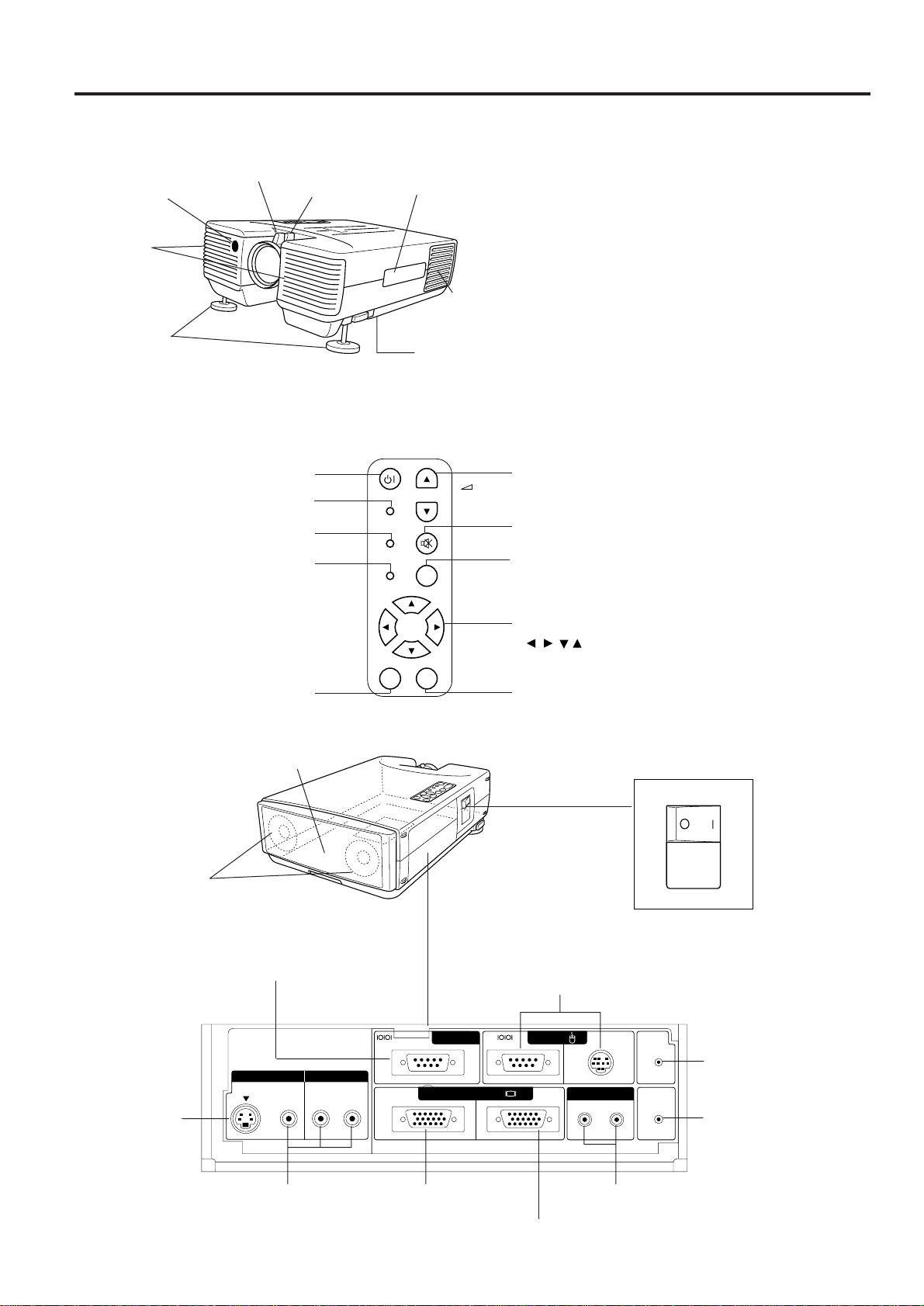
The laser pointer on the remote control emits
a laser beam from the laser light window
shown in the figure above. The laser emitted
is a class II laser; therefore, do not look into
the laser window or shine the laser beam on
yourself or other people. The three marks to
the left are the caution labels for the laser
beam.
Always use the laser pointer at temperatures
between 41°F to 104°F (5°C to 40°C).
Outstanding Features
DIRECT COMPUTER COMPATIBILITY
A multi-scan RGB Input accepts signals from XGA (1024 dots × 768 lines compressed), SVGA (800 dots × 600
lines), VGA and Mac (832 dots × 624 lines maximum) compatible computers without the need for any additional
hardware.
HIGH PICTURE QUALITY
The three LCD panels contain 519,168 × RGB pixels to
achieve exceptionally bright, high quality video images
with up to 580 doubled TV lines of resolution.
VERSATILE REMOTE CONTROL
• Built-in wireless mouse allows simultaneous operation
of projector and computer.
• Built-in Laser Pointer for professional presentations.
FLEXIBLE USE
• In addition to the standard front projection mode, the
menu driven functions can be used to instantly reverse
the image for rear projection, and invert the image for
ceiling mounting.
• Screen projection size adjusts from 40 to 300 inches.
BUILT-IN STEREO SPEAKERS WITH SRS (Sound
Retrieval System) CIRCUITRY
Built in 3 W + 3 W stereo amplifiers and speakers feature
SRS circuitry for impressive SRS 3-D sound.
(1) SRS, the SRS symbol “ ” and “Sound
Retrieval System” are registered trademarks of
SRS Labs, Inc. in the U.S. and selected coun-
tries.
(2) “Sound Retrieval System” (SRS) technology is
manufactured under license from SRS Labs, Inc.
(3) “Sound Retrieval System” (SRS) technology is
protected by USA patents 4,748,669 and
4,841,572 and additional patents worldwide.
E-5
Location of Controls
FRONT VIEW
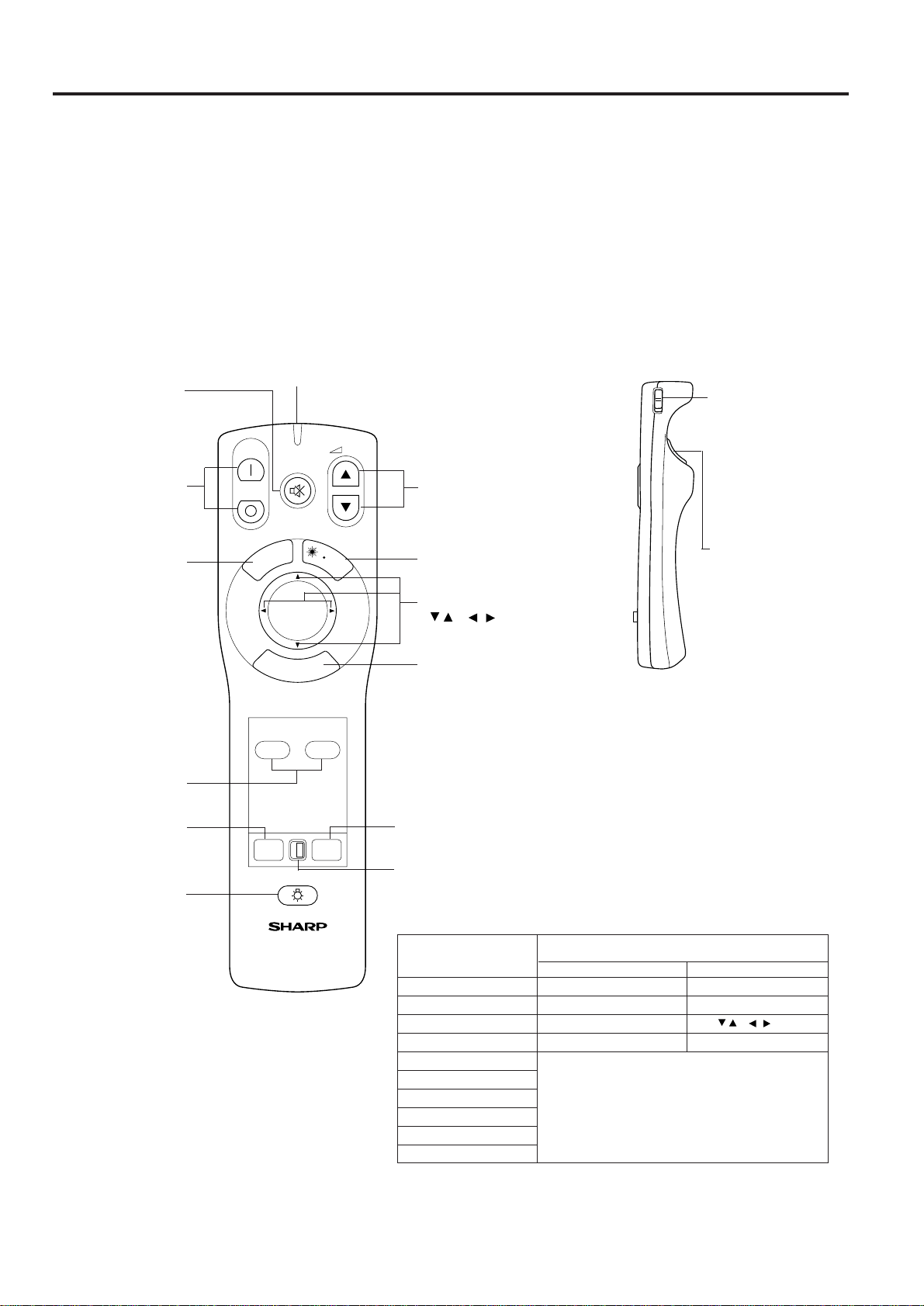
Cooling fan
(Intake vent)
Cooling fan
(Exhaust vent)
Adjuster
Cooling fan
(Exhaust vent)
Remote sensor
Focus knob
Zoom knob
Carrying handle
POWER
ON/OFF
LAMP
TEMP.
INPUT
SEL .
ENTER
MUTE
VOL
MENU
MN EN
IN
S-VIDEO INPUT
(4-pin mini DIN)
WIRED REMOTE
CONTROL INPUT
(3.5 mm Mono Minijack)
COMPUTER AUDIO INPUT
(3.5 mm Stereo Minijack)
VIDEO INPUT
Video: RCA
Audio: RCA
COMPUTER RGB INPUT
connector (HD-15)
MOUSE TERMINAL
Use when operating your personal computer
with the wireless mouse remote control.
Left Terminal: D-sub 9-pin (for IBM/Mac)
Right Terminal: 9-pin mini DIN (for NEC)
COMPUTER RGB OUTPUT
connector (HD-15)
RS-232C (D-sub 9-pin)
Use when controlling the projector
from your personal computer.
Speakers
AUDIO OUTPUT: RCA
REAR VIEW
INPUT SELECT button
ADJUSTMENT
(
/ , / ) buttons
VOLUME UP-DOWN buttons
MUTE button
OPERATION PANEL ON TOP OF PROJECTOR
POWER indicator
TEMPERATURE
WARNING
indicator
LAMP REPLACEMENT
indicator
POWER ON/OFF button
S-VIDEO
VIDEO IN AUDIO IN
VIDEO L R
PC CONTROL
MOUSE
FOR PC98
OUTIN
LR
WIRED
REMOTE
COMPUTER
AUDIO IN
COMPUTER RGB
OUTAUDIO
ENTER button
MENU button
ONOFF
CAUTIONS:
• Do not touch the lamp, lamp cage cover, cooling
fun, and their surrounding areas while the projector
is on. They are very hot and may cause burns.
• Allow at least 4" (10 cm) of space between the
cooling fan (exhaust vent) and the other nearest
wall or obstruction.
• If the cooling fan becomes obstructed, a protection
device will automatically turn off the projector lamp.
This does not indicate a malfunction. Remove the
projector plug from the wall outlet and wait 10
minutes. Then turn on the power by plugging the
cord back in. This will return the projector to its
normal mode.
Air suction vent
Main Power switch
E-6
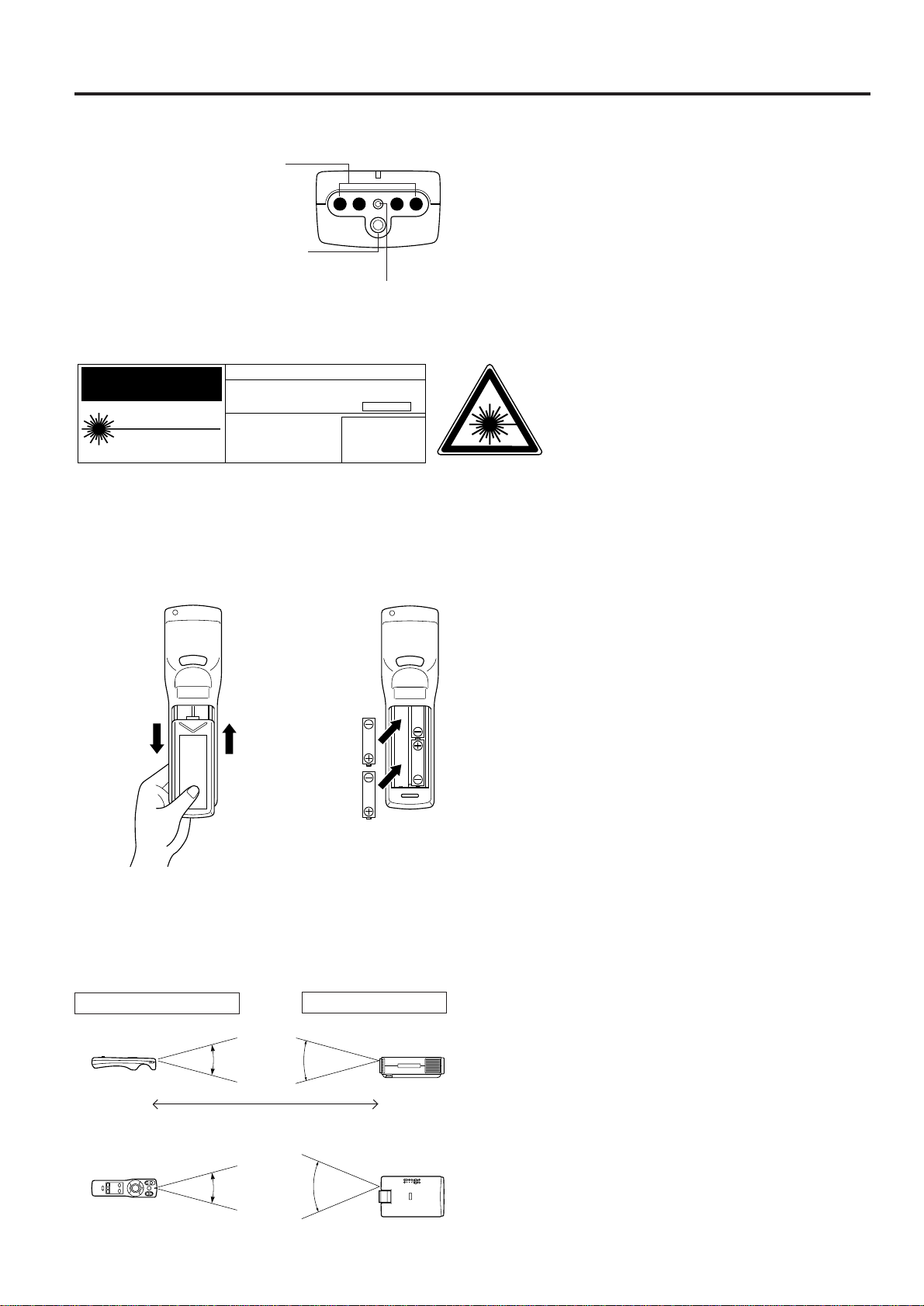
Operating the Wireless Mouse Remote Control
The functions of your personal computer’s mouse have been built into the remote control enabling you to operate
your projector and personal computer with only the remote control.
1. Slide the main power switch on the side of the unit on.
2. Press the POWER ON button on the front panel of the remote control to turn the projector power on.
3. When using the remote control as a wireless mouse, move the MOUSE/ADJUSTMENT sliding switch to the
MOUSE position. When using the remote control to operate the projector, move the MOUSE/ADJUSTMENT
sliding switch to the ADJ. position. To activate the remote control key back-light feature, press the LIGHT button
on the remote control. The colors of the buttons will change as shown in the table at the bottom of this page.
Wireless Mouse Remote Control
FRONT VIEW
SIDE VIEW
R
/C
O
F
F
O
N
Main power switch of
REMOTE CONTROL
Note:
When transporting
the remote control,
turn off the main
power switch to
avoid draining the
batteries.
LEFT-CLICK button
POWER ON/OFF
buttons
MUTE button
VOLUME UP-DOWN
buttons
LASER POINTER/MENU
button
E-ZOOM button
MOUSE/ADJUSTMENT
(
/ ),( / ) buttons
INPUT SELECT
buttons
MOUSE label
LIGHT button
TRANSMIT indicator
RIGHT-CLICK/ENTER
button
ON
MUTE
MN
E-ZOOM
E-Z
R-CLICK/ENTER
INPUT SELECT
VIDEO
MOUSE
LIGHT
LCD PROJECTOR
ADJ.
DATA
LASER/
MENU
VOL
OFF
ADJ. label
Remote control handling precautions
• The laser beam used in this product is harmless when
directed onto the skin, however please be careful not to
project the beam directly into the eyes. Do not stare into
the beam using any optical instrument.
• Do not expose the remote control to shocks, liquids or
high humidity.
The remote control may not operate normally if exposed to
direct sunlight or other intense light sources. Should this
happen, reposition the light source or the LCD Projector.
MOUSE/ADJUSTMENT switch
When you change the setting of the MOUSE/ADJUSTMENT switch, the
functions of certain buttons on the remote control change. You can tell which
function the button currently possesses by the color of its back-light display.
Button name
Position of MOUSE/ADJUSTMENT Switch
MOUSE ADJ.
LASER POINTER/MENU LASER POINTER (GREEN) MENU (RED)
RIGHT-CLICK/ENTER RIGHT-CLICK (GREEN) ENTER (RED)
MOUSE/ADJUSTMENT MOUSE (NOT LIT) ADJ.
/ , /
(NOT LIT)
LEFT-CLICK Yes (NOT LIT) –––
POWER ON/OFF
VOLUME UP-DOWN
MUTE Yes (RED)
E-ZOOM
VIDEO
DATA
If the main power switch on the remote contol is left on and the remote
control is not used for ten or more minutes, the energy save mode will
activate and turn off the power. When in this state, any button operation
exceding one second will reactivate the power.
Using the remote
control in a dark room
• Press the LIGHT button
to turn on the back-lights
for the operation buttons
for about 10 seconds.
The back-light colors are
explained in the table to
the right.
E-7
Using the optional cable with the remote control
• When the remote control cannot be used due to the
range or positioning of the projector (rear projection,
etc.), connect the optional cable from the Wired
Remote Control Jack of the remote control to the
Wired Remote Input on the back of the projector.
Note:
• The signal transmitter does not function when the optional
cable is connected to the remote control.
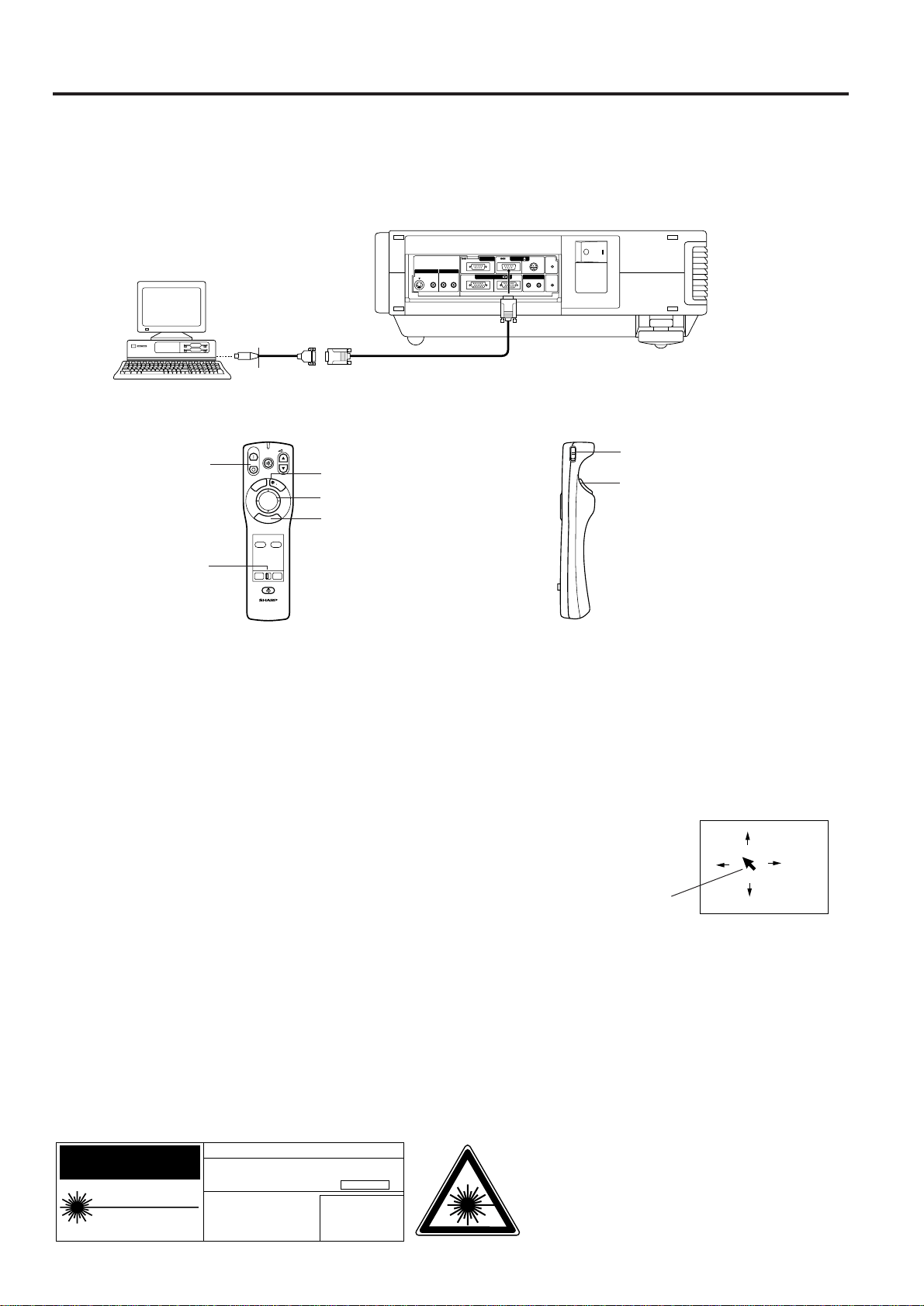
Inserting the Batteries
Remove the battery cover as shown and insert four AA
size batteries making sure their polarities match the (+)
and (–) marks inside the battery compartment.
Notes:
Incorrect use of batteries may cause them to leak or burst.
• Insert the batteries with the (+) and (–) polarities as indicated.
• Remove the batteries if the remote control will not be operated
for an extended period of time.
• Maintain the batteries in a clean condition.
• Do not mix different brands of batteries. The life expectancy of
the new batteries will be shortened and the old batteries may
leak.
• When the batteries have been used up, remove them
immediately to prevent leakage and damage. Leaked battery
fluid may irritate the skin. Remove any battery fluid by wiping
with a cloth.
• Due to storage conditions and the shelf life of the supplied
batteries, they may run out after a short time. If so, replace
them with new batteries as soon as possible.
Remote control positioning
Use the remote control as shown in the figures on the left.
Note:
• The signal from the remote control can be reflected off the
screen for easy operation. However, the effective distance of
the signal may differ due to the screen material.
REAR VIEW
Press in and
downward on
the arrow
mark and
remove.
Insert the side
tabs into their
slots and press
in the cover
until properly
seated.
Transmission range
Reception range
30°
30°
Max. distance: 23' (7 m)
30°
45°
TOP VIEW
REMOTE CONTROL
SIGNAL TRANSMITTER
WIRED REMOTE CONTROL INPUT
(3.5mm Mono Minijack)
LASER LIGHT WINDOW
Laser light shines out of
this window.
CAUTION
LASER RADIATION-
DO NOT STARE INTO BEAM
WAVE LENGTH : 670nm
MAX. OUTPUT : 1mW
CLASS II LASER PRODUCT
"COMPLIES WITH 21 CFR SUBCHAPTER J"
SHARP ELECTRONICS CORPORATION
SHARP PLAZA, MAHWAH, NEW JERSEY 07430
TEL : 1-800-BE-SHARP
U.S.A. ONLY
REMOTE CONTROL
MODEL NO. : RRMCG1327CESA
DC6V (1.5VX4PCS.)
MADE IN JAPAN
FABRIQUÉ AU JAPON
The laser pointer on the remote control emits
a laser beam from the laser light window
shown in the figure above. The laser emitted
is a class II laser; therefore, do not look into
the laser window or shine the laser beam on
yourself or other people. The two marks to
the left are the caution labels for the laser
beam.
Always use the laser pointer at temperatures
between 41°F to 104°F (5°C to 40°C).
E-8
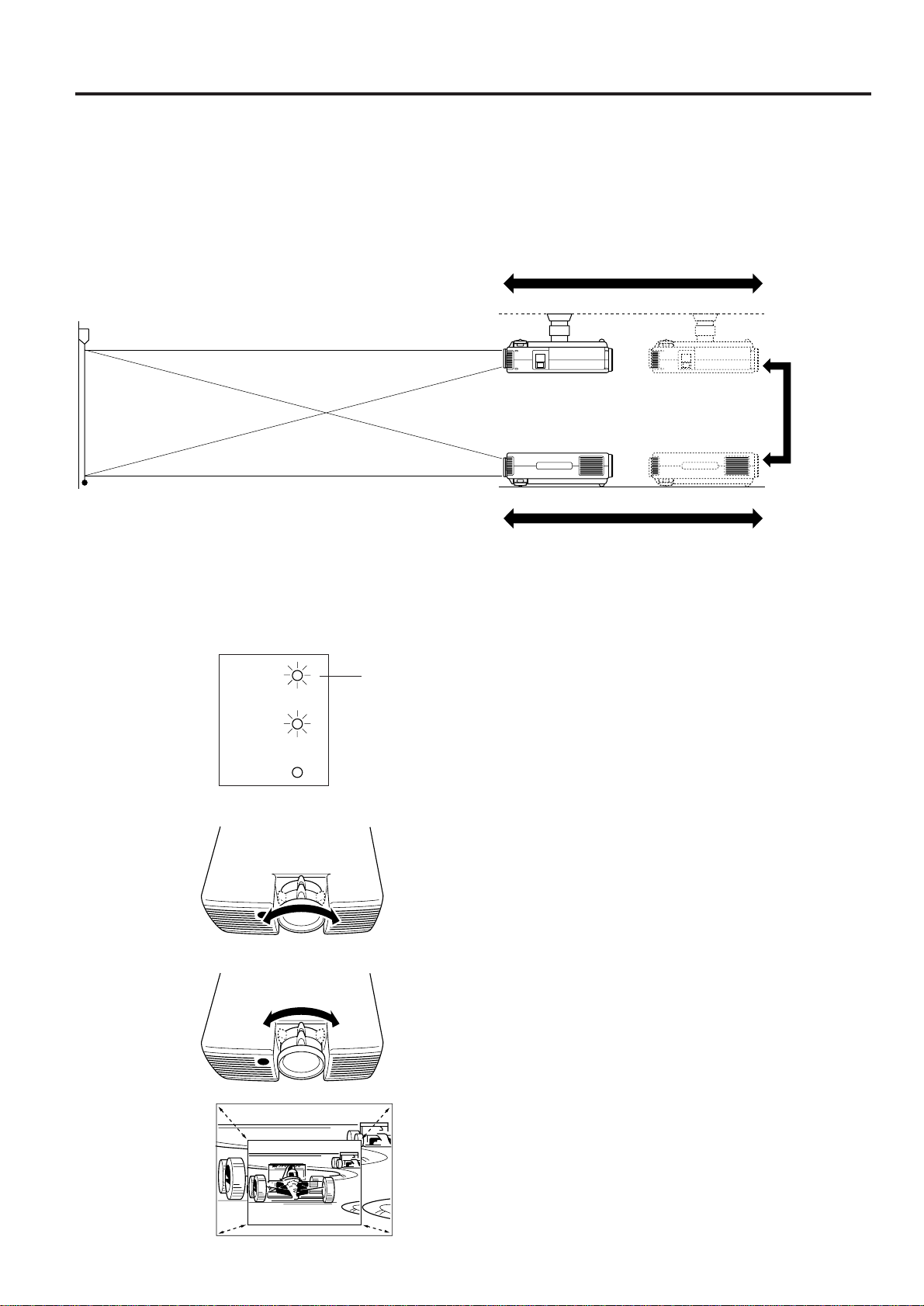
Wireless Mouse Functions
By attaching the provided mouse cable to both the mouse terminal on your projector and the mouse terminal on
your personal computer, you can use the wireless mouse built into the remote control, instead of the mouse
equipped with your personal computer, to operate your personal computer. The wireless mouse functions will work
with personal computers compatible with IBM PS/2, serial (RS-232C) or Apple ADB type mouse systems.
Connection Example
S-VIDEO
VIDEO IN AUDIO IN
VIDEO L R
PC CONTROL
MOUSE
FOR PC98
OUTIN
LR
WIRED
REMOTE
COMPUTER
AUDIO IN
COMPUTER RGB
OUTAUDIO
ONOFF
To mouse terminal
Provided mouse cable (for IBM PS/2, serial and Apple ADB type mouse)
Projector
Personal computer
Functions and Operations
• First, connect the units as shown above, and turn the projector power on.
• Second, turn the computer power on.
• Next, slide the main power switch on the side of the remote control.
• When using the remote control as a wireless mouse, move the MOUSE/ADJUSTMENT sliding switch to the
MOUSE position.
Notes:
• In some situations the wireless mouse may be inoperable if your computer port is not correctly set-up. Please refer to your
computer owners manual for details on setting-up/installing the correct Mouse Driver.
• Do not connect or remove the mouse control cable to/from your computer while it is on. This may damage your computer.
• Do not connect the mouse input terminal for IBM/MAC and the mouse input terminal for PC98 simultaneously.
LEFT-CLICK button
POWER ON/OFF
button
ON
MUTE
MN
E-ZOOM
E-Z
R-CLICK/ENTER
INPUT SELECT
VIDEO
MOUSE
LIGHT
LCD PROJECTOR
ADJ.
DATA
LASER/
MENU
VOL
OFF
RIGHT-CLICK button
LASER POINTER button
R
/
C
O
F
F
O
N
Main power switch of
REMOTE CONTROL
MOUSE button
MOUSE/ADJUSTMENT
sliding switch
CAUTION
LASER RADIATION-
DO NOT STARE INTO BEAM
WAVE LENGTH : 670nm
MAX. OUTPUT : 1mW
CLASS II LASER PRODUCT
"COMPLIES WITH 21 CFR SUBCHAPTER J"
SHARP ELECTRONICS CORPORATION
SHARP PLAZA, MAHWAH, NEW JERSEY 07430
TEL : 1-800-BE-SHARP
U.S.A. ONLY
REMOTE CONTROL
MODEL NO. : RRMCG1327CESA
DC6V (1.5VX4PCS.)
MADE IN JAPAN
FABRIQUÉ AU JAPON
The laser pointer on the remote control emits a
laser beam from the laser light window. The laser
emitted is a class II laser; therefore, do not look
into the laser window or shine the laser beam on
yourself or other people. The two marks to the left
are the caution labels for the laser beam.
Always use the laser pointer at temperatures
between 41°F to 104°F (5°C to 40°C).
LEFT-CLICK button The LEFT-CLICK button on the back of the remote control corresponds to the left button of
the mouse on two-button mouse systems.
RIGHT-CLICK button The RIGHT-CLICK button on the front of the remote control corresponds to the right button
on two-button mouse systems.
Note:
For one-button mouse systems use either the LEFT-CLICK or RIGHT-CLICK button.
LASER POINTER button Press the LASER POINTER button to activate the laser pointer.
When the button is pressed, the light stays on; when the button is released, the light goes off.
However, even when the button is pressed continuously, the light automatically goes off 1
minute after it goes on. To turn it on again press the laser pointer button one more time.
Note:
The amount of presssure applied to the mouse button determines the speed the mouse cursor travels.
Pressing lightly on the periphery of the mouse button makes the mouse cursor move slowly. Pressing hard makes it move quickly.
Mouse cursor
MOUSE buttons
By lightly pressing the up/down and right/left arrow buttons located on the front of
the remote control, you can move the mouse cursor on your monitor screen.
E-9
Setting Up the Projector
Using the Focus and Zoom
• Zoom, Focus and Reversed/Inverted Image mode functions broaden your options for projector placement.
• See pages 11 and 12 for details on projector setup.
SIDE VIEW
Invert Image
Zoom
Ceiling setting
Table setting
Zoom
4
FOCUS
ZOOM
3. Adjusting the Focus
Rotate the focus knob until the top portion of the screen is
in focus.
4. Adjusting the Zoom
Rotate the zoom knob. The picture can be adjusted to the
desired size within the zoom range.
3
FOCUS
ZOOM
2. Turn on the POWER
Press the POWER ON/OFF button on the projector or
remote control to turn on the power.
2
POWER
indicator
1. Turn on the MAIN POWER.
Turn on the main power switch.
POWER
LAMP
TEMP.
E-10
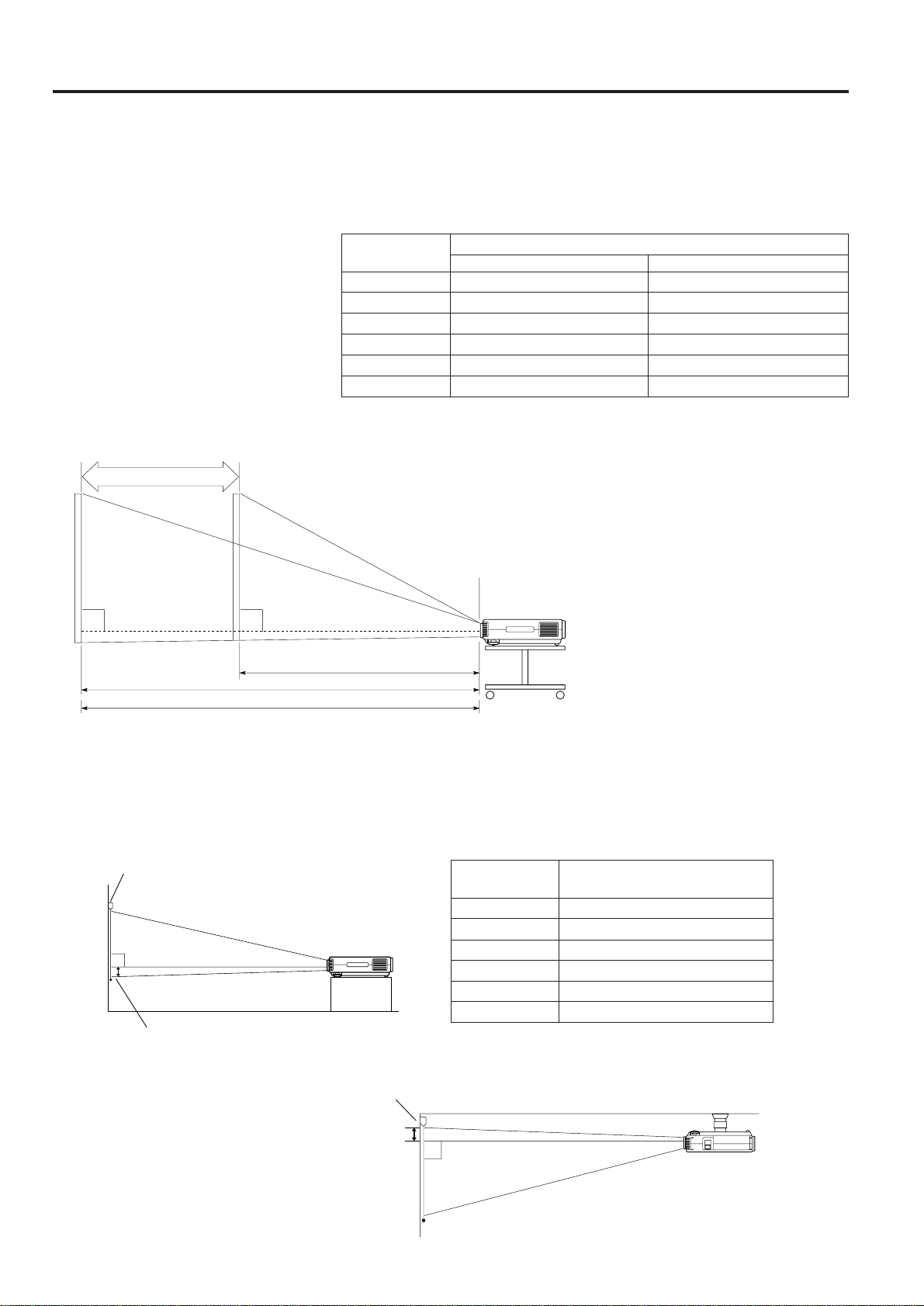
Projector Distance and Picture Size Relationship
■ The zoom lens allows adjustment of the image size within the projector’s range.
■ For optimum picture adjustment, the projector should be placed and adjusted at a distance between 5.1 ft to 56.3
ft from the screen.
Distance from screen
Picture size: 100 inches (254 cm)
Maximum projection distance
56.3 ft (17.2 m)
28.0 ft (8.5 m)
18.5 ft (5.7 m)
14.8 ft (4.5 m)
11.0 ft (3.4 m)
7.2 ft (2.2 m)
Picture size
(diag.)
300 inches
150 inches
100 inches
80 inches
60 Inches
40 inches
Projection distance (L)
Minimum projection distance
40.0 ft (12.2 m)
19.9 ft (6.1 m)
13.1 ft (4.0 m)
10.4 ft (3.2 m)
7.8 ft (2.4 m)
5.1 ft (1.5 m)
→
Lens center
H
High edge of screen
• Ceiling Mount
When the projector is in the inverted
position, use the upper edge of the screen
as the base line.
Note:
• Optimal image quality can be achieved with
the projector positioned perpendicular to the
screen.
Screen
Lower edge of screen (white portion)
Rack/
stand
Height of projector
■ Adjust to match the setup configuration.
Picture size
(diag.)
300 inches
150 inches
100 inches
80 inches
60 Inches
40 inches
Distance from lens center to
lower edge of screen (H)
→
Lens center
25
63
/64 inches (66 cm)
12
63
/64 inches (33 cm)
8
21
/32 inches (22 cm)
7
3
/32 inches (18 cm)
5
1
/8 inches (13 cm)
3
35
/64 inches (9 cm)
H
• Above is an illustration of maximum and minimum projection distances for the PG-D100U with a picture size of
100 inches. Move the projector forward or back if the edges of the image are distorted.
Minimum L: 13.1 ft (4.0 m)
90°
90°
Lens
center
→
Distance between lens and screen: Projection distance (L)
Maximum L: 18.5 ft (5.7 m)
The formula for picture size and projection distance
y
1
= 0.0575 x – 0.097
y
2
= 0.041 x – 0.0943
x : Picture size (diag.) (inches)
y
1
: Maximum projection distance (m)
y
2
: Minimum projection distance (m)
Note:
There is an error of ± 4 inches (± 10 cm) in the formula above.
Diagram shows the lens shift position set at the
factory.
Zoom adjustment range: 18.4 ft to 13.1 ft
E-11
BLACK SCREEN
IMAGE ADJ.
REVERSE
INVERT
INPUT DISPLAY
[
OFF
]
[
OFF
]
[
OFF
]
E-ZOOM
[
OFF
]
[
OFF
]
:SEL.
:ADJ.
:END
MENU
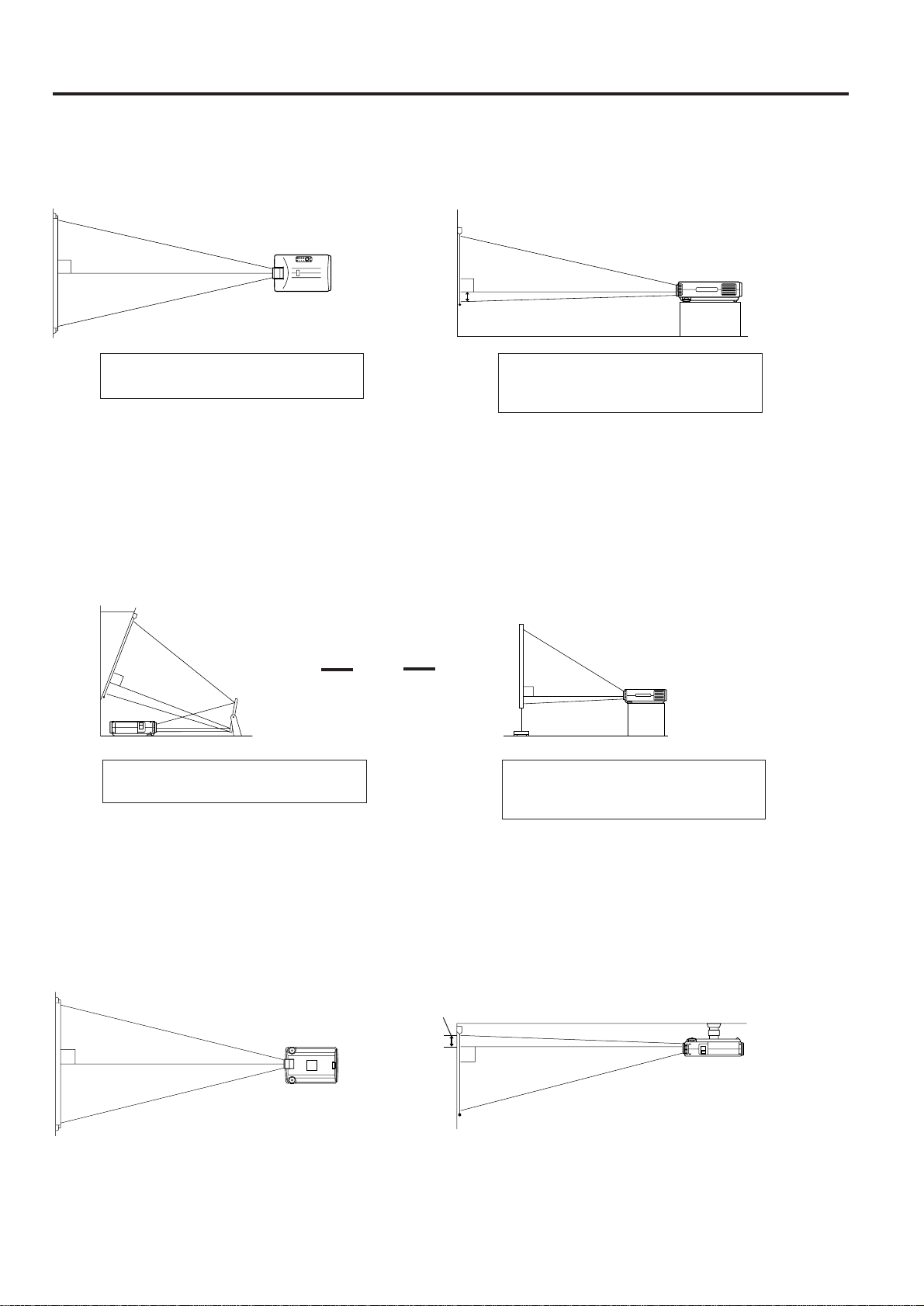
Using the Image Invert/Reverse Function
■ This projector is equipped with an image invert/reverse function. The projected image can be inverted or reversed
by using the MENU button and the ADJUSTMENT / and / buttons.
1 1. Press the MENU button.
With the MENU screen displayed, press the
ADJUSTMENT / buttons to select IMAGE ADJ. Then
press the ENTER button to display the IMAGE ADJ.
screen.
• The last MENU screen selected is indicated for about
30 seconds.
BLACK SCREEN
IMAGE ADJ.
REVERSE
INPUT DISPLAY
[
OFF
]
[
OFF
]
[
OFF
]
E-ZOOM
[
ON
]
[
OFF
]
:SEL.
:ADJ.
:END
MENU
INVERT
BLACK SCREEN
IMAGE ADJ.
REVERSE
INVERT
INPUT DISPLAY
[
OFF
]
[
OFF
]
[
ON
]
E-ZOOM
[
ON
]
[
OFF
]
:SEL.
:ADJ.
:END
MENU
4 4. Reversed Inverted Image Mode
In the IMAGE ADJ. menu, set the REVERSE and INVERT
functions to ON. The reversed inverted image will appear.
5. Press the MENU button anytime to exit
IMAGE ADJ.
3 3. Inverted Image Mode
In the IMAGE ADJ. menu, press the ADJUSTMENT /
buttons to select INVERT. Then press the ADJUSTMENT
/ buttons to select ON. The inverted image will
appear.
2 2. Reversed Image Mode
In the IMAGE ADJ. menu, press the ADJUSTMENT /
buttons to select REVERSE. Then press the
ADJUSTMENT / buttons to select ON. The reversed
image will appear.
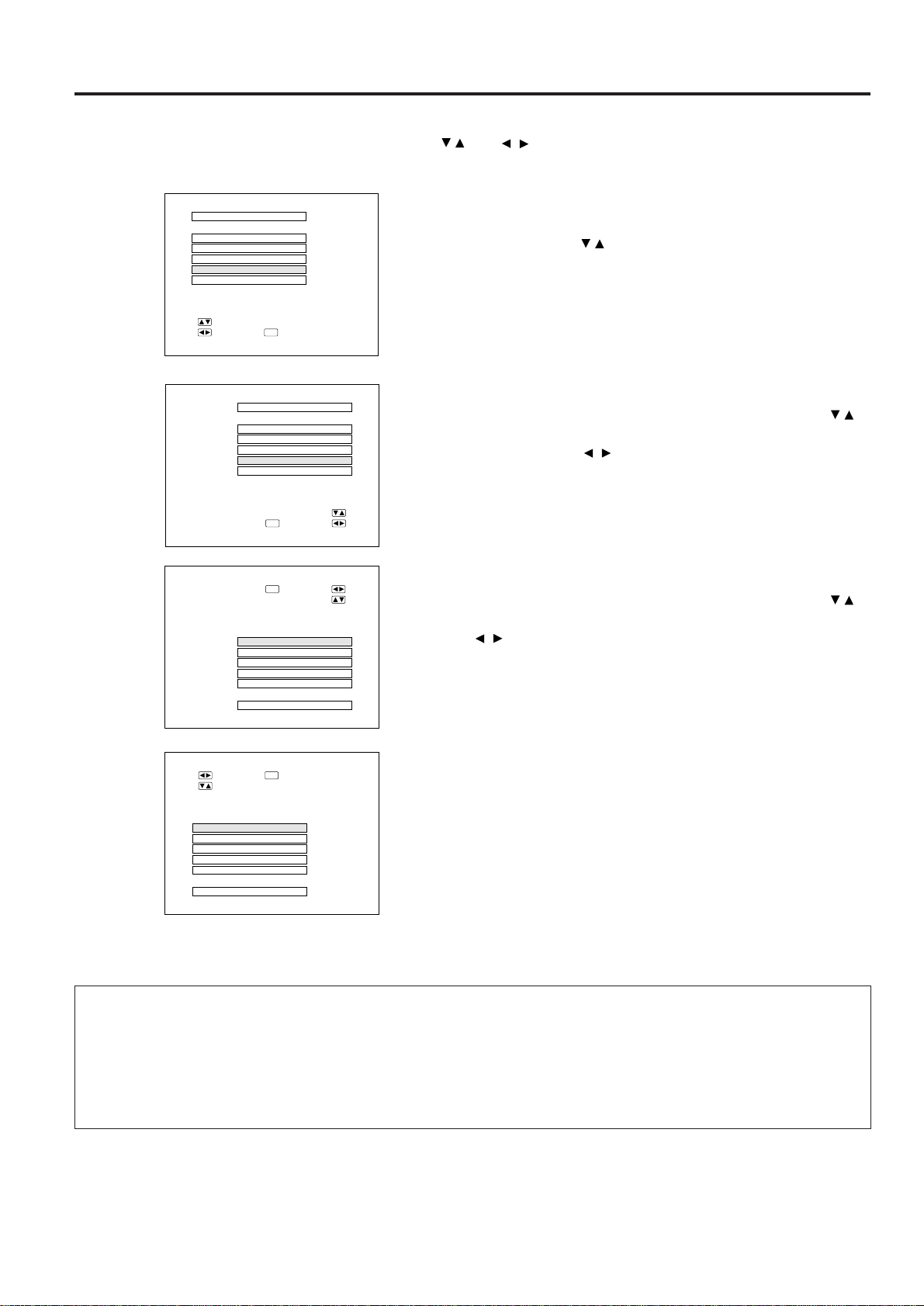
How to set up the projector and screen
Caution: When setting up the projector
• Do not place it in humid or dusty places, or places where the air is sooty of full of cigarette smoke. If the lens,
mirror, or other optical components become dirty, the picture will blur or darken, making viewing difficult.
• Do not expose to extreme heat or cold.
Operating temperature: 41°F to 104°F (5°C to 40°C)
Storage temperature: -4°F to 132°F (-20°C to 60°C)
• Do not tilt the projector more than 5°.
■ Position the screen so that it is not in direct sunlight or room light. Light falling directly onto the screen washes out
colors, making viewing difficult. Close the curtains and dim the lights when using the screen in a bright or sunny
room.
■ The best picture will be obtained when the projector is at a 90 degree angle to the screen. Position the projector
and screen as shown on the previous page.
BLACK SCREEN
IMAGE ADJ.
REVERSE
INVERT
INPUT DISPLAY
[
OFF
]
[
OFF
]
[
ON
]
E-ZOOM
[
OFF
]
[
OFF
]
:SEL.
:ADJ.
:END
MENU
E-12
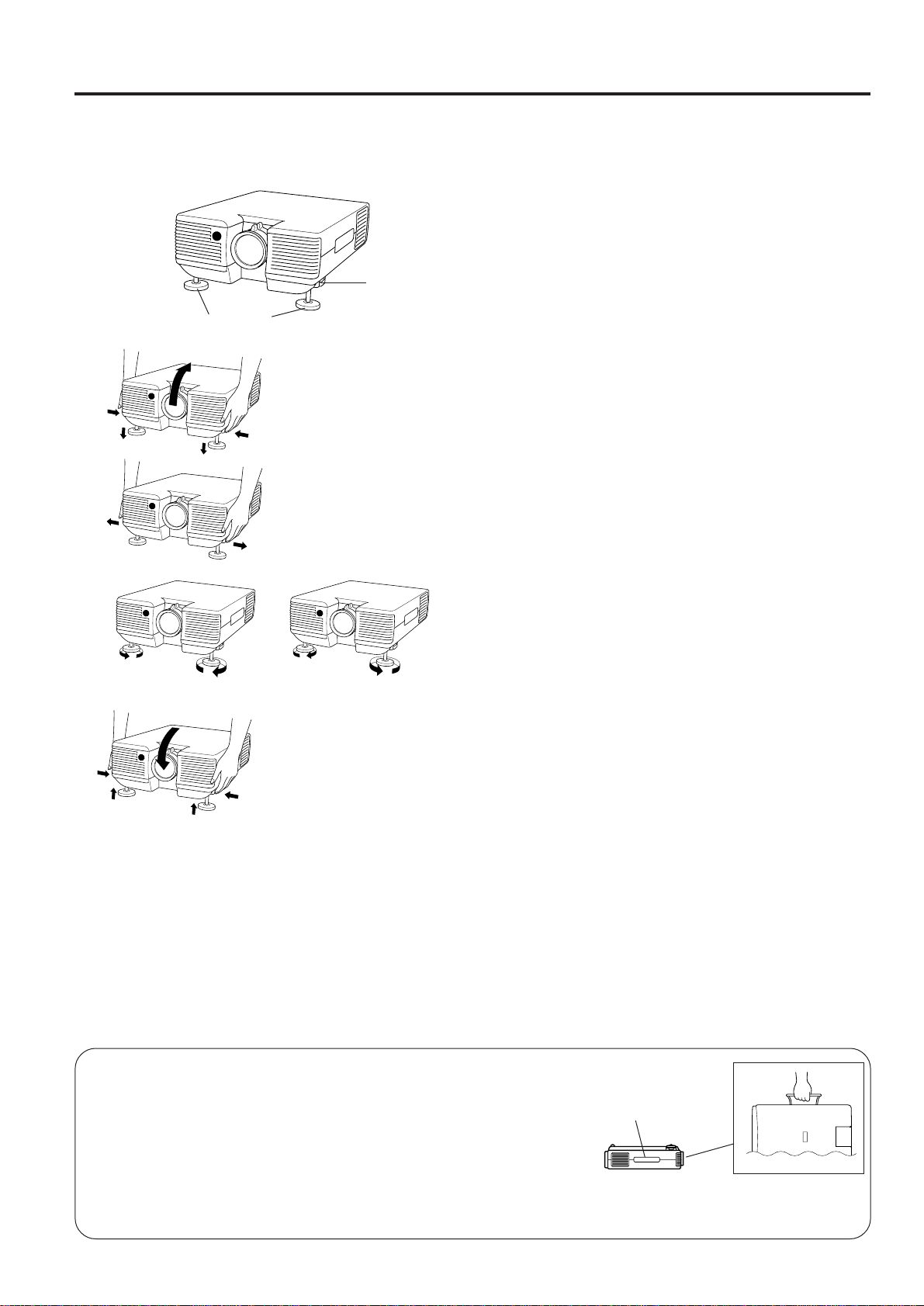
Example of a ceiling-mount setup
Before mounting the projector, be sure to contact your nearest Authorized Sharp Industrial LCD Products Dealer to
obtain the manufacturer recommended ceiling mount bracket (sold separately). (AN-XGCM10 Ceiling Mount
Bracket, AN-EP101P Extension Tube).
• If the relative positions of the projector and the screen are not properly adjusted, the picture will be distorted.
SIDE VIEW
TOP VIEW
The projector lens should be centered
in the middle of the screen.
If the projector and screen are not
centered properly, the picture will be
distorted, making viewing difficult.
→
Lens center
→
Rear Projection
If the projector and screen are not
centered properly, the picture will be
distorted, making viewing difficult.
The projector lens should be centered
in the middle of the screen.
AUDIENCE SIDE
▼
▼
Lens center
→
→
Lens center
Upper edge of screen
(white portion)
SIDE VIEW
TOP VIEW
Example of a standard setup
■Using the horizontal reverse function makes the following setups possible.
Example of a reversed image setup
• By placing a mirror (normal flat type) in front of the lens and using the horizontal reverse function, the image
reflected from the mirror can be projected onto the screen.
• Rear projection with a rear projection screen is also possible when using the horizontal reverse function.
90°
Mirror
90°
90°
Lens center
E-13
Adjusting the Height of the Picture
Use the adjuster release to adjust the angle of the projector and height of the picture. Minor adjustments can be
made with the adjusters.
3
1. Press the adjuster release and lift the
projector to the desired angle with both
hands.
• The adjuster legs will extend to the surface of the table.
2. Remove your hand from the adjuster
release.
• The adjuster legs will lock in position. Release the
projector once you are sure the adjuster legs have
locked in position.
3. Make any minor adjustments necessary.
• Turn the adjusters to further adjust the angle of the
projector.
Returning the projector to its original position
• While holding the projector with both hands, press the
adjuster release and slowly lower the projector to its
original position.
Notes:
• Adjustable up to approximately 5° from the horizontal.
• When adjustments are made with the adjusters, the picture
may become distorted, depending on the relative positions of
the projector and the screen.
• After adjusting, in some cases, all of the adjusters’ feet may
not be resting on the table.
To prevent the projector from wobbling, adjust the adjusters’
feet so that they firmly contact the table.
Cautions:
• Do not press the adjuster release when the adjuster legs are
extended without firmly holding the projector.
• When lowering the projector, be careful not to get your fingers
caught in the area between the adjusters and the projector.
• Do not hold the lens when lifting or lowering the projector.
Adjuster release
Adjusters
2
1
Transporting the Projector
Use the carrying handle when carrying the projector
When transporting the projector, press the handle release located on the
side of the unit to expose the handle and then carry it by the handle as
shown. To close the handle, push it back into the side of the unit.
Note:
Always put on the lens cap to prevent damage to the lens when trans-
porting the projector.
Caution:
Do not lift or carry the projector by the lens or the lens cover as this may
damage the lens.
carrying handle
E-14
Input terminals
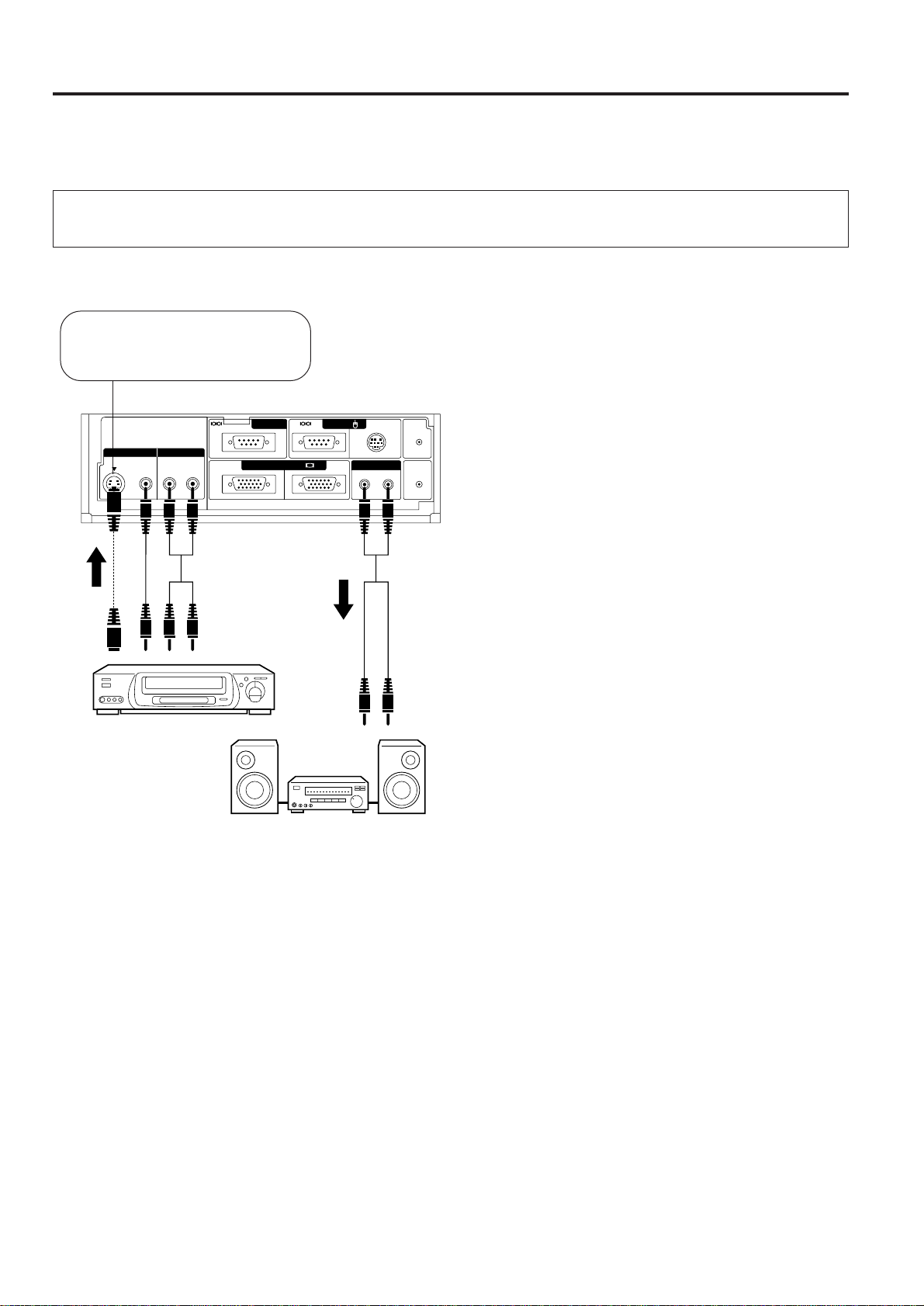
This section explains how to connect the projector to audio/video equipment such as a VCR, Laser Disc, or external
audio amplifier.
Always turn off the LCD Projector while connecting to video equipment, in order to protect both the projector
and the equipment being connected.
Connecting the Projector
• Press on the portion labeled PUSH and open the cover to make the necessary connections.
To S-video
output
terminal
To audio
output
terminals
To audio
input
terminals
Amplifier
To video
output
terminal
VCR
Note the following when using the S-VIDEO INPUT
terminal:
• The S-VIDEO INPUT terminal uses a video signal
system in which the picture is separated into a color
and a luminance signal to realize a higher-quality
picture.
• The S-VIDEO INPUT terminal has priority over the
VIDEO INPUT terminal. Make the audio connection via
the VIDEO INPUT audio terminals (left/right).
• The S-VIDEO INPUT terminal is used when the AV
equipment to be connected has an S-VIDEO output
terminal.
Note:
• By using the external amplifier, the volume can be amplified
for greater sound.
Play
back
Play
back
S-VIDEO
VIDEO IN AUDIO IN
VIDEO L R
PC CONTROL
MOUSE
FOR PC98
OUTIN
LR
WIRED
REMOTE
COMPUTER
AUDIO IN
COMPUTER RGB
OUTAUDIO
Used when the AV equipment to
be connected has an S-VIDEO
output terminal.
E-15
Connecting the Projector (RGB: Computer)
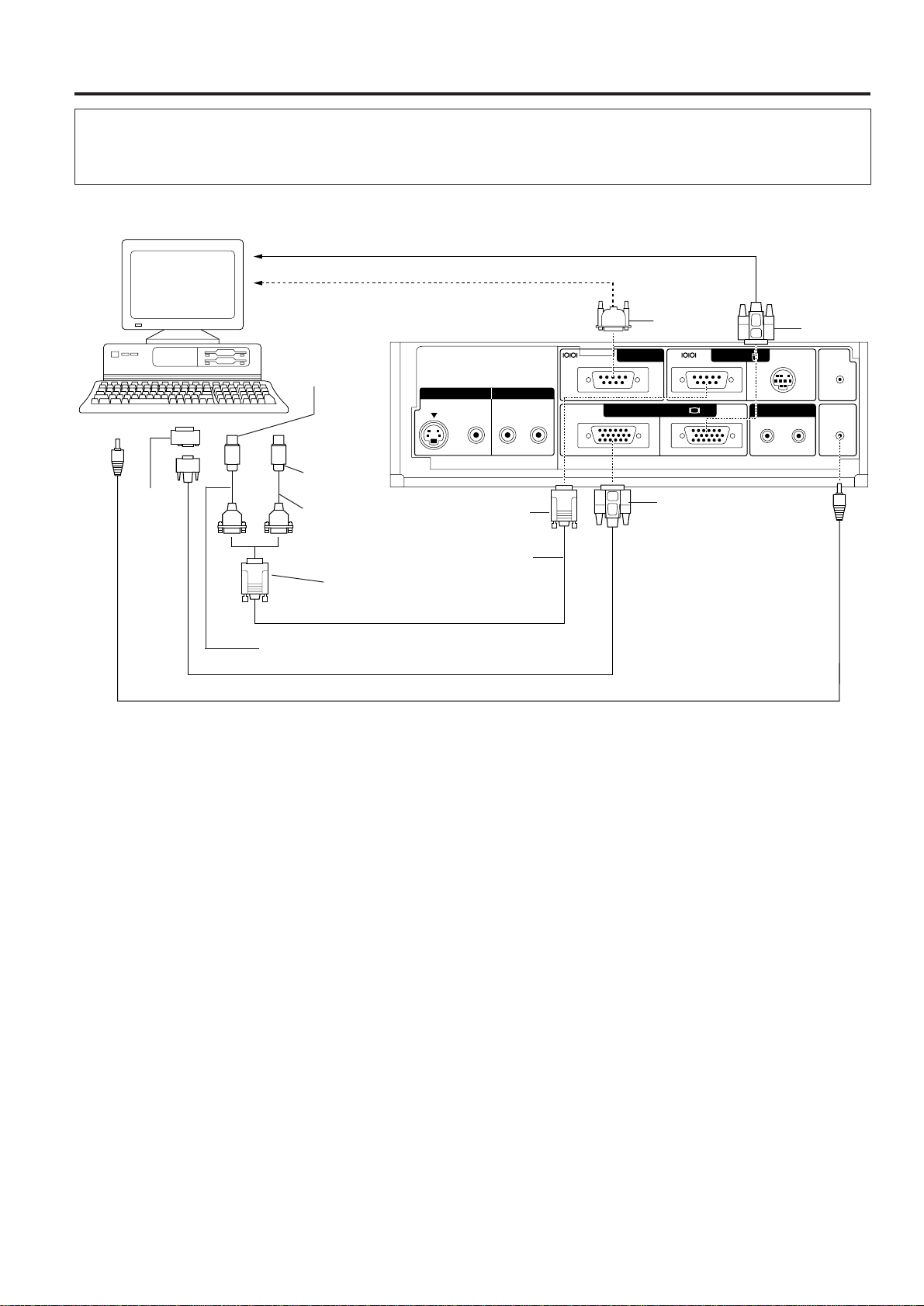
• Please carefully read the manual of the computer you will be connecting.
• Before connecting, be sure to turn both the projector and the computer off. After making all connections,
turn the projector on first. The computer should always be turned on last.
S-VIDEO
VIDEO IN AUDIO IN
VIDEO L R
PC CONTROL
MOUSE
FOR PC98
OUTIN
LR
WIRED
REMOTE
COMPUTER
AUDIO IN
COMPUTER RGB
OUTAUDIO
To display input terminal
To RS-232C terminal
9-pin D-Sub
15-pin D-Sub
15-pin D-Sub
6-pin DIN
Mouse Control Cable
for Macintosh Series
(Supplied)
Audio cable for personal computer (sold separately)
RGB Signal Cable (Supplied)
4-pin DIN
Macintosh
Adaptor
(Supplied)
9-pin D-Sub
9-pin D-Sub
Mouse Control
Cable (Supplied)
Mouse Control Cable for IBM PS/2 (Supplied)
• Press on the portion labeled PUSH and open the cover to make the necessary connections.
• You can connect your projector to a computer for easy projection of full color computer images and an external
monitor for simultaneous viewing. See page 16 and 17 for details of the connections.
• Refer to page 18 for a list of personal computers connectable to the projector. Use with computers other than
those listed may cause some of the functions not to work.
• When the RS-232C terminal on this unit is connected to a personal computer via an RS-232C cable (cross type),
the personal computer can control the projector and the status of the projector can be checked. See page 35 and
36 for details.
• By connecting the projector mouse terminal to your personal computer’s mouse terminal, using the supplied
mouse control cables, you can use the remote control in place of the computer’s mouse. Refer to page 8 for
details.
Notes:
• The wireless mouse or RS-232C function may not operate if your computer port is not correctly set-up. Please refer to your
computer owners manual for details on setting-up/installing the correct Mouse Driver.
• Do not connect or remove the mouse control cable or RS-232C cable to/from your computer while it is on. This may damage
your computer.
• Do not connect to the mouse input terminal for IBM/MAC and mouse input terminal for PC98 simultaneously.
E-16
Connecting to the Computer RGB Input/Output Terminals
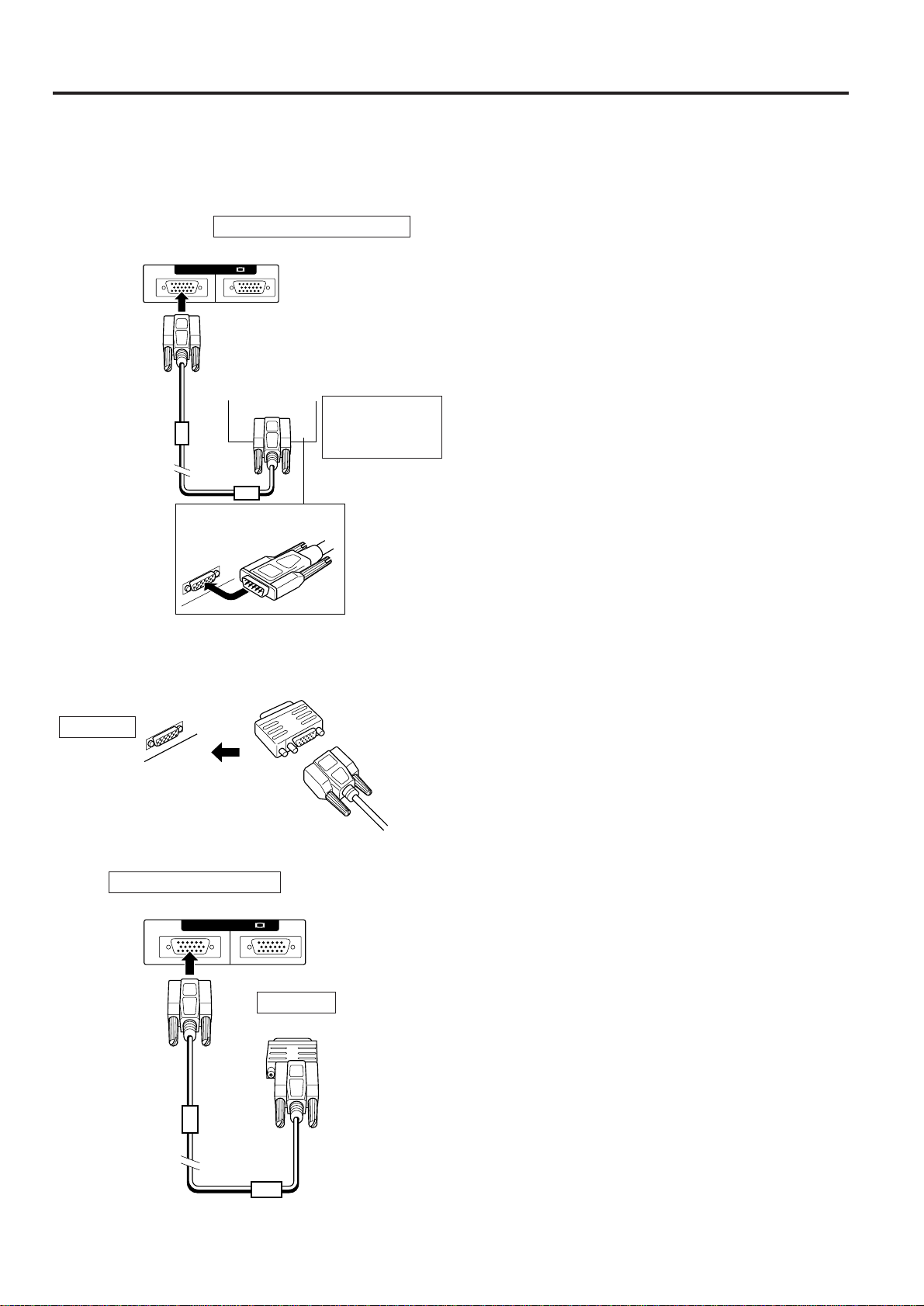
You can connect your projector to a computer for easy projection of full-color computer images, and an external
monitor for simultaneous viewing.
Macintosh
RGB Signal
Output Socket
Macintosh Adaptor (Supplied)
A
N
A
L
O
G
R
G
B
O
U
T
Side view of the projector
2 Next, firmly plug the supplied RGB signal cable into
both the RGB input terminal on the projector and the
Macintosh adaptor on the computer, and secure the
plugs by tightening the thumb screws.
• 832 × 624 resolution
When connecting in the 832 × 624 dot mode, use a
Macintosh adaptor with display mode switching function
available from your local computer dealer.
2. Connecting to a Macintosh Series
Computer
• 640 × 480 resolution
1 First, connect the supplied Macintosh adaptor to the
RGB signal output terminal on your Macintosh Series
computer, as shown on the left, and secure the plugs
by tightening the thumb screws.
OUTIN
COMPUTER RGB
RGB Signal
Input Socket
RGB Signal Output Socket
Macintosh
RGB Signal
Cable
(Supplied)
ANALOG
RGB OUT
Side view of the projector
RGB Signal
Input Socket
RGB Signal
Output Socket
RGB Signal
Cable
(Supplied)
1. Connecting to an IBM-PC (VGA, SVGA,
XGA) Series computer – 1,024 × 768
maximum resolution
Plug the RGB signal cable correctly into the RGB INPUT
terminal on the projector and into the RGB signal output
terminal on the computer, and secure the plugs by
tightening the thumb screws.
Note:
• This connection is possible only when using a computer with a
VGA/SVGA/XGA or Mac display output port.
OUTIN
COMPUTER RGB
ANALOG RGB OUT
1
2
1
2
IBM-PC (VGA,
SVGA, XGA)
Series (computer)
E-17
3. Connecting to other compatible
computers
When connecting the projector to a compatible computer
other than an IBM-PC (VGA/SVGA/XGA) or Macintosh
series, a separate cable is needed. Please contact your
dealer for ordering information.
Notes:
• Connecting computers other than the recommended types
may result in damage to the projector, the computer, or both.
• Connect the audio from the computer to the COMPUTER
AUDIO INPUT terminal.
4. Connecting to the COMPUTER RGB
AUDIO INPUT
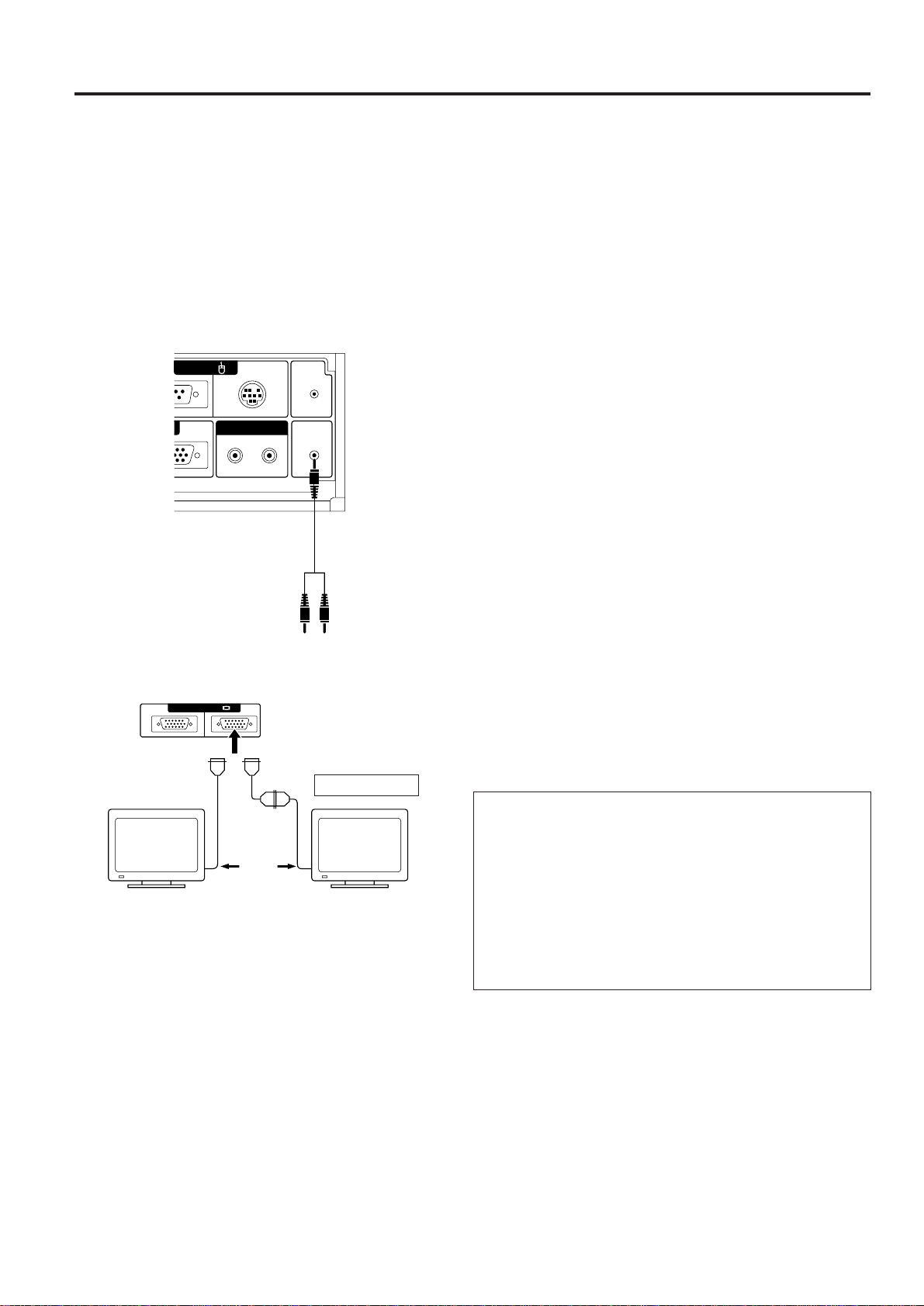
• RGB AUDIO INPUT accepts COMPUTER RGB input.
• Connect a 3.5 mm Stereo Minijack-RCA L/R cable (not
included) from the audio output terminal on the computer to
the COMPUTER AUDIO IN terminal on the projector.
5. Connecting an external monitor
Connect your computer monitor to the projector’s COM-
PUTER RGB OUTPUT terminal to view images simulta-
neously on the external monitor and the projection
screen.
Caution (Apple Macintosh)
Do not connect the COMPUTER RGB OUTPUT to any
monitor except the following:
Apple Color RGB Monitor 13"/14" (640 × 480) or
16"/17" (832 × 624)
The output signal from the projector to the monitor should be
the same as the input signal from the computer to the
projector.
Example: Input 13"/14" (640 × 480) → Output (640 × 480)
Input 16"/17" (832 × 624) → Output (832 × 624)
Note:
• When using the projector with an external IBM-PC monitor,
connect the monitor using the supplied cable. When using the
projector with a Macintosh monitor, an optional adaptor cable
is required. Before using any other type of monitor, carefully
check the monitor’s interface specifications and make sure
that they match the specifications of the projector’s interface.
The external monitor output will only display an analog
computer input signal. It will not display a digital or video input
signal. To split the composite video signal, use a video
distribution amplifier. This is available from your local dealer.
The computer RGB output will only loop through the same
signal connected to the computer RGB input.
(VGA IN → VGA OUT, Mac IN → Mac OUT)
4
5
Optional Macintosh
adaptor cable
or
Direct
connection
External IBM-PC
monitor
U.S.A. ONLY
External Macintosh
monitor
OUTIN
COMPUTER RGB
MOUSE
FOR PC98
OUT
LR
WIRED
REMOTE
COMPUTER
AUDIO IN
OUTAUDIO
E-18
EDOM
MBIMBIMBIMBIMBIMBIMBIMBIMBIelppAelppAelppA
AGVASEVAGVSAGVSAGVSAGVSAGXAGXAGX
hsotnicaM
MT
II is
hsotnicaM
MT
CL
hsotnicaM
MT
TXETcihparGcihparGcihparG
ASEV
enilediuG
ASEV
dradnatS
ASEV
dradnatS
ASEV
enilediuG
ASEV
dradnatS
ASEV
dradnatS
rotinoM"31rotinoM"31rotinoM"61
tod027tod046tod046tod008tod008tod008tod008tod4201tod4201tod4201tod046tod046tod238
enil053enil004enil053enil004enil084enil084enil006enil006enil006enil006enil867enil867enil867enil084enil084enil426
OEDIV
LEVEL
p-pV7.0
57 Ω daol
p-pV7.0
57 Ω daol
p-pV7.0
57 Ω daol
p-pV7.0
57 Ω daol
p-pV7.0
57 Ω daol
p-pV7.0
57 Ω daol
p-pV7.0
57 Ω daol
p-pV7.0
57 Ω daol
p-pV7.0
57 Ω daol
.xamp-pV1
57 Ω daol
.xamp-pV7.0
57 Ω daol
.xamp-pV7.0
57 Ω daol
EPYT R•G•B R•G•B R•G•B R•G•B R•G•B R•G•B R•G•B R•G•B R•G•B
R•G•B
CNYS.C
R•G•B
CNYS.C
R•G•B
CNYS.C
H
S
Y
N
C
HCROPTNORFatod71414242046561424261468713
CNYSbtod8016904278210210863163169462656
HCROPKCABctod5505821821884606106144167169611422
DOIREPOEDIVdtod027046046008008008008420,1420,1420,1046046238
)d+c+b+a(H1
tod009008238420,1650,1040,1650,1443,1823,1213,1468698251,1
µs4777.136777.13314.62444.82004.62008.02333.12776.02707.71066.614175.82595.82421.02
tod1sn2803.539127.93647.13777.72000.52000.02202.02583,513.317.218860.33360419.13864.71
1H/zHk9864.138864.13068.73651.53978.73770.84578.64363,84674.65320.060000.53941179.43396.94
tod/1zHM223.82571.52005.13000.63000.04000.05005.94000.560.5757.870042.03941433.13642.75
LEVELTTL TTL TTL TLTTLTTLTTLTTLTTLTTLTTLTTLTTLTTLT
YTIRALOPCNYS–/++– +–– – –/+ +++–– + – – –
V
S
Y
N
C
HCROPTNORFwH8331833111911 73 1331 3 3 1
CNYS xH22222 32463663 3 3 3
HCROPKCAByH95439543238222323212929282939393
DOIREPOEDIVzH053004053004084084006006006006867867867084084426
)z+y+x+w(V1
H944944944944525025526826666526608608008525525766
sm1862.411862.411862.411862.412386.61537.31877.71975.61358.31333.31666.61272.41823.3100.5100.51324.31
1v/zH6680.076680.073680.073680.075049.95908.27052.65713.06881.27000.57600.06960.07920.5776.6676.66205.47
LEVELTLTTLTTLTTLTTLTTLTTLTTLTTLTTLTTLTTLTTLTTLTTLTTLT
YTIRALOPCNYS–/+– +– +– – –/+ +++–– + – – –
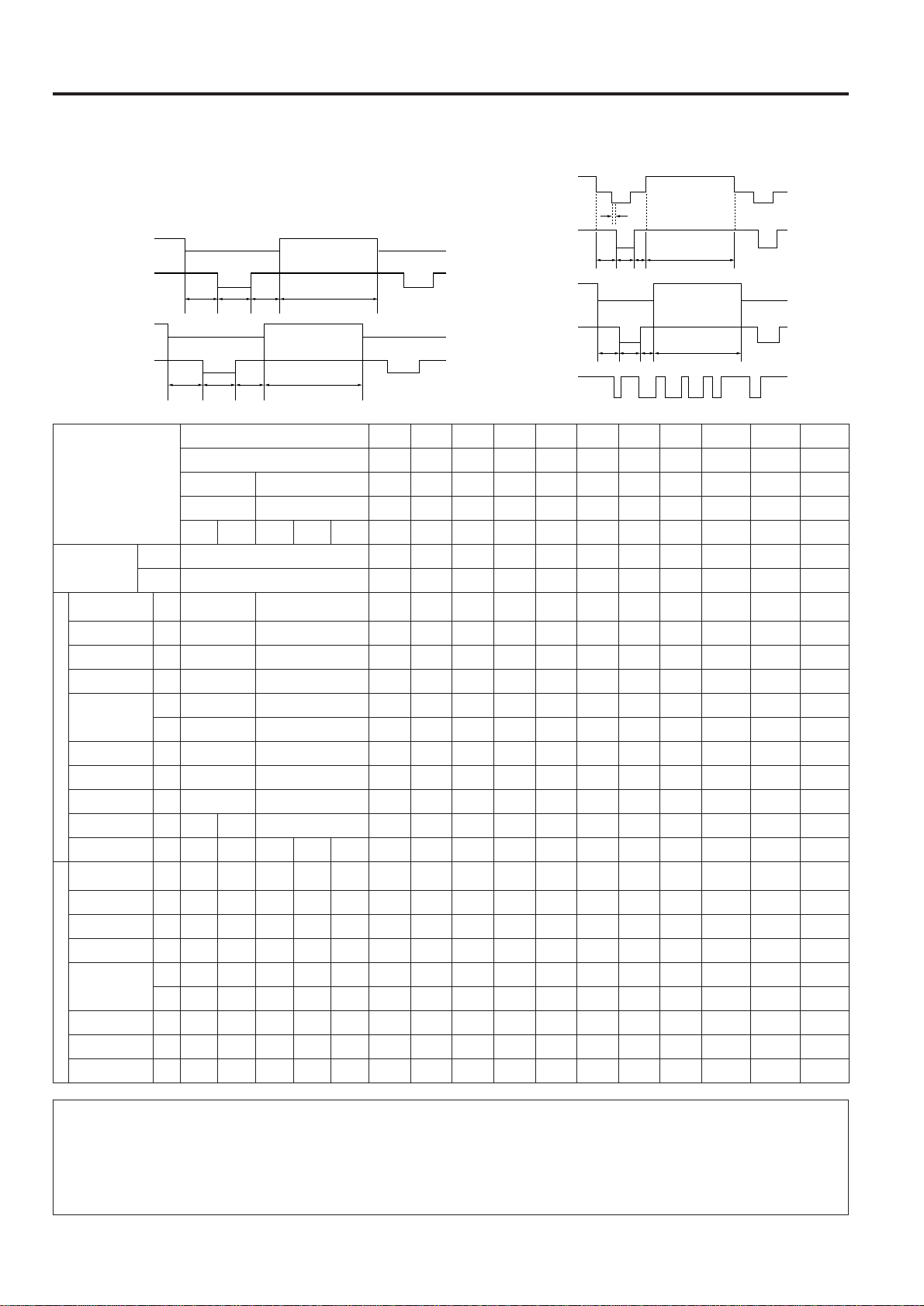
Input Signals (Recommended Timing)
For IBM and compatibles
Input signals: The video output signal timing of different
types of video signals are shown below
for reference.
For Apple Macintosh Series
VIDEO SIGNAL
VIDEO SIGNAL
C-SYNC (H)
VIDEO SIGNAL
C-SYNC (V)
V-SYNC
abc
d
wx z
Notes:
• When connecting a notebook computer to the data-projector for display on a (800 × 600) LCD screen, the screen may not
show a full picture image. See page 24, “Computer Mode Memory Adjustments” for details.
• This projector may not be able to display images from notebook computers in simultaneous (CRT/LCD) mode. If this occurs,
turn off the LCD display on the notebook computer and output the display data in “CRT only” mode. Details on how to change
display modes can be found in your notebook computer’s operation manual.
a
bc d
e
e = 2 dot
w
x
yz
y
VIDEO SIGNAL
HORIZONTAL
SYNC SIGNAL
VERTICAL
SYNC SIGNAL
E-19
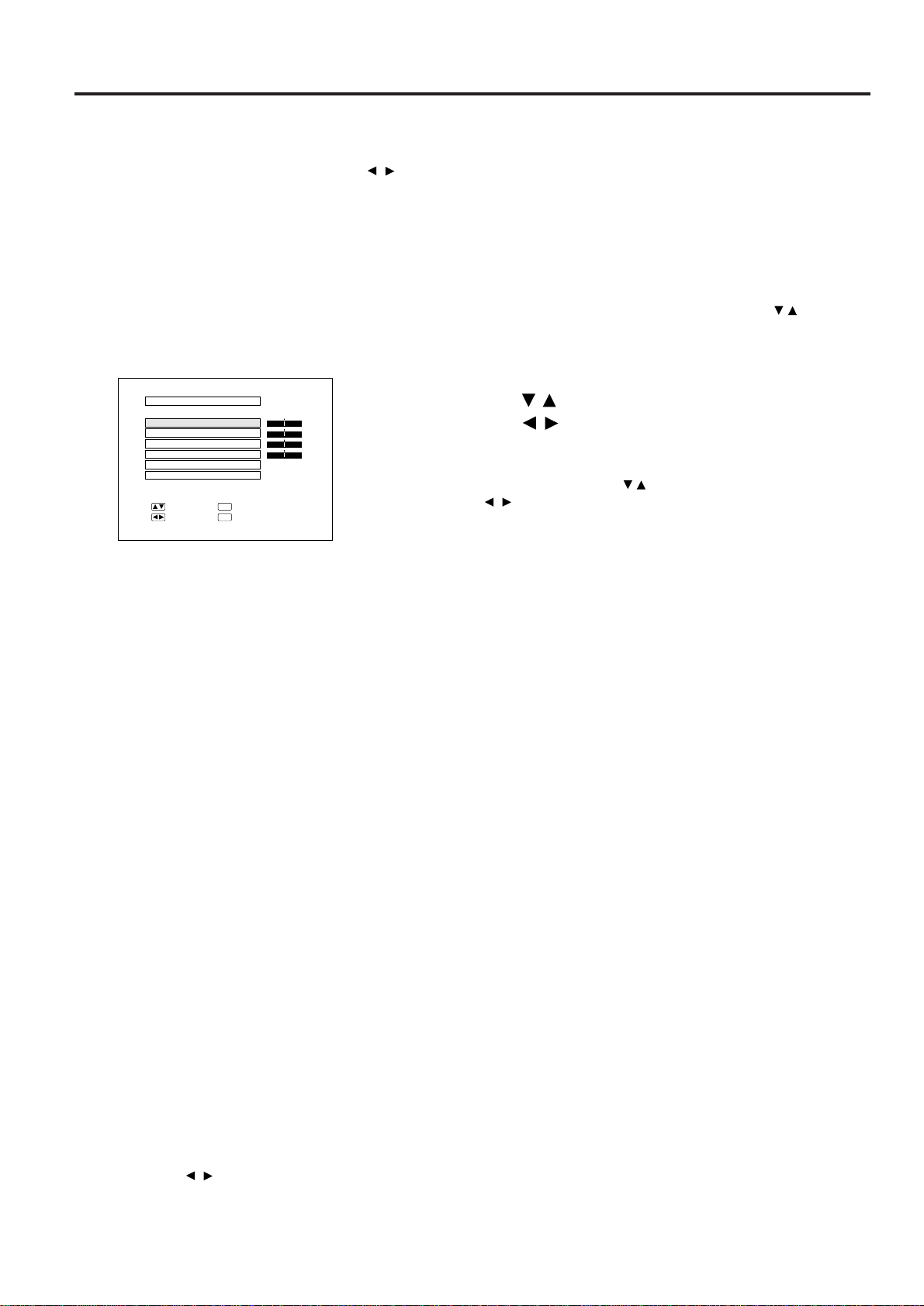
RGB Adjustment Controls
When displaying computer patterns which repeat every other dot (tiling, vertical stripes, etc.), interference may
occur between the LCD pixels, causing flickering, vertical stripes, or contrast irregularities in portions of the screen.
Should this occur, use the ADJUSTMENT / buttons for HORIZONTAL (LEFT/RIGHT) and VERTICAL (UP/
DOWN) POSITION ADJUSTMENTS to adjust for the optimum picture.
RGB INPUT ADJUSTMENTS (CLOCK, PHASE, V-POS and H-POS)
1. Select RGB with the INPUT SELECT button and press
the MENU button to select the RGB INPUT ADJ. mode.
With the MENU screen displayed, press the ADJUSTMENT / buttons to
select RGB INPUT ADJ. Then press the ENTER button to display the
RGB INPUT ADJ. screen.
2. Select the item you wish to adjust with the
ADJUSTMENT
/ buttons. Adjust the item with the
ADJUSTMENT
/ buttons.
Note:
To display only the item that you want to adjust, press the ENTER button after
selecting the item with the ADJUSTMENT / buttons. Then adjust the item with
the ADJUSTMENT
/ buttons.
3. Press the MENU button anytime to exit RGB INPUT ADJ.
2
RGB INPUT ADJ.
PHASE
H-POS
V-POS
MODE
RESET
+
0
0
0
0
:SEL.
:ADJ.
:NEXT
ENTER
:END
MENU
[
OFF
]
-
+
-
+
-
+
-
CLOCK
Description of Adjustment Items
CLOCK SPEED ADJUSTMENT (FAST/SLOW)
• Adjust the input signal horizontal frequency and the dot clock so that the screen display is normal.
PHASE ADJUSTMENT (UP/DOWN)
• Used to reduce image distortion or improve contrast.
HORIZONTAL POSITION ADJUSTMENT (LEFT/RIGHT)
• Used to center the on-screen image by moving it to the left or right.
VERTICAL POSITION ADJUSTMENT (UP/DOWN)
• Used to center the on-screen image by moving it up or down.
MODE ADJUSTMENT
Connecting to IBM-PC Computers
• Ordinarily, the type of input signal is detected and the correct resolution mode (Text or Graphics) is automatically selected.
However, for the following signals, set MODE to ON or OFF to select the projector’s resolution mode to match the computer
display mode properly.
720 dots × 400 lines, 720 dots × 350 lines (Text Mode)
640 dots × 400 lines, 640 dots × 350 lines (Graphic Mode)
• For graphic mode, select MODE and set the MODE to ON.
• For text mode, select MODE again at this time, and set MODE to OFF.
Connecting to Macintosh LC/II Series Computers
• When connecting to a Macintosh II with 35 kHz Dot Frequency, select MODE and set MODE to ON.
• When connecting to a Macintosh LC Series computer with 34.97 kHz Dot Frequency, set MODE to OFF.
• When connecting to third party video cards and other Macintosh computers, set MODE to ON or OFF to select the correct
display mode.
• When the input signal is automatically detected or when there is no input signal, MODE (---) appears on the screen and the
display mode cannot be changed.
INITIAL RESET
• To return the H-POS, V-POS, PHASE and CLOCK adjustments to their initial settings, select RESET and then press the
ENTER button.
Notes:
• Flickering, vertical stripes, or contrast irregularities may also occur when the image is reversed. Once again, use the
ADJUSTMENT
/ buttons for HORIZONTAL (LEFT/RIGHT) and VERTICAL (UP/DOWN) POSITION ADJUSTMENTS to
adjust for the optimum picture.
• Avoid displaying computer patterns which repeat every other line (horizontal stripes). (Flickering may occur, making the picture
hard to see.)
E-20
Basic Operation of the Projector
1
2
Projector
ON/OFF
Remote control
ON/OFF
POWER
LAMP
TEMP.
When the power is on, the LAMP
REPLACEMENT indicator flashes
to show the operating condition of
the lamp.
Green: Lamp is ready
Flashing green: Warming up
Red: Change bulb
ON
OFF
3
E-ZOOM (ON)
4
E-ZOOM (OFF)
When the MAIN
POWER is on, the
POWER indicator
lights red.
POWER
LAMP
TEMP.
ONOFF
ONOFF
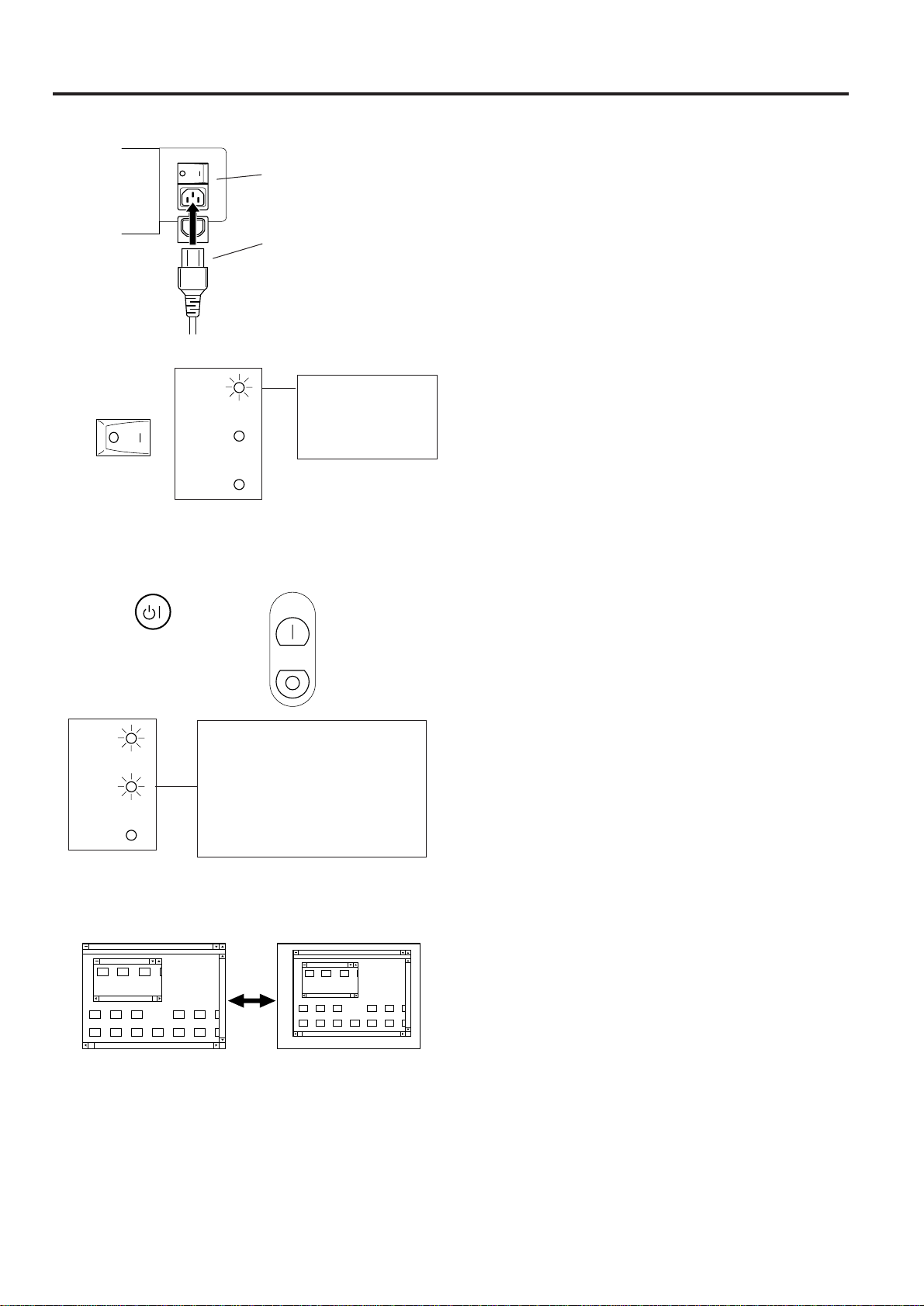
1 AC cord
1. Connect the AC cord
Open the socket cover and connect the supplied AC cord
to the socket.
2. Turn on the MAIN POWER
Turn the MAIN POWER switch on the side of the projec-
tor. The POWER indicator lights red and the projector
enters STANDBY mode.
3. Turn on the POWER
Press the POWER ON/OFF button on the projector or the
POWER ON button of the remote control.
• When the power is turned off by pressing the POWER
ON/OFF button, the POWER indicator will not turn off
until the fan has stopped running.
• See page 31, “Lamp/Maintenance Indicators” for
details.
Notes:
• When the POWER indicator is not lit, the remote control
cannot be used to operate the projector.
• If the power is turned on immediately after it has been turned
off, it may take a short while before the lamp turns on. (During
this period the LAMP REPLACEMENT indicator flashes.)
• After the projector is unpacked and turned on for the first time,
a slight odor may be emitted from the exhaust fan. This odor
will soon disappear with use.
4. E-ZOOM Function
This projector has an E-ZOOM mode which enlarges the
display when inputting an image of less than 800 × 600
dots in size. The E-ZOOM button of the remote control is
used to operate E-ZOOM function.
See page 26, “E-ZOOM Function” for details.
Notes:
• E-ZOOM function does not operate with monochrome images
or in SVGA (800 × 600), Mac 16" (832 × 624), NTSC, PAL or
SECAM INPUT mode.
• The picture size differs in RGB, NTSC, PAL and SECAM
INPUT modes.
2 MAIN POWER switch
E-21
On-Screen Display
LANGUAGE
:SEL. :ENTER
ENTER
:END
MENU
NEDERLANDS
ESPAÑOL
DEUTSCH
ENGLISH
SVENSKA
ITALIANO
FRANÇAIS
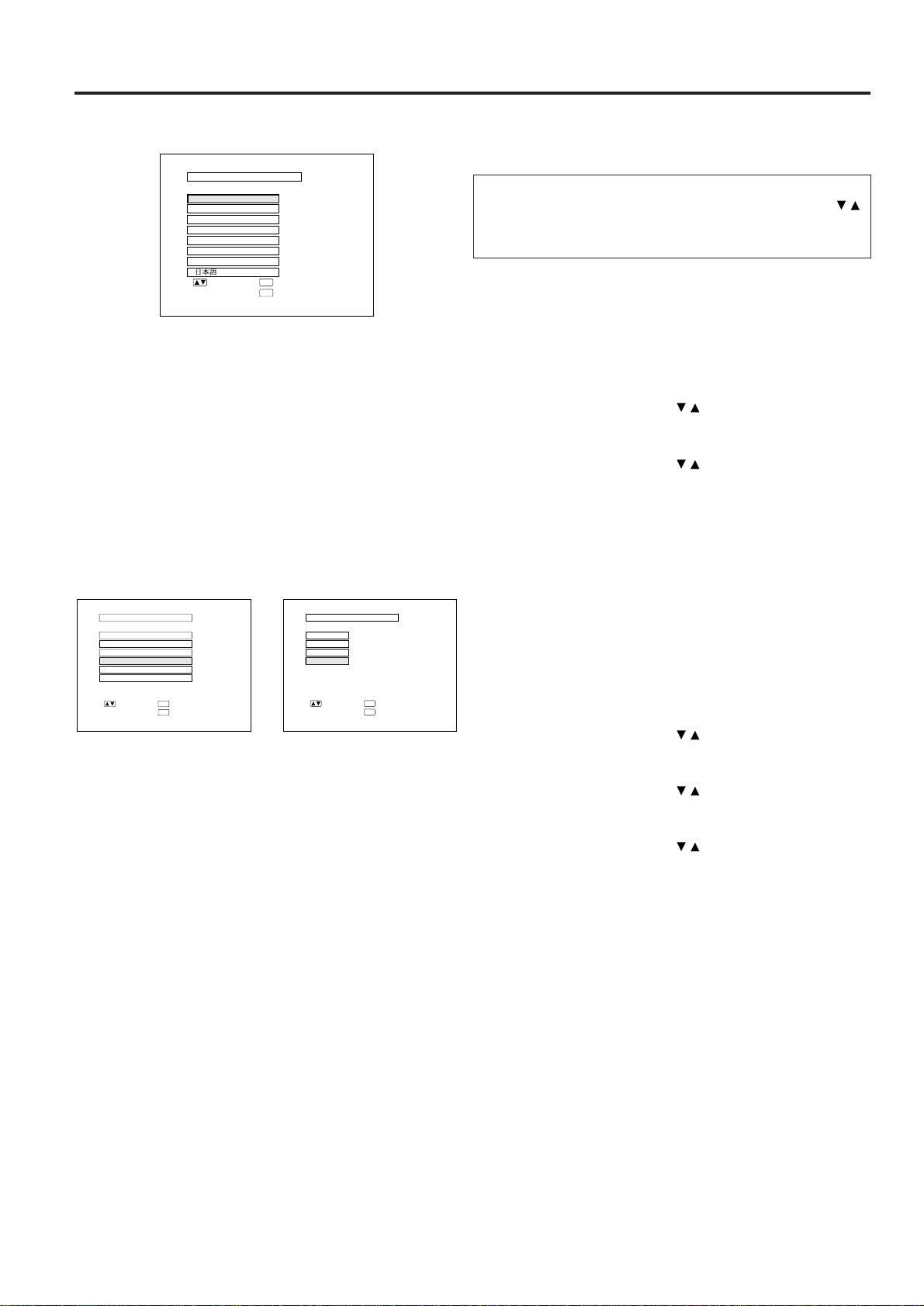
5. Select one of eight ON-SCREEN DISPLAY
languages
You can return to the previous screen by selecting the
uppermost item (turquoise) with the ADJUSTMENT /
buttons (in this case, LANGUAGE) and then pressing
the ENTER button.
The on-screen display is set to English at the factory. The
language for the unit’s ON-SCREEN DISPLAY can be set
to English, German, Spanish, Dutch, Swedish, Italian,
French or Japanese.
Setting the ON-SCREEN DISPLAY language
1) Press the MENU button. The menu will appear on the
screen.
2) Press the ADJUSTMENT / buttons to highlight the
LANGUAGE item yellow. Then press the ENTER
button to display the language menu.
3) Press the ADJUSTMENT / buttons to highlight the
desired language yellow. Then press the Enter button
to set the language. The ON-SCREEN DISPLAY is
now programmed to display in the language chosen.
6. Change the system mode
The video input system mode is set to AUTO at the
factory. If you connect a video device with a video signal
supported by the projector and the video image appears
with no colors, or other such problem occurs, set the
video input system mode manually by following the
procedure below.
1) Press the MENU button. The menu will appear on the
screen.
2) Press the ADJUSTMENT / buttons to highlight the
IMAGE ADJ. yellow. Then press the ENTER button to
display the IMAGE ADJ.
3) Press the ADJUSTMENT / buttons to highlight
SYSTEM yellow. Then press the ENTER button to
display the SYSTEM.
4) Press the ADJUSTMENT / buttons to highlight the
video system desired yellow. Then press the ENTER
button to set the system.
Note:
• In AUTO mode, “PAL,” “SECAM,” or “NTSC” is displayed on
the screen for a few seconds when the mode is changed with
the INPUT SELECT button.
:SEL. :NEXT
ENTER
:END
MENU
BLUE SCREEN
BLACK SCREEN
IMAGE ADJ.
REVERSE
INVERT
INPUT DISPLAY
[
OFF
]
[
OFF
]
[
OFF
]
SYSTEM
[
OFF
]
[
ON
]
AUTO
SYSTEM
PAL
SECAM
:SEL. :ENTER
ENTER
:END
MENU
NTSC
➞
On-Screen Display
E-22
For viewing the
picture from a
video source
connected to:
VIDEO INPUT or
S-VIDEO INPUT
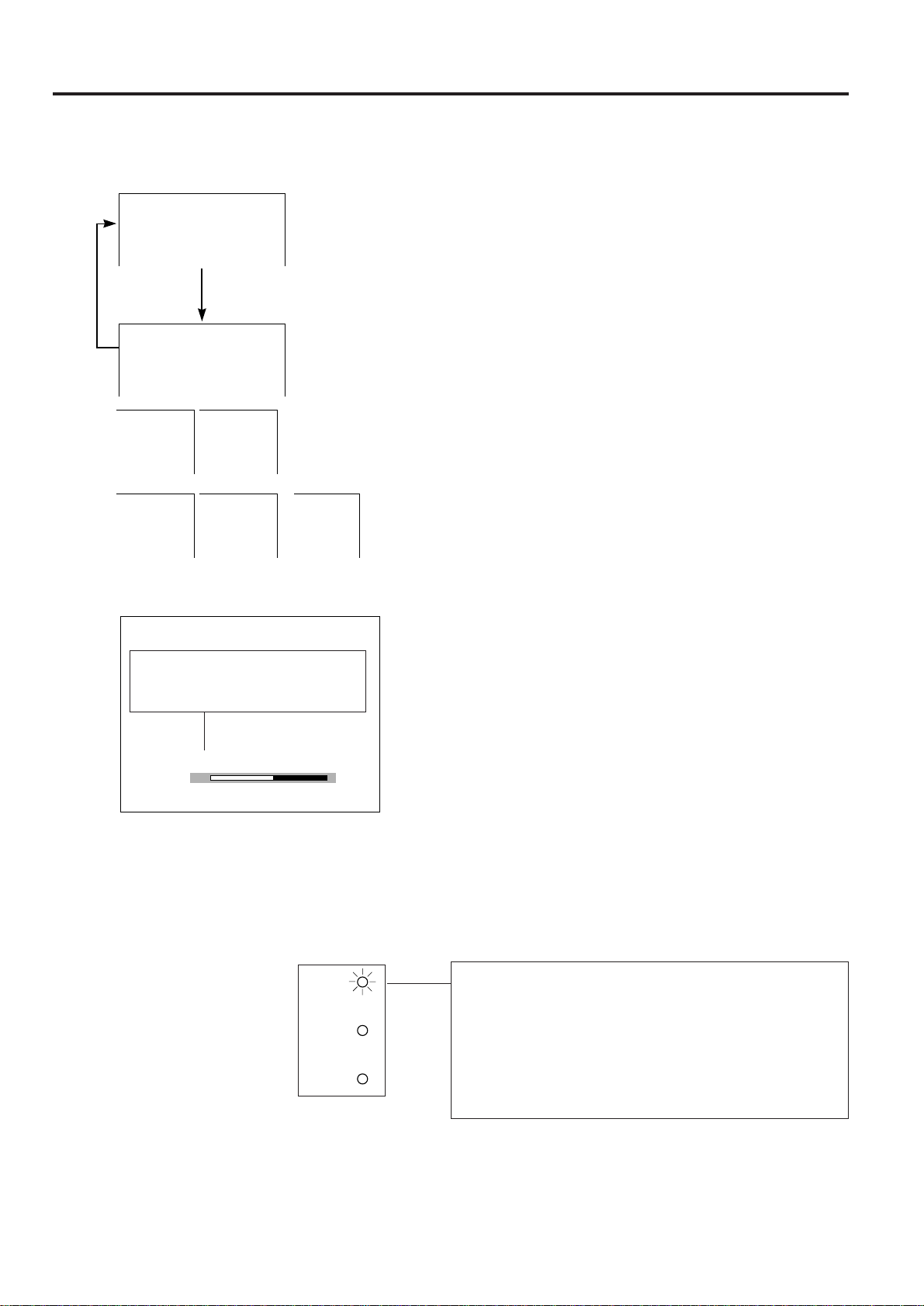
7. Select input
Press the INPUT SELECT button to switch the picture
input. When you press the button, the current input mode
is displayed for about 4 seconds. If you press the button
again while the input mode is displayed, the mode
changes as shown on the left.
Confirm the selected input terminal and press the INPUT
SELECT button.
Notes:
• This can be selected directly using the VIDEO and DATA
buttons on the remote control.
• In VIDEO mode, the system being received will be indicated
below the “VIDEO” display.
• When selecting RGB mode, the resolution being displayed will
be indicated under “RGB,” as shown on the left. (Refer to the
second example when connecting to Mac display.)
• When no signals are being received, “NO SIGNAL” will be
displayed. When receiving a signal the projector is not preset
to receive, “NOT REG.” will be displayed. (This display
function does not operate in Video mode.)
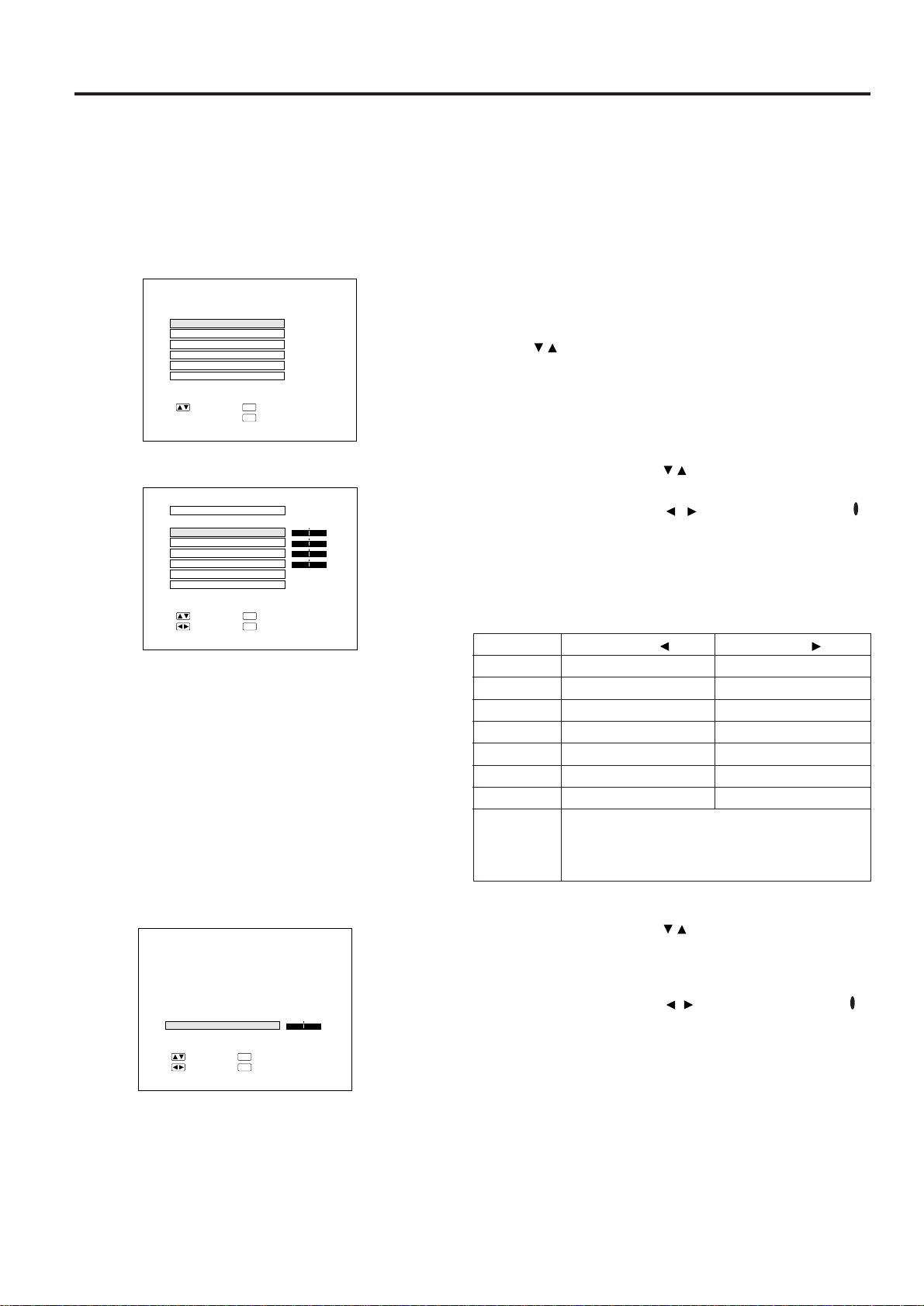
8. Adjust the volume
Press the VOLUME UP-DOWN buttons on the projector
or on the remote control to adjust the volume.
MUTE
• Press the MUTE button to temporarily turn off the
sound.
• Press the MUTE button once again to turn the sound
back on.
9. To turn off the power from the projector
or remote control
The power can be temporarily turned off by pressing the
POWER ON/OFF button on either the projector or remote
control.
The POWER indicator will turn red and the cooling fan
will run for 90 seconds, then the power will turn off,
and the projector will return to STANDBY mode.
The power can be turned on again either from the
projector or remote control. When the power is turned
on, the POWER indicator and LAMP REPLACEMENT
indicator light green.
Note:
• When the MAIN POWER is off on the projector set, the power
cannot be turned on from the remote control.
VIDEO
•
RGB
1024×768
RGB
1024×768
RGB
800×600
RGB
640×480
35 KHz
RGB
640×480
34.97 KHz
RGB
832×624
NTSC
6 0 H z6 0 H z
6 0 H z
Mac
VOLUME
38
The number of displayed segments
(0~60) increases or decreases as
the volume is raised or lowered.
POWER
LAMP
TEMP.
On-Screen Display
COMPUTER RGB
E-23
Adjusting the Picture
• This projector’s picture is factory preset to standard settings. However, you can adjust it to suit your own prefer-
ences with the ADJUSTMENT buttons on the projector and the remote control.
• The adjustments can be memorized in RGB or VIDEO separately.
• Four picture modes can be adjusted: “PICTURE,” “BRIGHT,” “RED,” and “BLUE.”
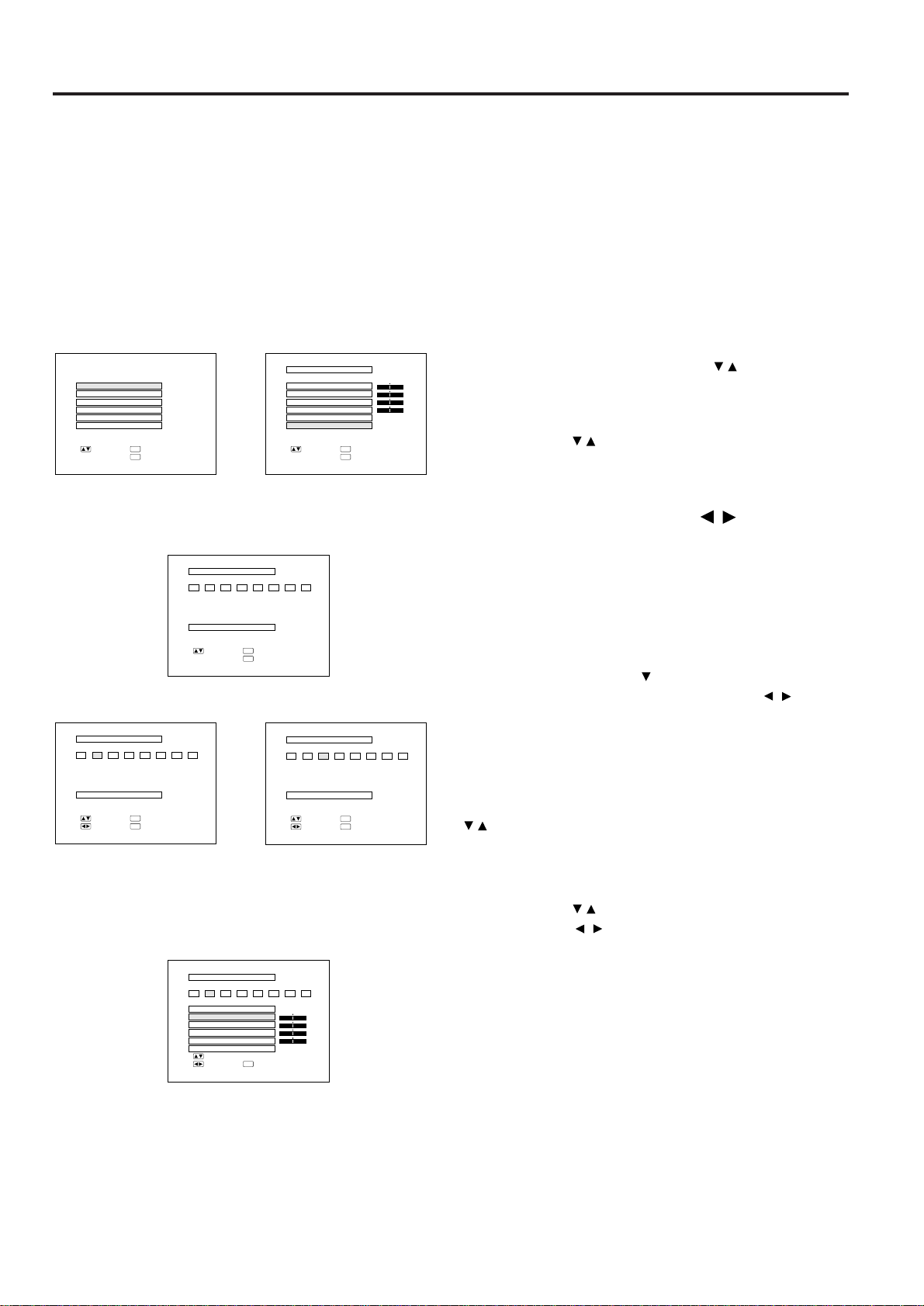
Adjusting the Picture
1. Use the MENU button to select the mode
to be adjusted.
• When the MENU button is pressed, the MENU mode is
indicated for about 30 seconds. Press the ADJUST-
MENT / buttons to select “RGB ADJ.,” then press the
ENTER button.
2. Adjust the Picture
• Press the ADJUSTMENT / buttons to highlight the
picture adjustment item you want to adjust yellow.
• Press the ADJUSTMENT / buttons to move the “ ”
mark of the selected adjustment item to the desired
setting.
• The adjustment mode is displayed for about 30
seconds.
Description of Adjustment Items
RGB ADJ.
RGB INPUT ADJ.
IMAGE ADJ.
AUDIO
SYSTEM SETUP
LANGUAGE
:SEL. :NEXT
ENTER
:END
MENU
1
On-Screen Display
2
ADJUSTMENT button
For less contrast
For less brightness
For weaker red
For weaker blue
For less color intensity
Skin tones become purplish
For less sharpness
Selected item
PICTURE
BRIGHT
RED
BLUE
COLOR
TINT
SHARPNESS
RESET All RGB Video Adjustment items are returned to the
factory preset settings.
Note: To reset all adjustment items, select RESET in
“RGB ADJ. ” mode and press ENTER button.
ADJUSTMENT button
For more contrast
For more brightness
For stronger red
For stronger blue
For more color intensity
Skin tones become greenish
For more sharpness
3. Display Only the Item to Adjust
• Press the ADJUSTMENT / buttons to highlight the
picture adjustment item you want to adjust yellow. If you
press ENTER at this time, only the selected item will be
displayed.
• Press the ADJUSTMENT / buttons to move the “ ”
mark of the selected adjustment item to the desired
setting.
• The adjustment mode is displayed for about 30
seconds.
Notes:
• When a VIDEO signal input has been selected, only
“PICTURE,” “BRIGHT,” “COLOR,” “TINT” and “SHARPNESS”
can be adjusted.
• TINT only appears in NTSC mode.
4. Press the MENU button anytime to exit
RGB ADJ.
3
+
:SEL.
:ADJ.
:ENTER
ENTER
:END
MENU
-
PICTURE 0
RGB ADJ.
BRIGHT
RED
BLUE
RESET
MEMORY SELECT
+
0
0
0
0
:SEL.
:ADJ.
:NEXT
ENTER
:END
MENU
-
+
-
+
-
+
-
PICTURE
E-24
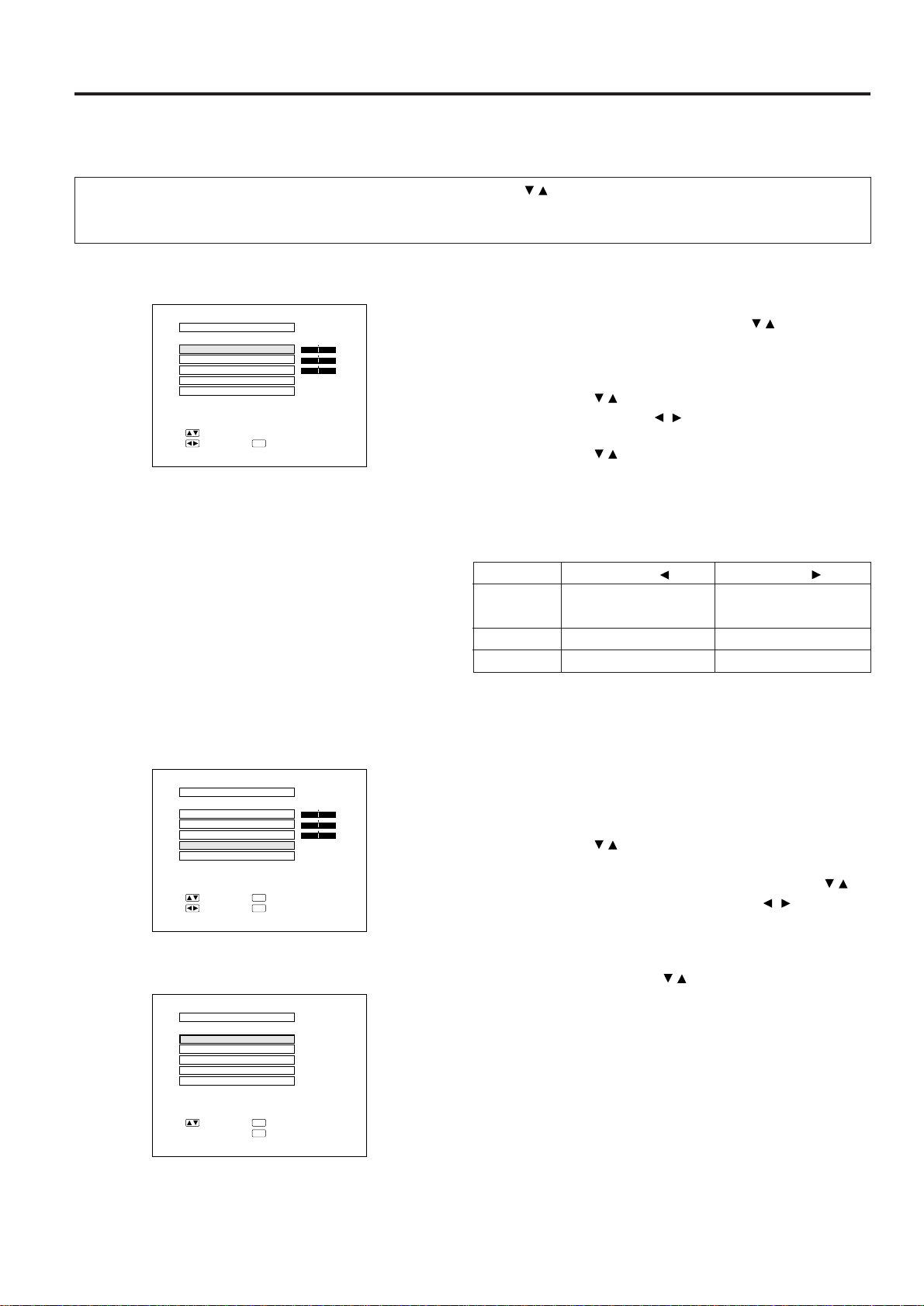
Computer Mode Memory Adjustments
• The projector has been preset with different modes for
use with SVGA and other compatible computers.
However, 7 memory positions are provided to store
mode adjustments.
• Each memory position can be used to store mode
adjustments to match the computer.
1. Press the ENTER button to select the
Memory Adjustment mode.
• Press the MENU button. While the MENU screen is
displayed, press the ADJUSTMENT / buttons to
select “RGB ADJ.” Press the ENTER button. The
MENU mode changes as shown.
• While the RGB adjustment menu is displayed, press the
ADJUSTMENT / buttons to select “MEMORY
SELECT.” Then press the ENTER button to change the
image.
2. Press the ADJUSTMENT / buttons.
• The screen shown on the left will appear. There are 7
memory positions.
• Press the ADJUSTMENT button once to move to the
following screen. Press the ADJUSTMENT / buttons
to select the number of the memory you want to adjust.
If that memory position has not been set, the screen on
the right will be displayed. If it has been set, the screen
on the left will be displayed. MEMORY No.0 cannot be
set. It contains the fixed factory preset settings.
• To make or change a setting, press the ADJUSTMENT
/ buttons to move the cursor to “SETTING.” Then
press the ENTER button to go to the next screen. (If
you do not want to adjust any, press the MENU button.)
• Select the item you want to adjust by pressing the
ADJUSTMENT / buttons, then use the
ADJUSTMENT / buttons to make the adjustments.
When adjustments are completed, press the MENU
button. The display disappears and the adjustments are
stored in memory as a user mode. See page 23 for
details on the adjustment items.
3. Press the MENU button anytime to exit
RGB ADJ.
2
MEMORY SELECT
:SEL.
:ADJ.
ENTER
:END
MENU
0 1 2 3 4 5 6 7
RESOLUTION
HOR FREQ
VERT FREQ
SETTING
:ENTER
Hz
KHz 38
60
800×600
MEMORY SELECT
NON
SETTING
:SEL.
:ADJ.
ENTER
:END
MENU
0 1 2 3 4 5 6 7
:ENTER
➞
1 When RGB is selected.
RGB ADJ.
RGB INPUT ADJ.
IMAGE ADJ.
AUDIO
SYSTEM SETUP
LANGUAGE
:SEL. :NEXT
ENTER
:END
MENU
RGB ADJ.
BRIGHT
RED
BLUE
RESET
MEMORY SELECT
+
0
0
0
0
:SEL. :NEXT
ENTER
:END
MENU
-
+
-
+
-
+
-
PICTURE
➞
➞
➞
MEMORY SELECT
SETTING
:SEL. :BACK
ENTER
:END
MENU
0 1 2 3 4 5 6 7
➞➞
➞
MEMORY SELECT
SETTING
:SEL.
:ADJ.
:END
MENU
0 1 2 3 4 5 6 7
PHASE
H-POS
V-POS
RESET
CLOCK 0
0
0
+
-
+
-
+
-
0
+
-
➞➞
➞
E-25
Adjusting the Audio
• The projector’s audio is factory preset to the standard setting. However, you can adjust it to suit your own prefer-
ence with the ADJUSTMENT buttons on the projector or the remote control.
• You can adjust the BALANCE, TREBLE and BASS, and also select the SRS 3-D SOUND mode.
• To return to the factory preset mode, press the ADJUSTMENT / buttons to select RESET, then press the
ENTER button.
• Press the MENU button to select the normal screen mode.
Adjusting the Balance, Treble, Bass
• Press the MENU button.
Select AUDIO with the ADJUSTMENT / buttons.
Then press the ENTER button to change to the picture
indicated on the left.
• Select BALANCE, TREBLE or BASS with the
ADJUSTMENT / buttons. Adjust the mode you want
with the ADJUSTMENT / buttons.
• To return to the factory preset mode, press the
ADJUSTMENT / buttons to select RESET, then press
the ENTER button.
Note:
When the SRS 3-D SOUND is turned on, the balance is reset.
Description of Adjustment Items
Selecting and Adjusting the SRS 3-D
SOUND Mode
The Sound Retrieval System is a sound system that
recreates the effect of three dimensional acoustics. This
allows one to enjoy a dynamic sound with a feeling of
both width and depth.
• Press the MENU button. Select AUDIO with the
ADJUSTMENT / buttons. Then press the ENTER
button to change to the picture indicated on the left.
• Select SRS 3-D SOUND with the ADJUSTMENT /
buttons. Then press the ADJUSTMENT / buttons to
select ON, and press the ENTER button to change the
image.
• The five types of SRS 3-D modes are listed below.
Press the ADJUSTMENT / buttons to highlight the
SRS 3-D mode desired yellow. Then press the ENTER
button to set the SRS 3-D mode.
Description of Adjustment Items
Mode 1 Sound image that produces an intimate soundfield as
in a medium-sized hall.
Mode 2 Maximum soundfield as music comes out beyond the
speakers.
Mode 3 Great for live recording and vocal music.
Mode 4 This setting greatly increases the amount of vocals or
center sounds in a recording.
Mono 3-D stereo sound from a monaural sound source.
On-Screen Display
On-Screen Display
AUDIO
TREBLE
BASS
3-D SOUND
RESET
0
0
0
:SEL.
:ADJ.
:END
MENU
[
OFF
]
R
L
+
-
+
-
BALANCE
MODE 2
MODE 3
MODE 4
3-D SOUND
3-D MONO SOUND
:SEL.
ENTER
:END
MENU
MODE 1
:ENTER
On-Screen Display
AUDIO
TREBLE
BASS
3-D SOUND
RESET
0
0
0
:SEL.
:ADJ.
[
ON
]
+
-
+
-
BALANCE
R
L
:NEXT
ENTER
:END
MENU
ADJUSTMENT button
Increased audio from the
left speaker
Weaker treble
Weaker bass
ADJUSTMENT button
Increased audio from the
right speaker
Stronger treble
Stronger bass
Selected items
BALANCE
TREBLE
BASS
SRS 3-D SOUND (OFF)
E-26
E-ZOOM Function
E-ZOOM Function
■ This projector has an E-ZOOM (640 × 480 dot, etc.) mode which enlarges the display when inputting an image of
less than 800 × 600 dot in resolution. In the XGA (1024 × 768 dot) mode, compression enables full-mode display.
1. Press the MENU button to select E-ZOOM
mode.
Press the MENU button. While the MENU screen is
displayed, press the ADJUSTMENT / buttons to select
IMAGE ADJ. Then press the ENTER button to display the
IMAGE ADJ. screen as shown. Press the ADJUSTMENT
/ buttons to select E-ZOOM, and press the ADJUST-
MENT / buttons to select ON. When the VGA (640 ×
480 dot) is input, the projector will enter E-ZOOM mode.
E-ZOOM (ON): The screen image will be enlarged to 800 ×
600 dot.
E-ZOOM (OFF): The resolution of the image does not change.
E-ZOOM (---): No input
Notes:
• Select ON 1 or ON 2 to set the status for either a 640 × 400
dot image or 640 × 350 dot image in the E-ZOOM mode.
• In the E-ZOOM mode, an enlarged display increases the
amount of data processed on the screen and a compressed
image decreases the number of lines displayed, which may
make characters difficult to read.
2. Press the E-ZOOM button on the remote
control.
The E-ZOOM button on the remote control can be used to
select E-ZOOM and NO E-ZOOM modes.
Note:
• In SVGA (800 × 600 dots) or Mac 16" (832 × 624 dots) mode,
(---) appears, indicating the E-ZOOM function does not
operate in this mode.
3. Press the MENU button anytime to exit
E-ZOOM mode.
Notes:
• E-ZOOM function does not operate in SVGA (800 × 600), Mac
16" (832 × 624), NTSC, PAL, or SECAM INPUT modes.
• When connecting to some Mac 16" notebook computers, 832
× 624 dot signals may be output even in 640 × 480 mode, thus
disabling the E-ZOOM function.
• When connecting to some SVGA notebook computers, 800 ×
600 dot signals may be output even in 640 × 480 mode, thus
disabling the E-ZOOM function.
1
2
E-ZOOM (OFF)
E-ZOOM (ON)
BLACK SCREEN
IMAGE ADJ.
REVERSE
INVERT
INPUT DISPLAY
E-ZOOM
:SEL.
:ADJ.
:END
MENU
[
OFF
]
[
OFF
]
[
OFF
]
[
ON
]
[
OFF
]
On-Screen Display
E-27
Functions on the Projector
Setting Up the System
• Using this function, you can check the input signal and select the remote mouse.
Checking the system
• Press the MENU button. Select SYSTEM SETUP with
the ADJUSTMENT / buttons. Then press the ENTER
button to change to the picture indicated on the left.
• The current system conditions will be displayed on the
screen.
• Press the MENU button to select the normal screen
mode.
Note:
In the video screen, the resolution and frequency settings will
not be displayed.
Selecting the Remote Mouse
• Press the MENU button.
• Select SYSTEM SETUP with the ADJUSTMENT /
buttons. Then press the ENTER button.
• Select REMOTE MOUSE and then select either [AT] or
[98] with the ADJUSTMENT / buttons.
• Select [AT] when using IBM compatibles and Apple
Macintosh series.
• Select [98] when using NEC PC98 series (for Japan).
• Press the MENU button to select the normal screen
mode.
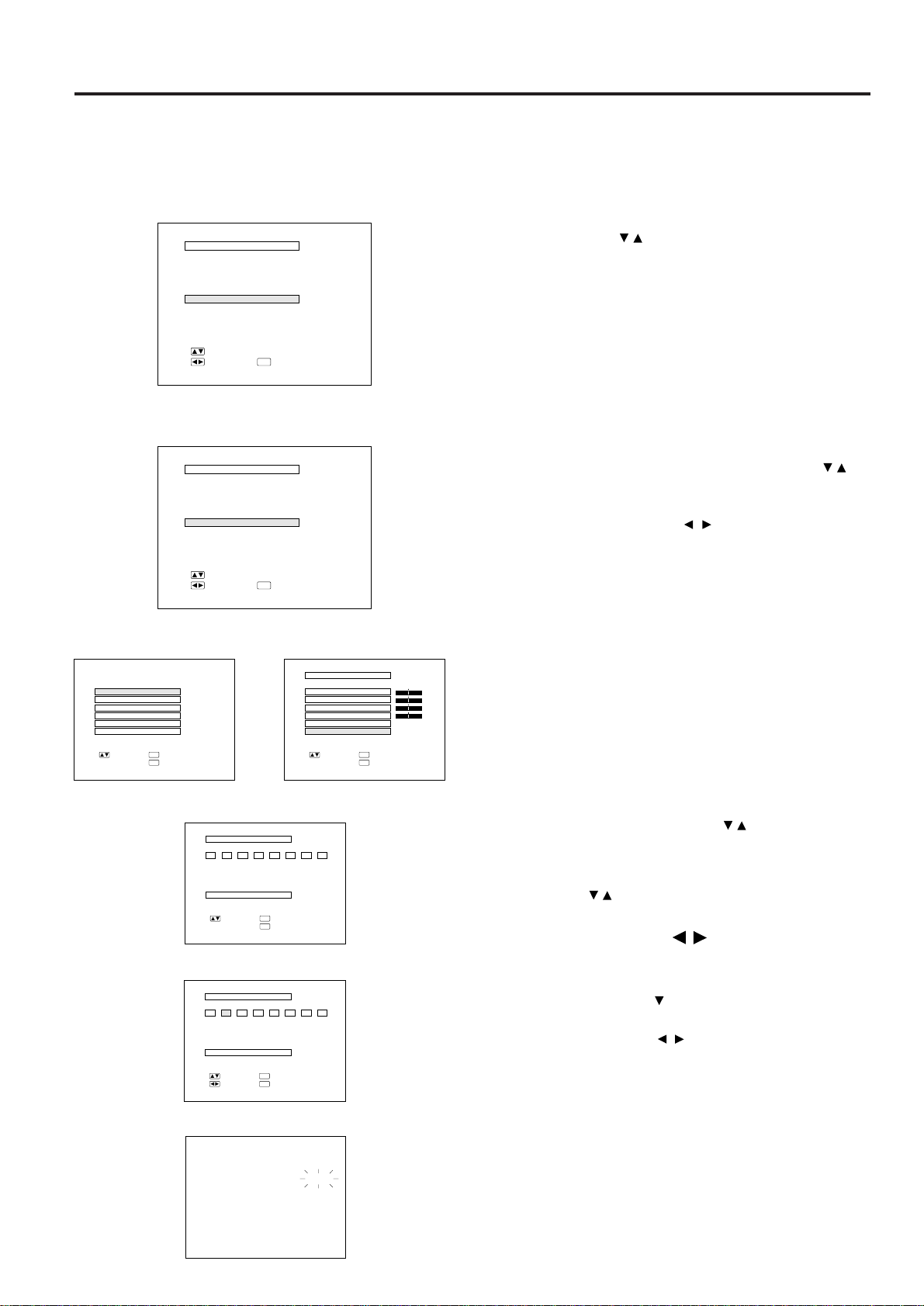
Checking the Lamp Usage Time
The lamp usage time can be checked at the On-Screen
Display.
1 Press the INPUT SELECT button on the projector or
remote control and select RGB INPUT.
2 Press the ENTER button to select the Memory Adjust-
ment mode.
• Press the MENU button. While the MENU screen is
displayed, press the ADJUSTMENT
/ buttons to select
“RGB ADJ.” Press the ENTER button. The MENU mode
changes as shown.
• While the RGB adjustment menu is displayed, press the
ADJUSTMENT
/ buttons to select “MEMORY SELECT.”
Then press the ENTER button to change the image.
3 Press the ADJUSTMENT / buttons and ENTER
buttons.
• The screen shown on the left will appear.
• Press the ADJUSTMENT button once to move to the
following screen.
• Using the ADJUSTMENT / buttons, select memory no.
“1” and then press the ENTER button. Then, repeating the
same procedure for each number separately, enter “7,” “0,”
“1,” “0,” and “0.”
4 The lamp usage time will be displayed at the On-
Screen Display for approximately 30 seconds.
On-Screen Display
SYSTEM SETUP
RESOLUTION
HOR FREQ
VERT FREQ
REMOTE MOUSE
:SEL.
:END
MENU
800×600
[
AT
]
:ADJ.
60Hz
37.9 KHz
SYSTEM SETUP
RESOLUTION
HOR FREQ
VERT FREQ
REMOTE MOUSE
:SEL.
:END
MENU
60Hz
800×600
[
AT
]
:ADJ.
37.9 KHz
RGB ADJ.
RGB INPUT ADJ.
IMAGE ADJ.
AUDIO
SYSTEM SETUP
LANGUAGE
:SEL. :NEXT
ENTER
:END
MENU
RGB ADJ.
BRIGHT
RED
BLUE
RESET
MEMORY SELECT
+
0
0
0
0
:SEL. :NEXT
ENTER
:END
MENU
-
+
-
+
-
+
-
PICTURE
➞
➞
MEMORY SELECT
SETTING
:SEL. :BACK
ENTER
:END
MENU
0 1 2 3 4 5 6 7
➞
LAMP
0000
H
➞
MEMORY SELECT
:SEL.
:ADJ.
ENTER
:END
MENU
0 1 2 3 4 5 6 7
RESOLUTION
HOR FREQ
VERT FREQ
SETTING
:ENTER
Hz
KHz 38
60
800×600
E-28
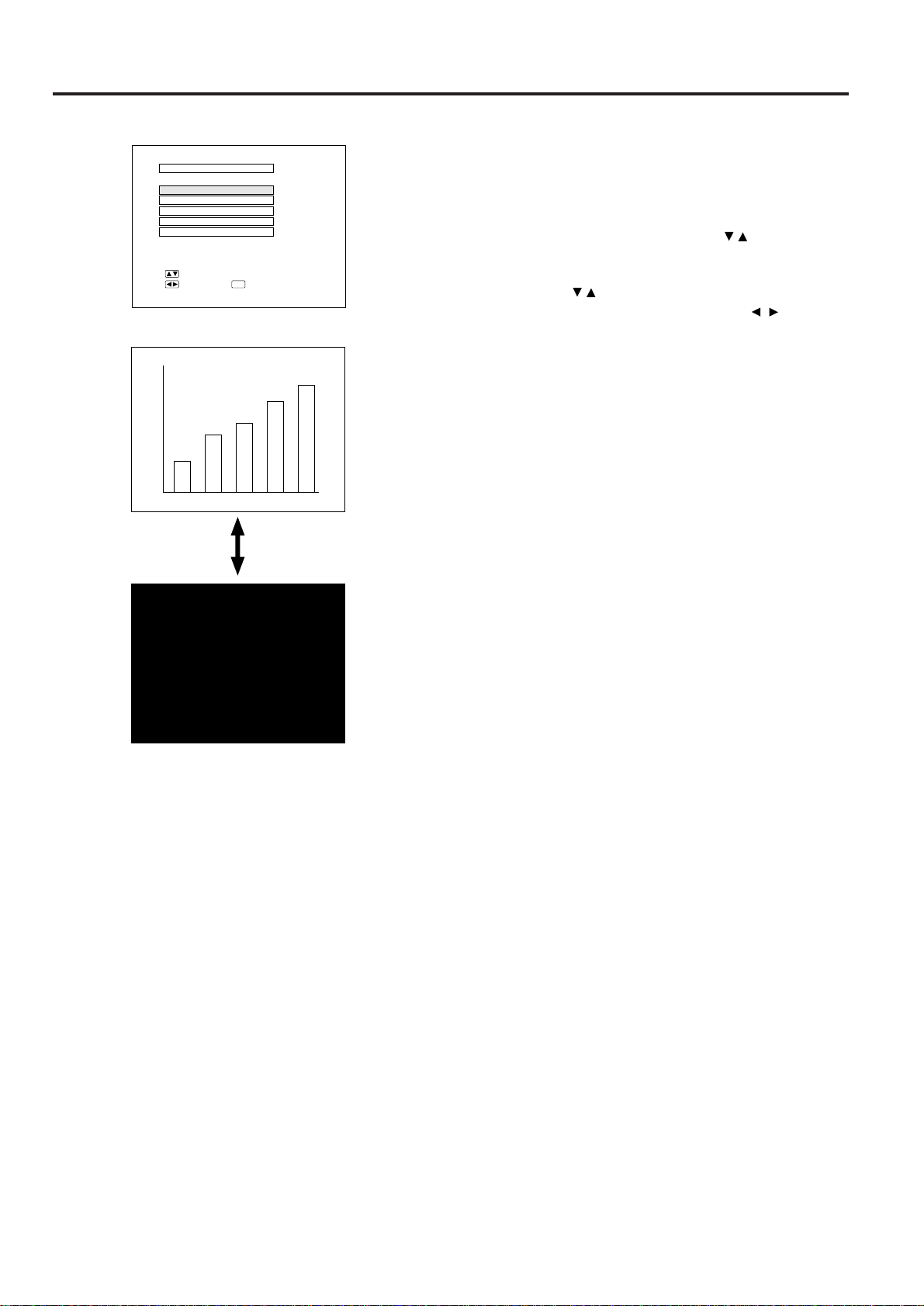
Using the Black Screen Function
This projector is equipped with a Black Screen Function.
This function can be used to black out the presentation
image.
• Press the MENU button. While the MENU screen is
displayed, press the ADJUSTEMENT / buttons to
select IMAGE ADJ. Then press the ENTER button to
display the IMAGE ADJ. screen shown. Press the
ADJUSTMENT / buttons to select “BLACK
SCREEN,” and press the ADJUSTMENT / buttons
to select ON. Then press the MENU button to display
the black screen.
Note:
• When BLACK SCREEN is set to OFF, the screen will change
to the presentation image when you press the MENU button.
On-Screen Display
BLACK SCREEN
IMAGE ADJ.
REVERSE
INVERT
INPUT DISPLAY
E-ZOOM
:SEL.
:ADJ.
:END
MENU
[
OFF
]
[
OFF
]
[
OFF
]
[
ON
]
[
OFF
]
LCD Projector
BLACK SCREEN
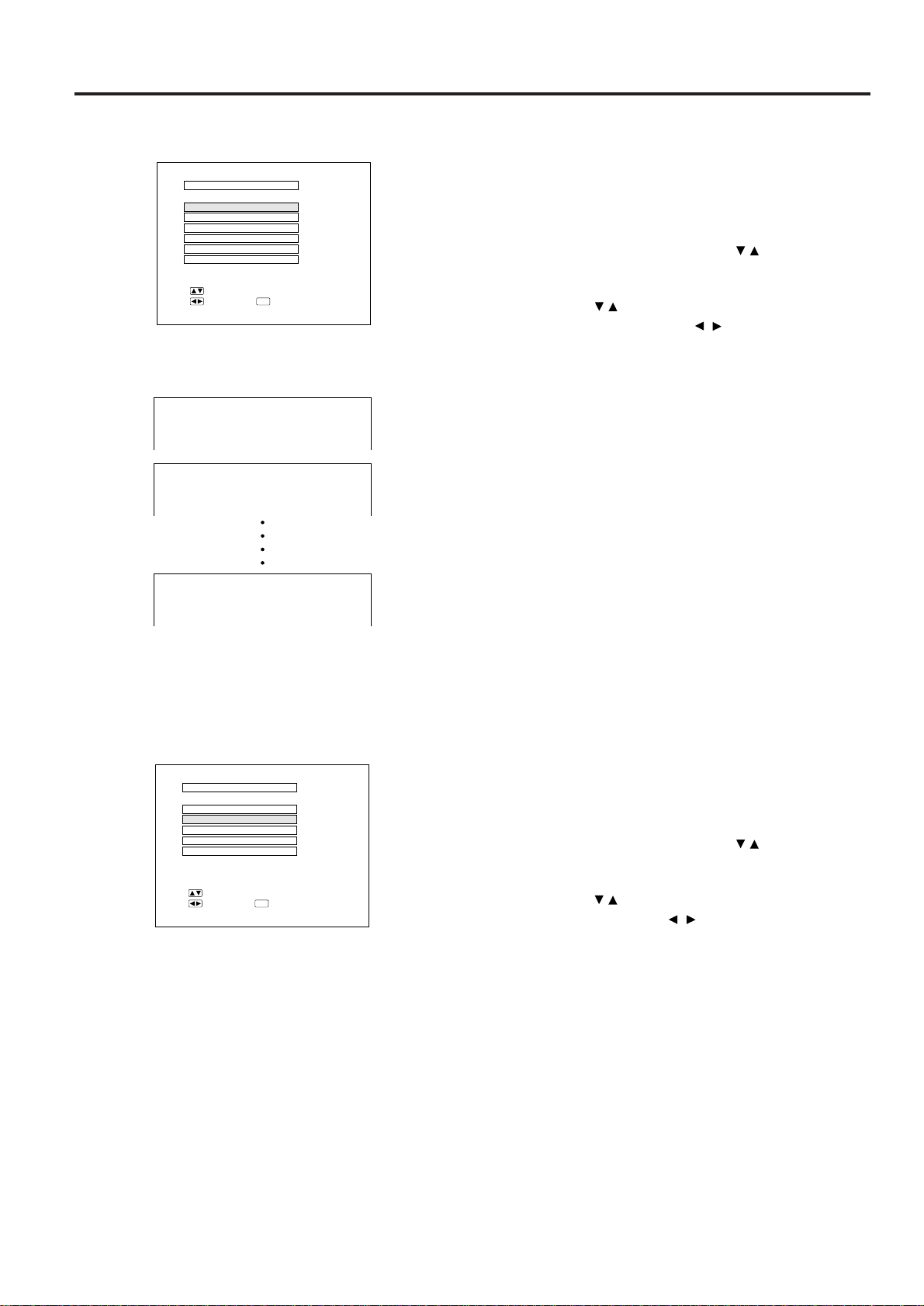
E-29
On-screen Display
Using the Blue Screen Function
This projector is equipped with a Blue Screen function
that will turn the screen blue when the video input termi-
nal is not connected to anything, or the video component
is turned off.
• Press the MENU button. While the MENU screen is
displayed, press the ADJUSTMENT / buttons to
select IMAGE ADJ. Then press the ENTER button to
display the IMAGE ADJ. screen as shown. Press the
ADJUSTMENT / buttons to select “BLUE SCREEN,”
and press the ADJUSTMENT / buttons to select ON
or OFF. Press the MENU button to return to the normal
screen.
• When the Blue Screen function is on, the screen will
turn blue when no video signal is being input through
the video input terminal.
• When the Blue Screen function is on, and no video
signal is input via the input terminal for more than 15
minutes, the power is automatically turned off.
• The indicators appear as shown each minute before the
power is turned off, from five minutes before until one
minute before.
Notes:
• The Blue Screen Function does not operate in RGB mode.
• When the power is turned off, the POWER indicator will light
red.
• To turn the power on again, press the POWER button to set it
to OFF, then press it again to set it to ON.
On-screen Display
Using the On-Screen Display Override
Function
The On-Screen Displays (“RGB 1024 × 768, 60Hz,” etc.)
that appear during input select can be turned off.
• Press the MENU button. While the MENU screen is
displayed, press the ADJUSTMENT / buttons to
select IMAGE ADJ. Then press the ENTER button to
display the IMAGE ADJ. screen as shown. Press the
ADJUSTMENT / buttons to select “INPUT DISPLAY,”
and press ADJUSTMENT / buttons to select ON or
OFF.
• When OFF is selected, the On-Screen Display (“RGB
1024 × 768, 60Hz,” etc.) will not be displayed during
input select.
On-screen Display
REMAIN 5M
REMAIN 4M
REMAIN 1M
BLUE SCREEN
BLACK SCREEN
IMAGE ADJ.
REVERSE
INVERT
INPUT DISPLAY
[
OFF
]
[
OFF
]
[
OFF
]
SYSTEM
[
OFF
]
[
ON
]
:SEL.
:ADJ.
:END
MENU
BLACK SCREEN
IMAGE ADJ.
REVERSE
INVERT
INPUT DISPLAY
E-ZOOM
:SEL.
:ADJ.
:END
MENU
[
OFF
]
[
OFF
]
[
OFF
]
[
OFF
]
[
OFF
]
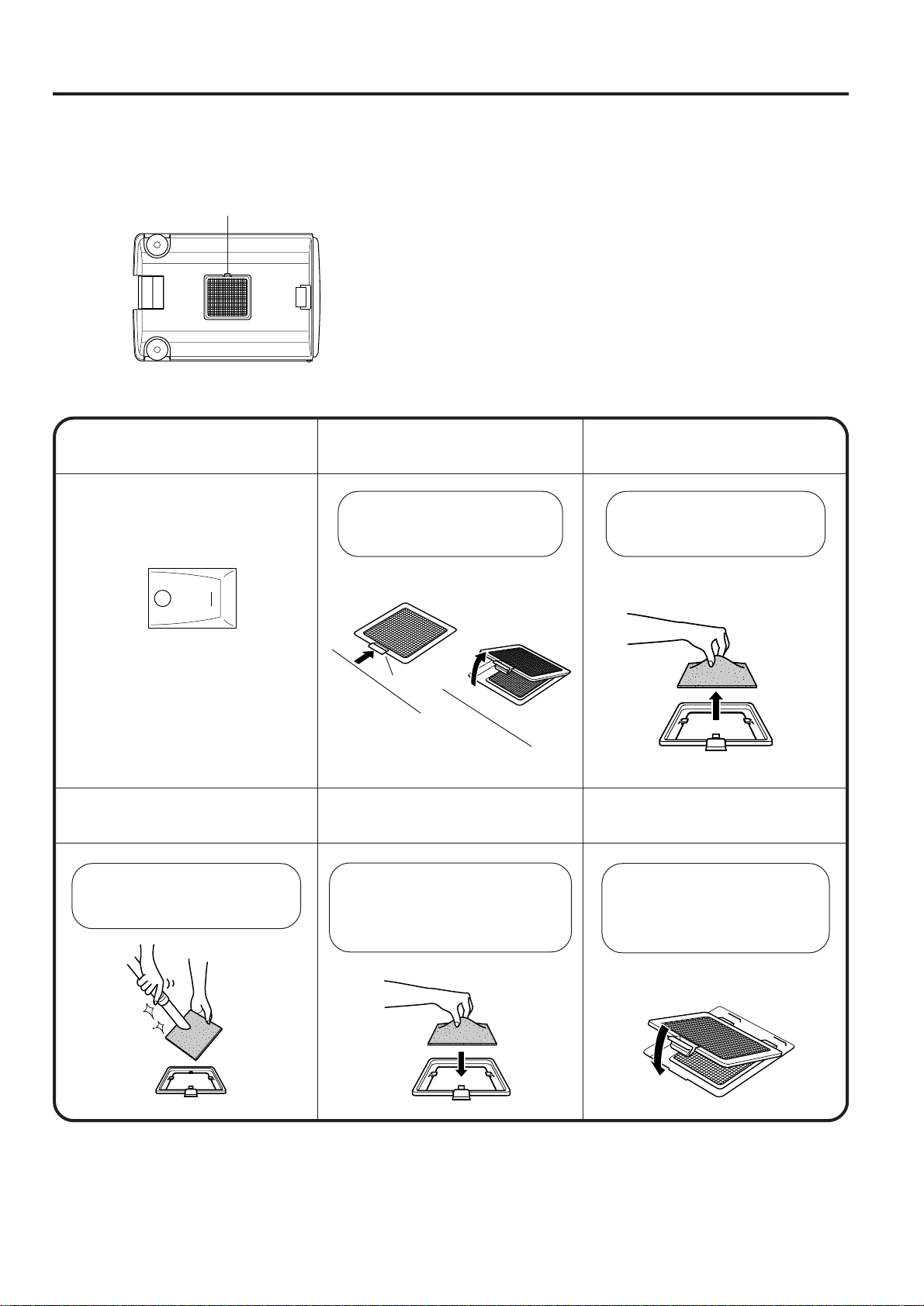
E-30
Air Filter Maintenance
■ The air filter should be cleaned every 100 hours of use. Clean the filter more often when the projector is used in a
dusty or smoky location.
■ Have your nearest Authorized Sharp Industrial LCD Products Dealer or Service Center replace the filter (PFILD
0051CEZZ) when it is no longer possible to clean it.
Cleaning and Replacing the Filter
1 3
Turn OFF
the MAIN POWER.
2
Remove
the FILTER COVER.
Remove
the AIR FILTER.
4 6
Clean the AIR FILTER.
5
Replace the AIR FILTER.
Replace
the FILTER COVER.
AIR FILTER cover
POWER indicator goes off.
Unplug the power cord.
Press
Tab
Open
ONOFF
Place the filter underneath the
tabs on the filter frame.
Return the air filter to its original
position in the filter cover.
Insert the two tabs on the end
of the filter cover into the filter
cover opening and press the
filter cover into position.
Clean the dust off the air filter
and cover with a vacuum
cleaner.
Grasp the air filter between
your fingers and lift it out of
the filter cover.
Press the arrow mark on
the air filter cover and pull
straight out.
Note:
• Be sure the AIR FILTER COVER is securely installed. The power cannot be turned on unless it is correctly
installed.
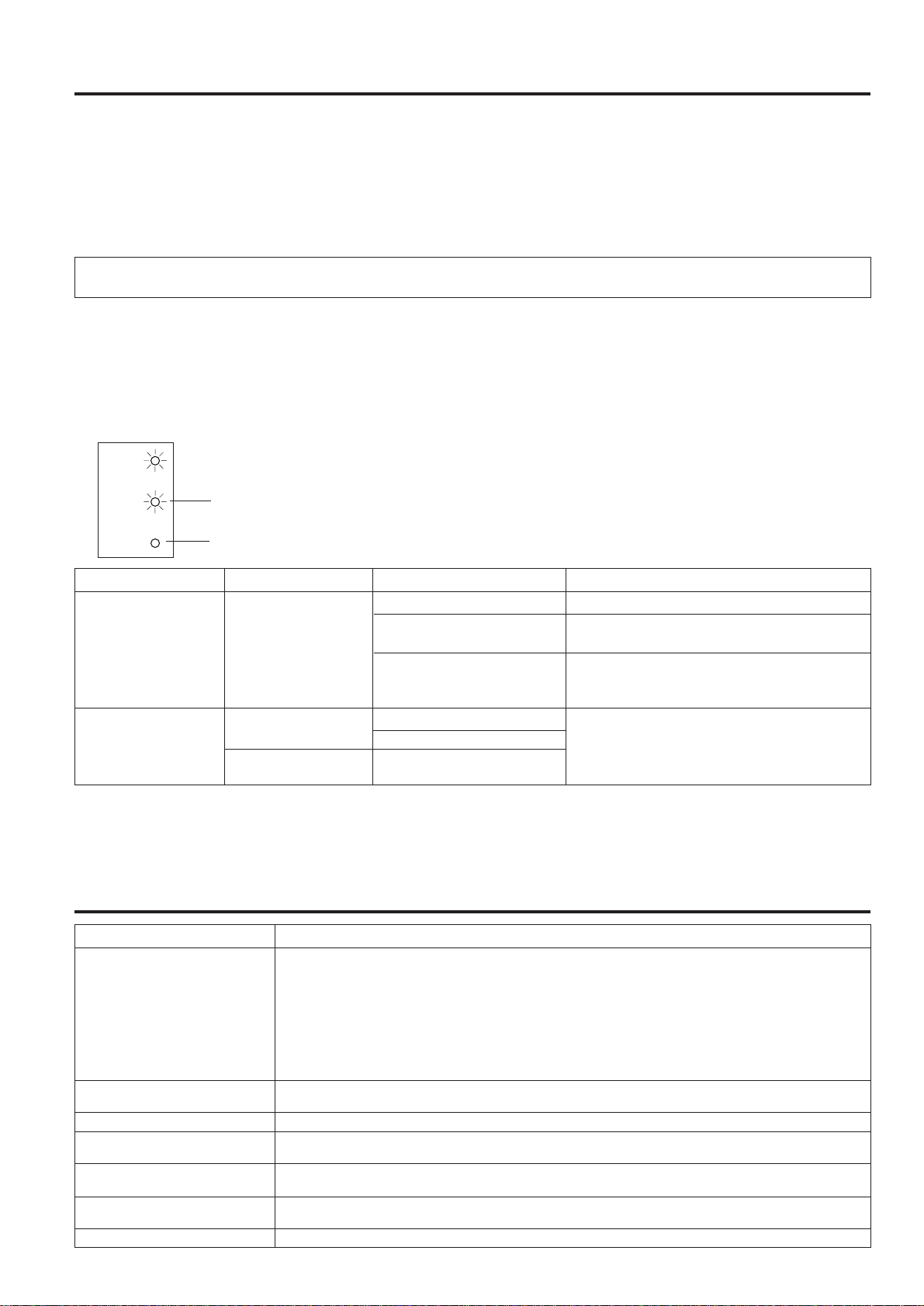
E-31
Lamp/Maintenance Indicators
Lamp
■ The Lamp has a finite operating life. The lamp for this projector has a usable life of 2000 cumulative hours. This
number may differ, however, depending on the ambient conditions.
1. When the lamp is nearing the end of its operating life, the picture and color quality will deteriorate. If the lamp is
used for more than 1900 hours, the LAMP REPLACEMENT indicator will light red and “LAMP” will flash in
yellow letters on the screen when you turn the projector on to alert you that it is time to replace the lamp. In this
situation, replace the lamp (See pages 32 and 33).
Note: The lamp usage time can be checked at the On-Screen display. (See page 27.)
Caution: Once you are alerted that the lamp requires replacement, be sure to replace the lamp.
2. When the number of hours the lamp is used reaches 2000, the power automatically turns off and the projector
enters the standby condition. If you turn on the power after the lamp has been used for 2000 hours, “LAMP” will
flash on screen in red letters for five minutes and then the power will turn off.
3. If the new lamp does not light after replacement, take your projector to the nearest Authorized Sharp Industrial
LCD Products Dealer or Service Center for repair.
4. Intense light hazard. Do not attempt to look into the aperture and lens while the projector is operating.
Maintenance Indicators
■ The warning lights on the projector indicate problems inside the projector.
■ There are two warning lights–a TEMPERATURE indicator which warns that the
projector is too hot, and a LAMP REPLACEMENT indicator which lets you know
when to change the bulb.
■ If a problem occurs, either the TEMPERATURE indicator or the LAMP REPLACE-
MENT indicator will light up red, and the power will shut off. After turning off the
power, follow the procedures given below.
Problem
No picture and no sound.
Sound is heard but no picture
appears.
Color is faded or poor.
Picture is blurred.
Picture appears but no sound is
heard.
An unusual sound is occasionally heard
from the cabinet.
Maintenance indicator lights up.
Check
• The projector AC cord is not plugged into the AC wall outlet.
• The main power button is not pressed.
• The input is wrong. (See page 22.)
• Cables improperly connected to rear panel of the projector. (See pages 14, 15, 16 and 17.)
• Remote control batteries have run down. (See page 7.)
• The optional cable for the remote control is properly inserted.
• The main power of the remote control is not turned on.
• The remote control’s MOUSE/ADJUSTMENT switch is set to MOUSE.
• The usable life of the lamp has been reached. (See page 31.)
• Cables improperly connected to rear panel of the projector. (See pages 14, 15, 16 and 17.)
• The BRIGHTNESS and PICTURE adjustments are set to minimum position. (See page 23.)
• The COLOR and TINT adjustments are not correct. (See page 23.)
• Adjust the focus. (See page 9.)
• The projection distance is too long or too short to allow for proper focus. (See page 10.)
• Cables improperly connected to rear panel of the projector. (See pages 14, 15, 16 and 17.)
• Volume is set to minimum. (See pages 22.)
• If the picture is normal, the sound is due to cabinet shrinkage caused by temperature changes. This
will not affect operation or performance.
• Refer to “Lamp/Maintenance Indicators” on page 31.
LAMP
REPLACEMENT
indicator
Problem
• Blocked air intake.
• Clogged air filter.
• Cooling fan breakdown.
• Internal circuit failure.
• Burnt-out lamp.
• Lamp circuit failure.
• The lamp has been used
for over 1900 hours.
Possible Solution
• Relocate projector to a proper location.
• Clean the filter.
(See page 30.)
• Take the projector to your nearest Autho-
rized Sharp Industrial LCD Products Dealer
or Service Center for repair.
• Carefully replace the lamp.
• Take the projector to your nearest Autho-
rized Sharp Industrial LCD Products Dealer
or Service Center for repair.
Warning Indicator
Symptom
The internal
temperature is
abnormally high.
TEMPERATURE
indicator
LAMP REPLACE-
MENT indicator
The lamp does not
light up.
The lamp requires
replacement.
Notes:
• If the TEMPERATURE indicator comes on, solve the problem and then wait until the projector has cooled down completely
before turning the power back on. (At least 5 minutes.)
•
When the power is turned off and then turned on again, as during a brief rest, the LAMP replacement indicator may be triggered,
preventing the power from going on. When this happens, take the power plug out of the AC outlet and put it back in again.
Before Calling for Service
POWER
LAMP
TEMP.
TEMPERATURE
indicator
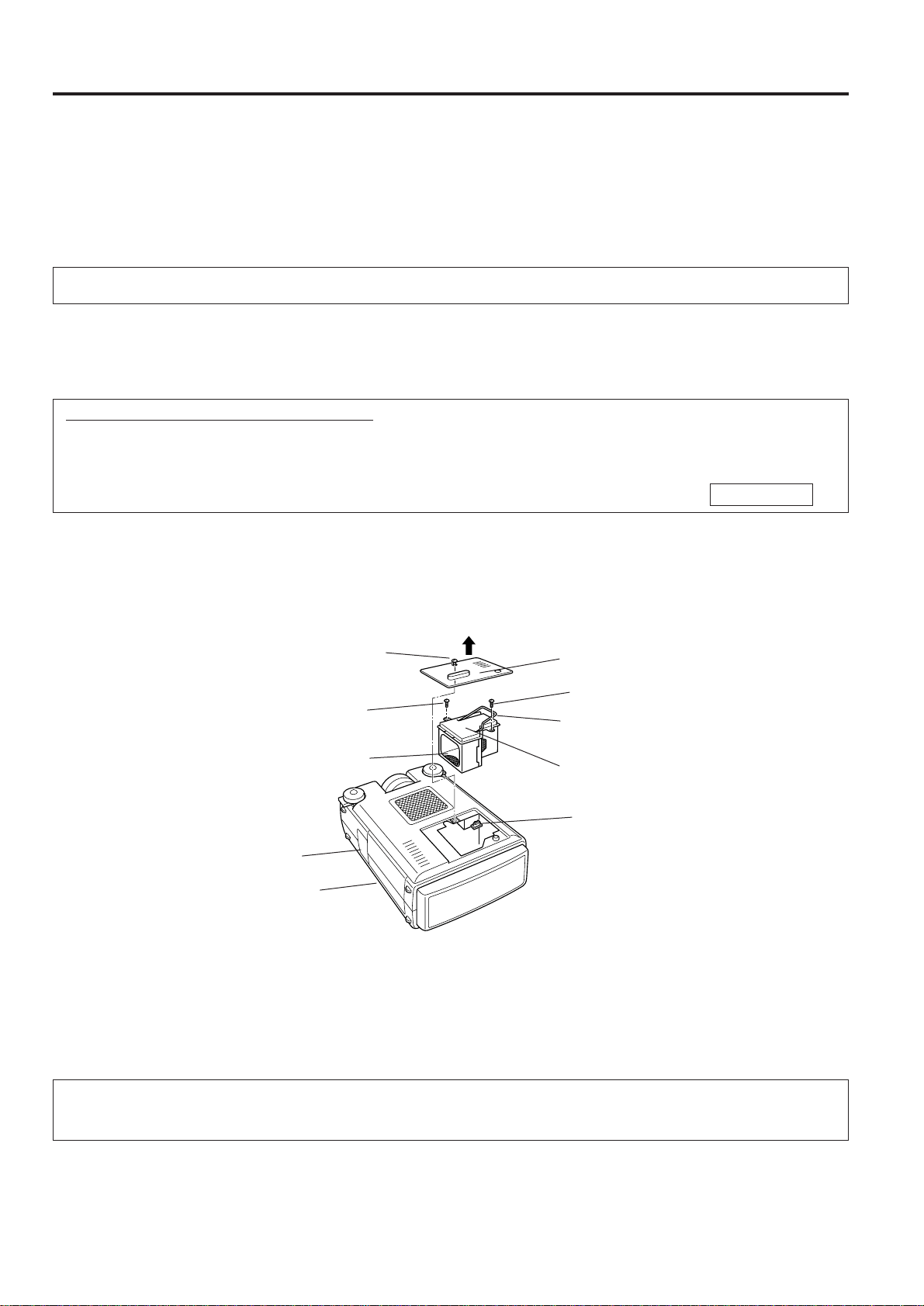
E-32
Lamp Replacement
The lamp in the projector has a finite service life. The lamp for this projector has a usable life of 2000 cumulative
hours. This number may differ, however, depending on the ambient conditions. The lamp requires replacement in
the situations given below.
• When the picture starts becoming dark and the color contrast deteriorates.
• After the lamp has been used for 1900 hours (at this time the LAMP REPLACEMENT indicator will light red and
“LAMP” will flash in yellow letters on the screen when the projector is turned on). The lamp usage time can be
checked at the On-Screen display. (See page 27.)
Caution: Once you are alerted that the lamp requires replacement, be sure to replace the lamp.
Purchase a replacement metal-halide lamp unit (lamp/cage module) of the current type BQC-XGNV1U//1 from your
nearest Authorized Sharp Industrial LCD Products Dealer. Then change the lamp by carefully following the instruc-
tions below.
If you wish, you may bring the projector to your nearest Authorized Sharp Industrial LCD Products Dealer.
IMPORTANT NOTE TO U.S. CUSTOMERS:
The lamp included with this projector is backed by a 90-day parts and labor limited warranty. All service of this
projector under warranty, including lamp replacement, must be obtained through an Authorized Sharp Industrial
LCD Products Dealer or Service Center. For the name of the nearest Authorized Sharp Industrial LCD Products
Dealer or Service Center, please call toll-free: 1-800-BE-SHARP (1-800-237-4277).
U.S.A. ONLY
How to Change the Lamp
Precaution: Take care not to touch either the lamp in the lamp cage, the inner surface of the reflector mirror, or the
mirrors in the optical unit with your bare hands.
Removing the lamp unit (see figure)
1. Press the power button (a) and turn the instrument off. After the cooling fan stops, turn off the MAIN POWER
switch (b). Remove the power cord from the AC outlet.
2. The lamp may be extremely hot. Wait at least an hour after the power cord is disconnected before carrying out
the following procedures.
3. Turn over the projector and unfasten the user service screw (d) that secures the lamp cage cover (c) as shown
in the above diagram. Then remove the lamp cage cover by pulling it in the direction of the arrow.
Note:
When the lamp cage cover (c) has been removed, check that the surface of the lamp cage (h) has fully cooled before proceed-
ing with step 4.
4. After the lamp cage (h) has sufficiently cooled, remove securing screws (e), and (f) from the lamp cage.
5. Hold lamp cage (h) by the handle (g) and pull it towards you.
(c)
(g)
(e)
(f)
(d)
(j)
(h)
(i)
(a)
(b)

E-33
Caution:
Because some parts may not be sufficiently cooled, be sure to remove the lamp cage by the handle while taking care not to
touch the metallic areas.
Note:
Do not allow anything to hit the UV filter (j).
Installing the lamp unit
1. Hold lamp cage (h) by the handle (g) and press it in firmly while making sure that the lamp cage (h) properly
connects to the connector (i).
2. Tighten screws (e), (f) and (d), then perform the above instructions in the reverse order.
Resetting the lamp timer
1. Plug in the power cord.
2. While depressing the ADJUSTMENT , ADJUSTMENT ,
and ENTER buttons on the projector, turn on the MAIN
POWER switch.
3. Press the POWER ON/OFF button on the projector or the
power on button on the remote control to turn on the power.
After the unit projector turns on, “LAMP 0000H” will be displayed
to signify that the lamp timer is reset.
Notes:
• After replacing lamp, be sure to reset the lamp timer. If you do not,
the LAMP REPLACEMENT indicator and “LAMP” display will not
disappear.
• Only reset the lamp timer after replacing the lamp.
LAMP
0000
H
ONOFF
ONOFF
MN EN
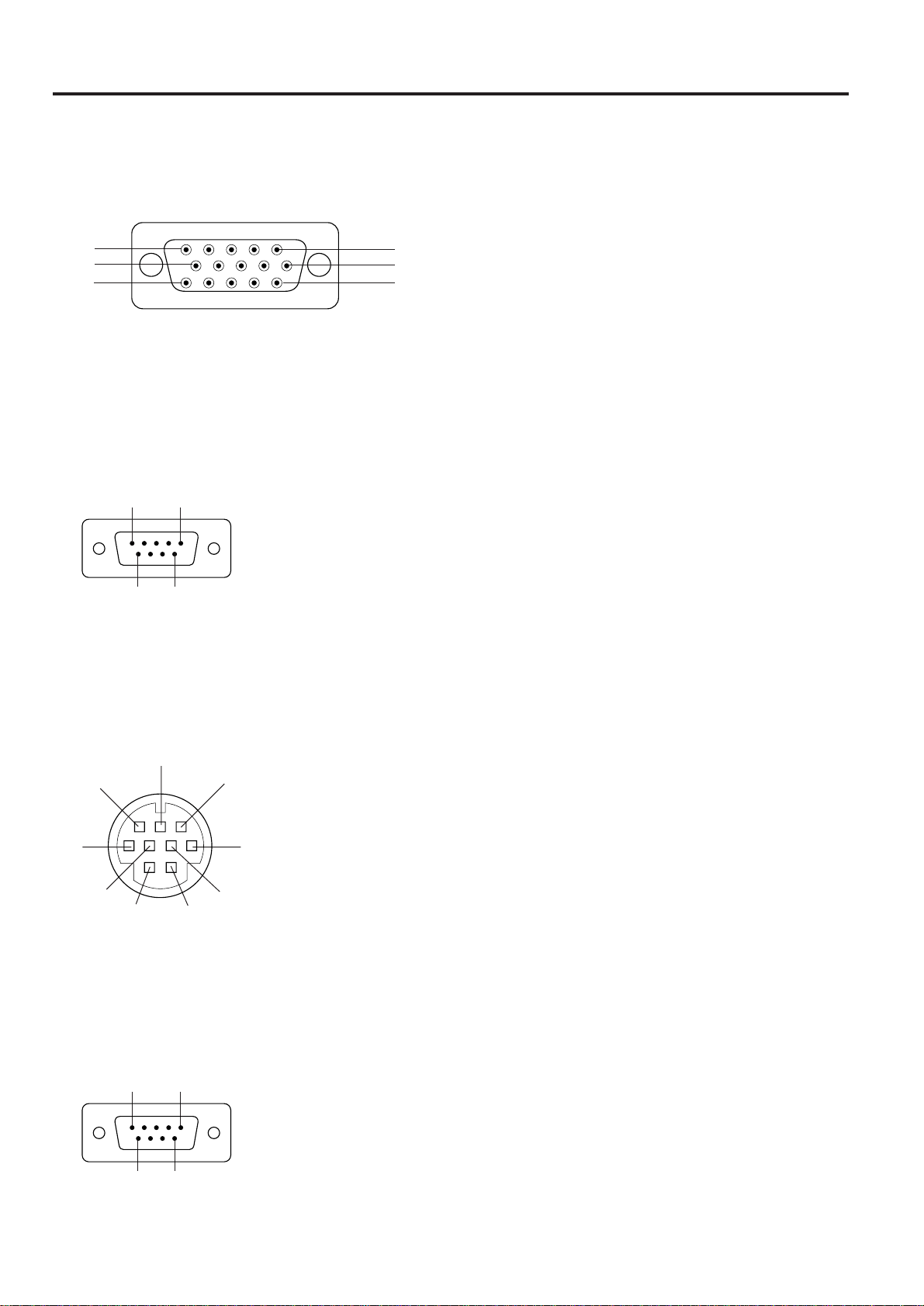
E-34
Connection Pin Assignments
Computer Input
Analog
1. Video input (red)
2. Video input (green)
3. Video input (blue)
4. Reserve input 1
5. Composite sync (Mac only)
6. Earth (red)
7. Earth (green)
8. Earth (blue)
9. GND
10.GND
11. GND
12.Reserve input 2
13.Horizontal sync signal
14.Vertical sync signal
15.Reserve input
3
1
15
5
6
11
10
Mouse Input Terminal (for IBM/Mac) : 9-pin D-sub female connector
5
1
9 6
Pin No. Signal Name I/O Reference
1 CD Carrier Detect Input Connected to internal circuit
2 RD Receive Data Input Connected to internal circuit
3 SD Send Data Output Connected to internal circuit
4 ER Equipment Ready Output Connected to internal circuit
5 SG Signal Ground Connected to internal circuit
6 DR Data Set Ready Output Not connected
7 RS Request to Send Output Connected to internal circuit
8 CS Clear to Send Input Connected to internal circuit
9 CI Ring Indicator Input Connected to internal circuit
Mouse Input Terminal (for NEC PC98 series for Japan) : 9-pin mini DIN connector
Analog RGB Signal Input and Output Terminal : 15-pin mini D-sub female connector
Pin No. Signal I/O Reference
1 +5V Input Computer output
2 XA Input Computer output
3 XB Input Computer output
4 YA Input Computer output
5 YB Input Computer output
6 LEFT Input Computer output
7 NC Input Not connected
8 RIGHT Input Computer output
9 GND Computer output
RS-232C terminal : 9-pin D-sub male connector
1 5
6 9
Pin No. Signal Name I/O Reference
1 CD Not connected
2 RD Receive Data Input Connected to internal circuit
3 SD Send Data Output Connected to internal circuit
4 ER Not connected
5 SG Signal Ground Connected to internal circuit
6 DR Data Set Ready Output Not connected
7 RS Request to Send Output Connected to internal circuit
8 CS Not connected
9 CI Not connected
36
8
9
7
5
2
1
4
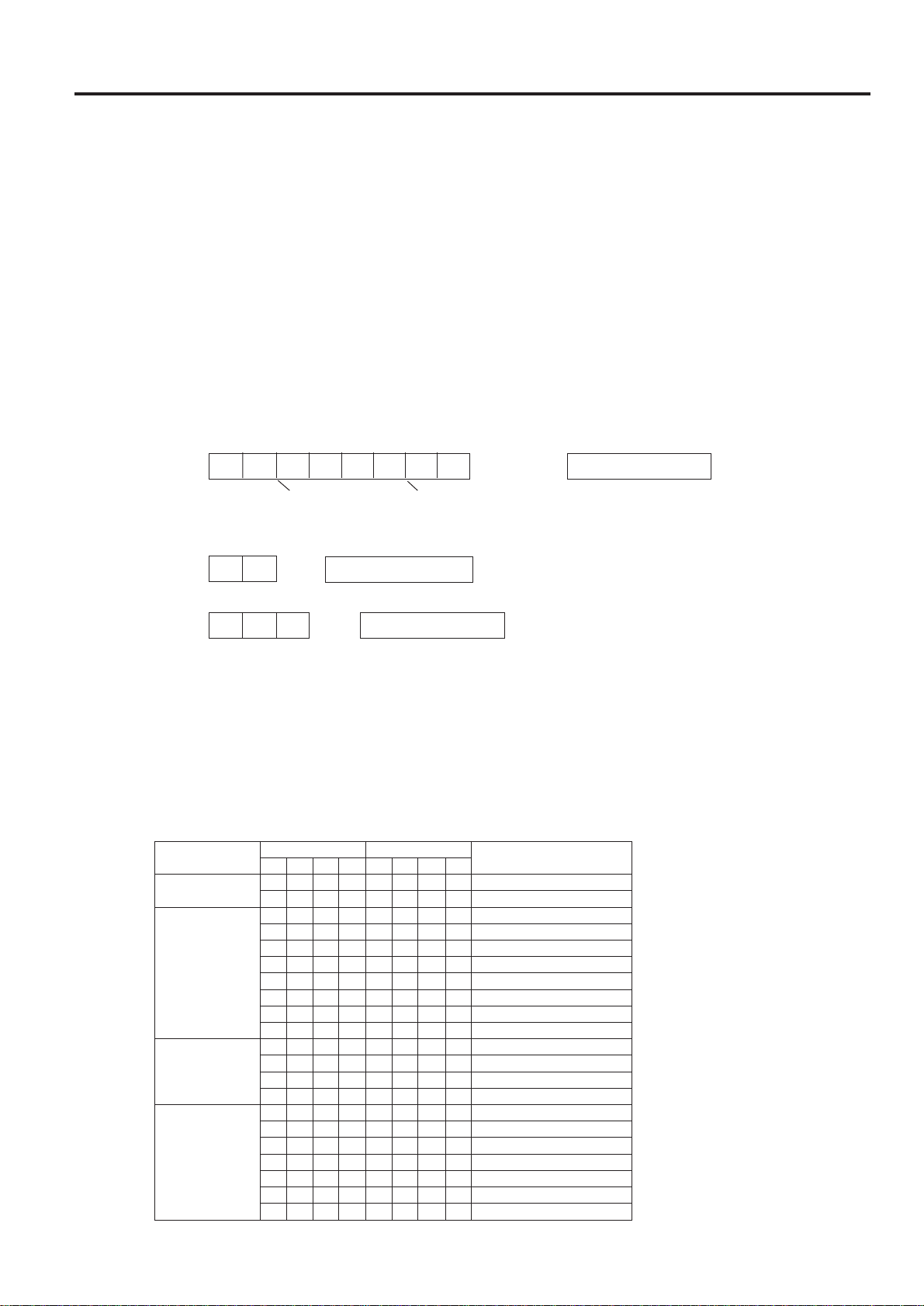
E-35
1. PC control
The personal computer can control the projector by connecting the two via an RS-232C cable (not supplied).
2. Communication conditions
Set the serial port settings of the computer to match that of the table below.
Signal format: Conforms to RS-232C standard.
Baud rate: 9600bps
Data length: 8 bits
Parity bit: NON
Stop bit: 1 bit
Flow control: None
3. Basic format
Commands from the computer are sent in the following order: command, parameter, and return code. After the
unit processes the command from the computer, it sends a response code to the computer.
RS-232C Terminal Specifications
Command format
Return code (0DH)C1 C2 C3 C4 P1 P2 P3 P4
Response code format
Normal response
O K
Return code (0DH)
Problem response (communication error or incorrect command)
E R R
Return code (0DH)
Command 4-digits Parameter 4-digits
When more than one code is being sent, send each command only after the OK response code for the previous
command from the unit is verified.
Note:
Using the computer control function of the unit, the liquid crystal projector conditions cannot be read to the computer.
Therefore, confirm the conditions by transmitting the display commands for each adjustment menu and checking the
conditions at the On-Screen Display. If the unit receives a command other than a menu display command, it will execute the
command without displaying the On-Screen Display.
4. Commands
METILORTNOC
DNAMMOCRETEMARAP
STNETNOCLORTNOC
1C2C3C4C1P2P3P4P
GNIHCTIWSTUPNI
IVED___1 1OEDIV
IRGB___1 1BGR
EGAUGNAL
NOITCELES
MELA___1 HSILGNE
___2 HCSTUED
___3 LONAPSE
___4 SDNALREDEN
___5 AKSNEVS
___6 ONAILATI
___7 SIACNARF
___8 ESENAPAJ
OEDIV
METSYS
NOITCELES
MESY___1 OTUA
___2 LAP
___3 MACES
___4 CSTN
OEDIV
EGAMI
TNEMTSUJDA
VAPI_*** )03+~03-(ERUTCIP
VABR_*** )03+~03-(THGIRB
VACO_*** )03+~03-(ROLOC
VATI_*** )03+~03-(TNIT
VASH___* )3~0(SSENPRAHS
VARE___0 OEDIV
___1 TESER
Note:
If a dash appears in the param-
eter column enter a space. If an
asterisk appears enter a value in
the range indicated in brackets
under CONTROL CONTENTS.
See the example on the next
page.
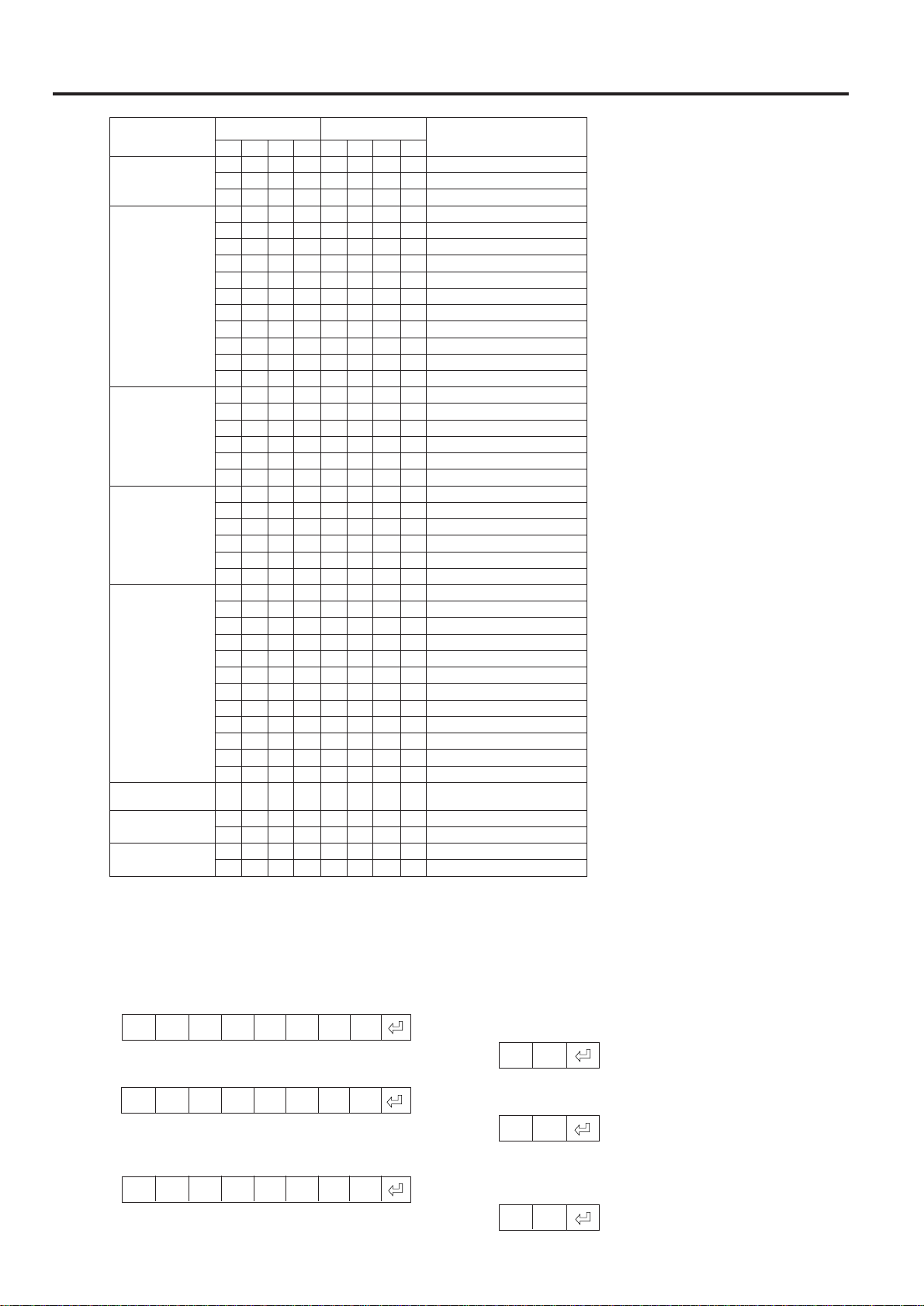
E-36
RS-232C Terminal Specifications
METILORTNOC
DNAMMOCRETEMARAP
STNETNOCLORTNOC
1C2C3C4C1P2P3P4P
EMULOV
TNEMTSUJDA
VOLA__ * * )06~0(EMULOV
MUTE___0 FFOETUM
___1 NOETUM
OIDUA
TNEMTSUJDA
AABL_*** )03+~03-(ECNALAB
AATE_* * * )03+~03-(ELBERT
AABA_ * * * )03+~03-(SSAB
SRSM___0 FFOSRS
___1 1EDOMSRS
___2 2EDOMSRS
___3 3EDOMSRS
___4 4EDOMSRS
___5 ONOMD3
AARE___0 YALPSIDOIDUA
___1 TESER
TNEMTSUJDABGR
RAPI _* * * )03+~03-(ERUTCIP
RABR
_
*** )03+~03-(THGIRB
R
ARD_*** )03+~03-(DER
RABE_* * * )03+~03-(EULB
RARE___0 YALPSIDBGR
___1 TESER
TUPNIBGR
TNEMTSUJDA
INCL_*** )06+~06-(KCOLC
I NPH_ * * * )06+~06-(ESAHP
I AHP_ * * * )06+~06-(SOPH
I AVP_* * * )03+~03-(SOPV
I ARE__ _0 YALPSIDTUPNIBGR
___1 TESER
GNITTESNEERCS
IMEZ___0 FFOMOOZ-E
___1 NOMOOZ-E
IMBE___0 FFONEERCSEULB
___1 NONEERCSEULB
IMBK___0 FFONEERCSKCALB
___1 NONEERCSKCALB
IMDI___0 FFOYALPSIDTUPNI
___1 NOYALPSIDTUPNI
IMRE___0 FFOESREVER
___1 NOESREVER
IMIN___0 FFOTREVNI
___1 NOTREVNI
OEDIV
NOITAMRIFNOC
SYSE___0 YALPSID
ESUOM
TNEMTSUJDA
REMO___1 TAESUOMETOMER
___2 89ESUOMETOMER
EDOMNEERCS
YROMEM
MEMA__ _ 0 ESAELERYROMEM
___* )7~1(NOITCELESYROMEM
Examples:
For the RGB/VIDEO setting, select video and set the PAL mode.
Computer
→
←
O K
I V E D
— — —
1
→
←
O K
M E S Y
— — —
2
Switch to video screen
Set to PAL mode
Unit
When BRIGHT of VIDEO IMAGE ADJUSTMENT is set to -10.
→
←
O K
V A B R
—
–
1
0
Note:
Power ON/OFF cannot be controlled from the RS-232C terminal. Use the wired remote control input to control power ON/OFF.

E-37
Our projector uses LCD (Liquid Crystal Display) panels.
These very sophisticated panels contain 519,168 pixels
( × RGB) TFTs (Thin Film Transistors).
As with any high technology electronic equipment such as
large screen TVs, video systems and/or video cameras,
there are certain acceptable tolerances that the equip-
ment must conform to. Sharp’s acceptable tolerances
permit a total of 6 inactive TFTs, which may result in
illuminated or inactive dots on the picture screen.
This will not affect the picture quality or the life
expectancy of the unit.
If you have any questions about this matter, please
call toll free 1-800-BE-SHARP (1-800-237-4277).
U.S.A. ONLY
Specifications are subject to change without notice.
Specifications
Product Type LCD Projector
Model PG-D100U
Video system PAL/SECAM/NTSC 3.58
Display method LCD panel × 3, RGB optical shutter method
LCD panel Panel size: 1.3" (19.8 [H] × 26.4 [W] mm)
Display method: Translucent TN liquid crystal panel
Drive method: TFT (Thin Film Transistor) Active Matrix panel
No. of dots: 519,168 dots (832 [H] × 624 [V])
Lens F2.8 to 3.3, f = 53 to74 mm
Projection lamp 265 W Metal halide
Contrast ratio 100:1
Video input signal RCA Connector: VIDEO, composite video, 1 Vp-p, sync negative, 75 Ω
terminal
RCA Connector: AUDIO, 0.5 Vrms less than 22 kΩ
S-video input signal 4-pin mini DIN connector
Y (luminance signal): 1 Vp-p, sync negative, 75 Ω terminated
C (chrominance signal): Burst 0.286 Vp-p, 75 Ω terminated
Video output signal RCA Connector: AUDIO, 0.5 Vrms less than 2.2 kΩ
Horizontal resolution 580 TV lines (video input)
Audio output 3 W + 3 W (Stereo)
Computer RGB input signal Video Signal:
15-pin mini D-sub connector: RGB separate type analog input: 0.7 Vp-p,
positive, 75 Ω terminated
Stereo Minijack: AUDIO, 0.5 Vrms, more than 22 kΩ (stereo)
Horizontal sync. signal: TTL level (positive/negative) or composite sync
(Apple only)
Vertical sync. signal: Same as above
RS-232C input terminal 9-pin D-sub male connector for controlling personal computer
Mouse input terminal (for IBM/Mac) 9-pin D-sub female connector for wireless mouse
Mouse input terminal (for PC98) 9-pin mini DIN connector for wireless mouse
Speaker system 3" (8 cm) round × 2
Rated voltage AC 120 V
Rated frequency 50/60 Hz
Power consumption 355 W
Operating temperature 41°F to 104°F (5°C to 40°C)
Storage temperature -4°F to 132°F (-20°C to 60°C)
Cabinet Plastic
Laser Pointer of Remote Control Wave length : 670nm
Max. output : 1mW
Class II Laser Product
Dimensions (W × D × H) 10
25
/
64
" × 15
9
/
32
" × 4
23
/
32
" (264 × 388 × 120 mm)
Weight 16.5 lbs. (7.5 kg)
Supplied accessories Remote control unit, Four AA batteries, Extra air filter, RGB signal cable
(9.8', 3 m), Macintosh adaptor, Mouse control cable for IBM (5.9", 15cm),
Mouse control cable for Mac (5.9", 15cm), Mouse control cable (9.8', 3m), AC
cord, Lens cover (installed)
Replacement parts Lamp unit (Lamp/cage module) (BQC-XGNV1U//1), Remote control (RRMCG
1327CESA), Air filter (PFILD0051CEZZ), VGA cable (QCNW-4422CEZZ),
Macintosh adaptor (QPLGJ1510CEZZ), Mouse control cable for IBM PS/2
(QCNW-4754CEZZ), Mouse control cable for Mac (QCNW-4755CEZZ),
Mouse control cable (QCNW-4620CEZZ), AC cord (QACCU5013CEZZ)

E-38
Top View
Bottom View
Side View
[Units: inches (mm)]
Front View
Dimensions
1
49
/
64
(45)
ø2
43
/
64
(ø68)
25
/
64
(10)
2
29
/
32
(74)
4
23
/
32
(120)
15
9
/
32
(388)
11
29
/
64
(291)
2
1
/
64
(51)
10
25
/
64
(264)
8
27
/
64
(214)