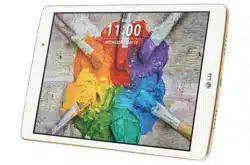

User Guide
ENGLISH
• Screendisplaysandillustrationsmaydiffer
fromthoseyouseeonactualdevice.
• Someofthecontentsofthisguidemay
notapplytoyourdevice,dependingon
thesoftwareandyourserviceprovider.All
informationinthisdocumentissubjectto
changewithoutnotice.
• Thisdeviceisnotsuitableforpeoplewho
haveavisualimpairmentduetothetouch
screenkeyboard.
• Copyright©2015LGElectronics,Inc.All
rightsreserved.LGandtheLGlogoare
registeredtrademarksofLGGroupandits
relatedentities.Allothertrademarksare
thepropertyoftheirrespectiveowners.
• Google™,GoogleMaps™,Gmail™,
YouTube™,Hangouts™andGooglePlay™
aretrademarksofGoogle,Inc.

2
About this user guide ......................... 5
About this user guide ........................... 5
Trademarks ............................................. 5
DivX HD .................................................. 6
Important notice ................................. 7
Getting to know your device ............. 11
Tablet Overview ...................................... 11
Charging your tablet ............................13
Optimizing Battery Life .......................14
To extend the life of your battery .........14
To view the battery charge level ...........15
To monitor and control what uses the
battery.............................................................15
Inserting a microSD card .....................15
Removing the microSD card ...............16
Formatting the microSD card .............17
Locking and unlocking the screen......17
Turning the screen on using the
KnockON feature .......................................18
Unlocking your screen using the
Knock Code feature ..................................18
Your Home screen ............................ 20
Touch screen tips .................................20
Tap or touch ............................................... 20
Touch and hold ......................................... 20
Drag ............................................................... 20
Swipe or slide ...............................................21
Double-tap ....................................................21
Pinch-to-Zoom ...........................................21
Rotate the screen .......................................21
Home screen .........................................21
Customizing the Home screen .......... 23
Opening, switching, and stopping
apps ....................................................... 23
Using Dual window ..............................24
Customizing app icons on the Home
screen ....................................................25
Quick access ........................................26
Notifications .........................................26
Accessing notifications ........................... 27
Quick Settings on the Notifications
Panel ..............................................................27
To rearrange Quick Setting options
on the Notification Panel ....................... 28
QSlide apps on the Notifications
Panel ............................................................. 28
Using the QSlide apps ........................... 28
Notification icons on the Status Bar .28
Multiple Users ......................................30
QSlide ....................................................31
Capturing a Screenshot ......................33
Using QuickMemo+ to capture a
screenshot .................................................. 33
Using Capture plus to capture a
screenshot of the browser .................... 33
Text Input Methods .............................34
Enter suggested word using gesture
control ........................................................... 34
Entering special characters .................. 35
Google account setup .......................36
Table of contents

3
Connecting to Networks and
Devices ...............................................37
Wi-Fi ..................................................... 37
Connecting to Wi-Fi networks .............37
Turning Wi-Fi on and connecting to a
Wi-Fi network ..............................................37
Bluetooth ..............................................38
Turning on Bluetooth and pairing up
your tablet with a Bluetooth device ... 38
Send data using the Bluetooth
feature ........................................................... 39
Receive data using the Bluetooth
feature ........................................................... 39
SmartShare ..........................................40
Enjoying the content via a variety of
devices ......................................................... 40
Playing/Sending ....................................... 40
Enjoying the content from Nearby
devices ..................................................40
Connecting devices ................................ 40
Searching other devices..........................41
Using the content from the Cloud .....41
Using the Cloud .........................................41
QPair ......................................................41
PC connections with a USB cable .....44
Transferring music, photos and
videos using the Media device (MTP)
mode ............................................................ 44
Synchronize with Windows Media
Player ............................................................ 44
PC connections with a USB cable for
Mac OS X users ....................................... 45
Contacts .............................................46
Searching for a contact ......................46
Adding a new contact .........................46
Favorite Contacts .................................46
Creating a group ..................................47
Email .................................................. 48
Managing an email account ...............48
Working with account folders ............49
Composing and sending email ..........49
Receiving emails ..................................49
Entertainment................................... 50
Camera .................................................50
Getting to know the viewfinder ........... 50
Using the advanced settings.................51
Taking a photo .............................................51
To zoom in or out ..................................... 52
Gesture shot ............................................... 52
Once you've taken a photo .................. 52
Viewing your saved photos .................. 54
Recording a video .................................... 54
Watching your saved videos ................ 54
Gallery ...................................................55
Viewing pictures ....................................... 55
Playing videos ............................................ 56
Deleting images and videos ................ 56
Setting as wallpaper ................................ 56
Slideshow ..............................................56
Video ..................................................... 57
Playing a video ........................................... 57
Music .....................................................58
Transfer music using Media device
(MTP) mode ............................................... 58

4
Playing a song ........................................... 59
Tools .....................................................61
QuickMemo+ ......................................... 61
QuickRemote .......................................63
Clock .....................................................65
Calculator .............................................65
Calendar ...............................................66
Tasks ...................................................... 67
File Manager ........................................ 67
Voice Recorder .....................................68
POLARIS Office 5 ..............................69
Google+.................................................70
LG SmartWorld .................................... 70
The Web .............................................72
Browser ................................................. 72
Opening a page ........................................72
Bookmarks ...................................................73
History ............................................................ 73
Using Reader mode ................................73
Using QSlide ............................................... 73
Download files ............................................73
Chrome .................................................73
Viewing web pages .................................. 74
Opening a page ........................................ 74
Searching the web by voice..................74
Syncing with other devices ....................74
Adding and viewing bookmarks .........75
Chrome Options menu ..........................75
Settings .............................................. 76
Access the Settings menu ................. 76
WIRELESS NETWORKS .................... 76
DEVICE ................................................. 78
PERSONAL ..........................................83
SYSTEM ................................................85
LG Backup ..........................................89
About backing up and restoring
device data ...........................................89
Backup your tablet data ......................90
Restoring tablet data ..........................90
Tablet software update .....................92
Tablet software update .......................92
LG tablet software update via
Over-the-Air (OTA) ..............................92
Accessories ........................................94
Troubleshooting .................................95
For Your Safety ..................................97

5
About this user guide
• Beforeusingyourdevice,pleasecarefullyreadthismanual.Thiswillensurethat
youuseyourdevicesafelyandcorrectly.
• Someoftheimagesandscreenshotsprovidedinthisguidemayappear
differentlyonyourtablet.
• Yourcontentmaydifferfromthefinalproduct,orfromsoftwaresuppliedby
serviceprovidersorcarriers,Thiscontentmaybesubjecttochangewithout
priornotice.Forthelatestversionofthismanual,pleasevisittheLGwebsiteat
www.lg.com.
• Yourdevice'sapplicationsandtheirfunctionsmayvarybycountry,region,or
hardwarespecifications.LGcannotbeheldliableforanyperformanceissues
resultingfromtheuseofapplicationsdevelopedbyprovidersotherthanLG.
• LGcannotbeheldliableforperformanceorincompatibilityissuesresulting
fromeditedregistrysettingsbeingeditedoroperatingsystemsoftwarebeing
modified.Anyattempttocustomizeyouroperatingsystemmaycausethe
deviceoritsapplicationstonotworkastheyshould.
• Software,audio,wallpaper,images,andothermediasuppliedwithyour
devicearelicensedforlimiteduse.Ifyouextractandusethesematerialsfor
commercialorotherpurposesis,youmaybeinfringingcopyrightlaws.Asa
user,youarefullyareentirelyresponsiblefortheillegaluseofmedia.
• Additionalchargesmaybeappliedfordataservices,suchasmessaging,
uploadinganddownloading,auto-syncing,orusinglocationservices.Toavoid
additionalcharges,selectadataplantoissuitableforyourneeds.Contactyour
serviceprovidertoobtainadditionaldetails.
Trademarks
• LGandtheLGlogoareregisteredtrademarksofLGElectronics.
• Allothertrademarksandcopyrightsarethepropertyoftheirrespectiveowners.
About this user guide

6
DivX HD
ABOUT DIVX VIDEO:DivX®isadigitalvideoformatcreatedbyDivX,LLC,a
subsidiaryofRoviCorporation.ThisisanofficialDivXCertified®devicethat
haspassedrigoroustestingtoverifythatitplaysDivXvideo.Visitdivx.com
formoreinformationandsoftwaretoolstoconvertyourfilesintoDivXvideos.
ABOUT DIVX VIDEO-ON-DEMAND:ThisDivXCertified®devicemustbe
registeredinordertoplaypurchasedDivXVideo-on-Demand(VOD)movies.
Toobtainyourregistrationcode,locatetheDivXVODsectioninyourdevice
setupmenu.Gotovod.divx.comformoreinformationonhowtocomplete
yourregistration.
DivX Certified® to play DivX® video up to HD 720p, including premium
content.
DivX®, DivX Certified® and associated logos are trademarks of Rovi
Corporation or its subsidiaries and are used under license.
OPEN SOURCE SOFTWARE NOTICE INFORMATION
ToobtainthesourcecodeunderGPL,LGPL,MPL,andother
opensourcelicenses,thatiscontainedinthisproduct,pleasevisit
http://opensource.lge.com.
Inadditiontothesourcecode,allreferredlicenseterms,warranty
disclaimersandcopyrightnoticesareavailablefordownload.
LGElectronicswillalsoprovideopensourcecodetoyouonCD-ROM
forachargecoveringthecostofperformingsuchdistribution(such
asthecostofmedia,shipping,andhandling)uponemailrequestto
opensource@lge.com.Thisofferisvalidforthree(3)yearsfromthedate
onwhichyoupurchasedtheproduct.
7
Please read this before you start using your tablet!
Pleasechecktoseewhetheranyproblemsyouencounteredwithyourtablet
aredescribedinthissectionbeforetakingthetabletinforserviceorcalling
aservicerepresentative.
1. Tablet Memory
Youneedtocheckyourtabletmemoryanddeletesomedata,suchas
applications,tomakemorememoryavailable.
To uninstall applications:
1 Tap > >Appstab>Settings >Apps.
2 Oncealloftheapplicationsappear,selecttheapplicationyouwantto
uninstall.
3 TapUninstallandOKtoconfirm.
2. Before installing an open source application and
operating system (OS)
WARNING
IfyouinstallanduseanOSotherthantheoneprovidedbythe
manufactureritmaycauseyourtablettomalfunction.Inaddition,your
tabletwillnolongerbecoveredbythewarranty.
Important notice
8
WARNING
Toprotectyourtabletandpersonaldata,onlydownloadapplications
fromtrustedsources,suchasPlayStore.Ifthereareimproperlyinstalled
applicationsonyourtablet,thetabletmaynotworknormallyoraserious
errormayoccur.Youmustuninstallthoseapplicationsandallassociated
dataandsettingsfromthetablet.
3. Using a Screen Lock
Setanscreenlocktosecureyourtablet.Tap > >Appstab>
Settings >Display>Lock screen>Select screen lockandselecta
desiredscreenlockfromSwipe,Knock Code,Pattern,PINandPassword.
YoucancreateaBackupPINasasafetymeasureincaseyouforgetyour
screenlock.
Caution:CreateorsignintoaGoogleaccountbeforesettingascreenlock
andremembertheBackupPINyoucreatedwhencreatingyourscreenlock.
WARNING
Precautions to take when using a screen lock.
Itisveryimportanttorememberthescreenlockyouset.Youwillnotbe
abletoaccessyourtabletifyouuseanincorrectscreenlock5times.You
have5opportunitiestoenteryourunlockpattern,PINorpassword.Ifyou
haveusedall5opportunities,youcantryagainafter30seconds.

9
When you can’t recall your Pattern, PIN or Password:
< If you have forgotten your pattern >
IfyouloggedintoyourGoogleaccountonthetabletbutfailedtoenterthe
correctpattern5times,taptheForgot pattern?buttonatthebottomofthe
screen.YouarethenrequiredtologinwithyourGoogleAccountoryouhave
toentertheBackupPINwhichyouenteredwhencreatingyourPatternLock.
IfyouhavenotcreatedaGoogleaccountonthetabletoryouforgotthe
BackupPIN,youhavetoperformahardreset.
< If you have forgotten your PIN or Password >
IfyouforgetyourPINorPassword,youwillneedtoperformahardreset.
Caution:Ifyouperformahardreset,alluserapplicationsanduserdatawill
bedeleted.
NOTE:IfyouhavenotloggedintoyourGoogleAccountandhave
forgottenyourPattern,youwillneedtoenteryourBackupPIN.
4. Using the Hard Reset (Factory Reset)
Ifyourtabletdoesnotrestoretoitsoriginalcondition,useaHardReset
(FactoryReset)toinitializeit.
1 Turnthetabletoff.
2 PressandholdtheVolume Down Key first,thenpressandholdthe
Power/Lock Key ontherightsideofthetabletuntiltheLGlogois
displayed.
3 ReleaseonlythePower/Lock Key whentheLGlogoisdisplayed.Then
immediatelypressandholditagain.
4 ReleaseallkeyswhentheFactoryhardresetscreenisdisplayed.
10
5 PresseitheroftheVolume Keys tohighlightYes,thenpressthe
Power/Lock Key tocontinue.
6 PresseitheroftheVolume Keys tohighlightYesonceagain,then
pressthePower/Lock Key toconfirm.
7 Yourdevicewillperformahardreset.
WARNING
IfyouperformaHardReset,alluserapplications,userdataandDRM
licenseswillbedeleted.Pleaseremembertobackupanyimportantdata
beforeperformingaHardReset.
5. If the screen freezes
If the screen freezes or the tablet does not respond when you try to operate
it:PressandholdthePower/Lock Key forover8secondsuntiltheLGlogo
isdisplayedtorestartyourtablet.Ifitstilldoesnotwork,pleasecontactthe
servicecenter.

12
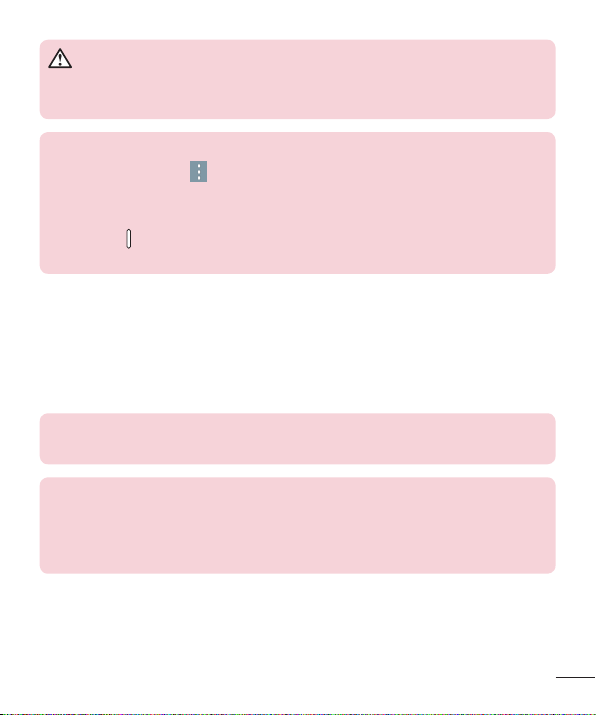
Front-facing
camera
Usetotakepicturesandrecordvideosofyourself.
Youcanalsousethisforvideochatting.Keepit
cleanforoptimalperformance.
Power/Lock key
Presstolock/unlockthescreen.Pressandhold
toturnthetableton/off,restartit,andactivate/
deactivateairplanemode.
Volume keys
Allowyoutoadjustthemediavolumes.Pressand
holdbothkeysatthesametimetoaccessthe
QuickMemo+feature.
Earphone jack
Allowsyoutopluginanoptionalheadsetfor
convenient,hands-freeconversations.Youcanalso
pluginheadphonestolistentomusic.
Infrared (IR) LED UsedasasensorfortheQuickRemoteapp.
microSD card slot
InsertamicroSDCardforstoringfilessuchas
music,videosandphotos.
Microphone
Recordsyourvoiceandallowsuseforvoice-
activatedfunctions.
Charger/USB port
AllowsyoutoconnectthetabletandtheUSBcable
forusewiththechargeradapter,yourPC,orother
compatibleaccessories.
Rear-facing
camera
Usetotakephotosandrecordvideos.Keepitclean
foroptimalperformance.
Speakers
Usetolistentotheaudiofromtheselectedfunction
(e.g.,music,videos,soundclips,etc.).
13
WARNING
PlacingaheavyobjectonthetabletorsittingonitcandamagetheLCD
andtouchscreenfunctions.
TIP!
•TaptheMenu icon
wheneveryouopenanapplicationtocheckwhat
optionsareavailable.
•Ifthedeviceislockedanddoesnotwork,pressandholdthePower/
Lock Key
forover8secondsuntilLGlogoisdisplayedtorestartyour
tablet.
Charging your tablet
AUSBadapter,whichisincludedwithyourtablet,isusedtochargethe
battery.Beforeusingyourtabletforthefirsttime,makesurethebatteryis
fullycharged.
NOTE:Yourdevicehasaninternalrechargeablebattery.Foryoursafety,do
notremovethebatteryincorporatedintheproduct.
Warning!Ifthetouchscreendoesnotfunctionwhilethetablet’sinthe
processofcharging,thismaybeduetoanunstablepowersupply.Ifthis
occurs,disconnecttheUSBcablefromthedeviceorunplugtheUSB
adapterfromthepoweroutlet.
14
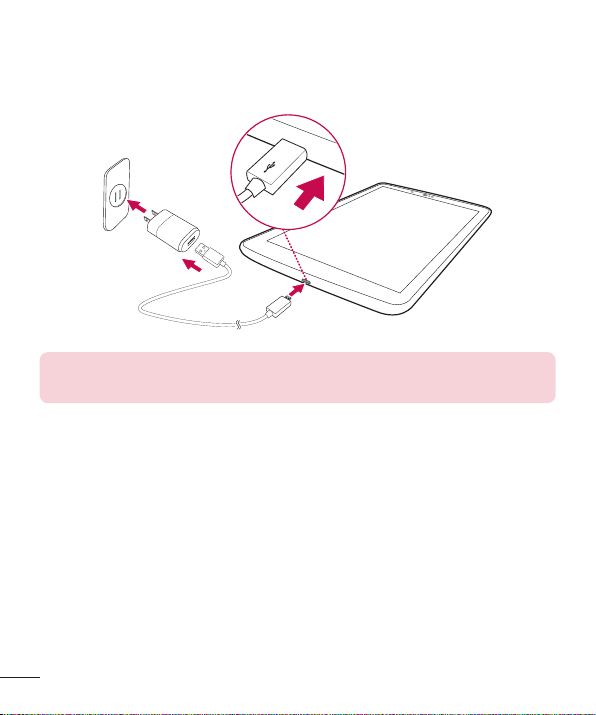
1 ConnecttheUSBadapterandUSBcable.
2 PlugtheUSBcable(asshownbelow)intothetablet’sCharger/USBport.
3 Plugthechargerintoanelectricalsocket.
NOTE:Thebatterymustbefullychargedinitiallytoimprovebattery
lifetime.
Optimizing Battery Life
Youcanextendyourbattery’slifebetweenchargesbyturningofffeatures
thatyoudon’tneedtorunconstantlyinthebackground.Youcanalso
monitorhowapplicationsandsystemresourcesconsumebatterypower.
To extend the life of your battery
•Turnoffradiocommunicationsthatyouaren’tusing,suchasWi-Fi,
Bluetooth,orGPS.
•Lowerscreenbrightnessandsetashorterscreentimeout.
15
•TurnoffautomaticsyncingforGmail™,Calendar,Contacts,andother
applications.
•Someapplicationsyouhavedownloadedmaycauseyourbatterypowerto
bereduced.
•Whileusingdownloadedapplications,checkthebatterychargedlevel.
To view the battery charge level
1 FromtheHomescreen,tapApps >Settings >About tablet>
Battery.
2 Thebatterystatus(chargingordischarging)andlevelaredisplayedonthe
topmenuofthescreen.
To monitor and control what uses the battery
1 FromtheHomescreen,tapApps >Settings >About tablet>
Battery>Battery usage.
2 Thescreendisplaysbatteryusagetimeandalsolistsapplicationsor
servicesusingbatterypowerfromgreatestamounttoleast.
Inserting a microSD card
YourdevicesupportstheuseofmicroSDmemorycardsofupto32GB
capacity.MultimediacontentscanbesavedinthemicroSDcard.
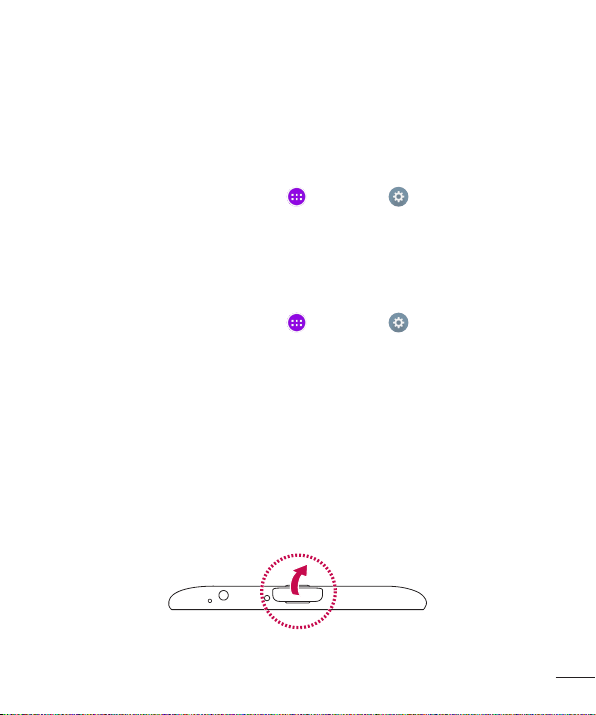
1 Placeyourfingernailinthecutoutandgentlypullthememorycardslot
covertoremoveit.

16
2 Insertthememorycardintotheslotwiththecontactsfacingtowardsthe
screen.Carefullypushthememorycardslotcoverintothetablettoclose
it.
Removing the microSD card
TosafelyremovethemicroSDcardfromyourtablet,firstyouneedto
unmountit.
1 FromtheHomescreen,tapApps >Settings >Storage>
Unmount SD card.
2 OpenthemicroSDcardtrayandpushthecardintoreleaseit.
3 GentlypullthemicroSDcardfromtheslot.

17
Warning!DonotremovethemicroSDcardwithoutunmountingitfirst.
Otherwise,itmaydamagethemicroSDcardaswellasyourtablet,and
thedatastoredonthemicroSDcardmaybecorrupted.
Formatting the microSD card
Warning!AllfilesstoredonyourmicroSDcardaredeletedwhenyou
formatthecard.
1 FromtheHomescreen,tapApps >Settings >Storage.
2 TapErase SD card(twice).
3 Ifyousetanunlockpattern,enteritandtapErase everything.Thecard
willthenbeformattedandreadytouse.
NOTE:IfthereiscontentonyourmicroSDcard,thefolderstructuremay
bedifferentafterformattingsinceallthefileswillhavebeendeleted.
Locking and unlocking the screen
Ifyoudonotusethetabletforawhile,thescreenwillbeautomatically
turnedoffandlocked.Thishelpstopreventaccidentaltouchesandsaves
batterypower.Whenyouarenotusingtheyourtablet,pressthePower/Lock
Key tolockyourtablet.
Ifthereareanyprogramsrunningwhenyoulockyourscreen,theymaybe
stillrunninginLockmode.Itisrecommendedthatyouexitallprograms
beforeenteringLockmodetoavoidunnecessarycharges(e.g.webaccess,
datacommunications).
18
Towakeupyourtablet,pressthePower/Lock Key .TheLockscreenwill
appear.TouchandslidetheLockscreeninanydirectiontounlockyour
Homescreen.Thelastscreenyouviewedwillopen.
Turning the screen on using the KnockON feature
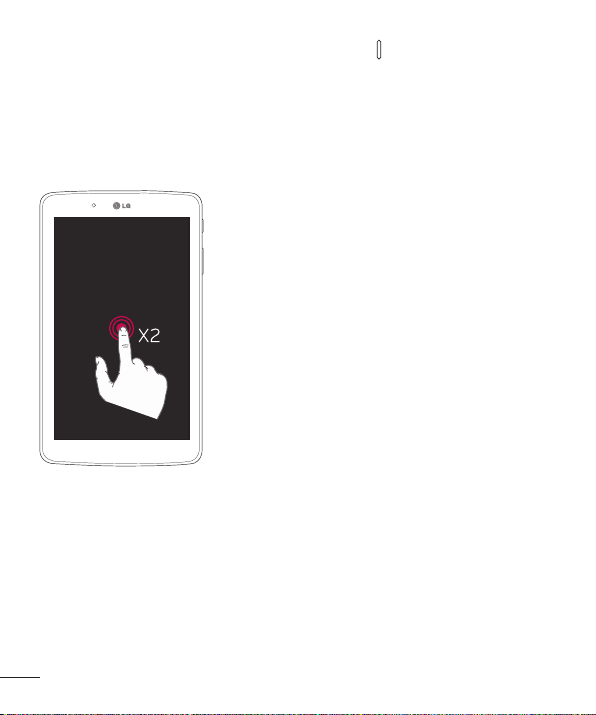
TheKnockONfeatureallowsyoutodouble-tapthescreentoeasilyturnthe
screenonoroff.
•Quicklydouble-tapthecenterofthescreento
turnthescreenon.
•Quicklydouble-taptheStatusBar,anempty
areaontheHomescreen,ortheLockscreento
turnthescreenoff.
Unlocking your screen using the Knock Code feature
TheKnockCodefeatureallowsyoutocreateyourownunlockcodeusinga
combinationofknocks(ortaps)onthescreen.
•Whilethescreenisoff,tapthesamesequenceyouestablishedanywhere
onthescreen.TheHomescreenwillbeaccesseddirectly.

19
To activate the Knock Code feature
1 FromtheHomescreen,tapApps >Settings >Display>Lock
screen>Select screen lock>Knock Code.
2 Thisopensascreenthatwillguideyouthroughhowtoselecttheunlock
sequence.YouhavetocreateabackupPINasasafetymeasureincase
youforgetyourunlocksequence.

20
Touch screen tips
Herearesometipsonhowtonavigateonyourtablet.
NOTE:
•Toselectanitem,touchthecenteroftheicon.
•Donotpresstoohard;thetouchscreenissensitiveenoughtopickupa
light,yetfirmtouch.
•Usethetipofyourfingertotouchtheoptionyouwant.Becarefulnotto
touchanyotherkeys.
Tap or touch
Asinglefingertapselectsitems,links,shortcutsandlettersonthe
on-screenkeyboard.
Touch and hold
Touchandholdanitemonthescreenbytouchingitandnotliftingyour
fingeruntilanactionoccurs.Forexample,toopenacontact'savailable
options,touchandholdthecontactintheContactslistuntilthecontext
menuopens.
Drag
Touchandholdanitemforamomentandthen,withoutliftingyourfinger,
moveyourfingeronthescreenuntilyoureachthetargetposition.Youcan
dragitemsontheHomescreentorepositionthem.
Your Home screen

21
Swipe or slide
Toswipeorslide,quicklymoveyourfingeracrossthesurfaceofthescreen,
withoutpausingwhenyoufirsttouchit(soyoudon’tdraganiteminstead).
Forexample,youcanslidethescreenupordowntoscrollthroughalist,or
browsethroughthedifferentHomescreencanvasesbyswipingfromleftto
right(andviceversa).
Double-tap
Double-taptozoomonawebpageoramap.Forexample,quicklydouble-
tapasectionofawebpagetoadjustthatsectiontofitthewidthofthe
screen.Youcanalsodouble-taptozoominandoutwhenviewingapicture
andwhenusingMaps.Double-tapawordtohighlightit.Double-tapcanalso
activatetheKnockONfeaturetoturnthetouchscreenonoroff.
Pinch-to-Zoom
Useyourindexfingerandthumbinapinchingorspreadingmotiontozoom
inoroutwhenusingthebrowser,Maps,orwhenbrowsingpictures.
Rotate the screen
Frommanyapplicationsandmenus,theorientationofthescreenadjuststo
thedevice'sphysicalorientation.
Home screen
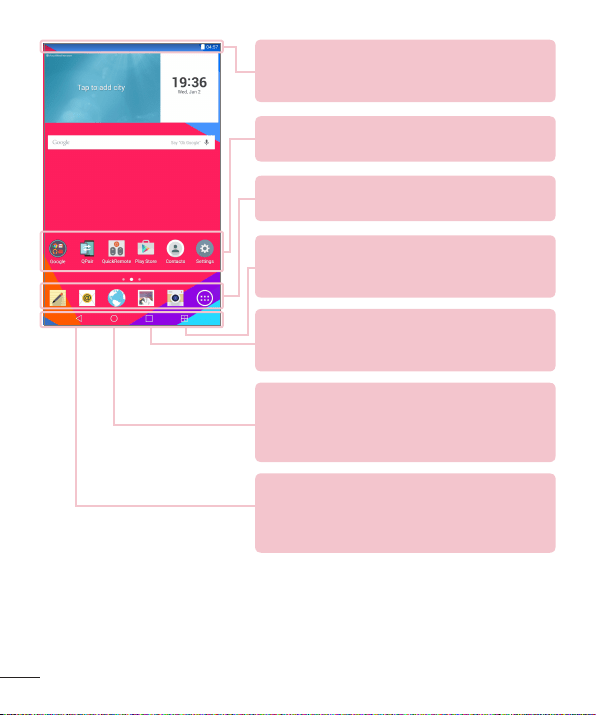
Simplyswipeyourfingertotheleftorrighttoviewthepanels.Youcan
customizeeachpanelwithapps,downloads,widgetsandwallpapers.
TheQuickKeysareavailableatthebottompartoftheHomescreenand
provideeasy,one-touchaccesstothefunctionsyouusethemost.
22
Status Bar –Showsdevicestatusinformation,
includingthetime,Wi-Fisignalstrength,battery
status,andnotificationicons.
Back Key –Returnstothepreviousscreen.Also
closespop-upitemssuchasmenus,dialogboxes,
andtheon-screenkeyboard.Touchandholditto
accessDualwindow.
Recent Apps Key–Taptodisplayrecentlyused
applications.Youcanalsotouchandholditto
displaytheMenuoptionsinapplications.
Application icons –Tapanicon(application,widget,
folder,etc.)toopenanduseit.
Quick Keys –Provideeasy,one-touchaccesstothe
functionsusedmostoften.
Home Key –ReturnstotheHomescreen(or
returnstoyourdefaultHomescreencanvasfrom
anyoftheHomescreenextensioncanvases).Touch
andholdittoaccessGoogleNow.
Dual window Key–Taptochangetodualwindow
mode.Itallowsyoutomanagetwodifferentappsat
thesametimebysplittingthescreenintwo.

23
Customizing the Home screen
YoucancustomizeyourHomescreenbyaddingapps,downloads,widgets
orwallpapers.Formoreconvenienceusingyourtablet,addyourfavoriteapps
andwidgetstotheHomescreen.
To add items on your Home screen:
1 TouchandholdtheemptypartoftheHomescreen.
2 TaptheApps orWidgetstab.
3 Dragthedesireditemtothedesiredlocationandliftyourfinger.
To remove an item from the Home screen:
Touchandholdtheiconyouwanttoremove,dragitto ,andliftyour
finger.
TIP! ToaddanapplicationicontotheHomescreenfromtheApps
screen,touchandholdtheapplicationyouwanttoaddanddragittothe
desiredlocation.
TIP! Youcanaddseveralappiconsinafolder.Droponeappiconover
anotheroneonaHomescreen,andafolderwillbecreated.
Opening, switching, and stopping apps
Tap todisplayrecentlyusedapplications.Youcankeepmultipleapps
runningatthesametime,andswitchbetweenseveralopenapps.Youcan
alsomanuallystopappsfromrunning.
24
Using Dual window
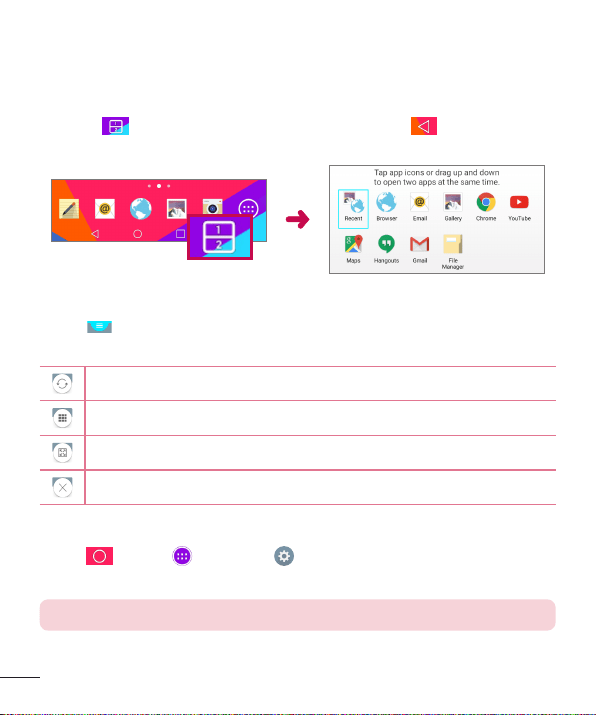
TheDualwindowfeaturesplitsthescreentoenablemulti-tasking,dragand
dropinteraction,auto-linkingandrecentlyusedapps.
1 Touch tosplitthescreenortouchandholdthe untiltheapplist
isdisplayed.
2 Touchordraganappicontothedesiredspace.
3 Tap todisplaythefollowingoptions.Youcanalsodragthetabsto
changethesizeofthewindows.
Switchtwoscreens.
Displaytheappslist.
Fullscreenview.
Closetheapps.
To disable the Dual window feature
1 Tap >Apps >Settings >Dual window.
2 TaptheDualwindowswitchtotoggleittoOFF.
TIP!YoucanlaunchtwoBrowserappsatthesametime.
25
Customizing app icons on the Home screen
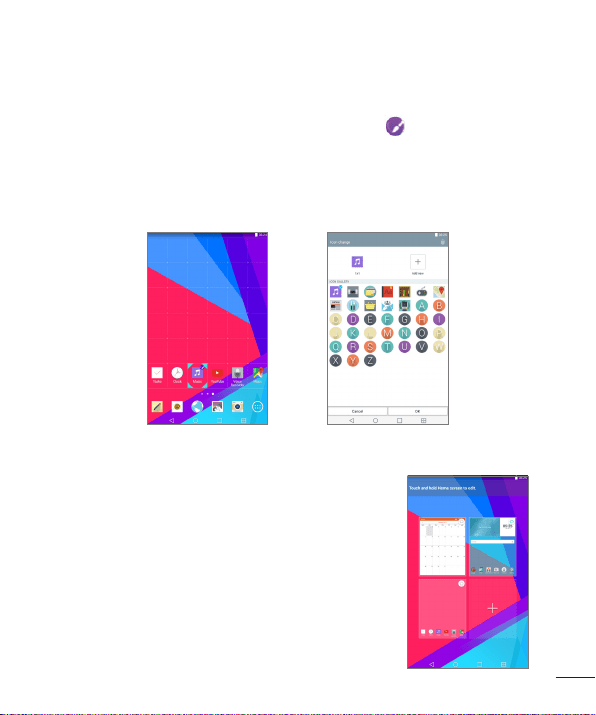
YoucancustomizeeachapplicationiconwithimagesfromyourGallery.
1 Touchandholdanapplicationiconuntilit’sunlockedfromitscurrent
position.Thendropitonthescreen.Theediting iconwillappearinthe
upperrightcorneroftheapplication.
2 Taptheapplicationiconagainandselectthedesiredicondesignandtap
OK.OrtapAdd newandadjusttheiconsizeandselectanimagefrom
yourGallery.
To view other Home screen panels
•Swipe(orflick)yourfingerleftorrightacrossthe
Homescreen.
•PinchinontheHomescreentodisplaythemini
panelview,thentaptheHomescreenpanelyou
wanttoview.
26
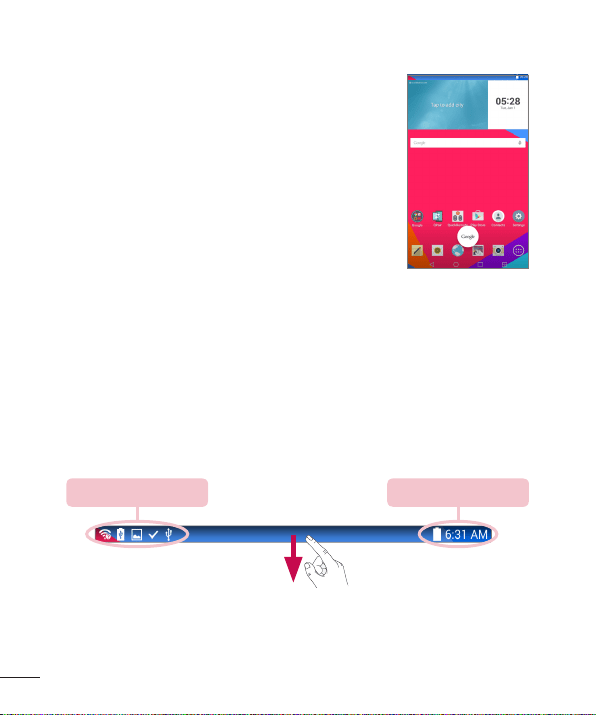
Quick access
Toviewthequickaccessitems,touchanywhere
inthefrontkeyareaanddragup.Thefollowing
optionsareavailable:GoogleNow.
Notifications
Notificationsalertyoutothearrivalofnewmessages,calendarevents,and
alarms,aswellastoongoingevents,suchasdownloads.
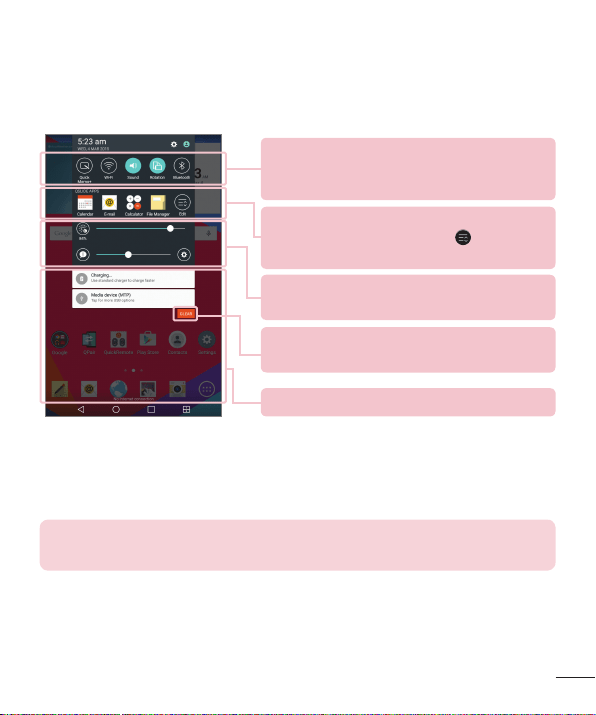
FromtheNotificationsPanel,youcanviewyourtablet’scurrentstatusand
pendingnotifications.Whenanotificationarrives,itsiconappearsatthetop
ofthescreen.Iconsforpendingnotificationsappearontheleft,andsystem
iconsshowingthingslikeWi-Fiorbatterystrengthontheright.
Pending notifications System notifications
27
Accessing notifications
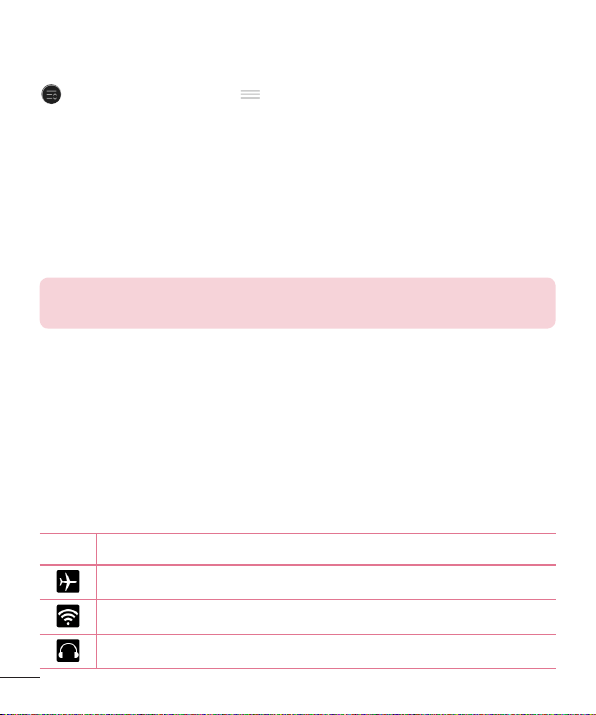
SwipetheStatusBardowntoopentheNotificationsPanelandaccess
notifications.ToclosetheNotificationsPanel,swipethebarthatisatthe
bottomofthescreenupwards.
Quick Settings Bar–Swipetotherightorleft
toscrollthroughthelist.Tapanicontoactivate/
deactivatethefeature.
QSlide Apps–TapaQSlideapptoopenasa
smallwindowonyourscreen.Tap
toremove,
add,orrearrangeQSlideapps.
Slidetotheleftandrighttoadjustthescreen
brightnessandvolume.
Clear Button–Tapheretoclearyourlistofevent-
basednotifications.
Tapanotificationtoopenit.
Quick Settings on the Notifications Panel
UsetheQuickSettingstoeasilytogglefunctionsettingslikeWi-Fi.The
QuickSettingsarelocatedatthetopoftheNotificationsPanel.
NOTE:TouchandholdaniconintheQuickSettingsBartoviewthe
function'ssettingsmenu.
28
To rearrange Quick Setting options on the Notification Panel
OpentheNotificationsPanel,swipetheQuickSettingstotheleft,andtap
.Torearrangeitems,drag tothedesiredlocation.Toaddmoreicons,
checkmarkthedesiredfunctions.
QSlide apps on the Notifications Panel
QSlideappsaredisplayedinabarontheNotificationsPanelafteractivating
thefeatureontheQuickSettingsBar.Theseiconsprovideaquick,
convenientwaytomulti-taskonthesamescreen(similartopicture-in-
pictureonaTV).QSlidedisplaysasmallapplicationwindowonthescreen
thatcanbemoved,resized,ormadetransparent.
NOTE:YoucanremovetheQSlideappsbarbytappingtheQSlideiconin
theQuickSettingsbar.
Using the QSlide apps
TapanyoftheQSlideappsinthebartoactivateit.Whenactivated,the
QSlidefeatureopenstheapplicationinawindowintheforeground,allowing
youtoaccessotherapplicationsinthebackground.Youcanopenuptotwo
QSlidewindowsatatime.
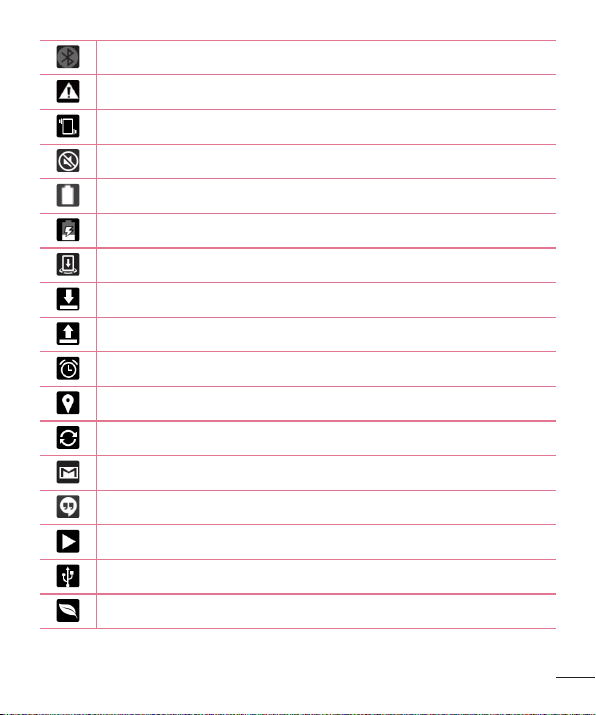
Notification icons on the Status Bar
Theiconslistedinthetablebelowaresomeofthemostcommonones.
Icon Description
Airplanemode
ConnectedtoaWi-Finetwork
Wiredheadsetconnected
29
Bluetoothison
Systemwarning
Vibratemodeison
Silentmodeison
Batteryfullycharged
Batteryischarging
Contentsharingison
Downloadingdata
Uploadingdata
Analarmisset
GPSison
Dataissyncing
NewGmailmessage
NewHangoutsmessage
Asongiscurrentlyplaying
TabletisconnectedtoPCviaUSBcable
Batterysavermodeison

30
Multiple Users
OnlyonetabletownerIDcanbecreated,butmultipleuserIDscanbe
addedsothatotherscanloginandusethetabletindependently.Eachuser
canconfiguretheirowntabletsettings,usetheirownstoragespace,and
havetheirownappupdateprivileges.
Tablet owner privileges
•OnlythetabletownerIDcanaddanewuserloginIDandremoveuser
IDs.
Multiple tablet user limitations
•Alluserssharethesamebattery,internalmemory,anddatausagewithall
oftheotherusers.
•Thelanguagesettingssetbyoneuserapplytoalloftheotherusers.
•Eachusercanconfigureanduseonlytheirowncontentanddata
(e.g.,Homescreensettings,Soundsettings,etc.).
•Anyusercanacceptupdatedapppermissionsonthebehalfofallofthe
otherusers.
•Messagesandscheduledcalendareventswillbesenttonotifythe
specifieduserIDonly.
•OnceauserstartsprintingadocumentusingMobilePrint,theprintjobwill
continueeveniftheuserIDischanged.
•Datatransfer,download,multimediaplay,andcommunicationserviceswill
stopiftheuserIDischanged.However,thedatatransferthroughPlay
StorecanbecontinuedeveniftheuserIDischanged.
31
To add a new user on your tablet
1 FromtheHomescreen,tapApps >Settings >Users>Add user.
2 Selectthetypeofuseryouwanttoadd.
• User:Usershavetheirownappsandcontent.
• Restricted user:Youcanrestrictaccesstoappsandcontentfromyour
account.
3 Thesetupwizardopenstohelpyouaddanewuser.TouchSet up now.
• Aftercreatinganewuser,thatpersonneedstogothroughthesetup
processupontheirfirstlogin.
To switch users
1 PulldowntheStatusbaratthetopofthescreen.
2 Touchtheusericon toshowuserswitchingpanel.
3 Touchoneoftheusericonsonthescreen.Choosefromtheownername
oranyotherusernamesyoucreated.
QSlide
TheQSlidefunctionenablesanoverlaywindowonyourtablet’sdisplayfor
easymulti-tasking.QSlidewindowscanbeopenedfromtheQSlide appsbar
ontheNotificationspanel,ordirectlyfromtheapplicationsthatsupportthe
QSlidefunction.
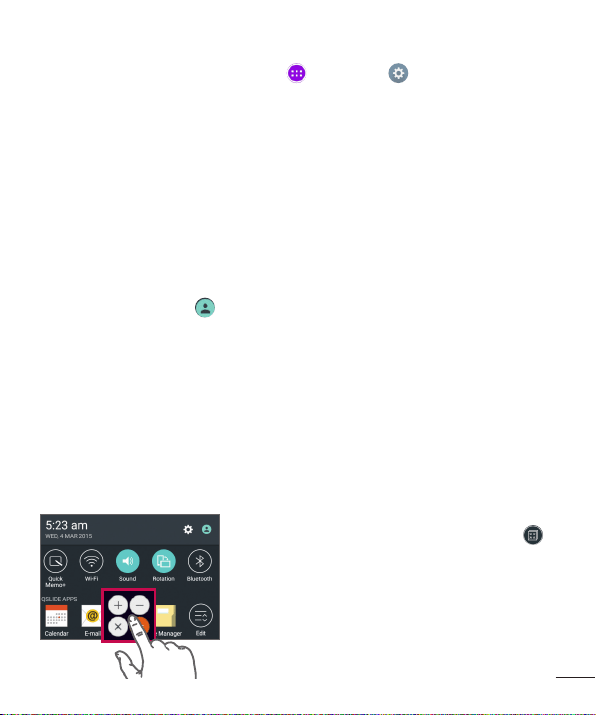
OpentheNotificationsPanel,tap ,
thentapthedesiredappfromthe
QSlide appssection.
32
OR
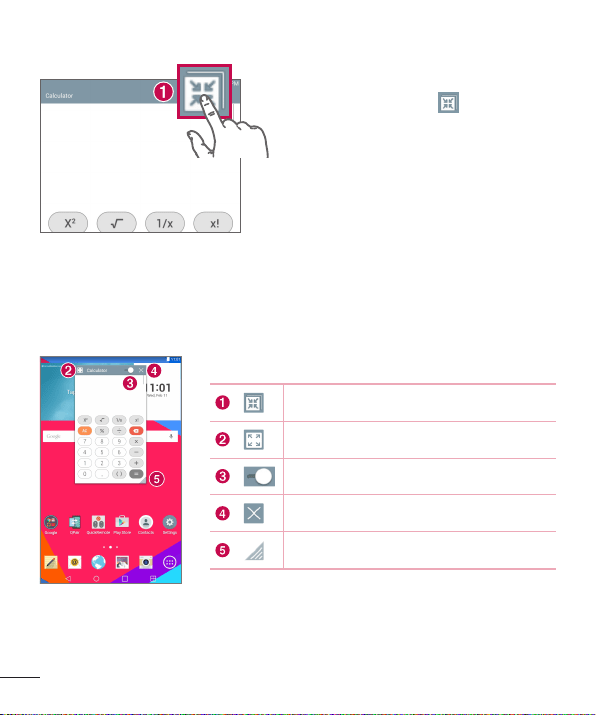
Whileusinganapplicationthat
supportsQSlide,tap .Thefunction
willbedisplayedcontinuouslyasa
smallwindowonyourscreen.
Using QSlide
TheQSlidefunctionopenstheassociatedappinawindowinthe
foreground,allowingyoutoaccessotherappsinthebackground.It’s
displayedcontinuouslyonthescreenuntilyoucloseit.
TaptorunQSlide.
Taptoreturntofullwindow.
Taptoadjustthetransparency.
TaptocloseQSlide.
Taptoadjustthesize.
33
NOTE:TheQSlidefunctioncansupportuptotwowindowsatthesame
time.QSlideonlysupportsthefollowingapplications:Video,Browser,
Calendar,Email,FileManager,andCalculator.
Capturing a Screenshot
PressandholdtheVolumeDown Key andPower/Lock Key atthesame
timefor2secondstocaptureascreenshotofthecurrentscreen.
Toviewthecapturedimage,gotoApps >Gallery >Screenshots
folder.
Using QuickMemo+ to capture a screenshot
Onthescreenyouwanttocapture,dragtheStatusBardownwardandselect
QuickMemo+ .
OR
PressandholdbothVolume Keys atthesametime.
Using Capture plus to capture a screenshot of the browser
Thisfeatureallowsyoutocaptureaportionofthescreeninthedefault
Internetbrowser.
1 OpentheBrowserappandnavigatetothepageyouwanttocapturea
screenshotof.
2 TaptheMenu icon >Capture plus.
3 Adjusttheblueboxtothedesiredsize,andthentapSave.Theselected
areaissavedtotheCapture plusfolderintheGallery.
34
Text Input Methods
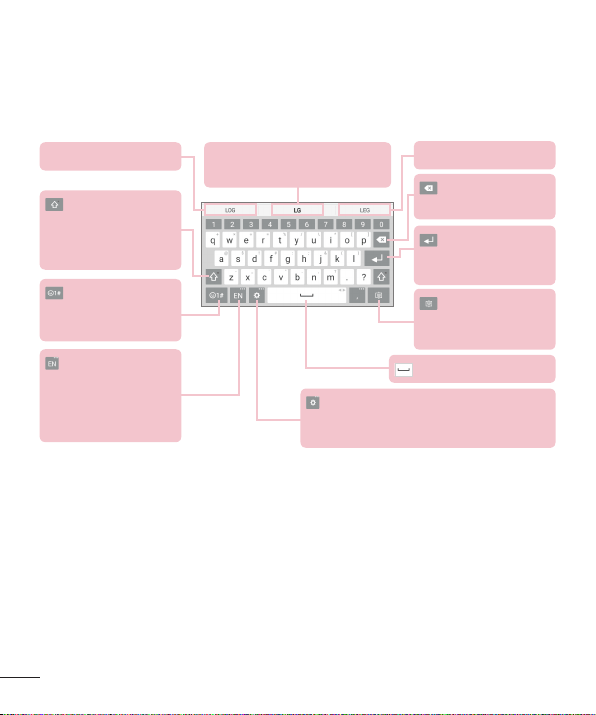
Theon-screenkeyboarddisplaysautomaticallyonthescreenwhenyouneed
toentertext.Tomanuallydisplaytheon-screenkeyboard,simplytapatext
fieldwhereyouwanttoentertext.
Taptodeletethe
previouscharacter.
Displaysthewordyou've
entered.
Wordsuggestions
Wordsuggestions
Taponceto
capitalizethenext
letteryoutype.Double-
tapforallcaps.
Taptocreateanew
lineinthemessage
field.
Taptoswitchtothe
numbersandsymbols
keyboard.
Taptoenteraspace.
Taptoselectone
ofthedesiredkeyboard
types.
Taptoselectthe
keyboardlanguage
(availablewhen
multiplelanguagesare
enabled).
TaptoaccesstheLGkeyboardsettings.
TouchandholdtoaccesstheClipTrayand
voiceinput.
Enter suggested word using gesture control
Entertextonthekeyboardandtherelatedwordsuggestionsappear.Tapon
thesuggestedwordatthetoprightorleftabovethekeyboardtoselectthe
word.
Split keyboard using gesture
Thesplitkeyboardfeatureallowsyoutousebothhandstotype.Eachhalf
ofthekeyboardwithdrawstotheleftandrightofthescreen.Placeboth
thumbsonthekeyboardandslidethemoutwardsinoppositedirections.
35
To change the keyboard height
Adjustheightofkeyboardtoshowmoreofthescreenandtocontrol
keyboardmoreeasily.
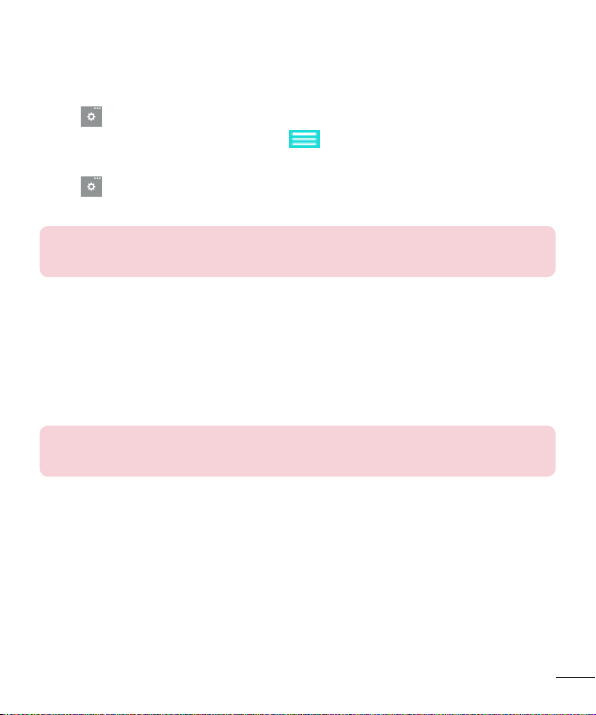
•Tap >Keyboard height and layout>Keyboard height in portrait/
landscape>Tapanddragtheicon toadjustthekeyboardheight.
To change the bottom row keys
•Tap >Keyboard height and layout>QWERTY keyboard layout>Tap
anddragtoaddordeletekeysorchangetheorder.
NOTE:OnlyQWERTY,QWERTZ,AZERTYkeyboardscanbecustomized.
Thisfunctiondosenotsupportsomelanguages.
Entering special characters
Theon-screenkeyboardallowsyoutoenterspecialcharacters(e.g."á").
Forexample,touchandholdthedesiredkey(forexample,the"a"key).After
thedesiredcharacterappears,slideyourfingeroveritandliftitofftoenter
it.
NOTE:Asymbolatthetoprightcornerofakeyindicatesthatadditional
charactersareavailable.

36
Whenyoufirstturnonyourtablet,youhavetheopportunitytoactivatethe
network,tosignintoyourGoogleAccountandselecthowyouwanttouse
certainGoogleservices.
To set up your Google account
•SignintoaGoogleAccountfromthepromptedsetupscreen.
OR
•FromtheHomescreen,tapApps >Appstab>Settings >
Accounts & sync>Add account>Google.
IfyoualreadyhaveaGoogleaccount,enteryouremailaddressandtap
NEXT.Otherwise,touchOR CREATE A NEW ACCOUNTandenterthe
necessaryinformationtocreateanewGoogleAccount.
OnceyouhavesetupyourGoogleaccountonyourtablet,yourtablet
automaticallysynchronizeswithyourGoogleaccountontheWeb.
Yourcontacts,Gmailmessages,Calendareventsandotherinformationfrom
theseapplicationsandservicesontheWebaresynchronizedwithyourtablet.
(Thiswilldependonyoursynchronizationsettings.)
Aftersigningin,youcanuseGmail™andtakeadvantageofGoogleservices
onyourtablet.
Google account setup
37
Wi-Fi
WithWi-Fi,youcanusehigh-speedInternetaccesswithinthecoverageof
thewirelessaccesspoint(AP).EnjoywirelessInternetusingWi-Fi,without
extracharges.
Connecting to Wi-Fi networks
TouseWi-Fionyourtablet,youneedtoaccessawirelessaccesspointor
‘hotspot’.Someaccesspointsareopenandyoucansimplyconnecttothem.
Othersarehiddenorusesecurityfeatures;youmustconfigureyourtabletto
beabletoconnecttothem.TurnoffWi-Fiwhenyou'renotusingittoextend
thelifeofyourbattery.
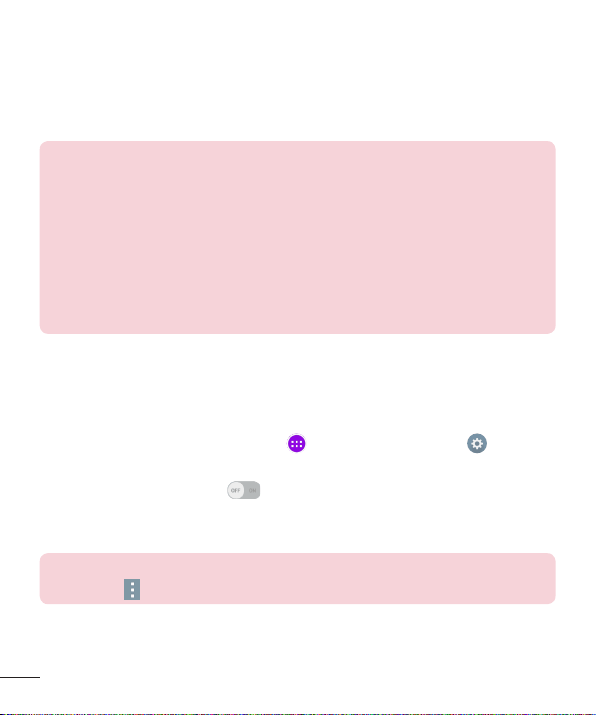
Turning Wi-Fi on and connecting to a Wi-Fi network
1 FromtheHomescreen,tapApps >Appstab>Settings >Wi-Fi.
2 Tap toturnWi-FionandstartscanningforavailableWi-Finetworks.
3 TapSearchtoseealistofactiveandin-rangeWi-Finetworks.
• Securednetworksareindicatedbyalockicon.
4 Touchanetworktoconnecttoit.
• Ifthenetworkissecured,youarepromptedtoenterapasswordor
othercredentials.(Askyournetworkadministratorfordetails)
5 TheStatusBardisplaysiconsthatindicateyourWi-Fistatus.
Connecting to Networks and Devices
38
Bluetooth
YoucanuseBluetoothtosenddatabyrunningacorrespondingapplication,
butnotfromtheBluetoothmenuasonmostothermobilephonesand
tablets.
NOTE:
•LGisnotresponsiblefortheloss,interceptionormisuseofdatasentor
receivedviatheBluetoothwirelessfeature.
•Alwaysensurethatyoushareandreceivedatawithdevicesthatare
trustedandproperlysecured.Ifthereareobstaclesbetweenthedevices,
theoperatingdistancemaybereduced.
•Somedevices,especiallythosethatarenottestedorapprovedby
BluetoothSIG,maybeincompatiblewithyourdevice.
Turning on Bluetooth and pairing up your tablet with a Bluetooth
device
Youmustpairyourdevicewithanotherdevicebeforeyouconnecttoit.
1 FromtheHomescreen,tapApps >Appstab>Settings >
Bluetooth.
2 TaptheBluetoothswitch toturniton.
3 Tapthecheckboxnexttoyourtablet'snametomakeyourtabletvisibleto
otherBluetoothdevices.
NOTE:Toselectthelengthoftimethatyourdevicewillbevisible,tapthe
Menu icon
>Visibility timeout.
4 Alistofavailabledeviceswillbedisplayed.Tapthedeviceyouwanttopair
withfromthelist.
39
NOTE:Dependingonthetypeofdevice,youmayhavetoentermatching
codes,confirmmatchingcodes,orthedevicesmayautomaticallypair.
5 Oncepairingissuccessful,yourtabletwillconnecttotheotherdevice.
NOTE:Yourtabletdoesn'tsupportHandsfreeProfile.Therefore,theuse
ofcallfeatureswithsomeofaccessories,suchasBluetoothheadsetsor
Bluetooth-enableddevices,maynotbeavailableforthisdevice.
Send data using the Bluetooth feature
1 Opentheitemandtap .
OR
TouchandholdtheitemandselectShare.
OR
OpentheitemandtaptheMenu icon >Share.
2 TapBluetoothtoshareviaBluetooth.
NOTE:Themethodforselectinganoptionmayvarybydatatype.
3 SearchforandpairwithaBluetooth-enableddevice.
Receive data using the Bluetooth feature
1 RefertotheBluetoothdevice'suserguidetosendafiletoyourtablet.
BothdevicesmustbepairedandBluetoothmustbeon.
2 PairthedevicesandtapAcceptwhenyoureceiveaBluetooth
AuthorizationRequesttoacceptthefile(s).
40
SmartShare
YoucanusetheSmartSharefeatureeasilyintheGallery,Musicapps,and
others.
Enjoying the content via a variety of devices
Youcanshareyourtablet'scontentwithavarietydevices.Tap ortap
>SmartShare tosharethecontentintheGallery,Music,POLARIS Office 5
apps.
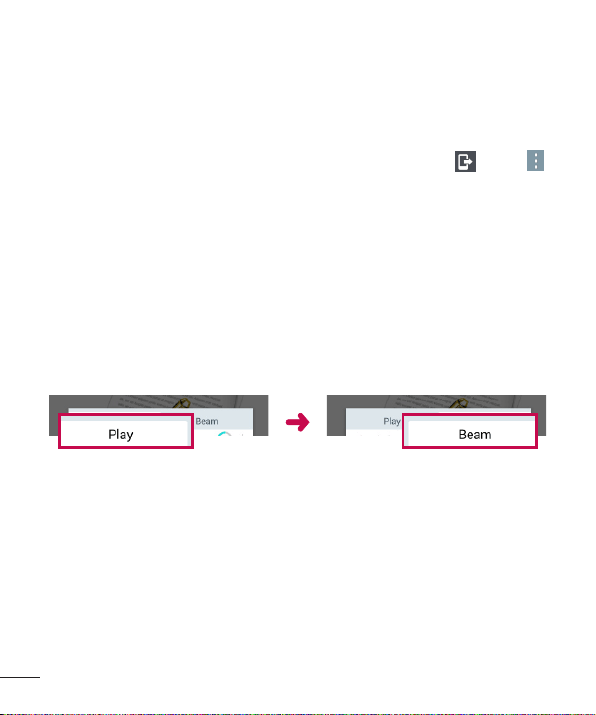
Playing/Sending
Play–YoucanplaythecontentviaaTV,aBluetoothspeakeroretc.
Beam–YoucansendthecontenttothedeviceofBluetoothand
SmartShareBeamsupported.
•SmartShare Beam–Thisallowstotransferthecontentfeaturefastvia
Wi-FiDirect.
< Play > < Beam >
Enjoying the content from Nearby devices
Youcanenjoythecontentfromnearbydevices(i.e.PC,NAS,Mobile)inthe
GalleryandMusicapps.
Connecting devices
ConnectyourdeviceandotherdevicessupportedbyDLNAinthesame
Wi-Finetwork.

41
Searching other devices
TapNearby devices,thenyoucanseetheDLNA-supporteddevices.
Connecttothedevicetoviewthecontent.
Using the content from the Cloud
Youcanusethecontentfromthecloud(i.e.,Dropbox)intheGalleryand
Musicapps.
Using the Cloud
NOTE:Thesupportedfeaturesmayvarydependingonthecloud.
Retrievingdatamaytakesometimedependingonthecloud.
1 SelectCloudintheGalleryandMusicapps.
2 Selectthecloudwhatyouwanttouseandlogin.
3 Youcanusethecontentofthecloudafterloggingin.
4 Setthecloudsettingstoselecttheapptousethecloud.
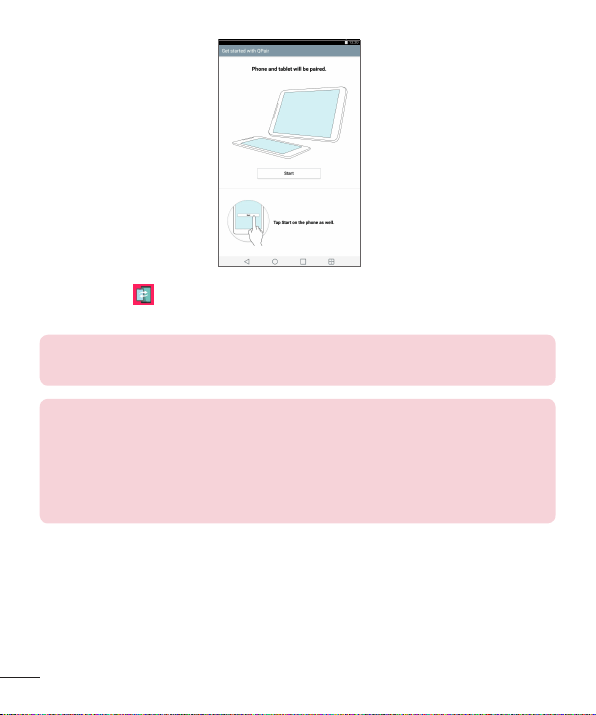
QPair
ByconnectingyourtabletandmobilephoneviaQPair,youcansync
incomingcalls,messages,andsocialnetworkingnotificationsbetweenyour
tabletandmobilephone.
42
1 RunQPair andtapGet started>Startonyourtabletfirstandthen
runthesamestepsonyourphone.
TIP!QPairmaynotbepre-installedonthephone.GototheGooglePlay
StoreandsearchforQPairandinstallit.
NOTE:
•QPairworkswithphonesrunningAndroid4.1orlater.Somefeatures
maybelimiteddependingonyourphonemodel.
•SinceQPairusestheBluetoothfunction,itmaynotworknormallyifyou
changetheBluetoothsettingswhileQPairisinuse.
2 Bluetoothconnectionwillbeturnedonautomatically.

43
QPair features
Call notifications–Sendsthetabletanotificationwhenthephonereceives
acall.Thenotificationdisplaysthecaller'snumberandallowsyoutoanswer
anddeclinethecall.Youcanalsochangecallsettings,suchasaringtone,
ringtonevolume,ringtonewithvibration,orsendadeclinemessagewhen
yougetacall.
NOTE:YoucanonlyreceiveacallsupportedbyBluetoothtechnology.
DialingacallfromthetabletusingtheQPairfeatureisnotpossible.
Message notifications–Sendsthetabletanotificationwhenthephone
receivesamessage.Youcanalsochangemessagesettings,suchas
messagepop-up,messagepreview,notificationsound,andnotification
vibration.
Social network notifications–Displaysasocialnetworkingnotificationon
yourtablet'sStatusBarwhenitarrivesonyourphone.
NOTE:Toenablethisfeature,turntheQPair social network notifications
optiononyourphone(Settings>Accessibility>QPair social network
notifications).Thisoptionallowsyoutobenotifiedofsocialnetworking
notificationsonyourtablet.
QuickMemo+ transfer–SavesyourcurrentQuickMemo+inthetablet's
Gallery,andthensyncsthetablet'sGallerywiththeGalleryonyourphone.
Internet via phone–AutomaticallyconnectsyourtablettotheInternet
throughyourmobilephone(asaWi-Fihotspot).Usingthisfeaturemayincur
datacharges.Tosavedatausageonthephone,thephoneautomatically
connectstoanytrustedWi-Fihotspotswithinrange.

44
PC connections with a USB cable
YoucanconnectyourtablettoyourPCtochargeit,transferitemstothePC
fromthetabletandviceversa.
Transferring music, photos and videos using the Media device
(MTP) mode
1 ConnectyourtablettoaPCusingaUSBcable.
2 Ifyouhaven'tinstalledtheLGAndroidPlatformDriveronyourPC,you
willneedtomanuallychangethesettings.Tochangethesettings,slide
theStatusBardownandtapthecurrentUSBconnectionmode>Media
device (MTP).
3 YoucannowviewtheMediadevicecontentonyourPCandtransferthe
files.
NOTE:IfyouwanttochangethePCconnectionsettings,slidetheStatus
BardownandselecttheUSBconnectionmodeoption.Thissettingis
visibleontheStatusBaronlywhenyouconnectaUSBcabletoyour
tablet.
Synchronize with Windows Media Player
EnsurethatWindowsMediaPlayerisinstalledonyourPC.
1 UsetheUSBcabletoconnectthetablettoaPConwhichWindows
MediaPlayerhasbeeninstalled.
2 SelecttheMedia device (MTP)option.
3 Whenconnected,apop-upwindowwillappearonthePC.Selectthe
WindowsMediaPlayeroptiontosynchronizemusicfiles.

45
4 Editorenteryourdevice’snameinthepop-upwindow(ifnecessary).
5 Selectanddragmusicfilestothesynclist.
6 Startsynchronization.
•ThefollowingrequirementsmustbesatisfiedtosynchronizewithWindows
MediaPlayer.
Items Requirement
OS
MicrosoftWindowsXPSP2,Vistaor
higher
WindowMediaPlayerversion WindowsMediaPlayer10orhigher
•IftheWindowsMediaPlayerversionisolderthan10,installversion10or
newer.
PC connections with a USB cable for Mac OS X users
YoucantransfermediacontentstoyourMacOSXPCfromthetabletand
viceversabysettinguptheAndroidFileTransferprogram.
1 DownloadandinstalltheAndroidFileTransferprogramfromandroid.com
websiteforMacUsers(http://www.android.com/filetransfer/).
2 Connectyourtablettoyourcomputer,anddoubleclicktheAFT(Android
FileTransferprogram)applicationtostartitup.
3 Youcanviewthemediacontents,draganddropthemediafiletoand
fromthetablet(orPC).

46
Youcanaddcontactsonyourtabletandsynchronizethemwiththecontacts
inyourGoogleAccountorotheraccountsthatsupportsyncingcontacts.
Searching for a contact
1 FromtheHomescreen,tapContacts toopenyourcontactlist.
2 TaptheSearch contactsboxandenterthecontact'sname.Youcanalso
tapaletteralongtheleftsideofthescreentoaccessnamesstartingwith
thechosenletter.
Adding a new contact
1 FromtheHomescreen,tapContacts .
2 TapNew contact .Selectthedesiredaccount(ifapplicable).
3 Ifyouwanttoaddapicturetothenewcontact,tap .Choosefrom
Take photototakeapictureusingthecameraorSelect from Gallery.
Thenbrowseforanimageandselectit.
4 Tap toentermorespecificnameinformation.
5 Enterthedetailsaboutyourcontact.
6 TapSave.
Favorite Contacts
Youcanclassifyfrequentlycalledcontactsasfavorites.
To add a contact to your favorites
1 FromtheHomescreen,tapContacts toopenyourcontacts.
2 Tapacontacttoviewitsdetails.
Contacts
47
3 Tapthestar totherightofthecontact’sname.Thestarturnsgold
andthecontactisaddedtoyourfavorites.
To remove a contact from your favorites list
1 FromtheHomescreen,tapContacts toopenyourcontacts.
2 TaptheFavoritestabtoviewyourfavoritecontacts.
3 Tapacontacttoviewitsdetails.
4 Tapthegoldstartotherightofthecontact’sname.Thestarturnsgrey
andthecontactisremovedfromyourfavorites.
Creating a group
1 FromtheHomescreen,tapContacts toopenyourcontacts.
2 TouchtheGroupstab,thentouch .
3 Enteranameforthenewgroup.
•TapAdd memberstoaddcontactentriestoyournewgroup.
•TaptheACCOUNTfieldtochangetheaccount(s)youwanttosavethe
newgroupto.
4 TouchSavetosavethegroup.
NOTE:Ifyoudeleteagroup,thecontactsassignedtothatgroupwillnot
belost.Theywillremaininyourcontacts.
48
YoucanusetheEmailapplicationtoreademailsfromserviceslikeYahoo!,
MSN,andAOL.TheEmailapplicationsupportsthefollowingaccounttypes:
POP3,IMAPandExchange.
Yourserviceproviderorsystemadministratorcanprovideyouwiththe
accountsettingsyouneed.
Managing an email account
TaptheEmail ontheHomescreen.ThefirsttimeyouopentheEmail
application,aset-upwizardopenstohelpyoutosetupanemailaccount.
Aftertheinitialsetup,thecontentsofyourinboxaredisplayed.Ifyouhave
addedmorethanoneaccount,youcanswitchamongaccounts.
To add another email account:
•OpentheEmailapplicationandtaptheMenu icon >Settings >Add
account.
To switch between accounts:
Ifyou'veaddedmorethanoneaccount,youcaneasilyswitchbetweenthem.
Fromanyemailfolder,tapthecurrentaccount(atthetopofthescreen),
thentaptheaccountyouwanttoaccess.
To change an email general settings:
OpentheEmailapplicationandtaptheMenu icon >Settings > General
settingstoconfiguresettingsthatapplytoallofyouraccounts.Tapan
individualaccounttoconfiguresettingsonlyforthatparticularaccount.
To delete an email account:
•OpentheEmailapplicationandtaptheMenu icon >Settings > Menu
icon >Remove account>touchanaccountyouwanttodelete>
Remove>Yes.
Email

49
Working with account folders
OpentheEmailapplicationandtaptheMenu icon andselectFolders.
EachaccounthasanInbox,Outbox,SentandDraftsfolder.Dependingon
thefeaturessupportedbyyouraccount’sserviceprovider,youmayhave
additionalfolders.
Composing and sending email
1 WhileintheEmailapplication,tapCompose .
2 Enteranaddressforthemessage’sintendedrecipient.Asyouenter
text,matchingaddresseswillbeproposedfromyourContacts.Separate
multipleaddressesusingsemicolons.
3 TapAttach toattachfiles,ifrequired.
4 Enterthesubjectandyourmessage.
5 TapSend tosendthemessage.
Ifyouaren’tconnectedtoanetwork,forexample,ifyou’reworkingin
airplanemode,themessagesthatyousendwillbestoredinyourOutbox
folderuntilyouconnecttoanetworkagain.Ifitcontainsanypending
messages,theOutboxwillbedisplayedontheAccountsscreen.
Receiving emails
WhenanewemailarrivesinyourInbox,you'llbenotifiedbyasound
orvibration(dependingonyoursoundandvibrationsettings)andits
notificationiconappearsontheStatusBar.
50
Camera
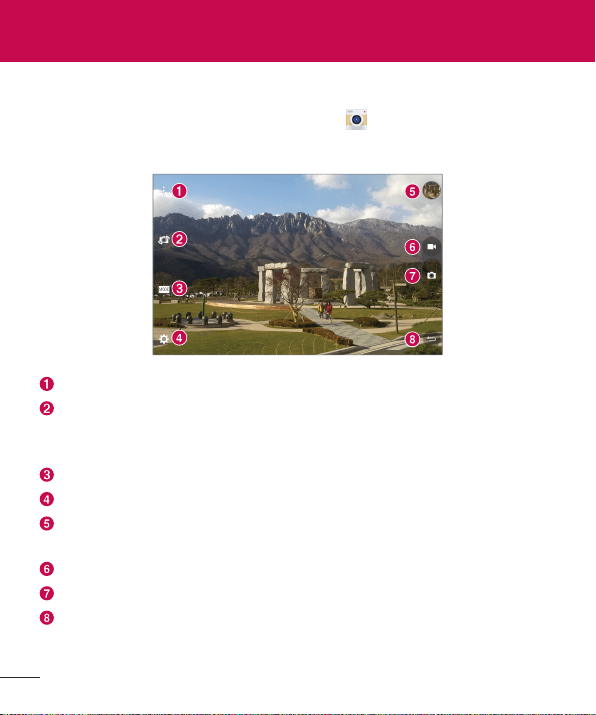
ToopentheCameraapplication,tapCamera ontheHomescreen.
Getting to know the viewfinder
Clean view–Touchtoshoworhidemenusontheviewfinder.
Swap camera–Switchbetweentheback-facingcameralensandthe
front–facingcameralens.Youcanalsoswitchthecamerabyswipingthe
screen.
Mode–AllowstosettheshotmodetoAutoorPanorama mode.
Settings–Touchthisicontoopenthesettingsmenu.
Gallery–Touchtoviewthelastphotoyoucaptured.Thisenablesyouto
accessyourGalleryandviewsavedphotoswhileincameramode.
Record–Taptostartrecordingavideo.
Capture –Takesapicture.
Exit–Touchtoexitthecamera.
Entertainment
51
NOTE:Pleaseensurethecameralensiscleanbeforetakingpictures.
Using the advanced settings
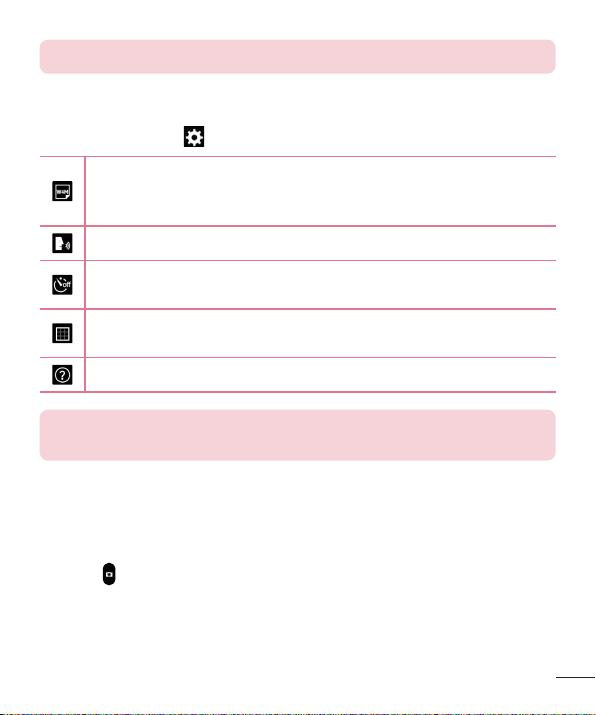
Intheviewfinder,tap toopentheadvancedoptions.
Selectsphotoandvideoresolution.Ifyouchooseahighresolution,
thefilesizewillincrease,whichmeansyouwillbeabletostorefewer
photosandvideosinthememory.
Takephotosbyvoicecommand.
Setsadelayafterthecapturebuttonispressed.Thisisidealifyou
wanttobeinthephotoorvideo.
Displaysgridlinesonthescreentohelpyoualignyourphotosand
videos.
Opensthehelpguidetoknowhowafunctionoperates.
TIP! Whenyouexitthecamera,somesettingsreturntotheirdefaults,
suchastimer.Checkthesebeforeyoutakeyournextphoto.
Taking a photo
1 OpentheCameraapplication.
2 Pointthelenstowardsthesubjectyouwanttophotograph.
3 Touch tocapturethephoto.Youcanalsocapturethephotoby
touchinganywhereonthescreenonClean viewmode.
52
To zoom in or out
Whentakingapictureorrecordingavideo,placetwofingersanywhereon
thescreenandspreadthemaparttozoomin.Tozoombackout,pinch
themtogether.
Gesture shot
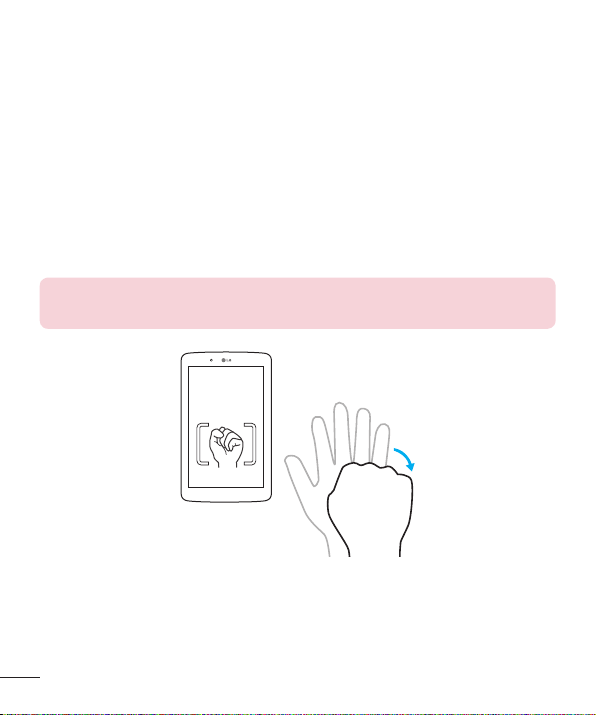
TheGestureshotfeatureallowsyoutotakeapicturewithahandgesture
usingthefrontcamera.Totakephoto,raiseyourhand,withanopenpalm,
untilthefrontcameradetectsitandaboxappearsonthescreen.Then
closeyourhandintoafistandatimerwillstart,allowingyoutimetoget
ready.
NOTE:Youcanalsotakeaphotobymakingafist,thenopeningitinan
openpalm.
Once you've taken a photo
1 Taptheimagepreviewbythecapturebuttontoviewthelastphotoyou
captured.
2 TapGalleryorPhotos,thentapOK.
53
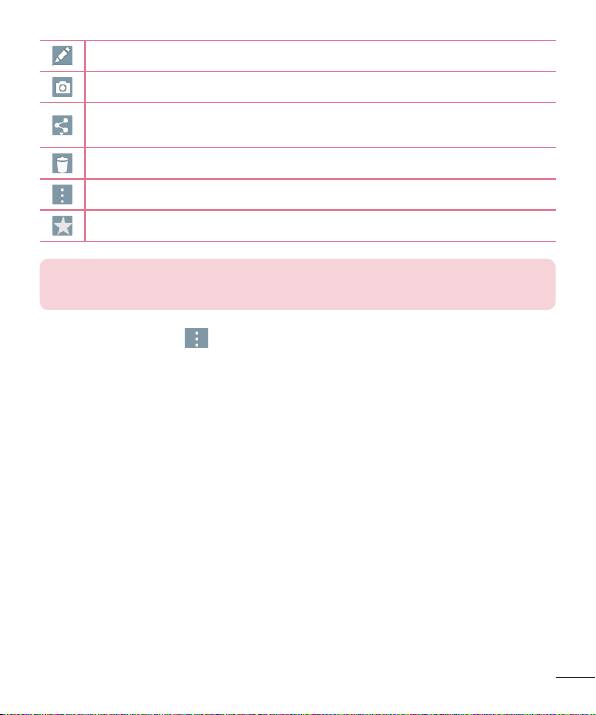
Touchtoeditthephoto.
Touchtotakeanotherphotoimmediately.
Touchtosendyourmemotoothersorshareitviasocialnetworking
services.
Touchtodeletethephoto.
Touchtoaccessmoreoptions.
Touchtoaddthepicturetoyourfavorites.
TIP!Ifyouhaveasocialnetworkingaccountandsetituponyourtablet,
youcanshareyourphotowithyoursocialnetworkingcommunity.
TouchtheMenu icon toopenthefollowingoptions.
SmartShare–TouchtoshareyourphotousingtheSmartSharefunction.
Set image as–TouchtousethephotoasContact photo,Home screen
wallpaper,Lock screen wallpaperorWallpaper.
Move–Touchtomovethephototoanotheralbum.
Copy–Touchtocopytheselectedphotoandsaveittoanotheralbum.
Copy to Clip Tray–TouchtocopythephotoandstoreintheClipTray.
Slideshow–Automaticallyshowsyoutheimagesinthecurrentfolderone
aftertheother.
Rotate left/right–Touchtorotatethepicturetotheleftorright.
Crop–Cropyourphoto.Moveyourfingeracrossthescreentoselectthe
areatobecropped.
Add location–Toaddthelocationinformation.
Rename–Touchtoeditthenameoftheselectedphoto.
54
Print–Allowsyoutoprintthepicture.
Details–Displaysmoreinformationaboutthepicture.
Viewing your saved photos
Youcanaccessyoursavedphotoswhenincameramode.Justtapthe
imagepreviewbythecapturebuttonandyourGallerywillbedisplayed.
1 Choosetheapptousetoviewand/oredityourphotos.TapGallery or
Photos .
2 TapOK.
• Toviewmorephotos,scrollleftorright.
• Tozoominorout,double-tapthescreenorplacetwofingersand
spreadthemapart(moveyourfingersclosertogethertozoomout).
Recording a video
1 OpentheCameraapplication.
2 Pointthelenstowardsthesubjectyouwishtocaptureinyourvideo.
3 TouchtheVideomodeicon tostartrecording.
4 Atimershowingthelengthofthevideowillappear.
5 Touch onthescreentostoprecording.
TIP!
•Tap
topausetherecording.
•Tap
totakeascreenshotwhilerecordingavideo.
Watching your saved videos
Accessyoursavedvideosfromvideocameramodebytappingtheimage
previewbythecapturebutton.
1 Intheviewfinder,taptheimagepreviewbythecapturebutton.

55
2 YourGallerywillappearonthescreenwithyourmostrecentrecorded
videodisplayed.Swipetothelefttoscrolltoyourothervideos.
3 TapthePlayicon onavideotoplayit.
NOTE:YoucanviewyourvideosintheGalleryandPhotosapps.
NOTE:Donottopresstoohard;thetouchscreenissensitiveenoughto
pickupalight,butfirmtouch.
Gallery
Youcanstoremultimediafilesininternalmemoryforeasyaccesstoallyour
multimediafiles.Usethisapplicationtoviewmultimediafileslikepictures
andvideos.
FromtheHomescreen,tapApps >Appstab>Gallery .
YoucanmanageandshareallyourimageandvideofileswiththeGallery.
NOTE:
•Somefileformatsarenotsupported,dependingonthesoftware
installedonthedevice.
•Somefilesmaynotplayproperly,dependingonhowtheyareencoded.
•Ifthefilesizeexceedstheavailablememory,anerrorcanoccurwhen
youopenfiles.
Viewing pictures
LaunchingtheGalleryapp displaysyouravailablefolders.When
anotherapplication,suchasEmail,savesapicture,theDownloadsfolderis
automaticallycreatedtocontainthepicture.Likewise,capturingascreenshot
automaticallycreatestheScreenshotsfolder.Tapafoldertoopenit.
56
Picturesaredisplayedinorderbycreationdate.Selectapicturetoviewitfull
screen.Scrollleftorrighttoviewthenextorpreviousimage.
Playing videos
OpentheGalleryapp andselectanalbum.ThePlayicon is
displayedonvideofiles.Tapanimagetoselectit.Selecttheapptoplayit
(tapthePhotosapp ortheVideoapp ),thentapOKandthevideo
beginsplayback.
NOTE:
•WhenusingtheVideosapptoplayavideo,slidetheleftsideofthe
screenupanddowntoadjustthescreenbrightness.Slidetherightside
ofthescreenupanddowntoadjustthevolume.
•WhenusingtheVideosapptoplayavideo,slidethescreenleftorright
torewindorfast-forward.
Deleting images and videos
Useoneofthefollowingmethods:
•Inafolder,tap andselectthephotosandvideosyouwanttodelete,
thentapDelete,theYe stoconfirm.
•Whenviewingaphotoorvideo,tap ,thentapYe stoconfirm.
Setting as wallpaper
Whenviewingaphoto,touchtheMenu icon >Set image asandselect
Home screen wallpaper,Lock screen wallpaperorWallpaper.
Slideshow
Youcanviewyourphotosinaslideshowbyalbumorbyselectingallofyour
photos.FromtheHomescreen,tapGallery .
57
•Tapthealbumwiththephotosyouwanttoview,thentaptheMenuicon
>Slideshow>choosetheimagesyouwanttoview>Next>verifythe
slideshowsettings>Start.
Tapthecenterofthescreentostopplayingtheslideshow.
Video
YourGalleryhasanintegratedvideoplayerthatletsyouplayallofyour
favoritevideos.
Playing a video
1 FromtheHomescreen,tapApps >Appstab>Gallery >Albums
(topleftcorner)>Videos.
2 Selectthevideoyouwanttoplay.
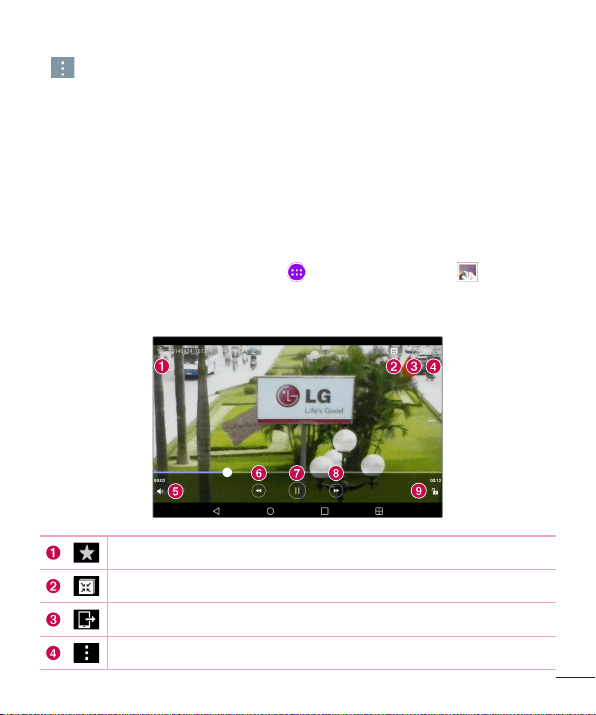
Touchtoaddthevideotoyourfavorites.
TouchaccessQSlideanddisplaythevideoinsmallwindow.
TouchtoshareyourvideoviatheSmartSharefunction.
Touchtoaccessmoreoptions.
58
Touchtoadjustthevolume.
Touchandholdtorewindin3secondincrements.Taponceto
rewind10seconds.
Touchtopausevideoplayback.
Touchandholdtofast-forwardin3secondincrements.Tap
oncetofast-forward10seconds.
Touchtolock/unlockavideoscreen.
Tochangethevolumewhilewatchingavideo,presstheVolumeKeysonthe
rightsideofthetablet.
TapGallery> (intheupperleftcornerofthetitlebar)>Videos,
thentouchandholdavideointhelisttoaccessthefollowingoptions:
Share,Delete,Trim,RenameandDetails.
TIP!Whilewatchingavideo,slideupanddownalongtheleftsideofthe
screentoadjustthescreenbrightness.Slideupanddownalongtheright
sideofthescreentoadjustthevolume.
Music
Yourtablethasamusicplayerthatletsyouplayallyourfavoritetracks.To
accessthemusicplayer,fromtheHomescreen,tapApps >Appstab>
Music .
Transfer music using Media device (MTP) mode
1 ConnectthetablettoyourPCusingtheUSBcable.
2 SelecttheMedia device (MTP)option.Yourtabletwillappearasanother
harddriveonyourcomputer.Clickonthedrivetoviewit.Copythefiles
fromyourPCtothedrivefolder.
59
Playing a song
1 FromtheHomescreen,tapApps >Appstab>Music .
2 TouchtheSongstab.
3 Selectthesongyouwanttoplay.
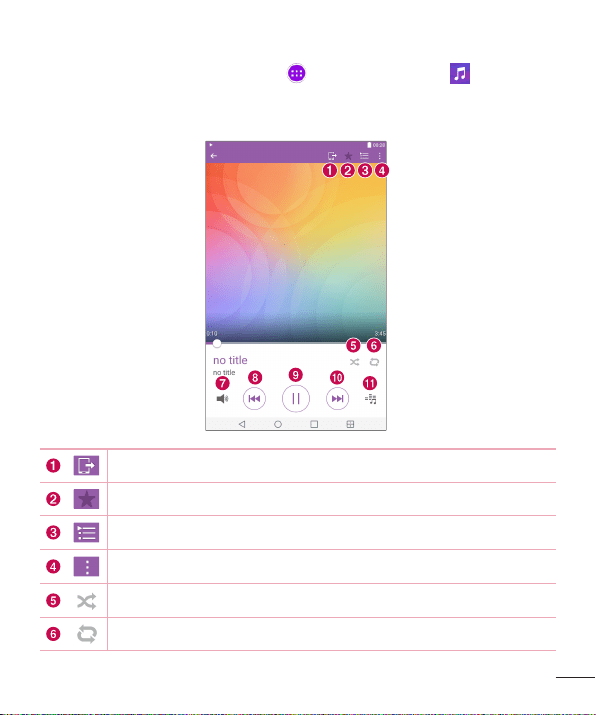
TouchtoshareyourmusicviatheSmartSharefunction.
Touchtosetthecurrentsongasafavorite.
TouchtoseetheNowplayingplaylist.
Touchtoaccessmoreoptions.
Touchtosetshufflemode.
Touchtosetrepeatmode.
60
Touchtomanagethemusicvolume.
Touchtogobacktothebeginningofthesong.Touchtwiceto
returntotheprevioussong.Touchandholdtorewind3seconds.
Touchtopauseplayback.
Touchtoskiptothenexttrackonthealbumorintheplaylist.
Touchandholdtofast-forward3seconds.
Touchtosettheaudioeffect.
Tochangethevolumewhilelisteningtomusic,presstheVolumeKeyson
therightsideofthetablet.
Touchandholdanysonginthelisttoaccessthefollowingoptions:
Play,Add to playlist,Delete, Share,DetailsandSearch.
NOTE:
•Somefileformatsarenotsupported,dependingonthedevicesoftware.
•Ifthefilesizeexceedstheavailablememory,anerrorcanoccurwhen
youopenfiles.
•Musicfilecopyrightsmaybeprotectedbyinternationaltreatiesand
nationalcopyrightlaws.Therefore,itmaybenecessarytoobtain
permissionoralicencetoreproduceorcopymusic.Insomecountries,
nationallawsprohibitprivatecopyingofcopyrightedmaterial.Before
downloadingorcopyingthefile,checkthenationallawsoftherelevant
countryconcerningtheuseofsuchmaterial.
61
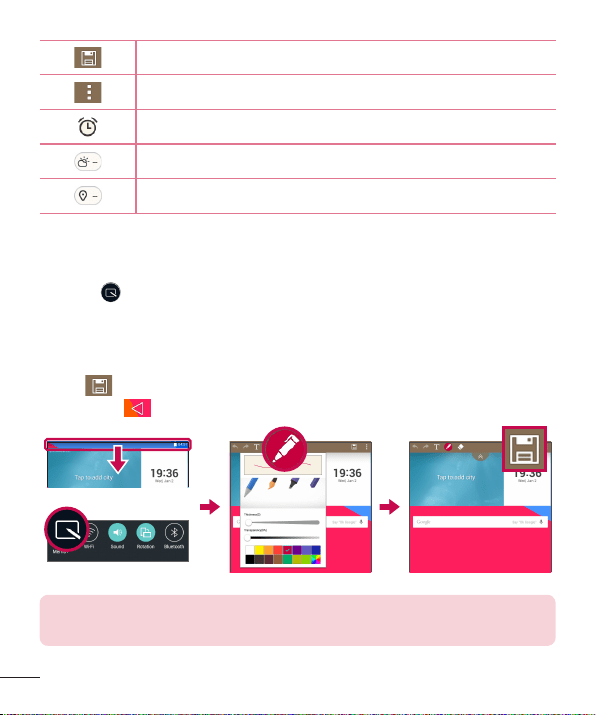
QuickMemo+
TheQuickMemo+featureallowsyoutocreatememosandcapturescreen
shots.Capturescreens,drawonthem,andsharethemwithfamilyand
friendswithQuickMemo+.
Creating a memo
1 FromtheHomescreen,tapQuickMemo+ ,thentap tocreatea
newmemo.
2 Youcanedittextsbytypingwordsdirectlyorselectthepentypeandcolor
youwanttouseandentertextbyhandwriting.
3 Addareminderbytouching tosettheremindernotificationforthe
event.
4 Addweatherandlocationinformationtoyourmemoifadatanetworkis
available.
Using the QuickMemo+ options
ThefollowingoptionsareavailableintheQuickMemo+toolbaratthetopof
thescreen.
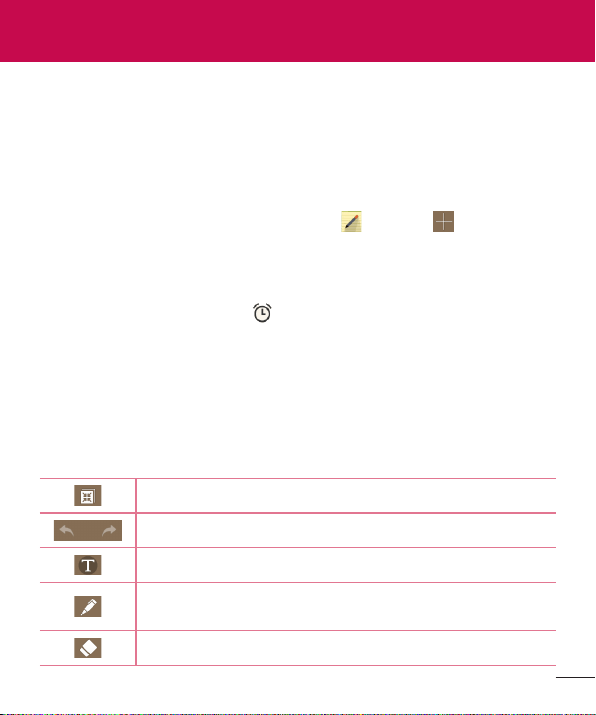
TouchtoopenthememoinQSlide.
Allowsyoutoundoandredopreviousactions.
Allowsyoutoeditthetext,itscoloranditsalignment.
Allowsyoutoentertextbyhandwriting.Youcanselectthe
typeofpentouseanditsthickness,transparency,andcolor.
Erasespeneditsyou'vemadetothememo.
Tools
62
SavesthememoinQuickMemo+.
Touchtoaccessmoreoptions.
Allowsyoutosetaremindernotificationforanevent.
Allowsyoutoinsertweatherinformationintothememo.
AllowsyoutoaddlocationinformationusingGPS.
Capturing a screen shot for your QuickMemo
1 ToaccesstheQuickMemo+feature,slidetheStatusBardownwardsand
touch .
OR
PressbothoftheVolume Keysatthesametimeforonesecond.
2 Selectthedesiredmenuoptionfromthetoolbarandcreateamemo.
3 Tap tosavethememo.ToexitQuickMemo+atanytime,tapthe
Back Key .
NOTE:PleaseuseafingertipwhileusingtheQuickMemo+.Donotuse
yourfingernail.
63
QuickRemote
QuickRemoteturnsyourtabletintoaUniversalRemoteforyourhomeTVor
cablebox.
NOTE:
•QuickRemotemaynotbeavailableforsomedevicesandareas.
•IfQuickRemoteisnotavailable,checktheUpdateCenter
.
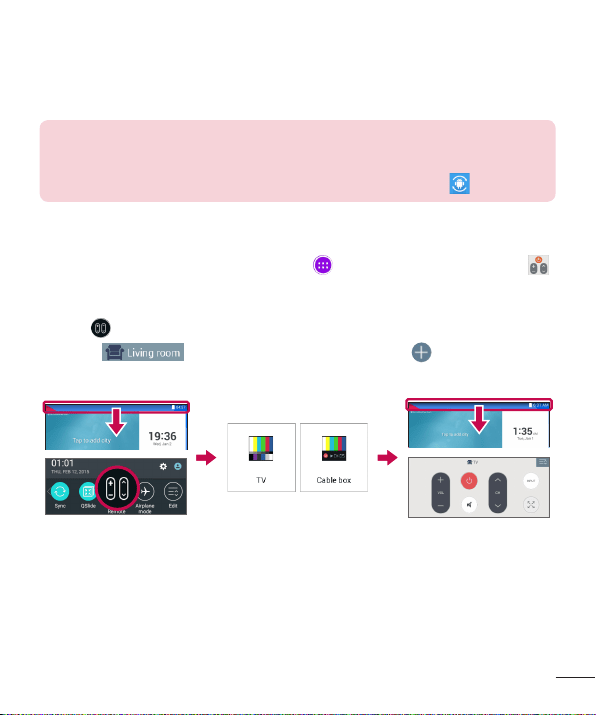
To open and configure QuickRemote
1 FromtheHomescreen,taptheApps >Appstab>QuickRemote .
YoucanalsoperformtheinitialsetupofyourQuickRemotefromthe
NotificationsPanel.SwipetheStatusBardownward,taptheQuickRemote
icon ,thentapADD REMOTE.
2 Touch toselectaroomtypeandtouch toaddthe
device.
3 Selectthetypeandbrandofdevice,thenfollowtheon-screeninstructions
toconfigurethedevice(s).

64
NOTE:TheQuickRemoteoperatesthesamewayasanordinaryinfrared
(IR)remotecontrolinyourregionorcountry.Becarefulnottocoverthe
infraredsensoratthetopofthetabletwhenyouusetheQuickRemote
function.Thisfunctionmaynotbesupporteddependingonthemodel,
themanufacturerorservicecompany.
Using QuickRemote
1 OpenQuickRemote andchoosetheroomwhereyouconfiguredthe
remote.
2 Selecttheremoteyouwantbytappingitstype/nameontheQuickRemote
baralongtheleftsideofthescreen.
3 Tapthebuttonsonthedisplayedremote.
NOTE:WhenaddingtheTVremotecontrol,QuickRemotecanusethe
INPUTbuttontoconfigureappropriateremotecontrol.Whenconfiguring
theINPUTbutton,theTVinputsourcecanbechanged.Toresetthe
TVinputsource,taptheINPUTbuttononQuickRemoteseveraltimes
(dependingonthenumberofdevicesconnectedtotheTV).
QuickRemote options
ToaccesstheQuickRemoteoptionsmenu,taptheMenu icon toselect
thedesiredoption.
NOTE:Whileplayingmusicinthebackground,pressinganyQuickRemote
buttonwillmutethesoundforasecond.
65
Clock
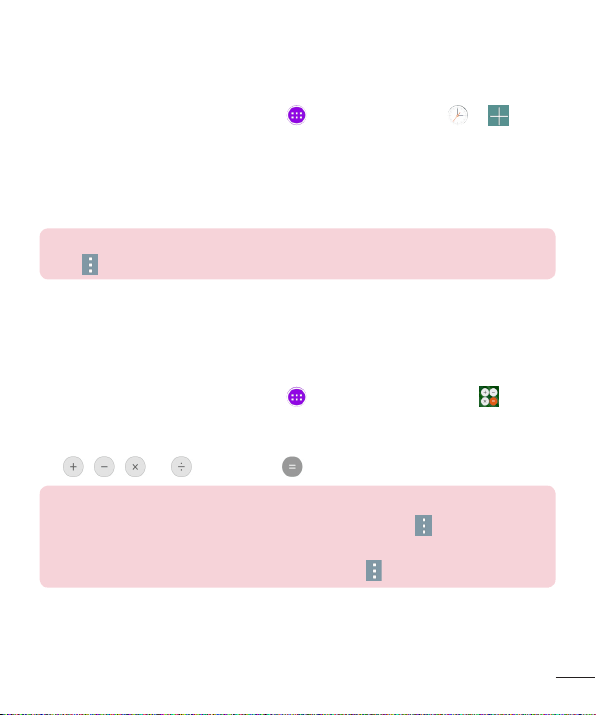
Setting your alarm
1 FromtheHomescreen,tapApps >Appstab>Clock > .
2 Setthedesiredalarmtime.
3 SetRepeat,Snooze duration,Alarm with vibration,Alarm sound,Alarm
volume,Auto app starter,Puzzle lockandMemo.
4 TouchSave.
NOTE:Tochangealarmsettingsinthealarmlistscreen,touchtheMenu
icon
andselectSettings.
Calculator
Using your calculator
1 FromtheHomescreen,tapApps >Appstab>Calculator .
2 Tapthenumberkeystoenternumbers.
3 Forsimplecalculations,tapthefunctionyouwanttoperform
( , , or )followedby .
NOTE:
•Formorecomplexcalculations,touchtheMenu icon
,select
Scientific calculator,thenchoosethedesiredfunction.
•Toviewthecalculationhistory,tapMenu icon
>Calculation history.
66
Calendar
Eventsfromeachaccountyou’veaddedtoyourtabletandconfiguredto
synchronizecalendarsisdisplayedinyourCalendar.
Adding an event to your calendar
1 FromtheHomescreen,tapApps >Appstab>Calendar .
2 Tapthemenuatthetopleftcornertochangethecalendarview(Day,
Week,Month,Year,Agenda).
3 Tapthedateyouwishtoaddaneventtoandtap .
4 TouchtheEvent namefieldandentertheeventname.
5 TouchtheLocationfieldandenterthelocation.Checkthedateandenter
thetimeyouwishyoureventtostartandfinish.
6 Ifyouwishtoaddanotetoyourevent,touchtheDescriptionfieldand
enterthedetails.
7 Ifyouwishtorepeatthealarm,setREPEATandsetREMINDERS,if
necessary.
8 TouchSavetosavetheeventinthecalendar.
NOTE:Touchandholdaspotonthecalendartoquicklysaveacalendar
eventonthatdate.Simplyentertheeventnameandtime,thentapSave.
YoucantapDetailsandentermoreinformation,orupdatetheeventwith
additionaldetailslater.
To change your calendar view
Nomatterwhereyou’reintheCalendarapp,youcaneasilyswitchcalendar
views.Simplytap intheupperleftcornerofthetitlebar,orontheleft
sideofthescreenswipeyourfingerfromlefttorighttodisplayamenuof
calendarviews.TapDay,Week,Month,Year ,orAgenda.
67
Tasks
TheTasksappcanbesynchronizedwithyourMSExchangeaccount.You
cancreateandmanageyourtasksusingyourtabletorfromMSOutlookor
MSOfficeOutlookWebAccess.
1 FromtheHomescreen,tapApps >Tasks .
2 TaptheAddtaskicon (intheupper-rightcornerofthescreen).
3 EntertheSubject,START DATE,DUE DATE,DESCRIPTION,REPEATand
REMINDERasnecessary.
4 TapSave.
File Manager
TheFileManagerapplicationallowsyoutomanagefilesinyourinternal/
externalstorage.
FileManagermakesiteasytoviewandmanageyourfiles.Simplytapafile
type(Allfiles,Musicfiles,Imagefiles,Videofiles,Documentfiles,orCloud
files),thentaponthenecessaryfolderstofindyourfiles.
To open the File Manager application
•FromtheHomescreen,tapApps >Appstab>File Manager .
File Manager Options
OpentheFile Managerapp>All files>Internal storagetoaccesstothe
followingoptions(atthetopofthescreen):
AllowsyoutoopenFileManagerinaQSlidewindow.
Allowsyoutosearchforyourfilesorinformation.
Allowsyoutocreateanewfolder.
68
Allowsyoutomovefilesandfolderstoanotherlocation.
Allowsyoutocopyfilesandfolderstoanotherlocation.
Allowsyoutodeletefilesandfolders.
Allowsyoutoaccessmoreoptions.
Voice Recorder
Usethevoicerecordertorecordvoicememosorotheraudiofiles.
Recording a sound or voice
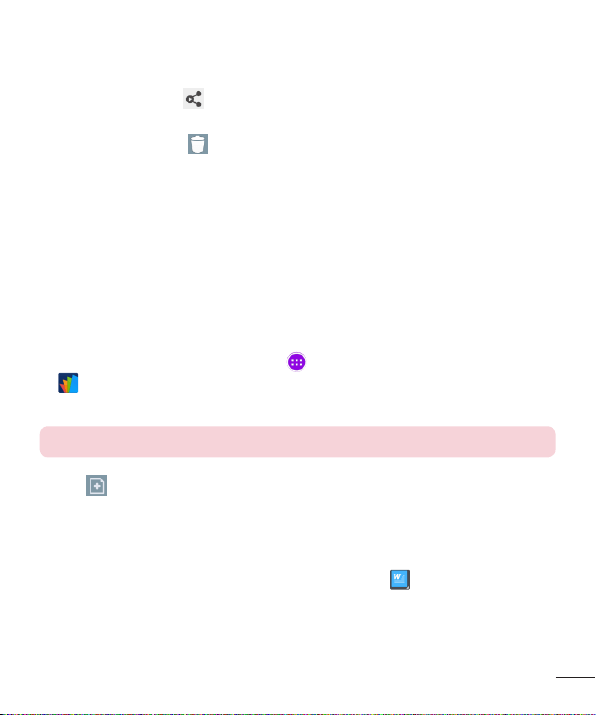
•FromtheHomescreen,tapApps >Appstab>Voice Recorder .
Touchtobeginrecording.
Touchtoviewalistofyour
recordings.
Touchtoselectwhereto
saveyourrecording.
Touchtoendthe
recording.
NOTE:Theavailablerecordingtimemaydifferfromactualrecordingtime.
69
Managing your Voice memos
FromtheVoiceRecorderlistscreen:
•TaptheShareicon tosharethevoicememousingtheavailable
choices.
•TaptheDeleteicon toselectthevoicememo(s)youwanttodelete.
•TouchandholdavoicememotoopenacontextmemotoselectShare,
Delete,Rename,Trim,orDetails.
POLARIS Office 5
POLARISOffice5isaprofessionalmobileofficesolutionthatletsusers
convenientlyviewvarioustypesofofficedocuments,includingWord,Excel
andPowerPointfiles,anywhereoranytime,usingtheirmobiledevices.
To create a new document
1 FromtheHomescreen,tapApps >Appstab>POLARIS Office 5
.
2 RegisteryouremailaddressontheRegistrationpage.
NOTE:YoucantapSkiptoignoretheregistrationinformation.
3 Tap tostartanewdocument.
4 Tapadocumenttypefromthedrop-downlist,thenchooseatemplate.
5 Entercontentsinthedocumentusingthetoolsatthetopofthescreen
andtheon-screenkeyboard.
6 Whenyou'redoneworkingonthedocument,tap (inthetopleftcorner
ofthescreen),thentapSave(orSave astoenteranewdocumentname)
tosave.
7 EnterthedocumentnameandtouchSave.
70
To view and edit a document on your device
Youcannoweasilyviewandeditawidevarietyoffiletypes,including
MicrosoftOfficedocumentsandAdobePDF,rightontheirmobiledevices.
1 OpenPOLARIS Office 5andsearchforadocument.
2 Touchthedocumentthatyouwanttovieworedit.
WhenviewingdocumentsusingPOLARISOffice5,theobjectsandlayout
remainthesameasintheoriginaldocuments.
3 Toeditthedocument,tap .
Google+
UsetheGoogle+apptostayconnectedwithpeopleviaGoogle’ssocial
networkservice.
FromtheHomescreen,tapApps >Appstab>Google >Google+
.
NOTE:Thisapplicationmaynotbeavailabledependingontheregionor
serviceprovider.
LG SmartWorld
LGSmartWorldoffersanassortmentofexcitingcontent–fonts,themes,
games,applications.
How to Get to LG SmartWorld from Your Tablet
1 Tap >Apps >Appstab>SmartWorld toaccess
LGSmartWorld.
2 SelectyourcountryandtapStart LG SmartWorld.
3 Downloadthecontentyouwant.
71
•DatafeesmaybechargedwhenaccessingLGSmartWorldusingyour
mobilenetwork.
•LGSmartWorldmaynotbeavailableforallcarriersorinallcountries.
NOTE: What if there is no icon?
1 UsingamobileWebbrowser,accessLGSmartWorld(www.lgworld.com)
andselectyourcountry.
2 DownloadtheLGSmartWorldApp.
3 Runandinstallthedownloadedfile.
4 AccessLGSmartWorldbytappingthe
icon.
Special benefit only in LG SmartWorld
1 LGSmartWorldallowsyoutopersonalizeyourphonewithcustomized
homethemes,keyboardthemes,andfonts(Thisserviceisonly
availabletospecificdevices.PleasecheckontheLGSmartWorld
websiteifyourdeviceissupported).
2 TakeadvantageofLGSmartWorld'spromotions.

72
Browser
UsethisapplicationtobrowsetheInternet.Browsergivesyouafast,full-color
worldofgames,music,news,sports,entertainmentandmuchmore,righton
yourtabletwhereveryouareandwhateveryouenjoy.
FromtheHomescreen,tapApps >Appstab>Browser .
TaptorunQSlide.
Taptogobackonepage.
Taptogoforwardonepage,tothepageyouconnectedtoafterthe
currentone.Thisistheoppositeofwhathappenswhenyoutouch
theBack Key ,whichtakesyoutothepreviouspage.
Taptorefreshorstopthecurrentpage.
TaptogototheHomepage.
Taptoaccessyourbookmarks.
Touchtoaccessmoreoptions.
Opening a page
•Toopenanewpage,tap atthetopofthebrowser.
•Togotoanotherwebpage,tapatabatthetopofthescreentoviewthe
page.
The Web
73
Bookmarks
Toopenabookmarkedwebpage,tap onthebrowsertoolbarandselect
one.
History
Tap onthebrowsertoolbarandselecttheHistorytabtoopenaweb
pagefromthelistofrecently-visitedwebpages.Toclearthehistory,tap
toclearallhistory.
Using Reader mode
Yourtabletcandisplaysimplifiedwebpagesforeasierreading.
Viewnewsorblogpostsandotherarticlepageseasilywithnodistractions–
withReadermode,youcanreadaclutter-freepage.
Tap ontheURLwebaddressbartoactivateReadermode.
Using QSlide
UsethisfeaturetoaccesstheInternetwithoutclosingthecurrent
application.
Whileviewingcontentonthebrowser,tap .Youcanthenbrowseother
informationonyourtablet.Toviewthebrowserinfullscreen,tap .
Download files
UsetheDownloadsapptoseewhatfileshavebeendownloaded.
FromtheHomescreen,tapApps >Appstab>Downloads .
Chrome
UseChrometosearchforinformationandbrowsewebpages.
FromtheHomescreen,tapApps >Appstab>Chrome .
74
NOTE:Thisapplicationmaynotbeavailable,dependingonyourregion
andserviceprovider.
Viewing web pages
Taptheaddressfield(atthetopofthescreen),enterawebaddressor
searchcriteria,andtap onthekeyboard.
Opening a page
•Togotoanewpage,tap atthetopofthebrowser.
•Togotoanotherwebpage,taptheatabatthetopofthescreentoselect
thepage.
Searching the web by voice
Taptheaddressfield,tap ,speakakeywordandselectoneofthe
suggestedkeywordsthatappear.
NOTE:Thisfeaturemaynotbeavailabledependingontheregionor
serviceprovider.
Syncing with other devices
SyncopentabsandbookmarkstousewithChromeonanotherdevicewhen
youareloggedinwiththesameGoogleaccount.
Toviewopentabsonotherdevices,taptheMenu icon >Recent tabs.
YoumustbesignedintothesameGoogleaccountonalldevices.Selecta
webpagetoopen.

75
Adding and viewing bookmarks
Toaddbookmarks,tap intheURLbar.
Toopenabookmarkedwebpage,taptheMenu icon >Bookmarksand
selectthedesiredpage.
Chrome Options menu
TaptheMenu icon toaccessthefollowingoptions.
•New tab–Taptoopenanewwebpagetab.
•New incognito tab–Taptoopenanewincognitotab.
•Bookmarks–Displaysyourbookmarkedwebpages.
•Recent tabs–Displaysyouropenwebpagesonotherdevices.
•History–Displaysyourbrowsingdata(webpagesyou'vevisited).
•Share...–Allowsyoutosharethewebpage.
•Print...–Taptoprintthewebpage.Choosetoautomaticallyfindaprinter
onyournetwork,ormanuallyenteronetouse.
•Find in page–Allowsyoutosearchfortextonthecurrentwebpage.
•Add to homescreen–Allowsyoutoaddashortcuttothecurrentpageon
yourHomescreen.
•Request desktop site–Checkmarktoaccessthedesktopsitewhenyou
viewwebpagesonyourtablet.
•Settings–AllowsyoutochangethesettingsspecifictotheChromeapp.
•Help & feedback–DisplaysinformationaboutusingtheChromeappon
yourtabletandallowsyoutoprovidefeedbacktoChromedevelopers.
76
Access the Settings menu
1 FromtheHomescreen,tapApps >Appstab>Settings .
OR
FromtheHomescreen,touchandholdtheRecent Apps Key >
System settings.
2 Selectasettingcategoryandsetthedesiredoption.
WIRELESS NETWORKS
Airplane mode
AllowsyoutosetAirplanemode.ActivatingAirplanemodedisablesall
wirelessconnections.
Wi-Fi
Wi-Fi–TurnsonWi-FitoconnecttoavailableWi-Finetworks.
AlistofallavailableWi-Finetworkswillbedisplayed.Taponetoconnectto
it.
NOTE:TapSearchtoscanforavailableWi-Finetworks.
TaptheMenu icon intheWi-Fimenutoaccessthefollowingoptions.
Add Wi-Fi–AllowsyoutomanuallyenteranewWi-Finetwork.
Saved Wi-Fi–AllowsyoutoviewsavedWi-Finetworks.
Advanced Wi-Fi–AccessestheadvancedWi-Fisettings.
Interactive tutorial–DisplayssomeusefultutorialsfortheWi-Fifunction.
Settings
77
TIP! How to obtain the MAC address
TosetupaconnectioninsomewirelessnetworkswithMACfilters,you
mayneedtoentertheMACaddressofyourtabletintherouter.
YoucanfindtheMACaddressinthefollowinguserinterface:Fromthe
Homescreen,tapApps
>Settings >Wi-Fi>Menu icon >
Advanced Wi-Fi>MAC address.
Bluetooth
TurntheBluetoothwirelessfeatureonorofftouseBluetooth.Turning
BluetoothonallowsyoutopairandconnecttootherBluetoothdevices.
TaptheMenu icon intheBluetoothmenutoaccessthefollowingoptions.
Edit tablet name–Changesyourtabletnameforeasyidentificationwhen
pairingandconnecting.Enteryournewtabletname,thentapSave.
Visibility timeout–SetstheamountoftimeotherBluetoothdevicescan
seeyourtabletforpairingandconnection.Choosefrom2min,5min,1h,
andNever time out.
Show received files–DisplaysalistofyourBluetoothreceivedfiles.
Interactive tutorial–DisplayssomeusefultutorialsaboutBluetoothfeatures.
Help–DisplayshelpinformationabouttheBluetoothfeature.
Data usage
Displaysthedatausageduringthechosenperiodsoftime.Tapanappfrom
thelisttoviewtheapp'sdatausage.
More...
Allowsyoutosetadditionalwirelessandnetworkssettings.
Miracast–Allowsyoutowirelesslymirroryourtabletscreenandsoundonto
aMiracastdongleorTV.

78
SmartShare Beam–Allowsyoutoreceivemultimediacontentvia
SmartShareBeamfromLGphonesortablets.
LG PC Suite–AllowsWi-Ficonnectiontotransfermusicandimages
betweenacomputerandthetablet.
Media server–Allowstosharemediacontentswithnearbydevicesvia
DLNA.
VPN–DisplaysthelistofVirtualPrivateNetworks(VPNs)thatyou've
previouslyconfigured.AllowsyoutoadddifferenttypesofVPNs.
NOTE:YoumustsetalockscreenPIN,PasswordorPatternbeforeyou
canusecredentialstorage.
DEVICE
Sound
Sound profile–AllowsyoutosetthesoundprofiletoSound,Vibrate onlyor
Do not disturb.
Volume–ManagethevolumeforNotifications sound,Touch feedback &
system,andMusic,video,games&other media.
Vibration strength–Allowsyoutosetthevibratestrengthfornotifications
andtouchfeedback.
Notification sound–Allowsyoutosetyourdefaultnotificationringtone.
Do not disturb–Allowsyoutosetaschedulewhentopreventinterruptions
fromnotifications.Youcansettoallowcertainfeaturestointerruptwhen
Priorityonlyisset.
Lock screen–Allowsyoutochooseifyouwanttoshoworhidenotifications
onthelockscreen.

79
Apps–Allowsyoutopreventappsfromdisplayingnotificationsorsetapps
toshownotificationswithprioritywhenDonotdisturbissettoPriorityonly.
Touch sound–Allowsyoutosetyourtablettoplayasoundwhenyoutouch
buttons,iconsandotheronscreenitemsthatreacttoyourtouch.
Screen lock sound–Allowsyoutosetyourtablettoplayasoundwhen
lockingandunlockingthescreen.
Vibrate on tap–Allowsyoutosetthevibrationfeedbackwhenthetablet
screenistouched.
Display
Home screen
Theme–Setsthescreenthemeforyourdevice.
Wallpaper–SetsthewallpapertouseonyourHomescreen.
Screen swipe effect–Setstheeffectwhenyouswipetochangescreens.
Allow Home screen looping–CheckmarktosettheHomescreensto
scrollcontinuously,eliminatingtheneedtoscrollbackintheopposite
directionwhenyoureachoneend.
Home backup & restore–Allowsyoutobackupandrestoreappand
widgetconfigurationsandthemes.
Help–DisplaysinformationabouttheHomescreen.
Lock screen
Select screen lock–Setascreenlocktypetosecureyourtablet.

80
NOTE:AfterupgradingtoLollipopOS,yourscreenlockmaynotbe
availableexceptforPattern,PINandPassword.
Inthiscase,gotoApps
>Settings >Security>Clear
credentialstodeletethesecuritycertificates,andthensetupascreen
lock.
Becarefulwhenyouclearcredentialsbecauseallofthesecurity
certificatesyouhaveinstalledwillbedeleted.
Smart Lock–Setstokeepyourtabletunlockedwhenyouhaveatrusted
Bluetoothdeviceconnectedtoit,whenit'sinafamiliarlocationlikeyour
homeorwork,orwhenitrecognizesyourface.
Screen swipe effect–Setsthescreenswipeeffectoptions.
Wallpaper–SetsyourLockscreenwallpaper.SelectitfromGalleryor
Wallpaper gallery.
Shortcuts–AllowsyoutochangetheshortcutsontheSwipeLockscreen.
Owner info–AllowsyoutoentercontactinfotobedisplayedontheLock
screenincasethetabletislost.
Lock timer–Setstheamountoftimebeforethescreenautomatically
locksafterthescreenhastimed-out.
Power button instantly locks–Checkmarktoinstantlylockthescreen
whenthePower/LockKeyispressed.ThissettingoverridestheSecurity
locktimersetting.
Brightness–Adjustthescreenbrightness.TouchNight brightnesstosetthe
brightnessto0%automaticallybetweenthehoursof12:00am-6:00am.
Screen timeout–Setthetimedelaybeforethescreenautomaticallyturns
off.
Screen-off effect–Setsthescreen-offeffectusedwhenthescreenturns
off.

81
Auto-rotate screen–Settoswitchorientationautomaticallywhenyourotate
thetablet.
Daydream–TaptheDaydreamswitch totoggleitOnorOff.Onallows
thesetscreensavertobedisplayedwhenthetabletissleepingwhiledocked
and/orcharging.ChoosefromClockandGoogle Photos.
NOTE:Chargingmightbeslowwhilethescreensaverison.
Font type–Changethetypeofdisplayfont.
Font size–Changethesizeofthedisplayfont.
Smart screen–Keepsthescreenonwhenthedevicedetectsyoureyes
lookingatthescreen.
Home touch buttons–AllowsyoutosetwhichHometouchbuttonsare
displayedandtheirpositiononthebar.Youcanalsoselectthecolorandthe
background.
Motion sensor calibration–Allowsyoutoimprovetheaccuracyofthetilt
andspeedofthesensor.
Storage
INTERNAL STORAGE–Displaysthetotalamountofspaceinthedevice’s
memoryandlistswhattypeofdataisusingupspace.
SD CARD–DisplaysthetotalamountofmemoryspaceonthemicroSD
card.
Mount/Unmount SD card–MountsandunmountsthemicroSDcard
fromyourtabletsothatyoucanaccessthedatastoredinit,formatthe
card,orsafelyremoveit.Thissettingisdimmedifthere’snomicroSD
cardinstalled,ifyou’vealreadyunmountedit,orifyou’vemountedthe
microSDcardonyourcomputer.

82
Erase SD card–PermanentlyeraseseverythingonthemicroSDcardand
preparesitforusewithyourtablet.
Battery
BATTERY INFORMATION–Seehowmuchbatterypowerisusedfordevice
activities.Thebatteryleveldisplaysinapercentage.Theremainingtimeof
useisalsodisplayed.
Battery usage–Displaysbatteryusage.
Battery percentage on status bar –Displaysthebatterypercentageonthe
StatusBar.
Battery saver–Managethebatteryforthepowersavingitems.Tapthe
switch toturnthisfeatureon.TapBattery savertosetthebatterylevel
atwhichyouwantBatterysavertoturnon.ChoosefromImmediately, 5%
batteryand15% battery.
Help–TouchtoaccesssometipsforPowersaver.
Smart cleaning
Youcanmanagetheunusedapps,savedfilesortemporaryinternetfiles.
Apps
Displaythelistofapplicationssuchascurrentlyrunningordownloaded.
Swipeleftandrighttoviewoneofthethreetabsacrossthetopofthe
screentoviewdetailedinformationforDOWNLOADED,ON SD CARD,
RUNNING,andALLapplications.
Tapanentrytoviewmoreinformation,tapForce stop(orStop),thenOKto
stopitfromrunning.
Dual window
Split view–AllowsthedevicetoautomaticallyopenDualwindowwhenyou
tapalinkonthefullscreenortapane-mailattachment(imagesonly).

83
Help –DisplayshelpinformationaboutusingtheDualwindowfeature.
PERSONAL
Cloud
TapAdd accounttoaddacloudaccount.Youaccessyourcloudaccounts
fromthismenu.TaptheMenuicon touploadfiles.
Users
Thismenudisplaysthecurrentusersyou'vecreated.
Add users when tablet locked –Allowsyoutoaddanewuserwhenyour
tabletislocked.
Add user–AllowsyoutoaddnewaccountforthetabletandusetheMulti-
userfeature.
Location
Mode
• High accuracy (GPS and networks)–UseGPSandWi-Finetworksto
estimatelocation.
• Battery saving (Networks only)–UseWi-Finetworkstoestimate
location.
• Device sensors only (GPS only)–UseGPStopinpointyourlocation.
RECENT LOCATION REQUESTS–Displaysappsthathaverecently
requestedyourlocationinformation.
Camera–Allowsthedevicetotagphotosandvideoswiththeirlocations.
Anti-flicker –Allowsyoutoadjustthefrequencytopreventthecamera
previewscreenfromflickering.
Google Location Reporting–AllowsyoutoviewyourGooglelocation
settings.

84
Security
Encrypt tablet–Allowsyoutoencryptdataonthetabletforsecurity.Youwill
berequiredtoenteraPINorpasswordtodecryptyourtableteachtimeyou
poweriton.
Encrypt SD card storage–AllowsyoutoencryptdataontheMicroSDfor
security.
Password typing visible–Showsthelastcharacterofthehiddenpassword
asyoutype.
Tablet administrators–Viewordeactivatetabletadministrators.
Unknown sources–Allowsinstallationofappsfromnon-PlayStore
applications.
Verify apps–Disalloworwarnbeforeinstallationofappsthatmaycause
harm.
Storage type–Displaysthestoragetypeforcertificates.
Trusted credentials–DisplaystrustedCAcertificates.
Install from storage–Choosetoinstallencryptedcertificates.
Clear credentials–Removeallcertificates.
Trust agents–ViewordeactivateTrustagents.
Screen pin–Thisfeatureallowsyoutolockyourdevicesothatthecurrent
usercanonlyaccessthepinnedapp.Thisisusefulforuserswithchildren.
App usage access–Allowstoviewusageinfoforyourapps.
Accounts & sync
Permitsapplicationstosynchronizedatainthebackground,whetheror
notyouareactivelyworkinginthem.DeactivatingAuto-sync datacansave
batterypowerandlower(butnoteliminate)datausage.

85
Language & input
UsetheLanguage&inputsettingstoselectthelanguageforthetexton
yourtabletandtoconfiguretheon-screenkeyboard,includingwordsyou've
addedtoitsdictionary.
Backup & reset
Back up my data–Settobackupyoursettingsandapplicationdatatothe
Googleserver.
Backup account–Settheaccounttowhichyouwanttobackupdatato.
Automatic restore–Settorestoreyoursettingsandapplicationdatawhen
theapplicationsarereinstalledonyourdevice.
LG Backup service–Backsupallinformationonthedeviceandrestores
itintheeventofdatalossorreplacement.Refertopage89formore
information.
Factory data reset–Resetyoursettingstothefactorydefaultvaluesand
deleteallyourdata.Ifyouresetthetabletthisway,youarepromptedto
re-enterthesameinformationaswhenyoufirststartedAndroid.
SYSTEM
Shortcut Key
AllowsyoutoturntheShortcutkeysonandoff.
Date & time
UseDate×ettingstosethowdateswillbedisplayed.Youcanalso
usethesesettingstosetyourowntimeandtimezoneratherthanobtaining
thecurrenttimefromthemobilenetwork.

86
Accessibility
UsetheAccessibilitysettingstoconfigureaccessibilityplug-insyouhave
installedonyourtablet.
NOTE:Requiresadditionalplug-instobecomeselectable.
TalkBack–AllowsyoutosetuptheTalkBackfunctionwhichassistspeople
withimpairedvisionbyprovidingverbalfeedback.TaptheTalkBackswitch
atthetoprightcornerofthescreentoturniton.TapSettingsatthe
bottomofthescreentoadjusttheTalkBacksettings.
Font size–Checkmarktoincreasethesizeofthetext.
Invert colors–Checkmarktoinvertthecolorsofthescreenandcontent.
Color adjustment–Setstoviewthescreenwithgreatercolorcontrast.Tap
theswitch toturniton.Thentapthescreenanddragacrossthe
screeninanydirectionuntilyouseethecolorcontrastyouwanttouse.
Touch zoom–Allowsyoutozoominandoutbytriple-tappingthescreen.
Screen shade–Dimsthescreen'sbacklight.
Accessibility shortcut–Activatethisfeaturetoallowyoutoquicklyenable
accessibilityfeaturesintwosteps.
Text-to-speech output–Setsthetext-to-speechpreferredengineand
speechratesetting.Alsoplaysashortdemonstrationofspeechsynthesis.
Thedefaultlanguagestatusisalsodisplayed.
Audio type–Setstheaudiotype.ChooseMonoorStereo.
Sound balance–Setstheaudioroute.Movethesliderontheslidebarto
setit.
Turn off all sounds–Turnsoffallsounds.
87
Captions–Allowstocustomizecaptionsettingsforthosewithhearing
impairments.Taptheswitch toturnthisfeatureon.Setthelanguage,
textsize,andcaptionstyleoptionsasdesired.
Touch feedback time–Setsthetouchandfeedbacktime.Choosefrom
Short,Medium,andLong.
Touch assistant–Showatouchboardwitheasyaccesstocommonactions.
Screen timeout–Setstheamountoftimebeforethescreenturnsoff.
Touch control areas–Taptheswitch toturnthisfeatureon.Allowsyou
tolimitthetouchcontroltoselectedareasofthescreen.PresstheVolume
Down Key andHome Key atthesametimetoactivateanddeactivate
thefeature.
Auto-rotate screen–Checkmarktoallowthedevicetorotatethescreen
dependingonthedeviceorientation(portraitorlandscape).
Password voice confirmation–Checkmarktohaveverbalconfirmationwhen
inputtingpasswords.
Accessibility settings shortcut–Setsquickandeasyaccesstoselected
featureswhenyoutriple-taptheHomeKey.
One-touch input–Eachfingertouchentersaletter/characterontheLG
keyboard.
Switch Access–Allowsyoutointeractwithyourdeviceusingoneormore
switchesthatworklikekeyboardkeys.Thismenucanbehelpfulforusers
withmobilitylimitationsthatpreventthemfrominteractingdirectlywiththe
yourdevice.
Quick Cover
Activatethismenutoturnthescreenonoroffautomaticallywhenusingthe
QuickCover.

88
Printing
Allowsyoutoprintthecontentofcertainscreens(suchaswebpages
displayedinChrome)toaprinterconnectedtothesameWi-Finetworkas
yourAndroiddevice.
About tablet
Thismenuallowsyoutomanageyoursoftwareupdatesandviewvarious
informationrelatingtoyourtablet.
Tablet name–Allowsyoutosetyourtabletname.
Update Center–Allowsyoutocheckforappandsoftwareupdates.
Battery–Allowsyoutoviewbatterystatus,batterylevel,andbatteryuse
information.
Hardware info–Allowsyoutoviewthemodelnumber,IPaddress,uptime,
CSN,Wi-FiMACaddressandBluetoothaddress.
Software info–AllowsyoutoviewAndroidversion,kernelversion,build
number,andsoftwareversion.
Legal info–AllowsyoutoviewlegaldocumentsforLGsoftware,open
sourcelicensesandGooglelegalinformation.
Patent information–DisplaysLGpatentinformation.

89
About backing up and restoring device data
Itisrecommendedthatyouregularlycreateandsaveabackupfileonthe
internalstorage,especiallybeforeupdatinganysoftware.Maintaininga
currentbackupfileinstoragememorymayallowyoutorecoverdevicedata
ifyourdeviceislost,stolen,orcorruptedbyanunforeseenissue.
ThisLGBackupapplicationissupportedbetweenLGsmartphonesand
tablets,othersoftwareoroperatingsystemversions.Asaresult,whenyou
buythenewLGsmartphonesandtablets,youcanbackupthecurrentdevice
datatoyournewdevice.
IfyouhavetheLGBackupapplicationpreloadedonyoursmartphonesand
tablets,youcanbackupandrestoremostofyourdata,includingdownloaded
andpre-installedapplications,bookmarks,calendarentries,contacts,home
screensettings,andsystemsettings.Youmayalso:
•Performamanualbackupofyourdevice.
•Restoreyourdevicedata.
Warning! Toprotectagainstanunexpectedpoweroffduringbackupor
restoreoperations,duetoinsufficientbatterypower,youshouldalways
keepyourbatteryfullycharged.
LG Backup

90
Backup your tablet data
1 FromtheHomescreen,tapApps >Settings >Backup & reset>
LG Backup Service>Backup.
2 OntheBackupLocationscreen,touchInternal storageorSD card,then
tapNext.
3 SelectthecheckboxfortheitemsyouwanttobackupandselectNext.
4 Readtheinformationpresentedonthescreen,thentapStart.
5 Whenallselectedfileshavebeenbackedup,youwillseethemessage
Back up completed.
Restoring tablet data
NOTE:Allfilesthatarestoredonyourtabletaredeletedbeforethe
backupfileisrestored.Makesuretocopythebackupfiletoanother
location.
1 FromtheHomescreen,tapApps >Settings >Backup & reset>
LG Backup Service>File restore & management.
2 OntheRestorescreen,selectabackupfilethatcontainsthedatayou
wishtorestore.
3 SelectthecheckboxnexttotheitemyouwishtorestoreandselectNext,
thentapStarttorestoreittoyourtablet.
NOTE:Pleasenotethatyourtabletdatawillbeoverwrittenwiththe
contentofyourbackup.
4 Ifthebackupfileisencrypted,typethepasswordthatyoucreatedto
encryptit.

91
5 Whenallselectedfileshavebeenrestored,thetabletwillautomaticallybe
restart.
NOTE:YoucansettheLock backup filesoptionwhencreatingabackup
toencryptyourbackupfilesforextraprotection.
OntheLGBackupmainscreen,touchtheMenu icon >Set password
andenterapasswordandhintincaseyouforgotyourpassword.Onceyou
havesetupapassword,youneedtoenteriteverytimeyouwanttodo
backup/restore.
92
Tablet software update
Thisfeatureallowsyoutoupdatethefirmwareofyourtablettothelatest
versionconvenientlyfromtheinternetwithouttheneedtovisitaservice
center.Formoreinformationonhowtousethisfunction,pleasevisit:
http://www.lg.com
Asthetabletfirmwareupdaterequirestheuser’sfullattentionforthe
durationoftheupdateprocess,pleasemakesuretocheckallinstructions
andnotesthatappearateachstepbeforeproceeding.Pleasenotethat
removingtheUSBcableorbatteryduringtheupgrademayseriously
damageyourtablet.
LG tablet software update via Over-the-Air (OTA)
Thisfeatureallowsyoutoupdatethefirmwareofyourtablettothenewer
versionconvenientlyviaOTAwithoutconnectingtheUSBdatacable.This
featureisonlyavailableifandwhenLGmakesthenewerversionofthe
firmwareavailableforyourdevice.First,youcancheckthesoftwareversion
onyourtablet:
FromtheHomescreen,tapApps >Settings >About tablet>
Software info.
Toperformthetabletsoftwareupdate,fromtheHomescreen,tapApps
>Settings >About tablet>Update Center>Software Update>Check
now for update.
NOTE:LGreservestherighttomakefirmwareupdatesavailableonly
forselectedmodelsatitsowndiscretionanddoesnotguaranteethe
availabilityofthenewerversionofthefirmwareforalltabletmodels.
Tablet software update

93
NOTE:Yourpersonaldata—includinginformationaboutyourGoogle
accountandanyotheraccounts,yoursystem/applicationdataand
settings,anydownloadedapplicationsandyourDRMlicence—might
belostintheprocessofupdatingyourdevice'ssoftware.Therefore,
LGrecommendsthatyoubackupyourpersonaldatabeforeupdating
yourtablet'ssoftware.LGdoesnottakeresponsibilityforanylossof
personaldata.
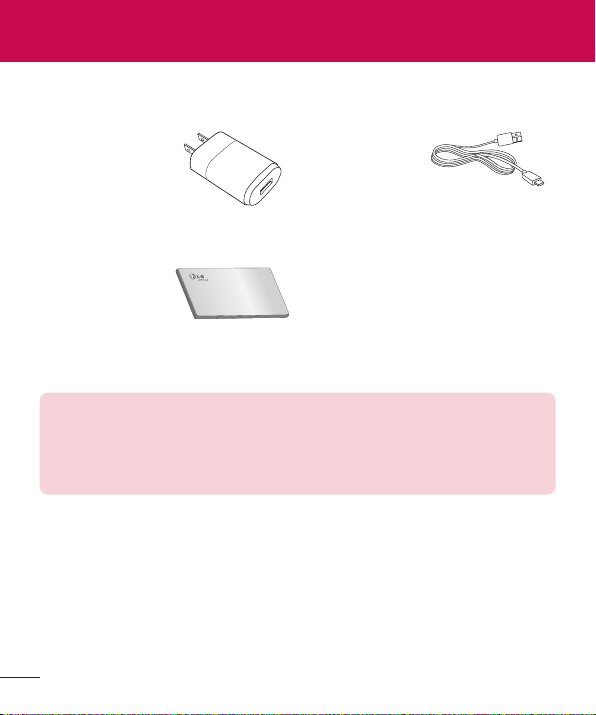
94
Theseaccessoriesareavailableforusewiththeyourtablet.(Items described
below may be optional.)
Travel adaptor USB cable
Quick Start Guide
NOTE:
•AlwaysusegenuineLGaccessories.Failuretodothismayvoidyour
warranty.
•Accessoriesmayvaryindifferentregions.
Accessories
95
Thischapterlistssomeproblemsyoumightencounterwhenusingyour
tablet.Someproblemsrequireyoutocallyourserviceprovider,butmostare
easytofixyourself.
Message Possible causes Possible corrective measures
No
applications
canbeset
Notsupportedby
serviceprovideror
registrationrequired.
Contactyourserviceprovider.
Charging
error
Batteryisnotcharged. Chargebattery.
Outsidetemperatureis
toohotorcold.
Makesuretabletischarging
atanormaltemperature.
Contactproblem
Checkthechargerandits
connectiontothetablet.
Novoltage
Plugthechargerintoa
differentsocket.
Chargerdefective Replacethecharger.
Wrongcharger
UseonlyoriginalLG
accessories.
Impossible
toreceive/
sendphotos
Memoryfull
Deletesomeimagesfrom
yourtablet.
Troubleshooting
96
Message Possible causes Possible corrective measures
Filesdonot
open
Unsupportedfile
format
Checkthesupportedfile
formats.
Nosound Vibrationmode
Checkthesettingsstatusin
thesoundmenutomakesure
youarenotinvibrationor
silentmode.
97
For Your Safety
Safety Information
Pleasereadandobservethefollowinginformationforsafeandproperuseof
yourtabletandtopreventdamage.
WARNING!ThisproductcontainschemicalsknowntotheStateof
Californiatocausecancerandbirthdefectsorreproductiveharm.
Wash hands after handling.
Caution:Violationoftheinstructionsmaycauseminororseriousdamage
totheproduct.
WARNING
Notice for Battery replacement
•Foryoursafety,donotremovethebatteryincorporatedintheproduct.
Ifyouneedtoreplacethebattery,takeittothenearestauthorized
LGElectronicsservicepointordealerforassistance.
•Li-IonBatteryisahazardouscomponentwhichcancauseinjury.
•Batteryreplacementbynon-qualifiedprofessionalcancausedamageto
yourdevice.
•Donotdisassembleoropencrush,bendordeform,punctureorshred.
•Repairsunderwarranty,atLG’soption,mayincludereplacementparts
orboardsthatareeitherneworreconditioned,providedthattheyhave
functionalityequaltothatofthepartsbeingreplaced.

98
•Donotmodifyorremanufacture,attempttoinsertforeignobjectsinto
thebattery,immerseorexposetowaterorotherliquids,exposetofire,
explosionorotherhazard.
•Onlyusethebatteryforthesystemforwhichitisspecified.
•Onlyusethebatterywithachargingsystemthathasbeenqualifiedwith
thesystemperthisstandard.Useofanunqualifiedbatteryorchargermay
presentariskoffire,explosion,leakage,orotherhazard.
•Donotshortcircuitabatteryorallowmetallicconductiveobjectsto
contactbatteryterminals.
•Replacethebatteryonlywithanotherbatterythathasbeenqualifiedwith
thesystemperthisstandard,IEEE-Std-1725-200x.Useofanunqualified
batterymaypresentariskoffire,explosion,leakageorotherhazard.
•Promptlydisposeofusedbatteriesinaccordancewithlocalregulations.
•Avoiddroppingthetablet.Ifthetabletisdropped,especiallyonahard
surface,andtheusersuspectsdamage,takeittoaservicecenterfor
inspection.
•Improperbatteryusemayresultinafire,explosionorotherhazard.
•ForthosehostdevicesthatutilizeaUSBportasachargingsource,
thehostdevice’susermanualshallincludeastatementthatthedevice
shallonlybeconnectedtoproductsthatbeartheUSB-IFlogoorhave
completedtheUSB-IFcomplianceprogram.
Charger and Adapter Safety
•Thechargerandadapterareintendedforindooruseonly.
•Insertthebatterypackchargerverticallyintothewallpowersocket.
•Unplugthepowercordandchargerduringlightningstormstoavoid
electricshockorfire.

99
•Usethecorrectadapterforyourtabletwhenusingthebatterypackcharger
abroad.
Battery Information and Care
•Pleasereadthemanualofproperinstallationandremovalofthebattery.
•Pleasereadthemanualofspecifiedchargeraboutchargingmethod.
•Donotdamagethepowercordbybending,twisting,orheating.Donot
usetheplugifitislooseasitmaycauseelectricshockorfire.
Donotplaceanyheavyitemsonthepowercord.Donotallowthepower
cordtobecrimpedasitmaycauseelectricshockorfire.
•Unplugthepowercordpriortocleaningyourtablet,andcleanthepower
plugpinwhenit’sdirty.Whenusingthepowerplug,ensurethatit’sfirmly
connected.Ifnot,itmaycauseexcessiveheatorfire.Ifyouputyourtablet
inapocketorbagwithoutcoveringthereceptacleofthetablet(power
plugpin),metallicarticles(suchasacoin,papercliporpen)mayshort-
circuitthetablet.Short-circuitoftheterminalmaydamagethebatteryand
causeanexplosion.Alwayscoverthereceptaclewhennotinuse.
•Rechargethebatteryafterlongperiodsofnon-usetomaximizebattery
life.Batterylifewillvaryduetousagepatternandenvironmentalconditions.
•Neverstoreyourtabletintemperaturelessthan-4°Forgreaterthan
122°F.
•Chargingtemperaturerangeisbetween32°Fand113°F.Donotcharge
thebatteryoutofrecommendedtemperaturerange.Chargingout
ofrecommendedrangemightcausethegeneratingheatorserious
damageofbattery.Andalso,itmightcausethedeteriorationofbattery’s
characteristicsandcyclelife.

100
•Donotuseorleavethedeviceundertheblazingsunorinheatedcar
bysunshine.Thedevicemaygenerateheat,smokeorflame.Andalso,it
mightcausethedeteriorationofbattery’scharacteristicsorcyclelife.
•Thebatterybackinthedevicehasprotectioncircuittoavoidthedanger.
Donotusenearplacesthatcangeneratestaticelectricitymorethan100V
whichcoulddamagetheprotectioncircuit.Damagedprotectioncircuits
maygeneratesmoke,ruptureorignite.
•Whenusingthedeviceforthefirsttime,ifitemitsabadsmell,yousee
rustonit,oranythingelseabnormal,donotusetheequipmentandbring
thebatterytotheshopwhichitwasbought.
•Keepdeviceawayfrombabiesandsmallchildren.Ifchildrenusethe
battery,theirparentsorlegalguardiansareresponsibleforsupervisingand
teachingthemaboutthesafehandlingofdeviceandhowtousebatteries
accordingtothemanualwithcare.
•Ifliquidfromthebatteryinthedevicerubsagainstskinorclothing,wash
withfreshwater.Itmaycausetheskininflammation.Donotuserthe
batteryandtakeittothenearestauthorizedLGElectronicsservicepoint
ordealerforassistance.Becarefulthatchildrendonotswallowanyparts
(suchasearphone,connectionpartsofthedevice,etc.).Thiscouldcause
asphyxiationorsuffocationresultinginseriousinjuryordeath.
•Donothandlethetabletwithwethandswhileitisbeingcharged.Itmay
causeanelectricshockorseriouslydamageyourtablet.
•Donotuseharshchemicals(suchasalcohol,benzene,thinners,etc.)or
detergentstocleanyourtablet.Thiscouldcauseafire.
•Alwaysunplugthechargerfromthewallsocketafterthetabletisfully
chargedtosaveunnecessarypowerconsumptionofthecharger.

101
Care and Maintenance
Yourmobiledeviceisaproductofsuperiordesignandcraftsmanshipand
shouldbetreatedwithcare.Thesuggestionsbelowwillhelpyoufulfillany
warrantyobligationsandallowyoutoenjoythisproductformanyyears:
Keep your Mobile Device away from:
Liquids of any kind
Keepthemobiledevicedry.Precipitation,humidity,andliquidscontain
mineralsthatwillcorrodeelectroniccircuits.Ifthemobiledevicedoesget
wet,donotacceleratedryingwiththeuseofanoven,microwave,ordryer,
becausethismaydamagethemobiledeviceandcouldcauseafireor
explosion.
Donotusethemobiledevicewithawethand.
Doingsomaycauseanelectricshocktoyouordamagetothemobile
device.
Extreme heat or cold
•Avoidtemperaturesbelow0°C/32°Forabove45°C/113°F.
•Useyourtabletintemperaturesbetween0ºC/32°Fand40ºC/104°F,if
possible.Exposingyourtablettoextremelyloworhightemperaturesmay
resultindamage,malfunction,orevenexplosion.
Microwaves
Donottrytodryyourmobiledeviceinamicrowaveoven.Doingsomay
causeafireorexplosion.
Dust and dirt
Donotexposeyourmobiledevicetodust,dirt,orsand.

102
Sunscreen lotion
Donotexposeorwearyourdevicetoanyliquidlikesunscreenlotion.
Doingsomaycauseyourdevicetoordamagetothemobiledevice.
Cleaning solutions
Donotuseharshchemicals,cleaningsolvents,orstrongdetergentstoclean
themobiledevice.
Wipeitwithasoftclothslightlydampenedinamildsoap-and-water
solution.
Shock or vibration
Donotdrop,knock,orshakethemobiledevice.
Roughhandlingcanbreakinternalcircuitboards.
Paint
Donotpaintthemobiledevice.Paintcanclogthedevice’smovingpartsor
ventilationopeningsandpreventproperoperation.
General Notice
•Donotplaceitemscontainingmagneticcomponentssuchasacreditcard,
phonecard,bankbook,orsubwayticketnearyourdevice.Themagnetism
ofthedevicemaydamagethedatastoredinthemagneticstrip.
•Whenthetabletisnotusedforalongperiodtime,storeitinasafeplace
withthepowercordunplugged.
•Donotusethedeviceiftheantennaisdamaged.Ifadamagedantenna
contactsskin,itmaycauseaslightburn.PleasecontactanLGAuthorized
ServiceCentertoreplacethedamagedantenna.

103
•Thedatasavedinyourtabletmightbedeletedduetocarelessuse,repair
ofthetablet,orupgradeofthesoftware.Pleasebackupyourimportant
contacts.(pictures,andvideoscouldalsobedeleted.)Themanufactureris
notliablefordamageduetothelossofdata.
•Whenyouusethetabletinpublicplaces,setthevolumetovibrationso
youdon’tdisturbothers.
•Donotturnyourtabletonoroffwhenputtingittoyourear.
•Yourdeviceisanelectronicdevicethatgeneratesheatduringnormal
operation.Extremelyprolonged,directskincontactintheabsenceof
adequateventilationmayresultindiscomfortorminorburns.Therefore,
usecarewhenhandlingyourdeviceduringorimmediatelyafteroperation.
•Useaccessories,suchasearphonesandheadsets,withcaution.Ensure
thatcablesaretuckedawaysafelyanddonottouchtheantenna
unnecessarily.
Part 15.19 statement
Thisdevicecomplieswithpart15ofFCCrules.
Operationissubjecttothefollowingtwoconditions:
(1)Thisdevicemaynotcauseharmfulinterference.
(2)Thisdevicemustacceptanyinterferencereceived,includinginterference
thatmaycauseundesiredoperation.
Part 15.21 statement
Changesormodificationsthatarenotexpresslyapprovedbythe
manufacturercouldvoidtheuser’sauthoritytooperatetheequipment.

104
Part 15.105 statement
Thisequipmenthasbeentestedandfoundtocomplywiththelimitsfora
classBdigitaldevice,pursuanttoPart15oftheFCCRules.Theselimits
aredesignedtoprovidereasonableprotectionagainstharmfulinterference
inaresidentialinstallation.Thisequipmentgeneratesusesandcanradiate
radiofrequencyenergyand,ifnotinstalledandusedinaccordancewith
theinstructions,maycauseharmfulinterferencetoradiocommunications.
However,thereisnoguaranteethatinterferencewillnotoccurinaparticular
installation.Ifthisequipmentdoescauseharmfulinterferenceortelevision
reception,whichcanbedeterminedbyturningtheequipmentoffandon,
theuserisencouragedtotrytocorrecttheinterferencebyoneormoreof
thefollowingmeasures:
•Reorientorrelocatethereceivingantenna.
•Increasetheseparationbetweentheequipmentandreceiver.
•Connecttheequipmentintoanoutletonacircuitdifferentfromthatto
whichthereceiverisconnected.
•Consultthedealeroranexperiencedradio/TVtechnicianforhelp.
FCC RF Exposure Information
WARNING! Read this information before operating the device.
InAugust1996,theFederalCommunicationsCommission(FCC)ofthe
UnitedStates,withitsactioninReportandOrderFCC96-326,adopted
anupdatedsafetystandardforhumanexposuretoRadioFrequency(RF)
electromagneticenergyemittedbyFCCregulatedtransmitters.Those
guidelinesareconsistentwiththesafetystandardpreviouslysetbybothU.S.
andinternationalstandardsbodies.Thedesignofthisdevicecomplieswith
theFCCguidelinesandtheseinternationalstandards.

105
Bodily Contact During Operation
Thisdevicewastestedfortypicalusewiththebackofthedevicekept0inch
(0cm)fromthebody.
Caution
Useonlythesuppliedantenna.Useofunauthorizedantennas(or
modificationstotheantenna)couldimpaircallquality,damagethedevice,
voidyourwarrantyand/orviolateFCCregulations.
Don’tusethedevicewithadamagedantenna.Adamagedantennacould
causeaminorskinburn.Contactyourlocaldealerforareplacement
antenna.
Consumer Information About Radio Frequency
Emissions
Yourwirelessdevice,whichcontainsaradiotransmitterandreceiver,emits
radiofrequencyenergyduringuse.Thefollowingconsumerinformation
addressescommonlyaskedquestionsaboutthehealtheffectsofwireless
devices.
Are wireless devices safe?
Scientificresearchonthesubjectofwirelessdevicesandradiofrequency
(“RF”)energyhasbeenconductedworldwideformanyyears,andcontinues.
IntheUnitedStates,theFoodandDrugAdministration(“FDA”)andthe
FederalCommunicationsCommission(“FCC”)setpoliciesandprocedures
forwirelessdevices.TheFDAissuedawebsitepublicationonhealthissues
relatedtodeviceusagewhereitstates,Thescientificcommunityatlarge…
believesthattheweightofscientificevidencedoesnotshowanassociation
betweenexposuretoradiofrequency(RF)fromthedevicesandadverse
healthoutcomes.Stillthescientificcommunitydoesrecommendconducting

106
additionalresearchtoaddressgapsinknowledge.Thatresearchisbeing
conductedaroundtheworldandFDAcontinuestomonitordevelopments
inthisfield.YoucanaccessthejointFDA/FCCwebsiteathttp://www.fda.
gov(under“C”inthesubjectindex,selectCellPhones>Research).Youcan
alsocontacttheFDAtoll-freeat(888)463-6332or(888)INFO-FDA.In
June2000,theFDAenteredintoacooperativeresearchanddevelopment
agreementthroughwhichadditionalscientificresearchisbeingconducted.
TheFCCissueditsownwebsitepublicationstatingthat“thereisnoscientific
evidencethatprovesthatwirelessdeviceusagecanleadtocancerora
varietyofotherproblems,includingheadaches,dizzinessormemoryloss”.
Thispublicationisavailableathttp://www.fcc.gov/oet/rfsafetyorthroughthe
FCCat(888)225-5322or(888)CALL-FCC.
What does “SAR” mean?
In1996,theFCC,workingwiththeFDA,theU.S.EnvironmentalProtection
Agency,andotheragencies,establishedRFexposuresafetyguidelines
forwirelessdevicesintheUnitedStates.Beforeawirelessdevicemodelis
availableforsaletothepublic,itmustbetestedbythemanufacturerand
certifiedtotheFCCthatitdoesnotexceedlimitsestablishedbytheFCC.
OneoftheselimitsisexpressedasaSpecificAbsorptionRate,or“SAR”.
SARisameasureoftherateofabsorptionofRFenergyinthebody.Tests
forSARareconductedwiththedevicetransmittingatitshighestpowerlevel
inalltestedfrequencybands.Since1996,theFCChasrequiredthatthe
SARofhandheldwirelessdevicenotexceed1.6wattsperkilogram,averaged
overonegramoftissue.
AlthoughtheSARisdeterminedatthehighestpowerlevel,theactualSAR
valueofawirelessdevicewhileoperatingcanbelessthanthereportedSAR
value.ThisisbecausetheSARvaluemayvaryfromcalltocall,depending
onfactorssuchasproximitytoacellsite,theproximityofthedevicetothe
bodywhileinuse,andtheuseofhands-freedevices.Beforeadevicemodel

107
isavailableforsaletothepublic,itmustbetestedandcertifiedtotheFCC
thatitdoesnotexceedthelimitestablishedbythegovernment-adopted
requirementforsafeexposure.Thetestsareperformedinpositionsand
locations(e.g.,attheearandwornonthebody)asrequiredbytheFCCfor
eachmodel.
TheFCChasgrantedanEquipmentAuthorizationforthismodeldevice
withallreportedSARlevelsevaluatedasincompliancewiththeFCCRF
emissionguidelines.SARinformationonthismodeldeviceisonfilewiththe
FCCandcanbefoundundertheDisplayGrantsectionofhttp://www.fcc.
gov/oet/ea/fccid/aftersearchingonFCCIDZNFV480.
FormoreinformationaboutSARs,seetheFCC’sOETBulletins56and65
athttp://www.fcc.gov/Bureaus/Engineering_Technology/Documents/bulletins
orvisittheCellularTelecommunicationsIndustryAssociationwebsiteat
http://www.ctia.org/consumer_info/index.cfm/AID/10371.Youmayalsowish
tocontactthemanufacturerofyourdevice.
Can I minimize my RF exposure?
IfyouareconcernedaboutRF,thereareseveralsimplestepsyoucantake
tominimizeyourRFexposure.Youcan,ofcourse,reduceyourtalktime.
Youcanplacemoredistancebetweenyourbodyandthesourceofthe
RF,astheexposureleveldropsoffdramaticallywithdistance.TheFDA/
FCCwebsitestatesthat“hands-freekitscanbeusedwithwirelessdevices
forconvenienceandcomfort.Thesesystemsreducetheabsorptionof
RFenergyintheheadbecausethedevice,whichisthesourceoftheRF
emissions,willnotbeplacedagainstthehead.Ontheotherhand,ifthe
deviceismountedagainstthewaistorotherpartofthebodyduringuse,
thenthatpartofthebodywillabsorbmoreRFenergy.Wirelessdevices
marketedintheU.S.arerequiredtomeetsafetyrequirementsregardless
ofwhethertheyareusedagainsttheheadoragainstthebody.Either
configurationshouldresultincompliancewiththesafetylimit”.Also,ifyou

108
useyourwirelessdevicewhileinacar,youcanuseadevicewithanantenna
ontheoutsideofthevehicle.Youshouldalsoreadandfollowyourwireless
devicemanufacturer’sinstructionsforthesafeoperationofyourdevice.
Do wireless devices pose any special risks to children?
TheFDA/FCCwebsitestatesthat“thescientificevidencedoesnotshow
adangertousersofwirelesscommunicationdevices,includingchildren”.
TheFDA/FCCwebsitefurtherstatesthat“somegroupssponsoredbyother
nationalgovernmentshaveadvisedthatchildrenbediscouragedfromusing
wirelessdeviceatall”.Forexample,theStewartReportfromtheUnited
Kingdom[“UK”]madesucharecommendationinDecember2000.In
thisreportagroupofindependentexpertsnotedthatnoevidenceexists
thatusingadevicecausesbraintumorsorotherilleffects.[TheUK’s]
recommendationtolimitdeviceusebychildrenwasstrictlyprecautionary;it
wasnotbasedonscientificevidencethatanyhealthhazardexists.Acopy
oftheUK’sleafletisavailableathttp://www.dh.gov.uk(search“mobile”),or
youcanwriteto:NRPB,Chilton,Didcot,OxonOX11ORQ,UnitedKingdom.
CopiesoftheUK’sannualreportsonmobiledeviceandRFareavailable
onlineatwww.iegmp.org.ukandhttp://www.hpa.org.uk/radiation/(search
“mobile”).Parentswhowishtoreducetheirchildren’sRFexposuremay
choosetorestricttheirchildren’swirelessdeviceuse.
Where can I get further information about RF emissions?
Forfurtherinformation,seethefollowingadditionalresources
(websitescurrentasofApril2005):
U.S. Food and Drug Administration
FDAConsumermagazine
November-December2000
Telephone:(888)INFO-FDA

109
http://www.fda.gov
(Under“C”inthesubjectindex,selectCellPhones>Research.)
U.S. Federal Communications Commission
44512thStreet,S.W.
Washington,D.C.20554
Telephone:(888)225-5322
http://www.fcc.gov/oet/rfsafety
Independent Expert Group on Mobile Devices
http://www.iegmp.org.uk
Royal Society of Canada Expert Panels on Potential Health Risks
of Radio Frequency Fields from Wireless Telecommunication
Devices
283SparksStreet
Ottawa,OntarioK1R7X9
Canada
Telephone:(613)991-6990
World Health Organization
AvenueAppia20
1211Geneva27
Switzerland
Telephone:01141227912111
http://www.who.int/mediacentre/factsheets/fs193/en/

110
International Commission on Non-Ionizing Radiation Protection
c/oBundesamtfurStrahlenschutz
IngolstaedterLandstr.1
85764Oberschleissheim
Germany
Telephone:0114918883332156
http://www.icnirp.de
Wi-Fi Caution
Thisdeviceiscapableofoperatingin802.11a/nmode.For802.11a/ndevices
operatinginthefrequencyrangeof5.15-5.25GHz,theyarerestrictedfor
indooroperationstoreduceanypotentialharmfulinterferenceforMobile
SatelliteServices(MSS)intheUS.Wi-FiAccessPointsthatarecapableof
allowingyourdevicetooperatein802.11a/nmode(5.15-5.25GHzband)
areoptimizedforindooruseonly.
IfyourWi-Finetworkiscapableofoperatinginthismode,pleaserestrict
yourWi-FiuseindoorstonotviolatefederalregulationstoprotectMobile
SatelliteServices.
Engineering in Medicine and Biology Society, Committee on
Man and Radiation (COMAR) of the Institute of Electrical and
Electronics Engineers
http://ewh.ieee.org/soc/embs/comar/

111
Consumer Information on SAR
(Specific Absorption Rate)
Thismodeldevicemeetsthegovernment'srequirementsforexposureto
radiowaves.
Yourwirelessdeviceisaradiotransmitterandreceiver.Itisdesignedand
manufacturednottoexceedtheemissionlimitsforexposuretoRadio
Frequency(RF)energysetbytheFederalCommunicationsCommission
oftheU.S.Government.Theselimitsarepartofcomprehensiveguidelines
andestablishpermittedlevelsofRFenergyforthegeneralpopulation.The
guidelinesarebasedonstandardsthatweredevelopedbyindependent
scientificorganizationsthroughperiodicandthoroughevaluationofscientific
studies.Thestandardsincludeasubstantialsafetymargindesignedto
assurethesafetyofallpersons,regardlessofageandhealth.
Theexposurestandardforwirelessmobiledevicesemploysaunitof
measurementknownastheSpecificAbsorptionRate,orSAR.TheSARlimit
setbytheFCCis1.6W/kg.
TestsforSARareconductedusingstandardoperatingpositionsspecifiedby
theFCCwiththedevicetransmittingatitshighestcertifiedpowerlevelinall
testedfrequencybands.AlthoughSARisdeterminedatthehighestcertified
powerlevel,theactualSARlevelofthedevicewhileoperatingcanbewell
belowthemaximumvalue.Becausethedeviceisdesignedtooperateat
multiplepowerlevelstouseonlythepowerrequiredtoreachthenetwork,in
general,thecloseryouaretoawirelessbasestationantenna,thelowerthe
poweroutput.
Beforeadevicemodelisavailableforsaletothepublic,itmustbetested
andcertifiedtotheFCCthatitdoesnotexceedthelimitestablishedby
thegovernment-adoptedrequirementforsafeexposure.Thetestsare
performedinpositionsandlocations(e.g.,attheearandwornonthebody)
asrequiredbytheFCCforeachmodel.

112
ThehighestSARvalueforthisdevicewhenwornonthebody,asdescribed
inthisuserguide,is0.61W/kg.(body-wornmeasurementsdiffer
amongdevicemodels,dependinguponavailableaccessoriesandFCC
requirements).WhiletheremaybedifferencesbetweenSARlevelsofvarious
devicesandatvariouspositions,theyallmeetthegovernmentrequirement
forsafeexposure.
TheFCChasgrantedanEquipmentAuthorizationforthismodeldevicewith
allreportedSARlevelsevaluatedasincompliancewiththeFCCRFemission
guidelines.SARinformationonthismodeldeviceisonfilewiththeFCCand
canbefoundundertheDisplayGrantsectionofhttp://www.fcc.gov/oet/fccid
aftersearchingonFCCIDZNFV480.AdditionalinformationonSpecific
AbsorptionRates(SAR)canbefoundontheCellularTelecommunications
IndustryAssociation(CTIA)websiteathttp://www.ctia.org/.
*IntheUnitedStatesandCanada,theSARlimitformobiledeviceused
bythepublicis1.6watts/kg(W/kg)averagedoveronegramoftissue.
Thestandardincorporatesasubstantialmarginofsafetytogiveadditional
protectionforthepublicandtoaccountforanyvariationsinmeasurements.
Caution:
Avoid potential hearing loss.
Prolongedexposuretoloudsounds(includingmusic)isthemostcommon
causeofpreventablehearingloss.Somescientificresearchsuggests
thatusingportableaudiodevices,suchasportablemusicplayersand
cellulartelephones,athighvolumesettingsforlongdurationsmayleadto
permanentnoise-inducedhearingloss.Thisincludestheuseofheadphones
(includingheadsets,earbudsandBluetooth®orotherwirelessdevices).
Exposuretoveryloudsoundhasalsobeenassociatedinsomestudieswith
tinnitus(aringingintheear),hypersensitivitytosoundanddistortedhearing.
Individualsusceptibilitytonoise-inducedhearinglossandotherpotential

113
hearingproblemsvaries.Theamountofsoundproducedbyaportable
audiodevicevariesdependingonthenatureofthesound,thedevice,the
devicesettingsandtheheadphones.Youshouldfollowsomecommonsense
recommendationswhenusinganyportableaudiodevice:
•Setthevolumeinaquietenvironmentandselectthelowestvolumeat
whichyoucanhearadequately.
•Whenusingheadphones,turnthevolumedownifyoucannothearthe
peoplespeakingnearyouorifthepersonsittingnexttoyoucanhearwhat
youarelisteningto.
•Donotturnthevolumeuptoblockoutnoisysurroundings.Ifyouchoose
tolistentoyourportabledeviceinanoisyenvironment,usenoise-
cancellingheadphonestoblockoutbackgroundenvironmentalnoise.
•Limittheamountoftimeyoulisten.Asthevolumeincreases,lesstimeis
requiredbeforeyourhearingcouldbeaffected.
•Avoidusingheadphonesafterexposuretoextremelyloudnoises,suchas
rockconcerts,thatmightcausetemporaryhearingloss.Temporaryhearing
lossmightcauseunsafevolumestosoundnormal.
•Donotlistenatanyvolumethatcausesyoudiscomfort.Ifyouexperience
ringinginyourears,hearmuffledspeechorexperienceanytemporary
hearingdifficultyafterlisteningtoyourportableaudiodevice,discontinue
useandconsultyourdoctor.
Youcanobtainadditionalinformationonthissubjectfromthefollowing
sources:
Safety 205
AmericanAcademyofAudiology11730
PlazaAmericanDrive,Suite300
Reston,VA20190
Voice:(800)222-2336

114
Email:info@audiology.org
Internet:www.audiology.org
NationalInstituteonDeafnessandOtherCommunication
Disorders
NationalInstitutesofHealth
31CenterDrive,MSC2320
Bethesda,MDUSA20892-2320
Voice:(301)496-7243
Email:nidcdinfo@nih.gov
Internet:http://www.nidcd.nih.gov/health/hearing
NationalInstituteforOccupationalSafetyandHealthHubertH.Humphrey
Bldg.
200IndependenceAve.,SWWashington,DC20201Voice:
1-800-35-NIOSH(1-800-356-4674)
Internet:http://www.cdc.gov/niosh/topics/noise/default.html
TIA Safety Information
ThefollowingisthecompleteTIASafetyInformationforwirelesshandheld
devices.
Exposure to Radio Frequency Signal
Yourwirelesshandheldportabledeviceisalowpowerradiotransmitterand
receiver.WhenON,itreceivesandsendsoutRadioFrequency(RF)signals.
InAugust,1996,theFederalCommunicationsCommissions(FCC)adopted
RFexposureguidelineswithsafetylevelsforhandheldwirelessdevices.
Thoseguidelinesareconsistentwiththesafetystandardspreviouslysetby
bothU.S.andinternationalstandardsbodies:

115
ANSIC95.1(1992)*
NCRPReport86(1986)
ICNIRP(1996)
*AmericanNationalStandardsInstitute;NationalCouncilonRadiation
ProtectionandMeasurements;InternationalCommissiononNon-Ionizing
RadiationProtection
Thosestandardswerebasedoncomprehensiveandperiodicevaluationsof
therelevantscientificliterature.Forexample,over120scientists,engineers,
andphysiciansfromuniversities,governmenthealthagencies,andindustry
reviewedtheavailablebodyofresearchtodeveloptheANSIStandard
(C95.1).
ThedesignofyourdevicecomplieswiththeFCCguidelines(andthose
standards).
Antenna Care
Useonlythesuppliedoranapprovedreplacementantenna.Unauthorized
antennas,modifications,orattachmentscoulddamagethedeviceandmay
violateFCCregulations.
Tips on Efficient Operation
Foryourdevicetooperatemostefficiently:
Don’ttouchtheantennaunnecessarilywhenthetabletisinuse.Contact
withtheantennaaffectscallqualityandmaycausethetablettooperateata
higherpowerlevelthanotherwiseneeded.
Electronic Devices
MostmodernelectronicequipmentisshieldedfromRFsignals.However,
certainelectronicequipmentmaynotbeshieldedagainsttheRFsignals
fromyourwirelessdevice.

116
Pacemakers
TheHealthIndustryManufacturersAssociationrecommendsthata
minimumseparationofsix(6)inchesbemaintainedbetweenahandheld
wirelessdeviceandapacemakertoavoidpotentialinterferencewiththe
pacemaker.Theserecommendationsareconsistentwiththeindependent
researchbyandrecommendationsofWirelessTechnologyResearch.
Personswithpacemakers:
•ShouldALWAYSkeepthedevicemorethansix(6)inchesfromtheir
pacemakerwhenthedeviceisturnedON;
•Shouldnotcarrythedeviceinabreastpocket;
•Shouldusetheearoppositethepacemakertominimizethepotentialfor
interference;
•ShouldturnthetabletOFFimmediatelyifthereisanyreasontosuspect
thatinterferenceistakingplace.
Hearing Aids
Somedigitalwirelessdevicemayinterferewithsomehearingaids.Inthe
eventofsuchinterference,youmaywanttoconsultyourserviceprovider(or
callthecustomerservicelinetodiscussalternatives).
Other Medical Devices
Ifyouuseanyotherpersonalmedicaldevice,consultthemanufacturerof
yourdevicetodetermineifitisadequatelyshieldedfromexternalRFenergy.
Yourphysicianmaybeabletoassistyouinobtainingthisinformation.
Health Care Facilities
TurnyourdeviceOFFinhealthcarefacilitieswhenanyregulationspostedin
theseareasinstructyoutodoso.Hospitalsorhealthcarefacilitiesmayuse
equipmentthatcouldbesensitivetoexternalRFenergy.

117
Vehicles
RFsignalsmayaffectimproperlyinstalledorinadequatelyshieldedelectronic
systemsinmotorvehicles.Checkwiththemanufactureroritsrepresentative
regardingyourvehicle.Youshouldalsoconsultthemanufacturerofany
equipmentthathasbeenaddedtoyourvehicle.
Posted Facilities
TurnyourdeviceOFFinanyfacilitywherepostednoticessorequire.
Aircraft
FCCregulationsprohibitusingyourdevicewhileintheair.SwitchOFFyour
tabletbeforeboardinganaircraft.
Blasting Areas
Toavoidinterferingwithblastingoperations,turnyourdeviceOFFwhenin
a“blastingarea”orinareasposted:“Turnofftwo-wayradio”.Obeyallsigns
andinstructions.
Potentially Explosive Atmosphere
TurnyourdeviceOFFwheninanyareawithapotentiallyexplosive
atmosphereandobeyallsignsandinstructions.Sparksinsuchareascould
causeanexplosionorfireresultinginbodilyinjuryorevendeath.
Areaswithapotentiallyexplosiveatmosphereareoften,butnotalways
markedclearly.Potentialareasmayinclude:fuelingareas(suchasgasoline
stations);belowdeckonboats;fuelorchemicaltransferorstoragefacilities;
vehiclesusingliquefiedpetroleumgas(suchaspropaneorbutane);areas
wheretheaircontainschemicalsorparticles(suchasgrain,dust,ormetal
powders);andanyotherareawhereyouwouldnormallybeadvisedtoturn
offyourvehicleengine.

118
For Vehicles Equipped with an Air Bag
Anairbaginflateswithgreatforce.DONOTplaceobjects,includingeither
installedorportablewirelessequipment,intheareaovertheairbagorin
theairbagdeploymentarea.Ifin-vehiclewirelessequipmentisimproperly
installedandtheairbaginflates,seriousinjurycouldresult.
FDA Consumer Update
TheU.S.FoodandDrugAdministration’sCenterforDevicesand
RadiologicalHealthConsumerUpdateonMobileTablets:
1. Do tablets pose a health hazard?
Theavailablescientificevidencedoesnotshowthatanyhealthproblemsare
associatedwithusingtablets.
Thereisnoproof,however,thattabletsareabsolutelysafe.Tabletsemitlow
levelsofRadioFrequency(RF)energyinthemicrowaverangewhilebeing
used.TheyalsoemitverylowlevelsofRFwheninidlemode.Whereashigh
levelsofRFcanproducehealtheffects(byheatingtissue),exposuretolow
levelRFthatdoesnotproduceheatingeffectscausesnoknownadverse
healtheffects.ManystudiesoflowlevelRFexposureshavenotfound
anybiologicaleffects.Somestudieshavesuggestedthatsomebiological
effectsmayoccur,butsuchfindingshavenotbeenconfirmedbyadditional
research.Insomecases,otherresearchershavehaddifficultyinreproducing
thosestudies,orindeterminingthereasonsforinconsistentresults.
2. What is the FDA’s role concerning the safety of tablets?
Underthelaw,theFDAdoesnotreviewthesafetyofradiation-emitting
consumerproductssuchastabletsbeforetheycanbesold,asitdoeswith
newdrugsormedicaldevices.However,theagencyhasauthoritytotake
actioniftabletsareshowntoemitRadioFrequency(RF)energyatalevel

119
thatishazardoustotheuser.Insuchacase,theFDAcouldrequirethe
manufacturersoftabletstonotifyusersofthehealthhazardandtorepair,
replace,orrecallthetabletssothatthehazardnolongerexists.
AlthoughtheexistingscientificdatadoesnotjustifyFDAregulatoryactions,
theFDAhasurgedthetabletindustrytotakeanumberofsteps,including
thefollowing:
•SupportneededresearchintopossiblebiologicaleffectsofRFofthetype
emittedbytablets;
•DesigntabletsinawaythatminimizesanyRFexposuretotheuserthatis
notnecessaryfordevicefunction;and
•Cooperateinprovidingusersoftabletswiththebestpossibleinformation
onpossibleeffectsoftabletuseonhumanhealth.
TheFDAbelongstoaninteragencyworkinggroupofthefederalagencies
thathaveresponsibilityfordifferentaspectsofRFsafetytoensure
coordinatedeffortsatthefederallevel.Thefollowingagenciesbelongtothis
workinggroup:
•NationalInstituteforOccupationalSafetyandHealth
•EnvironmentalProtectionAgency
•OccupationalSafetyandHealthAdministration
•NationalTelecommunicationsandInformationAdministration
TheNationalInstitutesofHealthparticipatesinsomeinteragencyworking
groupactivities,aswell.
TheFDAsharesregulatoryresponsibilitiesfortabletswiththeFederal
CommunicationsCommission(FCC).AlltabletsthataresoldintheUnited
StatesmustcomplywithFCCsafetyguidelinesthatlimitRFexposure.The
FCCreliesontheFDAandotherhealthagenciesforsafetyquestionsabout
tablets.

120
TheFCCalsoregulatesthebasestationsthatthetabletnetworksrelyupon.
Whilethesebasestationsoperateathigherpowerthandothetablets
themselves,theRFexposuresthatpeoplegetfromthesebasestationsare
typicallythousandsoftimeslowerthanthosetheycangetfromtablets.Base
stationsarethusnotthesubjectofthesafetyquestionsdiscussedinthis
document.
3. What kinds of devices are the subject of this update?
Theterm“wirelessdevice”refersheretohandheldwirelessdeviceswith
built-inantennas,oftencalled“cell”,“mobile”,or“PCS”devices.Thesetypes
ofwirelessdevicescanexposetheusertomeasurableRadioFrequency(RF)
energybecauseoftheshortdistancebetweenthedeviceandtheuser’s
head.
TheseRFexposuresarelimitedbyFCCsafetyguidelinesthatwere
developedwiththeadviceoftheFDAandotherfederalhealthandsafety
agencies.Whenthedeviceislocatedatgreaterdistancesfromtheuser,
theexposuretoRFisdrasticallylowerbecauseaperson’sRFexposure
decreasesrapidlywithincreasingdistancefromthesource.
4. What are the results of the research done already?
Theresearchdonethusfarhasproducedconflictingresults,andmany
studieshavesufferedfromflawsintheirresearchmethods.Animal
experimentsinvestigatingtheeffectsofRadioFrequency(RF)energy
exposurescharacteristicofwirelessdeviceshaveyieldedconflicting
resultsthatoftencannotberepeatedinotherlaboratories.Afewanimal
studies,however,havesuggestedthatlowlevelsofRFcouldaccelerate
thedevelopmentofcancerinlaboratoryanimals.However,manyofthe
studiesthatshowedincreasedtumordevelopmentusedanimalsthathad
beengeneticallyengineeredortreatedwithcancer-causingchemicalsso
astobepre-disposedtodevelopcancerintheabsenceofRFexposure.

121
OtherstudiesexposedtheanimalstoRFforupto22hoursperday.These
conditionsarenotsimilartotheconditionsunderwhichpeopleusewireless
devices,sowedonotknowwithcertaintywhattheresultsofsuchstudies
meanforhumanhealth.Threelargeepidemiologystudieshavebeen
publishedsinceDecember2000.Betweenthem,thestudiesinvestigated
anypossibleassociationbetweentheuseofwirelessdevicesandprimary
braincancer,glioma,meningioma,oracousticneuroma,tumorsofthe
brainorsalivarygland,leukemia,orothercancers.Noneofthestudies
demonstratedtheexistenceofanyharmfulhealtheffectsfromwireless
deviceRFexposures.However,noneofthestudiescananswerquestions
aboutlong-termexposures,sincetheaverageperiodofdeviceuseinthese
studieswasaroundthreeyears.
5. What research is needed to decide whether RF exposure from
tablets poses a health risk?
Acombinationoflaboratorystudiesandepidemiologicalstudiesofpeople
actuallyusingtabletswouldprovidesomeofthedatathatareneeded.
Lifetimeanimalexposurestudiescouldbecompletedinafewyears.
However,verylargenumbersofanimalswouldbeneededtoprovidereliable
proofofacancerpromotingeffectifoneexists.Epidemiologicalstudies
canprovidedatathatisdirectlyapplicabletohumanpopulations,butten
ormoreyearsfollow-upmaybeneededtoprovideanswersaboutsome
healtheffects,suchascancer.Thisisbecausetheintervalbetweenthetime
ofexposuretoacancer-causingagentandthetimetumorsdevelop—if
theydo—maybemany,manyyears.Theinterpretationofepidemiological
studiesishamperedbydifficultiesinmeasuringactualRFexposureduring
day-to-dayuseoftablets.Manyfactorsaffectthismeasurement,suchasthe
angleatwhichthetabletisheld,orwhichmodeloftabletisused.

122
6. What is the FDA doing to find out more about the possible
health effects of tablet RF?
TheFDAisworkingwiththeU.S.NationalToxicologyProgramandwith
groupsofinvestigatorsaroundtheworldtoensurethathighpriorityanimal
studiesareconductedtoaddressimportantquestionsabouttheeffectsof
exposuretoRadioFrequency(RF)energy.
TheFDAhasbeenaleadingparticipantintheWorldHealthOrganization
InternationalElectroMagneticFields(EMF)Projectsinceitsinceptionin
1996.Aninfluentialresultofthisworkhasbeenthedevelopmentofa
detailedagendaofresearchneedsthathasdriventheestablishmentofnew
researchprogramsaroundtheworld.Theprojecthasalsohelpeddevelopa
seriesofpublicinformationdocumentsonEMFissues.
TheFDAandtheCellularTelecommunications&InternetAssociation
(CTIA)haveaformalCooperativeResearchAndDevelopmentAgreement
(CRADA)todoresearchonwirelessdevicesafety.TheFDAprovidesthe
scientificoversight,obtaininginputfromexpertsingovernment,industry,
andacademicorganizations.CTIA-fundedresearchisconductedthrough
contractswithindependentinvestigators.Theinitialresearchwillincludeboth
laboratorystudiesandstudiesofwirelessdeviceusers.TheCRADAwillalso
includeabroadassessmentofadditionalresearchneedsinthecontextof
thelatestresearchdevelopmentsaroundtheworld.
7. How can I find out how much Radio Frequency energy
exposure I can get by using my tablet?
AlltabletssoldintheUnitedStatesmustcomplywithFederal
CommunicationsCommission(FCC)guidelinesthatlimitRadioFrequency
(RF)energyexposures.TheFCCestablishedtheseguidelinesinconsultation
withtheFDAandtheotherfederalhealthandsafetyagencies.TheFCClimit
forRFexposurefromwirelessdevicesissetataSpecificAbsorptionRate
(SAR)of1.6wattsperkilogram(1.6W/kg).TheFCClimitisconsistentwith

123
thesafetystandardsdevelopedbytheInstituteofElectricalandElectronic
Engineering(IEEE)andtheNationalCouncilonRadiationProtectionand
Measurement.Theexposurelimittakesintoconsiderationthebody’sability
toremoveheatfromthetissuesthatabsorbenergyfromthetabletandis
setwellbelowlevelsknowntohaveeffects.Manufacturersoftabletsmust
reporttheRFexposurelevelforeachmodeloftablettotheFCC.TheFCC
website(http://www.fcc.gov/oet/rfsafety)givesdirectionsforlocatingthe
FCCidentificationnumberonyourtabletsoyoucanfindyourtablet’sRF
exposurelevelintheonlinelisting.
8. What has the FDA done to measure the Radio Frequency
energy coming from tablets?
TheInstituteofElectricalandElectronicEngineers(IEEE)isdeveloping
atechnicalstandardformeasuringtheRadioFrequency(RF)energy
exposurefromtabletsandotherwirelesshandsetswiththeparticipationand
leadershipofFDAscientistsandengineers.Thestandard,“Recommended
PracticeforDeterminingtheSpatial-PeakSpecificAbsorptionRate(SAR)
intheHumanBodyDuetoWirelessCommunicationsDevices:Experimental
Techniques”,setsforththefirstconsistenttestmethodologyformeasuring
therateatwhichRFisdepositedintheheadsandbodiesoftabletusers.
Thetestmethodusesatissue-simulatingmodelofthehumanheadand
body.StandardizedSARtestmethodologyisexpectedtogreatlyimprove
theconsistencyofmeasurementsmadeatdifferentlaboratoriesonthe
sametablet.SARisthemeasurementoftheamountofenergyabsorbedin
tissue,eitherbythewholebodyorasmallpartofthebody.Itismeasuredin
watts/kg(ormilliwatts/g)ofmatter.Thismeasurementisusedtodetermine
whetheratabletcomplieswithsafetyguidelines.

124
9. What steps can I take to reduce my exposure to Radio
Frequency energy from my tablet?
Ifthereisariskfromtheseproducts—andatthispointwedonotknow
thatthereis—itisprobablyverysmall.Butifyouareconcernedabout
avoidingevenpotentialrisks,youcantakeafewsimplestepstominimize
yourexposuretoRadioFrequency(RF)energy.Sincetimeisakeyfactor
inhowmuchexposureapersonreceives,reducingtheamountoftime
spentusingatabletwillreduceRFexposure.Ifyoumustconductextended
conversationsusingawirelessdeviceeveryday,youcouldplacemore
distancebetweenyourbodyandthesourceoftheRF,sincetheexposure
leveldropsoffdramaticallywithdistance.Forexample,youcoulduse
aheadsetandcarrythetabletawayfromyourbodyoruseawireless
deviceconnectedtoaremoteantenna.Again,thescientificdatadoesnot
demonstratethattabletsareharmful.ButifyouareconcernedabouttheRF
exposurefromtheseproducts,youcanusemeasureslikethosedescribed
abovetoreduceyourRFexposurefromtabletuse.
10. What about children using tablets?
Thescientificevidencedoesnotshowadangertousersoftablets,including
childrenandteenagers.IfyouwanttotakestepstolowerexposuretoRadio
Frequency(RF)energy,themeasuresdescribedabovewouldapplyto
childrenandteenagersusingtablets.Reducingthetimeoftabletuseand
increasingthedistancebetweentheuserandtheRFsourcewillreduceRF
exposure.
Somegroupssponsoredbyothernationalgovernmentshaveadvisedthat
childrenbediscouragedfromusingwirelessdevicesatall.Forexample,
thegovernmentintheUnitedKingdomdistributedleafletscontaining
sucharecommendationinDecember2000.Theynotedthatnoevidence
existsthatusingawirelessdevicecausesbraintumorsorotherilleffects.
Theirrecommendationtolimitwirelessdeviceusebychildrenwasstrictly

125
precautionary;itwasnotbasedonscientificevidencethatanyhealthhazard
exists.
11. What about wireless communications device interference with
medical equipment?
RadioFrequency(RF)energyfromwirelesscommunicationsdevicescan
interactwithsomeelectronicdevices.Forthisreason,theFDAhelped
developadetailedtestmethodtomeasureElectroMagneticInterference
(EMI)ofimplantedcardiacpacemakersanddefibrillatorsfromwireless
devices.Thistestmethodisnowpartofastandardsponsoredbythe
AssociationfortheAdvancementofMedicalInstrumentation(AAMI).The
finaldraft,ajointeffortbytheFDA,medicaldevicemanufacturers,and
manyothergroups,wascompletedinlate2000.Thisstandardwillallow
manufacturerstoensurethatcardiacpacemakersanddefibrillatorsaresafe
fromwirelesscommunicationsdeviceEMI.
TheFDAhastestedhearingaidsforinterferencefromhandheldwireless
devicesandhelpeddevelopavoluntarystandardsponsoredbytheInstitute
ofElectricalandElectronicEngineers(IEEE).Thisstandardspecifiestest
methodsandperformancerequirementsforhearingaidsandwireless
communicationsdevicessothatnointerferenceoccurswhenapersonuses
a“compatible”deviceanda“compatible”hearingaidatthesametime.This
standardwasapprovedbytheIEEEin2000.
TheFDAcontinuestomonitortheuseofwirelesscommunicationsdevices
forpossibleinteractionswithothermedicaldevices.Shouldharmful
interferencebefoundtooccur,theFDAwillconducttestingtoassessthe
interferenceandworktoresolvetheproblem.

126
TheFDAcontinuestomonitortheuseofwirelessdevicesforpossible
interactionswithothermedicaldevices.Shouldharmfulinterferencebe
foundtooccur,theFDAwillconducttestingtoassesstheinterferenceand
worktoresolvetheproblem.
12. Where can I find additional information?
Foradditionalinformation,pleaserefertothefollowingresources:
FederalCommunicationsCommission(FCC)RFSafetyProgram
(http://www.fcc.gov/oet/rfsafety)
InternationalCommissiononNon-lonizingRadiationProtection
(http://www.icnirp.de)
WorldHealthOrganization(WHO)InternationalEMFProject
(http://www.who.int/emf)
NationalRadiologicalProtectionBoard(UK)
(http://www.hpa.org.uk/radiation/)
Driving
Checkthelawsandregulationsontheuseofwirelessdevicesintheareas
whereyoudriveandalwaysobeythem.Also,ifusingyourdevicewhile
driving,pleaseobservethefollowing:
•Givefullattentiontodriving--drivingsafelyisyourfirstresponsibility;
•Usehands-freeoperation,ifavailable;
•Pullofftheroadandparkbeforeusingit.

127
How to update your tablet
Accesstolatestfirmwarereleases,newsoftwarefunctionsand
improvements.
•UpdateyourtabletwithoutaPC:SelectUpdate Center
> Software
Update>Check now for update.
•UpdateyourtabletbyconnectingittoyourPC.
Formoreinformationaboutusingthisfunction,pleasevisit
http://www.lg.com/common/index.jspandselectthecountryand
language.

Limited Warranty Statement
1. WHAT THIS WARRANTY COVERS:
LG offers you a limited warranty that the enclosed subscriber unit and its enclosed accesso-
ries will be free from defects in material and workmanship, according to the following terms
and conditions:
(1) The limited warranty for the product extends for TWELVE (12) MONTHS beginning on
the date of purchase of the product with valid proof of purchase, or absent valid proof of
purchase, FIFTEEN (15) MONTHS from date of manufacture as determined by the unit’s
manufacture date code.
(2) The limited warranty extends only to the original purchaser of the product and is not
assignable or transferable to any subsequent purchaser/end user.
(3) This warranty is good only to the original purchaser of the product during the warranty
period as long as it is in the U.S., including Alaska, Hawaii, U.S. Territories and Canada.
(4) The external housing and cosmetic parts shall be free of defects at the time of shipment
and, therefore, shall not be covered under these limited warranty terms.
(5) Upon request from LG, the consumer must provide information to reasonably prove the
date of purchase.
(6) The customer shall bear the cost of shipping the product to the Customer Service
Department of LG. LG shall bear the cost of shipping the product back to the consumer
after the completion of service under this limited warranty.
2. WHAT THIS WARRANTY DOES NOT COVER:
(1) Defects or damages resulting from use of the product in other than its normal and
customary manner.
(2) Defects or damages from abnormal use, abnormal conditions, improper storage, expo-
sure to moisture or dampness, unauthorized modifications, unauthorized connections,
unauthorized repair, misuse, neglect, abuse, accident, alteration, improper installation, or
other acts which are not the fault of LG, including damage caused by shipping, blown
fuses, spills of food or liquid.
(3) Breakage or damage to antennas unless caused directly by defects in material or
workmanship.
(4) That the Customer Service Department at LG was not notified by consumer of the al-
leged defect or malfunction of the product during the applicable limited warranty period.
(5) Products which have had the serial number removed or made illegible.
(6) This limited warranty is in lieu of all other warranties, express or implied either in fact or
by operations of law, statutory or otherwise, including, but not limited to any implied war-
ranty of marketability or fitness for a particular use.
(7) Damage resulting from use of non LG approved accessories.

(8) All plastic surfaces and all other externally exposed parts that are scratched or damaged
due to normal customer use.
(9) Products operated outside published maximum ratings.
(10) Products used or obtained in a rental program.
(11) Consumables (such as fuses).
3. WHAT LG WILL DO:
LG will, at its sole option, either repair, replace or refund the purchase price of any unit
that is covered under this limited warranty. LG may choose at its option to use functionally
equivalent re-conditioned, refurbished or new units or parts or any units. In addition, LG
will not re-install or back-up any data, applications or software that you have added to your
phone. It is therefore recommended that you back-up any such data or information prior to
sending the unit to LG to avoid the permanent loss of such information.
4. STATE LAW RIGHTS:
No other express warranty is applicable to this product. THE DURATION OF ANY IM-
PLIED WARRANTIES, INCLUDING THE IMPLIED WARRANTY OF MARKETABILITY OR
MERCHANTABILITY OR FITNESS FOR A PARTICULAR PURPOSE, IS LIMITED TO THE
DURATION OF THE EXPRESS WARRANTY HEREIN. LG SHALL NOT BE LIABLE FOR THE
LOSS OF THE USE OF THE PRODUCT, INCONVENIENCE, LOSS OR ANY OTHER DAM-
AGES, DIRECT OR CONSEQUENTIAL, ARISING OUT OF THE USE OF, OR INABILITY TO
USE, THIS PRODUCT OR FOR ANY BREACH OF ANY EXPRESS OR IMPLIED WARRANTY,
INCLUDING THE IMPLIED WARRANTY OF MARKETABILITY OR MERCHANTABILITY OR
FITNESS FOR A PARTICULAR PURPOSE APPLICABLE TO THIS PRODUCT.
Some states do not allow the exclusive limitation of incidental or consequential damages or
limitations on how long an implied warranty lasts; so these limitations or exclusions may not
apply to you. This warranty gives you specific legal rights and you may also have other rights
which vary from state to state.
5. HOW TO GET WARRANTY SERVICE:
To obtain warranty service, please call or fax to the following telephone numbers from any-
where in the continental United States:
Tel. 1-800-793-8896
Or visit http://us.lgservice.com. Correspondence may also be mailed to:
LG Electronics Service- Mobile Handsets, P.O. Box 240007, Huntsville, AL 35824
DO NOT RETURN YOUR PRODUCT TO THE ABOVE ADDRESS. Please call or write for the
location of the LG authorized service center nearest you and for the procedures for obtain-
ing warranty claims.

Printed in China