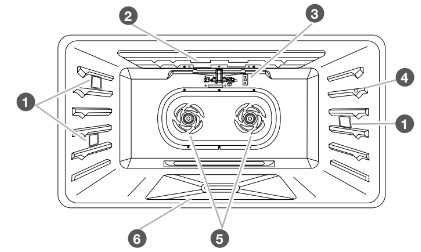
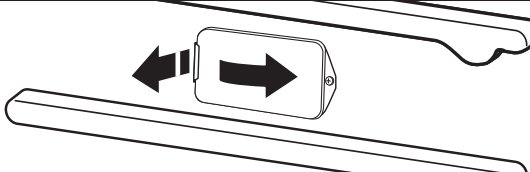
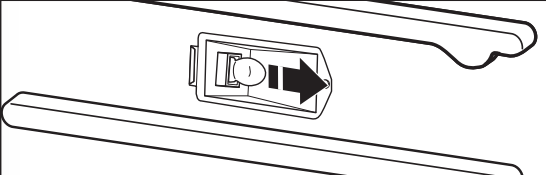
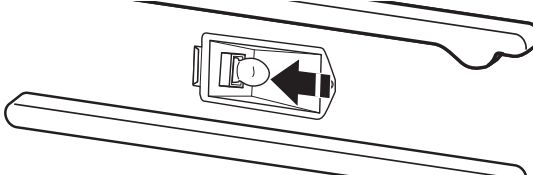
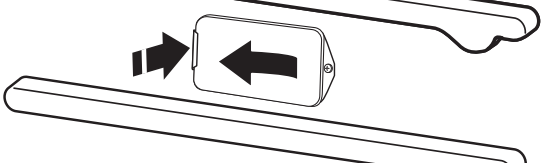
Temperature probe jack (not available in the left oven cavity on 48" [121.9 cm] models)
Convection fan(s)
Bake burner cover
ELECTRONIC OVEN CONTROLS
FEATURES
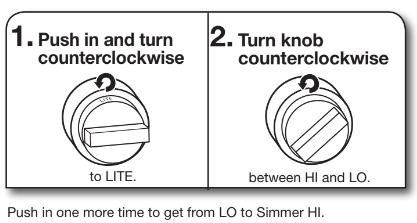
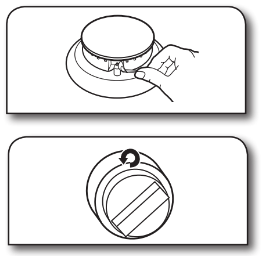
Set a burner
In Case of Power Failure
Hold a lit match near a burner and turn knob counterclockwise to HI.
After burner lights, turn knob to desired setting.
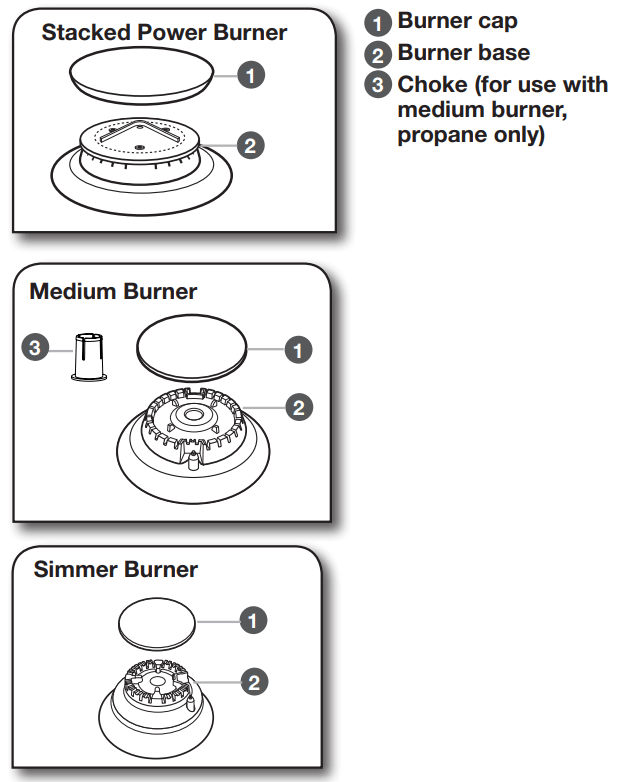
Sealed Surface Burners
Sealed surface burners are designed to minimize gaps and seams that can allow liquids and spills to get under the cooktop.
This design makes cleanup quick and easy.
IMPORTANT: Do not obstruct the flow of combustion and ventilation air around the burner grate edges.
Burner cap: Always keep the burner cap in place when using a surface burner. A clean burner cap will help avoid poor ignition and uneven flames. Always clean the burner cap after a spillover, and routinely remove and clean the caps.
Gas opening: Gas must flow freely throughout the gas opening for the burner to light properly. Keep this area free of soil and do not allow spills, food, cleaning agents, or any other material to enter the gas opening. Keep spillovers out of the gas opening by always using a burner cap.
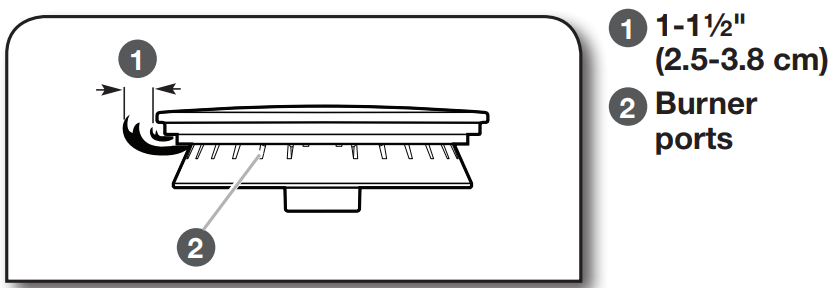
Burner Ports: Check burner flames occasionally for proper size and shape as shown above. A good flame is blue in color, not yellow. Keep this area free of soil and do not allow spills, food, cleaning agents, or any other material to enter the burner ports.
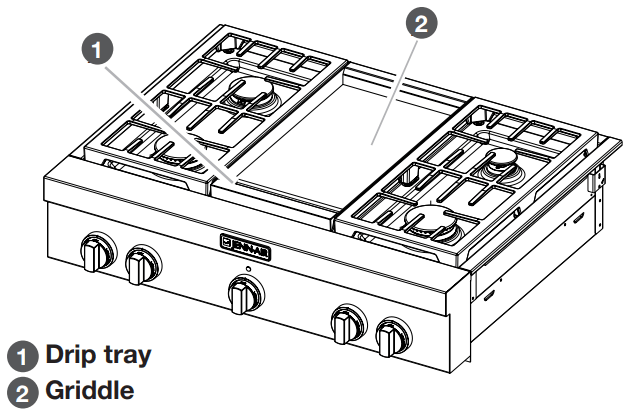
CHROME ELECTRIC GRIDDLE
The chrome electric griddle provides the perfect cooking surface for grilled sandwiches, pancakes, eggs, burgers, sautéed vegetables, and many more family favorites. The attractive low-stick surface is designed to make cleanup easy.
The chrome electric griddle system provides an evenly heated cooking surface.
Be sure plastic film has been removed and wash with hot water before first use.
To avoid scratching the griddle, do not place any pots or pans on the griddle. Use only heat-resistant plastic or wooden utensils.
The griddle surface is ready to use and does not need to be seasoned.
Pouring cold water on a hot griddle may warp the griddle, resulting in an uneven cooking surface.
To Use:
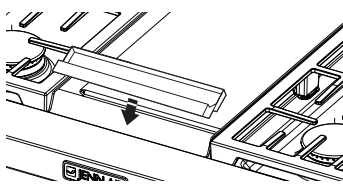
1. Position drip tray.
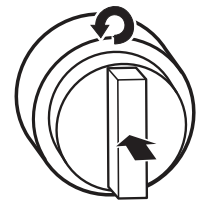
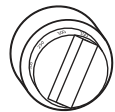
2. Push in and turn knob.
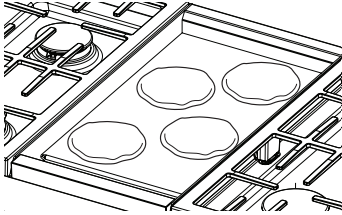
3. Place food on griddle
and cook to desired doneness.
The griddle light will turn off when the griddle has finished preheating. The griddle light will turn on and off during use to indicate that the griddle element is maintaining the selected surface temperature.
USING YOUR OVEN
CONTROL PANEL
The control panel houses the control menu and function controls. The control keypads are very sensitive and require only a light touch to activate.
For more information about the individual controls, see their respective sections in these instructions.
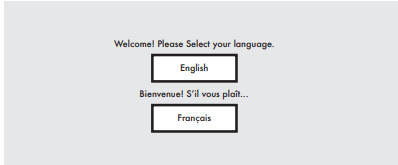
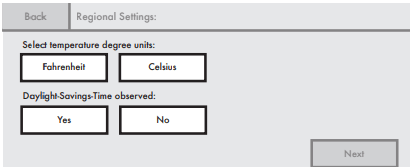
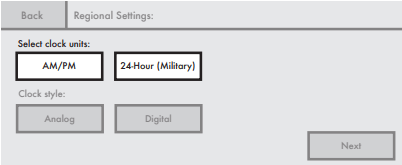
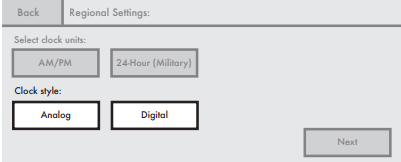
Welcome Guide
This appears on the display the first time the oven is powered up. The Welcome Guide allows you to set up your new oven
1. Select language
2. Select temperature units and daylight savings.
3. Select clock units.
4. Set clock style
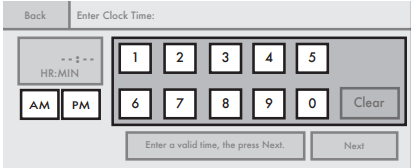
5. Enter current clock time.
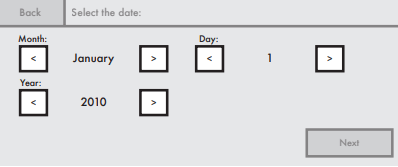
6. Select today’s date.
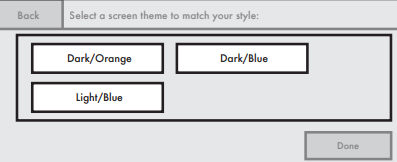
7. Select screen appearance.
DISPLAY
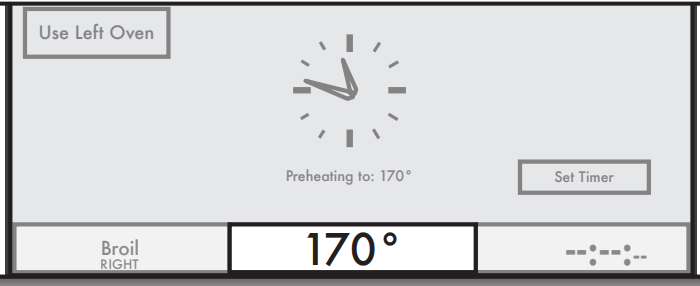
When the oven(s) are in use (Active mode), the display shows the clock, mode, oven temperature, and timer, if set. If the timer is not set, you can set it from this screen.
After approximately minutes of inactivity, the display will go into Standby (sleep) mode and the backlight of the display will dim.
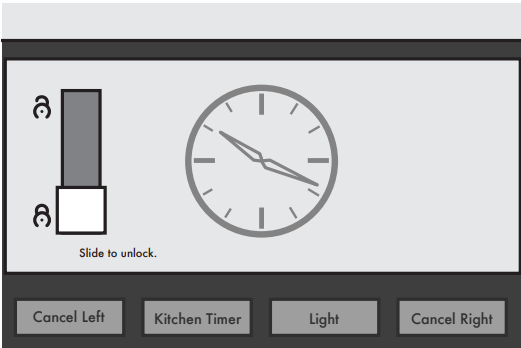
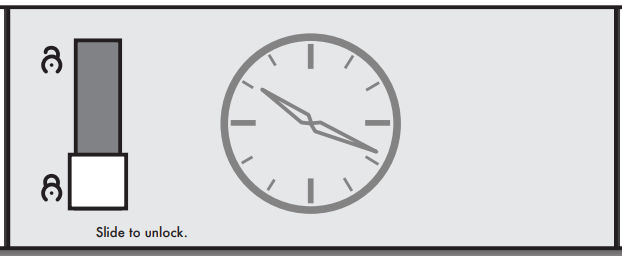
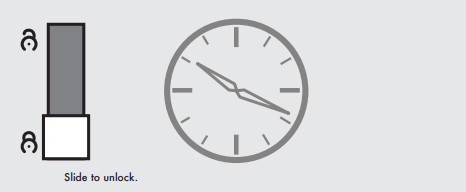
Slide up bar to unlock screen and return to Home screen.
When the oven is in operation, the display will remain active. During programming, the display shows menus and the appropriate selections for the respective cooking function.
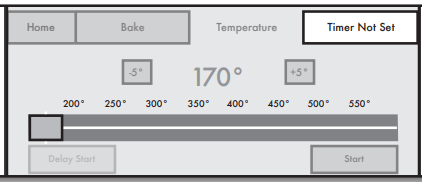
Example for Bake menu
INTERACTIVE TOUCH DISPLAY
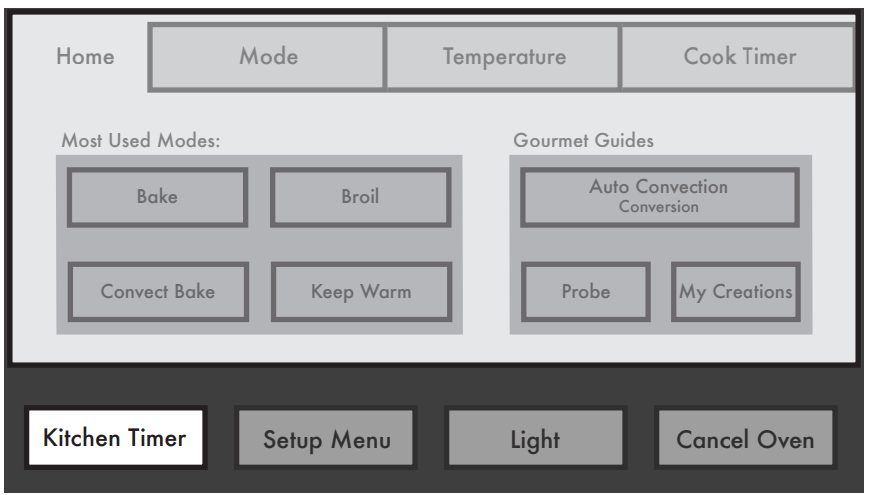
From the Home and Modes menu, all automatic cooking programs can be activated; all manual cooking can be programmed; settings can be adjusted; and instructions, preparation, and tips can be accessed.
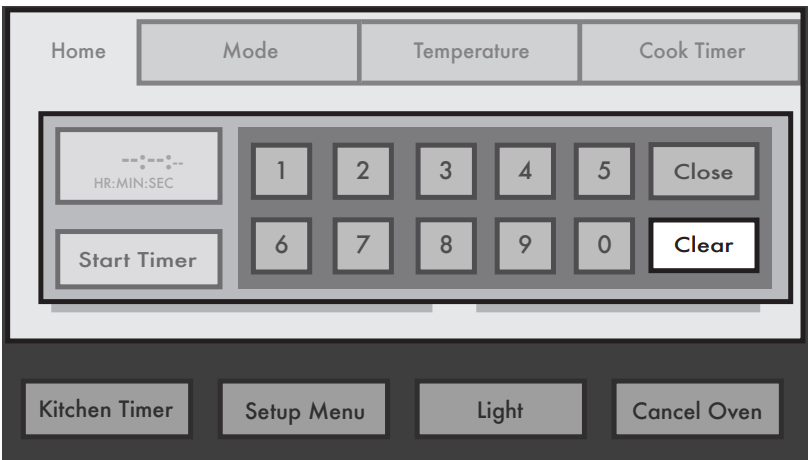
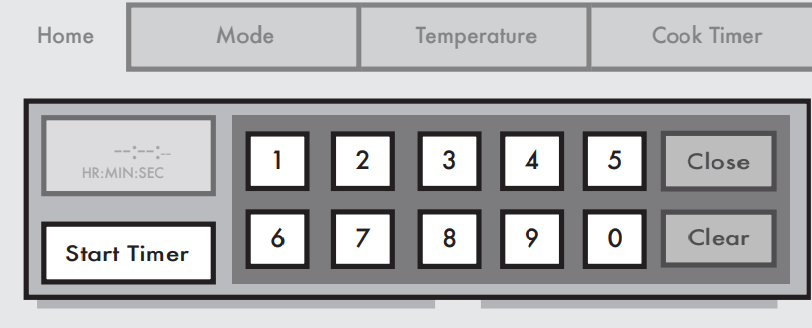
KITCHEN TIMER
The Kitchen Timer is an independent timer not associated with the Cook Timers.
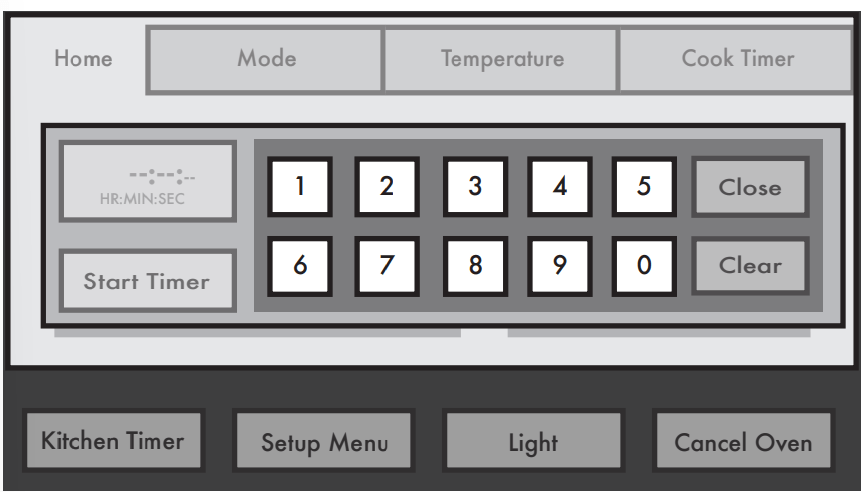
1. Touch KITCHEN TIMER.
30" (76.2 cm) and 36" (91.4 cm) models shown
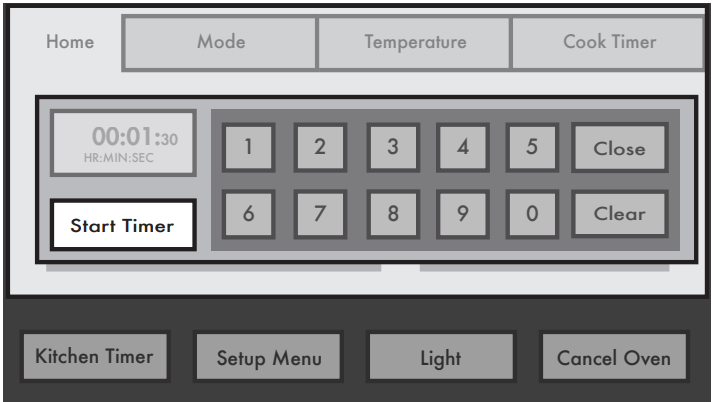
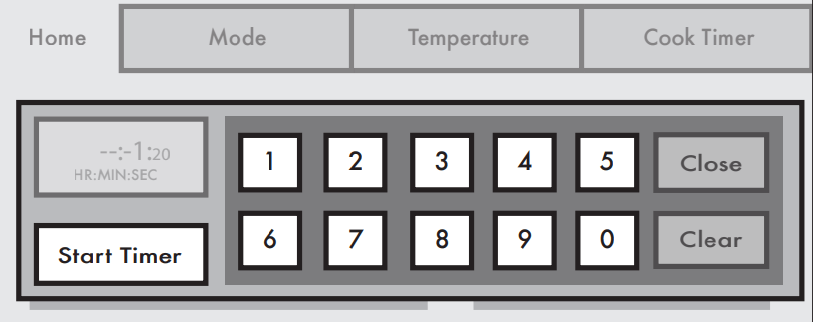
2. Enter desired time.
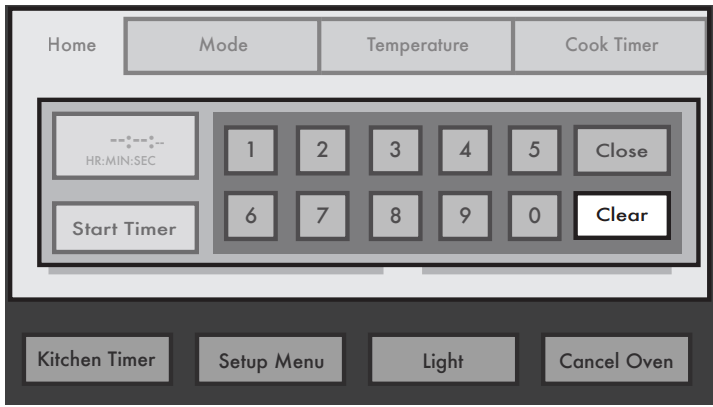
3. Touch CLEAR to reset time.
This clears Kitchen Timer back to (- - : - - : - -).
4. Touch START TIMER.
When time reaches 0:00, tones will sound.
5. Touch OK or CLEAR, and then CLOSE.
This exits and clears display.
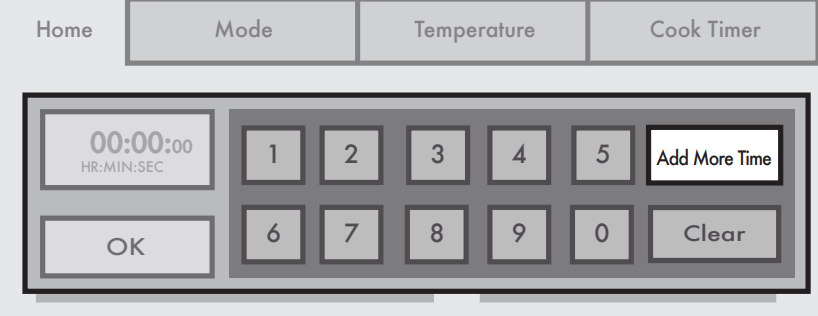
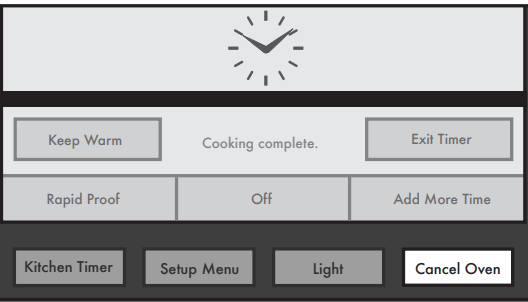
To Add Extra Time when Time Expires:
1. Touch ADD MORE TIME.
2. Enter time, and then touch START TIMER.
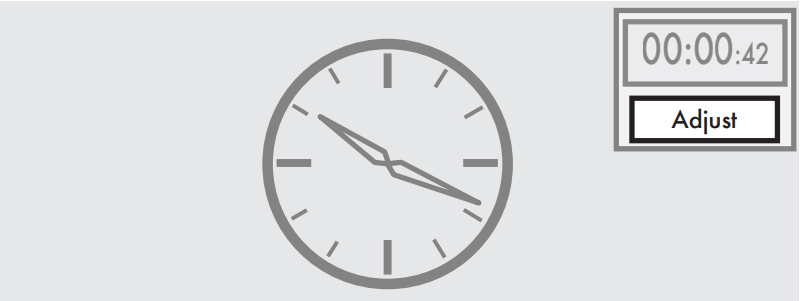
To Adjust Kitchen Timer while Running:
1. Touch ADJUST
2. Enter new time, and then touch START TIMER.
To Exit while Kitchen Timer Is Running:
1. Touch ADJUST
2. Touch CLEAR and then CLOSE.
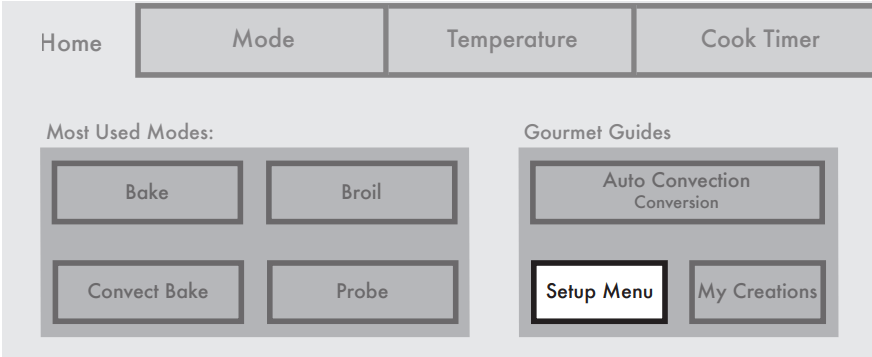
SETUP MENU
This oven provides the ability to control several of the default settings and access information through the on-screen display
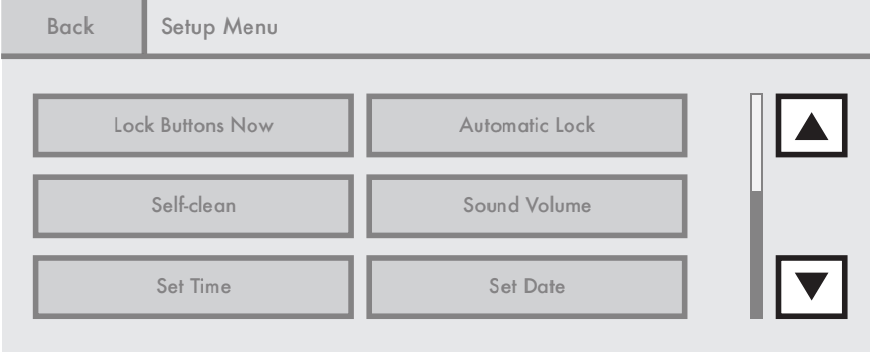
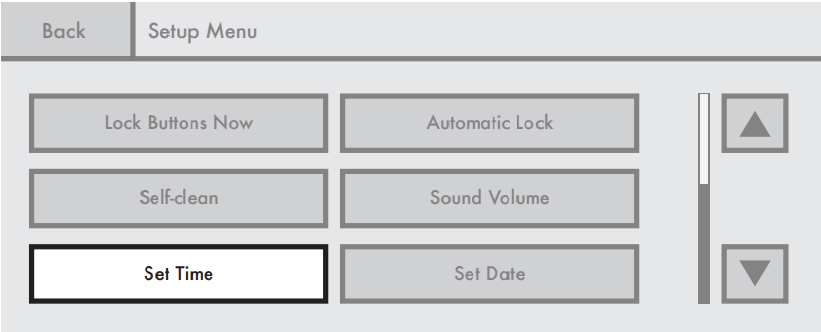
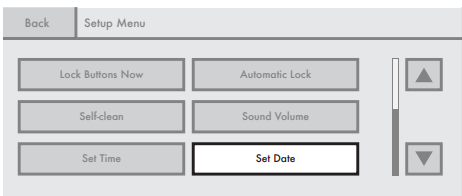
1. Touch SETUP MENU.
2. Use up and down arrows.
Self-Clean This setting is disabled while oven is in use.
Lock Keypads Now This function allows all the keypads to be locked. It is automatically disabled if the Kitchen Timer is running or the oven is in use.
To unlock keypads/screens:
Slide up bar.
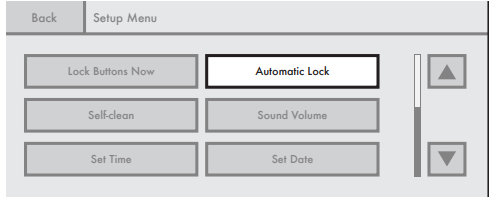
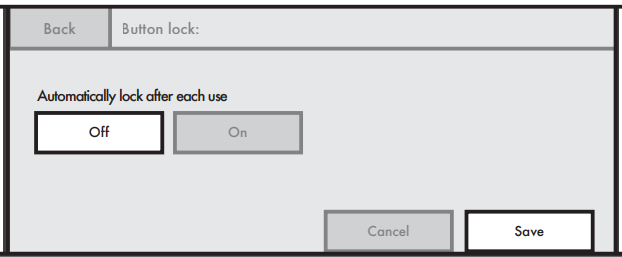
Automatic Lock
To activate:
1. Touch AUTOMATIC LOCK.
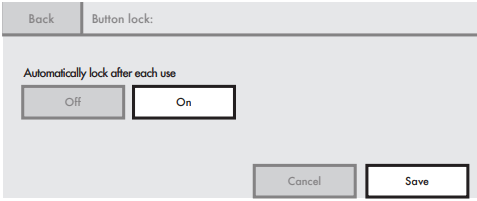
2. Touch ON and then SAVE.
3. Slide up bar to unlock
to continue using the control after setting Automatic Lock.
To deactivate:
Touch OFF and SAVE.
Setting Time
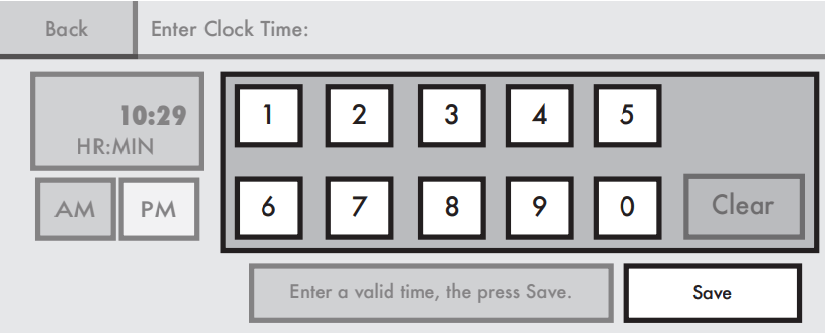
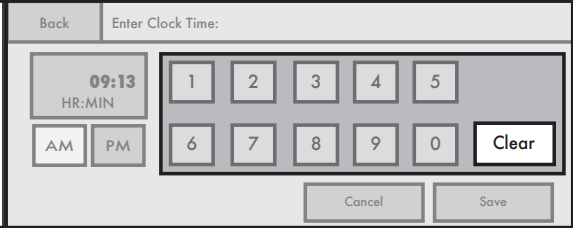
1. Touch SET TIME.
2. Enter time, and then touch SAVE.
To clear clock to 00:00:
Touch CLEAR.
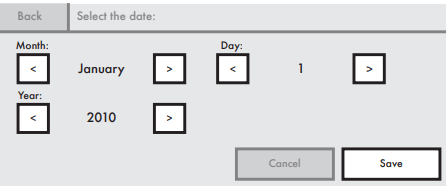
Setting Date
1. Touch SET DATE.
2. Choose date, and then touch SAVE.
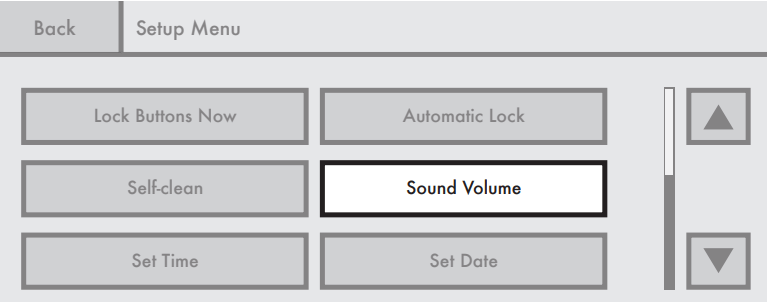
Setting Sound Volume
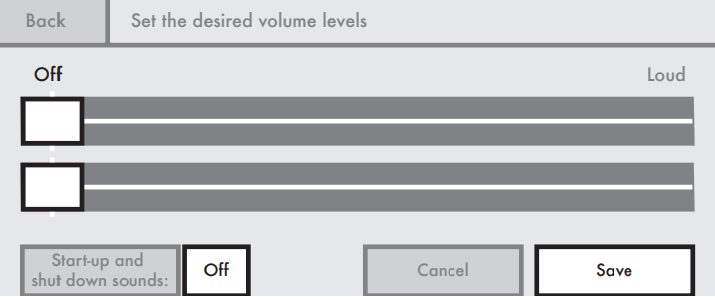
1. Touch SOUND VOLUME.
2. Adjust sounds, and then touch SAVE.
Use the slider bar to adjust timer/alert or keypad-press sound levels. Then touch ON/OFF to toggle between settings for start-up and shut-down sounds.
When ON, the oven will make a sound when it transitions in and out of Idle mode. When OFF, no sound will be made. NOTE: If the Cancel keypad is touched, the sound settings will go to the recommended level.
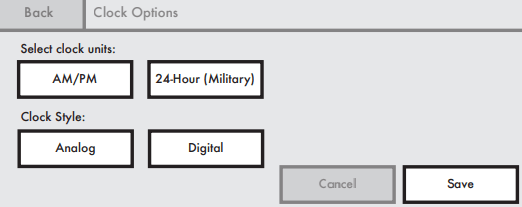
Setting Clock Options
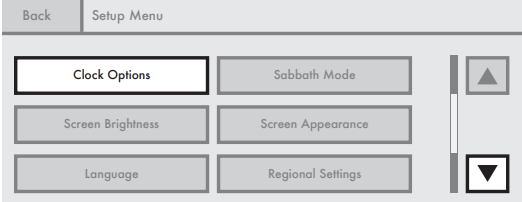
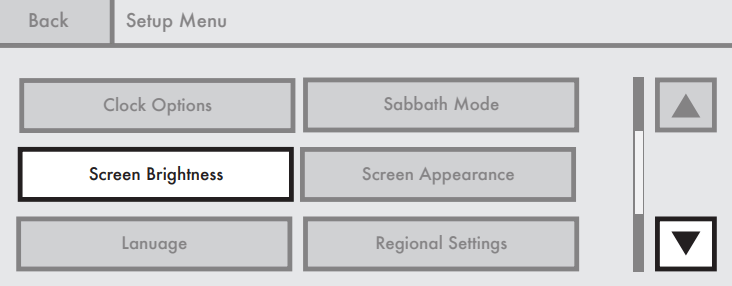
1. Touch the down arrow keypad, and then touch CLOCK OPTIONS.
2. Select clock units and style, and then touch SAVE.
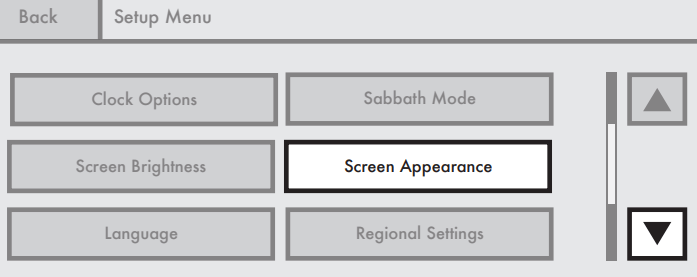
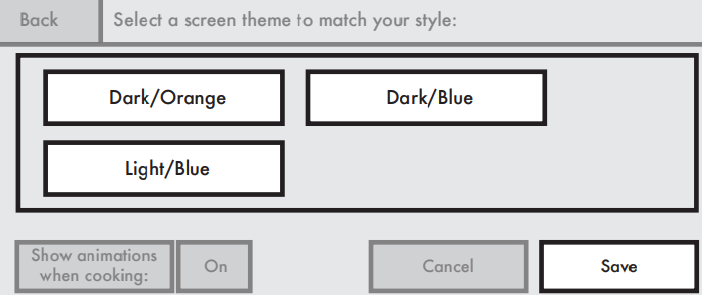
Setting Screen Appearance
1. Touch the down arrow keypad, and then touch SCREEN APPEARANCE.
2. Select screen appearance, and then touch SAVE.
Select the screen appearance to match your oven.
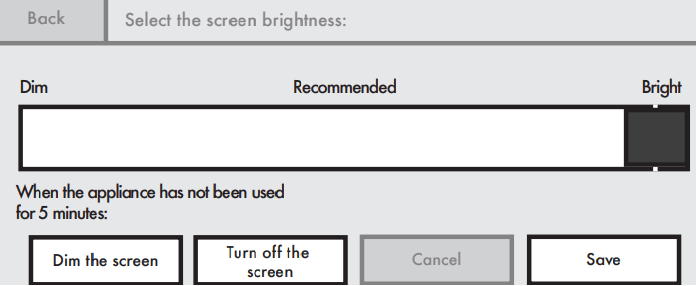
Setting Screen Brightness
1. Touch the down arrow keypad, and then touch SCREEN BRIGHTNESS.
2. Adjust screen brightness and idle setting, and then touch SAVE.
Use slider bar. Choose “DIM THE SCREEN” or “TURN OFF THE SCREEN” for use when oven has been idle for 5 minutes.
NOTE: If the Cancel keypad is touched, the screen brightness will go to the recommended level.
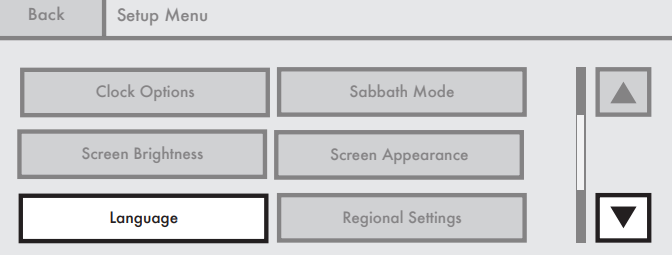
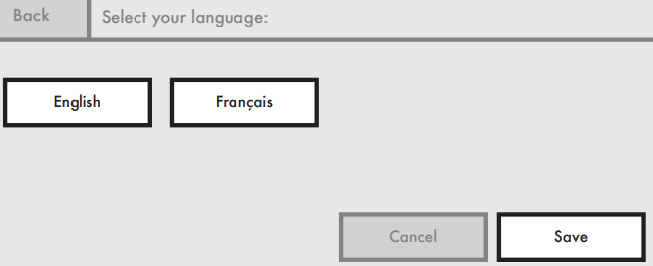
Setting Language
1. Touch the down arrow keypad, and then touch LANGUAGE.
2. Select language, and then touch SAVE.
NOTE: Touch the Cancel keypad to return to the default setting.
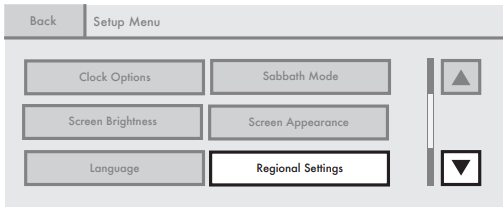
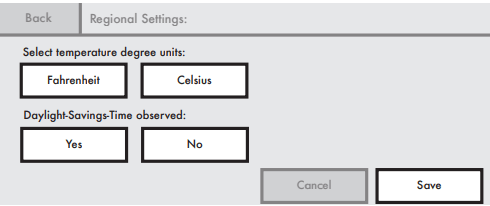
Making Regional Settings
1. Touch the down arrow keypad, and then touch REGIONAL SETTINGS.
2. Select temperature units and daylight savings, and then touch SAVE.
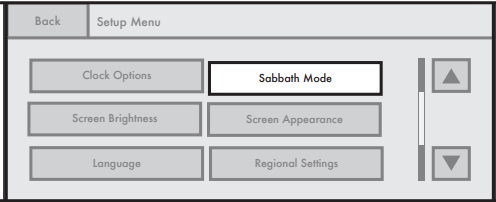
Sabbath Mode
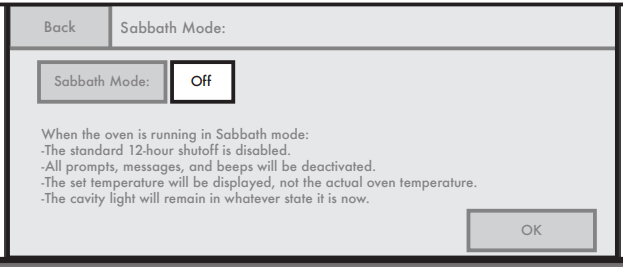
The Sabbath mode sets the oven to remain ON in a bake setting until turned off.
A timed Sabbath mode can also be set to keep the oven ON for only part of the Sabbath.
When the Sabbath mode is set, only the number, start, and cancel keys will function.
No tones will sound and the display will not show messages or temperatures changes.
The heat source icons will appear lit on the oven display throughout the Sabbath mode.
When the oven door is opened or closed, the oven light will not turn on or off and the heating elements will not turn on or off immediately.
If a power failure occurs when the Sabbath mode is set, the oven will remain in Sabbath mode but will no longer be actively cooking. When power returns, the display will read SABBATH MODE – Power outage has occurred.” Touch CANCEL to return to the normal operating mode (nonSabbath mode, not cooking).
The Sabbath mode must be enabled each time it is used.
Sabbath mode disables the 12-hour shutoff. All lights and displays are disabled so that no visible activity takes place when the oven door is opened.
To Use Sabbath Mode:
1. Select SABBATH MODE.
Use scroll bar until Sabbath mode appears and touch SABBATH MODE.
2. Turn on Sabbath mode.
Read on-screen instructions and touch OFF to turn Sabbath mode on.
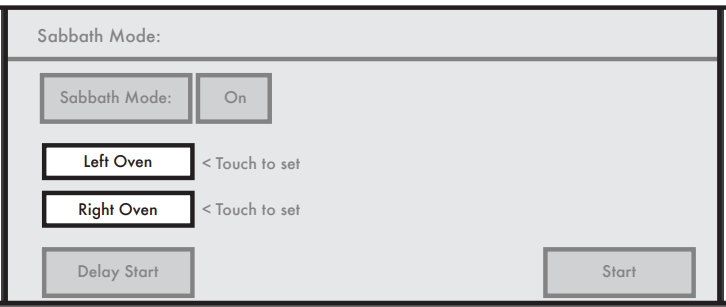
On 48" (121.9 cm) ranges, touch Left Oven or Right Oven keypad to select oven to set up.
3. Select oven to set up
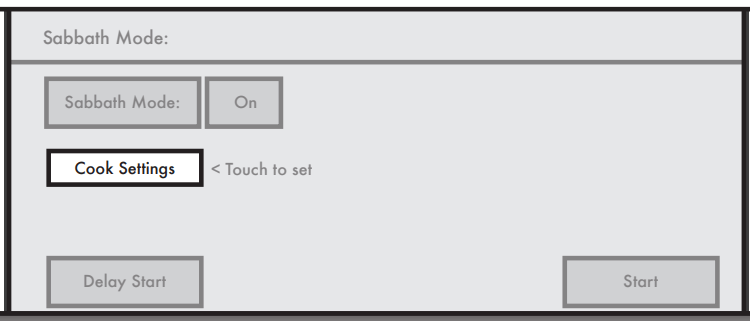
For single ovens: Touch COOK SETTINGS.
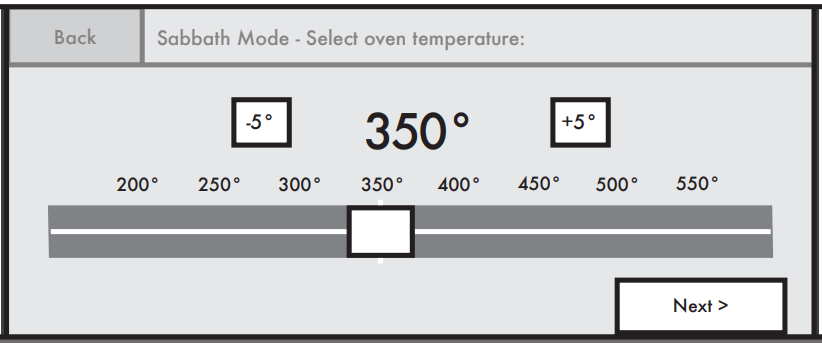
4. Select desired oven temperature, and then touch NEXT.
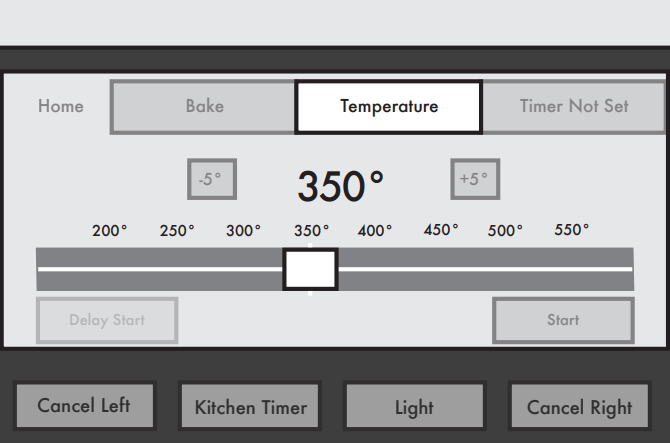
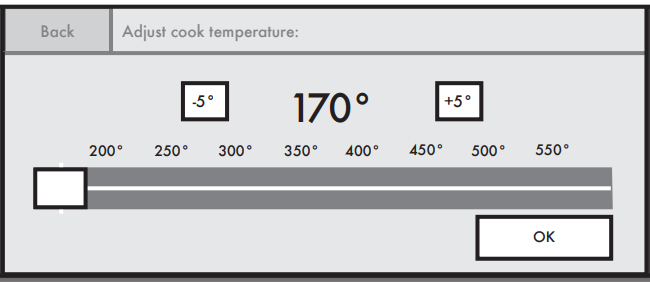
Use slider to enter desired temperature or touch -5°F (-1°C) or +5°F (+1°C) to decrease or increase the temperature.
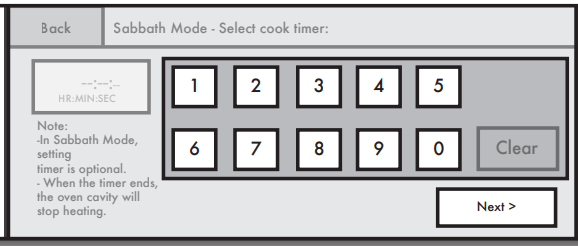
5. If desired, set Cook Timer, and then touch NEXT (even if a Cook Timer is not desired).
On 48" (121.9 cm) ranges, repeat steps 1 through 5 to set the second oven, if desired.
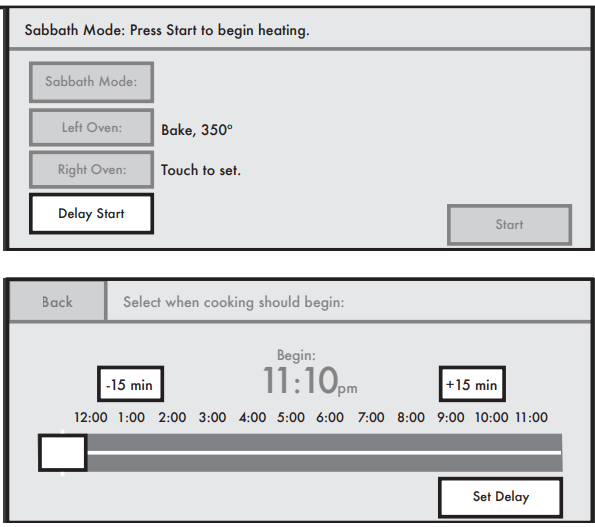
6. (Optional) Set desired time.
Touch DELAY START, use slide bar, and touch SET DELAY. When the start time is reached, the oven will automatically turn on.
7. Turn off oven
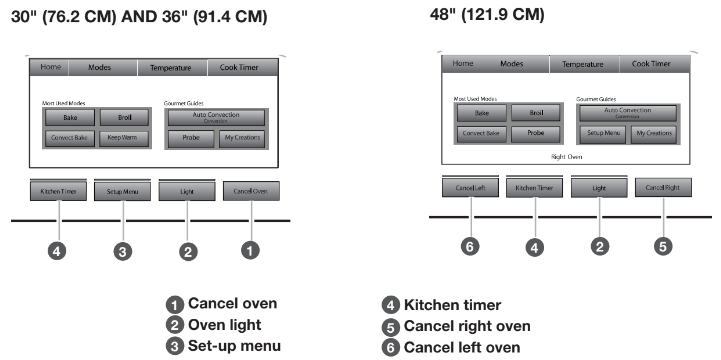
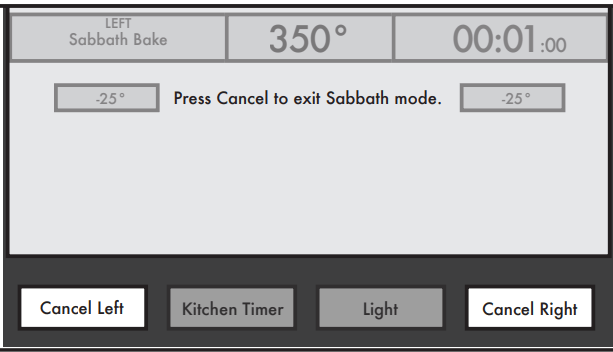
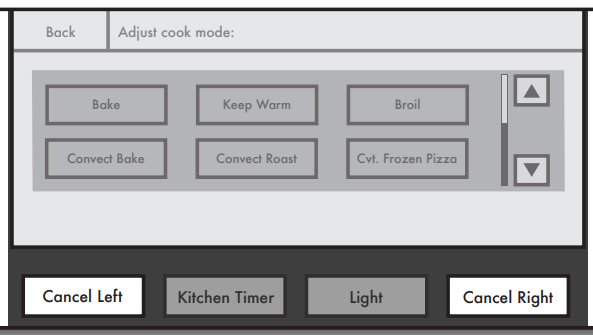
Touch CANCEL OVEN (CANCEL LEFT or CANCEL RIGHT on 48" [121.9 cm] models) to turn off oven.
To Disable Sabbath Mode: Sabbath mode will automatically be disabled when a cook time ends, OR Touch CANCEL.
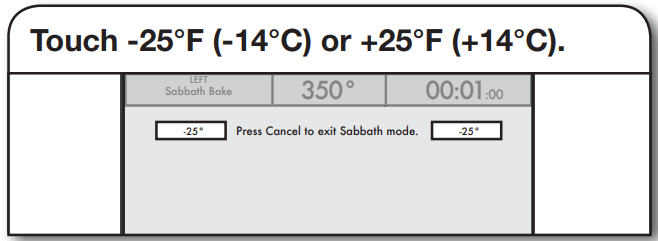
To Change Temperature:
The oven temperature can be changed when the oven(s) are in Sabbath mode. No tones will sound and the display will not change
Touch -25°F (-14°C) or +25°F (+14°C) keypad once for each 25°F (14°C) temperature change desired.
NOTE: On double ovens, if both ovens are operating in Sabbath mode, the temperature of each oven can be changed independently.
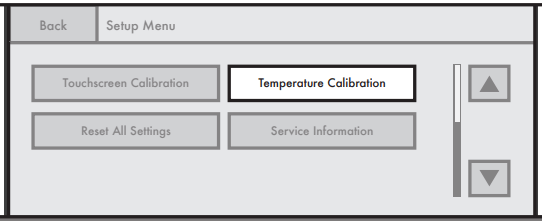
Making Temperature Calibrations
1. Touch TEMPERATURE CALIBRATION
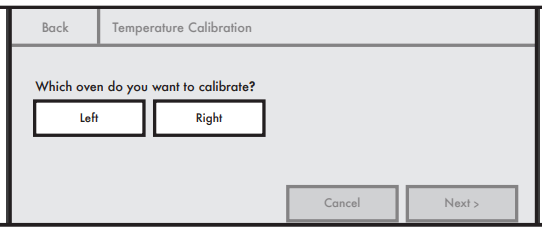
On 48" (121.9 cm) ranges only, select which oven to calibrate by touching LEFT or RIGHT.
2. Select oven.
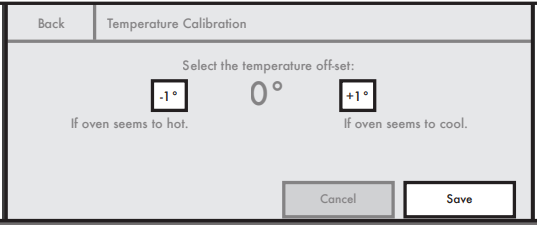
3. Select temperature offset, and then touch SAVE.
Press -1° keypad if oven seems too hot or +1° keypad if oven seems too cold. The oven can be adjusted ±35°F.
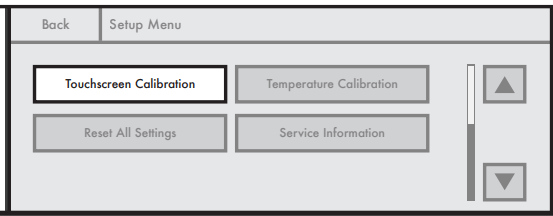
Making Touchscreen Calibrations
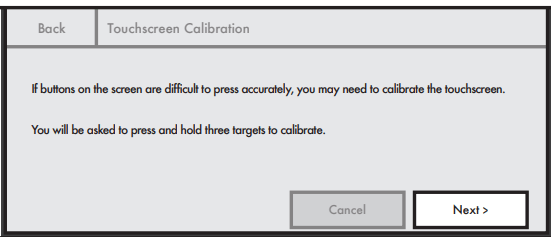
IMPORTANT: If the keypads on the screen are difficult to touch accurately, you may need to calibrate the touchscreen.
1. Touch TOUCHSCREEN CALIBRATION
2. Touch NEXT
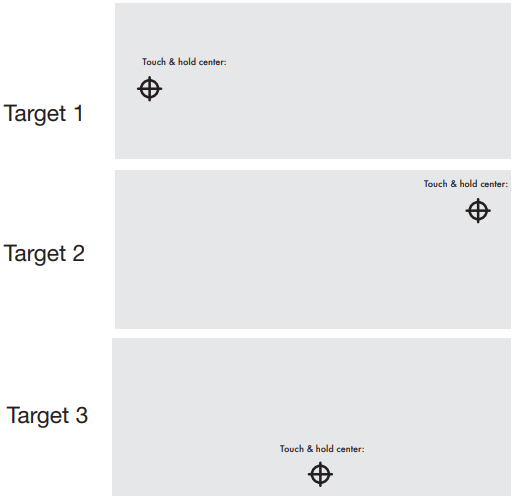
3. Choose targets to calibrate.
Touch, hold, and release 3 different targets to calibrate. Touch targets again within 10 seconds. If calibration fails, the process will restart at Step 2.
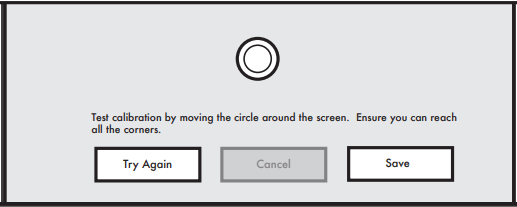
4. Test calibration.
Test calibration by moving the circle around the screen. Ensure you can reach all the corners. Touch TRY AGAIN to run calibration again or touch SAVE to save the setting.
NOTE: If the Cancel keypad is touched, the Touchscreen Calibration will be canceled.
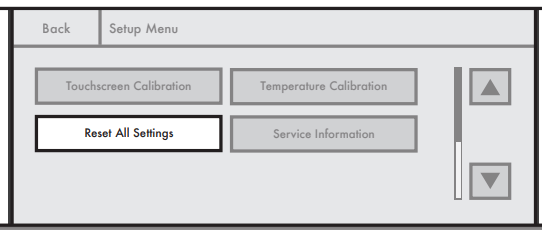
Resetting All Settings to Factory Defaults
1. Touch RESET ALL SETTINGS.
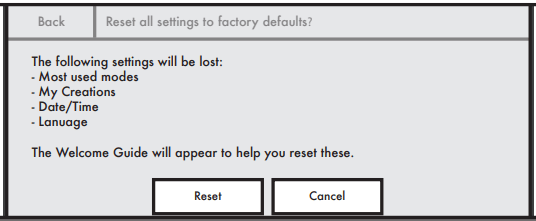
2. Touch RESET or CANCEL.
If Reset is touched, the following settings will be lost: mostused modes, My Creations, Date/Time, Temperature Units, and Language. You will be returned to the Welcome Guide to reset settings.
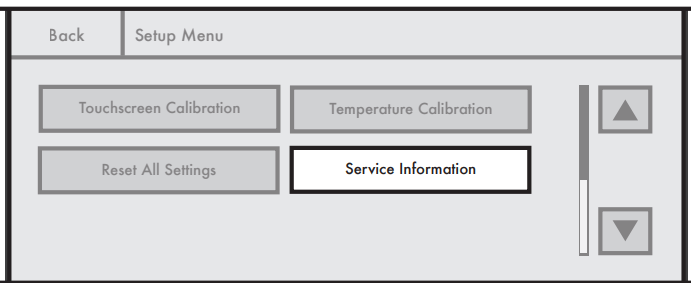
Getting Service Information
1. Touch SERVICE INFORMATION.
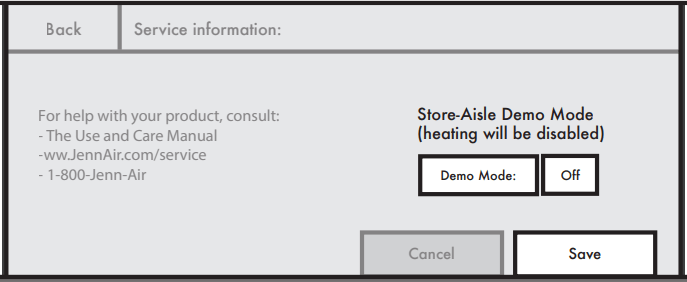
2. Choose Demo mode setting, and then touch SAVE.
Choose ON or OFF for Demo mode.
IMPORTANT: This feature is intended for use on the sales floor with 120V power connection and permits the control features to be demonstrated without heating elements turning on. If this feature is activated, the oven will not work.
NOTE: If CANCEL is touched, the Service Information will go back to the default setting.
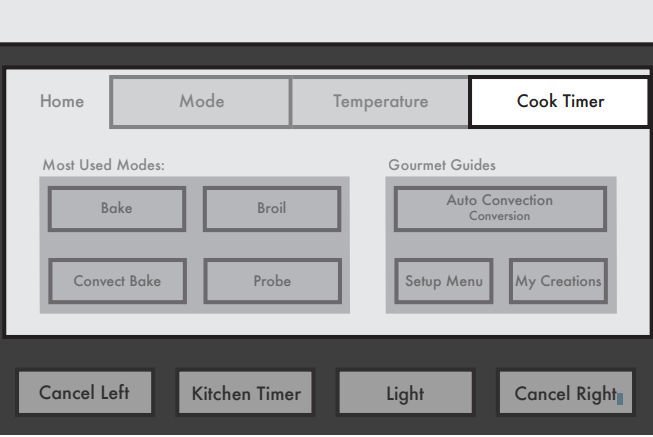
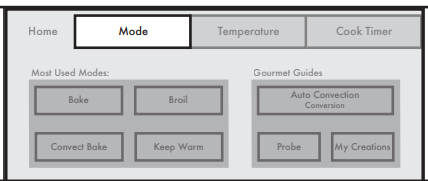
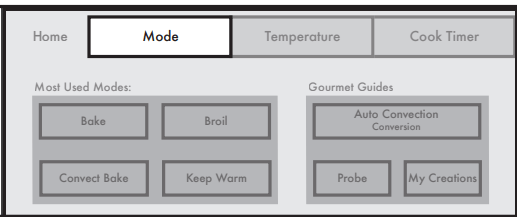
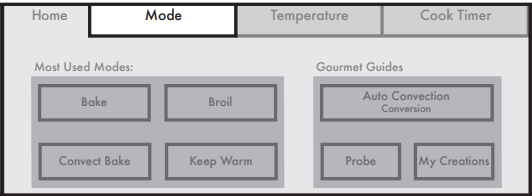
The Home tab allows for easy access to the most-used modes and Culinary Assistants.
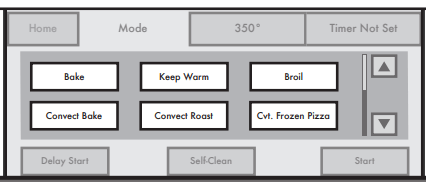
1. Touch Mode tab.
2. Select option.
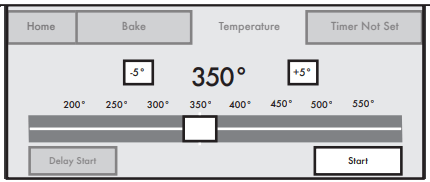
3. Enter desired cooking temperature, and then touch START.
Move slider to enter a desired cooking temperature or touch -5ºF (-1ºC) or +5ºF (+1ºC) keypads.
NOTE: See the desired cooking mode in the “Cooking Mode” section for more information.
Changing a Mode, Temperature, or Cook Time while Oven Is Active
Touch appropriate tab to make new selection, and then touch OK.
Follow the instructions for the selected mode. See the desired cooking mode in the “Cooking Mode” section for more information.
To Turn Off Oven
Touch CANCEL OVEN.
Touch CANCEL LEFT or CANCEL RIGHT on 48" (121.9 cm) models.
BAKE
The Bake mode relies primarily on heat from the lower bake element and radiant heat from the oven cavity to produce the perfect conditions for cakes, cookies, quick breads, yeast breads, meatloaf, and baked desserts. This mode is perfect for foods that require both upper and lower browning.
Know Your Bake Mode
During baking, the appropriate heating elements and fan(s) will cycle on and off in intervals to maintain the oven temperature.
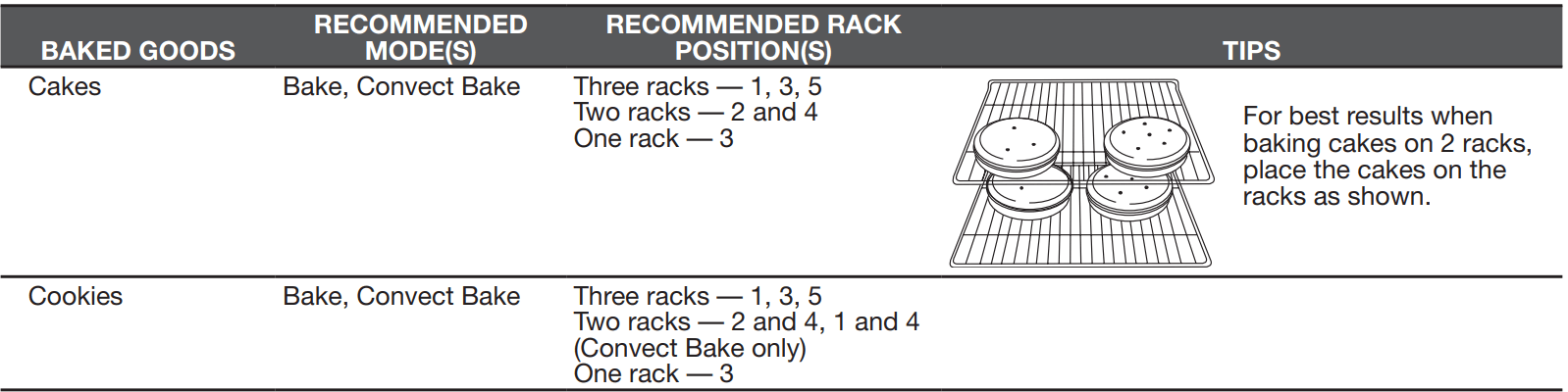
Bake is used to cook up to 2 racks of food.
For best results, allow the oven to preheat prior to placing food in the oven.
If the oven door is opened during baking, the bake burner will turn off approximately seconds after the door is opened. It will turn on again approximately seconds after the door is closed.
BROIL
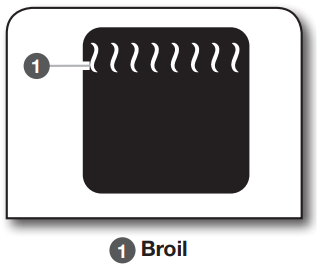
The Broil mode uses intense heat from above to cook foods quickly and is ideal when you want rich, flavorful browning of exterior surfaces. Use for steak, chicken, pork, fish, or vegetables like onions and peppers. This mode can also brown and crisp desserts or casserole toppings.
Know Your Broil Mode
NOTE: This feature is not available on the left oven on 48" (121.9 cm) models.
Broiling uses direct radiant heat to cook food.
The broil burner cycles on and off in intervals to maintain the oven temperature.
If the oven door is opened during broiling, the broil element will turn off in approximately 30 seconds. When the oven door is closed, the elements will come back on approximately seconds after the door is closed.
For best results, use a broiler pan and grid. It is designed to drain juices and help avoid spatter and smoke.
For proper draining, do not cover the grid with foil. The bottom of the broiler pan may be lined with aluminum foil for easier cleaning.
Trim excess fat to reduce spattering. Slit the remaining fat on the edges to avoid curling.
When broiling, changing the temperature allows more precise control. Lowering the temperature causes food to cook slower. Thicker cuts and unevenly shaped pieces of meat, fish, and poultry may cook better at lower broiling temperatures.
Pull out oven rack to stop position before turning or removing food. Use tongs to turn food to avoid the loss of juices. Very thin cuts of fish, poultry, or meat may not need to be turned.
After broiling, remove the pan of food from the oven. Drippings will bake on the pan if left in the heated oven, making cleaning more difficult.
To Use Broil:
It is not necessary to wait for the oven to preheat before putting food in unless recommended in the recipe. Position food on the grid on the broiler pan, then place pan in the center of the oven rack with the longest side parallel to the door. Continue with setting steps in the “Cooking Modes” section.
Keep Warm™ Option
The Keep Warm™ option allows hot cooked foods to stay at serving temperature. It can also be used at the end of a timed cook.
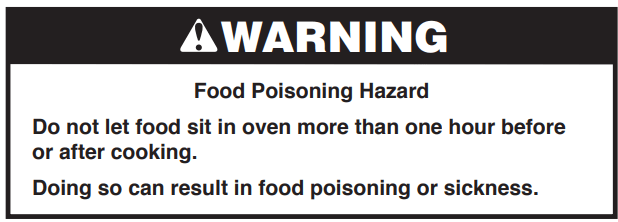
IMPORTANT: Food must be at serving temperature before placing it in the warmed oven. Food may be held up to 1 hour; however, breads and casseroles may become too dry if left in the oven during the Keep Warm™ function.
To Use Keep Warm™ Option at the End of a Cooking Cycle:
During setup of cooking cycle:
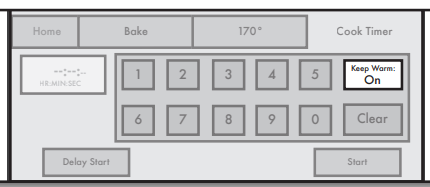
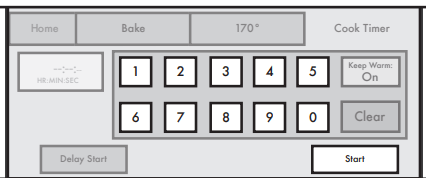
1. Touch TIMER NOT SET/COOK TIME.
2. Set KEEP WARM to ON.
3. Enter cook time, and then touch START
The oven will automatically go into Keep Warm™ mode when the cook timer ends.
To change the Keep Warm™ temperature during the Keep Warm™ cycle:
1. Touch programmed temperature.
2. Adjust temperature, and then touch OK
CONVECTION COOKING
Convection cooking can cook foods more evenly and faster than regular cooking.
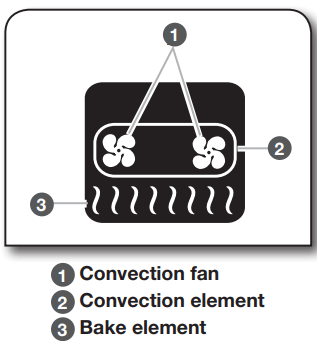
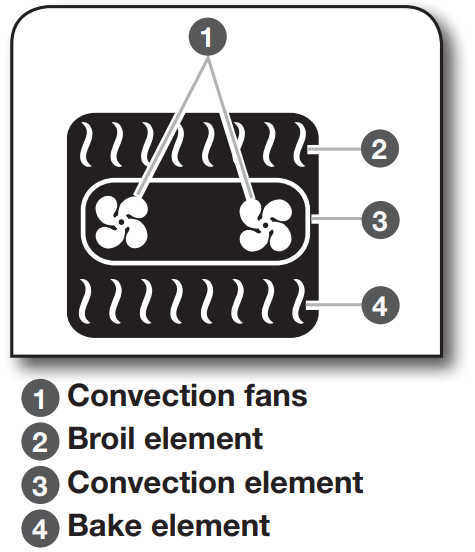
The convection elements are located in the rear of the oven cavity. They are assisted by the convection fans to provide balanced, efficient heating.
NOTE: The left oven cavity on 48" (121.9 cm) models has only one convection fan and no convection element.
CONVECT BAKE
The Convection Bake mode uses multiple elements and a fan to circulate hot air throughout the oven, resulting in baking faster than traditional baking. Convection baking can be used for most baked goods, but it is exceptional for baking cookies, biscuits, pies, pasta dishes, casseroles, and frozen or convenience foods.
Know Your Convect Bake Mode
When cooking an oven meal with several different types of foods, be sure to select recipes that require similar temperatures. Cookware should sit in the oven with at least 1" (2.5 cm) of space between the cookware and the sides of the oven.
During convection baking preheat, the convection, bake, and broil elements all heat the oven cavity. After preheat, the convection, bake, and broil elements and the fans will cycle on and off in intervals to maintain oven temperature.
If the oven door is opened during convection baking, the fans turn off immediately when the door is opened and turn on immediately when the door is closed. Convection, bake, and broil elements will turn off approximately 30 seconds after the door is opened. They will turn on again approximately 30 seconds after the door is closed.
Check food at shortest recommended package or recipe time. Allow more time for baking when using multiple racks.
Use cookie sheets with no sides to allow air to move freely around the food.
CONVECT PASTRY
This mode provides progressive baking, first promoting maximum rise of flaky, delicate dough and finishing with the right balance of heat to promote golden browning. The recipe temperature does not need to be reduced for this mode. Convect Pastry is ideal for single- or multi-rack baking of cream puffs, turnovers, and croissants.
CONVECT ROAST
The Convect Roast mode uses multiple elements and a fan to stream heated air throughout the cavity. The circulating air caramelizes food surfaces for enhanced flavor while maintaining moist and tender interiors. Convect Roast is perfect for roasting meats, poultry, firm-fleshed fish, and vegetables. The consistent and even heat distribution speeds cooking up to 25% compared to traditional roasting. The recipe temperature does not need to be reduced for this mode.
Know Your Convect Roast Mode
If the oven door is opened during convection roasting, the fans turn off immediately and turn on immediately when the door is closed. Bake, broil, and convect elements will turn off approximately 30 seconds after the door is opened. They will turn on again approximately 30 seconds after the door is closed.
The cook time should be reduced 15–30%. It is not necessary to reduce the oven temperature.
For best results, use a broiler pan, grid, and roasting rack designed to drain juices and help avoid spatter and smoke.
Before Using Convect Roast:
It is not necessary to wait for the oven to preheat before putting in food, unless recommended in the recipe.
Use the roasting rack on top of the broiler pan and grid.
This holds the food above the grid and allows air to circulate completely around all surfaces.
CONVECT SLOW ROAST
The Convect Slow Roast mode uses low temperatures to help retain moisture for longer cooking times, resulting in more tender meat. Convect Slow Roast is particularly good for medium to large cuts of beef, poultry, and pork as well as less-tender cuts of meat. Food can be cooked up to 12 hours. The recipe temperature does not need to be reduced for this mode.
Know Your Convect Slow Roast Mode
Food should be completely thawed.
Cover foods to keep food moist.
Prior to slow roasting, meat can be pan-seared or broiled on sides to enhance browning, flavor, and tenderness.
CONVECT FROZEN PIZZA
Convect Frozen Pizza is used to bake thick- or thin-crust frozen pizzas. During Convect Frozen Pizza, the broil, convection, and bake elements will cycle on and off in intervals to maintain oven temperature. The convection fans remain on continuously to circulate hot oven air around the pizza.
Know Your Convect Frozen Pizza Mode
If the oven door is opened during Convect Frozen Pizza, the fans turn off immediately. They will turn back on immediately after the door is closed. The bake, broil, and convection elements will turn off approximately 30 seconds after the door is closed.
The bake temperature should be reduced 25°F (14°C) from the temperature recommended on the package.
The bake time may be slightly less than stated on the package, depending on the pizza.
A pizza stone may be used with the Convect Frozen Pizza mode.
Use Convect Frozen Pizza with 1-rack baking.
Allow the oven to preheat completely before placing your pizza in the oven.
PROOF
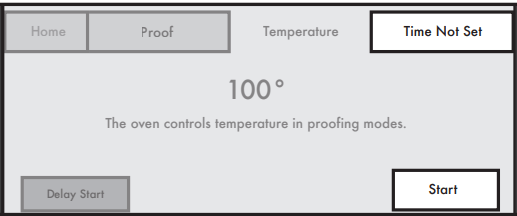
The Proof cycle prepares dough for baking by activating the yeast. Follow recipe or package for number of times to proof dough.
Know Your Proof Mode
The set temperature of 100ºF (38ºC) cannot be changed.
The Proof mode can be used even if the temperature is above the preset temperature for the Proof mode.
Before Using Proof:
Place dough in a lightly greased bowl. Place bowl on rack position 3.
Place the food in the oven and close the door.
To Use Proof:
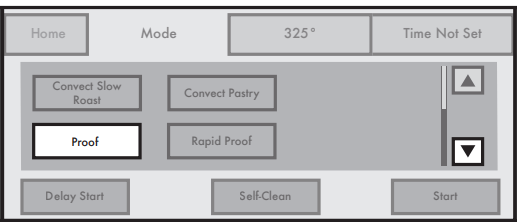
1. Touch MODE.
2. Touch the down arrow, and then touch PROOF.
3. Touch START or touch TIMER NOT SET and then START.
RAPID PROOF
Rapid Proof is used to proof frozen dough. The Rapid Proof mode requires the oven be preheated and then canceled.
Know Your Rapid Proof Mode
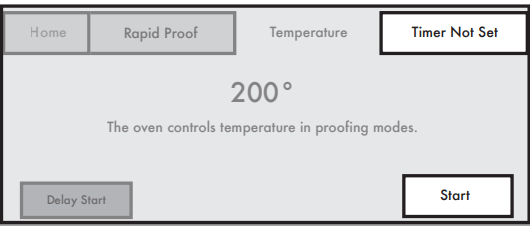
The set temperature of 200°F (93°C) cannot be changed.
The Rapid Proof mode can be used even if the temperature is above the preset temperature for the Rapid Proof mode.
Before Using Rapid Proof:
Place frozen dough in a lightly greased bowl. Cover bowl with damp towel. Place bowl on rack position 3.
Place the food in the oven and close the door.
To Use Rapid Proof:
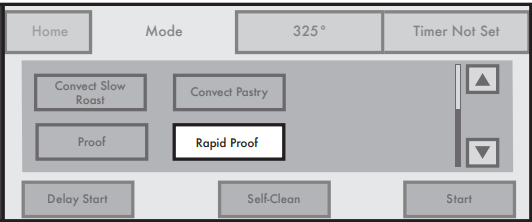
1. Touch MODE.
2. Touch RAPID PROOF
3. Touch START or touch TIMER NOT SET and then START.
4. Proof for 10 minutes, and then touch CANCEL.
5. Leave dough in oven until desired height is reached.
6. Remove dough from oven
7. Preheat oven according to recipe
8. Insert dough in oven after reaching desired temperature.
SPECIAL MODES
MY CREATIONS
My Creations allows the customization of cooking processes. When My Creations is selected from the Main menu, a list of existing recipes is presented along with the ability to create more.
NOTE: If the model is a double oven, first select the oven.
Touch MY CREATIONS.
Touch CREATE NEW.
Select desired cooking mode, and then touch NEXT
Enter desired cooking temperature, and then touch NEXT.
Select how to monitor cooking, and then touch NEXT.
If Timer Is Chosen:
6. Enter cook timer length, and then touch NEXT
7. Touch SAVE & START
If Probe Is Chosen:
8. Select probe internal temperature.
9. Enter new stage information, and then touch SAVE & START.
Touch ADD STAGE. Touch EDIT next to a stage to re-enter settings, if desired. Touch DELETE to immediately delete stage. Touch SAVE & START to save stage.
10. Enter food name, and then touch OK.
Touch a keypad repeatedly to cycle through its letters. For example, press “ABC” once to enter “a,” twice to enter “b” and three times to enter “c.” After 2 seconds, the letter is accepted and the cursor moves to the next position. A name cannot exceed 40 characters, including spaces. Touch DELETE to delete the last character in the text box.
To Edit or Delete after Saving Settings:
Touch MY CREATIONS.
Select setting name to edit or delete. Scroll to find name if needed. Touch EDIT or DELETE.
Select steps to edit.
Touch EDIT for each desired step, and then follow the instructions. When finished, touch START & SAVE or just touch SAVE to save without starting the cycle.
AUTO CONVECTION CONVERSION
Convection temperatures and/or times differ from those of standard cooking. The oven can automatically reduce the standard recipe temperature and/or time for convection cooking.
By selecting Auto Convection Conversion, you can select a category, then enter a temperature and time according to the recipe or package instructions. The oven will convert the time and/or temperature you entered.
The conversion may not be exact because foods are grouped in general categories.
To Use Auto Convection Conversion:
1. Touch AUTO CONVECTION CONVERSION.
2. Select Recipe Conversion Mode.
3. Enter desired cooking temperature, and then touch NEXT. Touch a keypad or use the slide bar.
4. Enter standard cooking time. Touch NEXT or SKIP TIMER.
5. Choose Reminder setting.
Toggle on or off. Then touch START. This setting reminds you to check food when 20% of the timer remains. If Skip Timer is chosen, you will review your converted settings and be able to set Reminder and Delay Start. When the preheat signal sounds, place the food in the oven and close the door.
For Manual:
Touch MANUAL.
Touch MODE, and then touch START.
Optional) Touch SET TIMER to enter a Cook Time, and then touch OK.
COOK TIMER
The Cook Timer allows the oven to cook for a programmed length of time. The Cook Timer can be accessed by touching COOK TIMER or TIMER NOT SET whenever available.
Know Your Cook Timer
The Cook Timer countdown is started several ways:
Touching START TIMER starts the countdown immediately.
Opening, then closing the door before preheat is complete starts the timer as soon as preheat is complete.
Opening, then closing the door when preheat is complete starts the countdown immediately.
Cook Timer countdown will automatically start 2 minutes after the preheat signal if none of the above activities have occurred.
The Cook Timer cannot be set for Convect Slow Roast.
NOTE: The control will signal when 20% of the cook time remains.
To Use Cook Timer:
Touch COOK TIMER.
Select desired cook time, and then touch START.
Touch START TIMER.
When the preheat signal sounds, place the food in the oven and close the door. If a Delay Start is programmed, place the food in the oven when setting the mode.
NOTE: Do not use Delay Start for items that require a preheated oven, such as cakes, cookies, and breads. If food is in the oven during preheat, it may become overcooked.
When Cook Timer Ends, if Needed:
4. Select ADD MORE TIME.
To reset previously set time:
5. Touch RESTART FOR.
TEMPERATURE PROBE
The temperature probe accurately measures the internal temperature of meat, poultry, and casseroles and should be used in determining the doneness of food. It can be used during Bake, Convect Bake, and Convect Roast. The oven will beep when the food has reached the target temperature.
Know Your Temperature Probe
Always unplug and remove the temperature probe from the oven when removing food.
The temperature probe is not available in the left oven cavity on 48" (121.9 cm) models.
Before Using Temperature Probe:
Remove any racks above the food that are not in use.
Insert the probe into the food item. For meats, the probe tip should be located in the center of the thickest part of the meat and not into the fat or touching a bone.
Place food in oven and connect the temperature probe to the jack.
Keep probe as far away from heat source as possible.
Close oven door
To Use Temperature Probe:
1. Touch PROBE.
2. Touch CONVECT BAKE, CONVECT ROAST, or BAKE
To Adjust Probe Temperature, if Needed:
3. Touch -5°F (-1°C) or +5°F (+1°C), and then touch START. Then touch Temperature keypad.
4. Enter desired cooking temperature, and then touch START. Touch keypads or slide bar
To Remove Probe Temperature but Keep Current Mode and Cavity Temperature:
5. Touch CANCEL PROBE and START.
DELAY START
Delay Start allows the oven(s) to be set to turn on at a certain time of day and cook for a set length of time.
Delay Start should not be used for food such as breads and cakes because they may not bake properly.
Delay Start is available with any cycle that has a Delay Start keypad.
To Set a Delay Start:
1. Touch DELAY START.
2. Enter desired start time, and then touch SET DELAY. Touch keypad or slide ba
To Delay with Cook Timer:
Select TIMER NOT SET or COOK TIMER.
Select desired cook time, and then touch DELAY START.
Enter desired start and end times, and then touch SET DELAY.
Touch the 15 Min keypad(s) or slide the bar. The difference between the start and end times should equal the cook time.
To Delay with Probe:
After selecting cooking mode:
Touch DELAY START.
Enter desired start time, and then touch SET DELAY.
Touch the 15 Min keypad(s) or slide the bar. The oven will automatically keep the food warm when the probe reaches the target temperature.
To Cancel Delay Start Only:
Touch CANCEL DELAY.
Enter Cook Time, and then touch START.
NOTE: To cancel Cook cycle and Delay Start, touch CANCEL OVEN
IMPORTANT:
Before cleaning, make sure all controls are OFF and the oven and cooktop are cool. Do not use oven cleaners, bleach, or rust removers.
Soap, water, and a soft cloth or sponge are suggested first unless otherwise noted.
CARE AND CLEANING
PORCELAIN-COATED GRATES AND CAPS
Use scrub and cleanser.
Know Your Grates and Caps
Food spills containing acids, such as vinegar and tomato, should be cleaned as soon as the cooktop, grates, and caps are cool. These spills may affect the finish.
To avoid chipping, do not bang grates and caps against each other or hard surfaces such as cast iron cookware.
Do not reassemble caps on burners while wet.
Do not clean in the Self-Cleaning cycle.
Do not clean in dishwasher.
GRIDDLE
Tips:
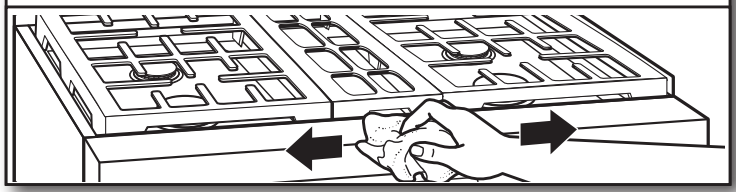
Prior to cleaning the griddle, make sure that all cooktop burners have been turned off and the oven controls have been locked.
For best results, clean the griddle shortly after removing the food.
Do Not Use:
Soap
Abrasive materials
Cleaning materials, including stainless steel cleaner
After Each Use:
1. Heat for 10 to 15 minutes at 300°F (149°C).
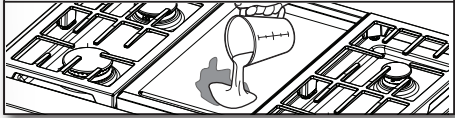
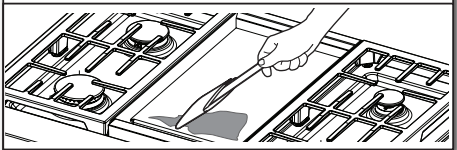
2. Pour water on soiled area.
Using a measuring cup, pour up to 1 cup (236.6 mL) tap water over the soiled area. Start at the back, allowing the water to run toward the drip tray in the front. Allow the water to bubble on the griddle for 3–4 seconds
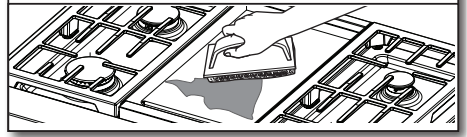
3. Scrape residue into drip tray.
Use a pad holder or wooden spoon with non-scratch pad. Use pressure on soiled areas. Repeat if needed for heavy soils.
4. Remove remaining residue.
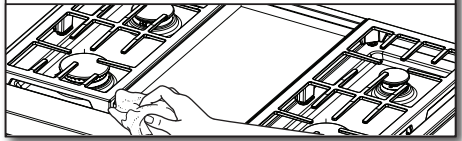
Fold a damp towel and, with the pad holder or wooden spoon, go over the griddle to remove remaining residue.
5. Turn off griddle and let cool.
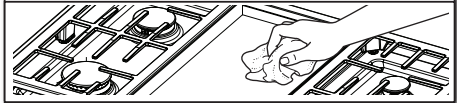
6. Wipe off griddle
Once cool, wipe the griddle with a clean, damp terry cloth towel. Then buff with a microfiber cloth. If streaking, rainbowing, or ghosting occurs, use a mixture of 1 part white vinegar to 2 parts water on a towel to wipe the griddle.
7. Remove, empty, and clean drip tray
Clean the drip tray with warm, soapy water. Wipe the area under the drip tray clean. Once dry, put the drip tray back in position
COOKTOP CONTROLS
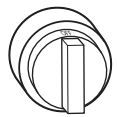
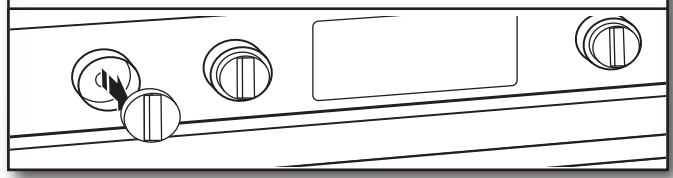
1. Remove knobs.
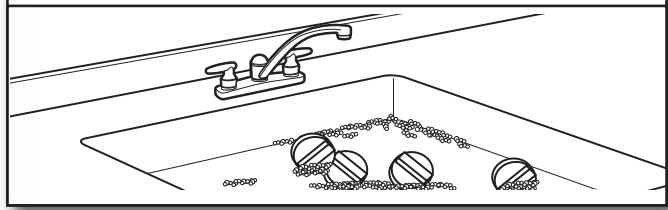
2. Clean with warm, soapy water.
Know Your Cooktop Controls
To avoid damage to the cooktop controls, do not use steel wool, abrasive cleansers, or oven cleaner.
To avoid damage, do not soak knobs.
When replacing knobs, make sure knobs are in the Off position.
Do not remove seals under knobs.
When replacing knobs after cleaning either the surface burner controls or the griddle module control, make sure the knobs are replaced to the correct location. The power burner knobs have power settings, and the griddle knob has temperature settings. All other knobs have Hi, Med, and Lo settings only.
STAINLESS STEEL
Use cleaner or wipes.
Use affresh® Stainless Steel Cleaner or affresh® Stainless Steel Cleaning Wipes (not included). Rub in direction of grain to avoid possible damage to the steel surface.
Do Not Use:
Soap-filled scouring pads
Abrasive cleaners
Cooktop polishing creme
Steel-wool pads
Gritty washcloths
Abrasive paper towels
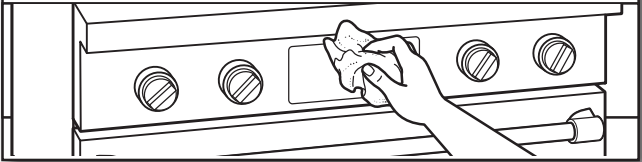
CONTROL PANEL
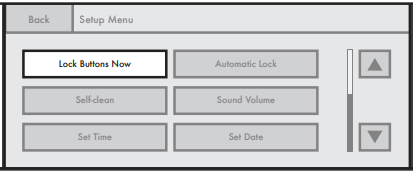
1. Activate LOCK BUTTONS NOW.
Locking buttons avoids touch screen activation during cleaning.
2. Apply cleaner.
Apply glass cleaner to soft cloth or sponge, not directly on panel, or use affresh® Kitchen and Appliance Cleaner (not included).
Do Not Use: Abrasive cleaners
Steel-wool pads
Gritty washcloths
Abrasive paper towels
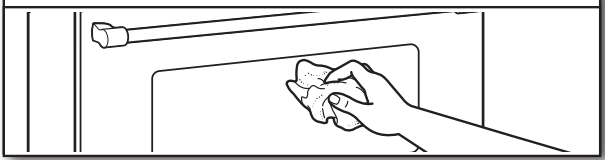
DOOR EXTERIOR
Apply cleaner.
Apply glass cleaner to soft cloth or sponge, not directly on panel, or use affresh® Kitchen and Appliance Cleaner not included).
DOOR INTERIOR
1. Wipe away any deposits. Use a damp sponge.
2. Use Self-Cleaning cycle.
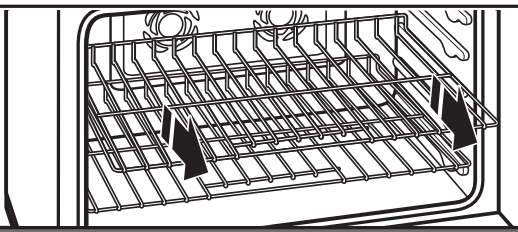
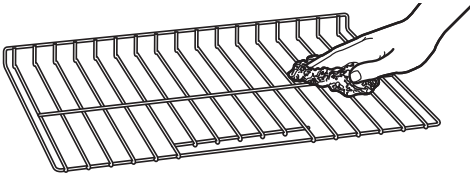
OVEN RACKS
1. Empty out oven and remove racks.
Remove broiler pan, grid, cookware, and bakeware and, on some models, the temperature probe from the oven. IMPORTANT: Remove racks before the Self-Cleaning cycle to avoid discoloring and difficulty sliding.
2. Use steel-wool pad
OVEN CAVITY
Do not use oven cleaners.
Food spills should be cleaned when oven cools. At high temperatures, foods react with porcelain. Staining, etching, pitting, or faint white spots can result.
SELF-CLEANING THE OVEN
IMPORTANT:
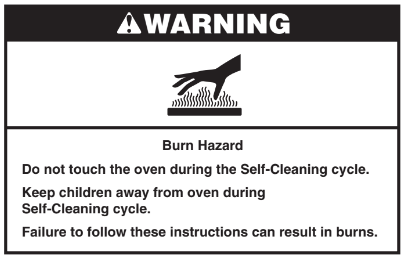
The health of some birds is extremely sensitive to the fumes given off during the Self-Cleaning cycle. Exposure to the fumes may result in death to certain birds. Always move birds to another closed and well-ventilated room.
Self-clean the oven before it becomes heavily soiled. Heavy soil results in longer cleaning and more smoke.
Keep the kitchen well-ventilated during the Self-Cleaning cycle to help get rid of heat, odors, and smoke.
Do not block the oven vent(s) during the Self-Cleaning cycle. Air must be able to move freely.
Do not clean, rub, damage, or move the oven door gasket. The door gasket is essential for a good seal.
To Prepare Oven:
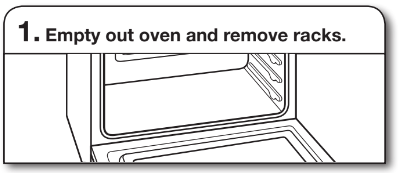
1. Empty out oven and remove racks.
Remove broiler pan, grid, cookware and bakeware and, on some models, the temperature probe from the oven. IMPORTANT: Remove racks before the Self-Cleaning cycle to avoid discoloring and difficulty sliding.
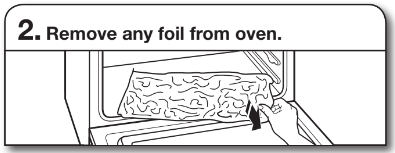
2. Remove any foil from oven.
Foil may burn or melt, damaging the oven.
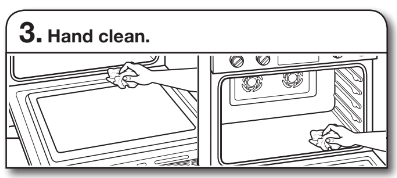
3. Hand clean.
With a damp cloth, hand clean the inside door edge and 11⁄2" (3.8 cm) of the area around the inside oven cavity frame. Be certain not to move or bend the gasket. This area does not get hot enough during self-cleaning to remove soil. Do not let water, cleaner, etc., enter slots on door frame.
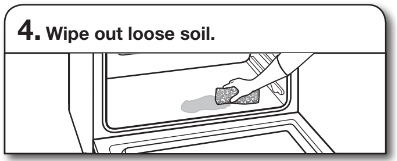
4. Wipe out loose soil.
Wiping out soil reduces smoke and avoids damage. At high temperatures, foods react with porcelain. Staining, etching, pitting, or faint white spots can result. This will not affect cooking performance.
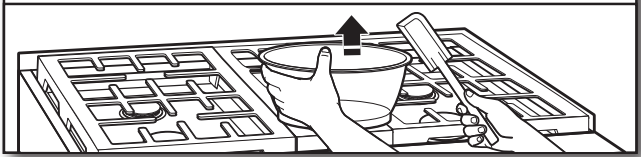
To Prepare Cooktop: Remove plastic items.
Plastic items may melt.
How the Cycle Works
IMPORTANT:
The heating and cooling of porcelain on steel in the oven may result in discoloring, loss of gloss, hairline cracks, and popping sounds.
The Self-Cleaning cycle uses very high temperatures, burning soil to a powdery ash.
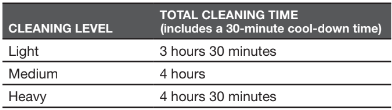
The oven is preset for a 3-hour 30-minute Self-Cleaning cycle; however, the time can be changed.
Use the following chart as a guide to determine the desired cleaning level:
Once the oven has completely cooled:
Remove ash with a damp cloth.
If soil remains after wiping, that means the length of the Self-Cleaning cycle was not long enough for the amount of soil in the oven. Repeat the Self-Cleaning cycle if desired or the soil will be removed during the next Self-Cleaning cycle.
To avoid breaking the glass, do not apply a cool damp cloth to the inner door glass before it has completely cooled.
The oven lights will not light during the Self-Cleaning cycle.
On 48" (121.9 cm) ranges, only one oven can self-clean at a time. If one oven is self-cleaning, the other oven cannot be set or turned on.
NOTE: The oven has a 2-speed cooling fan motor. During self-cleaning, the fan(s) will operate at their highest speed to increase airflow to better exhaust the hotter air through the oven vent(s). An increase of noise may be noticeable during and after the Self-Cleaning cycle until the oven cools.
To Use Self-Clean:
Touch SELF-CLEAN. If Accessing Self-Clean by Using the Setup Menu on 48" (121.9 cm) Ranges:
Select oven to clean
Touch NEXT.
Select cleaning level.
The door(s) will lock. NOTE: The oven will cool for an additional 30 minutes after cleaning is completed.
To Delay for Self-Clean:
5. Touch DELAY START.
6. Enter desired start time
The oven will calculate the end time based on your cleaning level choice. The oven will cool for an additional 30 minutes after cleaning is completed.
To Stop Self-Clean Any Time: Touch CANCEL OVEN
Touch CANCEL OVEN (CANCEL LEFT or CANCEL RIGHT on 48" (121.9 cm) oven models). If the oven temperature is too high, the door will remain locked. It will not unlock until the oven cools.
OVEN LIGHTS
The oven lights are 120-volt, 25-watt maximum halogen bulbs.
They will come on when the oven door is opened. On 48" (121.9 cm) ranges, both the left and right oven lights turn on or off when Oven Light is touched. The oven lights will not work during the Self-Cleaning cycle. When the oven door is closed, touch OVEN LIGHT to turn light on or off.
To Replace:
Before replacing the bulb, make sure the oven is OFF and cool.
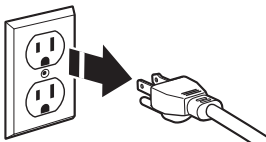
1. Disconnect power.
2. Remove glass light cover
3. Remove bulb from socket.
4. Replace bulb.
5. Replace bulb cover
6. Reconnect power
TROUBLESHOOTING
If you experience
Possible Causes
Solution
Nothing will operate.
A household fuse has blown or a circuit breaker has tripped.
Replace the fuse or reset the circuit breaker. If the problem continues, call an electrician.
Surface burners will not operate.
This is the first time the surface burners have been used.
Turn on any one of the surface burner knobs to release air from the gas lines.
The control knob is not set correctly.
Push in knob before turning to a setting.
The burner ports are clogged.
Clean clogged burner ports with a straight pin.
Surface burner flames are uneven, yellow, and/or noisy.
The burner ports are clogged.
Clean clogged burner ports with a straight pin
On models with caps, the burner caps are not positioned properly.
Make sure alignment pins are properly aligned with the burner cap.
Propane gas is being used.
The range may have been converted improperly. Contact a trained repair specialist.
Surface burner makes popping noises.
The burner is wet.
Let it dry.
Burner sparks but does not light.
There is continuous sparking, but the burner does not light.
Discontinue use of the surface burner and contact a service technician.
Excessive heat around cookware on cooktop.
The cookware is not the proper size.
Use cookware about the same size as the surface cooking area or surface burner. Cookware should not extend more than 1⁄2" (1.3 cm) outside the cooking area.
Cooktop cooking results not what expected.
The proper cookware is not being used.
Use medium-to-heavy cookware made of the material that cooks food the way you want. The best cookware should have a flat bottom, straight sides, and a well-fitting lid.
The control knob is not set to the proper heat level.
Set the Cooktop Control to HI, MED, or LO, depending upon the type of cooking you want to do.
The range is not level.
The range must be level for the griddle to operate properly.
Oven will not operate.
This is the first time the oven has been used.
Turn on any one of the surface burner knobs to release air from the gas lines.
The electronic oven control is not set correctly.
Make sure you have followed the instructions for the function you want to perform.
A Delay Start has been set.
This will cause the oven to start at a later time.
On some models, Lock Buttons Now is set.
All the buttons will be locked. Slide the bar up on the main screen to unlock the button/screen.
On some models, the Sabbath mode is set.
This mode allows oven operation in keeping with the Jewish Sabbath. When set, only the number and start keys will function.
Oven temperature too high or too low.
The oven temperature calibration needs adjustment
Select the temperature offset up to +35°F.
Gas range noises during Bake and Broil operations.
Noises that may be heard during the Bake and Broil operations: Whooshing, poof, clicking, snaps, pop — These sounds are normal operational noises that can be heard each time the Bake or Broil burners ignite during the cycle.
A pop can be heard when the gas valve is opening or cycling on and will make a single pop when it snaps open from the solenoid. It sounds similar to a suction cup being pulled off of a piece of glass.
The igniters will click several times until the flame is detected. These are short clicking sounds like tapping a nail onto a piece of glass.
A whooshing or poof sound is heard when the bake or broil burner ignites.
On some models, a clicking sound can be heard when the convection fan relay cycles on and off.
Display shows messages.
The display is showing a letter followed by a number.
Clear the display. If a letter followed by a number reappears, call for service.
Self-Cleaning cycle will not operate.
The oven door is open.
Close the oven door all the way.
The function has not been entered.
Make sure you have properly followed the Self-Cleaning cycle instructions.
On some models, a delay start Self-Cleaning cycle has been set.
This will cause the oven to start the Self-Cleaning cycle at a later time.
A Delay Start has been set.
This will prevent the oven from starting any function until the delayed start time is reached or has been canceled.
On 48" (121.9 cm) ranges, one oven is self-cleaning
When one oven is self-cleaning, the other oven cannot be set to self-clean.
Oven cooking results not what expected.
The proper temperature is not set.
Double-check the recipe in a reliable cookbook.
The proper oven temperature calibration is not set.
Select the temperature offset up to +35°F to increase or decrease the temperature as desired.
The oven was not preheated.
If the proper steps are followed when setting the desired function, the oven will preheat before cooking.
The proper bakeware is not being used.
Make sure the bakeware used is appropriate for the food being cooked
The racks are not positioned properly
Place racks so there is adequate space above each food item
There is not proper air circulation around bakeware.
Allow 2" (5.0 cm) of space around bakeware and oven walls.
The batter is not evenly distributed in the pan.
Check that batter is level in the pan.
The proper length of time is not being used.
Adjust cooking time.
The oven door has been opened while cooking.
Oven peeking releases oven heat and can result in longer cooking times.
Baked items are too brown on the bottom.
Move rack to higher position in the oven.
Pie crust edges are browning early
Use aluminum foil to cover the edge of the crust and/or reduce baking temperature.