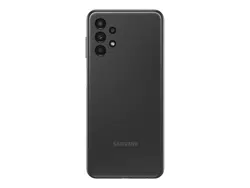
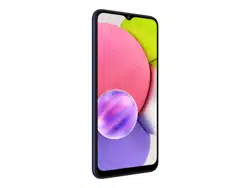
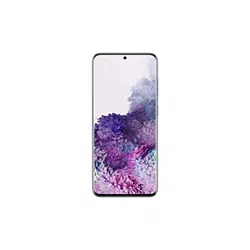
Samsung Galaxy A20 Smartphone
Product's Documents
Below are documents related to this product, you can read online or download:
- Owner's manual - (English) Read Online | Download pdf
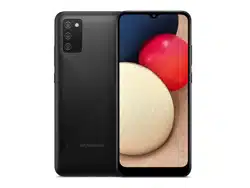

Your device uses a nano-SIM card. A SIM card may be preinstalled, or you may be able to use your previous SIM card. Contact your carrier for more details.

Your device is powered by a rechargeable battery. A charger (charging head and USB Type-C cable) is included with the device for charging the battery from a power outlet.
charging, the device and the charger may become hot and stop charging. This usually does not affect the device’s lifespan or performance and is in the device’s normal range of operation.
Use the Power key to turn your device on or off. Do not use the device if the body is cracked or broken. Use the device only after it has been repaired.
 Power off.
 Restart.
Use Smart Switch™ to transfer contacts, photos, music, videos, messages, notes, calendars, and more from your old device. Smart Switch can transfer your data via USB cable, Wi-Fi, or computer. Visit samsung.com/us/support/owners/app/smart-switch to learn more.
 Accounts and backup > Smart Switch.
Use your device’s screen lock features to secure your device. By default, the device locks automatically when the screen times out. For more information about screen locks, see Lock screen and security on page 124.

Set up and manage your email accounts, your Google™ Account, and Samsung account.
TIP: Accounts may support email, calendars, contacts, and other features. See your carrier for more information.
Add a Google Account
Sign in to your Google Account to access your Google cloud storage, apps installed from your account, and make full use of your device’s Android™ features.
Accounts and backup > Accounts. Add account > Google. NOTE When you sign in to a Google Account, Factory Reset Protection (FRP) is activated. FRP requires your Google Account information when resetting to factory settings. For more information, see Factory reset protection
Add a Samsung account
Sign in to your Samsung account to access exclusive Samsung content and make full use of Samsung apps.
Accounts and backup > Accounts. Add account > Samsung account.TIP: To quickly access your Samsung account, from Settings tap  Samsung account.
Add an email account
Sign in to one or more of your email accounts to view and manage email messages.
Accounts and backup > Accounts. Add account > Email.You can set up your voicemail service when you access it for the first time. You can access voicemail through the Phone app.
 Phone, touch and hold the
  1 key.
Status bar- The Status bar provides device information on the right side and notification alerts on the left
Status icons

Notification icons

 Flexible security
Use biometrics to securely unlock your device and log in to accounts.
Face recognition
You can enable Face Recognition to unlock your screen.
 Biometrics and security > Face recognition.
Face recognition management: Customize how face recognition works.
Biometrics and security > Face recognition.Fingerprint scanner: Use fingerprint recognition as an alternative to entering passwords in certain apps. You can also use your fingerprint to verify your identity when logging in to your Samsung account. This is featured on the Galaxy A20 only.
Biometrics and security > Fingerprints.Fingerprint management: Add, delete, and rename fingerprints.
Biometrics and security > Fingerprints for the following options:Fingerprint verification settings: Use fingerprint recognition to verify your identity in supported apps and actions.
Biometrics and security > Fingerprints.Biometrics Preferences: Configure your preferences for biometric security options.
Biometrics and security > Biometrics preferences for the following options:The Apps list displays all preloaded and downloaded apps. Apps can be downloaded from Galaxy Store and the Google Play™ store.
Uninstall or disable apps: Installed apps can be removed from your device. Some apps that are preloaded (available on your device by default) can only be disabled. Disabled apps are turned off and hidden from the Apps list.
Search for apps: If you are not sure where to find an app or a setting, you can use the Search feature.
Sort apps: App shortcuts can be listed alphabetically or in your own custom order.
 More options > Sort for the following sorting options:
TIP When apps are arranged manually (Custom order), empty icon spaces can be removed by tapping More options > Clean up pages.
Create and use folders
You can make folders to organize App shortcuts on the Apps list.
 Palette: Change the folder color.
 Add apps: Place more apps in the folder. Tap apps to select them, and then tap Add.
 Back to close the folder.
Copy a folder to a Home screen: You can copy a folder to a Home screen.
 Add to Home.
Delete a folder: When you delete a folder, the app shortcuts return to the Apps list.
 Delete folder, and confirm when prompted.
Manage your downloaded and preloaded apps.
 Apps.
Apps. Menu to set which apps to view, and then choose All, Enabled, or Disabled. More options for the following options:
 Camera
You can capture high-quality pictures and videos using the Camera app.
Camera.TIP If Quick launch is enabled, quickly press the Power key twice

Navigate the camera screen
Take stunning pictures with your device’s front and rear cameras.
Camera, set up your shot with the following features: Settings.
 Capture.
Record videos: Record high-quality videos using your device.
Camera, swipe right or left to change the shooting mode to Video. Capture to begin recording a video.
 Capture.
 Pause. To continue recording, tap
  Resume.
 Stop when you are finished recording.
Change shooting modes
The Camera is equipped with a variety of shooting modes to capture pictures and videos in specific scenarios.
Camera, the shooting modes are located in a row near the bottom of the screen.Configure shooting mode
Allow the camera to determine the ideal mode for your pictures or choose from several shooting modes.
Camera, touch and hold a shooting mode.Camera settings
Use the icons on the main camera screen and the settings menu to configure your camera’s settings. From Camera, tap Settings for the following options:
 Contacts
Store and manage your contacts. You can synchronize with personal accounts added to your device. Accounts may also support email, calendars, and other features.
 Contacts >
  Create contact.
There are a couple of ways to access your device settings.
 Settings.
 Settings.
Search for Settings
If you are not sure exactly where to find a certain setting, you can search for it.
 Search, and enter keywords.
Manage connections between your device and a variety of networks and other devices.
Wi-Fi
You can connect your device to a Wi-Fi network to access the Internet without using your mobile data.
 Connections > Wi-Fi, and then tap
  to turn on Wi-Fi and scan for available networks.
Manually connect to a Wi-Fi network
If the Wi-Fi network you want is not listed after a scan, you can still connect to it by entering the information manually. Ask the Wi-Fi network administrator for the name and password before you begin.
Connections > Wi-Fi, and then tap to turn on Wi-Fi. Add network at the bottom of the list.
Advanced Wi-Fi settings
You can configure connections to various types of Wi-Fi networks and hotspots, manage saved networks and look up your device's network addresses.
Connections > Wi-Fi, and then tap to turn on Wi-Fi.Wi-Fi Direct
Wi-Fi Direct uses Wi-Fi to share data between devices.
Connections > Wi-Fi, and then tap to turn on Wi-Fi. Wi-Fi Direct to use this feature
Disconnect from Wi-Fi Direct
Disconnect your device from a Wi-Fi Direct device.
Connections > Wi-Fi > Wi-Fi Direct. Tap a device to disconnect it.You can pair your device to other Bluetooth® -enabled devices, like Bluetooth headphones or a Bluetooth-enabled vehicle infotainment system. Once a pairing is created, the devices remember each other and can exchange information without having to enter the passkey again.
Connections > Bluetooth, and then tap to turn on Bluetooth.TIP When sharing a file, tap  Bluetooth to use this feature.
Rename a paired device
You can rename a paired device to make it easier to recognize.
Connections > Bluetooth, and then tap to turn on Bluetooth. Settings next to the device name, and then tap Rename.
Unpair from a Bluetooth device
When you unpair from a Bluetooth device, the two devices no longer recognize each other.
Connections > Bluetooth, and then tap to turn on Bluetooth. Settings next to the device, and then tap Unpair.TIP You will need to pair with the device again in order to connect to it.
Advanced options
Additional Bluetooth features are available in the Advanced menu.
Connections > Bluetooth.Turn on visibility to allow other Bluetooth devices to find your device. This is featured on the Galaxy A20 only.
Connections > Phone visibility, and then tap to make your device visible.Near Field Communication (NFC) allows you to communicate with another device without connecting to a network. This technology is used by Android Beam and certain payment apps. This is featured on the Galaxy A20 only.
Connections > NFC and payment, and then tap to turn on this feature.TIP The device that you are transferring to needs to support NFC, and it needs to be within four centimeters of your device.
Airplane mode disconnects your device from all networks and turns off connectivity features.
to enable this feature.Use Mobile networks to configure your device's ability to connect to mobile networks and use mobile data.
Connections > Mobile networks.TIP Use these features to help manage connection settings that may affect your monthly bill.
Check your current mobile and Wi-Fi data usage. You can also customize warnings and limits.
Connections > Data usage.Mobile hotspot: Mobile hotspot uses your data plan to create a Wi-Fi network that can be used by multiple devices.
Connections > Mobile hotspot and tethering > Mobile hotspot. to turn on Mobile hotspot.Tethering: You can use tethering to share your device’s Internet connection with another device.
Nearby device scanning: Easily set up connections to other available devices by turning on Nearby device scanning. This feature sends you a notification when there are available devices to connect to.
Connections > More connection settings > Nearby device scanning. to turn on the feature.Connect to a printer: Connect your device to a printer on the same Wi-Fi network to easily print documents and images from your device.
Connections > More connection settings > Printing. Download plugin and follow the prompts to add a print service. More options > Add printer. TIP Make sure the app you want to print from supports printing.Virtual Private Networks: A Virtual Private Network (VPN) allows you to connect to a private secured network from your device. You will need the connection information from your VPN administrator.
Connections > More connection settings > VPN. More options > Add VPN profile.You can control the sounds and vibrations used to indicate notifications, screen touches, and other interactions.
Sound mode: You can change the sound mode on your device without using the volume keys.
 Sounds and vibration > Sound mode, and then choose a mode:
Easy mute: Quickly mute sounds by covering the screen or turning the device over.
 Advanced features > Motions and gestures > Easy mute, and tap to enable.
Vibrations: You can control how and when your device vibrates
Sounds and vibration.Volume: Set the volume level for call ringtones, notifications, and other audio.
Sounds and vibration > Volume, and drag the sliders. TIP You can also use the Volume key to adjust the volume. Slide the volume controls to customize all volume options.Use Volume keys for media: Set the default of the Volume key to control the media volume.
Sounds and vibration.Media volume limiter: Limit the maximum output of the device’s volume while using headphones or Bluetooth speakers (not included).
Sounds and vibration > Volume. More options > Media volume limiter. to enable this feature.Ringtone: Customize your call ringtone by choosing from preset sounds or adding your own.
Sounds and vibration > Ringtone. Add to use an audio file as a ringtone.
Notification sounds: Choose a preset sound for all notification alerts.
Sounds and vibration > Notification sounds.System sounds and vibration: Customize your device's sounds and vibrations for actions like tapping the screen and charging the device.
Sounds and vibration > System sounds. Sounds and vibration > System sounds and vibration for the following options:You can prioritize and streamline app alerts by changing which apps send notifications and how notifications alert you.
Manage notifications: You can configure notifications from apps and services.
 Notifications. next to the app. Tap See all to open the complete list of apps.
Customize app notifications: You can change notification settings for each app.
Notifications > See all.Smart alert: You can set the device to notify you about missed calls and messages by vibrating when you pick it up.
Advanced features > Motions and gestures > Smart alert, and tap to enable.Smart pop-up view: Receive notifications as icons that can be tapped and expanded in pop-up view. This is featured on the Galaxy A20 only.
Advanced features > Smart pop-up view, and tap to enable.Screen brightness
Adjust the screen brightness according to lighting conditions or personal preference.
 Display.
Blue light filter
The Blue light filter can help you sleep better if you use your device at night. You can set a schedule to automatically turn this feature on and off. This is featured on the Galaxy A20 only.
Display > Blue light filter, and then choose one of the following options:Night mode allows you to switch to a darker theme to keep your eyes more comfortable at night.
Display > Night mode for the following options:You can configure the screen brightness, timeout delay, font size, and many other display settings.
Screen mode
Your device has several screen mode options which adjust the screen quality for different situations. You can select the mode according to your preference. This is featured on the Galaxy A20 only.
Font size and style
You can change the font size and style to customize your device.
Display > Font size and style for the following options: Download fonts to add fonts from Galaxy Store.Screen zoom
Adjust the zoom level to increase or decrease the size of content on the screen.
Display > Screen zoom.Full screen apps
You can choose which apps you want to use in the full screen aspect ratio.
Display > Full screen apps and tap apps to enable this feature.Screen timeout
You can set the screen to turn off after a set amount of time.
Display > Screen timeout, and tap a time limit to set it.View the device storage and usage. You can also mount, unmount, or format an optional memory card (not included).
Device storage
Quickly optimize your device’s storage, increasing available memory.
 Device care > Storage > Clean now.
Memory card
Once an optional microSD memory card (not included) has been installed in your device, the card memory is displayed in the Storage setting.
For more information, see Assemble your device
Mount a memory card
When you install an optional memory card, it is automatically mounted (connected to the device) and prepared for use. However, should you unmount the card without removing it from the device, you need to mount it before it can be accessed.
Device care > Storage. More options > Storage settings.Remove a memory card
To prevent damage to information stored on the memory card, unmount the card before removing it from the device.
Device care > Storage. More options > Storage settings.Format a memory card
When formatting an SD card, you should back up your music and photo files that are stored on the card because formatting the SD card deletes ALL stored files.
Device care > Storage. More options > Storage settings.View the status of your device’s battery, storage, and memory. You can also automatically optimize your device’s system resources.
The quick optimization feature improves device performance through the following actions:
To use the quick optimization feature:
Device care > Optimize now.View how battery power is used for your various device activities.
Device care > Battery for options: More options > Settings: Configure advanced battery settings and notifications.
Check the amount of available memory. You can close background apps and reduce the amount of memory you are using to speed up your device.
Device care > Memory.Configure your device’s language and input settings.
Change the device language
You can add languages to your list and organize them according to preference. If an app does not support your default language, then it will move to the next supported language in your list.
 General management > Language and input > Language. Add language, and select a language from the list.
 Move next to the desired language to the top of the list, and then tap Apply.
Default keyboard
You can select a default keyboard for your device’s menus and keyboards. Additional keyboards can be downloaded from the Google Play store.
General management > Language and input.Google Voice typing
Speak rather than type your text entries using Google Voice™ typing.
General management > Language and input.Manage on-screen keyboards
Enable or disable on-screen keyboards.
General management > Language and input. Manage keyboards.Physical keyboards
Customize options when you have a physical keyboard connected to your device (sold separately).
General management > Language and input.Show keyboard button
Show a button on the Navigation bar to quickly switch between keyboards.
General management > Language and input.Autofill service
Save time entering information using autofill services.
General Management > Language and input.By default, your device receives date and time information from the wireless network. Outside of network coverage, you can set the date and time manually.
General management > Date and time. The following options are available:You can also check for software updates, and if necessary, reset services on your device.
Check for and install available software updates for your device.
 System updates for the following options:
Reset device and network settings. You can also reset your device to its factory defaults.
Reset settings
You can reset your device to its factory default settings, which resets everything except the security, language, and account settings. Personal data is not affected.
General management > Reset > Reset settings.Reset network settings
You can reset Wi-Fi, mobile data, and Bluetooth settings with Reset network settings.
General management > Reset > Reset network settings.Reset accessibility settings
You can reset device accessibility settings. Accessibility settings in downloaded apps and your personal data are not affected.
General management > Reset > Reset accessibility settings.Auto restart
Optimize your device by restarting it automatically at set times. Any unsaved data will be lost when the device restarts.
General management > Reset > Auto restart. to activate Auto restart, and then set the following parameters:You can reset your device to factory defaults, erasing all data from your device.
This action permanently erases ALL data from the device, including Google or other account settings, system and application data and settings, downloaded applications, as well as your music, photos, videos, and other files. Any data stored on an external SD card is not affected.
NOTE When you sign in to a Google Account on your device, Factory Reset Protection is activated. This protects your device in the event it is lost or stolen.
If you reset your device to factory default settings with the Factory Reset Protection (FRP) feature activated, you must enter the user name and password for a registered Google Account to regain access to the device. You will not be able to access the device without the correct credentials.
NOTE If you reset your Google Account password, it can take 24 hours for the password reset to sync with all devices registered to the account.
Before resetting your device:
To reset your device:
General management > Reset > Factory data reset.Factory reset protection
When you sign in to a Google Account on your device, Factory Reset Protection is activated. Factory Reset Protection (FRP) prevents other people from using your device if it is reset to factory settings without your permission. For example, if your device is lost or stolen and a factory data reset is performed, only someone with your Google Account username and password can use the device.
You will not be able to access the device after a factory data reset if you do not have your Google Account username and password.
CAUTION Before sending your device to Samsung or taking it to a Samsungauthorized service center, remove your Google Account and then perform a factory data reset. For more information, visit samsung.com/us/support/frp.
Enable factory reset protection
Disable factory reset protection: To disable FRP, remove all Google Accounts from the device.
 Accounts and backup > Accounts > [Google Account].
You can secure your device and protect your data by setting a screen lock.
Screen lock types
You can choose from the following screen lock types that offer high, medium, or no security: Swipe, Pattern, PIN, Password, and None.
NOTE Biometric locks are also available to protect access to your device and sensitive data on your device. For more information, see Flexible security
Set a secure screen lock
It is recommended that you secure your device using a secure screen lock (Pattern, PIN, or Password).
 Lock screen > Screen lock type and tap a secure screen lock (Pattern, PIN, or Password). to enable showing notifications on the lock screen. The following options are available:
Clock and information
You can configure features that appear on the Lock screen, like the clock and other useful information.
Lock screen for the following options:Google Play Protect
You can configure Google Play Protect to regularly check your apps and device for security risks and threats.
Biometrics and security > Google Play Protect.Find My Device
You can protect your device from loss or theft by allowing your device to be locked, tracked online, and for your data to be deleted remotely.
Biometrics and security > Find My Device.TIP A Google Account is required, and Google location service must be turned on.
Security update
You can easily check the date of the last installed security software update and find out if newer updates are available.
Biometrics and security > Security update to see the latest security update installed and check if a newer update is available.Samsung Pass
Use Samsung Pass to access your favorite services with biometric data. You must sign in to your Samsung account to use Samsung Pass. This is featured on the Galaxy A20 only. Visit samsung.com/us/support/owners/app/samsung-pass to learn more.
Biometrics and security > Samsung Pass.Install unknown app
You can allow installation of unknown third-party apps from selected apps or sources.
Biometrics and security > Install unknown apps.Secure Folder
Biometrics and security > Secure Folder and follow the prompts to secure content on your device.Encrypt SD card
Biometrics and security > Encrypt SD card.Decrypt SD card
You can decrypt an optional memory card (not included) if it was encrypted by this device. You may want to decrypt the memory card if you plan to use it with another device or before performing a Factory data reset.
Biometrics and security > Decrypt SD card.Set up SIM card lock
You can set up a PIN to lock your SIM card, which prevents unauthorized use of your SIM card if someone attempts to use it another device.
Biometrics and security > Other security settings > Set up SIM card lock and follow the prompts.View passwords
You can have characters displayed briefly in password fields as you type them.
Biometrics and security > Other security settings > Make passwords visible to turn on the feature.Security update service
You can set your device to automatically check for security updates.
Biometrics and security > Other security settings, and then tap Security policy updates to check for security updates.Device administration
You can authorize security features and apps (like Find My Device) to have administrative access to your device.
Biometrics and security > Other security settings > Device admin apps.Credential storage
You can manage the trusted security certificates installed on your device, which verify the identity of servers for secure connections.
Biometrics and security > Other security settings for the following options:Strong Protection
Better protect your device by encrypting it using a secure lock type.
Biometrics and security > Other security settings > Strong protection, and then tap to enable this feature.Advanced security settings
You can use these options to configure advanced security settings to better protect your device. ◌ From Settings, tap Biometrics and security > Other security settings for the following options:
Location services use a combination of GPS, mobile network and Wi-Fi to determine the location of your device.
Biometrics and security > Location.Recent location requests
View a list of apps that have requested your location.
Biometrics and security > Location.Location services
Location services store and use your device’s most recent location data. Certain apps can use this data to improve your search results based on places that you have visited.
Biometrics and security > Location.App permissions
Apps might access features of your device that you permit them to (like the camera, microphone, or location) when they are running in the background, not just when you are using the app. You can set your device to notify you when this happens.
Biometrics and security > App permissions. next to the apps you want to be notified about.Send diagnostic data
Send diagnostic information about your device to Samsung when you are having technical problems.
Biometrics and security > Send diagnostic data.You can connect to and manage your accounts, including your Google Account, Samsung account, email, and social networking accounts.
You can add and sync all your email, social networking, and picture and video sharing accounts.
 Accounts and backup > Accounts >
  Add account.
Each account has its own custom settings. You can configure common settings for all accounts of the same type. Account settings and available features vary between account types.
Accounts and backup > Accounts.You can remove accounts from your device.
Accounts and backup > Accounts.You can configure your device to back up data to your personal accounts.
Google Account
You can enable backup of your information to your Google Account.
Accounts and backup > Backup and restore for options:External storage transfer
You can back up your data to an SD card or a USB storage device, or restore backup data using Smart Switch. For more information, see Transfer data from an old device
Accounts and backup > Backup and restore > External storage transfer.You can configure your device’s Google settings. Available options depend on your Google Account.
 Google, and select an option to customize.
There are accessibility settings for people who need help seeing, hearing, or otherwise operating their device. Accessibility services are special features that make using the device easier for everyone.
Screen Reader
Use special controls and settings that let you navigate without needing to see the screen.
 Accessibility > Screen reader and tap an option:
Visibility enhancements
You can configure Accessibility features to assist with visual aspects of your device.
Colors and clarity
You can adjust the colors and contrast of text and other screen elements for easier viewing.
Accessibility > Visibility enhancements and tap an option:Size and zoom
You can increase the size of supported screen elements and create shortcuts for accessibility features on your device.
Accessibility > Visibility enhancements and tap an option:Hearing enhancements
You can configure Accessibility features to assist with audial aspects of the device.
Sounds
You can adjust audio quality when using hearing aids or earphones.
Accessibility > Hearing enhancements and tap an option:Text display
You can convert speech to text and watch closed captions when viewing multimedia.
Accessibility > Hearing enhancements and tap an option:Interaction and dexterity
You can configure Accessibility features to assist with limited dexterity when interacting with your device.
Alternate input
You can control your device using different kinds of inputs and controls.
Accessibility > Interaction and dexterity and tap an option:Interactions
You can simplify the motions needed to answer phone calls or respond to notifications and alarms.
Accessibility > Interaction and dexterity and tap an option:Touch settings
You can adjust your screen to be less sensitive to taps and touches.
Accessibility > Interaction and dexterity and tap an option:Advanced settings
You can customize additional accessibility features and services for your device.
TIP Additional accessibility apps may be downloaded from the Google Play store.
Direct access
Accessibility > Advanced settings and tap an option:Notifications
Accessibility > Advanced settings and tap an option:Installed services
You can install additional assistance services for your device.
Accessibility > Installed services. NOTE Additional accessibility services are listed and configured here after they are installed.
Reference file: Samsung Galaxy A20 Smartphone
Additionally, the document applies to other Samsung models: GALAXY A10E