V02
www.wolox.com
The information in this manual is subject to change without notice.
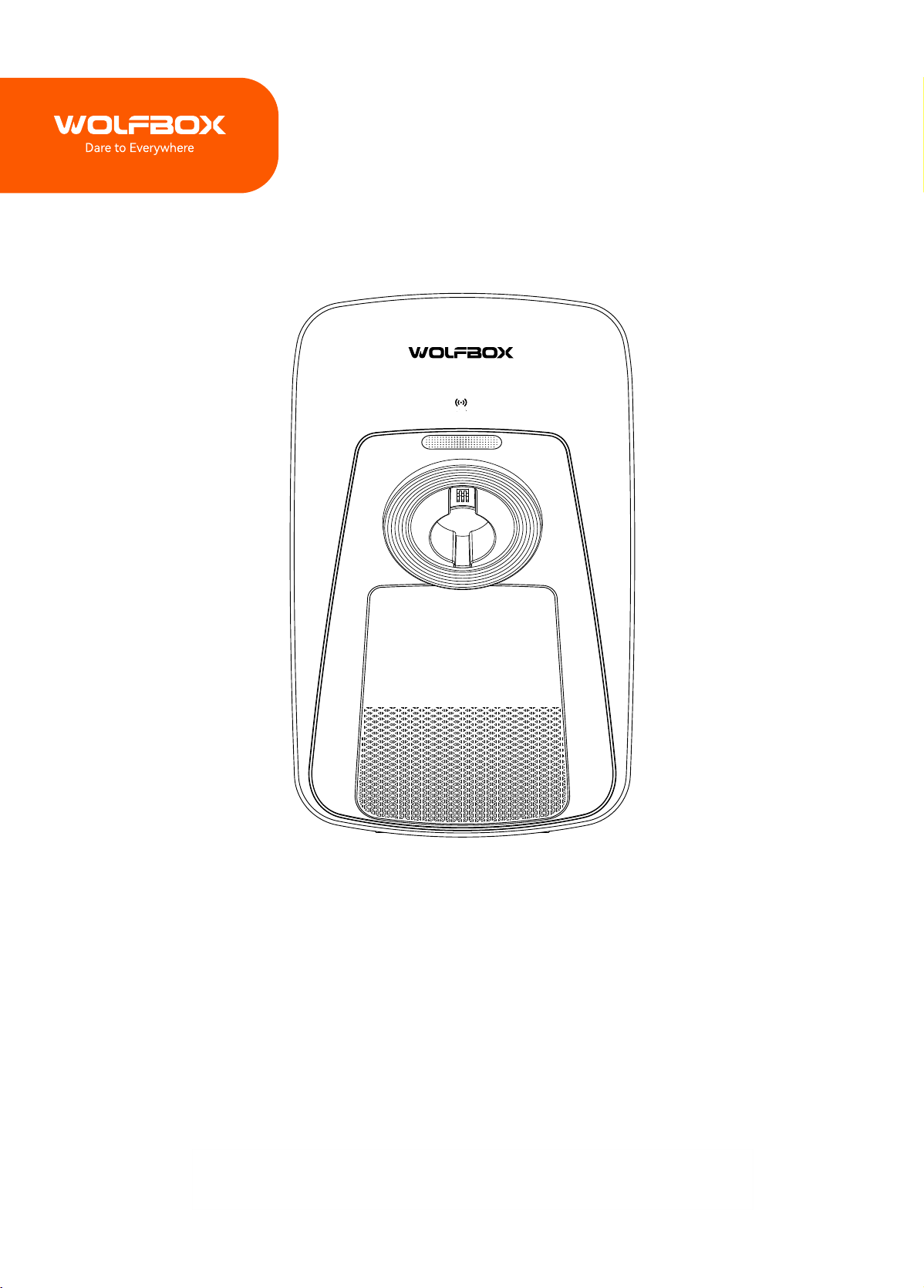
EV Charger
User Manual

Ⅱ
PREFACE
Thank you for purchasing WOLFBOX products. Our equipment is manufactured to high standards and will provide
3 years of trouble-free peormance if used in accordance with these instructions and properly maintained.
IMPORTANT
• Before operating or maintaining this equipment, please read this manual carefully and follow the instructions
for installation and operation, paying special attention to safety warnings and precautions. Improper use of
this product may result in product damage and personal inju and void the product warranty.
• Under no circumstances does compliance with the information in the instructions relieve the user of the
responsibility to comply with all applicable codes and safety standards. This document describes the install
process. If you are unable to peorm the steps described below, please contact us. We are not responsible for
any damages resulting from custom installations or procedures not described in this document or from failure
to comply with the recommendations.
Ⅲ
WARNING
• This equipment should be installed by a licensed electrician only in accordance with all local codes and
ordinances.
• This equipment must be grounded through the permanent wiring system or equipment grounding
conductor,otherwise it may result in the risk of electric shock or re.
• Children should be supeised when using this equipment.
• Do not inse ngers or foreign objects into the EV connector.
• Do not install or use this equipment near ammable materials, explosive, irritating or combustible substances,
chemicals or vapors.
• Do not use this product if the exible power cord or EV cable is frayed, has broken insulation, or any other
signs of damage.
• Do not use this product if the enclosure or the EV connector is broken, cracked, open, or shows any other
indication of damage.
• Use only 90° copper wire conductors.
• Do not operate this equipment outside operating temperature range of -30℃~50℃(-22℉~122℉).
• Please install this equipment correctly. Improper installation and testing of the equipment may result in
propey damage, personal inju.
• Handle the equipment carefully during transpoation. Do not use force, shock or pull, twist, wrap, drag or step
on the equipment to avoid damage to the equipment or equipment pas.
• For NEMA plug-in versions, use only NEMA outlets (NEMA 14-50). For your own safety, do not
unplug the charger during charging.
• THE SUITABILITY OF THE USE OF FLEXIBLE CORD IN ACCORDANCE WITH CE CODE, PART I.
For use with electric vehicles.
Ventilation Not Required.
CAUTION
To avoid the risk of re or electric shock, do not use this equipment is used with extension cord.
SAFETY INSTRUCTIONS
The safety messages herein cover situations WOLFBOX is aware of. WOLFBOX cannot know, evaluate or advise
you as to all of the possible hazards. You must be ceain that any condition or seice procedure encountered
does not jeopardize your personal safety.

CONTENTS
PREFACE . . . . . . . . . . . . . . . . . . . . . . . . . . . . . . . . . . . . . . . . . . . . . . . . . . . . . . . . Ⅱ
SAFETY INSTRUCTIONS . . . . . . . . . . . . . . . . . . . . . . . . . . . . . . . . . . . . . . . . . . . . . . . . Ⅲ
GENERAL INTRODUCTION . . . . . . . . . . . . . . . . . . . . . . . . . . . . . . . . . . . . . . . . . . . . . . 1
Packing List . . . . . . . . . . . . . . . . . . . . . . . . . . . . . . . . . . . . . . . . . . . . . . . . . . . . . . . . . 1
Product Oveiew . . . . . . . . . . . . . . . . . . . . . . . . . . . . . . . . . . . . . . . . . . . . . . . . . . . . . 2
Indicator Light Description . . . . . . . . . . . . . . . . . . . . . . . . . . . . . . . . . . . . . . . . . . . . . . . . 2
Overall Drawing . . . . . . . . . . . . . . . . . . . . . . . . . . . . . . . . . . . . . . . . . . . . . . . . . . . . . . 3
INSTALLATION GUIDE(REFERENCE) . . . . . . . . . . . . . . . . . . . . . . . . . . . . . . . . . . . . . . . . . 3
Location . . . . . . . . . . . . . . . . . . . . . . . . . . . . . . . . . . . . . . . . . . . . . . . . . . . . . . . . . . . 3
Positioning . . . . . . . . . . . . . . . . . . . . . . . . . . . . . . . . . . . . . . . . . . . . . . . . . . . . . . . . . 3
Current Line Description . . . . . . . . . . . . . . . . . . . . . . . . . . . . . . . . . . . . . . . . . . . . . . . . . 5
Hardwired Installation . . . . . . . . . . . . . . . . . . . . . . . . . . . . . . . . . . . . . . . . . . . . . . . . . . . 5
NEMA Plug-in Installation . . . . . . . . . . . . . . . . . . . . . . . . . . . . . . . . . . . . . . . . . . . . . . . . . 7
INSTRUCTIONS FOR USE . . . . . . . . . . . . . . . . . . . . . . . . . . . . . . . . . . . . . . . . . . . . . . . 8
Charging Steps . . . . . . . . . . . . . . . . . . . . . . . . . . . . . . . . . . . . . . . . . . . . . . . . . . . . . . . 8
About Management Card . . . . . . . . . . . . . . . . . . . . . . . . . . . . . . . . . . . . . . . . . . . . . . . . . 9
Fault Description . . . . . . . . . . . . . . . . . . . . . . . . . . . . . . . . . . . . . . . . . . . . . . . . . . . . . 10
WOLFBOX EV APP . . . . . . . . . . . . . . . . . . . . . . . . . . . . . . . . . . . . . . . . . . . . . . . . . . 11
App Download . . . . . . . . . . . . . . . . . . . . . . . . . . . . . . . . . . . . . . . . . . . . . . . . . . . . . . 11
Sign Up and Log In . . . . . . . . . . . . . . . . . . . . . . . . . . . . . . . . . . . . . . . . . . . . . . . . . . . . 11
App Connection . . . . . . . . . . . . . . . . . . . . . . . . . . . . . . . . . . . . . . . . . . . . . . . . . . . . . 12
App Function . . . . . . . . . . . . . . . . . . . . . . . . . . . . . . . . . . . . . . . . . . . . . . . . . . . . . . . 15
Other Setting . . . . . . . . . . . . . . . . . . . . . . . . . . . . . . . . . . . . . . . . . . . . . . . . . . . . . . . . 21
AFTER-SALES INFORMATION . . . . . . . . . . . . . . . . . . . . . . . . . . . . . . . . . . . . . . . . . . . 23
Out of Scope Warranty . . . . . . . . . . . . . . . . . . . . . . . . . . . . . . . . . . . . . . . . . . . . . . . . . 23
Promise . . . . . . . . . . . . . . . . . . . . . . . . . . . . . . . . . . . . . . . . . . . . . . . . . . . . . . . . . . 23
Brand Contact Details . . . . . . . . . . . . . . . . . . . . . . . . . . . . . . . . . . . . . . . . . . . . . . . . . . 23
1
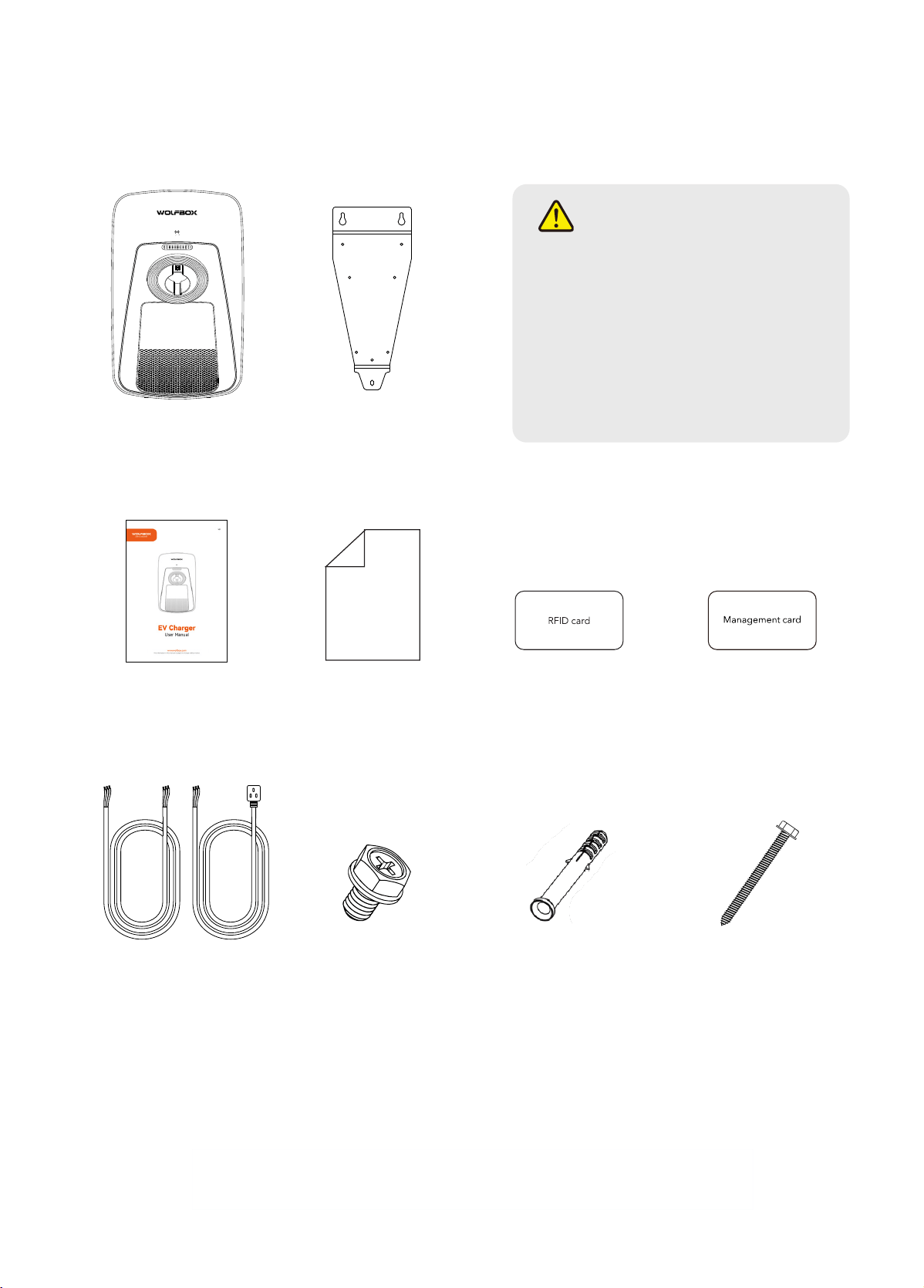
Packing List
GENERAL INTRODUCTION
Other tools you may need:
•Electric Vehicle Supply
Equipment
•Wall Mount Bracket
•
2PCS RFID Charging
Card (Black)
•
Management Card
(Orange, Reset the EV
Charger to Connect to App)
•
User Manual
•
EV Charger Wall
Mounting Template
•
Current Inlet Cable(WE40,
WE40T Plug-In. WE48, WE48T,
WE50 both Plug-In and Hardwire)
•
Plastic Expansion Bolts
M10(2 PCS) for M6 screws
M6(1 PCS) for M4 screws
•
Self-tapping Screw
M6*50mm(2 PCS)
M4*40mm(1 PCS)
1. Socket of NEMA 14-50 or power supply for installing Hardwired circuit
2. Drill
3. Pen
4. Hammer
5. Screwdriver
•
Machine screw
M4*6mm(3 PCS)
CAUTION
• Installation accessories only apply to
the product model provided with this
product.
• The list following does not necessarily
include all tools required for the
installation. We recommend that you
read through the installation process
and gather the tools you need before
the installing
Wall Mount
Template
2
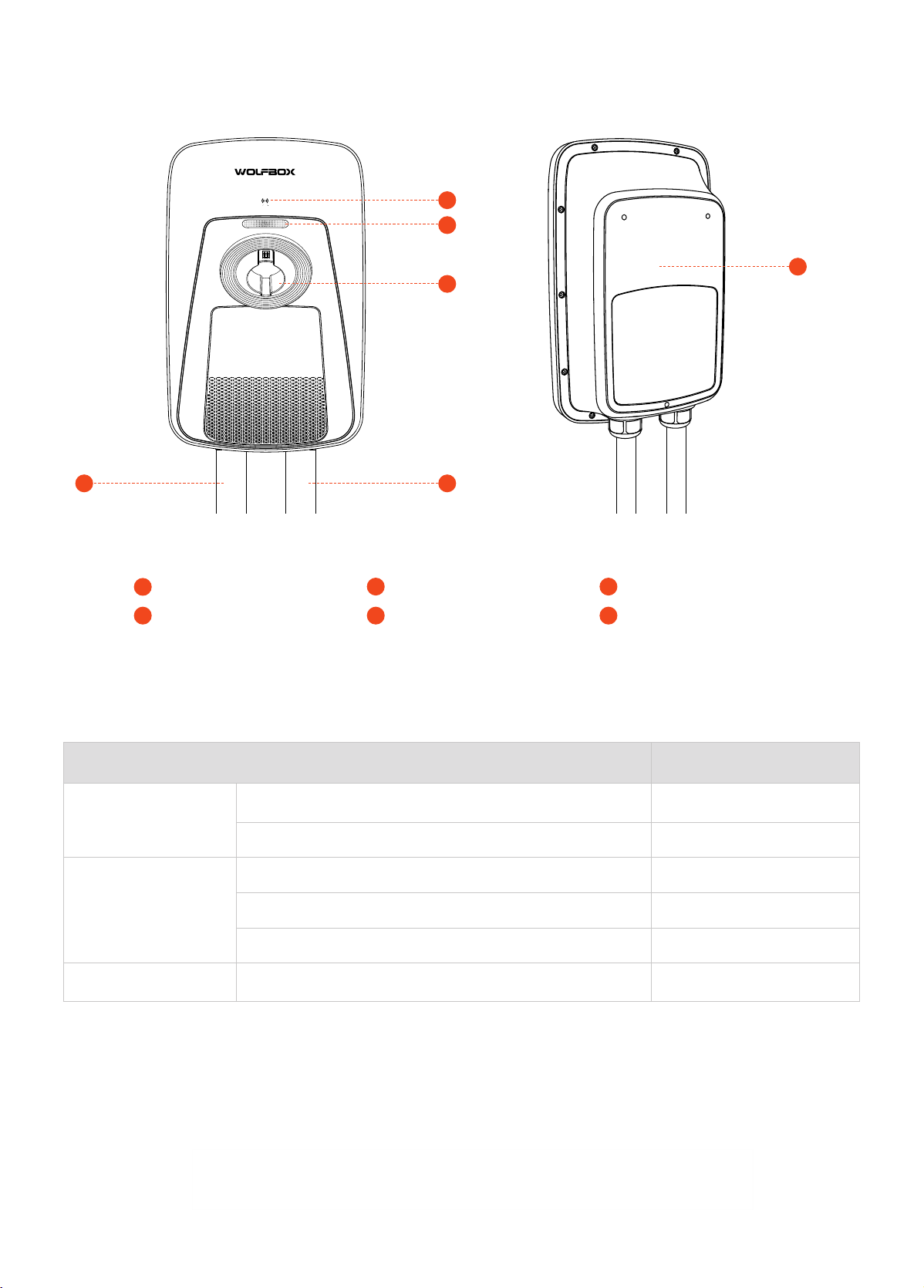
Product Oveiew
1
5
6
4
1
2
2
4
3
3
5 6
RFID Reader Indicator Light
Current Inlet Cable
Connector Holder
Charging Cable Product Labels
WorkingStatus IndicatorStatus
StandbyMode
Notconnectedtoamobiledevice SolidOrange
Connectedtoamobiledevice SolidBlue
ChargingMode
AnEVisconnected SolidBlue
Charginginprogress Breathing Blue
Chargingcomplete SolidGreen
ChargingInterruption ErrorOccurs
Red, details can be seen in
Page10
Indicator Light Description
3
1. Mount the unit on a veical suace that will suppo its weight (e.g., a nished wall). The maximum weight of
this product is approx 8kg .
2. Keep this equipment installed in allowing wire bending tolerance within the scope of the position.
3. Place the charger in a position that is not easily damaged.
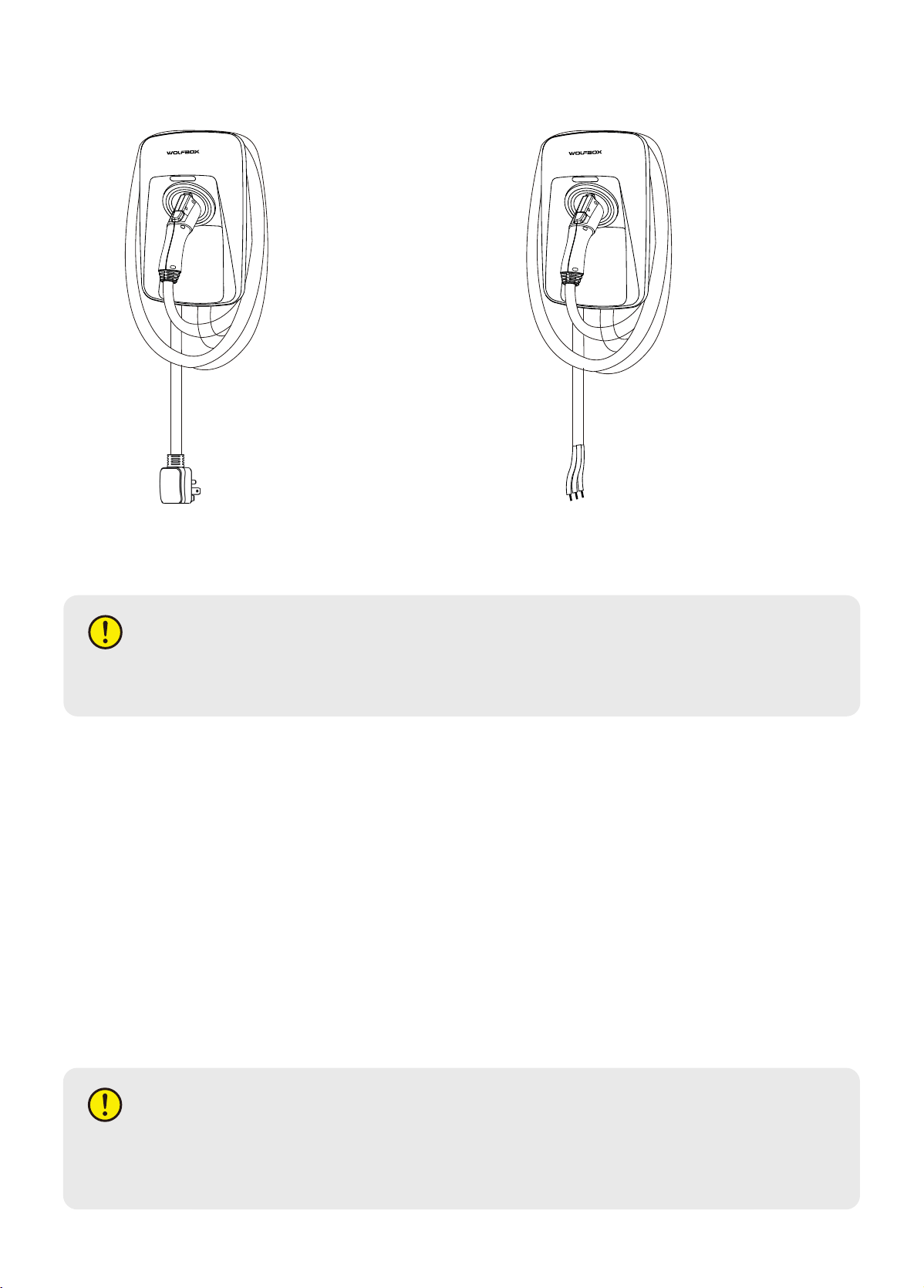
Overall Drawing
Location
NEMA Plug-in Version
Hardwired Version
INSTALLATION GUIDE(REFERENCE)
IMPORTANT
Please follow all applicable codes and regulations and obtain permits to complete electrical work as
required.
Positioning
A:50AorhighercurrentfuseisrecommendedforinstallationcircuitsoftheWE40/WE40Tmodel.
B:60AorhighercurrentfuseisrecommendedforinstallationcircuitsoftheWE48, WE48T model. It can suppo
50A current fuse via changing Amperage Dip Switch inside the EV Charger, please refer to page 6 for details.
C:70AorhighercurrentfuseisrecommendedforinstallationcircuitsoftheWE50model. It can suppo 60A or 50A
current fuse via changing Amperage Dip Switch inside the EV Charger, please refer to page 6 for details.
IMPORTANT
In Canada, a NEMA plug-in installation is only allowed with a 50 amp circuit.
Higher amperage connections are also available for this product. See all applicable codes for circuit breaker
and wire sizing requirements.Field terminals are rated to 105°C and accept up to 6 AWG (16 mm²) wire.
4
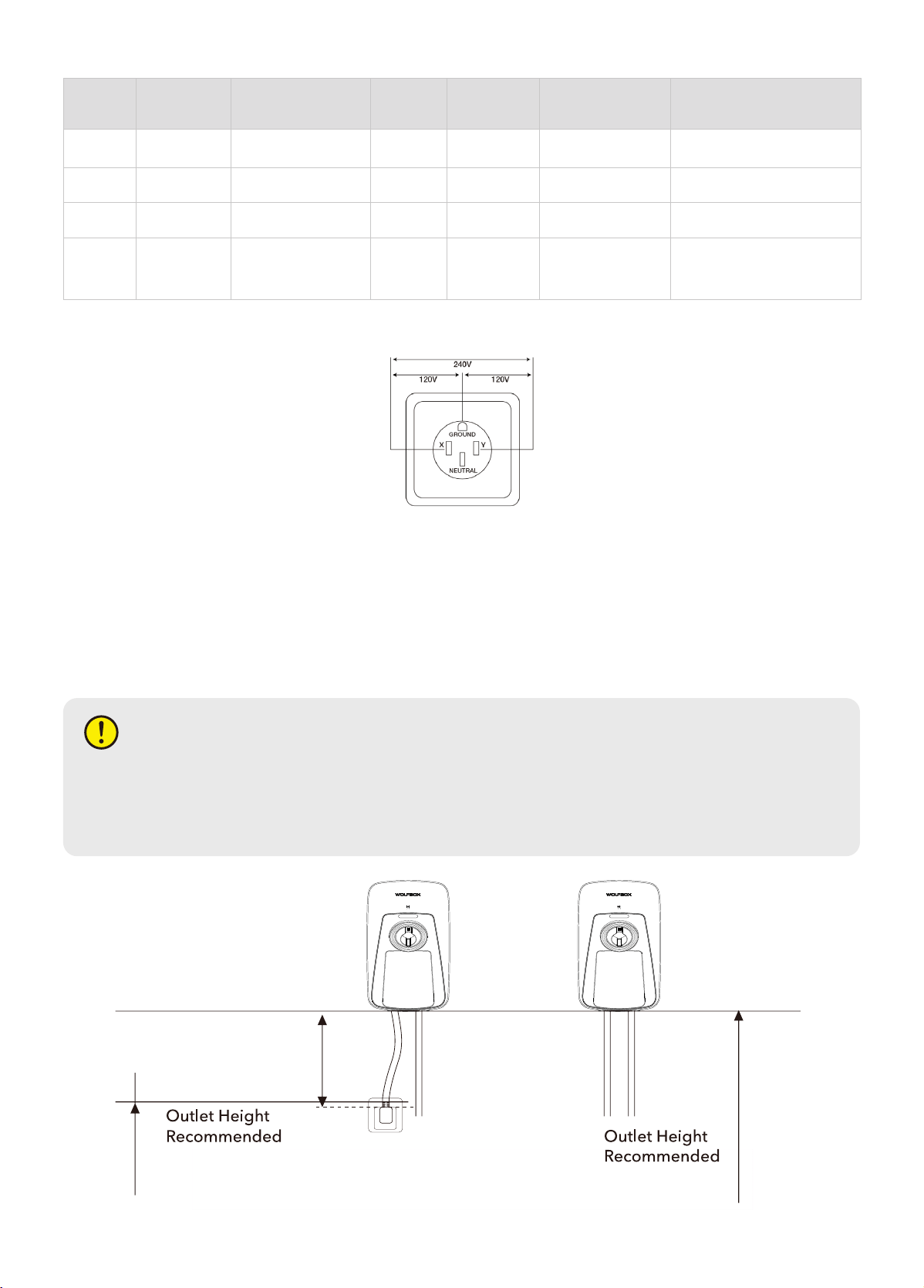
800-1200mm
(31-47inch)
1100-1500mm
(43-59inch)
300mm (12inch)
Cable Length
2. For NEMA plug-in installations, determine the type of plug purchased, NEMA 14-50 plug.
3. Ensure that the electrical panel suppos 240V dedicated circuits and new dedicated non-GFCI bipolar
disconnects in accordance with local regulations.
4. The recommended installation height is between 1100mm(43inch) and 1500mm(59inch). For NEMA plug-in
installations, the NEMA should be at least 460mm (18inch) o the ground adjacent to the charger mounting location,
but make sure both are positioned within the adjustable range of the wire. Within the adjustable range of the cord.
14-50
Circuit
Rating
MaxLoad
Estimated
RangeperHour
Plug-In Hardwire
Suppoed
model(default)
Suppoed model
(Amperage Dip Switch)
80A 50A 45miles/72km No Yes WE50
70A 50A 45miles/72km No Yes WE50
60A 48A 44miles/70km No Yes WE48/WE48T WE50
50A 40A 37miles/60km Yes No WE40/WE40T WE48/WE48T/WE50
CAUTION
The suitability of the use of exible cord in accordance with CE code, pa I, rule 4-012, is to be determined
by the local inspection authority having jurisdiction.
The input power cable length is 300mm (12 inches) (According to the National Electric Vehicle Charger Electrical
Code).
5
Current Line Description
Ground Requirements
• The charger must be connected to the eahing metal permanent wiring system. Equipment grounding
conductor must be run with circuit conductor, and connect to the equipment grounding terminal or lead on
the charger.
• The grounding conductor shall be grounded to eah at the seice equipment or, when supplied by a
separately derived system, at the supply transformer.
• Ensure that a grounding conductor that complies with all applicable codes is properly grounded to eah at
the seice equipment, when supplied by a separate system, at the supply transformer.
• Neutral is not used to power the charger but must be properly connected to ground, at the panel transformer,
to provide necessa voltage reference relative to ground.
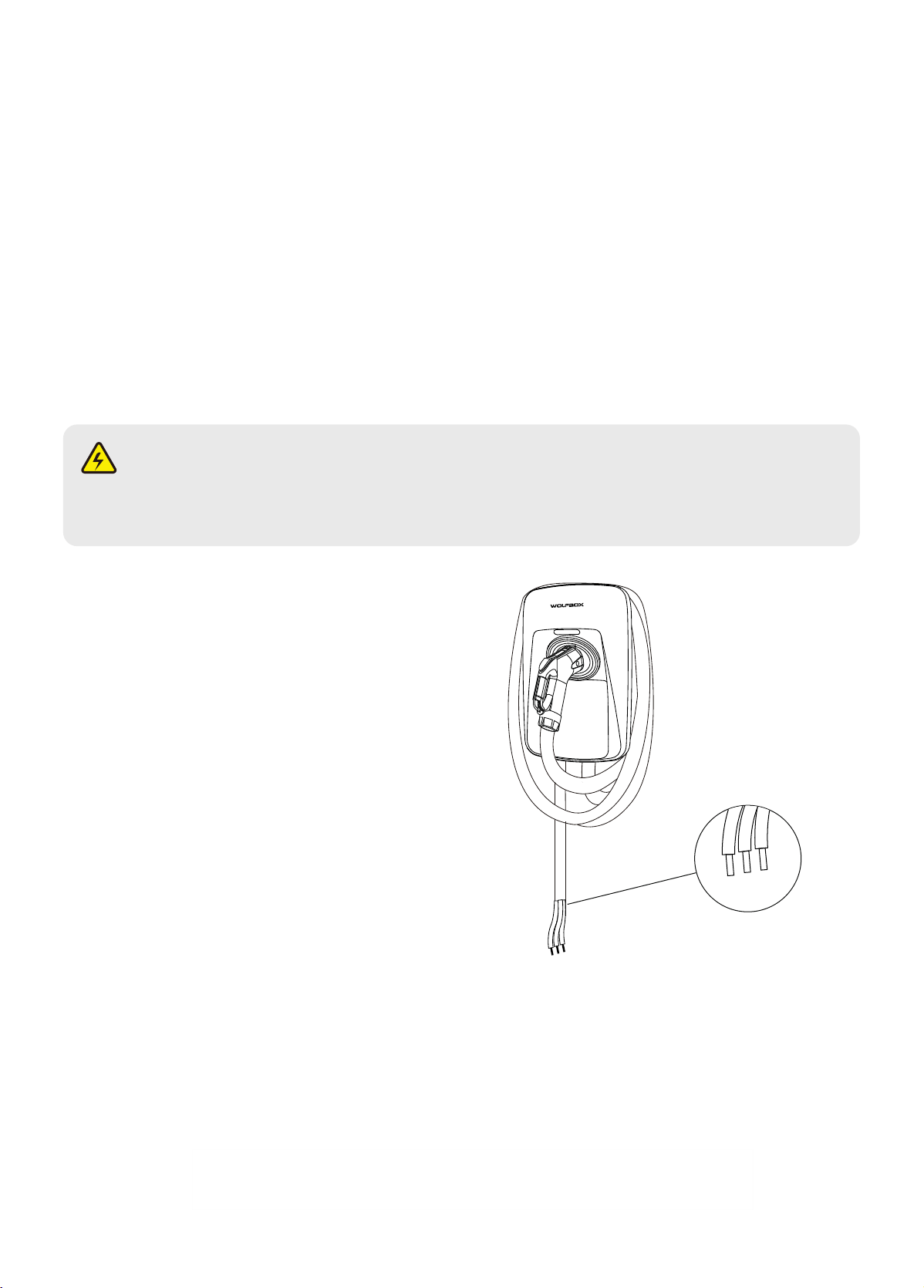
For this version installation,please follow all applicable
codes and regulations and obtain permits to complete
electrical work as required.
Hardwired Installation
L1
L2/N
PE
DANGER: RISK OF SHOCK.
Disconnect the 240V power vac. Do not turn on the power until you are sure the installation is complete.
Failure to following this instruction may result in electric shock or electrocution.
6
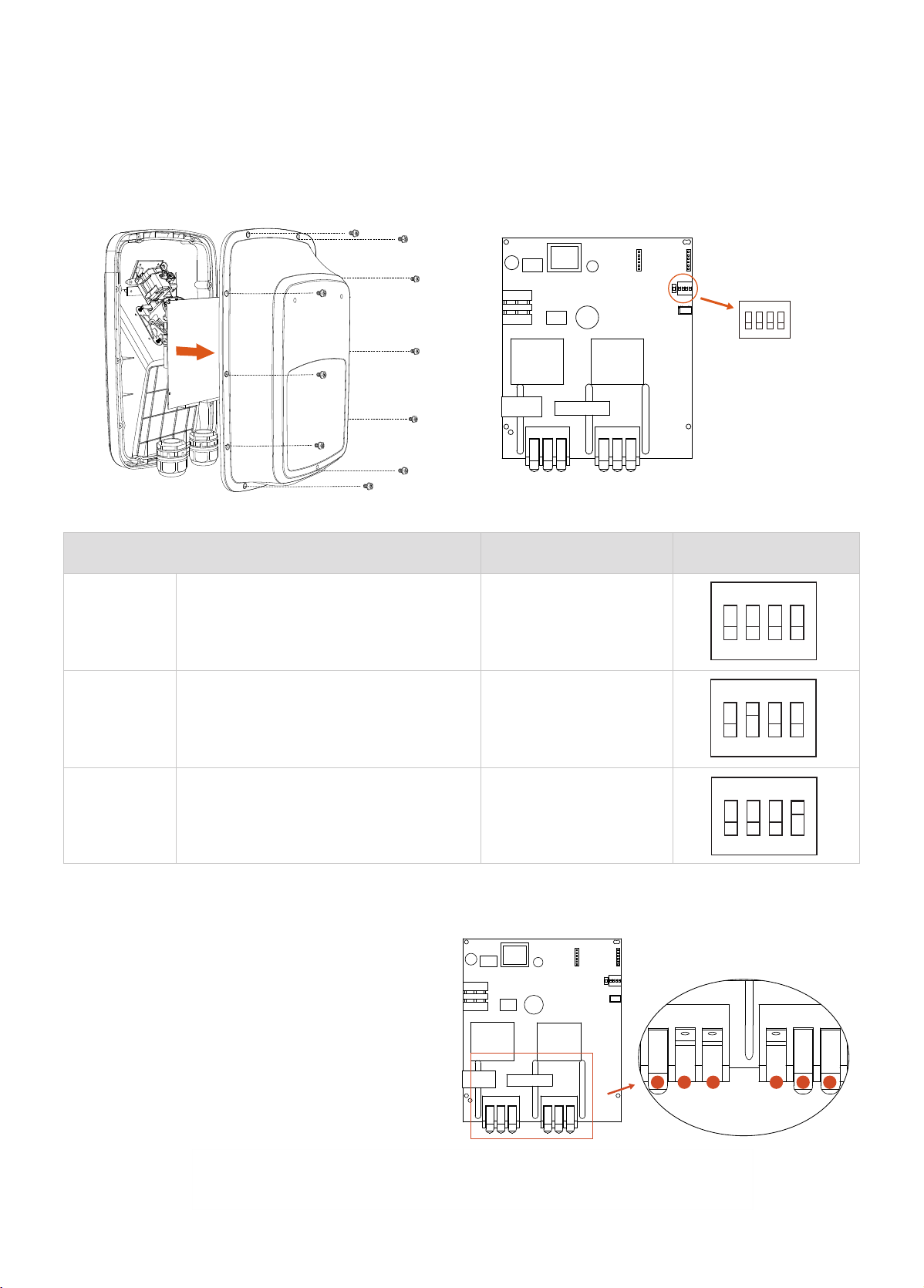
Amperage Dip Switch
Current Inlet Cable
ON DIP
1 2 3 4
A
B C
D
E
F
・
Locate the amperage dip switch onto the motherboard.
It’s the red pa with white button and with the
rectangle shape. Set Dip Switch which you need.
・
Disassemble, remover the cover. Pls note there are
total 10pcs screws.
Dip Switch is the hardware maximum current output limiter. If it do not need reduce current max load, you can
skip this step.
・
Inse Current Inlet Cable: B/C/D.
B: PE(green)
C: L1 (black)
D: L2/N (red)
・
Charging Cable: A/E/F. Do not need change.
A: L1
E: PE
F: L2
* Please be careful not to place your ngers closely to prevent pinching injuries.
Re-assemble the cover.
Dip Switch downward=0, upward=1 Amperage
Graphics
0000 Down, Down, Down, Down 50A
0100 Down, Up, Down, Down 48A
0001 Down, Down, Down, Up 40A
ON DIP
1 2 3 4
ON DIP
1 2 3 4
ON DIP
1 2 3 4
ON DIP
1 2 3 4
ON DIP
1 2 3 4
ON DIP
1 2 3 4
ON DIP
1 2 3 4
ON DIP
1 2 3 4
ON DIP
1 2 3 4
7
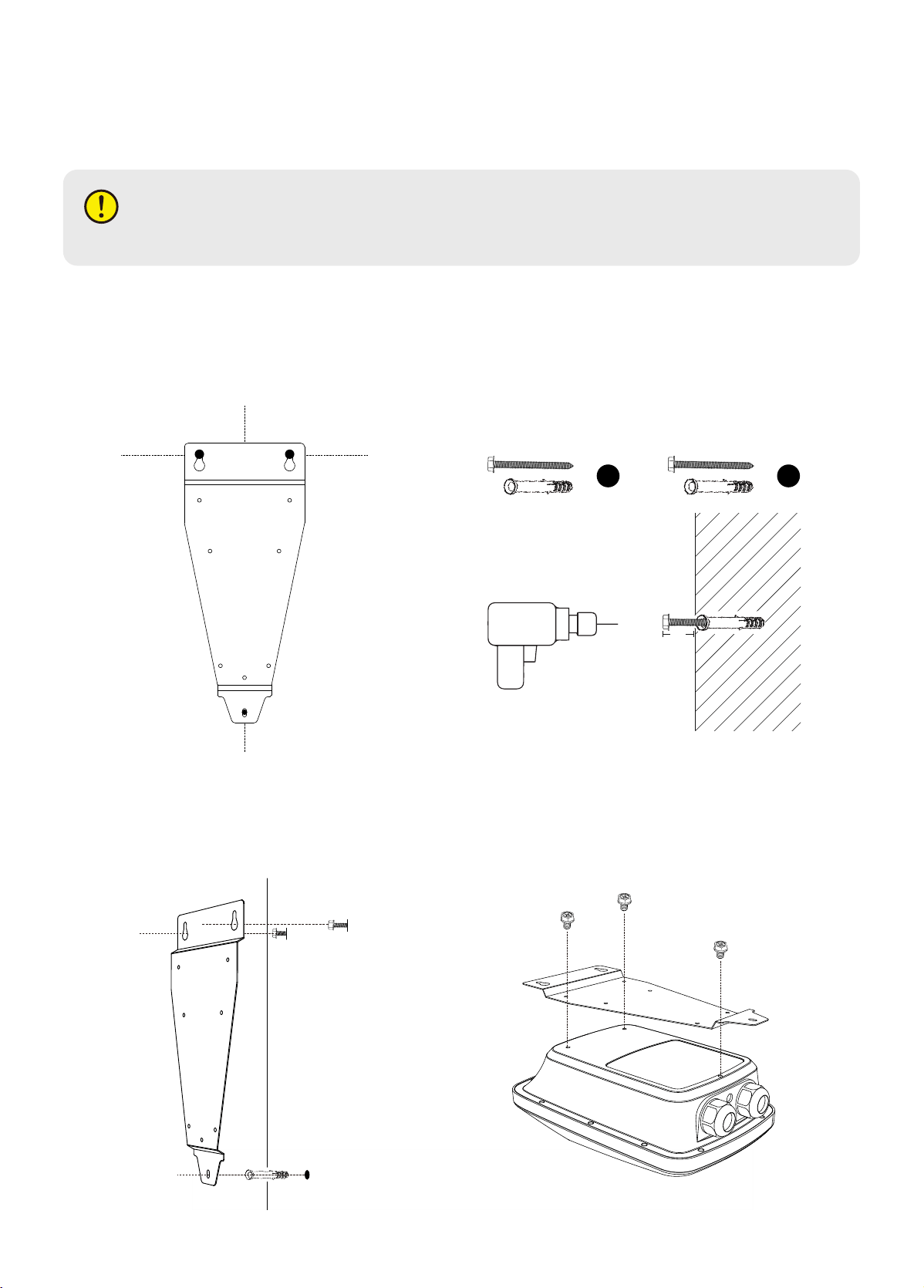
2. To use the wall mount bracket, rst conrm
the top two holes on the wall, corresponding to
points A and B. Then drill holes in points A and B,
and place M10 expansion bolts and M6*50mm
screws.
Note: About 5mm length of M6 screws should be
reseed for placing the device.
A
5mm
B
C
A
B
1. Find the ideal installation location for the device.
Note: The installation position should ensure that
the NEMA cable is properly bent and cannot be
over-stretched.
Use the provided EV Charger Wall Mounting Template to mark the holes for drilling.
NEMA Plug-in Installation
WARNING
To avoid the risk of re or electric shock, do not use this product with an extension cord.
4. Use M4*6mm screws to x the bracket on the
back of the Electric Vehicle Supply Equipment.
B
A
C
3. Place the bracket on the screws at points A and B
to conrm and mark the position of point C.
Then drill a hole at point C and put in the
expansion bolt.
8
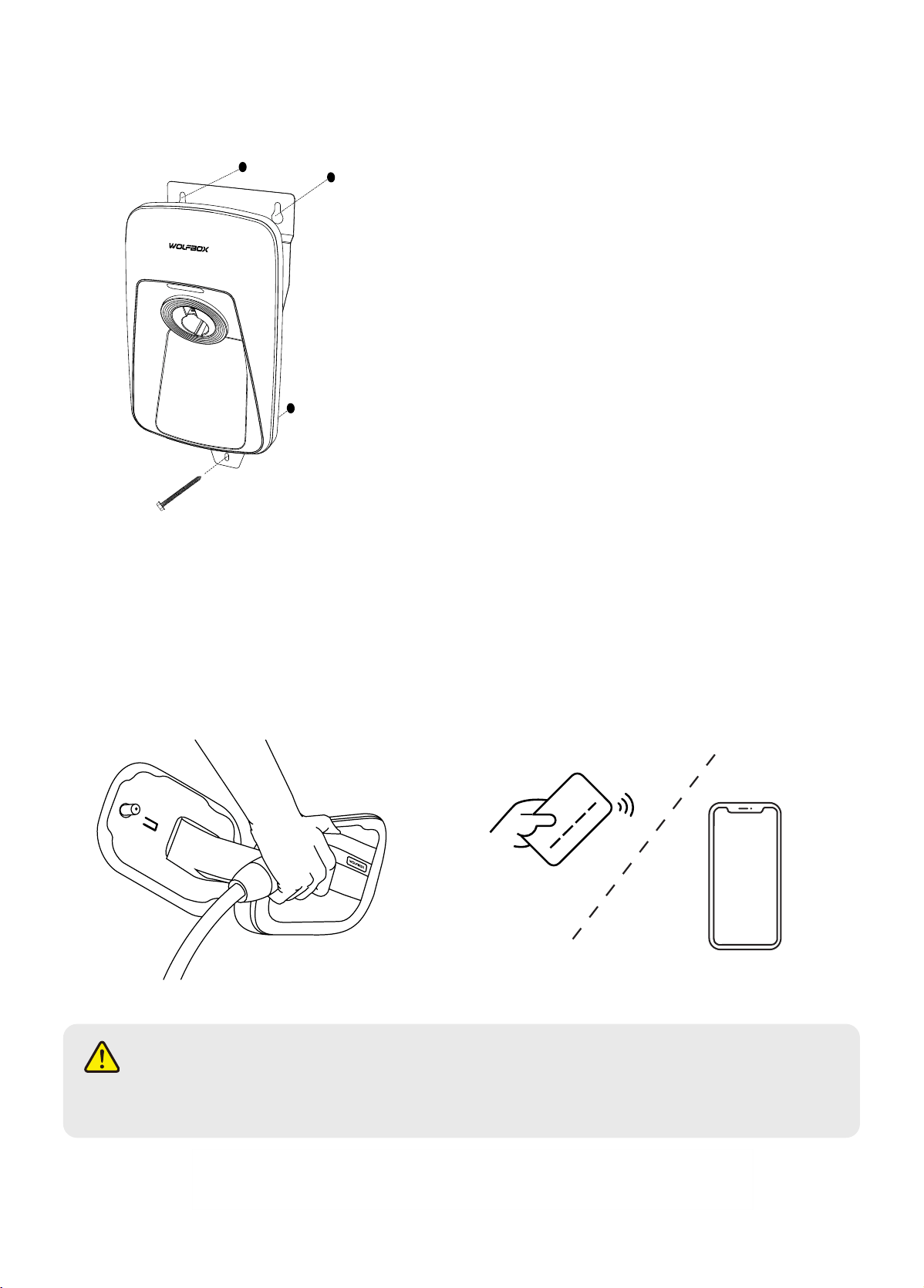
5. When the EVSE and bracket are combined, place
them on screws A and B. And use M4*40mm screw
through point C to x the device on the wall.
B
A
C
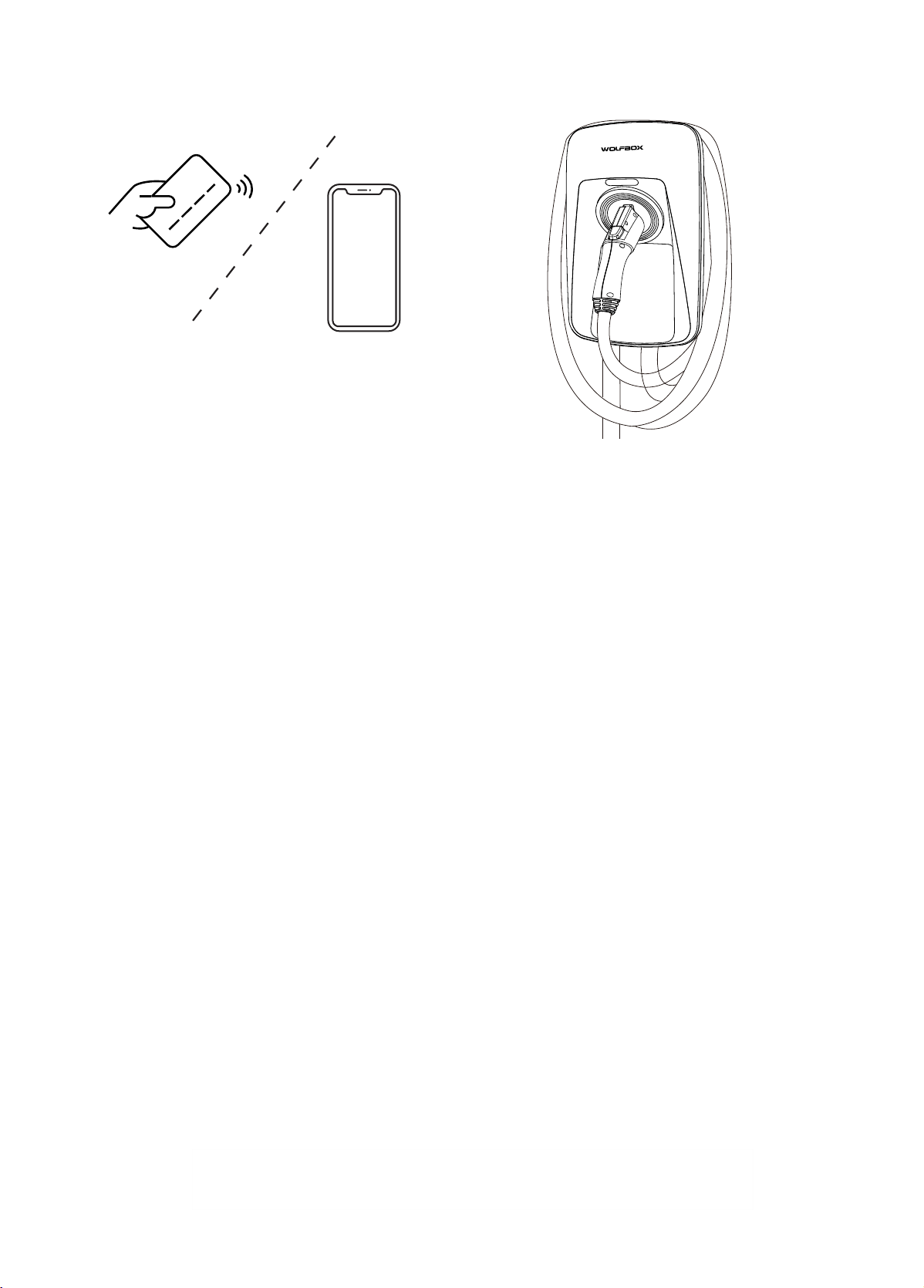
1. Inse the connector into the vehicle power po. 2. Sta charging by swipe RFID Charging Card or use the
App.
Note: Ensure that the equipment is properly connected to the power supply.
INSTRUCTIONS FOR USE
Charging Steps
CAUTION
Do not disconnect the connector during the charging. Otherwise, there is a risk of damage to the connector
or Electric Vehicle Supply Equipment.
9
About Management Card
When the EV charger cannot connect to the App, you're going to need this card.
Usage Method:
Swipe the orange management card. Keep placing the card onto the RFID reader area until the indicator light
turns orange. That means the WiFi function of the EV charger has been reset. The process takes about 30
seconds. Then you can use App to connect the EV charger. You can go to Page 12 for more details.
Note: If the fault persists, please contact us.
3. End of charging by swipe RFID Charging Card or
use the App.
4. Unplug the connector and put it back in place.
10
Fault Description
Note: When the red light ashes, it indicates a malfunction.
* If you have any questions, please contact the after-sales team.
Red light indicator Denition of the fault
Ways to x the fault
Solid red Ground fault
1. Immediately disconnect the power distribution box.
2. Check whether the equipment input/output line grounding is
normal, and whether the input L/N is connected in the normal
order.
3. Exclude the above problems, re-energize.
Fast ashing red on
0.2 second and o 0.2
second
System fault Contact the after-sales seice team for this fault
Slow ashing red on
for 1 second and o
for 1 second
Metering communication
error
Contact the after-sales seice team for this fault.
Flashing red 1 time 3
seconds inteal
Over-voltage alarm
1. Consult your local electric seice to conrm that the voltage in
this area is stable. If it is higher than 265V, this error will appear.
2. If the voltage is too high for a sho time, unplug, wait for the
input voltage stabilizes.
Flashing red 2 times
3 seconds inteal
Under-voltage alarm
1. Consult your local electric seice to conrm that the voltage in
this area is stable. If it is too low, this error will appear.
2. If the voltage is too low for a sho time, unplug, wait for the
input voltage stabilizes.
Flashing red 3 times
3 seconds inteal
Over current protection
1. Immediately disconnect the power distribution box.
2. Check whether there is low impedance or sho circuit between
the two lines of the output line of the device
3. Exclude the above problems, re-energize.
Flashing red 4
times 3 seconds
inteal
Over temperature
protection
Check the environment in which the equipment is installed,
verify that there is no other heat generating equipment
next to it, and ensure that the ambient temperature is
below 45° C (113° F).
Flashing red 5
times 3 seconds
inteal
Leakage protection
1. Immediately disconnect the power distribution box.
2. Check if the device output line is broken or has low
impedance or sho circuit to ground.
3. Exclude the above problems, re-energize.
Flashing red 7
times 3 seconds
inteal
Abnormal CP (Control
Pilot)
1. Unplug and reboot the charger.
2. Check the CP (Control Pilot) line is xed in the right place.
3. Reconnect the charger to the EV car.
Flashing red 8
times 3 seconds
inteal
Relay failure
1. Immediately disconnect the power distribution box.
2. Contact the after-sales seice team for this fault.
11
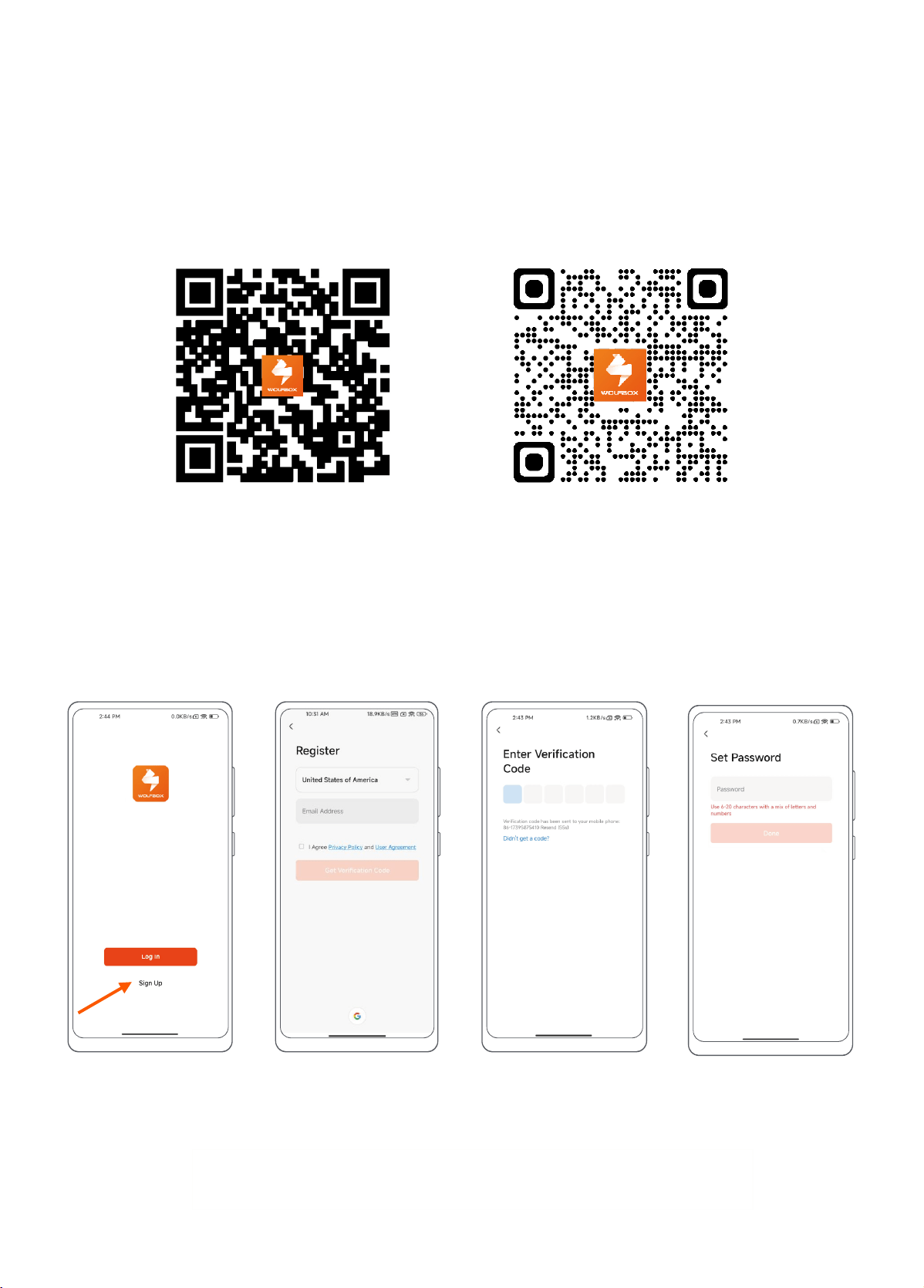
1. Search for”WOLFBOX EV”in the Apple App Store, or in Google Play, or scan the following QR code to
download the “WOLFBOX EV” app. For IOS users, you will be redirected to the App Store; For Android users,
you will be redirected to the Google Play.
2. After downloading, open the “WOLFBOX EV” and register.
3. The function of ”WOLFBOX EV” should be continuously updated and iterated. So this instruction may dier
from the product in your hands.
Sign Up and Log In
1. Sign Up:
Step 3Step 1 Step 4Step 2
Step 1: Open the “WOLFBOX EV” App and select "Sign Up".
Step 2: Enter your cell phone number or email to get the verication code.
Step 3: Conrm you receive a verication code from “WOLFBOX EV” and ll it out.
Step 4: Set up your login password.
App Download App User Guide
WOLFBOX EV APP
App Download
12
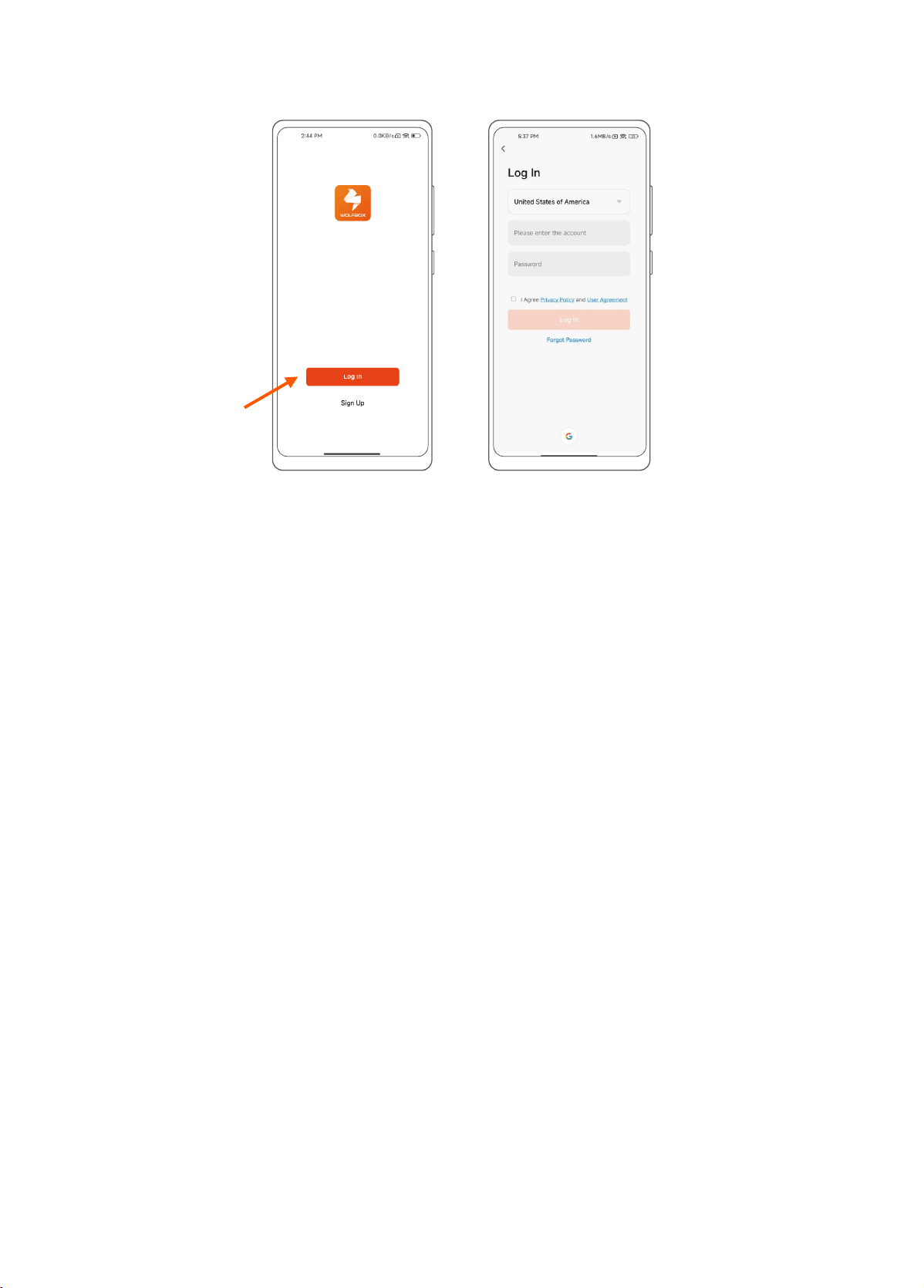
2. Log In:
Step 1: Open the "WOLFBOX EV" App and select "Log In".
Step 2: Read and check the relevant agreements, then enter your account number and password to log in.
App Connection
Note: If App can't connect the EV charger. Please use the management card.
Swipe the orange management card: Keep placing the card onto the RFID reader area until the indicator light
turns orange. That means the WiFi function of the EV charger has been
reset. The process takes about 30 seconds. Then you can use App to
connect the EV charger.
Step 1 Step 2
1. Preparation Before Connection
Preparations For EV charger:
1.1 Ensure that the Wi-Fi signal in the environment is 2.4GHz.
1.2 Make sure the Bluetooth module is not in a hibernate state (if no connection is made within 3 minutes after
the EV Charger is powered on, the Bluetooth module will go into a low power mode and will need to be re-
powered to wake up the Bluetooth module).
Tips:
For environments with poor or no network:
1. If the environment of the network is poor, you can t to open a hot spot, with a hot spot connected to
the app can be realized to control the charging station, but some of the functions may not be able to
enjoy.
2. If the App has been connected, you can realize the app control pile through Bluetooth. But the charging
record and some functions can't be enjoyed.
3. If there is no network in the environment, there is no way to connect the app, you can only swipe RFID
Charging Card to realize.
13
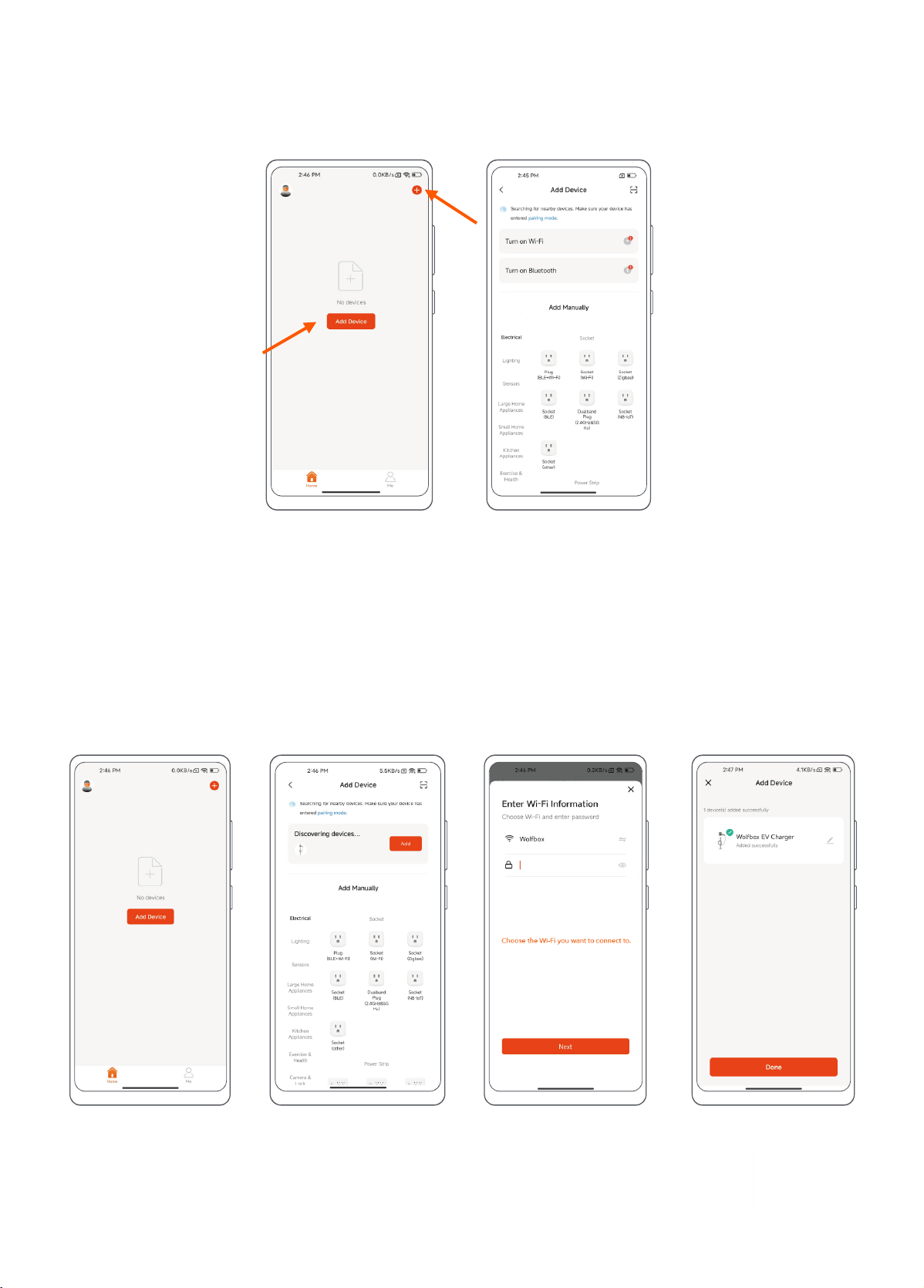
Step 1: Click "Add Device" on the main page or "+" in the upper right corner to add a device.
Step 2: On the "Add Device" page, follow the prompts to conrm that "Wi-Fi" and "Bluetooth" are turned on.
Including Application permissions and cell phone system Bluetooth.
Preparations For Mobile Device:
1.3 Ensure that the mobile device is in a network-connected environment.
Step 1 Step 2
2. Add Devices
2.1 Automatically Add Device
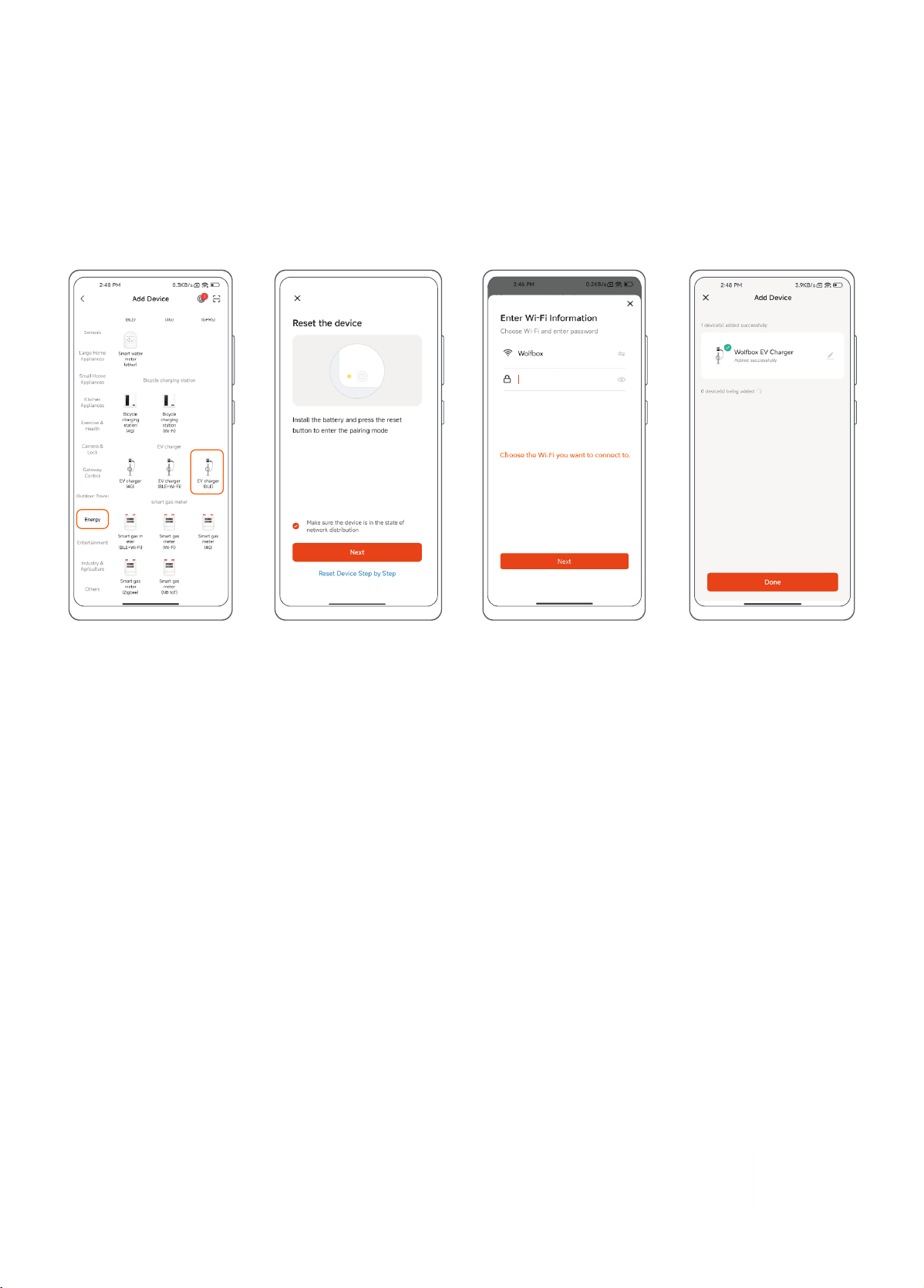
Step 3Step 1 Step 4Step 2
14
Step 1: Click "Add Device" on the "Home" page or "+" in the upper right corner and then jump to the page of “Add
Devices”.
Step 2: Click "Add" and select the device "WOLFBOX EV charger".
Step 3: Conrm the Wi-Fi information and connect.
Step 4: After successfully connecting, click "Done" and jump to "Welcome Use" page.
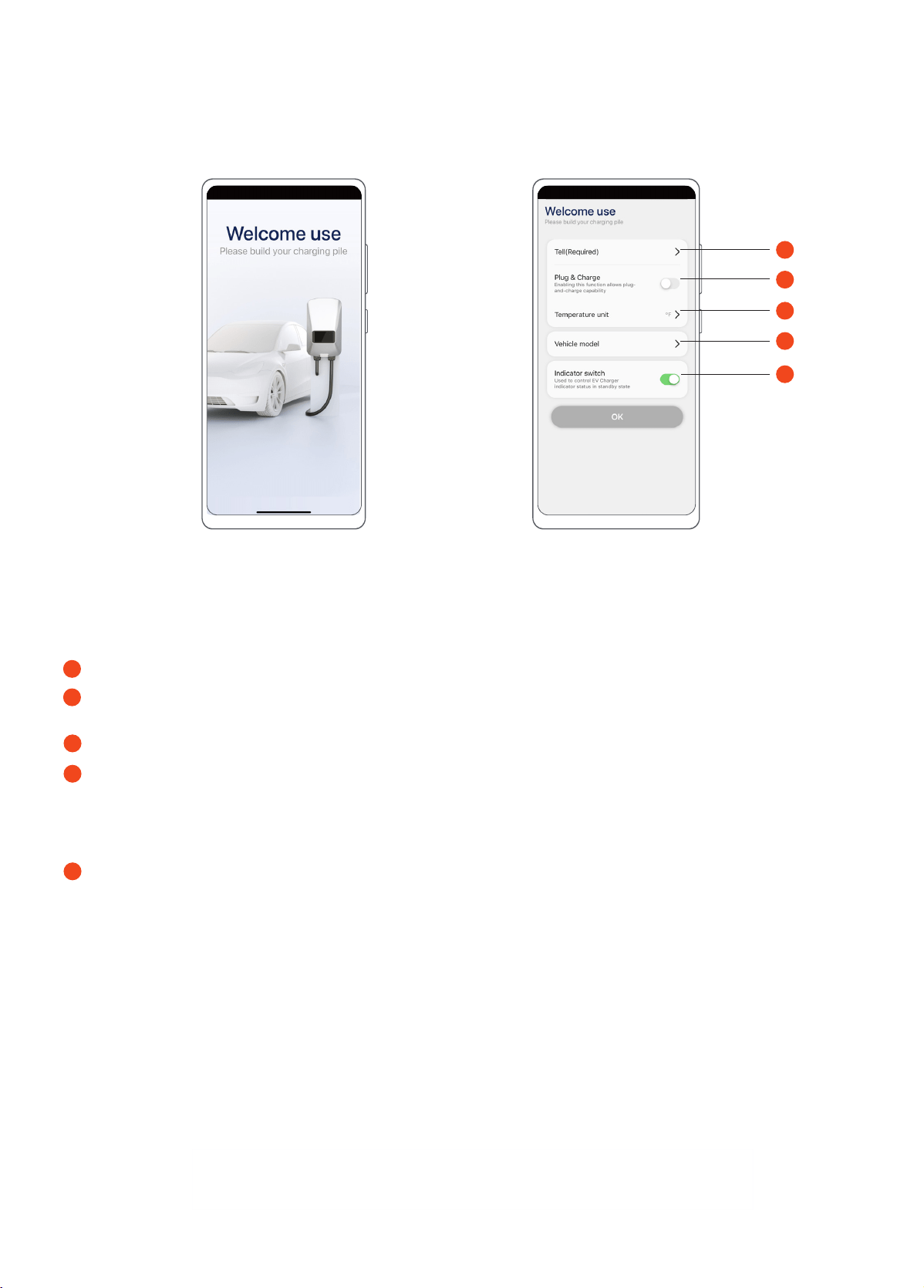
2.1 Add the Device Manually
Step 1: In the "Add Device" inteace, pull down and nd "Energy", select "EV charger (BLE)".
Step 2: Ensure that the EV charger is in a network-connected environment. (When the charging equipment is
connected to the internet, a light in pale blue color will remain illuminated.)
Step 3: Conrm the Wi-Fi information and connect.
Step 4: After successfully connecting, click "Done" and jump to "Welcome Use" page.
Step 3Step 1 Step 4Step 2
15
App Function
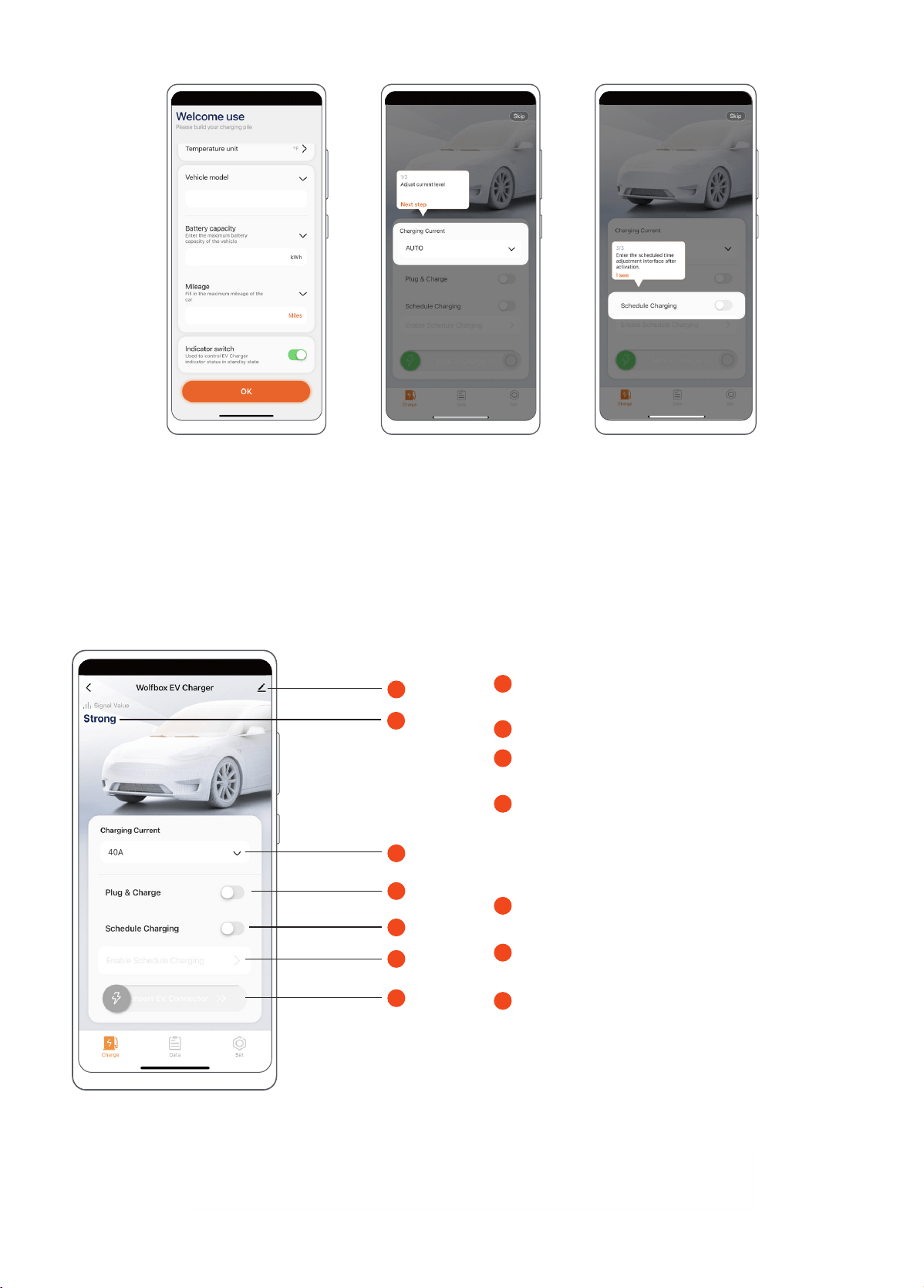
1. Welcome use
Step 1: Click anywhere to sta using App.
Step 2:
Tell: Your contact telephone information.
PlugandChargeMode:Afterenablingthismode,theEVchargercandirectlychargethevehicle without
requiringanunlock,whichmayposeceainsecurityriskstoyourproduct.Pleaseconrm.
Temperature unit: Fahrenheit or Centigrade.
Vehicle model
・
Vehicle model: the model name of the vehicle.
・
Batte capacity: the maximum batte capacity of the vehicle.
・
Mileage: the maximum mileage of the vehicle. Unit in Miles or km.
Indicator switch: Turn on or turn o the EV charger indicator light.
1
2
3
4
5
1
2
3
4
5
Step 1 Step 2
16
Step 3Step 1 Step 2
Step 1: Click “OK” to next step.
Step 2, 3: User guide for the rst time use. You can read the instruction and click “Next step”, “I see” to get the
user guide for the device.
Information: Device information, share device,
FAQ and feedback, remove device, etc.
WiFi signal indicator: Strong, Middle or Weak.
Charging Current: Select the output current level
of EV charger.
Plug and Charge Mode: After enabling this
mode, the EV charger can directly charge the
vehicle without requiring an unlock, which may
pose ceain security risks to your product.
Please conrm.
Schedule Charging: Set the sta and end times
for scheduled charging.
Reminder of booking charging mode and Set the
sta time and end time for scheduled charging.
Connector prompt, Sliding charge indicator,
Charge mode indication.
Impoant Note:
You cannot activate both the 'Plug & Charge' mode and the 'Scheduled Charging' mode simultaneously. You
can select the charging mode you need.
2. Charge Page (Idle State)
1
3
1
2
2
3
4
4
5
5
6
6
7
7
17
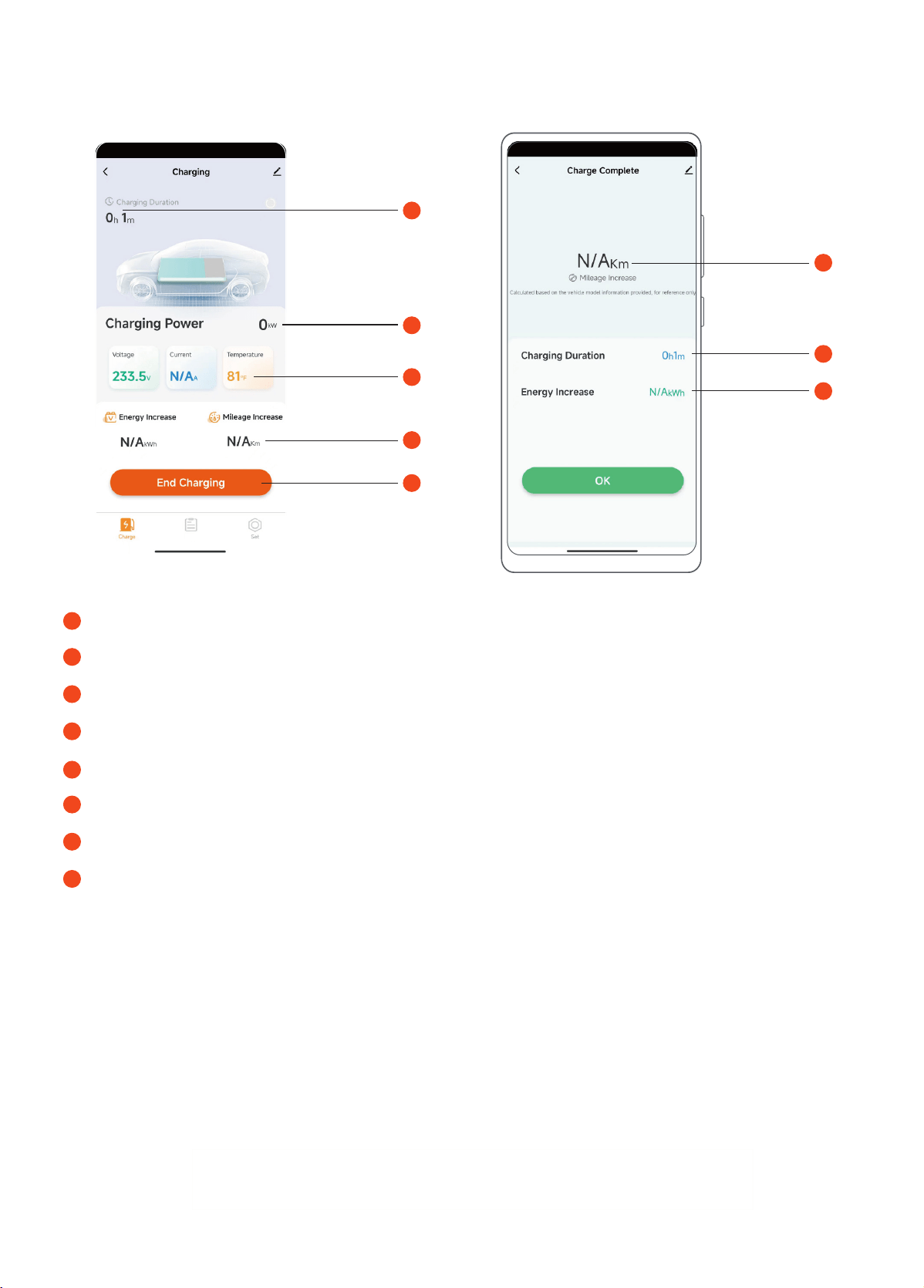
3. Charge Page (Charging Status) & Charge Settlement
Current Charging Duration.
Current Charging Power.
Current Charging Data: Voltage, Current, and Temperature of the EV charger.
Increased data: power and mileage (for reference only).
End charging.
The mileage increased of this charge (for reference only).
The duration of this charge.
The increased power of this charge (for reference only).
1
2
3
4
5
6
7
8
1
2
3
4
5
6
7
8
Data
18
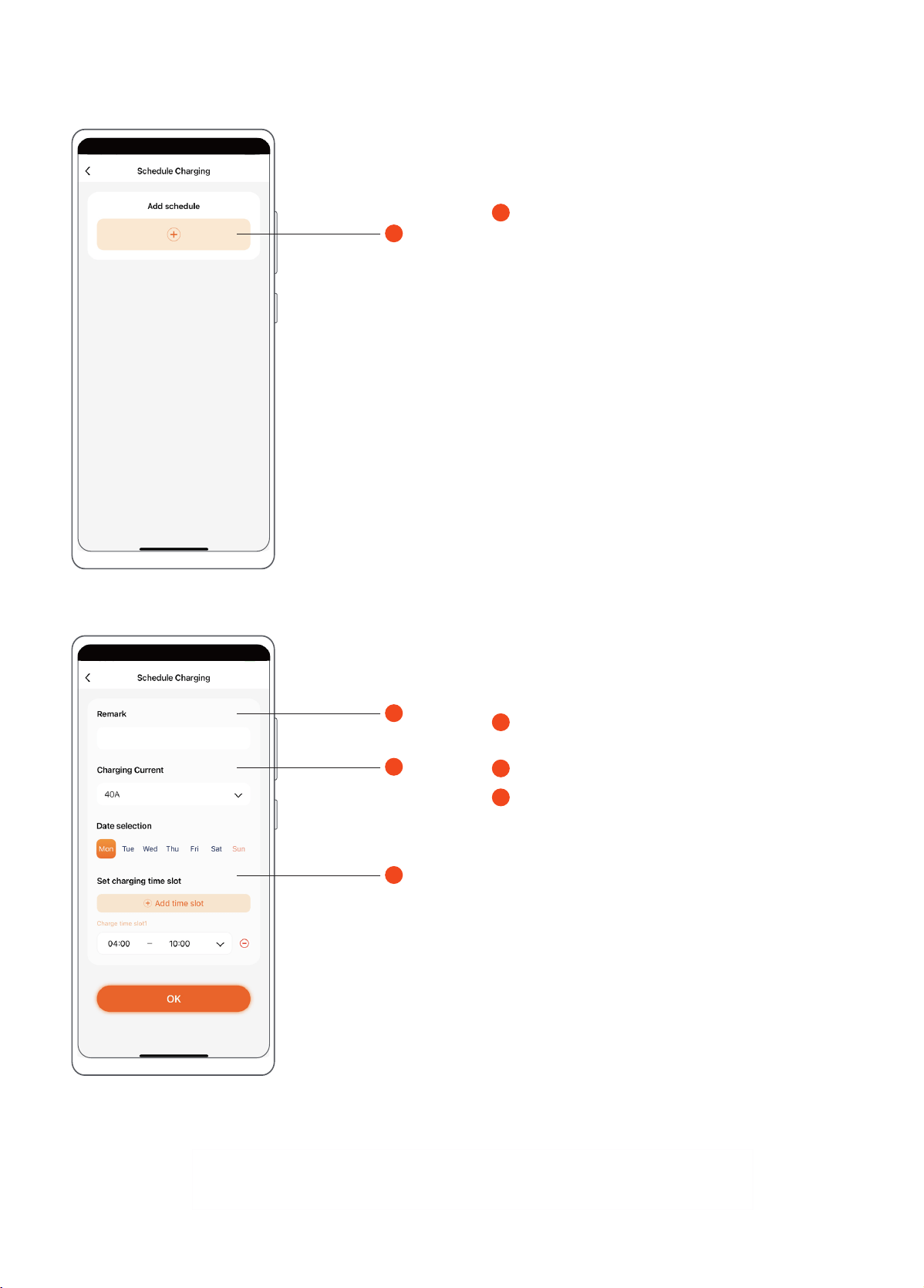
+ : It can add up to 4 Schedules. Each schedule
can add up to 3 Charging time slot.
Time of Use can add up to 6 Rate plans. Each plan
can add up to 4 Rate period. See more details later.
Remark: Schedule name. The default name is
Schedule.
Set charging current.
Set charging date, Monday to Sunday. It need
select one date at least. If you want to make the
single appointment for charging, you can set the
weekly schedule and delete it after the Charging
Completed.
4. Schedule Charging
1
1
1
1
2
2
3
3
19
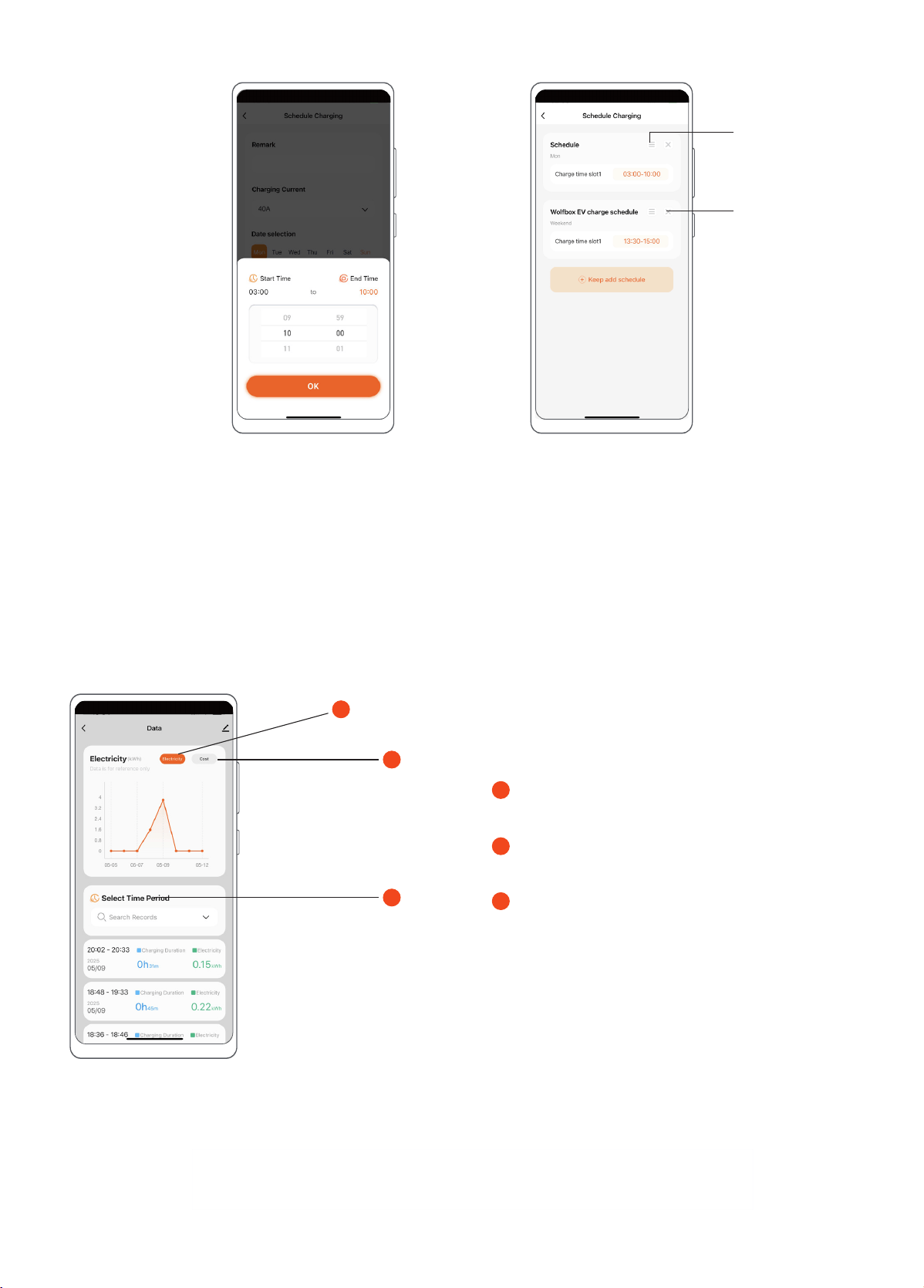
5. Data
1
2
3
Electric: Select to view the amount of power
consumed by charging (for reference only).
Cost: Select to view the amount of money
consumed by charging (for reference only).
Select Time: Select the sta time and end time
to check the data within the time period.
Step 1: Select Sta Time and End Time. Orange font is activated for the selection. It can set for both hours and
minutes. If time slot is conict, it cannot setup.
Time of Use can only set to hours, minutes cannot be set. See more details later.
Note: The App has intelligent capability and suppo cross day operations, such as setting 21:00-8:00 directly. We
still recommend that you split the charging schedule into two time slots, such as 21:00-23:59 and 00:00-
8:00.
Fold and unfold
Delete and conrm
to remove
1
2
3
Step 1 Step 2
* Statistical data takes one hours sometimes due to
network uctuations.
20
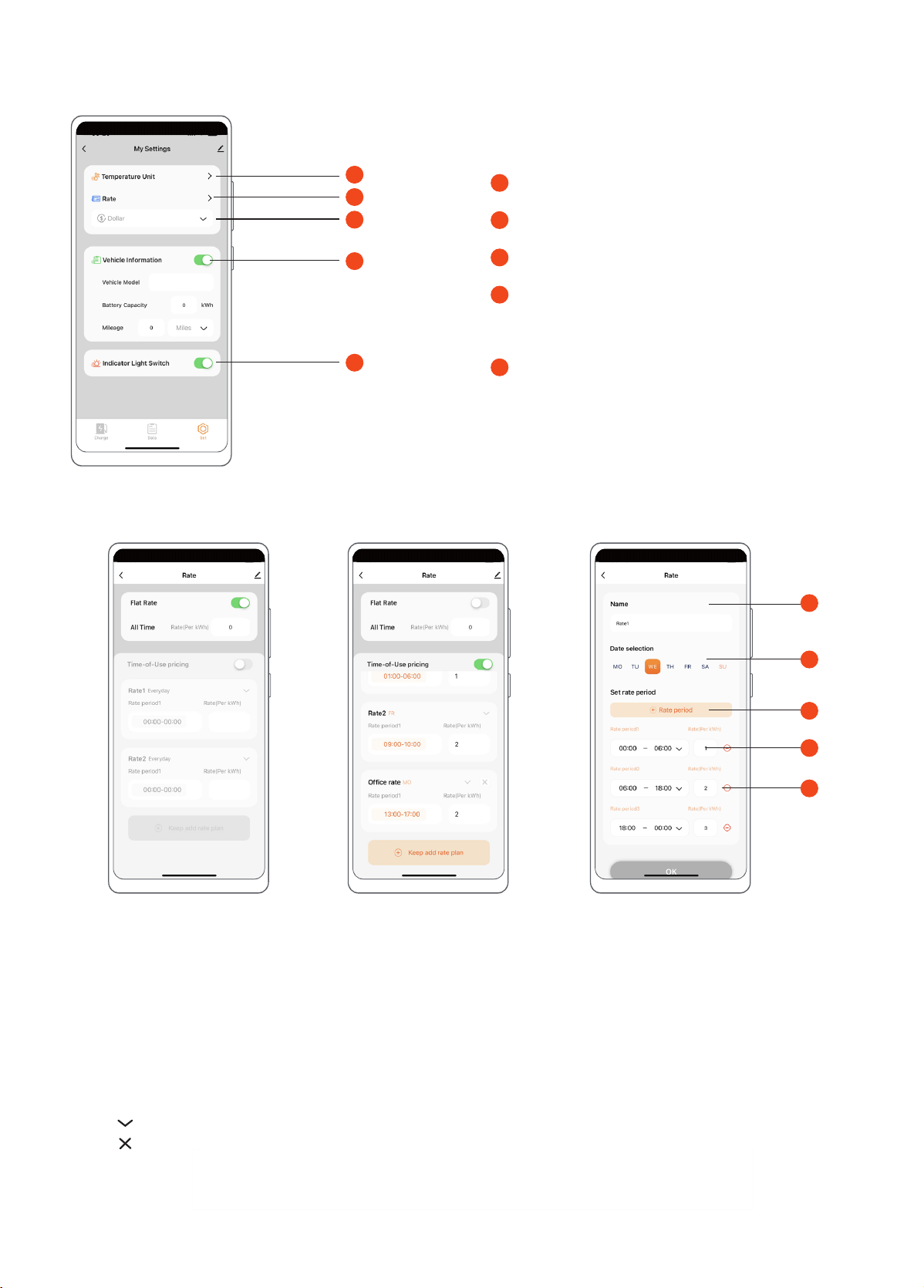
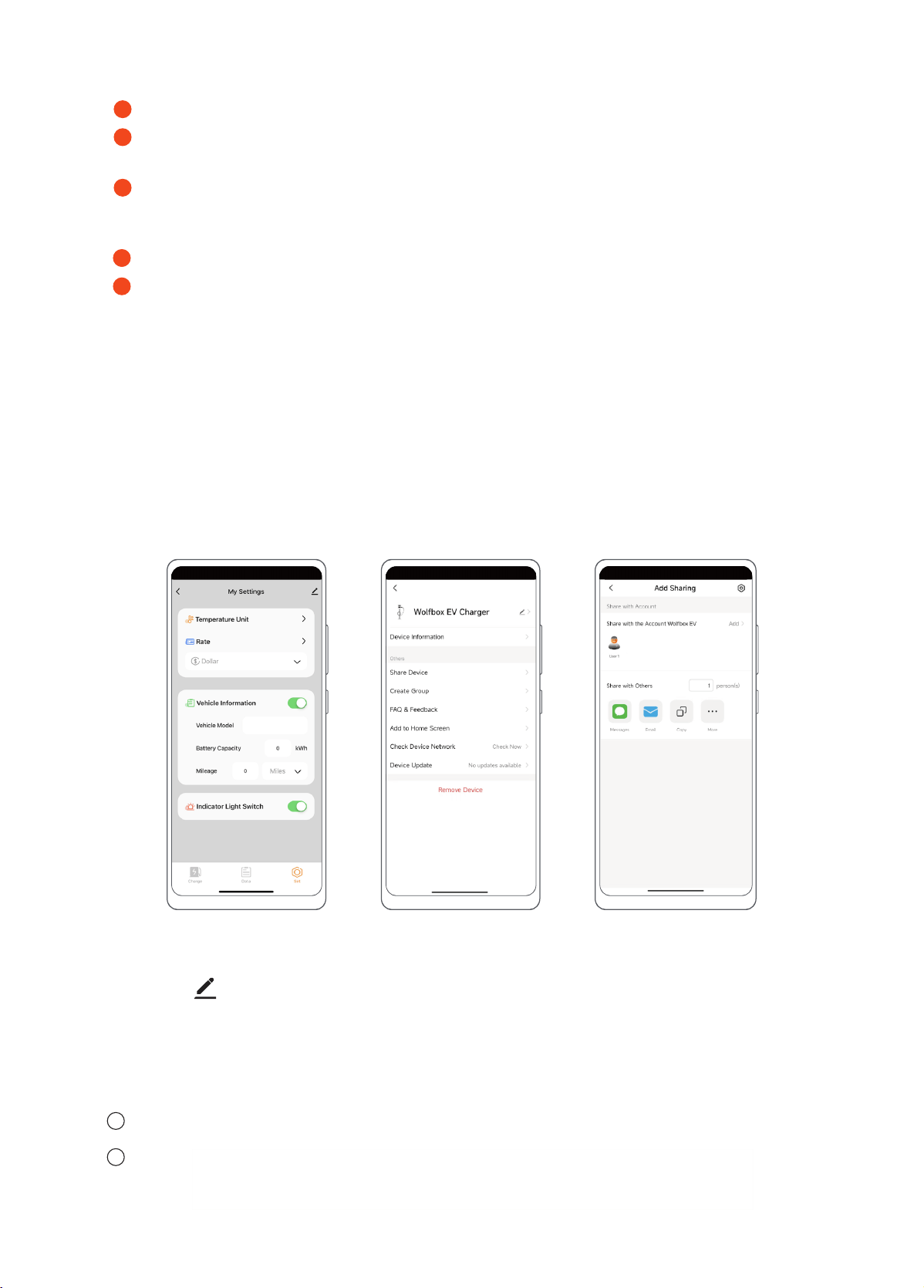
Temperature unit: Fahrenheit or Centigrade.
Rate.
Cost Unit: Currency type setting.
Fold or unfold vehicle information.
Mileage: the maximum mileage of the vehicle.
Unit in Miles or km.
Indicator Light Switch: Turn on or turn o the EV
charger light.
Step 1: Flat Rate: Suppo up to three decimal places, 0.001. The name cannot change.
Impoant Note:
You cannot activate both Flat Rate and Time-of-Use pricing simultaneously. It need disable them and enable Flat
Rate or Time-of-Use pricing you have.
When you charge rst, then congure the rate, the cost before conguring the rate will not be counted.
Step 2: Time of Use: It can add up to 6 Rate plans. Each plan can add up to 4 Rate period.
Schedule Charging: It can add up to 4 Schedules. Each schedule can add up to 3 Charging time slot.
6. Set
Rate
1
2
3
4
5
1
1
2
2
3
3
4
4
5
5
Step 1 Step 2 Step 3
Fold or unfold rate plan.
Preset two rate plans and cannot be deleted. More plans can be removed. If you have not set for
Rate1, Rate2 and add to set rate plan 3 directly. Rate plan 3 should not appear and Rate1 should
update as you set in Rate plan3. If you do not need Rate1, Rate2, you can disable Time-of-Use pricing
or set Rate as zero.
21
Other Setting
1. Share Device
Step 3Step 1 Step 2
Step 1: Click the " " in the upper right corner of the “Set” page.
Step 2: Click "Share Device" to enter "Add Sharing" page.
Step 3: Click "Add" to share the device by entering the other user’s WOLFBOX EV account or by other means (SMS,
email, copy link, etc.).
Note: The maximum number of user shares is 19.
Shared users also need to download "WOLFBOX EV".
1
2
Step 3:
Rate Plan Name
Set TOU date, Monday to Sunday. The same date can only appear in one rate plan.
Schedule Charging: The same date can appear in dierent schedule if only time slot is not conict.
Select Sta Time and End Time. Orange font is activated for the selection. It can only set to hours,
minutes cannot be set. 0:00-0:00 means it does not set anything.
Schedule charging can set for both hours and minutes.
Rate: Suppo up to three decimal places, 0.001.
Remove
If rate period is conict, it cannot setup. If rate period has not include 24 hours, it will popup the notice.
”The rate you set does not include 24 hours, which may aect the accuracy of charging cost”. You can
“Conrm” to save or “Cancel” to modify. If rate period has not include 7*24, it should not popup the
notice. The rate of the blank period should be zero.
Note: The App has intelligent capability and suppo cross day operations. We still recommend that you split
the rate plan into two rate periods, such as Sunday: 00:00-09:00, 09:00-16:00, 16:00-21:00, 21:00-
00:00. Monday: 00:00-08:00, 08:00-16:00, 16:00-21:00, 21:00-00:00. and etc.
1
2
3
4
5
22
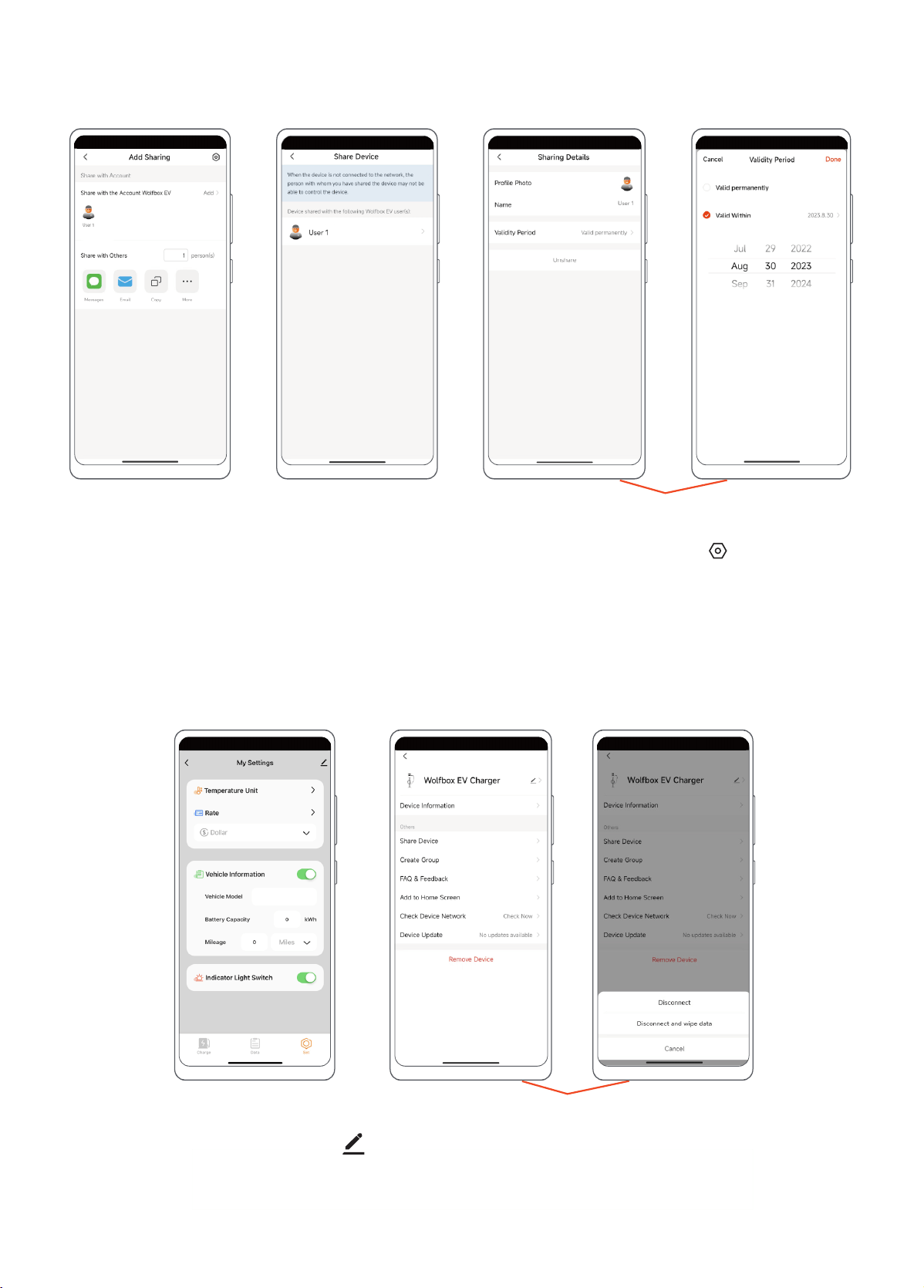
2. Setting Shared User Privileges (Remove Sharing & Privilege Duration)
Step 1: Follow the steps in "Sharing Device" to enter the "Add Sharing" page and click the " " in the upper
right corner.
Step 2: Enter to view the users who have been shared.
Step 3: Select the user you want to change the privilege to cancel the sharing and the privilege duration.
Step 3Step 1 Step 2
3. Remove the Device
Step 1: Enter the “Set” page and click " " in the upper right corner.
Step2: Disconnect:Disconnect from EV charger.
Disconnect and wipe data: The device will be restored to facto Settings and removed from the device list.
Step 1
Step 2

23
1. Improper site preparation or maintenance, improper installation, cosmetic damage such as scratches
and dents, or normal deterioration.
2. Abuse, vandalism, damage or other problems caused by accident, misuse or negligence (including,
but not limited to, physical damage caused by vehicle impact), or use of the Electric Vehicle Supply
Equipment in a manner other than that specied in the Applicable WOLFBOX documentation.
3. Damage to the Electric Vehicle Supply Equipment caused by software, inteaces, components,
supplies or any other products not supplied by WOLFBOX.
4. Damage caused by failure to install, alter, disassemble, modify or relocate Electric Vehicle Supply
Equipment in accordance with the installation guidelines.
5. Damage caused by extreme electrical surges, extreme electromagnetic elds, or other causes beyond
control.
In addition: The Electric Vehicle Supply Equipment warranty will not Apply ifs the original identication markings of
your Electric Vehicle Supply Equipment (e.g., serial number and logo) are damaged, altered or removed.
WOLFBOX shall not be liable for any direct, indirect, incidental, special, punitive or consequential damages,
including, arising out of or in connection with your purchase or use of a Electric Vehicle Supply Equipment or
inability to use Electric Vehicle Supply Equipment, under any theo of liability, whether in an action in contract,
strict liability, to (including negligence including negligence) or other legal or equitable theo, even if WOLFBOX
knew or should have known of the possibility of such damages. in no event will WOLFBOX's cumulative liability for
all claims relating to the Electric Vehicle Supply Equipment exceed the price you paid for the Electric Vehicle Supply
Equipment. The limitations set foh herein are intended to limit WOLFBOX's liability and shall Apply to any failure of
the essential purpose of the limited remedy.
We are committed to giving customers the best product experience and after-sale seice.
WOLFBOX warrants your Electric Vehicle Supply Equipment to be free from defects in material or workmanship
when used under normal operating conditions for a period of three (3) years from the date of original purchase
(warranty period).
If, during the warranty period, your Electric Vehicle Supply Equipment becomes defective due to a breach of
warranty, WOLFBOX will repair or replace the Electric Vehicle Supply Equipment at its option during the warranty
period.
NOTE: If you encounter a problem that cannot be handled, you can contact our after-seice personnel or
customer seice sta for help.
WOLFBOX
Customer Seice Email: EV@wolox.com For any time
Customer Phone Seice: +1 833 369 1616 Business Day: 9AM-7PM EST (GMT-4)
The nal interpretation right belongs to WOLFBOX
AFTER-SALES INFORMATION
Out of Scope Warranty
Promise
Brand Contact Details
IMPORTANT
You are responsible for the proper installation and maintenance of the Electric Vehicle Supply Equipment.
E-mail: EV@wolox.com
Phone: +1 833 369 1616
303379
Check us out here!
We have professional customer seice!