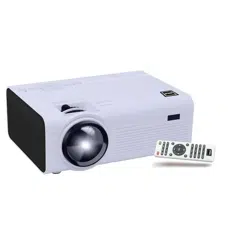

尺寸:210*145MM
80克书纸
黑白印刷
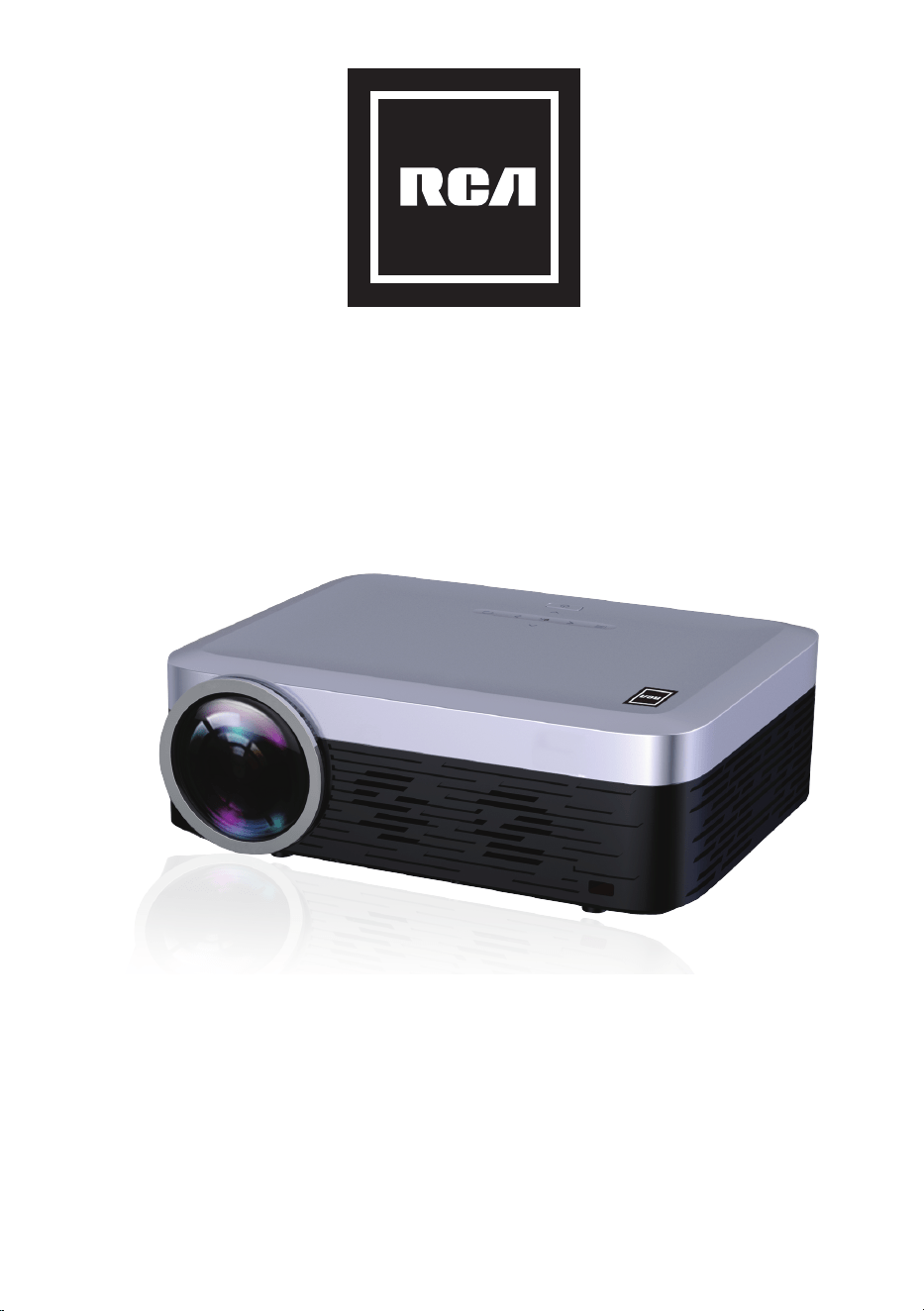
MODEL NO. RPJ138
Full HD Projector
PLEASE READ BEFORE OPERATING THIS EQUIPMENT
Product Guide
This product is manufactured and sold by Curtis International Ltd.
ROKU, STREAMING STICK and the ROKU logo are the trademarks
or registered trademarks of Roku, Inc.
Ideal for dark viewing environments for optimal performance.
Please note:Projector brightness is measured in ANSI lumens.
Your viewing environment is the deciding factor on how many
lumens your projector needs.
Includes Roku Streaming Stick
®
3. Heed all Warnings.
5. Do not use this apparatus near water.
6. Clean only with a dry cloth.
8. Do not install near any heat sources such as radiators, heat registers, stoves, or
other apparatus (including amplifier) that product heat.
convenience receptacles, and the point where they exit from the apparatus.
11. Unplug this apparatus during lightning storms or when unused for long periods
12. Refer all servicing to qualified service personnel. Servicing is required when the
apparatus has been damaged in any way, such as power-supply cord or plug is
damaged, liquid has been spilled or objects have fallen into the apparatus, the
apparatus has been exposed to rain or moisture, does not operate normally, or
has been dropped.
13. Use only with a cart, stand, tripod, bracket, or table specified by
the manufacturer or sold with the apparatus. When a cart is
1
rotcejorP DH lluF RCA roF
Note:
®
®
1. Do not look directly into the projector light.
2. Don’t touch the project lens
3. Mains adapter is used as disconnect device and it should remain readily
operable during intended use. In order to disconnect the apparatus from
the mains completely, the mains plug should be disconnected from the
mains socket outlet completely.
4. CAUTION: Use of controls or adjustments or performance of procedures
other than those specified may result in hazardous radiation exposure.
5. WARNING: Changes or modified to this unit not expressly approved by
the party responsible for compliance could void the user’s authority to
operate the equipment.
6. WARNING: Use of this unit near fluorescent lighting may cause
interference regarding use of the remote. If the unit is displaying erratic
behavior move away from any fluorescent lighting, as it may be the
cause.
7. WARNING: Shock hazard - Do Not Open.
8. Caution and marking information is located at the rear or bottom of the
apparatus.
9. WARNING: To reduce the risk of fire or electric shock, do not expose this
apparatus to
rain, moisture, dripping, or splashing.
10. Objects filled with liquids, such as vases, shall not be placed on the
apparatus.
2
rotcejorP DH lluF RCA roF
Note:
®
®
FCC Warning
This device complies with Part 15 of the FCC rules. Operation is subject to the
following two conditions: (1) this device may not cause harmful interference,
and (2) this device must accept any interference received, including
interference that may cause undesired operation.
NOTE: This equipment has been tested and found to comply with the limits for
a Class B digital device, pursuant to Part 15 of the FCC Rules. These limits are
designed to provide reasonable protection against harmful interference in a
residential installation. This equipment generates, uses, and can radiate radio
frequency energy and, if not installed and used in accordance with the
instructions, may cause harmful interference to radio communications.
However, there is no guarantee that interference will not occur in a particular
installation. If this equipment does cause harmful interference to radio or
television reception, which can be determined by turning the equipment off and
on, the user is encouraged to try to correct the interference by one or more of
the following measures:
• Reorient or relocate the receiving antenna.
• Increase the separation between the equipment and receiver.
• Connect the equipment into an outlet on a circuit different from
that to
which the receiver is connected.
• Consult the dealer or an experienced radio/TV technician for help.
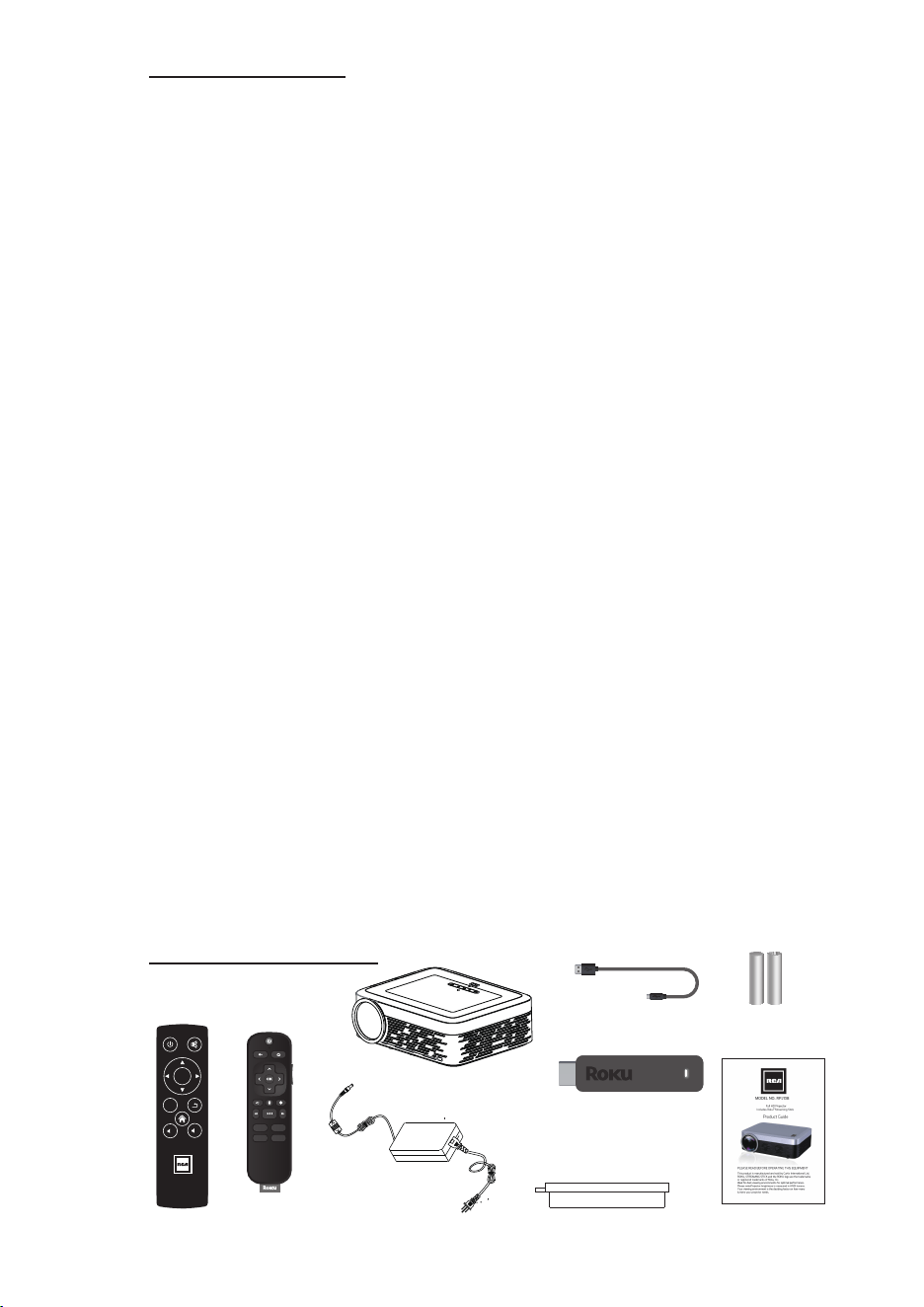
What's Included
3
Remote
Main Unit
User Manual
• Please see the Important Product Information insert in the Roku Streaming
Stick box for streaming player safety precautions, legal notices, and other
important information.
OK
FLI P
-
+
Roku Remote
USB Power Cable
Length:100mm
Two AAA Batteries
Roku Streaming
Stick
®
®
AC Power Adaper Lens Cover
FCC RF Radiation Exposure Statement Caution: To maintain compliance with
the FCC's RF exposure guidelines,place the product at least 20cm from nearby
persons.

Table of Contents
Important Safety Instructions - - - - - - - - - - - - - - - - - - - - - - - - - - - - P1
Additional Warnings and Precautions - - - - - - - - - - - - - - - - - - - - - - P2
FCC Warning - - - - - - - - - - - - - - - - - - - - - - - - - - - - - - - - - - - - - - - - - P3
In The Box - - - - - - - - - - - - - - - - - - - - - - - - - - - - - - - - - - - - - - - - - P3
Table of Contents - - - - - - - - - - - - - - - - - - - - - - - - - - - - - - - - - - - - P4
Remove & Close the Lens Cover - - -
- - - - - - - - - - - - - - - - - - - - - - P5
Placing Your Projector - - - - - - - - - - - - - - - - - - - - - - - - - - - - - - - - P5
To Reduce Image Distortion - - - - - - - - - - - - - - - - - - - - - - - - - - - - P6
Distance Between The Projector And Screen - - - - - - - - - - - - - - - - P6
Placing Your Projector On Ceiling - - - - - - - - - - - - - - - - - - - - - - - - P6
Adjust the Vertical Location - - - - - - - - - - - - - - - - - - - - - - - - - - - - P7
Adjust the Focus and Keystone - - - - - - - - - - - - - - - - - - - - - - - P7
Controls of Remote - - - - - - - - - - - - - - - - - - - - - - - - - - - - - - - - - - - P8
Install / Remove Battery Of Remote - - - - - - - - - - - - - - - - - - - - - - - P8
Controls of Projector - - - - - - - - - - - - - - - - - - - - - - - - - - - - - - - - - P9
Install Power Adapter - - - - - - - - - - - - - - - - - - - - - - - - - - - - - - - - - P10
Main Operation - - - - - - - - - - - - - - - - - - - - - -- - - - - - - - - - - - - - - -
- - P10
Connect HDMI show the Image On Projector Screen - - - - - - - - - P12
Connect AV Show The Image On Projector Screen - - - - - - - - - - - - P12
Connect VGA Show The Image On Projector Screen - - - - - - - - - - - P13
Connect Audio Output (Aux Out / Line Out / Earphones) - - - - - - - - P13
Install USB Device - - - - - - - - - - - - - - - - - P14
Using USB Playback - - - - - - - - - - - - - - - - - - - - - - - - P14
4
Using Projector Menu 1.0 - - - - - - - - - - - - - - - - - - - - - - - - - - - - - - - P15
Using Projector Menu 2.0 - - - - - - - - - - - - - - - - - - - - - - - - - - - - - - - P16
Using Projector Menu 3.0 - - -
- - - - - - - - - - - - - - - - - - - - - - - - - - - - P17
Using Projector Menu 4.0 - - - - - - - - - - - - - - - - - - - - - - - - - - - - - - - P18
Specifications - - - - - - - - - - - - - - - - - - - - - - - - - - - - - - - - - - - - - - - - P18
Troubleshooting - - - - - - - - - - - - - - - - - - - - - - - - - - - - - - - - - - - - - - P19
Set up/Install the Roku Streaming Stick -- - - - - - - - - - - - - - - - - - P10
- - - - - - - - - - -
- - - - - - - - - - - - - - - - -
- -
®
®
Warranty Card - - - - - - - - - - - - - - - - - - -
- - - - - - - - - - - - - - - - - - - P22
- -
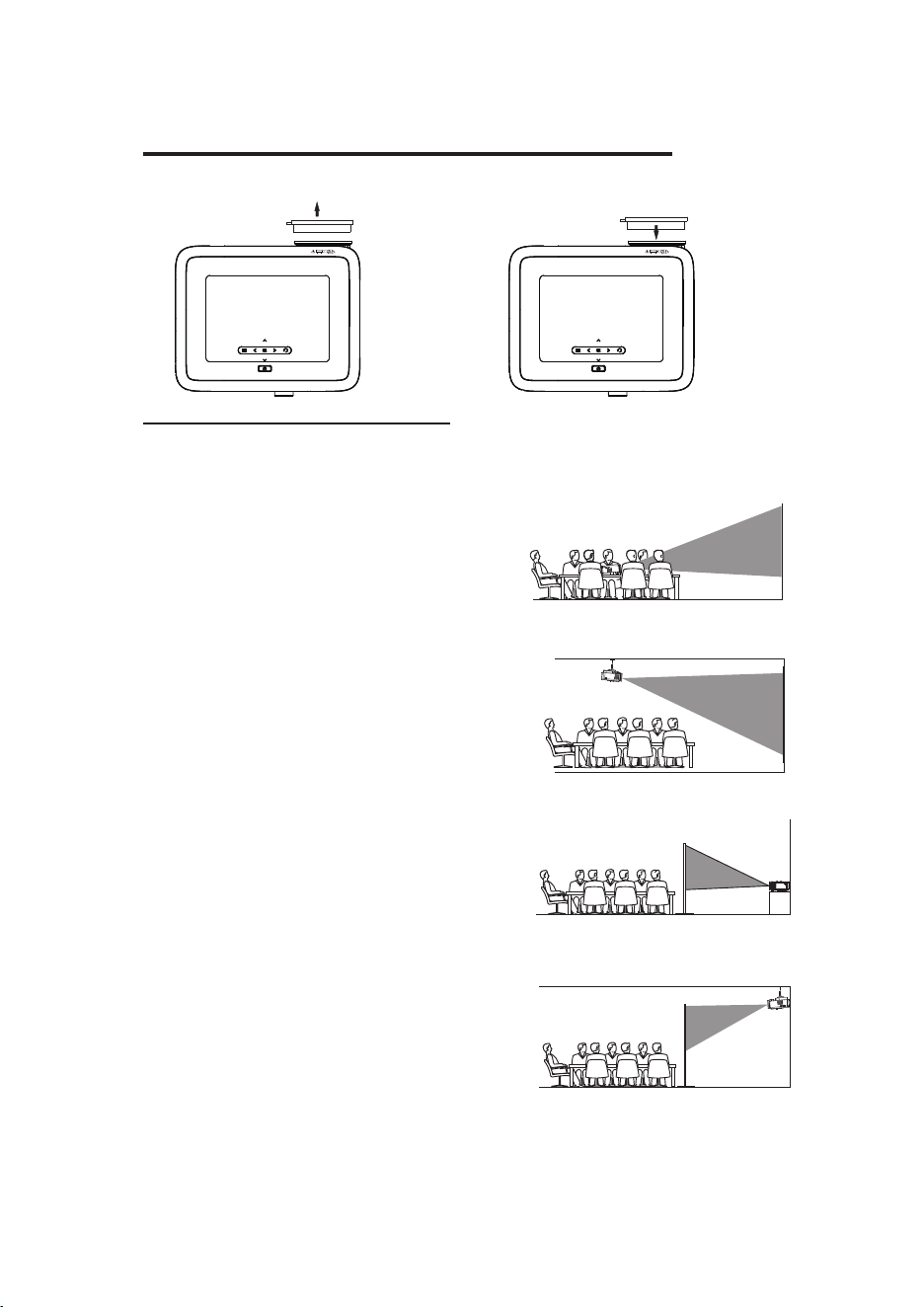
Remove & Close The Lens Cover
Placing Your Projector
Your projector can be installed in four different configurations (see picture
below):
Front Table:
Select this location with the projector placed
near the floor in front of the screen. This is the
most common way to position the projector
for quick setup and portability.
Front Ceiling:
Select this location with the projector
suspended upside-down from the ceiling in
front of the screen.
NOTE: A projector mount is required to install
the projector in a ceiling.
Rear Table:
Select this location with the projector placed
near the floor behind the screen.
NOTE: That a special rear projection screen
is required.
Rear Ceiling:
Select this location with the projector
suspended upside-down from the ceiling
behind the screen.
NOTE:
A projector mount is required to install the
projector in a ceiling.
A special rear projection screen is required.
5
REMOVE
LENS COVER
CLOSE
LENS COVER
Remove the lens cover before using
Close the lens cover when unit not using
FRONT TABLE
REAR TABLE
FRONT CEILING
REAR CEILING
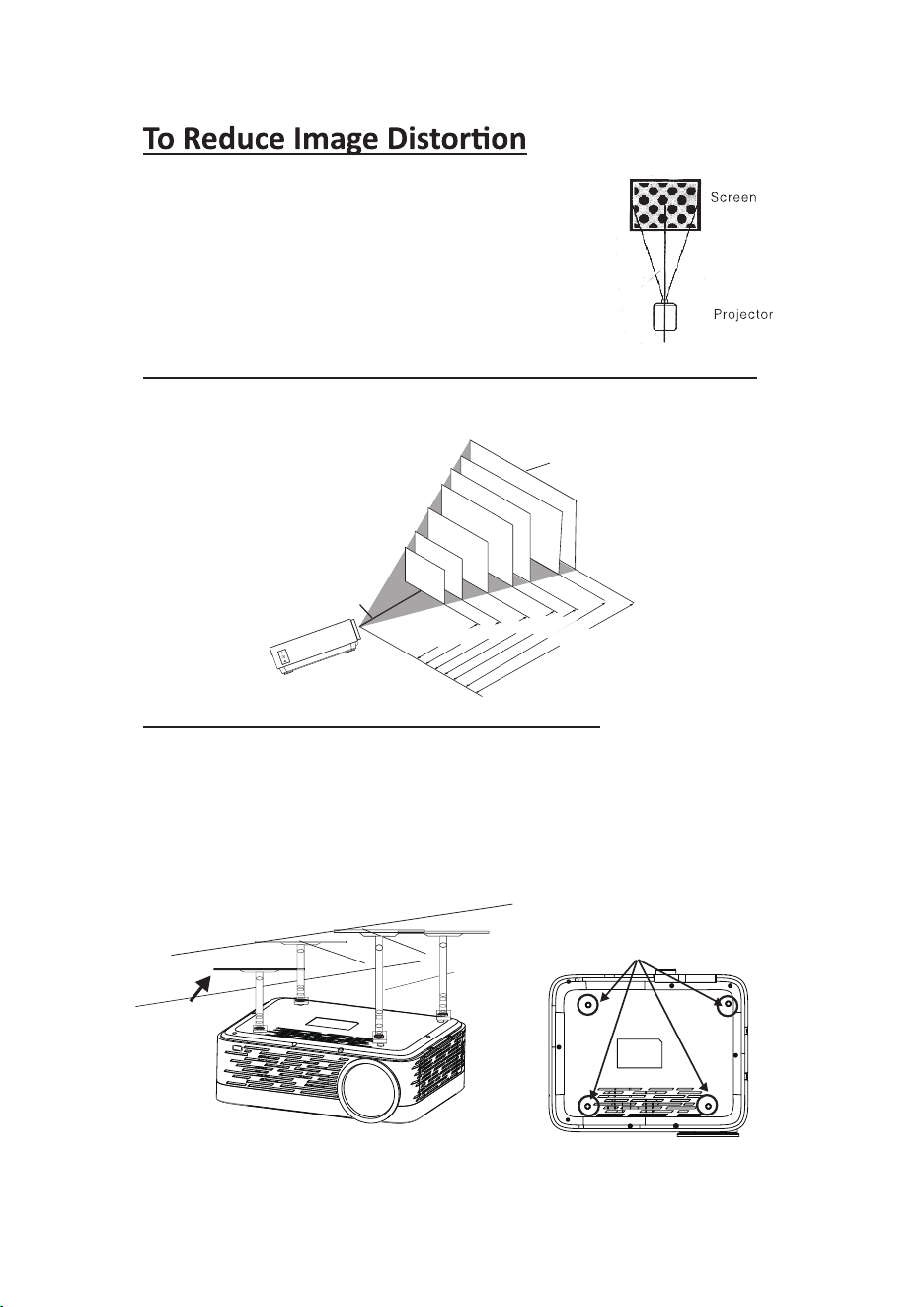
It is recommended to move the projector as close to
center of screen.
Distance Between The Projector And Screen
Measure the distance between the projector and where you want to
position the screen. This is the projection distance.
When installing the projector in the ceiling, please purchase a projector mount
recommended by an installation professional and follow the instructions that
come with the mount.
Before installing the projector in the ceiling, please check to make sure the
ceiling structure can support the weight of the projector and the mount. If in
doubt, please ask the advice from an installation professorial.
NOTE: Projector mount and screw(s) not included
6
CEILING
HANGER
FIXED HANGER HOLES
Square /Rectangle
SCREEN
Remove four screws on bottom
and it will show as the hanger holes
120
100
Placing Your Projector On Ceiling
THE CENTER OF LENS
72
"
60
"
50
"
45
"
37
"
1.35m
1.7m
1.86m
2.15m
2.6m
3.7m
4.0m
"
"
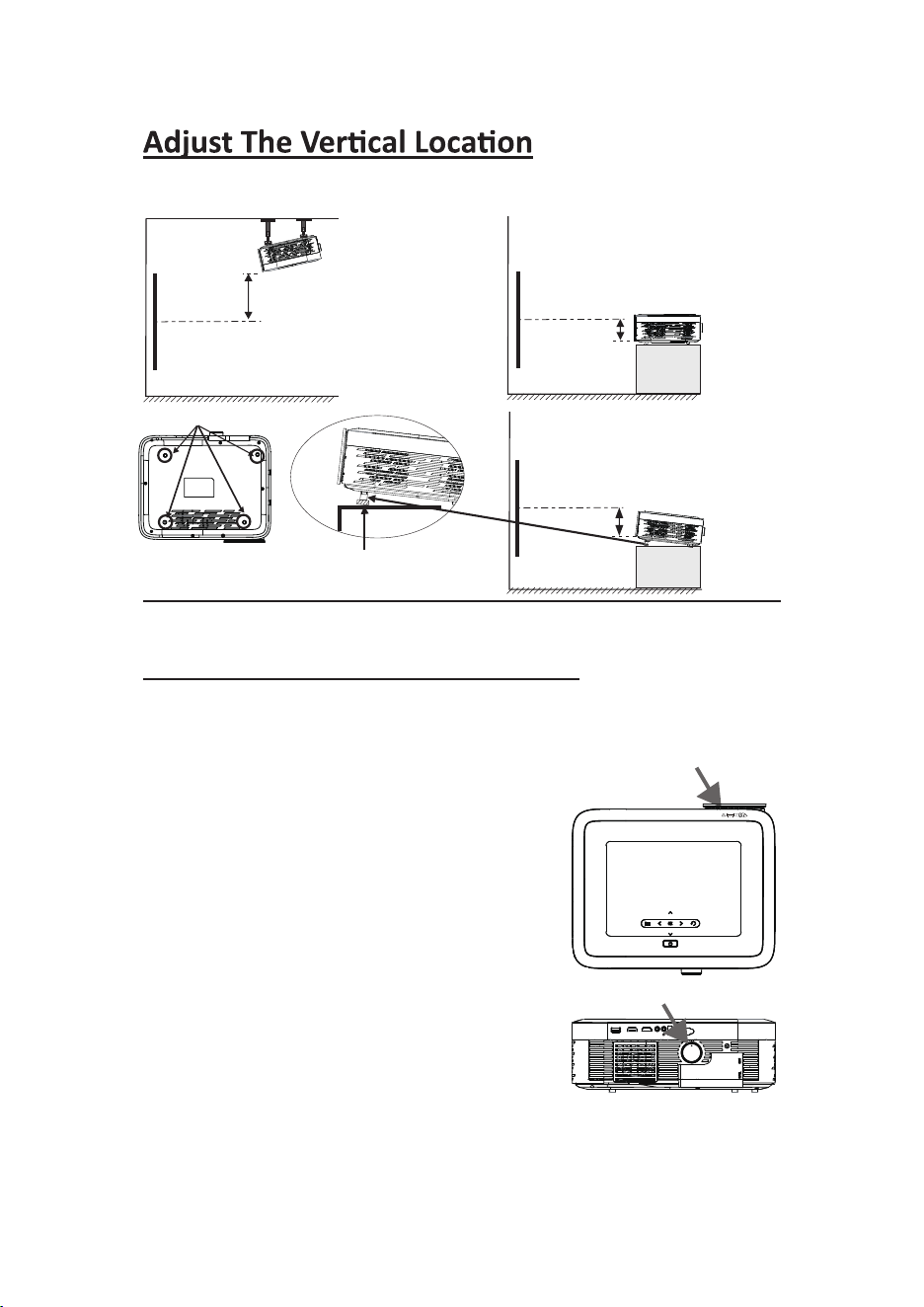
Follow below picture to adjust the vertical location.
Adjust The Focus And Keystone
Follow below picture to adjust the focus and trapezoidal screen.
Adjust the focus by turning the knob while
observing the image pixels near the center of the
screen. Optimal focus is obtained when the
pixels are clearly visible. Depending on the
projected screen size, the focus near the screen
edges may be less sharp than the screen center.
Keystone image is created when the projector
beam is projected to the screen in an angle.
Keystone correction will restore the distorted
image to a rectangular or square shape.
7
SCREEN
PROJECTOR
VERTICAL
DIMENSION
VERTICAL
DIMENSION
SCREEN
PROJECTOR
VERTICAL
DIMENSION
SCREEN
PROJECTOR
Adjust this knob ( ANGLE ADJ. knob)
to fine- tune the display angle to higher.
FOCUS ADJ. KNOB
Then sharpen the image
by rotating focus knob.
TRAPEZOIDAL ADJ. KNOB
USB1 USB1 HDMI2
HDMI1
AV
VGA
KEYSTONE
Adjust this knob ( ANGLE ADJ. knob)
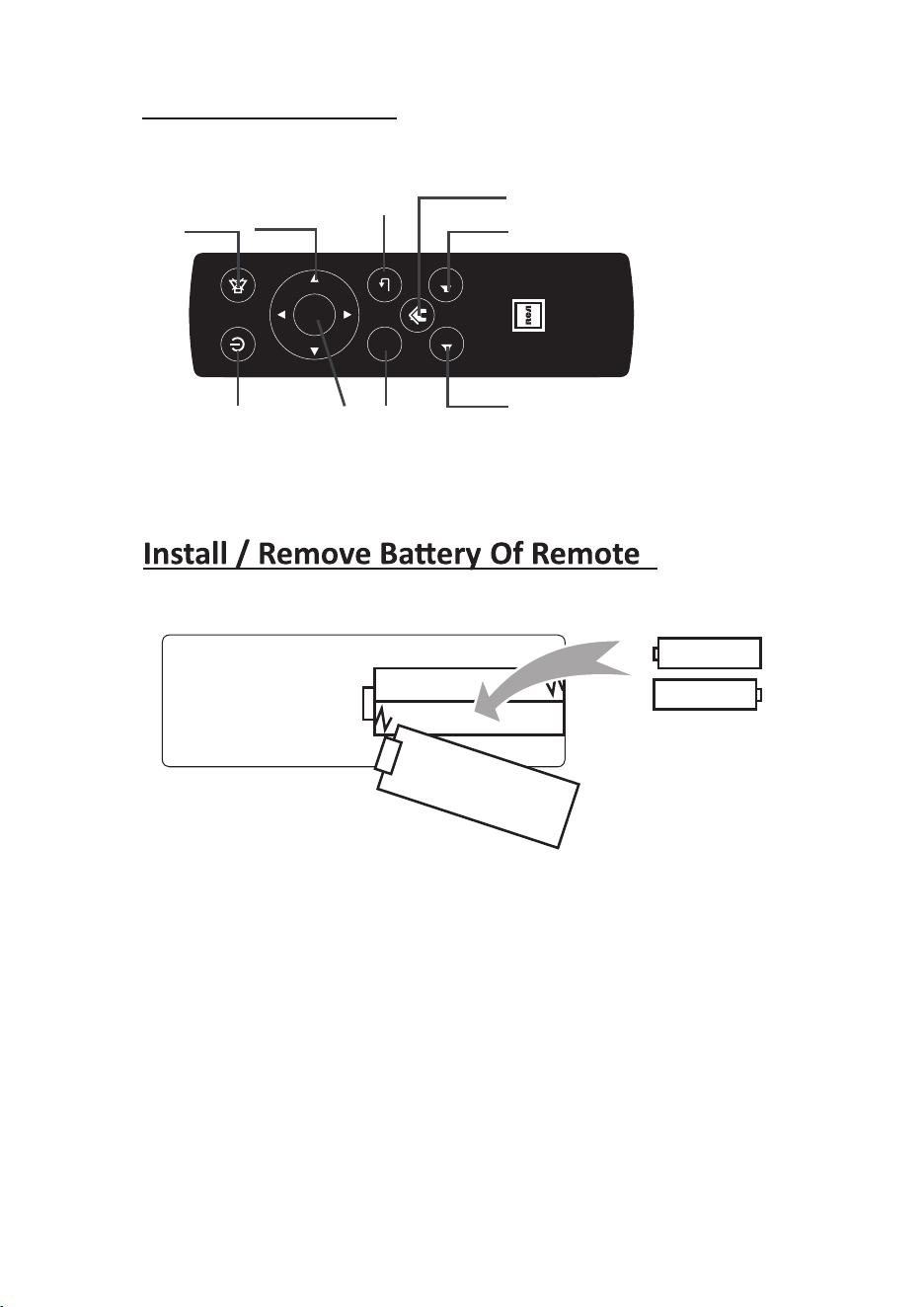
Remove the battery compartment cover on the back of your remote by
carefully sliding to open. The battery cover can then be lifted away. Fit the
correct batteries (not included), referring to the polarity markings. Finally,
replace the cover.
NOTES:
• Batteries shall not be exposed to excessive heat such as sunshine, fire
• Be sure that the batteries are installed polarity correctly.
• Do not mix old and new batteries.
• Only same or equivalent type batteries as recommend are to be used.
• Do not dispose of batteries in fire, battery may explode or leak. Do not try
to recharge a battery
8
MUTE
AAA / UM4
AAA / UM4
BATTERY DOOR
OK
FLIP
-
+
NAVIGATOR
BUTTONS
RETURN
HOME MENU
VOLUME+
POWER ON OK FLIP
VOLUME-
Tip: The Roku Streaming Stick uses a separate Roku remote, needed to
control the streaming player.
®
®
Projector Remote
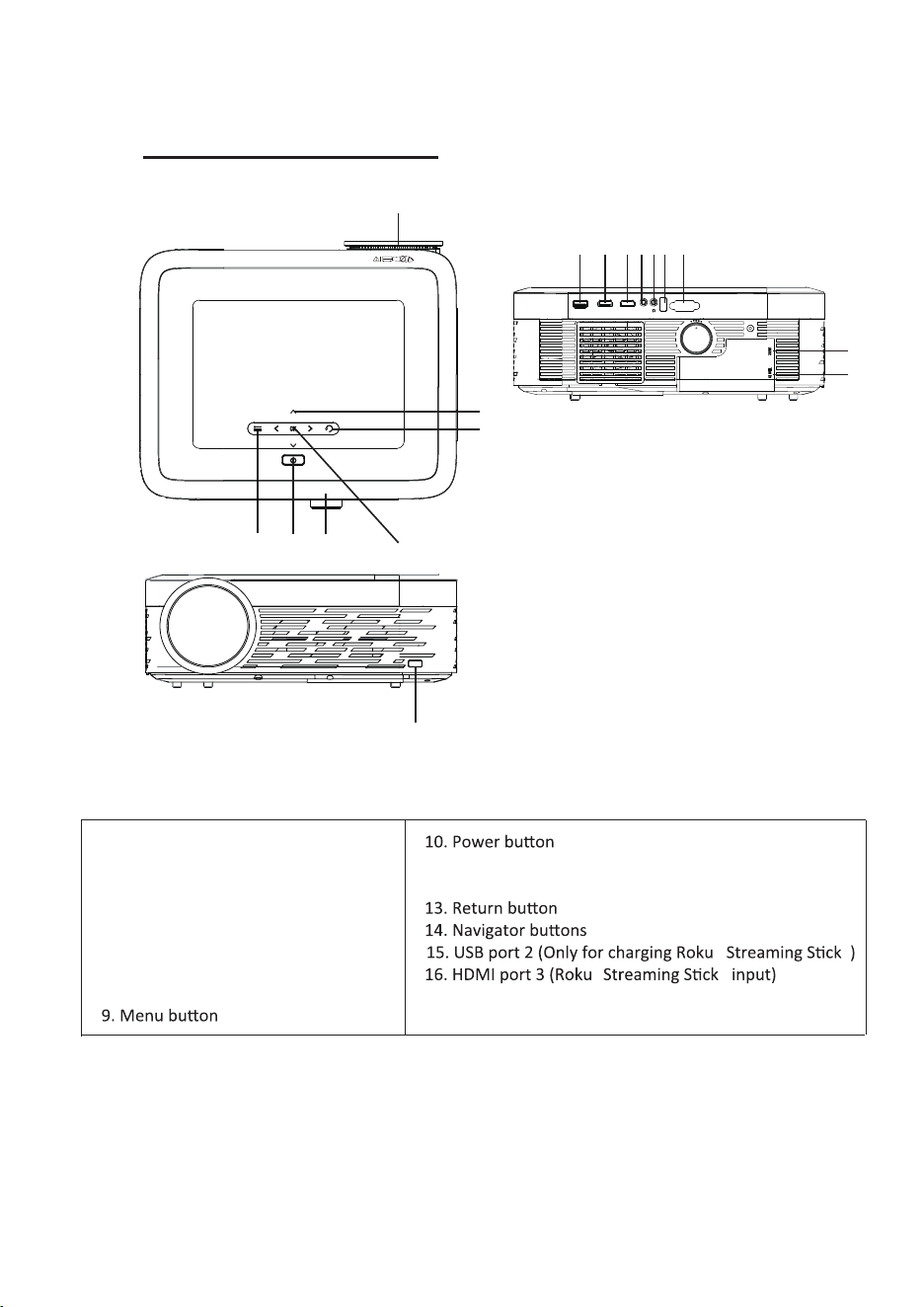
Controls Of Projector
9
1
USB1 USB1 HDMI2
HDMI1
AV
VGA
KEYSTONE
2 3 4 567 8
9 10 11 12
13
15
16
17
14
1. Lens and Focus Adj. Knob
2. USB port 1 (Media player)
3. HDMI port 1
4. HDMI port 2
5. AV Jack
6. Earphone jack
7. IR Window (Rear side)
8. VGA port
11. Trapezoidal Adj. Knob
12. OK
17. IR Window (Front side)
®
®
® ®
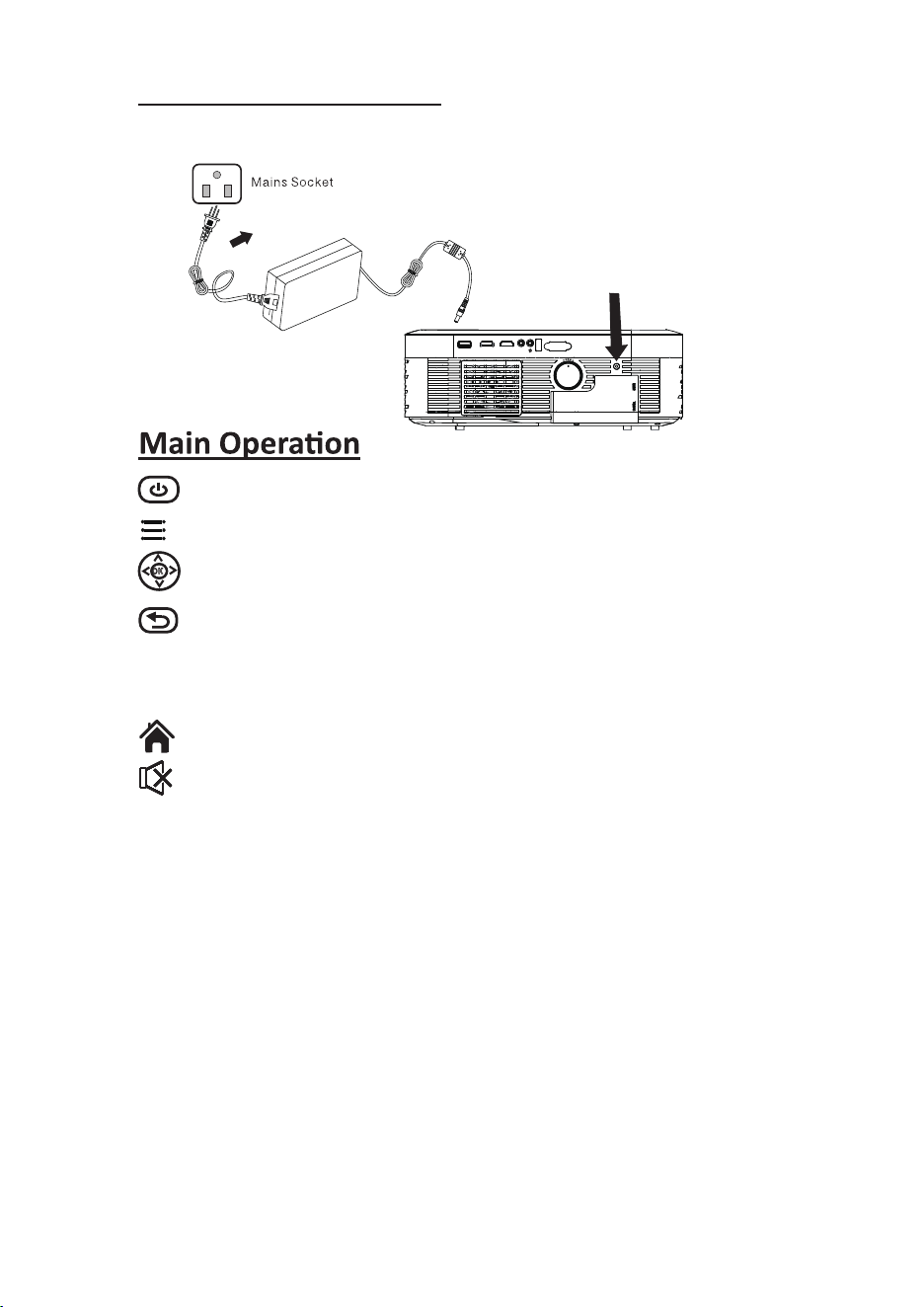
Install Power Adapter
Follow below picture to connect power adapter
Connect small end of adapter FIRST. Plug the adapter body to power outlet.
- Press the button to turn on unit, press again to turn off.
/ MENU - Press the button to enter projector menu.
- Press the buttons to select screen item of projector menu.
/ EXIT - Press the button to exit the projector menu.
VOL+ / VOL - Press the buttons to select correct sound.
- Press the button to play/pause the connect USB.
- Press the button to enter home menu.
- Press to muting the audio sound of your projector.Press again to resume.
10
OK
OK
-Press the button to rotate /mirror the projector screen.
FLIP
USB1 USB1 HDMI2
HDMI1
AV
VGA
KEYSTONE
11
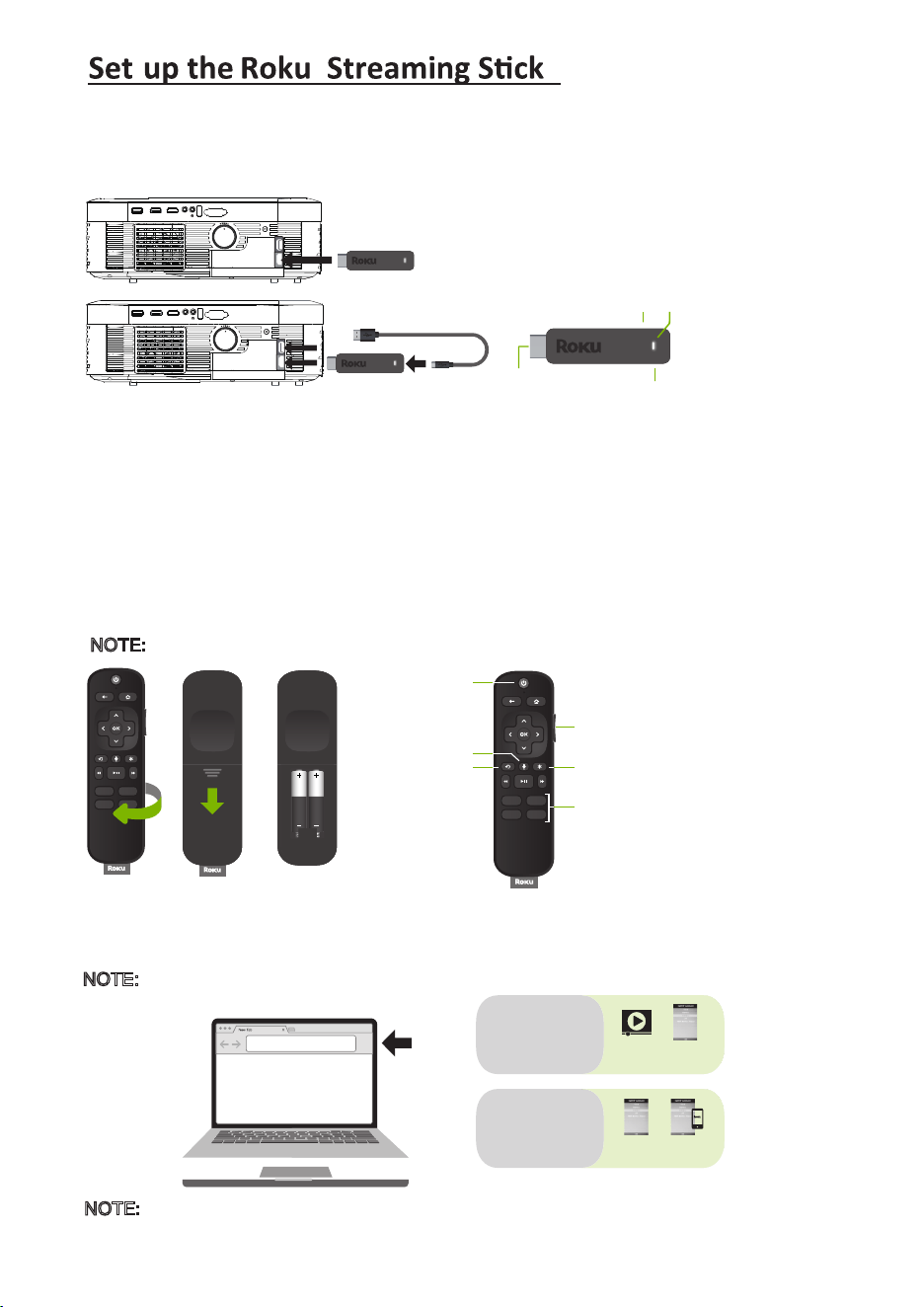
Complete on-screen setup and start streaming
Follow the on-screen setup instructions. To activate your streaming player, you will need to
use your computer or smart phone to link to a Roku account.
roku.com/link
Video
tutorials
Add
channels
Wireless
help
Mobile
app
Need more help
getting started?
go.roku.com/rss
Getting the most
out of your Roku
streaming player.
go.roku.com/usingroku
USB1 USB1 HDMI2
HDMI1
AV
VGA
KEYSTONE
H
D
M
I
3
U
S
B
2
Power and
status light
USB power
Reset
HDMI®
connector
supplied USB cable
Roku Streaming Stick
®
NOTE: Roku does not charge for activation support – beware of scams.
STEP 4 :
Volume
Channel
shortcuts
Options
Power
Instant replay
Voice button
Make your new RCA Full HD Projector smart!
Stream almost anything across thousands of free or paid streaming channels
including hit movies, popular shows, live TV, news, sports and more.
The Roku Streaming Stick may be pre-installed in select models.
USB1 USB1 HDMI2
HDMI1
AV
VGA
KEYSTONE
H
D
M
I
3
U
S
B
2
®
®
NOTE:
® ®
STEP 1:
Install the Roku Streaming Stick
Plug your streaming player into the HDMI 3 port on your projector.
STEP 2:
Connect to power
For the best streaming experience, use the included USB power cable to connect the streaming
player to the USB port on your projector. Power on the projector and select the HDMI 3 input.
STEP 3:
Pair your Roku remote
On the back side of the remote, slide open the battery cover. Insert included batteries placing
the negative (-) ends in first. Your remote should pair with your streaming player automatically.
For help pairing your remote, visit go.roku.com/remotehelp.
®
®
®
Be sure to always remove any connected devices when moving or transporting
the projector.
NOTE:
NOTE: To operate your Roku Streaming Stick , you must use the included Roku remote.
®
®
®
12
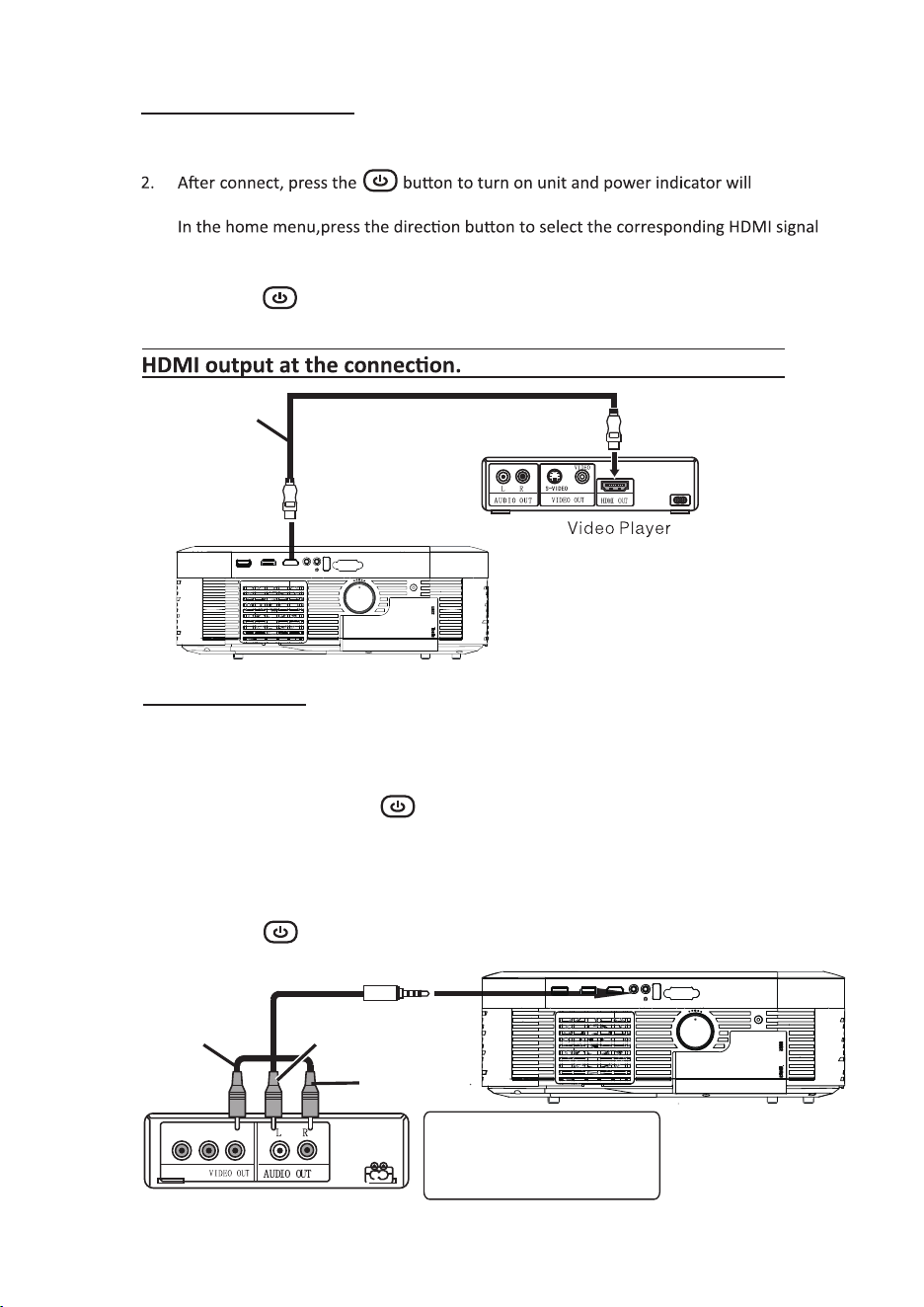
Connect AV
Follow below picture to connect AV cable and device.
1. Turn off the unit before connect AV cable.
2. Use AV cable to connect follow below figure
3. After connect, press the button to turn on unit and power indicator will
light GREEN
4.
Press the direction button to select the AV mode in home menu and the video on
the AV device will be displayed on the projector screen.
5. Press the button to turn off unit power.
LEFT CHANNEL
RIGHT CHANNEL
VIDEO CABLE
VIDEO PLAYER
VIDEO CABLE : YELLOW
AUDIO LEFT CHANNEL : WHITE
AUDIO RIGHT CHANNEL : RED
CABLE NOT INCLUDE
USB1 USB1 HDMI2
HDMI1
AV
VGA
KEYSTONE
HDMI CABLE
CABLE NOT INCLUDE
In rare cases, if the projector’s speaker has
no sound when playing a DVD movie in a
player connecting to the HDMI input, please
check the player’s digital audio settings and
make sure it is set to “Auto” mode or “PCM”
mode.
HDMI HD signal input : this interface can be input with HD player
USB1 USB1 HDMI2
HDMI1
AV
VGA
KEYSTONE
Connect HDMI
Follow below picture to connect HDMI cable and device.
1. Turn off the unit before connect HDMI cable.
light GREEN
3.
interface and in the HDMI mode the video of the HDMI device will be displayed on the
projector screen.
4. Press the button to turn off unit power.
13
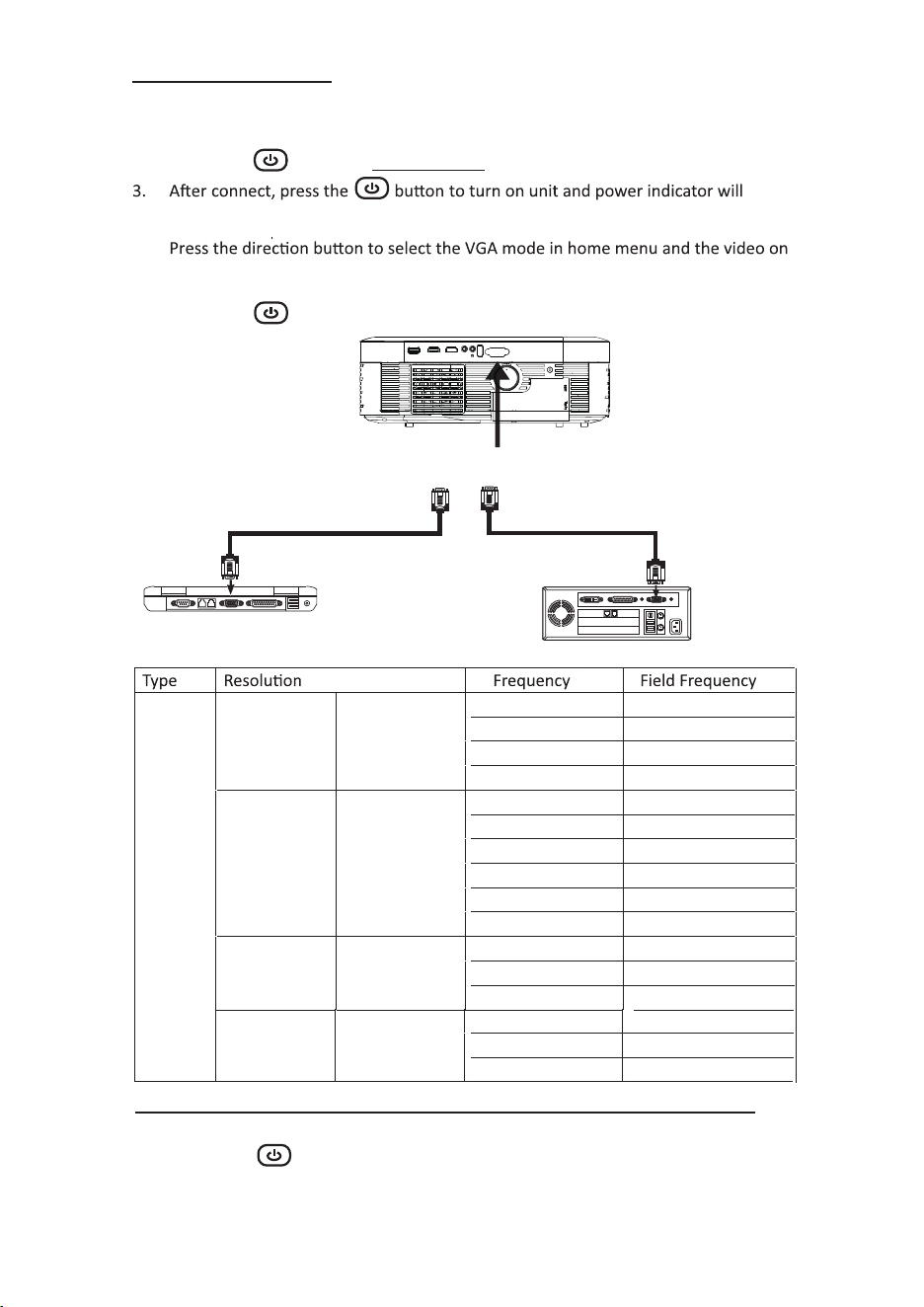
Please refer to the following table to adjust the output signal from computer
PC
VGA 640x480
31.5 60
34.7 70
37.9 72
37.5 75
SVGA 800x600
31.4 50
35.1 56
37.9 60
46.6 70
48.1 72
46.9 75
XGA 1024x768
40.3 50
48.4 60
56.5 70
Connect Audio Output ( Aux Out / Line Out / Earphones)
Follow below picture to connect audio cable and device.
1. Press the button to turn off power of your projector before connection.
2. Use audio cable to connect follow below figure.
3. After connect and turn on both units. Your projector sound from external
device now.
4. After using , turn off both unit
Connect VGA
Follow below picture to connect HDMI cable to the device.
1. Turn off the unit before connect VGA cable.
2. Press the button to turn off power of your projector before connection.
light GREEN
4.
the VGA device will be displayed on the projector screen
5. Press the button to turn off unit power.
To VGA PORT
NOTE BOOK
DECK TOP
OR
C OMPUTER CABLE
C OMPUTER CABLE
CABLE NOT INCLUDE
USB1 USB1 HDMI2
HDMI1
AV
VGA
KEYSTONE
FHD 1920 x1080
27 24
67.5 60
56.3 50
H.
[KHz]
[Hz]
V.
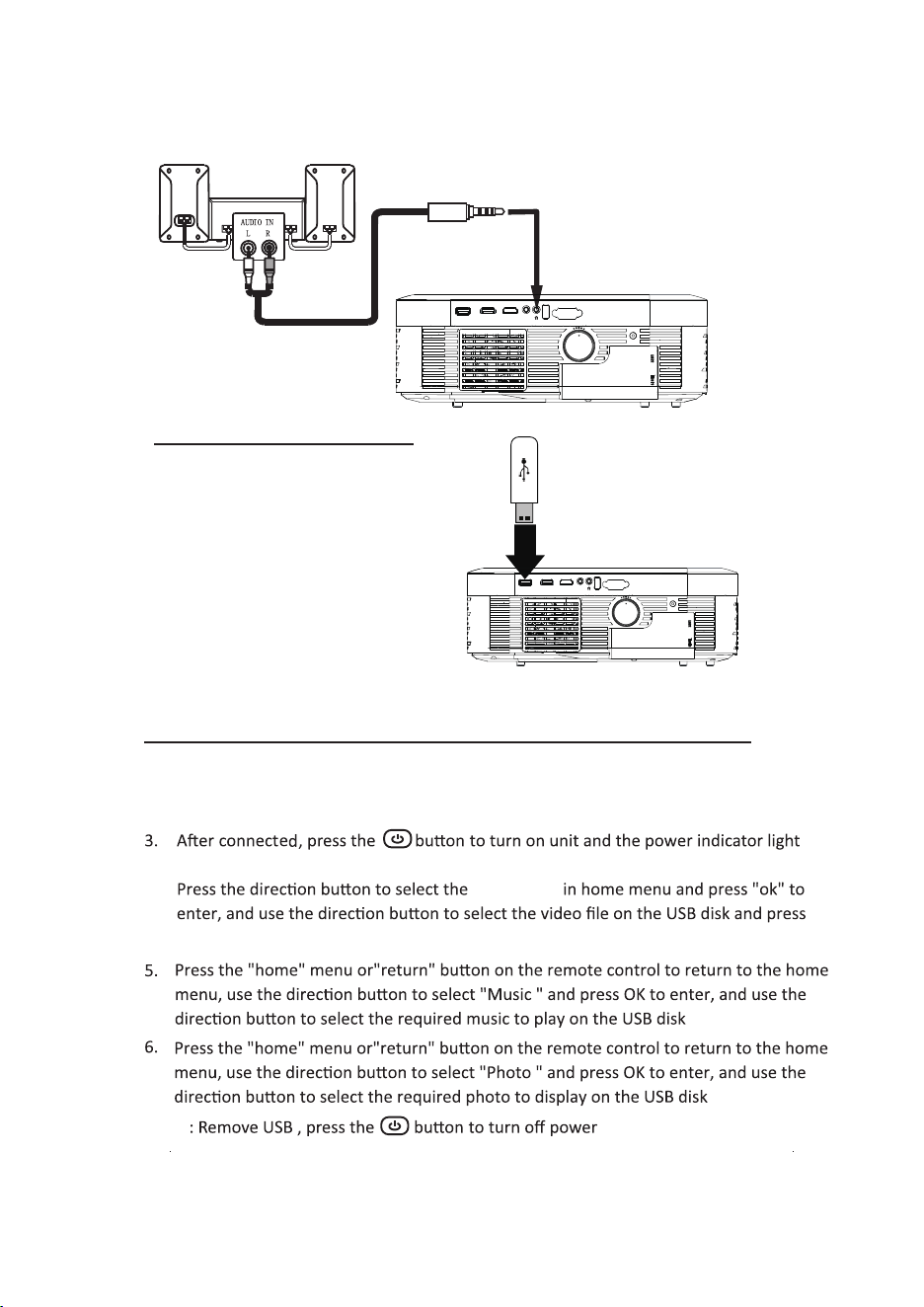
Using USB playback
(Media Player)
Install USB :
1. Turn off the unit before installing the USB device.
2. Install the USB device into USB port.
GREEN.
4.
"OK" to play the video file on the U disk.
NOTE FIRST.
14
Install USB Device
Follow below picture to install USB
Turn off the unit before install USB
CABLE NOT INCLUDE
Station Amplifier
Audio cable
USB1 USB1 HDMI2
HDMI1
AV
VGA
KEYSTONE
USB1 USB1 HDMI2
HDMI1
AV
VGA
KEYSTONE
movie icon
15
Using Projector Menu 1.0
Press button to enter projector menu. Press again to previous status.
Use buttons to select manual page.
This manual showed on right upper of view
screen.
Picture Mode Standard
Contrast 5 0
Brithness 50
Color 50
Sharpness 50
Color Temperature Medium
Aspect Ratio Auto
Noise Reduction Middle
Screen
OK
Tint
50
Sub-Menu on Photo screen
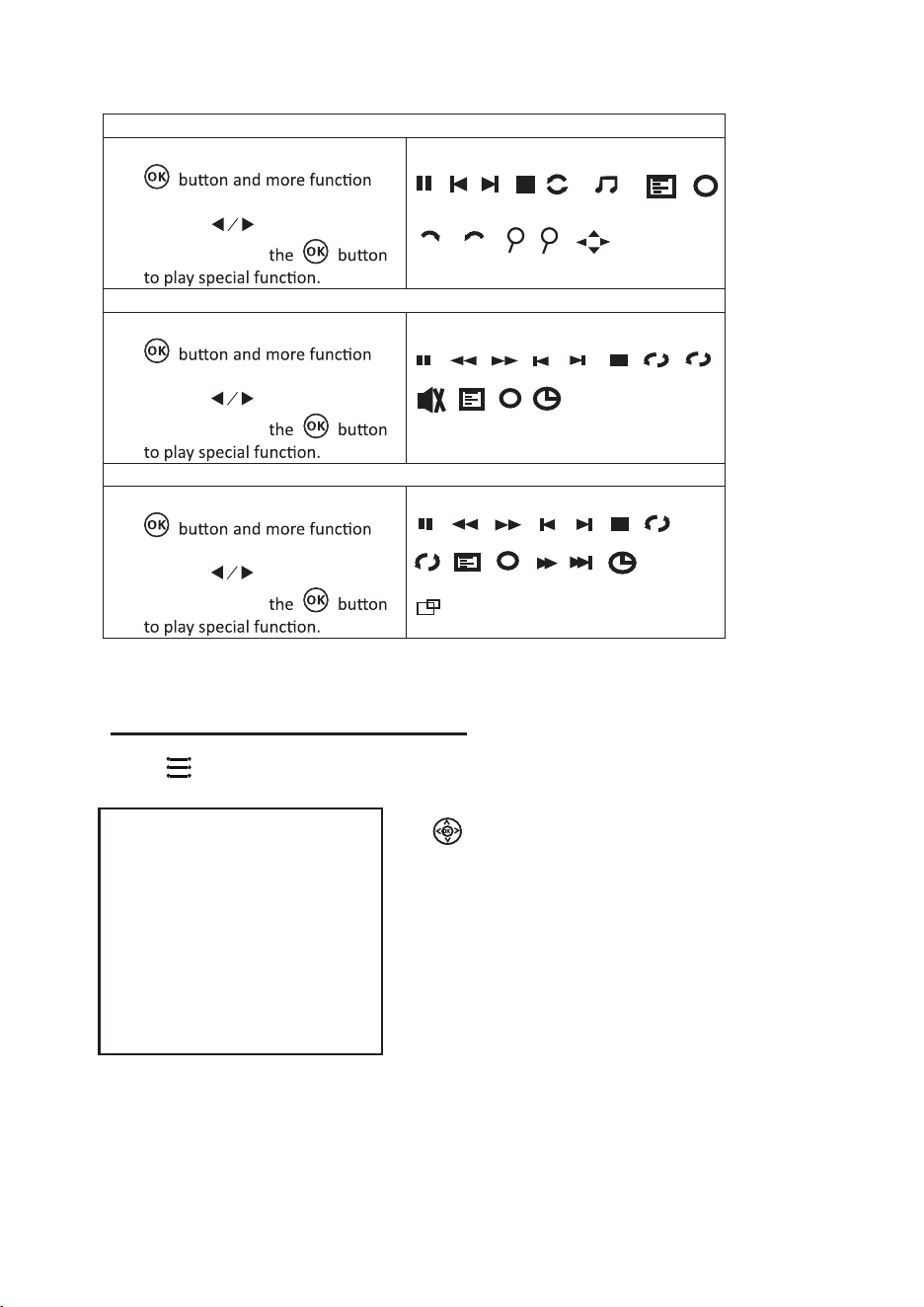
1. When photo playback, press the
screen show on lower (figure 1).
2. Use the button to select
icon and press
Figure 1.
Sub-Menu on Music screen
3. When music playback, press the
screen show on lower (figure 2 ).
4. Use the button to select
icon and press
Figure 2
Sub-Menu on Movie screen
5. When movie playback, press the
screen show on lower (figure 3).
6. Use the button to select
icon and press
Figure 3
Pause
Next
Prev.
Stop
Re...
PL...
Info
i
Rotate
Zo...
Zo...
M...
Rotate
Pause
FB
FF
Next
Prev.
Stop
Re...
Set A
PL...
Info
Go...
AB
i
MUTE
Pause
FB
FF
Next
Prev.
Stop
Re...
Set A
PL...
Info
St...
Sl...
Go...
AB
i
AS...
9090
+ +
background
music
16
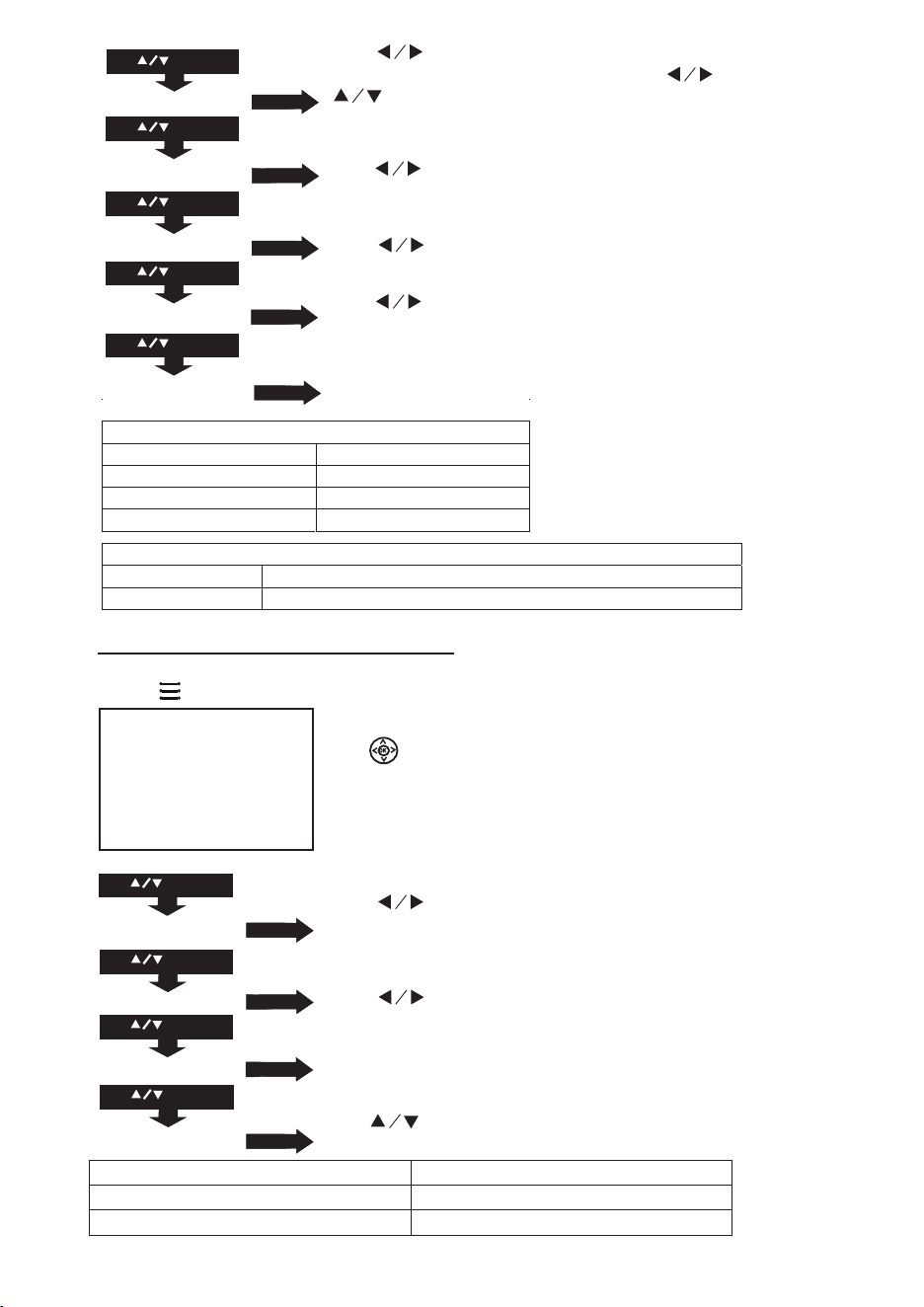
Using Projector Menu 2.0
Press button to enter projector menu. Press again to previous status.
Use buttons to select manual page.
This manual showed on right upper of view
screen.
Use to select different sound effect
Standard / Music /Movie / Sports / User. If select
User, follow below figure to set digit.
Use to select Balance level to 0-50.
To select Off / On.
Use to select different sound effect to Off /
Surround.
Sound Mode - User Parameter
001-0 elberT
001-0 ssaB
Sound Mode Standard
Treble 50
Bass 50
Balance 0
Auto Volume Off
Surround Sound Off
USE
TO SELECT
USE
TO SELECT
USE
TO SELECT
PRESS OK
PRESS OK
USE
TO SELECT
PRESS OK
PRESS OK
Balance 0
Auto Volume Off
Surround Sound Off
Sound Mode Standard
OK
Color temper… (temperature)
Customer define Parameter
red 0-100
blue 0-100
green 0-100
Aspect Ratio
4:3 The signal in a 4:3 aspect ratio projection image
16:9 The signal in a 16:9 aspect ratio projection image
Use to select different picture effect to
Soft / Standard / Vivid / User. Use or
to select Contrast / Brightness / Color /
Sharpness /Tint digit If chose User item.
Use to select different color temperature
to Cool / Medium / Warm
. Follow below figure.
Use buttons to select screen ratio auto, 4:3 or
16:9. Follow below figure.
Use buttons to select Off / Low / Middle /
High / Default.
USE
TO SELECT
USE
TO SELECT
USE
TO SELECT
USE
TO SELECT
USE
TO SELECT
PRESS OK
PRESS OK
PRESS OK
PRES
S
OK
Picture Mode Standard
Color Temper...
Aspect Ratio
Noise Reduction
Optional
PRESS OK
Screen
17
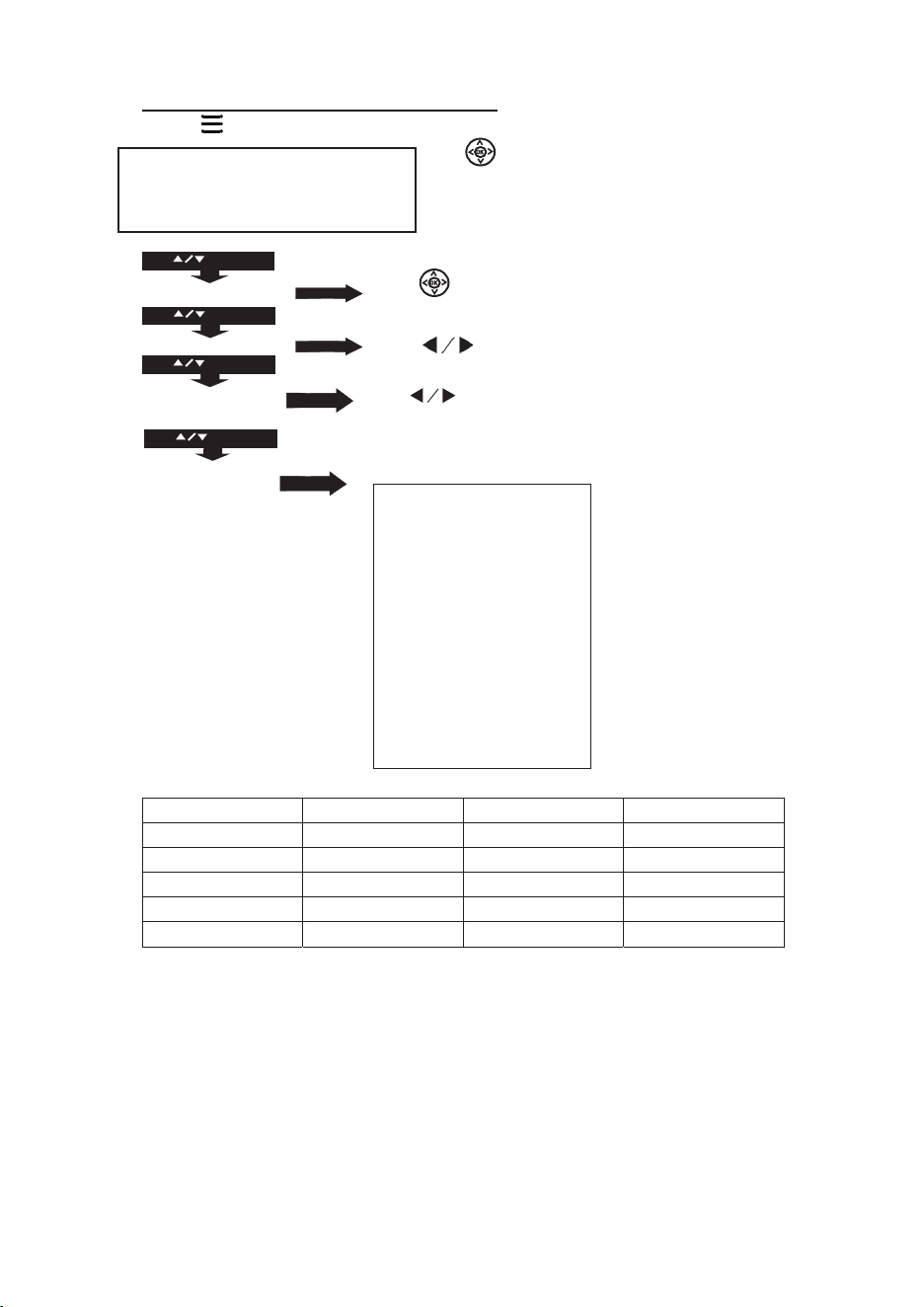
Using Projector Menu 3.0
Press button to enter projector menu. Press again to previous status.
Use buttons to select manual page.
This manual showed on right upper of viewing
screen.
Use
language. Follow below figure.
Use buttons to select Y or N. If choose “Y”
that your unit will go to factory default setting.
English Hrvatski Nederlands Chinese
Franais Deutech Slovenina Slovak
Espanol Italiano Norsk
Portugues Magyar Srpski
Esky Polski Svenska
Dansk Romnete Suomi
OSD Language English
Restore Factory Default
Panel Rotate 0
Info
OSD Language
Restore Factory Default
USE
TO SELECT
USE
TO SELECT
PRESS OK
PRESS OK
USE
TO SELECT
OK
OK
button to select different
Use to select rotate 0 / rotate 1 / rotate 2 /
rotate 3 to set screen angle.
PRESS OK
Panel Flip Rotate 0
RPJ138 :ledoM
SN:RPJ138
RCA
SW Ver: V7.0
LOGO RCA
FL040CT_30
INFO
PRESS OK
USE
TO SELECT
18
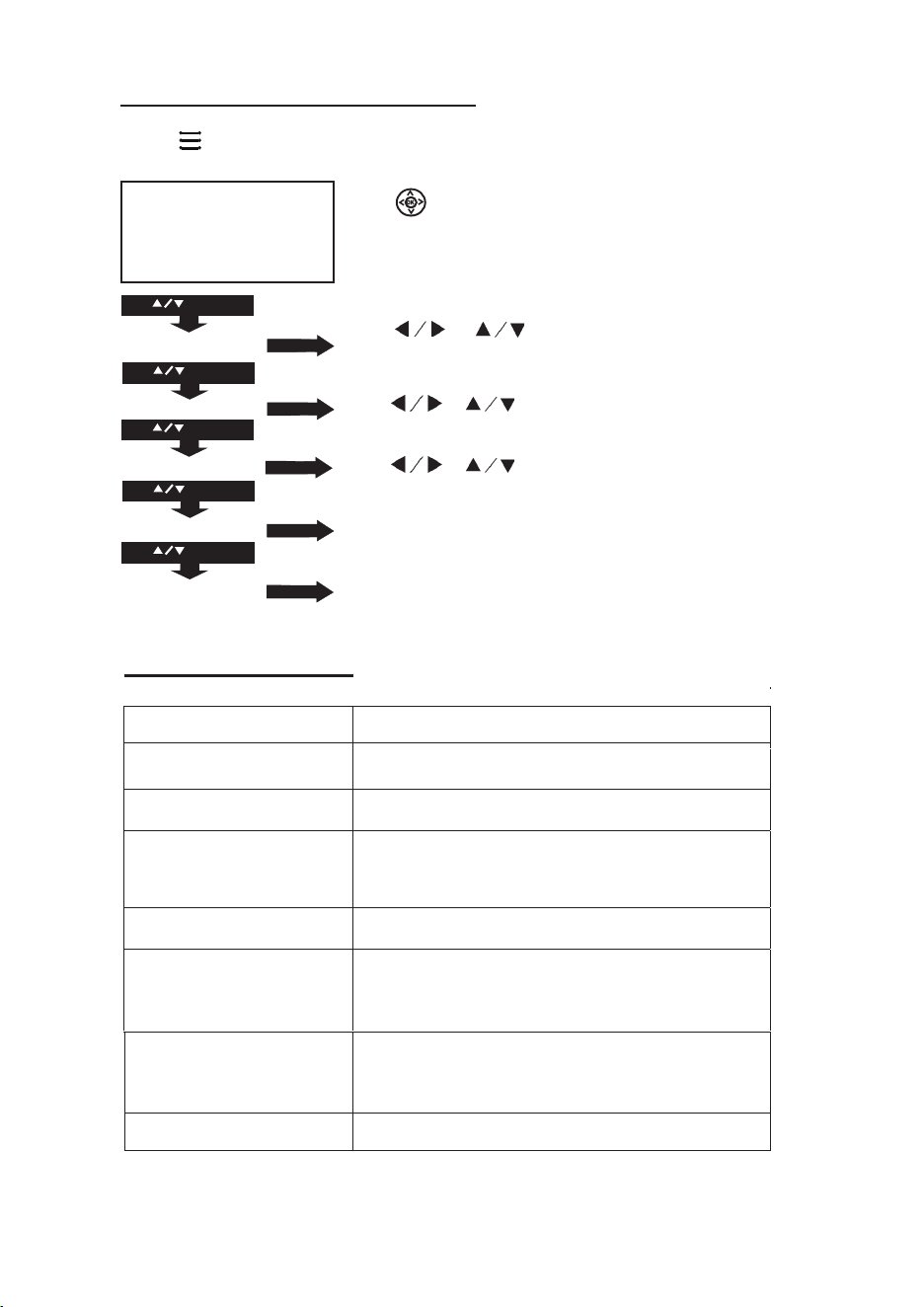
Using Projector Menu 4.0
Press button to enter projector menu. Press again to previous status.
Use buttons to select manual page.
This manual showed on right upper of viewing
screen.
Use / to select clock to Day /
Month / Year / Hour / Minutes.
Use / to select timer turn off to Day
/ Hour / Minutes.
Use / to select timer turn on to Day
/ Hour / Minutes.
To select sleep timer turn to Off / 10min / 20min /
30min / 60min / 90min /120min /180min / 240min.
To select auto sleep function to turn Never / 4 hour
/ 6 Hour / 8 hour.
Clock - - - -
Off Timer Off
On Timer Off
Sleep Timer Off
USE
TO SELECT
USE
TO SELECT
USE
TO SELECT
USE
TO SELECT
PRESS OK
PRESS OK
USE
TO SELECT
PRESS OK
PRESS OK
Auto Sleep Never
Clock - - - -
Off Timer Off
Sleep Timer Off
On Timer Off
PRESS OK
Auto Sleep Never
OK
Specifications
Light Source Type
LED
Brightness Output
White light output ANSI: 215 lm
White Brightness output ANSI: 159 lm
Display Native Resolution
1920 1080 x
HDMI Input Supported
Video Resolution.
1080p , 1080i , 720p, 576i , 480p,
480i
Power Consumption
Operating 133W; Standby 0.8W
Power Input
Connect Included Adapter
DC 19V , 7.0A
Included Adapter
Connect DC input of unit
Input AC100-240V,50/60Hz
Output DC19V , 7.0 A
Color Temperatureor
7000-8000K
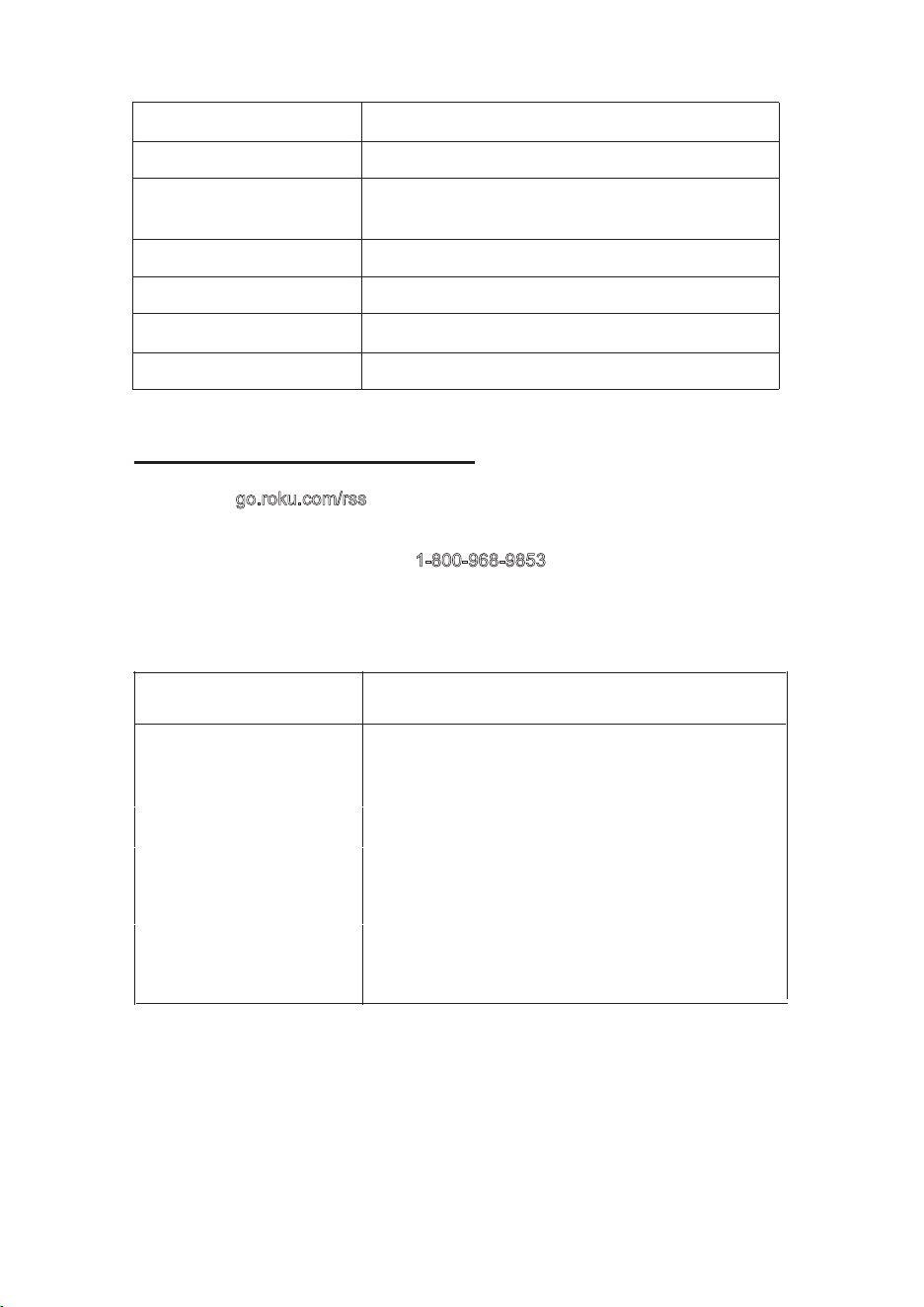
Projection Size 24-165 inch
Signal Port
VGA / HDMI / AV
USB 1 Port Support USB device up to 32GB
Su
pport format mpeg1, Mpeg2 ,mpeg4, mp3 , Jpeg
Weight 2.6 KG
Dimension 320 x 275 x 117mm
19
Speaker
Projection distance
2*5W
1m-6m
TROUBLESHOOTING
No Image is Projected or
a "No Signal" message is
displayed
1.Power light is on. If it is not on, check the
projector is plugged into the mains, that the
socket is switched on, and then press the power
button on the projector.
2.Check the lens cover has been removed.
3.Check the cables are securely attached and
installed as per the User Manual.
4.The image source may not be set correctly.
Press the Source button on the Control Panel or
the Remote, to select the correct setting.
5.Check in the Menu section under Video input
signal to make sure that has been set correctly.
Before resorting the maintenance service, please kindly check by yourself with
the following chart.
Please visit go.roku.com/rss for any questions about the Roku
Streaming Stick . For any other issues related to the projector function
please contact Customer service: 1-800-968-9853
.
Symptom
Cause (and Remedy)
®
®
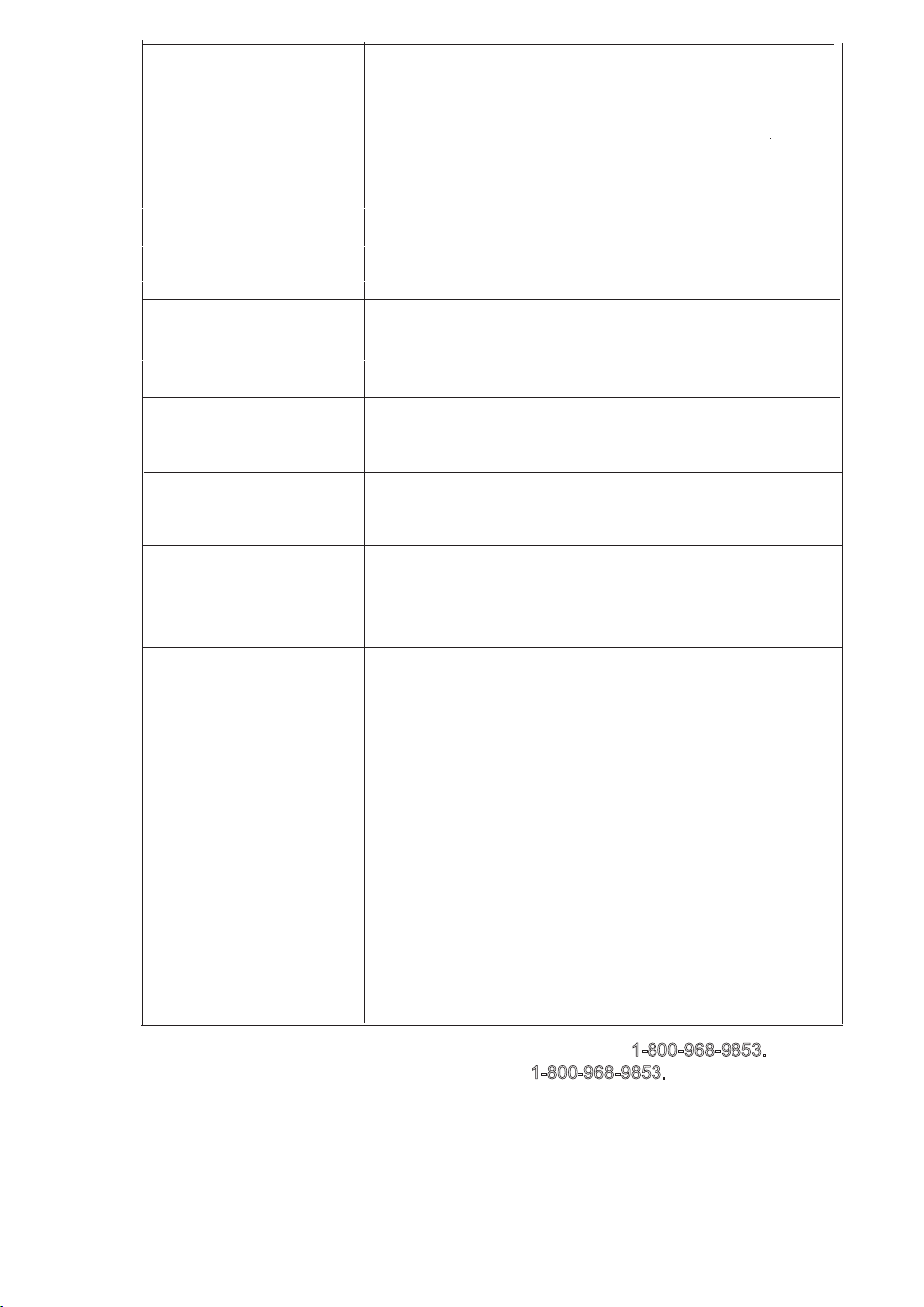
The Lamp (Bulb) switches
off after a period of time
Is the warning light indicator red? If so, the
projector is overheating which turns the light
off automatically.
1.Leave the projector to cool for a few moments.
2.Once cooled, check nothing is blocking the
ventilation vents.
3.Check the air filter is clean and clean if
necessary.
4.Turn on the projector.
If the issue persists please contact your support
provider for further assistance.
The Image is wider at
the top/bottom of the
screen
This is called keystone and is due to the projection
angle not being perpendicular to the screen. To
correct use the projectors inbuilt keystone function
to adjust the image.
20
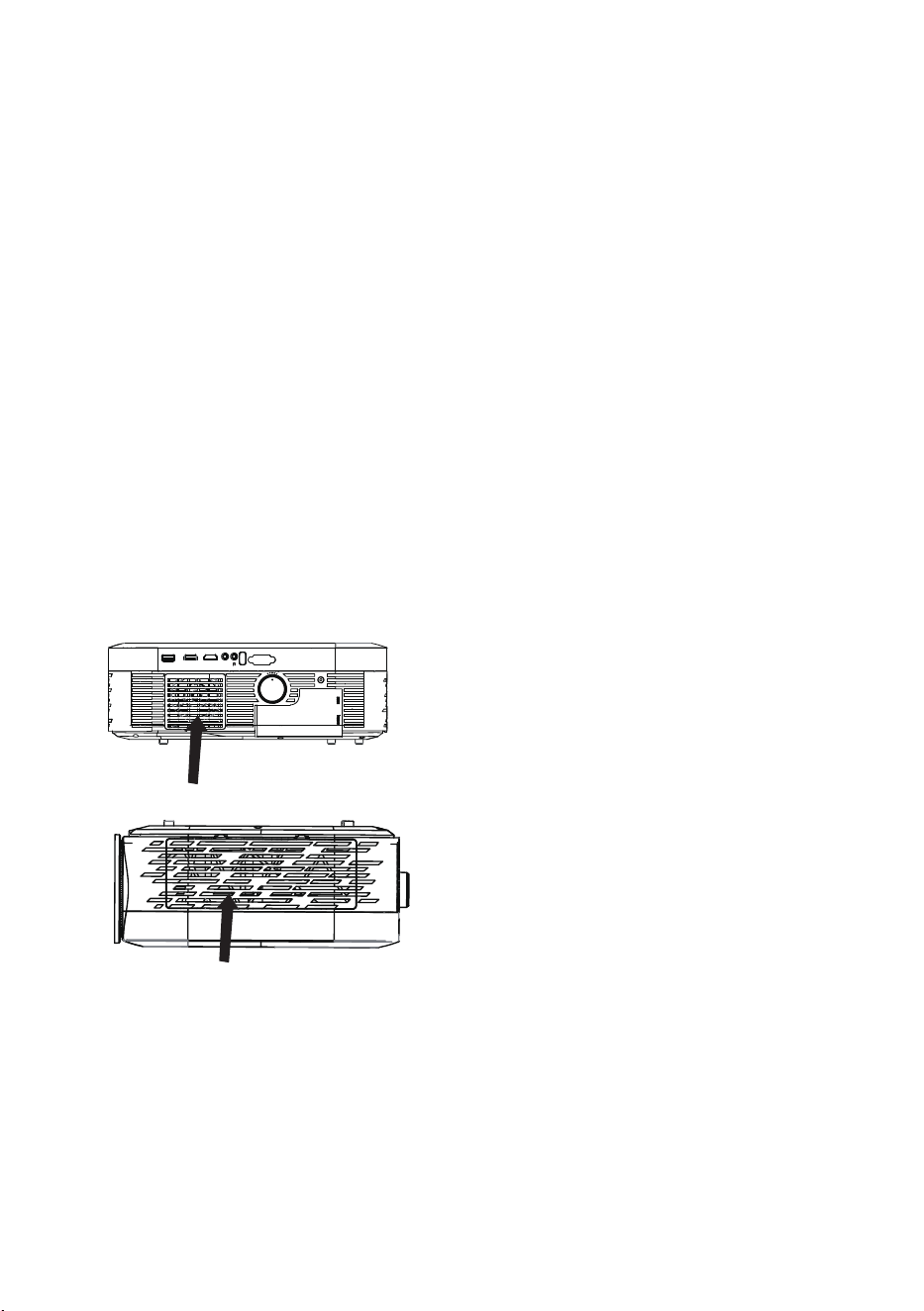
Spots on the screen
Using a vacuum cleaner to clean the lens. If
cleaning doesn’t resolve things, please contact
your support provider for further assistance.
The image brightness
has faded
This could possible be caused by the ambient
light in the room. If not ,the chances are that you
need to replace the lamp (bulb).
For service assistance and product information, please call: 1-800-968-9853.
Pour obtenir assistance et information appelez: 1-800-968-9853.
Curtis International Ltd.
7045 BECKETT DRIVE, UNIT 15,
MISSISSAUGA, ON, L5S 2A3 www.curtisint.com
Roku Streaming Stick
will not power on
® ®
You cannot see the video
from your Roku
Streaming Stick on
your projector
®
®
The Roku Streaming Stick needs to be properly
connected to power in order to function. For optimal
performance, use the included USB cable to connect to
the USB 2 port on the projector.
®
®
First, make sure the projector is turned on and set to the
HDMI 3 input. Then press a button on the Roku remote
control to ensure that the Roku device is not in standby
or screensaver mode. Listed below are the most common
reasons you may not see video on your projector:
1. You have the wrong input (source) selected on your
projector. Look to see which input you have the Roku
Streaming Stick connected to. Press this button, it may
display a menu with a choice of inputs, Use the arrow
buttons on the projector remote to select the correct input
and then press OK.
2. The Roku Streaming Stick is not connected properly.
Ensure it is firmly connected to the HDMI 3 connector on
your projector.
3. If all else fails, disconnect and reconnect all cables
including the power cable. For more help
visit: go.roku.com/usingroku.
®
®
®
®
®
21
Projector Cleaning and maintenance
Cleaning the projector regularly is the most effective way to keep the projector running
normally and prolong the life of the machine. The simplest and most effective method is
to clean the filter regularly and replace the new filter if necessary.
In order to ensure the continuous and stable use of the projector, it is recommended that the
filter be cleaned every three months. If you use projectors in dusty environments, shorten the
cleaning cycle (especially for educational users in schools). When the internal temperature
of the projector is too high, please clean or replace the filter immediately to protect the
projector.
Projector Cleaning and maintenance
• Please turn off the projector and disconnect the power line before cleaning。
• Do not use detergents or solvents.
• After cleaning, before the projector resumes operation, please make sure that there is
no shielding around the projector, and ensure the smooth ventilation .
• After cleaning for a short time still appear overheating hint or found that there is damage
to the filter, please replace the new filter in time.
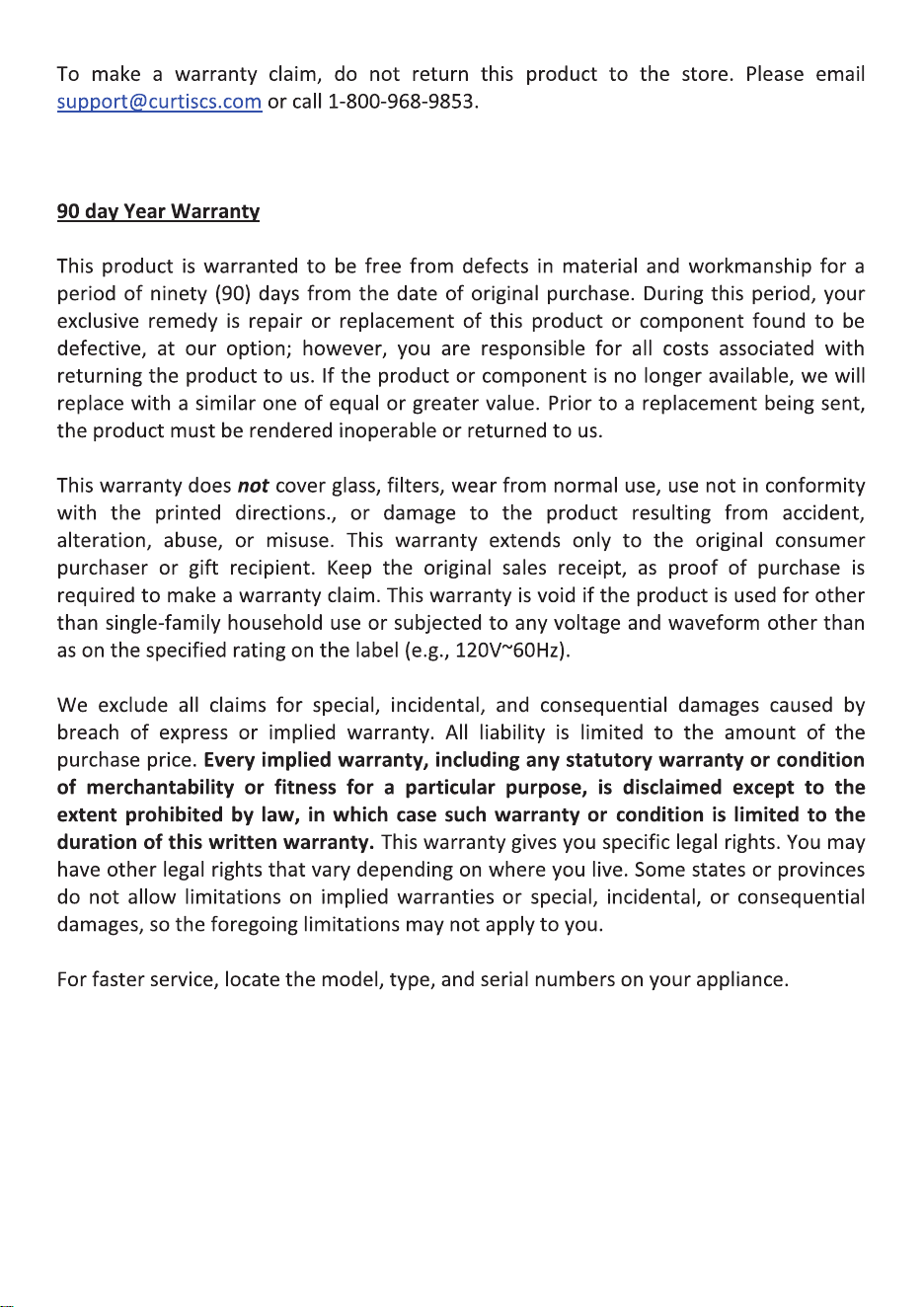
Cleaning operation :
① find the position of the filter cover, open the filter cover and take out the filter.
② face down the front of the filter (more dust side), tap four or five times, shake off the dust.
Turn the filter over and hit the other side in the same way. Then use a vacuum cleaner to
clean the front of the filter to remove dust from the deep layer of the filter.
③ install the filter back into the projector and close the cover.
USB1 USB1 HDMI2
HDMI1
AV
VGA
KEYSTONE
①
②
22