

2
About
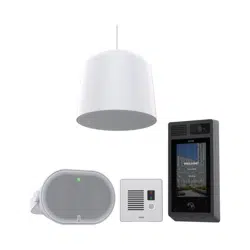
AXIS Client for Unified Communication Systems is an application that lets you make calls between your SIP-
enabled Axis devices and linked Microsoft® Teams accounts. The license for Microsoft Teams is included with the
application. The integration is handled by Microsoft SIP Gateway. For more information, see https://learn.
microsoft.com/microsoftteams/devices/sip-gateway-plan.
AXIS Client for Unified Communication Systems

3
Get started
Requirements
• Axis SIP-enabled device with AXIS OS 12.6 or newer.
• Microsoft Teams account, https://learn.microsoft.com/microsoftteams/devices/sip-gateway-plan.
• A provisioning address specific for your region (based on where your Axis device connects from, the
region where the MS Teams user is located can be different). You can find this address at https://learn.
microsoft.com/microsoftteams/devices/sip-gateway-configure.
For a single Axis device, we recommend that you use a Microsoft Teams shared device license. For more
information, see https://learn.microsoft.com/microsoftteams/teams-add-on-licensing/teams-shared-device-
license.
Note
A Microsoft Teams license is only required for Axis network intercoms and audio devices.
Download the application
Download AXIS Client for Unified Communication Systems for your device from axis.com/products/axis-client-
for-unified-communication-systems.
Add your device in AXIS Device Manager
1. Run AXIS Device Manager Client.
– To download and install AXIS Device Manager, go to axis.com/products/axis-device-manager.
2. When AXIS Device Manager starts, it automatically searches for devices.
2.1. To manually search, click .
2.2. If no devices are found, do an inspection of your network configuration.
2.3. If the application informs you that some devices have old firmware, click the link to upgrade to
the latest firmware.
2.4. Select the devices you want to add, click Next, and then click Finish.
3. Set a password for the devices:
3.1. Select all your devices and click .
3.2. Enter username and password, and click OK.
Secure passwords
Important
Use HTTPS (which is enabled by default) to set your password or other sensitive configurations over the
network. HTTPS enables secure and encrypted network connections, thereby protecting sensitive data, such
as passwords.
The device password is the primary protection for your data and services. Axis devices do not impose a password
policy as they may be used in various types of installations.
To protect your data we strongly recommend that you:
• Use a password with at least 8 characters, preferably created by a password generator.
• Don’t expose the password.
• Change the password at a recurring interval, at least once a year.
AXIS Client for Unified Communication Systems
4
Add the application to the device
1. Select your devices.
2. Click .
3. Click Browse to find and select the downloaded application.
4. Click Next.
5. When asked to install the application, select Yes and click Next.
6. Click Browse to find the license key file. Select the license key files for your selected devices. The
connected MAC address is in the file name.
7. Click Next and Finish.
8. In the device web interface, go to Apps to start the application.
9. Redo if you want to set up other device models.
Connect your device to Microsoft Teams
To watch this video, go to the web version of this document.
1. In the device’s web interface, go to Communication > SIP and make sure Enable SIP is selected.
2. Go to Auto Provisioning.
3. Paste the link to a Teams server or select a server from the list and click Connect.
4. Click Sign-In.
5. Sign in to your Microsoft Teams account.
6. In the device’s web interface, copy the pairing code.
7. In the web page for your Microsoft Teams account, paste the pairing code and click Pair.
8. In the device’s web interface, wait for the status in Auto Provisioning to change to Paired.
In Communication > SIP > Accounts, a new SIP account with status OK (200) is added.
AXIS Client for Unified Communication Systems

5
Configuration
Set up an Axis device to make Teams calls to a computer or mobile device
You can set up your device to make Teams calls to a computer or mobile device with Teams installed.
1. In the device’s web interface, go to Communication > Contact list > Contacts and add a contact.
2. In First name, enter a name for the account.
3. In SIP address, enter the number for the Teams account used in the computer or mobile device.
4. In SIP account, select the correct SIP account.
Note
You can click to make a test call.
5. Click Save.
If your device has a call button, check your device’s user manual for instructions on how to configure the call
button. You can find the user manual at help.axis.com.
Set up an Axis device to make Teams calls to another Axis device
Important
Both devices must be connected to Microsoft teams, see .
In this example, we set up an Axis intercom to make Teams calls to an Axis speaker.
1. In the speaker’s web interface, go to System > SIP > Accounts and copy the number in the SIP address
for the Teams account.
2. In the intercom’s web interface, go to Communication > Contact list > Contacts and click + Add
contact.
3. In First name, enter a name for the speaker, for example Teams speaker 1.
4. In SIP address, paste the SIP address number.
5. In SIP account, select the SIP account for the speaker.
6. Click Save.
Use DTMF to unlock the door for a visitor
When a visitor makes a call from an Axis intercom, the person who answers can use the Dual-Tone Multi-
Frequency signaling (DTMF) in Microsoft Teams to unlock the door. The door controller unlocks and locks the
door.
This example explains how to:
• define the DTMF signal in the intercom
• set up the intercom to request the door controller to unlock the door
You make all settings in the intercom’s webpage.
Define the DTMF signal in the intercom
1. Go to Communication > SIP > DTMF.
2. Click + Add sequence.
3. In Sequence, enter 5.
4. In Description, enter Unlock door.
5. In Accounts, select the Microsoft Teams SIP account.
6. Click Save.
Set up the intercom to unlock the door using the internal relay
AXIS Client for Unified Communication Systems

6
7. Go to System > Events > Rules and add a rule.
8. In the Name field, enter DTMF unlock door.
9. From the list of conditions, under Call, select DTMF and Unlock door.
10. From the list of actions, under I/O, select Toggle I/O once.
11. From the list of ports, select Relay 1.
12. Change Duration to 00:00:07, which means that the door is open for 7 seconds.
13. Click Save.
AXIS Client for Unified Communication Systems

7
Daily use
Make a Teams call from a computer or mobile device to an Axis device
1. Open the Microsoft Teams app in your computer or mobile device.
2. Sign in with your Microsoft-provided SIP account.
3. In Calls, find the account used in the Axis device and tap it.
AXIS Client for Unified Communication Systems


9

.
T10228949
2025-09 (M1.7)
© 2025 Axis Communications AB