F1
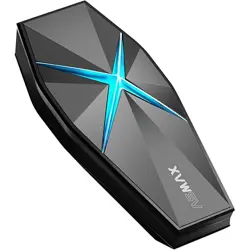
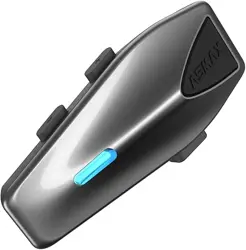
Intelligent Helmet Bluetooth headset
Product Instructions
V 1.0


ASMAX Intelligent Helmet Bluetooth headsets,
new definition of ASMAX intelligent riding
communication products. Equipped with AI
intelligent voice command, 10 riders intercom
communication, listening to music, navigation,
answering and making calls, as well as intelligent
ENC noise reduction, deep dust and waterproof,
super fast charging, magnetic assembly and other
functions, it brings you an advanced, easy, and
enjoyable riding experience.
ASMAX, with a geek spirit, dedication to love, and
a strong independent research and development
capability as its driving core, builds an Intelligent IoT
ecosystem for outdoor sports and riding, making
"intelligent riding" no longer just a dream.
ASMAX, defend our lives with the power of
technology.
4
English English
F1 Voice-Controlled Helmet Bluetooth
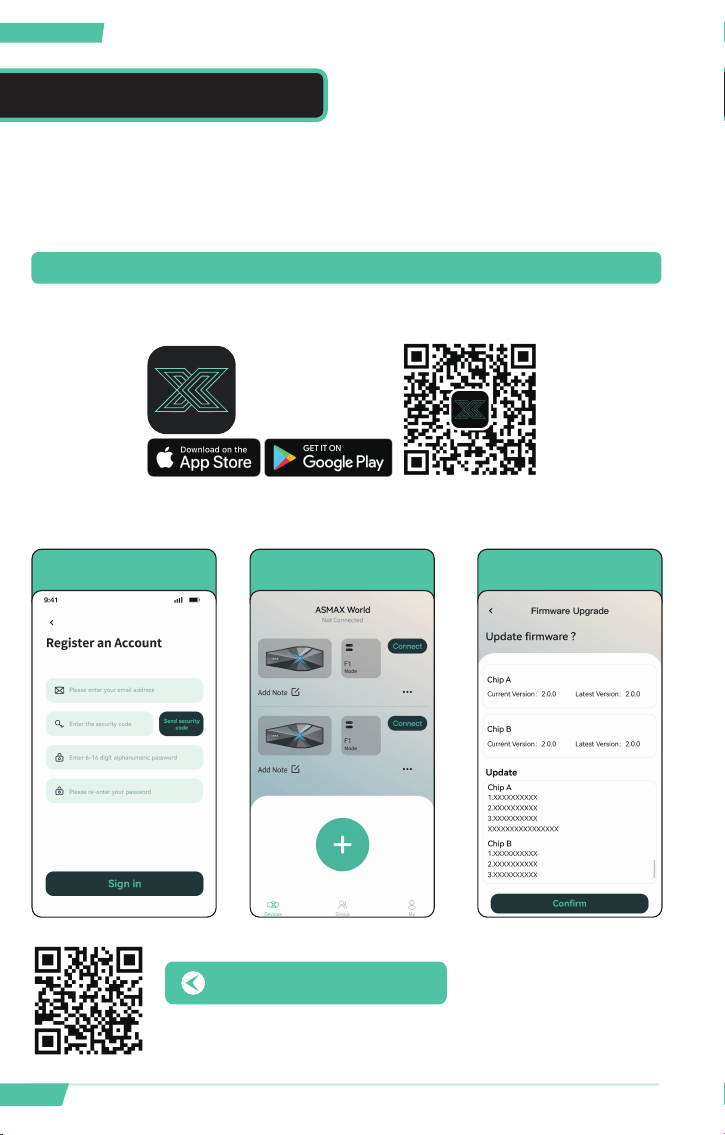
ASMAX WORLD APP
You can congure your ASMAX F1 through your mobile phone by installing
the ASMAX WORLD APP available at Google play store or Apple app store.
Connect your unit Update your unit
Updating with the latest
rmware keeps your unit
free of bugs and fully enjoy
the new advanced features.
Register
ASMAX WORLD
App
Download
Firmware Update Instruction Video

5
English English
F1 Voice-Controlled Helmet Bluetooth
P6
1. Product Details
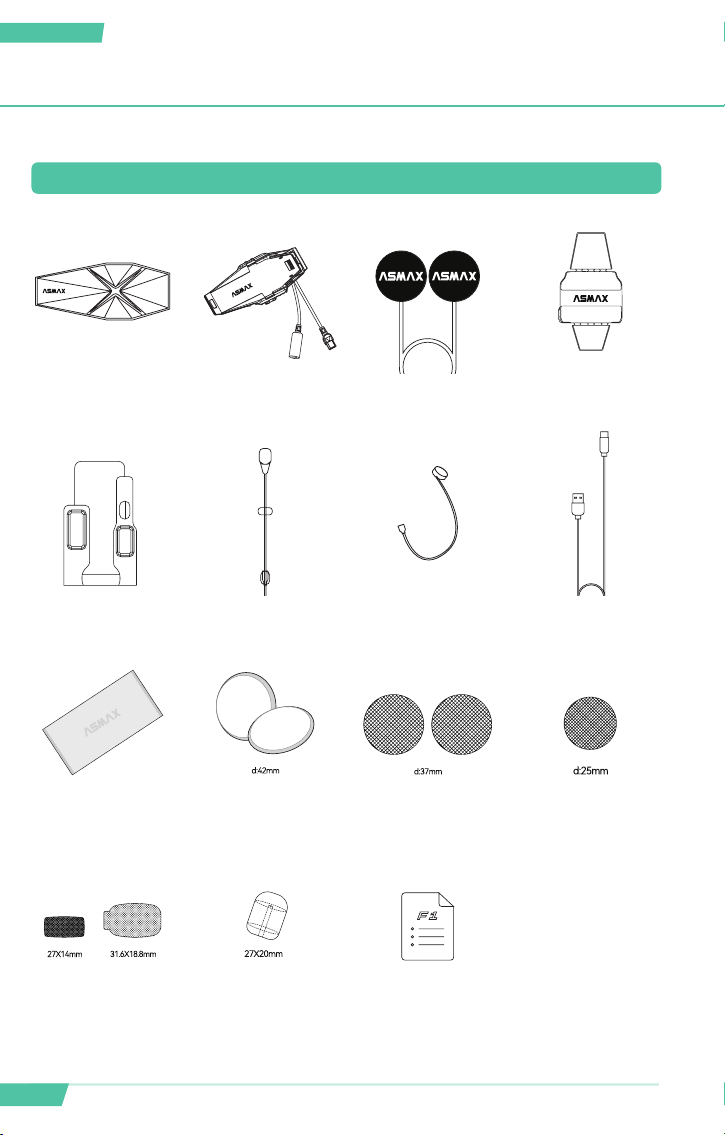
1.1 What’s in your package
1.2 Basic information about the product
P8
2. Function Description
2.1 Functions of Dierent Buttons
2.2 Button Operation and Intelligent
Voice Command Guidance
2.2.1 Power On/O
2.2.2 Device Pairing with Mobile
Bluetooth
2.2.3 Playing and Switching Music
2.2.4 Volume Adjustment
2.2.5 Answering and Ending Calls
2.2.6 Enabling Automatic Call Answering
2.2.7 Multiple Person Intercom for
Incoming Calls
2.2.8 Facto Reset
2.3 Audio Source and Priority
P25
4. Intelligent Voice
Commands
P17
P26
3. Communicate with
Others
3.1 Open and Free Intercom Mode
3.2 10-Person Mesh Intercom
3.2.1 Create A Group Chat for Leader in
Mesh Intercom
3.2.2 Create A 1V1 Private Chat in Mesh
Intercom
5. Product Installation
Guide
5.1 Installation of Back Clip and Base
5.2 Installation and Disassembly of
the Main Unit
5.3 Installation of Speaker Unit
5.4 Installation of Microphones
3.3 Switching Between Dierent
Intercom Modes
3.4 Intercom Operation with
Non-ASMAXHeadsets
3.4.1 1-on-1 Bluetooth Universal
Pairing via Buttons
3.4.2 Multi-Person Intercom with
Non-ASMAX Headsets
3.4.3 Universal Pairing via APP with
Non-ASMAX Headsets
CATALOGUE
6
English English
F1 Voice-Controlled Helmet Bluetooth
ASMAX F1 main unit Magnetic suction base 40 mm speaker unit
3M adhesive patch
back clip
Metal Clamp
Boom mic Button mic
Type-C charging cable
Cleaning toolkit
Velcro height
increasing gasket
Earphone Velcro
Velcro for the button
mic
Velcro for the boom
Mic
Boom mic windscreen
Product manual
1.1 What’s in your package
1. PRODUCT DETAILS

7
English English
F1 Voice-Controlled Helmet Bluetooth
Project Parameter
Bluetooth Name ASMAX F1
Bluetooth Version Bluetooth 5.3
Speaker Unit 40 mm Speaker
Hard Tube Microphone Bipoint
Speech Noise Reduction ENC Noise Reduction
Batte Capacity 1250 mAh
Waterproof Level IP67
Soft Tubemicrophone Omnidirectional
Base Magnetic Assembly
Charging Inteace
Suppoing Type-C and Fast Charging
• Do not use chargers with an output greater
than 15 V for charging of the headsets
Bluetooth Intercom Suppoing 10 Channel Bluetooth Intercoms
Oine+online Voice Command Suppos
Interconnection and Compatibility of Dierent
Brands
Suppos
Intelligent Interconnection Control of Whole
Series of Products from The Same Brand
Suppos
1.2 Basic information about the product
8
English English
F1 Voice-Controlled Helmet Bluetooth
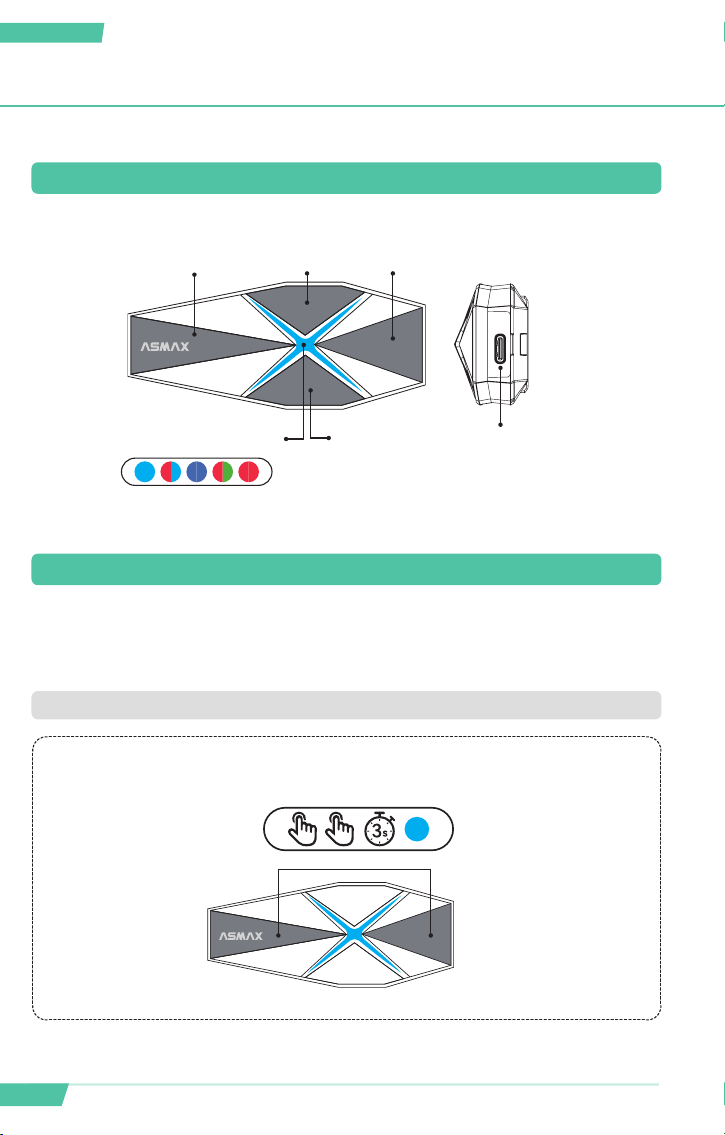
ASMAX has two operation modes: intelligent voice and button control, and
you can freely choose according to your own preferences
Type-c
charging po
Volume+Intercom button
Function button
Light eect prompt
Volume-
2.1 Functions of Dierent Buttons
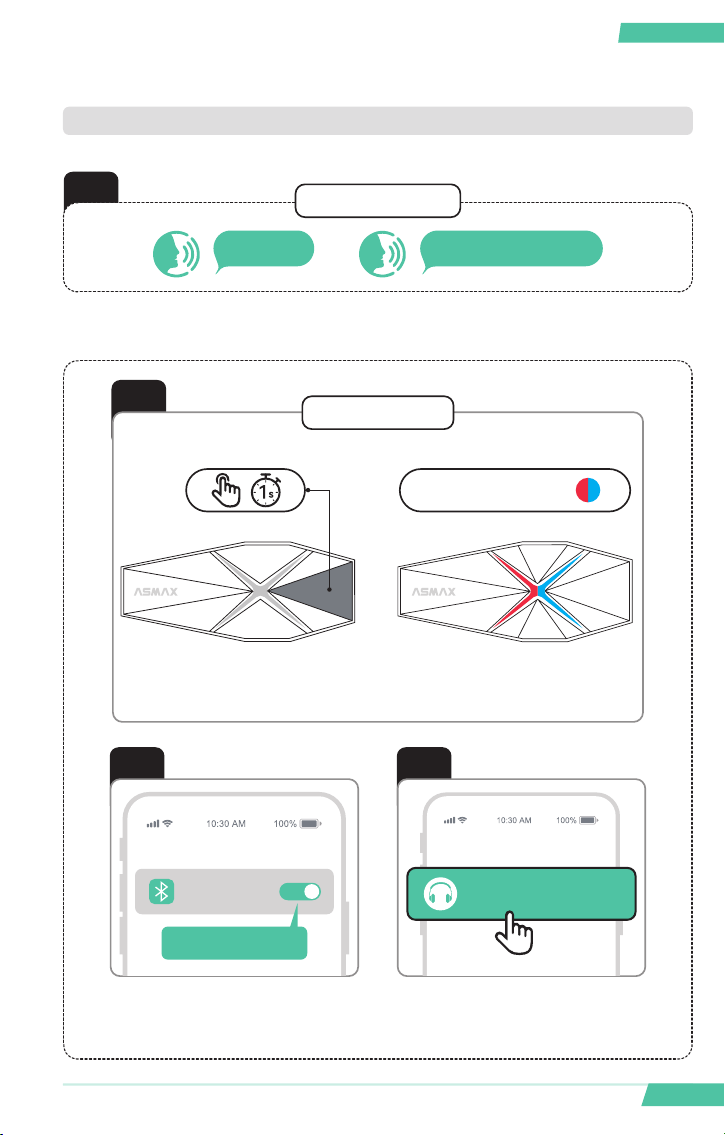
2.2 Button Operation and Intelligent Voice Command Guidance
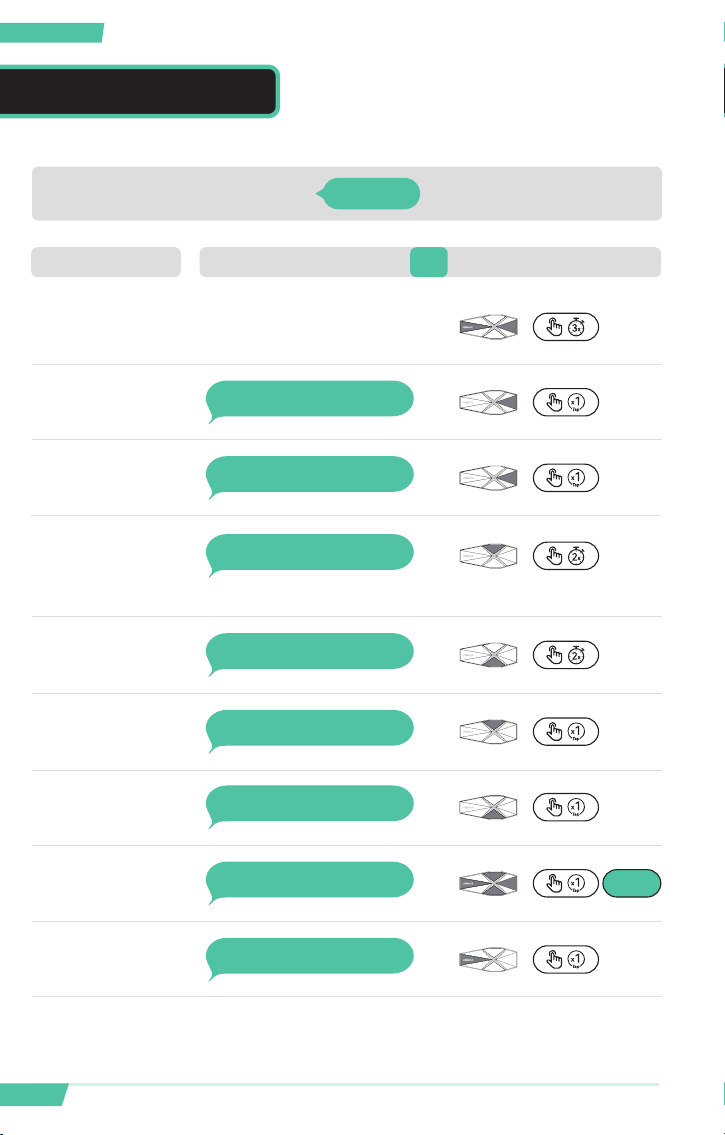
•Power On/O
2. FUNCTION DESCRIPTION
Simultaneously press and hold 3s the intercom button and function button
9
English English
F1 Voice-Controlled Helmet Bluetooth
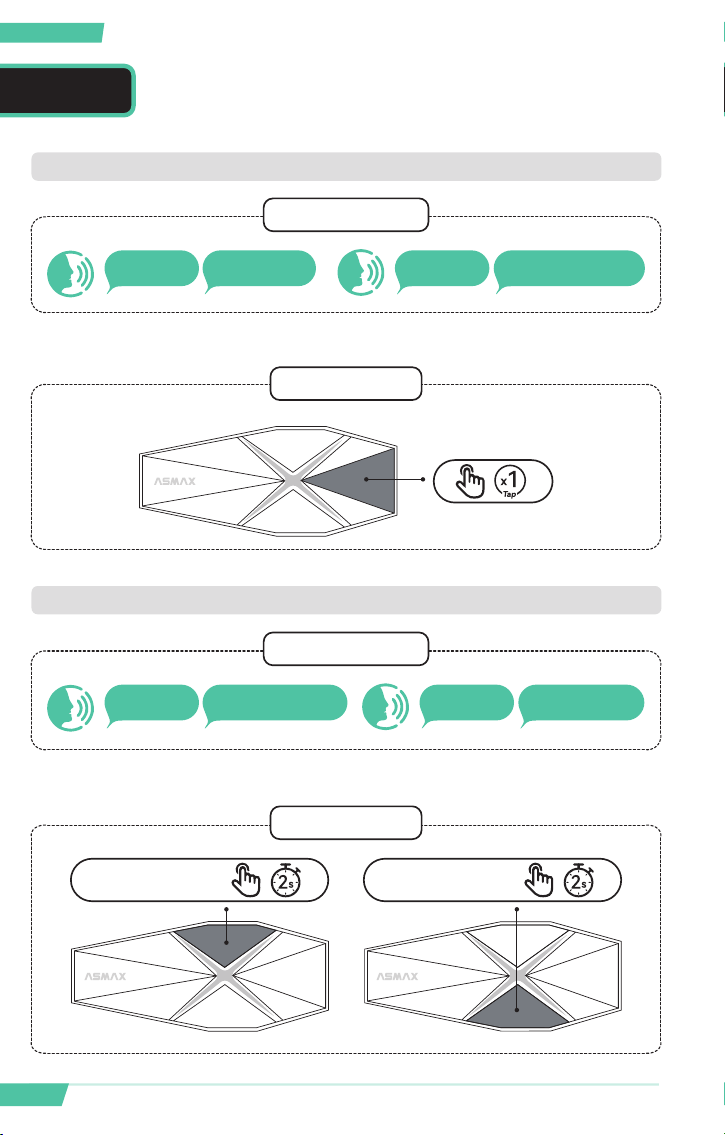
•Bluetooth Pairing with Mobile
1
1
Hi Max Phone pairing
Voice operation
Key operation
2 3
ASMAX F1
Bluetooth on
Settings Bluetooth
You can also:
The LED ashes
In standby mode, press the
function button for 1s
Turn on the bluetooth on your
phone/GPS device
Search the name “ASMAX F1”,
connect it.
10
English English
F1 Voice-Controlled Helmet Bluetooth
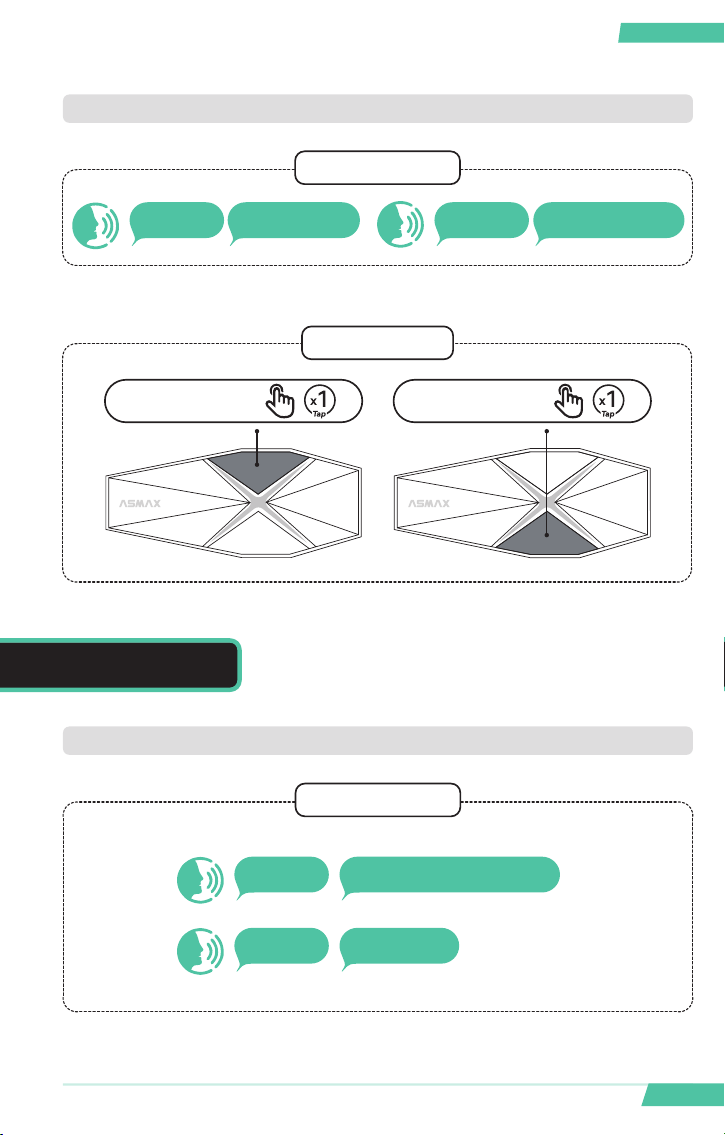
•Play / Pause
• Previous track / Next track
Music
Voice operation
Voice operation
Hi Max Hi MaxMusic on Pause music
Hi Max
Previous track
Hi Max
Next track
Key operation
Key operation
Previous track Next track
You can also:
You can also:
11
English English
F1 Voice-Controlled Helmet Bluetooth
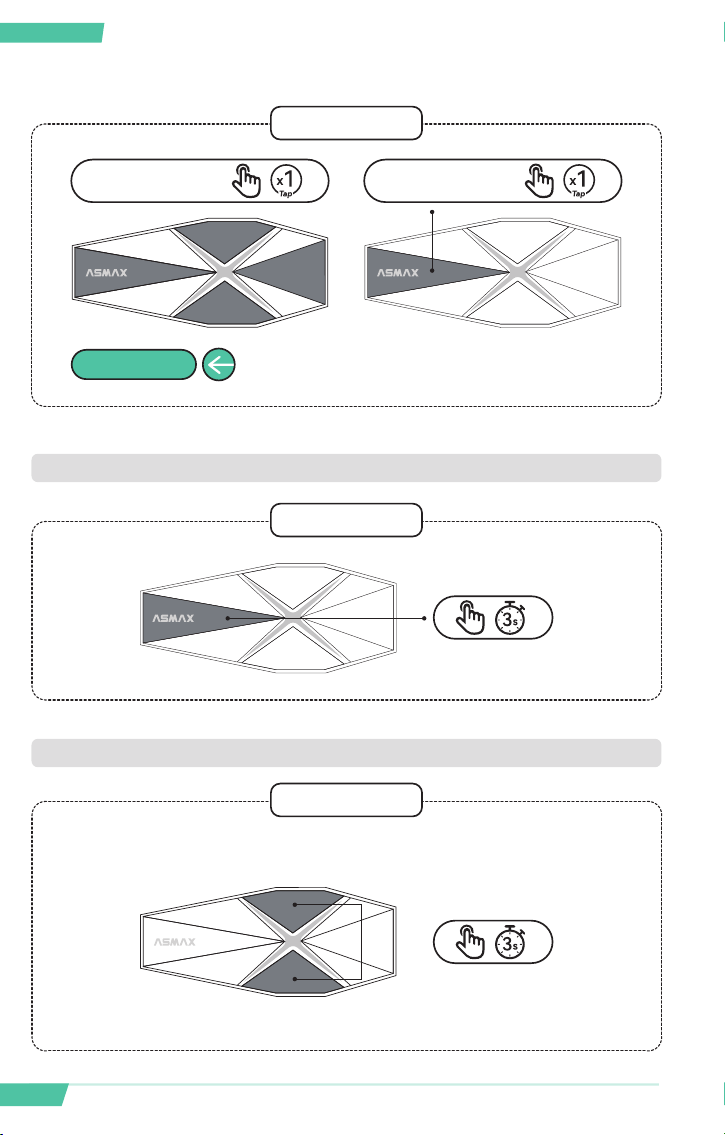
Hi Max
Hi Max
Answer the phone
Hang up
Hi Max Volume up Hi Max Volume down
• Volume Up / Down
Voice operation
Key operation
You can also:
Volume -Volume +
Phone calls
•Answer / End
Voice operation
12
English English
F1 Voice-Controlled Helmet Bluetooth
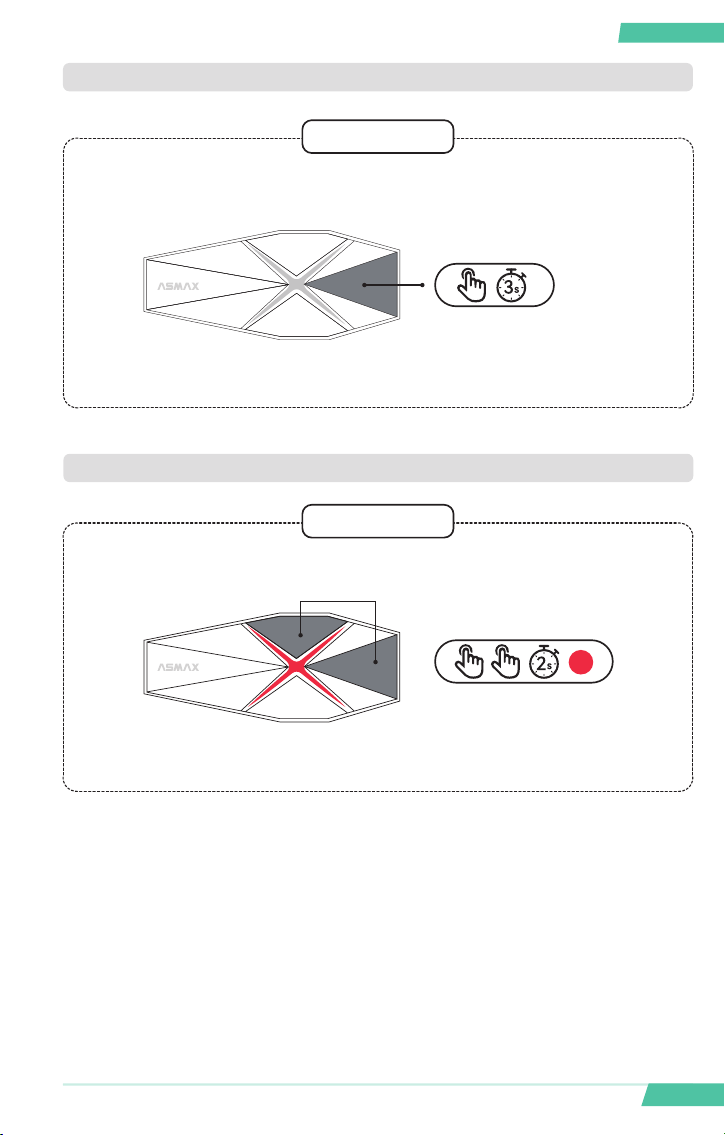
•Reject to answer phone calls
You can also:
Key operation
Answer call End call
Any button
Key operation
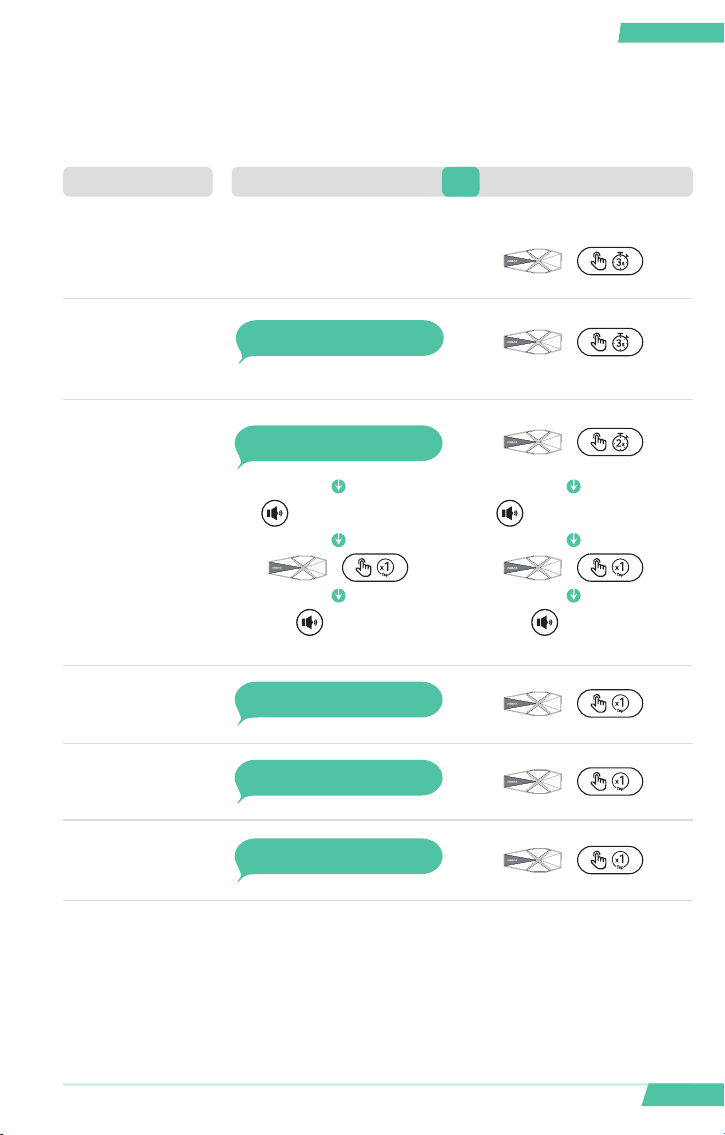
•Enable automatic call answering function
Key operation
Simultaneously press and hold the volume + button and the volume - button
to turn them on/o
Can be turned on and o through the ASMAX WORLD APP
13
English English
F1 Voice-Controlled Helmet Bluetooth
•Join the Mesh intercom for incoming call
Key operation
After answering a call during mesh intercom, long press the function button
to turn it on or o
This function can only be enabled during mesh intercom, and “Allow phone integration
into Bluetooth intercom” must be enabled in advance on the ASMAX WORLD APP
•Restore facto settings
Key operation
Long press the function button and volume+button simultaneously
After the successful operation of this function, the product will restart after 30 seconds
of silence
14
English English
F1 Voice-Controlled Helmet Bluetooth
Quick Operation
PLAY MUSIC
POWER ON/OFF
PAUSE MUSIC
PREVIOUS TRACK
NEXT TRACK
END CALL
VOLUME +
Note: When the mobile music player is turned on
Music on
Pause music
Previous track
Next track
Volume up
Hang up
Function Button OperationVoice Command OR
Wake word:
Hi Max
VOLUME -
Volume down
ANSWER CALL
Any
button
Answer the phone
15
English English
F1 Voice-Controlled Helmet Bluetooth
GROUP MESH
FREE MODE
GROUP MODE
END INTERCOM
Team up.
Join 2 or N members.
Team up.
Join 2 or N members.
Function Button OperationVoice Command OR
Group mesh
Free mode
Group mode
End intercom
PHONE PAIRING
REJECT A CALL
Can be turned on and o through the ASMAXWORLD APP
Phone pairing
16
English English
F1 Voice-Controlled Helmet Bluetooth
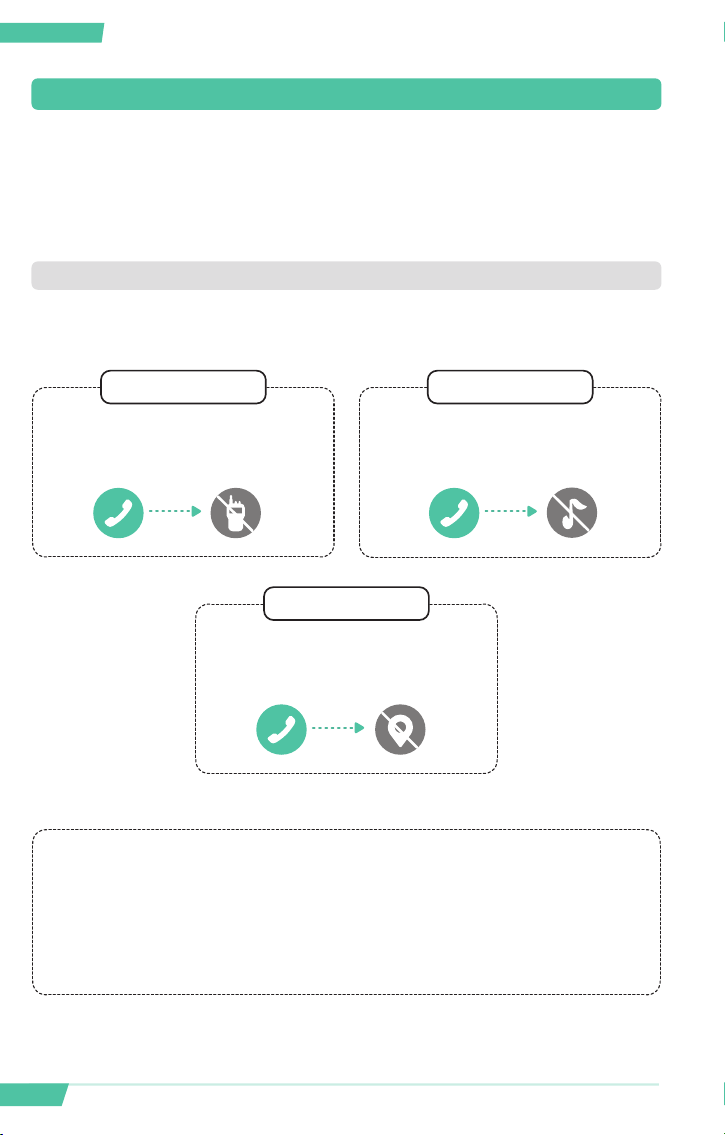
2.3 Audio Source and Priority
If two connected audio sources are to be played simultaneously, it will automat-
ically determine which audio source to be played through the speaker based on
the priority of the connected device.
When the automatic volume adjustment function on the APP is turned o:
•Priority:
Phone call interrupts ongoing
intercom
Phone call pauses playing music
Intercom, music, and navigation have the same priority
01 02
During phone calls, navigation
in progress will be muted
03
When the automatic volume adjustment on the APP is turned on, intercom priority is
higher than navigation and music
.
When only in navigation and music play mode, the navigation volume is greater than the
music volume.
17
English English
F1 Voice-Controlled Helmet Bluetooth
intercom button
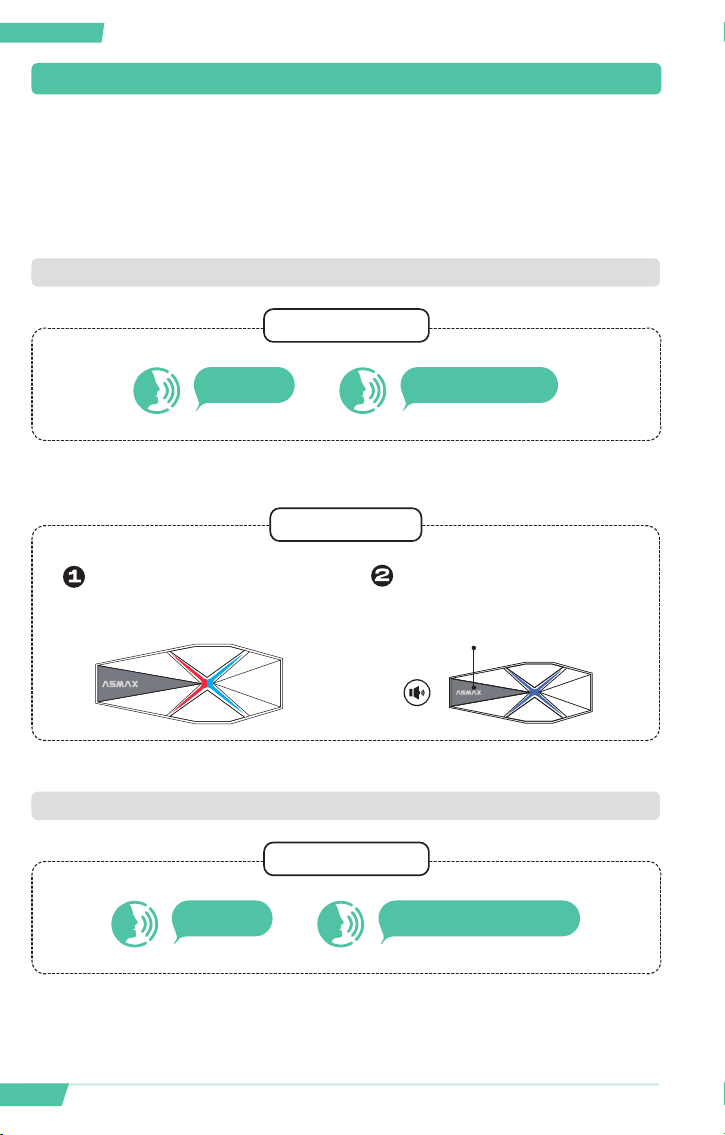
3.1 Open and Free Intercom Mode
There are 2 communication modes for this product, namely free mode and mesh
mode. At the same time, ASMAX also suppos bridging and intercom with other
non ASMAX brand Bluetooth headsets.
Free mode is an open intercom mode that does not require meshing up. As long
as you are in the communication range, you can automatically connect up to 10
people for intercom.
Voice operation
Key operation
You can also:
•Enter / Exit free mode
3. COMMUNICATE WITH OTHERS
Hi Max
Free mode
Hi Max
End the intercom
18
English English
F1 Voice-Controlled Helmet Bluetooth
3.2 10-Person Mesh Intercom
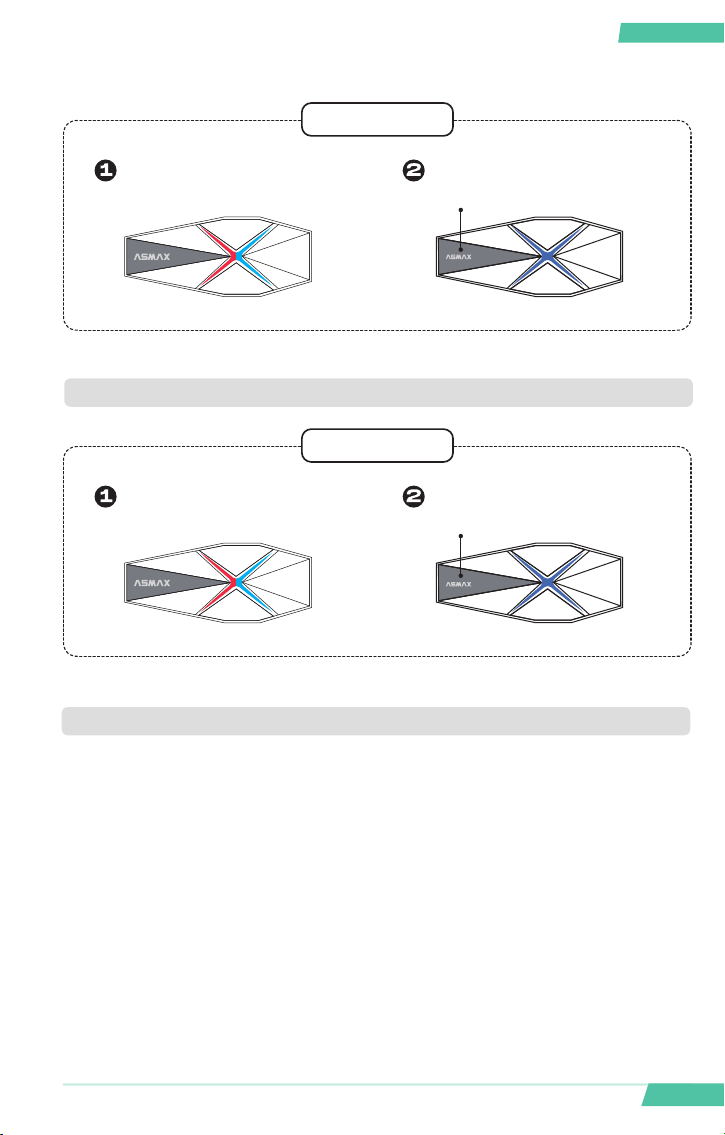
Mesh mode is a private intercom mode that uses MESH communication intercom
technology. It requires mesh networking before intercom, and can suppo up to
10 people for mesh intercom.Please note that the Mesh function is only suppo-
ed for products of the same brand.
•Enter mesh networking
•Cancel mesh networking
Voice operation
Voice operation
Key operation
You can also:
Long press the 2S intercom button
to enter mesh networking
After hearing the announcement of
the number of network members,
press the intercom button briefly
to conrm entering mesh mode
Hi Max
End the intercom
Hi Max
Group Mesh
19
English English
F1 Voice-Controlled Helmet Bluetooth
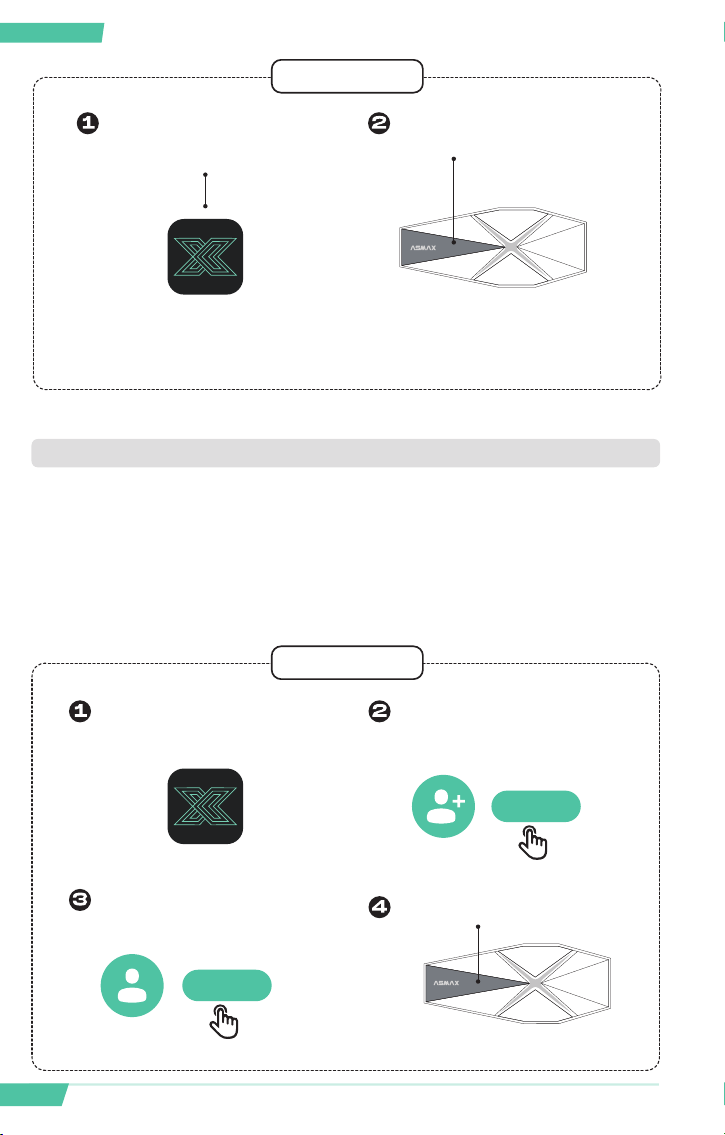
•Exit mesh mode
Key operation
Key operation
You can also:
In a mesh networking state
In a mesh networking state
Long press the intercom button for
2 seconds
Sho press the intercom button
•3.2.1 Create A Group Chat for Leader in Mesh Intercom
Leader group chat can only be created in mesh networking and is one of the sub
modes in mesh mode. It suppos up to three people chatting and is used for
private communication between the leader and core personnel during riding.
•Create a leader group in mesh mode
•Switch between mesh leader group chat and mesh intercom
20
English English
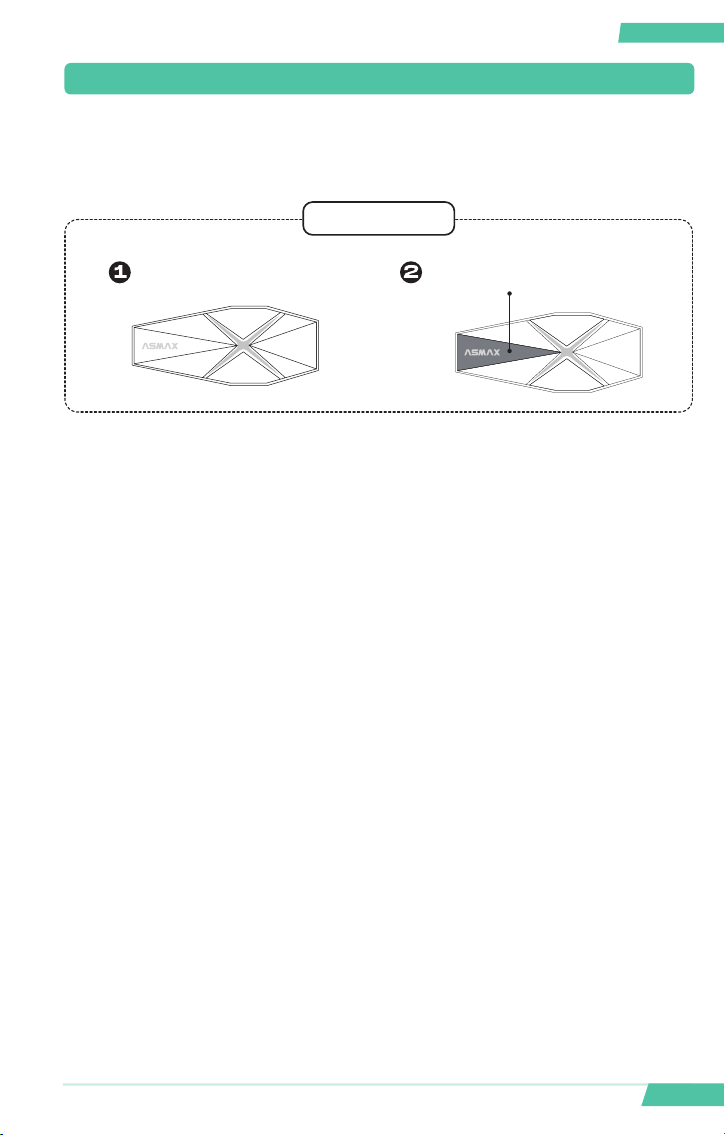
F1 Voice-Controlled Helmet Bluetooth
Key operation
1V1 intercom is only available when both parties are in the private chat group
Create and invite people into
groups in the mesh room of the
ASMAX WORLD APP
Click on the friend with need of
private chat, then click on send
private chat invitatio
The private chat is successfully
created after clicking “agree”
by the other pay
Long press the intercom button
for 2s
ASMAX WORLD App
Send
Agree
•3.2.2 Create A 1V1 Private Chat in Mesh Intercom
Private chat groups can only be created in mesh networking, and it is one of the
sub modes in mesh mode, used for 1V1 private communication during riding
Key operation
PS: Only mesh leaders can create it and all members must use the APP
•Create private chat groups in mesh mode
•Switch between private chat and mesh intercom
Create and invite people into
groups in the mesh room of the
ASMAX WORLD APP
Long press the intercom
button for 2s
ASMAX WORLD App
21
English English
F1 Voice-Controlled Helmet Bluetooth
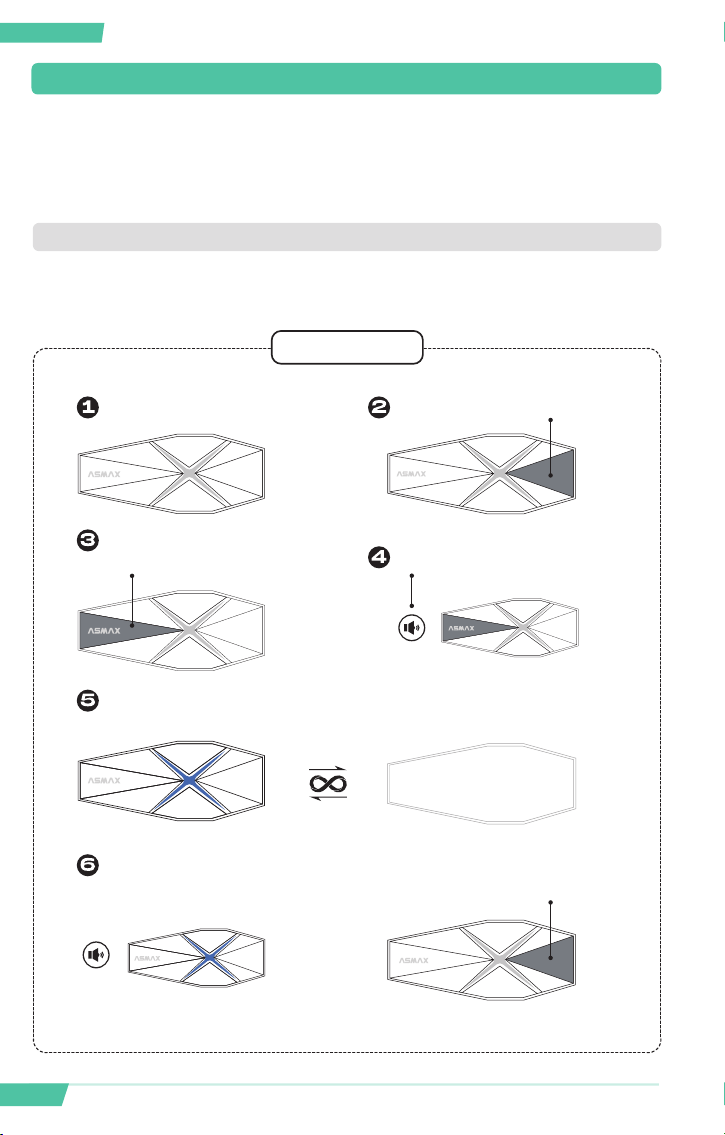
3.3 Switching Between Dierent Intercom Modes
This product suppos multiple intercom modes, which can only be switched af-
ter a mesh mode or another intercom mode has been created
Key operation
In power on state Sho press the intercom button
22
English English
F1 Voice-Controlled Helmet Bluetooth
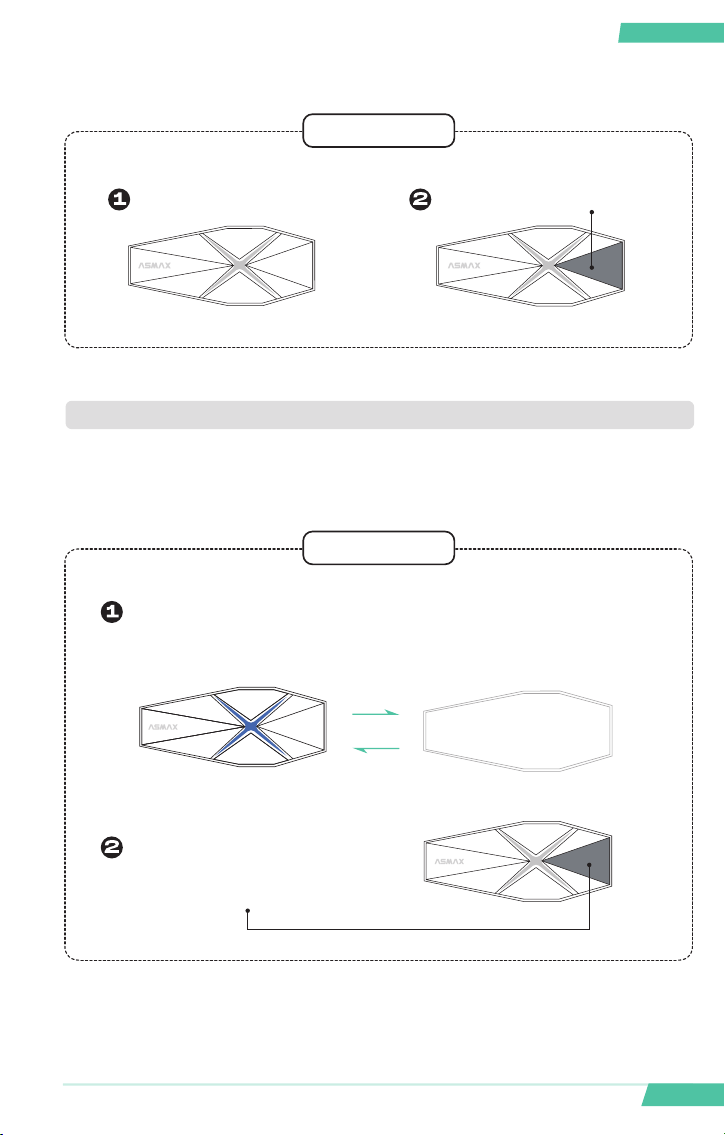
3.4 Intercom Operation with Non-ASMAX Headsets
To connect with Bluetooth intercom from other brands, you can use the AS-
MAXWORLD app or follow the button operation method
•3.4.1 1-on-1 Bluetooth Universal Pairing via Buttons
Key operation
•Intercom operation with non-ASMAX brand headsets
Voice broadcast: sta pairing
In power on state Long press the function button
Non ASMAX
brand headsets
Double-click the intercom
button
The indicator light will ash
alternately in red and green
After the device announces “Universal connected” double-click the function
button to activate the intercom function.
At this time, non-ASMAX Bluetooth head-
sets need to enter Bluetooth pairing mode
23
English English
F1 Voice-Controlled Helmet Bluetooth
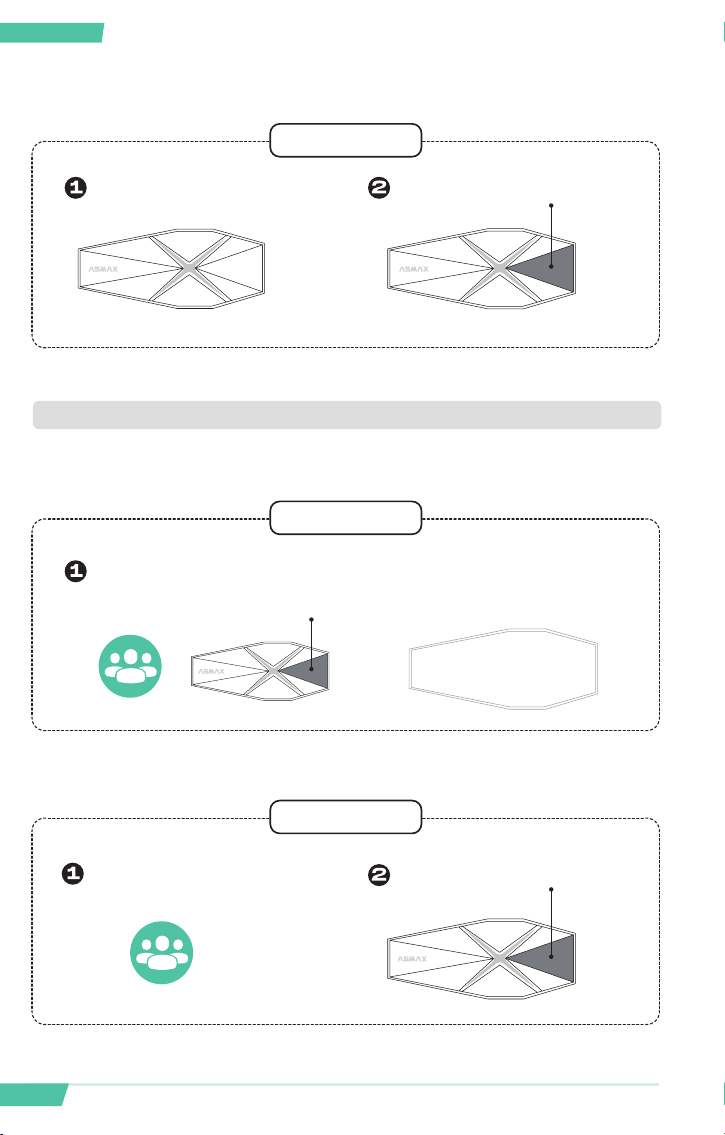
•3.4.2 Multi-Person Intercom with Non-ASMAX Headsets
•Exit Bluetooth Universal Pairing
•Multi-Person intercom operation with Non-ASMAX brand
headsets
Key operation
Key operation
Non-ASMAX
brand headsets
After the device announces “Universal
connected” double-click the function
button to activate the function button.
Universal
connected
First, create a mesh intercom with ASMAX headsets, then use one of the
ASMAX headsets to connect to non-ASMAX devices (using the universal
pairing method described above).
When the device is in universal pairing mode
Bluetooth universal pairing Long press the function button
Universal Pairing
Do not activate the intercom on
the F1 yet.
24
English English
F1 Voice-Controlled Helmet Bluetooth
•3.4.3 Universal Pairing via APP with Non-ASMAX Headsets
•Exit Multi-Person Intercom
•Intercom operation with Non-ASMAX brand headsets
Key operation
Key operation
Key operation
Non-ASMAX headsets enter
Bluetooth pairing state
The device is in team universal
pairing mode.
Double click the function button
The F1 is in team universal pairing
mode.
Create a mesh chat on the ASMAX app and enable the universal pairing
button in the chat room.
Click to end riding in the room.
•End Intercom
The F1 is in team universal pairing mode.

25
English English
F1 Voice-Controlled Helmet Bluetooth
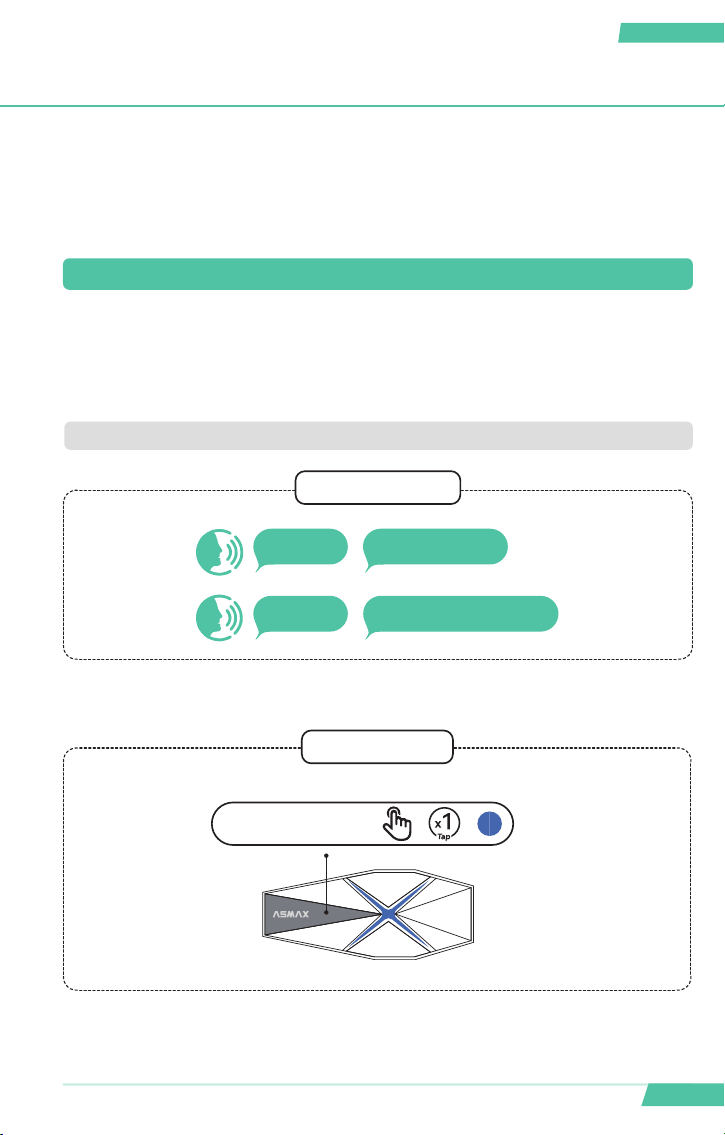
4. INTELLIGENT VOICE COMMANDS
ASMAX has two operation modes: intelligent voice and buttons, and you
can freely choose according to your own habits.
When the main unit is connected to the ocial ASMAXWORLD APP and
the phone is connected to the internet, the main unit can peorm intelli-
gent voice interaction operations such as route navigation, sending mes-
sages, making and receiving calls, playing music, and so on.
When not connected to the network, the main unit can peorm voice com-
mands through the following local oine voice commands.
Number Wake Words Command ent
1 Hi Max
Voice reply: Here you are/Here you are/Please
speak/here I am
2 Hi Max Music on
3 Hi Max Pause music
4 Hi Max Previous track
5 Hi Max Next track
6 Hi Max Volume up
7 Hi Max Volume down
8 Hi Max Answer the phone
9 Hi Max Hang up
10 Hi Max Phone Pairing
11 Hi Max Group Mesh
12 Hi Max Free mode
13 Hi Max MAX mode
14 Hi Max Group mode
15 Hi Max End the intercom
16 Hi Max Turn on the microphone
17 Hi Max Turn o microphone
26
English English
F1 Voice-Controlled Helmet Bluetooth
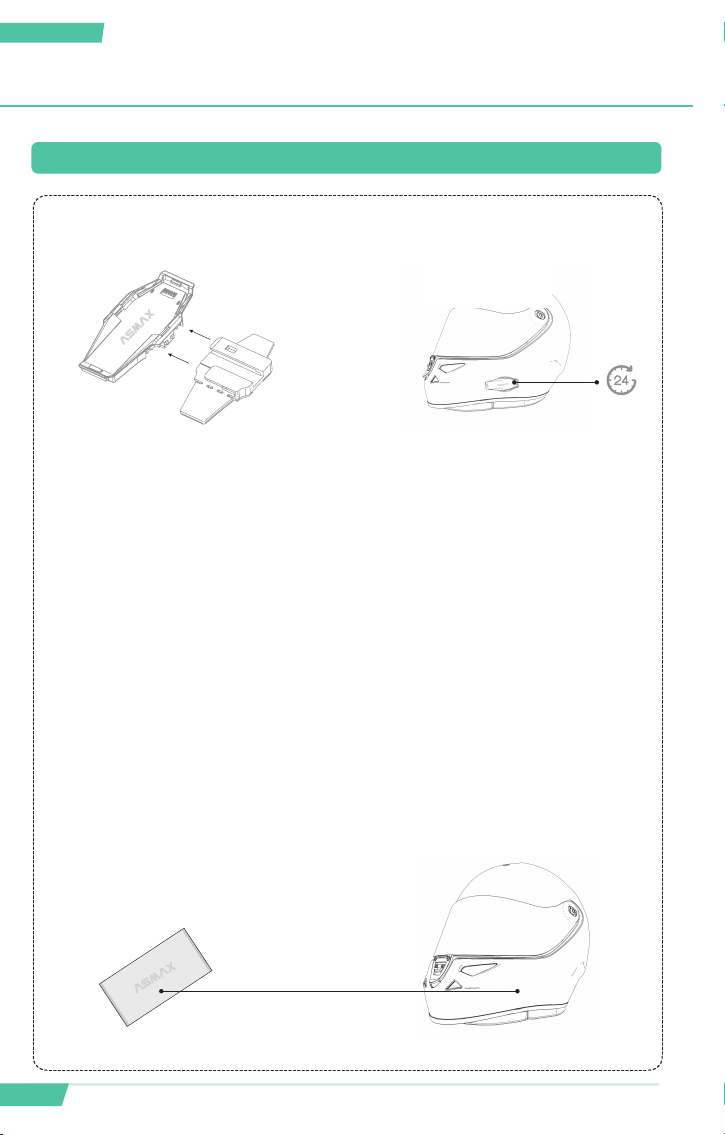
5. PRODUCT INSTALLATION GUIDE
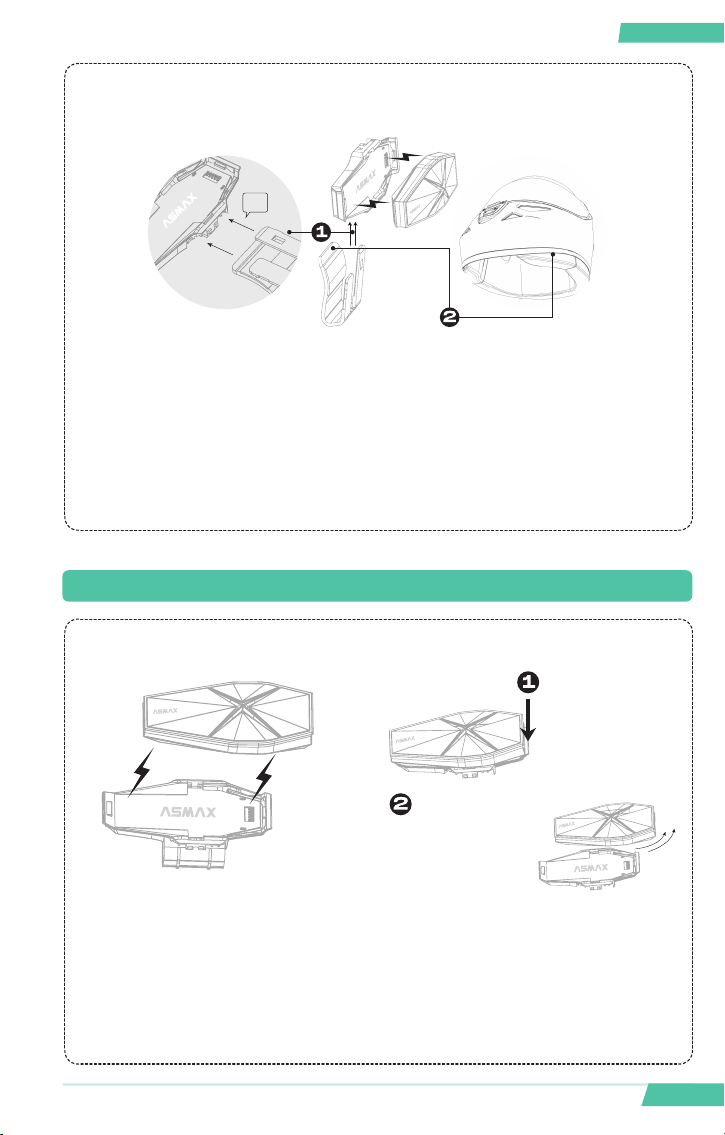
Click
•Installation of 3M adhesive patch back clip and base
a. Align the 3M adhesive patch back
clip with the slot of the magnetic
suction base and push it in from
bottom to top. When you hear a
"click" sound, it means that the two
components are locked;
First, use cleaning tools to wipe the area where the helmet needs to be
attached with the back clip
b. Tear off the 3M adhesive patch
protective paper, stick it in a suitable
position on the helmet, press for
15 seconds, and then let it sit for 24
hours.
1. When using 3M lm style back clips, try to stick them on the at surface of the
helmet as much as possible
Notes:
2. Before pasting, it is recommended to use a cleaning tool to wipe the area where the
helmet needs to be pasted with the back clip
5.1 Installation of Back Clip and Base
Suggest letting it
sit for 24 hours
27
English English
F1 Voice-Controlled Helmet Bluetooth
•Installation of plastic clip back clip and base
a. Align the plastic clip back clip with
the slot of the magnetic suction
base and push it in from bottom to
top. When you hear a “click” sound,
it means that the two components
are locked;
b. After nding the appropriate po-
sition for the connection between
the outer shell and inner lining of the
helmet on the left side, break open
the clip and insert it through the
gap.
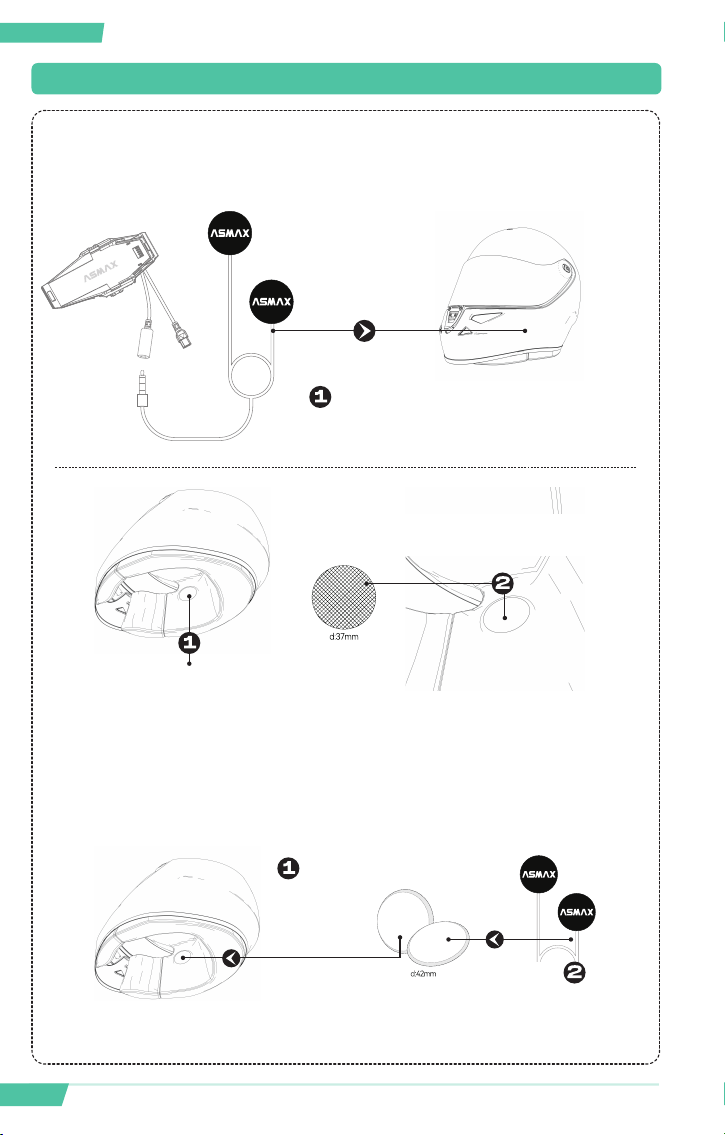
5.2 Installation and Disassembly of the Main Unit
Installation Disassembly
The F1 Intelligent Helmet Bluetooth
headsets adopt a magnetic design,
which can be xed by simply align-
ing the main unit with the base.
Find the xed structural component
located at the back of the base, press
it down, and push out the main unit
to complete the disassembly.
Press the buckle in
the direction and
position of the arrow
Simultaneously push
out the main unit in the
direction of the arrow
Ka
Click
28
English English
F1 Voice-Controlled Helmet Bluetooth
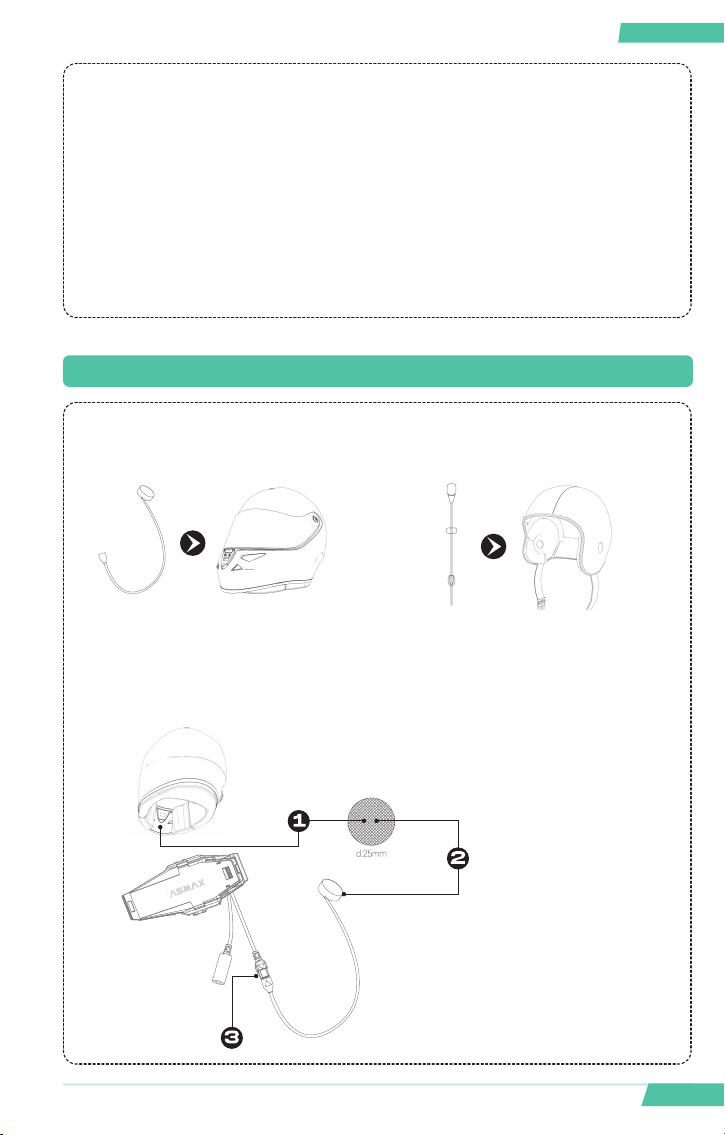
5.3 Installation of Speaker Unit
The speaker with a sho line needs to be
installed on the left side
L
Speaker velcro with adhesive
suace stuck in the groove
speaker installation groove
Velcro height increasing gasket
Press the back of the speaker onto velcro
height increasing gasket
Note: When installing the speaker unit, pay attention to the left and right directions.
The speaker with a short line should be installed on the left side of the helmet, while the
speaker with a long line should be installed on the right side of the helmet.
a. First, remove the sponge lining
from the helmet and locate the
speaker installation groove reseed
for the helmet;
b. Remove the back adhesive re-
lease paper of the speaker velcro
and stick it to the reseed groove of
the helmet;
29
English English
F1 Voice-Controlled Helmet Bluetooth
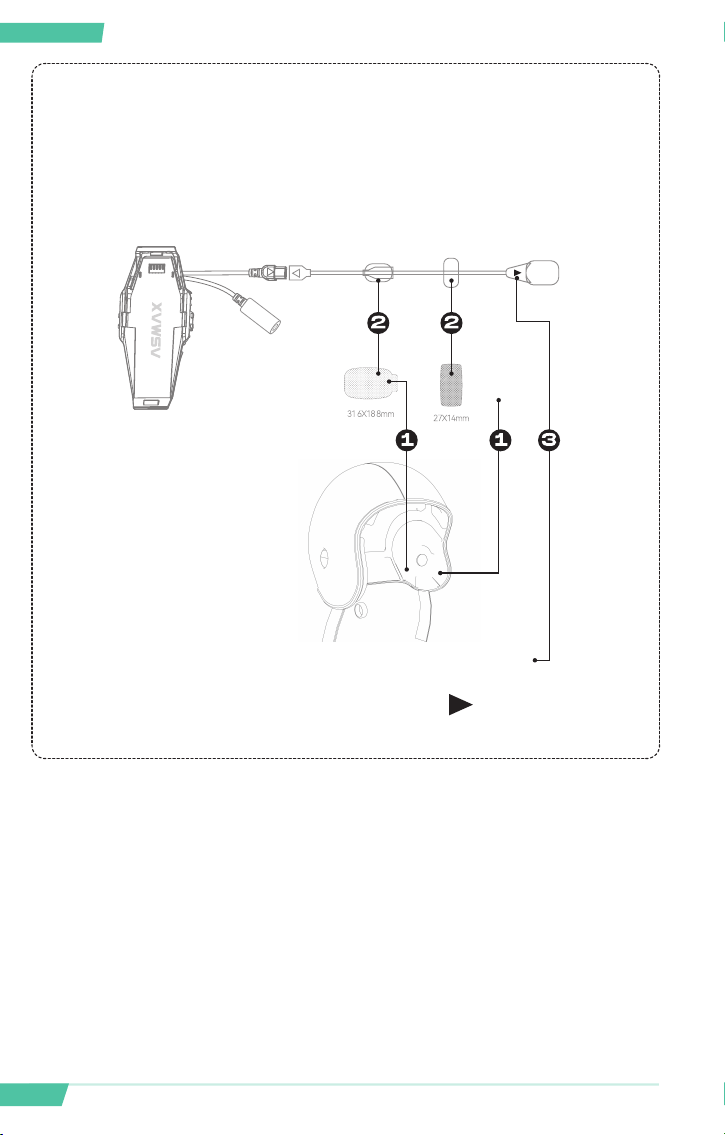
5.4 Installation of Microphones
Note: All ASMAX Intelligent Helmet Bluetooth headset products are equipped with both a
boom mic and a button mic, suitable for full-face and open-face helmets
Note: It is not recommended to install this product in a helmet without reserved speaker
installation grooves. Our company will not be responsible for any losses caused by
unauthorized modication by the user.
c. Press the speaker onto the velcro.
If the reseed groove of the helmet
is deep, the accompanying height
gasket can be used to raise the
speaker;
d. After arranging the speaker cables,
replace the removed helmet lining
one by one.
Button mic compatible with full-
face helmets
Boom mic suitable for half
helmets
a. Find a suitable area in the center of the helmet
mouth and stick the microphone velcro to this area;
b. Stick the button mic onto the
pre-glued velcro
Velcro for the button mic
Connect it from the left side to the headset connector.
Button mic
•Installation steps of button mic in full helmet
30
English English
F1 Voice-Controlled Helmet Bluetooth
a. Remove the adhesive release paper from the velcro and stick it in a suitable
position on the left side of the helmet. Then, attach the boom mic
Velcro Velcro
b. Adjust the mi crophone di r ection so that the Facing your lips;
•Installation of a boom mic for an open helmet
(same as for a half helmet)
English English
www.asmaxworld.com
ASMAXWorld: