
THE MXNET 10G SDVoE
®
ECOSYSTEM
USER MANUAL
AC-MXNET-10G-TCVR
AC-MXNET-10G-TCVR-AVDM
AC-MXNET-10G-TCVR-USBX
AC-MXNET-10G-TCVR-PRO
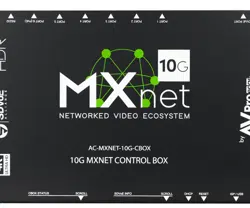
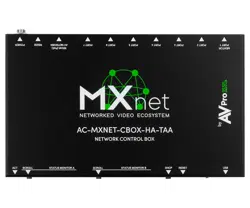
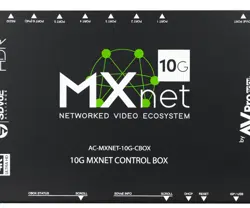
AC-MXNET-10G-CBOX
AC-MXNET-10G-CBOX-PRO
AC-MXNET-10G-SW12C
AC-MXNET-10G-SW24C
AC-MXNET-10G-SW24Q
AC-MXNET-10G-SW48Q

Page 2
MXNET 10G SDVoE® USER MANUAL
Table of Contents
Important Safety Instructions - - - - - - - - - - - - - - - - - - - - - - - - - - - - - - - - - - - - - - - - - - - - - - - - - - - - - - - - - - - - 5
Safety Statements - - - - - - - - - - - - - - - - - - - - - - - - - - - - - - - - - - - - - - - - - - - - - - - - - - - - - - - - - - - - - - - - - - - - - - 6
1 Introduction - - - - - - - - - - - - - - - - - - - - - - - - - - - - - - - - - - - - - - - - - - - - - - - - - - - - - - - - - - - - - - - - - - - - - - - - - - 7
1.1 Descriptions - - - - - - - - - - - - - - - - - - - - - - - - - - - - - - - - - - - - - - - - - - - - - - - - - - - - - - - - - - - - - - 7
1.1.1 Transceivers - - - - - - - - - - - - - - - - - - - - - - - - - - - - - - - - - - - - - - - - - - - - - - - - - - - - - - - - - - - 7
1.1.2 Control - - - - - - - - - - - - - - - - - - - - - - - - - - - - - - - - - - - - - - - - - - - - - - - - - - - - - - - - - - - - - - 8
1.1.3 Mentor - - - - - - - - - - - - - - - - - - - - - - - - - - - - - - - - - - - - - - - - - - - - - - - - - - - - - - - - - - - - - - 8
1.1.4 Network Switches - - - - - - - - - - - - - - - - - - - - - - - - - - - - - - - - - - - - - - - - - - - - - - - - - - - - - - 8
1.1.5 PoE Power Supply - - - - - - - - - - - - - - - - - - - - - - - - - - - - - - - - - - - - - - - - - - - - - - - - - - - - - - - 8
1.3 Some Helpful Suggestions - - - - - - - - - - - - - - - - - - - - - - - - - - - - - - - - - - - - - - - - - - - - - - - - - - - - 9
1.4 Network Cabling Tips - - - - - - - - - - - - - - - - - - - - - - - - - - - - - - - - - - - - - - - - - - - - 10
1.6 Third-Party Control Systems - - - - - - - - - - - - - - - - - - - - - - - - - - - - - - - - - - - - - - - - - - - - - - - - 10
2 Third-Party Network Switch Requirements - - - - - - - - - - - - - - - - - - - - - - - - - - - - - - - - - - - - - - - - - - 11
2.1 IGMPv2 Snooping - - - - - - - - - - - - - - - - - - - - - - - - - - - - - - - - - - - - - - - - - - - - - - - - - - - - - - 11
2.2 IGMPv2 Querier - - - - - - - - - - - - - - - - - - - - - - - - - - - - - - - - - - - - - - - - - 11
2.3 IGMPv2 Immediate-Leave - - - - - - - - - - - - - - - - - - - - - - - - - - - - - - - - - - - 11
2.4 Unknown Multicast Dropping (Unregistered Multicast Flooding) - - - - - - - - - - - - - - - - - 11
2.5 MTU Settings - - - - - - - - - - - - - - - - - - - - - - - - - - - - - - - - - - - - - - - 12
2.6 PoE Budget - - - - - - - - - - - - - - - - - - - - - - - - - - - - - - - - - - - - - - - - - - - 12
2.7 Disabling EEE - - - - - - - - - - - - - - - - - - - - - - - - - - - - - - - - - - - - - - - - 12
3 Product Overview - - - - - - - - - - - - - - - - - - - - - - - - - - - - - - - - - - - - - - 12
3.1 Box Contents and Specifications - - - - - - - - - - - - - - - - - - - - - - - - - - - - - - - 12
3.2 Transceivers - - - - - - - - - - - - - - - - - - - - - - - - - - - - - - - - - - - - - - - - - - - 13
3.3 Control Box - - - - - - - - - - - - - - - - - - - - - - - - - - - - - - - - - - - - - - - - - - - 15
3.4 AC-MXNET-10G-SW12C - - - - - - - - - - - - - - - - - - - - - - - - - - - - - - - - - - - - - - 16
3.5 AC-MXNET-10G-SW24Q - - - - - - - - - - - - - - - - - - - - - - - - - - - - - - - - - - - - - 18
3.6 AC-MXNET-10G-SW48Q - - - - - - - - - - - - - - - - - - - - - - - - - - - - - - - - - - - - - 19
4 Wiring and Connections - - - - - - - - - - - - - - - - - - - - - - - - - - - - - - - - - - - - - - - 20
4.1 10G Ethernet/LAN - - - - - - - - - - - - - - - - - - - - - - - - - - - - - - - - - - - - - - - - 20
4.2 SFP+ Transceiver Modules - - - - - - - - - - - - - - - - - - - - - - - - - - - - - - - - - - - - 20
4.2.1 Installing SFP+ Transceiver Modules - - - - - - - - - - - - - - - - - - - - - - - - - - - - 21
4.3 AOC Cables - - - - - - - - - - - - - - - - - - - - - - - - - - - - - - - - - - - - - - - - - - - - 21
4.4 HDMI Cables - - - - - - - - - - - - - - - - - - - - - - - - - - - - - - - - - - - - - - - - - - - 21
1.2
Before You Begin - - - - - - - - - - - - - - - - - - - - - - - - - - - - - - - - - - - - - - - - - - - - - - - - - - - - - - - - - - - - - - - - - 9
3.5 AC-MXNET-10G-SW24C - - - - - - - - - - - - - - - - - - - - - - - - - - - - - - - - - - - - - 17

Page 3
MXNET 10G SDVoE® USER MANUAL
4.5 USB Ports - - - - - - - - - - - - - - - - - - - - - - - - - - - - - - - - - - - - - - - - - - - - 22
4.6 Audio Ports - - - - - - - - - - - - - - - - - - - - - - - - - - - - - - - - - - - - - - - - - - - 22
4.6.1 Extracted Analog Audio - - - - - - - - - - - - - - - - - - - - - - - - - - - - - - - - - - - 22
4.6.2 Extracted Digital Audio - - - - - - - - - - - - - - - - - - - - - - - - - - - - - - - - - - - -22
4.6.3 Extracted Digital Audio - - - - - - - - - - - - - - - - - - - - - - - - - - - - - - - - - - - 22
4.7 RS-232 Wiring - - - - - - - - - - - - - - - - - - - - - - - - - - - - - - - 23
4.8 IR Wiring - - - - - - - - - - - - - - - - - - - - - - - - - - - - - - - - - - - - - - - - - - - - 23
5 Installation - - - - - - - - - - - - - - - - - - - - - - - - - - - - - - - - - - - - - - - - - - - - - 24
5.1 Connecting the Devices - - - - - - - - - - - - - - - - - - - - - - - - - - - - - - - - - - - - - 24
5.2 For Category Cable Connections - - - - - - - - - - - - - - - - - - - - - - - - - - - - - - - 24
5.3 For Optical Fiber Connections - - - - - - - - - - - - - - - - - - - - - - - - - - - - - - - - 25
6 The Mentor Web UI - - - - - - - - - - - - - - - - - - - - - - - - - - - - - - - - - - - - - - - - -27
6.1 Accessing and Navigating Mentor - - - - - - - - - - - - - - - - - - - - - - - - - - - - - - - 27
6.2 System Utilities - - - - - - - - - - - - - - - - - - - - - - - - - - - - - - - - - - - - - - - - - - 28
6.2.1 LAN and AV Network Configurations - - - - - - - - - - - - - - - - - - - - - - - - - - - -29
6.3.2 MXNet Firmware Updates - - - - - - - - - - - - - - - - - - - - - - - - - - - - - - - - - 30
6.3.3 MXNet Events - - - - - - - - - - - - - - - - - - - - - - - - - - - - - - - - - - - - - - - 31
6.4 Configure Inputs and Outputs - - - - - - - - - - - - - - - - - - - - - - - - - - - - - - - - - 32
6.4.1 Inputs/Encoders/Sources - - - - - - - - - - - - - - - - - - - - - - - - - - - - - - - - - 33
6.4.2 Outputs/Decoders/Displays - - - - - - - - - - - - - - - - - - - - - - - - - - - - - - - - 34
6.4.3 Encoder Module (AVDM Encoders only) - - - - - - - - - - - - - - - - - - - - - - - - - - - 36
6.4.4 System Diagnostics - - - - - - - - - - - - - - - - - - - - - - - - - - - - - - - - - - - - 37
6.5 Auto-Matrix - - - - - - - - - - - - - - - - - - - - - - - - - - - - - - - - - - - - 39
6.5.1 Inputs - - - - - - - - - - - - - - - - - - - - - - - - - - - - - - - - - - - - - - - - - - - 39
6.5.2 Outputs - - - - - - - - - - - - - - - - - - - - - - - - - - - - - - - - - - - - - - - - - - 39
6.5.3 Matrix Switching - - - - - - - - - - - - - - - - - - - - - - - - - 40
6.5.4 Matrix Presets - - - - - - - - - - - - - - - - - - - - - - - - - - - - - - - - - - - - - - 40
6.5.5 Creating a Preset - - - - - - - - - - - - - - - - - - - - - - - - - 40
6.5.6 Activating a Preset - - - - - - - - - - - - - - - - - - - - - - - - - - - - - - - - - - - - 41
6.5.7 Deleting a Preset - - - - - - - - - - - - - - - - - - - - - - - - - - - - - - - - - - - - - 41
6.6 Video Wall - - - - - - - - - - - - - - - - - - - - - - - - - - - - - - - - - - - - - - - - - - - 42
6.6.1 Standard Layout - - - - - - - - - - - - - - - - - - - - - - - - - - - - - - - - - - - - - - 42
6.6.2 Mosaic-Style Layout - - - - - - - - - - - - - - - - - - - - - - - - - - - - - - - - - - - - 42
6.6.3 Creating a Video Wall Array - - - - - - - - - - - - - - - - - - - - - - - - - - 43
6.6.5 Creating a Multi view - - - - - - - - - - - - - - - - - - - - - - - - - - - - - - - - - - - 46
6.6.6 Creating a Mosaic Video Wall - - - - - - - - - - - - - - - - - - - - - - - - - - - - - - - 54

Page 4
MXNET 10G SDVoE® USER MANUAL
6.6.7 Creating Another Layout - - - - - - - - - - - - - - - - - - - - - - - - - - - - - - - - - - 59
6.7 Central Command - - - - - - - - - - - - - - - - - - - - - - - - - - 61
6.7.1 Creating a CEC Control Configuration - - - - - - - - - - - - - - - - - - - 61
6.7.2 Creating an RS-232 Control Configuration - - - - - - - - - - - - - - - - - - - - - - - - - 62
6.7.3 Creating an IR Control Configuration - - - - - - - - - - - - - - - - - - - - - - - - - - - -62
6.7.4 Routing Groups for Encoders and Decoders - - - - - - - - - - - - - - - - - - - - 62
6.8 Independent Routing - - - - - - - - - - - - - - - - - - - - - - - - - - - - - - - - - - - - - 63
6.8.1 Creating a Routing Path - - - - - - - - - - - - - - - - - - - - - - - - - - - - - - - - - - 63
6.9 USB & . VM - - - - - - - - - - - - - - - - - - - - - - - - - - - - - - - - - - - - - - - - - - - 64
6.9.1 Creating a USB or KVM Routing Path - - - - - - - - - - - - - - - - - - - 65
6.10 System Log - - - - - - - - - - - - - - - - - - - - - - - - - - - - - - - - - - - - - - - - - - -66
7 Maintenance - - - - - - - - - - - - - - - - - - - - - - - - - - - - - - - - - - - - - - - - - - - - 68
8 Damage Requiring Service - - - - - - - - - - - - - - - - - - - - - - - - - - - - - - - - - - - - - -68
9 Support - - - - - - - - - - - - - - - - - - - - - - - - - - - - - - - 68
10 Warranty - - - - - - - - - - - - - - - - - - - - - - - - - - - - - - - - - - - - - - - - - - - - - - 68
10.1 The Basics - - - - - - - - - - - - - - - - - - - - - - - - - - - - - - - - - - - - - - - - - - - 68
10.2 Coverage Details - - - - - - - - - - - - - - - - - - - - - - - - - - - 69
10.3 Red Tape - - - - - - - - - - - - - - - - - - - - - - - - - - - - - 69
10.4 Obtaining an RMA - - - - - - - - - - - - - - - - - - - - - - - - - - - - - - - - - - - - - - - 69
10.5 Shipping - - - - - - - - - - - - - - - - - - - - - - - - - - - - - - - - - - - - - - - - - - - - 69
10.6 Limitation on Liability - - - - - - - - - - - - - - - - - - - - - - - - - 70
10.7 Exclusive Remedy - - - - - - - - - - - - - - - - - - - - - - - - - - - - - - - - - - - - - - - 70
Page 5
MXNET 10G SDVoE® USER MANUAL
TIP:
Provides suggestions and considerations for installing, configuring, and
operating the devices and equipment.
IMPORTANT:
Provides special information that is critical for installing, configuring, and
operating the dev
ices and equipment.
CAUTION:
Provides special information for avoiding situations that may cause damage
to the devices and equipment.
WARNING:
Provides special information for avoiding situations that may cause physical
danger to the installer, end user, etc.
Important Safety Instructions
Prior to installing, configuring, and operating all MXNet devices and other vendor equipment, AVPro Edge
recommends that each dealer, integrator, installer, and all other necessary personnel access and read all the
required technical documentation, which can be located by visiting AVProEdge.com.
Read and understand all safety instructions, cautions, and warnings in this document and the labels
on t
he equipment.
Safety Classifications in this Document
NOTE:
Provides special information for installing, configuring, and operating the devices
and equipment.
Electrical Shock Prevention
ELECTRICAL SHOCK:
The source power poses an electrical shock hazard that can potentially cause serious injury to
installers and end users.
ELECTRICAL DISCONNECT:
The source power outlet and power supply input power sockets should be easily accessible to
disconnect power in the event of an electrical hazard or malfunction.
Weight Injury Prevention
WEIGHT INJURY:
Installing some of the MXNet devices requires two installers to ensure safe handling during
installation. Failure to use two installers may result in injury.

1BHF6
.9/&5(4%7P&n64&3."/6"-
11 Protect all power cords from being walked on or pinched, particularly at plugs, convenience
receptacles, and
the point where they exit from the devices.
12 Unplug the devices during lightning storms or when unused for long periods of time.
13 To reduce the risk of electrical shock or damage to the devices and their operators, never handle or
touch the devices and power cord with damp or wet hands.
14 To reduce the risk of injury, some of the devices and equipment may require two installers to ensure
safe handling during installat ion. Failure to use two installers may result in injury.
Safety Statements
Follow all of the safety instructions listed below and apply them accordingly. Additional safety information
will be included where applicable.
1
Read and keep these instructions.
2
Heed and follow all warnings.
3
Clean the devices and equipment only with a dry cloth.
4
Do not use the devices near water or expose them to rain and moisture.
5
Do not block any ventilation openings.
6
The devices and their accessories should never be exposed to open flames or excessive heat.
7
Only use attachments and accessories specified by the manufacturer.
10
8
Install devices in accordance with the manufacturer’s instructions.
9
Do not install near any heat sources, such as radiators, heat registers, stoves or other apparatus that
produce heat.
Do not defeat the safety purpose of the polarized/grounding-type plug. A polarized plug has two blades
with one wider than the other. A grounding-type plug has two blades and a third grounding prong. The
wide blade, or third prong, are provided for your safety.
15 Refer all servicing to qualified service personnel. Servicing is required when the devices have been
damaged in any way, such as the power cord or plug is damaged, liquid has been spilled, objects have
fallen into the devices, the devices have been exposed to rain or moisture, do not operate normally, or
have been dropped.
Page 7
MXNET 10G SDVoE® USER MANUAL
1.1 Descriptions
1.1.1 Transceivers
The AC-MXNET-10G-TCVR, AC-MXNET-10G-TCVR-AVDM, AC-MXNET-10G-TCVR-USBX, and AC-
MXNET-10G-TCVR-PRO are 10GbE encoder/decoder-selectable transceivers that extend HDMI video,
audio, USB 2.0, and control signals from a local source to a remote sink display or output device. The
transceivers connect directly to an MXNet network switch, or other compatible switch, via Cat6 cabling,
SFP fiber optic connection with 10G SFP+ modules, or 10G SFP+ AOC cables. The encoder and decoder
(transmitter and receiver, respectively) are combined into one chassis with a simple toggle switch to
select application functionality (factory default is decoder mode). Stand-alone point-to-point
applications (encoder to decoder with direct cable connection) are also supported, along with DHCP
(factory default) and static IP address settings.
1 Introduction
The MXNet 10G SDVoE Ecosystem is an AV-over-IP platform of products designed and developed by AVPro
Edge. This system is an ultra-low latency HDMI 2.0, 4K 60Hz 4:4:4 video, multichannel audio, and control signal
distribution system over 10G Ethernet infrastructure, based on SDVoE standards and Semtech ASIC
technologies. Crystal-clear 4K video is provided along with versatile AV and control signal distribution
applications.
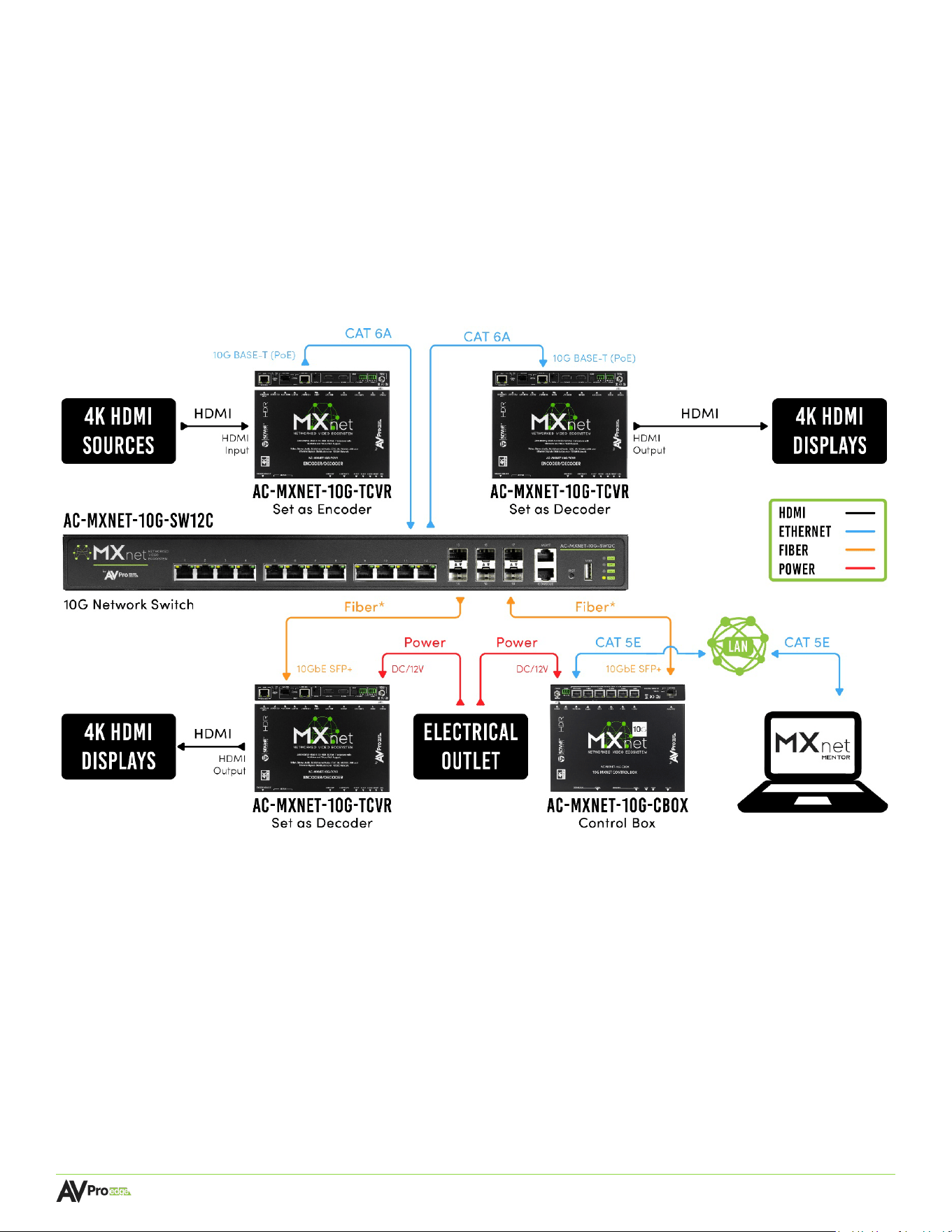
The diagram below shows the basic application with the AC-MXNET-10G-SW12C managed switch, AC-
MXNET-10G-TCVR transceivers, and AC-MXNET-10G-CBOX control box. The cable connections can be category
cable, optical fiber, or a combination of both, as shown below.

Page 8
MXNET 10G SDVoE® USER MANUAL
1.1.1.2 USB 2.0
The AC-MXNET-10G-TCVR-USBX transceiver provides the same functionality as the
AC-MXNET-10G-TCVR with the addition of USB 2.0 signal extension and routing.
1.1.1.3 Dante
®
and USB 2.0
The AC-MXNET-10G-TCVR-PRO transceiver provides the same functionality as the
AC-MXNET-10G-TCVR with the addition of USB 2.0 signal extension and routing, and transports
Dante
®
audio.
1.1.2 Control
The AC-MXNET-10G-CBOX is the control device that commands the transceivers and is where the
system logic is stored, and commands are processed. The API utilized by the MXNet Mentor web
interface and third-party control systems are centralized to the CBOX to provide multipoint AV-over-IP
distribution. The CBOX enables networked signal extension, distribution, and routing with the MXNet
10G transceivers and switches.
1.1.3 Mentor
MXNet Mentor is AVPro Edge’s proprietary HTML5-based setup and control web interface designed to
eliminate many pain points associated with installing and configuring traditional networked AV systems.
Mentor is an efficient setup solution that’s easy to use and comes pre-installed on every CBOX.
1.1.4 Network Switches
The AC-MXNET-10G-SW12C, AC-MXNET-10G-SW24C, AC-MXNET-10G-SW24Q, and
AC-MXNET-10G-SW48Q are 10GB Ethernet managed network switches that are pre-configured out-of-
the-box for networked AV distribution and can be deployed on any industry standard IP network. The
switches can be used on an existing enterprise IP network or on a physically separate parallel network
(private network) to offload traffic, using the same network protocols, methods, and devices without
having to combine video traffic with network data. Third party switched are accepted see third party
network switch requirements.
1.1.5 PoE Power Supply
ThAC-MXNET-POE-PSU24 is an unmanaged 24-port PoE power supply that provides a power only
(non-data) CAT cable connection for PoE-enabled IP devices such as the MXNet 10G transceivers.
1.1.1.1 Audio Downmixing
The AC-MXNET-10G-TCVR-AVDM transceiver provides the same functionality as the AC-
MXNET-10G-TCVR with the addition of converting multichannel audio into 2-channel PCM
through the extracted audio port.
WARNING:
Use caution when handling this device, as contact with hot surfaces may cause
burns during normal operations. Allow the transceiver to cool before servicing. It
is highly recommended to install all AVDM transceivers in a rack mount, such as
the AVPro Edge HD Rack (sold separately, SKU: AC-MXNET-10G-HDRACK).

Page 9
MXNET 10G SDVoE® USER MANUAL
MXNet 10G Network Switch (AC-MXNET-10G-SW12C, AC-MXNET-10G-SW24C, AC-MXNET-10G-
SW24Q, AC-MXNET-10G-SW48Q) or one that meets MXNet requirements (see Third-
Party Network Switch Requirements)
Cables and accessories such as SFP+ (Small Form Factor Pluggable) modules
Source devices, displays, and any other devices that will be used in the system.
1.3 Some Helpful Suggestions
• Make a list of all the devices in the system, including the sources and displays, model numbers and
SKU’s, MAC addresses and assigned IP addresses, along with any accessories such as rack
equipment, power sources, cable types and distances.
• Created a diagram or flow chart to indicate the starting and end points of the network cable runs,
as well as any schematics, diagrams, and other supporting documentation for easy future
reference.
• Label the connections in the rack to their corresponding endpoints or ports on the network switch.
• For larger projects, consider grouping the encoder cables next to each other on the network switch
and likewise for the decoders.
1.2 Before Yo
u Begin
MXNet does not require the encoders and decoders to be connected in any specific order on the
network switch, meaning they can be placed on adjacent ports right next to each other and the system
will function without issue. However, for best results (especially when managing highly complex systems
with dozens of endpoints) a certain degree of design and planning is highly recommended and can save
precious time when it comes to installing, testing, and implementing features on the system.
Read through this document in its entirety and ensure that the following required items are available:
MXNet 10G Transceivers (AC-MXNET-10G-TCVR, AC-MXNET-10G-TCVR-AVDM, AC-MXNET-10G-TCVR-
PRO)
MXNet 10G CBOX for control and Mentor web interface (AC-MXNET-10G-CBOX)

Page 10
MXNET 10G SDVoE® USER MANUAL
1.4 Network Cabling Tips
Everything about a successful MXNet installation revolves around the network cabling itself. Keep in mind
that the quality, distance, and handling of the cable can all affect the signal speed and data stream.
Generally speaking, the higher the video resolution and the longer the run, the better the cabling should
be.
When terminating network cables, do not untwist the wires unnecessarily. Make sure to not untwist more
than ½ inch, preferably ¼ inch. Wires are twisted for good reasons:
1. Cancels out EMI (Electromagnetic Interference)
2. Cancels out crosstalk from neighboring conductors
For most applications, Cat6a (or better) is recommended for MXNet 10G.
• Terminate with standard RJ-45 connectors. Avoid using push-through or “EZ” type ends, as these
have exposed copper wiring at the tips that can cause signal interference.
• Cable terminations should be consistent with T568A or T568B. Avoid mixing terminations such as
going from T568A to T568B, and vice versa.
• Remove as little of the sheathing as possible.
• Handle cables with care. If you need to pull, don’t pull too hard as this may cause the wire pairs to
untwist and degrade cable performance.
• Use zip ties to neatly, but loosely, bundle the cable runs together to reduce tangling. Avoid tight zip
ties, clamps, and staples.
• Stay organized, label each cable run on both ends to indicate the location of the inputs and
outputs.
• Do not overbend cables. ¼ inch cable ratio = 2” bend radius.
• Keep network cables away from power sources.
1.6 Third-Party Control Systems
MXnet supports third-party control systems with drivers readily available to download, allowing for
further
customizable programming and commands to integrate with MXnet. Be sure to successfully install
and connect your MXnet system to the network first before integrating with it with a third-
party control system.
Supported drivers for third-party control system can be located at Support.AVProEdge.com

Page 11
MXNET 10G SDVoE® USER MANUAL
2 Third-Party Network Switch Requirements
Third-party (non-AVPro or MXNet) network switches must support the following features and
functionalities and enable or disable some settings to support the AVPro MXnet AV-over-IP system.
Verify that your third-party network switch has all the following requirements for running MXNet:
• IGMP Version 2 for snooping, queries, Immediate-Leave, and unknown multicast data
dropping.
• MTU Size to support jumbo Ethernet frames.
• PoE Budget to power the MXNet endpoint devices (if using copper instead of fiber).
• Disable EEE functionality for system optimization.
2.1 IGMPv2 Snooping
IGMP snooping is a method that network switches use to identify multicast groups, which are groups of
devices that all receive the same network traffic, such as video, audio, and control streams. It enables the
switches to forward IP packets to the correct devices (decoders) in their network.
2.2 IGMPv2 Querier
The IGMP querier is responsible for sending out IGMP group membership queries at a timed interval,
retrieving IGMP membership reports from active members, and allowing updates to the IGMP group
tables.
2.3 IGMPv2 Immediate-Leave
When Immediate-Leave is enabled, the device immediately removes a port when it detects the IGMPv2
Leave message on that port, Immediate-Leave is only supported on IGMPv2 hosts and should be enabled
for every port on the VLAN.
2.4 Unknown Multicast Dropping (Unregistered Multicast
Flooding)
Unknown multicast data refers to multicast data for which no forwarding entries exist in the IGP
snooping forwarding table. This feature enables the device to forward unknown multicast data to the
router port only. If the device does not have a router port, unknown multicast data will then be dropped.
If this feature is not enabled, the unknown multicast data will flood the VLAN to which the data belongs
and may severely interfere with normal network operations.

Page 12
MXNET 10G SDVoE® USER MANUAL
3 Product Overview
3.1 Box Contents and Specifications
Refer to the Specifications page for these products located on the AVPro Edge Website for box
contents
and technical specifications.
2.6 PoE Budget
If using copper to connect your MXNet 10G endpoints instead of fiber, PoE network switches will
power the
MXNet endpoint devices (transceivers), as each endpoint device consumes 6 to 9 Watts of power. Be
sure to correctly identify the PoE budget of the third-party network switch before purchasing.
2.7 Disabling EEE
EEE (Energy Efficient Ethernet) is an IEEE 802.3az standard that is designed to reduce power
consumption in Ethernet networks during idle periods.
If the third-party network switch supports EEE, be sure to disable the EEE function as it may cause
issues with system optimization in some cases.
• The number of frames sent across the network is reduced.
• The number of Ethernet headers is reduced because of fewer frames.
• The reduction in frames results in fewer required headers.
• The CPU cycles are reduced at the sender and receiver side due to fewer headers needing to be
built and read.
• Network bandwidth is reduced due to the reduction in headers.
2.5 MTU Settings
The MTU (Maximum Transmission Unit) size needs to be changed to over 9000 bytes to support jumbo
Ethernet frames on the AVPro MXNet AV-over-IP Ecosystem.
The MTU is the maximum payload length for a particular transmission media and is typically 1500 bytes. A
jumbo frame is an Ethernet frame with a payload greater than the standard MTU of 1500 bytes. Jumbo
frames are used on LANs that support at least 1Gbps and can be as large as 9000 bytes, or even bigger.
Since jumbo frames are not defined in the IEEE 802.3 specifications for Ethernet, vendor support for
jumbo frames and their maximum MTU sizes may vary.
Jumbo frames provide many benefits over the traditional IEEE 802.3 Ethernet MTU’s. These include:
Page 13
MXNET 10G SDVoE® USER MANUAL
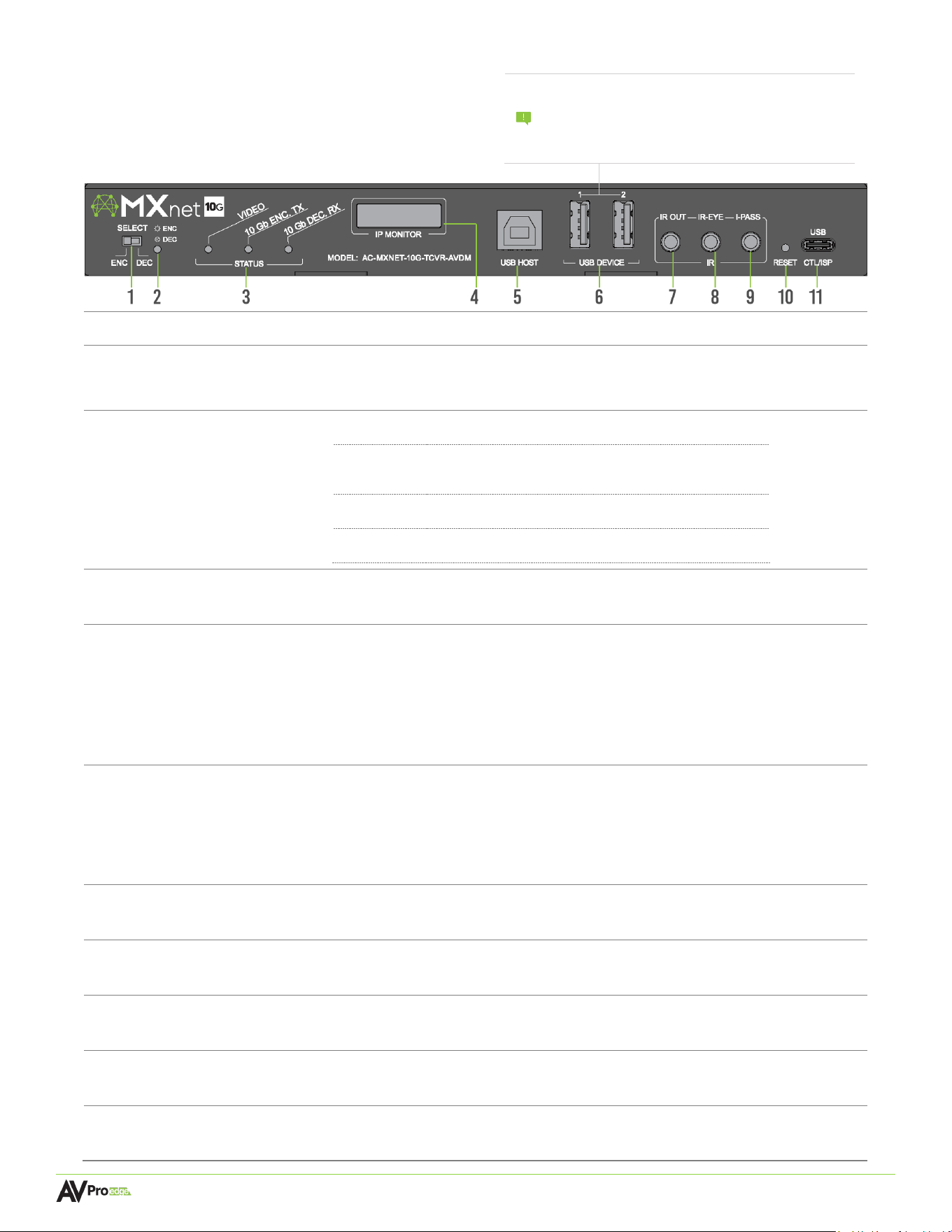
1 Select ENC/DEC
• Toggle switch to select transceiver operation mode as encoder or de
coder
2 ENC/DEC MODE LED
• B
lue LED status indicator
light: LED is on = Encoder mode
LED is off = Decoder mode
3 STATUS LEDs
• (3x) blue LED status indicator lights:
VIDEO
• Detects HDMI hot plug on transceiver
• Solid blue indicates HDMI signal is present on transceiver
• Supported on both encoder and decoder mode
10 Gb ENC. TX
• Detects transceiver is sending data packets
• Steady flickering blue indicates active connection
10 Gb DEC. Rx
• Detects transceiver is receiving data packets
• Steady flickering blue indicates active connection
4 IP Monitor
• Built-in fro
nt panel mini-OLED screen “data window”
• Displays the transceiver’s custom name (or MAC address) and IP address
5 USB Host
• USB 2.0 Type B fe
male connector port
• USB extension for connecting to a computer or other USB 2.0 device
• Supports KVM routing and hosting
Note: isochronous device sync/multiple KVM pairing is only supported on TCVR-
USBX and TCVR-PRO models. Base models (TCVR, TCVR-AVDM) are restricted to
Keyboard + mouse support only.
6 USB Device 1 & 2
•
•
(2x) USB 2.0 Type A female connector ports
Supports routing USB 2.0 signals to the designated host transceiver (set as
encoder) Note: isochronous device sync/multiple KVM pairing is only supported on
TCVR-USBX and TCVR-PRO models. Base models (TCVR, TCVR-AVDM) are restricted
to Keyboard + mouse support only.
7 IR OUT
• 3.5mm mo
no jack (TS) IR receiver port
• Sends encapsulated/virtualized IR signals upstream via the MXNet API
8 IR-Eye
• 3.5mm st
ereo jack (TRS) IR receiver port
• Supports a flashing IR emitter from an IR bridge or control system processor
9 I-PASS
• 3.5mm stereo jack (TRS) IR receiver port
• Sends IR signals pass-through via an IR emitter, IR bridge, or control system processor
10 Reset
• Recessed button, use a paperclip or pen to press in and hold for 7 seconds to
restore transceiver back to factory default settings
11 USB CTL/ISP
• U
SB Type C female connector port
• Servicing port for AVPro Edge technical assistance
AC-MXNET-10G-TCVR
AC-MXNET-10G-TCVR-AVDM
AC-MXNET-10G-TCVR-USBX
AC-MXNET-10G-TCVR-PRO
NOTE:
USB routing is only supported for basic
keyboard and mouse functionality on the
base TCVR and TCVR-AVDM models. For
High-Speed USB capabilities, the TCVR-USBX
and TCVR-PRO models must be used.
3.2 Transceivers
Page 14
MXNET 10G SDVoE® USER MANUAL
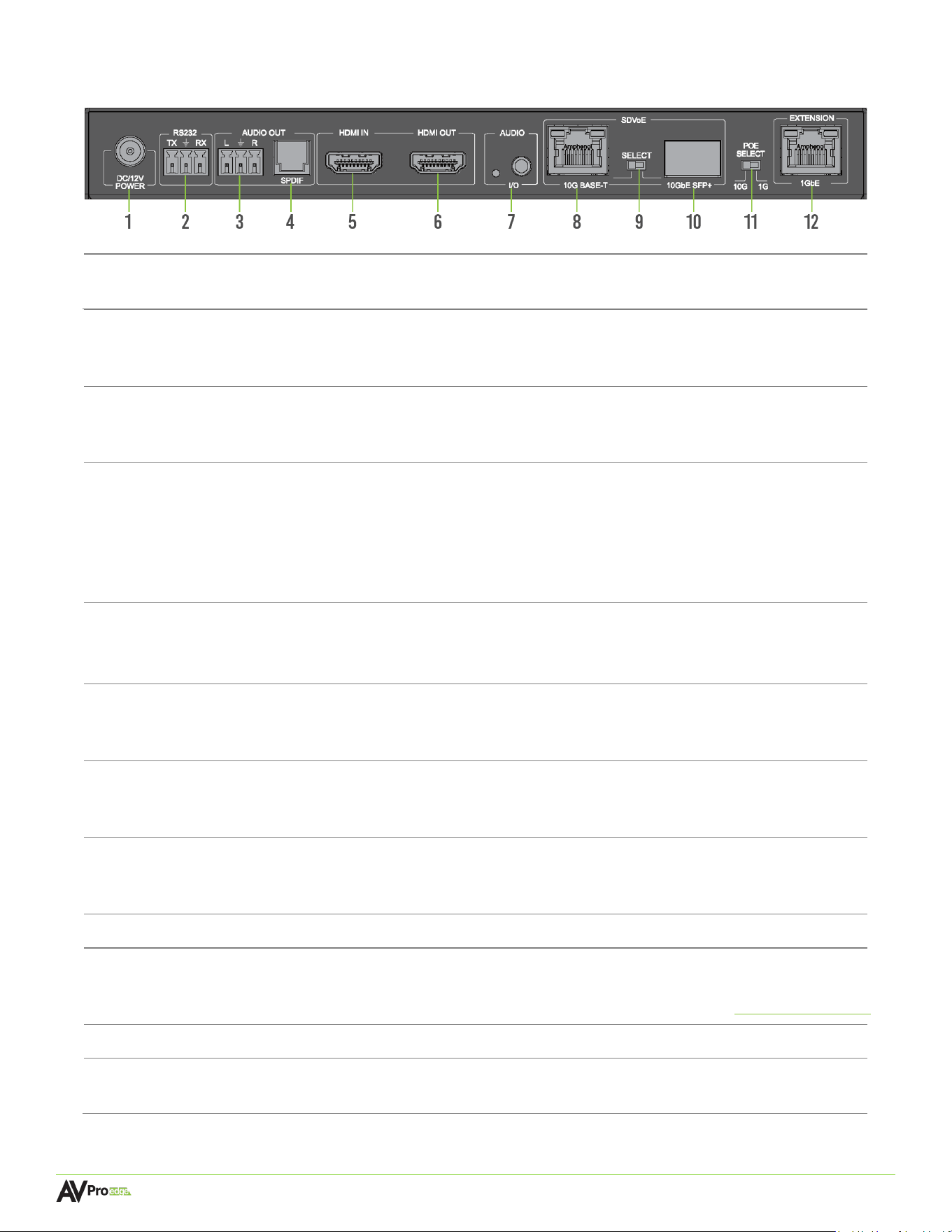
2 RS-232
• 3-pin t
erminal block connector port
• Sends encapsulated/virtualized RS-232 (serial pass-through) over IP via the MXNet API
• Supports serial routing with direct connection to a control system processor
3
Audio Out
Analog
• 3-pin t
erminal block connector port
• De-embedded audio, extracts unbalanced 2-channel analog PCM audio (encoder
mode)(Downmixing supported only on transceiver model AC-MXNET-10G-TCVR-AVDM)
4
Audio Out
SPDIF
• S/PDIF digital LPCM audio output
• De-embedded audio, extracts uncompressed 2-channel PCM audio or 5.1
compressed surround sound (encoder mode)
• (Downmixing always active; only on transceiver model AC-MXNET-10G-TCVR-AVDM)
• TOSLI
NK port actively outputs incoming audio conforming to TOSLINK capabilities (up to
5.1 Dolby Digital; Dolby Digital Plus and Dolby Atmos not supported)
5 HDMI IN
• 19-pin HDMI Type A female connector port
• Source device input for HD
MI connection
(This port is not functional when transceiver is set to decoder mode)
6 HDMI OUT
• 19-pin HDMI Type A female connector port
• Output
device port for HDMI connection
(This port functions as a Loop-out port when transceiver is set to encoder mode)
7 AUDIO I/O
• 3.5mm stereo jack (TRS) for audio input (e
ncoder mode) or output (decoder mode)
• Auto-detects input or output once directly connected, indicated by adjacent blue LED
• Independent analog audio port, does not extract from transceiver’s HDMI audio
8 10G Base-T
• 8-pi
n RJ-45 female connector port
• 10 Gigabit Ethernet copper connection for SDVoE transmissions
• Supports standard PoE power, IEEE 802.3AF (15.4W)
9 SDVoE Select
• Toggle switch to select t
he 10G BASE-T or the 10GbE SFP+ port
10
10G
bE SFP+
• 10G SFP+ port fo
r SDVoE transmissions
• Modular slot for SFP+ transceiver modules (sold separately)
• Supports fiber-optic or copper cable connections (data only, see 5.3.1 Power with Fiber)
11 PoE Select
• Toggle switch t
o select which port PoE is coming from
12
1G
bE Extension
• 8-pi
n RJ-45 female connector port
• 1 Gigabit LAN port for powering transceiver via PoE with fiber connections
(rear panel)
1 DC/12V Power
• DC 12V/2A locking ring power i
nlet to locally power transceiver
• Not required when connecting transceiver to a network switch that provides PoE
Page 15
MXNET 10G SDVoE® USER MANUAL
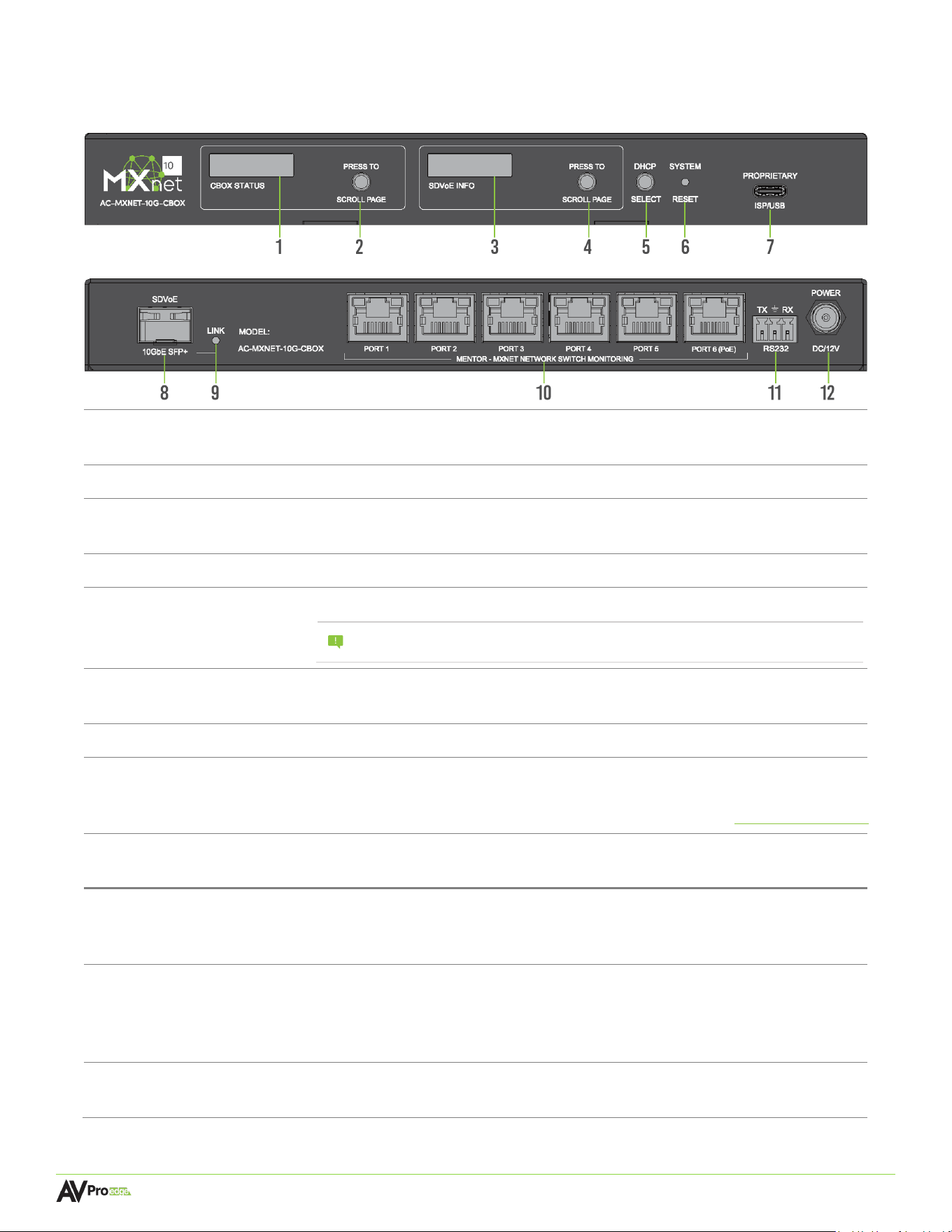
1 CBOX Status
• B
uilt-in front panel mini-OLED screen “data window”
• Displays the MXNet LAN and system control network information
2 Scroll Button
• Press t
o cycle through the network settings on the CBOX STATUS screen
3 SDVoE Info
• B
uilt-in front panel mini-OLED screen “data window”
• Displays the MXNet SDVoE AV network information
4 Scroll Button
• Pre
ss to cycle through the network settings on the SDVoE INFO screen
5 DHCP Select
• Press button to toggle between DHCP (default) and STATIC IP mode
NOTE:
It is recommended to change the IP address to STATIC after all the MXN
et
devices have been successfully installed and Mentor has been accessed.
6 System Reset
• Recessed button, use a paperclip or pen to press in and hold for 7 seconds to
restore CBOX back to factory default settings
7 Proprietary ISP/USB
• USB Type C female co
nnector port, servicing port for AVPro Edge technical assistance
8
SDV
oE 10GbE SFP+
• 10G SFP+ po
rt for SDVoE transmissions
• Modular slot for SFP+ transceiver modules (sold separately)
• Supports fiber-optic or copper cable connections (data only, see 5.3.1 Power with Fiber)
9 Link LED
• D
etects CBOX is sending and receiving data packets
• Solid blue indicates active connection
3.3 Control Box
AC-MXNET-10G-CBOX
(Fro
nt panel)
(Re
ar panel)
10
MENTOR - MXNet
Network Ports 1-6
• (6x
) 8-pin RJ-45 female connector ports
• 10 Gigabit Ethernet copper connection for SDVoE transmissions
• PoE (Power-over-Ethernet) only supported on Port 6 (PoE) port
11 RS-232
• 3-pi
n terminal block connector port
• Sends encapsulated/virtualized RS-232 (serial pass-through) over IP via the MXNet API
• Supports serial routing with direct connection to a control system processor
• Default Baud Rate is 115200
12
Power
[optional]
• D
C 12V/1A locking ring power charger to locally power the CBOX
• Not required when connecting the CBOX to a network switch that provides PoE
1BHF16
.9/&5(4%7P&n64&3."/6"-
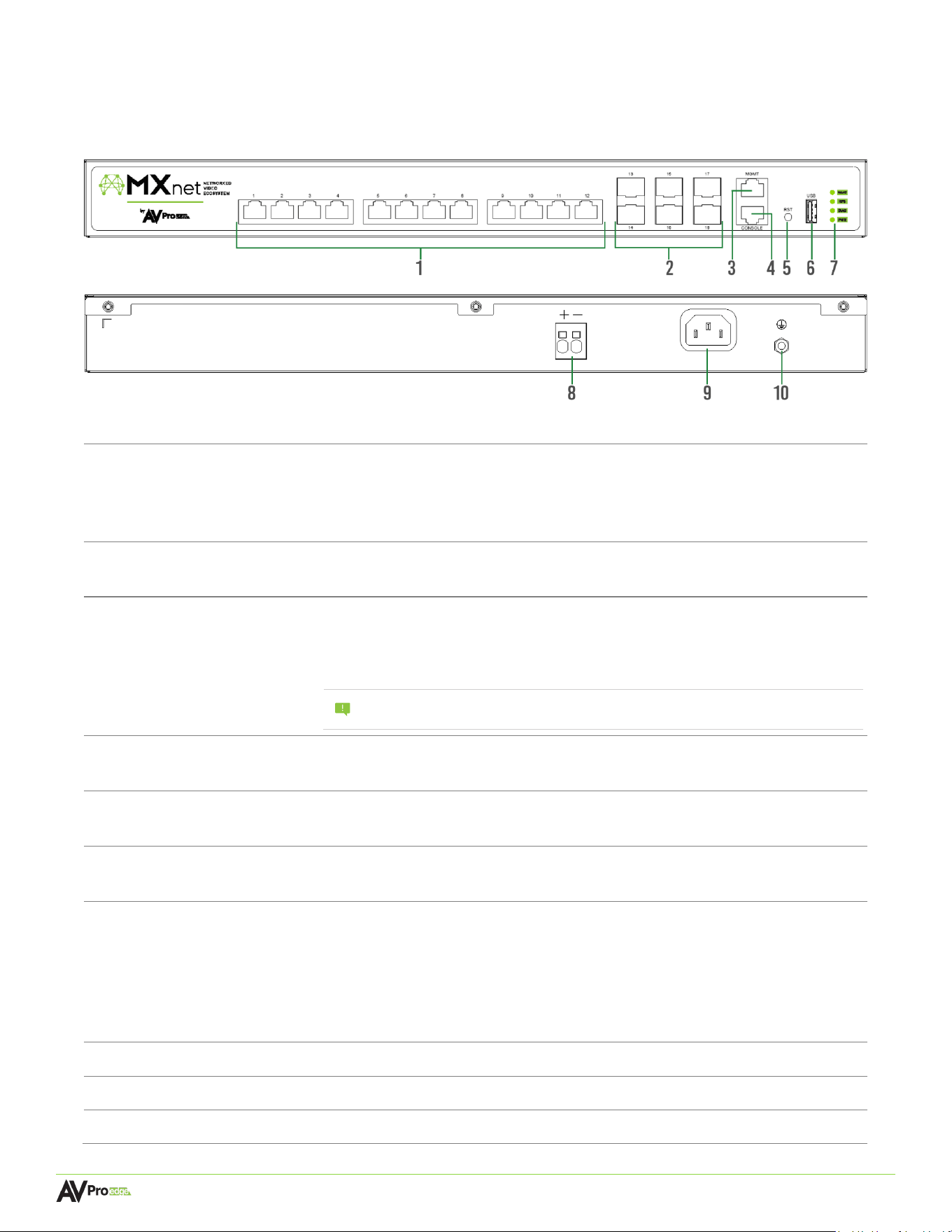
1
10G-
MGig RJ-45
Copper Ports 1-12
(P
OE/POE+/POE++)
• (12x
) 8-pin RJ-45 female connector ports, 10G-mGig (multigigabit)
• Supports PoE (IEEE 802.3af), PoE+(IEEE 802.3at), and PoE++ (IEEE 802.3bt)
• Total PoE power budget of 370W
• Supports 100Mbps, 1Gbps, 2.5Gbps, 5Gbps, and 10Gbps speeds with auto-negotiation
2 25G SFP28 Ports 13-18
• (6x) 1G
/10G/25Gbps SFP28 uplink ports
• Modular slots for SFP28/SFP+ transceiver modules (sold separately)
3 MGMT Port
• 8-pin RJ-45 female connector port
•
•
U
sed for managing the switch’s network configuration settings and tracking system
data Connects to any port (1-5) on the AC-MXNET-10G-CBOX for tracking switch
performance using the Mentor web UI
NOTE:
This is a required physical connection in order to fully utilize the Switch
Manag
ement page within the Mentor web UI, but otherwise optional.
4 Console Port
• 8-pi
n RJ-45 female connector port
• Used for accessing the switches’ CLI (Command Line Interface)
5 RST
• Recessed button, use a paperclip or pen to press in and hold for 7 seconds to soft
reboot the switch
6 USB
• USB Type A female c
onnector port
• Used for managing the switch’s network configuration settings
7 System Status Lights
• MG
MT LED steadily flashes green to indicate a stable link is present on the MGMT port
• RPS LED (Redundant Power System) remains solid green to indicate the switch is
powered on via back-up DC power
• DIAG LED steadily flashes green to indicate a continuous diagnostic of the system is
running on normal operations
• PWR LED remains solid green to indicate the switch is powered on via main AC power
8 DC Power
• 48V-57V back-up D
C power supply for the network switch
9 AC Power
• 100~240VAC, 50~60Hz main AC power s
upply for the network switch
10 Ground Screw
• Connect with a grounding cable to the
conducting parts
(Re
ar panel)
3.4 AC-MXNET-10G-SW12C
(Fro
nt panel)
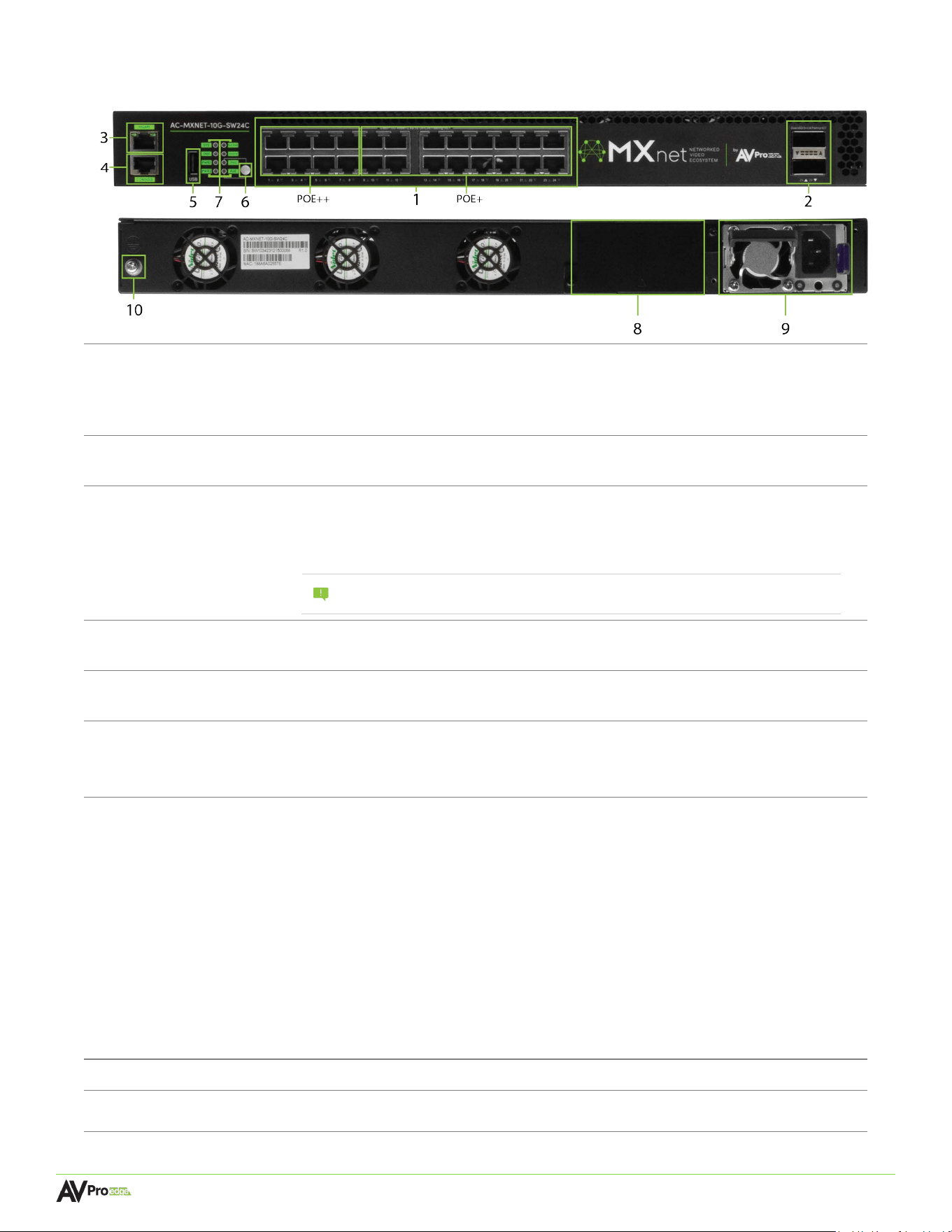
2
10G-
MGig RJ-45
Copper Ports 1-12
(P
OE/POE+/POE++)
• (24x
) 8-pin RJ-45 female connector ports, 10G-mGig (multigigabit)
• Supports PoE (IEEE 802.3af), PoE+(IEEE 802.3at), and PoE++ (IEEE 802.3bt)
• Total PoE power budget of 960W
• Supports 100Mbps, 1Gbps, 2.5Gbps, 5Gbps, and 10Gbps speeds with auto-negotiation
40GbE QSFP+
• (2x) 40GbE QSFP+ ports for uplinking, supports 1 QSFP
+ -> 4 10G SFP+ breakout(default configuration)
PORTS 25-26
• Supports 1 QSFP+ to 4 10G SFP+ split
3 MGMT Port
•
•
• 8-pin RJ-45 fe
male connector port
Used for managing the switch’s network configuration settings and tracking system data
Connects to any port (1-5) on the AC-MXNET-10G-CBOX for tracking switch performance
using the Mentor web UI
NOTE:
This is a required physical connection in order to fully utilize the Switch
Manag
ement page within the Mentor web UI, but otherwise optional.
4 Console Port
• 8-pi
n RJ-45 female connector port
• Used for accessing the switches’ CLI (Command Line Interface)
5 USB
• USB Type A female connector port
• Used for managing the switch’s network configuration settings
7
System Status Lights
• SYS L
ED - Off the device is not operational, Green blink the device is starting up, Green solid
the device has completed startup and is working normally, red solid there is a operational
fault in the device
• FAN LED - Green solid the fan is working normally, Red solid there is a fan malfunction
• PWR1 LED - Sold green when power slot 1 is working normal, red solid is abnormal
• PWR2 LED - Will remain off in default from additional power supply can be perched for
redundancy, when additional power supply is installed, led green indicator will remain on
• PoE Max LED - Will remain off until the PoE has reached its maximum capacity
• UPDATE LED - Only active when firmware updating network switch
• SPEED LED - RJ45 port link and speed indicator. Off the ports connected device is not linked
up, Orange Green solid the port is linked up, blinking data is being transmitted, Green
indicates the port is operating at a 10Gbps speed, Orange the pots speed is below 10Gbps
• PoE LED - RJ45 PoE Indicator. Off no PoE supply, Solid PoE is being Supplied, Blinking data is
being transmitted, Green indicates the port is operating at a 10gps speed, Orange indicates
the port's speed is below 10Gbps
8 PSU SLOT
• Slot for secondary power supply unit sold separately AC-SW24C-PWR
9
AC Power
• 100~240VAC, 50~60Hz main AC power s
upply for the network switch , is replaceable with
sku AC-SW24c-PWR
10
Ground Screw
• Connect with a grounding cable to the
conducting parts
Page 17
MXNET 10G SDVoE® USER MANUAL
6 LED sELECT BUTTON
• When the button is pressed, each RJ45 port features a dual-color indicator light to
display the RJ45 port's connection status and speed.
• When the button is pressed each RJ45 Port features a dual-color indicator light to display
the RJ45 port's PoE supply status
3.5 AC-MXNET-10G-SW24C
(Front panel)
(Rear panel)
1
Page 18
MXNET 10G SDVoE® USER MANUAL
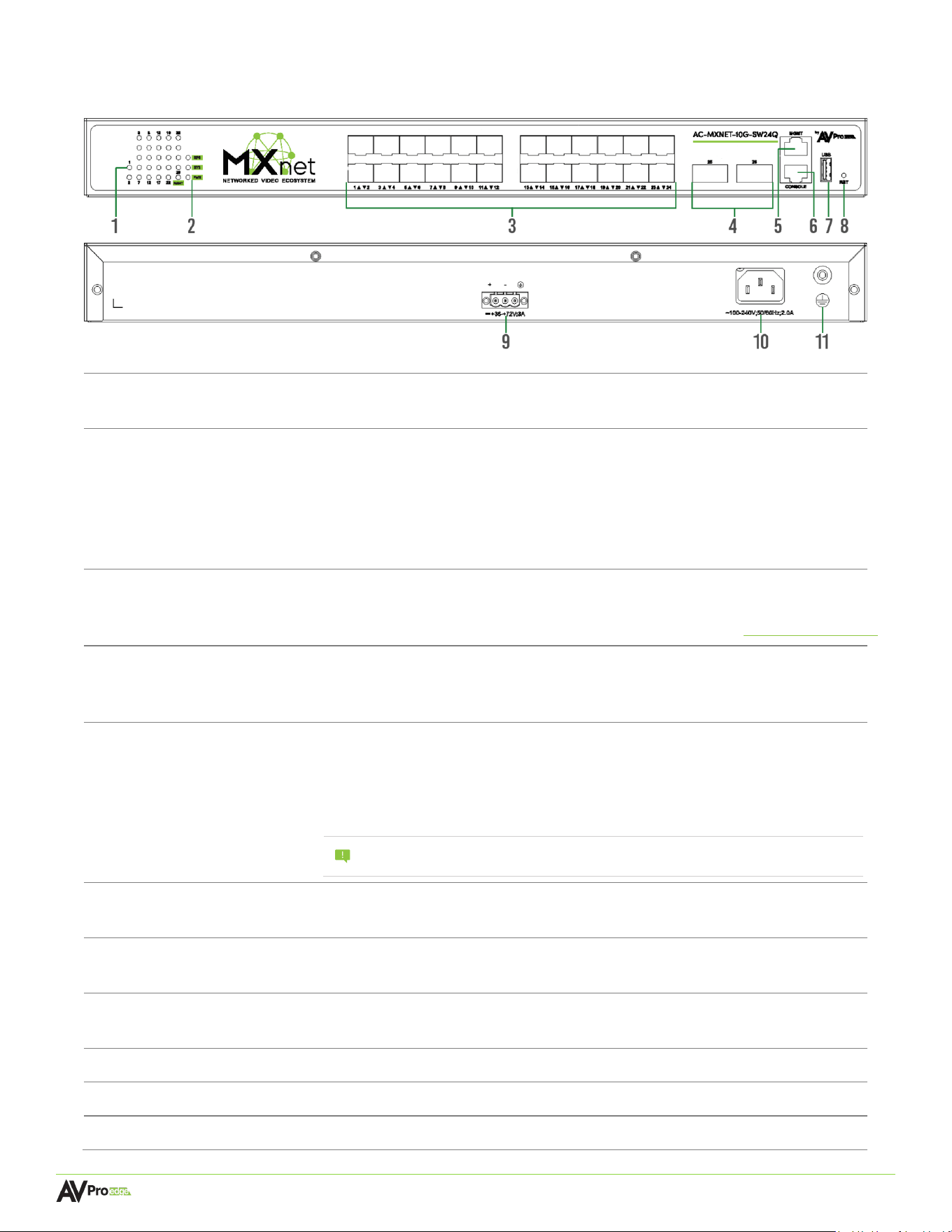
1 Activity Lights 1-26
• Amber LED s
tatus indicator lights
• Steady flickering indicates network activity is present on the numbered port
2 System Status Lights
• MGMT LED st
eadily flashes green to indicate a stable link is present on the MGMT port
• RPS LED (Redundant Power System) remains solid green to indicate the switch is
powered on via back-up DC power
• DIAG LED steadily flashes green to indicate a continuous diagnostic of the system is
running on normal operations
• PWR LED remains solid green to indicate the switch is powered on via main AC power
3
10G
bE SFP+ Ports 1-24
• (24x) 10GbE/1G
bE SFP+ ports for SDVoE transmissions (10GbE by default)
• Modular slots for SFP+ transceiver modules (sold separately)
• Supports fiber-optic or copper cable connections (data only, see 5.3.1 Power with Fiber)
4
40G
bE QSFP+ Ports 25-
26
• (2x) 40GbE QSFP+ ports for uplinking, supports 1 QSFP+ -> 4 10G
SFP+ breakout
(default configuration)
• Supports 1 QSFP+ to 4 10G SFP+ split
5 MGMT Port
• 8-pin RJ-45 fe
male connector port, 10/100/1000Base-T
• Used for managing the switch’s network configuration settings and tracking
system data
• Connects to any port (1-5) on the AC-MXNET-10G-CBOX for tracking switch
performance using the Mentor web UI
NOTE:
This is a required physical connection in order to fully utilize the Switch
Management page within the Mentor web UI, but otherwise optional.
6 Console Port
• 8-pi
n RJ-45 female connector port
• Used for accessing the MXNet CLI (Command Line Interface)
7 USB
• USB Type A female c
onnector port
• Used for managing the switch’s network configuration settings
8 RST
• Recessed button, use a paperclip or pen to press in and hold for 7 seconds to reset
the switch back to factory default settings
9 DC Power
• Input
36V-72V back-up DC power supply for the network switch
10 AC Power
• 100~240VAC, 50~60Hz main AC power supply for the
network switch
11 Ground Screw
• Connect with a grounding cable to the conducting parts
3.6 AC-MXNET-10G-SW24Q
(Front panel)
(Rear panel)
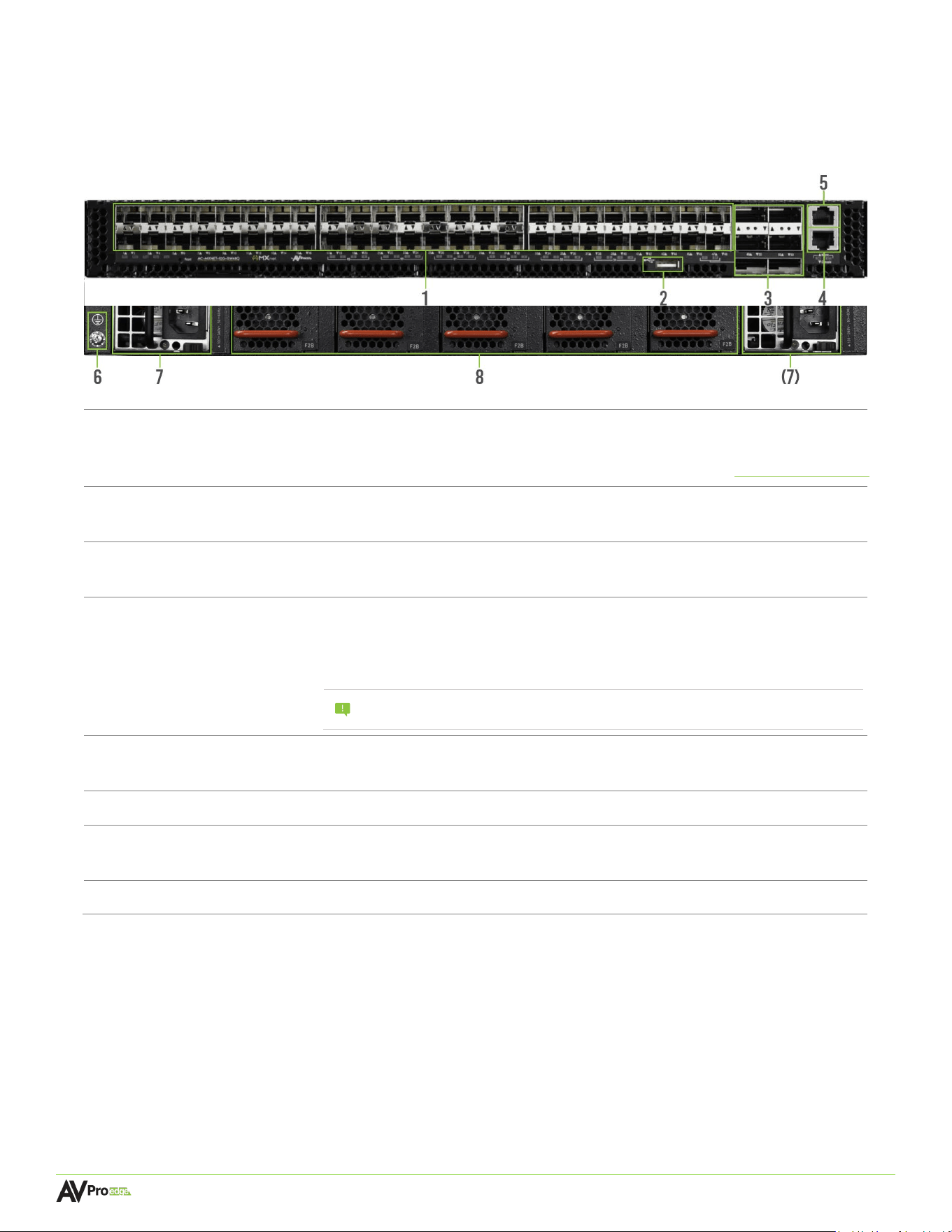
1 10GbE SFP+ Ports 1-48
• (48x
) 10GbE/1GbE SFP+ ports for SDVoE transmissions (10GbE by default)
• Modular slots for SFP+ transceiver modules (sold separately)
• Supports fiber-optic or copper cable connections (data only, see 5.3.1 Power with Fiber)
2 USB
• USB Type A female c
onnector port
• Used for managing the switch’s network configuration settings
3 40G QSFP+ Ports 49-54
• (6x) 40GbE QSFP+ ports for uplinking (default configuration)
• Support
s 1 QSFP+ to 4 10G SFP+ split to connect more MXNet Endpoints
4 MGMT Port
• 8-pin RJ-45 female connector port
•
•
U
sed for managing the switch’s network configuration settings and tracking system
data Connects to any port (1-5) on the AC-MXNET-10G-CBOX for tracking switch
performance using the Mentor web UI
NOTE:
This is a required physical connection to fully utilize the Switch
Management page within the Mentor web UI, but otherwise optional.
5 Console Port
• 8-pin RJ-45 fe
male connector port
• Used for accessing the MXNet CLI (Command Line Interface)
6 Ground Screw
• Connect with a grounding cable to the conducting parts
7 Power Supply Unit
• (2x) AC P
ower Input: 100~240V, 50-60Hz
• Default with two redundant hot-swappable AC power supply
8 System Fans
• 1+4 Redundant hot-swappable fan modules, front-to-back airflow
Page 19
MXNET 10G SDVoE® USER MANUAL
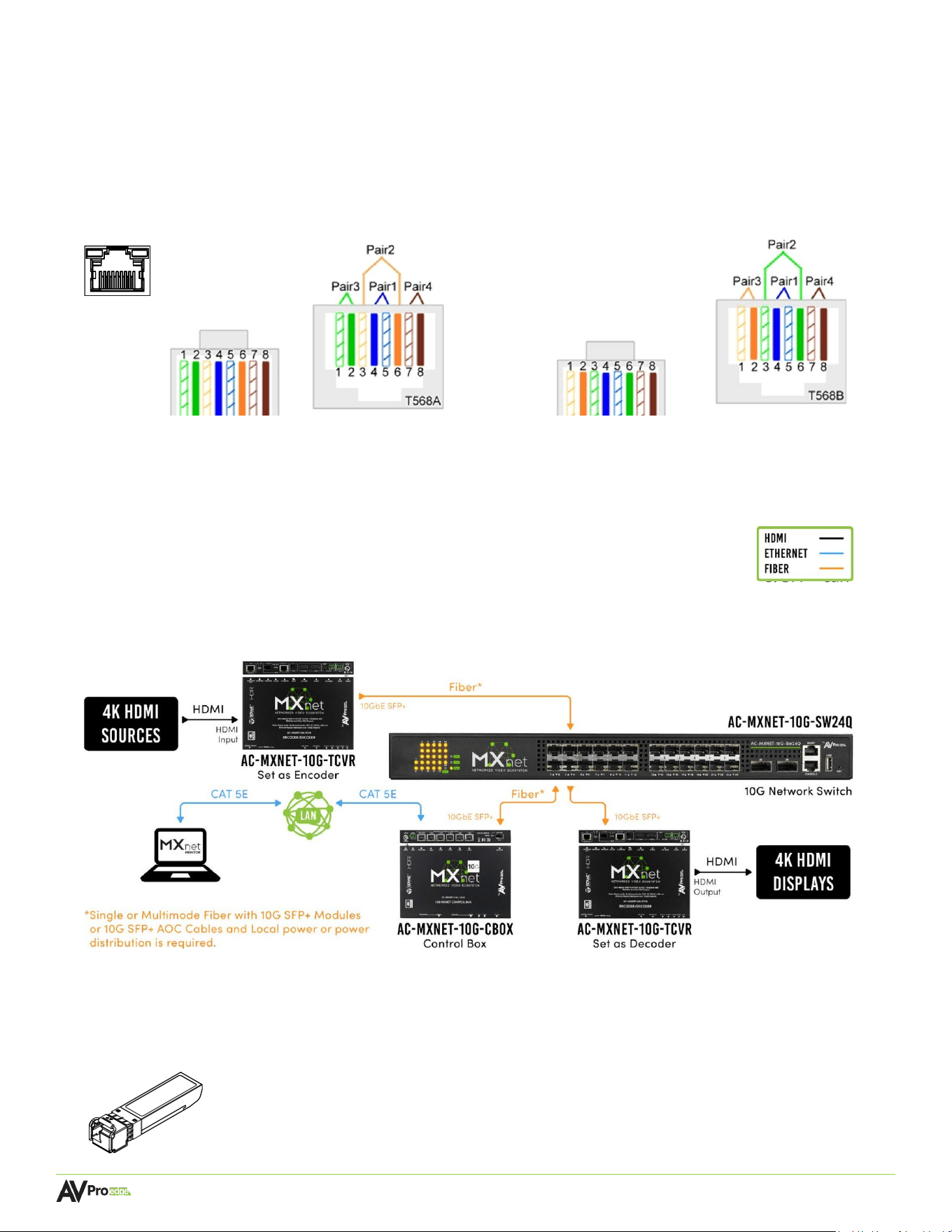
3.7 AC-MXNET-10G-SW48Q
(fro
nt panel)
(Rear panel)
Page 20
MXNET 10G SDVoE® USER MANUAL
4.2 SFP+ Transceiver Modules
SFP+ (enhanced small form-factor pluggable) transceivers are compact, hot-pluggable devices that act
as an interface between networking equipment (network switches, routers, network cards, etc.) and
interconnecting cabling (copper or fiber).
While SFP and SFP+ transceivers are both similar in size and appearance, the main difference is that SFP+
can be used in 10 Gigabit Ethernet applications, while SFP is for 100/1000BASE applications. SFP+ can also
operate at 1000BASE/10GBASE. SFP complies with standards of IEEE 802.3 and SFF-8472, while SFP+ is
based on SFF-8431.
The module is inserted into the SFP+ slot on the MXNet devices and is used for network connectivity
and AV transmission.
4 Wiring and Connections
4.1 10G Et
hernet/LAN
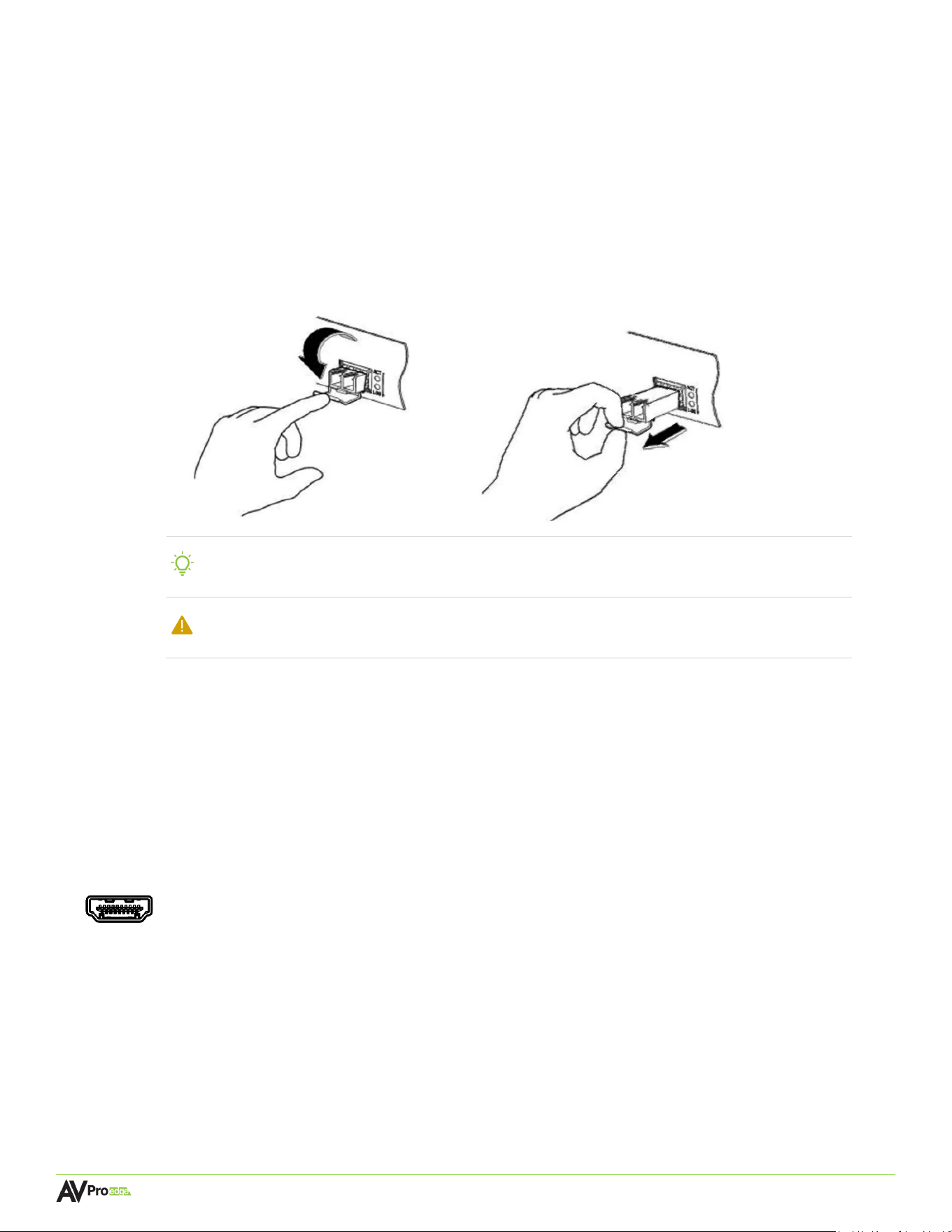
The recommended termination for all RJ-45 ports on the MXNet devices is based on TIA/EIA T568A or
T568B standards for the wiring of the twisted pair cables:
Page 21
MXNET 10G SDVoE® USER MANUAL
4.3 AOC Cables
An AOC (Active Optical Cable) is a premade fiber cable with SFP+ modules connected on each end that
directly connects the ports between active devices, such as network switches, routers, servers, and data
storage devices within a network.
4.4 HDMI Cable
s
The MXNet devices use standard 19-pin HDMI female connector ports for the inputs and outputs.
Some important things to consider when planning or installing MXNet devices:
TIP:
The SFP+ transceiver module is hot-swappable, meaning that it can
be inserted or removed while power is still present in the system.
WARNING:
Do not stare directly at the two fiber bores inside the SFP+ transceiver module
while the network switch is operating as the laser may harm the eyes.
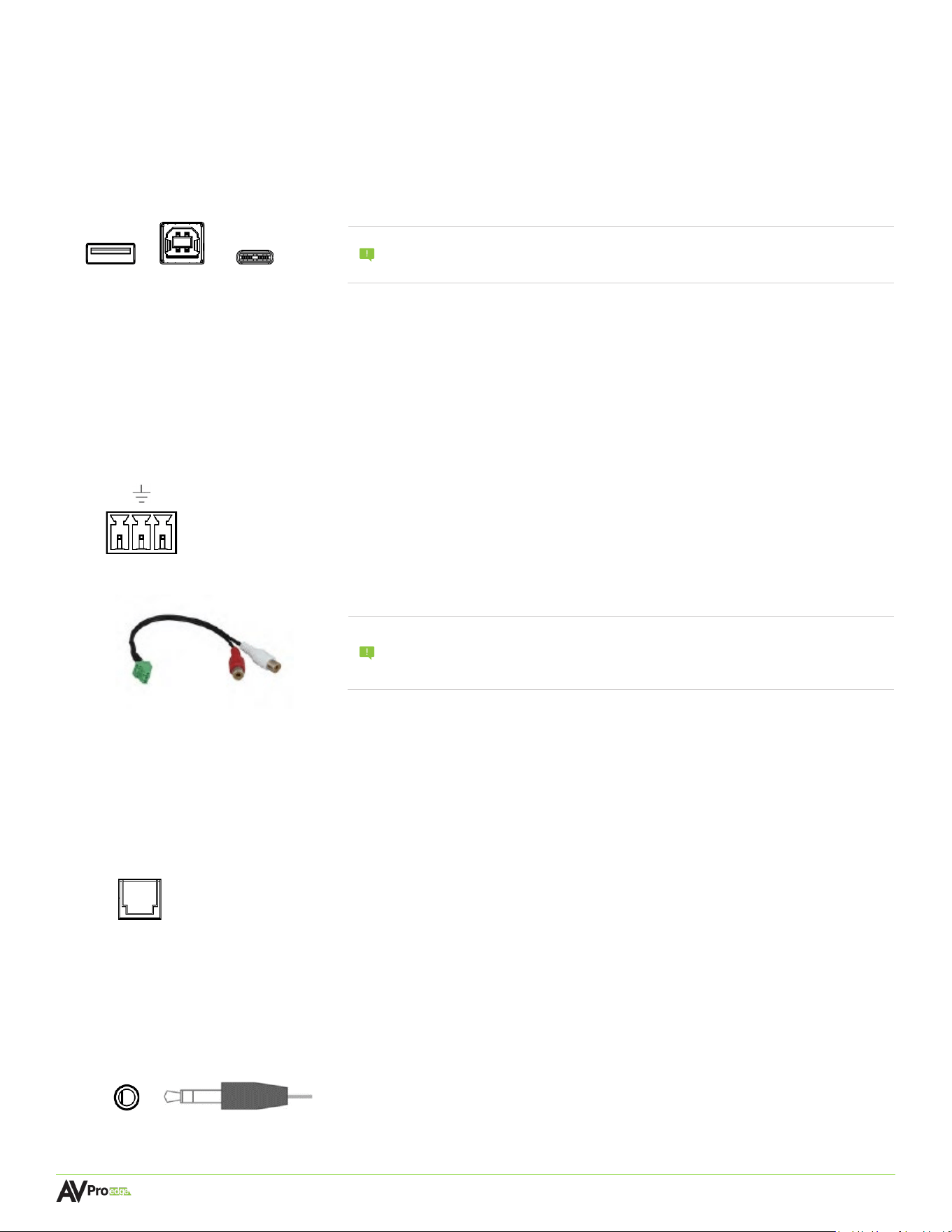
4.2.1 Installing SFP+ Transceiv
er Modules
The procedure for SFP+ transceiver modules is shown below:
1 Put on an ESD wrist strap (or antistatic gloves).
2 Insert the SFP+ transceiver to the guide rail inside the fiber interface line card. Do not put in
the SFP+ transceiver upside down.
3 Push the SFP+ transceiver along the guide rail gently until you feel the transceiver snap into
place at the bottom of the line card.
• Ensure all HDMI cables and devices can support the signal being sent. For most use cases, a High-
Speed HDMI cable with Ethernet rated for 18Gbps will be more than sufficient to satisfy signal
transport if every device can handle the signal.
• Ensure your HDMI cable is the correct length. The current HDMI specification calls for cables to be
between 2 to 10 meters (6.6 to 33 feet). Smaller wire cables may be unable to transmit higher
bandwidth signals like 4K60 over distances of even 5 meters (16 feet).
Page 22
MXNET 10G SDVoE® USER MANUAL
4.5 U
SB Ports
The USB ports allow USB 2.0 extension. The transceivers contain two USB 2.0 Type A ports, one USB 2.0
Type B port, and one USB Type C port. The USB-C port is a courtesy port and is primarily intended for
AVPro Edge technical support servicing in the event of troubleshooting.
4.6 Audio Po
rts
4.6.1 Extracted Analog Audio
All models of the MXNet 10G transceivers feature a 3-pin terminal block connector port for de-
embedded audio. When the transceiver is set to Encoder or Decoder Mode, this port extracts 2-
channel unbalanced PCM audio. Audio volume can be adjusted via the CBOX web UI, or API
commands.
Connect a 3-pin terminal block connector into the AUDIO OUT port on the receiver.
4.6.2 Extracted Digital Audio
All MXnet 10G transceiver models incorporate a TOSLINK port for de-embedded digital audio. When a
transceiver is placed into Encoder Mode, this port extracts uncompressed 2-channel PCM or 5.1
compressed multichannel audio. When placed into Decoder Mode, the TOSLINK port actively outputs
incoming audio conforming to TOSLINK capabilities (up to 5.1 Dolby Digital; Dolby Digital Plus and
Dolby Atmos not supported).
4.6.3 Extracted Digital Audio
All models of the MXNet 10G transceivers feature a 3.5mm stereo jack (TRS) connector port for audio
input (encoder mode) or output (decoder mode). This port auto-detects the input or output mode
once directly connected, indicated by the adjacent blue LED. This is an independent audio port and
does not extract from
the transceiver’s HDMI audio, it is used for routing independent analog audio across the MXNet
system.
NOTE:
USB routing is only supported for basic keyboard and mouse functionality
on the base TCVR and TCVR-AVDM models. For High-Speed USB
capabilities, the TCVR-USBX and TCVR-PRO models must be used.
NOTE:
The source dev
ice must output PCM audio for this feature to function.
This can be done by using the EDID MGMT options on the Mentor Web
UI or by setting the source as such. Downmixing only supported on the
transceiver model AC-MXNET-10G-TCVR-AVDM.
Type A Type B Type C
L R
Audi
o Input or Output
Page 23
MXNET 10G SDVoE® USER MANUAL
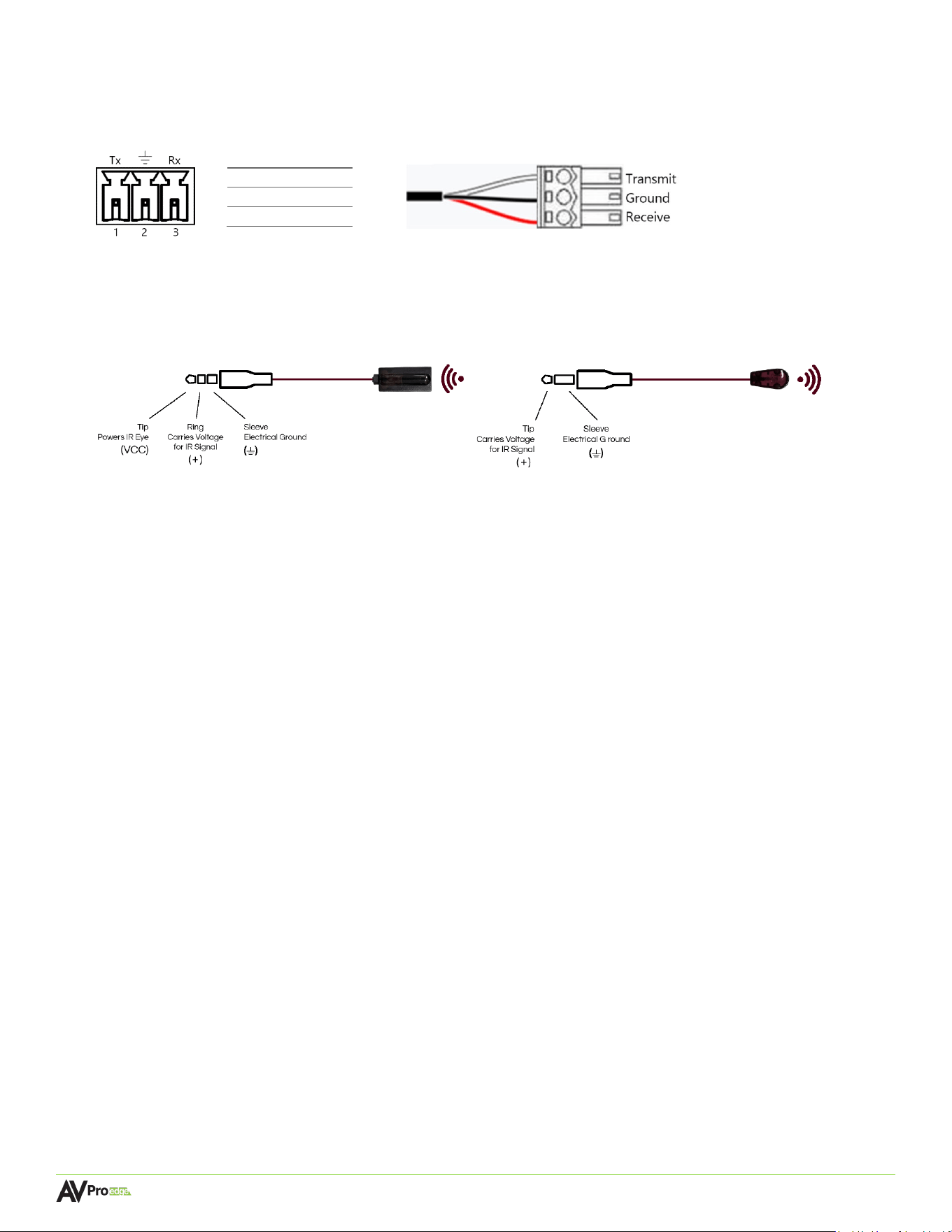
4.7 RS-232 Wiring
Serial control connections are made using the provided 3-pin terminal block connector. The wire slips into the
hole and locks with a screw located at the top of the connector.
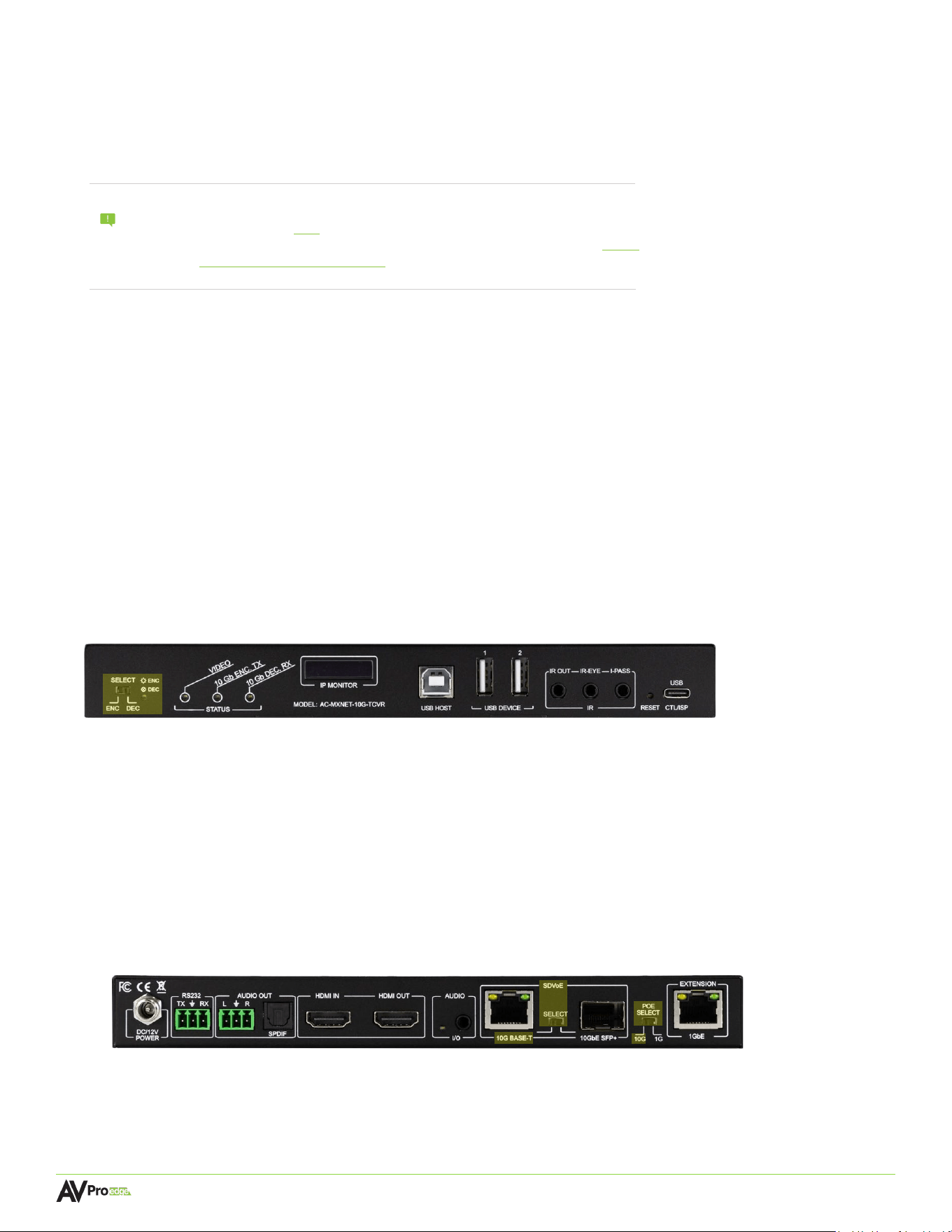
4.8 IR Wiring
IR connections are made using the provided 3.5mm IR Emitter and IR Eye (receiver).
PIN 1
Transmit
PIN 2
Ground
PIN 3
Receive
Stereo 3.5mm (TRS) IR Eye
Mono 3.5mm (TS) IR Emitter
Page 24
MXNET 10G SDVoE® USER MANUAL
All the MXNet devices are preconfigured out-of-the-box
for AV-over-IP applications, meaning the network
settings of each individual transceiver, CBOX, and MXNet network switch do not need to be configured separately.
Simply make the physical connections between the devices and MXNet will automatically discover each transceiver,
receive each MAC address, auto-assign IP addresses and multicast channels, and replicate the physical system in a
digital space that can be accessed by using the Mentor web interface.
5.1 Co
nnecting the Devices
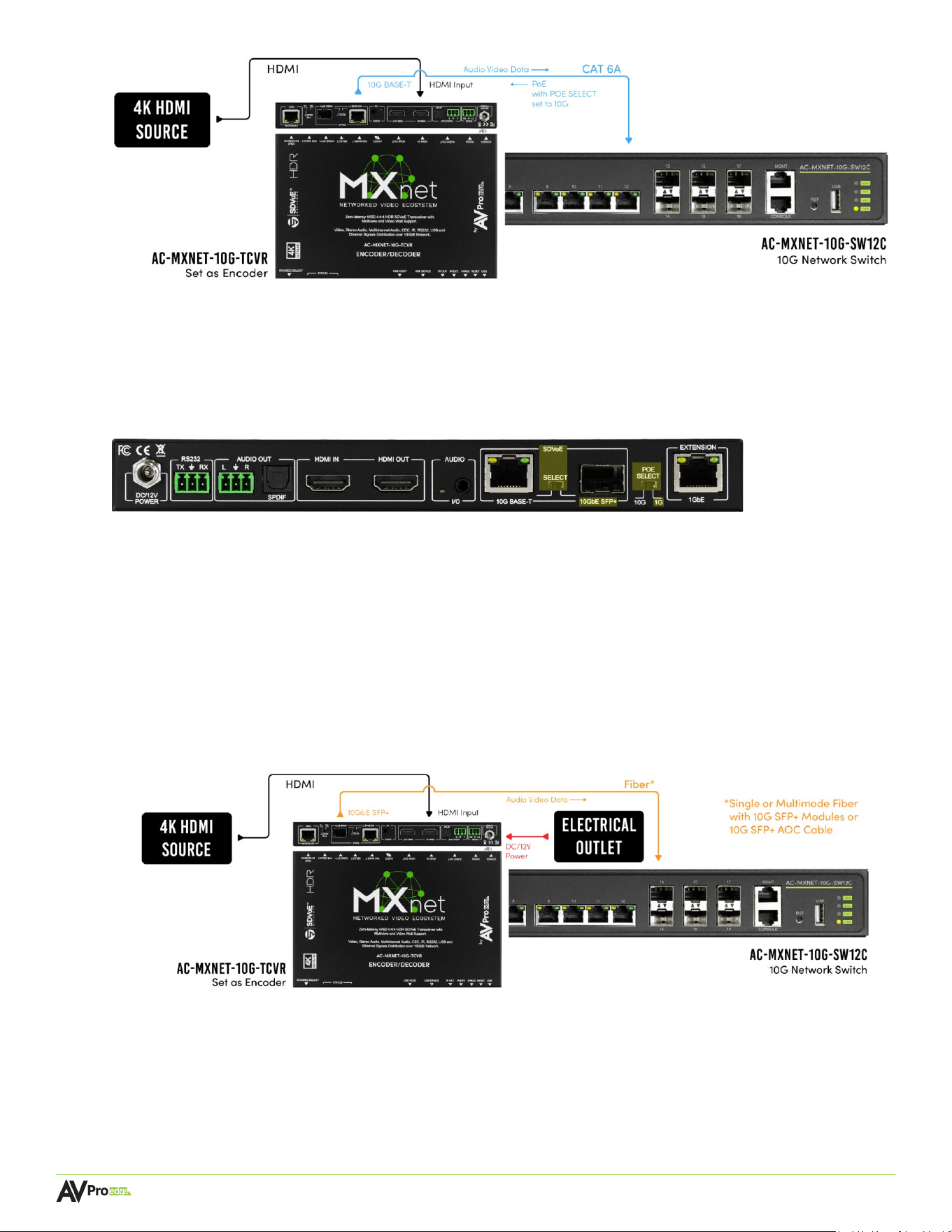
1. Select the Transceiver Mode. The encoder and decoder (transmitter/receiver) are combined into one
chassis with a simple toggle switch to select application functionality. Be default, the transceiver is set to
decoder mode.
Flip the ENC/DEC SELECT toggle switch to set the transceiver to encoder or decoder mode.
AC-MXNET-10G-TCVR (Front Panel)
To the right of the toggle switch is a blue LED that indicates the selected mode:
LED is on = Encoder mode LED is off
= Decoder mode
2. Select the Transceiver Port Type. The 10GbE copper and fiber ports on the transceiver allow
flexibility to utilize the cabling that best fits the specific installation.
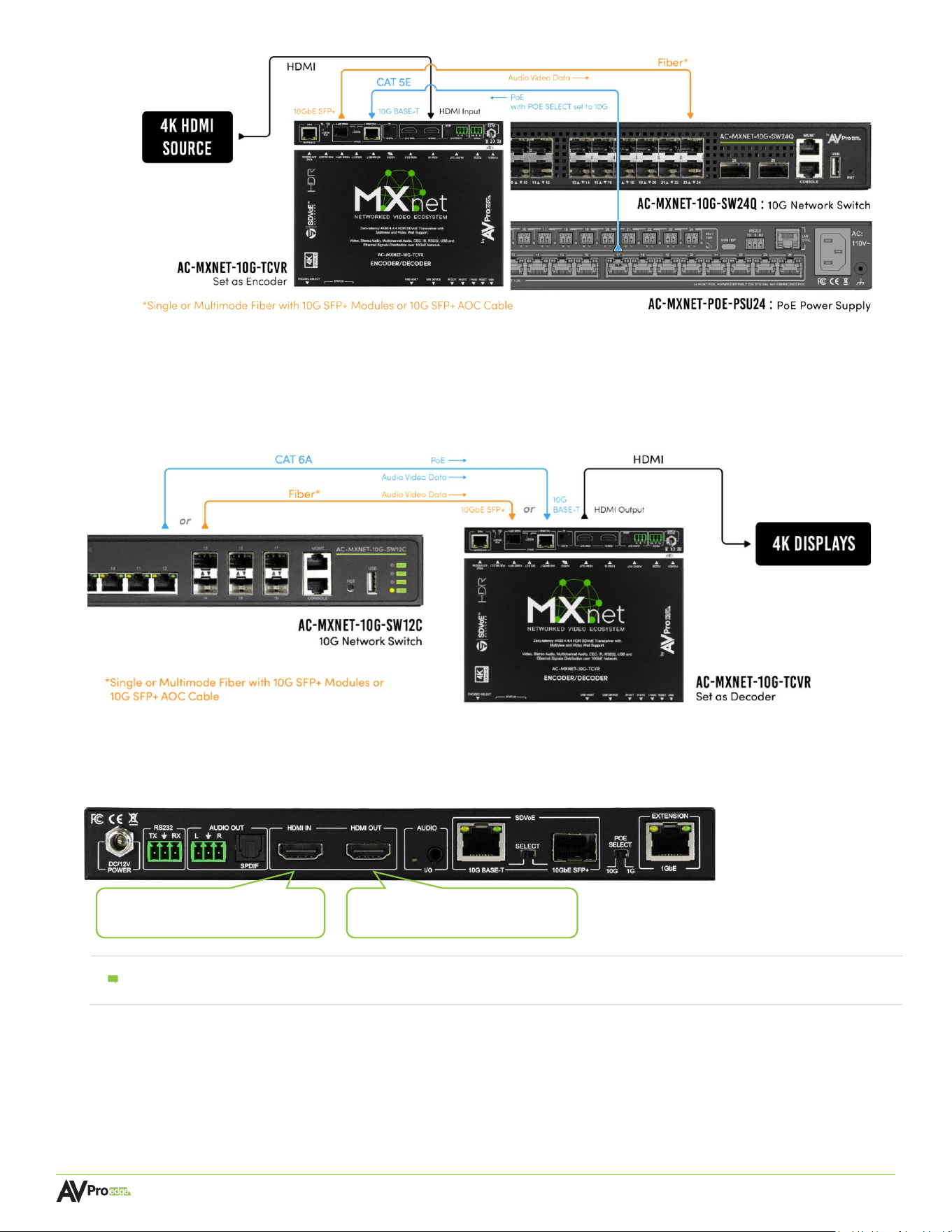
5.2 For Category Cable Connections
Flip the SDVoE SELECT toggle switch to the 10G BASE-T setting, then flip the POE SELECT toggle
switch to the 10G setting.
AC-MXNET-10G-TCVR (Rear Panel)
Connect the SDVoE 10G BASE-T port on the transceiver to a 10G Copper PoE port on the network switch.
5 Installation
NOTE:
If using a 10G Network switch provided by a third party, please follow the
“Third Party Switch Requirements” documentation found on our Knowledge
Base, direct link here. If your installation is more adv
anced (VLAN
implementation, stacking more than 2 switches, etc.), please use the “Switch
Basic Operation & Configuration” article on our Knowledge Base for a
baseline, or reach out to our support team for further assistance.
Page 25
MXNET 10G SDVoE® USER MANUAL
Connect the power supply to the network switch. By using this method, no additional cabling is
required to power the transceiver as it will be powered by the network switch via PoE (Power-over-
Ethernet).
5.3 For Optical Fiber Connections
Flip the SDVoE SELECT toggle switch to the 1G setting.
AC-MXNET-10G-TCVR (Rear Panel)
Connect the SDVoE 10GbE SFP+ port on the transceiver to a 10G SFP+ port on the network switch (or
an SFP28 port on the AC-MXNET-10G-SW12C).
Connect the power supply to the network switch.
5.3.1 Power with Fiber Connections
Fiber optic cables do not carry an electrical current and cannot supply power from one device to
another. There are two ways to power the transceivers when using fiber optic connections:
A. Fiber with Local Power:
B. Fiber with PoE Power Supply:
Page 26
MXNET 10G SDVoE® USER MANUAL
3. Connect the Transceivers to the Network Switch. Once the transceiver modes have been selected
and the port types have configured for Category or fiber cabling, connect the transceivers to the
network switch.
4. Connect the Transceivers to their HDMI Devices. Connect the HDMI source devices to the HDMI IN
port on the encoders, and the HDMI output devices to the HDMI OUT port on the decoders.
AC-MXNET-10G-TCVR (Rear Panel)
NOTE:
When the transceiver is set to encoder mode, the HDMI OUT port functions as an HDMI Loop Out
port. When the transceiver is set to decoder mode, the HDMI IN port has no function.
On Encoders: Connect to the HDMI
source device with an HDMI cable
On Decoders: Connect to the HDMI
output device with an HDMI cable
Page 27
MXNET 10G SDVoE® USER MANUAL
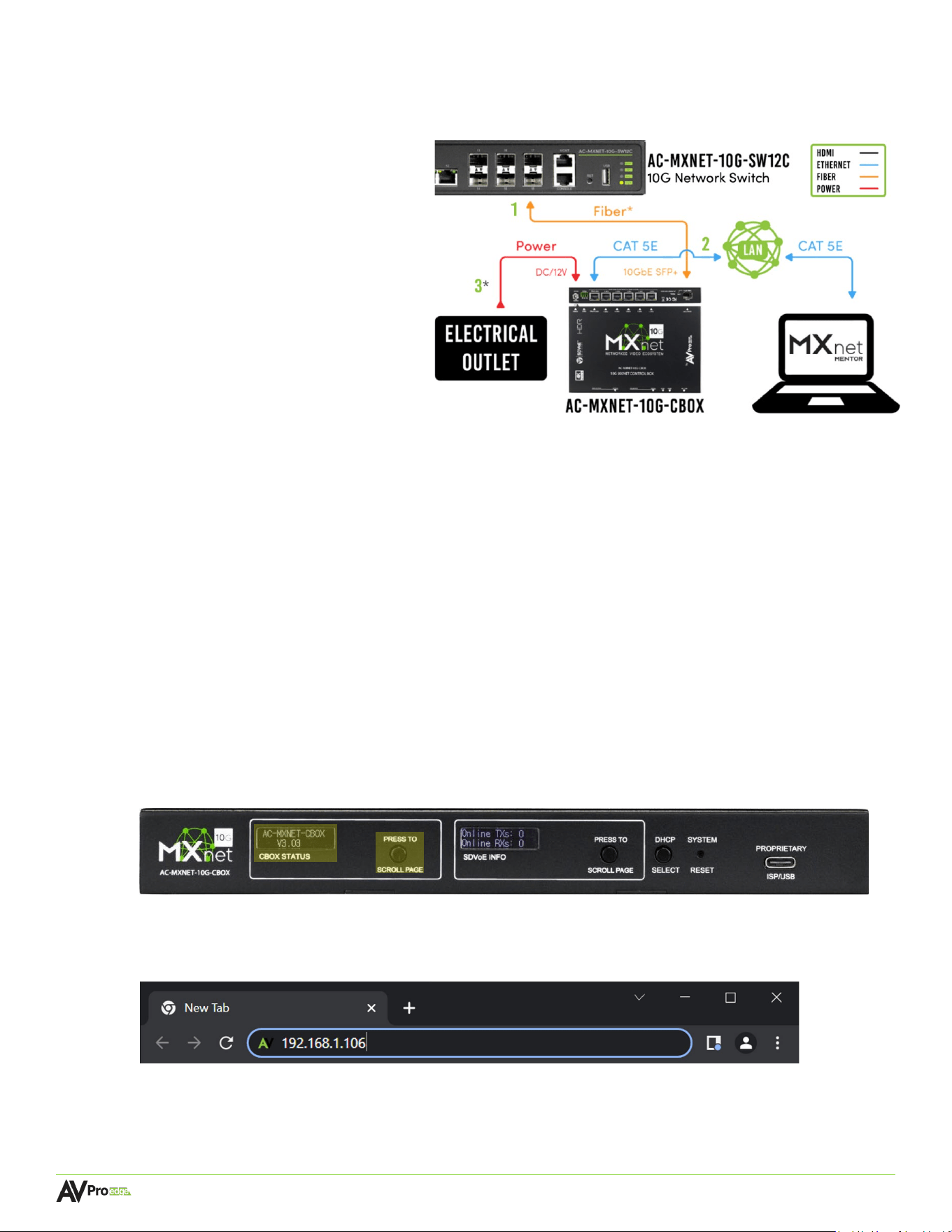
1 Connect the SDVoE port on the CBOX
to a 10G SFP+ port on the network
switch (or an SFP28 port on the AC-
MXNET-10G-SW12C). An SFP+ -> RJ45
module can also be used.
2 Connect the PORT 6 (PoE) port to the
LAN, router, or third-party control
system for power and/or access to
the Mentor interface.
3 *If PoE is unavailable, use the DC/12V
power inlet to locally power the
CBOX by connecting it to an
electrical outlet.
6 The Mentor Web UI
Mentor is MXNet’s proprietary HTML5-based setup and control web interface that contains a variety of easy
to use, yet powerful tools and settings to help streamline the installation process. It comes pre-installed on
every AC-MXNET-CBOX and is purposefully designed for easy navigation and monitoring of the entire
system.
Once all the devices are connected and powered on, the Mentor homepage can be accessed using the
following steps below.
6.1 Accessing and Navigating Mentor
1 Locate the IP address on the CBOX by pressing the CBOX STATUS button to cycle through all the
different network settings, including the IP address.
AC-MXNET-10G-CBOX (Front Panel)
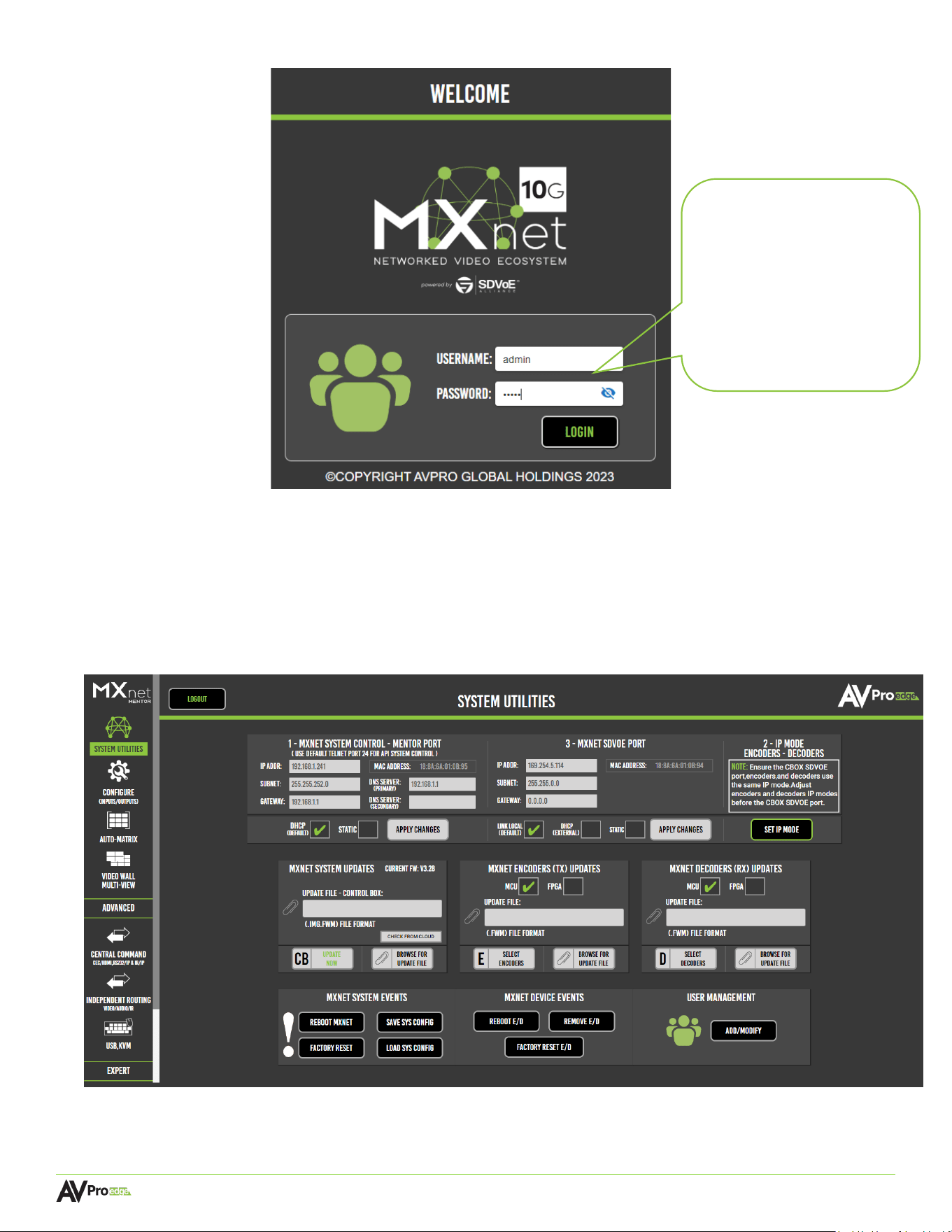
2 Open a new tab in any web browser and type in the CBOX’s IP address. This will open the Mentor web
interface welcome page.
5. Connect the CBOX to the Network Switch.
Page 28
MXNET 10G SDVoE® USER MANUAL
Both fields are case sensitive and can be changed at any time once Mentor is accessed.
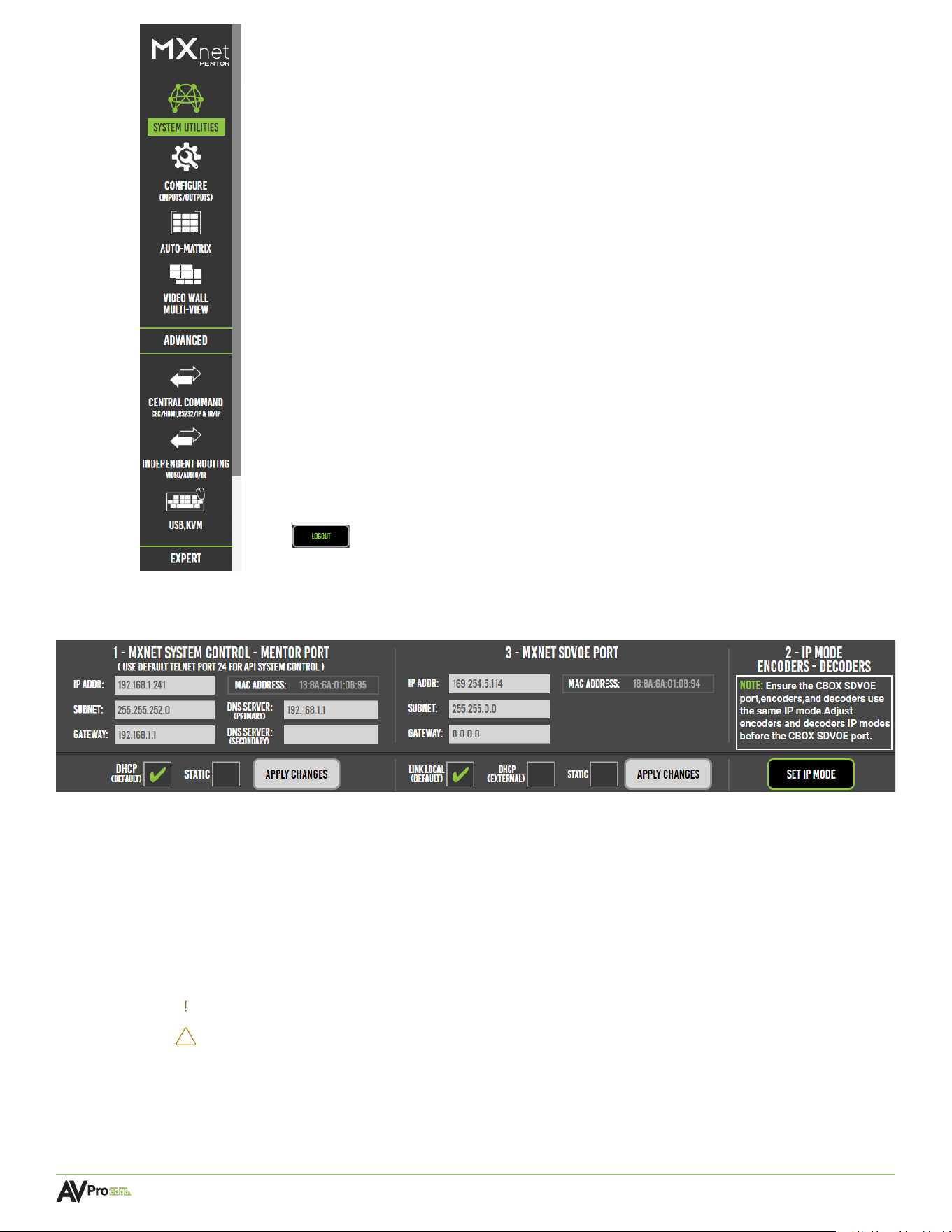
6.2 System Utilities
After successfully logging in, users will be taken to the Mentor home screen with System Utilities as the
default page. This page shows the IP address for MXNet and the current firmware version on the CBOX.
From here, the MXNet devices can be updated to their latest versions of firmware, along with options to
reboot the CBOX, reboot/remove the transceivers, and also factory reset them.
• To navigate through all the different pages, use the scroll bar and select the icons located on
the left-side column of the page.
Default Login
Credentials
Username: admin
(all lowercase)
Password: admin
(all lowercase)
3 Enter in the default username and password below to log in.
Page 29
MXNET 10G SDVoE® USER MANUAL
• To log out of Mentor, select the logout
button
in the top-left corner of the page.
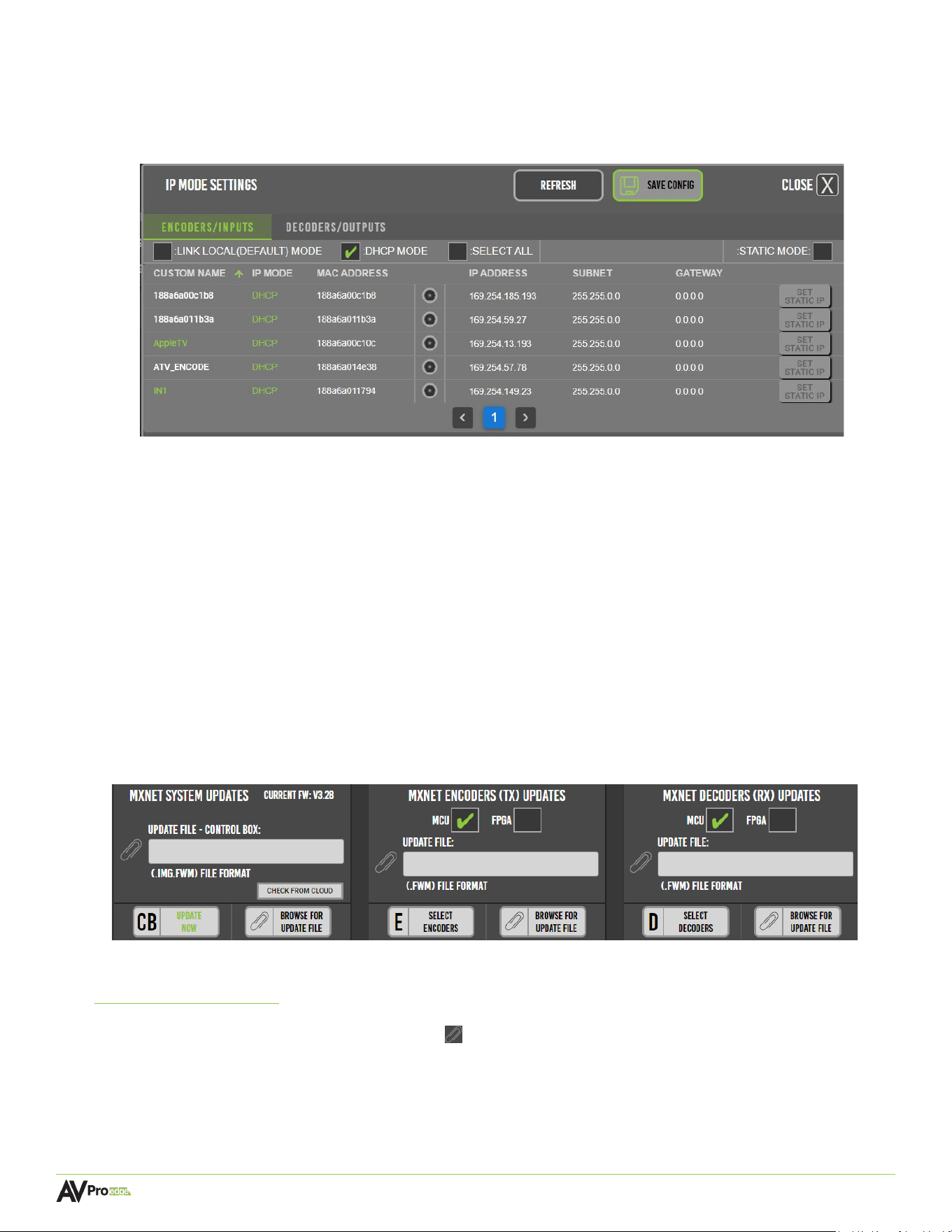
6.2.1 LAN and AV Network Configurations
This section provides network connection settings; it is divided into two sections:
MXNET SYSTEM CONTROL – MENTOR/LAN PORT
This section is for setting an IP address for LAN and CPU connections. The default setting is
DHCP IP mode but can be changed to STATIC once communication is established with the
CBOX.
MXNET SDVOE PORT
This section is used for changing the IP mode for the SDVOE port (the port that communicates
to the MXNet SDVOE network). Options are “Link Local (default)”, “DHCP (external)” or “Static”
IMPORTANT: It is highly recommended to leave the IP mode set to LINK LOCAL and not
change it to DHCP or STATIC unless the system is being installed in a large
corporate enterprise or commercial network setting where an IT department
will manage all network nodes, as this may require additional network
configurations that must be made to all transceivers prior to making this
change, or the 10G CBOX will be unable to communicate to your devices.
Page 30
MXNET 10G SDVoE® USER MANUAL
IP MODE – ENCODERS - DECODERS
This section is used for changing the IP mode for the 10G Transceivers. After clicking “SET IP
MODE”, a window will populate as shown below:
MXNet 10G Transceivers are set to “DHCP” by default. If no DHCP server establishes communication to
the TCVR after 10 seconds on bootup, the TCVR will self-assign a link-local address. If a DHCP server is
introduced to the system while the devices are powered on, they may need to be rebooted before the
transceivers will obtain a DHCP lease.
You can configure your transceivers to have a static IP address by clicking “STATIC MODE” on the top right
column, then choose “SET STATIC IP” for the desired transceiver. You will now be able to modify the IP
address configuration of the chosen transceiver. Once adjustments have been made, choose “Apply”,
then
“SAVE CONFIG” at the top, and the TCVR will save the new IP address configuration.
6.3.2 MXNet Firmware Updates
The current firmware version on the CBOX can be viewed and updated from here, along with the
encoders and decoders. Firmware updates can be performed on multiple or individual encoders
and decoders by selecting them once the firmware file has been added to the Update File field.
The latest firmware for the encoders, decoders, and CBOX can be located at
Support.AVProEdge.com and can be installed once downloaded.
To update firmware, select the paperclip icon next to the Update File field of the device you wish
to update, then select the firmware file for the MXNet device.
Page 31
MXNET 10G SDVoE® USER MANUAL
6.3.3 MXNet Events
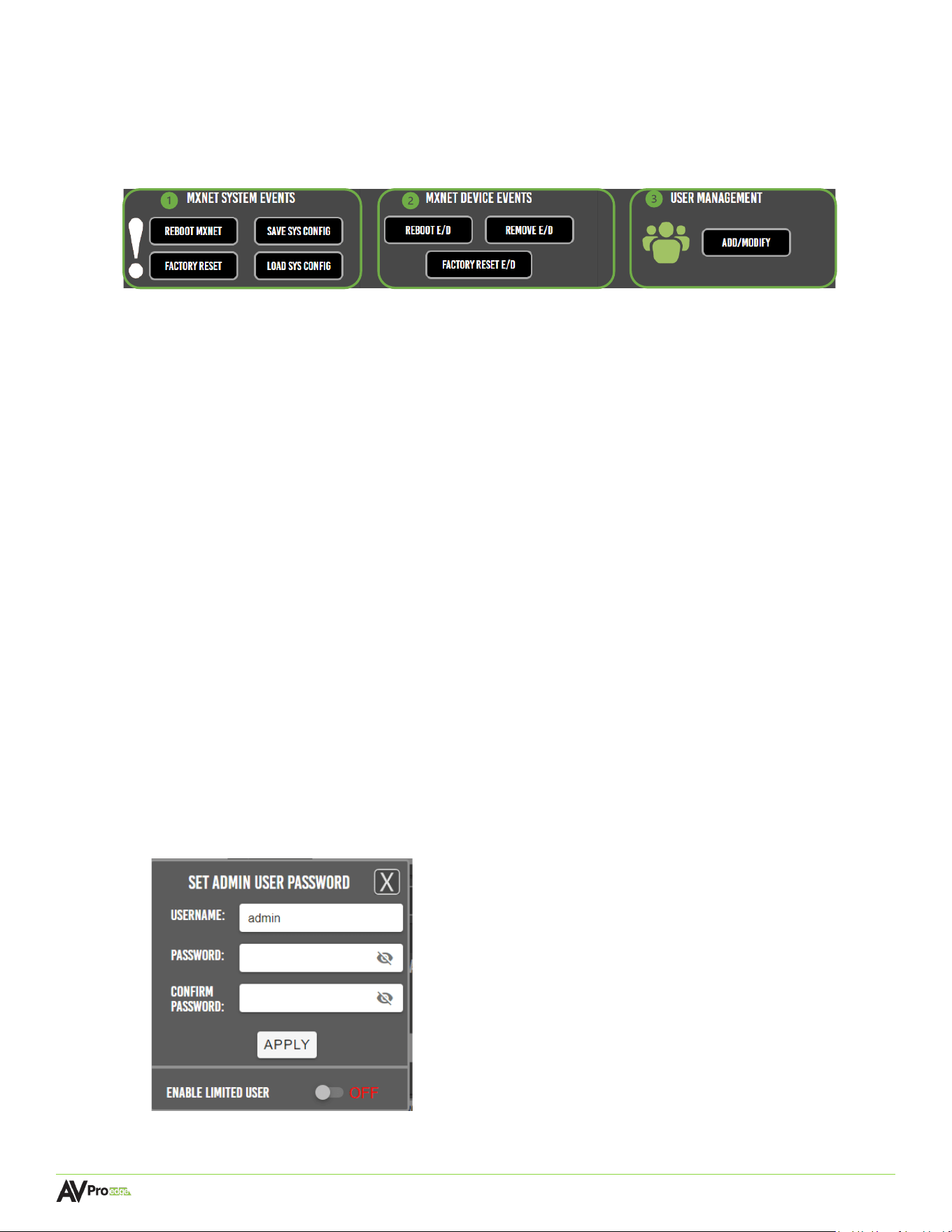
This section provides commands for rebooting, removing, and factory resetting various MXNet
devices. It also includes options for managing different user levels for limiting access and
permission settings.
2 MXNET DEVICE EVENTS (device specific)
The following commands are provided in this section:
• Select the reboot E/D button to restart one or multiple encoders and decoders.
• Select the remove E/D button to remove one or multiple encoders and decoders from
Mentor.
• Select the factory reset E/D button to restore one or multiple encoders and decoders
back to factory default settings.
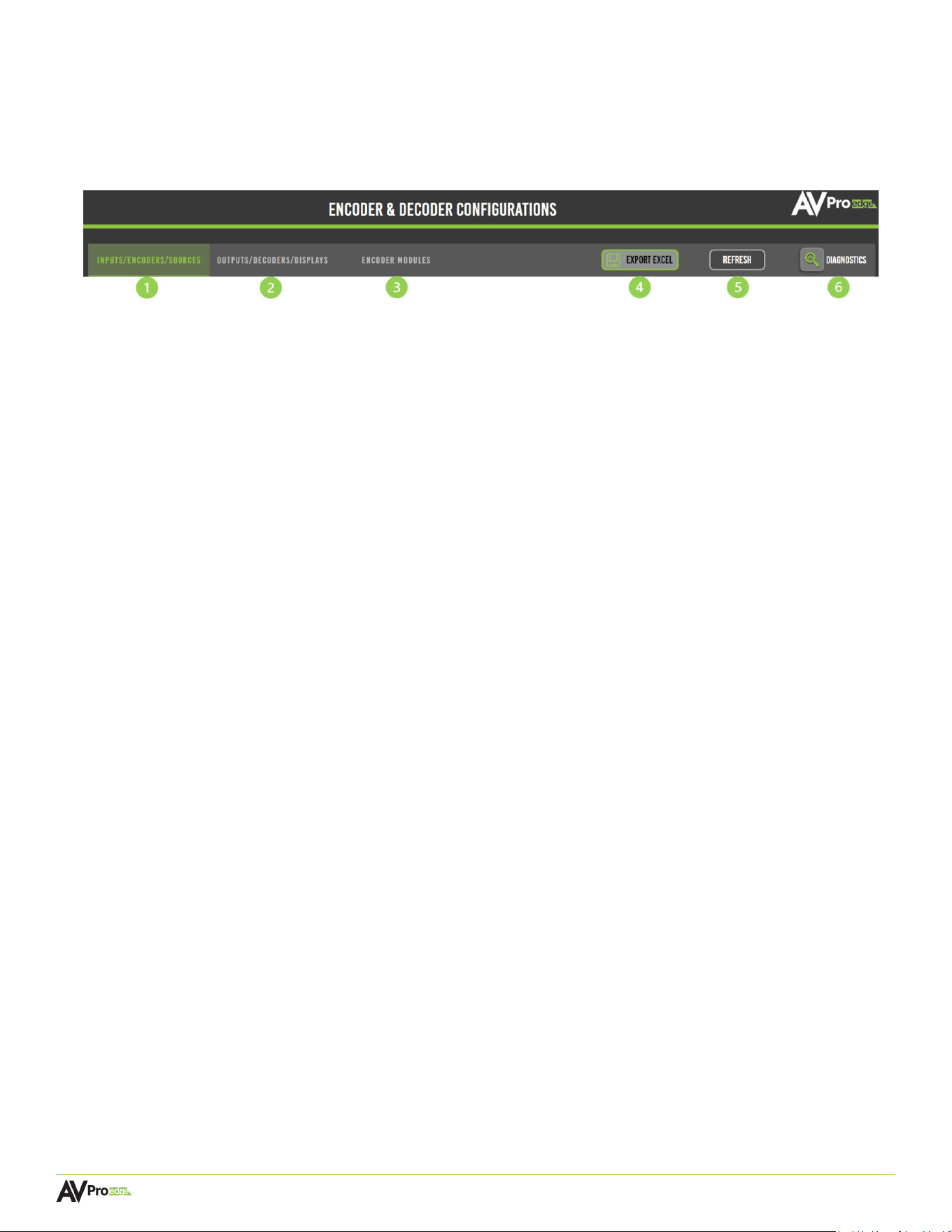
3 USER MANAGMENT
• Select the add/modify button to change the admin user login credentials or to add a
limited user account.
• Select the enable limited user toggle button to add a
limited user account, including a separate username
and password. The limited user account will only have
access to the Auto-Matrix and Video Wall pages within
Mentor.
• If the toggle button is set to OFF after entering a
username and password for the limited user account,
the limited user account’s username and password will
be saved within Mentor, and the limited user account
cannot access Mentor until the admin account is
accessed and the toggle button is set back to ON
again.
1 MXNET SYSTEM EVENTS
The following commands are related to the CBOX’s functionality, and provided in this section:
• Select the reboot MXNet button to restart the MXNet CBOX.
• Select the factory reset button to restore all CBOX back to factory default settings.
• Select the save sys config button to download a .cfg file of the CBOX’s current settings and
configurations.
• Select the load sys config button to upload a previously saved .cfg file and apply it to all
system settings and configurations.
Page 32
MXNET 10G SDVoE® USER MANUAL
6.4 Co
nfigure Inputs and Outputs
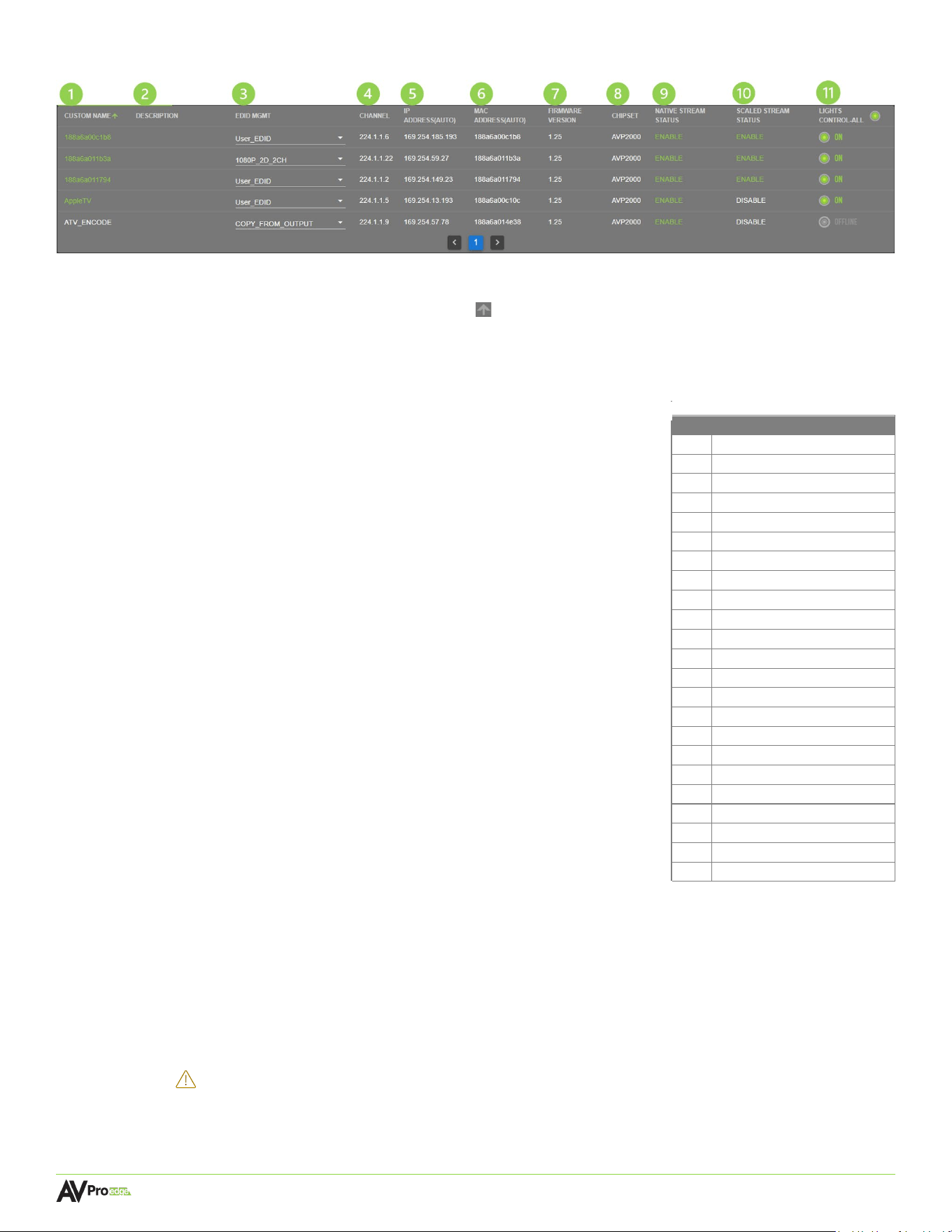
The Encoder & Decoder Configurations pages provide many useful tools and settings for configuring the
encoders and decoders (transceivers). The first three tabs will be highlighted in green to indicate which
page is currently selected.
1 INPUTS/ENCODERS/SOURCES
Shows a list of all the encoders connected to MXNet along with various options for configuration.
2 OUTPUTS/DECODERS/DISPLAYS
Shows a list of all the decoders connected to MXNet along with various options for configuration.
3 ENCODER-MODULE (for AVDM Encoders only)
Shows a list of all the downmixing encoders connected to MXNet along with various
options for configuration.
4 EXPORT EXCEL
Select to download a .xlsx file (Microsoft Excel Worksheet) of all the current settings and
configurations of the encoders and decoders.
5 REFRESH
Select to refresh the web page.
6 DIAGNOSTICS
Select to view critical system information for the encoders and decoders.
Page 33
MXNET 10G SDVoE® USER MANUAL
6.4.1 Inputs/Encoders/Sources
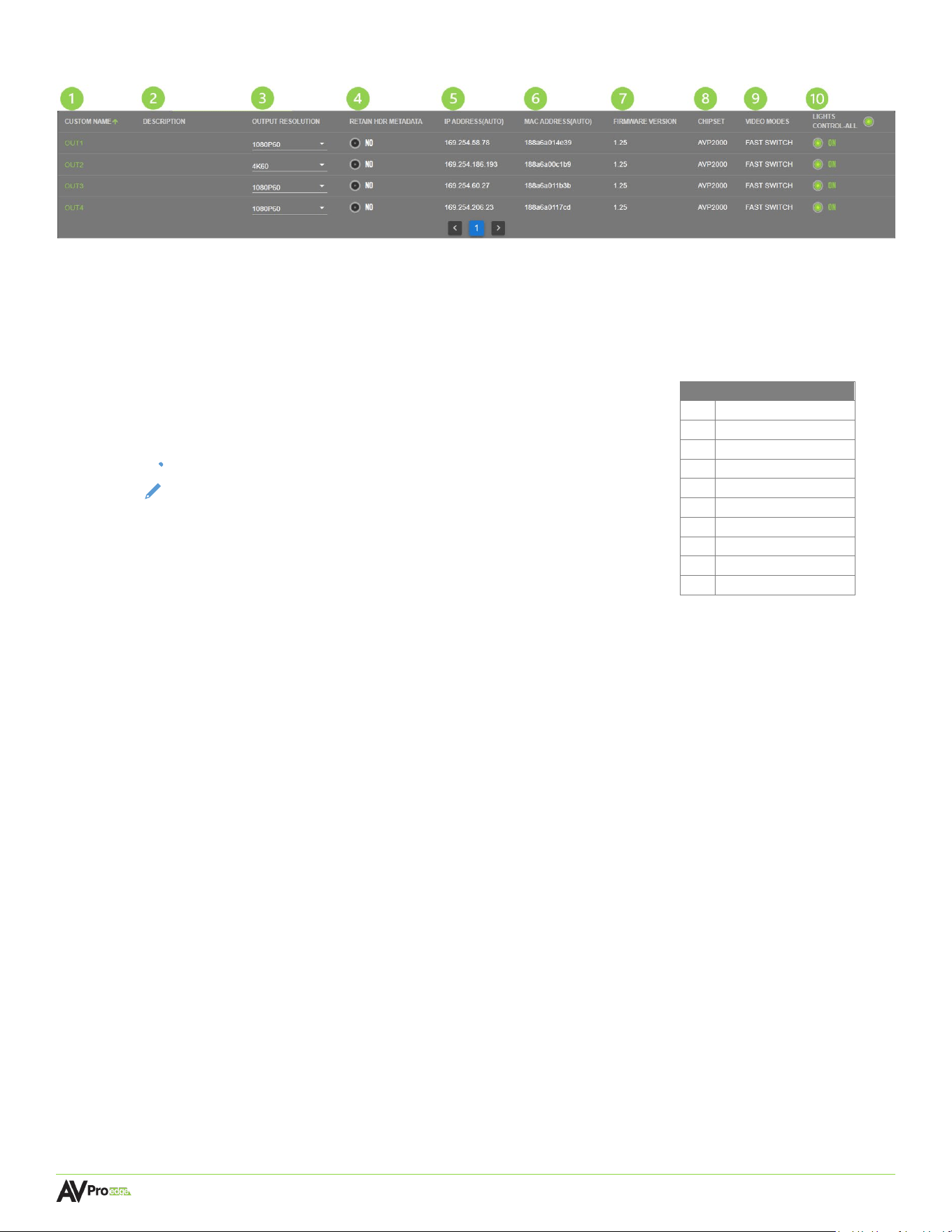
1 CUSTOM NAME (default MAC address)
Text field, limit of 12 characters. Type in a custom name and hit Enter to apply it. Custom names
can be sorted by selecting the arrow button to toggle between ascending/ descending
alphanumerical order.
2 DESCRIPTION
Text field, limit of 12 characters. Type in a custom description and hit the Enter key to apply it.
EDID SETTINGS
1 1080P
2D 2CH
2 1080P
2D 6CH
3 1080P
3D 2CH
4 1080P
3D 6CH
5 4K 30Hz 3D
2CH
6 4K 30Hz 3D
6CH
7 4K 30Hz 3D
8CH
8 4K 60Hz 3D
2CH
9 4K 60Hz 3D
6CH
10 4K 60Hz 3D
8CH
11 1080P
2D 2CH HDR
12 1080P
2D 6CH HDR
13 1080P
3D 2CH HDR
14 1080P
3D 6CH HDR
15 4K 30Hz 3D
2CH HDR
16 4K 30Hz 3D
6CH HDR
17 4K 30Hz 3D 8CH HD
R
18 4K 60Hz 3D
2CH HDR
19 4K 60Hz 3D
6CH HDR
20 4K 60Hz 3D
8CH HDR
21 1920 x 1200 3D 2CH HD
R
22 U
SER EDID
23 COPY FROM OUTP
UT
3 EDID MGMT
Dropdown menu containing 21 EDID presets and one User EDID slot
for a custom EDID or a copied EDID from the transceiver’s HDMI
output. Click on the dropdown arrow to select an EDID for the source.
4 CHANNEL
Shows the multicast channel number of the encoder. This is
automatically assigned by the CBOX and contains the video,
audio, IR, USB, and control signals of the encoder. Switching to a
source allows the decoder to subscribe to the encoder’s channel
in order to receive the encoder’s signals.
5 IP ADDRESS (auto)
Shows the IP address of the encoder. The network switch will
automatically assign this to the encoder once a connection has
been made.
6 MAC ADDRESS (auto)
Shows the MAC address of the encoder. This is a factory setting
that cannot be changed.
7 FIRMWARE VERSION
Shows the version of firmware currently installed on the
transceiver. This can be updated on the System Utilities page
under the MXNet Encoders (Tx) Updates section.
8 CHIPSET
Shows the current chipset version of the encoder.
9 NATIVE STREAM STATUS
When enabled, indicates the native stream from the source is passthrough, untouched
signal. This setting can be changed in the DIAGNOSTICS page for the encoders.
10 SCALED STREAM STATUS
Shows what’s being utilized when output scaling is enabled, as well as multiview generation which
uses scaled stream only. This setting can be changed in the DIAGNOSTICS page for the encoders.
CAUTION:
If the source resolution is set at 4K (30Hz or 60Hz) and both NATIVE
and SCALED STREAMS are enabled, this can exceed the bandwidth
available,
resulting in video distortion/tearing (applies to VIDEO WALL MULTI-
VIEW settings as well).
Page 34
MXNET 10G SDVoE® USER MANUAL
6.4.2 Outputs/Decoders/Displays
1 CUSTOM NAME (default MAC address)
Text field, limit of 12 characters. Type in a custom name and hit the Enter key to apply it.
2 DESCRIPTION
Text field, limit of 12 characters. Type in a custom description and hit the Enter key to apply it.
3 OUTPUT RESOLUTION
Dropdown menu containing scaling resolutions and video modes.
Click on the dropdown arrow to select an output resolution for the
display.
NOTE: PASS-THROUGH sends an untouched video signal through
the decoder to the display
STREAM OFF disables the output stream entirely so no
signal is present on the display
When enabling output scaling, please be aware that any
9
signal outputting to your display will be compressed down to
10
an RGB 8-bit signal. This may result in some banding
appearing on your video output, especially if sending HDR
metadata.
OUTPUT RESOLUTION
1 P
ASS-THROUGH
2 720P
50Hz
3 720P
60Hz
4 1080P
24Hz
5 1080P
50Hz
6 1080P
60Hz
7 4K 30Hz
8 4K 50Hz
4K 60Hz
STREAM OFF
Page 35
MXNET 10G SDVoE® USER MANUAL
4 RETAIN HDR METADATA
If the Output Resolution scaling is not set to PASS-THROUGH, a toggle button will appear in this field
instead of N/A. Selecting this will allow HDR metadata to be retained when switching between sources
with Output Resolution scaling enabled.
5 IP ADDRESS (auto)
Shows the IP address of the decoder. The network switch will automatically assign this to the decoder
once a connection is made.
6 MAC ADDRESS (auto)
Shows the MAC address of the decoder. This is a factory setting that cannot be changed.
7 FIRMWARE VERSION
Shows the version of firmware currently installed on the decoder. This can be updated on the System
Utilities page under the MXNet Decoders (Rx) Updates section.
8 CHIPSET
Shows the current chipset version of the decoder.
9 VIDEO MODES
GENLOCK MODE: Enabled when Output Resolution is set to PASS-THROUGH. Latency is reduced to 0.1ms
(or 1/400
th
of a frame) for seamless video output.
FAST SWITCH: Enabled when Output Resolution is not set to PASS-THROUGH. Switching is between one
to two frames (approximately 17-34 milliseconds) which is visually imperceptible. The sink device will
also retain the same video signal when switching sources, meaning no re-syncing is needed, resulting in
much faster video switching.
10 LIGHTS CONTROL
Toggle button, allows for control of the front panel LEDs on the decoder, and can be done on all or
individually selected decoders. Click to toggle between FLASH, OFF, and ON.
NOTE:
When the transceiver is set to GENLOCK MODE (Passthrough), the sink device will need to re-sync if a
new video signal is introduced, which will increase switching times depending on the speed the sink
device will re-sync with the new video signal.
Page 36
MXNET 10G SDVoE® USER MANUAL
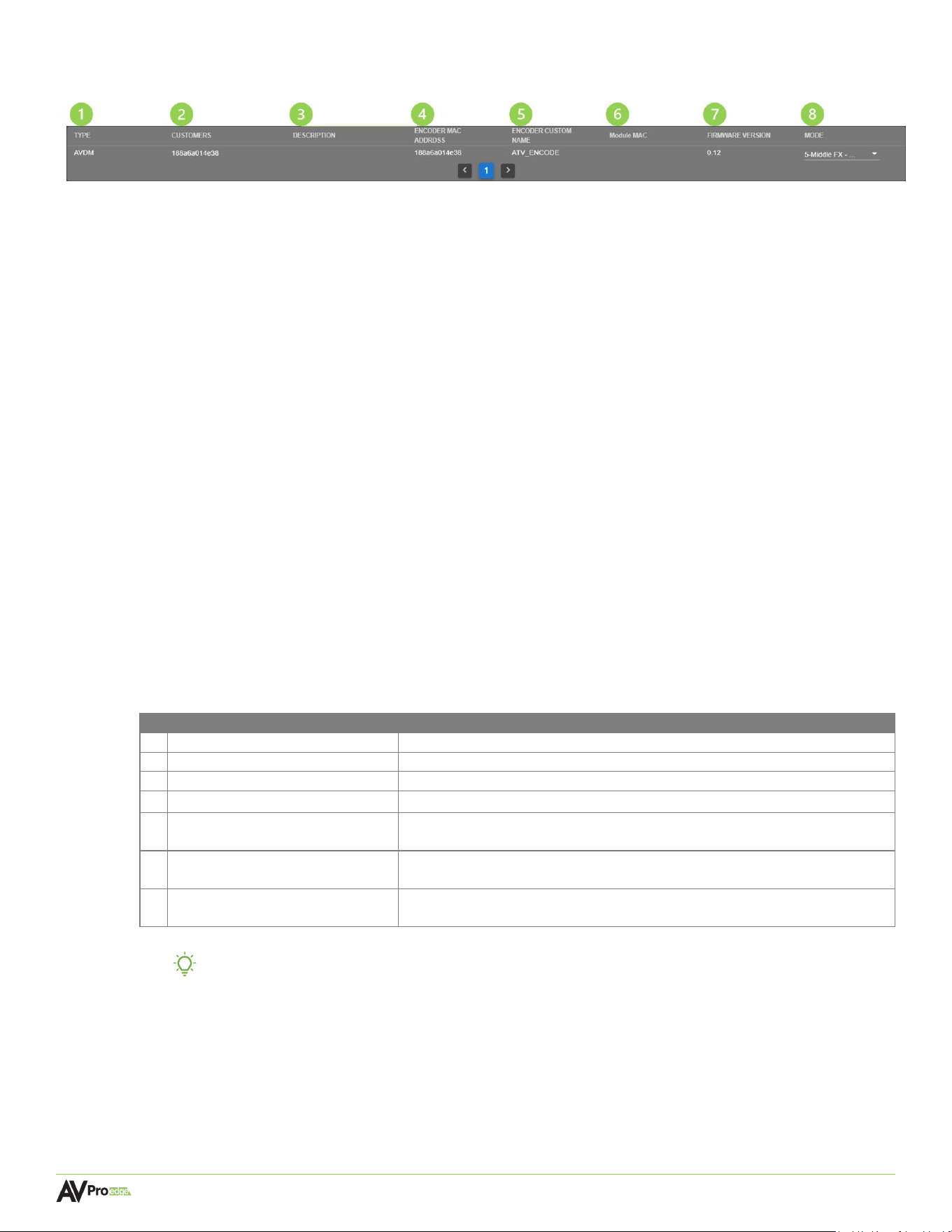
6.4.3 Encoder Module (AVDM Encoders only)
1 TYPE
Shows a list of all the AVDM encoders connected to MXNet.
2 CUSTOMERS
Text field, limit of 12 characters. Type in a custom name and hit the Enter key to apply it.
3 DESCRIPTION
Text field, limit of 12 characters. Type in a custom description and hit the Enter key to apply it.
4 ENCODER MAC ADDRESS
Shows the MAC address of the encoder. This is a factory setting that cannot be changed.
5 ENCODER CUSTOM NAME
Shows the encoder’s assigned custom name from the Inputs/Encoders/Sources page.
6 MODULE MAC
Shows the MAC address of the AVDM module. This is a factory setting that cannot be changed.
7 FIRMWARE VERSION
Shows the version of firmware currently installed on the encoder. This can be updated in the Sy
stem
Utilities page under the MXNet Encoders (Tx) Updates section.
8 MODE
Dropdown menu, allows the encoder to adjust the audio downmixing by selecting one of the following
preset modes:
TIP: AVPro Edge and MXNet provides integrators with seven downmixing preset options,
allowing them to tailor the downmixing of a source’s audio, similar to how most AVR’s
and pre-processors can adjust the level of an individual channel in their surround mix.
AVDM PRESET MODES
1
STD FX (default)
Standard downmixing mode
2
Low Center+
Center Mix increased to 60%
3
Mid Center+
Center Mix increased to 80%
4
High Center+
Center Mix increased to 100%
5
Middle FX (recommended)
Custom AVPro Mix, including full range of sound with pronounced Center
channel and small amount of LFE
6
Full FX (large 3-way systems)
Custom AVPro Mix, including full range of sound with extra Surround Mix and
more LFE
7
Voice FX (voice intelligibility)
Custom AVPro Mix, including Left, Center, and Right channels 100% mixed.
Surround Mix is reduced for minor effects
Page 37
MXNET 10G SDVoE® USER MANUAL
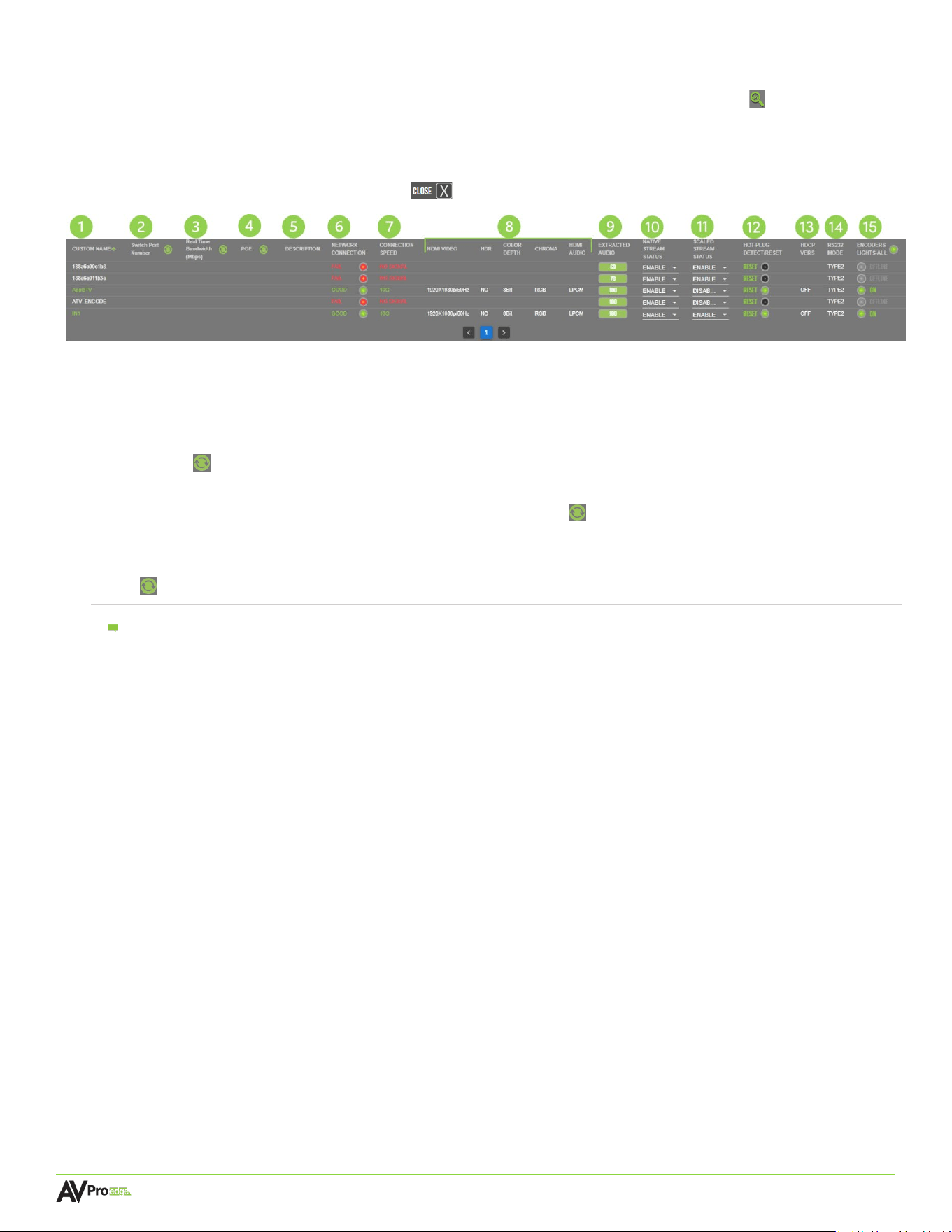
6.4.4 System Diagnostics
The System Diagnostics page can be accessed by selecting the magnifying glass button located in the
top-right corner of the Configure page. This opens a separate page that shows live information and provides
critical system data for advanced network tracking and cabling performance. The encoders and decoders
each feature their own separate Diagnostics page located on separate tabs at the top. To exit the System
Diagnostics page, select the close button to return to the Configure page.
1 CUSTOM NAME
Shows the encoder/decoder’s assigned custom name.
2 SWITCH PORT NUMBER
Shows which port on the network switch that the encoder/decoder is plugged into. Select the refresh
button to update the field.
3 REAL TIME BANDWIDTH (Mbps)
Shows the amount of bandwidth. Select the refresh button to update the field.
4 POE
Toggle button, allows PoE to be enabled or disabled to the encoder/decoder. Select the refresh button
to update the field.
5 DESCRIPTION
Shows the encoder/decoder’s assigned custom description.
6 NETWORK CONNECTION
Shows the quality of the network category cable connection, indicated by color:
Green Good, network connection is at 1G
Yellow Marginal, MXNet will automatically throttle bandwidth to 100Mbps
Red Failed, MXNet is unable to detect a connection to the encoder/decoder
7 CONNECTION SPEED
Shows the encoder/decoder’s network connection speed.
8 HDMI VIDEO & AUDIO
HDMI VIDEO Shows the resolution of the source’s video
HDR YES indicates the source is sending HDR metadata
NO indicates the source is sending SDR content
COLOR DEPTH Indicates the source is sending either 8-bit or 10-bit color depth
NOTE:
Options 2, 3, and 4 are only available if the CBOX can establish active communication to your MXNet
network switch via the “Switch Management” page.
CHROMA
HDMI AUDIO
Indicates the source is sending either RGB or YUV color space
Indicates the source is sending either PCM or LPCM audio
Page 38
MXNET 10G SDVoE® USER MANUAL
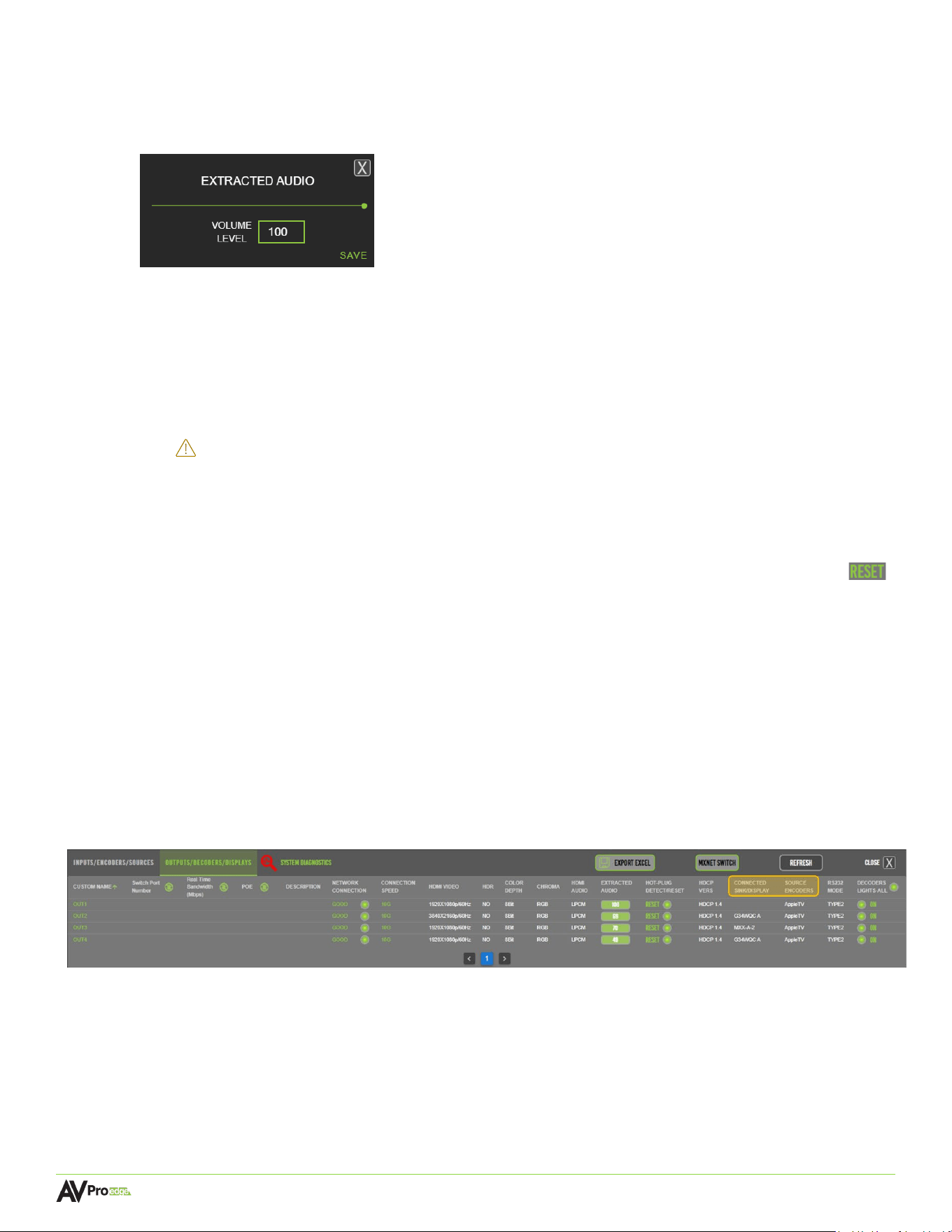
9 EXTRACTED AUDIO
Shows the volume level of the extracted audio. Selecting this will open a separate window with a slider
bar to adjust the volume. Select SAVE in the bottom right corner of the window to save changes.
10 NATIVE STREAM STATUS (INPUTS/ENCODERS/SOURCES Diagnostics Only)
Toggle button, when enabled, indicates the native stream from the source is passthrough, untouched
signal.
11 SCALED STREAM STATUS (INPUTS/ENCODERS/SOURCES Diagnostics Only)
Toggle button, shows what’s being utilized when output scaling for 4K is enabled, as well as multiview
generation which uses scaled stream only.
CAUTION:
If the source resolution is set at 4K (30Hz or 60Hz) and both NATIVE and
SCALED STREAMS are enabled, this can exceed the bandwidth available,
resulting in image distortion/tearing. (Applies to VIDEO WALL MULTI-VIEW
settings as well).
12 HOT-PLUG DETECT/RESET
Toggle button, green indicates a hot-plug detect has been identified by MXNet. Click on the reset
button to force a refresh of the HDMI signal between the connected devices.
13 HDCP VERS
Shows the version of HDCP detected from the connected device.
14 RS232 MODE
Shows the mode of RS-232 communication. This should remain as TYPE2.
15 ENCODER/DECODER LIGHTS
Toggle button, allows for control of the front panel LEDs on the transceiver, can be done to all or
individually selected transceivers. Click to toggle between FLASHING, OFF, or ON.
The two columns shown below are only available on the Outputs/Decoders/Displays diagnostics page.
CONNECTED SINK/DISPLAY
Shows the manufacturer’s display model or display that is connected to the decoder.
SOURCE ENCODERS
Shows the source signal routed to the decoder.
Page 39
MXNET 10G SDVoE® USER MANUAL
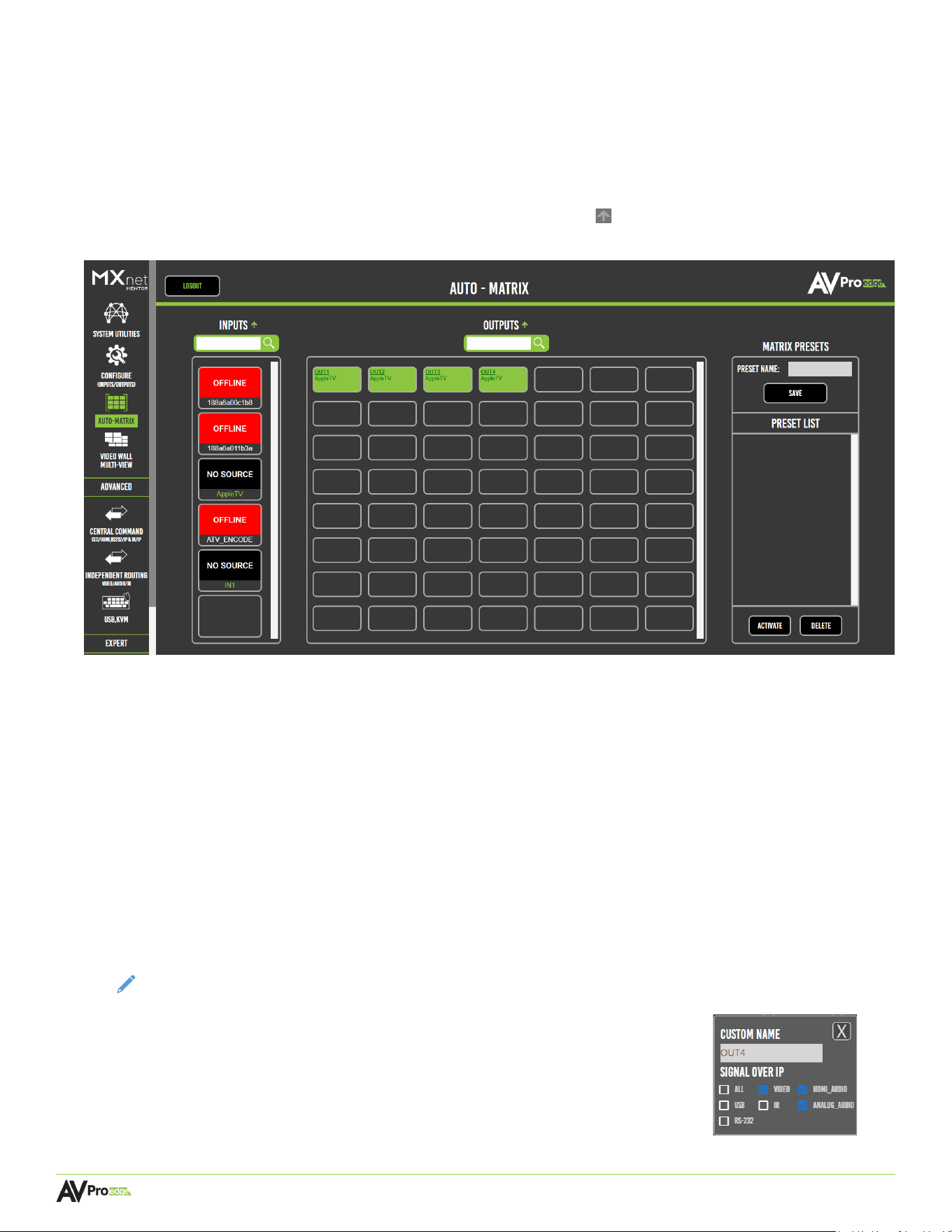
6.5 Auto-Matrix
The Auto-Matrix page layout consists of the Inputs column on the left, the Outputs grid in the middle, and the
Matrix Presets section on the right. Each individual tile functions as a selectable button and will auto-populate
the custom names from the Configure page as a label, highlighted by an orange border to indicate the selected
input and output(s).
Inputs and outputs can be sorted by clicking on the sort arrow button to toggle between ascending and
descending alphanumerical order. Search fields can be used to locate a specific endpoint.
6.5.1 Inputs
This column lists all the encoders, each one is represented as a labeled thumbnail that provides a preview
image of the connected source’s video signal and will automatically refresh every ten seconds. Each
thumbnail functions as a button that can be selected to route the connected source’s signals to any one or
more outputs. Inputs can be searched via their custom name by using the search bar directly below the
“INPUTS” label.
6.5.2 Outputs
All the decoders are shown in this grid, each one is represented as a separate output button that is labeled
with the decoder’s custom name and the source that is currently routed to it. Multiple outputs can be
selected at a time, indicated by an orange border, to route signals from any one of the connected source’s
input. Outputs can be searched via their custom name by using the search bar directly below the “OUTPUTS”
label.
NOTE: The decoder’s signal switching can be adjusted from this page by
right-clicking on an output. This will open an additional menu
where the signals can be selected for independent routing of video,
HDMI and analog audio, USB, IR, and RS-232 signals.
Page 40
MXNET 10G SDVoE® USER MANUAL
6.5.3 Matrix Switching
1 From the Inputs column, select the desired source’s thumbnail. This will highlight the thumbnail with
an orange border to indicate the selection was made.
2 From the Outputs grid, select the desired output(s) to route the selected source to. This will highlight
the output(s) with an orange border to indicate the selection was made.
3 Switching commands will now be sent to the source’s encoder and the output’s decoder(s), and the
selected source’s signals will now be present on the selected output(s).
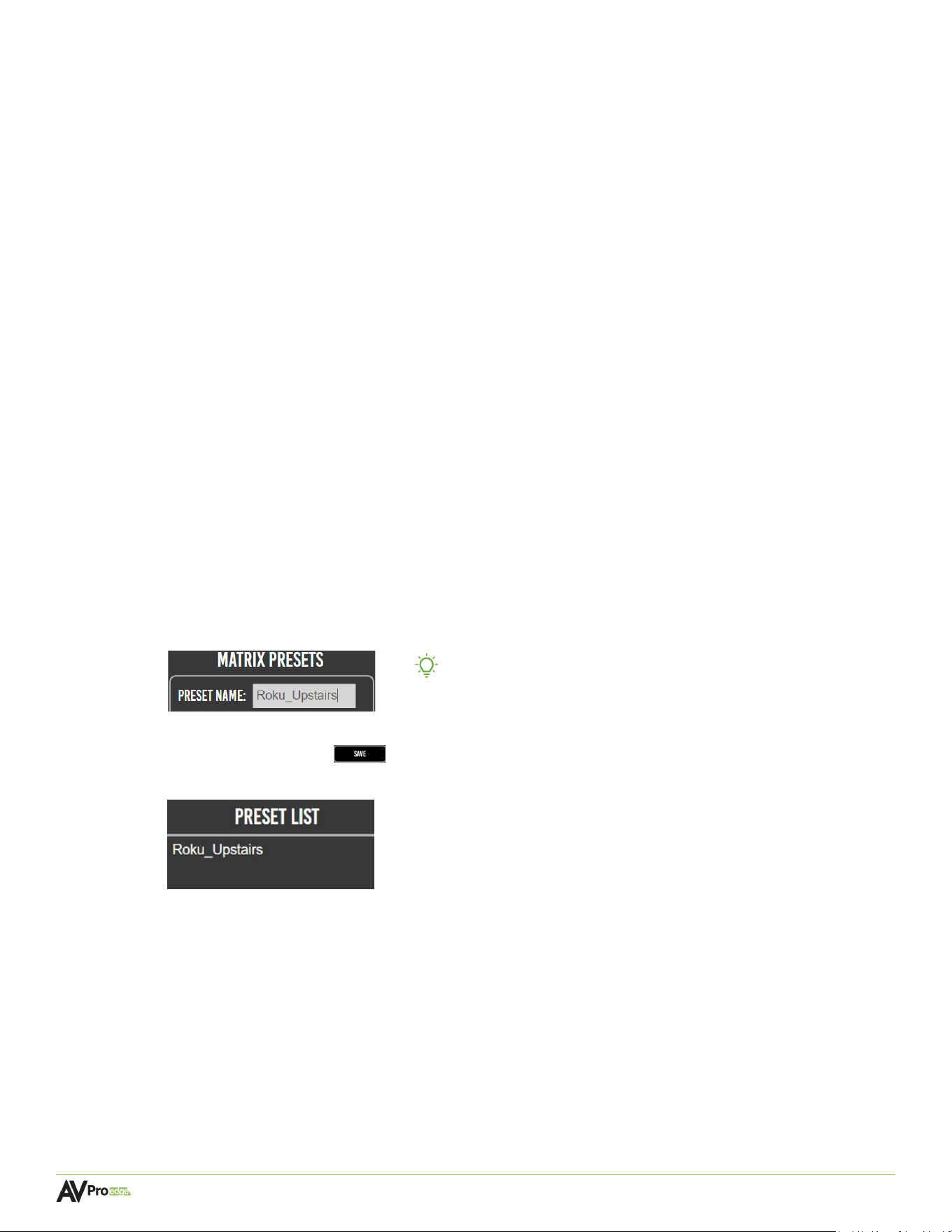
6.5.4 Matrix Presets
This feature provides an alternative to manually selecting and routing inputs to outputs, allowing switching
commands to be saved and recalled as a preset, along with the ability to name each saved preset.
Keep in mind that when saving and activating matrix presets, settings will be applied to all current switching
configurations on all the encoders and decoders.
6.5.5 Creating a Preset
1 First, select the desired inputs and switch them to the desired output(s) by using the previous steps
above.
2 Under the Matrix Presets section, enter the name of the current switching configuration into the
preset name field.
TIP:
No spaces are allowed when entering text into this field.
Individual words can be separated with a hyphen (-) or
underscore (_).
3 Select the save button to save all of the current switching configurations as a matrix preset
under the Preset List, along with its assigned name.
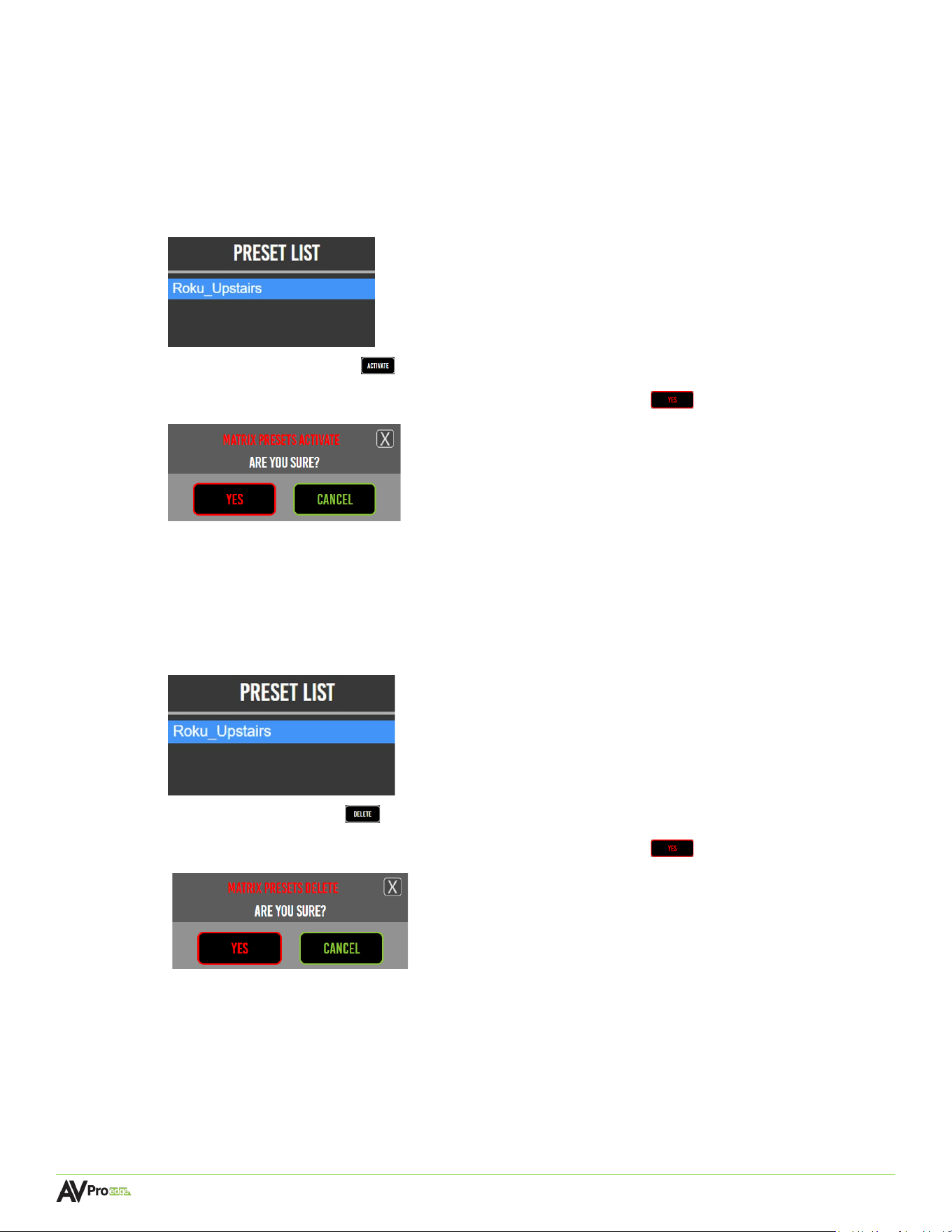
Page 41
MXNET 10G SDVoE® USER MANUAL
6.5.6 Activating a Preset
Once a matrix preset has been saved under the Preset List, it can be activated to automatically route the
selected source signals to the selected output.
1 Select the preset’s name from the Preset List, it will then be highlighted in blue to indicate the
selection was made.
2 Select the activate button .
3 A dialog box will prompt the selection again. Select the yes button to confirm.
4 Switching commands will now be sent to the selected encoders and decoders, and the source’s
signals will be automatically routed to the outputs that were saved to the preset.
6.5.7 Deleting a Preset
1 Select the preset’s name from the Preset List, it will then be highlighted in blue to indicate the
selection was made.
2 Select the delete button .
3 A dialog box will prompt the selection again. Select the yes button to confirm.
4 The preset will now be permanently removed from the Preset List and is no longer able to be
activated.
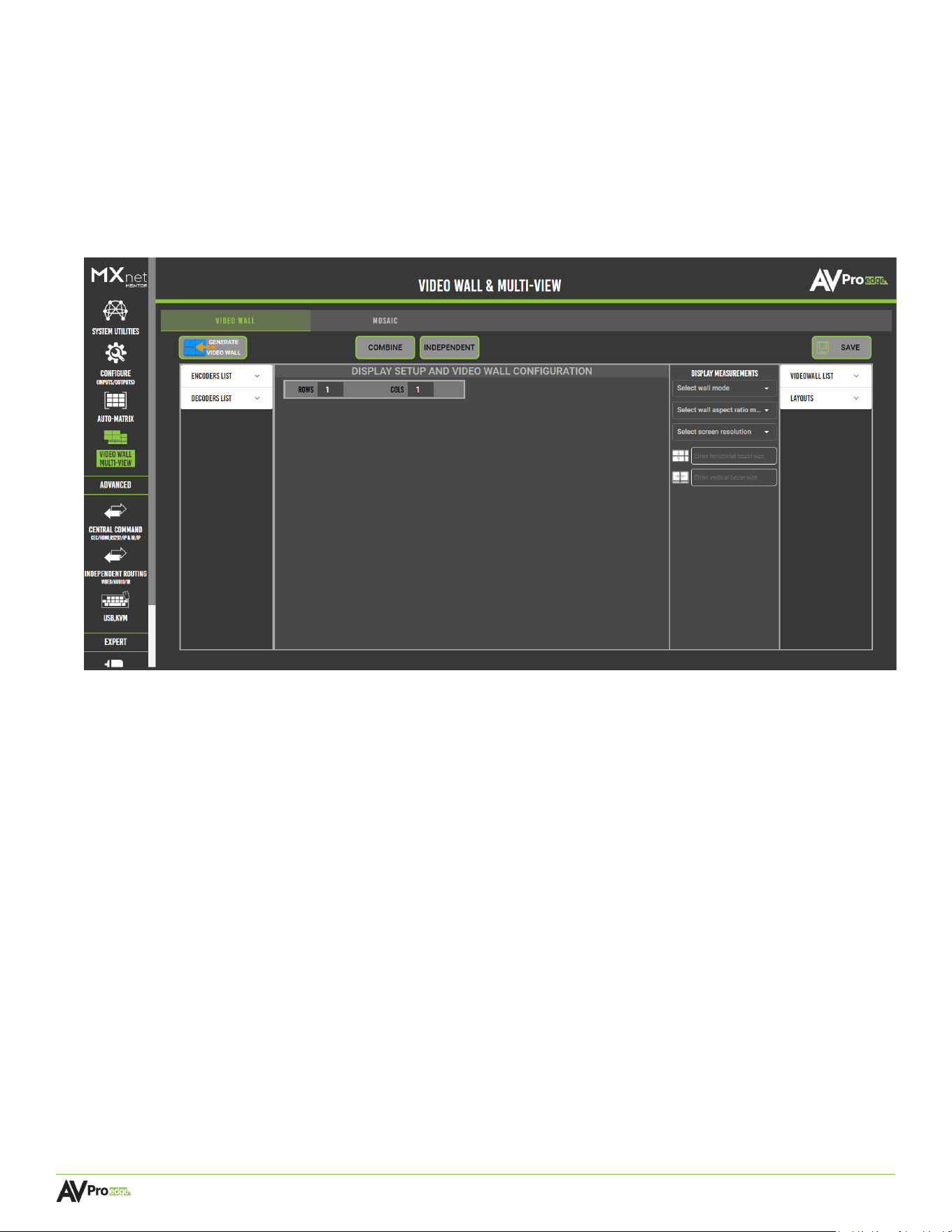
Page 42
MXNET 10G SDVoE® USER MANUAL
6.6 Video Wall
This page contains various tools and settings for creating custom video walls, including bezel adjustments,
automatic cropping, aspect ratios, and more. Video wall layout options consist of two arrays: standard and
mosaic, indicated by the two tabs at the top of the page labeled Video Wall and Mosaic. Both layouts retain their
video resolution, including Dolby Vision, HDR, and HDR10+ metadata.
6.6.1 Standard Layout
The standard video wall layout consists of a grid array (2x2, 3x3, 4x4, etc.) with identical displays. The aspect
ratio remains the same and the source’s image is scaled across all the displays of the video wall. Advanced
grid layouts (1x2, 2x8, etc.), where the aspect ratio of the video wall being very different from that of the
individual displays, may also be configured.
6.6.2 Mosaic-Style Layout
Mosaic, or artistic, video walls do not follow the traditional standard grid-like pattern. Instead, they offer a
unique and creative approach for customizing video walls, allowing the ability to mix and match displays of
different sizes. Mosaic-style video walls usually play one single source across all video wall displays for an
eye-catching effect.
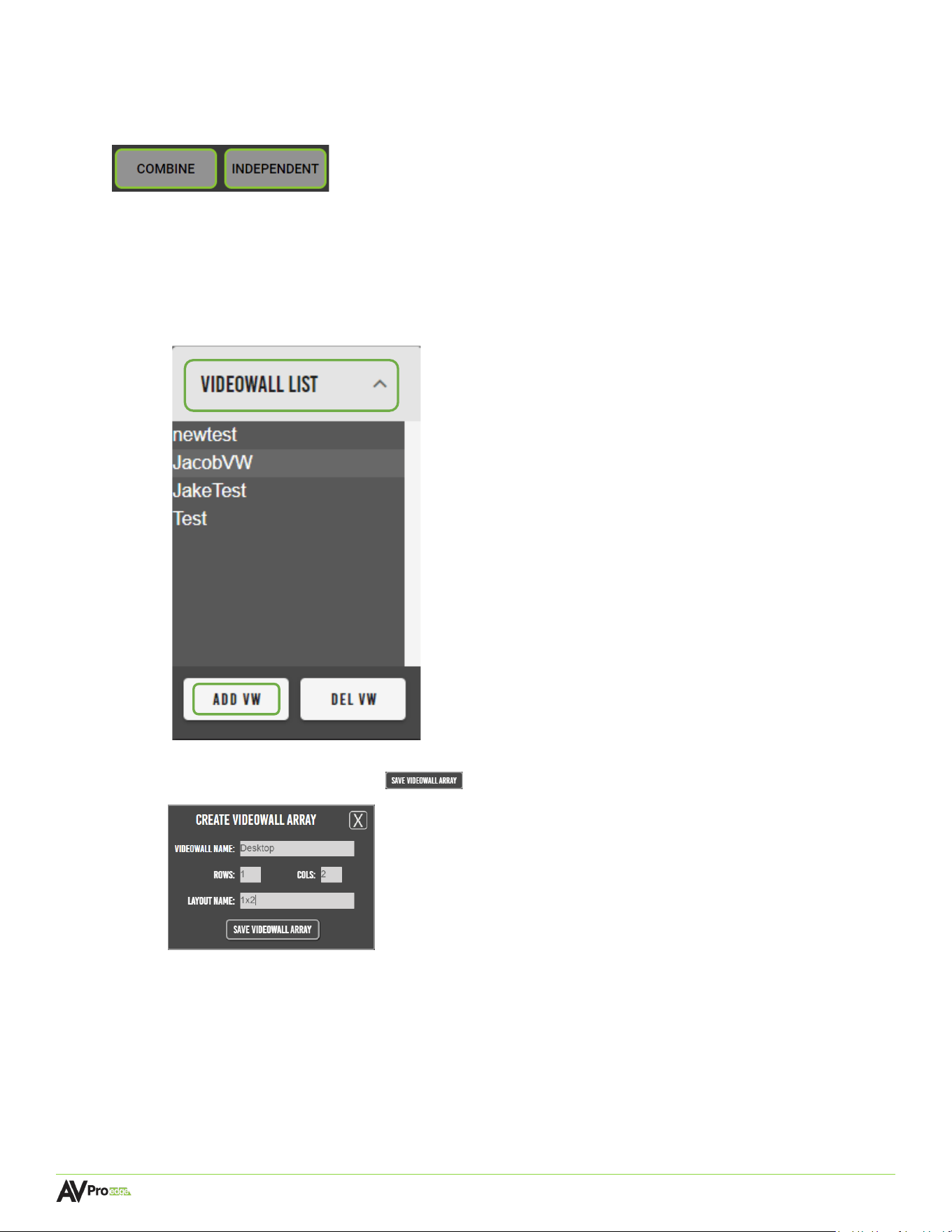
Page 43
MXNET 10G SDVoE® USER MANUAL
6.6.3 Creating a Video Wall Array
The buttons at the top of the Video Wall page allow how the source’s image will appear across the displays
of the video wall.
COMBINE One image is shown on all displays as a continuous image.
INDEPENDENT One image is shown on all displays independently.
1 In the Video Wall tab, select the videowall list dropdown menu, and select ADD VW.
2 En
ter in the video wall name, number of rows and columns, and the layout name. Then select the
save video wall array button .
3 Me
ntor will then generate the “panels” of the video wall layout, with the previously saved array now
appearing under the VideoWall List.
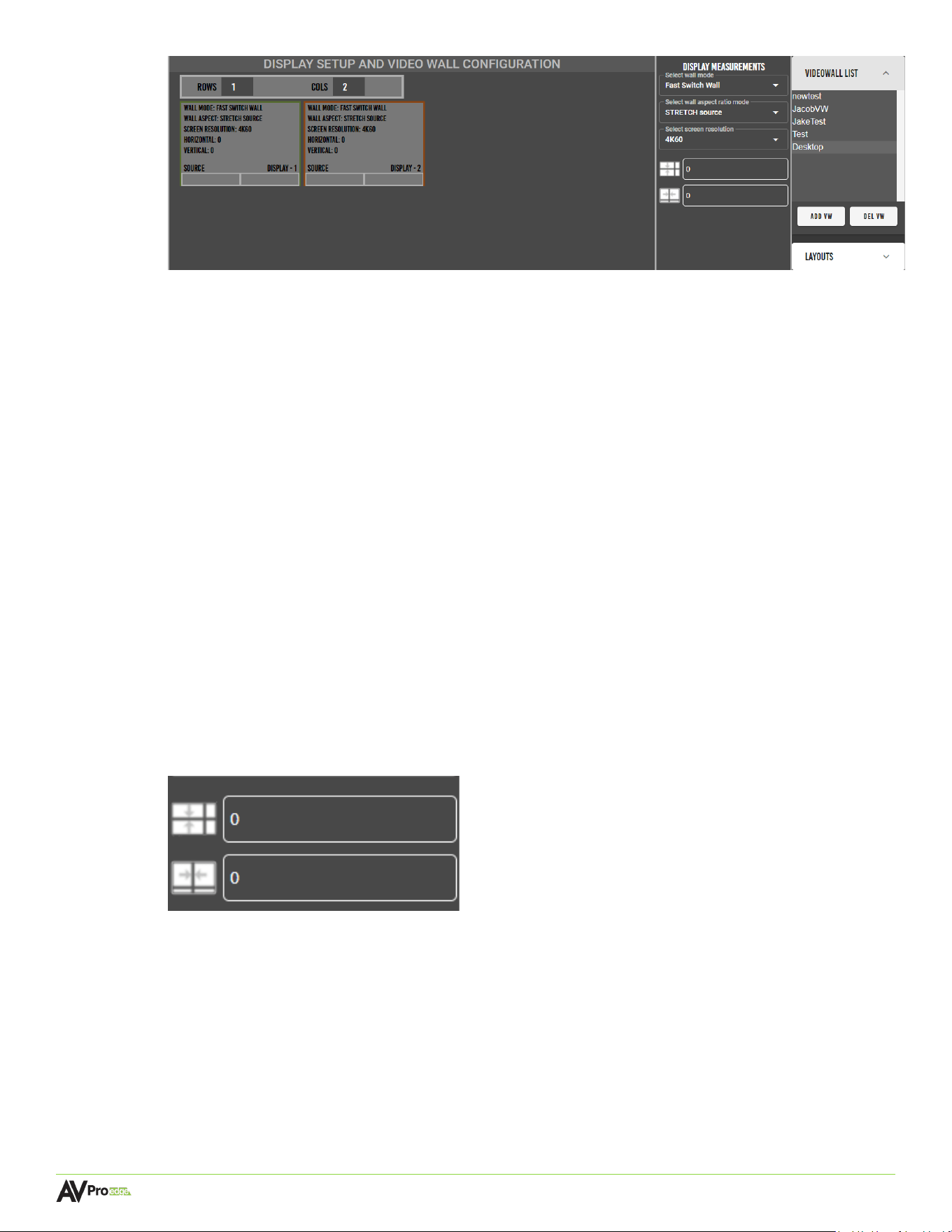
Page 44
MXNET 10G SDVoE® USER MANUAL
Th
e panels are laid out similarly to how the actual video wall will be viewed in person. Each panel can
be configured via the “DISPLAY MEASUREMENTS” column, and each panel also displays its current
configurations, along with the custom names of the selected inputs and outputs, and the display
number.
WALL MODE – adjust the videowall generation to be one of two options:
GENLOCK WALL – Locks the video output with the sink device, resulting in improved
videowall latency. If a source is changed, each sync device will have to re-sync with the new video
wall timing.
FAST SWITCH WALL – Clocks the signal at a specific frequency, which can result in much
faster video switching times, but can introduce latency in the videowall.
AS
PECT RATIO MODE – has “KEEP source aspect ratio” which retains the original aspect ratio during
generation, “CROP source”, or “STRETCH source” to fit the target display.
SC
REEN RESOLUTION – adjust this to fit your needs, it will be the resolution/refresh rate the
videowall will generate.
BEZE
L MEASUREMENTS –
The first field will be your horizontal bezel measurements (in millimeters), and the second field will be
your vertical bezel measurements (In millimeters)
4 Select the decoders list dropdown menu, this will show a list of all of the decoders as selectable
buttons. Select a decoder by clicking and dragging the decoder, moving it over to the right, and
dropping it onto a panel.
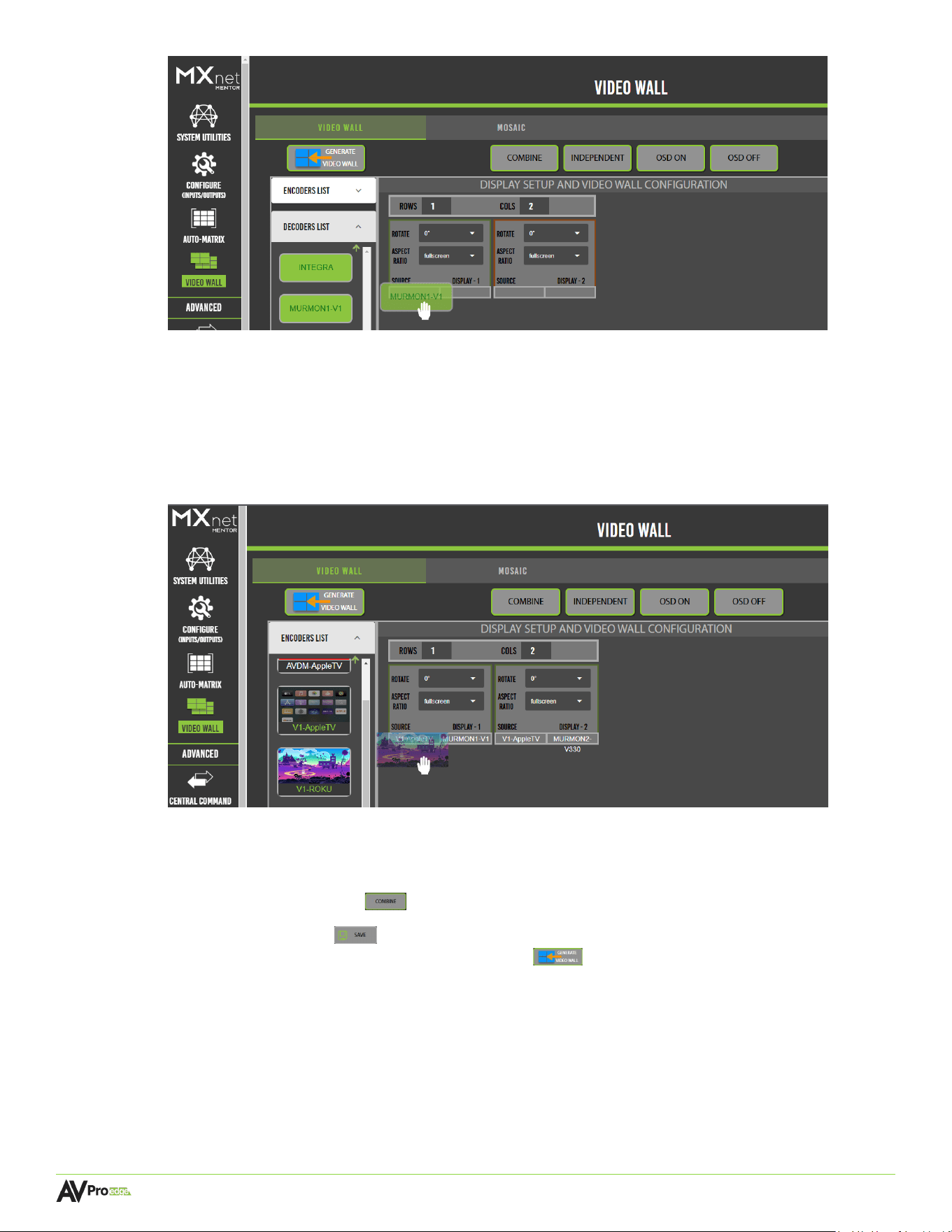
Page 45
MXNET 10G SDVoE® USER MANUAL
Th
e selected display’s custom name will now appear in the bottom right corner of the panel,
indicating the selected display is now assigned to this panel. Repeat this step for other panels.
5 Select the encoders list dropdown menu. This will show a list of all the encoders with their
connected source’s preview image as a selectable thumbnail.
6 Select the encoder by clicking and dragging the source’s thumbnail, moving it over to the right,
and dropping it onto a panel.
The
selected source’s custom name will now appear in the bottom left corner of the panel, indicating
the selected source is now assigned to this display. Repeat this step for other panels.
7 Select both tiles by left clicking on them. An orange border will highlight the selected displays. Then
select the combine button at the top of the page.
8 Select the save button , this will save the selected inputs and outputs to the current video wall
array. Then select the generate video wall button . The video wall will now show the selected
source content.
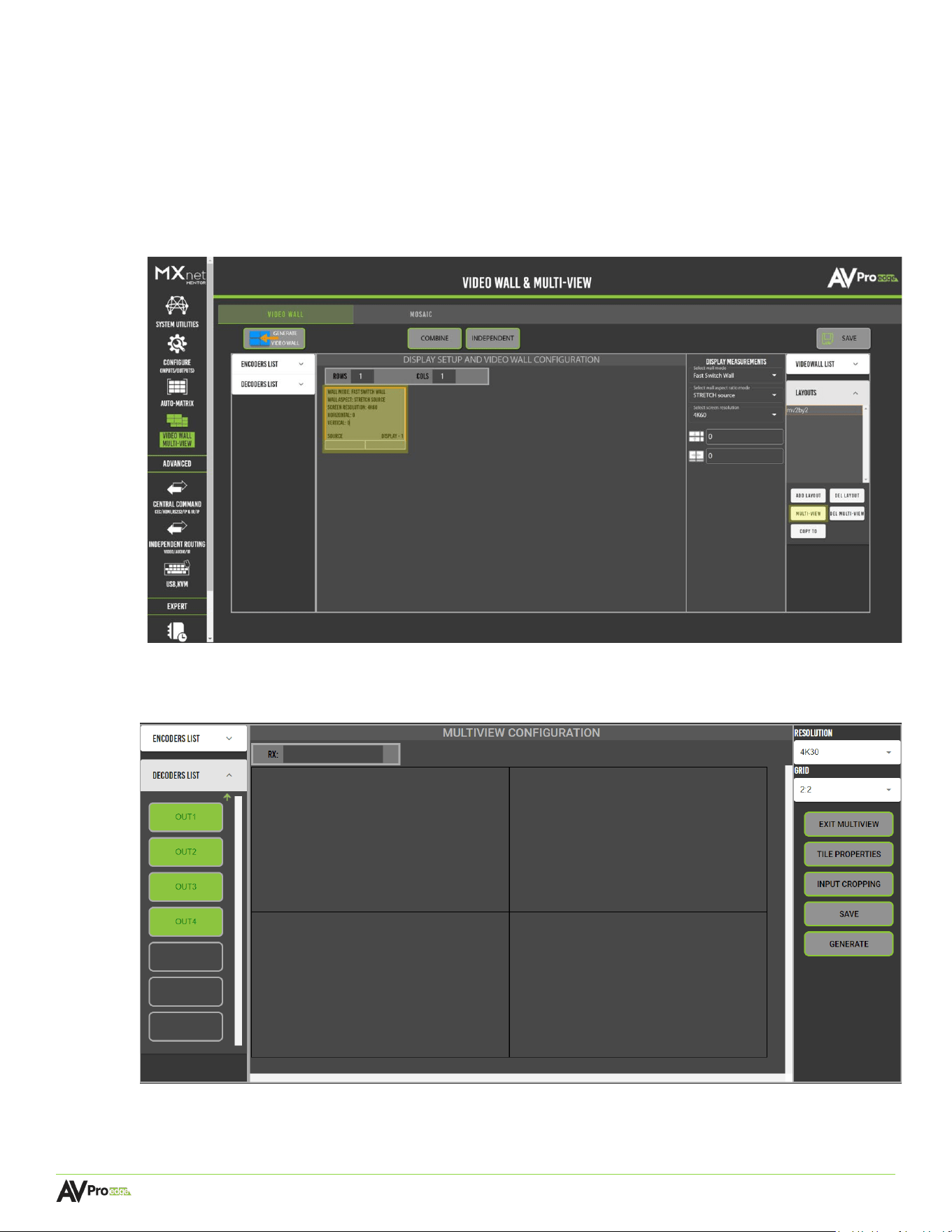
Page 46
MXNET 10G SDVoE® USER MANUAL
6.6.5 Creating a Multiview
1 To start the multiview creation process, first create a new videowall by following the steps above.
This example will use a 1x1 videowall with the layout named “mv2by2”, for a 2x2 Quad-View
multiview.
2 Once the videowall has been created, select the display you’d wish to create a multiview for. Then
under the “LAYOUTS” dropdown column, choose “Multi-View”.
3 Yo
u will now see a page as shown in the below screenshot:
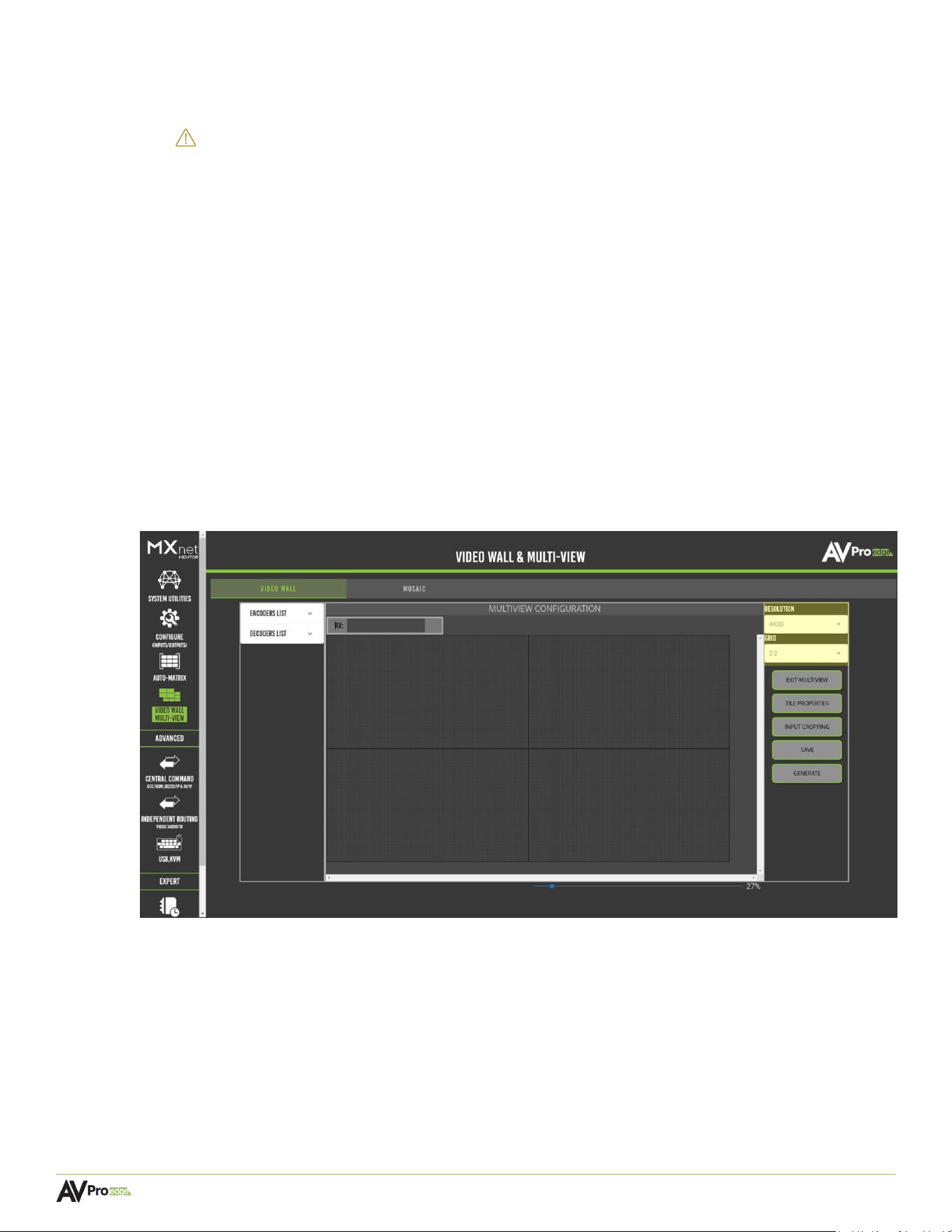
Page 47
MXNET 10G SDVoE® USER MANUAL
CAUTION:
There are some restrictions/limitations to be aware before creating a multiview:
The total number of tiles that can be generated in a single multiview is 16.
If your source is 4K, it is extremely recommended to either generate the
multiview at 1080p, reduce the source’s overall signal quality, or disable the
native stream upon multiview generation. Failure to do so may result in
exceeding the 10G of available bandwidth, resulting in image distortion/tearing
depending on the multiview tile’s size.
The multiview overall display/tiles cannot be rotated.
Each tile from a specific encoder used as the source must be the same size. For
example, an encoder named “6G” has a window with a width and height of
1920x1080p. Each window that will use “6G” as a source also must be
1920x1080p, due to the multiview tile using the encoder’s scaled stream for the
signal source, and only one scaled stream is present on an encoder. Failure to do
so will result in image distortion/undesired multiview generation.
To the right of the page is a list of available options. The “Resolution” and “Grid” fields should be
configured first before placing your multiview tiles.
Mo
re details on the two settings can be found in the following step below.
To the left of the page are your Encoder and Decoder lists. To add an encoder to be a tile’s source,
Select the source by clicking and dragging the source's thumbnail located under the Encoders List
dropdown menu and dropping it onto one of the available grid placements. The encoder will snap-to-fit
onto any chosen grid tile viewable on the page. To add the decoder you wish this multiview display to
be generated on, click and drag the chosen decoder into the “RX” field above the tile placement
interface.
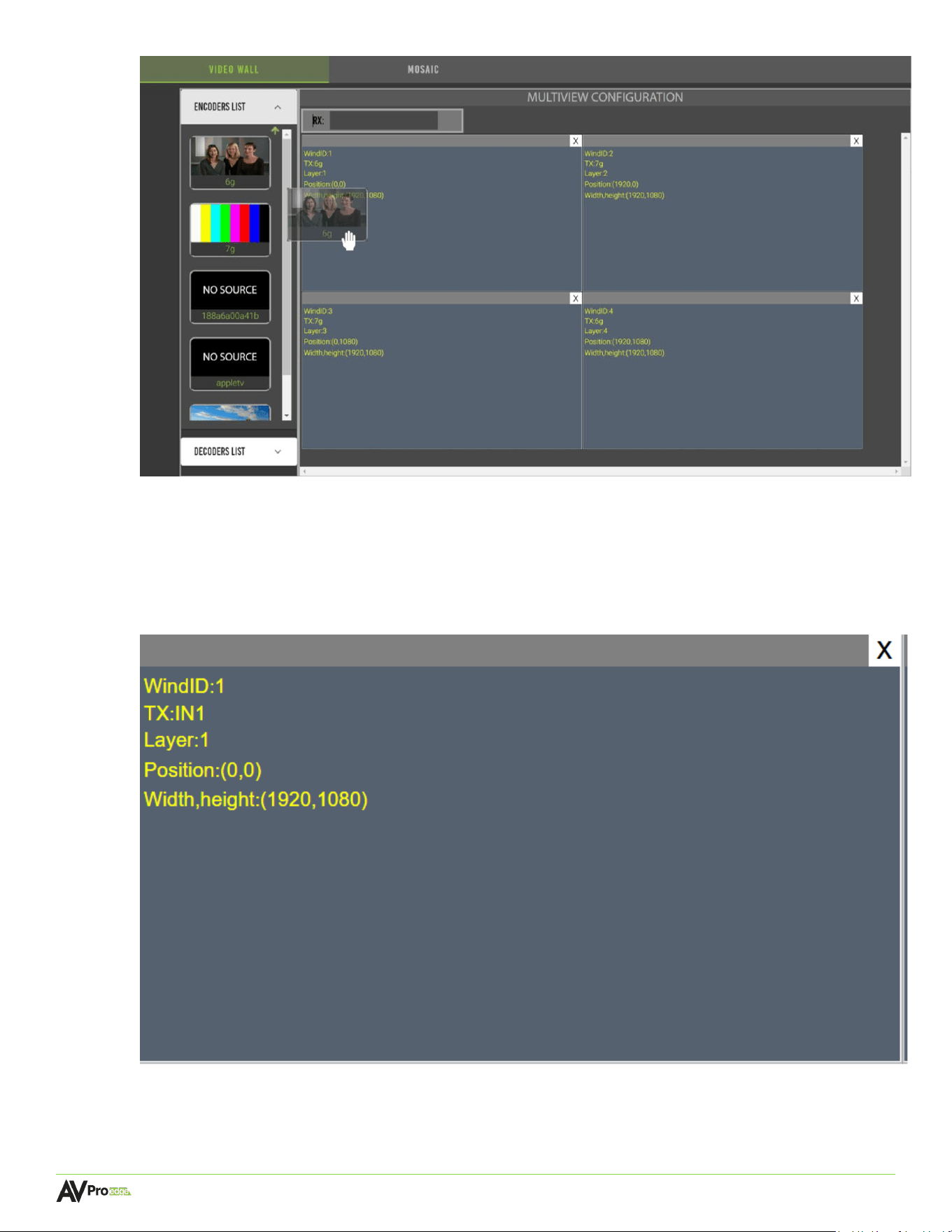
Page 48
MXNET 10G SDVoE® USER MANUAL
Onc
e your desired multiview is in place, simply hit “SAVE”, then “GENERATE” on the right side of the
page to save your multiview configuration and output the multiview layout to the chosen decoder.
4 Af
ter placing a multiview tile, you will notice information populated inside each tile, as shown in the
screenshot below:
Below is a brief explanation of each field:

Page 49
MXNET 10G SDVoE® USER MANUAL
WindID: The window identification number assigned to each multiview tile. Your first tile
placement will always start with a window ID of “1” and increases in increments of 1 for each
additional tile placement.
TX: Thi
s field reports the selected encoder that will be used as the source for the specific tile.
Laye
r: How the multiview tile will appear when “layered” with another tile. The higher the
layer number, the more “in front” said tile will appear in the multiview generation. The layer
number always starts with “1” upon the placement of the first multiview window and
increases in increments of 1 for each additional tile placement. Tiles cannot be on the same
layer as each other, and the CBOX will adjust the layer positions accordingly if a tile’s layer
value is adjusted.
For example, if you wish to create a Picture-In-Picture multiview display, you will want
the tile that will appear in front of the main tile (the tile that will cover the entirety of the
display) to have the highest layer value available.
Po
sition: The starting x, y coordinates the multiview tile will generate, pixel specific. Position
is orientated so coordinate (0,0) starts at the top-left of the display as well as the multiview
canvas in the middle of the webpage.
For example, in a Quad-View display generating at 3840x2160 will have the top-left
tile start at coordinates (0,0). The top-right tile will be (1920x0). The bottom left tile will be
(0,1080). The bottom right tile will be (1920,1080).
Wi
dth, Height: The overall size of the specific multiview tile. Starting size depends on the
size of the grid the tile is placed on.
For example, a 3840x2160 Quad-View multiview display will likely have each
multiview tile have a width & height of (1920,1080).
5 To
the right of the page is a list of available settings for you. Each setting is described below:
RE
SOLUTION - “RESOLUTION” should be set first before proceeding with anything else as this
will adjust your overall canvas in the middle of the page. Your options for resolution/timings are:
720P 50hz, 60HZ
1080P 24HZ, 50HZ, 60HZ
4K 30HZ, 50HZ, 60HZ
Custom
When the option “Custom” is chosen, additional fields will populate as shown below:
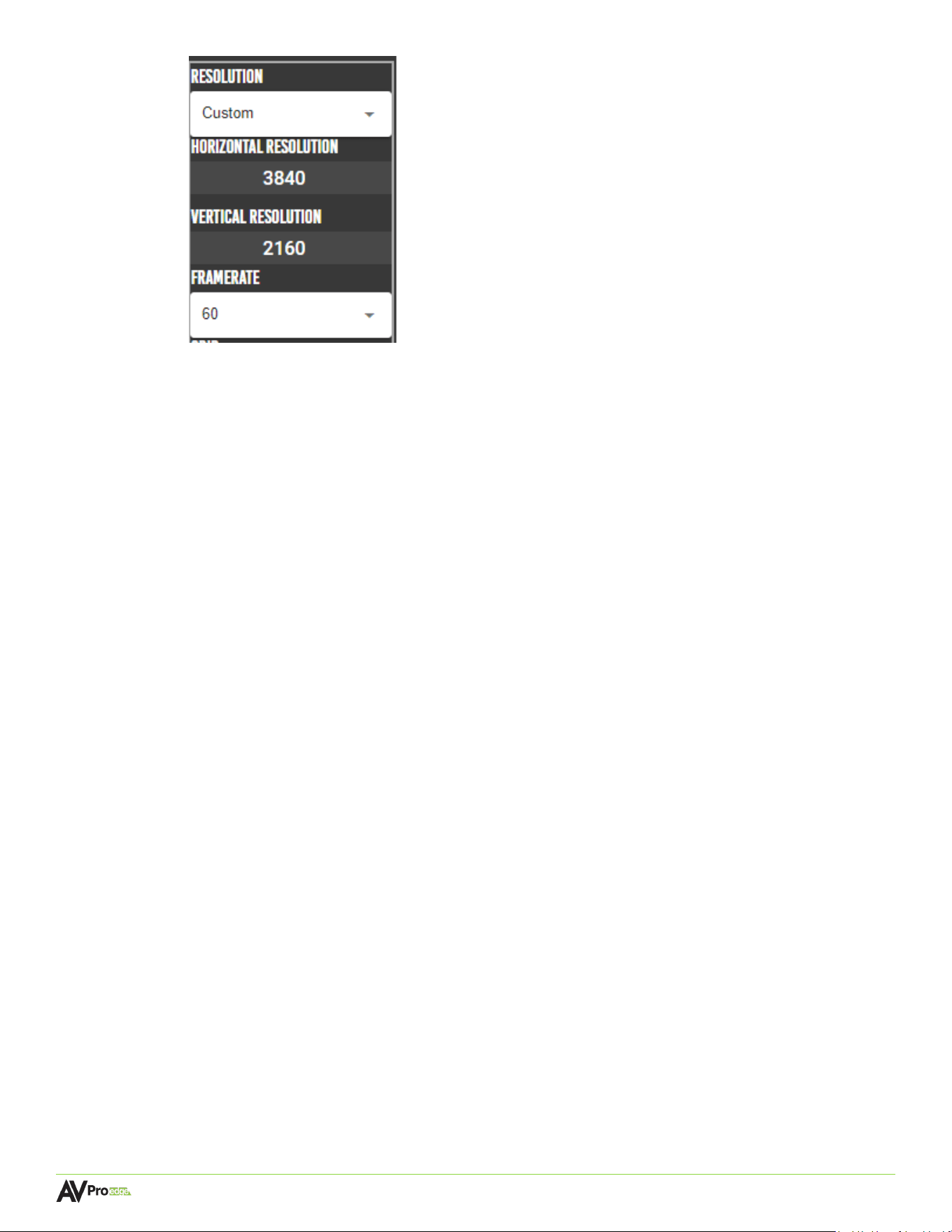
Page 50
MXNET 10G SDVoE® USER MANUAL
The
“Custom” option allows you to specify the exact horizontal & vertical resolution desired, up to
4096x4096, as well as framerate (options are 24HZ, 30HZ, 50HZ, 60HZ), allowing you to create a
multi-view that will be a perfect fit for your display.
GRI
D -The “GRID” field allows you to adjust the grid formation shown on the GUI. The grids are
only there to assist in tile placement and have no effect on the overall multiview generation.
When inserting an encoder onto the “Multiview Configuration” window, said encoder will snap-to-
fit the selected grid on the page. Upon double clicking a tile, it will expand its size to fit all
adjacent grid tiles.
Available grid formations to choose from the dropdown column are as follows:
1:1, 2:2, 3:3, 4:4, 6:6, 10:10, 12:12, 15:15
NOTE:
While the grid formation options can go up to 15:15 grid tiles, the total number of multiview
tiles that can be generated is 16.
EXIT MULTIVIEW – Closes the multiview configuration page and returns to the video wall
configuration page.
TI
LE PROPERTIES – Click on a desired multiview tile that has been placed on the multiview canvas
and then choose this option to pull up the properties of the chosen tile, allowing you to configure
the tile’s starting position as well as size, per pixel. When “Keep Aspect Ratio” is selected, the web
interface will maintain the aspect ratio of the source when modifying the tile’s size.
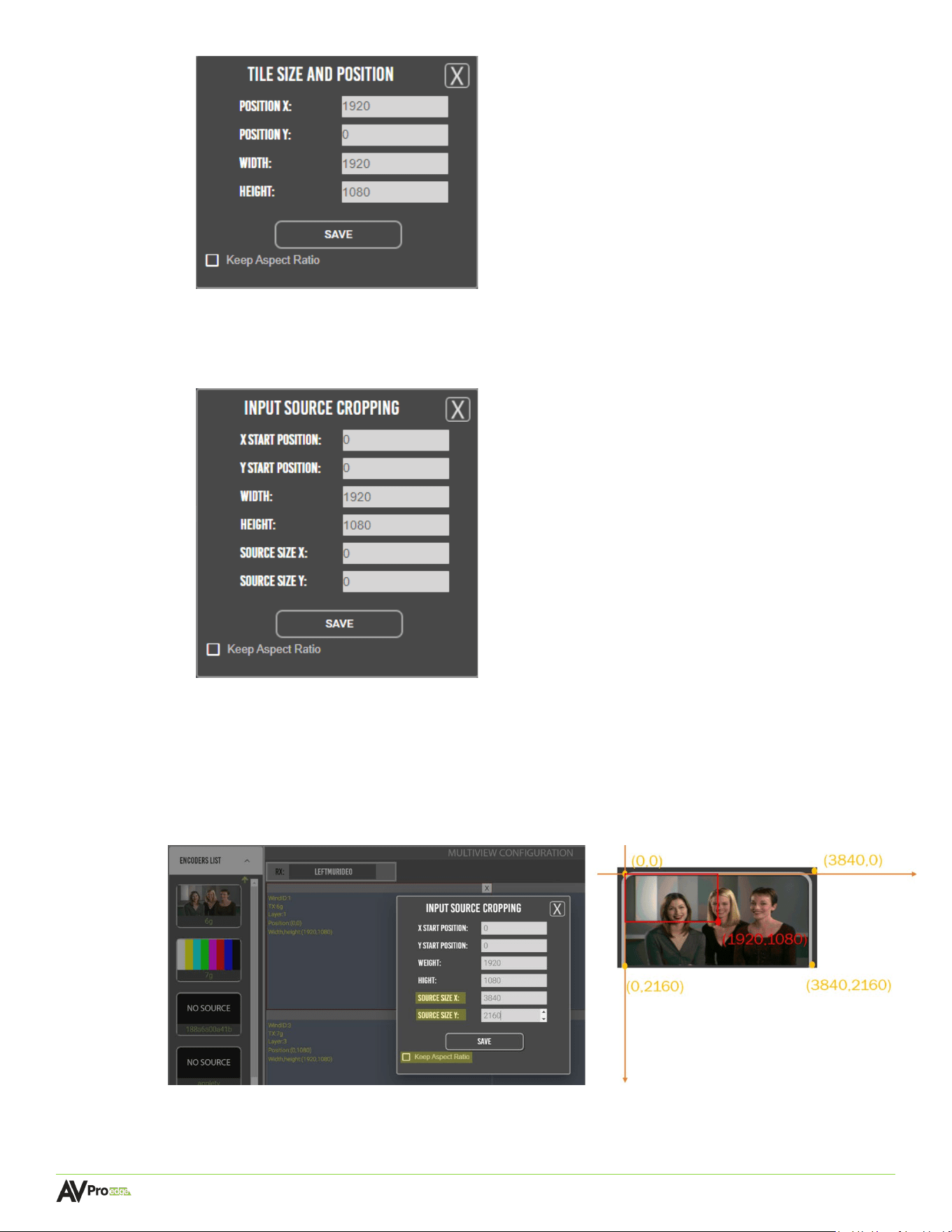
Page 51
MXNET 10G SDVoE® USER MANUAL
INPUT CROPPING – Clicking on the desired tile and choosing input cropping will bring up a
window as shown below:
The
source size x and source size y fields are for entering in the overall resolution of the source
to be generated. For example, if the source signal is 3840x2160, and you wish to only display the
top left portion of the source’s video output, you can adjust the “source size x” and “source size
y” coordinates to be 3840, 2160, then have the tile’s width and height be 1920,1080. The tile will
now only display the top-left section of the source’s video signal.
An example screenshot of the multiview output (left) vs the original source is shown below:
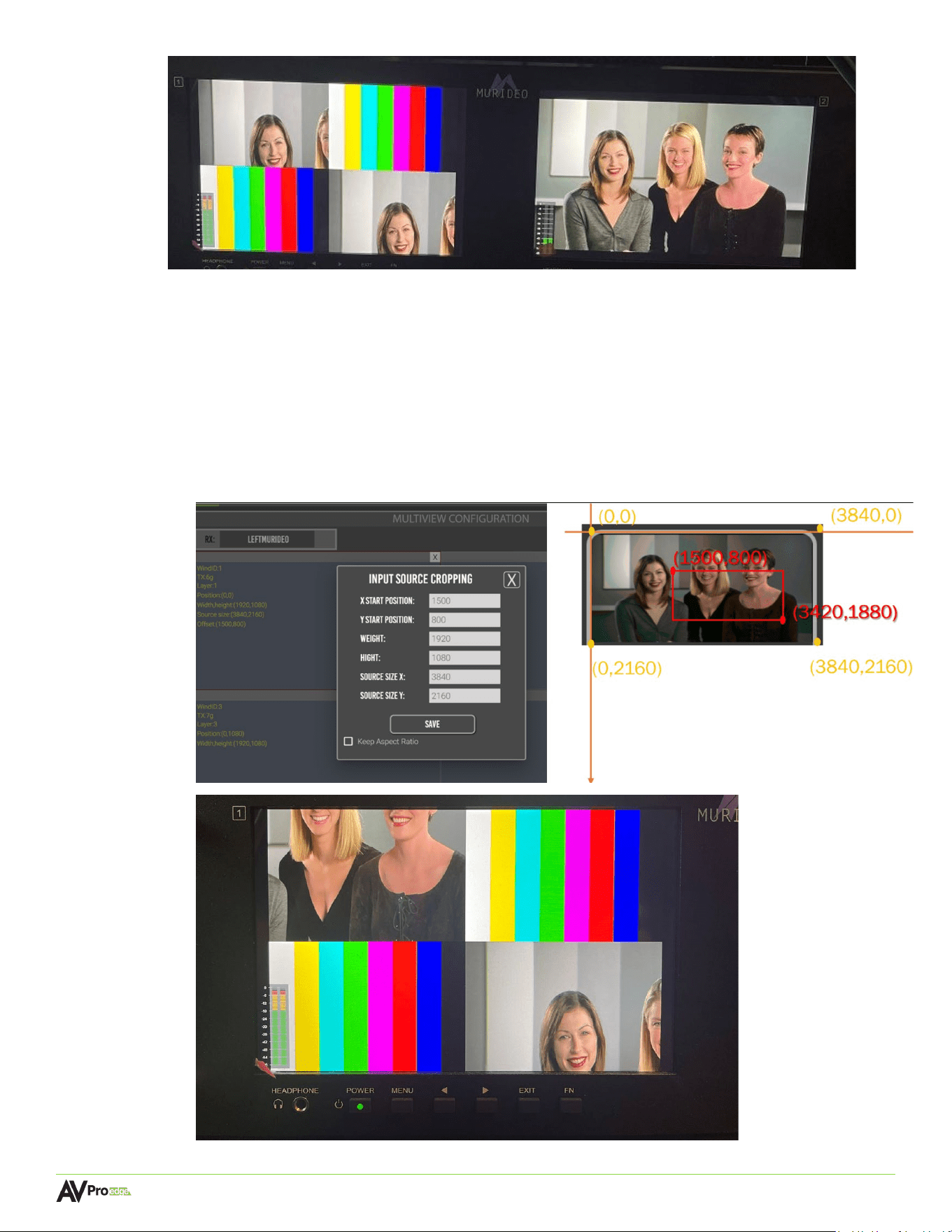
Page 52
MXNET 10G SDVoE® USER MANUAL
NOTE
:
Since the decoder receives this information from the encoder being used as the source of
the tile, adjusting the source’s generated size using input cropping will affect any tiles using the same
encoder as a source.
You can offset the source cropping by utilizing the x start position and y start position fields in
the “Input Source Cropping” menu. Simply enter in the starting coordinates of where you want
the image generation to start into said fields. An example is shown below:
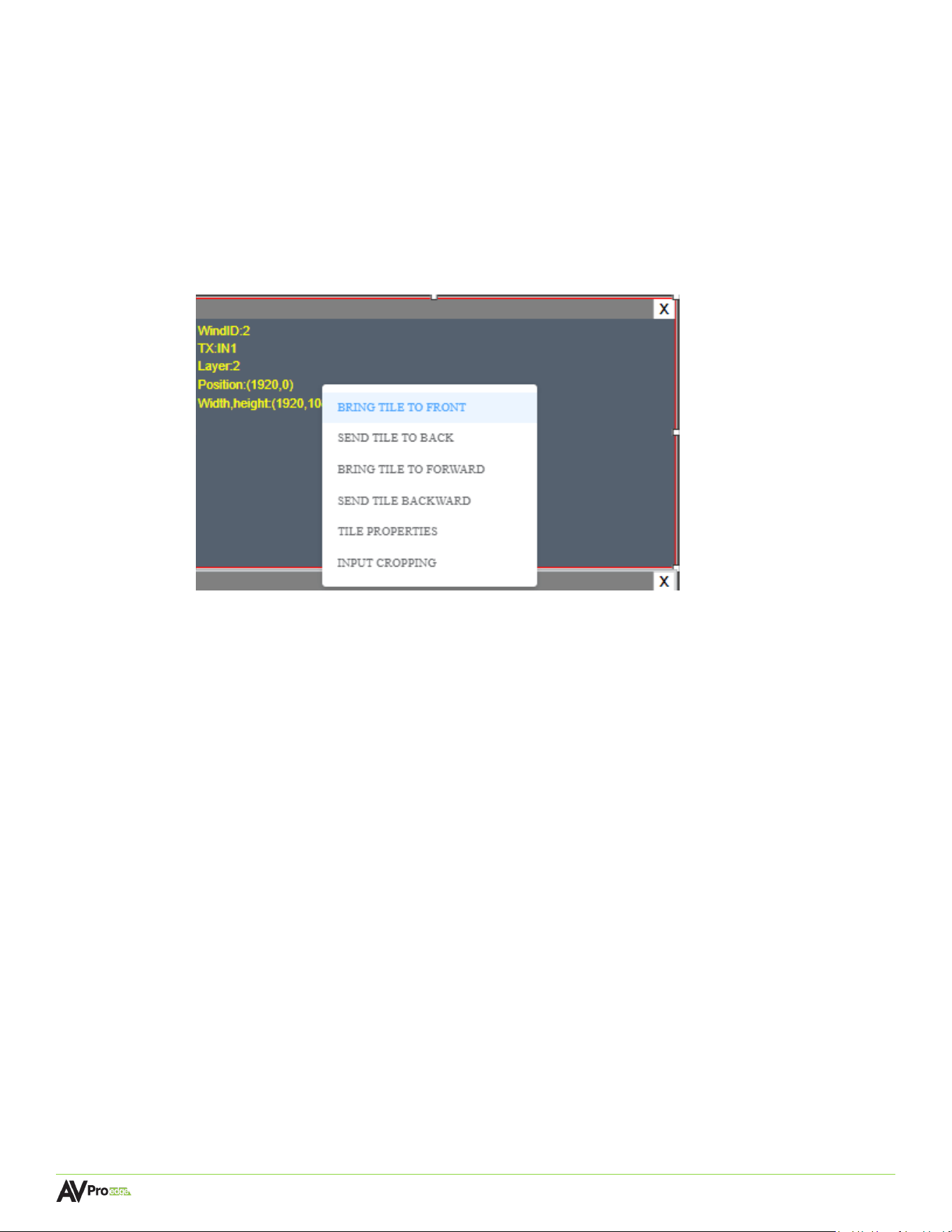
Page 53
MXNET 10G SDVoE® USER MANUAL
SAVE – Saves the multiview configuration into the current videowall/layout being used.
GENERATE – Outputs the saved multiview configuration to the target decoder’s output.
6 Right clicking on a tile will bring up some additional options as well:
Br
ing Tile To Front – Clicking this option will adjust the “layer” value to be the highest available
value, causing the tile to appear “in front” of all of the other tiles. Useful for Picture-In-Picture
applications. Choosing this option (as well as the below layer adjustment options) will adjust the other
tile’s layers accordingly, as no two tiles can be on the same layer.
Sen
d Tile To Back: Clicking this option will adjust the “layer” value to be the lowest possible
value (1), causing the tile to appear “behind” all of the other tiles.
Brin
g Tile To Forward: Clicking this option will increase the “layer” value by 1, bringing the tile
further ahead of other tiles.
Sen
d Tile Backward – Clicking this option will decrease the “layer” value by 1, sending the tile
further behind of other tiles.
Ti
le Properties – explained in detail in the previous step
Inp
ut Cropping – explained in detail in the previous step
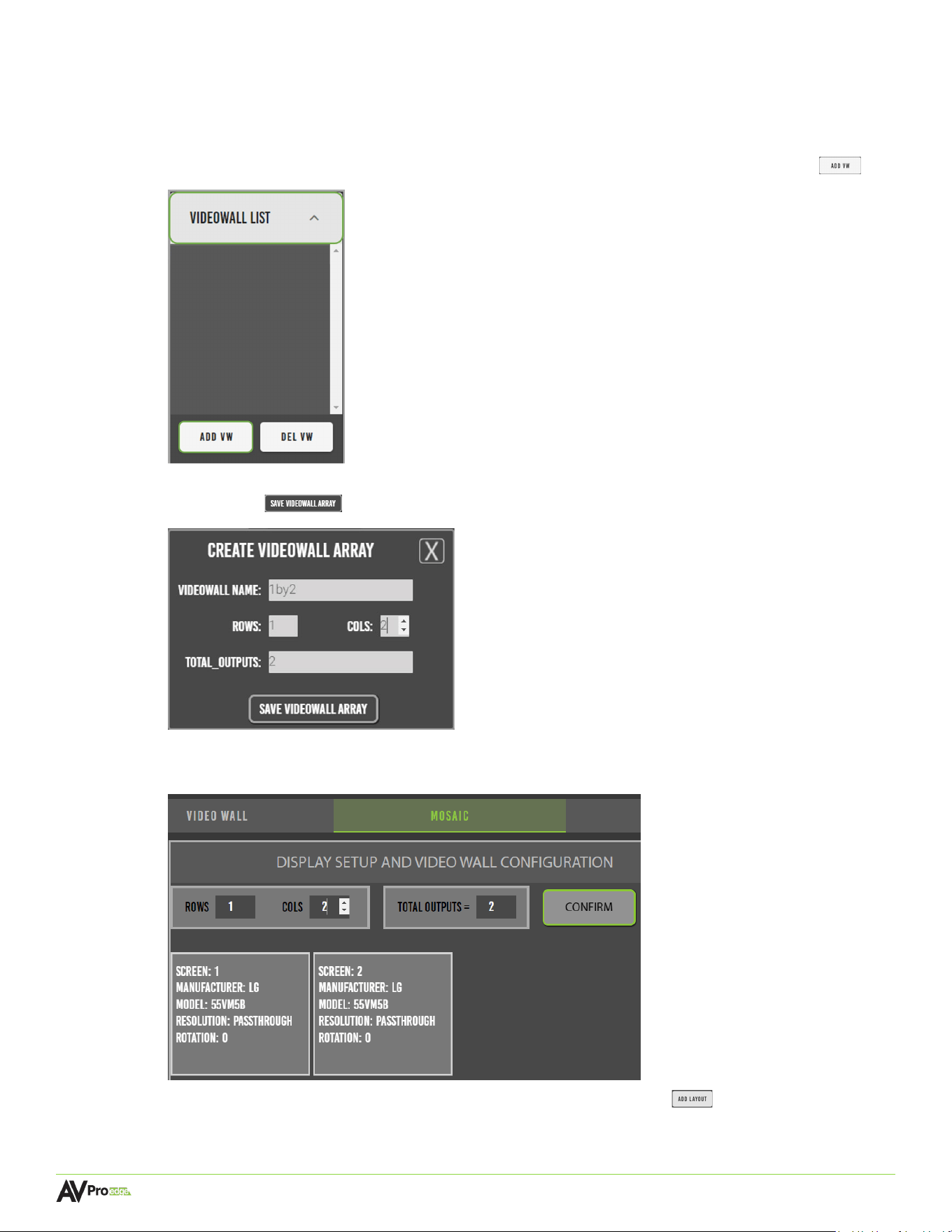
Page 54
MXNET 10G SDVoE® USER MANUAL
6.6.6 Creating a Mosaic Video Wall
1 In the Mosaic tab, select the videowall list dropdown menu and select the add vw button .
2 En
ter in the video wall name, the number of rows and columns, and select the save video wall
array button .
3 Mentor will then generate the “panels” of the video wall layout, with the previously saved array now
appearing under the VideoWall List.
4 Sel
ect the layouts dropdown menu and select the add layout button .
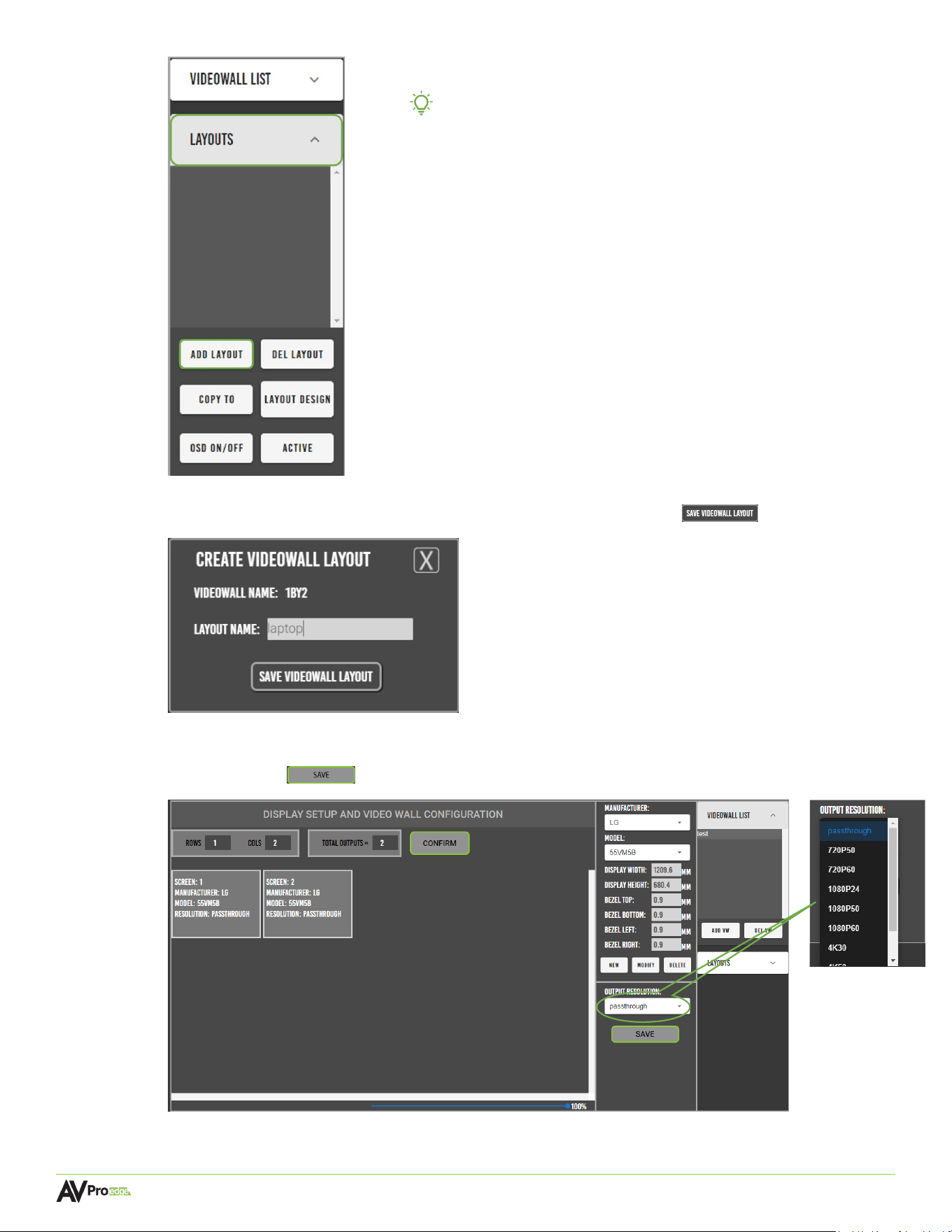
Page 55
MXNET 10G SDVoE® USER MANUAL
TIP:
One physical video wall can have multiple video wall
layouts. Every different input source will have a new
layout.
5 En
ter in the layout name and select the save videowall layout button .
6 Select the first panel, an orange border will highlight the selected panel. Select the display’s
manufacturer, model, and output resolution from their respective dropdown menus, then select
the save button . Repeat this step for the other panel.
7
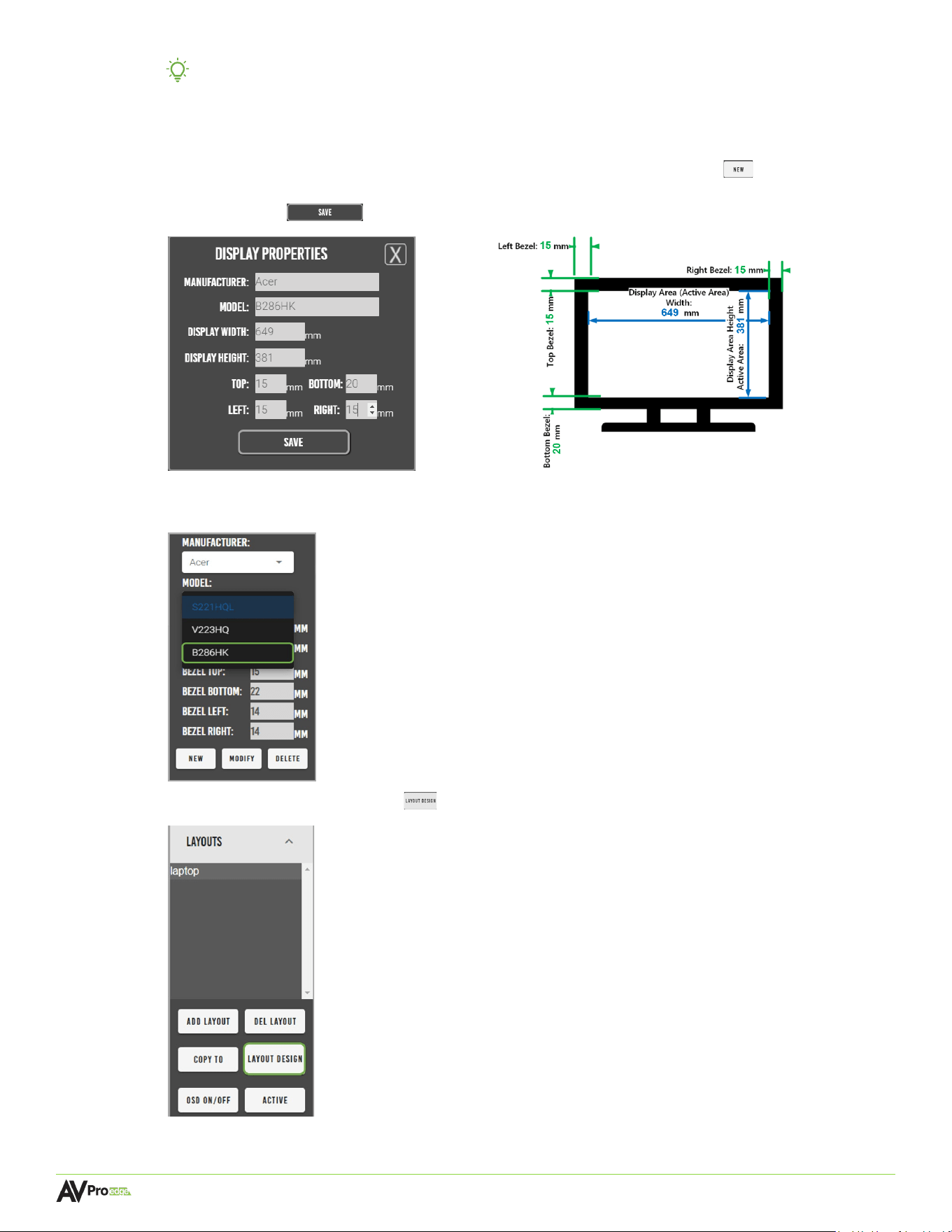
Page 56
MXNET 10G SDVoE® USER MANUAL
TIP: Mentor provides an internal catalog of the most commonly used displays. Selecting the
manufacturer and model from these dropdown lists will auto-populate the display’s
dimensions into the appropriate fields.
8 If
the display is not listed under the dropdown menus, select the new button to open the
Display Properties window. Enter in the display’s manufacturer, model, and dimensions, then select
the save button .
The
newly added display and saved dimensions will now be added to both the Manufacturer and
Model dropdown menu lists and can now be selected for the display(s).
9 Sel
ect the layout design button , this will open a separate window.
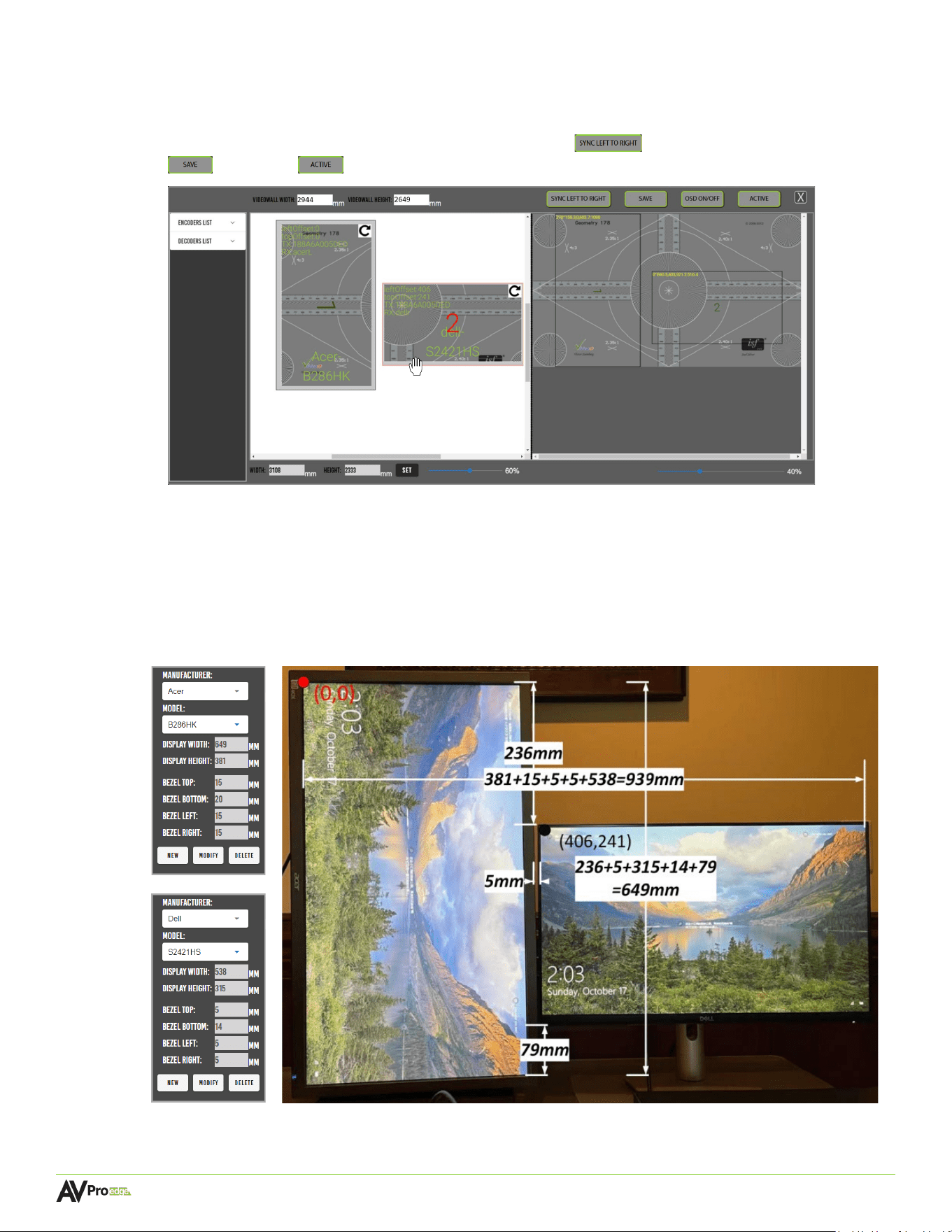
Page 57
MXNET 10G SDVoE® USER MANUAL
10 Mentor will generate a “canvas” for the mosaic video wall layout with the ISF® Geometry 1.78:1 test
pattern for easy visual reference regarding which part of the content will be captured.
The panels can be individually adjusted by clicking and dragging the desired panels on the white
background, and selecting the sync left to right button , followed by selecting the save
and active buttons.
Meas
urement example:
236mm + 5mm (Dell top bezel) = 241mm
381 (Acer height) + 15 (Acer top bezel) + 5mm gap + 5mm (Dell left bezel) = 406mm
Red point / Coordinate origin: (0,0)
Black point / Coordinate: (406,241)
Left Display
Right Display
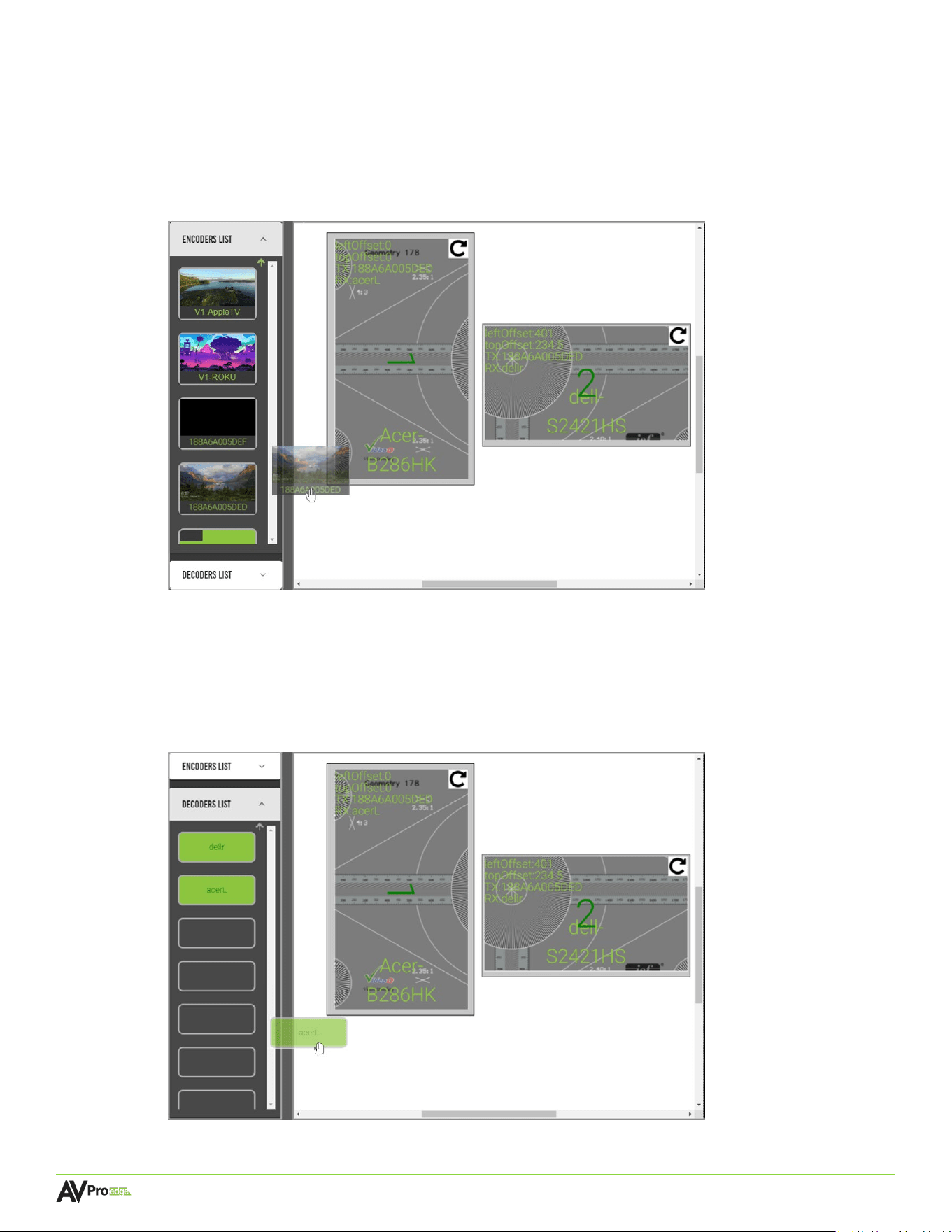
Page 58
MXNET 10G SDVoE® USER MANUAL
11 Select the encoders list dropdown menu in the left column, this will show a list of all the encoders
with their connected source’s preview image as a selectable thumbnail.
12 Select the encoder by clicking and dragging the source’s thumbnail, moving it over to the right,
and dropping it onto a panel.
The selected source’s custom name will now appear in the top-left corner of the panel, indicating
that source is now assigned to this display. Repeat this step for other panels.
13 Sel
ect the decoders list dropdown menu, this will show a list of all the decoders as selectable
buttons. Select the decoder by clicking and dragging the decoder, moving it over to the right, and
dropping it onto a panel.
The selected display’s custom name will now appear in the top-left of the panel, indicating the
selected display is now assigned to this panel. Repeat this step for the other panel with the other
display’s decoder.
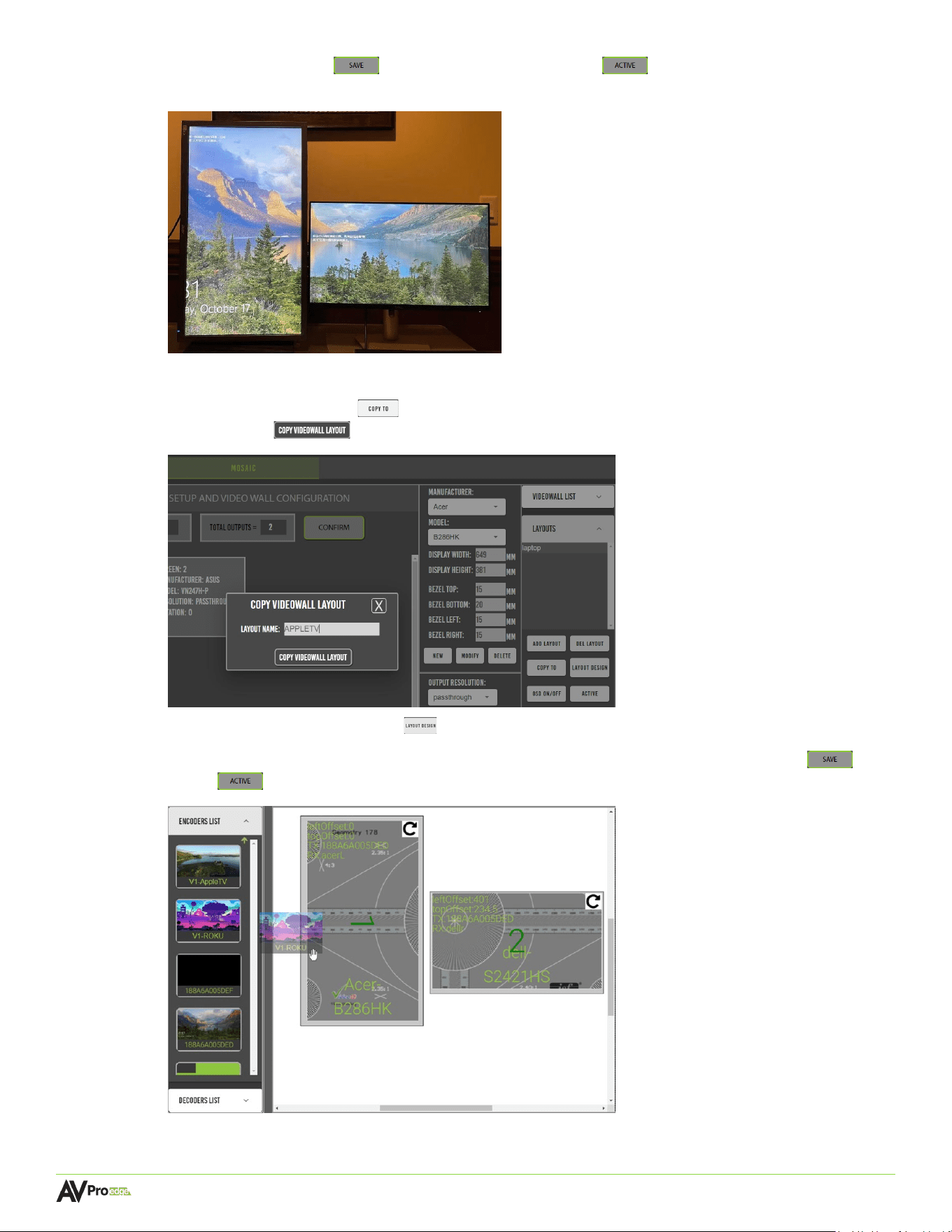
Page 59
MXNET 10G SDVoE® USER MANUAL
14 Select the save button followed by the active button located at the top of this page.
The final result of the mosaic video wall is shown below:
6.6.7 Creating Another Layout
1 Select the copy to button and type in the new layout name, then select the copy videowall
layout button .
2 Sel
ect the layout design button to open the mosaic video wall design window.
3 Drag and drop the new source to the displays from the encoder list, then select the save and
active buttons located at the top of the page.
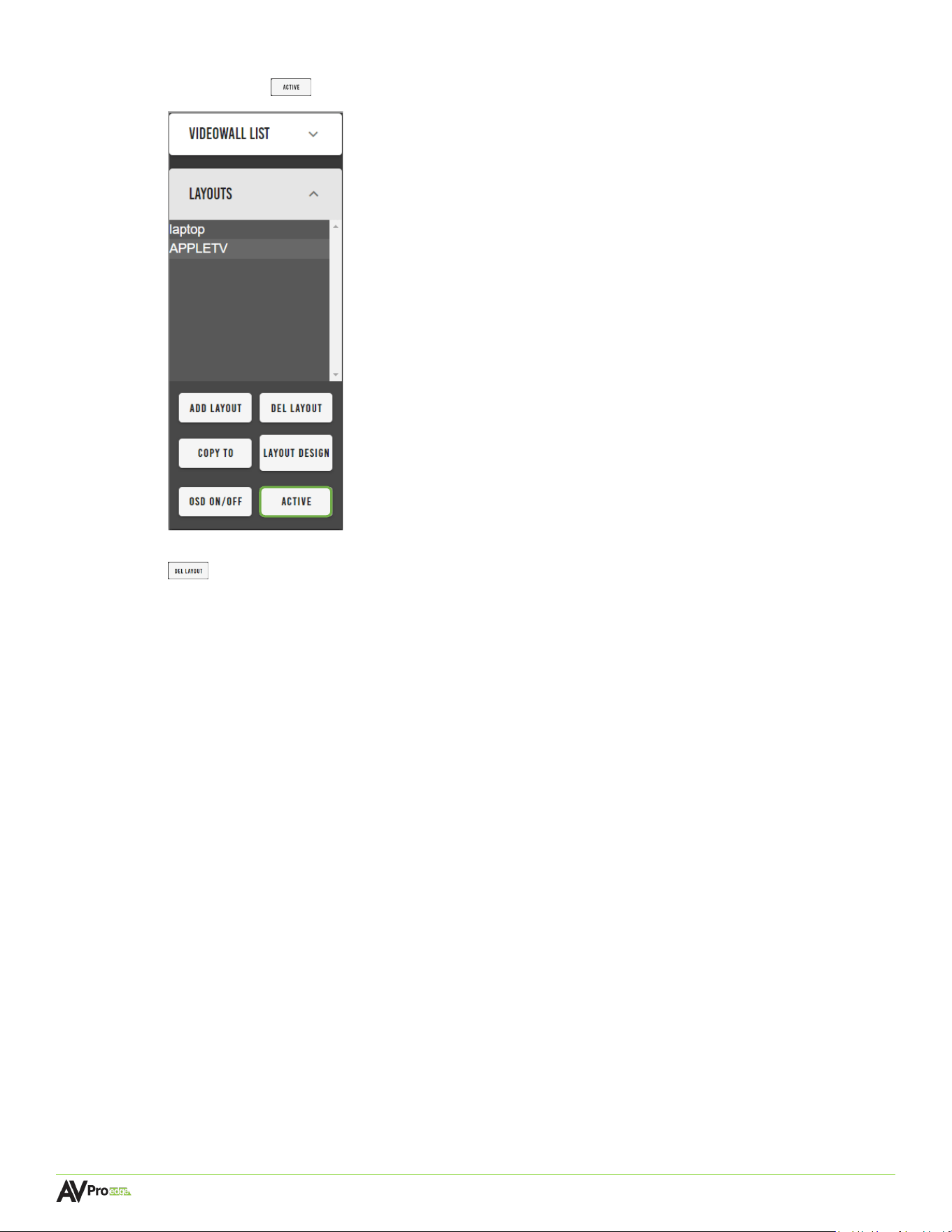
Page 60
MXNET 10G SDVoE® USER MANUAL
4 To switch mosaic video wall layouts, select the layout name from the Layouts list, then select the
active button .
5 To
delete a layout, select the layout name from the Layouts list, then select the del layout button
. The layout will now be permanently removed from the Layouts list and is no longer able to be
activated.
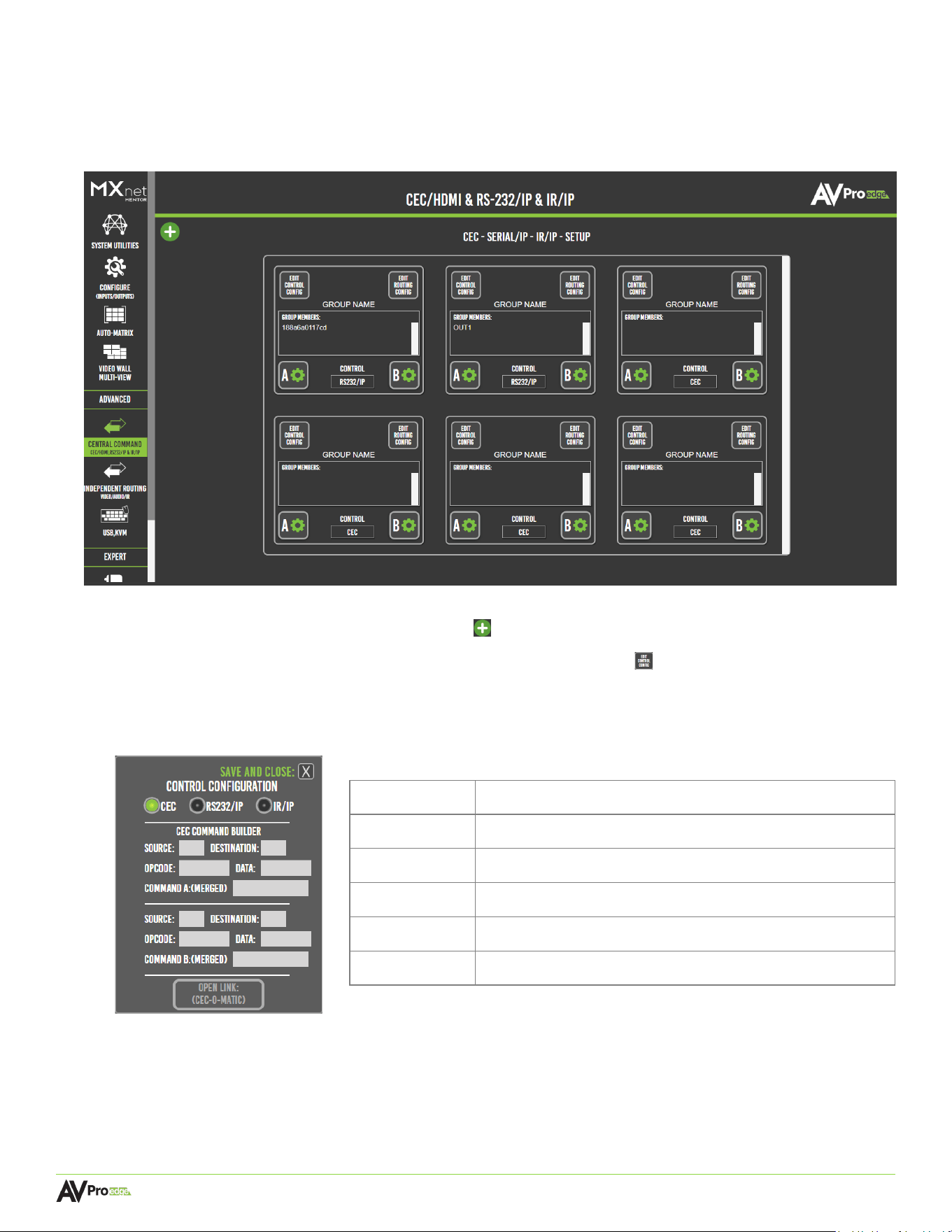
Page 61
MXNET 10G SDVoE® USER MANUAL
6.7 Central Command
The Central Command page provides tools for creating and building various control commands, including RS-
232 over IP, IR over IP, and CEC over IP/HDMI. These commands can be sent to a single encoder or decoder, a
specified group of encoders and decoders, or all encoders and decoders.
Me
ntor provides six routing groups for specifying six different sets of targeted display groupings. More routing
groups can be added by selecting the + (add) button in the top-left corner of the page.
Custom commands can be built by selecting the edit control config button and selecting either CEC,
RS232/IP, or IR/IP. Each command option will populate the necessary fields for the selected signal type.
6.7.1 Creating a CEC Control Configuration
Source
1
st
Byte, the logical source address of the message
Destination
1
st
Byte, the logical destination address of the message
Opcode
2
nd
Byte, the CEC request message ID
Data
4
th
Byte, the local physical address of the HDMI port
Command
The HDMI-CEC message in its entirety
CEC-O-Matic
Opens a new web browser tab to cec-o-matic.com
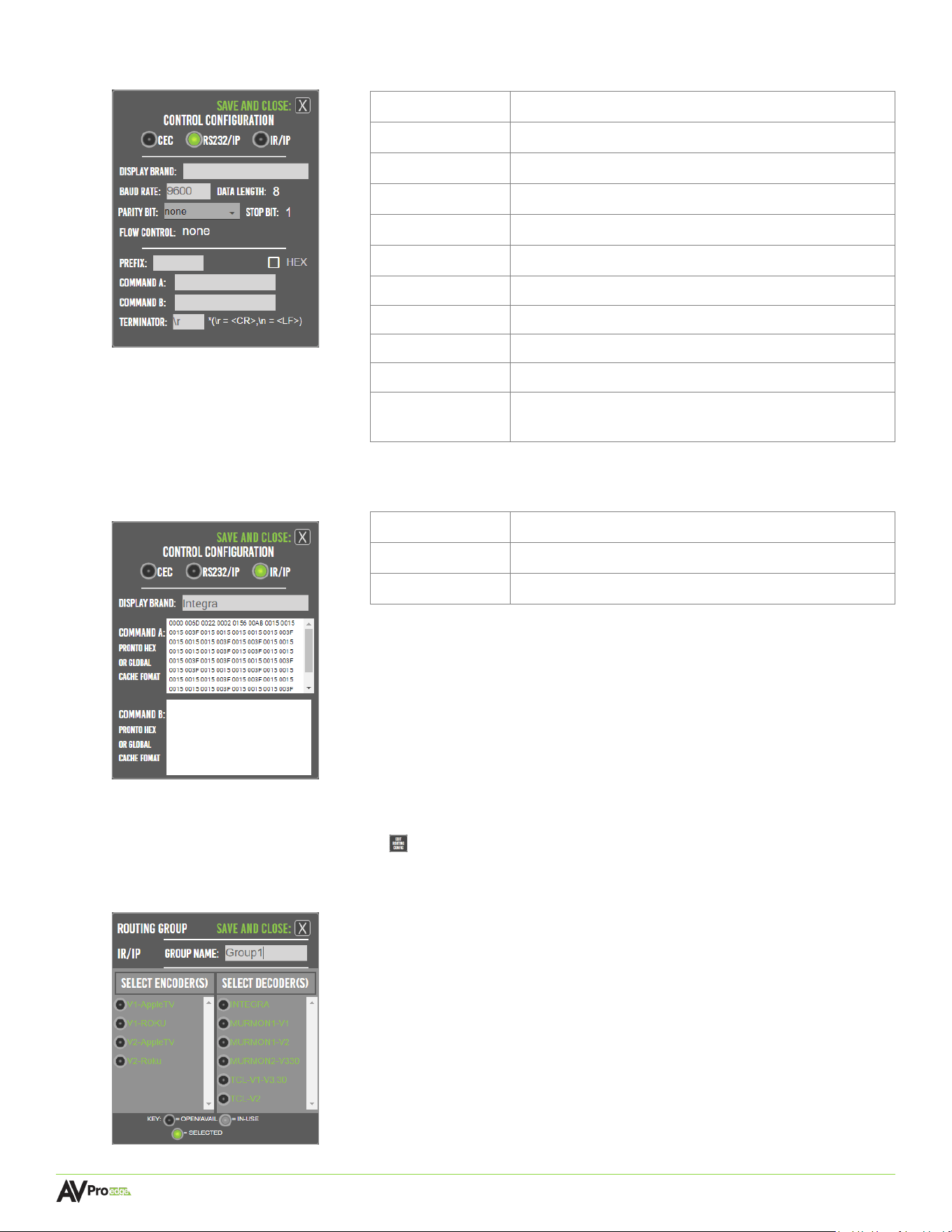
Page 62
MXNET 10G SDVoE® USER MANUAL
6.7.2 Creating an RS-232 Control Configuration
6.7.3 Creating an IR Control Configuration
6.7.4 Routing Groups for Encoders and Decoders
Select the edit routing config button , this will open a list of all the encoders and decoders. Select the
sources and displays here to apply the selected control configurations, then select the x button to save and
close.
Display
Manufacturer or brand of display
Baud Rate
Speed of bits being sent per second
Data Length
Number of bits in a data frame
Parity Bit
Error detection, includes none, odd, or even
Stop Bit
Allows the next start bit to be transmitted
Flow Control
Controls the amount of data being transmitted
Prefix
The leading character in each message
HEX
Enables HEX characters
Command A
Specified command
Command B
Specified command
Terminator
Carriage return or line feed, may be required by some
display manufacturers
Display
Manufacturer or brand of display
Command A
Specified command
Command B
Specified command
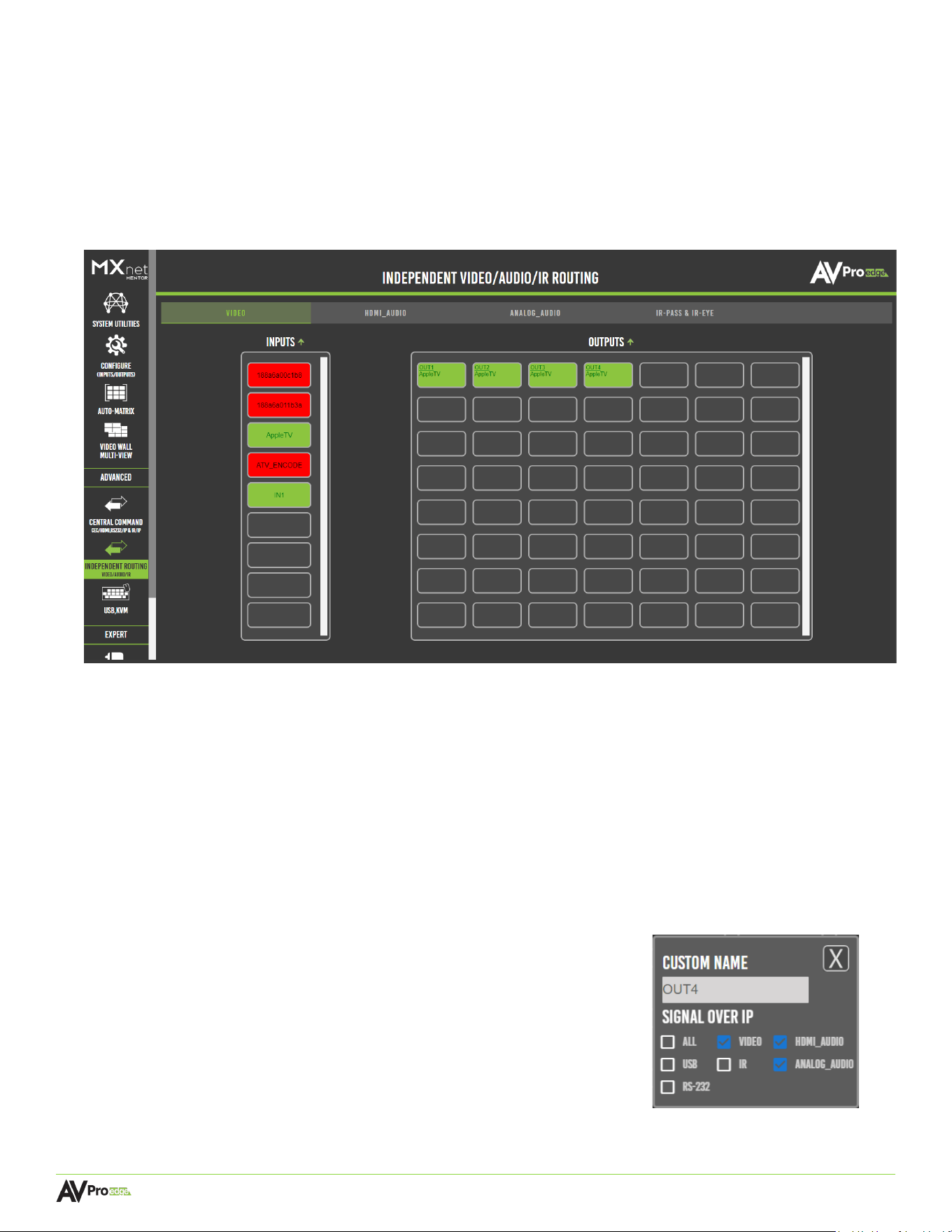
Page 63
MXNET 10G SDVoE® USER MANUAL
6.8 Independent Routing
This page provides a simple way to separately route video, audio, and control signals from different encoders to
different decoders, as well as any equipment connected to either the RS232 or IR EYE and I-PASS ports on the
encoders and decoders.
The routing pages closely resemble the Auto-Matrix page with additional tabs located at the top for separating
video, audio, and IR functionality. Each input can be independently configured to route video, audio, and IR
signals.
6.8.1 Creating a Routing Path
1 From the Inputs column, select the desired source’s input. This will highlight the input with an orange
border to indicate the selection was made.
2 From the Outputs grid, select the desired output(s) to route the selected source to. This will highlight the
output(s) with an orange border to indicate the selection was made.
3 Switching commands are now sent to the source’s encoder and the output’s decoder(s), and the selected
source’s signals will now be present on the selected output(s).
NOTE: The decoder’s signal switching can also be adjusted from
CONFIGURE (INPUTS/OUTPUTS) page by right-clicking on
an output tile. This will open an additional menu where the
signals can be selected for independent routing of video,
HDMI and analog audio, USB, IR, and RS-232 signals.
(Applies to all tabs)
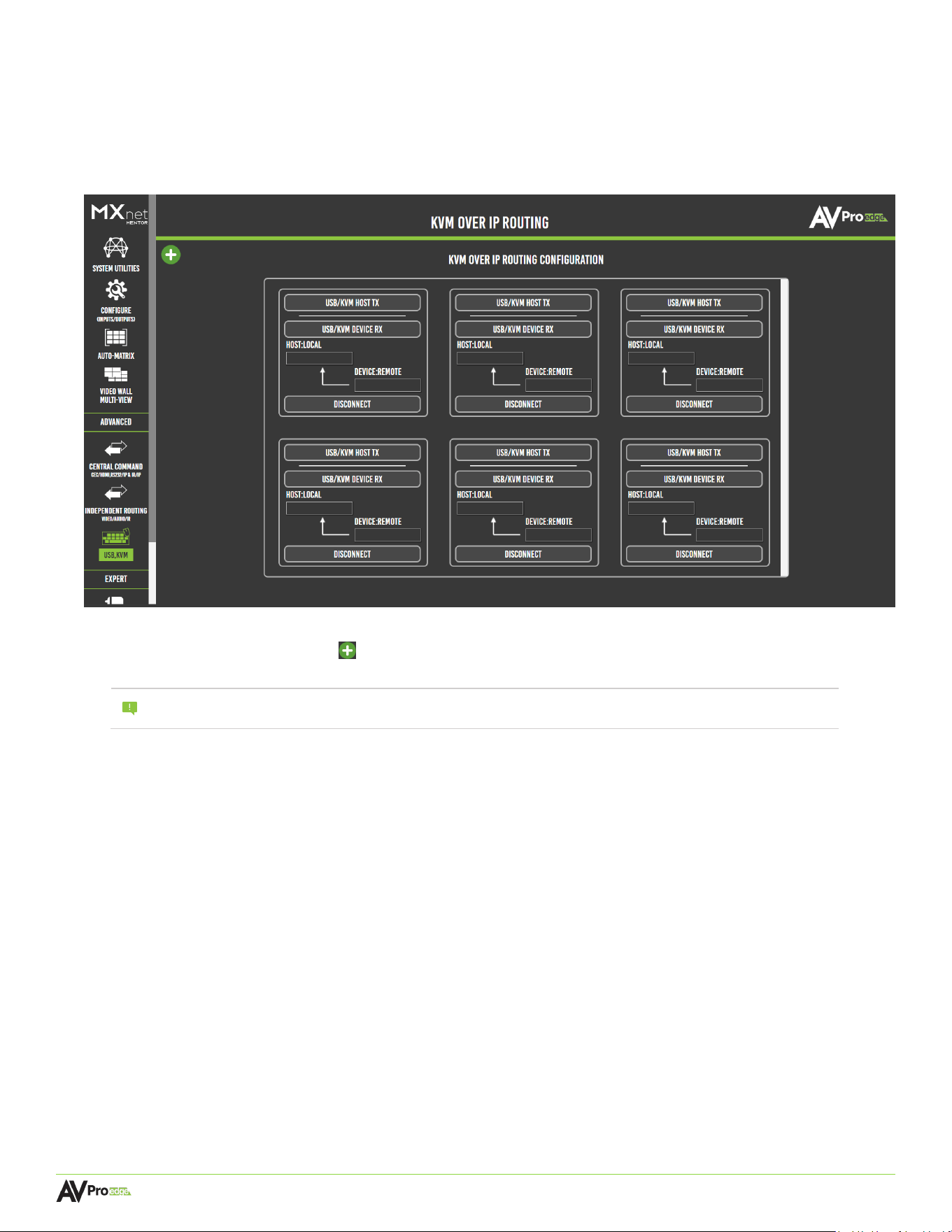
Page 64
MXNET 10G SDVoE® USER MANUAL
6.9 USB & KVM
The USB & KVM page provides a setup interface for routing any USB 2.0 device that uses the USB ports on the
decoder which then provides the input for a keyboard and mouse. The KVM decoder input is then routed
directly to the host encoder. For most applications, the host will be a PC type computer with one of its USB ports
connected to the encoder’s USB HOST port.
Mentor provides six routing groups for six different independent routing paths. More routing groups can be
added by selecting + (add) button in the top-left corner of the page.
NOTE:
USB routing is only supported for basic keyboard and mouse functionality on the base TCVR and TCVR-AVDM
models. For High-Speed USB capabilities, the TCVR-USBX and TCVR-PRO models must be used.
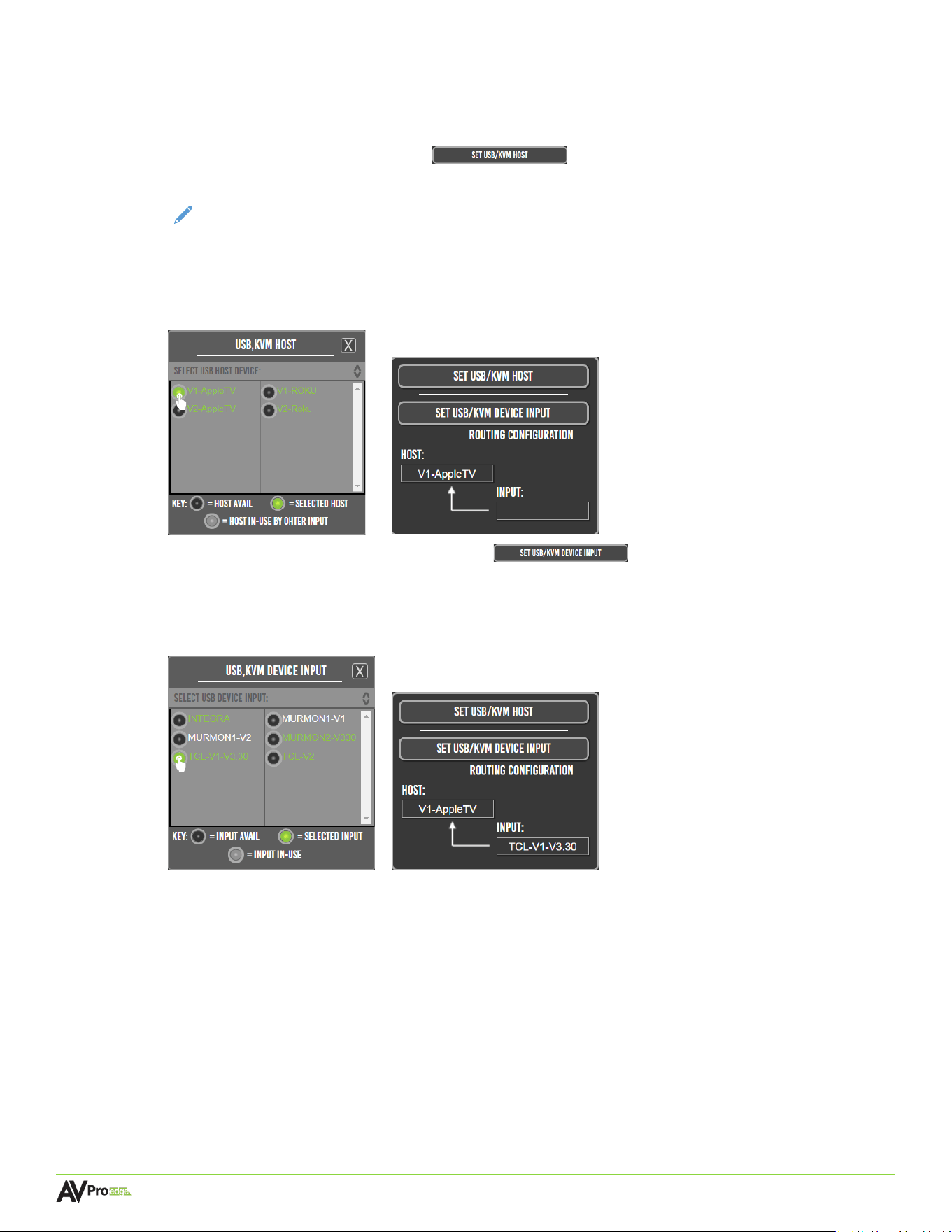
Page 65
MXNET 10G SDVoE® USER MANUAL
6.9.1 Creating a USB or KVM Routing Path
1 Plug in all the input devices into the USB ports on the decoder and connect the PC to the USB HOST
port on the encoder.
2 Select the set usb/kvm host button within one of the routing setup boxes. This
will open a list of USB host devices for the encoders.
NOTE:
If a previous KVM routing path has already been setup using a different routing setup
box, any previously selected encoders will then appear in the list as grey, or unavailable.
3 Se
lect an encoder to set it as the USB host, then select the x button to close the USB host list. The
selected encoder will now appear in the host field.
4 Sel
ect the set usb/kvm device input button within the same routing setup box.
This will open a list of USB input devices for the decoders.
5 Select a decoder to set it as the USB input device, then select the x button to close the USB host list.
The selected decoder will now appear in the input field.
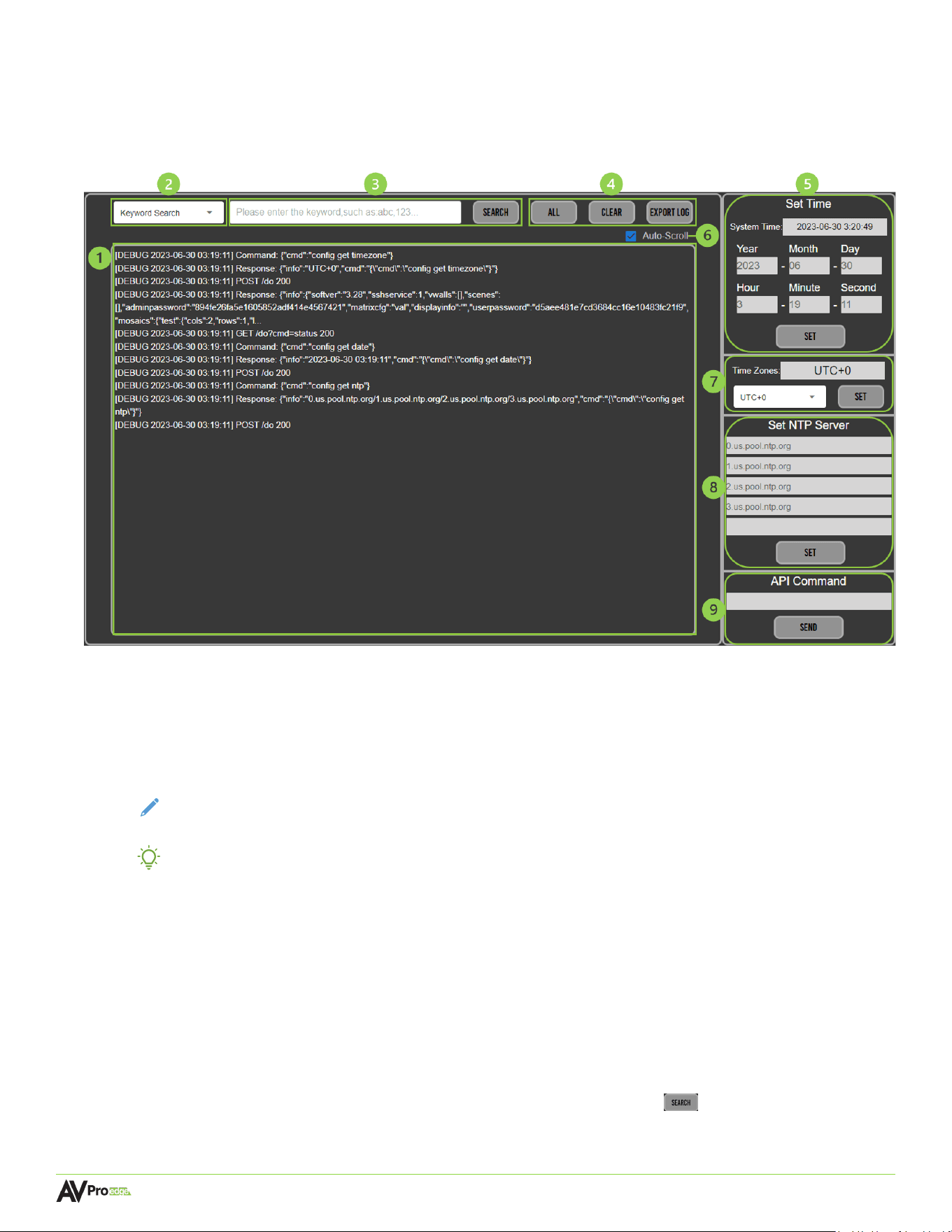
Page 66
MXNET 10G SDVoE® USER MANUAL
6.10 System Log
MXNet Mentor features the System Log page that provides current MXNet system information, time zone
options for the system time and date, and setting NTP (Network Time Protocol) servers for more precise
signaling and time synchronization.
1 SYSTEM LOG SCREEN
This is the MXNet log that records system events generated by the AC-MXNET-10G-CBOX in a continuous
stream while the page is open within Mentor. Events recorded in the System Log consist of timestamped
information about commands, system functions, and what actions were taken. Users cannot alter the
recorded information logged by the System Log page.
NOTE: The System Log only records information while Mentor is opened to the System Log page and
does not record and store information internally.
TIP: Open the System Log page in a separate tab on your web browser to record information while
testing or troubleshooting Mentor on a different web browser tab.
2 KEYWORD SEARCH
Dropdown menu containing search options for locating specific information in the current running system
log. Keywords or phrases can be searched by selecting one of the dropdown menu options, typing in the
keyword or phrase into the text field, and selecting the search button on the right.
Keyword Search locates all information containing the specific keyword or phrase within the System Log.
Keyword Filtering hides all information containing the specific keyword or phrase within the System Log.
3 SEARCH FIELD
Type in a keyword or phrase into the text field then select the search button to locate or hide all the
information containing the keyword or phrase from the System Log screen.

Page 67
MXNET 10G SDVoE® USER MANUAL
4 VIEW SETTINGS
Selecting one of these buttons alters how the information is viewed on the System Log screen.
All shows all information of events currently recorded while the page is open within Mentor.
Clear hides all events recorded in the System Log from view.
Export Log downloads a .txt file of all System Log events recorded up until the page opened within Mentor.
5 SET TIME
The System Time is set by the default NTP server(s). If there are no NTP servers set within Mentor, the System
Time can be manually entered in by typing into the date and time fields and selecting the set button
to apply the changes.
6 AUTO SCROLL
Toggle button, when enabled the system events logged into the System Log will automatically scroll down.
7 TIME ZONES
Select the dropdown menu to set the UTC time zone to a positive or negative UTC offset, then select the set
button to apply the changes.
8 SET NTP SERVER
By default, MXNet utilizes these four NTP servers from United States – us.pool.ntp.org:
0.us.pool.ntp.org
1.us.pool.ntp.org
2.us.pool.ntp.org
3.us.pool.ntp.org
The servers are listed by priority level, meaning that the System Time will always be set by the NTP server
listed in the first field. Should the first NTP server fail, then the System Time will be set by the second listed
NTP server, and so on.
Up to 5 NTP servers can be set by entering in the NTP server addresses into the fields and selecting the set
button to apply the changes.
9 API COMMAND
Enter the unit’s API commands into this field. System events generated by the unit will record in a
continuous stream while the System Log page is open within the Web UI.

Page 68
MXNET 10G SDVoE® USER MANUAL
7 Maintenance
To ensure reliable operation of these devices as well as protecting the safety of any person using or handling these
devices while powered, observe the following instructions:
• Use the provided power supplies. If an alternative power supply is required, check the voltage and polarity to
ensure it has sufficient power to supply the device it is connected to.
• Do not operate these devices outside the specified temperature and humidity range given in the above
specifications.
• Ensure there is adequate ventilation to allow these devices to operate efficiently.
• Repair of the equipment should only be carried out by qualified professionals as these devices contain
sensitive components that may be damaged by any mistreatment.
• Only use these devices in a dry environment. Do not allow any liquids or harmful chemicals to come into
contact with these devices.
• Clean this unit with a soft, dry cloth. Never use alcohol, paint thinner, or benzene to clean these devices.
8 Damage Requiring Service
The devices should be serviced by qualified personnel if:
• The DC power supply cord or AC adapter has been damaged
• Objects or liquids have breached the interior of the devices
• The devices have been exposed to rain or moisture
• The devices do not operate normally or exhibit a marked change in performance
• The devices have been dropped or the housing is damaged
9 Support
Should you experience any problems using this product, you may contact AVPro Technical Support. When calling in,
the following information should be provided:
• Product name and model number
• Product serial number
• Details of the issue and any conditions under which the issue is occurring
10 Warranty
10.1 The Basics
AVPro Edge warranties its products that are purchased from all authorized AVPro Edge resellers or direct purchases.
Products are guaranteed to be free from manufacturing defects and are of sound physical and electronic condition.
AVPro Edge has developed a warranty that anyone can get behind. We really wanted to take all the “red tape” out of
a warranty and just make it simple. Our 10 Year No BS Warranty hinges on 3 elements:
• If you are having trouble, call us. We will attempt to troubleshoot your issue over the phone.
• If it’s broken, we will replace it in advance on our dime and we’ll also cover the return shipping. Repair is
an option too, but it’s YOUR call.
• We know you know what you are doing. We will not make you go through unnecessary steps to
troubleshoot an extender.

Page 69
MXNET 10G SDVoE® USER MANUAL
10.2 Coverage Details
AVPro Edge will replace or repair (at customer choice) defective products. If the product is out of stock or on
backorder it can be replaced with a comparable product of equal value/feature set (if available) or repaired.
Your warranty begins at receipt of product (as confirmed by shipping firm tracking). If tracking information is
unavailable for any reason, the warranty will commence 30 ARO (After Receipt of Order). The coverage continues for
10 years.
10.3 Red Tape
AVPro Edge is not responsible for untraceable purchases or those that were made outside of an authorized channel.
If we conclude that a product or serial number has been tampered with as identified by the warranty seal of physical
examination the warranty will be void. Additionally, excessive physical damage (beyond normal wear & tear) the
warranty may be voided or prorated based on the extent of the damage as examined by an AVPro Edge
representative.
Damage caused by “acts of God” are not covered. They include natural disasters, power surges, storms, earthquakes,
tornados, sink holes, typhoons, tidal waves, hurricanes, or any other uncontrollable event related to nature.
Damage caused by incorrect installation will not be covered. Incorrect power supply, inadequate cooling, improper
cabling, inadequate protection, static discharge are examples of this.
Products installed or sold by a third party to AVPro Edge will be serviced by the authorized AVPro Edge reseller.
Accessories (IR cables, RS-232, power supplies, etc.) are not included in the warranty. We will make acceptable
efforts to source and supply replacements for defective accessories at a discounted rate as needed.
10.4 Obtaining an RMA
Dealers, resellers, and installers can request an RMA from an AVPro Edge Technical Support representative or Sales
Engineer. Or you may email support@avproedge.com or fill out the general contact form at
www.avproedge.com/contact.
End users may not request an RMA directly from AVPro Edge and will be referred back to the dealer, reseller, or
installer.
10.5 Shipping
For the USA (not including Alaska and Hawaii), shipping is covered on advanced replacements for FedEx Ground
(some expressed exceptions may apply). Defective product return shipping is covered by AVPro Edge using an
emailed return label. Items must be returned within 30 days of receipt of the replacement product, after 40 days the
customer will be billed. Other return shipping methods will not be covered.
For international (and Alaska and Hawaii) return shipping costs will be the responsibility of the returnee. Once the
unit is scanned for return shipping AVPro Edge will ship the new replacement unit.

Page 70
MXNET 10G SDVoE® USER MANUAL
Obsolescence or incompatibility with newly invented technologies (after manufacture of product) is not covered by
this warranty. Obsolescence is defined as:
“Peripherals are rendered obsolete when current technology does not support product repair or remanufacture. O
products cannot be remanufactured because advanced technologies supersede original product manufacturer
capabilities. Because of performance, price and functionality issues, product re-development is not an option.”
Discontinued or out-of-production items will be credited at fair market value towards a current product of equal or
comparable capabilities and cost. Fair market value is determined by AVPro Edge.
10.7 Exclusive Remedy
To the maximum extent permitted by law, this limited warranty and the remedies set forth above are exclusive and in
lieu of all other warranties, remedies, and conditions, whether oral or written, express or implied. To the maximum
extent permitted by law, AVPro Global Holdings LLC specifically disclaims any and all implied warranties, including,
without limitation, warranties of merchantability and fitness for a particular purpose. If AVPro Global Holdings LLC
cannot lawfully disclaim or exclude implied warranties under applicable law, then all implied warranties covering this
product, including warranties of merchantability and fitness for a particular purpose, shall apply to this product as
provided under applicable law.
This warranty supersedes all other warranties, remedies, and conditions, whether oral or written, express or implied.
10.6 Limitation on Liability
The maximum liability of AVPro Global Holdings LLC under this limited warranty shall not exceed the actual purchase
price paid for the product. AVPro Global Holdings LLC is not responsible for direct, special, incidental, or
consequential damages resulting from any breach of warranty or condition, or under any other legal theory to the
maximum extent permitted by law. Taxes, Duties, VAT, and other freight forwarding service charges are not covered
or paid for by this warranty.