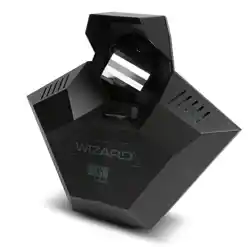
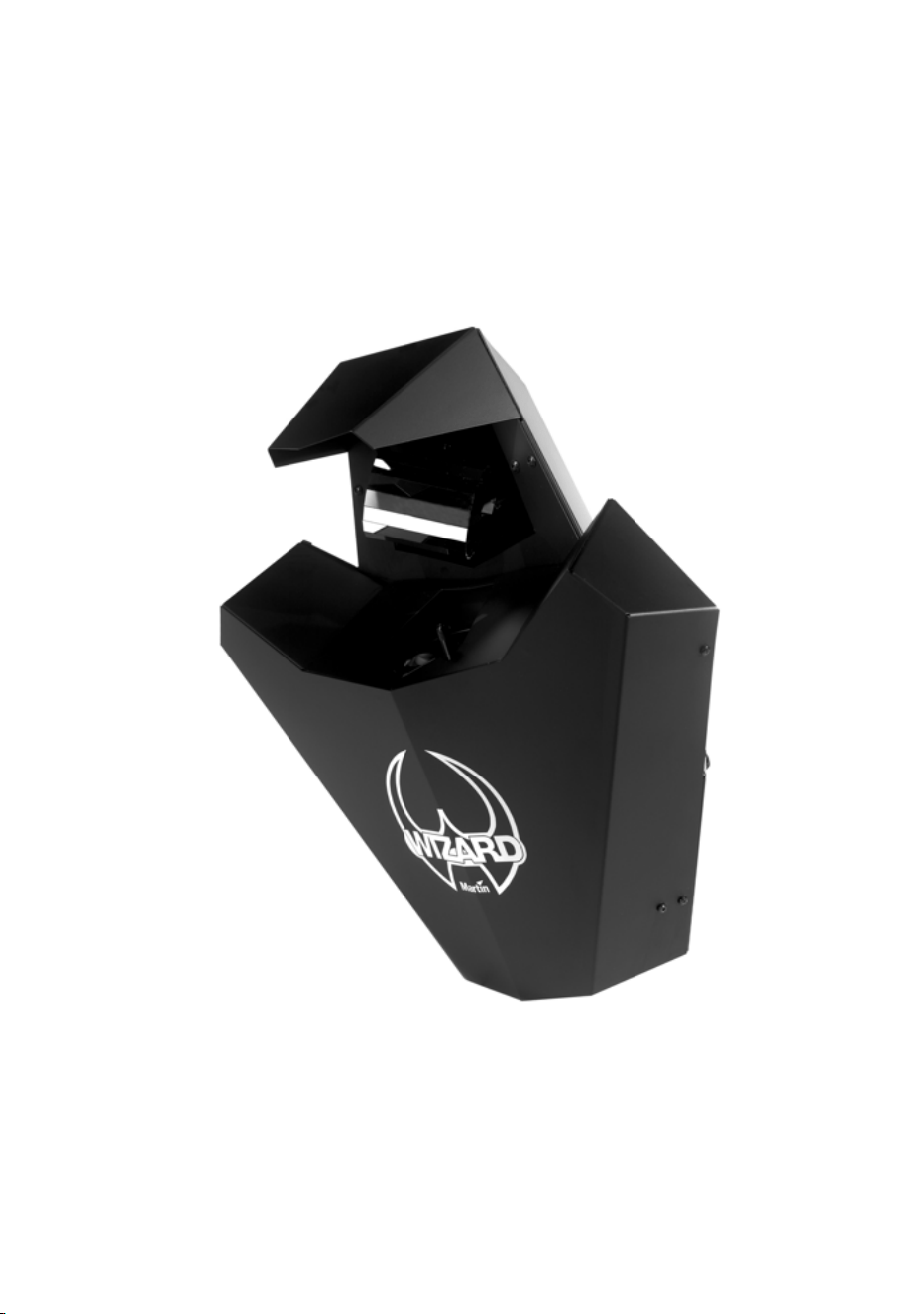
Wizard
user manual
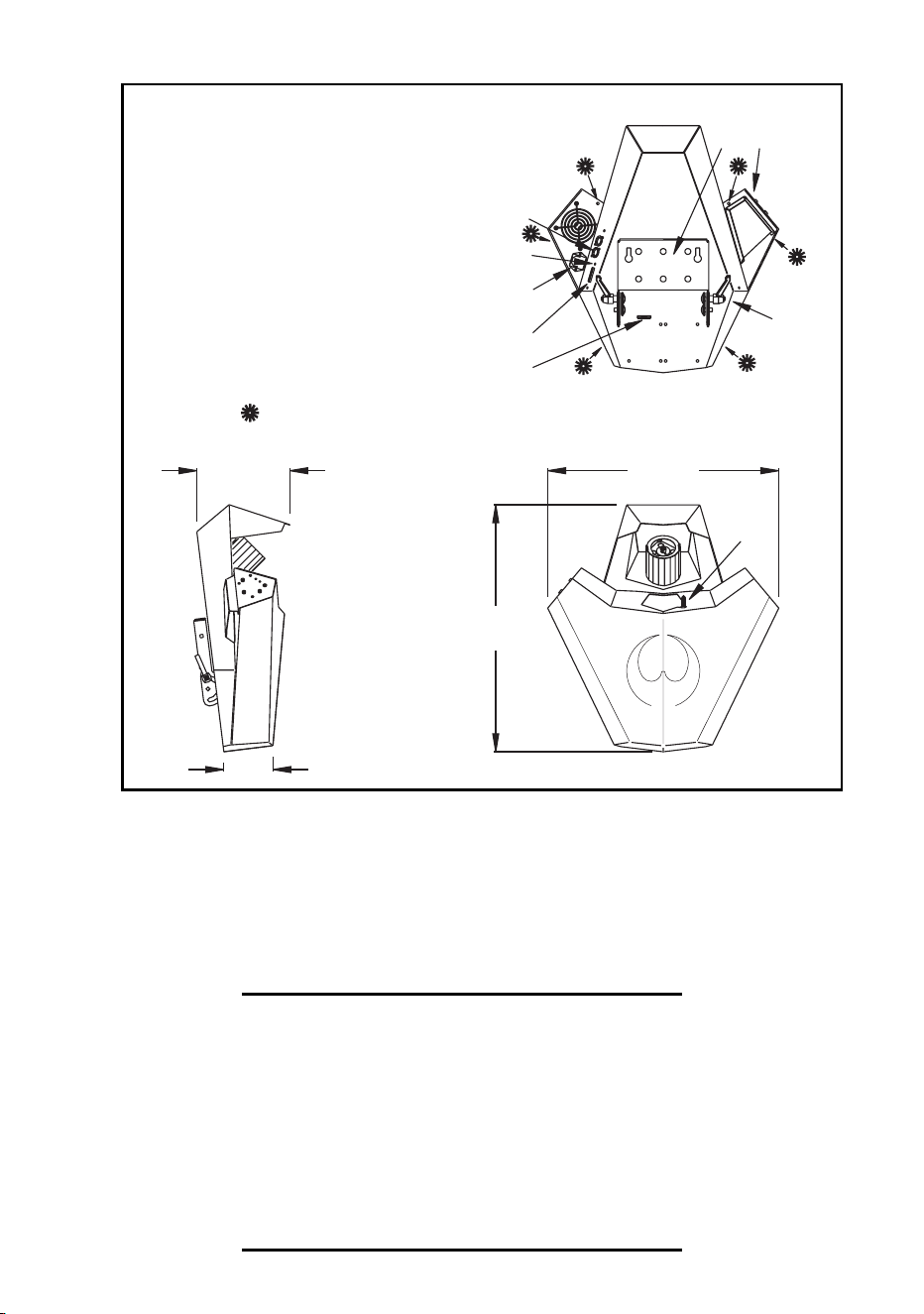
Measurements are expressed in millimeters.
552
516208
110
1
3
4
5
6
2
7
8
9
1 Data sockets
2 Power and Data LEDs
3 Power inlet & main fuse
4 DIP switch
5 Safety cable eye
6 Mounting bracket
7 Lamp housing
8 Swivel locks
9 Focus rod
Cover access screws
© 2001 Martin Professional A/S, Denmark.
All rights reserved. No part of this manual may be
reproduced, in any form or by any means, without
permission in writing from Martin Professional A/S,
Denmark.
Printed in Denmark.
P/N 35000098, Rev. C

3
Introduction. . . . . . . . . . . . . . . . . . . . . . . . . . . . . . . . . . . . . . . . .4
Wizard safety information. . . . . . . . . . . . . . . . . . . . . . . . . . . . . . . . . . . . . . . . . 4
Unpacking . . . . . . . . . . . . . . . . . . . . . . . . . . . . . . . . . . . . . . . . . . . . . . . . . . . . 6
AC power . . . . . . . . . . . . . . . . . . . . . . . . . . . . . . . . . . . . . . . . . . .7
Installing a plug on the mains lead. . . . . . . . . . . . . . . . . . . . . . . . . . . . . . . . . . 7
Adjusting voltage settings . . . . . . . . . . . . . . . . . . . . . . . . . . . . . . . . . . . . . . . . 8
Installation. . . . . . . . . . . . . . . . . . . . . . . . . . . . . . . . . . . . . . . . .10
Wall mounting . . . . . . . . . . . . . . . . . . . . . . . . . . . . . . . . . . . . . . . . . . . . . . . . 10
Overhead mounting . . . . . . . . . . . . . . . . . . . . . . . . . . . . . . . . . . . . . . . . . . . . 11
Operation from the floor . . . . . . . . . . . . . . . . . . . . . . . . . . . . . . . . . . . . . . . . . 12
Data connection . . . . . . . . . . . . . . . . . . . . . . . . . . . . . . . . . . . .13
Recommended cable . . . . . . . . . . . . . . . . . . . . . . . . . . . . . . . . . . . . . . . . . . . 13
Connections . . . . . . . . . . . . . . . . . . . . . . . . . . . . . . . . . . . . . . . . . . . . . . . . . . 13
Stand-alone operation . . . . . . . . . . . . . . . . . . . . . . . . . . . . . . .15
Single unit operation . . . . . . . . . . . . . . . . . . . . . . . . . . . . . . . . . . . . . . . . . . . 15
Master / slave operation. . . . . . . . . . . . . . . . . . . . . . . . . . . . . . . . . . . . . . . . . 15
Stand-alone settings . . . . . . . . . . . . . . . . . . . . . . . . . . . . . . . . . . . . . . . . . . . 17
MC-1 operation . . . . . . . . . . . . . . . . . . . . . . . . . . . . . . . . . . . . .18
MC-1 settings . . . . . . . . . . . . . . . . . . . . . . . . . . . . . . . . . . . . . . . . . . . . . . . . . 18
DMX operation . . . . . . . . . . . . . . . . . . . . . . . . . . . . . . . . . . . . .19
DMX modes . . . . . . . . . . . . . . . . . . . . . . . . . . . . . . . . . . . . . . . . . . . . . . . . . . 19
DMX control address . . . . . . . . . . . . . . . . . . . . . . . . . . . . . . . . . . . . . . . . . . . 21
Basic service. . . . . . . . . . . . . . . . . . . . . . . . . . . . . . . . . . . . . . .23
Cleaning . . . . . . . . . . . . . . . . . . . . . . . . . . . . . . . . . . . . . . . . . . . . . . . . . . . . . 23
Lamp maintenance. . . . . . . . . . . . . . . . . . . . . . . . . . . . . . . . . . . . . . . . . . . . . 25
Fuses . . . . . . . . . . . . . . . . . . . . . . . . . . . . . . . . . . . . . . . . . . . . . . . . . . . . . . . 26
Setting 6- or 8-channel DMX mode . . . . . . . . . . . . . . . . . . . . . . . . . . . . . . . . 27
Firmware updates . . . . . . . . . . . . . . . . . . . . . . . . . . . . . . . . . . . . . . . . . . . . . 27
Troubleshooting . . . . . . . . . . . . . . . . . . . . . . . . . . . . . . . . . . . .29
DMX protocol . . . . . . . . . . . . . . . . . . . . . . . . . . . . . . . . . . . . . .31
Specifications . . . . . . . . . . . . . . . . . . . . . . . . . . . . . . . . . . . . . .33

4 Wizard user manual
I
NTRODUCTION
1
Thank you for selecting the Martin Wizard. The Wizard is an automated lighting
fixture that provides:
• Strobe effects
• Seven solid colors, eight-split colors, and two white positions
• 13 gobos plus open
• A rotating parabolic reflector
• A rotating mirror drum with variable swivel angle
• Adjustable focus
• Mechanical shutter
• Multiple control options that enable a broad range of effects
The combination of the parabolic reflector and the mirror drum provide up to 84
individual beams with the current effect.
WIZARD SAFETY INFORMATION
Warning! This product is not for household use. It presents risks of
lethal or severe injury due to fire and heat, electric shock, and
falls.
Read this manual before powering or installing the fixture, follow the safety
precautions listed below and observe all warnings in this manual and printed on
the fixture. If you have questions about how to operate the fixture safely, please
contact a Martin distributor for assistance. Refer any service operation not
described in this manual to a qualified technician. Do not modify the fixture or
install other than genuine Martin accessories and upgrade kits.
Avoiding electric shocks
• Disconnect the fixture from AC power before removing or installing the lamp,
fuses, or any part, and when not in use.
• Always ground (earth) the fixture electrically.

Introduction 5
• Use only a source of AC power that complies with local building and electrical
codes and has both overload and ground-fault protection.
• Do not expose the fixture to rain or moisture.
• Refer all service to a qualified technician.
• Never operate the fixture with missing or damaged lenses and/or covers.
Protecting yourself and others from burns and fire
• Never attempt to bypass the thermostatic switch or fuses. Always replace
defective fuses with ones of the specified type and rating.
• Ensure that the air flow through fans and vents is free and unobstructed.
• Keep all combustible materials (for example fabric, wood, paper) at least 0.3
meters (12 inches) away from the fixture. Keep flammable materials well away
from the fixture.
• Do not illuminate surfaces within 0.1 meters (4 inches) of the fixture.
• Provide a minimum clearance of 0.1 meters (4 inches) around fans and air vents.
• Replace the lamp if it becomes defective or worn out, or before usage exceeds the
maximum service life. When replacing the lamp, allow the fixture to cool for at
least 5 minutes before opening the fixture or removing the lamp. Protect your
hands and eyes with gloves and safety glasses. It can take up to 15 minutes for the
fixture to cool completely.
• Never place filters or other materials over the lens or mirror drum.
• The exterior of the fixture can reach temperatures up to 60° C (140° F). Allow the
fixture to cool for at least 5 minutes before handling.
• Do not operate the fixture if the ambient temperature (Ta) exceeds 40° C (104°
F).
• Do not stare directly into the light.
• Never operate the fixture without all lenses and covers installed: an unshielded
lamp can explode without warning and emits dangerous UV radiation that can
cause burns and eye damage.
Preventing injuries due to falls
• When suspending the fixture above ground level, verify that the structure can
hold at least 10 times the weight of all installed devices.
• Verify that all external covers and rigging hardware are securely fastened and use
an approved means of secondary attachment such as a safety cable.
• Block access below the work area whenever installing or removing the fixture.

6 Wizard user manual
UNPACKING
The packing material is carefully designed to protect the fixture during shipment -
always use it to transport the fixture.
The Wizard comes with the following:
• 1.5-meter, 3-wire IEC power cable.
• User manual.

AC power 7
AC
POWER
2
The Wizard’s operating voltage is printed on the serial number label that can be
found on the back of the Wizard. Verify that the operating voltage closely
matches the AC supply voltage before applying power. Contact your Martin
dealer if the operating voltage differs from the supply voltage by more than five
percent.
INSTALLING A PLUG ON THE MAINS
LEAD
The fixture’s mains lead may require a grounding-type cord cap that fits your
power distribution cable or outlet. Consult a qualified electrician if you have any
doubts about proper installation.
Warning! For protection from dangerous electric shock, the fixture
must be grounded (earthed). The AC mains supply shall have
overload and ground-fault protection.
Important! Verify that the feed cables are undamaged and rated for the
current requirements of all connected devices before use.
Following the cord cap manufacturer’s instructions, connect the yellow and green
wire to ground (earth), the brown wire to live, and the blue wire to neutral. The
table below shows some pin identification schemes.
Wire Pin Marking Screw color
brown live “L” yellow or brass
blue neutral “N” silver
yellow/green ground green
8 Wizard user manual
ADJUSTING VOLTAGE SETTINGS
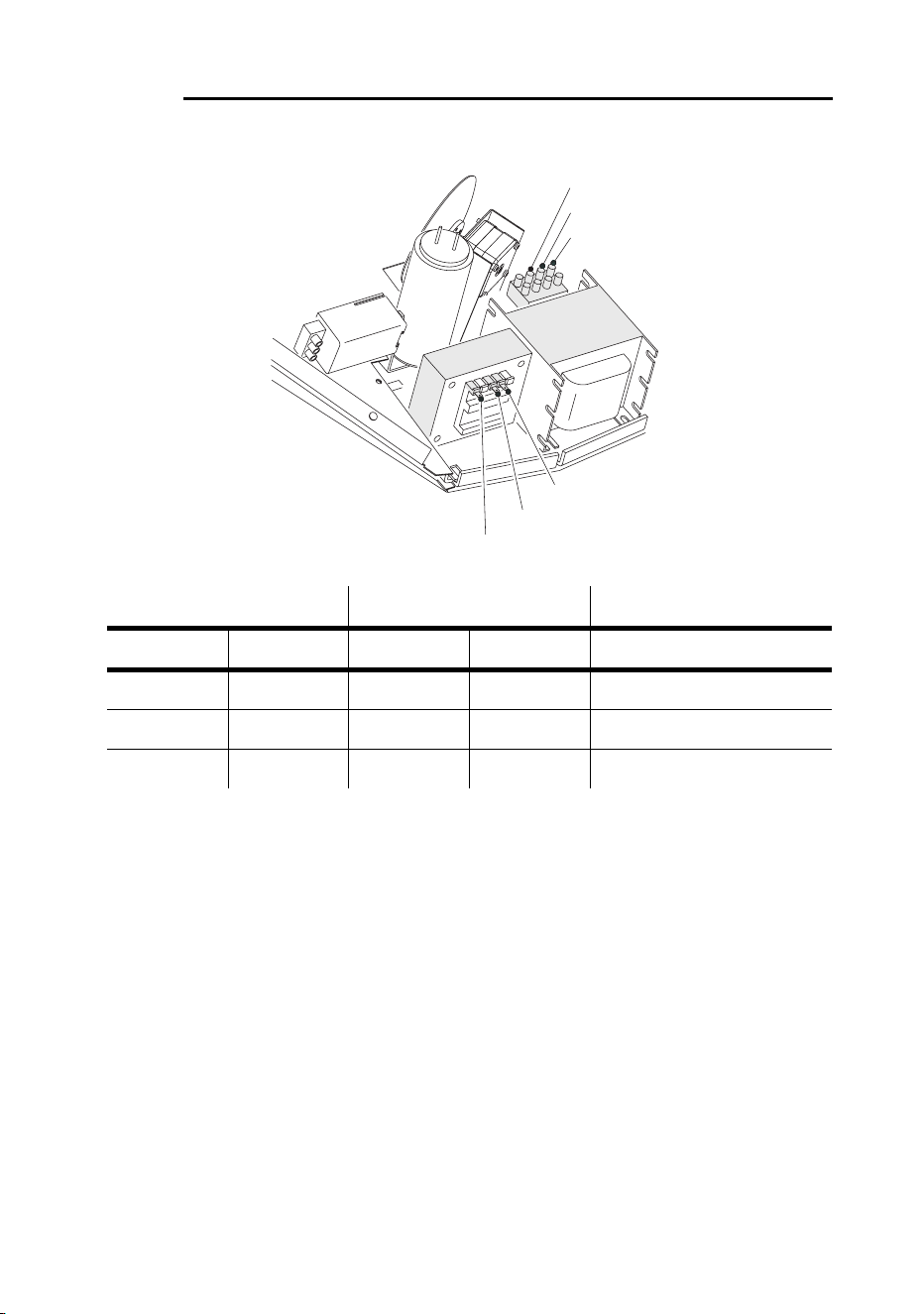
EU Model
1 Disconnect the fixture from AC power.
2 If the lamp is hot, allow it to cool for 5 minutes and wear safety goggles to protect
your eyes.
3 Remove the 6 cover-access screws and lift of the fixture cover.
4 On the transformer, move the BROWN wire to the transformer terminal shown in
the table above for the local AC supply voltage. The terminals are indicated on a
label on the top of the transformer.
5 On the ballast, move the BROWN wire to the terminal listed for the voltage. The
terminals are indicated on the top of the ballast.
6 Replace the cover.
Local AC Supply Transformer Ballast
Freq. Voltage Setting Terminal Setting / Terminal
50 Hz 220 - 235 V 225 V 3 230 V
50 Hz 235 - 245 V 240 V 4 240 V
50 Hz 245 - 260 V 240 V 4 250 V
Transformer
Ballast
225 V
240 V
230 V
240 V
250 V
0 V
AC power 9
US model
1 Disconnect the fixture from AC power.
2 If the lamp is hot, allow it to cool for 5 minutes and wear safety goggles to protect
your eyes.
3 Remove the 6 cover-access screws and lift of the fixture cover.
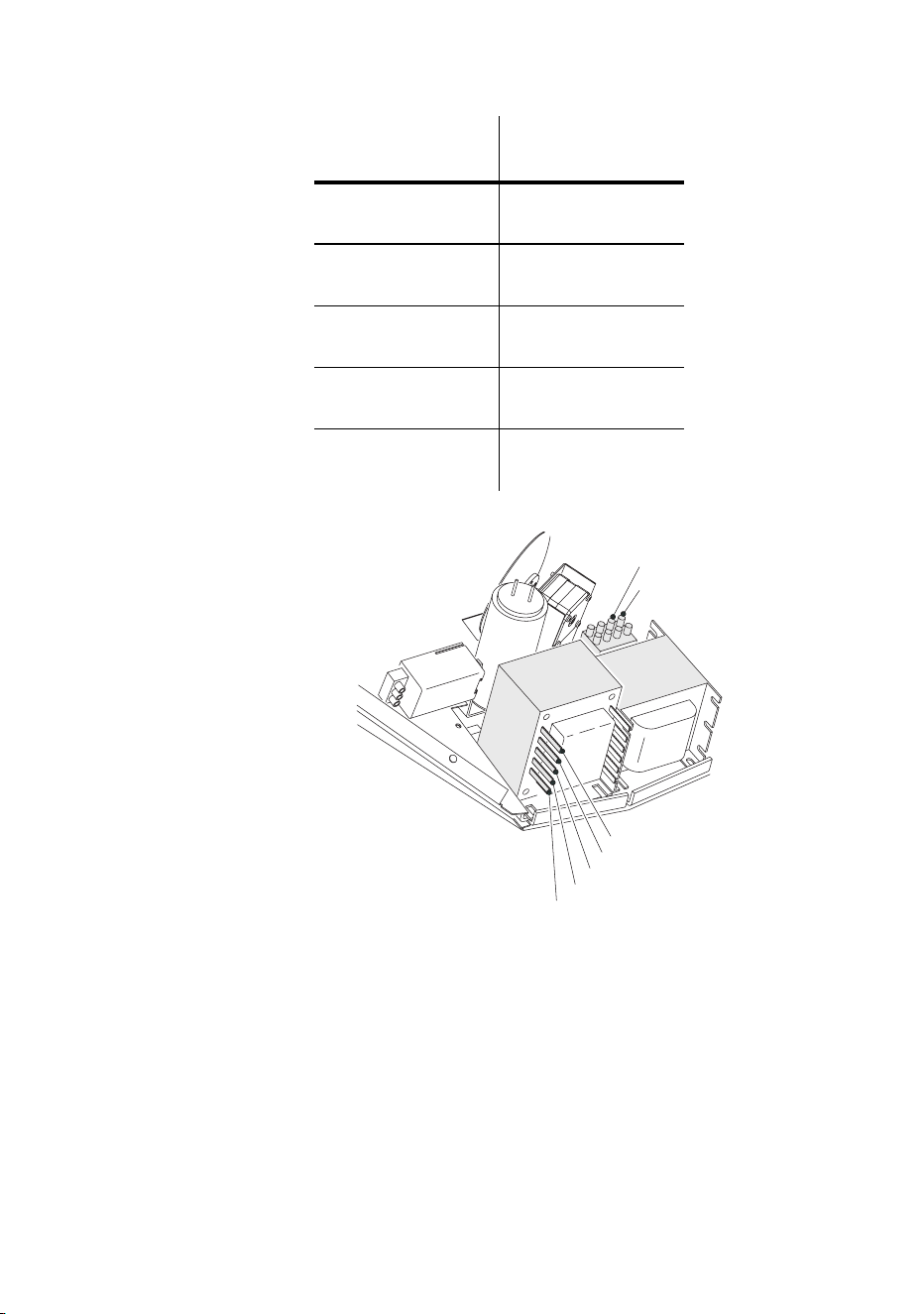
4On the ballast, move the BLUE wire to the 225 V / 50 Hz terminal for 50 Hz local
AC supply, or to the 225 V / 60 Hz terminal for 60 Hz local AC supply.
5 On the transformer, move the BROWN wire to the setting as listed in the previous
table for the local AC voltage. The terminals are indicated on a label on the top of
the transformer.
6 Replace the cover.
Local
AC Voltage
Transformer
taps
95 - 110 V
Blue wire: 20V
Brown wire: 120 V
110 - 130 V
Blue wire: 0 V
Brown wire: 120 V
200 - 220 V
Blue wire: 20 V
Brown wire: 230 V
220 - 240 V
Blue wire: 0 V
Brown wire: 230 V
240 - 260 V
Blue wire: 0 V
Brown wire: 250 V
Transformer
Ballast
225 V / 60 Hz
225 V / 50 Hz
250 V
230 V
120 V
20 V
0 V
10 Wizard user manual
I
NSTALLATION
3
The Wizard can be hung overhead with a clamp (not included), mounted
vertically on a wall, or placed on the floor (using the optional floor stand).
Warning! Block access below the work area before proceeding. Always
use a secure means of secondary attachment.
WALL MOUNTING
To mount the Wizard on a wall, or other vertical surface:
1 Verify that the surface is capable of bearing the weight of the fixture.
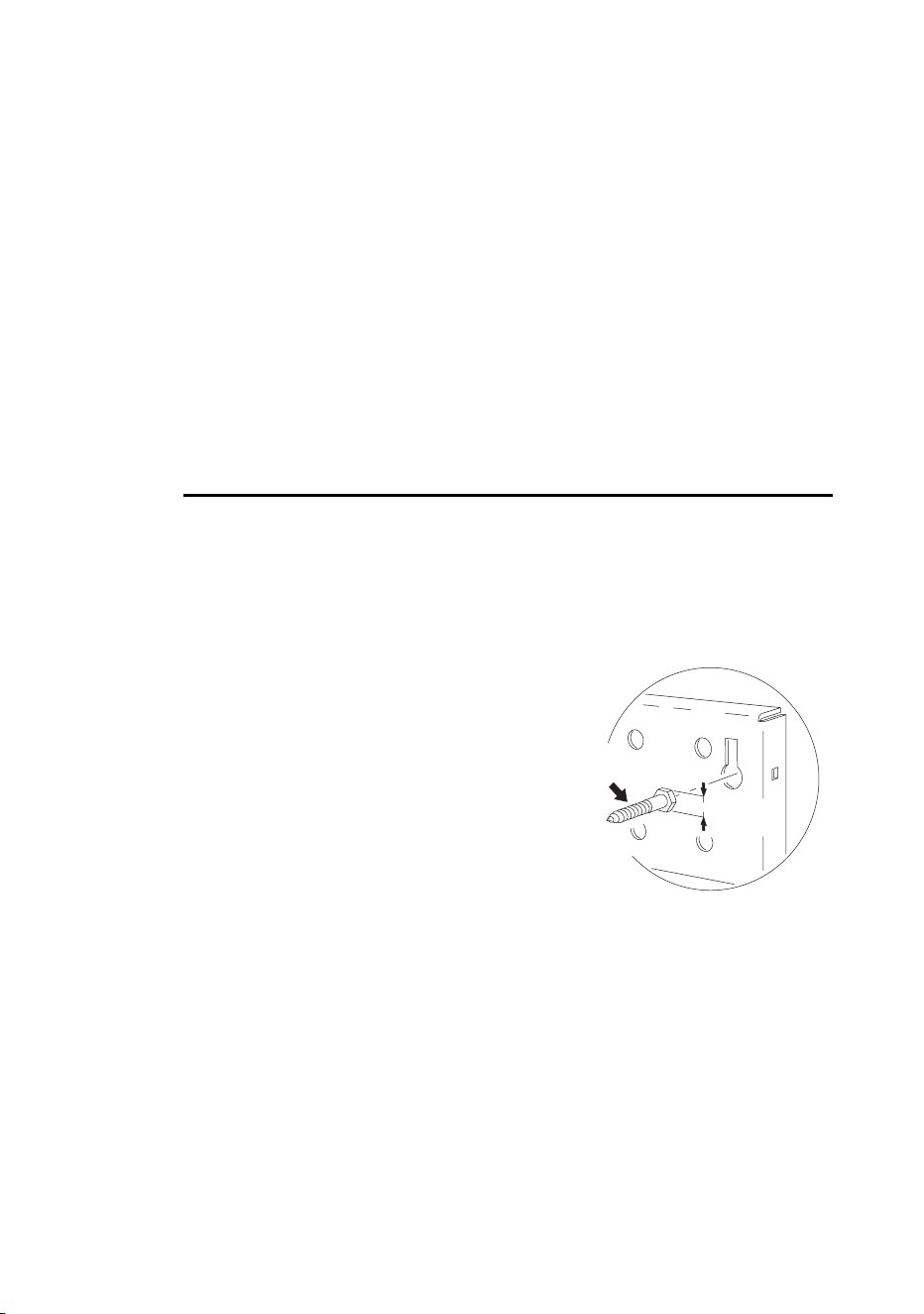
2 Set two 8mm-diameter hex bolts or screws, 155 mm (6.1 in.) apart (center to
center), in the mounting surface.
3 Set an eye bolt in the mounting surface for the
safety cable.
4 Fold the mounting bracket so that it lies flat
against the back of the fixture and tighten the
swivel locks. We recommend that you remove
the swivel locks and replace them with M8
hexagonal lock nuts (2 x P/N 08132701);
alternatively set the swivel locks so that they lie
flat against fixture.
5 Hang the fixture on the wall over the two
screw/bolt heads using the two slotted holes in the mounting bracket.
6 Install a safety cable that can hold at least 10 times the weight of the fixture through
the safety cable eye on the fixture and attach this to the eye bolt.
7 Verify that the fixture is at least 0.1 meters (4 in.) from the surface to be illuminated
and at least 0.3 meters (12 in.) from any combustible materials. Verify that the
clearance around the air vents is at least 0.1 meters (4 in.).
max 13mm / ½"
Ø8mm
Installation 11
OVERHEAD MOUNTING
To hang the Wizard on an overhead support:
1 Verify that the structure can support at least 10 times the weight of all installed
fixtures, clamps, cables, auxiliary equipment, and other items.
2 If hanging the fixture with a rigging clamp, verify that the clamp is undamaged and
is designed for the fixture’s weight. Bolt the clamp securely to the bracket with a
grade 8.8 (minimum) M12 bolt and lock nut, or as recommended by the clamp
manufacturer, through the clamp hole in the mounting bracket.
3 If permanently installing the fixture, verify that the hardware (not included) and
mounting surface can bear at least 10 times the fixture’s weight. Any of the six
13mm (½ in.) holes in the mounting bracket may be used for attachment, but
ensure that the load is distributed evenly.
4 Working from a stable platform, clamp or fasten the fixture to the structure.
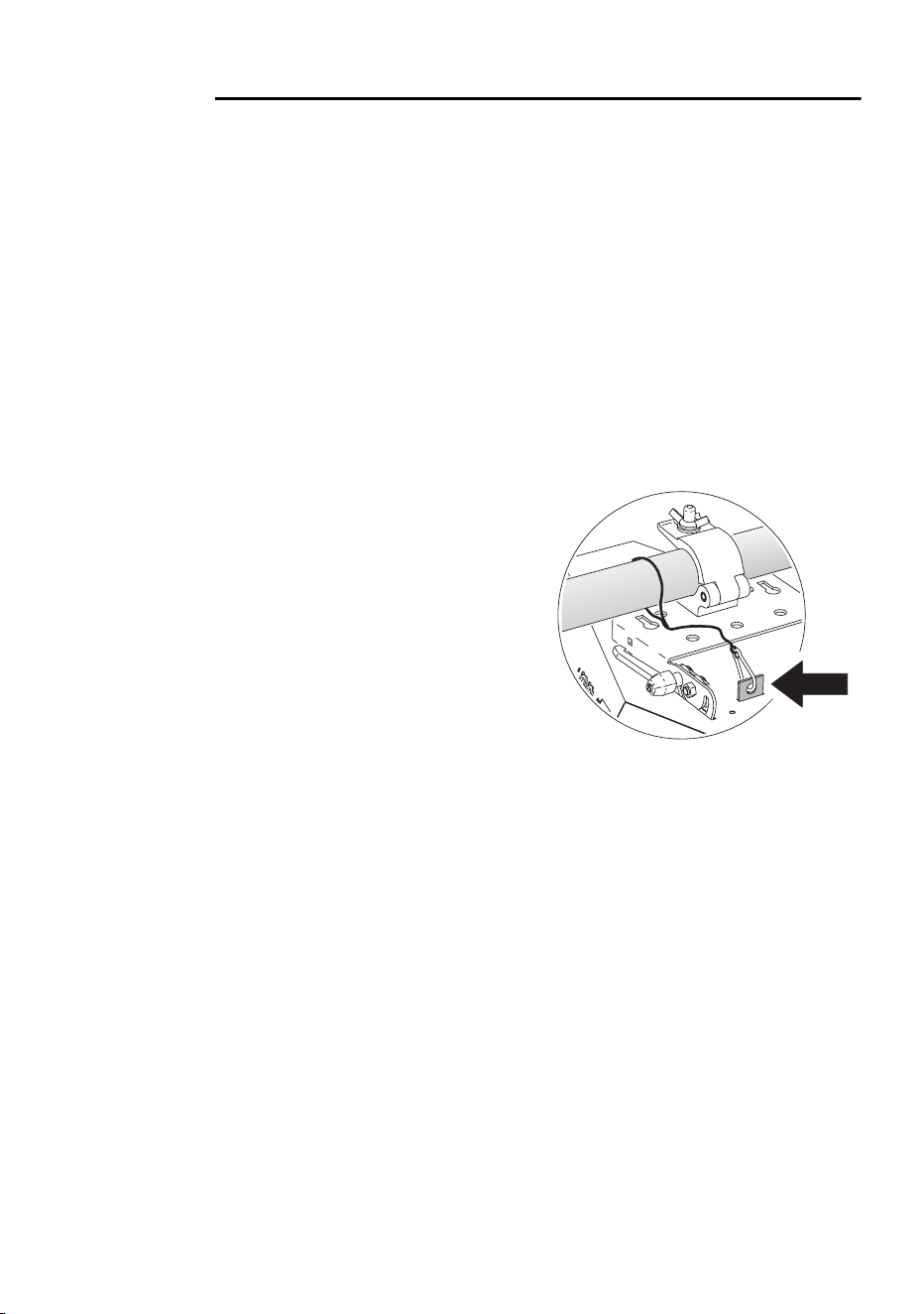
5 Install a safety cable that can hold at
least 10 times the weight of the fixture
through the safety cable eye on the
fixture.
6 Loosen the swivel locks, tilt the fixture to
the desired angle, and retighten.
7 Verify that the fixture is at least 0.1
meters (4 in.) from the surface to be
illuminated and at least 0.3 meters (12
in.) from any combustible materials.
Verify that the clearance around the air
vents is at least 0.1 meters (4 in.).
12 Wizard user manual
OPERATION FROM THE FLOOR
To operate the Wizard from the floor you need the optional floor stand (P/N:
91606008).
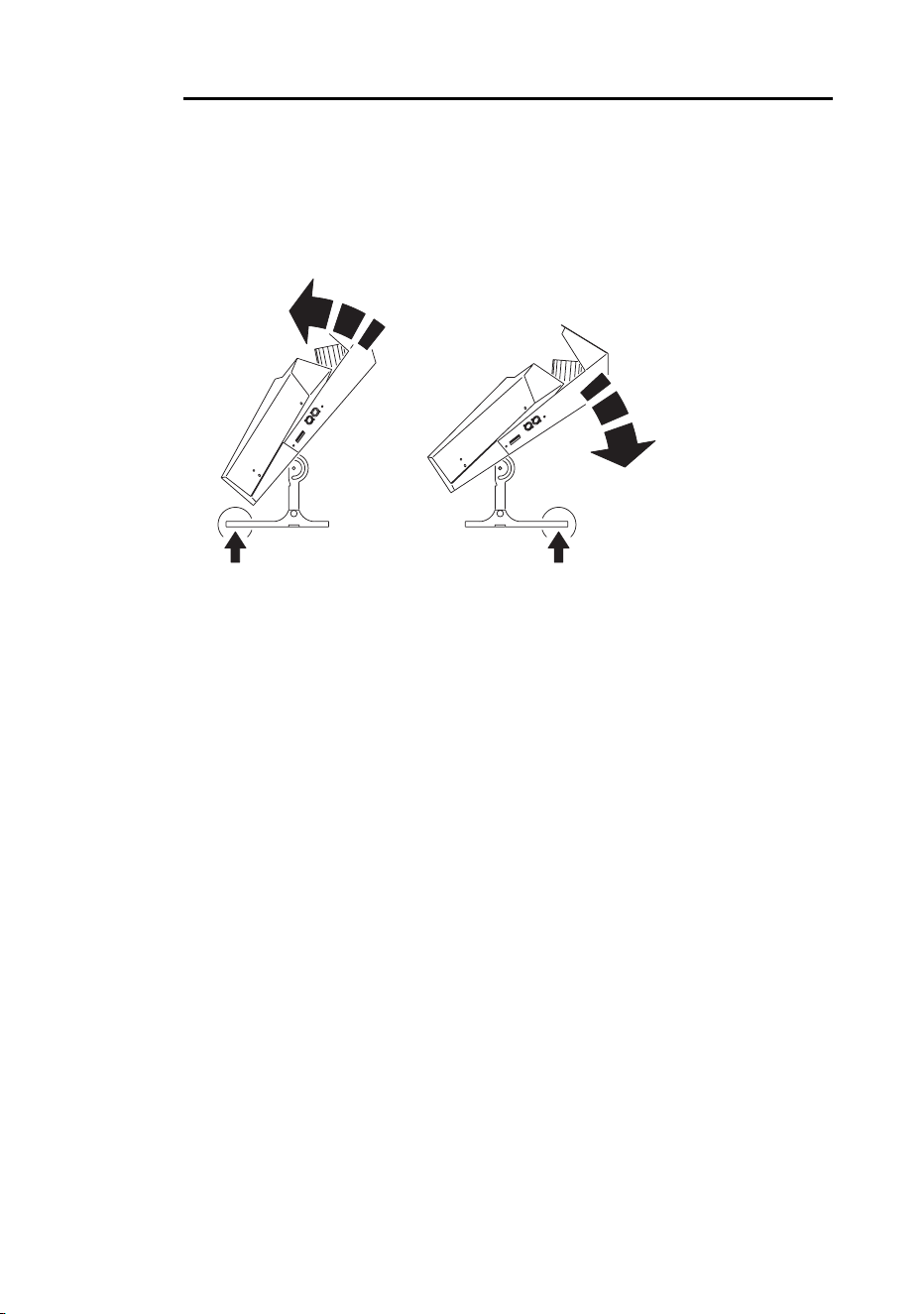
1 Attach the floor stand to the mounting bracket. The floor stand is longer at one
end. Install the stand so that the long end is positioned where the load is greatest.
This will depend on the angle that the Wizard is set at.
2 Set the fixture on the floor. Adjust the mounting bracket and tighten both swivel
locks.
3 Verify that the fixture is stable, that it is at least 0.1 meters (4 in.) from the surface to
be illuminated and at least 0.3 meters (12 in.) from any combustible materials.
Verify that the clearance around the air vents is at least 0.1 meters (4 in.).
The stand is designed for use on a flat surface. It is not intended to be used in any
other way.
Data connection 13
D
ATA
CONNECTION
4
This section describes how to connect fixtures to each other, or to a controller.
RECOMMENDED CABLE
A reliable data connection begins with the right cable. Standard microphone
cable cannot transmit DMX data reliably over long runs. For best results, use
cable specifically designed for RS-485 applications. Your Martin dealer can
supply high quality cable in various lengths.
CONNECTIONS
The Wizard’s XLR data sockets are wired with pin 1 to ground, pin 2 to signal -
(cold), and pin 3 to signal + (hot). This is compatible with the standard for DMX
devices.
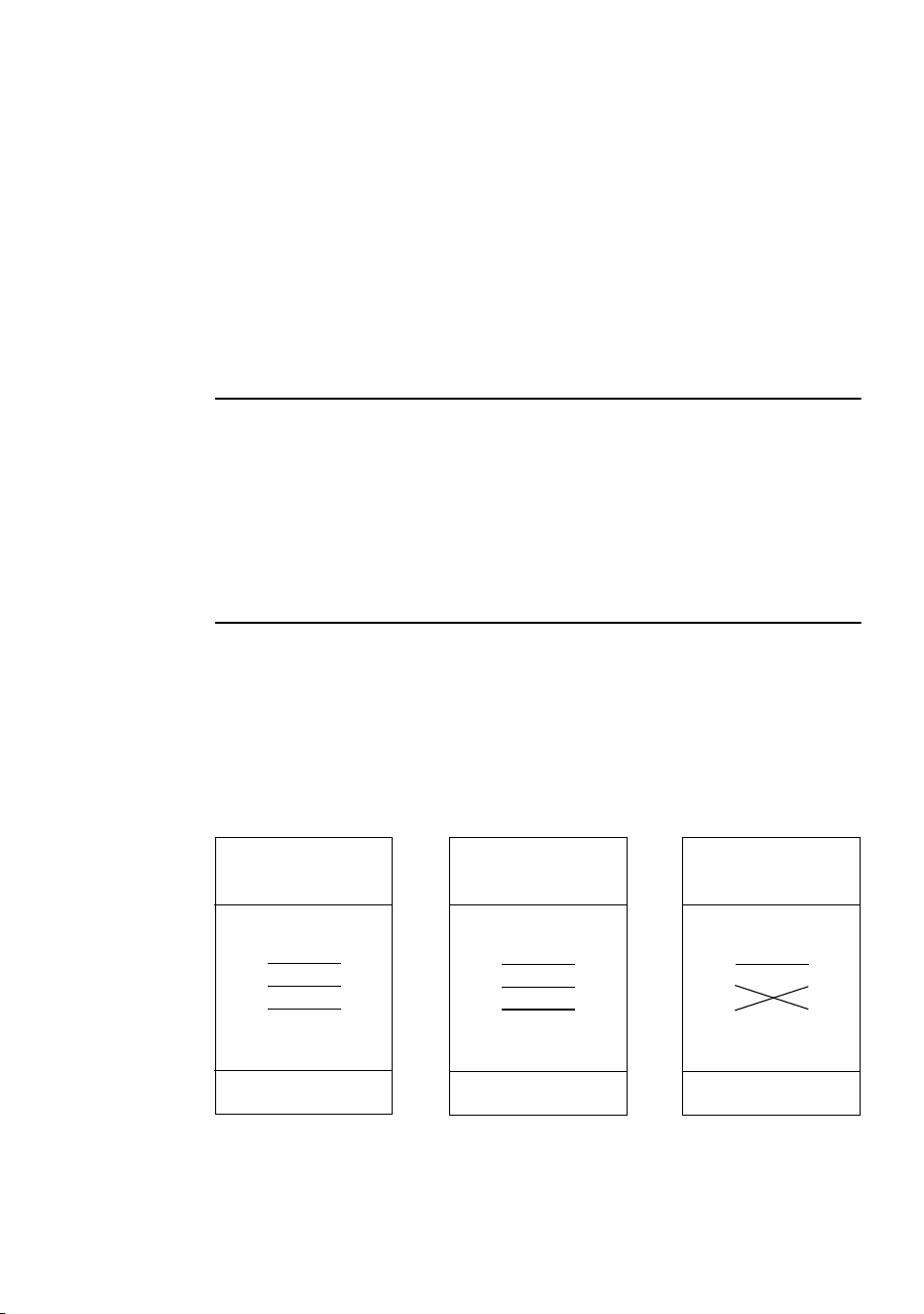
One or more adaptor cables may be required to connect the Wizard to the
controller and/or other lights because many devices have 5-pin connectors and
others may have reversed signal polarity, that is, pin 2 hot and pin 3 cold.
Phase-Reversing
Adaptor
Male Female
1
2
3
1
2
3
3-pin to 3-pin
P/N 11820006
Adaptor
Male Female
1
2
3
4
5
1
2
3
5-pin to 3-pin
P/N 11820005
Adaptor
Male Female
1
2
3
1
2
3
4
5
3-pin to 5-pin
P/N 11820004
14 Wizard user manual
Connecting the data link
1 Connect a data cable to the controller’s output. If controller has a 5-pin output, use
a 5-pin male to 3-pin female adaptor cable (P/N 11820005).
2 Lead the data cable from the controller to the first fixture. Plug the cable into the
fixture’s data input.
3 Connect the output of the fixture closest to the controller to the input of the next
fixture. If connecting two fixtures with opposing polarity on pins 2 and 3, insert a
phase-reversing cable between the two fixtures.
4 Continue connecting fixtures output to input. Up to 32 devices may be connected
on a serial link.
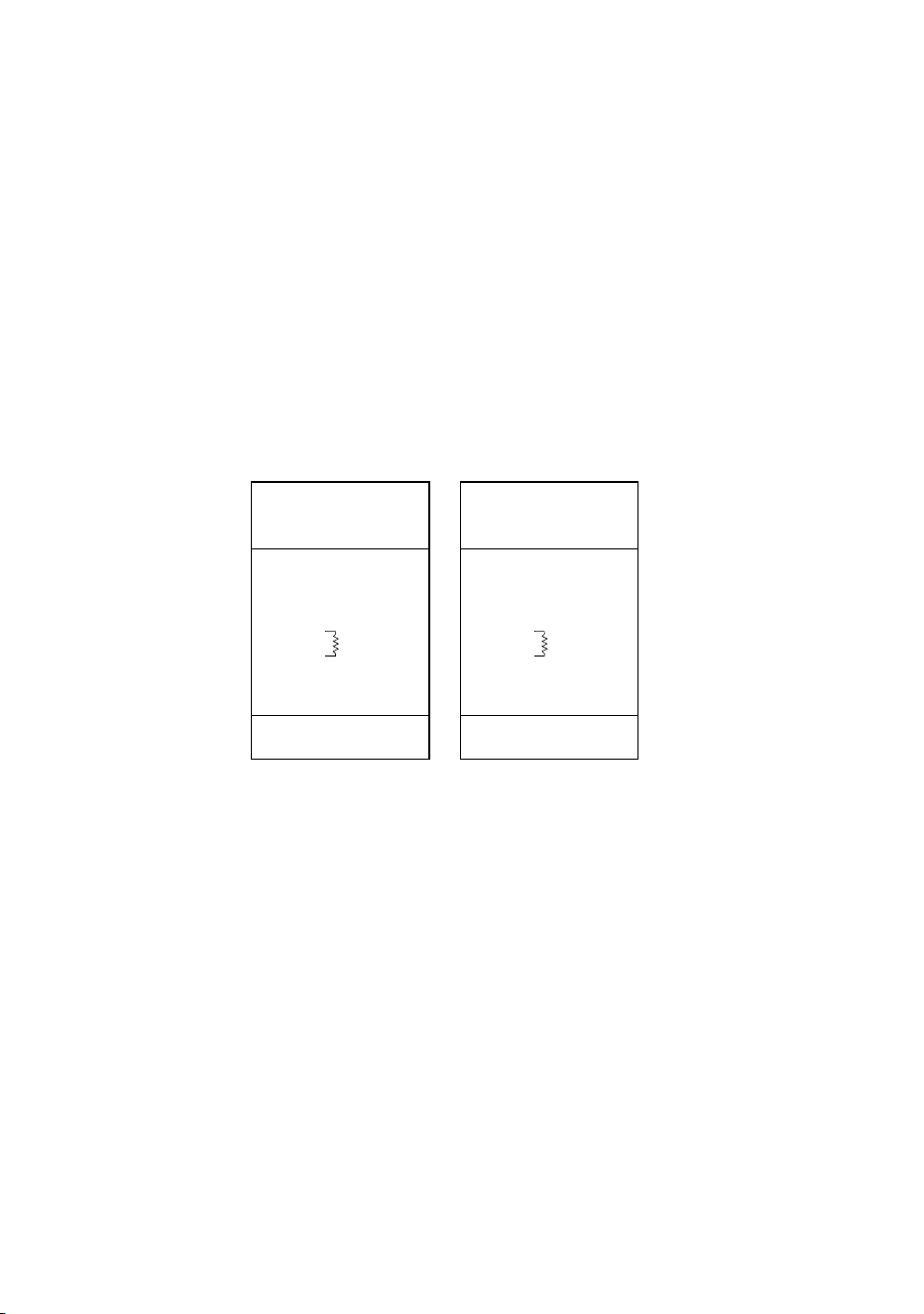
5 Terminate the link by inserting a male termination plug (P/N 91613017) into the data
output of the last fixture. A termination plug is simply an XLR connector with a 120
ohm, 0.25 W resistor soldered across pins 2 and 3.
Male XLR
1
2
3
Male
P/N 91613017
120
Female XLR
1
2
3
Female
120
Termination PlugTermination Plug
P/N 91613018

Stand-alone operation 15
S
TAND
-
ALONE
OPERATION
5
The Wizard may be operated without a controller in stand-alone mode. It can be
operated as a single unit or together with other Wizards in a “master/slave”
configuration.
Several options are available to modify stand-alone operation. These options are
selected using the DIP-switch and are described in this chapter.
Important! The Wizard transmits a signal when DIP-switch pins 2 and 10
are set to ON. To avoid damage to the electronics, connect no
more than 1 transmitting device (master or controller) to the
data link.
SINGLE UNIT OPERATION
The Wizard defaults to stand-alone mode whenever power is applied and there is
no control signal. This can be deactivated by activating 8-channel mode (see
“Setting 6- or 8-channel DMX mode” on page 27).
Options for trigger type, mirror speed and movement direction can be selected as
described under “Stand-alone settings” on page 17.
MASTER / SLAVE OPERATION
Multiple Wizards can be connected together, without a controller, for
synchronized “master/slave” operation in which the slaves mimic, or respond to,
the behavior of the master.
Connecting units for master / slave operation
1 Connect the output of one Wizard to the input of the next Wizard.
2 Connect additional Wizards output to input. Up to 32 may be connected.
3 Terminate the link on both ends by inserting a female termination plug into the data
input of the first fixture and a male termination plug into the data output of the last
fixture. (The female terminator may not be required if the first fixture is the master.)

16 Wizard user manual
A termination plug is simply an XLR connector with a 120 ohm, 0.25 W resistor
soldered across pins 2 and 3.
Setting the master
Important! Set only 1 fixture as master (DIP-switch pin 2 and 10 ON).
1 Set DIP-switch pins 2 and 10 to ON.
2 Set DIP-switch pins 3, 5, 6, 7, 8, 9, and 11 to OFF.
3 Select trigger and speed options with DIP-switch pins 1
and 4 (see “Stand-alone settings” on page 17).
Setting a slave
1 Set DIP-switch 10 to ON.
2 Set pins 1, 2, 3, 4, 5 and 11 to OFF.
3 Select options with DIP-switch pins 6, 7, 8, and 9 (see
“Stand-alone settings” on page 17). If none of these options are set then the slave
fixture will mimic the master exactly. Use these options if you want a slave fixture to
behave differently, for example, to make a show more interesting.
102 3 4 51 86 7 9
ON
1211
102 3 4 51 86 7 9
ON
1211
Stand-alone operation 17
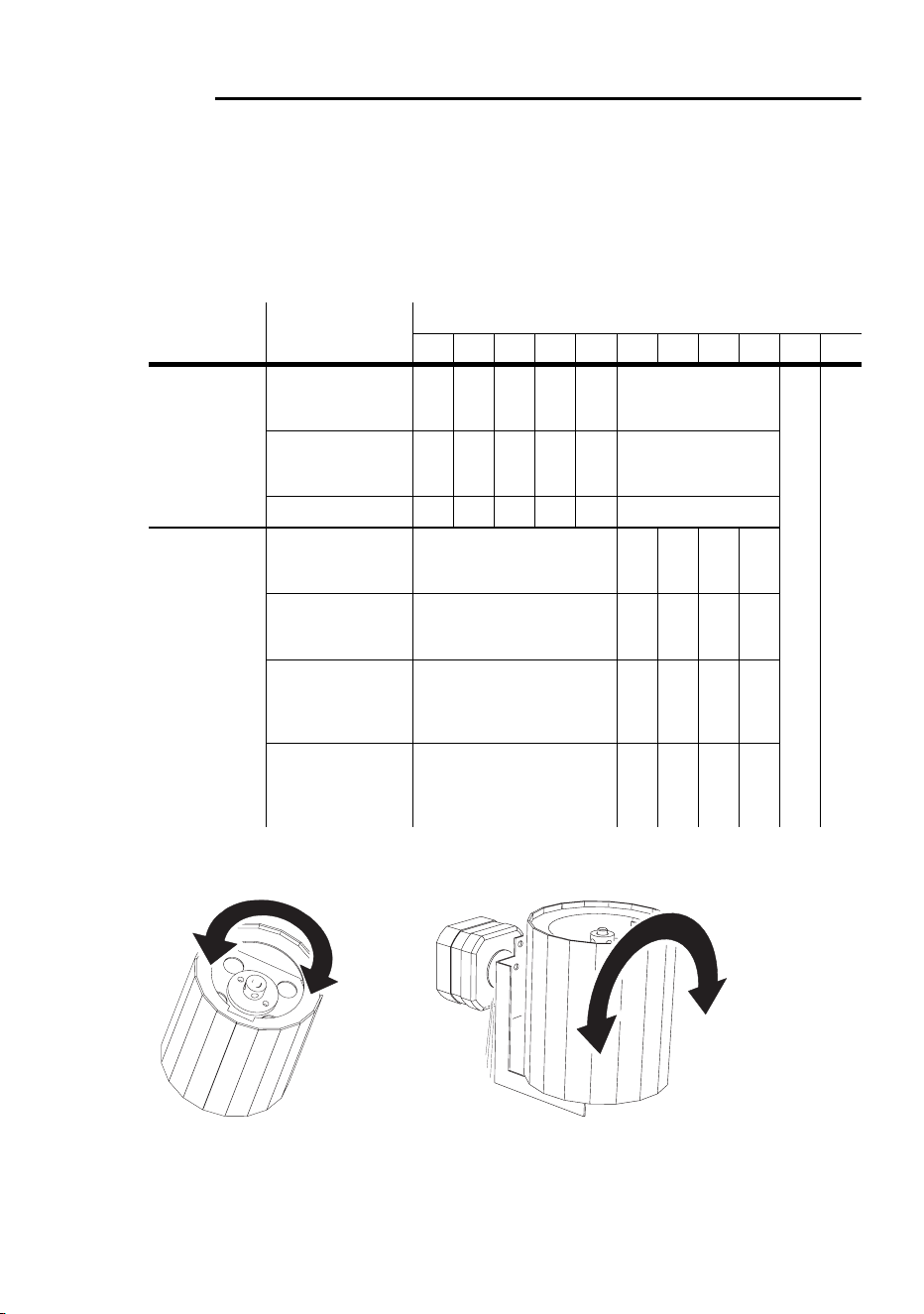
STAND-ALONE SETTINGS
DIP-switch pins 1-9 enable stand-alone options only when pin 10 is ON. When
pin 10 is off, the DIP-switch selects a DMX address. Pin 11 must be OFF for
stand-alone operation.
The DIP-switch 10 setting takes effect only after the fixture has been turned off
and on.
Note that if the slow movement option is not set then movement will be fast.
Fixture Option Setting (0 = OFF, 1 = ON)
1234567891011
Single or
master
Auto trigger (will
use default
trigger time)
010 0
10
Music trigger
(synchronized
with music)
110 0
Slow movement 1 0 1 0
Slave
Use a different
color in relation to
the master
01
Use a different
gobo in relation
to the master
01
Rotate the mirror
drum in the
opposite direction
to the master
01
Swivel the mirror
drum in the
opposite direction
to the master
01
Mirror drum rotation Mirror drum swivel

18 Wizard user manual
MC-1
OPERATION
6
The Wizard is fully compatible with the Martin MC-1 controller. This chapter
describes information about how to configure the Wizard for operation with an
MC-1. For further information, refer to the MC-1 user manual.
MC-1 SETTINGS
DIP-switch pin 10 must be set to OFF to enable MC-1 mode operation. Changes
to the setting take effect after the fixture has been turned off and on.
DIP-switch pins 6, 7, 8, and 9 control options that are most useful when operating
multiple Wizards from a single MC-1. When these options are set the fixture will
behave differently compared to other Wizards that do not have these options set.
This is useful if you want to make a light show more diverse.
Option Setting (0 = OFF, 1 = ON)
1234567891011
Use a different color 1 0 1
Use a different gobo 1 0 1
Rotate the mirror drum
in the opposite direction
101
Swivel the mirror drum
in the opposite direction
101

DMX operation 19
DMX
OPERATION
7
The Wizard can be connected to and operated from a DMX controller. To do this
you need to:
1 Choose and set one of the three DMX modes. The three modes are described in
the following section, “DMX modes”.
2 Set a DMX control address. This is described in “DMX control address” on page 21.
DMX MODES
The Wizard has three DMX modes to choose from:
• 1-channel mode provides control of the built-in stand-alone features.
• 6-channel mode provides position control of all effects. This is the default factory
set mode.
• 8-channel mode provides position control of all effects, plus control of the mirror
drum swivel rate, and the color and gobo wheel change speed.
1-channel DMX operation
The functions shown in the following table are available in 1-channel mode.
When a “stand-alone” function is selected, the fixture steps through a routine
using a built-in microphone to trigger the action to the beat of the music. Note
that multiple fixtures cannot be synchronized in this mode.
DMX value Percent Function
0-10
11-20
21-80
81-115
116-140
141-175
176-210
211-255
0-3
4-7
8-31
32-44
45-54
55-68
69-82
83-100
Light off
Light on
Strobe
Slow music trig (every 2 seconds)
Medium music trig (every second)
Fast music trig (every 0.2 seconds)
Random music trig (between 0.2-2.0 seconds)
Trigger whenever DMX value 240 is crossed

20 Wizard user manual
6-channel DMX operation
The 6-channel and 8-channel mode functions are described in detail in “DMX
protocol” on page 31.
Channel 1 controls lamp on, lamp off, the dimmer and the strobe rate. It also
allows you to execute a random “stand-alone” program using automatic or music
trigger, and to reset the fixture to its home position.
Channel 2 controls the rotation of the parabolic reflector. This channel has no
effect if the stand-alone program is selected on channel 1.
Channel 3 controls the color wheel and is used to select colors, split colors, the
twinkle effect and color rotation. When the stand-alone program is running this
channel still has active control of the color wheel, unless the DMX value is set to
greater than 250 (>98%).
Channel 4 controls the gobo wheel. This channel functions even if the stand-
alone program is selected. When the stand-alone program is running this channel
still has active control of the gobo wheel, unless the DMX value is set to greater
than 250 (>98%).
Channel 5 controls the mirror drum’s swivel position. This has no affect if the
stand-alone program is running.
Channel 6 controls mirror drum rotation direction and speed. This has no effect if
the stand-alone program is running.
8-channel DMX operation
Channel 7 controls the mirror drum swivel speed, allowing you to vary the speed
with controllers without cross-fade times. If your controller has cross-faders and
you use them, turn the speed function off by setting channel 7 to 0 percent. This
channel has no effect if the stand-alone program is running.
Channel 8 provides speed control of the color and gobo wheels, allowing you to
program slow or fast transitions from one effect position to another. This channel
has no effect if the stand-alone program is running.
Setting the DMX mode
1 Disconnect the fixture from power. Set DIP-switch pin 10 to OFF.
2To select:
• 1-channel DMX mode, set DIP-switch pin 11 to ON.
• 6-channel DMX mode, set DIP-switch pin 11 to OFF.
• 8-channel DMX mode, set DIP-switch pin 11 to OFF, and then follow the procedure
in “Setting 6- or 8-channel DMX mode” on page 27.

DMX operation 21
DMX CONTROL ADDRESS
The control address, also known as the start channel, is the first channel used to
receive instructions from the controller. Each fixture needs its own control
address set, and uses this address and subsequent control channels to receive
instructions from a controller. The Wizard uses one, six, or eight control channels
depending on the DMX mode that has been specified.
If the Wizard is set to 6-channel mode, it reads the data on the start channel and
the next five channels. If the DMX control address is set to 100, the fixture uses
channels 100, 101, 102, 103, 104, and 105. Channel 106 would be the control
address for the next fixture.
For independent control, each fixture must be assigned its own address and non-
overlapping control channels. If two or more fixtures are set up with the same
address, they will receive the same instructions and should behave identically.
Setting up identical fixtures with the same address is a good tool for
troubleshooting unexpected behavior and an easy way to achieve synchronized
action.
Specifying a DMX address
DIP-switch pins 1-9 are used to set the control address:
1 Select an address for the fixture on your controller. If you are calculating the DMX
addresses for multiple fixtures then the Martin Address Calculator is available on
the internet at http://www.martin.dk/service/utilities/AddrCalc/index.asp
2 Look up the DIP-switch setting using the Martin DIP Switch Calculator (also
available on the internet, at http://www.martin.dk/service/dipswitchpopup.htm), or
look for the address in the following DIP-switch settings table.
3 Disconnect the fixture from power.
4 Set pins 1 through 9 to the ON (1) or OFF (0) position as listed in the table.
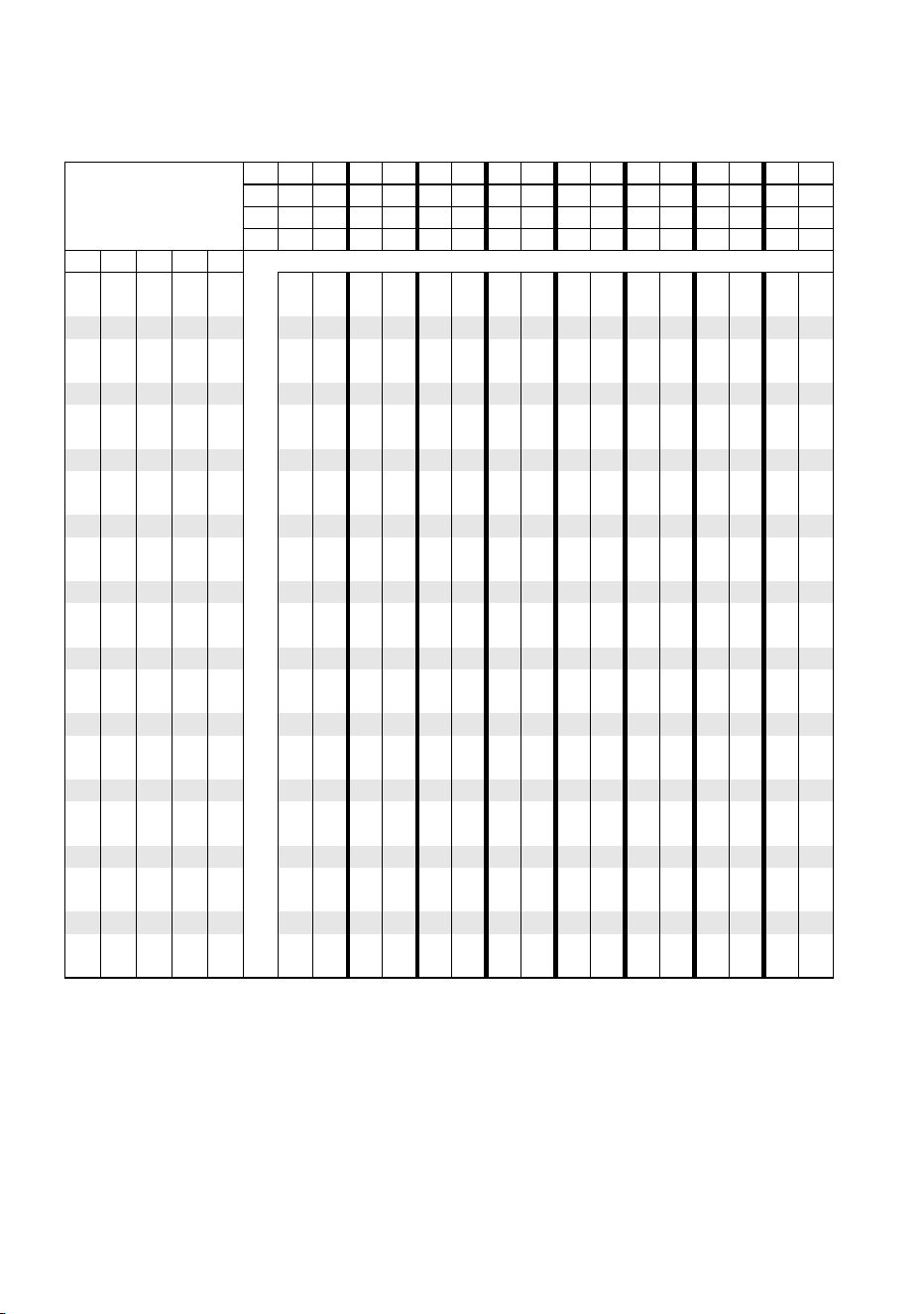
22 Wizard user manual
Find the address in the following table. Read the settings for pins 1 - 5 to the left
and read the settings for pins 6 - 9 above the address. “0” means OFF and “1”
means ON. Pin 10 is always OFF for DMX operation.
DIP-Switch Setting
0 = OFF
1 = ON
#90000000011111111
#80000111100001111
#70011001100110011
#60101010101010101
#1 #2 #3 #4 #5
0 0 0 0 0 32 64 96 128 160 192 224 256 288 320 352 384 416 448 480
1 0 0 0 0 1 33 65 97 129 161 193 225 257 289 321 353 385 417 449 481
0 1 0 0 0 2 34 66 98 130 162 194 226 258 290 322 354 386 418 450 482
1 1 0 0 0 3 35 67 99 131 163 195 227 259 291 323 355 387 419 451 483
0 0 1 0 0 4 36 68 100 132 164 196 228 260 292 324 356 388 420 452 484
1 0 1 0 0 5 37 69 101 133 165 197 229 261 293 325 357 389 421 453 485
0 1 1 0 0 6 38 70 102 134 166 198 230 262 294 326 358 390 422 454 486
1 1 1 0 0 7 39 71 103 135 167 199 231 263 295 327 359 391 423 455 487
0 0 0 1 0 8 40 72 104 136 168 200 232 264 296 328 360 392 424 456 488
1 0 0 1 0 9 41 73 105 137 169 201 233 265 297 329 361 393 425 457 489
0 1 0 1 0 10 42 74 106 138 170 202 234 266 298 330 362 394 426 458 490
1 1 0 1 0 11 43 75 107 139 171 203 235 267 299 331 363 395 427 459 491
0 0 1 1 0 12 44 76 108 140 172 204 236 268 300 332 364 396 428 460 492
1 0 1 1 0 13 45 77 109 141 173 205 237 269 301 333 365 397 429 461 493
0 1 1 1 0 14 46 78 110 142 174 206 238 270 302 334 366 398 430 462 494
1 1 1 1 0 15 47 79 111 143 175 207 239 271 303 335 367 399 431 463 495
0 0 0 0 1 16 48 80 112 144 176 208 240 272 304 336 368 400 432 464 496
1 0 0 0 1 17 49 81 113 145 177 209 241 273 305 337 369 401 433 465 497
0 1 0 0 1 18 50 82 114 146 178 210 242 274 306 338 370 402 434 466 498
1 1 0 0 1 19 51 83 115 147 179 211 243 275 307 339 371 403 435 467 499
0 0 1 0 1 20 52 84 116 148 180 212 244 276 308 340 372 404 436 468 500
1 0 1 0 1 21 53 85 117 149 181 213 245 277 309 341 373 405 437 469 501
0 1 1 0 1 22 54 86 118 150 182 214 246 278 310 342 374 406 438 470 502
1 1 1 0 1 23 55 87 119 151 183 215 247 279 311 343 375 407 439 471 503
0 0 0 1 1 24 56 88 120 152 184 216 248 280 312 344 376 408 440 472 504
1 0 0 1 1 25 57 89 121 153 185 217 249 281 313 345 377 409 441 473 505
0 1 0 1 1 26 58 90 122 154 186 218 250 282 314 346 378 410 442 474 506
1 1 0 1 1 27 59 91 123 155 187 219 251 283 315 347 379 411 443 475 507
0 0 1 1 1 28 60 92 124 156 188 220 252 284 316 348 380 412 444 476 508
1 0 1 1 1 29 61 93 125 157 189 221 253 285 317 349 381 413 445 477 509
0 1 1 1 1 30 62 94 126 158 190 222 254 286 318 350 382 414 446 478 510
1 1 1 1 1 31 63 95 127 159 191 223 255 287 319 351 383 415 447 479 511

Basic service 23
B
ASIC
SERVICE
8
This chapter describes the maintenance procedures that you can perform
yourself:
• Cleaning
• Lamp maintenance
• Replacing fuses
• Updating firmware
CLEANING
Regular cleaning of the elements in the optical path, as well as the fans and air
vents, is vital to maintaining the operational quality of the Wizard.
Important! Excessive dust, smoke fluid, and particulate buildup degrades
performance and causes overheating and damage to the
fixture that is not covered by the warranty.
Cleaning the fan and air vents
To maintain adequate cooling, dust must be cleaned from the fan and air vents
periodically. Remove dust from the fan and air vents with a soft brush, cotton
swab, vacuum, or compressed air.
Cleaning optical components
Clean the optical components regularly. The presence of smudges or dust on
optical surfaces can reduce the strength of the light output and the quality of the
effects.
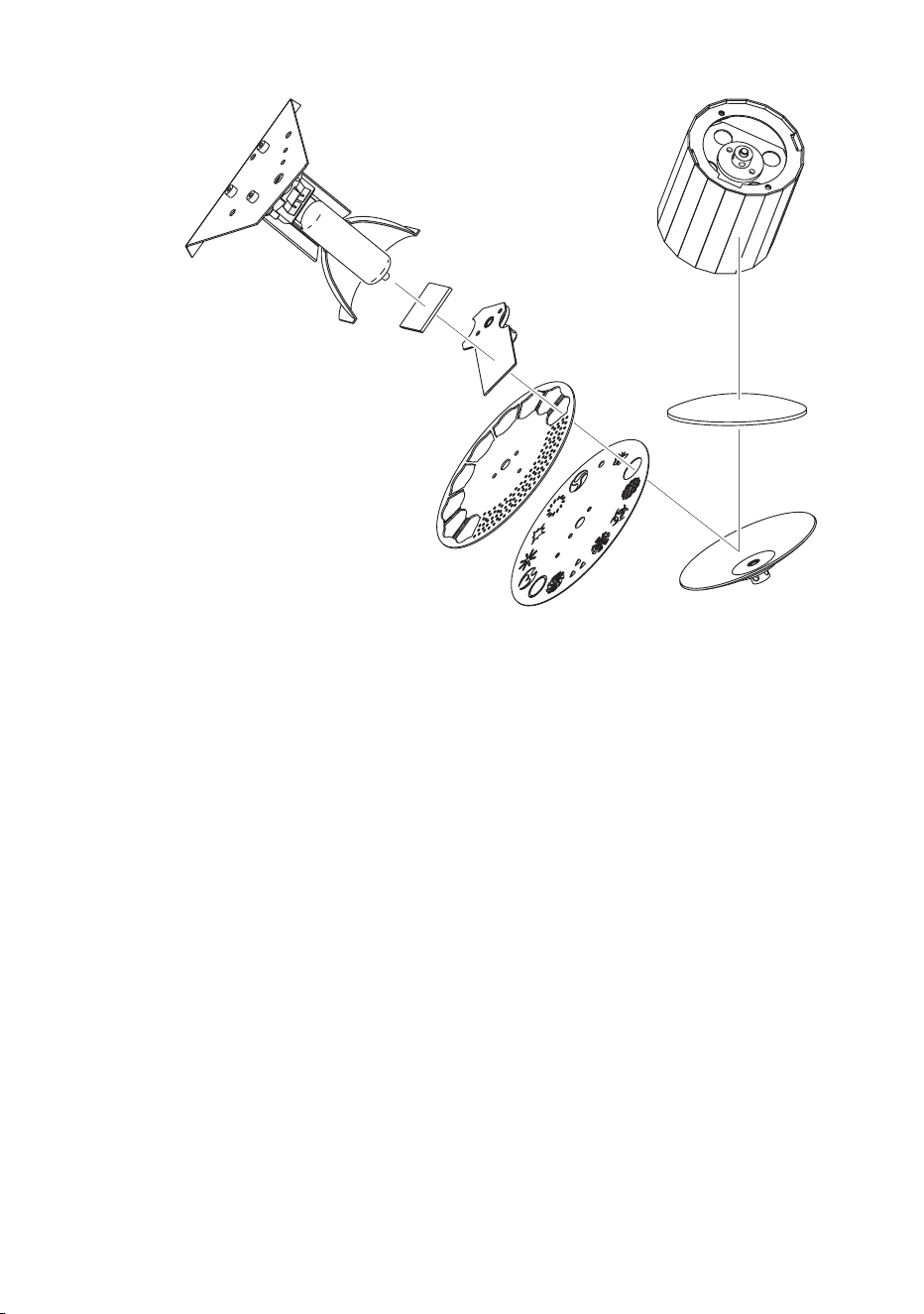
24 Wizard user manual
The following illustration shows the elements that need to be kept clean:
Use care when cleaning optical components and work in a clean, well lit area. The
coated surfaces are fragile and easily scratched. Do not use solvents that can
damage plastic or painted surfaces.
1 Disconnect the fixture from power and allow the components to cool completely.
2 Remove the fixture cover. You may want to remove the lamp for cleaning (see the
related steps in “Installing a lamp in the Wizard.” on page 25).
3 Vacuum or gently blow away dust and loose particles with compressed air.
4 Remove stuck particles with an unscented tissue or cotton swab moistened with
glass cleaner or distilled water. Do not rub the surface: lift the particles off with a
soft repeated press.
5 Remove smoke and other residues with cotton swabs or unscented tissues
moistened with isopropyl alcohol. A commercial glass cleaner may be used, but
residues must be removed with distilled water. Clean with a slow circular motion
from center to edge. Dry with a clean, soft and lint-free cloth or compressed air.
6 Replace the fixture cover (and lamp-access cover) before applying power.
Lamp reflector
Lamp
Heat filter
Shutter
Color wheel
Parabolic
reflector
Lens
Mirror drum
Gobo
wheel
Basic service 25
LAMP MAINTENANCE
The following lamp types are supported:
• Osram HSD 250
• Philips MSD 250/2
• Philips MSD 200
Installing any other lamp may damage the fixture!
Allow the lamp to cool for at least 5 minutes before packing and moving the
fixture. To avoid possible damage, remove the lamp when shipping the fixture.
Warning! Always disconnect the fixture from AC power and allow it to
cool for 5 minutes before installing the lamp.
Installing a lamp in the Wizard.
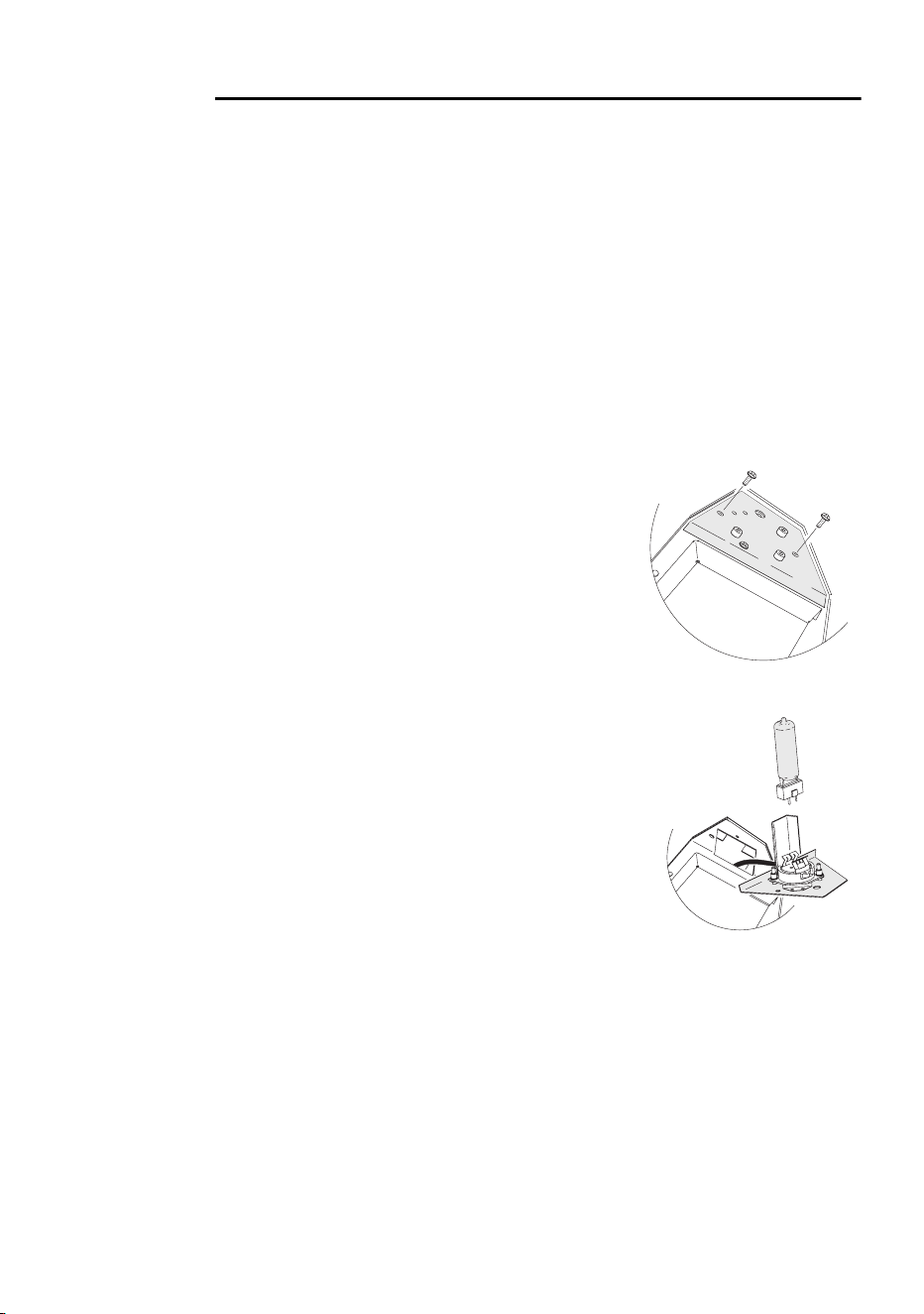
1 Disconnect the fixture from AC power. If replacing a
lamp, allow it to cool for at least 5 minutes before
removing the lamp-access cover. The lamp cools
faster with the cover in place. It can take up to 15
minutes for the fixture to cool completely.
2 Remove the two lamp access screws from the lamp-
access cover, and lift the cover off.
3 If replacing a lamp, grasp the old lamp by the reflector
and pull it out of the holder. Then pull the socket off the
lamp. Do not pull the wires.
4 Push the socket fully onto the pins of the new lamp.
5 Clean the glass bulb with the cloth supplied with the
lamp, particularly if your fingers touched the glass. A
clean, lint-free cloth wetted with alcohol may also be
used.
6 Gently push the lamp into the holder until it snaps into
place.
7 Replace the lamp-access cover and screws.
Adjusting the lamp
The Wizard lamp assembly is adjusted at the factory. Due to differences between
lamps, however, fine adjustment may be improve performance.
1 Disconnect the fixture from AC power.
26 Wizard user manual
2 If you are:
• Using a controller, turn on the Wizard and select white light with the open gobo.
• Not using a controller, flip DIP-switch pins 3 and 10 on. Flip all other pins off. Apply
power to the Wizard. After it has reset, the fixture produces a white light with an
open gobo for adjustment purposes.
3 Wait for the lamp to reach full brightness.
4 To reduce the number of images, deflect the light stream away before it strikes the
mirror drum by holding a small hand-held mirror in front of the it. Lamp adjustment
is also easier if you reflect onto a white surface
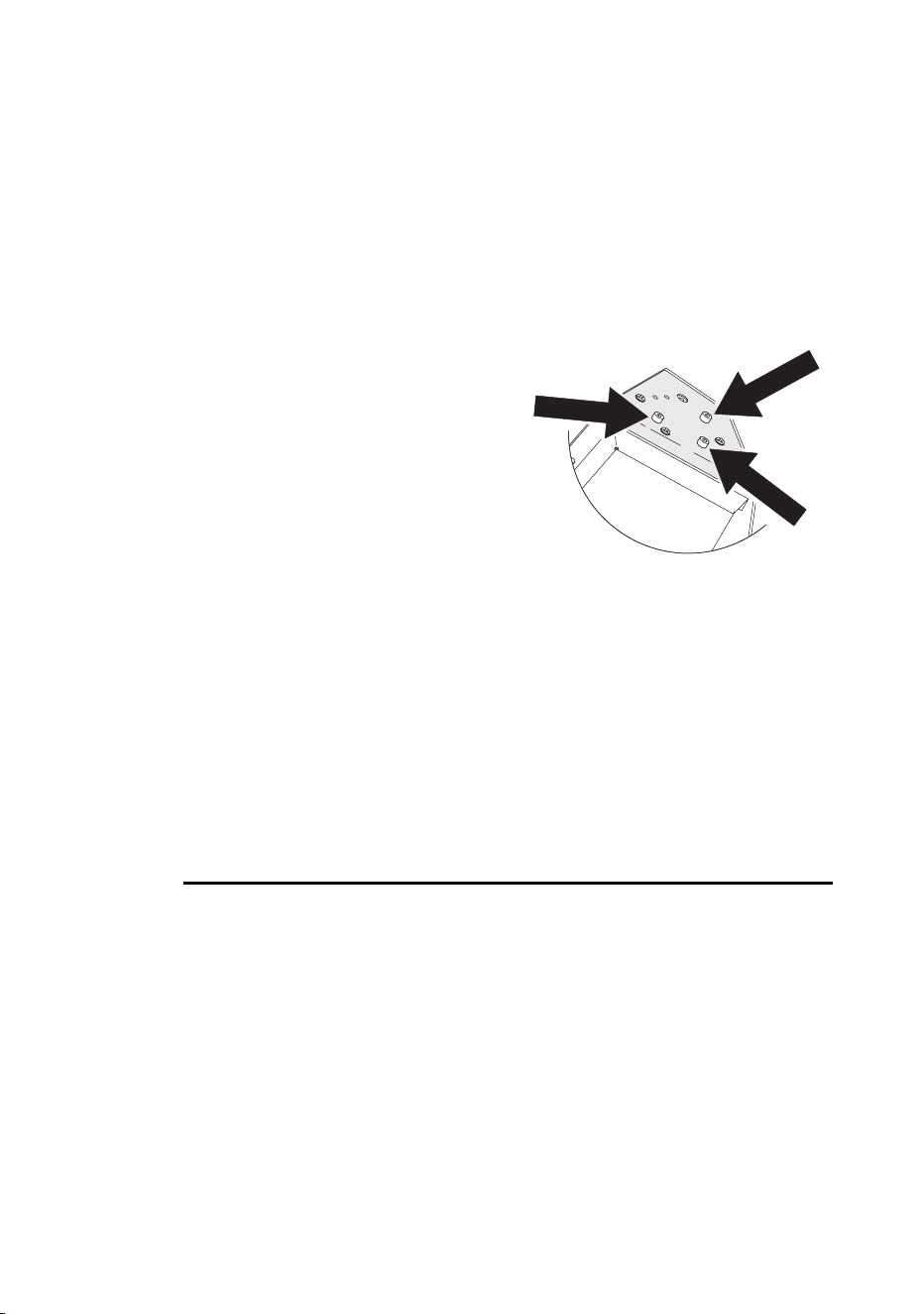
5 Make adjustments using the three lamp-
adjustments screws. If:
• There are off-center “hot spots” in the
images then the lamp is not centered in
the reflector. Pull the hot spots into the
center of the image fields with small
adjustments of the lamp-adjustment
screws.
• The light is brighter in the center of the
images than it is at the edge, then the lamp is too far forward in the reflector. Pull
the lamp in by turning all three screws clockwise 1/4-turn at a time until the light is
evenly distributed.
• The light is brighter around the edge of the images than it is in the center, or if light
output is low, then the lamp is too far back in the reflector. “Push” the lamp out by
turning the screws counterclockwise 1/4-turn at a time until the light is bright and
evenly distributed.
FUSES
The Wizard uses a time-delay fuse for protection against current overload. If the
power LED does not light when power is applied, the fuse may be spent. If the
fuse blows repeatedly, there is a fault with the unit that requires service by a
Martin technician.
Never bypass the fuse or replace it with one of another size or rating.
Replacing the main fuse
1 Unplug the mains cable from the input socket.
2 Pry open the fuse holder, which is built into the input socket, and remove the fuse.
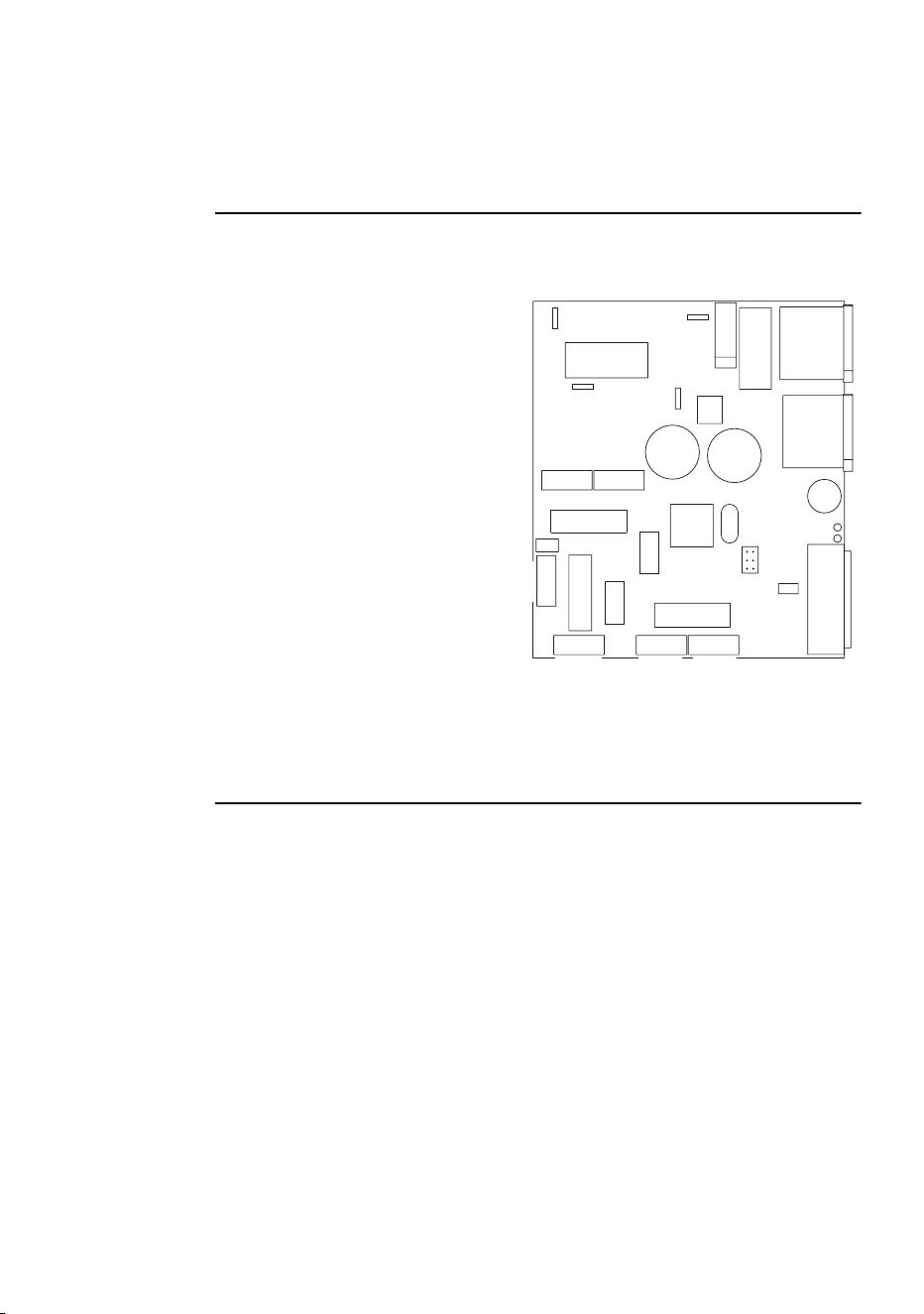
Basic service 27
3 Replace the fuse with one of the same type. The fuse rating is listed on the serial
number label that can be found on the back of the fixture.
SETTING 6- OR 8-CHANNEL DMX MODE
The fixture arrives from the factory preset in 6-channel mode. To operate in 8-
channel mode some adjustments are required:
1 Disconnect the fixture from power.
2 Remove the fixture cover.
3 Locate PL118 on the printed circuit
board. It can be found close to the
DIP-switch.
4 Using a pair of tweezers or similar
tool, place the jumper on both of
the pins to enable 8-channel
operation. When operating in 6-
channel mode, the jumper is
placed on only one of the pins, or is
removed completely.
5 Replace the cover before applying
power.
FIRMWARE UPDATES
Firmware updates are released when features are added, or bugs are fixed. The
latest version is available from your Martin dealer, or the Support Area of the
Martin Professional web site at http://www.martin.dk.
The installed firmware version is displayed by the Power and Data LEDs, located
next to the DIP switches, when power is applied to the fixture and all DIP switch
pins are set to OFF. The red LED (Power) indicates the number to the left of the
decimal point and the green LED (Data) indicates the number to the right. For
example, if firmware version 1.4 is installed, the red LED flashes once and the
green LED flashes four times.
Firmware is installed using a Martin uploader or a DMX interface for the Martin
LightJockey controller. The procedure is found in the MP-2 user manual and the
Martin Software Uploader online help file.
Fuse T2A
P/N 33120027-A
P/N
33120027-A
12V
PL 109 PL 114 PL 113
PL 111
IN
OUT
LED green
LED green
LED red
LED red
PL 110
FAN
DISH SHUTTER
Color Swivel Rotation
Gobo
PL 106
PL 105
PL 104
PL 103
Black / White
Black / White
Brown
Orange
Orange
PL 112
Upload
PL 123
DIP switch
PL 118
Ext. Mode
Ext. Mode

28 Wizard user manual
REQUIREMENTS
The following are required in order to install software.
• The Wizard update file, available for download from the User Support Area of the
Martin web site (http://www.martin.dk).
• The Martin Software Uploader program, version 4.0 or later, available for
download from the User Support Area of the Martin web site.
• A Martin MP-2 Uploader connected to a Windows 95/98/ME/2000 PC, or a
LightJockey Controller with DMX Interface card.
Updating fixture firmware with the MP-2 Uploader
1 Connect a prepared MP-2 Uploader to the DMX link. Apply power to the fixtures
and the MP-2. Wait a few moments for the fixtures to reset.
2 Select
Read Memory Card from the MP-2 main menu.
3 Use the buttons on the right to scroll through the card slots. Select the slot that
holds the desired version of the Wizard firmware.
4 Select
Update Software. Select Yes to confirm.
5 Select
Update in DMX mode to start the upload. The MP-2 initializes all
connected Wizards, which respond with two yellow LEDs in the status display.
Avoid interrupting the process: this will corrupt the software.
6 After a successful upload the fixtures reset with the new software. If an error occurs
and the fixtures do not reset, data was interrupted or corrupted during transmission.

Troubleshooting 29
T
ROUBLESHOOTING
9
Problem Probable cause(s) Remedy
Fixture is completely dead.
No power to fixture. Check that power is
switched on and cables are
plugged in.
Primary fuse blown. Replace fuse.
Secondary fuse blown. Contact Martin technician
for service.
Fixture resets correctly but
does not respond to
controller.
The DMX signal is not
transmitted.
Connect controller. Inspect
connections and cables.
Correct poor connections.
Repair or replace damaged
cables.
The DMX data signal is
reversed.
Insert a phase-reversing
cable in the link before the
fixture.
Incorrect address or other
DIP-switch setting.
Check DIP-switch settings.
Intermittent flicker or
strange behavior.
Data link not terminated. Insert termination plug in
output of the last fixture on
the link.
One of the fixtures is
transmitting as a master or
is defective.
Bypass one fixture at a time
until normal operation is
regained: unplug both
connectors and connect
them directly together. Have
the defective fixture
serviced by a qualified
technician.
Effect fails to reset correctly.
The effect requires
mechanical adjustment.
Contact Martin technician
for service.
No light.
Lamp missing or blown Disconnect fixture and
replace lamp.

30 Wizard user manual
Lamp cuts out intermittently
or burns out too quickly.
The operating voltage does
not match AC supply.
Contact Martin technician
for service.
Blocked air vent. Increase clearance around
fixture.
Dust buildup inside fixture. Contact Martin technician
for professional cleaning.
The fan may not be working.
This will result in the
thermostatic switch cutting
power to the lamp when the
fixture overheats. When the
fixtures cools the lamp will
come on again, causing the
fixture to heat, which will
again trip the thermostatic
switch, and so forth.
Contact Martin technician
for service.
Problem Probable cause(s) Remedy
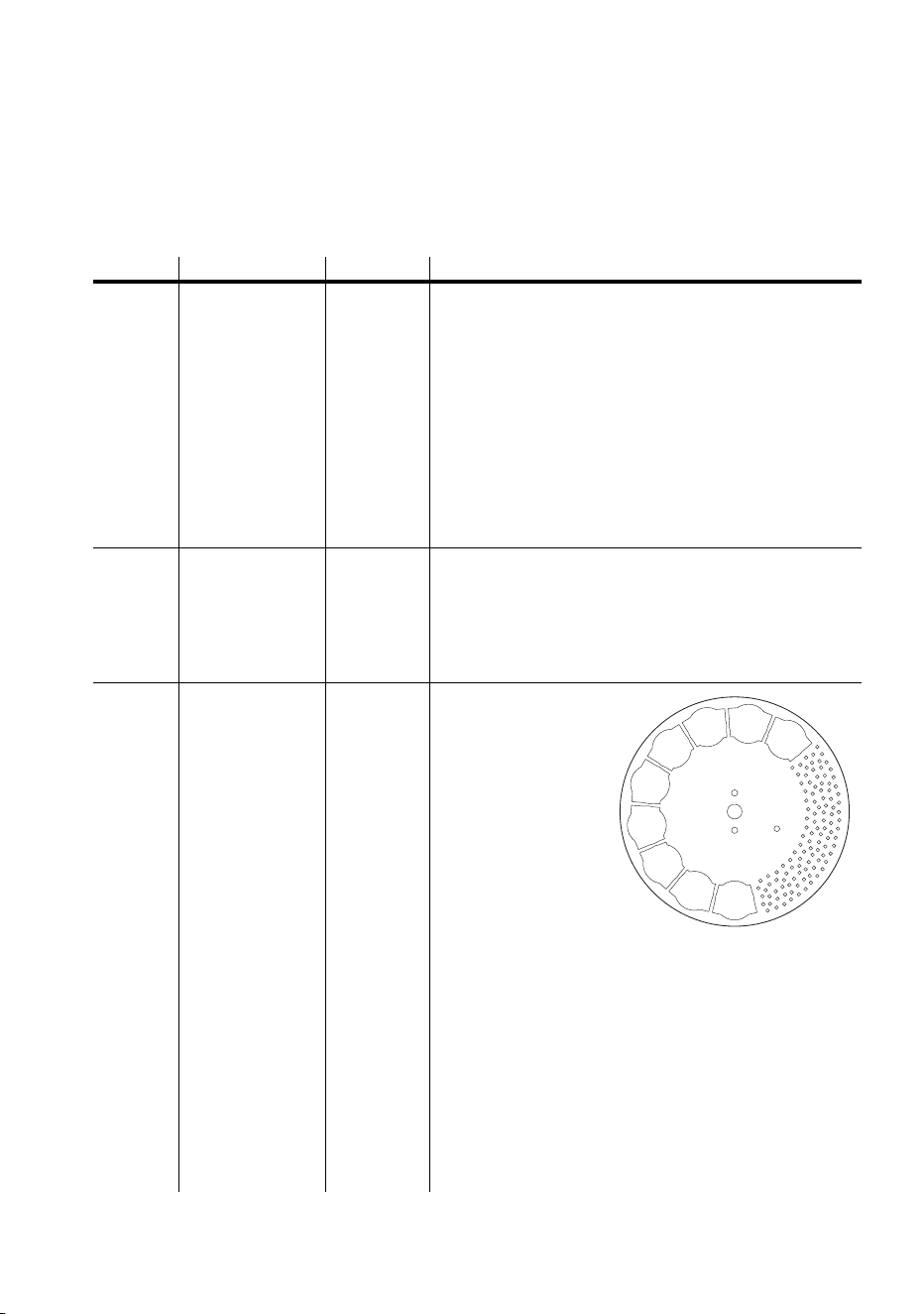
DMX protocol 31
DMX
PROTOCOL
A
Channel Value Percent Function
1
0-1
2-129
130-189
190-199
200-209
210-219
220-229
230-239
240-249
250-255
0
1-50
51-74
75-78
79-82
83-86
87-90
91-94
95-98
99-100
Light
Shutter closed
Dimmer (closed-open) & Lamp on
Strobe (fast to slow)
Shutter closed
Random strobe
Stand-alone music trig
Stand-alone auto trig
Shutter closed
Reset (hold for >5 seconds)
Lamp off (when set for > 5 seconds & channel 3 & 4 >
252)
2
0-1
2-122
123-132
133-253
254-255
0
1-47
48-51
52-99
100
Parabolic reflector rotation
No rotation
Clockwise rotation (slow to fast)
No rotation
Counter clockwise rotation (fast to slow)
No rotation
3
0-5
6-11
12-17
18-23
24-29
30-35
36-41
42-47
48-53
54-59
60-65
66-71
72-77
78-83
84-89
90-95
96-101
102-169
170-175
176-243
244-249
250-255
0-1
2-4
5-6
7-8
9-10
11-13
14-15
16-17
18-20
21-22
23-25
26-27
28-29
30-32
33-35
36-37
38-39
40-66
67-68
69-95
96-97
98-100
Color
0 Open
1 Open / Blue
2 Blue 108
3 Blue / Orange
4 Orange 306
5 Orange / Purple
6 Purple 502
7 Purple / Green
8 Green 206
9 Green / Blue
10 Blue 101
11 Blue / Yellow
12 Ye l l ow 6 0 3
13 Yellow / Magenta
14 Magenta 507
15 Magenta / Open
16 Open
Color rotation (slow to fast)
No rotation
Twinkle rotation (slow to fast)
No rotation
Remote stand-alone music trig and auto trig
0
2
4
6
8
10
12
14
16
1
3
5
7
9
11
13
15
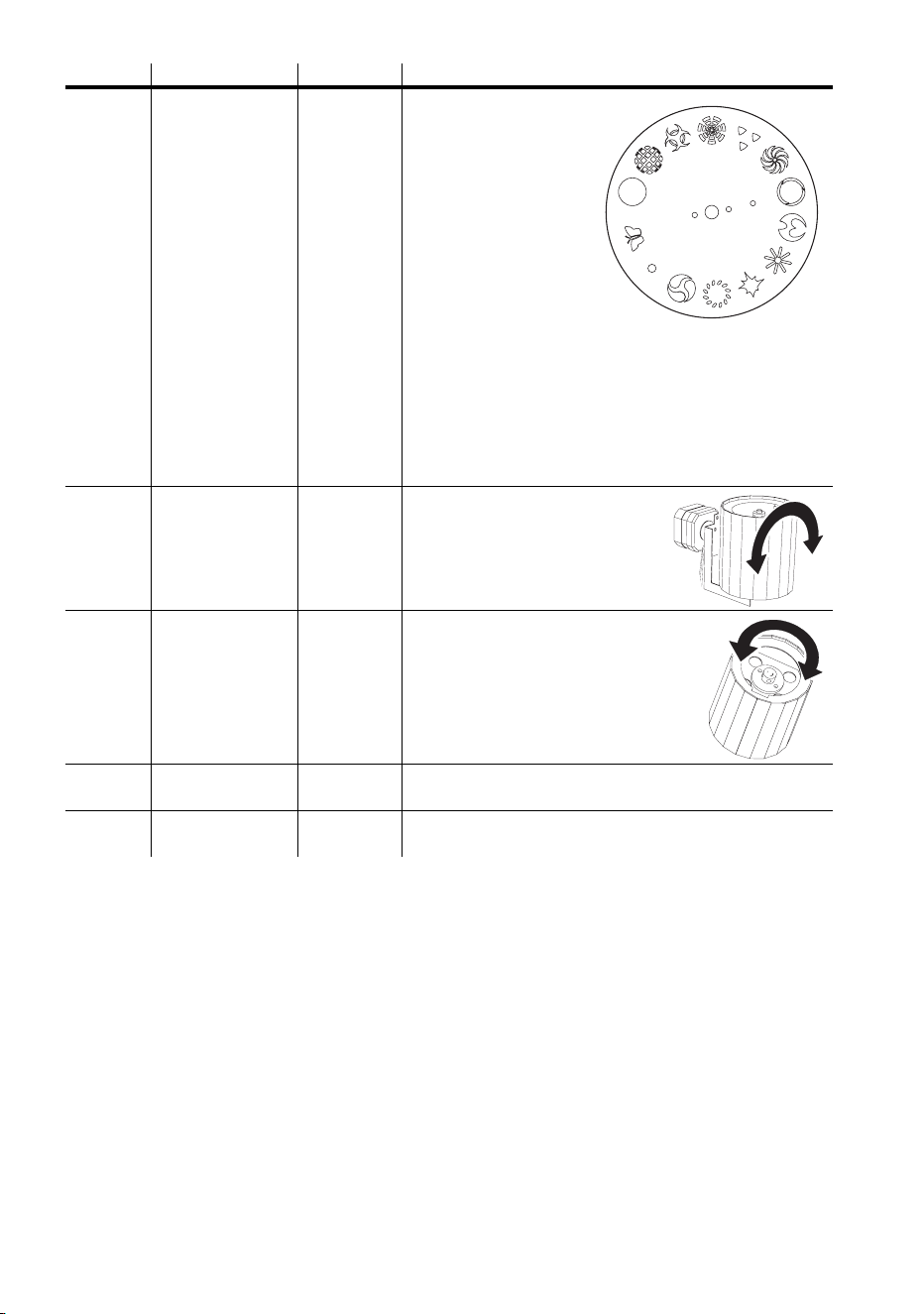
32 Wizard user manual
* Only available in 8-channel mode. See “DMX modes” on page 19.
4
0-10
11-22
23-34
35-46
47-58
59-70
71-82
83-94
95-106
107-118
119-130
131-142
143-154
155-169
170-239
240-249
250-255
0-3
4-8
9-13
14-17
18-22
23-26
27-31
32-36
37-41
42-46
47-50
51-55
56-60
61-66
67-94
95-97
98-100
Gobo
0 Open
1 Gridball
2 Virus
3 Tunnel
4 Triple dot
5 Whirl
6 Cone
7 Wizard
8 Spokes
9 Splat
10 Ellipse Halo
11 Ying Yang Yung
12 Dot
13 Butterfly
Wheel rotation (Slow to fast)
No rotation
Remote stand-alone music trig and auto trig
5
0
127
255
0
50
100
Mirror drum swivel
Max Left
Neutral
Max Right
6
0-1
2-122
123-132
133-253
254-255
0
1-48
49-52
53-99
100
Mirror drum rotation
No rotation
Clockwise rotation (slow to fast)
No rotation
Counter clockwise rot. (fast to slow)
No rotation
7*
0-255 0-100
Speed channel for mirror drum swivel
Fast to slow
8*
0-255 0-100
Speed channel for color and gobo
Fast to slow
Channel Value Percent Function
0
1
2
3
4
5
6
7
8
9
10
11
13
12

S
PECIFICATIONS
- W
IZARD
PHYSICAL
• Size (L x W x H)................................. 552 x 516 x 208 mm (21.7 x 20.3 x 8.2 in)
• Weight........................................................................................... 14.5 kg (32 lbs)
CONSTRUCTION
• Housing.................................................................................... aluminum and steel
• Finish ..........................................................................electrostatic powder coating
THERMAL
• Maximum ambient temperature (T
a
) ...............................................40° C (104° F)
• Maximum surface temperature ........................................................60° C (140° F)
INSTALLATION
• Minimum distance to combustible materials ..................................... 0.3 m (12 in)
• Minimum distance to illuminated surfaces.......................................... 0.1 m (4 in)
• Minimum clearance around fan and air vents.......................................0.1 m (4 in)
CONTROL AND PROGRAMMING
• Data I/O sockets........... 3-pin XLR male/female, pin 1=shield, pin 2 (-), pin 3 (+)
• Control protocol.............................................................. USITT DMX-512 (1990)
• Electrical standard ...................................................................................... RS-485
• DMX modes...............................................................................1-, 6- or 8-channel
• Stand-alone triggers ...........................................................................music or auto
• Control method ....................................DMX controller, stand-alone, master/slave
ELECTRICAL, EU MODEL
• Input.................................................................................3-prong IEC male socket
• AC Power......................................................................... 230 / 240 / 250 V, 50 Hz
• Main fuse .....................................................3.15 A T (time delay), P/N 05020013
• Circuit board fuse .............................................2 A T (time delay), P/N 05020009
• Maximum power and current @ 230 V, 50 Hz.................................. 320 W, 1.5 A
• Maximum power and current @ 240 V, 50 Hz.................................. 320 W, 1.6 A
• Maximum power and current @ 250 V, 50Hz................................... 310 W, 1.4 A
ELECTRICAL, US MODEL
• Input.................................................................................3-prong IEC male socket
• AC power ......................................................... 100 / 120 / 230 / 250 V, 50 / 60 Hz
• Main fuse .......................................................6.3 A T (time delay), P/N 05020020
• Circuit board fuse .............................................2 A T (time delay), P/N 05020009

• Maximum power and current @ 100 V, 50 Hz .................................. 320 W, 3.8 A
• Maximum power and current @ 100 V, 60 Hz .................................. 310 W, 3.4 A
• Maximum power and current @ 120 V, 50 Hz .................................. 320 W, 2.9 A
• Maximum power and current @ 120 V, 60Hz ................................... 310 W, 2.7 A
• Maximum power and current @ 230 V, 50Hz ................................... 320 W, 1.5 A
• Maximum power and current @ 230 V, 60Hz ................................... 320 W, 1.5 A
• Maximum power and current @ 250 V, 50 Hz .................................. 310 W, 1.4 A
• Maximum power and current @ 250 V, 60 Hz .................................. 320 W, 1.3 A
OSRAM HSD 250 LAMP
• Power........................................................................................................250 watts
• Rated life ............................................................................................... 2000 hours
• Color temperature ........................................................................................ 6000K
• Martin part number .......................................................................... P/N 97010103
PHILIPS MSD 250/2 LAMP
• Power........................................................................................................250 watts
• Rated life ............................................................................................... 2000 hours
• Color temperature ........................................................................................ 8500K
• Martin part number .......................................................................... P/N 97010100
PHILIPS MSD 200 LAMP
• Power........................................................................................................200 watts
• Rated life ............................................................................................... 2000 hours
• Color temperature ........................................................................................ 6000K
• Martin part number .......................................................................... P/N 97010106
ACCESSORIES
• MC-1 controller, EU ............................................................................... 90718000
• MC-1 controller, US................................................................................ 90718100
• Osram HSD 250, 2000 hr discharge lamp .............................................. 97010103
• Philips MSD 200, 2000 hr discharge lamp ............................................. 97000106
• Philips MSD 250/2, 2000 hr discharge lamp .......................................... 97000100
• Half-coupler clamp ................................................................................ 91602005
• Wizard multi-coupler (for rigging multiple fixtures).............................. 91606010
• Wizard floor stand................................................................................... 91606008