
折页:正反页印刷
材质:80g双胶纸
尺寸:90x115mm
此页不印刷

NO:250707-27
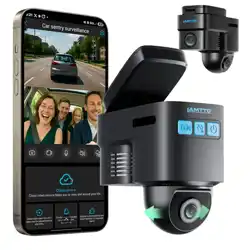
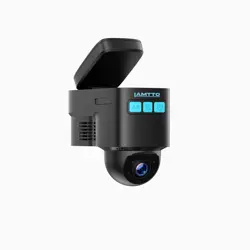
Baby Car Camera
With Wireless Car Play
User Manual

If you have any questions about our Baby Car Camera With
Wireless car play, please contact us.
DC@yooomail.com
We will try our best to provide solutions based on your issues.
Scan the QR code to get the online PDF document of
the multi-language instruction manual.
· 1 ·
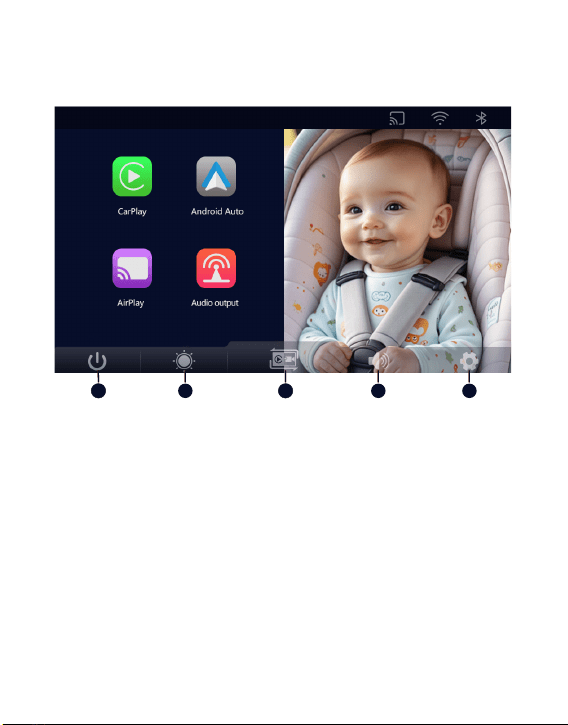
I. Interface Introduction
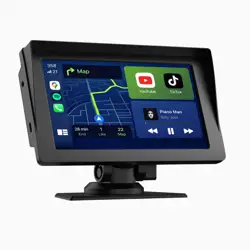
① Turn the screen on/off.
② Change screen brightness.
③ Display the monitoring interface in full screen.
④ Change the volume.
⑤ Settings menu(you can set function options and perform system
updates based on your needs)
1
2
3 4 5
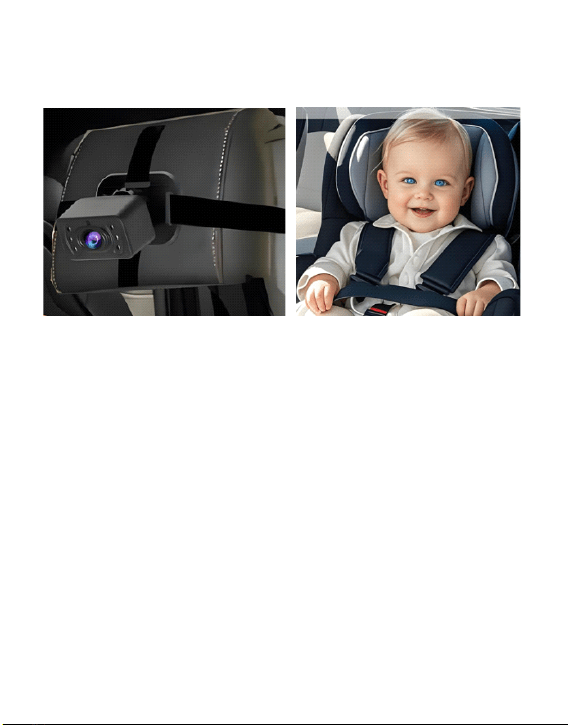
II. Camera Installation Method
1. Thread the two straps through the bottom of the camera.
Your car's entertainment system must support wired CarPlay/Android
Auto, and the screen must be touch-enabled.
Please Note:
When the green light flashes, it indicates CarPlay mode. When the
blue light flashes, it indicates Android Auto mode.
Select the mode corresponding to your car's infotainment system,
and switch modes by pressing the reset button for 3 seconds.
· 2 ·
2. Fix the camera to the back of the front seat headrest and connect
the cable.
3. Adjust the camera angle to face the baby directly.
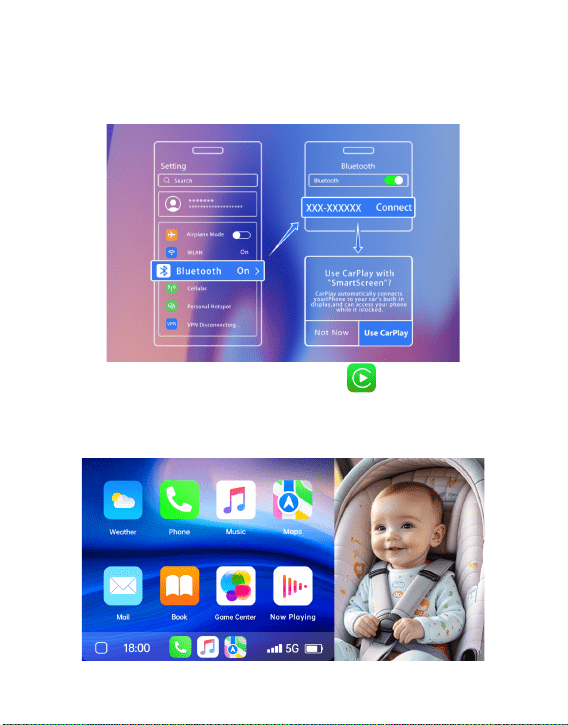
Step 1: Click "CarPlay" on the main interface.
Step 2: Turn on your phone’s Wi-Fi and Bluetooth.
Step 3: Confirm the Bluetooth name and pair successfully.
Step 4: Connection successful.
III. Function Overview
1. CarPlay Connection
· 3 ·
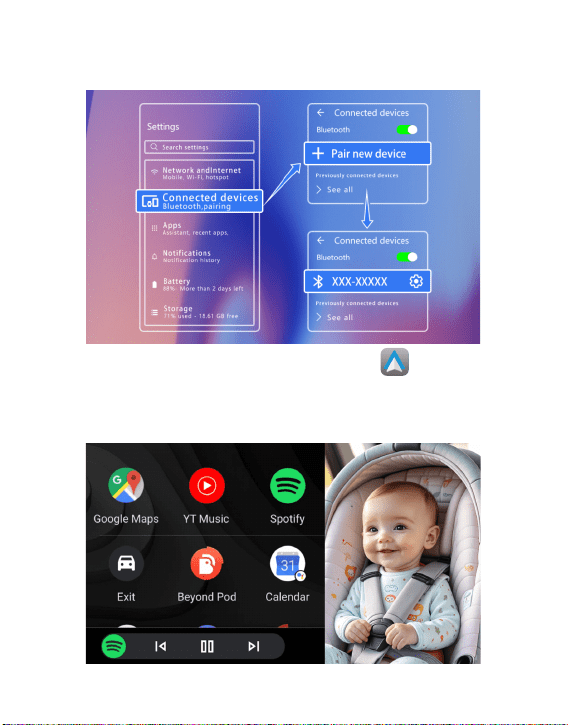
Step 1: Click"Android Auto" on the main interface.
Step 2: Turn on your phone’s Wi-Fi and Bluetooth.
Step 3: Confirm the Bluetooth name and pair successfully.
Step 4: Connection successful.
2. Android Auto Connection
· 4 ·
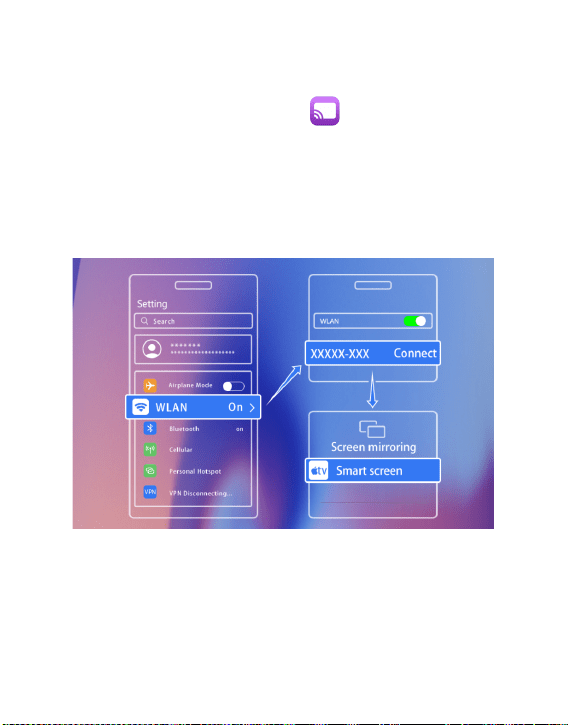
3. AirPlay (Only supported on iOS)
Step 1: "AirPlay" on the main interface.
Step 2: Confirm the AirPlay ID and Wi-Fi password, then use your
phone’s Wi-Fi to connect .
Step 3: Click "Screen Mirroring" in your phone’s control center.
Step 4: Select the "Smart screen" to complete screen mirroring.
Step 5: Connection successful.
· 5 ·
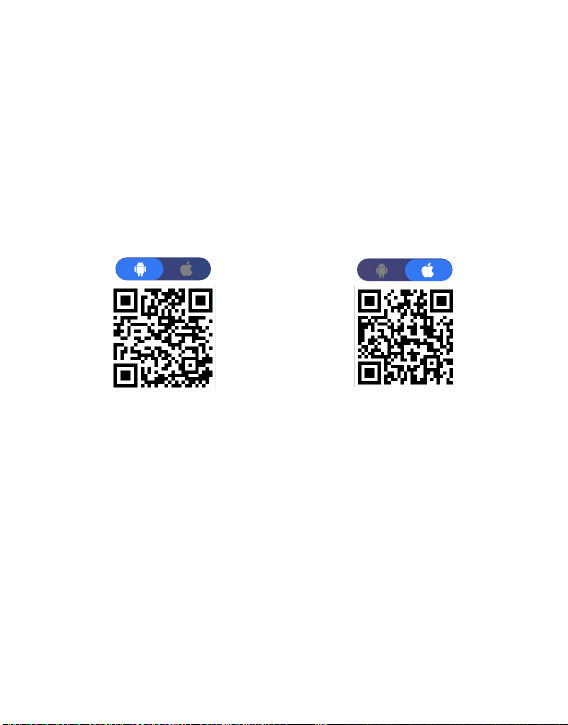
Download Evelink for Android Download Evelink for IOS
4. Super Link (Supports Screen Mirroring and Local
Video Playback on Mobile Phones)
Scan the QR code to download Evelink.
Tips: Depending on your phone, you need to select whether to
connect to Android or iOS.
· 6 ·

5. Audio Output Selection
Speaker
The built-in device speaker outputs sound.
BT Audio
1. Ensure the phone is successfully connected to this
device.
2. Use your phone to connect to the car’s Bluetooth.
Supported modes: CarPlay, Android Auto, Super Link
(Android).
FM
Transmission
Use FM output to connect this device’s audio to the
car’s original stereo.
Tips
1. When connecting via FM, ensure that the FM
frequency on the car matches the frequency on this
device.
2. To avoid noise caused by FM signals, it is
recommended to use non-popular or blank FM
frequencies for connection, such as 100-108MHz.
Connect to the car audio system using an AUX cable.
AUX Output
· 7 ·