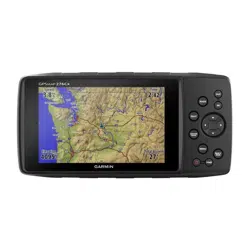
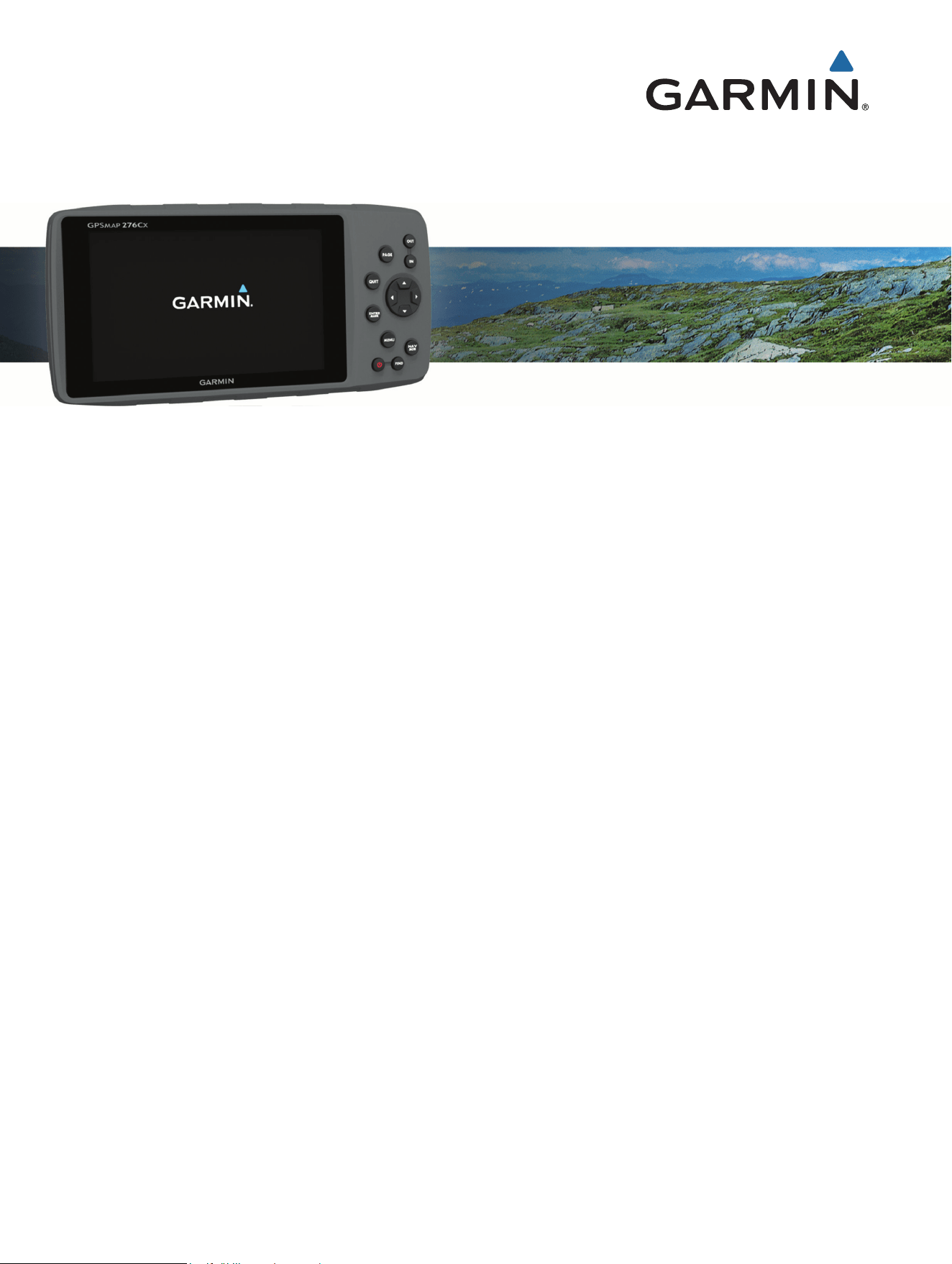
GPSMAP
®
276Cx
Owner’s Manual

© 2016 Garmin Ltd. or its subsidiaries
All rights reserved. Under the copyright laws, this manual may not be copied, in whole or in part, without the written consent of Garmin. Garmin reserves the right to change or
improve its products and to make changes in the content of this manual without obligation to notify any person or organization of such changes or improvements. Go to
www.garmin.com for current updates and supplemental information concerning the use of this product.
Garmin
®
, the Garmin logo, ANT+
®
, AutoLocate
®
, GPSMAP
®
, and TracBack
®
are trademarks of Garmin Ltd. or its subsidiaries, registered in the USA and other countries. BaseCamp
™
,
Garmin Connect
™
, Garmin Express
™
, and HomePort
™
are trademarks of Garmin Ltd. or its subsidiaries. These trademarks may not be used without the express permission of
Garmin.
Android
™
is a trademark of Google Inc. Apple
®
and Mac
®
are registered trademarks of Apple Inc., registered in the U.S. and other countries. The BLUETOOTH
®
word mark and logos
are owned by the Bluetooth SIG, Inc. and any use of such marks by Garmin is under license. microSD
®
and the microSDHC logo are trademarks of SD-3C, LLC. Wi‑Fi
®
is a
registered mark of Wi-Fi Alliance Corporation. Windows
®
and Windows NT
®
are registered trademarks of Microsoft Corporation in the United States and other countries. Other
trademarks and trade names are those of their respective owners.
This product is ANT+
®
certified. Visit www.thisisant.com/directory for a list of compatible products and apps.
M/N: A03023

Table of Contents
Introduction..................................... 1
Device Overview...................................... 1
Keys......................................................... 2
Main Pages..........................................2
Viewing the Main Menu...................... 3
Battery Information.................................3
Maximizing Battery Life...................... 3
Turning On Battery Save Mode.......... 3
Long-Term Storage............................. 3
Installing AA Batteries........................ 4
Installing the Battery Pack..................4
Turning On the Device............................ 5
Adjusting the Backlight Brightness and
Volume.................................................... 5
Product Updates..................................... 6
Setting Up Garmin Express.................6
Connected Features......................... 6
Connected Feature Requirements......... 6
Setting Up Wi‑Fi Connectivity................. 7
Connecting to a Wireless Network.... 7
Pairing a Smartphone with Your
Device...................................................... 7
Phone Notifications................................ 7
Viewing Phone Notifications.............. 7
Hiding Notifications............................ 7
GPS Satellite Signals........................7
Acquiring Satellite Signals..................... 8
Changing the Satellite View................... 8
Turning Off GPS...................................... 8
Simulating a Location............................. 8
Simulating a Route..................................8
Enabling GLONASS and WAAS.............. 9
Waypoints, Routes, and Tracks........ 9
Waypoints................................................9
Creating a Waypoint............................9
Finding a Waypoint............................. 9
Project a Waypoint.............................. 9
Navigating to a Waypoint................... 9
Increasing the Accuracy of a Waypoint
Location............................................. 10
Editing a Waypoint............................ 10
Editing a Category.............................10
Deleting a Waypoint.......................... 10
Routes................................................... 10
Creating a Route............................... 10
Activating a Route.............................11
Copying a Route................................ 11
Editing the Name of a Route............ 11
Editing a Route.................................. 11
Deleting a Route................................ 11
Navigating a Saved Route................ 11
Viewing the Active Route..................11
Stopping Navigation......................... 11
Reversing a Route............................. 12
Taking a Detour................................. 12
Planning Your Route......................... 12
Tracks.................................................... 12
Recording a Track............................. 12
Viewing the Active Track.................. 12
Saving the Active Track.................... 13
Clearing the Active Track................. 13
Deleting a Track................................ 13
Navigating a Saved Track.................13
Archived Tracks................................ 13
Sending Data Wirelessly.......................14
Receiving Data Wirelessly.................... 14
Navigation......................................14
Find Menu............................................. 14
Navigating to a Destination..................14
Stopping Navigation............................. 14
Finding a Location by Name................ 15
Finding a Location Near Another
Location................................................ 15
Navigating with the Compass.............. 15
Calibrating the Compass.................. 15
Course Pointer.................................. 16
Navigating with the Map...................... 16
Navigating Using TracBack®...............16
Avoiding Road Features....................... 16
Marking and Starting Navigation to a
Man Overboard Location......................17
Elevation Plot........................................ 17
Navigating to a Point on the Elevation
Plot..................................................... 17
Changing the Plot Type.................... 17
Calibrating the Barometric
Altimeter............................................ 17
Trip Computer....................................... 17
Table of Contents i

Resetting the Trip Computer............ 17
Highway Page....................................... 18
BirdsEye Imagery........................... 18
Calendars and Weather Data.......... 18
Viewing the Calendar............................18
Viewing Tide Information..................... 18
Viewing Celestial Data and
Almanacs.............................................. 19
Viewing Current Weather Conditions and
Forecasts.............................................. 19
Customizing the Device..................19
Customizing the Data Fields................ 19
Customizing the Page Layout.............. 19
Configuring the Maps........................... 19
Map Setup............................................. 20
General Map Settings....................... 20
Map Settings..................................... 20
Marine Settings................................. 21
Marine Navigation Settings.............. 21
Compass Settings................................ 21
Trip Computer Settings........................ 21
Highway Page Settings........................ 22
Alarms Settings.................................... 22
GPS Satellite Settings...........................22
System Settings.................................... 22
Serial Interface Settings................... 23
Display Settings.................................... 23
Routing Settings................................... 23
Tracks Settings..................................... 24
Altimeter Settings................................. 24
Sound Settings......................................24
ANT+ Sensor Settings.......................... 24
Timer Settings.......................................24
Time Settings........................................ 25
Changing the Units of Measure........... 25
Location Settings.................................. 25
Restoring All Default Settings.............. 25
Device Information......................... 25
Device Care........................................... 25
Cleaning the Device.......................... 25
Optional Fitness Accessories.............. 26
Pairing Your ANT+ Sensors..............26
Tips for Pairing ANT+ Accessories
with Your Garmin Device.................. 26
Data Management................................ 26
File Types.......................................... 26
Installing a Memory Card................. 27
Connecting the Device to Your
Computer........................................... 27
Transferring Files to Your Device.... 27
Deleting Files..................................... 28
Disconnecting the USB Cable.......... 28
Specifications....................................... 28
Index..............................................29
ii Table of Contents
Introduction
WARNING
See the Important Safety and Product Information guide in the product box for product warnings and other
important information.
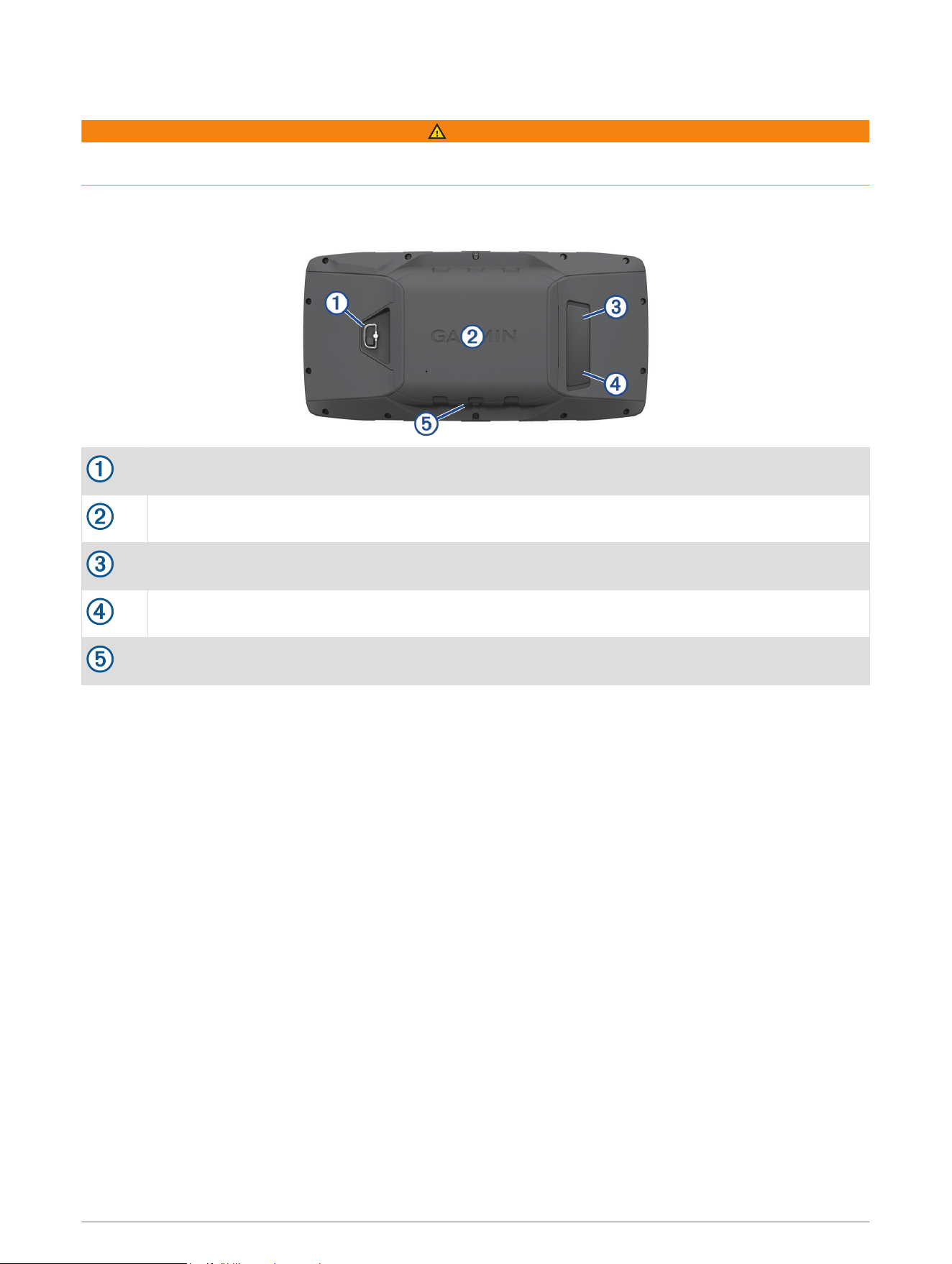
Device Overview
Battery cover D-ring
microSD card slot (under battery door)
MCX port for external GPS antenna (under weather cap)
Mini-USB port (under weather cap)
Power connector for accessory mounts
Introduction 1
Keys
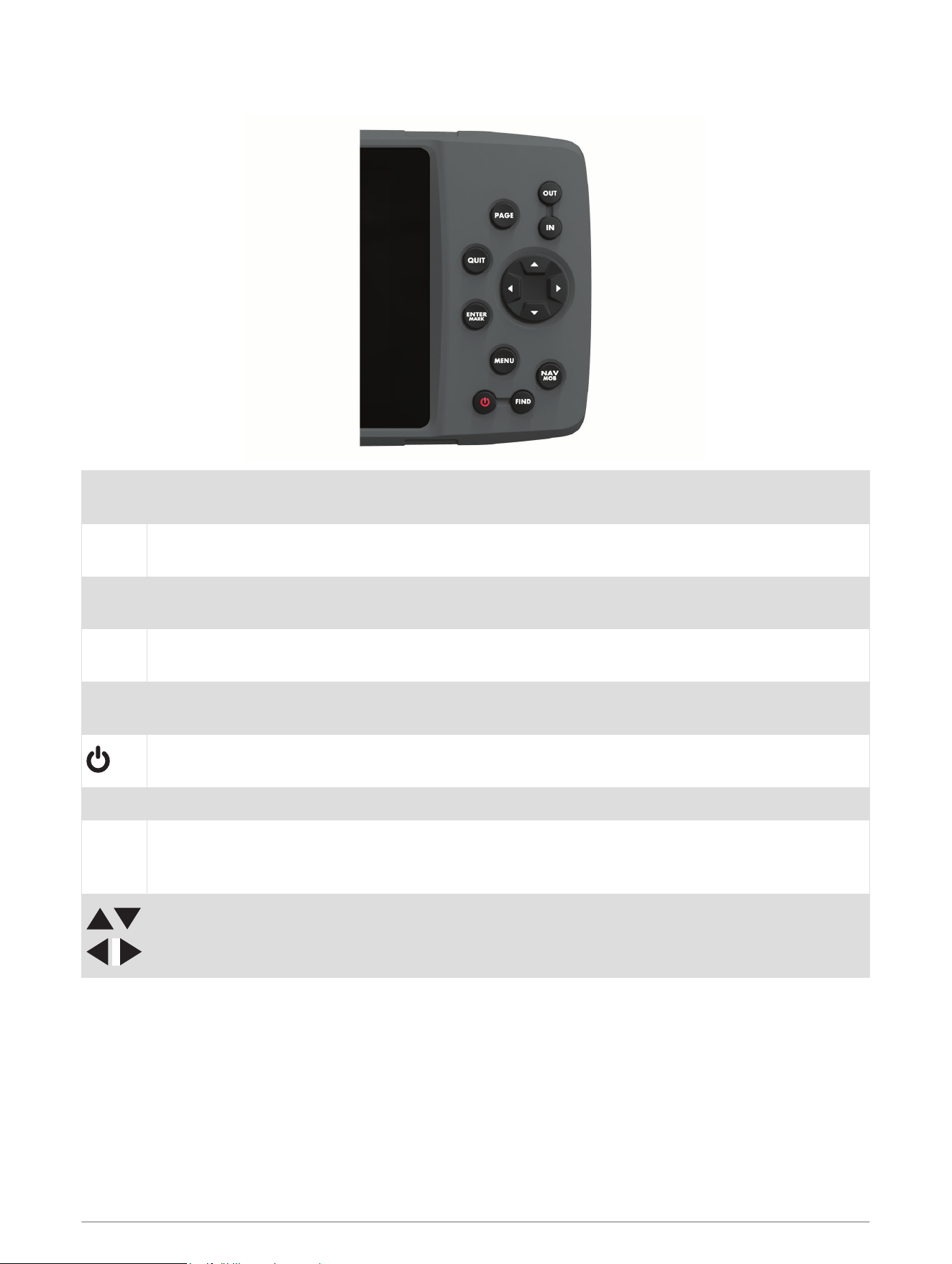
OUT
IN
Select to zoom in or zoom out of the map page.
PAGE
Select to scroll through the main pages in sequence and to return to the home page.
Hold to switch between automotive mode and marine mode.
QUIT
Select to scroll through the main pages in reverse sequence, revert to the previous value in the data
entry field, or cancel a function.
ENTER
MARK
Select to acknowledge messages and select options.
Hold to mark a waypoint.
MENU
Select to open the menu for the page.
Press twice to open the main menu.
Hold to turn on and turn off the device.
Select to adjust the backlight and external speaker volume.
FIND Select to find a destination.
NAV
MOB
Select to open the navigation options.
In marine mode, hold to create a Man Overboard (MOB) and begin navigation to the MOB location.
In automotive mode, hold to open the next turn page and play the voice prompt for the next turn.
Select to scroll, highlight options, and move the cursor.
Main Pages
You can select PAGE to scroll through the main pages, and hold PAGE to switch between automotive mode and
marine mode. The usage mode determines which main pages appear.
Marine mode: By default, five main pages appear in marine mode: map, compass, highway, active route, and
position data. You can turn on the altimeter page in the display settings (Display Settings, page 23).
Automotive mode: By default, two main pages appear in automotive mode: map and trip computer. You can
turn on the highway, compass, and altimeter pages in the display settings (Display Settings, page 23).
2 Introduction
Viewing the Main Menu
From a main page, press MENU twice to open the main menu.
Battery Information
WARNING
The temperature rating for the device may exceed the usable range of some batteries. Alkaline batteries can
rupture at high temperatures.
Do not use a sharp object to remove batteries.
CAUTION
Contact your local waste disposal department to properly recycle the batteries.
NOTICE
Alkaline batteries lose a significant amount of their capacity as the temperature decreases. Use lithium
batteries when operating the device in below freezing conditions.
Maximizing Battery Life
You can do several things to extend the life of the batteries.
• Reduce the backlight brightness (Adjusting the Backlight Brightness and Volume, page 5).
• Reduce the backlight timeout (Display Settings, page 23).
• Use battery save mode (Turning On Battery Save Mode, page 3).
• Decrease the map drawing speed (Map Settings, page 20).
• Turn off GLONASS (Enabling GLONASS and WAAS, page 9).
Turning On Battery Save Mode
You can use battery save mode to prolong the battery life.
Select Setup > Display > Battery Save > On.
In battery save mode, the screen shuts off when the backlight times out. You can select to turn on the
screen, and you can double tap to view the status page.
Long-Term Storage
When you do not plan to use the device for several months, remove the batteries. Stored data is not lost when
batteries are removed.
Introduction 3
Installing AA Batteries
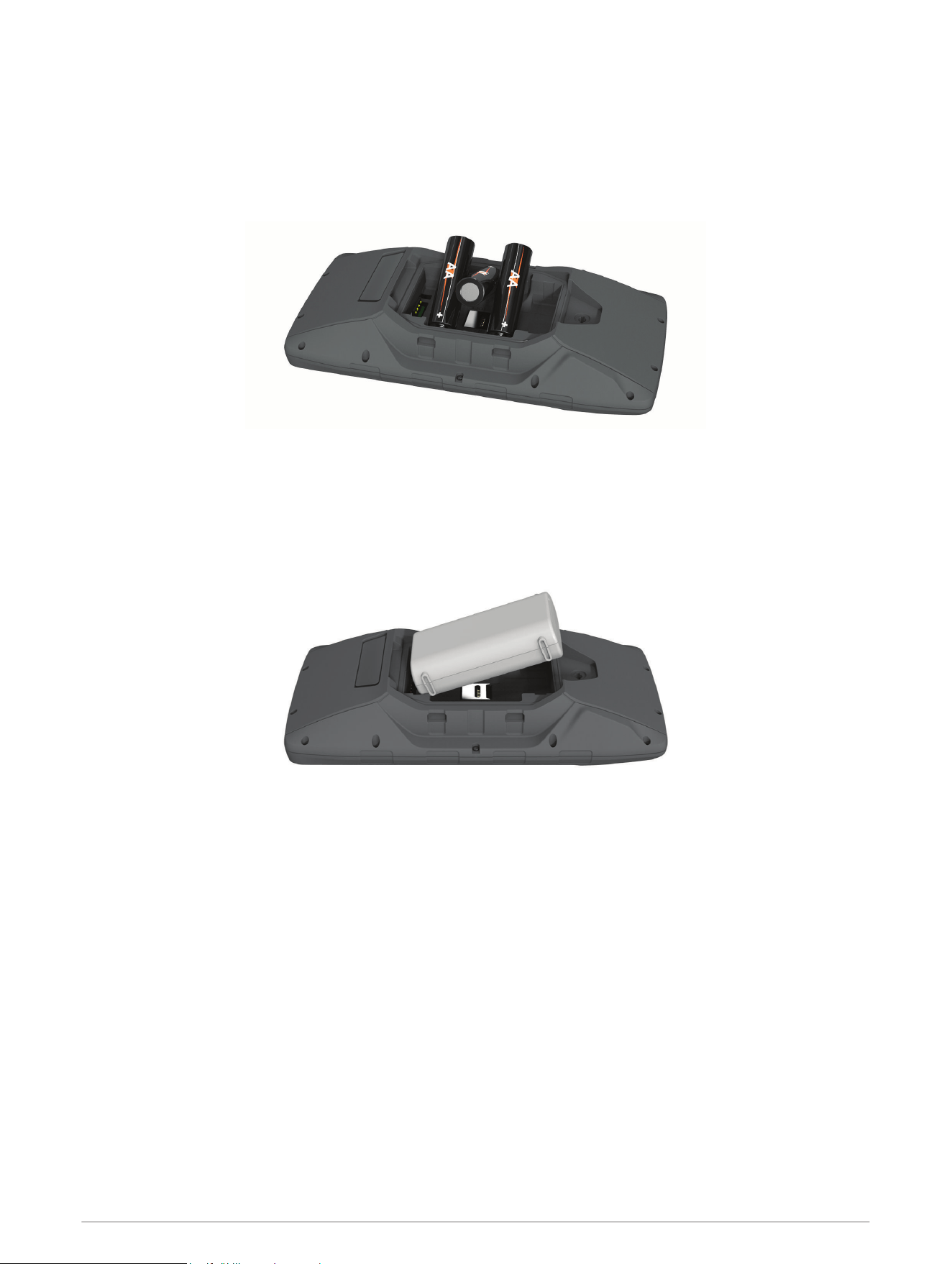
Instead of the battery pack (Installing the Battery Pack, page 4), you can use alkaline, NiMH, or lithium AA
batteries. This is useful when you are on the trail and cannot charge the battery pack. Use NiMH or lithium
batteries for best results.
1 Turn the D-ring counter-clockwise, and pull up to remove the cover.
2 Insert three AA batteries, observing polarity.
3 Replace the battery cover, and turn the D-ring clockwise.
Installing the Battery Pack
1 Turn the D-ring counter-clockwise, and pull up to remove the cover.
2 Locate the metal contacts on the end of the lithium-ion battery.
3 Insert the battery into the compartment, contacts first.
4 Press the battery into place.
5 Replace the battery cover, and turn the D-ring clockwise.
4 Introduction
Charging the Battery Pack
NOTICE
To prevent corrosion, thoroughly dry the USB port, the weather cap, and the surrounding area before charging or
connecting to a computer.
Do not attempt to use the device to charge a battery that was not provided by Garmin
®
. Attempting to charge a
battery that was not provided by Garmin can damage the device and void the warranty.
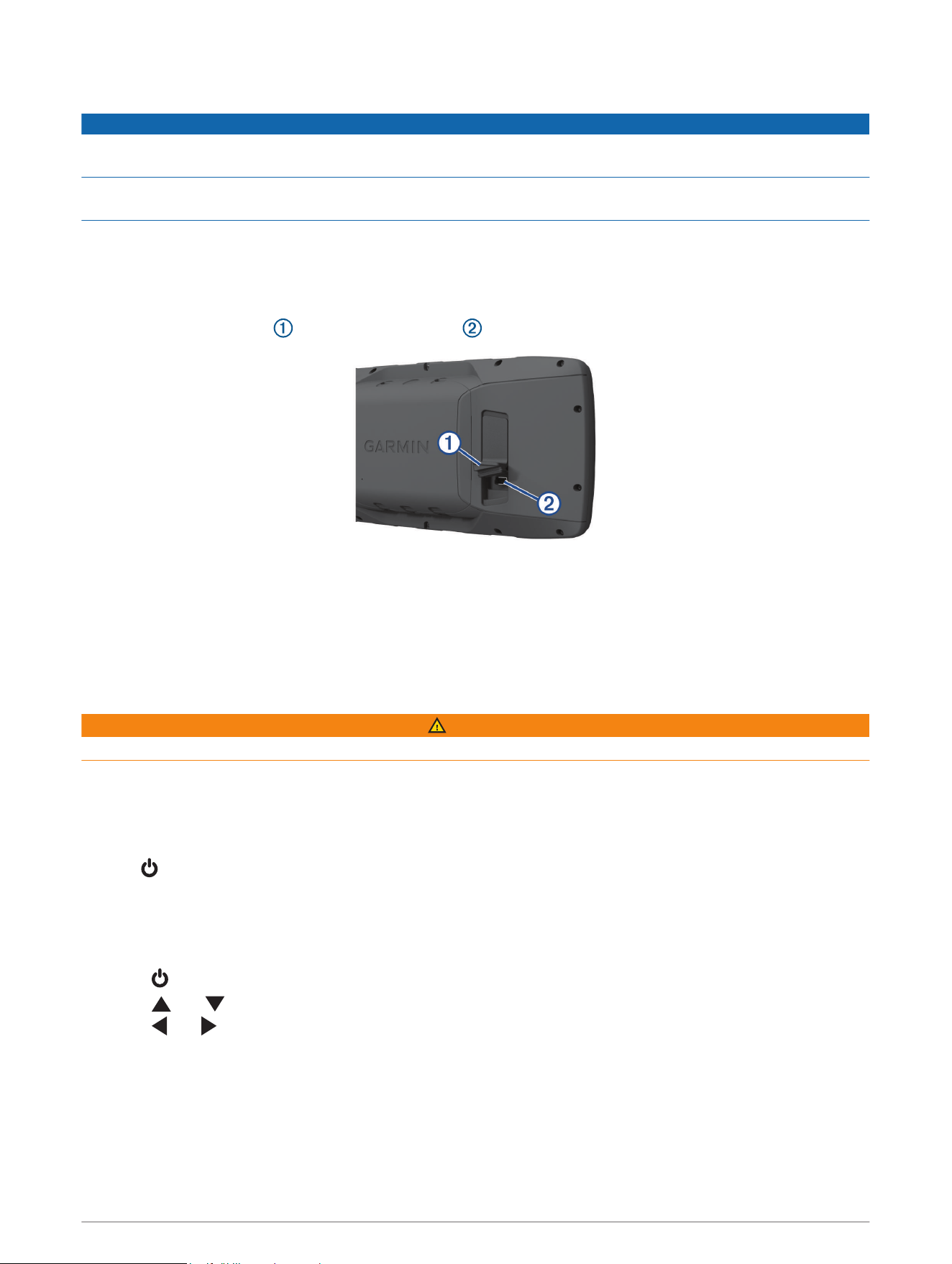
Before you can connect the straight connector of the USB cable to your device, you may need to remove
optional mount accessories.
NOTE: The device does not charge when outside the approved temperature range (Specifications, page 28).
You can charge the battery using a standard wall outlet or a USB port on your computer.
1 Pull up the weather cap from the mini-USB port .
2 Plug the small end of the USB cable into the mini-USB port.
3 Plug the USB end of the cable into an AC adapter or a computer USB port.
4 If necessary, plug the AC adapter into a standard wall outlet.
When you connect the device to a power source, the device turns on.
5 Charge the battery completely.
Removing the NiMH Battery Pack
WARNING
Do not use a sharp object to remove batteries.
1 Turn the D-ring counter-clockwise, and pull up to remove the cover.
2 Pull up on one side of the battery pack.
Turning On the Device
Hold .
Adjusting the Backlight Brightness and Volume
You can adjust the backlight brightness to maximize battery life. If you are using an external speaker with a
12/24-Volt adapter cable with the device, you can adjust the volume level of the audio output.
1 Select .
2 Select and to adjust the brightness.
3 Select and to adjust the volume.
4 Select ENTER.
Introduction 5
Product Updates
On your computer, install Garmin Express
™
(www.garmin.com/express). On your smartphone, install the Garmin
Connect
™
app.
This provides easy access to these services for Garmin devices:
• Software updates
• Map updates
• Data uploads to Garmin Connect
• Product registration
Setting Up Garmin Express
1 Connect the device to your computer using a USB cable.
2 Go to www.garmin.com/express.
3 Follow the on-screen instructions.
Connected Features
Connected features are available for your GPSMAP 276Cx device when you connect the device to a compatible
smartphone using Bluetooth
®
technology and install the Garmin Connect app on the connected smartphone. Go
to www.garmin.com/apps for more information. Some features are also available when you connect your
device to a Wi‑Fi
®
network.
Phone notifications: Displays phone notifications and messages on your GPSMAP 276Cx device.
LiveTrack: Allows friends and family to follow your races and training activities in real time. You can invite
followers using email or social media, allowing them to view your live data on a Garmin Connect tracking
page.
Activity uploads to Garmin Connect: Automatically sends your activity to your Garmin Connect account as
soon as you finish recording the activity.
Software Updates: Allows you to update your device software.
Weather: Allows you to view current weather conditions and weather forecasts.
Connected Feature Requirements
Some features require a smartphone and a specific app on your smartphone.
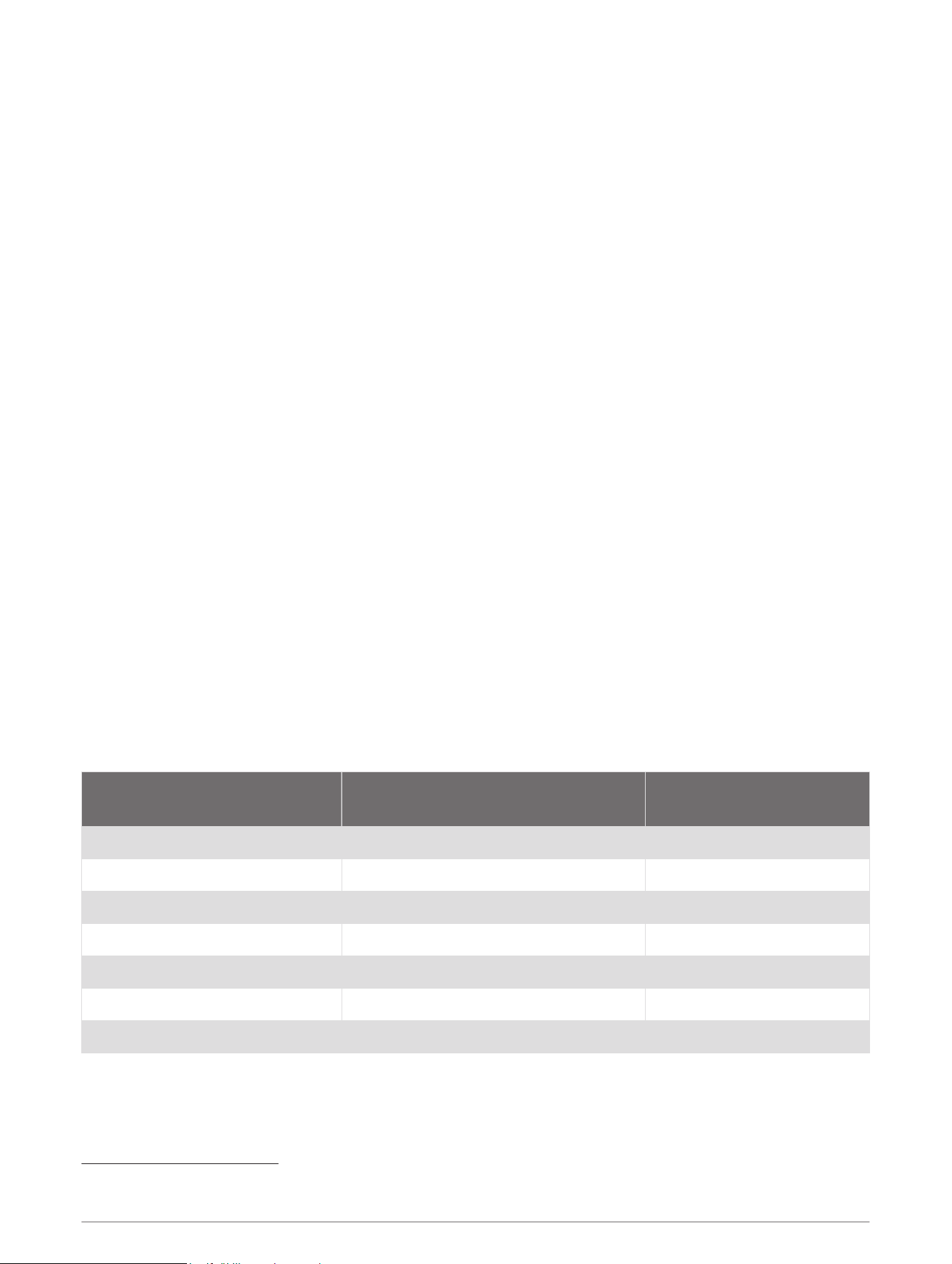
Feature
Connected to a Paired Smartphone with
the Garmin Connect App
Connected to a Wi‑Fi Network
Activity uploads to Garmin Connect Yes Yes
Software updates Yes Yes
EPO downloads Yes Yes
Weather radar Yes Yes
Weather conditions and forecasts Yes No
Phone notifications Yes
1
No
LiveTrack Yes No
1
The device receives phone notifications from a paired Apple
®
smartphone directly, and through the Garmin Connect app on a smartphone with Android
™
.
6 Connected Features

Setting Up Wi‑Fi Connectivity
Before you can use Wi‑Fi features, you must set up the Wi‑Fi connection using the Garmin Express application.
1 Go to www.garmin.com/express, and download the Garmin Express application.
2 Select the device.
3 Select Tools > Utilities.
4 Follow the on-screen instructions to set up Wi‑Fi connectivity with the Garmin Express application.
Connecting to a Wireless Network
1 From the main menu, select Setup > Wi-Fi.
2 If necessary, select Wi-Fi to enable Wi‑Fi technology.
3 Select Add Network.
4 Select a wireless network from the list.
5 If necessary, enter the password.
The device stores the network information and connects automatically when you return to this location.
Pairing a Smartphone with Your Device
You should pair your GPSMAP 276Cx device directly through the Garmin Connect app.
1 Bring your compatible smartphone within 10 m (33 ft.) of your device.
2 From the app store on your smartphone, install and open the Garmin Connect app.
3 Follow the on-screen instructions to create an account using your email address, and connect the GPSMAP
276Cx device to your account.
4 From the main menu on your device, select Setup > Bluetooth > On > Pair Mobile Device.
After you pair successfully, a message appears, and your device syncs automatically with your smartphone.
Phone Notifications
Phone notifications require a compatible smartphone to be paired with the GPSMAP 276Cx device. When your
phone receives messages, it sends notifications to your device.
Viewing Phone Notifications
Before you can view notifications, you must pair your device with your compatible smartphone.
1 From the main menu, select Message.
2 Select a notification.
Hiding Notifications
By default, notifications appear on the device screen when they are received. You can hide notifications to
prevent them from appearing.
From the main menu, select Setup > Bluetooth > Notifications > Hide.
GPS Satellite Signals
After you turn on the device, it automatically begins searching for satellites. The GPS page appears while the
unit is gathering satellite signals and acquiring a fix, which should take only a few minutes.
GPS Satellite Signals 7

Acquiring Satellite Signals
Before you can use GPS navigation features, you must acquire satellite signals.
When you turn on your navigation device, the GPS receiver must collect satellite data and establish the current
location. The time required to acquire satellite signals varies based on several factors, including how far you
are from the location where you last used your navigation device, whether you have a clear view of the sky, and
how long it has been since you last used your navigation device. The first time you turn on your navigation
device, it may take several minutes to acquire satellite signals.
1 Turn on the device.
2 Wait while the device locates satellites.
It may take 30 to 60 seconds to acquire satellite signals.
3 If necessary, go to an open area, away from tall buildings and trees.
Changing the Satellite View
1 From the main menu, select GPS.
2 Select MENU.
3 Select an option:
• To orient the satellite view with your current track toward the top of the screen, select Track Up.
• To show a unique color for each satellite and its signal strength bar, select Multicolor.
Turning Off GPS
You can turn off GPS on your device to stop tracking your location.
1 From the main menu, select GPS.
2 Select MENU > Use With GPS Off.
Simulating a Location
You can use the device with GPS off to perform maintenance on waypoints and routes, or to conserve battery
life. You can set the location manually to view your current location on the map.
1 From the main menu, select GPS.
2 Select MENU > Use With GPS Off.
3 Select a location.
4 Select Use.
Simulating a Route
You can use the device with GPS off to perform maintenance on waypoints and routes, or to conserve battery
life. You can simulate driving a route while the GPS is turned off.
1 From the main menu, select GPS.
2 Select MENU > Use With GPS Off.
3 Select an option:
• Activate a route (Activating a Route, page 11).
• Navigate to a destination (Navigating to a Destination, page 14).
4 After activating the route or selecting a destination, select Yes to simulate driving the route.
8 GPS Satellite Signals

Enabling GLONASS and WAAS
You can enable Global Navigation Satellite System (GLONASS), which is a Russian satellite system, to increase
the number of satellites available to you. When the system is used in situations with poor sky visibility, such as
areas with tall buildings, this configuration can be used in combination with GPS to provide more accurate
position information.
You can enable Wide Area Augmentation System (WAAS) in North America, which can provide more accurate
GPS position information. When using WAAS, the device may take longer to acquire satellites.
1 From the main menu, select MENU > GPS.
2 Select Enable GLONASS or Enable WAAS.
Waypoints, Routes, and Tracks
Waypoints
Waypoints are locations you record and store in the device. Waypoints can mark where you are, where you are
going, or where you have been. You can add details about the location, such as name, elevation, and depth.
You can add a .gpx file that contains waypoints by transferring the file to the GPX folder (Transferring Files to
Your Device, page 27).
Creating a Waypoint
You can save your current location as a waypoint.
1 Hold MARK.
2 If necessary, change the name or other data.
3 Select OK.
Finding a Waypoint
1 Select FIND > Waypoints.
2 If necessary, select MENU to narrow the search.
3 If necessary, select an option:
• To search using the name of the waypoint, select Find by Name.
• To search using the category of the waypoint, select Select Category.
• To search using the symbol of the waypoint, select Select Symbol.
• To search near a point on the map, select Near Other.
4 Select a waypoint from the list.
Project a Waypoint
You can create a new location by projecting the distance and bearing from a marked location to a new location.
1 From the main menu, select Points.
2 Select a waypoint.
3 Select MENU > Project Waypoint.
4 If necessary, select From to change the marked location.
5 Enter the distance.
6 Enter the bearing.
7 Select Save.
Navigating to a Waypoint
1 Select FIND > Waypoints.
2 Select a waypoint.
3 Select Go To.
Waypoints, Routes, and Tracks 9

Increasing the Accuracy of a Waypoint Location
You can refine a waypoint location for more accuracy. When averaging, the device takes several readings at the
same location and uses the average value to provide more accuracy.
1 From the main menu, select Points.
2 Select a waypoint.
3 Select MENU > Average Location.
4 Move to the waypoint location.
5 Select Start.
6 Follow the on-screen instructions.
7 When the confidence status bar reaches 100%, select Save.
For best results, collect 4 to 8 samples for the waypoint, waiting at least 90 minutes between samples.
Editing a Waypoint
1 Select Points.
2 Select a waypoint.
3 Select an item to edit, such as the name.
4 Enter the new information, and select Done.
Editing a Category
1 Select Points > MENU > Edit Categories.
2 Select an option:
• Select a category.
• Select Add.
3 If necessary, edit the name.
4 If necessary, select Show on Map.
5 If necessary, select Use as Default.
Deleting a Waypoint
1 From the main menu, select Points.
2 Select a waypoint.
3 Select Delete.
Routes
A route is a sequence of waypoints or locations that leads you to your final destination.
Creating a Route
1 From the main menu, select Route > Create Route.
2 Select a blank line.
3 Select a category.
4 Select the first point in the route.
5 Select OK.
6 Repeat for all points in the route.
10 Waypoints, Routes, and Tracks

Activating a Route
You can activate a route to begin navigating.
1 From the main menu, select Route.
2 Select a route.
3 Select MENU > Activate Route.
Your route appears as a magenta line on the map.
Copying a Route
You can copy an existing route.
1 From the main menu, select Route.
2 Select a route.
3 Select MENU > Copy Route.
The route is duplicated and appears in the list.
Editing the Name of a Route
You can customize the name of a route to make it distinct.
1 From the main menu, select Route.
2 Select a route.
3 Select the route name.
4 Enter the new name.
Editing a Route
You can add, remove, or rearrange points on a route.
1 From the main menu, select Route.
2 Select a route.
3 Select a point on the route.
4 Select MENU.
5 Select an option:
• To insert an additional point on the route, select Insert Waypoint.
• To change the order of the points on the route, select Move Waypoint, and use the arrow keys.
• To remove the point from the route, select Remove Waypoint.
Deleting a Route
1 From the main menu, select Route.
2 Select a route.
3 Select MENU > Delete Route.
Navigating a Saved Route
1 Select NAV > Navigate Route.
2 Select a route.
Viewing the Active Route
1 While navigating a route, from the main menu, select Route > Active.
2 Select a point in the route.
3 Select Map to view the route on the map.
Stopping Navigation
Select NAV > Stop Navigation.
Waypoints, Routes, and Tracks 11

Reversing a Route
You can switch the start and end points of your route to navigate the route in reverse.
1 From the main menu, select Route.
2 Select a route.
3 Select MENU > Invert.
Taking a Detour
You can detour around road construction or some other form of a detour while navigating a route.
1 While navigating a course in automotive mode, select NAV > Detour.
2 Select a length of the detour.
The device recalculates your route.
Planning Your Route
You can enter information to calculate data about your trip.
1 From the main menu, select Route.
2 Select a route.
3 Select MENU > Plan Route.
4 Enter the necessary information to plan the trip.
NOTE: Fuel flow rates are measured in units per hour. System setting changes for units of measure do not
affect the fuel flow measure. You should enter fuel flow rates based on information for your vehicle (such as
the operator’s manual or performance specifications), and make note of the units of measure (gallons or
liters).
5 Select QUIT.
6 Use the arrow keys to view detailed information about your trip, such as the leg time and your estimated
time of arrival, based on the data you entered.
Tracks
A track is a recording of your path. The track log contains information about points along the recorded path,
including time, location, and elevation for each point.
Recording a Track
By default, the device records a track log automatically while it is on and receiving a GPS signal. You can pause
and start track recording manually.
1 Begin moving to record a track.
2 From the main menu, select Track > Active.
3 Select an option:
• To pause track recording, select Stop.
• To start track recording, select Start.
Viewing the Active Track
1 From the main menu, select Track > Active.
2 Select an option:
• To show the active track on the map, select MENU > View Map.
• To show the elevation plot for the active track, select MENU > Elevation Plot.
12 Waypoints, Routes, and Tracks

Saving the Active Track
1 From the main menu, select Track.
2 Select an option:
• Select Save to save the entire track.
• Select MENU > Save Portion, and select a portion.
Clearing the Active Track
From the main menu, select Track > Active > Clear.
Deleting a Track
1 From the main menu, select Track.
2 Select an option:
• Select FIT.
• Select GPX.
• Select Archive.
3 Select a track.
4 Select MENU > Delete.
Navigating a Saved Track
1 From the main menu, select Track.
2 Select an option:
• Select FIT.
• Select GPX.
• Select Archive.
3 Select a track.
4 Select MENU > Navigate.
5 Select an option:
• Select Original to navigate the original track.
• Select Reverse to navigate the track in reverse.
Archived Tracks
Your device allows you to save a limited number of tracks. If you exceed these limits, there may not be enough
memory for your current track recording. Archiving frees up memory for current track recording and stores
archived tracks in a different location on your drive. The number of archived tracks you can store is limited only
by the size of your drive. You can transfer archived tracks from your device to your computer for saving and
viewing using the Garmin BaseCamp
™
application.
You can archive saved tracks manually. In addition, you can create archived tracks from the current track log on
an automated schedule, or when the track log is full.
Archiving Tracks Automatically
You can archive tracks on an automated schedule to save memory space.
1 From the main menu, select Setup > Tracks > Auto Archive.
2 Select When Full, Daily, or Weekly.
NOTE: The Daily and Weekly options require GPX recording.
Waypoints, Routes, and Tracks 13

Archiving Tracks Manually
You can archive saved tracks manually.
1 From the main menu, select Track > GPX.
2 Select a track.
3 Select MENU > Archive.
The track moves from the saved tracks list to the archived tracks list.
Sending Data Wirelessly
Before you can send data wirelessly, you must be within 3 m (10 ft.) of a compatible Garmin device.
Your device can send and receive data when connected with a compatible device using ANT+
®
technology. You
can send waypoints, routes, and tracks.
1 From the main menu, select a waypoint, route, or track.
2 Select MENU > Send Wirelessly.
The other compatible device must be attempting to receive data.
3 Follow the on-screen instructions.
Receiving Data Wirelessly
Before you can receive data wirelessly, you must be within 3 m (10 ft.) of a compatible Garmindevice.
Your device can send and receive data when connected with a compatible device using ANT+ technology. You
can receive waypoints, routes, and tracks.
1 From the main menu, select a waypoint, route, or track.
2 Select MENU > Receive Wirelessly.
The other compatible device must be attempting to send data.
3 Follow the on-screen instructions.
Navigation
Find Menu
You can use the find menu to search for waypoints, cities, and coordinates. You can download and navigate to
items, such as photos and tracks. Additional categories appear if you have optional, compatible detailed maps
loaded on the device. When you open a category, the list contains items near your current location or the map
pointer (if active).
Navigating to a Destination
1 Select FIND.
2 Select a category.
3 Select a destination.
4 Select Go To.
Your route appears as a magenta line on the map.
5 Navigate using the map (Navigating with the Map, page 16) or compass (Navigating with the Compass,
page 15).
Stopping Navigation
Select NAV > Stop Navigation.
14 Navigation

Finding a Location by Name
1 Select FIND > Waypoints.
2 Select MENU > Find by Name.
The locations are sorted alphabetically by name.
Finding a Location Near Another Location
1 Select FIND > MENU > Near Other.
2 Use the arrow keys to move the map pointer to a new location.
3 Select Use.
Navigating with the Compass
When navigating to a destination, points to your destination, regardless of the direction you are moving.
1 Begin navigating to a destination (Navigating to a Destination, page 14).
2 Select PAGE to open the compass.
3 Turn until points toward the top of the compass, and continue moving in that direction to the destination.
Calibrating the Compass
NOTE: You must calibrate the electronic compass outdoors. Do not stand near objects that influence magnetic
fields, such as cars, buildings, or overhead power lines.
The device has a 3-axis electronic compass. You should calibrate the compass after moving long distances,
experiencing temperature changes, or changing the batteries.
1 From the compass, select MENU.
2 Select Calibrate Compass > Start.
3 Follow the on-screen instructions.
Navigation 15
Course Pointer
NOTE: Settings vary based on the mode selected.
The course pointer is most useful when you are navigating to your destination in a straight line. It can help you
navigate back to the course line when you go off-course to avoid obstacles or hazards.
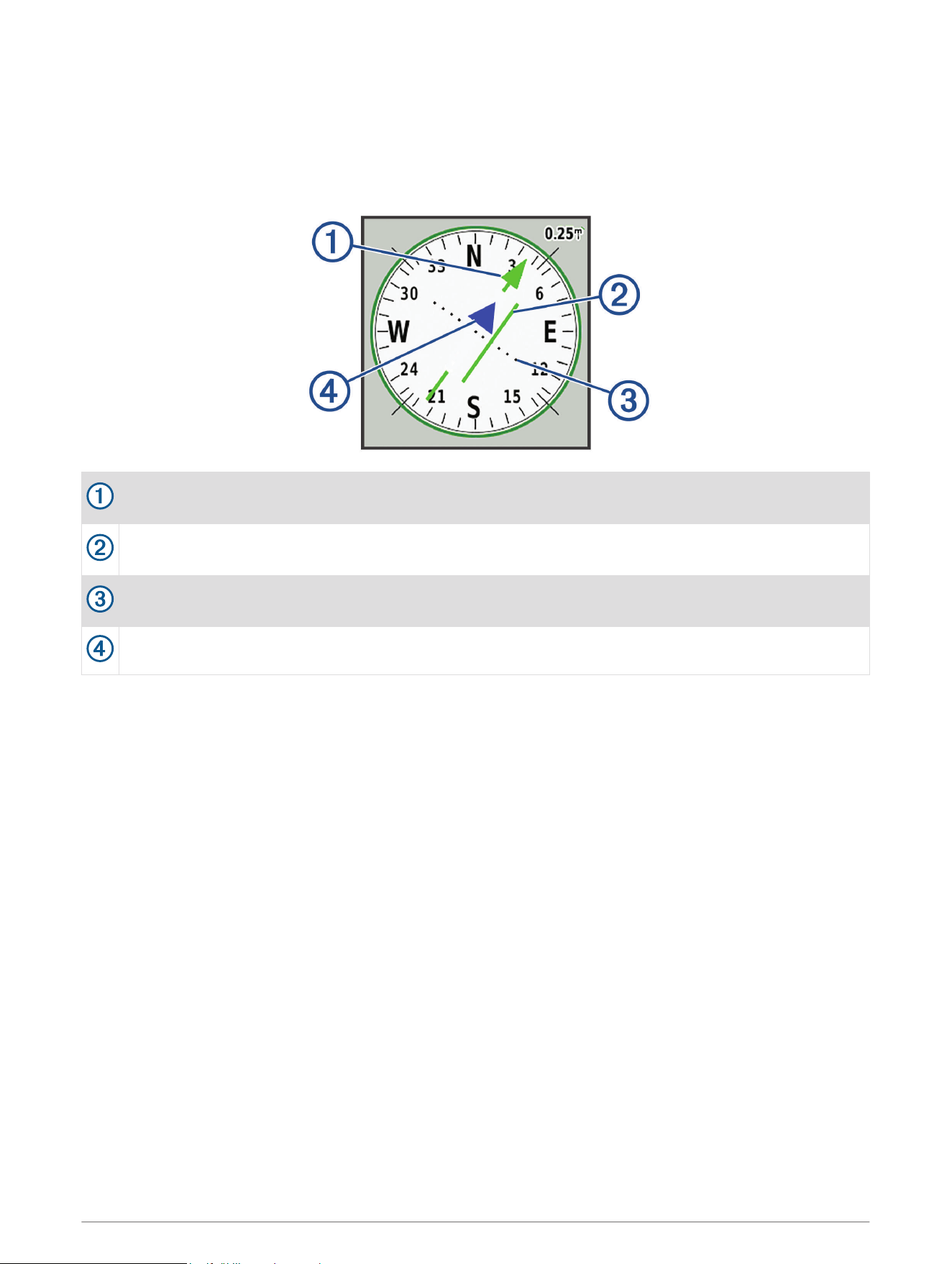
To enable the course pointer, from the compass, select MENU > Show CDI.
Course line pointer. Indicates the direction of the desired course line from your starting point to your next
waypoint.
Course deviation indicator (CDI). Indicates the location of the desired course line in relation to your
location. If the CDI is aligned with the course line pointer, you are on course.
Course deviation distance. The dots indicate your distance off course. The distance represented by each
dot is indicated by the scale in the upper-right corner.
To-and-from indicator. Indicates whether you are headed to or from the next waypoint.
Navigating with the Map
1 Begin navigating to a destination (Navigating to a Destination, page 14).
2 Select PAGE to open the map.
A blue triangle represents your location on the map. As you travel, the blue triangle moves and leaves a track
log (trail).
3 Complete one or more actions:
• Use the arrow keys to view different areas.
• Select IN and OUT to zoom in and out of the map.
Navigating Using TracBack
®
While navigating, you can navigate back to the beginning of your track. This can be helpful when finding your
way back to your campsite, the trail head, or the dock.
1 Select NAV > TracBack.
2 Select the point to navigate to.
3 Navigate using the map (Navigating with the Map, page 16) or compass (Navigating with the Compass,
page 15).
Avoiding Road Features
You can select road features to avoid, such as toll roads, unpaved roads, or narrow trails.
1 Select Setup > Routing > Avoidance Setup.
2 Select the road features to avoid on your routes.
16 Navigation

Marking and Starting Navigation to a Man Overboard Location
You must set the Usage Mode to Marine to use the man overboard feature.
You can save a man overboard (MOB) location and automatically start navigation back to it.
1 In marine mode, hold MOB.
2 Select Yes.
The map opens showing the route to the MOB location. The default appearance of the route is a magenta
line.
3 Navigate using the map (Navigating with the Map, page 16) or compass (Navigating with the Compass,
page 15).
Elevation Plot
By default, the elevation plot displays the elevation over the distance traveled. You can select any point on the
plot to view details about that point. You can customize the elevation settings (Altimeter Settings, page 24).
Navigating to a Point on the Elevation Plot
1 Use the arrow keys to select an individual point on the plot.
2 Select ENTER.
3 Navigate using the map (Navigating with the Map, page 16).
Changing the Plot Type
You can change the elevation plot to display pressure and elevation over time or distance.
1 From the main menu, select Setup > Altimeter > Plot Type.
2 Select a plot type.
Calibrating the Barometric Altimeter
You can manually calibrate the barometric altimeter if you know the correct elevation or the correct barometric
pressure.
1 Go to a location where the elevation or barometric pressure is known.
2 From the altimeter page, select MENU > Altimeter Setup > Calibrate Altimeter.
3 From the Calibrate With field, select an option:
• Select Current Elevation, and enter the elevation.
• Select Sea Level Pressure, and enter the pressure.
• Select GPS Altitude.
4 Select Calibrate.
Trip Computer
The trip computer displays your current speed, average speed, maximum speed, trip odometer, and other
helpful statistics. You can customize the trip computer layout, dashboard, and data fields.
Resetting the Trip Computer
For accurate information, reset the trip information before beginning a trip.
1 Select Trip Computer > MENU.
2 Select an option:
• Select Reset Trip Data to reset the current trip values to zero.
• Select Reset Max. Speed to reset the maximum speed value to zero.
• Select Reset Odometer to reset the odometer value to zero.
• Select Reset All to reset all trip computer values to zero.
Navigation 17

Highway Page
The highway page provides steering guidance as you navigate to your destination. The graphic highway display
shows each route waypoint in sequence. The line down the center of the highway represents your preferred
track line. You can customize the page layout and data fields.
BirdsEye Imagery
You can download and view detailed satellite imagery on your device using Garmin BaseCamp software and a
BirdsEye imagery subscription. Go to garmin.com/birdseye and garmin.com/basecamp for more information.
Calendars and Weather Data
Viewing the Calendar
You can view device activity for specific days, such as when a waypoint was saved. You can also view daily
almanac information for the sun and moon, and hunting and fishing.
1 From the main menu, select Calendar.
2 Select Day View, Week View, or Month View.
3 If necessary, select the arrows at the top of the screen to view different dates.
4 Select MENU.
5 Select an option:
• To return to the current day, select Use Current Date.
• To view data near your current location, a map point, or a point of interest, select Change Reference.
• To view celestial data and almanacs, select View Sun And Moon or View Hunt And Fish.
Viewing Tide Information
You can view information about a tide station, including the tide height and when the next high and low tides
will occur.
1 From the main menu, select Celestial > Tide > At.
2 If necessary, select MENU to narrow the search.
3 If necessary, select an option:
• To search near your current location, select Near Current Location.
• To search near the position of the pointer on the map, select Near Map Pointer.
• To search near a location, such as a city, beach, or pier, select Near Other.
• To search near the destination of an active navigation, select Near Destination.
A list of the tide stations near the selected location appears.
4 Select a station.
A 24-hour tide chart appears for the current date, showing the current tide height and when the next high
and low tides will occur.
5 Select MENU.
6 Select an option:
• To pan the tide chart, select Move Cursor.
• To view tide information for a different date, select On, and enter a date.
18 BirdsEye Imagery

Viewing Celestial Data and Almanacs
1 From the main menu, select Celestial.
2 Select an option:
• To view tide information, select Tide.
• To view the sunrise, sunset, moonrise, and moonset information, select Sun & Moon.
• To view the predicted best times for hunting and fishing, select Hunt & Fish.
3 If necessary, select Date to view a different day.
You can select MENU > Use Current Date to return to the current day.
Viewing Current Weather Conditions and Forecasts
To view current weather forecast information, you must connect your device to a smartphone with Garmin
Connect (Pairing a Smartphone with Your Device, page 7).
To view weather radar information, your device must have an internet connection. You can connect to a
smartphone with internet access or to a wireless network.
You can view current weather conditions and forecasts, and view weather radar on the map.
1 From the main menu, select Weather.
2 Select an option:
• To view current weather conditions and forecasts, select Current.
• To view the weather radar on the map, select Map.
Customizing the Device
Customizing the Data Fields
Before you can customize the data fields, you must select a page layout with data fields (Customizing the Page
Layout, page 19).
You can customize the data fields displayed on each main page.
1 Select a page.
2 Select MENU > Change Data Fields.
3 Select the data field to replace.
4 Select the new data field.
Customizing the Page Layout
1 Select a page.
2 Select MENU > Set Up Page Layout.
3 Select a page layout.
Configuring the Maps
You can enable or disable the maps currently loaded on the device.
From the map page, select MENU > Configure Maps.
Customizing the Device 19

Map Setup
From the map page, select MENU > Map Setup.
NOTE: For options with zoom level, the map items do not appear when the map zoom level is higher than the
selected level.
General: Sets general map appearance settings, such as the level of detail and the map orientation (General
Map Settings, page 20).
Map: Sets map display settings, such as the map drawing speed (Map Settings, page 20).
Line: Shows the heading line on the map, and sets it to display based on distance or time. Adjusts the zoom
level at which map items appear.
Waypoint: Adjusts the zoom level at which map items appear, and sets the text size for map items.
Marine: Sets map display settings in marine mode (Marine Settings, page 21). Adjusts the zoom level at which
map items appear, and sets the text size for map items.
Marine Nav.: Sets the appearance of various symbols on the chart in marine mode (Marine Navigation Settings,
page 21).
City: Adjusts the zoom level at which map items appear, and sets the text size for map items.
Road: Adjusts the zoom level at which map items appear, and sets the text size for map items.
Point: Adjusts the zoom level at which map items appear, and sets the text size for map items.
Area: Adjusts the zoom level at which map items appear, and sets the text size for map items.
Topo: Adjusts the zoom level at which map items appear, and sets the text size for map items.
Grid: Adjusts the zoom level at which map items appear.
General Map Settings
From the map page, select MENU > Map Setup > General.
Detail: Sets the amount of detail shown on the map. Showing more detail may cause the map to redraw more
slowly.
Auto Zoom: Automatically sets the zoom level for optimal use of your map. When Off is selected, you must
zoom in or out manually.
Lock On Road: Locks the blue triangle, which represents your position on the map, onto the nearest road. This
is most useful when driving or navigating on roads.
Orientation: Adjusts how the map is shown on the page. The North Up option shows north at the top of the
page. The Track Up option shows your current direction of travel toward the top of the page. The Automotive
option shows an automotive perspective with the direction of travel at the top.
Map Settings
From the map page, select MENU > Map Setup > Map.
Shaded Relief: Shows detail relief on the map (if available) or turns off shading.
Map Outlines: Turns map outlines on or off.
Guidance Text: Sets when the guidance text is shown on the map.
Map Speed: Adjusts the speed at which the map is drawn. A faster map drawing speed decreases the battery
life.
20 Customizing the Device

Marine Settings
From the map page, select MENU > Map Setup > Marine.
NOTE: Some settings are only available when you purchase optional maps or charts. Go to maps.garmin.com
/marine for more information.
Services & Facilities: Shows locations for marine services on the chart.
Spot Soundings: Enables depth measurements on the chart.
Tide Stations: Shows tide station indicators on the chart.
Marine Chart Mode: Sets the type of chart the device uses when displaying marine data. The Nautical option
displays various map features in different colors so the marine POIs are more readable and so the map
reflects the drawing scheme of paper charts. The Fishing option (requires marine maps) displays a detailed
view of bottom contours and depth soundings and simplifies map presentation for optimal use while fishing.
Safety Shading: Enables contour shading for depth contours shallower than the specified depth.
Marine Navigation Settings
From the map page, select MENU > Map Setup > Marine Nav..
Symbol Set: Sets the chart symbols in marine mode. The NOAA option displays the National Oceanic and
Atmospheric Administration chart symbols. The International option displays the International Association
of Lighthouse Authorities chart symbols.
Light Sectors: Shows and configures the appearance of light sectors on the chart.
Compass Settings
From the compass, select MENU.
Set Up Page Layout: Allows you to change the page layout (Customizing the Page Layout, page 19).
Show CDI: Shows the course pointer (Course Pointer, page 16).
Show Bug Indicator: Shows a heading indicator that points to your target heading on your data pages while you
are navigating in Marine mode.
Change Data Fields: Customizes the compass data fields.
Set Scale: Sets the scale for the distance between the dots on the course deviation indicator.
Enable Auto. Compass: Automatically switches from an electronic compass to a GPS compass when you are
traveling at a higher rate of speed for a period of time.
Calibrate Compass: Allows you to calibrate the compass if you experience irregular compass behavior, for
example, after moving long distances or after extreme temperature changes (Calibrating the Compass,
page 15).
Restore Defaults: Restores the compass settings to factory default values.
Trip Computer Settings
From the trip computer, select MENU.
Set Up Page Layout: Allows you to change the page layout (Customizing the Page Layout, page 19).
Reset Trip Data: Resets the current trip values to zero. This does not reset your maximum values.
Reset Max. Speed: Resets the maximum speed value to zero.
Reset Odometer: Resets the odometer value to zero.
Reset All: Resets all trip computer values to zero. For accurate information, reset the trip information before
beginning a trip.
Restore Defaults: Restores the trip computer to the factory default settings.
Customizing the Device 21

Highway Page Settings
From the highway page, select MENU.
Set Up Page Layout: Allows you to change the page layout (Customizing the Page Layout, page 19).
Change Data Fields: Allows you to change the data fields (Customizing the Data Fields, page 19).
Highway Setup: Sets highway page appearance settings, such as enabling lines for the active leg and track log.
Alarms Settings
From the main menu, select Alarms.
Clock: Sets a daily alarm.
Next Turn: Sets an alarm to sound when you are within a specified distance or time from a turn.
Arrival: Sets an alarm to sound when you are within a specified distance or time from a destination.
Anchor Drag: Sets an alarm to sound when you exceed a specified drift distance while anchored.
Off Course: Sets an alarm to sound when you are off course by a specified distance.
GPS Satellite Settings
From the main menu, select GPS > MENU.
NOTE: Some settings are only available when Use With GPS Off is enabled.
Use With GPS Off: Allows you to turn the GPS off.
Use With GPS On: Allows you to turn the GPS on.
Track Up: Indicates whether satellites are shown with rings oriented with north toward the top of the screen or
oriented with your current track toward the top of the screen.
Single Color: Allows you to select whether the satellite page is displayed in multicolor or single color.
Set Loc. On Map: Allows you to mark your current location on the map. You can use this location to create
routes or search for saved locations.
AutoLocate Position: Calculates your GPS position using the Garmin AutoLocate
®
feature.
System Settings
From the main menu, select Setup > System.
System Mode: Sets the satellite system to GPS, GPS + GLONASS, or Demo Mode (GPS off).
Usage Mode: Sets the device to operate in Marine or Automotive mode.
Text Language: Sets the text language on the device.
NOTE: Changing the text language does not change the language of user-entered data or map data, such as
street names.
WAAS/EGNOS: Enables the system to use Wide Area Augmentation System/European Geostationary
Navigation Overlay Service (WAAS/EGNOS) data.
External Power Off: Sets the power mode when disconnected from external power.
External Power On: Sets the power mode when connected to external power.
Interface: Sets the format of the serial interface (Serial Interface Settings, page 23).
AA Battery Type: Allows you to change the type of AA battery you are using.
NOTE: This setting is disabled when the battery pack is installed.
22 Customizing the Device

Serial Interface Settings
Select Setup > System > Interface.
Garmin Spanner: Allows you to use the device USB port with most NMEA 0183-compliant mapping programs
by creating a virtual serial port.
Garmin Serial: Sets the device to use a Garmin proprietary format to exchange waypoint, route, and track data
with a computer.
NMEA In/Out: Sets the device to use standard NMEA 0183 output and input.
Text Out: Provides simple ASCII text output of location and velocity information.
RTCM: Allows the device to accept Differential Global Positioning System (DGPS) information from a device
supplying Radio Technical Commission for Maritime Services (RTCM) data in an SC-104 format.
MTP: Sets the device to use Media Transfer Protocol (MTP) to access the file system on the device instead of
mass storage mode.
Display Settings
From the main menu, select Setup > Display.
Color Mode: Allows you to select day or night color mode. If you select the Auto option, the device
automatically switches to day or night colors based on the time of day.
Battery Save: Saves the battery power and prolongs the battery life by turning off the screen when the backlight
times out.
Main Menu: Changes the style of the menu system.
Screen Capture: Allows you to save the image on the device screen.
Backlight Timeout: Adjusts the length of time before the backlight turns off.
Twilight Adjustment: Allows the device to adjust the backlight for optimum viewing during twilight times.
Highway Page: Indicates whether the highway page appears in the main page sequence.
Compass Page: Indicates whether the compass page appears in the main page sequence.
Backlight Intensity: Adjusts the backlight brightness.
Altimeter Page: Indicates whether the altimeter page appears in the main page sequence.
Routing Settings
The available routing settings vary based on the activity selected.
From the main menu, select Setup > Routing.
Activity: Sets an activity used for transportation while routing. The device calculates routes optimized for the
type of activity you are doing.
Calculation Method: Sets the method used to calculate your route.
Lock On Road: Locks the blue triangle, which represents your position on the map, onto the nearest road. This
is most useful when driving or navigating on roads.
Off Route Recalculation: Sets recalculation preferences when navigating away from an active route.
Avoidance Setup: Sets the types of roads, terrain, and transportation methods to avoid while navigating.
Route Transitions: Sets how the device routes from one point on the route to the next in Marine mode. The
Distance option routes you to the next point on the route when you are within a specified distance of your
current point.
Next Turn Pop-up: Enables automatic prompts or prompts when you hold the NAV key.
Customizing the Device 23

Tracks Settings
From the main menu, select Setup > Tracks.
Record Method: Sets a track recording method.
Interval: Sets a track log recording rate. Recording points more frequently creates a more detailed track, but
fills the track log faster.
Color: Changes the color of the track line on the map.
Auto Archive: Sets an automatic archive method to organize your tracks. Tracks are saved and cleared
automatically.
Output Format: Sets the device to save the track as a FIT or a GPX/FIT file (File Types, page 26).
The Activities (FIT) option records your activity with fitness information that is tailored for the Garmin
Connect application and can be used for navigation.
The Tracks (GPX/FIT) option records your activity as both a traditional track that can be viewed on the map
and used for navigation, and as an activity with fitness information.
Trip Recording: Sets a trip recording option.
Recorded Data Reset: Sets a reset option. The Track and Trip option resets the track and trip data when you
finish the active track. The Prompted option prompts you to select the data to reset.
Altimeter Settings
From the main menu, select Setup > Altimeter.
Barometer Mode: Sets the barometer mode. The Variable Elevation option allows the barometer to measure
changes in elevation while you are moving. The Fixed Elevation option assumes the device is stationary at a
fixed elevation. The barometric pressure should change only due to weather.
Plot Type: Allows you to view elevation changes over a period of time or distance, barometric pressure over a
period of time, or ambient pressure changes over a period of time.
Auto Calibration: Automatically calibrates the altimeter each time an activity is started. The device continues to
automatically calibrate the altimeter as long as the device receives GPS signals and the Continuous
calibration option is turned on.
Calibrate Altimeter: Allows you to calibrate the barometric altimeter when you know the correct elevation or the
correct barometric pressure (Calibrating the Barometric Altimeter, page 17).
Sound Settings
From the main menu, select Setup > Sound.
Beeper: Sets the beeper to sound for alarms and selections.
Attention Tone: Sets the tone that sounds before voice prompts.
Voice Prompt: Sets the voice prompt to sound for Guidance and Status, Route Guidance Only, or No Voice
Prompts.
Voice Language: Sets the language for voice prompts.
Speaker Volume: Sets the external speaker or headphone volume level.
ANT+ Sensor Settings
For more information about optional fitness accessories, see Optional Fitness Accessories, page 26.
Timer Settings
From the main menu, select Setup > Timer.
User: Allows you to set the timer to count up or count down. You can also reset the timer and turn it off. You
can enter a time to use when counting up or down.
Marine: Sets the timer to appear on the compass page in Marine mode.
24 Customizing the Device
Time Settings
Select Setup > Time.
Time Format: Sets the device to show time in a 12-hour or 24-hour format.
Time Zone: Sets the time zone for the device. Automatic sets the time zone automatically based on your GPS
position.
Changing the Units of Measure
You can customize units of measure for distance and speed, elevation, depth, temperature, pressure, and
vertical speed.
1 Select Setup > Units.
2 Select a measurement type.
3 Select a unit of measure.
Location Settings
NOTE: You should not change the position format or the map datum coordinate system unless you are using a
map or chart that specifies a different position format.
From the main menu, select Setup > Location.
Position Format: Sets the position format in which a location reading appears.
Map Datum: Sets the coordinate system on which the map is structured.
Map Spheroid: Shows the coordinate system the device is using. The default coordinate system is WGS 84.
Heading: Sets the direction references used in calculating heading information. The Auto Mag. Var. option sets
the magnetic declination for your location automatically. The True option sets geographic north as the
heading reference. The Grid option sets grid north (000º) as the heading reference. The User Mag. Var.
option allows you to manually set the magnetic variation at your location.
Restoring All Default Settings
You can reset all settings back to the factory default settings.
From the main menu, select Setup > System > MENU > All Unit Defaults > Yes.
Device Information
Device Care
NOTICE
Do not store the device where prolonged exposure to extreme temperatures can occur, because it can cause
permanent damage.
Avoid chemical cleaners, solvents, and insect repellents that can damage plastic components and finishes.
Secure the weather cap tightly to prevent damage to the USB port.
Cleaning the Device
NOTICE
Even small amounts of sweat or moisture can cause corrosion of the electrical contacts when connected to a
charger. Corrosion can prevent charging and data transfer.
1 Wipe the device using a cloth dampened with a mild detergent solution.
2 Wipe it dry.
After cleaning, allow the device to dry completely.
Device Information 25

Optional Fitness Accessories
You can use optional fitness accessories including a heart rate monitor or a cadence sensor with your device.
These accessories use ANT+ wireless technology to send data to the device.
Before you can use the fitness accessory with your device, you must install the accessory according to the
instructions included with the accessory.
Pairing Your ANT+ Sensors
Before you can pair, you must put on the heart rate monitor or install the sensor.
Pairing is the connecting of ANT+ wireless sensors, for example, connecting a heart rate monitor with your
device.
1 Bring the device within 3 m (10 ft.) of the sensor.
NOTE: Stay 10 m (30 ft.) away from other ANT+ sensors while pairing.
2 From the main menu, select Setup > ANT Sensor.
3 Select your sensor.
4 Select Search For New.
When the sensor is paired with your device, the sensor status changes from Searching to Connected.
Tips for Pairing ANT+ Accessories with Your Garmin Device
• Verify that the ANT+ accessory is compatible with your Garmin device.
• Before you pair the ANT+ accessory with your Garmin device, move 10 m (32.9 ft.) away from other ANT+
accessories.
• Bring the Garmin device within range 3 m (10 ft.) of the ANT+ accessory.
• After you pair the first time, your Garmin device automatically recognizes the ANT+ accessory each time it is
activated. This process occurs automatically when you turn on the Garmin device and only takes a few
seconds when the accessories are activated and functioning correctly.
• When paired, your Garmin device receives data from only your accessory, and you can go near other
accessories.
Data Management
You can store files on your device. The device has a memory card slot for additional data storage.
NOTE: The device is not compatible with Windows
®
95, 98, Me, Windows NT
®
, and Mac
®
OS 10.3 and earlier.
File Types
The handheld device supports these file types:
• Files from BaseCamp or HomePort
™
. Go to www.garmin.com/trip_planning.
• GPX route, track, and waypoint files.
• GPX geocache files.
• JPEG photo files.
• GPI custom POI files from the Garmin POI Loader. Go to www.garmin.com/products/poiloader.
• FIT files for exporting to Garmin Connect.
26 Device Information
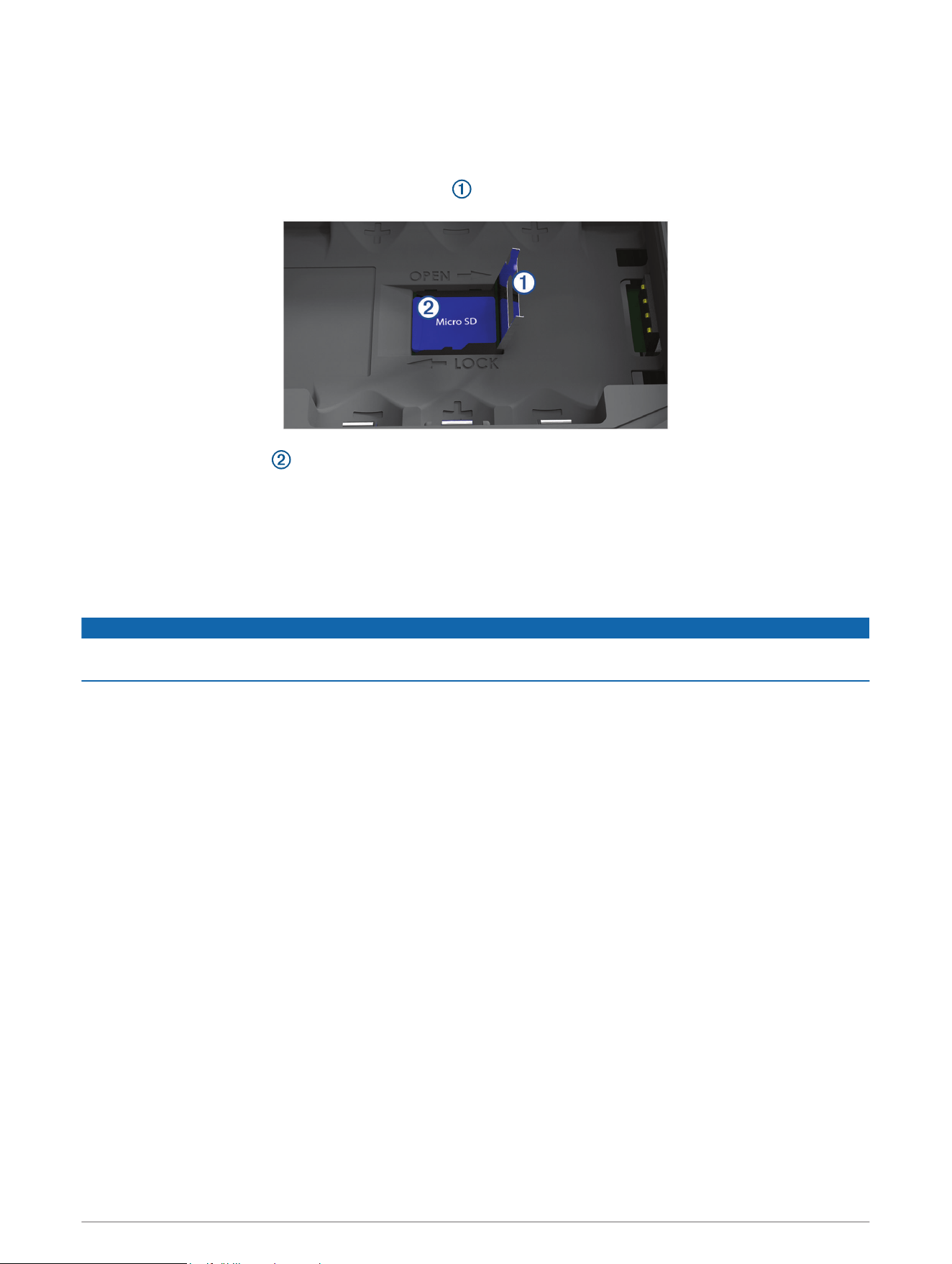
Installing a Memory Card
You can install a microSD
®
memory card, up to 32 GB, for additional storage or pre-loaded maps.
1 Turn the D-ring counter-clockwise, and pull up to remove the cover.
2 Remove the batteries.
3 In the battery compartment, slide the card holder to the left and lift up.
4 Place the memory card with the gold contacts facing down.
5 Close the card holder.
6 Slide the card holder to the right to lock it.
7 Replace the batteries.
8 Replace the battery cover, and turn the D-ring clockwise.
Connecting the Device to Your Computer
NOTICE
To prevent corrosion, thoroughly dry the USB port, the weather cap, and the surrounding area before charging or
connecting to a computer.
1 Pull up the weather cap from the USB port.
2 Plug the small end of the USB cable into the USB port on the device.
3 Plug the large end of the USB cable into a computer USB port.
Your device and memory card (optional) appear as removable drives in My Computer on Windows
computers and as mounted volumes on Mac computers.
Transferring Files to Your Device
1 Connect the device to your computer.
On Windows computers, the device appears as a removable drive or a portable device, and the memory card
may appear as a second removable drive. On Mac computers, the device and memory card appear as
mounted volumes.
NOTE: Some computers with multiple network drives may not display device drives properly. See your
operating system documentation to learn how to map the drive.
2 On your computer, open the file browser.
3 Select a file.
4 Select Edit > Copy.
5 Open the portable device, drive, or volume for the device or memory card.
6 Browse to a folder.
7 Select Edit > Paste.
The file appears in the list of files in the device memory or on the memory card.
Device Information 27
Deleting Files
NOTICE
If you do not know the purpose of a file, do not delete it. Your device memory contains important system files
that should not be deleted.
1 Open the Garmin drive or volume.
2 If necessary, open a folder or volume.
3 Select a file.
4 Press the Delete key on your keyboard.
Disconnecting the USB Cable
If your device is connected to your computer as a removable drive or volume, you must safely disconnect your
device from your computer to avoid data loss. If your device is connected to your Windows computer as a
portable device, it is not necessary to safely disconnect.
1 Complete an action:
• For Windows computers, select the Safely Remove Hardware icon in the system tray, and select your
device.
• For Mac computers, drag the volume icon to the trash.
2 Disconnect the cable from your computer.
Specifications
Battery type Rechargeable lithium-ion
Battery life (based on 70% backlight brightness with GPS on)
Up to 16 hr. with lithium-ion battery
Up to 8 hr. with AA batteries
Water rating IEC 60529 IPX7
1
Operating temperature range From -15° to 50°C (from 5° to 122°F)
Charging temperature range From 0° to 45°C (from 32° to 113°F)
Wireless frequency 2.4 GHz @ 0 dBm nominal
Compass safe distance 30 cm (11.8 in.)
1
The device withstands incidental exposure to water of up to 1 m for up to 30 min. For more information, go to www.garmin.com/waterrating.
28 Device Information

Index
A
accessories 26
alarms
anchor drag 22
off course 22
almanac
hunting and fishing 18
hunting and fishing times 19
sunrise and sunset times 18, 19
altimeter 17, 24
ANT+ sensors 24
pairing 26
automotive, mode 2
avoidances, road features 16
B
backlight 3, 23
barometer 17
BaseCamp 22, 26
battery 3, 5, 28
charging 5
installing 4
maximizing 3, 23
storage 3
BirdsEye imagery 18
Bluetooth technology 6, 7
C
calendar 18, 19
calibrating, altimeter 17
charging 5
cleaning the device 25
compass 16
calibrating 15
navigating 15
settings 21
computer, connecting 27
customizing the device 19
D
data, transferring 27
data fields 19
deleting, all user data 28
device, care 25
E
elevation 17
plot 17
F
files, transferring 26, 27
finding locations 14
G
Garmin Connect 6, 7
Garmin Express 6, 7
updating software 6
geocaches 26
GLONASS 9
GPS 8
satellite page 22
settings 22
signal 8
H
HomePort 26
hunting and fishing times 18, 19
K
keys 1–3
L
locations
editing 9
saving 9
M
main menu, using 3
man overboard (MOB) 17
map settings 20
maps 12, 16, 19
navigating 16
settings 20
updating 6
marine 2
settings 21
memory card 27
microSD card 1, 27. See memory card
MOB 17
N
navigation 14, 16–18
compass 15
course pointer 16
stopping 11, 14
notifications 7
P
page layout 19
pairing
ANT+ sensors 26
smartphone 7
position format 25
power key 5
R
resetting the device 25
routes 10–12, 18
calculating 12
creating 10
deleting 11
editing 11
navigating 11, 12
settings 23
viewing 11
S
satellite page 22
satellite signals 8
acquiring 8
locations 8
routes 8
screen, settings 23
settings 20–25
device 23
sharing data 14
smartphone 14
applications 6
pairing 7
software, updating 6
specifications 28
storing data 27
sunrise and sunset times 18, 19
system settings 23
T
temperature 28
tides 18
time settings 25
time zones 25
timer settings 24
TracBack 16
tracks 12, 13
archiving 13, 14
navigating 13
settings 24
training 6
transferring
files 14, 26
tracks 14
trip computer 17
trip information, viewing 17
trip planner. See routes
U
units of measure 25
USB 23
connector 1
disconnecting 28
mass storage mode 26
transferring files 26
user data, deleting 28
W
WAAS 9, 22
water resistance 28
waypoints 9, 15
deleting 10
editing 9, 10
navigating 9
projecting 9
saving 9
weather 19
Where To? 14
Wi‑Fi, connecting 7
Index 29

support.garmin.com
GUID-008DA605-0E64-441D-8204-9F6383EB050C v4June 2021