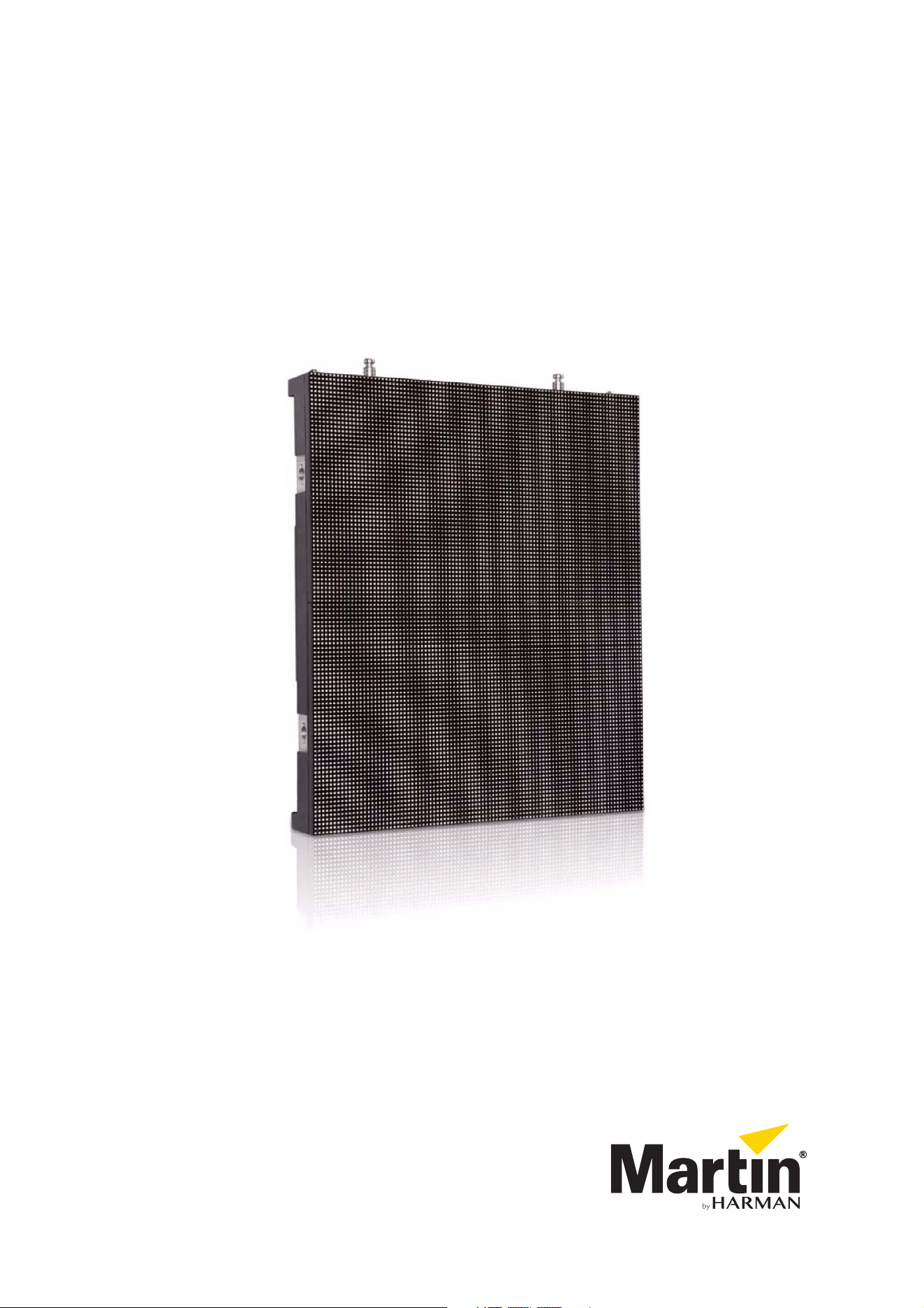
VDO Face 5 Video Panel
User Manual
™
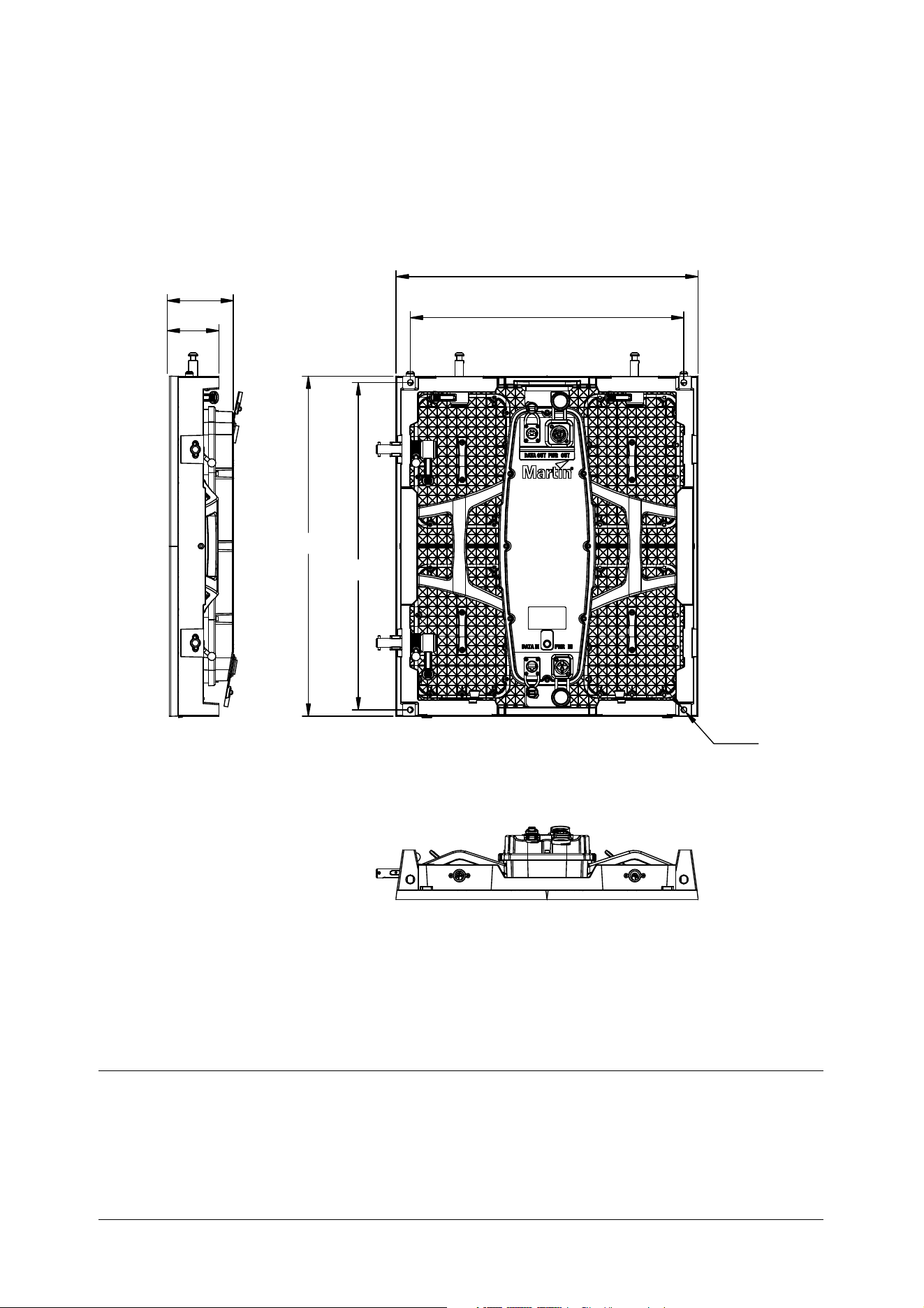
Dimensions
All dimensions are in millimeters
110
86
500
453
562.5
542
M10
Information subject to change without notice. HARMAN Professional Denmark ApS disclaims liability for any injury, damage, direct or indirect loss,
consequential or economic loss or any other loss occasioned by the use of, inability to use or reliance on the information contained in this document.
©2010-2018 HARMAN Professional Denmark ApS. All rights reserved. Martin® is a trademark of HARMAN Professional Denmark ApS registered in the
United States and/or other countries. Features, specifications and appearance are subject to change without notice.
HARMAN Professional Denmark ApS - Olof Palmes Allé 18 - 8200 Aarhus N - Denmark
www.martin.com
VDO Face 5™ User Manual: P/N 5079793 Rev. C
3
541
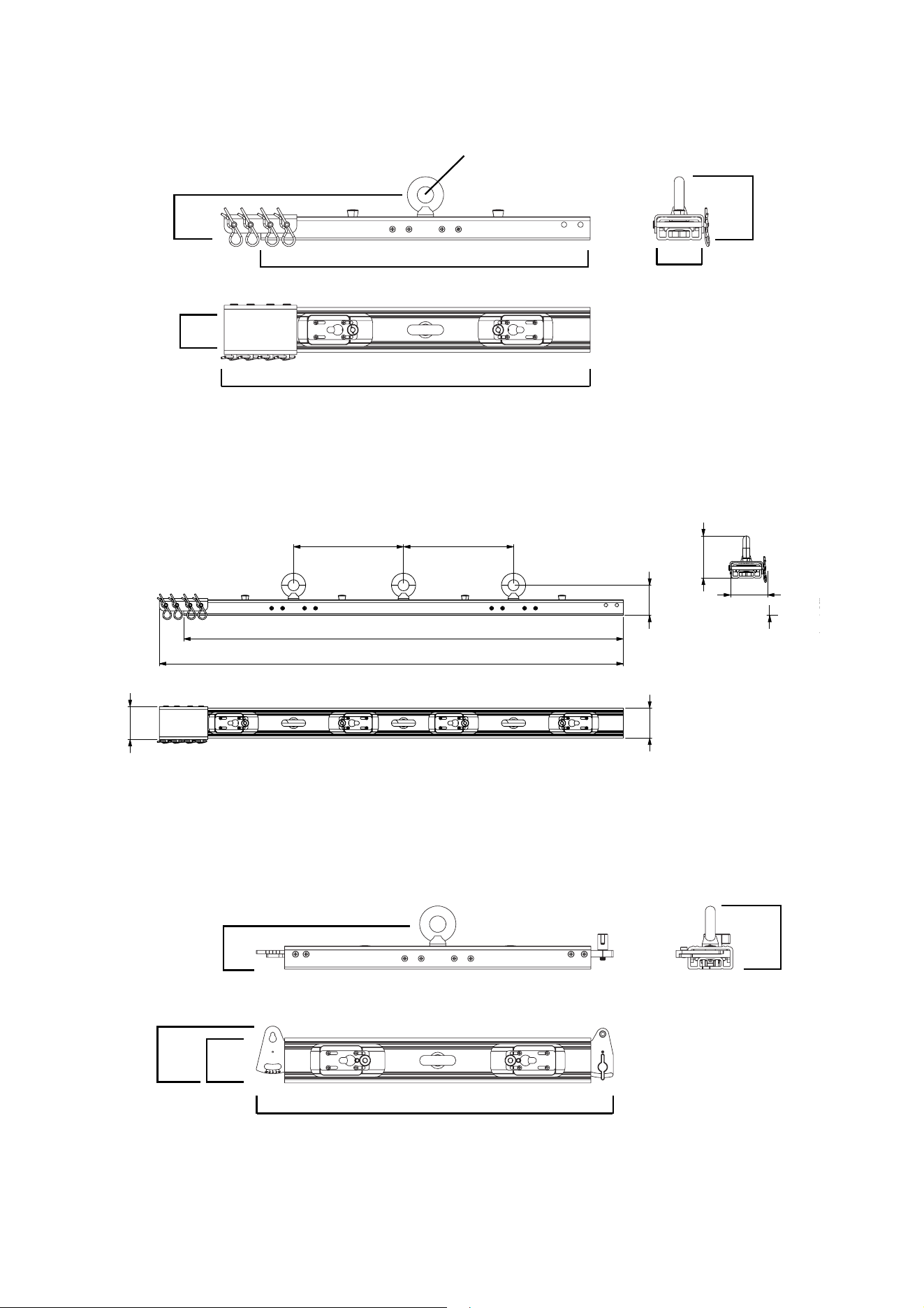
All dimensions are in millimeters
50
555
VDO Face 5 Single Header
499
96
84
68
VDO Face 5 Double Header
VDO Face 5 Curving Header
68
68
96
86
Ø25
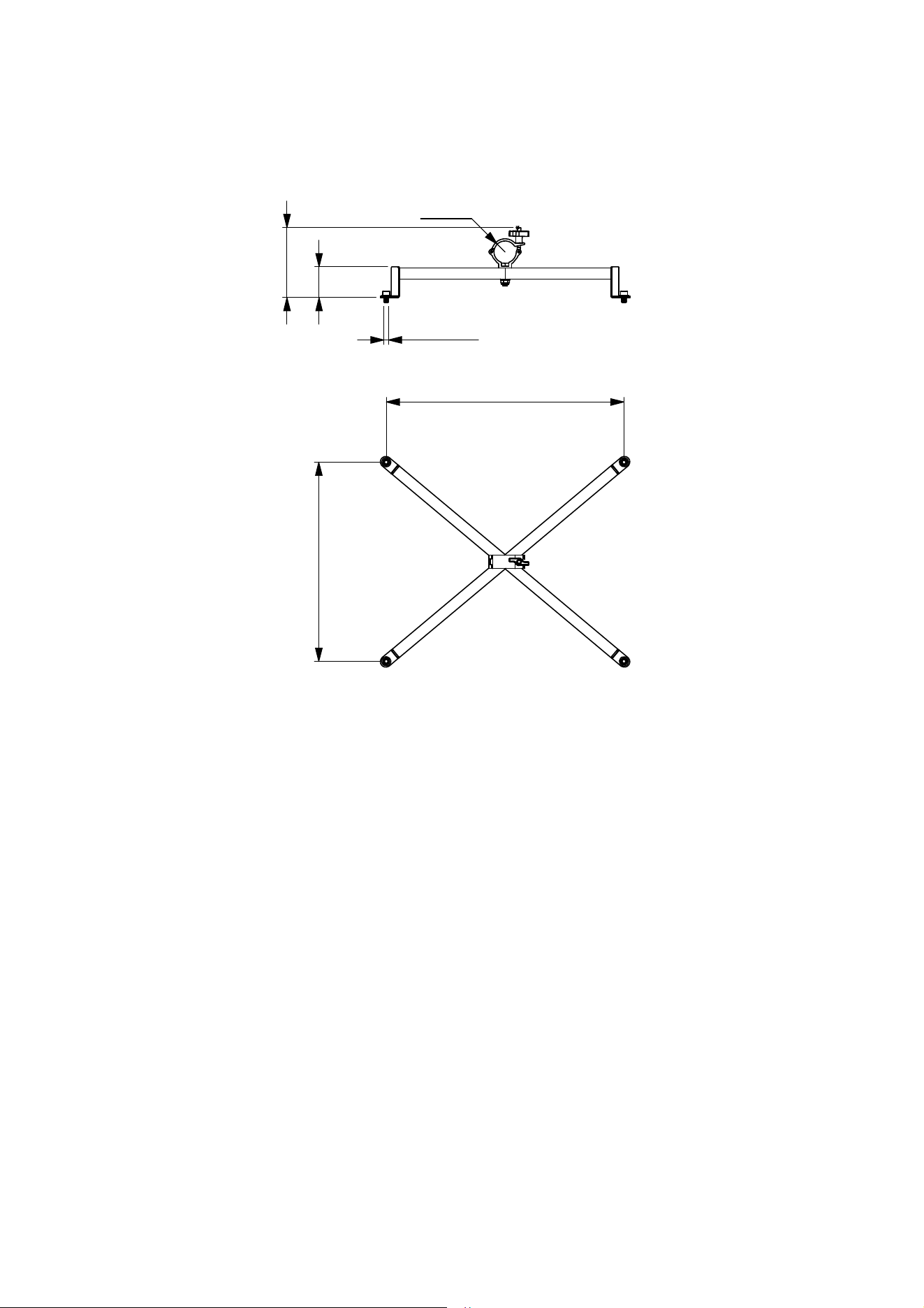
4 VDO Face 5™ user manual
All dimensions are in millimeters
VDO Face 5 Panel Clamp
50
[0
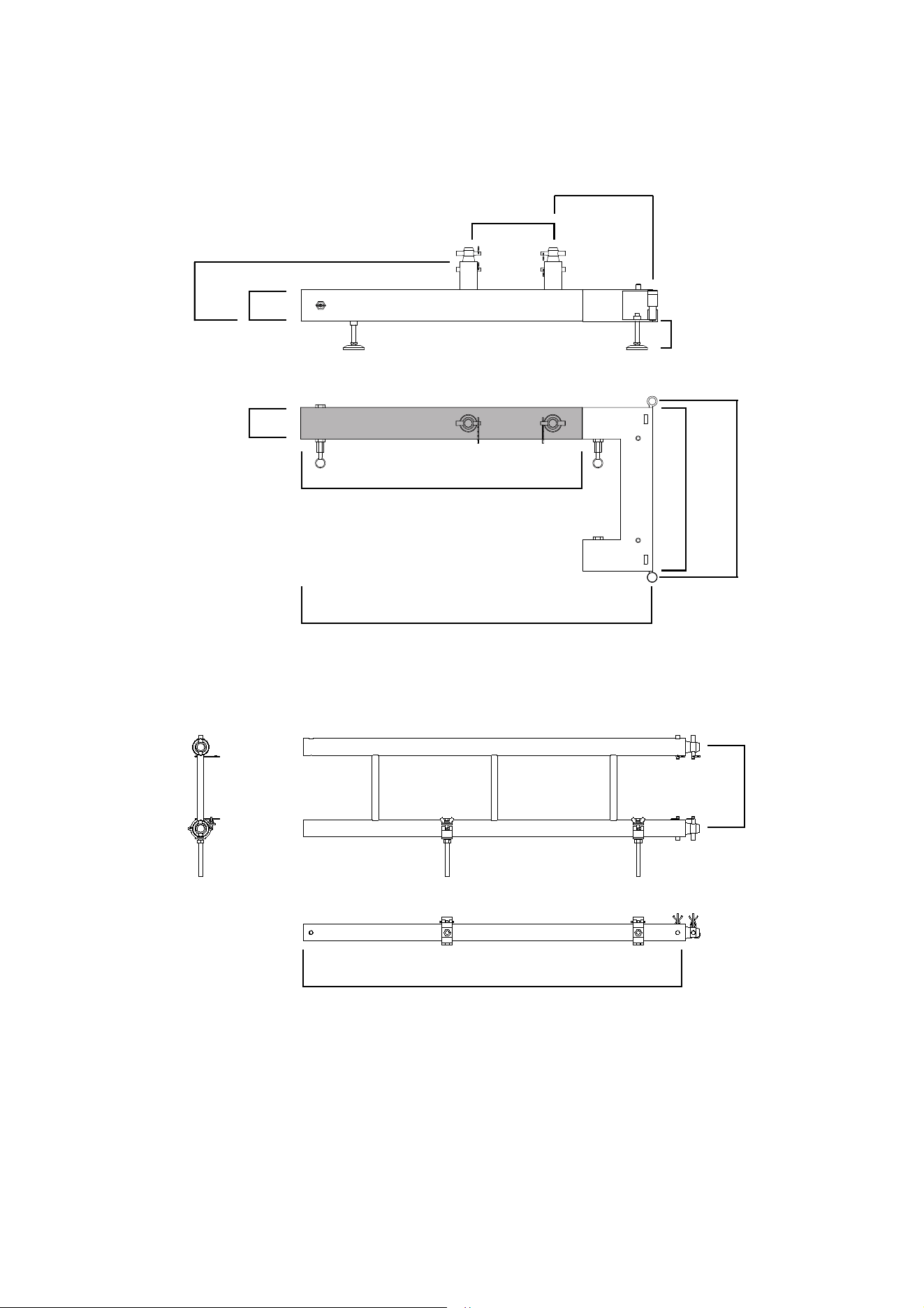
5
Base unit and stabilizer leg
90
All dimensions are in millimeters
240
465
1124
800
90
998
Adjustable
240
500
20 - 40 mm
170
182
VDO Face Footer floor stand system
Panel mount ladder
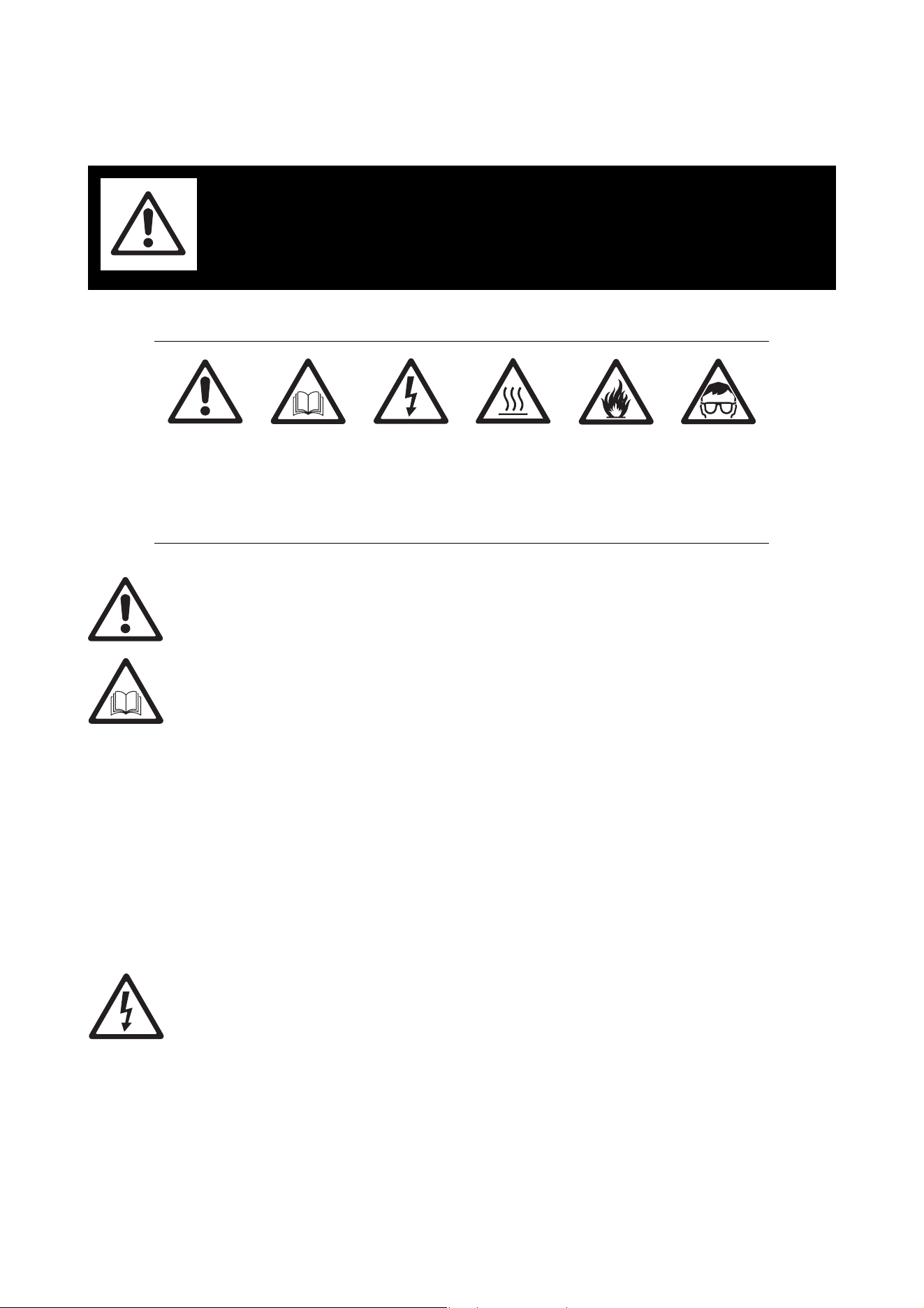
6 VDO Face 5™ user manual
Safety Information
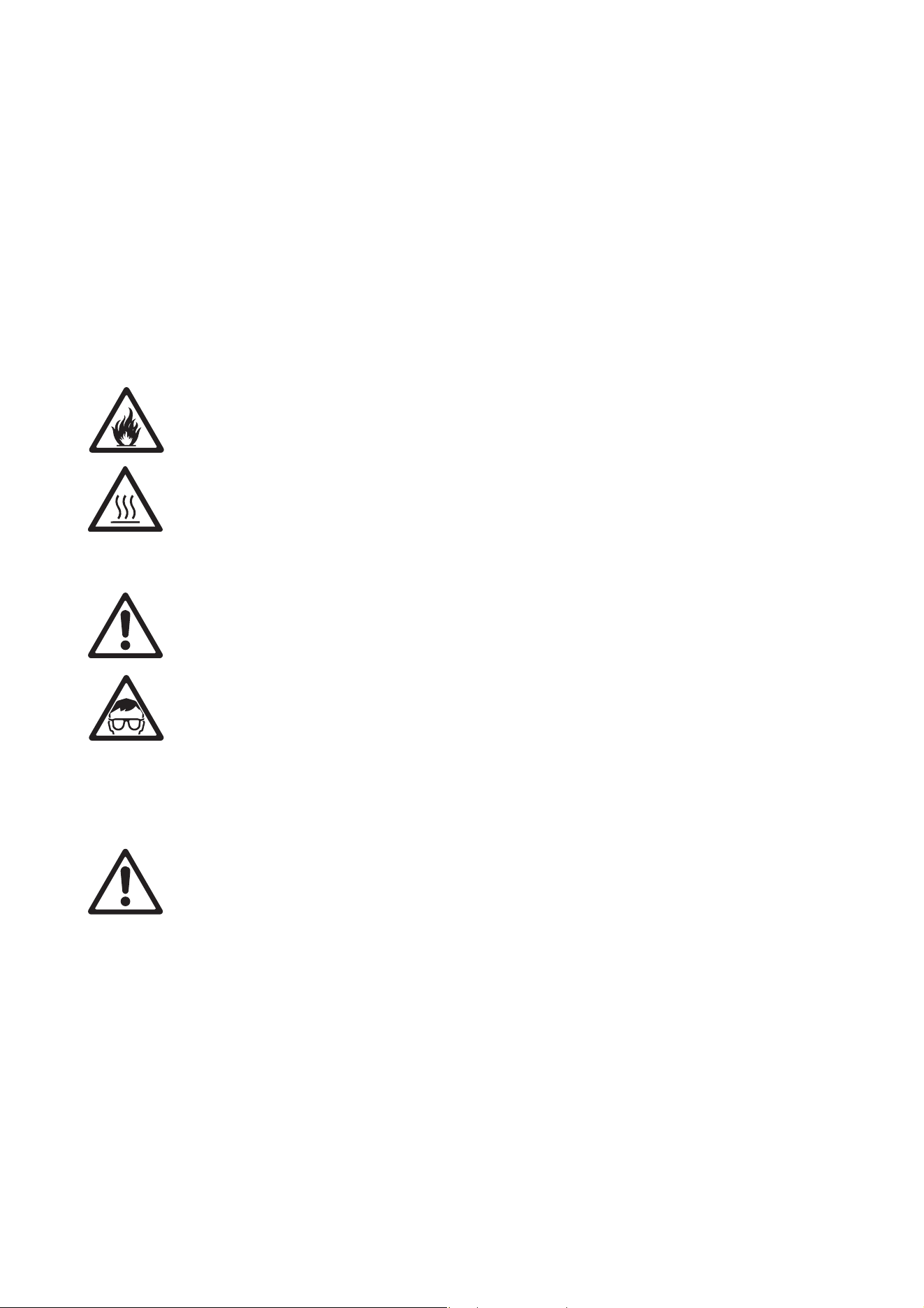
The following symbols are used to identify important safety information on the product and in this manual:
This product is for professional use only. It is not for household use.
This product presents risks of severe injury or death due to fire hazards, electric shock and falls.
A revised version of this user manual will become available each time we can improve the quality of the
information we provide in it. Please check that you have the latest revision of the user manual for this
product before installing, operating or servicing the product. Martin® user manual revisions are identified at
the bottom of page 2. You can download the latest user documentation from the product’s Product Support
/ Tech Docs page on the Martin® website at www.martin.com.
The instructions and safety limits given in this user manual are provided to make sure that installers
comply with the safety standards that apply to stage and studio environments. Follow these
instructions carefully and do not exceed the limits given, or you may create an installation that is
dangerous and does not meet required safety standards. Observe all locally applicable laws,
regulations and codes regarding the safety of permanent and temporary structures, installations
and electrical systems.
Read this manual before installing, powering, operating or servicing this product, follow the safety
precautions listed below and observe all warnings given in this manual and printed on the product.
If you have questions about how to install or operate the VDO Face 5™ system safely, please contact your
Martin supplier or call the Martin 24-hour service hotline on +45 8740 0000, or in the USA on
1-888-tech-180.
PROTECTION FROM ELECTRIC SHOCK
• Connect the product to AC mains power within the range 100-240 V nominal at 50 or 60 Hz only.
• Disconnect the entire installation from power and ensure that power cannot be reconnected, even
accidentally, before carrying out any installation or maintenance work.
• Disconnect the product from power when not in use.
• Always ground (earth) the product electrically.
• Use only a source of power that complies with local building and electrical codes. Power distribution
circuits must be fitted with an overcurrent fuse or circuit breaker with a maximum rated current of 20 A and
ground-fault (earth-fault) protection of high breaking capacity (≥1500 A).
• Make power connections between VDO Face 5™ panels using only the cables supplied by Martin for this
purpose.
• Protect power connections from water and rain.
WARNING!
Read the safety precautions in this section before
installing, powering, operating or servicing VDO
Face 5™ products.
Warning!
Safety hazard.
Risk of severe
injury or death.
Warning!
Refer to
manual before
installing,
powering or
servicing.
Warning!
Hazardous
voltage. Risk of
lethal or severe
electric shock.
Warning!
Hot surface. Do
not touch.
Warning!
Fire hazard.
Warning!
Emission
hazardous to
eyesight.
Safety Information 7
• Keep the attached rubber caps installed on any unused power and data connectors at all times. Reinstall
caps over connectors as soon as a video wall is disassembled.
• Connect a VDO Face 5™ installation to power using only 20 amp-rated industrial Type B power plugs and
socket outlets that comply with IEC 60309 (or a comparable national standard) and provide an electrical
connection to ground (protective earth).
• When using AC mains power at 100-120 V, connect a maximum of ten (10) VDO Face 5™ panels in total
to AC power in one chain using the power IN and OUT connectors in the back of the panels. When using
AC mains power at 200-240 V, connect a maximum of twenty (20) VDO Face 5™ panels in total to AC
power in one chain using the power IN and OUT connectors in the back of the panels.
• Before using the product, check that all power distribution equipment and cables are in perfect condition
and rated for the current requirements of all connected devices.
• Do not use the product if the panel, a power cable, a power connector or a seal around a multi-connector
in the back of a panel is in any way damaged, defective or showing signs of overheating.
• Do not attempt to open the product.
• Refer any service operation not described in this manual to an authorized Martin® service agent.
PROTECTION FROM FIRE AND BURNS
• Provide a minimum clearance of 10 cm (4 in.) around the front and back of the panel.
• Ensure good ventilation around the panel, controller, power supply and all other devices in the installation.
• Do not stick filters, masks or other materials directly onto LED modules.
• Do not modify the product in any way not described in this manual.
• Install only genuine Martin parts and parts described in this manual in or on the product.
• Do not operate the product if the ambient temperature (T
a
) exceeds 45° C (113° F).
• The cover on the back of the product can become hot, up to 72° C (162° F) if running constantly at full
intensity, full white. Avoid accidental skin contact.
PROTECTION FROM INJURY
• Do not install VDO Face 5™ panels using any other method or any other equipment than those described
in this manual.
• Make sure that any structure used for support can hold at least ten (10) times the weight of all the items it
supports.
• Check that all panels, rigging hardware and other elements in the installation are securely fastened and
cannot fall, causing injury or damage.
• Block access below and around the work area and work from a stable platform whenever installing,
servicing or moving items in the installation.
• Do not look at lit LEDs from a distance of less than 1 m (3 ft. 4 in.) without suitable protective eyewear.
• Be prepared for panels to light up suddenly if they receive a video signal.
• Do not view lit LEDs with optical instruments that may concentrate the light output.
PROTECTION FROM INJURY CAUSED BY WIND PRESSURE
Wind can create a risk of serious or lethal injury and damage due to falling panels. In any location where an
array of VDO Face 5™ panels may be exposed to wind pressure or other air currents, take the following
precautions:
• Support panels using a structure that is capable of holding the panels securely without any safety risk
when panels are exposed to wind pressure.
• Secure panels against any swinging, snaking or other lateral movement that might occur when panels are
exposed to wind pressure. Fasten panels to anchoring points as directed in this user manual.
• Ensure that professional technicians constantly monitor weather forecasts and local wind speed at the
installation site. Technicians must remove all panels from the installation immediately in the following
situations:
- In flying installations where VDO Face 5™ panels are suspended from VDO Face Headers, remove all
panels from the installation immediately if constant or gusting wind speed that exceeds Force 8
Beaufort, 20 m/s or 45 mph is forecast for, or present at, the installation location.
- In standing installations where VDO Face 5™ panels are supported on VDO Face Footer floor stands,
remove all panels from the installation immediately if constant or gusting wind speed that exceeds
Force 2 Beaufort, 3 m/s or 7 mph is forecast for, or present at, the installation location.
8 VDO Face 5™ user manual
SAFETY PRECAUTIONS FOR FLYING INSTALLATIONS
Respect the following precautions when installing an array of panels hanging from the Face Header
suspension system:
• Respect the maximum limits given in this user manual for the number of panels that you can suspend
vertically. The maximum limit varies depending on installation type. Make sure that you respect the limit
that applies in the installation concerned.
• Make sure that each separate item of rigging hardware (chain, cable, shackle, etc.) can hold at least ten
(10) times the total weight of the header, panels, hardware, cables etc. that are suspended under that
item. For example, if a header and all the panels, hardware, cables etc. hanging from it weigh 100 kg in
total, each item that is used to suspend that 100 kg load must be capable of supporting 1000
kg. This
requirement applies to single and double headers. The requirement also applies regardless of whether a
header is supported by one, two or three chains or cables: if the 100 kg load in the example above is
suspended from three chains, then each chain must be capable of supporting 1000 kg.
• Make sure that each eyebolt that is used to suspend or secure a column of panels is fastened to the
supporting structure with its own cable or chain. Do not loop one cable or one chain through more than
one eyebolt.
• Start by installing headers. Then install panels at the top and work downwards.
• Do not suspend VDO Face 5™ panels at any other angle than hanging vertically downward.
• Make sure that there is no slack in any item of rigging hardware: all cables, chains, etc. used for
suspension must be equally tight.
• Disassemble a suspended installation by removing panels at the bottom and working upwards. Do not
remove headers until all panels have been removed.
SAFETY PRECAUTIONS FOR STACKED INSTALLATIONS
Respect the following precautions when creating a free-standing array of panels using the Face Footer floor
stand system:
• Respect the limits given in the ‘Physical installation’ chapter of this user manual for the number of VDO
Face 5™ panels that you may install in a vertical column and the minimum weight of ballast that you must
fasten to each stabilizer leg. These limits vary depending on installation type. Make sure that you respect
the limits that apply in the installation concerned.
• Start by installing base units and adjust level if necessary, then install stabilizer legs, ballast and panel
support ladders. FInally, install panels.
• Do not stack panels using the VDO Face Footer system at any other angle than standing vertically.
• Do not install items weighing more than 90 kg (199 lbs.) on a Face Footer floor stand base unit. This
means that you must not install more than eight (8) Martin® VDO Face 5™ video panels and the fastening
hardware described in this user manual in a vertical column on one Face Footer floor stand.
• Fasten at least one stabilizer leg to the outside end of each base unit at the edges of a Face Footer
installation.
• Fasten at least one stabilizer leg to every base unit in the installation.
• When adjusting the feet of Face Footer floor stand elements to make sure that they are horizontally level,
check that no more than 20
mm (0.8 in.) of threaded shaft is visible between the adjustment nut on each
foot and the locknut on the foot’s threaded shaft. Readjust the feet on all the elements or, if necessary,
add supporting plates under the feet that are strong enough and stable enough to safely support the load
that will be placed on them.
• Do not install panels on the Face Footer system before you have fastened all required ballast to the
stabilizer legs.
• Make sure that any ballast that is fastened to stabilizer legs cannot be removed while panels are installed
on the Face Footer system.
• Install VDO Face video panels on the Face Footer system only if the installation is located on a stable
surface that is capable of safely supporting the total load placed upon it and if the installation will not be
subject to shock, vibration or any other movement.
• Do not create an array using the Face Footer system that consists of only a single column of VDO Face
5™ panels. Install a minimum of two columns of VDO Face 5™ panels with base units and panels
securely fastened to each other side-by-side as described in this user manual.
• Do not climb on or rest ladders against an installation that uses the Face Footer system.
• Do not move or transport the Face Footer system with panels installed. Remove panels before moving or
transporting base units and stabilizer legs.
• When you tear down an array of video panels, do not remove any ballast from Face Footer stabilizer legs
until all panels have been removed from the installation.
• Disassemble a stacked installation by removing panels at the top and working downwards.

Contents
Safety Information. . . . . . . . . . . . . . . . . . . . . . . . . . . . . . . . . . . . . . . . . . . . . . . . . . . . . . . . . . . . . . . . . . 6
Introduction . . . . . . . . . . . . . . . . . . . . . . . . . . . . . . . . . . . . . . . . . . . . . . . . . . . . . . . . . . . . . . . . . . . . . . . 10
Panels and flightcases. . . . . . . . . . . . . . . . . . . . . . . . . . . . . . . . . . . . . . . . . . . . . . . . . . . . . . . . . . . . . . 10
Avoiding damage to panels . . . . . . . . . . . . . . . . . . . . . . . . . . . . . . . . . . . . . . . . . . . . . . . . . . . . . . . . . . 11
Using for the first time . . . . . . . . . . . . . . . . . . . . . . . . . . . . . . . . . . . . . . . . . . . . . . . . . . . . . . . . . . . . . . 11
Overview . . . . . . . . . . . . . . . . . . . . . . . . . . . . . . . . . . . . . . . . . . . . . . . . . . . . . . . . . . . . . . . . . . . . . . . . . 12
Physical installation . . . . . . . . . . . . . . . . . . . . . . . . . . . . . . . . . . . . . . . . . . . . . . . . . . . . . . . . . . . . . . . 13
Installing single panels on a truss or structure. . . . . . . . . . . . . . . . . . . . . . . . . . . . . . . . . . . . . . . . . . . . 14
Stacking panels on floor stands. . . . . . . . . . . . . . . . . . . . . . . . . . . . . . . . . . . . . . . . . . . . . . . . . . . . . . . 15
Flying panels in a flat array . . . . . . . . . . . . . . . . . . . . . . . . . . . . . . . . . . . . . . . . . . . . . . . . . . . . . . . . . . 23
Flying panels in a curved array . . . . . . . . . . . . . . . . . . . . . . . . . . . . . . . . . . . . . . . . . . . . . . . . . . . . . . . 36
Dismantling a flying installation . . . . . . . . . . . . . . . . . . . . . . . . . . . . . . . . . . . . . . . . . . . . . . . . . . . . . . . 39
AC power . . . . . . . . . . . . . . . . . . . . . . . . . . . . . . . . . . . . . . . . . . . . . . . . . . . . . . . . . . . . . . . . . . . . . . . . . 40
Power connections . . . . . . . . . . . . . . . . . . . . . . . . . . . . . . . . . . . . . . . . . . . . . . . . . . . . . . . . . . . . . . . . 40
Inrush current and earth leakage. . . . . . . . . . . . . . . . . . . . . . . . . . . . . . . . . . . . . . . . . . . . . . . . . . . . . . 41
Fuses . . . . . . . . . . . . . . . . . . . . . . . . . . . . . . . . . . . . . . . . . . . . . . . . . . . . . . . . . . . . . . . . . . . . . . . . . . . 42
P3 communication link . . . . . . . . . . . . . . . . . . . . . . . . . . . . . . . . . . . . . . . . . . . . . . . . . . . . . . . . . . . . 43
Planning the P3 link . . . . . . . . . . . . . . . . . . . . . . . . . . . . . . . . . . . . . . . . . . . . . . . . . . . . . . . . . . . . . . . . 43
Connecting the P3 link. . . . . . . . . . . . . . . . . . . . . . . . . . . . . . . . . . . . . . . . . . . . . . . . . . . . . . . . . . . . . . 44
Operation . . . . . . . . . . . . . . . . . . . . . . . . . . . . . . . . . . . . . . . . . . . . . . . . . . . . . . . . . . . . . . . . . . . . . . . . . 45
Monitoring status and testing. . . . . . . . . . . . . . . . . . . . . . . . . . . . . . . . . . . . . . . . . . . . . . . . . . . . . . . . . 45
Service and maintenance. . . . . . . . . . . . . . . . . . . . . . . . . . . . . . . . . . . . . . . . . . . . . . . . . . . . . . . . . . 46
Storage . . . . . . . . . . . . . . . . . . . . . . . . . . . . . . . . . . . . . . . . . . . . . . . . . . . . . . . . . . . . . . . . . . . . . . . . . 46
Cleaning. . . . . . . . . . . . . . . . . . . . . . . . . . . . . . . . . . . . . . . . . . . . . . . . . . . . . . . . . . . . . . . . . . . . . . . . . 46
Installing new software . . . . . . . . . . . . . . . . . . . . . . . . . . . . . . . . . . . . . . . . . . . . . . . . . . . . . . . . . . . . . 46
Replacing an LED block . . . . . . . . . . . . . . . . . . . . . . . . . . . . . . . . . . . . . . . . . . . . . . . . . . . . . . . . . . . . 46
Troubleshooting . . . . . . . . . . . . . . . . . . . . . . . . . . . . . . . . . . . . . . . . . . . . . . . . . . . . . . . . . . . . . . . . . . 48
Specifications . . . . . . . . . . . . . . . . . . . . . . . . . . . . . . . . . . . . . . . . . . . . . . . . . . . . . . . . . . . . . . . . . . . . . 49
10 VDO Face 5™ user manual
Introduction
Thank you for selecting the Martin® VDO Face 5™ modular LED-based video display panels from Martin®.
Panels are available in HB (High Brightness) models that are optimized for intensity of output, and HC (High
Contrast) models with darker front surfaces that provide deep contrast. The two models are identical apart
from their different quick-release LED blocks.
The VDO Face 5™ range features:
• 5.208 mm (0.205 inch) pixel pitch and 96 x 108 pixels per panel image resolution
• 5000 nits performance (HB models)
• 3000 nits performance (HC models)
• Rich RGB with color resolution of 16 bits per color
• Weatherproofing to IP65: suitable for indoor and non-permanent outdoor installation
• Flying and stacked installation system options
• Integrated quick-locking vertical and side-to-side panel attachment system
• Quick-release hot-swappable LED blocks (four per panel)
• Silent convection cooling
• Dual power supply design for maximized protection from data throughput interruption
• Auto-sensing 100 - 240 V, 50/60 Hz switch mode power supply
For information about installing and using a P3 System Controller, see the user documentation supplied with
the Controller.
All Martin® video display and P3 controller user documentation is available for download from the Product
Support / Tech Docs pages at www.martin.com
Comments or suggestions regarding this document may be e-mailed to service@martin.dk or posted to:
Technical Documentation, Martin Professional A/S, Olof Palmes Allé 18, DK-8200 Aarhus N, Denmark.
Warning! Read ‘Safety Information’ starting on page 6 before installing, powering, operating or
servicing VDO Face 5™ products.
A VDO Face 5™ panel is an ITE Class A product. In a domestic environment this product may cause radio
interference, in which case the user may be required to take appropriate measures.
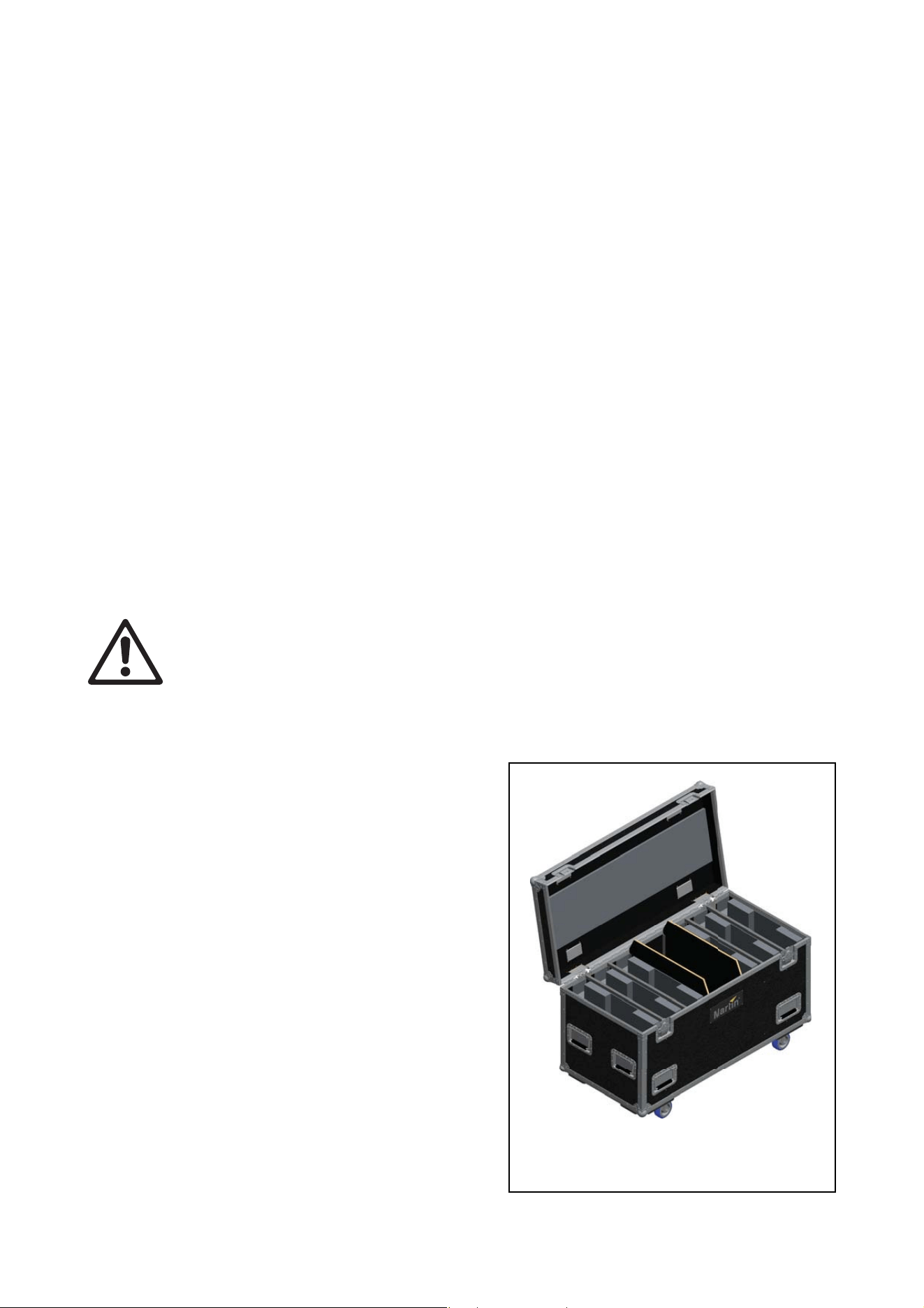
Panels and flightcases
VDO Face 5™ panels are ordered as single panels
that are supplied in cardboard boxes.
To transport panels, pack them in the six-unit VDO
Face flightcases available from Martin® (see
“Accessories” on page 27) to ensure that they can
withstand the shocks that normally occur while
panels are in transit.
See Figure 1. Flightcases have space for storing
cables and installation hardware.
See also the information on modular flightcases for
the VDO Face Footer floor stand system on page 22.
Figure 1: VDO Face™ flightcase
Introduction 11
Avoiding damage to panels
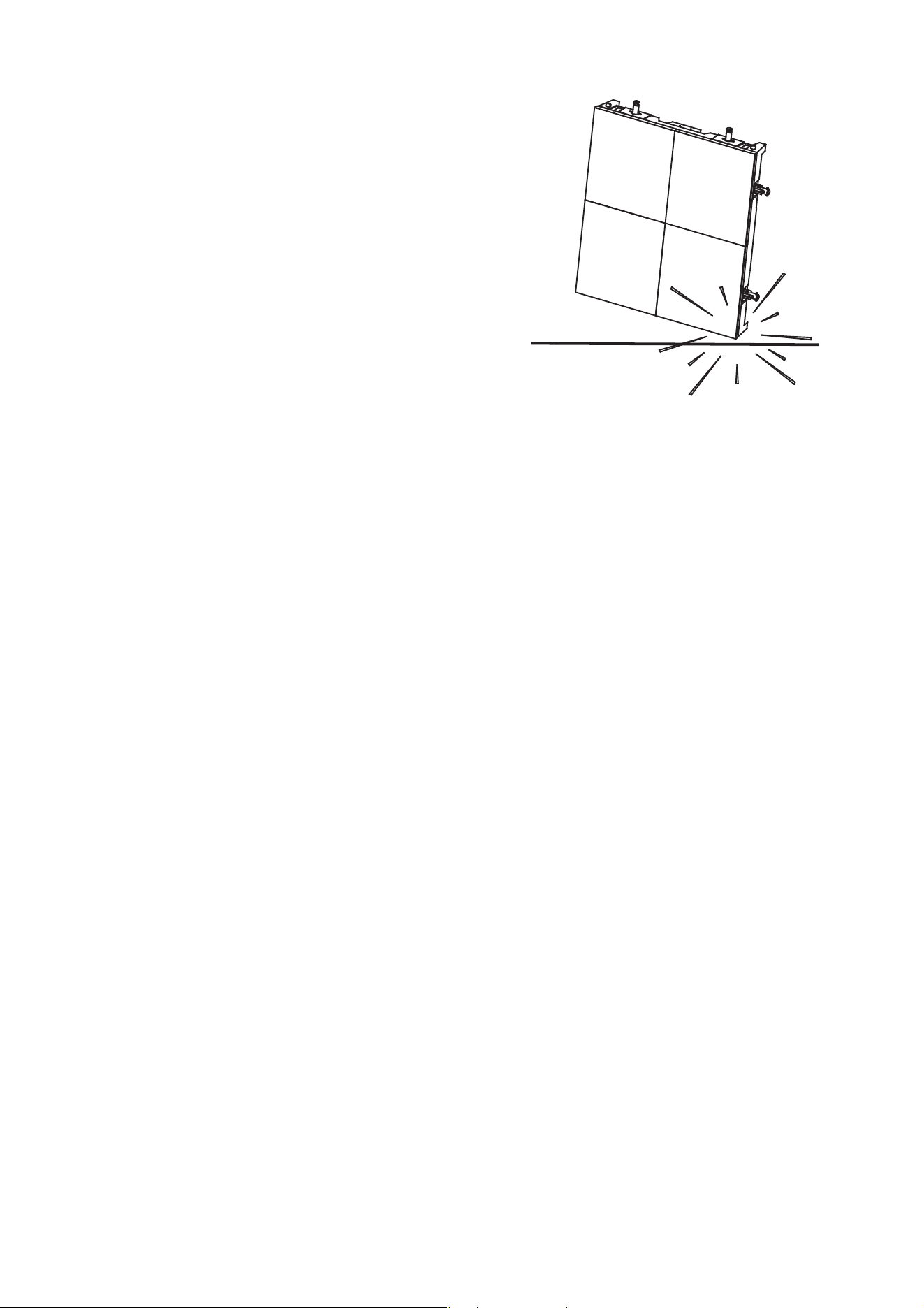
Important! VDO Face panels and LED blocks have LEDs at
their edges. This makes LEDs liable to damage if
panels and LED blocks are not handled with
care. See
Figure 2. Protect the edges of panels
and LED blocks from shocks at all times.
Keep panels in Martin® flightcases to protect
them during transport and storage.
Damage caused to panels that are exposed to
shocks or incorrectly packed is not covered by
the product warranty.
Using for the first time
Before applying power to the panel:
• Carefully review “Safety Information” on page 6.
• Check that the local AC power voltage is within the ranges listed on the product’s serial number label and
in
“AC power” on page 40.
• With reference to this user manual, make sure that you have enough VDO Face 5™ Headers (including
any additional eyebolts required) to suspend panels vertically, all required rigging hardware, and enough
cables for power and data input and daisy-chaining.
Figure 2: Protect edges from shocks
12 VDO Face 5™ user manual
Overview
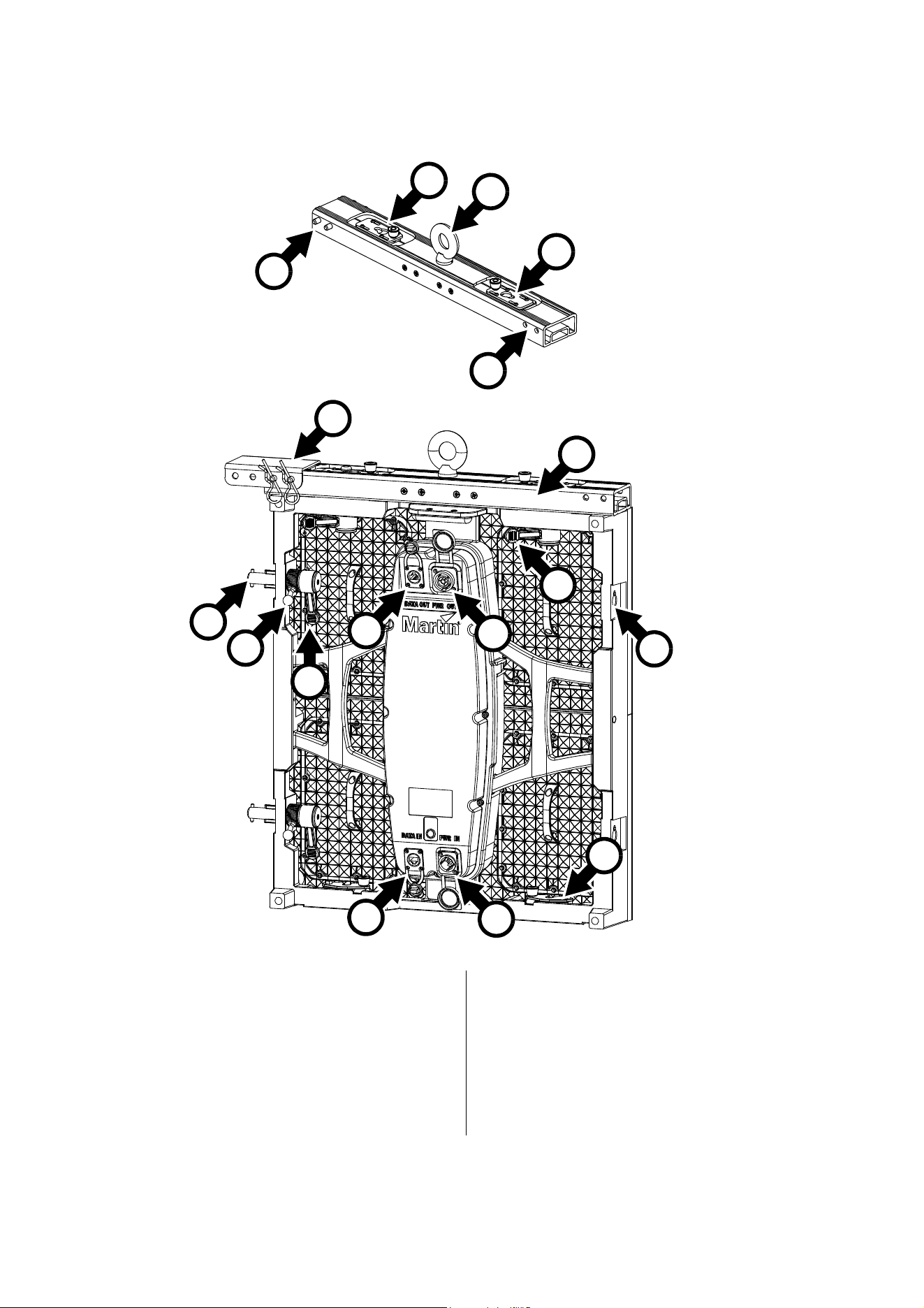
B
A
A
C
C
Figure 3: Product overview
A - Vertical fastener plate (in header)
B - Primary attachment eyebolt
C - Mounting points for eyebolt brackets or header
side attachment brackets
D - Side-to-side fastener bar
E - Side-to-side fastener lever
F - Side-to-side locking lever
G - Data OUT (THRU) connector
H - Power OUT (THRU) connector
I - Vertical fastener post
J - Vertical fastener post locking lever
K - Side-to-side fastener receptacle
L - Data IN connector
M - Power IN connector
N - Vertical fastener locking plate (in panel)
O - Single header
P - Header side attachment bracket
J
H
K
D
F
E
L
G
M
N
O
Header
Panel
Single Header illustrated
P

Physical installation 13
Physical installation
Warning! Read ‘Safety Information’ starting on page 6 before installing VDO Face 5™ products.
The safety and suitability of lifting equipment, installation location, anchoring method, mounting
hardware, suspension structures and electrical installation is the responsibility of the installer.
Observe all local safety regulations and legal requirements when installing and connecting VDO
Face 5™ panels. Installation must be carried out by qualified professionals only. Contact your
Martin® supplier for assistance if you have any questions about how to install this product safely.
If VDO Face 5™ video panels are installed as directed in this user manual, they meet the safety
requirements of stage and studio environments when they are either:
• individually fastened to Martin® VDO Face Panel Clamps and mounted on a structure such as a rigging
truss or bar,
• suspended from Martin® VDO Face Headers in vertical columns a maximum of fourteen (14) panels high,
or
• stacked on Martin® VDO Face Footer floor stands in vertical columns a maximum of eight (8) panels high.
The figures given above are maximum figures. Lower limits than these maximums may apply to the number
of panels that may be suspended or stacked vertically, depending on how the panels are installed: see the
relevant sections of this chapter.
An unlimited horizontal number of correctly supported columns of panels may be attached side-by-side to
form a video display surface.
It is possible to connect various Martin® LED video products to a Martin® P3 System Controller in an
installation. The System Controller will recognize the different products.
Before installing
Before creating an installation with VDO Face 5™ panels:
1. Read “Safety Information” on page 6 and take special note of the precautions that are relevant for
installing products.
2. Check that supporting structures will not flex under the weight of the panels. Suspending panels from a
structure that is not correctly aligned or not rigid enough will place a strain on panels and attachment
hardware. Damage caused to headers or panels by mechanical stress is not covered by the product
warranty.
3. Check that circuits in the installation are isolated from power and that power cannot be applied
accidentally.
4. Block access under and around the work area.
Types of installation
The rest of this chapter covers four types of installation:
1. For guidance on individually mounting VDO Face 5™ panels, see “Installing single panels on a truss or
structure” on page 14.
2. For guidance on creating a stacked array of multiple VDO Face 5™ panels, see “Stacking panels on
floor stands” on page 15.
3. For guidance on creating a flown array in which multiple VDO Face 5™ panels form a flat video display
surface, see
“Flying panels in a flat array” on page 23.
4. For guidance on creating a curved flown array, in which multiple VDO Face 5™ panels form a video
display surface with a convex or concave horizontal curve, see
“Flying panels in a curved array” on
page 36.
14 VDO Face 5™ user manual
Installing single panels on a truss or structure
The VDO Face Panel
Clamps available from
Martin® (see
“Accessories” on page 51)
give enormous flexibility in
arranging panels in
creative video displays.
Each Panel Clamp lets you
fasten one single VDO
Face 5™ panel to a rigging
truss or similar structure. If
you want to create an array
consisting of two more
panels, see later in this
chapter.
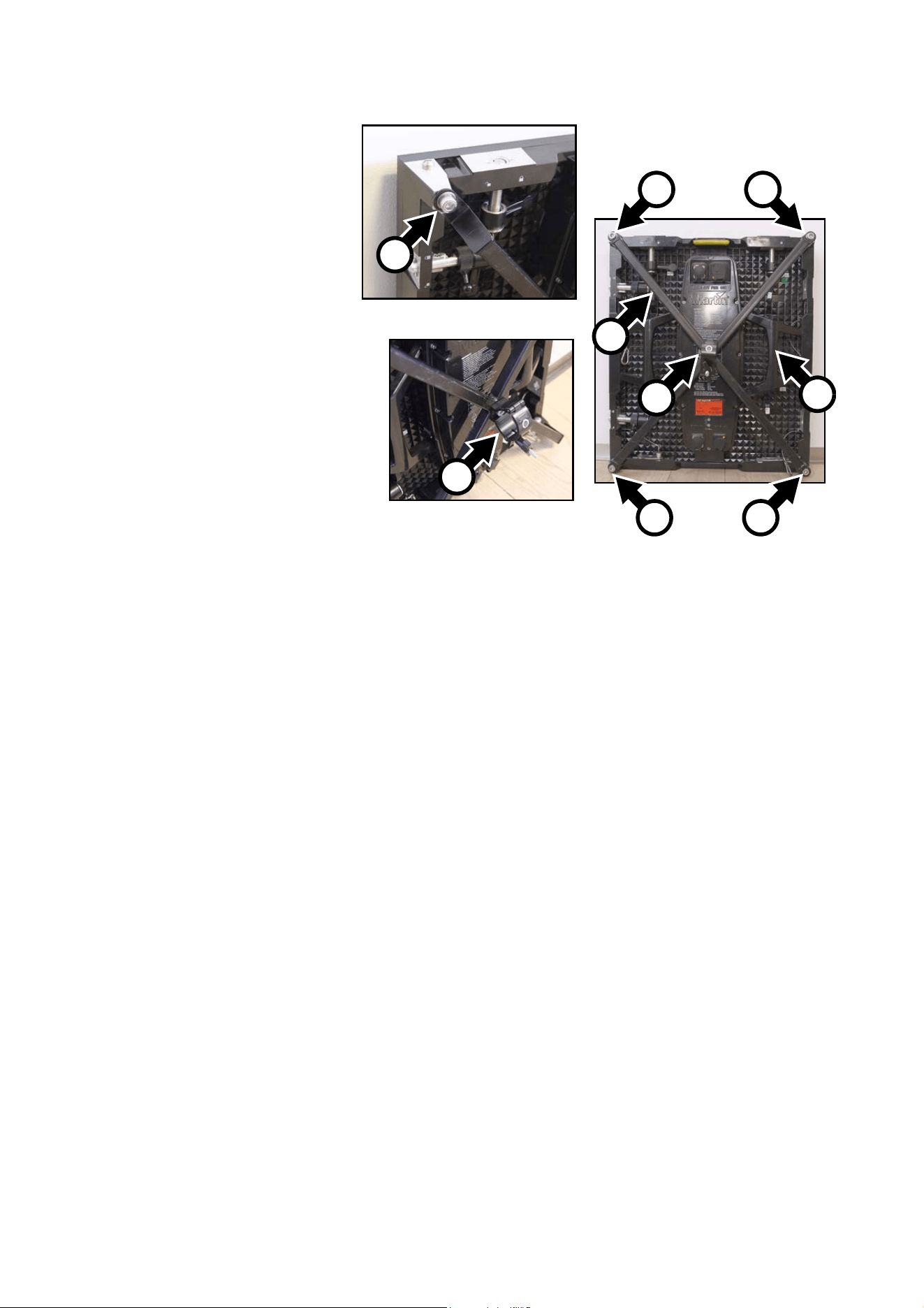
See Figure 4. The VDO
Face Panel Clamp consists
of a large bracket A with
four arms in an ‘X’ shape.
A half-coupler rigging
clamp C is located at the
center of the ‘X’.
To install a VDO Face 5™
panel on a VDO Face
Panel Clamp:
1. Check that the
structure that you will
use to support the panel is capable of supporting ten times the weight of all the items that will be
installed on it.
2. Restrict access below the work area and work from a stable platform.
3. See Figure 4. Bolt a Panel Clamp bracket A to the back of the VDO Face 5™ panel using the four Allen
(hex) bolts B supplied with the Panel Clamp.
4. Loosen the handscrew and open the half-coupler clamp C, then fasten the clamp around a 50 mm
(2 inch) diameter chord on a rigging truss or similar bar. Use hand force only to tighten the handscrew:
do not apply force with a tool.
5. As soon as you have fastened the clamp, loop an approved safety cable around the chassis of the VDO
Face 5™ panel (at D for example) and around the supporting structure so that the safety cable will catch
the panel if the half-coupler clamp fails. Take up as much slack as possible by looping the safety cable
more than once around the supporting structure or panel chassis to reduce the size of the fall if the
half-coupler clamp fails.
6. Do not use the panel you have just installed to support the weight of any other panel. Each panel must
have its own VDO Face Panel Clamp.
Figure 4: VDO Face Panel Clamp
B
C
C
B B
B B
A
D
Physical installation 15
Stacking panels on floor stands
Warning! See “Safety Information” on page 6 for important safety information on using the VDO
Face Footer floor stand system.
Safety limits apply to the maximum number of VDO Face 5™ video panels that you can install
vertically using the Footer System. Respect the limits and instructions given in the following
section of this user manual, paying particular attention to the weight and position of ballast, or you
may create a stack of panels that is unstable and may fall, causing lethal injury or damage.
The VDO Face Footer System is a range of optional
floor stand accessories available from Martin® that
let you install VDO Face video panels in a stacked
array.
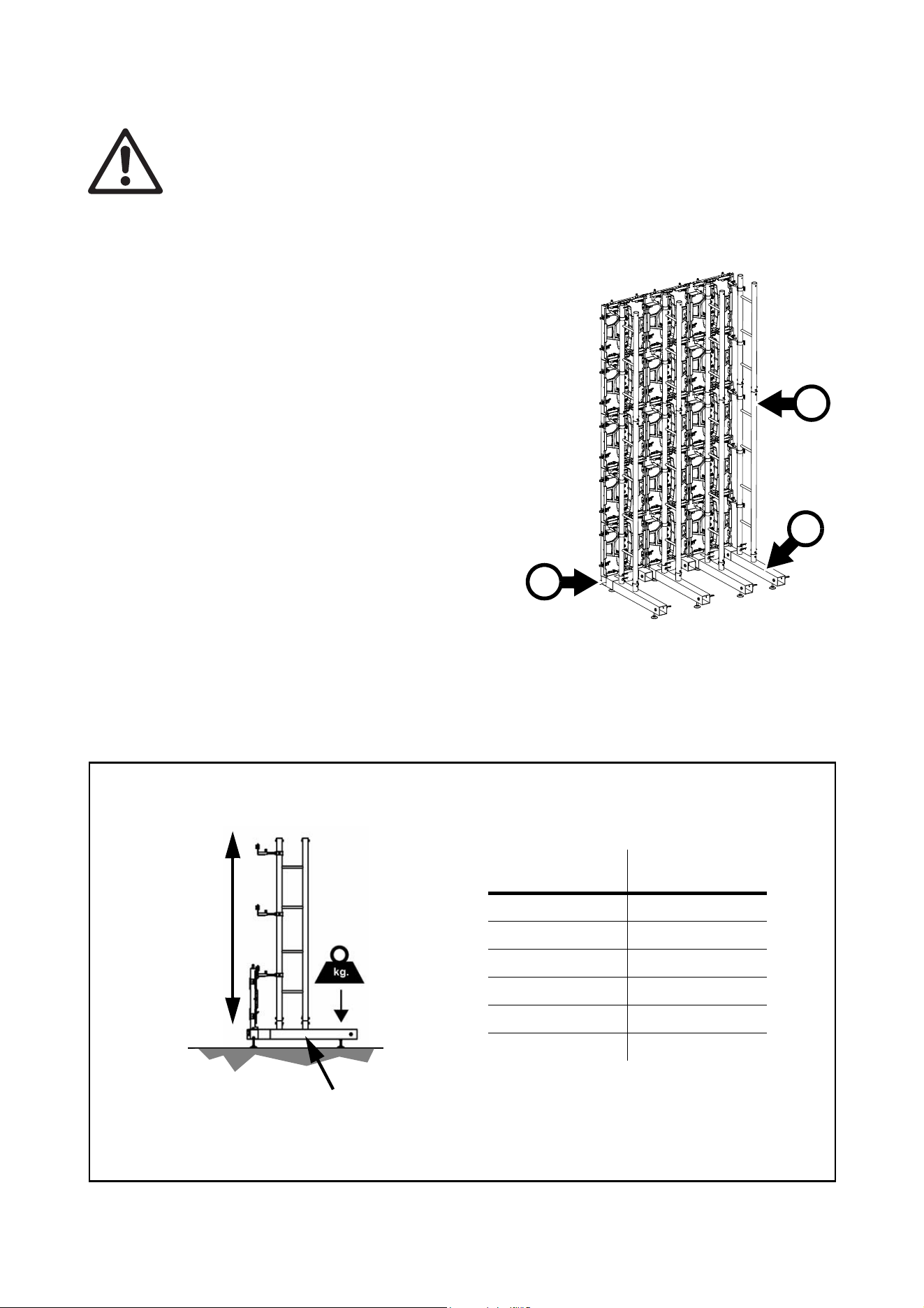
See Figure 5. The system consists of base units A,
stabilizing legs B, vertical panel mount ladders C
and all required fastener hardware.
Safety limits with single row of
stabilizer legs
When stacking VDO Face 5™ video panels in
vertical columns on VDO Face Footer floor stands
with one single row of stabilizer legs installed on the
back of base units, see
Figure 6. Fasten ballast
such as sand bags to the rear end of each stabilizer leg, i.e. as close as possible to the back of the
installation. The ballast must have at least the weight indicated in Figure 6 for the number of panels in the
column. Do not stack more than eight (8) VDO Face 5™ panels in a vertical column.
Figure 5: Face Footers floor stand system
A
C
B
Figure 6: Safety limit and ballast required with one row of stabilizer legs
Single stabilizer leg
Maximum 8 panels vertically
with 90 kg ballast fastened to end of leg
Number of panels
installed vertically
Ballast required at
rear end of each leg
1-3 0
4 15 kg (33 lbs.)
5 30 kg (66 lbs.)
6 45 kg (99 lbs.)
7 60 kg (132 lbs.)
8 90 kg (198 lbs.)
16 VDO Face 5™ user manual
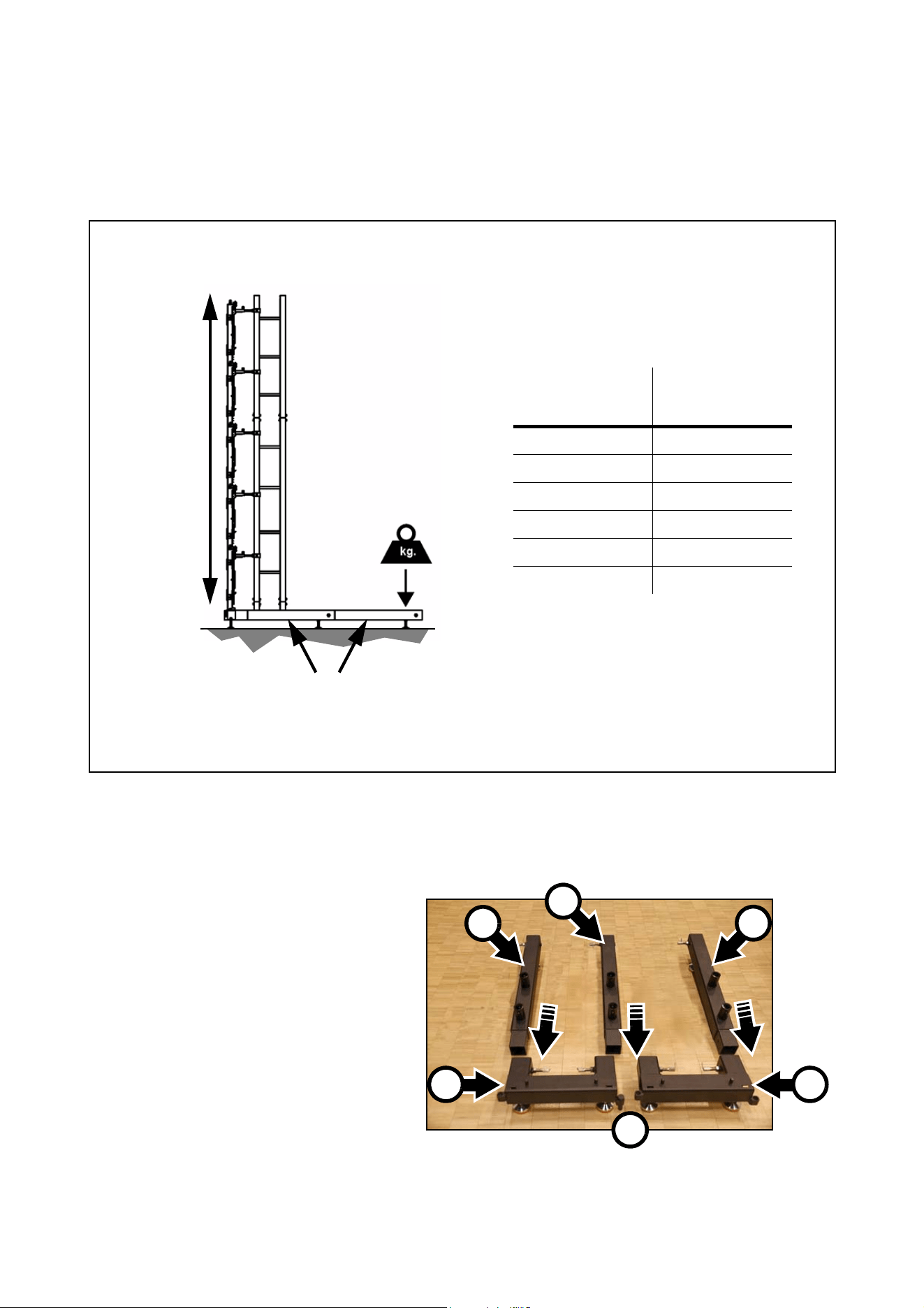
Safety limits with two rows of stabilizer legs
When installing VDO Face 5™ video panels in vertical columns on VDO Face Footer floor stands with two
rows of stabilizer legs installed on the back of base units, see Figure 7. Fasten ballast such as sand bags to
the rear end of each rear stabilizer leg, i.e. as close as possible to the back of the installation. The ballast
must have at least the weight indicated in
Figure 7 for the number of panels in the column. Do not stack
more than eight (8) VDO Face 5™ panels in a vertical column.
Creating a stacked array
Installing VDO Face Footer system components
To create a free-standing array of VDO Face 5 panels to form a flat video display surface:
1. Unpack the components from
their flightcase. It will simplify
repacking if you note how they
are packed by taking photos
with a smartphone, for
example.
2. Lay out bases and stabilizer
legs as shown in Figure 8. You
must fasten legs B into base
units A at each edge of the
array. You must also fasten a
stabilizer leg C into one of the
base units A each time you join
two base units side by side
(see D). It does not matter
which of the two base units you
fasten the leg C into.
Figure 7: Safety limit and ballast required with two rows of stabilizer legs
Two stabilizing legs
Maximum 8 panels vertically
with 15 kg ballast fastened to
Number of panels
installed vertically
Ballast required at
rear end of each
rear leg
1-3 0
40
50
60
70
8 15 kg (33 lbs.)
rear end of rear leg
B
Figure 8: Face Footers components
A
C
B
A
D
Physical installation 17
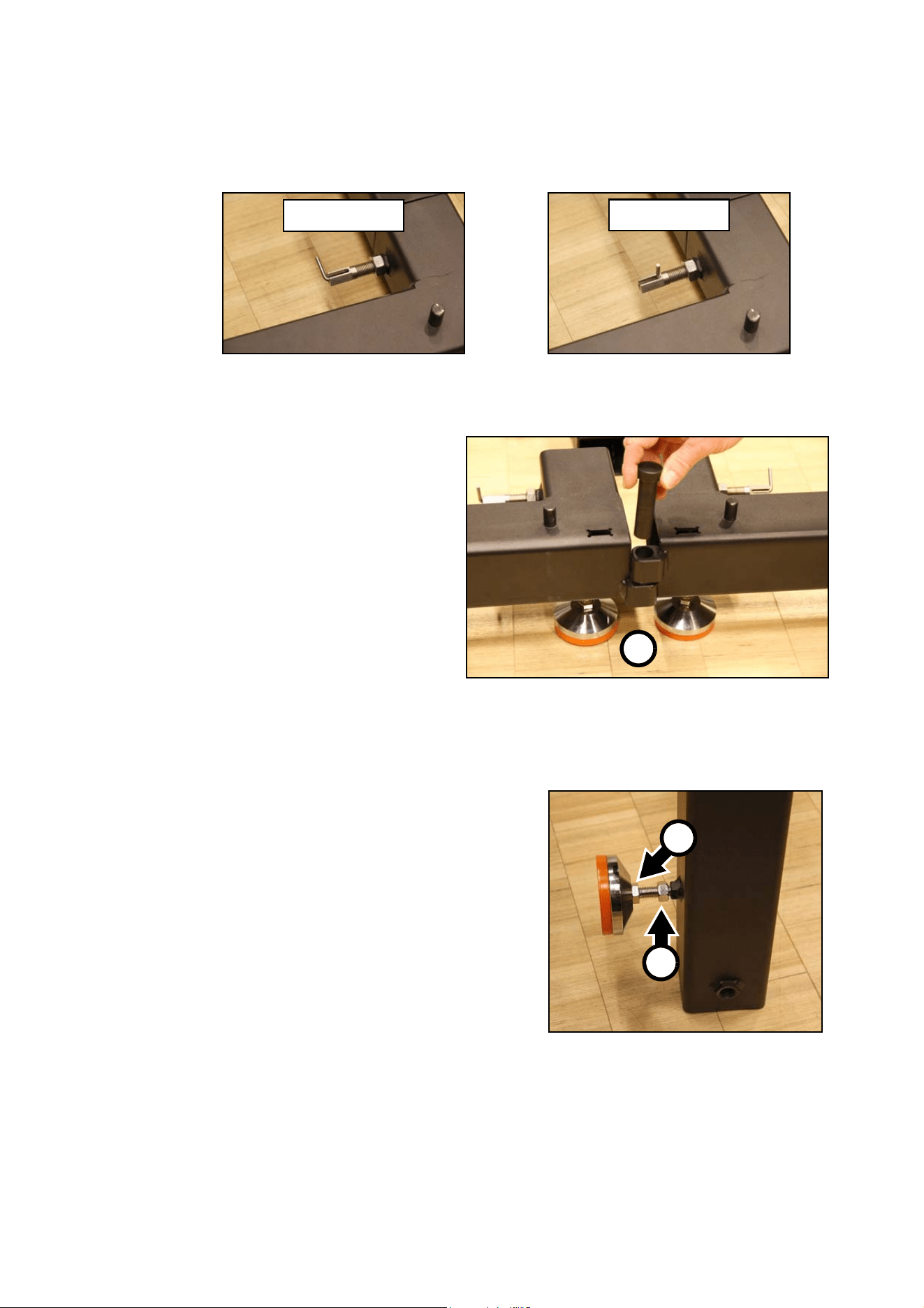
3. See Figure 9. To fasten a stabilizer leg into a base unit, pull and twist the leg lock into the open position,
insert the leg into the base unit, and then twist the lock into the locked position so that the leg is locked
into the base unit.
4. See Figure 10. Push the supplied pins
through the holes at the edges of base
units to link base units together in a
straight line.
If you stabilize base units with one row of
stabilizer legs (as shown in Figure 8), you
can install an array of video panels up to
the heights listed in
Figure 6 on page 15 if
you fasten the amount of ballast specified
in Figure 6 to the rear end of each stabilizer
leg.
If you stabilize base units with two rows of
stabilizer legs, you can install an array of
video panels up to the heights listed in
Figure 7 on page 16 if you fasten the
amount of ballast specified in Figure 7 to
the rear end of each stabilizer leg in the
back row.
5. Base units and stabilizer legs must be horizontal
when installed. Bases and legs have adjustable
feet to compensate for uneven floors.
When all base units and stabilizer legs are
fastened together in their final position (and before
you install panels), use a spirit level to check that
components are horizontal from side to side and
from front to back. See
Figure 11. If necessary,
loosen locknuts E and raise or lower feet by turning
adjustment nuts D until components are horizontal.
Then retighten locknuts E. Do not screw feet too far
out of the base units: no more than of 20
mm
(0.8
in.) of thread must be visible between the
adjustment nut D and locknut E.
Figure 9: Locking legs into base units
Open
Locked
Figure 10: Linking base units
D
Figure 11: Foot adjustment
E
D
18 VDO Face 5™ user manual
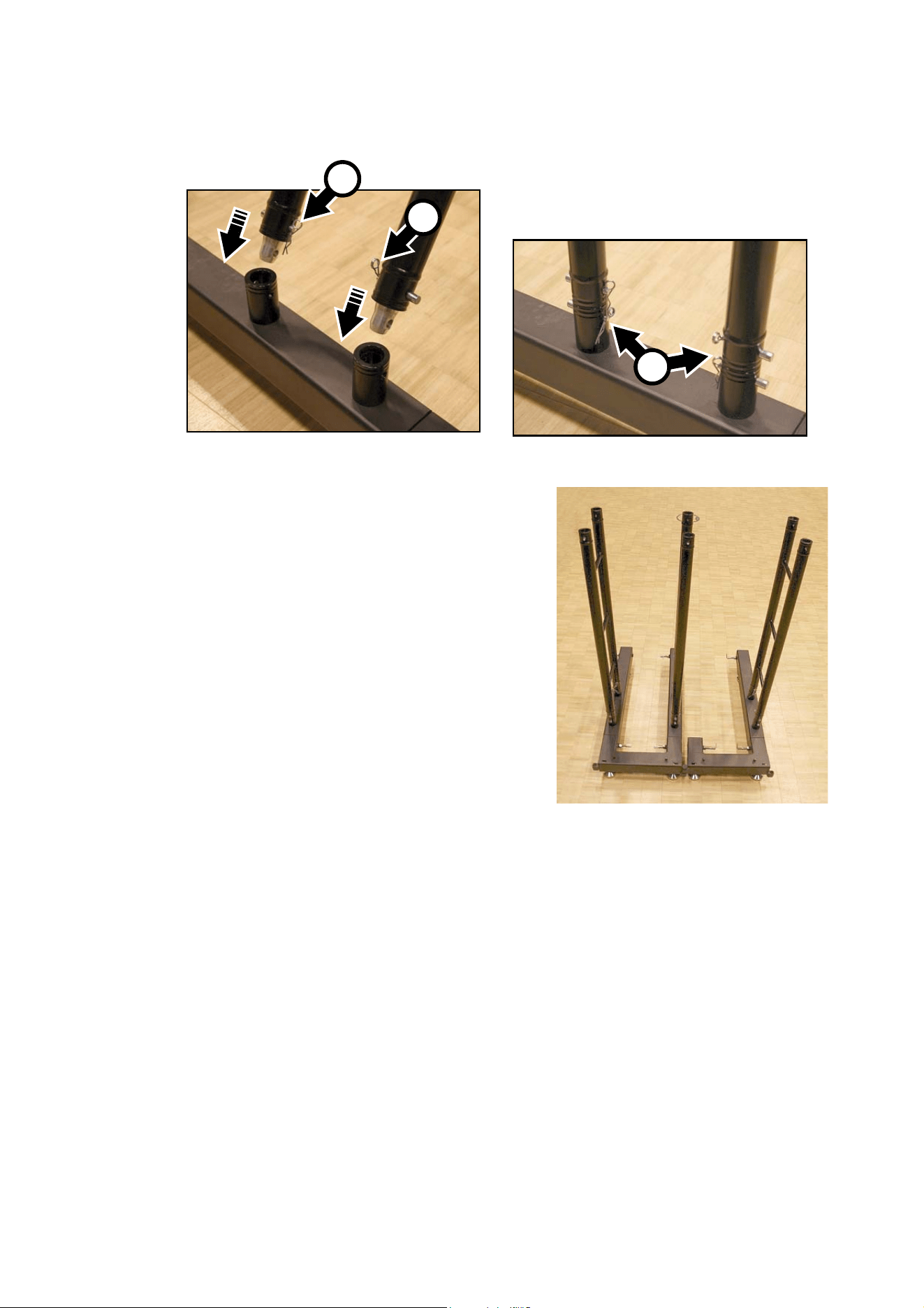
6. See Figure 12. Push the supplied truss eggs into the ends of the panel support ladders and secure them
with pins and securing clips F. Then push the ladders into the supports in the base units so that the
ladders stand vertically. Secure the ladders with pins passed through the truss eggs and securing clips
G so that the ladders are fastened securely into the base units.
7. The Face Footer system will now look like the
installation shown in Figure 13 (this is the minimum
size installation that can be created using the Face
Footer system: as a minimum the array must be two
panels wide and two panels tall).
8. Install additional ladders so that there will be a ladder
at both sides of every panel that you add above the
first two panels. Install additional ladders using two
truss eggs each time you add a ladder using the
method shown in
Figure 12. Fasten each truss egg
with two pins, one passed through each ladder, and
secure all pins with spring clips.
9. You must not move a Face Footer system with video
panels installed, so adjust the position of the system
until it is in its final position now and make a final
check that base units are perfectly level before
proceeding to add panels.
Figure 12: Installing ladders
F
F
G
Figure 13: Minimum stacked installation
Physical installation 19
Installing VDO Face 5 panels on the Face Footer system
Panel brackets
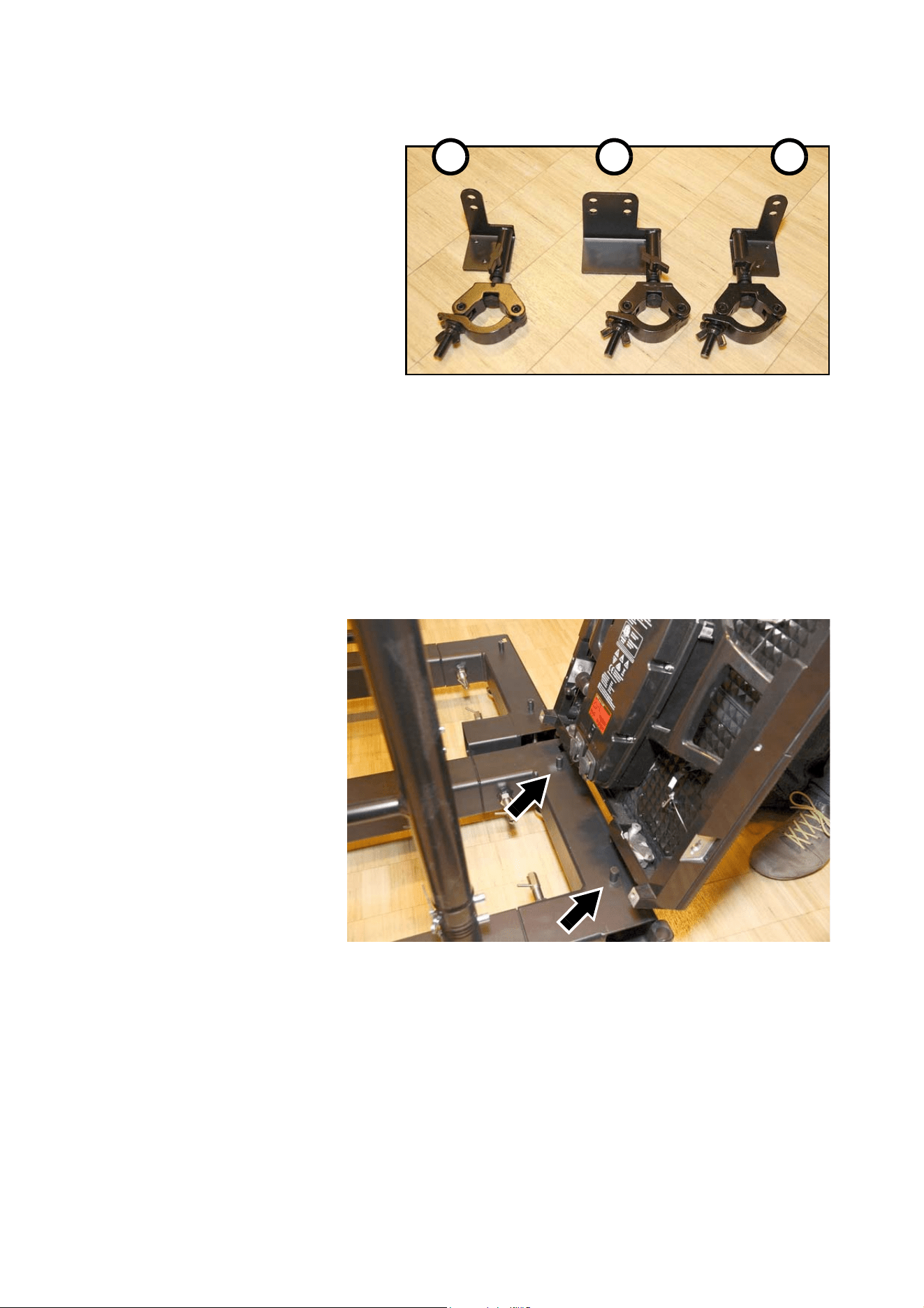
See Figure 14. Brackets for
fastening panels to ladders are
included in the Face Footer
system. Viewed from the back of
the panel array:
• bracket A fastens to two panels
on the left-hand edge of the
array,
• bracket B fastens to four panels
in the middle of the array, and
• bracket C fastens to two panels
on the right-hand edge of the
array.
The brackets are telescopic to
allow for minor variations in the
positions of panels. Brackets
clamp onto Face Footer panel support ladders with half-coupler clamps and bolt to panels with the supplied
Allen (hex) head bolts.
Fastening panels into place
To install VDO Face 5 panels on the Face Footer components:
1. Check that the Face Footer components are correctly installed. Pay particular attention to “Safety limits
with single row of stabilizer legs” on page 15. Check that the required weight of ballast for the number of
panels that will be stacked vertically and for the number of stabilizer legs is fastened to the rear of the
stabilizer legs and cannot be removed.
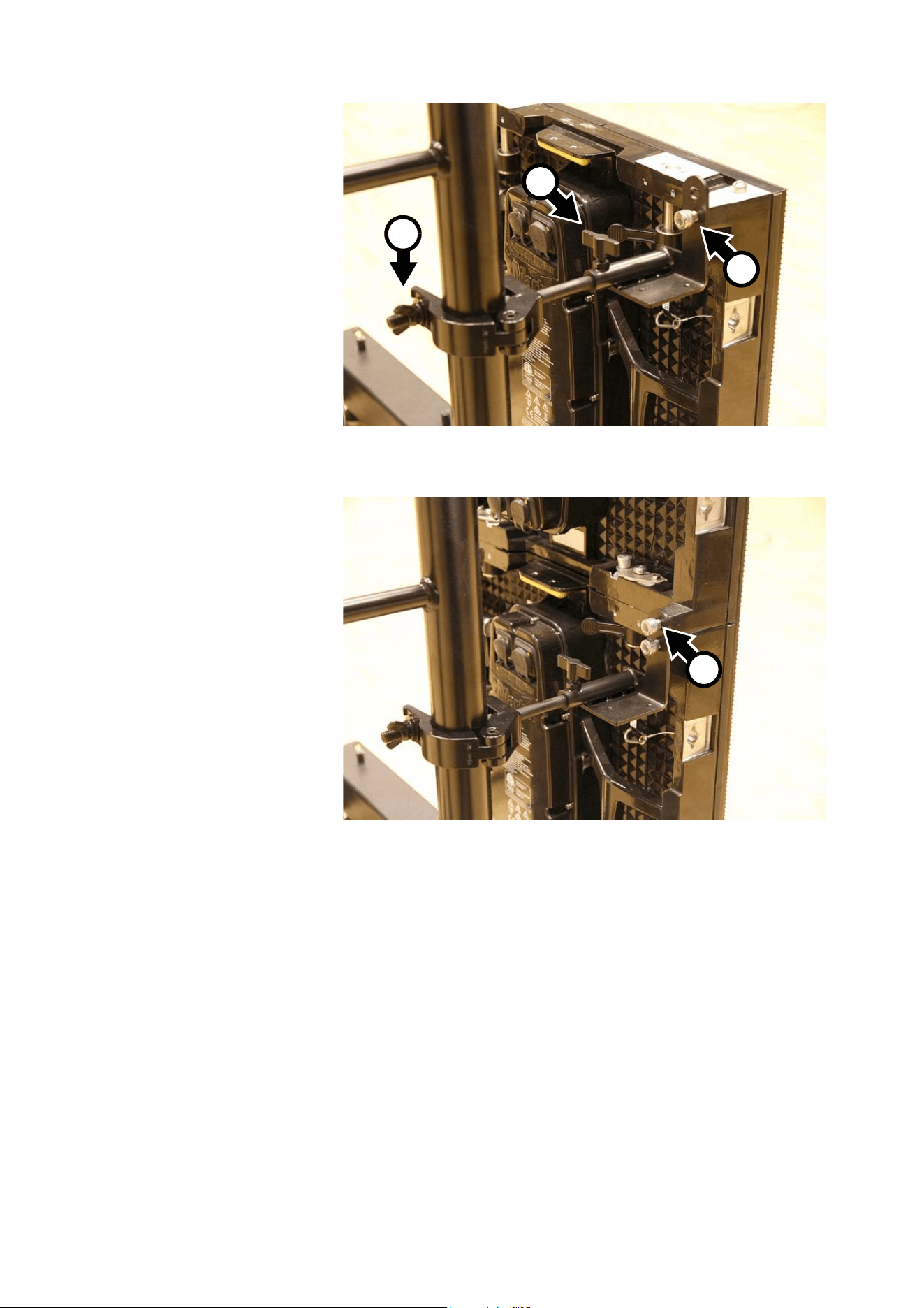
2. See Figure 15.
Place the first panel
over the upright pins
(arrowed) in the top
of the first base unit
at the right-hand (as
viewed from the
back) edge of the
array.
Figure 14: Face Footer panel brackets
A B C
Figure 15: Installing the first panel
20 VDO Face 5™ user manual
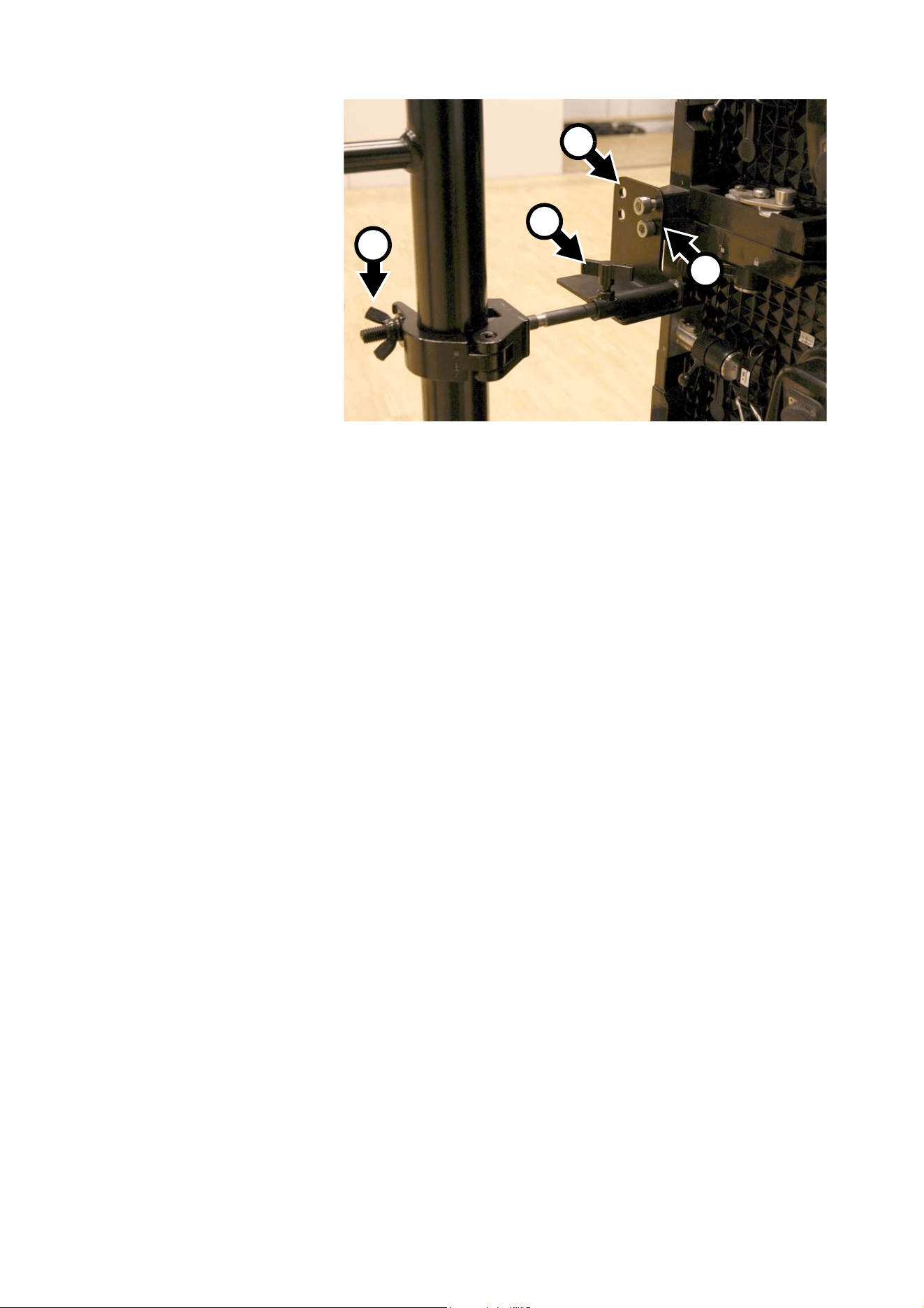
3. See Figure 16.
Fasten a right-hand
edge clamp to the
ladder and first
fixture as shown.
Tighten the
clamp-to-panel bolt
A, then tighten the
telescopic extension
handwheel B and
finally tighten the
butterfly nut C on
the ladder
half-coupler.
4. See Figure 17.
Lower the second
panel onto the first
panel and use the
vertical locking
posts and locking
plates to fasten the
two panels
together with
reference to
“Instructions for
suspending
panels” on
page 32. Check
that the second
panel is locked into
place.
Figure 16: Fastening first panel at right-hand edge of array
A
B
C
Figure 17: Fastening panels at right-hand edge of array
A
Physical installation 21
5. See Figure 18. Pass
the supplied Allen
(hex) head bolts A
through a central
array panel bracket
B. If you are
creating a curved
array, pass the bolts
through a 5° or 10°
curving alignment
plate. Tighten the
bolts into the holes
in the inner edges of
the video panels as
shown. Then tighten
the telescopic
extension
handwheel C and
finally tighten the
butterfly nut D on
the ladder
half-coupler. Check
that the panels are
locked into place.
Continue adding panels to the array using the above instructions as a guide.
Use the correct panel brackets for the edges and middle of the array as described in ‘Panel brackets’ on
page 19 and shown in Figure 14.
Do not lean ladders against or climb on the array of panels: work from a stable platform.
Each time you add a panel, fasten it to the existing panels above, below and on both sides as described
above and as described in “Fastening panels side by side” on page 34. Then install panel clamps as
described above.
Taking down a stacked array
When you tear down a free-standing array of video panels that are installed using the Face Footer system,
you basically need to follow the procedure outlined above in reverse. Pay attention to the following:
• Block access under and around the installation. Do not climb on the installation: work from a stable
platform.
• Do not remove any ballast from stabilizer legs until all panels and ladders have been removed from the
installation.
• Do not remove stabilizer legs until all panels and ladders have been removed from the installation.
Figure 18: Fastening panels inside the array
A
B
D
C
22 VDO Face 5™ user manual
VDO Face Footer system flightcases
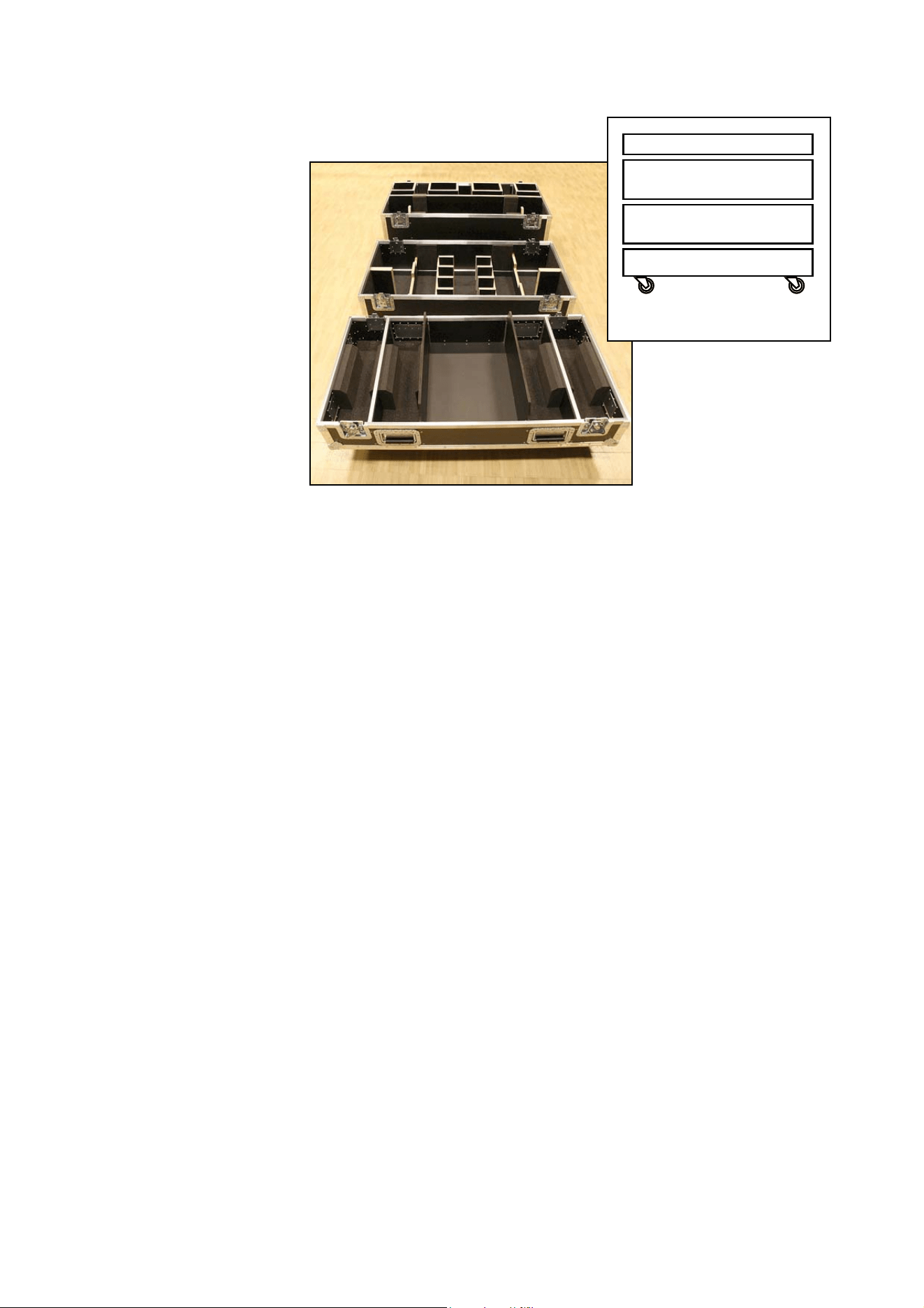
See Figure 19.
Flightcase
elements with
storage space for
all items in the
VDO Face Footer
system including
clamps and
fasteners are
available as
modular
accessories from
Martin®. Elements
fasten together for
easy transport.
See
“Accessories”
on page 51.
Figure 19: Face Footers flightcase elements
Lid
Ladders
Stabilizer legs
Base units
Example setup
Physical installation 23
Flying panels in a flat array
To suspend an array of VDO Face 5™ video panels vertically to form a flat display surface, see below. To
suspend array of VDO Face 5™ video panels vertically to form a curved display surface, see
“Flying panels
in a curved array” on page 36.
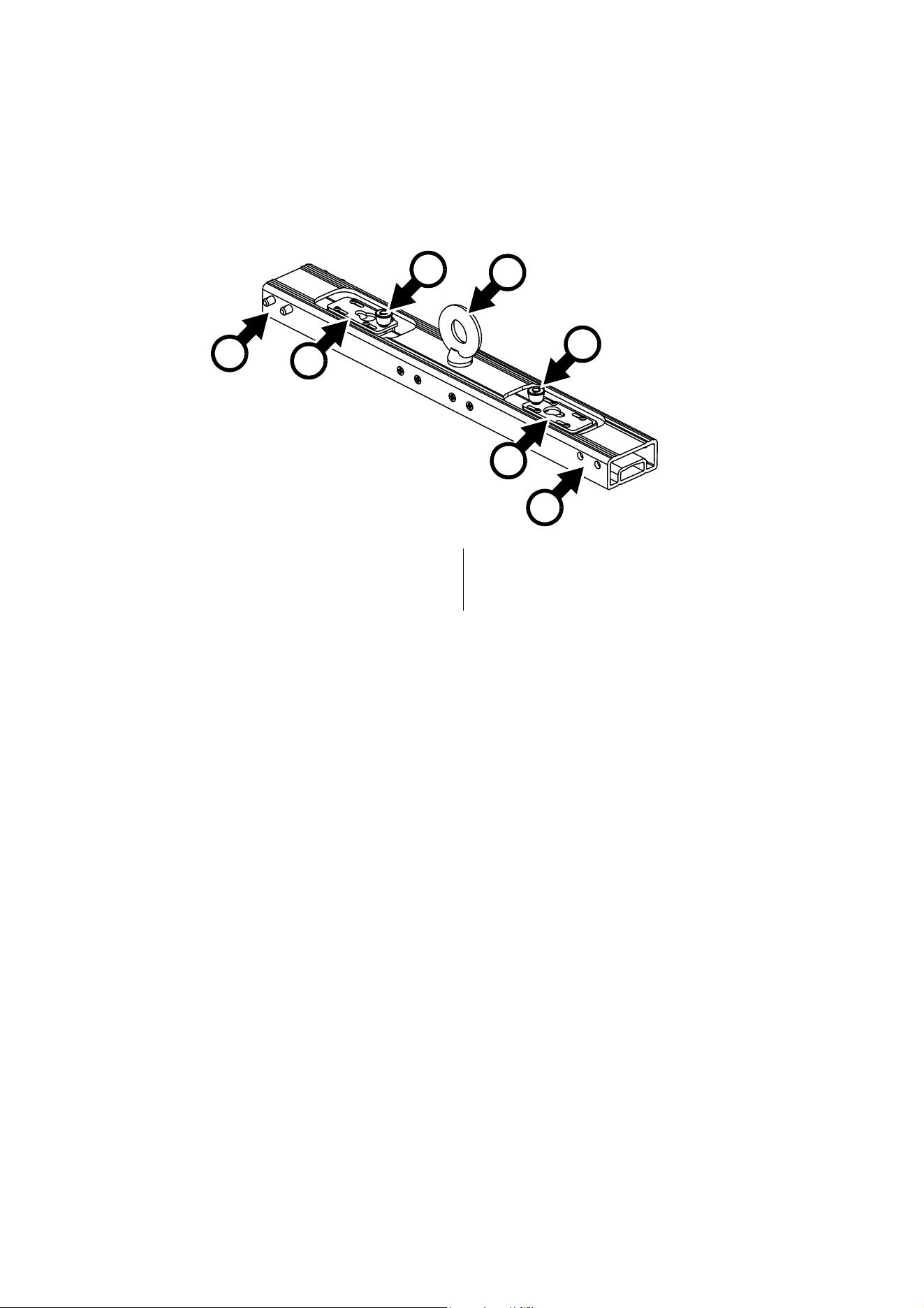
To suspend a vertical column of VDO Face 5™ panels, you must use a VDO Face system header. See
below (Single Header illustrated):
VDO Face system headers are available in two versions:
• Single Headers have one suspension eyebolt A and holes D at each end of the header for mounting
either side connection brackets or brackets for two further eyebolts. You can support one column of
panels from one Single Header.
• Double Headers have three suspension eyebolts A and holes D at each end of the header for mounting
side connection brackets. You can suspend two columns of panels from one Double Header.
Side connection brackets are supplied with headers (see next section).
A - Suspension eyebolt (primary attachment point)
B - Panel fastener plate
C - Panel fastener plate locking button
D - Mounting points for extra suspension eyebolts
or header connection brackets.
Figure 20: VDO Face Single Header
A
C
C
B
B
D
D
24 VDO Face 5™ user manual
Header side connection brackets
Warning! VDO Face Header side connection brackets are for alignment purposes only. Only fasten
panels to a header if the header is suspended using its eyebolt as described in this user manual.
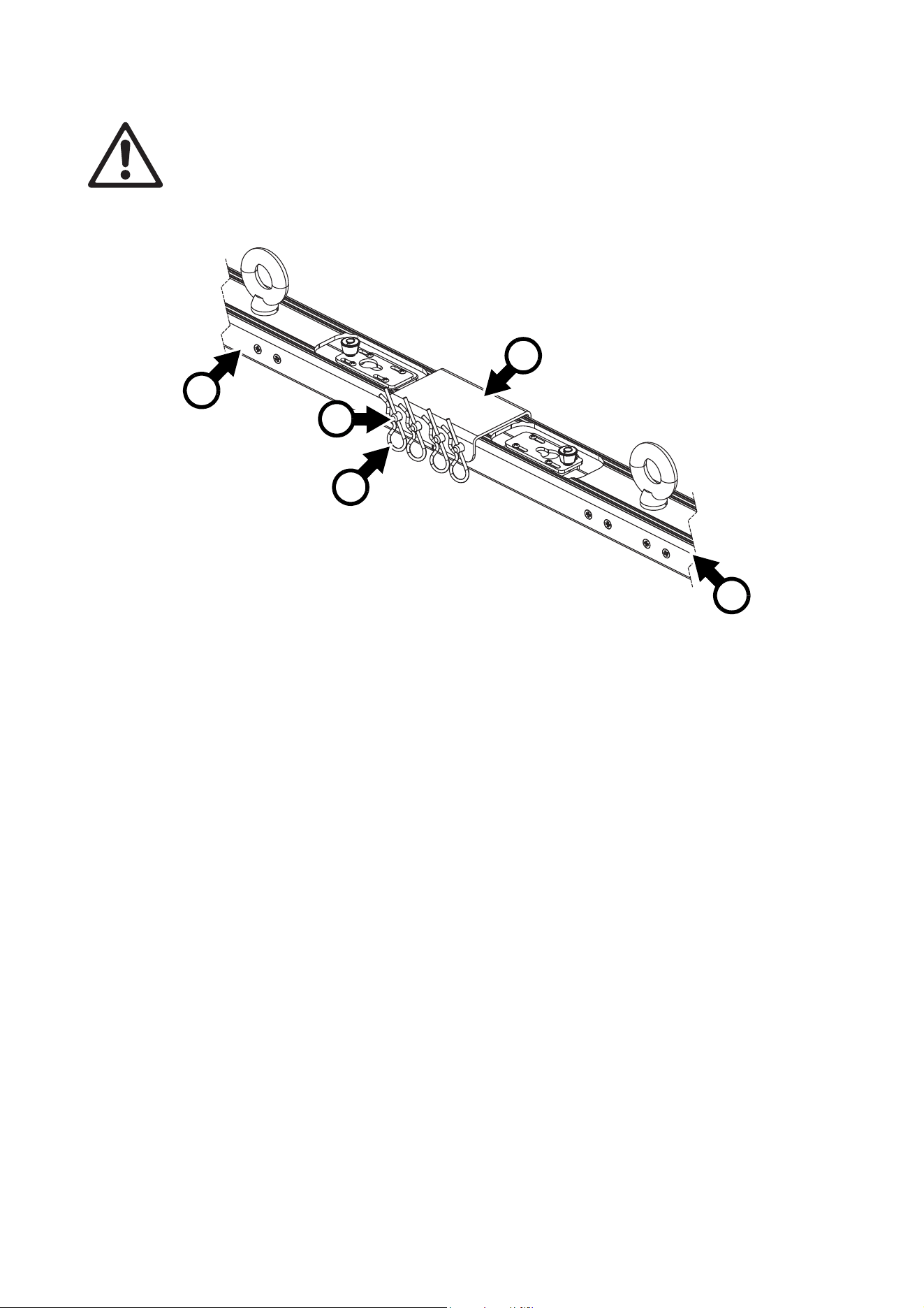
Before you install columns of VDO Face™ panels side-by-side, install headers and fasten them together
using the header side connection brackets that are supplied with headers.
To install a header side connection bracket:
1. See Figure 21. Each time you install two headers D beside each other, place a side connection bracket
E over the ends of the headers and pass the four locking pins F supplied with the brackets through both
the bracket and the headers.
2. Secure all four locking pins F with spring clips G.
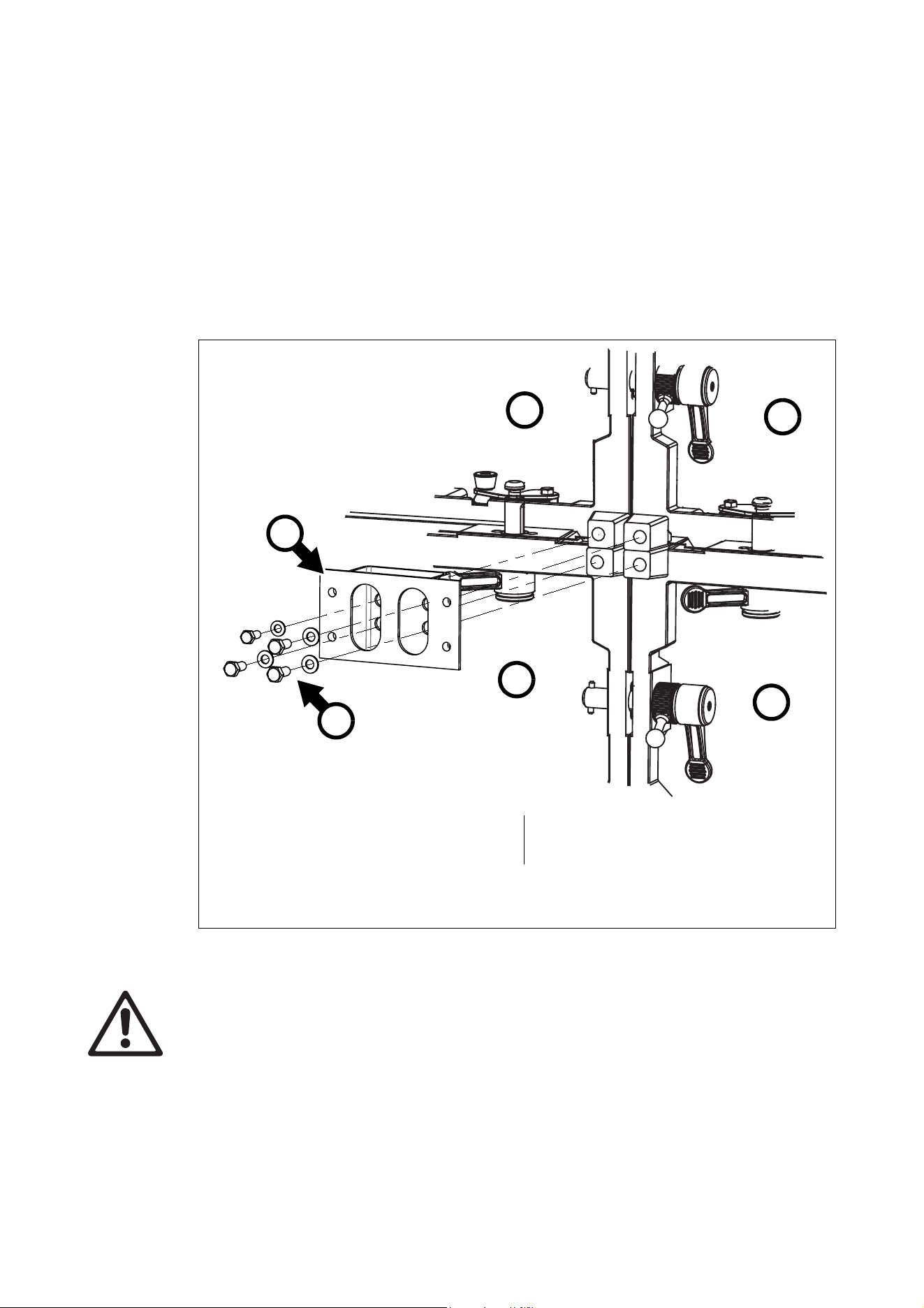
Corner connection plates
VDO Face™ corner connection plates have both a load-bearing and a stabilizing function. You must fasten
the corners of VDO Face™ panels together by installing corner connection plates on the rear face of VDO
Face 5 panels in the following three situations:
1. Single columns
In any column of panels that is not joined to other panels at both sides and that is more than five (5) panels
high, corner connection plates must be installed at all times on all four corners of every panel that is above
the five (5) lowest panels in the column. See also
Figure 23 on page 27.
2. Multiple columns
In an installation consisting of multiple columns hanging side by side that are fastened to each other using
their integral side-to-side fasteners, in any column that is more than ten (10) panels high, corner connection
plates must be installed at all times on all four corners of every panel that is above the ten (10) lowest
panels. See also
Figure 24 on page 29 and Figure 25 on page 31.
3. Columns that need to be stabilized
Where extra stabilization is required because of movement or vibration of the supporting structure or
because of wind pressure, corner connection plates must be installed on all four corners of every panel in
the installation.
Figure 21: VDO Face Side Connection Brackets
E
G
D
D
F
Physical installation 25
To install connection plates:
1. Read the guidelines above and plan the use of connection plates in your installation so that you know
where you will need to install them. See Figure 22. You will need one connection plate B for each corner
where two ore more panels meet and one M10x15 bolt with washer C per corner. Bolts must be steel,
grade 8.8 minimum. Connection plates and suitable Allen bolts are available from your Martin® supplier.
2. As soon as you have fastened a panel into the installation using the panels’ integral fastening
mechanisms, fasten connection plates B to the panels A using bolts with washers as shown in Figure
22. Fasten all adjacent corners together. Install connection plates continuously while you work so that
you never exceed the limits (given under ‘1. Single columns’ and ‘2. Multiple columns’ above) for the
number of panels that can hang freely without connection plates. Do not overtighten bolts.
3. When tearing down an installation, remove panels starting from the bottom and do not remove
connection plates until you are ready to remove the panels that the plates are fastened to.
Anchoring the bottom of columns
Warning! Anchor the bottom of columns of panels to make it impossible for the columns to swing or
snake if a primary attachment fails or if panels are exposed to air pressure.
Tighten anchoring straps at the bottom of columns gently by hand, and only enough to remove any
slack. Do not tighten straps hard, or you may add to the downward force acting on columns and
suspension hardware, creating a danger of failure.
To anchor the bottom of a column, fasten an M10 eyebolt or VDO Face 5™ corner connection plate to the
hole in the bottom corner of the panel at the bottom of the column, then loop a strap such as nylon webbing
through the eyebolt or connection plate and around an anchoring point. Make sure that there is no slack in
the strap, but tighten the strap gently by hand only.
• Anchor both sides of each single column of panels.
• Anchor both sides of each multiple array of columns.
A - VDO Face 5 panel
B - Connection plate
C - Connection plate fasteners (one M10 x
15 Allen head bolt per panel)
Figure 22: VDO Face™ corner connection plate
A
B
C
A
A
A

26 VDO Face 5™ user manual
Possible configurations
If suspension points are provided as directed in this user manual, vertical columns of VDO Face 5™ panels
can be suspended side-by-side to form a display surface of unlimited width, but in any location that can be
regarded as stage/studio environment no column may be no more than fourteen (14) panels high.
The following sections and diagrams explain the different installation options available.
Single-column arrays
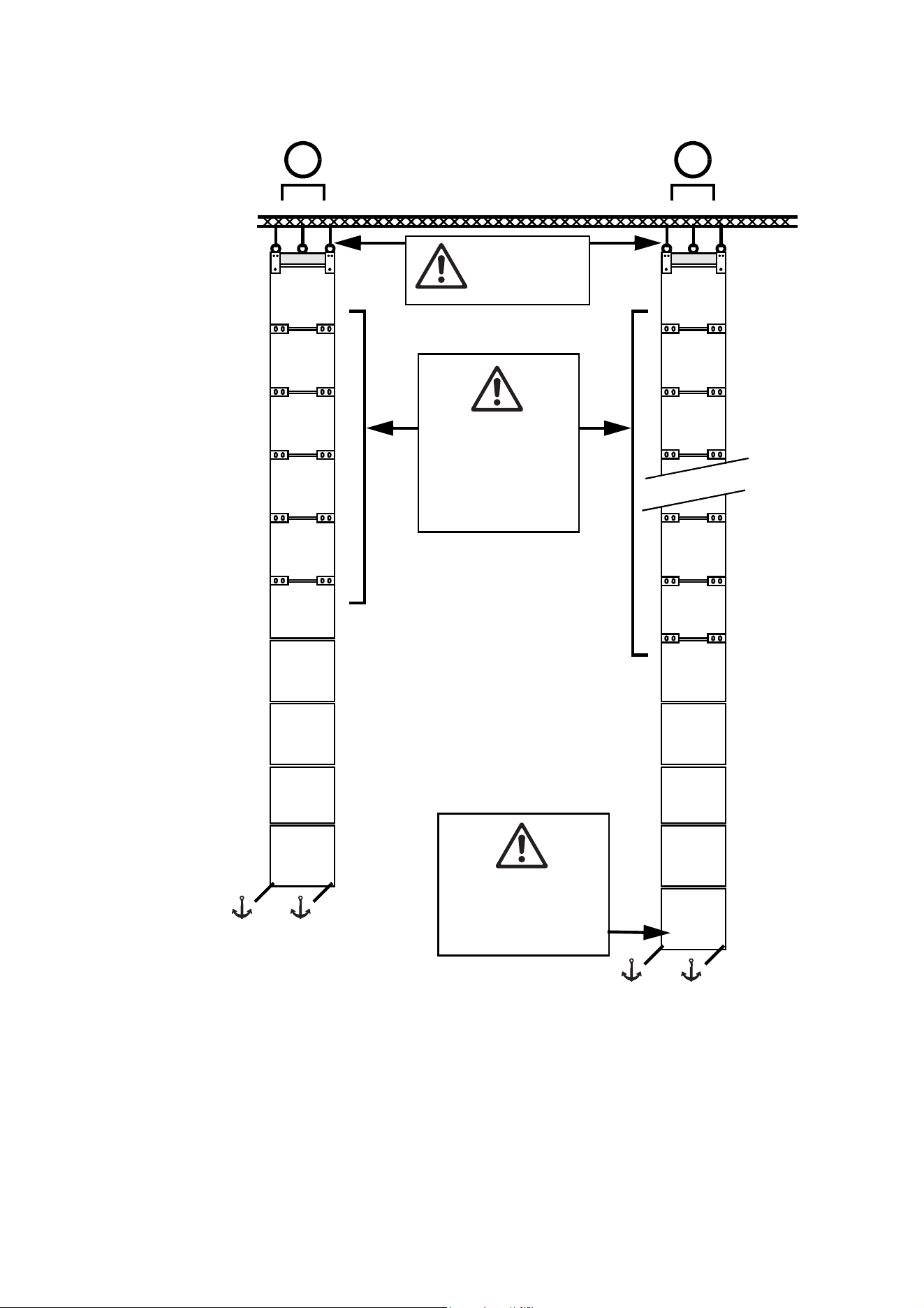
See A and B in Figure 23. You may suspend a single column of panels maximum fourteen (14) panels high
from a single header. The column can hang alone without panels being fastened at the sides to other
panels. In this type of installation:
• No column may be more than 14 panels high.
• You must install connection plates on all four corners of every panel above the lowest 5 panels in a
column.
• You can install columns up to 5 panels high in an array without corner connection plates.
• The header must be suspended from three cables or chains. This means that you must install on the
header two of the additional eyebolt brackets available from Martin® as accessories for the VDO Face 5™
and you must install suitable eyebolts on the brackets.
To create an array consisting of a single column of VDO Face 5™ panels suspended from a single header:
1. With reference to Figure 23, obtain enough corner connection plates available from Martin® to stabilize
the column You will need two connection plates for each panel above the lowest five panels. The lowest
five panels can hang from their integral fastening posts without connection plates.
2. Install two additional eyebolt brackets on the single header using the mounting holes (see D in Figure 20
on page 23) at each end of the header.
3. Suspend the header by fastening all three eyebolts to a safe structure using three separate cables or
chains. Each individual cable or chain must be approved to support ten times the total weight of the
column. Each eyebolt must have its own cable: do not loop one cable through more than one eyebolt.
Make sure that there is no slack in cables: all cables must be equally tight.
4. Install panels one by one under the Single Header as described in “Instructions for suspending panels”
on page 32. Each time you add a panel, fasten it using both its vertical fastener posts, then immediately
install corner connection plates to fasten the panel securely to the panel above it. Add corner connection
plates until you reach the lowest five panels, which do not need the plates.
5. Attach the column to anchoring points at its lower corners to make it impossible for the bottom of the
column to move. Do not apply downward force to the column when attaching it.
Physical installation 27
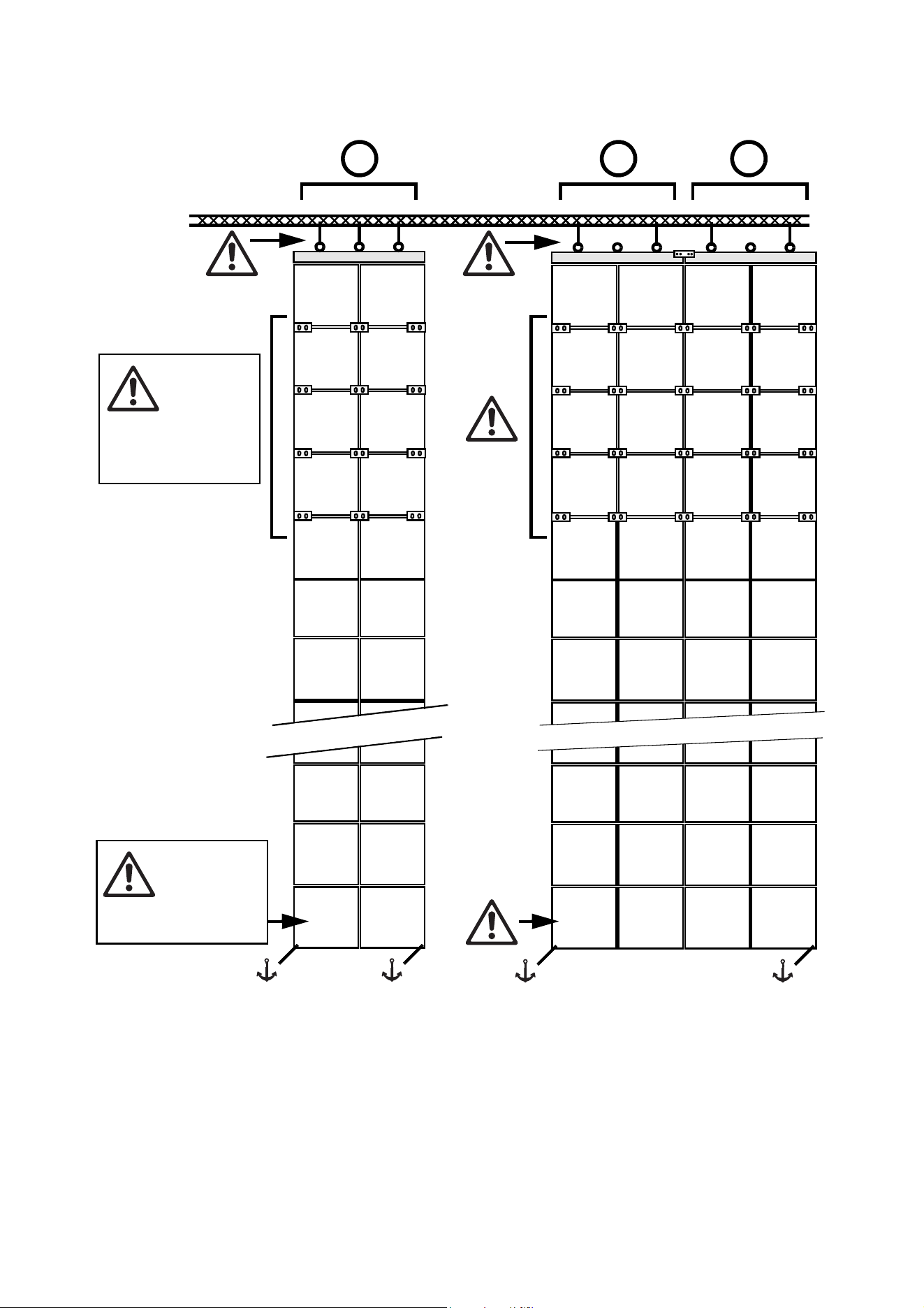
Arrays of 2 - 5 columns
You can create an array consisting of two or four columns of panels suspended from double headers. You
can also add a column suspended from a single header to create an array consisting of three or five
columns. In this type of installation:
• No column may be more than 14 panels high.
• All headers and panels must be fastened side-to-side.
1
2
10
9
3
4
8
13
14
12
11
Figure 23: Single-column configurations
1
2
4
5
3
A B
7
6
10
9
8
Vertical suspended
column = maximum
14 panels high
Connection plates
required to stabilize
all panel-to-panel
interconnections
above lowest five (5)
panels
Three
attachments
per header

28 VDO Face 5™ user manual
• You must install connection plates on all four corners of every panel above the lowest 10 panels in a
column.
• You can install columns up to 10 panels high in an array without corner connection plates, provided that
the panels are connected side-to-side.
• Each header must be suspended from minimum two cables or chains.
Two-column arrays
• If you hang two columns of panels from a double header without fastening them side-to-side to other
panels (see C in
Figure 24), you must suspend the header using three cables or chains: one cable or
chain per eyebolt on all three eyebolts on the double header.
Four-column arrays
• If you hang four columns of panels from two double headers without fastening the four-column array
side-to-side to other panels (see D in Figure 24), you must suspend the double headers using minimum
four cables or chains: one cable or chain per eyebolt on minimum two eyebolts per double header.
Three- and five-column arrays
• If you add a single column of panels to one of the above to create an array of three or five columns of
panels, the same guidelines apply as for larger multiple-panel arrays:
- If you want to add a single column of panels that is not fastened to other panels at both sides (as in H
in Figure 25), you must obtain a single header and install on it an additional eyebolt available from
Martin®. Then you must suspend the single header from two cables or chains before you hang the
single column from it.
- If you want to install a single column that is fastened to other panels at both sides (as in G in Figure 9),
you may use a single header without and additional eyebolt and suspend it from one cable or chain.
To create an array consisting of 2 - 5 columns of panels:
1. See Figure 24. Obtain enough headers for all the columns, and obtain enough corner connection plates
available from Martin® to stabilize the column. You will need two connection plates for each panel above
the lowest 10 panels.
2. Suspend the headers in a row from the truss or other supporting structure. Suspend each header from
its central eyebolt using a cable or chain that is approved to support ten times the total weight of the
header and all the items that will hang from it. Each eyebolt must have its own cable: do not loop one
cable through more than one eyebolt. Make sure that there is no slack in cables: all cables must be
equally tight. Each time you add a header, fasten it to the previous header with a header side connection
bracket.
3. Install panels one by one in rows under the headers as described in “Instructions for suspending panels”
on page 32. Each time you add a panel, fasten it using both its vertical fastener posts, then fasten it
side-to-side immediately. Install corner connection plates on all four corners of every panel that will have
10 panels or more suspended below it.
4. Attach the array to anchoring points at its lower corners to make it impossible for the bottom of the array
to move. Do not apply downward force to the array when attaching it.
Physical installation 29
Figure 24: Two-column and four-column configurations
1
2
3
1
2
3
7
6
5
13
14
12
11
7
6
5
13
14
12
11
1
2
3
1
2
3
7
6
5
13
14
12
11
7
6
5
13
14
12
11
8844
D D
1
2
3
1
2
3
7
6
5
13
14
12
11
7
6
5
13
14
12
11
44
C
Connection
plates
required to
stabilize all
panel-to-panel
couplings above
lowest 10 panels
Vertical
suspended
column =
maximum 14
panels high

30 VDO Face 5™ user manual
Larger multiple-column arrays
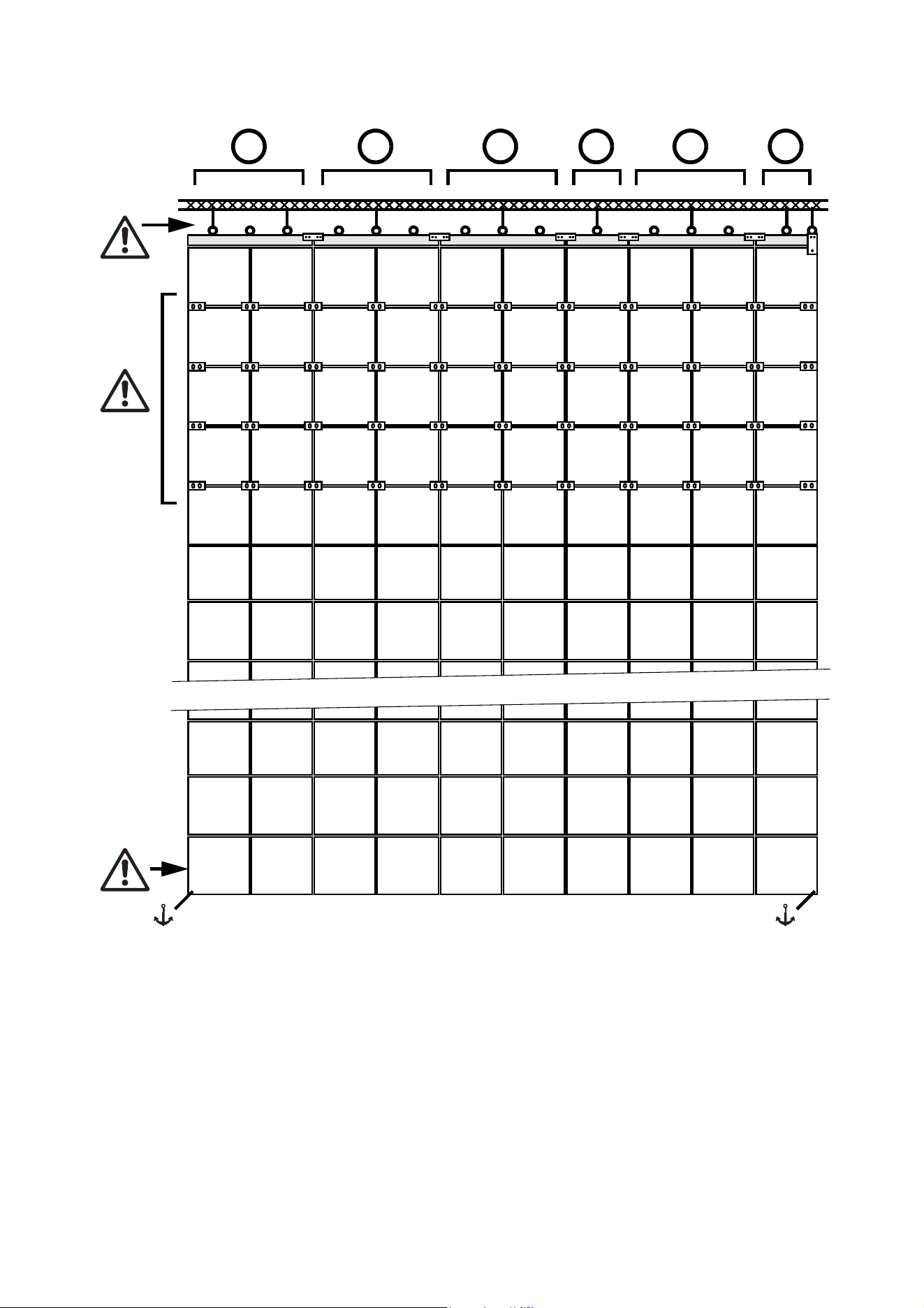
Besides the configurations described above, you can create an array consisting of multiple columns of
panels suspended from single and/or double headers. In this type of installation:
• No column may be more than 14 panels high.
• All headers and panels must be fastened side-to-side.
• You must install connection plates on all four corners of every panel above the lowest 10 panels in a
column.
• You can install an unlimited number of columns up to 10 panels high in an array without corner connection
plates, provided that the panels are connected side-to-side.
• Each header in the middle of a multiple-column array (see F and G in Figure 25) must be suspended from
minimum one cable or chain.
• Each header at the edge of a multiple-column array (see E and H in Figure 25) must be suspended from
minimum two cables or chains:
- If you install a double header at the edge of a multiple array (see E in Figure 25), you must use
minimum two of the header’s three eyebolts so that you can suspend the header from two cables or
chains.
- If you install a single header at the edge of a multiple array (see H in Figure 25), you must install one
additional eyebolt so that you can suspend the header from two cables or chains.
To create an array consisting of multiple columns of panels:
1. See Figure 25. Obtain enough single or double headers for all the columns, and obtain enough corner
connection plates available from Martin® to stabilize the column. You will need two connection plates for
each panel above the lowest 10 panels.
2. Suspend the headers in a row from the truss or other supporting structure. Suspend each header from
its central eyebolt using a cable or chain that is approved to support ten times the total weight of the
header and all the items that will hang from it. Each eyebolt must have its own cable: do not loop one
cable through more than one eyebolt. Make sure that there is no slack in cables: all cables must be
equally tight. Each time you add a header, fasten it to the previous header with a header side connection
bracket.
3. Install panels one by one in rows under the headers as described in “Instructions for suspending panels”
on page 32. Each time you add a panel, fasten it using both its vertical fastener posts, then fasten it
side-to-side immediately. Install corner connection plates on all four corners of every panel that will have
10 panels or more suspended below it.
4. Attach the array to anchoring points at its lower corners to make it impossible for the bottom of the array
to move. Do not apply downward force to the array when attaching it.
Physical installation 31
.
Figure 25: Larger multiple-column configurations
1
2
3
1
2
3
7
6
5
13
14
12
11
7
6
5
13
14
12
11
1
2
3
1
2
3
7
6
5
13
14
12
11
7
6
5
13
14
12
11
4444
55
1
2
3
1
2
3
7
6
5
13
14
12
11
7
6
5
13
14
12
11
444
E F F
1
2
7
6
3
4
5
13
14
12
11
G
1
2
3
1
2
3
7
6
13
14
12
11
7
6
13
14
12
11
4
1
2
7
6
3
4
5
13
14
12
11
F H
4
55
32 VDO Face 5™ user manual
Instructions for suspending panels
Each time you add a panel to a column, fasten it to any panels beside it immediately after you have
suspended the panel vertically. See “Fastening panels side by side” on page 34 for instructions.
To suspend VDO Face 5™panels:
1. Install headers as described under “Flying panels in a flat array” on page 23.
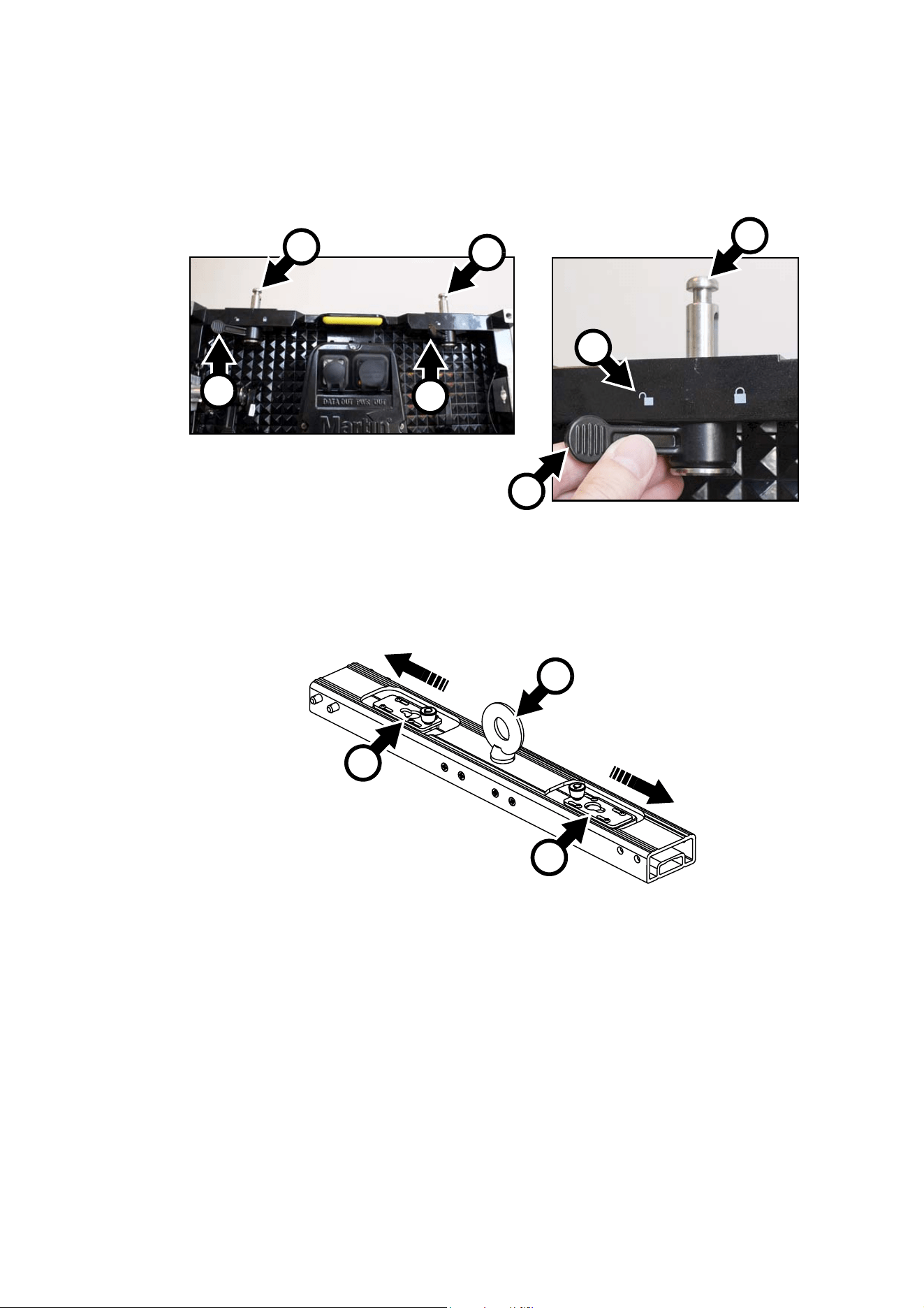
2. See Figure 26. On the first panel, push both vertical connection posts A up through the top rail of the
panel. Turn both locking levers B to the Unlocked position C.
Figure 26: Vertical connection posts
A
A
A
C
B
B
B
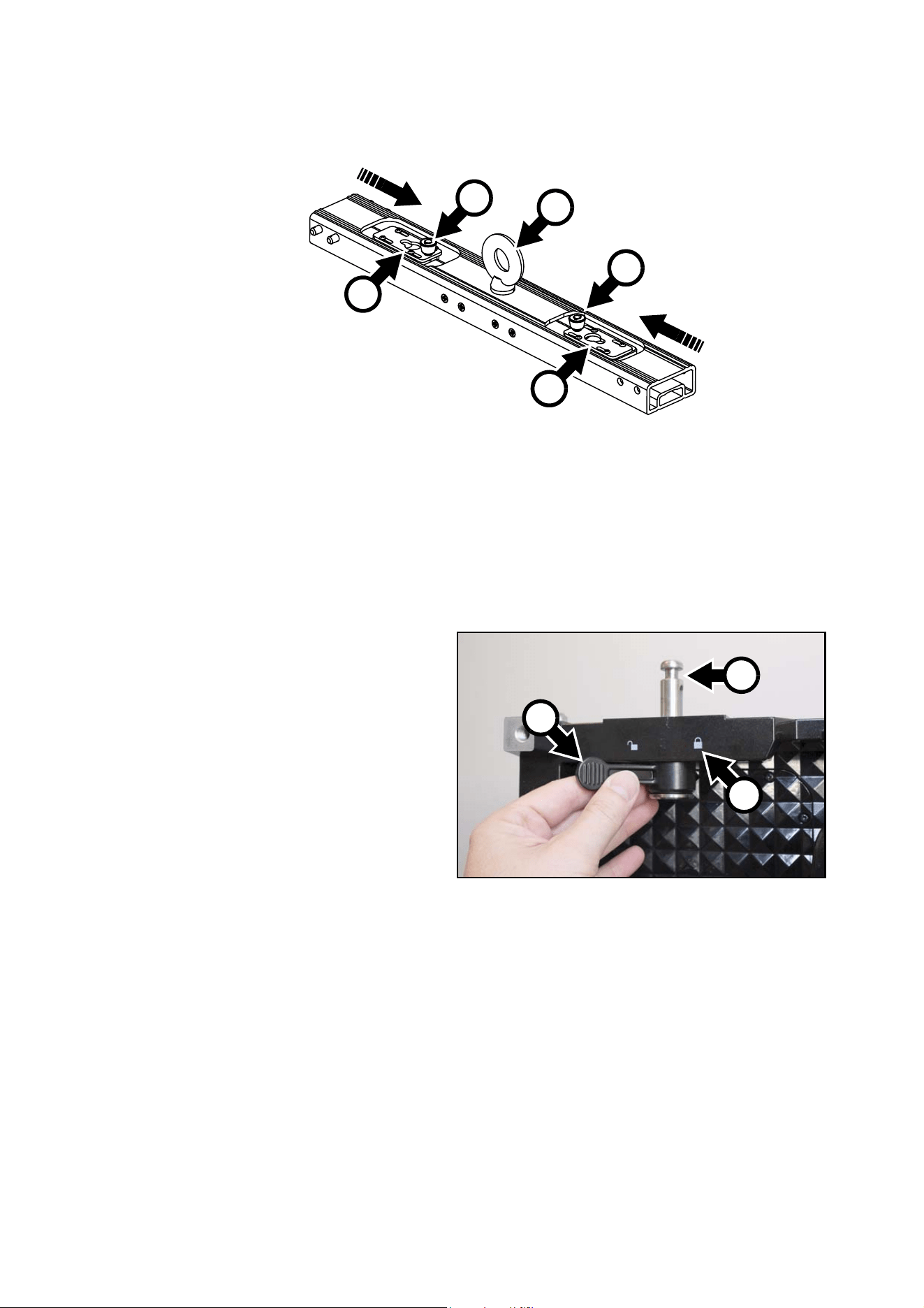
Figure 27: Opening locking plates in Single Header
D
D
E
Physical installation 33
3. See Figure 27. On the header, slide the locking plates D away from the suspension eye E.
4. Lift the first panel up to the header and pass the vertical connection posts A in the top of the panel up
through the locking plates D in the header.
5. See Figure 28. While supporting the panel, slide the locking plates D in the header towards the
suspension eye E so that the locking plates engage in the grooves in the vertical connection posts A.
Make sure that the locking plate knobs F click into the locked position so that the locking plates are no
longer able to slide from side to side. Check that both locking plates are now latched onto the vertical
connection posts.
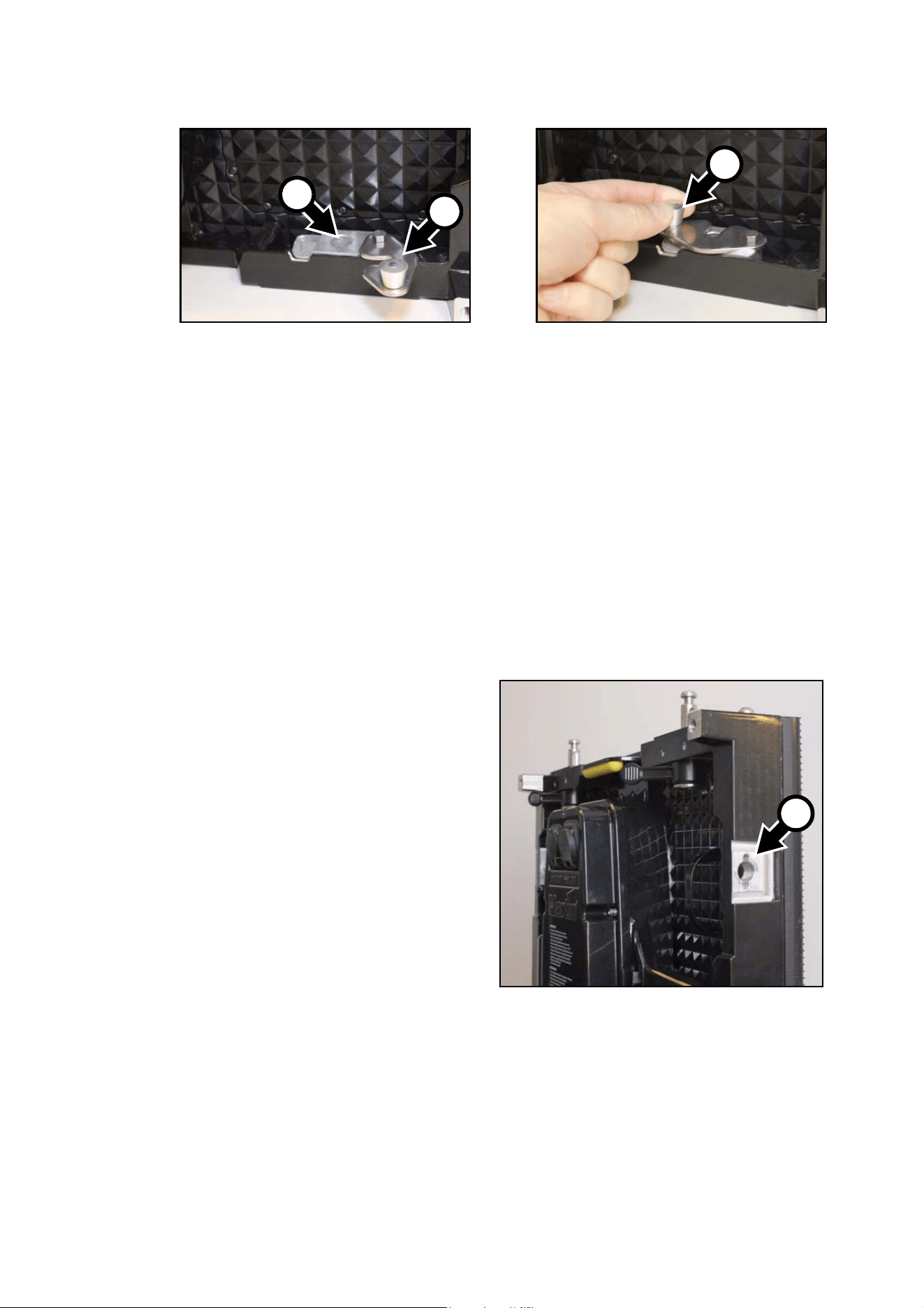
6. See Figure 29. In the top of the panel,
turn the locking levers B on both the
vertical connection posts A to the
Locked position G.
Figure 28: Closing locking plates in Single Header
D
D
E
F
F
Figure 29: Locking vertical connection posts
G
B
A
34 VDO Face 5™ user manual
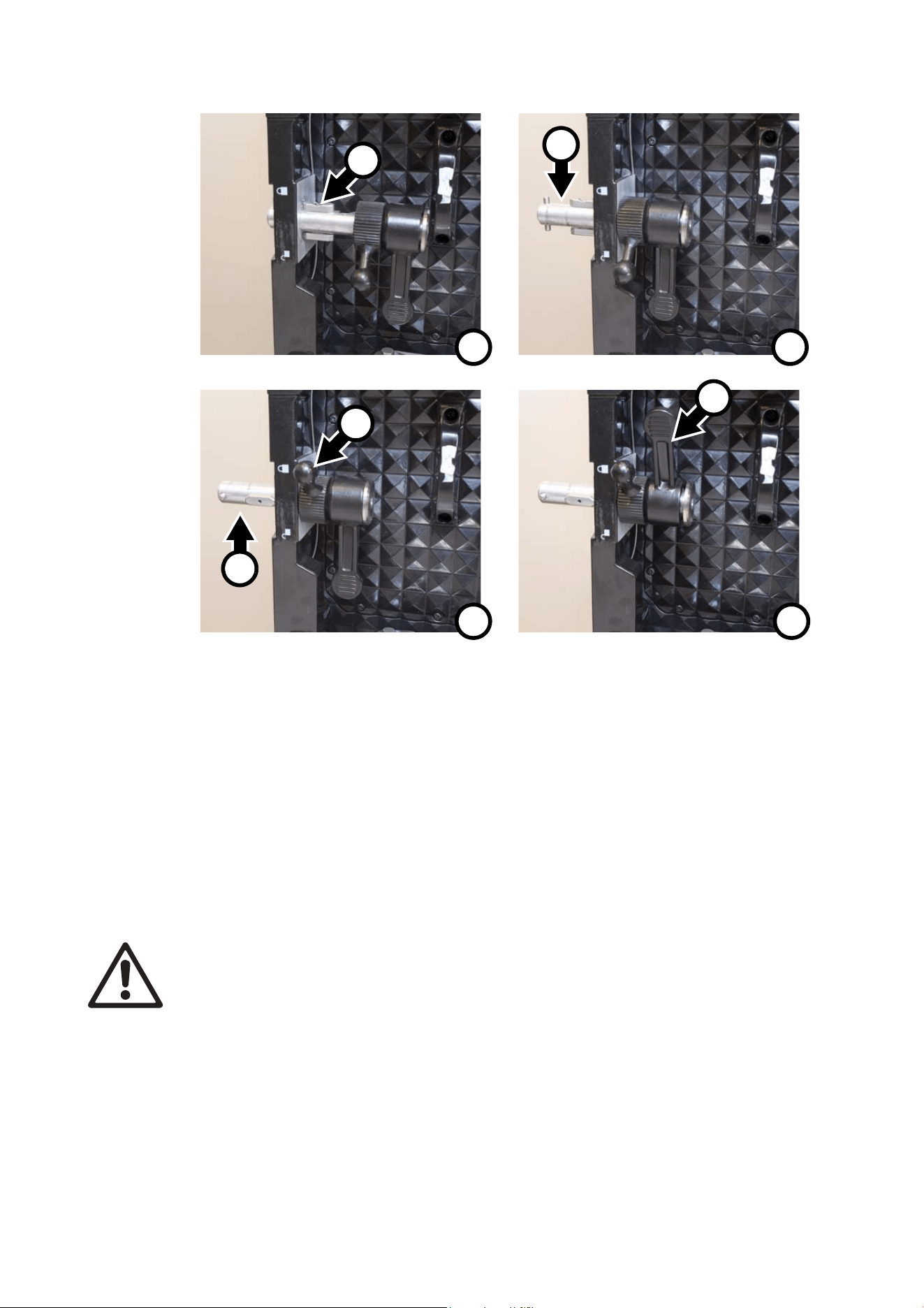
7. See Figure 30. Open the lower locking plates H in the bottom rail of the first panel.
8. Move the vertical connection posts A in the second panel to the Unlocked position C. Lift the second
panel up to the first panel and pass its vertical connection posts through the holes I in the bottom of the
first panel.
9. Push the locking plates H in the bottom of the first panel to the locked position J so that the plates
engage in the grooves in the vertical connection posts. Make sure that the locking knob at J clicks into
place so that the locking plates can no longer be opened. Check that the second panel is securely
attached to the first panel.
10. See Figure 29. In the top of the second panel, turn the locking levers B on the vertical connection posts
A to the Locked position G.
11. Continue fastening panels together in a vertical column, using the procedure described above to guide
you. Make sure that all panels are securely and tightly locked together, and that locking plates cannot
move to the open position.
Fastening panels side by side
To fasten VDO Face panels side by side when
building a video wall:
1. See Figure 31. Note the position of the hole
O in the side of the panel that acts as a
receptacle and accepts the side-to-side
locking bar.
2. Warning! Check that the weight of the
panels to be fastened together is
supported vertically. Do not use
side-by-side fasteners to support the
weight of panels.
Figure 30: Closing lower locking plates
H
J
I
Figure 31: Hole for side-to-side locking bar
O
Physical installation 35
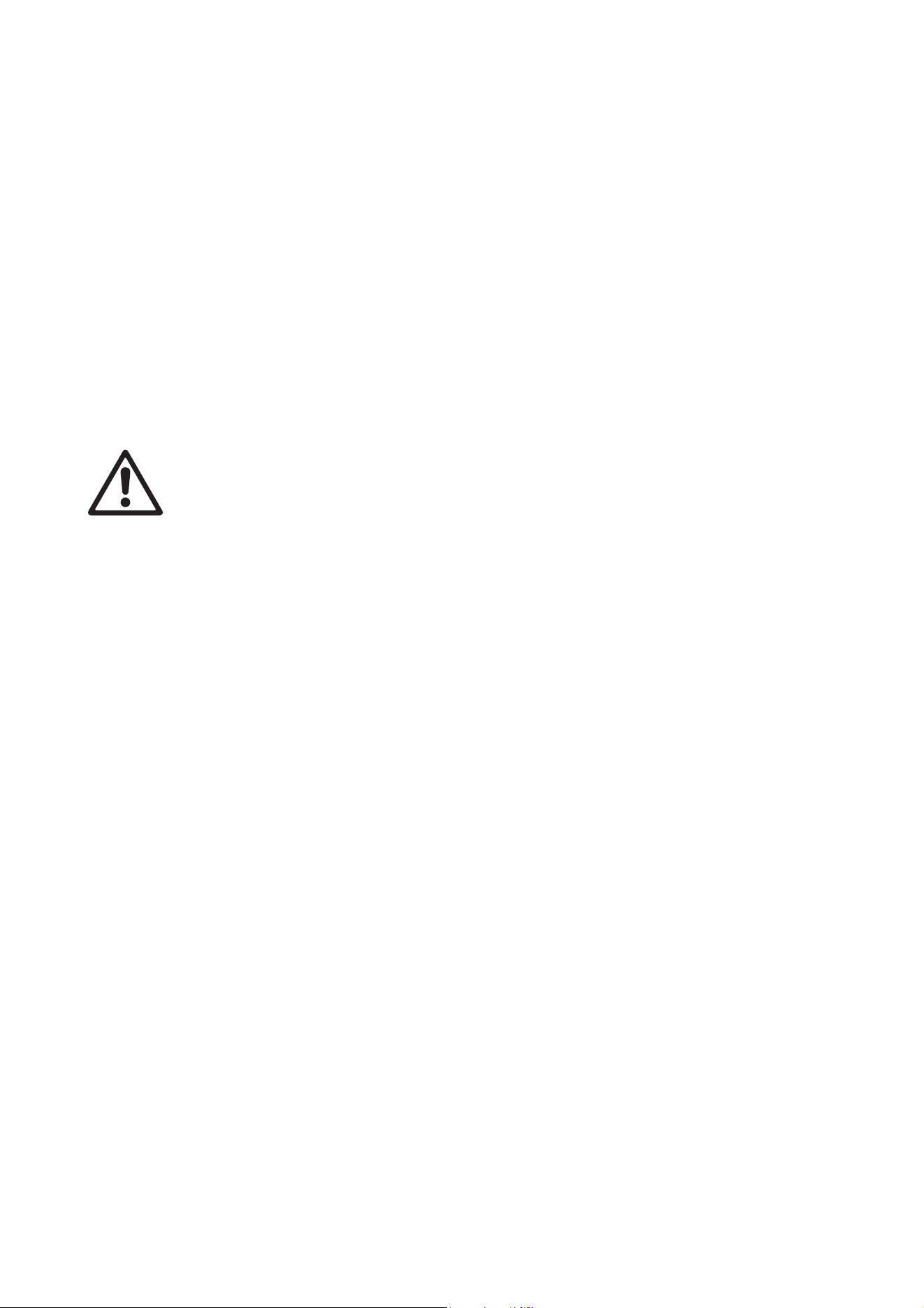
3. See Figure 32. with the two panels in position beside each other, push the first panel’s side-to-side
locking bar P out through the panel side rail and into the hole O in the second panel so that it is at
position Q in photo 2 (the second panel is not shown in the photos so that the locking bar bayonet
mechanism can be seen more clearly).
4. Turn the side-to-side locking lever R up to the Locked position to lock the bayonet mount S into the hole
in the second panel.
5. Turn the side-to-side tightening lever T up to the Locked position to tighten the bayonet mount and lock
the panels tightly together.
Securing the bottom of columns against lateral movement
After installing columns of panels, secure them against lateral movement by passing sturdy cable, straps or
webbing through the holes in the bottom of the bottom row of panels and fastening to a fixed anchoring
point.
Warning! Do not apply stress to panels or increase the load on supporting hardware by applying
downwards tension to the bottom row of panels.
Figure 32: Side-to-side panel fastening
P
R
1 2
3 4
Q
T
S
36 VDO Face 5™ user manual
Flying panels in a curved array
To suspend an array of VDO Face 5™ video panels vertically to form a curved display surface, see below.
To suspend array of VDO Face 5™ video panels vertically to form a flat display surface, see
“Flying panels
in a flat array” on page 23.
It is possible to create a suspended array of VDO Face 5™ panels that has a 5° or 10° concave or convex
curve. In a curved array you must:
• suspend panels from VDO Face Curving Headers instead of standard VDO Face headers,
• suspend each VDO Face Curving Header correctly from its eyebolt,
• fasten panels at corners using VDO Face Curving Alignment Plates instead of the standard corner
connection plates, and
• ignore the side-by-side locking bars in the sides of panels (Curving Alignment Plates provide side-by-side
fastening and make the locking bars unnecessary).
Curving Headers and Curving Alignment Plates can be ordered from your Martin® supplier (see
“Accessories” on page 51). Curving plates are available in sets of 10.
Installing Curving Headers
Warning! The connection plates at the ends of VDO Face Curving Headers are for alignment
purposes only. Only fasten panels to a header if the header is suspended using its eyebolt as
described in this user manual.
The side-by-side alignment angle of VDO Face Curving Headers is adjustable to cater for 5° and 10°
curves. You can also use Curving Headers to align panels without creating a curve (i.e. at an angle of 0°).
See Figure 33. Curving Headers are similar to standard VDO Face Headers (see Figure 20 on page 23) but
Curving Headers have connecting plates at each end that allow accurate side-by-side alignment. To
connect Curving Headers:
1. Remove the Allen head pivot bolt A and clamp screw B from the lower plate on the first header.
2. Place the upper plate C of the second header over the lower plate so that the holes are in alignment and
screw the pivot bolt A and clamp screw B loosely into the lower plate so that the two Curving Headers
are loosely joined together.
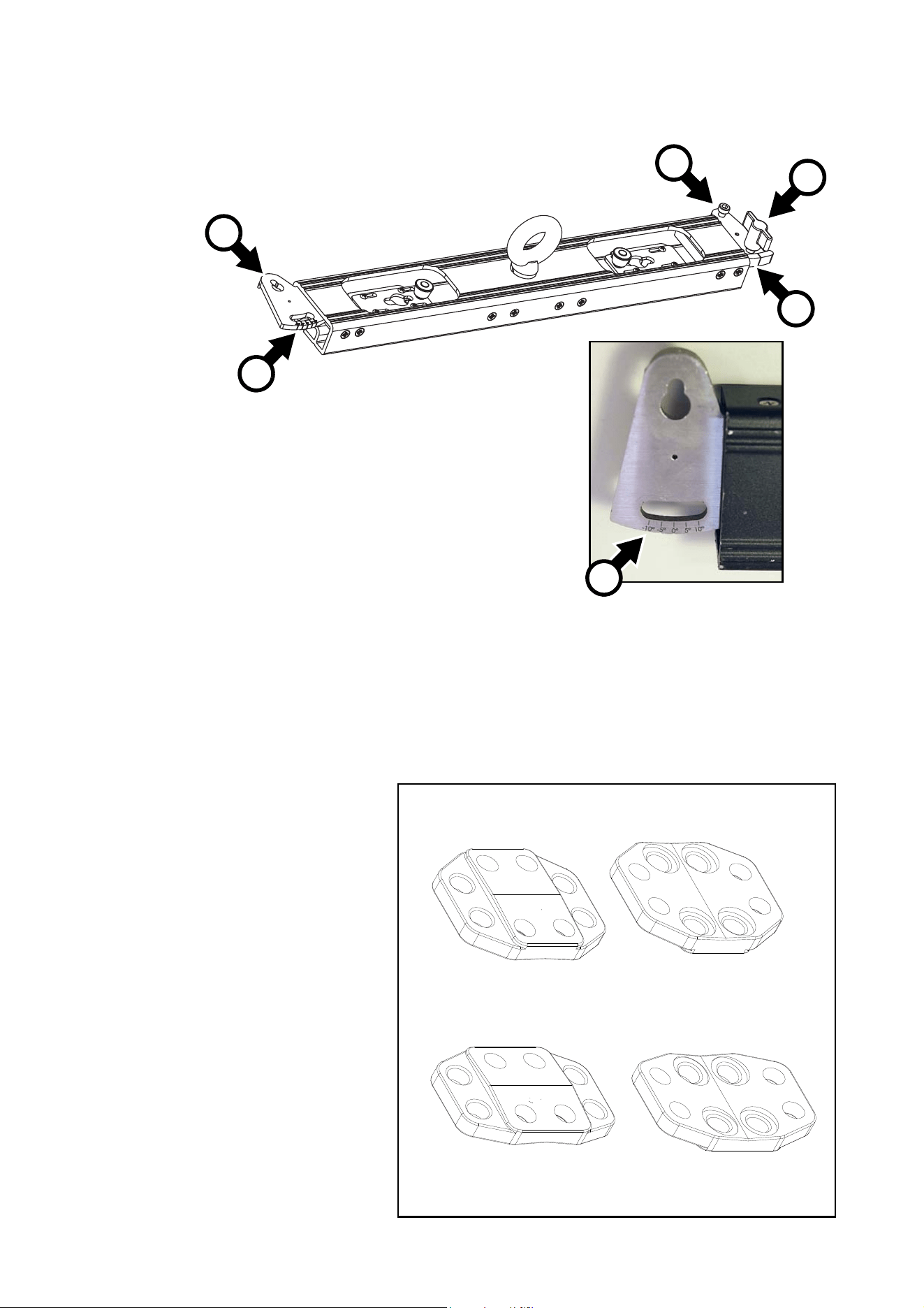
Physical installation 37
3. Line up the angle markings D on the upper plate of the second header with the alignment line E on the
lower plate of the first header to set the two Curving Headers at a 5° or 10° angle to each other. To install
panels in a straight line, set the Curving Headers at a 0° angle.
4. Tighten the clamp screw B by hand and tighten the pivot screw A with an Allen key (hex wrench). Do not
overtighten – the curving alignment plates (see next section) will provide the necessary rigidity in the
array.
Curving Alignment Plates
When you create a curved array,
you must secure panels with VDO
Face Curving Alignment Plates
instead of the corner connection
plates shown in
Figure 22 on page
25.
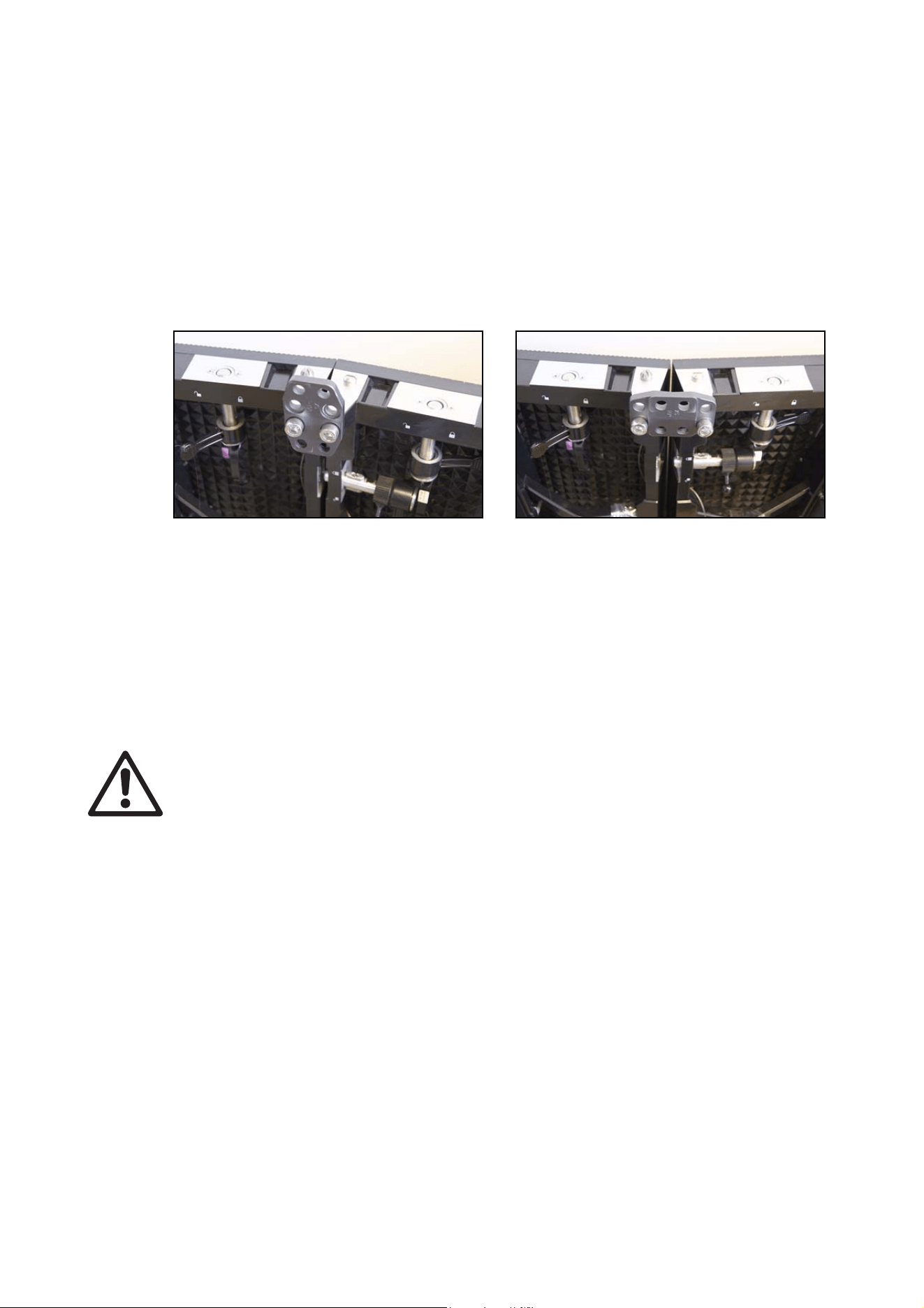
See Figure 34. VDO Face Curving
Alignment Plates are available in
two versions:
• Part Number 91616084 lets you
suspend panels in a concave or
convex 5° curve.
• Part Number 91616085 lets you
suspend panels in a concave or
convex 10° curve.
Figure 33: VDO Face Curving Header
A
B
C
D
E
D
Figure 34: Curving Alignment Plates
5 degree curving plate, P/N 91616084
10 degree curving plate, P/N 91616085
38 VDO Face 5™ user manual
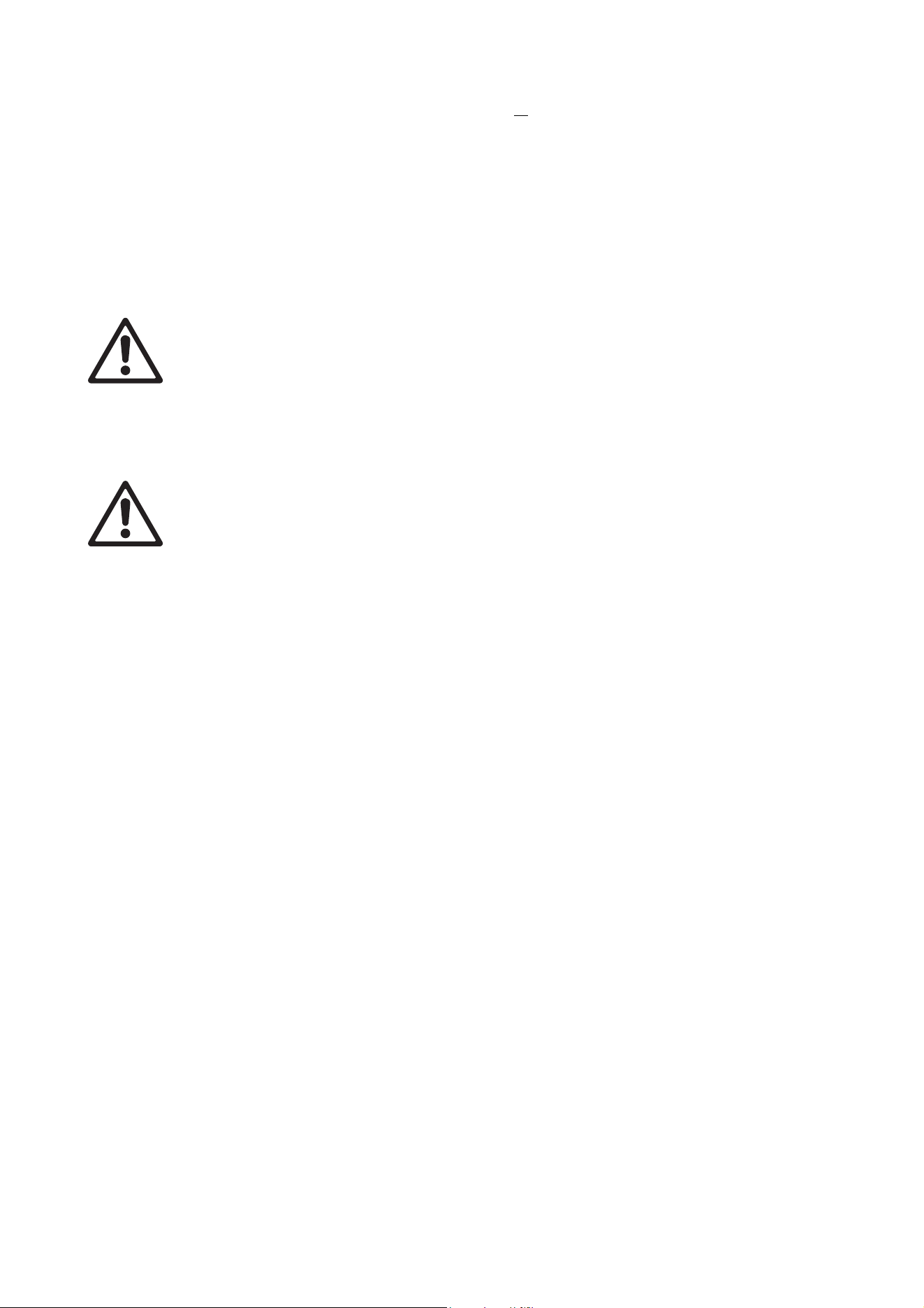
To install curving plates, you must bolt them to all four panels at all the corners where four panels meet.
Curving plates mount in different orientations depending on whether you are creating a convex or concave
curve. See
Figure 35:
• To create a convex array, install curving plates in a vertical orientation with their convex angled side facing
towards the panels as shown on the left.
• To create a concave array, install curving plates in a horizontal orientation with their concave angled side
facing towards the panels as shown on the right.
When you install curving plates, do not try to fasten panels together with side-to-side locking bars. The
curving plates fasten panels together with enough strength to provided rigidity to the array.
If you are using Curving Headers fastened together at a 0° angle so that you can fasten panels together in a
straight line, do not use the curving plates shown above. Instead, fasten panels together as described in
“Fastening panels side by side” on page 34, and fasten corners using the standard corner connection plates
shown in Figure 22 on page 25.
Suspending panels in a curved array
Warning! When creating a curved flying array of VDO Face 5™ panels, observe the safety limits
(including the maximum number of panels that you can suspend in a vertical column) given in the
section
‘Flying panels in a flat array’ starting on page 23. Observe these safety precautions:
• Suspend each VDO Face Curved Header using its eyebolt.
• Do not use a Curved Header to support any other weight than a column of VDO Face 5™
panels suspended directly below that header.
• Install Curving Alignment Plates at every point where two or more panels meet.
To suspend panels in a curved array:
1. Check that the structure you will suspend the array from is capable of supporting ten times the weight of
all the items that it will support.
2. Obtain one VDO Face Single Curving Header for each column of panels in the array, and obtain one
VDO Face Curving Alignment Plate for every two panels in the array.
3. Suspend the Curving Headers in a curve from the truss or other supporting structure. Suspend each
header from its central eyebolt using a cable or chain that is approved to support ten times the total
weight of the header and all the items that will hang from it. Each eyebolt must have its own cable: do not
loop one cable through more than one eyebolt. Make sure that there is no slack in cables: all cables
must be equally tight. Each time you add a header, fasten it to the previous header, creating a 5° or 10°
curve and setting the angle plate as described under
“Installing Curving Headers” on page 36.
4. Install panels one by one in rows under the headers as described in “Instructions for suspending panels”
on page 32. Each time you add a panel, fasten it to the header or panel above it using both its vertical
fastener posts, then fasten it immediately to any panels that are beside it using curving alignment plates
as described in
“Curving Alignment Plates” on page 37.
Figure 35: Curving plate orientation
Concave arrayConvex array
Physical installation 39
In a flat array of panels, it is possible to leave out some corner connection plates, but in a curved array of
panels, you must bolt curving alignment plates into
all the corners where two or more panels meet. At
the edges of the array where only two panels meet you can use either Corner Connection Plates or
Curving Alignment Plates to fasten the corners together.
5. Do not create a column of VDO Face 5™ panels that is more than fourteen (14) panels high.
6. Attach the array to anchoring points at its lower corners to make it impossible for the bottom of the array
to move. Do not apply downward force to the array when attaching it.
Securing the bottom of columns against lateral movement
After installing columns of panels, secure them against lateral movement by passing sturdy cable, straps or
webbing through the holes in the bottom of the bottom row of panels and fastening to a fixed anchoring
point.
Warning! Do not apply stress to panels or increase the load on supporting hardware by applying
downwards tension to the bottom row of panels.
Dismantling a flying installation
Warning! When dismantling a suspended column of panels, start at the bottom and work upwards,
removing one panel at a time. Make sure that each panel is supported vertically before you release
its side-to-side fasteners. Support the weight of each panel so that it cannot fall before you release
its vertical fasteners.
Important! Avoid shocks to the edges of panels.
When tearing down an installation, remove single panels one at a time starting at the bottom of the column
and working upwards.
To unfasten panels from each other, follow the instructions for fastening in reverse, but respect the following
guidelines:
• Release each panel’s side-to-side fasteners before you release the panel’s vertical fasteners.
• Support the weight of each panel by hand before you release its vertical fasteners.
• Lift up locking buttons on vertical fastening plates before moving them to release vertical fastening posts.
• Reinstall rubber caps over connectors immediately when you disconnect a panel. This will protect
connectors from moisture and damage.
40 VDO Face 5™ user manual
AC power
Warning! The safety of the installation is the responsibility of the installer. Read ‘Safety Information’
starting on page 6 before creating an installation or connecting an VDO Face 5™ panel to AC mains
power. Disconnect the entire installation from power before working on it.
Warning! Connect to AC mains power at 100-240 VAC, 50/60 Hz only.
Warning! When you connect VDO Face 5™ panels using power input and throughput connectors to
form one chain that draws power via the first panel’s input connector, you must not exceed a total
current draw of 20 A for the chain. If you do not respect this limit you will overload cables and
components and create a serious safety hazard. If you reach the maximum permitted current draw
for a chain of panels and you want to supply more panels with power, you must create a new chain
that draws power from a separate power outlet.
Warning! For protection from electric shock, the panel must be grounded (earthed). Power
distribution circuits must be fitted with a current overload fuse or circuit breaker with a maximum
rated current of 20 A and ground-fault (earth-fault) protection of high breaking capacity (
≥
1500 A).
Warning! The rubber caps attached to connectors must remain installed at all times on any unused
power and data connectors.
Important! Connect the panels in the installation and the P3 System Controller to AC mains power at
the same outlet point in the power distribution circuit, or you may experience ground/earth loop
problems or create differences in potential that can damage devices. Damage caused by differences
in potential if devices are incorrectly connected to power is not covered by the product warranty.
Voltage range
VDO Face 5™ panels feature an auto-sensing switch-mode power supply that accepts 100-240 V nominal
AC mains power at 50 or 60 Hz. Connect the panel to AC mains power that is within this voltage range only.
The VDO Face 5™ can be supplied with AC mains power by connecting to one of the following three-wire
systems:
• a single-phase 100-240 V system (live, neutral, ground/earth), or
• two phases of a 3-phase delta or split-phase mid-point neutral system (phase, phase, ground/earth) to
obtain 200-240
V
Power figures are given under “Electrical” on page 50. Allow a sensible safety margin when calculating the
current headroom required on AC mains power distribution circuits for an VDO Face 5™ installation.
Power connections
The VDO Face 5™ panel has Neutrik PowerCON TRUE1 connectors for power input and power throughput
to the next panel in a chain.
Power input connectors are located at the bottom of panels and power throughput connectors at the top of
panels (see “Overview” on page 12).
We recommend that you shut down power to the installation before connecting or disconnecting the system
when possible, but if a power shutdown is not possible or difficult, the TRUE1 power connectors used in the
VDO Face system are designed to withstand hot-plugging.
Power plugs and power outlet sockets
A power plug can be installed on the installation’s power input cables to make it easier to connect panels to
AC mains power outlets. If you choose to install a power plug, use an industrial grounding-type (earthed)
3-prong type B plug (see
Figure 36) that complies with IEC 60309 or a comparable national standard and is
rated 250 V, 20 A minimum. For outdoor or humid location use, the plug must also be IP67-rated. For indoor
use, the plug may be IP44-rated.
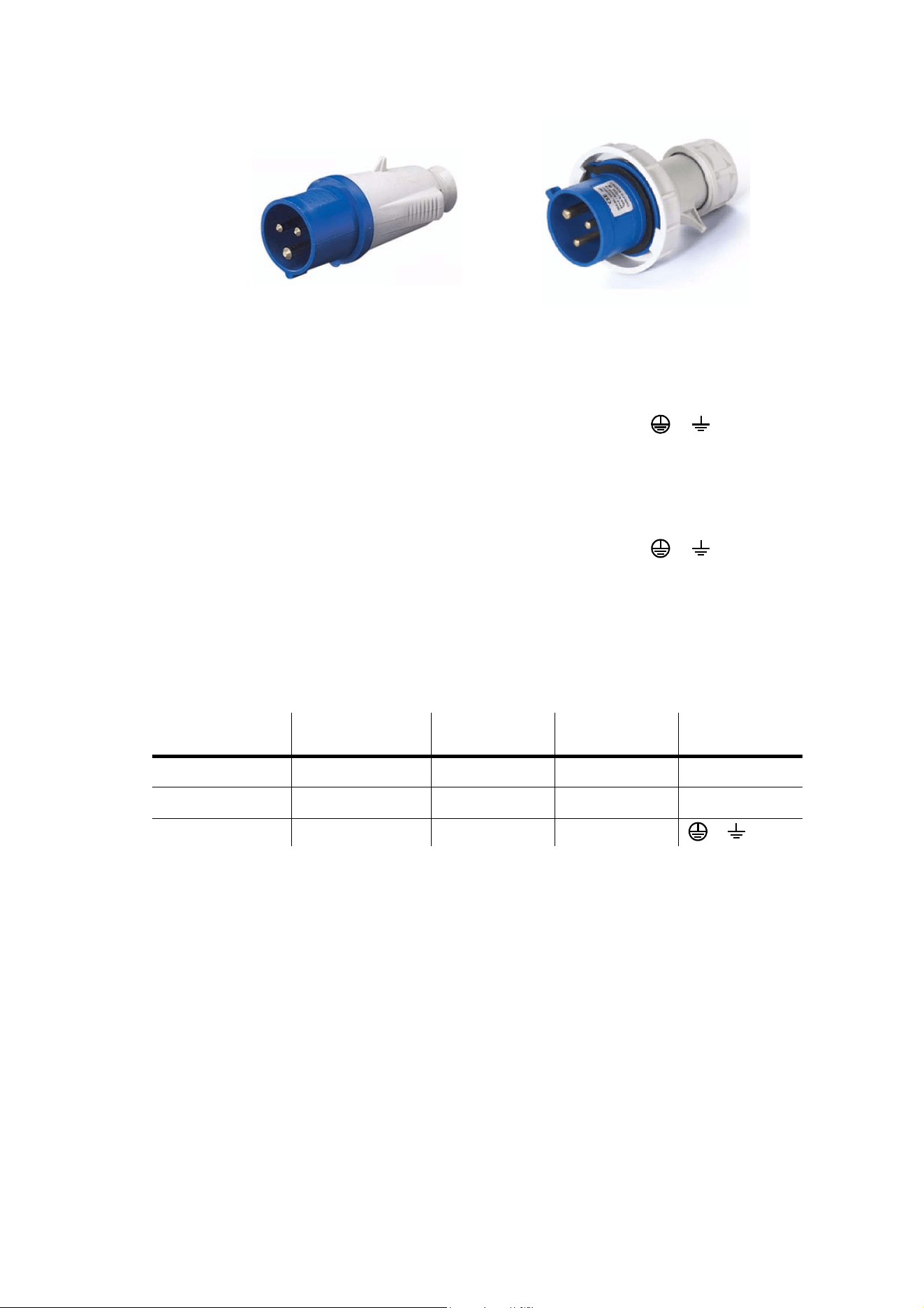
AC power 41
Use corresponding power outlet sockets. Follow the plug and socket manufacturer’s instructions and all
locally applicable laws and electrical safety codes.
When installing a power plug on the power input cable for connection to a single-phase system at 100 - 240
VAC, 50/60 Hz:
• Connect the green/yellow ground (earth) conductor to the terminal marked or for connection to
ground (earth)
• Connect the blue conductor to the terminal marked N for connection to neutral
• Connect the brown conductor to the terminal marked L for connection to live
When installing a plug on the power input cable for connection to two phases of a 3-phase delta or
split-phase mid-point neutral system to obtain 200-240
VAC, 50/60 Hz:
• Connect the green/yellow ground (earth) conductor to the terminal marked or for connection to
ground (earth).
• Connect the blue conductor to the terminal marked N or Phase 1 or L1 for connection to one of the three
phases in the system
• Connect the brown conductor to the terminal marked L or Phase 2 or L2 for connection to another of the
three phases in the system
Table 1 gives details of standard wiring color codes and common pin identification symbols. If you have any
doubts about proper installation, consult a qualified electrician.
Inrush current and earth leakage
The earth leakage current of one VDO Face 5 panel (under normal conditions, i.e. with no live or neutral
fault) is 1.25 mA. The typical half-cycle RMS inrush current of one VDO Face 5 panel (again under normal
conditions, i.e. with no live or neutral fault) is 7.9 A.
When multiple VDO Face 5 panels are connected in a chain on the same power line, the combined ground
(earth) leakage and inrush currents can be high enough to trip the line's residual current circuit breaker
(RCD, RCCB, RCBO) when powering on. The fact that residual current breakers often trip at a significantly
lower ground leakage current than their nominal rating increases the probability that a breaker may trip
unexpectedly. If a breaker trips, substituting with a different breaker may solve the problem. But in some
cases the only solution is to reduce the number of video panels per daisy chain to less than the maximum
permitted number that is specified for the product. To minimize any possible inconvenience, we recommend
that you allow a generous margin when planning number of panels per circuit breaker.
Wire color (EU) Wire color (US)
Pin (single-phase
system)
Pin (3-phase
system)
Symbol
blue white neutral phase 1
N
brown black live phase 2
L
yellow/green green ground (earth) ground (earth) or
Table 1: Wire colors and pin identification
Figure 36: Industrial 20 A, 250 V IEC 60309 type B power plugs
IP67-ratedIP44-rated

42 VDO Face 5™ user manual
Fuses
Warning! Fuses are not user-replaceable. Contact a Martin® authorized service agent for assistance
if you suspect that a fuse has blown.

P3 communication link 43
P3 communication link
VDO Face 5™ panels communicate using the Martin® P3 signal format (Ethernet Martin® P3 Protocol).
The P3 signal contains both video data and command signals.
VDO Face 5™ panels have integral P3 data input and throughput connectors on the back of panels (see
“Overview” on page 12).
It is possible to mix and interconnect different Martin® LED video products in an installation. The P3 System
Processor will recognize the products in the installation, display them correctly in the user interface, and
control the different products correctly.
Cable and connector types
Use good-quality CAT 5e or better STP (shielded twisted pair) Ethernet cable for the P3 link. Cable must be
suitable for the installation environment. RJ-45 connectors should be shielded type, with the shield around
the connector terminals electrically connected to the cable shield.
The Ethernet socket on each panel has a sealing cap and accepts IP65-rated Neutrik EtherCON Cat 6
push-pull connectors. We recommend use of the IP65-rated Neutrik EtherCON CAT 6 cables supplied by
Martin® for the VDO Face 5™ (see
“Data cable” on page 51).
In an indoor environment only, you can use non-IP-rated standard RJ-45 Ethernet connectors. It is possible
to make your own cables with Neutrik EtherCON Cat 6 connectors.
Unused connectors on panels must be sealed with their supplied rubber caps at all times.
Planning the P3 link
Figure 37 on page 44 shows an example of a P3 system layout.
Martin P3 System Controllers accept a wide variety of video signal types. Please refer to product
documentation for details.
P3 link requirements in large installations
A single P3 network can contain up to 520 000 pixels, corresponding to maximum of 50 x VDO Face 5™
panels. Please see the P3 System Controllers documentation for details of how many P3 networks and
pixels each of the various P3 System Controllers can control.
If an installation consists of more than 50 x VDO Face 5™ panels, it can be split into two and two P3 System
Controllers used in tandem. An even easier solution is to use a P3-300 System Controller. This controller
has four P3 network outputs, each of which can drive up to 520 000 pixels.
Using Ethernet switches to split the link into chains
To make cabling more convenient, you can run the P3 signal output from the P3 System Controller to a
1 GB Ethernet switch, then use the outputs from the Ethernet switch to send the P3 signal to groups of
panels. You can insert an Ethernet switch at any point on the link to branch the link into separate daisy
chains.
Using Ethernet switches to extend the link
See Figure 37. The maximum permitted cable length between any two devices on the P3 link before a
signal amplifier is required is 100 m (328 ft.) if good quality Ethernet cable is used for the link. A 1 GB
Ethernet switch on the P3 link is an ideal signal amplifier. If the P3 link will exceed the 100
m cable length
limit at any point in the installation, insert an Ethernet switch to boost the signal. If necessary, more switches
can be added each time the link reaches the 100 m limit.
Figure 37 shows the 1 GB Ethernet switch inserted between two panels on the P3 link as an example only:
the switch can be inserted in any position on the link where the cable length between any two devices would
exceed 100 m.
Important! More expensive, sophisticated switches tend to carry out additional processing that can cause
latency. You should therefore choose a relatively cheap unmanaged 1GB Ethernet switch.
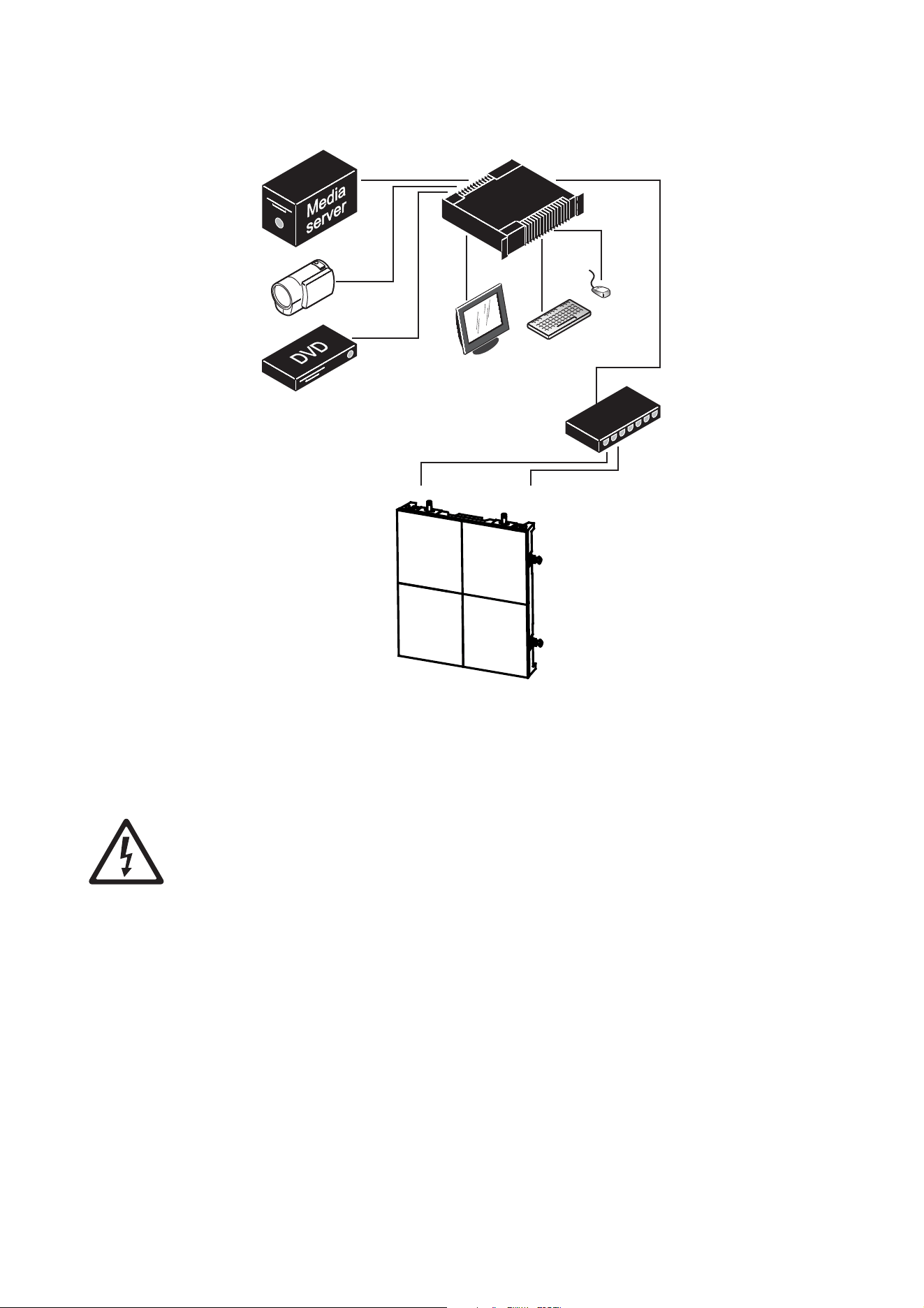
44 VDO Face 5™ user manual
P3 system layout: schematic overview
Connecting the P3 link
Warning! In outdoor or humid environments, use only Neutrik EtherCON Cat 6 connectors for P3
signal connections, or panels will not be weatherproof to IP65. We recommend use of the cables
supplied by Martin® for the VDO Face 5™ (see
“Data cable” on page 51).
To connect the P3 link:
1. Run an Ethernet cable from the P3 System Controller’s P3 signal output to an input on a 1GB Ethernet
Switch.
2. Run an Ethernet cable from the Ethernet Switch to the Data IN connector on the first panel in the chain.
3. Run an Ethernet patch cable from the first panel’s Data THRU connector to the Data IN connector of the
next panel in the chain and continue connecting panels, Data THRU to Data IN in a daisy-chain. A
maximum of 50 panels may be connected in one chain.
4. If necessary, connect additional chains to the P3 System Controller, running Ethernet patch cables from
the Ethernet Switch outputs to the data input of the first panel on each chain. Respect the layout and
guidelines given earlier in this section.
5. Keep all unused panel connectors sealed with their rubber caps at all times.
6. The system is now ready for power to be applied.
7. Set up the panels to display video as described in the P3 System Controller’s user manual.
DVI
Analog
video
Analog
video
Monitor
Mouse
Keyboard
P3 System Controller
P3 signal
1GB Ethernet
switch
Figure 37: Schematic diagram of P3 system connections
DVI
Analog
video
Analog
video
Monitor
Mouse
Keyboard
P3 System Controller
P3 signal
1GB Ethernet
switch
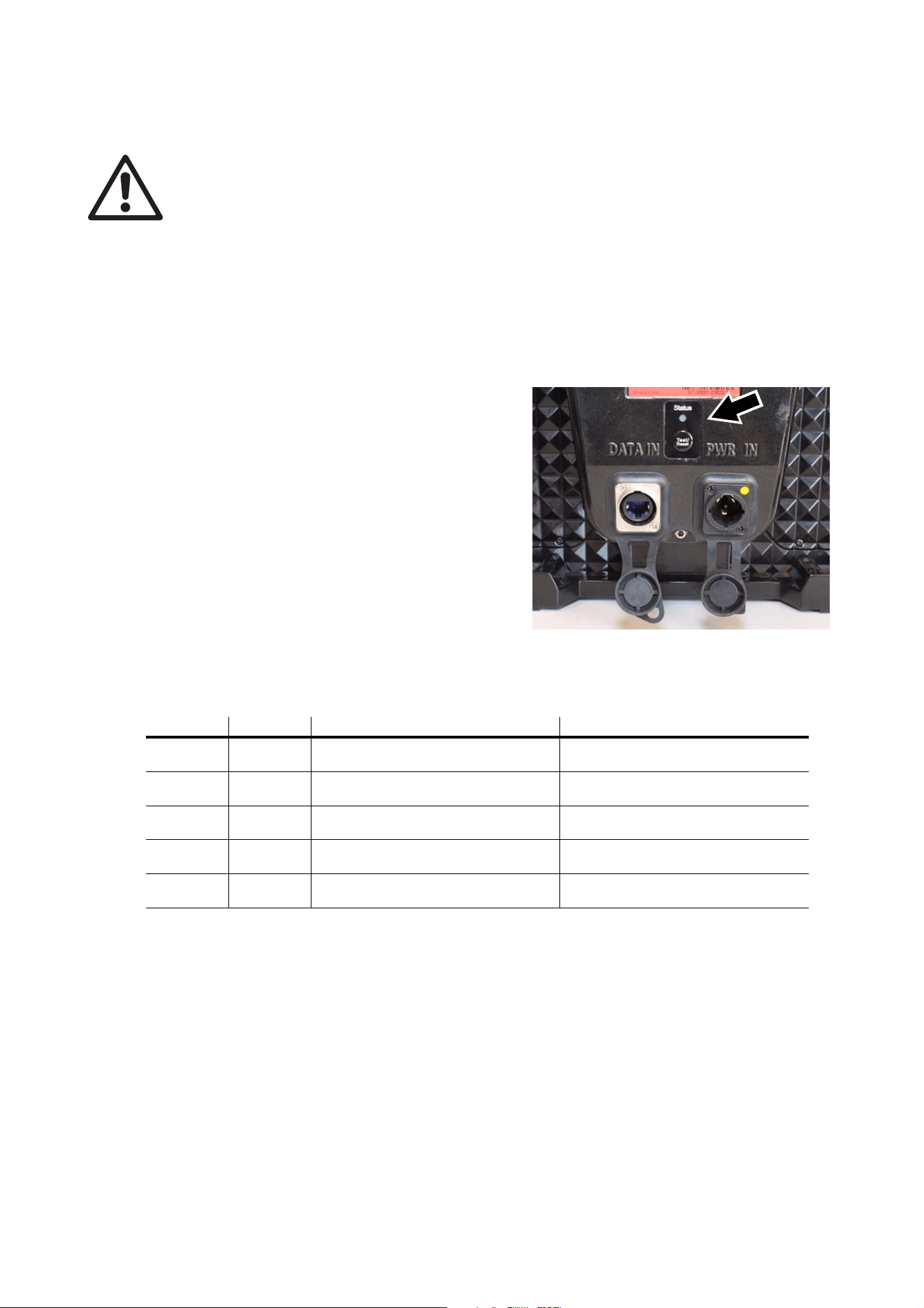
Operation 45
Operation
Warning! Read ‘Safety Information’ starting on page 6 before operating an VDO Face 5™ system.
Note in particular that panels must be removed from an installation under certain wind conditions.
This section explains the options available for testing and resetting VDO Face 5™ panels, but it does not
explain how to position panels in the video image or video display options. For details of these, see the user
documentation supplied with the P3 System Controller or available for download from www.martin.com
When repacking panels in a Martin® flightcase after operation, follow the instructions in the flightcase (see
“Avoiding damage to panels” on page 11).
Monitoring status and testing
Status indicator and test/reset button
See Figure 38. Status can be checked, panels can be
tested and panels can be reset without a P3 System
Controller using the test/reset button and status
indicator LED on the back of the panel.
Testing LEDs and panels
Press the test/reset button once briefly. The panel will
display a test pattern so that you can check for correct
LED operation. Press the test/reset button once briefly
again to display the next test pattern in the test
sequence. Continue until all test patterns have been
displayed.
RGB status indicator LED
The RGB status LED gives an indication of panel
status. This LED indicates the following states:
Resetting and rebooting panels
If it becomes necessary to reset an VDO Face 5™ panel, it is possible to force a 'normal reboot' (which
causes the panel to reset and start up as it normally would when power is applied), or a 'factory reboot'
(which causes the panel to start up the original factory-programmed firmware). The factory reboot is a
fail-safe way to ensure the panel can be started up if there is a problem with the most recently uploaded
firmware. It should not be required during normal operation.
Normal reboot: Press the test/reset button for approx. 3 seconds until the status LED lights blue. Release
the button. The panel will boot normally as though power has just been applied.
Factory reboot: Press the test/reset button for approx. 8 seconds until the status LED lights white. Release
the button. The panel will then boot using the original factory-programmed firmware.
Note that performing a factory reboot will only cause the panel to boot the factory firmware once. At the next
power cycle (or reset), a normal reboot will be carried out.
Color Output Indication Action required
Blue Constant
Busy (e.g. booting up or writing to
flash memory).
Wait a moment for normal operation
to be resumed.
Red Constant
Error. The panel has encountered a
fatal error and can not run.
Perform a factory reboot, followed by
a firmware upload.
Red Flashing
Disconnected. A system controller
could not be found.
Connect a system controller to the
network.
Green Flashing
Ready. A system controller is present
on the network.
Configure the system controller to
use this panel.
Green Constant
Running. A system controller is using
this panel.
None.
Table 2: RGB status LED
Figure 38: Test/reset button and status
indicator LED

46 VDO Face 5™ user manual
Service and maintenance
Warning! Disconnect the panel from power or isolate the entire distribution circuit from
power and ensure that all unused connectors are sealed with the supplied rubber caps
before cleaning.
Warning! Refer any service operation not described below to a service technician
approved by Martin Professional™. Removing any cover may cause a safety risk or
unsatisfactory performance and will invalidate the product warranty.
Important! If you need to put VDO Face 5™ panels LED-side down, place them on a soft, flat surface
only.
The user will need to carry out periodic cleaning, it is possible for the user to update the VDO Face 5™
firmware from the P3 System Controller, and the user may replace LED modules. All other service
operations must be carried out by Martin Professional or its approved service agents.
Installation, on-site service and maintenance can be provided worldwide by the Martin Professional Global
Service organization and its approved agents, giving owners access to Martin’s expertise and product
knowledge. This type of partnership will ensure the highest level of performance throughout the product’s
lifetime. Please contact your Martin® supplier for details.
It is Martin® policy to apply the strictest possible calibration procedures and use the best quality materials
available to ensure optimum performance and the longest possible component lifetimes. However, LEDs are
subject to wear and tear over the life of the product, resulting in gradual changes in color and overall
brightness over many thousands of hours of use. The extent of wear and tear depends heavily on operating
conditions and environment, so it is impossible to specify precisely whether and to what extent LED
performance will be affected. To compensate for changes in LED performance, Martin® has developed the
P3 Fixture Adjuster. Please contact Martin® for details and training.
The LEDs will not be affected by weather conditions as they are sealed inside modules. However, the outer
surfaces of LED modules will be exposed to the elements, dirt, dust, etc.
Storage
Store panels in a dry environment. Make sure that panels are dry before packing them in flightcases.
Cleaning
Do not use abrasive, caustic or solvent-based products for cleaning, as they can cause surface damage.
To clean a VDO Face 5™ panel:
1. Vacuum or gently blow away dust and loose particles from the panel with low-pressure compressed air.
2. Wipe the outside of the LED modules with a soft, lint-free cloth dampened with a solution of water and
detergent or auto shampoo. Apply gentle pressure only.
If panels have been used in a marine or coastal environment, clean them thoroughly to avoid the buildup of
salt that can cause corrosion.
Installing new software
It may be necessary to upload new software to an VDO Face 5™ panel if the product appears to have a
software-related fault or if you want to update to a newer software version.
Software updates are available from Martin and can be installed from the P3 System Controller over the P3
link.
See the P3 System Controller user manual for software installation instructions.
Replacing an LED block
Important! Take care to avoid damage to LED blocks. Do not place panels LED-side down unless for service
and on a soft, flat surface. Take particular care to avoid shocks to the edges of LED blocks during
removal, storage and installation.
Important! LED blocks that fit the left and right-hand side of VDO Face 5™ panels are different.
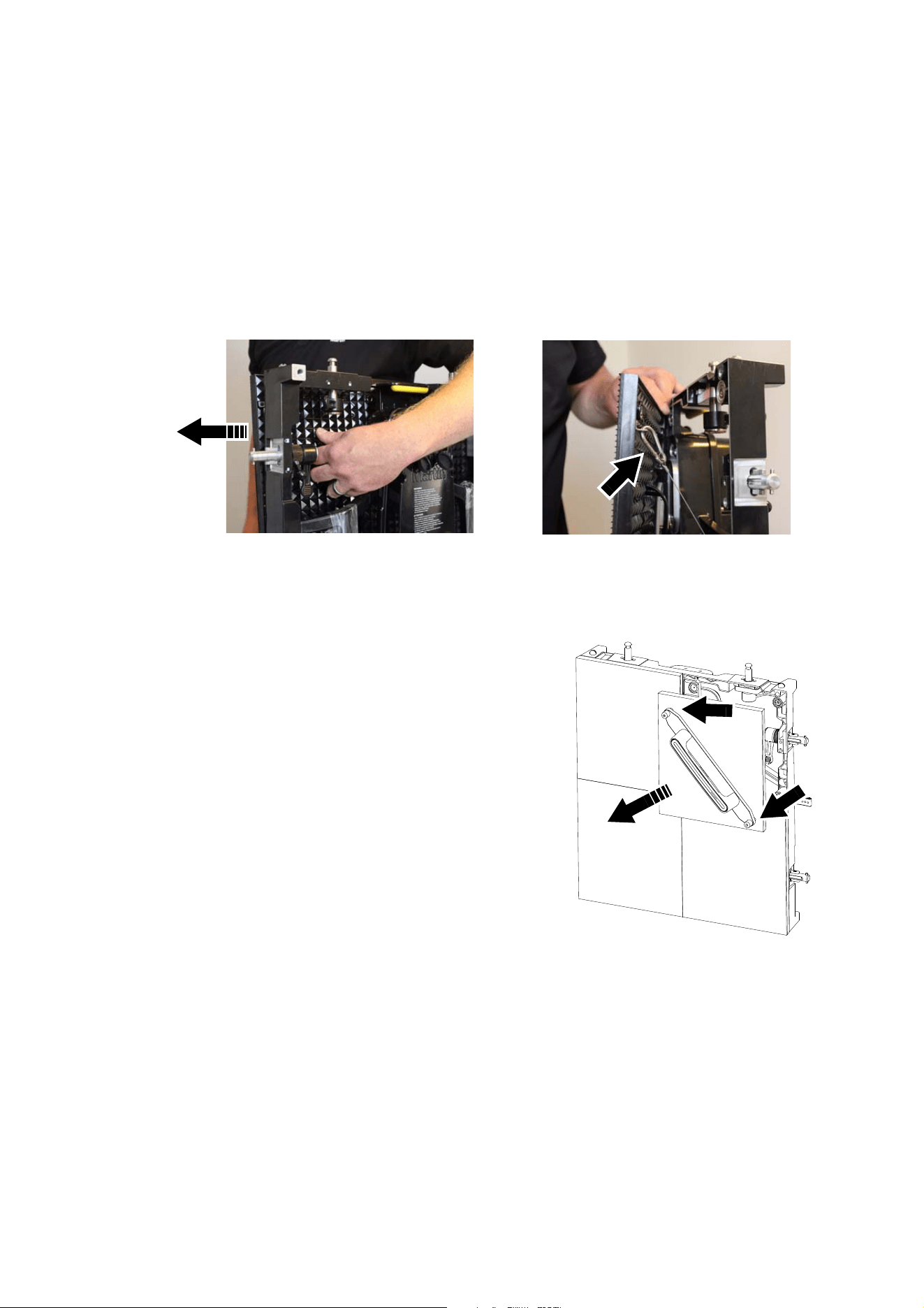
Service and maintenance 47
VDO Face 5™ video panels use a modular block LED system that allow modules to be removed and
replaced for artistic or repair purposes. Modules are held in position by magnets and are hot-swappable, so
they can be replaced in a matter of seconds in the middle of a show, even if power is applied and a P3 signal
is present.
Blocks are supplied as either Left or Right (as viewed from the front, audience side) units and are marked
LEFT or RIGHT to identify them. Install only the correct type of block on each side of the panel.
Removing an LED block
There are two methods for removing an LED block from a panel. See (A) and (B) below.
(A) If you have access to the back of the panel:
1. See Figure 39. Take hold of the handle on the back of the LED block and push the block towards the
front of the panel until it is disconnected from its multiconnector and released from its magnetic holders.
2. Unclip the carabiner hook (arrowed) on the LED block safety wire and lift the block away from the panel.
(B) If you do not have access to the back of the panel:
1. Obtain a VDO Face LED Block Removal Tool available
from Martin® (see
“Accessories” on page 51).
2. See Figure 40. Screw the prongs (arrowed) on the ends
of the Removal Tool into the corresponding holes in the
front of the LED block, then lift the block away from the
panel.
3. Unclip the carabiner hook on the LED block safety wire
and lift the block away from the panel.
Installing an LED block
To install an LED block:
1. Align the block so that the safety cable attachment
bracket is pointing upwards and the multi-connector on
the back of the block is pointing in towards the center of
the panel.
2. Fasten the safety wire in the panel to the attachment
bracket at the top of the LED block.
3. Depending on whether you have access to the front or
rear of the panel, use the removal tool shown in Figure
40 or the handle shown in Figure 39 to reinstall the
block. You will need to use a little pressure to reconnect
the LED block’s multi-connector, but do not use
excessive force.
Figure 39: Replacing an LED block, rear access
Figure 40: Replacing an LED block,
front access
48 VDO Face 5™ user manual
Troubleshooting
Problem Probable cause(s) Remedy
Panel is completely dead.
No power to panel. Check power and connections.
Fuse blown.
Disconnect panel from power. Contact Martin
Professional for service.
Defective PSU (power supply unit).
Disconnect panel from power. Contact Martin
Professional for service.
One or more panels displays
video incorrectly or does not
display video at all.
Incorrect panel settings on P3 System
Controller.
Check settings (display addresses, panel Device
Properties, etc.).
Fault on P3 link.
Inspect connections and cables. Correct poor
connections. Repair or replace damaged cables.
Panel defective.
Have faulty panel serviced by Martin service
technician.
Other device (e.g. Ethernet switch) on P3 link
defective.
Replace with a device known to be operating
correctly. Have faulty device tested and serviced.
All panels and/or monitor screen
display video incorrectly or do
not display video at all.
Incorrect video input or panel settings on P3
System Controller.
Check settings (PAL/SECAM/NTSC selection,
overall panel intensity setting, etc.)
Unusable video signal or defective video
source.
Check video source.
Fault on P3 link.
Inspect connections and cables. Correct poor
connections. Repair or replace damaged cables.
Device on P3 link defective.
Have faulty panel or device tested and serviced by
Martin service technician or supplier.
Display cuts out intermittently.
Panel is too hot.
Ensure free airflow around spine.
Clean spine.
Check that ambient temperature does not exceed
max. permitted level.
Contact Martin for service.
Fault on the P3 link.
Inspect connections and cables. Correct poor
connections. Repair or replace damaged cables.
Device on P3 link defective.
Have faulty panel or device tested and serviced by
Martin service technician or supplier.
One LED module cuts out.
LED module incorrectly installed and
connected.
LED module faulty.
Check module.
Replace LED module.
Table 3: Troubleshooting

Specifications 49
Specifications
Physical
VDO Face 5™ LED Video Panel
Width . . . . . . . . . . . . . . . . . . . . . . . . . . . . . . . . . . . . . . . . . . . . . . . . . . . . . . . . . . . . . . . . .500 mm (19.7 in.)
Height . . . . . . . . . . . . . . . . . . . . . . . . . . . . . . . . . . . . . . . . . . . . . . . . . . . . . . . . . . . . . . 562.5 mm (22.2 in.)
Depth . . . . . . . . . . . . . . . . . . . . . . . . . . . . . . . . . . . . . . . . . . . . . . . . . . . . . . . . . . . . . . . . . .105 mm (4.2 in.)
Weight . . . . . . . . . . . . . . . . . . . . . . . . . . . . . . . . . . . . . . . . . . . . . . . . . . . . . . . . . . . . . . . 10.5 kg (23.2 lbs.)
VDO Face Single Header
Width . . . . . . . . . . . . . . . . . . . . . . . . . . . . . . . . . . . . . . . . . . . . . . . . . . . . . . . . . . . . . . . . .500 mm (19.7 in.)
Height . . . . . . . . . . . . . . . . . . . . . . . . . . . . . . . . . . . . . . . . . . . . . . . . . . . . . . . . . . . . . . . . . .36 mm (1.5 in.)
Depth . . . . . . . . . . . . . . . . . . . . . . . . . . . . . . . . . . . . . . . . . . . . . . . . . . . . . . . . . . . . . . . . . . .69 mm (2.8 in.)
Weight . . . . . . . . . . . . . . . . . . . . . . . . . . . . . . . . . . . . . . . . . . . . . . . . . . . . . . . . . . . . . . . . . 2.4 kg (5.3 lbs.)
VDO Face Double Header
Width . . . . . . . . . . . . . . . . . . . . . . . . . . . . . . . . . . . . . . . . . . . . . . . . . . . . . . . . . . . . . . . .1000 mm (39.4 in.)
Height . . . . . . . . . . . . . . . . . . . . . . . . . . . . . . . . . . . . . . . . . . . . . . . . . . . . . . . . . . . . . . . . . .36 mm (1.5 in.)
Depth . . . . . . . . . . . . . . . . . . . . . . . . . . . . . . . . . . . . . . . . . . . . . . . . . . . . . . . . . . . . . . . . . . .69 mm (2.8 in.)
Weight . . . . . . . . . . . . . . . . . . . . . . . . . . . . . . . . . . . . . . . . . . . . . . . . . . . . . . . . . . . . . . . . 5.0 kg (11.1 lbs.)
VDO Face 6-panel Flightcase
Length . . . . . . . . . . . . . . . . . . . . . . . . . . . . . . . . . . . . . . . . . . . . . . . . . . . . . . . . . . . . . . .1200 mm (47.3 in.)
Width . . . . . . . . . . . . . . . . . . . . . . . . . . . . . . . . . . . . . . . . . . . . . . . . . . . . . . . . . . . . . . . . .580 mm (22.9 in.)
Height (including wheels). . . . . . . . . . . . . . . . . . . . . . . . . . . . . . . . . . . . . . . . . . . . . . . . . .767 mm (30.2 in.)
Weight (empty). . . . . . . . . . . . . . . . . . . . . . . . . . . . . . . . . . . . . . . . . . . . . . . . . . . . . . . . . . 61 kg (134.5 lbs.)
Control and Programming
Addressing and status . . . . . . . . . . . . . . . . . . . . . . . . . . . . . . . . . . . . . . .Via Martin® P3 System Controller
Mapping . . . . . . . . . . . . . . . . . . . . . . . . . . . . . . . . . . . . . . . . . . . . . . . . . .Via Martin® P3 System Controller
Firmware update . . . . . . . . . . . . . . . . . . . . . . . . . . . . . . . . . . . . . . . . . . .Via Martin® P3 System Controller
Control/User Interface
Device status . . . . . . . . . . . . . . . . . . . . . . . . . . . . . . . . . . . . . . . . . . . . . . . . . . . . . . . . . . . . . Multicolor LED
Device testing and reset . . . . . . . . . . . . . . . . . . . . . . . . . . . . . . . . . . . . . . . . . . . . . . . . . . . . . . .Pushbutton
Optics
Pixel pitch (LED center-to-center) . . . . . . . . . . . . . . . . . . . . . . . . . . . . . . . . . . . . . . . . 5.208 mm (0.205 in.)
Viewing angle (horizontal x vertical) . . . . . . . . . . . . . . . . . . . . . . . . . . . . . . . . . . . . . . . . . . . . . 160° x 140°
LED refresh rate . . . . . . . . . . . . . . . . . . . . . . . . . . . . . . . . . . . . . . . . . . . . . . . . . . . . . . . . . . . . . . . 3400 Hz
Color resolution . . . . . . . . . . . . . . . . . . . . . . . . . . . . . . . . . . . . . . . . . . . .16 bits per color (48 bits per pixel)
Resolution, one panel . . . . . . . . . . . . . . . . . . . . . . . . . . . . . . . . . . . . . . . . . . . . . . . . . . . . . . 96 x 108 pixels
Pixels per panel . . . . . . . . . . . . . . . . . . . . . . . . . . . . . . . . . . . . . . . . . . . . . . . . . . . . . . . . . . . . . . . . . 10 368
Color and intensity calibration . . . . . . . . . . . . . . . . . . . . . . . . . . . . . . . . . . . . . . . . . . . . . . . . . . . .Pixel-level
LED type
VDO Face 5™ HB . . . . . . . . . . . . . . . . . . . . . . . . . . . . . . . . . . . . SMD, RGB, black housing, white reflector
VDO Face 5™ HC . . . . . . . . . . . . . . . . . . . . . . . . . . . . . . . . . . . . SMD, RGB, black housing, black reflector
Photometric Data
VDO Face 5 HB
Brightness, calibrated mode . . . . . . . . . . . . . . . . . . . . . . . . . . . . . . . . . . . . . . . . . . . . . . . . . . . . . . 5000 Nit
VDO Face 5 HC
Brightness, calibrated mode . . . . . . . . . . . . . . . . . . . . . . . . . . . . . . . . . . . . . . . . . . . . . . . . . . . . . . 3000 Nit
Video Processing
Video signal processor . . . . . . . . . . . . . . . . External processor from Martin® P3 System Controller range
Latency between first and last device . . . . . . . . . . . . . . . . . . . . . . . . . . . . . . . . . . . . . . . . . . . . . . . . . None
Brightness control . . . . . . . . . . . . . . . . . . . . . . . . . . . . . . . . . . . . . . . . . .Via Martin® P3 System Controller
Gamma correction and control . . . . . . . . . . . . . . . . . . . . . . . . . . . . . . . .Via Martin® P3 System Controller
Color temperature control . . . . . . . . . . . . . . . . . . . . . . . . . . . . . . . . . . . .Via Martin® P3 System Controller
Color space control . . . . . . . . . . . . . . . . . . . . . . . . . . . . . . . . . . . . . . . . .Via Martin® P3 System Controller
Calibration processing . . . . . . . . . . . . . . . . . . . . . . . . . . . . . . . . . . . . . . .Via Martin® P3 System Controller
Synchronization . . . . . . . . . . . . . . . . . . . . . . . . . . . . . . . . . . . . . . . . . . . .Via Martin® P3 System Controller
For full video processing and performance data, see relevant P3 System Controller specifications
50 VDO Face 5™ user manual
P3 Signal Protocol
Signal type . . . . . . . . . . . . . . . . . . . . . . . . . . . . . . . . . . . . . . . . . . . . . . . . . . . . . . . . . . . . . .Gigabit Ethernet
Protocol . . . . . . . . . . . . . . . . . . . . . . . . . . . . . . . . . . . . . . . . . . . . . . . . . . . . . . . . . . Proprietary Martin® P3
Hot pluggable. . . . . . . . . . . . . . . . . . . . . . . . . . . . . . . . . . . . . . Yes, electrically insulated at all connections
Cable type . . . . . . . . . . . . . . . . . . . . . . . . . . . . . . . . . . . . . . . . . . . . . . . . . . . . . . Ethernet, Cat 5e or better
Cable length. . . . . . . . . . . . Up to 100 m (328 ft.) between any 2 devices, extendable with Ethernet switch
Max. number of devices per chain . . . . . . . . . . 50 (split and multiple chains possible with Ethernet switch)
Construction
Panel frame . . . . . . . . . . . . . . . . . . . . . . . . . . . . . . . . . . . . . . . . . . . . . . . . . . . . . . . . . . . Die-cast aluminum
LED modules per panel . . . . . . . . . . . . . . . . . . . . . . . . . . . . . . 4 x quick-install, hot-swappable LED blocks
Color . . . . . . . . . . . . . . . . . . . . . . . . . . . . . . . . . . . . . . . . . . . . . . . . . . . . . . . . . . . . . . . . . . . . . . .Matt black
Protection rating. . . . . . . . . . . . . . . . . . . . . . . . . . . . . . . . . . . . . . . . . . . . . . . . . . . . . . . . . . . IP65, NEMA 4
RoHS compliant
Installation
Orientation . . . . . . . . . . . . . . . . . . . . . . . . . . . . . . . . . . . . . . . . . . . . . . . . . . . . . . . . . . . . . . . . . . . . . . . .Any
Location . . . . . . . . . . . . . . . . . . . . . . . . . . . . . . . . . . . . . . . . . Indoor or non-permanent outdoor installation
Mounting . . . . . . . . . . . . . . . . . . . . . . . . . .Vertical columns via headers, creative layouts via panel clamps
Max. suspended from VDO Face headers. . . . . . 10 panels (safety factor 10) or 16 panels (safety factor 6)
Max. suspended from panel clamp (any orientation). . . . . . . . . . . . . . . . . . . . . . . . . . . . . . . . . . . . . 1 panel
Max. wind pressure suspended from VDO Face Headers. . . . . . . . . . Force 8 Beaufort, 20 m/s or 45 mph
Max. stacked on VDO Face Footer system . . . . . . . . . . . Up to 8 panels depending on installation method
Max. wind pressure standing on VDO Face Footers . . . . . . . . . . . . . . . . Force 2 Beaufort, 3 m/s or 7 mph
Panel interlocking. . . . . . . . . . . . . . . . . . . . . . . . . . . . . . . . . . . . . . . . . . . . . . . . . . . .Quick-lock mechanism
Connections
Power in, power thru . . . . . . . . . . . . . . . . . . . . . . . . . . . . . . . . . . . . . . . . . . . . . Neutrik PowerCON TRUE1
Data in, data thru . . . . . . . . . . . . . . . . . . . . . . . . . . . . . . . . . . . . . . . . . . . . . . . . . . Neutrik EtherCON Cat 6
Electrical
AC power . . . . . . . . . . . . . . . . . . . . . . . . . . . . . . . . . . . . . . . . . . . . . . . . . . . . 100-240 V nominal, 50/60 Hz
Power supply unit. . . . . . . . . . . . . . . . . . . . . . . . . . . . . . . . . . . . . . . .Integrated, auto-sensing multi-voltage
Inrush current (half-cycle RMS) . . . . . . . . . . . . . . . . . . . . . . . . . . . . . . . . . . . . . . . . . . . . . . . . . . . . . . .7.9 A
VDO Face 5 HB
Peak power consumption (approx., at full intensity, full white) . . . . . . . . . . 191 W per panel, 679 W per m
2
Typical power consumption (with typical video content) . . . . . . . . . . . . . . . 64 W per panel, 226 W per m
2
VDO Face 5 HC
Peak power consumption (approx., at full intensity, full white) . . . . . . . . . . 260 W per panel, 924 W per m
2
Typical power consumption (with typical video content) . . . . . . . . . . . . . . . 87 W per panel, 309 W per m
2
Thermal
Cooling. . . . . . . . . . . . . . . . . . . . . . . . . . . . . . . . . . . . . . . . . . . . . . . . . . . . . . . . . . . . . . . . . . . . . Convection
Maximum ambient temperature (T
a
max.), full intensity, full white . . . . . . . . . . . . . . . . . . . . . 45° C (113° F)
Minimum ambient temperature (T
a
min.) . . . . . . . . . . . . . . . . . . . . . . . . . . . . . . . . . . . . . . . . . -20° C (-4° F)
VDO Face 5 HB
Typical total heat dissipation (calculated, per panel, with typical video content) . . . . . . . . . . . . 220 BTU/hr.
VDO Face 5 HC
Typical total heat dissipation (calculated, per panel, with typical video content) . . . . . . . . . . . . 300 BTU/hr.
Approvals
EU safety. . . . . . . . . . . . . . . . . . . . . . . . . . . . . . . . . EN 60950-1, EN 62311, EN 62471
EU EMC . . . . . . . . . . . . . . . . . . . EN 55024, EN 55032, EN 61000-3-2, EN 61000-3-3
US safety (pending) . . . . . . . . . . . . . . . . . . . . . . . . . . . . . . . . . . . . . .ANSI/UL 60950-1
US EMC . . . . . . . . . . . . . . . . . . . . . . . . FCC Title 15, Subpart B, Class A, ANSI C63.4
Canadian safety (pending) . . . . . . . . . . . . . . . . . . . . . . . . . CSA C22.2 No. 60950-1-03
Canadian EMC . . . . . . . . . . . . . . . . . . . . . . . . . . . . . . . . . . . . . . . . . ICES-003 Class A
Australia / NZ . . . . . . . . . . . . . . . . . . . . . . . . . . . . . . . . . . . . . . . . . . . . . . . . . . . . .RCM

Specifications 51
Accessories
Installation hardware
VDO Face Panel Connection Plate incl. bolts . . . . . . . . . . . . . . . . . . . . . . . . . . . . . . . . . . . . P/N 91616070
Extra Eyebolt Kit for VDO Face Header. . . . . . . . . . . . . . . . . . . . . . . . . . . . . . . . . . . . . . . . . P/N 91608010
VDO Face Panel Clamp. . . . . . . . . . . . . . . . . . . . . . . . . . . . . . . . . . . . . . . . . . . . . . . . . . . . . P/N 91616076
VDO Face Single Curving Header in cardboard box . . . . . . . . . . . . . . . . . . . . . . . . . . . . . . . P/N 91616083
VDO Face Curving Plates, 5°, set of 10. . . . . . . . . . . . . . . . . . . . . . . . . . . . . . . . . . . . . . . . . P/N 91616084
VDO Face Curving Plates 10°, set of 10 . . . . . . . . . . . . . . . . . . . . . . . . . . . . . . . . . . . . . . . . P/N 91616085
Floor stand system
VDO Face Footer Base Unit . . . . . . . . . . . . . . . . . . . . . . . . . . . . . . . . . . . . . . . . . . . . . . . . . P/N 91616077
VDO Face Footer Leg, Long . . . . . . . . . . . . . . . . . . . . . . . . . . . . . . . . . . . . . . . . . . . . . . . . . P/N 91616078
VDO Face Footer Double Ladder . . . . . . . . . . . . . . . . . . . . . . . . . . . . . . . . . . . . . . . . . . . . . P/N 91616079
VDO Face Footer Panel Connector Left . . . . . . . . . . . . . . . . . . . . . . . . . . . . . . . . . . . . . . . . P/N 91616080
VDO Face Footer Panel Connector Center . . . . . . . . . . . . . . . . . . . . . . . . . . . . . . . . . . . . . . P/N 91616081
VDO Face Footer Panel Connector Right . . . . . . . . . . . . . . . . . . . . . . . . . . . . . . . . . . . . . . . P/N 91616082
Flightcase for 4 x VDO Face Footer Base Units . . . . . . . . . . . . . . . . . . . . . . . . . . . . . . . . . . P/N 91515049
Flightcase Extender for 5 x VDO Face Footer Legs . . . . . . . . . . . . . . . . . . . . . . . . . . . . . . . P/N 91515050
Flightcase Extender for 10 x VDO Face Footer Ladder . . . . . . . . . . . . . . . . . . . . . . . . . . . . . P/N 91515051
Service accessories
VDO Face LED Block Front Removal Tool. . . . . . . . . . . . . . . . . . . . . . . . . . . . . . . . . . . . . . . P/N 91616067
Data cable
Data Cable, Cat 6 EtherCON-EtherCON 0.45 m (1.4 ft.). . . . . . . . . . . . . . . . . . . . . . . . . . . . P/N 91611781
Data Cable, Cat 6 EtherCON-EtherCON 1.2 m (3.9 ft.). . . . . . . . . . . . . . . . . . . . . . . . . . . . . P/N 91611782
Data Cable, Cat 6 EtherCON-EtherCON 5 m (16.4 ft.) . . . . . . . . . . . . . . . . . . . . . . . . . . . . . P/N 91611783
Data Connector, Cat 6 EtherCON . . . . . . . . . . . . . . . . . . . . . . . . . . . . . . . . . . . . . . . . . . . . . P/N 91611787
Power cable, EU type
Power Input Cable, H07RN-F, 2.5 mm2, bare ends
to Neutrik TRUE1 NAC3FX-W (female), 1.5 m (4.9 ft.) . . . . . . . . . . . . . . . . . . . P/N 91611797
Power Input Cable, H07RN-F, 2.5 mm2, bare ends
to Neutrik TRUE1 NAC3FX-W (female), 5 m (16.4 ft.) . . . . . . . . . . . . . . . . . . . P/N 91611786
Power Relay Cable, H07RN-F, 2.5 mm2, Neutrik TRUE1
to TRUE1, 0.45 m (1.5 ft.) . . . . . . . . . . . . . . . . . . . . . . . . . . . . . . . . . . . . . . . . . P/N 91611784
Power Relay Cable, H07RN-F, 2.5 mm2, Neutrik TRUE1
to TRUE1, 1.2 m (3.9 ft.) . . . . . . . . . . . . . . . . . . . . . . . . . . . . . . . . . . . . . . . . . . P/N 91611785
Power Relay Cable, H07RN-F, 2.5 mm2, Neutrik TRUE1
to TRUE1, 2.5 m (8.2 ft.) . . . . . . . . . . . . . . . . . . . . . . . . . . . . . . . . . . . . . . . . . . P/N 91611796
Power cable, US type
Power Input Cable, SJOOW, AWG 12, bare ends
to Neutrik TRUE1 NAC3FX-W to bare ends, 1.5 m (4.9 ft.) . . . . . . . . . . . . . . . P/N 91610173
Power Input Cable, SJOOW, AWG 12, bare ends
to Neutrik TRUE1 NAC3FX-W to bare ends, 5 m (16.4 ft.) . . . . . . . . . . . . . . . . P/N 91610174
Power Relay Cable, SJOOW, AWG 12, Neutrik TRUE1
to TRUE1, 0.45 m (1.5 ft.) . . . . . . . . . . . . . . . . . . . . . . . . . . . . . . . . . . . . . . . . . P/N 91610170
Power Relay Cable, SJOOW, AWG 12, Neutrik TRUE1
to TRUE1, 1.2 m (3.9 ft.) . . . . . . . . . . . . . . . . . . . . . . . . . . . . . . . . . . . . . . . . . . P/N 91610171
Power Relay Cable, SJOOW, AWG 12, Neutrik TRUE1
to TRUE1, 2.5 m (8.2 ft.) . . . . . . . . . . . . . . . . . . . . . . . . . . . . . . . . . . . . . . . . . . P/N 91610172
Power connectors, cable mount
Cable Connector, Neutrik PowerCON TRUE1
NAC3FX-W (female, power IN at device) . . . . . . . . . . . . . . . . . . . . . . . . . . . . . P/N 91611789
Cable Connector, Neutrik PowerCON TRUE1
NAC3MX-W (male, power THRU from device) . . . . . . . . . . . . . . . . . . . . . . . . . P/N 91611788
Spare Parts
VDO Face 5 HB LED Block, Left . . . . . . . . . . . . . . . . . . . . . . . . . . . . . . . . . . . . . . . . . . . . . . P/N 91616063
VDO Face 5 HB LED Block, Right . . . . . . . . . . . . . . . . . . . . . . . . . . . . . . . . . . . . . . . . . . . . . P/N 91616064
VDO Face 5 HC LED Block, Left . . . . . . . . . . . . . . . . . . . . . . . . . . . . . . . . . . . . . . . . . . . . . . P/N 91616065
VDO Face 5 HC LED Block, Right. . . . . . . . . . . . . . . . . . . . . . . . . . . . . . . . . . . . . . . . . . . . . P/N 91616066
52 VDO Face 5™ user manual
Related Items
Martin® P3-050 System Controller . . . . . . . . . . . . . . . . . . . . . . . . . . . . . . . . . . . . . . . . . . . . P/N 90721090
Martin® P3-100 System Controller . . . . . . . . . . . . . . . . . . . . . . . . . . . . . . . . . . . . . . . . . . . . P/N 90721010
Martin® P3-150 System Controller . . . . . . . . . . . . . . . . . . . . . . . . . . . . . . . . . . . . . . . . . . . . P/N 90721015
Martin® P3-200 System Controller . . . . . . . . . . . . . . . . . . . . . . . . . . . . . . . . . . . . . . . . . . . . P/N 90721020
Martin® P3-300 System Controller . . . . . . . . . . . . . . . . . . . . . . . . . . . . . . . . . . . . . . . . . . . . P/N 90721060
Martin® P3-PC License on One-Key™ USB stick. . . . . . . . . . . . . . . . . . . . . . . . . . . . . . . . . P/N 90721030
Martin® P3-PC License Only. . . . . . . . . . . . . . . . . . . . . . . . . . . . . . . . . . . . . . . . . . . . . . . . . P/N 39808028
Martin® P3 Fixture Adjuster License and Training. . . . . . . . . . . . . . . . . . . . . . . . . . . . . . . . . P/N 90721100
Ordering Information
Panels
VDO Face 5™ HB Panel, calibrated, in cardboard box . . . . . . . . . . . . . . . . . . . . . . . . . . . . . P/N 90354660
VDO Face 5™ HC Panel, calibrated, in cardboard box . . . . . . . . . . . . . . . . . . . . . . . . . . . . . P/N 90354670
Headers
VDO Face Single Header in cardboard box. . . . . . . . . . . . . . . . . . . . . . . . . . . . . . . . . . . . . . P/N 91616061
VDO Face Double Header in cardboard box . . . . . . . . . . . . . . . . . . . . . . . . . . . . . . . . . . . . . P/N 91616062
Flightcases
Flightcase for 6 x VDO Face Panels . . . . . . . . . . . . . . . . . . . . . . . . . . . . . . . . . . . . . . . . . . . P/N 91515038
Flightcase for 6 x VDO Face Double Headers . . . . . . . . . . . . . . . . . . . . . . . . . . . . . . . . . . . . P/N 91515040
Flightcase Extender for 6 x VDO Face Double Headers . . . . . . . . . . . . . . . . . . . . . . . . . . . . P/N 91515041
Specifications are subject to change without notice.
All VDO Face and P3 System Controller user documentation is also available for download free of charge
from the Product Support / Tech Docs pages at www.martin.com
WARNING: Operation of this equipment in a residential environment could cause radio interference.
CAUTION: This product has been tested and found to comply with EMC (electromagnetic compatibility)
standards as a single unit. Using multiple products together may have an impact on the EMC performance
of the complete system, and this could cause EMI (electromagnetic interference). If this occurs, the user
may be required to take appropriate measures to reduce interference.
Disposing of this product
Martin® products are supplied in compliance with Directive 2012/19/EC of the European
Parliament and of the Council of the European Union on WEEE (Waste Electrical and Electronic
Equipment), where applicable.
.
Help preserve the environment! Ensure that this product is recycled at the end of its life. Your
supplier can give details of local arrangements for the disposal of Martin products.




www.martin.com • Olof Palmes Allé 18 • 8200 Aarhus N • Denmark
Tel: +45 8740 0000 • Fax +45 8740 0010