McIntosh Laboratory, Inc. 2 Chambers Street Binghamton, New York 13903-2699 Phone: 607-723-3512 www.mcintoshlabs.com
MX200MX200
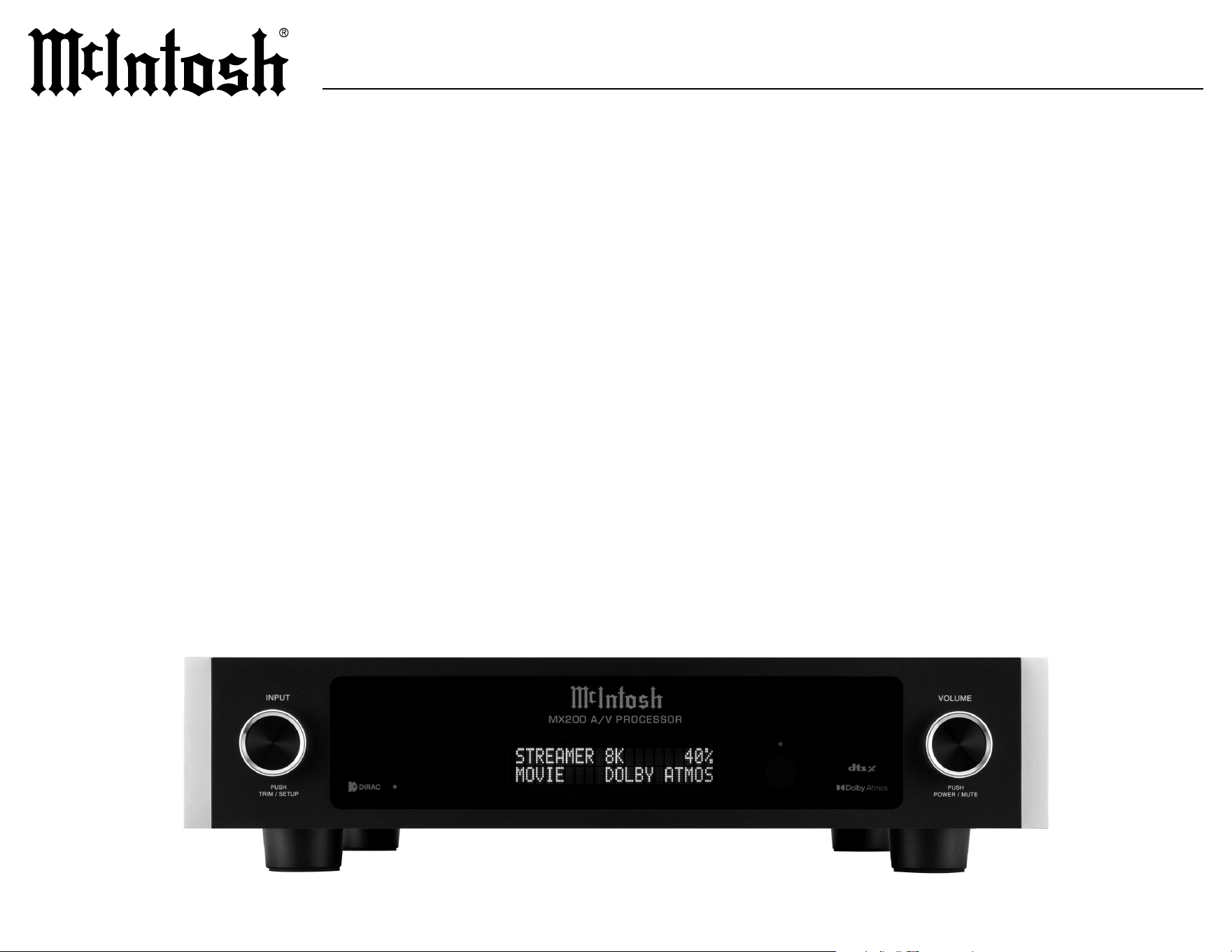
A/V PROCESSOR
OWNER’S MANUAL

2
Performance Features
• Special Power Supply
Separate high speed switching power supply plus
low noise analog supply applied for optimum low
noise performace.
• Front Panel Illumination
The even illumination of the front panel is
accomplished by the combination of custom
designed light diusers and extra long life
Light Emitting Diodes (LEDs).
• Glass Front Panel Display
The famous McIntosh illuminated glass front
panel display uses a 2 x 20 character vacuum
uorescent display to indicate various operational
setup and status notices
.
•
Remote Control with External Sensor Input
The HR085 Remote Control provides control of the
MX200 operating functions and other McIntosh
source components. Enjoy your McIntosh system
from other rooms in your home by connecting
external sensors.
Thank You from all of us at McIntosh
You have invested in a precision instrument that
will provide you with many years of enjoyment.
Please take a few moments to familiarize yourself
with the features and instructions to get the
maximum performance from your equipment.
If you need further technical assistance, please
contact your dealer who may be more familiar with
your particular setup including other brands. You
can also contact McIntosh with additional questions
or in the unlikely event of needing service.
McIntosh Laboratory, Inc.
2 Chambers Street
Binghamton, New York 13903
Technical Assistance (607) 723-3512
Fax (607) 724-0549
Customer Service (607) 723-3515
Fax (607) 723-1917
Email support@mcintoshlabs.com
www.mcintoshlabs.com
Safety First
Please read the safety instructions included in a
separate document called Important Additional
Operation Information Guide.
Please Take A Moment
For future reference, you can write down your
serial number and purchase information here.
We can identify your purchase from this informa-
tion if the occasion should arise:
Serial Number: __________________________
Purchase Date: ___________________________
Dealer Name: ___________________________
Introduction
Now you can take advantage of traditional McIntosh
standards of excellence in the MX200. The MX200
Audio/Video Processor marries a long tradition of
uncompromising quality with the latest home theater
technologies to bring you an unsurpassed luxury
entertainment experience. The McIntosh sound is
“the sound of the music itself.”
What is in the box
Here is what is in the box besides all the shipping
materials:
• One MX200 A/V Processor
• One accessory package including:
• Microphone with attached cable
• Microphone stand
• 1/2 inch male to 5/8 inch female adapter
• One hardware package including:
• Two Side Rack Mounting brackets
• Four at head Philips screws 6-32x1/4”
• Four Philips screws 8-32x3/8”
• One manual package including this manual
• One HR085 Remote Control
• One AC power cord
3
MX200
Table of Contents
Introduction . .. .. .. .. .. .. .. .. .. .. .. .. .. .. 2
Performance Features
.. .. .. .. .. .. .. .. .. .. .. 2
Custom Installation
. .. .. .. .. .. .. .. .. .. .. .. 3
Rack Mounting
.. .. .. .. .. .. .. .. .. .. .. .. .. 3
Connector and Cable Information
. .. .. .. .. .. 4
Balanced Audio Outputs
.. .. .. .. .. .. .. .. .. 5
Trademark and License Information
. .. .. .. .. 5
Dimensions
.. .. .. .. .. .. .. .. .. .. .. .. .. .. .. 6
Navigating the Remote Control
.. .. .. .. .. .. .. 7
Remote Control Batteries
.. .. .. .. .. .. .. .. .. 7
Additional Discrete Commands
. .. .. .. .. .. .. 7
Front Panel
.. .. .. .. .. .. .. .. .. .. .. .. .. .. .. 8
Rear Panel
.. .. .. .. .. .. .. .. .. .. .. .. .. .. .. 9
Trim Menu
.. .. .. .. .. .. .. .. .. .. .. .. .. .. ..10
Input Mode
.. .. .. .. .. .. .. .. .. .. .. .. .. ..10
Assigning Input Modes
.. .. .. .. .. .. .. .. .. ..10
Voicing EQ
. .. .. .. .. .. .. .. .. .. .. .. .. .. ..11
Setup Menu
.. .. .. .. .. .. .. .. .. .. .. .. .. .. ..12
Inputs Setup Menu
.. .. .. .. .. .. .. .. .. .. .. ..13
General Setup Menu
.. .. .. .. .. .. .. .. .. 14 -15
Audio Setup Menu
.. .. .. .. .. .. .. .. .. .. 16 -17
Video Setup Menu
.. .. .. .. .. .. .. .. .. .. .. ..18
Network Setup Menu
.. .. .. .. .. .. .. .. .. .. ..19
Speakers Setup Menu
.. .. .. .. .. .. .. .. .. .. . 20
Speaker Placement
.. .. .. .. .. .. .. .. .. .. .. ..21
Dirac Live
®
Setup. .. .. .. .. .. .. .. .. .. .. .. ..22
Volume Calibration
. .. .. .. .. .. .. .. .. .. .. . 22
Connection Diagram
.. .. .. .. .. .. .. .. .. .. . 23
Setting Up Surround Sound
.. .. .. .. .. .. 24-25
Specifications
.. .. .. .. .. .. .. .. .. .. .. .. .. . 26
Packing Instructions
.. .. .. .. .. .. .. .. .. .. ..27
Part List
.. .. .. .. .. .. .. .. .. .. .. .. .. .. .. ..27
Custom Installation
Remove the four feet when installing the MX200 and retain them with the
fastening screws for possible future use. Do not install the MX200 above heat
generating components. When the MX200 is installed in a cabinet with other
components, use a ventilation fan to provide cool operating temperature.
• 3 inches (7.6cm) above the top
• 3 inches (7.6cm) below the bottom
• 3 inches (7.6cm) on each side so that airow is not obstructed
• 1 7/16 inch (3.7cm) in front of the mounting panel for knob clearance
Rack Mounting
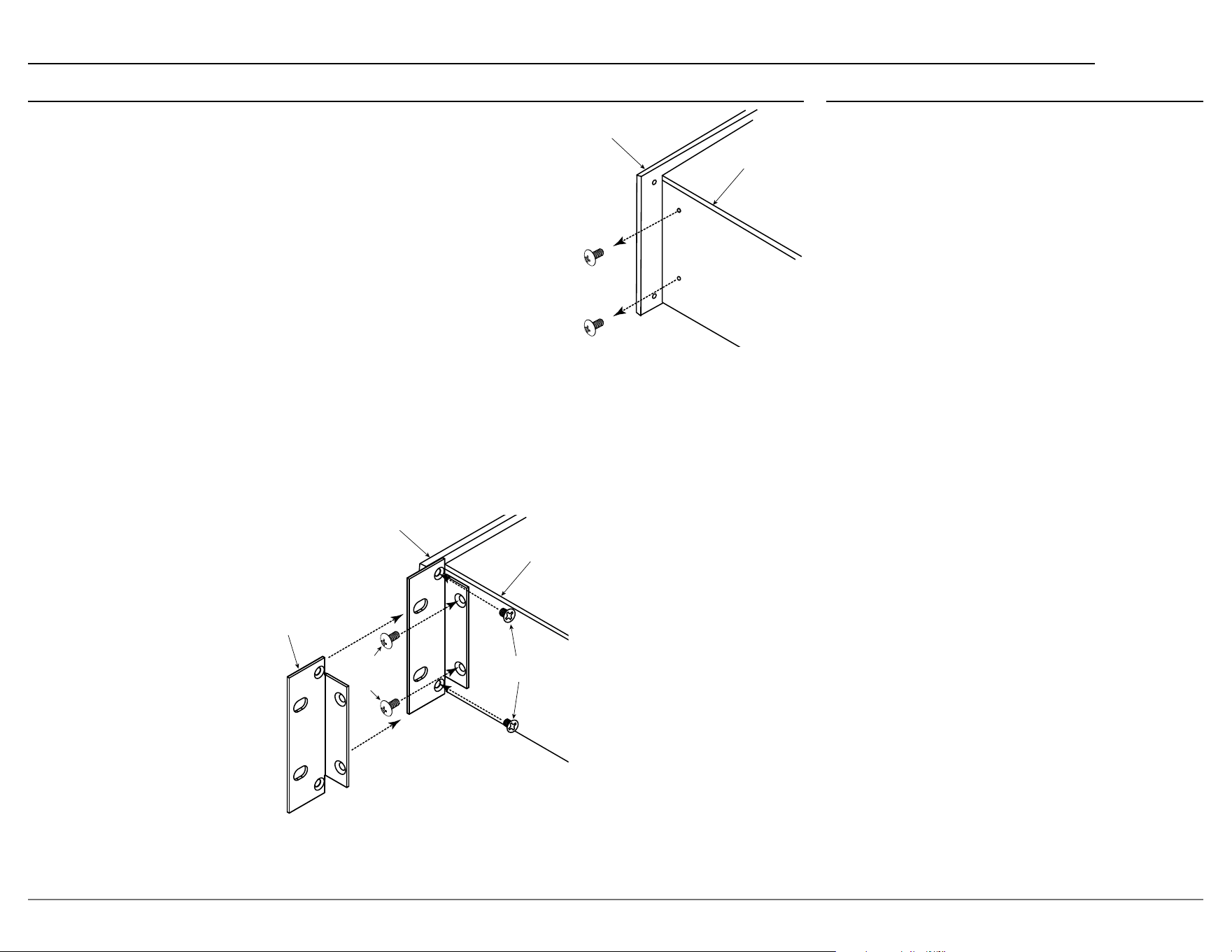
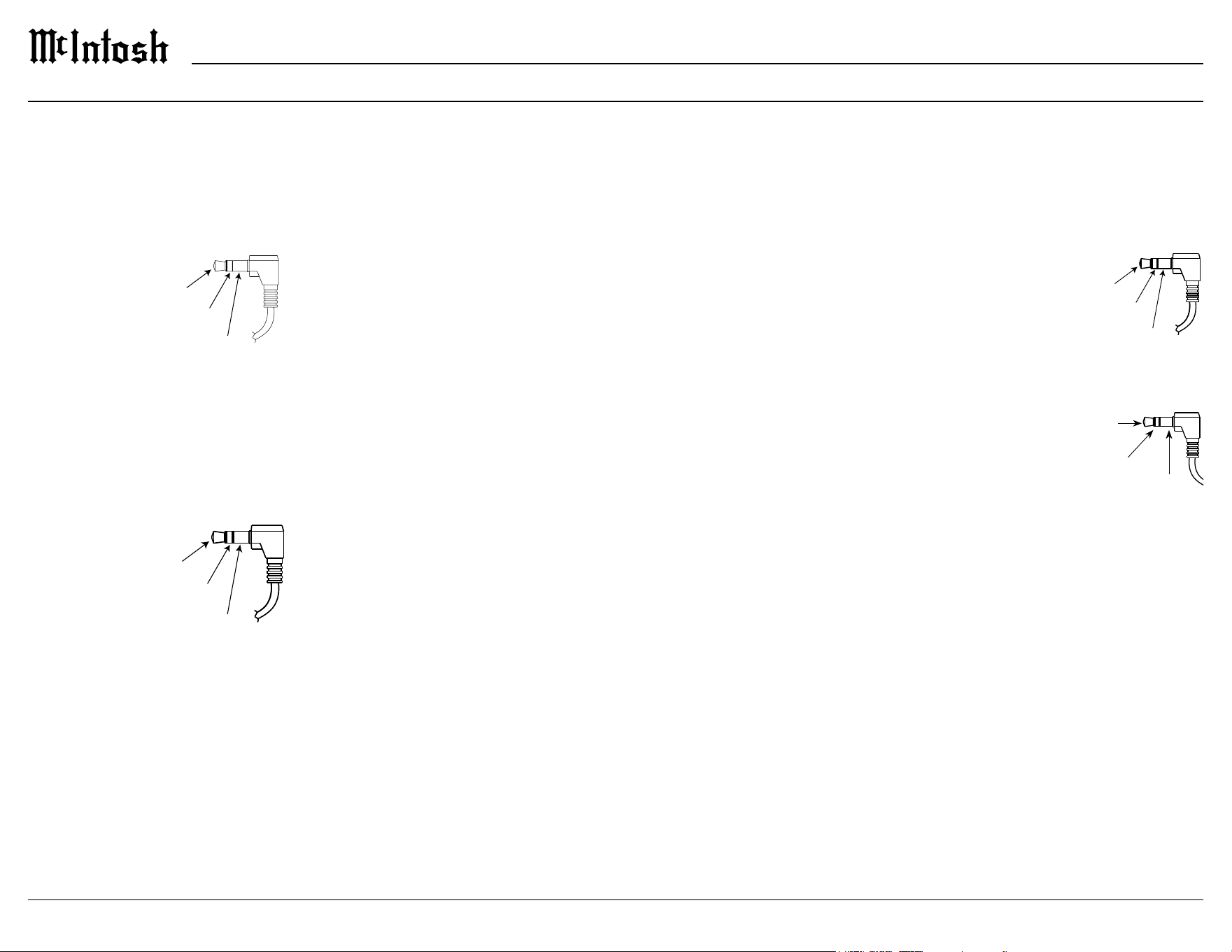
To rack mount the MX200, the two included side rack mounting brackets should be installed.
Follow these instructions for each side:
1. Remove the two screws from the front side of the MX200’s side panel. Save these for future use if the
mounting brackets are removed.
2. Secure the side rack mounting bracket to the MX200 using the larger supplied screws. Do not re-use the
previously removed screws. Use the smaller supplied screws to secure the bracket to the front panel.
Side Rack
Mounting
Bracket
Larger
Supplied
Screws
Smaller Supplied
Screws
Front Panel
Side Panel
Front Panel
Side Panel
4
Power Control Connectors
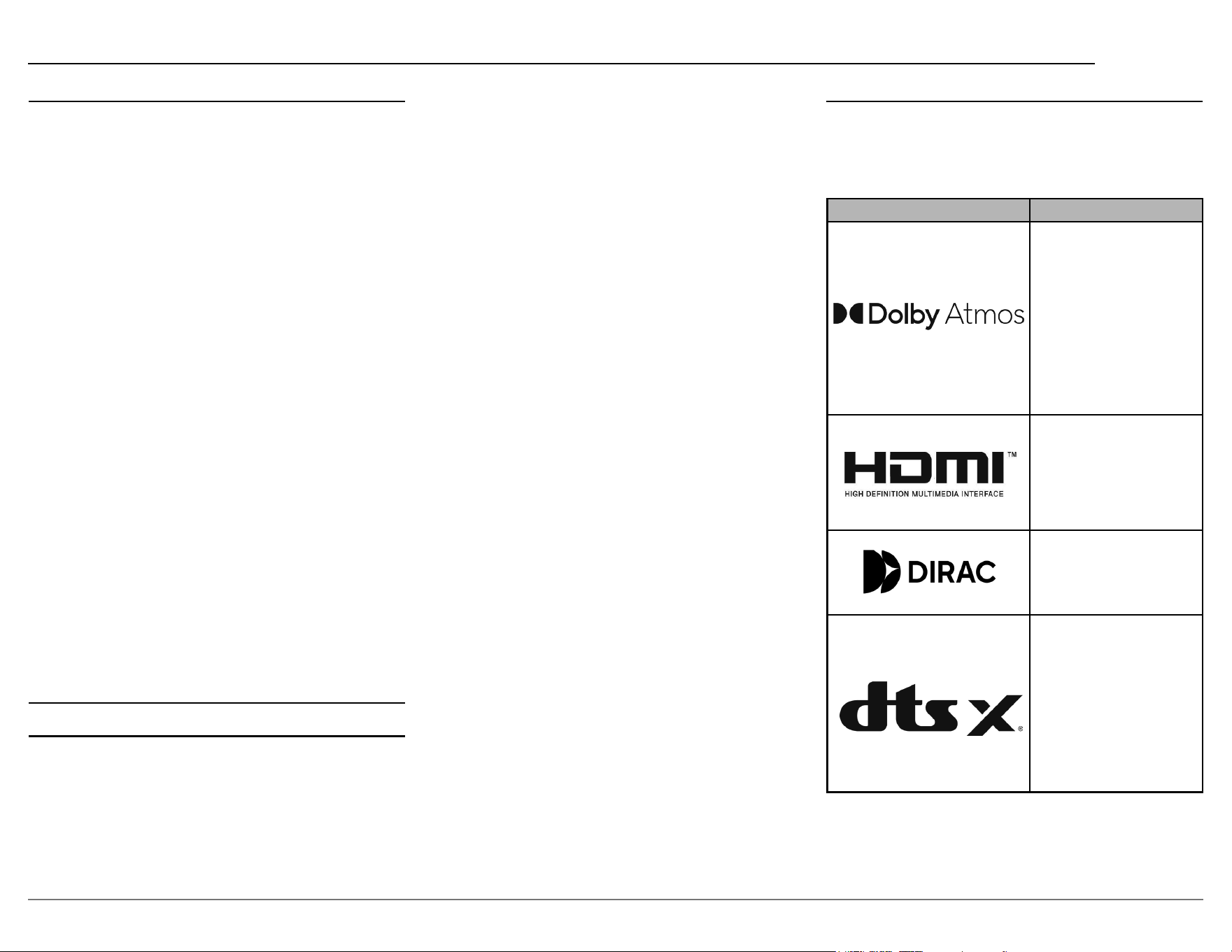
The MX200 TRIG 1 & 2 outputs on the rear panel
send power on/o signals when connected to other
McIntosh components. A 3.5mm stereo mini plug
is used for connection to the trigger outputs on the
MX200. Also delivers meter lighting control to
McIntosh Ampliers.
Data Out Connector
The MX200 will convert IR remote control data to
share with McIntosh components connected to the
DATA OUT port on the rear panel. This will allow
the operation of primary functions of a source to be
operated with the MX200’s remote control as well
as allow units that are out of range of an IR signal to
receive commands.
NET Port (Ethernet / 10baseT LAN)
Use an Ethernet cable to connect the MX200 to
a network router. The network connector is located
on the rear panel of the MX200 to the left of the
CAUTION label. It is labeled NET.
By default, the MX200 has DHCP set to ON and
will automatically receive an IP address from the
router. This setting can be changed.
Connector and Cable Information
Data
Signal
N/C
Data
Ground
IR Data
Control
Ground
N/C
HDMI
The MX200 has four HDMI inputs capable of 8K
video. To take advantage of this new capability, the
use of certied “Ultra High Speed HDMI” cables
according to the 2.1 HDMI specication is recom-
mended. This would include support for 8K@60Hz,
HDR, Ethernet, and ARC. Although HDMI is
backward compatible, older cables may have issues
with the higher bandwidth.
Use the HDMI OUT/eARC port when connect-
ing to an ARC (Audio Return Channel) enabled
television.
ARC can provide two-way communication between
units allowing for volume control and lip-syncing
functions to ensure audio and video are perfectly
matched. This allows for more intelligent operation
between components as well as less cable clutter.
Make sure the ARC is enabled in your TV’s setup
menu.
The MX200 supports eARC which allows for even
higher bandwidth and will allow for higher quality
audio including uncompressed 7.1 surround, Dolby
Atmos and DTS:X.
USB
There is a USB type-A port on the rear panel of the
MX200 which is labeled USB 5V/1A. The USB port
is used for rmware upgrades and to save and restore
MX200 setup information. The USB port is not for
general USB use or charging devices.
Microphone
The SETUP MIC input is for connecting the
supplied MX200 Microphone using the microphone’s
attached cable and a 3.5mm connector. The
microphone is used in the Dirac Live
®
calibration for
tuning the system to your room. For instructions see
“Dirac Live® Setup” on page 22.
IR IN Port Connector
The IR input allows an external IR receiver to be
attached to the MX200. The input is labeled IR IN.
By attaching an IR receiver using a 3.5mm cable,
the remote control can be used in another location
without a line-of-sight to the MX200’s front IR
sensor. The IR input is congured for non-McIntosh
IR sensors such as a Xantech
Model DL85K Kit.
Note: The IR receiver must provide its own
power supply.
RS232
The RS232-C Data Cable is a 3.5mm stereo
mini plug used to connect to external third party
controllers.
Typical RS232 settings are:
• 8 data bits, no parity and
one stop bit
• Baud rate xed at 115,200
bits per second
AC Power
This connection is essential. Plug the supplied
power cord into the AC connector located in the rear
right corner of the MX200 and into a grounded and
functioning AC outlet.
MX200 TXD Out
Data being transmitted
MX200 RXD In
Data being received
Ground
Power
Control
Ground
Lighting
Control
5
MX200
Trademark and License Information
The McIntosh MX200 incorporates copyright
protected technology that is protected by U.S. patents
and other intellectual property rights. The MX200
uses the following technologies:
Trademark Logo License Information
Dolby, Dolby Atmos, and
the double-D symbol are
registered trademarks
of Dolby Laboratories
Licensing Corporation.
Manufactured under license
from Dolby Laboratories.
Condential unpublished
works. Copyright
© 2012-2020 Dolby
Laboratories. All rights
reserved.
The terms HDMI, HDMI
High-Denition Multimedia
Interface, and the HDMI
Logo are trademarks or
registered trademarks
of HDMI Licensing
Administrator, Inc.
Manufactured under license
from Dirac Live. Dirac Live,
Dirac
®
and Dirac Live
®
are
trademarks owned by Dirac
Research AB.
For DTS patents, see
http://patents.dts.com.
Manufactured under license
from DTS Licensing
Limited. DTS, DTS:X,
and the DTS:X logo are
registered trademarks or
trademarks of DTS, Inc. in
the United States and other
countries. © 2021 DTS, Inc.
All rights reserved.
Balanced Audio Outputs
There are 11 male balanced XLR connections on
the back of the MX200 to accommodate a wide
variety of speaker congurations. Connect balanced
XLR cables to the corresponding powered speakers
or ampliers. Here are the possible connections:
• FR (Front Right)
• FL (Front Left)
• C (Center)
• SR (Surround Right)
• SL (Surround Left)
• SBR (Surround Back Right)
• SBL (Surround Back Left)
• HR1 (Height Right 1)
• HL1 (Height Left 1)
• HR2 (Height Right 2)
• HL2 (Height Left 2)
HR1 and HL1 should be forward of HR2 and HL2.
The MX200 support of Height speakers is limited to
Top Front, Top Middle and Top Rear locations.
Setting up speakers for a surround setup takes
planning, measuring and installation. Depending on
your level of expertise and available time, you may
wish to employ the services of your McIntosh dealer
for expert setup of your system. Professional instal-
lation of in-ceiling speakers is particularly important
due to gravity and the location above your head. For
more information see “
Setting Up Surround Sound”
on page 24.
Unbalanced Audio Outputs
There are 2 unbalanced RCA connections on the
back of the MX200. These are:
• SW1 (Subwoofer 1)
• SW2 (Subwoofer 2)
6
Dimensions
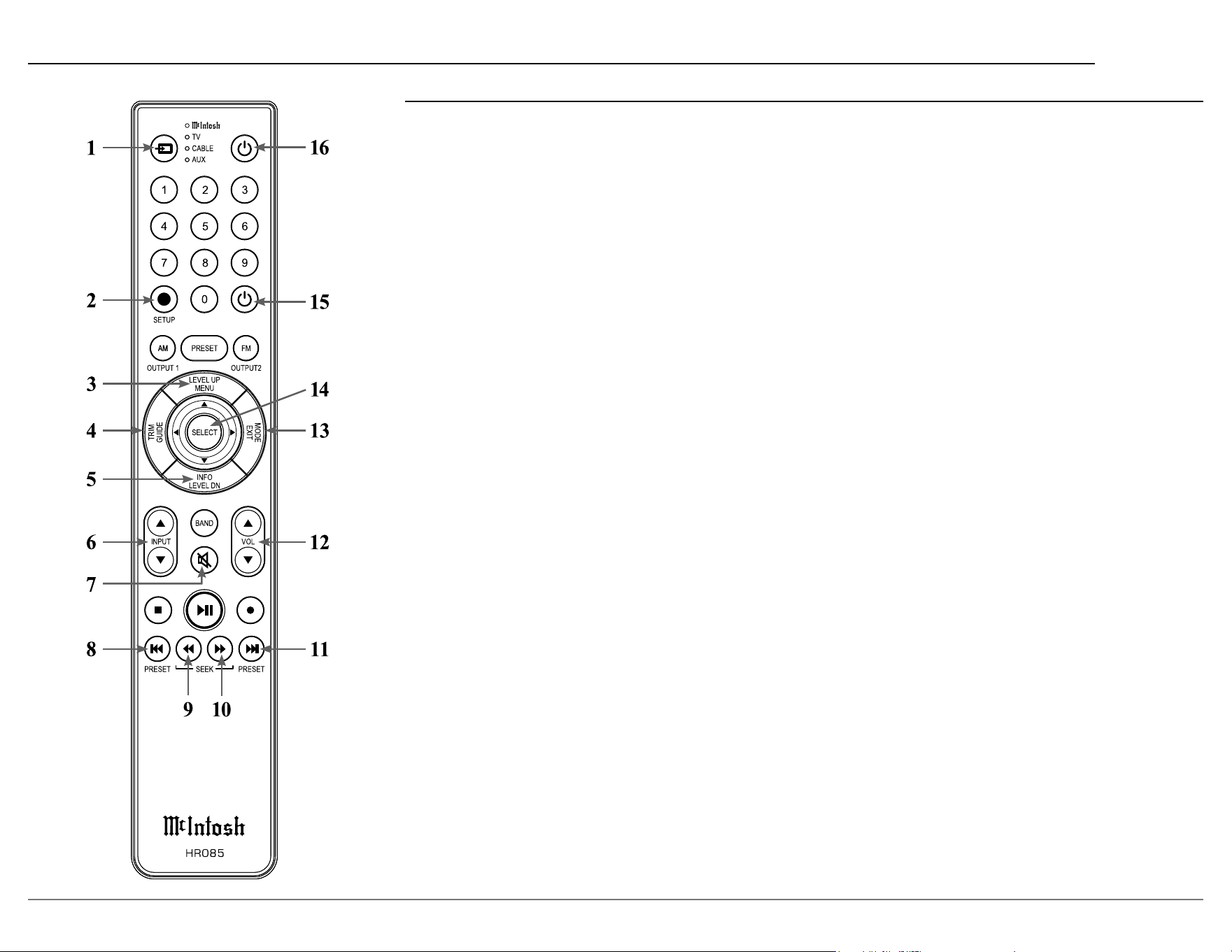
The MX200 needs to be placed upright on its four feet. It also can be custom installed, but it is necessary to provide adequate ventilation for cool operation, ensuring
long life for the MX200. The following dimensions can assist in determining the best location for your MX200.
A Note on Placement:
It is important to keep your McIntosh unit out of direct sunlight and only use appropriate gentle cleaners because the organic anodize can become discolored
over time.
While most products will maintain their classic dark features for their lifetime, some situations can accelerate discoloration. The most pervasive culprit is UV
light, especially light directly from the sun, or high intensity spotlights. Even high intensity short-term exposure can result in discoloration.
Chemicals can also alter the nish of the anodize. Aggressive cleaners will take their toll over time and actually etch away the anodize nish.
17 1⁄2”
44.5 cm
4 3⁄8”
11.1 cm
17 11⁄16”
44.9 cm
17 3⁄8”
44.1 cm
3 1⁄4”
8.3 cm
11 11⁄16”
29.7 cm
16 7⁄8”
42.9 cm
13 1⁄4”
33.7 cm
INNER DIMENSION
15”
38.1 cm
13 11⁄16”
34.8 cm
4 5⁄16”
10.9 cm
PUSH
TRIM / S ETUP
PUSH
POWE R / MUTE
BLURAY 4K 55%
Movie Dolby Atmos
P R O C E S S O RA/VMX2 0 0
BLURAY 4K 55%
Movie Dolby Atmos
P R O C E S S O RA/VMX2 0 0
21⁄32”
16.7 mm
3⁄16”
4.8 mm
15⁄16”
23.8 mm
1 9⁄16”
39.7 mm
1 1⁄32”
26.2 mm
HDMI
IN
1 2
3
4
RS232
TRIG 1 IR IN
TRIG 2
2
OPT
COAX
1
1
2
OUT/eARC
DATA OUT
SETUP MIC
BALANCED OUT
RF LF C LS RB LB RH1RS LH1 RH2 LH2
A/ V PROC ESSO R
MX200
McINTOSH LABORATORY, INC., BINGHAMTON, NY
HANDC RAFTE D IN USA W ITH U S AND IMPO RTED PARTS
NET
DIGITAL INPUTS
SERVICE
USB
5V/1A
GND
MM
AUX 1
R
L
AUX 2R AUX 2L
UNBAL OUT
SW1
SW2
BALANCED IN
MAC ID
MAC ID
50 60Hz 30 WATTS
100- 120V 220-240V
SERIAL
NUMBER
R
L
7
MX200
Navigating the Remote Control
Remote Control Batteries
The HR085 Remote Control included with the
MX200 is powered by two AAA batteries (not
included). To insert or remove batteries, open the
battery compartment by removing the cover located
on the back of the remote control. To open, pull the
clasp located just above the opening downward.
Additional Discrete Commands
Additional discrete commands for external control
systems are available:
• OPT1
• OPT2
• COAX1
• COAX2
• HDMI1
• HDMI2
• HDMI3
• HDMI4
• HDMITV
• PHONO
• AUX 1
• AUX 2
• Power (Cycle)
These additional commands can be accessed
using an optional McIntosh HR093 Service Remote
Control. You can also contact McIntosh Technical
Assistance or your dealer for more information.
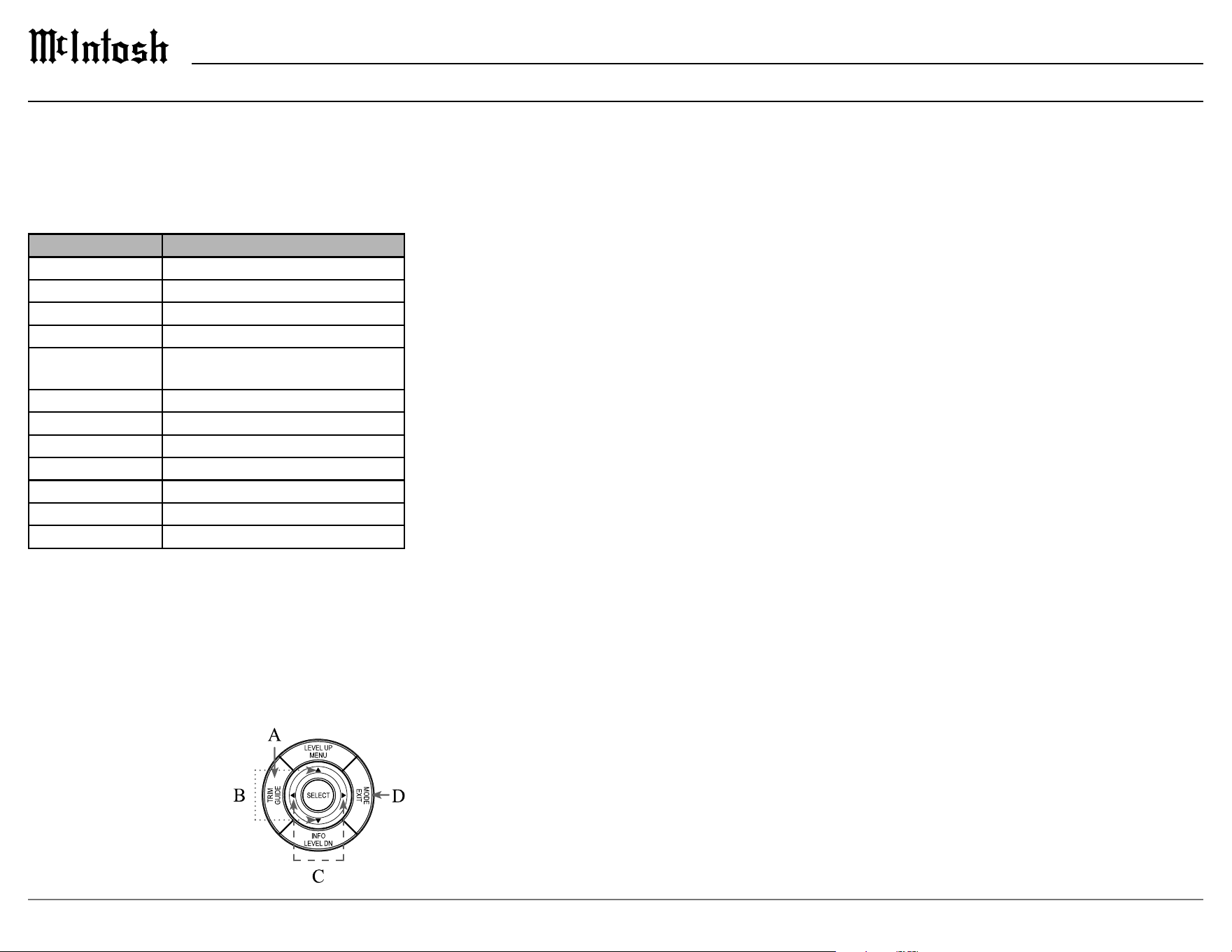
1. Switch Device: Select dierent devices for remote
operation. Selected device is indicated by the LED
light.
2. Setup Button: Used to enter setup mode.
3. Level Up/Menu: Accesses menu on compatible
devices.
4. Trim/Guide: Enters trim functions menu. Opens
guide on compatible devices.
5. Info/Level Down: Accesses info on compatible
devices.
6. Input: Changes and selects dierent inputs.
7. Mute: Mutes audio playback.
8. Previous/Previous Preset: Return to your previ-
ous media selection.
9. Fast Reverse/Seek Down: Navigate backwards
through the current active media using this button.
10. Fast Forward/Seek Up: Navigate forward
through the current active media using this button.
11. Next/Next Preset: Jump to your next media
selection or navigate to the next tuner preset.
12. Volume: Used to adjust the volume.
13. Mode/Exit: This will exit the trim functions
menu. It will also display information or certain
options.
14. Select: Selects the highlighted option.
15. Power O: Turns o the selected device shown by
the LED.
16. Power On: Turns on the selected device shown by
the LED.
Note: The HR085 Remote Control has buttons used to control multiple
devices. Buttons whose function are not described are for use
with other McIntosh products.
For more information, refer to the HR085 Owner's Manual on
the McIntosh website at www.mcintoshlabs.com.
8
PUSH
TRIM / SETUP
PUSH
POWER / MUTE
BLURAY 4K 55%
Movie Dolby Atmos
P R O C E S S O RA/VMX2 00
BLURAY 4K 55%
Movie Dolby Atmos
P R O C E S S O RA/VMX2 00
Front Panel
Front Panel
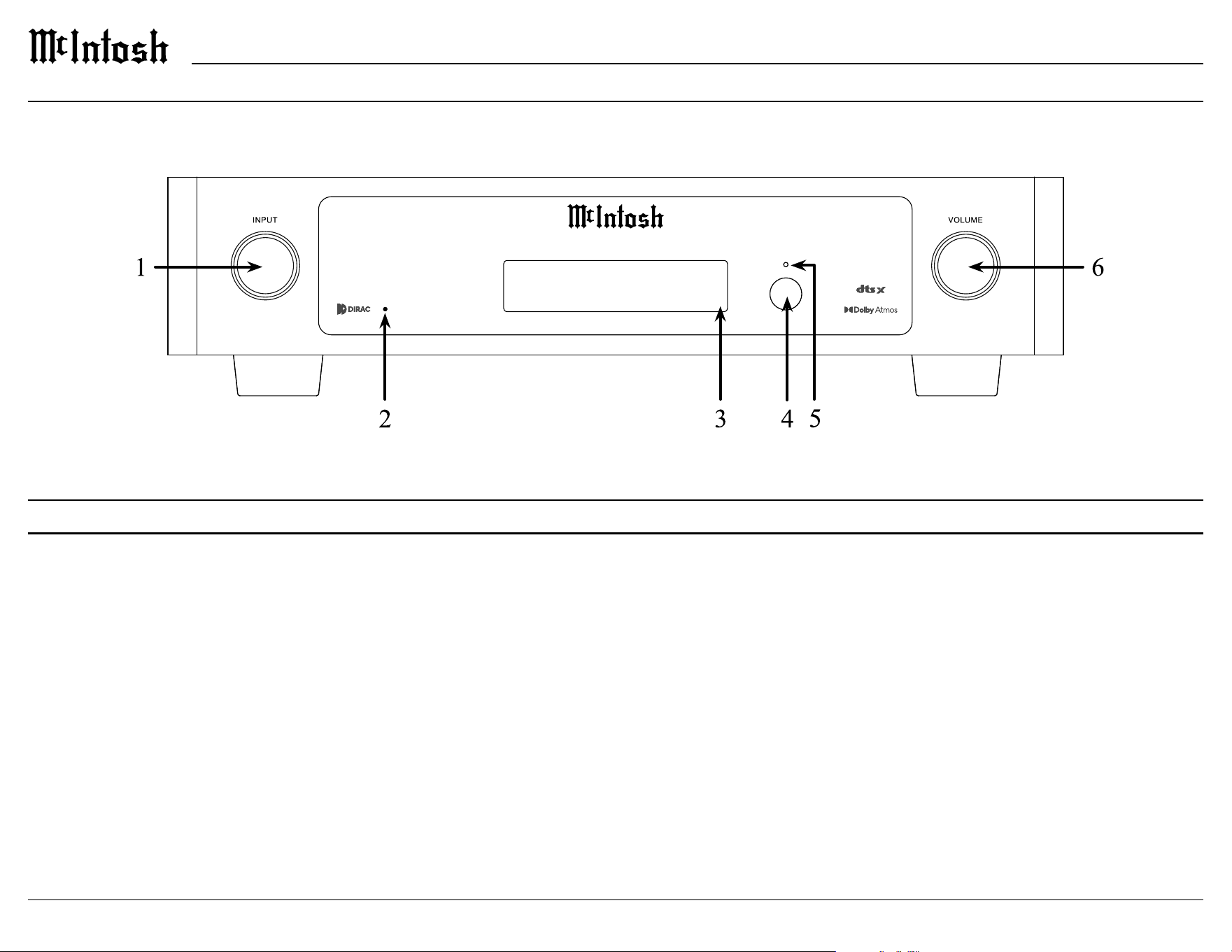
1. INPUT KNOB is used for the following:
• Input Selection: Turn clockwise or counter-
clockwise to scroll through inputs.
• Trim Menu: Push and release to enter Trim
Mode and rotate to navigate through options.
• Setup Menu: Push, hold for two seconds, and
release to enter setup mode.
2. Dirac Live LED shows whether Dirac Live EQ
is engaged, LED will be lit, or disengaged, LED
will not be lit.
3. VFD (Vacuum Fluorescent Display) 2 x 20
character screen shows various messages for
setup/trim and playback conditions.
4. IR Sensor receives commands from the HR085
remote control.
5. Standby LED indicates AC connection and
current power status.
6. VOLUME KNOB is used for the following:
• Power ON: Quick press to power on the
MX200.
• Adjust Volume: Rotate to adjust the volume.
• Mute: Quick press to toggle mute on or o.
• Setup/Trim: Rotate to adjust Trim options once
the menus are accessed using the INPUT knob.
• Power OFF: Push and hold for 2 seconds to
power down the MX200. POWER OFF will
appear on the display.
9
MX200
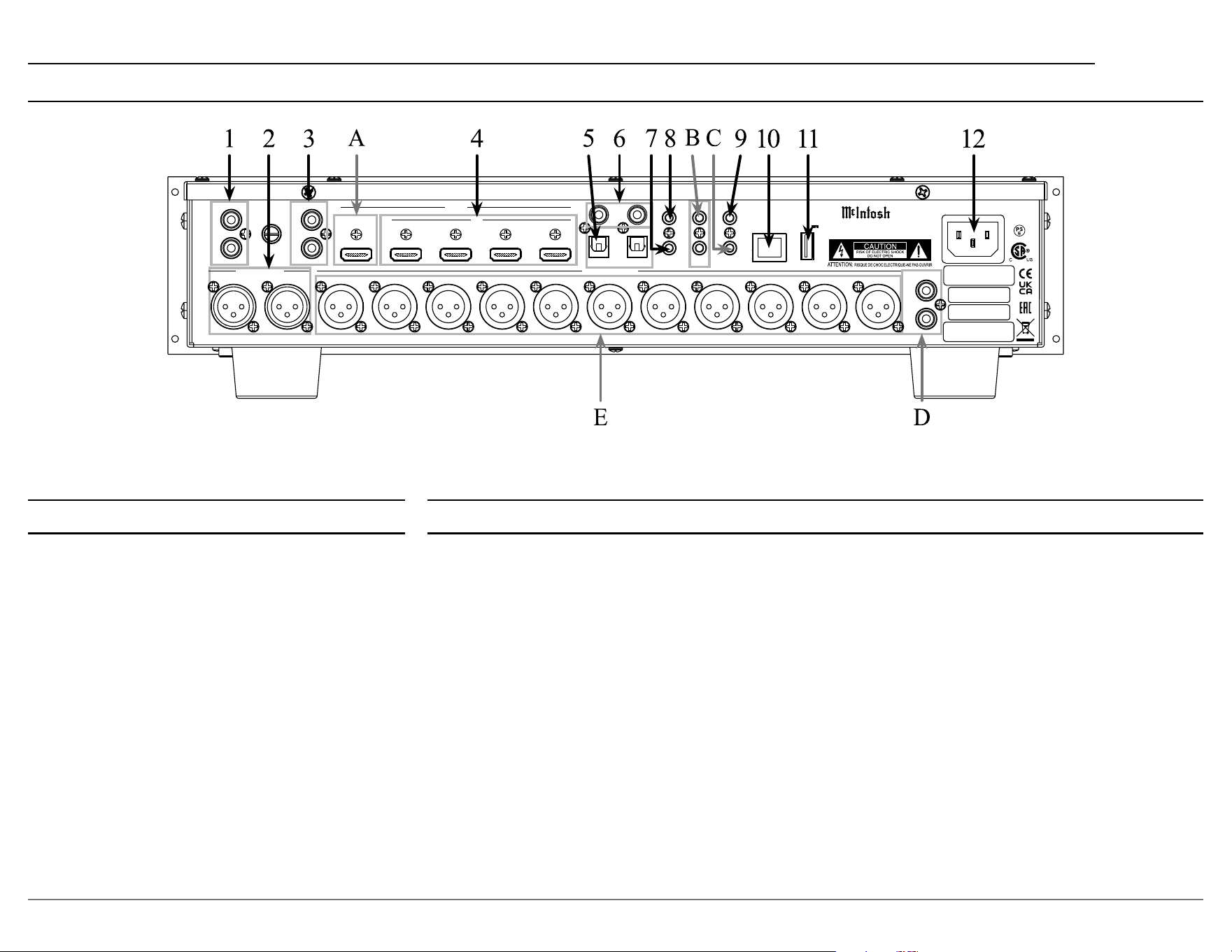
1. One Phono input (MM) RCA
2. Aux 2 input XLR
3. Aux 1 input RCA
4. Four HDMI IN
5. Two Toslink optical inputs
6. Two coaxial digital audio inputs
7. One 1/8 inch jack for microphone input
8. One 1/8 inch jack for RS232 connector
9. One 1/8 inch jack for wired IR input
10. One 10baseT LAN connector
11. One USB upgrade service port
12. One AC power connector
Rear Panel Connections
Rear Panel Inputs Rear Panel Outputs
A. HDMI Out / eARC
Note: Acts as an audio input when ARC is active.
B. Two 1/8 inch jack power control (trigger) outputs
C. One 1/8 inch DATA OUTput jack
D. Two unbalanced subwoofer outputs are available to
connect to powered subwoofers.
• SW1 (Subwoofer 1)
• SW2 (Subwoofer 2)
E. Eleven pre-congured balanced connections:
• FR (Front Right)
• FL (Front Left)
• C (Center)
• SR (Surround Right)
• SL (Surround Left)
• SBR (Surround Back Right)
• SBL (Surround Back Left)
• HR1
• HL1
• HR2
• HL2
Note: HR1 and HL1 should be forward of HR2 and HL2. The
MX200 support of Height speakers is limited to Top Front,
Top Middle and Top Rear locations.
HDMI
IN
1 2
3
4
RS232
TRIG 1 IR IN
TRIG 2
2
OPT
COAX
1
1
2
OUT/eARC
DATA OUT
SETUP MIC
BALANCED OUT
RF LF C LS RB LB RH1RS LH1 RH2 LH2
A/V P R O C E S S O R
MX200
McINTOSH LABORATORY, INC., BINGHAMTON, NY
HAN DCRA FTE D IN U SA W ITH US AND I MP OR TE D PART S
NET
DIGITAL INPUTS
SERVICE
USB
5V/1A
GND
MM
AUX 1
R
L
AUX 2R AUX 2L
UNBAL OUT
SW1
SW2
BALANCED IN
MAC ID
MAC ID
SERIAL
NUMBER
R
L
10
Trim Menu
The trim menu allows you to make and store
adjustments to various settings for all inputs. The
trim menu can be entered using the INPUT knob or
the remote control.
The following table lists the trim options and the
range of values that can be adjusted:
Setting Values
Bass -12dB to +12dB in 1 dB increments
Treble -12dB to +12dB in 1 dB increments
Dirac Live On or O
Voicing EQ Select to apply to current input
Audio Delay
(Lip Sync)
0 to 500 ms in 25 ms increments
Trim Center -10dB to +10dB in 1 dB increments
Trim Surrounds -10dB to +10dB in 1 dB increments
Trim Heights -10dB to +10dB in 1 dB increments
Trim Subwoofer -10dB to +10dB in 1 dB increments
Meter Lights On or O
Display Brightness Max, 75%, 50%, or 25%
Input Mode Auto, Movie, Music, Game, Through
Trim Menu Using the Remote Control
A. Enter the trim menu by pressing the TRIM button.
B. You can scroll through the trim options by press-
ing the up or down arrows on the silver ring.
C. Use the left and right arrows on the silver ring to
change values for the selected trim option.
D. Use the EXIT button to exit the trim menu or wait
ten seconds for the menu
to close automatically.
Trim Menu Using Knobs
To enter the trim menu, press and release the
INPUT knob. (Holding the knob for two seconds
enters the setup menu instead of the trim menu.)
Scroll through the options by turning the INPUT
knob.
Change the values of the current option by rotating
the VOLUME knob. Turn the INPUT knob to select
another option to edit or press the INPUT knob and
release to exit the menu. Changes will be saved.
Saving Trim Settings
Most trim settings are saved per input. For these
settings, changes to one input will not aect another
input. The following trim inputs are saved by
individual input:
• Bass
• Treble
• Audio Delay
• Trim Center
• Trim Surrounds
• Trim Subwoofer
• Mode
• Voicing EQ
Some trim settings are saved Globally. Making a
change to these settings for any input will make the
same change for all inputs. Global trim settings are:
• Dirac Live EQ
• Meter Lights
• Display Brightness
Input Mode
The following input modes are available:
• AUTO
• THROUGH
• MOVIE
• MUSIC
• GAME
MOVIE, MUSIC and GAME are variables that
are assigned a specic surround mode choice. The
surround modes that are used for MOVIE, MUSIC
and GAME options are assigned in setup. The default
for each option is AUTO. Other options are Dolby
Surround, DTS Neural:X, Multi-Channel Stereo,
Stereo and Through. For more information about
these options see “Setup: Audio > surround mode”
on page 16.
A quick way to change the current input’s surround
mode is to use the MODE button on the outer ring
of the remote control. Pressing the MODE button
will cycle through the surround modes. Stop on your
choice. The display will time-out in a few seconds
and your choice will be saved.
Assigning Input Modes
A. Enter the trim menu by pressing the INPUT knob
or the TRIM button on the remote control.
B. Rotate the INPUT knob or press the down arrow
on the remote control until MODE is displayed on
the VFD.
C. Press and release the INPUT knob or the SELECT
button on the remote control.
D. Rotate the INPUT knob or the up and down
arrows on the remote control until the desired
input is displayed.
E. Rotate the VOLUME knob or press the left and
right arrows to scroll through the surround modes.
F. Press and hold the INPUT knob for two seconds or
press the EXIT button to leave the trim menu (or
wait until it times out).
11
MX200
Voicing EQ
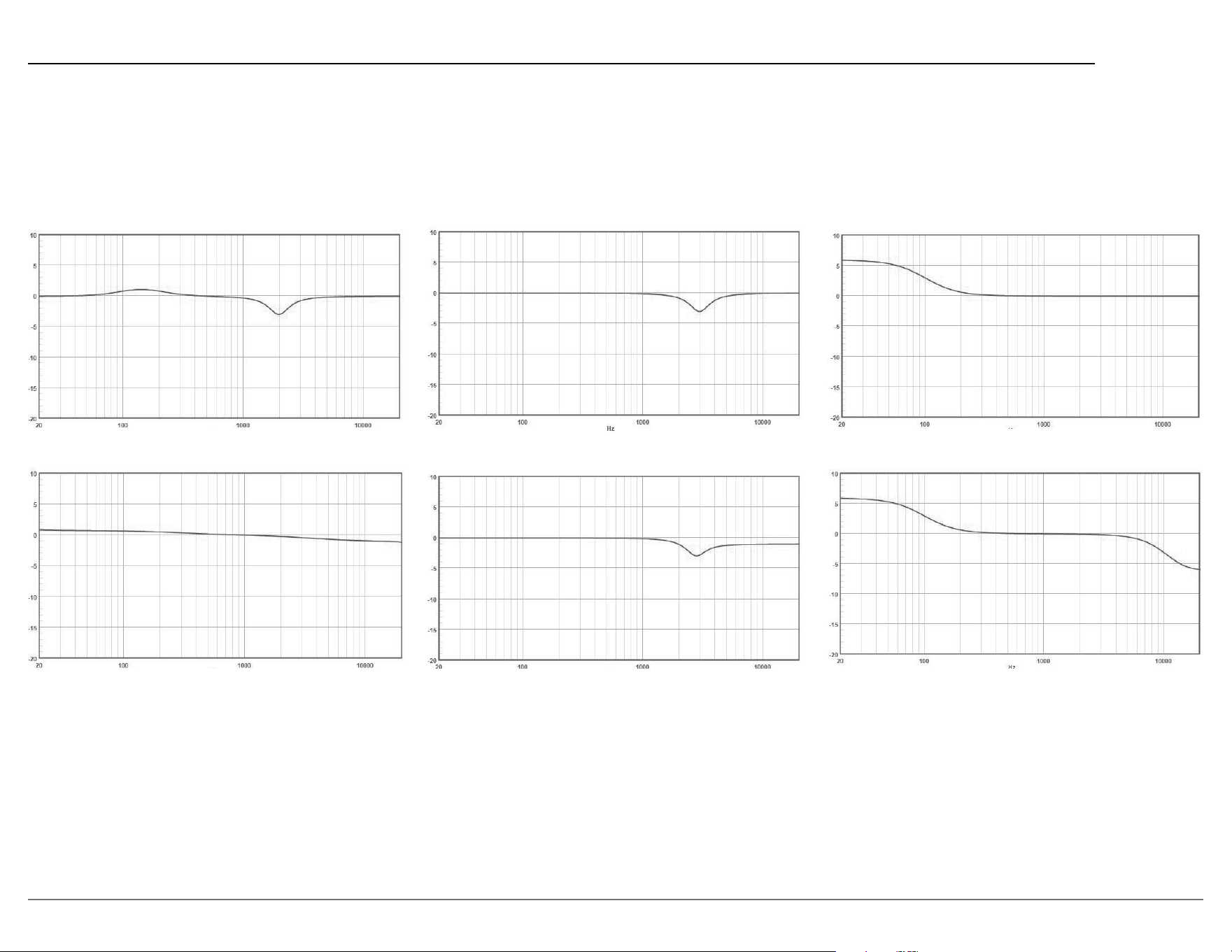
Apply additional voicing preferences to current input. The general voicing curves are added to the Dirac Live Room EQ (if implemented) or existing settings (if
Dirac Live not implemented). Custom Voicing EQ is not available if Dirac Live has not been implemented.
Voicing EQ select sets an easy tonal adjustment to enhance playback enjoyment. The selection is set to the current input, and remains active with that input only until
changed. The available Voicing EQ lters are shown on the right.
Music II
Slightly attenuates high frequencies, especially near 3 kHz.
Relaxed
Attenuates frequencies near 3kHz and boosts frequencies near 150Hz
Tilt
Attenuates high frequencies and slightly boosts very low frequencies.
Action
Greatly accentuates low frequencies.
Music
Attenuates frequencies near 3 kHz.
Action + Movie
Boosts low frequencies and attenuates very high frequencies.
12
Changing Settings
There are two ways to change the settings of the
MX200.
1. Use the front panel and the Vacuum Fluorescent
Display (VFD) and the INPUT and VOLUME
knobs or the remote control
2. Using a browser on a connected computer
Most will nd it easier to navigate and enter infor-
mation on a computer. If you don’t have a connected
computer or the MX200 is not connected to your
network, then using the front panel method can
accomplish almost all the same things using some
additional patience.
In this manual, submenus are denoted in the style:
SETUP: VIDEO > HDMI
The title above indicates from the setup menu choose
the video submenu and then HDMI.
Navigating Setup with the Front Panel
To enter setup mode using the front panel press
and hold the INPUT knob for two seconds and then
release. A shorter push of the INPUT knob will bring
up trim settings. See “Setting Up Surround Sound”
on page 24.
Select options using a brief press of the INPUT
knob. A long press of the INPUT knob will close the
setup menu.
To return to a previous menu, scroll down to last
menu choice which will be MENU BACK. On the
top most menu, the last menu choice will be MENU
OFF which will exit setup.
The setup menu will time out after 30 seconds of no
user input.
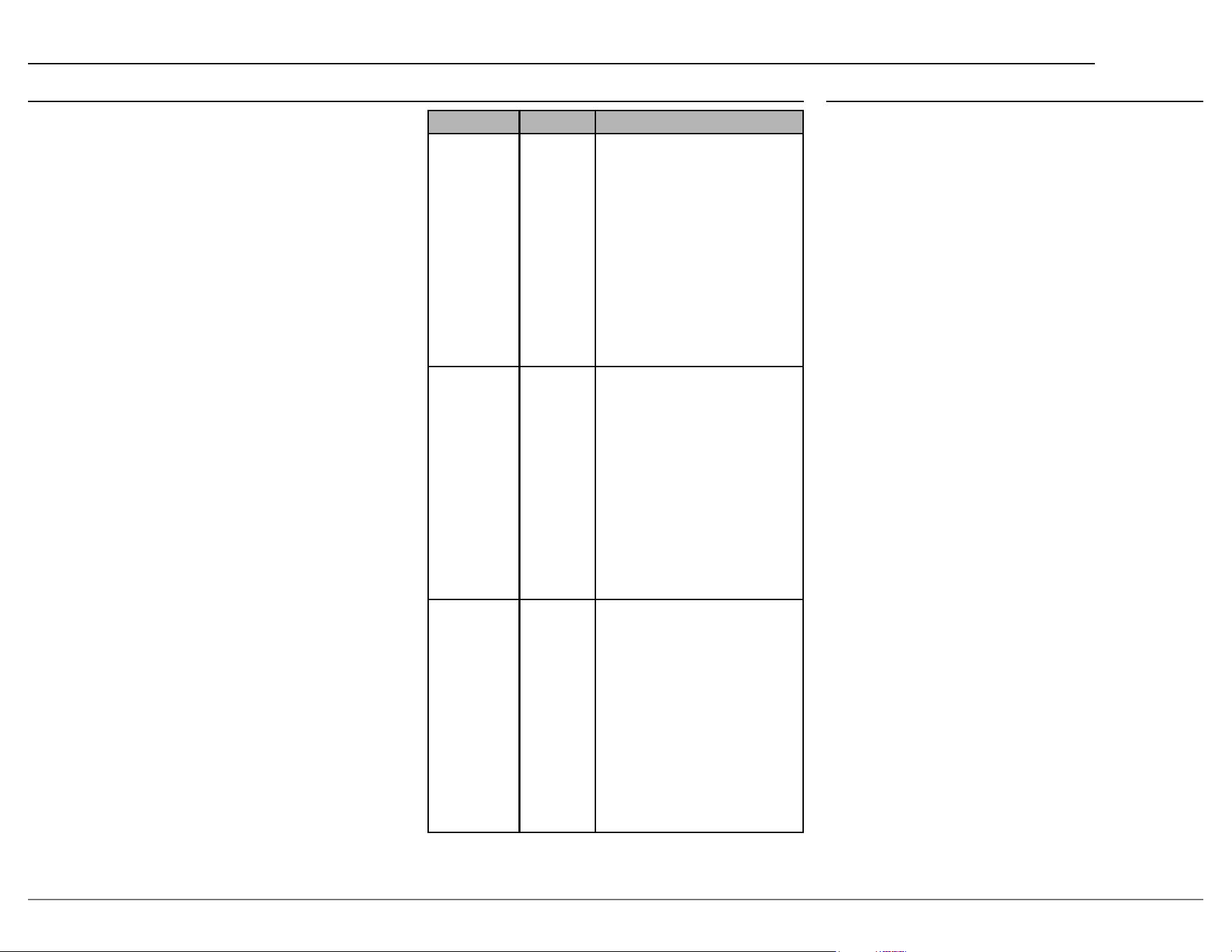
Navigating Setup with the Remote Control
A. Enter the setup menu by pressing the SETUP
button with the blue circle.
B. Use the up and down arrows on the silver ring to
navigate through the options.
C. Push the SELECT button to choose an option to
change.
D. Use the left and right
arrows on the silver ring
to change values for the
selected setup option.
The new value will be
saved automatically.
E. To stop editing a setting
or to close the setup
menu, press the Mode/
Exit button or select
the last option which is
MENU BACK or MENU OFF.
Setup Menu Options
• Serial Number
• Firmware Version
• Inputs
• Network
• General
• Audio
• Video
• Speakers
• Menu O
Setup from a Browser
Setup is easier from a web browser. Open a browser
window on a computer connected to the same
network as your MX200. Enter the IP address for
the MX200 in the address bar of your browser (see
“Setup: Network > Network Information” on page
19).
The setup menu on your browser should look like
this:
Setup Menu
13
MX200
Inputs Setup Menu
SETUP: INPUTS > HIDE SOURCES
The show/hide sources submenu allows you to
hide unused inputs. Hidden inputs do not appear as
input choices when scrolling through inputs. If you
hid inputs and want to show them again, they can be
restored by selecting “Show” on each or by choosing
“Show all” from your browser to make all inputs
visible.
SETUP: INPUTS > INPUT LEVEL
The input adjust section of the inputs menu allows
you to set a trim level for a source.
The Trim for each input can be individually set
from -12dB to +12dB in 1dB intervals. 0dB is the
default. If using the browser you can type in your
desired level in the box on the right.
Inputs Setup Menu from Browser
Accessing the inputs setup menu from the browser
allows you to customize the name of an input as it
will appear on the display. Unused inputs can also be
hidden so as not to appear as choices. They can also
be easily restored when needed.
Renaming Inputs
To change the name of an input, choose one of
the default options from the drop-down menu or
select Custom and type your name of choice into the
Custom Rename box and press Enter to save.
Note: Custom names have an 11 character limit and will not save
if you type more than 11 characters.
From the Rename submenu, you can choose from a
list of names for the input or chose “default” to keep
the original MX200 input name or if you wish to use
a custom name.
To use a custom name:
• Select “Custom” in the Rename submenu
• In the Custom Rename box, erase the old name
and type in the new name up to 11 characters
• Push the Enter key on your keyboard to save
Setting Input Options
Hide Sources
Show/Hide*
HDMI 1
HDMI 2
HDMI 3
HDMI 4
HDMI TV
OPT 1
OPT 2
COAX 1
COAX 2
AUX 1
AUX 2
PHONO
Show, Hide, or Show All*
Input Level
Input Adjust*
HDMI 1
HDMI 2
HDMI 3
HDMI 4
HDMI TV
OPT 1
OPT 2
COAX 1
COAX 2
AUX 1
AUX 2
PHONO
-12.0 to +12.0dB in 1dB intervals
Rename* HDMI 1
HDMI 2
HDMI 3
HDMI 4
HDMI TV
OPT 1
OPT 2
COAX 1
COAX 2
AUX 1
AUX 2
PHONO
TV AUDIO
CBL/SAT
DVD
Blue-Ray
CD
Media Player
Game
AUX 1-4
Default
Custom
Note: Some options and settings are only available on the browser
version of the setup menu these are indicated with an *.
14
SETUP: GENERAL > SAVE AND LOAD > SAVE
MX200’s Dirac Live information is saved with
conguration backups. Dirac Live should be re-run
anytime a signicant change is made in your system
or its environment.
To save the conguration using the browser
interface, select the save conguration button.
Choose the destination to store the le. A le named
“MX200_cong.cfgs” will be created. If you choose,
you can rename this le and save dierent setup
congurations.
Note: Configurations created using the browser interface must
be restored using this interface and CANNOT be restored
using the MX200’s front panel interface or MX200’s USB
port.
If you wish to store to a USB drive in the MX200’s
USB port, you must use the front panel interface.
To use the front panel interface to save the
conguration:
• Insert a USB Drive in the MX200 USB port
• Go to the Save and Load submenu, and select
Save
Two les are created when using the front panel to
save to a USB drive in the rear of the MX200:
• DIRAC INFO
• MX200.CFG which contains the custom MX200
settings
The general menu contains the following options:
Setting Options
Fi r mware Version Shows current rmware versions
Firmware Update Yes , No
Factory Reset Yes , No
Save and Load Save, Load
Trigger 1 All, None, Independent
Trigger 2 All, None, Independent
RCLOCK On, O
Auto O On, O
SETUP: GENERAL > FIRMWARE
Firmware is software that controls hardware at a
low level. Occasionally, new versions of rmware
may be issued to address particular issues. If you
are not experiencing any issues, there is no need to
upgrade your MX200 rmware. If the need should
arise, your McIntosh dealer has access to the latest
rmware.
Firmware Update is used to install new rmware.
The new rmware should be unzipped on the root
directory of a properly formatted USB drive (FAT
or Fat32). The USB drive should be inserted into
the USB port on the rear of the MX200. Selecting
the Update Now button will begin the process. It
is highly recommended that your McIntosh dealer
perform the update process since failure to properly
install the rmware can leave the MX200 in an
unusable state.
SETUP: GENERAL > FACTORY RESET
Factory Reset will restore the MX200’s defaults.
Any changes made will be lost. Congurations can
be saved and restored in the “Save and Load” section
of the general setup menu.
SETUP: GENERAL > SAVE AND LOAD > LOAD
To load a saved conguration, select the load
conguration button. Choose saved conguration
le from its location either from a folder on your
computer or a USB drive inserted into the computer’s
USB port. Conguration les by default are named
“MX200_cong.cfgs”. Choose this le or a le you
have custom named. Select open. The interface will
say “Upload Complete” and the MX200 will power
cycle and the new settings will be loaded.
If you are using the front panel to load a
conguration:
• Insert the USB Drive with the conguration le
stored in the root directory in the MX200 USB
port.
• Go to the Save and Load submenu and select
Load. Progress will be displayed for loading the
two conguration les.
• The MX200 will power cycle when complete. The
restored settings will be in eect.
SETUP: GENERAL > TRIGGER
Trigger1 and Trigger2 can each be set to power on/
o components connected via a power control cable
(see “Power Control Connectors” on page 4).
Each Trigger can be set to:
• Independent allows each individual input to be
set to On or O. When an input that is set to On
is selected, connected components will receive a
power control signal to power on until the selected
input is changed (to an input that is set to O) or
the MX200 is powered O.
• All On sets the power control setting of all inputs
to On. With this selection, any input will generate
a power control signal to be sent for that Trigger.
All On is a quick way to change all the inputs
to On. You can switch to Independent to set any
individual input to O.
General Setup Menu

15
MX200
• All O sets the power control setting of all inputs
to O. With this selection, no input will generate
an On signal for the Trigger. All O is a quick
way to change all the inputs to O. You can
switch to Independent to set any individual input
to On.
When Independent is selected, you can select On or
O for these inputs:
SETUP: GENERAL > FIRMWARE
Auto O, when Enabled, the MX200 will power
o after 30 minutes of no input. If you pause a movie
for more than 30 minutes and you do not want to nd
the MX200 powered o, you would want to Disable
Auto O.
SETUP: GENERAL > RCLOCK
Remote Control lock when enabled (On) will
prevent the front IR sensor from receiving IR
commands from a remote control. The default for
remote control lock is O. To enable the IR sensor to
detect a remote control’s IR data, set remote control
lock to OFF (the default).
SETUP: GENERAL > AUTO OFF
The MX200 incorporates power save circuitry
to automatically place the MX200 into the power
saving standby mode approximately 30 minutes after
there has been an absence of an audio input signal on
both channels.
When there is a power control connection between
the MX200 and a preamplier or source component,
the auto o function is bypassed.
• HDMI 1
• HDMI 2
• HDMI 3
• HDMI 4
• HDMI TV
• Optical 1
• Optical 2
• Coaxial 1
• Coaxial 2
• AUX 1
• AUX 2
• PHONO
General Setup Menu (continued)
16
SETUP: AUDIO > SUB LEVEL
Subwoofer level adjust allows for adjusting your
attached subwoofer to be adjusted from -10dB to +
10dB.
SETUP: AUDIO > BASS SYNC
For contents recorded in multi-channel such as
Blu-ray discs, the recorded Low Frequency Eects
(LFE) may be out of sync and delayed. This function
allows you to correct the delay with an adjustment of
0 ms to 16 ms.
SETUP: AUDIO > AUDIO DELAY
Audio delay (Lip Sync) compensates for incorrect
timing between video and audio. When auto lip
sync is set to On, the timing dierence will be
automatically corrected with compatible TVs. The
adjust option allows you to manually adjust the delay
correction from the default of 0 ms up to 500 ms.
SETUP: AUDIO > SURROUND MODE
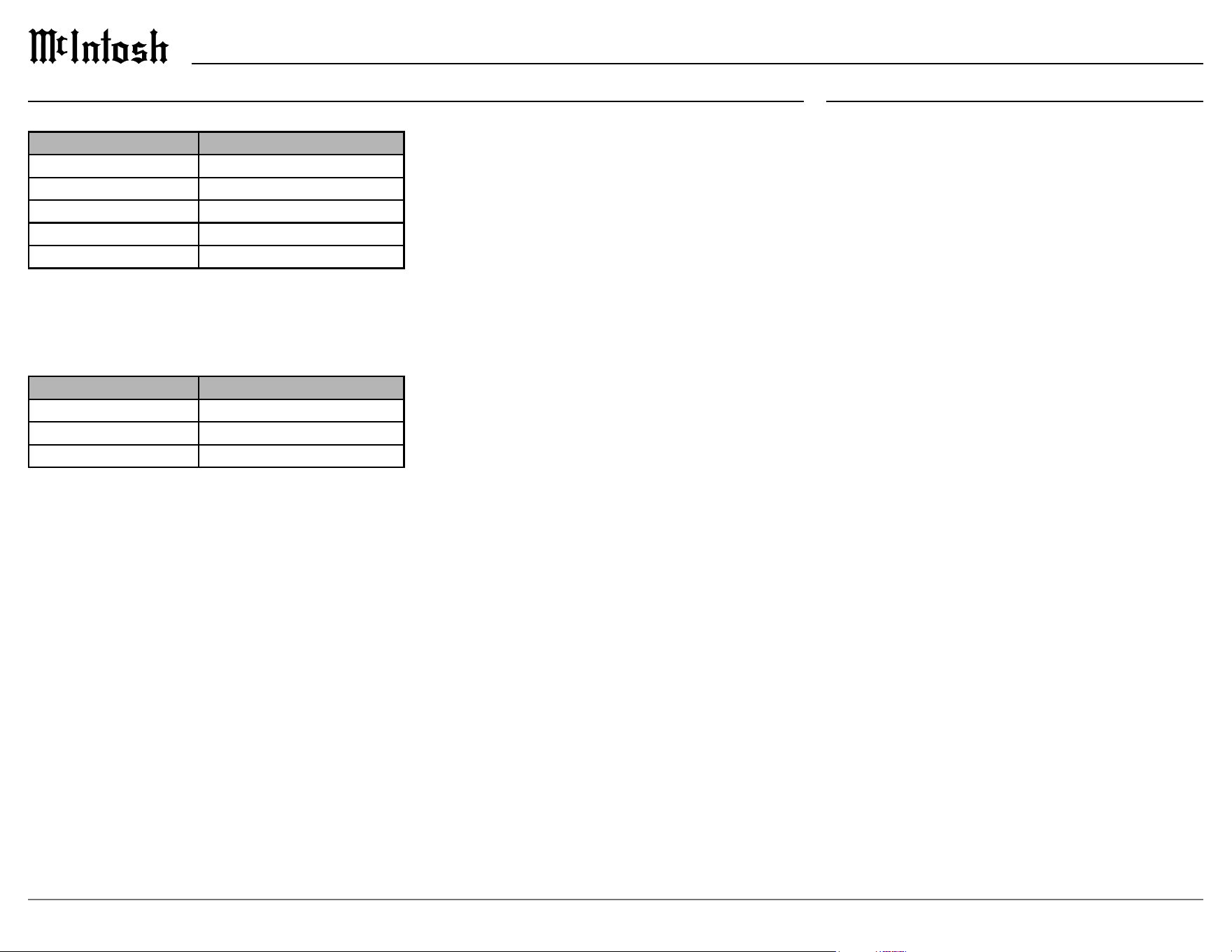
Audio Setup Menu
The audio setup menu contains the following
options:
Setting Options
Sub Level -10.0 through +10.0
Bass Sync 0-16ms
Audio Delay (Lip Sync) 0-500ms
Volume Scale, Limit
Surround Mode Music, Movie, Game
Dynamic Range Compress* ON, AUTO, OFF
Note: Some options and settings are only available on the browser
version of the setup menu these are indicated with an *.
Setting Options
Music Through, Auto, Dolby Surround, Neural: X,
Multich Stereo, Stereo
Movie Through, Auto, Dolby Surround, Neural: X,
Multich Stereo, Stereo
Game Through, Auto, Dolby Surround, Neural: X,
Multich Stereo, Stereo
Volume Submenu Options
Setting Options
Scale Linear, dB Level
Limit OFF, 60, 70, 80
SETUP: AUDIO > VOLUME > SCALE
There are two choices for how to display the
volume. The default is a volume scale linear which
displays the volume on a scale of 0 (mute) to 99. The
second option is volume scale dB level. This will
express the volume as decibel (dB) level. The decibel
scale is from -103.0dB (mute) to 18dB.
Note: The displayed dB scale increments are not uniform as they
have been designed to give a meaningful level adjustment
depending on the actual level being listened to.
You can change the volume level of the MX200
using the slider. Slide towards the right to increase
and to the left to decrease the volume level. The
current volume percentage for the linear scale or dB
for the dB scale will appear in the box to the right.
SETUP: AUDIO > VOLUME > LIMIT
Volume limit can protect equipment and/or ears
from unintended extreme volume by setting an upper
threshold for how high the volume level can be set.
Volume limit can be set to O (the default) or to one
of these three volume limits:
• 60 (-1.5dB)
• 70 (3.5dB)
• 80 (8.5dB)
If volume limit is not O, the MX200’s volume
level can not be set above the selected volume limit.
In the surround mode setup, you can assign a
surround mode to each of three sound categories:
• Music
• Movie
• Game
These three sound categories can be assigned to an
input using the trim menu, for more information refer
to “Trim Menu” on page 10. Categories make it
easier for someone unfamiliar with DTS or Dolby to
select the proper surround mode by selecting Music,
Movie, or Game which can be assigned to any of the
following choices in setup:
• Through
• AUTO (default)
• Dolby Surround
• DTS Neural:X
• Multi-Channel Stereo
• Stereo
The surround mode represented by the Trim
selections Music, Movie, and Game must be assigned
in setup. If no assignment has been made, the default
for each is Auto.

17
MX200
Auto will always send audio to all congured
speakers no matter the input audio stream type. It
will use Dolby Surround to send audio to all cong-
ured speakers if the incoming audio stream is Dolby
encoded. It will use DTS Neural:X to send audio
to all congured speakers if a DTS encoded audio
stream comes in. If a 2 channel or multi-channel
PCM stream comes in, it will use Dolby Surround to
send audio to all congured speakers.
Dolby Surround will invoke Dolby’s post processor
to always send audio to every congured loudspeaker
no matter the input stream type.
DTS Neural:X will invoke DTS’ post processor to
always send audio to every congured loudspeaker
no matter the input stream type.
Multi-channel stereo will downmix and/or upmix
to send audio to all left and right speakers (plus sub
if congured) no matter the input stream type. This
surround mode is similar to party mode in similar
products. Use this setting to deliver audio to all
channels.
Stereo will downmix to send audio to only the left
and right front speakers (plus sub if congured) no
matter the input stream type.
Through will neither upmix nor downmix. The
input stream will be sent to the congured speakers
per the input le stream with no post processing.
Audio Setup Menu (continued) Audio Setup Menu from Browser
Dynamic Range Compress
Dynamic Range Compress has 3 options: OFF, ON,
and Auto that apply to the HDMI inputs. Dynamic
Range Compression allows reduced volume listening
of video sound while retaining the ability to hear
voices and reduced level sounds.
• OFF retains full dynamic range of the original
signal content.
• AUTO applies a medium level of compression that
may be more enjoyable under overall listening
conditions.
• ON applies maximum compression for dicult
listening conditions.
18
Video Setup Menu
SETUP: VIDEO > HDMI SETUP > ARC
The ARC (Audio Return Channel) feature, when
enabled, will work with the TV Audio input and a
television connected to the HDMI OUT/ARC output
on the back of the MX200.
ARC can provide two-way communication between
units allowing for volume control and lip-syncing
functions to ensure audio and video are perfectly
matched. This allows for more intelligent operation
between components as well as less cable clutter.
Make sure the ARC is enabled in your TV’s setup
menu as well as on the MX200.
SETUP: VIDEO > HDMI SETUP > CEC
CEC (Consumer Electronics Control) is an addition
to the HDMI standard which allows control signals
from one device to communicate with another device
via an HDMI cable connection. If you change HDMI
control settings, reset power to connected devices.
Make sure CEC is enabled on all devices you wish to
utilize CEC.
Notes: 1. To use ARC, CEC must also be set to On.
2. To use CEC and the additional commands of TV
audio switching, power off control and power
saving, CEC must be set to on, so your television and
MX200 can better communicate.
3. To power ON the MX200 via CEC, ensure Network
Control is set to ON.
The world of ARC and CEC is not yet perfect. It is
certainly getting better, but not every component in
the world is speaking precisely the same language.
There may be circumstances where you may have
better performances by turning these features o.
These features can be enabled or disabled at any time
on the MX200.
Remember to enable CEC on your television if you
want to use CEC with the MX200.
CEC should be set to O, if you are using a third-
party control system so that CEC does compete with
your external controller.
Video Setup Menu from Browser
TV audio switching, power o control and power
saving are only available options if CEC is turned on
and are only accessible through the browser interface
of the setup menu.
TV Audio Switching
TV audio switching, when set to ON, will switch to
TV audio when receiving a command from the TV.
When set to OFF, the MX200 will not automati-
cally switch to TV audio when receiving a command
from the TV.
Power O Control
Power o control, when set to ALL, the MX200
will enter sleep mode when the TV is turned o
regardless of input. When power o control is set to
VIDEO, the MX200 will enter sleep mode when the
TV is turned o and the MX200’s input is set to an
HDMI input. When set to OFF, the TV’s power will
not eect the MX200’s standby mode.
Power Saving
Power saving, when to ON, will put the MX200 in
sleep mode if the audio source is TV and the TV’s
audio output is set as the TV’s speaker. Power saving
will apply when the MX200 is using an HDMI input.
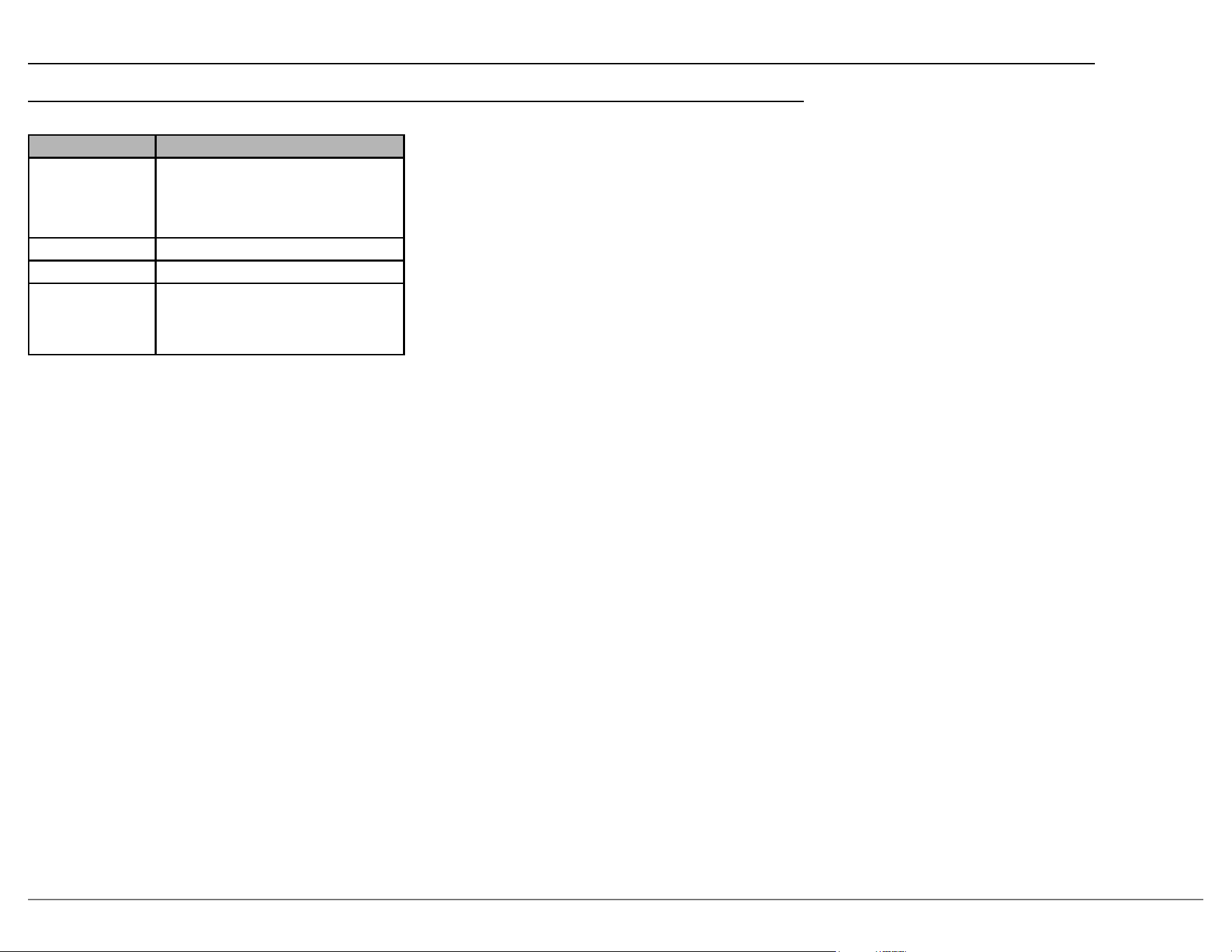
The video setup menu has the following options:
Setting Input
HDMI Setup Submenu described below
ON SCREEN DISP OFF, BOTTOM, TOP
TV Audio Switching* ON, OFF
Power O Control* ALL, VIDEO, OFF
Power Saving* ON, OFF
Note: Some options and settings are only available on the browser
version of the setup menu these are indicated with an *.
SETUP: VIDEO > HDMI SETUP
The Video setup menu has one main submenu for
HDMI settings, the options for it are shown below.
Setting Input
PASSTH RU NONE, HDMI 1-4
ARC ON, OFF
CEC ON, OFF
SETUP: VIDEO > HDMI SETUP > PASS THRU
Pass through (written as HDMI PASSTHRU on the
front display) allows an HDMI input to be assigned
so that when a signal is received by that HDMI input,
while in standby mode, the MX200 will pass the
complete signal to the HMDI output exactly as it was
received for video and audio playback by a connected
TV or monitor.
Note: CEC should be disabled if you plan to use the pass through
feature to avoid your TV turning on your MX200 and other
unexpected results.
SETUP: VIDEO > ON SCREEN DISP
On screen display, when On, will display the
volume on an attached TV when the volume is
activated. O will disable this feature.
Bottom and Top refer to the position on the TV
where the volume will be displayed. Both Bottom
and Top enable (on) the on screen display feature.
19
MX200
Network Setup Menu
SETUP: NETWORK > FRIENDLY NAME
Friendly name provides a more individual way of
identifying your MX200 on the network with devices
that recognize friendly names.
The default friendly name of “MX200” can be
changed by selecting an alternative name from the
preset name drop-down list. To create your own
name for the MX200, choose “Custom” from the
preset name drop-down box and then type the new
name in the friendly name box. Custom names can
only be entered from the browser interface. Preset
names can be chosen using the front panel or your
remote control.
Network Settings
Network settings allows you manually entering
network information. You may do this if you want to
have a static IP address for the MX200. The default
is for DHCP is On. With DHCP on, all the network
information will be assigned automatically from your
router.
To manually enter network settings, select “O” for
DHCP. This will allow you to enter settings for:
• IP address
• Gateway (typically the IP address of your router)
• Subnet mask (typically 255.255.255.0)
• DNS address (typically the IP address of your
router)
When you have completed making network settings
changes, select the “Apply All Settings” button to
save your changes.
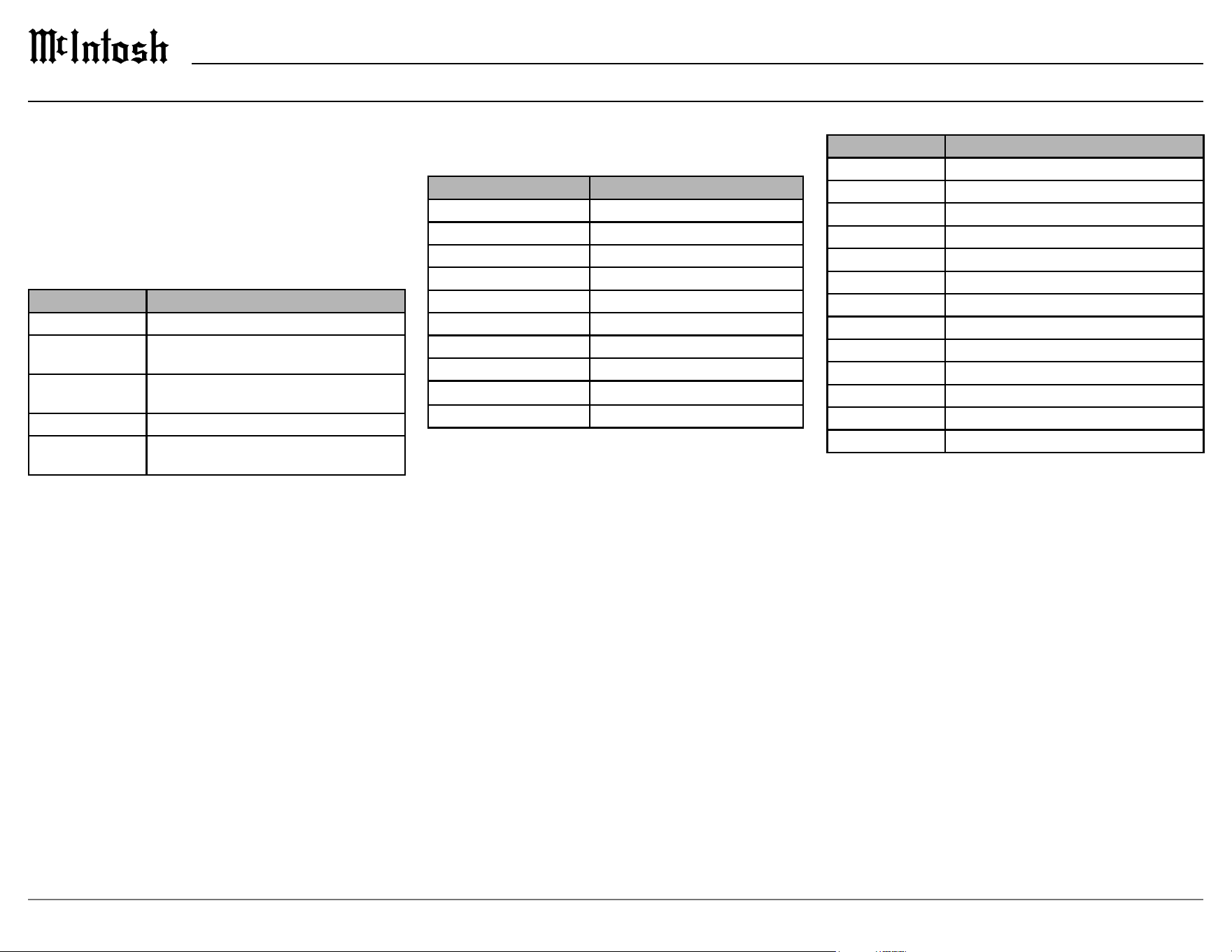
SETUP: NETWORK
Setting Options
Network
Information
Connection Status
Host IP Address
Host Mac Address
Dirac IP Address
Network Identify OK
Network Control On, O
Friendly Name MX200, Home Theater, Living Room,
Family Room, Guest Room, Dining
Room, Master Bedroom, Bedroom,
Den, Oce, None, Custom*
Note: Some options and settings are only available on the browser
version of the setup menu these are indicated with an *.
SETUP: NETWORK > NETWORK INFORMATION
• Connection status will show whether the device is
Connected or Not Connected to the internet.
• Host IP address will display the MX200’s IP
address.
• Host Mac address will display the MX200’s Mac
address.
• Dirac IP Address will display the specic IP
Address for the MX200’s Dirac function.
SETUP: NETWORK > NETWORK CONTROL
Network control has two settings: On or O. The
default is O. When network control is enabled (On),
a control system such as one using RS232 commands
over IP can awaken the MX200 from a sleep state.
When network control is o, the MX200 will enter
standby mode when powered o. The monitoring of
network trac with network control On uses slightly
more power when the MX200 is in sleep mode.
20
Speakers Setup Menu
SETUP: SPEAKERS > SPEAKER CONFIG
The available speaker categories are based on the
settings in Amp Assign (see above).
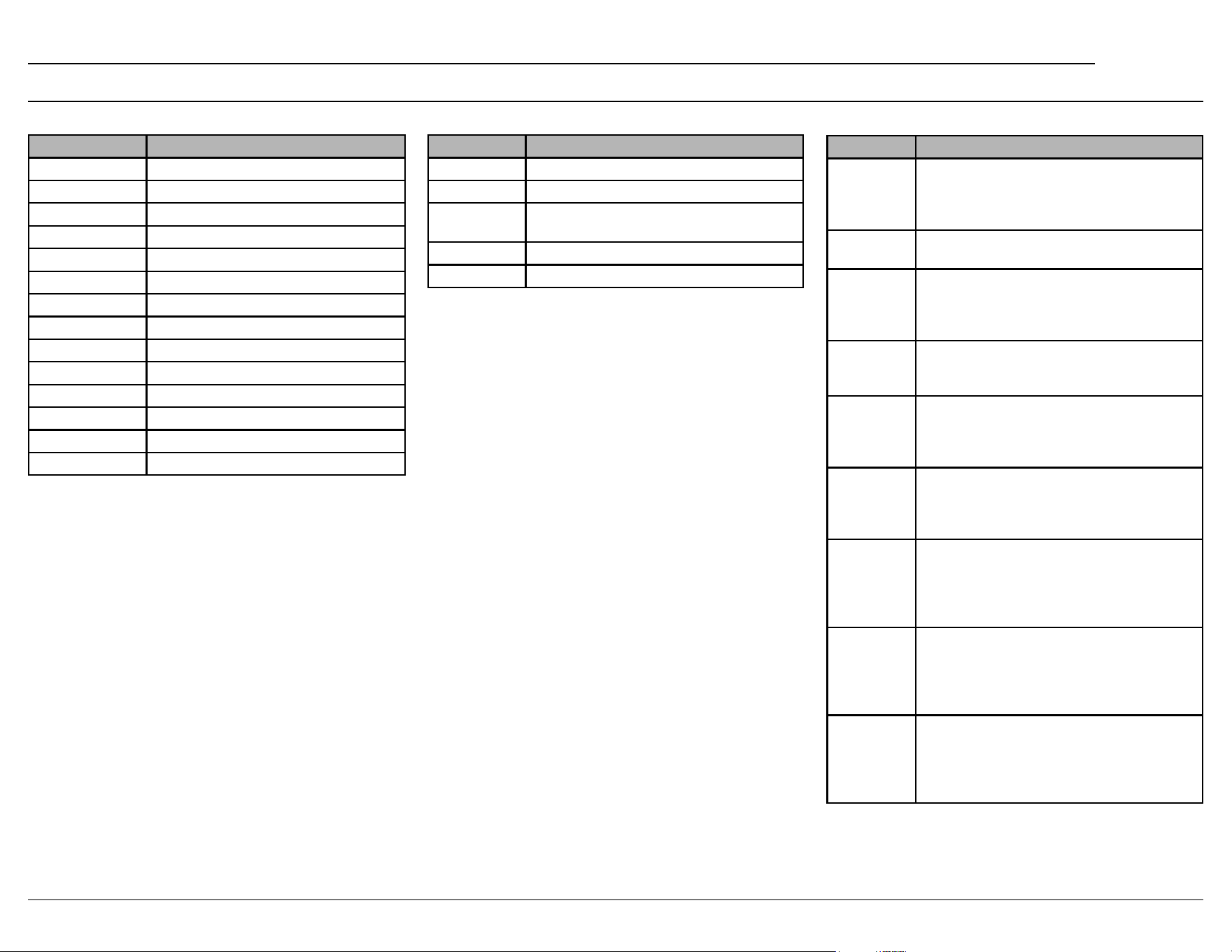
Speaker Options
Front Large / Small
Center Large / Small / None
Subwoofer (SUB) 1 speaker / 2 speaker / None
Surround (SUR) Large / Small / None
Surround Back (SUR BK)
Large / Small
Front Height (FR HT) Large / Small
Back Height (BK HT) Large / Small
Top Front* Large / Small
Top Rear* Large / Small
Top Middle* Large / Small
Note: 1. Some settings are only available on the browser version of
the setup menu these are indicated with an *.
2. Choosing some options will eliminate other options.
Speakers are dened as Large or Small. A Large
Speaker is a full-range speaker able to reproduce
bass frequencies down to 35Hz within -3dB of the
midrange frequencies. If it is not Large, then it is
Small.
SETUP: SPEAKERS > SPEAKER DISTANCES
Setting Options
Front Left 0.0 to 10.0m in 0.1m increments
Front Center 0.0 to 10.0m in 0.1m increments
Front Right 0.0 to 10.0m in 0.1m increments
Surround Right 0.0 to 10.0m in 0.1m increments
Rear Right 0.0 to 10.0m in 0.1m increments
Rear Left 0.0 to 10.0m in 0.1m increments
Surround Left 0.0 to 10.0m in 0.1m increments
Top Front Left* 0.0 to 10.0m in 0.1m increments
Top Front Right* 0.0 to 10.0m in 0.1m increments
Top Rear Left 0.0 to 10.0m in 0.1m increments
Top Rear Right 0.0 to 10.0m in 0.1m increments
Subwoofer 1 0.0 to 10.0m in 0.1m increments
Subwoofer 2 0.0 to 10.0m in 0.1m increments
Note:
Some settings are only available on the browser version of
the setup menu these are indicated with an *.
The input of distances of your speakers can be
entered manually. Distances will be provided
automatically when the Dirac Live setup program
is run, after which they can be edited. Having an
accurate accounting of your speaker speeds the Dirac
Live process by avoiding Dirac Live looking for
phantom speakers.
For each speaker, enter the distance from the main
listening position to the speaker in meters. To convert
feet to meters, multiply the number of feet by 0.3048.
The Dirac Live program will provide more exacting
information. The information entered here provides a
baseline to compare the Dirac Live ndings.
For Dolby enabled speakers, enter the distance to
the speaker. Do not calculate the angled path that the
reected sound will travel. Dirac Live will handle
this.
The speakers setup menu contains the following
submenus:
• Amp Assign
• Speaker Conguration
• Speaker Distances
• Speaker Level
• Crossover
SETUP: SPEAKERS > AMP ASSIGN
Setting Options
Manual Floor 2 channel, 5 channel, 5 channel + SB
Manual Top SP
Top Speaker
None, 2 channel, 4 channel*
Top Layout Front, Middle, Rear, Front + Rear*,
Front + Middle*, Middle + Rear*
Manual Dolby None, 2 channel, 4 channel*
Dolby Layout Front, Surround*, Rear*, Front + Rear*,
Front + Middle*, Middle + Rear*
Note:
1. Some settings are only available on the browser version of
the setup menu these are indicated with an *.
2. Choosing some options will eliminate others.
In amp assign, you select how to use the preampli-
er section of the MX200. In the amp assign section
of setup, you can tell the MX200 what speaker setup
scheme you will be using. This assignment is neces-
sary before running Dirac Live.
21
MX200
SETUP: SPEAKERS > CROSSOVER
Setting Options
Dependence Independent, All
Cross All
40, 60, 80, 90, 100, 110, 120, 150, 200, 250 Hz
Independent
Front, Center, Surround (SUR), Surround
Back (SUR BK), (BK HT)
Bass Type
LFE, LFE + MAIN
Bass LP Filter 40, 60, 80, 90, 100, 110, 120, 150, 200, 250 Hz
Sound below the crossover frequency is ltered
from the output to “small” speakers and is sent to the
subwoofer or front speakers. Most small speakers use a
crossover frequency of 80Hz, but small speakers may
need a crossover set as high as 250Hz. We recommend
setting to a higher frequency when small speakers are
used. For example, set to “250Hz” when the frequency
range of the speakers is 250Hz to 20kHz.
You can choose Independent or All. Cross All
will globally set the crossover frequency to the
chosen value. Independent will allow each available
speaker’s crossover frequency to be set using the
same options as Cross All.
SETUP: SPEAKERS > CROSSOVER > BASS TYPE
When the subwoofer mode is set to LFE (Low
Frequency Eects), the LFE channel plus the low
frequency output below the set crossover frequency
of speakers set to small is sent to the subwoofer
When set to LFE+Main, the LFE channel and low
frequency output, below the set crossover frequency,
of the main channel are sent to the subwoofer.
SETUP: SPEAKERS > CROSSOVER > BASS LP FILTER
The bass low pass lter sets an upper limit for
frequencies that are sent to the subwoofers when
LFE+Main is selected above. Frequencies above the
chosen option will not be sent to the subwoofer. The
LPF setting does not apply to content sent from the
LFE channel to the subwoofers.
SETUP: SPEAKERS > SPEAKER LEVEL
Setting Options
Test Tone On, O
Front Left -10 to +10dB in 1dB increments
Front Center -10 to +10dB in 1dB increments
Front Right -10 to +10dB in 1dB increments
Surround Right -10 to +10dB in 1dB increments
Rear Right -10 to +10dB in 1dB increments
Rear Left -10 to +10dB in 1dB increments
Surround Left -10 to +10dB in 1dB increments
Top Left Front* -10 to +10dB in 1dB increments
Top Right Front* -10 to +10dB in 1dB increments
Top Rear Left -10 to +10dB in 1dB increments
Top Rear Right -10 to +10dB in 1dB increments
Subwoofer 1 -10 to +10dB in 1dB increments
Subwoofer 2 -10 to +10dB in 1dB increments
Note: Some settings are only available on the browser version of
the setup menu these are indicated with an *.
The test tones and levels submenu provides the
ability to manually set relative levels for all speaker
types, and may be used to conrm proper wiring.
This does not need to be set if using Dirac Live
calibration.
When test tone is set to On, a tone will play through
the speaker type selected in the levels drop-down
box. Using a sound meter or your ears, you can set
the relative level from -10dB to +10dB. The default is
0dB.
Dirac Live will automatically set levels and will
over-write osets set previously. Likewise, manually
setting test tones will replace Dirac Live settings.
Speaker Placement
Speaker Position
Front The Front Left and Right speakers should
be an equal distance from the main listening
position. The distance between each speaker
and your TV should also be about the same.
Center The Middle speaker should be between the
Front speakers and above or below your TV.
Top Front Mount the Top Front Left and Right speakers
on the ceiling slightly in front of your main
listening position and align with the Left and
Right Front speakers.
Top Middle Mount the Top Middle Left and Right speakers
directly above the main listening position and
align with the Left and Right Front speakers.
Top Rear Mount the Top Rear Left and Right speakers
on the ceiling slightly behind your main
listening position and align with the Left and
Right Front speakers.
Subwoofer Place the Subwoofer at a convenient location
near the Front speakers. If you have two
Subwoofers, place them asymmetrically across
the front of your room.
Front Dolby
speaker
Left/Right
Place the Front Dolby Enabled speakers on
the Front speakers (left and right). For a Dolby
Atmos Enabled speaker integrated with a
Front speaker, place the Dolby Atmos Enabled
speaker instead of the Front speaker.
Surround
Dolby
speaker
Place the Surround Dolby Enabled speaker
on the Surround speaker. For a Dolby Atmos
Enabled speaker integrated with a Surround
speaker, place the Dolby Atmos Enabled
speaker instead of the Surround speaker.
Back Dolby
speaker
Place the Back Dolby Enabled speaker on the
surround back speaker. For a Dolby Atmos
Enabled speaker integrated with a Surround
Back speaker, place the Dolby Atmos Enabled
speaker instead of the Surround Back speaker.
More information about speaker placement can be
found in “Setting Up Surround Sound” on page 24.
Speakers Setup Menu (continued)

22
10. Use the Play Button to test channels individually
to hear if their level is suitable. Slowly raise the
master output level until sound can be heard.
• Repeat this step for each speaker.
11. Once each channel is complete, adjust the Master
output to a normal or slightly loud listening level.
Calibration notes:
• A common master volume range is -35dB to -25dB.
• A signal-to-noise ratio error indicates too low of audio to
measure. Master output may need to increase.
• A clipping error indicates too high of an audio level to
measure. Master output may need to decrease.
• If your subwoofer has gain control, this control may need to
be adjusted to assist with the volume calibration of that channel.
Select Arrangement
12. Dirac oers dierent arrangement settings for
measurements: Tightly Focused, Focused, and
Wide Imaging.
13. Please choose one that matches closest to your
own listening arrangement. A wider listening
arrangement may require more measurement
positions with the microphone
Measure
14. Place the microphone closest to the listening
position shown in arrangement image.
15. Press “Measure selected position.”
16. DIRAC will now send test tones out of the
system’s channels to measure.
Note: While measuring a 7.2.4 system, the test tone will appear to
come from both subwoofers together. This is normal.
17. When measurement is nished, Dirac will
automatically go to the next position to be
measured.
18. Relocate the Microphone to match the next
position shown in DIRAC for the next
measurement.
Dirac Live
®
Setup
Please review the Dirac Live User manual setup
and operation before beginning to calibrate your
system. Information regarding the user manual and
other tips may be found at
https://www.dirac.com/live/faq/
1. Create a DIRAC account and install the app from
https://www.dirac.com/live/downloads
2. Complete amp assign to establish the room’s
layout using either the front panel or the browser
setup menu. This will set up the MX200 to know
which proper channels to enable to deliver audio
to (“Setup: Speakers > Amp Assign” on page 20)
Note: After completing “Amp Assign”, press “Next”, and finally
press “Start.” This refreshes NET connection to DIRAC
within the MX200. Please wait at least 30 seconds to
connect to the MX200 within the Dirac Live app.
3. Make the room as quiet as possible. Background
noise can disrupt the room measurements. Close
windows and turn o unnecessary electronic
devices (radios, air conditioners, uorescent
lights, etc.).
4. Connect the included measurement microphone
to the MX200.
Select Device (MX200)
5. Select recording device (microphone). An icon
with a microphone should appear with a graph.
6. Click the graph to select proper calibration le
7. Select “Use from device.”
Volume Calibration
8. Set the Master output to a low setting to avoid
damage to ears or speakers.
9. Set the microphone gain to +0dB.
19. Repeat the “Measure selected position’ for each
position in Dirac’s arrangement Image.
Note: Please take the time to SAVE your current project at this
point, as it will allow you to open this measurement and edit
your filter in the future without having to remeasure your
arrangement again.
Filter Design
20. Dirac Live will automatically generate a
suggested target curve based on your speakers’
performance and tune their response to meet the
suggested curve. These curves can be adjusted to
your preferences.
21. To manually adjust the generated curve, follow
the Dirac Live User Manual on Filter Design.
Filter Export
22. Once the desired lter is achieved, the lter may
now be exported and saved onto the MX200.
23. Dirac will give the opportunity to name and
describe the lter. The MX200 can store up to 4
exported lters.
The Dirac Live process is now complete, and
Dirac may be enabled or disabled with available
lter selections via the trim menu and browser.
Future Filter Edits:
Amp Assignment must be set to the same settings
as when the project was measured with to be able
to open a specic project and speaker arrangement.
For example, if a Dirac Live measurement was taken
with system set to 5.1 – if amp assign is changed to
5.0: the project measured with 5.1 will not be able to
open until the MX200 is set back to 5.1.
23
MX200
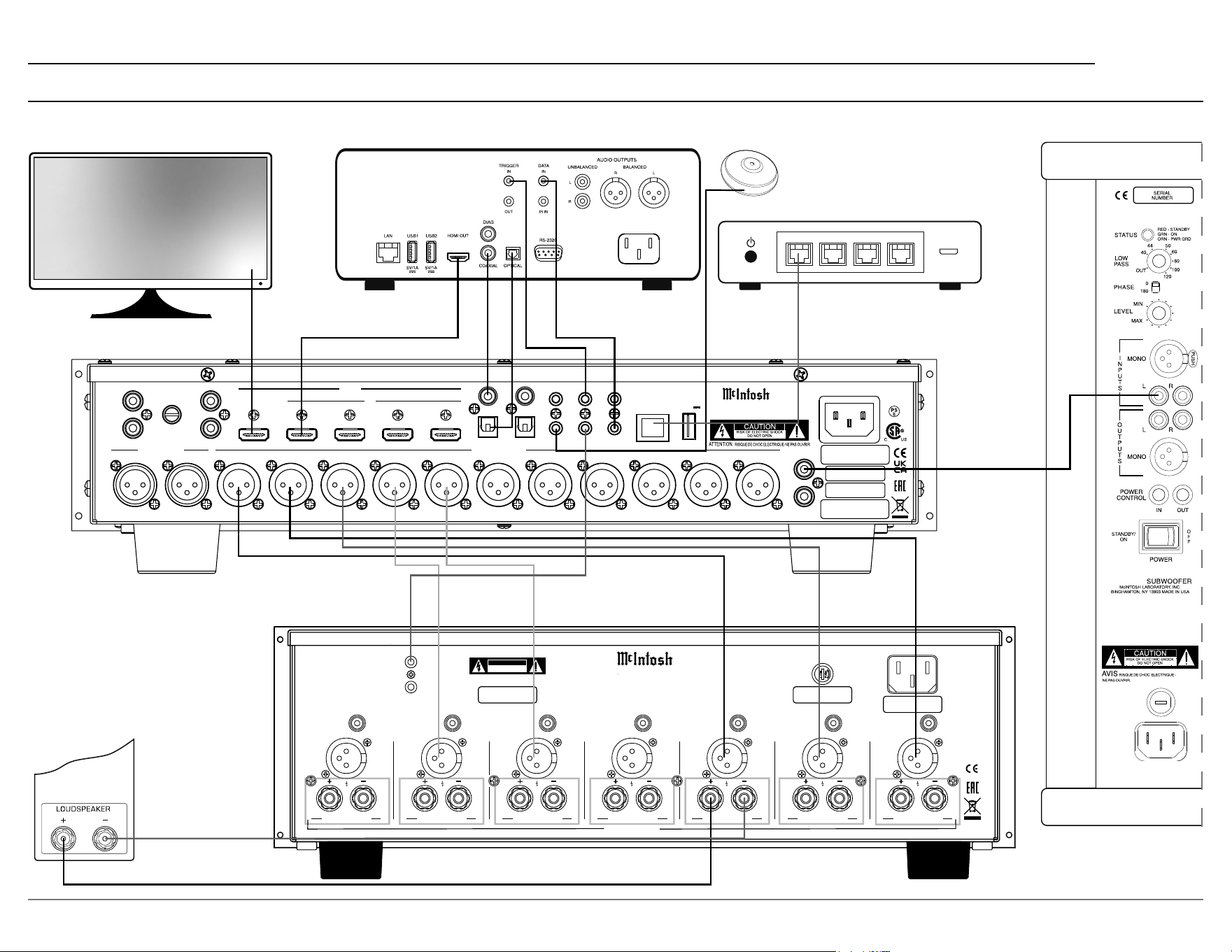
Connection Diagram
HDMI
IN
1 2
3
4
RS232
TRIG 1 IR IN
TRIG 2
2
OPT
COAX
1
1
2
OUT/eARC
DATA OUT
SETUP MIC
BALANCED OUT
RF LF C LS RB LB RH1RS LH1 RH2 LH2
A/V PROCESSOR
MX200
McINTOSH LABORATORY, INC., BINGHAMTON, NY
HAN DCRAF TED I N USA WITH US A ND I MPO RT ED PAR TS
NET
DIGITAL INPUTS
SERVICE
USB
5V/1A
GND
MM
AUX 1
R
L
AUX 2R AUX 2L
UNBAL OUT
SW1
SW2
BALANCED IN
MAC ID
MAC ID
SERIAL
NUMBER
R
L
NET NET NET NET
NET NET NET NET
BLU-RAY PLAYER
TV
LOUDSPEAKERS
SUBWOOFER
(up to 2)
ROUTER
MIC
CHANNEL 7-RB CHANNEL 6-RS CHANNEL 5-LS CHANNEL 4-LB CHANNEL 3-RF CHANNEL 2-C CHANNEL 1-LF
MI347 SEVEN CHANNEL POWER AMPLIFIER
McINTOSH LABORATORY, INC.,
BINGHAMTON, NY
HANDCRAFTED IN USA WITH US AND IMPORTED PARTS
50/60Hz 10A
100V-240V
FUS
E
PUSH
15AH 250V
CAUTION
RISK OF ELECTRIC SHOCK
DO NOT OPEN
ATTENTION: RISQUE DE CHOC ELECTRIQUE-NE PAS OUVRIR
SERIAL
NUMBER
POWER
CONTROL
IN
OUT
BAL BAL
UNBAL
+
–
UNBAL
+
–
BAL
UNBAL
+
–
UNBAL
+
–
BALBAL BAL
UNBAL
+
–
UNBAL
+
–
BAL
UNBAL
+
–
CLASS 2 WIRING
CHANNEL 7-RB CHANNEL 6-RS CHANNEL 5-LS CHANNEL 4-LB CHANNEL 3-RF CHANNEL 2-C CHANNEL 1-LF
MI347 SEVEN CHANNEL POWER AMPLIFIER
McINTOSH LABORATORY, INC.,
BINGHAMTON, NY
HANDCRAFTED IN USA WITH US AND IMPORTED PARTS
50/60Hz 10A
100V-240V
FUS
E
PUSH
15AH 250V
CAUTION
RISK OF ELECTRIC SHOCK
DO NOT OPEN
ATTENTION: RISQUE DE CHOC ELECTRIQUE-NE PAS OUVRIR
SERIAL
NUMBER
POWER
CONTROL
IN
OUT
BAL BAL
UNBAL
+
–
UNBAL
+
–
BAL
UNBAL
+
–
UNBAL
+
–
BALBAL BAL
UNBAL
+
–
UNBAL
+
–
BAL
UNBAL
+
–
CLASS 2 WIRING
24
Setting Up Surround Sound
Setting up speakers for a surround setup takes
planning, measuring and installation. Depending on
your level of expertise and available time, you may
wish to employ the services of your McIntosh dealer
for expert setup of your system. Professional instal-
lation of in-ceiling speakers is particularly important
due to gravity and the location above your head.
The number, types and locations of speakers are
key elements in setting up the system. There is a
multitude of possible congurations, and the MX200
is very exible in its setup to adapt to many of these
congurations.
Often surround setups are referred to by numbers
for example 7.2.4. The rst number refers to the
number of traditional “oor” speakers (front, center
and surround). The second number is the number
of subwoofers that can be connected, and the third
number refers to the number of in-ceiling or upward
ring speakers in the setup.
The type of speaker (size and location) will be
entered later during Speaker setup. The distance of
the speaker from the listening location is manually
entered in the Speaker setup, or automatically entered
during the Dirac Live
®
calibration process.
At this stage, the connection from the MX200
to the various speakers, powered subwoofers, and
auxiliary ampliers should be made with high
quality cables as necessary.
H1-L H1-R
H2- L H2- R
2-LS 6-RS
1-LB 7-RB
3-L 5-R
4-C
2-LS 6-RS
1-LB 7-RB
3-L 5-R
4-C
SW-1
2-LS 6-RS
1-LB 7-RB
3-L 5-R
4-C
SW-1
SW-2
SW-1
SW-2
2-LS 6-RS
3-L 5-R
4-C
SW-1
GOOD
ART
H1-L H1-R
H2- L H2- R
H1-L H1-R
H2- L H2- R
H1-L H1-R
H2- L H2- R
H1-L H1-R
H2- L H2- R
2-LS 6-RS
1-LB 7-RB
3-L 5-R
4-C
2-LS 6-RS
1-LB 7-RB
3-L 5-R
4-C
SW-1
2-LS 6-RS
1-LB 7-RB
3-L 5-R
4-C
SW-1
SW-2
SW-1
SW-2
2-LS 6-RS
3-L 5-R
4-C
SW-1
GOOD
ART
H1-L H1-R
H2- L H2- R
H1-L H1-R
H2- L H2- R
H1-L H1-R
H2- L H2- R
∗2
∗3
∗4
∗4 125° - 150°∗2 30° - 55° ∗3 65° - 100°
(Viewed from the side)
Top middle speaker
Top front speaker Top rear speaker
Front speaker
Surround
speaker
Surround
back speaker
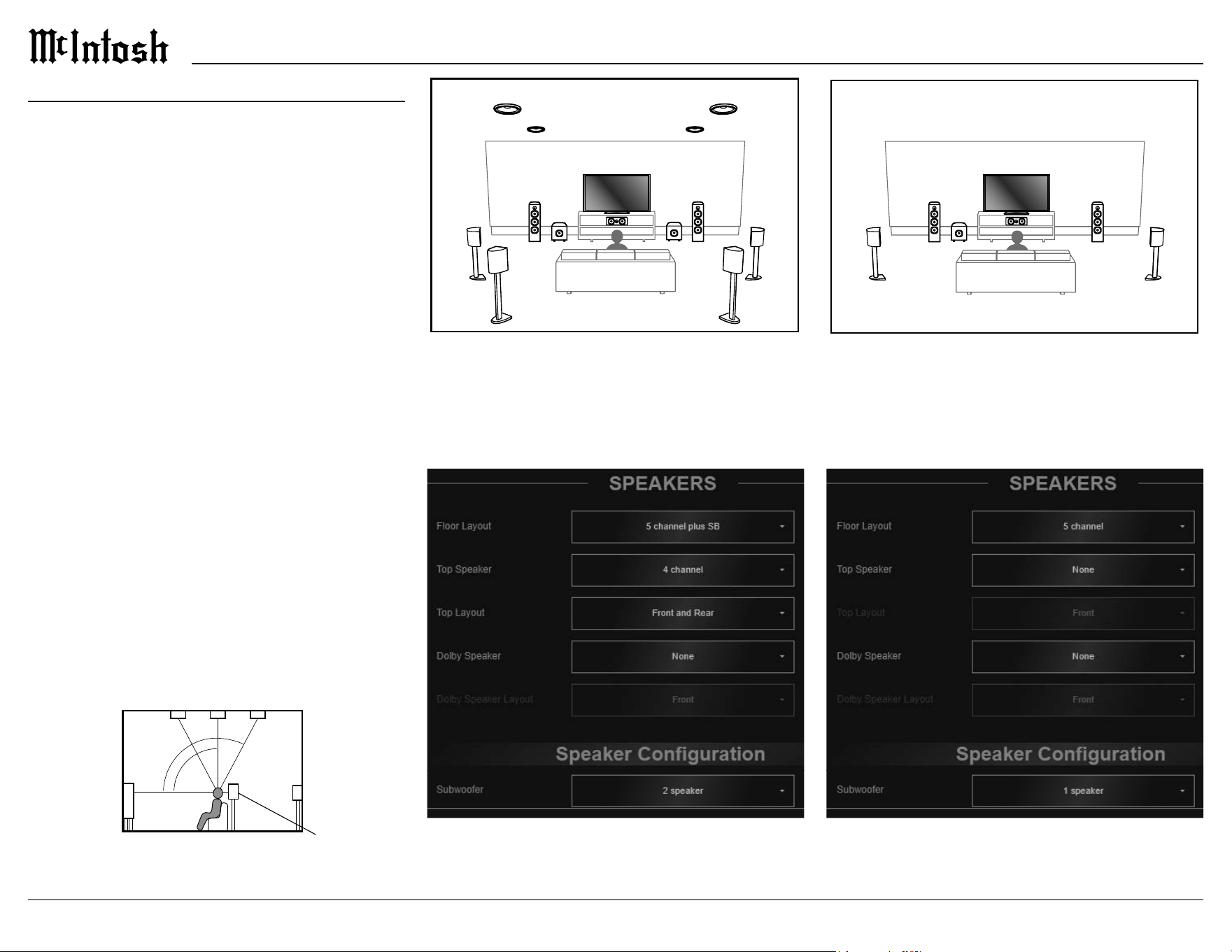
7.2.4 with Front & Rear Tops
The ideal setup for the MX200 is shown above. It
features two subwoofers, seven oor speakers, and
four ceiling mounted speakers. The settings from the
browser setup menu are shown below.
5.1
Another common setup for the MX200 is shown
above. It features one subwoofer and 5 oor speakers.
The settings from the browser setup menu are shown
below.
25
MX200
H1-L H1-R
H2- L H2- R
2-LS 6-RS
1-LB 7-RB
3-L 5-R
4-C
2-LS 6-RS
1-LB 7-RB
3-L 5-R
4-C
SW-1
2-LS 6-RS
1-LB 7-RB
3-L 5-R
4-C
SW-1
SW-2
SW-1
SW-2
2-LS 6-RS
3-L 5-R
4-C
SW-1
GOOD
ART
H1-L H1-R
H2- L H2- R
H1-L H1-R
H2- L H2- R
H1-L H1-R
H2- L H2- R
H1-L H1-R
H2- L H2- R
2-LS 6-RS
1-LB 7-RB
3-L 5-R
4-C
2-LS 6-RS
1-LB 7-RB
3-L 5-R
4-C
SW-1
2-LS 6-RS
1-LB 7-RB
3-L 5-R
4-C
SW-1
SW-2
SW-1
SW-2
2-LS 6-RS
3-L 5-R
4-C
SW-1
GOOD
ART
H1-L H1-R
H2- L H2- R
H1-L H1-R
H2- L H2- R
H1-L H1-R
H2- L H2- R
H1-L H1-R
H2- L H2- R
2-LS 6-RS
1-LB 7-RB
3-L 5-R
4-C
2-LS 6-RS
1-LB 7-RB
3-L 5-R
4-C
SW-1
2-LS 6-RS
1-LB 7-RB
3-L 5-R
4-C
SW-1
SW-2
SW-1
SW-2
2-LS 6-RS
3-L 5-R
4-C
SW-1
GOOD
ART
H1-L H1-R
H2- L H2- R
H1-L H1-R
H2- L H2- R
H1-L H1-R
H2- L H2- R
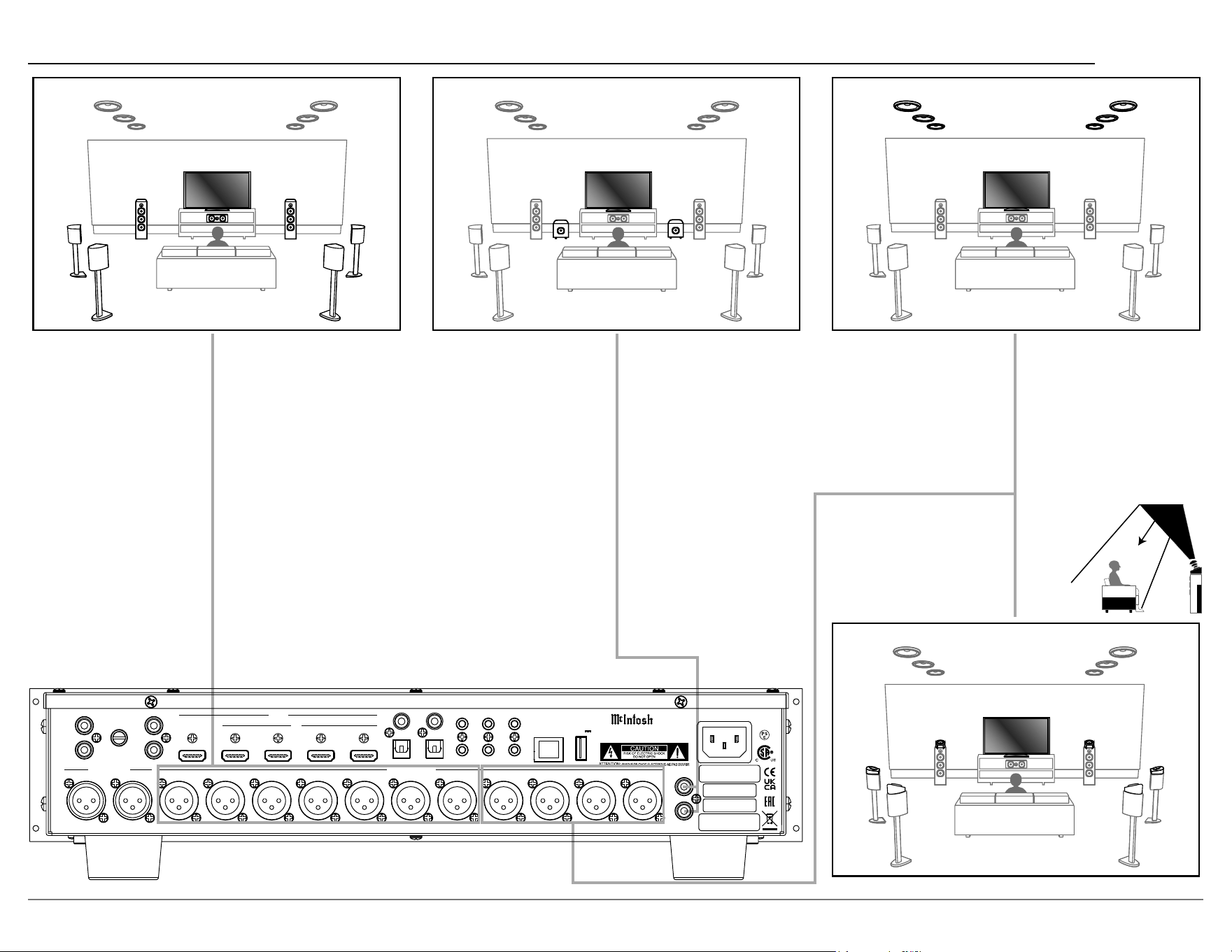
Floor Speakers
The MX200 has thirteen speaker outputs, with
seven channels intended for oor speakers, to
connect to speakers around the room via your
selected ampliers.
H1-L H1-R
H2- L H2- R
2-LS 6-RS
1-LB 7-RB
3-L 5-R
4-C
2-LS 6-RS
1-LB 7-RB
3-L 5-R
4-C
SW-1
2-LS 6-RS
1-LB 7-RB
3-L 5-R
4-C
SW-1
SW-2
SW-1
SW-2
2-LS 6-RS
3-L 5-R
4-C
SW-1
GOOD
ART
H1-L H1-R
H2- L H2- R
H1-L H1-R
H2- L H2- R
H1-L H1-R
H2- L H2- R
Subwoofers
Your surround sound setup might include one or
two subwoofers. Use the SW1 and SW2 outputs on
the back of the MX200 to connect them.
Heights
The MX200 has four height outputs that can be
connected to a secondary amplier(s) to drive up to
four locations on the ceiling or can be congured
for up to four Dolby Atmos speakers. Dolby Atmos
Enabled speakers reect the sound o the ceiling
to allow the sound to come from over your head by
using a special upward-pointing
speaker that is placed on the oor.
Note: RH1 and LH1 should be forward of
RH2 and LH2.
HDMI
IN
1 2
3
4
RS232
TRIG 1 IR IN
TRIG 2
2
OPT
COAX
1
1
2
OUT/eARC
DATA OUT
SETUP MIC
BALANCED OUT
RF LF C LS RB LB RH1RS LH1 RH2 LH2
A/ V PR O C E SSOR
MX200
McINTOSH LABORATORY, INC., BINGHAMTON, NY
HAN DCRAF TED I N USA WITH US A ND IM PORTE D PART S
NET
DIGITAL INPUTS
SERVICE
USB
5V/1A
GND
MM
AUX 1
R
L
AUX 2R AUX 2L
UNBAL OUT
SW1
SW2
BALANCED IN
MAC ID
MAC ID
SERIAL
NUMBER
R
L

26
Audio Specications
Note: the MX200 specifications are with Dirac Live bypassed.
Frequency Response
±0.5dB from 20Hz-20,000Hz
Total Harmonic Distortion
High Level Inputs: 0.005% maximum from 20Hz to
20,000Hz
Phono Input: 0.05% maximum from 20Hz to
20,000Hz
Signal To Noise Ratio - A Weighted
Phono: 77dB below 5mV Input
High Level: 96dB below rated Output
Output Impedance
330 Ohms
Input Impedance
Phono: 47k Ohms
High Level: 22k Ohms Unbalanced and Balanced
Sensitivity for Rated Output
Phono: 4.5mV
High Level: 450mV Unbalanced
900mV Balanced
Maximum Voltage Output
7V Unbalanced
15V Balanced
Maximum Input Signal
Phono: 50mV
High Level: 4.5V Unbalanced and Balanced
Room Correction
Dirac Live
Video Specications
HDMI (Inputs and Outputs)
Version 2.1, 8K, High Dynamic Range (HDR),
Dolby Vision, HDR10, HLG, 4:4:4 Color,
Rec. 2020, 3D Video pass-through, eARC,
Dynamic Lip-sync
Fixed Rate Link (FRL)
40 Gbps
18 Gbps TMDS
Video Resolution
Up to 1080p 60/50Hz
4K 120/60/50/30/25/24Hz
8K 60/30Hz
HDCP
Version 2.3
Coaxial/Optical Digital Input Rate and Formats
32kHz to 192kHz, 24-Bit PCM, Multichannel PCM,
Dolby Digital, DTS
HDMI Input Rate and Formats
32kHz to 192kHz – 24-Bit PCM, Multichannel &
Stereo PCM, Dolby Digital, DTS, Dolby
Atmos, Dolby TrueHD, Dolby Digital Plus,
DTS:X, DTS-HD Master Audio, DTS Express
General Specications
Note: the MX200 has been tested and certified for indoor use only.
Power Requirements
Field AC Voltage conversion of the MX200 is not pos-
sible. The MX200 is factory congured for one of the
following AC Voltages:
100 Volts, 50/60Hz at 30 watts
110 Volts, 50/60Hz at 30 watts
120 Volts, 50/60Hz at 30 watts
127 Volts, 50/60Hz at 30 watts
220 Volts, 50/60Hz at 30 watts
230 Volts, 50/60Hz at 30 watts
240 Volts, 50/60Hz at 30 watts
Standby, less than 0.5 watt
Note: Refer to the rear panel of the MX200 for the correct voltage.
Overall Dimensions
Width is 17 1/2 inches (44.5cm)
Width with Side Mount Brackets 19 inches (48.3cm)
Height is 4 15/16 inches (12.5cm)
Depth is 21 inches (53.3cm)
Weight
17 pounds (7.7 kg) net
39.5 pounds (18 kg) in shipping carton
Shipping Carton Dimensions
Width is 26 1/2 inches (67.3cm)
Depth is 17 inches (43.2cm)
Height is 24 1/4 inches (61.6cm)
Power Control Output
12VDC, 50mA maximum total
Trademarks of McIntosh Laboratory, Inc.:
The following are Registered Trademarks of McIntosh Laboratory, Inc. in multiple jurisdictions around the world: the written McIntosh logo; the McIntosh Globe logo; the Mc logo; Power Guard; Power Guard
Screen Grid Sensor; Power Guard SGS; LD/HP; Dynamic Power Manager; the 4DPM8 logo; HXD; the HXD logo; Behind The Sound; Legendary Performance.
The following are Trademarks of McIntosh Laboratory, Inc. in multiple jurisdictions around the world: Autoformer; Sentry Monitor; Solid Cinch; McIntosh Monogrammed Heatsinks; Hybrid Drive; DualView;
TripleView; Made of Sound.
The foregoing trademarks, registered and otherwise, are not to be used, reproduced, or registered in any way without the express written permission of McIntosh Laboratory, Inc.
27
MX200
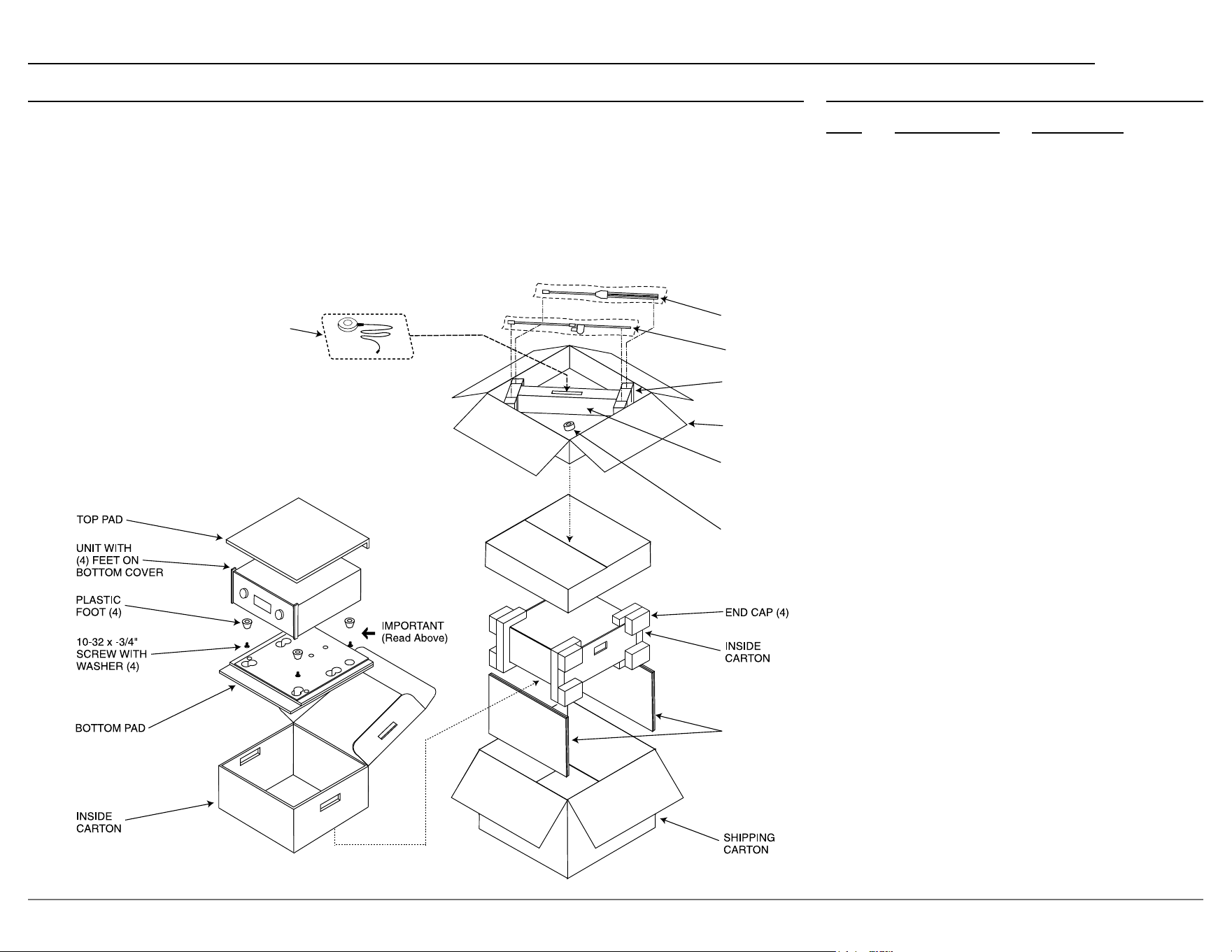
Packing Instructions Part List
Qty Part Number Description
1 034668 Shipping Carton only
2 034669 End Caps
1 033836 Inside Carton only
1 033725 Top Pad
1 034576 Bottom Pad
4 017937 Plastic Feet
4 400159 #10-32 x 3/4” Screws
4 404080 #10 Flat Washers
1 034667 Accessory Box
2 034500 Slotted Foam
1 034501 Divider Foam
In the event it is necessary to repack the equipment
for shipment, the equipment must be packed exactly
as shown below.
It is very important that the four plastic feet
are attached to the bottom of the equipment.
This will ensure the proper equipment location
on the bottom pad. Failure to do this will result in
shipping damage.
Use the original shipping carton and interior parts
only if they are all in good serviceable condition.
If a shipping carton or any of the interior part(s)
are needed, please call or write Customer Service
Department of McIntosh Laboratory. Refer to page 2.
Please see the Part List for the correct part numbers.
SPACER
PADS
SLOTTED
FOAM (2)
DIVIDER
FOAM
ACCESSORY
BOX
MICROPHONE
STAND
MICROPHONE
AND CABLE
MINI BOOM
MICROPHONE
ADAPTER

The continuous improvement of its products is the
policy of McIntosh Laboratory, Inc. who reserve
the right to improve design without notice.
Printed in the U.S.A.
McIntosh Laboratory, Inc.
2 Chambers Street
Binghamton, NY 13903
www.mcintoshlabs.com
© 2024 McIntosh Laboratory, Inc.
McIntosh Part No. 24123400