McIntosh Laboratory, Inc. 2 Chambers Street Binghamton, New York 13903-2699 Phone: 607-723-3512 www.mcintoshlabs.com
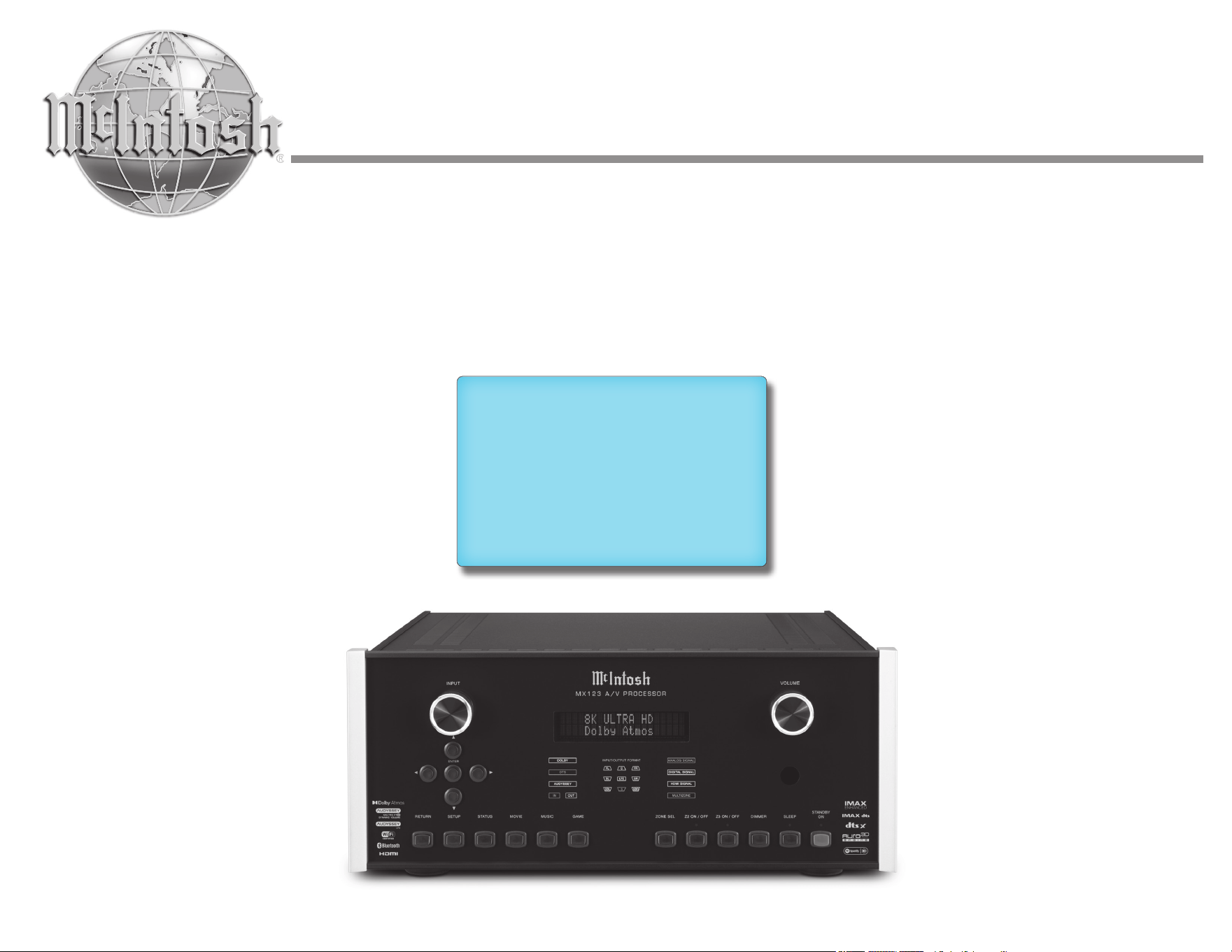
MX123
A/V Processor
Owner’s Manual
2
Thank you from all of us at
McIntosh
You have invested in a precision instrument that will
provide you with many years of enjoyment. Please
take a few moments to familiarize yourself with
the features and instructions to get the maximum
performance from your equipment.
List of Figures
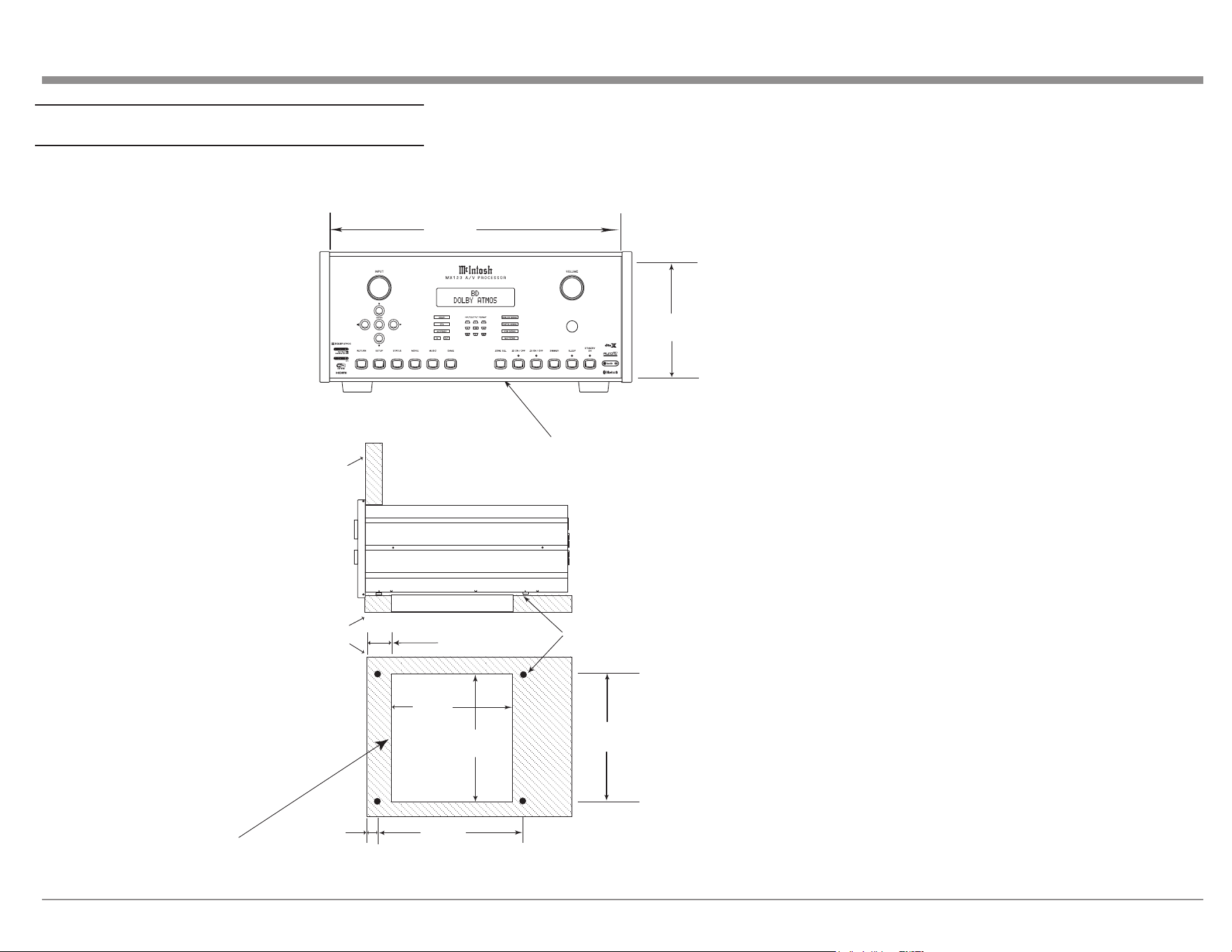
Figure 01– MX123 Dimensions ............................ 6
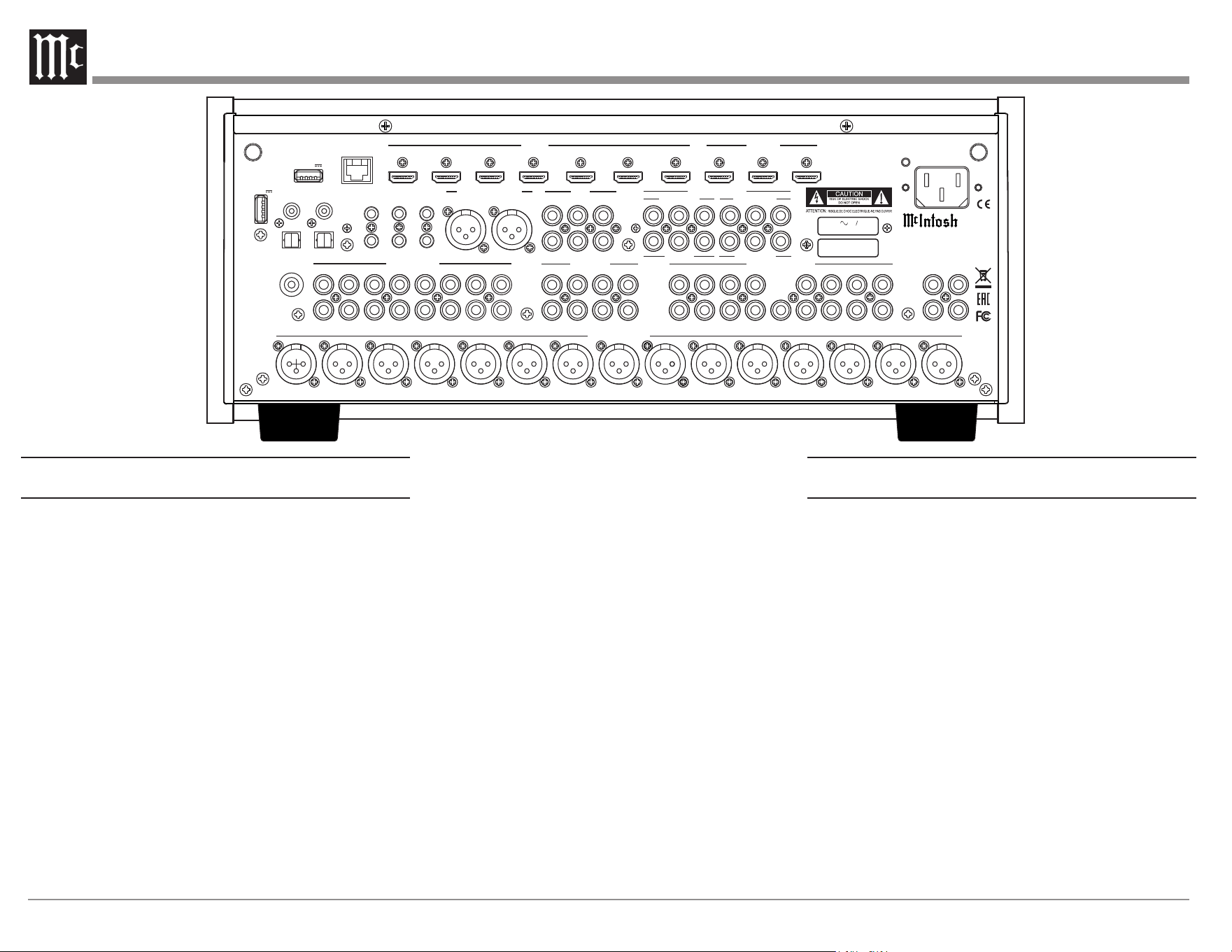
Figure 02– Custom cutout dimensions ................. 7
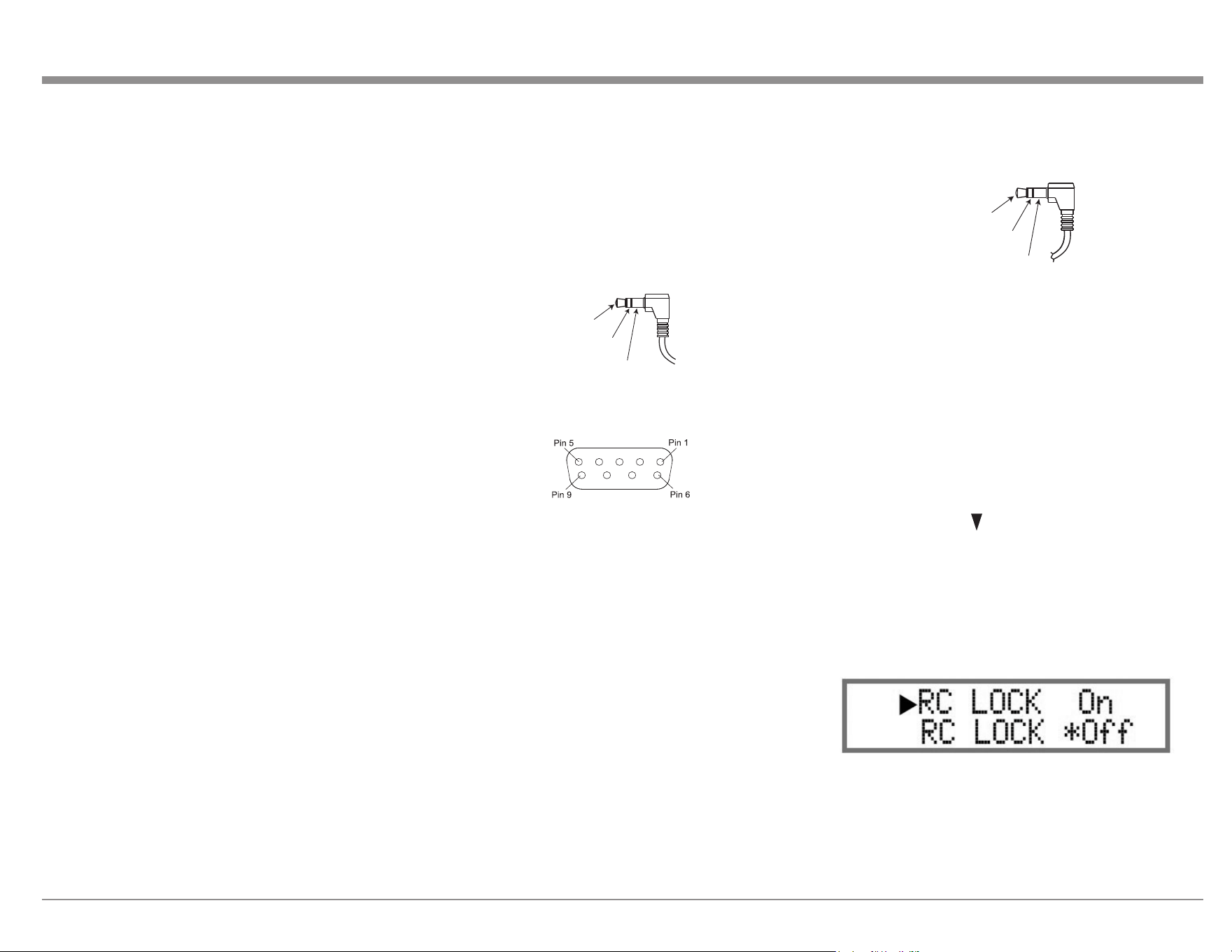
Figure 03– MX123 Rear View ............................. 8
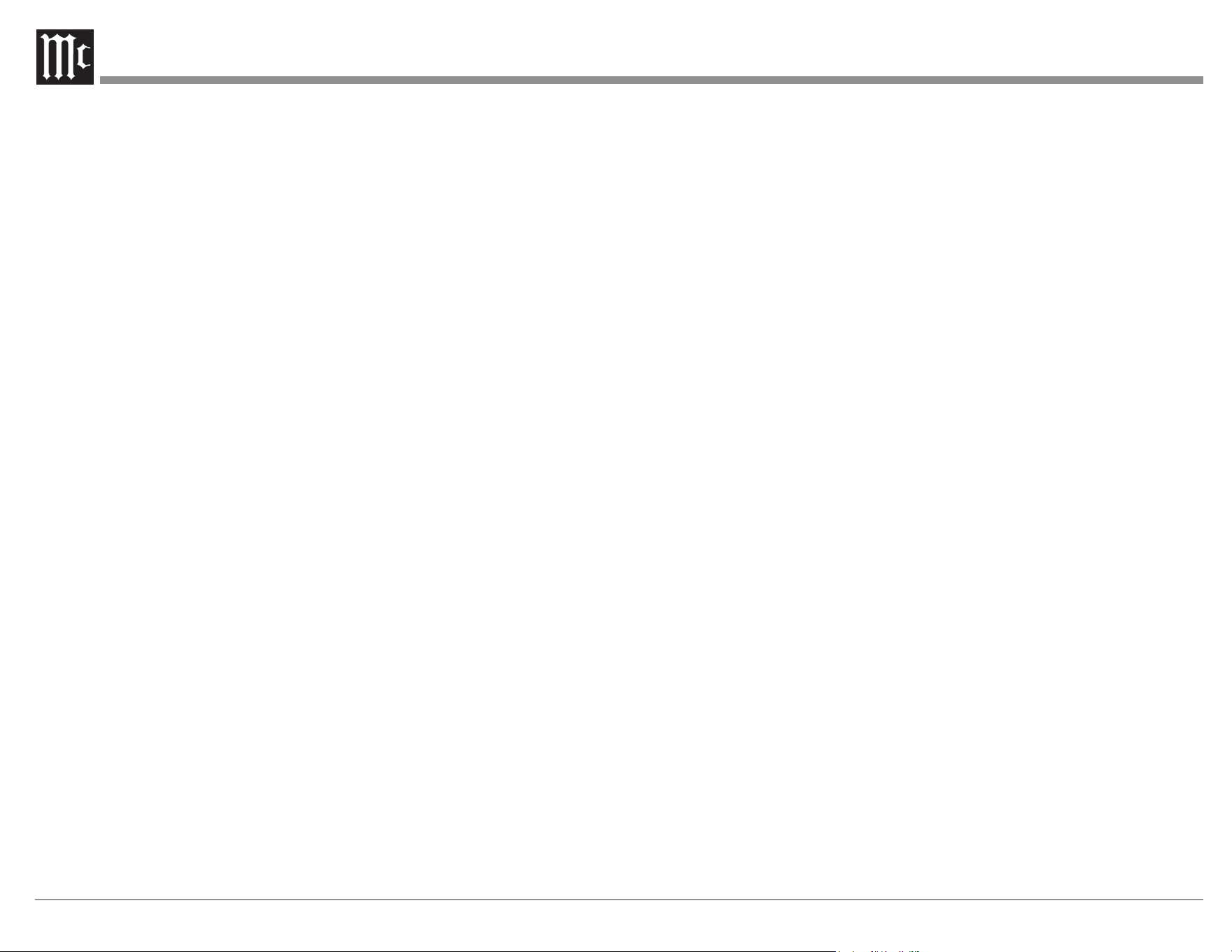
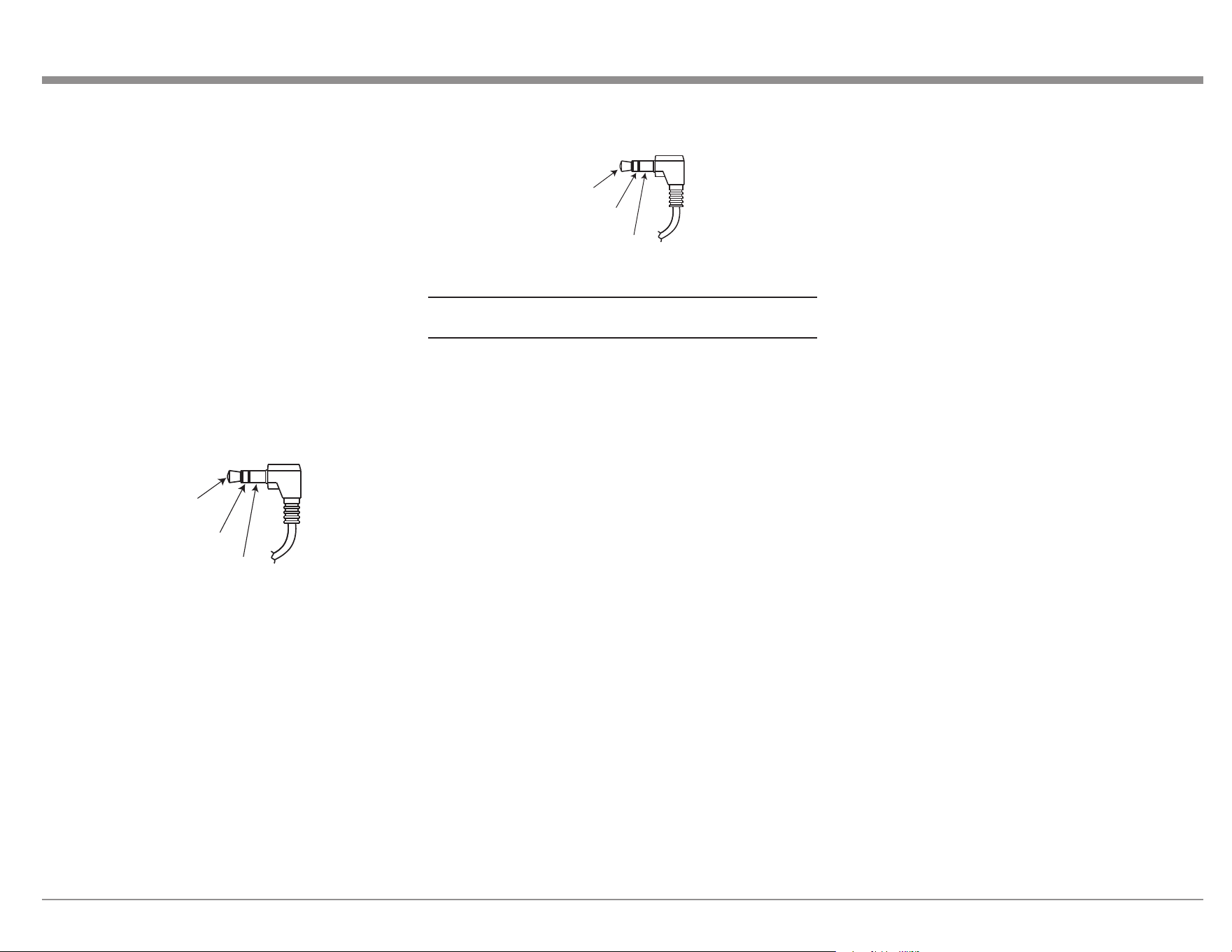
Figure 04– Mini plug for RS232 connection ........ 9
Figure 05– DB9 connector pin layout .................. 9
Figure 06– IR 3.5mm connector........................... 9
Figure 07– Setting the Remote Control Lock ....... 9
Figure 08– Power control (trigger) mini plug ..... 11
Figure 09– Data Out mini plug .......................... 11
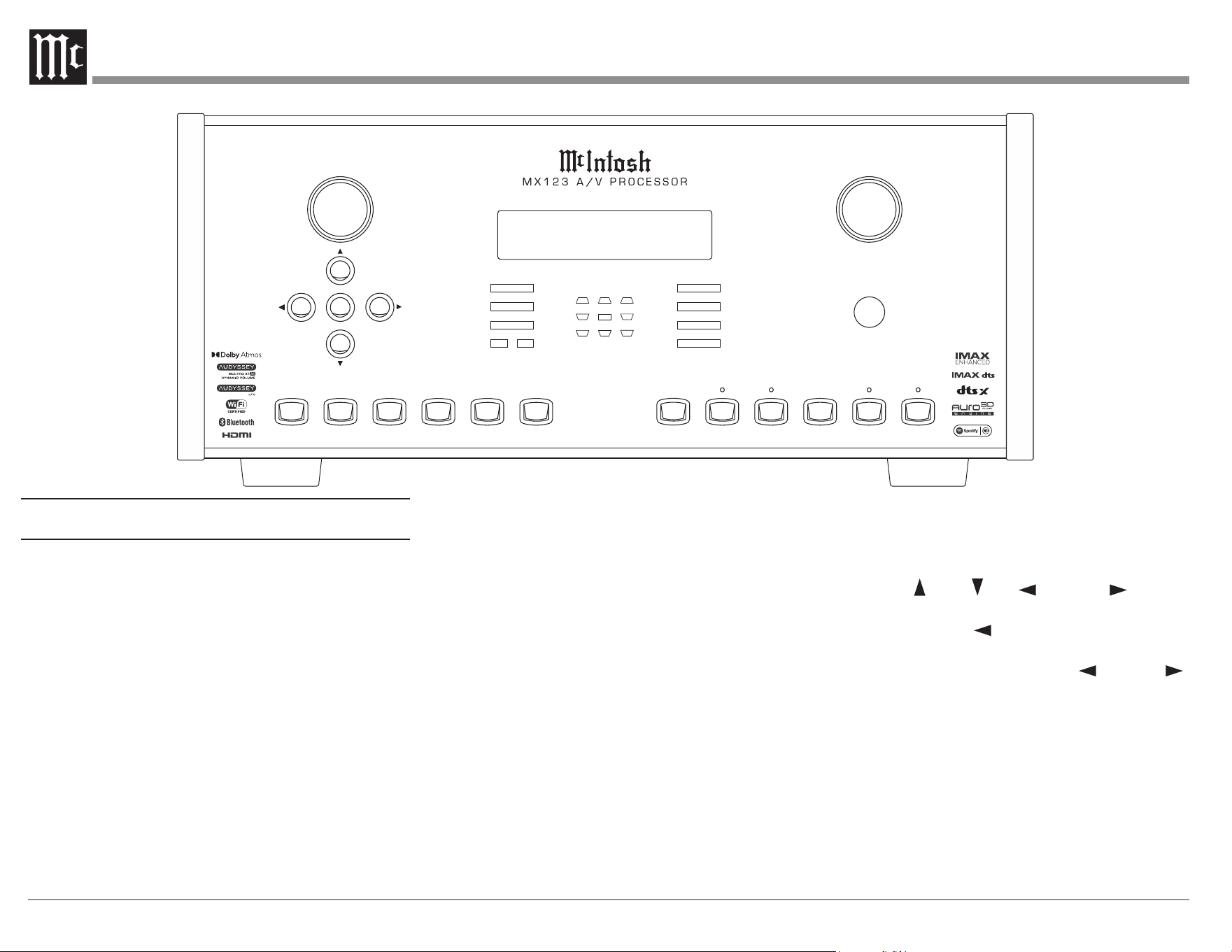
Figure 10– MX123 Front panel ....................... 12
Figure 11– Display in Setup Mode ..................... 14
Figure 12– Browser Setup Menu ........................ 14
Figure 13– Sample Browser Warning screen ..... 15
Figure 14– Speaker Positions and abbreviations 17
Figure 15– Auro-3D layout example .................. 17
Figure 16– Dolby Atmos Enabled speakers ....... 18
Figure 17– Audyssey® main listening position .. 28
Figure 18– Speaker angles .................................. 28
Figure 19– Audyssey
®
Setup Start ..................... 29
Figure 20– Audyssey
®
Beg in Test ...................... 29
Figure 21– Speaker Detection ............................. 29
Figure 22– Microphone positioning ................... 29
Figure 23– Measurements complete ................... 30
Figure 24– Dynamic EQ .................................... 30
Figure 25– Audyssey
®
error message ................ 30
Figure 26– Audyssey
®
restore ............................. 30
Figure 27– Error table ........................................ 31
Figure 28– Re-packing diagram ......................... 34
Copyright 2021 © by McIntosh Laboratory, Inc
The MX123 Audio/Visual Processor marries a long tradition of uncompromising quality with the
latest home theater technologies to bring you an unsurpassed luxury entertainment experience.
• 8K Video Support
• 8K/60 and 4K/120 Fast refresh rates
• HDR, Dynamic HDR and HDR 10+, HLG
and Dolby Vision
• eARC, Dynamic Lip-Sync as well as
the latest decoding and post-processing
formats
• Variable Refresh Rate (VRR) reduces
or eliminates lag, stutter and frame
tearing for more uid and better detailed
gameplay
• Quick Media Switching (QMS) for movies
and video eliminates the delay that can
result in blank screens before content is
displayed
• Quick Frame Transport (QFT) reduces
latency for smoother no lag gaming, and
real time interactive virtual reality
• Auto Low Latency Mode (ALLM) allows
the ideal latency setting to automatically
be set allowing for smooth, lag free and
uninterrupted viewing and interactivity
If you need further technical assistance, please
contact your dealer who may be more familiar
with your particular setup including other
brands. You can also contact McIntosh with
additional questions or in the unlikely event of
needing service.
McIntosh Laboratory, Inc.
2 Chambers Street
Binghamton, New York 13903
Technical Assistance: (607) 723-3512
Customer Service: (607) 723-3515
Fax: (607) 724-0549
Email: [email protected]
Website: mcintoshlabs.com
Make a Note
For future reference, you can jot down your
serial number and purchase information here.
We can identify your purchase from this
information if the occasion should arise.
Serial Number:
Purchase Date:
Dealer Name
3
Changing GUI Language/Video Format ........ 13
LED Channel Status Indicators ..................... 14
Setup ............................................................... 14
The Setup Menu ........................................................ 14
Browser Security Warning ............................. 15
Speakers- Setup Menu .................................... 15
Amp Assign .................................................... 15
Speaker Types and Positions ........................... 16
Speaker Configuration .................................... 17
Speaker Distances ........................................... 18
Speaker Levels ................................................ 18
Crossovers ....................................................... 18
Bass ................................................................. 18
Front Speaker .................................................. 19
2 Channel Playback ........................................ 19
Audio- Setup Menu ......................................... 19
Subwoofer Level Adjust .................................. 19
Bass Sync ........................................................ 19
Sound Parameter ............................................ 19
DFR ................................................................. 19
Audio Delay .................................................... 19
Volume Setup .................................................. 19
Audyssey
®
Options Menu................................ 20
Video- Setup Menu ......................................... 20
Picture Adjust ................................................. 20
HDMI Setup ................................................... 21
Output Settings .............................................. 21
HDMI Video Output ....................................... 21
Video Mode .................................................... 22
Video Conversion ........................................... 22
Analog Video Out ........................................... 22
On Screen Display .......................................... 22
4K/8K Signal Format ...................................... 23
TV Format ...................................................... 23
Inputs Setup Menu .......................................... 23
Input Assign .................................................... 23
Source Rename ............................................... 23
Hide Sources ................................................... 23
Table of Contents
Thank you from all of us at McIntosh ........................ 2
Make a Note ................................................................ 2
Safety First .................................................................. 4
Trademark and License Information .......................... 5
What is in the box ....................................................... 6
Where to put it ............................................................ 6
Making the Cuts .......................................................... 7
Connections on the Back ............................................ 8
The Inputs ......................................................... 8
The Outputs ...................................................... 8
Making Connections ................................................... 8
Bluetooth/Wi-Fi Antenna ................................. 8
10baseT LAN .................................................... 8
HDMI ............................................................... 9
USB .................................................................. 9
Microphone ....................................................... 9
RS232 ................................................................ 9
Wired IR Inputs ................................................ 9
Digital Inputs .................................................. 10
Analog Audio Inputs ....................................... 10
AC Power ........................................................ 10
Balanced Audio Outputs ................................. 10
Power Control (Trigger) Outputs .................... 11
Analog Audio Output ..................................... 11
Data Out .......................................................... 11
Setup Assistant .......................................................... 11
The Front Panel ......................................................... 12
Standby On .................................................... 12
The Input Knob ............................................... 12
The Volume Knob ........................................... 12
The Arrow and Enter Buttons ........................ 12
Status .............................................................. 12
Sound Mode Buttons ...................................... 13
Zone Select .................................................... 13
Zone On/Off ................................................... 13
Dimmer ........................................................... 13
Sleep Timer ..................................................... 13
Source Level ................................................... 23
Input Select ..................................................... 23
Network .......................................................... 24
General Setup ................................................. 24
Save & Load ................................................... 25
Description of Remote Control Buttons ................... 26
Firmware ......................................................... 26
Remote Control Batteries ......................................... 28
Audyssey
®
................................................................ 28
Audyssey
®
Setup ............................................ 28
Error Messages ............................................... 30
Factory Reset ............................................................ 31
Bluetooth ................................................................... 32
The Option Button .................................................... 32
The Headphone Question ............................... 32
Online Music ............................................................. 32
Spotify Connect ........................................................ 32
Compatible Audio Formats ....................................... 32
Supported Video Signals .......................................... 33
USB File and Folder Limits ...................................... 33
About ARC and CEC ................................................ 33
Packing the MX123 .................................................. 34
Audio Specifications ................................................ 35
Video Specifications ................................................. 35
General Specifications .............................................. 35
4
Safety First
Important Safety Information is supplied in a separate document “Important Additional Operation Information Guide”
FCC Information (For US Customers)
1. IMPORTANT NOTICE: DO NOT MODIFY
THIS PRODUCT
This product, when installed as indicated in the instruc-
tions contained in this manual, meets FCC requirements.
Modification not expressly approved by McIntosh may
void your authority, granted by the FCC, to use the
product.
2. CAUTION:
• To comply with FCC RF exposure compliance require-
ment, separation distance of at least 20cm must be
maintained between this product and all persons.
• This product and its antenna must not be co-located
or operating in conjunction with any other antenna or
transmitter.
3. COMPLIANCE INFORMATION:
• Product Name: A/V Processor
• Model Number: MX123
• This product contains FCC ID:RAX-AIOS4-0S:
McIntosh Laboratory, Inc.
2 Chambers Street
Binghamton, NY 13903
Tel. (607) 723-3512
IC Information (For Canadian Customers)
1. PRODUCT:
This product contains IC: 4711A-AIOS40S
This product complies with RSS-210 of Industry Canada.
Operation is subject to the following two conditions: (1)
this product may not cause harmful interference, and (2)
this product must accept any interference received, in-
cluding interference that may cause undesired operation.
This Class B digital apparatus complies with Canadian
ICES-003.
2. CAUTION:
To reduce potential radio interference to other users, the
antenna type and its gain should be so chosen that the
equivalent isotropically radiated power (e.i.r.p.) is not
more than that permitted for successful communication.
Informations sur IC (pour les clients Canadiens)
1. APPAREIL:
Cet appareil contiens IC: 4711A-AIOS40S
Cet appareil est conforme à la norme CNR-210 du Can-
ada. L’utilisation de ce dispositif est autorisée seulement
aux deux conditions suivantes : (1) il ne doit pas produire
de brouillage, et (2) l’utilisateur du dispositif doit être
prêt à accepter tout brouillage radioélectrique reçu,
même si ce brouillage est susceptible de compromettre
le fonctionnement du dispositif. Cet appareil numérique
de la classe B est conforme à la norme NMB-003 du
Canada.
2. ATTENTION:
Afin de réduire le risque d’interférence aux autres
utilisateurs, il faut choisir le type d’antenne et son gain
de façon à ce que la puissance isotrope rayonnée
équivalente (p.i.r.e.) ne soit pas supérieure au niveau req-
uis pour l’obtention d’une communication satisfaisante.
Canadian Customers: CAN ICES-3 (B)/NMB-3 (B)
RF Exposure Information
This equipment complies with FCC/IC radiation expo-
sure limits set forth for an uncontrolled environment
and meets the FCC radio frequency (RF) Exposure
Guidelines in Supplement C to OET65 and RSS-102 of
the IC radio frequency (RF) Exposure rules. This equip-
ment has very low levels of RF energy that are deemed
to comply without testing of specific absorption ratio
(SAR).
Cet équipement est conforme aux normes d’exposition
aux radiations FCC/IC définies pour un environnement
non contrôlé et satisfait les directives d’exposition à la
radiofréquence (RF) dans le supplément C des OET65
et RSS-102 des règles d’exposition à la fréquence radio
(RF) IC. Cet équipement a de très faibles niveaux
d’énergie RF qui sont jugés conformes sans test de taux
d’absorption spécifique (SAR).
R&TTE(EN) Information
1. DECLARATION OF CONFORMITY
Our products follow the provisions of EC/EU directives:
LV: 20 0 6/ 95/ EC
EMC: 2004/108/EC
RoHS: 2015/863/EU
ErP: EC regulation 1275/2008 and its frame work
directive 2009/125/EC
R&TTE Directive 1999/5/EC.
2. IMPORTANT NOTICE: DO NOT MODIFY
THIS PRODUCT
This product, when installed as indicated in the instruc-
tions contained in this manual, meets R&TTE directive
requirements. Modification of the product could result in
hazardous Radio and EMC radiation.
3. CAUTION:
Separation distance of at least 20cm must be maintained
between this product and all persons.
This product and its antenna must not be co-
located or operating in conjunction with any other
antenna or transmitter.
5
Trademark and License Information
The McIntosh MX123 incorporates copyright
protected technology that is protected by U.S. patents
and other intellectual property rights. The MX123
uses the following technologies:
This item incorporates copy protection technology
that is protected by U.S. patents and other intellectual
property rights of Rovi Corporation. Reverse
engineering and disassembly are prohibited.
Trademark Logo License Information
Manufactured under license from Auro
Technologies. Auro-3D
®
and the related symbols
are registered trademarks of Auro Technologies.
All materials contained in this work are protected
by copyright law and may not be reproduced,
distributed, transmitted, displayed, published or
broadcast without the prior written permission of
Auro Technologies NV or in case of third party
materials, the owner of that content. You may not
alter or remove any trademark, copyright or other
notice from copies of the content.
Auro Technologies: mail info@auro-technologies.
com, phone +32-(0)-14314343, fax +32-(0)-
14321224, www.auro-technologies.com.
Manufactured under license from Dolby
Laboratories. Dolby, Dolby Atmos, Dolby Audio,
Dolby Surround, Dolby Vision and the double-D
symbol are trademarks of Dolby Laboratories.
HDMI, the HDMI Logo and High-Definition
Multimedia Interface are trademarks or registered
trademarks of HDMI Licensing LLC in the United
States and other countries.
The Bluetooth
®
word mark and logos are registered
trademarks owned by Bluetooth SIG, Inc. and
any use of such marks by McIntosh Laboratory is
under license. Other trademarks and trade names
are those of their respective owners.
The Wi-Fi CERTIFIED Logo and the Wi-Fi
CERTIFIED On-Product Logo are
registered trademarks of the Wi-Fi-Alliance.
Trademark Logo License Information
Manufactured under license from Audyssey
Laboratories™. U.S. and
foreign patents pending. Audyssey MultEQ
®
XT32, Audyssey Dynamic
EQ
®
, Audyssey Dynamic Volume
®
and Audyssey
LFC™ are registered
trademarks of Audyssey Laboratories.
Apple, AirPlay, iPad, iPad Air, iPad Pro, and
iPhone are trademarks of Apple Inc.,
registered in the U.S. and other countries. The
trademark “iPhone” is used in Japan
with a license from Aiphone K.K.
Manufactured under license from IMAX
Corporation. IMAX
®
is a registered trademark of
IMAX Corporation in the United States and/or
other countries.
For DTS patents, see http://patents.dts.com.
Manufactured under license from DTS, Inc. (for
companies headquartered in the U.S./Japan/
Taiwan) or under license from DTS Licensing
Limited (for all other companies). DTS, DTS:X
Pro, DTS:X, and the DTS:X logo are registered
trademarks or trademarks of DTS, Inc. in the
United States and other countries. © 2020 DTS,
Inc. ALL RIGHTS RESERVED.
The Spotify Software is subject to third party
licenses found here: https://www.spotify.com/
connect/third-party-licenses.
Pro
6
What is in the box
Here is what is in the box besides all the shipping foam:
One MX123 A/V Processor
One accessory package including:
• Microphone with attached cable
• Microphone stand
• 1/2 inch male to 5/8 inch female adapter
• Two Bluetooth/Wi-Fi antennas
One manual package including this manual
One AC power cord
Where to put it
The MX123 can be placed upright on a table or
shelf, standing on its four feet. It also can be custom
installed in a piece of furniture or cabinet. The four
feet may be removed for custom installations. The
four feet together with the mounting screws should
be retained for possible future use. Do not use
dierent size screws when re-installing the feet. With
the feet removed, the MX123 requires a ventilation
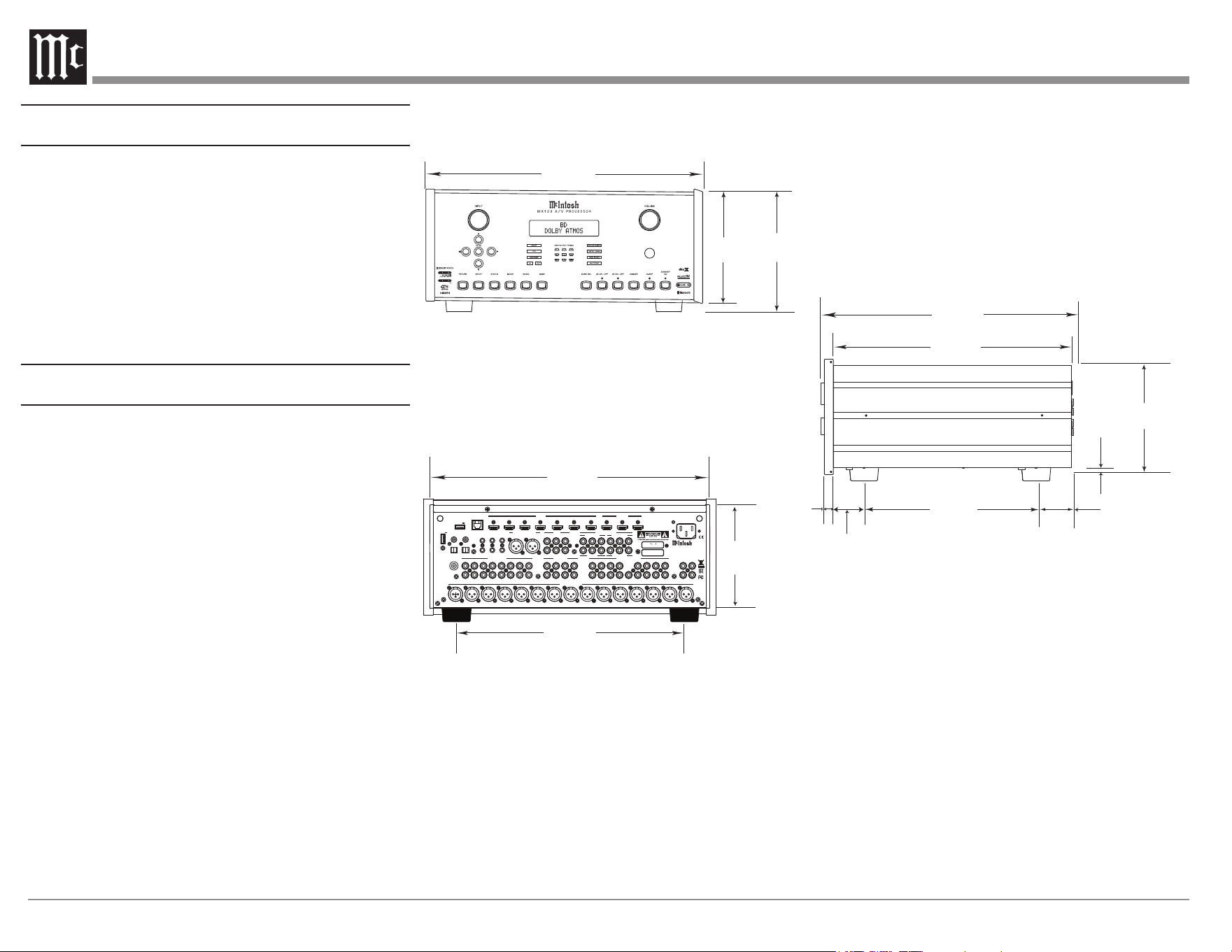
cutout. Dimensions for the panel cutout and bottom
ventilation cutout are shown in Figure 02 on page
7.
Always provide adequate ventilation for your
MX123. Cool operation ensures the longest possible
operating life for any electronic instrument. Do not
install the MX123 directly above a heat generating
component such as a high-powered amplier. If all
the components are installed in a single cabinet, a
quiet running ventilation fan can be a denite asset in
maintaining all the system components at the coolest
possible operating temperature.
A custom cabinet installation should provide the
following minimum spacing dimensions for cool
operation:
• 2 inches (5.1cm) above the top
• 2 inches (5.1cm) below the bottom
• 1 inch (2.5cm) on each side of the MX123 so
that airow is not obstructed
• 20 inches (50.8cm) depth behind the front panel
• 1-7/16 inch (3.7cm) in front of the mounting
panel for knob clearance
Be sure to cut out a ventilation hole in the mounting
shelf according to the dimensions in the drawing. See
Figure 02 on page 7.
Front View of the MX123
Rear View of the MX123
Side View of the MX123
17-1/2"
44.5cm
6-3/8"
16.2cm
7-5/8"
19.4cm
13 -1/4"
33.7cm
17-1/8"
43.5cm
7-1/8"
18.1cm
16-1/2"
41.9cm
3/16
"
0.5cm
13/16
"
2.1cm
6-9/16"
16.7cm
10-9/16"
26.8cm
14-1/2"
36.8cm
2"
5.1cm
1-15/16"
4.9cm
3 (BLU-RAY)
4 (GAME)
5 (MEDIA PLAYER)
6 (CD)
ZONE 2 (4K)
MON 1 (8K)
2 (DVD)
Y PB PR
Y
FR
SUB
SR
SBR
HDMI IN
VIDEO
IN 2 (DVD) IN 3 (BLU-RAY)
PB PR
Y PB PR
XLR BALANCED INPUT
R L
FR FL C SW1 SR SL SBR SBL
BALANCED OUTPUTS
SW2
1 (CBL/SAT)
2 (DVD)
3 (BR)
4 (GAME) Z2 OUT
MON OUT
IN 1 (CBL/SAT)
COMPONENT VIDEO
MONITOR OUT
ANALOG AUDIO OUT
ZONE 2
ZONE 3
L
R
FR
SW1
SR
SBR
SW2
HR1
HR2
FL
C
SL
SBL
7.1 CH INPUT UNBALANCED PRE OUT
FL C
SL
SBL
HL1
HL2
TUNER
CBL/SAT
DVD
BLU-RAY
GAME
ANALOG AUDIO IN
L
R
PHONO
HR1 HL1 HR2 HL2
GND
2
(CD)
OPT
A/V P ROCESSOR
MX123
MCINTOSH LABORATORY, INC.,
BINGHAMTON, NY
HANDCRAFTED IN USA WITH US AND IMPORTED PARTS
HR3
HL3
1 (CBL/SAT)
7 (AUX 8K)
ARC
COAX
1
(TV AUDIO)
RS232
TRIG 1 IR IN
DATA
OUT
SETUP
MIC
TRIG 2
CD
MP
HDMI OUT
MON 2 (8K)
1 2 3 4 5 6
CAN ICES-3(B)/NMB-3(B)
1
2
HL4/WIDE
HR4/WIDE
HR3 HL3
DIGITAL AUDIO IN
(CBL/SAT)
(DVD)
NETWORK
POWER SUPPLY
5V/1.5A
USB
5V/1A
BLUETOOTH
/ Wi-Fi ANT
BLUETOOTH
/ Wi-Fi ANT
SERIAL
NUMBER
75 WATTS
120V
50 60Hz
FOR INDOOR
USE ONLY
eARC
Figure 01– MX123 Dimensions
7
Making the Cuts
Here are the dimensions for the cutouts needed for
custom installation. A ventilation opening is essential
for any installation with the four feet removed.
6-9/16"
16.67cm
17-3/16"
43.66cm
Cutout Opening for Custom Mounting
MX123 Front Panel
Custom Cabinet Cutout
Cutout
Opening
for
Ventilation
Support
Shelf
MX123 Side View
in Custom Cabinet
12-5/16"
31.27cm
Cabinet
Front
Panel
Note: Center the cutout Horizontally
on the unit. For purposes of
clarity, the above illustration
is not drawn to scale.
MX123 Bottom View
in Custom Cabinet
9
-1/8"
23.18cm
2-1/4"
5.72cm
1-1/16"
2.70cm
15"
38.1cm
15"
38.1cm
Figure 02– Custom cutout
dimensions
8
Connecons on the Back
The Inputs
Seven HDMI Inputs (six 4K, one 8K)
One pair balanced XLR Inputs (AES/EBU)
Eight pairs RCA analog stereo Inputs including one
MM (moving magnet) RCA stereo pair and ground
connection
Two coaxial digital audio Inputs
Two Toslink optical Inputs
Four RCA video Inputs
Three sets of three component video RCA jacks
One 7.1 CH Input with eight analog RCA jacks
One USB port to supply power
One USB port to connect storage
One 10baseT LAN connector
Figure 03– MX123 Rear View
One 1/8 inch jack for microphone Input
One 1/8 inch jack for RS232 connector
One 1/8 inch jack for wired IR Input
One AC power connector
The Outputs
Three HDMI Outputs (Two MON 8K, ZONE 2 4K)
15 balanced XLR audio Outputs
17 unbalanced RCA Outputs
Two 1/8 inch jack Power Control (trigger) Outputs
Two RCA stereo pairs Output to two additional
zones
One set of three component video RCA Outputs
Two RCA video Outputs
One 1/8 inch Data Output jack
Making Connecons
• Do not plug in the power cord until
all connections have been completed.
Bluetooth/Wi-Fi Antenna
Attach the two Bluetooth/Wi-Fi antennas that
are included in the MX123 accessory package.
Each antenna screws into a connector labeled
BLUETOOTH/WI-FI ANT located in the top right
and left corners of the rear panel. After attaching the
antennas, point them upward.
10baseT LAN
Use an Ethernet cable to connect the MX123 to a
network router. The network connector is located
on the top left rear of the MX123. It is labeled
NETWORK. By default, the MX123 has DHCP set
to ON and will automatically receive an IP address
from the router. This setting can be changed. (See
“Network” on page 24.)
3 (BLU-RAY)
4 (GAME)
5 (MEDIA PLAYER)
6 (CD)
ZONE 2 (4K)
MON 1 (8K)
2 (DVD)
Y PB PR
Y
FR
SUB
SR
SBR
HDMI IN
VIDEO
IN 2 (DVD) IN 3 (BLU-RAY)
PB PR
Y PB PR
XLR BALANCED INPUT
R L
FR FL C SW1 SR SL SBR SBL
BALANCED OUTPUTS
SW2
1 (CBL/SAT)
2 (DVD)
3 (BR)
4 (GAME) Z2 OUT
MON OUT
IN 1 (CBL/SAT)
COMPONENT VIDEO
MONITOR OUT
ANALOG AUDIO OUT
ZONE 2
ZONE 3
L
R
FR
SW1
SR
SBR
SW2
HR1
HR2
FL
C
SL
SBL
7.1 CH INPUT UNBALANCED PRE OUT
FL
C
SL
SBL
HL1
HL2
TUNER
CBL/SAT
DVD
BLU-RAY
GAME
ANALOG AUDIO IN
L
R
PHONO
HR1 HL1 HR2 HL2
GND
2
(CD)
OPT
A/V PROCESSOR
MX123
MCINTOSH LABORATORY, INC.,
BINGHAMTON, NY
HANDCRAFTED IN USA WITH US AND IMPORTED PARTS
HR3
HL3
1 (CBL/SAT)
7 (AUX 8K)
ARC
COAX
1
(TV AUDIO)
RS232
TRIG 1 IR IN
DATA
OUT
SETUP
MIC
TRIG 2
CD
MP
HDMI OUT
MON 2 (8K)
1 2 3 4 5 6
CAN ICES-3(B)/NMB-3(B)
1
2
HL4/WIDE
HR4/WIDE
HR3 HL3
DIGITAL AUDIO IN
(CBL/SAT)
(DVD)
NETWORK
POWER SUPPLY
5V/1.5A
USB
5V/1A
BLUETOOTH
/ Wi-Fi ANT
BLUETOOTH
/ Wi-Fi ANT
SERIAL
NUMBER
75 WATTS
120V
50 60Hz
FOR INDOOR
USE ONLY
eARC
9
HDMI
The MX123 has seven HDMI Inputs, one of which
is capable of 8K video. To take advantage of this
new capability, the use of certied “Ultra High
Speed HDMI” cables according to the 2.1 HDMI
specication is recommended. This would include
support for 8K@60Hz, HDR, Ethernet, and ARC.
Though, HDMI is backward compatible, older
cables may have issues with the higher bandwidth.
Use HDMI OUT MONITOR 1 when connecting to
an ARC (Audio Return Channel) enabled television.
ARC can provide two-way communication between
units allowing for volume control and lip-syncing
functions to ensure audio and video are perfectly
matched. This allows for more intelligent operation
between components as well as less cable clutter.
Make sure the ARC is enabled in your TV’s setup
menu.
USB
There are two type-A ports on the rear of the
MX123. The port labeled POWER SUPPLY is used
to supply power (5 volts / 1.5 amps) via a USB
cable. The second port, labeled USB, is for USB
memory devices. Use this second port for accessing
music from USB storage devices. Plug the USB
memory device directly into the port. USB hubs will
not work. Because of the vast array of USB memory
devices available from countless manufacturers,
McIntosh does not guarantee that all USB memory
devices will operate or receive power.
Microphone
The microphone Input is for connecting the supplied
MX123 Microphone using the microphone’s
attached cable and an 1/8 inch connector. The
microphone is used in the Audyssey
®
calibration for
tuning the system to your room. For instructions see
“Audyssey
®
” on page 28.
RS232
The RS232 jack is used to connect the MX123
to automation controller devices with RS232
connectors. To utilize this feature, you will need an
appropriate RS232 Data Cable. The RS232 Data
Cable should be an 1/8 inch (3.5mm) stereo mini
phone plug to a subminiature DB9 connector.
Figure 04– Mini plug for RS232 connection
Data In
(DB9-pin2)
Ground
(DB9-pin5)
Data Out
(DB9-pin3)
Figure 05– DB9 connector pin layout
RS232 DB9 Connector Pin Layout
1. N/C (no connection) 6. N/C
2. Data In (RXD) 7. N/C
3. Data Out (TXD) 8. N/C
4. N/C 9. N/C
5. Gnd
Typical RS232 settings are:
• 8 data bits, no parity and one stop bit
• Baud rate xed at 115,200 bits per second
Wired IR Inputs
The IR Input allows an external IR receiver to be
attached to the MX123. The Input is labeled IR IN.
By attaching an IR receiver using a 3.5mm cable
(See Figure 06), the MX123’s Remote Control can
be used in another location without a line-of-sight to
the MX123’s front IR sensor. In this way, if ZONE
2 is another room, a Remote Control can be used to
adjust the MX123.
Figure 06–
IR Data
Control
Ground
N/C
IR 3.5mm connector
If using an external IR receiver for the MAIN
ZONE in the same room as the MX123, you may
wish to disable the front IR sensor, which also
controls the MAIN ZONE. This will avoid potential
timing issues of receiving the Remote Control’s
commands from two dierent Inputs. The front IR
can be turned on/o by doing the following:
• Put the MX123 in STANDBY mode
• While pressing and holding the front panel
ENTER and RETURN buttons, press the
STANDBY button (a 3-button push)
• Use the Down Arrow on the Front Panel or
Remote Control to navigate to the RC LOCK
O option to enable the front panel IR sensor or
choose RC LOCK On to disable the front panel
IR sensor. See Figure 07
• Pushing ENTER will make the selection and
reboot the MX123
Figure 07– Setting the Remote Control Lock
10
Digital Inputs
There are four digital Inputs in the MX123:
• Two Toslink Optical Inputs
• Two Coaxial Digital audio Inputs
The two Coaxial Inputs are labeled:
• 1 (CBL/SAT)
• 2 (DVD)
The two Optical Inputs are labeled:
• 1 (TV AUDIO)
• 2 (CD)
The default names and assignments can be changed
in setup.
The Optical Inputs require a Digital Optical Audio
Cable Toslink Cable. The Coaxial Inputs use
Digital Audio Coaxial Cables with male RCA type
connectors.
Analog Audio Inputs
There are eight pairs of gold-plated RCA jacks. The
left jack of the stereo pair is on top, and the right
jack is below it. They are labeled as follows:
1. PHONO
2. TUNER
3. CBL/SAT
4. DVD
5. BLU-RAY
6. GAME
7. CD
8. MP
To the left of the PHONO jacks is a ground
connection labeled GND for connecting a
turntable’s ground wire. The PHONO section of the
MX123 is designed to work with Moving Magnet
cartridges.
There is one pair of Balanced XLR Inputs. It is
labeled XLR BALANCED Input. Looking at the
back of the unit, the Right Input is on the left and
the Left Input is on the right.
There are eight gold plated RCA jacks designed
for 7.1 Channel Input. They are located under the
heading 7.1 CH Input. They are labeled:
• FL (Front Left)
• FR (Front Right)
• C (Center)
• SUB (Subwoofer)
• SL (Surround Left)
• SR (Surround Right)
• SBL (Surround Back left)
• SBR (Surround Back Right)
All the Input names can be customized in the
SETUP program, as well as hidden and restored.
Hiding Inputs spares you from scrolling through
unused Inputs.
AC Power
This connection is essential. Plug the female end of
the supplied AC Power Cord into the AC connector
located in the rear right corner of the MX123. Plug
the male end of the AC Power Cord into a grounded
and functioning AC outlet.
Balanced Audio Outputs
There are 15 male balanced XLR connections on the
back of the MX123 to accommodate a wide variety
of speaker congurations. Connect balanced XLR
cables to the corresponding powered speakers or
ampliers. Here are the possible connections:
• FL (Front Left)
• FR (Front Right)
• C (Center)
• SW1 (Subwoofer 1)
• SW2 (Subwoofer 2)
• SR (Surround Right)
• SL (Surround Left)
• SBR (Surround Back Right)
• SBL (Surround Back left)
• HR1 (Height Right 1)
• HL1 (Height Left 1)
• HR2 (Height Right 2)
• HL2 (Height Left 2)
• HR3 (Height Right 3)
• HL3 (Height Left 3)
This is all easier said than done. Setting up speakers
for a surround setup takes planning, measuring and
installation. Depending on your level of expertise
and available time, you may wish to employ the
services of your McIntosh dealer for expert setup of
your system. Professional installation of in-ceiling
speakers is particularly important due to gravity and
the location above your head.
The number, types and locations of speakers are
key elements in setting up the system. There is
a multitude of possible congurations, and the
MX123 is very exible in its setup to adapt to many
of these congurations.
Often surround setups are referred to by numbers
for example 7.1.4 or 9.1.2. The rst number refers to
the number of traditional surround speakers (front,
center and surround). The second number is the
number of subwoofers that can be connected, and
the third number refers to the number of in-ceiling
or upward ring speakers in the setup.
The type of speaker (size and location) will be
entered later during Speaker setup. The distance
of the speaker from the listening location will be
entered in the Audyssey
®
setup. Make note of this
information.
11
At this stage, the connection from the MX123 to the
various ampliers and powered speakers should be
made using quality balanced XLR cables.
Power Control (Trigger) Outputs
The MX123 has two Power Control Outputs or
Triggers. Power Control enables power on/o
signals to go to connected components so that other
components can automatically power on (or o) as
called for by the MX123. For example, you may
want a DVD player and a certain monitor to power
on when HDMI 1 Input is selected, or you may want
all components to power o when powering o the
MX123. For Setup instructions see “General Setup”
on page 24.
Connect components using a 3.5mm stereo mini
plug. See Figure 08.
Figure 08– Power control (trigger) mini
plug
Power
Control
Meter
Illumination
Control
Ground
Analog Audio Output
Two additional Zones labeled ZONE2 and ZONE3
can be fed analog signals using a pair of RCA
cables for each Zone. The jacks are located under
ANALOG AUDIO OUT on the right side of the rear
of the MX123.
Data Out
The MX123 will convert IR Remote Control data
to share with McIntosh components connected to
the Data Ports. This will allow units that are out of
range of an IR signal to receive commands.
To connect a McIntosh unit to a Data Port, use a
3.5mm stereo mini phone plug cable. See Figure 09.
Figure 09– Data Out mini plug
Data
Signal
N/C
Data
Ground
Setup Assistant
When the MX123 A/V Processor is initially
powered on (or after a Factory Reset- see page
31), the Setup assistant will appear on the Display
and a connected monitor. After choosing a language,
follow the guide’s instructions to setup your
Bluetooth/Wi-Fi Antenna Connection as well as
Network Setup. For more information on Network
Setup see “Network” on page 24.
12
The Front Panel
The iconic front glass panel of the MX123 provides
knobs and buttons to control the unit as well as an
informational display and LED status lights that
display the current mode.
Standby On
The red STANDBY ON button toggles the MX123
between on and standby mode. The STANDBY
button will only work with AC Power connected
(see “AC Power” on page 10). When the unit is
in standby mode, it can also be toggled on/o using
the Remote Control or the browser interface.
If Zone2 or 3 is on, those Zones will continue to be
on. Those Zones can be toggled on and o using the
ZONE ON / OFF buttons. See “Zone On/O” on
page 13.
The Input Knob
The Input Knob can be turned clockwise or
counterclockwise to scroll through all the Inputs
that are enabled in Setup. All Inputs are available by
default.
The Volume Knob
Turn this knob clockwise to raise the volume and
go the other way to make it quieter. A maximum
volume of 70% is the factory default for each zone.
The value of the Volume Limit can be set in the
General Setup section for each Zone. Options are
60, 70, or 80 percent. You can defeat the Volume
limit by choosing the “O” option. A maximum
volume prevents the MX123 from accidently
sending higher signals than your situation permits.
The Arrow and Enter Buons
These buttons are used to navigate menu screens
and selections in the Trim menus. The arrows allow
scrolling up , down , left , and right when
those are menu choices. The ENTER button accepts
an option and the left button returns to the
previous menu when a value is not being selected. If
a value needs to be selected, the left and right
arrows will scroll through the options. Push ENTER
to select the chosen value.
Status
Repeated presses of the Front Panel or Remote
Control STATUS Push-button will step through the
type of incoming Audio Signal, the selected Input
(along with type of A/V Connection) and audio
processing mode.
Figure 10– MX123 Front panel
INPUT
VOLUME
INPUT/OUTPUT FORMAT
DOLBY
ANALOG SIGNAL
DTS
DIGITAL SIGNAL
DOLBY ATMOS
BD
HDMI SIGNAL
HDMI SIGNAL
LFE
FRFL C
S
SR
SL
SBR
SBL
ENTER
RETURN
SETUP
STATUS
MOVIE GAMEMUSIC
STANDBY
ON
ZONE SEL
SLEEP
Z2 ON / OFF
Z3 ON / OFF
DIMMER
AUDYSSEY
DYN EQ
MULTIZONE
IN OUT
13
Sound Mode Buons
There are three buttons on the front panel that give
you quick access to a selected sound/surround
mode. The buttons are:
• MOVIE
• MUSIC
• GAME
These buttons can also be accessed from the Remote
Control with the added choice of PURE.
The following choices are available when selecting
the MOVIE, MUSIC and GAME buttons:
• Stereo
• Dolby Audio – Dolby Surround
• DTS Neural:X
• Auro-3D or DTS Virtual:X
• Auro-2D Surround
• Multi Ch Stereo
For Auro-3D to be available, Front Height speakers
must be enabled. DTS Virtual:X is available if no
Height, Top or Dolby Enabled speakers are used.
Choosing a button will switch to the last mode
selected. The mode can be switched using the up ,
and down
arrows.
The PURE button on the remote oers the following
modes:
• Direct- This mode plays back audio as
recorded in the source
• Pure Direct- This mode plays back an even
higher quality sound than the “Direct” mode.
In order to further improve sound quality,
the display indicator circuit of the main body
will be disabled (display will go o), and
the analog video Input/Output switcher and
processor is disabled
• Auto- In this mode, the type of digital signal
Input, such as Dolby Digital, Dolby TrueHD,
Dolby Digital Plus, Dolby Digital EX, Dolby
Atmos, DTS, DTS-HD, DTS:X, DTS-ES,
or PCM (multi-channel) is detected, and the
playback mode switches automatically to the
corresponding mode. If the Input signal is
analog or PCM (2-channel), stereo playback
is used. For Dolby Digital or DTS, the music
is played back according to the respective
channel number
The display screen, if on, will leave the Sound
Mode screen after 5 seconds.
Zone Select
The ZONE SEL button allows you to adjust the
volume and input of Zone2 and Zone3 using the
front panel knobs. Pressing the ZONE SEL button
will toggle between Zone2 and Zone3. Stop at the
Zone in which you wish to change the volume. After
5 seconds of not adjusting the volume for the chosen
zone, the VOLUME knob will default to Main
Zone.
Zone On/O
The MX123 has three Zones. Zone1 is called the
Main Zone and is the default for the display. Analog
stereo signals can be sent to Zone2 and Zone3. The
Z2 ON / OFF and Z3 ON / OFF buttons toggle these
zones on and o.
If you push the STANDBY ON button to power o
the unit, Zone2 and/or Zone3 will remain on if they
are currently on. To shut o these zones, use their
respective Z2 ON / OFF or Z3 ON / OFF buttons.
These buttons can be used to turn on the desired
zone if the MX123 is in standby mode.
If the Main Zone is o and one or both of the other
Zones are on, this information will appear on the
display.
Dimmer
Pressing the DIMMER button cycles through 4
levels of Display brightness:
• Bright (Default): Normal display brightness
• Dim: Reduced display brightness
• Dark: Very low display brightness
• O: Turns the display o
Sleep Timer
The SLEEP button allows you to set a sleep timer
between 10 minutes and 120 minutes for the Main
Zone. Pressing the button will set the timer in 10
minute increments to the maximum or set the Sleep
Timer to o. When a Sleep Timer is set for the Main
Zone, the red LED above the SLEEP button will
illuminate.
When the MX123 goes to sleep, the Zone2 and
Zone3 will remain on. To set a Sleep Timer for
these zones, use the SLEEP button on the Remote
Control. Set the Remote Control to the desired zone
using the ZONE SELECT button. The Remote
Control’s SLEEP button will function the same as
the front panel’s SLEEP button. Each Zone can have
a separate sleep timer set.
Changing GUI Language/Video
Format
By holding both the STATUS button and the ZONE
SEL button simultaneously for three seconds, the
following setup option can be changed using the
Arrow Buttons:
14
Setting
Use up and
down to select
Options
Use left and right to
select
GUI English, French or Spanish
Video Format NTSC or PAL
4K Format Standard or Enhanced
LED Channel Status Indicators
The yellow LEDs, in the center of the MX123 front
panel, provide a visual display of the status of the
main zone’s signal for either Input or Output.
The Left Column Displays:
• DOLBY
• DTS
• AUDYSSEY
• IN OUT
Either IN or OUT will be lit depending on what has
been chosen in Setup for the Front Display setting.
(See “Front Display” under “General Setup”” on
page 2425.) Other features will be lit if currently
enabled for the current Input.
The middle section shows speaker channels that are
active. Here are the channel abbreviations used:
• FL- Front Left
• C- Center
• FR- Front Right
• SL- Surround Left
• LFE- Low Frequency Eects
• SR- Surround Right
• SBL- Surround Back Left
• S- Surround (RS + LS)
• SBR- Surround Back Right
Channels currently used will be lit.
The right display has the following information:
• ANALOG SIGNAL
• DIGITAL SIGNAL
• HDMI SIGNAL
• MULTIZONE
The Main Zone’s signal type will be lit. If Zone2
and/or 3 is active, the MULTIZONE will light.
Pushing the INFO button on the MX123 Remote
Control will show the following information on an
attached monitor:
• SOURCE
• SOUND
• SIGNAL
• INPUT SIGNAL (CHANNELS)
• ACTIVE SPEAKERS
The indicators for Input SIGNAL include the
speaker channels listed above plus:
• FHL- Front Height Left
• FHR- Front Height Right
• FWL- Front Wide Left
• FWR- Front Wide Right
• EXT- extension channel
The extension channel will light when a channel
other than the listed ones is part of the Input.
Setup
Pushing the SETUP button will bring up the Setup
Menu on an attached monitor. When in setup mode,
the Display will show the current level and option
(See Figure 11). You can navigate using the Display,
but an attached monitor is easier.
To exit setup mode, push the SETUP button again.
*SETUP MENU
Audio
Figure 11– Display in Setup Mode
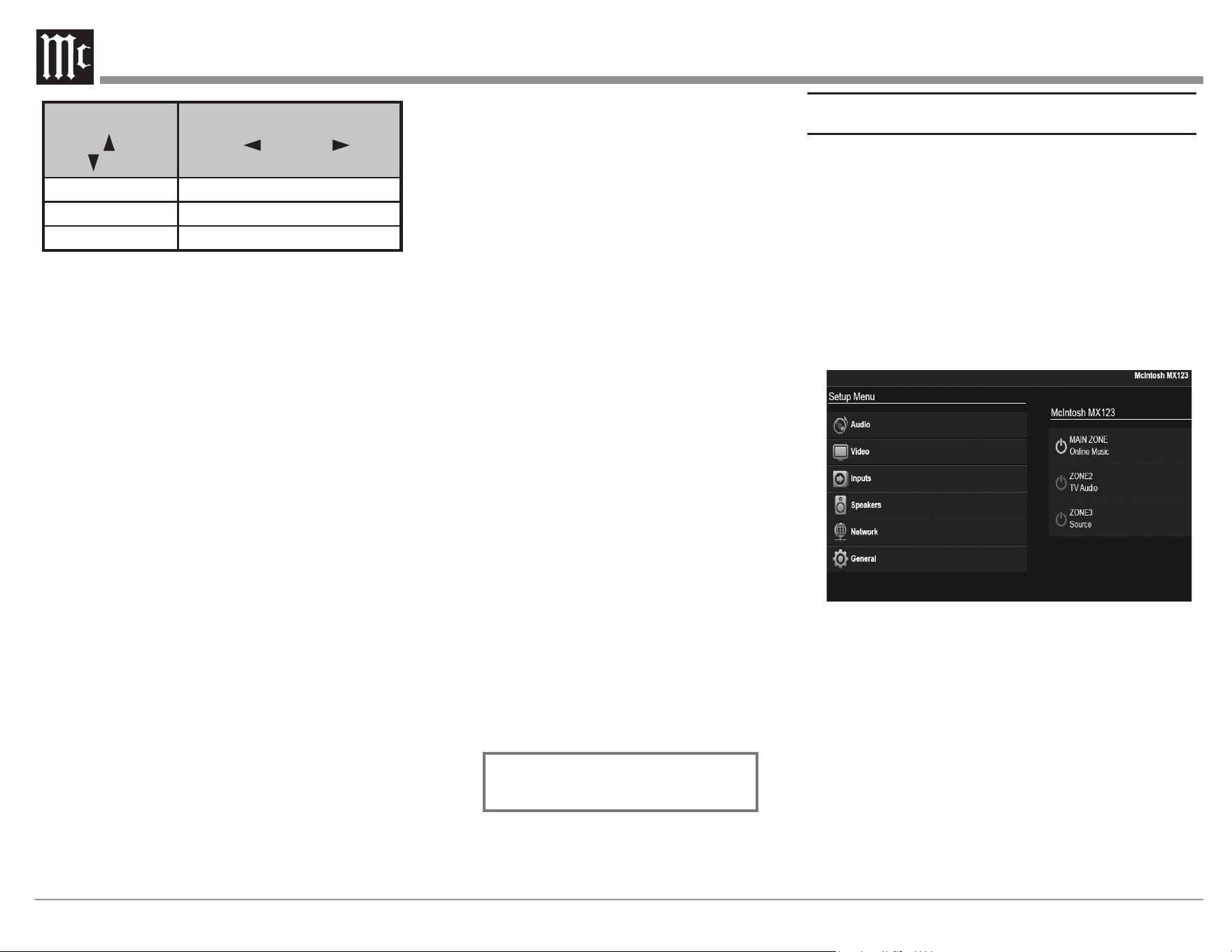
The Setup Menu
The factory default settings will allow you to use
the MX123 as soon as you properly connect your
components. However, sooner or later, you may
wish to fine tune your system. You can utilize the
MX123’s robust setup program for customization and
optimization of your Audio Visual environment.
MX123 setup can be performed by using either the
SETUP button on the Front Panel or the Remote
Control and using an attached monitor (local setup),
or through a web browser on a computer if the MX123
is connected to your network. See Figure 12.
Figure 12– Browser Setup Menu
The procedures and screens are essentially the same
for all methods. The availability of a mouse and a
keyboard in the browser method may be easier to
navigate than using the arrow buttons on the Front
Panel or Remote Control that are used for local setup.
You can choose to use the Front Panel Display to
navigate setup, but the limited screen size would make
this the least desirable setup method.
To use a browser to navigate setup, type the IP
address for the MX123 in the address bar of your
browser. You can find the IP address under the
Information submenu under the Network section of
15
setup (see “Network” on page 24).
Setup has the following sub-menus:
• Audio
• Video
• Inputs
• Speakers
• Network
• General
In this manual, sub menus are denoted in the style
“Setup Menu>General>Front Display>Dimmer”
which means from the “SETUP Menu” choose
“General” and then choose “Front Display”and then
“Dimmer”.
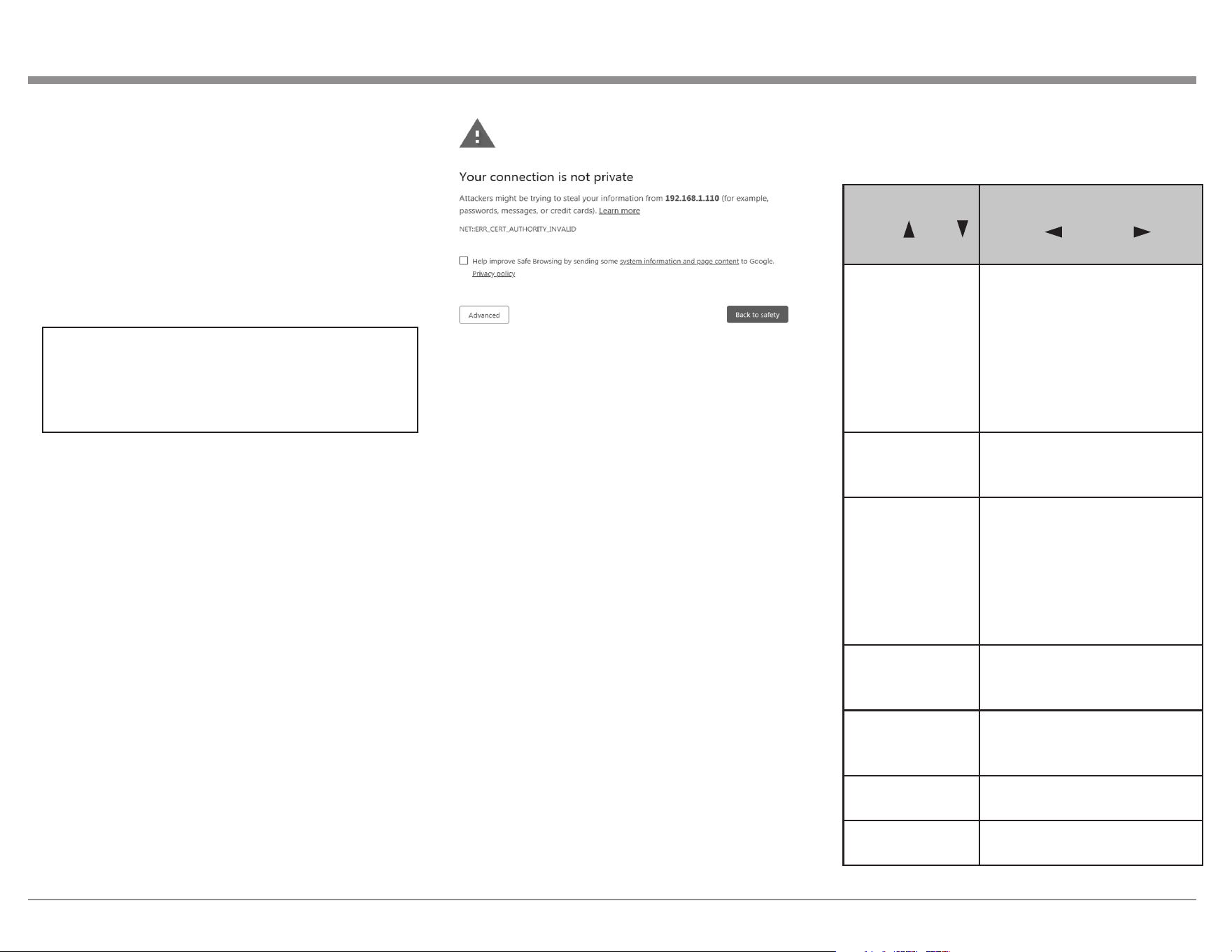
Browser Security Warning
When you attempt to load the Setup Menu on a
browser, you will likely see some version of a
Warning that you are about to experience a Potential
Security Risk or some computer attack. Do not
worry about this scary warning generated from your
browser. It is a result of the MX123 using the more
secure HTTPS connection and the browser is not
recognizing the local certicate. The connection is
actually more secure than past software interfaces
by using this secure connection. To use this more
secure connection, you must rst proceed using
your browser’s Advanced setting options. Choose
the advanced option or “continue anyway” option
to proceed to the Setup Menu page against all your
browser’s warnings. The advanced options will be
slightly dierent depending on your browser, but all
of them will allow the choice to continue the Setup
Menu page. After initially bypassing this screen,
your browser should open this page in the future
without hesitation.
Figure 13– Sample Browser Warning screen
Speakers- Setup Menu
The Speakers Setup menu has two main parts:
• Audyssey
®
• Manual Setup
Audyssey
®
Setup is detailed starting with
“Audyssey
®
Setup” on page 28. Audyssey
®
will
provide much of the information that can be set in
the Manual Setup portion. The Manual Setup allows
you to tell the MX123 what your speaker setup
and preferences are. We will begin by covering the
Manual Setup.
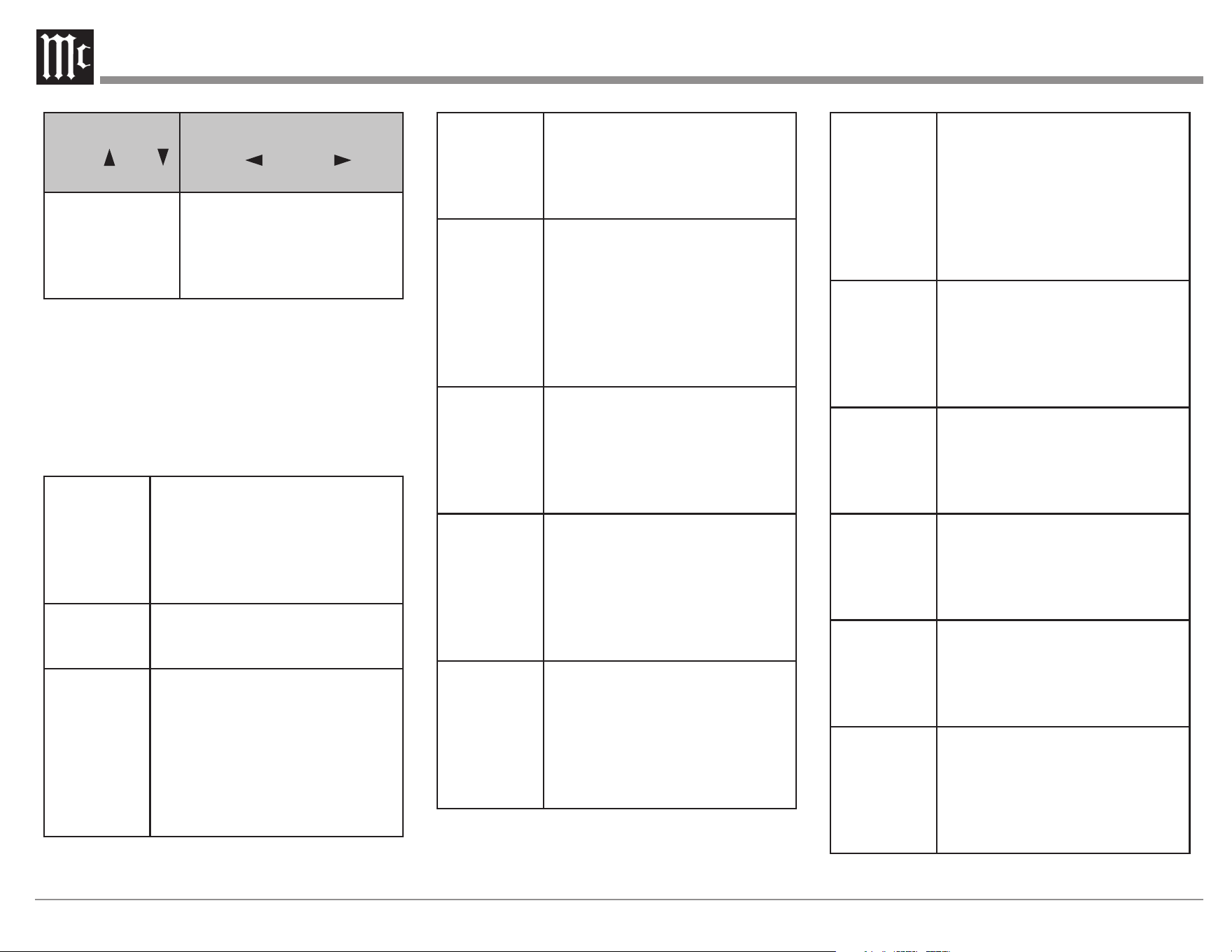
Amp Assign
Setup Menu>Speakers>Manual Setup>Amp
Assign
In Amp Assign, you select how to use the
preamplier section of the MX123. In the Amp
Assign section of Setup, you can tell the MX123
what speaker setup scheme you will be using. This
aects what speaker types are available in the
Manual Setup for speakers explained in the next
section.
The default setting is 13.1 channels which will
provide great exibility in the speaker setup. Some
available options are dependent on other setup
choices. Here are all the available setup options for
Amp Assign:
Setting
Use up down
to select
Options
Use left and right to
select
Layout 13.1 channel
11.1 channel (Bi-Amp)
11.1 channel + Front B
Pre-out for Bi-Amp and
Front B options:
• Surround Back
• Height 2
• Height 3
Floor -Layout 5 channel
5 channel & FW
5 channel & SB
Height Sp None
2 channel
4 channel
5 channel
6 channel
7 channel
8 channel
Dolby Sp None
2 channel
4 channel
Height -Layout Front Dolby
Surround Dolby
Back Dolby
Height -Front
Layout
Front Height
Front & Center Height
Height -Middle
Layout
Top Surround
Surr. Height & Top Surround
16
Setting
Use up down
to select
Options
Use left and right to
select
Height -Rear
Layout
Top Rea r
Rear Height
Surround Height
Top Middle
Top Rea r
Speaker Types and Posions
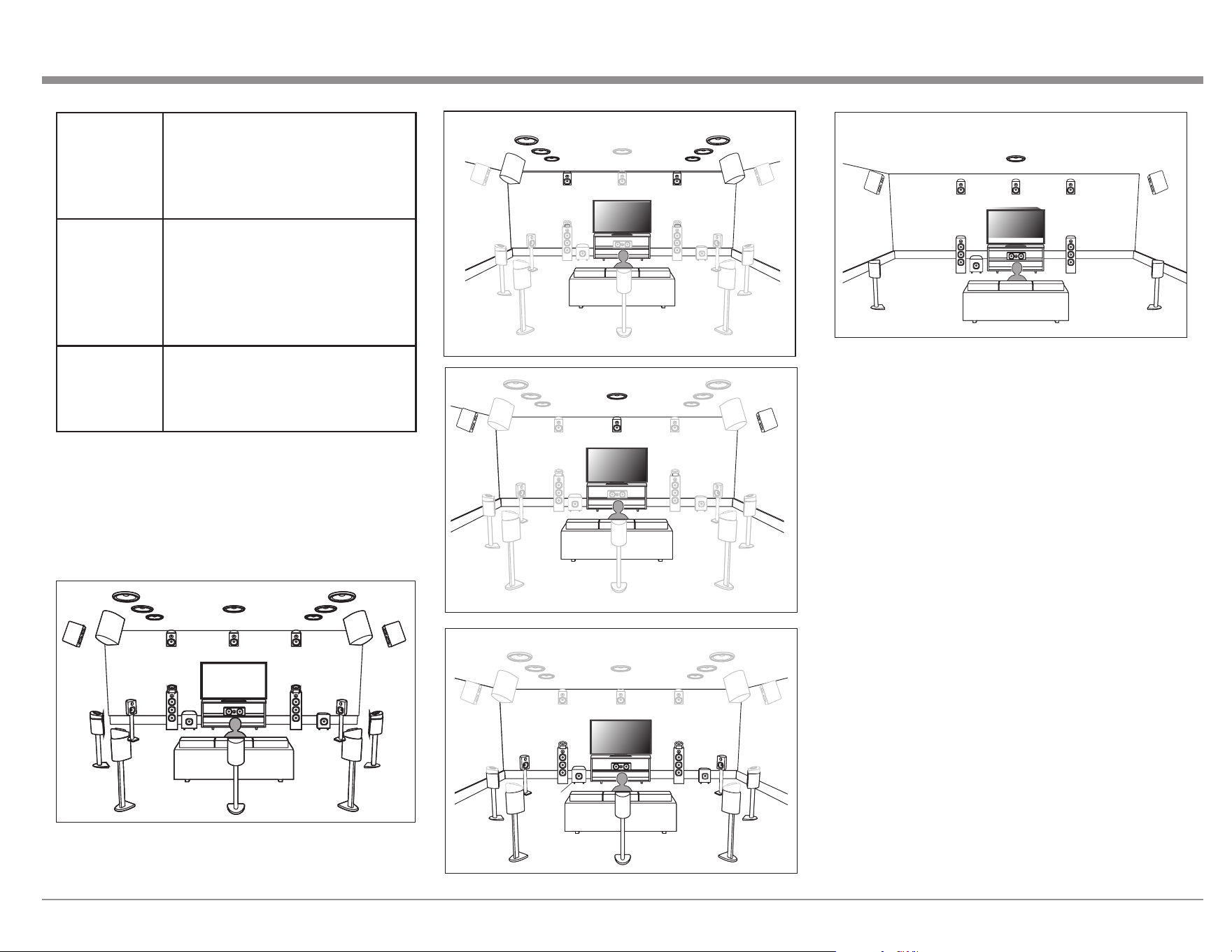
The following table and diagrams show possibilities
for speaker setup as well as the terms used to
describe them.
You will need the number and types of speakers as
well as the distance of each from the main listening
position for the Speaker Conguration in Setup.
FL/FR (Front
speaker Left/
Right)
FRONT Left and Right speakers
should be an equal distance from
the main listening position. The
distance between each speaker and
your TV should also be about the
same.
C (Center) The CENTER speaker should be
between the Front speakers and
above or below your TV.
SL/SR
(Surround
speaker Left/
Right)
The SURROUND Left and
Right speakers should be an
equal distance from the left and
right sides of the main listening
position. If you don’t have
Surround Back speakers, move the
surround speakers slightly behind
your listening position.
FWL/FWR
(Front Wide
speaker Left/
Right)
The FRONT WIDE Left and Right
speakers should be outside of the
front Left and Right speakers so
that there is an equal distance
between all Front speakers.
SBL/SBR
(Surround
Back Left/
Right)
Place the SURROUND BACK
Left and Right speakers an equal
distance from the main listening
position and directly behind the
main listening position. When
using a single Surround Back
speaker (SB), place it directly
behind the listening position.
SW 1/2
(Subwoofer)
Place the SUBWOOFER at a
convenient location near the
Front speakers. If you have
two Subwoofers, place them
asymmetrically across the front of
your room.
FDL/FDR
(Front Dolby
speaker Left/
Right)
Place the FRONT Dolby Atmos
Enabled speaker on the Front
speaker. For a Dolby Atmos
Enabled integrated with a Front
speaker, place the Dolby Atmos
Enabled speaker instead of the
Front speaker.
SDL/SDR
(Surround
Dolby
speaker Left/
Right)
Place the SURROUND Dolby
Atmos Enabled speaker on the
Surround speaker. For a Dolby
Atmos Enabled speaker integrated
with a Surround speaker, place
the Dolby Atmos Enabled speaker
instead of the Surround speaker.
BDL/BDR
(Back Dolby
speaker Left/
Right)
Place the BACK Dolby Atmos
Enabled speaker on the surround
back speaker. For a Dolby Atmos
Enabled speaker integrated with
a Surround Back speaker, place
the Dolby Atmos Enabled speaker
instead of the Surround Back
speaker.
FHL/FHR
(Front Height
speaker Left/
Right)
FRONT HEIGHT Left and Right
speakers are mounted directly
above the Front speakers. Mount
them as close to the ceiling as
possible and aim them towards the
main listening position.
TFL/TFR
(Top Front
speaker Left/
Right)
Mount the TOP FRONT Left and
Right speakers on the ceiling
slightly in front of your main
listening position and align with
the Left and Right Front speakers.
TML/TMR
(Top Middle
speaker Left/
Right)
Mount the TOP MIDDLE Left
and Right speakers directly above
the main listening position and
align with the Left and Right Front
speakers.
TRL/TRR
(Top Rear
speaker Left/
Right)
Mount the TOP REAR Left and
Right speakers on the ceiling
slightly behind your main listening
position and align with the Left
and Right Front speakers.
RHL/RHR
(Rear Height
speaker Left/
Right)
Place the REAR HEIGHT Left
and Right speakers directly behind
the main listening position. Mount
them as close to the ceiling as
possible and align with the Left
and Right Front speakers.
17
SHL/SHR
(Surround
Height
speaker Left/
Right)
Place the SURROUND HEIGHT
Left and Right speakers directly
above the Surround speakers.
CH (Center
Height
speaker)
Place the CENTER HEIGHT
speaker directly above the Center
speaker. Mount it as close to
the ceiling as possible and aim
it towards the main listening
position.
TS (Top
Surround
speaker)
Place the TOP SURROUND
speaker directly above the main
listening position and align with
the Center channel speaker.
Note that the Amp Assign default setting of 13.1 is
recommended for 5.1, 7.1, 9.1 and of course 13.1
playback. 11.1 channel playback should be used for
11.1 channel Bi-amp and 11.1 channel second pair
of front speakers playback.
FDLFDLFDL FDRFDRFDR
BDLBDLBDL BDRBDRBDR
SDSDLLSDL SDSDRRSDR
Figure 14– Speaker Positions and abbreviations
Figure 15– Auro-3D layout example
The above example is a combination of 5.1 channel
speakers with Front Height/Surround Height/Center
Height/Top Surround speakers.
For the best Auro-3D experience Surround Height
speakers are recommended, however you may
substitute Rear Height speakers from a Dolby
Atmos speaker setup in place of Surround Height
speakers.
You will need at least Front Heights for Auro-3D to
be an option.
Speaker Conguraon
Setup Menu>Speakers>Manual Setup>Speaker
Config
Here is where you tell the MX123 what type of
speakers are connected. The available speaker
categories are based on the settings in Amp Assign
(See “Speakers- Setup Menu” on page 15).
Speakers are dened as Large or Small (or None). A
Large Speaker is a full-range speaker. (Technically,
a speaker able to reproduce bass frequencies down
to 35Hz within -3dB of the midrange frequencies.)
If it is not Large, then it is Small. If it doesn’t exist,
choose None.
FHL FHR
TRR
TRL
TFR
TFL
RHL RHR
TMR
TML
SHL
SHR
TS
CH
C
FL FR
SBL
SBR
SB
SW1
SW2
FWL
FWR
SL SR
FHL FHR
SHL
SHR
TS
FL FR
SW
SL SR
C
CH
18
Speaker Options
Front Large / Small
Center Large / Small / None
Subwoofer None/ 1 spkr / 2 spkrs
Surround Large / Small / None
Surr. Back Large / Small / None
1 spkr / 2 spkrs
Front Wide Large / Small / None
Front Height Large / Small / None
Rear Height Large / Small / None
Center Height Large / Small / None
Top Surround Large / Small / None
Speaker Distances
Setup Menu>Speakers>Manual Setup>
Distances
In this section, the distances of the speakers from
the main listening position should be entered. This
will aid in perfecting 3D imaging. A laser pointer
may be a helpful tool to measure the distance from a
speaker to the main listening position.
In the Distances submenu, there are two menu
settings, Unit and Step, that each have two options.
For Unit, you can choose Feet or Meters as the unit
of measurement.
Step sets the value of each button push for setting
the distances. The Step values are 0.1 or 1. You
can use the larger Step value to Input the rough
measurements and then the smaller Step value to
ne tune. This may save you many button pushes.
Speaker Levels
Setup Menu>Speakers>Manual Setup>Levels
Selecting Levels allows you to make changes to the
Output levels of each speaker –12.0dB to +12.0dB.
These set levels are reected in all sound modes.
Select Test Tone Start. You will then be able to play
a Test Tone on all available speakers and adjust the
relative Output levels.
You can choose Set Defaults on the Test Tone Start
screen to set all levels to factory defaults (0.0dB).
Crossovers
Setup Menu>Speakers>Manual
Setup>Crossovers
Crossovers can be set when the “Subwoofer Mode”
setting is “LFE+Main”, or when you have a speaker
that is set to “Small”.
The default crossover frequency is “80Hz”, which
will work best with the widest variety of speakers.
We recommend setting to a higher frequency
when small speakers are used. For example, set to
“250Hz” when the frequency range of the speakers
is 250Hz to 20kHz.
Sound below the crossover frequency is cut o from
the Output to “Small” speakers and is outputted to
the subwoofer or front speakers.
You can choose Individual or All. The Individual
option will allow each available speaker’s crossover
frequency to be set individually. The All option will
globally set the Crossover Frequency to the chosen
value. Available values are:
40 Hz / 60 Hz / 80 Hz / 90 Hz / 100 Hz /
110Hz / 120 Hz / 150 Hz /200 Hz / 250 Hz
Bass
Setup Menu>Speakers>Manual Setup>Bass
The Subwoofer Mode can be set for:
• LFE (Low Frequency Eects) which would
provide only the LFE channel
• LFE+Main which would include the Main
channel as well as the LFE channel
LPF for LFE allows the LPF (Low Pass Filter)
setting for the Subwoofer Mode to be changed. The
options are:
80 Hz / 90 Hz / 100 Hz / 110 Hz / 120 Hz /
150 Hz /200 Hz / 250 Hz
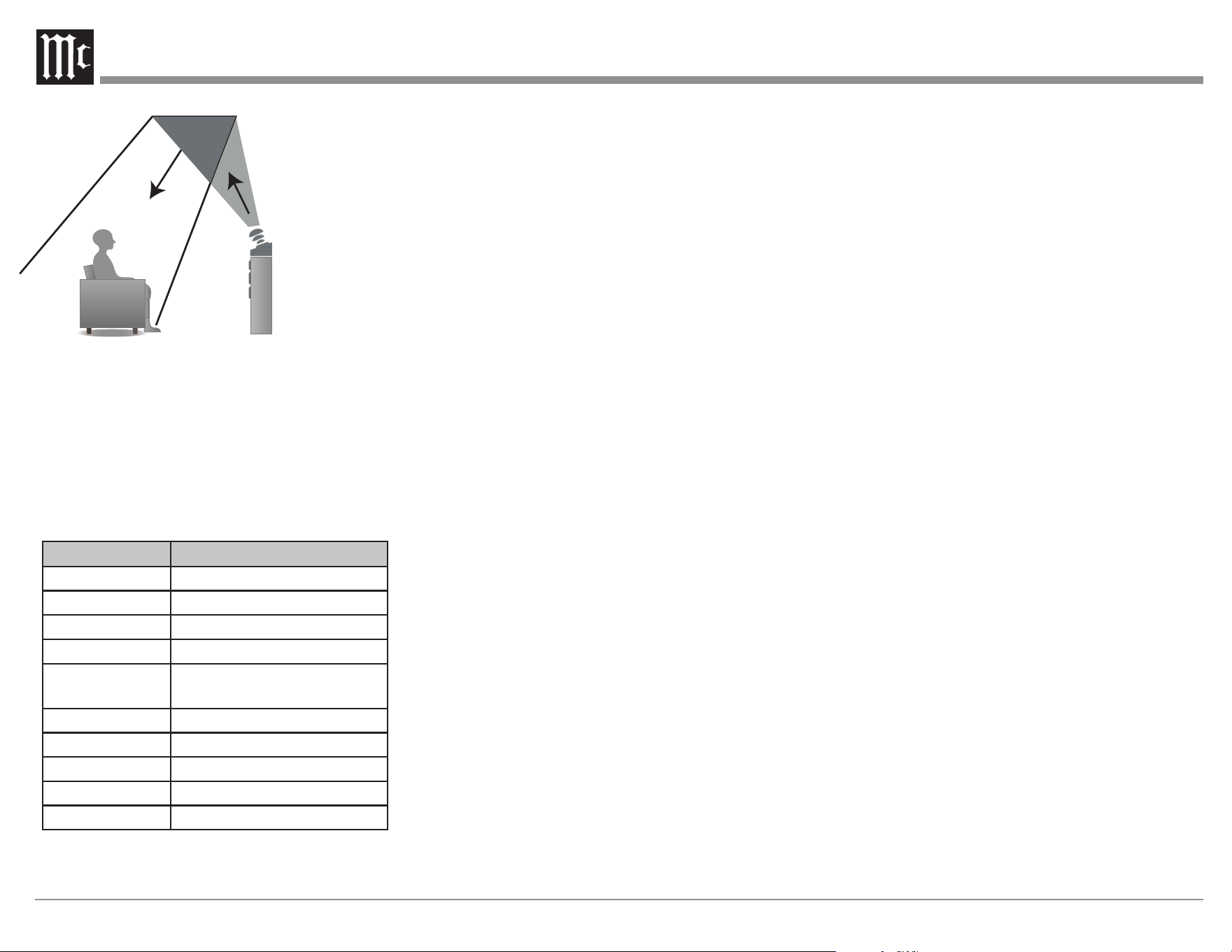
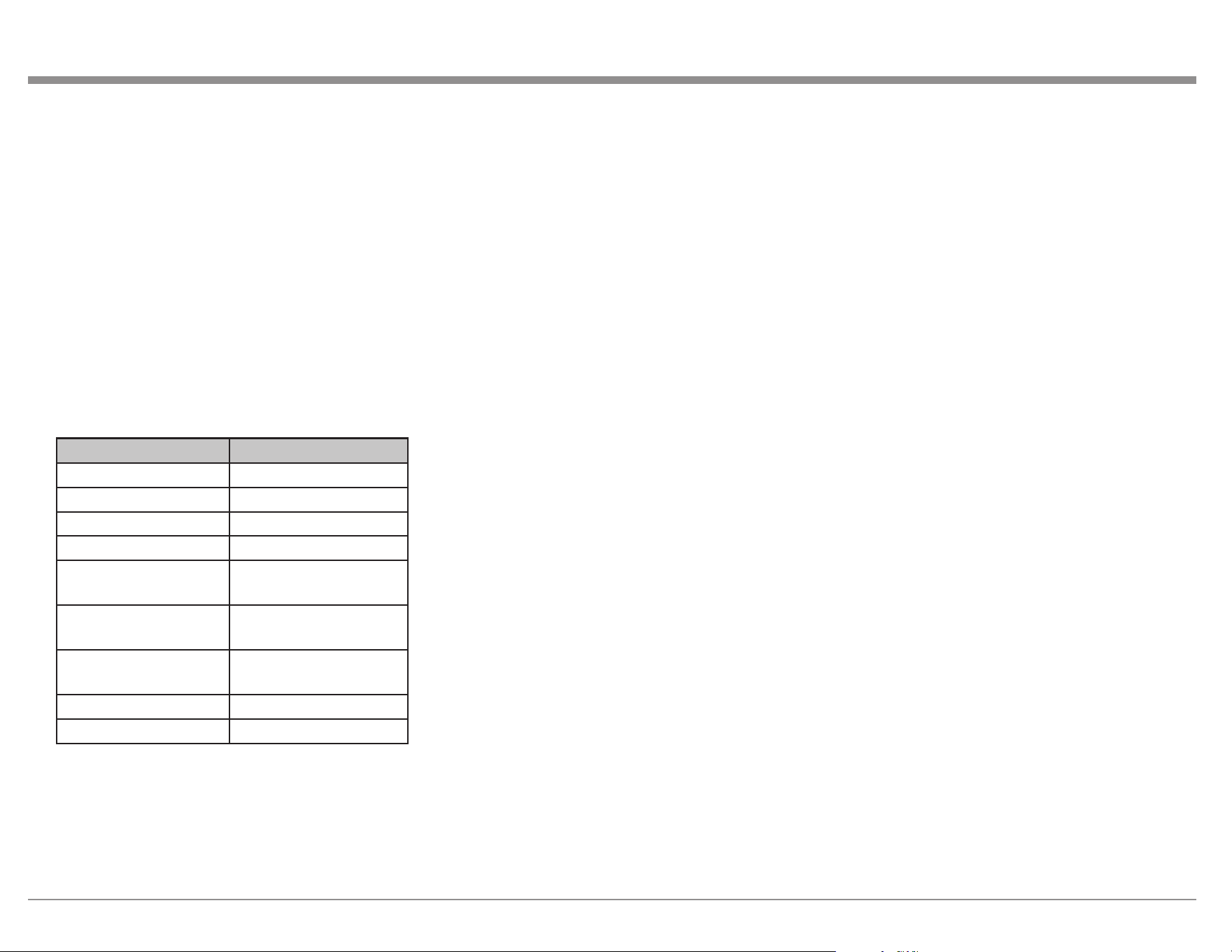
Figure 16– Dolby Atmos Enabled speakers
Dolby Atmos Enabled speakers reect the sound
o the ceiling to allow the sound to come from
over your head by using a special upward-pointing
speaker that is placed on the oor. See Figure 16.
You can enjoy the Dolby Atmos 3D sound even in
an environment where speakers cannot be installed
on the ceiling.
19
Front Speaker
Setup Menu>Speakers>Manual Setup>Front
Speaker
If Amp Assign is set to the Front B option, the Front
Speaker setting will be available. See Layout under
Amp Assign on page 15.
Options for the Front Speaker setting are: A / B /
A+B.
2 Channel Playback
Setup Menu>Speakers>Manual Setup>2ch
Playback
2 Channel Playback can be set automatically or
manually. Here are the setup options:
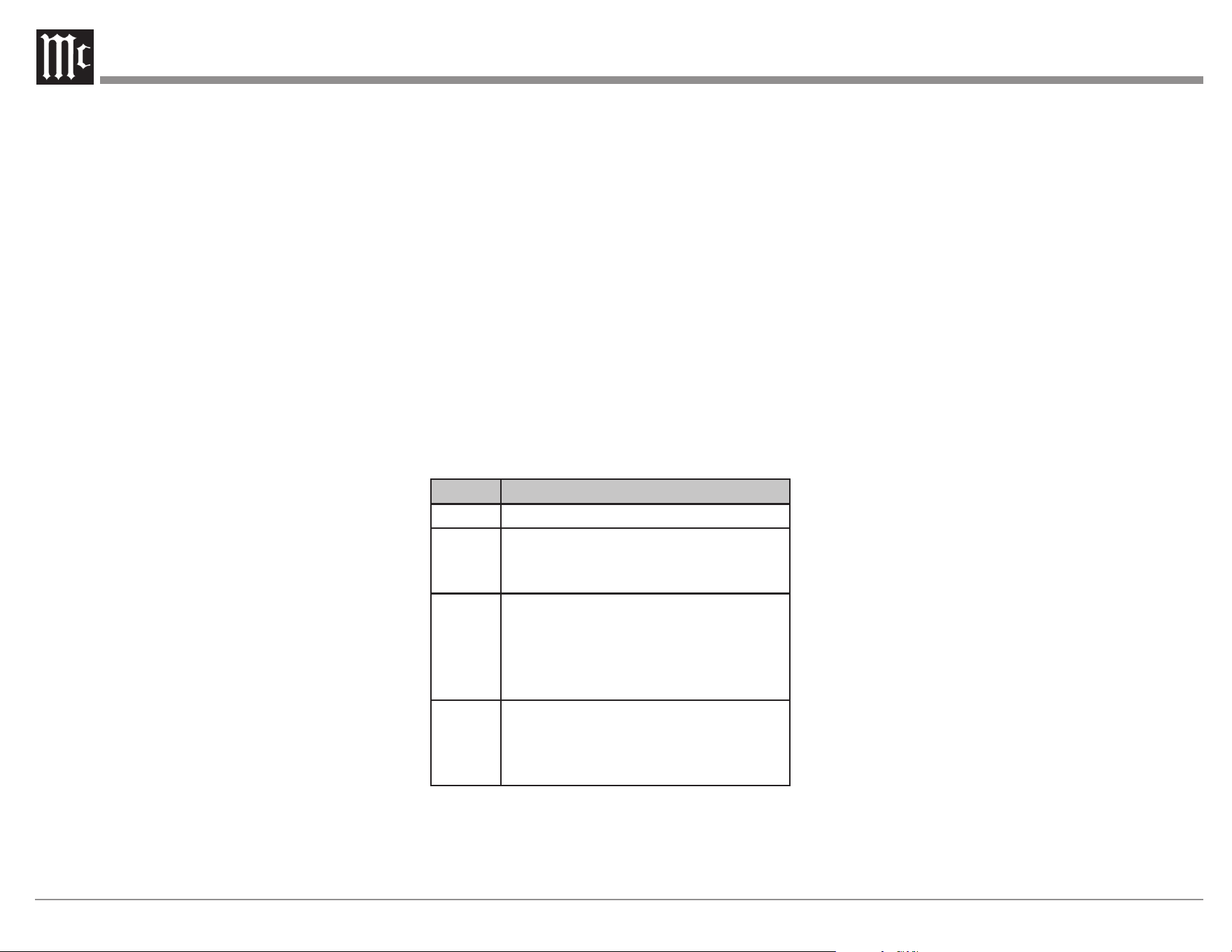
2ch Setting Options
Setting Manual / Automatic
Front Small / Large
Subwoofer Yes / No
SW (Subwoofer) Mode LFE / LFE+Main
Crossover 40/60/80/90/100/110/
120/150/200/250 Hz
Distance FL 0 feet to 32 feet
0 meters to 9.6 meters
Distance FR 0 feet to 32 feet
0 meters to 9.6 meters
Level FL -12 dB to +12 dB
Level FR -12 dB to +12 dB
Audio- Setup Menu
Setup Menu>Audio
Depending on your speaker conguration and
options, the following settings may be adjusted in
the Audio Setup section:
• Subwoofer Level Adjust
• Bass Sync
• DFR
• Audio Delay
• Volume
• Audyssey
• Graphic EQ
Subwoofer Level Adjust
Setup Menu>Audio>Subwoofer Level Adjust
This setting allows you to adjust the level of
Subwoofer 1 and the level of Subwoofer 2 (if they
exist) from -12dB to +12dB in .5dB increments.
Bass Sync
Setup Menu>Audio>Bass Sync
For contents recorded in multi-channel such as
Blu-ray discs, the recorded Low Frequency Eects
(LFE) may be out of sync and delayed. This
function allows you to correct the delay with an
adjustment of 0 ms to 16 ms.
Sound Parameter
Setup Menu>Audio>Sound Parameter
This allows Cinema EQ to be turned On or O.
Cinema EQ softens the treble range of a movie
soundtrack using Dynamic Compression and
Dialogue Normalization for better understanding of
movie dialogue.
The Sound Parameter option is only available for
the current sound mode if it applies. Settings are
saved for each individual sound mode.
DFR
Setup Menu>Audio>DFR
DFR, which stands for Dynamic Frequency
Restorer, restores compressed audio formats to near
their original sound before compression. DFR will
work on compressed audio formats such as MP3,
WMA, and MPEG4 AAC. The options for the DFR
setting are:
• OFF- DFR is disabled
• High- Optimized mode for compressed
sources with very weak highs (64 kbps and
under)
• Medium- Applies suitable bass and treble
boost for compressed sources (96 kbps and
under)
• Low- Optimized mode for compressed
sources with normal highs (96 kbps and over)
Audio Delay
Setup Menu>Audio>Audio Delay
Audio Delay compensates for incorrect timing
between video and audio. When Auto Lip
Sync is set to On, the timing dierence will be
automatically corrected with compatible TVs. The
Adjust option allows you to manually adjust the
delay correction from the Default of 0 ms up to 500
ms.
Volume Setup
Setup Menu>Audio>Volume
There are four variables that can be changed in the
Volume setup:
• Scale- There are two choices for how to
display the Volume. The default is a scale
of 0 to 98. The second option is to show the
decibel (dB) level. The decibel scale is from
-79.5dB to 18dB
20
• Limit-There are four options for setting a
maximum allowable volume level- O, 60
(-20dB), 70 (110dB), and 80 (0dB). Setting a
Volume Limit can protect equipment and/or
ears from unintended extreme volume
• Power On Level- You can set the Volume level
which the MX123 will power on to. Choices
are Mute, Last (last volume used) or any other
available volume level from 1 (-79dB) to the
maximum volume or the Volume Limit if one
is set
• Mute- You can set what volume reduction
occurs when the MUTE button on the Remote
Control is pushed. Options are Full, -40dB
and -20dB
Audyssey
®
Opons Menu
Setup Menu>Audio>Audyssey
®
After Audyssey
®
Setup (see “Audyssey
®
Setup” on
page 28) has been performed, the following setup
options may be available:
• MultEQ XT32
• Dynamic EQ
• Audyssey
®
LFC
MultEQ XT32 optimizes the frequency response
of your speakers. It compensates for both time
and frequency characteristics of the listening area
based on Audyssey
®
Setup. The default setting is
Reference. Reference provides a compensation
curve that is optimized for movies with a slight
roll o at the higher frequencies. The Flat setting
is optimized for small rooms where your listening
position is closer to the speakers. Keep in mind that
many movie soundtracks are optimized for large
theaters. The options in the Audyssey
®
setup section
help maintain the theater experience in smaller
spaces as well as at lower volumes. The third
MultEQ XT32 choice is O which will turn o the
MultEQ XT32 equalization.
Dynamic EQ solves the problem of deteriorating
sound quality as volume is decreased by taking
into account human perception and room acoustics.
Dynamic EQ can be turned On and O. If it is On
(the default), the Reference Level Oset option
appears. Audyssey
®
Dynamic EQ
®
is referenced to
the standard lm mix level. It makes adjustments
to maintain the reference response and surround
envelopment when the volume is turned down from
0dB. However, lm reference level is not always
used in music or other non-lm content. Dynamic
EQ Reference Level Oset provides three osets
from the lm level reference (5dB, 10dB, and
15dB) that can be selected when the mix level of the
content is not within the standard.
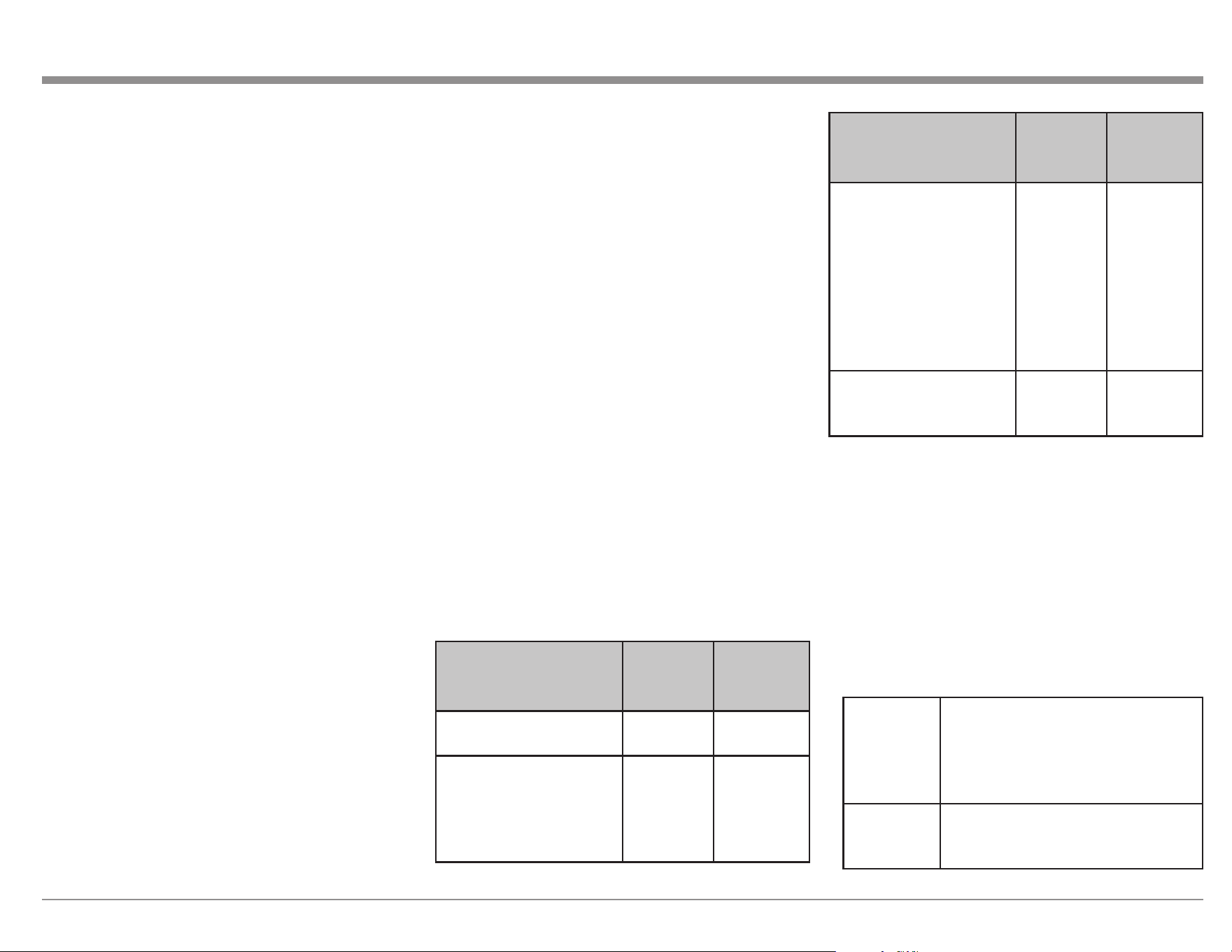
Offset Content
0dB (Default) Optimized for movies
5dB Select this setting for content that has a
very wide dynamic range, such as
classical music
10dB Select this setting for jazz or other
music that has a wider dynamic range.
This setting should also be selected for
TV content as that is usually mixed at
10dB below film reference
15dB Select this setting for pop/rock music or
other program material that is mixed at
very high listening levels and has a
compressed dynamic range
Dynamic Volume solves the problem of large
variations in volume level between TV, movies and
other content (between quiet passages and loud
passages, etc.) by automatically adjusting to the
user’s preferred volume setting.
The settings available for Dynamic Volume ranging
from least adjustment are: O, Light, Medium
and Heavy. Medium is the default set if Dynamic
Volume is set to Yes in Audyssey
®
Setup.
Audyssey
®
LFC™ cuts the excessive low
frequencies that plague your neighbor, but without
removing bass perception in the room where
the home theater system is operating. This is
accomplished by dynamically monitoring low
frequencies and reducing the “oending” ones.
Audyssey
®
LFC™ can be turned On and O. If On,
the Containment Amount may be set between 1 and
7. The default is 4. The higher the setting the greater
the containment of low frequencies.
Video- Setup Menu
Setup Menu>Video
The Video Setup section has the following sub-
menus:
• Picture Adjust
• HDMI Setup
• Output Settings
• Analog Video Out
• On Screen Display
• 4K/8K Signal Format
• TV Format
Picture Adjust
Setup Menu>Video>Picture Adjust
Picture Adjust allows you to select a Picture Mode
that best matches the video content to the viewing
environment. Picture Mode options are:
• O- No picture adjustment
21
• Standard- best choice for most living room
environments
• Movie- best suited for watching movies in a
darkened room (such as a theater room)
• Vivid- brightens images, suitable for gaming
• Streaming- designed for watching low bit
video sources
• Custom- allows manual picture quality
adjustments. Contrast, Brightness, and
Saturation can be adjusted on a scale of -50 to
+50. Video Noise Reduction can be changed
from its default of O to Low, Medium or
High. Enhancer emphasizes picture contours
and is set on a scale from a default of 0 to 12
HDMI Setup
Setup Menu>Video>HDMI Setup
HDMI Setup provides options for HDMI Audio
Out, HDMI Pass Through and HDMI Control
settings:
• HDMI Audio Out setting is available only
when the HDMI Control is set to o. This
setting channels the HDMI Audio Output
HDMI to either AVP, which would be
speakers controlled through the MX123, or
TV which would use the TV’s speakers
• Vertical Stretch- The abiltiy to stretch the
video signals vertically can be toggled On or
O
• HDMI Pass Through can be toggled On
and O. HDMI Pass Through transmits the
selected HDMI Input through this unit’s
HDMI Output while the unit is in standby
power mode. If HDMI Pass Through is On,
a Pass Through Source can be selected.
Source choices are the seven HDMI Inputs
listed under their assigned names. The default
source is CBL/SAT. If you choose Last as the
source, the last used HDMI source will be
the one used in Standby mode. RC Source
Select tells the MX123 how to respond, when
in Standby Mode, to a Source command from
the Remote Control. If the default Power On
+ Source option is selected, pressing a source
button on the Remote Control will turn the
MX123 on and select that Input source. With
the Source Select Only option, the HDMI
Input will change, but the MX123 will remain
in Standby
• HDMI Control can be toggled On and O
to allow a connected CEC compatible TV
connected to HDMI MONITOR 1 to send
control functions over the HDMI cable. CEC
(Consumer Electronics Control) is an addition
to the HDMI standard which allows control
signals from one device to communicate
with another device via an HDMI cable
connection. If you change HDMI Control
settings, reset power to connected devices.
Make sure CEC is enabled on all devices
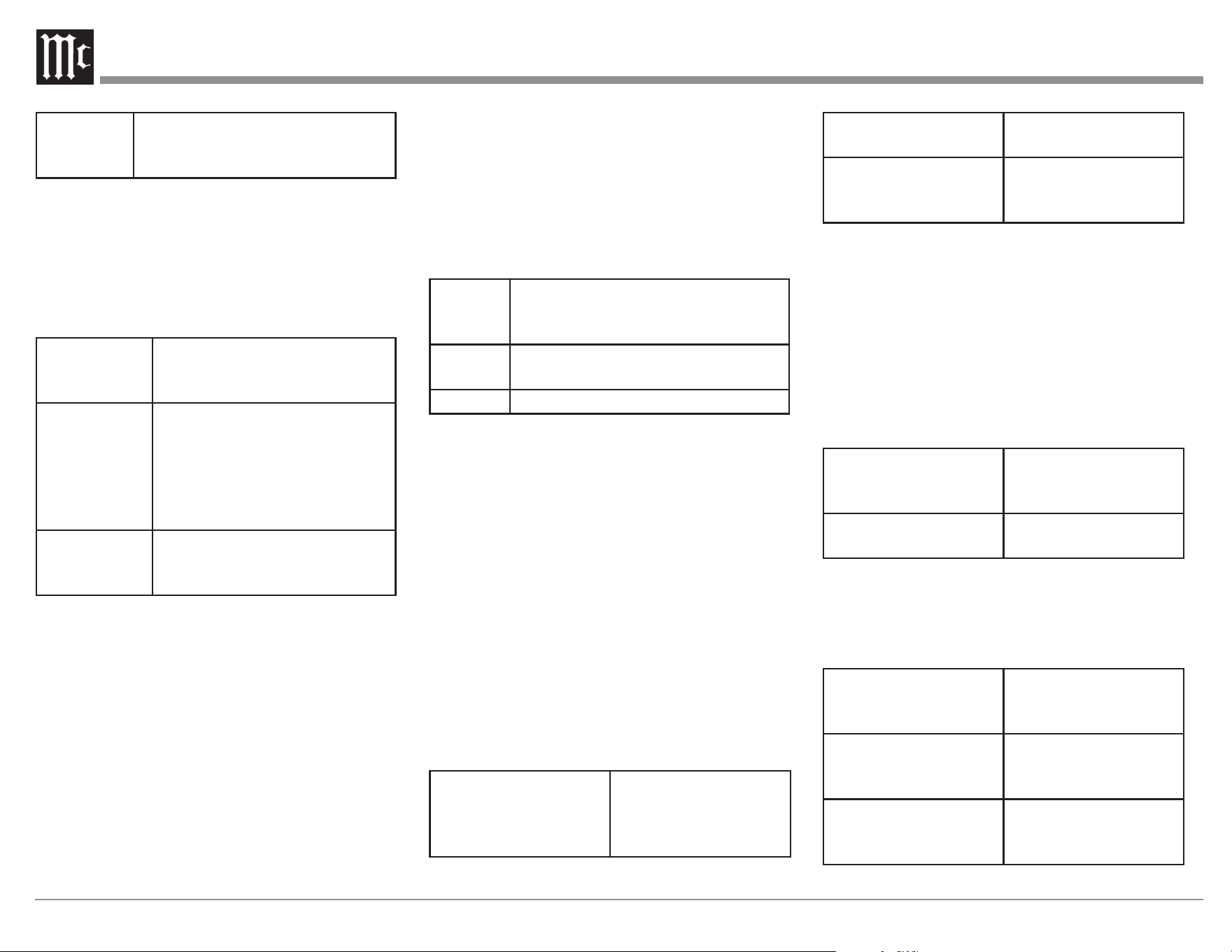
The table below shows additional options for
HDMI Control:
Options HDMI
Control
On
HDMI
Control
Off
ARC (Audio Return
Channel)
On On/Off*
(*Default)
TV Audio Switching-
automatically select a
TV Audio Input when
receiving a command
from the TV
On/Off Not
Available
Options HDMI
Control
On
HDMI
Control
Off
Power Off Control-
MX123 will enter
Standby Mode when a
connected TV is turned
off regardless of Input
source for All, and for
HDMI, COMP and
VIDEO Input sources
with Video selected
All/Video/
Off
Not
Available
Power Saving- use
Power Saving functions
when enabled
On/Off Not
Available
Output Sengs
Setup Menu>Video>Output Settings
In this section, adjustments can be made to the video
Output.
HDMI Video Output
Setup Menu>Video>Output Settings> HDMI
Video Output
HDMI Video Output selects the HDMI monitor to
be used. Options are:
Auto (Dual) The presence of a TV connected
to the HDMI MONITOR 1 or
HDMI MONITOR 2 connector is
detected automatically, and that TV
connection is used
Monitor 1 A TV connected to the HDMI
MONITOR 1 connector is always
used
22
Monitor 2 A TV connected to the HDMI
MONITOR 2 connector is always
used
Video Mode
Setup Menu>Video>Output Settings>Video
Mode
Video Mode congures the processing method to
match the type of video content. Options are:
Auto (Default) Process video automatically
based on the HDMI content
information
Game Always process video for
game content. Minimize the
video delay when the video is
delayed compared to the button
operations on the controller of
the game console
Movie Perform image processing that is
suitable for contents other than
games
If Video Mode is set to Auto, the mode is switched
according to the Input contents.
Video Conversion
Setup Menu>Video>Output Settings>Video
Conversion
Video Conversion enables the conversion of non-
HDMI sources to the HDMI Output. Video signals
will be converted to the proper monitor Output
format.
Options are On and O. O will disable Video
Conversion. If disabled, on-screen graphics, such as
the volume bar, may not be displayed over the video
signal.
When Video Conversion is enabled (On), the
following settings are available:
i/p Scaler sets the video Input signal to be subjected
to i/p Scaler processing. i/p Scaler will convert the
resolution of the Input video signal to the value set
in Resolution (see Resolution below). i/p Scaler
options are:
Analog Use i/p (interlace-to-progressive)
scaler function for analog video
signals
Analog
& HDMI
Use i/p Scaler function for analog and
HDMI video signal
Off Do not use i/p Scaler function
If i/p Scaler is enabled the following options for
these settings will be available:
Resolution can be set to Auto which will
automatically select the resolution based on the
attached monitor’s capabilities. The following
resolutions can be manually selected: 480p/576p,
1080i, 720p, 1080p, 1080p:24Hz, and 4K. These
settings can be set for analog resolution and HDMI
resolution independently.
Sharpness can be turned On and O. O is the
default. The video enhancer sharpness feature
provides image edge contouring which is optimized
for converting lower resolution standard denition
video to 4K.
Progressive Mode sets an appropriate progressive
conversion mode for the source video signal.
Options are:
Auto (Default) The video signal is
automatically detected
and the appropriate
mode is set
Video Mode suitable for video
playback
Video and Film Mode suitable for video
and 30-frame film
material playback
Aspect Ratio can be set for the default 16:9 Output
or 4:3 Output with black bars on the sides of a 16:9
screeen (except for 480p/576p Output). Aspect
Ratio is expressed in terms of width:height.
Analog Video Out
Setup Menu>Video>Video Out
Analog Video Out allows you to select which
zone receives video and component video Output.
Options are:
Component Video
Output
Main Zone
Zone2
Zone3
Video Output Main Zone
Zone3
On Screen Display
Setup Menu>Video>On Screen Display
On Screen Display preferences can be selected as
follows:
Volume- display of
volume level
Bottom (default)
Top
Off
Info- temporarily
displays status of Input
source when switched
On (default)
Off
Now Playing- on-screen
display for Online
Music Source
Always on (default)
Auto Off- show for 30
seconds
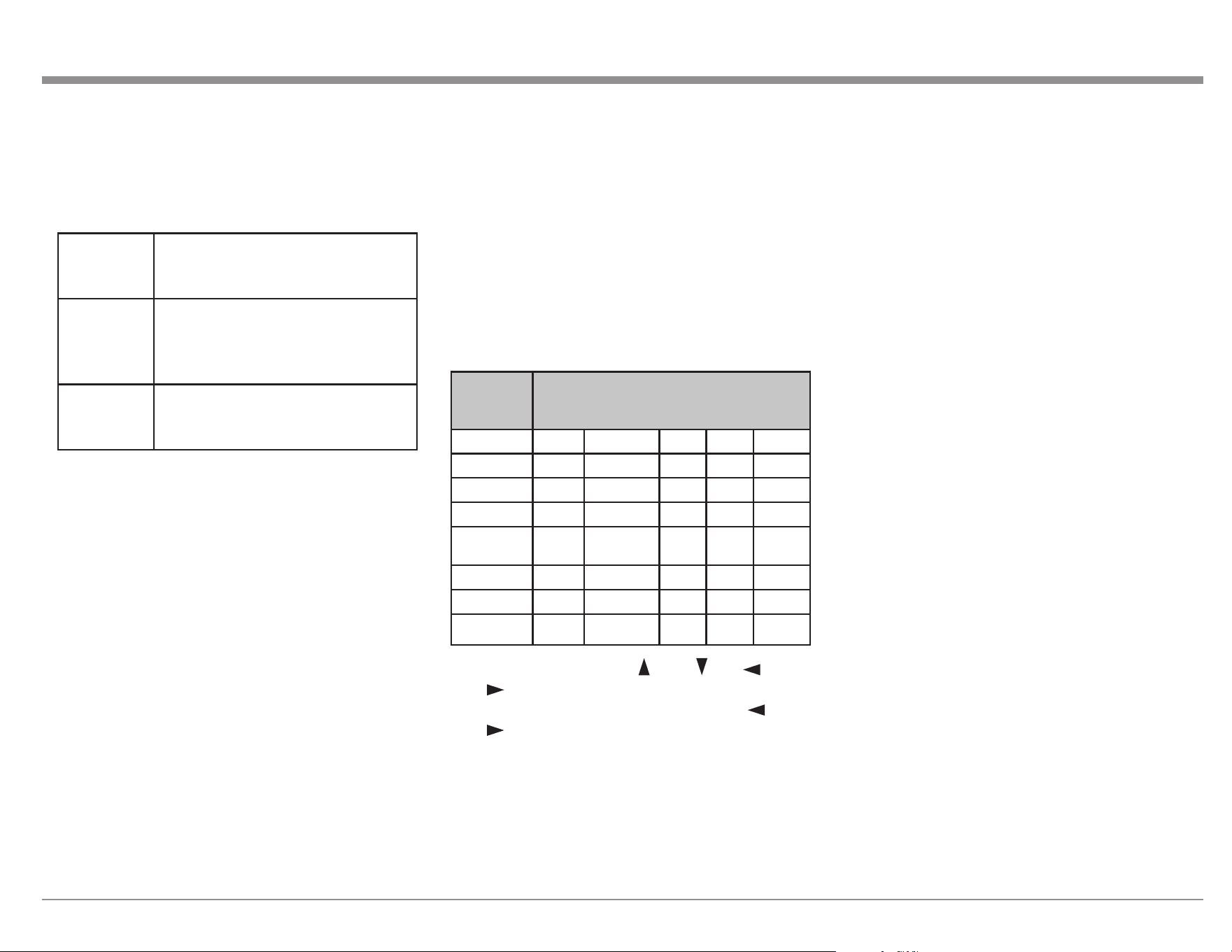
23
4K/8K Signal Format
Setup Menu>Video>4K Signal Format
There are three options for 4K/8K playback when
connected to an HDMI 4K or 8K signal compatible
device.
Standard Select if your TV and playback
devices support standard 4K 60p
4:2:0 8 bit video signals
Enhanced
(default)
Select if your TV, playback devices,
and cables support high quality 4K
60p 4:4:4, 4:2:2 or 4K 60p 4:2:0 10
bit video signals
8K
Enhanced
Select if your TV, playback devices,
and cables support high quality 8K
60p or 4K 120p video signals.
Use of a Ultra High Speed HDMI cable is
recommended for Enhanced playback (see “HDMI”
on page 9). Make sure the connected 4K/8K
device’s settings are properly set.
TV Format
Setup Menu>Video>TV Format
There are two options for the video signal Output
format to be sent to your TV:
• NTSC (Default)
• PAL
NTSC is the video standard used in North America
and most of South America. PAL is commonly used
in most of Western Europe, China, India, Australia,
and most of Africa.
Inputs Setup Menu
Setup Menu>Inputs
The MX123 will work without making any changes
to the Inputs. The following Input options can be
customized:
• Input Assign
• Source Rename
• Hide Sources
• Source Level
• Input Select
Input Assign
Setup Menu>Inputs>Input Assign
Dierent Input Sources can be assigned to dierent
Input connectors. The default assignments are as
follows:
Input
Source
Input Connector
HDMI DIGITAL ANALOG COMP VIDEO
CBL/SAT
1 COAX1 1 1 1
DVD
2 COAX2 2 2 2
Blu-ray
3 - 3 3 3
Game
4 - 4 - 4
Media
Player
5 - 6 - -
TV Audio
- OPT1 - - -
AUX
7(8K) - - - -
CD
6 OPT2 5 - -
Use the arrows to scroll up , down , left , and
right in the Input Assign table. On a cell you
wish to change, press ENTER. Use the left and
right arrows to scroll through available values.
Press ENTER to make your choice.
Only available options will be choices. For example,
only OPT1, OPT2, COAX1 and COAX2 are
available for Digital Inputs.When an HDMI channel
is selected, it will be removed from its previous
assignment. Also, when HDMI Control or ARC is
set to On in the menu, HDMI cannot be assigned to
TV Audio.
Source Rename
Setup Menu>Inputs>Source Rename
All Input source’s names can be customized. The
new name will appear whenever that Input is
displayed.
The Set Defaults button will return ALL names back
to their original names.
Hide Sources
Setup Menu>Inputs>Hide Sources
You can hide any unused Input from being
displayed. This will save you the trouble of scrolling
through them. Select Hide for any Input you wish
to hide. Selecting Show, which is the default, will
make the Input visible once again.
Source Level
Setup Menu>Inputs>Source Level
Dierence in Input volumes may be corrected with
Source Level. Analog Inputs and Digital Inputs
can each be adjust from -12dB to +12dB. The
adjustment is saved for the currently selected Input
source.
Input Select
Setup Menu>Inputs>Input Select
Input Select allows you to set the audio Input mode
of each Input source. The Input modes available for
selection may vary depending on the Input source.
Options for Input Mode are:
• Auto- this default mode is recommended for
most circumstances. It will automatically
detect an Input signal and perform playback
accordingly
• HDMI- plays only HDMI signals
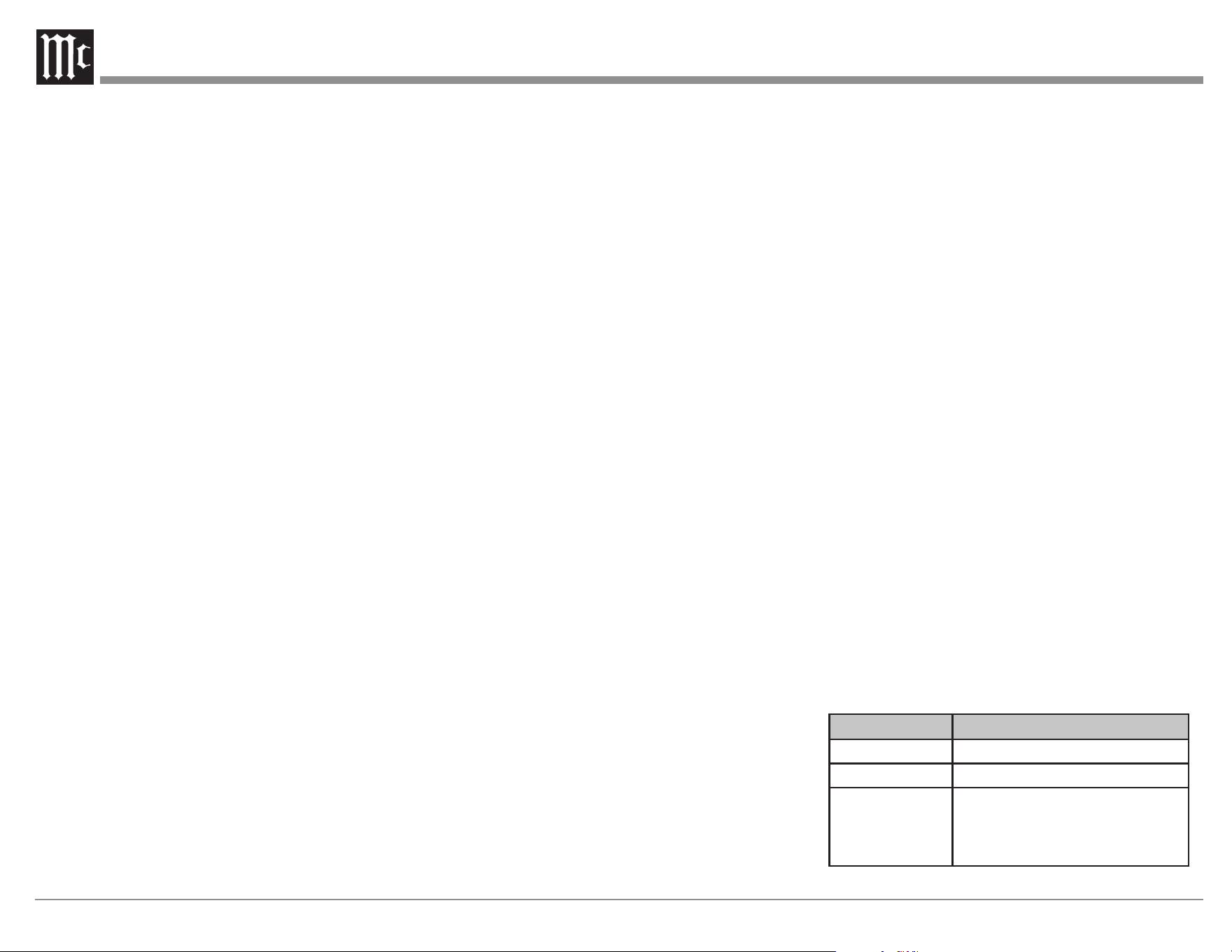
24
• Digital- plays only digital audio Input
• Analog- plays only analog audio Input
• 7.1CH IN- only plays signals from the 7.1CH
Input connector
Network
Setup Menu>Network
The MX123 A/V Processor can be connected to
your home network through a wired or wireless
LAN connection. The Network section of Setup
allows you to congure your network settings.
The Network menu has the following submenus:
• Information
• Connection
• Settings
• Network Control
• Friendly Name
• Diagnostics
Information displays the following information:
Friendly Name, Connection, SSID, DHCP status, IP
Address, MAC Address (Ethernet), MAC Address
(Wi-Fi) as well as a graphic representing Wi-Fi
signal strength.
Connection has two options: Wired (Ethernet) and
Wireless (Wi-Fi). Wireless is the default. Choosing
the Wi-Fi option will bring up a Wi-Fi Setup button.
There will be four options for connecting to a Wi-Fi
network:
• Scan Networks- select from a list of discovered
networks. Choose Rescan to refresh the list.
Choose a network, then enter the password and
select OK
• Use iOS Device- if you have an Apple device
(iPhone, iPod, iPad) running iOS 7 or later,
launch the settings app on your device and
select “Wi-Fi” and then choose “McIntosh
MX123” under SET UP NEW AIRPLAY
SPEAKER. Follow your device’s instructions
• WPS Router- Press the WPS switch on your
router. Press Connect on the WPS Router
submenu screen within two minutes
• Manual- allows you to manually enter
the SSID, Security encryption method and
password for your wireless network. Select
Connect when done
Settings congures the IP address of the MX123.
The default setting is DHCP On. In most cases, the
MX123 will receive the required information from
the router.
If you switch DHCP to O, you can manually enter
the IP address information which is handy if you
want to use a particular unchanging IP address. You
will need the following information to manually set
the IP address:
• IP address
• Subnet Mask address (Typically
255.255.255.0)
• Default Gateway address (Address of your
router)
• DNS address
Network Control gives you the option of
suspending the network function when the MX123
is in standby mode. This will conserve some power
in standby mode, but the MX123 can not be woken
from a network controller when O In Standby is
selected.
The default setting for Network Control is Always
On. This allows the MX123 to be operable with a
network compatible controller.
Friendly Name allows you to select what name
will be displayed for the MX123 on your network.
Options are: Home Theater / Living Room / Family
Room / Guest Room / Kitchen / Dining Room /
Master Bedroom / Bedroom / Den / Oce / Other.
Choosing Other will allow you to Input a custom
name.
Diagnostics will test the network connection and
report any errors.
General Setup
Setup Menu>General
The General Menu contains the following submenus
to make changes to various settings:
• Language
• ZONE2 Setup
• ZONE3 Setup
• Zone Rename
• Quick Select Names
• Trigger Out 1
• Trigger Out 2
• Auto Standby
• Front Display
• Firmware
• Information
• Save & Load
• Setup Lock
Language allows you to set the language for the
display menus. The default is English, but the
language can be changed to French or Spanish.
Zone2 and Zone3 Setup has the following options:
Menu Item Zone Settings
Bass -10dB to +10dB (Default 0dB)
Treble -10dB to +10dB (Default 0dB)
High Pass Filter
(HPF) attenuates
low frequencies to
reduce distortion
On / Off (Default)
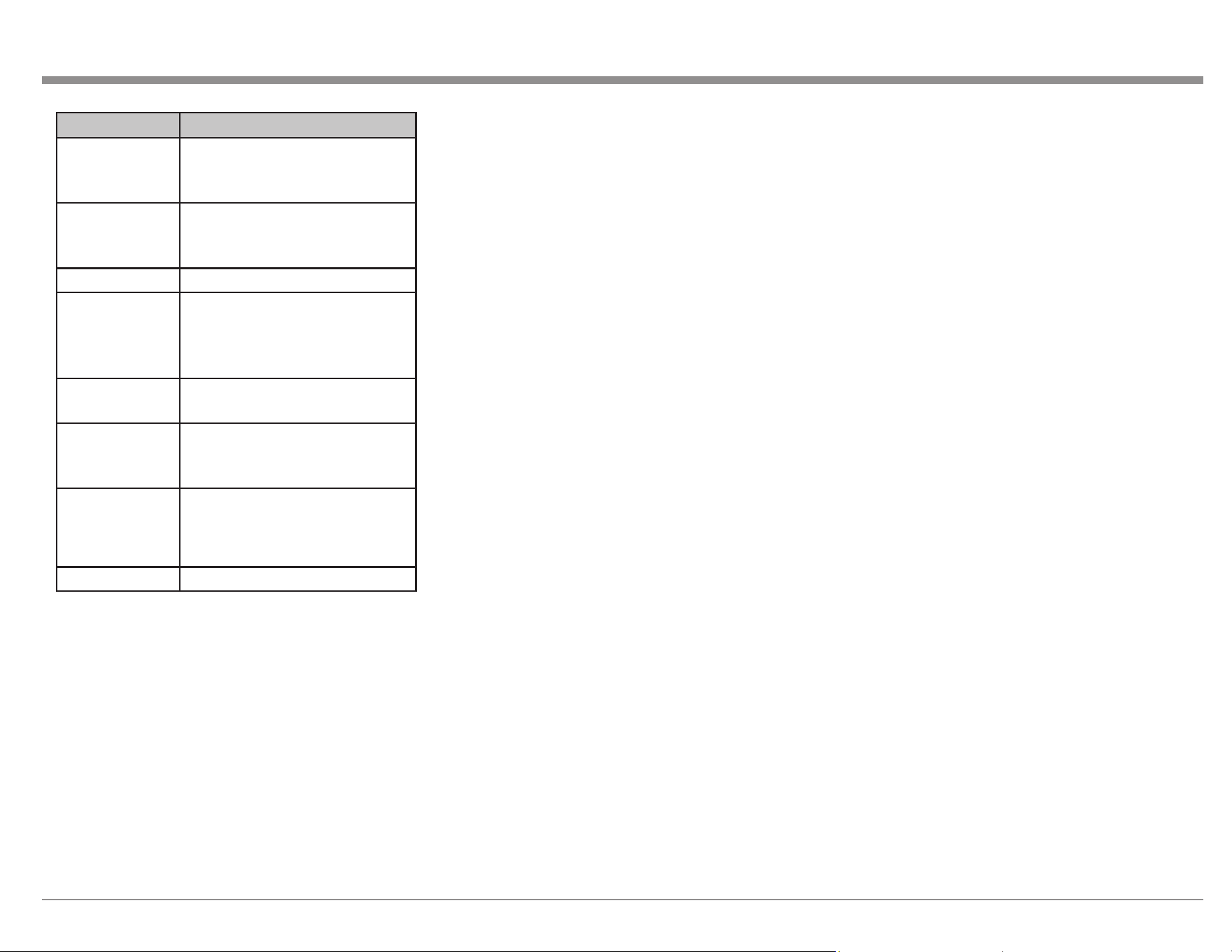
25
Menu Item Zone Settings
Lch Level (Left
channel Output
Level)
-12dB to +12dB (Default 0dB)
Rch Level
(Right channel
Output Level)
-12dB to +12dB (Default 0dB)
Channel Stereo (Default) / Mono
HDMI Audio
(Zone2 only)
Through (Default- HDMI audio
signal passed to ZONE2 device)
/ PCM (HDMI is converted to
PCM for ZONE2)
Volume Level Variable / Fixed at a set volume
of 1 to 98 (-79dB to 18dB)
Volume Limit
(if Volume Level is
Variable)
Off (no max) / 60 (-20dB)
/70 (-10dB) / 80 (0dB)-sets a
maximum allowable volume
Power On
Volu me
(if Volume Level is
Variable)
Initial power on volume
settings: Last (default) / Mute / 1
to 98 (-79dB to 18dB).
Mute Level Full (default) / 40dB / -20dB
Zone Rename allows you to set custom names of
up to 10 characters for each zone. Choosing the Set
Defaults button will return to factory default names.
Quick Select Names allows you to set custom
names for the four Quick Select buttons. This
name will appear on the display. Choosing the Set
Defaults button will return to factory default names.
Trigger Out 1 and Trigger Out 2 menus allow
you to set conditions for activating each Trigger
Out. Inputs, Zones and monitors can be set to On to
activate the respective Trigger Out. If the selection
is set to – – – , the Trigger Out will not be activated
when that Zone, Input or HDMI monitor is chosen.
Auto Standby sets when each zone enters standby
mode.
The MAIN ZONE can be set to go into standby
mode after 15, 30, or 60 minutes of no audio or
video signals. Setting Auto Standby to O (which
is the default) will prevent the MAIN ZONE from
turning o.
ZONE2 and ZONE3 can be set to shut o after 2, 4
or 8 hours of no operation being performed. These
zones will shut o automatically even if there is
audio or video playing if no user input has been
detected for the set time period.
Front Display provides options for the display
brightness and whether the front panel signal
display shows information for Input or Output.
The current mode of the signal display is shown by
either the IN or OUT Channel Indicators being lit.
Dimmer options are (in order of decreasing
brightness):
• Bright (Default)
• Dim
• Dark
• O (Display will turn o)
The Channel Indicator has two options:
• Input
• Output (default)
Information shows the status of the following:
• Audio- indicates current Sound Mode, Input
Signal Type, Sample Rate, Channel Format,
Oset (the dialogue normalization correction
value)
• Video- shows HDMI Signal information
(Resolution, Color Space and Pixel Depth);
HDMI Monitor 1 (Interface and available
resolutions); HDMI Monitor 2 (Interface and
available resolutions)
• ZONE- has the option to display information
for the MAIN ZONE (Select Source, Name,
Sound Mode, Input Mode and Decode
Mode, Type and Number of Connections
-HDMI, Digital, Analog, Component Video
and Composite Video, Video Mode, Content
Type, Video Conversation, i/p Scaler) and for
ZONE2/3 (Power, Select Source and Volume
Level)
Setup Lock can be set to On to protect the MX123
from inadvertent changes. When Setup Lock is
enabled, no other Setup options are displayed except
for Setup Lock. To access other Setup items, set
Setup Lock to O (default).
Save & Load
Setup Menu>General>Save & Load
The Save & Load menu allows you to back up and
restore congurations for the MX123. If you spent
some time customizing your settings, it makes sense
to create a backup. You will need a compatible
USB memory device formatted to FAT32 with at
least 128 MB of free space. Insert the USB memory
device into the USB port labeled USB on the rear
of the unit (see “USB” on page 9). Choose Save
Conguration. Do not shut the power o until the
operation is complete. A le named cong.avi will
be created. Do not change the name or it will not be
recognized for restoring the conguration.
To restore the saved conguration, insert the USB
memory device with the cong.avi le and choose
Load Conguration. Do not shut the power o
during this process. When it is complete, “Loaded”
will appear on the display and the MX123 will
automatically restart.
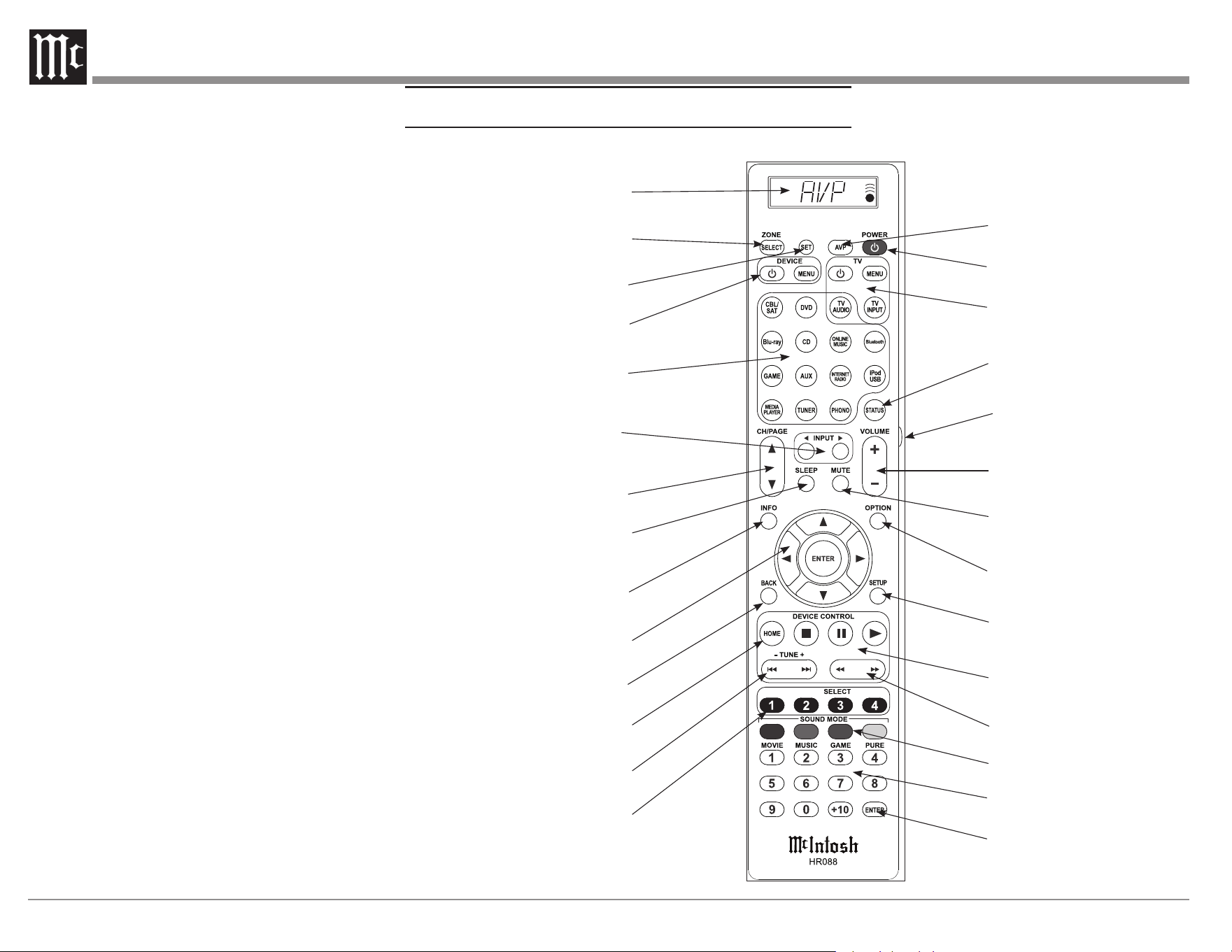
26
Descripon of Remote Control Buons
QUICK
1
2
4
3
5
6
7
8
9
10
11
12
13
14
15
16
18
17
19
20
21
22
23
24
25
26
27
28
Firmware
Setup Menu>General>Firmware
The MX123 A/V Processor can be setup to
automatically download and install new rmware to
make sure the unit has the latest updates. Updates
can also be shuto or manually performed. Options
for this menu are:
Check Update will check for any available newer
update. Use the BACK button on the Remote
Control or the RETURN button to return to the
previous menu.
Auto-Update can be turned On or O. When On,
new updates are downloaded and installed when the
MX123 is in standby mode. The change Time Zone
button allows you to set the proper time zone for
where your unit resides.
Allow Update tells the MX123 whether updates are
allowed. When set to O all the other menu options
for the Firmware menu will be greyed out. To have
access to update options select On.
Upgrade Notications can be set to On (default)
or O. When enabled, the MX123 will display an
upgrade message upon powering on if a rmware
upgrade is available. The notication will be
displayed for about 40 seconds. If you do not wish
to see these notications, select O for this option.
Add New Feature will check to see if new features
are available and provide you with the option of
upgrading if available.
NEVER TURN OFF THE MX123 WHILE
UPDATES ARE BEING INSTALLED.
If a message appears that an update or an upgrade
failed, hold the red STANDBY ON button for more
than 5 seconds or remove and re-insert the power
cord. After about 1 minute, “Please wait” appears
on the display and update restarts. If the error
continues, please check the network environment.
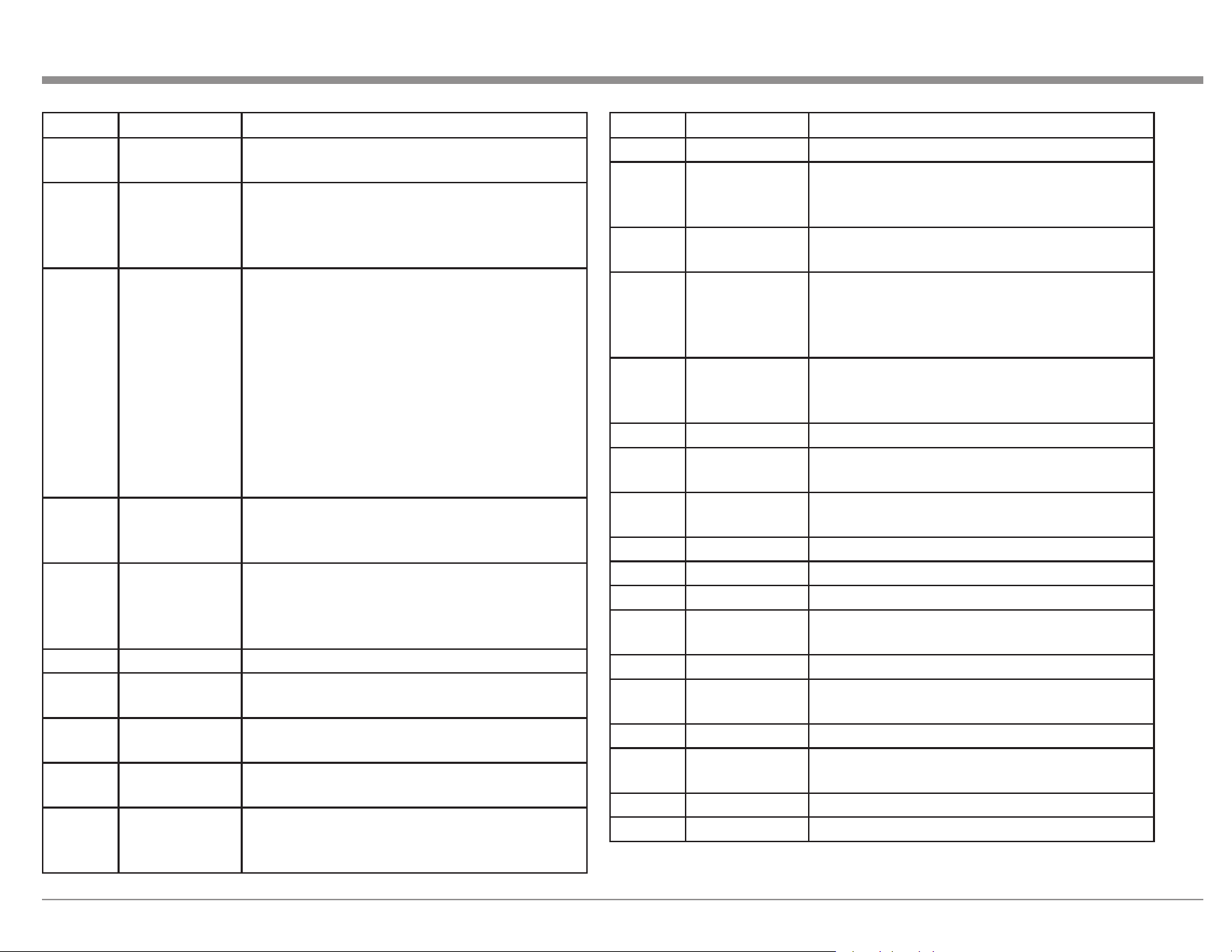
27
#
Name Description
1
Display
Screen will display information. For most
functions, “AVP” should be shown
2
SELECT
Pushing SELECT once will display the current
Zone. Additional pushes will scroll through the
available Zones. Stop on the Zone that you wish
to control
3
SET
The SET button allows codes for other
components to be entered. If you know a
component’s 4-digit code, enter it by pressing
and holding the corresponding source button
and then, also hold the SET button. Release
when “PRESET” flashes. Enter the code when
4 dashes appear. “OK” will flash. The Display
will show the source name. Manufacturers may
have different codes for different models of
the same type of product and not all codes are
compatible with this remote
4
DEVICE
These buttons can be used to control Source
components after Remote Control codes have
been entered
5
SOURCES
Select from 14 available Audio Sources.
(Note: the iPod/USB button will access the
USB Input for the MX123. The iPod choice is
for compatibility with older models.)
6
INPUT Steps through available Inputs
7
CH / PAGE
Use to scroll through available Channels or
Information pages
8
SLEEP
Sets Sleep timer from OFF to 120 minutes in 10
minute increments
9
INFO
Shows On-Screen information for the currently
selected Input when in the Main Zone
10
Navigation
The four arrow buttons and center ENTER
button allow for navigation and Input for
various menus
#
Name Description
11
BACK Returns to previous SETUP menu
12
HOME
When the Source is Online Music or USB, the
HOME button will bring up the Home Screen
or Top Screen
13
TUNE
Selects Tuner presets and Disc tracks. Can be
used as skip and search in Internet Radio
14
QUICK
SELECT
Four buttons used to recall previously
programmed presets such as Input, Volume
Level and Sound Mode for the currently
selected Zone
15
AV P
Pressing AVP will show “AVP” in the display
which is needed for commands like SETUP
and MENU
16
POWER Press to power the MX123 ON and OFF
17
TV
These buttons will control a TV if the TV code
was SET (#3)
18
STATUS
Displays the Status of the selected assignable
Input
19
Light Activates Display backlight
20
VOLUME Adjusts Volume level up or down
21
MUTE Mutes the audio or unmutes if muted
22
OPTION
Activates On-Screen Menu for Audio/Visual
features
23
SETUP Activates Setup mode. Press again to go back
24
DEVICE
CONTROL
Controls transport Stop, Pause and Play
functions
25
(SEEK) Seeks selected Tuner station Up or Down
26
SOUND
MODE
Offers various sound choices in Movie, Music,
Game or Pure categories
27
Numbers For number Input
28
ENTER ENTER key for data Input
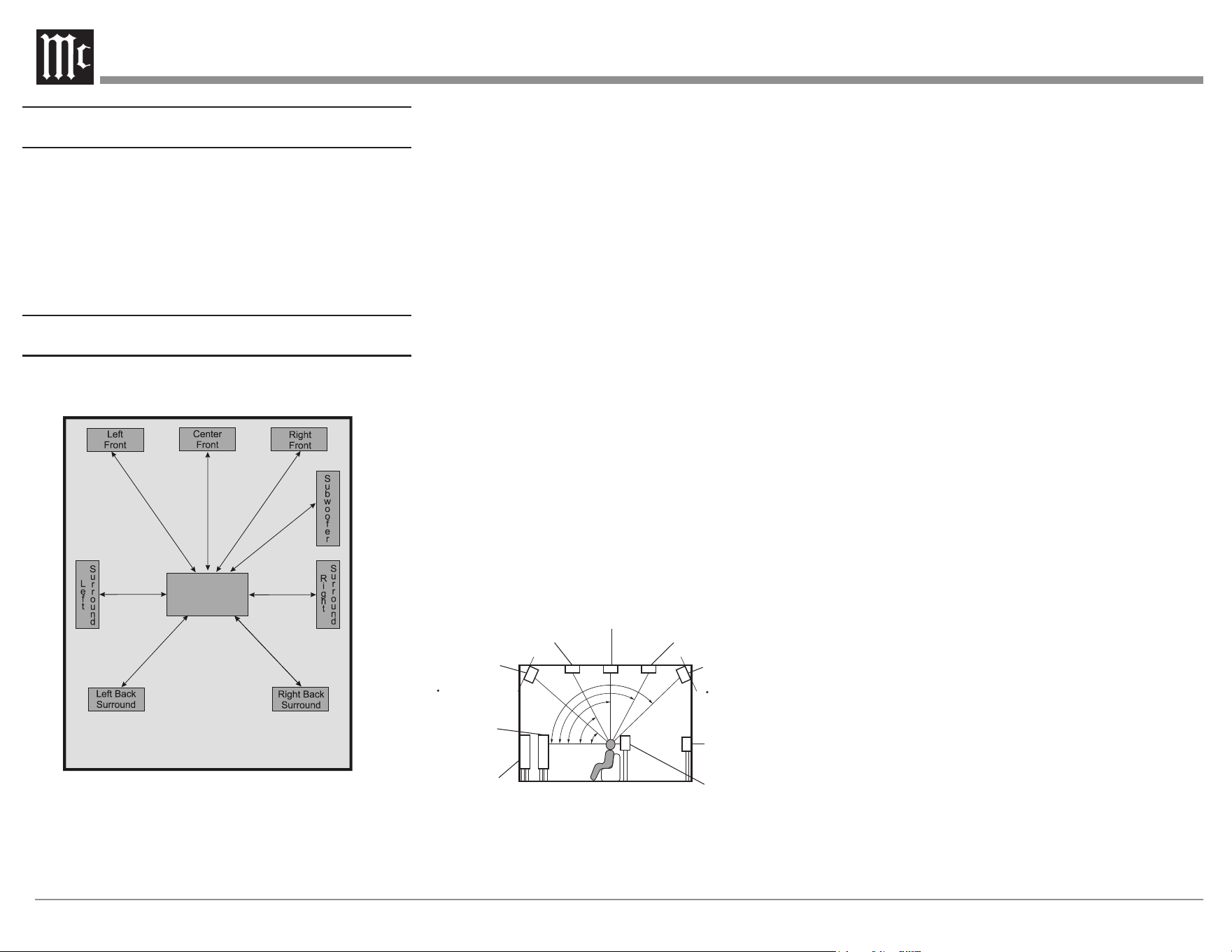
28
Remote Control Baeries
The Remote Control, part number HR088, included
with the MX123 is powered by two AAA batteries.
To insert or remove batteries, open the battery
compartment by removing the cover located on the
back of the Remote Control. To open, pull the clasp
located just above the opening downward.
Audyssey
®
Audyssey
®
is an intelligent system which will ne-
tune your system to properly interact with the room’s
Figure 17– Audyssey® main listening position
acoustics through precise calibration. This will get
the highest possible performance from your complete
system providing a tighter and more detailed sound
with increased imaging.
Audyssey LFC™ solves the problem of low frequency
sounds disturbing people in neighboring rooms or
apartments. Audyssey LFC™ dynamically monitors
the audio content and removes the low frequencies
that pass through walls, oors and ceilings. It then
applies psychoacoustic processing to restore the
perception of low bass for listeners in the room.
The result is great sound that no longer disturbs the
neighbors.
The MX123 has two subwoofer Output capability
and can adjust the level and delay for each subwoofer
individually. Audyssey Sub EQ HT™ makes the
integration seamless by rst compensating for
any level and delay dierences between the two
subwoofers and then applying Audyssey MultEQ
®
XT32 to both subwoofers together for improved deep
bass response and detail.
Audyssey
®
Setup uses multiple measurement locations
in the listening room to achieve the best possible
acoustical results. The Focus Position or Main
Listening Position is typically where one would be
during serious viewing/listening.
∗1
∗2
∗3
∗4
∗5
Point slightly
downwards
Front height
speaker
∗1 30° - 45°
∗4 125° - 150°
∗2 30° - 55°
∗3 65° - 100°
∗5 135° - 150°
(Viewed from the side)
Top middle speaker
Top front speaker
Top rear speaker
Front speaker
Surround
speaker
Surround
back
speaker
Front wide
speaker
Point slightly
downwards
Rear height
speaker
Figure 18– Speaker angles
Before proceeding with Audyssey
®
Auto Setup, it
is very important to rst go into the Setup Mode
to establish the correct settings for your specic
Loudspeaker complement and location in the Home
Theater Room. This will not only assure the best
acoustic performance using Audyssey
®
Room
Equalization Correction, but it will also assure the best
sonic performance using the latest in surround sound
technology built into the MX123.
The acoustic characteristics of the connected speakers
and listening room are measured and the optimum
settings are made automatically.
Audyssey
®
Setup
Assemble the supplied setup microphone and stand,
then place it in the Main Listening Position or Focus
Position. See Figure 17 on page 28.
For best results:
• Make the room as quiet as possible. Background
noise can disrupt the room measurements. Close
windows and turn o the power on electronic
devices (radios, air conditioners, uorescent
lights, etc.). The measurements could be
aected by the sounds emitted by such devices
• During the measurement process, place cell
phones outside the listening room. Cell phone
signals could disrupt the measurements
• Do not stand between the speakers and Sound
calibration microphone or allow obstacles in the
path while the measurements are being made.
Also, install the Sound calibration microphone
at least 20 inches (50cm) away from the
wall. Failure to do so will result in inaccurate
readings
• During the measurement process, audible
test tones will come from the speakers and
subwoofer(s), but this is part of normal
Focus
Position
Distance between the Loudspeakers (at Ear Level)
and the Microphone Focus Position
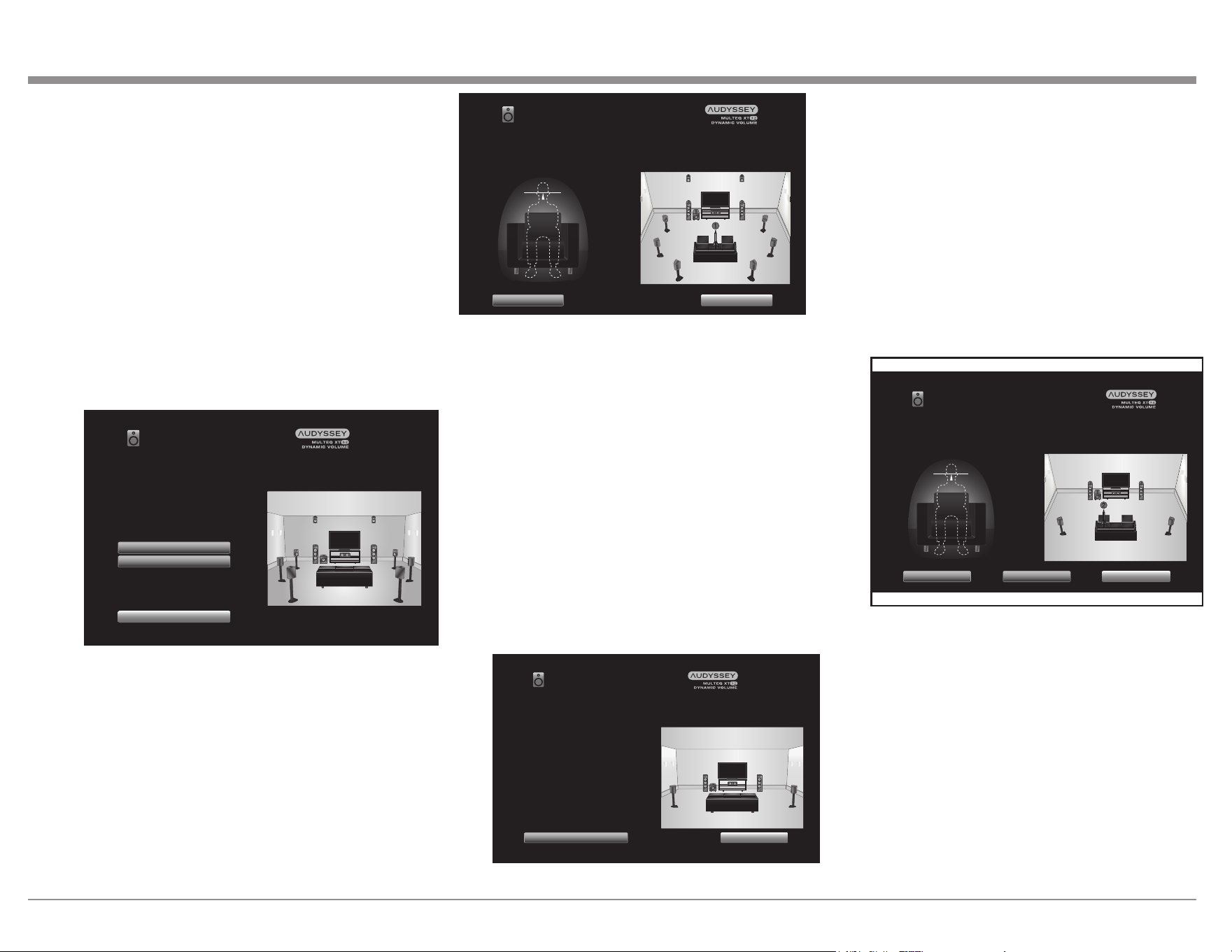
29
operation. If there is background noise in the
room, these test signals will increase in volume
• Operating VOLUME on the Remote Control
unit or VOLUME on the main unit during the
measurements will cancel the measurements
With the MX123 connected to a TV/Monitor, the
supplied microphone connected to the SETUP MIC
Jack on the Rear Panel and placed in the "Main
Listening Location", perform the following steps
along with the instructions appearing On-Screen:
1. Press the AVP Push-button, then press the
SETUP Push-button.
2. Using the Remote Control Directional Push-
buttons rst select "Speakers" followed by
"Audyssey Setup". See Figure 19 below.
Audyssey Setup
Channel Select
Amp Assign
Start
Your AV preamp can automatically measure the acoustics of
your room then optimize your speakers using the included
microphone and microphone stand.
Set the following items
if necessary.
Figure 19– Audyssey
®
Setup Start
3. Select "Start", then press Enter.
4. Follow the instructions on the screen display
and press "Next" to proceed further.
5. When the following screen is displayed, select
"Begin Test" and press Enter. The rst position
measurement will start. See Figure 21.
22.
Begin Test
Back
Select “Begin Test” to start the calibration.
NOTE: You will hear a series of loud chirps starting and stopping
during the tests.
Ear Height
Audyssey Setup
Figure 20– Audyssey
®
Begin Test
6. A test tone will be sent to all channels, one at
a time to identify the channels making up your
system.
Notes:
1. Depending on the number of channels in your
system, the illustrations in this Owner's Manual
might dier from the actual On-Screen Graphics.
2. During the setup process On-Screen error
messages may appear, if they do, refer to page 31
for assistance.
7. When the detected speakers are displayed,
select "Next" and then press Enter. This will
start the Measurement Process. A special audio
test signal will be sent to all previously detected
channels, one at a time. See Figure 21.
Audyssey Setup
Repeat Last Test Next
Speaker Detection
Front
Center
Subwoofer
Surround
Surr. Back
Front Wide
Front Height
:Yes
:Yes
:1 spkr
:Yes
:No
:No
:No
Figure 21– Speaker Detection
Audyssey
®
Setup will take measurements from
eight dierent locations in the room to achieve
the best possible sonic results. The additional
measurement locations are indicated on your
monitor by numbered blue balloons in the room
illustration, placed around the sitting area and
the Main sitting position. The Main sitting
location is indicated by number "1".
8. Following the On-Screen instructions, place
the microphone in the 2nd listening position
and then press the ENTER Push-Button on
the Remote Control to select highlighted on-
screen button "Continue". See Figure 22.
Complete
Continue
Place the microphone ear level at the 2nd listening position,
which should be no more than 2 ft (60cm) away from the 1st
position, then select “Continue”...
Back
Ear Height
Audyssey Setup
Figure 22– Microphone positioning
9. Continue following the On-Screen instructions
and repeat the measurement process until all
eight listening positions have been measured.
The On-Screen message will now indicate the
measurements are nished. See Figure 23 on
page 30.
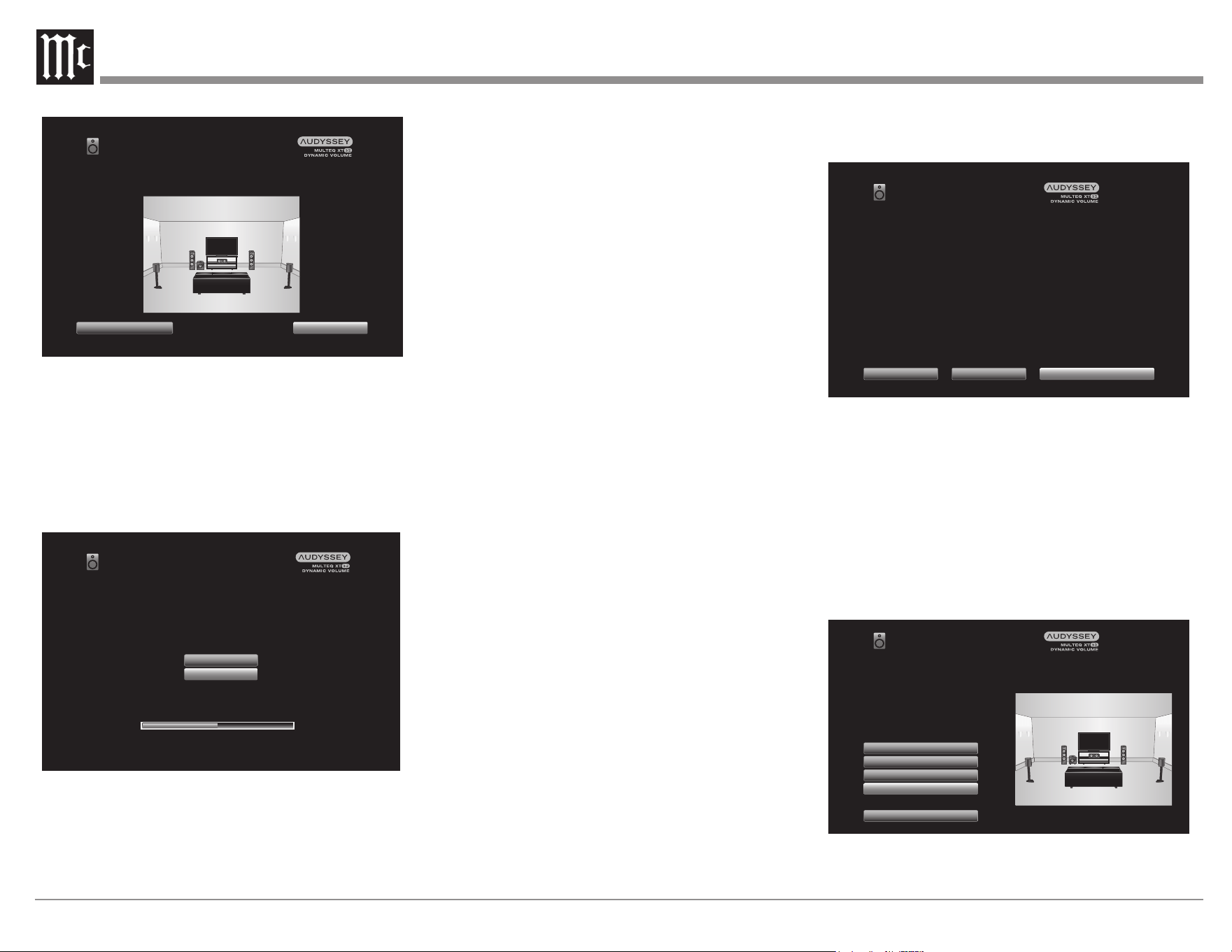
30
Audyssey Setup
Continue
Repeat Last Test
Measurements complete.
Select Continue to analyze the data...
Figure 23– Measurements complete
Note: Measurement of 3 listening positions are required
to enable MultEQ
®
XT32.
10. Select "Continue", then press Enter.
11. Perform the settings for Audyssey Dynamic
EQ
®
and Audyssey Dynamic Volume
®
.
The following screen is displayed during the
analysis. See Figure 24.
Audyssey Setup
Audyssey Dynamic EQ maintains bass, clarity and surround
sound at low volumes letting you enjoy late-night movies
and television.
Turn on Dynamic EQ?
Yes
No
Analyzing room data
50%
Figure 24– Dynamic EQ
Congure the settings as preferred.
• Dynamic EQ corrects the frequency response in
consideration of the audio characteristics of the
room and human hearing ability so that sound can
be heard even at low volume.
This is recommended when using the unit with the
volume turned down, e.g. when enjoying a movie or
TV program in the middle of the night.
• Dynamic Volume adjusts the Output volume to
the optimal level while constantly monitoring the
level of the audio Input to the unit. Optimal volume
control is performed automatically without any loss
in the dynamism and clarity of the sound when,
for example, the volume suddenly increases for
commercials shown during television programs.
12. When the analysis and storage ends, unplug the
Sound Calibration Microphone from the SETUP
MIC Jack on the Rear Panel and press Next.
13. Select "Details" and press Enter to verify the
measurement results.
• Subwoofers may measure a greater reported
distance than the actual distance due to added
electrical delay common in subwoofers.
Note: Do not change the speaker connections or
subwoofer volume after Audyssey
®
Setup. If these
are changed, run Audyssey
®
Setup again in order to
congure the optimum equalizer settings.
Error Messages
An error message is displayed if Audyssey
®
Setup
could not be completed due to speaker placement,
the measurement environment, etc. If an error
message is displayed, check the relevant items and
perform the necessary measures. Be sure to turn o
the power before checking speaker connections.
Subwoofer level error message and how to adjust
The optimal level of each subwoofer channel for
Audyssey
®
Setup measurement is 75dB.
During subwoofer level measurement, an error
message is displayed when one level of subwoofer
is outside the 72-78dB range. See Figure 25.
Error message
Audyssey Setup
Back SW Level MatchingSkip
Your Subwoofer 1’s level is too high.
If your subwoofer has a volume control on it,
select “SW Level Matching” to interactively adjust the level of
your subwoofer.
If your subwoofer does not have a volume control,
or if you do not want to use a subwoofer, select “Skip”.
Figure 25– Audyssey
®
error message
When using a subwoofer with a built-in amplier
(active type), adjust the subwoofer volume so the
subwoofer level is within the 72-78dB range.
Retrieving Audyssey
®
Setup settings
If you set "Restore..." to "Restore", you can return
to Audyssey
®
Setup measurement result (value
calculated at the start by MultEQ
®
XT32) even
when you have changed each setting manually. See
Figure 26.
Audyssey Setup
Channel Select
Amp Assign
Check Results
Restore...
Start
Your AV preamp can automatically measure the acoustics of
your room then optimize your speakers using the included
microphone and microphone stand.
Set the following items
if necessary.
Figure 26– Audyssey
®
restore
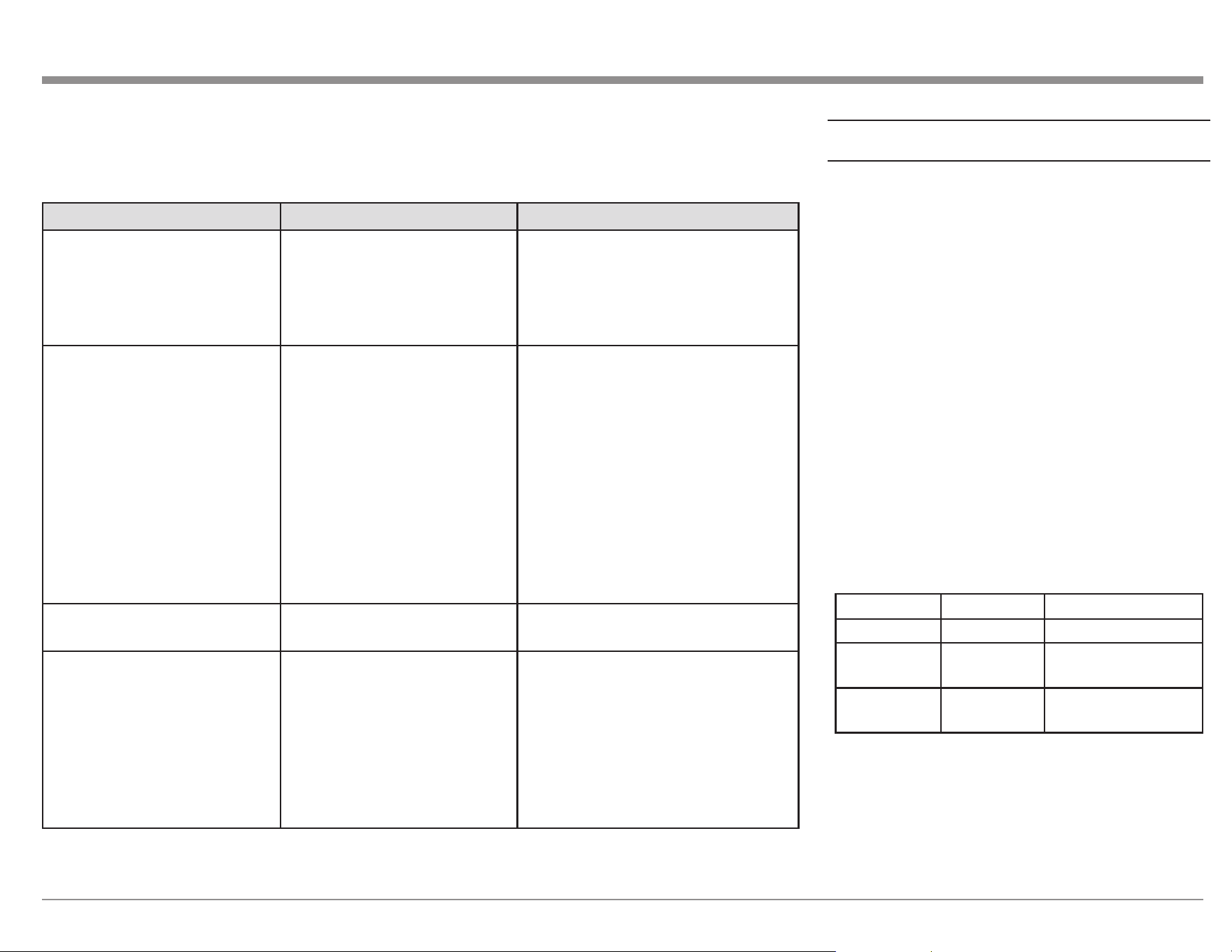
31
Factory Reset
Use the Factory Reset options to restore the MX123
back to its original factory defaults. These options
will erase all changes made to the settings. The
rmware will remain the latest installed version.
There are two portions to the Factory Reset. The
rst is the MCU (microcontroller unit) settings
which includes all changes from the default settings.
The second includes Network functions such as
credentials for Online services. Each part can be reset
individually or you can choose to reset both.
To perform a Factory Reset:
• Simultaneously, press and hold two buttons
[A] and [B] while powering on the MX123
with the STANDBY/ON button
• Hold all three Buttons for at least 3 seconds
while the power is on
• Release the buttons
Choose the two buttons, [A] and [B], according to
what you want reset:
Button A Button B Function
MOVIE MUSIC Reset MCU only
RETURN SLEEP Reset MCU and
Network module
RETURN ENTER Reset Network
module only
Examples Error Details Corrective Measures
No Speakers found Sound calibration microphone is
not detected
Not all speakers could be
detected
Connect the included Sound
Calibration Microphone to the SETUP
MIC jack on the Rear Panel
Check the speaker connections
Ambient noise is too high or
level is too low
There is too much noise in the
room
Speaker or subwoofer sound is
too low
Either turn off any device generating
noise or move it away
Perform again when the surroundings
are quieter
Check the speaker installation and the
direction in which the speakers are
facing
Adjust the subwoofer’s volume
Front R: None The displayed speaker could not
be detected
Check the connections of the displayed
speaker
Front R: Phase The displayed speaker is
connected with the polarities
reversed
Check the polarity of the displayed
speaker
For some speakers, this error message
may be displayed even if the speaker is
properly connected. If you are sure the
connection is correct, press to select
“Ignore”, then press ENTER
Figure 27– Error table
An error message is displayed if Audyssey
®
Setup could not be completed due to speaker placement, the
measurement environment, etc. If an error message is displayed, check the relevant items and perform the
necessary measures. See Figure 27.
Be sure to turn o the power before checking speaker connections.
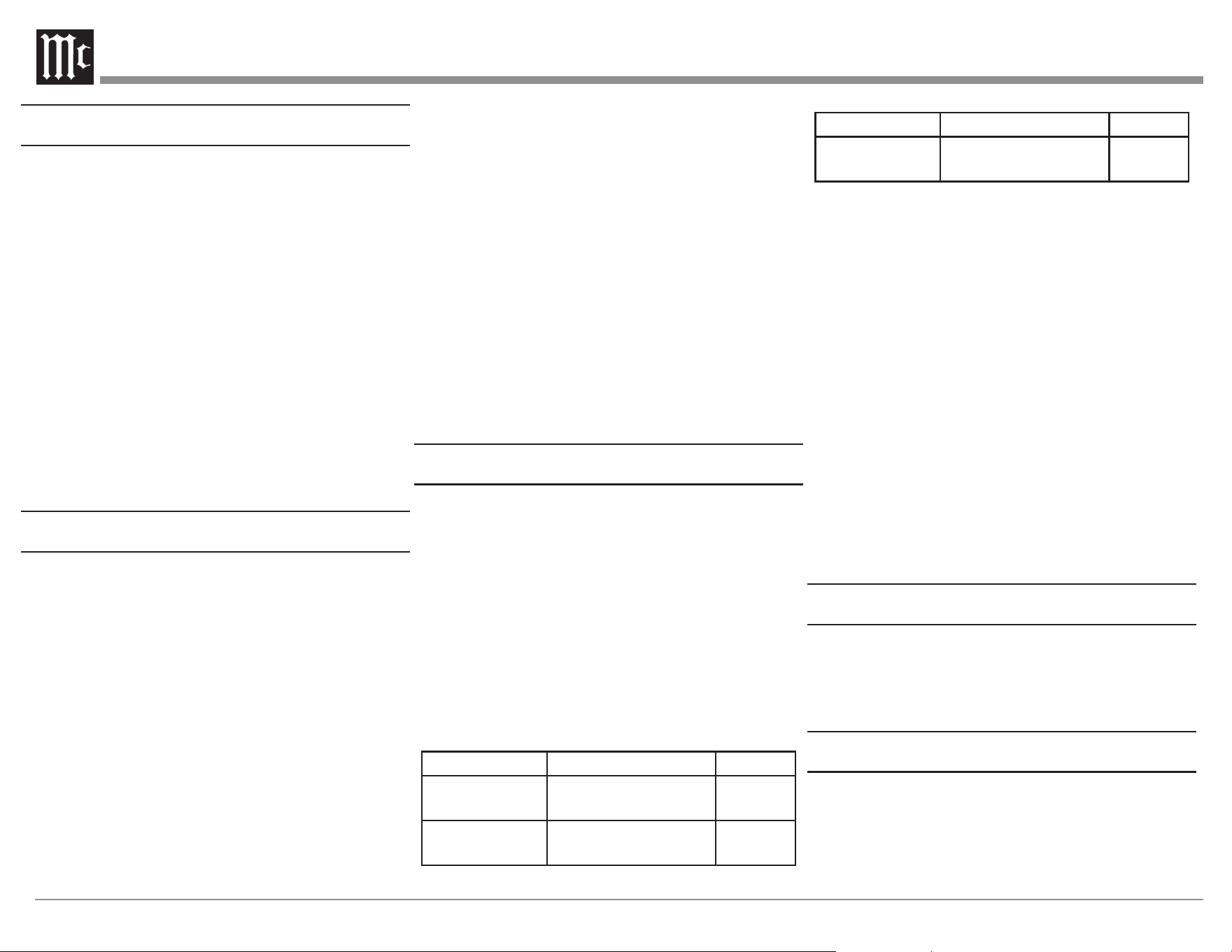
32
Bluetooth
The MX123 can pair with many Bluetooth devices.
A maximum of 8 Bluetooth device pairings will be
remembered. A ninth pairing will replace the oldest
registered device. For Bluetooth Remote Control of
the MX123 to function, the device must support the
AVRCP profile. Supported functions are play, pause,
stop, next, and previous. The connected device’s
volume will control the level of the signal sent to the
MX123.
To pair a Bluetooth device with the MX123:
• Activate the Bluetooth setting on your mobile
device
• Press and hold the Bluetooth button on the
MX123 Remote Control for at least 3 seconds
• Select the MX123 from the list of discovered
devices on your mobile Bluetooth device
The Opon Buon
The Remote Control’s OPTION button can be used
in the MAIN Zone to adjust settings for the selected
Input. Adjustments include:
• Dialog Enhancer- this function adjusts the
center channel frequency band to enhance the
dialog in the movies and vocals in music for
easier listening
• Channel Level Adjust - each channel can be
adjusted -12dB to +12dB while listening to
music
• Tone- tone can be adjusted and stored for each
channel. Tone can not be set if Sound Mode is
set to Direct or Pure Direct or when Dynamic
EQ is set to On
• Picture Mode- sets Picture Mode for
supported Inputs. For options see “Picture
Adjust” on page 20
• All Zone Stereo- allows you to play music
from the MAIN ZONE into ZONE2 and
ZONE3. This will work for all Input modes
except 7.1CH IN
The Headphone Queson
The All Zone Stereo option allows you to send
analog stereo sound from a compatible HDMI signal
to a unit such as a headphone amplier connected
to Zone2 or Zone3. This will allow you to listen
via headphones given that you have headphones
and an amplier. You can mute the MAIN ZONE
and continue to listen to stereo signals from units
connected to the other Zones.
Online Music
Choosing the Online Music Input provides three Input
options for playing content:
• TuneIn Internet Radio
• Music Servers
• USB Music
TuneIn Internet Radio provides access to both local
and international stations. Stations can be searched
by music genre, location, station format or many
other search criteria. There are over 120,000 stations
(including McIntosh Music) so there is plenty of
content that can be freely enjoyed.
Here are playable broadcast station specifications:
Sampling frequency Bit rate
WMA (.wma)
32/44.1/48 kHz
48-192
kbps
MP3 (.mp3)
32/44.1/48 kHz
32-320
kbps
Sampling frequency Bit rate
MPEG-4 AAC
(.aac/.m4a/.mp4)
32/44.1/48 kHz
16-320
kbps
Music Servers gives you access to files stored on a
DLNA compatible server on a PC or NAS connected
to your network. Select the server you wish to access
from the list under Music Servers. You can browse
and search the files. The following formats can be
played:
• WMA
• MP3
• WAV
• MPEG-4 AAC
• FLAC
• Apple Lossless
• DSD
Music can also be accessed from a USB memory
device inserted into the USB port (labeled USB) in the
rear of the MX123. The USB memory device must be
formatted as either FAT16 or FAT32. The same file
formats listed above for Music Servers are supported.
Spofy Connect
Use your phone, tablet or computer as a remote
control for Spotify. Go to spotify.com/connect to learn
how.
Compable Audio Formats
From USB Memory Devices, PC and NAS
The MX123 can play 2-channel audio that is not
copyright protected in the following audio formats:
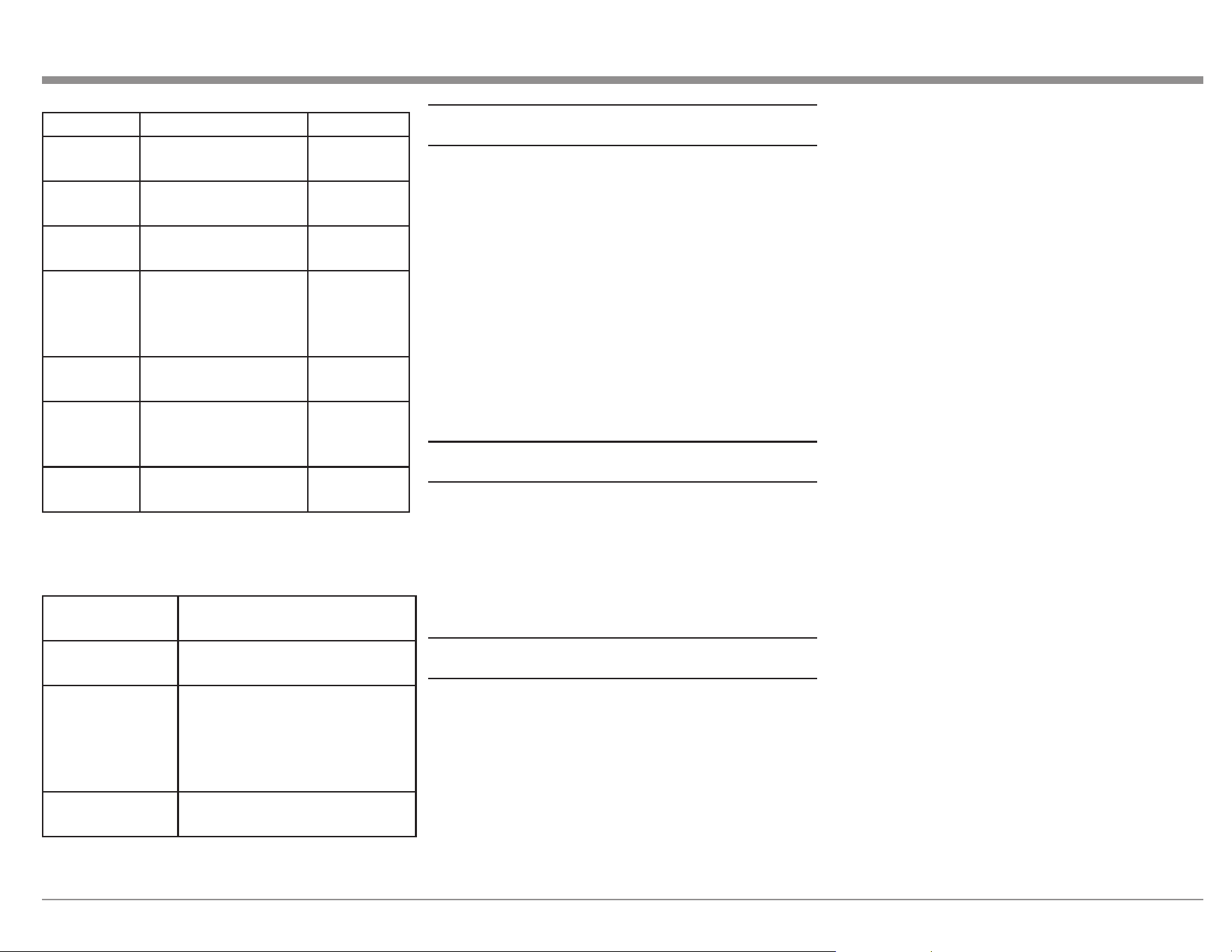
33
Format Sampling frequency Bit rate
WMA
(.wma)
32/44.1/48 kHz 48-192 kbps
MP3
(.mp3)
32/44.1/48 kHz 32-320 kbps
WAV
(.wav)
32/44.1/48/88.2/
96/176.4/192 kHz
NA
MPEG-4
AAC
(.aac/.m4a/.
mp4)
32/44.1/48 kHz 16-320 kbps
FLAC
(.f lac)
32/44.1/48/88.2/
96/176.4/192 kHz
NA
Apple
Lossless
(m4a)
32/44.1/48/88.2/
96/176.4/192 kHz
DSD
(.dsf/.dff)
2.8/5.6 MHz NA
From HDMI
The MX123 can play the following audio formats via
HDMI:
2-channel Linear
PCM
2-channel, 32 kHz – 192 kHz,
16/20/24 bit
Multi-channel
Linear PCM
7.1-channel, 32 kHz – 192 kHz,
16/20/24 bit
Bitstream Dolby Digital / DTS / Dolby
Atmos / Dolby TrueHD /Dolby
Digital Plus / DTS:X / DTS-HD
Master Audio /DTS-HD High
Resolution Audio / DTS Express
DSD 2-channel – 5.1-channel, 2.8
MHz
Supported Video Signals
The MX123 supports the HDCP copyright protection
system. For proper playback the conencted video
device must also support HDCP. Here are supported
video signals:
• 480i
• 480p
• 576i
• 576p
• 720p 60/50Hz
• 1080i 60/50Hz
• 1080p 120/100/60/50/24Hz
• 4K 120/100/60/50/30/25/24Hz
• 8K 60/50/30/25/24Hz
USB File and Folder Limits
The MX123 can support up to 5,000 files with a
maximum of 500 folders and eight directory levels.
Different USB memory devices may have different
allowable number of files dependent of capacity and
file size.
Memory capacity is 2GB with a FAT16 formatted
device and 2TB with FAT32 formatting.
About ARC and CEC
Note that the default setting for ARC (Audio Return
Channel) is Off. To use ARC, it must be set to On.
Turning HDMI Control On will also enable ARC.
HDMI Control enables CEC (Consumer Electronics
Control) commands to be transmitted over the HDMI
cable so your television and MX123 can better
communicate. ARC and HDMI Control (CEC) is
factory defaulted to Off because the world of ARC
and CEC is not yet perfect. It is certainly getting
better, but not every component in the world is
speaking precisely the same language. These features
can be enabled or disabled at any time on the MX123.
See HDMI Setup on page 21. Remember to enable
CEC on your television if you want to use CEC with
the MX123.
HDMI Control (CEC) should also be set to Off, if you
are using a third-party control system so that CEC
does compete with your external controller.
The ARC feature, when enabled, will work with the
TV Audio input and a television connected to the
HDMI Monitor 1 (ARC/eARC) Output. eARC allows
for even higher bandwidth and will allow for higher
quality audio including uncompressed 7.1 surround,
Dolby Atmos and DTS:X.
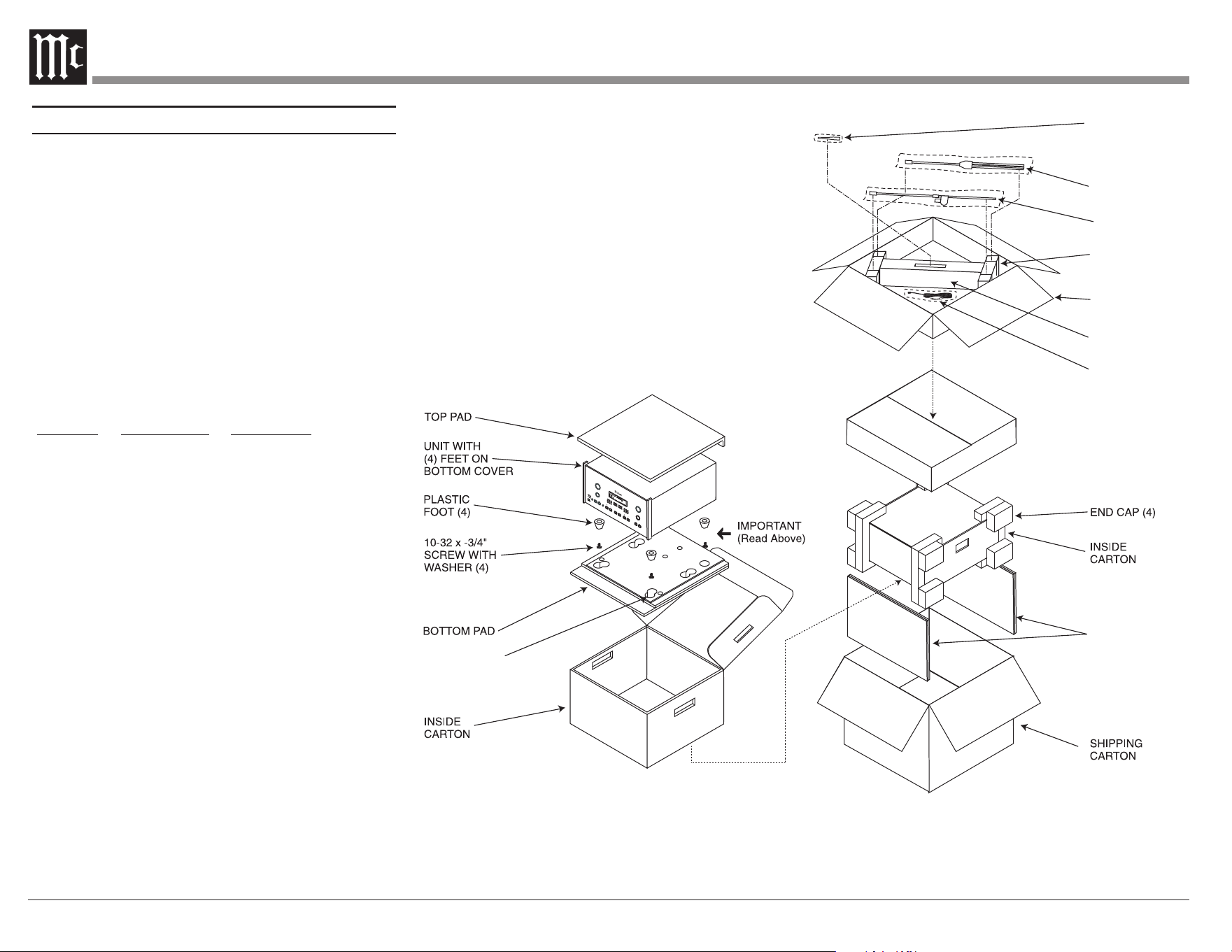
34
Packing the MX123
When shipping the MX123, it is highly recommended
that the unit be packed as it was originally shipped to
avoid damage. Failure to properly pack the unit will
likely result in damage. (The front panel is made of
glass!) If you need any of the packing material, you
can contact McIntosh Customer Service. Use only
packing material that is in good condition and replace
any material that has seen better days.
It is very important that the four plastic feet are
attached to the bottom of the equipment. This will
ensure the proper equipment location on the bottom
pad. Failure to do this will result in shipping damage.
Quantity Part Number Description
1 034256 Shipping carton only
4 033887 End cap
2 034493 Spacer pad
1 033697 Inside carton only
1 033725 Inner carton top pad
1 034576 Bottom pad
2 034446 Foam plug
4 017937 Plastic foot
4 400159 #10-32 x 3/4” screw
4 404080 #10 Flat washer
1 034499 Accessory Box
2 034500 Slotted foam
1 034501 Divider foam
SPACER
PADS
SLOTTED
FOAM (2)
DIVIDER
FOAM
ACCESSORY
BOX
MICROPHONE
STAND
MICROPHONE
MINI BOOM
MICROPHONE
CABLE
BACK
INPUT
VOLUME
TRIM SELECT
SURROUND MODE
DISPLAY
MODE
LATE
NIGHT
STANDBY / ON
SET UP
HDMI
INPUT FORMAT OUTPUT FORMAT
ANALOG SIGNAL
DIGITAL SIGNAL
SUB
RBS
RL C
BSLBS
LFE
RL C
S
RSLSRSLS
RBSLBS
ADJUST
SELECT
ZONE B
CONTROL
NAVIGATE
ROOMPERFECT
HD AUDIO
MX1 5 0 A
/
V CO N TR O L C E NT ER
FOAM PLUG (2)
Figure 28– Re-packing diagram
35
Audio Specifications
Unless otherwise noted, the below MX123
Specifications where taken with Audyssey
®
bypassed.
Frequency Response
±0.5dB from 20Hz-20,000Hz
Subwoofer:
±0.5dB from 20Hz-8,000Hz
Total Harmonic Distortion
0.005% maximum from 20Hz to 20,000Hz at rated
Output
Signal To Noise Ratio
Phono: 86dB below 10mV Input (A Weighted)
High Level: 96dB below rated Output (A Weighted)
Rated Output Voltage
2.5V Unbalanced Outputs (Main)
5.0V Balanced Outputs (Main)
Maximum Voltage Output
6V Unbalanced
12V Balanced
Output Impedance
220 Ohms
Input Impedance
Phono: 47k Ohms, 65pf
High Level: 20k Ohms Unbalanced and Balanced
Sensitivity for Rated Output
Phono: 4.5mV
High Level: 450mV Unbalanced
900mV Balanced
Maximum Input Signal
Phono: 50mV
High Level: 4.5V Unbalanced and Balanced
Video Specifications
Signal System
NTSC/PAL
HDMI (Inputs and Outputs)
7 inputs, Zone 1 has two 8K outputs, Zone 2 has one
4k output, HDR, Dynamic HDR, HDR 10+, HLG,
Dolby Vision, eARC, Dynamic Lip-sync, 4:4:4 Color,
REC. 2020, 3D Video pass-through
HDMI/Coaxial/Optical Digital Input Rate
32kHz to 192kHz, 24-Bit, Dolby Digital, DTS, PCM
Video Resolution
8K/60Hz
4k/120Hz
Fixed Rate Link (FRL)
40 Gbps
18 Gbps TMDS
HDCP
Version 2.3
Gaming
Variable Refresh Rate (VRR)
Quick Media Switching (QMS)
Quick Frame Transport (QFT)
Auto Low Latency Mode (ALLM)
Scaling
Analog and Digital Video Inputs scaled to a 8K Digi-
tal Signal
Component Video Output Level
Y Output Level 1.0Vp-p (75 OHM)
PB/CB Output Level 0.7Vp-p (75 OHM)
PR/CR Output Level 0.7Vp-p (75 OHM)
Composite Video Output Level
1Vp-p (75 OHM)
General Specifications
Power Requirements
Field AC Voltage conversion of the MX123 is not
possible. The MX123 is factory configured for one of
the following AC Voltages:
100 Volts, 50/60Hz at 75 watts
110 Volts, 50/60Hz at 75 watts
120 Volts, 50/60Hz at 75 watts
127 Volts, 50/60Hz at 75 watts
220 Volts, 50/60Hz at 75 watts
230 Volts, 50/60Hz at 75 watts
240 Volts, 50/60Hz at 75 watts
Standby, less than 0.5 watt
Note: Refer to the rear panel of the MX123 for the
correct voltage.
Overall Dimensions
Width is 17-1/2 inches (44.5cm)
Height is 7-5/8 inches (19.4cm) including feet
Depth is 19-1/2 inches (49.53cm) including the Front
Panel, Knobs, Rear Panel Connections and USB
Drive
Weight
31 pounds (14Kg) net, 55 pounds (25Kg) in shipping
carton
Shipping Carton Dimensions
Width is 25 inches (63.5cm)
Depth is 28 inches (71.12cm)
Height is 18-3/8 inches (46.67cm)

The continuous improvement of its products is the
policy of McIntosh Laboratory Incorporated who
reserve the right to improve design without notice.
Printed in the U.S.A.
McIntosh Part No. 24114400