SPEED SENSOR 2 AND CADENCE
SENSOR 2
Owner’s Manual

© 2019 Garmin Ltd. or its subsidiaries
All rights reserved. Under the copyright laws, this manual may not be copied, in whole or in part, without the written consent of Garmin. Garmin reserves the right to change
or improve its products and to make changes in the content of this manual without obligation to notify any person or organization of such changes or improvements. Go to
www.garmin.com for current updates and supplemental information concerning the use of this product.
Garmin
®
, the Garmin logo, and ANT+
®
are trademarks of Garmin Ltd. or its subsidiaries, registered in the USA and other countries. Garmin Connect
™
is a trademark of Garmin Ltd. or
its subsidiaries. These trademarks may not be used without the express permission of Garmin.
Apple
®
is a trademark of Apple Inc., registered in the U.S. and other countries. The BLUETOOTH
®
word mark and logos are owned by the Bluetooth SIG, Inc. and any use of such
marks by Garmin is under license. Other trademarks and trade names are those of their respective owners.
This product is ANT+
®
certified. Visit www.thisisant.com/directory for a list of compatible products and apps.
M/N: A03610, A03650

Table of Contents
Introduction......................................1
Installing the Speed Sensor.................... 1
Installing the Cadence Sensor................2
Pairing the Sensors with Your Device.... 2
Garmin Connect™.................................... 3
Pairing the Speed Sensor With Your
Smartphone......................................... 3
Device Information........................... 4
User Replaceable Battery........................4
Replacing the Speed Sensor
Battery.................................................. 4
Replacing the Cadence Sensor
Battery.................................................. 5
Speed Sensor 2 and Cadence Sensor 2
Specifications.......................................... 6
Troubleshooting............................... 7
My device will not connect to the
sensors.................................................... 7
Limited Warranty..................................... 7
Table of Contents i

Introduction
WARNING
See the Important Safety and Product Information guide in the product box for product warnings and other
important information.
Always consult your physician before you begin or modify any exercise program.
Installing the Speed Sensor
NOTE: If you do not have this sensor, you can skip this task.
TIP: Garmin
®
recommends you secure your bike on a stand while installing the sensor.
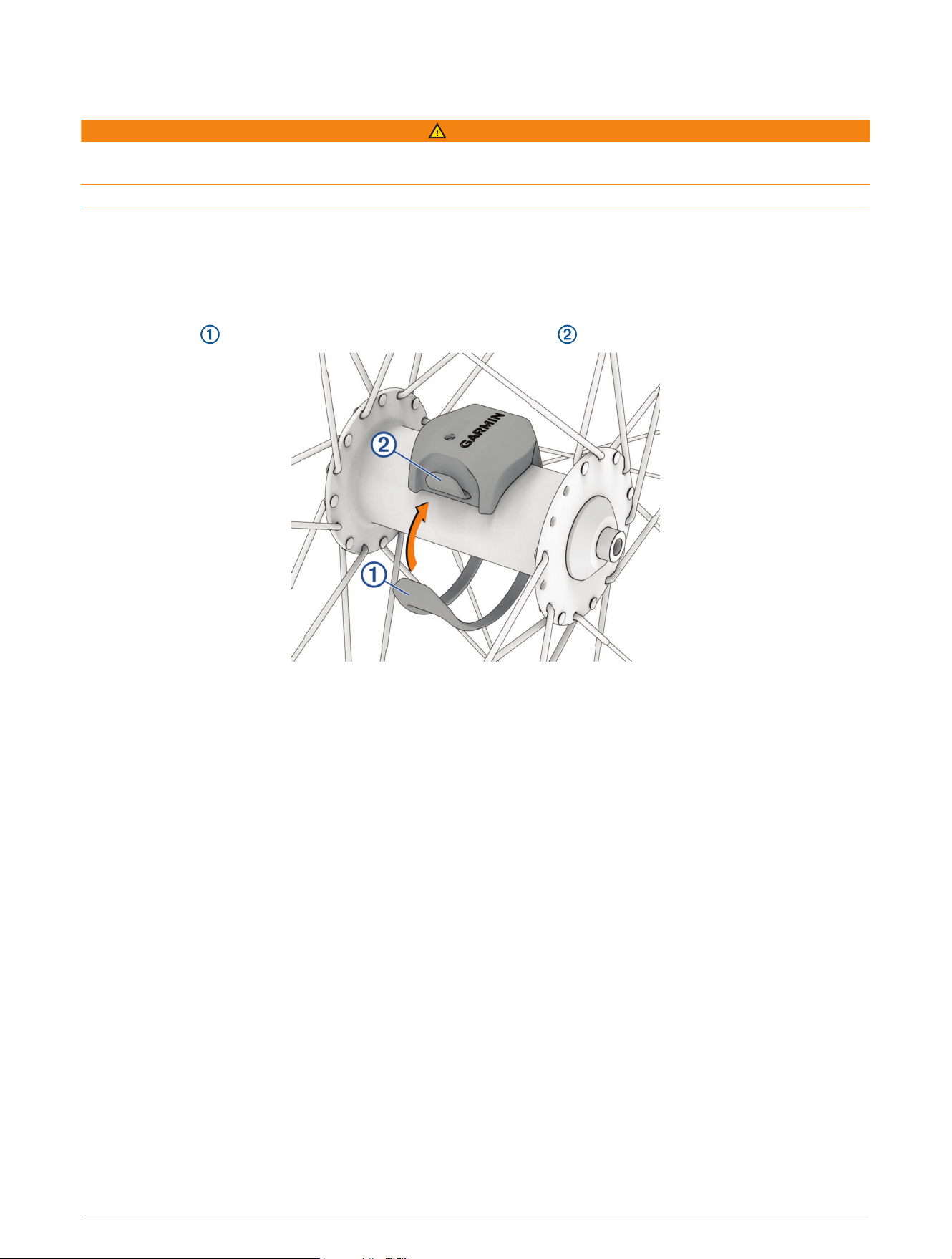
1 Place and hold the speed sensor on top of the wheel hub.
2 Pull the strap around the wheel hub, and attach it to the hook on the sensor.
The sensor may be tilted when installed on an asymmetrical hub. This does not affect operation.
3 Rotate the wheel to check for clearance.
The sensor should not contact other parts of your bike.
NOTE: The LED flashes green for five seconds to indicate activity after two revolutions.
Introduction 1
Installing the Cadence Sensor
NOTE: If you do not have this sensor, you can skip this task.
TIP: Garmin recommends you secure your bike on a stand while installing the sensor.
1 Select the band size that fits your crank arm securely.
The band you select should be the smallest one that stretches across the crank arm.
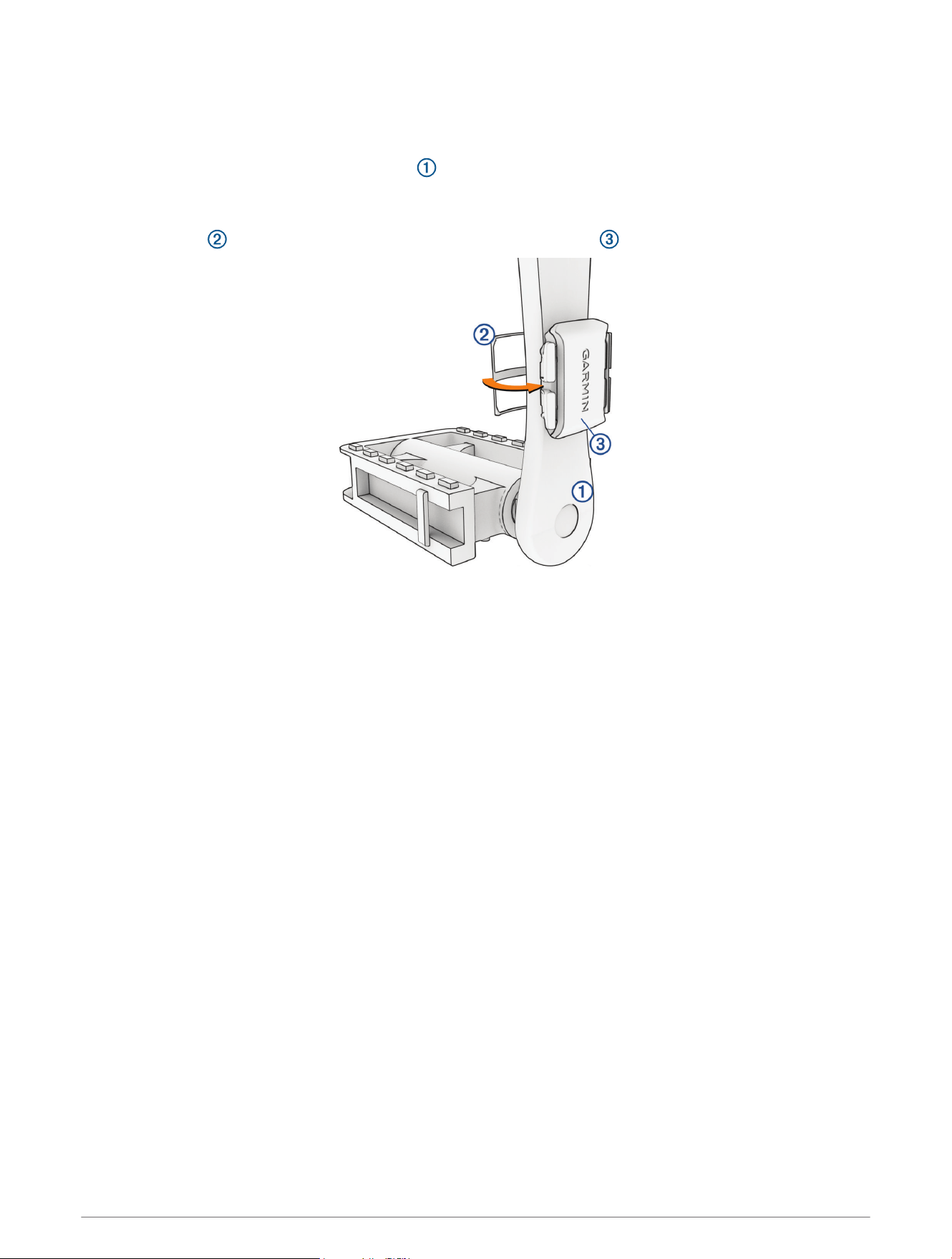
2 On the non-drive side, place and hold the flat side of the cadence sensor on the inside of the crank arm.
3 Pull the bands around the crank arm, and attach them to the hooks on the sensor.
4 Rotate the crank arm to check for clearance.
The sensor and bands should not contact any part of your bike or shoe.
NOTE: The LED flashes green for five seconds to indicate activity after two revolutions.
5 Take a 15minute test ride and inspect the sensor and bands to ensure there is no evidence of damage.
Pairing the Sensors with Your Device
The first time you connect a wireless sensor to your device using ANT+
®
or Bluetooth
®
technology, you must pair
the device and sensor. After they are paired, the device connects to the sensor automatically when you start an
activity and the sensor is active and within range.
NOTE: The pairing instructions differ for each Garmin compatible device. See your owner's manual.
• Bring the Garmin compatible device within 3m (10 ft.) of the sensor.
• Stay 10m (33 ft.) away from other wireless sensors while pairing.
• Rotate the crank arm or wheel two revolutions to wake up the sensor.
The LED flashes green for five seconds to indicate activity. The LED flashes red to indicate a low battery
level.
• If available, pair the sensor using ANT+ technology.
NOTE: The sensor can pair with up to two Bluetooth devices and any number of ANT+ devices.
After you pair the first time, your Garmin compatible device automatically recognizes the wireless sensor each
time it is activated.
2 Introduction
Garmin Connect
™
Your Garmin Connect account allows you to track your performance and connect with your friends. It gives you
the tools to track, analyze, share, and encourage each other. Record the events of your active lifestyle.
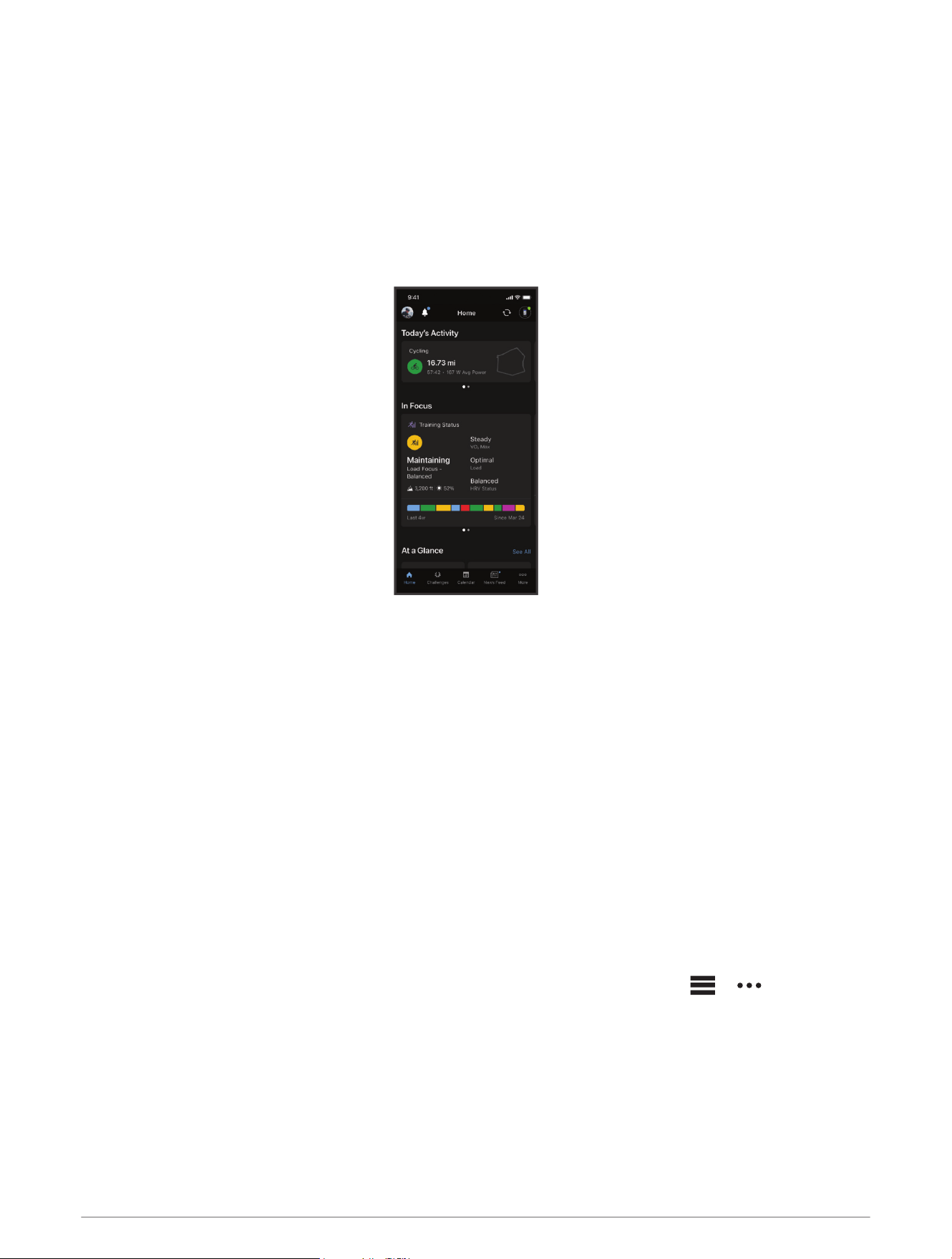
You can create your free Garmin Connect account when you pair your device with your phone using the Garmin
Connect app.
Store your activities: After you complete a ride with your device, you can sync with the Garmin Connect app to
upload that activity and keep it as long as you want.
Analyze your data: You can view more detailed information about your fitness and indoor activities, including
time, distance, calories burned, speed charts, and customizable reports.
Share your activities: You can connect with friends to follow each other's activities or share links to your
activities.
Manage your settings: You can customize your device and user settings on your Garmin Connect account.
Pairing the Speed Sensor With Your Smartphone
When you pair the speed sensor with the Garmin Connect app, you can record and upload cycling activities that
include speed and distance data without using another Garmin device. The speed sensor must be paired directly
through the Garmin Connect app, instead of from the Bluetooth settings on your smartphone.
NOTE: The cadence sensor cannot pair with the Garmin Connect app and be used as a standalone sensor.
1 From the app store on your smartphone, install and open the Garmin Connect app.
2 Bring your smartphone within 3m (10ft.) of the speed sensor.
NOTE: Stay 10m (33ft.) away from other wireless sensors while pairing.
3 Rotate the wheel two revolutions to wake up the speed sensor.
The LED flashes green for five seconds to indicate activity. The LED flashes red to indicate a low battery
level.
4 Select an option to add the speed sensor to your Garmin Connect account:
• If this is the first device you have paired with the Garmin Connect app, follow the on-screen instructions.
• If you have already paired another device with the Garmin Connect app, from the or menu, select
Garmin Devices > Add Device, and follow the on-screen instructions.
Introduction 3
Device Information
User Replaceable Battery
WARNING
See the Important Safety and Product Information guide in the product box for product warnings and other
important information.
Replacing the Speed Sensor Battery
The device uses one CR2032 battery. The LED flashes red to indicate a low battery level after two revolutions.
1 Remove the sensor from the sleeve.
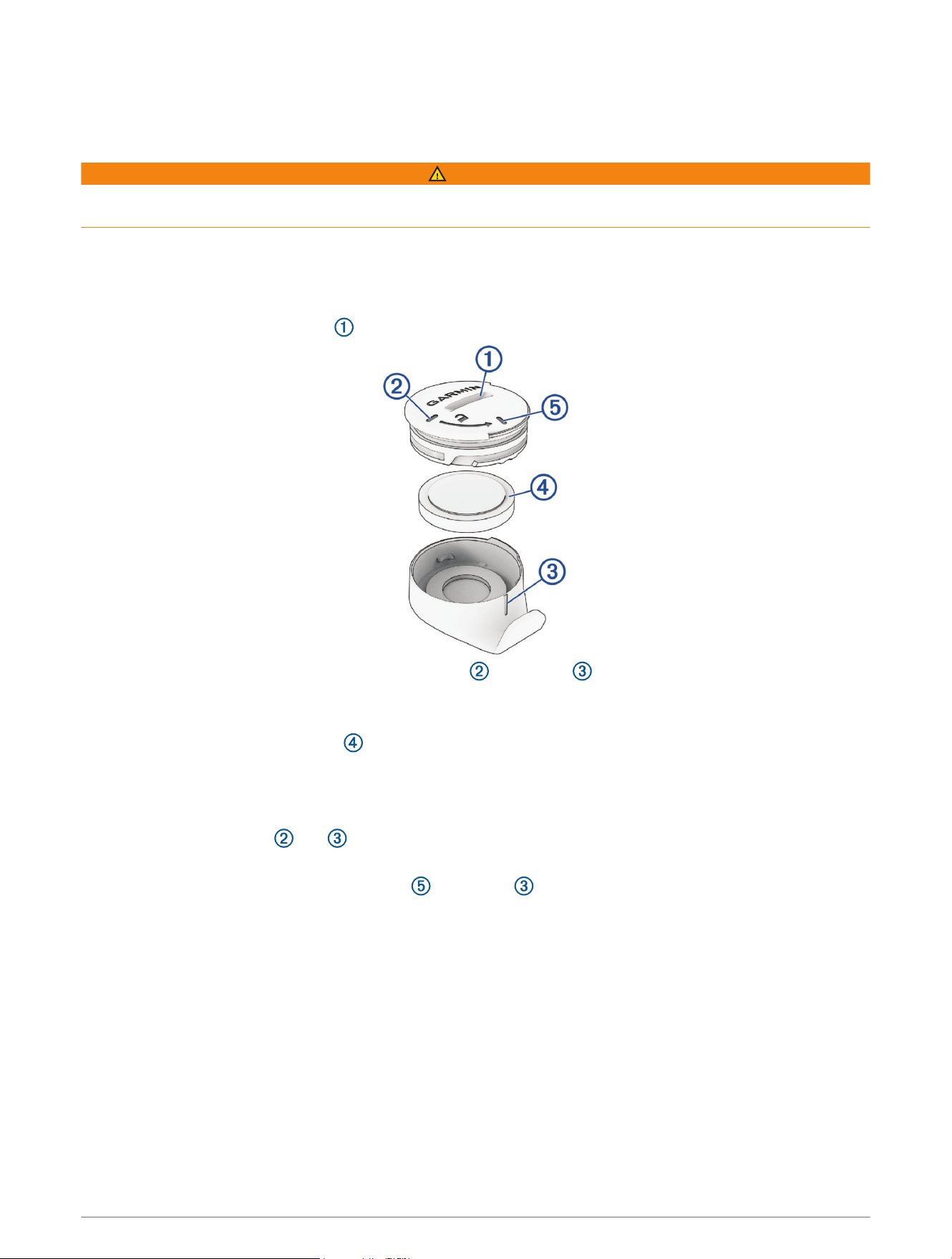
2 Locate the circular battery cover on the front of the sensor.
3 Rotate the cover counter-clockwise until the marker aligns with .
NOTE: Some models do not have the same markers. You still have to rotate the cover counter-clockwise.
TIP: You can use the sleeve to improve your grip on the case.
4 Remove the cover and the battery .
5 Wait 30 seconds.
6 Insert the new battery into the cover, observing polarity.
NOTE: Do not damage or lose the O-ring gasket.
7 Align the cover markers and .
NOTE: The cover must be flush with the case of the sensor.
8 Rotate the cover clockwise until the marker aligns with .
The LED flashes red and green for a few seconds after battery replacement. When the LED flashes green and
then stops flashing, the device is active and ready to send data.
4 Device Information
Replacing the Cadence Sensor Battery
The device uses one CR2032 battery. The LED flashes red to indicate a low battery level after two revolutions.
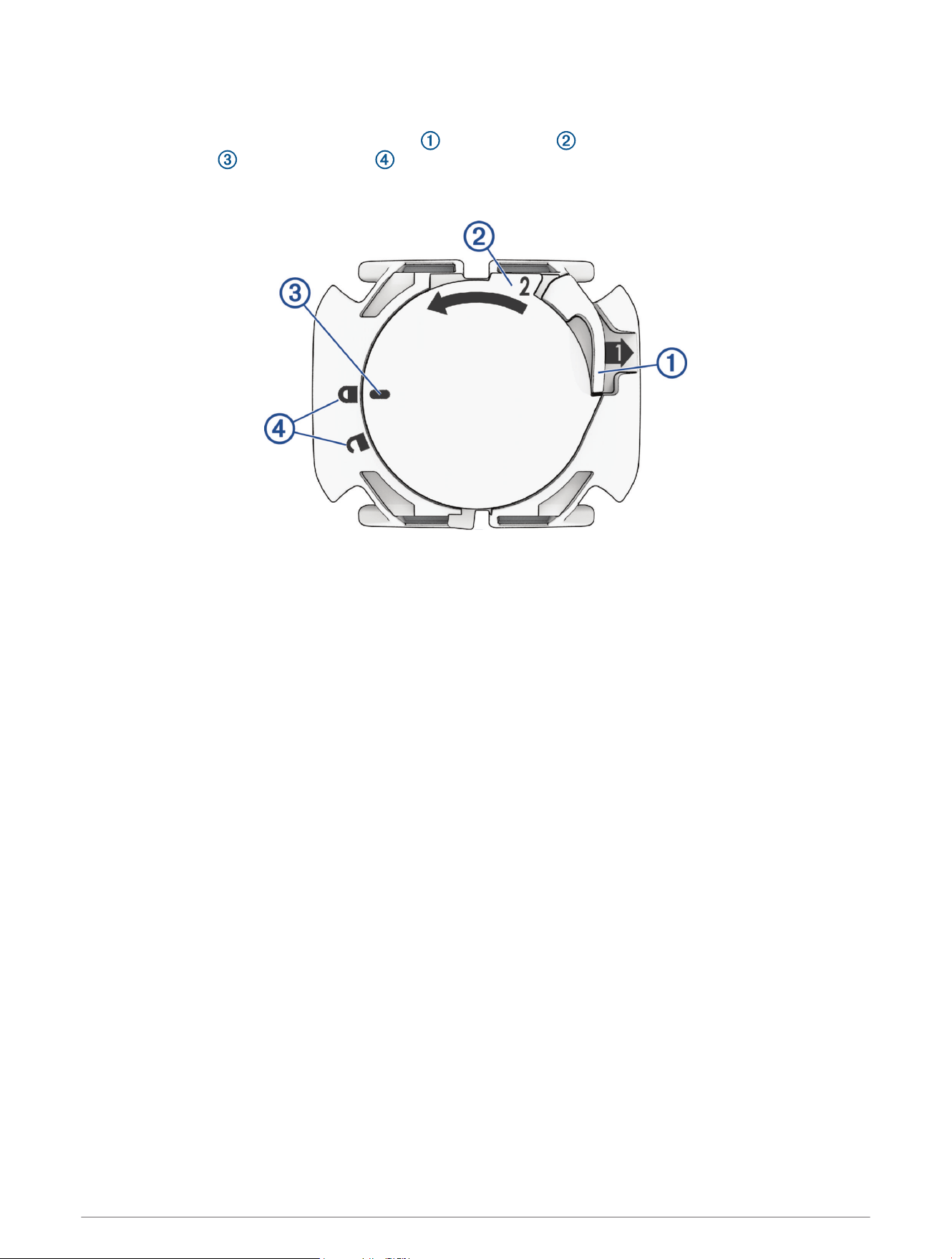
1 On the back of the sensor, push out the lever and use the tab to rotate the cover counter-clockwise
until the marker points to unlocked .
NOTE: Some models do not have the lever and tab on the back of the sensor. You still have to rotate the
battery cover counter-clockwise.
2 Remove the cover and the battery.
3 Wait 30 seconds.
4 Insert the new battery into the cover, observing polarity.
NOTE: Do not damage or lose the O-ring gasket.
5 Align the cover so the marker points to unlocked.
NOTE: The cover must be flush with the case of the sensor.
6 Rotate the cover clockwise until the marker points to locked.
The LED flashes red and green for a few seconds after battery replacement. When the LED flashes green and
then stops flashing, the device is active and ready to send data.
Device Information 5
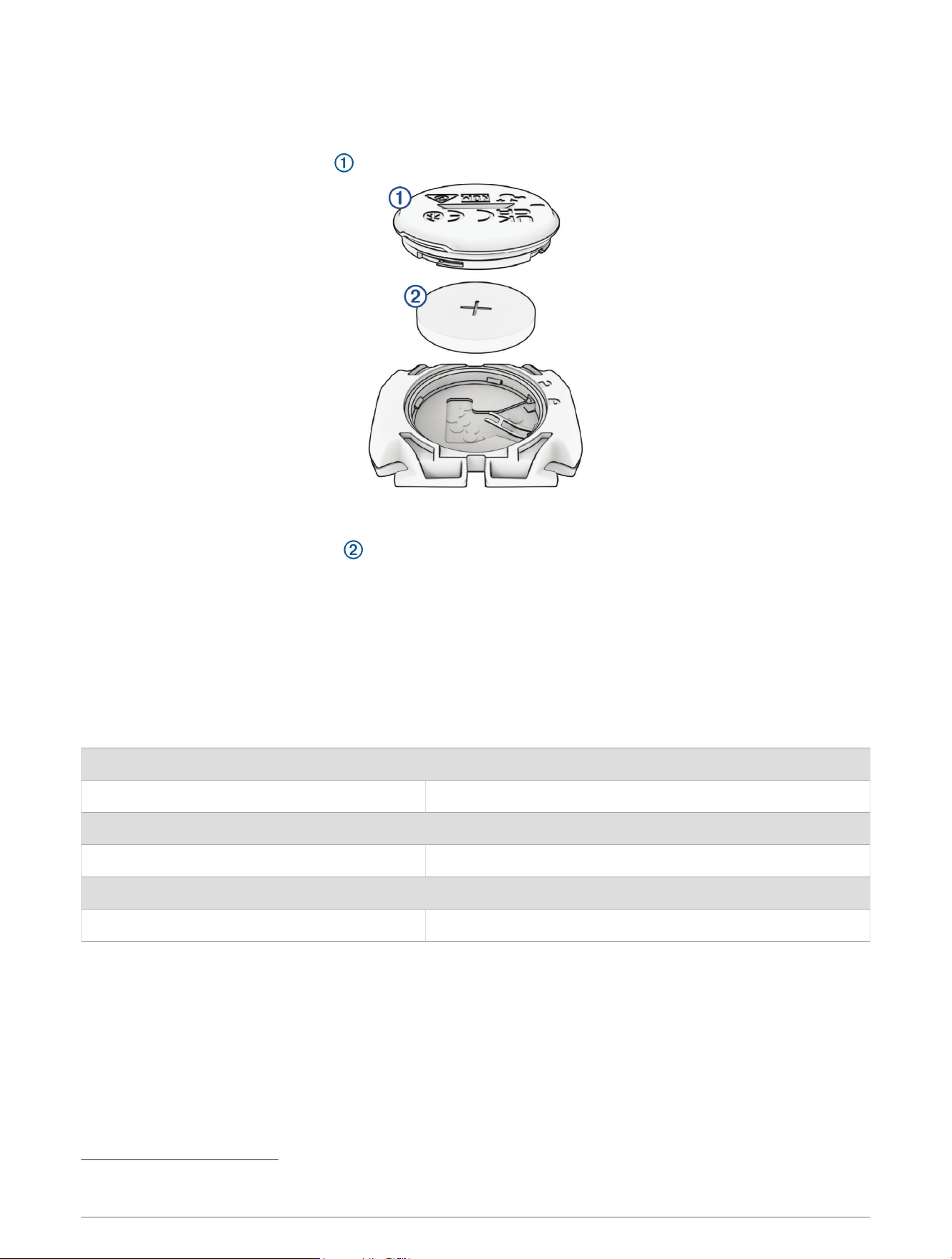
Replacing the Cadence Sensor Battery
NOTE: Use these instructions for product models that have a coin slot on the battery door.
The device uses one CR2032 battery. The LED flashes red to indicate a low battery level after two revolutions.
1 Locate the circular battery cover on the back of the sensor.
2 Twist the cover counter-clockwise until the marker points to unlocked and the cover is loose enough to
remove.
3 Remove the cover and the battery .
4 Wait 30 seconds.
5 Insert the new battery into the cover, observing polarity.
NOTE: Do not damage or lose the O-ring gasket.
6 Twist the cover clockwise until the marker points to locked.
NOTE: The LED flashes red and green for a few seconds after battery replacement. When the LED flashes
green and then stops flashing, the device is active and ready to send data.
Speed Sensor 2 and Cadence Sensor 2 Specifications
Battery type User-replaceable CR2032, 3V
Battery life Approximately 12 mo. at 1hr./day
Speed sensor storage Up to 300 hr. of activity data
Operating temperature range From -20º to 60ºC (from -4º to 140ºF)
Wireless frequency 2.4 GHz @ 4 dBm maximum
Water rating IEC 60529 IPX7
1
1
The device withstands incidental exposure to water of up to 1m for up to 30min. For more information, go to www.garmin.com/waterrating.
6 Device Information

Troubleshooting
My device will not connect to the sensors
If your device will not connect to the speed and cadence sensors, you can try these tips.
• Rotate the crank arm or wheel two revolutions to wake up the sensor.
The LED flashes green for five seconds to indicate activity. The LED flashes red to indicate a low battery
level.
• Replace the battery if the LED does not flash after two revolutions.
• Enable Bluetooth technology on your smartphone or Garmin device.
• Pair the sensor with your device using ANT+ technology.
NOTE: If the sensor is already paired with two Bluetooth devices, you should pair using ANT+ technology or
remove a Bluetooth device.
• Remove the sensor from your Garmin device to retry the pairing process.
• Remove the speed sensor from the Garmin Connect app and the Bluetooth settings on your smartphone to
retry the pairing process.
Limited Warranty
The Garmin standard limited warranty applies to this accessory. For more information, go to garmin.com
/support/warranty.
Australian Purchases: Our goods come with guarantees that cannot be excluded under the Australian
Consumer Law. You are entitled to a replacement or refund for a major failure and for compensation for any
other reasonably foreseeable loss or damage. You are also entitled to have the goods repaired or replaced if the
goods fail to be of acceptable quality and the failure does not amount to a major failure. The benefits under our
Limited Warranty are in addition to other rights and remedies under applicable law in relation to the products.
Garmin Australasia, 30 Clay Place, Eastern Creek, NSW 2766, Australia. Phone: 1800 235 822.
Troubleshooting 7

support.garmin.com
GUID-3B99F80D-E0E8-488B-8B77-3D1DF0DB9E20
v5
November 2024