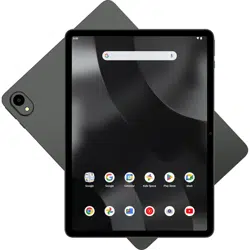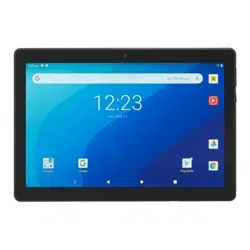
10.4گTablet
Model: TBSPG100110603
PRODUCT GUIDE
We ‘d love to hear from you. Scan with your Walmart app and
let us know what you think.
Tablet Pro
With Android
October 17, 2022_V2

2
Introduction
Thank you for purchasing the onn. tablet with Android™ 13 (Go edition).
Featuring a fast and responsive quad core processor, this tablet is perfect for
accomplishing everyday tasks, streaming music and movies, taking photos,
checking emails, and engaging with social media.
The tablet oers 64GB of internal storage, Bluetooth connectivity, Micro SD slot for
up to 256GB of additional storage, on-the-go productivity services.
The following information will help you get the most out of your tablet.
What You Should Know to Ensure Best Performance:
• Charge the battery completely before first use.
• While updates download in the background, tablet performance can be
aected until completed.
• Close unused applications. Open apps that run in the background will aect
overall performance.
• Battery Consumption: Play times on a fully charged battery will vary depending
on your display settings, apps that remain open, and internet use (e.g.,streaming
video content).
• It is recommended to use a tablet screen protector and tablet case to protect
the tablets.
3
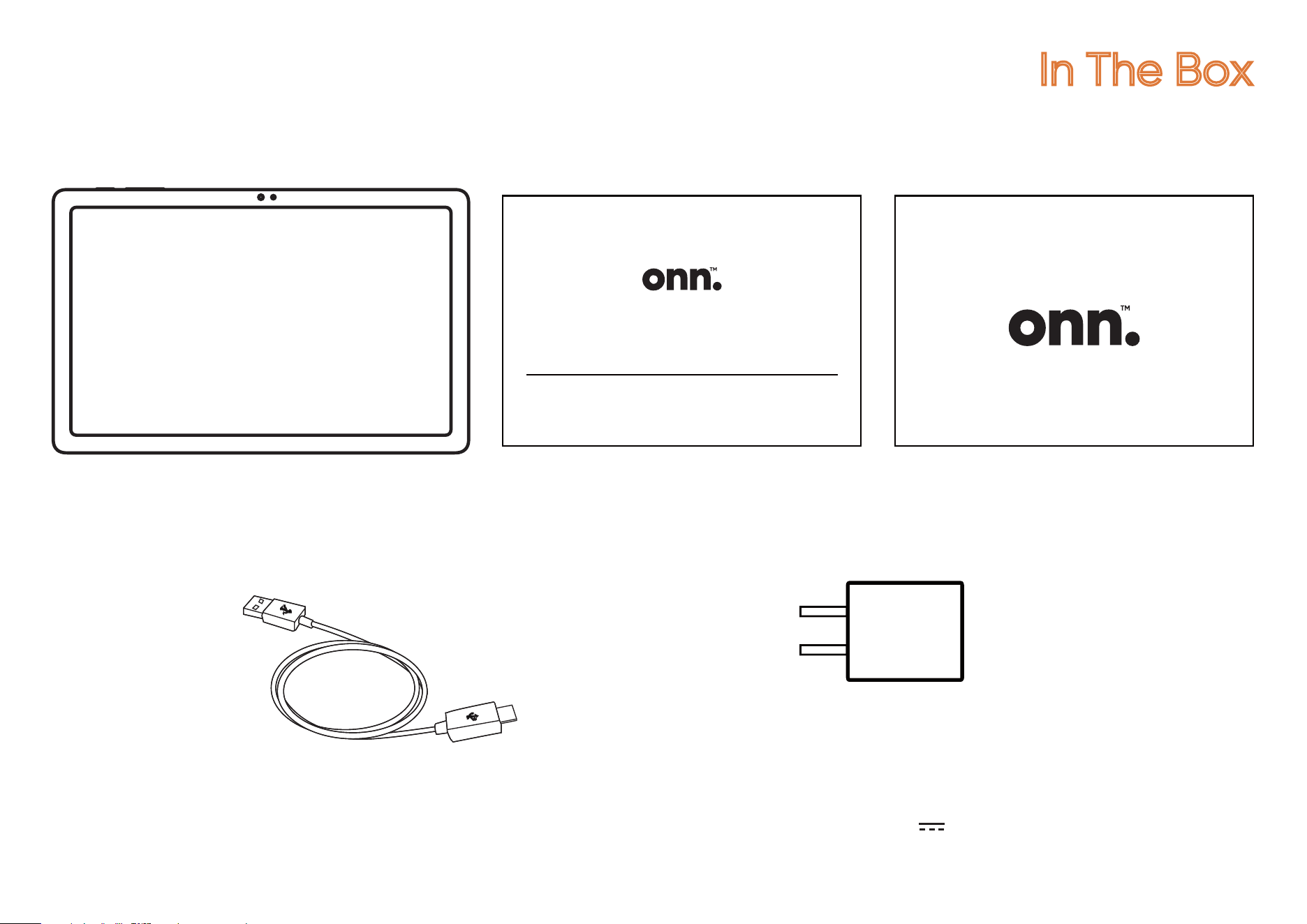
In The Box
10.4گtablet
USB-C cable
size:61*41*24mm
Input: 100-240V~50/60Hz,0.3A
Output:5.0V 2.0A
Charger
User Manual
10.4گTablet
Quick Start Guide
Quick Start Guide
10.4گTablet
Model: TBSPG100110603
PRODUCT GUIDE
Tablet Pro
With Android
Tablet Pro
With Android
We ‘d love to hear from you. Scan with your smartphone camera and let us know what you think.
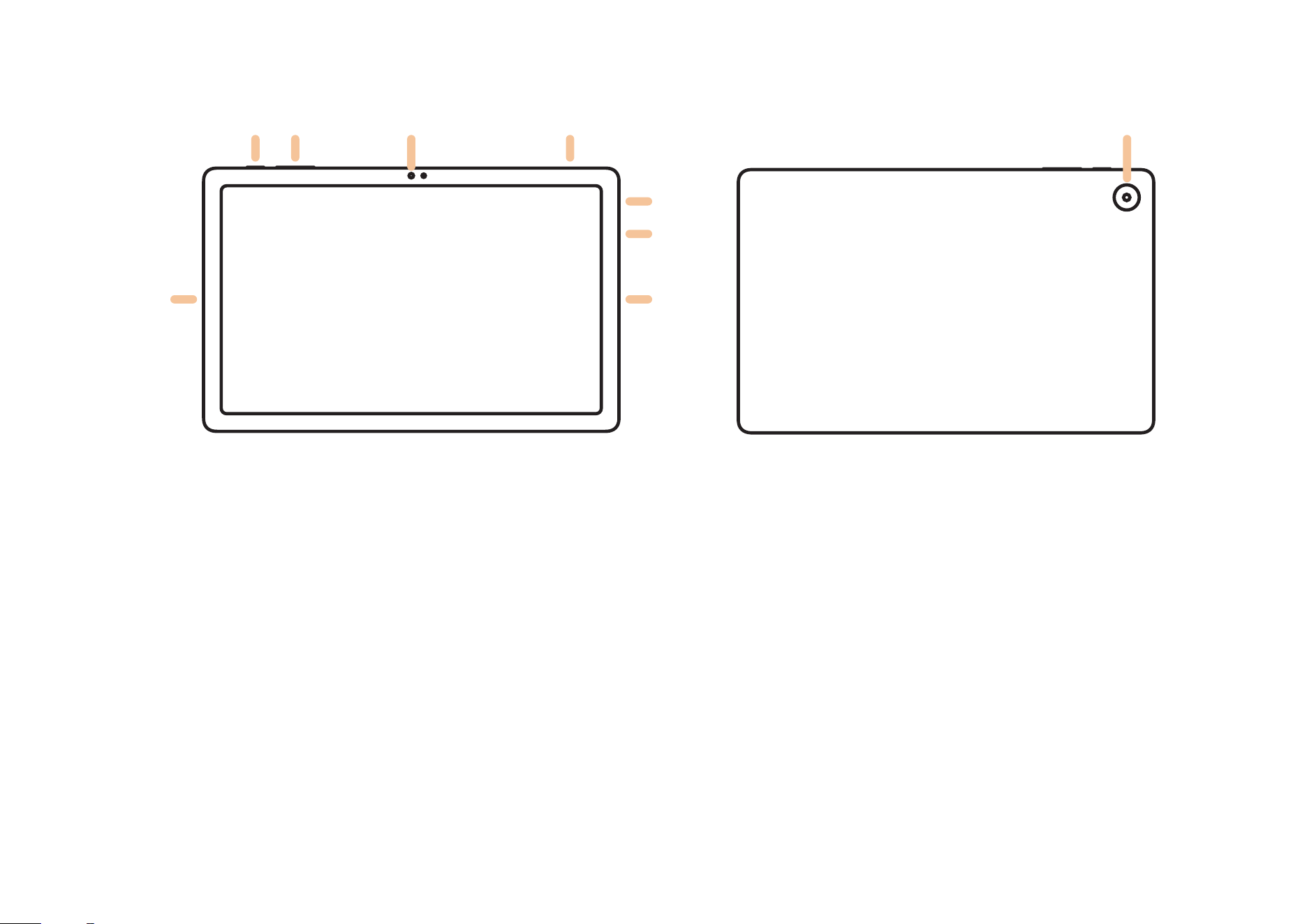
4
1. Power On/O
2. Volume Control
3. Camera (Front)
4. Micro SD Card Slot
5. Headset Jack
6. Type-C Port
7. Speakers
8. Camera (Rear)
2
34
5
6
77
1
8
5
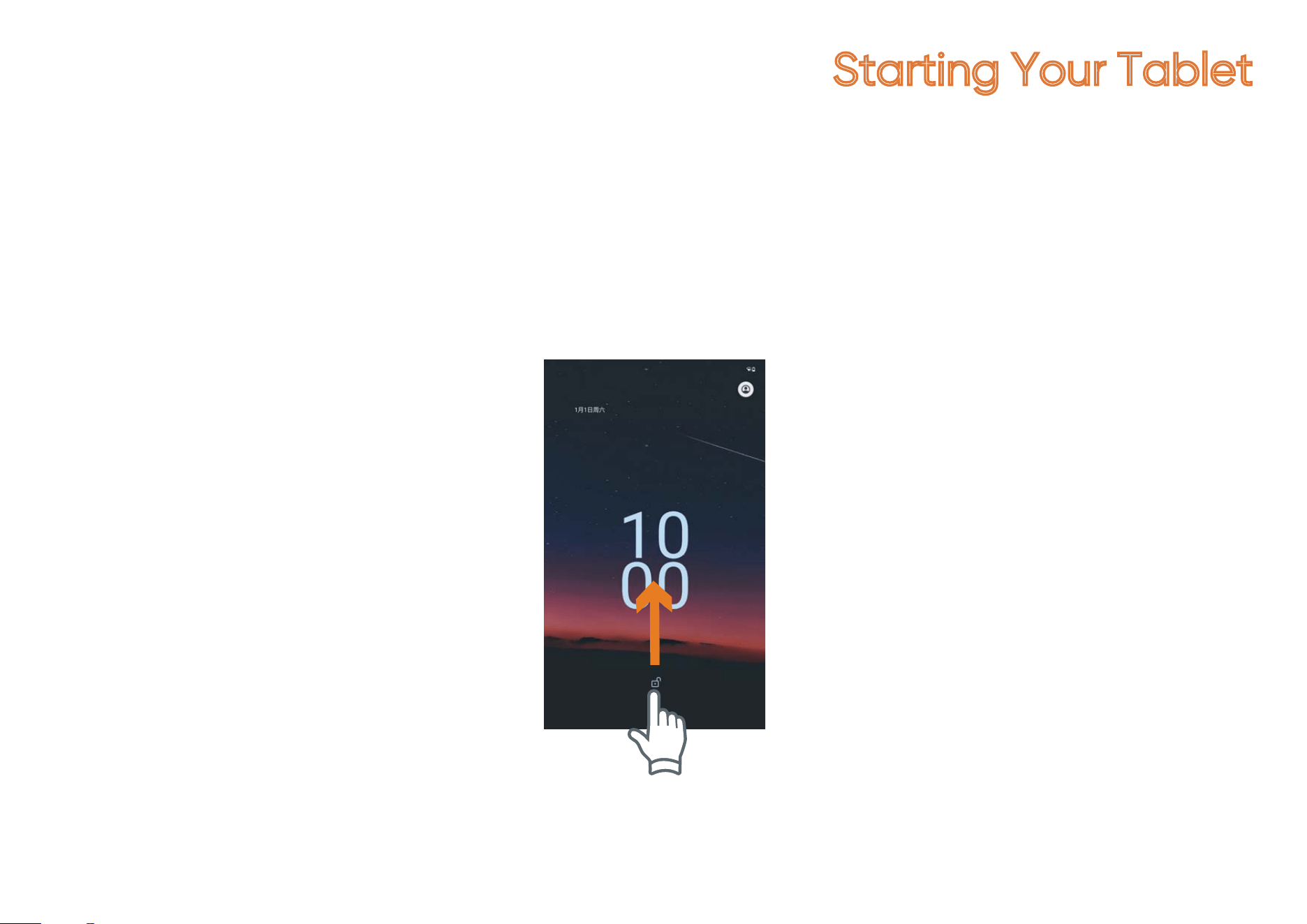
Starting Your Tablet
1. Press and hold the Power button for 3~4 seconds.
(If your tablet does not turn on, or instructs you to "Connect your charger",
connect the AC adapter and charge the unit.)
2. At the Start-up screen, swipe up from the bottom of the screen to unlock.
3. Once you' ve arrived at the Home screen, you can begin using your tablet.
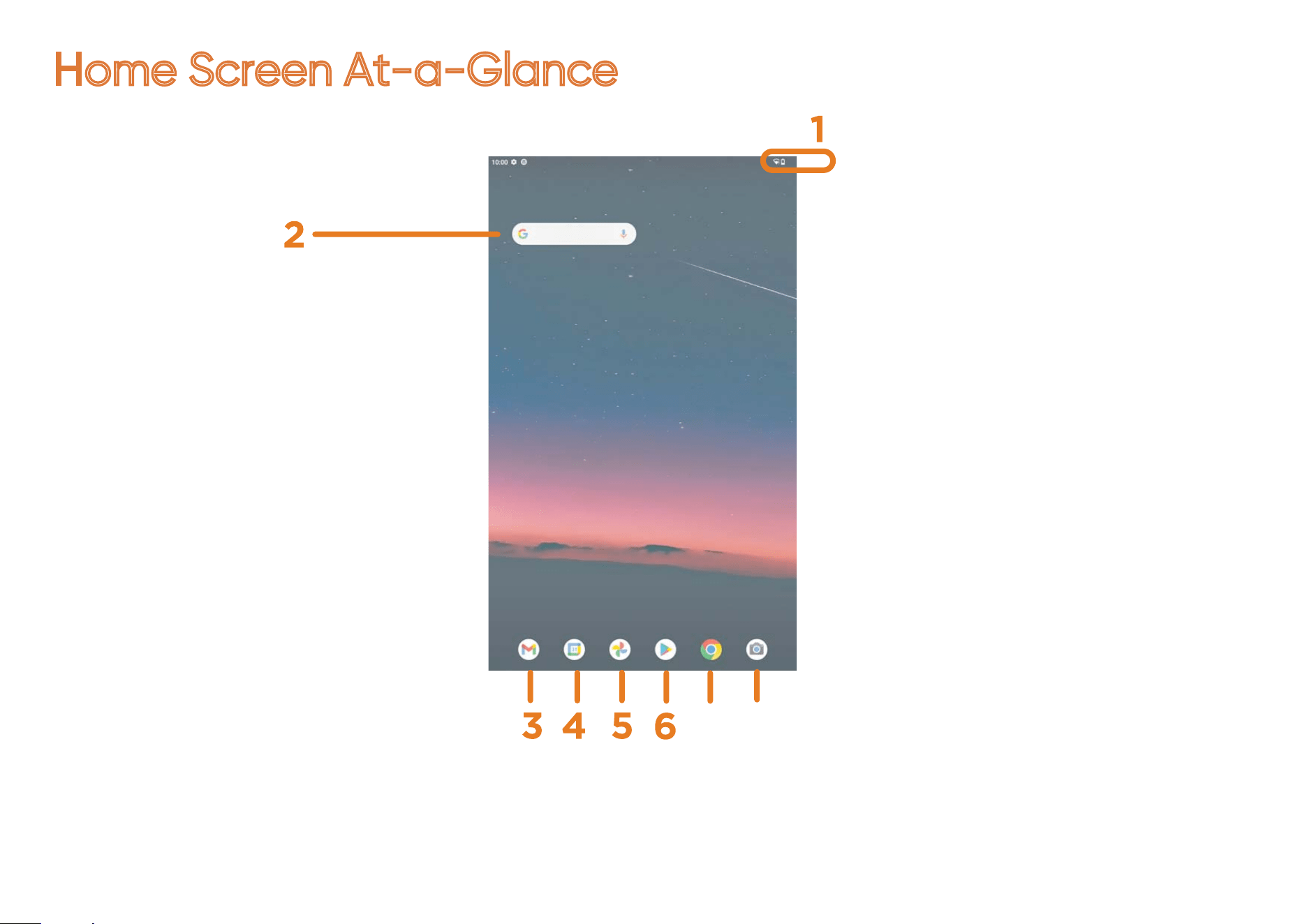
Home Screen At-a-Glance
6
1. Status Bar
2. Search Box
3. Gmail
4. Calendar
5. Photos
6. Play Store
7. Chrome
8. Camera
7
8
7
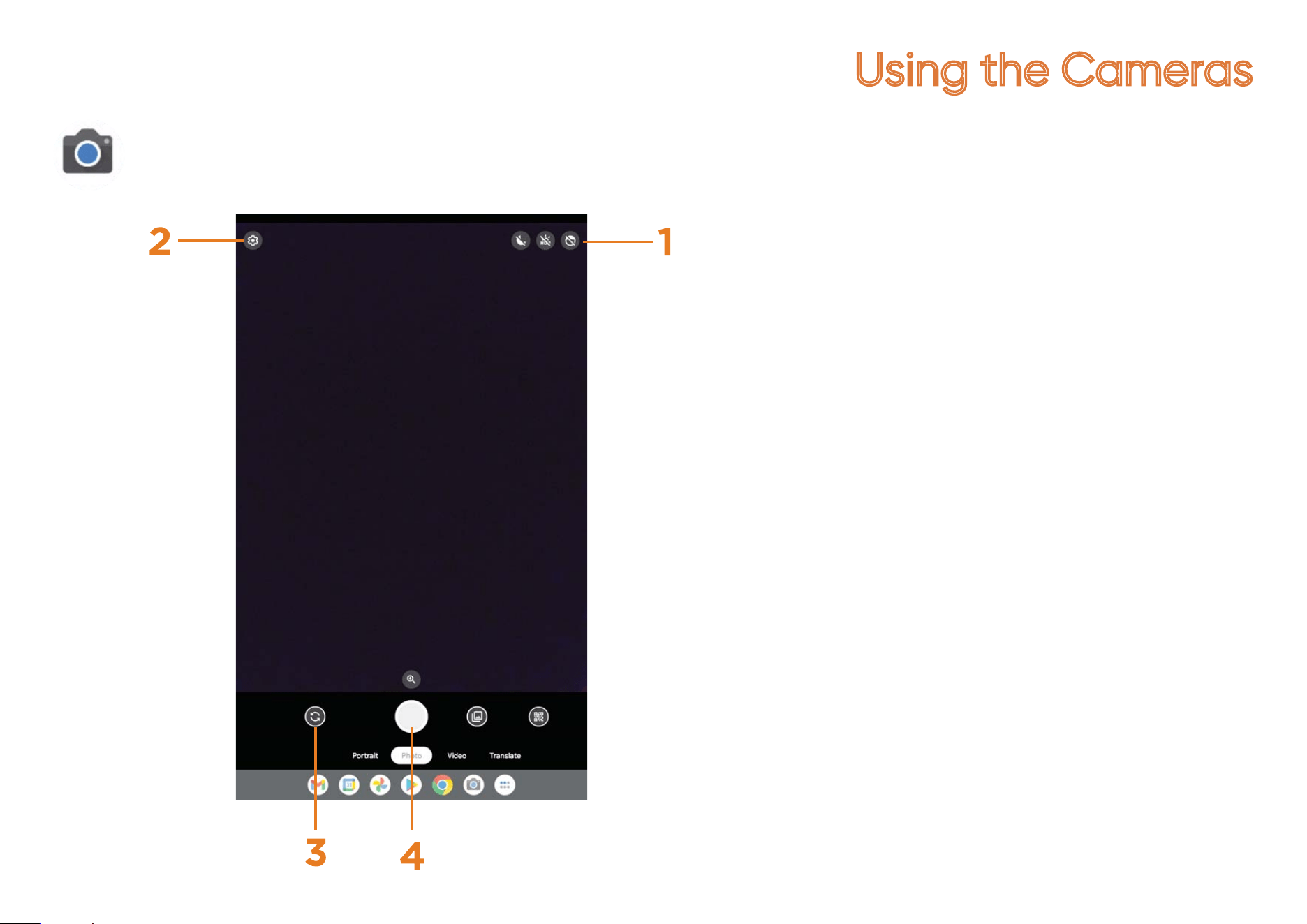
Using the Cameras
Tap on the Camera lcon
1. Turn On/O Face Enhance
2. Camera Settings
3. Switch Cameras (Front/Rear)
4. Take Photo

8
Tablet Updates
To ensure the tablet runs smoothly it is recommended to perform periodic system
software updates, especially during initial set up of the tablet. You may receive
notifications (on the Lock screen) from time to time that software updates are
available.
Tap the notification to be directed to the update.
Other options to access updates:
Tap on Settings > System > System update.
NOTE: To perform an update, you must be connected to WiFi.
9
Google Play Updates
The first time you sign in on Google Play,
updates will automatically start downloading
on to the tablet.
Installing a new application while multiple apps
are downloading will reduce tablet speed and
performance. After all downloads and updates
have been installed, the tablet will resume
normal operating performance.
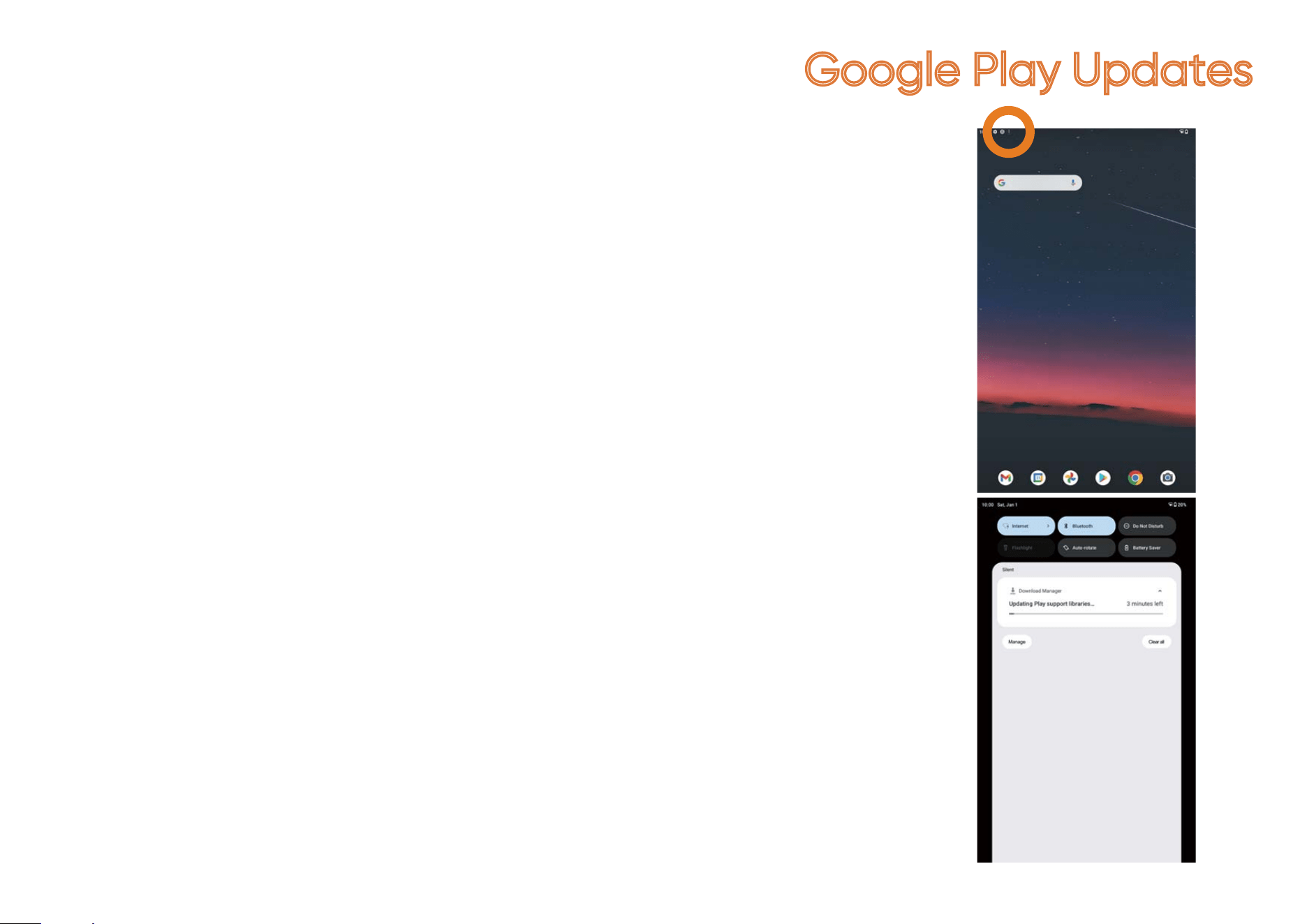
To view the progress of downloads working in
the background, swipe down from the top edge
of the screen.
Set up the Kids Space
10
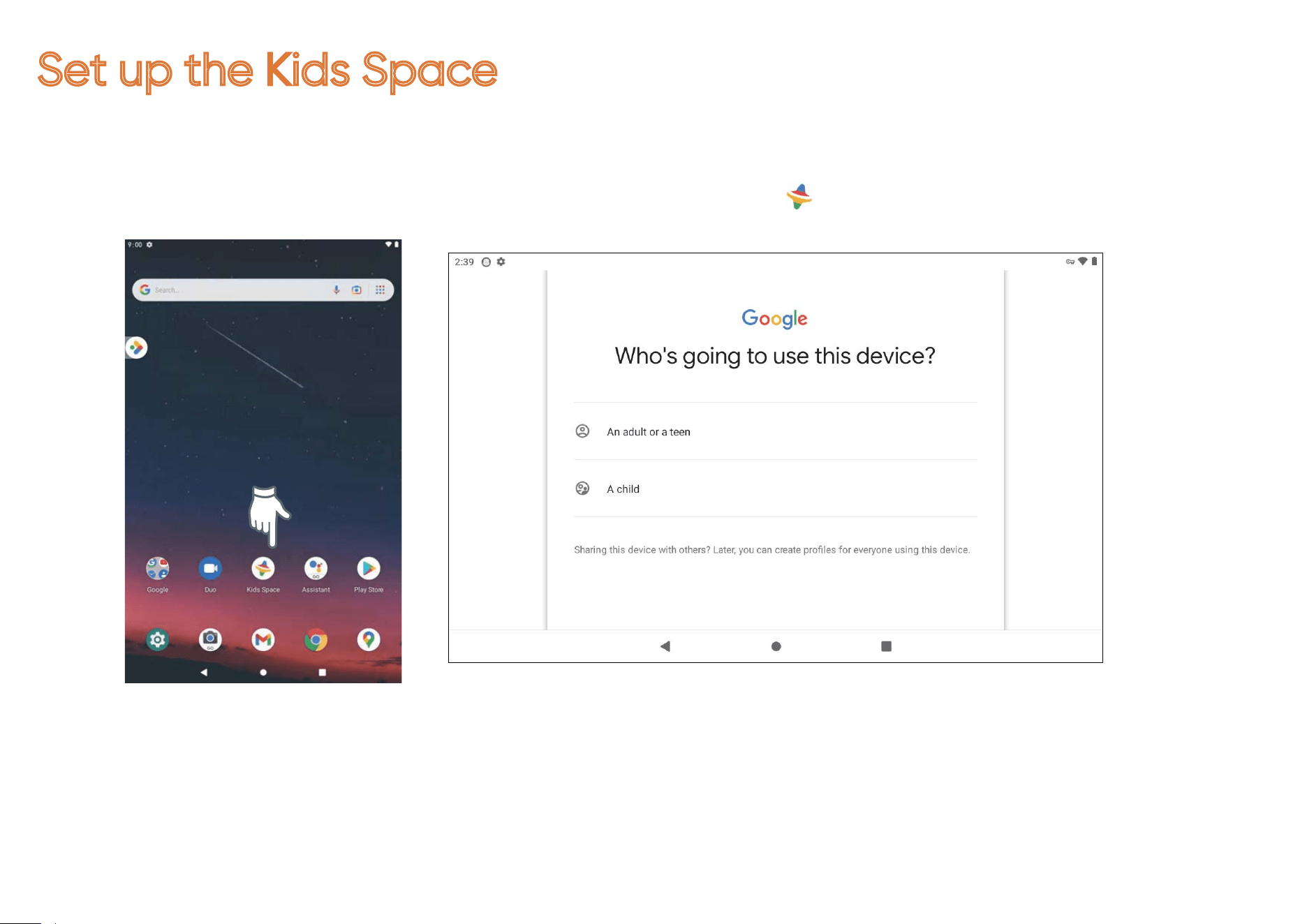
Follow the steps below to set up Google Kids Space.
1. When asked who is going to use the device, tap A child. (If you’ve previously set
up the tablet, tap on the Google Kids Space icon .)
2. Sign into your child’s existing Google Account or follow the prompts to create a
new Google Account for your child under 13 (or the applicable age in your country).
3. When prompted to set up Google Kids Space, tap Set Up.
4. Edit your child’s settings and interests.
Remove the Kids Space
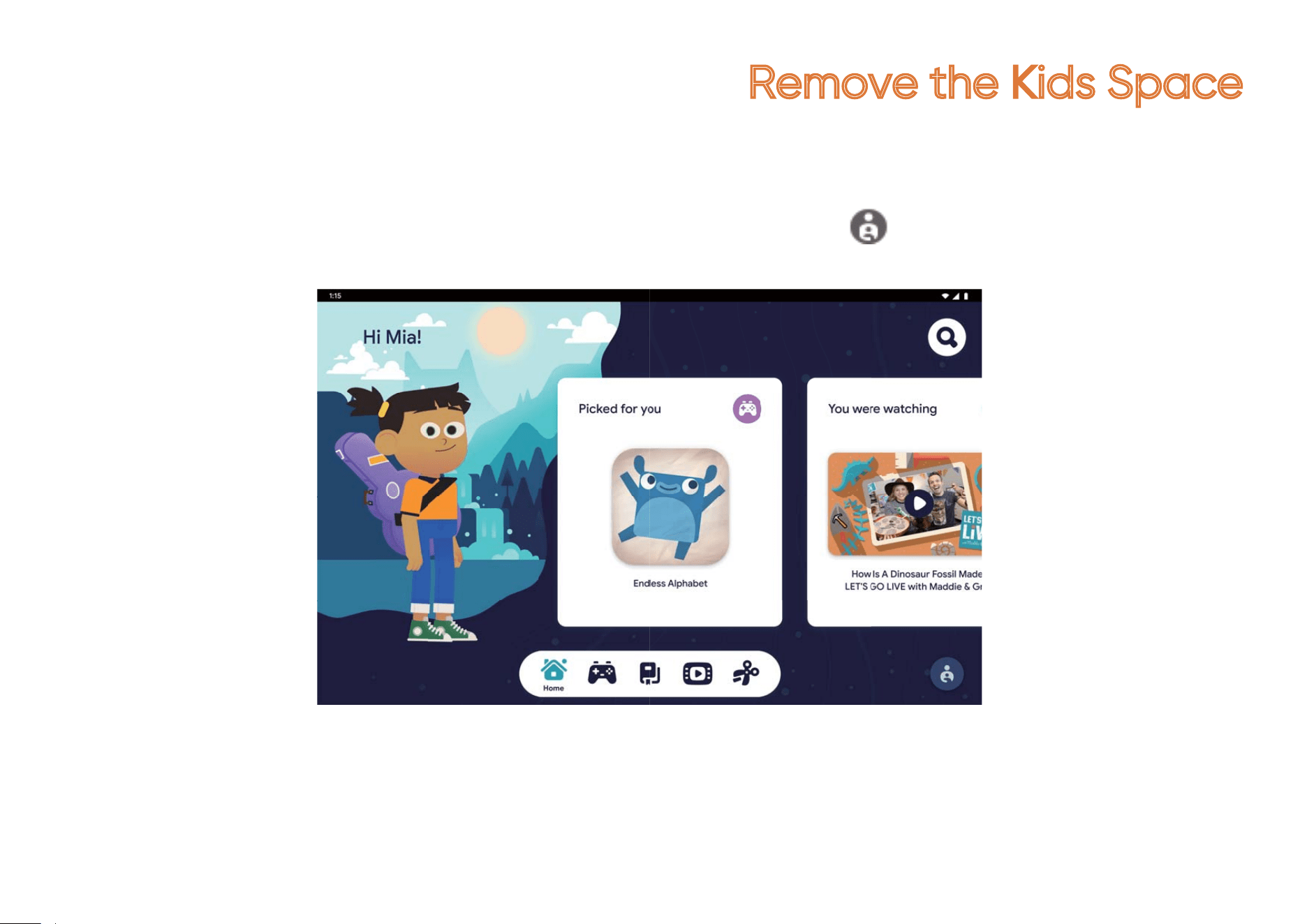
Remove Google Kids Space
1. In the bottom right, press and hold the Parent menu > Device Settings.
2. Go to Accounts to remove the account from the device.
More details about Kids Space on g.co/KidsSpace.
11
12
Entertainment Space Set up
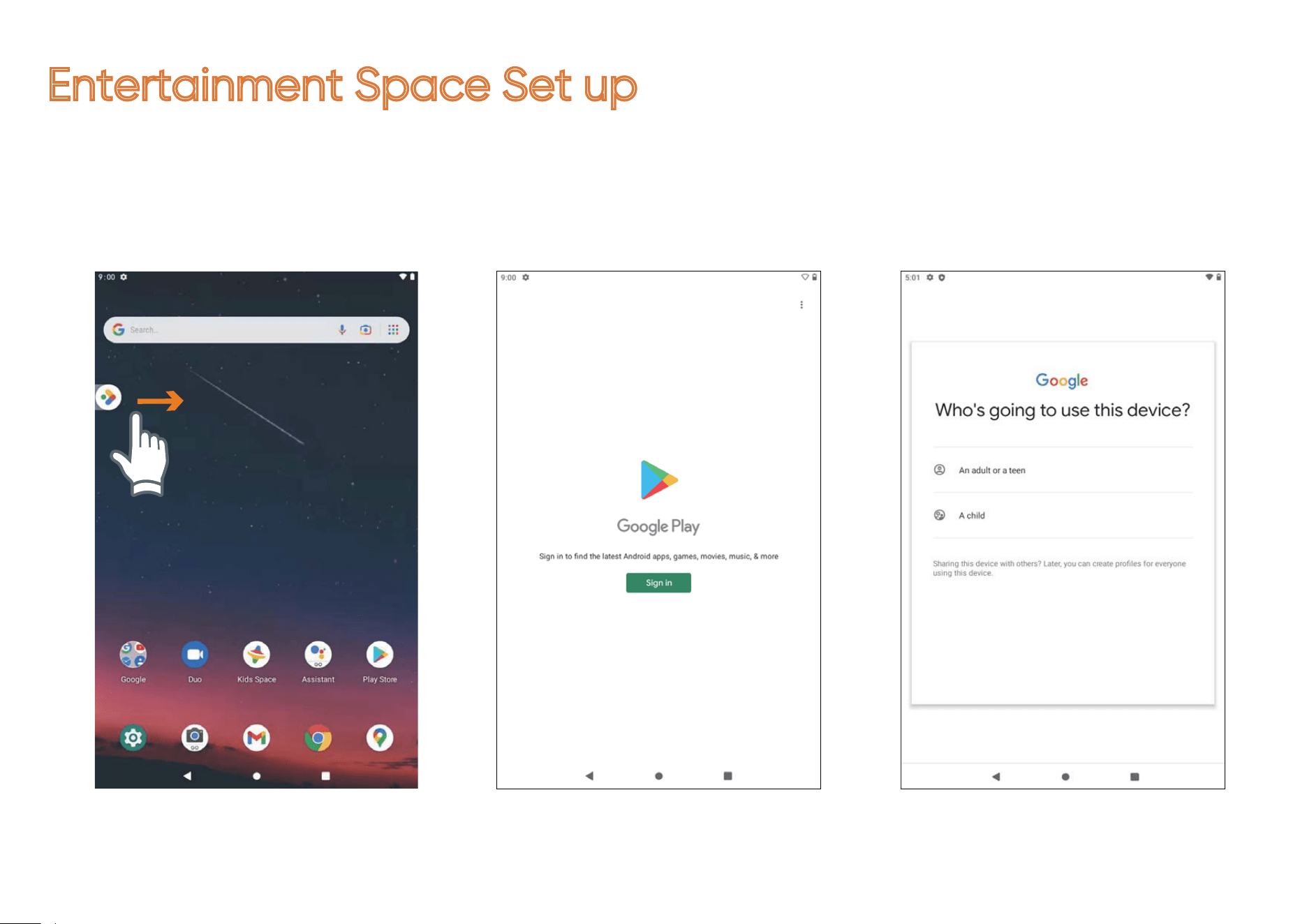
1. Slide the home screen to the right, follow the prompts to log in to Google Play.
2. You can choose to log in with a child account or an adult account.
(Step 1 ) (Step 2 )(Step 1 )
13
Entertainment Space instructions
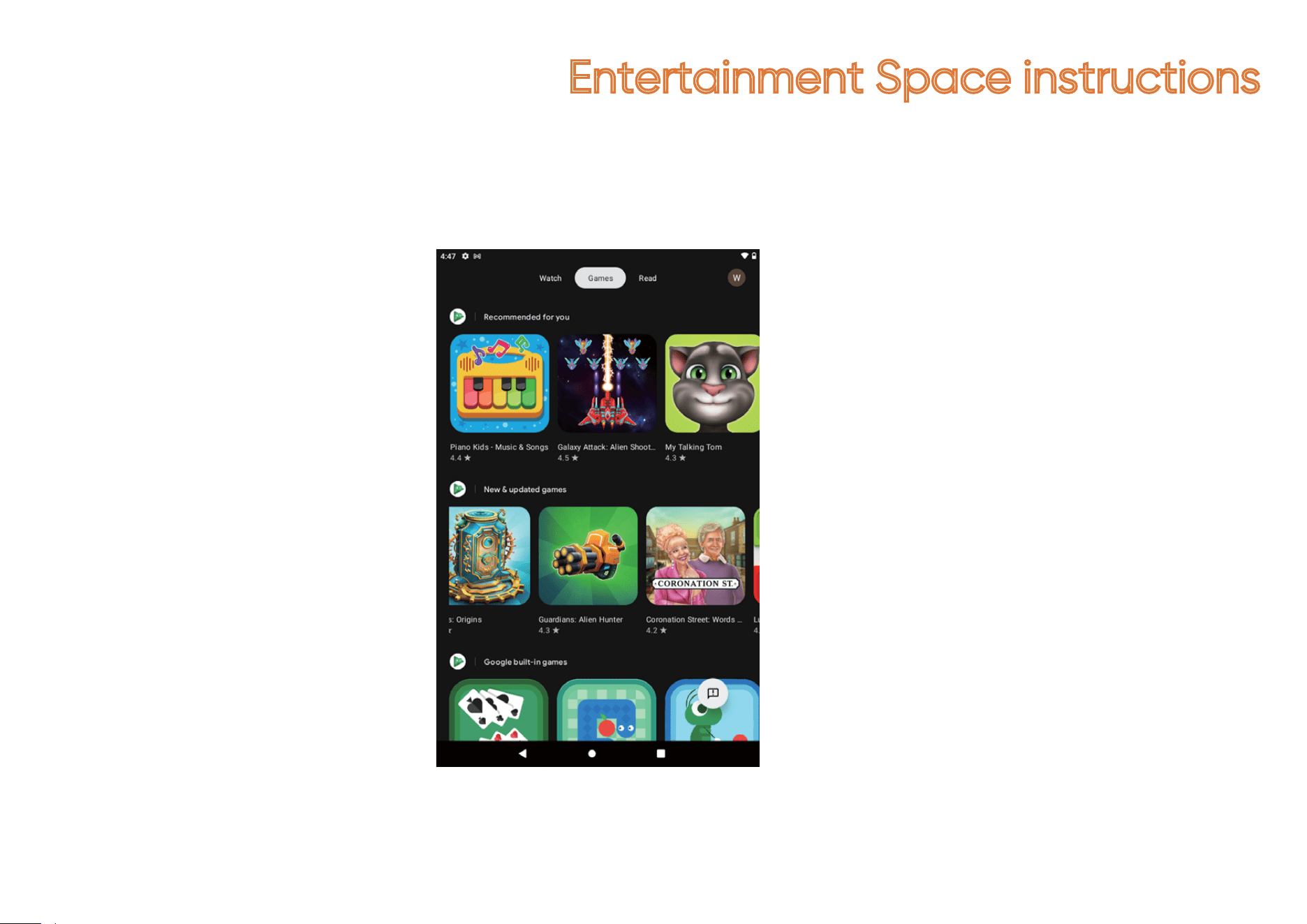
3. Enter the Google account and follow the system prompts to enter the main
interface of Entertainment Space.
4. Tap Update to search for the latest updates of Entertainment Space.
14
Touching and Typing
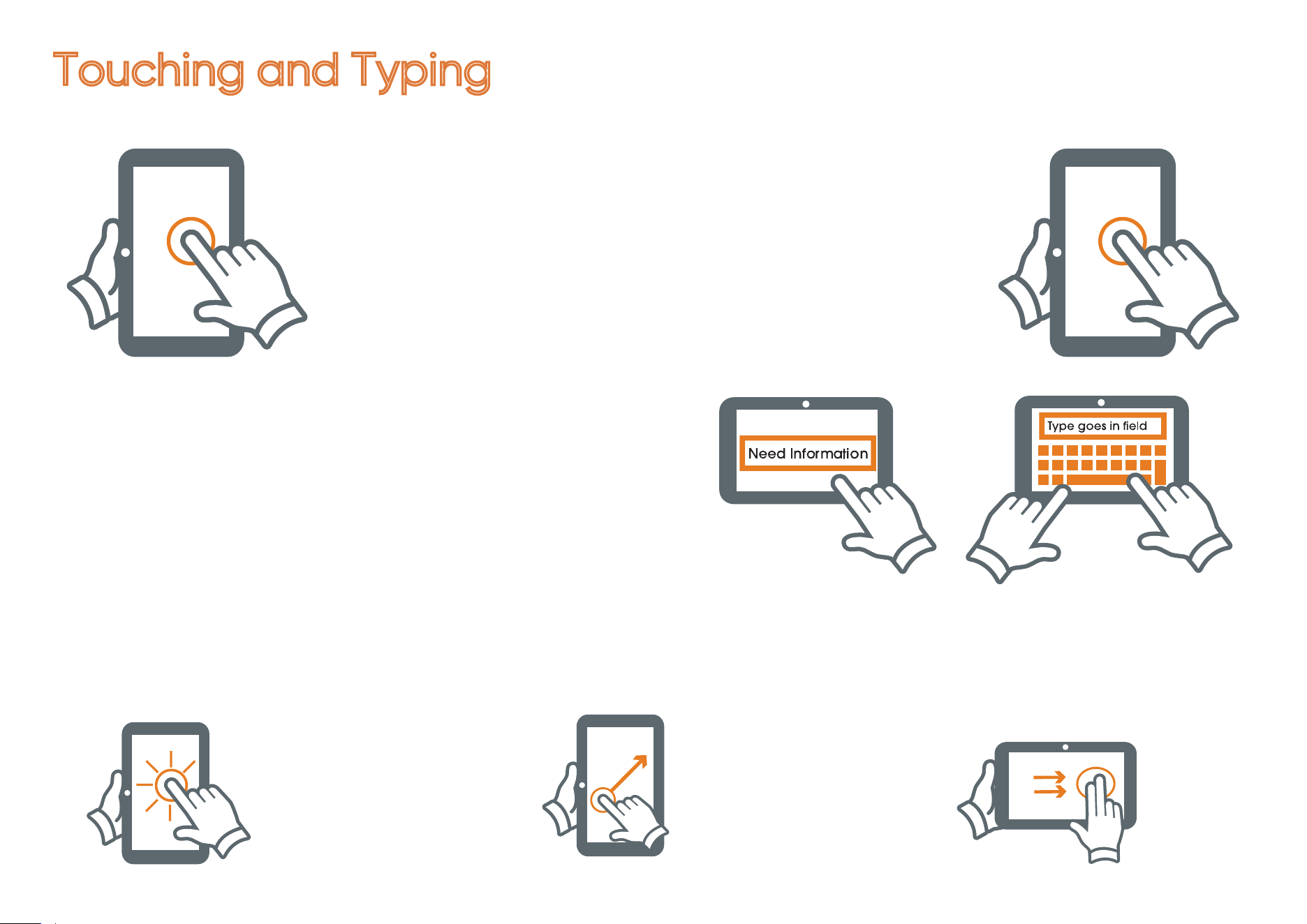
To select an item on the screen, simply tap
it once with your fingertip. Some items may
require you to "double-tap”.
To type in to a text field (e.g., when
inputting your name , or a web address),
tap the text field. The on-screen keyboard
will appear, and allow you to type the
information you wish to enter.
Touch and Hold: Keep your
finger on an on-screen item
until it glows or activates an
alternate menu.
Drag: Move an app or object by
touching and holding the image,
then moving it to the destination.
Slide: When there are extra
"screens" to the side, slide one
or more fingers from one side
to another.
15
Touching and Typing
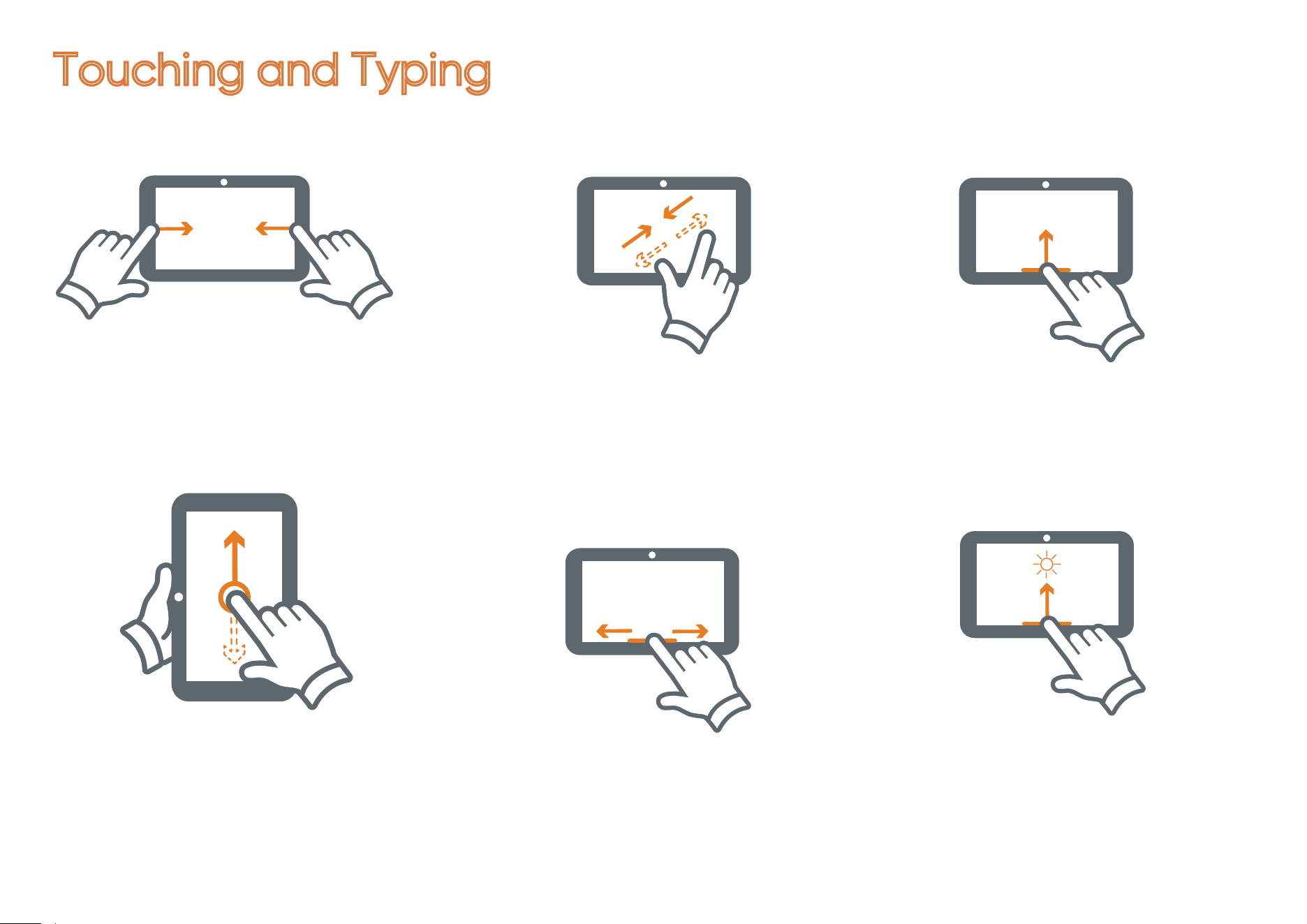
Swipe from left and right
edge: Go back from the
current page.
Spread and pinch: Zoom in
and out of websites, photos
or other items.
Swipe up from the bottom:
Go back to the home
screen.
Swipe: Swipe up from home
page to open app finder.
Swipe down to open
notification center.
Swipe left or right at the
bottom edge : Switch
among apps.
Swipe up from the bottom
edge and hold : View recent
apps.
16
Connecting to the Internet
Wireless Router
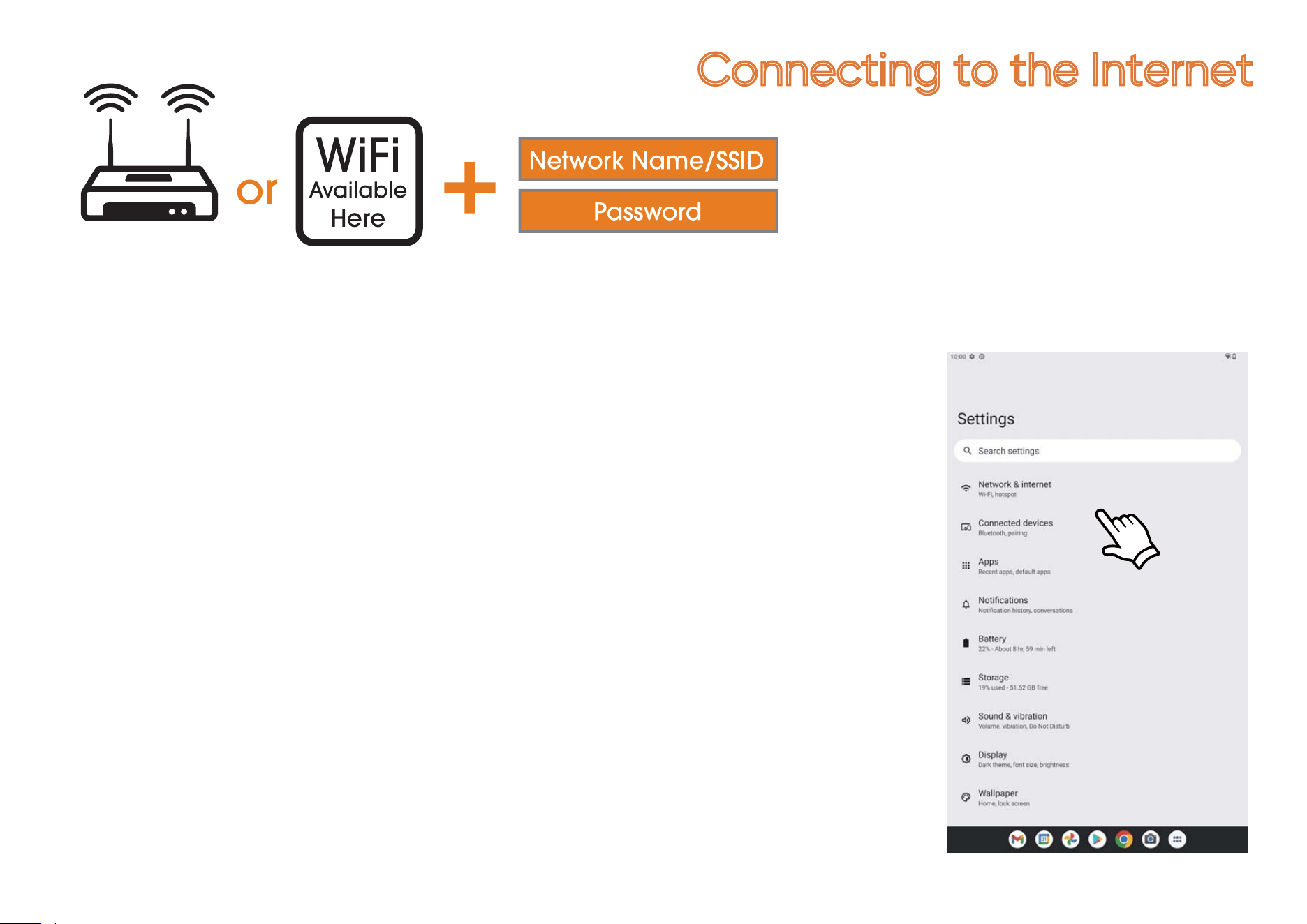
In order to connect to the internet, you will need the following:
• A wireless router or an access point with a broadband
internet connection.
• The name of your network (SSID), as well as the
password or other credentials, if your network is secure.
The wireless router must support WiFi 802.11 a/b/g/n/ac
connections.
Go to Settings > Network & internet > Internet
Tap on WiFi to activate wireless connectivity. The tablet
will scan for available WiFi networks within range. Secured
networks will require a password. Once you have
successfully entered your information the tablet will
remember your settings.
17
Connecting Bluetooth
Your tablet is compatible with Bluetooth capable devices. Once your tablet
searches and finds the Bluetooth device, follow on-screen instructions to initiate
the pairing of the device with the tablet. Add or "pair" a Bluetooth compatible
device with your tablet as follows:
1) Turn on the compatible Bluetooth device and make it discoverable.
2) Open the Settings > Connected devices.
3) Tap on Pair new device to view available devices.
18
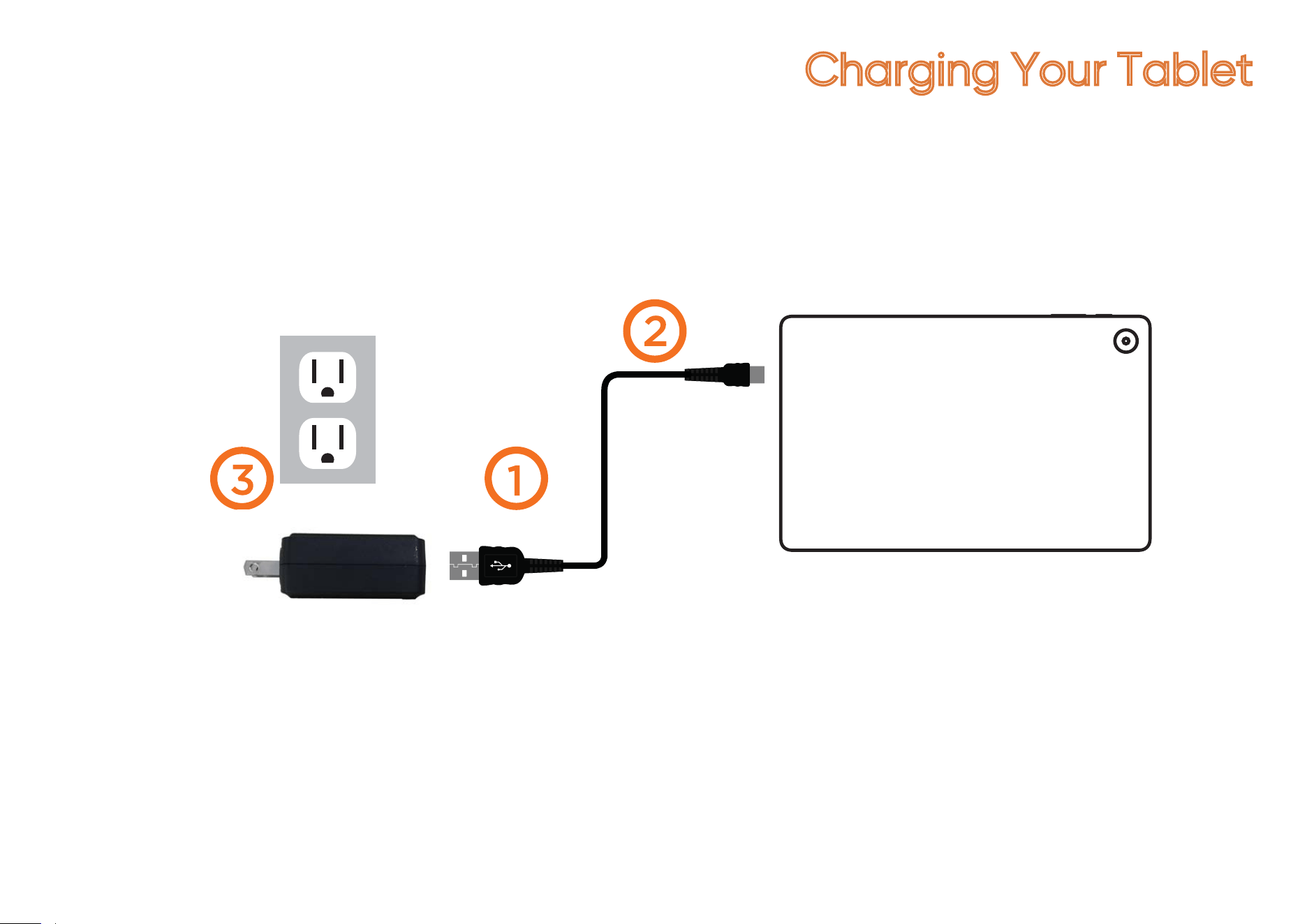
Charging Your Tablet
It is recommended to fully charge the tablet before first use. To charge the
tablet, 1) plug the USB cable into the AC adapter, 2) attach the other end to the
USB-C input on the tablet, 3) plug the AC adapter into a wall outlet.
When the tablet is ON and charging, the battery icon will pulsate.
A complete battery charge may take up to 3 hours. It is normal for the tablet
to get warm while charging, playing games, or streaming video.
Battery life will vary depending on usage.
Note: Leave tablet in a well ventilated area while charging.
19
Important Safety Instructions
1. Do not install near any heat sources such as radiators, heat registers, stoves, or other apparatus (including
amplifiers) that produce heat.
2. WARNING: Only use attachments/accessories specified or provided by the manufacturer(such as the exclusive
supply adapter, battery etc). Use incorrect battery type for replacement may defeat a safeguard.
3. WARNING: The mains plug should be kept in a state that can be disconnected at anytime to avoid emergency
situation.
4. WARNING: The apparatus should not be exposed to dripping or splashing. Objects filled with liquids, such as
vases or drinking glasses, should not be placed on the apparatus.
5. WARNING: Disposal of a battery into fire or hot oven, or mechanically crushing or cutting of a battery, may result
in an explosion.
6. WARNING: Leaving a battery in an extremely high temperature surrouding environment, such as sunshine, fire or
hot surface may result in an explosion or the leakage of flammable liquid or gas.
7. WARNING: A battery subjected to extremely low air pressure may result in an explosion or the leakage of
flammable liquid or gas.
8. WARNING: Please refer the electrical and safety information on tablet and user manual before installing or
operating the apparatus.
Use the device where the ambient temperature is between 0° and 40° C (32° to 104° F) and altitude no higher than
2000 m (air pressure no less than 80kPa). Store or ship the device where the ambient temperature is between -10°
and 50° C (14° to 122° F). Low-or high-temperature conditions might cause the device to change its behavior to
regulate its temperature. Using your tablet in very cold conditions outside of its operating range might temporarily
shorten the battery life and could cause the device to turn o. Battery life will return to normal when you bring the
device back to higher ambient temperatures. Using the device in very hot conditions can permanently shorten
battery life.
20
Important Safety Instructions
We would like you to have a safe and enjoyable experience.
Please read the following instructions and notices before using your tablet.
• Warning: This product may contain a chemical known to the State of California to cause cancer, birth defects, or
other reproductive harm.
• Avoid using the tablet in extremely hot, cold, dusty, damp or wet environments.
• The tablet is not moisture/water-resistant. Avoid using the tablet around sources of water.
• Avoid dropping or forcibly placing the tablet onto a hard surface. This may damage the screen or internal
electronic components and void the warranty.
• Do not use alcohol, thinner or benzene to clean the surface of the tablet. Use only cleaning products designed
for computer tablet devices.
• Do not use the tablet while walking or driving.
• To prevent possible hearing damage, do not listen at high volume levels for long periods. A warning will
be displayed on device when you are exposed to high sound pressure.
• The images in this guide may vary slightly from the actual product.
• Charge the tablet battery under any of the following circumstances:
1. The battery level icon indicates low power, by showing a drained, red battery icon.
2. The tablet powers-o automatically, and continues to do so even after restarting.
3. On-screen keys do not work.
• Do not suddenly disconnect the tablet when formatting, uploading or downloading data. This can lead to
program errors (e.g., system or screen "freezing" .)
• Static discharge is normal and can occur in an electronic device although not life threatening, it may corrupt files
or damage memory and its content.
• Dismantling the tablet will void the manufacturer' s warranty.
• The tablet functions, hardware, software, and warranty information may be improved or modified by the
manufacturer or their respective owners, and is subject to change without notice.
21
Compliance Information
FCC NOTICE
The following statement applies to all products that have received FCC approval. Applicable products wear the
FCC logo, and /or an FCC ID in the format FCC ID: XD6T5100A on the product label.
This device complies with Part 15 of the FCC Rules and with RSS-247 of Industry Canada. Operation is subject to
the following two conditions:
(1) This device may not cause harmful interference, and
(2) this device must accept any interference received, including interference that may cause undesired operation.
Le présent appareil est conforme aux CNR d'Industrie Canada applicables aux appareils radio exempts de licence.
L'exploitation est autorisée aux deux conditions suivantes :
(1) l'appareil ne doit pas produire de brouillage, et
(2) l'utilisateur de l'appareil doit accepter tout brouillage radioélectrique subi, même si le brouillage est susceptible
d'en compromettre le fonctionnement.
This Class B digital apparatus complies with Canadian ICES-003.
Cet appareil numérique de la classe B est conforme à la norme NMB-003 du Canada.
Radiation Exposure Statement:
The product complies with the Canada portable RF exposure limit set forth for an uncontrolled environment and
are safe for intended operation as described in this manual. The further RF exposure reduction can be achieved if
the product can be kept as far as possible from the user body or set the device to lower output power if such
function is available.
Déclaration d'exposition aux radiations:
Le produit est conforme aux limites d'exposition pour les appareils portables RF pour les Etats-Unis et le Canada
établies pour un environnement non contrôlé.
Le produit est sûr pour un fonctionnement tel que décrit dans ce manuel. La réduction aux expositions RF peut être
augmentée si l'appareil peut être conservé aussi loin que possible du corps de l'utilisateur ou que le dispositif est
réglé sur la puissance de sortie la plus faible si une telle fonction est disponible.

22
The Fine Print
Wamart warrants this product against defects in material or workmanship for a period of one (1) year
from the original date of purchase. During this period, Walmart will replace a defective part with a
new or refurbished part without a charge to you. If your unit is deemed unrepairable, will replace
the unit with a new or refurbished unit at Walmart's sole discretion. The customer is responsible for
transportation cost and insurance charges (if applicable) to Corporate. It is the customer's
responsibility to retain original packaging or provide like packaging in order to facilitate the warranty
process. Walmart will incur no liability whatsoever to provide packaging for warranty items. Should
the product be damaged due to insucient packaging, the warranty may be voided. You must
receive a return authorization number (RMA #) before sending the unit in for service. Service that is
provided is warranted for the duration of the original warranty or 45 days whichever is greater.
Your Responsibility
It is strongly recommended to make a backup copy of the contents on your hard drive in case of
operational failure. Walmart will not be held liable for content that is on the device. Retain a copy of
the bill of sale to provide proof of purchase. The warranty extends only to defects in materials or
workmanship as limited above and does not extend to a cracked screen, damaged USB or DC port,
cosmetic damage, or any other products, parts or accessories that have been lost, discarded,
damaged by misuse or accident, neglect, acts of God such as lightning, voltage surges in the home,
improper installation, or serial number rendered illegible.

23
Please contact Customer Support at 1-888-516-2630 at 7 am to 9 pm CST. You will be instructed on
how your claim will be processed so have information available including date of purchase, serial
number and the problem with the product. Should a problem be determined to be within the limits of
the warranty you will be provided with an (RMA) authorization number and instruction. Proof of
purchase must be confirmed before any warranty service can be provided. Should a claim not be
covered by the limited warranty, you will be asked whether you wish to have service provided for a
fee.
Google, Android, Google Play and other marks are trademarks of Google LLC.
The Fine Print
24
TÜV Rheinland Certification
The tablet is equipped with optional "Low Blue Light" mode. The harmful blue light can be reduced by
simple set-up with this mode. The user can enjoy the screen time with less eyestrain and uncomfort.
Low Blue Light Mode Setting Guide:
Settings
> Display > Eye Comfort > TURN ON NOW
Tips for protecting user's eyes from Tablet screen:
1. Give eyes a much-needed break after using the screen for prolonged periods of time.
2. Look at something at least 20 feet away from the user for 20 seconds after looking at the screen
for 20 minutes, which will help reduce eyestrain.
3. Reduce glare on the screen, and do some eyeball exercise to relax eyes during the break.
Certification Information

25
Certification Information
This device complies with Part 15 of the FCC Rules. Operation is subject to the following two
conditions: (1) this device may not cause harmful interference, and (2) this device must accept any
interference received, including interference that may cause undesired operation.
The SAR limit for FCC is 1.6 W/kg and this device was tested at 0 mm position and meet RF
exposure reqirement.