Sincerely,
Queenie, Clair, James, Eric
Customer Support Team
Thank you for purchasing YoLink products and for entrusng us with your smart home needs!
Your 100% sasfacon is our goal. If you experience any problems with seng up your new
YoLink Weatherproof Temperature & Humidity Sensor, please give us a chance to assist you,
before returning your purchase.
We at Customer Support are here for you.If you need any assistance installing , seng up or
using a YoLink product or our app.
Find addional support and ways to reach us at:
www.yosmart.com/support-and-service
Or scan this QR code with your smartphone
Email us, 24/7 at:
service@yosmart.com
Call us, 9AM to 5PM Pacific Standard Time at:
(949) 825-5958
You may chat with us on Facebook (non-urgent maers):
www.facebook.com/YoLinkbyYoSmart

Contents
A.
B .
C .
D.
E .
F .
G.
H.
I .
In the Box ······· ····· · ·· · ··1······················ ····· ···················································· · ·
·Introducon ······························································································ 2
Set Up ····································································································· · 4· ·
Using the YoLink App ···················································································7
Maintenance ······················································································· ····13·
Specificaons ····················································································· ·····17·
Troubleshoong ················································································· ·····19·
Warning ······························································································ ····20·
Customer Service & Warranty ······························································· ····22·
Revised: 04/08/2021
Copyright 2021. YoSmart, Inc. All rights reserved
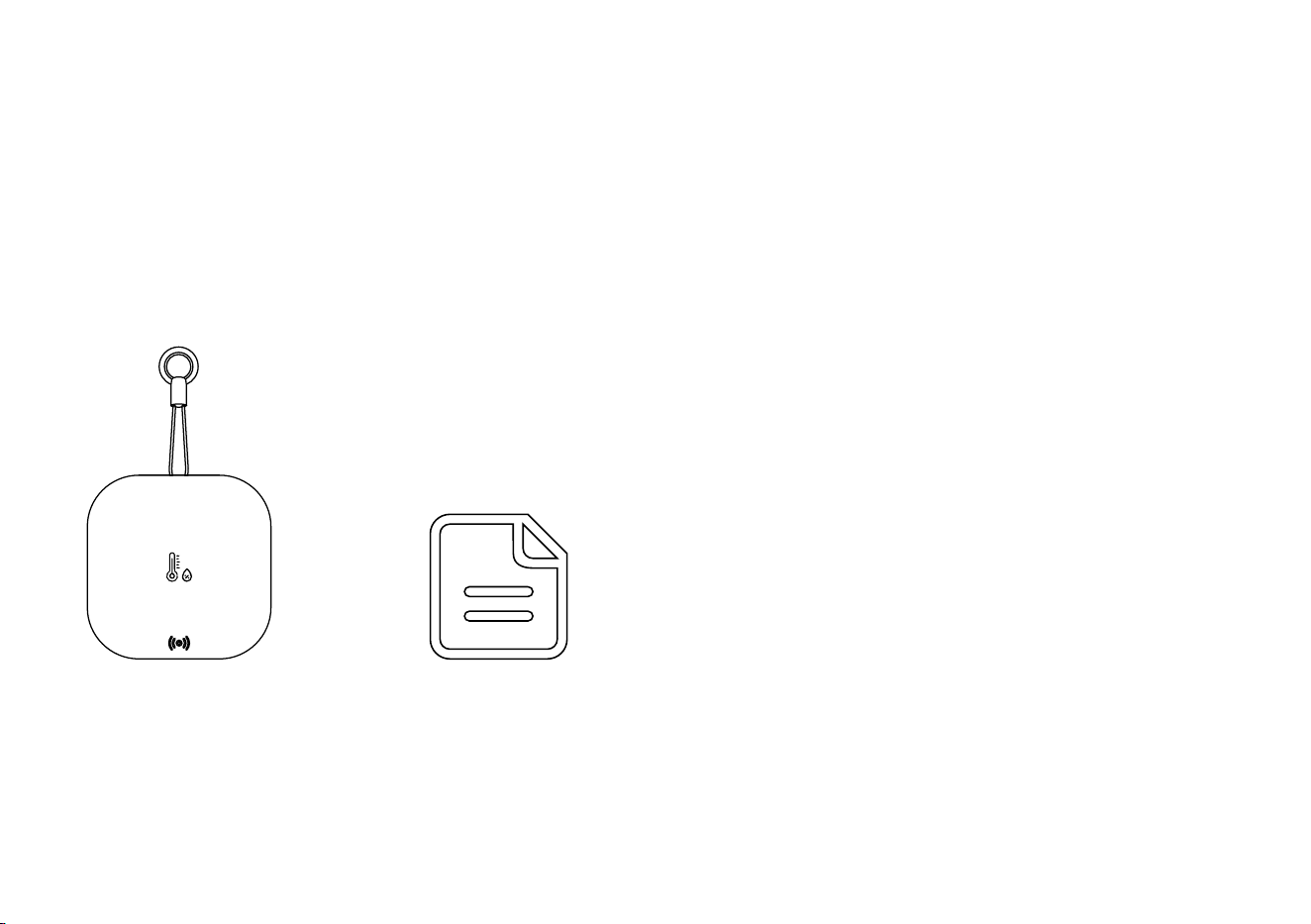
A. In the Box
1
A. Weatherproof Temperature &Humidity Sensor
B. Quick Start Guide
B.
A.
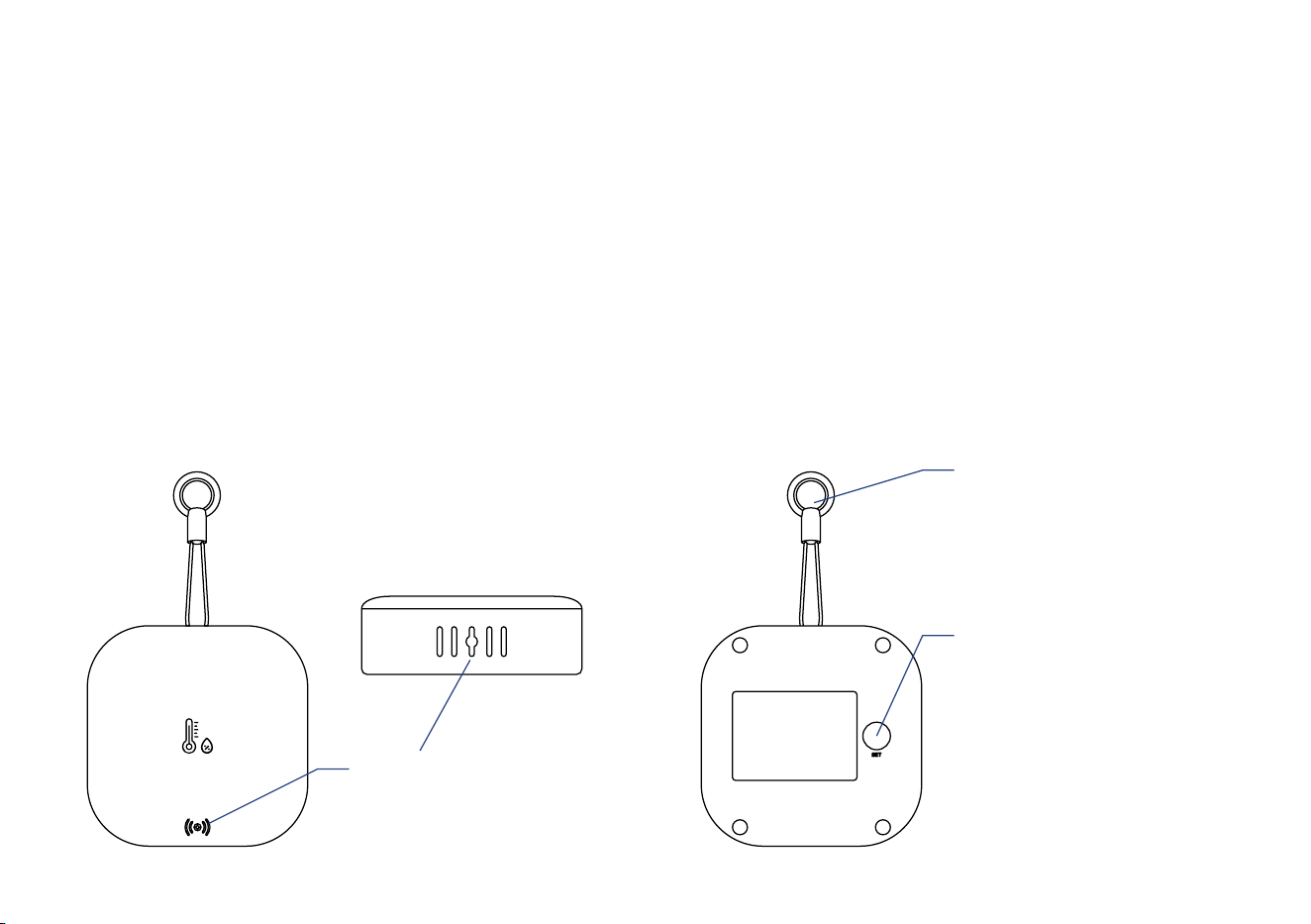
B. Introducon
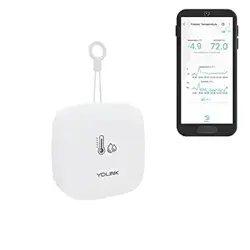
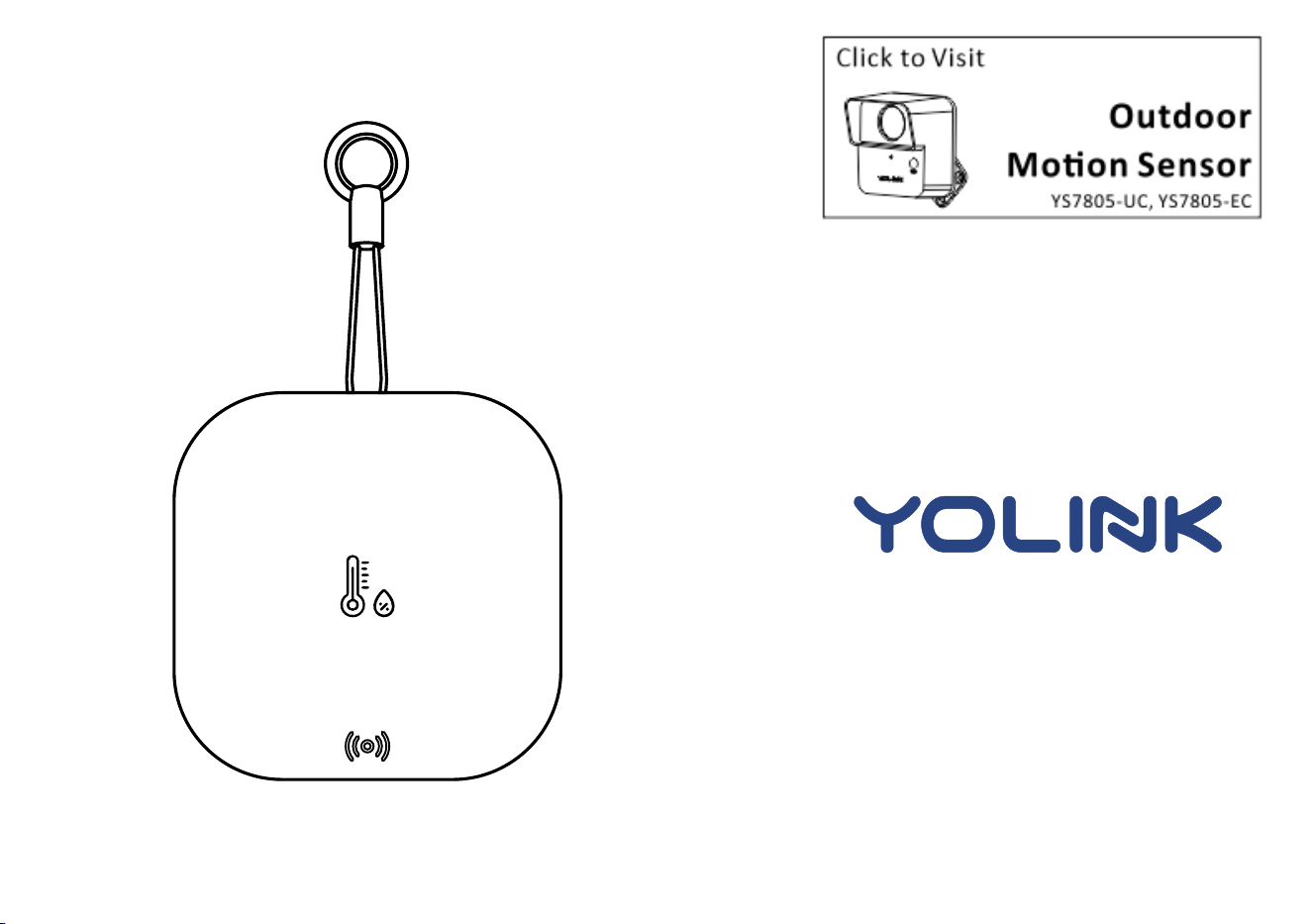
The Weatherproof Temperature &Humidity Sensor is a smart two-in-one accurate thermometer
and hygrometer device. By monitoring the real-me temperature and humidity levels in your
home or business, you will know at any me the exact temperature and humidity levels in the
space. You can set high and low levels alerts for temperature and humidity. When an alert level is
reached, the LED will blink red once, and noficaons will be sent to you via the YoLink app.
Available noficaon types are: email, and banner (“push”) noficaons on your Apple or Android
smartphone, each configurable in app sengs.
2
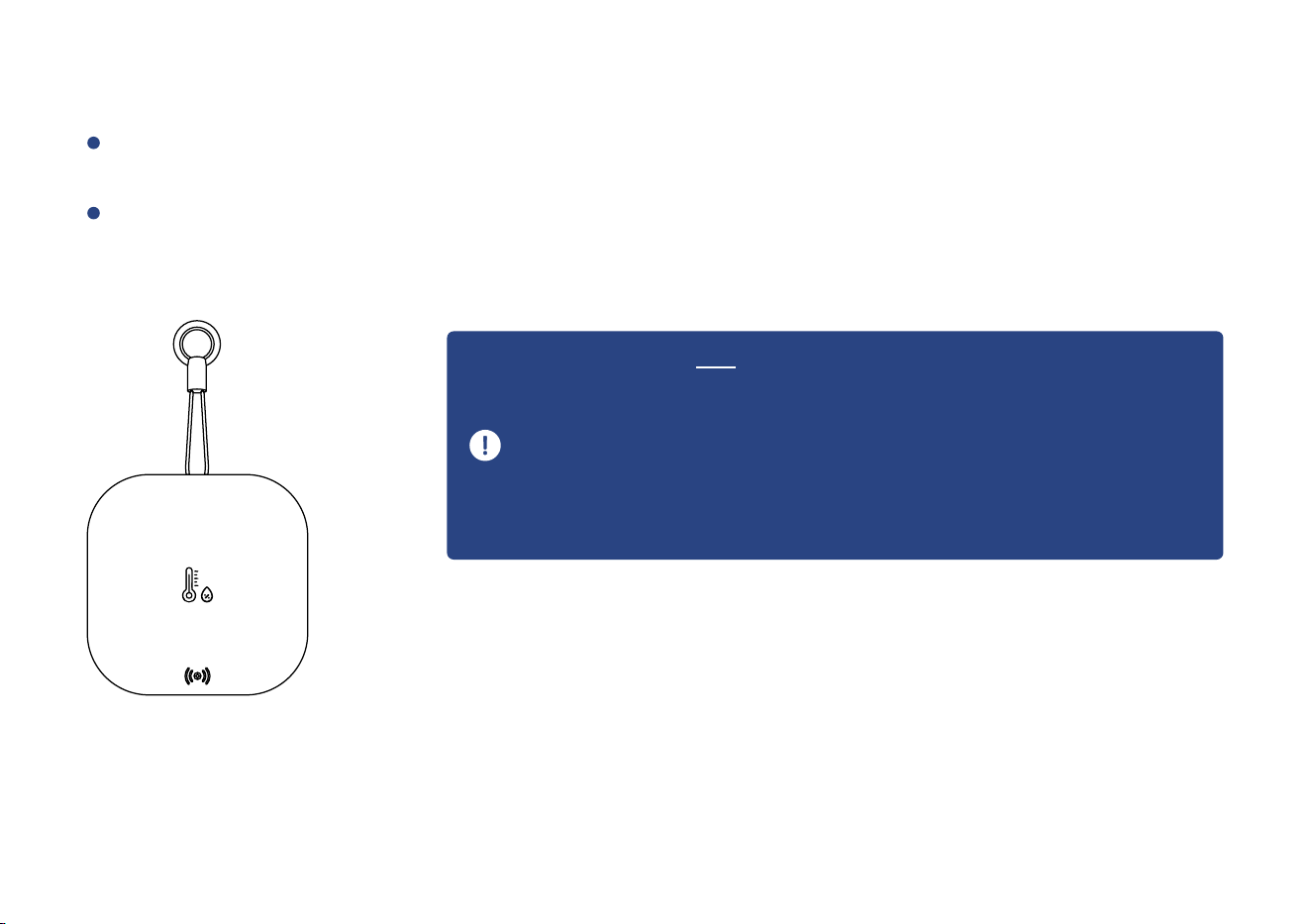
Openings
Used for temperature
and humidity sensing
SET Buon
& Status LED
Hanging Loop & Ring
Used for hanging the
device
*High-volume use fees may apply (subscription service available)
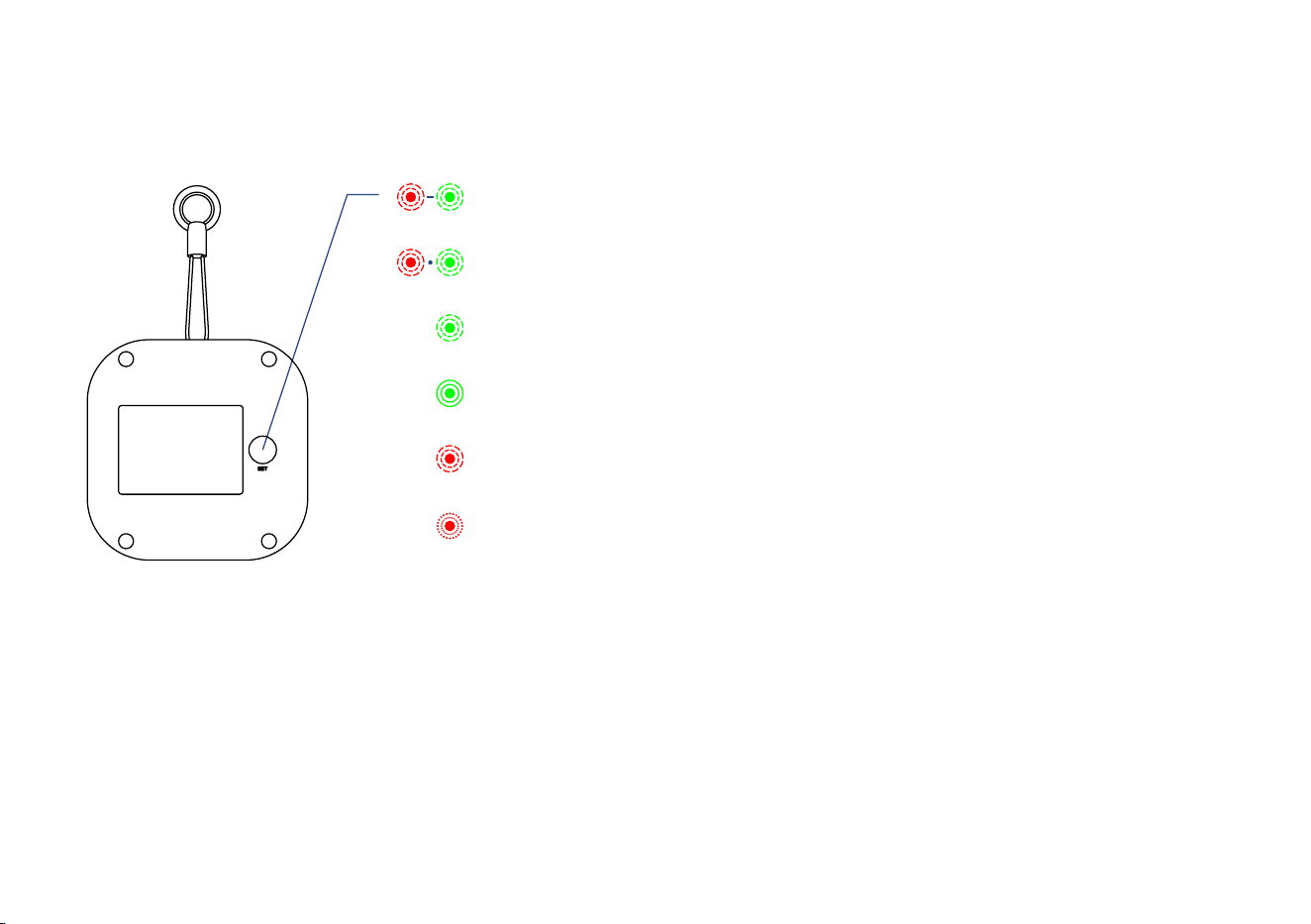
The LED light indicates the current status of the :Weatherproof Temperature &Humidity Sensor
3
Blinking Red Once, then Green Once
Device turned on
Blinking Green
Connecng to Cloud
Slow Blinking Green
Updang
Blinking Red Once
Device alerts or device is connected to the cloud and is funconing normally
Fast Red Every 30 Seconds Blinking
Baeries are low; please replace the baeries (see page 15)
Blinking Red And Green Alternately
Restoring to Factory Defaults
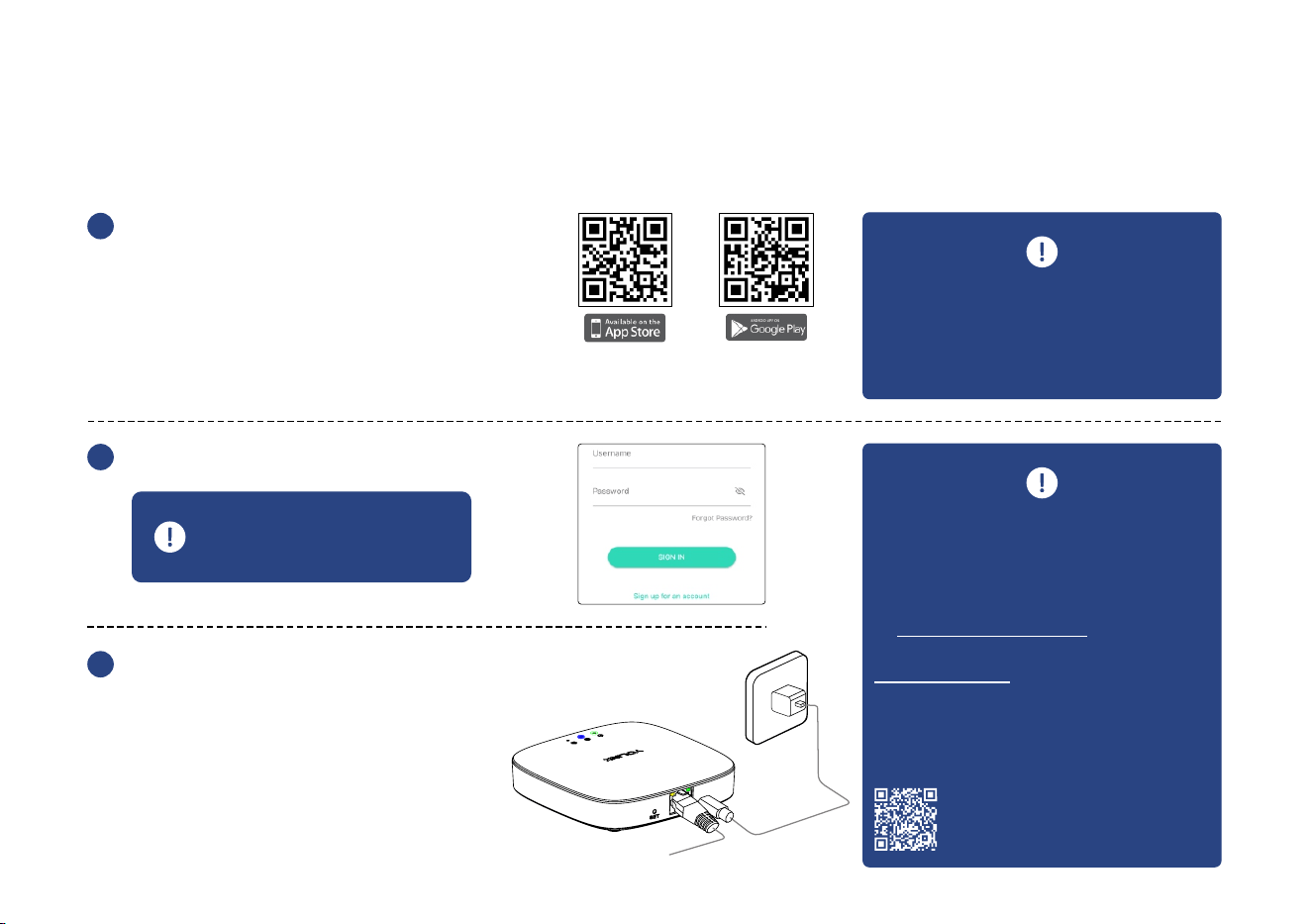
C. Set Up
C-1. Set Up - First-Time YoLink Users (Exisng users proceed to C-2. Add Device, next page)
4
Log in to the YoLink app
2
Create a new account if
required
The YoLink Hub is required to
set up your Weatherproof
Tem p e rat u re & Hu m id i t y
Sensor. Please set up your
YoLink Hub first (refer to YoLink
Hub manual)
3
Power
Adapter
YoLink Hub
YS1603-UC
User Guide
2. Ethernet patch cable (included) to
your network (router, switch, etc.),
recommended. Otherwise connect
your Hub to your home 2.4 GHz Wi-Fi
network (only when necessary).
Refer to the Hub set up manual for
more informaon:
1. Make sure your Hub is connected
to the internet (green LED indicator is
blinking, blue LED indicator is always
on)
Download the YoLink app through
Apple App Store or Google Play
Store (Search in the store or use
the QR code on the right)
1
Apple iPhone or tablet that is iOS
9.0 or higher, or an Android phone
or tablet that is Android 4.4 or
higher
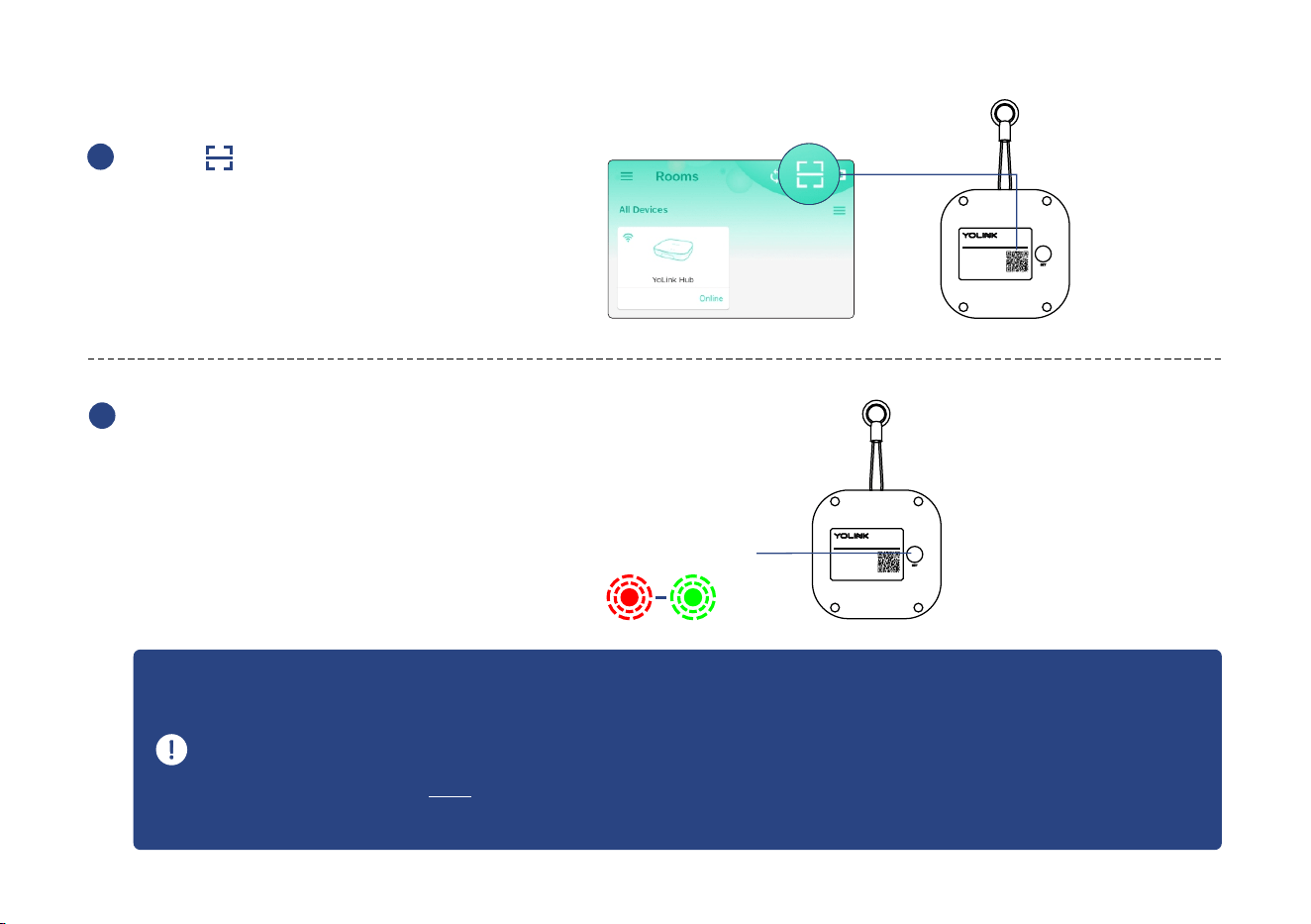
C-2. Add Device
5
Ta p “ ” bu on , t h e n s ca n Q R
C od e o n t he de v ic e . Fo l lo w t h e
st ep s t o a d d t he de v i ce
1
Weat herpr oof TH Se nsor
Made i n China S N: 8000 00000 1
Mode l: YS80 05-UC
Bae ry: 2 AAA , 3V DC
FCC ID : 2ATM78 005
Press the SET buon once to turn
on the device. The Status LED will
blink red once, then green several
mes, indicang your device has
connected to the cloud and is
ready to use
2
1. You will need to press the SET buon once again if the device failed to connect to the cloud
2. Pressing the SET buon at any other me aer this inial process will result in the LED blinking
red once, only. This indicates the device is connected to the cloud and is funconing normally
3. If the red LED does NOT blink as noted this may indicate a problem with the sensor. Please see
the troubleshoong secon and the contact secon for technical support
SET Buon
Weat herpr oof TH Se nsor
Made i n China S N: 8000 00000 1
Mode l: YS80 05-UC
Bae ry: 2 AAA , 3V DC
FCC ID : 2ATM78 005
C-3. Device Placement
Wall-mounng: hang the sensor from the wall, on a nail or screw or other secure object, using the
mounng ring
6
Surface-, Shelf- or countertop-mounng: place the sensor on a stable surface so that it will not
fall off or be knocked down
1. The sensor must NOT be submerged
2. For accurate readings, do not obstruct the openings on the sensor
3. Do not place the sensor on or near sources of extreme heat or cold
4. While this device is designed for outdoor use, refer to the environment
operang range informaon on page 17. Use of this device for
applicaons outside of the environmental operang range is likely to
damage the sensor, which is NOT covered by the warranty
D. Using the YoLink App
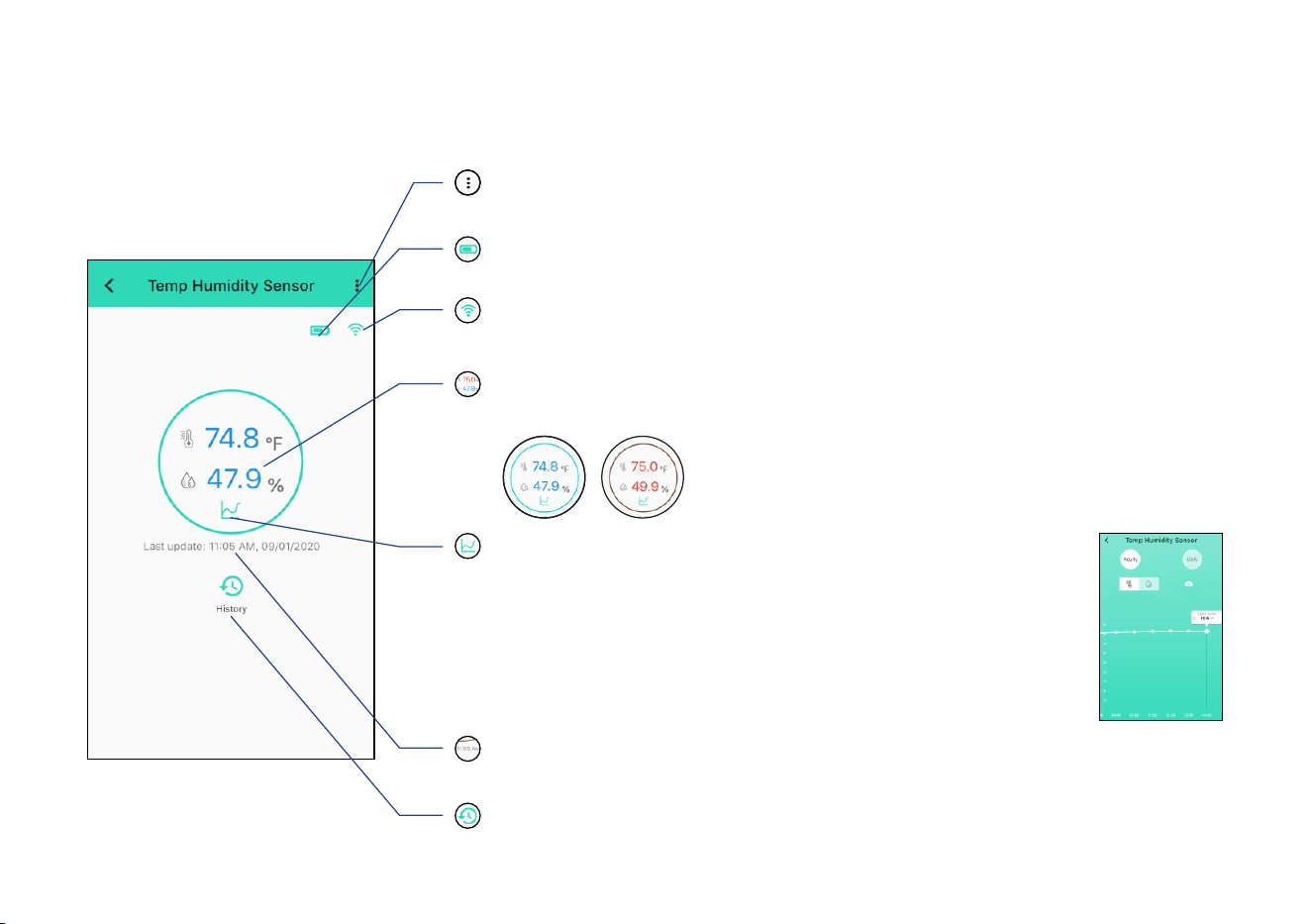
D-1. Device Page
7
Connecon Status
of and HubWeatherproof Temperature & Humidity Sensor
Baery Level of & Humidity SensorWeatherproof Temperature
Shown red if baery level is low-
Details
Tap to go to Details page (refer to page 9)-
Latest Refresh me for Temperature & Humidity Value
Sensor refresh frequency (refer to page 8)-
Device Alert History
Historical log of temperature and humidity alerts, logged with date & me
Latest Refresh Temperature Value & Humidity Value
- Blue: Normal, Red: Warning
Chart for History Value of temperature and humidity
- Hourly: last twenty-four hours; Daily: last seven days
- Download the history
values of last seven days
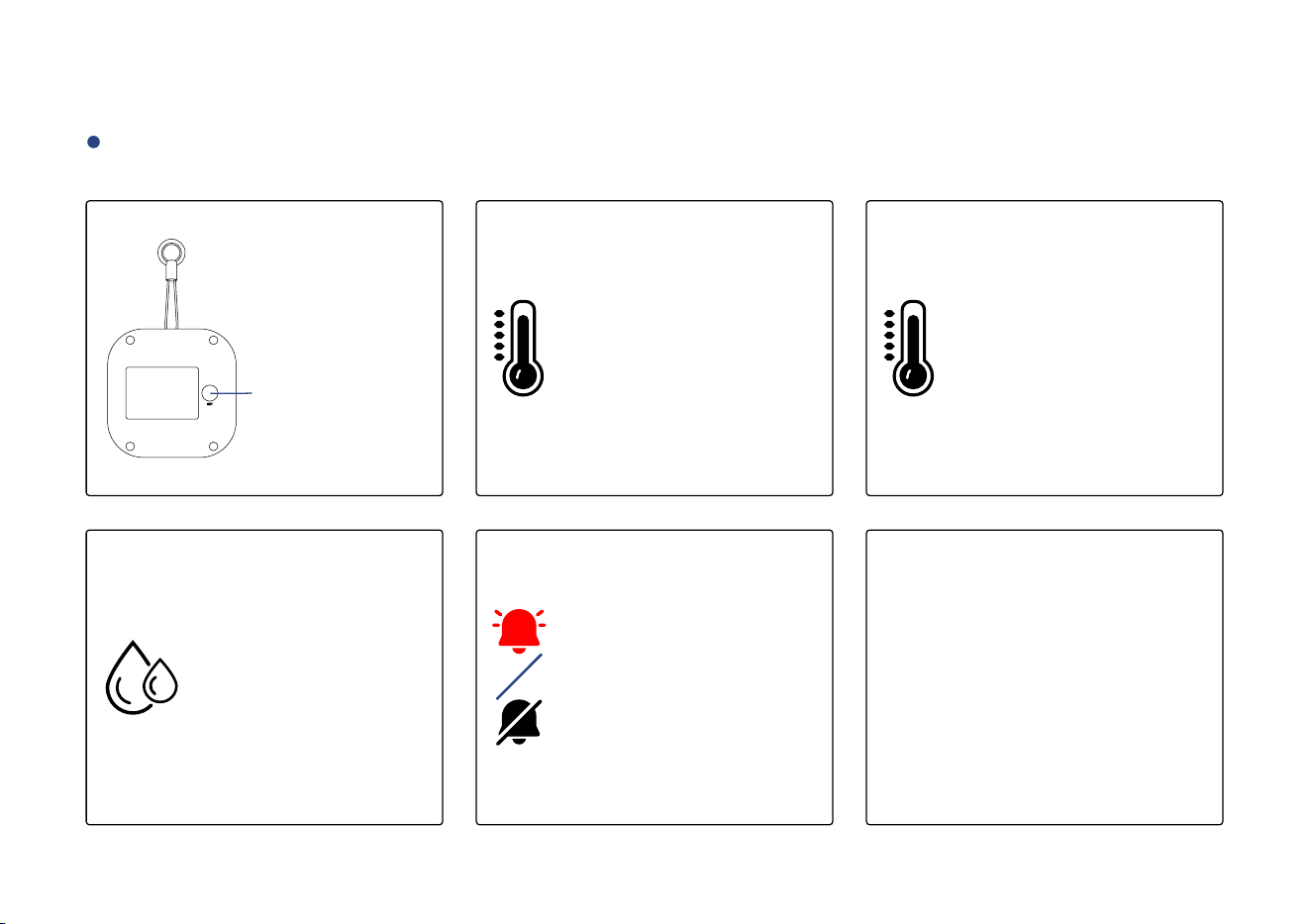
Sensor Refresh Frequency
Both temperature and humidity values refresh when one of the following condions are met:
8
d. Otherwise, the values will
be refreshed automacally
once an hour
a. The SET buon
has been pressed
b. At least 0.9°F(0.5°C)
change over a period
longer than 1 minute
d. At least 10%
change over a
period longer
than 1 minute
c. At least 3.6°F(2°C)
change within 1
minute
e. Device alert level
reached or restored
to normal range
SET Buon
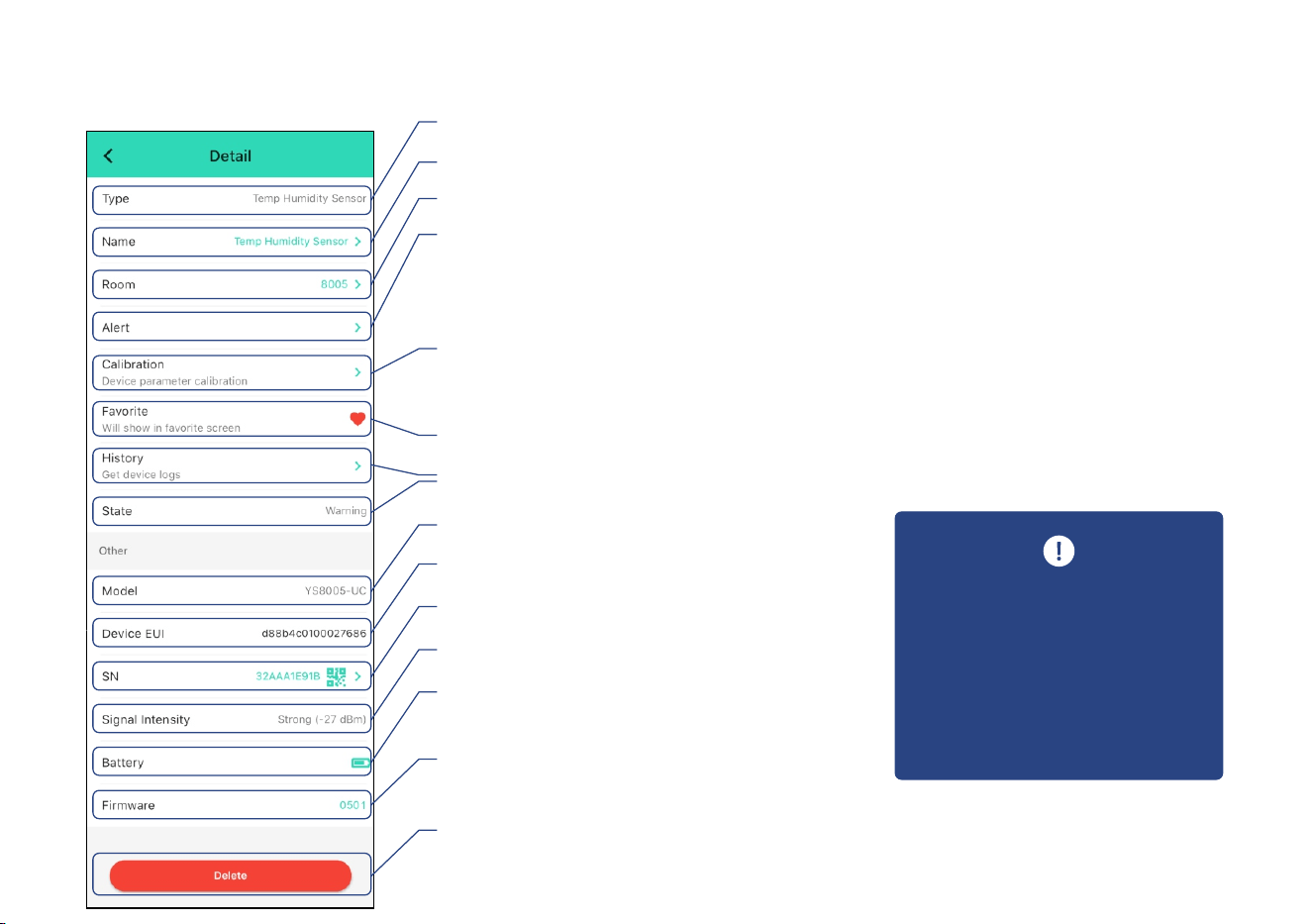
D-2. Details Page
i. Real-me Status: Normal, Warning
g. Add/Remove from favorites
a. Device Type
c. Choose a Room for device
e. A calibraon Value for temperature or humidity
b. Rename the Device
d. Alert Sengs
Enable or disable alerts-
a. Set alert range for temperature or humidity
b. Set re-noficaon interval aer a temperature or humidity alert (refer to page 10)
h. Historical Log of temperature and humidity alerts, logged with date & me
j. Device Model
k. Device EUI (unique)
l. Device SN (unique)
m. Connecon Status of sensor and Hub
n. Current Baery Level
Shown red if baery level is low-
o. Firmware Version
- “#### ready now (refer to page 13)” indicates a new update is available
p. Remove Device From Current Account
- Tap to delete the device from your YoLink account
Aer changing “Alert” and / or
“Calibraon” sengs, press
the device’s SET buon once,
to sync the new sengs to the
device. Otherwise, the device
w i l l a u t o m a c a l l y u p d a t e
within 4 hours (maximum)
f. Switch Temperature Display Mode: °F / °C
9
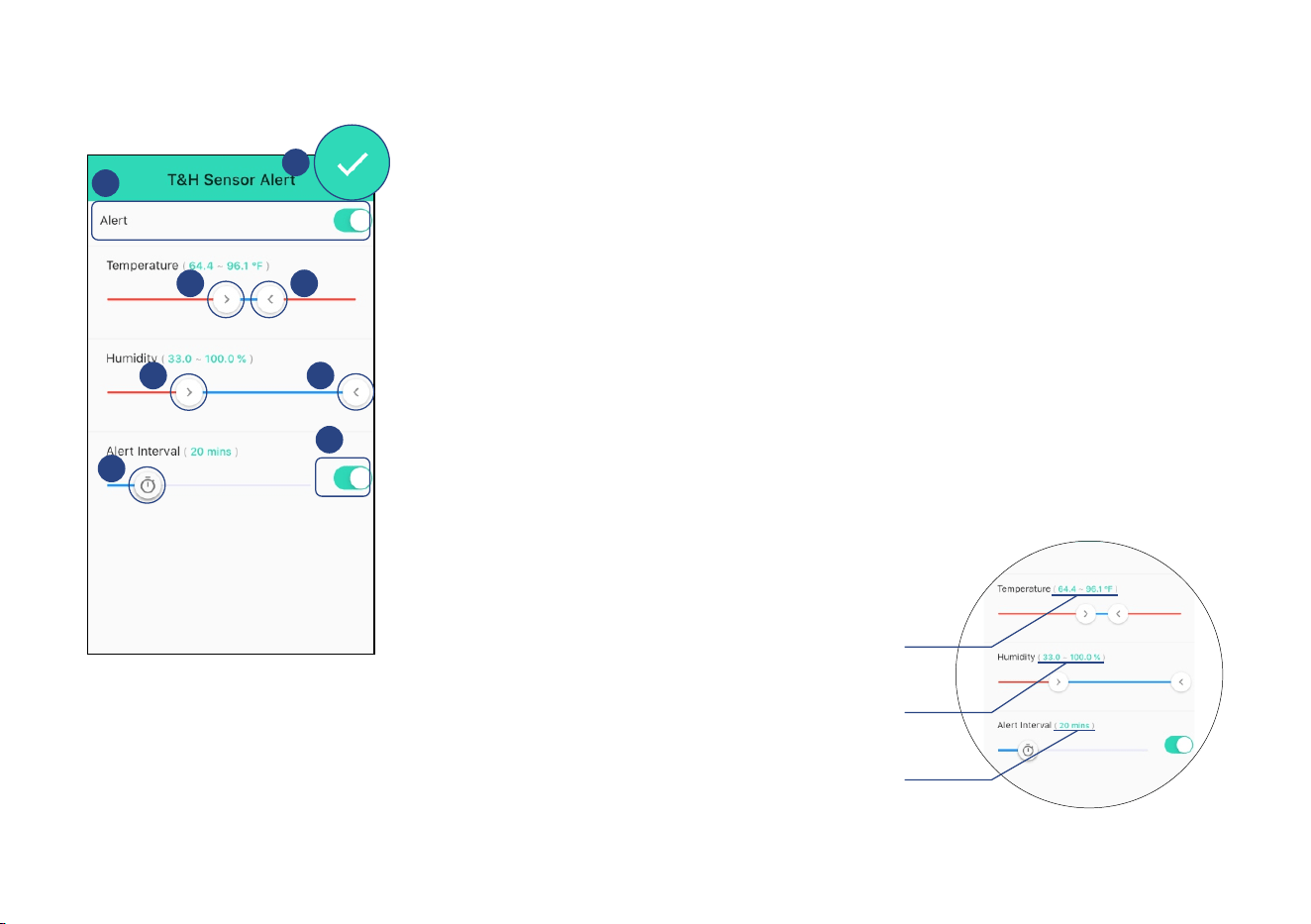
Alert Settings
Desired range of temperature
Device will alert outside of this range-
Desired range of humidity
Device will alert outside of this range-
Re-noficaon interval
a.
b. c.
e.d.
g.
f.
h.
a. Enable or disable alert
is below the - Receive noficaons when the temperature value or humidity value
low alert value or above the high alert value set below
Slide to set the low temperature alert value (Default is 64°F (18°C)b.
c. Slide to set the High temperature alert value (Default is 95°F (35°C)
d. Slide to set the low humidity alert value (Default is 0%)
e. Slide to set the high humidity alert value (Default is 100%)
f. Enable or disable re-noficaon aer a temperature or
humidity alert
g. Set the re-noficaon duraon between addional alerts
h. Tap to save the sengs
10
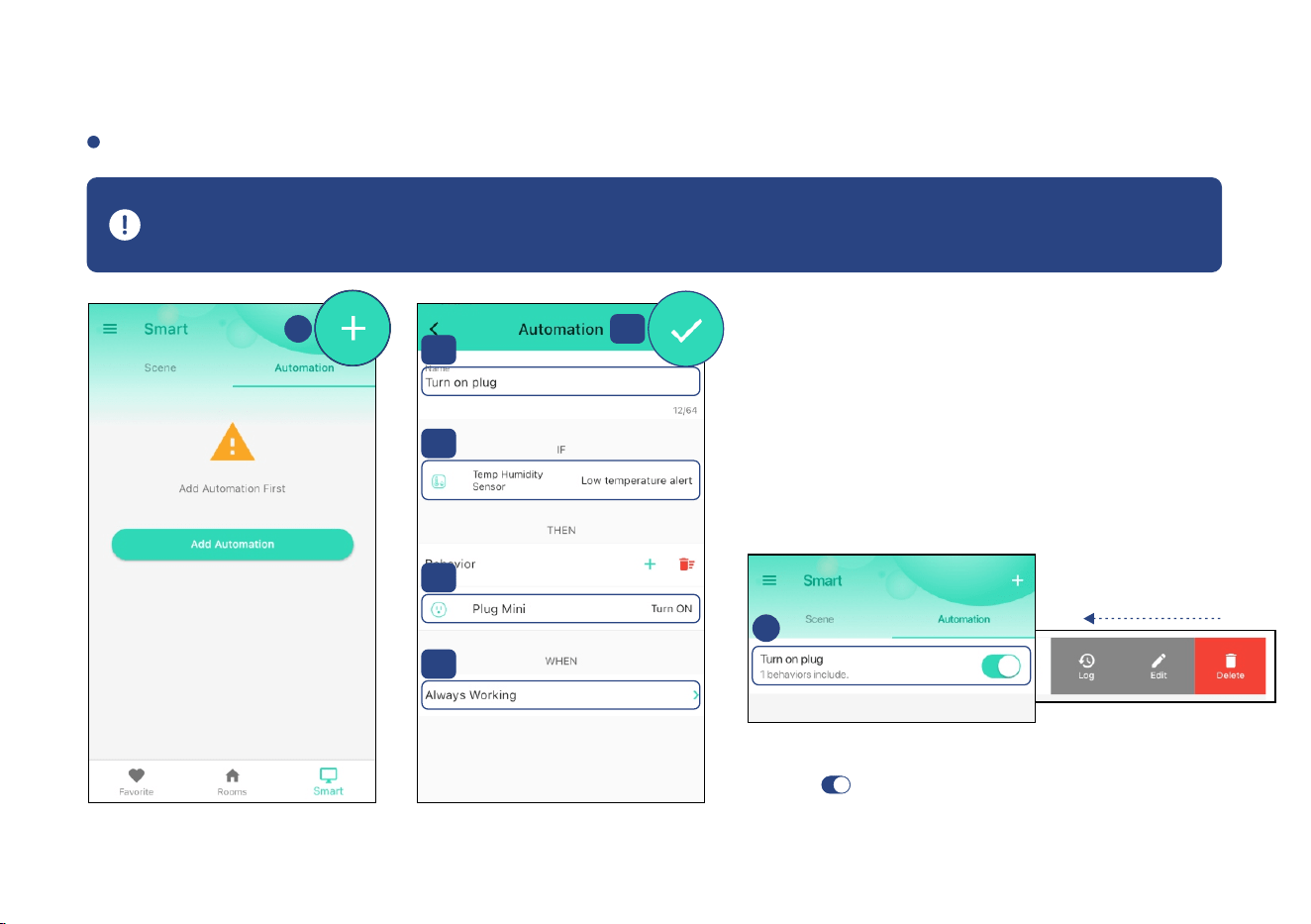
D-3. Automaon
The We ath erproo f Tem pera ture & H u mid ity Sen sor ca n be set a s a trig ger only, with four tri g ger
op ons : Low Tem perat ure A lert ; H igh Tempe rature Ale r t; Low Hum idit y A lert ; H igh Hum idit y A lert
a. Tap the “+” icon to add
an automaon
b. Add an automaon
b-1 Edit name
b-2 Edit trigger
b-3 Edit behavior (You must have at least one acon
device, or you cannot set a behavior)
b-4 Edit when (Set a me range for the automaon:
always or during specific days or mes)
b-5 Tap to save the sengs
c.
1. Tap “ ” buon to enable or disable the
automaon
2. Swipe le to view the history logs and to edit or
delete the automaon
c. Click to edit the automaon
Swipe Le
a.
b-1
b-2
b-3
b-5
b-4
Go to the “Smart” screen, tap “Automaon”
11
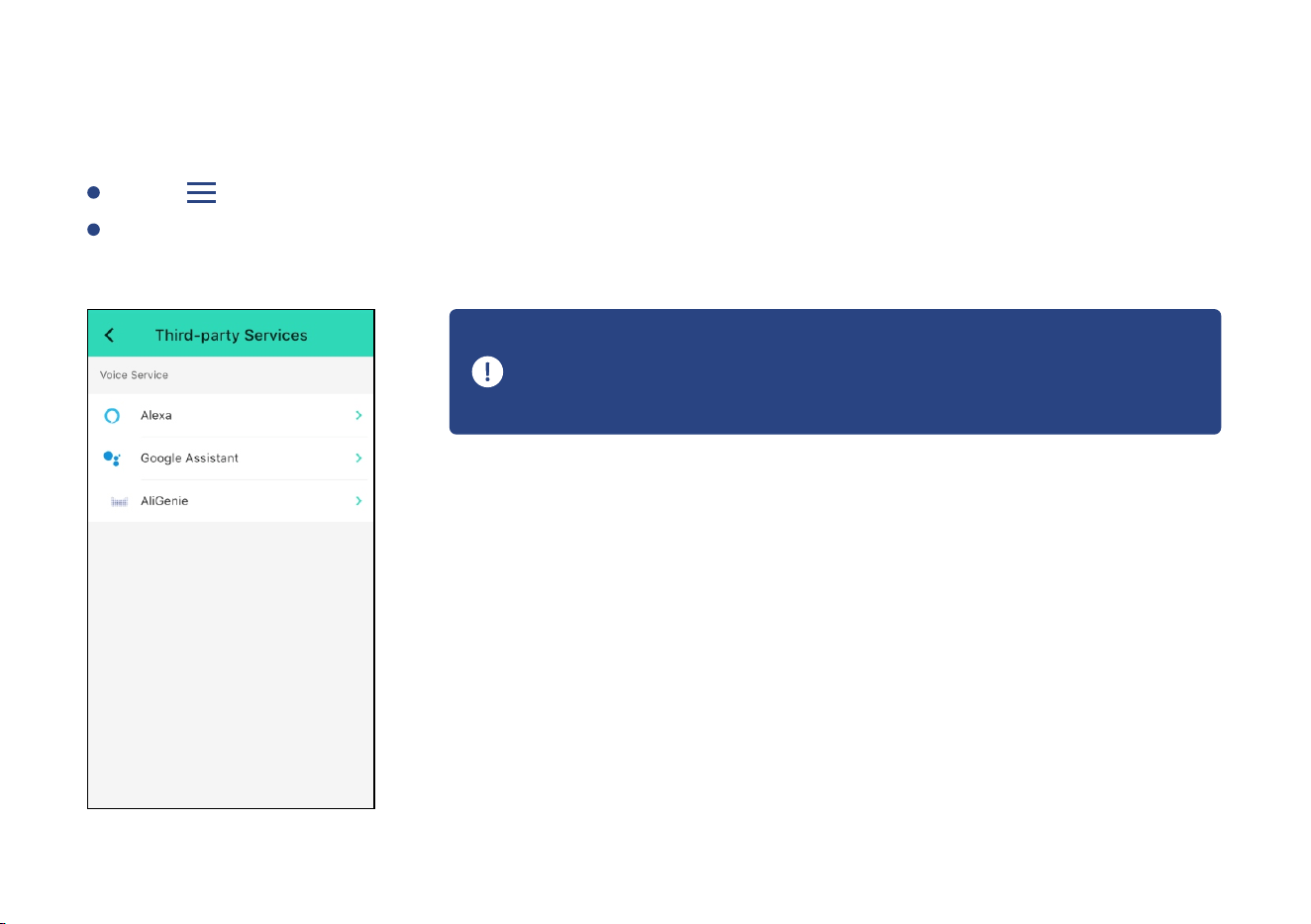
D-4. Voice Assistants
Go to Sengs > Voice Assistants for the applicable voice assistant integraon guide
Tap “ ” in the upper le corner to go to My Profile
Co nne ct YoLi nk wi th Al exa to m oni tor th e stat us of yo ur de vic es th ro ug h vo ice co mma nd s
YoLink & Humidity Sensor is integrated Weatherproof Temperature
with Alexa, and is also integrated with IFTTT.com (works as a trigger
device using IFTTT)
12
E. Maintenance
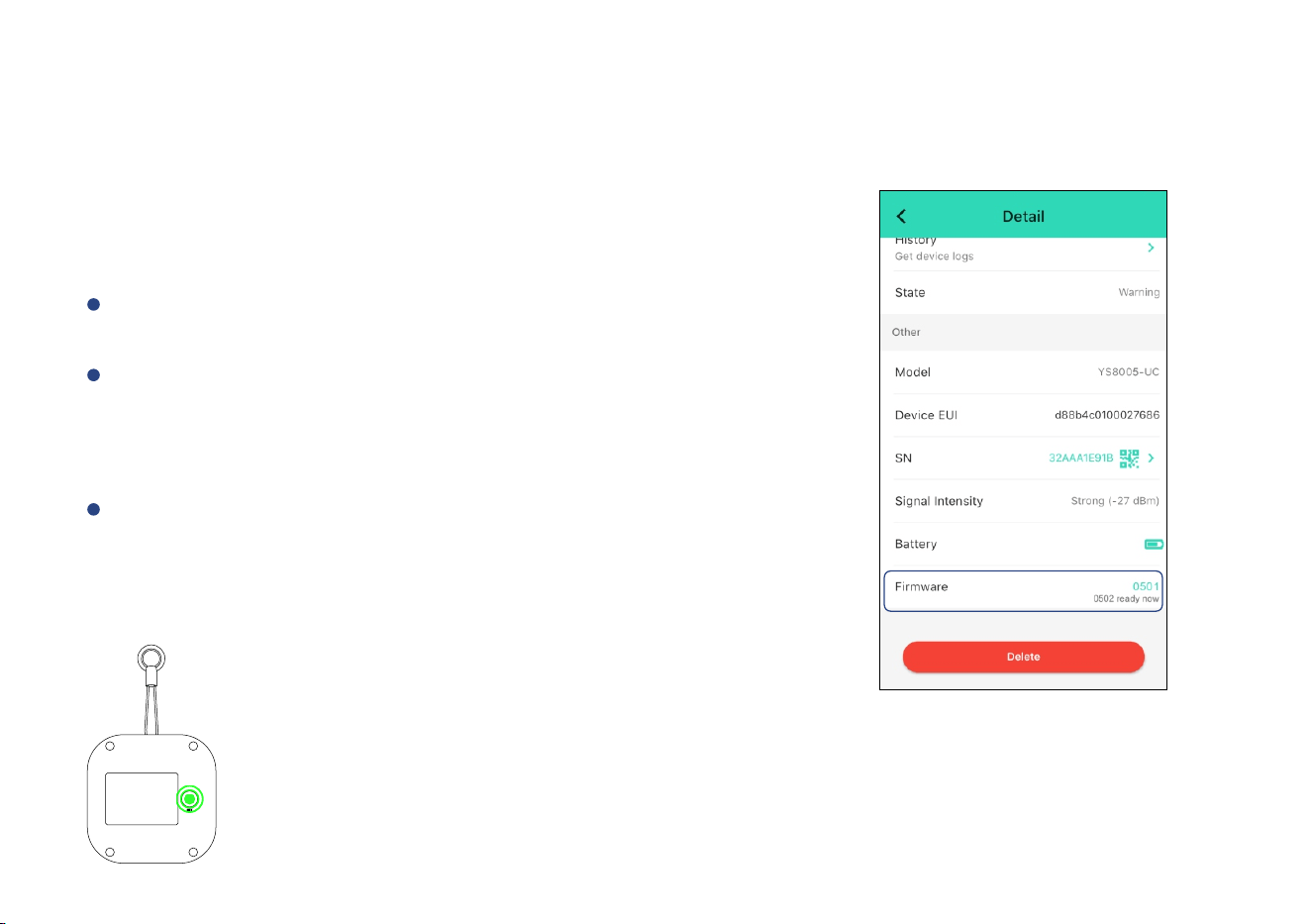
E-1. Firmware Update
To ensure our customers have the best user experience,
we highly recommend you update to the newest version
firmware when an update is available
The device's firmware will be updated automacally within
1 hours (maximum). To force an immediate update, press
the SET buon on the device twice to make the device
enter update mode
In “Firmware”, if a new version is listed as available (####
ready now), click it to start the firmware update process
You may use your device during the update as it is
performed in the background. The LED light will slowly
blink green during the update and the process will be
complete within 2 minutes aer the light stops blinking
13
E-2. Factory Reset
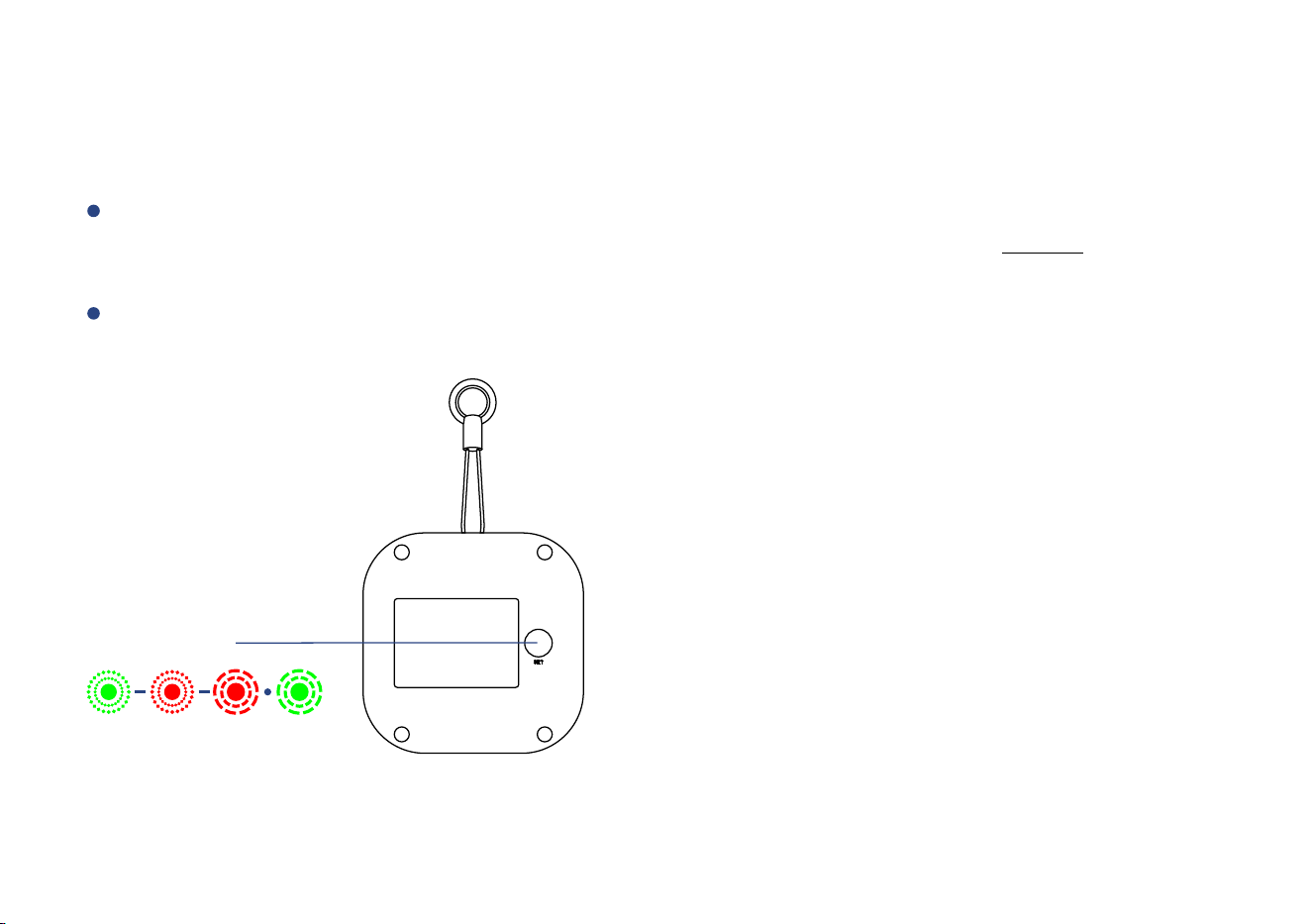
Factory reset will erase all of your sengs and restore it to factory defaults. Aer the factory reset,
your device will remain in your Yolink account
SET Buon
14
Factory reset will be complete when the status light stops blinking
Hold the SET buon for 20-25 seconds unl the status light blinks red and green alternately,
then, release the buon (Hold the SET buon longer than 25 seconds will ABORT the factory
reset operaon)
E-3. Replacing the Baeries
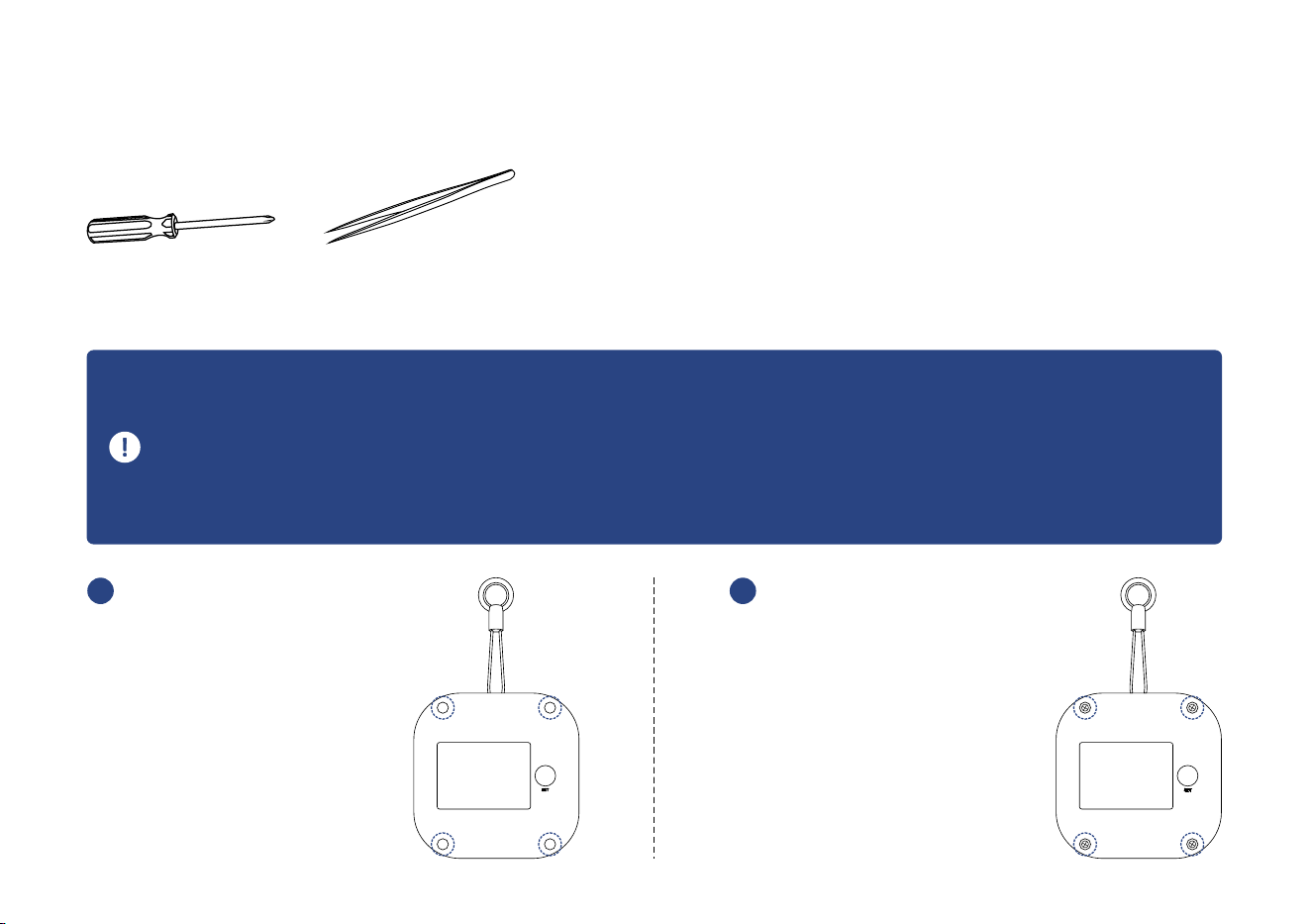
Tools Required:
Small Philips
Screwdriver
Tweezers
1. To maintain the waterght design of your Weatherproof Temperature & Humidity Sensor, use extreme
care and follow the baery replacement instrucons closely
2. Do not mix old and new baeries
3. Make sure that the boom shell and sealed rubber pads are ghtly secured. Otherwise, the entry of
water into the sensor may cause severe damage
Use tweezers to
take out the four
s e a l e d r u b b e r
pads at the base
of the device
1
Use a screwdriver
t o u n s c r e w t h e
screws at the base
of the device and
remove the base
2
15
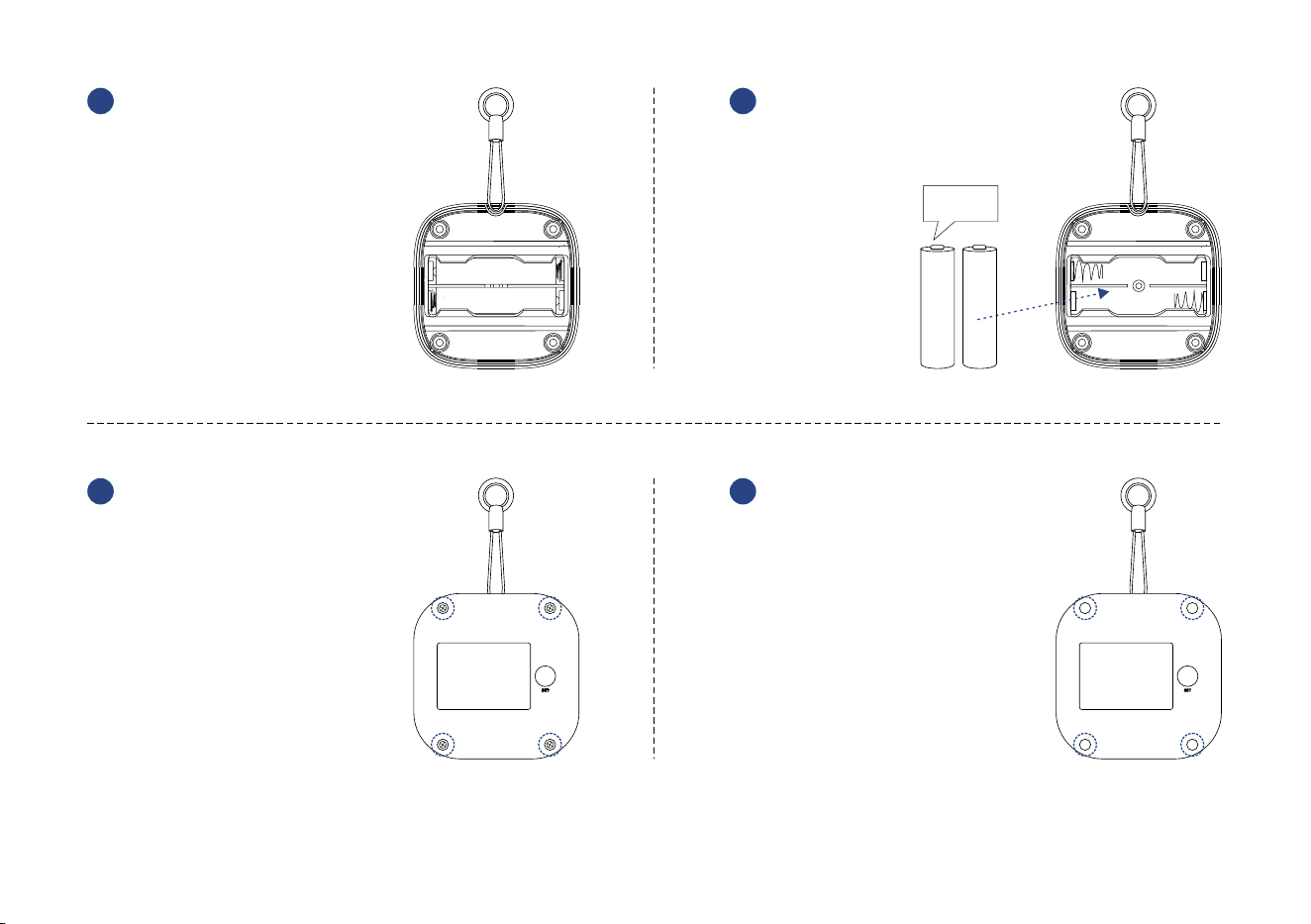
Remove the two
old baeries
3
Install new two
AAA baeries
4
Close and secure
t h e b a s e b y
reinstalling and
g h t e n i n g t h e
four screws
5
Reaa ch t he fo ur
sealing rubber pads
6
16
2 x AAA

F. Specificaons
Temperature Value Accuracy:
0.1 (°F/°C)
Voltage:
3V DC (2 - AAA baeries)lithium non-rechargeable
Humidity Value Accuracy:
0.1%
Alert Temperature:
-22°F - 158°F (-30°C - 70°C)
Alert Humidity:
0% - 100%
≤ 135mA (operang), ≤ 35uA (standby)
Device Current Draw:
Sensor Types:
Temperature, Humidity
17
IP Rang:
IP67
Dimensions:
2.44 x 2.44 x 0.87 inches (62 x 62 x 22 millimeters) (L x W x D)

18
Humidity Error
(Maximum,
@77 ):°F (@25°C)
0% - 20% / 80% - 100%, ±7%
20% - 80%, ±3.5%
Temperature Error
(Maximum):
-40 - -4 , (-40 - -20°F °F ±2.7°F °C °C, ±1.5°C)
-4°F 32°F ± °F -20°C - 0°C, ±1°C) - , 1.8 (
32°F 41°F ± °F (0°C - 5°C, ±0.5°C) - , 0.9
41°F 140°F ± °F (5°C - 60°C, ±0.4°C) - , 0.72
140°F 176°F ± °F (60°C - 80°C, ±0.75°C) - , 1.35
Environment:
Working Temperature: -22°F - 158°F (-30°C - 70°C)
Working Humidity: ≤95% (non-condensing)
Temperature Error
(Typical):
-40 - 14 , (-40 - -10°F °F ±1.44°F °C °C, ±0.8°C)
14°F 41°F ± °F -10°C - 5°C, ±0.4°C) - , 0.72 (
41°F 140°F ± °F (5°C - 60°C, ±0.2°C) - , 0.36
140°F 176°F ± °F (60°C - 80°C, ±0.4°C) - , 0.72
Humidity Error
(Typical,
@77 ):°F (@25°C)
0% - 20% / 80% - 100%, ±3.5%
20% - 80%, ±2%

G. Troubleshoong
Symptoms:
1. Device is offline.
- If sensor is not connected to the cloud, press the SET buon on the Weatherproof Temperature
& Humidity sensor once
- If Hub is offline, reconnect the Hub to the Internet and press the SET buon on the
Weatherproof Temperature & Humidity sensor once
- If Hub is not on, power on the Hub again and press the SET buon on the Weatherproof
Temperature & Humidity sensor once
- If sensor is out of range with Hub, relocang the sensor or Hub may be required
- For a device with low-baery indicators or alerts or if the condion of the baeries is in
queson, replace the baeries with two premium “AAA” lithium baeries
2. Receive noficaons out of the alert range: Alert sengs are not saved. Refer to "Details page"
secon on page 9
3. Other issues, contact customer service, 1-949-825-5958 (M-F 9am - 5pm PST) or email 24/7 at
service@yosmart.com
19

H. Warning
U s e o n l y n ew, n am e b ra n d, l it h i u m n o n - re c h a rg ea b l e A A A ba e r i e s
Do not us e rec hargeabl e bae ries
Do not us e zi nc blen d b ae ries
Do not mi x ne w an d ol d bae ries
Do not puncture or damage baeries. Leakage can cause harm on skin contact, and is toxic
if ingested
Do not dispose of baeries in fire as they may explode! Please follow local baery disposal
procedures
Plea se i nstall, ope rate and ma intain the Weathe rproof Te mperature & H umidi ty S enso r
onl y as outlin ed in this ma nual. Im proper us e may dam age the unit an d/or void the
warranty
Do not obstruct the opening on the housing
Do no t install or use this device outsi de of the temp erature and humi dity range listed in
the E nvironmental s econ in Specifi caon s, on page 18
Do n ot in stall o r u se t his d evi ce wh ere it w ill b e s ub jec ted to h igh te mpe rature s a nd /o r
op en fla me
20
Wh il e t he s en sor i s wate rp roof, to en su re op m al op era on a nd l ifem e of t he s ens or,
in stal li ng t he s en so r wi th o ver hea d p ro tec o n fro m we ath er i s su g geste d. D o n ot
im me rs e th e se ns or o r a ll ow it to b e i mm ers ed in w ater

If your Sensor does get dirty, please clean it by Weatherproof Temperature & Humidity
wiping it down with a clean, dry cloth. Do not use strong chemicals or detergents, which
may discolor or damage the exterior and/or damage the electronics, voiding the warranty
Do not install or use this device where it will be subjected to physical impacts and/or strong
vibraon. Physical damage is not covered by the warranty
Ple ase contact Cu sto mer Ser vic e before aempn g to repair d isass embl e or mo dif y th e
devi ce, any o f wh ich can void th e war rant y an d pe rman ently da mage the dev ice
21
Install or use this device only in clean environments. Extremely dusty or dirty environments
may prevent the proper operaon of this device, and will void the warranty

Warranty 2 Year Limited Electrical Warranty
YoSmart warrants to the original residenal user of this product that it will be free from defects in
materials and workmanship, under normal use, for 2 years from the date of purchase. User must
provide a copy of original purchase receipt. This warranty does not cover abuse or misused products
or products used in commercial applicaons. This warranty does not apply to Weatherproof
Temperature & Humidity sensors that have been improperly installed, modified, put to a use other
than designed, or subjected to acts of God (such as floods, lightning, earthquakes, etc.). This
warranty is limited to repair or replacement of the Weatherproof Temperature& Humidity sensor
only at YoSmart's sole discreon. YoSmart will NOT be liable for the cost of installing, removing, nor
reinstalling this product, nor direct, indirect, or consequenal damages to persons or property
resulng from the use of this product. This warranty only covers the cost of replacement parts or
replacement units, it does not cover shipping & handling fees
To implement this warranty please give us a call during business hours at 1-949-825-5958, or visit
www.yolink.net
If you have any difficules installing or using your Weatherproof Temperature
& Humidity Sensor, please contact our Customer Service department during
business hours:
US Live Tech Support: 1-949-825-5958 M-F 9am - 5pm PST
Email: service@yosmart.com
YoSmart Inc. 17165 Von Karman Avenue, Suite 105, Irvine, CA 92614
22

This equipment has been tested and found to comply with the limits for a Class B digital device,
pursuant to part 15 of the FCC Rules. These limits are designed to provide reasonable protecon
against harmful interference in a residenal installaon. This equipment generates, uses and can
radiate radio frequency energy and, if not installed and used in accordance with the instrucons,
may cause harmful interference to radio communicaons. However, there is no guarantee that
interference will not occur in a parcular installaon. If this equipment does cause harmful
interference to radio or television recepon, which can be determined by turning the equipment
off and on, the user is encouraged to try to correct the interference by one or more of the following
measures:
FCC Statement
Reorient or relocate the receiving antenna
Connect the equipment into an outlet on a circuit different from that to which the receiver is
connected
Increase the separaon between the equipment and receiver
Consult the dealer or an experienced radio / TV technician for help
This device complies with part 15 of the FCC Rules. Operaon is subject to the following two
condions:
1) This device may not cause harmful interference
2) This device must accept any interference received, including interference that may cause
undesired operaon. Any changes or modificaons not expressly approved by the party
responsible for compliance could void the user’s authority to operate the equipment

This equipment complies with FCC RF radiaon exposure limits set forth for an uncontrolled
environment. This device and its antenna must not be co-located or operang in conjuncon with
any other antenna or transmier
“To comply with FCC RF exposure compliance requirements, this grant is applicable to only Mobile
Configuraons. The antennas used for this transmier must be installed to provide a separaon
distance of at least 20 cm from all persons and must not be co-located or operang in conjuncon
with any other antenna or transmier.”
FCC RF Radiaon Exposure Statement
Note: The manufacturer is not responsible for any radio or TV interference caused by unauthorized
modificaons to this equipment. Such modificaons could void the user’s authority to operate the
equipment