
SENCOR HOME
EN User Manual SENCOR HOME App
EN – 1
SAFETY NOTICE
It is not necessary to have the app installed on your mobile device to operate the electric scooter. For
safety reasons, never use the app while you are riding your electric scooter. The app offers an overview
of the statistics after the ride and adjustment of settings including additional functions before the ride
starts.
Installing the SENCOR HOME App
The SENCOR HOME app is available for download on the Play Store (Android) and AppStore (iOS).
QR code to download the
SENCOR HOME app
Adding the Electric Scooter to the SENCOR HOME App
A) The electric scooter will be found automatically in the app:
1. Put the electric scooter into operating mode
1) Switch on the electric scooter.
2) Fully press and hold down the speed control until the display shows a value of 16.
3) Keep holding down the speed control and press the brake lever simultaneously.
4) Release the brake lever.
CAUTION: Always start the operating mode when the electric scooter is not in motion.
Start up to the operating mode gradually and slowly according to the instructions.
2. Launch the already installed SENCOR HOME app and follow the instructions below:
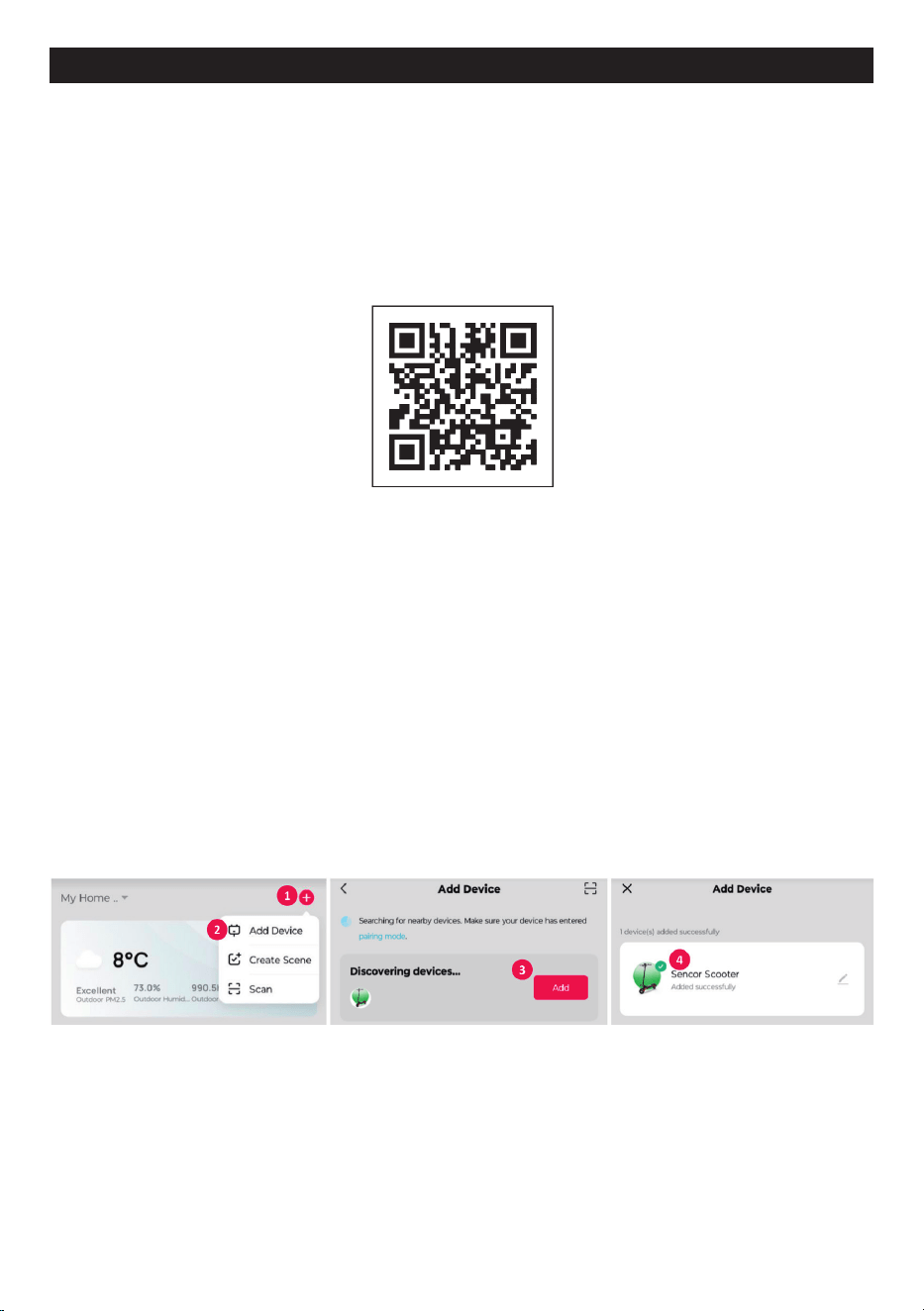
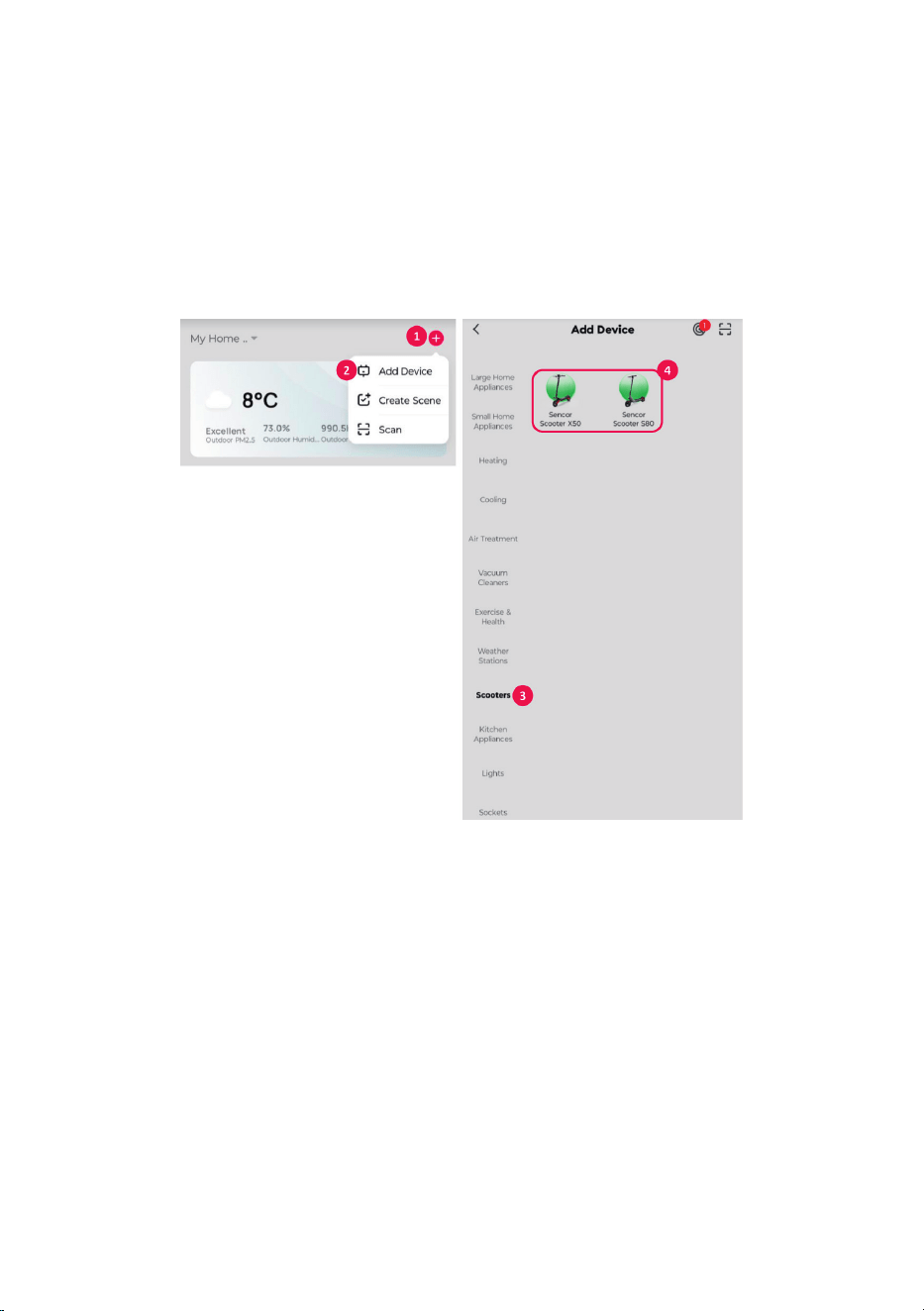
1 Press the “+” button to expand the menu
2 Add a new device – the app will try to find all available compatible SENCOR devices nearby. Select
the electric scooter model you want to pair with the app.
3 Press the “Add” button
4 The electric scooter is successfully added to the “SENCOR HOME” app
SENCOR HOME App
EN – 2
B) Manual search for electric scooter
1. Put the electric scooter into operating mode
1) Switch on the electric scooter.
2) Fully press and hold down the speed control until the display shows a value of 16.
3) Keep holding down the speed control and press the brake lever simultaneously.
4) Release the brake lever.
CAUTION: Always start the operating mode when the electric scooter is not in motion.
Start up to the operating mode gradually and slowly according to the instructions.
2. Launch the already installed SENCOR HOME app and follow the instructions below:
1 Press the “+” button to expand the menu
2 Add a new device
3 Select the “Scooters” device group
4 Choose the same model of electric scooter as the one you are going to connect. Follow the steps in
the guide to connect your electric scooter.
Resetting the Electric Scooter
If the electric scooter has been connected to the SENCOR HOME app in the past, it cannot be added
again to another SENCOR HOME user account. Reset pairing with the SENCOR HOME app is required.
RESET is performed when the electric scooter is switched on and the power button is pressed 8 times in
succession. Successful reset will be announced by an audible tone.
EN – 3
Basic Description of the Application
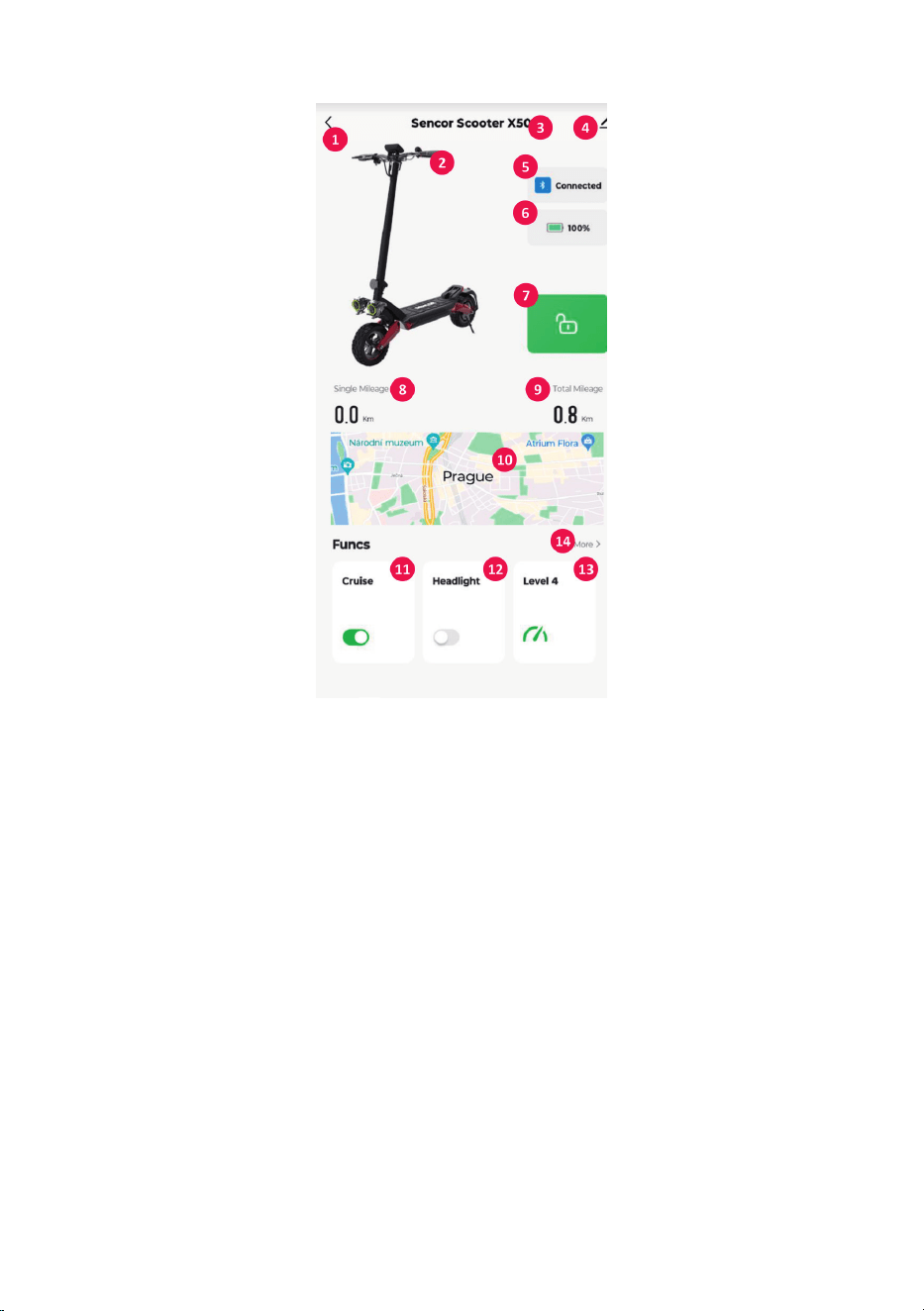
1 “BACK” button – go to the main screen
2 Picture of the electric scooter – depending on the model
3 Name of the electric scooter – depending on the model
4 Advanced menu – Device information, sharing a device to another account, updating a device, etc.
5 Bluetooth connection status
6 Battery condition indicator
7 Electric scooter lock function button
8 Distance travelled – switching off and on resets the values
9 Total distance travelled
0 Map of current location – click on the map to record the current journey
qa Cruise control function switch (green – on, grey – off)
qs Headlight function switch (green – on, grey – off)
qd Option to change driving mode
qf Option to change units (km/miles), version of control and LCD unit, displayed errors, battery capacity
information. (values shown are approximate)

EN – 4
Quick Control Option
1 Option to expand/hide the quick menu
2 Lock function button
3 Headlight function button
4 Cruise control function button
5 Button to expand the driving mode menu